Creating an email account in Gmail
Simply click or use the arrow keys to go to the
next slide 
 An email is an electronic letter sent via the internet
 Emails can be created via an online provider or with a
program on your computer
 You need an email address and a password to send
emails
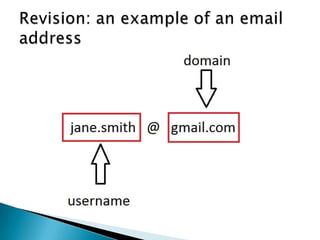
 An email address is made up of a username, the @ sign
and the domain name
 Never to give out your password/s or personal details!
Today you will learn how to open an email
account with Gmail – an email service provided
by Google.
 You will learn how to enter your personal
details into the Gmail system
 You will create your own email address and
password for your account using the skills you
learnt last week
 You will learn about privacy policies, terms of
service and captcha
 Gmail is an internet email service provided by
Google
 It is a free and safe service
 You can access it on many different devices
aside from your computer, such as your
tablet or smartphone
 You can sign into your account via the Google
search engine
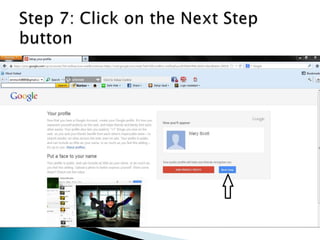
When you create your email account
with Gmail you will be asked to
enter:
 Your name
 Your birth date
 Your gender
 Your chosen username and
password
 Your age is required in order to provide you
with age-appropriate settings
 You can choose not to specify your gender.
Simply select “other” if you wish.
 Your name is required in order for you to
identify yourself when sending emails.
 Last week you practiced creating your own
email address and password. Now you will
use what you learned to create one that you
will use.
 When creating your password, remember to
make it something personal that only you will
remember, and consider making it a “strong”
password by a combination of numbers.
 The terms of service and privacy policy are two
documents that you are required to agree to in
order to set up your email address.
 You don’t have to read them, however the privacy
policy has some useful information about how
Gmail will use your details and why they are
needed.
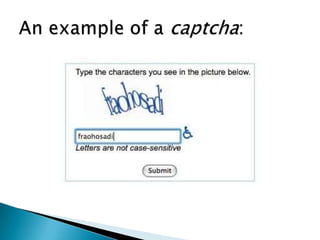
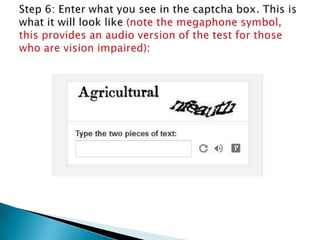
 Captcha is a security test that is used to ensure
that you are a human, not a program that could
degenerate the quality of the system. There is an
audio option for people with vision impairment.
The next slides will
be a demonstration
of the Gmail sign-
up process. Please
click to continue…
Now, using the step by
step process outlined in
this tutorial, it’s your turn
to sign-up to Gmail.
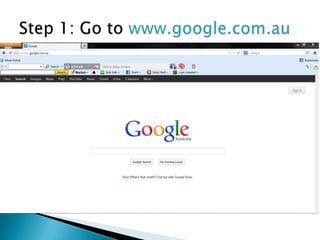
www.google.com.au <click here
to get started
(remember to keep your email
address all in lower case)
 http://www.gcflearnfree.org/gmail This is a
tutorial that focusses on Gmail
 https://mail.google.com/mail/help/intl/en/a
bout.html About Gmail
 http://netforbeginners.about.com/od/c/f/Wh
at-Is-a-CAPTCHA-Test.htm Some more
information about captcha
 http://www.google.com/intl/en/policies/priv
acy/ Gmail’s privacy policy

Session 2: Opening an email account

  • 1.
    Creating an emailaccount in Gmail Simply click or use the arrow keys to go to the next slide 
  • 2.
     An emailis an electronic letter sent via the internet  Emails can be created via an online provider or with a program on your computer  You need an email address and a password to send emails  An email address is made up of a username, the @ sign and the domain name  Never to give out your password/s or personal details!
  • 3.
    Today you willlearn how to open an email account with Gmail – an email service provided by Google.  You will learn how to enter your personal details into the Gmail system  You will create your own email address and password for your account using the skills you learnt last week  You will learn about privacy policies, terms of service and captcha
  • 4.
     Gmail isan internet email service provided by Google  It is a free and safe service  You can access it on many different devices aside from your computer, such as your tablet or smartphone  You can sign into your account via the Google search engine
  • 5.
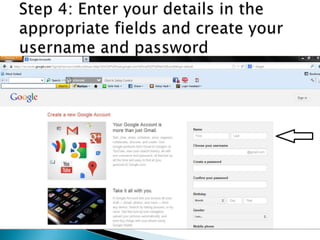
    When you createyour email account with Gmail you will be asked to enter:  Your name  Your birth date  Your gender  Your chosen username and password
  • 6.
     Your ageis required in order to provide you with age-appropriate settings  You can choose not to specify your gender. Simply select “other” if you wish.  Your name is required in order for you to identify yourself when sending emails.
  • 7.
     Last weekyou practiced creating your own email address and password. Now you will use what you learned to create one that you will use.  When creating your password, remember to make it something personal that only you will remember, and consider making it a “strong” password by a combination of numbers.
  • 9.
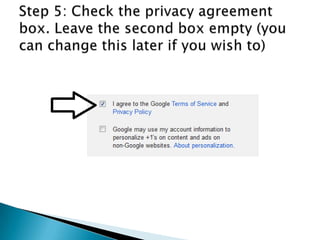
     The termsof service and privacy policy are two documents that you are required to agree to in order to set up your email address.  You don’t have to read them, however the privacy policy has some useful information about how Gmail will use your details and why they are needed.  Captcha is a security test that is used to ensure that you are a human, not a program that could degenerate the quality of the system. There is an audio option for people with vision impairment.
  • 11.
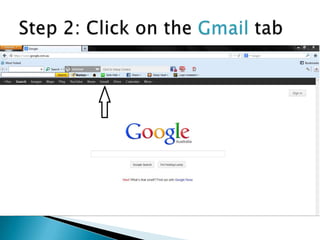
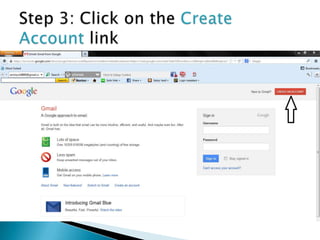
    The next slideswill be a demonstration of the Gmail sign- up process. Please click to continue…
  • 20.
    Now, using thestep by step process outlined in this tutorial, it’s your turn to sign-up to Gmail. www.google.com.au <click here to get started (remember to keep your email address all in lower case)
  • 21.
     http://www.gcflearnfree.org/gmail Thisis a tutorial that focusses on Gmail  https://mail.google.com/mail/help/intl/en/a bout.html About Gmail  http://netforbeginners.about.com/od/c/f/Wh at-Is-a-CAPTCHA-Test.htm Some more information about captcha  http://www.google.com/intl/en/policies/priv acy/ Gmail’s privacy policy