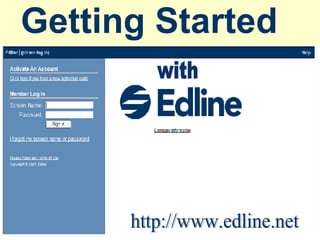
Getting Started   http://www.edline.net with
Edline Web Site Requirements Provide Students and Parents With: A Brief Course Description Your Email Address Course Syllabus Major Project or Event Dates (As listed in HS Planning Guide or Student Handbook) Bi-Monthly grade updates. (You may only have one or two assignments to update at that time.  Creative Arts teachers and teachers with semester courses grade posting dates will vary.)
Using Edline Navigation use the links and buttons on Edline to navigate DO NOT use the browser's "Forward" and "Back" buttons Timing Out 15 minutes of inactivity you must log back in Typing and moving mouse are not considered activity Clicking a link or a button is considered activity
Activation Codes Students Activation Codes The teacher will provide students with activation codes Parent Activation Codes (after 1 st  mass mailing) Guidance office will give parent activation codes with new enrollment packets Teacher Activation Codes Technology Department will provide teachers with activation codes
Building Web Coordinator Maintains the building Edline site, News, Calendar, important school info. and updates. Creates groups for activities not listed in MMS schedule.
Fixing Problems Forgotten Screennames or Passwords  (teachers, students, and parents) click the "I forgot my screen name or password link" on the Edline login page. I see a message that says Edline's certificate is invalid or expired   your browser is probably too old. Upgrade your browser to the newest available version.  check your computer's system clock. If the clock date and time is wrong, your browser will incorrectly think Edline's certificate has expired.  server is unavailable when you try to access Edline through AOL Internet Browser.  The AOL servers are overloaded The parental controls on your account are too restrictive.
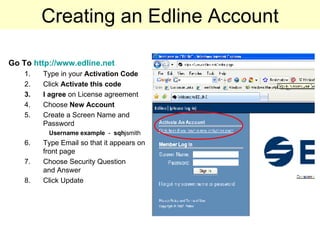
Creating an Edline Account Go To  http://www.edline.net   Type in your  Activation Code Click  Activate this code I agree  on License agreement Choose  New Account Create a Screen Name and Password Username example   -  sqh jsmith Type Email so that it appears on  front page Choose Security Question  and Answer Click Update
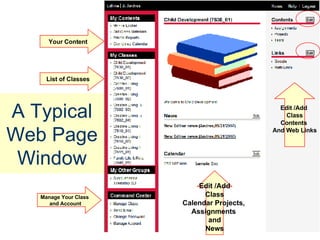
A Typical Web Page Window List of Classes Edit /Add Class Calendar Projects,  Assignments  and News Manage Your Class  and Account Your Content Edit /Add  Class Contents  And Web Links
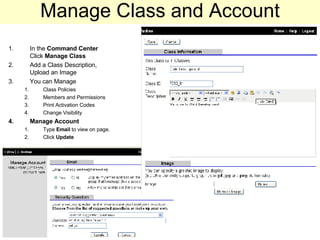
Manage Class and Account In the  Command Center   Click  Manage Class Add a Class Description, Upload an Image You can Manage Class Policies Members and Permissions  Print Activation Codes Change Visibility Manage Account Type  Email  to view on page. Click  Update
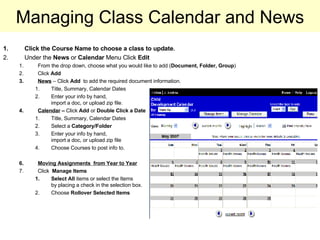
Managing Class Calendar and News Click the Course Name to choose a class to update . Under the  News  or  Calendar  Menu Click  Edit From the drop down, choose what you would like to add ( Document, Folder, Group ) Click  Add News  – Click  Add  to add the required document information.  Title, Summary, Calendar Dates Enter your info by hand,  import a doc, or upload zip file. Calendar  –  Click  Add  or  Double Click a Date Title, Summary, Calendar Dates Select a  Category/Folder Enter your info by hand,  import a doc, or upload zip file Choose Courses to post info to. Moving Assignments  from Year to Year Click  Manage Items Select All  items or select the Items  by placing a check in the selection box. Choose  Rollover Selected Items
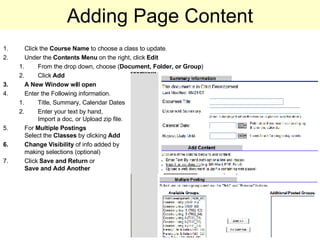
Adding Page Content Click the  Course Name  to choose a class to update . Under the  Contents Menu  on the right, click  Edit From the drop down, choose ( Document, Folder, or Group ) Click  Add A New Window will open Enter the Following information. Title, Summary, Calendar Dates Enter your text by hand,  Import a doc, or Upload zip file.  For  Multiple Postings   Select the  Classes  by clicking  Add Change Visibility  of info added by  making selections (optional) Click  Save and Return  or  Save and   Add Another
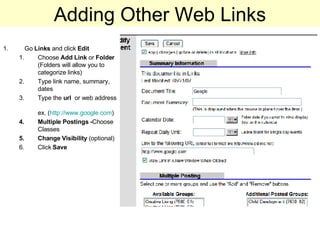
Adding Other Web Links Go  Links  and click  Edit Choose  Add   Link  or  Folder  (Folders will allow you to categorize links) Type link name, summary, dates Type the  url   or web address  ex. ( http:// www.google.com )  Multiple Postings - Choose Classes Change   Visibility  (optional) Click  Save
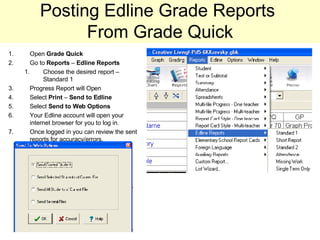
Posting Edline Grade Reports  From Grade Quick Open  Grade Quick Go to  Reports  –  Edline Reports Choose the desired report – Standard 1 Progress Report will Open Select  Print  –  Send to Edline Select  Send to Web Options Your Edline account will open your internet browser for you to log in. Once logged in you can review the sent reports for accuracy/errors.
Important Notes and Tips Make sure to set permissions and visibility to all documents, folders, and other information that you want to keep private. Under the command center, you can send mass email notifications to all registered users. Your web site is accessible from anywhere where there’s internet access. Keep your username and password protected, if you think a student might know it, change it in the Command Center > Change Password.  Contact Support immediately when you encounter a technical or security problem.

Edline Early Bird Training Doc(2)

  • 1.
    Getting Started http://www.edline.net with
  • 2.
    Edline Web SiteRequirements Provide Students and Parents With: A Brief Course Description Your Email Address Course Syllabus Major Project or Event Dates (As listed in HS Planning Guide or Student Handbook) Bi-Monthly grade updates. (You may only have one or two assignments to update at that time. Creative Arts teachers and teachers with semester courses grade posting dates will vary.)
  • 3.
    Using Edline Navigationuse the links and buttons on Edline to navigate DO NOT use the browser's "Forward" and "Back" buttons Timing Out 15 minutes of inactivity you must log back in Typing and moving mouse are not considered activity Clicking a link or a button is considered activity
  • 4.
    Activation Codes StudentsActivation Codes The teacher will provide students with activation codes Parent Activation Codes (after 1 st mass mailing) Guidance office will give parent activation codes with new enrollment packets Teacher Activation Codes Technology Department will provide teachers with activation codes
  • 5.
    Building Web CoordinatorMaintains the building Edline site, News, Calendar, important school info. and updates. Creates groups for activities not listed in MMS schedule.
  • 6.
    Fixing Problems ForgottenScreennames or Passwords (teachers, students, and parents) click the "I forgot my screen name or password link" on the Edline login page. I see a message that says Edline's certificate is invalid or expired your browser is probably too old. Upgrade your browser to the newest available version. check your computer's system clock. If the clock date and time is wrong, your browser will incorrectly think Edline's certificate has expired. server is unavailable when you try to access Edline through AOL Internet Browser. The AOL servers are overloaded The parental controls on your account are too restrictive.
  • 7.
    Creating an EdlineAccount Go To http://www.edline.net Type in your Activation Code Click Activate this code I agree on License agreement Choose New Account Create a Screen Name and Password Username example - sqh jsmith Type Email so that it appears on front page Choose Security Question and Answer Click Update
  • 8.
    A Typical WebPage Window List of Classes Edit /Add Class Calendar Projects, Assignments and News Manage Your Class and Account Your Content Edit /Add Class Contents And Web Links
  • 9.
    Manage Class andAccount In the Command Center Click Manage Class Add a Class Description, Upload an Image You can Manage Class Policies Members and Permissions Print Activation Codes Change Visibility Manage Account Type Email to view on page. Click Update
  • 10.
    Managing Class Calendarand News Click the Course Name to choose a class to update . Under the News or Calendar Menu Click Edit From the drop down, choose what you would like to add ( Document, Folder, Group ) Click Add News – Click Add to add the required document information. Title, Summary, Calendar Dates Enter your info by hand, import a doc, or upload zip file. Calendar – Click Add or Double Click a Date Title, Summary, Calendar Dates Select a Category/Folder Enter your info by hand, import a doc, or upload zip file Choose Courses to post info to. Moving Assignments from Year to Year Click Manage Items Select All items or select the Items by placing a check in the selection box. Choose Rollover Selected Items
  • 11.
    Adding Page ContentClick the Course Name to choose a class to update . Under the Contents Menu on the right, click Edit From the drop down, choose ( Document, Folder, or Group ) Click Add A New Window will open Enter the Following information. Title, Summary, Calendar Dates Enter your text by hand, Import a doc, or Upload zip file. For Multiple Postings Select the Classes by clicking Add Change Visibility of info added by making selections (optional) Click Save and Return or Save and Add Another
  • 12.
    Adding Other WebLinks Go Links and click Edit Choose Add Link or Folder (Folders will allow you to categorize links) Type link name, summary, dates Type the url or web address ex. ( http:// www.google.com ) Multiple Postings - Choose Classes Change Visibility (optional) Click Save
  • 13.
    Posting Edline GradeReports From Grade Quick Open Grade Quick Go to Reports – Edline Reports Choose the desired report – Standard 1 Progress Report will Open Select Print – Send to Edline Select Send to Web Options Your Edline account will open your internet browser for you to log in. Once logged in you can review the sent reports for accuracy/errors.
  • 14.
    Important Notes andTips Make sure to set permissions and visibility to all documents, folders, and other information that you want to keep private. Under the command center, you can send mass email notifications to all registered users. Your web site is accessible from anywhere where there’s internet access. Keep your username and password protected, if you think a student might know it, change it in the Command Center > Change Password. Contact Support immediately when you encounter a technical or security problem.