
Presented By Nancy Neusbaum Cheryl Capozzoli
News Flash The Internet Has Crashed!! Video
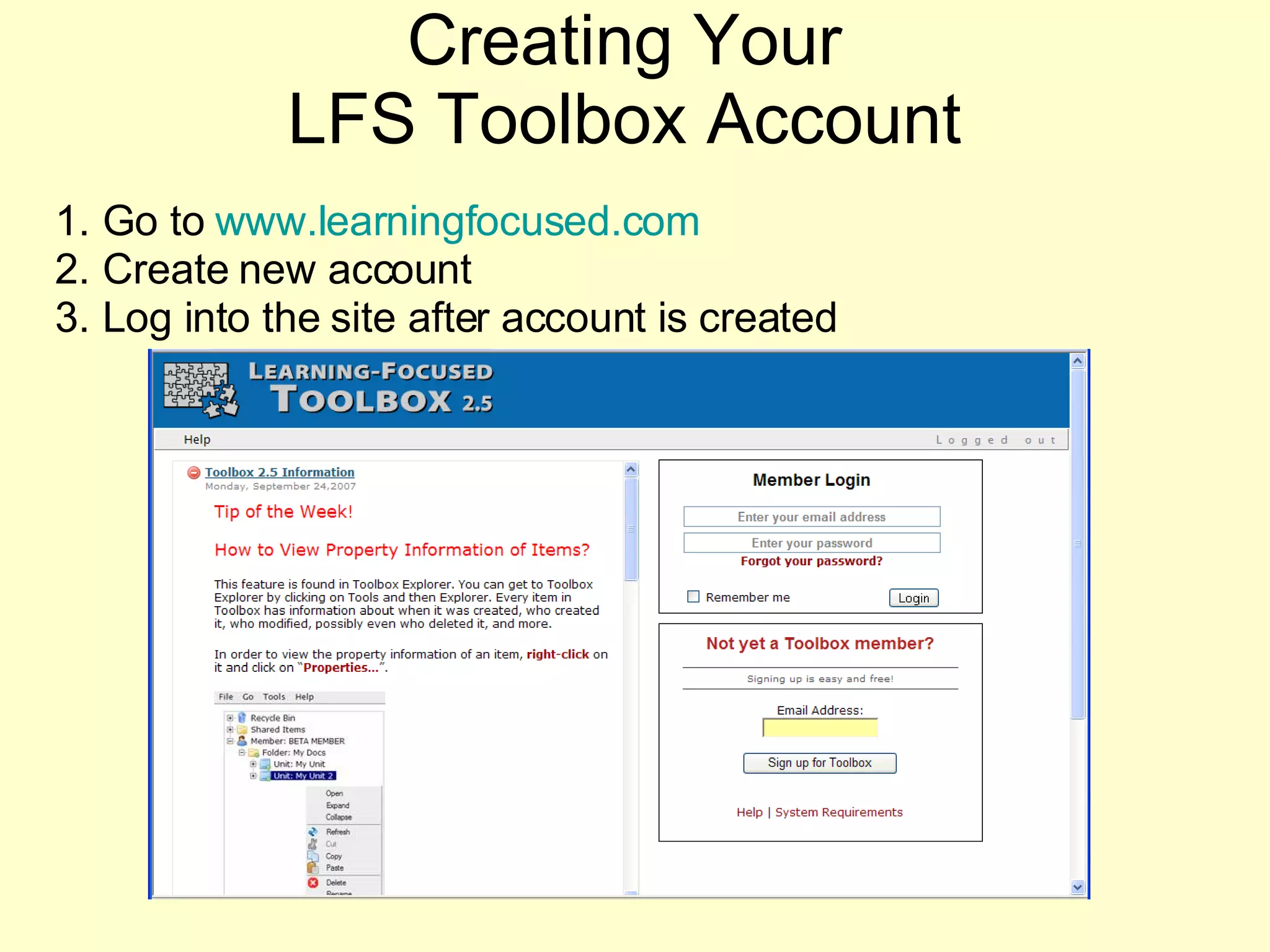
Creating Your LFS Toolbox Account Go to  www.learningfocused.com Create new account Log into the site after account is created
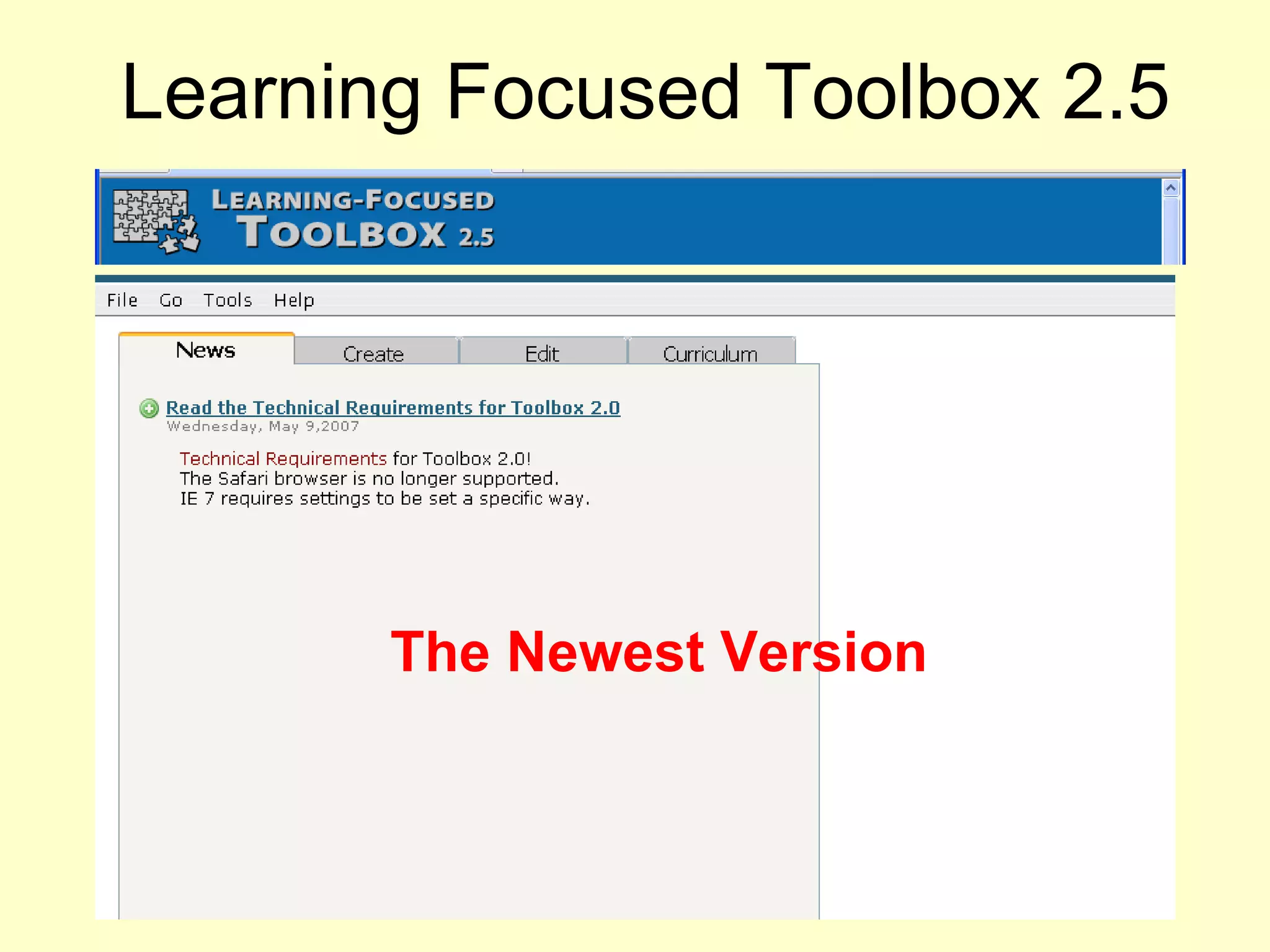
Learning Focused Toolbox 2.5 The Newest Version
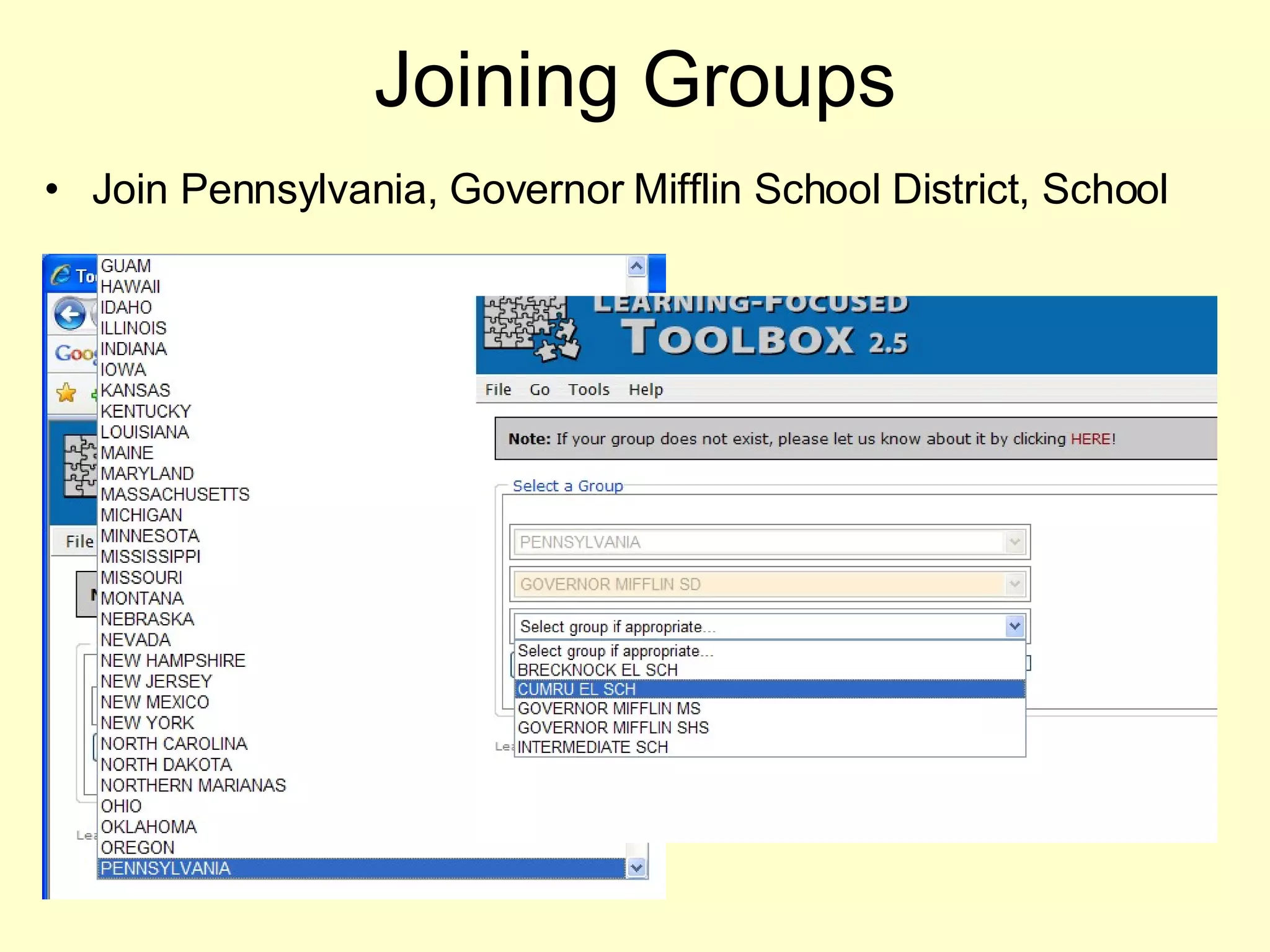
Joining Groups Join Pennsylvania, Governor Mifflin School District, School
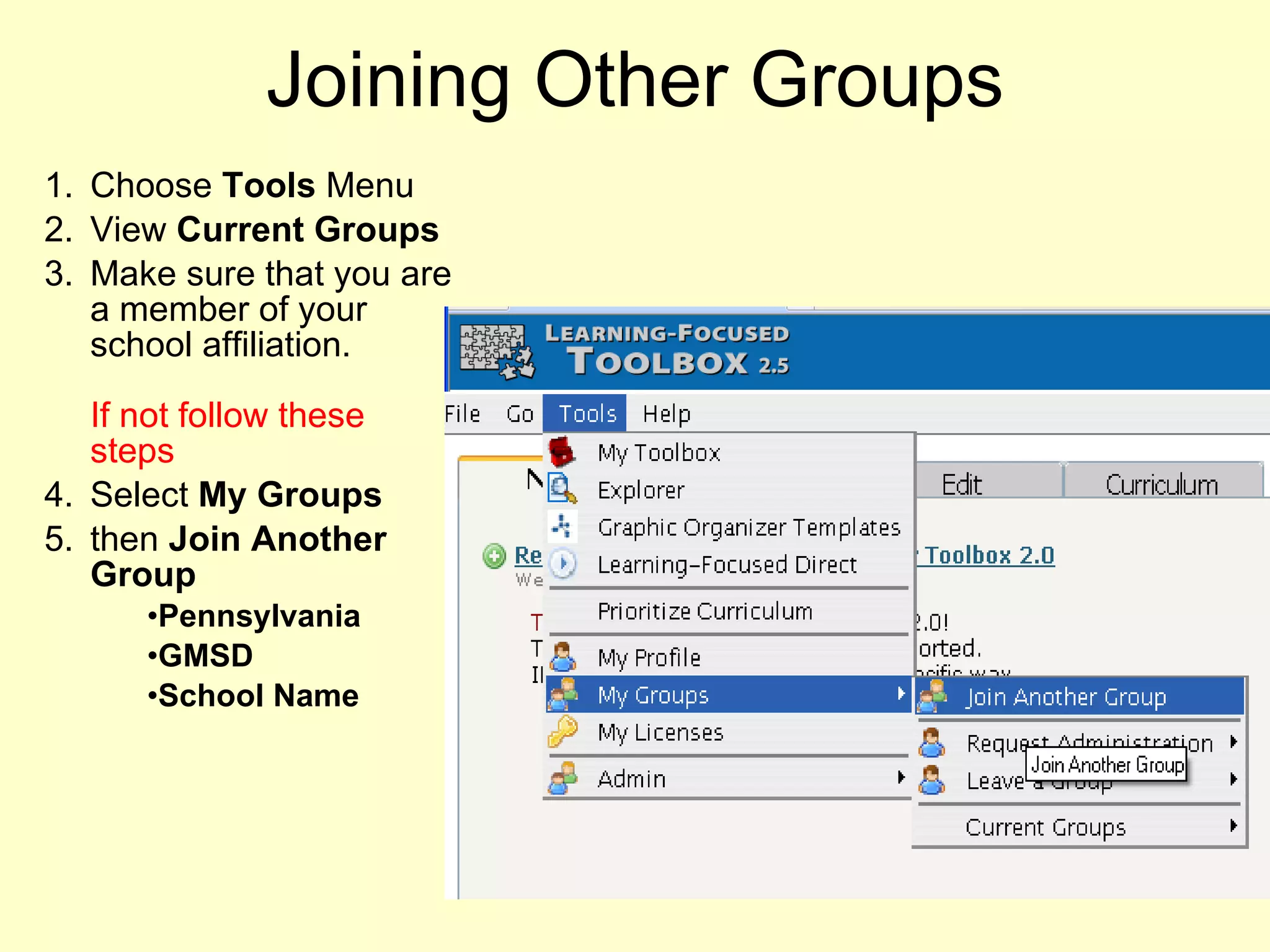
Joining Other Groups Choose  Tools  Menu View  Current Groups Make sure that you are a member of your school affiliation.  If not follow these steps Select  My Groups   then  Join Another Group Pennsylvania GMSD School Name
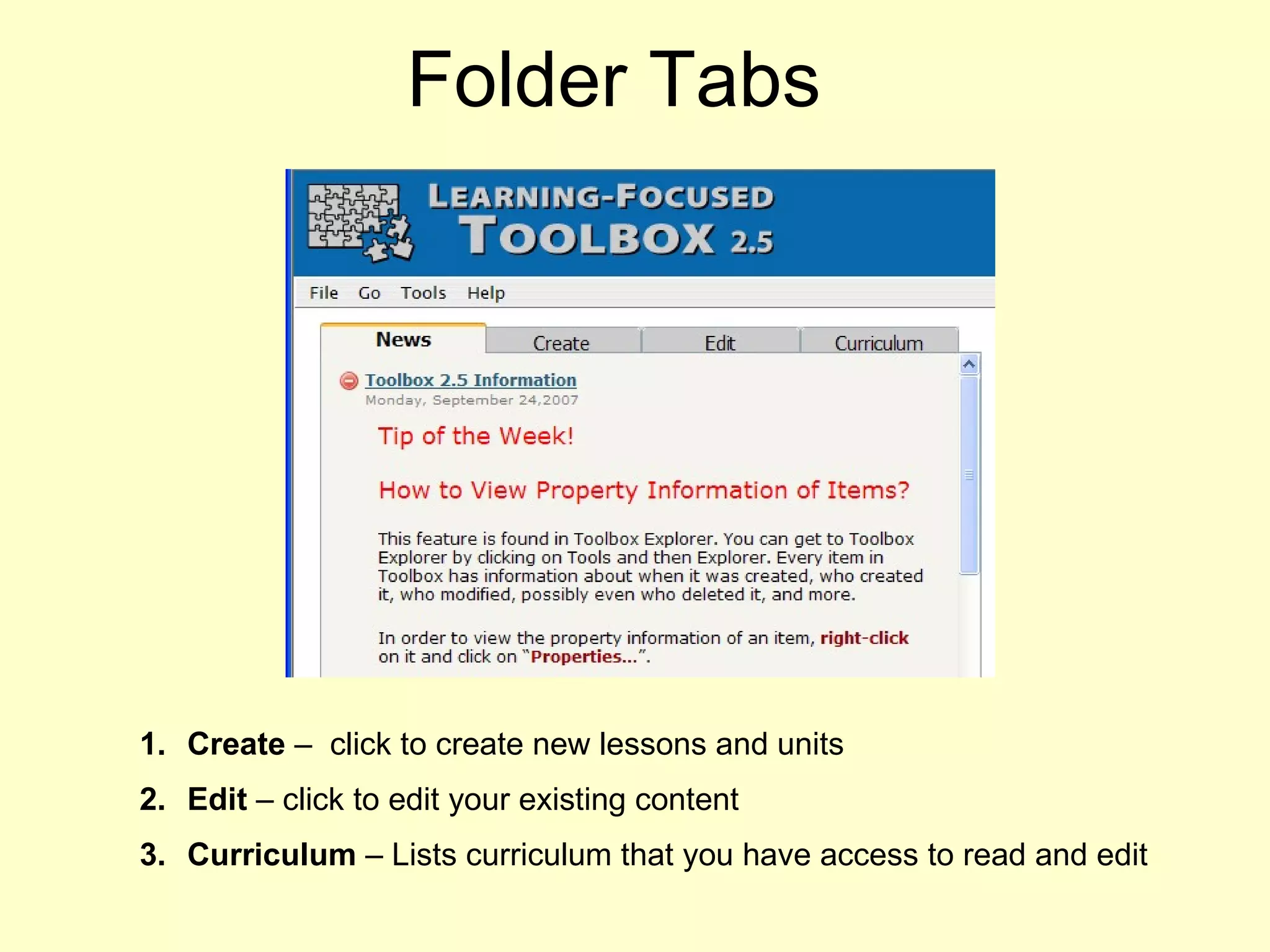
Folder Tabs Create  –  click to create new lessons and units Edit  – click to edit your existing content Curriculum  – Lists curriculum that you have access to read and edit 2.5
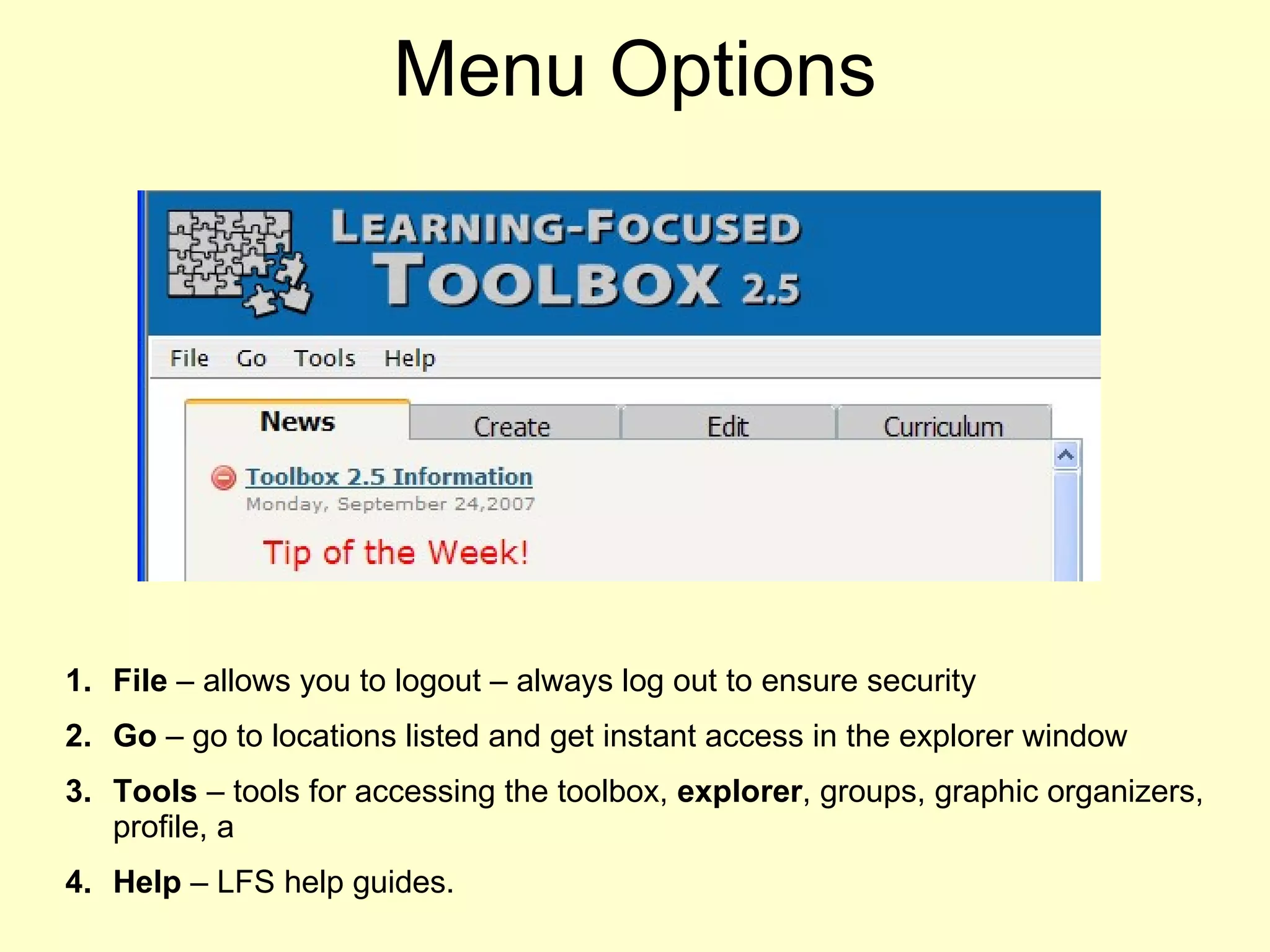
Menu Options File  – allows you to logout – always log out to ensure security Go  – go to locations listed and get instant access in the explorer window Tools  – tools for accessing the toolbox,  explorer , groups, graphic organizers, profile, a Help  – LFS help guides.
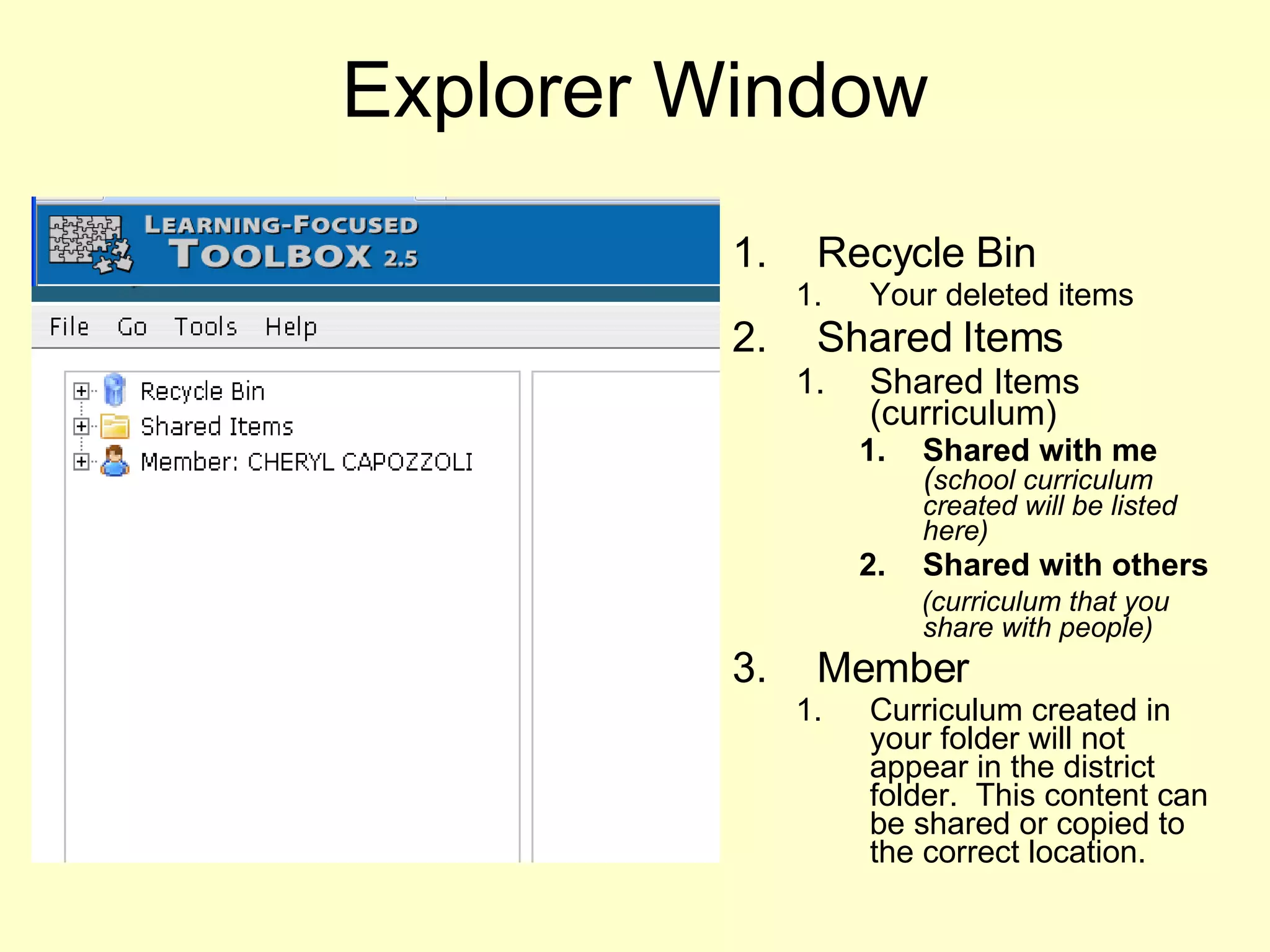
Explorer Window Recycle Bin Your deleted items Shared Items Shared Items (curriculum) Shared with me   ( school curriculum created will be listed here) Shared with others   (curriculum that you share with people) Member Curriculum created in your folder will not appear in the district folder.  This content can be shared or copied to the correct location. Click  to open folders and  View the items created +
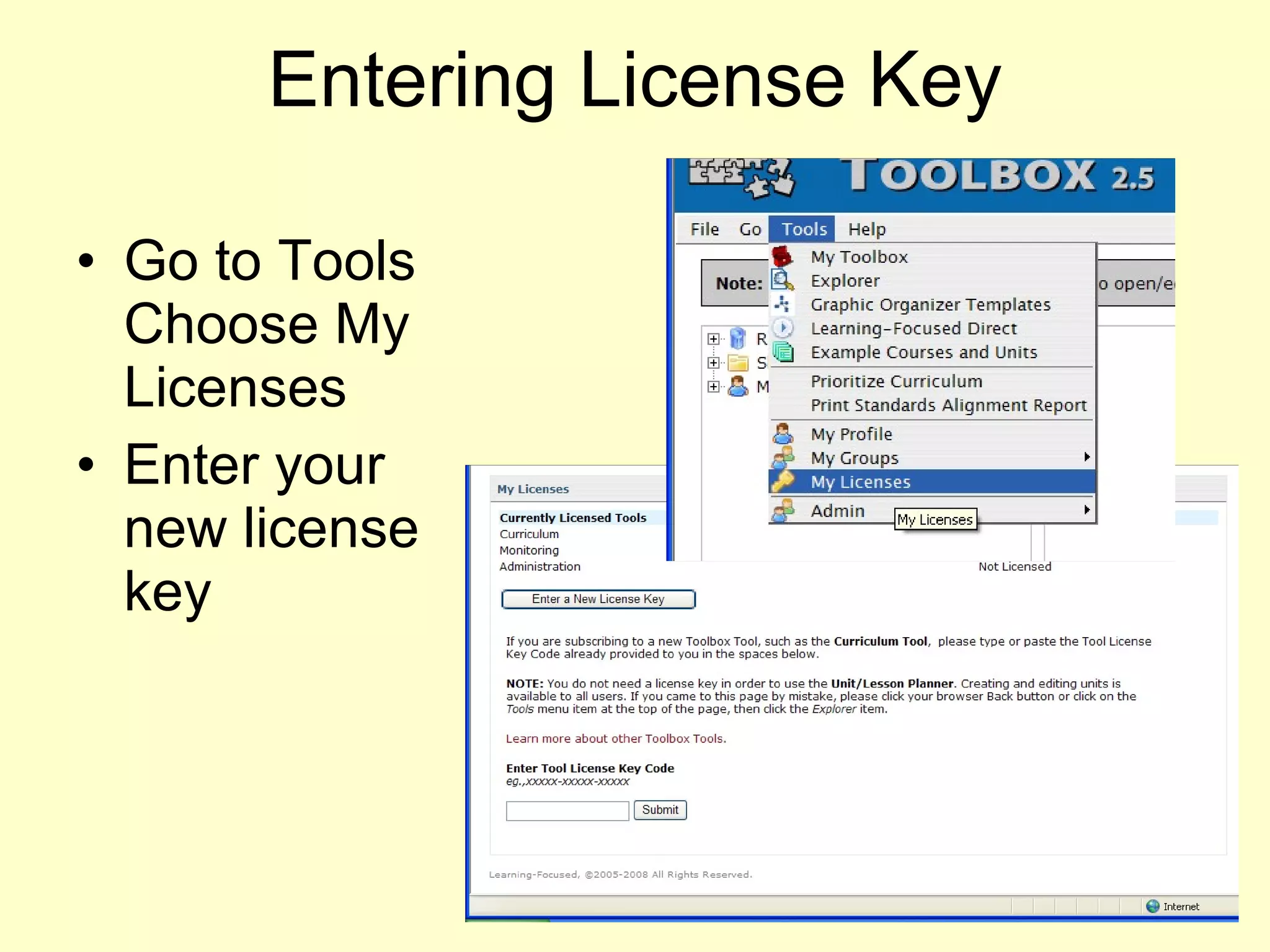
Entering License Key Go to Tools Choose My Licenses  Enter your new license key
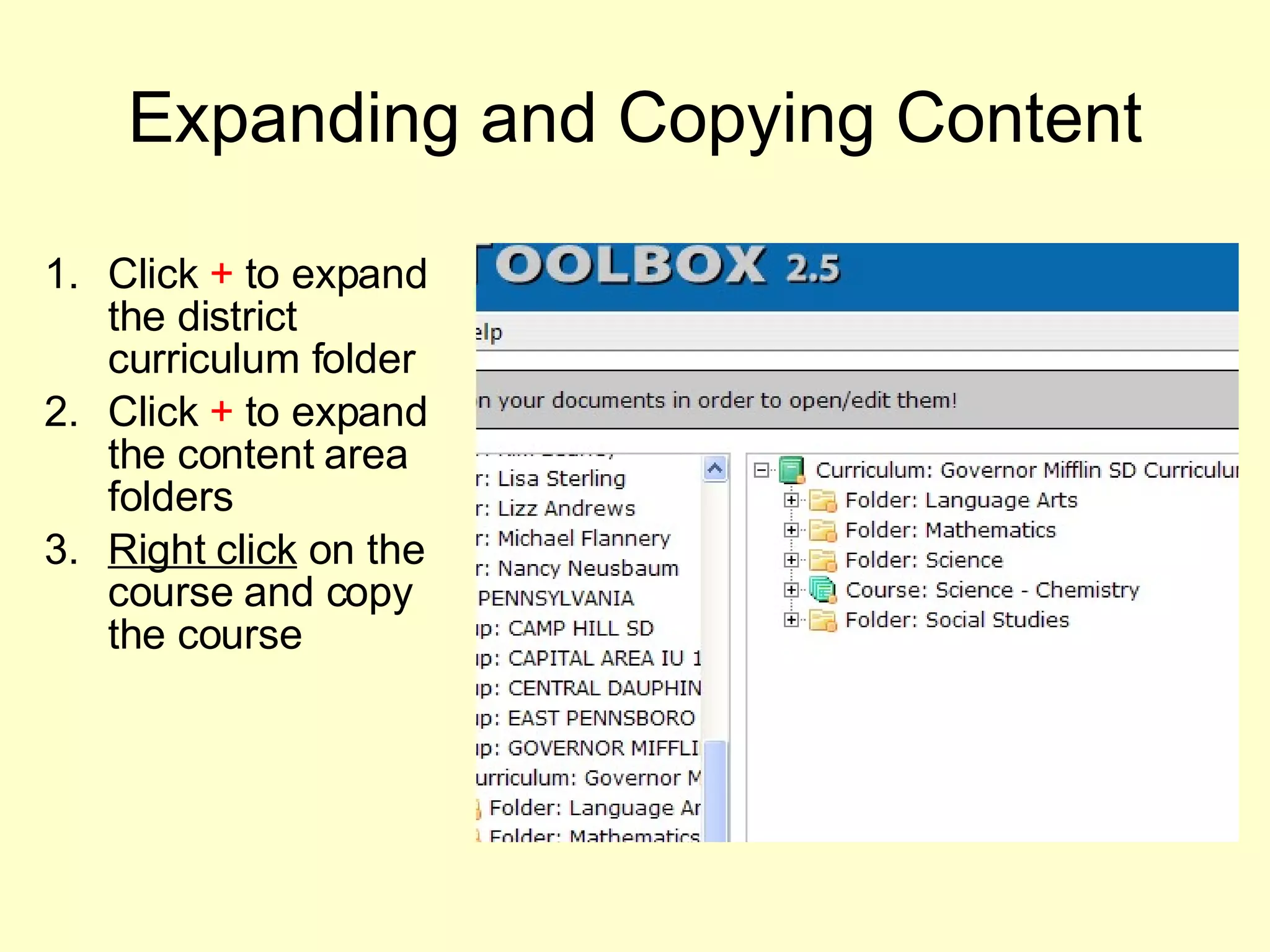
Expanding and Copying Content Click  +  to expand the district curriculum folder Click  +  to expand the content area  folders Right click  on the course and copy the course
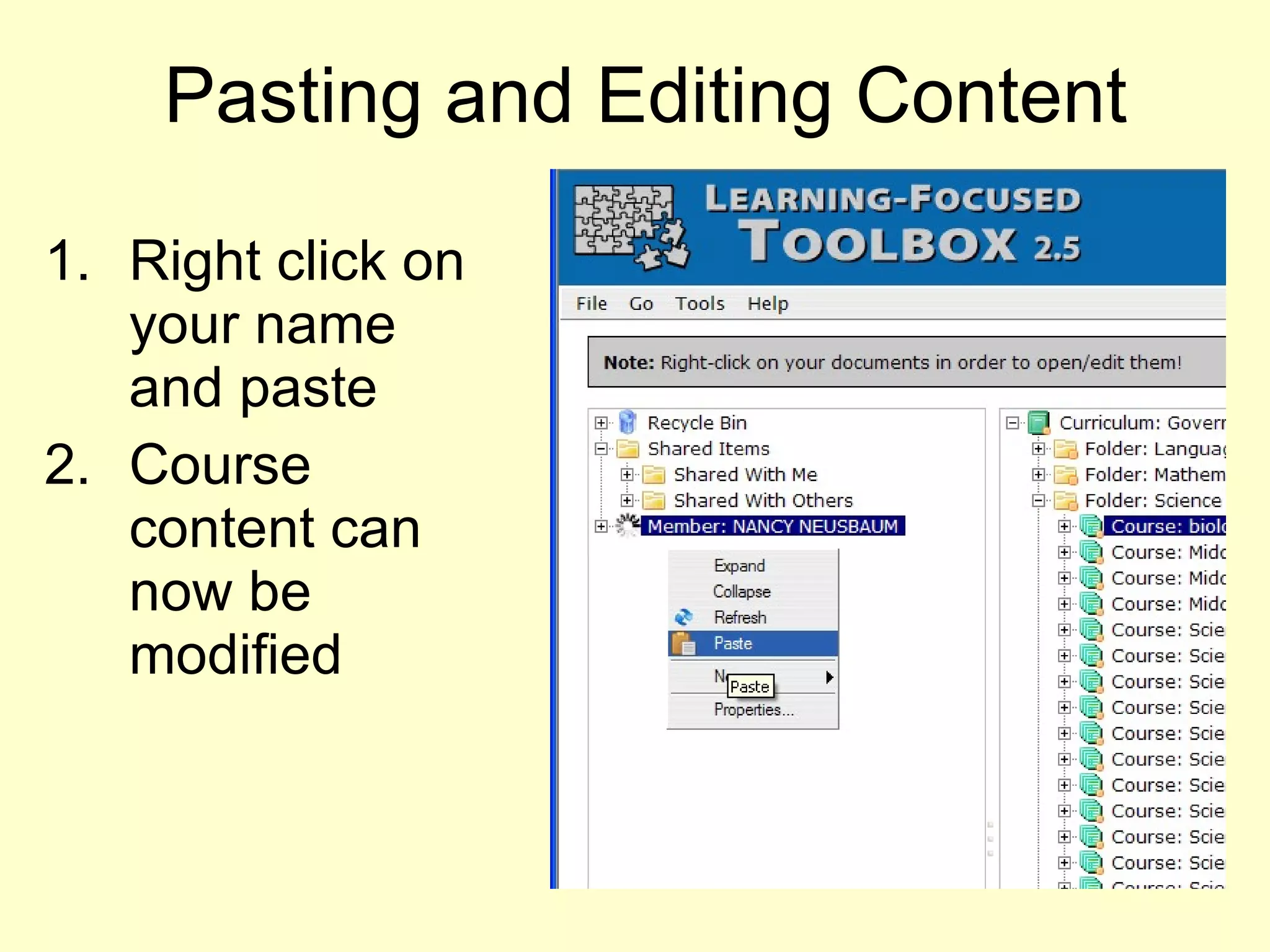
Pasting and Editing Content Right click on your name and paste Course content can now be modified
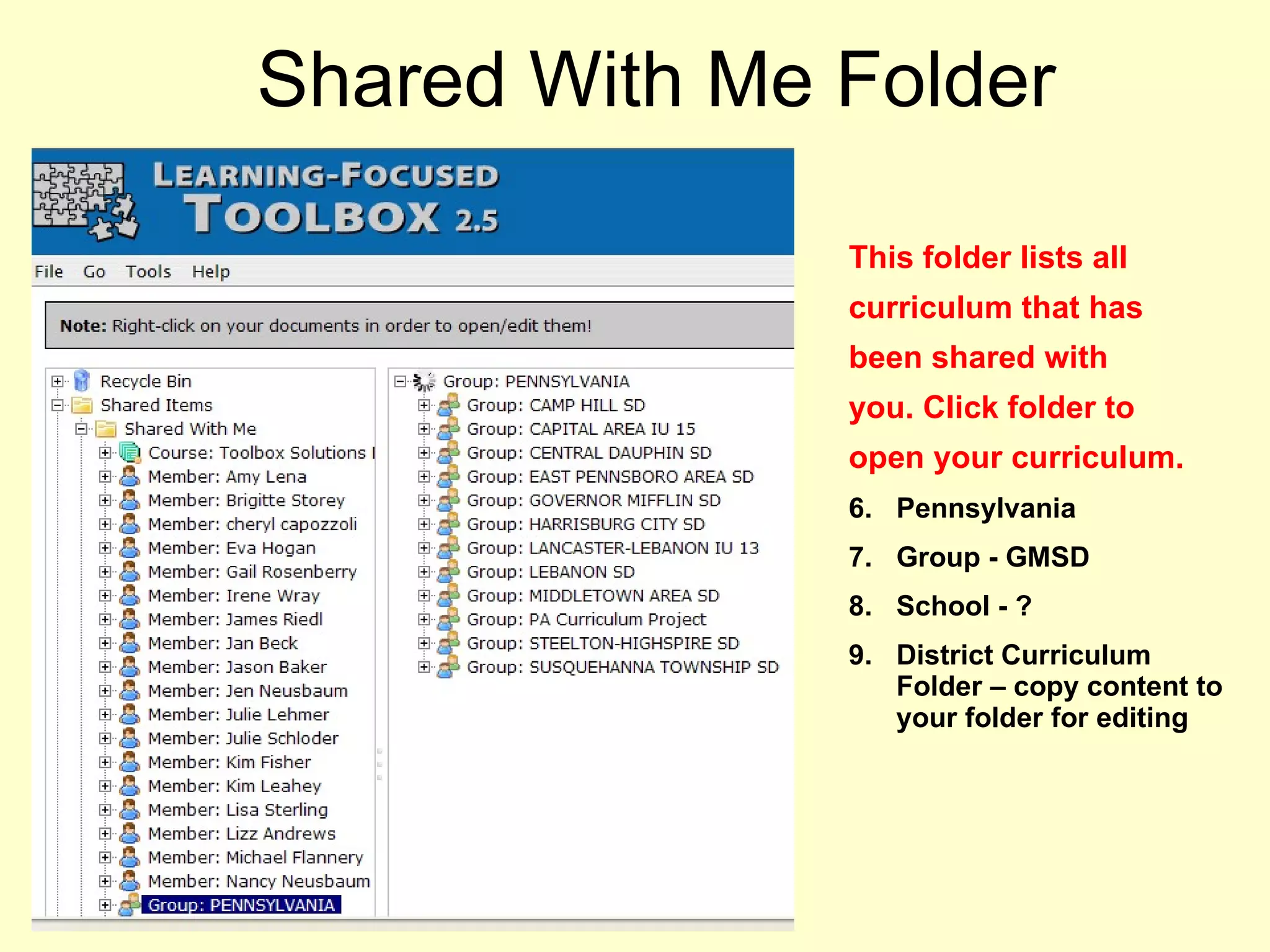
Shared With Me Folder This folder lists all  curriculum that has been shared with you. Click folder to open your curriculum. Pennsylvania Group - GMSD School - ? District Curriculum Folder – copy content to your folder for editing
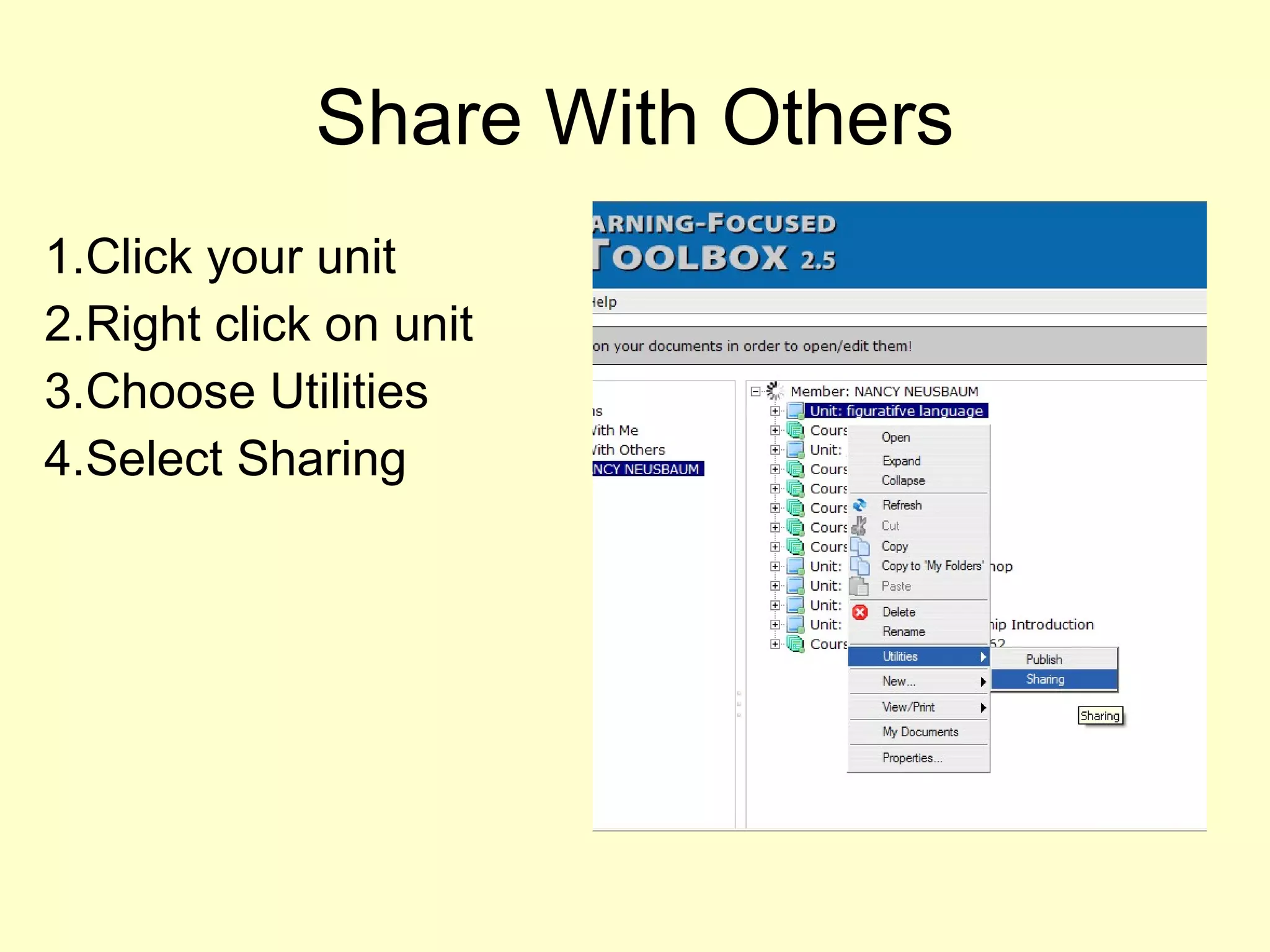
Share With Others Click your unit Right click on unit  Choose Utilities Select Sharing
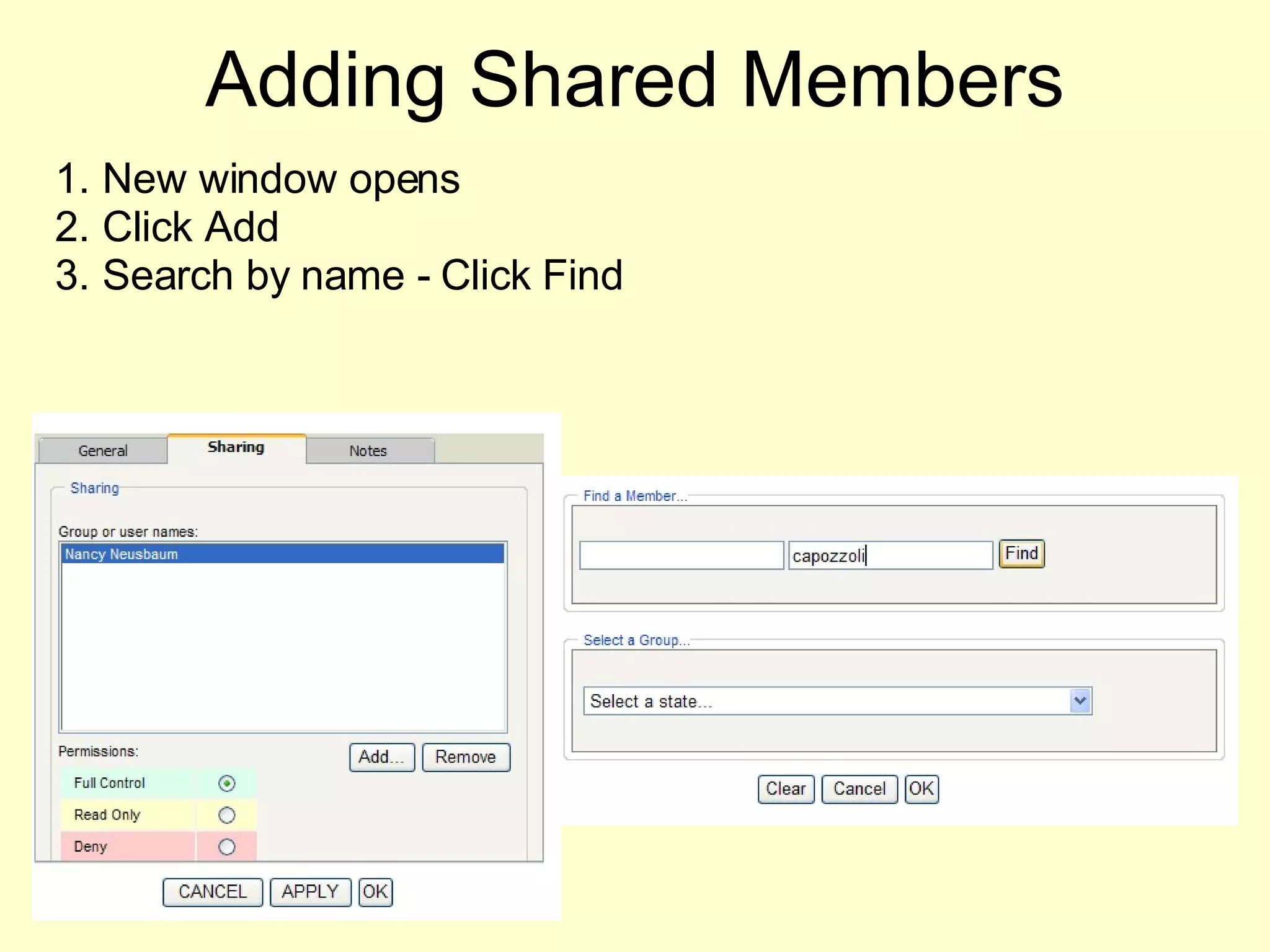
Adding Shared Members New window opens Click Add Search by name - Click Find
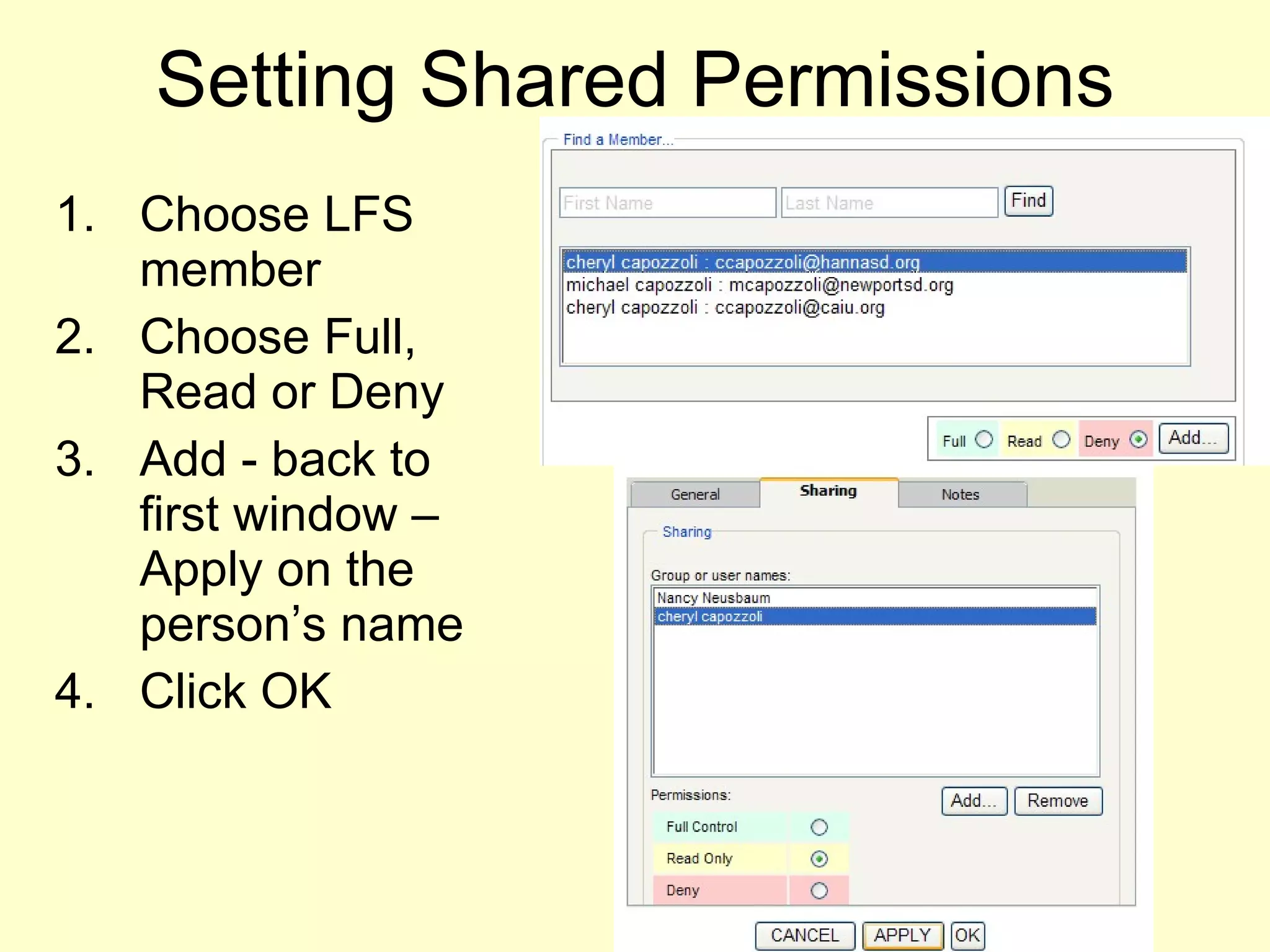
Setting Shared Permissions Choose LFS member Choose Full, Read or Deny Add - back to first window – Apply on the person’s name Click OK
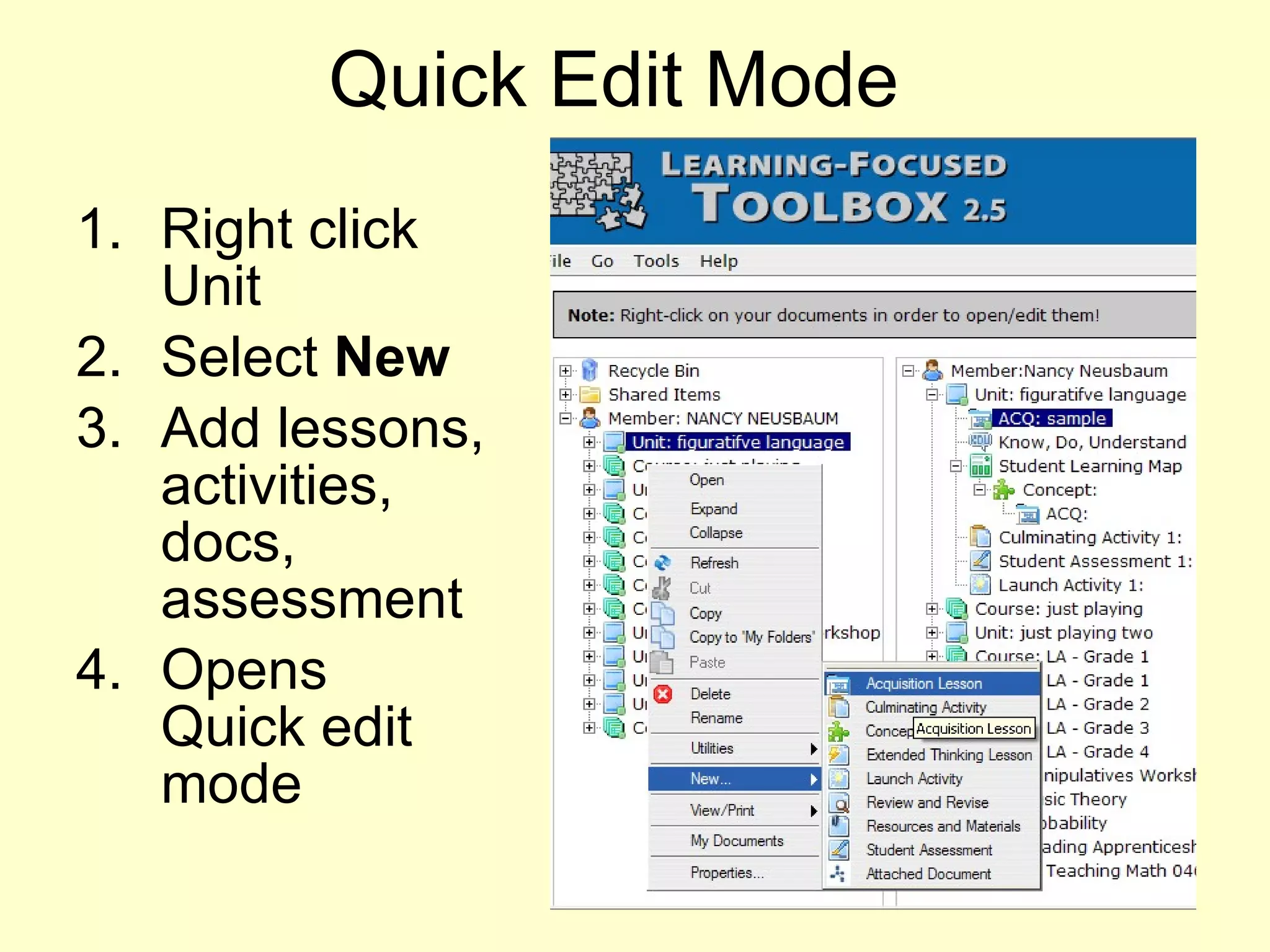
Quick Edit Mode  Right click Unit  Select  New   Add lessons, activities, docs, assessment Opens Quick edit mode
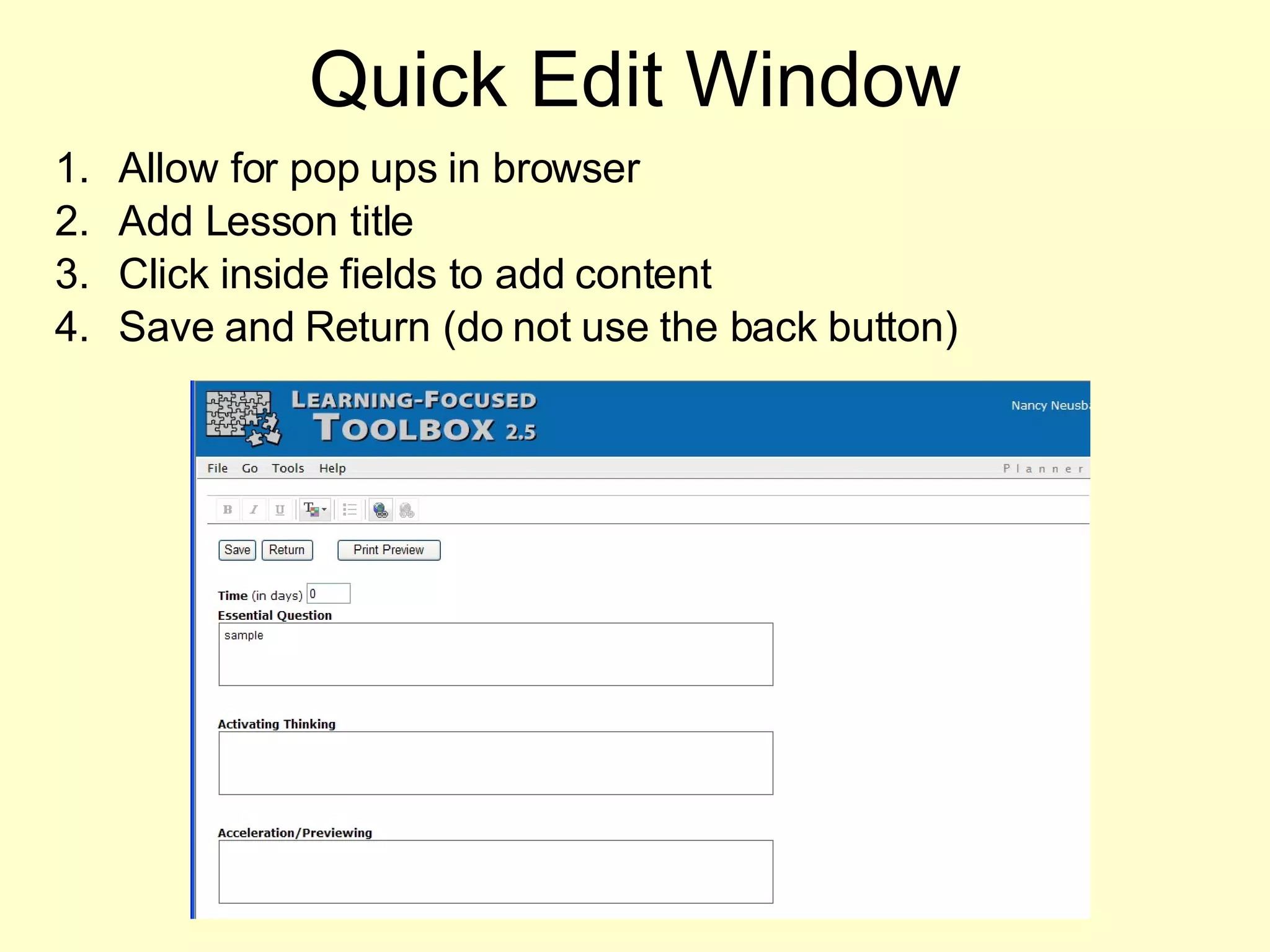
Quick Edit Window Allow for pop ups in browser Add Lesson title Click inside fields to add content Save and Return (do not use the back button)
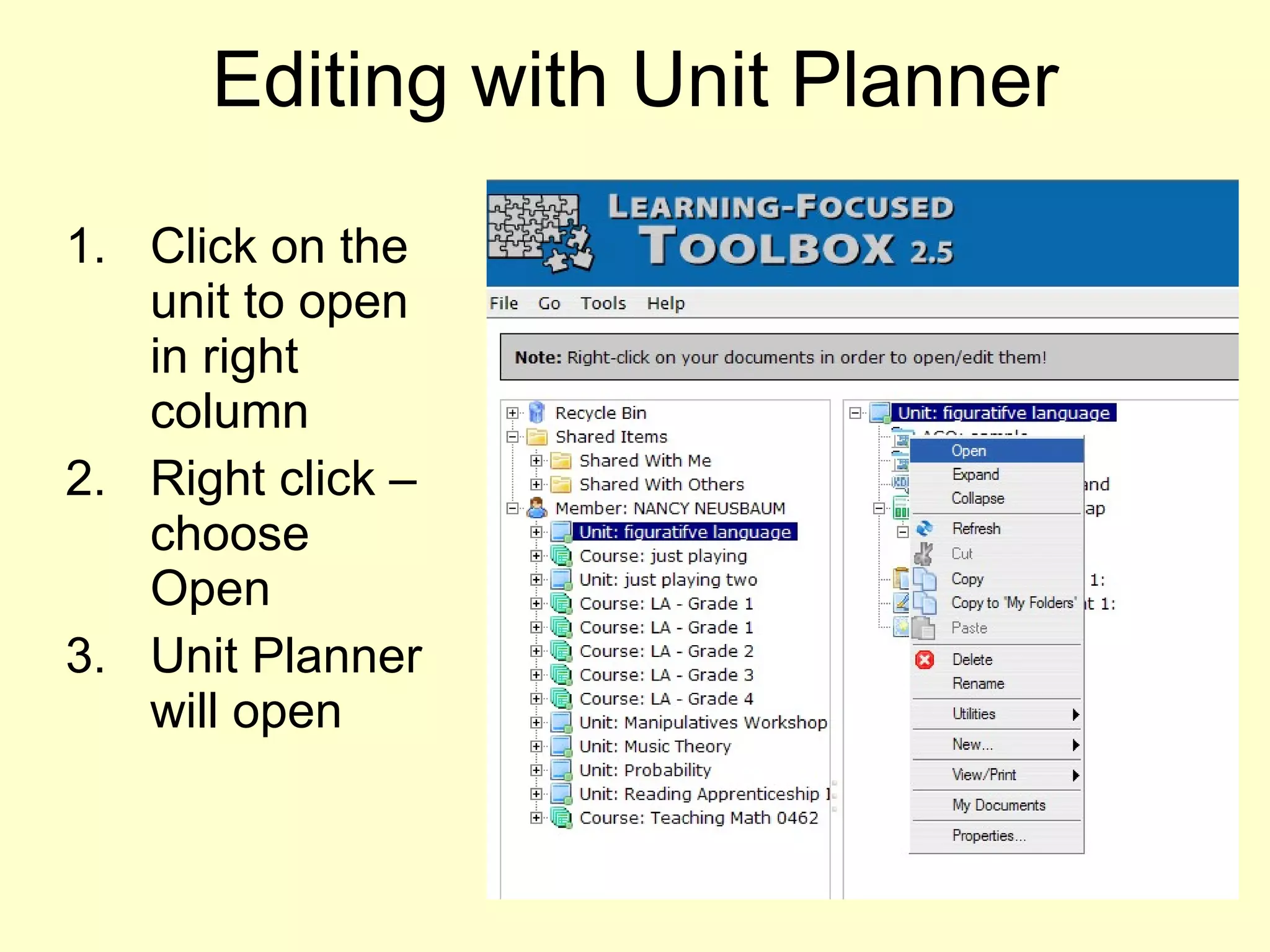
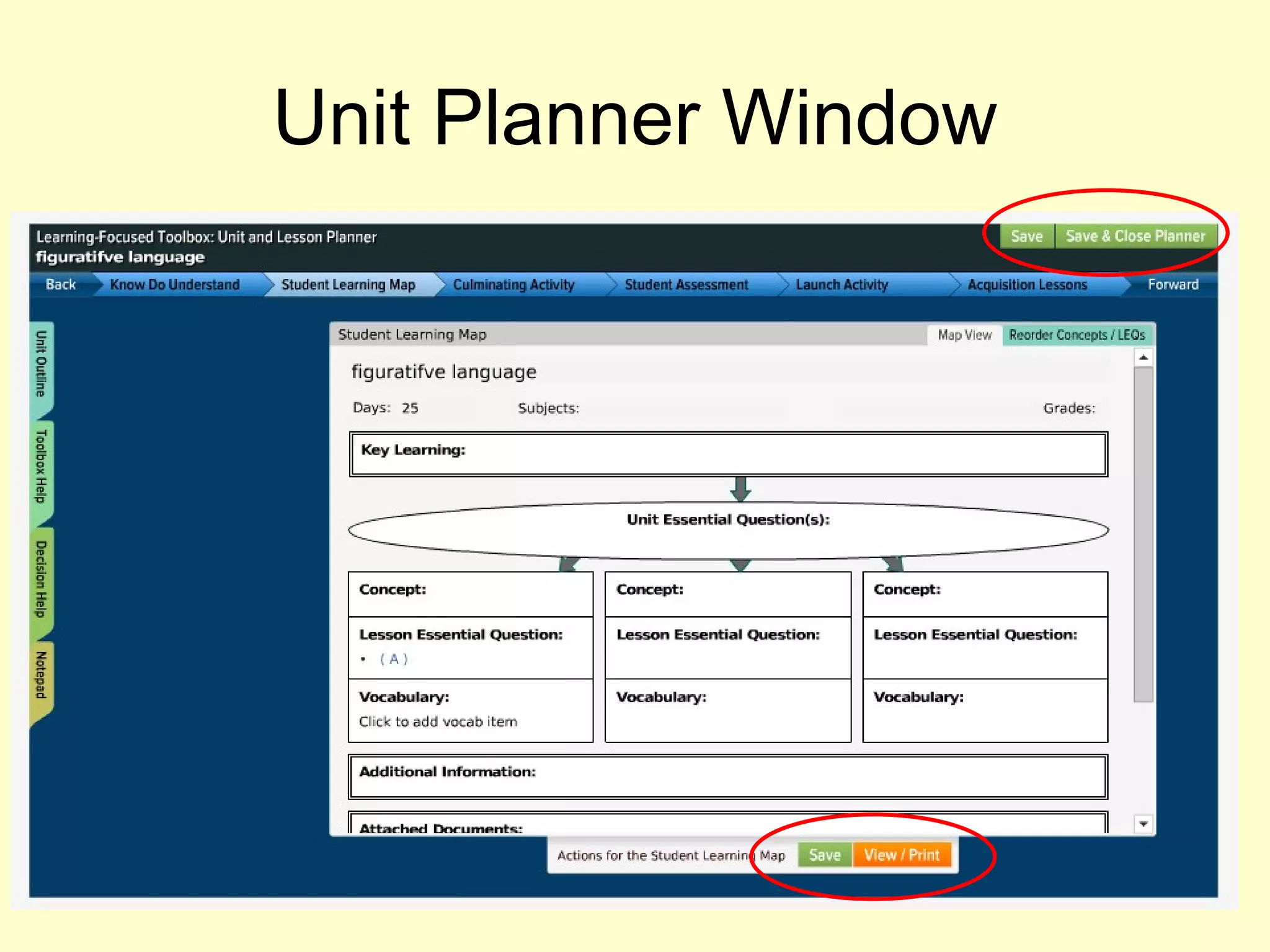
Editing with Unit Planner Click on the unit to open in right column Right click – choose Open Unit Planner will open
Unit Planner Window
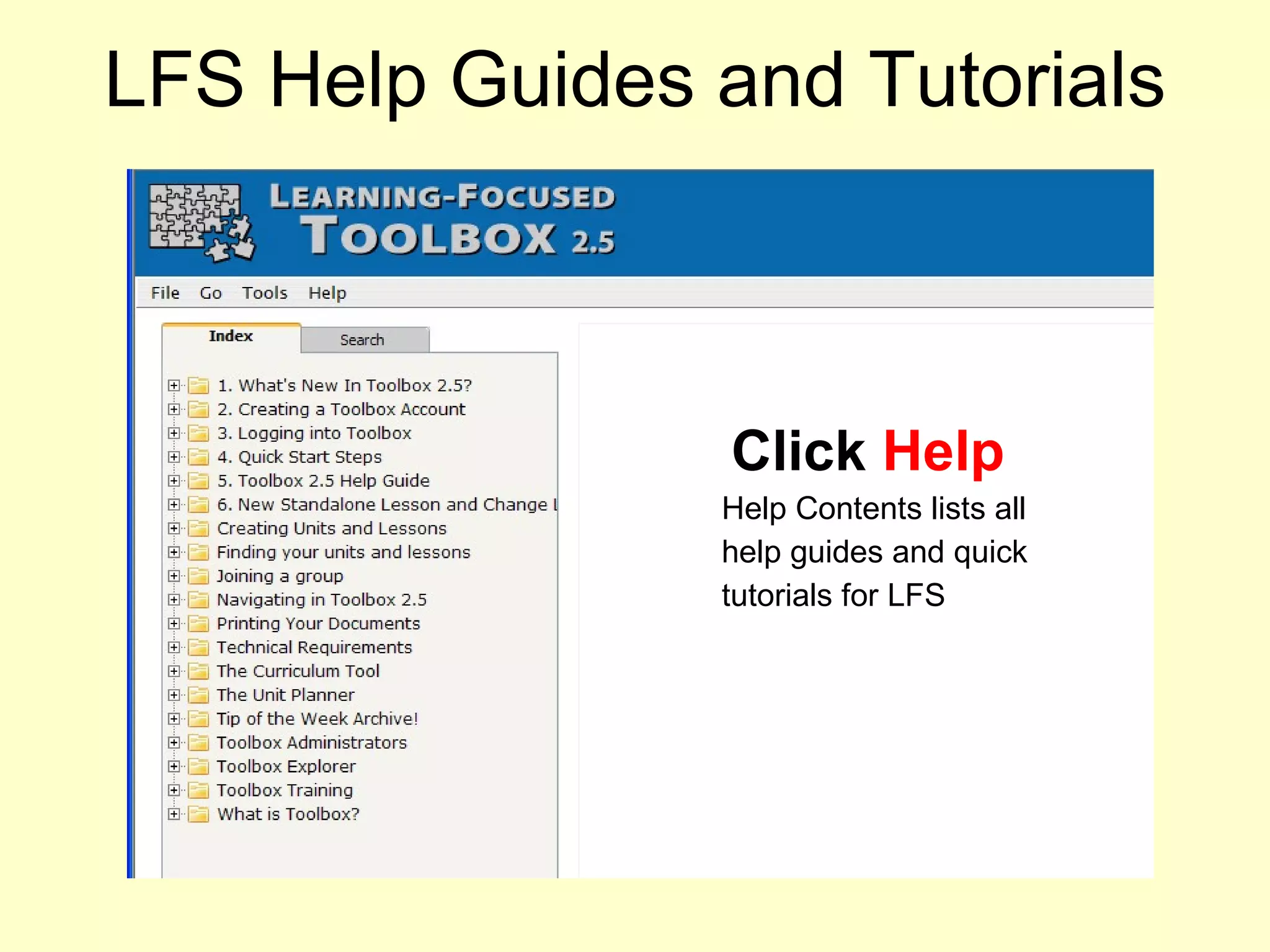
LFS Help Guides and Tutorials Click  Help Help Contents lists all help guides and quick tutorials for LFS
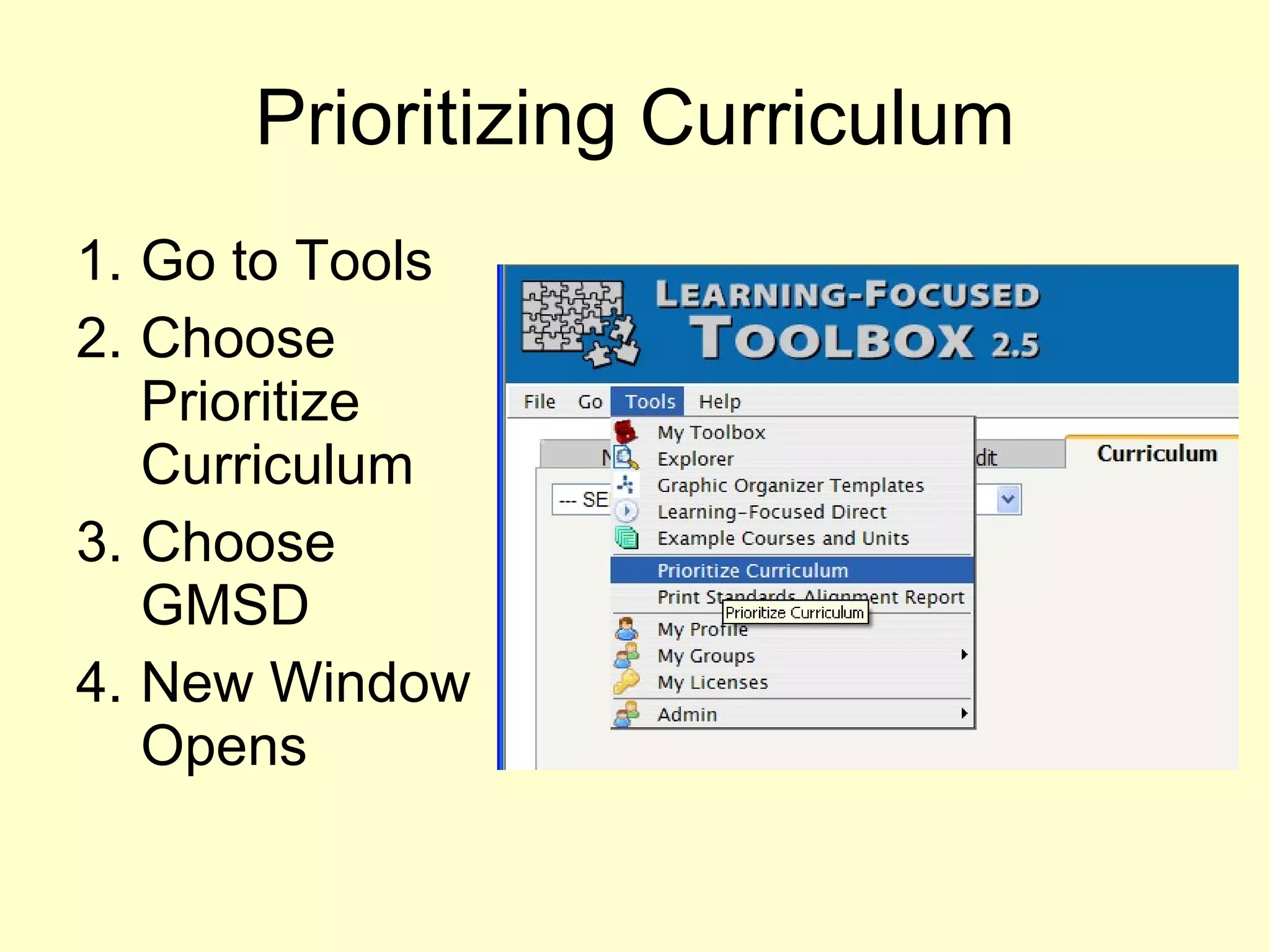
Prioritizing Curriculum Go to Tools Choose Prioritize Curriculum Choose GMSD New Window Opens
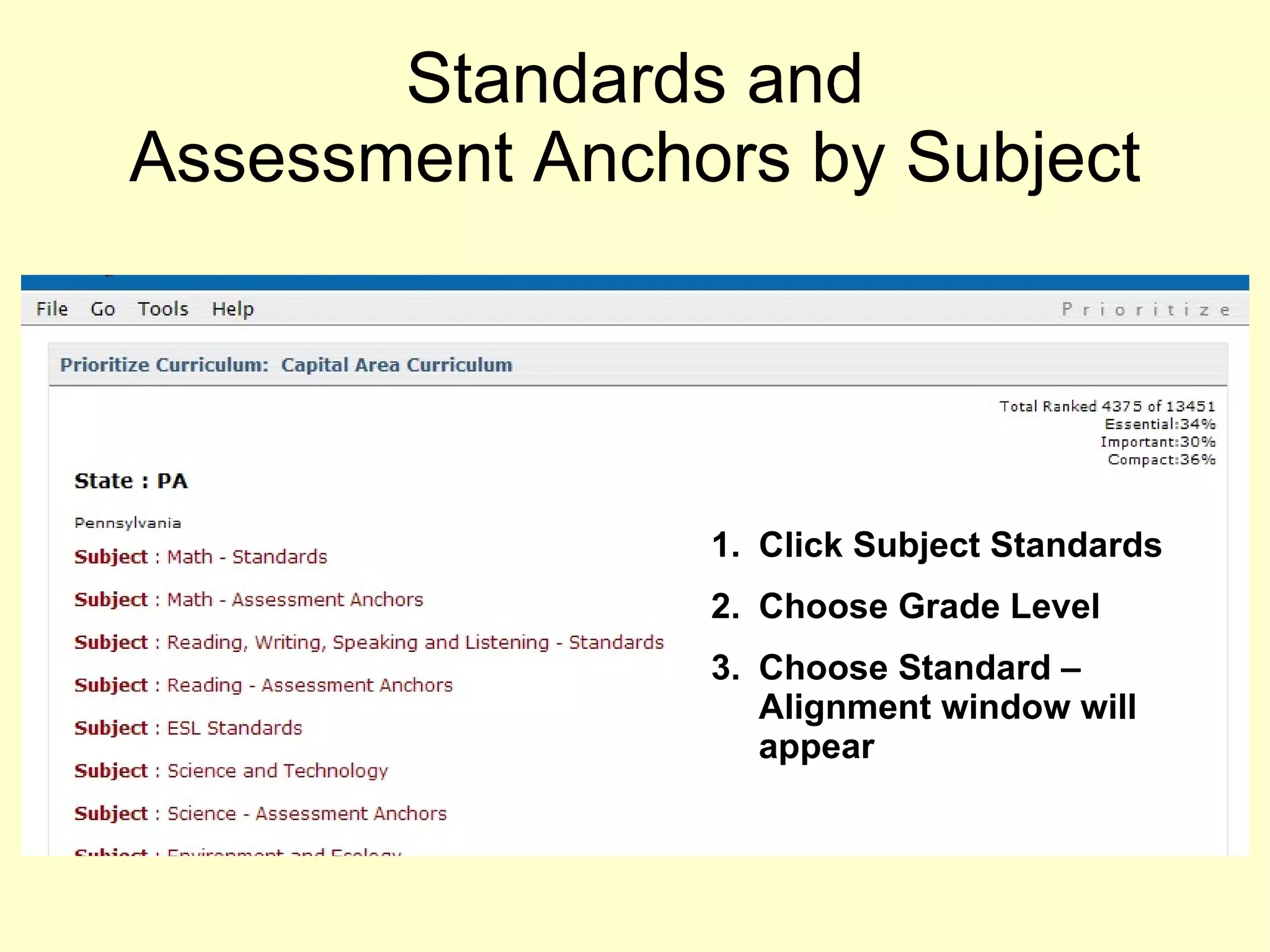
Standards and Assessment Anchors by Subject Click Subject Standards Choose Grade Level Choose Standard – Alignment window will appear
CAIU Contacts Nancy Neusbaum  717.732.8400 Ext. 8109 [email_address] Cheryl Capozzoli 717.732.8400 Ext. 8521 [email_address] LFS Toolbox Assistance 828.414.4536

LFS Toolbox 2.5

  • 1.
    Presented By NancyNeusbaum Cheryl Capozzoli
  • 2.
    News Flash TheInternet Has Crashed!! Video
  • 3.
    Creating Your LFSToolbox Account Go to www.learningfocused.com Create new account Log into the site after account is created
  • 4.
    Learning Focused Toolbox2.5 The Newest Version
  • 5.
    Joining Groups JoinPennsylvania, Governor Mifflin School District, School
  • 6.
    Joining Other GroupsChoose Tools Menu View Current Groups Make sure that you are a member of your school affiliation. If not follow these steps Select My Groups then Join Another Group Pennsylvania GMSD School Name
  • 7.
    Folder Tabs Create – click to create new lessons and units Edit – click to edit your existing content Curriculum – Lists curriculum that you have access to read and edit 2.5
  • 8.
    Menu Options File – allows you to logout – always log out to ensure security Go – go to locations listed and get instant access in the explorer window Tools – tools for accessing the toolbox, explorer , groups, graphic organizers, profile, a Help – LFS help guides.
  • 9.
    Explorer Window RecycleBin Your deleted items Shared Items Shared Items (curriculum) Shared with me ( school curriculum created will be listed here) Shared with others (curriculum that you share with people) Member Curriculum created in your folder will not appear in the district folder. This content can be shared or copied to the correct location. Click to open folders and View the items created +
  • 10.
    Entering License KeyGo to Tools Choose My Licenses Enter your new license key
  • 11.
    Expanding and CopyingContent Click + to expand the district curriculum folder Click + to expand the content area folders Right click on the course and copy the course
  • 12.
    Pasting and EditingContent Right click on your name and paste Course content can now be modified
  • 13.
    Shared With MeFolder This folder lists all curriculum that has been shared with you. Click folder to open your curriculum. Pennsylvania Group - GMSD School - ? District Curriculum Folder – copy content to your folder for editing
  • 14.
    Share With OthersClick your unit Right click on unit Choose Utilities Select Sharing
  • 15.
    Adding Shared MembersNew window opens Click Add Search by name - Click Find
  • 16.
    Setting Shared PermissionsChoose LFS member Choose Full, Read or Deny Add - back to first window – Apply on the person’s name Click OK
  • 17.
    Quick Edit Mode Right click Unit Select New Add lessons, activities, docs, assessment Opens Quick edit mode
  • 18.
    Quick Edit WindowAllow for pop ups in browser Add Lesson title Click inside fields to add content Save and Return (do not use the back button)
  • 19.
    Editing with UnitPlanner Click on the unit to open in right column Right click – choose Open Unit Planner will open
  • 20.
  • 21.
    LFS Help Guidesand Tutorials Click Help Help Contents lists all help guides and quick tutorials for LFS
  • 22.
    Prioritizing Curriculum Goto Tools Choose Prioritize Curriculum Choose GMSD New Window Opens
  • 23.
    Standards and AssessmentAnchors by Subject Click Subject Standards Choose Grade Level Choose Standard – Alignment window will appear
  • 24.
    CAIU Contacts NancyNeusbaum 717.732.8400 Ext. 8109 [email_address] Cheryl Capozzoli 717.732.8400 Ext. 8521 [email_address] LFS Toolbox Assistance 828.414.4536