


Our Paperless Class
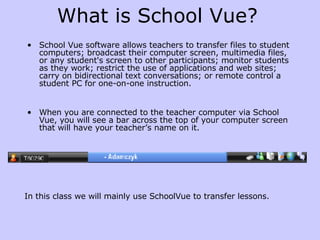
What is School Vue? School Vue software allows teachers to transfer files to student computers; broadcast their computer screen, multimedia files, or any student's screen to other participants; monitor students as they work; restrict the use of applications and web sites; carry on bidirectional text conversations; or remote control a student PC for one-on-one instruction. When you are connected to the teacher computer via School Vue, you will see a bar across the top of your computer screen that will have your teacher’s name on it. In this class we will mainly use SchoolVue to transfer lessons.
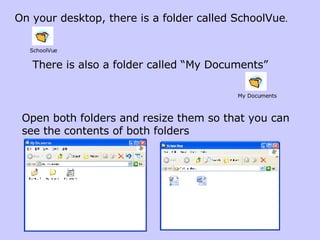
On your desktop, there is a folder called SchoolVue .  There is also a folder called “My Documents” Open both folders and resize them so that you can see the contents of both folders SchoolVue My Documents
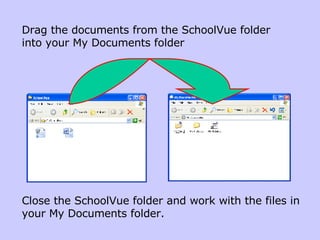
Drag the documents from the SchoolVue folder into your My Documents folder Close the SchoolVue folder and work with the files in your My Documents folder.
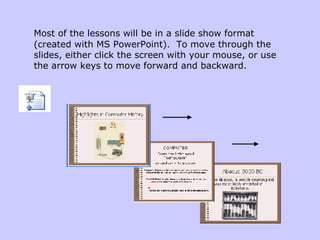
Most of the lessons will be in a slide show format (created with MS PowerPoint).  To move through the slides, either click the screen with your mouse, or use the arrow keys to move forward and backward.
Please read through the lesson completely before you open and work on the worksheet. Most days you will have time to complete your worksheet in class. Completed worksheets must be uploaded to a folder on the Edline website.
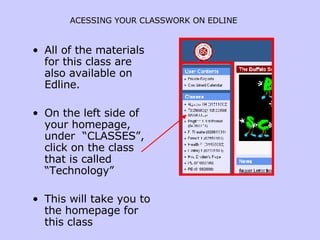
ACESSING YOUR CLASSWORK ON EDLINE   All of the materials for this class are also available on Edline. On the left side of your homepage, under  “CLASSES”, click on the class that is called “Technology” This will take you to the homepage for this class
Computer Class Lessons If you are absent, or want to review at home, the lessons can be found in the “Contents” section on the right side of the screen. Click on the document name and you will be redirected to a site called “slideshare”. The Power Point presentation is in a slideshow format which is easier to read online.
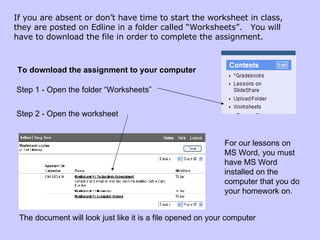
To download the assignment to your computer Step 2 - Open the worksheet  Step 1 - Open the folder “Worksheets” The document will look just like it is a file opened on your computer If you are absent or don’t have time to start the worksheet in class, they are posted on Edline in a folder called “Worksheets”.  You will have to download the file in order to complete the assignment. For our lessons on MS Word, you must have MS Word installed on the computer that you do your homework on.
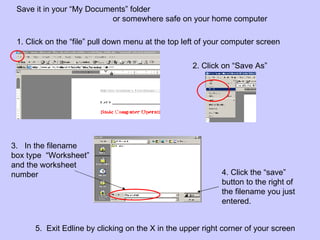
Save it in your “My Documents” folder    or somewhere safe on your home computer 1. Click on the “file” pull down menu at the top left of your computer screen 2. Click on “Save As” 3.  In the filename box type  “Worksheet” and the worksheet number 4. Click the “save” button to the right of the filename you just entered. 5.  Exit Edline by clicking on the X in the upper right corner of your screen
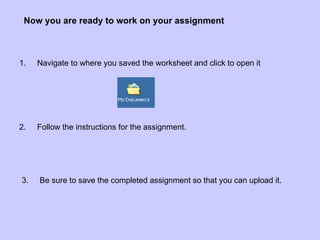
Now you are ready to work on your assignment 3.  Be sure to save the completed assignment so that you can upload it. 2.  Follow the instructions for the assignment. 1.  Navigate to where you saved the worksheet and click to open it
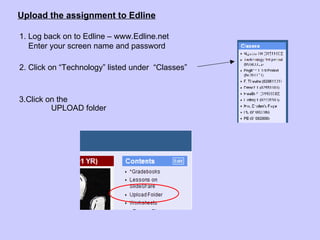
Upload the assignment to Edline 1. Log back on to Edline – www.Edline.net   Enter your screen name and password 2. Click on “Technology” listed under  “Classes” 3.Click on the    UPLOAD folder
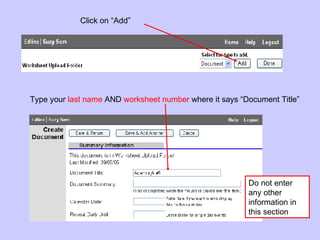
Click on “Add” Type your  last name  AND  worksheet number  where it says “Document Title” Do not enter any other information in this section
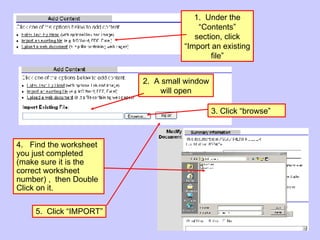
2.  A small window will open 4.  Find the worksheet you just completed (make sure it is the correct worksheet number) ,  then Double Click on it. 5.  Click “IMPORT” 1.  Under the “Contents” section, click “Import an existing file” 3. Click “browse”
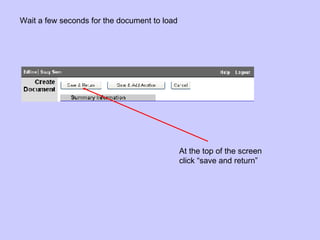
Wait a few seconds for the document to load At the top of the screen click “save and return”
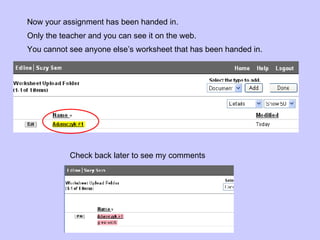
Now your assignment has been handed in. Check back later to see my comments Only the teacher and you can see it on the web.  You cannot see anyone else’s worksheet that has been handed in.
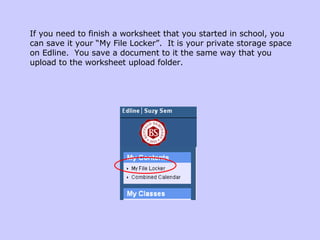
If you need to finish a worksheet that you started in school, you can save it your “My File Locker”.  It is your private storage space on Edline.  You save a document to it the same way that you upload to the worksheet upload folder.
Confused??? Hang in there !

Our Paperless Class

  • 1.
  • 2.
    What is SchoolVue? School Vue software allows teachers to transfer files to student computers; broadcast their computer screen, multimedia files, or any student's screen to other participants; monitor students as they work; restrict the use of applications and web sites; carry on bidirectional text conversations; or remote control a student PC for one-on-one instruction. When you are connected to the teacher computer via School Vue, you will see a bar across the top of your computer screen that will have your teacher’s name on it. In this class we will mainly use SchoolVue to transfer lessons.
  • 3.
    On your desktop,there is a folder called SchoolVue . There is also a folder called “My Documents” Open both folders and resize them so that you can see the contents of both folders SchoolVue My Documents
  • 4.
    Drag the documentsfrom the SchoolVue folder into your My Documents folder Close the SchoolVue folder and work with the files in your My Documents folder.
  • 5.
    Most of thelessons will be in a slide show format (created with MS PowerPoint). To move through the slides, either click the screen with your mouse, or use the arrow keys to move forward and backward.
  • 6.
    Please read throughthe lesson completely before you open and work on the worksheet. Most days you will have time to complete your worksheet in class. Completed worksheets must be uploaded to a folder on the Edline website.
  • 7.
    ACESSING YOUR CLASSWORKON EDLINE All of the materials for this class are also available on Edline. On the left side of your homepage, under “CLASSES”, click on the class that is called “Technology” This will take you to the homepage for this class
  • 8.
    Computer Class LessonsIf you are absent, or want to review at home, the lessons can be found in the “Contents” section on the right side of the screen. Click on the document name and you will be redirected to a site called “slideshare”. The Power Point presentation is in a slideshow format which is easier to read online.
  • 9.
    To download theassignment to your computer Step 2 - Open the worksheet Step 1 - Open the folder “Worksheets” The document will look just like it is a file opened on your computer If you are absent or don’t have time to start the worksheet in class, they are posted on Edline in a folder called “Worksheets”. You will have to download the file in order to complete the assignment. For our lessons on MS Word, you must have MS Word installed on the computer that you do your homework on.
  • 10.
    Save it inyour “My Documents” folder or somewhere safe on your home computer 1. Click on the “file” pull down menu at the top left of your computer screen 2. Click on “Save As” 3. In the filename box type “Worksheet” and the worksheet number 4. Click the “save” button to the right of the filename you just entered. 5. Exit Edline by clicking on the X in the upper right corner of your screen
  • 11.
    Now you areready to work on your assignment 3. Be sure to save the completed assignment so that you can upload it. 2. Follow the instructions for the assignment. 1. Navigate to where you saved the worksheet and click to open it
  • 12.
    Upload the assignmentto Edline 1. Log back on to Edline – www.Edline.net Enter your screen name and password 2. Click on “Technology” listed under “Classes” 3.Click on the UPLOAD folder
  • 13.
    Click on “Add”Type your last name AND worksheet number where it says “Document Title” Do not enter any other information in this section
  • 14.
    2. Asmall window will open 4. Find the worksheet you just completed (make sure it is the correct worksheet number) , then Double Click on it. 5. Click “IMPORT” 1. Under the “Contents” section, click “Import an existing file” 3. Click “browse”
  • 15.
    Wait a fewseconds for the document to load At the top of the screen click “save and return”
  • 16.
    Now your assignmenthas been handed in. Check back later to see my comments Only the teacher and you can see it on the web. You cannot see anyone else’s worksheet that has been handed in.
  • 17.
    If you needto finish a worksheet that you started in school, you can save it your “My File Locker”. It is your private storage space on Edline. You save a document to it the same way that you upload to the worksheet upload folder.
  • 18.