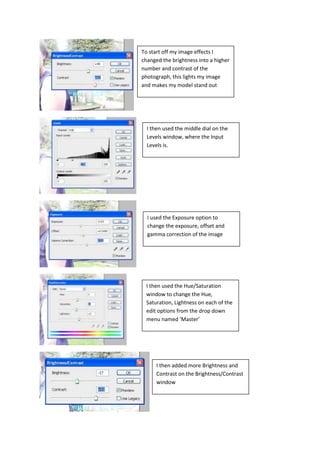
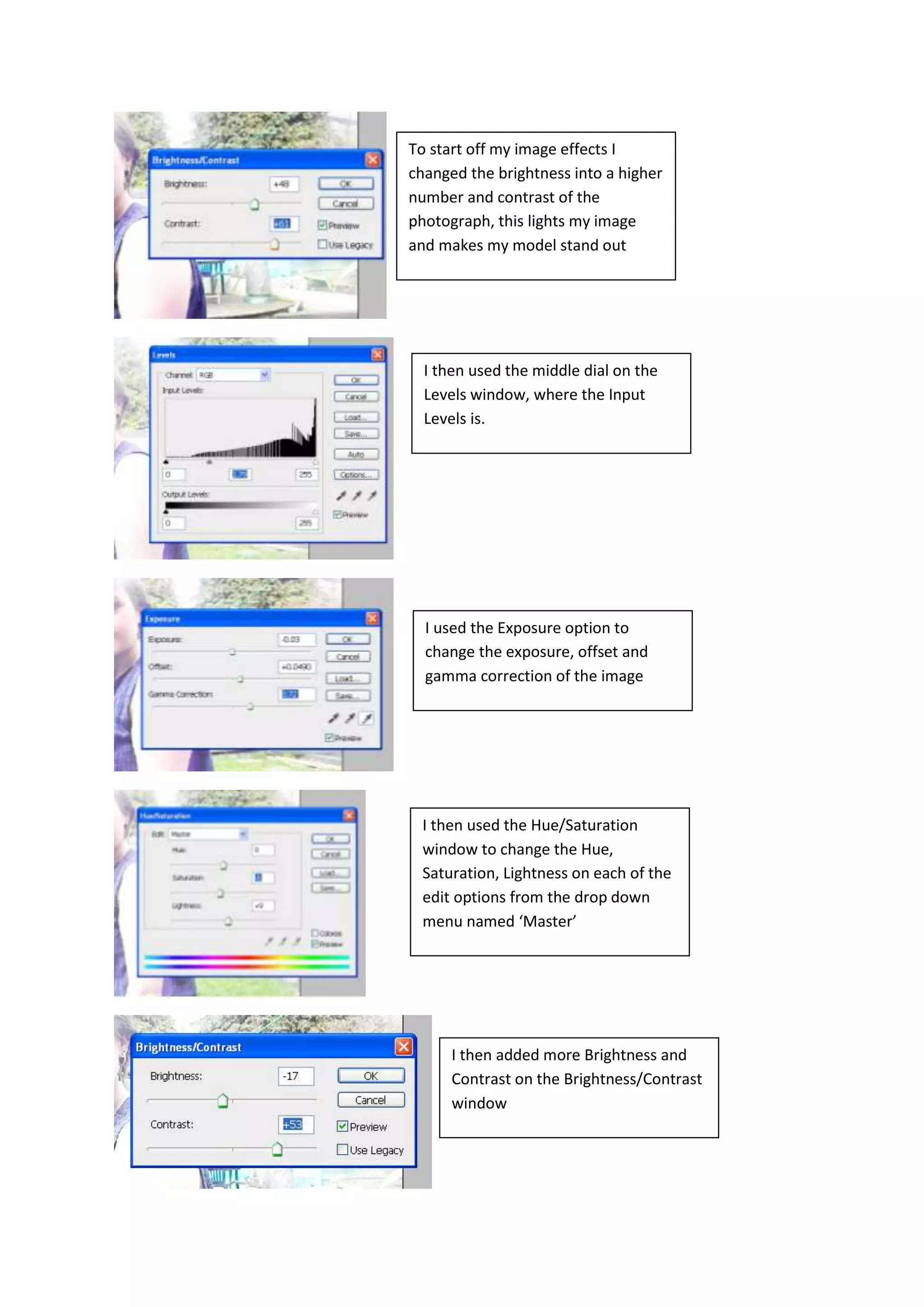
To start off my image effects I
changed the brightness into a higher
number and contrast of the
photograph, this lights my image
and makes my model stand out


  I then used the middle dial on the
  Levels window, where the Input
  Levels is.


  I used the Exposure option to
  change the exposure, offset and
  gamma correction of the image


 I then used the Hue/Saturation
 window to change the Hue,
 Saturation, Lightness on each of the
 edit options from the drop down
 menu named ‘Master’


      I then added more Brightness and
      Contrast on the Brightness/Contrast
      window
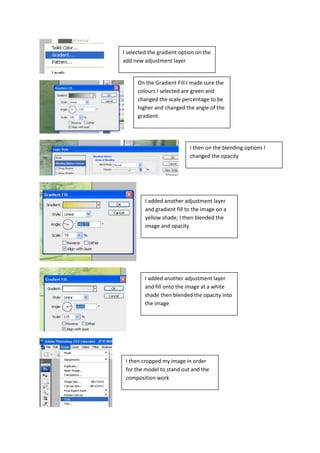
I selected the gradient option on the
add new adjustment layer


      On the Gradient Fill I made sure the
      colours I selected are green and
      changed the scale percentage to be
      higher and changed the angle of the
      gradient.


                            I then on the blending options I
                            changed the opacity


         I added another adjustment layer
         and gradient fill to the image on a
         yellow shade; I then blended the
         image and opacity


         I added another adjustment layer
         and fill onto the image at a white
         shade then blended the opacity into
         the image


 I then cropped my image in order
 for the model to stand out and the
 composition work
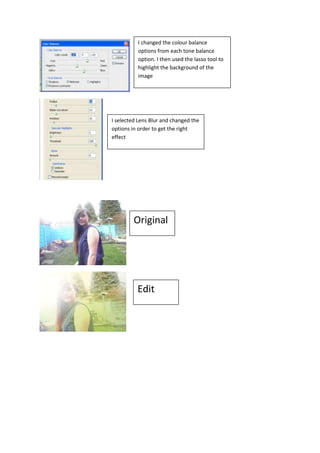
I changed the colour balance
          options from each tone balance
          option. I then used the lasso tool to
          highlight the background of the
          image


I selected Lens Blur and changed the
options in order to get the right
effect


         Original


          Edit

Editing images

  • 1.
    To start offmy image effects I changed the brightness into a higher number and contrast of the photograph, this lights my image and makes my model stand out I then used the middle dial on the Levels window, where the Input Levels is. I used the Exposure option to change the exposure, offset and gamma correction of the image I then used the Hue/Saturation window to change the Hue, Saturation, Lightness on each of the edit options from the drop down menu named ‘Master’ I then added more Brightness and Contrast on the Brightness/Contrast window
  • 2.
    I selected thegradient option on the add new adjustment layer On the Gradient Fill I made sure the colours I selected are green and changed the scale percentage to be higher and changed the angle of the gradient. I then on the blending options I changed the opacity I added another adjustment layer and gradient fill to the image on a yellow shade; I then blended the image and opacity I added another adjustment layer and fill onto the image at a white shade then blended the opacity into the image I then cropped my image in order for the model to stand out and the composition work
  • 3.
    I changed thecolour balance options from each tone balance option. I then used the lasso tool to highlight the background of the image I selected Lens Blur and changed the options in order to get the right effect Original Edit