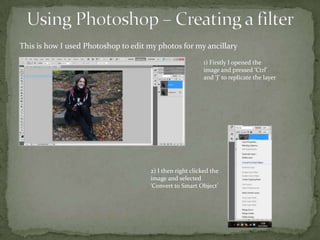
This is how I used Photoshop to edit my photos for my ancillary
                                                          1) Firstly I opened the
                                                          image and pressed ‘Ctrl’
                                                          and ‘J’ to replicate the layer


                                     2) I then right clicked the
                                     image and selected
                                     ‘Convert to Smart Object’
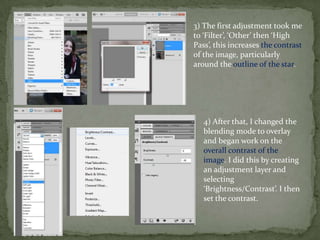
3) The first adjustment took me
to ‘Filter’, ‘Other’ then ‘High
Pass’, this increases the contrast
of the image, particularly
around the outline of the star.


   4) After that, I changed the
   blending mode to overlay
   and began work on the
   overall contrast of the
   image. I did this by creating
   an adjustment layer and
   selecting
   ‘Brightness/Contrast’. I then
   set the contrast.
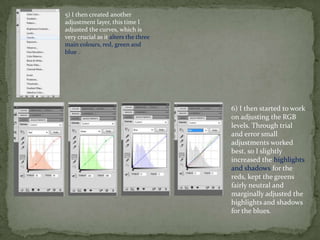
5) I then created another
adjustment layer, this time I
adjusted the curves, which is
very crucial as it alters the three
main colours, red, green and
blue .


                                      6) I then started to work
                                      on adjusting the RGB
                                      levels. Through trial
                                      and error small
                                      adjustments worked
                                      best, so I slightly
                                      increased the highlights
                                      and shadows for the
                                      reds, kept the greens
                                      fairly neutral and
                                      marginally adjusted the
                                      highlights and shadows
                                      for the blues.
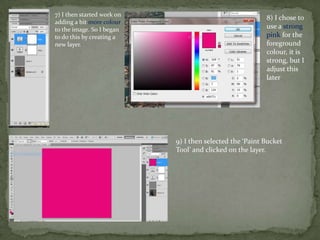
7) I then started work on
                                                          8) I chose to
adding a bit more colour
to the image. So I began                                  use a strong
to do this by creating a                                  pink for the
new layer.                                                foreground
                                                          colour, it is
                                                          strong, but I
                                                          adjust this
                                                          later


                            9) I then selected the ‘Paint Bucket
                            Tool’ and clicked on the layer.
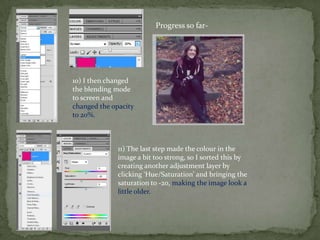
Progress so far-


10) I then changed
the blending mode
to screen and
changed the opacity
to 20%.


              11) The last step made the colour in the
              image a bit too strong, so I sorted this by
              creating another adjustment layer by
              clicking ‘Hue/Saturation’ and bringing the
              saturation to -20, making the image look a
              little older.
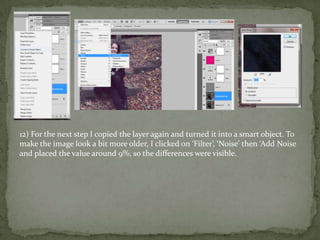
12) For the next step I copied the layer again and turned it into a smart object. To
make the image look a bit more older, I clicked on ‘Filter’, ‘Noise’ then ‘Add Noise
and placed the value around 9%, so the differences were visible.
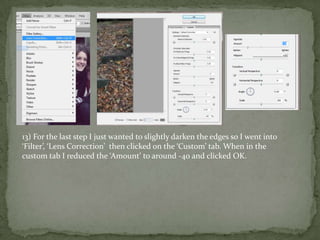
13) For the last step I just wanted to slightly darken the edges so I went into
‘Filter’, ‘Lens Correction’ then clicked on the ‘Custom’ tab. When in the
custom tab I reduced the ‘Amount’ to around -40 and clicked OK.
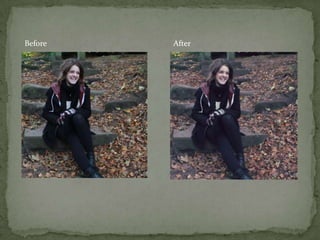
Before   After
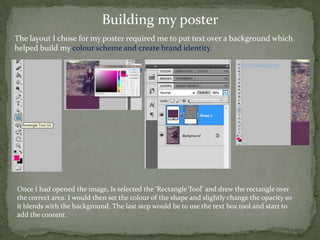
Building my poster
The layout I chose for my poster required me to put text over a background which
helped build my colour scheme and create brand identity.


Once I had opened the image, Is selected the ‘Rectangle Tool’ and drew the rectangle over
the correct area. I would then set the colour of the shape and slightly change the opacity so
it blends with the background. The last step would be to use the text box tool and start to
add the content.
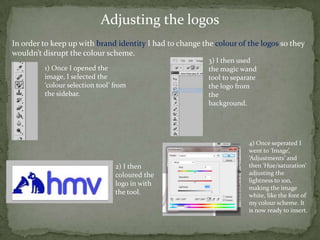
Adjusting the logos
In order to keep up with brand identity I had to change the colour of the logos so they
wouldn’t disrupt the colour scheme.
                                                          3) I then used
         1) Once I opened the                             the magic wand
         image, I selected the                            tool to separate
         ‘colour selection tool’ from                     the logo from
         the sidebar.                                     the
                                                          background.


                                                                       4) Once seperated I
                                                                       went to ‘Image’,
                                                                       ‘Adjustments’ and
                                 2) I then                             then ‘Hue/saturation’
                                 coloured the                          adjusting the
                                                                       lightness to 100,
                                 logo in with
                                                                       making the image
                                 the tool.                             white, like the font of
                                                                       my colour scheme. It
                                                                       is now ready to insert.
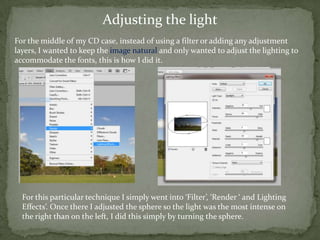
Adjusting the light
For the middle of my CD case, instead of using a filter or adding any adjustment
layers, I wanted to keep the image natural and only wanted to adjust the lighting to
accommodate the fonts, this is how I did it.


  For this particular technique I simply went into ‘Filter’, ‘Render ‘ and Lighting
  Effects’. Once there I adjusted the sphere so the light was the most intense on
  the right than on the left, I did this simply by turning the sphere.
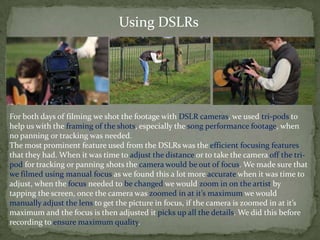
Using DSLRs


For both days of filming we shot the footage with DSLR cameras, we used tri-pods to
help us with the framing of the shots, especially the song performance footage, when
no panning or tracking was needed.
The most prominent feature used from the DSLRs was the efficient focusing features
that they had. When it was time to adjust the distance or to take the camera off the tri-
pod for tracking or panning shots the camera would be out of focus. We made sure that
we filmed using manual focus as we found this a lot more accurate when it was time to
adjust, when the focus needed to be changed we would zoom in on the artist by
tapping the screen, once the camera was zoomed in at it’s maximum we would
manually adjust the lens to get the picture in focus, if the camera is zoomed in at it’s
maximum and the focus is then adjusted it picks up all the details. We did this before
recording to ensure maximum quality.

Evaluation Question 4

  • 2.
    This is howI used Photoshop to edit my photos for my ancillary 1) Firstly I opened the image and pressed ‘Ctrl’ and ‘J’ to replicate the layer 2) I then right clicked the image and selected ‘Convert to Smart Object’
  • 3.
    3) The firstadjustment took me to ‘Filter’, ‘Other’ then ‘High Pass’, this increases the contrast of the image, particularly around the outline of the star. 4) After that, I changed the blending mode to overlay and began work on the overall contrast of the image. I did this by creating an adjustment layer and selecting ‘Brightness/Contrast’. I then set the contrast.
  • 4.
    5) I thencreated another adjustment layer, this time I adjusted the curves, which is very crucial as it alters the three main colours, red, green and blue . 6) I then started to work on adjusting the RGB levels. Through trial and error small adjustments worked best, so I slightly increased the highlights and shadows for the reds, kept the greens fairly neutral and marginally adjusted the highlights and shadows for the blues.
  • 5.
    7) I thenstarted work on 8) I chose to adding a bit more colour to the image. So I began use a strong to do this by creating a pink for the new layer. foreground colour, it is strong, but I adjust this later 9) I then selected the ‘Paint Bucket Tool’ and clicked on the layer.
  • 6.
    Progress so far- 10)I then changed the blending mode to screen and changed the opacity to 20%. 11) The last step made the colour in the image a bit too strong, so I sorted this by creating another adjustment layer by clicking ‘Hue/Saturation’ and bringing the saturation to -20, making the image look a little older.
  • 7.
    12) For thenext step I copied the layer again and turned it into a smart object. To make the image look a bit more older, I clicked on ‘Filter’, ‘Noise’ then ‘Add Noise and placed the value around 9%, so the differences were visible.
  • 8.
    13) For thelast step I just wanted to slightly darken the edges so I went into ‘Filter’, ‘Lens Correction’ then clicked on the ‘Custom’ tab. When in the custom tab I reduced the ‘Amount’ to around -40 and clicked OK.
  • 9.
    Before After
  • 10.
    Building my poster Thelayout I chose for my poster required me to put text over a background which helped build my colour scheme and create brand identity. Once I had opened the image, Is selected the ‘Rectangle Tool’ and drew the rectangle over the correct area. I would then set the colour of the shape and slightly change the opacity so it blends with the background. The last step would be to use the text box tool and start to add the content.
  • 11.
    Adjusting the logos Inorder to keep up with brand identity I had to change the colour of the logos so they wouldn’t disrupt the colour scheme. 3) I then used 1) Once I opened the the magic wand image, I selected the tool to separate ‘colour selection tool’ from the logo from the sidebar. the background. 4) Once seperated I went to ‘Image’, ‘Adjustments’ and 2) I then then ‘Hue/saturation’ coloured the adjusting the lightness to 100, logo in with making the image the tool. white, like the font of my colour scheme. It is now ready to insert.
  • 12.
    Adjusting the light Forthe middle of my CD case, instead of using a filter or adding any adjustment layers, I wanted to keep the image natural and only wanted to adjust the lighting to accommodate the fonts, this is how I did it. For this particular technique I simply went into ‘Filter’, ‘Render ‘ and Lighting Effects’. Once there I adjusted the sphere so the light was the most intense on the right than on the left, I did this simply by turning the sphere.
  • 13.
    Using DSLRs For bothdays of filming we shot the footage with DSLR cameras, we used tri-pods to help us with the framing of the shots, especially the song performance footage, when no panning or tracking was needed. The most prominent feature used from the DSLRs was the efficient focusing features that they had. When it was time to adjust the distance or to take the camera off the tri- pod for tracking or panning shots the camera would be out of focus. We made sure that we filmed using manual focus as we found this a lot more accurate when it was time to adjust, when the focus needed to be changed we would zoom in on the artist by tapping the screen, once the camera was zoomed in at it’s maximum we would manually adjust the lens to get the picture in focus, if the camera is zoomed in at it’s maximum and the focus is then adjusted it picks up all the details. We did this before recording to ensure maximum quality.