Magazine Portrait Shoot Edits
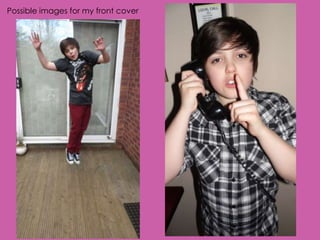
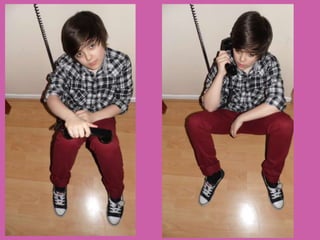
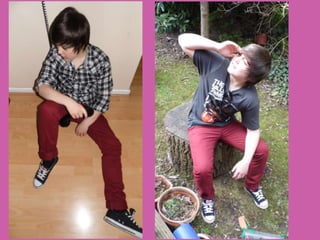
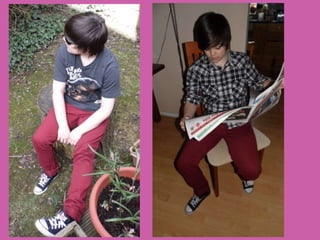
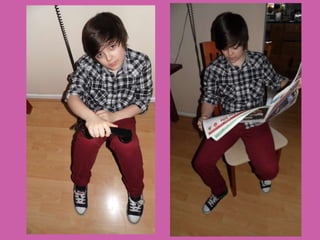
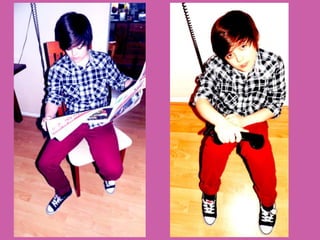
Possible images for my front cover
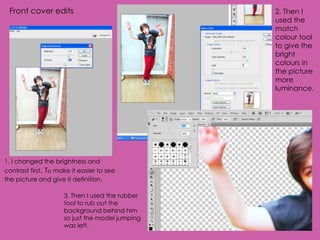
Front cover edits                               2. Then I
                                                 used the
                                                 match
                                                 colour tool
                                                 to give the
                                                 bright
                                                 colours in
                                                 the picture
                                                 more
                                                 luminance.


1. I changed the brightness and
contrast first. To make it easier to see
the picture and give it definition.

                     3. Then I used the rubber
                     tool to rub out the
                     background behind him
                     so just the model jumping
                     was left.
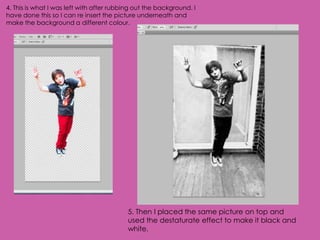
4. This is what I was left with after rubbing out the background. I
have done this so I can re insert the picture underneath and
make the background a different colour.


                                           5. Then I placed the same picture on top and
                                           used the destaturate effect to make it black and
                                           white.
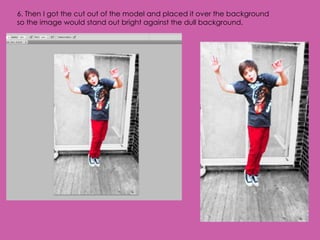
6. Then I got the cut out of the model and placed it over the background
so the image would stand out bright against the dull background.
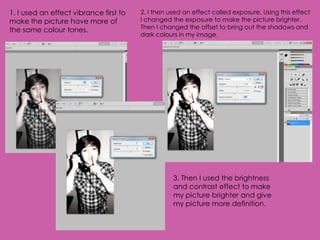
1. I used an effect vibrance first to   2. I then used an effect called exposure. Using this effect
make the picture have more of           I changed the exposure to make the picture brighter.
the same colour tones.                  Then I changed the offset to bring out the shadows and
                                        dark colours in my image.


                                                   3. Then I used the brightness
                                                   and contrast effect to make
                                                   my picture brighter and give
                                                   my picture more definition.
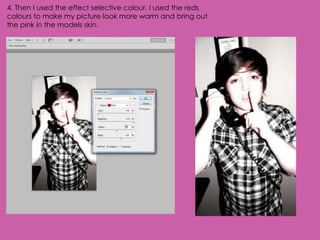
4. Then I used the effect selective colour. I used the reds
colours to make my picture look more warm and bring out
the pink in the models skin.
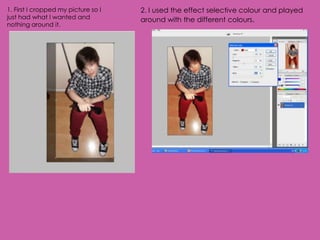
1. First I cropped my picture so I   2. I used the effect selective colour and played
just had what I wanted and           around with the different colours.
nothing around it.
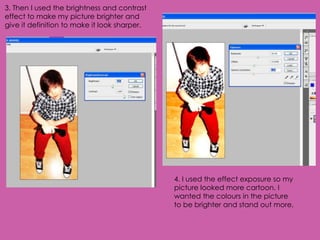
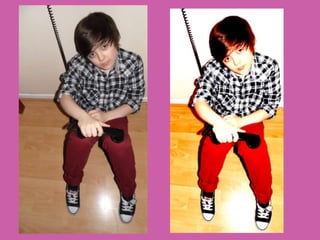
3. Then I used the brightness and contrast
effect to make my picture brighter and
give it definition to make it look sharper.


                                              4. I used the effect exposure so my
                                              picture looked more cartoon. I
                                              wanted the colours in the picture
                                              to be brighter and stand out more.
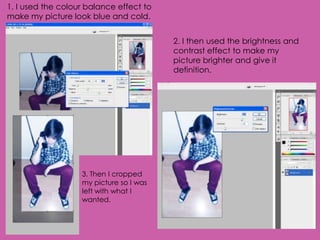
1. I used the colour balance effect to
make my picture look blue and cold.


                                         2. I then used the brightness and
                                         contrast effect to make my
                                         picture brighter and give it
                                         definition.


                   3. Then I cropped
                   my picture so I was
                   left with what I
                   wanted.
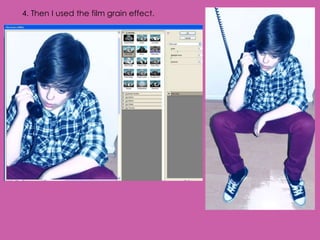
4. Then I used the film grain effect.
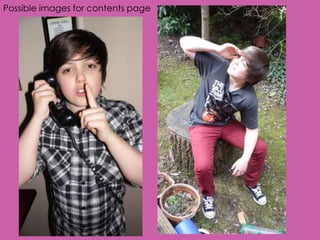
Possible images for contents page
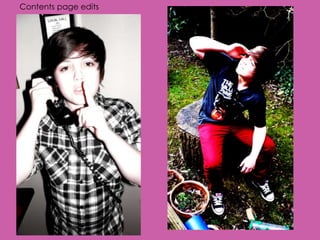
Contents page edits
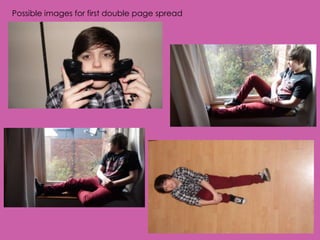
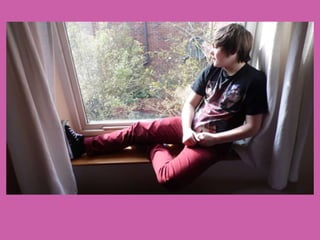
Possible images for first double page spread
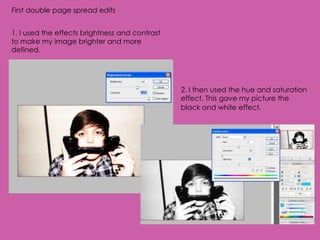
First double page spread edits


1. I used the effects brightness and contrast
to make my image brighter and more
defined.


                                                2. I then used the hue and saturation
                                                effect. This gave my picture the
                                                black and white effect.
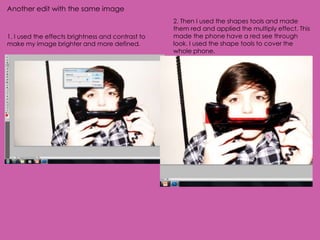
Another edit with the same image
                                                   2. Then I used the shapes tools and made
                                                   them red and applied the multiply effect. This
1. I used the effects brightness and contrast to   made the phone have a red see through
make my image brighter and more defined.           look. I used the shape tools to cover the
                                                   whole phone.
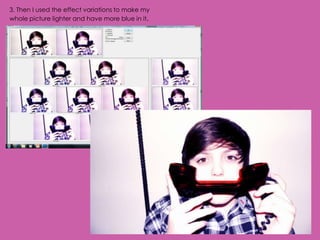
3. Then I used the effect variations to make my
whole picture lighter and have more blue in it.
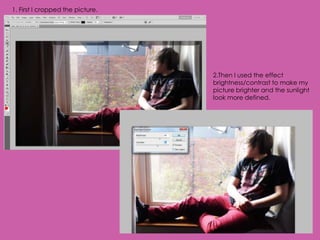
1. First I cropped the picture.


                                  2.Then I used the effect
                                  brightness/contrast to make my
                                  picture brighter and the sunlight
                                  look more defined.
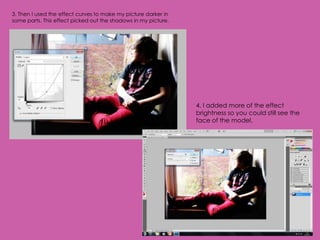
3. Then I used the effect curves to make my picture darker in
some parts. This effect picked out the shadows in my picture.


                                                                4. I added more of the effect
                                                                brightness so you could still see the
                                                                face of the model.
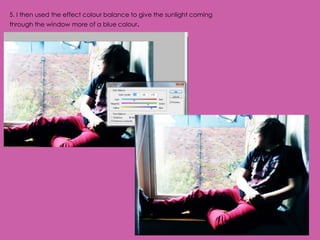
5. I then used the effect colour balance to give the sunlight coming
through the window more of a blue colour.
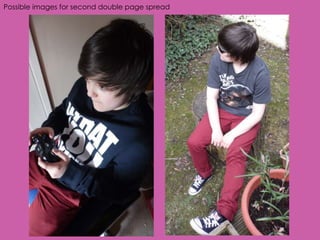
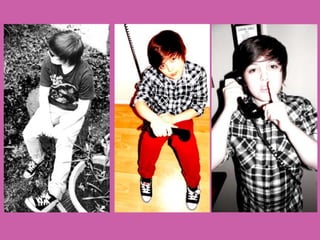
Possible images for second double page spread
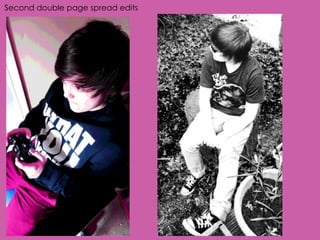
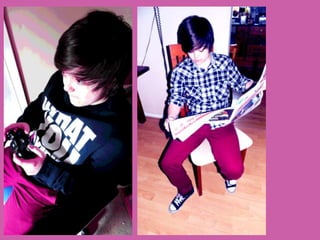
Second double page spread edits
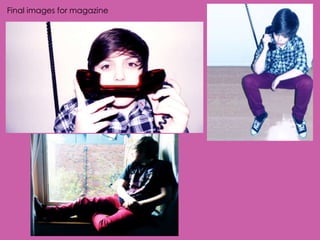
Final images for magazine
Portrait Shoot PowerPoint

Portrait Shoot PowerPoint

  • 1.
  • 2.
    Possible images formy front cover
  • 6.
    Front cover edits 2. Then I used the match colour tool to give the bright colours in the picture more luminance. 1. I changed the brightness and contrast first. To make it easier to see the picture and give it definition. 3. Then I used the rubber tool to rub out the background behind him so just the model jumping was left.
  • 7.
    4. This iswhat I was left with after rubbing out the background. I have done this so I can re insert the picture underneath and make the background a different colour. 5. Then I placed the same picture on top and used the destaturate effect to make it black and white.
  • 8.
    6. Then Igot the cut out of the model and placed it over the background so the image would stand out bright against the dull background.
  • 9.
    1. I usedan effect vibrance first to 2. I then used an effect called exposure. Using this effect make the picture have more of I changed the exposure to make the picture brighter. the same colour tones. Then I changed the offset to bring out the shadows and dark colours in my image. 3. Then I used the brightness and contrast effect to make my picture brighter and give my picture more definition.
  • 10.
    4. Then Iused the effect selective colour. I used the reds colours to make my picture look more warm and bring out the pink in the models skin.
  • 11.
    1. First Icropped my picture so I 2. I used the effect selective colour and played just had what I wanted and around with the different colours. nothing around it.
  • 12.
    3. Then Iused the brightness and contrast effect to make my picture brighter and give it definition to make it look sharper. 4. I used the effect exposure so my picture looked more cartoon. I wanted the colours in the picture to be brighter and stand out more.
  • 14.
    1. I usedthe colour balance effect to make my picture look blue and cold. 2. I then used the brightness and contrast effect to make my picture brighter and give it definition. 3. Then I cropped my picture so I was left with what I wanted.
  • 15.
    4. Then Iused the film grain effect.
  • 16.
    Possible images forcontents page
  • 17.
  • 18.
    Possible images forfirst double page spread
  • 19.
    First double pagespread edits 1. I used the effects brightness and contrast to make my image brighter and more defined. 2. I then used the hue and saturation effect. This gave my picture the black and white effect.
  • 20.
    Another edit withthe same image 2. Then I used the shapes tools and made them red and applied the multiply effect. This 1. I used the effects brightness and contrast to made the phone have a red see through make my image brighter and more defined. look. I used the shape tools to cover the whole phone.
  • 21.
    3. Then Iused the effect variations to make my whole picture lighter and have more blue in it.
  • 22.
    1. First Icropped the picture. 2.Then I used the effect brightness/contrast to make my picture brighter and the sunlight look more defined.
  • 23.
    3. Then Iused the effect curves to make my picture darker in some parts. This effect picked out the shadows in my picture. 4. I added more of the effect brightness so you could still see the face of the model.
  • 24.
    5. I thenused the effect colour balance to give the sunlight coming through the window more of a blue colour.
  • 25.
    Possible images forsecond double page spread
  • 28.
    Second double pagespread edits
  • 30.