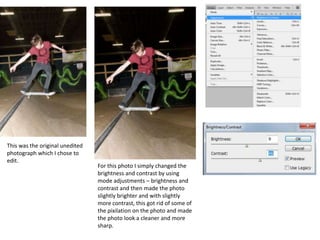
This was the original unedited
photograph which I chose to
edit.
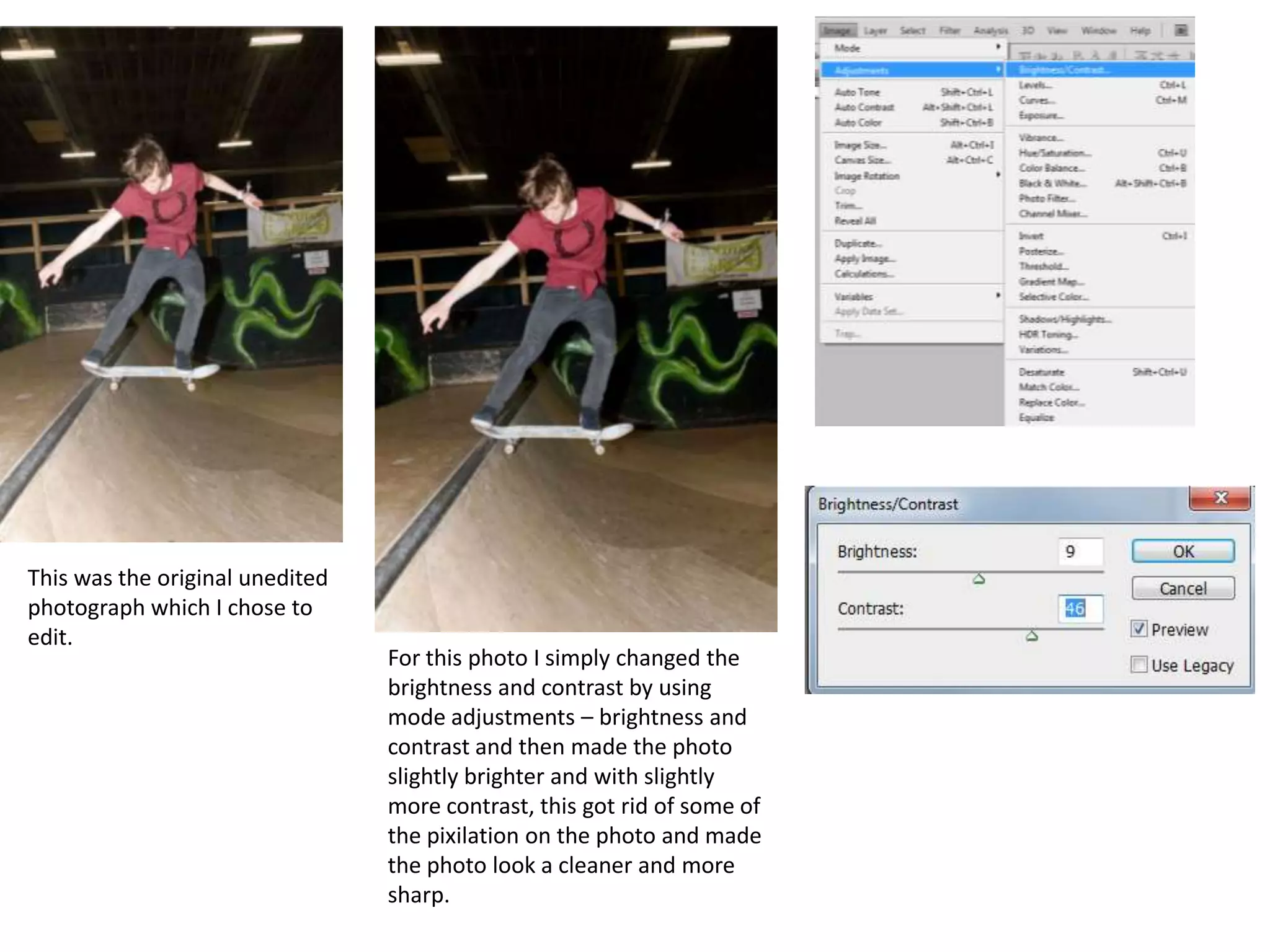
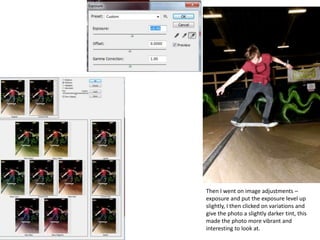
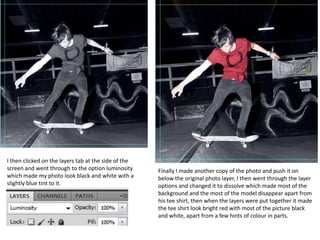
                                 For this photo I simply changed the
                                 brightness and contrast by using
                                 mode adjustments – brightness and
                                 contrast and then made the photo
                                 slightly brighter and with slightly
                                 more contrast, this got rid of some of
                                 the pixilation on the photo and made
                                 the photo look a cleaner and more
                                 sharp.
Then I went on image adjustments –
exposure and put the exposure level up
slightly, I then clicked on variations and
give the photo a slightly darker tint, this
made the photo more vibrant and
interesting to look at.
I then clicked on the layers tab at the side of the
screen and went through to the option luminosity      Finally I made another copy of the photo and push it on
which made my photo look black and white with a       below the original photo layer, I then went through the layer
slightly blue tint to it.                             options and changed it to dissolve which made most of the
                                                      background and the most of the model disappear apart from
                                                      his tee shirt, then when the layers were put together it made
                                                      the tee shirt look bright red with most of the picture black
                                                      and white, apart from a few hints of colour in parts.
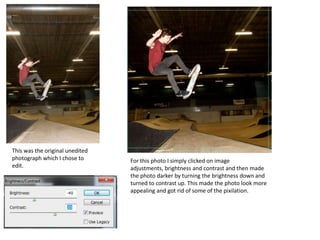
This was the original unedited
photograph which I chose to      For this photo I simply clicked on image
edit.                            adjustments, brightness and contrast and then made
                                 the photo darker by turning the brightness down and
                                 turned to contrast up. This made the photo look more
                                 appealing and got rid of some of the pixilation.
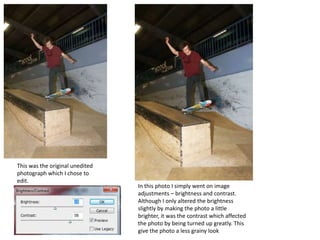
This was the original unedited
photograph which I chose to
edit.
                                 In this photo I simply went on image
                                 adjustments – brightness and contrast.
                                 Although I only altered the brightness
                                 slightly by making the photo a little
                                 brighter, it was the contrast which affected
                                 the photo by being turned up greatly. This
                                 give the photo a less grainy look
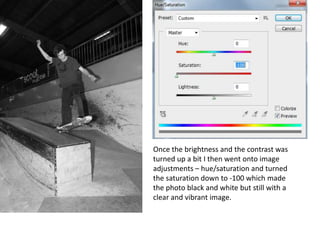
Once the brightness and the contrast was
turned up a bit I then went onto image
adjustments – hue/saturation and turned
the saturation down to -100 which made
the photo black and white but still with a
clear and vibrant image.
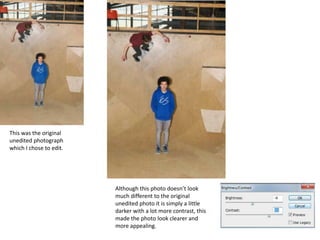
This was the original
unedited photograph
which I chose to edit.


                         Although this photo doesn’t look
                         much different to the original
                         unedited photo it is simply a little
                         darker with a lot more contrast, this
                         made the photo look clearer and
                         more appealing.
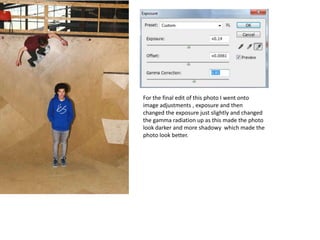
For the final edit of this photo I went onto
image adjustments , exposure and then
changed the exposure just slightly and changed
the gamma radiation up as this made the photo
look darker and more shadowy which made the
photo look better.
5 edited photos

5 edited photos

  • 1.
    This was theoriginal unedited photograph which I chose to edit. For this photo I simply changed the brightness and contrast by using mode adjustments – brightness and contrast and then made the photo slightly brighter and with slightly more contrast, this got rid of some of the pixilation on the photo and made the photo look a cleaner and more sharp.
  • 2.
    Then I wenton image adjustments – exposure and put the exposure level up slightly, I then clicked on variations and give the photo a slightly darker tint, this made the photo more vibrant and interesting to look at.
  • 3.
    I then clickedon the layers tab at the side of the screen and went through to the option luminosity Finally I made another copy of the photo and push it on which made my photo look black and white with a below the original photo layer, I then went through the layer slightly blue tint to it. options and changed it to dissolve which made most of the background and the most of the model disappear apart from his tee shirt, then when the layers were put together it made the tee shirt look bright red with most of the picture black and white, apart from a few hints of colour in parts.
  • 4.
    This was theoriginal unedited photograph which I chose to For this photo I simply clicked on image edit. adjustments, brightness and contrast and then made the photo darker by turning the brightness down and turned to contrast up. This made the photo look more appealing and got rid of some of the pixilation.
  • 5.
    This was theoriginal unedited photograph which I chose to edit. In this photo I simply went on image adjustments – brightness and contrast. Although I only altered the brightness slightly by making the photo a little brighter, it was the contrast which affected the photo by being turned up greatly. This give the photo a less grainy look
  • 6.
    Once the brightnessand the contrast was turned up a bit I then went onto image adjustments – hue/saturation and turned the saturation down to -100 which made the photo black and white but still with a clear and vibrant image.
  • 7.
    This was theoriginal unedited photograph which I chose to edit. Although this photo doesn’t look much different to the original unedited photo it is simply a little darker with a lot more contrast, this made the photo look clearer and more appealing.
  • 8.
    For the finaledit of this photo I went onto image adjustments , exposure and then changed the exposure just slightly and changed the gamma radiation up as this made the photo look darker and more shadowy which made the photo look better.