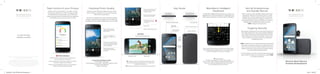
Micro USB2.0 3.5mm Audio Output
Volume
up
Volume
down
Mute (press)/
Convenience
Key
Ambient Light
Sensor Array
8 MP front camera
with LED Flash
Pulse Sensor Notification Light
13 MP auto-focus rear camera
Dual-tone LED Flash
Lock/Power Button
Take Control of your Privacy
Whether it’s your financial reports or your selfies, your data
is encrypted by default on your DTEK. Extra steps are taken
to authenticate and monitor access to your smartphones
features and personal data. Rest assured that your experience
is unimpeded, and your privacy is under your control.
Not All Smartphones
Are Equally Secure
When it comes to security, BlackBerry leads all other Android
smartphones. Security isn’t something we tack on, it’s fully
integrated into our device hardware and OS. We set the bar
in incident response and patch management, and bring our
world-renowned security experts and testing to our new line of
BlackBerry secure smartphones powered by Android.
DTEK will keep you safe and secure.
  
Ongoing Security
Many popular smartphones put the user’s private information at
risk of being hacked due to slow security updates. BlackBerry
has a record of being the quickest to deliver security patches.
Other mobile device vendors can take weeks, months or even
years to deliver security patches, leaving your organization
vulnerable and at risk.
DTEK is packed with lots of other security features like Encryption
that protects your pictures or bank info from being stolen if you
were to lose your phone, and Password Keeper to store secret
passwords and notes. Take control and be confident knowing
your personal data is being kept private.
So even though you can’t see it, know that extra precautions are
taken at both the hardware and software level to protect DTEK
from malicious tampering.
BlackBerry Intelligent
Keyboard
The BlackBerry Intelligent Keyboard learns and provides word
suggestions as you type, that include up to 3 languages of your
choice, letting you flick them into place for faster conversations.
TIP: Gesture Typing
Get faster one-handed text entry with type by swiping.
When you type, instead of lifting your finger and pressing individual
keys, you can slide your finger between keys to form words.
Our auto prediction takes care of the rest.
Dazzling Photo Quality
Capture the perfect selfie with an 8MP front facing camera
with an LED flash; or capture the moment with the dazzling
13MP auto-focus rear camera.
The camera is equipped with a range of professional settings
including manual controls and designed to focus instantly and
accurately for blur-free, realistic looking photos, even in low light.
Access Advanced Settings to adjust:
• Photo Quality & Geolocation
• Video Resolution & Frame Rate – 1920x1080 | 1080p HD | 30 fps
• Enhanced Video Stabilization
• Media Card Storage
When using the virtual keyboard, predicted words will also appear
above individual letters. Simply flick up from the respective letter
to insert the suggested word into your composition.
DTEK by BlackBerry
DTEK lets you know when your privacy could be at risk
so you can take action to improve it.
Know at a glance the overall security rating for your device,
as well as for specific security features.
Monitor and control application access to your microphone,
camera, location and personal information.
Screen images simulated. Data plan required. Please check with your service
provider for availability, costs and restrictions.
©2016 BlackBerry. Trademarks, including but not limited to BlackBerry,
EMBLEM & DTEK 50 Design, BBM and BES are the trademarks or registered
trademarks of BlackBerry Limited, the exclusive rights to which are expressly
reserved. Android, Google Now, and Google Play are trademarks of Google Inc.
Corning and Gorilla are trademarks of Corning Incorporated. All other
trademarks are the property of their respective owners.
For further information:
BlackBerry.com/dtek50
Access more capture settings
such as Panorama or video
Shutter Button
Switch to the front facing camera
Press and hold the preview icon
to quickly preview, edit, share,
or delete the image.
Live filters allow you to see
how a filter will look before
you capture it.
TIP: To take a screen shot, press and hold the Volume down
key and the Power key at the same time. Your screen shot
is saved in the Photos app.
TIP: Hold down the shutter button to take 5 frames per second.
Key Guide
To zoom in or out, slide your
fingers apart or together on the
screen.
Tap the area of the screen that you
want to focus on. When the subject
is in focus, the indicator circle turns
green and disappears.
Quick access to Advanced
Settings, Flash, Aspect Ratio,
Timer and HDR.
Swipe left or right anywhere
on the viewfinder to quickly adjust
the exposure.
Take a photo while recording a video
Video Mode
Record buttonVideo light on or off
World´s Most Secure
Android Smartphone
20160706_V7_BB_DTEK50 Post Purchase.indd 1 7/6/16 7:48 PM
Getting Started
Out Of The Box Experience
When you first power on the device, you will proceed through
a setup wizard that will walk you through the initialization of the
device. This will consist of setting the preferred language, Wi-Fi
setup, Date and time setup, User Name, Google Account Login,
and Google terms of Service and Privacy Policy.
Content Transfer
Switching to a DTEK will be easier than ever.
During the setup of your DTEK device, you will be prompted
to use the BlackBerry Content Transfer app to move
contacts, pictures, music and more from your previous
BlackBerry, Android, iOS, or Windows phone device.
The BlackBerry Content Transfer app is preinstalled
and can be used any time after the initial device set up.
Tap & Go is a utility that will quickly copy Google Accounts
and backed up apps and data from an existing Android device.
Make sure the other device is on, unlocked, and that NFC is enabled.
Then briefly place the two devices back-to-back until you hear
a tone. The data will be then transfered via NFC.
You will be prompted to use Tap & Go during the Setup Wizard.
The BlackBerry Content Transfer app provides three options
for transferring the data from your previous device.
• Google Drive: Transfer the data through the cloud storage
service that’s associated with your Google account.
• Media card: Save data on a media card and then insert the
media card into your new device.
• Wi-Fi: Connect both devices to a private Wi-Fi network to
transfer your encrypted data.
Simply follow the on screen directions to complete the transfer.
The content transfer app will need to be installed on your
previous device.
For more information, visit
BlackBerry.com/transfer
BlackBerry Experiences
on Android
Keep life organized with BlackBerry Hub. This unified inbox
is an irreplaceable tool for consolidating all of your messages in one
place. Whether it’s social media, email, SMS, calendar or phone calls.
BlackBerry Calendar
The best out-of-box calendar experience on Android. When
it’s time to join a call, DTEK 50 presents you with a simple Join
Now button that automatically dials you in. When receiving
or creating meeting invites, you are presented with adjacent
or conflicting appointments.
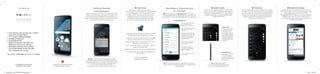
Calendar Peek
Pull down within the Hub
message list for a quick
view of up to 4 of your
next meetings or calendar
events. Interact with these
by accepting, declining, or
warning the organizer that
you are going to be a few
minutes late.
Convenience Key
With the press of a button,
the Convenience Key
provides quick access to
your most used applications,
tasks and more.
Productivity Tab
Along the screen’s edge, is the productivity tab that provides an
“at a glance” view of the most pertinent info from Hub, Calendar,
Task, and Contacts. Tap on any of the four icons within the tab to
glance at the most pertinent info for the associated application.
Tapping on an item within the list will open the associated
application and message into view.
BlackBerry Pop-Up Widgets
Widgets are a great way to get information quickly, but can
take up a lot of space on your home screen and display content
and messages that you may not want all to see.
With BlackBerry Pop-Up Widgets, you can view any application
widget by simply swiping up or down across the icon on
your home screen, giving you fast access to the information
you need, when you need it.
Introducing
TIP: With the press of a button,
the Convenience Key provides quick access
to your most used applications, tasks and more.
Look for the famous BlackBerry splat for
BlackBerry features on Android.
For detailed feature demos:
BlackBerry.com/dtek50
• 	Fully Android, get access over a million
	 apps from Google Play™
• 	5.2” scratch resistant display
• 	Intelligent Keyboard
• 	Convenience Key
• 	8MP front camera with flash and
	 13MP auto-focus rear camera
• 	BlackBerry Security that protects
	 the private details of your life safe
	 from malware and viruses
The power of BlackBerry is now on Android
The Hub Message List
Powerful search tool that allows
you to search the entire Hub or
filter by account.
Filter The Hub by snoozed, Unread,
High Importance, or Flagged
messages.
Filter the Hub by account, access
custom view, access Hub
settings, and add a new account.
Manage which folders are synced
to the device. When a folder is first
selected you have the option to
“sync now” for one time access,
or “Always” to have the folder
continually synced.
Full integration of Calendar
meeting invites from within the
Hub. Accept, Cancel, Join, and
Delayed are available.
Tap the compose button to begin
a new message.
TIP: With a simple pinch gesture Hub quickly filters to your choice of
snoozed, unread, emails marked as high importance, flagged emails or
muted conversations.
20160706_V7_BB_DTEK50 Post Purchase.indd 2 7/6/16 7:48 PM

DTEK50 by BlackBerry Owner’s Guide

  • 1.
    Micro USB2.0 3.5mmAudio Output Volume up Volume down Mute (press)/ Convenience Key Ambient Light Sensor Array 8 MP front camera with LED Flash Pulse Sensor Notification Light 13 MP auto-focus rear camera Dual-tone LED Flash Lock/Power Button Take Control of your Privacy Whether it’s your financial reports or your selfies, your data is encrypted by default on your DTEK. Extra steps are taken to authenticate and monitor access to your smartphones features and personal data. Rest assured that your experience is unimpeded, and your privacy is under your control. Not All Smartphones Are Equally Secure When it comes to security, BlackBerry leads all other Android smartphones. Security isn’t something we tack on, it’s fully integrated into our device hardware and OS. We set the bar in incident response and patch management, and bring our world-renowned security experts and testing to our new line of BlackBerry secure smartphones powered by Android. DTEK will keep you safe and secure.    Ongoing Security Many popular smartphones put the user’s private information at risk of being hacked due to slow security updates. BlackBerry has a record of being the quickest to deliver security patches. Other mobile device vendors can take weeks, months or even years to deliver security patches, leaving your organization vulnerable and at risk. DTEK is packed with lots of other security features like Encryption that protects your pictures or bank info from being stolen if you were to lose your phone, and Password Keeper to store secret passwords and notes. Take control and be confident knowing your personal data is being kept private. So even though you can’t see it, know that extra precautions are taken at both the hardware and software level to protect DTEK from malicious tampering. BlackBerry Intelligent Keyboard The BlackBerry Intelligent Keyboard learns and provides word suggestions as you type, that include up to 3 languages of your choice, letting you flick them into place for faster conversations. TIP: Gesture Typing Get faster one-handed text entry with type by swiping. When you type, instead of lifting your finger and pressing individual keys, you can slide your finger between keys to form words. Our auto prediction takes care of the rest. Dazzling Photo Quality Capture the perfect selfie with an 8MP front facing camera with an LED flash; or capture the moment with the dazzling 13MP auto-focus rear camera. The camera is equipped with a range of professional settings including manual controls and designed to focus instantly and accurately for blur-free, realistic looking photos, even in low light. Access Advanced Settings to adjust: • Photo Quality & Geolocation • Video Resolution & Frame Rate – 1920x1080 | 1080p HD | 30 fps • Enhanced Video Stabilization • Media Card Storage When using the virtual keyboard, predicted words will also appear above individual letters. Simply flick up from the respective letter to insert the suggested word into your composition. DTEK by BlackBerry DTEK lets you know when your privacy could be at risk so you can take action to improve it. Know at a glance the overall security rating for your device, as well as for specific security features. Monitor and control application access to your microphone, camera, location and personal information. Screen images simulated. Data plan required. Please check with your service provider for availability, costs and restrictions. ©2016 BlackBerry. Trademarks, including but not limited to BlackBerry, EMBLEM & DTEK 50 Design, BBM and BES are the trademarks or registered trademarks of BlackBerry Limited, the exclusive rights to which are expressly reserved. Android, Google Now, and Google Play are trademarks of Google Inc. Corning and Gorilla are trademarks of Corning Incorporated. All other trademarks are the property of their respective owners. For further information: BlackBerry.com/dtek50 Access more capture settings such as Panorama or video Shutter Button Switch to the front facing camera Press and hold the preview icon to quickly preview, edit, share, or delete the image. Live filters allow you to see how a filter will look before you capture it. TIP: To take a screen shot, press and hold the Volume down key and the Power key at the same time. Your screen shot is saved in the Photos app. TIP: Hold down the shutter button to take 5 frames per second. Key Guide To zoom in or out, slide your fingers apart or together on the screen. Tap the area of the screen that you want to focus on. When the subject is in focus, the indicator circle turns green and disappears. Quick access to Advanced Settings, Flash, Aspect Ratio, Timer and HDR. Swipe left or right anywhere on the viewfinder to quickly adjust the exposure. Take a photo while recording a video Video Mode Record buttonVideo light on or off World´s Most Secure Android Smartphone 20160706_V7_BB_DTEK50 Post Purchase.indd 1 7/6/16 7:48 PM
  • 2.
    Getting Started Out OfThe Box Experience When you first power on the device, you will proceed through a setup wizard that will walk you through the initialization of the device. This will consist of setting the preferred language, Wi-Fi setup, Date and time setup, User Name, Google Account Login, and Google terms of Service and Privacy Policy. Content Transfer Switching to a DTEK will be easier than ever. During the setup of your DTEK device, you will be prompted to use the BlackBerry Content Transfer app to move contacts, pictures, music and more from your previous BlackBerry, Android, iOS, or Windows phone device. The BlackBerry Content Transfer app is preinstalled and can be used any time after the initial device set up. Tap & Go is a utility that will quickly copy Google Accounts and backed up apps and data from an existing Android device. Make sure the other device is on, unlocked, and that NFC is enabled. Then briefly place the two devices back-to-back until you hear a tone. The data will be then transfered via NFC. You will be prompted to use Tap & Go during the Setup Wizard. The BlackBerry Content Transfer app provides three options for transferring the data from your previous device. • Google Drive: Transfer the data through the cloud storage service that’s associated with your Google account. • Media card: Save data on a media card and then insert the media card into your new device. • Wi-Fi: Connect both devices to a private Wi-Fi network to transfer your encrypted data. Simply follow the on screen directions to complete the transfer. The content transfer app will need to be installed on your previous device. For more information, visit BlackBerry.com/transfer BlackBerry Experiences on Android Keep life organized with BlackBerry Hub. This unified inbox is an irreplaceable tool for consolidating all of your messages in one place. Whether it’s social media, email, SMS, calendar or phone calls. BlackBerry Calendar The best out-of-box calendar experience on Android. When it’s time to join a call, DTEK 50 presents you with a simple Join Now button that automatically dials you in. When receiving or creating meeting invites, you are presented with adjacent or conflicting appointments. Calendar Peek Pull down within the Hub message list for a quick view of up to 4 of your next meetings or calendar events. Interact with these by accepting, declining, or warning the organizer that you are going to be a few minutes late. Convenience Key With the press of a button, the Convenience Key provides quick access to your most used applications, tasks and more. Productivity Tab Along the screen’s edge, is the productivity tab that provides an “at a glance” view of the most pertinent info from Hub, Calendar, Task, and Contacts. Tap on any of the four icons within the tab to glance at the most pertinent info for the associated application. Tapping on an item within the list will open the associated application and message into view. BlackBerry Pop-Up Widgets Widgets are a great way to get information quickly, but can take up a lot of space on your home screen and display content and messages that you may not want all to see. With BlackBerry Pop-Up Widgets, you can view any application widget by simply swiping up or down across the icon on your home screen, giving you fast access to the information you need, when you need it. Introducing TIP: With the press of a button, the Convenience Key provides quick access to your most used applications, tasks and more. Look for the famous BlackBerry splat for BlackBerry features on Android. For detailed feature demos: BlackBerry.com/dtek50 • Fully Android, get access over a million apps from Google Play™ • 5.2” scratch resistant display • Intelligent Keyboard • Convenience Key • 8MP front camera with flash and 13MP auto-focus rear camera • BlackBerry Security that protects the private details of your life safe from malware and viruses The power of BlackBerry is now on Android The Hub Message List Powerful search tool that allows you to search the entire Hub or filter by account. Filter The Hub by snoozed, Unread, High Importance, or Flagged messages. Filter the Hub by account, access custom view, access Hub settings, and add a new account. Manage which folders are synced to the device. When a folder is first selected you have the option to “sync now” for one time access, or “Always” to have the folder continually synced. Full integration of Calendar meeting invites from within the Hub. Accept, Cancel, Join, and Delayed are available. Tap the compose button to begin a new message. TIP: With a simple pinch gesture Hub quickly filters to your choice of snoozed, unread, emails marked as high importance, flagged emails or muted conversations. 20160706_V7_BB_DTEK50 Post Purchase.indd 2 7/6/16 7:48 PM