
Drupal Installation & Configuration Anil Mishra LIO, NCHRC, NIHFW New Delhi
Software Requirements WebServer:   Apache – 1.3 or 2.x  (Linux/Wimdows)    OR IIS –  IIS5 or IIS6  (windows only) Database MySQL  –  4.1 or higher  OR PostgreSQL  –  7.4 or higher  PHP:   PHP 5.2 or higher (recomended) Easy way to Install Apache2Triad   (Bundled package of Apache2.2 + PHP5 + MySQL5+ PERL, etc.) OR XAMPP   (Bundled package of Apache2.2.9 + PHP5 + MySQL5 + PERL, etc. )
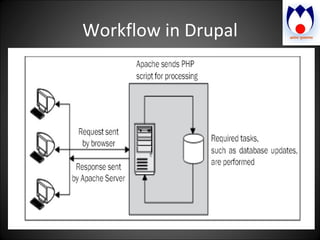
Workflow in Drupal
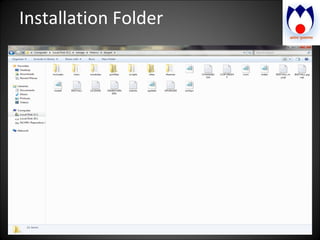
Drupal Installation on Windows Download the latest Drupal installation Binary from  http://www.drupal.org Go to a Web root folder in the  Web server its “htdocs” in Apache servers In XAMPP, generally in  C:\xampp\htdocs Extract the installation binary  Copy the extracted folder in to the htdocs folder Rename the folder accordingly Go to the folder Sites    default   Copy the file  default.settings.php  and paste in the same folder. Rename the copied default.settings.php to  settings.php
Installation Folder
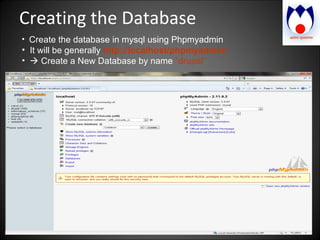
Creating the Database Create the database in mysql using Phpmyadmin It will be generally  http://localhost/phpmyadmin/    Create a New Database by name  “drupal”
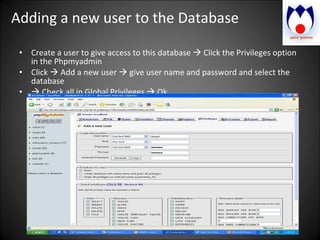
Adding a new user to the Database Create a user to give access to this database    Click the Privileges option in the Phpmyadmin Click    Add a new user    give user name and password and select the database     Check all in Global Privileges    Ok
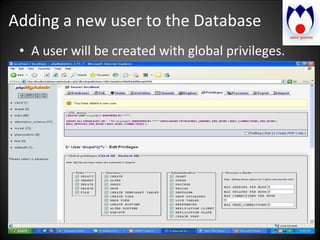
Adding a new user to the Database A user will be created with global privileges.
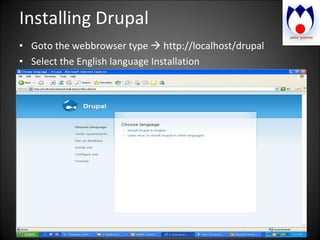
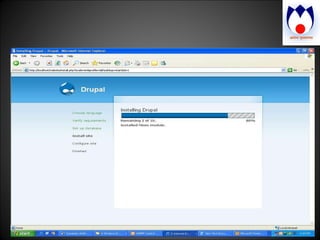
Installing Drupal Goto the webbrowser type    http://localhost/drupal  Select the English language Installation
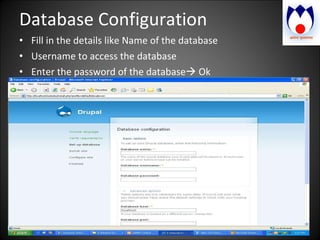
Database Configuration Fill in the details like Name of the database Username to access the database Enter the password of the database   Ok
 
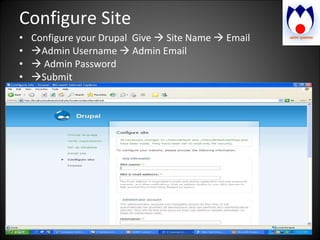
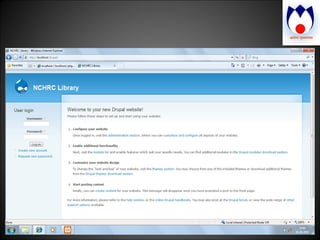
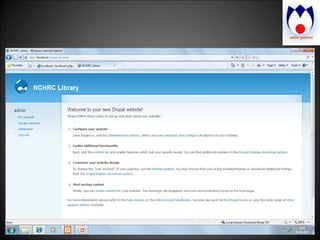
Configure Site Configure your Drupal  Give    Site Name    Email   Admin Username    Admin Email     Admin Password  Submit
 
 
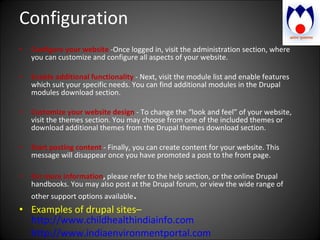
Configuration Configure your website  -Once logged in, visit the administration section, where you can customize and configure all aspects of your website. Enable additional functionality   - Next, visit the module list and enable features which suit your specific needs. You can find additional modules in the Drupal modules download section. Customize your website design   - To change the “look and feel” of your website, visit the themes section. You may choose from one of the included themes or download additional themes from the Drupal themes download section. Start posting content  - Finally, you can create content for your website. This message will disappear once you have promoted a post to the front page. For more information ,  please refer to the help section, or the online Drupal handbooks. You may also post at the Drupal forum, or view the wide range of other support options available . Examples of drupal sites–  http://www.childhealthindiainfo.com http://www.indiaenvironmentportal.com
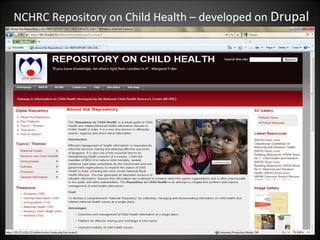
NCHRC Repository on Child Health – developed on  Drupal
For further Information Visit  http://drupal.org
Questions? Thank You!

Drupal Installation & Configuration

  • 1.
    Drupal Installation &Configuration Anil Mishra LIO, NCHRC, NIHFW New Delhi
  • 2.
    Software Requirements WebServer: Apache – 1.3 or 2.x (Linux/Wimdows) OR IIS – IIS5 or IIS6 (windows only) Database MySQL – 4.1 or higher OR PostgreSQL – 7.4 or higher PHP: PHP 5.2 or higher (recomended) Easy way to Install Apache2Triad (Bundled package of Apache2.2 + PHP5 + MySQL5+ PERL, etc.) OR XAMPP (Bundled package of Apache2.2.9 + PHP5 + MySQL5 + PERL, etc. )
  • 3.
  • 4.
    Drupal Installation onWindows Download the latest Drupal installation Binary from http://www.drupal.org Go to a Web root folder in the Web server its “htdocs” in Apache servers In XAMPP, generally in C:\xampp\htdocs Extract the installation binary Copy the extracted folder in to the htdocs folder Rename the folder accordingly Go to the folder Sites  default  Copy the file default.settings.php and paste in the same folder. Rename the copied default.settings.php to settings.php
  • 5.
  • 6.
    Creating the DatabaseCreate the database in mysql using Phpmyadmin It will be generally http://localhost/phpmyadmin/  Create a New Database by name “drupal”
  • 7.
    Adding a newuser to the Database Create a user to give access to this database  Click the Privileges option in the Phpmyadmin Click  Add a new user  give user name and password and select the database  Check all in Global Privileges  Ok
  • 8.
    Adding a newuser to the Database A user will be created with global privileges.
  • 9.
    Installing Drupal Gotothe webbrowser type  http://localhost/drupal Select the English language Installation
  • 10.
    Database Configuration Fillin the details like Name of the database Username to access the database Enter the password of the database  Ok
  • 11.
  • 12.
    Configure Site Configureyour Drupal Give  Site Name  Email  Admin Username  Admin Email  Admin Password  Submit
  • 13.
  • 14.
  • 15.
    Configuration Configure yourwebsite -Once logged in, visit the administration section, where you can customize and configure all aspects of your website. Enable additional functionality - Next, visit the module list and enable features which suit your specific needs. You can find additional modules in the Drupal modules download section. Customize your website design - To change the “look and feel” of your website, visit the themes section. You may choose from one of the included themes or download additional themes from the Drupal themes download section. Start posting content - Finally, you can create content for your website. This message will disappear once you have promoted a post to the front page. For more information , please refer to the help section, or the online Drupal handbooks. You may also post at the Drupal forum, or view the wide range of other support options available . Examples of drupal sites– http://www.childhealthindiainfo.com http://www.indiaenvironmentportal.com
  • 16.
    NCHRC Repository onChild Health – developed on Drupal
  • 17.
    For further InformationVisit http://drupal.org
  • 18.