Drupal
Content Management System
Install Drupal in Localhost with XAMPP on
Windows
Software needs to Run Drupal
• For running Drupal on your local host first you need to install the XAMPP server to your
computer, XAMPP makes your computer like the server.
• XAMPP is a cross-platform web server used to develop and test programs on a local server. It
is developed and managed by Apache Friends and is open-source. It has an Apache HTTP
Server, MariaDB, and an interpreter for 11 different programming languages like Perl and PHP.
• XAMPP Stands for cross-platform, Apache, MySQL, PHP, and Perl.
• It makes turns the computer into a local host and you don’t need to do extra work for making
the server.
• After the successful installation of the XAMPP server to your computer, now it’s time to install
Drupal.
Steps to Install and Setup Drupal
Above we have seen how we can install the XAMPP server to our computer and be ready with all
its setup. Now it’s time to see how we can install the Drupal CMS to our local host. For installing
Drupal to your localhost follow these simple steps:
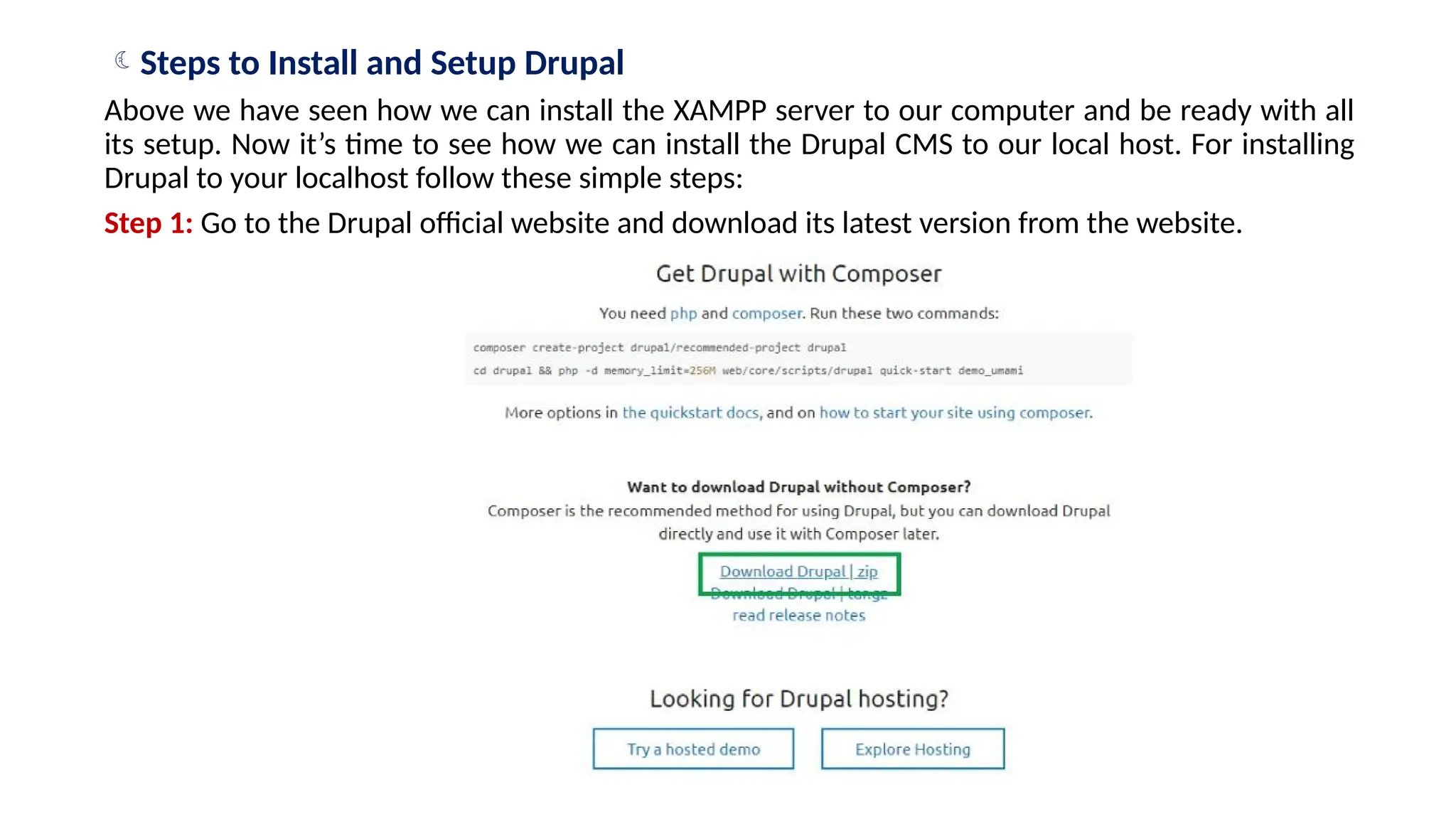
Step 1: Go to the Drupal official website and download its latest version from the website.
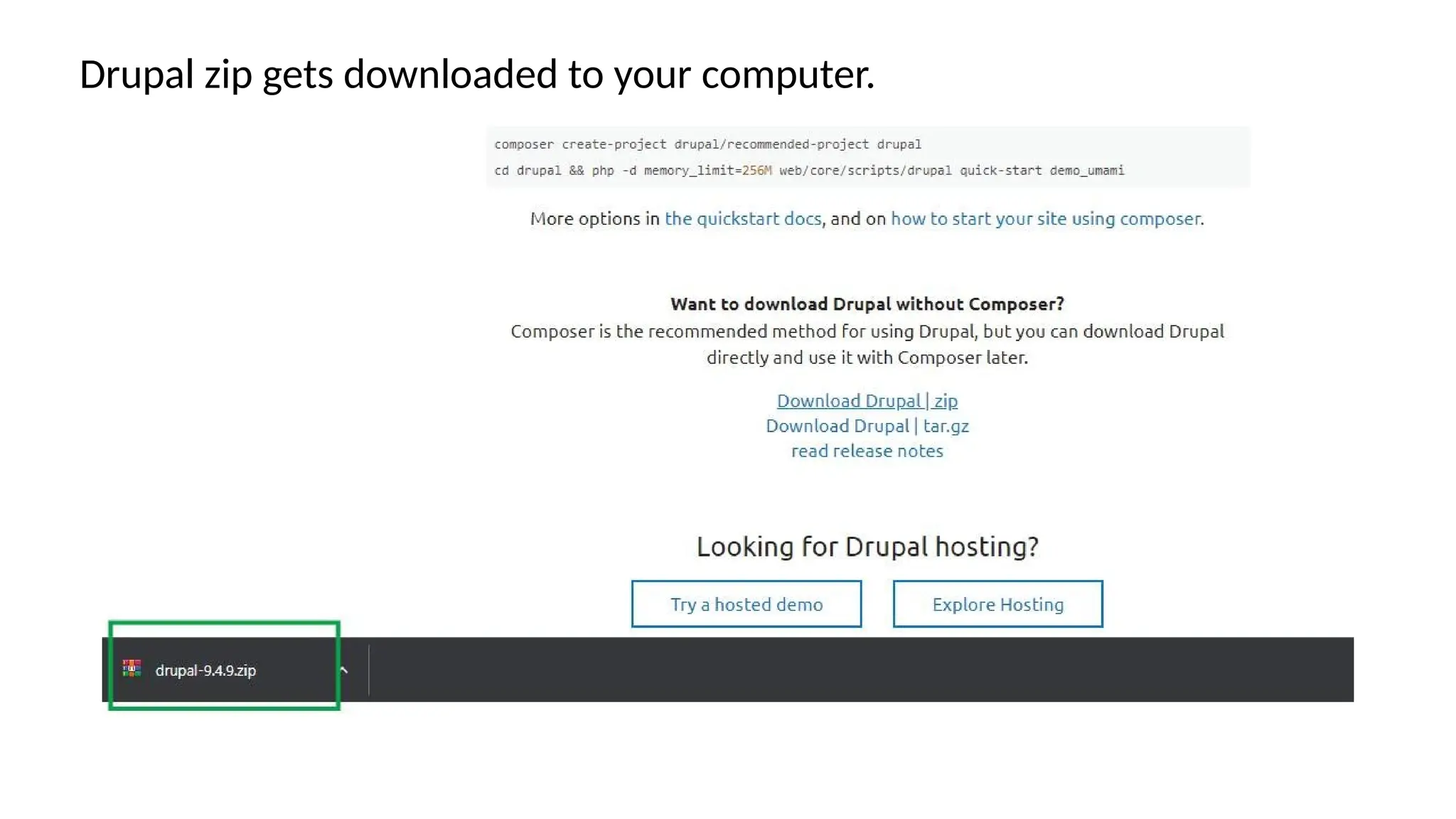
Drupal zip gets downloaded to your computer.
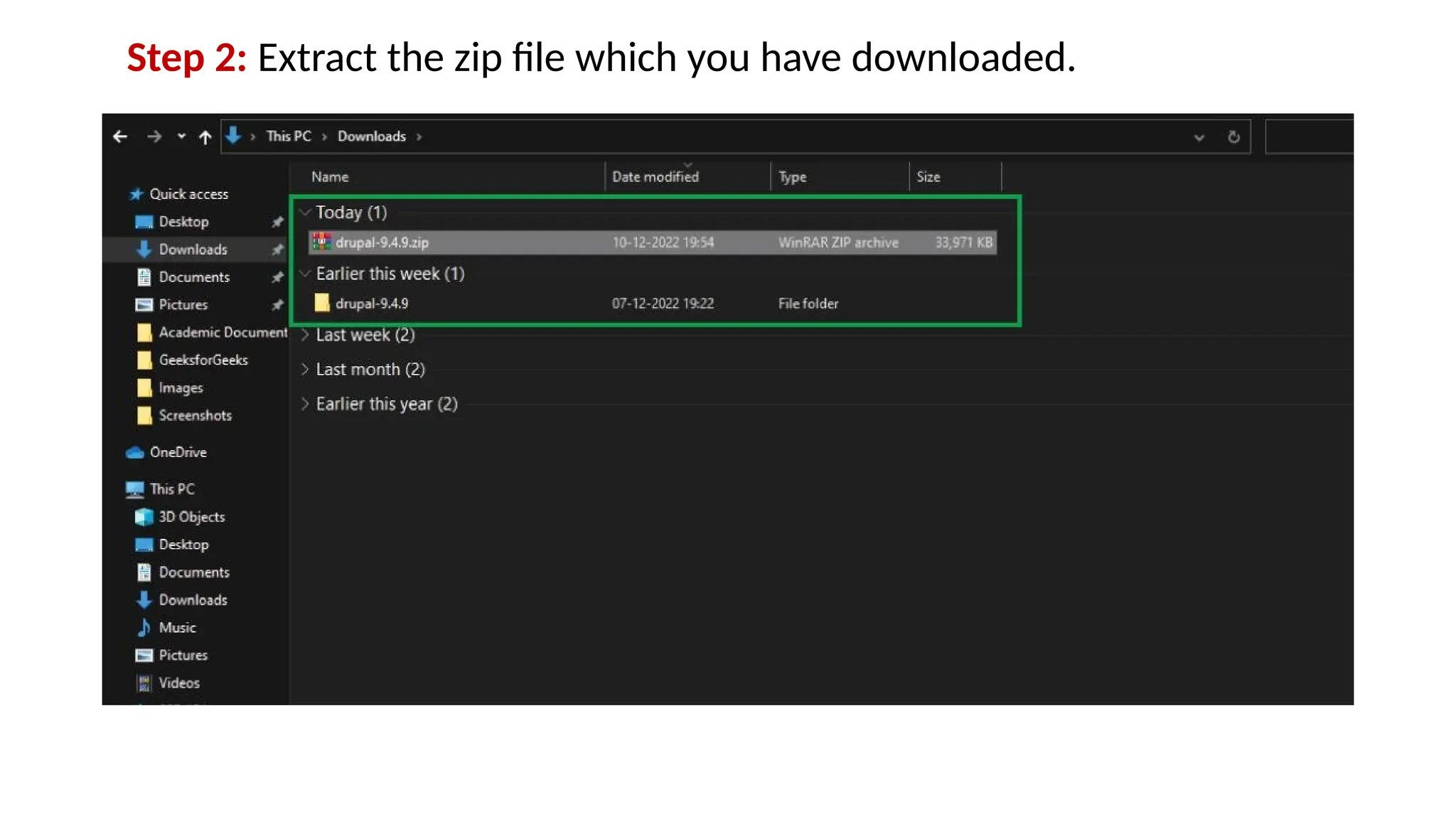
Step 2: Extract the zip file which you have downloaded.
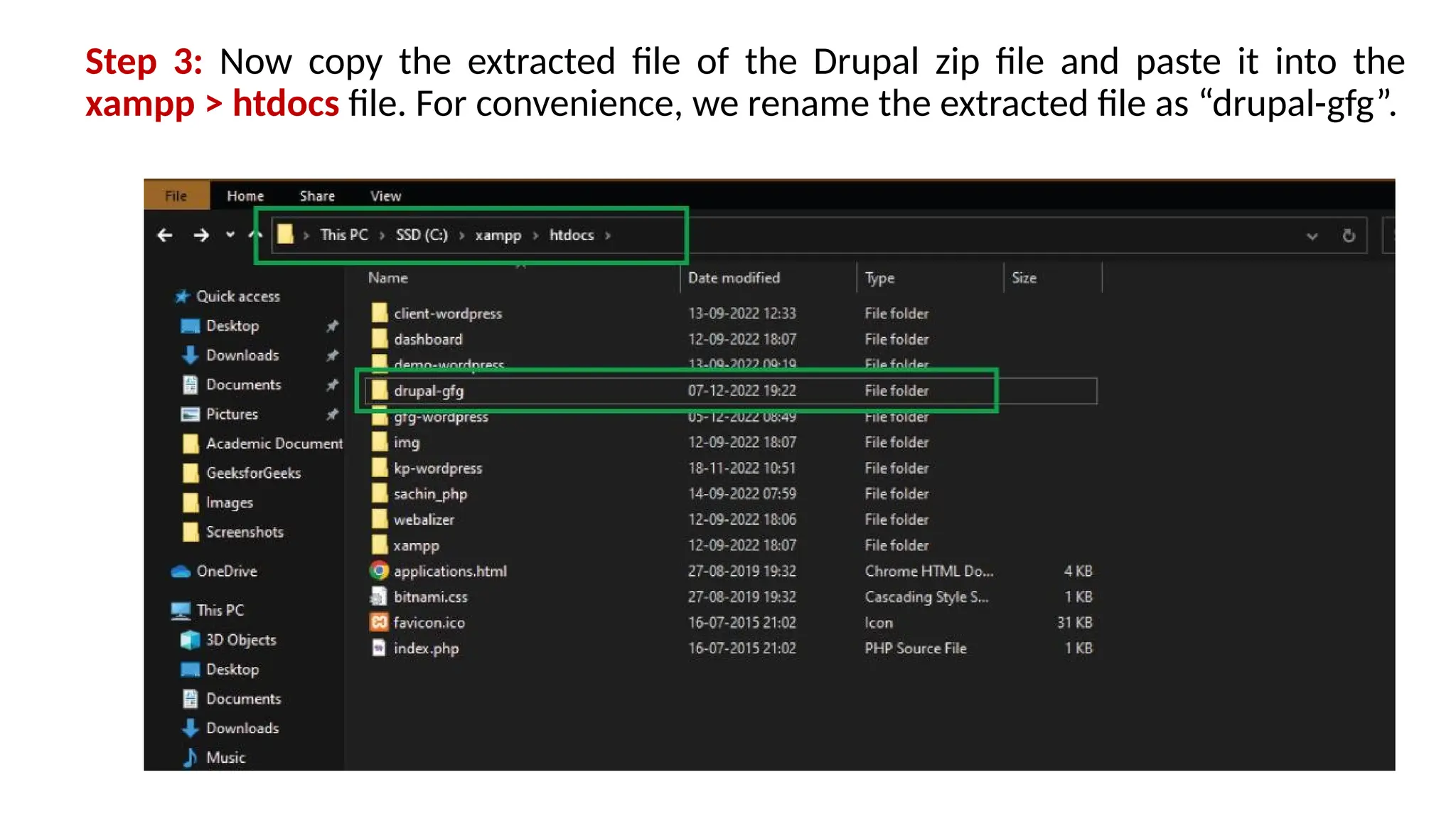
Step 3: Now copy the extracted file of the Drupal zip file and paste it into the
xampp > htdocs file. For convenience, we rename the extracted file as “drupal-gfg”.
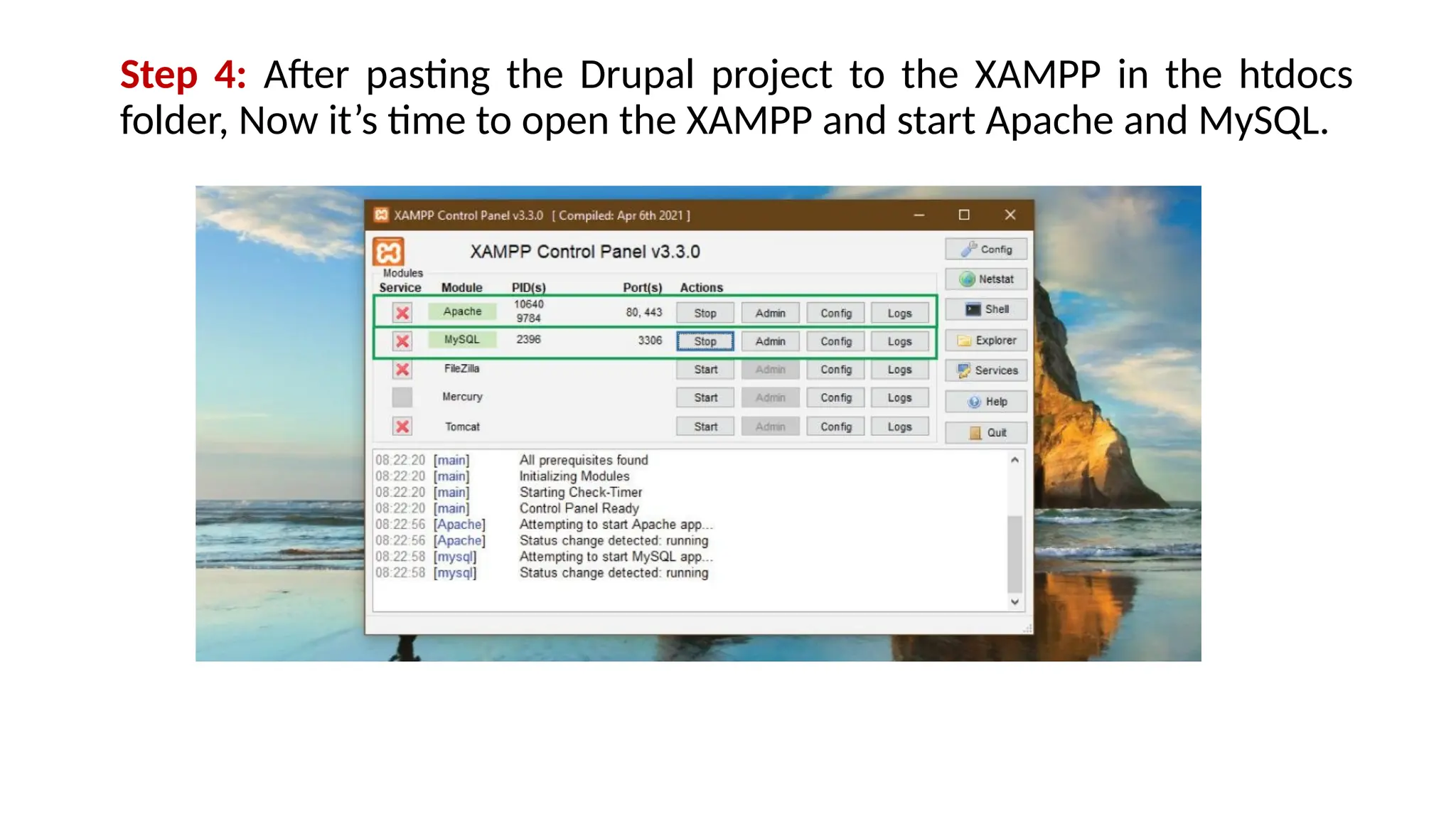
Step 4: After pasting the Drupal project to the XAMPP in the htdocs
folder, Now it’s time to open the XAMPP and start Apache and MySQL.
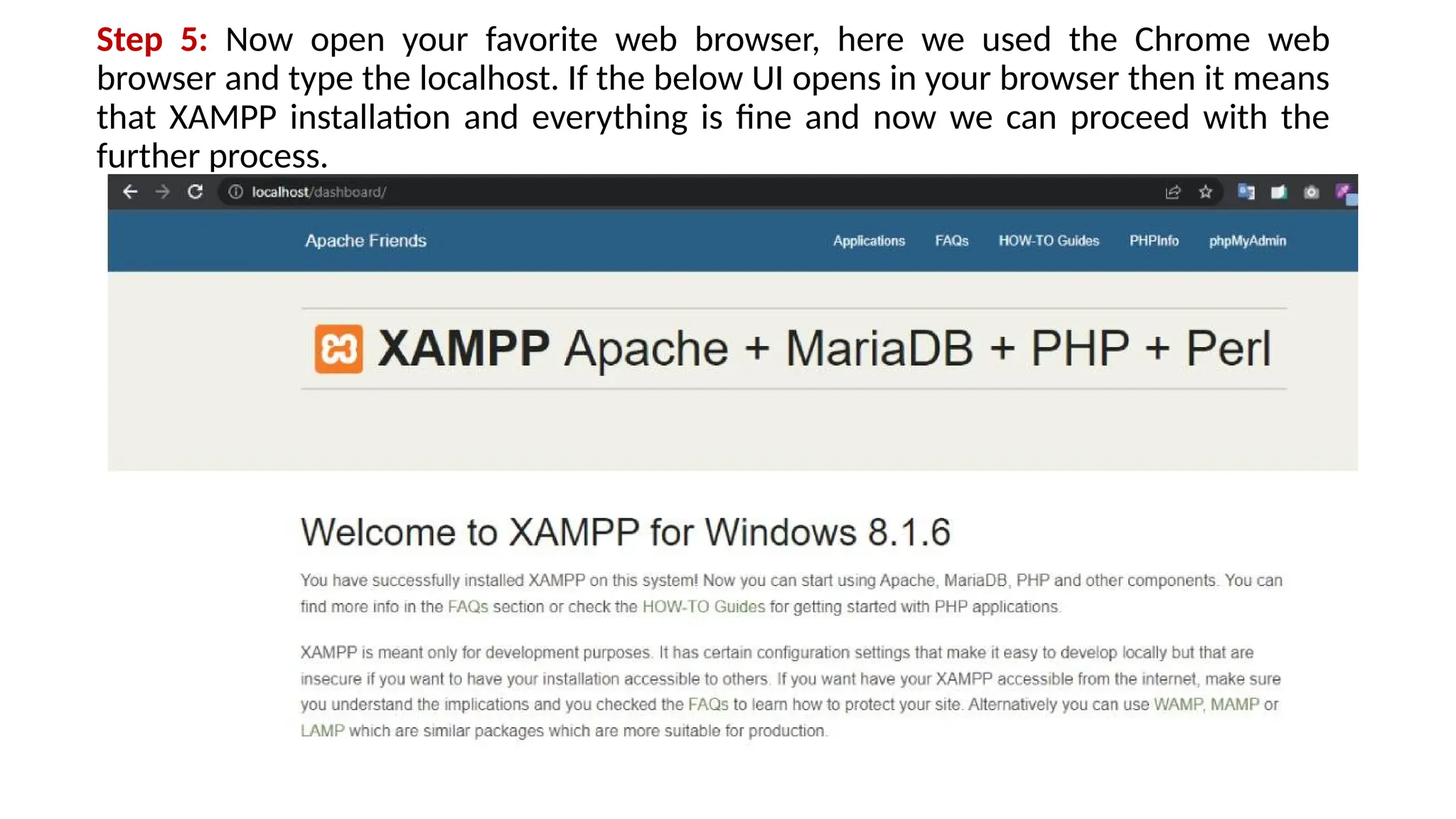
Step 5: Now open your favorite web browser, here we used the Chrome web
browser and type the localhost. If the below UI opens in your browser then it means
that XAMPP installation and everything is fine and now we can proceed with the
further process.
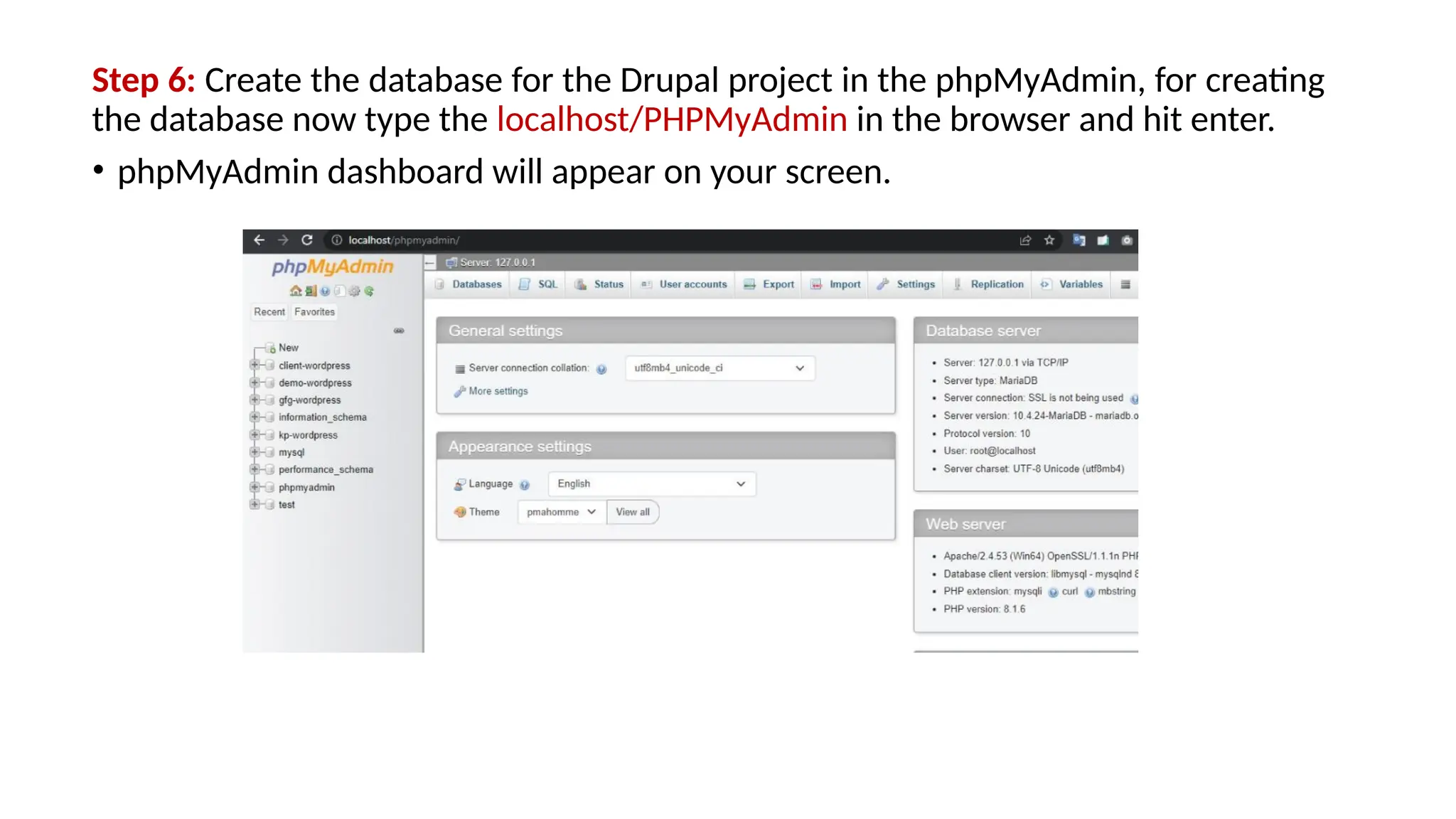
Step 6: Create the database for the Drupal project in the phpMyAdmin, for creating
the database now type the localhost/PHPMyAdmin in the browser and hit enter.
• phpMyAdmin dashboard will appear on your screen.
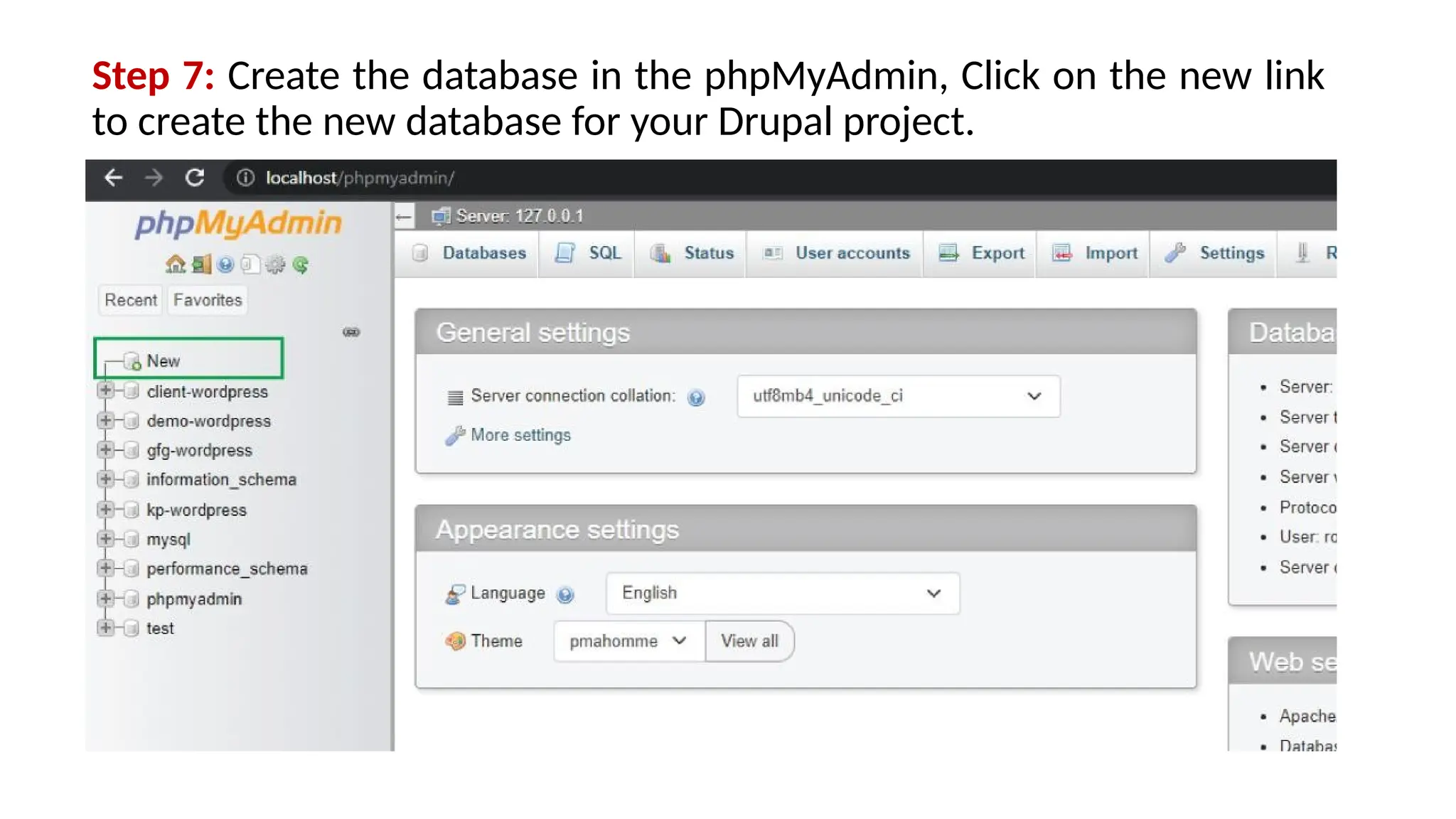
Step 7: Create the database in the phpMyAdmin, Click on the new link
to create the new database for your Drupal project.
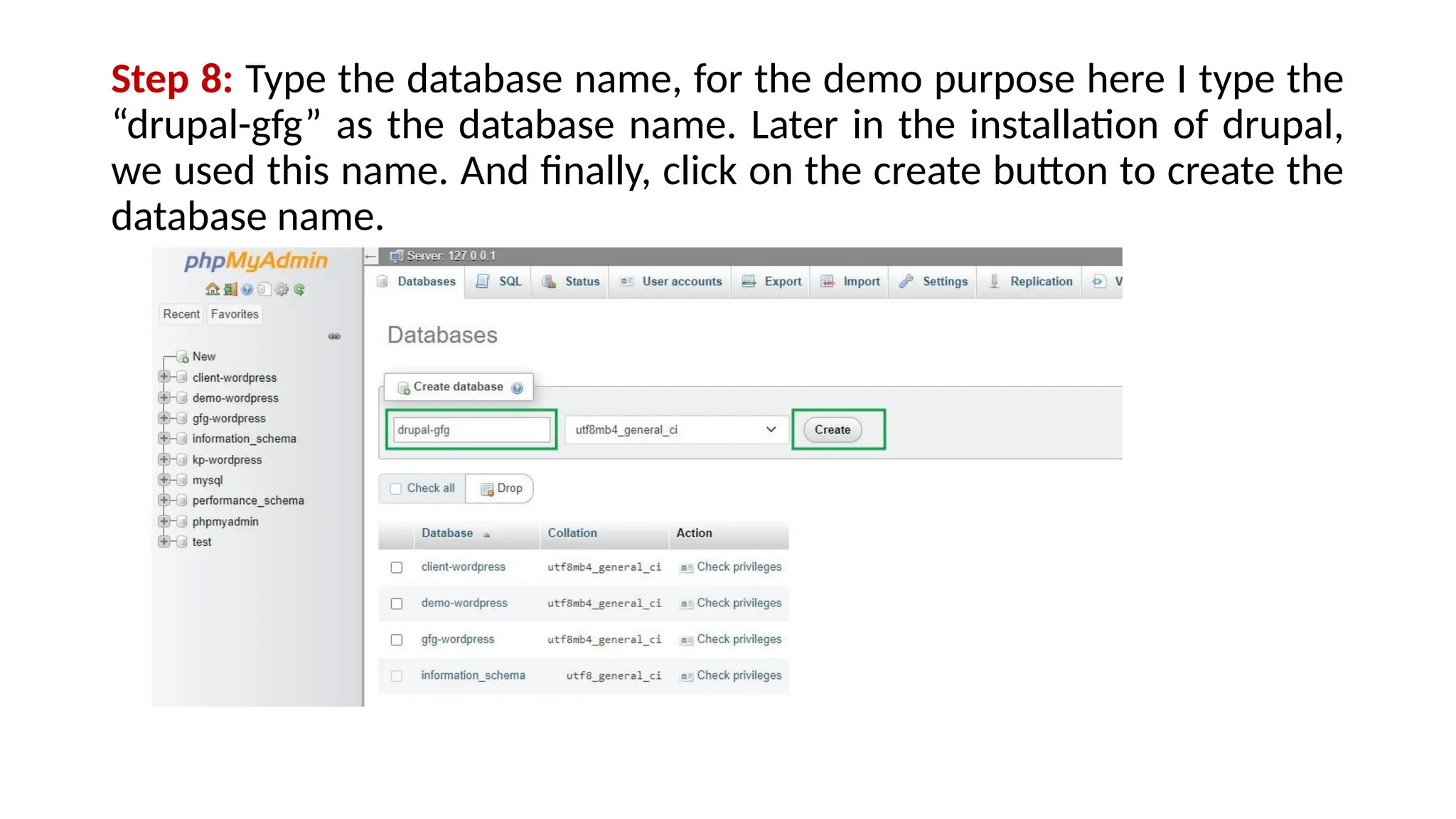
Step 8: Type the database name, for the demo purpose here I type the
“drupal-gfg” as the database name. Later in the installation of drupal,
we used this name. And finally, click on the create button to create the
database name.
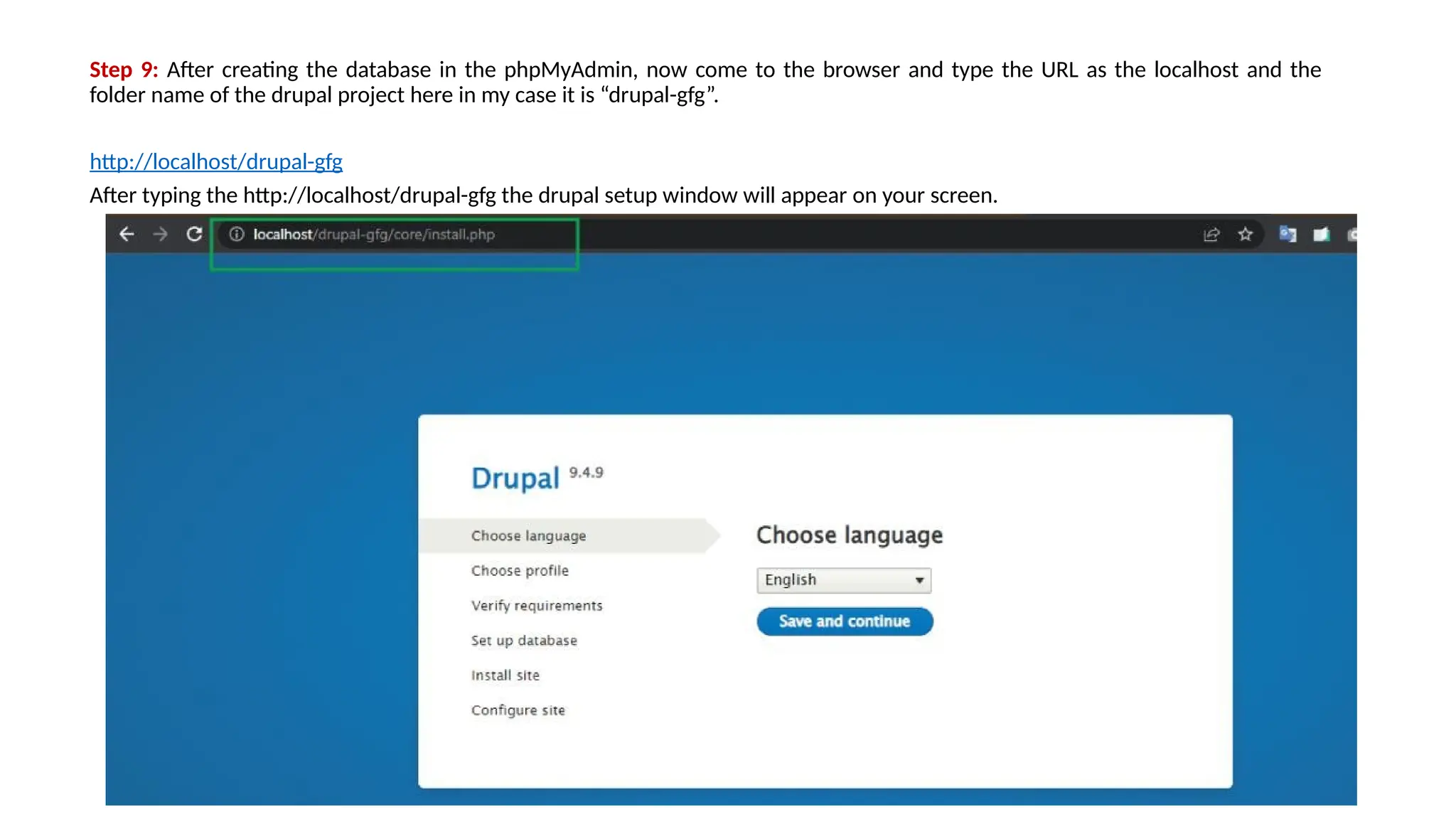
Step 9: After creating the database in the phpMyAdmin, now come to the browser and type the URL as the localhost and the
folder name of the drupal project here in my case it is “drupal-gfg”.
http://localhost/drupal-gfg
After typing the http://localhost/drupal-gfg the drupal setup window will appear on your screen.
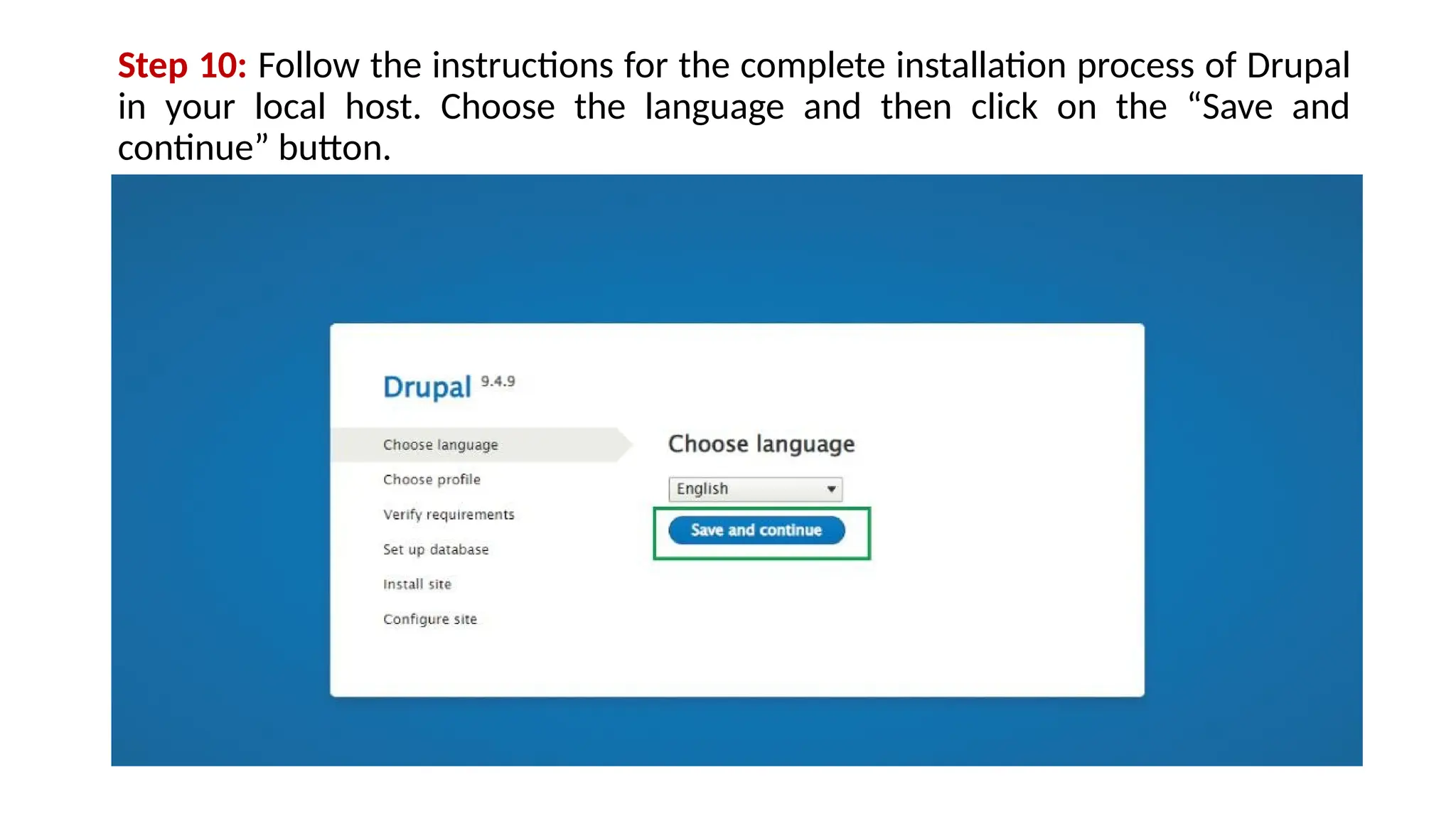
Step 10: Follow the instructions for the complete installation process of Drupal
in your local host. Choose the language and then click on the “Save and
continue” button.
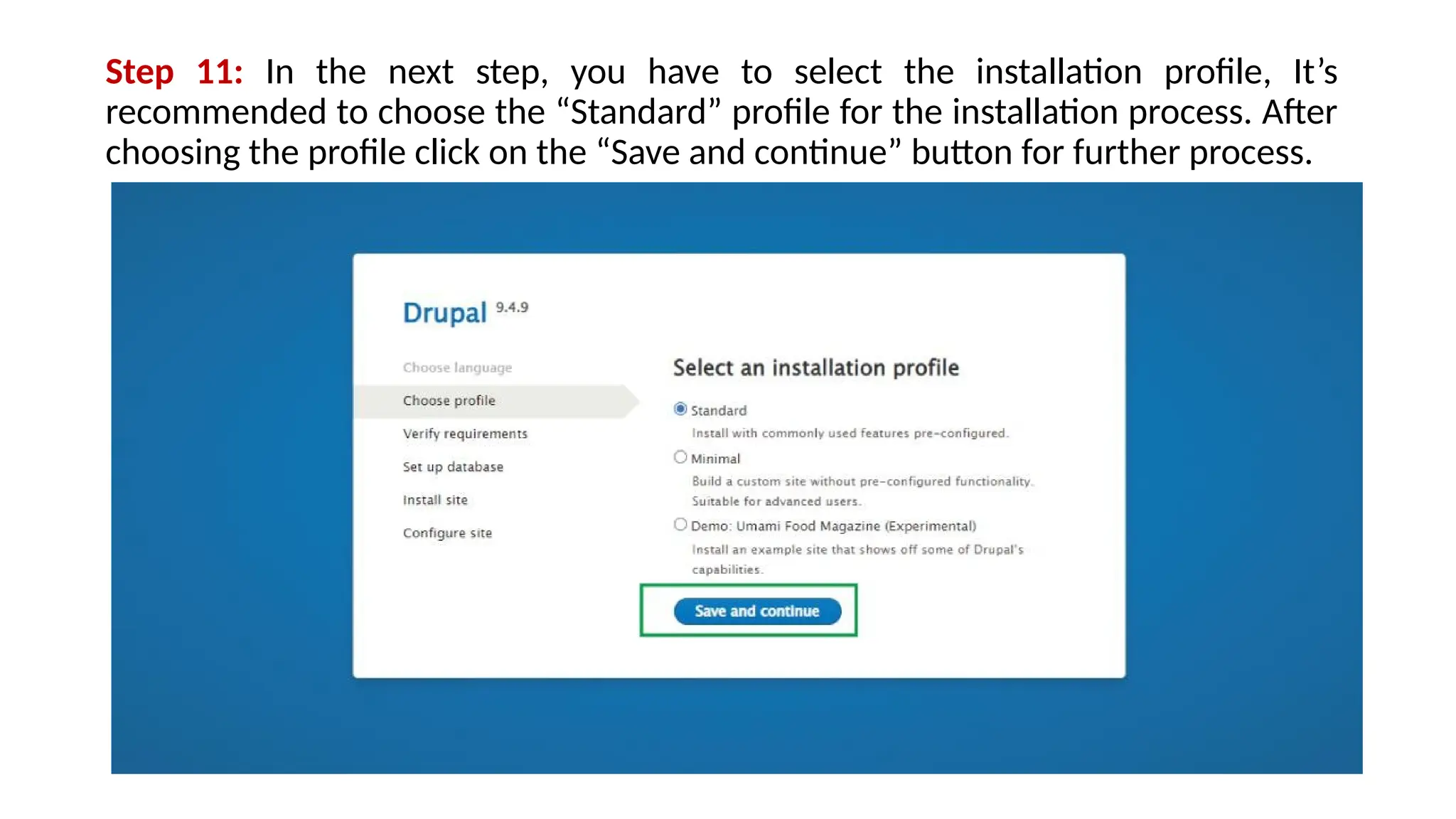
Step 11: In the next step, you have to select the installation profile, It’s
recommended to choose the “Standard” profile for the installation process. After
choosing the profile click on the “Save and continue” button for further process.
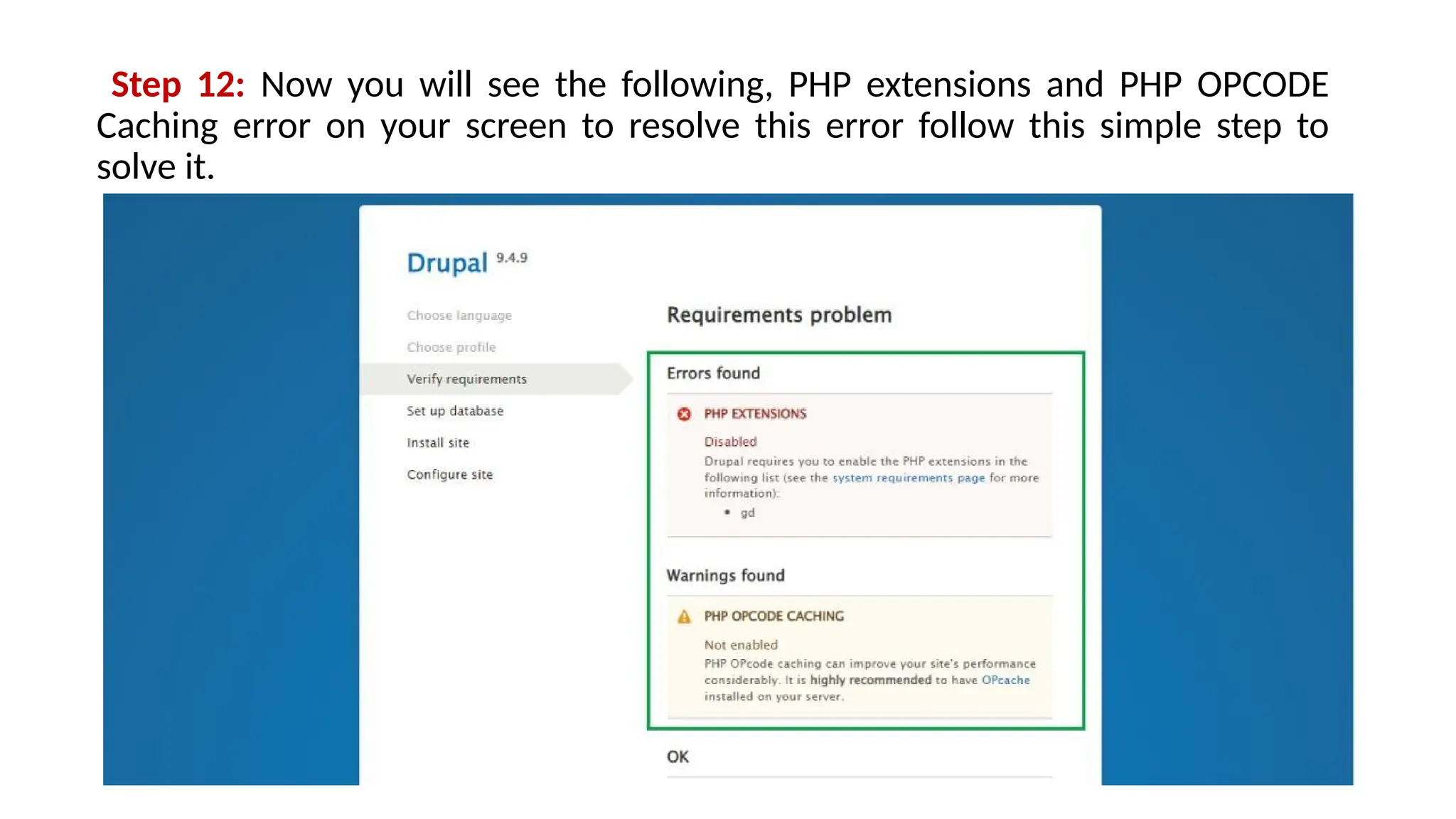
Step 12: Now you will see the following, PHP extensions and PHP OPCODE
Caching error on your screen to resolve this error follow this simple step to
solve it.
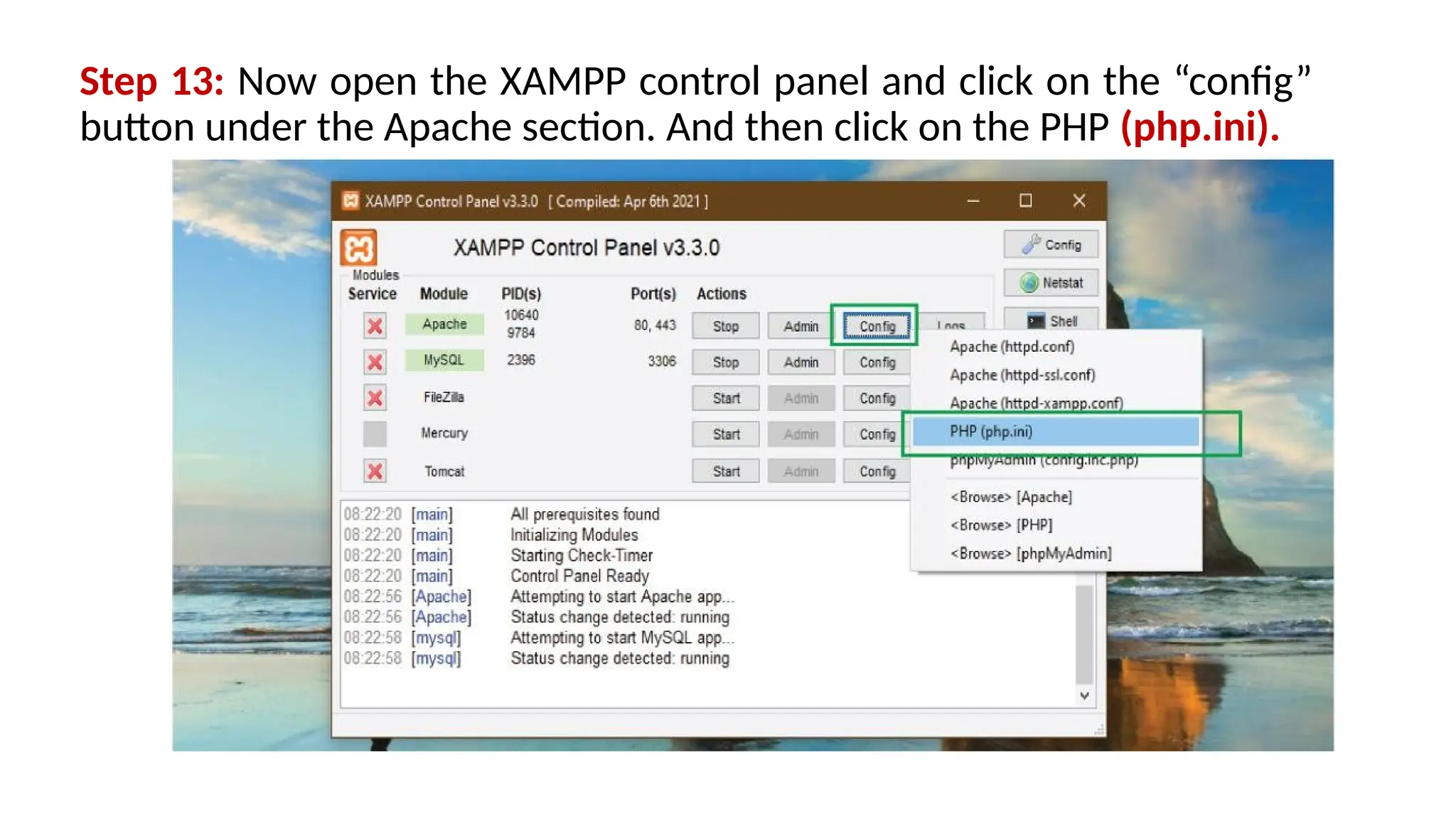
Step 13: Now open the XAMPP control panel and click on the “config”
button under the Apache section. And then click on the PHP (php.ini).
Step 14: Add this code in php.ini to enable OP code caching.
[opcache]
zend_extension=php_opcache.dll
; Determines if Zend OPCache is enabled
opcache.enable=1
After adding this code in the php.ini file restart the apache server and refresh your page. you will find the OP
code caching error gets solved.
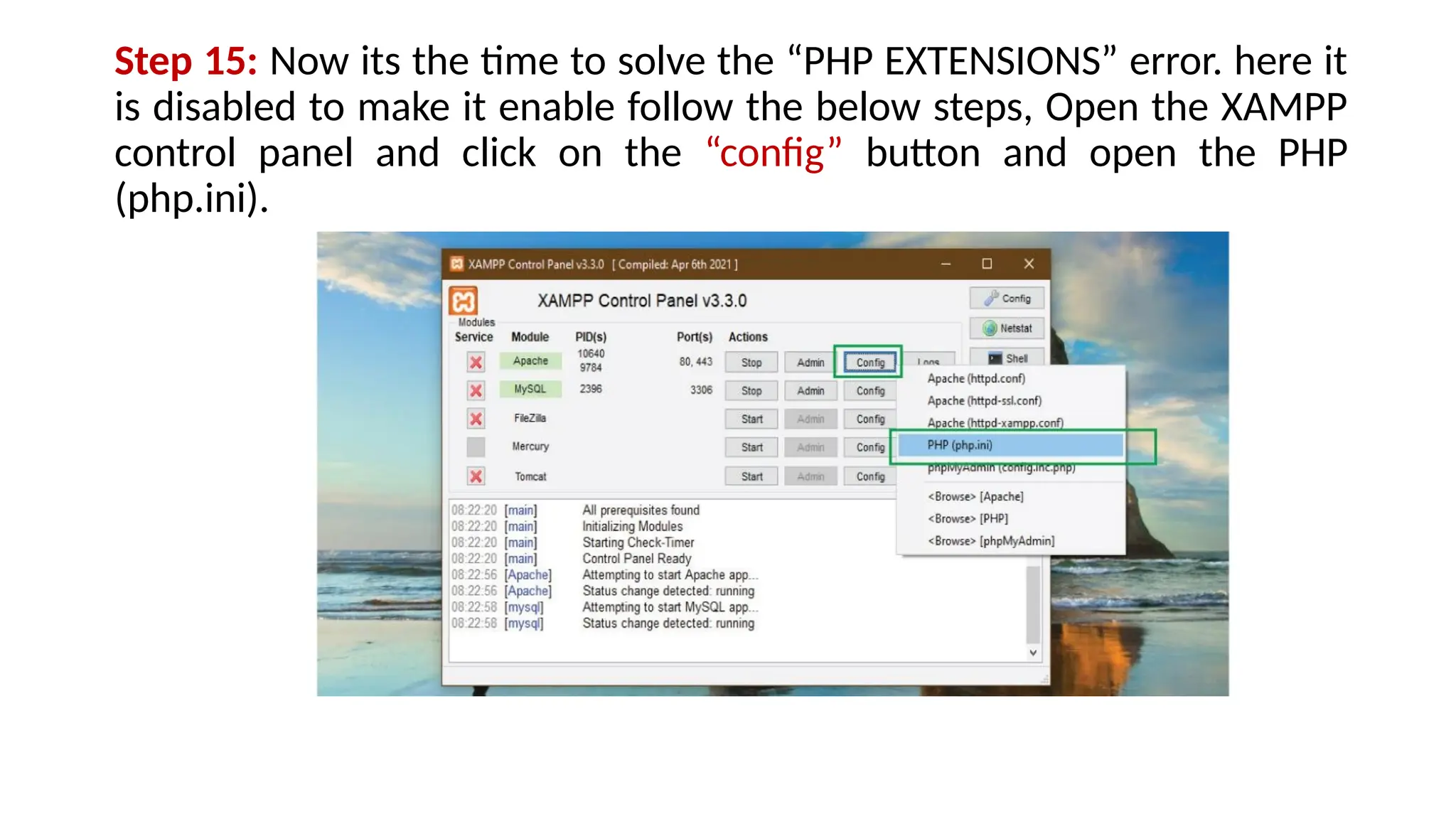
Step 15: Now its the time to solve the “PHP EXTENSIONS” error. here it
is disabled to make it enable follow the below steps, Open the XAMPP
control panel and click on the “config” button and open the PHP
(php.ini).
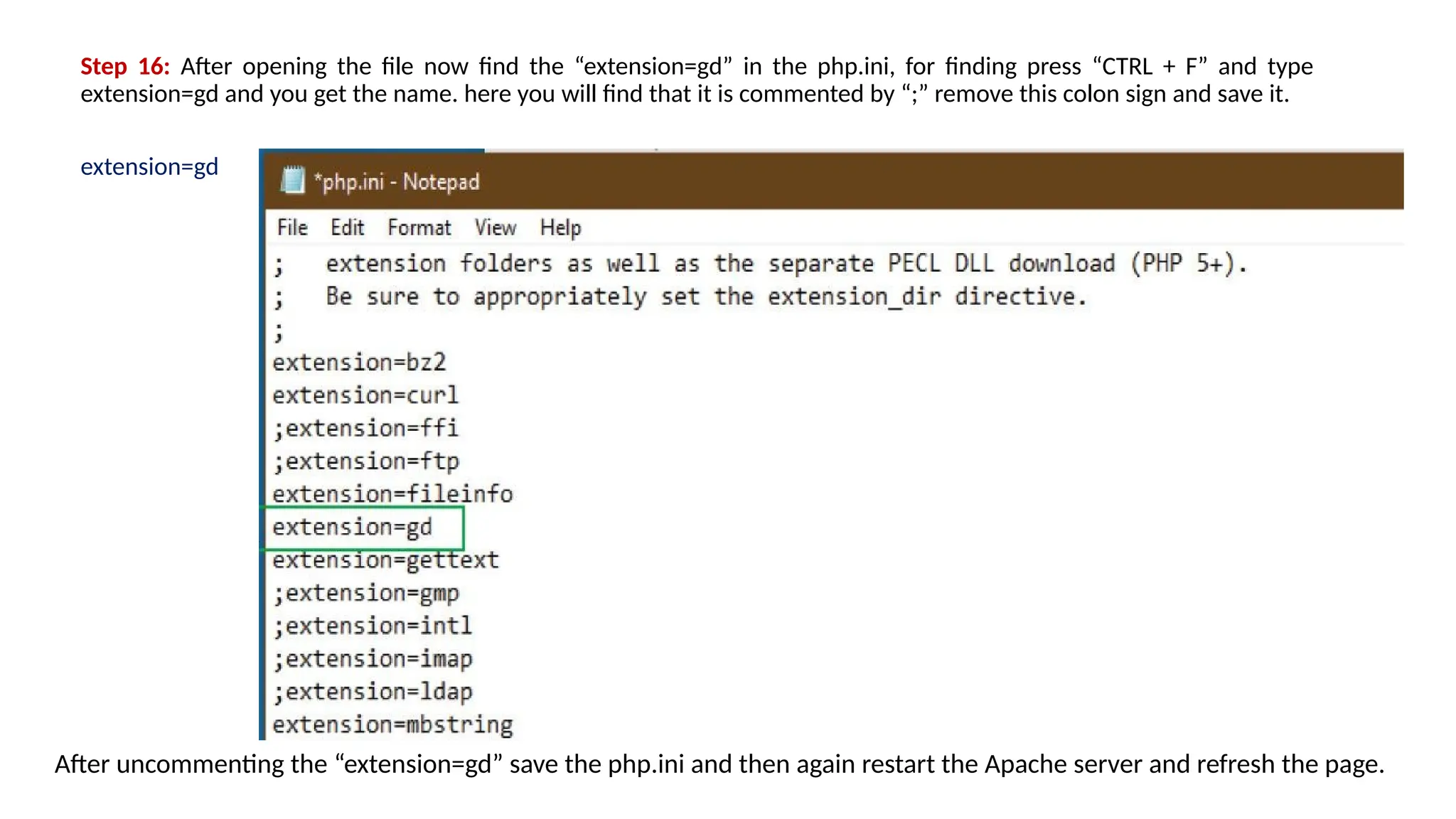
Step 16: After opening the file now find the “extension=gd” in the php.ini, for finding press “CTRL + F” and type
extension=gd and you get the name. here you will find that it is commented by “;” remove this colon sign and save it.
extension=gd
After uncommenting the “extension=gd” save the php.ini and then again restart the Apache server and refresh the page.
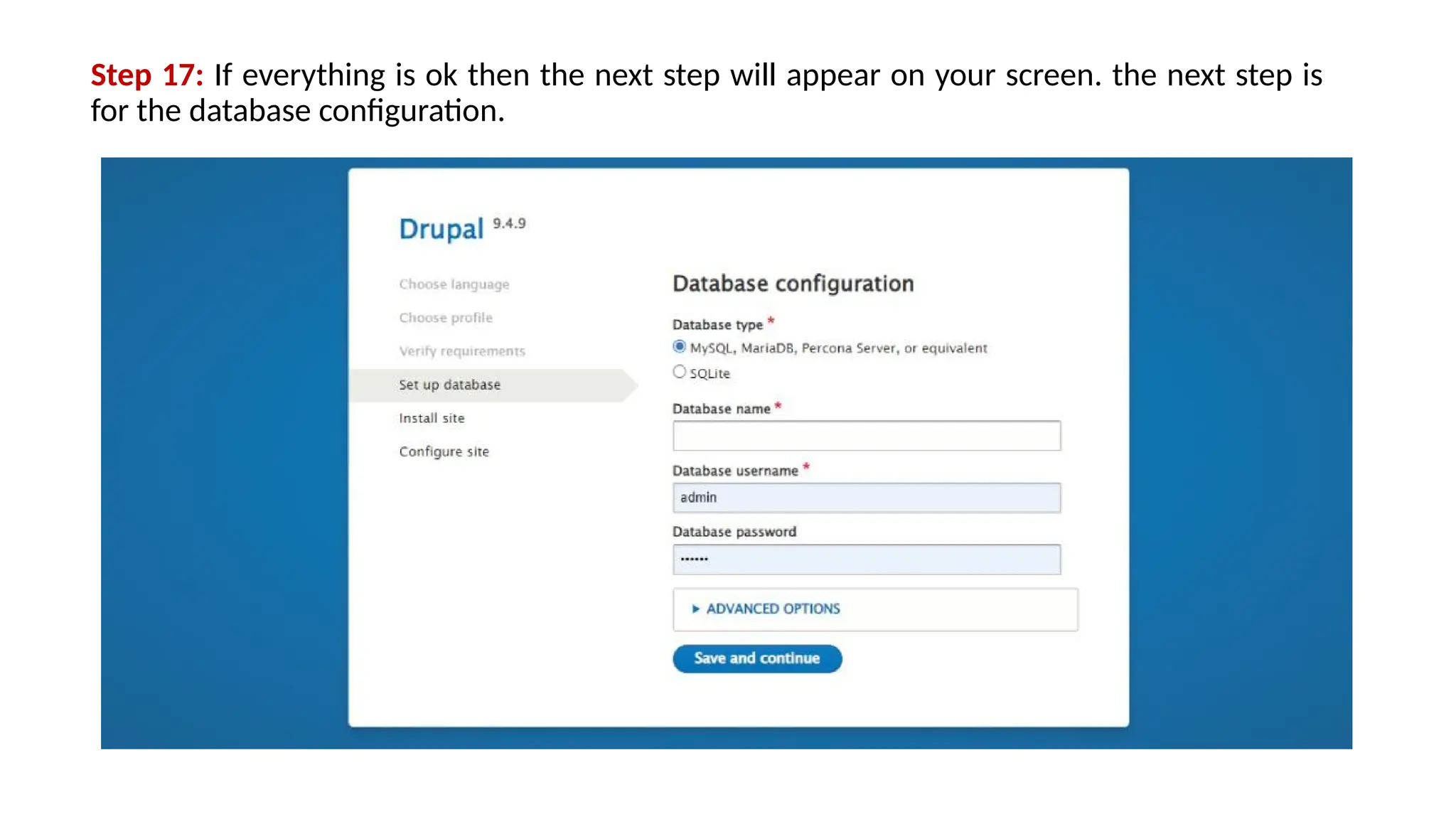
Step 17: If everything is ok then the next step will appear on your screen. the next step is
for the database configuration.
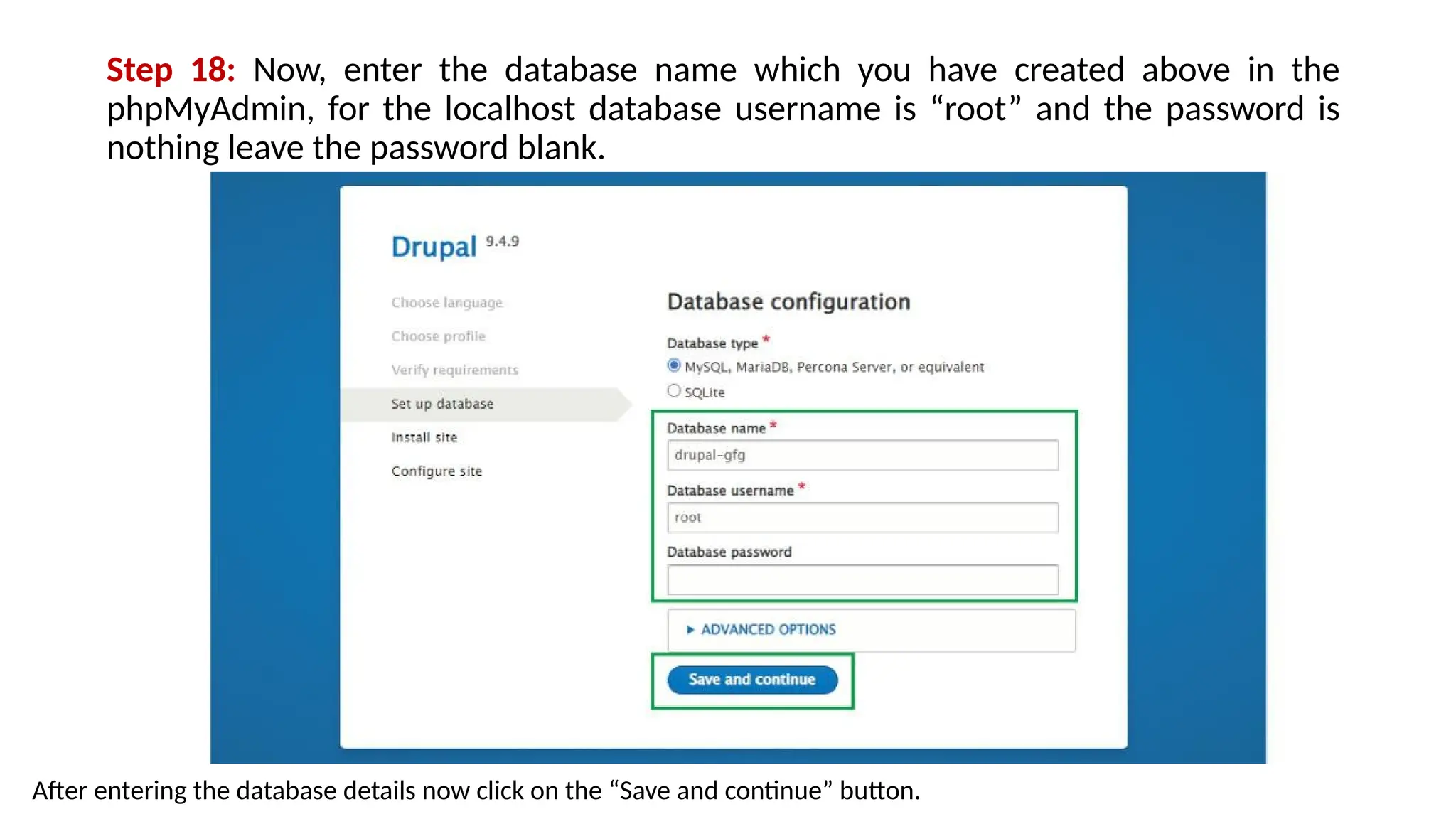
Step 18: Now, enter the database name which you have created above in the
phpMyAdmin, for the localhost database username is “root” and the password is
nothing leave the password blank.
After entering the database details now click on the “Save and continue” button.
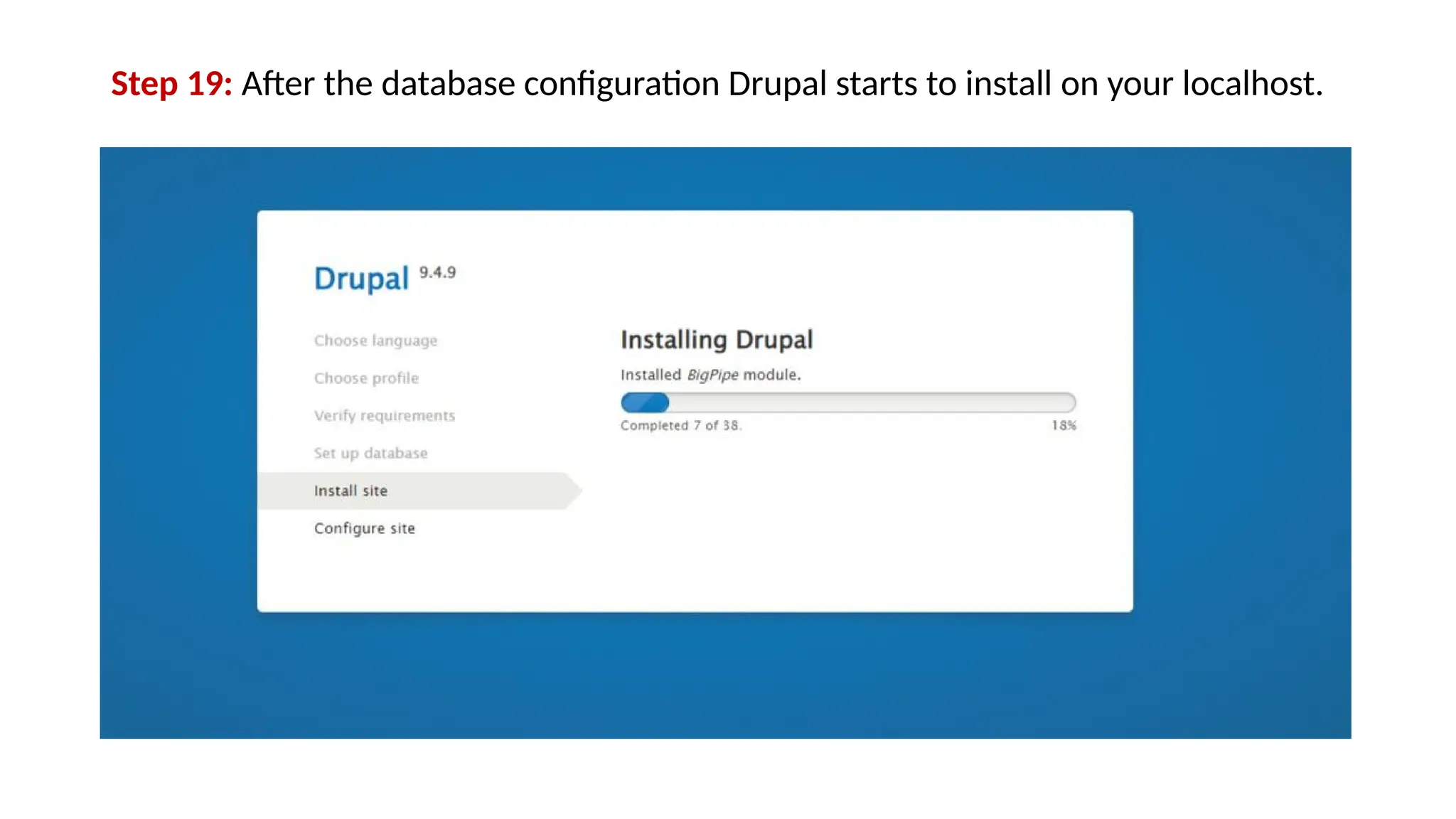
Step 19: After the database configuration Drupal starts to install on your localhost.
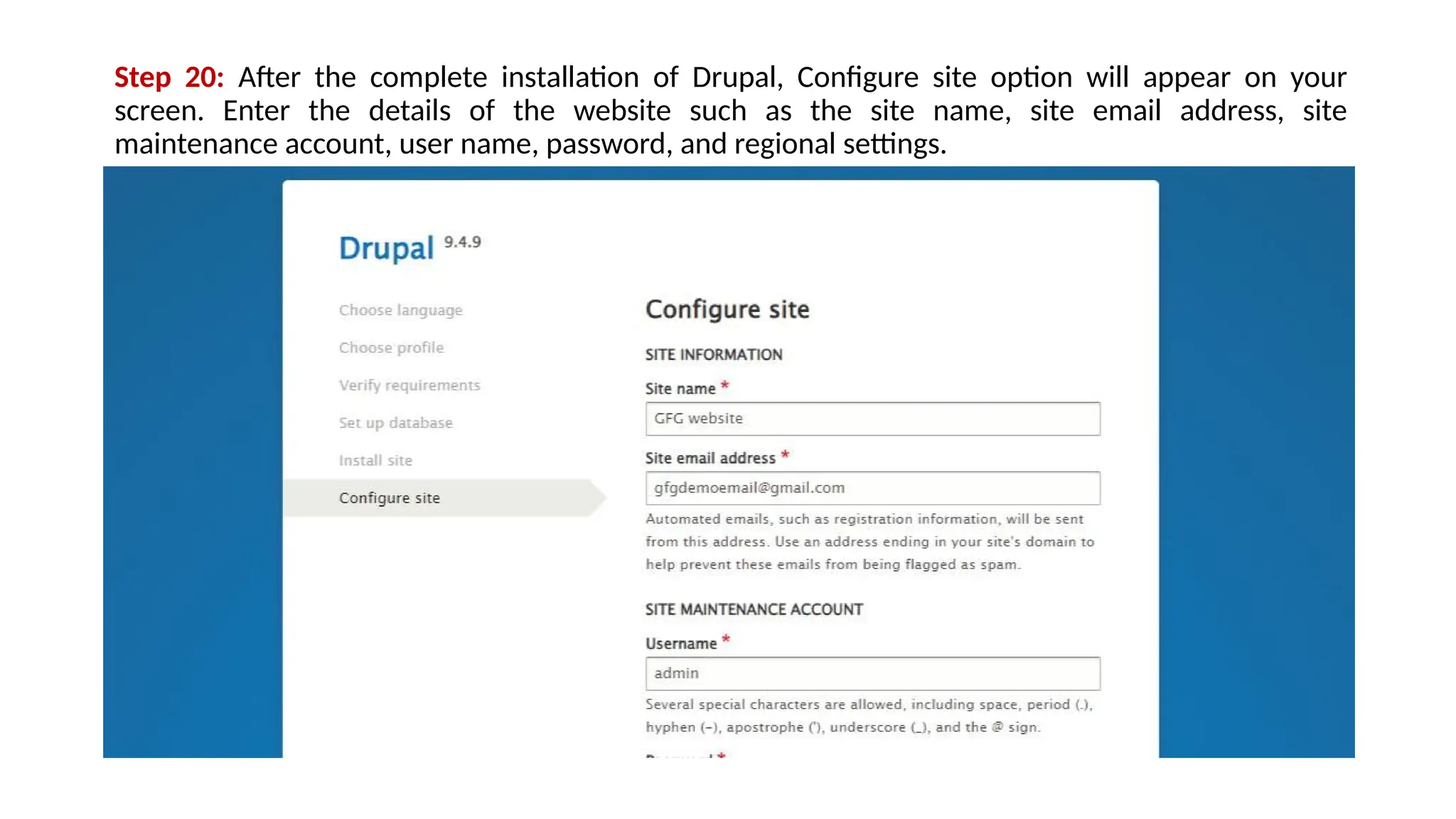
Step 20: After the complete installation of Drupal, Configure site option will appear on your
screen. Enter the details of the website such as the site name, site email address, site
maintenance account, user name, password, and regional settings.
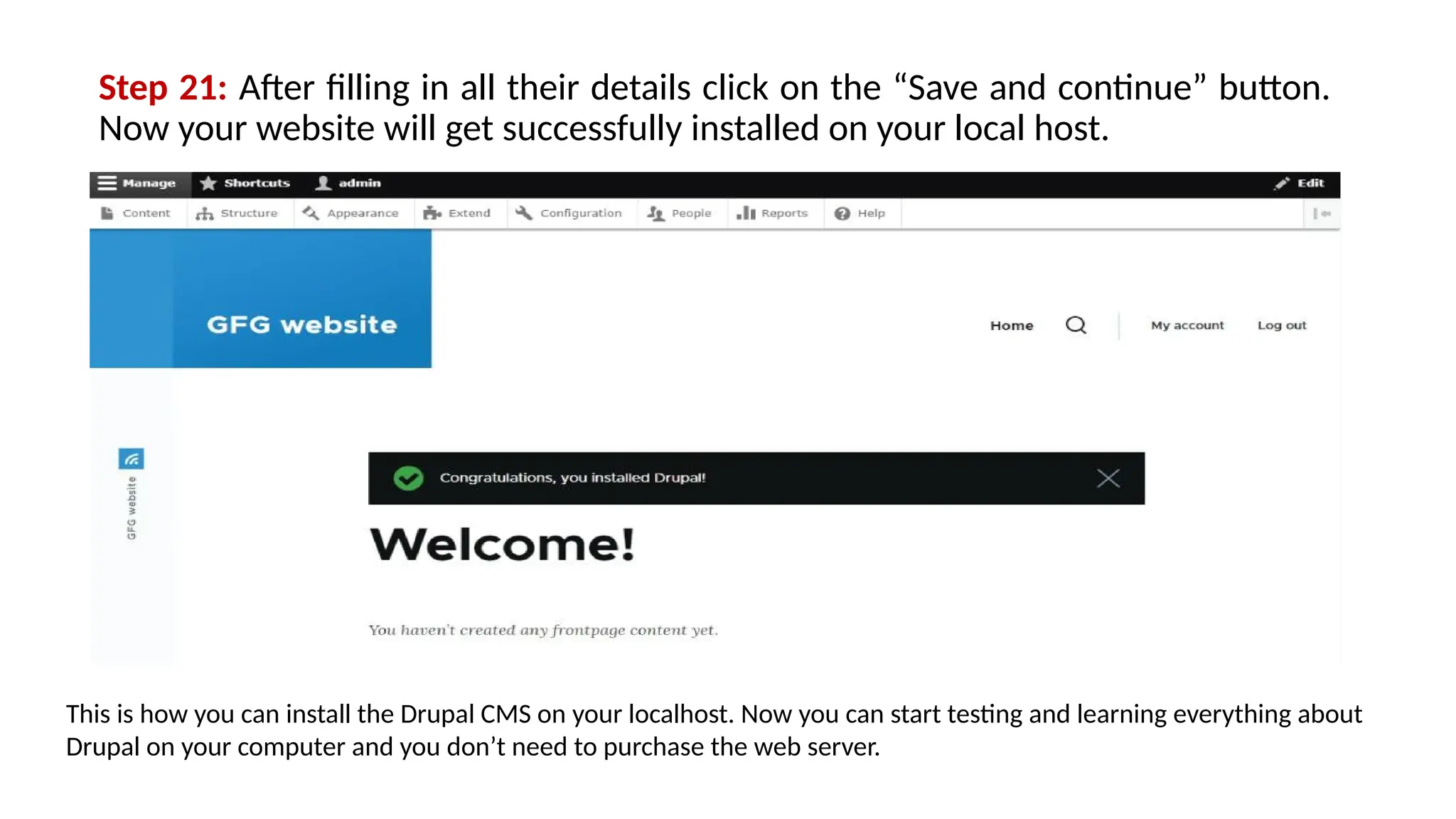
Step 21: After filling in all their details click on the “Save and continue” button.
Now your website will get successfully installed on your local host.
This is how you can install the Drupal CMS on your localhost. Now you can start testing and learning everything about
Drupal on your computer and you don’t need to purchase the web server.
Introduction
Drupal is a free and open source Content Management System (CMS)
that allows organizing, managing and publishing your content. It is built
on PHP based environments. This is carried out under GNU i.e. General
Public License, which means everyone has the freedom of downloading
and sharing it with others.
Drupal is used on million sites such as WhiteHouse.gov, World
Economic Forum, Stanford University, Examiner.com and many more.
Content Management System
The Content Management System (CMS) is a software which stores all
the data of your content (such as text, photos, music, documents, etc.)
and is made available on your website. A CMS helps in editing, publishing
and modifying the content of the website.
History
The standard release of Drupal known as Drupal core was developed by
Dries Buytaerti in January 2001. It is considered as a leading CMS in
variety of industries.
Why to use Drupal?
If you are developing a website with content management system,
Drupal CMS is very flexible than any other CMS. Drupal is very powerful
and can be used for building large, complex sites. It is PHP based
template and allows non-technical users to add and edit the content
without any HTML or Web design knowledge. Using Drupal CMS, it is
easy to interact with other sites or technologies as Drupal can handle
complex forms and workflows. It is available with more than 16000
modules which can be addressed with Drupal core and add-on
modules.
Features
• Drupal makes it easy to create and manage your site.
• Drupal translates anything in the system with built-in user interfaces.
• Drupal connects your website to other sites and services using feeds, search engine connection
capabilities, etc.
• Drupal is an open source software hence requires no licensing costs.
• Drupal designs highly flexible and creative website with effective display quality thus increasing
the visitors to the site.
• Drupal can publish your content on social media such as Twitter, Facebook and other social
mediums.
• Drupal provides more number of customizable themes, including several base themes which are
used to design your own themes for developing web applications.
• Drupal manages content on informational sites, social media sites, member sites, intranets and
web applications.
Advantages
• Drupal is a flexible CMS that allows handling content types including video, text, blog, menu
handling, real-time statistics, etc.
• Drupal provides a number of templates for developing web applications. There is no need to start
from scratch if you are building simple or complicated web applications.
• Drupal is easy to manage or create blog or website. It helps to organize, structure, find and reuse
content.
• Drupal provides some interesting themes and templates which gives your website an attractive look.
• Drupal has over 7000 plug-ins to boost your website. Since Drupal is an open source, you can create
your own plug-ins.
Disadvantages
• Drupal is not a user-friendly interface. It requires advanced knowledge
and few basic things about the platform to install and modify.
• Drupal is a new content management system. It is not compatible with
other software.
• Performance is low compared to other CMS. The website which is built
using Drupal will generate big server loads and will never open with a
slow internet connection.
Drupal- Architecture
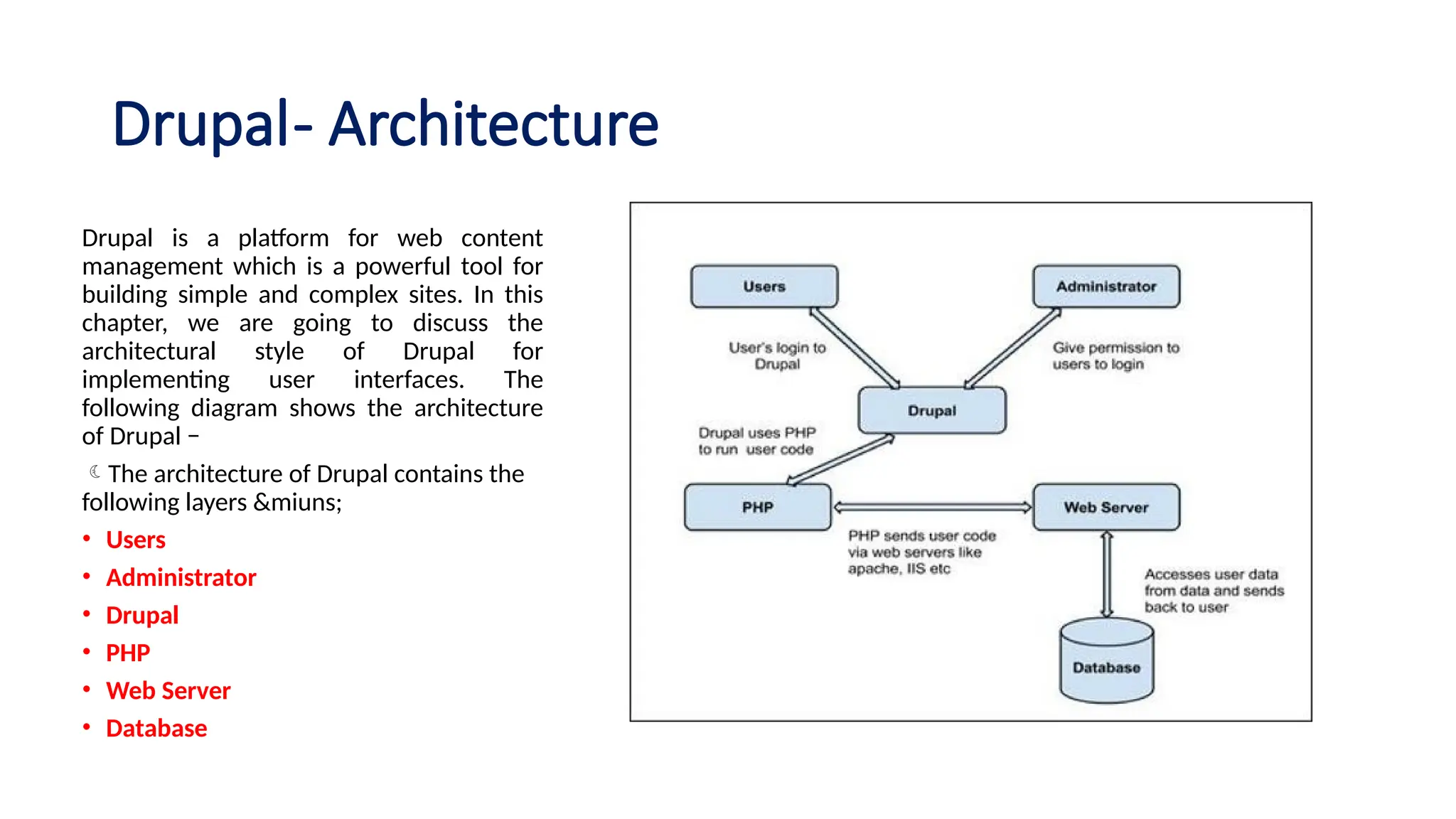
Drupal is a platform for web content
management which is a powerful tool for
building simple and complex sites. In this
chapter, we are going to discuss the
architectural style of Drupal for
implementing user interfaces. The
following diagram shows the architecture
of Drupal −
The architecture of Drupal contains the
following layers &miuns;
• Users
• Administrator
• Drupal
• PHP
• Web Server
• Database
• Users − These are the users on the Drupal community. The user sends a request to a server using Drupal
CMS and web browsers, search engines, etc. acts like clients.
• Administrator − Administrator can provide access permission to authorized users and will be able to block
unauthorized access. Administrative account will be having all privileges for managing content and
administering the site.
• Drupal − Drupal is a free and open source Content Management System (CMS) that allows organizing,
managing and publishing your content and is built on PHP based environments. Drupal CMS is very flexible
and powerful and can be used for building large, complex sites. It is very easy to interact with other sites
and technologies using Drupal CMS. Further, you will be able to handle complex forms and workflows.
• PHP − Drupal uses PHP in order to work with an application which is created by a user. It takes the help of
web server to fetch data from the database. PHP memory requirements depend on the modules which are
used in your site. Drupal 6 requires at least 16MB, Drupal 7 requires 32MB and Drupal 8 requires 64MB.
• Web Server − Web server is a server where the user interacts and processes requests via HTTP (Hyper Text
Transfer Protocol) and serves files that form web pages to web users. The communication between the
user and the server takes place using HTTP. You can use different types of web servers such as Apache, IIS,
Nginx, Lighttpd, etc.
• Database − Database stores the user information, content and other required data of the site. It is used to
store the administrative information to manage the Drupal site. Drupal uses the database to extract the
data and enables to store, modify and update the database.
Create Menus in Drupal
Menus are very important to easily navigate in your website. Menus offer a set of links that helps
you navigate. The Drupal menu allows you to add, remove and rename the menus and menu items.
Following are the simple steps to create menus in Drupal.
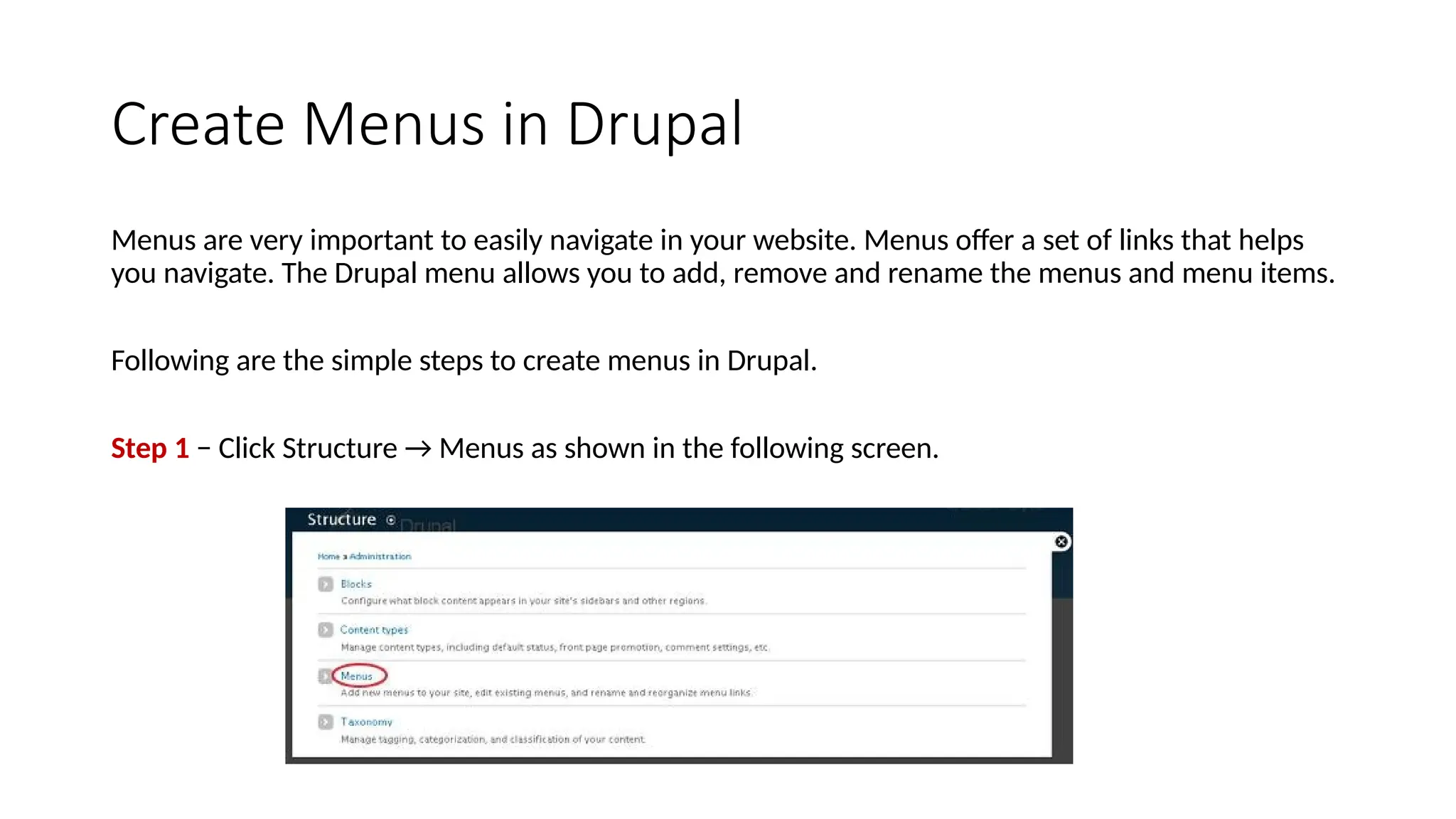
Step 1 − Click Structure → Menus as shown in the following screen.
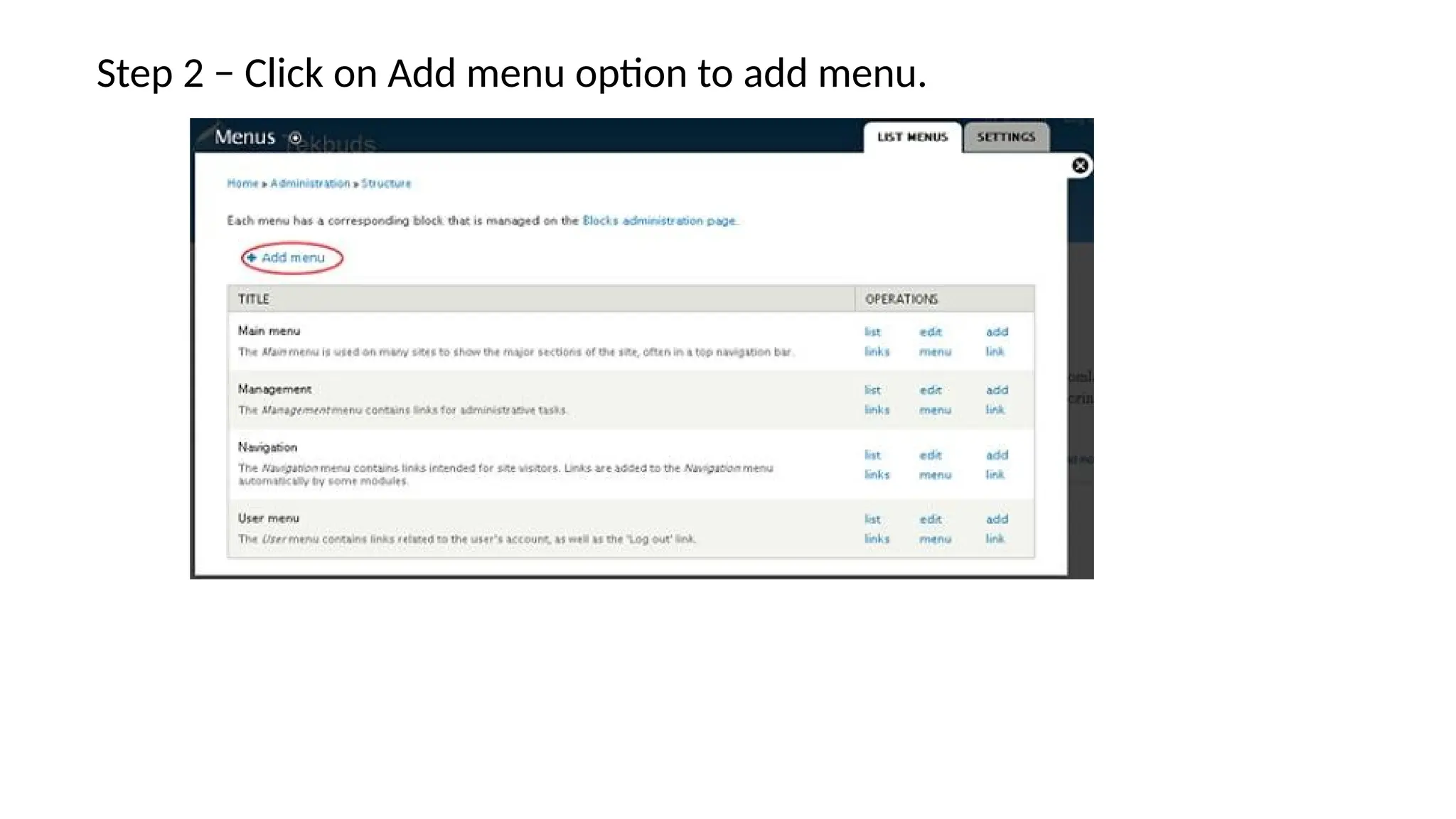
Step 2 − Click on Add menu option to add menu.
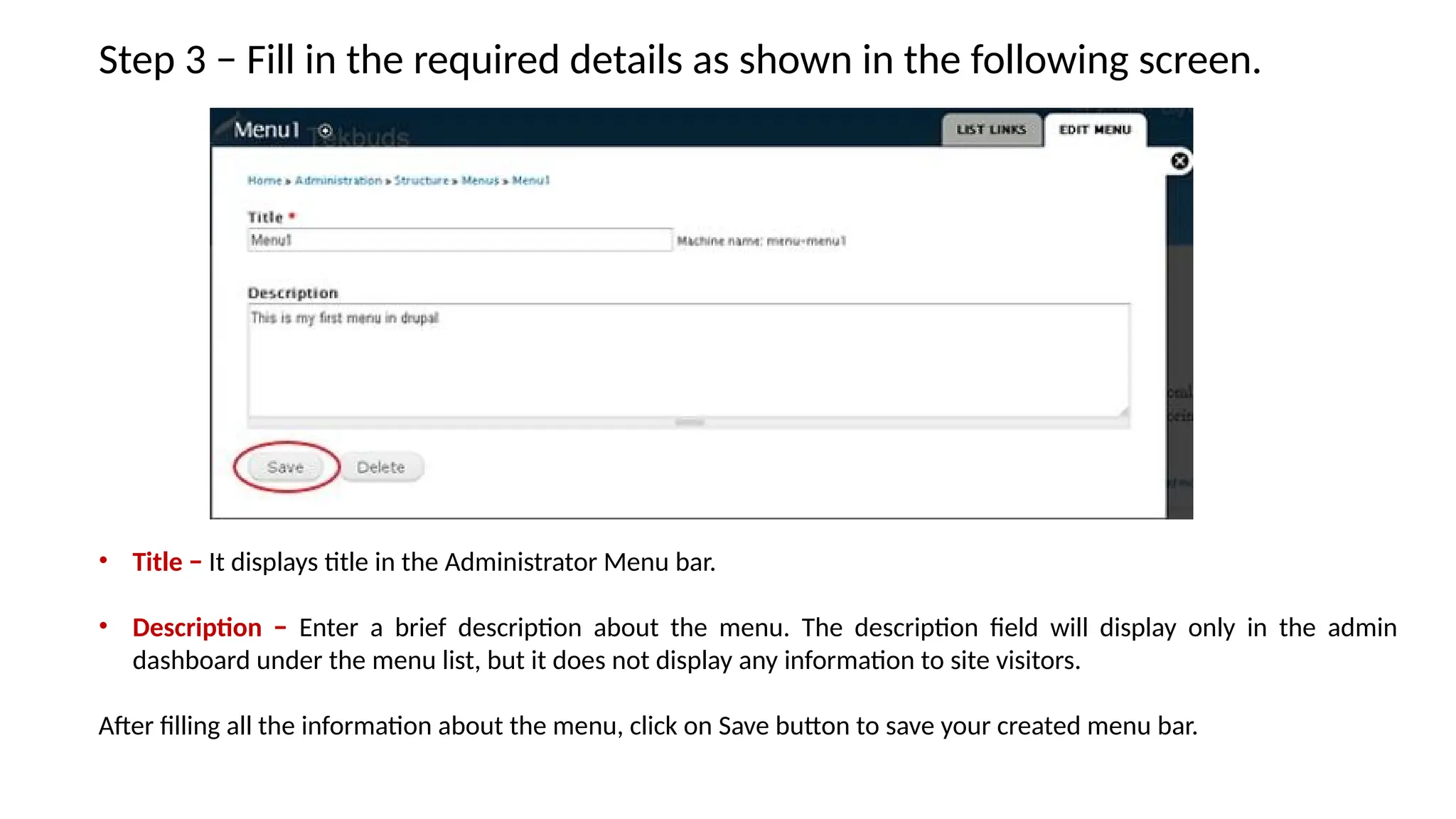
Step 3 − Fill in the required details as shown in the following screen.
• Title − It displays title in the Administrator Menu bar.
• Description − Enter a brief description about the menu. The description field will display only in the admin
dashboard under the menu list, but it does not display any information to site visitors.
After filling all the information about the menu, click on Save button to save your created menu bar.
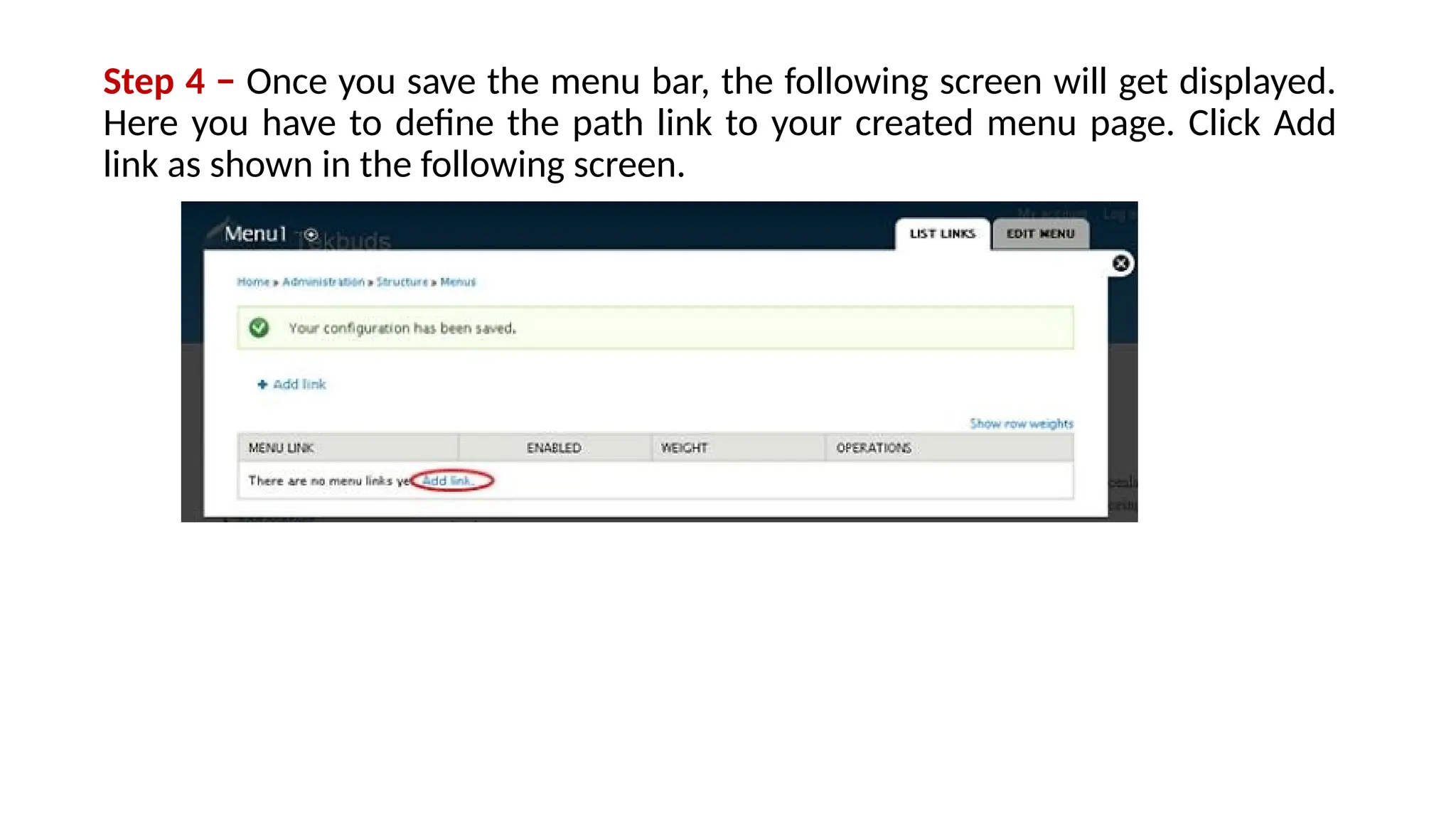
Step 4 − Once you save the menu bar, the following screen will get displayed.
Here you have to define the path link to your created menu page. Click Add
link as shown in the following screen.
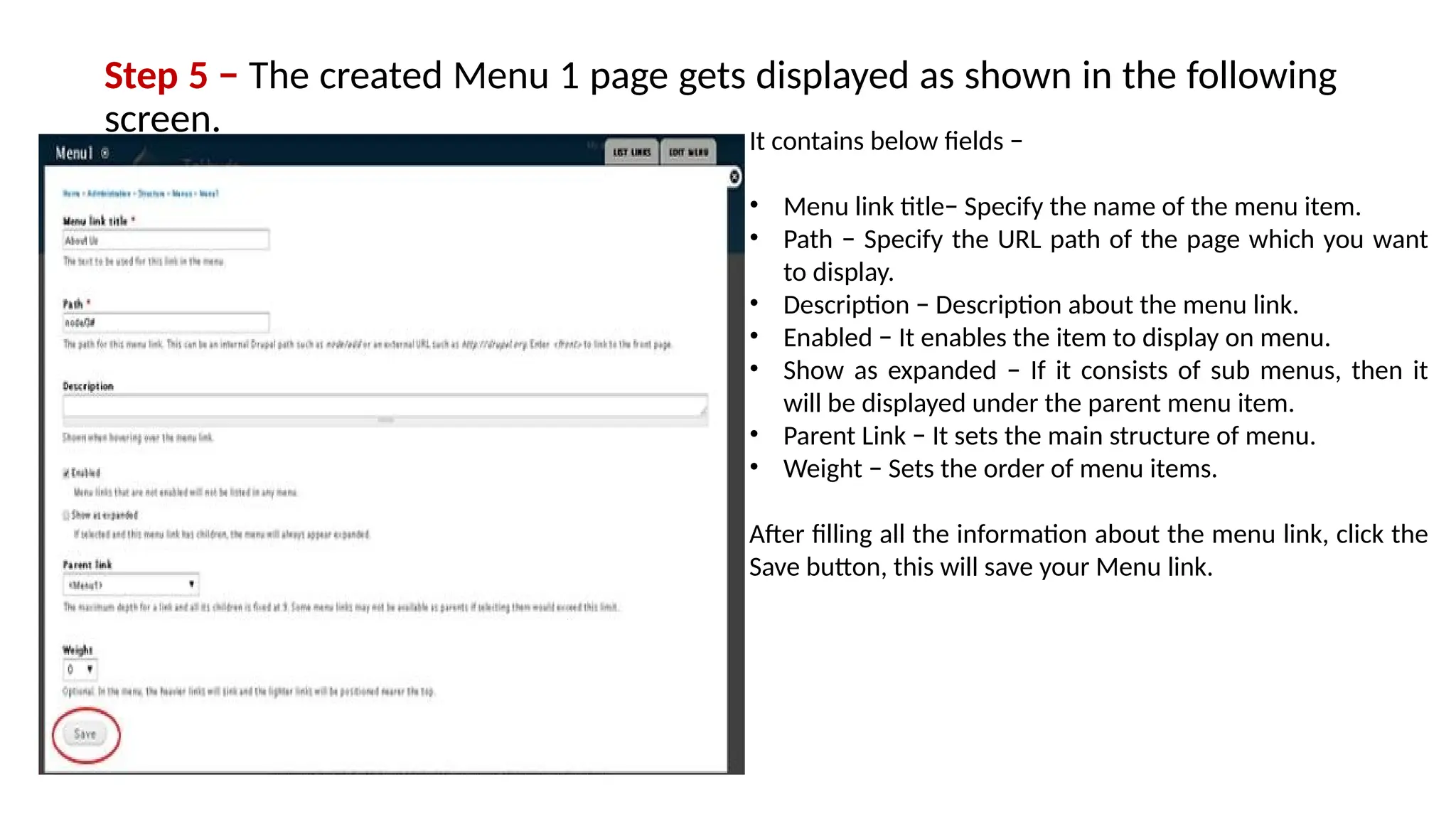
Step 5 − The created Menu 1 page gets displayed as shown in the following
screen. It contains below fields −
• Menu link title− Specify the name of the menu item.
• Path − Specify the URL path of the page which you want
to display.
• Description − Description about the menu link.
• Enabled − It enables the item to display on menu.
• Show as expanded − If it consists of sub menus, then it
will be displayed under the parent menu item.
• Parent Link − It sets the main structure of menu.
• Weight − Sets the order of menu items.
After filling all the information about the menu link, click the
Save button, this will save your Menu link.
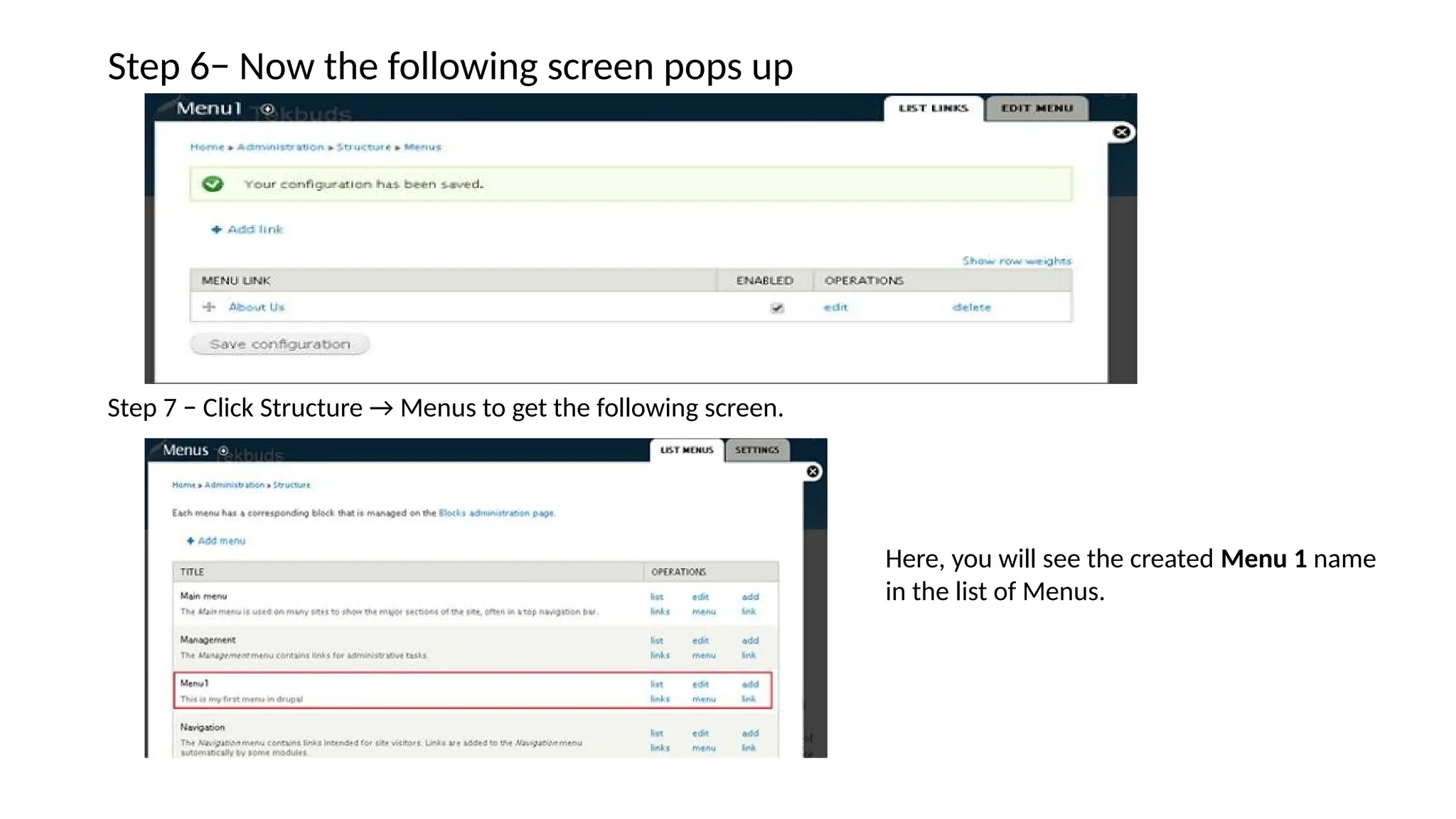
Step 6− Now the following screen pops up
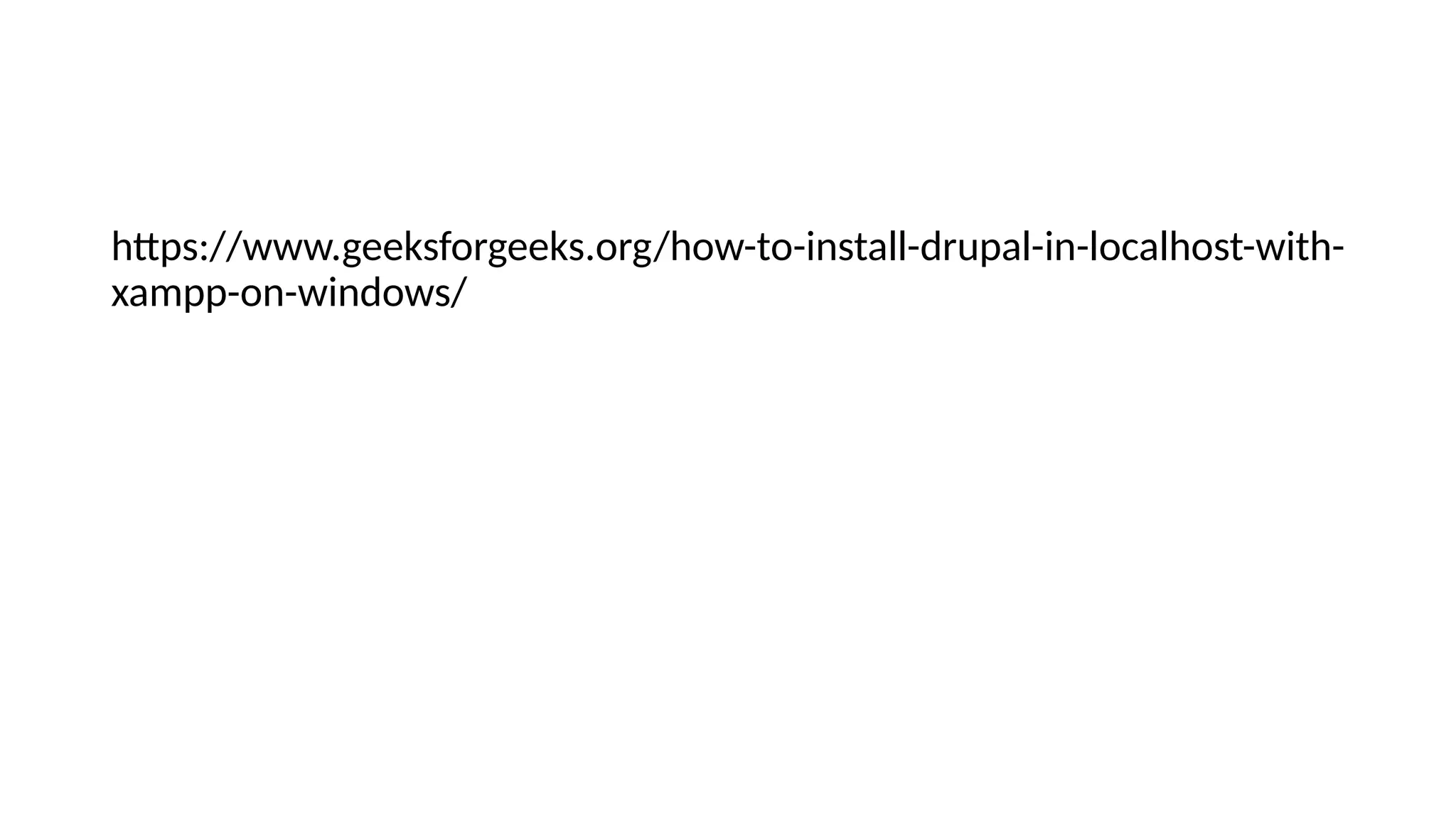
Step 7 − Click Structure → Menus to get the following screen.
Here, you will see the created Menu 1 name
in the list of Menus.
https://www.geeksforgeeks.org/how-to-install-drupal-in-localhost-with-
xampp-on-windows/

Drupaljdnndkdkckmfkfkkffmfkkfkfk_Part1.pptx

  • 1.
  • 2.
    Install Drupal inLocalhost with XAMPP on Windows Software needs to Run Drupal • For running Drupal on your local host first you need to install the XAMPP server to your computer, XAMPP makes your computer like the server. • XAMPP is a cross-platform web server used to develop and test programs on a local server. It is developed and managed by Apache Friends and is open-source. It has an Apache HTTP Server, MariaDB, and an interpreter for 11 different programming languages like Perl and PHP. • XAMPP Stands for cross-platform, Apache, MySQL, PHP, and Perl. • It makes turns the computer into a local host and you don’t need to do extra work for making the server. • After the successful installation of the XAMPP server to your computer, now it’s time to install Drupal.
  • 3.
    Steps to Installand Setup Drupal Above we have seen how we can install the XAMPP server to our computer and be ready with all its setup. Now it’s time to see how we can install the Drupal CMS to our local host. For installing Drupal to your localhost follow these simple steps: Step 1: Go to the Drupal official website and download its latest version from the website.
  • 4.
    Drupal zip getsdownloaded to your computer.
  • 5.
    Step 2: Extractthe zip file which you have downloaded.
  • 6.
    Step 3: Nowcopy the extracted file of the Drupal zip file and paste it into the xampp > htdocs file. For convenience, we rename the extracted file as “drupal-gfg”.
  • 7.
    Step 4: Afterpasting the Drupal project to the XAMPP in the htdocs folder, Now it’s time to open the XAMPP and start Apache and MySQL.
  • 8.
    Step 5: Nowopen your favorite web browser, here we used the Chrome web browser and type the localhost. If the below UI opens in your browser then it means that XAMPP installation and everything is fine and now we can proceed with the further process.
  • 9.
    Step 6: Createthe database for the Drupal project in the phpMyAdmin, for creating the database now type the localhost/PHPMyAdmin in the browser and hit enter. • phpMyAdmin dashboard will appear on your screen.
  • 10.
    Step 7: Createthe database in the phpMyAdmin, Click on the new link to create the new database for your Drupal project.
  • 11.
    Step 8: Typethe database name, for the demo purpose here I type the “drupal-gfg” as the database name. Later in the installation of drupal, we used this name. And finally, click on the create button to create the database name.
  • 12.
    Step 9: Aftercreating the database in the phpMyAdmin, now come to the browser and type the URL as the localhost and the folder name of the drupal project here in my case it is “drupal-gfg”. http://localhost/drupal-gfg After typing the http://localhost/drupal-gfg the drupal setup window will appear on your screen.
  • 13.
    Step 10: Followthe instructions for the complete installation process of Drupal in your local host. Choose the language and then click on the “Save and continue” button.
  • 14.
    Step 11: Inthe next step, you have to select the installation profile, It’s recommended to choose the “Standard” profile for the installation process. After choosing the profile click on the “Save and continue” button for further process.
  • 15.
    Step 12: Nowyou will see the following, PHP extensions and PHP OPCODE Caching error on your screen to resolve this error follow this simple step to solve it.
  • 16.
    Step 13: Nowopen the XAMPP control panel and click on the “config” button under the Apache section. And then click on the PHP (php.ini).
  • 17.
    Step 14: Addthis code in php.ini to enable OP code caching. [opcache] zend_extension=php_opcache.dll ; Determines if Zend OPCache is enabled opcache.enable=1 After adding this code in the php.ini file restart the apache server and refresh your page. you will find the OP code caching error gets solved.
  • 18.
    Step 15: Nowits the time to solve the “PHP EXTENSIONS” error. here it is disabled to make it enable follow the below steps, Open the XAMPP control panel and click on the “config” button and open the PHP (php.ini).
  • 19.
    Step 16: Afteropening the file now find the “extension=gd” in the php.ini, for finding press “CTRL + F” and type extension=gd and you get the name. here you will find that it is commented by “;” remove this colon sign and save it. extension=gd After uncommenting the “extension=gd” save the php.ini and then again restart the Apache server and refresh the page.
  • 20.
    Step 17: Ifeverything is ok then the next step will appear on your screen. the next step is for the database configuration.
  • 21.
    Step 18: Now,enter the database name which you have created above in the phpMyAdmin, for the localhost database username is “root” and the password is nothing leave the password blank. After entering the database details now click on the “Save and continue” button.
  • 22.
    Step 19: Afterthe database configuration Drupal starts to install on your localhost.
  • 23.
    Step 20: Afterthe complete installation of Drupal, Configure site option will appear on your screen. Enter the details of the website such as the site name, site email address, site maintenance account, user name, password, and regional settings.
  • 24.
    Step 21: Afterfilling in all their details click on the “Save and continue” button. Now your website will get successfully installed on your local host. This is how you can install the Drupal CMS on your localhost. Now you can start testing and learning everything about Drupal on your computer and you don’t need to purchase the web server.
  • 25.
    Introduction Drupal is afree and open source Content Management System (CMS) that allows organizing, managing and publishing your content. It is built on PHP based environments. This is carried out under GNU i.e. General Public License, which means everyone has the freedom of downloading and sharing it with others. Drupal is used on million sites such as WhiteHouse.gov, World Economic Forum, Stanford University, Examiner.com and many more.
  • 26.
    Content Management System TheContent Management System (CMS) is a software which stores all the data of your content (such as text, photos, music, documents, etc.) and is made available on your website. A CMS helps in editing, publishing and modifying the content of the website. History The standard release of Drupal known as Drupal core was developed by Dries Buytaerti in January 2001. It is considered as a leading CMS in variety of industries.
  • 27.
    Why to useDrupal? If you are developing a website with content management system, Drupal CMS is very flexible than any other CMS. Drupal is very powerful and can be used for building large, complex sites. It is PHP based template and allows non-technical users to add and edit the content without any HTML or Web design knowledge. Using Drupal CMS, it is easy to interact with other sites or technologies as Drupal can handle complex forms and workflows. It is available with more than 16000 modules which can be addressed with Drupal core and add-on modules.
  • 28.
    Features • Drupal makesit easy to create and manage your site. • Drupal translates anything in the system with built-in user interfaces. • Drupal connects your website to other sites and services using feeds, search engine connection capabilities, etc. • Drupal is an open source software hence requires no licensing costs. • Drupal designs highly flexible and creative website with effective display quality thus increasing the visitors to the site. • Drupal can publish your content on social media such as Twitter, Facebook and other social mediums. • Drupal provides more number of customizable themes, including several base themes which are used to design your own themes for developing web applications. • Drupal manages content on informational sites, social media sites, member sites, intranets and web applications.
  • 29.
    Advantages • Drupal isa flexible CMS that allows handling content types including video, text, blog, menu handling, real-time statistics, etc. • Drupal provides a number of templates for developing web applications. There is no need to start from scratch if you are building simple or complicated web applications. • Drupal is easy to manage or create blog or website. It helps to organize, structure, find and reuse content. • Drupal provides some interesting themes and templates which gives your website an attractive look. • Drupal has over 7000 plug-ins to boost your website. Since Drupal is an open source, you can create your own plug-ins.
  • 30.
    Disadvantages • Drupal isnot a user-friendly interface. It requires advanced knowledge and few basic things about the platform to install and modify. • Drupal is a new content management system. It is not compatible with other software. • Performance is low compared to other CMS. The website which is built using Drupal will generate big server loads and will never open with a slow internet connection.
  • 31.
    Drupal- Architecture Drupal isa platform for web content management which is a powerful tool for building simple and complex sites. In this chapter, we are going to discuss the architectural style of Drupal for implementing user interfaces. The following diagram shows the architecture of Drupal − The architecture of Drupal contains the following layers &miuns; • Users • Administrator • Drupal • PHP • Web Server • Database
  • 32.
    • Users −These are the users on the Drupal community. The user sends a request to a server using Drupal CMS and web browsers, search engines, etc. acts like clients. • Administrator − Administrator can provide access permission to authorized users and will be able to block unauthorized access. Administrative account will be having all privileges for managing content and administering the site. • Drupal − Drupal is a free and open source Content Management System (CMS) that allows organizing, managing and publishing your content and is built on PHP based environments. Drupal CMS is very flexible and powerful and can be used for building large, complex sites. It is very easy to interact with other sites and technologies using Drupal CMS. Further, you will be able to handle complex forms and workflows. • PHP − Drupal uses PHP in order to work with an application which is created by a user. It takes the help of web server to fetch data from the database. PHP memory requirements depend on the modules which are used in your site. Drupal 6 requires at least 16MB, Drupal 7 requires 32MB and Drupal 8 requires 64MB. • Web Server − Web server is a server where the user interacts and processes requests via HTTP (Hyper Text Transfer Protocol) and serves files that form web pages to web users. The communication between the user and the server takes place using HTTP. You can use different types of web servers such as Apache, IIS, Nginx, Lighttpd, etc. • Database − Database stores the user information, content and other required data of the site. It is used to store the administrative information to manage the Drupal site. Drupal uses the database to extract the data and enables to store, modify and update the database.
  • 33.
    Create Menus inDrupal Menus are very important to easily navigate in your website. Menus offer a set of links that helps you navigate. The Drupal menu allows you to add, remove and rename the menus and menu items. Following are the simple steps to create menus in Drupal. Step 1 − Click Structure → Menus as shown in the following screen.
  • 34.
    Step 2 −Click on Add menu option to add menu.
  • 35.
    Step 3 −Fill in the required details as shown in the following screen. • Title − It displays title in the Administrator Menu bar. • Description − Enter a brief description about the menu. The description field will display only in the admin dashboard under the menu list, but it does not display any information to site visitors. After filling all the information about the menu, click on Save button to save your created menu bar.
  • 36.
    Step 4 −Once you save the menu bar, the following screen will get displayed. Here you have to define the path link to your created menu page. Click Add link as shown in the following screen.
  • 37.
    Step 5 −The created Menu 1 page gets displayed as shown in the following screen. It contains below fields − • Menu link title− Specify the name of the menu item. • Path − Specify the URL path of the page which you want to display. • Description − Description about the menu link. • Enabled − It enables the item to display on menu. • Show as expanded − If it consists of sub menus, then it will be displayed under the parent menu item. • Parent Link − It sets the main structure of menu. • Weight − Sets the order of menu items. After filling all the information about the menu link, click the Save button, this will save your Menu link.
  • 38.
    Step 6− Nowthe following screen pops up Step 7 − Click Structure → Menus to get the following screen. Here, you will see the created Menu 1 name in the list of Menus.
  • 40.