














Creating Web Sites
       Bible
           Third Edition


Philip Crowder with David A. Crowder


            Wiley Publishing, Inc.
Creating Web Sites
       Bible
     Third Edition
Creating Web Sites
       Bible
           Third Edition


Philip Crowder with David A. Crowder


            Wiley Publishing, Inc.
Creating Web Sites Bible, Third Edition
Published by
Wiley Publishing, Inc.
10475 Crosspoint Boulevard
Indianapolis, IN 46256
www.wiley.com
Copyright © 2008 by Wiley Publishing, Inc., Indianapolis, Indiana
Published by Wiley Publishing, Inc., Indianapolis, Indiana
Published simultaneously in Canada
ISBN: 978-0-4702-2363-5
Manufactured in the United States of America
10 9 8 7 6 5 4 3 2 1
No part of this publication may be reproduced, stored in a retrieval system or transmitted in any form or
by any means, electronic, mechanical, photocopying, recording, scanning or otherwise, except as permit-
ted under Sections 107 or 108 of the 1976 United States Copyright Act, without either the prior written
permission of the Publisher, or authorization through payment of the appropriate per-copy fee to the Copy-
right Clearance Center, 222 Rosewood Drive, Danvers, MA 01923, (978) 750-8400, fax (978) 646-8600.
Requests to the Publisher for permission should be addressed to the Legal Department, Wiley Publishing,
Inc., 10475 Crosspoint Blvd., Indianapolis, IN 46256, (317) 572-3447, fax (317) 572-4355, or online at
http://www.wiley.com/go/permissions.
Limit of Liability/Disclaimer of Warranty: The publisher and the author make no representations or war-
ranties with respect to the accuracy or completeness of the contents of this work and specifically disclaim
all warranties, including without limitation warranties of fitness for a particular purpose. No warranty may
be created or extended by sales or promotional materials. The advice and strategies contained herein may
not be suitable for every situation. This work is sold with the understanding that the publisher is not en-
gaged in rendering legal, accounting, or other professional services. If professional assistance is required,
the services of a competent professional person should be sought. Neither the publisher nor the author
shall be liable for damages arising herefrom. The fact that an organization or Website is referred to in this
work as a citation and/or a potential source of further information does not mean that the author or the
publisher endorses the information the organization or Website may provide or recommendations it may
make. Further, readers should be aware that Internet Websites listed in this work may have changed or
disappeared between when this work was written and when it is read.
For general information on our other products and services or to obtain technical support, please contact
our Customer Care Department within the U.S. at (800) 762-2974, outside the U.S. at (317) 572-3993 or
fax (317) 572-4002.
Library of Congress Cataloging-in-Publication Data:
Crowder, Philip.
   Creating web sites bible / Philip Crowder with David Crowder. — 3rd ed.
     p. cm.
  Includes index.
  ISBN 978-0-470-22363-5 (paper/website)
 1. Web site development. 2. Web sites — Design. I. Crowder, David A.
II. Title.
   TK5105.8888.C76 2008
   006.7 — dc22
                                                              2008004976
Trademarks: Wiley, the Wiley logo, and related trade dress are trademarks or registered trademarks of
John Wiley & Sons, Inc. and/or its affiliates, in the United States and other countries, and may not be
used without written permission. All other trademarks are the property of their respective owners. Wiley
Publishing, Inc. is not associated with any product or vendor mentioned in this book.
Wiley also publishes its books in a variety of electronic formats. Some content that appears in print may
not be available in electronic books.
About the Authors
Philip Crowder of Bristol, Tennessee, is the director of the Computer and Information Manage-
ment (CIM) program at Virginia Intermont College where he teaches future Web designers and
programmers the ins and outs of HTML, XHTML, XML, CSS, JavaScript, and a variety of other
Web languages and technologies. He has also done funded research into computer-based human
language translation systems.

David A. Crowder is a professional Web developer, and the author or coauthor of more than
20 books on Web design and development. He has been involved in the online community for
more than a decade, and has helped to teach hundreds of thousands of readers to create their
own cutting-edge Web sites.
Credits
Executive Editor           Vice President and Executive Group
Chris Webb                 Publisher
                           Richard Swadley
Development Editor
Kevin Shafer               Vice President and Executive Publisher
Technical Editor           Joseph B. Wikert
Auri Rahimzadeh
                           Project Coordinator, Cover
Production Editor          Lynsey Stanford
Debra Banninger
                           Proofreader
Copy Editor                David Parise (Word One)
Foxxe Editorial Services

Editorial Manager          Indexer
Mary Beth Wakefield         Jack Lewis

Production Manager
Tim Tate
From Philip Crowder (Third Edition):

Christ Jesus is my personal Savior and all that is done is done through God’s saving Grace and
abiding love.

I should acknowledge my editors above all others, for it was through their strenuous efforts that
this book was brought about. They were always professional and gentlemanly, and wonderful
exemplars of the highest ideals of publishing. I should wish to especially single out Mr. Chris
Webb, the Executive editor, for his excellence, followed closely by the very, very patient
Mr. Kevin Shafer for his brilliant editorial work, and the very astute technical editor, Mr. Auri
Rahimzadeh, whom I should one day soon hope to see write a book himself. Mr. Robert Diforio,
my literary agent and patient tutor, is the man who guided me, with lively humor and wisdom,
from the beginning to the successful conclusion of this book, and I thank him very much for all
he has done.

To my brother, the bold and brave, who early took his way and will always be one of the flag
bearers and great heralds of the Information Age. He is erudite, educated, hard-working, has led
a great life of the mind and is a tremendous writer. . . and is a generous, loving, and inspiring
brother.

Parents: This book is in honor of my father, the greatest man I have ever met, and my mother,
who shared in his vision and worked with him every step of the way to achieve it. His success is
equally hers. One could not ask for finer parents and one may only strive to be as good, as wise,
and as loving as they are.

To my wife, HuRim, whose life and faith have touched millions, who could have had so much
more in her life, and yet who, in her boundless love, took me (as I was) and made me as I am,
I joyously and lovingly dedicate this book.

To my daughters Etosha and Elysha whom I once carried so lightly and lovingly in my arms:
may God ever bless you with your mother’s faith, wisdom, love, courage, and strength.

And God bless Jordan and precious Aaiden, too.

To Gene Wine (Godfather), who imparted without measure equal amounts of love and wisdom.
To the extent that the world is better, it is so because you have uncompromisingly fought to
make it so.


                                              ix
Acknowledgments


    To Rainer Rackl, Karl Pilger and Eric Harmsen, I have never had greater friends than you. God
    bless you in all you do.

    To Ahn Byong Man, hyungnim, and Ma Young Sam, Kim Man Bok, and Park Dong Sun, my
    students, in whose shadows I will ever stand. It has been a blessing to have had you in our lives
    and may God continue to bless Korea and continue to provide her sincere servants of your
    unequalled excellence: of faithfulness, honor, integrity, insight, and wisdom.

    To my students: Abdullah Lubwana, American, (serving now with honor on the far frontiers of
    freedom), to Alex, Codie, Moogy, Mary, Jesse, Josh, Justin, Jean, Ishmael, Oz, Johnny, Chad,
    Andron, Shawn, Brandon, and so many others of my remarkable and wonderful computer
    students who over the years have proven the truth of the adage that in teaching I have been
    taught, I give thanks.

    For their patience and quiet support I also thank President Mike Puglisi and Provost Anne
    Shumaker of Virginia Intermont (VI) College. And to my friends at VI, especially Gary Akers,
    Jim and Mary, and all the wonderful people of that school. And last, though I should put this
    first, to all my brothers and sisters in faith (especially those of Yun-ae-in and Onnuri, Westmin-
    ister and Walnut Hill), and to all those who have loved my wife in her labor of the Lord, I dedi-
    cate this book.

    From David Crowder (Second Edition):

    Thanks are due to Chris Webb and Sharon Nash, my fine editors, who were there for me every
    step of the way. Also Carol Sheehan, Laura Brown, Valerie Perry, Carmen Krikorian, Eric Butow,
    Matthew David, Patricia Hartman, Stephanie Cottrell Bryant, Wendy Willard, Chris Stone, Doug
    Sahlin, Bud Smith, and Andy Bailey, without whom this book would not be in your hands right
    now. All helped to make this the best book we could all put together for you. And they’re just
    the tip of the iceberg: about a zillion people work their tails off anonymously and behind the
    scenes at Wiley to bring you the finest books they can possibly produce. My hat is off to all of
    them, from the top editors to the humblest laborer on the loading dock. Last, but by no means
    least, I’d like to say how much I appreciate all the hard work done by my literary agent,
    Robert G. Diforio, without whose help I would be lost in the intricacies of the publishing world.


x
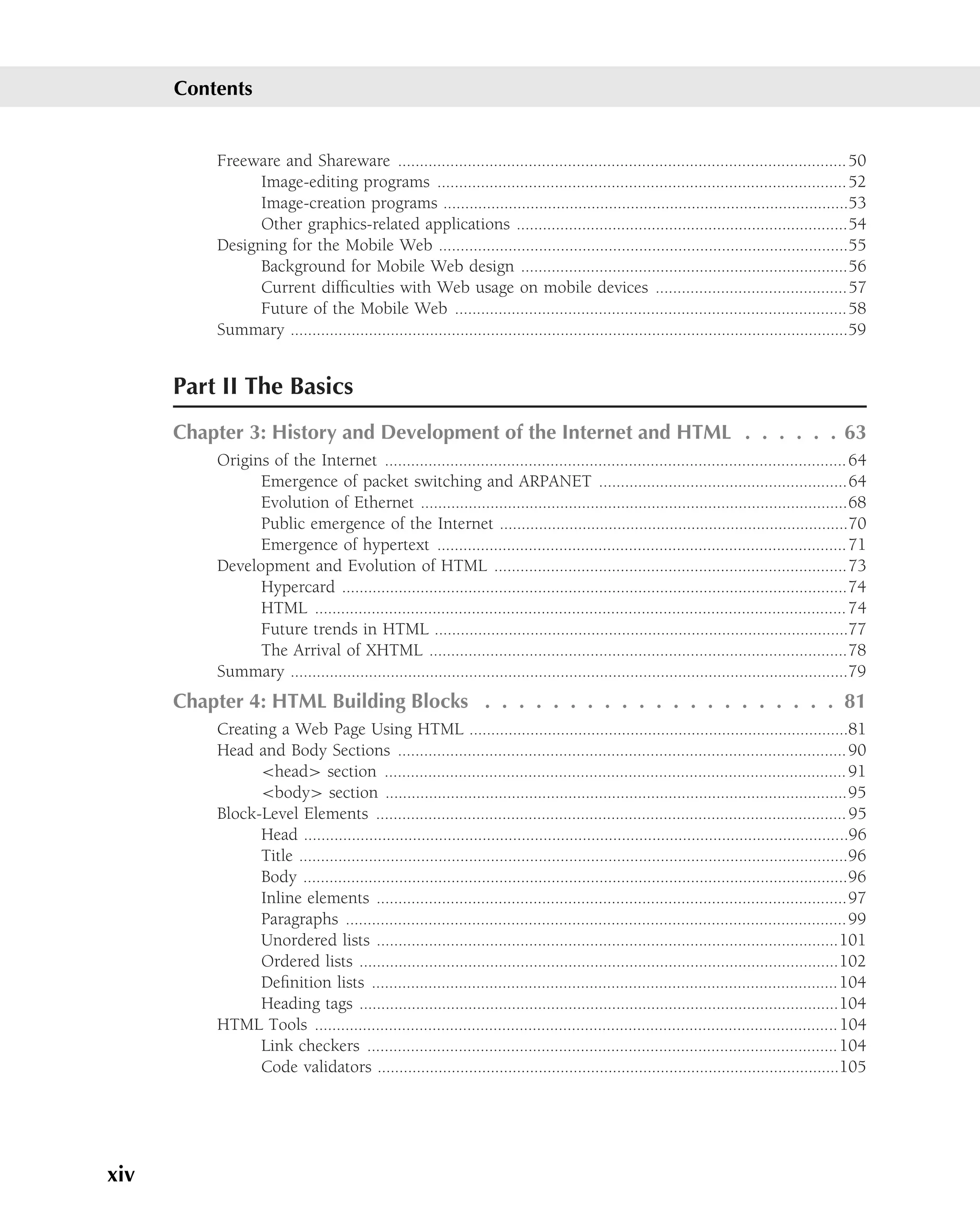
Introduction . . . . . . . . . . . . . . . . . . . . . . . . . . . . . . . xxix

Part I Laying the Foundation
Chapter 1: The Basics of Building Web Pages and Sites ..................................................................3
Chapter 2: Popular Web Design Tools ...........................................................................................33

Part II The Basics
Chapter     3:   History and Development of the Internet and HTML .................................................63
Chapter     4:   HTML Building Blocks ................................................................................................. 81
Chapter     5:   Links, Hotspots, and Web Site Navigation ................................................................127
Chapter     6:   The Elements of Color and Images in Web Pages .................................................... 163
Chapter     7:   Text Formatting ..........................................................................................................205

Part III Advanced Design Features
Chapter 8: Harnessing the Power of Tables .................................................................................241
Chapter 9: Organizing Your Site with Frames .............................................................................287
Chapter 10: Getting Input with Forms ........................................................................................ 321

Part IV Making It Look Professional
Chapter     11:   Adding Multimedia and Other Objects ................................................................... 361
Chapter     12:   Styling Web Pages with Cascading Style Sheets ......................................................415
Chapter     13:   Making Dynamic Pages with JavaScript ...................................................................477
Chapter     14:   Putting It on the Web .............................................................................................. 525

Part V Transitioning to the Future: XHTML, XML, and Ajax
Chapter 15: XHTML ..................................................................................................................... 559
Chapter 16: Designing with XML .................................................................................................603
Chapter 17: Ajax ........................................................................................................................... 631

Part VI Images on the Web
Chapter 18: Finding, Creating, and Enhancing Images on the Web ..........................................651

Part VII Cashing in on eCommerce
Chapter 19: Setting Up Your Store ...............................................................................................681
Chapter 20: Using Advertising ......................................................................................................713
Chapter 21: Covering All the Bases ..............................................................................................747


                                                                     xi
Contents at a Glance


      Part VIII Keeping Your Site Fresh
      Chapter 22: Maintaining Your Site ...............................................................................................767
      Chapter 23: RSS ............................................................................................................................779
      Chapter 24: Blogging .....................................................................................................................795

      Index . . . . . . . . . . . . . . . . . . . . . . . . . . . . . . . . . . . 817


xii
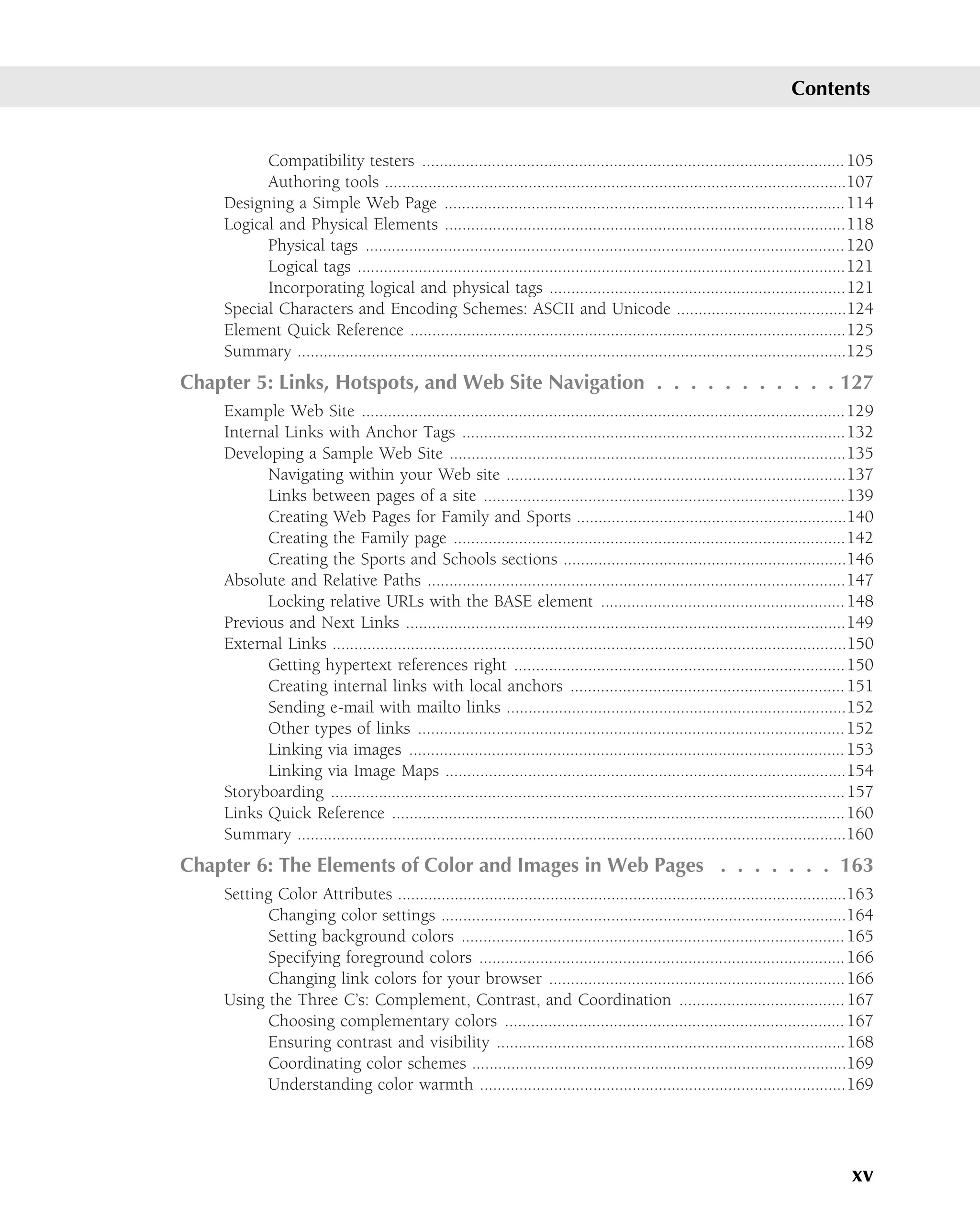
Introduction . . . . . . . . . . . . . . . . . . . . . . . . . . . . . . . xxix

Part I Laying the Foundation
Chapter 1: The Basics of Building Web Pages and Sites . . . . . . . . . . . 3
     Web Browsers ..........................................................................................................................4
     Web Pages ................................................................................................................................9
     Web Sites ...............................................................................................................................13
     Analyzing Web Site Types .................................................................................................... 15
           Personal home pages ...................................................................................................16
           Informational sites .......................................................................................................16
           Organizational sites .....................................................................................................18
           Political sites ................................................................................................................19
           Commercial sites .........................................................................................................19
     Understanding Internet Demographics .................................................................................23
           Finding good information ...........................................................................................23
           Surveying site visitors ..................................................................................................25
     Determining Your Approach .................................................................................................26
           Focusing on goals ........................................................................................................27
           Deciding on complexity levels ....................................................................................27
           Establishing a budget ..................................................................................................28
     Dos and Don’ts of Web Site Development ...........................................................................29
           Tips for good Web sites ..............................................................................................29
           Top ways to have bad sites .........................................................................................30
     Summary ................................................................................................................................31
Chapter 2: Popular Web Design Tools . . . . . . . . . . . . . . . . . . . 33
     Adobe Creative Suite 3 (CS3) ...............................................................................................33
          Photoshop ....................................................................................................................34
          Dreamweaver ...............................................................................................................39
          Illustrator .....................................................................................................................46
          Flash Professional ........................................................................................................46
          Photoshop Extended ...................................................................................................48
          Fireworks .....................................................................................................................48
          Acrobat ........................................................................................................................ 49
          Contribute ....................................................................................................................49


                                                                 xiii
Contents


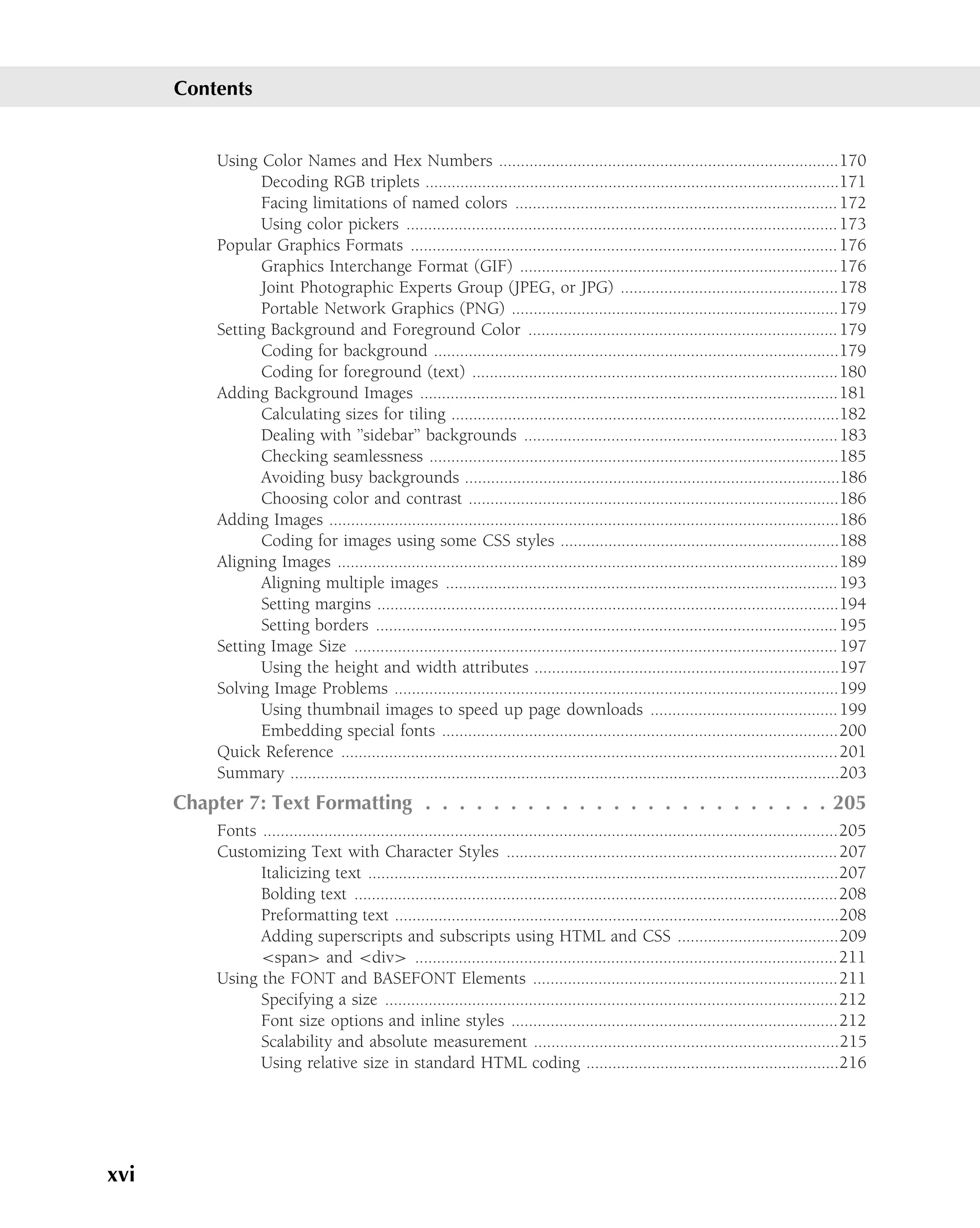
          Freeware and Shareware ....................................................................................................... 50
                Image-editing programs .............................................................................................. 52
                Image-creation programs .............................................................................................53
                Other graphics-related applications ............................................................................54
          Designing for the Mobile Web ..............................................................................................55
                Background for Mobile Web design ...........................................................................56
                Current difficulties with Web usage on mobile devices ............................................57
                Future of the Mobile Web ..........................................................................................58
          Summary ................................................................................................................................59


      Part II The Basics
      Chapter 3: History and Development of the Internet and HTML . . . . . . 63
          Origins of the Internet .......................................................................................................... 64
                Emergence of packet switching and ARPANET .........................................................64
                Evolution of Ethernet ..................................................................................................68
                Public emergence of the Internet ................................................................................70
                Emergence of hypertext .............................................................................................. 71
          Development and Evolution of HTML .................................................................................73
                Hypercard ....................................................................................................................74
                HTML .......................................................................................................................... 74
                Future trends in HTML ...............................................................................................77
                The Arrival of XHTML ................................................................................................78
          Summary ................................................................................................................................79
      Chapter 4: HTML Building Blocks . . . . . . . . . . . . . . . . . . . . . 81
          Creating a Web Page Using HTML .......................................................................................81
          Head and Body Sections ....................................................................................................... 90
                <head> section .......................................................................................................... 91
                <body> section ..........................................................................................................95
          Block-Level Elements ............................................................................................................ 95
                Head .............................................................................................................................96
                Title ..............................................................................................................................96
                Body .............................................................................................................................96
                Inline elements ............................................................................................................97
                Paragraphs ................................................................................................................... 99
                Unordered lists ..........................................................................................................101
                Ordered lists ..............................................................................................................102
                Definition lists ...........................................................................................................104
                Heading tags ..............................................................................................................104
          HTML Tools ........................................................................................................................ 104
                Link checkers ............................................................................................................ 104
                Code validators ..........................................................................................................105


xiv
Contents


          Compatibility testers ................................................................................................. 105
          Authoring tools ..........................................................................................................107
    Designing a Simple Web Page ............................................................................................114
    Logical and Physical Elements ............................................................................................118
          Physical tags .............................................................................................................. 120
          Logical tags ................................................................................................................121
          Incorporating logical and physical tags ....................................................................121
    Special Characters and Encoding Schemes: ASCII and Unicode .......................................124
    Element Quick Reference ....................................................................................................125
    Summary ..............................................................................................................................125
Chapter 5: Links, Hotspots, and Web Site Navigation . . . . . . . . . . . 127
    Example Web Site ...............................................................................................................129
    Internal Links with Anchor Tags ........................................................................................132
    Developing a Sample Web Site ...........................................................................................135
          Navigating within your Web site ..............................................................................137
          Links between pages of a site ...................................................................................139
          Creating Web Pages for Family and Sports ..............................................................140
          Creating the Family page ..........................................................................................142
          Creating the Sports and Schools sections .................................................................146
    Absolute and Relative Paths ................................................................................................147
          Locking relative URLs with the BASE element ........................................................ 148
    Previous and Next Links .....................................................................................................149
    External Links ......................................................................................................................150
          Getting hypertext references right ............................................................................150
          Creating internal links with local anchors ............................................................... 151
          Sending e-mail with mailto links ..............................................................................152
          Other types of links .................................................................................................. 152
          Linking via images .................................................................................................... 153
          Linking via Image Maps ............................................................................................154
    Storyboarding ......................................................................................................................157
    Links Quick Reference ........................................................................................................160
    Summary ..............................................................................................................................160
Chapter 6: The Elements of Color and Images in Web Pages . . . . . . . 163
    Setting Color Attributes .......................................................................................................163
          Changing color settings .............................................................................................164
          Setting background colors ........................................................................................ 165
          Specifying foreground colors ....................................................................................166
          Changing link colors for your browser ....................................................................166
    Using the Three C’s: Complement, Contrast, and Coordination ...................................... 167
          Choosing complementary colors .............................................................................. 167
          Ensuring contrast and visibility ................................................................................168
          Coordinating color schemes ......................................................................................169
          Understanding color warmth ....................................................................................169


                                                                                                                                        xv
Contents


          Using Color Names and Hex Numbers ..............................................................................170
                Decoding RGB triplets ...............................................................................................171
                Facing limitations of named colors .......................................................................... 172
                Using color pickers ................................................................................................... 173
          Popular Graphics Formats .................................................................................................. 176
                Graphics Interchange Format (GIF) .........................................................................176
                Joint Photographic Experts Group (JPEG, or JPG) ..................................................178
                Portable Network Graphics (PNG) ...........................................................................179
          Setting Background and Foreground Color ....................................................................... 179
                Coding for background .............................................................................................179
                Coding for foreground (text) ....................................................................................180
          Adding Background Images ................................................................................................181
                Calculating sizes for tiling .........................................................................................182
                Dealing with ’’sidebar’’ backgrounds ........................................................................ 183
                Checking seamlessness ..............................................................................................185
                Avoiding busy backgrounds ......................................................................................186
                Choosing color and contrast .....................................................................................186
          Adding Images .....................................................................................................................186
                Coding for images using some CSS styles ................................................................188
          Aligning Images ...................................................................................................................189
                Aligning multiple images .......................................................................................... 193
                Setting margins ..........................................................................................................194
                Setting borders .......................................................................................................... 195
          Setting Image Size ............................................................................................................... 197
                Using the height and width attributes ......................................................................197
          Solving Image Problems ......................................................................................................199
                Using thumbnail images to speed up page downloads ........................................... 199
                Embedding special fonts ...........................................................................................200
          Quick Reference ..................................................................................................................201
          Summary ..............................................................................................................................203
      Chapter 7: Text Formatting . . . . . . . . . . . . . . . . . . . . . . . . 205
          Fonts ....................................................................................................................................205
          Customizing Text with Character Styles ............................................................................ 207
                Italicizing text ............................................................................................................207
                Bolding text ...............................................................................................................208
                Preformatting text ......................................................................................................208
                Adding superscripts and subscripts using HTML and CSS .....................................209
                <span> and <div> .................................................................................................211
          Using the FONT and BASEFONT Elements ......................................................................211
                Specifying a size ........................................................................................................212
                Font size options and inline styles ...........................................................................212
                Scalability and absolute measurement ......................................................................215
                Using relative size in standard HTML coding ..........................................................216


xvi
Contents


          Comparing font size with heading size ....................................................................216
          Overriding default font faces ....................................................................................217
          Coloring text ..............................................................................................................218
          Using fonts with style ............................................................................................... 218
    Aligning and Indenting Text ...............................................................................................221
          Dealing with deprecation ..........................................................................................221
          Indenting with BLOCKQUOTE ................................................................................222
    Choosing Character Sets ..................................................................................................... 223
    Using Special Characters and Entities ................................................................................227
    Summary ..............................................................................................................................236

Part III Advanced Design Features
Chapter 8: Harnessing the Power of Tables . . . . . . . . . . . . . . . . 241
    Adding Tables and Setting Table Size ................................................................................241
    Managing Borders ................................................................................................................248
          Frames and rules .......................................................................................................250
    Using Padding and Spacing ................................................................................................263
    Aligning Tables and Cell Contents .....................................................................................265
          Setting horizontal alignment .....................................................................................266
          Setting vertical alignment ..........................................................................................271
          Preventing word wrap ...............................................................................................272
    Spanning Rows and Columns .............................................................................................273
    Working with Images and Color ........................................................................................275
          Specifying background images ..................................................................................275
          Specifying background colors ...................................................................................278
    Tables Quick Reference .......................................................................................................283
    Summary ..............................................................................................................................284
Chapter 9: Organizing Your Site with Frames . . . . . . . . . . . . . . 287
    Designing Frame Layouts ....................................................................................................288
          Analyzing functional needs .......................................................................................289
          Creating navigation layouts .......................................................................................289
          Setting up action or result layouts ............................................................................290
    Creating Framesets ..............................................................................................................291
          Setting columns and rows .........................................................................................292
          Mixing pixel, percentage, and relative sizing ...........................................................296
          Preventing resizing ....................................................................................................300
          Specifying frame names and contents ...................................................................... 300
          Nesting framesets ...................................................................................................... 302
          Adding NOFRAMES content .................................................................................... 304
    Setting Targets for Your Links ............................................................................................305
          Targeting custom-named frames ...............................................................................305


                                                                                                                                     xvii
Contents


                  Base target element ....................................................................................................306
                  Expandable and collapsible list .................................................................................307
                  Using reserved frame names .....................................................................................310
            Customizing Frame Borders and Margins ..........................................................................310
                  Setting border width .................................................................................................311
                  Handling border colors .............................................................................................313
                  Setting margin width .................................................................................................313
            Setting Scroll Bar Options ...................................................................................................313
                  Alternatives to framesets and frames ........................................................................314
            Avoiding Frame Problems ...................................................................................................316
                  Making sure that you have enough frames ..............................................................316
                  Adding foreign elements ...........................................................................................316
                  What size is the user’s screen? ..................................................................................316
                  Using too many frames .............................................................................................317
                  Providing backup navigation ....................................................................................317
            Frames Quick Reference ..................................................................................................... 318
            Summary ..............................................................................................................................319
        Chapter 10: Getting Input with Forms . . . . . . . . . . . . . . . . . . 321
            Adding Forms ......................................................................................................................321
                  The INPUT element ..................................................................................................322
                  Naming elements .......................................................................................................323
            Getting Short Data with Text Boxes ...................................................................................324
                  Setting box size ......................................................................................................... 325
                  Defining the maximum length of input ................................................................... 326
                  Prefilling a text box ...................................................................................................327
                  Locking content with readonly and disabled ...........................................................329
            Gathering Information with Text Areas ..............................................................................330
                  Sizing text areas .........................................................................................................330
                  Setting wordwrap ......................................................................................................331
                  Setting default contents .............................................................................................333
            Making Choices with Check Boxes and Option Buttons ...................................................334
                  Adding check boxes ..................................................................................................335
                  Grouping option buttons ..........................................................................................336
                  Setting a default choice .............................................................................................336
            Saving Space with the SELECT and OPTION Elements ....................................................338
                  Specifying values .......................................................................................................340
                  Setting menu types ....................................................................................................341
                  Allowing multiple selections .....................................................................................341
                  Setting a default choice .............................................................................................343
            Using INPUT Buttons ..........................................................................................................343
                  Adding the Submit button ........................................................................................343
                  Adding a Reset button .............................................................................................. 344
                  Creating custom buttons ...........................................................................................345
                  Going pictorial with graphical buttons .....................................................................345


xviii
Contents


    Using the BUTTON Element .............................................................................................. 347
    Adding Hidden Fields .........................................................................................................349
    Adding Labels ......................................................................................................................349
    Setting Tab Order ................................................................................................................351
    Specifying Access Keys ........................................................................................................351
    Submitting the Form ...........................................................................................................353
    Simple DOM ........................................................................................................................354
    Summary ..............................................................................................................................356


Part IV Making It Look Professional

Chapter 11: Adding Multimedia and Other Objects . . . . . . . . . . . 361
    Adding Audio ......................................................................................................................362
          Choosing a file type ..................................................................................................363
          Embedding audio ......................................................................................................364
          Setting volume ...........................................................................................................365
          Using NOEMBED ......................................................................................................366
          Finding digital audio sources ....................................................................................366
    Embedding Video ................................................................................................................371
          Running a movie .......................................................................................................372
          Finding digital video sources ....................................................................................373
    Animating with Adobe Flash .............................................................................................. 374
    Understanding the Flash Layout .........................................................................................374
          The Stage ...................................................................................................................374
          Scenes ........................................................................................................................375
          Layers .........................................................................................................................376
          The Timeline ............................................................................................................. 376
          The toolbox ...............................................................................................................377
          Tool panels ................................................................................................................378
    Creating Objects ..................................................................................................................381
          Drawing lines with the Line tool ..............................................................................382
          Setting stroke characteristics .....................................................................................382
          Selecting and deleting objects ...................................................................................383
          Making shapes with tools ......................................................................................... 384
          Saving your work ......................................................................................................385
          Importing art .............................................................................................................385
          Using the Library panel ............................................................................................ 386
    Modifying Objects ...............................................................................................................386
          Stretching and distorting objects ..............................................................................386
          Grouping objects .......................................................................................................388
          Scaling ........................................................................................................................388
          Rotating and skewing ................................................................................................389
          Straightening and smoothing ....................................................................................390


                                                                                                                                       xix
Contents


               Using gradient fills ....................................................................................................390
               Working with bitmap fills .........................................................................................392
         Working with Text ..............................................................................................................393
               Adding text ................................................................................................................393
               Choosing fonts .......................................................................................................... 393
               Setting font characteristics ........................................................................................393
               Creating text effects ...................................................................................................395
         Working with Animation Timelines ...................................................................................396
               Using frames ..............................................................................................................396
               Assigning keyframes ..................................................................................................397
               Adding Layers ............................................................................................................397
               Adding objects to the Layers ....................................................................................398
               Converting objects to symbols ..................................................................................398
               Creating animation ....................................................................................................399
               Tweening action ........................................................................................................399
               Creating more Layer effects ...................................................................................... 400
               Using sound .............................................................................................................. 402
               Adding MP3 sound ...................................................................................................403
               Synchronizing sound and action ..............................................................................404
         Using Advanced Techniques ...............................................................................................405
               Programming with ActionScript ............................................................................... 406
               Adding actions ...........................................................................................................406
         Exporting and Publishing Movies .......................................................................................407
               Exporting movies ...................................................................................................... 407
               Publishing movies .....................................................................................................408
               Tips for optimizing your movies ..............................................................................413
         Summary ..............................................................................................................................413
     Chapter 12: Styling Web Pages with Cascading Style Sheets . . . . . . . 415
         Testing Your Browser ..........................................................................................................416
         Coping with Browser Support Issues ................................................................................. 416
         Cascading Priorities .............................................................................................................417
               Going inline with the style attribute ........................................................................ 417
               Embedding with the <style> tag .............................................................................418
               Linking external stylesheets ......................................................................................419
         Redefining HTML Elements ................................................................................................420
         Assigning Classes .................................................................................................................421
         Using IDs .............................................................................................................................422
         Defining Nested Elements with Contextual Selectors ........................................................423
               Cool effects with CSS ................................................................................................423
         Consulting the CSS Reference .............................................................................................426
               CSS1 properties .........................................................................................................426
               CSS2 properties .........................................................................................................435
         Using Stylesheet-Creation Programs ...................................................................................462
         Interesting CSS Sites ............................................................................................................463


xx
Contents


    Adding Layers ......................................................................................................................464
          Using CSS positioning properties .............................................................................465
          Going with the flow ..................................................................................................466
          Choosing absolute or relative positioning ................................................................466
          Nested elements ........................................................................................................ 468
          Overlapping Layers ................................................................................................... 469
          Stacking layers with z-order ..................................................................................... 470
          Using transparency and background color .............................................................. 470
    Clipping Layer Content .......................................................................................................471
          Visibility of layers ......................................................................................................472
    Handling Large Elements with Overflow Attributes ..........................................................472
          Visible overflow .........................................................................................................473
          Hidden overflow ........................................................................................................473
          Scroll bars ..................................................................................................................474
    CSS and Layers Quick Reference ........................................................................................475
    Summary ..............................................................................................................................475

Chapter 13: Making Dynamic Pages with JavaScript . . . . . . . . . . . 477
    Trying Out JavaScript ..........................................................................................................477
    Understanding JavaScript ....................................................................................................479
          Working with variables, constants, and literals .......................................................479
          Affecting values with operators .................................................................................483
          Adding statements using event handlers ..................................................................488
          Combining statements into functions .......................................................................494
          Making choices with If and If . . . Else ....................................................................496
          Going in loops ...........................................................................................................499
    Using Events to Trigger Scripts .......................................................................................... 503
          Triggering on page loads and unloads .....................................................................504
          Reacting to mouse movements .................................................................................506
          Clicking and double-clicking ....................................................................................507
          Pressing and releasing keys .......................................................................................509
    Seeing Elements as Objects .................................................................................................509
          Understanding properties ..........................................................................................510
          Working with methods .............................................................................................512
    Form Validation ...................................................................................................................513
    Examining Browser Compatibility ......................................................................................517
    JavaScript Quick Reference .................................................................................................522
    Summary ..............................................................................................................................522

Chapter 14: Putting It on the Web . . . . . . . . . . . . . . . . . . . . 525
    Getting Your Domain Name ...............................................................................................525
          Choosing a domain name .........................................................................................526
          Picking a registrar ......................................................................................................527
          Coping with registration pitfalls ...............................................................................530


                                                                                                                                       xxi
Contents


           Finding a Web Hosting Provider ........................................................................................531
                 Picking the right Web server ....................................................................................531
                 Determining your space needs ..................................................................................534
                 Choosing a nonvirtual, virtual, dedicated, or co-located server ..............................534
                 Balancing price-service ratios ....................................................................................536
                 Investigating Web space providers ...........................................................................536
           Testing Responsiveness to Your Needs ...............................................................................538
                 Obtaining customer service ...................................................................................... 539
                 Assessing technical support ...................................................................................... 539
           Avoiding Common Provider Scams ....................................................................................539
                 Thinking like a crook ................................................................................................540
                 Suffering domain name theft .................................................................................... 540
                 Getting ‘‘unlimited’’ traffic or space ..........................................................................541
                 Rushing deadlines for special deals ..........................................................................541
           Exploring Bells and Whistles ..............................................................................................542
                 Getting extra e-mail accounts ...................................................................................542
                 Redirecting messages .................................................................................................542
                 Using autoresponders to provide information ......................................................... 544
                 Getting visitor statistics .............................................................................................544
                 Using control panels to set site options ...................................................................545
                 Becoming a reseller ................................................................................................... 548
           Uploading Your Pages .........................................................................................................548
                 Transferring with FTP ...............................................................................................549
                 Uploading with Web browsers via HTTP ................................................................ 553
           Web Posting Quick Reference ............................................................................................ 554
           Summary ..............................................................................................................................555

       Part V Transitioning to the Future: XHTML, XML, and Ajax
       Chapter 15: XHTML . . . . . . . . . . . . . . . . . . . . . . . . . . . 559
           A Quick Review of HTML .................................................................................................. 560
           Enter XHTML ......................................................................................................................560
           Transitioning to XHTML 1.0 ..............................................................................................562
                 Document Type Definitions (DTDs) .........................................................................562
                 Making HTML compliant with XML ........................................................................569
                 Contrasting XHTML with HTML 4.0 .......................................................................571
                 Modules .....................................................................................................................573
                 Frowned-upon practices in older HTML syntax ......................................................574
           Creating an XHTML Document ..........................................................................................578
                 Namespace .................................................................................................................579
                 CDATA and PCDATA ...............................................................................................580
                 White space ...............................................................................................................581
           Code Validation in an XHTML Document .........................................................................582
           Making Your Site Mobile with WAP/WML ........................................................................585


xxii
Contents


    What is WML? .....................................................................................................................586
          Dealing with WML ....................................................................................................586
          WML Tags .................................................................................................................588
          Shuffling the cards .................................................................................................... 590
    Interacting with Users .........................................................................................................593
          Forms in WML ..........................................................................................................593
          Specifying the format ................................................................................................595
          Specifying required values ........................................................................................595
                  ´
          Menus a la card .........................................................................................................595
          Multiple-choice menus ..............................................................................................596
          Differences between HTML lists and WML lists ......................................................597
    Transforming XHTML into WML .......................................................................................598
    WML Web Sites .................................................................................................................. 602
    Summary ..............................................................................................................................602

Chapter 16: Designing with XML . . . . . . . . . . . . . . . . . . . . . 603
    Designing with XML ........................................................................................................... 603
          XML Rules .................................................................................................................605
          Getting different XML vocabularies to work together — namespaces ....................606
          Classifying content versus defining presentation .....................................................607
          Specifying a CSS ........................................................................................................608
          Specifying an XSL stylesheet .....................................................................................609
          Similarities to a programming language ...................................................................613
          Defining the structure of an XML document ...........................................................615
          Customizing tags .......................................................................................................617
          More on DTD ............................................................................................................618
    Schemas ...............................................................................................................................620
          string and numeric data types ..................................................................................622
          Date and time data types ..........................................................................................625
          Primitive data types ...................................................................................................626
          Schema format ...........................................................................................................626
    XML Web Sites ....................................................................................................................629
    Summary ..............................................................................................................................629

Chapter 17: Ajax . . . . . . . . . . . . . . . . . . . . . . . . . . . . . 631
    XMLHttpRequest ................................................................................................................. 632
          XMLRequest in Switch Format Case 0 .....................................................................638
          XMLRequest in Switch Format Case 1 .....................................................................638
          XMLRequest in Switch Format Case 2 .....................................................................640
          XMLRequest in Switch Format Case 3 .....................................................................640
          XMLRequest in Switch Format Case 4 .....................................................................640
          Making an XMLHttpRequest .....................................................................................642
    DOM 3 Specifications for IDL Node Interface ...................................................................644
    Ajax and the Mobile Web ...................................................................................................645


                                                                                                                                     xxiii
Contents


           Ajax Quick Reference ..........................................................................................................646
           Summary ..............................................................................................................................647

       Part VI Images on the Web
       Chapter 18: Finding, Creating, and Enhancing Images on the Web . . . . 651
           Exploring Graphics File Types ............................................................................................651
                 GIF .............................................................................................................................651
                 JPEG ...........................................................................................................................652
                 PNG ...........................................................................................................................652
                 Comparing the three .................................................................................................653
           Choosing Image-Editing Tools ............................................................................................653
                 Photoshop ..................................................................................................................653
                 Fireworks ...................................................................................................................655
                 Painter X ....................................................................................................................656
                 Paint Shop Pro .......................................................................................................... 656
                 Xara ............................................................................................................................657
           Modifying Images ................................................................................................................657
                 Cropping ....................................................................................................................659
                 Resizing and resampling ........................................................................................... 661
                 Rotating and flipping ................................................................................................ 663
                 Sharpening and blurring ...........................................................................................667
                 Applying artistic effects filters ...................................................................................668
           Using 3D Graphics Programs ..............................................................................................671
                 Poser .......................................................................................................................... 671
                 Bryce ..........................................................................................................................671
                 trueSpace ...................................................................................................................673
           Getting Free Images off the Web ........................................................................................674
                 Finding public domain photographs ........................................................................674
                 Downloading free artwork ........................................................................................674
                 Finding suitable artists ..............................................................................................674
                 Using stock photographs .......................................................................................... 675
           Avoiding Legal Problems .....................................................................................................676
                 Using copyrighted material .......................................................................................677
                 Respecting trademarks .............................................................................................. 678
           Summary ..............................................................................................................................678

       Part VII Cashing in on eCommerce
       Chapter 19: Setting Up Your Store . . . . . . . . . . . . . . . . . . . . 681
           Choosing Your eCommerce Setup ......................................................................................681
                Single-product sites and specialty stores ..................................................................681
                General stores ............................................................................................................683


xxiv
Contents


           Service sites ............................................................................................................... 686
           Shopping malls ..........................................................................................................687
           Affiliate stores ............................................................................................................688
    Setting Up Shopping Carts ................................................................................................. 689
           Addressing concerns about security .........................................................................689
           Joining mall-provided programs ...............................................................................690
           Getting commercial programs ...................................................................................691
           Using open source programs ....................................................................................693
    Taking Payments ................................................................................................................. 694
           Credit and debit cards .............................................................................................. 694
           Watching out for chargebacks ..................................................................................697
           Checks .......................................................................................................................698
           E-cash ........................................................................................................................ 699
           Establishing return and refund policies ....................................................................700
           Setting up an affiliate store .......................................................................................701
    Utilizing Internet Buying Patterns .......................................................................................703
    Updating Your Site ..............................................................................................................705
    Keeping Your Site Fresh ......................................................................................................706
           Using incremental uploads ....................................................................................... 706
           Establishing a schedule .............................................................................................706
           Finding new material ................................................................................................707
           Having your visitors provide material ......................................................................707
    Adding Extra Value .............................................................................................................709
           Producing newsletters and e-zines ............................................................................709
           Writing product reviews ...........................................................................................710
           Creating tutorials .......................................................................................................711
    Summary ..............................................................................................................................711

Chapter 20: Using Advertising . . . . . . . . . . . . . . . . . . . . . . 713
    Advertising with Google and Other Search Engines ..........................................................713
          Advertising with Google ............................................................................................713
          Advertising with other search engines ......................................................................721
          Advertising with banners ..........................................................................................722
    Working with Advertisement Agencies .............................................................................. 723
          Finding an Internet advertisement agency ...............................................................723
          Working with affiliates ..............................................................................................725
    Promoting Your Site ............................................................................................................726
    Exploiting Search Engines ...................................................................................................726
          Understanding robots and spiders ............................................................................728
          Submitting your site ..................................................................................................729
          Keeping your site searchable .................................................................................... 729
          Pulling it all together .................................................................................................732
          Ranking ......................................................................................................................732
          Portals ........................................................................................................................733


                                                                                                                                      xxv
Contents


                 Blocking search engines ............................................................................................734
           Working the Web Directories .............................................................................................735
                 Ranking in a directory .............................................................................................. 737
                 Registering with the major sites ................................................................................737
                 Listing on free-for-all link pages ...............................................................................738
           Issuing Press Releases ..........................................................................................................738
                 Saying the right thing ............................................................................................... 738
                 Finding e-mail addresses ...........................................................................................739
                 Formatting the e-mail — to use HTML or just plain text? .....................................739
           Setting Up Reciprocal Links ................................................................................................739
           Evaluating Banner Exchanges ............................................................................................. 740
                 Building the banner ...................................................................................................740
                 Design do’s and don’ts ..............................................................................................742
                 Multimedia ads ..........................................................................................................742
                 Banner exchanges ......................................................................................................742
                 Traditional advertising .............................................................................................. 742
           Investigating Alternative Approaches ..................................................................................743
                 E-mail advertising ......................................................................................................743
                 Amassing a mailing list .............................................................................................743
                 Sending newsletters ...................................................................................................745
           Summary ..............................................................................................................................746
       Chapter 21: Covering All the Bases . . . . . . . . . . . . . . . . . . . . 747
           Using Domain Namesand Trademarks ...............................................................................747
                 Domain name disputes ............................................................................................. 748
                 Anti-Cybersquatting Consumer Protection Act ........................................................750
                 Researching domain names online ...........................................................................750
                 Maintaining your domain name ............................................................................... 751
                 Researching trademarks online .................................................................................752
           Soothing Common Fears .....................................................................................................753
                 Publicizing your security ...........................................................................................754
                 Creating a privacy policy ..........................................................................................755
           Establishing Policies for Returns .........................................................................................757
           Investigating Alternative Approaches ..................................................................................759
                 Accepting advertising ................................................................................................759
                 Optimize your site for search engines ......................................................................761
           Summary ..............................................................................................................................763

       Part VIII Keeping Your Site Fresh
       Chapter 22: Maintaining Your Site . . . . . . . . . . . . . . . . . . . . 767
           Testing Your Site .................................................................................................................767
                 Visit your site as a stranger .......................................................................................769
                 Finding outside testers ..............................................................................................769
                 Evaluating input from testers and visitors ................................................................772


xxvi
Contents


     Coping with Visitors Changing Your Site .......................................................................... 773
          Browser preference settings .......................................................................................773
     Maintaining Consistency on Your Site ................................................................................775
          Visitor comfort .......................................................................................................... 775
          Common maintenance tasks .....................................................................................775
          Site improvement tools .............................................................................................776
          Server monitors .........................................................................................................776
     Summary ..............................................................................................................................777
Chapter 23: RSS . . . . . . . . . . . . . . . . . . . . . . . . . . . . . 779
     Origin of RSS .......................................................................................................................779
     NASA Page with Links to RSS Feeds ..................................................................................781
     RSS Quick Reference ...........................................................................................................793
     Summary ..............................................................................................................................793
Chapter 24: Blogging . . . . . . . . . . . . . . . . . . . . . . . . . . . 795
     The World of Blogging ........................................................................................................795
     Using Blogger ...................................................................................................................... 796
           A brief history of Blogger ..........................................................................................797
           Setting up your blog on Blogger ...............................................................................798
           Adding to your blog ..................................................................................................803
     Alternative Blogging Tools ..................................................................................................807
           AOL’s Hometown ......................................................................................................807
           blogs.com and TypePad ............................................................................................808
           LiveJournal .................................................................................................................810
           Radio UserLand .........................................................................................................811
           Blogging add-ons .......................................................................................................812
     Integrating Blogging ............................................................................................................ 813
           Blogging as a writing style ........................................................................................813
           Integration by reference ............................................................................................814
           Full integration ..........................................................................................................814
     Summary ..............................................................................................................................815

Index . . . . . . . . . . . . . . . . . . . . . . . . . . . . . . . . . . . 817


                                                                                                                                    xxvii
W
            elcome to the Creating Web Sites Bible, Third Edition. Like all books in the Bible series,
            you can expect to find hands-on tutorials, real-world practical application informa-
            tion, and reference and background information that provides a context for what you
are learning. This book is a comprehensive resource on how to develop your Web page using
HTML. It guides you through the process of placing it on the Web, getting it noticed, and driv-
ing business your way. By the time you have completed reading the Creating Web Sites Bible, Third
Edition, you will be well-prepared to design and publish your own Web site.

What is new in this third edition of the book is expanded coverage on developing your Web site
using HTML with numerous examples per chapter that can used as a model for your own
site. We show you how to set up Web links and hotspots, as well as how to navigate your
Web site. We also extensively cover the use of tables in your Web site, as well as the use of
frames, and provide examples of how to develop interactive forms. We also review Cascading
Style Sheets (CSS).

Additionally, there is now coverage of Adobe Creative Suite 3 (CS3), Corel, Xara, and other image
application programs.

We have significantly revised the chapter on JavaScript and added new chapters on XHTML,
XML, RSS, and Ajax to reflect ongoing developments in Web design.

We have left largely intact the chapters regarding eCommerce. Where necessary, we have updated
the changes in site references, statistics, and figures. We have, however, made revisions in setting
up your online store to reflect the rapid advancement of PayPal to allow secure transactions
online, and tried to keep current with the developments in blogging and Web forums.

Finally, throughout the course of this book, we have scattered answers to those questions about
the development of the Information Age, and provided brief vignettes on the unsung (and largely
unknown) geniuses behind the decades-long development of the Internet and Web technologies
such as TCP/IP, the Ethernet, and e-mail.


Who Should Read This Book
If you are new to Web design and want to learn how to design a Web page using HTML, this
book is for you. If you are an old hand at Web design who wants to drive more business to your


                                               xxix
Introduction


      site, this book is for you. If you want a quick reference on Web design, this book is for you.
      In short, this book is designed to show you step-by-step how to develop your Web page using
      HTML, and then guide you through the process of placing it on the Web, getting it noticed, and
      driving business your way.

      If you are new to Web site design, you could run through the tutorials sequentially from
      Chapters 4 through 13 (HTML building blocks through JavaScript) to develop some programs
      of your own in increasing complexity.

      If you are an old hand at Web design using HTML, but are interested in improving access to your
      site and increasing sales as traffic increases, you may want to go straight into Parts VII and VIII.
      If you want to catch up on the newer technologies, you may want to look at Part V to see how
      screen refreshes can be done faster and more efficiently through XMLhttpRequest object. And
      you might want to look over any of the chapters in Parts II and III to work through the examples
      in these chapters (or to refresh your memory) to learn how to create tables, forms, or frames. You
      could also learn interactivity through incorporating JavaScript into your forms.

      Additionally, you can review and learn about Web graphics and image manipulation in
      Chapters 2, 6, and 18.


      How This Book Is Organized
      Learn the basics of what goes into Web design and you will be able to use your knowledge to
      develop fairly sophisticated Web pages that are interactive and have the sort of foundation
      to enable you to go on learning, and applying to your Web site, new Web-based technologies
      as they continue to emerge. Again, this book is organized in a way that enables you to start off at
      the very beginning with HTML, but still allows you to grow to the point where you can get going
      with some new and powerful programming applications.


      Part I: Laying the Foundation
      This is a typical introductory section.

           ■ Chapter 1: The Basics of Building Web Pages and Sites — This chapter simply
             introduces you (in a general way) to the Internet, types of Web pages, and some of the
             uses of Web design.
           ■ Chapter 2: Popular Web Design Tools — This chapter introduces you to some
             of the most powerful and popular programs used in Web design.


      Part II: The Basics
      In the second section, you learn more specifically about the development and background of the
      Internet in the context of the development of the World Wide Web, and then you start learning
      (hands-on) the design and development of your own Web pages.


xxx
Introduction


     ■ Chapter 3: History and Development of the Internet and HTML — This chapter
       introduces you to the fascinating history of the Web, and concludes with a discussion
       on Web browsers.
     ■ Chapter 4: HTML Building Blocks — This chapter introduces you to standard
       block-level elements, discusses the similarities and differences of logical and physical
       elements, and ends up relating the role of ASCII and Unicode in Web design.
     ■ Chapter 5: Links, Hotspots, and Web Site Navigation — This chapter shows
       you how to work with internal and external links, and shows you how to reference
       through relative and absolute addressing.
     ■ Chapter 6: The Elements of Color and Images in Web Pages — This chapter
       is all about color for your site. It discusses both color mixing the major image type
       formats (JPG, GIF, and PNG), and how to work with images and backgrounds on
       your site.
     ■ Chapter 7: Text Formatting — This chapter introduces you to text manipulation,
       resizing images, and customizing fonts.


Part III: Advanced Design Features
This section takes you to a higher level of formatting and structuring your site, and also intro-
duces forms.

     ■ Chapter 8: Harnessing the Power of Tables — This chapter allows you to develop
       your Web layouts through tables. It guides you through the various features of tables
       (such as creating, spanning, aligning, resizing, borders, and so forth).
     ■ Chapter 9: Organizing Your Site with Frames — This chapter shows you how to
       create framesets and nest frames, how to use the base:target command, and how
       to create expanding/collapsing lists.
     ■ Chapter 10: Getting Input with Forms — This chapter shows you how to create a
       form and its elements for user input. It introduces labels and text boxes, option buttons,
       check boxes, hidden fields, password protection, and data submittal through the
       Submit button.


Part IV: Making It Look Professional
This section has more than one focus.

     ■ Chapter 11: Adding Multimedia and Other Objects — This chapter is concerned
       with the multimedia aspect of the Web site. It discusses embedded audio and video,
       as well as animated objects.
     ■ Chapter 12: Styling Web Pages with Cascading Style Sheets — This chapter
       covers the topic of Cascading Style Sheets (CSS), which are used to easily manipulate the
       elements of multiple pages of a site from a single location.


                                                                                             xxxi
Introduction


            ■ Chapter 13: Making Dynamic Pages with JavaScript — This chapter gets into
              JavaScript with discussion and illustrations of events, event triggers, and event handlers.
            ■ Chapter 14: Putting It on the Web — This chapter talks about ways of putting your
              site on the Web through researching Web hosting providers (what to look for. . . and
              look out for), uploading, working with search engines, and Web directories.


        Part V: Transitioning to the Future: XHTML, XML,
        and Ajax
        This section examines the newer versions of Web languages and the rationale for them.

            ■ Chapter 15: XHTML — This chapter first discusses some of the shortcomings of
              earlier HTML versions by way of contrast with newer XHTML. It discusses valid and
              invalid documents, and introduces the three types of Document Type Defintions (DTDs),
              and what functions they serve in Web design validation.
            ■ Chapter 16: Designing with XML — This chapter looks at XML, SML, and CSS inte-
              gration; XML
              schemas; and XML and wireless communications.
            ■ Chapter 17: Ajax — This chapter introduces Ajax and the XMLHttpRequest
              object. It also gives an overview of the DOM, and relates the importance of XMLHttp
              Request object to the Mobile Web.


        Part VII: Images on the Web
        This section contains a single but vital chapter concerning creating and enhancing images on
        the Web.

            ■ Chapter 18: Finding, Creating, and Enhancing Images on the Web — This
              chapter explores the three main graphics types (JPG, GIF, and PNG), looks at various
              image-editing tools, and examines how to use them to modify images. You also learn
              how to obtain images off the Web and some legal implications.


        Part VII: Cashing in on eCommerce
        This section addresses the topic of eCommerce.

            ■ Chapter 19: Setting Up Your Store — This chapter provides a practical how-to
              guide on setting up your store. This chapter discusses appropriate setups for your site
              and the ways to take payments over the Internet. It also points out ways to keep your
              site fresh and interesting (RSS feeds, for example).
            ■ Chapter 20: Using Advertising — This chapter goes a bit into the types of advertising
              used in eCommerce. It also examines banner exchanges.
            ■ Chapter 21: Covering All the Bases — This chapter rounds off the section with a
              generic review of eCommerce.


xxxii
Introduction


Part II: Keeping Your Site Fresh
This section provides insights on how to keep your site alive after you have created it.

     ■ Chapter 22: Maintaining Your Site — This chapter adds more information on
       how to maintain viewer interest in your site and, most importantly, gives you sugges-
       tions on testing your site for ease of use and sturdiness (the ‘‘Mom’’ test), and how to
       check for ways to prevent users from inadvertently making alterations to your site.
     ■ Chapter 23: RSS — This chapter is actually a quick walk-through of the
       hierarchy and origins of Real Simple Syndication (RSS) with illustrations of some NASA
       feeds and links to additional RSS resources.
     ■ Chapter 24: Blogging — This final chapter discusses the continually evolving area
       of blogging.


Conventions and Features
There are many different organizational and typographical features throughout this book designed
to help you get the most out of the information.

Whenever the authors want to bring something important to your attention the information will
appear in a Tip, Note, or Caution.

             This information is important and is set off in a separate paragraph with a special
             icon. Cautions provide information about things to watch out for, whether simply
inconvenient or potentially hazardous to your data or systems.


             Tips generally are used to provide information that can make your work easier —
             special shortcuts or methods for doing something easier than the norm.


             Notes provide additional, ancillary information that is helpful but somewhat outside
             of the current presentation of information.

Coding is set apart from the text and is presented as follows:

      This is an illustration of code.

As for styles in the text:

     ■ We highlight important words when we introduce them
     ■ We show keyboard strokes like this: Ctrl + A
     ■ We show file names, URLs, and code within the text like this: persistence.
          properties


                                                                                           xxxiii
Introduction


        What’s on the Companion Web Site/CD
        On the companion Web site, you will find the following:

             ■ Sample code — Each chapter has its own subfolder on the Web site, and you’ll find all
               the code output that was discussed in each chapter organized accordingly.
             ■ CSS Templates for the tutorials in Chapters 4 through 10 — As mentioned in
               the chapters, you’ll find the Web sites we designed for most of the illustrations in those
               chapters.


        Minimum Requirements
        Minimum requirements for this book would be Windows 2000 or later (preferably XP or Vista,
        either Home or Professional), a text editor program such as Microsoft Notepad (preferably an
        HTML editor), some commercial graphics program (the newer the better), a browser (preferably
        Internet Explorer 6.0 or above — or some equivalent such as Apple’s Safari or Mozilla’s Firefox),
        and a machine with at least 512 MB memory, 1 GHz CPU, and 233 FSB up. Of course, you will
        also need an Internet connection.


        Where to Go from Here
        You may expect to take away from this book a very good foundational knowledge of how to
        design interactive Web pages using HTML, XHTML, and JavaScript. You should be able to use
        links, multimedia, tables, frames, forms, and CSS. After reading this book, you should know how
        to put a site on the Web and market it using a variety of tools. And you should know how to
        maintain the Web site.

        On the companion Web site, you may access most of the programs and documents used in the
        course of the book.

        We would direct you to the Wiley Web site (www.wiley.com) for further research into any of
        the topics we have discussed in this book. Wiley has a number of very fine technical writers and
        subject area experts to cover every topic discussed in Creating Web Sites Bible, Third Edition,
        and we heartily encourage you to avail yourself of them.


xxxiv
Laying the
Foundation
             IN THIS PART
         Chapter 1
         The Basics of Building Web Pages
         and Sites

         Chapter 2
         Popular Web Design Tools
The Basics of Building
         Web Pages and Sites

                                                                                 IN THIS CHAPTER
I
    f you have a completely solid, totally clear idea of exactly what you
    want to do on the Web, you can safely skip this chapter — maybe.
                                                                                 Web browsers

Are you absolutely certain that you have considered all the details? How         Web pages
does your site compare to other similar ones? Where does it fit in? What
                                                                                 Web sites
are the differences between them? Are those differences enough to distin-
guish your Web site, to attract visitors away from competing sites? Have         Analyzing Web site types
you covered everything from setting a budget to grasping current Internet
demographics? Has it occurred to you that you might want to avoid some           Understanding Internet
apparently useful technologies?                                                  demographics

If your answer to any of these questions isn’t a resounding ‘‘yes,’’ you         Determining your approach
should start right here and read this chapter before you do anything else.
                                                                                 Dos and don’ts of Web site
Starting here really means stepping back and taking a look at the origins        development
of the technologies we use today and that ubiquitously govern our com-
munications, our transports, our trade, our military, our education, our
medicine, our understanding of ourselves, and the direction of our society
to come. These are astounding transformations, and we must spend a bit
of time looking at the roots and vines to better understand the fruit of the
Information Age. The future cannot be predicated from a present that has
no past.

Therefore, this chapter begins with a discussion of the origin of Web
browsers so that you may understand why browsers do what they do,
which will allow you, the user, to determine what is the best browser for
you. Similarly, when building your site, you must understand not only its
infrastructure but also the workings of the audience (clientele) that will be
utilizing your Web site so that you will be in a better position to efficiently


                                                             3
Part I    Laying the Foundation


         deliver services. A better understanding of how to structure the delivery method allows more
         effective delivery of the content itself. This chapter discusses the structure of a Web page using
         HTML to help you understand what coding a Web page is like.


         Web Browsers
         In the last few decades of the last century of the last millennium, small groups of men and
         women of genius and vision working at European and American research and academic locales
         developed the technologies that would result in the radical growth of the Internet worldwide.
         Although the development and growth of the Internet will be covered in some detail in Chapter 3,
         a bit of the background of the Internet is provided here in the context of the development of the
         Web browser.

         The Web browser is a technological tool that allows access to networked Web pages. You may
         think that all the knowledge of the world lies just a few finger strokes away, but a good portion of
         all the Web pages created are inaccessible because of restrictions on their access. By one estimate,
         only 20 percent of all Web pages are freely accessed via the Internet. In short, a Web browser is
         a software application used to locate and display Web pages. Not all of these pages are on the
         Internet. Most corporations have extensive intranets with their own Web pages created and/or
         maintained by employees and departments.

         The earliest graphical user interface (GUI) Web browser (actually called WorldWideWeb) was
         developed by Sir Tim Berners-Lee in 1990 at Organisation europ´ enne pour la recherche nucl´ aire
                                                                         e                          e
         (CERN). The World Wide Web was so named by Berners-Lee after a lunchtime discussion with
         another CERN colleague, Robert Cailliau, who was a systems engineer and a strong proponent of
         a hypertext transfer program.

                       CERN was established in 1954 as an initial consortium of 11 European nations, to
                       do fundamental research in physics. Today, about half of the fundamental research
         experiments are conducted at CERN. Its association with the Internet arose because, one of its
         researchers, Berners-Lee, sought (and created) a way to access hypertext documents on other sites.
         This discovery led him to create the first Web browser. Almost by default, he became creator of
         the first Web server. He also managed to create the protocol by which Web page content is sent
         across the Web (Hypertext Transfer Protocol, or HTTP). Of course, he also unavoidably created
         the first version of Hypertext Markup Language (HTML).

                      A graphical user interface (GUI) is icon-driven. Prior to GUIs, users would use a
                      text-based process to gain access to their desired files, folders, and Web locations by
         typing in the destination. Today, we still have text-based Web browsers such as Lynx. An advantage
         of text-based browsers is that they allow much faster loading of Web page content over slow
         connections.

         Berners-Lee also developed an addressing scheme (described later in this chapter) so that Web
         content could be reached, retrieved, and rendered. This first Web browser ran on a NeXT com-
         puter platform. The content of this first browser, WorldWideWeb, was rendered in grayscale
         and, because the art of placing images inline had not yet been mastered, images and icons were


 4
The Basics of Building Web Pages and Sites                  1

shown in separate windows. Figure 1-1 shows the first graphical browser created by Berners-Lee
at CERN.

WorldWideWeb had significant font-manipulation capabilities. Users could adjust the font size,
select from a range of font types, align elements, work with tables, lists, and so forth, and gen-
erally implement the features associated with HTML 1.0 — which was the dominant version of
HTML from 1989 to approximately 1994. WorldWideWeb was the first browser to incorporate a
basic HTML editor to allow users to work with and edit Web pages.

At almost the same time, a graduate student at University of California, Berkley named Pei Wei
had independently developed a Web browser that was, in many respects, almost identical to
WorldWideWeb. It also possessed a few features that were more advanced than the Berners-Lee
model. It incorporated such advanced features as inline graphics, embedded stylesheets, tables,
and scripts, as shown in Figure 1-2. It was, in the words of James Gillies and Robert Cailliau in
their book, How the Web Was Born: The Story of the World Wide Web (Oxford University Press,
2000), ‘‘the most feature rich browser at that time’’ and ‘‘was to set the standard for everything to
follow it. . . .’’ Certainly the violaWWW browser was good enough for CERN, which used it as the
main browser for its lab units until the development of Mosaic.


 FIGURE 1-1
WorldWideWeb was the first graphical browser.


                                                                                                   5
Part I    Laying the Foundation


          FIGURE 1-2
         The violaWWW browser was used by CERN before the arrival of Mosaic.


                       Perhaps it was limited by only running on Unix X-Windows when the world was
                       facing a looming showdown of Mac versus PC, or perhaps it was just too advanced
         for its time. Regardless of the reason, in this same time period, there was a mad rush to cash in on
         the Berners-Lee open source Web browser, WorldWideWeb, and commercialize it.

         The Mosaic browser, shown in Figure 1-3, may be considered the first great commercial and
         popular success. Marc Andreessen and Eric Bina of the University of Illinois’ National Center for
         Supercomputer Applications (NCSA) created and then heavily promoted this new commercially
         available portable browser. Mosaic improved upon the open source code of the noncommercial
         Web browser in a number of significant ways:

              ■ It was user-focused, being relatively easy to install and use.
              ■ It was cross-platform compatible with Unix and Apple (Macintosh).


 6
The Basics of Building Web Pages and Sites                 1

     ■ It was the first commonly available browser to have inline images.
     ■ It offered support for a number of graphics formats.
     ■ It was able to render both video and audio formats.
     ■ It introduced as add-ons the features of history (which allowed the tracking of sites
       visited) and bookmarks.

The Mosaic browser was aggressively marketed with a hitherto unknown 24-hour technical sup-
port for its client base. Problems were efficiently monitored, tagged, and resolved. In a matter of
months, Bina improved Mosaic, and it became known as Netscape. Ultimately, NCSA asserted its
rights over Mosaic and the innovations developed in Mosaic were licensed to Microsoft (among
several other companies). Hence, the Internet Explorer (IE) browser was originally built around
the Mosaic core. Development work on Mosaic officially ceased in 1997.


 FIGURE 1-3
The Mosaic browser introduced a number of new features.


                                                                                                7
Part I    Laying the Foundation


         Other browsers were also being rapidly developed by other academic or government institutions,
         using different operating systems and using different ways of developing and executing what was
         evolving as the standard core of browser features:
              ■ Fetching
              ■ Decoding
              ■ Faithfully rendering Web pages, history, and bookmarks
              ■ Cross-platform compatibilities
              ■ Scripts
              ■ Embedded objects
              ■ Interactive forms
                     For more in-depth information on various browsers, see the support tables at
                     http://en.wikipedia.org/wiki/Comparison of web browsers.

         These days, the search for the best (the fastest, most secure, and most feature-rich) browser con-
         tinues, and some of the newer players (upon close inspection) seem eerily familiar. For example,
         Firefox (2004) from Mozilla (see Figure 1-4) is actually a direct descendant of open source
         Netscape (2002) — known an even earlier time as Mosaic.

          FIGURE 1-4
         The Mozilla browser is a descendant of Netscape.


 8
The Basics of Building Web Pages and Sites                 1

            There is, as Paul Harvey would say, the rest of the story. It may concern an Easter
            egg. Those who have Firefox let them see . . . about:Mozilla. Book of Mozilla 7:15.

As for the best of the best, about two years ago extensive tests were run by a very committed,
highly organized, and methodical programmer named Mark Wilton-Jones in the United Kingdom.
His subsequent tables of results were endlessly copied in both print and electronic media. If you
are curious (and it is quite interesting material), you should visit his Web site at
www.howtocreate.co.uk/browserSpeed.html to see his rigorously tested results.


Web Pages
A Web page is a document that is written in (or convertible to) HTML and that is accessible to
Web browsers so that they can upload or download content. The Web page, if online, is found
by an address. The address is in the format of http://www.goto.com/goinggoing/gone and
is frequently referred to as a Uniform Resource Locator (URL).

              This chapter does not delve into a technical discussion regarding the differences
              between URL, URI , and URN . Berners-Lee (the creator of the above address schema),
uses universal resource identifier (URI) when referring to an Internet address. The reference to the
address of the Web page is URL for academics and for the rest of us. For more information on the
differences in terminology, see http://gbiv.com/protocols/uri/rfc/rfc3986.html#RFC1630,
which provides a thorough explanation of the reasoning behind the development of specific fea-
tures of Web addresses.

URLs (or addresses) are broken down into three parts:

     ■ Protocol — This is the name of the ‘‘language’’ that is used to transport the data
       across the network from source address to destination address. The language used to
       transfer document content is Hypertext Transport Protocol (HTTP). Recall that the
       format of the Web page is Hypertext Markup Language (HTML), so it is easy enough
       to associate the transport method (HTTP) with what is being transported (HTML), since
       both are hypertext. The two forward slashes following the protocol essentially indicate
       to the Web browser, ‘‘this is where you start your business and ignore anything to the
       left of the //.’’
     ■ Domain — This is a two-part name separated by a dot (.) that identifies a particular
       institution or group. The first section before the dot is some specific corporate entity,
       and the part following the dot is a suffix that defines the top-level domain of the cited
       entity. For example, yahoo.com indicates an organization referenced by the domain
       name. Yahoo belongs to the top-level domain, and com further defines yahoo as a
       commercial business. Other top-level domains with which you are probably already
       familiar include gov for government sites, org for nonprofits, mil for military sites,
       net for network organizations, mobi for mobile, and edu for educational sites.
     ■ Web page (file or folder) — After the domain name comes the forward slash (/) or
       multiple slashes that define the path to the specific Web page. The addressing scheme
       is hierarchical, and the address goes from the general to the specific. The Web page the


                                                                                                  9
Part I       Laying the Foundation


                     user is fetching could be located directly on the domain, or within a folder within the
                     domain. For example, if you have a Web page called Crowder, stored directly on the
                     wiley site, the format of the address would be http://wiley.com/Crowder If the
                     Web page, however, were stored within a folder called, say, CWSB, the file (or Web page)
                     reference would be: http://www.wiley.com/CWSB/Crowder. The Web page Crowder
                     is stored within the folder CWSB, which itself is part of the wiley.com domain.

           The www prefixing the domain name indicates that the user is referencing a networked Inter-
           net server that is hosting a specially formatted document — in other words, a Web page. This
           page is formatted in the markup language, HTML, a simplified subset of Standard Generalized
           Markup Language (SGML). HTML is a (more or less) standardized system for manipulating, label-
           ing, and ‘‘accessorizing’’ document content and structure. Chapter 4 goes into more detail about
           the structure of the Web page using element tags.


                             IP addresses and domain names
          ctually, the addressing scheme is a tad more complicated than the way it is represented here
      A   because all addresses are actually numbers and not names at all. Therefore, when you type
      in yahoo.com, this is converted by a domain name server (DNS ) into its numeric equivalent of
      209.191.93.52, which would most likely be the address of one of Yahoo’s numerous servers.
      IP addresses, also known as network addresses, are used by the Internet to locate and retrieve
      data from specific hosts within a specified network. Most Internet users access the Internet through
      an Internet service provider (ISP) that has a range of IP address available. These are assigned by
      the nonprofit corporation Internet Corporation for Assigned Names and Numbers (ICANN ). These
      addresses are portals or doorways to the Internet, and are used by multiple users for varying lengths
      of time. If they checked their IP addresses, users might note that addresses dynamically change each
      time they log off and log on to the Internet. If their IP number is, for example, a 172.16.x.x network
      number, that address is internal to the ISP and not a routable Internet address — even though,
      through it, users have access to the Internet features to which they have subscribed. run ipconfig
      is one of several ways to check the user IP address and default gateway. The subnet mask , which
      also appears in the data about IP addresses, is for another book.


                        Another great way to learn your IP address on the Internet, rather than your poten-
                        tially internal address, is www.whatismyip.com.


                                      Use of HTTP and FTP
          here may be some confusion regarding the use of HTTP and File Transfer Protocol (FTP) as Web
      T   transport protocols because both transfer files. The distinction would be that HTTP is used to
      transfer Web page content to a browser from a Web server and the service is one way: from server
                                                                                                 continued


 10
The Basics of Building Web Pages and Sites                  1


continued
to browser. FTP is used to upload and download files to and from a workstation to a file server.
Another way to remember the distinction is that HTTP uses port 80, whereas FTP uses ports 21 and
20 (command and data).
A Web page is written in HTML or Extensible HTML (XHTML). There are various versions of
HTML, each of which gives greater flexibility to the developer of the Web site to add features such
as interactive forms, embedded scripts, stylesheets, accessibility features and so on. HTML v1.0
provided support for inline images and font manipulation. HTML v2.0 gave interactive elements
to forms (for example, submit, exit, and clear buttons; text boxes or areas; labels; check boxes;
radio buttons; and so on). Most browsers have this level of Web page support. HTML v3.0 features
were never widely used, and the latest version, v4.02, added support for scripting, multimedia, and
stylesheets.


     The common features of a simple Web page consist of the following:

          ■ Head — This section holds information about the Web page. Comment lines within
            this section typically provide information on the programmer and program purpose.
            These also contain metatags that are used by search engines. These are used to set the
            title, load page scripts, and set special tags (such as META tags) to help other browsers
            and systems use the page. Though there may be executable calls to functions contained
            in the head, none of the content of the head section appears directly on the Web page.
          ■ Body — This is where the content is formatted, and it is from the body that the
            content is displayed. Typical tags in the body would be <p> for paragraph (where text
            and inline images would appear), <ul> for a list that is unordered (‘‘ul’’ meaning
            ‘‘unordered list’’) with a line-by-line column of each item in the list, <li> for a horizon-
            tal line to attractively divide the sections of the Web page, and <para> for an address.

                  Chapter 4 provides much more detail about HTML and its basic elements. This discus-
                  sion provides an introductory examination.

     Elements are colloquially referred to as tags, (as in tagging an item such as clothes for sale). Note
     that all elements (except for two) appear in pairs, indicating an opening tag and a closing tag:

          ■ <html></html>
          ■ <p></p>
          ■ <ul></ul>
          ■ <li></li>
          ■ <p></p>

     Within each tag pair is the content to be displayed on the Web page.

     <br /> and <hr /> are both examples are what are called empty tags because they relate to the
     appearance or format of the Web page but include no content themselves.


                                                                                                      11
Part I    Laying the Foundation


         A simple setup for a Web page would be as follows:
               <HTML>
               <HEAd>
               <title> A simple web page</title>
               </head>
               <body>
               <P>This is paragraph one.</p>
               <p>This is paragraph two.</p>
               <p>and this is paragraph three.</p>
               <ul>
               <li>Item 1</li>
               <li>Item 2</li>
               <li>Item 3</li>
               </ul>
               <br>
               <hr>
               <address>street, city, state</address>
               </body>
               </html>

         Note that HTML is not case-sensitive and does not care what is uppercase and/or lowercase in
         these elements. To the thousands of users challenged by pressing the Shift key correctly every
         time, count your blessings. However, the content in between the tags won’t be automatically
         corrected, so make sure that you capitalize words where necessary in the content you want to
         display to the user of your Web page. In more advanced coding that deals with attributes, you
         will learn that case does occasionally matter.

         You will also note that every element in this example appears in a straight line against the left
         margin. This formatting may provide for easier reading, but it is not necessary to produce effective
         HTML code. Because HTML is totally insensitive to whitespaces, you could also enter the previous
         example as follows:
               <HTML><HEAd><title>A simple web page</title></head><body>
               <P>This is paragraph one.</p><p>This is paragraph two</p>
               <p>and this is paragraph three.</p>
               <ul><li>Item 1</li><li>Item 2</li><li>Item 3</li></ul>
               <br><hr>

               <address>street, city, state</address></body>
               </html>

                     Many Web browsers will fix small HTML errors automatically, since there are so many
                     different ways of interpreting HTML and all its different versions. This is sometimes
         known as ‘‘promiscuous’’ or ‘‘dirty rendering’’ mode.

         You can see how annoying this would be trying to read, however, especially if you were trying
         to find where you made a typo. So, by convention, HTML is printed nicely, line by line, one
         command per line, and sometimes indented to distinguish related sections (such as when using
         nesting in if-else command structures).


 12
The Basics of Building Web Pages and Sites                 1

You’ll see many examples of this (and do it yourself) later in this book as you are developing
your own pages.

XHTML (which came out in 2001) was designed to provide a strict structure currently lacking in
HTML coding. The reason for some of the strict structure may be obvious, but some of it may be
needlessly complicated.

             One reason for XHTML is so that we know how to detect a properly formatted page.
             By requiring end tags, and setting more-strict formatting requirements, the browsers
can better render the pages.

Back in the ‘‘good old days,’’ capitalization of elements didn’t matter — <heaD>, hEaD>,
<Head>, <head>, and <HEAD> were all the same. Size now matters, and tags must all be
lowercase. The format of the single-sided tags has changed, as has the closing of tags. Some
elements have absolute requirements that were optional in the past. Some commands (in the
interest of consistency to the object-oriented paradigm) have been made more attribute-heavy.
The command for embedding a video clip, for example, changed from the simple <embed src
= ”url”>to <object data = ”url”type = ”media spec”width = ”x”height = ”y”>
</object>. Another issue is that a number of commonly used tags are no longer compati-
ble with strict XHTML (such as label, map, span, input, img, fieldset, iframe, button,
cite, em, and form). You should be aware that there would be compatibility issues with earlier
versions of HTML.

It is very important to also be aware that a Web page will appear differently on different comput-
ers. Some computers may have different screen resolutions than the one used by the designer. A
user may have a browser (remember that there are easily 50 or more of them available) that may
not have the capacity to render all features of the Web page. The latest version of Cascading Style
Sheets (CSS), the range of acceptable colors, or fonts may not be available. All this boils down to
is this: a Web page developer must test the Web page on different browsers to verify the correct-
ness of their appearances, and the designer may also want to design with a version of HTML that
is acceptable to the largest possible audience. This might even mean forgoing some multimedia
or interactive features.

            See Chapter 13 for more information on Cascading Style Sheets.


Web Sites
There is no single accepted typology of Web sites. Web sites may be divided into several types
and subtypes, such as the following:

     ■ Static and dynamic
     ■ Individual or group
     ■ Domain types (such as gov, mil, co, com, net, edu, mobi) grouped by shared interests
       (such as download or humor sites, review sites, news sites, or search sites)


                                                                                               13
Part I    Laying the Foundation


         And there are numerous extended classifications. Later in this chapter, you will see one break-
         down of Web sites, and others will be presented throughout this book as appropriate to the topic.
         This section offers a brief overview of links, which are the single most critical shared feature of
         all Web sites. Other important technologies for Web site functions (including scripts, multimedia
         tools, and stylesheets) are examined in separate chapters throughout the book.
         A Web site consists of a number of associated Web pages for an entity that share a common
         theme. The most critical part of a Web site is its linking structure. A Web site cannot exist with-
         out a way of linking together the Web pages of which it consists. These linked Web pages are,
         hopefully, related in a logical fashion that allows intuitive and speedy access to any of the other
         pages in the Web site from any location within the site. Depending on the number of linked
         pages and the number of levels of pages in each of those links on the home page, Web pages
         may be linked linearly, hierarchically, or a mixture of both (sometimes called an augmented linear
         structure).
                       Hidebound traditionalists prefer links the plain, old-fashioned way: in blue and under-
                       lined. A designer might even go so far as to change colors for a visited link. But the
         truth is that you can do all sorts of funky stuff with links: you can change colors, or sizes, or fonts;
         you can make them look like ordinary text in the Web page; you can use images as links; you
         can even use multiple links within an image (known as hotspots ). The details of how to do all this
         are reserved for later chapters in this book, but be aware that what you can do with links is only
         limited by your sense of the creative.

         Sites with a large number of pages (for example, seven or more) use a full or modified hierarchical
         structure that incorporates the linear structure at specific levels. A hierarchical structure moves
         in layers from the general to the specific. It is very much like an inverted tree structure in which
         the branches spring from the trunk, and from them spring smaller limbs and then twigs and then
         leaves. This allows the user to get to an area of interest by using a few mouse clicks, or to move
         rapidly to another area or areas within the site.
         At the top would be the single point of entry into the Web site: the home page. The purpose of
         the home page is to provide an overview of the organization or individual presenting the site,
         generate consumer interest, and allow quick and useful access into the site. There are several for-
         mats for offering links, and numerous good examples exist on the Web. One of the most helpful
         navigation features of a home page is a drop-down list of most frequently accessed links (quick
         links). Navigation within the site should be intuitive, and entry in and out of a page should be
         easy. Fundamentally, the successful home page allows access to site info in small structured bites.
         Figure 1-5 shows an example of such a well-designed home page for Emory and Henry College.
         In this example, the home screen acts as a portal to its various divisions.
         Click on any of the sections and you will be conveyed to a Web page on that selection, and the
         Web page will have a quite similar layout to the home page. Consider the pages of a printed
         book, where each page is formatted exactly like every other page, and only what is written (the
         content) distinguishes the pages. (The page number would be the navigation tool for getting
         back and forth.) Similarly, for a Web site, the formatting would be a faithful copy of the main
         (or home) screen. The background would be the same, as would the font styles and colors, the
         layout of the screen, and its dimensions.


 14
The Basics of Building Web Pages and Sites                     1


 FIGURE 1-5
Home page of Emory and Henry College.


            Chapter 4 provides more information about designing the structure of the Web site.
            At this point, however, you should at least appreciate the criticality of sitting down
and drawing out your site before doing the fun stuff (the content).

Though it is tempting to try to create the latest ‘‘gee whiz’’ site utilizing all sorts of bells and whis-
tles to dazzle your peers, the plain truth is that Web sites are not only as good as their designers;
they are also only as good as their users’ connection to the Internet, their users’ Web browsers,
their users’ screen resolution, and their users’ general level of comfort with navigating the Web.

So, plan wisely — and well.


Analyzing Web Site Types
You could argue endlessly about how to categorize the overwhelming variety of sites on the
World Wide Web. For all practical purposes, however, there are only five basic types of sites:

     ■ Personal
     ■ Informational


                                                                                                      15
Part I    Laying the Foundation


              ■ Organizational
              ■ Political
              ■ Commercial

         As with any attempt at taxonomy (that is, the art of lumping disparate entities into categories
         based on similarities), there are gray areas, fuzzy situations, and downright overlaps. What do
         you make of a personal home page that’s largely political? In the system discussed here, it’s still a
         personal home page. What about a genealogy site? Is that an extension of a personal home page,
         or is it an informational site? We vote for it being informational, and labeling a site ‘‘personal’’
         only if its focus is limited to an individual and his or her immediate family and friends.

         To categorize sites, the basic method we use is to try to determine the intent of the Web site. If
         it’s to make money, then it’s a commercial site, no matter what other angles there are to it. If it’s
         to promote a particular candidate in an election, then it’s a political site, even if it’s made by one
         individual.


         Personal home pages
         Personal home pages exist for the purpose of introducing individuals to the world. Despite the
         phrase ‘‘personal home page’’ (which has become generically accepted as a description of this type
         of Web site), some personal sites involve many different Web pages and can be as elaborate as a
         corporate Web site. Generally speaking, the information in them is somewhat limited in scope,
         appealing mainly to the close friends and immediate family of the person involved. This isn’t to
         say that some of them aren’t very interesting, indeed. As with any other type of site, a carefully
         designed and well-written production is a real joy to explore and experience.

         Just as when talking to strangers at a party you’d find some people are fascinating and have great
         stories to tell, whereas others send you running from the room (yawning from the boredom),
         personal Web sites can be a similar experience. Some home pages grab you, and others make
         you wish you had never clicked that link.

         When putting together a personal site, it’s a good idea to open up yourself as much as possible
         within your comfort level. The best personal sites enable you to get to know the people who
         created them. By the time you’re done browsing these sites, you feel as if you could sit down to
         dinner with their authors and talk as if old friends. This isn’t to say that you must spill your guts
         about every detail of your personal life, but the site is about you — and if you aren’t really in it,
         what’s the point of creating it?


         Informational sites
         Sites that are dedicated to providing information on a particular topic are common on the Web.
         If they weren’t, it would be a pretty boring place. In fact, most people use the Web primarily
         to find the answer to some sort of question. Many of the informational Web sites are run by
         public-minded organizations whose goal is simply to make the public aware of particular issues.


 16
The Basics of Building Web Pages and Sites                  1

The Daily Kos political blog, for example, provides much needed clarification about the confusing
political situation within the Democratic party and the state of our nation at www.dailykos.com.

Search engines, on the other hand, are a perfect example of the kind of gray area discussed earlier,
where it’s difficult to slot many of them into one category. The vast majority of them are com-
mercial operations designed to generate advertising revenue. Some of them even rank the results
by how much they’re paid instead of by true relevance. But the only interest that Web surfers
have in them is to find information. The same is true of news sites.

Another type of informational site is one that offers a limited amount of information at no charge
but that provides a greater amount for a fee. Spanish Learning Resources (www.studyspanish
.com) is a prime example of this. The site, shown in Figure 1-7, provides about as much training
as you would get in a typical first-year Spanish language course for free. If you simply need to
understand such niceties as why ser and estar both mean ‘‘to be’’ or need a basic grasp of Spanish
vocabulary and grammar, visit this site at www.studyspanish.com. (You should still pick up a
copy of Spanish for Dummies, though — you never know when your Internet connection might
go down.)


 FIGURE 1-6
Political blogs can increase public awareness on civic concerns.


                                                                                                17
Part I    Laying the Foundation


          FIGURE 1-7
         Spanish Learning Resources provides both free and premium information services.


         Table 1-1 lists the URLs of several informational sites that you can browse and study.


         Organizational sites
         Organizational Web sites are concerned with presenting information about — you guessed it — a
         particular organization. The reason these are distinguished from pure informational sites is their
         narrow focus. Their sole function is to describe the work of a particular organization, its struc-
         ture, its personnel, and history. These sites don’t diverge from their function at any point — no
         sidetracks to outside issues or topics exist, except for occasional links to other sites that partner
         with or support the goals and purposes of the organization.

         As shown in Figure 1-8, the Internet Engineering Task Force (IETF) site, located at ietf.cnri.
         reston.va.us, is a classic example of an organizational site. It covers everything from the struc-
         ture of the organization to the process for joining it.

         Table 1-2 gives the addresses of some organizational sites on the World Wide Web.


 18
The Basics of Building Web Pages and Sites                   1


       TABLE 1-1

                                  Informational Web Sites
Site                                          URL

AcqWeb’s Directory of Book Reviews on         acqweb.library.vanderbilt.edu/
the Web                                       acqweb/bookrev.html
AnyWho                                        www.tollfree.att.net
Catalog of Solar Eclipses                     sunearth.gsfc.nasa.gov/eclipse/
                                              SEcat/SEcatalog.html
CIA World Factbook                            odci.gov/cia/publications/factbook
CIAC                                          ciac.llnl.gov/ciac/index.html
Dead People Server                            www.dpsinfo.com/dps/
Indiana Department of Agriculture             ai.org/oca
Internet Traffic Report                        InternetTrafficReport.com
King Arthur and the Matter of Britain         legends.dm.net/kingarthur
Letters and Dispatches of Horatio Nelson      wtj.com/archives/nelson
Sir Francis Drake                             www.mcn.org/2/oseeler/drake.htm
Veterinary Information Network                vin.com


Political sites
Sites that have a political agenda to push aren’t limited to dealing with particular candidates
for certain offices in election years. Politics isn’t all about elections. In our definition, such sites
also include those with any social agenda that would be furthered by the passing of appropriate
legislation. Thus, Web sites covering issues such as gun control, the medical usage of marijuana,
development of wetland areas, or the control of personal information on the Internet — regardless
of whether the site’s editorial thrust is for or against — would qualify as political sites.

Figure 1-9 shows the Web site for the Democratic National Committee (DNC) at
www.democrats.org. It could be argued that it is, in fact, an organizational Web site, repre-
senting as it does the DNC, its views, and activities. Because those activities are strictly political,
however, it belongs here.

Table 1-3 provides the URLs of several political Web sites.

Commercial sites
This is the one simple, unambiguous area in the taxonomy — if the site is created strictly out of a
profit motive, then it’s a commercial site. Period. Other sites — particularly political sites — often


                                                                                                   19
Part I    Laying the Foundation


         engage in some kind of fund-raising activity that is secondary to their main purpose. With purely
         commercial sites, there is never any doubt — the main thrust is simply ‘‘Buy our product or
         service’’ or ‘‘Support our sponsors.’’

         The Barnes & Noble Web site (www.bn.com), shown in Figure 1-10, goes straight to the point.
         It’s there for one thing and one thing only — to enable you to find and buy books and music.

         Simply accepting advertising or tossing in a few links to a bookstore doesn’t magically transform
         another kind of site into a commercial Web site. There are few sites in any category that do not
         attempt to raise some money (often unsuccessfully) by a half-hearted foray into banner ads.

         Sometimes, especially for sponsored sites or those which are participants in an affiliates program,
         the ‘‘buy’’ message is so subtle that the commercial nature of the site isn’t obvious to the casual
         visitor. Many times, there is no mention at all of any sales intent, but the site’s links lead to
         sponsored pages.

                     See Chapter 24 for more information on affiliates programs and advertising.


          FIGURE 1-8
         The Internet Engineering Task Force (IETF) Web site has a full explanation of the structure, goals,
         and functions of the organization.


 20
The Basics of Building Web Pages and Sites                 1


   TABLE 1-2

                                Organizational Web Sites
Site                                                     URL

International Center for Reiki Training                  reiki.org
JustLinux                                                justlinux.com
National Weather Service                                 www.nws.noaa.gov
Nautical Research Guild                                  naut-res-guild.org
Nicholas Roerich Museum                                  roerich.org
Small Business Administration                            www.sba.gov
State Library of New South Wales                         www.sl.nsw.gov.au
The Naval Dockyards Society                              www.hants.gov.uk/navaldockyard
The Royal Society                                        www.royalsoc.ac.uk
The Society for Creative Anachronism                     sca.org
World Wide Web Consortium                                w3.org


Table 1-4 guides you to a number of commercial Web sites.

We have just reviewed the five generally accepted categories of Web sites. The success of a Web
site is dependent upon how well it defines its potential clientele. There is no monolithic client
base, and much research has allowed potential users to be divided into so called B2B (business
to business), B2C (business to consumer), C2C (consumer to consumer), and C2B (consumer to
business) business categories. Ninety-seven percent of the online market is B2B.

The purpose of the following section is to introduce you to how these online markets are defined
so that the categories of Web sites may match the services required of each particular category of
user. For example, B2B would be likely to handle services and products that go into the produc-
tion of a final product. Let’s say the construction of this book is an illustration of B2B. We have
an author who provides the raw material. We have a development editor and technical editor(s)
who refine the raw material and process it into something. The general editor reviews our work
and adds the polish. All of that is B2B. The book, when it finally appears at bookstores, is a B2C.

The way you relate to (or market) B2B would be different than the way the book would be
presented to you by a bookseller. You structure your online Web site according to the type of
clientele you market to.

That is why you need to understand the demographics of the online marketplace.


                                                                                              21
Part I    Laying the Foundation


          FIGURE 1-9
         The Democratic National Committee site is a prime example of a political Web site.


            TABLE 1-3

                                              Political Web Sites
         Site                                                   URL

         Australian Politics Online                             www.ozpolitics.com.au
         Chinese Politics Online                                www.politics.unimelb.edu.au/cpo
         Conservative Party Website                             www.conservatives.com/home.cfm
         Labour Party Website                                   www.labour.org.uk
         Republican National Committee                          rnc.org
         Southeast European Politics Online                     www.seep.ceu.hu
         Washington Center for Politics & Journalism            wcpj.org


 22
The Basics of Building Web Pages and Sites                    1


 FIGURE 1-10
The Barnes & Noble Web site is a prime example of a well-designed and successful commercial
Web site.


Understanding Internet Demographics
There are tons of ‘‘facts’’ available about the Internet. Unfortunately, most of these statistics can be
classified by one of Mark Twain’s most famous quips, ‘‘There are lies, damned lies, and statistics.’’
As with so many of the greatest American writer’s sayings, the truth of this rides into our present
and, doubtless, our future as well.


Finding good information
It’s easy to find anything you want to know about the Internet — just look on the Internet. But
how do you know if you can trust what you find? One of the simplest ways is also one of the
best — know the reputation of the source. If someone’s Web site says that there are 8 billion
people with Internet access, you might want to know who the source is and how many planets
the source thinks are hooked up to the Internet.


                                                                                                    23
Part I    Laying the Foundation


             TABLE 1-4

                                            Commercial Web Sites
         Site                                              URL

         Australian Bush Flower Essences                   www.ausflowers.com.au
         Gibson Research Corporation                       grc.com
         Jagex Software                                    jagex.com
         Janes Information Group                           www.janes.com
         Magix Entertainment Software                      www.magix.net
         Ptaah                                             www.ptaah.com/home.html
         Staples Office Supplies                            staples.com
         The History Channel                               www.historychannel.com/ontv/index.html
         TV Guide                                          tvguide.com


         The same is true, however, of even less obviously suspect figures. News stories are, unfortunately,
         one of the least reliable of all statistical sources, because they are generally written in a hurry by
         people who do not really understand statistics. They also often fall prey to the fault of accepting
         statistics from yet other news stories. This can easily lead to the kind of situation where
         one reporter gets something wrong, but the story is published in a major publication. Because
         another reporter believes that anything in The Wall Street Journal or The New York Times must be
         true, the figure is incorporated into yet another article, which is taken as gospel by someone else,
         creating a chain that perpetuates a number that is far removed from its original source.

         We’d be inclined to trust (without more than a reflexive professional doubt) a report from compa-
         nies such as comScore (see Figure 1-11), Nielsen, or WebSideStory, all of which are professional
         outfits that have proved reliable in the past.

         Table 1-5 lists the URLs of some of the top Internet research firms.

         You can never really trust any statistics, no matter what the source, unless you know how those
         figures were arrived at — not if you’re going to bet your future on them. Any reputable research
         company is glad to provide you with the details of the methodology they used in arriving at
         certain figures.
                       Neither the numbers nor the methodology is necessarily free. Most of these companies
                       do issue some public reports, but they make their livings conducting custom research
         projects or selling the results of their own initiated studies. Often, the publicly released figures are
         only the tip of the iceberg. You can sometimes cut down on the cost of conducting a study by
         participating in an omnibus study , in which a group of companies each pay part of the costs, while
         all share in the results.


 24
The Basics of Building Web Pages and Sites                1


 FIGURE 1-11
comScore is one of the best sources of Internet facts.


Surveying site visitors
When it comes to learning about your particular site’s visitors — or what they like — there’s not
much of a substitute for simply asking them. There are drawbacks, however, to the survey con-
cept. The biggest problem is that people don’t always respond truthfully for a variety of reasons,
sometimes with the best of intentions, sometimes out of plain vanity. If you ask people whether
they read tabloids or intellectual magazines, for example, the vast majority of them say that they
don’t read tabloids. While this has proved to be true in many different surveys, tabloids outsell
intellectual magazines by millions of copies, so someone’s not telling the truth. Remember, when
devising your survey questions, that any time you ask people to admit something that’s less than
flattering to his or her self-image, you are asking those people to respond less than truthfully.

This phenomenon is widely recognized in the consumer research field, and a common (and sim-
ple) way around it was developed long ago. The trick is to ask other questions that help qualify
the responses. The confirmatory questions should not be close to the sensitive one, but later, and
scattered about within the survey. For example, you might ask visitors to choose their favorite


                                                                                              25
Part I    Laying the Foundation


             TABLE 1-5

                                           Internet Research Firms
         Company                                                        Web Address

         comScore Networks                                              www.comscore.com
         Forrester Research                                             www.forrester.com
         Harris Interactive                                             www.harrisinteractive.com
         Jupiter Communications                                         jupitercommunications.com
         Nielsen//NetRatings                                            nielsennetratings.com
         Nua Internet Surveys                                           www.nua.ie/surveys
         Statistical Research, Inc.                                     statisticalresearch.com
         WebSideStory                                                   websidestory.com
         Zandl Group                                                    zandlgroup.com


         columnists from a list. If they fail to select a single one from the intellectual magazines, you have
         a red flag on their previous answer — why would they read those magazines if they didn’t enjoy
         any of their writers? In that case, you should probably exclude that respondent’s answers from
         your tally.

         When designing a form for your Web site, however, you should bear in mind that you don’t
         want to make it too long. People — especially Web surfers — do not have endless patience for
         answering zillions of questions, which limits your ability to mix in confirmatory questions.

                        If at all possible, resist the tremendous temptation to force your site visitors to fill
                        out endless forms in order to access your site. You will drive away more people than
         you’ll attract, if you don’t avoid this temptation. You may think that you have the upper hand
         because you can withhold access, but visitors have the upper hand because they can refuse to
         participate.


         Determining Your Approach
         Before you take the first step toward actually putting your Web site together, you have to deter-
         mine how you are going to approach your intended audience. You must first set your goals,
         decide how complex your site’s technology will be, and, armed with that knowledge, set a
         realistic budget.


 26
The Basics of Building Web Pages and Sites                  1


Focusing on goals
Every Web site, in order to be successful, must fulfill some sort of need for its visitors. The word
‘‘need’’ doesn’t have to be interpreted too strictly. After all, how many people really need a $400
leather jacket? Or a handcrafted miniature car? Yet, there are sites that are successfully selling
such items.

Your goals must be set by one key rule: The average person visiting your site should walk away
happy. The key to making your visitors happy — and making them want to come back again and
again — is to satisfy people’s desires. Most Web site designers make the mistake of assuming that
people only come for what they really have to have — or, more accurately, what the designer
thinks people really need. That’s a fatal error to make. On the Internet, people are still people
and, as in the outside world, people are driven more by emotions than by logic.

Put yourself in the shoes of your potential site visitors and take a look at what you’re offering.
Does your site solve their problems (or, more accurately, their perceived problems)? Does it pro-
vide them with the information or products they’re looking for? Does it do it all that easily,
without making your visitors work too hard to get what they want?


Deciding on complexity levels
How deeply are you going to get involved in Internet technology? When we’re talking ‘‘technol-
ogy’’ here, we mean both the hardware and the software — not just on your end, but on your
site visitors’ end, too.


Living and dying on the edge
Internet technology is constantly changing, and this means that you need to make one specific
choice — whether or not to keep your Web site on the leading edge of that change. The leading
edge is often sardonically referred to as ‘‘the bleeding edge,’’ because lots of people and companies
have suffered tremendously by trying to stay up with it.

The reasons for this are twofold. First, leading-edge technology has much higher expenses. Sec-
ond, no one can guarantee which of several competing approaches will end up becoming the
standard. What looks as if it’s the most promising approach to accomplishing something can turn
out to be unpopular in the end, regardless of its technical merits.

Our best recommendation is to hang back a little bit and not join the latest rush to the New
Hot Internet Thing. But just for a little while — just long enough to be sure it’s the real thing,
and not just some fad that won’t pan out in the end. As soon as you’re sure that the change is
permanent and the technology is here to stay, move ahead with it. Let some other company do
the bleeding, then move in fast enough to reap the rewards — if there are any to be had.


                                                                                                 27
Part I    Laying the Foundation


         Staying deliberately obsolete
         That said, there are good and solid reasons to deliberately ignore even a well-established Internet
         technology in favor of still older approaches. And those reasons are stability and demographic
         reach. As new standards for Web design and applications emerge, anyone on the leading edge of
         implementing them will quickly find that the latest Web browsers (despite anything their makers
         say) only partially support the standards when they are first introduced.
         To further confuse the situation, the average Web surfer doesn’t keep up to date with the latest
         Web browser. Thus, even if the newest versions of browsers finally get around to supporting the
         latest advance in its entirety, you’ll still lose the audience share that uses old browsers if your
         site uses the latest ideas. If you have committed to following hot on the heels of the standards
         committees, your site had better be an experimental one and not meant to serve any practical
         purpose.
         The basic question you need to consider is whether or not you want to reach the vast majority of
         Web surfers — those who are using Web browsers that are, at least to some degree, obsolete. If
         so, you should consider using the lowest level of Internet technology that still achieves your basic
         goals.
         On the other hand, if your target audience is users of higher-level technology — you run a Web
         site that has nothing but tutorials on Macromedia Flash, for example — you can confidently
         expect that the only low-tech visitors to your site will have wandered in by accident.

         Establishing a budget
         How much are you willing to spend on your site? This question (more than any other one) sets
         the practical limitations on what you’re able to do.
         If you’re whipping up a personal site, the odds are pretty good that all you need to invest is
         nothing more than the amount that you have already put into getting online in the first place.
         All your needs are probably thoroughly covered by the basic amount of Web space that your
         ISP supplies as a basic part of their service. If the amount of Web space your ISP provides is
         inadequate, you can doubtless find plenty more available for little or no further investment.
         You need to sit down and figure out exactly how much money you’re willing to commit to your
         project if you’re going for anything beyond that rock-bottom minimum. If the money’s going to
         come out of your own pocket, you have to take a hard look at how much you’re willing to lose,
         because every Internet startup is a gamble. Unless you’re very rich or planning on a really small
         operation, you may have to put a substantial percentage of your wealth into the first year
         of your site’s operation. Are you willing to risk giving up all your disposable income to try to
         make your dream come true? Half of it? Ten percent?
         Whether or not your site is designed to generate an income, it still costs money to run. And,
         while there are exceptions to the rule, the best sites tend to cost the most money. Are you pas-
         sionate enough about what you want to do on the Web to divert that money from all the other
         things you could do with it? If the answer is ‘‘yes,’’ then you stand a better chance of success. But
         if you’re hesitant about committing, you may want to think twice — maybe even thrice.


 28
The Basics of Building Web Pages and Sites                1


Dos and Don’ts of Web Site Development
The reasons for good Web site design are obvious. You want visitors to your site to have a pleas-
ant productive experience when they do business with you. You not only want them to like
what you have to offer but also to appreciate the ease and convenience with which their online
shopping is done. You want customers to come back.


Tips for good Web sites
Here are ways to develop customer-friendly Web sites:

     ■ Take a minimalist approach — Customers come to your site for the content, not the
       clutter. Limit the distracting eye candy.
     ■ Make navigation easy to use and understand — This means providing rapid access
       to desired content within a few clicks.
     ■ Make the Web site fast-loading — Many people still use a dial-up connection to
       the Internet. Too much animation can slow down the rendering of a Web page.
     ■ Skip the sticky advertisements that follow the cursor around like a lost pup — They
       interfere with the reading of content and break the user’s train of thought. Many users
       may soon remember those sites and avoid them. There are always others.
     ■ Skip the counters — Why broadcast this information? What do they add to your
       site? In fact, some amounts could be quite small and convince the visitor that your site
       is not popular.
     ■ Keep the information on your site current — This is not a Web-specific issue, but it
       is implicit in the Information Age that information should be accurate and up to date.
     ■ Be grammatically correct — There are potential customers out there who believe that if
       you can’t spell, you can’t be very good at your business, either. They will go elsewhere.
     ■ Do not assume your Web designers can spell or write a grammatically correct sentence —
       Check your Web sites. Without being specific, there was actually an academic
       institution’s Web site in Statesville, North Carolina (state-funded, of course), that had
       mindless grammatical and spelling errors.
     ■ Be very sparing of sound effects or music — Not all people have the same tastes.
       Not all people have the same audio cards or speakers. Also, keep in mind your visitors
       may be browsing to your site at work and may annoy their coworkers.
     ■ Use thumbnails as a good aid to site content and navigation — Make certain that all
       thumbnails are clickable, that they’re relevant to the content, and that the images
       they link to load fast. Do not clutter the page with them.
     ■ Make contact info obvious — Even on a home page, include contact info such as
       business name, address, e-mail address, fax number, and phone number — maybe even
       two or three, such as generic office number, technical support number, and customer
       support number. This saves clients a lot of time, and they do not need to guess which


                                                                                              29
Part I    Laying the Foundation


                  of three or more possible links actually contains the phone number they are so
                  desperately seeking.
             ■ Make fonts readable — Have high contrast with the background and, if you use them
               at all, do not put significant amounts of light-colored fonts against dark backgrounds.
             ■ Be conscious of backgrounds — Consider white to be the background of choice.
               Notice the use of white backgrounds in some very high-traffic sites such as Google,
               Yahoo! and Drudge Report. White backgrounds make the content easier to read and
               enable graphics to stand out.
             ■ Be conscious of your user’s screen resolution — Screen resolutions can run from
               640 x 480 on up. Therefore, when developing sites, be sure to make table widths
               flexible, not fixed.
             ■ Field-test the site using real, live, honest-to-goodness people who know nothing about
               your business — Of course, people who designed the site or use it daily are not going
               to find it user-unfriendly.

         The following are some sources for good Web-site design, advice, and techniques:

             ■ www.webreference.com
             ■ websitesforgood.com
             ■ www.lib.berkeley.edu/TeachingLib/Guides/Internet/Evaluate.html


         Top ways to have bad sites
         On the other side of the coin, here are ways to develop customer-unfriendly (that is, bad) Web
         sites:

             ■ Have links that don’t work.
             ■ Have messages that a Flash Macromedia advertisement is loading when you click
               on a company’s URL and omit the Skip Intro button.
             ■ Have a form completely clear if a customer makes any mistake anywhere in inputting
               information into the form.
             ■ Have shipping charges appear on the very last screen of an online order.
             ■ Do not specify the date, Social Security card, or phone number formats required for input.
             ■ Have rapid, repetitive animation or video shorts, and use lots of them.
             ■ Have short segments of loud annoying music — and loop them.
             ■ Use lots of different colors, themes, and unrelated images and motifs on your home
               page and throughout the site.
             ■ Use font colors that are practically indistinguishable from the background.
             ■ Have your home page cluttered with countless links using different fonts and backgrounds.


 30
The Basics of Building Web Pages and Sites               1

     ■ Have links unrelated to the main purpose(s) of the Web site.
     ■ Do not use a spellchecker.

All of these faux pas have occurred, countless times, on real Web sites. Several examples of bad
Web sites may currently be found at such locations as:

     ■ www.webpagesthatsuck.com
     ■ www.worstoftheweb.com
     ■ http://www.bad-websites.com/


Summary
This chapter has explained the background and development of Web browsers and reviewed their
various features. This chapter also touched upon Web protocols and gave a very basic outline of
a Web page using HTML tags.

The purpose of a Web browser is to fetch, decode, and display content from hypertext doc-
uments. As the content of Web sites became more sophisticated as the result of the develop-
ment of more complex audio and graphics programs, the Web browser technologies become
equally sophisticated to be able to fetch, decode, and display the contents rapidly, accurately,
and securely. The development of one fed upon the other technologies.

Chapter 2 briefly reviews some popular Web design applications, discusses designing for the
mobile Web, and makes suggestions for additional freeware/shareware graphics applications.


                                                                                              31
Popular Web Design
                  Tools

                                                                                IN THIS CHAPTER
T
         he purpose of this chapter is to provide a brief look at some of the
         tools available for use in Web site design, and point you to where
         there is more in-depth coverage of each technology highlighted         Adobe Creative Suite 3
in later chapters. For readers working within the constraints of a variety
                                                                                Freeware and shareware
of budgets, this chapter describes a range of image-editing tools that are
available on the Web either as freeware, shareware, or trial versions of com-   Designing for the Mobile Web
mercial software. This chapter also provides an overview of the next wave
of Internet applications for the Mobile Web, and discusses the problems
and opportunities associated with the so-called Web 2.0.

                      The topics touched upon in the following section,
                      ‘‘Adobe Creative Suite 3 (CS3),’’ are extensively cov-
ered in Parts IV and VI of this book.


Adobe Creative Suite 3 (CS3)
Adobe’s Creative Suite 3 (CS3) is a collection of applications that provide
Web designers with important tools. CS3 is available in the following six
versions:

     ■ Design Premium — Includes tools for print, Web, interactive, and
       mobile design
     ■ Design Standard — Includes tools for professional print design
     ■ Web Premium — Includes an enhanced collection of tools for Web
       design and development


                                                           33
Part I    Laying the Foundation


              ■ Web Standard — Includes a standard collection of tools for Web developers
              ■ Production Premium — Includes tools for video professionals
              ■ Master Collection — Includes design tools for a variety of media, including print,
                Web, interactive, mobile, video, and film

         Both the Standard and Premium edition of CS3 offer a toolkit for designing, implementing, and
         maintaining Web sites. Both editions contain full versions of the latest Adobe Flash Professional,
         Adobe Dreamweaver, Adobe Contribute, Adobe Fireworks, Adobe Bridge, Adobe Version Cue,
         Adobe Stock Photos, Adobe Device Central, and Adobe Acrobat Connect.

         The Premium version also includes Adobe Photoshop CS3 Extended, Adobe Illustrator, and
         Adobe Acrobat 8.0 Professional. You may think of the Premium edition as the top of the line
         because it offers every tool available in the Adobe arsenal for both Web 1.0 and Mobile Web,
         while the Standard edition is lower end. While both will help you reach your Web design goals,
         if you are a serious designer, you’ll need those tools only contained in the Premium pack.

         This chapter concentrates on the Web Premium edition of CS3. Included in this edition are the
         following applications:

              ■ Photoshop
              ■ Dreamweaver
              ■ Illustrator
              ■ Flash Professional
              ■ Photoshop Extended
              ■ Fireworks
              ■ Acrobat
              ■ Contribute

         Let’s take a look at each of these in a bit more detail.

         Photoshop
         This section discusses Photoshop in its latest Creative Suite 3 (CS3) configuration (see
         Figure 2-1) — though we should mention there are several other excellent image-editing applica-
         tions such as CorelDraw, GIMP, PaintShopPro, and Xara with similar features. You can even use
         other image-editing applications (such as CorelDraw, as shown in Figure 2-2) to design an image
         before using Photoshop to edit it.

         Photoshop is part of a suite of Adobe applications, CS3, that are related to graphics creation,
         manipulation, and presentation in print, mobile, and Web media formats. Adobe Photoshop is
         classified as an image editor, which you can use to alter photos or other image sources (including
         animations and movies) to meet a particular need (such as advertising a product, providing a
         newsworthy photo, creating illustrations for a children’s book of poems, or even putting a church
         program on YouTube).


 34
Popular Web Design Tools          2


 FIGURE 2-1
Photoshop comes in several versions.


Adobe has been implementing many additional design tools in the Photoshop application.
Photoshop is primarily used for the manipulation of bitmap images, while Illustrator is for vector
images.

All graphics fall into one of two categories: bitmap and vector.

              Bitmap images generally have 72, 96, or 120 dots per square inch (dpi). Of course,
              you can also customize that setting, and you can actually check to see what your dpi
is. Click Display in the Control Panel, then the Settings tab, and, finally, the Advanced button.

As shown in Figure 2-3, bitmapped images are represented using pixels (but are not pixelated).
There are generally 72 pixels to an inch of screen space. All pixel-based graphics are resolution-
dependent. This means that the larger you blow up an image, the more unpleasant it is to the
eye. The images on the edges are a bit sawtoothed, and a review of the image itself will reveal a
grid-like series of rectangles side by side, as shown in Figure 2-4.


                                                                                               35
Part I    Laying the Foundation


          FIGURE 2-2
         You can use CorelDraw to design an image before using Photoshop to edit it.


         The larger an image is made, the more the pixels that must be inserted into it to keep the image
         coherent, but the colors assigned to the new pixels must be interpolated from the surrounding
         milieu, leading to a fading (or washed-out appearance) of the original colors and a fuzziness to
         the initial clarity of the picture.

                     Interpolate means to introduce additional pixels into the new, larger image to have
                     them blend in with the colors of the adjacent or surrounding pixels.

         However, the great thing about bitmaps is that, though they do not scale well, they are able to
         finely reproduce the enormous range of colors, harmonies, and textures that come through in the
         finest photographs and finely detailed portraits at normal sizes.

         Some typical bitmap file formats are Bitmap (BMP), JPEG (JPG), Portable Network Graphics (PNG),
         Tagged Image File Format (TIFF), Graphics Interchange Format (GIF), and PICTure (PICT) (for
         the little bit of Mac in all of us).


 36
Popular Web Design Tools               2


 FIGURE 2-3
This bitmap image of jelly beans shows both normal and magnified aspects. Notice the sawtoothed
edges of the handle on the magnifying glass.


 FIGURE 2-4
In this magnified bitmap image, notice the jagged edges and the rectangular structure of each pixel.


                                                                                               37
Part I    Laying the Foundation


         As shown in Figure 2-5, vector images are objects created by algorithms. (An algorithm is just a
         mathematical formula such as e = mc2 .) These objects may be lines, curves, or other shapes, and
         are infinitely elastic. They show up distinctly, unmarred by jagged edges, irrespective of degree of
         resizing or scaling. Note that there is no loss of clarity when the picture is enlarged several times
         from the original.

                      Although crisp, clear, and attractive, the vector graphic lacks the succulent realism of
                      the same image in bitmap format.

         Vector graphics are also sometimes referred to as object-based graphics because they are software-
         created objects (curves, outlines, and shapes) appearing in palettes such as the one shown in
         Figure 2-6. They are infinitely adjustable, and their cartoon-like appearance makes them ideal for
         representing objects in video games, or animations depicting historical re-creations. However, that
         is also their limitation. Object-based graphics are incapable of reproducing the rich and subtle
         tones of a photograph, although such imagery can now be embedded within existing containers
         of vector graphic outlines to achieve greater photorealism. This hybridization is called a metafile.


          FIGURE 2-5
         In this vector image, notice the almost lifelike fineness of detail of the thumb and fingers of the
         hand holding the cartoon crustacean.


 38
Popular Web Design Tools             2


 FIGURE 2-6
Tool palettes for vector images allow precise adjustments.


Dreamweaver
Dreamweaver is a full-featured, user-friendly application used to design and develop Web sites in
an integrated development environment (IDE). In the same way, Visual Studio is an IDE for Visual
Basic and other languages, while HTML-kit is an editor for generating HTML code. In the CS3
iteration of Dreamweaver, the developer can use the Spry framework for Ajax to develop sites
that, according to the Adobe advertising promo, ‘‘will leave your competition standing still.’’

A lot of the development toolbars in Dreamweaver may seem familiar because they follow Win-
dows conventions long established by Microsoft. As shown in Figure 2-7, the top menu bar of
the Dreamweaver main screen includes File, Edit, View, and so on, all the way over to the Help
menu on the far right. These all appear in Microsoft’s recommended sequence.

Like many such applications, Dreamweaver is menu- and icon-driven with the menu bar and
standard toolbar for such tasks as printing, copying, adjusting fonts, drawing, and the like. In
addition, specialty toolbars appear at the top, such as the Insert toolbar shown in Figure 2-8.


                                                                                              39
Part I    Laying the Foundation


          FIGURE 2-7
         A typical Dreamweaver document shows standard menus on the toolbar.


         As with most applications, these toolbars can be resized, dragged, docked, minimized, added
         to, or subtracted from, and their associated icons are accessible via keyboard shortcuts (see
         Figure 2-9), mouse clicks, tabs, panels, and the taskbar. The workspace (the blank area
         surrounded by menus, panels, and other options) is the area where you develop the Web pages
         for a site. The easily accessible panels to the right of the workspace contain additional func-
         tionality (such as a CSS or properties). And, of course, the developer is able to modify the
         workspace to suit his or her individual needs.

         Dreamweaver uses the standard tools of Web development: HTML code, JavaScript code for
         interactive functions, links, layout templates, tables, frames, interactive forms, and Cascading
         Style Sheets (CSS). In short, it is a comprehensive Web authoring tool that allows the developer
         to create, manage, maintain, and edit the site, even after it has been set up at its remote location
         (which is called a Web server). The developer can automatically use drag-and-drop techniques to
         select templates (for page layouts and for forms design, for example) or to query technologies, all
         while generating the associated HTML code.


 40
Popular Web Design Tools            2


 FIGURE 2-8
Dreamweaver’s Insert toolbar is a specialty item appearing as a drop-down menu on the main
screen.


Dreamweaver has several admirable features dealing with concurrency. These features enable a
designer who is working as part of a team of programmers to work on any particular Web page
while the rest of the team is working on other multiple Web pages of a site. The concurrency
features ensure that no duplicate versions of a file can be created by programmers who might
otherwise unknowingly be working separately on the same file.

An associated application, Fireworks (discussed in greater detail later in this chapter), offers
several options in its tool palettes for the modification of images — which provides a good com-
panionship with Dreamweaver. For example, as shown in Figure 2-10, tables can be created
simply by selecting an icon from the Insert bar and picking from the options offered.

Dreamweaver is a WYSIWYG (‘‘what you see is what you get’’) development environment. The
idea underlying a WYSIWYG is that, as a developer develops the page, he or she can literally
see the page come to life as ‘‘a work in progress.’’ As the page is created, modifications can be


                                                                                              41
Part I    Laying the Foundation


         promptly made and/or discarded according to the judgment of the designer. To monitor the
         progress of the Web page development, the developer can switch between design and code view,
         or see both using the split screen feature shown in Figure 2-11.

          FIGURE 2-9
         Developers can use a variety of keyboard shortcuts in Dreamweaver.


         Bear in mind that the final product seen on the developer’s screen will not necessarily be rendered
         the same way on all users’ screens. There are going to be the adjustments to browser types, screen
         resolutions, graphics capabilities, and connection speed that will affect how (and when) the Web
         page is rendered on a viewer’s device. For example, using the features available in Dreamweaver,
         the developer can provide multiple versions of each of the Web pages loaded on the site by
         creating and referencing multiple versions, and testing each type of browser that might try to
         access the site. The Dreamweaver developer must also be aware of not only different browsers
         but also different screen resolutions and sizes. The Internet is capable of servicing many device
         types, such as desktop computers and laptops, as well as handheld devices and microbrowsers,
         also known as mobile browsers, such as the one shown in Figure 2-12.


 42
Popular Web Design Tools               2


 FIGURE 2-10
Using the point-and-click Table options can save significant amounts of time.


Professionals also understand that not all people on the Internet use dedicated T3 or even T1
lines for communication, and good developers minimize the eye candy to speed up delivery of
content. Most of what developers cannot control directly, they can anticipate and plan for.

In addition to the now-standard features of line numbering and automatic color coding to
help in resolving coding issues, Dreamweaver has sophisticated diagnostics for troubleshooting
related problems.

Though it may seem difficult at first, learning how to use these Dreamweaver development tools
makes coding for Web pages a breeze. However, it was not always this convenient. Many devel-
opers’ first Web page code was written using Microsoft Notepad. If we made logical or syntactical
errors in that nice little text application, they would be very difficult to find because there would
be no pointers to where a glitch might be while running the program. The program would just
run — or it just wouldn’t. Of course, you could comment out sections you were suspicious of
and run the program again, but sometimes the easiest troubleshooting methodology would be to
just press the Delete key. Coding in plain text was no way to get home to dinner on time.


                                                                                               43
Part I    Laying the Foundation


          FIGURE 2-11
         Dreamweaver offers a split view to help monitor Web page development.


         Plain text had no WYSIWYG, no split screens, no quick-and-easy back and forth between code
         and pages to aid in design and problem diagnosis. A developer did not have much of an idea of
         what the final site would look like until he or she ran the program. This meant a lot of tedious
         back and forth between the code and the unfinished page, and there would always be occasions
         when the screen would render nothing after a seemingly trivial change.

         But no more coding drudgery!

         Like all such applications, Dreamweaver has significant advantages and some drawbacks, but it is
         a premier Web site development and management tool.

         Dreamweaver is included in many versions of CS3 for use by both the professional and casual
         users (it has very sophisticated design features, or is ‘‘feature-rich’’, as techies say). The Design
         Premium or Master Collection versions are designed for use by Web professionals, and conse-
         quently those versions can be rather pricey. In addition to the above CS3 versions, Dreamweaver
         is also available in a Web Standard edition (without a lot of the high-end tools), which may be
         more appropriate for use by occasional designers.


 44
Popular Web Design Tools                 2


      FIGURE 2-12
     Google can be displayed in a handheld’s microbrowser.


                            Learning new technologies
   earning anything can be a time-consuming, error-filled, and overall frustrating experience. It’s
L  like trying to climb up a greased pole for the prize on top. But this is because the novice
user’s world view, mindset, vocabulary, and certainly experience is different from that of a skilled
designer. Beyond the basics, there is a steep and strange learning curve. As new patterns of hand-eye
coordination are established, and these new patterns of behavior are being programmed into our
brains, we will fall automatically back into our previous habits.
This is normal and expected. It is not a result of being slow or stupid. It is a result of being human.
We have been hardwired (as a successful survival strategy) to apply previous successful behaviors
to new situations that seem similar to those we have surmounted.
                                                                                               continued


                                                                                                           45
Part I       Laying the Foundation


      continued
      New users see new technology as an extension of something they are already familiar with, and it
      is naturally a shock to see that traditional learning strategies will sometimes not sustain them.
      Remember that the confluence of radical new technologies at the end of the 1800s led to the
      development of the automobile which, in its first versions, was called the horseless carriage and
      perhaps not treated far differently from the horse-drawn kind.
      Therefore, the learning process for beginners can be discouraging and time-consuming. Errors
      could be the result of neglecting a step, mistyping a formula, or making a simple alteration in the
      associated code of the page. In that event, the Undo button would be the instinctive choice, but
      would probably not work (How can you undo what you have done if you do not know what you
      have done wrong — if anything?). If you cannot fix a problem, you dispose of it or walk away from
      it (in other words, fight or flight) — the Web equivalent to pressing the Delete key and starting
      over — and this is really a rather sad result.


           Illustrator
           The Illustrator application allows the user to efficiently create vector graphics, and then seamlessly
           use the result with other applications included in CS3. The developer can prepare content for
           Web, mobile, and print media.
           The interface of the CS3 version has been modified to provide more efficient utilization of the
           workspace. For example, the Tools palette has been streamlined from two columns to one that
           docks inconspicuously along the borders of the screen. Simultaneously, more options have been
           added (such as New Document Profiles, where designs for Illustrator video documents may be
           created and forwarded for display).
           Some of the powerful new tools available include LiveColor (which allows the developer to dive
           into the intricacies of color harmonies and have fine alignment control), and an improved Erase
           Tool (which allows you complete control over the shape and smoothness of the erasure). This
           will surely be a boon to the many of us who do not have the hands of an old-fashioned watch-
           maker. The venerable Crop Tool now also has presets that can be used for video or still images,
           making the setting of those marks more intuitive.

           Flash Professional
           The next upgrade from Flash MX, Flash CS3 includes significant improvements over the older
           Macromedia product. One of the most notable features is the seamless integration with other CS3
           applications. Adobe established a uniformity of menus, icons, and palettes that are identical in all
           applications. Importing vector graphics from Illustrator is now much easier. The user can copy
           and paste directly from one application to another without the loss of many of the associated
           properties of the graphic (an issue in previous versions).


 46
Popular Web Design Tools                2

     The former pre-integration method had needless duplication through the use of similar functions
     that were configured just a bit differently — or had a feature that the almost identical button in
     the other program didn’t have, which was time-consuming and cost-inefficient if you were paying
     someone to have this fun. Integration saves both time and money. Even many of the drawing
     components and palettes (or panels, as they are presently called) have a uniformity of formatting,
     docking, tabbing, and resizing features.
     ActionScript, one of the programming languages Flash supports for advanced interactivity, has
     also been improved by allowing programmers to copy and preserve the properties of motion in
     Flash video clips, and then apply the selected properties to other images. Additional improve-
     ments allow greater ease in exporting video clips to QuickTime. Similarly, QuickTime media
     formats can now be more easily converted to Flash using Flash Video Encoder. Flash also has
     editing features that allow cropping and resizing to be done on the fly.


                             Properties and attributes
A property or attribute is a characteristic of an object. If we were discussing English grammar, a
property would be the equivalent of an adjective, and the object would be equivalent to the noun.
For example, say we had as the object of an illustration a drawing of Donald Duck. We color
the duck’s bill yellow. Therefore, the color property associated with the image of the bill would
have the value of yellow. In English, this would be the equivalent of saying, ‘‘The duck’s bill is the
color yellow.’’ Let’s say that before the integration of the related applications, the object could be
transferred (but not easily) and that the value of yellow could not easily be transferred, even though
the property color could be. This might result in a rather colorless Donald Duck representation,
though the bill could still be made triumphantly yellow again in the new resident program.
Other notable features of Flash Professional include the following:
      ■ The Channel Mixer, which controls the conversion of color images to black and
         white
      ■ The Curves dialog box, which allows for adjusting image tonality using a slider
      ■ Camera Raw 4 (regarded by many in the photo industry as the best of its type on
         the market), in which filters are now less destructive, and it is easier to maintain
         the integrity of the original in photo touchups, tonal changes, and scaling


     In summary, integration with Illustrator and Photoshop is the key feature of Flash. The stan-
     dardization of panels and shortcuts, as well as tools such as Pen and Copy, improve productivity
     because a designer no longer has to learn/unlearn the placement and identity of the same tools
     differently represented in each application. Other improvements are those in easing the coding
     process for animations and those in the format conversion processes.
     Lastly, Flash is a cross-platform application.


                                                                                                         47
Part I    Laying the Foundation


         Photoshop Extended
         Photoshop Extended is for professional developers. It has all the features of the standard
         version — and more. For example, the Vanishing Point feature for two-dimensional (2D) and
         three-dimensional (3D) perspectives (which debuted in CS2) now works for 3D imports from
         other applications (such as KMZ, COLLADA, and Acrobat 3D).

         There are also significantly improved viewing and manipulation capabilities of the model using
         the Camera Tool and the Object Tool.

         The Camera Tool moves in relation to the static object being viewed to provide the user with
         various angles of perspective. It is as if the user were able to do a walk-through of a home, or a
         subdivision layout, or walk around (and through) the Statue of Liberty.

         The Object Tool is used to move the object and view it from any angle, as well as from top to
         bottom, while the observer remains static. These features are contained in specific 3D modeling
         programs, but having them now available in Photoshop Extended greatly enhances the capability
         of importing from another application.

         Photoshop Extended requires at least a gigabyte of RAM to run, and runs much faster at twice
         that. It is an excellent tool to use for terrain mapping, and also has applicability in medical fields.
         Photoshop can import and export Digital Imaging and Communications in Medicine (DICOM)
         files. These images from magnetic resonance imaging (MRIs), computed axial tomography scans
         (CT scans), and ultrasounds can be resized, cloned, scaled, rotated, sliced into sections, and
         sequenced in a grid format for ease of review by specialists.

         Another time-saving feature is the ability to rapidly edit movie frames using Duplicate Frame, or
         clone single or multiple frames (or even edit one frame at a time) using the Animation palette. A
         frame, as you may know, is one in a sequence of pictures.


         Fireworks
         Fireworks is an application that is designed to allow fast prototyping of Web designs by offering
         a large library of templates (called presets) to select from and the tools to quickly design special
         effects, process them, and then populate them site wide. The changes can be prototyped through-
         out the site, and any changes can be instantly applied using the Global command. An important
         and distinctive feature of Fireworks is that it can work with both vector and bitmap graphics.

         The prototypes may also contain active links and coding that are done in one application and
         then transferred to another without losing functionality. There are several tools used to ensure
         image optimization, even while exporting in a wide variety of formats. Multiple pages can be cre-
         ated in a single document using the new Pages panel, and each page can contain its own tables,
         frames, layers, and slices. The application has hierarchical layer structure and is well integrated
         with both Dreamweaver and Flash. Figure 2-13 shows an example of Fireworks.


 48
Popular Web Design Tools             2


 FIGURE 2-13
Fireworks allows fast prototyping of Web designs.


Acrobat
Most computer users have, at one time or another, used the Acrobat Reader part of the Adobe
Acrobat family of products. New versions keep getting better and easier to use. Using Acrobat, a
user can create a PDF file of documents from basically any application with a print function. One
shortcoming, however, is that it’s not interactive. For example, you can’t first print into a PDF
and then send it as an email attachment. But, you can export data to a spreadsheet.


Contribute
According to Adobe, Contribute (see Figure 2-14) allows users with even a minor level of expe-
rience to update blogs and Web sites, and have them appear professional. They can maintain site
integrity and consistency of appearance. For any sites created with Dreamweaver, Contribute pre-
serves the code quality and formats for the entirety of the update process. Through Contribute,
content can be published directly to the Web from the site or directly from other applications
such as Word, Excel, or Outlook. Site consistency can be maintained whether single or multiple


                                                                                            49
Part I    Laying the Foundation


          FIGURE 2-14
         Contribute enables novice users to update blogs and Web sites.


         contributors are making updates to the Web site. The site administrator has a high degree of
         control for allowing access to the site, or particular parts, and establishing or changing the level
         of permissions for that access. Additionally, the administrator can publish to multiple Web sites
         and blogs from a single application.

         Other features in Contribute allow the insertion of Flash video simply by dragging and dropping
         the files into the site or blog. There are WYSIWYG blog templates and Web templates. Pages may
         be edited from both IE 7 and Firefox 2, and all standard protocols for file transfer are supported.


         Freeware and Shareware
         Although we do use freeware (software that is available as a free download on the Internet), we
         are quintessentially aware that the nature of the beast is like a hunt for treasure in the flea market.
         On occasion during that treasure hunt, you’ll find something that catches your eye. But, like that


 50
Popular Web Design Tools              2

treasure you discover at the flea market, even though it was such a good bargain, you’ll wonder
why you bought it when you take it home (though you might brag about it to your friends) and
seldom use it. And one nice spring day when you clear the clutter from your cabinets, you’ll find
it and it will inspire you to hold a garage sale to get rid of it.

We have several freeware programs lurking around hard drives that we thought we might just
give a try, did, and then never bothered to use again. There are several freeware utilities that
work just about as well as the utilities already part of the operating systems on our computers.
There are several graphics freeware programs and several free security programs, but these have
fancier names, cooler icons, or more eye-catching slider bars than the ones included with our
operating systems. While there are many good sites featuring freeware, shareware, and/or trial
versions of commercial software (for example, CS3), a couple of good, reliable sources for them
are tucows.com and CNET’s download.com.

             download.com advertises that it won’t allow spyware or adware applications on its
             site. Also, ‘‘freeware’’ isn’t always free — adware, spyware, and so forth, could be
included.

You should understand that some of these programs are fairly good and perform according to
spec. That is why, after a certain number of days (or tries), these tend to migrate from freeware
to shareware (software that is available for use, sometimes after a small fee is paid). Within this
broad classification also fall trial versions of commercial software. There are some excellent pro-
grams offered by software businesses that are free for personal use, and there are also a number
of programs that have achieved great popular success.

In this section, we will list the programs broadly according to the following categories:

     ■ Image-editing programs
     ■ Image making (drawing) programs
     ■ Others that do not clearly fall into one of these categories, but are nonetheless related to
       Web-based graphic design and development

This examination will list programs according to familiarity and popularity, and we will point you
to additional Web sites as potential sources for additional graphics. The descriptions included
here do not distinguish between freeware, shareware, and trial versions of commercial soft-
ware, but do provide sources where you can check out the applications on the Web for more
information.

              While this discussion does provide previews of freeware and shareware applications,
              the intent here is not to make any representation as to the quality or reliability of
the applications. We do not examine application compatibilities, level of support, functionality, or
anything else about the software, but do want to make you aware of some of the software that is
available.


                                                                                                 51
Part I    Laying the Foundation


         Image-editing programs
         Following are some popular image-editing applications:

             ■ The trial edition of Adobe Photoshop CS3 — This download is rated highly by
               users and ranked first in image-editing downloads with more than 8 million to date. This
               download requires site registration before use. There is also a shareware version available
               for Apple users.
             ■ PhotoImpact X3 (Figure 2-15) — This is a user-friendly image editor that actually has
               most of the editing tools that most people would need and use for greeting cards, DVD
               labels, retouching artwork, and the like. This is a large download. For more information,
               visit www.ulead.com.
             ■ Adobe Fireworks MX — This is an older version of Fireworks, but it is still great for
               image editing and Web work.
             ■ Photo Pos Pro 1.37 — This is a great little program for working with photos and
               computer graphics. For more information, visit www.softpedia.com.


         FIGURE 2-15
         PhotoImpact contains many image-editing tools.


 52
Popular Web Design Tools          2

     ■ iPhoto — This is another imaging-editing tool for Mac users that allows you to orga-
       nize your photos, enhance their appearance, and put them on the Web. The application
       is good.
     ■ Microsoft Paint — This simple graphics program is used to manipulate images and pho-
       tos. Many of the images in this book were formatted using Paint.
     ■ Windows Photo Gallery (Vista Home Premium or Ultimate)         —    This is a photo-
       manipulation and editing program.
     ■ GNU Image Manipulation Program (GIMP) — This is often used as a open source alter-
       native to Adobe Photoshop. Its logo is a fox named Wilber.


Image-creation programs
Following are some popular image-creation applications:

     ■ Page Focus Pro 6.85 (Figure 2-16) — This is used to create drawings, forms, and links.
       For more information, visit www.pagefocus.com.


 FIGURE 2-16
Page Focus Pro enables you to create drawings, forms, and links.


                                                                                         53
Part I    Laying the Foundation


              ■ Polar Draw Component 3 — This does vector drawing and raster imaging, and is
                useful for drawing flowcharts. For more information, visit www.polarsoftware.com/
                download.
              ■ Avax Vector Active X — Using this application, the developer can quickly view,
                create, edit, print, and manage 2D vector drawings. For more information, visit
                www.topshareware.com.
              ■ Aurigma Graphics Processor — This is used to create images for use in Web page devel-
                opment. For more information, visit www.aurigma.com.
              ■ ConceptDraw — This is used to create technical and business diagrams.

         Other graphics-related applications
         Following are some other graphics-related applications:

              ■ Okoker All Video Converter and Burner Pro 3.6 — This will convert videos to different
                video formats. For more information, visit www.download.com/Okoker.

          FIGURE 2-17
         PaintStar offers several image-processing functions.


 54
Popular Web Design Tools              2

     ■ ManyCam Virtual Webcam 2.1 — This application allows graphics and special
       effects to be added to Web broadcasts. For more information, visit www.download.
       com/ManyCam-Virtual-Webcam.
     ■ PaintStar — This is handy, multifunction image-processing software (see Figure 2-17).
       For more information, visit www.freewarefiles.com/program 3 36 19504.html.
     ■ ForceVision — This is a bitmap image viewer with advanced graphics capabilities. For
       more information, visit www.softpedia.com.
     ■ Rasterbator — This application is used to create large poster-like images. For more
       information, visit www.snapfiles.com.


Designing for the Mobile Web
There are more than 50 companies producing mobile telephones in significant and marketable
quantities. By 2009, projections indicate there will be 3 billion mobile phone users worldwide.
The market for the delivery of Web content to these mobile device users dwarfs the market for
desktops. There is theoretically unlimited potential for expansion of the Web (or Web 2.0) into
these devices, and we are now on the cutting edge of Web site design for Mobile Web (or the
‘‘Ubiquitous Web,’’ as it is also becoming known).

            Mobile Web, Web 2.0, and Ubiquitous Web all express the concept of a boisterous,
            erratically developing electronic frontier.

The mobile device market is huge, but the very small screen sizes, relatively slow and weak pro-
cessors, stripped down (simplified) operating systems, and limited memory and storage make it
difficult to use the Web as efficiently as you can with static desktop computers. As an example, in
growing acknowledgment of the importance of the handheld mobile market, and to help develop
content specific to that environment, Adobe has reworked its Device Central development mod-
ule to allow for previewing of Web content on such devices as cell phones and PDAs early in the
Web page development cycle.

The discussion in this section begins with an overview of Web design for the Mobile Web. We
will discuss the World Wide Web Consortium (W3C) Mobile Web Initiative (MWI) and review
common difficulties hindering Web development (such as the lack of standardization, lack of
new technology, network connectivity, hardware, and human factors). We will explore problems
unique to developing and delivering Web content to the Mobile Web, look at current Web devel-
opment and content tools (what role will scalable vector graphics play in content delivery, for
example), look at Mobile Web browsers, and hazard a guess as to future technologies for Web
site authoring for the Mobile Web.

            For more information on the MWI, see http://www.w3.org/Mobile/.


                                                                                             55
Part I    Laying the Foundation


         Background for Mobile Web design
         The Web is designed for physically static devices over a network, using tried-and-true tech-
         nologies to access, store, and transmit data so that the process of sending and storing the data
         is entirely transparent to the user. The data transferred over the Web is the entire Web page
         (including the content), rather than content only. The underpinning of the Web protocols is that
         they are vendor-neutral and can used by any machine to upload/download content.

         Some Mobile device providers would appear to take the view that, in order for the Web to func-
         tion reliably, the coding must be device-dependent. However, the lack of standardization actually
         hinders the spread of Web technologies to mobile devices because each mobile device has its own
         proprietary coding scheme that will work on a particular device, but will not be rendered in a
         similar way on other devices. Therefore, W3C has established the Mobile Web Initiative (MWI)
         to establish a common set of standards that all communications companies can adopt (but are
         not required to) and work from so that there would be interoperability, cross-platform support,
         and common display configurations.

         Even though we do discuss Wireless Access Protocol (WAP) again in the text, we can point out
         that, here-and-now, there are no standards. However, because WAP has been used for years,
         it has become the default standard. Many high-end handheld devices (such as the iPhone, the
         Sprint Blackberry 8830, Verizon Palm Treo, Samsung SCH-i760, Motorola Q Black, or even the
         SmartPhone) are coming out with much more capable browsers (for example, Windows Mobile
         Pocket Internet Explorer and Safari for iPhone).

         As in the early days of network chaos (before standardization brought about by common reference
         to the OSI model), there are a plethora of platforms and physical sizes and types.

         Screen sizes and resolutions vary, and a prime objective of MWI has been to bring forth standard-
         ized data formats that would be accessible by all Mobile Web devices. The MWI is developing a
         technology analogous to device drivers (called the Device Description Repository) to cope with the
         great variety of devices out in the worldwide market. These standards (or guidelines) are available
         to Web developers in W3Cs Best Practices Software Checker Tool.

         One of the questions MWI dealt with was the type of content that was to be displayed on mobile
         devices (such as mobile phones and derivative smartphones, as well as pagers and PDAs, as
         shown in Figure 2-18), and other handheld devices utilizing Internet access on demand from any
         location and the tools required to develop that content.

         As of July 2007, the Device Independent Authoring Language (DIAL) for the Web authoring tools
         was still officially a work in progress of the W3C. The purpose of DIAL is to provide a uniform
         coding structure and syntax that will allow content to be displayed on all handheld devices sub-
         scribing to the standard. DIAL is designed to allow the development and display of the typical
         formatting elements of a Web page, including lists, text, links, objects (images) tables, and forms.
         Objects would include both images and plug-ins, and forms would be interactive. Coding would
         conform to the XHTML 2.0 standard.


 56
Popular Web Design Tools               2


 FIGURE 2-18
Pocket PDAs can now display Web content.


The 800-pound gorilla in the room is the issue of backward compatibility. No entirely satisfactory
technological solution (hardware or software) has yet been reached for accessing the millions of
existing Web sites in the Web 2.0 environment.

There are a number of minibrowsers available, but most are stripped down WAP versions of exist-
ing full-featured Web browsers (to compensate for the limited bandwidth and simplistic operating
systems used in many handhelds). WAP browsers are used throughout most of the world (Japan
has its own indigenous standard) to provide all of the basic services of a computer-based Web
browser. Examples would be Opera Mobile and Pocket Internet Explorer. Nokia also has its sepa-
rate (but proprietary) microbrowsers (see Figure 2-19). As of late 2006, a few began to incorporate
more advanced Web authoring technologies such as CSS and Ajax.


Current difficulties with Web usage on mobile devices
Mobile devices were primarily used for sending brief messages, checking the weather, getting
lists from the Web, getting stock quotes, placing orders on forms, reviewing documents, graphics
development, or editing. The explosive growth of cell phones was powered by the revolutionary
capability to provide (and receive) timely information anytime, anyplace reliably. This allowed,
for example, the immediate updating of inventory through handheld devices, making plane or
hotel reservations online from a cab in the middle of the George Washington Bridge, checking
sports scores, updating forms, broadcasting messages — all interacting with the Web world when
physically away from a computer. The promise of the devices was increased productivity at times
and in places that had hitherto been considered unavoidable dead spots in a worker’s day.


                                                                                               57
Part I    Laying the Foundation


          FIGURE 2-19
         The T-Mobile cell phone is an example of a microbrowser.


         But, there are difficulties both in the transmission of data and the receipt and rendering of data.
         In the transmission of data, access to the Internet is not universal from every location. In addition,
         because of the different media involved, WAP is merely one in a long and varied chain of links
         from Point A to Point B, or Point A to Points B, QZ, and FFI. If a link goes down and connectivity
         is lost, that translates into time and labor lost because the information must be reentered and
         retransmitted. Network quality is not universal.

         The needs of mobile users were found to be different from static Web users in that the devices
         were mobile and needed to have continuous Web access wherever the user might be. This would
         mean that in a warehouse where a worker was using a handheld device to check inventory, there
         could be no dead spots, or weak or intermittent access to the Web, or an intermediary server.

         Reliability and network connectivity are issues. Limited bandwidth is an issue. And there are
         human factors. Ease of use is continually proving to be an issue. There are not only physical
         limitations in the design of mobile devices, small screens, and keypads, but most users of hand-
         held devices are less computer literate than their more sedate desktop-bound types. Last, better
         filtering and compression algorithms must be put in place to streamline content delivery.


         Future of the Mobile Web
         No one can predict the future of the Mobile Web. And we have no Edward Bellamy of the Infor-
         mation Age to come forth and offer utopian prognostications. But it would not be unreasonable
         to anticipate the following:

              ■ There will be standardization of Web content delivery systems.
              ■ There will be an abrupt reduction in the number cell phone manufacturers.
              ■ There will emerge a few dominant wireless network technologies.
              ■ The giants of today (such as Sprint, Verizon, and AT&T) will be knocked out by some
                unknown kids currently working out of their garages.


 58
Popular Web Design Tools           2

    ■ There will be less of an issue with accessibility as wireless connectivity spreads.
    ■ As network infrastructure develops, the slowness of Web access experienced by
      Blackberry users will cease to be a problem.
    ■ Device capabilities will improve to match the needs of the industry.

In short, what the future holds for mobile devices is that the variety and number of services
will continue to improve, bandwidth will increase, and costs will decrease as Web 2.0 comes to
flourish.


Summary
This chapter examined current Web design applications and suites, with particular focus on
Adobe Creative Suite 3 (which is made up of a variety of tools, including Photoshop, Dream-
weaver, Flash Professional, Illustrator, and Fireworks). The discussion highlighted some of the
new features of each program (such as the toolbars, panels, and the drive toward uniformity and
seamless integration). This chapter further defined the several program components within each
application, and also noted new features within each program. You learned about the differences
between vector and bitmap graphics, and how they are used within Web pages.

You learned about the differences between image-editing and image-creation (drawing) programs.
The examination provided a list of several high-traffic freeware and shareware image-editing and
image-drawing programs.

And finally, you learned about the largest potential market for Web designers and developers:
handheld or mobile devices. The discussion explained some of the design challenges unique to
this market.

Chapter 3 provides some background information about the Internet, as well as taking a look at
HTML and the creation of Web pages.


                                                                                            59
The Basics
                 IN THIS PART
             Chapter 3
             History and Development of the
             Internet and HTML

             Chapter 4
             HMTL Building Blocks

             Chapter 5
             Links, Hotspots, and Web Site
             Navigation

             Chapter 6
             The Elements of Color and Images
             in Web Pages

             Chapter 7
             Text Formatting
History and
              Development of the
              Internet and HTML
                                                                                 IN THIS CHAPTER
T
        he purpose of this chapter is to give you some context for the work
        you will be doing with Internet technologies. The Internet can be
        pretty intimidating, and this chapter takes a look at its development,   Origins of the Internet
some of the people and organizations that were in on its development, as
                                                                                 Development and evolution of
well as the different parts of the Internet.
                                                                                 HTML
The Internet is a big thing that took decades to develop, but it’s not mono-
lithic. We will be looking at the origins of the Internet from the first
tentative steps to the worldwide phenomenon it has become. We will look
at why it is so difficult to understand, and explain it so that it makes better
sense why certain things are the way they are.

We will be looking at the origins of Hypertext Markup Language (HTML)
because it is the language of the Web and pretty much has been since the
beginning of hypertext. But it wasn’t born full-blown either. We owe a
great deal to people who toiled long stubborn hours in obscurity, such as
Dave Raggert, who has inspired us by working to make Web pages possible
through his extensive rewrite of HTML.

Eric Bina, a man with burning vision, leads the browser revolution with
Mosaic and has demonstrated how it can serve the business and customer
base (B2B and B2C).


                                                            63
Part II    The Basics


          Origins of the Internet
          One of the first ideas to get out of your mind (if it is there) is that the Internet is a monolithic
          creation that came about at a single point in time and at a single location.

          The Internet is a conglomerate of overlapping and mutually reinforcing technologies from
          computer science, data storage and retrieval sciences (the once lowly data processing), and com-
          munications that have been developed (and are still being developed) over the past half century.
          From inception in the Department of Defense (DoD) and the research centers of premier uni-
          versities, the Internet has been radically transformed time and time again as new hardware and
          software technologies that are continually developed stream into the global information matrix,
          mature, and are made obsolete in a seemingly endless evolution.

          Rather than a single, static entity, the Internet is a living, pulsating, vibrant, multifaceted creation
          that is still rapidly evolving and changing our world in ways unimagined. Just like our grandpar-
          ents and great-grandparents at the onset of the Age of the Automobile, we have not fathomed the
          societal changes the Internet will bring about.

          Perhaps by watching our children in their eager embrace of cell phones, portable computers,
          iPods, instant messaging (IM), MySpace, and YouTube, our generation may gain insight into the
          near-term transformations of our society — that is, if we are not already too mentally numbed by
          earlier society-shattering discoveries to take account of them.

          The Internet had its origins more than 40 years ago in 1962 during ongoing research into the
          possibility of using packets for communication as opposed to switched circuits. One of the early
          researchers (and most successful proponents of packet-switched circuits) was Leonard Kleinrock
          of the Massachusetts Institute of Technology (MIT). The concept of a network, however, over
          which to send the packets of information belongs to J. C. R. Licklider, also of MIT, who pre-
          sciently wrote about the Galactic Network that could be used by anyone to access information
          contained in any connected computer.


          Emergence of packet switching and ARPANET
          All communication takes place from sender to receiver over a communications channel. Ever
          since the telephone era began, communications have taken place over copper lines, called circuits.
          You may recall seeing early twentieth or late nineteenth century photos of women in long skirts
          plugging lines into a switchboard. They were actually connecting a sender and a receiver using
          the phone lines. When one line (or channel) was being used, no other person or machine could
          use it. So, if there were three lines connecting Wichita to Omaha, and four people wanted to use
          them, one person was out of luck until one of the other three people decided to hang up. Then,
          for example, a person in Wichita could make a call.

          Some of these calls could be very long (during which time no one else could contact anyone else
          on that line) and costly (the funds from which went into improving services and research into


  64
History and Development of the Internet and HTML                     3

newer technologies). One of the motivating forces behind the development of packet-switching
technology was to make more efficient (and, therefore, cheaper) use of the communications
infrastructure. The idea was to take conversations from several different people, put these conver-
sations into separate boxes, address them, and then send those boxes across a single circuit at
the same time.

The advantage was efficiency because you could use one line to send lots of conversations across
the same line at practically the same moment. Conversations from Cousin Sue, Preacher Paulsen,
Freda the Librarian, Farmer Phil, and dozens of others, for example, could all be put in their
boxes and shipped across the same single line to Omaha at the same time.

Packet switching meant that only one line was needed to carry multiple conversations, whereas
circuit switching required one entire line to be used for each conversation, as shown in Figure 3-1.
What this meant to the nascent Internet Age was that there was the potential to send greater
amounts of data quicker and much more cheaply.

In the mid-to-late 1960s, research continued into a packet-switched network that would allow
access to remote computers on multiple networks for data processing and the transfer of data
files. Now, this is not to say that you could not access separate networks already. You could. It
was just very clumsy. For each network to which you wanted to be connected, you would need
a different computer that was physically connected to that one network. This is the same as you
having to carry around a different phone for each of your friends you might wish to give you
a ring.


 FIGURE 3-1
When viewed together, the concepts of circuit switching and packet switching are quite different.

Circuit-switched


                   Switch   Switch       Switch


                               Circuit

Packet-switched


                            Internet


                              Packets


                                                                                                65
Part II    The Basics


           FIGURE 3-2
          Interface Message Processor


          In 1964, initial funding for what would become such a system, the DoD’s Advanced Research
          Projects Agency (ARPA) network (ARPANET), was provided to research ways to network separate
          systems together. Under the directorship of Larry Roberts, what eventually became (at the end
          of the decade) ARPANET consisted of four nodes connected to each other via phone lines leased
          from the telephone company.

          Located at the University of California at Los Angeles (UCLA), University of California at Santa
          Barbara (UCSB), Stanford Research Institute (SRI), and the University of Utah, the four nodes
          were connected by Interface Message Processors (IMPs) shown in Figure 3-2. These were the
          world’s first routers. The creation of ARPANET in 1969, also the year of the first landing on the
          moon, passed without much public notice.

                      See the sidebar, ‘‘How a router routes,’’ for an explanation of a router.


  66
History and Development of the Internet and HTML                          3

     The simple and revolutionary IMP provided a common interface for all the disparate machines
     operating on several different operating systems to communicate across a common channel. This
     is the equivalent of having a universal language translator today. The protocol to route data from
     node to node (or host to host) was called the Network Control Protocol (NCP). Developed by the
     Networking Work Group, NCP was made obsolete only in 1983 when it was replaced by the
     Transmission Control Protocol/Internet Protocol (TCP/IP).


                                  How a router routes
    router is actually a small computer used to route communications from source to destination.
A   How it does this is rather complex in actuality, but conceptually it’s simple.
An analogy often used to illustrate the concept is that of a post office delivering a letter. When you
use ‘‘snail mail,’’ you place the letter in an envelope and write on the envelope two addresses:
one is yours (the sender), and the other is address of the place and person you wish to send
it to (the destination or receiver). You then put the envelope in the mailbox for the postal carrier
to pick up (or you drop it off at the local post office). After addressing and dropping it off, you
are finished with it. (If you can see parallels to this and e-mailing by typing in an address, say,
myfriend@neighborhood.org, and then clicking the Send button, good for you. You know where
we are going with this.) However, your local post office or mailbox is not the final destination of
the envelope. It is the first of many intermediary stops.
A letter usually, goes from a local post office in a neighborhood district or small town that feeds into
a larger regional office that accepts mail from smaller surrounding stations. At this central post office
(CPO), the mail is sorted and packed into bags. These sacks of mail are then sent to other regional
and/or local offices. Eventually, after passing through these regional intermediaries, the letter is sent
to the local destination office and, from there, delivered to the recipient.
Now, a router functions the same way. It accepts incoming mail (data packets) and looks at
the address of the destination. Then it looks at its list of linked router addresses it keeps in its
routing table. The router selects the best route to the destination and forwards the mail to it. That
intermediary router in turn looks at its routing tables to select the correct port to send the mail
out to reach its ultimate destination, and sends it on. The number of intermediate stops (or hops,
as they are called) varies depending upon the location of the recipient on the Internet (just as the
number of intermediate stations a letter goes to depends upon its geographic location in relation to
the sender). If you were to send a letter to Chicago from Fairfax, Virginia, it might go to intermediate
post offices in Knoxville, Lexington, Indianapolis, and then on to Chicago — a total of four hops,
using networking lingo. Just mentally substitute routers for the local and intermediate post offices,
and you know how a router works and what a router is.
Just like the post office, a router reads addresses and, based upon the destination address, forwards
the packets and selects the most efficient path from sender to receiver.


                                                                                                           67
Part II      The Basics


                                       Standard or protocol
           hough they seem the same and are often used interchangeably, there is a distinction between
       T   the two terms ‘‘standard’’ and ‘‘protocol.’’ Standards are guidelines provided by nationally
       and internationally accepted agencies (such as IEEE, ANSI, ITU) that govern the standardized (or
       interchangeable) development of protocols. In other words, standards are the benchmarks by which
       protocols are developed. Protocols are the formatting of data packets that allow the packets to be
       encoded (properly boxed) for transmittal across the Internet.


            Evolution of Ethernet
            In the early 1970s, ARPANET continued to be incrementally developed and, by 1973, evolved
            to include 30 institutions in its network. That same year, e-mail was developed to run over the
            existing ARPANET system by Ray Tomlison of BBN (the same company that initially
            developed IMP).

            Also in the early 1970s, application protocols such as File Transfer Protocol (FTP), Telnet, and
            Simple Mail Transfer Protocol (SMTP) were being developed and tested by being run over
            ARPANET.

            These developments (in conjunction with the growth of networks and their interconnectivity)
            began to ignite the utilization of ARPANET by academic, military, government, and private
            institutions. The explosive growth of a number of networks was a repeat of the problem of the
            last decade — connecting nodes together within one network. Both Robert Kahn and Vint Cerf
            worked on developing a common protocol to allow differing networks to communicate with each
            other. The result of their successful collaboration in 1973 was TCP/IP. Like so many of the tech-
            nologies of that time (Unix and the C programming language just happen to come to mind), we
            still use it today — bigger, better, and stronger than ever.

            Ethernet was also invented and tested in this same time period by Robert Metcalfe and his assistant
            David Boggs, although it was not officially designated as such in the 1980 codification of IEEE 802.3.
            There were also subsequent standards to emerge from IEEE in response to the phenomenal growth
            of wireless technology. Wireless Ethernet specifications are in 802.11b and 802.11g.

            As shown in Figure 3-3, Ethernet is a local area network (LAN) technology that allows communi-
            cation between devices such as printers, scanners, and computers on a shared physical network.
            A LAN is a small network that could be used in one building, one department or section, or one
            lab. Basically, when the devices need to communicate with each other, they encapsulate their data
            in an Ethernet frame and send their data down the shared wires to the destination.

            The Ethernet frame has standardized fields for addressing, holding data, and checking to see that
            the data arrived safely at its destination. If it does not arrive safely, the data is usually resent,
            depending on the transmission protocol used. If a computer needs to send data to another device
            on another LAN, it sends its data packet to the switch or router attached to that local LAN,
            and the LAN router or switch forwards the data across the Internet to the device on the other
            network.


  68
History and Development of the Internet and HTML                                             3


      FIGURE 3-3
     The three topologies of Ethernet allow communications on a LAN.

                   Star


                  hub or                             Bus
                  switch


                                              Ring


                                                      From Computer Desktop Encyclopedia, ©1998, The Computer Language Co. Inc.


     Although when Ethernet was first devised in the mid-1970s when the physical media being used
     was coaxial cable running over what was called a bus topology (see Figure 3-3), Ethernet has
     proved enduring and astoundingly flexible as it has evolved to run over twisted-pair cabling at
     speeds of 10 Megabits per second (Mbps), 100 Mbps, 1 gigabit, and even 10 gigabits. It runs
     at the same range of speeds today over fiber, and the growing wireless (mobile and fixed) net-
     work infrastructures with remarkably little change in its underlying encapsulation and delivery
     structure.

     Again, the structure of this frame has hardly changed since 1980, although the physical media
     that uses it (the cabling, the switches, repeaters, routers, and bridges) have undergone several
     significant evolutions. Like so much out of the 1980s, the creators of the protocols and the lan-
     guages built far better products than those invented today. Much of what they have created (such
     as Ethernet) has proved fantastically scalable and portable.


                                       Bytes and bits
   f you ever wondered why the basic unit of datum representation (a byte) is 8 binary digits (bits)
I  long, you may credit IBM. The 1964 introduction of its phenomenally successful 360 series of
machines with complementary operating system wiped out the competing computers, which used
6-bit and 12-bit systems on their machines. The IBM 360 ran on an 8-bit system. Hence, the 8-bit
byte became the standard. A byte is also sometimes referred to as a word , or octet , and a 4-bit byte
is called a nibble.


                                                                                                                           69
Part II    The Basics


          Public emergence of the Internet
          Time magazine was on target when it selected ‘‘the computer’’ as ‘‘Man of the Year’’ during the
          1980s, but the magazine had no idea of the immensity of the transformation in our lives that the
          decade brought about. From the mid-1980s onward, huge numbers of entrepreneurs jumped into
          the extraordinary ocean of opportunity that was emerging from the cloistered halls of research.
          Some were like fireflies that barely lasted the decade, offering impossible Star Trek solutions to
          worldly workaday problems of office drudgery and persistently unfulfilled promises of a techno-
          logical utopia. But there also arose the enduring giants of our age (such as Apple, Compaq, IBM,
          Gateway, TI, Microsoft, Intel, and AMD) from this siren dawn of the Internet Era, as if Aphrodite
          had risen again from the mists of the sea.
          The 1980s witnessed the remarkable growth and acceptance of these new technologies in the
          public and commercial markets, as the underlying technologies continued to evolve and the
          backbone infrastructure was developed, funded, and put into place.
          A lot of the funding was initially provided by the National Science Foundation (NSF) to set up
          and link networks for a university system called CSNET. NASA became involved, and soon there
          was a whole host of government entities funding the growth. Along with government partici-
          pation, IBM introduced the personal computer (PC) in 1981 (with DOS) and Adam Osborne
          released the first portable computer (a 24-pound behemoth). As mentioned, NCP was replaced
          by TCP/IP in 1983 as the protocol for communication between networks across the Internet,
          and was incorporated into newer machines. Bill Joy added TCP/IP to his Unix package and soon
          founded Sun Microsystems. Newcomers to the world of business began to emerge. Novell got its
          start. Apple Computer released its IIE then the big one, the Mac. After IBM PCs were released,
          IBM clones began to emerge. Compaq developed a computer and began to rival IBM. CPM, devel-
          oped by Digital Research as an operating system, was briefly popular, but then was overtaken in
          the market when PC clones were built with MS-DOS.
          Telecommunications giant AT&T (once derisively referred to in that decade as ‘‘All Talk and no
          Tech’’) began to sense an opportunity and moved in response to the onset of rivals. MCI is one
          of many telecommunications firms that got its start in the 1980s.
          Bill English of Xerox’s famous Palo Alto Research Center (PARC) invented the trackball mouse in
          1981 and shipped it with Xerox’s Star computer. Mice are the predominate interface with com-
          puters to this day. Try to imagine the growth of the computer industry (and GUIs) if everything
          were keyboard-only. Where would the gaming industry be?
          Because the Internet was growing so rapidly, the Domain Name System (DNS) was developed
          to keep clear nodes and their addresses. It has the now-familiar classifications of .com, .net,
          .org, .gov, and .edu. A generic International suffix (.int) was rejected in favor of two-letter
          country names. A way to manage the unwieldy Internet was developed, SMTP, as another interim
          solution.
          In 1984, Orwellian though it might have been, Congress provided funding through the NSF to
          establish regional supercomputing centers throughout the nation with open access to all uni-
          versities via the Internet (see Figure 3-4). These backbones quickly progressed from T-1 with a
          transmission capacity of 1.544 Mbps to T-3 pipes with the capacity of 28 T-1 lines (48 Mbps).


  70
History and Development of the Internet and HTML                                            3


 FIGURE 3-4
Regional supercomputing centers made up the Internet backbone in 1986.


                                                                   Cornell

                                                     U. of Pitt.             UVNC


                         NCAR                   U. of Illinois


           San Diego S.C.


       NSFnet Backbone


          NSFnet Backbone Network

                                                                     Courtesy of National Center for Atmospheric Research


By the end of 1985, there were 2,000 networks. By the end of 1987, there were nearly 30,000,
and almost 10,000 were connected to the Internet (see Figure 3-5). To address the connectivity
issues of these networks, yet another host of companies emerged (Synoptics, Banyan, Cabletron,
Wellfleet, and Cisco) to service an industry that did not exist a few years earlier. Usenet emerged
as a popular alternative to what was being offered, and bulletin board systems (BBS) enjoyed their
brief day in the sun (arguably to emerge most recently in the guise of blogs).

By 1988, the first known virus, the Morris worm, led to the creation of the Computer Emer-
gency Response Team (CERT), and with it, yet a new genus of Internet businesses to fight viruses
branched out from the Internet tree of life.

By the end of the 1980s, more than 50 other nations had become associated with the Internet,
thus changing it from a national to an international revolution.


Emergence of hypertext
The 1990s could be defined by the word hypertext, and by the man who created the technology
for bringing it into reality, Sir Tim Berners-Lee. Without the successful implementation of HTML
and its transfer protocol, the Web and so much industry, technology, and personal fulfillment
associated with its instant graphical communication would simply be unknown.

            Much of the history surrounding the Berners-Lee creation is covered in Chapter 1.


                                                                                                                   71
Part II     The Basics


           FIGURE 3-5
          The Internet backbone changed in 1988.

                                                           Physical Initial NSFNET Topology
            NorthWestNet (Boeing
            Computing Services)                                                                                        Merit (University
                                                                              MIDNET (University
                                                                                                                        of Michigan)
                                                                              of Nebraska-Lincoln)
                                                    USAN (National Center
                                                  for Atmospheric Research)
                                                                                                                                                     NYSERNET
                                                                                                                                                  (Cornell University)
                                                                                                                                                  JVNNSC
                                                                                                                                              Consortium Network
               BARRNET                       Westnet
          (Standard University)         (University of Utah)                                                                                Suranet (University
                                                                                                                                               of Maryland)


                                                                                                                                            PSCNET (Pittsburgh
                                                                                   NCSA (University of                                     Supercomputer Center)
                                                                              lllinois-Urbana-Champaign)
             SDSC Network (San Diego
              Supercomputing Center)


                                   Regional Network                                             SESQUINET
                                                                                              (Rice University)

                                   Supercomputing Center


                                                                         Courtesy of Center for Cartographic Research and Spatial Analysis, Michigan State University


          Other significant events of that decade could be summed up as growth. In a period of weeks, it
          would seem that entire industries would suddenly spring forth that were urgently seeking people
          for hundreds to thousands of new positions, and computer ‘‘experts’’ appeared from every bush
          and brush pile. Breathless entrepreneurs appeared almost overnight in their mighty pursuit of
          empire. Enormous fortunes were made in weeks or months. So many ISPs emerged (such as
          Microsoft, AOL, CompuServe, Earthlink, Yahoo!, and so many others) that the mind is dizzied
          trying to remember even a portion of them.

          Hypercard (similar to HTML) use was at its height from the mid-1980s on. Gopher, WAIS,
          ARCHIE, and other early search engines entered the Internet landscape. Dow Jones even went
          online! Indeed, a mind-boggling array of new services became available — all dot-this and
          dot-that — and offered every imaginable bit of information to every conceivable interest.

          After reaching more than 300,000 hosts (from just 4 nearly a decade earlier), ARPANET was
          officially retired.

          The Age of the Internet had been ushered in (see Figure 3-6).


  72
History and Development of the Internet and HTML                                                       3


 FIGURE 3-6
The Internet backbone changed again in the 1990s.

       Seattle
                        Seattle


                                                                                                                         Ithaca
                                                                                        Chicago     Ann Arbor                               Cambridge
                                                                                                                     New York         Hartford
                                                                                  Chicago                    Cleveland
                                      Salt Lake
                                        City          Denver      Lincoln                   W. Lafayette                             Princeton
 Palo Alto       San                                                                                       Pittsburg
                 Francisco
                                                    Boulder                                                                       Washington DC
                                                                            St. Louis        Urbana-
                                                                                            Champaign
                                                                                                     Greensboro                      College Park
                        Los Angeles
                                                                                                                                  Blacksburg
       San Diego
                                                                                                           Atlanta
                                                                                                                           RTF


                                                               Houston

                                                                            Houston


Development and Evolution of HTML
You might try a fun little experiment to see how pervasive Web pages have become. Pick any
dictionary. Pick any word, even at random. Type it in your search engine. You will very, very,
very likely find a Web site devoted to that word.


The Internet is not synonymous with the World Wide Web, but the Internet drove it, and then
it drove the Internet as use synergistically increased the demand for network bandwidth, servers,
software technologies, and hardware. The mantra for the 1990s would be ‘‘bigger, better, cheaper,
faster.’’ And the gurus of the Web and the Internet delivered, every year: better, faster, cheaper,
but not, in vindication of Moore’s Law, necessarily bigger.


But definitely better.


                                                                                                                                                    73
Part II    The Basics


                       Gordon Moore, an engineer and one of the founders of Intel (along with Robert
                       Noyce), observed that each year the number of transistors on a board doubled at
          the same price every 18 months. That observation has since become known as Moore’s Law, and
          it has been applied to the idea that computer CPU capacity doubles every 18 months, while the
          price remains steady.

          One of the earliest lessons of the Internet Age was that software drives hardware development,
          or, as one professor more delectably phrased it, ‘‘Software makes hardware happen.’’


          Hypercard
          Hypertext (that is, text that can be used as links to other data, or that responds in some way to a
          mouse click or hover — such as having a caption appear above an icon explaining its
          function — had been around for a while in theory and in practice. Apple came out with Hyper-
          card in 1986. Hypercard was based on earlier concepts out of the 1940s, which had ‘‘cards’’ that
          held fields holding unique data. These cards were almost like early iterations of forms that could
          be used to store and manipulate data.

          These cards were linked to other cards and kept in a stack that could be accessed by a previ-
          ous/next feature. Think of your standard 3 × 5 index card or Rolodex card. The cards all look
          the same, but the information each card contains is unique. You can put these cards in any order.
          You can toss them if you want, and write data on a new card, or you can just cross out old data
          and write new data on the old card.

          Suppose you have a CD game collection and you decide to keep information on each of your
          CDs on index cards that you keep in a small box on your desk (next to your desktop). The cards
          all have the same format: Name of CD, Group, Game type, Year, and Company. Each of those
          items of information is located on a separate line. The values input to those fields (CD, Group,
          Game type, Year, Company) would be unique (unless your had two or more copies of the same
          CD), but the format of the cards would be identical.

          This foreshadowed the format/content dichotomy central to HTML. The technology of Hyper-
          cards, or hypertext, was naturally applied to the links that were developed within HTML coding.


          HTML
          The coding that drives the Web is HTML, and even though we are moving toward more gen-
          eral implementation of HTML version 4.01 and XHTML, the most browser-safe version is still
          HTML 2.0, because almost all graphical browsers support it. HTML 4.01 includes enhanced
          scripting support, stylesheet support, better multimedia support for streaming elements, and
          additional control over layout of the page.

          Even though the latest HTML is version 4, it did not really have four generations; it actually
          had just three (including this latest evolution. 4.01 and 4.02). The first standardized (emphasis
          on standardized) version was HTML 2.0. It incorporated support for interactive form elements,
          including text boxes, labels, Option and Submit buttons, clear and exit, and table structure.


  74
History and Development of the Internet and HTML                    3

Leading up to 2.0 was a series of rapid developments regarding design features for Web imple-
mentation scattered around so much that, until 1993, no one really thought to put together.
While the father of HTML (and HTTP and the browser) was Berners-Lee, his creation was rooted
in some fertile soil.

His innovations were twofold:

     ■ The concept of linking documents so that a user could look at documents from several
       different sources on his or her computer
     ■ Modeling HTML on an existing worldwide standardized markup language —
       Standardized General Markup Language (SGML).

From SGML, Berners-Lee borrowed several of the tags we will use in Chapter 4 to make a Web
page. From SGML also came the concepts of a document, of separating a document into blocks
of data, and of tagging (or marking up) the blocks of data and the elements contained therein.

The genius of Berners-Lee was to visualize and then create connections where none had existed
before. He took hypertext and married it to a linking technology to give people the ability to
bring blocks of data from various referenced sources on the screen. They had never been able to
do this before.

So, in a manner of speaking, Berners-Lee could be seen as the link that made HTML the phenom-
enally successful Web design language it is today. In other words, succinctly put, he invented
the link.

It might be argued, however, that David Raggett of Hewlett-Packard was a cofounder, for he
so much improved upon this basic structure after a visit with Berners-Lee in 1992. Though we
won’t go into it the story of his lonely efforts at home night after night to create what would
amount to a new language (HTML + ) on a crowded dining room table, his dogged pursuit to
present a language that addressed Web developers’ common needs should be inspiring to all who
stubbornly labor long hours in obscurity to bring to completion the fruit of a great idea.

So, by 1992 we have the second iteration (or first codification) of HTML, HTML + , which con-
tained the following features:

     ■ The capability to flow text around images and forms with captions
     ■ The resizing of tables
     ■ The creation of image backgrounds
     ■ The use of arithmetical and logical relational operators

Figure 3-7 shows an example of these features. Raggert demonstrated all of these features in 1993
at the first WWW Conference by using the Arena browser he had developed to showcase
HTML + .

One of the significant results of the WWW Conference was the decision to have one platform-
independent version of HTML that could be used by any browser. At the conference, it was


                                                                                             75
Part II    The Basics


          agreed that the work on HTML + should be carried forward to lead to the development of an
          HTML 3 standard. Unfortunately, the rush of time and technology would not allow standard-
          ization to take effect, and the growth and acceptance of later versions of HTML was somewhat
          hindered by the competing browsers used to render Web pages.

          This is why you have compatibility issues and must test for appearance of your Web page in
          multiple browsers. The big two, until quite recently, were Netscape versus IE. IE appears to have
          won the majority of market share. However, a successor to the Netscape browser, FireFox, is
          quickly gaining market share, and Apple’s Safari browser is the default for the resurgent Macin-
          tosh market. The point is this: Test on the most popular browsers before you deploy your Web
          site, or users will complain.

          Some of Raggett’s planned features were scooped by the talented team from NCSA Mosaic led
          by Eric Bina. They were the first to present added images, nested lists, and interactive forms.
          And sometimes being first is enough, though some in academia and development circles have
          never ceased complaining that these features eventually incorporated into the corpus of HTML by
          version 3 weren’t all that great.

           FIGURE 3-7
          A Web page from Wiley demonstrates the use of tables, text wrap, and captions.


  76
History and Development of the Internet and HTML                       3

Because of the lack of cohesive development structure (that is, a standards body presenting a
template of development for Web authors to follow), the support for HTML has been histori-
cally uneven. We have seen the addition of features (generically called extensions) that competing
browsers put out that would work only on their own browsers. The use of Layers in Netscape is
one illustration, and the coding differences in 3D shading for borders is another.

Cascading Style Sheets (CSS), used to simplify and standardize the formatting of Web sites and
integrated into HTML 4.01, actually got its start as an extension. It would take years for popu-
lar code changes to percolate through browser versions and be widely accepted. Others would
gradually pick up popular scripts, say, useful to sending data to a printer, and then someone else
would write a piece of code that was useful and it would also filter into the user community.
By the mid-1990s, you had an amorphous mass of programs that would flow in and out of a
programmer’s toolkit, and no real standardized set of tools that everyone could use all the time
to accomplish set tasks.

The 1996 effort at standardization, HTML 3.0, just never really took off. Yet, in 1997, a newer
implementation of the standards set forth in HTML 3.0 was again offered. HTML 3.2 offered
increased support for tables, and gave more elements to interactive forms. But what may have
underlain its importance (and acceptance) was the definition of the language allowing the incor-
poration of scripts as a Web authoring tool, not to mention backward compatibility.


Future trends in HTML
HTML v 4.01 kept pace with the dizzying developments in Information Technology (IT), and
provided for additional support of stylesheets, enhancements to tables and interactive forms,
expanded scripting capabilities, and increased support for multimedia.

There was always a drive to keep up to the market demands, and never really an opportunity to
get ahead of the game. The driving forces of HTML and its various enhancements could be typed
as dynamism and interactivity. These twins underlie the very rapid incorporation of scripts, forms,
frames, and objects into the HTML platform.

However, some would complain that these developments hindered the broader acceptance of
HTML. Developers who had just mastered one iteration of the language would complain because
the rapid acceptance of these extensions made the language too cumbersome and ‘‘needlessly
complex.’’

There was also the problem that bedeviled every earlier version: cross-platform compatibility. Not
all browsers could support a common set of features, and sometimes had competing features so
that a lot of the benefits of 4.01 went untapped. As usual, any Web page to get to the broadest
user audience had to be backward compatible, and designers had to either design for multiple
browsers (and even different versions of them) or design for the lowest common denominator,
HTML 2.0.


                                                                                               77
Part II    The Basics


          The Arrival of XHTML
          The solution was a newer version of HTML. Thus, HTML 4.02 and XHTML 1.0 co-emerged in
          2001, combining the strengths of HTML 4.01 with the special benefits of Extensible Markup
          Language (XML) with the aim of creating a language that worked on a broad range of browser
          platforms and was also simpler to design with.

          One of the apparent advantages of XHTML was now the capability to define and manipulate the
          types of content expressed within a Web page. This meant you could now reach into a block of
          data containing information about a date and make changes to one of the elements of the date
          object, such as the year or day or month.

          XHTML also was more rigorous than any previous version of HTML in that all tags and attributes
          had to adhere to one of the following three XML document type definitions (DTDs) to be consid-
          ered a well-formed executable document:

               ■ Strict — As its name certainly implies, this DTD is strict. It does not allow any depre-
                 cated elements or attributes and does not support frames.
               ■ Transitional — This is the very forgiving one. It accepts deprecated elements and
                 attributes. It is for the old hands among us who are quite comfortable with HTML and
                 who are willing to try something new, but not if it’s going to be that difficult.
               ■ Frameset — This is used for Web pages designed for frames.

          Needless to say, XHTML is not supported among all browser types, though all modern browsers
          support XHTML to some extent. Firefox 2 and IE7 are XHTML-friendly. However, Microsoft’s
          own validators inside the Visual Studio IDE validate against XHTML.

          XHTML 2.0 came out in 2004 and was designed to transform into a Web design language that
          has left behind most of the presentational elements of HTML. Its current use in the Web design
          community is not extensive.

          Even in 2007, with XHTML 2.0 designed for Web design, the implementation that developers
          can be certain almost all browsers would support is only HTML 2.0, which, again, was codified
          more than a dozen years ago.

          For fun, just to see how close we (as Web developers) are to conforming to the new (and upcom-
          ing) standards that have been so hyped as the cure-all for staid limitations of HTML, we used the
          code checker validator.w3.org/check/referrer on a pretty good site: www.google.com.
          It came up with 178 noncompliance issues with the newest version of XHTML and, if you take a
          look at the source code, it’s pretty standard HTML 4.01.

          Now, even with the issue of backward compatibility when designing for the future, you simply
          come to the issue of need. Despite all the hyperbole regarding the advantages of XHTML, it just
          isn’t happening in real life. This isn’t to say that XHTML won’t eventually supplant HTML, but
          history in the industry is against it.


  78
History and Development of the Internet and HTML                     3

Networking still uses TCP/IP, Unix is the foundation of Mac OSX, and millions upon millions of
Web pages have been created using HTML. In other words, HTML in any form won’t be going
away, and any improvements to it will not be coming from a standards-making body. Rather,
they will come about the way HTML has always improved: via a codification of existing practice.


Summary
This chapter introduced the Internet as a way to provide context (or framework or infrastruc-
ture, if you prefer) for the origin and direction of development of Web pages. We looked at the
development decade by decade with special emphasis on technologies that fed into the growth
of Web-related technologies. We noted again the pivotal importance of a single man, or a small
group of men, creatively combining, or synthesizing, existing technologies to bring about revo-
lutionary development of new technologies. We also noted, as Thomas Edison once observed,
success is 99 percent perspiration and 1 percent inspiration. So, the development of the Internet
was also a slow, sprawling process with some failures and blind alleys, but in the end it birthed
a giant.

This chapter also discussed the history and future of HTML and its offshoots.

Chapter 4 takes you into basic HTML Web creation and design using Notepad. There you will
learn to create and view a couple of your own Web pages.


                                                                                             79
HTML Building Blocks


                                                                                IN THIS CHAPTER
T
        his chapter provides you with a basic introduction to the build-
        ing blocks of Web page design. We review the structure of a basic
        Web page by introducing the head and body block elements and            Creating a Web page using
explaining what each part does. In the head block, we present and discuss       HTML
metatags, comments tags, title tags, and functions. We next present the
                                                                                Head and body sections
body section, where we explain the purpose and function of the tags used
to mark up document content. We then introduce some commonly                    Block-level elements
used body tags and explain how they are used to contain and format the
document content. Some of the tags used to do this are paragraph tags,          HTML tools
heading tags, list tags, inline tags (such as image tags), and empty
                                                                                Designing a simple Web page
tags (such as those used to create horizontal lines).
                                                                                Logical and physical elements
This chapter also discusses the difference between virtual and physical tags.
                                                                                Special characters and encoding
We conclude the chapter with a discussion of ASCII and Unicode.                 schemes: ASCII and Unicode

                                                                                Element quick reference

Creating a Web Page Using HTML
The image shown in Figure 4-1 is a Web page. If you want to see ‘‘what
it is made of,’’ you may do either of the following. Go to the View menu
on the standard toolbar in Internet Explorer, click on it, and then select
source from the drop-down menu, as shown in Figure 4-2. Note that in
Internet Explorer 7 you may need to first press the Alt key in order to
display the standard toolbar.


                                                           81
Part II    The Basics


           FIGURE 4-1
          Wiley’s home page is a sample of a Web page.


          You may also select an empty area of the Web page you are viewing, right-click on it, and then
          select View Source from the list of options in the context menu, as shown in Figure 4-3. If you
          right-click on the mouse and the context menu does not have View Source as an option, select
          another area and try again, or simply go to the View menu to bring up the code that way.

                      The context menu (so-called because it brings up menu options based on the sur-
                      rounding context) is what appears when you right-click the mouse.

          Both methods will bring the underlying code into view in the Notepad application. Notepad is a
          simple text program from Microsoft, and may be accessed by clicking Accessories in the All Programs
          category of the Start menu, and then clicking on the Notepad icon, as shown in Figure 4-4.


  82
HTML Building Blocks           4


 FIGURE 4-2
You can view the source code for a Web page from the View menu on the standard toolbar.


You may also view the page source in Firefox by clicking on View and then Page Source.

Either method you use results in something similar to Figure 4-5. This is the HTML
code upon which all Web pages are based. You may think of this as the framework for a build-
ing upon which the sheetrock is installed, the walls are painted, and the pictures hung. Or, you
may think of this as a skeleton to which the sinews and tendons are attached and then articu-
lated, by which movements are defined, and to which the skin with its subtle shades and
textures is applied.


                                                                                             83
Part II    The Basics


          In the example Web site shown in Figure 4-5, the following is the complete underlying code
          that is used to render the page:

               DOCTYPE HTML PUBLIC "-//W3C//DTD HTML 4.01 Transitional//EN"
                       "http://www.w3.org/TR/html4/loose.dtd"›
               ‹!-- Build: R12B015 --›
               ‹!-- Strand Id: 0114864306 --›

               ‹!-- layout( Wiley Homepage ) --›
                ‹html›
                 ‹head›
                 ‹link href="/WileyCDA/site/wiley2/include/style.css"
               type="text/css"rel="stylesheet"›
                  ‹title›
               Wiley::Wiley

                  ‹/title›
                  ‹script language="javascript" src="/WileyCDA/site/shared/
               form_validation.js" type="text/javascript"›
                  ‹/script›
                  ‹!--[if lt IE 7]›
                   ‹link href="/WileyCDA/site/wiley2/include/style-ie.css"
               rel="stylesheet" type="text/css"›
                  ‹![endif]--›
                 ‹/head›


                  ‹body›
                   ‹div id="page"›
                    ‹!-- dynamicFeature ( ref:SITE_SPECIFIC_NAV ) --›


                     ‹!-- BEGIN HEADER --›

                   ‹script language="JavaScript"›
                       function do_check (form) {
                           if (form.query.value=="") {
                               alert(’Please make an entry in the product search
               field.’);
                               return false;
                           } else {


  84
HTML Building Blocks      4

                   return true;
             }
        }
    ‹/script›
    ‹div id="top-nav"›
        ‹a href="/WileyCDA/Section/id-300002.html"›‹img
src="http://media.wiley.com/spa_assets/site/wiley2/cvo/images/wiley-
logo-2007.gif" alt="wiley-logo-2007.gif" width="230" height="90"
/›‹/a›
        ‹div›


             ‹p›
                ‹b›United States‹/b›
                ‹img
src="http://media.wiley.com/spa_assets/spa_images/flags/US.gif"
width="32" height="16"›

                ‹a href="/WileyCDA/Section/id-
301023.html?&nocache=true" style="text-decoration:underline;"›Change
Location‹/a›

             ‹/p›


             ‹ul›

                ‹li id="home-btn"›‹a href="/WileyCDA/Section/id-
300002.html" class="active"›‹b›Home‹/b›‹/a›‹/li›


                ‹li id="subjects-btn"›‹a href="/WileyCDA/Section/id-
302371.html"›‹b›Subjects‹/b›‹/a›‹/li›


                ‹li id="about-btn"›‹a href="/WileyCDA/Section/id-
301827.html"›‹b›About Wiley‹/b›‹/a›‹/li›


              ‹/ul›
          ‹/div›

‹/body›
‹/html›


                                                                    85
Part II    The Basics


           FIGURE 4-3
          You can right-click the mouse in a blank area of a Web page to view the source code.


          This particular Web site, by and large, is made up of HTML code — specifically HTML 4.01
          Transitional code. Later in this chapter, you will be using this segment of code as a template for
          designing your own simple page. This example shows all of the types of tags (head, title, body,
          paragraph, unordered list, inline image, and comment) we will be examining in this chapter as
          we step through the design of a Web page. It also has some elements that we will be spending
          more time with later in this book when we look at object-oriented programming, data structures,
          JavaScript, and Java.

          Note that the commands relating to the structure of the page and the formatting of the content
          are enclosed in ‹ and ›. These are sometimes referred to as angle brackets or angled braces, or
          you might see references to the greater than (›) and less than (‹) symbols. But these have noth-
          ing to do with math. They are called tags or elements, and they are used to signal to the Web
          browser that they contain HTML commands that the Web browser is to follow when display-
          ing the contents of the page. The content between the tags may also be referred to as
          attributes.


  86
HTML Building Blocks           4


 FIGURE 4-4
You can select Notepad from the Accessories icon on the All Programs menu.


Content is what appears on the Web page in the browser and formatting is how it appears. The
paragraph tag ‹p›‹/p›, for example, will cause a blank line to appear between blocks of data,
as shown in Figure 4-6. The paragraph tag formats the inner content as a paragraph.

Tags may be two-sided or one-sided. Two-sided tags have content between them, as shown here:

      ‹p›This is a two-sided tag‹/p›.

Similar to how a light switch works, two-sided tags turn on and turn off a specific feature. Fol-
lowing are some examples of two-sided tags:

     ■ ‹b›BOLD‹/b› — Here, ‹b› means turn on bold and ‹/b› means turn off bold
     ■ ‹i›Italicize‹/i› — Here, ‹i› means turn on italics and ‹/i› means turn off
       italics

            You should be aware that XHTML is moving toward requiring all tags to be two-
            sided, except for certain tags that cannot be two-sided, such as line breaks.


                                                                                              87
Part II    The Basics


           FIGURE 4-5
          Using either the right-click method or selecting Notepad enables you to view the source code from
          a Web site.


           FIGURE 4-6
          The use of paragraph tags causes a blank line to appear between blocks of data.


  88
HTML Building Blocks               4

     One sided tags do not, by the very nature of their being, have content. For this reason, they are
     also sometimes referred to as empty tags. Following are examples of one-sided (empty) tags:
          ■ ‹br› — This tag will cause a line break to appear in a document. So, if you were
            to insert, for example, ‹br›‹br› in your code, you would cause two blank lines to
            appear. Guess what ‹br›‹br›‹br› will do?
          ■ ‹hr› — This tag will cause a horizontal line to appear. Now, you can manipulate
            this horizontal line in a number of ways, but it carries no content. For example, the
            following line increases the size of the horizontal line:
               ‹hr align="right" color="black" size="3" width="50%"›
          ■ ‹img› — This tag is used to specify the location, or URL, of an image. You could
            use this tag inside a block element to, for example, create a link to a photograph that
            you want to display on a Web page, as shown here:
               ‹p›‹img src=‹char:code last Char›"photograph.jpg"›‹/p›
          ■ ‹meta› — Metatags contain information regarding keywords for search engines
                  We will be working a lot with the image tag in Chapter 5.


                                      Search engines
     search engine uses a Web crawler to obtain a list of information about Web page contents. A
A    Web crawler is just a computer program that obtains a standard set of information from each
site it visits. This information includes keywords in metatags and lists of links to other sites that
the Web crawler will, eventually, also visit. The information gathered is then processed using an
indexer to group together related sites, and then put into a database for access by a query processor.
You should be familiar with the query process. It’s what you type in the query or search box of
google.com, yahoo.com, msn.com, aol.com, ask.com, and others. Sites are typically catalogued
in terms of keywords, as well as the number and frequency by which the site has access to other
popular Web sites. The list of sites returned may differ per search engine, even though the same
terms are used in each search engine. This is because each search engine catalogues differ, and
their search algorithms are not identical.
One of the promises of XHTML and XML is to allow much finer control over defining document
content. This would benefit search engines because they could then search the actual content of a
Web page to pull up specific information, rather than attempt to determine document content by
the keywords contained in the page header.
You could pinpoint the location of the information you are looking for quite precisely.


     All two-sided tags are closed (or turned off) using a forward slash (/). This can sometimes be
     confusing because forward slashes are also used in directory references to separate the elements


                                                                                                         89
Part II    The Basics


          of directory paths (for example, http://hecda.wiley.com/WileyCDA/HigherEdCourse/
          cd-SI0000.html). And this explains why you like to put quotes around directory paths. Oth-
          erwise, you might be telling the logic of the program to turn something off, and the machine, of
          course, would have no earthly idea what it is you are referring to.

          If you inadvertently use the backslash () in place of a forward slash in a closing tag, the
          browser won’t recognize the ending tag. This means that if you were to use the following, every-
          thing in program from that point on would be in bold: <b>BOLD<b>.

                       As discussed in Chapter 1 and Chapter 3, there are three major versions or iterations
                       of HTML. Unless otherwise noted, the tags and conventions that we will use in this
          chapter are based on version 4.01 or 4.02. In the HTML version we are using here, the closing
          forward slash is optional for single-sided elements, but good practice also dictates its inclusion,
          such as in ‹br/›.

          All Web pages designed using HTML have a beginning and an ending tag that define for the
          browser the type of document to be rendered, as well as tags that define different page sections
          and must come in a particular order. Therefore, the first line (tag) to be used in the Web page is
          ‹html›. The ‹head›tag is used next to encapsulate header information, and finally the
          ‹body› tag is used to hold the actual content to display on the page.

          Several of the terms we use in this chapter’s discussions are on the deprecated list, which means
          that eventually they will be phased out — maybe. In our experience, this seldom happens. The
          new terms come out, the old ones are proclaimed dead, and 10 years later they’re still around
          and the new ones still haven’t quite caught on (or been superseded by a half dozen other new-
          and-improved widgets that no one bothers with anymore).

          In any event, this means that we’re fairly casual about the uppercase/lowercase dichotomy that
          is significant in newer (last three or four years) offshoots/hybrids of HTML. We are referring to
          strict XHTML or XML. The more astute among you will have already noticed that the flavor of
          HTML being used in the example site shown earlier in this chapter is 4.01, and that its Data
          Type Definitions (DTDs) are transitional. These definitions will be discussed later in more detail
          throughout this book and have absolutely no impact on what is being presented in this chapter.

          Now, when you open a document in HTML, you must also close it. The command for doing so
          is ‹/html›. The forward slash in the tag signifies for the browser that the particular element in
          use is now closed. Most elements (except for empty elements) have both open ‹p› and closed
          ‹/p› tags. In the older versions of HTML, it was no big deal if you left off a closed tag. At the
          next occurrence of an open paragraph tag ‹p›, for example, upon encountering the occurrence
          of the new paragraph tag the browser would ‘‘understand’’ that the previous paragraph element
          should be closed.


          Head and Body Sections
          The basic block components of a Web page are ‹head› and ‹body›.


  90
HTML Building Blocks             4


<head> section
Within the ‹head› tags are the nonprintable elements of the Web page. These would be the
description of the Web page, including statement of purpose, date, last created/modified ver-
sion, programmer information set off by comment tags, and any associated meta tags (metadata).
Comment tags are set off by using the following format:

      ‹!-- This is where you make a comment --›


Comments
Comments may be multi-line and only cease when the end tag --› is inserted. The program
does not read or interpret comments as executable code. It simply skips over the commented
lines. Here is an example of a comment section giving info about the program and
programmer:

      ‹!--This web page was constructed by John Q. Programmer on July 4,
      2007.   Its purpose is to demonstrate the use of the following
      common tags: ‹hr›, ‹p›, ‹ol›, ‹ul›, ‹li›, ‹address› --›

Here is a section of actual comment code from the head of the example Web site (Figure 4-1):

      ‹!--[if lt IE 7]›
          ‹link href="/WileyCDA/site/wiley2/include/style-ie.css"
      rel="stylesheet" type="text/css"›
         ‹!--[endif]--›

What this says in English is that if this Web browser trying to access the site is less than IE 7.0,
then link it to the Internet Explorer styles page located at the address listed in the href. That’s
all (endif).

Comments may also appear in the ‹body› block of the document where they would be used to
briefly explain the purpose of a subsection of the program (such as a subroutine, subprogram,
submodule, and so on). Comments may also explain the next iteration or the setting of flags for
a decision structure, or explain the values of a multivalued variable in a case structure. The fol-
lowing is an illustration of a comment regarding a function call:

      ‹!--This case structure is to allow users to input which direction
      they want to move player on a map --›

      ‹script›
      /* This is a JavaScript function and the commented section uses this
      comments tag */

      switch(direction)
      {
        case ’n’:
          go_north();


                                                                                                 91
Part II    The Basics


                    break;
                  case ’e’:
                    go_east();
                    break;
                  case ’s’:
                    go_south();
                    break;
                  case ’w’:
                    go_west();
                    break;
                  default: exit ();
                    break;}

                ‹/script›


                      A case structure is a simpler way to set up a series of selection structures (if/then/
                      else statements).

          Comments may also be used as a way to isolate a problem when troubleshooting nonfunctioning
          code. Putting a code within comment tags deactivates it, which is a technique used by program-
          mers to determine the source of the code malfunction while watching to see if the flow of the
          program logic passes right over the commented out section.

          In HTML comments open in the format ‹!-- and close with --›. Multiple lines of text may be
          entered between these two sections. Everything between the beginning and end section of the
          one-sided tag is commented out. Often, for beginners, an error occurs when the programmer
          fails to close a comment tag with the result that nothing is executed. In the HTML editors, such
          errors are easy to spot because the comments are represented in different colors within the code
          itself.

          If you are using JavaScript, as in the previous illustration, you comment using /* and */ to
          begin and end comments.

          Titles, Metatags, and Functions
          Other element tags appearing within the ‹head› section are, typically, titles, metatags, and
          Javascript functions. However, none of the information available in the ‹head› block is con-
          tent that appears on the actual Web page. The one exception to this is the title of the site, which
          appears in the title bar across the top of the screen, as shown in Figure 4-7.

          As shown in Figure 4-8, metatags (which are one-sided tags) normally contain information about
          the document type, encoding information, and keywords used by search engines to find
          documents.


  92
HTML Building Blocks        4


 FIGURE 4-7
‘‘A first demonstration of tags’’ appears in the Web page’s title bar.


Functions are executable code that return a value or change a state. In good programming prac-
tice, it is desirable that they are called from the ‹body› section, but are written in the ‹head›
section. Consequently, in such well-written code, functions do not appear in the actual, visible
Web page, but the actions of functions do. Following is an example of a function in the ‹head›
section of a document:

      function MM_reloadPage(init) {              //reloads the window if Nav4 resized


           Javascript functions can be included in both the body and the header sections,
           or even externally referenced from the header and body sections using
‹script src = ‘‘url’’›‹/script›.

To better understand the concept of functions, let’s take a look at two examples.


                                                                                              93
Part II    The Basics


           FIGURE 4-8
          Metatags contain information about the Web page.


          Suppose that you have a checkbook, and it has $5,000 in it. If you write a check for $45 to buy
          this book, you will have $4,955 left. You know that. You can do that in your head. If you were
          using a computer, however, that calculation ($5,000 less $45) would be calculated by a func-
          tion, and the result ($4,955) would be sent to appear on your screen in a little box saying some-
          thing to the effect of ‘‘current balance: 4955.’’ Hence, the action of the function — the result of
          the calculation — appears on the Web page, but the code handling the calculation does not.

          When a function changes a state, it simply responds to a request from the user. Suppose that
          you have a Web page that is an electric blue background. But the Web designer, suspecting that
          not everyone may appreciate that blinding blue, has put a button to change the color to white. If
          a visitor to the site clicks the button, the background will change to white. Thus, through user
          intervention, the state of the background can be changed from blue to white. That process to
          change the color occurs by using a function in the ‹head› section of an HTML document.


  94
HTML Building Blocks             4


<body> section
The ‹body› section contains the displayed content of the page as formatted by the Web
designer. Succinctly put, anything that is not the title (or that are not metatags, scripts to exter-
nal links, or functions) is contained in the ‹body›.

With a basic understanding of the ‹head› and ‹body› sections, let’s now explore some of the
more common tags used to develop a simple Web page.


Block-Level Elements
Block level means that content of the same type is put separately from other different blocks of
content on the Web page. In other words, text within a set of paragraph tags is all one block
(and there can be several blocks of paragraphs), address text is a different block; lists would con-
stitute another block; and the head element is a different block from body element.

For example, the following code defines blocks that appear in Figure 4-9:

      ‹h2›Headings‹/h2›
      ‹table›Tables‹/table›
      ‹p›Paragraphs like this and Horizontal Rules like the ones below:‹/p›
      ‹hr›
      ‹hr›

This section examines the following block-level elements used in creating the example Web page
shown in Figure 4-1, and it will also be used by you to create a simple Web page:

     ■ Head
     ■ Comments
     ■ Title
     ■ Body
     ■ Line break
     ■ Inline element
     ■ Heading
     ■ Paragraph
     ■ Unordered and ordered list
     ■ Horizontal line


                                                                                                   95
Part II    The Basics


           FIGURE 4-9
          Block levels define blocks of data on Web pages.


          Head
          The following, simplified source code of the example Web site (www.wiley.com) shows the
          ‹head› element:

                ‹head›
                   ‹title›
                Wiley::Wiley
                   ‹/title›
                ‹/head›

          Once the info contained in the head is complete, the head section also closes with ‹/head›.

          Title
          The ‹title› tag will have Wiley appear in the title bar of the page. It is a two-sided tag sur-
          rounding the title and must end with the ‹/title› closing tag.

          Body
          Within the ‹body› element, you can include the following tags:
               ■ Inline elements — ‹img src›
               ■ Paragraph tag — ‹p› content ‹/p›
               ■ Unordered list — ‹ul› content ‹/ul›


  96
HTML Building Blocks              4

     ■ Ordered list — ‹ol› content ‹/ol›
     ■ Definition lists — ‹dl› content ‹/dl›
     ■ Heading tags — ‹h1› through ‹h6›

Following is an example of a ‹body› section showing some of these elements:

      ‹body›
        ‹img src="goldilocksandthethreebears.jpg"›
        ‹p›
          ‹b›Books for a Lifetime! ‹i›Goldilocks is a story of a little
      girl lost in a forest and what she encounters when she wanders into
      an empty house.‹/i›‹/b›

      ‹/p›

         ‹ul›
           ‹li›‹h6›Goldilocks said this heading was too small‹/h6›‹/li›

          ‹li›‹h1›and this heading was too large‹/h1›‹/li›                        ‹li›
      ‹h3›but that this heading was just right‹/h3›‹/li›
        ‹/ul›‹/body›


Inline elements
Inline elements (such as inline photos or inline styles) are displayed within the same block as
the surrounding text. For example, the following code is for an inline image, named
goldilocksandthethreebears.jpg:

      ‹img src="goldilocksandthethreebears.jpg"›

Any image type may be referenced as an image-sourced document (img src). In the previous
example, we referenced a black and white drawing in jpg format. In referencing for images,
you must be especially careful to have the correct path stated to the location of the picture.
If you type in an incorrect path, the image will not display on the page; it will be replaced by
a small icon of an ‘‘x’’ in an IE browser as shown in the upper-right corner of Figure 4-10.

To reduce the possibility of error in developing your Web page, it is helpful to place all docu-
ments and images that you will be referencing on your page within one folder along with your
code, as shown in Figure 4-11. In that case, writing the path to the image is very simple — just
the name of the image in quotation marks, as shown here:

      ‹img src="goldilocksandthethreebears" alt="waiting for a picture
      of the three bears to load" /›

If the image is still an ‘‘x,’’ then most likely you have mistyped the name of the file, or have actu-
ally placed it in a different location than the rest of the files for the page. In such cases, you may
need to search to find it.


                                                                                                  97
Part II    The Basics


           FIGURE 4-10
          When an image is incorrectly linked, an ‘‘x’’ will appear where the image should appear.


          Notice in the preceding code example that, within the ‹img› tag, we have also put alt =
          ‘‘waiting for a picture of the three bears to load’’. The alt is a three-letter
          acronym that stands for alternate, and it provides a text description of the picture for slow-
          loading browsers, or for those users who are using text-only browsers or for helping blind
          people understand what images are on the page. The inclusion of alt is actually the first
          illustration of using an attribute in a tag.

          An attribute is like an added feature or characteristic. So, if you were to place the image on the
          page and make it a certain size, you would describe the width as X and the height as Y. In cod-
          ing, it would look like this:

                ‹img src="goldilocksandthethreebears" alt="waiting for a picture of
                the three bears to load" width="150" height="189" /›


  98
HTML Building Blocks              4


 FIGURE 4-11
A good programming practice is to put all images together in a properly organized images folder.
However, for the novice, it is easier to place all files for the Web page, including images, together
into a single folder. This greatly simplifies referencing images.


Width and height are two characteristics of the ‹img› tag that help define the image for placement
on the Web page. In other words, width and height are attributes. In this example, the width is
defined as being 150 pixels and height as being 189 pixels. If the image isn’t actually 150 × 189,
then the browser will automatically shrink or expand it automatically to fit those dimensions.


Paragraphs
A paragraph ‹p› tag represents a block of content, typically text and typically, yes, a para-
graph or at least a few lines of text. When a ‹p› tag is used, it causes a blank line to appear,


                                                                                                   99
Part II    The Basics


          separating the paragraph text in the ‹p› tag from the block element above. Paragraph tags can
          be used multiple times in the document code.

          You may notice that the text you input in the ‹p› tags is not identical in the number of lines
          when the tags are rendered on the page. The reason is that the page dynamically allocates the
          length of the lines depending upon the browser window size. To maintain the appearance of the
          text to exactly mimic its appearance in the coding, it must be enclosed in ‹pre› tags — where
          ‘‘pre’’ means ‘‘preformatting.’’ ‹pre› would more commonly be used for text-based tables,
          which is discussed in more detail in a later chapter.

          Consider the following example:
                ‹h2›The Story of Goldilocks and the Three Bears‹h2›
                ‹p›Once upon a time, there was a little girl named Goldilocks. She
                went for a walk in the forest. Pretty soon, she came upon a house.
                She knocked and, when no one answered, she walked right in. ‹/p›

                ‹p›At the table in the kitchen, there were three bowls of porridge.
                Goldilocks was hungry. She tasted the porridge from the first bowl.
                ‹/p›

                ‹p›
                "This porridge is too hot!" she exclaimed.
                ‹/p›

          Remember that HTML ignores white space. Though we inserted a number of blank lines in the
          HTML coding between paragraphs, when rendered on the page, the appearance will be as
          follows:


          Additional lines may be inserted between tag elements by using the break tag ‹br /›. Thus, if
          you wanted to insert four blank lines, the coding would be as follows:

                      The use of the break tag to insert a blank line is ‹br /›. This is in conformance with
                      XHTML. ‹br› is an officially deprecated, but still functional, tag.

                ‹p›At the table in the kitchen, there were three bowls of porridge.
                Goldilocks was hungry. She tasted the porridge from the first bowl.
                ‹/p›‹br /›‹br /› ‹br /› ‹br /›
                ‹p›
                "This porridge is too hot!" she exclaimed.
                ‹/p›


  100
HTML Building Blocks             4

And the page would appear like this:


Last, let’s say you were to do the same paragraph with preformatting tags, as in the following:

      ‹pre›
            At the table
              in the kitchen,
                there were three bowls
                   of porridge.
                    Goldilocks was hungry.
                      She tasted the porridge
                         from the first bowl.
      ‹/pre›

The output would be exactly the same:


Unordered lists
As you may infer from the name of the tags, an unordered list ‹ul› is one that consists of ele-
ments listed in no particular sequence, and each item in the list is preceded by a bullet of some
style. An example of an unordered list might be a list of groceries jotted down as you take
inventory of the refrigerator and pantry before heading out for your weekly food shopping.

The default bullet is round (like a middot). However, you can use the type attribute to spec-
ify other geometric shapes and even tiny icons or images (which will be discussed in more detail
later in this book) to prefix each element of the list. For example, you can use a circle, a square,
or a disc.

            You may reference a full list of bullet options used in HTML coding at the w3.org
            Web site.


                                                                                              101
Part II    The Basics


          The formatting for an unordered list using a circle is:

                ‹ul type="circle"›
                ‹li›Item 1‹/li›
                ‹li›Item 2‹/li›
                ‹li›Item 3‹/li›
                ‹/ul›

          The result would look like this:


          Ordered lists
          An ordered list tag — ‹ol› — is one that is identical in format to the unordered list, except
          that it lists items in a seemingly particular sequence. Examples are a list of birthdays or a list of
          names as in an address book. The sequencing for an ordered list is numeric but could be easily
          changed using the type attribute to change the ordering to letters (large or small), Roman
          numerals, or numbers.

          The attributes for these designations are:

               ■ Lowercase alpha — ‹ol type = ‘‘a’’›
               ■ Uppercase alpha — ‹ol type = ‘‘A’’›
               ■ Lowercase Roman numeral — ‹ol type = ‘‘i’’›
               ■ Uppercase Roman numeral — ‹ol type = ‘‘I’’›
               ■ Numeric — ‹ol type = ‘‘1’’›

          The formatting for an ordered list using lowercase Roman numerals would be would be as fol-
          lows:

                ‹ol type="i"›
                ‹li›Item 1‹/li›
                ‹li›Item 2‹/li›
                ‹li›Item 3‹/li›
                ‹/ol›

          The result would look like this:


  102
HTML Building Blocks             4

Both ordered lists and unordered lists have the identical formatting. This example shows an
unordered list:
      ‹ul›
                           ‹li›‹h6›Goldilocks said this heading was too
      small‹/h6›‹/li›

                           ‹li›‹h1›and this heading was too large‹/h1›‹/li›

                      ‹li›‹h3›but that this heading was just
      right‹/h3›‹/li›
                  ‹/ul›

The resulting display of this code would look like this:


This example shows an ordered list:
      ‹ol›
                           ‹li›‹h6›Goldilocks said this heading was too
      small‹/h6›‹/li›

                           ‹li›‹h1›and this heading was too large‹/h1›‹/li›

                      ‹li›‹h3›but that this heading was just
      right‹/h3›‹/li›
                  ‹/ol›

The resulting display of this code would look like this:


                                                                                              103
Part II    The Basics


          Definition lists
          The definition list ‹dl› is similar in style to a dictionary definition. The following shows how the
          definition list is formatted:

                ‹dl›
                ‹dt›This is where the data term goes‹/dt›
                ‹dd›This where the definition of the term goes‹/dd›
                ‹/dl›

          If you were to look up in the dictionary a term such as ‘‘purview,’’ then you would see
          ‘‘per-view: noun’’ as representing the data term ‹dt›, and ‘‘the body or enacting part of a
          statue’’ as representing the data definition ‹dd›. Thus, the code would look like this:

                ‹dl›
                ‹dt›per-view: noun‹/dt›
                ‹dd›‹i›the body or enacting part of a statue‹/i›‹/dd›
                ‹/dl›

          The appearance on the page would be like this:


          Heading tags
          Heading tags govern the size of the enclosed text, with ‹H6› being the smallest size and ‹H1›
          being the largest, and they are used as headings for sections on a page. They automatically
          appear on their own line, so keep in mind that any text after a heading will be below the
          heading.

          Let’s now turn to designing your first simple Web page using the elements described thus far.


          HTML Tools
          A variety of tools are available today to help developers work in the complex world of HTML.
          This section examines a few of the common tools.


          Link checkers
          There’s not much that can frustrate visitors to your site more than running into broken links.
          The Web changes so quickly that anyone who’s been surfing for more than a day or two will
          expect to click some link and find the dreaded ‘‘404 - Web Page Not Found’’ error now and
          then. Dead links can happen but should be eliminated in testing. Dead links can lead to lost
          sales and lost customers. If people have trouble with your site, if they search for something and


  104
HTML Building Blocks             4

they can’t find it, they may badmouth your site because of the lack of information accessibility.
One or two dead links here and there are acceptable to any but the most high-strung people.
But no one likes clicking on a whole series of dead ends — it’s an annoying waste of time for
them. If you let your visitors suffer this way, they’ll remember your site for all the wrong rea-
sons, and they won’t be coming back in a hurry or recommending it to their friends.

Link checkers are programs or online services that perform the tedious task of following every
single link on every page in your entire site and reporting back to you on which ones worked
and which ones didn’t. They can check them all in a few minutes — even on a very large
site — saving you a lot of time and aggravation. The alternative is to stare at Web pages and
click and click until your vision gets blurry and your mouse finger feels like it’s about to fall off.

If you have lots of links to other sites, you’re particularly vulnerable because other Webmasters
have no obligation to keep you informed of their actions. Even if your site has no links to the
outside world, you should still check it periodically because many times, when you make
changes to your site, you risk breaking a link. Simply changing an image file (remember, images
are linked into pages just as much as if you said ‘‘click here to see the picture’’) can result in a
broken link.


Code validators
Whether you use plain vanilla HTML or toss in CSS, XML, and all the other alphabetical won-
ders of the Web, there’s bound to be something somewhere in any large site that isn’t right. Code
validation programs like the one at http://validator.w3.org read through your creations
and check for compatibility with published standards. Most of the time, the differences that are
found and reported are negligible — no major Web browser has ever perfectly followed any
published standard — but code validators do find real problems as well.

Many browsers do their best to render pages properly. There are so many different coding styles,
however, that it is the most popular browsers that have been the ones that keep pages looking
good almost regardless of how they were coded.


Compatibility testers
If you happen to have a dozen different versions of every kind of Web browser on your system
and you’ve got plenty of time on your hands, you might want to look at every page in your site
with every one of them. Really dedicated Web designers do just exactly that.

             But not professionals. Pros only check against Required Tier 1, and possibly Tier 2,
             browsers for compatibility. Tier 3/obsolete browsers are a waste of time.

If you’re not in that situation, then it’s nice to be able to run your pages through a program
called a compatibility tester that’s trained to look for the common trouble spots. You’ll get advice
and warnings whenever the program spots things such as obsolete tags or company-specific fea-
tures. It’ll also tell you which elements on your page are limited to only newer browsers. It’s up
to you whether you change those features, but you should at least know about their existence.


                                                                                                105
Part II     The Basics


                                     The version nightmare
            hy should you care which version of a Web browser someone is using? After all, everyone
     W      keeps up to date with the latest browsers, right? Nope. In fact, no one anywhere, no matter
     what figures they toss at you, has any idea how many of which brand of Web browsers are in use
     on the Internet, nor which versions of those brands people have.
     The fact is that, for the average Web surfer, it’s a pain in the mouse to keep up with all the version
     changes in even the two major Web browsers. The natural inclination of most people is, if the
     browser works, keep using it, and if it doesn’t work, there must be something wrong with the Web
     site. The only time when average Web surfers will pay attention to upgrading is when a browser
     gives them enough trouble at a lot of Web sites or a browser upgrade is a required part of some
     software update, such as the operating system.
     It’s different for us, and maybe for you. But we get paid to keep up to date with the latest happenings
     on the Web. And things like patches for newly discovered security holes matter to us. That’s just
     not the case with most people. Mention ‘‘frame spoofing’’ to your typical Webnaut and you’re not
     likely to get the reaction, ‘‘But wasn’t that fixed in Netscape 4.51 back in early ‘99?’’ No, you’ll get
     a blank look.
     The people who claim to know exactly how many people are using Internet Explorer versus
     Netscape Navigator or Opera or Lynx are talking through their hats, plain and simple. Because
     anyone anywhere can use any Web browser without having to tell anyone about it, there’s no way
     of tracking what’s on all the computers out there. You can, indeed, check to see which browser
     brand and version the people who visit any particular site are using, but that’s all. And the sites
     that claim to track browser usage for many other sites won’t admit that, until they can track every
     single Web site on the entire Web, they can’t give honest, hard figures. Yes, you can argue that a
     statistically significant number of sites are being tested, but you need to keep Mark Twain’s famous
     line in mind: ‘‘There are three kinds of lies: lies, damned lies, and statistics.’’
     Does this mean that you should program for the lowest common denominator? Does it mean that
     you need to put up a sign saying, ‘‘This site best viewed in Internet Explorer 6.0 or greater’’? Does it
     mean that you have to create a whole series of nearly identical Web sites, each of which caters to
     a different Web browser or version of that browser? Different Webmasters have chosen all of these
     possible options. It’s up to you whether you join the bandwagon or ignore the problem.


                                           Server monitors
          nless you run your own Web server, you’re at the mercy of other people to make your Web
     U    site available on the Internet. Your Web site may even be physically stored on a machine on
                                                                                                  continued


  106
HTML Building Blocks            4


continued
the other side of the planet. A server monitor service periodically checks to see if the Web server
that holds your site is up and running. Simply sign up with the service, and they’ll automatically
keep track of your server and notify you if it goes down. If the site is down, the service will
notify you right away. Usually, this is done by e-mail, but the more sophisticated monitor services
can even automatically trigger your beeper to let you know it’s time to call up your Web space
provider and demand action. There are also applications you can install on your own computer
for monitoring your site, such as Intermapper and What’s Up Gold. Just remember — if your own
Internet connection goes down, these applications may give you false alarms, an issue a professional
third-party service likely will not suffer.


                  There are lots of legitimate reasons why a Web server might be down temporarily, so
                  it’s a good idea to ask your provider what’s happening before launching into a tirade.


     Authoring tools
     All craftspeople are only as good as the tools they use. It doesn’t matter if they’re carpenters or
     artists — or Web site designers. A carpenter with an inaccurate measuring tape, a blunted saw,
     and a plane with a blade that keeps falling off will always produce lousy work. An artist whose
     brush is shedding and who has to work with old paint on a badly made canvas will never be
     able to create any masterpieces. And Web designers whose authoring programs are not suited to
     their individual needs won’t win any awards, either.

     On the flip side of the coin, no tools, no matter how fine and wonderful, can make the person
     who uses them into a winner. It is only the skilled craftsperson using the best tools who has a
     chance to produce the best work. A poor musician will play a Stradivarius as badly as a dime-
     store violin. A poet without heart will write bad poetry on a computer or with a quill pen. And
     Web designers who don’t bring skill and artistry to the process won’t benefit from the
     most sophisticated of programs.

     The various chapters of this book cover both the skill and artistry parts. But there’s one other
     thing that’s needed, and you have to bring it — the earnest desire to make the best Web pages
     you can. If you have that, we’ll supply the rest, and you can add a few more glittering strands to
     this wonderful place called the World Wide Web.

     There are four basic types of Web page authoring tools:

          ■ Text editors
          ■ HTML editors
          ■ WYSIWYG editors
          ■ Word processors


                                                                                                   107
Part II    The Basics


           FIGURE 4-12
          The GWD Text Editor is a programmers’ tool that can also be used for simple Web page creation.


          Text editors
          Text editors are simple, no-frills programs that allow you to type from the standard keyboard
          and save a plain text file. These are the most difficult programs for beginners to work with
          because they offer no help. They require you to know everything there is to know about the lan-
          guages you use and how their quirks can be applied to your situation. Many intermediate- to
          expert-level Web people, however, prefer to work this way. Different text editors offer various
          features, including spell checking and syntax highlighting (where different kinds of items in the
          code show up in different colors so that they can be easily identified at a glance). Figure 4-12
          shows the GWD Text Editor, a tool designed for use by programmers. It can, however, be very
          useful to a Web page designer.
          For Windows, the native Notepad is the best-known text editor. If you use the Linux operating
          system (or any other flavor of Unix), you doubtless have your own favorite — vi, Emacs, gedit,
          or whatever is the latest rage. And if you use a Mac, you’re already familiar with SimpleText
          (OS 9) or TextEdit (OS X).
          Tables 4-1 through 4-3 provide the World Wide Web addresses of several sites where you can
          find a variety of high-quality text editors.

          HTML editors
          These are specially enhanced text editors that are designed specifically for creating Web pages.
          The emphasis is still on typing code, but a wide variety of features are built in to make the pro-
          cess a lot easier. These are the best choice for many people, as they balance the power of
          hands-on code work with quite a bit of automated support.
          Because many text editors today provide some degree of HTML support, it is sometimes hard
          to draw the line between a plain-text editor and an HTML editor. The programs in Tables 4-4
          through 4-6 are, however, far superior to normal text editors and are specifically designed for
          writing the code for Web pages.


  108
HTML Building Blocks   4


   TABLE 4-1

                         Windows Text Editor Sources
Program                         Web Address

Boxer 99                        boxersoftware.com/pgb99.htm
Editeur                         studioware.com
GWD Text Editor                 gwdsoft.com
UltraEdit                       ultraedit.com
WinEdit                         winedit.com


   TABLE 4-2

                           Linux Text Editor Sources
Program                          Web Address

Cooledit                         www.cooledit.sourceforge.net
JOE                              http://trevormarshall.com/joe2.8.tar.Z
gedit                            http://www.gnome.org/projects/gedit/
NEdit (Nirvana Editor)           www.nedit.org
TCL TextEdit                     http://sourceforge.net/projects/tcltextedit/
Tk Notepad                       http://home.earthlink.net/∼joseph-ja
XEmacs                           www.xemacs.org


   TABLE 4-3

                         Macintosh Text Editor Sources
Program                         Web Address

Alpha                           www.kelehers.org/alpha
BBEdit                          www.barebones.com/products/bbedit/index.shtml
Jedit                           http://www.artman21.com/en
Style                           www.merzwaren.com/style


                                                                          109
Part II    The Basics


             TABLE 4-4

                                     Windows HTML Editor Sources
          Program                               Web Address

          Arachnophilia                         www.arachnoid.com/arachnophilia
          Coffee Cup HTML Editor                www.coffeecup.com/editor
          HomeSite+                             www.macromedia.com/software/homesite/trial
          HotDog Pro                            www.sausage.com/hotdog-professional.html
          HTMLed Pro                            www.ist.ca/htmledpro.html


             TABLE 4-5

                                       Linux HTML Editor Sources
          Program                               Web Address

          August                                lls.se/∼johanb/august
          Bluefish                               www.bluefish.openoffice.nl
          Quanta                                http://kdewebdev.org/


             TABLE 4-6

                                    Macintosh HTML Editor Sources
          Program                              Web Address

          BBEdit                               www.barebones.com/products/bbedit.html
          Taco Softwate                        www.tacosw.com
          PageSpinner                          www.spinnerworld.com
          Rage Software                        http://www.ragesw.com/products/webdesign.html


          WYSIWYG programs
          WYSIWYG editors fully isolate their users from having to work with code. Typically, objects that
          are commonly used on Web pages are represented by icons that are grouped together in differ-
          ent palettes — floating windows that can be brought up or set aside as needed. Web pages are
          constructed by using your mouse to drag the objects from the palettes onto the working screen.
          Other floating windows enable you to customize the settings for the objects, choose and apply


  110
HTML Building Blocks             4

colors, and add special capabilities without having to learn programming. Macromedia
Dreamweaver (see Figure 4-13) and Adobe GoLive are two popular WYSIWYG editors that both
take this approach. Other approaches to WYSIWYG editing use menus and toolbars exclusively.

Despite the fact that they are simple enough so that just about anyone can use them, these kinds
of programs also appeal to professional Web designers because the best WYSIWYG editors have
more than one level to them. Yes, they can be used by a child who knows no programming to
create a single page, but they can also be fully exploited by a skilled expert. Most of these pro-
grams, in addition to letting you work with a simple interface, also give you direct access to the
code so that you can bypass the way the program works and manually override any decisions
it makes. Even people who regularly use a text editor for their work will turn to a good WYSI-
WYG editor when a client wants a prototype Web site done ‘‘yesterday.’’

Tables 4-7 through 4-9 show the Web addresses for some of the best WYSIWYG software.

            Some of these programs come in both Windows and Macintosh versions, or both
            Windows and Linux versions, but the URL (Web address) is not always the same.
NetObjects Fusion, which used to be available in both Windows and Macintosh versions, has dis-
continued Mac development, at least for the time being. As of this writing, the Windows version
of Freeway was not yet available, but you should check the Web site for any updates on its status.
WebSphere Home Page Builder, from IBM, was formerly known as TopPage.


 FIGURE 4-13
Dreamweaver uses an object-oriented approach.


                                                                                             111
Part II   The Basics


             TABLE 4-7

                              Windows WYSIWYG Software Sources
          Program                           Web Address

          Amaya                             w3.org/Amaya
          Dreamweaver                       www.adobe.com/products/dreamweaver
          Freeway                           softpress.com
          Expression Web                    www.microsoft.com/expression
          GoLive                            www.adobe.com/products/golive/main.html
          IBM WebSphere Home Page Builder   www-4.ibm.com/software/webservers/
                                            hpbuilder/win
          NetObjects Fusion                 www.netobjects.com/products/html/nf5.html


             TABLE 4-8

                                Linux WYSIWYG Software Sources
          Program                           Web Address

          Amaya                             w3.org/Amaya
          IBM WebSphere Home Page Builder   www-4.ibm.com/software/webservers/
                                            hpbuilder/linux
          Siteseed                          http://sourceforge.net/projects/siteseed
          Wisewig                           www.sourceforge.net/projects/wisewig


             TABLE 4-9

                              Macintosh WYSIWYG Software Sources
          Program                            Web Address

          Dreamweaver                        www.adobe.com/products/dreamweaver
          Freeway                            www.softpress.com
          GoLive                             www.adobe.com/products/golive/main.html
          NetObjects Fusion                  www.netobjects.com/products/html/nf5.html


  112
HTML Building Blocks            4

Word processors
If you can find a word processor that doesn’t claim to be a Web authoring tool these days, we’d
be shocked. All you have to do is type in your document, drag in a few graphics and save your
document as an HTML file instead of as a normal document. It sounds good, but it doesn’t usu-
ally work out well in practice. Word processors are designed for producing paper documents.
They’re wonderful for writing books and reports, but Web output format is something that was
slapped on at the last minute as an afterthought. No word processor can possibly compete
with programs that were designed from the ground up for the sole purpose of creating
Web pages.

Word processors are also notorious for creating bad code. No professional Web designer we’ve
ever heard of uses one in his or her work — other than for writing proposals and letters — but
many of them do make a lot of money fixing up the problems created by clients who create Web
pages in word processors.

Microsoft Word (see Figure 4-14) is the most popular of all word processing programs. If you
work in a modern office, the odds are pretty good that you have it on your computer or, at least,
someone in your office does. It’s a very good word processor — we used it to write these words,
and we have no complaints. It is, however, notorious for producing poorly written HTML code
that produces some amazingly ugly results when viewed in anything but Microsoft Internet
Explorer. (For more information, see the amusing article at fourmilab.ch/webtools/
demoroniser or the more technical one at www.cs.tut.fi/∼jkorpela/unicode/
greek.html).


 FIGURE 4-14
Microsoft Word is a fine word processor, but not a serious Web design tool.


                                                                                          113
Part II    The Basics


          Word code gives HTML validator programs fits. However, most Web browsers perform a great
          deal of error checking and correction, so using Word to create Web pages is not a totally
          impossible option. If you want to work in a WYSIWYG environment on the Windows operating
          system and you have Word, you might as well give it a try before you buy a serious Web page
          creation program, but we’d advise against using it to do anything significant or important.
                      Be sure to always test any Web project you do with more than one company’s Web
                      browser. If possible, test with different versions of the same browser, too, and view
          the page on as many platforms as you can. If you’re using Windows, for example, and don’t have
          a Linux box or a Mac, ask a friend to surf to your pages and report on them. If you don’t know
          anyone who has a different system, try asking for help on the alt.www.webmaster Usenet news-
          group.

          Exceptions to the rule
          As with practically any ‘‘definitive’’ categorization, there are no doubt exceptions to this one, and
          it could easily be argued that there are some unusual Web authoring programs that fall between
          the cracks. What should you make of Caligari iSpace software, for example? Although techni-
          cally a 3D Web graphics program that’s usually employed in conjunction with a traditional Web
          authoring tool such as Dreamweaver, it can be used all by itself to create Web pages complete
          with text and an impressive number of bells and whistles.


          Designing a Simple Web Page
          The first thing to do is to click on Notepad, which will present you with a blank document.
          Then, type in the following:
                ‹html›
                ‹head›
                ‹title› A first demonstration of tags‹/title›
                ‹!--This web page was constructed by [your name] on [insert date].
                Its purpose is to demonstrate the use of the following common tags:
                ‹hx›, ‹p›, ‹ol›, ‹ul›, ‹li›, ‹address› --›
                ‹/head›

                ‹body›

                ‹h2›How to make Kimchi‹h2›

                ‹p›Kimchi is a most flavorful and aromatic dish of Korea. It is very
                nutritious for you providing lots of fiber, vitamins and minerals
                needed daily for good health.‹/p›

                ‹p›There are many kinds of kimchi, cabbage kimchi, radish kimchi,
                cucumber kimchi, but cabbage kimchi is the most famous and served
                in restaurants as a side dish breakfast, lunch, dinner and midnight
                snack.‹/p›


  114
HTML Building Blocks         4

           ‹p align"center""› ‹h3›Making Kimchi using an ordered list‹h3›‹p›

           ‹ol›
           ‹li›Take a head of cabbage and slice it into halves or
           quarters.‹/li›
           ‹li›Wash thoroughly.‹/li›
           ‹li›Then lift and put salt between the leaves. (You should use sea
           salt.) ‹/li›
           ‹li› After this preparation wait 4 or so hours.‹/li›
           ‹/ol›

           ‹p›Preparing ingredients using an ordered list‹/p›
           ‹ul›
           ‹li›Dice a little ginger‹/li›
           ‹li›Dice a lot of garlic ‹/li›
           ‹li›Chop up the green portion of leeks‹/li›
           ‹li›Finely grind up radish‹/li›
           ‹li›Prepare water flavored with dried minnows‹/li›

           ‹/ul›
           ‹p›Note that several steps are involved which we have omitted
           because the purpose of this is, after all, to demonstrate the use of
           lists and not making food. But for the curious you add lots of red
           pepper, sugar, other ingredients, stir them all together and let it
           age. Several fine recipes for kimchi can be found at
           www.fabulousfoods.com korean.allfoodrecipe.com, and many many other
           fine sites too numerous to mention here. ‹/p›


           ‹p›If you would like to know further about kimchi you may contact at
           the following fictional address used only for the purpose of
           demonstrating the use of the address tag.‹/p›
           ‹address›Kimchi World,
           Kimchi Plaza,
           NY, NY 21112‹/address›

           ‹/body›
           ‹/html›


                                       Wordwrap
       hat might help you to read your coding as you write it and review it is to go to the Format
W      menu of Notepad and click on Word Wrap to select that option. The default value of Notepad
is to almost endlessly scroll to the right as you type on a single line. Wordwrap provides a soft
carriage return at the right margin, so all that you type in remains visible on the screen.


                                                                                                115
Part II    The Basics


           FIGURE 4-15
          After entering the HTML code, your new Web page contains a variety of formatting.


          After you have finished coding in the Web page, your screen should look like Figure 4-15.

          Notice the spacing between paragraphs that automatically happened when you used the ‹p› and
          the default formatting of the lists (both unordered and ordered). If you were to go back to your
          code (and you might want to do this just to see how white-space-insensitive HTML is), you
          could remove all white space between the lines of code, and it would not change the appearance
          of the Web page.

          If your screen differs in appearance slightly, don’t worry about it. But if your formatting does not
          show lists, everything shows up in the same font, or nothing shows at all, go back and recheck
          your code. Likely errors might include not using a closing tag ‹/› for a two-sided tag, improp-
          erly opening or closing a comment tag or list tag, forgetting or transposing a line of code, or
          simply mistyping (transposition) or misspelling.

          Now, you must give the file a name and save it as an htm file type. You do this by selecting the
          Save as. . . option from the drop-down File menu and then bringing up the Open File screen.
          Select the location of the folder where you want to save the HTML file. For the sake of simplic-
          ity, name the file kimchi.htm and save it in a folder called CSWBChapter4.

          You will see file type immediately below file name. Click on the little triangle to the right and
          select the htm or html extension. If html is not one of the options listed, then select All Files
          and, in the filename, be sure to add .htm or .html file extension immediately after the
          filename. Use no spaces. Your screen should look like Figure 4-16.


  116
HTML Building Blocks            4


 FIGURE 4-16
As you save the file in Notepad with an .htm extension, notice the highlighted choice in File type
is All Files.


Your next step is to look at the coding as a Web page.

Click on your browser icon. Once your home page comes up, click on the File menu and select
the New option as shown in Figure 4-17. A small dialog box will appear prompting you for
input (if you know the path to the HTML file) or allowing you the option of clicking on the
Browse button, as shown in Figure 4-18. The Browse button is the best button to use in most
circumstances. Clicking on the Browse button will bring up the Open Screen window. From
there, you navigate to the location of the file and select it by double-clicking. Your Web page
should now appear.

Let’s now develop the Web page a bit further by formatting the characters using both logical and
virtual tags, adding a horizontal rule ‹hr›, and adjusting the alignment attribute of headers
‹h1 align = ‘‘x’’›.


                                                                                           117
Part II    The Basics


           FIGURE 4-17
          You can open your Web page from your browser screen by using the drop-down File menu.


          Logical and Physical Elements
          Logical and physical elements are used to make formatting changes in characters or groups of
          words. For example, to make a word bold using the physical style, you would encompass the
          word in ‹b› tags. ‹b›BOLD‹/b› would be rendered BOLD in the browser. The logical (or vir-
          tual) equivalent of the <b> tag is ‹strong›. ‹strong›BOLD‹/strong› would also be ren-
          dered BOLD. Many of the tags have exact analogues in the virtual counterparts. ‹strong› and
          ‹b› both accomplish the same thing.

          The physical tags give the programmer finer control over the appearance of the text in the docu-
          ment. Each physical tag will be rendered exactly as written.


  118
HTML Building Blocks          4


 FIGURE 4-18
A dialog box appears after you select Open in the Web browser. Click the Browse button to find
the Web page you just created, and then press OK to bring it up.


The logical tags are used because not all browsers or devices are capable of rendering all the
physical tags. Additionally, emphasis may be presented differently for specific users, such as
those with seeing difficulties, and so logical symbols are used. Using ‹em› for emphasis, for
example, will simply indicate that the content between the ‹em› tags is to be emphasized in
relation to the surrounding content, and will leave the specific style of emphasis to the render-
ing device. That could be bolding, highlighting, underlining, or italics. For example, consider
the following:

      ‹em› This is an example of logical or virtual rendering‹/em›


                                                                                             119
Part II    The Basics


          This would appear as follows:


          Physical tags
          The following code uses some common physical tags:
                ‹b›bold‹/b›,
                ‹big›Bigger text‹/big›,
                ‹i›italicize‹/i›,
                ‹small›Smaller text‹/small›,
                ‹strike›Strikethrough text‹/strike›,
                e=mc2 or why Albert Einstein ‹sup›should be looked up to‹/sup›,
                That is ‹sub›beneath me. ‹/sub›,
                ‹u›Underline‹/u›

          The result of executing this code looks like this:


          These tags explicitly describe what the final appearance of the contained text should look like.
          If the rendering device does not have the capability to produce the specified physical tag, the
          formatting might be lost.


  120
HTML Building Blocks             4


Logical tags
Here are some common logical tags:
      ‹abbr›TCP/IP‹/abbr›

      ‹acronym›SONET‹/acronym›

      ‹cite›Don’t quote me on this, but... ‹/cite›

      ‹code›if (form.query.value=="") {
                      alert(’Please make an entry in the product search
      field.’);
                      return false;
                  } else {
                      return true;
                  } ‹/code›

             ‹dfn›terms and definitions‹/dfn›

      ‹em›italic can be emphasis‹/em›

      ‹strong›Strong and Bold‹/strong›

Logical tags do not include any final rendering guidelines. They describe instead how the con-
tent is to be represented in the context of the document. The benefit of logical tags is that the
intent of the programmer can still be carried out.

Practice with tags of both styles and you will develop a subset of tags that fit your preferences as
a developer to meet your programming needs.


Incorporating logical and physical tags
Now, let’s work with some of those elements just described for your Web page. Let’s use the fol-
lowing tags: ‹b›, ‹i›, ‹u›, ‹center›, ‹hx› (where x represents any number between 1 and
6), ‹em›, and ‹strong›. Enter the following code:
      ‹html›
      ‹head›
      ‹title› A first demonstration of tags‹/title›

      ‹!--This web page was constructed by [your name] on [insert date].
      Its purpose is to demonstrate the use of the following tags: ‹b›,
      ‹i›, ‹u›, ‹center›, ‹hx› (where x represents any number between 1 and 6),
      and ‹em›, ‹strong› --›

      ‹/head›

      ‹body›


                                                                                              121
Part II   The Basics


             ‹center›‹h2›‹u›How to make ‹i›Kimchi‹/i›‹/u›‹h2›‹/center›

             ‹p›Kimchi is a most flavorful and aromatic dish of Korea. It is very
             nutritious for you providing lots of fiber, vitamins and minerals
             needed daily for good health.‹/p›

             ‹p›There are many kinds of ‹i›kimchi‹/i›, cabbage ‹i›kimchi‹/i›,
             radish ‹i›kimchi‹/i›, cucumber ‹i›kimchi‹/i›, but
             ‹strong›cabbage‹/strong› ‹i›kimchi‹/i› is the most famous and
             served in restaurants as a side dish breakfast, lunch, dinner and
             midnight snack.‹/p›

             ‹p align="center"›Making Kimchi using an ordered list‹p›

             ‹ol›
             ‹li›Take a head of cabbage and slice it into ‹em›halves‹/em› or
             ‹u›quarters‹/u›‹/li›
             ‹li›wash thoroughly‹/li›
             ‹li›then lift and put salt between the leaves. (You should use sea
             salt.) ‹/li›
             ‹li› After this preparation wait 4 or so hours.‹/li›
             ‹/ol›

             ‹p›Preparing ingredients using an unordered list‹/p›
             ‹ul›
             ‹li›‹i›Dice‹/i› a little ginger‹/li›
             ‹li›‹i›Dice‹/i› a lot of garlic ‹/li›
             ‹li›‹u›Chop up‹/u› the green portion of leeks‹/li›
             ‹li›‹b›Finely grind up radish‹/b›‹/li›
             ‹li›‹em›Prepare‹/em› water flavored with dried minnows‹/li›
             ‹/ul›

             ‹p›Note that several steps are involved which we have omitted
             because the purpose of this is, after all, to demonstrate the use of
             lists and not making food. But for the curious you add lots of red
             pepper, sugar, other ingredients, stir them all together and let it
             age. ‹/p›
             ‹p›Several fine recipes for kimchi can be found at
             www.fabulousfoods.com korean.allfoodrecipe.com and many many other
             fine sites too numerous to mention here.‹/p›


             ‹p›If you would like to know further about kimchi you may contact at
             the following fictional address used only for the purpose of
             demonstrating the use of the address tag.‹/p›
             ‹address›Kimchi World,


  122
HTML Building Blocks            4


      Kimchi Plaza,
      NY, NY 21112‹/address›
      ‹/body›
      ‹/html›


Your Web page now should resemble Figure 4-19.

Again, your screen may differ slightly in appearance. Compare the results in Figure 4-19 with
the results shown in Figure 4-15. Notice in Figure 4-19 that the top heading is centered. Notice
the formatting changes. Can you distinguish between logical and physical tags by looking at the
page? How does your browser render an ‹em› tag? Try to center the address and put it in three
separate lines.

Your new Web page may look kind of boring — and it is — but we’ll spice it up a bit a bit later
in the book. You should notice how a white background is nondistracting and focuses the
viewer’s attention just on the text of the page. Look at the effective use of white backgrounds
in the top 10 Web sites (according to a March 2006 Nielsen ratings report): Yahoo!, Microsoft,
MSN, Google, AOL, eBay, MapQuest, Amazon, Real, MySpace, and many others.


 FIGURE 4-19
After entering the code, your Web page should have a new look.


                                                                                           123
Part II    The Basics


          Special Characters and Encoding Schemes:
          ASCII and Unicode
          Look at your keyboard. Press A. Look at your screen. You see A. Press B. You see B, and so on.
          If you didn’t know any better, you might even think that a big A was sent all the way from the
          keyboard to the computer, and the computer then forwarded it to the screen so you could see
          it. And you would be right, with qualifications.
          All special character data, all numeric data, and all uppercase and lowercase letters appearing on
          the screen are a result of an encoding scheme called ASCII, which stands for American Standard
          Code for Information Interchange. It was created in the early 1960s as a joint project of both
          government and industry to permit machines from different manufacturers to exchange data.
          ASCII is a binary representation of the letters, numbers, and special characters you see on your
          keyboard (plus a few more relating to carriage return, line placements, and various beeps). Each
          of these letters and numbers can be encoded in a different pattern of 7 bits. And each bit goes
          down one of seven wires to make a unique pattern.
          For example, the letter ‘‘A’’ is 65 in ASCII code, which would be the binary equivalent of
          1000001. The digit ‘‘1’’, which is listed as element 49 in the ASCII code, would be represented
          in binary as 0110001. Each of these bits would go down a separate wire to form a group of 7
          bits representing the ‘‘A’’ and then the ‘‘1.’’
                      Bit, short for binary digit, simply represents the presence or absence of electrical cur-
                      rent on a wire at a given moment.

          The ASCII codes 48 through 57 represent the digits 0 through 9, codes 65 through 90 represent
          the uppercase alphabet, and 97 to 122 represent the same in lowercase. A version called Extended
          ASCII has 255 representations available for a number of symbols not appearing on the keyboard.
          You need to know about the existence of ASCII codes because sometimes in your coding there
          are symbols you want to insert, such as copyright symbol (&#169;), a yen symbol (&#166;), a
          cent symbol (&#162;), or even a nonbreaking space between links (&nbsp;) — and not all of
          them are on your keyboard. You put them in by giving their proper numeric value in the ASCII
          code. You don’t need to memorize all representations in the code. You can just look at any of a
          number of charts publicly available both online and in books dealing with Web design.
          You will also notice that when you saved your HTML coding on Notepad, the default encoding
          type was ASCII. You also had a few other options for Unicode, but Notepad is what is called
          plain (or simple) text, and the only encoding scheme required for that is the first 127 numbers
          of the ASCII code.
                       Unicode is an extension to ASCII that allows a number of special character
                       representations from other alphabet systems. It can have up to 65,535 character
          representations, which is very useful for more complex languages or writing systems, such as Kanji
          or Mandarin. More information on Unicode is available at Unicode.org, or the Web site associ-
          ated with this book.


  124
HTML Building Blocks           4


Element Quick Reference
The following provides a quick reference for key items discussed in this chapter:

     ■ ‹html›‹/html› — Tells the browser to render document content as a Web page.
     ■ ‹head›‹/head› — Contains code and block elements that do not appear in Web
       page as viewable content.
     ■ ‹!-- --› — Used to insert a comment regarding purpose of code segment, and to
       give information about a program and programmer.
     ■ ‹title›‹/title› — Gives the title as it appears in title bar at top of the browser
       screen.
     ■ ‹body›‹/body› — Contains the content appearing on the Web page.
     ■ ‹hx› (where x represents numeric values 1 through 6) — Gives the size of the content
       headings.
     ■ ‹center›‹/center› — Centers content contained between the tags.
     ■ ‹p›‹/p› — Separates blocks of content by a blank line.
     ■ ‹ul›‹/ul› — Provides a bulleted list.
     ■ ‹ol›‹/ol› — Provides a numbered or alpha-sequenced list.
     ■ Block level elements — Elements that represent separate sections of a Web page
       (such as head, body, paragraph, address, title, comments, and lists).
     ■ Inline elements — Elements that are contained within a block. They could be physical
       (such as ‹b› ‹/b›, ‹i›‹/i›, ‹center›, ‹u›), or virtual: (such as ‹em›,
       ‹strong›).
     ■ Function — Returns a value or changes a state. Appears in the ‹head›
       element.


Summary
In this chapter, you learned that a Web page is created using HTML code as the language to cre-
ate Web pages. This language may be viewed in the page’s source code, which is accessed
through View/Source or right-click/select in the browser’s context menu. Tags are the structures
that contain the commands regarding the physical layout structure of the site and govern the
appearance of the content of the site. Content is what is displayed by the browser on the user’s
display, and is the material enclosed within the formatting tags.

Code contained in the head of an HTML document does not appear in the rendering of the Web
page. Types of tags that appear in the head are metatags, title tags, scripts, and comments.
Metatags are used by Web crawlers to categorize the Web page and add it to its parent database


                                                                                           125
Part II    The Basics


          for search and retrieval by users of the search engine The ‹title› is used to give a name to the
          document. This name will appear in the title bar above the actual page. Comment tags are used
          to describe the purpose of the page, or to describe the purpose of some coding feature and, gen-
          erally, to provide information regarding the site useful to developers working on the site at some
          later time. Executable code appearing in the head is contained in functions which are
          located in script tags. The purpose of a function is to return a value or change a state of an ele-
          ment of the Web page.

          This chapter has reviewed some of the more common block-level elements used in Web page
          design — paragraphs, ordered and unordered lists, horizontal line, inline images — and the
          specifications of each. We have looked at the structure of two-sided and single-sided tags and
          their usage. We have looked at the head and the body sections, and noted the tag elements typi-
          cal to each and both.

          In this chapter, you developed your first Web page using Notepad as a text editor. In the first
          iteration, we used mostly block-level elements. We discussed the ‹img› tag and addressing, and
          how to most efficiently place the image in the same Web page folder as the code and other ele-
          ments appearing on the Web page. In the second iteration of the Web page, we added inline
          elements to format specific selections of text. We used multiple formatting tags on one word to
          demonstrate the parallelism required for correct code usage. We saved the coding file as an
          HTML file using the .htm extension. We viewed it as a Web page by bringing it up in our Web
          browser.

          Finally, this chapter introduced and related the use of ASCII and Unicode encoding schemes to
          coding for Web pages using simple text editors.

          Chapter 5 will guide you in the creation of linking tags for your Web site.


  126
Links, Hotspots,
   and Web Site Navigation


T                                                                                  IN THIS CHAPTER
        here are two fundamental types of hyperlinks: internal and external.
        You use internal links to create links to different sections of a single
        Web page, or links to other documents and sections within a Web            Example Web site
site. The following is a snippet of code linking one document to a section
of another document (Spr) in the same folder:                                      Internal links with anchor tags

                   <a href="Course20Schedule.htm#Spr">Course                       Developing a sample Web site
                   Schedule</a>
                                                                                   Absolute and relative paths
You can also create external links to Internet Web sites other than your
own, to e-mail servers, to FTP servers, or to various discussion forums            Previous and next links
using Usenet groups. To make an e-mail reference, the code would be as
                                                                                   External links
follows:
                   <a href="mailto:madamimadam@pop.edu">                           Storyboarding
                   Madamimadam</a>
                                                                                   Links quick reference
When you add links, the links will show up on the Web page underlined
in blue, and the cursor will change from an arrow to a hand to indicate
that the link can be clicked. Later in this chapter, you will learn how to
manipulate links a bit by changing the default colors. You will also see how
to use images as links, as shown in Figure 5-1. These are created the same
way as text links; they are merely pictures or icons that you click on.
                       In Chapter 13, you will learn about other interactive
                       maneuvers

First up in this chapter, however, you will learn how to create an internal
link within a document to move between the top of a document and its
various sections. You will also learn how to jump back to the top of your
document from any location in your document. By creating this internal
link, you will learn to use #, href, name, and id attributes within the
anchor tag pair <a></a>.


                                                            127
Part II     The Basics


           FIGURE 5-1
          In this example of a clickable image, notice the border around the image at the top of the figure.


                       The # is referred to as a hash mark . In the golden days of our youth, we referred to
                       this as a number sign or pound sign.

          After you create and practice the internal Web page references, you will create additional links to
          other Web pages. You will learn how to jump to a specific section of another Web page, as well
          as going and returning from specific Web pages. You will explore navigating multiple pages using
          previous and next tags.

          You will also learn how simple it is to create a tag to go to any Web site on the Web, as the
          following snippet will do:
                <a href="www.yahoo.com" >A retrospective of the writing of Jonathan
                Swift</a>
          And, you will learn how to create a link to a Webmaster — the person who is generally in charge
          of running the site — using the mailto: URL type, and link to a Usenet. We will link via inline
          images, as shown here
                <a href="http://www.space.com"><img src=="spaceship.jpg">
                Atlantis</a>
          You will learn how to link via hotspots using image maps, as well as how to use an image map-
          ping utility.
          Finally in this chapter, through the use of multiple links to multiple pages, you will develop a
          plan using storyboarding techniques to develop an efficient linking structure.


                                            XHTML links
     Another tag, the link tag, is used for linking resources to the page.
     The following snippet of coding from the Wiley Web site shows a few examples of the link tag:
     <!-- layout( Wiley Homepage ) -->
     <html>
     <head>
                                                                                              continued


  128
Links, Hotspots, and Web Site Navigation                5


continued
<link href="/WileyCDA/site/wiley2/include/style.css" type="text/css"
rel="stylesheet">
<title>
Wiley::Wiley

</title>
<script language="javascript" src="/WileyCDA/site/shared/form validation.js"
type="text/javascript">
</script>
<!--[if lt IE 7]>
<link href="/WileyCDA/site/wiley2/include/style-ie.css" rel="stylesheet"
type="text/css">
<!--[endif]-->
</head>
The tag, as currently implemented, appears only in the <head> section of the document.
As you can see in the line <link href="/WileyCDA/site/wiley2/include/style.css"
type="text/css" rel="stylesheet">, the link refers to a stylesheet, style.css, located on
the WileyCDA site. The second link refers to another stylesheet, style-ie.css, in the same
location as the first link tag.
If you were to look at more link tags in the source code of this site, you would see that they all
appear in the <head> section, and they all refer to stylesheets. What you may reasonably infer
from this is that the link tag has limited applicability at present. The link tag may eventually have
broader application, but it is presently mostly used only in the <head> section of a document to
link to stylesheets.
And, as you now know, any element in the <head> does not appear in a Web browser’s content
pane.


     Example Web Site
     Listing 5-1 shows the source code of a site used in some of the examples for this chapter. The
     purpose of the source code shown here is to introduce the reader to several additional features
     of a Web page with links to other sites. This site incorporates links (internally and externally),
     images, and image maps. Each of the new features will be explained in context of the page, and
     then further illustrated in separate sections of the chapter.

LISTING 5-1
Example Source Code

<!DOCTYPE HTML PUBLIC "-//W3C//DTD HTML 4.0 Transitional//EN">
<HTML><HEAD><TITLE>Some Facts about John Xertetes</TITLE>


                                                                                                   129
Part II   The Basics


    <META http-equiv=Content-Type content="text/html; charset=windows-1252">
    <META content="MSHTML 6.00.2719.2200" name=GENERATOR></HEAD>
    <BODY vLink=gray link=blue background="PDC Resume files/granite.jpg">
    <IMG src="PDC Resume files/pdc1.jpg" align=right>
    <A href="beach.gif"><IMG src="PDC Resume files/beachthumb.jpg"><a
    href="PDCResume.html"Home Page></a></A>
      <A href="http://webopedia.com/">Technical Dictionary</A>
    <H1 align=left>John Xertetes</H1>
    <H3>A.A.,B.A.,M.A.,M.S.,CCNA</H3>
    <H5>314&nbsp; Pie Circle Lane&nbsp;&nbsp; Syracuse,&nbsp; PI&nbsp; 12358&nbsp;&nbsp;
    US&nbsp;&nbsp;· &nbsp;&nbsp;johnxertetes@pop.eye&nbsp;&nbsp; Cell Phone:&nbsp;
    (828) 555-5555&nbsp;&nbsp; Office Phone:&nbsp;(540) 555-5555&nbsp;&nbsp; Residence
    Phone:&nbsp;(828) 555-5555</H5>
    <P>
    <H5><I><A href="PDC Resume.html#OBJ">Objective</A>&nbsp;
    · &nbsp;<A href="PDC Resume.html#EXP">Experience</A>&nbsp;·
    &nbsp; <A href="PDC Resume.html#EDU">Education</A>&nbsp;·
    &nbsp; <A href="PDC Resume.html#SKI">Skills</A>&nbsp;·
    &nbsp; <A href="PDC Resume.html#ASS">Associations</A>&nbsp;·
    &nbsp; <A href="PDC Resume.html#MEM">Memberships</A>&nbsp;·
    &nbsp; <A href="PDC Resume.html#PER">Personal</A>&nbsp;·
    &nbsp;<A href="Map.htm"> World
    Travels</A> </A>&nbsp;· &nbsp;<A
    href="LIN"> Linking Examples</A>
    </A>&nbsp;· &nbsp; </A></I></H5>
    <P></P>
    <HR align=left width="97%" color=blue SIZE=6>
    <H3><EM><A name=OBJ>OBJECTIVE</A></EM></H3>
    <P>The objective of my current existence would seem to lie in the ceaseless pursuit
    of truth in HTML, in other words, fact-checking, verifying, rechecking and then,
    with fear and trembling in my heart, putting pen to paper, metaphorically of
    course, to share my knowledge of web design and that to the utmost of my ability.
    Then I happen to look up from my computer screen and see the Bradford pear trees
    tossing their crowns in the hot winds of this summer afternoon and the dark storm
    clouds gathering upon the rolling green hills beyond...and the sight fills my soul
    with exultation. I pause in wonderment and praise.</P><HR align=center width="55%"
    color=black SIZE=4>
    <P><H3><I><A name=EXP>EXPERIENCE</A></I></H3>
    <HR align=left width="25%" color=blue SIZE=3>
    <P><I><B>Director of IT, Nonsuche Ind, Ptl; ULtd.</P>
    <P>Run the server farm for the webcast</P>
    <P><I><B>Responsibilities</B></I></P>
    <UL> <LI>Monitoring and updating system
       <LI><p> Note: The following is an example of an infolder link</p> <A
    href="file:///C:/My%20Documents/Resume%20folder/Course%20Catalog.htm#CIM
    311">Developing Server courses</A>
       <LI>Purchasing hardware and software.
       <LI>Scheduling staff training sessions.


  130
Links, Hotspots, and Web Site Navigation   5

  <LI>Hiring and training IT techs.
  <LI>In-house training. </LI></UL>
<HR align=left width="25%" color=blue SIZE=2>
<P><I><B>Director of IT</B> </I>(1999-2001,
Nongeek Ind,Pld )</P>
<P><I><B>Responsibilities</I></B></P><UL type=blue align="center"><I>
<LI>Management Information Systems
  <LI>Systems Analysis and Design <LI>Database and Database Management
<LI>Network Design/Implementation (WANs and LANs)
  <LI>WIN NT 4.0 <LI>Visual Basic .net
  <LI>HTML,XML <LI>MYSQL
  <LI>MicroSoft Office Suite all <LI>Multimedia Communications
  <LI>Adobe Desktop Publishing 6.5 </I></LI></UL>
<HR align=left width="25%" color=blue SIZE=2>
<P><I><B>Technical Editor</I> </B>: <U>Guide to Upland Wireless
Communications</U>
Smokey Publishers, 2001; HAL.</P>
<HR align=center width="55%" color=black SIZE=4><P>
<H3><I><A name=EDU>EDUCATION</A></I></H3>
<HR align=left width="25%" color=blue SIZE=3><P><DL>
  <DT>Ball State University (July, 1969) Muncie, In.
  <DD><I><B>Master of Science in <A href="http://www.cics.bsu.edu/">Information
  and Communication Sciences</A></I></B>
  <P></P> <DT>University of Southern California (1976) Far East
  <DD><I><B>Computer Systems Graduate Program</I></B>
  <P></P></DD></DL><HR align=center width="55%" color=black SIZE=4><P>
<H3><I><A name=SKI>SKILLS</A></I></H3><P></P>
<HR align=left width="25%" color=blue SIZE=3><P><DL>
  <DT><I><B>Networking </I></B> <DD><I>LAN <DD>WAN <DD>VLAN
<DD>Wireless</I><P></P><DT><I><B>Webpage</I></B> <DD><I>HTML
  <DD>Dreamweaver<DD>Java Script</I> <P></P> <DT><I><B> Languages
</I></B> <DD><I>Java <DD>Visual Basic <DD>COBOL
  <DD>BASIC</I> <P></P><DT><I><B>Database</I></B>
  <DD><I>MYSQL</I> <P></P><DD><I>Technical</I><P></P>
  <DT><I><B>Technical editing/writing</I></B>
  <DD><I>College texts</I> <DD><I>Professional Journals</I>
  <P></P></DD></DL>
<HR align=center width="55%" color=black SIZE=4><P>
<H3><I><A name=ASS>PROFESSIONAL ASSOCIATIONS</A></I></H3>
<P></P><HR align=left width="25%" color=blue SIZE=3>
<UL> <P> <LI><I>ACM <LI>IEEE<LI>IETF LI>ISOC <LI>Sig Comm</LI></UL>
<P></P><HR align=center width="55%" color=black SIZE=4>
<P><H3><I><A name=MEM>MEMBERSHIPS</A></I></H3>
<P></P><HR align=left width="25%" color=blue SIZE=3>
<UL> <P> <LI><I>Phi Theta Kappa <LI>Sigma Beta Delta <LI>Who’s Who in Peace
Corps <LI>Royal Asiatic Society<LI>Association of US Army <LI>Seoul Chamber of
Commerce <LI> Seoul School Board
  <LI>Watauga Gun Club</LI></UL>


                                                                          131
Part II    The Basics


    <P></P><P><HR align=center width="55%" color=black SIZE=4>
    <H3><I><A name=PER>PERSONAL</A></I></H3>
    <H3><I><A name=LIN>Linking Examples</A> <IMG src="PDC Resume files/case.bmp">
    <P></P><HR align=left width="25%" color=blue SIZE=3>
    <UL> <P> <LI><I>Hobbies <LI>Interests <LI>Newspaper articles <LI><A
    href="file:///C:/My%20Documents/Resume%20folder/Alissa%20American.doc">Family</A>
    <LI>Miscellaneous</I></LI></UL>
    <P></P><HR align=center width="55%" color=black SIZE=4>
    <H4 align=center><I>LINKS TO OTHER IN-FOLDER FILES</I></H4>
    <H5 align=center><I><A href="Course%20Catalog.htm">Course
    Catalog</A> &nbsp;&nbsp;<A href="file:///A:/Course%20Schedule.htm#Spr">Course
    Schedule</A></I></H5>
    <HR align=center width="55%" color=blue SIZE=4>
    <H3 align=center><I>Contact John Xertetes at:&nbsp;&nbsp;<A
    href="mailto: johnxertetes@pop.eye ">johnxertetes@pop.eye</A>
    <HR align=left width="97%" color=blue SIZE=6>
    </I></I></H3></H3></I></I></BODY></HTML>


          Figure 5-2 shows the associated Web page that will demonstrate the various kinds of links as this
          chapter moves forward. Some of the examples in this chapter will use the JX Web page for image
          links, as well as for image maps.
                      You may cut and paste HTML code when creating your own Web page using links,
                      image maps, and so forth, but you must also be aware that some images may be
          copyrighted and some JavaScript code may be as well.

          One of the things you should realize by now is that a lot of Web sites are created by borrowing
          from the source code of other sites. If you look at the third line in Listing 5-1, you will see the
          Meta tag defines the coding as 4.0 Transitional. There is a title and then the heading ends. A
          little terse, isn’t it? If you were reprogramming this site, you might add to the <head> section
          so that the next programmer (such as you) could come along and immediately understand when
          this Web site was created, by whom, and what it is about.


          Internal Links with Anchor Tags
          The following code shows an internal source link with anchor tags:
                <h3><I><A href="JXResume.html#OBJ">Objective</A><h3>

          Let’s break down this line of code:

               ■ <h3></h3> — Note that the code for this link is enclosed in <h3> tags. These, of
                 course, define the style of font that will be used to display the word ‘‘Objective.’’ These
                 heading tags are meant to section off the page by text importance and structure. Note


  132
Links, Hotspots, and Web Site Navigation                  5

         that you cannot enclose block-level elements (such as heading tags) within the anchor;
         the link will not be rendered correctly.
     ■ <A></A> — These inline anchor tags are contained within the block element. Within
       the <a> tag we have a fragment identifier:
           ■ href — This is the attribute that specifies the location of a resource.
           ■ jxresume.html — This is the URL to a page on your Web site.
           ■ #OBJ — This is the fragment identifier. The portion of the address signaled by the
             hash mark, #, is used to go to a specified section of that document. The hash mark
             can also be quite useful when trying to reference a particular section in another doc-
             ument.
     ■ Objective — This is the text of the link representing the link destination.

             You can call the fragment identifier anything you wish. You must, however, use the
             same fragment identifier for the ID in the destination anchor. That is how source and
destination uniquely identify each other.


 FIGURE 5-2
This sample Web page shows internal, in-folder, e-mail, and external links.


                                                                                             133
Part II    The Basics


           FIGURE 5-3
          The Web page shows both source and destination anchors. Notice that source anchor is underlined
          as a link, while the destination anchor is not visually changed.


          In this instance, the browser would go to section named ‘‘OBJ’’ on the destination page. On
          the Web page the source anchor would be rendered boldfaced and italicized. Had the fragment
          identifier been marked #EDU, the browser would have leaped to the part of the document with
          the ‘‘Education’’ subheading.
          The following code defines a destination anchor:
          <H3><EM><A name="OBJ">OBJECTIVE</A></EM></H3>

          Let’s break down this line of code:
               ■ <H3></H3> — The destination anchor tag is also enclosed within block level
                 element, <h3>.
               ■ <EM></EM> — You remember that this tag emphasizes the content in some way
                 without specifying to the browser exactly how. It could be by bolding, italicizing, under-
                 lining, blinking, or whatever that particular browser does to emphasize the content.
               ■ name — The name attribute holds the value you give to the link. It can be any name
                 you choose. In this example, the attribute is assigned the name OBJ as the name for the
                 destination anchor. That is why we put #OBJ in the hypertext link to the source anchor
                 (so the source would know what destination to link to). It should be apparent that each
                 name within a document must be unique. If you had more than one OBJ, the source
                 anchor would not know which one to link to.
                       The destination anchor is not highlighted as a link.

          On the Web page, the destination anchor would be rendered with the word ‘‘Objective’’ simply
          boldfaced. Note that when you view the anchor on the Web browser, as shown in Figure 5-3,
          you will see that the subheading ‘‘Objective’’ is not interactive in any way. It does not need to be.
          It is the destination of the link. It is not clickable.
          Now, there is more than one way to reference destination links. You may also use the <id>
          attribute in place of the name attribute. Think of <id> as an abbreviation for ‘‘identifier.’’ Look
          carefully at the following two examples. First, look at this code using the name attribute in a
          destination anchor:
                <H2><A name="OBJ">Objective</A></H2>
                ...break 25 birds...


  134
Links, Hotspots, and Web Site Navigation                 5


      <H2><A name="EDU">Education</A></H2>
      ...enough to be considered smart but...
      <H3><A name="ASS">Associations</A></H3>
      ...only those my wife approves of...

      Using an id attribute in a destination anchor.
      <H2 id="OBJ">Objective</H2>
      ...my objective is to grow a crop of chamei...
      <H2 id="EDU">Education</H2>
      ...not so much as to be considered useless...
      <H3 id="ASS">Associations</H3>
      ...mostly harmless sort...

The name attribute must be used within anchor tags to give the element a unique value, as shown
here:

      <H2><A name="OBJ">Objective</A></H2>

However, the id attribute can be used within any other element to give it a unique value. Note
that the anchor tags, <a></a>, are not used for the destination.

      <H2 id="OBJ">Objective</H2>

The id attribute is also case-insensitive — EDU and edu would be seen as the same thing.

             Technically, name has been deprecated by the newer id attribute.


Developing a Sample Web Site
Now, let’s start to develop a new site devoted to you. It will have all the usual tags, the logical
and physical formatting tags, and the attributes you worked with in Chapter 4. Additionally,
this site will include internal links using the anchor tag, as well as both the id and the name
attributes. Also, you must remember to use the hash marks, since you will be referencing links
internally. Let’s call the site ‘‘All About Me.’’

Follow these steps:

     1. Open up Notepad and type in the following code:

         <html>
         <head>
         <title> All About Me </title>
         </head>
         <body>
         </body>
         </html>


                                                                                               135
Part II    The Basics


              2. Now, go to the File menu and select Save As. Save the file with the name AllAboutMe.
                 htm (do not forget the htm extension!). Ensure that the File Type is All Files. Save this
                 file in a folder called Chapter 5, for example, and save it either in your My Doucuments
                 folder or on your Desktop so that it’ll be easy to find.

                  Remember to save this file, and the other files you will be creating, in the same folder

              3. Next, go to your Web browser, and open the site using the Browse button on the dialog
                 box.
              4. Verify that the title bar shows ‘‘All About Me’’ in the title. There should be nothing on
                 the screen, of course. You haven’t input any content in the body, yet.
              5. Close the page and open Notepad again, and add the following comments in the
                 <head> section.

                  <!-- This web page was constructed by [your name] on [insert
                  date]. Its purpose is to demonstrate the use of source and
                  destination anchors using, hash mark, and both id and Name
                  attributes. These will be demonstrated by the development of an
                  autobiographical web Page -->
              6. Within the <body> section, center an h2 size of heading that will appear at the top of
                 your Web page. Emphasize it in some way.
              7. Now, make three links three lines below the heading. Enter the following code exactly:

                  <p><center><a href="#Fam">Family</a>&nbsp;&nbsp;
                  <a href="#Spo">Sports</a>&nbsp;&nbsp;<a
                  href="#Sch">Schools</a></center></p>
              8. Go down a line. Put in a blue horizontal line all the way across the page. Go down two
                 lines using the <br> tag.
              9. Enter the following code, exactly as shown:

                  <h2><a href Name=Fam>Family</a> </h2></p>
                  <p>Paragraph on family.</p>

                  <p id="Spo">Sports</p>
                  <p>Paragraph on sports</p>

                  <p id="Sch">School</p>
                  <p> Paragraph on school</p>
             10. Save the file and bring it up in your browser. It should look something like Figure 5-4.
                 Test your links: They should work.

          If your Web page doesn’t have working links, or if it looks substantially different from
          Figure 5-4, go back and recheck your coding. You probably made an error in spelling or forgot
          to close a tag. If you can’t find any errors, start over again.


  136
Links, Hotspots, and Web Site Navigation                5


 FIGURE 5-4
The All About Me Web site shows source anchors and destination anchors.


Congratulations! You have now finished creating your first sets of source and destination anchors
within a document.


Navigating within your Web site
As you click on the links at the top of your Web page, the browser immediately jumps down to
the section you selected. Let’s make this Web page a little easier to navigate.

When you click on a link, the logic of the program brings you to the page section referenced in
the link. If you want to get back to the top of the page, you must either use your scroll bar, or
use the Back button in the navigation toolbar.

It would be better if you could actually navigate back to the top of the document while within
the page. You already know how to do this. You place a link that you call back to top at the
end of every section you have linked to. The back to top source anchor references an anchor at
the top of the document.

The destination anchor could be an element, text, or image. So, let’s create the back to top
reference to be placed in the code, just after the <body> tag. For the source anchor, use the
following code:
      <p><a href="#sam">back to top</a></p>

For the destination anchor, use the following code:
      <h1 id="sam"></h1>


                                                                                            137
Part II    The Basics


          The id selected, sam, is totally random. You can call the link anything you please. Just be certain
          to include the hash mark, #, before it in the source anchor.

          Your Web page should now resemble Figure 5-5. All the links should work.

                       While you’re free to create as many section names and links as you’d like on a page,
                       keep in mind that some users may become confused if their clicks take them to a
          lower section on the page, where the main navigation and page title are no longer visible. So, if
          you do break your page up into multiple sections, consider duplicating the navigation and page title
          at each section, or providing links back to the page’s navigation and title.

          If you find your internal links to sections aren’t working, first confirm that the section name
          matches the link name perfectly. Because section names are case-sensitive, ‘‘top’’ and ‘‘Top’’ mean
          different things. In addition, it’s best not to include any spaces or punctuation in your section
          names because they can easily be confused in the browser.

                      The default color for an unvisited link is blue, and for a visited links it is gray. You
                      may change these colors by assigning them different values in the <body> tag. For
          example, to use green for unvisited and red for visited links, the code would look like this:

                <body link="green" vlink="red">

          We will show you other ways to do this in later sections of the book.


           FIGURE 5-5
          The sample Web page now shows internal links and links back to top of document.


  138
Links, Hotspots, and Web Site Navigation                 5


Links between pages of a site
Let’s now continue to expand the use of links by linking between documents (that is, Web pages)
related to one another by being on the same site. As in the previous example, let’s use the coding
and illustrations from the All About Me document and its associated links.

Coding between documents is almost a duplicate of coding within a document. You use anchor
tags to create both source and destination links, and you use the hash mark if you want to access
a specific section of the linked document. To link from the All About Me home page to a related
page called Family (in the same folder), use the following code:

      <a href="Family.htm"> All about Family</a>.

To reference another in-folder link, Favorite Sports, you would use the following code:

      <a href="Sports.htm#Bow">Bowling</a>

Note that, in this example, the link is first made to the document, and then to the fragment
identifier #Bow.

If you click on the Family link, you will see the information shown in Figure 5-6. If you click on
the Sports link, you will be taken to the Bowling subsection, as shown in Figure 5-7.

So, now that we see where we’re headed, let’s now add some content and get these links
working properly.


 FIGURE 5-6
Clicking on the Family link takes you to that page. Because the two documents were in the same
folder, you could reference it by simply clicking on the Family link.


                                                                                            139
Part II    The Basics


           FIGURE 5-7
          Notice the link went directly to the Bowling subsection of the Sports Web page, as specified in the
          fragment identifier.


          Creating Web Pages for Family and Sports
          Let’s now create anchors to other documents in your Web site. You have already created the
          basic outline of the first page of the site, All About Me. First, let’s develop subsections on that
          page (Family, Sports, and School) by adding more data. Within each section, let’s then create
          more links to them.
          Let’s begin with the Family Section. Insert the following code directly below the internal links of
          Family, Sports, and Schools:

                <p>Paragraph on family. For link to Family page click
                <a href="Family.htm">Family</a></p>

                <p>Paragraph on school. For link to School page click
                <a href="Schools.htm">Schools</a></p>

                <p>Paragraph on sports. For link to Sports page click
                <a href="Sports.htm">Sports</a></p>


  140
Links, Hotspots, and Web Site Navigation                5

Save the document. Note that none of the links will work because you haven’t created anything
to link them to, yet.

Now enter the following code:
      <h2><a Name=Fam>Family</a></h2><p>

      <ol>
      <li>Wife, Reykya from <em>Sweden.</em> For additional info
      on Reykya click
      <a href="Family.htm#Mom">Mom</a></li>
      <li>Swen, age 14. For additional info on Swen click
      <a href="Family.htm#Swe">Swen</a></li>
      <li>Gretchen, age 12. For additional info on Gretchen click
      <a href="Family.htm#Gre">Gretchen</a></li>
      <li> Ferdinand, age 6.For additional info on Ferdinand click
      <a href="Family.htm#Fer">Ferdinand</a></li>
      </ol>

If you have coded correctly, your All About Me homepage should appear as shown in Figure 5-8.

Here, you are still linking to the Family document, but you are linking to a section of the docu-
ment, depending upon which section you click. For example, if you go to Gretchen, you will see
Gretchen’s autobiography and so forth. Of course, the links still don’t work, even though they
should show up underlined in blue boldfaced fonts. But let’s remedy that right now.


 FIGURE 5-8
The All About Me home page now contains both internal links on the same Web page, and links
to other Web pages in the same folder.


                                                                                           141
Part II    The Basics


          Creating the Family page
          At this point, you should be in Notepad. Enter the following generic code, which you will be
          filling out:

                <html>
                <head>
                <title>All About My Family </title>
                </head>
                <body>
                </body>
                </html>

          Don’t forget to type in the head section the standard <!-- comments regarding purpose of
          the page and the creator, you. -->

          Save the document as Family.htm. (Don’t forget File type should be All Files). Then, bring it
          up in your browser and take a look at the title bar just to make sure you see the title in there.

          You are now finished with the <head>. Let’s go to the <body>. Enter the heading for Family,
          as shown here:

                <h1 id="sam"></h1>
                <p><h2><center><em>Family</em></center></h2></p>

          Instead of using the deprecated <center></center> tags, you could also use a newer form:

                <p><h2 align="center"><strong>Family</strong></h2>

          Note that the first line is the link to the top of the page.

          Now, insert the following internal links:

                <center><a href="#Dad">Dad</a> &nbsp;&nbsp;<a href="#Mom">Mom</a>
                &nbsp;&nbsp;<a href="#Gre">Gretchen</a> &nbsp;&nbsp;<a href="#Mag">
                Maggie</a>&nbsp;&nbsp;<a href="#Fer">Ferdinand</a> &nbsp;&nbsp;
                <a href="#Swe">Swen</a></center>

          Insert two links. One will to return to the home page. It is, surprise, named return to the
          home page. The other, named Sports, is used to go to the Sports page.

                <p align="right"><a href="Allaboutme.htm">return to home page</a>
                </p><p align="right"><a href="Sports.htm">Sports</a></p>

          The Sports page, naturally, has two links: one to the Family page and the other is for return
          to home.

                       Make the links plain and simple to understand — both for your users and for you. It
                       is amazingly easy to confuse links when you are coding them based on your memory.


  142
Links, Hotspots, and Web Site Navigation                     5

This next coding is fairly cut and dried. You create the sections that you will link to
internally. The most difficult challenge is just remembering the abbreviations you have used and
keeping them in order. Enter the following code:

      <h3   id="Dad">Dad</h3>
      <h3   id="Mom">Mom</h3>
      <h3   id="Gretchen">Gretchen</h3>
      <h3   id="Maggie">Maggie</h3>
      <h3   id="Ferdinand">Ferdinand</h3>
      <h3   id="Swen">Swen<h3>

Now, save your work and take a look at your Family document in your browser. It should look
like Figure 5-9.

You can add whatever content you like for the blurbs about the family members. The equivalent
coding would similar to that shown in Figure 5-10.

 FIGURE 5-9
Your Web page should now include the infrastructure of links for the Family page.


 FIGURE 5-10
In this coding for the infrastructure, notice the use of the definition list (dl) to format the appearance
of the page.


                                                                                                   143
Part II    The Basics


          As an example of the type of content you might add (as referenced by Dad content, Mom
          content, and so on in Figure 5-10), Listing 5-2 shows some sample code for the Family page as
          it might appear in Figure 5-6.

    LISTING 5-2
    Example Content for Family Page

    <dl>
    <dt><h3 id="Dad">Dad</h3>
    <dd>Dad is 63 and owns a trucking business. He is very, very, very rich. He met
    Mom, see picture, when she was 16 and working as a clerk at the local PX. He was
    a driver in the transport unit. After he married Mom and got an honorable discharge,
    he returned to Bristol but still remained in the driving business, first as a trucker,
    then as truck owner, and then as a fleet owner. About that same time I came along
    and then Gretchen.
    The 4 of us always go to the Speedway to see the races. He also especially likes drag
    races and sponsors a few cars for the Thunder Valley Show in July every year. You know
    one of them: the big flying purple dragon with a yellow belly swooping down with
    flames shooting out of its mouth.
    Dad loves shooting flames. Every 4th of July he puts on a fireworks display at our
    home that’s bigger than anything ever seen in New York, Los Angeles, Houston, and the
    first day of the battle of the Somme combined!</dl>
    <p>That’s all about Dad</p>
    <a href="#sam">back to top</a>
    <dl>
    <dt><h3 id="Mom">Mom</h3>
    <dd>Mom must have been a real looker when she was young and walking along the
    rocky crags of Smalands’ hiking trails in the brief summers. But marriage, having a
    few kids and a few decades of working hard side by side with her husband to develop
    their truck business have matured her and her spryness is a wistful memory of the
    past. Though she still loves to walk and golf and garden, her joints cause her such
    grief that she does not walk much anymore and Dad now affectionately calls her "Hippo"
    as they get into their golf cart to make the rounds of their private golf course for
    their daily exercise.
    Her favorite hobbies include doing macrame, organic gardening, cooking and creating
    new varieties of linnea borealis. Her dream one day is to create the first national
    flower of Sweden which, sadly, is lacking one.
    Every year she makes a trip back to Sweden to visit the graves of her parents and
    visit relatives.</dl>
    <p>That’s all about Mom.</p>
    <a href="#sam">back to top</a>
    <dl>
    <dt><h3 id="Mom">Gretchen</h3>
    <dd>Gretchen is a lot like Mom when Mom was her age. That, at least, is according
    to Mom. Gretchen strongly rejects that, of course. She hardly has time for us
    anymore but spends hours and hours and hours shut in her room on the cell phone. She


  144
Links, Hotspots, and Web Site Navigation                5

is obsessed with her hair, acne medicines, nail polish, lip gloss, and boys. She is
worried she is too fat and knows the intricacies of every diet ever advertised on the
Food channel. She is very, very stuck up, and Dad says she has no sense of the
important things in life and shudders to think of the day she will encounter reality.
All of that is true, but she’s a good little sis, even though she’s a pain in the
rear at times, and I know she’ll be turning out just fine (the way Mom did).</dl>
<p>That’s all about Gretchen</p>
<a href="#sam">back to top</a>
<dl>
<dt><h3 id="Maggie">Maggie</h3>
<dd>Maggie is our dog. She is a golden lab and very fat and lazy. She looks
like one of those blimps for the Macy’s Day parade. She constantly begs for food
and wants to have her belly scratched all the time. She does not go in water and
hates baths. Playing fetch can be a solitary activity with her. She does not retrieve
balls or catch Frisbees in fantastic leaps into the air. She just sits and pants and
smiles affectionately while I retrieve them. When I walk she will follow. When I run
she will watch.
She is, however, a good watchdog, and nothing will get past her whatever the size
or shape.</dl>
<p>That’s all about Maggie</p>
<a href="#sam">back to top</a>
<dl>
<dt><h3 id="Me">Me</h3>
<dd>I like working on the Internet, and my plan is to be the first American to set
foot upon Mars and claim it for the USA. My Dad applauds it. He says that’s how
the West was won and America became great. Anyway, I am good at math, but every-
body should be. It’s not easy, but the world is not easy. I am good at math because I
study hard at it and don’t complain about the lousy teachers. They’ll always be with
us. It’s part of nature. Dad says those who can, do; those who can’t find an excuse.
He’s right. He’s where he is because he never found an excuse.
In addition to being a math tutor and member of the Beta Club I also do track at the
school. I run in the 400 meter relay. I’m not the fastest on the squad, but I’m
always there for the practices and I always show up for the meets. The coach appreci-
ates that. And we win a fair portion.
I’m doing this little family site just to help you design yours and show the use of
links between documents. Don’t forget to put your own content in these tags, and your
page should turn out fine.</dl>
<p>Bye.</p>
<a href="#sam">back to top</a>


    Your internal links should work, as should your link back to your home page.

                Although suggested content can be found on the associated Web site to this book, you
                can fill your own page up with what you wish between the content tags.


                                                                                              145
Part II    The Basics


          Creating the Sports and Schools sections
          Now, let’s add some content to the Sports and Schools sections. The following code is for the
          Sports and Schools sections:
                <p id="Spo">Sports</p>
                <ul>
                <li>Soccer</li>
                <li>Bowling </li>
                <li>Baseball</li>
                <li>Hang Gliding</li>
                </ul>

                <p id="Sch">School</p>
                <ol>
                <li>Elementary</li>
                <li>Middle</li>
                <li>Senior</li>
                <li>West Point</li>
                <li>London School of Economics</li>
                </ol>

          The links are left for you to complete.

          You should now understand the basics of linking to other documents within a site and even to
          sections within documents. Now comes the real easy stuff: linking on the Web. The format for
          linking on the Web is real simple:
                <a href="url">name of url</a>

          For the All About Me Web site, let’s add a section and call it, ‘‘Links to Internet sites about us, the
          Swedes of Sullivan County.’’ You might want to have links to Sullivan County, Sweden, NASCAR,
          National Flowers, the History of Immigration, the Smithsonian, and the Yahoo! or Google search
          engines for further information. The section should look as follows
                <h2>Links to Internet Sites about us, the Swedes of Sullivan
                County</h2>
                <ul>
                <li><a href="http://www.sullivancounty.org">Sullivan County
                </a></li>
                <li><a href="http://www.sweden.se">Sweden</a></li>
                <li><a href="http://www.nascar.com">NASCAR</a></li>
                <li><a href="http://www.theflowerexpert.com">National Flowers
                </a></li>
                <li><a href="http://www.usdoj.gov/ins/">Immigration</a></li>
                <li><a href="http://www.si.edu">Smithsonian</a></li>
                <li><a href="http://www.yahoo.com">Yahoo Search Engine</a></li>
                </ul>

          Center it, bold it, list it, all as you wish. It’s your site!


  146
Links, Hotspots, and Web Site Navigation              5


Absolute and Relative Paths
You may have noticed the emphasis we have put upon saving all documents in the same folder.
There are a few reasons for this:

     ■ It makes addressing the links easier.
     ■ It makes portability easier.

However, as the sight grows, having all files in one folder can become unwieldy. So, as the
site grows, it may make more sense to have multiple folders within the one big Web site
folder.

In the world of links, there are (broadly speaking) two classes of links:

     ■ Absolute — Absolute links provide the exact address of the location, the URL, which
       would include the domain and the root directory as part of its path.
     ■ Relative — Relative links provide the location of a file in relation to its position with
       another (reference) file.

These days, my family and I travel often, and have the sour joke that our home is our suitcase.
We normally stay at a hotel on Technology Parkway in Norcross, Georgia. We have stayed there
so often that we know that hotel as if it were our own home. And the clerk will give us a room
key with the room number, say, 101. And the location of that room is straight down the hall,
almost to the exit, last room on the left.

Now, that is good knowledge. That is exact knowledge, and boy we don’t waste a moment
in finding the room. But that exact knowledge is of limited utility. We cannot transfer that
mind map to any other hotel with assurance it will be accurate. In other words, it is not
portable.

The first time we went to that hotel, we only knew the rooms relatively — relative to the lobby,
relative to the swimming pool, or relative to the elevators.

And we find that this relative knowledge is more important to us than the absolute knowledge.
With that relative structure, we can find our way to any room in another hotel relative to the
elevator, or pool, or lobby.

If we were to take the hotel as a relative tree structure, and we were standing in the first floor
lobby as our working directory, it might be coded something like this:

      <A href="/FrontDesk/Room 115"> The room is on the same floor as the
      lobby</a>

      <a href="./FrontDesk/Room 214"> The room is up one floor relative to
      the lobby but still in the same wing</a>


                                                                                            147
Part II    The Basics


           FIGURE 5-11
          An absolute path to ‘‘a’s Pictures’’ in the directory tree would be: D:Documents and Settings/a/a’s
          Pictures/. The relative version from a would be ../a/a’s Pictures/.


          Both locations are encapsulated within the hotel, which, if we were to continue the analogy
          further, could be considered the root directory of the previous structure.

                <a href="../Room 214W">The room is in the other wing relative to the
                lobby but still in the same hotel</a>

          A path is relative to its working directory (that is, the present location of where you are in a
          file system), while an absolute path does not change irrespective of which directory you are in.
          It normally points to the root directory. If you move the files, the root directory changes and
          the URLs are, absolutely speaking, no longer valid. However, if a file is two levels up relative to
          one file, or one level up relative to another, that will always be true (unless the whole directory
          structure is changed), even when you move to a different computer.

          Paths are used extensively in computer science to represent the directory/file relationships
          common in modern operating systems, and are essential in the construction of URLs.

          Look at Figure 5-11 for examples of relative and absolute directory structures.


          Locking relative URLs with the BASE element
          You can use the BASE element to force all links on a page to use the same domain name. For
          example, say that you wanted to create a page with links to your favorite books on the John
          Wiley & Sons Web site. Because all of the links on this page would be coded with the same
          starting part of the URL (www.wiley.com), putting that part of the URL in the BASE element
          could potentially save a lot of time when coding the page, as shown in the following code:


  148
Links, Hotspots, and Web Site Navigation                5


      <HTML>
      <HEAD>
      <TITLE>My Web Page</TITLE>
      <BASE href="http://www.yohansoldebookshoppe.com">
      </HEAD>
      <BODY>
      <P>Yohan’s Olde Bookshoppe has many great books. Here’s some links to
      my favorites:</P>
      <P><A href="/burpee/burpee index.html">Burpee</A> is the how-to
      resource, from seeds to salads<BR>
      <A href="/look&learn/index.html">Deke McClelland’s Look and Learn
      </A> series cuts to the chase to get you up and running quickly on a
      new design application.<BR>
      <A href="/bc/bc index.html">Betty Crocker</A> is America’s most
      trusted name in the kitchen. This series includes cookbooks from
      family classics to fine dining.</P>
      <P><A href="http://www.mywebsite.com/index.html">Return to my
      home page</A></P>
      </BODY>
      </HTML>

Notice that instead of typing http://www.yohansoldebookshoppe.com at the beginning
of each link, only the folder and file names have been coded, as if these were relative links to
pages within a specific Web site. Then, to override the BASE element, the entire URL
(http://www.mywebsite.com) is included when linking to the home page because the domain
was different than that listed in the BASE element.


Previous and Next Links
You may notice that there are a couple of ways to navigate a Web site. One is sequential, and
one is through targeted searches such as what is used for drilling down to get the nuggets of
data you are looking for. Sometimes the latter can seem rather random. To navigate sequen-
tially through a Web site, you can use the previous and next arrows in the navigation bar of your
browser. It’s a fairly failsafe technique to get back, eventually, to the page you didn’t realize
you needed until a couple of clicks later.

You can also set up a Previous/Next link on your Web site for going from the beginning to the
end in sequence, or somewhere in between, and it’s really fairly simple to do.

Let’s look at the Torah, more commonly known as Genesis, Exodus, Leviticus, Numbers, and
Deuteronomy. The code to create a previous next link between Exodus and Genesis on the one
side, and Exodus and Leviticus on the other, would be:

      <p style= "text-align:center">
      <a href= "Genesis.htm"> <img src= "prev.jpg" alt= "Previous Book" />


                                                                                            149
Part II    The Basics


                </a>
                <img src ="Exodus.jpg" alt= "Exodus.jpg" />
                <a href = "Leviticus.htm"> <img src = "next.jpg" alt = "Next
                Book" /> </a>
                </p>

          The result is as shown in the prevnext.tif file in the Chapter 5 folder.

          This code can be replicated for each of the books of the Bible by simply substituting the names
          of the Scriptural works as you go back and forth.


          External Links
          As you have seen, links to other sections of the page, to other local documents, and even to other
          Web sites are added with the <A></A> (anchor) elements, as in the following example:

                <A href="http://www.yahoo.com">Visit Yahoo!</A>

          As with other container tags, you surround the content you wish use as a link with opening and
          closing <A> tags. As you have seen, the href attribute gives the specific location of whatever
          you are linking to. So, in the preceding example, the value of the href attribute tells the browser
          to link the words Visit Yahoo! to the Web site http://www.yahoo.com. As discussed earlier in
          this chapter, this is accomplished using an absolute URL.

          A relative link back to Yahoo!’s home page from within the Yahoo! site might look like this:

                <A href="index.html">Visit the Yahoo! home page</A>

          By default, the user’s cursor changes to a hand when it is moved over a link. This helps the
          user identify content that is clickable. For this reason, it is important to carefully select what is
          actually displayed as a link. Avoid using ‘‘Click Here’’ to label links (often referred to as the ‘‘Click
          Here syndrome,’’ which is a common problem on Web sites). In addition, all the links should be
          pulled out into a brief list, except for ones in the text of the site.

          To avoid confusing link errors, give yourself a few seconds to quickly scan your Web page. If
          you can’t pick out the links and identify what they link to within a few seconds, you may need
          to rethink those link labels. A few simple changes can go a long way toward making the page,
          and the site as a whole much easier to navigate.


          Getting hypertext references right
          One of the biggest challenges in coding links lies in getting the hypertext references right. This
          means you must specify the appropriate path within the directory structure to properly link to
          a file.


  150
Links, Hotspots, and Web Site Navigation                5


 FIGURE 5-12
This sample directory structure helps explain how to properly code hypertext references.


The directory structure shown in Figure 5-12 includes three folders, each containing two files. If
you were coding a link on the page entitled jobs.html (located in the employment folder) that
was supposed to take users to the Contact Us page, can you imagine what the hypertext reference
would look like? Here’s an example:
      <A href ="../aboutus/contactus.html">Contact Us</A>

When moving around a Web site, you must tell the browser when to move up and down in the
directory structure. Prefacing a folder or filename with ../ tells the browser to move back (or
up) one level within the directory structure.Ifyou leave off the ../ in the previous code example,
and simply code the hypertext reference as href="aboutus/contactus.html", the browser
would have looked for a folder called aboutus within the employment folder. So, when a user
clicks the reference, the link appears to be broken.
             Many servers are also set up to recognize a single slash (/) as a shortcut back to
             the root level, or top directory. This can make coding the same thing on multiple
pages of your site (such as a navigation bar) much easier because all the hypertext references
can be the same, regardless of where the page lies within the directory structure. If you are
unsure as to whether your server is set up to do this, contact your server’s administrator or your
hosting provider.


Creating internal links with local anchors
So far in this chapter, you’ve only created internal links within a single page. What happens
when you want to link to a specific section of a different page? As with links on the same page
shown earlier in this chapter, you must first know the exact name of that section. Then, you add
a hash mark and that section name after the page name in the href attribute of your <A> tag, as
shown here:
      <A href="shoes.html#size9">View our size 9 shoes</A>

This tells the browser to first look for the page called shoes.html, and then navigate to a section
named ‘‘size9’’ on that page.


                                                                                             151
Part II    The Basics


          Sending e-mail with mailto links
          While the majority of links you create will take users to other Web pages, you might also want to
          allow visitors to quickly access your e-mail address. To do so, preface your e-mail address with
          mailto:, as shown in the following example:

                <A href="mailto:name@emailaddress.com">Email Me!</A>


          When a visitor clicks a mailto link, a new e-mail message will be created with the specified
          e-mail address, in this case ‘‘name@emailaddress.com’’, in the To: field. Note that in order
          for your mailto: link to work, your visitors must have an e-mail program available on their
          systems.

                      You can further customize the e-mail message by adding values for fields such as the
                      subject and cc: list. Here’s a sample:
          <A href=”mailto:name@emailaddress.com? Subject=Hello!&cc=anothername@emailaddress.
          com”>Email Me!</A>.
          Note that an ampersand (&) separates parameters of the mailto: link if you’re defining more
          than one.


          Other types of links
          In some cases, it might be necessary to link to other types of information, such as downloadable
          files or newsgroup articles. When doing so, you continue to use the <A> tag and href attribute,
          but you change the value of the attribute accordingly, as shown in Table 5-1.

                      In order for links to newsgroups or news articles to work, users must have a browser
                      and Internet connection capable of accessing newsgroups.

             TABLE 5-1

                                            Other Types of Links
          Link Type          href Value                     Sample Code

          Downloadable       ftp://sitename.com/            <A href="ftp://sitename.com/
          file on an FTP      filename.pdf                   filename.pdf"> Download from FTP
          site                                              site</A>

          Newsgroup          news://group.name              <A href="news://alt.html">Visit the
                                                            HTML newsgroup</A>

          Specific            news://12345.67890@            <A href="news://12345.67890
          newsgroup          news.com                       @news.com">View this news
          article                                           article</A>


  152
Links, Hotspots, and Web Site Navigation                5


Linking via images
Linking via images is the same as linking via Web address. The difference is that you click on an
image. You make an image a link by embedding the reference to it inside the anchor tags.
The format for a source anchor is as follows:
      <a href="destination id">name of link<</a> as in <A href="PDC
      Resume.html#OBJ">Objective</A>

The format for making an image the link is as follows:
      <a href="destination id"><img src="location of image"></a>

The following code would change ‘‘Objective’’ from the text link shown in the top of Figure 5-13
to the picture link shown in the bottom of the figure.
      <A href="PDC Resume.html#OBJ"><IMG src="PDC Resume files/
      beachthumb.jpg"></A>

You can also add a little comment to the image so that its function will be clear to users when
they slide their cursors over the link. This is done as follows:
      <A href="PDC Resume.html#OBJ" title="Click on this to get to the
      Objective on the Web page><IMG src="PDC Resume files/beachthumb.
      jpg"></A>

This produces the effect shown in Figure 5-14.

 FIGURE 5-13
Objective is changed to an image link.


 FIGURE 5-14
You can add a popup comment to an image link.


                                                                                           153
Part II    The Basics


          Linking via Image Maps
          Hotspots are transparent to the user. This means that they are so simple and convenient to use
          that the user does not spend a moment regarding the amazing complexity of that click.

          A hotspot is a link. It has a URL. You cannot see the link until you pass the cursor over it. At
          that point, the shape of the cursor switches from an arrow icon to a hand icon.

          Hotspots are a convenient way to link to several different sites from a single image. An
          example would be a map of the United States where a person could click on a state and be linked
          to that state, or a picture of the solar system and person could click on a planet, such as Saturn,
          and be whisked to Saturn. But how can a picture of the solar system know which planet to send
          you to?

          It doesn’t. The image overlays a grid, just like a spreadsheet made of pixels, and each of these
          pixels has a specific x,y location on the grid. You select certain locations on the grid and associate
          them with a URL you wish to link to and, voila, you are sent there.

          Here is the coding to get to the planet Saturn from the image of the Solar System:

                <!-- Beginning of Client Side Image Map -->
                <img src="My Pictures/CWSB graphics/Chapter5/155035main solar-system-
                montage-browse.jpg" USEMAP="#Solar System" BORDER=0>
                <map name="Solar System">
                  <area shape="rect" coords="256,99,493,149" href=http://images.
                google.com/imgres?imgurl=http://solarsystem.nasa.gov/planets/images"
                alt="Satrun">
                </map>
                <!-- End of Client Side Image Map -->
                </body>
                </html>

          The #is used to specify the location of the map within the Web page. Otherwise, if the map were
          located in a different Web page, you would use the format of usemap="file" to link to the
          map being used.

          It might look a tad intimidating, but it’s mostly because the addresses are long. The coding con-
          sists of the following tags and attributes.

          First are the comments:

                <!-- Beginning of Client Side Image Map -->

          These explain what this section of the HTML is doing. In this instance, you could perhaps add
          what the map is about and what links you might be setting up in the map.


  154
Links, Hotspots, and Web Site Navigation                  5

The second line consists of an inline element, IMG, with three attributes, src, usemap, and
border:

      <img src=" " USEMAP=" " BORDER>

Earlier in this chapter, you used the <img> tag to make an inline image into an image link. This
time, the code manipulates the characteristics of an image of the solar system. The code gives it
a BORDER value of 0 (zero). In other words, the image does not have a border (but you can add
one if you wish by putting in a numerical value, such as BORDER ="5"). More importantly, you
are associating the solar system image to a map. In this case, the map is called Solar System,
and you are telling the program to apply (or use) the map (hence USEMAP) Solar System with
the image at the following location:

      My Pictures/CWSB graphics/Chapter5/155035main solar-system-
      montage-browse.jpg

Thus, the completed second line of code appears as follows:

      <img src="My Pictures/CWSB graphics/Chapter5/155035main solar-system-
      montage-browse.jpg" USEMAP="#Solar System" BORDER=0>

Now, immediately below the img src tag is the set of <map></map> tags. This is where you
define the links you will be using for different areas in the map, Solar System.htm. Notice
that three separate areas are defined for the map, and each of these areas has a different
shape attribute. The hotspot for Saturn is rectangular (rect), the hotspot for Jupiter is circular
(circle), and the hotspot for the Martian North Pole is an irregular polygon (poly). You will
further see that within each area is the hypertext reference to the destination link of the hotspot.
For Saturn, this would be http://solarsystem.nasa.gov/planets/images/Saturn. So,
the <map></map>tags surround the following lines of code:

      <map name="Solar System.htm ">
        <area shape="rect" coords="256,99,493,149" href="http:
      //solarsystem.nasa.gov/planets/images/Saturn"    alt=Saturn>
      <area shape="circle" coords="311,263,29" href="http://Jupiter.com"
      alt="Jupiter">
        <area shape="poly" coords="185,275,198,298,212,291,190,274"
      href="http://www.mars.com" alt="Martian North Pole">
      </map>

As you can see, creating an image map involves the following steps:

     1. Select an image and reference it using the <img src> tag.
     2. Create the map you will use for the image.
     3. Associate the two by putting the name of the map in the usemap attribute of the
        <img> tag.


                                                                                              155
Part II    The Basics


          There are a couple of other points you might want to keep in mind:
               ■ Don’t try to figure out the positions of the coordinates yourself. It will drive you batty.
               ■ Use any of several freeware and/or shareware products available. For the illustration pro-
                 vided here, we used CoffeeCup Image Mapper and found it more than satisfactory — it
                 is quite easy to use and provides quick results.
          Remember that you can also use the title attribute in an image map, with which you can advise
          the user of the destination of the hotspot.
          You may also use the target attribute, which gives you the option of having a link appear in a
          secondary window, rather than replacing the image you clicked on. To use this attribute, simply
          include target in the list of attributes in the anchor tags. Figure 5-15 shows the result of using
          the target attribute in the following code:
                <p>Paragraph on family. For link to Family page click
                <a href="FamilyLinkDemo.htm"
                target=" blank" title="This is an illustration of a popup">Family
                </a></p>

           FIGURE 5-15
          This is an illustration of using the target attribute to bring up a link in a second window.


  156
Links, Hotspots, and Web Site Navigation                5


Storyboarding
Unfortunately, there are no hard-and-fast rules regarding development of the structure of the
site. You might be tempted to develop links on the fly as you add and/or delete pages from
the site — and succeed. But most likely, you won’t, and you will spend long, exasperating hours
tweaking it until the site somehow falls into place. (But you don’t quite know how, and are too
flummoxed to quite figure it out.) Then, when the time comes for the next modification, you are
just a little reluctant to start making those changes — and only you know why.

There are always tradeoffs, but the general guidelines for links would be that you want to access
a Web page within a site using as few hops as possible. (Remember, as mentioned previously, a
hop is the distance traveled between any two points. If you were crossing a stream and you had
to jump from one rock to another and then to another before reaching the bank on the far side,
then that took you three hops.)

The smaller the number of pages, the fewer the links required to reach any one. The simplest type
of linking is linear, where, for example, you might have three documents: A, B, and C. Document
A would contain a link to Document B, Document B would contain a link to Document A and
Document C, and Document C would contain a link to Document B. With three documents, the
maximum hop to any single document is two, the maximum links in any single document is two,
and total number of links on the site is four.

You cannot access Document C directly from Document A, and vice versa. It is, of course, pos-
sible to do so by adding another link to both Documents A and C, which would result in the
number of links becoming six. It doesn’t sound like much, but the tradeoff to increase efficiency
to make all links a single hop has been a 50 percent increase in links.

Go back to the Web site you created earlier in this chapter. You have links from the home page
to the child page Family, as well as to the child page Sports. Family has a link to the sibling
page Sport, and to the parent page All About Me. Sport has a link to sibling page Family, and to
the home page, All About me. Therefore, they are all linked to one another, and no page is more
than one hop away from any other page.

Now, if you add the third page, School, to the existing links, and you require that it, too, be
only a click away from any of its sibling sites and its parent site, how many links must each page
have? Where would you put the links? Would it be top, bottom, or in a side column?

Here is an example of the coding for just one page for just three links:

      <p align="right"><a href="Allaboutme.htm">return to home page</a>
      </p><p align="right"><a href="Sports.htm">Sports</a></p>

If you increase that to five links, you can see where it is on its way to becoming clunky. And, by
this time, with 5 pages and 20 links, you will waste lots of precious time tracking down where
your links don’t work as expected.


                                                                                            157
Part II    The Basics


          Now, let’s bump up the number of linked linear pages up to 10. In the straight linear structure,
          the beginning and ending documents (Documents A and J, respectively) would have a single
          link, and every intervening document would have two links pointing to the previous and next
          Web page for a total number of links on the site of 18. The number of hops required to go from
          Document A to Document J is 9, though it is still only a single hop between any two adjacent
          Web pages. This is an obviously inefficient structure, time-consuming, and a great turnoff to any
          visitors to the site.

          If you were to set up direct links to all pages as in the first example, each page would be required
          to have nine links and there would be almost a fivefold increase in the total number of links
          required! Not only would this situation be time-consuming to set up, even with the tools available
          today, it would not be particularly useful to the casual user, even though there is now a direct
          link to every page on the site.

          Web sites with multiple pages typically do not use the linear structure just described — for the
          reasons just described:

                   ■ It is time-consuming to design.
                   ■ It is mind numbingly redundant.
                   ■ It is not actually all that user-friendly.

          It is like having a single meal of all offerings on a menu. It would be overkill.

          Sitting down and sketching out your site links (sometimes referred to as storyboarding) is a critical
          skill of practiced and successful Web designers.

          Storyboarding allows you to determine the most efficient structure for your Web site links. You
          could take a baker’s dozen and arrange them in a hierarchical structure so that no page would
          be more than two clicks away from the home page, and any page no more than two clicks away
          from any sibling page, as shown in Figures 5-16 and 5-17.

          Let’s go back to the John Xertetes site and look at the list of links spread across the top of the
          page. If we were to use the links as a linear structure from Objective through to World Travels,
          we would need to traverse seven links to reach the final page, World Travels. The coding would
          be the same as that used for the example of linking Genesis through Deuteronomy. What
          would change would simply be the link name of the present, previous, and next links. Simi-
          lar to that example, you could only click through the previous/next links one Web page at a time
          to get to the beginning and ending pages.


           FIGURE 5-16
          In this example of links in linear structure, you must traverse 12 links to get from first to last page.

            text       text     text    text    text    text      text   text   text   text    text    text


  158
Links, Hotspots, and Web Site Navigation         5


FIGURE 5-17
In this example of hierarchical links, notice you are no more than two links away from any page
on the site.


                                  Home page


           Page A                  Page B                   Page C


  text      text    text                             text    text    text

                           text      text     text


         <p style="text-align: center">
            <a href="Objective.htm"><img src="prev.jpg" alt="Objective link"
         style="border-width: 0" /></a>
            <img src="Experience.htm" alt="Experience" />
            <a href="Education.htm"><img src="next.jpg" alt="Experience link"
         style="border-width: 0" /></a>
            <a href="Experience.htm"><img src="prev.jpg" alt="Experience
         link" style="border-width: 0" /></a>
            <img src="Education.htm" alt="Education" />
            <a href="Skills.htm"><img src="next.jpg" alt="Skills" style=
         "border-width: 0" /></a>
            <a href="Education.htm"><img src="prev.jpg" alt="Education link"
         style="border-width: 0" /></a>
            <img src="Skills.htm" alt="Skills" />
            <a href="Associations.htm"><img src="next.jpg" alt="Associations
         link" style="border-width: 0" /></a>
            <a href="Skills.htm"><img src="prev.jpg" alt="Skills link" style
         ="border-width: 0" /></a>
            <img src="Associatons.htm" alt="Associations" />
            <a href="Memberships.htm"><img src="next.jpg" alt="Memberships
         links" style="border-width: 0" /></a>
            <a href="Associations.htm"><img src="prev.jpg" alt="Associations
         link" style="border-width: 0" /></a>
            <img src="Memberships.htm" alt="Memberships" />
            <a href="Personal.htm"><img src="next.jpg" alt="Personal link"
         style="border-width: 0" /></a>
            <a href="Memberships.htm"><img src="prev.jpg" alt="Memberships
         link" style="border-width: 0" /></a>
            <img src="Personal.htm" alt="Personal" />


                                                                                         159
Part II    The Basics


                   <a href="World Travel.htm"><img src="next.jpg" alt="World Travel
                link" style="border-width: 0" /></a>
                <p style="text-align: center">
                   <a href="Personal.htm"><img src="prev.jpg" alt="Personal link"
                style="border-width: 0" /></a>
                   <img src="World Travel.htm" alt="World Travel" />
                </p>


          Links Quick Reference
          The following provides a quick reference for key items discussed in this chapter:

               ■ <a> </a> — These tags are used to create links.
               ■ <href> — This attribute is used to point to location of hypertext document, or a link
                 to a section in a page.
               ■ # — The hash mark points to a segment of a page (also known as fragment identifier).
               ■ id — Used to add a unique identification to an element. This attribute is used to point
                 to the destination link.
               ■ / — The forward slash delineates paths in a linking address.
               ■ <BASE> — This allows you to access links even though directory structure has been
                 moved.
               ■ <img src> — This is an empty tag that is used to reference the location of images.
               ■ target — This attribute references a window.
               ■ <map> </map> — This defines an image map.
               ■ area — This attribute is used to define the area of each hotlink on a map grid.
               ■ shape — This attribute is used to define the structure of the hotspot as a rectangle,
                 circle, or polygon.


          Summary
          In this chapter, you learned that to link a source with a destination is a two-step process. The
          first step is to create the destination of the link, called a destination anchor. The second step is
          to create a source anchor, the link to the destination, which, when clicked, will bring you to the
          destination. You also learned that it is not a good idea to try to use block elements within anchor
          tags. The discussion showed you how to navigate to the top of a long document, and showed
          you how to change default colors on links.

          You learned that you may link to another document in your Web site by just using the URL
          reference, or that you could link to a specific section of an associated document. You developed


  160
Links, Hotspots, and Web Site Navigation                5

your own Web site and created within it internal links, in-folder links, and then, within those,
even more in-folder links.

This chapter showed how to use external links to reach the Internet, to set up an e-mail link and
to contact usenet groups. You also learned how to link via images and how to create an image
with hotspots. Hotspots are links under gridding-specific locations on a map. You learned how
to use the MAP element and various attributes to define the hotspots.

And finally, you learned that storyboarding is the process of designing your links before you
begin physically coding. Storyboarding allows you to consider several ways of linking your site
to allow you to develop the most efficient linking structure based upon the purpose of your Web
site. The goal of storyboarding is to provide a design that is both thorough and efficient.

Chapter 6 takes a look at using colors and backgrounds to enhance your Web pages.


                                                                                            161
The Elements of Color
   and Images in Web Pages

C
        olor is your most powerful tool when you create your Web site.
        How you use color in your Web site determines one of two               IN THIS CHAPTER
        outcomes:
                                                                               Setting color attributes
     ■ Visitors will come back to your Web site and perhaps comment
                                                                               Using the three C’s:
       on what a nice Web site you have.
                                                                               complement, contrast, and
     ■ Your Web site will become the object of education in what not           coordination
       to do.
                                                                               Using color names and hex
This chapter discusses not only how to set color attributes in HTML and        numbers
CSS but, also the proper use of color so that you can avoid the second
                                                                               Popular graphics formats
outcome. This discussion not only includes information about how to select
background, text, and graphic colors to give your site’s pages the greatest    Setting background and
impact for visitors, but also how to select colors. While we cannot guaran-    foreground colors
tee exact color matches across screen types, we can try to get as close as
possible.                                                                      Adding background images

                                                                               Adding images


Setting Color Attributes                                                       Aligning images

                                                                               Setting image size
When you start your Web browser for the first time, the browser has             Solving image problems
default settings for how certain elements on a page (such as links, text,
headers, and so on) will appear on the screen. However, you can customize
the colors on the screen in Internet Explorer (IE), FireFox, and practically
any other browser, no matter what computer or operating system you run.


                                                         163
Part II    The Basics


          Major browsers in computing today are Microsoft Internet Explorer, Firefox, Gecko, Safari, and
          Konqueror. Other top browsers would include Opera and America Online. No matter what com-
          puter and operating system you use, chances are that you will be using one or more of these two
          major types of browsers. So, this chapter discusses color issues that apply to these two classes
          of browsers. If you use another browser, check your browser’s documentation for specific color
          support information.


          Changing color settings
          In IE, you can access color settings by following these steps:

               1. Click the Tools option in the Internet Explorer menu bar. In Internet Explorer 7,
                  press the Alt key to make the menu bar appear.
               2. Click Internet Options in the Tools drop-down menu.
               3. On the General tab of the Internet Options window, click the Colors button in the
                  lower-left-hand portion of the window.
               4. The Colors dialog box appears, as shown in Figure 6-1.

          When the Colors dialog box appears, you will notice that there are two separate control areas:
          Colors and Links. The Colors area enables you to change the text (or foreground) color and the
          background color. The Links area lets you change the color of links. When you click OK in the
          Colors dialog box, IE reflects the changes on the page you’re viewing, provided that the page does
          not have defined colors. If the reflected changes aren’t what you’re looking for, you can click the
          Colors button in the Internet Option’s window’s General tab again.


           FIGURE 6-1
          This is the Colors dialog box, where you customize colors in IE.


  164
The Elements of Color and Images in Web Pages                     6


Setting background colors
The background color is the color that appears in the viewing area of your browser window.
The background color does not apply if the Web page you are viewing has a specific background
color that it displays, but if there is no specified background color on a Web page, then the
background color you see will be the one you select in the Colors dialog box.

The default text and background color settings are the same as those in Windows. If you want
to have a different background setting for IE, click the ‘‘Use Windows colors’’ check box to
deselect it, and then click the color button to the right of the Background label. As Figure 6-2
shows, the Color dialog box appears, and selecting colors from this dialog box is the same as
selecting a color in Windows. Select a color from the Basic Colors sample color display
(called a swatch), or create your own custom color by clicking the Define Custom Colors button.

            You should probably not change any of the default settings for color. Many sites
            will override the settings. Therefore, your settings may not always ‘‘work,’’ since site
designers may override their settings when visiting a particular site. Finally, as a site developer,
your browser settings won’t affect anyone other than yourself.


 FIGURE 6-2
Select a basic background color in the Color dialog boxes.


                                                                                               165
Part II    The Basics


          Specifying foreground colors
          Specifying a foreground (or text) color in Internet Explorer is as easy as selecting the back-
          ground color. You can choose a foreground color by clicking the color to the right of the Text
          label. The Color dialog box will appear, as shown in Figure 6-2, and you can select a color
          from the Basic Colors swatch, or create your own custom color.


          Changing link colors for your browser
          Internet Explorer can change the color of three types of text links that appear on the page: visited,
          unvisited, and active.

          Links you have already visited reflect the Visited color that appears after the Visited label in the
          Links area. You can change the color, just as you can with the background and foreground colors.

          Links you have not visited before reflect the Unvisited color that appears after the Unvisited:
          label in the Links area shown in Figure 6-1. You can change the color, just as you can with the
          background and foreground colors.

          A link reflects the hover color when you move the mouse pointer over a link before you click it.
          The default setting in Internet Explorer is no hover color at all. If you want a hover color, click
          the ‘‘Use hover color’’ check box, and then click the color to the right of the Hover label,
          as shown in Figure 6-3. You can change the hover color, just as you can with the background
          and foreground colors.

           FIGURE 6-3
          The Hover color becomes available when you click the ‘‘Use hover color’’ check box.


  166
The Elements of Color and Images in Web Pages                   6


Using the Three C’s: Complement,
Contrast, and Coordination
How do you use color effectively? Effective color usage begins with the three C’s of color
management:

     ■ Complementary colors are pleasing to look at.
     ■ Contrasting colors make your elements stand out, not wash out.
     ■ Coordinating colors throughout all the parts of your pages and site make your work
       look like a whole unit, not several different elements or pages jumbled together.

Planning for color should be one of the first things you do when planning your Web site. By
keeping the three C’s in mind, you will be able to create a site that’s inviting, consistent, and
memorable.


Choosing complementary colors
The World Wide Web is a semi-static medium. The Web is semi-static because you can add
motion and other dynamic elements to your Web pages. However, most elements on a Web page
are stationary, much like a page you read in a magazine or an image you view on a billboard.

            See Chapter 13 for more information about adding dynamic page elements.


If you’ve read any magazines or seen any billboards on the highway recently, the ads that proba-
bly caught your eye (though hopefully not for too long in the billboard case) were the ones that
had good complementary color. That is, the colors look like they go well together, so the ad is
pleasing to look at.

The same concept of complementary colors also applies to Web pages. If you have colors for
your background, graphics, and text that go well together, your page will be not only be more
readable, but also more pleasing to look at. The more pleasing your Web page is to look at, the
more visitors (and more returning visitors) your page will receive.

But what are complementary colors, exactly? To illustrate the principle, take a look at
Figure 6-4. Even though this book is in black and white, you can view the figure in full color on
the accompanying Web site (http://wiley.com/go/creatingwebsites).

In the strictest sense, complementary colors are two colors that are opposite each other on the
color wheel (a tool long used by traditional artists), as shown in Figure 6-4.

Analogous colors are ones that are right beside one another on the color wheel. Blue and blue-
green, for example, are analogous to one another. In addition to the strictest definition of


                                                                                              167
Part II    The Basics


          complementary colors, you can also consider any colors that are analogous to a complementary
          color as complementary. Complementary colors are those directly opposite each other on the
          color wheel. For example, orange is complementary to blue. The analogous colors for blue are
          blue-green and blue-violet, so both of those colors would also work well as complements to
          orange.

           FIGURE 6-4
          The color wheel is a basic artist’s tool.


          This color model provides basic information about how to use color on your pages, but it does
          not guarantee that different colors (or the colors in your background and text) will appear
          correctly. For that to happen, you must have the right color contrast.


          Ensuring contrast and visibility
          Complementary colors are also called contrast colors because they let the lighter colors stand out
          more against the darker colors. The most familiar contrasting colors are black and white. Books
          are printed with black ink on white (or light-colored) pages because that’s easy to read. The same
          is true for the Web; it’s much easier to see black text on a white background or, for example, on
          light gray wallpaper that you use as a background graphic.

          If you try to read white text on a black background, you can’t read the text as well. Black tends
          to mask the outer boundaries of the white text, and if you see any sites with black backgrounds,
          the text is usually in boldface to make the text easier to read. Some sites, such as the TrekWeb
          site (www.trekweb.com), use blue fields as the background to make the white text stand out
          even better.

          If you have a triad or split complementary color scheme, the same contrast rules apply. For
          example, a triad color combination that has a background of red and green with blue text makes
          the text difficult to read. If you change the red to yellow, then the blue text stands out from the
          green-and-yellow background, so you can read the text more easily.


  168
The Elements of Color and Images in Web Pages                   6


Coordinating color schemes
Coordination of your Web site’s color schemes goes hand in hand with planning your Web site.
(Refer to Chapters 1 and 4 if you need to brush up on planning your Web site.) Now that you
have a firm grounding of how to complement and contrast colors on your site, it’s time to
coordinate how those colors will appear on your screen.

The audience for whom you are developing the Web site must determine your color schemes. For
example, if your site is designed for seniors, then it may be a good idea to have a high-contrast
color scheme (such as black text on a white background). If your site is designed for children,
then having less contrast and more colors may be the best approach.


Understanding color warmth
If you want your site to be memorable, you must use color to create an emotional impact for
your audience. Your visitors will come back to your site and encourage others to visit your site
as well. You can manipulate colors by changing their values, thus producing strong, flamboyant
colors or softer colors.

The color wheel shown in Figure 6-4 contains so-called warm and cool colors. Warm colors
consist of red hues, from yellow to purple. Warm colors exude energy, so they stand out from
the cool colors. These warm colors are best used as foreground colors.

Cool colors, on the other hand, consist of blue hues, from green to dark blue. Cool colors exude
strength and calm. These colors are best used for the background so that the warm colors can
stand out and do their work.

Although contrasting warm colors with cool colors is a good general rule, some colors contrast
better than others. For example, if you use light blue and orange together, they won’t contrast
well because both colors are light. If you change the blue to a dark blue, or if you change the
orange to black or brown, the colors will contrast much better, and visitors will have a much
easier time viewing your page.

If you want more information about color theory, check out some of the Web sites in Table 6-1.


   TABLE 6-1

                                    Color Information
 Web Site                                URL

 The 16,777,216 Colors of the Web        the-light.com/16m/16m.html

 Web Color Reference                     webreference.com/html/reference/color


                                                                                           169
Part II    The Basics


          Using Color Names and Hex Numbers
          When a monitor displays colors on the screen, it uses the three primary colors of light: red, green,
          and blue (RGB). The monitor takes different amounts of each color, combines them, and projects
          them onto an area of the screen called a pixel, which stands for ‘‘picture element.’’ If a pixel
          must be white, then the monitor displays 100 percent of the red, green, and blue light in that
          pixel. If a pixel must be black, then the monitor displays zero percent of the red, green, and blue
          light in that pixel.

          HTML manages these RGB color combinations by using hexadecimal notation (or base-16).

          Hex notation has a number set from 0 to 15, unlike the 0 to 9 numbers in the decimal notation
          (base-10) we use every day. Because we can use only one digit in each number place, hex nota-
          tion uses A through F to denote the numbers 10 through 15. For example, when you translate
          the number 60 into a hex number, the hex equivalent is 3C. Writing down 3C is much easier
          than writing 111100 in binary notation.

          When you pronounce a hex number that looks like a decimal number, such as 43, you don’t say
          ‘‘forty-three’’ but ‘‘four three.’’ This precise pronunciation avoids confusion; it’s even better if
          you say ‘‘four three hex.’’ (However, saying this may require you to reassure the person you’re
          talking to that you’re not casting a spell on him or her.)

          Let’s look at an example and play with it a little bit. Remember that a byte is 8 bits and a nibble
          is 4 bits. Well, when you take a number in binary and covert it into hex you do it a nibble at a
          time. That makes it easy.

          The number 60 in binary is 00111100 — 32 + 16 + 8 + 4 = 60.

          Each byte has 8 positions from the rightmost ones position to the leftmost 128th position.
          The ‘‘0’’ entries have no value associated with them. Therefore, you do include the equivalent
          positional value in the summing. It is just like taking the decimal number 109 and adding it up
          as one in the hundredths position, plus 0 in the 10s position, plus 9 in 1s position, and having
          it sum up to 109.

          As you can see, these position values are based on the value of 2 raised to a power: 20 being 1,
          21 being 2, 22 being 4, 23 being 8, 24 being 16, 25 being 32, 26 being 64, and 27 being 128.
          If you add them all together (1 + 2 + 4 + 8 + 16 + 32 + 64 + 128), you get 255, which in
          binary is 11111111.

          To convert to hex, you take the four rightmost digits and add their corresponding values: 1, 2,
          4, and 8, which will equal 15. According to the earlier description of hex notation, you know
          that 15 in hex is F. You then take the remaining four leftmost digits and add up their positional
          values: 16 + 32 + 64 + 128, which adds up to 240. Add 240 to 15, and you get 255. Thus,
          255 in hex is FF.


  170
The Elements of Color and Images in Web Pages                         6

Now, the more astute among you will have wondered why 1111 is 15 for the first set of digits
on the right, but 1111 is added up to 240 on the left. And, if it is actually 240, how can it be F?

Good question, and this is one of the reasons so many of us gave up on math. It makes perfect
sense, but it’s difficult to explain.

You can really look it at two ways: as two nibbles of 15 each or as 1 byte of 255. We actually
look at it as both. We think of the rightmost 4 digits holding their position values of 1, 2, 4, and
8 to have a total value of 15 (F). We think of this right nibble as the remainder of a number.
Then we look at the left nibble and we think of its leftmost four digits as holding the positional
values of 16, 32, 64, and 128 for a total value of 240. Now, if you divide 240 by 16, you get 15
(1111), which also equals F. Thus, you derive the left nibble as also being F. Thus you get 240
+ 15 for 255 (FF). And getting FF when a byte is all ones is a perfect 255.

              Remember that a bit is defined as a quantity of information that can be defined as
              either a yes-no or true-false value. (In other words, a bit is set if its value is 1 to
indicate yes or true, and reset if its value is 0 to indicate no or false.) A nibble is 4 bits, and a byte
consists of 8 bits. For the second nibble (left F), square the value 15. You’ll get 225. Add 15 to
that. You’ll get 240. Then, add the right nibble value (15): 240 + 15 = 255.


Decoding RGB triplets
HTML specifies colors by using a six-digit hex number, called a color code. The color code begins
with a pound sign (#) and then the hex number follows. The six-digit hex number actually is a
combination of three two-digit hex numbers that denote the RGB values. These RGB ‘‘triplets’’
enable you to set the red, green, and blue values of a color, and the color code combines these
values and produces the color.

For example, the color code #FF00FF denotes the strongest red (FF), no green (00), and the
strongest blue (FF). This color code produces a magenta color on your screen. Here are some
additional simple color code examples:

     ■ #FFFFFF — White (red, blue, and green)
     ■ #000000 — Black (no red, no blue, no green)
     ■ #FF0000 — Red
     ■ #00FF00 — Green (although the official HTML color name is ‘‘Lime’’)
     ■ #0000FF — Blue

If you want a less intense color, you can lower the red, green, or blue color value in the color
code. For example, if you want to display a lighter blue, you can use the color code #0000AA.


                                                                                                    171
Part II    The Basics


          Facing limitations of named colors
          Learning what color code value combinations produce the desired color can be a process of
          trial and error. Once you do find the color, the number of sticky notes to remind you of the
          correct color code can cover the entire perimeter of your screen. Fortunately, HTML does have
          common colors named, so you can enter the name of the color instead of the color code.
          Table 6-2 summarizes the named colors in HTML and their corresponding color codes.

          So, for example, if you want to have the color blue as the color for the ubiquitous computing
          phrase ‘‘Hello, world!’’ you would enter the following HTML code:

                  ‹font color="blue"›Hello, world!‹/font›

          As you can see, the number of HTML color names is limited. If you don’t want to go down the
          sticky-note path, you have other alternatives. One such alternative is the stylesheet. Stylesheets
          enable you to associate names with color codes so you only have to enter the color code once.


             TABLE 6-2

                                      English Color Names in HTML
           Color Name                               Hex Value

           Aqua                                     #00FFFF
           Black                                    #000000
           Blue                                     #0000FF
           Fuchsia                                  #FF00FF
           Gray                                     #808080
           Green                                    #008000
           Lime                                     #00FF00
           Maroon                                   #800000
           Navy                                     #000080
           Olive                                    #808000
           Purple                                   #800080
           Red                                      #FF0000
           Silver                                   #C0C0C0
           Teal                                     #008080
           White                                    #FFFFFF
           Yellow                                   #FFFF00


  172
The Elements of Color and Images in Web Pages                      6

             You can learn more about stylesheets in Chapter 12.


Using color pickers
There are 216 Web-safe colors, which are colors that display solid colors on any computer,
monitor, and Web browser. Colors other than these 216 exhibit dithering — geometric patterns
appearing in the color that try to give the appearance of more colors.

What happens instead is that the dithered colors give the appearance of a freakish-looking quilt
or tartan. What’s more, a dithered color will look different on a different browser or on a different
computer than the one you are using. So, using Web-safe colors is the only way to ensure that
your Web site has a uniform look, no matter who accesses it.

One of the other alternatives to the sticky-note path (and an effective way to ensure that your site
has Web-safe colors) is to choose your colors from a color picker. If you use a Web authoring
program such as Dreamweaver, you can select from Web-safe colors directly in the program.
If you choose to program directly in HTML, there are several sources on the Web for you to
explore.

The Microsoft Developer Network Web site has a safety palette page at http://msdn2
.microsoft.com/en-us/library/bb250466.aspx. This page, shown in Figure 6-5, contains
all the Web-safe colors displayed in two ways: from beginning to end, and grouped by related
colors. When you move your mouse pointer over the color you’re looking for, the color code
appears in a box next to the color.


 FIGURE 6-5
The Microsoft Developer Network Web site has a safety palette with all the colors displayed.


                                                                                               173
Part II    The Basics


          The Colors dialog box in the 2007 version of Office provides a standard palette of Web-safe
          colors, as shown in Figure 6-6. This program displays the Web-safe colors for Internet Explorer.
          You can then copy the color codes from the program and paste them directly into your HTML
          code. If you have Windows, you can download the VQPalette program for free, or you can use
          the program directly within Internet Explorer.

          The VisiBone Webmaster’s Color Lab (www.visibone.com/colorlab), shown in Figure 6-7,
          displays its 216-color Webmaster’s palette graphics on its site. If you click a color in the graphic,
          the site lists the color’s name, the HTML color code, the RGB value information, and the CMYK
          (cyan-magenta-yellow-black) print color value information. This site has several unique features,
          including the following:

               ■ Web-safe swatch collections that you can download for free and use with different
                 Web-related graphics programs such as Adobe Photoshop and Macromedia Fireworks
               ■ The capability to access the site in one of 16 languages
               ■ The Webmaster’s Palette, available for purchase as a poster for easy reference (or as
                 wall art if you prefer), not to mention some pretty nice mouse pads

          Table 6-3 provides the URLs of some other Web sites where you can also find color pickers.


           FIGURE 6-6
          The 2007 version of Microsoft Office provides a palette of Web-safe colors in its application suite.


  174
The Elements of Color and Images in Web Pages   6


FIGURE 6-7
The VisiBone Webmaster’s Color Lab displays a 216-color palette.


   TABLE 6-3

                                      Color Pickers
 Web Site                               URL

 ColorMaker                             www.bagism.com/colormaker

 TomaWeb Hex Color Picker               colors.tomaweb.com
 HTML Color Chooser                     geocities.com/colorchooser

 HTMLcolor                              bluefive.pair.com/htmlcolor.htm

 Kira’s Web Toolbox                     lightsphere.com/colors


                                                                             175
Part II     The Basics


                     Do ‘‘Web-safe colors” matter anymore?
     The whole issue of Web-safe colors is based on the 256-color video display. Such video cards are
     more than a little bit outdated today, and computers from at least the past seven years are typically
     capable of displaying millions of colors instead. The only computers still displaying such a limited
     set of colors are rubbing elbows with the dinosaurs.
     However, even though such systems are no longer sold (at least on the mass market), a lot of them
     are still in operation. Not everyone upgrades to the latest technology all the time, and companies,
     in particular, are still using older systems that are incapable of competing with the new computers.
     It’s the bugaboo of all Web designers — what audience are you creating your site for? If you want
     to cover all the bases, you have to use Web-safe colors so that everyone can visit your site. If you
     don’t, you run the risk of losing visitors and, if you’re promoting a business, potential customers.


          Popular Graphics Formats
          The following are three of the most popular types of graphics file formats on the Web:

               ■ Graphics Interchange Format (GIF)
               ■ Joint Photographic Experts Group (JPEG or JPG)
               ■ Portable Network Graphics (PNG)

          Let’s take a look at these in a bit more detail.


          Graphics Interchange Format (GIF)
          The GIF graphics format is usually used to save icons, cartoons, logos, and the like. It supports
          256 colors, and until it was revealed that its data compression algorithm, LZW, (named after the
          initials of its three co-inventors, Lempel-Ziv-Welch, in 1984) had been patented by Unisys (and
          that the copyright was being enforced for its use), it was probably the most common image-saving
          format utilized. It is still compatible with almost all browsers on the market today.

          There are two versions of GIF files:

               ■ GIF 87 — This is the basic, original version of GIF files originally developed by a
                 group of engineers from various software companies and sponsored by CompuServe.
               ■ GIF 89a — This version supports transparent GIFs, animated GIFs, and a process
                 of rendering images called interlacing.


  176
The Elements of Color and Images in Web Pages                    6

Interlacing is a technique which loads an image through a series of alternating lines. It is a
technique that improves image quality through several refreshes until the full resolution rendition
comes up clear and crisp.

Non-interlaced GIF images are produced at full resolution, one line at a time from the top of the
screen until the entire image is rendered. Each line of data is clear and crisp, but it takes time
download the entire image.

Both ways of loading a graphic can be time-consuming depending on the visitor’s Internet con-
nection, although the advantage of interlaced GIFs is that you are able to get a preview of the
whole picture. That preview may allow you to determine if you want to wait for the final down-
load or just pass on it.

Another way to speed up the decision-making process is to use low-resolution (low-res) images
to speed page download time. If you’re using a very large image that you know is going to take
forever to download, you may want to consider adding a low-res image to the mix as well.
Low-res images are poor-quality copies of an image. They may, for example, be black-and-white
or grayscale versions of a full-color image. Because of the smaller file size of low-res images,
they don’t take anywhere near as much time to download.

In HTML, you can specify that a low-res image be displayed on the Web page while the full
version of the image is downloading, giving your visitors some idea of what they’re waiting for.
The low-res image is specified via the lowsrc attribute, as shown here:

      ‹IMG src="huge_file.gif" width="1200" height="800"
      lowsrc="small_version.gif"›


            The low-res version must have the same physical dimensions as the full version. If it
            doesn’t take up the same space on the Web page, the display of the full version will
be messed up.


            One way to speed up the downloading of the document is to simplify the color
            scheme. You do this by reducing the number of colors picked on the color palette.


Transparent GIFs
Transparencies are a way to blend GIF images into the Web page background. A transparent
GIF is an image of an object where a selected color does not show when it is placed on the page,
thus allowing the Web page background to show through the selected color instead.

A transparent GIF is an image, saved in GIF format, that has a color that you may elect not
to display (in other words, you deselect it by using a tool such as Dreamweaver’s Magic Wand
utility). The color effectively becomes transparent. Thus, if you were to select an image of, say,


                                                                                              177
Part II    The Basics


          a hibiscus in a white background, you could select the white background of the GIF to become
          transparent. Then, when you transferred the image to your Web page, only the hibiscus would
          appear against your existing background.


          Animated GIFs
          These are typically small drawings that are used in sequence to create the illusion of movement.
          Some can be comforting (as in the picture of an American flag flying in the breeze), but most
          are annoying (such as a dancing baby) and the novelty of movement soon wears out. There-
          fore, if you use them, they may actually have the effect of driving people away from your Web
          site because they are quite tired of seeing, say, a monkey bouncing from a tree, or the sud-
          den appearance of a hideously colored smiley face appearing from the sun. You should be quite
          content that the physical constraints of this media (the book you are holding in your hands) pre-
          vents us from presenting actual illustrations to you. However, there are numerous collections of
          animated GIFs available for your eager perusal at such sites as www.animationfactory.com,
          http://harrythecat.com/dorret/, and www.gifanimations.com.

          A good rule of thumb to use in deciding on use of animated GIFs is to ask yourself if you would
          want the animation (for example, an ugly dancing baby in diapers) to reside forever in your
          memory. If the answer is ‘‘no,’’ then do not inflict it on another. Used properly, however, ani-
          mated GIFs can be effective, and much more bandwidth-friendly than Flash animation, which is
          discussed later in this book.


          Joint Photographic Experts Group (JPEG, or JPG)
          The Joint Photographic Experts Group produced the JPEG (or JPG) standard in 1992. This format
          is best suited for photos because it can reproduce up to 16.7 million colors (as opposed to the
          maximum of 256 colors in GIF images). The size of the image can be controlled by compression
          algorithms that control the degree of detail contained in a copy of the image transferred across
          the Internet. The higher the compression, the greater the loss of detail will be when the file is
          decompressed and rendered on the receiving side.

          Compression is used to speed up the transfer of data. Both GIF and JPG use compression algo-
          rithms. Larger file sizes take longer to download, especially over a slow connection. With com-
          pression, you reduce the file size and reduce the image quality, but you also reduce the time it
          takes to load on a page. The reduction of image quality is referred to as lossy. An image that is
          not compressed when it is transferred is referred to as a lossless image.

                      GIFs are much better at compressing simple artwork and line art. JPEG’s inverse dis-
                      crete cosine transforms are excellent for photographs.

          Like its GIF cousin, a JPEG file can be rendered on the receiving browser just as an interlaced
          GIF image is, and for exactly the same reason — to allow a progressively better view of the
          image as it downloads.


  178
The Elements of Color and Images in Web Pages                      6


Portable Network Graphics (PNG)
The PNG graphic format was developed to incorporate many of the favorable features of JPG
and of GIF (without that little licensing issue associated with the latter). This format was designed
primarily as an image-transfer program to send images across the Internet. PNG has all the fea-
tures of GIF (interlacing, transparency, and animation), plus it also supports as many colors as
JPG (16.7 million). Unlike JPG, however, it uses a lossless data compression algorithm. This
means that no data is discarded or ‘‘lost’’ in data transfer.

            PNG compression ratio is 10 to 30% smaller than GIF. It is a lossless compression
            format which works best with solid blocks of color. It is not widely supported by
older browsers, though it is available through plug-ins.

The PNG format is consistent with the open standards philosophy of the development of the
Internet. When it first came out in 1996, it suffered from the ‘‘new kid on the block syndrome’’
because it was not backwardly compatible with earlier versions of popular browsers. However,
as time passes, compatibility is becoming less of an issue, and its advanced features make it a
very attractive image format.


Setting Background and Foreground Color
Now it’s time to have some fun, but we should also be a little careful here. We are going to show
you how to set a page’s background color using HTML 4.0 (which works just fine, and we’re per-
fectly comfortable with), but the coding is deprecated — meaning that one fine day many, many
years from now, if you use this HTML tag, your browser may not understand it. But don’t worry.
We’ll also show you the new and improved way by using Cascading Style Sheet (CSS) styles.


Coding for background
To set a color background using HTML 4.0, you use the following:

      ‹body bgcolor="color"›

Let’s say that you wanted to specify a background color of red in HTML for your Web site, All
About Me, that you created in Chapter 5. The command sequence would be:

      ‹body bgcolor="red"›

By now, it should almost be second nature for you to recognize bgcolor as being an attribute of
‹body›. Of course, red is one of the many possible values of the attribute. It could be green, or
yellow, or any of the 16.7 million colors of the color palette available. As mentioned earlier
in the chapter, you don’t have to remember all 16.7 million names of the colors. You can use
RGB values or hex values instead.


                                                                                               179
Part II    The Basics


                       If anyone wonders where the figure 16.7 million came from, it is equivalent to 224 .


          Recall that the RGB triplet is just the 3-byte coding for the color scheme. The range would be as
          follows:

               ■ Red — 0–255
               ■ Green — 0–255
               ■ Blue — 0–255

          For example, green would be rgb(0,255,0) or #00ff00 in hex. The hash mark, in this con-
          text, signifies that the numeric sequence is hex. Inserted into HTML code it would be ‹body
          bgcolor="rgb(0,255,0)"› or ‹body bgcolor="#00ff00"› for hex.

          Try the various combos in your Web page. Experiment; have a little fun.

                       You can see these RGB 0-255 ranges in a typical color dialog box.


          You can also do this stuff in CSS coding style. The code for setting a red background is as follows:

                ‹body style="background-color: red"›

          We will just note the use of style in the ‹body› element. Note the quote marks around the
          attribute value pair "background-color: red". Technically, style is a format description
          that tells the browser how to render each element. Therefore, the style is telling the browser to
          render the background color of the body as red.


          Coding for foreground (text)
          To set a color for the foreground (which means, actually, text) using HTML 4.0 format, use the
          following:

                ‹body text="color"›

          However, that tag is deprecated. In more current HTML format, the code would be:

                ‹body style="color: #8a2be2"›

          You may even combine background and text colors:

                ‹body style="color: #8a2be2; background-color: red "›

          Finally, you may even use an image as a background.


  180
The Elements of Color and Images in Web Pages                  6


Adding Background Images
Background images, as with background color, can add immeasurably to the aesthetic appeal of a
Web page — or they can destroy its usefulness and effectiveness. Properly chosen, a background
image supplements the meaning and value of a Web page. Used improperly, it cripples it.

Following is an example of the coding for calling a background image from the same folder as
the Web page:

      ‹body background="bytebackground.gif"›

Figure 6-8 shows how to use an image to provide a background for your All About Me Web
page from Chapter 5. Again, there are countless images freely downloadable from the Inter-
net or freely available in the public domain. Choose your favorite search engine and search for
backgrounds, screen savers, or the like. The background in Figure 6-8 was downloaded from
www.freebackgrounds.com. However, always check for copyright.


 FIGURE 6-8
Adding a background image to a Web page can make the page more visually appealing.


                                                                                           181
Part II    The Basics


          Calculating sizes for tiling
          Since the background image repeats endlessly until it reaches the right margin, you should give
          some consideration to what happens to the last copy of the image on the line. Figure 6-9 shows
          a background image where the final copy is chopped off at the margin.

          Because different visitors can have many different video settings, there is no way to avoid
          having someone, some time see a chopped-off background image. However, you can take steps
          to make it a rare occurrence.

          The most common screen widths are 800 pixels and 1024 pixels (although there are still some
          old computers around with a width of only 640 pixels on their monitors). Some systems can
          show screens as wide as 1280 or even 1600 pixels, which is quickly becoming popular as more
          displays become widescreen instead of the old ‘‘full-frame’’ monitor style. All of these resolu-
          tions are evenly divisible by 32, so any background image that is 32 pixels wide will tile evenly
          in all settings.


           FIGURE 6-9
          This background image is chopped off on the bottom and the right side.


  182
The Elements of Color and Images in Web Pages                       6

However, that’s a pretty small size for many designs, so you might want to consider going up to
64 pixels instead. The problem with that is that it won’t divide evenly into 800 — you’ll get 12.5
copies tiling across the screen. Somewhere along the line, you have to throw up your hands and
just accept that the situation will never be perfect.


Dealing with ‘‘sidebar’’ backgrounds
Sidebar background images require a slightly different approach because horizontal tiling isn’t
a concern. Instead, they’re meant to take up the entire width of the page with a single image.
Vertical tiling still takes place, however, so the single image is repeated from the top to the bottom
of the Web page.

Figure 6-10 shows a typical sidebar background image on a Web page.

The actual image used for the background is shown in Figure 6-11. You can see in Figure 6-10
how the vertical tiling creates the illusion of a page of notebook paper.

Sidebar backgrounds violate one of the basic rules of background images, because they create an
area where the overlying text is obscured. In order to prevent this situation from occurring, pages
with sidebar backgrounds must position the text with a table or CSS ‘‘DIV’’ element so it doesn’t
overlap with the sidebar.

             See Chapter 8 for more information on how to use tables.


 FIGURE 6-10
Sidebar images make a Web page appear as if it has a graphical design along the entire left side.


                                                                                                183
Part II    The Basics


           FIGURE 6-11
          Sidebar images are composed of simple images that tile vertically.


          One of the most common annoyances on the Web is a bad sidebar image that makes the text
          of the page unreadable, as shown in Figure 6-12. This problem arises when a background
          image isn’t wide enough, and it ends up tiling horizontally. However, this situation is totally
          avoidable.


           FIGURE 6-12
          Sidebar backgrounds that are too short will tile horizontally.


  184
The Elements of Color and Images in Web Pages                     6

If you fail to appreciate the wide variety of screen resolutions used on the Web, you will
experience horizontally tiling sidebar problems. What looks fine on an 800 × 600-pixel-wide
resolution looks terrible when viewed on a 1024 × 768-pixel resolution. Solving this problem is
incredibly simple — just make the sidebar image larger than you think you will ever need or set
the image to only tile vertically using CSS. A Web browser, faced with a background image that’s
too large to fit on a single line, simply chops off the end of the image.

Make sure you test your work in multiple browsers and on multiple computers, of course, instead
of assuming your site looks right!

When creating a sidebar image, make it as large as you think your most sophisticated visitor’s
screens will be. This means, in practice, that a typical sidebar must be at least 1280 pixels wide,
and perhaps even 1600 pixels wide.


Checking seamlessness
The best kind of background image is one that tiles seamlessly — that is, an image that doesn’t
look like a bunch of repeated images, but a single image covering the entire Web page.
Figure 6-13 shows a seamless background.

Figure 6-14 shows a seamed background image. Although the effect isn’t a fatal defect, it can be
distracting.


 FIGURE 6-13
This figure shows a seamless background image.


                                                                                              185
Part II    The Basics


           FIGURE 6-14
          Seamed backgrounds can be distracting.


          Avoiding busy backgrounds
          Another common problem with background images is that some of them tend to be so complex
          and intricate that they distract a visitor’s attention from the overlying text and images. Figure 6-15
          shows such a busy background and how it detracts from the overlying elements.

          Ensure that the background images you choose do not detract from the basic materials on
          your page.


          Choosing color and contrast
          A background image that is too close in color or value to the overlying text or images can be
          disastrous. It’s amazing, though, how many times you find things like white text on a yellow
          background or purple on black. Pray that you never suffer a Web page with orange on red, such
          as the one shown in Figure 6-16.


          Adding Images
          Images are inserted into Web pages by using the IMG element. The name and location of the file
          are specified in the src attribute. Here’s the basic code:

                ‹IMG src="filename"›


  186
The Elements of Color and Images in Web Pages                 6


FIGURE 6-15
Some background images can interfere with the overlying elements.


FIGURE 6-16
Backgrounds that are too close in color or value to the overlying elements can make Web pages
hard to use. You can’t see the color here, but you can see how bad it is!


                                                                                        187
Part II    The Basics


          If the image file is in the same folder as the Web page it’s displayed on, that’s all you need.
          However, many Web designers keep their image files in a separate folder from their HTML files.
          In that case, you must specify the path to the file as well as its name. If, for example, you keep
          your image files in a subfolder called images, and you want to add a file called toaster.jpg
          to your Web page, you need to specify its location as follows:
                ‹IMG src="images/toaster.jpg"›

          If the image file is on another Web server entirely, you need to use the full URL of the image
          file, like this:

              ‹IMG src = "http://www.wheretheimageis.com/toaster.jpg"›

                      See Chapter 5 for a discussion of URLs and file addresses.


          By the way, if you do link to an image located on someone else’s server, be sure that you have
          their permission first. While it’s as easy to do as typing the code in the preceding example, there
          are two problems with doing it:

               ■ You inconvenience the other Webmasters by increasing the load on their servers —
                 every time someone looks at your Web page, the other Webmaster’s Web server has to
                 serve up the linked image to your visitor’s Web browser.
               ■ You have absolutely no control over the contents of someone else’s Web server. If
                 they decide to rearrange files, remove the image file you’re linked to, or if their server
                 goes down or is out of business, your Web page won’t work right any more. If you want
                 to ensure that your site is always working, it’s best to link only to images on your own
                 system.


          Coding for images using some CSS styles
          Though it now has a background, your Web page, All About Me, does not yet have your image.
          Well, find a nice photo of yourself and get ready to put it up and align it.

          The code for you to insert the image and align it on the right is:

          ‹img src="myPhoto.jpg" align="right"›

          myPhoto.jpg should be changed to whatever you name your image file.

          For purposes of demonstration, let’s put up a picture of Swen’s mom when she was young on the
          All About Me Web page, and make it left-aligned. The following code produces the result shown
          in Figure 6-17.
                ‹IMG src="MaryPickford.jpg" align=left›


                      OK, it’s really Mary Pickford, but they looked so much alike they could have
                      been twins.


  188
The Elements of Color and Images in Web Pages                     6


 FIGURE 6-17
The image of Swen’s mom on the All About Me Web page is currently left-aligned.


Aligning Images
As you saw in the previous example, HTML uses the attribute align within the image tag. ‹img
src align="position"›. A number of values are associated with alignment. Table 6-4 shows
a deprecated list of tags for image alignment. For now, however, follow the Tao of your training
and allow the photo to flow to the left or right margin on your page.

You will notice in Figure 6-17 that the text aligns at the right edge of the left-aligned image. You
may move the text under the image by using the command ‹br /› immediately below the ‹img›
tag. The result will be as shown in Figure 6-18.

             The align attribute for images doesn’t actually align the image, but rather the sur-
             rounding text.

If you want to have text next to the image, you can adjust its distance from the image by using
either hspace or vspace attributes. Hspace creates a margin next to the image. In Figure 6-19,


                                                                                              189
Part II    The Basics


             TABLE 6-4

                                          Image Alignment Settings
           Align Value          Meaning

           absbottom            Absolute Bottom — lines up the bottom of text descenders with the bottom of
                                the image
           absmiddle            Absolute Middle — lines up center of text with the center of the image
           baseline             Puts the baseline of the text on the same level as the bottom of the image
           Bottom               Same as baseline
           Left                 Drops the image out of its original location and moves it to the left margin
           Middle               Lines up the baseline of the text with the center of the image
           Right                Drops the image out of its original location and moves it to the right margin
           Texttop              Puts the top of the image on the same level as the top of the text
           Top                  Same as texttop


          FIGURE 6-18
          Using the <br /> immediately below the <img> tag clears the image away from the text.


  190
The Elements of Color and Images in Web Pages                   6


 FIGURE 6-19
You can use the hspace and vspace attributes to add space between text and an image.


the hspace has been specified at 30 pixels, and the vertical space (vspace) has been specified
at 60 pixels of space, to separate the top and bottom from the surrounding block. The equivalent
to this with CSS is the padding, padding-left, padding-right, padding-top, and padding-bottom
styles.

The hspace attribute sets both left and right spacing simultaneously, and the vspace attribute
does the same for both top and bottom spacing. You cannot independently set the left margin to
a different value from the right margin, or the top margin to a different value from the bottom
one in traditional (or transitional) HTML.

Another alignment feature is called float. This occurs when text flows around an embedded
image. Using float, you can place an image flush against the left or right margin of the page
and have the content flow to wrap around the image. The following code produces the result
shown in Figure 6-20:

      ‹img src="imgxyz.jpg" style="float: right"›


                                                                                          191
Part II    The Basics


           FIGURE 6-20
          Notice how the text content flows around the right-aligned image.


          Notice the use of the style element in the previous example. Styles are format descriptions that
          tell the browser how to render each element of a page. You will use additional examples of styles
          when we cover the CSS language in Chapter 12.

          You can use the clear attribute to prevent subsequent text from flowing around an image, as
          shown in Figure 6-21. The following code produces the desired result:

                ‹HR align=left width="97%" color=blue SIZE=6 style="clear:left"›

          Although many Web designers use images as if they were block level elements, they are actually
          inline elements just like the ones used to make text bold or italic (the B and I elements). Thus,
          you can put an image right smack in the middle of a line of text and it sits there just as if it’s
          another word in the sentence.

                      See Chapter 4 for more information on block and inline elements.


  192
The Elements of Color and Images in Web Pages                    6


 FIGURE 6-21
Notice how the caption and header are repositioned to the first clear area below the image.


Of course, this creates a practical difficulty because the vast majority of images are considerably
larger than most text. Figure 6-22 shows how a large image can disrupt the natural flow of a
paragraph.

Small images called icons, however, are often used on the same line as text.


Aligning multiple images
When there is more than one image in a single line, the alignment becomes increasingly complex.
All of the images’ align values affect both the text preceding and following them. The following
code sets up a situation where the first image is set to top alignment, and the second is set to
bottom alignment:

      ‹p›Try our veggies ‹IMG src="assorted_vegetables.jpg" width="200"
      height="244" align="TextTop"›and then our irresistible cake! ‹IMG
      src="cake.jpg" width="150" height="142" align="bottom"›You can’t
      beat either one.‹/p›


                                                                                             193
Part II    The Basics


           FIGURE 6-22
          Large embedded images disrupt the flow of a paragraph.


           FIGURE 6-23
          Multiple images can be difficult to align.


          All the text is top-aligned with respect to the first image, and all the text is also bottom-
          aligned with respect to the second image. This means that the first image moves down to make
          room for the text to fit into the specified alignments. Figure 6-23 shows what happens in a case
          such as this.


          Setting margins
          Margins surrounding the image can be set with great flexibility using the four margin styles
          (margin-top:number of pixels, margin-right:number of pixels, margin-bottom:
          number of pixels, and margin-left:number of pixels) to set the distance from the image.


  194
The Elements of Color and Images in Web Pages                    6

For example, the following will set a margin of 10 pixels equally around all four sides of
the image:

      ‹img src="imgxyz.jpg" style="float: right; margin:10"›

In this example, you could insert margin: 10, 20 to set the top and bottom at 10 pixels, and
the right and left at 20 pixels.

If you use a three-sided figure, the same margin will be applied to top, right, and bottom margins,
in a clockwise direction.

            If you want to have images overlap with other elements to create overlay effects, you
            can use negative values in the margin styles.


Setting borders
Images on Web pages can have a border — a frame for the picture, so to speak. But unlike
physical artwork (such as cross-stitch or a painting), there is no canvas that requires a wood or
metal frame. Digital images are similar to photographs — you may or may not want to frame one.
Some images look better with a border at a certain size, while others don’t. Borders are optional
for images, and many designers prefer to leave most images borderless. It’s one of those purely
personal decisions that Web designers have to make, and you can be sure that you will never
please everybody. When it comes to image links, however, there’s a very good reason to make
sure that the image has a border.

Figure 6-24 shows two images without borders. One of them is an image link, and the other is a
plain image. Nothing indicates that there is any difference between them.


 FIGURE 6-24
Borderless images — which is the image link?


                                                                                             195
Part II    The Basics


           FIGURE 6-25
          The border around an image link is a different color from a normal border (although it’s difficult to
          discern in a black and white figure).


          Figure 6-25 shows the same two images with borders. The plain one has a black border, but the
          image link has a blue border. This visual cue is standard on the Web as a clue for your visitors
          that the image link isn’t just a plain old image, but has a special function. Of course, you don’t
          have to put borders around plain images — you can just use borders on image links and leave
          your plain images borderless. If you don’t like borders around image links, however, you can even
          eliminate them by setting the border width attribute to zero style as in ="border-width:0" The
          important thing is to signify the importance and function of the image links on your page.

          To insert a border around an image link, you would use code similar to the following:

                ‹IMG src="imagelink.jpg" width="200" height="244" border="3"
                alt="imagelink"›


                       The colors — blue for image links and black for plain image borders — are the same
                       as for the same functions in the normal text colors. Plain text is black and link text is
          blue (see Chapter 5). Whatever color you set for the default text and link values also becomes the
          border colors for images. For example, if you set the default text color to red and the default link
          color to green, plain images will have red borders and image links will have green borders.

          Still, some Web designers don’t use borders even for image links. There is no right or wrong
          decision. It’s purely aesthetic. If there isn’t a border — and, therefore, no special color marks the
          image as a link — how is anyone to know the link exists? Your site visitors do get two other
          clues. First, the mouse pointer changes shape if hovered over an image link. Instead of the usual
          arrow, the pointer becomes a hand. Second, the URL of the image link shows in the status bar of
          a Web browser when the mouse pointer is located over the image.


  196
The Elements of Color and Images in Web Pages                    6

If your site visitors are seasoned veterans, they don’t need borders to find image links —
they know to move their mouse pointers over the images to see what happens. However, that
means they still have to check out all the images one by one to see what each one is because
there’s no way to just look at them and tell. If your site’s artistic motif can possibly accept
the existence of bordered image links, you can make life a lot easier on your visitors by
including them.


Setting Image Size
Setting image size is both simple and complex. It is simple to reduce the size of an image. Within
an ‹img src› tag, you set the height and width attributes:
      ‹IMG src="MaryPickford.jpg" align=left vspace= "0" hspace="10"
      width="50" height="100" style="float: right; margin: 10;"›

The image will be rendered according to the height and width size attributes, as shown in
Figure 6-26. However, the file size remains unchanged. Therefore, in order to speed up the
downloading time, you would need to actually reduce the size of the original image file. To
change the actual size of an image, you must use an image-editing tool such as Xara, Corel, or
Photoshop.

            See Chapter 2 for more information on popular image-editing tools.


Using the height and width attributes
When a browser loads a Web page, the text on the Web page appears right away, but the image
file (being separate from the Web page itself) takes slightly longer to show up (the length of
time depends on the size of the image file). If the Web browser doesn’t know the width and
height of the image, it can’t tell how much space to set aside for it until the image file has been
downloaded. In that case, the browser must rearrange the text after the image file (or files) have
come in, which causes an automatic redraw of the screen — making all the existing elements
jump around as the image comes in, and room is made for it. This unnecessary irritation can be
avoided by specifying the width and height in the HTML code as in the following example:
      ‹IMG src="toaster.jpg" width="200" height="234"›


            If you use a Web authoring program such as Dreamweaver or HTML-Kit, the program
            automatically adds the width and height information when the image is inserted.

The width and height attributes can be used to change how large the image is when viewed in
a Web browser. It’s simply a matter of changing the values. For example, if you want to display
the toaster image at half its full size, alter the values as shown in this example:
      ‹IMG src="toaster.jpg" width="100" height="117"›


                                                                                             197
Part II    The Basics


           FIGURE 6-26
          You can reduce an image size on the Web page, but you are not actually reducing the size of
          the file.


          To make it show up at twice its normal size, double the values:

                ‹IMG src="toaster.jpg" width="400" height="468"›

          You can also set width="50%" or width="200%" to halve/double the size of the image

          Figure 6-27 shows the original toaster image, the half-size image, and the doubled version.

          The doubled image is noticeably blocky. This is an unavoidable side effect of enlarging images
          with this method. It’s important to realize that the image file itself is never affected by changing
          the width and height settings in the HTML code. The only change is in the way the image is
          displayed by the Web browser, and browsers aren’t geared to fine-tune image variations. If you
          want to enlarge an image with less distortion, you have to do it in a professional graphics program
          such as Fireworks or Photoshop.


  198
The Elements of Color and Images in Web Pages                   6


 FIGURE 6-27
Image sizes can be manipulated with the width and height attributes.


              Although we carefully made sure that the proportions of the image were unchanged
              when we altered the width and height values, you can deliberately create some weird
effects by using disproportionate values.


Solving Image Problems
When working with images, there are some times when normal HTML methods just aren’t
very useful. Two of these are when there is an unavoidable delay caused by several large
image files, and when there is a need to use fonts that just aren’t supported by usual Web
page methods.


Using thumbnail images to speed up
page downloads
Thumbnails are small pictures that can be quickly loaded onto a page because their small size
does not take up much bandwidth. They are links used to go to another associated Web page.
You might be searching for cars and go to a site that has thumbnails of cars for sale. You can
just click on the thumbnail of the one you like and be instantly connected to another page that
has a larger image of the vehicle and additional information about it.

You can also make thumbnails of all your family members and use them for links to their respec-
tive autobiographical pages.


                                                                                            199
Part II    The Basics


          There are many programs for creating thumbnails. You may Google for them, and www.
          download.com and www.tucows.com are also good sources for popular freeware/shareware.
          Whatever sources you ultimately determine to use, only download from reputable sources.

          In some cases, a Web page must deal with an awful lot of large image files. For example, how
          else can an art gallery be created online? But asking your site visitors to wait while a dozen —
          or a hundred — large image files download may be asking too much of their patience.

          Thumbnails are simply image links composed of very small versions of the large images.
          Figure 6-28 shows a Web page that uses thumbnail images.

                       You will notice a blue border around a thumbnail to indicate it is a link.


          The advantage to using thumbnails is that they provide enough of the full image for your visitors
          to decide whether or not they’re interested in waiting for the full version. If so, they click the link
          and go make a sandwich. If not, they move down to the next thumbnail.


          Embedding special fonts
          The three fonts commonly used on the Web (Arial, Times, and Courier) do a pretty good job
          of handling the majority of text needs, but they don’t do much in the way of satisfying artistic
          desires. Various attempts have been made over the years to come up with a workable method
          for using other fonts. One approach, for example, was to use any font you wanted, forcing your
          visitors to download fonts they didn’t have. This, as you might imagine, resulted in an incredible
          lag time before the page could even be displayed. Web surfers hate long page download times
          more than anything else, and the idea of downloadable fonts is now gathering dust in a computer
          museum somewhere.

                       See Chapter 7 for information on how to set font families.


           FIGURE 6-28
          Thumbnail images can make pages with large numbers of images work better.


  200
The Elements of Color and Images in Web Pages                    6


 FIGURE 6-29
Text embedded in images can use any font. Note that this image is brought up by clicking on the
thumbnail image in Figure 6-28


So, what do you do if you want to use a beautiful font that you have? You should embed it in an
image in a graphics program and add that image to your Web page, like the example shown in
Figure 6-29.

A similar approach, but without the potential handicap of having to tie the text in with a partic-
ular image, is to create the text as an image in its own right. Every good graphics program has
some method for typing onto a blank canvas or an existing image, and different ones offer various
methods for setting the font color and size. You may also have the ability to apply textures and
special effects to the lettering.

               We do not, however, recommend this as the best approach. It would be better to use
               a stylesheet with preferred font and alternate fonts available if the first choice does
not exist.

               See Chapter 11 for details on creating graphics.


This approach is sometimes used to create drop caps, which are fancy capital letters used to begin
paragraphs, a technique that is often seen in printed books. Figure 6-30 shows a drop cap in use
on a Web page.


Quick Reference
The following are code snippets relating to the subjects covered in this chapter.

     ■ Setting a color background using HTML 4.0:

             ‹body bgcolor="color"›


                                                                                               201
Part II    The Basics


           FIGURE 6-30
          Drop caps are often used to spice up plain text.


               ■ Using CSS styles:

                   ‹body style="background-color: red"›
               ■ Using RGB color settings:

                   ‹body bgcolor="rgb(0,255,0)"› or
               ■ Using hexadecimal notation:

                   ‹body bgcolor="#00ff00"›
               ■ Combing foreground and background using styles:

                   ‹body style="color: #8a2be2; background-color: red"›
               ■ Using a local image for a background:

                   ‹body background="bytebackground.gif"›
               ■ Aligning to a margin in HTML:

                   ‹img src="myPhoto.jpg" align="right"›
               ■ Setting margin around an image:

                   ‹style="margin-bottom: 10"›
               ■ Sizing an image:

                   ‹img src="myPhoto.jpg" height="250" width="250"›
               ■ Clearing an image using HTML:

                   ‹br /›
               ■ Calling image, aligning image, sizing image using styles:

                   ‹img src="MaryPickford.jpg" align=left vspace="0" hspace="10"
                   width="50" height="100" style="float: right; margin: 10;"›


  202
The Elements of Color and Images in Web Pages                      6


Summary
Color is critical to your site’s success. The proper use of color can make or break it. Images
are also critical to the success of any serious Web site. The choice and proper use of
images influences both the appearance and functionality of your site.

This chapter began with a discussion of how to set browser background colors, foreground colors,
and links. You learned about the features of color: complement, contrast and coordination. You
learned about a color chart and color warmth, and a number of color theory sites to visit.

This chapter explained hexadecimal code in relation to choosing colors. You learned about using
RGB as a coding option, as well as the various color utilities available. We looked at a color chart,
color picker, and safe palettes of colors.

This chapter reviewed the main features of each of the three most popular image formats. GIF is a
256-color format that has very wide browser support. It is compressed and supports transparency.
It is not good for photos and has a patented compression algorithm. This chapter showed you
some useful techniques to bring life to a static Web page through the use of transparencies
and animated GIFs. JPG is great for photos and is also compressed (often yielding smaller file
sizes than similar GIF images), but does not support transparency. PNG was designed to be the
best of both worlds: 16.7 million color support like JPG, transparency like GIF, nonproprietary
compression algorithms, and support from a growing number of browsers. However, PNG does
experience an issue with backward compatibility for earlier browser versions.

You learned about the rendering of images on browsers and how each image type has its advan-
tages. Non-interlaced graphics present a clear and crisp picture, eventually, one crisp line at a
time. Interlaced image downloads progressively produce a clear image. You discovered how to
use low-res images as an option for rendering graphics quickly and for using less bandwidth.

This chapter provided examples of the coding used to bring colors to Web sites. You learned
about both the loose HTML way and the CSS way of setting style attributes. You learned about
the coding used to download and attach images to Web sites.

You learned how to align images left and right using standard HTML and newer style formatting.
The discussion demonstrated how to have text (content) wrap or not wrap around the image
using either the ‹br /› tag or the clear style. You learned how to work with margins and how
to use borders with images.

This chapter examined how to align multiple images left and right using standard HTML, as well
as newer style formatting. You learned how to use techniques in both standard HTML and CSS
styles to resize images.

And, finally, you learned how to economize on space and bandwidth through the use of thumb-
nails, as well as about a technique for embedding fonts in images.

Next up, Chapter 7 examines the formatting of text.


                                                                                                 203
Text Formatting


T
        ext is the heart of all Web pages. No matter how graphically
        oriented the site is, most information is transmitted by words. This      IN THIS CHAPTER
        chapter deals with how to use textual characters to make the most
of your Web pages. At times, this chapter’s information flies in the face of       Fonts
conventional wisdom and recommends flouting the advice of established              Customizing text with character
standards bodies, but the focus is always on one thing — how to make              styles
your job as a Web page designer as easy as it can be.
                                                                                  Using the FONT and
                                                                                  BASEFONT elements
Fonts                                                                             Aligning and indenting text

Look at your formatting toolbar and click on the drop-down list of fonts.         Choosing character sets
You’ll see dozens of specific fonts to choose from in five generic types:
                                                                                  Using special characters and
     ■ Serif                                                                      entities
     ■ Sans-serif
     ■ Monospace cursive
     ■ Fantasy
For most normal text output, you would be using either serif or san-serif
fonts. It has been determined that it is easier to read large blocks of text on
screen (and even off) using serif fonts, while headings and subheadings are
better with san-serif. The proof, as they say, is in the pudding. Take a look
at the font formats used in the book you now hold in your hand. What is
serif? What is san-serif?
The Times New Roman font has a series of small lines called serifs that,
many font artists believe, help the human eye catch and identify a letter


                                                            205
Part II    The Basics


          more effectively. Fonts that do not have serifs are known as sans-serif fonts (sans being Latin for
          ‘‘without’’). Figure 7-1 shows fonts both with and without serifs.
          You may choose to be different and use uncommon font designs to proclaim your originality,
          you are in America after all, but then others may choose not to follow the beat of your different
          drum, and you could find yourself with a weird, wild, wonderfully wacky Web site that only
          you visit because browsers may not be able to render nonstandard fonts on computers as you
          intended — which sort of defeats the purpose of creating a Web site in the first place.
          All font designs fall into one of two classes of fonts (specific and generic) and, as you have seen in
          the illustrations in earlier chapters, there are two ways of calling them:
               ■ The happy, simple, and deprecated commands of transitional HTML 3.2 or 4.01 (transi-
                 tional) or even 2.01 Fig. 1
               ■ The newer Cascading Style Sheet (CSS) styles
          The deprecated commands are easier to use, more intuitive, and terse (to the point), but they
          also lack in flexibility. (Deprecation is discussed in more detail later in this chapter in the section
          ‘‘Dealing with deprecation.’’)
          You will remember that the general format of a normal HTML element tag is as follows:
                <element attribute="value">

          The general format of a style is as follows:
                <element style="attribute:value; attribute:value; attribute:
                value">

          Notice also that a semicolon is used to separate each attribute:value pair.
          When you use separate font types, however, you use a comma-separated list, such as in the
          following:
                <font face="Times New Roman, Bodoni MT, Baskerville Old Face,
                serif">Fickle finger of font</font>)


           FIGURE 7-1
          Sans-serif fonts do not have small lines at the ends of the letters.


  206
Text Formatting          7

Be cognizant of the distinction, and your Web page will display a variety of fonts in a variety of
formats quite nicely.
             In the font list example shown in the preceding paragraph, the last item in the list
             of fonts is the generic font type. This is good coding practice. It will ensure that the
correct base font type is used even if the specific font design choices are unavailable.

The same command sequence using styles would be:
      <h1 style="font-family: Times New Roman, Bodoni MT, Baskerville
      Old Face, serif">I attribute my style</h1>

Both deprecated HTML attributes and the newer CSS styles appear in the examples throughout
this chapter.


Customizing Text with Character Styles
Character styles are HTML elements that modify the appearance of the text that they enclose.
Character styles are most commonly used to add bold or italic styles to words. Character style
elements are inline elements, which means that they do not create a new line because they are
intended to be included in the middle of sentences.

             See Chapter 4 for a description of inline elements versus block elements, as well as a
             general introduction to adding text to Web pages.

Although the World Wide Web Consortium (W3C), the official standards body for the Web, has
tried to phase out character styling elements in favor of Cascading Style Sheets (CSS), character
styling elements are still in wide use. The reason for this is simple — they are easier to learn and
more intuitive to use than CSS. CSS, on the other hand, rewards a little bit of study by giving
you much richer style control capabilities.

             Chapter 12 provides more details on using CSS.


Italicizing text
Italics are used to place emphasis on particular words for various purposes. In this book, for
example, whenever a technical term is used for the first time, it is italicized. Words from a foreign
language that have not been assimilated into our native language are also usually italicized. Thus,
an English speaker would italicize nom de plume (which is French for ‘‘pen name’’), but would not
italicize champagne or debris, because these words have become assimilated into English through
common usage, even though they are also French in origin.
To add italics to text in HTML, you enclose the text in <I> and</I> tags, as in this example:
      <P>The word <I>smaller</I> is italicized.</P>

Figure 7-2 shows the results.


                                                                                                207
Part II    The Basics


           FIGURE 7-2
          Italicization is a common way of emphasizing words.


          Bolding text
          As with italics, bold is used for emphasis. Other than to make a word or phrase in a sentence
          stand out from the surrounding ones, the main use for bold print is to create headings. In HTML,
          however, heading elements are automatically bolded, unless overridden in stylesheets.

          To make text bold, enclose it between <B> and</B> tags as in this example:

                <P>The word <B>bold</B> is in bold print.</P>

          Figure 7-3 shows the results.


          Preformatting text
          The basic text on a Web page is in a proportionally spaced font — that is, the amount of space
          taken up by a given number of characters depends on the particular letters used. The word ‘‘ion’’
          doesn’t take up the same space as the word ‘‘won,’’ because a ‘‘w’’ is wider than an ‘‘i.’’ With
          preformatted text, however, each character takes up the same amount of space, regardless of its
          size. This is because it uses a monospace font — one space for each character.

          Other important differences occur when using preformatted text. For starters, preformatted text
          maintains all white space as it exists, without trying to condense it. For example, if the
          text contains ten space characters in a row in normal HTML, all but one of them is eliminated by
          the Web browser. In preformatted text, however, all space characters are left intact.

          To set text as preformatted, place it between <PRE> and </PRE> tags as in this example:

                <PRE>Preformatted text goes here.</PRE>

          Figure 7-4 shows preformatted text with its effect on white space on a Web page.

                        If you use preformatted text, it is best to keep it as simple as it can be. If you add
                        complex text such as superscripts and subscripts (see the next section), or modify the
          PRE element using CSS (see Chapter 12), Web browsers won’t know how to handle the situation,
          and all bets are off.


  208
Text Formatting          7


 FIGURE 7-3
Bold print also emphasizes text.


 FIGURE 7-4
Preformatted text is in a monospace font and maintains all white space.


Adding superscripts and subscripts using HTML and
CSS
Generally, all characters occupy the same level on a line. However, if you must add something
such as the mathematical formula E = mc2 or designate water as H2 O, you’ll need to format the
‘‘2’’ as a superscript to raise it above the line, or as a subscript to drop it down a notch.

You can use a few special characters for terms such as squared or cubed (see the section ‘‘Using
Special Characters and Entities’’ later in this chapter), but it’s better in most cases to go with a
generic solution that is applicable to all your needs for raising or lowering characters.

A once common problem on the Web was that the trademark symbol was not well-supported —
if you added the symbol to your page, there was no guarantee that it would actually show up in
a Web browser for a variety of reasons. While this problem seems tangential to the current topic,
its simple and straightforward solution isn’t — just superscript the letters TM. You superscript
characters by putting them between the <sup> and </sup> tags as in the following code:

      <P>We guarantee that CatMover<SUP>TM</SUP> will keep your
      doorways unblocked.</P>


                                                                                               209
Part II    The Basics


          Similarly, subscripts are done with <SUB> and </SUB> tags, as shown here::
                <P>It was nice to get some good old H<SUB>2</SUB>O after so
                 long in the desert.</P>

          Figure 7-5 shows superscripts and subscripts in action.

          Another way (you knew this was coming) to do superscripts and subscripts is by changing the
          size value relative to the surrounding text using style.

          For example, in addition to the superscript/subscript syntax, you may use the styles-based
          vertical-align attribute to precisely define how high (or low) you would wish the selected
          text to be in relation to the baseline.

          The following command would set the selected text 50 percent higher than the surrounding text,
          or -50 percent to subscript it (that is, 50 percent lower than the surrounding text):
                <p>Par<span style="vertical-align:-50%">agra</span>ph on
                family.</p>

          Unlike the subscript/superscript attribute of traditional HTML shown previously, by using this
          CSS method, you have a very fine degree of control in placement of the text. You can go up or
          down any amount. You can even use decimal increments (though good luck in trying to spot
          even a .999999999 percent degree of change on your monitor), thus providing a theoretically
          unlimited range of values you may use for text adjustment.

          The following coding produces the result shown in Figure 7-6:
                <p><center>I have gone<span style="vertical-align:50%">
                up</span> by
                50%.</center></p>
                <p><center>I have gone<span
                style="vertical-align:-50%">down</span>50%.</center></p>
                <p><center>I have gone<span>
                style=‘‘vertical-align:-500%’’>down</span>500%.</center></p>


           FIGURE 7-5
          Superscripts raise characters, whereas subscripts lower them.


  210
Text Formatting         7


 FIGURE 7-6
This example of subscripting and superscripting shows the vertical-align attribute within <span>
tags of the inline style element.


<span> and <div>
Notice the <span> tag in the code for Figure 7-6. The <span> tag is used to define a por-
tion of text within an inline element. When you use the <span> tag, it selects a section of
text for special treatment. This example metes out superscripting and subscripting by using the
vertical-align attribute, and shows scalability of your Web page by using the text-size
style to increase the heading size.

If you wanted want to select an entire block of text, you would use the <div> tag. Because you
use <div> tags in conjunction with external stylesheets (and not inline elements), we will not
demo it here. Chapter 12 provides more detail on using CSS (external stylesheets).


Using the FONT and BASEFONT Elements
The FONT element can be used to specify size, font face, and color for the text it encloses. The
BASEFONT element (which is enclosed in the HEAD element of the Web page) serves an identical
function, but for all the text on an entire Web page.


                                                                                           211
Part II    The Basics


          Specifying a size
          For either the FONT or BASEFONT element, size is specified by the size attribute. Font sizes in
          HTML run from 1 (the smallest) through 7 (the largest). The default font size (that is, if no size
                                                                                                1
          is specified) is size 3, which generally is taken to mean a 12-point font. A point is 72 of an inch,
                                  1
          so a 12-point font is 6 of an inch high. However, the actual size of a font on a visitor’s screen
          is dependent on the browser Preference settings, so all you can do is create a hoped-for size.
          Figure 7-7 shows the relative sizes of the fonts on a normal Web page.

                       You can set an exact size for a font by using CSS, as detailed in Chapter 12.

          To specify a font size of 6, write code as in this example:

                <FONT size="6">Text goes here.</FONT>

          The BASEFONT element works exactly the same way, except that it has no end tag — there is no
          such thing as </BASEFONT>. To set the global font size for the Web page to size 6, you would
          use the following code:

                <HEAD>
                <BASEFONT size="6">
                </HEAD>


          Font size options and inline styles
          Let’s take a look at the ins and outs of setting font sizing using inline styles. These might seem
          redundant, but each of these styles provides enhanced flexibility and very fine control compared
          to what you could previously exert using the limited attributes available in HTML. Styles extend
          the reach and degree of control over the design available to the programmer.

          Using inline styles, the format of font sizing is:

                <h1 style="font-size:length">


           FIGURE 7-7
          Font sizes vary from 1 to 7.


  212
Text Formatting          7

The length can be expressed in absolute units or relative units. Absolute measurements would be
mm (millimeter), cm (centimeter), in (inches), pt (points), and pc (picas). Relative measurement
would be via em or ex (which are discussed later in this chapter in the section, ‘‘Scalability and
absolute measurement’’).

               The pica was one of two sizings popular during the decades of the typewriter. A pica
               is defined as 12 points. Since there are 72 points to an inch, there are 6 picas to an
inch.
Another measurement, points, provides a higher degree of granularity. In other words, you have a
higher degree of control over the object.

There are four ways to change font sizes using the length style:

        ■ Size can be expressed as a percentage, as you saw in previous examples.
        ■ Size can be expressed as a unit of measurement. For example, the following code snippet
          produces the result shown in Figure 7-8:

            <p style="font-size:1.75em">This text is 75% larger than text
            surrounding it.</p>


 FIGURE 7-8
You can express size as a unit of measurement, in this case using em.


                                                                                              213
Part II    The Basics


               ■ Size may be indicated by using keywords such as xx-small, x-small, small, medium,
                 large, x-large, or xx-large.

               ■ Size may be indicated by keywords relative to the size(s) of the containing element. For
                 example, you could use the keyword larger or smaller.

          Notice that when you express size as a unit of measurement, you do not insert a space before
          the unit of measurement (in the previous example, this would be em). This is true of all length
          declarations — pica, point, pixel, or whatever. However, because pixel is the default, if you fail
          to specify a length type, the value will be calculated in pixels.

          The following code produces the result shown in Figure 7-9:

                <html>
                <head>
                </head>
                <body>
                <p style=‘‘font-size:1.75em’’>Using the font-size 1.75 em we have
                made this text
                75% larger than text surrounding it.</p -->
                <p style=‘‘font-size:larger’’>Using the keyword ‘‘larger’’ we have
                made this text
                75%
                larger than the text surrounding it.</p-->
                <p style=‘‘font-size:xx-small’’>Using the keyword xx-small we have
                made this text much much smaller than text surrounding it.</p>
                </body>
                </html>


           FIGURE 7-9
          The scale runs from xx-small, as in this instance, to xx-large. In HTML, the code used to resize
          segments of text (<font size = ‘‘value’’>text</font>) is deprecated.


  214
Text Formatting        7

Figure 7-10 shows the result of using HTML coding.

 FIGURE 7-10
This example shows both CSS and deprecated HTML to reduce relative size of text. Can you tell
which is deprecated?


Scalability and absolute measurement
Scalability means the browsers renders the Web content in the same format irrespective of screen
resolution — in other words, your Web page will appear readable in a variety of screen resolu-
tions. You can produce scalability by keeping in mind the following:

     ■ The ex keyword refers to the height of the letter ‘‘x’’ in lowercase.
     ■ The keyword em refers to the width of the uppercase letter ‘‘M’’.

For example, if you would want a heading to appear 20 percent larger than the surrounding text,
you would set the size value as follows:

      font-size:1.2em.

An absolute measurement is one that does not scale to the size of the screen on which the font
is being rendered. For example, if you were to insert text 6 inches high, it would be visible on
most screens used today. But someone with Web access via a mobile phone with a 3-inch screen
would not be able to read the text clearly.

             Of course, font-size may also be set by using pixels (which would be coded px).
             Indeed, this is the most common measurement used. It is so common that it is the
default value and you do not even need to use px when giving a size. However, it is not an absolute
measurement, because the size of a pixel varies on different browser types and screen resolutions.


                                                                                             215
Part II     The Basics


                                              Inline style
     An inline style simply means that the attribute style is used inside a tag. The following example
     selects a sans-serif font type to render the encapsulated phrase, ‘‘I attribute my style’’:
     <h1 style="font-family: Arial, Tahoma, Verdana, sans-serif ">
     I attribute my style</h1>

     The following example subscripts the selected text ‘‘down’’ 50 percent:
     <p><center>I have gone<span style="vertical-align:-50%">down
     </center></span>50%.</p>
     The following example turns the font color of the encapsulated text yellow:
     <p><font><span style ="color:yellow ">This is yellow</span>
     </font></p>


          Using relative size in standard HTML coding
          Font size can also be set relative to the default font size (or to the BASEFONT size, if one exists).
          To make the affected characters one size larger than the default, use this code:

                <FONT size="+1">Text goes here.</FONT>

          To make the characters two sizes smaller than the default, use a minus sign instead:

                <FONT size="-2">Text goes here.</FONT>

          Remember that there are only seven font sizes possible in HTML. You can’t make anything smaller
          than size 1 or larger than size 7. So, if you had a default font size of 3 and used the following
          code, you’d still have only a size 7 font as a result:

                <FONT size="+6">Text goes here.</FONT>

          There is no way to get to a size 9 font, because it doesn’t exist.


          Comparing font size with heading size
          Whoever first came up with heading sizes 1 through 6 and font sizes 1 through 7 had a keen
          sense of proportionality. If only there were an H0, then headings would fall into a perfect inverse
          ratio. The way it works is that an H1 heading is font size 6, an H2 heading is font size 5, and
          so forth, all the way down to where an H6 heading is font size 1. The only difference is that the
          heading text is automatically bold. Figure 7-11 shows this relationship graphically.


  216
Text Formatting   7


 FIGURE 7-11
Heading sizes and font sizes are inversely proportional.


Overriding default font faces
By using the face attribute, you can override the default fonts used on Web pages. For example,
the normal font used when you display a Web page on Windows systems is Times New Roman.
However, it is customary for headings to be in a sans-serif font such as Arial instead. But on Web
pages, headings and text are both in the same font.

The way to change this is to set a particular element on the Web page to a different font face.
A font face is the way the lettering looks. For example, as you learned at the beginning of this
chapter, the serif font Times New Roman has a series of small lines, while a sans-serif font such
as Arial does not.

             ‘‘Serif’’ means ‘‘with feet’’ and ‘‘sans-serif’’ means ‘‘without feet.’’

To change a particular element so that it has a different font face, use the following code:

      <H1><FONT face="Arial">Changed text goes here.</FONT></H1>


             This is one of the places where CSS shines. Check out Chapter 12 for information on
             how to change all instances of headers to a different font.

It is customary to specify more than one font face because not everyone using the World Wide
Web is using the same computer system. While the most popular sans-serif font is called Arial on
Windows computers, it is called Helvetica on Macintosh systems. To take things one step further,


                                                                                               217
Part II    The Basics


          both Arial and Helvetica are in the sans-serif family. Thus, to cover all the bases, you would need
          to specify the font face as follows:
                <H1><FONT face="Arial, Helvetica, sans-serif">Changed text goes
                here.</FONT></H1>

          By doing this, you enable the system used by your site visitors the greatest latitude in choosing
          a display font. If Arial is not available, the system tries for Helvetica. If neither is available, a
          different font from the sans-serif family is used instead. This approach ensures the likelihood that
          a visitor sees things the way you intended them to be seen.
          This can be set globally for the entire Web page by using the BASEFONT element as follows:
                <BASEFONT face="Arial, Helvetica, sans-serif">


          Coloring text
          The color of particular characters can be set with the color attribute of the FONT or BASEFONT
          element. To set it for a particular group of text (down to even a single character), use the follow-
          ing code:
                <FONT color="red">Colored text goes here.</FONT>

          To set all the text on the Web page to the same color, you can use the BASEFONT element as in
          this example:
                <BASEFONT color="red">

                       The best way to set the text color for the whole page is to use the text attribute of
                       the BODY element, as discussed in Chapter 6.


          Using fonts with style
          All of the following illustrations are ways to make portions of Web page fonts stand out in some
          way to draw the attention of the viewer. Each of the examples here uses CSS techniques to cre-
          ate special font effects. You might use these techniques in advertising where you want to direct
          someone to a sponsor’s link. You could use these techniques to draw attention to something sig-
          nificant in your own life (such as in the example All About Me Web page), or highlight an action
          of a member of your family (such as a new birth, marriage, graduation, or the like).
          The basic format is to use style=‘‘attribute:value’’ (as in style= ‘‘font-weight’’:
          800). However, you can also manipulate text in variety of different ways.

          You can use text-decoration to cause selected text have the following effects:

               ■ blink — This causes selected text to blink.
               ■ overline — This produces text with an overline.


  218
Text Formatting         7

     ■ underline — This produces text with an underline.
     ■ line-through — This produces text with a strikethrough effect.

You can also use font-variant in the same fashion to create special text effects such as small
caps.

You can use more than one feature at a time. For example, the following code produces the words
‘‘LOOK AT THE BLINKING TEXT’’ in small caps with an overline and strikethrough effects, all
while blinking on the screen:

      <h1>Style="text-decoration:overline line-through blink; font-variant:
      small-caps">Look at the blinking text</h1>

You use font-weight pretty much the same as you use <b> in HTML, though this CSS variant
does offer finer control. You specify font-weight on a scale of 100 to 900, with 700 repre-
senting the equivalent to <b>. However, on good (but not exceptional) viewing devices, you
probably won’t really be able to tell if some thing is displayed with font-weight set at 700,
800, or 900. You can also use font-weight in relative terms by using of keywords bolder or
lighter.

You can use font-style to change text to italic (or oblique, which is, pretty much, italic).
Following is the CSS command sequence:

      <h1 style="font-style:oblique">Italic</h1>

However, if you look at the following corresponding HTMLcode, you realize that, while there are
instances where styles certainly provide advantages in terms of more thorough control over some
elements, this doesn’t appear to be one of those instances:

      <h1><i>Italic</i><h1>

You can use text-transform to convert text to uppercase, lowercase, or initial caps (which
means the first letter of each word is capitalized).

Kerning is the adjustment of the space between letters. You can effect kerning by using letter-
spacing similar to the following example:

      <h1 style="letter-spacing:25">Spaced out</h1>

The result of this code is as follows:

      S       p        a       c         e   d      o       u       t

Tracking, on the other hand, is the adjustment of the space between words. You can effect track-
ing by using word-spacing similar to the following example:

      <h1>style="word-spacing:25">Spaced out<</h1>


                                                                                           219
Part II    The Basics


          This code would produce the following result:

                Spaced         out.

          You can also work with indents using the text-indent style, where the value can be positive
          (to create a regular indent) or negative (to create a hanging indent). The style is used inside a list
          element. For example, to create a hanging indent in All About Fonts, you would use the following
          code:

                <dd style="text-indent:-38">.

          Figure 7-12 shows an example of the text-indent style using a negative number.

          You can also create interesting effects in the header by manipulating line spacing using the
          line-height attribute to bring two lines of data closer together to enhance the visual impact.
          For example, the following command creates a line height of three times the normal amount:

                style="line-height: 3em"


           FIGURE 7-12
          Using a negative value for the text-indent produces an interesting result.


  220
Text Formatting         7

You can similarly use negative values to bring lines closer together.


Aligning and Indenting Text
The P (paragraph) element has four possible alignments — left, center, right, and justify. The
same is true of the six heading elements (H1 through H6 — sometimes described collectively as
the Hx elements, where x stands for the number). If you want to make a paragraph right-aligned,
you can do it as in this example:
      <P align="right">Paragraph text goes here.</P>

An H1 element can be centered with this code:
      <H1 align="center">Heading text goes here.</H1>

For justified text, simply use the word justify instead of right or center. Because left align-
ment is the default alignment, you don’t have to specify it. Figure 7-13 shows some paragraphs
and headings with various alignments.


 FIGURE 7-13
Different alignment values create different results.


Dealing with deprecation
The deprecated CENTER element is a simple and easy way of aligning text, but it’s frowned upon
by W3C, which suggests doing it in a more complicated and potentially confusing manner.


                                                                                         221
Part II    The Basics


          According to the HTML standard, ‘‘A deprecated element or attribute is one that has been out-
          dated by newer constructs.’’ This would be no problem if the definition worked effectively, but in
          many cases, it has been applied to elements and attributes for which there is no better alternative
          available.

          The W3C’s reasoning relies on some old arguments about whether or not HTML should include
          elements and attributes that define how things look, or whether or not elements and attributes
          should describe the informational content of Web pages. It’s very much a case of shutting the
          barn door after the horse is far over the horizon. Of course, these elements and attributes already
          exist and are already in worldwide use. It’s as if you’re trying to decide whether the English
          language should or shouldn’t have adverbs in it.

          No one’s going to tear down the Web and rebuild all the old pages to suit the W3 C, and no sane
          browser maker is going to phase out backward compatibility, either. In fact, the HTML standard
          itself states that browsers should continue to support deprecated elements and attributes. All of
          this means that these deprecated methods are still fully functional, a lot easier than any alternative
          yet presented, and will be around for a long, long time to come.

          Let’s run a few examples past you to show just what we mean. Let’s say that you want to center
          some text. We’ve already discussed how to do it for P and Hx elements. Here’s another way to go
          about it:

                <CENTER>Text to be centered goes here.</CENTER>

          Simple, elegant, and as easy as it gets. And you can put just about anything between the
          <CENTER> and </CENTER> tags, including images (see Chapter 8). It has the same effect as
          writing this code:

                <P align="center">Text to be centered goes here.</P>

          But you’re not supposed to use the CENTER element any more, or the align attribute, according
          to the W3 C. So, how do you do it?

          You do what works for you.

                        Don’t get the idea that we’re against using CSS. It does have its uses, and it can be a
                        very powerful way to control your Web sites. We do, however, believe in using the
          best tool for any particular job, and using something as complex as CSS to replace simple existing
          elements is like using an atom bomb to crack open an egg.


          Indenting with BLOCKQUOTE
          As you have seen, the BLOCKQUOTE element has a certain, specific purpose — to mark off long
          sections of material quoted from another source. However, it also has an interesting side effect.


  222
Text Formatting          7

It causes all the text contained within it to be indented equally from both sides of the screen.
Figure 7-14 shows some normal text and some text indented using BLOCKQUOTE.

The process, once again, is simple:

      <BLOCKQUOTE>Text to be indented goes here.</BLOCKQUOTE>

As you might expect, this is too easy, so the W3 C has deprecated this use. To the best of our
knowledge, it’s the only use of an element that has ever been deprecated, even though it isn’t
possible under the HTML standard’s definition of the word. The element itself hasn’t been dep-
recated, but using it to indent text is officially frowned upon. The suggested alternative (as you
might have guessed) is to use complex CSS instead. Take your pick of which way you want to
do it; both of them work.


Choosing Character Sets
A character set is, basically, the manner in which a group of letters or symbols are mapped — that
is, A is followed by B, and so forth. As a Web page creator, you do not need to concern your-
self with the actual mapping, but you still need to pay attention to the character set you’re using
because different character sets represent the characters used in different languages. HTML recog-
nizes one very important character set, called ISO 10646, also known as Unicode, the Universal
Character Set, or UCS (see www.unicode.org for more information).

 FIGURE 7-14
The BLOCKQUOTE element enables you to quickly indent text.


            The International Organization for Standardization (ISO) is the group responsible for
            promulgating character standards (and many other types of standards as well — the
next time you buy film, notice that the film speed is also rated according to an ISO standard). The
number is simply the ISO’s reference for the particular character set.


                                                                                             223
Part II    The Basics


          ISO 10646, however, is vast and far too unwieldy for normal use, so there are subsets of it that
          are normally used instead of the whole thing — the most common of which is known as ISO
          8859-1 (also called Western or Latin 1). Until recently, this was the only character set used in
          HTML.
          Character sets are specified in a META element with the charset attribute, as in the following
          example code:
                <HTML>
                 <HEAD>
                 <META http-equiv="Content-Type" content="text/html;
                charset=iso-8859-1">
                 </HEAD>
                 <BODY>
                ...
                 </BODY>
                 </HTML>

                      The ellipsis (...) in the preceding code represents the portion of the Web page visible
                      in a browser. It is not a part of the example’s HTML code.

          If you’re not interested in the details of what this code means, you can safely skip the next para-
          graph and just copy the META element exactly, substituting for ISO-8859-1 whatever character
          set you’re using.
                      Metatags are also discussed in Chapter 4.

          For those who want to know the why as well as the how, the META element (which must be
          contained within the HEAD element) is a generic method for adding information to a Web page
          that is not a normal part of HTML. In this case, it is being used to supply information to a Web
          server about the character encoding method being used on the Web page. The information in
          the http-equiv attribute is read by the Web server handling the page containing the code, and
          is interpreted by the server as if it were an HTTP header. HTTP, as you recall, is the Hyptertext
          Transfer Protocol, the Web’s native method of transferring information. Generally, the Web server
          itself generates the HTTP header information, but specifying an http-equiv value in the Web
          page overrides this behavior, causing the Web server to send the specified value to the Web
          browser when it sends the Web page to it to be displayed.
                      The charset attribute is poorly named because it does not actually define a character
                      set, but the method of encoding those characters. This and the exact definitions of
          many other terms relating to character sets and character encoding are the source of furious debate
          among technical folks. However, for all practical purposes, all a Web page author really needs to
          know is to use a charset value that includes the language grouping he or she is writing in.

          While ISO 8859-1 covers most of the characters the average American or Western European Web
          designer is ever likely to use, the fact that the World Wide Web is, well, worldwide, means that


  224
Text Formatting          7

every language on Earth needs to be taken into account. The different characters used in countries
such as Tibet, Greenland, Israel, and Russia are not included in ISO 8859-1.

Table 1 shows some of the other 8859-family character sets that are available and their common
names. The ISO Reference column lists the character set numbers exactly as they should appear
in your HTML code’s charset attribute.

            An alternative Cyrillic character set, KOI8-R, is more popular in Russia than
            ISO-8859-5.


   TABLE 7-1

                       The ISO 8859 Family of Character Sets
ISO Reference     Common Name      Language Group

iso-8859-1        Western or       West European — Danish, Dutch, English, Faeroese, Finnish,
                  Latin 1          French, German, Icelandic, Irish, Italian, Norwegian,
                                   Portuguese, Spanish, and Swedish.
iso-8859-2        Latin 2          Central and East European — Albanian, Czech, English,
                                   German, Hungarian, Polish, Rumanian, Serbo-Croatian, Slovak,
                                   Slovene, and Swedish
iso-8859-3        Latin3           South European, Maltese, Esperanto
iso-8859-4        Latin4           North European — Afrikaans, Catalan, English, Esperanto,
                                   French, Galician, German, Italian, Maltese, and Turkish
iso-8859-5        Cyrillic         Bulgarian, Byelorussian, English, Latin, (Slavic) Macedonian,
                                   Russian, Serbian, and Ukrainian
iso-8859-6        Arabic           Arabic
iso-8859-7        Greek            Greek
iso-8859-8        Hebrew           Hebrew
iso-8859-9        Latin 5          Albanian, Basque, Breton, Catalan, Danish, Dutch, English,
                                   Faroese, Finnish, French (with restrictions), Frisian, Galician,
                                   German, Greenlandic, Irish Gaelic (new orthography), Italian,
                                   Latin, Luxemburgish, Norwegian, Portuguese, Rhaeto-Romanic,
                                   Scottish Gaelic, Spanish, Swedish, and Turkish
iso-8859-10       Latin 6          Danish, English, Estonian, Faroese, Finnish, German,
                                   Greenlandic, Icelandic, Sami (Lappish), Latvian, Lithuanian,
                                   Norwegian, and Swedish


                                                                                              225
Part II    The Basics


          Further extensions to the 8859 family are in the works:

               ■ ISO 8859-11 (Thai)
               ■ ISO 8859-13 (Celtic or Latin 7)
               ■ ISO 8859-14 (Baltic Rim or Latin 8)
               ■ ISO 8859-15 (Sami or Latin 9)

          Oddly enough, the number 12 was skipped — perhaps someone, someday, will propose an ISO
          standard numbered 8859-12, but it apparently hasn’t happened yet.

          One other oddity — the 8859 series of standards (at least through ISO 8859-10) was not devel-
          oped by the ISO, but by the European Computer Manufacturers Association (ECMA). In a further
          bizarre development, the ISO refuses to put the actual standards on the Web for free access, but
          sells them, while ECMA makes them available for free at www.ecma-international.org/
          publications/standards/Standard.htm. However, you have to dig through all of ECMA’s
          documentation by topic, because the original versions, of course, don’t have the ISO number. To
          save you the trouble, we’ve done it for you, and the results are shown in Table 7-2.

                        These are PDF files, which means that you must have Adobe Acrobat Reader installed
                        to read them.


             TABLE 7-2

                    The Original ECMA Versions of the ISO 8859 Standards
          ISO Reference     ECMA Designation   URL

          ISO 8859-1        Latin 1            www.ecma-international.org/publications/files/
          through ISO       through            ECMA-ST/Ecma-094.pdf
          8859-4            Latin 4
          ISO 8859-5        Cyrillic           www.ecma-international.org/publications/files/
                                               ECMA-ST/Ecma-113.pdf
          ISO 8859-6        Latin/Arabic       www.ecma-international.org/publications/files/
                                               ECMA-ST/Ecma-114.pdf
          ISO 8859-7        Latin/Greek        www.ecma-international.org/publications/files/
                                               ECMA-ST/Ecma-118.pdf
          ISO 8859-8        Latin/Hebrew       www.ecma-international.org/publications/files/
                                               ECMA-ST/Ecma-121.pdf
          ISO 8859-9        Latin 5            www.ecma-international.org/publications/files/
                                               ECMA-ST/Ecma-128.pdf
          ISO 8859-10       Latin 6            http://www.ecma-international.org/publications/
                                               files/ECMA-ST/Ecma-144.pdf


  226
Text Formatting          7

In addition to the ISO 8859 series of character sets, several others can be used for the same
language groups, but if you stray from the ISO standards, you risk creating a Web page that will
not display properly on all systems. The Windows-specific character sets created by Microsoft
are particularly prone to wrecking a well-designed Web page because they violate the standard
encoding methods in order to include some extra characters. This can cause serious problems
on non-Windows browsers. Table 7-3 shows the Windows-specific character sets and the ISO
character sets that are roughly equivalent to them.
Of course, if you’re going to be doing a Vietnamese Web page, you have no option but to use
windows-1258. In fact, all of the ISO 8859 family is limited to Western hemisphere language
groups, although the Unicode project has gone further with its new work (see www.unicode.org
for more information). However, there are several other Oriental language character sets, the most
common of which are listed in Table 7-4.
          For a more extensive list of character sets supported by major Web browsers, visit
          the World Wide Web Consortium’s listing at www.w3.org/International/
O-charset-list.html.


Using Special Characters and Entities
You may need to use certain characters from time to time that are not found on your key-
board. How, for example, would you type a nonbreaking space? How would a Web designer
in New York type a pound or yen sign? Two methods are available for adding these types of
characters — by character code number and by character entity.

   TABLE 7-3

                          Windows-Specific Character Sets
Microsoft Reference                           ISO Equivalent

windows-1250                                  iso-8859-2
windows-1251                                  iso-8859-5
 windows-1252                                 iso-8859-1
 windows-1253                                 iso-8859-7
 windows-1254                                 iso-8859-9
 windows-1255                                 iso-8859-8
 windows-1256                                 iso-8859-6
 windows-1257                                 iso-8859-4
 windows-1258                                 None (Vietnamese language)


                                                                                            227
Part II    The Basics


             TABLE 7-4

                                   Eastern Hemisphere Character Sets
          Language                                           Character Set

          Chinese (Simplified)                                gb2312
          Chinese (Traditional)                              big5
          Japanese                                           Shift JIS
          Japanese (JIS)                                     iso-2022-jp
          Japanese (EUC)                                     EUC-JP
          Korean                                             euc-kr


          When special character standards were first created, they were simply numbered by their order in
          the list. Thus, character number 160 was followed by character number 161, by character number
          162, and so forth. Each special character was added to a Web page by typing a numeric value
          into the HTML code — for example, &#160; for character number 160 (all special character
          codes begin with an ampersand and end with a semicolon). The problem with this approach
          is that it’s a bit difficult for everyone to remember that character number 160 is a nonbreaking
          space, while character number 8226 is a solid bullet.

          That’s where character entities come into the picture. The vast majority of character entities are
          simply shortened forms of the character you want to use. It’s much easier to remember that you
          need to type &nbsp; for a nonbreaking space or &bull; for a bullet than it is to memorize
          the numerical position of every character in the listings. Figure 7-15 shows how some special
          characters look on a Web page.

          Tables 5 and 6 list the character codes and character entities from the HTML standard, but are
          rearranged into alphabetical order instead of numerical order for easier reference.

          So, if you’re writing a Web page in English and want to include the Spanish word manana,   ˜
                                                                                         ˜
          you’re in a jam because the standard English keyboard doesn’t include the n character — an
          ‘‘n’’ with a tilde. To solve the problem, simply scan down the list of character entities until you
          find &ntilde; — at that point, you can either enter the character entity itself or the numeri-
          cal code (&#241;), whichever you prefer to use. To use the character entity to write the word
               ˜
          manana, use the following code:

                ma&ntilde;ana

          Or you can do the same thing with the numerical code:

                ma&#241;ana


  228
Text Formatting          7


 FIGURE 7-15
Some special characters and their respective codes.


   TABLE 7-5

                   Common HTML Character Entities and Codes
Character Entity      Character Code           Character Description and Appearance

&Aacute;              &#193;                   Latin capital letter A with acute (’) accent
&aacute;              &#225;                   Latin small letter a with acute (’) accent
&Acirc;               &#194;                   Latin capital letter A with circumflex (ˆ)
&acirc;               &#226;                   Latin small letter a with circumflex (ˆ)
&acute;               &#180;                   Acute accent (ˆ)
&AElig;               &#198;                   Latin capital ligature AE (Æ)
&aelig;               &#230;                   Latin small ligature ae (æ)
&Agrave;              &#192;                   Latin capital letter A with grave (‘) accent
&agrave;              &#224;                   Latin small letter a with grave (‘) accent
&Aring;               &#197;                                                           ˚
                                               Latin capital letter A with ring above (A)
&aring;               &#229;                   Latin small letter a with ring above (˚ )
                                                                                     a

                                                                                            continued


                                                                                                229
Part II   The Basics


             TABLE 7-5       (continued )
          Character Entity      Character Code   Character Description and Appearance

          &Atilde;              &#195;                                              ¯
                                                 Latin capital letter A with tilde (A)
          &atilde;              &#227;           Latin small letter a with tilde (¯ )
                                                                                  a
          &Auml;                &#196;                                                  ¨
                                                 Latin capital letter A with diaeresis (A)
          &auml;                &#228;           Latin small letter a with diaeresis (¨ )
                                                                                      a
          &brvbar;              &#166;           Broken vertical bar (|)
          &bull;                &#8226;          Bullet (•)
          &Ccedil;              &#199;           Latin capital letter C with cedilla (C)
                                                                                      ¸
          &ccedil;              &#231;           Latin small letter c with cedilla (c)
                                                                                    ¸
          &cedil;               &#184;           Cedilla ¸
          &cent;                &#162;           Cent sign (¢)
          &clubs;               &#9827;          Black club suit (♣)
          &copy;                &#169;           Copyright sign (©)
          &curren;              &#164;           Currency sign ($)
          &deg;                 &#176;           Degree sign (◦ )
          &diams;               &#9830;          Black diamond suit (♦)
          &divide;              &#247;           Division sign (÷)
          &Eacute;              &#201;                                                     ´
                                                 Latin capital letter E with acute accent (E)
          &eacute;              &#233;           Latin small letter e with acute accent (´ )
                                                                                         e
          &Ecirc;               &#202;                                                  ˆ
                                                 Latin capital letter E with circumflex (E)
          &ecirc;               &#234;           Latin small letter e with circumflex (ˆ )
                                                                                      e
          &Egrave;              &#200;                                                     `
                                                 Latin capital letter E with accent grave (E)
          &egrave;              &#232;           Latin small letter e with accent grave (` )
                                                                                         e
          &ETH;                 &#208;           Latin capital letter ETH
          &eth;                 &#240;           Latin small letter eth
          &Euml;                &#203;                                                  ¨
                                                 Latin capital letter E with diaeresis (E)
          &euml;                &#235;           Latin small letter e with diaeresis (¨ )
                                                                                      e
          &frac12;              &#189;           Fraction one-half ( 1 )
                                                                     2

          &frac14;              &#188;           Fraction one-quarter ( 1 )
                                                                        4

          &frac34;              &#190;           Fraction three-quarters ( 3 )
                                                                           4


  230
Text Formatting           7


   TABLE 7-5       (continued )
Character Entity      Character Code   Character Description and Appearance

&frasl;               &#8260;          Fraction slash (/)
&hearts;              &#9829;          Black heart suit (♥)
&Iacute;              &#205;           Latin capital letter I with acute (´ accent
                                                                          I)
&iacute;              &#237;           Latin small letter i with acute (´) accent
                                                                        ı
&Icirc;               &#206;           Latin capital letter I with circumflex (ˆ
                                                                              I)
&icirc;               &#238;           Latin small letter i with circumflex (ˆ)
                                                                            ı
&iexcl;               &#161;           Inverted exclamation mark (¡)
&Igrave;              &#204;           Latin capital letter I with grave (` accent
                                                                          I)
&igrave;              &#236;           Latin small letter i with grave (`) accent
                                                                        ı
                                                                  ?
&iquest;              &#191;           Inverted question mark ( )
&Iuml;                &#207;           Latin capital letter I with diaeresis (¨
                                                                              I)
&Ntilde;              &#209;                                              ˜
                                       Latin capital letter N with tilde (N)
&ntilde;              &#241;           Latin small letter n with tilde (n)
                                                                        ˜
&Oacute;              &#211;                                              ´
                                       Latin capital letter O with acute (O) accent
&oacute;              &#243;           Latin small letter o with acute (o) accent
                                                                        ´
&Ocirc;               &#212;                                                  ˆ
                                       Latin capital letter O with circumflex (O)
&ocirc;               &#244;           Latin small letter o with circumflex (o)
                                                                            ˆ
&Ograve;              &#210;                                              `
                                       Latin capital letter O with grave (O) accent
&ograve;              &#242;           Latin small letter o with grave (o) accent
                                                                        `
&Oslash;              &#216;           Latin capital letter O with stroke (Ø)
&oslash;              &#248;           Latin small letter o with stroke (ø)
&Otilde;              &#213;                                              ˜
                                       Latin capital letter O with tilde (O)
&otilde;              &#245;           Latin small letter o with tilde (o)
                                                                        ˜
&Ouml;                &#214;                                                  ¨
                                       Latin capital letter O with diaeresis (O)
&ouml;                &#246;           Latin small letter o with diaeresis (o)
                                                                            ¨
&para;                &#182;           Pilcrow sign, or paragraph sign (¶)
&pound;               &#163;           Pound sign (#)
&reg;                 &#174;           Registered trademark sign (®)
&sect;                &#167;           Section sign (§)

                                                                                     continued


                                                                                         231
Part II   The Basics


             TABLE 7-5       (continued )
          Character Entity      Character Code       Character Description and Appearance

          &spades:              &#9824;              Black spade suit (♠)
          &sup1;                &#185;               Superscript digit one (1 )
          &sup2;                &#178;               Superscript digit two (2 )
          &sup3;                &#179;               Superscript digit three (3 )
          &trade;               &#8482;              Trademark sign (™)
          &Uacute;              &#218;                                                  ´
                                                     Latin capital letter U with acute (U) accent
          &uacute;              &#250;               Latin small letter u with acute (u) accent
                                                                                      ´
          &Ucirc;               &#219;                                                      ˆ
                                                     Latin capital letter U with circumflex (U)
                                   Q1
          &ucirc;               &#251;               Latin small letter u with circumflex (u)
                                                                                          ˆ
          &Ugrave;              &#217;                                                  `
                                                     Latin capital letter U with grave (U)
          &ugrave;              &#249;               Latin small letter u with grave (u) accent
                                                                                      `
          &uml;                 &#168;               Diaeresis (· ·)
          &Uuml;                &#220;                                                      ¨
                                                     Latin capital letter U with diaeresis (U)
          &uuml;                &#252;               Latin small letter u with diaeresis (u)
                                                                                          ¨
          &Yacute;              &#221;                                                  ´
                                                     Latin capital letter Y with acute (Y) accent
          &yacute;              &#253;               Latin small letter y with acute (´ ) accent
                                                                                      y
          &yuml;                &#255;               Latin small letter y with diaeresis (¨ )
                                                                                          y

             TABLE 7-6

                    HTML Technical and Math Character Entities and Codes
          Character Entity          Character Code     Character Description and Appearance

          &alefsym;                 &#8501;            Alef symbol
          &Alpha;                   &#913;             Greek capital letter alpha
          &alpha;                   &#945;             Greek small letter alpha
          &and;                     &#8743;            Logical and
          &ang;                     &#8736;            Angle
          &asymp;                   &#8776;            Asymptotic to
          &Beta;                    &#914;             Greek capital letter beta
          &beta;                    &#946;             Greek small letter beta


  232
Text Formatting       7


   TABLE 7-6       (continued )
Character Entity          Character Code   Character Description and Appearance

&cap;                     &#8745;          Intersection
&Chi;                     &#935;           Greek capital letter chi
&chi;                     &#967;           Greek small letter chi
&cong;                    &#8773;          Approximately equal to
&crarr;                   &#8629;          Downwards arrow with corner leftward
&cup;                     &#8746;          Union
&darr;                    &#8595;          Downward arrow
&dArr;                    &#8659;          Downward double arrow
&Delta;                   &#916;           Greek capital letter delta
&delta;                   &#948;           Greek small letter delta
&empty;                   &#8709;          Empty set
&Epsilon;                 &#917;           Greek capital letter epsilon
&epsilon;                 &#949;           Greek small letter epsilon
&equiv;                   &#8801;          Identical to
&Eta;                     &#919;           Greek capital letter eta
&eta;                     &#951;           Greek small letter eta
&exist;                   &#8707;          There exists
&forall;                  &#8704;          For all
&Gamma;                   &#915;           Greek capital letter gamma
&gamma;                   &#947;           Greek small letter gamma
&ge;                      &#8805;          Greater than or equal to
&harr;                    &#8596;          Left right arrow
&hArr;                    &#8660;          Left right double arrow
&image;                   &#8465;          Imaginary part
&infin;                   &#8734;          Infinity
&int;                     &#8747;          Integral
&Iota;                    &#921;           Greek capital letter iota
&iota;                    &#953;           Greek small letter iota

                                                                                  continued


                                                                                      233
Part II   The Basics


             TABLE 7-6       (continued )
          Character Entity          Character Code   Character Description and Appearance

          &isin;                    &#8712;          Element of
          &Kappa;                   &#922;           Greek capital letter kappa
          &kappa;                   &#954;           Greek small letter kappa
          &Lambda;                  &#923;           Greek capital letter lambda
          &lambda;                  &#955;           Greek small letter lambda
          &lang;                    &#9001;          Left-pointing angle bracket
          &larr;                    &#8592;          Leftward arrow
          &lArr;                    &#8656;          Leftward double arrow
          &lceil;                   &#8968;          Left ceiling
          &le;                      &#8804;          Less than or equal to
          &lfloor;                  &#8970;          Left floor
          &lowast;                  &#8727;          Asterisk operator
          &minus;                   &#8722;          Minus sign
          &Mu;                      &#924;           Greek capital letter mu
          &mu;                      &#956;           Greek small letter mu
          &nabla;                   &#8711;          Nabla
          &ne;                      &#8800;          Not equal to
          &ni;                      &#8715;          Contains as member
          &notin;                   &#8713;          Not an element of
          &nsub;                    &#8836;          Not a subset of
          &Nu;                      &#925;           Greek capital letter nu
          &nu;                      &#957;           Greek small letter nu
          &Omega;                   &#937;           Greek capital letter omega
          &omega;                   &#969;           Greek small letter omega
          &Omicron;                 &#927;           Greek capital letter omicron
          &omicron;                 &#959;           Greek small letter omicron
          &oplus;                   &#8853;          Circled plus
          &or;                      &#8744;          Logical or


  234
Text Formatting       7


   TABLE 7-6       (continued )
Character Entity          Character Code   Character Description and Appearance

&otimes;                  &#8855;          Circled times
&part;                    &#8706;          Partial differential
&perp;                    &#8869;          Perpendicular
&Phi;                     &#934;           Greek capital letter phi
&phi;                     &#966;           Greek small letter phi
&Pi;                      &#928;           Greek capital letter pi
&pi;                      &#960;           Greek small letter pi
&piv;                     &#982;           Greek pi symbol
&prod;                    &#8719;          N-ary product
&prop;                    &#8733;          Proportional to
&Psi;                     &#936;           Greek capital letter psi
&psi;                     &#968;           Greek small letter psi
&radic;                   &#8730;          Radical sign
&rang;                    &#9002;          Right-pointing angle bracket
&rarr;                    &#8594;          Rightward arrow
&rArr;                    &#8658;          Rightward double arrow
&rceil;                   &#8969;          Right ceiling
&real;                    &#8476;          Real part symbol
&rfloor;                  &#8971;          Right floor
&Rho;                     &#929;           Greek capital letter rho
&rho;                     &#961;           Greek small letter rho
&sdot;                    &#8901;          Dot operator
&Sigma;                   &#931;           Greek capital letter sigma
&sigma;                   &#963;           Greek small letter sigma
&sigmaf;                  &#962;           Greek small letter final sigma
&sim;                     &#8764;          Similar to
&sub;                     &#8834;          Subset of
&sube;                    &#8838;          Subset of or equal to

                                                                                  continued


                                                                                      235
Part II    The Basics


             TABLE 7-6       (continued )
          Character Entity          Character Code         Character Description and Appearance

          &sum;                     &#8721;                N-ary sumation
          &sup;                     &#8835;                Superset of
          &supe;                    &#8839;                Superset of or equal to
          &Tau;                     &#932;                 Greek capital letter tau
          &tau;                     &#964;                 Greek small letter tau
          &there4;                  &#8756;                Therefore
          &Theta;                   &#920;                 Greek capital letter theta
          &theta;                   &#952;                 Greek small letter theta
          &thetasym;                &#977;                 Greek small letter theta symbol
          &uarr;                    &#8593;                Upward arrow
          &uArr;                    &#8657;                Upward double arrow
          &upsih;                   &#978;                 Greek upsilon with hook symbol
          &Upsilon;                 &#933;                 Greek capital letter upsilon
          &upsilon;                 &#965;                 Greek small letter upsilon
          &weierp;                  &#8472;                Weierstrass p
          &Xi;                      &#926;                 Greek capital letter xi
          &xi;                      &#958;                 Greek small letter xi
          &Zeta;                    &#918;                 Greek capital letter zeta
          &zeta;                    &#950;                 Greek small letter zeta


          In either case, ensure that you always include the beginning ampersand (&) and the ending
          semicolon (;) — if you leave them out, you won’t get the special character.

                       Most special characters in Table5 are designed to work only with the Latin 1 (ISO
                       8859-1) character set.


          Summary
          This chapter reviewed the format syles using both HTML 4.0x and new CSS styles, including the
          major font types (serif and san-serif).


  236
Text Formatting         7

This chapter examined the use of HTML-based text styles to italicize, boldface, or underline
text. We also showed the preformatting tag and discussed appropriate uses of proportional and
nonproportional fonts. We looked at the use of subscripts and superscripts both as HTML
and CSS coding, and provided examples of each. The discussion noted the greater flexibility
provided through styles. The examination looked at the use of the span tag and touched upon
the use of the div tag in reference to its application in stylesheets.

This chapter also looked at several of the elements applicable to fonts. We have reviewed the
ease of the <BASEFONT> tag to set all features through this one element. We have gone into
the details of font specifications, discussing the numerous ways of sizing fonts, spacing both
words and letters, transforming the appearance by using styles attributes (such as uppercase,
lowercase, and small-capped), font faces, and font colors.

In this chapter, you have learned about the background of some decisions related to programming
using tried-and-true formulas of character manipulation in HTML and the newer (and some-
times not user-friendly) methods of CSS. You also saw examples of block manipulation using
BLOCKQUOTE tags.

The chapter concluded with a comprehensive overview of several of the character sets used in
Web page encoding for multiple countries. The discussion included tables containing many of
the more common codings for formatting and creation of symbols in HTML.

Chapter 8 discusses how to make tables and how to manipulate cells and cell contents.


                                                                                          237
Advanced Design
   Features
                IN THIS PART
            Chapter 8
            Harnessing the Power of Tables

            Chapter 9
            Organizing Your Site with Frames

            Chapter 10
            Getting Input with Forms
Harnessing the Power of
            Tables

A
        lthough tables on Web pages can be incredibly dull, they also can be
        the single greatest tool at your disposal. It all depends on how you       IN THIS CHAPTER
        use them. If a table does nothing but list row after row of numbers
or words, then it’s pretty hard to make it an exciting addition to your site. Of   Adding tables and setting table
course, setting up neat and well-structured tabular data is a useful and often     size
necessary way of presenting information. We’re not exactly against it — you        Managing borders
notice that we use tables of tabular data in the examples in this book from
time to time when that’s the best way to get something across.                     Using padding and spacing
But that’s the pedestrian side of tables, and, even though it’s all you can        Aligning tables and cell contents
do with tables on paper, Web pages enable you to use tables in astonish-
ing ways. Let’s start with the basics: tables are groups of cells that contain     Spanning rows and columns
information. The only difference between dull, plebian tables and pow-
                                                                                   Working with images and color
erful, delightful ones is what you choose to put in the cells of the table.
Each cell in a table can hold nearly anything that can be put on a Web             Tables quick reference
page — frames are just about the only exception, and that’s because table
cells can only contain things that also go into the BODY element. There’s
practically no limit to what you can do with a little imagination.
                       See Chapter 3 for a discussion of the BODY element
                       and Chapter 9 for information on frames.


Adding Tables and Setting
Table Size
Savvy Web designers have used tables to structure their pages for years.
Some of the most exciting and unusual designs — the ones that make you
wonder, ‘‘How did they do that?’’ — are simply tables with the cells filled


                                                            241
Part III    Advanced Design Features


            FIGURE 8-1
           Tables can also be used to structure Web pages and hold nontextual content.


           with different elements such as images or links. The Web page in Figure 8-1, for example, is
           nothing but a table filled with various elements.

           Tables, predictably enough, are added using the TABLE element. The TABLE element contains
           one or more TR (table row) elements. The TR elements, in turn, contain one or more TD (table
           data) elements, which are usually referred to as cells. The HTML code for a typical table might
           look as follows:

                 ‹TABLE border="1"›
                 ‹TR›
                 ‹TD›First Cell‹/TD›
                 ‹TD›Second Cell‹/TD›
                 ‹/TR›
                 ‹TR›
                 ‹TD›Third Cell‹/TD›
                 ‹TD›Fourth Cell‹/TD›
                 ‹/TR›
                 ‹TR›


   242
Harnessing the Power of Tables               8

      ‹TD›Fifth Cell‹/TD›
      ‹TD›Sixth Cell‹/TD›
      ‹/TR›
      ‹/TABLE›

This table contains three rows, with each row having two cells. The results are shown in Figure 8-2.

The width and height of a table, if they are not specifically stated in your HTML code, are
determined by the size of the table’s contents. The table automatically expands to accommo-
date whatever is put into its cells — even if the result means that the table is larger than the
overall table size you specify in your HTML code.

To specify a particular size for a table, you use the width and height attributes. For example,
to make the table take up the entire width and height of the screen as shown in Figure 8-3, you
would use the following code:

      ‹TABLE width="100%" height="100%" border="1"›


             Of the two, width is far more often specified than height because Web pages effec-
             tively have infinite height, and people are used to scrolling to view whatever is below
the current screen.

Specifying size as a percentage works no matter what screen resolution a visitor is using. One
hundred percent of the screen is the whole thing, period. Fifty percent of the screen is half of it,
and so forth. You can also size the table with a set number of pixels. To create a table that is 400
pixels across and 250 pixels high, for example, you would state this:

      ‹TABLE width="400" height="250"›

The drawback to specifying a particular width is that you may force some of your site visitors
to scroll horizontally to see the entire table. For example, if you fix your table at a width of 800
pixels and someone is using a screen resolution of 640 x 480 to view it, the right side of the table
would be offscreen. It’s usually better to use the percentage approach and leave the details of the
display to the Web browser.


 FIGURE 8-2
This is a basic table.


                                                                                              243
Part III    Advanced Design Features


            FIGURE 8-3
           A table can take up the entire screen.


           Both techniques can be combined, as well. To do so, simply use a percentage value with one
           attribute and a pixel value with the other. The following code, for example, fixes the width
           at 400 pixels, but still takes up three-quarters of the screen height, regardless of the screen
           resolution:

                 ‹TABLE width="400" height="75%"›

           You can also set the width and height of individual cells, although you must be careful of the
           impact of this on the rest of the table. Setting the height of one cell also makes every other cell
           in the same row change to that same height.

                         If you specify two sizes that conflict with one another, the larger one wins out. For
                         example, if you set a cell to be 50 pixels high and set another cell in the same row
           to be 80 pixels high, all cells in that row will be 80 pixels high. If a third cell’s contents are 100
           pixels high, then all cells in the row become 100 pixels high.

           The width and height attributes work the same way for cells as they do for tables, with one
           important difference. When you set a percentage value for a cell, that’s the percentage of the
           table, not the screen. Say, for example, that you have a table that’s set to be 50 percent of the
           screen width, and you set a cell to take up 50 percent of the table width — that cell is only
           25 percent of the overall screen width.

           The following HTML code shows how to set the table from the preceding example so that
           its first column takes up one-third of the table, while its second row is fixed at 100 pixels
           in height:

                 ‹TABLE border="1"›
                 ‹TR›


   244
Harnessing the Power of Tables               8

      ‹TD width="33%"›First Cell‹/TD›
      ‹TD›Second Cell‹/TD›
      ‹/TR›
      ‹TR›
      ‹TD height="100"›Third Cell‹/TD›
      ‹TD›Fourth Cell‹/TD›
      ‹/TR›
      ‹TR›
      ‹TD›Fifth Cell‹/TD›
      ‹TD›Sixth Cell‹/TD›
      ‹/TR›
      ‹/TABLE›

The results are shown in Figure 8-4.

             If you don’t add any content to your table, the table won’t show up in a Web
             browser. (Unless, of course, you add a border to the table.)

If you start specifying sizes for different parts of tables, some bizarre situations may result. Set-
ting a specific pixel size for individual cells tends to work best if you don’t also set the table
size that way. The following code, for example, doesn’t work out because things don’t add up
properly:

      ‹TABLE width="600" border="1"›
      ‹TR›
      ‹TD width="200"›First Cell‹/TD›
      ‹TD width="100"›Second Cell‹/TD›
      ‹/TR›
      ‹TR›
      ‹TD›Third Cell‹/TD›
      ‹TD›Fourth Cell‹/TD›
      ‹/TR›
      ‹TR›


 FIGURE 8-4
You can set rows and columns to different values.


                                                                                                 245
Part III    Advanced Design Features


                 ‹TD›Fifth Cell‹/TD›
                 ‹TD›Sixth Cell‹/TD›
                 ‹/TR›
                 ‹/TABLE›

           Fortunately, if you do end up with a situation such as this, Web browsers are usually smart
           enough to fix it so that the results are still viewable. The outcome of the preceding code sample,
           for example, is that the first column ends up being 400 pixels wide and the second one ends
           up at 200 pixels. The browser takes a look at the situation, realizes that things just won’t add up,
           and decides to go with the table width of 600 pixels, maintaining the proportions (2 to 1, in this
           case) that you wanted for the cells.

           Because the results are not what you intended, it’s important to ensure that you don’t create a
           size conflict problem.

           It’s easy enough to come up with percentage values that don’t add up to 100 percent, too. Web
           browsers deal with that problem in the same way as they do with absolute values — by assigning
           the remaining percentage proportionally among the cells. In the case of values that exceed 100
           percent, the excess is usually subtracted proportionally from each cell.

                        You should never assume the Web browser will take care of your errors. Always test
                        and debug your Web site before deploying it.

           This behavior can actually be used deliberately to your benefit. Many Web designers, faced with
           the problem of setting up three cells of identical size in the same row, assign percentage values
           of 33 percent, 34 percent, and 33 percent, sacrificing a tiny bit of precision in order to make all
           the percentages add up to 100 percent. However, if you make them all 33 percent, most Web
           browsers automatically mix in the missing 1 percent to make them all perfectly even.

           When dealing with the elasticity of cell heights and widths, you may also use the asterisk (*) sym-
           bol to complete a proportional table. If you wanted half a dozen cells per row, you could simply
           set the width of each cell to width="*" and the cells would be proportionally figured. This is
           great to use when you need to go back to a table and add or delete a cell while maintaining
           balance in the table.

           As an example, the following code creates a table with four proportionally spaced cells using the
           asterisk symbol:

                 ‹html›
                 ‹head›
                 ‹title›Spacing by Asterisk‹/title›
                 ‹/head›
                 ‹body›
                 ‹table width= "100%" border="3"   summary="This is a demo
                  table using asterisk"›
                 ‹tr›
                 ‹td width="*"›1‹/td›
                 ‹td width="*"›2‹/td›


   246
Harnessing the Power of Tables                8

      ‹td width="*"›3‹/td›
      ‹td width="*"›4‹/td›
      ‹/tr›
      ‹tr›
      ‹td width="*"›1‹/td›
      ‹td width="*"›2‹/td›
      ‹td width="*"›3‹/td›
      ‹td width="*"›4‹/td›
      ‹/tr›
      ‹tr›
      ‹td width="*"›1‹/td›
      ‹td width="*"›2‹/td›
      ‹td width="*"›3‹/td›
      ‹td width="*"›4‹/td›
      ‹/tr›
      ‹/body›
      ‹/html›


The top portion of Figure 8-5 shows the results of this code. Note in the bottom portion of
Figure 8-5 that this dynamism holds even when the width of the table changes.


 FIGURE 8-5
The table cells are automatically adjusted for width using the * symbol in the width attribute (top).
The dynamism holds true even when the width of the table changes (bottom).


                                                                                               247
Part III    Advanced Design Features


           Managing Borders
           Depending on how you’re using tables, you may or may not want them to have a border. When
           tables are used to provide the underlying structure for a Web page, most designers prefer to
           leave borders out of the picture. But when you do need a border, it’s easy to provide one.

           To specify the thickness of a border, you set a value in pixels for the border attribute. The
           following example would create a thin border, 1 pixel wide:

                 ‹TABLE border="1"›

           Generally speaking, most people don’t use very thick borders, preferring to stay in the range of
           from 1 to a maximum of 5 pixels. Figure 8-6 shows tables with various border sizes. You can
           also define borders with style elements when you want fine-tuned control.

           Note that the border size has no effect on the internal borders around each cell. There is only one
           exception to this. If you make a table with no border by setting the value of the border attribute
           to 0, this also removes the internal borders. The effect is to leave all of the table’s structure intact,
           keeping the table itself from intruding.


            FIGURE 8-6
           Border sizes of more than 5 pixels are usually considered too large.


   248
Harnessing the Power of Tables              8


 FIGURE 8-7
The top table shows a solid border.


The shading of the border varies according to the browser. Of the more popular browsers,
Internet Explorer (IE) provides a solid monochrome for all four sides.

The following code for IE uses two attributes in tandem — bordercolor and
bordercolorlight:

      ‹table border="5" bordercolor="blue" summary=""›
      ‹tr›
      ‹td width="*"›This is an illustration of a solid border in IE‹/td›
      ‹td width ="*"›Therefore cell 2 is just as tall.‹/td›
      ‹td width="1%"›as is cell 3‹/td›
      ‹/tr›
      ‹tr›
      ‹td›1‹/td›
      ‹td›2‹/td›
      ‹td›3‹/td›
      ‹/tr›
      ‹/table›

So, as shown in the results of this code displayed in Figure 8-7, you would see in the top table a
solid border.

In the bottom portion of Figure 8-7, you see see a table with highlighted borders, which was
produced with the following code:

      ‹table border="5" bordercolor="blue"
      bordercolorlight="rgb(102,204,204)"›
      ‹tr›
      ‹td width="*"›this is an example of a border using bordercolor and


                                                                                            249
Part III    Advanced Design Features


                 bordercolorlight attributes for IE. You can see the left border is
                 light blue‹/td›
                 ‹td width ="*"›and it is light blue across the top‹/td›
                 ‹td width="*"›but the border is dark blue on the right and
                 bottom‹/td›
                 ‹/tr›
                 ‹/table›

           Note that, in the bottom table shown in Figure 8-7, rgb() was used to define the color. Although
           the colors were selected from the safety palette, we could also have used the names of the colors
           or their associated hexadecimal values (such as #c0c0c0 for silver).


           Frames and rules
           You can also create tables with borders, and then manipulate the appearance of the borders
           (and/or the rows and columns) within the table. The frame attribute allows you to manipulate
           the left, top, right, and bottom borders of the table. You may elect to have only left and right
           borders frame="vsides" or horizontally frame="hsides".

           The attribute values are easy to recall once you understand the shorthand used:

                ■ lhs is left-hand side.
                ■ rhs is the right-hand side.
                ■ above gives a top border.
                ■ below a bottom border.
                ■ void creates an absence of borders.
                ■ box and border both create borders on all four sides.

           Figure 8-8 shows examples of some of these frame attribute values.

           Similarly, the rules attribute allows you to control how gridlines are displayed within the table.
           You may use the following values:

                ■ cols will show vertical lines.
                ■ rows will show horizontal lines.
                ■ groups will separate groups of data in a table. The tables defining group types are
                  themselves in a table.
                ■ none will have no grid lines showing in the table.
                ■ all value shows all gridlines in the table.

           The code in Listing 8-1 produces the results shown in Figure 8-9.


   250
Harnessing the Power of Tables               8


      FIGURE 8-8
     These are the values used with table frames. Note that either box or border value results in a table
     with borders on all sides.


LISTING 8-1
Rules in a Table

‹html›
‹head›
‹title›Rules illustrations‹/title›
‹/head›
‹body›

‹table width="100%"›
‹caption›‹h2›Table Rules Attributes and Values‹/h2›‹/caption›
‹tr›
‹td width=*"›
‹table rules="all" width= "10%" border="3" summary="This is a demo
table using asterisk"›
‹caption› Table rules attribute with ‹em›all‹/em› ‹/caption›
‹tr›
‹td width="*"›1‹/td›


                                                                                                   251
Part III   Advanced Design Features


     ‹td width="*"›2‹/td›
     ‹td width="*"›3‹/td›
     ‹td width="*"›4‹/td›
     ‹td width="*"›5‹/td›
     ‹td width="*"›6‹/td›
     ‹/tr›
     ‹tr›
     ‹td width="*"›1‹/td›
     ‹td width="*"›2‹/td›
     ‹td width="*"›3‹/td›
     ‹td width="*"›4‹/td›
     ‹td width="*"›5‹/td›
     ‹td width="*"›6‹/td›
     ‹/tr›
     ‹tr›
     ‹td width="*"›1‹/td›
     ‹td width="*"›2‹/td›
     ‹td width="*"›3‹/td›
     ‹td width="*"›4‹/td›
     ‹td width="*"›5‹/td›
     ‹td width="*"›6‹/td›
     ‹/tr›
     ‹/table›‹br›‹br›
     ‹/td›

     ‹td width=*"›
     ‹table rules="none" width= "10%" border="3" summary="This is a demo
     table using asterisk"›
     ‹caption›Table rules attribute with ‹i›none‹/i›
     value‹/caption›
     ‹tr›
     ‹td width="*"›1‹/td›
     ‹td width="*"›2‹/td›
     ‹td width="*"›3‹/td›
     ‹td width="*"›4‹/td›
     ‹td width="*"›5‹/td›
     ‹td width="*"›6‹/td›
     ‹/tr›
     ‹tr›
     ‹td width="*"›1‹/td›
     ‹td width="*"›2‹/td›
     ‹td width="*"›3‹/td›
     ‹td width="*"›4‹/td›
     ‹td width="*"›5‹/td›
     ‹td width="*"›6‹/td›
     ‹/tr›
     ‹tr›


   252
Harnessing the Power of Tables   8


‹td width="*"›1‹/td›
‹td width="*"›2‹/td›
‹td width="*"›3‹/td›
‹td width="*"›4‹/td›
‹td width="*"›5‹/td›
‹td width="*"›6‹/td›
‹/tr›
‹/table›‹br›‹br›
‹/td›

‹td›
‹table rules="rows" width= "10%" border="3" summary="This is a demo
 table using asterisk"›
‹caption› Table rules attribute with ‹em›rows‹/em› value‹/caption›
‹tr›
‹td width="*"›1‹/td›
‹td width="*"›2‹/td›
‹td width="*"›3‹/td›
‹td width="*"›4‹/td›
‹td width="*"›5‹/td›
‹td width="*"›6‹/td›
‹/tr›
‹tr›
‹td width="*"›1‹/td›
‹td width="*"›2‹/td›
‹td width="*"›3‹/td›
‹td width="*"›4‹/td›
‹td width="*"›5‹/td›
‹td width="*"›6‹/td›
‹/tr›
‹tr›
‹td width="*"›1‹/td›
‹td width="*"›2‹/td›
‹td width="*"›3‹/td›
‹td width="*"›4‹/td›
‹td width="*"›5‹/td›
‹td width="*"›6‹/td›
‹/tr›
‹/table›‹br›‹br›
‹/td›
‹/tr›
‹tr›
‹td width=*"›
‹table rules="cols" width= "10%" border="3" summary="This is a demo
table using asterisk"›
‹caption›Table rules attribute with ‹i›columns‹/i›
value‹/caption›


                                                                          253
Part III   Advanced Design Features


     ‹tr›
     ‹td width="*"›1‹/td›
     ‹td width="*"›2‹/td›
     ‹td width="*"›3‹/td›
     ‹td width="*"›4‹/td›
     ‹td width="*"›5‹/td›
     ‹td width="*"›6‹/td›
     ‹/tr›
     ‹tr›
     ‹td width="*"›1‹/td›
     ‹td width="*"›2‹/td›
     ‹td width="*"›3‹/td›
     ‹td width="*"›4‹/td›
     ‹td width="*"›5‹/td›
     ‹td width="*"›6‹/td›
     ‹/tr›
     ‹tr›
     ‹td width="*"›1‹/td›
     ‹td width="*"›2‹/td›
     ‹td width="*"›3‹/td›
     ‹td width="*"›4‹/td›
     ‹td width="*"›5‹/td›
     ‹td width="*"›6‹/td›
     ‹/tr›
     ‹/table›‹br›‹br›
     ‹/td›
     ‹td width=*"›
     ‹table rules="groups" width= "10%" border="3" summary="This is a demo
     table using asterisk"›
     ‹caption›Table frame attribute with ‹i›groups‹/i›
     value‹/caption›

     ‹thead›
     ‹tr›
     ‹td width="*"›1‹/td›
     ‹td width="*"›2‹/td›
     ‹td width="*"›3‹/td›
     ‹td width="*"›4‹/td›
     ‹td width="*"›5‹/td›
     ‹td width="*"›6‹/td›
     ‹/tr›
     ‹/thead›

     ‹tr›
     ‹td width="*"›1‹/td›
     ‹td width="*"›2‹/td›
     ‹td width="*"›3‹/td›


   254
Harnessing the Power of Tables   8


‹td width="*"›4‹/td›
‹td width="*"›5‹/td›
‹td width="*"›6‹/td›
‹/tr›
‹tr›
‹td width="*"›1‹/td›
‹td width="*"›2‹/td›
‹td width="*"›3‹/td›
‹td width="*"›4‹/td›
‹td width="*"›5‹/td›
‹td width="*"›6‹/td›
‹/tr›
‹/table›‹br›‹br›
‹/td›
‹/table›
‹/body›
‹/html›


     FIGURE 8-9
    Rules allow you to control the appearance of the grid within the table.


                                                                                        255
Part III    Advanced Design Features


           Tables within tables are called nested tables, which are used in several layout formats. The all-
           encompassing table is referred to as the outer table. The code in Listing 8-2 sets up nested tables.


     LISTING 8-2
     Nested Tables

     ‹html›
     ‹head›
     ‹title›Frames and Rules illustrations›‹/title›
     ‹/head›
     ‹body›

     ‹table width="100%"› ‹caption›‹h2›Frame Attribute Values‹h2›
     ‹/caption›
     ‹tr›

     ‹td width=*"›
     ‹table frame="box" width= "10%" border="3" summary="This is a demo
     table using asterisk"›‹caption›‹em›Box‹/em› or ‹em›Border‹/em›value‹/caption›
     ‹tr›
     ‹td width="*"›1‹/td›
     ‹td width="*"›2‹/td›
     ‹td width="*"›3‹/td›
     ‹td width="*"›4‹/td›
     ‹td width="*"›5‹/td›
     ‹td width="*"›6‹/td›
     ‹/tr›
     ‹tr›
     ‹td width="*"›1‹/td›
     ‹td width="*"›2‹/td›
     ‹td width="*"›3‹/td›
     ‹td width="*"›4‹/td›
     ‹td width="*"›5‹/td›
     ‹td width="*"›6‹/td›
     ‹/tr›

     ‹tr›
     ‹td width="*"›1‹/td›
     ‹td width="*"›2‹/td›
     ‹td width="*"›3‹/td›
     ‹td width="*"›4‹/td›
     ‹td width="*"›5‹/td›
     ‹td width="*"›6‹/td›
     ‹/tr›

     ‹/table›‹br›


   256
Harnessing the Power of Tables   8


‹/td›
‹td width=*"›
‹table frame="void" width= "10%" border="3" summary="This is a demo
table using asterisk"›
‹caption›‹i›void‹/i›‹/caption›
‹tr›
‹td width="*"›1‹/td›
‹td width="*"›2‹/td›
‹td width="*"›3‹/td›
‹td width="*"›4‹/td›
‹td width="*"›5‹/td›
‹td width="*"›6‹/td›
‹/tr›
‹tr›
‹td width="*"›1‹/td›
‹td width="*"›2‹/td›
‹td width="*"›3‹/td›
‹td width="*"›4‹/td›
‹td width="*"›5‹/td›
‹td width="*"›6‹/td›
‹/tr›
‹tr›
‹td width="*"›1‹/td›
‹td width="*"›2‹/td›
‹td width="*"›3‹/td›
‹td width="*"›4‹/td›
‹td width="*"›5‹/td›
‹td width="*"›6‹/td›
‹/tr›

‹/table›‹br›
‹/td›
‹td›
‹table frame="above" width= "10%" border="3" summary="This is a demo
table using asterisk"›
‹caption›‹em›above‹/em›‹/caption›
‹tr›
‹td width="*"›1‹/td›
‹td width="*"›2‹/td›
‹td width="*"›3‹/td›
‹td width="*"›4‹/td›
‹td width="*"›5‹/td›
‹td width="*"›6‹/td›
‹/tr›

‹tr›
‹td width="*"›1‹/td›


                                                                          257
Part III   Advanced Design Features


     ‹td width="*"›2‹/td›
     ‹td width="*"›3‹/td›
     ‹td width="*"›4‹/td›
     ‹td width="*"›5‹/td›
     ‹td width="*"›6‹/td›
     ‹/tr›

     ‹tr›
     ‹td width="*"›1‹/td›
     ‹td width="*"›2‹/td›
     ‹td width="*"›3‹/td›
     ‹td width="*"›4‹/td›
     ‹td width="*"›5‹/td›
     ‹td width="*"›6‹/td›
     ‹/tr›

     ‹/table›‹br›
     ‹/td›
     ‹/tr›
     ‹tr ›
     ‹td width=*"›
     ‹table frame="below" width= "10%" border="3" summary="This is a demo
      table using asterisk"›
     ‹caption›‹i›below‹/i›‹/caption›
     ‹tr›
     ‹td width="*"›1‹/td›
     ‹td width="*"›2‹/td›
     ‹td width="*"›3‹/td›
     ‹td width="*"›4‹/td›
     ‹td width="*"›5‹/td›
     ‹td width="*"›6‹/td›
     ‹/tr›
     ‹tr›
     ‹td width="*"›1‹/td›
     ‹td width="*"›2‹/td›
     ‹td width="*"›3‹/td›
     ‹td width="*"›4‹/td›
     ‹td width="*"›5‹/td›
     ‹td width="*"›6‹/td›
     ‹/tr›
     ‹tr›
     ‹td width="*"›1‹/td›
     ‹td width="*"›2‹/td›
     ‹td width="*"›3‹/td›
     ‹td width="*"›4‹/td›
     ‹td width="*"›5‹/td›
     ‹td width="*"›6‹/td›


   258
Harnessing the Power of Tables   8


‹/tr›

‹/table›‹br›
‹/td›
‹td width=*"›
‹table frame="lhs" width= "10%" border="3" summary="This is a demo
 table using asterisk"›
‹caption›‹i›lhs‹/i›value‹/caption›
‹tr›
‹td width="*"›1‹/td›
‹td width="*"›2‹/td›
‹td width="*"›3‹/td›
‹td width="*"›4‹/td›
‹td width="*"›5‹/td›
‹td width="*"›6‹/td›
‹/tr›
‹tr›
‹td width="*"›1‹/td›
‹td width="*"›2‹/td›
‹td width="*"›3‹/td›
‹td width="*"›4‹/td›
‹td width="*"›5‹/td›
‹td width="*"›6‹/td›
‹/tr›
‹tr›
‹td width="*"›1‹/td›
‹td width="*"›2‹/td›
‹td width="*"›3‹/td›
‹td width="*"›4‹/td›
‹td width="*"›5‹/td›
‹td width="*"›6‹/td›
‹/tr›

‹/table›‹br›
‹/td›
‹td width=*"›
‹table frame="rhs" width= "10%" border="3" summary="This is a demo
table using asterisk"›
‹caption›‹i›rhs‹/i›‹/caption›
‹tr›
‹td width="*"›1‹/td›
‹td width="*"›2‹/td›
‹td width="*"›3‹/td›
‹td width="*"›4‹/td›
‹td width="*"›5‹/td›
‹td width="*"›6‹/td›
‹/tr›
‹tr›


                                                                          259
Part III   Advanced Design Features


     ‹td width="*"›1‹/td›
     ‹td width="*"›2‹/td›
     ‹td width="*"›3‹/td›
     ‹td width="*"›4‹/td›
     ‹td width="*"›5‹/td›
     ‹td width="*"›6‹/td›
     ‹/tr›

     ‹tr›
     ‹td width="*"›1‹/td›
     ‹td width="*"›2‹/td›
     ‹td width="*"›3‹/td›
     ‹td width="*"›4‹/td›
     ‹td width="*"›5‹/td›
     ‹td width="*"›6‹/td›
     ‹/tr›

     ‹/table›‹br›
     ‹/td›
     ‹/tr›
     ‹tr ›
     ‹td width=*"›
     ‹table frame="hsides" width= "10%" border="3" summary="This is a demo
      table using asterisk"›
     ‹caption›‹i›hsides‹/i›‹/caption›

     ‹tr›
     ‹td width="*"›1‹/td›
     ‹td width="*"›2‹/td›
     ‹td width="*"›3‹/td›
     ‹td width="*"›4‹/td›
     ‹td width="*"›5‹/td›
     ‹td width="*"›6‹/td›
     ‹/tr›
     ‹tr›
     ‹td width="*"›1‹/td›
     ‹td width="*"›2‹/td›
     ‹td width="*"›3‹/td›
     ‹td width="*"›4‹/td›
     ‹td width="*"›5‹/td›
     ‹td width="*"›6‹/td›
     ‹/tr›
     ‹tr›
     ‹td width="*"›1‹/td›
     ‹td width="*"›2‹/td›
     ‹td width="*"›3‹/td›
     ‹td width="*"›4‹/td›
     ‹td width="*"›5‹/td›


   260
Harnessing the Power of Tables       8


‹td width="*"›6‹/td›
‹/tr›
‹/table›‹br›
‹/td›
‹td width=*"›
‹table frame="vsides" width= "10%" border="3" summary="This is a demo
 table using asterisk"›
‹caption›‹i›vsides‹/i›‹/caption›
‹tr›
‹td width="*"›1‹/td›
‹td width="*"›2‹/td›
‹td width="*"›3‹/td›
‹td width="*"›4‹/td›
‹td width="*"›5‹/td›
‹td width="*"›6‹/td›
‹/tr›
‹tr›
‹td width="*"›1‹/td›
‹td width="*"›2‹/td›
‹td width="*"›3‹/td›
‹td width="*"›4‹/td›
‹td width="*"›5‹/td›
‹td width="*"›6‹/td›
‹/tr›
‹tr›
‹td width="*"›1‹/td›
‹td width="*"›2‹/td›
‹td width="*"›3‹/td›
‹td width="*"›4‹/td›
‹td width="*"›5‹/td›
‹td width="*"›6‹/td›
‹/tr›
‹/table›‹br›
‹/td›
‹td›
‹/td›
‹/tr›
‹/table›
‹/body›
‹/html›


    valign is vertical alignment of the contents of the table cell.

    You can use all of these formats to develop your own tables of, perhaps schedules of Little
    League teams, classes you might be taking (and their classroom numbers and times), a list of
    foods per meal for a diet, or even a static calendar of events.


                                                                                             261
Part III    Advanced Design Features


            FIGURE 8-10
           You can use this generic table with headers and captions as a template to develop your own tables.


           In the example code provided, notice that when you put the standard table elements together,
           you end up with something that looks like Figure 8-10. Note in particular the centered heading.
           This is actually a ‹caption› tag that appears bolded above the table. While the default style is
           ‹center› the content is bolded by embedding ‹h3› tags within the ‹caption› tag pair.
                      ,

           By default, the column heading tags are centered and appear in bold text. If you want to align
           the column headings to the right or left, you specify this by using the align attribute. Also, in
           tables, text data in cells should be left-aligned; numeric data should be right-aligned. You do this
           by using ‹align="left" or "right"›.

           In the previous code examples, you may have noticed the summary attribute in the table tag.
           You could liken summary to the ‹alt› tag in that it provides a written description of the con-
           tent. The description, however, is read through synthesized voice for users who are visually
           handicapped, and is rendered on computers so equipped and configured.

           Look carefully at the following for a generic table. You can use this code and simply put in your
           own data, or to put other tables in cells. Try out the coding used for tables. Try bolding and
           aligning data. Change the captions and headings. Add rows. Add columns. Try putting lots of
           text in a cell and see what happens.
                 ‹table width= "100%" border="3" summary="This is a demo table using
                 the columnheading tag, &lt;th&gt; The column heading tags by default
                 center and bold text. If you wish to align to right or left you must
                 so specify use the align attribute. In addition, in tables text data
                 in cells should be left aligned and numeric data is right aligned.
                 You do this by using align="left" or "right"›
                 ‹caption›‹h3›This is an example of table headings‹h3›‹/caption›
                   ‹tr›
                      ‹th width="*"›Column 1‹/th›
                      ‹th width="*"›Column 2‹/th›
                      ‹th width="*"›Column 3‹/th›
                      ‹th width="*"›Column 4‹/th›


   262
Harnessing the Power of Tables                8

      ‹/tr›
      ‹tr›
        ‹td width="*"›1‹/td›
        ‹td width="*"›2‹/td›
        ‹td width="*"›3‹/td›
        ‹td width="*"›4‹/td›
      ‹/tr›
      ‹tr›
        ‹td width="*"›1‹/td›
        ‹td width="*"›2‹/td›
        ‹td width="*"›3‹/td›
        ‹td width="*"›4‹/td›
      ‹/tr›
      ‹tr›
        ‹td width="*"›1‹/td›
        ‹td width="*"›2‹/td›
        ‹td width="*"›3‹/td›
        ‹td width="*"›4‹/td›‹/tr›
      ‹/table›

We’ll be merging cells and adding colors, headings, and backgrounds a bit later in this chapter.
             Even when you plan to use a borderless table, it’s best to keep the borders intact
             during the design phase. This helps you to visualize the exact location of each cell,
and the relationships of the cells to one another. Setting the border to zero is one of the last steps
before uploading the Web page to your site.


Using Padding and Spacing
Depending on the contents of a particular cell, you may need to create some space between the
border and the content, or avoid having any space at all. The space between the border and the
content is called cell padding. Figure 8-11 shows two cells that have no padding at all. The first
one contains an image, which fits perfectly within the cell. The second one contains text, which
is rendered less readable by being crammed up against the cell’s border.

Figure 8-12 shows the opposite situation, in which the cells have 2 pixels of padding that separate
their contents from the border. The image now has an undesirable space around it, but the text
has become more readable by virtue of the same padding.
             See the section ‘‘Working with Images and Color’’ later in this chapter for details on
             adding images to tables.

Cell padding is set via the cellpadding attribute of the TABLE element. You can only set
padding for the table as a whole, not for individual cells. To get the 2-pixel cell padding shown
in Figure 8-12, you would use the following code:
      ‹TABLE cellpadding="2"›


                                                                                                263
Part III    Advanced Design Features


            FIGURE 8-11
           Images look best with no cell padding.


            FIGURE 8-12
           Text is more readable with some space between it and the cell walls.


           Cell spacing is different. Instead of setting the amount of space inside the cell’s border, it sets the
           amount of space between the cells themselves. Figure 8-13 shows several tables with various cell
           spacing values.


   264
Harnessing the Power of Tables               8


 FIGURE 8-13
Cell spacing determines how far apart each cell is from its neighbors.


Cell spacing is set, as you might have guessed, with the cellspacing attribute of the TABLE
element. The following code places each cell 5 pixels away from its neighboring cells:

      ‹TABLE cellspacing="5"›

The question of exactly how much, if any, cell padding or cell spacing to use is an aesthetic
choice. A table with neither value set still works perfectly from a technical point of view.


Aligning Tables and Cell Contents
The alignment of a table is totally different from the alignment of rows and cells. Table alignment
refers to where the table falls on the Web page. The possible values for the TABLE element’s
align attribute are left, center, and right. Left and right alignment put the edge of the
table on the appropriate margin of the Web page, whereas center alignment puts it smack in
the middle of the screen, with both edges of the table the same distance away from the margins.
Figure 8-14 shows a right-aligned table.


                                                                                             265
Part III    Advanced Design Features


            FIGURE 8-14
           A right-aligned table puts the edge of the table on the right margin.


           Setting horizontal alignment
           The align attribute of the TR and TD elements, on the other hand, aligns the contents of the
           affected cells, not the cells themselves. Despite the fact that the exact same terminology is used
           for the attribute, and the same three values are possible — left, center, and right — there
           is no connection whatsoever between the way a table is aligned and the way rows or cells are
           aligned. Rows and cells, however, work exactly the same. It’s only a question of how many cells
           are affected by the setting.

           This is another one of those cases where the HTML container relationships come into obvious
           play. By default, the settings for the row become the settings for all the cells that the row con-
           tains. Thus, if a TR (table row) element is set to center alignment, then all the TD (table data, or
           cell) elements in that row automatically have that same alignment. To change the alignment of a
           specific cell, you must override the inherited attribute values.

           The following HTML example shows a table that is center-aligned. It contains two rows, the first
           of which has no specified alignment. This means that all the cells in that row automatically have
           the default alignment, which is that their content is left-aligned. The second row is set to have
           center alignment, but one of the cells in it is set to have right alignment. Figure 8-15 shows the
           results.


            FIGURE 8-15
           Cell alignment overrides row alignment.


   266
Harnessing the Power of Tables                8


      ‹TABLE width="400" border="1"›
      ‹TR›
      ‹TD›Default‹/TD›
      ‹TD›Default‹/TD›
      ‹/TR›
      ‹TR align="center"›
      ‹TD align="right"›Right aligned‹/TD›
      ‹TD›Set by row‹/TD›
      ‹/TR›
      ‹/TABLE›

Using tables with forms
Good Web designers know that forms (which have a deplorable visual appearance in plain
HTML) can be meshed with tables to create a carefully arranged appearance. This not only gives
the form more visual appeal, but it also increases the ease of understanding for anyone faced with
filling out the form. Figure 8-16 shows a form done in plain HTML, which was created using the
following HTML code:

      ‹FORM action="cgi-bin/checkident.pl" method="post"›
      ‹P›User Name: ‹INPUT type="text" name="username"›
      ‹BR›
      Password: ‹INPUT type="password" name="pw"›
      ‹/P›
      ‹INPUT type="submit"›
      ‹/FORM›
            See Chapter 10 for a discussion on forms. The data on forms here is very narrowly
            focused on the application of a form within a table cell to add structure to a cell.
Forms do a bit more than that, and adding structure to a table is fairly tangential to form function.

Figure 8-17, on the other hand, shows how much better the same form looks when a table is
added to the mix, and the form controls are carefully aligned.


 FIGURE 8-16
Forms in HTML are naturally sloppy only if the designer is naturally sloppy.


                                                                                               267
Part III    Advanced Design Features


            FIGURE 8-17
           Tables can be used to make forms presentable.


           The following example shows how a table was added to the form so that the form controls would
           be meshed into the table for restructuring:

                 ‹FORM action="cgi-bin/checkident.pl" method="post"›
                 ‹TABLE›
                 ‹TR›
                 ‹TD align="right"›User Name:
                 ‹/TD›
                 ‹TD align="left"›
                 ‹INPUT type="text" name="username"›
                 ‹/TD›
                 ‹/TR›
                 ‹TR›
                 ‹TD align="right"›Password:
                 ‹/TD›
                 ‹TD align="left"›
                 ‹INPUT type="password" name="pw"›
                 ‹/TD›
                 ‹/TR›
                 ‹TR›
                 ‹TD align="left"›
                 ‹INPUT type="submit"›
                 ‹/TD›
                 ‹/TR›
                 ‹/TABLE›
                 ‹/FORM›

           To create this situation, the TABLE element is actually placed within the FORM element, rather
           than the other way around, because the only place you can put anything in a table is within an
           individual cell. Obviously, the entire form could not be put into such a small space, so the table
           necessarily goes into the form, not the other way around. This way, the structural capacities of
           the table are gained and the functional capabilities of the form are maintained.


   268
Harnessing the Power of Tables                8


 FIGURE 8-18
Sidebar background images interfere with page content.


By setting things up so that the table has two columns with the first column (which contains
the descriptive text) right-aligned, and the second column (which contains the form controls)
left-aligned, the form suddenly gains a nice, neat structure that is easy for the user to follow.

Using tables with sidebar images
Tables are absolutely essential when you use sidebar images on your Web pages. These back-
grounds fill up the left edge of the screen with artistic or cute material that interferes with
the display of text and other elements but leaves the rest of the screen in a proper condition.
Figure 8-18 shows a typical sidebar background and its impact on a normal Web page’s contents.

It’s easy to use sidebar images, thus gaining the artistic look they provide, without having them
mess up the rest of the page. As usual in HTML, there’s more than one way to do this, but tables
provide the quickest, simplest solution. At the lowest level of table usage, all you need is one cell
to solve the problem. The following HTML code provides you with a basic Web page that enables
you to use a sidebar background without interference:

      ‹HTML›
      ‹HEAD›
      ‹TITLE›Sidebar Image Table Framework‹/TITLE›
      ‹/HEAD›
      ‹BODY background="imagefile"›
      ‹TABLE width="80%" align="right" border="1"›
      ‹TR›
      ‹TD›
      Contents


                                                                                               269
Part III    Advanced Design Features


                 ‹/TD›
                 ‹/TR›
                 ‹/TABLE›
                 ‹/BODY›
                 ‹/HTML›

           Figure 8-19 shows how the single-cell table this code creates is set away from the left side that is
           taken up by the sidebar image. The trick is in the combination of the table’s alignment and width.
           Setting the right alignment puts it on the opposite side of the screen from the sidebar. Setting the
           width, so that the table takes up less than the full screen, keeps the sidebar from interfering with
           the table — and its contents.
           To use this for your own Web pages, replace the placeholder imagefile with the name of your
           own sidebar background image file. Next, adjust the width of the table to fit the amount of space
           that the background image leaves open on your page. For example, you might be able to widen
           the table to 95 percent with some sidebar images — we’re just playing it conservatively by setting
           the width to 80 percent in the example. When you have the table sized accurately, you’ll probably
           want to eliminate the border so that the presence of the table won’t be obvious to your visitors.
           To do so, change border="1" to border="0".
           From here on in, you can forget all about tables and background images. Simply replace the
           placeholder word Contents found between the ‹TD› and ‹/TD› tags with the contents of your
           Web page. Everything on the entire page will fit into the one cell, which expands downward to
           accommodate anything you put within it. Figure 8-20 shows the same Web page that started off
           this section, but with all its content encapsulated within the single-cell table.
           There are other ways to move the elements on the page out from the edge. You could, for
           example, encapsulate all your text in BLOCKQUOTE elements. Doing that, however, would have

            FIGURE 8-19
           A properly sized right-aligned table does not rest over the sidebar.


   270
Harnessing the Power of Tables             8


 FIGURE 8-20
The addition of a table to the page makes the sidebar image work with the other elements.


the undesirable result of moving the text in from both margins, when you’re only trying to move
it away from the left side. And this solution doesn’t even begin to address what to do with non-
textual elements.

You could also use CSS properties to set up a margin space on the left side of the page.

            See Chapter 13 for a discussion of CSS. Note, however, that CSS is supported from
            HTML version 4.01 forward.


Setting vertical alignment
In addition to horizontal alignment of row and cell contents with the align attribute, you can
specify a vertical alignment by using the valign attribute. The four possible values for the
vertical alignment are top, middle, bottom, and baseline. The first three are pretty much
self-explanatory. The baseline value, however, is one of those attributes that has just never
worked. Various browsers treat it differently, and there’s no telling what will happen to the
appearance of your tables if you use it. Just say ‘‘no’’ to its use. Stick with the basic three.

The following example of HTML code sets up a table with four rows. The first row has no explicit
valign setting, so it defaults to center alignment. The second row is set to top alignment. The
third row is set to bottom alignment. The fourth row is set to center alignment, but two of its
cells override the setting with their own valign settings.


                                                                                            271
Part III    Advanced Design Features


                 ‹TABLE height="400" border="1"›
                 ‹TR›
                 ‹TD›Default‹/TD›
                 ‹TD›Default‹/TD›
                 ‹TD›Default‹/TD›
                 ‹TD›Default‹/TD›
                 ‹/TR›
                 ‹TR valign="top"›
                 ‹TD›Top aligned‹/TD›
                 ‹TD›Top aligned‹/TD›
                 ‹TD›Top aligned‹/TD›
                 ‹TD›Top aligned‹/TD›
                 ‹/TR›
                 ‹TR valign="bottom"›
                 ‹TD›Bottom aligned‹/TD›
                 ‹TD›Bottom aligned‹/TD›
                 ‹TD›Bottom aligned‹/TD›
                 ‹TD›Bottom aligned‹/TD›
                 ‹/TR›
                 ‹TR valign="center"›
                 ‹TD valign="top"›Top aligned‹/TD›
                 ‹TD›Set by row‹/TD›
                 ‹TD›Set by row‹/TD›
                 ‹TD valign="bottom"›Bottom aligned‹/TD›
                 ‹/TR›
                 ‹/TABLE›

           The results are shown in Figure 8-21.


           Preventing word wrap
           Generally, when text in a table cell reaches the border of the cell, it wraps around and continues
           on the next line. If necessary, the height of the cell increases to accommodate the additional text.
           This is the way most Web designers leave things. However, if you have some need to keep all the
           text in a cell on a single line, you can simply add the nowrap attribute to it, as follows:

                 ‹TD nowrap›

           This causes a reversal of the normal process. When the text in the cell reaches the border, the cell
           expands horizontally to accommodate the additional text to keep it all on one line. Figure 8-22
           shows a table where one cell has been set to nowrap.

                        Using word wrap can affect table widths.


   272
Harnessing the Power of Tables              8


 FIGURE 8-21
Vertical alignment in cells overrides vertical alignment in rows.


 FIGURE 8-22
The nowrap attribute makes all text stay on one line.


Spanning Rows and Columns
The basic layout of a table is purely symmetrical — each row has the same number of cells, every
cell in a column is the same size, as is every cell in a row. But this doesn’t have to be the case.
The colspan and rowspan attributes of the TD (table data, or cell) element enable you to specify


                                                                                             273
Part III    Advanced Design Features


           that one cell should extend across the space normally taken up by several cells. This is extremely
           useful in typical data presentation scenarios, where you may need to set up a title cell that applies
           to more than one row or column.

           The following HTML code generates cell spanning as shown in Figure 8-23:

                 ‹TABLE border="1"›
                 ‹TR›
                 ‹TD rowspan="2"›‹/TD›
                 ‹TD colspan="2"›Cats‹/TD›
                 ‹TD colspan="2"›Dogs‹/TD›
                 ‹/TR›
                 ‹TR› ‹TD›Male‹/TD›
                 ‹TD›Female‹/TD›
                 ‹TD›Male‹/TD›
                 ‹TD›Female‹/TD›
                 ‹/TR›
                 ‹TR›
                 ‹TD rowspan="2"›‹P›Measured‹BR›
                 Weight‹/P›
                 ‹/TD›
                 ‹TD›17‹/TD›
                 ‹TD›12‹/TD›
                 ‹TD›40‹/TD›
                 ‹TD›35‹/TD›
                 ‹/TR›
                 ‹TR›
                 ‹TD›15‹/TD›
                 ‹TD›16‹/TD›
                 ‹TD›34‹/TD›
                 ‹TD›27‹/TD›
                 ‹/TR›
                 ‹/TABLE›


            FIGURE 8-23
           One cell can span more than one row or column.


   274
Harnessing the Power of Tables                8

Despite the various bits of cell spanning, this is still a table that is basically measured as five
columns by four rows. However, the change in the number of rows or columns that a single cell
can fit into makes the HTML code harder to follow than a purely symmetrical table.

The first row works like this. The first (blank) cell occupies two rows, but only one column. The
next two cells each occupy only this row, but take up two columns each. Thus, there are five
columns accounted for.

The second row is a bit more complicated. Only four cells are apparently in it. However, the first
cell in the row is actually the blank cell from the first row, which spans both the first and second
rows. Thus, the four TD elements, added to it, make up the five columns.

The third row begins with a cell that spans the third and fourth rows, but only one column. The
remaining four TD elements complete the five columns.

The final row, as with the second row, gives up its first space to the first cell from the preceding
row, and adds four TD elements to finish up the table.


Working with Images and Color
Images are added to cells the same way they are added to a Web page — with the IMG element.
The sole difference is that, this time, the IMG element goes in between a pair of ‹TD› and ‹/TD›
tags. The following HTML code shows how it’s done:

      ‹TD›‹IMG src="imagefile"›‹/TD›
Figure 8-24 shows a table that includes an image. The table itself is not visible, however, because
its purpose is to structure the Web page, with the image’s placement controlled by the layout of
the table. Therefore, the table’s border value has been set to zero.

             See Chapter 6 for more information on adding images to Web pages.


Specifying background images
Entire tables can have background images, as can rows and individual cells. Candidly, there’s
not much real use for this ability. In fact, you can end up with some pretty ugly results. If you’re
using some of the more sophisticated table tricks, you run flat up against the fact that background
images can undo all your work. For example, Figure 8-25 shows a table that uses a combination
of background color, along with both visible and invisible foreground images, to create a seamless
angular frame. It’s a nice effect, and it takes a bit of work to get it just right. Figure 8-26 shows
what happens to the table when a background image is added — it sends all that work right
down the drain as the background image takes over the whole setup and wrecks the carefully
designed layout.


                                                                                               275
Part III    Advanced Design Features


            FIGURE 8-24
           Images can be included in tables just as with other elements.


            FIGURE 8-25
           This figure shows a carefully crafted table with no background image.


                       You may use images and HTML transitional as background in table elements, including
                       ‹table›, ‹th›, ‹td›, and spanned cells.

           If you want (or need) to work with background images in tables, it’s simple to do. You add the
           background attribute to the appropriate element and specify the location of the image file as the


   276
Harnessing the Power of Tables             8


 FIGURE 8-26
Here is the same table, trashed by the addition of a background image.


value. For example, if you wanted to add an image called Lascaux-nef.jpg to the table, and
Lascaux-nef.jpg was in the same folder as the HTML file, you would use this code:

      ‹TABLE background="Lascaux-nef.jpg"›

As you can see in Figure 8-27, the image takes up the entire background of the table and expands
beyond its limits. In a way, this does not matter because it does not affect the table content.
However, you may want to resize it because of bandwidth (that is, download) considerations. It
takes longer to download, and people may not wait around to see it.


 FIGURE 8-27
This example shows a non-repeating image background.


                                                                                          277
Part III    Advanced Design Features


            FIGURE 8-28
           A tiled background can be used to fill the browser screen.


            FIGURE 8-29
           You can use a local element to override a global element. Local always takes precedence.


           In Figure 8-28, the image is smaller and the default setting for the browser is to tile the image to
           fill the screen. In Figure 8-29, the local image in a cell ‹TD background="HappyStars.jpg"›
           overrides the table background image.


           Specifying background colors
           Unlike background images, background colors are extremely useful in tables. For plain tabular
           data display, they can be used to delineate different rows to increase readability, just as with
           the alternating lines of color on spreadsheet printouts. Background colors can also make head-
           ings stand out from the data, emphasize the bottom line, or fulfill just about any other kind of
           attention-grabbing need. Figure 8-30 shows a simple table containing only data, with the various
           parts emphasized by background colors.


   278
Harnessing the Power of Tables                 8


 FIGURE 8-30
Background colors can emphasize cells.


In Web design, table background colors really shine simply because you can make any cell be
any size and color you want. This enables you to create color bars that are an integral part of the
table. Especially in situations where you’re going borderless, this opens up all sorts of possibilities.

A cell’s background color won’t show up in a Web browser unless there’s some content in the
cell. So, how do you get the color bar without spoiling it by covering the background color over
with something else? The solution adopted by savvy Web designers has been devilishly simple.

What you do is to create a special image that’s composed of nothing but a single, transparent
pixel, and set that pixel so that it’s transparent. This is called a spacer image. The end result is
that an image that you can load into any cell without having to shrink it to make it fit into the
cell, and which is invisible. The real beauty of this solution becomes apparent when you consider
that you can deliberately alter the height and width values of any image, and that those values
determine the size of the cell containing the image.


                                                                                                  279
Part III    Advanced Design Features


            FIGURE 8-31
           Color bars can be combined with images to produce dramatic effects.


           Here’s a practical application of this technique that you can use on your own pages. Figure 8-31
           shows a table composed of a series of color bars and a pair of images. The images are diag-
           onal lines, and they’re placed in opposite corners of the first row of the table. The horizon-
           tal and vertical lines in the table are the kind of color bars we’ve been talking about, where
           IttyBittyClear.gif is doing its work.

           Here’s the HTML code used to create that page:

                 ‹HTML›
                 ‹HEAD›
                 ‹TITLE›Creating Color Bars‹/TITLE›
                 ‹/HEAD›
                 ‹BODY bgcolor="#FFFFFF"›
                 ‹TABLE border="0" cellspacing="0" cellpadding="0" align="left"›
                 ‹TR›
                  ‹TD rowspan="2" align="right" colspan="2" valign="top"›
                 ‹img src="TopLeft4.png" width="43" height="84" border="0" alt="top
                 left corner image"›‹/TD›
                  ‹TD bgcolor="#3C5897" valign="top" align="center"
                 width="100%"›
                 ‹IMG src="IttyBittyClear.gif" width="1" height="4"
                 border="0" alt="top color bar set to 100%"›
                  ‹/TD›
                  ‹TD rowspan="2" align="left" colspan="2" valign="top"›
                 ‹IMG src="TopRight4.png" width="43" height="84" border="0" alt="top
                 right corner image"›
                  ‹/TD›
                 ‹/TR›
                 ‹TR›
                  ‹TD align="center" valign="middle" height="78"
                 width="693"›Your Heading or Logo Goes Here‹/TD›
                 ‹/TR›
                 ‹TR›
                  ‹TD align="left" bgcolor="#3C5897" height="100%" width="4"


   280
Harnessing the Power of Tables              8

      VALIGN="top"›
      ‹IMG src="IttyBittyClear.gif" width="4" height="1" border="0" alt=""›
      ‹/TD›
      ‹TD width="39"› ‹IMG src="IttyBittyClear.gif" width="39"
      height="8" border="0" alt=""›
       ‹/TD›
       ‹TD colspan="3"›Your other content goes here.
      ‹IMG src="IttyBittyClear.gif" width="39" height="1" border="0"
      alt=""›
       ‹/TD›
      ‹/TR›
      ‹/TABLE›
      ‹/BODY›
      ‹/HTML›

By the way, the purpose of setting the top color bar’s width to 100 percent is to ensure that the
table automatically stretches or contracts to accommodate the resolution of any screen resolution
it’s viewed on. You may recall from the section on sizing tables that, whenever the total size of
all the cells in a row adds up to more than 100 percent (as it does in this case because there are
other cells in this row), the Web browser automatically compensates. This keeps the table from
being sized inappropriately.

Simply add your own content to the HTML code in the places indicated, and you have a Web
page that’s outlined in color. To add more rows so that the table can be expanded downward,
simply copy the final TR element and its contents, then paste it in as many times as you need


 FIGURE 8-32
The basic outline fills out well.


                                                                                            281
Part III    Advanced Design Features


            FIGURE 8-33
           A basic e-zine layout using a color bar as a divider.


           (we separated it with spaces above and below it in the example code so that you can pick it out
           easily). Figure 8-32 shows how this outline looks when it’s filled with content.

           Color bars don’t have to sit on the fringes of the table, however. You can use them anywhere in a
           table. For example, Figure 8-33 shows a newspaper style design for an e-zine (online magazine)
           where a thin vertical line separates one article from another. As in the preceding example, you
           can use this right away on your own site — just fill in the blanks and you’ll be ready to go.

           Figure 8-33 shows the design where the first row, which holds the e-zine’s logo, is composed of
           a single cell that spans all the columns. The next row is composed of three cells, with the center
           one holding the invisible image and having a black background color. The cells on the outside
           hold the articles. The bottom row, as with the top row, is a single cell that spans the other three
           columns. We recommend using it for links to other pages in the site, but that’s up to you.

           This is the HTML code that creates the framework:

                 ‹HTML›
                 ‹HEAD›
                 ‹TITLE›Creating a Newspaper Design‹/TITLE›
                 ‹/HEAD›
                 ‹BODY›
                 ‹TABLE width="100%"›
                 ‹TR ALIGN="center" valign="top"›
                   ‹TD COLSPAN="3"›Logo Goes Here‹/TD›
                 ‹/TR›
                 ‹TR valign="top"›
                   ‹TD width=50%›First article goes here.‹/TD›
                   ‹TD bgcolor="Black" height="100%"›‹IMG src="IttyBittyClear.gif"
                 width="1" height="1" border="0" alt="one little dot"›‹/TD›
                   ‹TD width=50%›Second article goes here.‹/TD›
                 ‹/TR›
                 ‹TR ALIGN="center" valign="middle"›
                   ‹TD COLSPAN="3"›Links Go Here‹/TD›


   282
Harnessing the Power of Tables                8

      ‹/TR›
      ‹/TABLE›
      ‹/BODY›
      ‹/HTML›
            Because the color bar cell is set to 100 percent of the table’s height, the line extends
            all the way down the entire article, no matter how large or small it is.

Figure 8-34 shows the basic outline when content is added to the cells. We have also added a
cell padding of 3, which increases the size of the central line in addition to moving the text out
from the edges.

 FIGURE 8-34
The newspaper style filled in.


The same basic principles, of course, can be applied to more than just dividing two columns
with a single line. Study the HTML code, let your imagination run free, and you’ll find a lot of
different ways to use color bars and tables.


Tables Quick Reference
The following provides a quick reference for key items discussed in this chapter:

     ■ ‹table›‹/table› — These tags are used to create tables.
     ■ ‹th›‹/th› — These tags are used to create table headings. The headings are centered
       and bolded by default.


                                                                                              283
Part III    Advanced Design Features


                ■ ‹tr›‹/tr› — These tags are used to create a table row. Each row contains one or
                  more cells. There can be many rows per table.
                ■ ‹td›‹/td› — These tags are used to create a table cell within a row. There can be sev-
                  eral cells per row.
                ■ ‹caption›‹/caption› — These tags are used to present a brief description of the
                  data. Other formatting elements may be encapsulated within the caption tags to mod-
                  ify the appearance of the caption.
                ■ summary — This is an attribute used on specially equipped computers to render
                  aurally the content of the table. It is positioned within the table tag.
                ■ align — This is an attribute used within the table and cell tags. It specifies loca-
                  tions of the content with the values of right, left, and center.
                ■ height — This is an attribute within cells that specifies the height of a cell.
                ■ width — This is an attribute within cells and tables that specifies the width of cells.
                ■ * — This is a value used within cells to proportionally allocate space in a table.
                ■ Spanning cell — This is a cell that has merged with other cells. Cell spanning can be
                  used for rows (rowspan) or for columns (colspan).
                ■ cellpadding — This regulates the distance between the cell wall and the content.
                ■ cellspacing — This regulates the distance between cells.


           Summary
           If there’s a secret weapon in the Web designer’s arsenal — it’s tables. Tables can be used for a
           variety of purposes.

           This chapter began with a review of the basic structure of a simple table and introduced the tags
           for developing a basic table. These tags are ‹table›‹/table›, ‹tr›‹/tr›, and ‹td›‹/td›.
           They represent the coding to develop the table of rows and columns of cells. The discussion also
           examined the issue of proportionality in cell sizing, and provided ways to absolutely or relatively
           define table and cell size.

           This chapter also looked at solid and highlighted colors using HTML attributes of bordercolor
           and bordercolorlight. We noted that this is a feature required in IE. We discussed when
           it was appropriate to use borders, and the range of acceptable border sizes, reaching the con-
           clusion that though all sizes are permissible, not all sizes are expedient (a range of 1 to 5 pix-
           els in thickness is best). We also looked at the manipulation of the border itself by using the
           attributes of frames (to manipulate the appearance of the table borders) and rules (to manipu-
           late the appearance of the internal gridlines). We also introduced you to captions and summary
           attributes of common tables.


   284
Harnessing the Power of Tables              8

This chapter examined the features of cell spacing (the distance between two adjacent cells within
a table) and cell padding (the space within a cell separating the content from the margin of the
cell body).

We discussed the alignment of tables versus the alignment of content within cells. We discussed
how to use tables to provide structure to forms that would make it easier for users to follow. We
also looked at sidebars as an example of table layout. We pointed out that the contents of another
(nested) table could be placed within one cell of an encompassing table. We looked at the range
of options for valign and showed how to avoid word wrap within cells.

In this chapter, you learned how to create row and column spanning to control the appearance
of your table, and to allow content within the table to be grouped for clarity. You learned how
background images can add quite dramatic effects to your table, and provide visual clues to
understanding the content. Images may be inserted into a table, may be resized, and may be
tiled for effect. Tables in cells take precedence over images appearing at higher levels of the
hierarchy. This can be summed up as ‘‘local overrides global.’’ We discussed the difficulty of
getting backgrounds to appear correctly if too many elements are in the mix, and we presented
examples of well-formed table design such as in an e-zine.

Chapter 9 discusses frames.


                                                                                            285
Organizing Your Site
               with Frames

F
      rames are used to put multiple Web pages on screen at the same
      time. Because each framed page resides within its own distinct and           IN THIS CHAPTER
      limited area of the screen, the effect is to create a seamless whole out
of many parts.                                                                     Designing frame layouts

                                                                                   Creating framesets
All the frames together are contained within a different kind of Web page
called a frameset. Framesets themselves are never seen by a site visitor. Only     Setting targets for your links
their contents — which consist of the borders of the frames and the framed
pages — are visible.                                                               Customizing frame borders and
                                                                                   margins
The primary reason to use frames is to provide at least one area of the
screen where the content remains stable while another area changes. The            Setting scroll bar options
stable area keeps something important in front of your site visitors at all
                                                                                   Avoiding frame problems
times. What this important item is varies from site to site. Most often, a
special page showing a set of links to all the other pages in the site is kept     Frames quick reference
in a small frame, while the pages themselves are displayed in the remaining
screen area. The small frame with links is commonly called a navigation
frame, because to navigate to any page in the site, visitors simply click one
of the links in the frame, which loads the link in what could be called the
‘‘viewing’’ frame. By keeping the links content available at all times, visitors
are able to move about the site more easily than if they had to constantly
return to the home page to locate a links listing.

Although navigational content is the most common use for frames, frames
are sometimes used for other types of static content, such as a legal notice
or graphic that you want to always keep in your visitors’ field of vision.


                                                            287
Part III    Advanced Design Features


           Designing Frame Layouts
           The first step in designing your framed screen is to determine how many frames you need in
           order to display your content. While that varies from one situation to another, a good rule of
           thumb is to use the minimum possible number of frames. Part of that statement is pure aesthetic
           opinion, and you may well disagree with it. Still, it is a simple matter of practicality that every
           Web designer must face — there’s only a certain amount of real estate available on a computer
           screen. If you want to cram 20 or 30 frames into a frameset, it can technically be done but the
           results won’t be anything that anyone will be able to use easily. Figure 9-1 shows a Web page
           that has far too many frames — it’s a horror that we created only so that it could serve as a bad
           example.

           So, how many frames is right? Again, it depends on the needs of the particular Web site you’re
           working on, but most Web designers would hesitate to have more than three to five frames on
           one screen. The smaller the content, the more frames you can get away with, but the key is to
           figure out what you really need to make the framed site work.


            FIGURE 9-1
           Too many frames can make a screen confusing or even unusable.


   288
Organizing Your Site with Frames              9


Analyzing functional needs
Do you have a corporate logo that you want to keep in front of visitors at all times? Frame
it. Do you have a set of links that must always be accessible without users having to scroll up
and down or retrace steps via the Web browser’s Back button? Frame them.

Bearing in mind that the purpose of frames is to maintain some type of unchanging content for
part of the screen layout, you must take a good look at which parts of your screen you want to
lock into place, and which parts of it can be left free to scroll in the normal manner.

If you don’t have anything that really needs to be locked into place, then you don’t really need
to be using frames at all.


Creating navigation layouts
The vast majority of framed pages on the Web exist for navigational purposes. With this
approach, one frame holds a set of links that, when acted upon, change the contents of the
other frame or frames. The most common arrangement is a two-frame setup in which the nav-
igation frame is relatively small, and the content frame takes up most of the screen. Figure 9-2
shows a left-sided navigation frame.


 FIGURE 9-2
The left-sided navigation frame is common on the Web.


                                                                                            289
Part III    Advanced Design Features


            FIGURE 9-3
           The top navigation frame is almost as popular.


           However, many designers use either the top or bottom of the screen to hold the navigation frame.
           Figure 9-3 shows the same Web site with a navigation frame on the top instead of on the left side.
           The right side is rarely used, but there is certainly no reason why it can’t be, especially if your
           Web site is meant for an audience whose native language reads from right to left.

           Some sites even have more than one navigation frame, depending on the needs of the material
           involved. It is even possible to load one frameset into a frame in another frameset. In that case,
           the second frameset may have its own navigation frame that works only within that smaller area
           (see the discussion on the _parent target in the section, ‘‘Using reserved frame names,’’ later in
           this chapter).


           Setting up action or result layouts
           Frames are very useful when they are teamed up with JavaScript event handlers (see Chapter 13).
           Although HTML links can cause only one kind of change (a new file address is called upon),
           JavaScript programming is much more powerful than HTML alone.


   290
Organizing Your Site with Frames                9


 FIGURE 9-4
JavaScript calculation pages often use frames to accept values and respond with results in separate
screen areas.


Figure 9-4 shows a Web site in which the top frame is used to enter values and the bottom frame
is used to present the calculated results of those values.


Creating Framesets
Framesets are Web pages that define the areas of a Web browser’s screen that will contain framed
pages. In order to do this, framesets work a bit differently from the usual Web page. To save you
from having to flip back to Chapter 4, here’s the basic skeletal structure of a normal Web page:

      ‹HTML›
      ‹HEAD›
      ‹TITLE›Web Page Title Goes Here‹/TITLE›
      ‹/HEAD›


                                                                                             291
Part III    Advanced Design Features


                 ‹BODY›
                 Visible Web page content goes here.
                 ‹/BODY›
                 ‹/HTML›

           The most important way in which frameset pages differ from regular HTML pages is that the
           BODY element is replaced by the FRAMESET element. The FRAMESET element contains two or
           more FRAME elements. You could, in theory, have only one frame, but there’s no point to doing
           so — the result would be just one Web page on screen, and you don’t need frames to do that.
           The following HTML code shows the outline structure of a frameset page:
                 ‹HTML›
                 ‹HEAD›
                 ‹TITLE›Frameset Title Goes Here‹/TITLE›
                 ‹/HEAD›
                 ‹FRAMESET›
                   ‹FRAME name="top" src="test.html"›
                   ‹FRAME name="bottom" src="test.html"›
                 ‹/FRAMESET›
                 ‹/HTML›

           Unlike all the other elements in this listing, the FRAME element does not have an end tag. The
           ‹FRAME› tags are indented to visually emphasize their containment within the ‹FRAMESET›
           and ‹/FRAMESET› tags, but you do not have to indent them in your HTML code if you don’t
           want to. Because HTML doesn’t recognize leading white space, it’s the same to a Web browser
           if you indent or not.
           The FRAME element needs to have an src attribute that tells it what page to display in the
           frame. The name attribute is optional, but to use links in one frame to change content in
           another frame, the attribute is required (see the section, ‘‘Setting Targets for Your Links,’’
           later in this chapter).
                       When a Web page is displayed in a browser, its title shows at the top of the browser.
                       However, framesets contain multiple Web pages. Browsers solve this dilemma by
           showing the title of the frameset itself, instead of the title of one of the contained Web pages.

           The previous frameset has a problem in that only one frame is shown. That’s because we need to
           specify the size of the columns and rows.

           Setting columns and rows
           As noted earlier, the first choice you must make is how many frames to have on screen. The
           second is whether to set up vertical or horizontal frames, or both at the same time. The following
           example uses the rows attribute to create a pair of horizontal frames, each of which takes up half
           of the screen:
                 ‹FRAMESET rows="50%,50%"›
                   ‹FRAME›
                   ‹FRAME›
                 ‹/FRAMESET›


   292
Organizing Your Site with Frames             9


 FIGURE 9-5
The rows attribute sets up horizontal frames.


Figure 9-5 shows an evenly divided pair of horizontal frames.

To set a pair of vertical frames (columns) that each take up half the screen, you would use the
same code, but substitute the cols attribute instead:

      ‹FRAMESET cols="50%,50%"›
        ‹FRAME›
        ‹FRAME›
      ‹/FRAMESET›

Figure 9-6 shows the results of this code.

If you want to have four columns, each one the same size, you could use the following code:

      ‹FRAMESET cols="25%,25%,25%,25%"›
        ‹FRAME›
        ‹FRAME›
        ‹FRAME›


                                                                                           293
Part III    Advanced Design Features


                   ‹FRAME›
                 ‹/FRAMESET›


                        The number of size values in the rows or cols attribute specifies the number of frames
                        to be created and sets how large each will be. Because we have given sizes for four
           frames, there must also be four FRAME elements.

           You do not have to set up symmetrical frames. Any frame can be any size you want. You could,
           for example, set up the preceding four columns like this:

                 ‹FRAMESET cols="10%,45%,15%,30%"›
                   ‹FRAME›
                   ‹FRAME›
                   ‹FRAME›
                   ‹FRAME›
                 ‹/FRAMESET›


            FIGURE 9-6
           The cols attribute sets up vertical frames.


   294
Organizing Your Site with Frames                9

If you are setting up symmetrical frames, however, you can’t use decimal points for your row and
column sizes. The usual solution to this is to just drop any small amount of leftover pixels into
one of the rows or columns. In the following code, it’s impossible to create three equally sized
rows and still have everything equal 100%, so the final row is 1 percent larger than the first two:

      ‹FRAMESET rows="33%,33%,34%"›
        ‹FRAME›
        ‹FRAME›
        ‹FRAME›
      ‹/FRAMESET›

This is a simple solution and the difference is virtually unnoticeable — very few people can tell
the difference between two frames that are just a handful of pixels different in size.

It’s common practice (and good programming procedure) to ensure that all the column or row
percentages total 100 percent. However, if you fail to get the numbers exactly right, the Web
browser used to view the frameset usually automatically compensates for your error. For example,
if you specified each of the three rows in the preceding example as 33 percent in size, most Web
browsers would simply make each frame equal to one third of the screen size (for more details
on error correction by browsers, see the section, ‘‘Mixing pixel, percentage, and relative sizing,’’
later in this chapter).

A frameset can contain both columns and rows at the same time by simply using both the cols
and rows attributes. The following example, illustrated in Figure 9-7, makes eight frames by
setting up two rows of four columns:

      ‹FRAMESET cols="25%,25%,25%,25%" rows="50%,50%"›
        ‹FRAME›
        ‹FRAME›
        ‹FRAME›
        ‹FRAME›
        ‹FRAME›
        ‹FRAME›
        ‹FRAME›
        ‹FRAME›
      ‹/FRAMESET›

The first four frames are placed in the top row, and the next four in the second row. The frames
in each row are placed from left to right.

           If you use both rows and columns in the same frameset, you must multiply the number
           of rows by the number of columns to determine how many frames are created. It’s a
common error to add the numbers of rows and columns instead of multiplying them.

The drawback to mixing rows and columns in this manner is that you’re limited to creating
symmetrical grids. Thus, if you want to divide one column in half, you must divide all of them
the same way. Asymmetrical frame layouts are possible, however, and they are discussed later in
this chapter in the section ‘‘Nesting framesets.’’


                                                                                              295
Part III    Advanced Design Features


            FIGURE 9-7
           The rows and cols attributes can be combined to create a grid.


           Mixing pixel, percentage, and relative sizing
           So far, we have used only percentages of screen size when setting the sizes of frames. However,
           there are two other options. You can state a precise and absolute size in pixels for a frame, or
           use relative sizing. A frame that is relatively sized takes up all the space on the screen that isn’t
           occupied by other frames. If there’s half of the screen left for the relative frame to fill, then it
           takes up that half. If there’s only 10 percent of the screen available, then that’s how big the
           relative frame will be.

           It’s unusual to specify an exact size in pixels for all the frames in a frameset. It can be done, how-
           ever, and Web browsers are smart enough to adjust for any difference between your intentions
           and the reality of the actual screen display. For example, the following code sets up two columns
           so that they add up to an exact width of 1,024 pixels:

                 ‹FRAMESET cols="200,824"›
                   ‹FRAME›
                   ‹FRAME›
                 ‹/FRAMESET›


   296
Organizing Your Site with Frames                 9

If this frameset is viewed by someone using a screen resolution of 1,024 × 768, it works per-
fectly. However, if someone else views it using a screen resolution of 640 × 480, it will still
work. The Web browser realizes the frameset can’t fit on the screen and automatically resizes
both frames so that everything fits into the available screen space. The resizing is done pro-
portionally — each frame is shrunk by the same amount so that the layout remains intact. The
same thing is true in reverse. If you specify a screen size that’s too small, then both frames are
proportionally enlarged to fit.

Although the HTML specification doesn’t include percentages that are too large or too small (it
only tells Web browsers how to handle errors in absolute values), both of the major browsers
handle percentage errors just as they do absolute errors. If you make three frames take up only
70 percent of the screen among them, the remaining 30 percent of the space is used up by
providing 10 percent more screen width to each of the three frames. If you make two frames
take up 140 percent of the screen between them, the excess 40 percent is taken up by making
each frame 20 percent of the screen size smaller.

Absolute values are commonly used in tandem with relative sizing. For example, you might
specify that two columns are to be divided so that the first column is 200 pixels wide and the
second one will be relatively sized, taking up all of the remaining space. To do so, you would
write the following code:
      ‹FRAMESET cols="200,*"›
        ‹FRAME›
        ‹FRAME›
      ‹/FRAMESET›

The asterisk (*) is the relative size character. Exactly how much space is allotted to the second
column depends on the screen resolution being used by a visitor to your site. If the display is
640 pixels wide, for example, then the second column will be 440 pixels wide (640 – 200).
Figure 9-8 shows the results of this code on a 1024-pixel-wide screen where the size of the
second column becomes 824 pixels wide (1024 – 200).

             It’s not as easy to calculate exactly how relative sizes for rows will turn out, because
             every Web browser takes up some of the vertical screen space with its menus and
icons — and the exact amount of vertical space depends on user Preference settings. Some
browsers also use up some of the horizontal screen space. For example, when you click the History
button in Internet Explorer (IE), the History window opens on the left side of the screen. When that
happens, the available space for columns is also affected.

You can set relative sizes for multiple frames as well. To set up three rows in which the first
is 200 pixels high and the other two each take up half of the remaining space, you would use
this code:
      ‹FRAMESET rows="200,*,*"›
        ‹FRAME›
        ‹FRAME›
        ‹FRAME›
      ‹/FRAMESET›


                                                                                               297
Part III    Advanced Design Features


            FIGURE 9-8
           Relative sizing enables you to specify an exact size for one frame and let the remaining frame take
           up whatever space is left.


           This means that, if the screen height is 768 pixels, the last two rows split the remaining 568
           pixels, and each is thus 284 pixels high. For a screen height of 600 pixels, all three rows are
           200 pixels high (400/2). If the screen height is 480 pixels, then the last two rows are each only
           140 pixels high (280/2).

           If you want the center row to be the one with the absolute size, the code is modified like this:

                 ‹FRAMESET rows="*,200,*"›
                   ‹FRAME›
                   ‹FRAME›
                   ‹FRAME›
                 ‹/FRAMESET›

           If none of the frames has a specific size, then all are proportionally distributed. The following
           code sample sets up four equally sized frames using relative sizing:

                 ‹FRAMESET rows="*,*,*,*"›
                   ‹FRAME›


   298
Organizing Your Site with Frames                 9

        ‹FRAME›
        ‹FRAME›
        ‹FRAME›
      ‹/FRAMESET›

The effect is the same as if each frame had been set using a value of 25 percent.

You can also specify relative sizes by stating the proportions to be allotted to each frame. Thus,
2* is twice as much space as *, and 3* is three times as much as *. To make a trio of columns
in which the center column is four times as wide as the other two, write this code:

      ‹FRAMESET cols="*,4*,*"›
        ‹FRAME›
        ‹FRAME›
        ‹FRAME›
      ‹/FRAMESET›

Any combination of the three approaches can be used together. The following example shows
how to make three rows in which the first row is 100 pixels high and the second is twice as high
as the third:

      ‹FRAMESET rows="100,2*,*"›
        ‹FRAME›
        ‹FRAME›
        ‹FRAME›
      ‹/FRAMESET›

Likewise, you can specify percentages for some frames while others are left to relative sizing. In
this example, the first row takes up 35 percent of the screen height, and the second row is one
fifth of the height of the third row:

      ‹FRAMESET rows="35%,*,5*"›
        ‹FRAME›
        ‹FRAME›
        ‹FRAME›
      ‹/FRAMESET›

You can mix all three techniques together, as in the following code:

      ‹FRAMESET rows="25%,*,80"›
        ‹FRAME›
        ‹FRAME›
        ‹FRAME›
      ‹/FRAMESET›

This sets the first row to one quarter of the screen height, sets the final row to 80 pixels in height,
and leaves the center row to take up all the remaining space.


                                                                                               299
Part III    Advanced Design Features


           Preventing resizing
           The default behavior of Web browsers is to allow users to resize frames at will by dragging the
           frame border to a new location. Generally speaking, it’s preferable to leave your site visitors with
           this option intact. However, if there is some reason why your framed design would suffer if
           anything were changed, you can ensure that the frames cannot be resized simply by adding the
           noresize attribute to the FRAME element:

                 ‹FRAME noresize›


           Specifying frame names and contents
           Each frame must have a name if you are ever going to change its original content. Although you
           can put a Web page into a frame just by specifying it in the initial frame declaration, the only way
           to tell which frame to load a new Web page into is by using the frame’s name (see the section
           ‘‘Setting Targets for Your Links’’ later in this chapter).

                        When we refer to the contents of a frame as a Web page, we are simply recognizing
                        that most people use frames for displaying Web pages. However, there is nothing to
           stop you from putting any Web-displayable file into a frame. For example, you could specify a
           JPEG image file for the contents just as easily as you could a Web page. You can even use another
           frameset as the contents instead of a normal Web page, although that’s pushing the capabilities of
           most Web browsers to the limit and begging for a crash.

           There are very few limits on creating frame names. There are some reserved names that you
           cannot use: _blank, _parent, _self, and _top. The first character of your frame name must
           be a letter (the reserved names are the only ones that don’t follow this rule). Beyond that, the
           name may contain letters, numbers, hyphens, underscores, colons, or periods. Table 9-1 provides
           examples of legal and illegal frame names.

           Although this means that you can create practically any names you want for your frames, it’s good
           practice to use descriptive names. For example, MainDisplay is much easier to comprehend
           than something like Frame3.


              TABLE 9-1

                                         Frame Naming Conventions
           Valid Name                              Invalid Name

           secondframe                             2ndframe
           AboveTheOthers                          _AboveTheOthers
           left-Side                               -leftSide
           a9q:-._                                 a9q:-._,?/


   300
Organizing Your Site with Frames                 9

The name of the frame is an attribute of the FRAME element and is assigned by using the name
attribute. So is the location of the Web page that will initially fill the frame; the location is shown
by the src (source) attribute. The following line of code shows how the name and source are
specified:

      ‹FRAME name="LeftSide" src="firstpage.html"›


             The location of the Web page in the src attribute follows the same rules about
             absolute and relative URLs that the href attribute does in anchors, as discussed in
Chapter 5.

Figure 9-9 shows a genealogy Web site with two frames. The small top frame holds a Web page
in which the sole content is a graphics file that shows a fancy image of the family name. The
larger bottom frame holds the event announcement page for the site.


 FIGURE 9-9
This figure shows a framed genealogy Web site.


                                                                                                301
Part III    Advanced Design Features


           The frameset and contents were specified using the following code:
                 ‹HTML›
                 ‹HEAD›
                 ‹TITLE›The Barrett Family Genealogy Page‹/TITLE›
                 ‹/HEAD›
                 ‹FRAMESET rows="105,*"›
                   ‹FRAME name="banner" src="barrettslogo.html"›
                   ‹FRAME name="mainpage" src="family.html"›
                 ‹/FRAMESET›
                 ‹/HTML›

           The top frame is set to a height of 105 pixels because that gives the graphic in the Web page
           contained in that frame a little bit of room around it. The bottom frame is set to relative sizing,
           taking up whatever remains of the available vertical space.

                        Don’t forget that if you want the frameset to be the default page for your site, you
                        need to save it as index.html.


           Nesting framesets
           In addition to containing frames, framesets can contain other framesets. This technique is called
           nesting. You would want to do this to overcome the basic limitation of frames — that they
           must be either horizontal or vertical. By nesting one frameset within another frameset, you can
           set one to vertical and the other to horizontal, resulting in a much more complex and useful
           screen layout.

           The skeleton structure of a nested frameset page shows that the internal frameset is equivalent to
           a regular frame:
                 ‹HTML›
                 ‹HEAD›
                 ‹TITLE›Frameset Title Goes Here‹/TITLE›
                 ‹/HEAD›
                 ‹FRAMESET›
                   ‹FRAME›
                   ‹FRAME›
                   ‹FRAMESET›
                     ‹FRAME›
                     ‹FRAME›
                   ‹/FRAMESET›
                 ‹/FRAMESET›
                 ‹/HTML›

           The genealogy page in the preceding example uses a simple pair of horizontal frames. That kind
           of setup maximizes the screen area that the main Web page has to sprawl out in, but it also
           means that frames aren’t being used to their full advantage. All the links for the site will have to
           be contained within the Web page itself, which also puts constraints on the layout, content, and
           functionality of that page.


   302
Organizing Your Site with Frames                9


 FIGURE 9-10
A second frameset enables you to include more content.


You could solve the problem by putting a set of links to other pages in the site into the top frame,
but the tradeoff is that you must replace the logo graphic with the link set. If a second frameset
is added, however, the top frame can remain as it is and site links can be placed to the side of
the main page, as shown in Figure 9-10. This not only frees up the main page for any other type
of content you want to add to it, but it keeps the link listing constantly available as other Web
pages are loaded into the main frame.

This is the HTML code that achieves the modification:

      ‹HTML›
      ‹HEAD›
      ‹TITLE›The Barrett Family Genealogy Page‹/TITLE›
      ‹/HEAD›
      ‹FRAMESET rows="105,*"›
        ‹FRAME name="banner" src="barrettslogo.html"›
        ‹FRAMESET cols="110,*"›
          ‹FRAME name="navpage" src="barrettlinks.html"›


                                                                                              303
Part III    Advanced Design Features


                     ‹FRAME name="mainpage" src="family.html"›
                   ‹/FRAMESET›
                 ‹/FRAMESET›
                 ‹/HTML›

           The containing frameset is still the same as before — it divides the screen into two rows with the
           top row containing the graphic. The content of the bottom row, however, is no longer a frame,
           but rather another frameset. That frameset divides the bottom row into two columns. The left
           column is set to a width of 110 pixels, and the right column uses relative sizing. The left column
           contains a new Web page that has the links to the rest of the site. The right column contains the
           same page that used to take up the entire bottom row.


           Adding NOFRAMES content
           The NOFRAMES element has only one purpose — to provide some visible content for users of
           browsers or browsing tools that don’t display framesets (the text-to-speech browsers used by blind
           people, for example). All modern computer-based browsers support frames, but devices such as
           mobile phones and PDAs often do not. In this respect, it is much like supplying alternative text
           for images (see Chapter 8). No one knows how many people are using browsers that can’t handle
           frames, so you should always make some sort of provision for that possibility.

           The NOFRAMES element is not, as you might expect, contained within the FRAMESET element.
           Because it’s not a part of the frame scenario, but rather an alternative, it goes outside. The follow-
           ing HTML code shows where it fits:

                 ‹HTML›
                 ‹HEAD›
                 ‹TITLE›Frameset Title Goes Here‹/TITLE›
                 ‹/HEAD›
                 ‹FRAMESET›
                   ‹FRAME›
                   ‹FRAME›
                 ‹/FRAMESET›
                 ‹NOFRAMES›
                 Content for browsers without frame support goes here.
                 ‹/NOFRAMES›
                 ‹/HTML›

           Within the NOFRAMES element, you enter everything you want to be displayed in case a browser
           that isn’t capable of showing frames is used to view the frameset page. That content depends
           upon your own site’s intentions, audience, and capacity.

           Many framed sites use a blunt and simple approach, as you see in this example:

                 ‹NOFRAMES›
                 ‹P›This Web site uses frames. Your browser does not support them.‹/P›
                 ‹/NOFRAMES›


   304
Organizing Your Site with Frames             9

However, it is better to provide a link to a version that doesn’t use frames:

      ‹noframes›
        ‹h2›Frame Alert‹/h2›
        ‹p›
        This document is designed to be viewed using the frames feature.
      You are using a non-frame-capable browser.
        ‹br›
        See the ‹a href="noframe.html"›Non-frame version‹/a›.
        ‹/p›
      ‹/noframes›

The contents of the NOFRAMES element can be as complex as any Web page. We’ll explore this
in the following project.


Setting Targets for Your Links
It is possible that you could set up a framed site in which none of the contents of any of the
frames ever changes, resulting in a simple, static layout that’s no different from a normal Web
page except for the fact that it’s composed of multiple HTML files. However, people generally
use frames so that their content can be more organized.


Targeting custom-named frames
Generally, when someone clicks a link on a Web page, the new Web page simply replaces the
old one on his or her screen. Frames are different, however. Different frames can be specified
as the target for the link — the frame in which the link will open. Links between frames have
a variety of different behaviors, depending on what target is set for the link (see Chapter 5 for
more information on creating links). The syntax for setting a link’s target is as follows:
      ‹A href="url" target=-"framename"›
When you click a link that’s on a framed Web page and no target is specified, the linked Web
page opens in the same frame that the link was in, replacing the linking page. If you specify
another frame as the target, then the linked page opens in the specified target frame instead,
replacing whatever is in that frame, but leaving the linking page unaffected.

For example, let’s say you have two frames, one of which is named frameone and the other
frametwo, and you have a links page in frameone. If you used the following code in a link in
frameone, then the linked page would open in frameone:

      ‹A href="somewhere.html"›Over The Rainbow‹/A›

In this case, the Web page named somewhere.html would be loaded over the links page in
frameone, and there would be no effect at all on frametwo.


                                                                                             305
Part III    Advanced Design Features


           However, if you gave an additional instruction by adding the target attribute to the code and
           specifying frametwo as the target, the results would be different:

                 ‹A href="somewhere.html" target="frametwo"›Over The Rainbow‹/A›

           This would cause the Web page named somewhere.html to open in frametwo, leaving the
           links page in frameone intact.

                        If you use a target name that doesn’t exist, the linked page opens in a new browser
                        window.

           The following is the HTML code for the links page that was used in the navigation frame for the
           genealogy page in the preceding section:

                 ‹HTML›
                 ‹HEAD›
                 ‹TITLE›Barrett Site Links‹/TITLE›
                 ‹/HEAD›
                 ‹BODY›
                  ‹P›‹A href="family.html" target="mainpage"›Home‹/A›‹/P›
                  ‹P›‹A href="familytree.html" target="mainpage"›Family Tree‹/A›‹/P›
                  ‹P›‹A href="ellis.html" target="mainpage"›Ellis Island‹/A›‹/P›
                  ‹P›‹A href="earlydays.html" target="mainpage"›Early Days‹/A›‹/P›
                  ‹P›‹A href="migration.html" target="mainpage"›Migration‹/A›‹/P›
                  ‹P›‹A href="pacific.html" target="mainpage"›Pacific Branch‹/A›‹/P›
                 ‹/BODY›
                 ‹/HTML›

           The main display area in that site’s frameset was a frame named mainpage, and each of the links
           in the navigation page is set to have that frame as its target. Without that target specification, the
           linked pages would all open within the narrow navigation frame.


           Base target element
           However, you can simplify the coding and still make it accomplish the same thing through the
           use of base target="mainpage". The BASE element is placed within the head because it does
           not display content.

                 ‹HTML›
                 ‹HEAD›
                 ‹BASE target="mainpage"›
                 ‹TITLE›Barrett Site Links‹/TITLE›
                 ‹/HEAD›
                 ‹BODY›
                  ‹P›‹A href="family.html"›Home‹/A›‹/P›
                  ‹P›‹A href="familytree.html"›Family Tree‹/A›‹/P›
                  ‹P›‹A href="ellis.html"›Ellis Island‹/A›‹/P›
                  ‹P›‹A href="earlydays.html"›Early Days‹/A›‹/P›
                  ‹P›‹A href="migration.html"›Migration‹/A›‹/P›


   306
Organizing Your Site with Frames                9

       ‹P›‹A href="pacific.html"›Pacific Branch‹/A›‹/P›
      ‹/BODY›
      ‹/HTML›

Note that all individual references to mainpage have been replaced by the single reference to
mainpage in the base target element. The Web page functions exactly as it did in Figure 9-10.


Expandable and collapsible list
Suppose that you want to set up your links frame so that the content may appear to expand
and collapse. To achieve that effect, you need a couple of things. The first thing you would need
would be to create a link in the existing coding to link to a menu that will appear in the same
space as the link frame menu when it is clicked.

Here is the way to create a link to a list of expanded links within the Barrett site links code:

      ‹HTML›
      ‹HEAD›
      ‹BASE target="mainpage"›
      ‹TITLE›Barrett Site Links‹/TITLE›
      ‹/HEAD›
      ‹BODY›
       ‹P›‹A href="family.html"›Home‹/A›‹/P›
       ‹P›‹A href="familytree.html"›Family Tree‹/A›‹/P›
       ‹P›‹A href="expandedlist.htm" target="_self"›Historical List
             of Links‹/A›‹/P›
       ‹P›‹A href="ellis.html"›Ellis Island‹/A›‹/P›
       ‹P›‹A href="earlydays.html"›Early Days‹/A›‹/P›
       ‹P›‹A href="migration.html"›Migration‹/A›‹/P›
       ‹P›‹A href="pacific.html"›Pacific Branch‹/A›‹/P›
      ‹/BODY›
      ‹/HTML›

In this example, a link, expandedlist.htm, has been added to the current links within the Bar-
rett Site Links page. When you click on ‘‘Historical List of Links,’’ that Web site will be rendered
in the same frame. This is because the ‘‘_self’’ value opens the clicked-on link in the same frame
as the source. ‘‘_self’’ is one of four reserved names in HTML. All of them are discussed in the
following section. All other links will be rendered in the frame, mainpage.

Following are the sites that will appear under the link once expandedlist.htm link is clicked:

     ■ Home
     ■ Family Tree
     ■ Historical List of Links
           ■ Australopithecus
           ■ Homo Habilis


                                                                                               307
Part III    Advanced Design Features


                     ■ Java Man
                     ■ Neander
                     ■ Wise Man
               ■ Ellis Island
               ■ Early Days
               ■ Migration
               ■ Pacific Branch

           The coding to include these links is as shown here. Listing 9-1 contains Barrettlist.htm and
           Listing 9-2 contains earlyMan.htm.

     LISTING 9-1
     Code for Barrettlist.htm

     ‹HTML›
     ‹HEAD›
     ‹BASE target="mainpage"›
     ‹TITLE›Barrett Site Links‹/TITLE›
     ‹/HEAD›
     ‹BODY›
     ‹P›‹A href="family.html"›Home‹/A›‹/P›
     ‹P›‹A href="familytree.html"›Family Tree‹/A›‹/P›
     ‹P›‹A href="earlyMan.htm"›Historical List of Links‹/A›‹/P›
     ‹P›‹A href="ellis.html"›Ellis Island‹/A›‹/P›
     ‹P›‹A href="earlydays.html"›Early Days‹/A›‹/P›
     ‹P›‹A href="migration.html"›Migration‹/A›‹/P›
     ‹P›‹A href="pacific.html"›Pacific Branch‹/A›‹/P›
     ‹/BODY›
     ‹/HTML›


     LISTING 9-2
     Code for earlyMan.htm

     ‹HTML›
     ‹HEAD›
     ‹BASE target="mainpage"›
     ‹TITLE›Barrett Site Links‹/TITLE›
     ‹/HEAD›
     ‹BODY›
     ‹P›‹A href="family.html"›Home‹/A›‹/P›
     ‹P›‹A href="familytree.html"›Family Tree‹/A›‹/P›
     ‹P›‹A href="Barrettlist.htm" target="_self"›Historical List of Links‹/A›‹/P›
     &nbsp;&nbsp;‹A href="australopithecus.htm"›Australopithecus‹/A›‹/P›


   308
Organizing Your Site with Frames                   9

&nbsp;&nbsp;‹a    href="homohabilis.htm"›Homo Habilis‹/a›‹/p›
&nbsp;&nbsp;‹a    href="homoerectus.htm"›Java Man‹/a›‹/p›
&nbsp;&nbsp;‹a    href="neanderthalman.htm"›Neander‹/a› ‹/p›
&nbsp;&nbsp;‹a    href="homosapiens.htm"›Wise Man‹/a›‹/p›

‹P›‹A href="ellis.html"›Ellis Island‹/A›‹/P›
‹P›‹A href="earlydays.html"›Early Days‹/A›‹/P›
‹P›‹A href="migration.html"›Migration‹/A›‹/P›
‹P›‹A href="pacific.html"›Pacific Branch‹/A›‹/P›
‹/BODY›
‹/HTML›


                 Each of the links under the expanded list has been indented slightly because of the
                 nonbreaking space ‘‘&nbsp;’’ inserted before each of them.

    Note that clicking on ‘‘Historical List of Links’’ in the Barrettlist.htm causes the list to
    expand as follows:
          Family Tree
          Historical List of Links
             Australopithecus
             Homo Habilis
             Java Man
             Neander
             Wise Man
          Ellis Island
          Early Days
          Migration
          Pacific Branch

    Clicking on it again causes the list to collapse to its original size, as shown here:
          Home
          Family Tree
          Historical List of Links
          Ellis Island
          Early Days
          Migration
          Pacific Branch

    This is because when you click on ‘‘Historical List of Links’’ the first time in Barrettlist.htm
    it calls another Web page (earlyMan.htm), which appears in the place of it. So, the list is not
    really expanding or collapsing at all. Each time the ‘‘Historical List of Links’’ is clicked, it calls the
    Web page, earlyMan.htm, and when you click on it again it calls Barrettlist.htm.

    If you have been following the code, you will see that the clickable link, ‘‘Historical List of
    Links,’’ actually has two separate addresses, Barrettlist.htm and earlyMan.htm, which
    switch back and forth, giving the illusion of an expanding and collapsing list.


                                                                                                        309
Part III    Advanced Design Features


              TABLE 9-2

                                      Reserved Frame Name Functions
           Frame Name                               Function

           _self                                    Opens the linked Web page in the frame that holds the link.
                                                    This is the same as the default linking behavior if no target is
                                                    specified.
           _top                                     Opens the linked Web page in the full browser window,
                                                    obliterating all the frames.
           _blank                                   Opens the linked Web page in a new instance of the Web
                                                    browser.
           _parent                                  Opens the linked Web page in the next highest frame or
                                                    window.


           Using reserved frame names
           Each reserved frame name serves a special purpose. Table 9-2 explains what each of them does.

                        HTML is not case-sensitive, which means that FRAMENAME and framename are the
                        same to it. However, that’s not the case with the reserved frame names; they must be
           all lowercase all the time.

           Three of the reserved frame names — _self, _top, and _blank — are clear and unambiguous.
           The _parent name, however, is a source of confusion to most Web designers. Most of the time,
           it acts just like _top. Only when one frameset is contained within another one does the difference
           become apparent.

           We’re referring here not to the practice of creating nested frames in your HTML code but to
           using a second frameset page as the contents of one of your frames. It doesn’t matter if it got
           there as the frame’s original content because you put it there using the FRAME element’s src
           attribute, or as a result of a link from the original content being loaded as the second frameset
           into the frame. If a link in any of the frames in the second frameset has its target set to _parent,
           then the linked page appears in the frame that holds the second frameset, overwriting the second
           frameset, but leaving all the frames in the first frameset intact.


           Customizing Frame Borders and Margins
           The borders that separate one frame from another are usually left alone. However, you do have
           several options you may want to pursue, such as changing the width or color of the border. The
           amount of space around the contents of frames is also open to manipulation.


   310
Organizing Your Site with Frames               9


 FIGURE 9-11
You can display frames without borders.


Setting border width
The width of the borders between frames (in pixels) is set with the border attribute. Setting the
value of border to 0 (zero) removes all frame borders, as shown in Figure 9-11. Any setting from
1 on up changes the width and is a matter of personal preference. This should be determined by
the needs of a particular Web site’s design.

            You can create the same effect without using frames. To see how to use tables to
            create a layout of this sort, see Chapter 8.


            The border attribute is not supported in XHTML or XML and only has sporadic sup-
            port across browsers.

If we were to change the genealogy Web site so that it had borders that were 30 pixels wide, for
example, it would pretty much ruin its appearance. The following change in the first FRAMESET
element is all that’s required to mess up the site, as shown in Figure 9-12:

      ‹FRAMESET rows="105,*" border="30"›


                                                                                           311
Part III    Advanced Design Features


            FIGURE 9-12
           Changing the border size can have unfortunate effects on the display.


           If you add the border attribute to the second FRAMESET element instead of the first one, you
           begin to get a sense for how frustrating it can be to monkey with borders — IE implements the
           change in border size for the specified frameset only. If you add different border sizes to both
           framesets, IE the second one.

           In addition to setting the border value to zero, you can remove all borders between your frames
           with the frameborder attribute:

                 ‹FRAMESET frameborder="no"›

           The values for frameborder can be yes or no. Alternatively, you can use 1 for yes and 0 for
           no. There is no reason to use this attribute if the value is going to be yes, however, because
           that’s the default setting, anyway.

           The same attribute can be used with individual FRAME elements as well. Here, though, the
           going gets even rougher. Depending on the layout of frames in your site and which browser
           is used to view it, the appearance can be anything but what you intended. Any border can
           be viewed as belonging to both of the frames it divides, and various browsers take different
           approaches, so be sure to check the resulting screen in all browsers you intend to serve.


   312
Organizing Your Site with Frames            9


Handling border colors
The bordercolor attribute is the one that handles border colors:
      ‹FRAMESET bordercolor="fuchsia"›

The same attribute works with the FRAME element as well.
Border colors between frames can be tricky. Unless you want all your frame borders to be the
same color (which we would generally recommend), you again run up against the fact that a
single border touches on two frames. If you set the first frameset in the genealogy site to one
color and the second one to another, IE will go along with your desires.
If you set the first frame in each frameset to yet another color, you’ll finally find popular Web
browsers in agreement — the frame colors generally override the frameset colors.
As with border sizes, it’s worth a little bit of experimentation to get the hang of it.
             The bordercolor attribute is not supported in XHTML or XML and only has spo-
             radic support across browsers. It may be used with both ‹frame› and ‹frameset›
elements.


Setting margin width
Margins (the amount of space between the content of a frame and the borders of that frame) are
set with the marginheight and marginwidth attributes of the FRAME element. The first sets
how much vertical space (in pixels) there is between the top and bottom of the frame and its
content. The second does the same for the horizontal space between the left and right sides of
the frame and its content.
Thus, if you want to specify a 20-pixel space horizontally and a 40-pixel space vertically, you
would use this code:
      ‹FRAME marginwidth="20" marginheight="40"›


Setting Scroll Bar Options
The default behavior of scroll bars in frames is auto, which means that, if they’re needed,
they’ll appear. Basically, that means that if the contents of the frame are larger than the space
allotted for the frame itself, you get scroll bars. However, you can specify that they must
appear regardless of need, or that they can’t appear under any circumstances. In our opinion,
the default setting should be left intact in any but the most unusual situations. Just in case
you’re facing one of those unusual situations, here’s how to manage it.
To set scroll bars so that they cannot appear in a frame, use this code:
      ‹FRAME scrolling="no"›

Just change the "no" to "yes" and you have made it so that they must appear.


                                                                                              313
Part III    Advanced Design Features


           Alternatives to framesets and frames
           There are alternatives to the use of frames to show fixed content on each page of a Web site:
           iframes (internal frame), server-side includes (SSIs), and XML with XSL transformations. Each
           option, including frames, has its advantages and disadvantages. The main disadvantage of frames
           is that you must specify the size of the frame, yet you don’t know the size of the user’s
           window, so your page may not be displayed as you wish. With SSIs and XML with XSL trans-
           formations, you can take advantage of the formatting properties of standard HTML and let
           the browser decide how to lay out the pages. When using iframes, the size doesn’t need to be
           specified.

                       An obstacle to wider use of frames is they make it difficult for search engines to
                       ‘‘read’’ and index the page. Most search engines frown on sites using frames.

           Iframes
           Using frames and framesets, you define a template and include Web pages inside the frames.
           However, sometimes you may have to do the opposite and put a frame inside a Web page.
           Using an iframe, you can embed a Web page in the current page in much the same way as you
           display an image in a Web page.

           One advantage of using iframes is that you have control over how they are aligned within sur-
           rounding text. They can move around as a user resizes the page, and they can appear in any part
           of the page. So, they don’t have to divide your harmoniously designed Web page into squares.

           The way to do this is to use an iframe tag:

                 ‹IFRAME src="encrusted.html" width="300" height="300"
                 frameborder="0"›
                   Your browser does not support internal frames. See the
                   ‹A href="encrusted.html"›non-frame content‹/A›.

           The width and height are in pixels or can be percentage values relative to the parent element.
           Writing frameborder="0" specifies not to draw a border. If you don’t specify the attribute, the
           default is a border of 1 pixel.

           Programs in JavaScript sometimes use iframes to mimic a slide show or reload information that
           changes (such as stock quotes).

           Following are some similarities between iframes and frames:

               ■ Both are scrollable
               ■ Both show external HTML pages

           Following are some differences between iframes and frames:

               ■ You don’t have to specify the size of an iframe.
               ■ iframes are not resizeable by the user.


   314
Organizing Your Site with Frames              9

Instead of a noframes tag, the iframes content is displayed if the browser does not support
iframes.

Iframes are also a way of displaying other Web sites’ content seamlessly on your own page.

Server-side includes
You may have noticed that some pages on the Web have the extension .shtml. That is because
these pages have content that is generated or included by the Web server.

Most people use frames because they want a standard header, footer, or navigation bar on each
page. You can accomplish the same thing with SSIs.

For example, consider the following file, ssi-example.shtml:

      TABLE›
      ‹TR›
        ‹TD›‹!--#include virtual="header.html" --›‹/TD›
      ‹/TR›
      ‹TR›
        ‹TD›‹!-#include virtual="navigationbar.html" --›‹/TD›
        ‹TD›Content goes here‹/TD›
      ‹/TR›
      ‹TR›
        ‹TD›‹!--#include virtual="footer.html" --›‹/TD›
      ‹/TR›
      ‹/TABLE›

The contents of the files are included just as if you had done a copy-and-paste operation and so
shouldn’t contain the ‹html›, ‹header›, or ‹body› tags — just the content that you want,
as shown in the following example:

      If you want to get really flashy, you can automatically include the
      modification date of the file.


              As just as a word of warning, you should be aware that the SSI support depends on
              your Web server and its configuration. You should check before designing your whole
Web site using SSIs. The Apache Web server does support them but must be configured to do so.
Microsoft’s IIS 5 Web server supports them by default, yet IIS 6 and above must be configured to
support them.


XML and XSL
Another alternative is to write the page content in XHTML and use XSL to form the template for
the pages. This will be covered in greater detail in Chapter 15.


                                                                                             315
Part III    Advanced Design Features


           Avoiding Frame Problems
           Even if you do everything perfectly and avoid all typographical errors and syntax blowups, there
           are still a few ‘‘gotchas’’ you need to be on the alert for.

           Making sure that you have enough frames
           If you’ve been banging your head over your HTML code and just can’t figure out why your
           frames won’t display as intended, take the time to count the number of frames you’ve specified.
           Remember that the number of sizes stated in your FRAMESET elements must match up with the
           number of FRAME elements that it contains. If you have code like this, you’ll have problems
           because you have an extra frame that won’t display:
                 ‹FRAMESET rows="200,100"›
                  ‹FRAME›
                  ‹FRAME›
                  ‹FRAME›
                 ‹/FRAMESET›

           And, if you have code like this, you’ll have problems because you’ll end up with an empty third
           frame:
                 ‹FRAMESET rows="200,100,*"›
                  ‹FRAME›
                  ‹FRAME›
                 ‹/FRAMESET›


           Adding foreign elements
           If you put any element that might be found in a normal Web page’s BODY element (or the ‹BODY›
           tag itself) before the FRAMESET element, the frameset will not work. This should not be an issue
           if you create every page from scratch, but many Web designers use template pages for all their
           work. If the template page you’re using to create your framesets contains anything at all that
           shouldn’t be in a frameset, you’re risking making the whole thing not work. If your frames aren’t
           showing up, check the frameset page’s HTML code carefully before you do anything else.
                       The same problem can also be caused by failing to include the ‹/FRAMESET› end tag.


           What size is the user’s screen?
           One serious problem when using frames is that you have no idea what the dimensions are on the
           users’ screens — 640 × 480, 800 × 600, 1024 × 768, 1152 × 864, 1280 × 1024, or 1600 ×
           1200 or even something else, such as in the case of widescreen displays.
           But how can you design your site so that it looks good at any screen resolution? What if you’ve
           put in a frame that isn’t resizable and only displays half of the menu?
           Some sites try to standardize things by giving users instructions to change their resolutions to
           800 × 600. But it’s unrealistic to expect users with high-end graphics workstations to halve their


   316
Organizing Your Site with Frames                9

     screen resolution just to see your site. Most users as of this writing have 1024 × 768 displays,
     but that will most definitely become higher as technology advances.

     Most HTML is designed to resize the layout of the page depending on the size of the content and
     the size of the screen. Frames are an exception; you have to specify a fixed size or a size relative
     to the size of the browser window. However, since you don’t know the size of the content of
     your page nor the size of the window, it’s impossible to get it right every time.

     Many experts on Web page design discourage the use of frames for this reason. They advocate
     the use of non-frame HTML. The choice is yours.


     Using too many frames
     It’s easy to get carried away with frames, especially for those people who like to put everything
     into neat little boxes. And that’s what frames are, right? Well, not exactly. Only a limited number
     of frames make a workable Web site — generally, we’d recommend no more than three to five
     frames on one screen.

     It’s important to remember that even though a framed Web site looks like a single Web
     page, in reality, every frame is holding a different Web page. That means that, with only three
     frames, you’re making a visitor to your site download three Web pages at once. And if each
     of those pages has its own graphics as well . . . . You begin to see the problem? It’s an issue of
     downloading time. Not everyone has a broadband connection to the Internet, and tripling, qua-
     drupling, or quintupling, the download time is enough of a burden without unnecessarily adding
     even more Web pages to the display.


     Providing backup navigation
     You’ve designed your Web site to use frames and, specifically, a navigation page tucked over on
     the side, top, or bottom of your main entry point. However, people may come into your site
     from other sites that have linked to an individual page instead of your entry point. This generally
     happens when visitors come to your site using the results from a search engine.

     In that case, such visitors are never going to see your nice navigational setup, and, unless you
     provide at least a minimal alternative, the single page is all they’ll ever see of your site. At
     rock-bottom minimum, ensure that every page on your site has a link to your home page (the
     framed entry point), or you’ll lose some visitors for sure.


                          Legal challenges to framing
Framing your own pages does not create any kind of legal problem, but when you frame someone
else’s pages on your own site, a bit of a risk is involved. Some commercial Web sites have objected
                                                                                         continued


                                                                                                  317
Part III     Advanced Design Features


      continued
      to becoming part of another site through the use of frames, claiming that they are losing advertising
      revenue by being ‘‘hijacked.’’
      So far, the difficulty seems to be limited to situations in which one site that makes its money from
      advertising incorporates pages from another site that also has paid advertisements. The framee
      claims that the framer is capitalizing on the framee’s work, displaying it within a frame that contains
      ads from the framer’s sponsors. The result is that the framer is making money off someone else’s
      copyrighted publication.
      What’s funny to anyone who knows even a little bit about the Web is that any page can be set
      so that no one can put it into a frame. Certainly, if anyone cares about preventing others from
      displaying their pages in unauthorized frames, it’s a lot cheaper to pay a JavaScript programmer for
      a few minutes of work than to hire a battery of lawyers and go to court.
      Whatever the merits to the claims of the parties, the legalities are following the usual run of
      absurdities — in Web-related law, it is often lawyers who don’t understand the Web who argue
      their cases in front of judges who don’t understand the Web. While this may all seem amusing
      to technical people, the stark reality of the situation is that lawyers and judges create the legal
      framework that affects us all, and the decisions handed down by judges can be used against you.
      Because many of the framed sites on the Web do display material from other Web sites, such court
      cases can have far-reaching impact. If you want to ensure that you’re covered, consider asking
      permission from the Webmasters whose sites you want to frame. In most cases, they’ll be more than
      happy to cooperate. If not, then you’d better leave them out of your plans.


           Frames Quick Reference
           The following provides a quick reference for key items discussed in this chapter:

                ■ ‹FRAMESET›‹/FRAMESET› — These provide structure within which frames are
                  developed.
                ■ ‹FRAME› — This is the element that defines the content. They are empty tags.
                ■ "rows" — This is an attribute of ‹FRAME› that defines rows within a Web page frame
                  structure.
                ■ "cols" — This is an attribute of ‹FRAME› that defines columns within a Web page
                  frame structure.
                ■ FRAME frameborder="value" — When value is equal to 1 or 0, this sets (1) or
                  removes (0) borders of the frame.
                ■ FRAMESET border="value" — This is set as a specific size in pixels for the
                  frameset.
                ■ bordercolor="color" — This is expressed in hex values or color name.


   318
Organizing Your Site with Frames              9

     ■ "noresize" — This is an attribute of ‹FRAME› that fixes the frame size.
     ■ "name" — This is an attribute of ‹FRAME› that is used to uniquely identify that frame.
     ■ Reserved names — These are precoded and are used to determine the location (or target)
       of linked documents.


Summary
Frames present an alternative method for displaying Web pages. They allow you to put multiple
Web pages on screen at the same time.

This chapter discussed the uses of frames for displaying static and dynamic content simultane-
ously through the development of a frame for a logo and dynamic navigation frame. Frames are a
way of offering multiple content on a single page. Content may be links, menus, images, or even
another Web page.

Frames allow you to see content from different Web pages within your own site. Within the
frameset tag itself are attributes of row and column. The dimensions of each may be defined
by percent of screen, size in pixels, and by an asterisk (which will fill out the remainder of the
browser window with the row or column).

Rows and columns may be symmetrical or asymmetrical. You control resizing by using the
noresize attribute. You may name frames so that they may be referenced by the target
attribute. The code for rendering frame content on browsers incapable of supporting frames is
to include a non-frames Web page within a ‹NOFRAMES›‹/NOFRAMES› element pair.

This chapter also discussed the attributes of frames and framesets, such as src and name. We also
presented reserve target names and their functions. We gave examples of coding for expanding
and collapsing lists.

In this chapter, you learned about border widths, border colors, and margin widths and heights.
We reviewed coding for scroll bars, and discussed the use of iframes and SSIs.

In Chapter 10, we introduce forms and, associated with that, the concepts of events and event
handlers.


                                                                                            319
Getting Input with
                      Forms

F
      orms provide a way for your site’s visitors to give you information.
      Using a variety of different input techniques, forms enable you to        IN THIS CHAPTER
      gather all sorts of data, ranging from simple ‘‘yes’’ or ‘‘no’’ answers
to complex written responses.                                                   Adding forms

                                                                                Getting short data with text
Forms are used for several different purposes. Most often, they are used to
                                                                                boxes
gather contact and delivery information for situations ranging from e-mail
newsletters to the shipment of physical products. As HTML’s native method       Gathering information with text
for acquiring user input, forms are a powerful part of your Web design          areas
repertoire, enabling limitless opportunities for gathering information.
                                                                                Making choices with check
When it comes to visual presentation, however, forms leave a little bit to      boxes and options buttons
be desired. In fact, if you stick with the plain method of adding form con-
trols and their accompanying text to your pages, you end up with a pretty       Saving space with the SELECT
                                                                                and OPTION elements
sorry-looking design. To avoid this, embed your forms within tables, as the
majority of Web designers do to keep their forms neat and attractive. This      Using INPUT buttons
chapter is dedicated only to the use of forms. The technique for meshing
them with tables is covered in detail in Chapter 6.                             Using the BUTTON element

                                                                                Adding hidden fields


Adding Forms                                                                    Adding labels

                                                                                Setting tab order
As shown in Figure 10-1, forms in HTML are made up of elements such as          Specifying access keys
text boxes, check boxes, and option buttons. Collectively, these elements in
a form are known as controls. A form begins with the ‹form› tag and ends        Submitting the form
with the ‹/form› tag. All of the form’s controls are placed between them.
                                                                                Simple DOM


                                                           321
Part III    Advanced Design Features


            FIGURE 10-1
           This figure shows various form controls.


                       Option buttons are also sometimes referred to as radio buttons .


                       Form controls can actually be used outside a FORM element, but to keep things working
                       properly, put them inside a FORM element.


           The INPUT element
           The majority of form controls are variations on a single element called INPUT. This is a unique
           situation in HTML in which items that have a totally different appearance and method of opera-
           tion are represented by distinct elements. The TABLE element can’t be used for anything but to
           create a table, the IMG element can only be used to add an image, and so forth. Yet, the INPUT
           element has 10 different types, some of which are very similar to one another, whereas others are
           totally different. Table 10-1 summarizes the many faces of the INPUT element.


   322
Getting Input with Forms              10


   TABLE 10-1

                                         INPUT Types
Type                Description

Button              A custom button without a defined function in HTML. May be used to trigger
                    JavaScript actions.
Checkbox            A small square that, when checked (filled), means ‘‘yes’’ and when empty,
                    means ‘‘no.’’ Any number of check boxes can be selected simultaneously.
File                A specialized text box (see the entry for ‘‘Text’’) into which a filename is
                    entered. The file may also be selected by clicking a Browse button that
                    automatically accompanies the file text box. The specified file is uploaded,
                    along with other form information.
Hidden              Information that is not displayed to the user, but is still transmitted along with
                    the other form information.
Image               An image that functions as a Submit button.
Password            Identical to text except for the fact that it disguises the input but does not
                    encrypt it.
Radio               A small circle that, when checked (filled), means ‘‘yes’’ and when empty,
                    means ‘‘no.’’ These buttons are distinguished from check boxes by the fact that
                    you cannot select more than one button in a group.
Reset               A button that resets all entries users have made in the form to their initial
                    values.
Submit              A button that causes the form information to be transmitted.
Text                A text box that enables users to enter short information.


Each variation of the INPUT element is specified by its type attribute. For example, the following
code creates a text box and a Submit button:

        ‹FORM›
        ‹INPUT type="text"›
        ‹INPUT type="submit"›
        ‹/FORM›


Naming elements
Each element should also be given a distinctive name. That, as you might guess, falls in the
province of the name attribute. The reason for this is that the name of the element is paired with
the value of its entry when the form data is submitted. If the element has no name, there is no
way to tell what the entry itself means.


                                                                                                    323
Part III    Advanced Design Features


           To illustrate this, let’s say you have a text box that asks visitors to state their age. You give it
           the name "age" so that it’s clear what the entered number means when it shows up in a report
           based on the form submission. This is accomplished by the following code:

                 ‹INPUT type="text" name="age"›

           If a user enters the number 37 into that text box when the form is submitted, the data that is
           transmitted is age=37, which clearly tells you — or the data processing program that receives
           the form input — what is meant.

           If you want to use JavaScript with your controls, then you should also give them an id attribute.
           To keep things simple, make the id attribute identical to the value of the name attribute. This is
           because the name attribute is sent to the server and the id attribute is used locally to refer to the
           control. Ideally, there should be only one definition of the name and id attributes. The HTML
           standard is moving toward just using the id attribute, but as you can see, there is still some way
           to go.

                        The one exception to the rule of giving each element a separate name is with option
                        buttons. Option buttons that are grouped together all share one name.

           Of course, each type has a more complex series of settings than what we’ve covered so far. The
           following sections explore the details of the INPUT element, as well as the other three elements
           that are used inside forms.


           Getting Short Data with Text Boxes
           Text boxes are used to collect short strings of information such as first and last name, street
           address, and so on. They are the single most often used type of form control. Some forms, in
           fact, consist of nothing but a single text box and a button to submit the text box’s contents. This
           is the case with the most popular search engines (see Figure 10-2), although they may also have
           a second, more complex, form available.

                        Generally, if there is only one text box in a form and the user presses Enter, the form
                        is automatically submitted, as you may have noticed in Google.

           Password fields are similar to text boxes. However, when someone enters a password, the pass-
           word field displays a string of asterisks instead of showing the actual password. This is a security
           precaution. Although the password itself is correctly passed through the form, it is impossible
           for anyone to identify the password by simply looking at the screen. Figure 10-3 shows a typical
           login screen that uses both a text box and a password field.

           Remember that if you’re using HTTP, the password is not encrypted when it’s sent over the
           Internet; it is, however, in the case of HTTPS. To check that the connection is secure, look for a
           locked padlock or key icon at the bottom of the browser window, or ensure that the URL in the
           address bar starts with https.


   324
Getting Input with Forms             10


 FIGURE 10-2
Google, one of the most popular search engines, uses a simple form interface.


Setting box size
The physical width of a text box is set with the size attribute. Unlike width and height
settings, this setting does not use pixels as the default unit for measurement. Instead, it uses
characters. Thus, the following code creates a text box that is the same width as 20 letters:

      ‹INPUT type="text" size="20"›


             The exact number of how many characters fit in a box vary when using proportional
             width fonts, because each character takes up a different amount of space. You can
fine-tune the font widths using styles. This would provide uniformity of size. It’s also a good idea
to test your Web pages on several browsers before you go into production.

Figure 10-4 shows several text boxes, ranging in size from 10 to 50 characters wide.


                                                                                              325
Part III    Advanced Design Features


            FIGURE 10-3
           The only difference between password fields and text boxes is the display of the user’s entry.


           Defining the maximum length of input
           The physical width has nothing to do with how much text can fit into a text box. If you have a
           text box that’s 30 characters wide, and a visitor to your site enters 80 characters, the text box still
           takes the input. The text simply scrolls as it’s entered, as shown in Figure 10-5. The amount of
           text that can be input is unlimited.

           However, the processing program receiving the form’s information may have an input size limi-
           tation. That’s where the maxlength attribute comes into play.

           Say, for example, that the data-processing program can only accept text input that’s 30 characters
           or less, yet your design constraints mean that you still have to use a 20-character-wide text box.
           The following code solves both problems in one swoop:

                 ‹INPUT type="text" size="20" maxlength="30"›


   326
Getting Input with Forms              10


 FIGURE 10-4
Text boxes can be set to any width in characters.


Of course, there is no requirement that the maxlength value be larger than the size value. They
could be set to the same number, which would mean that there would be no scrolling at all, but
the text box could still be filled completely. The following code accomplishes this:
      ‹INPUT type="text" size="20" maxlength="20"›


              You can actually set the maxlength value so that it is less than the size value. Even
              though this is possible, it could create a counterintuitive form that would only confuse
users. It’s better to keep maxlength at least equal to size.


Prefilling a text box
There are times when you can presume to know what value a visitor will enter in a text box. For
example, if you’re selling a magazine subscription, the odds are pretty good that one person will
order only one copy — very few, if any, people want multiple copies of the same magazine sent
to them every month.


                                                                                                327
Part III    Advanced Design Features


            FIGURE 10-5
           Text entries that are larger than the text box scroll across it.


           In that instance, it would be safe to specify ‘‘1’’ as the value for the number of subscriptions
           ordered. However, if someone does have a need for multiple copies, it’s wise to not lock them in
           to ordering just one. To accomplish this, specify content for the text box that can be altered by
           anyone who fills out the form. Thus, the majority of subscribers are saved the trouble of filling
           in the number, whereas the minority can still do what they want.

           This is accomplished with the value attribute, as in the following code:

                 ‹INPUT type="text" size="3" name="numberofsubs" value="1" maxlength
                 ="2"›

                        There should be a maxlength of 2 to show that the designer must still think about
                        limiting user input to what is expected.

           The results are shown in Figure 10-6.

                        Setting the maxlength to 3 allows a potential subscriber to order up to 999
                        subscriptions.


   328
Getting Input with Forms              10


 FIGURE 10-6
For this simple form we set a default value.


Locking content with readonly and disabled
If you’re absolutely, totally certain that you want to lock into place a particular value for a text
box’s content, use the readonly attribute. It’s simply a matter of specifying the content and
adding that attribute to the code, as in the following example:

      ‹INPUT type="text" size="1" name="numberofsubs" value="1" readonly›

However, there is a drawback to this approach — users filling out the form are shown a text
box, an element into which they are used to entering information, but one that refuses to
cooperate with them. The potential for user frustration — and, therefore, for refusal to complete
the form — is high with this approach.

An alternative would be to disable the text box using the disabled attribute. This prevents the
user from even placing the cursor in the text box. Disabled controls are normally displayed as
grayed out. The following code accomplishes this:

      ‹INPUT type="text" size="1" name="numberofsubs" value="1" disabled›

             The content of a control is sent to the server if it is marked readonly, but not if it is
             marked disabled.


                                                                                                329
Part III    Advanced Design Features


           If you just want to send some data to the server, a far better technique is to use the hidden type,
           which is discussed in the section, ‘‘Adding Hidden Fields,’’ later in this chapter.


           Gathering Information with Text Areas
           Text boxes are good for information that can be entered in one line, such as a first name, last
           name, or ZIP code. But what about situations in which you need a multiline response — such as
           directions to a farm or comments on the usefulness of a product? The TEXTAREA element enables
           you to accept multiline responses. Figure 10-7 shows how a text box compares to a text area.


           Sizing text areas
           The number of characters you want to be displayed sets the width of text areas, as is the case with
           text boxes. However, because text areas have more than one line, you can also set the height of
           the text area. The width is set by the cols attribute, and the height by the rows attribute. Each
           column equals the width of one character, and each row is the height of one line of text. The
           following example shows how to set a text area that is 50 characters wide and 10 lines high:

                 ‹TEXTAREA cols="50" rows="10"›
                 ‹/TEXTAREA›


            FIGURE 10-7
           Text areas are capable of holding multiple lines of text.


   330
Getting Input with Forms          10

              While you may also be able to use styles to determine rows and columns (for example,
              ‹textarea name="foofighter" style="width: 200px; height: 100px;"›), under
new browser versions of Firefox or Internet Explorer, styles may not work for rows and columns in
many other circumstances. The long and short of it is that you should use rows and columns, but
if that doesn’t work, then use styles.


Figure 10-8 shows several text areas of various sizes.


Setting wordwrap
There are a few different ways in HTML for the input of text areas to be wrapped, but only two
of them have any effect on how the text is actually displayed on the screen of a Web browser.
Wordwrap is controlled by the wrap attribute, as in the following example code:

      ‹TEXTAREA wrap="virtual"›
      ‹/TEXTAREA›

Table 10-2 shows what each value of the wrap attribute means.


 FIGURE 10-8
Text areas can be set to any character width or number of lines.


                                                                                            331
Part III    Advanced Design Features


              TABLE 10-2

                                                 Wordwrap Values
           Value           Description

           off             The text is displayed on one line until the user presses the Enter key, at which point
                           a new line begins. If the line is longer than the text area is wide, the text scrolls.
           virtual         The text wraps to the next line when it reaches the edge of the text area. However,
                           it is sent as one long line when the form is submitted.
           physical        The text wraps to the next line when it reaches the edge of the text area, and is sent
                           as displayed when the form is submitted.

           If no value is specified, the wordwrap relies on the default behavior of the particular Web browser
           that’s used to view the form. In Internet Explorer and Firefox, it is the same as virtual.

           Figure 10-9 shows both scrolling and nonscrolling text areas.

            FIGURE 10-9
           Text areas can be made to wrap or scroll.


   332
Getting Input with Forms             10


Setting default contents
As with text boxes, text areas can hold default content; however, there is no attribute to be set.
Instead, any text that is placed between the ‹textarea› start tag and the ‹/textarea› end tag
shows up onscreen as the default content.

For example, the following code displays a helpful message in a text area:

      ‹TEXTAREA name="comments" cols="50" rows="10"›
      Please tell us what you think.
      ‹/TEXTAREA›

The results of this code are shown in Figure 10-10.


 FIGURE 10-10
Text areas can have default content.


                                                                                            333
Part III    Advanced Design Features


           Making Choices with Check Boxes
           and Option Buttons
           While text input is important in forms, it is often easiest — for both you and your visitors — if
           you present a set of choices instead. Check boxes and option buttons solve this problem hand-
           ily. Both are types of the INPUT element, and are very similar in function and appearance.
           Check boxes are, as the name implies, square, whereas option buttons are round, as shown in
           Figure 10-11. Beyond that, however, they are pretty much the same thing — a user clicks them
           to select a choice from a list of items, such as ‘‘yes’’ or ‘‘no.’’

           There is, however, one critical difference in the way they can be used, as discussed in the
           following sections.


            FIGURE 10-11
           Check boxes and option buttons are similar, but have important differences.


   334
Getting Input with Forms              10


Adding check boxes
Check boxes are used when a choice to be made does not conflict with another possible choice.
For example, you might use check boxes if you are offering information on several different
products. You certainly wouldn’t want to limit your visitors to asking for only one brochure! The
form in Figure 10-12 shows a set of check boxes that offer such a set of choices.

Even a single check box, offering one simple ‘‘yes’’ or ‘‘no’’ possibility, makes sense. For example,
at the bottom of a form asking for personal information, you often see a single check box that
asks whether or not you want to receive mailings from third parties. Such a check box may be
coded as follows:

      ‹INPUT type="checkbox" name="askmailing" value="permissiongranted"›


 FIGURE 10-12
Check boxes offer noncompetitive choices.


                                                                                               335
Part III    Advanced Design Features


           If a visitor does click the check box to select it, when the form is submitted, the name/value pair
           askmailing=permissiongranted is sent. If the check box remains unselected, it is ignored
           when the form is submitted, and no input from it exists.


           Grouping option buttons
           As noted earlier, option buttons are different from all the other elements that make up forms.
           Although you can use an individual option button in the exact same way as an individual check
           box, the true power of option buttons comes when they are used in groups. Because option
           button choices are mutually exclusive, when they are grouped together as a unit and you choose
           one option button in that group, you are prevented from making a conflicting choice.

           For example, say that you are selling hats. A visitor can order a small, medium, or large hat, but
           one hat cannot be two or more sizes. If you were to use three check boxes, it would be possible
           for someone to place an order for a single hat that was small, medium, and large. When you
           received the form data, you would not be able to tell if the person filling out the form wanted
           three different hats, or was simply confused. The input would be totally useless.

           Three option buttons, however, would be perfect for the job. If your customers used the form
           shown in Figure 10-13, and they chose the radio button for Small, but also clicked the Medium
           button, the Small button would be automatically deselected. If the user continued on to click
           the Large option, the Medium option button would, in turn, be deselected. As you can see, this
           process totally eliminates any possibility of confusion among a set of conflicting choices.

           Although all other elements in a form must have separate names, option buttons are a different
           story entirely. An option button group is created by giving the same name to more than one
           option button. The value attribute of each option button is what distinguishes one from the
           other. The hat size option button group, for example, would be created by code such as this
           example:
                 ‹INPUT type="radio" name="hatsize" value="small"›
                 ‹INPUT type="radio" name="hatsize" value="medium"›
                 ‹INPUT type="radio" name="hatsize" value="large"›


                        Care should be taken to ensure that all option buttons in a group are actually placed
                        in the same area of the form. There is nothing in HTML to prevent you from creating
           a group that is scattered about the form in different locations, but the effect of doing so may be
           confusing to the user.


           Setting a default choice
           Both option buttons and check boxes can be set as the default choices in a form. Returning to the
           example of a visitor being asked permission to share private information with third parties, some
           Web sites force the issue by setting the check box so that it is selected from the start without
           any action on the part of the visitor. To do so, they simply add the checked attribute as in the
           following example:


   336
Getting Input with Forms            10


 FIGURE 10-13
Option buttons offer mutually exclusive choices.


      ‹INPUT type="checkbox" name="askmailing" value="permissiongranted"
      checked›

Now, a visitor must click the check box to deselect it. If not, the permission has been given.

This technique (in addition to being commonly used to trap unwary people into giving permis-
sion for things they wouldn’t want) has perfectly valid uses. Anytime you have an option that
you believe most people would select, it makes sense to have it preselected to save your visitors
the bother of filling out every detail — and to save yourself the frustration of an incomplete form
being submitted. It’s similar to adding default content to a text box or text area.

For option buttons, you should set only one in the group. For example, if you know that almost
every order you get is for a medium-sized hat, the following code would create a form that
assisted most of your customers:

      ‹INPUT type="radio" name="hatsize" value="small"›
      ‹INPUT type="radio" name="hatsize" value="medium" checked›
      ‹INPUT type="radio" name="hatsize" value="large"›


                                                                                             337
Part III    Advanced Design Features


                         Although it is possible to add the checked attribute to more than one option button
                         in a group, you need to ensure that this doesn’t happen. The result in Internet Explorer
           is that only the last one with the checked attribute is shown as checked. Ensure that you test
           with the browsers you want to support (such as Safari, Firefox, and Opera) to make sure these
           inconsistencies are known and resolved.


           Saving Space with the SELECT
           and OPTION Elements
           If you only have to add a few options (such as Small, Medium, or Large) to your form, check
           boxes and option buttons are definitely the way to go. But what if you need to do something
           a lot more complex than that? What if you have to add choices for all 50 U.S. states, or every
           country in the continent of Europe? As Figure 10-14 shows, you end up with so many boxes or
           buttons that your form is an unusable mess.


            FIGURE 10-14
           Too many check boxes or option buttons make a form look cluttered.


   338
Getting Input with Forms            10

That’s where drop-down lists and list boxes come into the picture. As you can see in
Figure 10-15, the use of a drop-down list creates a much more pleasing form, and still enables
all the necessary options to be included.

Both drop-down lists and list boxes are created using a combination of the SELECT and OPTION
elements. The major difference between them is their appearance on screen. A drop-down list is
a list of options showing multiple choices that are accessed by clicking an arrow that opens the
list for selection. A list box is simply a list of options on screen.

The following code creates a drop-down list enabling users to select one of four geographical
regions:

      ‹SELECT name="region"›
      ‹OPTION›South‹/OPTION›
      ‹OPTION›North‹/OPTION›
      ‹OPTION›East‹/OPTION›
      ‹OPTION›West‹/OPTION›
      ‹/SELECT›


 FIGURE 10-15
Drop-down lists contain a lot of options in a small area.


                                                                                           339
Part III    Advanced Design Features


           The SELECT element defines where the drop-down list begins and ends, whereas the OPTION
           elements specify the choices included in the list.
                        The OPTION element does not take a name.


                        You can also set size via styles as in the following:

                 ‹select name="region" style="width: 100px;"›

           A variation on the drop-down list is the selection list. The selection list shows all options when
           the visitor clicks an arrow, as can a drop-down list. The selection list, however, has the selection
           also appear in the text box at the top of the list. Figure 10-16 shows the selection list when a
           visitor clicks its arrow.


           Specifying values
           The name/value pair (which is sent when the form is submitted) would be region=South if the
           first option were chosen, region=North for the second option, and so forth. However, there are
           times when a value needs to be submitted that doesn’t make a good, readable option for people


            FIGURE 10-16
           Selection lists display all the choices when activated.


   340
Getting Input with Forms              10

to choose. For example, what do you do if company regulations specify that the southern region
is to be referred to by some internal code such as SoReg, but the form is to be used by customers
who aren’t familiar with such abbreviations?

The optional value attribute for the OPTION element can solve this problem easily. If it is
specified, it overrides the content of the option. The preceding example can be modified as
follows:

      ‹SELECT name="region"›
      ‹OPTION value="SoReg"›South‹/OPTION›
      ‹OPTION value="NoReg"›North‹/OPTION›
      ‹OPTION value="EaReg"›East‹/OPTION›
      ‹OPTION value="WeReg"›West‹/OPTION›
      ‹/SELECT›

Thus, the users of the form see easily comprehensible choices, but the internal code is submitted
instead of the plain language.


Setting menu types
The same options could be presented as a list box simply by specifying how many of the options
should be visible. This is done with the size attribute. If you wanted all four of the options to
show at once, you would change the code as follows:

      ‹SELECT name="region" size="4"›
      ‹OPTION value="SoReg"›South‹/OPTION›
      ‹OPTION value="NoReg"›North‹/OPTION›
      ‹OPTION value="EaReg"›East‹/OPTION›
      ‹OPTION value="WeReg"›West‹/OPTION›
      ‹/SELECT›

To make three of the options show at once, the following code would do the trick:

      ‹SELECT name="region" size="3"›
      ‹OPTION value="SoReg"›South‹/OPTION›
      ‹OPTION value="NoReg"›North‹/OPTION›
      ‹OPTION value="EaReg"›East‹/OPTION›
      ‹OPTION value="WeReg"›West‹/OPTION›
      ‹/SELECT›

If the number of options showing is less than the total, scroll bars appear, enabling users to scroll
up and down through the list. Figure 10-17 shows two samples of this list box, one set to show
three of the options and the other set to show all of them.


Allowing multiple selections
Aside from the difference in appearance, one significant difference between popup menus and list
boxes exists. There are times when you want someone to be able to make more than one choice


                                                                                               341
Part III    Advanced Design Features


            FIGURE 10-17
           List boxes can be set to show different numbers of options.


           from among the options, and list boxes enable you to do so using the multiple attribute. The
           following code illustrates its use:

                 ‹SELECT name="region" size="4" multiple›
                 ‹OPTION value="SoReg"›South‹/OPTION›
                 ‹OPTION value="NoReg"›North‹/OPTION›
                 ‹OPTION value="EaReg"›East‹/OPTION›
                 ‹OPTION value="WeReg"›West‹/OPTION›
                 ‹/SELECT›

                        In fact, you do not even need to specify the size of a list box that has the multiple
                        attribute, unless you want the list to show less than the full amount of options. The
           presence of that attribute automatically changes a popup menu into a list box, because popup
           menus don’t have multiple choices as a possibility.

           Figure 10-18 shows a list box with multiple options selected.


            FIGURE 10-18
           List boxes can enable multiple choices.


   342
Getting Input with Forms             10


Setting a default choice
As with check boxes and option buttons, default choices can be set for popup menus and list
boxes. However, the attribute is different — in this case, the selected attribute is used. If you
want the first attribute to be selected, you don’t have to do anything, because that’s the default
selection. However, if you wanted, for example, the third option to be the default choice, you
would change the code as follows:
      ‹SELECT name="region" size="4" multiple›
      ‹OPTION value="SoReg"›South‹/OPTION›
      ‹OPTION value="NoReg"›North‹/OPTION›
      ‹OPTION value="EaReg" selected›East‹/OPTION›
      ‹OPTION value="WeReg"›West‹/OPTION›
      ‹/SELECT›

You can set more than one option to be selected, at least with list boxes. Popup menus do not
enable multiple selections.


Using INPUT Buttons
All forms have buttons that trigger various actions. The most common are the two basic buttons,
Submit and Reset. Beyond those two, you can also create custom buttons that do whatever you
decide, or you can replace the plain Submit button with a graphical one of your own design. All
four of these are various types of the INPUT element.

Adding the Submit button
The Submit button does just what it says — it causes the information in the form to be sent
to the data processing program. It has no other function, and no form can do anything without
this button unless its creator has worked a custom JavaScript program into the equation. The
Submit button is required on most forms.
              The HTML standard specifies that you can have more than one Submit button in a
              form. This is for cases when the program that receives the form should do something
different, depending on the button pressed. For example, the ‘‘Next’’ and ‘‘Previous’’ Submit but-
tons for a series of forms could be used to submit the data, regardless of which direction the user
chooses, and then go to the next or previous form.

The simplest code for inserting a Submit button is this:
      ‹INPUT type="submit"›

There are a number of possible options you can play with. If you don’t specify the text to be used
on the Submit button, it simply says ‘‘Submit Query,’’ which is accurate, but dull. To change the
caption on the button to something more interesting such as the one shown in Figure 10-19, you
can use the following code:
      ‹INPUT type="submit" value="Place My Order!"›


                                                                                              343
Part III    Advanced Design Features


            FIGURE 10-19
           A Submit button can say anything you want it to.


           The button expands, if necessary, to be large enough to display the entire caption.
           You can also change the size of the button by specifying values for its width and height
           attributes. The following code specifies a Submit button that is 100 pixels wide and 50 pixels
           high:
                 ‹INPUT type="submit" width="100" height="50"›

           This is perfectly valid, just as for any other type of the INPUT element. However, Internet Explorer
           does not recognize the values. It always displays a Submit button at the same size unless a custom
           caption forces it to expand.
                        Size may also be given using styles as in the following:

                 ‹INPUT type="submit" style="width: 100px; height: 50px;"›


           Adding a Reset button
           The Reset button has only one function — to clear all information that a visitor has entered
           into the form. It returns all the form controls to their default settings and restores any initial
           values you may have specified, such as text area content or selected options in list boxes.
           While the Reset button is present in nearly every form you see on the World Wide Web, its
           usefulness is open to question. After all, can you ever imagine a circumstance in which someone
           would want to start completely from scratch after filling out a form? Granted, a visitor may want
           to change a thing or two, but we’re talking about everything. It’s a bit unlikely that anyone would
           complain too much if there were no Reset button to be found.
           However, if someone did want to reset all the items in the form, it would be a lot easier to add
           the Reset button than to code and maintain a ‘‘clear all fields’’ function.
                        You can alter the size and caption of the Reset button just as with a Submit button.


   344
Getting Input with Forms            10


Creating custom buttons
Custom buttons are not for the casual Web page designer, because they require the use of
JavaScript in order to be effective. Custom buttons, called push buttons in the HTML standard,
enable you to do just about anything you want, but require a lot more knowledge — and
work — on your part than using regular buttons.

The code needed to create a custom push button is as follows:

      ‹INPUT type="button" name="dosomethingspecial" value="showthistext"
      onClick="runthisScript"›

The value of the value attribute is displayed in a Web browser as the text on the custom push
button. The onClick value launches a JavaScript program that you have designed to exploit the
existence of the custom push button.

             See Chapter 13 for information on using JavaScript.


             You can alter the size of a push button in the same way as a Submit button.


Going pictorial with graphical buttons
When the basic Submit button that HTML supplies just won’t do the job, it’s time to create your
own. A graphical Submit button won’t do anything that the plain Submit button won’t do, but it
can look a great deal nicer. If you’re into plain utilitarianism when it comes to forms, this won’t
interest you. But if you’d like to toss in a little bit of flair, this is pretty much the easiest way
to do it.

             See Chapter 18 for information on creating images.

Figure 10-20 shows a graphical Submit button instead of the plain one.

              Because this button is designed to replace the functionality of the typical Submit
              button, it should display some type of text that fits in with that function, such as
‘‘Click Me’’ or ‘‘Place My Order.’’

As with so many other form controls, this is a variation of the INPUT element. HTML code, as
found in the following example, is required in order to add a graphical Submit button:

      ‹INPUT type="image" name="pictureSubmit" src="graphicbutton.jpg"›
             See Chapter 4 for a discussion of URLs and file addresses.

The size of the button is the same as the size of the image. Graphical Submit buttons, because
they are images by their very nature, also use the align attribute. This affects the display of any
other element found in the same line — or, effectively, the same block-level element — with the
graphical Submit button.


                                                                                               345
Part III    Advanced Design Features


            FIGURE 10-20
           You can beautify your forms with graphical Submit buttons.


                       See Chapter 6 for information on aligning images.


           One of the most fascinating things about graphical buttons is that the HTML standard intended
           for them to be able to do much, much more than simply replace the usual Submit button with a
           prettier alternative. A graphical Submit button is, in fact, a miniature image map. When the form
           information is sent to the data-processing program, the location of the pointer when the graphical
           Submit button was clicked is included along with all the other information.

                       See Chapter 5 for more information on image maps.


           The location of the mouse pointer measuring from left to right (the X axis) and from top to
           bottom (the Y-axis) is sent at the time of submission. Each of these coordinates is appended to
           the name of the graphical Submit button by adding .x and .y to the button’s name. Using the
           preceding code example as a base, the values of the mouse pointer coordinates would be sent as
           pictureSubmit.x and pictureSubmit.y.

           This provides one way to create a server-side image map. An example of a good use of this is
           that, instead of presenting all the countries of the world in a drop-down list box on your Web


   346
Getting Input with Forms              10

page, you could show a map of the world and prompt users to click on an area that marks the
location where they live. This would add a much more dynamic feel to your Web site.


Using the BUTTON Element
Often, there’s more than one way to do the same thing in HTML, and each approach has its
own ups and downs. A classic example is the BUTTON element in forms. We’ve just covered
four different ways to create buttons in forms, all of which use the INPUT element and specify
a particular kind of button via the type attribute. Well, you can do the same thing with the
BUTTON element’s type attribute, too. But there’s a major difference here — the BUTTON element
has both a start tag and an end tag, which means that it can hold content. And the content is
displayed on the button.

There are three possible values for the type attribute for this element: button, submit, and
reset. They create, in order, push buttons, Submit buttons, and Reset buttons. The following
code, for example, creates a Reset button that is identical in both function and appearance to the
standard one:

      ‹BUTTON type="reset"›
      Reset
      ‹/BUTTON›

The possibilities, however, are many. Think of this kind of button as a tiny Web page. The con-
tent can include character styles such as bold and italic lettering. It can be an image or just about
anything else. We once added a table to a form button in this way, as shown in Figure 10-21.
Not that there’s a practical use for doing that, but it does illustrate how much latitude you have.

The only thing that is explicitly forbidden to use in a BUTTON element is an image map. However,
as with the table-in-a-button example, the fact that you can pull something off in HTML doesn’t
necessarily mean that it has real value. Because the INPUT element already has the capability to
display an image on a button, and the three values of the type attribute for the BUTTON element
are duplicates of the ones in the INPUT element, only one true, practical difference exists between
INPUT-based buttons and BUTTON-based buttons.

The best use of this element is to include formatted text as the button caption. The following
code creates a Submit button that uses various text styles to make the final word red in color and
two sizes larger than the preceding text:

      ‹BUTTON type="submit" name="colorsubmit" value="submit"›
      SEND IT RIGHT ‹I›‹FONT color="#FF0000" size="+2"›NOW!‹/FONT›‹/I›
      ‹/BUTTON›

Figure 10-22 shows the difference between this custom button and a normal Submit button.


                                                                                               347
Part III    Advanced Design Features


            FIGURE 10-21
           You can do just about anything with the BUTTON element.


            FIGURE 10-22
           Character styles can be used to beautify buttons.


   348
Getting Input with Forms             10


Adding Hidden Fields
For all the information that you want to have, but don’t want your visitors to see or alter, hidden
fields are the answer. We have already talked about the possibility of setting some form fields so
that they could not be altered (see the section, ‘‘Locking content with readonly and disabled,’’
earlier in this chapter), but that practically ensures that some of your visitors will become frus-
trated. After all, the whole purpose of a form is to get user input. If users can’t provide that
input — or at least make changes to your default entries — there’s no point to the display exist-
ing at all.
Hidden fields give you the best of both worlds. They enable you to include information that may
be important to you, but should not be altered by visitors, and at the same time, shield visitors
from the fact of the information’s existence. You may, for example, have an identical form on
different Web pages and want to know which page the submission came from. This isn’t the kind
of information that needs to go onto a form to be shown to your visitors, but it’s perfect for the
hidden type.

You can achieve this by using the following code in your forms, changing "thispage" to show
the name or URL of the page the form is on:
      ‹INPUT type="hidden" name="whichpage" value="thispage"›

You should bear in mind that it is possible for someone with technical skills to change your page
so that it sends a different value. Don’t put the price you will charge for some goods in a hidden
field and then trust this value when it gets to the server. There is no way around this; you just
have to take it into account when you design your Web application.


Adding Labels
There isn’t, in our opinion, much real use for form labels, and browser support for them is spotty
at best. However, they do exist, so we’ll briefly talk about them. Almost every form control has
some kind of text relating to it. A check box, for example, may have some text that says, ‘‘Click
in the box if you want to get our monthly newsletter.’’
Generally, this is accomplished by the simple expedient of entering text into the form along with
the form controls, such as this:
      ‹FORM›
      ‹P›
      First Name:
       ‹INPUT type="text" name="firstname" size="20" maxlength="50"›
      ‹/P›
      ‹P›
      Last Name:
       ‹INPUT type="text" name="lastname" size="20" maxlength="50"›
      ‹/P›


                                                                                             349
Part III    Advanced Design Features


                 ‹INPUT type="submit"›
                 ‹INPUT type="reset"›
                 ‹/FORM›

           This tends to satisfy the needs of 99.9 percent of form makers. However, there is one small factor
           to take into consideration when adding labels instead of normal text (and it’s the only difference
           there is) — labels are directly associated with the form control they’re attached to. This means
           that, if you click the label, it’s the same as if you select the form control. This is hardly a great
           thing to get excited about, in our opinion, but if it happens to be what you need or want, here’s
           how to go about it.

           First, you need to define the text as a LABEL element. Then you need to use the for attribute
           to explain to the Web browser which form control the label text is attached to. The following
           variation on the preceding code shows the relationship:

                 ‹FORM›
                 ‹P›
                 ‹LABEL for="firstname"›First Name: ‹/LABEL›
                 ‹INPUT type="text" name="firstname" size="20" maxlength="50"›
                 ‹/P›
                 ‹P›
                 ‹LABEL for="lastname"›Last Name:
                 ‹/LABEL›
                 ‹INPUT type="text" name="lastname" size="20" maxlength="50"›
                 ‹/P›
                 ‹INPUT type="submit"›
                 ‹INPUT type="reset"›
                 ‹/FORM›

           You can also go for what is technically known as an implied relationship using the LABEL element,
           where the associated form control is contained within the ‹label› and ‹/label› tags:

                 ‹FORM›
                 ‹P›
                 ‹LABEL›First Name:
                  ‹INPUT type="text" name="firstname" size="20" maxlength="50"›
                 ‹/LABEL›
                 ‹/P›
                 ‹P›
                 ‹LABEL›Last Name:
                  ‹INPUT type="text" name="lastname" size="20" maxlength="50"›
                 ‹/LABEL›
                 ‹/P›
                 ‹INPUT type="submit"›
                 ‹INPUT type="reset"›
                 ‹/FORM›


   350
Getting Input with Forms            10


Setting Tab Order
By default, the tab order — the order in which the controls in a form become active (or
receive focus, if you want to use the technical phrase) as a user presses the Tab button on a
keyboard — starts from the first FORM element and ends at the last FORM element. At that point,
instead of wrapping around and beginning the whole process over again at the first FORM ele-
ment, the tab order moves to the Address bar of the Web browser. One more press on the Tab
button and you’re back in the first FORM element.

Generally speaking, this is the way that most Web designers want their forms to work (with the
possible exception of the detour through the Address bar). However, if you have some unusual
situation where you want to change the tab order, it can be done. There is, unfortunately, no way
to keep the tab order from including the Address bar — this technique is strictly for specifying
which form controls are activated in which order.

The tabindex attribute works with all the FORM elements with one exception — the OPTION
element, where it isn’t needed or useful. OPTION elements are always contained within SELECT
elements, and the tab order of the SELECT element would automatically encompass its contents.

The FORM element with the lowest tabindex value is the first one in the tab order, whereas the
one with the highest tabindex value is the final one in the tab order. In the following example,
the First Name text box is first, whereas the Last Name text box is second, while the Submit and
Reset buttons are third and fourth, respectively:

      ‹FORM›
      ‹TEXTAREA›
      First Name:
       ‹INPUT type="text" name="firstname" size="20" maxlength="50"
        tabindex="1"›
      ‹/TEXTAREA›
      ‹P›
      ‹INPUT type="submit" name="lastname" tabindex="2"›
      ‹/P›
      ‹INPUT type="submit" tabindex="3"›
      ‹INPUT type="reset" tabindex="4"›
      ‹/FORM›


Specifying Access Keys
Access keys (which have nothing to do with handicapped access) are common features in all
programs. For example, nearly every program already defines Ctrl+S as the way to save a file and
Alt+F as the way to open the File menu. So, you might confuse users if you try to use access keys
with forms.


                                                                                           351
Part III    Advanced Design Features


           The access key you assign for your form overrides the same one in the Web browser. Inter-
           net Explorer already uses F, E, V, A, T, and H for its own menu access keys. Even if your
           needs can be taken care of by working around those letters, you must consider the possibility
           that future versions of Internet Explorer, or your browser of choice, may have different menu
           access keys.

           With these caveats in mind, if you still want to assign access keys to your form, it’s a simple
           enough matter. Just add the accesskey attribute and specify which key you want to use as
           the value:

                 ‹INPUT type="text" name="initial" accesskey="I"›

                       It doesn’t matter if you use a capital or lowercase letter for the value.

           You can even use access keys to submit the form by specifying the accesskey attribute for the
           Submit button.

           When an access key has been assigned, Windows and Linux users can access the control by using
           the access key in combination with the Alt key; Mac users use the Command key instead.

           Because there is no indication to the user that the access key exists, you’ll have to take care of
           that yourself. If you want to use the standard approach of showing the access key by underlining
           the appropriate letters, you could do it as follows:

                 ‹P›‹U›I‹/U›nitial: ‹/P›
                 ‹INPUT type="text" name="initial" accesskey="I"›

           Figure 10-23 shows the results.


            FIGURE 10-23
           This is one example of how to use access keys in your form.


   352
Getting Input with Forms             10


Submitting the Form
There are two attributes of the FORM element that must be specified for a form to be submitted
properly when a user clicks the Submit button: action and method. The action is the URL of
the program that handles the submitted data. The method specifies the manner in which the data
is transmitted.
Two different possibilities exist for the value of the method attribute: get and post. Of the two,
post is generally preferred, because it is the most flexible and efficient. The get method works
by appending the name/value pairs from the form to the URL specified in the action attribute,
which limits the amount and types of data that can be sent using that approach.
Since the information that the get method sends is visible in the navigation bar, it’s not a
good option to use if you want to keep your password secret. Also, since the browser remem-
bers the URLs for the pages you visited, if you visit the page again by clicking on the back arrow,
the browser may send the form information again (not too good of an idea if the form was to
transfer money from your bank account).
However, the get method is great for search engines, particularly where you want people to
be able to bookmark a search and it doesn’t matter how many times it is executed. The post
method, on the other hand, sends the form data separately from the URL, thus allowing it to
send an unlimited amount of information. If you want to use a file input box, you must use
the post method and specify the content encoding of the form using the attribute enctype=
"multipart/form-data".

There are various ways to handle the form data. Some of the most common are Java servlets, Java
Server Pages (JSPs), PHP programs, Active Server Pages (ASPs), and Common Gateway Interface
(CGI) programs.
Java runs on any platform — including Windows, Mac, Linux, and Unix. Also, the software to
create the pages and programs, as well as the application server to run them, is free of charge. If
you have worked with JavaScript, you’ll find the Java language is quite similar.
PHP (which started up as a scripting language to make personal Web sites, but is used now in
large systems) is also free and works on any platform.
Microsoft’s ASP.NET allows you to write Internet applications in many languages (such as BASIC,
C#, C, and others), and runs on many Web servers running on the Windows platform, as well
as, to a much more limited extent, Linux/Unix systems running Mono and Apache or other
Web servers.
CGI programs are a means of getting information from Web pages into external programs for
processing. Thousands of CGI programs are available either at no cost, or for a very reasonable
fee. However, they have the disadvantage of starting a separate process on the server for every
form that is sent. This may not seem like a problem, but when you suddenly find your site on
the Internet news site Slashdot (http://slashdot.org), you might have performance issues.


                                                                                             353
Part III    Advanced Design Features


           There are several technologies designed to be more efficient. Most of these combine a program-
           ming language with HTML in a hybrid format.

           To illustrate how form submission works, if you had a page that was designed to enable registered
           users to log in to a private section on your site, it would have to accept as its input the user’s
           name and password. You could pass this data to a program called, let’s say, action.php. The
           following form would handle all the necessary parts:

                 ‹FORM action="action.php" method="post"›
                 ‹p›User name: ‹INPUT type="text" name="username" /›‹/p›
                 ‹p›User password: ‹INPUT type="password" name="pw" /›‹/p›
                 ‹p›‹INPUT type="submit" /›‹/p›
                 ‹/FORM›

           In addition to programs that you house on your own Web server, a growing number of
           programs are hosted by other company’s Web servers. You can, nonetheless, use a remotely
           hosted program as the action for your own form.

           For example, a form mailer sends the request to a Java servlet. This, in turn, sends the form
           contents by e-mail to a specified address, and redirects the browser to the next page in your
           site. Note that you must specify the mail address and the next page to be shown as hidden
           fields in the form in this example, although some external mail applications may require different
           settings.

                 ‹FORM action="http://www.samplemailer.com/mailer" method="post"›
                 ‹INPUT type="hidden" name="mailto" value="myemail@myhost.com"›
                 ‹INPUT type="hidden" name="redirectto"
                 value="http://www.myhost.com/next.html"›
                 ‹INPUT type="text" name="username"›
                 ‹INPUT type="text" name="comment"›
                 ‹INPUT type="submit"›
                 ‹/FORM›


           Simple DOM
           The Document Object Model (DOM) can be represented as a tree-like structure having a root,
           trunk, and many branches, as shown in Figure 10-24. An implementation of a DOM will have
           the Document as one of the branches with Form being one of the branches of Document. From
           the form itself, you have derivatives for text boxes; labels; option or radio buttons; Submit, Reset,
           and command buttons; lists; and other objects that make up the structure of the form.

           The DOM is a programmable representation of a document. In other words, you might see the
           following list in a Web page


   354
Getting Input with Forms      10


 FIGURE 10-24
DOM can be represented as a tree-like structure.

               Document


  Anchors       Applets       Form


 Text Boxes     Labels         Lists            Text Areas   Buttons


                                       Ordered Lists


                                       Unordered Lists


     ■ The to do list
     ■ Get school sticker for daughter’s car
     ■ Get school schedule for daughter
     ■ Get immunization record for daughter
     ■ Get school parking space for daughter

But the browser actually sees this:

      ‹p›The to do list‹/p›
      ‹ul›
      ‹li›Get school sticker for daughter’s car‹/li›
      ‹li›Get school schedule for daughter‹/li›
      ‹li›Get immunization record for daughter‹/li›
      ‹li›Get school parking space for daughter‹/li›
      ‹/ul›

The partial DOM representation would be as shown in Figure 10-25.

This would be represented as part of a tree extending straight up to the Web page document
itself. In the same way, you have a tree structure representing the Document and Form as the
parent and its many children, each with content that can be manipulated, added to, or deleted
from the structure.

Thus, while you see a page as a visual construct, the browser recognizes it as a tree structure of
elements and their properties. The DOM is used to make the elements of the document accessible
for manipulation.


                                                                                            355
Part III    Advanced Design Features


            FIGURE 10-25
           This figure shows the DOM representation of the <UL> element.


                                     < UL >


                                     <p>


                                 The to-do list


               < li         > li >       <    < li >        < li >

            Get school
                                         Get
            sticker       Get school                    Get school
                                         immunization
            for           schedule                      parking space
                                         record
            daughter’s    for daughter                  for daughter
                                         for daughter
            car


           Its predecessor, Dynamic HTML (DHTML), was an admixture of CSS, JScript, and HTML 3.2 and
           after. This never really matured because a different DOM had to be written for each browser type.
           In the mid-1990s, browsers were coming and going at a dizzying pace. In addition, this mixture
           never had the official stamp of W3C. When a cross-platform DOM became available from W3C,
           DHTML went by the wayside.


           Summary
           Forms are the one major way for gathering user input on Web pages. Although you may devise
           other methods using sophisticated programming techniques, this is the way that most of your
           visitors are used to.
           In this chapter, you learned that the INPUT element is the only one you have to use in order to
           create workable forms. Each element within the form should be given a distinctive name so that
           it will be clear what kind of information is presented when the form is submitted.
           You learned that when writing JavaScript programs, each element should also have a unique id
           attribute so that it can be referenced.
           You learned how text boxes (single line, rectangular areas) are useful for the gathering of informa-
           tion like names and addresses. Text areas (multiline, rectangular areas) are used for getting more
           complex information like shipping instructions. Check boxes are used for making choices among
           several nonexclusive alternatives. Option buttons are used for making choices between absolutes.
           This chapter discussed how the SELECT element is used to present multiple options in a list.


   356
Getting Input with Forms            10

And, finally, you learned that the DOM is a programmable tree-like structure of nodes which
represents a hierarchy of objects within a document.

Chapter 11 introduces you to using audio and visual applications to increase the versatility of
content offered on your Web site. It discusses implementations of the most recent formats in use,
and presents step-by-step development of a movie using Adobe CS3 Flash.


                                                                                           357
Making It Look
 Professional
                IN THIS PART
            Chapter 11
            Adding Multimedia and Other
            Objects

            Chapter 12
            Styling Web Pages with Cascading
            Style Sheets

            Chapter 13
            Making Dynamic Pages with
            JavaScript

            Chapter 14
            Putting It on the Web
Adding Multimedia
              and Other Objects

T
       his chapter reviews some of the ways to be creative and expand
       the functionality of your Web site through the use of plug-ins and      IN THIS CHAPTER
       extensions.
                                                                               Adding audio
While a browser’s inherent capabilities are for displaying styled text and
                                                                               Embedding video
limited image styling, its capabilities can be extended by the use of newer
technologies that allow streaming audio and video, enhanced interactivity      Animating with Adobe Flash
for forms, easier development environments for Web designers, download-
ing and integration of greater security features, and improved data storage    Understanding the flash layout
and retrieval methods. These technologies are often freely available and are
                                                                               Creating objects
more commonly known as plug-ins or extensions.
                                                                               Modifying objects
A plug-in, like an extension, is a program that extends the capabilities of    Working with text
a browser. These may be used within software development environments,
with e-mail clients, with graphics software and media players and, most        Timelines
relevant to this chapter, Web browsers. Some popular Firefox customizable
extensions (plug-ins) would be Acrobat Reader, Flash, Java, QuickTime,         Using advanced techniques
RealPlayer, and MediaPlayer.                                                   Exporting and publishing movies
                      We will be discussing in great detail the use of the
                      Flash plug-in as it is currently used in CS3.

Though the list is constantly shifting, some very useful extensions for Web
development are FireFTP, WebDeveloper (also known as the ‘‘Swiss Army
Knife for coding’’), Firebug (for taking care of CSS, JavaScript, and HTML),
Greasemonkey (create and or implement previously created JavaScript on
your Web page), Internet Explorer Tab (for rendering sites on Internet
Explorer), and Nuke Anything Enhanced (allows you to just get the desired
content and not the extraneous advertising from a Web page).


                                                          361
Part IV    Making It Look Professional


          Different plug-ins have varying attributes, so you really need to fully acquaint yourself with any
          new plug-in in order to use it to the fullest possible extent. If you would want to explore the
          outer limits of what you can do with Web pages, you must be willing to sail in the mystical
          waters of the siren sea and hear the haunting melodies of the Web (and beware the dragons, of
          course!).

          Here is a short list of good references to plug ins to get you started

               ■ www.chami.com/htlm-kit/plugins
               ■ desktop.google.com/plugins
               ■ www.wmplugins.com
               ■ http://adobe.com/products/plugins/photoshop/
               ■ https://addons.mozilla.org/en-US/firefox/
               ■ http://thepluginsite.com/

                      There is a technical distinction between a plug-in and an extension. A plug-in is
                      a well-defined program that often runs on a host application’s user interface. An
          extension may run on its own interface and is not as tightly defined. We tend to use both terms
          interchangeably.


          Adding Audio
          Before we get into the details of how to embed an audio file in your Web page (in other words,
          to make the sound an automatic and integral part of the page), consider that there’s a very easy
          way to add sound. And it’s a way that avoids a common problem.

          One of the most important rules of good Web design is this: If you’re going to use background sound
          on your site, ensure that you give your visitors some way to turn it off . Not everyone appreciates a
          soundtrack accompanying his or her Web surfing. And, even if people do enjoy sound, they grow
          tired of the same thing repeating endlessly. If you make it impossible for visitors to opt out of
          the sound, you’ll lose some of them. There are ways to do this with embedded sound, as shown
          later in this chapter, but there’s also a simple way to keep everyone happy.

          Simply by linking to the sound file instead of embedding it, you give your site visitors the option
          of whether to listen to the sound or not. All you do is create the same kind of link as you would
          to another Web page or a graphics file. For example, if you wanted to play an MP3 song, you
          could use this code:
                <A href="overtheseatoskye.mp3">Click here to listen to the
                reflection of your soul</A>

          That’s all there is to it. Anyone who wants to hear the music can click the link. Anyone who
          doesn’t want to hear it doesn’t have to.


   362
Adding Multimedia and Other Objects                 11


Choosing a file type
Plug-ins enable you to play practically any kind of audio file in a Web browser. However, you
need to consider just how important the music (or other sound) is compared to how much it
can delay the download of your Web page. You have several different file types from which to
choose:

    ■ WAV — A sound file in the WAV format (Waveform audio file) is hideously large
      when compared to other options. This file type has proven to be enduringly popular for
      Windows users. It can use either 8- or 16-bit sampling rates, recorded in either mono
      or stereo, and has .wav as its extension. It was jointly developed by both Microsoft and
      IBM. Waveform, of course, refers to the analog nature of sound that is digitally sampled
      and transferred to other formats.
    ■ WMA — An audio file format for encoding digital audio. It is similar to MP3, though
      capable of compressing digital audio files at a higher rate and matching a variety of
      bandwidths. Its extension is .wma.
    ■ MIDI — When it comes to audio file formats on the Web, for the longest time, MIDI
      files (which end in either .mid or .midi extensions) were king. MIDI files, rather than
      being recordings in digital format, are sets of instructions on how to reproduce a sound
      by using common instruments. They are pretty restricted in use to music files, since they
      record data on note characteristics such as pitch and length, and music synthesizers. You
      would not use this format to record sounds that roll trippingly off the tongue. However,
      their file sizes can be very small, making them ideal for non-speech use on Web pages.
    ■ Au — This derives from audio. It records in 8-bit mono and is used with Unix
      systems.
    ■ RealAudio — RealAudio is a proprietary format of Real Networks used for streaming
      audio data to a source over limited bandwidth systems. Its typical extensions are .rm,
      .ra, and .ram. Because file sizes tend to be smaller than some other file types, the
      sound quality may be lower.
    ■ SND and AIFF — For the growing base of Mac aficionados, you have SND and AIFF
      file types. AIFF (Audio Interchange File Format) is rather like the WAV file type in terms
      of capabilities (such as variable sampling rates, as well as mono or stereo options). SND
      is currently not a very well-supported file format, but it may gain increased support as
      the Apple share of the digital music market expands.
    ■ Ogg — This is an open source audio compression format for the playing and storage of
      digital music. It uses Vorbis. The extension of Ogg is .ogg. Another popular free open
      source audio compression format, flac, is available at: flac.sourceforge.net/.
    ■ MP3 — With its compression algorithm, the MP3 file format offers an almost unbeliev-
      able capacity for storing CD-quality sound in a relatively tiny file compared to earlier
      digital recording formats. The key word here is ‘‘relatively’’ — the longer the music (or
      other sound), the larger the file. It’s not unusual for a 2-minute song to take up 3MB,
      and that adds a stiff penalty to your Web page’s download time. Whatever format you


                                                                                         363
Part IV    Making It Look Professional


                   use, it’s a really good idea to keep the sound duration as short as you can. Unless you’re
                   selling digital albums, think in terms of seconds, not minutes.
               ■ MP4 — Though designed to transmit video and images over a smaller bandwidth, MP4
                 also is used for audio transmit through ACC MPEG-4 Audio. iTunes uses it. The exten-
                 sions are .m4a and .m4p.

          This is an area of high fluidity, and changes/improvements are constantly being made.


          Embedding audio
          We recognize that background sound (sort of a soundtrack to a Web page) does appeal to some
          Web designers. We’ll show you how to make your background sound jump through hoops if you
          want it to.

          Many Web browsers can natively play music and do not need plug-ins do the job. In any event,
          except for one issue that we cover, you will not need to concern yourself with the particular
          brand of music plug-in your visitors are using. Many different ones exist, and few Web browsers
          lack the capacity to play MIDI, MP3, or several other audio files currently on (and off) the
          above list.

          Audio files are embedded in Web pages with the OBJECT element or the EMBED element. The
          basics can be handled relatively easily, as the following example demonstrates:

                <html>
                <body>
                <object title="A Cool Song" data="Mission Impossible.mid">
                Sorry I can’t play your song!
                </object>
                </body>
                </html>

          If you use the <embed> tag, rather than the <object> element, to link to an audio file,

                <EMBED src="url of file" width="number" height="number">
                </EMBED>

          This code has the absolute minimum amount of information necessary to add sound. All it does
          is to specify the location and name of the audio file. If you wanted to play a MIDI file called
          softsong.mid, you could fill in the blanks like this:

                <EMBED src="softsong.mid" width="200" height="100">
                </EMBED><object title="A Cool Song" data="Mission Impossible.mid" >

          The width and height attributes, which are required, seem a bit strange at first — after all, this
          is a sound, not an image or a movie. How can it have dimensions? Well, it’s the controls that
          are used to start, stop, and play the sound, as well as to change its volume, that are at issue here.
          The problem is that you don’t know what plug-in someone’s using. That means you don’t know


   364
Adding Multimedia and Other Objects                     11

what the controls are going to be, let alone how large they’ll be. The ones in the example code
pretty much cover all the bases, however.

You can actually set up things so that the controls don’t show on the Web page. However, you
still have to specify the width and height attributes. Of course, the numbers could be anything
you wanted under those circumstances. To make the controls disappear, you use the hidden
attribute:
      <EMBED src="softsong.mid"" width="200" height="100" hidden="true">
      </EMBED>

This attribute takes a value of either true or false, but there’s not much point to using
false — if you don’t want the controls hidden, just don’t use the hidden attribute.

             If you hide the controls, you make them inaccessible to your visitors, which means
             that they cannot turn off the sound. This is a fast way to annoy people. It’s usually
preferable to leave the choice up to them.

A less invasive attribute is autostart, which does just what its name implies — it plays the
sound file automatically when the page loads into a visitor’s Web browser. It also takes values
of true or false, and once again, there’s no reason to use false, because that just yields the
same result as not using autostart.
      <EMBED src="softsong.mid" width="200" height="100" autostart="true">
      </EMBED>

If you want the sound to play more than once, you can set it to start over again when it finishes.
This is done with the loop attribute. This attribute takes a value of true, false, or the num-
ber of times to play the sound. As you’d expect, there’s no point to specifying loop="false"
because false is the default value. To set a sound to play forever, you use the following code:
      <EMBED src="softsong.mid" width="200" height="100" loop="true">
      </EMBED>

To set it to play four times, specify that number as the value:
      <EMBED src="softsong.mid" width="200" height="100" loop="4">
      </EMBED>


               This, as you might imagine, is another touchy area. While some people enjoy listening
               to a hot new song over and over again, even the best music can get old very quickly
if it’s repeated endlessly.


Setting volume
The volume of a sound file is only sort of under your control. Although you can set how loud
you want it to play back, this setting is relative to the volume at which a visitor’s speakers are set.
In other words, if you set your sound file to play at 100 percent volume, that’s just the normal


                                                                                                 365
Part IV    Making It Look Professional


          volume at the visitors’ end of things. If their speakers are cranked up, your sound plays loudly;
          if they’re turned way down, your sound is gentle. All you can do is to accept this, or lower the
          volume. Thankfully, Web designers have no way to turn up the volume on a visitor’s computer
          speakers.
          The value of the volume attribute sets what percentage of the current full volume your song
          plays at. A value of 0 means that no sound is heard, whereas a value of 100, as in the following
          code, means that the song is played at full volume:
                <EMBED src="softsong.mid" width="200" height="100" volume="100">
                </EMBED>


          Using NOEMBED
          The NOEMBED element enables you to add some message for those people whose Web browsers
          cannot play the sound, much as with the Alt text used with images and other elements. It is
          placed within an EMBED element as follows:
                <EMBED src="softsong.mid" width="200" height="100" volume="100">
                <NOEMBED>
                Sorry, your Web browser cannot play this song.
                </NOEMBED>
                </EMBED>


          Finding digital audio sources
          Copyright is always an issue on the World Wide Web, but perhaps nowhere more in recent times
          than with the music industry. The person who creates a song owns the copyright, which means
          just what it says — they own the right to make copies. This includes the right to perform the
          song, either live or on some kind of recording medium. So, if you write the music, you own the
          rights to it. Otherwise, someone else does. And that someone just might come after you with a
          battery of lawyers if you don’t watch your step, because you infringe on their copyright.
          You can, of course, get permission to play popular music by paying money to the big record-
          ing studios (some of the money, we understand, even trickles back to the singers, musicians, and
          songwriters, after the lawyers and executives are finished taking their slices). You can get also per-
          mission directly from the artists if you know them. But, even if you happen to be on a first-name
          basis with a famous recording artist, you’re probably still out of luck. Very few of them write
          their own music and lyrics, which means you’d have to get the composer’s and, if applicable, the
          lyricist’s permission, too, along with permission from the singer. It all gets so complicated that
          not even the lawyers really know what’s going on.
          There are two basic approaches you can take to avoid all these problems, however. You can make
          your own music, or buy music custom-made for you by someone else. And the Web puts you on
          the fast track to getting the music you need, either way.
          The state of laws (and interpretations thereof) is ‘‘fluid’’ regarding making recordings, so we won’t
          go into detail about any applications or programs that may presently be on the market. However,


   366
Adding Multimedia and Other Objects                 11

your local teenager may be a very good source on the current state of the recording industry as
far as the Web is concerned.

Making your own music
You can make your own kind of music. If you’re an accomplished digital musician, the last thing
you need is our advice on what kind of recording studio equipment to use. If you’re not, though,
and you still want music you can call your own, the answer to your prayers is a Web site in
Japan that you should visit:
    http://hp.vector.co.jp/authors/VA014815/music/English/autocomp.html

While you’re there, download a copy of Tetsuji Katsuda’s Automated Composing System (avail-
able in both Windows and Macintosh versions). This precious little lifesaver of a program, shown
in Figure 11-1, enables you to create your own music by just making a few choices such as
whether you want jazz or hard rock, or what kind of instrument(s) you want to simulate — a
harmonica or a string quartet.

 FIGURE 11-1
The Automated Composing System creates a wide variety of tunes.


                                                                                          367
Part IV    Making It Look Professional


          If you have even a passing knowledge of music (or, if you simply enjoy playing around with
          program settings to see what happens), you can come up with an astonishing variety of digital
          song files. Because you make them, you own the copyright — and they’re unique, which means
          that no one else will have the same songs on their Web sites (unless they coincidentally make the
          same choices for their own settings). Granted, you won’t get the same quality as you would get
          if you hired a professional digital composer, but the tunes are surprisingly good. And you cannot
          beat the price with a stick — the Automated Composing System is shareware.

          The song files created with the Automated Composing System are in MIDI format, which are
          fully compatible with use on Web pages. However, you can easily convert them to other formats
          such as MP3 if you want. Our recommendation for this purpose is a program called Melody
          Assistant, which can be found at the Download.com Web site at www.download.com/Melody-
          Assistant/3000-2133 4-10308195.html. This is another great program that, in addition to
          simply converting digital music formats, is an impressive little music-composing system all on its
          own, including professional features such as real-time input from a MIDI keyboard. It requires at
          least some knowledge of music if you’re going to use it for anything but file conversion, but it
          can be enjoyed by musicians of all levels. And all it costs is $15 — about the price of a bucket
          of fried chicken.

          Table 11-1 shows where to find other digital music software.


             TABLE 11-1

                               Other Sources of Digital Music Software.
           Site                                      Address

           Algorithmic Arts                          http://geneticmusic.com
           Wal-Mart                                  http://musicdownloads.walmart.com/
                                                     catalog/servlet/MainServlet
           Cakewalk                                  www.cakewalk.com
           Digidesign                                www.digidesign.com
           Dream Station                             www.dreamstation.de
           Drumtrax                                  www.drumtrax.com
           Magix                                     www.magix.com/us
           Shareware Music Machine                   www.hitsquad.com/smm
           Sonic Foundry                             www.sonicfoundry.com/products
           Squeezer Virtual Band                     www.hmmsoftware.com/squeezer


   368
Adding Multimedia and Other Objects                  11

            A kind of in-between approach is also available — using public domain music (songs
            that no one owns the copyright to). However, this involves meticulous legal research,
where a mistake can land you in court. Plus, you have to enter the sheet music into a composing
program, which is nearly as much work as creating your own.


Buying music
If you’re looking for custom music, you need to find a composer who is comfortable with creating
digital music. So, where do you look? The same place that has been in the news so much lately.
MP3.com (see Figure 11-2) is a marvelous gathering of musicians from every genre. If you’re
looking for country and western, you’ll find it there, along with progressive rock, trance, new age,
classical, jazz, and some other kinds you’ve never heard of before. MP3.com is your composer
supermarket. Go there, spend some time listening, and you may find the sound that you are
looking for. Once you do, just click the link to contact the recording artist and tell them what
you want. It’s a lot faster than advertising for and auditioning composers.


 FIGURE 11-2
MP3.com is a great place to find digital recording artists.


                                                                                             369
Part IV    Making It Look Professional


          Of course, not everyone who’s listed at MP3.com is a musician. You may not, for example, need
          a songwriter as much as you need a composer. But if you do, all aspects of music creation are
          represented. And not every composer is interested in whipping up a 5-second ditty or a bit of
          background music for a Web site. But you will find that most starving artists are perfectly willing
          to jump on the chance to put a little bread on the table by doing what they love most. You make
          the deal directly with an artist whose work you already respect. No mega-corporations or law
          firms get in the way, either, so you keep your costs down and the composers maximize their
          own profits.

          You can also check out the Band and Composers Sites listing at http://midimusic.about
          .com/musicperform/midimusic/msub15.htm.

                      Ensure that you have at least some sort of minimal contract, stipulating exactly what
                      rights you have to use the music. This helps prevent any possible misunderstandings
          down the road.

          If you’re willing to settle for music that’s not unique, and that your visitors may recognize from
          other Web sites they visit, you can always buy some prerecorded digital music. Table 11-2 lists
          the URLs of several sites on the World Wide Web where you can either purchase CDs or down-
          load (for a fee) some existing digital music files that can be used on your Web sites. Although
          you always must ensure that you double-check the legal details, you can generally use such music
          without paying any fee beyond the original CD price or download fee.

          Finally, and quite importantly, a lot of the best music is actually public domain. And that, for
          those of us with good musical tastes and who are on a tight budget, is a very attractive option.


             TABLE 11-2

                                      Online Sources of Digital Audio
           Site                              Address

           Classical Music Archives          www.prs.net
           Dawn Audio Worldwide              www.dawnmusic.com
           Music
           Ardour                            www.ardour.org
           Free Up Down Under                www.royaltyfree.com.au
           musicandsfx.com                   www.musicandsfx.com
           Partners in Rhyme                 www.partnersinrhyme.com
           Web Sounds                        www.sonicimplants.com


   370
Adding Multimedia and Other Objects                  11


Embedding Video
Video is embedded with nearly the identical code you use to add audio files — both use the
EMBED element, and both are played by the plug-in appropriate to the file type. Video clips, of
course, differ from audio in that they are visible, and this means that they have a greater impact
on the appearance of your site than just the presence or absence of audio controls.

For video, you’ll need to know the width and height of the movie. The wrong settings make
it look distorted, stretched, or compressed horizontally, vertically, or both. If you recorded the
video yourself, there’s no problem, because you doubtlessly know what settings you used. If
you’re using a commercially available video clip, the documentation should tell you all the param-
eters you need to set. If you don’t have this information, you’ll have to rely on either a Web
authoring program such Adobe GoLive or another graphics program that recognizes that video
format to get the information from the file for you.

If you do not know the sizes, and your Web authoring or graphics software does not automati-
cally provide it, you can use a standalone media player that recognizes the file type. For example,
if you are embedding a video in Apple’s popular QuickTime format (.mov), you can find the size
in QuickTime Player by following these steps:

    1. Select File → Open Movie from the QuickTime Player menu.
    2. Navigate to the movie file.
    3. Select the filename and click the Open button.
    4. Select Move → Get Info from the QuickTime Player menu.
    5. In the dialog box that pops up to the side of the movie, choose Size from the right-hand
       drop-down list (see Figure 11-3).

Otherwise, the only solution is to discover the proper settings for the width and height
attributes by trial and error.


 FIGURE 11-3
You can get the size of a QuickTime movie with QuickTime Player from this dialog box.


                                                                                             371
Part IV    Making It Look Professional


          Obtaining the size of the video file using Windows Media Player is simple. You just click on your
          videos in the main screen and then right-click on any video to get the size. You can do the same
          thing by clicking on the Size menu on the menu bar across the top. To get width and height,
          you just right-click on the video, select Properties from the context menu, and then select the
          Details tab.

          You also should be aware of a couple of slight differences between QuickTime movies and
          sound files. The autostart attribute for sounds is replaced by autoplay for movies. And the
          controls attribute becomes the controller attribute. Other than the slight difference in name,
          they work the same way. This is a classic example of the need to check the documentation for
          any type of plug-in you plan to use.

                       Do not use the hidden attribute with a video clip. If you do, it hides the video.


          Running a movie
          There are a couple of differences in approach, if not in coding, when dealing with movies. Many
          video clips must be infinitely looped in order to have the greatest impact. The same code that
          produces an incredibly annoying perpetual background sound enables a looped video clip to be
          seamlessly consistent. By the same token, because the video is likely to be an integral part of the
          Web page, it is fair to hide the controls. Another reason for this is that the video, as with a still
          image, moves off screen if a visitor scrolls down the page. Background music, on the other hand,
          is present all the time, regardless of what part of the page you’re looking at.

          The following simple Web page illustrates how to add a video clip:

                <HTML>
                <HEAD>
                <TITLE>Hot video clip</TITLE>
                </HEAD>
                <BODY bgcolor="#FFFFFF" text="#000000">
                <EMBED autoplay="true" controller="false" loop="true"
                src="RF103T.mov" width="200" height="200">
                <NOEMBED>
                <P>This is a video clip of flames. Your browser isn’t set up to
                support embedded videos.</P>
                </NOEMBED>
                </EMBED>
                </BODY>
                </HTML>


   372
Adding Multimedia and Other Objects             11


FIGURE 11-4
Digital video such as this clip from Artbeats.com can add a thrilling bit of dash to your
Web pages.


The results are shown in Figure 11-4.


Finding digital video sources
Table 11-3 gives the URLs of several sites on the World Wide Web where you can find digital
video sources.


   TABLE 11-3

                           Online Sources of Digital Video
 Site                          Address

 Artbeats                      www.artbeats.com
 Digital Juice                 www.digitaljuice.com
 Hubble Source                 http://hubblesource.stsci.edu/sources/
 Wrightwood Laboratories       www.wrightwood.com


                                                                                      373
Part IV    Making It Look Professional


          Animating with Adobe Flash
          Adobe Flash, a component of Creative Suite 3 (CS3) discussed in Chapter 2, is a vector animation
          application that creates sequences of interactive action and sound, which are referred to as Flash
          animations, Flash movie clips or Flash movies. Flash movies can be played on Web sites or even
          as standalone applications. The application’s strong points are that it greatly automates creating
          the movies and uses vector graphics that create relatively small files. If you have ever created an
          animated GIF frame by frame using a photo-editing program, you will definitely appreciate the
          work you can save by using Flash.

          Flash organizes the space and time used by a video in a format that enables you to control the
          action as you work. The Stage is the space for your movie’s action, and the Timeline enables you
          to set up the sequence for that action. Although bitmaps can be imported into Flash movies, they
          add to the file size and take longer to load into the user’s browser than if you were to create all
          your animations in Flash.


          Understanding the Flash Layout
          Although you can create still graphics in Flash, you are most likely to use Flash to animate your
          Web pages. A Flash movie could consist of a menu with menu items presented so that they
          change in some way to create the effect of motion. For example, text can change color when the
          mouse is passed over it, or it is selected with a mouse click.

                       Flash animations can’t be crawled by Web spiders. This means that sites with
                       only Flash content, and no HTML alternative, will be basically ‘‘invisible’’ to search
          engines, and you may have a lower placement in the search engines.

          Launching Flash for the first time reveals a screen with title bars showing Movie1, Scene1, and
          Layer1. The Flash layout consists of the following components, which are discussed in this
          section:

               ■ Stage
               ■ Scenes
               ■ Layers
               ■ Timeline
               ■ Toolbox and Tool panels


          The Stage
          When you launch Flash and open a new file, you see a large, white space in the middle of your
          screen called the Stage (see Figure 11-5). This is where you place the objects and set the action
          for your movie.


   374
Adding Multimedia and Other Objects                 11


 FIGURE 11-5
The Stage is the main part of the Flash layout.


You can control the size, shape, and color of the Stage, depending on what type of movie you
are making. For example, if your movie were a Web page banner, you might want to shape it as
a wide rectangle to span the top of the Web page. To modify the size and color, select Document
from the Modify menu. The Document Properties window that pops up (see Figure 11-6) enables
you to change the Stage dimensions, the movie frame rate, background color, and the measure-
ment units (pixels, inches, and so on). In addition, you can choose to have the Stage mimic a
printer page (Printer) or the actual objects (Contents) already placed on the Stage.


Scenes
A movie can have multiple scenes. Each scene consists of its own Stage, Layers, and Timelines.
You simply set the Stage for each scene, just as if you were setting the stage for a play with
different scenes. When the movie is played, the scenes follow each other in the sequence they
were created. You can select each scene (if there is more than one) by clicking the Edit Scene
icon at the right side of the Scene title bar. If you need to rearrange the sequence, you can do so
by clicking and dragging a scene up or down in the list.

             You can also use ActionScript and/or Java to jump to scenes.


                                                                                             375
Part IV    Making It Look Professional


           FIGURE 11-6
          View the Document Properties window on the Modify menu.


          Layers
          Above the Scene title bar is the Layer area. Layers are important because they separate graphics
          within the same scene. A scene can have many layers. You should name each layer differently to
          indicate what it does in the scene. For example, you could name a layer Background if it contains
          the movie backdrop. You create a new layer by clicking the plus sign in the lower-left corner
          of the Layer area. The new layer appears above the original layer (as shown in Figure 11-7), so
          that the oldest layer is on the bottom and the newest layer is on the top, near the Scene title bar.
          Double-click the layer name to rename it according to the new layer’s theme.

                       Usually, you work from the bottom up, but you can drag layers up and down to
                       change locations. For example, you might want to change a layer’s location if you
          created a foreground layer before the background layer.


          The Timeline
          In the right pane of the Layer area, a ruler is displayed containing numbers incremented at regular
          intervals. This is the Timeline, which represents the time span of the movie. It enables you to
          direct the action. Using the Timeline, you can determine the sequence in which your objects
          move. A Timeline can be broken into a series of points that are called frames, in which some
          activity or change from previous activity takes place. Each layer you create has its own Timeline.


   376
Adding Multimedia and Other Objects                  11


 FIGURE 11-7
You can view two layers.


            To add a frame to a Timeline, you place the cursor on one of the Timeline points,
            which resemble rectangular boxes, and right-click to select the Insert Frame option
from the Shortcut menu.


The toolbox
The Flash Tools panel provides the set of tools that enables you to select and manipulate objects
on the Stage. The Tools panel is usually positioned on the left side of the work area. Sometimes
called the Drawing toolbar, the Tools panel items enable you to draw, paint, and write. Unlike
the toolbox, most of the Toolbar tools are generic and work similarly to those in other programs.
Adobe has actually worked hard to make most of its applications look similar, so if you learn
one Adobe application, it’s easier to pick up the rest.

             To float the Tools panel, click and drag it with the mouse. Grab it by the gray area
             above the icons. Move the Tools panel to a part of the screen you find more conve-
nient. The Tools panel is now floating, as shown in Figure 11-8. You can replace (dock) the Tools
panel by returning it to the area on the left side of the screen under the File menu.


                                                                                           377
Part IV    Making It Look Professional


           FIGURE 11-8
          The Flash Tools panel can be floated into any position.


          Most of the Tools panel items have selectable modifiers to enable you to vary the action.
          For example, you can select the Radius modifier for the Rectangle tool to add curved corners to
          the rectangles you draw. You can, of course, select line or fill color for all of the tools, with the
          exception of the Eraser, Lasso, Arrow, and Subselect tools. Table 11-4 shows the major functions
          for each tool in the Tools panel.


          Tool panels
          Panels are windows containing various tool options and can be accessed from the Window menu.
          Each of the tools in the Tools panel has a set of options, which are displayed immediately under
          the toolbox and are incorporated in the Tool panels. You also can select a layout from the
          Workspace item on the Window menu shown in Figure 11-9. Once you select a layout, you
          can reposition the panels to suit your preference and save the layout with a name. Then you can
          recall it to view your preferred panel layout.

                       Although the top of the Tools panel remains the same, the options at the bottom of
                       the Tools panel change, depending on the currently selected tool.


   378
Adding Multimedia and Other Objects                    11


 TABLE 11-4

                 Tools and Functions in the Tools Panel
Tool                Function

Selection           Enables you to select objects.
Subselection        Creates handles, which enable you to modify the selected object.
Free Transform      Enables you to rotate, scale, distort, envelope, and snap to objects.
Lasso               Creates an irregular selection area of objects, based on the line
                    drawn. Polygon and Magic Wand modifiers change the selection area.
Pen                 Enables you to draw Bezier curves with nodes.
Text                Enables you to create text. You can modify the font size, color, style,
                    line spacing, and margins, and set the paragraph alignment.
Line                Enables you to draw lines. You can select line color.
Oval/Rectangle      Enables you to draw oval and circular shapes. You can select line
                    and fill colors. Also enables you to draw rectangular and square
                    shapes. You can select line and fill colors and change the radius.
Pencil              Enables you to draw freeform lines. You can select tool modifiers to
                    straighten and smooth lines. You can also select line color.
Brush               Enables you to paint using different brush sizes and shapes. You can
                    also select fill color as well as modifiers for Normal, Fills, Paint
                    Behind, Paint Selection, and Paint Inside modes.
Ink Bottle          Changes color, thickness, and style of lines based on the currently
                    selected color.
Paint Bucket        Enables you to fill objects with color. Modifiers set the gap size to be
                    closed by the Paint Bucket.
Eyedropper          Copies line, fill, and text styles from the drawing.
Eraser              Erases lines and fills. Modifiers set the mode to Erase Normal, Fills,
                    Lines, Selected Fills, or Inside, and set the size and shape of the
                    Eraser.
Hand                Moves the drawing’s viewpoint.
Zoom                Enlarges or shrinks the drawing’s view.
Stroke Color        Enables you to change the color of your stroke.
Fill Color          Enables you to transform gradient or bitmap fills and snap to objects.


                                                                                          379
Part IV    Making It Look Professional


           FIGURE 11-9
          The default layout can be customized.


          Flash classifies most of its panels into three categories: Design Panels, Development Panels, and
          Other Panels, which can be accessed through the Window menu. Tables 11-5 through 11-7 list
          the various panels by category.

             TABLE 11-5

                                                  Design Panel
           Panel                    Function

           Align                    Enables you to change the alignment of elements with respect to one
                                    another and to the Stage.
           Color Mixer              Enables you to mix the colors Red, Green, Blue, and Alpha transparency
                                    by percentage values. Also displays Line and Fill palettes, Black and
                                    White, No color, and Swap color options.
           Color Swatches           Displays a palette of colors and gradients.
           Info                     Shows the coordinates X and Y, Width and Height dimensions, and Red,
                                    Green, Blue, and Alpha (transparency) values.
           Transform                Enables you to resize, rotate, or skew objects.


   380
Adding Multimedia and Other Objects                 11


   TABLE 11-6

                                   Development Panels
 Panel              Function

 Actions            Enables you to add scripted actions to your files.
 Behaviors          Enables you to add scripted behaviors to your files.
 Components         Provides a centralized source for dragging common components such as
                    buttons onto the Stage.
 Component          Provides information on the selected component.
 inspector
 Debugger           Traces problems in your .swf files.
 Output             Keeps track of variable values and such as your file runs.
 Common             Enables you to add objects from either the default libraries or your own custom
 Libraries          ones.


   TABLE 11-7

                                        Other Panels
 Panel              Function

 Accessibility      Sets name, description, shortcut, and tab index for objects.
 History            Keeps track of all changes.
 Scene              Enables you to duplicate, add, or delete scenes.
 Strings            Provides an avenue for language translation.
 Web                Lists Web service URLs.
 Services


Creating Objects
An object is anything you create or import into Flash. When you create an object on the Stage,
you can direct how it appears and functions. You can change its color, size, and shape, as well as
specify which frames it appears in and what it does.


                                                                                             381
Part IV    Making It Look Professional


           FIGURE 11-10
          You can draw lines with the Line tool.


          Drawing lines with the Line tool
          Use the Line tool when you want to draw completely straight lines, as shown in Figure 11-10.
          The Pencil tool is for freehand drawing, although you can use the tool modifiers to smooth the
          lines it draws. Select the Line tool and draw a line on the Stage by clicking at one point and
          dragging the mouse to another point. Then release the button, and a line forms between the
          two points.

                       Smoothing a line is called anti-aliasing .


          Setting stroke characteristics
          Select the Line tool by clicking it with the Arrow selection tool. Click the line color palette in the
          Colors area in the Tools panel, and select the color red from the palette. Use the mouse to draw
          a line on the Stage. You can thicken the line using the Property inspector. Use the slider on the
          arrowed list box to increase the line thickness or enter the desired number in the box.

                       The Property inspector can be accessed by selecting Window → Properties →
                       Properties. The line-thickening feature can then be accessed by selecting options in
          the Stroke Style dialog box and clicking OK.


   382
Adding Multimedia and Other Objects                   11


 FIGURE 11-11
You can draw an infinity symbol with the Pencil tool.


You can use the modifier tools to change the way the Pencil tool draws lines. Select the Pen-
cil tool. Notice that a stair-step icon opens below the Options area at the bottom of the Tools
panel and the Colors box. Select the icon, and then select the Smooth tool modifier. Now, draw
an infinity symbol on the Stage, as shown in Figure 11-11. Do not worry about drawing a perfect
infinity symbol. The Smooth modifier makes the curves smoother than you draw them. Release
the button when you complete the infinity symbol. The shape probably looks much better than
when it was drawn. You can experiment with the Straighten and Ink modifiers. They greatly affect
the way shapes look when drawn with the Pencil tool.

You can use the Ink Bottle tool to change the characteristics of lines after they have been drawn.
Select the Ink Bottle tool. Select the dotted line from the list box on the Stroke panel. Change
the line width to 8 points. Now, use the Ink Bottle tool to click anywhere on the outline of the
infinity symbol you just drew. Presto! The line changes style and thickness.


Selecting and deleting objects
By now, your drawing area is somewhat cluttered. You can remove unwanted artwork several
different ways. You can select a line by double-clicking it and pressing the Delete key. When an
object is selected, it appears crosshatched or grayed out. Alternatively, you can use the Selection
tool to draw a selection box around the object you want to delete and then use the Delete key to
erase it. You also can use the Eraser tool to erase unwanted objects from the Stage. Yet another


                                                                                             383
Part IV    Making It Look Professional


          way to remove objects is to use Edit → Select All, then select Edit → Clear to clear the entire
          Stage. Use your preferred method to remove the lines and infinity symbol.

          Making shapes with tools
          You can make different shapes just as easily as you can draw lines on the Stage. Select the Oval
          tool and draw a circle on the Stage, as shown in Figure 11-12. You will notice that the circle
          has the same line thickness, style, and color as the infinity symbol. Change the line style by
          selecting the wavy pattern from the Style list box in the Property inspector.
          Select the Rectangle tool and draw a square or rectangular shape. This time, change the fill color
          rather than the line color. Select a fill color that contrasts with the line color. Select the Paint
          Bucket tool and click inside the rectangle. The color fills the inside perfectly. Now, use the Selec-
          tion tool to select the fill by clicking only on the fill (don’t double-click or click the line). Press
          the Delete key to remove the color.
          Select the Brush tool and paint inside the rectangle. If you aren’t careful, the fill color will ‘‘splash’’
          outside the lines. You can control this by using the Paint modifier. With the Brush tool selected,
          click the Brush Mode icon in the top of the Options area. Now, select Paint Inside from the
          drop-down menu. Paint the rectangle. This time, the paint stays inside the lines. Of course, you
          must make several strokes to completely fill the rectangle. You can make this easier by selecting
          a larger brush from the Brush Size modifier in the Options area.

           FIGURE 11-12
          You can draw a circle on the Stage.


   384
Adding Multimedia and Other Objects                 11


Saving your work
If you create any movie or part of a movie that you may want to build upon or reuse, you
should save it. Remember all of the steps you went through to create even a simple shape with a
gradient fill. To save your work, select File → Save. Your file is saved in the default location as
Movie1, Movie2, or whatever the current movie name is. If you did not rename your movie, it is
named Movie with a number appended.

If you want to give your movie a specific name, use File → Save As and type the name you want
in the File name box. The Save box shows the current default folder where the file is located.
You can click the icon showing a folder with an up arrow to move to a parent folder. Save your
current file as test. Flash appends the .fla extension to the file name, signifying the Flash
Movie file type.


Importing art
Importing art created in other applications is as easy as selecting File → Import. Most image
types can be imported into Flash, including the following formats:

     ■ TIFF (.tif)
     ■ JPEG (.jpg)
     ■ GIF (.gif)
     ■ Windows Bitmap (.bmp)
     ■ Adobe Illustrator (.ai)
     ■ Enhanced Metafile (.emf)
     ■ Windows Metafile (.wmf)
     ■ PhotoShop (.psd)
     ■ AutoCAD (.dxf)
     ■ Macintosh PICT (.pct).
     ■ Portable Network Graphics (.png).

In addition, Flash supports several animated file types, including the following:

     ■ QuickTime Movie (.mov)
     ■ Animated GIF (.gif)
     ■ Flash Player (.swf)

Flash also imports sound formats such as the following:

     ■ Windows Wave (.wav)
     ■ MP3 Sound (.mp3)
     ■ AIFF (.aif)


                                                                                           385
Part IV    Making It Look Professional


                       Windows Media Video files can be imported and played in Adobe Premiere Pro 2.0.
                       From Adobe CS3 Flash 9.0 Professional, support has been provided for MPEG 4, H.264
          (video codecs), and HE-AAC and Real Audio (audio codecs). In other words, Flash supports .mwv
          and .mwa, though there is some trouble running .swf. Note, however, that H.264 does not provide
          support for alpha channel and does not have the capability to embed video into a .swf file.

          You can use imported bitmaps as a patterned fill for shapes you draw. Other uses for imported
          art include animating images by changing the size, shape, and orientation to simulate animation.
          You can use this technique with still photos to create the illusion of movement. Also, bitmaps
          and vector art often make good backgrounds for movies.

          Imported files are amazingly large, particularly for some movie types and PostScript files. They
          can easily climb into the double-digit megabyte range. Bitmaps also increase the file size of the
          authoring file (.fla) and the compiled Flash Player version (.swf). The file size and the browser
          downloading time are important to keep in mind when creating Flash movies, because large files
          force your visitors to wait forever until they see the movie. Obviously, waiting for many minutes
          to see your movie is not going to create a favorable attitude toward your Web site.

                       PostScript is a standard language for defining images and print. In addition, PostScript
                       files are vector graphics files that are scalable. They can be printed at various resolu-
          tions, according to the capabilities of the output device.

          Using the Library panel
          When you import images, they appear in the Library panel. You can access this panel by selecting
          Window → Library or Import to Library. The Library panel displays the names of all imported
          objects. Clicking a name in the list displays the object in the Library panel. Items listed in the
          Library panel can be reused in other scenes and even other movies.


          Modifying Objects
          You have seen how easily you can create objects on the Stage. You have also experimented a little
          with modifying them. But you are not limited to the oval and rectangular shapes in Flash. You
          can easily change the nature of the shape by using a click-and-drag routine.


          Stretching and distorting objects
          Clear the Stage and select the Oval tool to draw a new oval. Ensure that the object’s line or fill
          is not selected. Choose the Selection tool and bring it very close to the edge of the oval shape.
          Be careful not to select it. When you see a tiny arc symbol form below the pointer, you can click
          and drag to pull the shape outward or inward (see Figure 11-13). Practice pushing and pulling
          the edge of the shape until it becomes distorted and the shape changes. If the oval object moves
          its position instead of changing shape, you have accidentally selected it. Just select Undo from
          the Edit menu to return it to its original position.


   386
Adding Multimedia and Other Objects                     11


 FIGURE 11-13
You can change the oval object’s shape.


              When the Selection tool is touching a line, a right-angle symbol (it looks as if it’s
              a corner) or an arc symbol appears below the cursor. The angle means that if you
drag the line at that point, it pulls into a straight angle, and the arc signifies that any manipulating
gives the line a curve.

Flash has a feature that becomes a little tricky when dealing with multiple objects. This is espe-
cially true when it catches you by surprise.

With your distorted oval object on the Stage, select the Oval tool again and draw a small oval
shape partly on top of the original object; be sure that the new object overlaps the existing one.
Now, use the Selection tool to select the new oval object. Double-click to verify that the fill and
outline are both selected. When selected, click and drag the shape away from the original object.
A hole is now revealed in the first oval shape, as shown in Figure 11-14.

When objects come in contact with one another on the same Layer, they connect, causing
the object on top to displace the covered portion of the bottom object. When you move the
top object, the corresponding portion of the bottom object disappears as if it were displaced by
the connection.


                                                                                                 387
Part IV    Making It Look Professional


           FIGURE 11-14
          You can change the old shape by moving the new one.


          Grouping objects
          To learn about this feature, clear the Stage. Select the Oval tool and draw a new oval shape. Select
          Modify → Group to create a group. Now, select the Oval tool again and select a new, contrasting
          fill color from the Color area of the Tools panel. Draw another oval shape overlapping the first
          one. Now, select the overlapping oval object and move it away from the original one. This time,
          the object remains unchanged.

                       When grouping objects, those most recently grouped appear to be on top of the other
                       objects.


          Scaling
          You can scale objects using the Free Transform tool. Select the Oval tool and draw a new oval
          shape. Select the Paint Bucket tool and select any color you like from the Fill Colors box (appear-
          ing below the Paint Bucket). Click inside the circle to color it. Choose the Selection tool and
          double-click the oval object to select both the line and fill.

                       When both line and fill are selected, the fill appears in a crosshatched pattern and the
                       line becomes darker and thicker.


   388
Adding Multimedia and Other Objects                    11


 FIGURE 11-15
You can scale the oval.


Select the Scale modifier by clicking Modify → Transform → Paste. Small square tabs form
around the oval object, as shown in Figure 11-15. Grab one of the corner tabs and drag toward
the center of the object to make it smaller.

             The differences between bitmaps and vector images are illustrated and discussed in
             Chapter 2.

You also can distort the object into an egg or oval shape by grabbing one of the middle tabs and
dragging it toward the center.


Rotating and skewing
Rotating an object is similar to scaling it. Select the Free Transform tool and select the Rotate and
Skew modifier in the Options area. Grab one of the corner tabs and drag in either clockwise or
counterclockwise direction. The oval should now be upended, as shown in Figure 11-16.

            When you select the Free Transform tool, a small rectangular box appears just to the
            right and contains two options: Q and F. This is the Options area. If you want the Free
Transform tool, select the Q option. Otherwise, if you want the Gradient Transform tool, select the
F option.


                                                                                               389
Part IV    Making It Look Professional


           FIGURE 11-16
          You can rotate the oval.


          Straightening and smoothing
          With the Selection tool, you can use the Straighten and Smooth modifiers in the Options
          area to modify shapes. Clear the Stage and select the Pencil tool. Draw a wavy line across the
          Stage. Choose the Selection tool and select the line you drew. Select the Straighten modifier in
          the Options area. Select the line and see if it changes. Now, select the Smooth modifier. Select
          the wavy line. How much difference you see in the shape of the line depends on the nature of the
          line drawn. Depending on how the line was drawn, the Smooth or Straighten modifier changes it
          more or less. As you can see, learning your way around Flash requires some experimentation. It
          is a good idea to experiment a lot before beginning serious projects.


          Using gradient fills
          So far, you have used solid colors for stroke and fill in the objects you created on the Stage,
          but there is a lot more you can do with color. You can select one of the premixed gradients by
          clicking the Fill color button (shown with the Paint Bucket icon) in the Color area. You also can
          select Window → Design Panels → Color Mixer to choose a fill type (solid, linear, or radial) and
          a fill color. At the bottom of the Fill color palette, you will see a selection of linear and radial
          gradient mixes.


   390
Adding Multimedia and Other Objects                    11

            A linear gradient shades in a straight line from the beginning to the end of the object
            being filled. A radial gradient shades in a circular pattern.


            Just a reminder that the same Icon tool can be used to create an oval or a rectangle

Here’s how to add a gradient:

    1. Clear the Stage and select the Rectangle tool to draw a square or rectangle.
    2. If the Color Mixer panel is not showing, select Window → Design Panels → Color
       Mixer.
    3. Select Radial gradient from the drop-down list box in the Color Mixer.
    4. Select the rightmost pointer under the mixer bar, representing the outside of the rect-
       angle. Choose a color by clicking the Color area, setting the basis for the gradient. Now
       click the pointer on the far left. Select a different color from the palette. Move the point-
       ers displayed below the slider bar to change the color mix until you are satisfied with the
       gradient sample shown in the Gradient Preview box (see Figure 11-17).


 FIGURE 11-17
You can fill the rectangle with a gradient.


                                                                                              391
Part IV    Making It Look Professional


          Working with bitmap fills
          Not only can you fill objects with gradients and solid colors, you also can use bitmaps as fills.
          You can select a bitmap in the drop-down box on the Fill panel, where you just selected the
          Radial gradient. First, select the Rectangle tool and draw a rectangle on the Stage.

                      Refer to Chapter 2 for additional information on bitmapped or raster graphics.

          Here’s how to add a bitmap fill:

              1. Clear the Stage and select the Rectangle tool to draw a square or rectangle.
              2. If the Color panel is not visible, select Window → Color.
              3. Select Bitmap gradient from the drop-down list box in the Color Mixer.
              4. In the Import to Library dialog box, navigate to the bitmap file you want to use, select
                 it, and then click on the Open button to display the imported bitmap.
              5. Select the Paint Bucket tool, and click inside the rectangle. It will be tiled with the
                 bitmap (see Figure 11-18).


           FIGURE 11-18
          You can fill an object with a bitmap pattern.


   392
Adding Multimedia and Other Objects                    11


Working with Text
It is easy to add text to your movies. You will find that you can transform text as simply as you
can alter lines and shapes. Text is a great way to create stunning effects without creating a movie
with a large overhead.

Excellent examples of the uses of text in Flash movies can be found on the Internet. Some
examples combine text and sound with no other graphics. Together, these create great effects.


Adding text
You add text using the Text tool on the Tools panel. Buttons and list boxes in the Property
inspector enable you to select a font, a font size, tracking, kerning, and normal, superscript, and
subscript, as well as the bold and italic styles and font color.


Choosing fonts
When you select a font and publish it with your movie, it will be exported with the Flash Player
(.swf) file, so that font does not need to be installed on the user’s system. Device fonts shown at
the top of the fonts list (sans serif, serif, typewriter) are not embedded in the exported
Flash movie. Using a device font causes the movie to use the font on the user’s system that most
closely resembles the selected device font. The purpose of using device fonts is to create a movie
with a smaller file size because the font is not embedded in the .swf file.

             Any fonts that are purchased may not be allowed to be exported. A Web designer
             or developer should secure copyright and export permissions before deploying a font
without distribution rights.

You select a font from the list of fonts you have installed on your system. Sometimes the fonts
are installed automatically when you install a new application, so you may not have used many
of the fonts available to you. Windows and Mac users usually have many TrueType or PostScript
fonts from which to choose.

Fonts are available from the slider in sizes from 8 points to 120 points. But size is relative to the
size of the Stage in your movie. If you really need bigger fonts, you can type numbers ranging
from 0 to 2500 into the Font Size list box instead of using the slider.


Setting font characteristics
There are many ways to select a font. Enter the point size as 48 in the Property Properties sub-
menu of the Window menu; click the down arrow to the right of the Font Size list box and use
the slider to select a 48-point size, or simply click the Text icon on the Tools toolbar or Standard
toolbar. Select a bright color and begin typing on the Stage. As you can see in Figure 11-19, 48
points doesn’t look very large when displayed on the default movie Stage.


                                                                                               393
Part IV    Making It Look Professional


           FIGURE 11-19
          You can insert type on the Stage.


          In addition to font size and color, you can change the character spacing, also called kerning.
          An increase in the character spacing increases the space between letters. Use the Selection tool
          to select the text block just created. Select the down arrow on the Character Spacing list box,
          and use the slider to increase and decrease the value. Figure 11-20 shows the space between the
          letters when the character spacing value is increased to 18.

          Kerning controls the space between certain letters. In kerned text, differing amounts of space
          exist between letters, depending on the space the letter takes up. For example, in the preceding
          sentence, the space used by the letters t and a in the word takes is less than that used by the
          letters k and e. For the most part, kerning is not a major concern in Flash movies.

          You also can use the Selection tool and the Scale modifier to stretch the text block. With the text
          block selected, use the Selection tool and the Scale modifier, and drag one of the tabs formed on
          corners of the text block to enlarge or decrease the size. Drag a middle tab to scrunch or elongate
          the text. Dragging the middle tabs distorts the text, whereas dragging a corner tab maintains the
          aspect ratio while adjusting the size.


   394
Adding Multimedia and Other Objects                 11


 FIGURE 11-20
Adjust tracking to increase the spacing between characters.


Creating text effects
You can create some great effects using the Flash tools, including making pictures out of text by
following these instructions:

    1. Delete your text to clear the Stage.
    2. Select the Text tool, click on the Stage, and type I LOVE on one line.
    3. Click the mouse button on the Stage immediately below that text block to begin a new
       text block, and then type MY WIFE.
    4. Select the I LOVE text block and select Modify → Break Apart to break apart the text
       block, as shown in Figure 11-21. This is necessary so that you can manipulate individual
       letters. Now you can change the shapes of each letter using the various transformation
       tools.


                                                                                            395
Part IV    Making It Look Professional


           FIGURE 11-21
          Breaking apart the text block yields five text blocks instead of one.


          Working with Animation Timelines
          The Timeline is the basis for your Flash animation. The area above the Stage and immediately
          below the Scene title bar shows a ruler containing numbers incremented at regular intervals.
          The Timeline represents the time span of the movie. By using the Timeline, you can determine
          the sequence of your objects’ movements. You can animate the objects on the Stage by selecting
          different frames on the Timeline and changing the placement of objects.


          Using frames
          Each box directly below the numbers on the Timeline is a frame. A frame is a unit of time on
          the Timeline. For animation to appear, each successive frame must differ from the preceding one.
          If you ever created your own animated GIF movie frame by frame, you understand the amount
          of work involved. This is termed frame-by-frame animation, and it requires that you create a
          series of still images, each slightly different from the others, so that when these are viewed in
          succession, they appear to move. In fact, a motion picture is really a lot of frames (still photos)
          displayed in rapid succession. Using the Timeline, you can automate this process so that you do
          not need to create a specific action for each individual frame.


   396
Adding Multimedia and Other Objects                  11


Assigning keyframes
Keyframes are those frames you use to identify events. Each keyframe marks a change in objects
on the Stage. You can simplify animation by placing keyframes at strategic points along the Time-
line. To create a keyframe, right-click a frame somewhere on the Timeline, and select Insert →
Keyframe from the shortcut menu. A black dot appears in that frame to signify it is a keyframe.


Adding Layers
Each layer has its own Timeline. Layers are important because they enable you to separate objects
in the same scene. When the objects are on different layers, you do not have to worry about
object interaction as you did in the shape exercise earlier in this chapter. That is, when objects
are on different layers, they cannot affect one another. You add new layers by clicking Insert
Layer button at the bottom left of the Timeline area, above the Scene title bar.

            You may also right-click a layer name and select Insert Layer from the context menu.

Clear the Stage to begin a new movie. Double-click the layer name (Layer 1), and rename it to
Background. Naming the layers according to their functions is helpful. Click the Insert Layer
button in the lower-left corner of the layer area to add a new layer. Double-click the new layer
and rename it Action. You now have two layers and two Timelines, as shown in Figure 11-22.


 FIGURE 11-22
You can add and name a new layer.


                                                                                            397
Part IV    Making It Look Professional


           FIGURE 11-23
          You can add an object to the layer.


          Adding objects to the Layers
          To add content to your document, you need to add objects to the Stage. It is important to identify
          the layer on which you are adding the objects. The active layer is the one you currently have
          selected. Select the Action layer and draw an oval shape near the top of the Stage. Use the Paint
          Bucket tool to select a light green fill. Click inside the oval to color it green (shown as a gray
          shade in Figure 11-23).

          This is a good time to save your movie. Select File → Save As and name the movie Test2. Type
          the name in the File name box, and check the Save box to ensure that you are saving it in the
          correct folder. If you want to change the folder, click the down arrow next to the Save in box to
          show all the folders on your system. You can move up one level by clicking the folder icon with
          the up arrow symbol.


          Converting objects to symbols
          Symbols can be reused in different scenes and also in different movies. When your project
          requires a number of similar objects, one symbol can be slightly changed several times to create
          different instances of the symbol. Each copy of a symbol is referred to as an instance.


   398
Adding Multimedia and Other Objects                   11

In addition to saving time, converting an object to a symbol prevents accidental deletion or dis-
tortion. Once converted, symbols also appear in the Library panel and in the Library list. You can
click and drag symbols from the Library panel onto the Stage as needed. Actions carried out on
a symbol also affect all instances of a symbol.

Select the oval shape you just drew and select Insert → New Symbol. When the Create New
Symbol window pops up, rename the symbol to GreenOval and click OK. Select Window →
Library to verify that the symbol appears on the Library list.


Creating animation
Although you can change objects that have not been converted to symbols, you will find symbols
in frames on a Timeline much easier to manage than simple objects. The first keyframe on a
Timeline is always created for you when the layer is added. To make the green oval object appear
to move and, at the same time, change color, follow these steps:

    1. Right-click the 15th frame on the Action layer Timeline, and select Insert → Keyframe
       from the shortcut menu.

         Be sure that you have the correct layer selected before changing the action or attributes
         of objects or symbols. It is very easy to select the wrong layer, so check to see that the
         desired layer is highlighted.

    2. Drag the oval downward to the center of the Stage.
    3. Select a bright pink color in the Property inspector.
    4. Play the movie by selecting Control → Play. Be sure the first frame is selected, or you
       will need to select Control → Rewind then Control → Play. When the movie plays, the
       oval stays put until the 15th frame, in which it jumps to the new position and changes
       color (see Figure 11-24).

Now, this may not seem astonishing, but it is animation. If you want to change the action
frame by frame, you could just move the oval in short increments by adding keyframes to
every frame between 1 and 15. However, there is a much better and easier solution.


Tweening action
The solution to automating animation is called tweening. You can have your oval float gracefully
down to center stage and change color gradually by tweening the action:

    1. Select the first frame on the Action layer Timeline.
    2. Choose Insert → Timeline → Create Motion Tween.
         An arrow forms on the Timeline between the first and the 15th keyframe. This signifies
         motion. In this case, the symbol is moving through space and changing color simultane-
         ously. Both events involve motion tweening.


                                                                                             399
Part IV    Making It Look Professional


              3. Play the movie by selecting Control → Play. The action should be significantly better
                 than the abrupt change experienced before the action was tweened.
              4. You needn’t stop with one tweened action. You can extend the action by adding a
                 keyframe to the 40th frame. Right-click the 40th frame of the Action layer and select
                 Insert → Keyframe from the shortcut menu.
              5. With the 40th frame selected, drag the oval to the far right of the Stage.
              6. Choose a bright blue from the Property inspector.
              7. With the 15th frame selected, choose Insert → Timeline → Create Motion Tween.
              8. With the first frame selected, use Control → Play to view the movie. The movie should
                 be decidedly better than the last change you made. Now the oval changes colors and
                 moves in different directions, and for a longer time span (see Figure 11-25).


          Creating more Layer effects
          Now that you have something going on for the Action layer, you can turn your attention to the
          Background layer. The movement and color shift of the oval can be more interesting if you create
          an interesting background.


           FIGURE 11-24
          You can add a new keyframe to the Action layer Timeline.


   400
Adding Multimedia and Other Objects                  11


 FIGURE 11-25
A new effect is introduced when you play the tweened movie.


To make a simple background, select View → Zoom Out to view the entire Stage. Select the first
frame on the Background layer. Then, select the Rectangle tool to draw a rectangle around the
area of the Stage where the action takes place. You can then select a fill color and use the Paint
Bucket to fill the rectangle with a color or gradient. Add a keyframe to the 40th frame directly
below the keyframe for the Action layer. Play the movie, using Control → Play. The oval show
now floats over a backdrop, as shown in Figure 11-26.

            To prevent making unwanted changes to layers, you can lock layers you are not
            working on. Click the dot in the column headed by a padlock symbol on the layer
you want to lock.

You can add more features to the background if you want. Click the dot in the column headed
by the eye symbol on the Action layer. This removes the oval object from view, which is handy
when you want to remove the distraction of objects that you are not currently working on.

    1. Select View → Zoom In to zoom back into the Stage.
    2. With the first frame in the Background layer selected, draw several shapes around the
       Stage.
    3. Play the movie. Now, the oval action plays on a more interesting backdrop, as shown in
       Figure 11-27.


                                                                                           401
Part IV    Making It Look Professional


           FIGURE 11-26
          You can view the added background.


          Using sound
          As discussed earlier, you can import several types of sound files into Flash movies, including the
          Windows Wave (.wav) format, the Macintosh AIFF format, and QuickTime 7.5 format, as well
          as HE-AAC and Real Audio codecs. The MP3 format is supported by both platforms. Though
          AAC (MPEG-4 Audio) is smaller, as is WMA, and both have higher perceptive quality at lower
          bit rates, the MP3 format is still considered the standard compression format, and so is most
          often used in Flash movies.

          Sound adds a great deal to Flash movies, as you experience from Web site introductions on
          the Web. Many Web sites use text and sound without graphics. Presumably, the combination
          of sound and text has a greater presence than text and graphics. The tradeoff in the form of
          a smaller file size caused by the absence of graphics probably influences the decision not to
          include them.


   402
Adding Multimedia and Other Objects                    11


 FIGURE 11-27
You can now play the completed movie with an interesting background.


Importing sound files is as easy as selecting File → Import → Import to Library. Once imported,
the sound files appear in the Library list. When selected, the wave forms of the sound files display
in the Library window, as shown at the bottom of Figure 11-28.

To incorporate the sound in your movie, select the layer and keyframe with which you want the
sound associated. Drag the sound file from the Library onto the Stage. The sound begins playing
when the associated keyframe is displayed and continues playing until the sound is complete.


Adding MP3 sound
Because MP3 sound is a highly desirable format to use in Flash movies, you must have a way
of converting other file formats to MP3. You will also be able to download sound files from the
Web that are already in MP3 format. To find file downloads, you can simply perform a search
for ‘‘sound files’’ to get a list of potential sites. When you are learning, the actual sound effect is
not important because you are just practicing using it in Flash.


                                                                                                 403
Part IV    Making It Look Professional


           FIGURE 11-28
          Wave forms are displayed in the Library window.


          If you have a number of Windows .wav files, you can use a sound-conversion program to convert
          them to MP3. These programs are available in trial versions on the Web. They can also be pur-
          chased in any software store. There are many different sound editing and conversion programs.
          Most of them will do well, but be sure the product’s documentation indicates that it converts
          your existing sound format into MP3.

                      Flash can compress MP3s.


          Synchronizing sound and action
          To synchronize sound with events, select Event from the Sync list box in the Property inspector.
          The list box also includes a Stream option that can save loading time on the Web. Instead of
          waiting for the entire sound file to download before playing the movie, you can stream the sound,
          meaning that the sound begins playing almost immediately while continuing to download the
          rest of the file. Streaming the sound causes Flash to synchronize the sound and animation. If
          you stream sound, you should not enter a value in the Sound Panel Loops list box, because this
          lengthens the movie beyond the frames you select.


   404
Adding Multimedia and Other Objects                  11


 FIGURE 11-29
You can recompress an MP3 file from the Sound Properties dialog box.


However, you must compress (or recompress) MP3 files before publishing your movie. One
advantage of using a Wave file instead of an MP3 file is that the Wave file exports without recom-
pression when the movie is published. To recompress the MP3 file, right-click the sound file in
the Library panel and select Properties from the shortcut menu. In the Sound Properties Dialog
box, select MP3 compression from the Compression list box, as shown in Figure 11-29, then
click OK.


Using Advanced Techniques
Once you have tried and mastered the basic skills outlined in this chapter, you are ready to learn
some more advanced techniques. It is not essential that you program in ActionScript (the built-in
object-oriented programming language) in order to create great Flash movies. However, there are
some projects that require these more advanced skills.


                                                                                            405
Part IV    Making It Look Professional


          Programming with ActionScript
          ActionScript is an object-oriented, scripting language similar to other object languages such as
          JavaScript and Visual Basic. You can build applications in Flash that interact with the user. Using
          ActionScript, you can create scripts that respond to a mouse click by displaying a Web site or
          playing a Flash movie. You can use this powerful tool in the Normal or Expert mode.


          Adding actions
          Using the Normal mode (Window → Development Panels → Actions) provides you with a selec-
          tion of preset scripts. Clicking the right arrow in the upper right-hand corner of the Actions panel
          displays a list of options, including the Normal or Expert setting for your ActionScript task. You
          can choose from options on the Toolbox list, and Flash creates the ActionScript code for you.
          However, you can edit the code if you want. Using Expert mode, you are required to type code
          in the text box on the right side of the Action panel.

          Basic actions provide a list of built-in actions, and when selected, generate the boilerplate code
          displayed in the text box. The basic actions for which Flash generates the code are shown in
          Table 11-8.


             TABLE 11-8

                                Basic Actions in ActionScript Action Panel
           Action                          Description

           Go To                           Goes to a frame or scene.
           Play                            Plays a movie.
           Stop                            Stops a movie playing.
           Toggle High Quality             Adjusts the quality of the movie.
           Stop All Sounds                 Stops all sounds playing.
           Get URL                         Displays a URL in a browser.
           FSCommand                       Controls Flash Player.
           Load Movie                      Loads and plays a movie from local drive or URL.
           Unload Movie                    Unloads a loaded movie.
           Tell Target                     Specify path and control movies.
           If Frame Is Loaded              Specifies actions taken if a particular frame is loaded.
           On Mouse Event                  Identifies actions taken when specified mouse event occurs.


   406
Adding Multimedia and Other Objects                   11

Once you have begun using ActionScript, you may find that you need to troubleshoot some
errors in running the scripts. The script debugger can be launched from Window → Debugger.
To debug a movie in Test Movie mode, you select Control → Debug Movie.


Exporting and Publishing Movies
Exporting is different from publishing. Exporting means that you convert your movie (or a frame
from it) to a file format other than Flash. Exporting into some formats will not include the sound
files in the exported movie. Publishing converts your Flash movie to the Flash Player format. In
a sense, it is compiled. All files incorporated into your movie (such as bitmaps and sound) are
combined into the Flash Player file.


Exporting movies
You can export your movies just as you imported images into them. Why would you want to
export a movie? There are at least two reasons. First, you might want to export a still image from
one of the movie’s frames to use in an advertisement or a promotion. Second, you could export
your movie to be played in a different player than Flash Player.

Flash exports both still image and animated formats. Images from your movies can be exported
as bitmap and vector graphic files. Following are some of the specific formats Flash exports:

     ■ Bitmap graphic — JPEG, GIF, PNG, BMP, PCD, PICT, PCX, or TIFF
     ■ Vector graphic — AI, CDR, CMX, CGM, DXF, WMF, EPS, SVG, or SWF

When you export an image in your movie as an .swf file (which is the same format as the Flash
movie file), the result is a still image of the first frame of the movie.

Mac users cannot use files exported from Windows in the Windows Metafile format. If you are
a Mac user exporting to a Windows user, you can export in nearly any format because most
image-editing programs (such as PhotoShop and PhotoPaint) can import the Mac PICT format.

Open the Test2.fla file that you saved previously. Select File → Export Image. In the Export
Image dialog box, select JPEG Image (*.jpg) from the ‘‘Save as type’’ dialog box. Type test in the
‘‘File name’’ box and click the Save button. The Test2.jpg file will contain the frame displayed
on the Stage at the time it was exported.

You can export movies in movie (animated) formats just as easily as you can export still images.
There are some additional consequences you need to be aware of when you export movies. When
you export a movie from Flash instead of publishing it as a Flash Player file, it is going to be
because you expect your recipients to play it using software other than Flash.

Exporting in different formats yields different results. Export the file in two or three formats, and
if you have more than one movie player, you can open it in each player and compare the results.


                                                                                              407
Part IV    Making It Look Professional


          For example, most Windows users have Windows Media Player because it is distributed with
          Windows. Mac users are likely to have QuickTime because it is an Apple product.

                       Many player programs for the Windows or Macintosh platform can be downloaded
                       for free from the Internet. Windows Media Player is available at www.microsoft.com
          and is usually included with the operating system, QuickTime can be found at www.apple.com/
          quicktime, and RealPlayer has a free basic player at www.real.com.

          Among so many formats, how do you know which is best? The answer is that you select the
          best export format based on the player that will be used to play the movie. The Windows Media
          Player plays MPEG, MP3, MPEG-4, MPG, MP2, AVI, and WMV files. RealPlayer plays MPEG,
          MPG, MP2, MP3, and MPV formats. QuickTime plays MPEG, MP3, MPEG-4, MOV (QuickTime
          movies), and AVI formats, among others, including Flash!

          To determine which file format to use in exporting a movie, it is best to experiment by exporting
          and playing the files to test them in the selected player on the platform you intend to use. The
          Flash Player format works well across the Windows and Macintosh platforms. If possible, it is
          best to publish (in the Flash Player format) rather than export the movie.

          A further consideration in movie file exporting is the file size. Some files may be extremely large.
          For example, movies exported in the AVI format and also in Encapsulated PostScript (EPS) tend
          to be very large. A Flash movie that is less than 1MB when saved in the FLA format may be over
          20MB when exported as an AVI file. Such a large file size will not work on the Web.

          Select File → Export → Export Movie. In the Export Movie dialog box, select the
          Windows AVI under ‘‘Save as type.’’ Name the file Test2.avi. Accept the defaults in the Export
          Windows AVI dialog box, and click OK to save.

          Start QuickTime, Windows Media Player, or RealPlayer. Any of them should be able to play
          your exported movie. If you have old versions of these programs, you can download the cur-
          rent version of each player from the Internet at www.microsoft.com, www.apple.com, or
          www.real.com. Next, launch Windows Explorer or use the Macintosh Finder to locate the
          Test2.avi and the Test2.fla files to compare. The AVI file is probably over 2MB, while
          the Flash movie file can be well under 100KB. Clearly, you would want to be selective about the
          movies you export.


          Publishing movies
          When you publish your movie, all the images, sounds, and symbols that you added to the movie
          are compiled into the Flash Player file. A Flash Player movie (.swf) is the compiled version of
          the Flash authoring (.fla) file. There is no need to copy all of these files to your Web site. Flash


   408
Adding Multimedia and Other Objects                  11


 FIGURE 11-30
You can set the file formats in the Publish Settings window.


takes care of that when the movie is published. You can also select a number of different settings
for your published movie.

Select File → Publish Settings to view the Publish Settings window. Select the Formats tab. The
file types Flash (.swf) and HTML (.html), are selected by default, as shown in Figure 11-30.
You also have the option to create other files during publishing. If you create a Windows Projec-
tor file, it can be executed by double-clicking the filename.

Select the Flash tab (see Figure 11-31). You can determine the load order (the order in which
objects load from bottom up or from top down). You also can generate a size report to show the
resources used by each element in the movie. You can protect your product from import online.
You can choose to permit or not permit debugging. You can use the JPEG Quality slider bar to
adjust the bitmap quality. If you are streaming audio, you can modify these settings. You also can
publish in previous versions of Flash.


                                                                                            409
Part IV    Making It Look Professional


           FIGURE 11-31
          You can view the Flash tab in the Publish Settings window.


          The HTML tab (see Figure 11-32) affects the HTML file (Test2.html) settings. You can deter-
          mine the template to use, the movie dimensions, the Playback options, and whether Flash Player
          will display a menu. If you are playing the movie as part of a Web site, you probably won’t want
          a menu showing at the top of the action. You can modify the settings and play back the movie in
          Flash Player to experiment with the different effects.

          Click the Publish button, and then click OK. Locate your Test2.swf file on your system and
          double-click to play it in Flash Player. Does the movie play as it did when you selected Control
          → Play or Control → Test Movie?

          If you use a Web Publishing application such as Adobe Dreamweaver, you can use it to publish
          your new Web page containing the Flash movie. Dreamweaver automatically creates the HTML


   410
Adding Multimedia and Other Objects                  11


 FIGURE 11-32
You can modify the HTML Publish Settings.


code for your Flash Player movie. You also can use any Word processor as an HTML editor,
provided that it has an option to save the file in HTML format. The Test2.html file generated
by Flash can be used just as it is by adding the page to an existing Web site.

            If you have FTP access, you can upload the .swf file directly to the Web site. Usually
            you have FTP access if you have your own domain name. FTP (File Transfer Protocol)
provides access to file uploading and downloading.


                                                                                           411
Part IV    Making It Look Professional


          FIGURE 11-33
          You can view the Test2.html file in Notepad.


          When you publish your movie, the Test2.swf file is created by default as an HTML file
          (Test2.html) that handles the HTML code on your Web page. The HTML code is generated for
          you to copy and paste into the Web page where you want the movie to play (see Figure 11-33).
          The HTML code can be tailored to specific needs according to the settings you select.

          When you use Windows Notepad or any text editor to view the Test2.html file generated by
          Flash, you will see that an entire Web page has been generated for you. If you already have a
          Web page, edit it by selecting the lines that are placed between the HTML BODY tags. Select
          the lines between the HTML tags, <BODY> and </BODY>. Copy these tags and paste them
          into the HTML code on your Web page as shown. Be sure to paste the code within the BODY
          element.


   412
Adding Multimedia and Other Objects                 11


Tips for optimizing your movies
There are several things to keep in mind when designing your movies in order to make them
run better:
     ■ Convert all reusable objects to symbols.
     ■ Tween animations.
     ■ Don’t animate bitmaps.
     ■ Don’t embed large font files.
     ■ Use small sound files, get looped music from sites such as Flashkit.com.
     ■ Use small bitmaps.
     ■ Use vector (WMF) instead of bitmap (GIF, JPG, and so forth) graphics.
Some of these options can be managed by the File → Publish options, and some by what you
import into the movie. Using the previous suggestions, you can make any necessary modifications
to reduce the download time and system requirements. Also, when you design and create new
movies, you can keep the memory and connection speed factors in mind.


Summary
Multimedia — basically, the addition of audio and video to your Web pages — is the secret of
lots of the glitz and splash of Web sites. Adobe Flash is the program of choice for most Web
designers when it comes to creating Web animations.

In this chapter, you learned that sound can be added to your Web page as an optional feature —
just a link like any other link. The EMBED element can be used to add sound to any Web page
regardless of which Web browser is used to access it. The volume you set for a Web page is
a percentage of the normal volume your visitors have set for their own speakers. Professional
musicians are waiting to provide you with the small amounts of music you need at worthwhile
prices. Alternatively, prewritten music may suit your needs.

You also learned that video can be added in almost the same manner as audio.

Flash movies are made up of scenes. Each scene contains a Stage, Layers, and Timelines. Objects
can either be created within Flash or imported into it. Animation is created by assigning events
to keyframes.

Chapter 12 introduces you to the features and functions of Cascading Style Sheets.


                                                                                          413
Styling Web Pages with
      Cascading Style Sheets

C
         ascading style sheets (CSS) have the potential to provide Web page
         designers with a fabulous degree of control over the appearance       IN THIS CHAPTER
         and functionality of their sites. Using CSS, you can specify the
                                                                               Testing your browser
styles used in HTML pages for a whole Web site, per page, or for each tag.
This allows the designer to separate the content from the presentation — a     Coping with browser support
good idea when it comes to making changes in a 1,000-page Web site.            issues

                      All of the formatting instructions in HTML have been     Cascading priorities
                      deprecated in favor of their CSS equivalents.
                                                                               Redefining HTML elements
Using CSS, you can reduce the size of your HTML files, which in turn
reduces the download time, improving user satisfaction because the page        Assigning classes
downloads faster. It also reduces the disk space used on both server and       Using IDs
client machines, and lessens the load on the server and network. All of this
means that your Web site can support more users.                               Defining nested elements with
                                                                               contextual selectors
What if you don’t use CSS? Several well-known office applications create
HTML files that don’t use CSS. However, the same files with CSS can be           Consulting the CSS reference
reduced by half or more of their original size, and so will download two to
                                                                               Using stylesheet-creation
three times faster (but the images won’t). However, there are drawbacks.
                                                                               programs
First, the CSS specifications are large and complex. Second, the browser        Interesting CSS sites
doesn’t give any error messages if there are errors in the stylesheet. And
third, while all modern browsers support CSS, there are sometimes minor        Adding layers
formatting differences, which may, on occasion, cause unexpected results.
                                                                               Clipping layer content
This chapter provides a general overview of how CSS works within a Web
                                                                               Handling large elements with
page and across a Web site. This chapter also discusses the uses of the
                                                                               overflow attributes
‹div› and ‹span› tags in relation to formatting Web page segments.


                                                         415
Part IV    Making It Look Professional


          Subsequent chapters explore specific implementations of these principles and how you can exploit
          them to your best advantage.


          Testing Your Browser
          The World Wide Web Consortium (W3C) has an online test suite through which you can see
          how well the browser you’re using handles selected CSS properties. The test suite is located at
          www.w3.org/Style/CSS/Test.

          There are three different CSS specifications, CSS1, CSS2, and CSS2 revision 1, all of which are
          simultaneously in effect. CSS1 was issued way back in the dim mists of Web history (1996) and
          CSS2 came out in 1998. CSS1 was then revised in 1999. That’s right — not CSS2, but CSS1, the
          year after CSS2 came out. And work is underway on CSS3. It’s enough to make you wish you
          were back in the days when people used sticks to scratch messages on clay tablets. But this is
          the crazy world that Web designers have to cope with today. Following are the locations of the
          official Web sites for the three CSS specifications:

               ■ CSS1: www.w3.org/TR/REC-CSS1
               ■ CSS2: www.w3.org/TR/REC-CSS2
               ■ CSS2: revision 1 www.w3.org/TR/2004/CR-CSS21-20040225

                       CSS3 is the latest spec in the works. For more information on CSS, go to
                       www.w3.org/Style/CSS/current-work.


          Coping with Browser Support Issues
          New browser versions (both major and minor) come out at such odd and unpredictable intervals
          that it is impossible for any book to keep fully up to date with them. Although we will document
          the current state of browser support for the CSS properties covered in this chapter, you need to
          be aware that this could all change at any time. Tomorrow, Microsoft, Apple, and Opera, all could
          fully implement every feature of CSS1 or CSS2 (or the nascent CSS3), and the developers could
          implement a crash program to have the new browser finished in a month. It’s just as possible
          that they might ignore CSS2 entirely and go straight into adding support for CSS3, as tentative
          as that proposal is right now. Or, perhaps some of them will ignore the CSS support problem
          entirely and even introduce bugs in their latest versions that invalidate earlier CSS functionality.
          Stranger things have been known to happen.

          So, how do you, as a conscientious Web designer, know what’s going on now? The answer, as
          you’ve probably guessed, is on the Web itself. There are several Web sites that keep track of
          browser version issues, including the state of their CSS support. Table 12-1 lists some sites where
          you can get the latest news.


   416
Styling Web Pages with Cascading Style Sheets                    12


   TABLE 12-1

                             CSS Support Information Sites
 Web Site                                Address

 QuirksMode                              www.quirksmode.org/home.html
 The Developer Archive                   www.dev-archive.net
 Index DOT Css                           www.blooberry.com/indexdot/css
 HTML Dog                                www.htmldog.com/guides/cssadvanced
 RichInStyle.com                         www.richinstyle.com/bugs
 Alsacreations                           Tutorials.alsacreations.com


Cascading Priorities
Cascading Style Sheets are called that for a good, solid reason. There are four different levels
at which styles can be applied. An element can have its own style using the style attribute,
a Web page can have a global style that is controlled by an embedded stylesheet created with
the STYLE element, the styles on the same page can also be controlled by an external stylesheet
that is linked to that page, and the user can specify his or her own stylesheet in the browser.
With four different ways of styling the same element, the possibilities for conflict are practically
endless.

So, how could the designers of CSS manage to leave as much flexibility as possible for Web
designers, yet still manage to handle the inevitable conflicts? The solution for this was to establish
a set of priorities. The lowest-level style setting — an individual element’s style attribute — has
the highest priority, and it will override any conflicting setting in both the STYLE element in
its containing Web page and any linked stylesheet. The STYLE element in a Web page similarly
overrides any conflict created by an external stylesheet that it’s linked to. The external stylesheet
has the lowest priority of all, and any time it creates a conflict, it loses out. This prioritization
system is seen as a sort of multilevel waterfall effect, and thus the term cascading came into use
to describe it.


Going inline with the style attribute
The simplest way to set the style for an individual element is via its style attribute. For example,
if you wanted to make a particular H1 element turn magenta instead of its default black, you
could use the following code:

      ‹H1 style="color: magenta"›Everything in this heading is
       magenta-colored.‹/H1›


                                                                                               417
Part IV    Making It Look Professional


                        Look at the syntax involved in an inline style statement: style="property:value;
                        property:value;". Notice that property value pairs use colons to relate to each
          other, and that each property:value pair is separated by a semicolon. In HTML, the relationship
          is established by the equals sign (=), and quotation marks around the property value are frequently
          optional (depending on browser version, naturally). The semicolon is optional if only one Style
          element is used.

          This example sets the CSS color property to a value of magenta. If you want to set more
          than one CSS property, simply separate them with a semicolon (this is known as grouping the
          properties). The following example expands on the earlier one by also changing the H1 element
          so that it also uses a Helvetica or Arial font:
                ‹H1 style="font-family: Helivetica, Arial, sans-serif; color:
                 magenta"›Everything
                 in this heading is magenta-colored and uses a Helvetica
                 font.‹/H1›


          Embedding with the ‹style› tag
          Setting a CSS property for one element is child’s play compared with the kind of power that CSS
          was meant to supply. After all, there are already native capabilities in plain old HTML that enable
          you to do many of the things that CSS can do — for each individual element, that is. Creating
          an embedded stylesheet (one that controls the whole Web page), however, gives you quite a bit
          more power.
          The ‹style› tag enables you to establish a broader impact. For example, you could set the CSS
          properties for every H1 element at once, instead of having to set each one, one at a time. You can
          save yourself an awful lot of work by just making one global setting like this:
                ‹HEAD›
                ‹STYLE›
                H1 { color: magenta }
                ‹/STYLE›
                ‹/HEAD›

                       The ‹STYLE› tag has to go within the HEAD section of the HTML document.


          The syntax is very similar to that used in the style attribute, but there is a slightly different
          approach, and you have to be careful to get it just right. Between the ‹STYLE› and ‹/STYLE›
          tags, the name of the element to be styled comes first (H1, in this case). In CSS, it is called the
          selector. Next comes the opening curly bracket ({), then the name of the CSS property (color, in
          this case). The property name is separated from the value of the property (magenta, here) by a
          colon (:). Finally, you must close the style declaration with a closing curly bracket (}). Leave out
          any one of those items and the whole thing won’t work.
                       Never treat the selector as a tag instead of an element. In other words, you cannot
                       put angle brackets ‹› around a selector. If you used ‹H1› instead of plain H1 as the
          selector, no Web browser in the world would forgive the mistake.


   418
Styling Web Pages with Cascading Style Sheets                   12

You can set multiple global CSS properties simultaneously, just as you can with the style
attribute for individual elements. With the ‹STYLE› tag, however, it’s customary to put each
property on a separate line. This is not a requirement, but it does make it a lot easier to read and
understand the HTML code.

      ‹HEAD›
      ‹STYLE›
      H1 {
      font-family: helvetica;
      color: magenta
      }
      ‹/STYLE›
      ‹/HEAD›


Linking external stylesheets
External stylesheets follow the same syntax as an embedded stylesheet, with one exception. There
is no ‹STYLE› tag involved because an external stylesheet simply isn’t a Web page, so it doesn’t
use any HTML. Instead, it’s a CSS file, and it ends in a .css extension. The function of a CSS
file is to provide information on how the various elements on a Web page should be styled.
A portion of an external stylesheet might look like this:

      H1 {
      font-size: 1in;
      margin-left: .5in
      }

      H2 {
      font-size: .75in;
      margin-left: .5in
      }

      H3 {
      font-size: .5in;
      margin-left: .5in
      }

This segment specifies the size of H1 elements as 1 inch high, H2 elements as 3/4 of an inch high,
and H3 elements as 1/2 inch high; it also sets all of them 1/2 inch away from the left border of the
Web page.

If the CSS file that held these declarations were called site xt sheet.css, it would be attached
to a Web page by the following code:

      ‹HEAD›
      ‹LINK rel="stylesheet" href="site_x_sheet.css" type="text/css"›
      ‹/HEAD›


                                                                                              419
Part IV    Making It Look Professional


                       Just like the ‹style› tag, the ‹link› tag has to go into the ‹HEAD› section of an
                       HTML document (that is, the Web page).

          The best and highest use of stylesheets comes when the look of an entire Web site is established
          and controlled by a single external stylesheet. We once had a site with hundreds of pages and
          got tired of the look after a while, so we began to experiment a bit. We finally settled on a new
          appearance that we liked better and, in those days before stylesheets, we had to recode each
          one of the affected elements on every single page by hand. If we had been able to use a single
          stylesheet linked to each Web page in the entire site, all we would have had to do would be to
          make a few changes in that one CSS file, and the look of hundreds of Web pages would have
          changed instantly.

          You can also link more than one CSS file to a single Web page, just by stacking ‹link› tags
          like this:

                ‹HEAD›
                ‹LINK rel="stylesheet"          href="site_a_sheet.css"›
                ‹LINK rel="stylesheet"          href="site_b_sheet.css"›
                ‹LINK rel="stylesheet"          href="site_c_sheet.css"›
                ‹LINK rel="stylesheet"          href="site_d_sheet.css"›
                ‹/HEAD›

          This is simple to do, although it does have the potential to tremendously complicate things. It’s
          not a problem for a Web browser because the rules for cascading in this case are about as easy as
          they can get — whichever stylesheet is linked first has priority over any that come after it. The
          problem is that, if you have many conflicting declarations in the multiple CSS files, you may not
          be able to figure out what the results will be until you see them on screen. And they may not at
          all be what you had in mind.

          You can also import a stylesheet, as shown here:

                @import url(style.css);
                body { background-image: url(sky.png);}

          In this case, the imported stylesheet has less priority than the stylesheet that includes it.


          Redefining HTML Elements
          The most potent way to use CSS is to redefine how an HTML element works — not an individual
          instance of that element, but all occurrences of it throughout an entire web site. You can, for
          example, make all P elements have purple text. We’re not sure why you’d want to, but you can
          do it. Or, you could make every H3 centered. Or, you could make all images invisible. CSS gives
          you the power, but, like all power, it’s open to either constructive use or unfettered abuse.

          Note, however, that the most common uses for CSS are setting the fonts and link colors on
          a page.


   420
Styling Web Pages with Cascading Style Sheets                  12

You may want to assign a Helvetica-style font to all your heading elements, for example. Most
Web designers have done this for eons, but they had to deal with it on an individual basis,
heading by heading. This is a clearly constructive use of the power of CSS. Deliberately setting
all P elements a certain distance from the edges of the screen would be another good example of
constructive use.

You could, however, just as easily make all the tables on your pages use dingbat fonts — delib-
erately or otherwise. Take care when using redefinition of elements to ensure that you are, indeed,
getting the exact effect you want, because doing so causes a sweeping and possibly overpowering
change all across every page that’s affected by the style.

With these cautions in mind, here’s an example of how element redefinition works in CSS:

      ‹HTML›
      ‹HEAD›
      ‹STYLE›
      P {color: purple}
      ‹/STYLE›
      ‹/HEAD›
      ‹BODY›
      ‹H1›This text is black.‹/H1›
      ‹P›This text is purple.‹/P›
      ‹/BODY›
      ‹/HTML›


Assigning Classes
Classes are a wonderful balancing act between the unfettered power of element selectors and the
old style of doing things in plain HTML. They avoid the sweeping changes dictated by redefining
entire tags, and enable you to limit the impact of a CSS property declaration to specified elements
on your Web page.

To assign a class and apply it to different elements on your Web pages, two things are necessary:
the declaration of the class in the STYLE section in the HEAD of the Web page (or in an external
stylesheet) and the addition of a class attribute to the elements you want to alter. The following
example code shows how it’s done:

      ‹HTML›
         ‹HEAD›
         ‹STYLE›
         .helv16 {font-family: Arial, Helvetica, sans-serif; font-size:
          16px}
         .mustardcolor {color: #FFCC00}
         ‹/STYLE›
         ‹/HEAD›


                                                                                            421
Part IV    Making It Look Professional


                    ‹BODY›
                    ‹p class="helv16"›This is an example of class 1.‹/p›
                    ‹p class="mustardcolor"›This is an example of class 2.‹/p›
                    ‹/BODY›
                    ‹/HTML›


                      The class declaration must be preceded by a period (.), but the period is not used in
                      setting the class attribute.

          The first class declaration (helv16) sets the font to a Helvetica font, 16 pixels in height. The
          second class declaration (mustardcolor) sets the font to a mustard yellow color, but affects it
          in no other way.


          Using IDs
          While ID selectors aren’t as useful or powerful, generally speaking, as redefining an HTML
          element or assigning a class, they do have a place. At first glance, this seems a pretty limited
          capability, however. Why? Because an ID selector is usable only with a particular, individual
          element — not all instances of an element, but an individual use of it. For example, the follow-
          ing code creates an ID selector and then applies it by assigning an id attribute to one item on
          the Web page:

                ‹HTML›
                ‹HEAD›
                ‹STYLE›
                #truegreen {color: #00FF00}
                ‹/STYLE›
                ‹/HEAD›
                ‹BODY›
                ‹p id="truegreen"›This is an example of id assignment.‹/p›
                ‹/BODY›
                ‹/HTML›


                      The ID declaration must be preceded by a hash mark (#), but the hash mark is not
                      used in setting the id attribute.

          No other item on the entire page can have the same id value, which means that all the power of
          CSS is brought to bear upon one little spot on the Web page. There are times when it can be a
          handy tool. For example, if you have a header, footer, or menu and you want to specify how they
          should be formatted on every page, it’s a good idea to give each an id and then use an external
          stylesheet to change their appearances.


   422
Styling Web Pages with Cascading Style Sheets                    12


Defining Nested Elements with Contextual
Selectors
If one element is nested inside another, and the parent element has a CSS property set, then, in
most cases, the child element automatically has the same setting, even if it is not specified in the
child element. This phenomenon is known as inheritance. To illustrate how it works, consider
the following example:

      ‹HTML›
      ‹HEAD›
      ‹STYLE›
      H1 {color="red" }
      ‹/STYLE›
      ‹/HEAD›
      ‹BODY›
      ‹H1›All Heading 1 elements ‹I›must‹/I› be red in color.‹/H1›
      ‹/BODY›
      ‹/HTML›

The I element, as well as the H1 element, will be red in color. However, there are many times
when you may want to override inheritance and have, instead, a specific CSS property show
up. In those cases, contextual selectors are the key. A contextual selector is one that specifies that
one element, when contained within another, is to be shown in a certain manner. For example,
you may want all italicized items within Heading 1 elements to be shown in a blue color. The
following code would accomplish this handily, overriding the inheritance factor:

      ‹HTML›
      ‹HEAD›
      ‹STYLE›
      H1 {color="red" }
      H1 I {color="blue" }
      ‹/STYLE›
      ‹/HEAD›
      ‹BODY›
      ‹H1›All Heading 1 elements ‹I›must‹/I› be red in color.‹/H1›
      ‹/BODY›
      ‹/HTML›


Cool effects with CSS
Many people use JavaScript to make menus, but few people realize that you can do the same thing
with CSS. For example, the following code creates a menu that has images of stars instead of dots,
and, as the user hovers over each link, it changes color and the text grows larger (Figure 12-1).


                                                                                                423
Part IV    Making It Look Professional


          FIGURE 12-1
          Menus can be built with CSS.


               ‹html›
               ‹head›
                 ‹link rel="stylesheet" href="hoverMenu.css" type="text/css" /›
               ‹/head›
               ‹body›
               ‹ul id="menu"›
                 ‹li›One
                        ‹ul›
                        ‹li›‹a href=""›One‹/a›‹/li›
                        ‹li›‹a href=""›Two‹/a›‹/li›
                        ‹li›‹a href=""›Three‹/a›‹/li›
                        ‹li›‹a href=""›Four‹/a›‹/li›
                        ‹/ul›
                 ‹/li›
                 ‹li›Two
                        ‹ul›
                        ‹li›‹a href=""›One‹/a›‹/li›
                        ‹li›‹a href=""›Two‹/a›‹/li›
                        ‹li›‹a href=""›Three‹/a›‹/li›
                        ‹/ul›
                 ‹/li›


   424
Styling Web Pages with Cascading Style Sheets               12

        ‹li›Three
               ‹ul›
               ‹li›‹a href=""›One‹/a›‹/li›
               ‹li›‹a href=""›Two‹/a›‹/li›
               ‹li›‹a href=""›Three‹/a›‹/li›
               ‹/ul›
        ‹/li›
      ‹/ul›
      This is an example of a pure CSS menu.
      ‹/body›
      ‹/html›

Following is the file hoverMenu.css:
      body { background-color: lightblue;font-size: x-large; }
      /* The background is lightblue with extra large fonts. */

      #menu { background-color:blue;float:left; }
      /* The menu has a blue background and is floated to the left
      hand side. */

      #menu li { list-style-image: url(ylwstar.gif); font-size: x-large;
      color:yellow; }
      /* The list items in the menu have a star as the image and are in a
      large yellow font. */

      #menu li a { color:lime; } /* the links are lime colored */

      #menu li a:hover { color:red; background-color: white; font-size:
      larger; }
      /* When the user hovers over a link it changes to red, the
      background to white, and the font grows larger. */

Just by changing the CSS stylesheet (as shown in the following code), we can hide each submenu
initially and then have it appear as the user hovers over the menu items (see Figure 12-2).

 FIGURE 12-2
Submenus are hidden with a slight change in the stylesheet.


                                                                                         425
Part IV    Making It Look Professional


                body { background-color: lightblue;font-size: x-large; }
                /* The background is lightblue with extra large fonts. */
                #menu { background-color:blue;float:left; }
                /* The menu has a blue background and is floated to the
                left-hand side. */
                #menu li { font-size: x-large; color; yellow; }
                /* The list items in the menu are in a large yellow font. */

                #menu li:hover { color:red; }
                /* List items change to red when the mouse passes over.*/

                #menu li a { color:lime; }
                /* The links are lime colored. */

                #menu li a:hover { color:red; background-color: white; }
                /* The links change to red with a white background when the mouse
                passes over. */

                #menu li ul {display:none;position:absolute;background-color:blue; }
                /* Submenus are not displayed initially, absolutely positioned, and
                have a blue background. */

                #menu li:hover ul { display:block; }
                /* When the mouse passes over a list item its submenu is
                displayed. */


          Consulting the CSS Reference
          The CSS1 specification is the most widely supported one among the major Web browsers. How-
          ever, many CSS2 properties (such as absolute positioning) are also important.


          CSS1 properties
          We have compiled the information in this section from contents in the W3C’s CSS1 specification,
          originally dated December 17, 1996, and revised January 11, 1999. This specification carries the
          status of a W3C recommendation. The URL of the specification is www.w3.org/TR/REC-CSS1.
          Although the specification carries no specific copyright notice, we assume that the usual require-
          ment of adding the following notice to information taken from W3C documents still applies:
            Copyright © World Wide Web Consortium, (Massachusetts Institute of Technology,
            Institut National de Recherche en Informatique et en Automatique, Keio University).
            All Rights Reserved.


   426
Styling Web Pages with Cascading Style Sheets                 12

The properties in the following listing are specified by name (in alphabetical order) followed by
this information:

     ■ Value — Shows all possible values that can be used with this property.
     ■ Initial value — Shows the default value if none is specified.
     ■ Applies to — Shows the elements the property can be applied to.
     ■ Inherited — Shows if the property can be inherited.
     ■ Percentage values — Shows how percentages are handled.

Following is a breakdown of CSS1 properties.

background

     ■ Value   — ‹background-color› || ‹background-image› || ‹background-
         repeat› || ‹background-attachment› || ‹background-position›
     ■ Initial value — Not defined for shorthand properties
     ■ Applies to — All elements
     ■ Inherited — No
     ■ Percentage values — Allowed on ‹background-position›

background-attachment

     ■ Value — scroll | fixed
     ■ Initial value — scroll
     ■ Applies to — All elements
     ■ Inherited — No
     ■ Percentage values — N/A

background-color

     ■ Value — ‹color› | transparent
     ■ Initial value — transparent
     ■ Applies to — All elements
     ■ Inherited — No
     ■ Percentage values — N/A


                                                                                           427
Part IV    Making It Look Professional


          background-image
             ■ Value — ‹url› | none
             ■ Initial value — None
             ■ Applies to — All elements
             ■ Inherited — No
             ■ Percentage values — N/A

          background-position
             ■ Value — [‹percentage› | ‹length›]{1,2} | [top | center | bottom] ||
                   [left | center | right]
             ■ Initial value — 0% 0%
             ■ Applies to — Block-level and replaced elements
             ■ Inherited — No
             ■ Percentage values — Refer to the size of the element itself

          background-repeat
             ■ Value — repeat | repeat-x | repeat-y | no-repeat
             ■ Initial value — repeat
             ■ Applies to — All elements
             ■ Inherited — No
             ■ Percentage values — N/A

          border
             ■ Value — ‹border-width› || ‹border-style› || ‹color›
             ■ Initial value — Not defined for shorthand properties
             ■ Applies to — All elements
             ■ Inherited — No
             ■ Percentage values — N/A

          border-color
             ■ Value — ‹color›{1,4}
             ■ Initial value — The value of the color property
             ■ Applies to — All elements
             ■ Inherited — No
             ■ Percentage values — N/A


   428
Styling Web Pages with Cascading Style Sheets   12

border-style
    ■ Value — None | dotted | dashed | solid | double | groove | ridge | inset
        | outset
    ■ Initial value — None
    ■ Applies to — All elements
    ■ Inherited — No
    ■ Percentage values — N/A

border-top, border-right, border-bottom, border-left
    ■ Value — ‹border-top-width› || ‹border-style› || ‹color›
    ■ Initial value — Not defined for shorthand properties
    ■ Applies to — All elements
    ■ Inherited — No
    ■ Percentage values — N/A

border-width
    ■ Value — [thin | medium | thick | ‹length›]{1,4}
    ■ Initial value — Not defined for shorthand properties
    ■ Applies to — All elements
    ■ Inherited — No
    ■ Percentage values — N/A

border-top-width, border-right-width, border-bottom-width,
border-left-width
    ■ Value — thin | medium | thick | ‹length›
    ■ Initial value — medium
    ■ Applies to — All elements
    ■ Inherited — No
    ■ Percentage values — N/A

clear
    ■ Value — none | left | right | both
    ■ Initial — None
    ■ Applies to — All elements


                                                                            429
Part IV    Making It Look Professional


             ■ Inherited — No
             ■ Percentage values — N/A

          color
             ■ Value — ‹color›
             ■ Initial value — UA specific
             ■ Applies to — All elements
             ■ Inherited — Yes
             ■ Percentage values — N/A

          display
             ■ Value — block | inline | list-item | none
             ■ Initial value — block
             ■ Applies to — All elements
             ■ Inherited — No
             ■ Percentage values — N/A

          float
             ■ Value — left | right | none
             ■ Initial value — None
             ■ Applies to — All elements
             ■ Inherited — No
             ■ Percentage values — N/A

          font
             ■ Value — [ ‹font-style› || ‹font-variant› || ‹font-weight› ]? ‹font-
                    size› [ / ‹line-height› ]? ‹font-family›
             ■ Initial value — Not defined for shorthand properties
             ■ Applies to — All elements
             ■ Inherited — Yes
             ■ Percentage values — Allowed on ‹font-size› and ‹line-height›

          font-family
             ■ Value — [[ ‹family-name› | ‹generic-family› ],]* [ ‹family-name› |
                    ‹generic-family› ]
             ■ Initial value — Depends on user agent


   430
Styling Web Pages with Cascading Style Sheets   12

    ■ Applies to — All elements
    ■ Inherited — Yes
    ■ Percentage values — N/A

font-size
    ■ Value — ‹absolute-size› | ‹relative-size› | ‹length› | ‹percentage›
    ■ Initial value — medium
    ■ Applies to — All elements
    ■ Inherited — Yes
    ■ Percentage values — Relative to parent element’s font size

font-style
    ■ Value — normal | italic | oblique
    ■ Initial value — normal
    ■ Applies to — All elements
    ■ Inherited — Yes
    ■ Percentage values — N/A

font-variant
    ■ Value — normal | small-caps
    ■ Initial value — normal
    ■ Applies to — All elements
    ■ Inherited — Yes
    ■ Percentage values — N/A

font-weight
    ■ Value — normal | bold | bolder | lighter | 100 | 200 | 300 | 400 | 500 |
         600 | 700 | 800 | 900
    ■ Initial value — normal
    ■ Applies to — All elements
    ■ Inherited — Yes
    ■ Percentage values — N/A

height
    ■ Value — ‹length› | auto
    ■ Initial value — auto


                                                                             431
Part IV    Making It Look Professional


              ■ Applies to — Block-level and replaced elements
              ■ Inherited — No
              ■ Percentage values — N/A

          letter-spacing

              ■ Value — normal | ‹length›
              ■ Initial value — normal
              ■ Applies to — All elements
              ■ Inherited — Yes
              ■ Percentage values — N/A

          line-height

              ■ Value — normal | ‹number› | ‹length› | ‹percentage›
              ■ Initial value — Normal
              ■ Applies to — All elements
              ■ Inherited — Yes
              ■ Percentage values — Relative to the font size of the element itself

          list-style

              ■ Value — [disc | circle | square | decimal | lower-roman | upper-
                  roman | lower-alpha | upper-alpha | none] || [inside | outside]
                  || [‹url› | none]
              ■ Initial value — Not defined for shorthand properties
              ■ Applies to — Elements with display value list-item

              ■ Inherited — Yes
              ■ Percentage values — N/A

          list-style-image

              ■ Value — ‹url› | none
              ■ Initial value — none
              ■ Applies to — Elements with display value list-item
              ■ Inherited — Yes
              ■ Percentage values — N/A


   432
Styling Web Pages with Cascading Style Sheets     12

list-style-position

    ■ Value — inside | outside
    ■ Initial value — outside
    ■ Applies to — Elements with display value list-item
    ■ Inherited — Yes
    ■ Percentage values — N/A

list-style-type

    ■ Value — disc | circle | square | decimal | lower-roman | upper-roman |
         lower-alpha | upper-alpha | none
    ■ Initial value — disc
    ■ Applies to — Elements with display value list-item
    ■ Inherited — Yes
    ■ Percentage values — N/A

margin

    ■ Value — [ ‹length› | ‹percentage› | auto ] {1,4}
    ■ Initial value — Not defined for shorthand properties
    ■ Applies to — All elements
    ■ Inherited — No
    ■ Percentage values — Refer to width of closest block-level ancestor

margin-top, margin-right, margin-bottom, margin-left

    ■ Value — ‹length› | ‹percentage› | auto
    ■ Initial value — 0
    ■ Applies to — All elements
    ■ Inherited — No
    ■ Percentage values — Refer to width of the closest block-level ancestor

padding

    ■ Value — [ ‹length› | ‹percentage› ] {1,4}
    ■ Initial value — Not defined for shorthand properties


                                                                               433
Part IV    Making It Look Professional


              ■ Applies to — All elements
              ■ Inherited — No
              ■ Percentage values — Refer to width of closest block-level ancestor

          padding-top, padding-right, padding-bottom, padding-left
              ■ Value — ‹length› | ‹percentage›
              ■ Initial value — 0
              ■ Applies to — All elements
              ■ Inherited — No
              ■ Percentage values — Refer to width of closest block-level ancestor

          text-align
              ■ Value — left | right | center | justify
              ■ Initial value — UA specific
              ■ Applies to — Block-level elements
              ■ Inherited value — Yes
              ■ Percentage values — N/A

          text-decoration
              ■ Value — none | [ underline || overline || line-through || blink ]
              ■ Initial value — none
              ■ Applies to — All elements
              ■ Inherited — No, but elements should match their parent
              ■ Percentage values — N/A

          text-indent
              ■ Value — ‹length› | ‹percentage›
              ■ Initial value — 0
              ■ Applies to — Block-level elements
              ■ Inherited — Yes
              ■ Percentage values — Refer to parent element’s width

          text-transform
              ■ Value — capitalize | uppercase | lowercase | none
              ■ Initial value — none


   434
Styling Web Pages with Cascading Style Sheets              12

    ■ Applies to — All elements
    ■ Inherited — Yes
    ■ Percentage values — N/A

vertical-align
    ■ Value — baseline | sub | super | top | text-top | middle | bottom | text-
        bottom | ‹percentage›
    ■ Initial value — baseline
    ■ Applies to — Inline elements
    ■ Inherited — No
    ■ Percentage values — Refer to the line-height of the element itself

white-space
    ■ Value — normal | pre | nowrap
    ■ Initial value — normal
    ■ Applies to — Block-level elements
    ■ Inherited — Yes
    ■ Percentage values — N/A

width
    ■ Value — ‹length› | ‹percentage› | auto
    ■ Initial value — auto
    ■ Applies to — Block-level and replaced elements
    ■ Inherited — No
    ■ Percentage values — Refer to parent element’s width

word-spacing
    ■ Value — normal | ‹length›
    ■ Initial value — normal
    ■ Applies to — All elements
    ■ Inherited — Yes
    ■ Percentage values — N/A

CSS2 properties
This section contains the official list of all CSS properties from the World Wide Web Consor-
tium’s CSS2 specification, which carries the status of a W3C Recommendation. The URL of the


                                                                                        435
Part IV    Making It Look Professional


          specification is www.w3.org/TR/REC-CSS2. Although the specification carries no specific copy-
          right notice, we assume that the usual requirement of adding the following notice to information
          taken from W3C documents still applies:
            Copyright © World Wide Web Consortium, (Massachusetts Institute of Technology,
            Institut National de Recherche en Informatique et en Automatique, Keio University).
            All Rights Reserved.

          The properties in the following listing are specified by name (in alphabetical order), and then the
          following information is presented:
               ■ Values — Shows all possible values that can be used with this property.
               ■ Initial value — Shows the default value if none is specified.
               ■ Applies to — Shows the elements the property can be applied to.
               ■ Inherited — Shows if the property can be inherited.
               ■ Percentages — Shows how percentages are handled.
               ■ Media groups — Shows which media group (visual, aural, print, and so on) the property
                 is intended for.
          Following is a breakdown of CSS2 properties.

          azimuth
               ■ Values — ‹angle› | [[ left-side | far-left | left | center-left | center
                   | center-right | right | far-right | right-side ] || behind ] | leftwards
                   | rightwards | inherit
               ■ Initial value — center
               ■ Applies to — All
               ■ Inherited — Yes
               ■ Percentages — N/A
               ■ Media groups — Aural

          background
               ■ Values — [‘background-color’ || ‘background-image’ || ‘background-
                   repeat’ || ‘background-attachment’ || ‘background-position’] | inherit
               ■ Initial value — Not defined for shorthand properties
               ■ Applies to — All
               ■ Inherited — No
               ■ Percentages — Allowed on background-position
               ■ Media groups — Visual


   436
Styling Web Pages with Cascading Style Sheets   12

background-attachment

   ■ Values — scroll | fixed | inherit
   ■ Initial value — scroll

   ■ Applies to — All
   ■ Inherited — No
   ■ Percentages — N/A
   ■ Media groups — Visual

background-color

   ■ Values — ‹color› | transparent | inherit
   ■ Initial value — transparent
   ■ Applies to — All
   ■ Inherited — No
   ■ Percentages — N/A
   ■ Media groups — Visual

background-image

   ■ Values — ‹uri› | none | inherit
   ■ Initial value — none
   ■ Applies to — All
   ■ Inherited — No
   ■ Percentages — N/A
   ■ Media groups — Visual

background-position

   ■ Values — [ [‹percentage› | ‹length› ] {1,2} | [ [top | center | bottom] ||
       [left | center | right] ] ] | inherit
   ■ Initial value — 0% 0%
   ■ Applies to — Block-level and replaced elements
   ■ Inherited — No
   ■ Percentages — Refer to the size of the box itself
   ■ Media groups — Visual


                                                                            437
Part IV    Making It Look Professional


          background-repeat
             ■ Values — repeat | repeat-x | repeat-y | no-repeat | inherit
             ■ Initial value — repeat
             ■ Applies to — All
             ■ Inherited — No
             ■ Percentages — N/A
             ■ Media groups — Visual

          border
             ■ Values — [ ‘border-width’ || ‘border-style’ || ‹color› ] | inherit
             ■ Initial value — See individual properties
             ■ Applies to — All
             ■ Inherited — No
             ■ Percentages — N/A
             ■ Media groups — Visual

          border-collapse
             ■ Values — collapse | separate | inherit
             ■ Initial value — collapse
             ■ Applies to — table and inline-table elements
             ■ Inherited — Yes
             ■ Percentages — N/A
             ■ Media groups — Visual

          border-color
             ■ Values — ‹color›{1,4} | transparent | inherit
             ■ Initial value — See individual properties
             ■ Applies to — All
             ■ Inherited — No
             ■ Percentages — N/A
             ■ Media groups — Visual

          border-spacing
             ■ Values — ‹length› ‹length›? | inherit
             ■ Initial value — 0


   438
Styling Web Pages with Cascading Style Sheets   12

   ■ Applies to — table and inline-table elements
   ■ Inherited — Yes
   ■ Percentages — N/A
   ■ Media groups — Visual

border-style
   ■ Values — ‹border-style› {1,4} | inherit
   ■ Initial value — See individual properties
   ■ Applies to — All
   ■ Inherited — No
   ■ Percentages — N/A
   ■ Media groups — Visual

border-top, border-right, border-bottom, border-left
   ■ Values — [ ‘border-top-width’ || ‘border-style’ || ‹color› ] | inherit
   ■ Initial value — See individual properties
   ■ Applies to — All
   ■ Inherited — No
   ■ Percentages — N/A
   ■ Media groups — Visual

border-top-color, border-right-color, border-bottom-color,
border-left-color
   ■ Values — ‹color› | inherit
   ■ Initial value — The value of the color property
   ■ Applies to — All
   ■ Inherited — No
   ■ Percentages — N/A
   ■ Media groups — Visual

border-top-style, border-right-style, border-bottom-style, border-left-style
   ■ Values — ‹border-style› | inherit
   ■ Initial value — None
   ■ Applies to — All
   ■ Inherited — No


                                                                           439
Part IV    Making It Look Professional


             ■ Percentages — N/A
             ■ Media groups — Visual

          border-top-width, border-right-width, border-bottom-width,
          border-left-width
             ■ Values — ‹border-width› | inherit
             ■ Initial value — medium
             ■ Applies to — All
             ■ Inherited — No
             ■ Percentages — N/A
             ■ Media groups — Visual

          border-width
             ■ Values — ‹border-width› {1,4} | inherit
             ■ Initial value — See individual properties
             ■ Applies to — All
             ■ Inherited — No
             ■ Percentages — N/A
             ■ Media groups — Visual

          bottom
             ■ Values — ‹length› | ‹percentage› | auto | inherit
             ■ Initial value — auto
             ■ Applies to — Positioned elements
             ■ Inherited — No
             ■ Percentages — Refer to height of containing block
             ■ Media groups — Visual

          caption-side
             ■ Values — top | bottom | left | right | inherit
             ■ Initial value — top
             ■ Applies to — table-caption elements
             ■ Inherited — Yes
             ■ Percentages — N/A
             ■ Media groups — Visual


   440
Styling Web Pages with Cascading Style Sheets   12

clear

       ■ Values — none | left | right | both | inherit
       ■ Initial value — none
       ■ Applies to — Block-level elements
       ■ Inherited — No
       ■ Percentages — N/A
       ■ Media groups — Visual

clip

       ■ Values — ‹shape› | auto | inherit
       ■ Initial value — auto
       ■ Applies to — Block-level and replaced elements
       ■ Inherited — No
       ■ Percentages — N/A
       ■ Media groups — Visual

color

       ■ Values — ‹color› | inherit
       ■ Initial value — Depends on user agent
       ■ Applies to — All
       ■ Inherited — Yes
       ■ Percentages — N/A
       ■ Media groups — Visual

content

       ■ Values — [ ‹string› | ‹uri› | ‹counter› | attr(X) | open-quote | close-
          quote | no-open-quote | no-close-quote ]+ | inherit
       ■ Initial value — Empty string
       ■ Applies to — :before and :after pseudo-elements
       ■ Inherited — No
       ■ Percentages — N/A
       ■ Media groups — All


                                                                              441
Part IV    Making It Look Professional


          counter-increment

                ■ Values — [ ‹identifier› ‹integer›?]+ | none | inherit
                ■ Initial value — none
                ■ Applies to — All
                ■ Inherited — No
                ■ Percentages — N/A
                ■ Media groups — All

          counter-reset

                ■ Values — [ ‹identifier› ‹integer›?]+ | none | inherit
                ■ Initial value — none
                ■ Applies to — All
                ■ Inherited — No
                ■ Percentages — N/A
                ■ Media groups — All

          cue

                ■ Values — [ ‘cue-before’ || ‘cue-after’ ] | inherit
                ■ Initial value — XX
                ■ Applies to — All
                ■ Inherited — No
                ■ Percentages — N/A
                ■ Media groups — Aural

          cue-after

                ■ Values — ‹uri› | none | inherit
                ■ Initial value — none
                ■ Applies to — All
                ■ Inherited — No
                ■ Percentages — N/A
                ■ Media groups — Aural


   442
Styling Web Pages with Cascading Style Sheets                   12

cue-before
   ■ Values — ‹uri› | none | inherit
   ■ Initial value — none
   ■ Applies to — All
   ■ Inherited — No
   ■ Percentages — N/A
   ■ Media groups — Aural

cursor
   ■ Values — [ [‹uri› ,]* [ auto | crosshair | default | pointer | move |
          e-resize | ne-resize | nw-resize | n-resize | se-resize | sw-resize |
          s-resize | w-resize| text | wait | help ] ] | inherit
   ■ Initial value — auto
   ■ Applies to — All
   ■ Inherited — Yes
   ■ Percentages — N/A
   ■ Media groups — Visual, interactive

direction
   ■ Values — ltr | rtl | inherit
   ■ Initial value — ltr
   ■ Applies to — All elements, but see prose
   ■ Inherited — Yes
   ■ Percentages — N/A
   ■ Media groups — Visual
            The cautionary message, ’’but see prose,’’ basically tells the author or user to ignore
            the properties in author and user stylesheets.

display
   ■ Values — inline | block | list-item | run-in | compact | marker | table
          | inline-table | table-row-group | table-header-group | table-footer-
          group | table-row | table-column-group | table-column | table-cell |
          table-caption | none | inherit
   ■ Initial value — inline
   ■ Applies to — All


                                                                                              443
Part IV    Making It Look Professional


             ■ Inherited — No
             ■ Percentages — N/A
             ■ Media groups — All

          elevation

             ■ Values — ‹angle› | below | level | above | higher | lower | inherit
             ■ Initial value — level
             ■ Applies to — All
             ■ Inherited — Yes
             ■ Percentages — N/A
             ■ Media groups — Aural

          empty-cells

             ■ Values — show | hide | inherit
             ■ Initial value — show
             ■ Applies to — table-cell elements
             ■ Inherited — Yes
             ■ Percentages — N/A
             ■ Media groups — Visual

          float

             ■ Values — left | right | none | inherit
             ■ Initial value — none
             ■ Applies to — All but positioned elements and generated content
             ■ Inherited — No
             ■ Percentages — N/A
             ■ Media groups — Visual

          font

             ■ Values — [ [ ‘font-style’ || ‘font-variant’ || ‘font-weight’ ]? ‘font-
                 size’ [ / ‘line-height’ ]? ‘font-family’ ] | caption | icon | menu |
                 message-box | small-caption | status-bar | inherit
             ■ Initial value — See individual properties
             ■ Applies to — All


   444
Styling Web Pages with Cascading Style Sheets   12

    ■ Inherited — Yes
    ■ Percentages — Allowed on font-size and line-height
    ■ Media groups — Visual

font-family
    ■ Values — [[ ‹family-name› | ‹generic-family› ],]* [ ‹family-name› |
       ‹generic-family› ] | inherit
    ■ Initial value — Depends on user agent
    ■ Applies to — All
    ■ Inherited — Yes
    ■ Percentages — N/A
    ■ Media groups — Visual

font-size
    ■ Values — ‹absolute-size› | ‹relative-size› | ‹length› | ‹percentage› |
       inherit
    ■ Initial value — medium
    ■ Applies to — All
    ■ Inherited — Yes, the computed value is inherited
    ■ Percentages — Refer to parent element’s font size
    ■ Media groups — Visual

font-size-adjust
    ■ Values — ‹number› | none | inherit
    ■ Initial value — none
    ■ Applies to — All
    ■ Inherited — Yes
    ■ Percentages — N/A
    ■ Media groups — Visual

font-stretch
    ■ Values — normal | wider | narrower | ultra-condensed | extra-condensed
       | condensed | semi-condensed | semi-expanded | expanded | extra-
       expanded | ultra-expanded | inherit
    ■ Initial value — normal
    ■ Applies to — All


                                                                            445
Part IV    Making It Look Professional


              ■ Inherited — Yes
              ■ Percentages — N/A
              ■ Media groups — Visual

          font-style
              ■ Values — normal | italic | oblique | inherit
              ■ Initial value — normal
              ■ Applies to — All
              ■ Inherited — Yes
              ■ Percentages — N/A
              ■ Media groups — Visual

          font-variant
              ■ Values — normal | small-caps | inherit
              ■ Initial value — normal
              ■ Applies to — All
              ■ Inherited — Yes
              ■ Percentages — N/A
              ■ Media groups — Visual

          font-weight
              ■ Values — normal | bold | bolder | lighter | 100 | 200 | 300 | 400 | 500 |
                   600 | 700 | 800 | 900 | inherit
              ■ Initial value — normal
              ■ Applies to — All
              ■ Inherited — Yes
              ■ Percentages — N/A
              ■ Media groups — Visual

          height
              ■ Values — ‹length› | ‹percentage› | auto | inherit
              ■ Initial value — auto
              ■ Applies to — All elements but nonreplaced inline elements, table columns, and column
                groups


   446
Styling Web Pages with Cascading Style Sheets                   12

       ■ Inherited — No
       ■ Percentages — See prose
       ■ Media groups — Visual
              The cautionary message, ’’but see prose,’’ basically tells the author or user to ignore
              the properties in author and user stylesheets.

left
       ■ Values — ‹length› | ‹percentage› | auto | inherit
       ■ Initial value — auto
       ■ Applies to — Positioned elements
       ■ Inherited — No
       ■ Percentages — Refer to width of containing block
       ■ Media groups — Visual

letter-spacing
       ■ Values — normal | ‹length› | inherit
       ■ Initial value — normal
       ■ Applies to — All
       ■ Inherited — Yes
       ■ Percentages — N/A
       ■ Media groups — Visual

line-height
       ■ Values — normal | ‹number› | ‹length› | ‹percentage› | inherit
       ■ Initial value — normal
       ■ Applies to — All
       ■ Inherited — Yes
       ■ Percentages — Refer to the font size of the element itself
       ■ Media groups — Visual

list-style
       ■ Values — [ ‘list-style-type’ || ‘list-style-position’ || ‘list-style-
           image’ ] | inherit
       ■ Initial value — Not defined for shorthand properties


                                                                                                447
Part IV    Making It Look Professional


              ■ Applies to — Elements with display: list-item
              ■ Inherited — Yes
              ■ Percentages — N/A
              ■ Media groups — Visual

          list-style-image

              ■ Values — ‹uri› | none | inherit
              ■ Initial value — none
              ■ Applies to — Elements with display: list-item
              ■ Inherited — Yes
              ■ Percentages — N/A
              ■ Media groups — Visual

          list-style-position

              ■ Values — inside | outside | inherit
              ■ Initial value — outside
              ■ Applies to — Elements with ‘display: list-item’
              ■ Inherited — Yes
              ■ Percentages — N/A
              ■ Media groups — Visual

          list-style-type

              ■ Values — disc | circle | square | decimal | decimal-leading-zero |
                 lower-roman | upper-roman | lower-greek | lower-alpha | lower-latin |
                 upper-alpha | upper-latin | hebrew | armenian | georgian | cjk-
                 ideographic | hiragana | katakana | hiragana-iroha | katakana-iroha |
                 none | inherit
              ■ Initial value — disc
              ■ Applies to — Elements with display: list-item
              ■ Inherited — Yes
              ■ Percentages — N/A
              ■ Media groups — Visual


   448
Styling Web Pages with Cascading Style Sheets   12

margin

   ■ Values — ‹margin-width› {1,4} | inherit
   ■ Initial value — Not defined for shorthand properties
   ■ Applies to — All
   ■ Inherited — No
   ■ Percentages — Refer to width of containing block
   ■ Media groups — Visual

margin-top, margin-right, margin-bottom, margin-left

   ■ Values — ‹margin-width› | inherit
   ■ Initial value — 0
   ■ Applies to — All
   ■ Inherited — No
   ■ Percentages — Refer to width of containing block
   ■ Media groups — Visual

marker-offset

   ■ Values — ‹length› | auto | inherit
   ■ Initial value — auto
   ■ Applies to — Elements with display: marker
   ■ Inherited — No
   ■ Percentages — N/A
   ■ Media groups — Visual

marks

   ■ Values — [ crop || cross ] | none | inherit
   ■ Initial value — none
   ■ Applies to — Page context
   ■ Inherited — N/A
   ■ Percentages — N/A
   ■ Media groups — Visual, paged


                                                                           449
Part IV    Making It Look Professional


          max-height

             ■ Values — ‹length› | ‹percentage› | none | inherit
             ■ Initial value — none
             ■ Applies to — All elements except nonreplaced inline elements and table elements
             ■ Inherited — No
             ■ Percentages — Refer to height of containing block
             ■ Media groups — Visual

          max-width

             ■ Values — ‹length› | ‹percentage› | none | inherit
             ■ Initial value — none
             ■ Applies to — All elements except nonreplaced inline elements and table elements
             ■ Inherited — No
             ■ Percentages — Refer to width of containing block
             ■ Media groups — Visual

          min-height

             ■ Values — ‹length› | ‹percentage› | inherit
             ■ Initial value — 0
             ■ Applies to — All elements except nonreplaced inline elements and table elements
             ■ Inherited — No
             ■ Percentages — Refer to height of containing block
             ■ Media groups — Visual

          min-width

             ■ Values — ‹length› | ‹percentage› | inherit
             ■ Initial value — Depends on user agent
             ■ Applies to — All elements except nonreplaced inline elements and table elements
             ■ Inherited — No
             ■ Percentages — Refer to width of containing block
             ■ Media groups — Visual


   450
Styling Web Pages with Cascading Style Sheets   12

orphans

    ■ Values — ‹integer› | inherit
    ■ Initial value — 2
    ■ Applies to — Block-level elements
    ■ Inherited — Yes
    ■ Percentages — N/A
    ■ Media groups — Visual, paged

outline

    ■ Values — [ ‘outline-color’ || ‘outline-style’ || ‘outline-width’ ]
       | inherit
    ■ Initial value — See individual properties
    ■ Applies to — All
    ■ Inherited — No
    ■ Percentages — N/A
    ■ Media groups — Visual, interactive

outline-color

    ■ Values — ‹color› | invert | inherit
    ■ Initial value — invert
    ■ Applies to — All
    ■ Inherited — No
    ■ Percentages — N/A
    ■ Media groups — Visual, interactive

outline-style

    ■ Values — ‹border-style› | inherit
    ■ Initial value — none
    ■ Applies to — All
    ■ Inherited — No
    ■ Percentages — N/A
    ■ Media groups — Visual, interactive


                                                                            451
Part IV    Making It Look Professional


          outline-width

             ■ Values — ‹border-width› | inherit
             ■ Initial value — medium
             ■ Applies to — All
             ■ Inherited — No
             ■ Percentages — N/A
             ■ Media groups — Visual, interactive

          overflow

             ■ Values — visible | hidden | scroll | auto | inherit
             ■ Initial value — visible
             ■ Applies to — Block-level and replaced elements
             ■ Inherited — No
             ■ Percentages — N/A
             ■ Media groups — Visual

          padding

             ■ Values — ‹padding-width› {1,4} | inherit
             ■ Initial value — Not defined for shorthand properties
             ■ Applies to — All
             ■ Inherited — No
             ■ Percentages — Refer to width of containing block

             ■ Media groups — Visual

          padding-top, padding-right, padding-bottom, padding-left

             ■ Values — ‹padding-width› | inherit
             ■ Initial value — 0
             ■ Applies to — All
             ■ Inherited — No
             ■ Percentages — Refer to width of containing block
             ■ Media groups — Visual


   452
Styling Web Pages with Cascading Style Sheets   12

page

   ■ Values — ‹identifier› | auto
   ■ Initial value — auto
   ■ Applies to — Block-level elements
   ■ Inherited — Yes
   ■ Percentages — N/A
   ■ Media groups — Visual, paged

page-break-after

   ■ Values — auto | always | avoid | left | right | inherit
   ■ Initial value — auto
   ■ Applies to — Block-level elements
   ■ Inherited — No
   ■ Percentages — N/A
   ■ Media groups — Visual, paged

page-break-before

   ■ Values — auto | always | avoid |left | right | inherit
   ■ Initial value — auto
   ■ Applies to — Block-level elements
   ■ Inherited — No
   ■ Percentages — N/A
   ■ Media groups — Visual, paged

page-break-inside

   ■ Values — avoid | auto | inherit
   ■ Initial value — auto
   ■ Applies to — Block-level elements
   ■ Inherited — Yes
   ■ Percentages — N/A
   ■ Media groups — Visual, paged


                                                                          453
Part IV    Making It Look Professional


          pause
             ■ Values — [ [‹time› | ‹percentage›]{1,2} ] | inherit
             ■ Initial value — Depends on user agent
             ■ Applies to — All
             ■ Inherited — No
             ■ Percentages — See descriptions of pause-after and pause-before
             ■ Media groups — Aural

          pause-after
             ■ Values — ‹time› | ‹percentage› | inherit
             ■ Initial value — Depends on user agent
             ■ Applies to — All
             ■ Inherited — No
             ■ Percentages — See prose
             ■ Media groups — Aural
                   The cautionary message, ’’but see prose,’’ basically tells the author or user to ignore
                   the properties in author and user stylesheets.


          pause-before
             ■ Values — ‹time› | ‹percentage› | inherit
             ■ Initial value — Depends on user agent
             ■ Applies to — All
             ■ Inherited — No
             ■ Percentages — See prose
             ■ Media groups — Aural

          pitch
             ■ Values — ‹frequency› | x-low | low | medium | high | x-high | inherit
             ■ Initial value — medium
             ■ Applies to — All
             ■ Inherited — Yes
             ■ Percentages — N/A
             ■ Media groups — Aural


   454
Styling Web Pages with Cascading Style Sheets   12

pitch-range

   ■ Values — ‹number› | inherit
   ■ Initial value — 50
   ■ Applies to — All
   ■ Inherited — Yes
   ■ Percentages — N/A
   ■ Media groups — Aural

play-during

   ■ Values — ‹uri› mix? repeat? | auto | none | inherit
   ■ Initial value — Auto
   ■ Applies to — All
   ■ Inherited — No
   ■ Percentages — N/A
   ■ Media groups — Aural

position

   ■ Values — static | relative | absolute | fixed | inherit
   ■ Initial value — static
   ■ Applies to — All elements, but not to generated content
   ■ Inherited — No
   ■ Percentages — N/A
   ■ Media groups — Visual

quotes

   ■ Values — [‹string› ‹string›]+ | none | inherit
   ■ Initial value — Depends on user agent
   ■ Applies to — All
   ■ Inherited — Yes
   ■ Percentages — N/A
   ■ Media groups — Visual


                                                                           455
Part IV    Making It Look Professional


          richness

                 ■ Values — ‹number› | inherit
                 ■ Initial value — 50
                 ■ Applies to — All
                 ■ Inherited — Yes
                 ■ Percentages — N/A
                 ■ Media groups — Aural

          right

                 ■ Values — ‹length› | ‹percentage› | auto | inherit
                 ■ Initial value — auto
                 ■ Applies to — Positioned elements
                 ■ Inherited — No
                 ■ Percentages — Refer to width of containing block
                 ■ Media groups — Visual

          size

                 ■ Values — ‹length›{1,2} | auto | portrait | landscape | inherit
                 ■ Initial value — auto
                 ■ Applies to — The page context
                 ■ Inherited — N/A
                 ■ Percentages — N/A
                 ■ Media groups — Visual, paged

          speak

                 ■ Values — normal | none | spell-out | inherit
                 ■ Initial value — normal
                 ■ Applies to — All
                 ■ Inherited — Yes
                 ■ Percentages — N/A
                 ■ Media groups — Aural


   456
Styling Web Pages with Cascading Style Sheets   12

speak-header

   ■ Values — once | always | inherit
   ■ Initial value — once
   ■ Applies to — Elements that have table header information
   ■ Inherited — Yes
   ■ Percentages — N/A
   ■ Media groups — Aural

speak-numeral

   ■ Values — digits | continuous | inherit
   ■ Initial value — continuous
   ■ Applies to — All
   ■ Inherited — Yes
   ■ Percentages — N/A
   ■ Media groups — Aural

speak-punctuation

   ■ Values — code | none | inherit
   ■ Initial value — none
   ■ Applies to — All
   ■ Inherited — Yes
   ■ Percentages — N/A
   ■ Media groups — Aural

speech-rate

   ■ Values — ‹number› | x-slow | slow | medium | fast | x-fast | faster |
      slower | inherit
   ■ Initial value — medium
   ■ Applies to — All
   ■ Inherited — Yes
   ■ Percentages — N/A
   ■ Media groups — Aural


                                                                           457
Part IV    Making It Look Professional


          stress

              ■ Values — ‹number› | inherit
              ■ Initial value — 50
              ■ Applies to — All
              ■ Inherited — Yes
              ■ Percentages — N/A
              ■ Media groups — Aural

          table-layout

              ■ Values — auto | fixed | inherit
              ■ Initial value — auto
              ■ Applies to — table and inline-table elements
              ■ Inherited — No
              ■ Percentages — N/A
              ■ Media groups — Visual

          text-align

              ■ Values — left | right | center | justify | ‹string› | inherit
              ■ Initial value — Depends on user agent and writing direction
              ■ Applies to — Block-level elements
              ■ Inherited — Yes
              ■ Percentages — N/A
              ■ Media groups — Visual

          text-decoration

              ■ Values — none | [ underline || overline || line-through || blink ]
                   | inherit
              ■ Initial value — none
              ■ Applies to — All
              ■ Inherited — No (see prose)
              ■ Percentages — N/A
              ■ Media groups — Visual


   458
Styling Web Pages with Cascading Style Sheets                12

                The cautionary message, ‘‘see prose,’’ refers to the distinction between inline and
                block level when using this feature. All descendants of element inherit specified
text feature.

text-indent
      ■ Values — ‹length› | ‹percentage› | inherit
      ■ Initial value — 0
      ■ Applies to — Block-level elements
      ■ Inherited — Yes
      ■ Percentages — Refer to width of containing block
      ■ Media groups — Visual

text-shadow
      ■ Values — none | [‹color› || ‹length› ‹length› ‹length›? ,]* [‹color› ||
          ‹length› ‹length› ‹length›?] | inherit
      ■ Initial value — none
      ■ Applies to — All
      ■ Inherited — No (see prose)
      ■ Percentages — N/A
      ■ Media groups — Visual

                The cautionary message, ‘‘see prose,’’ refers to the distinction between inline and
                block level when using this feature. All descendants of element inherit specified
text feature.

text-transform
      ■ Values — capitalize | uppercase | lowercase | none | inherit
      ■ Initial value — none
      ■ Applies to — All
      ■ Inherited — Yes
      ■ Percentages — N/A
      ■ Media groups — Visual

top
      ■ Values — ‹length› | ‹percentage› | auto | inherit
      ■ Initial value — auto


                                                                                                459
Part IV    Making It Look Professional


               ■ Applies to — Positioned elements
               ■ Inherited — No
               ■ Percentages — Refer to height of containing block
               ■ Media groups — Visual

          unicode-bidi
               ■ Values — normal | embed | bidi-override | inherit
               ■ Initial value — normal
               ■ Applies to — All elements, but see prose
               ■ Inherited — No
               ■ Percentages — N/A
               ■ Media groups — Visual

                          The cautionary message, ‘‘see prose,’’ refers to the distinction between inline and
                          block level when using this feature. All descendants of element inherit specified
          text feature.

          vertical-align
               ■ Values — baseline | sub | super | top | text-top | middle | bottom | text-
                    bottom | ‹percentage› | ‹length› | inherit
               ■ Initial value — baseline
               ■ Applies to — inline-level and table-cell elements
               ■ Inherited — No
               ■ Percentages — Refer to the line-height of the element itself
               ■ Media groups — Visual

          visibility
               ■ Values — visible | hidden | collapse | inherit
               ■ Initial value — inherit
               ■ Applies to — All
               ■ Inherited — No
               ■ Percentages — N/A
               ■ Media groups — Visual


   460
Styling Web Pages with Cascading Style Sheets    12

voice-family
   ■ Values — [[ ‹specific-voice› | ‹generic-voice› ],]* [ ‹specific-voice›
       | ‹generic-voice› ] | inherit
   ■ Initial value — Depends on user agent
   ■ Applies to — All
   ■ Inherited — Yes
   ■ Percentages — N/A
   ■ Media groups — Aural

volume
   ■ Values — ‹number› | ‹percentage› | silent | x-soft | soft | medium | loud
       | x-loud | inherit
   ■ Initial value — medium
   ■ Applies to — All
   ■ Inherited — Yes
   ■ Percentages — Refer to inherited value
   ■ Media groups — Aural

white-space
   ■ Values — normal | pre | nowrap | inherit
   ■ Initial value — normal
   ■ Applies to — Block-level elements
   ■ Inherited — Yes
   ■ Percentages — N/A
   ■ Media groups — Visual

widows
   ■ Values — ‹integer› | inherit
   ■ Initial value — 2
   ■ Applies to — Block-level elements
   ■ Inherited — Yes
   ■ Percentages — N/A
   ■ Media groups — Visual, paged


                                                                          461
Part IV    Making It Look Professional


          width
               ■ Values — ‹length› | ‹percentage› | auto | inherit
               ■ Initial value — auto
               ■ Applies to — All elements but nonreplaced inline elements, table rows, and row groups
               ■ Inherited — No
               ■ Percentages — Refer to width of containing block
               ■ Media groups — Visual

          word-spacing
               ■ Values — normal | ‹length› | inherit
               ■ Initial value — normal
               ■ Applies to — All
               ■ Inherited — Yes
               ■ Percentages — N/A
               ■ Media groups — Visual

          z-index
               ■ Values — auto | ‹integer› | inherit
               ■ Initial value — auto
               ■ Applies to — Positioned elements
               ■ Inherited — No
               ■ Percentages — N/A
               ■ Media groups — Visual
                      CSS3 specs are still a work in progress but the current status of development may be
                      reviewed by visiting www.w3.org/Style/CSS/current-work.


          Using Stylesheet-Creation Programs
          No matter what approach you take to Web page creation — hardnosed hand-coding, WYSI-
          WYG prototyping, or a combination of the two — you can always make life and work a lit-
          tle bit easier. Top-of-the-line Web page-creation programs such as Dreamweaver, GoLive, and
          Microsoft Expression Web have built-in capabilities for handling the creation of Cascading Style
          Sheets — both internal and external — as well as Web pages (see Figure 12-3).


   462
Styling Web Pages with Cascading Style Sheets             12


 FIGURE 12-3
Dreamweaver has a built-in capability to generate stylesheets.


   TABLE 12-2

                            Stylesheet Creation Programs
 Name                   Platform                   Web Address

 Style Master           Windows & Macintosh        www.westciv.com/style master
 Visual Studio Web      Windows                    http://www.microsoft.com/
 Developer Express                                 express/vwd/
 2008


However, you can also find a number of specialized programs for making Cascading Style Sheets.
Table 12-2 lists two of them you may want to try out.


Interesting CSS Sites
If you want to find out more about CSS, there are many good sites on Internet, as shown in
Table 12-3.


                                                                                        463
Part IV    Making It Look Professional


             TABLE 12-3

                                             List of Useful CSS Sites
           Website                         URL

           Complete CSS Guide              www.westciv.com/style master/academy/css tutorial

           CSS Discuss                     css-discuss.incutio.com
           The Developer’s Archive         www.dev-archive.net
           CSS Tutorial                    www.w3schools.com/css
           CSS Vault                       cssvault.com
           CSS Zen Garden                  csszengarden.com
           Web Design Group                www.htmlhelp.com/reference/css
           CSS support in Opera            www.opera.com/docs/specs/opera9/css


          CSS Zen Garden (www.csszengarden.com) is a great site that uses different Cascading Style
          Sheets to transform the same HTML page in artistic ways. It shows the true potential of CSS to
          transform the same HTML into completely different visual formats. Also, there are some good
          links to CSS tricks and techniques.
          The following sections discuss the relative and absolute positioning of images and block-level
          elements within the page. They discuss how to handle overflow of such elements through use of
          scroll bars and clipping. They also introduce the use of the division (‹div›‹/div›) and span
          (‹span›‹/span›) tags. The division tag is used to selectively highlight block sections for special
          formatting, while span tags are used to selectively highlight small sections of text for styling. As is
          pointed out, these techniques were developed by competing browsers during the browser wars of
          the mid- to late 1990s, so you will sometimes see the term layers used when discussing ‹div›.
          Finally, we show how to set multiple layers in order using the z-index attribute within the
          ‹div› tag.


          Adding Layers
          In theory, any element on a Web page can be positioned on its own. In practice, however, you’ll
          find that implementation of CSS properties is inconsistent, though most Web browsers in use
          today support positioning. To play it safe (like a man who wears both suspenders and a belt),
          you may encapsulate whatever you want to position within a layer defined by a DIV element.
                      The DIV element is a generic block level element and is used to encapsulate into
                      one element several disparate elements on a Web page. An example would be to
          encapsulate ‹h3›, ‹p›, and ‹li› all within a DIV element with the id of sample.


   464
Styling Web Pages with Cascading Style Sheets                 12


      ‹div id="sample"›
      ‹h3› content
      ‹p›paragraph content
      ‹ol› list content
      ‹/div›

             Netscape introduced a layer tag as an extension to HTML to position content. How-
             ever, the tag was only supported by Netscape Navigator 4.x. The layer tag has since
been replaced by the ‹div› tag in all modern browsers, but the original terminology stuck, so you
will often hear DIVs referred to as layers.


Using CSS positioning properties
The following HTML code positions a layer defined by a DIV element 20 pixels from the top of
the Web page and 80 pixels from its left side, as shown in Figure 12-4:

      ‹HTML›
      ‹HEAD›
      ‹TITLE›
      Positioning a Layer
      ‹/TITLE›
      ‹/HEAD›
      ‹BODY›
      ‹DIV style="position:absolute;top:20;left:80;width:200;height:200;
      background-color:blue;"›
      ‹/DIV›
      ‹/BODY›
      ‹/HTML›


 FIGURE 12-4
Absolute positioning allows full control over the placement of layers.


                                                                                           465
Part IV    Making It Look Professional


                       Giving layers negative values for the top and left attributes can move it off the screen.
                       Of course, the values have to be at least as large as the height or width of the layer,
          or a portion of it will stick out from the edge into the visible area of the Web page.


          Going with the flow
          To really understand the positions in HTML, you must understand that everything is formatted
          as if it were surrounded by a box. These boxes are then stacked side by side (inline formatting)
          or one beneath the other (block formatting). Elements are classed as inline or block. The elements
          ‹span›, ‹u›, ‹b›, and ‹i› are inline and are placed inline, while ‹div›, ‹p›, and ‹img› are
          block elements and are block-formatted.

                       See Chapter 4 for details of the formatting of HTML elements.

          For example, normal text is formatted inline, bold text as well, and superscripts , too. However, a
          paragraph is a block element and is placed below the preceding block. Notice that the elements
          flow across or down the page.

          Normal flow is the position where the next element would be positioned by default. However,
          this can be changed by the use of positioning instructions. To complicate matters, a block can be
          nested inside a block — for example, an image inside a paragraph.


          Choosing absolute or relative positioning
          Absolute positioning is based on the upper-left corner of a parent block. Relative positioning, on
          the other hand, is based on the place where the element would have been placed by default,
          according to the normal flow. Also, absolutely positioned elements don’t affect the normal flow.
          Consider the following HTML code:

                ‹HTML›
                ‹HEAD›
                ‹TITLE›
                Absolute versus Relative Positioning
                ‹/TITLE›
                ‹/HEAD›
                ‹BODY style="margin: 0 0 0 0"›
                ‹DIV style="position:absolute;top:50;left:30;width:200;height:200;
                background-color:green;"›
                ‹/DIV›
                ‹DIV style="position:relative;top:50;left:30;width:200;height:200;
                background-color:blue;"›
                ‹/DIV›
                ‹/BODY›
                ‹/HTML›

          Notice in Figure 12-5 that the last block obscures the previous one. If the order is changed, then
          you will only see the green block.


   466
Styling Web Pages with Cascading Style Sheets                  12


 FIGURE 12-5
Relative positioning is based on the place where the element would have been placed by default.


Note that the margin for the body has been set to zero. If the statement style="margin: 0 0 0
0" is removed, then we see something like Figure 12-6.

By default, the body element has a margin, so the normal flow of its first element, the blue square,
will be offset. However, the position of the absolutely positioned green square is relative to the
top left of the parent element; in this case, the parent is the body of the Web page, as shown in
Figure 12-7.


 FIGURE 12-6
Removing the margin settings reveals the other DIV.


                                                                                            467
Part IV    Making It Look Professional


           FIGURE 12-7
          Adding text moves the relatively positioned block down.


          It might be a bit confusing that even absolutes are relative to something. It just goes to show that
          Einstein was right, and everything is relative.

          To explain further let’s see what happens when some text is inserted:

                ‹html›
                ‹head›
                ‹title›Absolute and Relative Positioning with Text‹/title›
                ‹/head›
                ‹body style="margin:0 0 0 0"›
                Some text to move the relatively positioned block
                ‹div style="position:absolute; top:50; left:30;
                  width:200; height:200; background-color:blue;"›
                This is Absolutely amazing
                ‹/div›
                ‹div style="position:relative; top:50; left:30;
                  width:200; height:200; background-color:yellow;"›
                This is Relatively cool
                ‹/div›
                ‹/body›
                ‹/html›


          Nested elements
          What happens if there is a box inside a box? Take a look at the following:

                ‹html›
                ‹head›
                ‹title›Nested boxes Absolute and Relative Positioning‹/title›


   468
Styling Web Pages with Cascading Style Sheets                      12

      ‹/head›
      ‹body style="margin:0 0 0 0"›
      ‹div style="position:absolute;top:50;left:30;width:200;height:200;
        background-color:blue;"›
      ‹span style="font-size: large; color: lime "›
      This is Absolutely Relatively amazing‹/span›
      ‹div style="position:relative;top:50;left:30;width:30;height:30;
        background-color:red;"›
      ‹/div›
      ‹div style="position:absolute;top:50;left:30;width:30;height:30;
        background-color:yellow;"›
      ‹/div›
      ‹/div›
      ‹/body›
      ‹/html›

You can see in Figure 12-8 that the first large box has two boxes inside: a light gray relatively
positioned box and a white absolute box. You can see that the yellow box is placed relative to
the top left of the blue box, and the red box is shifted downward because of the text.

Overlapping Layers
Because layers can be positioned without regard to the location of other layers on the same Web
page, as you have seen, they can occupy the same location on the page. This, obviously, can
present problems seeing all the elements, because one of them can obscure another. However, it
also opens up some intriguing possibilities in Web page design.

 FIGURE 12-8
The white box is placed relative to the top left of the dark gray box, and the light gray box is shifted
downward.


                                                                                                  469
Part IV    Making It Look Professional


          Stacking layers with z-order
          The basic solution for handling overlapping layers is called z-order because there are three axes
          involved in positioning. If you think of the Web page as existing only on the screen of your
          monitor, the X axis runs across the screen from left to right. The Y axis runs from the top to the
          bottom of the screen. The Z axis, however, requires a little more imagination. It runs from the
          back of your monitor to the front of it.
          The order of layers on the Z axis is specified via the z-index attribute. Any layer with a lower
          z-index value will be underneath another layer with a higher z-index value. Thus, in the
          following code sample, the first layer is on top of the second layer.
                ‹DIV style="position:absolute; top:0; left:0; width:200;
                            height:200; z-index:5"›
                ‹/DIV›
                ‹DIV style="position:absolute; top:0; left:0; width:200;
                            height:200; z-index:4"›
                ‹/DIV›

                       If no z-index value is specified, it defaults to zero.

          If multiple layers have the same z-index value, the one that comes first in the code is the one
          that is beneath all the others, and the one that comes last is the one that is above all the others.

          Using transparency and background color
          While z-order is often used to make one layer cover another to hide it from view, the background
          color of the DIV element can be manipulated to create varying effects. If no background color is
          specified, then the layer is transparent and any underlying elements can show through.
          In the following HTML code, the first layer completely covers the second one, and the back-
          ground color of the second layer is still fully visible, as shown in Figure 12-9.
                ‹HTML›
                ‹HEAD›
                ‹TITLE›
                Using Background Color
                ‹/TITLE›
                ‹/HEAD›
                ‹BODY›
                ‹DIV style="position:absolute; top:0;left:0; width:200; height:200;
                z-index:1; color:yellow; font-size:large;"›Can you see me?
                ‹/DIV›
                ‹DIV style="position:absolute; top:0; left:0; width:200; height:200;
                  background-color:blue"›
                ‹/DIV›
                ‹/BODY›
                ‹/HTML›


   470
Styling Web Pages with Cascading Style Sheets                    12


 FIGURE 12-9
Backgrounds show through transparent layers.


Clipping Layer Content
Clipping a layer is pretty much the same thing as cropping an image, with one exception — the
remainder of the layer is still there but not visible. As with cropping, you are specifying a rectan-
gular portion of the layer within which the visible portion of the element will appear.

The rectangle is set up with the clip property, and the values for it run as follows: top, right,
bottom, and left. The following HTML code demonstrates how to set up a clipping region with
a rectangle specified as rect(20,80,100,10) that has its top-left corner 20 pixels from the top,
the right clip 80 pixels from the left side of the box, and the bottom clip 100 pixels from the top
of the box and 10 pixels in from the left side. So, the clipped region is 80 − 10 = 70 pixels wide
and 100 − 20 = 80 pixels high. The results are shown in Figure 12-10.

 FIGURE 12-10
Clipping a layer is much like cropping an image.


                                                                                               471
Part IV    Making It Look Professional


                       If you have trouble remembering the sequence (top, right, bottom, and left), simply
                       envision a clock with its hands at 12, 3, 6, and 9, respectively. In other words, the
          sequence is clockwise.

                ‹HTML›
                ‹HEAD›
                ‹TITLE›
                Clipping a Region
                ‹/TITLE›
                ‹/HEAD›
                ‹BODY›
                ‹DIV style="position:absolute; top:0; left:0; width:200; height:200;
                  background-color:yellow;"›
                ‹DIV style="position:absolute; top:0; left:0; width:200; height:200;
                  clip:rect(20,80,100,10); background-color:blue;"›
                ‹/DIV›
                ‹/BODY›
                ‹/HTML›


                        A browser or two have still not fully implemented the CSS2 specification published by
                        W3C. This states that the clip regions work in the same way as margins do — that is,
          the right side is measured from the right and the bottom is measured from the bottom.


          Visibility of layers
          Not only can layers be positioned, but, like any HTML element, they can be set to be either
          visible or invisible. Obviously, an invisible layer isn’t much use because no one can see it. The
          trick is to make it visible at some point to achieve a particular effect.

          You can make a layer invisible by including the attribute style="visibility: hidden" And
          then set up a flag variable to determine visibility.


          Handling Large Elements with Overflow
          Attributes
          When an element is larger than the size of the layer that contains it, it is said to overflow the
          layer. There are various methods for handling this situation, ranging from letting the element’s
          size override the layer size to adding scroll bars so the whole element can be viewed from within
          the layer’s fixed size.


   472
Styling Web Pages with Cascading Style Sheets                  12


 FIGURE 12-11
Overflowing content can be fully displayed despite the layer size.


Visible overflow
When the overflow is set to visible, then the entire content becomes — you guessed
it — visible, even if the layer that contains it is smaller than it is. The following HTML code
illustrates how to accomplish this feat, and Figure 12-11 shows the results:

      ‹HTML›
      ‹HEAD›
      ‹TITLE›
      Showing Overflowing Content
      ‹/TITLE›
      ‹/HEAD›
      ‹BODY›
      ‹DIV style="position:absolute; top:0; left:0; width:200; height:200;
        overflow:visible; background-color:blue"›
      ‹IMG src="breakfast.gif"›
      ‹/DIV›
      ‹/BODY›
      ‹/HTML›


Hidden overflow
Hiding the overflowing content of a layer may seem similar to clipping a region, but what you’re
really doing is simply not showing anything that falls outside the layer. The following HTML code


                                                                                           473
Part IV    Making It Look Professional


           FIGURE 12-12
          Content that overflows but is hidden is not visible outside of the layer.


          demonstrates how to set a layer so that only the portions of elements that are actually within its
          confines are displayed, and Figure 12-12 shows the results:
                ‹HTML›
                ‹HEAD›
                ‹TITLE›
                Hiding Overflowing Content
                ‹/TITLE›
                ‹/HEAD›
                ‹BODY›
                ‹DIV style="position:absolute; top:0; left:0; width:200; height:200;
                  overflow:hidden"›
                ‹IMG src="breakfast.gif"›
                ‹/DIV›
                ‹/BODY›
                ‹/HTML›


          Scroll bars
          As a compromise between full visibility and chopping off any overflowing content, CSS offers scroll
          bars. The following HTML code shows how to add scroll bars to your layers, and Figure 12-13
          shows how they look:
                ‹HTML›
                ‹HEAD›
                ‹TITLE›
                ‹/TITLE›
                ‹/HEAD›
                ‹BODY›
                ‹DIV style="position:absolute; top:0; left:0; width:200; height:200;
                  overflow:scroll"›
                ‹IMG src="breakfast.gif"›
                ‹/DIV›
                ‹/BODY›
                ‹/HTML›


   474
Styling Web Pages with Cascading Style Sheets                   12


 FIGURE 12-13
You can make overflowing content fully visible within the confines of the layer by adding
scroll bars.


             You can also set overflow to auto, but there’s not much point to that. The results are
             the same as not bothering to specify the overflow property at all.


CSS and Layers Quick Reference
The following provides a quick reference for key items discussed in this chapter:
     ■ Inline — Used to assign values to properties of a single element.
     ■ Embedded style — Positioned in head of document to define style(s) for multiple
       elements (also known as selectors) within document.
     ■ DIV — Used to define a generic block of elements just as span is used to define a
       generic group of inline elements
     ■ ID — Used to define a single instance of an element
     ■ class — Used to create a common identifier for a group of elements formatted in a
       stylesheet: .classname { property1:value1; property2:value2; property3:
       value3;. . .}. Remember that a dot (.) precedes class.


Summary
Cascading Style Sheets (CSS) are one of the most powerful Web technologies in a Web designer’s
toolbox. CSS allows the Web designer to have a great deal of control over all the pages of a site,
enabling him or her to configure numerous instances of an element through a single command
in an external stylesheet, or to fine-tune multiple instances of an element (such as a list), or even
to select a single element, through the use of embedded and inline styles.


                                                                                              475
Part IV    Making It Look Professional


          In this chapter, you learned that style specifications ‘‘cascade’’ in importance, with the most
          important being the style closest to the element and the external stylesheet having the lowest
          priority. External stylesheets may be linked to several different Web pages simultaneously, thus
          creating overall stylistic control of an entire site.

          You learned that the appearance of HTML elements can be redefined via CSS. Any element may
          become part of a CSS class, thus redefining specified attributes. Any element relationship may
          be specified via contextual selectors. Absolute positioning is relative to the top left of the parent
          element. Relative positioning is relative to where the element would normally be displayed.

          This chapter discussed how the z-index value of an element determines which one is ‘‘on top’’
          of another that occupies the same position on the Web page. The one with the lowest value is on
          the bottom. If two elements have the same z-index, the last one is displayed on top of the first.

          Layers provide a good way to position elements on your Web pages. You learned that layers
          can be transparent or opaque. The content of a layer can be clipped or allowed to overflow the
          boundaries of the layer.

          Chapter 13 introduces you to JavaScript.


   476
Making Dynamic Pages
         with JavaScript

M
           any people confuse JavaScript with Java. It’s understandable,
           given the similarity in their names. But the two are not the same.   IN THIS CHAPTER
           Although some of JavaScript is somewhat similar to Java, Java is
                                                                                Trying out JavaScript
closer to C++ — all programming languages bear some degree of resem-
blance to one another. Java is a major language that is used for developing     Understanding JavaScript
standalone programs, many of which are huge and extremely complex.
JavaScript, on the other hand, is used to write short and simple programs       Using events to trigger scripts
that can run in Web browsers.
                                                                                Seeing elements as objects
JavaScript’s name came from Netscape licensing the Java name from Sun in
                                                                                Form Validation
order to capitalize on the Java craze at the time. JavaScript was originally
called LiveScript.                                                              Examining browser
                                                                                compatibility
Of course, you can use Java to write short and simple programs; many of
the Java applets available to use on Web pages certainly fit this description.   JavaScript quick reference
And you can also use JavaScript to create some incredibly intricate interac-
tive programs on your Web pages. As with anything else on the Web, the
limits are mainly up to you.


Trying Out JavaScript
Before we get into any of the details of how JavaScript works, let’s see just
how simple it can be. Type the following code into your HTML editor:
                   ‹HTML›
                   ‹HEAD›
                   ‹TITLE›JavaScript Is Great‹/TITLE›
                   ‹/HEAD›


                                                           477
Part IV    Making It Look Professional


                ‹BODY onLoad="alert(’Welcome to the war, Robert!’)"
                onUnload="alert(’Goodbye to all that’)"›

          ‹P›Visit‹A href="http://www.wiley.com/"›www.wiley.com‹/A›.‹/P›

                ‹/BODY›
                ‹/HTML›

          Save the file, and open it in a Web browser. The first thing you’ll see is the popup message
          window shown in Figure 13-1. Click OK to make the popup go away. Then click the link. You’ll
          get another popup message with the ‘‘So long’’ message shown in Figure 13-2. Click its OK
          button and the link is activated.

          Simple, isn’t it? Yet, in this short example, you’ve already trapped two events, used that fact to
          invoke the appropriate event handlers, and called on a built-in method of the window object, feeding
          it two different parameters to display two different popup messages. In plain English, you told the
          Web browser to display one message when the Web page is opened and another message when
          it went to another location.

                       These italicized terms will be elucidated later in the chapter.


           FIGURE 13-1
          A popup message window appears when you open the browser.


           FIGURE 13-2
          The ‘‘Goodbye to all that’’ Message appears.


   478
Making Dynamic Pages with JavaScript                       13


Understanding JavaScript
JavaScript isn’t Java, and it isn’t HTML, either. JavaScript was built from the bottom up, however,
to work together with HTML so that Web page designers could create programs to read and alter
the values of HTML elements.

JavaScript is a language embedded within Web pages to provide interactivity and multimedia
features within a static Web page. It provides dynamism through the use of events and event
handlers. An event could be user input, such as clicking a mouse. That would be referred to
as an onclick event. Events could also be onload (which does not require user intervention)
or onsubmit (which could run validation checks on data input into a form once the form data
has been submitted to a server for further processing). Events called functions (which is, for our
purposes, the same as a method and is indistinguishable from a method in actual formatting)
reside in the head portion of the HTML document. Functions, when called from the body by
various events, execute the command blocks they contain, and then return control of the logic
flow to the main program.

From time to time, people still ask if scripts are ‘‘really’’ programs. The answer is ‘‘yes.’’ A program is a
set of instructions to be carried out by a computer, and that’s just what JavaScript creates. JavaScript,
while a simpler language than many, is indeed a viable programming language in its own right.

Following are a few brief examples of features of JavaScript and associated programs to demon-
strate the concepts.

           For more information, those who are just starting out with JavaScript might want
           to check out Beginning JavaScript, 3rd Edition, by Paul Wilton and Jeremy McPeak
(Wrox, 2007).


Working with variables, constants, and literals
Variables are the heart of programming. Without them, life would be much more difficult.
A variable is an item that holds a value that is expected to change over time. The assignment
operator is an old friend you’ve known since elementary school — the equal sign (=). If you
want to assign the value 42 to the variable answer, for example, you simply write answer=42.
This is an example of a numeric variable. A character value for a variable is surrounded by single
quotes and a string variable value is enclosed in double quotation marks. This is done to signal to
the program how it is to process the data. If it were numeric, then arithmetic operators would be
applied. If it were string or character, logical operators would be applied.

Constant
A constant is a variable in which the associated value does not change. An illustration of a constant
would be in an interest calculation program for a bank loan. While the amount of a loan and the
duration would have variable inputs, the interest rate could be fixed (that is, constant) at some
given percentage. An exception to that, however, would be where you were actually adding the
underlying ASCII values of characters.


                                                                                                       479
Part IV    Making It Look Professional


          Note that, in the following example, we have used a fixed rate loan and not a variable rate loan.

                        The variable must always be on the left side of the assignment operator. The value to
                        be assigned to it must always be on the right side of the assignment operator.


          Declaring variables
          Before it is actually used in a script, a variable should be declared, which means that you’re giving
          the Web browser notice that it eventually has to deal with the variable. Variable declaration is
          done with the var keyword:

                var answer;

          This process is referred to as declaring a variable, or variable declaration.

          You can kill two birds with one stone by assigning an initial value to the variable at the time of
          declaration:

                var answer=42;

          This process is referred to as initializing a variable, or initialization of a variable.

          In JavaScript, if you declare a variable but do not initialize it, the variable is eventually purged
          from the system to reclaim memory. Other languages require an explicit garbage collection state-
          ment to reclaim memory.

                        Remember that a variable is actually a location in memory.


          You do not, however, have to assign a value at declaration, nor do you have to use the var
          keyword. In fact, you often see JavaScript programs that have a line such as this in them:

                textEntry = window.document.orderNow.visitorName.value;

          In this case, the variable textEntry is both created and fed a value in one statement. It is,
          however, a good idea to explicitly declare the variable because, as time passes, you will forget
          why you created it.

          Naming variables and constants
          Although you have wide latitude in naming variables, the names should be descriptive of the
          kind of information they hold. For example, the current temperature might be expressed by
          the variables currentTemperature, currTemp, or even cT. If you wanted to specify that it was
          in Fahrenheit, you might invent the variables degreesFahrenheit, degF, or dF, instead. It’s
          best to use descriptive, but not unnecessarily long, variable names.


   480
Making Dynamic Pages with JavaScript                  13

     It is customary (but not required) to start variables that consist of more than one word with
     a lowercase letter, and then to uppercase the first letter of each subsequent word. This helpful
     convention is referred to as camel casing. However, bear in mind that JavaScript is case-sensitive,
     so whatever capitalization you use must be consistent. If you call a variable shirtSize in one
     place and ShirtSize in another, don’t expect your program to work properly.


                           JavaScript reserved words
    he following table shows reserved words used in JavaScript.
T
Reserved Word                  Reserved Word                  Reserved Word
abstract                       final                          protected
as                             finally                        public
boolean                        float                          return
break                          for                            short
byte                           function                       static
case                           goto                           super
catch                          if                             switch
char                           implements                     synchronized
class                          import                         this
continue                       in                             throw
const                          instanceof                     throws
debugger                       int                            transient
default                        interface                      true
delete                         is                             try
do                             long                           typeof
double                         namespace                      use
else                           native                         var
enum                           new                            void
export                         null                           volatile
extends                        package                        while
false                          private                        with


     There are a few restrictions on how you can name your variables. For example, you cannot give
     a variable the same name as any of the JavaScript reserved words (see the JavaScript Reference in
     sidebar for a list of reserved words). Your variable names cannot have any spaces in them, either.
     Finally, keep in mind that you cannot begin a variable name with anything but a letter or the
     underscore character (_). Table 13-1 shows examples of valid and invalid variable names.


                                                                                                   481
Part IV    Making It Look Professional


             TABLE 13-1

                                    Valid and Invalid Variable Names
          Valid Example              Invalid Example          Explanation

          Number1Choice              #1Choice                 The invalid example begins with something
                                                              other than a letter or underscore.
                                     1Choice
          moonPhase                  moon Phase               The invalid example has a space between the
                                                              words.
          _switch                    switch                   The invalid example is a reserved word. The
                                                              valid one, even though technically legal, isn’t a
                                                              good idea either, because it’s just too close to
                                                              the reserved word for comfort. A simple
                                                              typographical error could easily change
                                                              _switch into switch.


          As long as the name is legal, and you know what the variable name means, that’s fine. But it’s
          a good idea to bear in mind that you may have to come back to the script one day and revise
          it. And that day may be months or even years after you wrote it — months or years during
          which you’ve written many other scripts that all tend to blur together in your memory. It’s always
          tempting to go for a very short and pithy variable name, but the more clearly it expresses its
          meaning, the easier it is for you to work with it over time.


          Assigning different values
          Once you’ve decided on a name for your variable, you can continue to assign different values to it
          forever. The currentTemperature variable may hold a value of 16 on a winter morning, 37 that
          same afternoon, or 105 in the depths of August. No matter what value is assigned to it, the variable
          itself remains the same, only its value changes. A literal, on the other hand, is a fixed value that
          never changes. You could set up a variable called yardstick that you assigned a value of 36 to,
          but there’s no point in that because a yard is always 36 inches long. The value never changes, and
          the whole idea of variables is that they are a way to cope easily with changing values.


          Value types
          A value, whether literal or held in a variable, can be one of several types. The three most com-
          monly used are numeric, string, and Boolean:

               ■ Numeric — Just as it sounds — numbers, such as 8 or 37.
               ■ String — Alphabetical characters or, to be more accurate, alphanumeric characters.
                 Both ‘‘John ate a hot dog’’ and ‘‘78’’ are strings because the number 78 is enclosed in


   482
Making Dynamic Pages with JavaScript                    13

         quotation marks. If you intend to use numbers for calculation instead of using them as
         words in their own right, they should be numeric, not strings in quotation marks.
     ■ Boolean — Logical values; the only two possibilities are true and false.


Affecting values with operators
You’ve already met one JavaScript operator, the assignment operator (=), earlier in this chapter
in the section ‘‘Working with variables, constants, and literals.’’ There are, however, many more,
each of which performs a different task.

Comparison operators
The equality operator (which tests to see if two expressions are equal) is two equal signs (==). If
you need to see if A is equal to B, and take different actions depending on the answer, you could
use code such as the following example:

      if (A==B) {
      actionOne;
      }
      else {
      actionTwo;
      }

See the section, ‘‘Making choices with If and If . . . Else,’’ later in this chapter for details on how
the if statement works.

              It’s really, really easy to confuse the assignment operator (=) with the equality oper-
              ator (==), even for professional programmers. After all, unless you learned
programming in kindergarten, you were using ‘‘=’’ to mean ‘‘equals’’ long before you ever
tried programming, and it’s pure reflex to type it that way instead of ‘‘==’’. This is probably the
single most common programming bug. If your script isn’t working right, this is one of the first
things to look for.

The following example shows the right way to use both the equality operator and the assignment
operator:

      if (A==B) {
      B=C;
      }
      else {
      B=D;
      }

The meaning of this example, step by step, is that the script looks first to see if variable A has the
same value as variable B. If it does, B gets the value of C assigned to it. If not, B gets the value of
D assigned to it. Whichever result you get for the equality comparison, the value of B changes.
The values in the other two variables — C and D — remain unchanged because assignment is
strictly a one-way street.


                                                                                                 483
Part IV    Making It Look Professional


                        The assignment of a value always goes from right to left. Thus, the value in the
                        variable on the left ends up the same as that in the variable on the right.


                        Also note that if you accidentally use = instead of ==, you’ll get true, so the if case
                        will always execute, (since a=b means a was successfully assigned the value of b, and
          thus true).

          Other commonly used comparison operators include the following:

               ■ != — Not equal to
               ■ › — Greater than
               ■ ‹ — Less than
               ■ ›= — Greater than or equal to
               ■ ‹= — Less than or equal to

          There is no single key to define less than or equal to, greater than or equal to, or not equal to for
          comparison operators. In each instance the equal to (=) is the second character of the string.

          Arithmetic operators
          The arithmetic operators used most often reflect, of course, the most common mathematical
          operations: addition, subtraction, multiplication, and division. Also, the unary negation operator
          and the increment and decrement operators come into play quite often.

               ■ + — Addition. Adds two values together. When used with string values, it concatenates
                 the strings — in other words, makes them into one string. In that case, it is known
                 as the concatenation operator.
               ■   – — Subtraction. Subtracts one value from another.
               ■ * — Multiplication. Multiplies one value by another.
               ■ / — Division. Divides one value by another.
               ■   – — Unary negation. Although this uses the exact same sign as the subtraction oper-
                   ator, there is a subtle shade of difference. It is placed before a variable (literal numerical
                   value) to reverse its current status. If the value is negative, the result becomes positive;
                   if it is positive, the result becomes negative.
               ■ ++ — Increment. Increases the value by 1. If placed before a variable (as in ++variable),
                 the value of that variable is returned, and then the increment takes place. If
                 placed after a variable (as in variable++), the value of the variable after the increment
                 takes place is returned. This only works with variables containing a number; otherwise,
                 you’ll get an error.
               ■ -- — Decrement. Decreases the value by 1. If placed before a variable (as in --
                 variable), the value of that variable is returned, and then the decrement takes place. If
                 placed after a variable (as in variable--), the value of the variable after the decrement


   484
Making Dynamic Pages with JavaScript                   13

         takes place is returned. This only works with variables containing a number; otherwise,
         you’ll get an error.

              The + operator (which is used either to add two numerical values or concatenate
              two string values) has a built-in solution for situations in which a JavaScript program
tries to add a numerical value and a string value. It assumes that you mean the number to be
interpreted as a string — as if it were within quotation marks — and converts it for you. Thus, if
you try something such as A = 78 + "modem" you get ‘‘78modem’’ as the result. Also, Y = "37" +
10 gets you ‘‘3710’’ instead of 47.

There is a special kind of shorthand you can perform with the basic arithmetic operators to
handle common situations such as the following one:

      tax = tax - deductions;

Alternatively, this can be expressed in JavaScript shorthand like this:

      tax -= deductions;

The addition, multiplication, and division operators can also be handled this way. A += B is the
same as A = A + B, just as A *= B is the same as A = A * B, and A /= B is the same as A = A / B.

Note that when discussing arithmetic operators, you should keep in mind the following:

     ■ A binary operator is one which requires operands both before and after the operator, as
       in 2 + 2, 10 – 5, 10 * 10, and 21 / 4.
     ■ The % operator is called a modulus. The modulus returns the value of the remainder of an
       operator. Hence, if you were to take the division example, 21 / 4, and make it modulus,
       21 % 4, the result would be 1. The remainder of 21 divided by 4 is 1.
     ■ A unary operator simply requires an operand either before or after the operator. ++X
       would be an example of a prefixed expression, and X++ would be an example of a post-
       fixed expression.

The following code shows an example of a prefix variable:

      var x = 100;
      var currentValue;
      currentValue = ++x;   /* The currentValue would be 101 because x is
      prefixed. This means that 1 is added to X (100) and the result,
      101, is then assigned to currentValue. */

The following code shows an example of a postfix variable:

      var x = 100;
      var currentValue;
      currentValue = x++;   /* The currentValue would be 100 because x is
      postfixed. This means that x (100) is assigned to currentValue and
      then 1 is added to x. */


                                                                                               485
Part IV    Making It Look Professional


          Logical operators
          The three logical operators common to all programming languages are AND, OR, and NOT.
          When two values are compared with an AND operator, both of them must be true or the answer
          to the AND comparison is false.

          When two values are compared with the OR operator, either one of them may be true and still
          return a value of true. Only if both of them evaluate to false is a return of false possible.

          The logical NOT, on the other hand, is the logical equivalent of the arithmetic unary negation
          operator. If the value being evaluated is true, it returns false; if the value is false, it returns true.
          You would use a NOT statement to set a flag to indicate whether to enter a certain selection
          structure, for example.

          Logical operators are expressed in JavaScript as follows:

               ■ && — AND
               ■ || — OR
               ■ ! — NOT

          Table 13-2 summarizes common JavaScript operator types.


          Assignment operators
          The assignment operator (=) is straightforward. Take the value on the right and assign it to the
          variable on the left, as shown here:

                   a = b


             TABLE 13-2

                                    Common JavaScript Operator Types
          JavaScript Operator Types                          Description of Operators

          Comparison                                         ‹, ›, ‹=, ›=, =, !=
          Arithmetic                                         Uses following binary operators: +, -, *, /, %
                                                             Uses the following unary operators: ++, --, -
          Logical                                            &&, ||, !
          Assignment                                         =, +=, -=, *=, /=, %=
          String                                             Multiple characters within quotation marks


   486
Making Dynamic Pages with JavaScript                    13

If you use compound statements such as +=, the instruction is to take the operand on the left of
+=, add it to the value on the right of the compound operator, and then assign that new value to
the variable on the left of the compound assignment operator.

Consider the following example:

      a = 25;
      b = 125;
      a += b;

The statement a += b is the equivalent of a = b + a. The result of this statement is 150, since
a = (125 + 25). Hence, the value of a is now 150, while the value of b is still 125.

Similarly, using subtraction, you take the value of the operand on the left, subtract from it the
value of the operand on the right, and assign the new value to the operand on the left. Consider
the following example:

      x = 99;
      y = 22;

What will the result of the y -= x expression be? (Hint: The answer is -77.)

Compound multiplication (*=) and division (/=) assignment expressions work the same as +=
and -=.

Other compound assignment statements you may make might include %=, which will take the
value of the left operand and divide it by the value of the right operand. The remainder will then
be assigned to the left operand. Consider the following example:

      x = 4;
      y = 14;
      y %= x;

The expression y %= x is equivalent to y = y/x. Then, y = 2 because 2 is the remainder when
you divide 14 by 4.

Strings
Finally, note that compound assignment statements can be made by combining separate string
variables. This adding of separate strings into one longer string is called concatenation. It’s a long
word and a pain to pronounce, but all it means is adding variable values together.

Consider the following example:

      beginString = "It is hotter than";
      endString = "blazes in here!";
      beginString += endString;


                                                                                                 487
Part IV    Making It Look Professional


          You could print it as follows:

                document.writeln(beginString + "It’s 103 with the air conditioning
                on.");

          The output would be:

                It is hotter than blazes in here!It’s 103 with the air conditioning
                on.


          We leave it to you to insert two spaces between the two sentences. You can also add string and
          non-string variables into one sentence.


          Adding statements using event handlers
          An event in JavaScript is an action that is taken by a visitor. A visitor may, for example, move
          his or mouse pointer over an image, enter data into a form, or click a link. An event handler is a
          script that you write to react to an event. Event handlers for particular events always begin with
          on, followed by the name of the event. A click event, for example, is processed by an onClick
          event handler.

          Any time you use JavaScript to tell a browser to do one thing, you’re making a statement. Each
          line in the following code is a separate statement:

                document.write("This is being added to the page.");
                alert("This is in a popup message window.");
                globe = round;


                         The document.write() is a basic method of JavaScript and, with trivial variations,
                         several other object-oriented languages. If the three preceding lines of code were to
          actually be executed, the output for the first line would be the literal in double quotation marks
          enclosed within the parenthesis of the document.write method. For the second line, a message
          box would appear as shown in Figure 13-3 The third line just assigns the value in the right to the
          left variable.


           FIGURE 13-3
          The message can appear in a popup window.


   488
Making Dynamic Pages with JavaScript                   13

The three ways to put statements into your Web pages are:

     ■ As attributes of an HTML element
     ■ As plain statements in the contents of a ‹SCRIPT› tag
     ■ As part of a function in the contents of a ‹SCRIPT› tag

HTML elements, of course, have various attributes. For example, the BODY element has a back-
ground color attribute, bgcolor. If you want to specify a value for that attribute, use this code:

      ‹BODY bgcolor="blue"›

In addition to the simple attributes you’re used to, the elements also have some special attributes
called event handlers. Event handler attributes are assigned values just as with any other attribute.
You put the name of the attribute in, follow it with an equal sign, and then put the value
within quotation marks. The following line from the opening example in this chapter shows
how the process is identical to the way a background color is assigned. The only difference is the
name of the attribute and the value that is assigned to it. The value, in this case, is a JavaScript
statement.

      ‹BODY onLoad="alert(’Hi!’)" onUnload="alert(’So long - hurry
      back!’)"›

See the section, ‘‘Using Events to Trigger Scripts,’’ later in this chapter for more information on
event handlers.

With event handler attributes, you can even specify multiple actions to be taken for a single
attribute. Just separate each statement with a semicolon:

      ‹BODY onLoad="alert(’Hi!’);alert(’Welcome!’)"›

This causes the first statement — alert("Hi!") — to take place once the page is loaded,
launching a popup window that contains the text Hi! When you’ve finished reading that state-
ment and click OK, the next statement executes, launching the second popup message window
as shown in Figure 13-4.


 FIGURE 13-4
The second statement executes.


                                                                                               489
Part IV    Making It Look Professional


                       Statements that aren’t contained in functions always execute in the order in which
                       they appear.


                       You could also run the previous code by calling a function to execute the statements.


          The eagle-eyed will have already noticed the use of two different kinds of quotation marks —
          double quotation marks (") to contain the attribute’s value and single quotation marks (") within
          the statements themselves. This is a critical factor. If you tried the following line instead, you’d
          be creating trouble:

                ‹BODY onLoad="alert("Hi!");alert("Welcome!")"›

          The problem here is that the Web browser knows that the first double quotation mark shows
          where the attribute’s value begins, and the next one is where it ends. Thus, a Web browser reads
          this value as alert and comes to a screeching halt because it’s a meaningless value. You can,
          if you want to, use single quotation marks to delimit the attribute’s value, and double quotation
          marks inside the statements. The following code is perfectly valid:

                ‹BODY onLoad=’alert("Hi!");alert("Welcome!")’›

          As long as you use a different kind of quotation mark to set off the attribute’s value from the
          contents of the statements, you’ll be fine.

          Using the <SCRIPT> tag
          Another way to add statements is within the ‹SCRIPT› tag:

                ‹SCRIPT language="JavaScript"›
                document.write("This is the first line.‹BR›");
                document.write("This is the second line.‹BR›");
                document.write("This is the third line.‹BR›");
                document.write("This is the fourth line.");
                ‹/SCRIPT›

          The first line opens with the ‹SCRIPT› tag to tell a Web browser that it’s about to encounter a
          script, and it specifies JavaScript as the scripting language using the language attribute. If you
          do not specify a language, JavaScript is assumed to be the language used. However, no one can
          guarantee that this will always be the case, so it’s best to go ahead and specify it.

          The four statements simply add four separate sentences to a Web page, each one placed on a
          different line because there is a line break (BR element) included at the end of each of the first
          three sentences (Figure 13-5). Candidly, there are much better ways to achieve the same end, but
          it illustrates exactly how multiple statements have to be included.

          The ‹/SCRIPT› end tag specifies that there is no more script to follow.


   490
Making Dynamic Pages with JavaScript                 13


 FIGURE 13-5
Four statements are executed.


HTML comments are normally used to add notes on the meaning of the HTML code on a Web
page. This helps both the original author and anyone else who works on the Web page later
to grasp the meaning of any complex or unusual code. They have a special use when it comes
to JavaScript, however. Because, in the past, several Web browsers did not support JavaScript, it
became customary to wrap the material inside ‹SCRIPT› tags within HTML comments. These
comments have a start tag of ‹!-- and an end tag of --›. The following shows how they
were used:

      ‹SCRIPT language="JavaScript"›
      ‹!-- Make this script invisible to old browsers.

      document.write("This       is   the   first line.‹BR›");
      document.write("This       is   the   second line.‹BR›");
      document.write("This       is   the   third line.‹BR›");
      document.write("This       is   the   fourth line.");

      // Back to normal. --›
      ‹/SCRIPT›

The reason this works is that a Web browser ignores anything within HTML comment tags.
It also ignores any tags it encounters that it doesn’t understand, which is why the ‹SCRIPT›
and ‹/SCRIPT› tags don’t have to be inside the HTML comments. If a non-JavaScript browser
encountered a script that wasn’t inside comments, however, it would treat it as text to be dis-
played on the Web page.

Understanding the double slash (//) comment marker
But what about the double slash (//) at the beginning of the last line before the end tag? That’s
a comment marker, too, but it’s a JavaScript comment this time, not an HTML comment. Take a
moment to relax; it’s okay if you’re a bit confused at this point. Just remember that JavaScript
isn’t HTML, and HTML isn’t JavaScript. If that last line just read Back to normal and ended in


                                                                                            491
Part IV    Making It Look Professional


          an HTML comment end tag, then the JavaScript interpreter wouldn’t much like it. Although the
          interpreter would ignore the HTML comment end tag (just as it ignores the HTML comment start
          tag), it would see the "Back to normal" part as just plain text, neither HTML nor JavaScript.

          Including comments
          JavaScript comments are used for the same purpose as HTML comments — to add commentary
          to the Web page that won’t be interpreted as any kind of actionable code. For example, the
          following bit of JavaScript includes a notation on its meaning:

                alert("You have entered an invalid e-mail address.");
                // Notifies the visitor that they need to go back and change the
                // entry in the e-mail address text box.

          The // method is one of two ways to add comments to JavaScript, and it has a simple limitation — it
          hides only one line. It doesn’t matter how long that comment is, as long as you don’t press your
          Enter key before you’re finished with it. If you press your Enter key to add a line break, however,
          you begin typing on a new line — in the following example, everything after that is outside
          the comment:

                alert("You have entered an invalid e-mail address.");
                /* Notifies the visitor that they need to go back and
                // change the entry in the e-mail address text box.*/

          If you need to make long comments, there is an alternative method, which uses both a start and
          end tag. The start tag for JavaScript comments is /* and the end tag is */. The following code
          shows how they’re used:

                alert("You have entered an invalid e-mail address.");
                /* This is the alert message that corresponds
                to one of the new form entry checking algorithms
                developed by XYZ Corporation. They were added to
                our site in February. This one notifies the visitor
                that they need to go back and change the entry in
                the e-mail address text box. */


                      It is customary to put comments before the code, rather than after.


          Processing statements
          The ‹SCRIPT› tag can be placed anywhere on a Web page, either in the HEAD or the BODY
          elements. However, you must remember that statements are processed in the order they’re found.
          This means that if you place a statement before the things it acts on, then you’re asking for
          trouble. Consider the following bad example:

                ‹HTML›
                ‹HEAD›
                ‹TITLE›Do Not Attempt This At Home‹/TITLE›


   492
Making Dynamic Pages with JavaScript                13

      ‹/HEAD›
      ‹BODY›

      ‹SCRIPT type="text/JavaScript"›
      ‹!-- Make this script invisible to old browsers.
      document.write("The initial value was John.‹BR›");
      document.write("The current value is " +
      window.document.formOne.firstName.value);
      // Back to normal. --›
      ‹/SCRIPT›
      ‹FORM id="formOne" name="formOne"›
      ‹P›Enter your first name: ‹/P›
      ‹INPUT type="text" id="firstName" name="firstName" value="John"›
      ‹/FORM›

      ‹/BODY›
      ‹/HTML›
When you load this example into a Web browser, only the first document.write statement
takes effect because the second one requires a value that hasn’t been defined yet — the value in
the text box named firstName, which is contained in the form named formOne. If the code is
modified to place the ‹SCRIPT› tag and its contents after that form and text box are defined,
however, it’s a different story:
      ‹HTML›
      ‹HEAD›
      ‹TITLE›This Time, It Works‹/TITLE›
      ‹/HEAD›
      ‹BODY›

      ‹FORM name="formOne" method="post"›
      ‹P›Enter your first name: ‹/P›
      ‹INPUT type="text" name="firstName" value="John"›
      ‹/FORM›

      ‹SCRIPT language="JavaScript"›
      ‹!-- Make this script invisible to old browsers.
      document.write("The initial value was John.‹BR›");
      document.write("The current value is " +
      window.document.formOne.firstName.value);
      // Back to normal. --›
      ‹/SCRIPT›

      ‹P›Enter a new name, then click on the "Refresh" or "Reload" button
      at the top of your browser.‹/P›

      ‹/BODY›
      ‹/HTML›
Now, when the page opens, both document.write statements work. Because the initial value is
still the same as the current value, both say the value is John, as is shown in Figure 13-6.


                                                                                          493
Part IV    Making It Look Professional


           FIGURE 13-6
          This figure illustrates identical values.


          Resetting form value
          This is probably as good a place as any to point out that Web browsers and JavaScript don’t
          always do what you expect them to do. Generally, however, when you reload a Web page in a
          browser, everything is reset to its initial values.


          Combining statements into functions
          A function is a grouped series of statements that execute one after another. They are used to create
          more complex programming constructs than can be accomplished with simple statements alone.
          The basic layout isn’t much different from any series of statements:

                ‹SCRIPT›
                function functionName(){
                firstStatement;
                secondStatement;
                thirdStatement;
                }
                ‹/SCRIPT›

          The only differences are that a function is declared with the function keyword, which is fol-
          lowed by the name of the function, a closed pair of parentheses, and then an opening curly
          bracket. The statements are then listed as usual, and a closing curly bracket ends the function.

          Calling a function
          Remember that the statements that are inside of functions run only when called. The following
          example illustrates how this works: Functions exist with ‹script› ‹/script› tags

                ‹HTML›
                ‹HEAD›
                ‹TITLE›Reading and Displaying a Value‹/TITLE›


   494
Making Dynamic Pages with JavaScript                13


      ‹SCRIPT›
      function getTheName(){
      var textEntry;
      textEntry = window.document.orderNow.visitorName.value;
      alert(textEntry);
      }
      ‹/SCRIPT›

      ‹/HEAD›
      ‹BODY›

      ‹P›Enter your name, then click on the button.‹/P›

      ‹FORM name="orderNow"›
      ‹label› Name‹/label›
      ‹INPUT type="text" name="visitorName"›
      ‹INPUT type="button" value="Click Here to display name in the
      message box." onClick="getTheName()"›
      ‹/FORM›

      ‹/BODY›
      ‹/HTML›

Here’s what happens in the code, step by step:
    1. The function called getTheName() is declared. The Web browser reads it and stores all the
       information in it in memory, including the existence of the variable, textEntry. Although
       the function is ready to go whenever it is invoked, it does nothing at all at this time.
    2. The visitor follows the instructions, makes an entry into the text box, and then clicks the
       button specified in the form.
    3. The button’s onClick event handler calls the getTheName function.
    4. The current value of the text inside the text box is assigned to the variable textEntry.
    5. The alert() method is triggered, with the textEntry value as its parameter. As a result,
       the value of the text inside the text box is displayed in a popup message box, as shown in
       Figure 13-7.

 FIGURE 13-7
This figure shows the value in the message box.


                                                                                            495
Part IV    Making It Look Professional


          Calling a statement
          A standalone statement or series of statements, however, runs automatically. Statements that are
          inside of functions run only when called. There’s nothing mysterious about calling a statement.
          Just as you might call a friend’s name to attract his or her attention, you call a function by using
          the function’s name.

                      The alert() method is a built-in method of the window object and can also be writ-
                      ten as window.alert(). However, in most instances, the use of window in the path is
          unnecessary. It is assumed during the execution of the program.


          Understanding the scope of variables
          The scope of a variable is the part of a Web page that it exists in. A variable that is declared before
          any functions are defined can be used in any function or by any statement that follows. A variable
          that is declared within a function, on the other hand, has scope only within that function.

          This means that you can declare many different variables, all of which have the same name,
          without creating a conflict — as long as those variables are declared within separate functions.
          This is one of those capabilities that it’s good to be leery of, however, because you might cause
          confusion.

          Table 13-3 explains the types and ranges of variable scope.

                       A common example of this type of variable name duplication is the count variable
                       that is normally used in loops. See the section, ‘‘Going in loops,’’ later in this chapter.


          Making choices with If and If . . . Else
          A program, as mentioned earlier, is a series of instructions that are carried out in sequence. The
          sequence, however, doesn’t have to be the same every time. The if statement and the slightly
          more complex if...else statement give a program the power to make decisions based on
          current conditions.


             TABLE 13-3

                                                  Variable Scope
          Variable Type       Scope (Range)

          Global              Accessible to all functions. Declared at class level. For our purposes in this
                              chapter, a class may be thought of as the same as the Web page.
          Local               Accessible only to specific function where variable is declared


   496
Making Dynamic Pages with JavaScript                    13

In plain English, an if statement says, ‘‘If the condition is true, then take this action. If it isn’t
true, then don’t take any action.’’ The JavaScript code version is as follows:

      if (thisIsTrue) {
      doThis;
      }

The condition represented by thisIsTrue can be any kind of comparison test. The part that
reads doThis would be replaced with any JavaScript statement or function. In the following
example, we test to see if the value of the variable x is less than 3. If it is, then the variable y is
assigned a value of 12 and the variable z is assigned a value of 53:

      if (x ‹ 3) {
      y = 12;
      z = 53;
      }

If x is equal to or greater than 3, however, nothing happens. The variables y and z are
not changed, and the program flow simply continues on down to the next line of the
code.

The if...else statement allows for a similar, but more complex, branching decision. This one
might be expressed in English as, ‘‘If the condition is true, then take the first action. If it isn’t
true, then take the second action.’’ The JavaScript version is as follows:

      if (thisIsTrue) {
      doThis;
      }
      else {
      doThat;
      }

The following example tests to see whether the value of the season variable is "spring",
"summer", "autumn", or "winter" and invokes different functions to display the appropriate
seasonal observation:

      if (season == "spring"){
        document.write("The Earth is like a child that knows poems.");
      }
      else {
      if (season=="summer") {
        document.write ("To see the summer sky is poetry");
      }
      else {
      if (season=="autumn"){
        document.write("Autumn is a second spring, where every leaf is a
      flower.");
      }
      else {


                                                                                                  497
Part IV    Making It Look Professional


                    document.write("Every mile is two in winter.");
                }
                }
                }

          You will note that it is easy to make a mistake in coding, especially with the curly braces ({ }),
          so you may wish to simplify the coding by using a feature known as a switch (or case) structure.
          A switch structure allows you to check for multiple values of a single variable. In the earlier
          example, this variable was season.

          Here is the same if. . .else structure rewritten as a case structure:

                switch (season) {
                case "spring":
                  document.write("The Earth is like a child that knows poems.");
                  break;
                case "summer":
                  document.write("To see the summer sky is poetry.");
                  break;
                case "autumn":
                  document.write("Autumn is a second spring, where every leaf is a
                flower.");
                  break;
                case "winter":
                  document.write("Every mile is two in winter.");
                  break;
                }

          You would really not necessarily deem this to be shorter than a selection structure, but you have
          neatly reduced the number of curly braces from 12 to 2. In other words, you have eliminated 10
          possible sources of error.

          You may have noticed the use of the break statement. This drops the execution of the pro-
          gram out of the case structure once the proper match has been made. If the break statement
          were absent, the case structure would still work, but the output would be different. In the first
          instance, let us say the value of season is summer. The output then would be: "To see the
          summer sky is poetry."

          If the break statements were omitted, however, and the variable were still to be summer, the
          output would be:

                To see the summer sky is poetry.
                Autumn is a second spring where every leaf is a flower.
                Every mile is two in winter.

          Finally, you may, even more simply, put the multivalued variable, season, in an array.

                var Season = new Array();
                season[0] = "spring";


   498
Making Dynamic Pages with JavaScript                     13

      season[1] = "summer";
      season[2] = "autumn";
      season[3] = "winter";

However, the number of values is rather small for an array.

If you need to test for multiple conditions before deciding what action to take, if statements
can be nested so that one condition is tested after another one is passed. This says, ‘‘If the first
condition is true, then — and only then — check to see if the second condition is true. If the
second one is true, too, then take an action.’’ The following is the JavaScript version:

      if (thisIsTrue) {
         if (thatIsTrue) {
           doThis;
         }
      }

The following example tests first to see if a credit card number is correct, and then checks to
see if the balance of available credit is enough to pay for the product. The credit limit is not
checked unless the card number is a valid one. Only if both of these comparisons are true will
the purchase be completed.

      if (cardNumber == valid) {

          if (limit == highEnough) {
             completePurchase();
          }
      }

You can also nest an if statement within an if...else statement, an if... else statement
within an if statement, or an if...else statement within another if...else statement. The
levels of complexity you can reach are truly mind-blowing, allowing for a practically infinite
number of conditional decisions.

              As with any other kind of power, it’s best to exercise this in moderation. If you have
              37 different if...else statements nested within 24 different if statements that are
themselves nested within another dozen if...else statements, you’ll never be able to untangle
things if you need to modify the code later. When code appears to be too complex, rethink your
approach.


Going in loops
Most of us spend at least some time running around in circles. In JavaScript, you sometimes
want to do this deliberately — a loop, in programming terms. If you’ve ever cooked a turkey
on Thanksgiving, you already know all about loops. You open the oven and look at the meat
thermometer to see if it’s up to the ‘‘poultry’’ mark yet. If it isn’t, you wait a little while, and then


                                                                                                   499
Part IV    Making It Look Professional


          check again. You keep doing this until the thermometer shows the right reading, and then you
          break out of the loop and eat dinner.

          The most commonly used loop is called a for loop, and in plain English, it could be articulated
          as, ‘‘For as long as a condition remains the same, I’ll keep taking action. When it changes, I’ll
          stop.’’ Here’s what it is in JavaScript:

                for (initial expression ; condition ; increment expression) {
                  statement or statements
                }

          The initial expression is simply where you declare a variable and assign a value to it. The
          variable name that is traditionally used here is count or i because the for loop counts over and
          over again (or you could say it iterates, if you want to get fancy about it).

          The condition is anything using the comparison operators. You might, for example, establish
          a condition of count==36, a condition of count‹=100, or just about any other comparison
          you want.

          The increment expression is used to change the value of the variable established in the
          initial expression by adding 1 to it. It is poorly named because you can decrement the
          value as well, subtracting 1 from it. To add 1, you use count++; to subtract one, you use
          count --.

          Let’s say that you wanted to run through a loop that counted up from 1 to 10. Here’s the
          JavaScript code you’d use:

                for (var count = 1; count ‹= 10; count++) {
                  statement or statements
                }

          We’re being a little picky by including the var keyword. This is one of those situations in which
          you really don’t need it, but it never hurts to specify that you’re declaring the variable at this
          point. The variable count is assigned a value of 1. Next, the looping condition is set so that
          the loop continues for as long as the value of count is less than or equal to 10. Finally, the
          increment operator ensures that the value of count increases by one every time the loop comes
          around again.

          When the loop begins, count is 1. The statement or statements are executed. When they’re all
          done, the loop starts over again and checks to see if the value of count is still less than or equal
          to 10. It isn’t, so 1 is added to 1 to make it 2, and then the loop runs again. This goes on until
          the 10th time the loop completes. At that time, the condition is met because count finally holds
          a value of 10. The loop is finished at that point.

          The following example shows this kind of count-up in action. It displays the numbers 1 through
          5, each as an H1 header:

                ‹HTML›
                ‹HEAD›


   500
Making Dynamic Pages with JavaScript          13

      ‹TITLE›Looping Up‹/TITLE›
      ‹/HEAD›
      ‹BODY›

      ‹SCRIPT language="JavaScript"›
      ‹!-- Make this script invisible to old browsers.
        for (var count = 1; count ‹= 5; count++) {
          document.write("‹H1›" + count + "‹/H1›");
        }
      // Back to normal. --›
      ‹/SCRIPT›

      ‹/BODY›
      ‹/HTML›

Figure 13-8 shows the results.


 FIGURE 13-8
Here is the result of printing a looping value.


You can accomplish the reverse of this — counting down from 5 to 1 — by a slight variation in
the code:

      ‹HTML›
      ‹HEAD›
      ‹TITLE›Looping Down‹/TITLE›
      ‹/HEAD›
      ‹BODY›

      ‹SCRIPT language="JavaScript"›
      ‹!-- Make this script invisible to old browsers.


                                                                                        501
Part IV    Making It Look Professional


                  for (var count = 5; count ›= 1; count--) {
                    document.write("‹H1›" + count + "‹/H1›");
                  }
                  // Back to normal. --›
                ‹/SCRIPT›

                ‹/BODY›
                ‹/HTML›

          Here, the value of count is set to 5 to begin with and decremented by 1 with each pass through
          the loop. The condition that is tested for is whether or not the value in count is 1 or higher.
          Figure 13-9 shows the countdown page.


           FIGURE 13-9
          This figure shows the result of counting down with a decrement.


          See the section, ‘‘Arithmetic operators,’’ earlier in this chapter for an explanation of the --
          (decrement) operator.

          The for...next loop is but one of the looping structures available. The other common itera-
          tive structures are the do ... while and do...until. Each of these does the same thing as a
          for . . . next loop but each serves a different purpose. If you do not know the number of itera-
          tions in a loop, you would use a while statement. If you knew the number of times the program
          would execute the loop, then for...next is a reasonable choice.


   502
Making Dynamic Pages with JavaScript                13


                                  Which JavaScript?
  avaScript was invented by Netscape and was originally called LiveScript. LiveScript was a
J wonderful idea that got a lot of Web designers interested in the possibilities, but it was
pretty limited in what it could do. JavaScript has changed a lot since those early days and is
currently in its fifth version. With each new revision, new capabilities are added. This means, of
course, that older Web browsers can’t interpret the latest changes because they don’t even know
they exist, and you can’t teach an old browser new tricks.
Microsoft, as part of the browser wars, introduced a JavaScript variant called JScript. Although it
is essentially identical to JavaScript, there are just enough differences to create problems for Web
designers. The solution here is simple compared with other cross-browser compatibility issues,
however. Internet Explorer supports only JScript variants, but JavaScript works on Internet Explorer.
If you just stick with normal JavaScript, you’re better off.
In an attempt to develop a standard version of JavaScript, the European Computer Manufacturers
Association (ECMA), a European standards body, came up with ECMAScript. As you can guess if
you have any experience with Web standards, this standard is way behind the times.


     Using Events to Trigger Scripts
     An event in JavaScript is an action that is taken by a visitor. A visitor may, for example, move
     his or her mouse pointer over an image, enter data into a form, or click a link. An event han-
     dler is a script that you write to react to an event. Event handlers for particular events always
     begin with on, followed by the name of the event. A click event, for example, is processed by
     an onClick event handler. Table 13-4 shows the event handlers that are common to Firefox,
     Internet Explorer, and all popular JavaScript-capable browsers.

                    If you look at other JavaScript documentation, you find a great deal of confusion
                    about events and event handlers. When a page loads into a Web browser, for example,
     this is a Load event. The event handler that reacts to that always begins with onLoad= and then
     some JavaScript code. However, you often find a Load event referred to as an onLoad event, even
     though onLoad is technically the event handler, not the event itself. The HTML standard even falls
     into this trap. It’s best to just shrug this sort of thing off — as long as you know what’s meant,
     that’s all that’s important.

     In addition to the common event handlers, specialized ones are particular to specific elements.
     The FORM element, for example, has onSubmit and onReset form handlers. Respectively, these
     mean that someone has clicked the Submit and Reset buttons.


                                                                                                   503
Part IV    Making It Look Professional


             TABLE 13-4

                                 Alphabetical List of Event Handlers
          Event                    Meaning

          onAbort                  A user clicks the Stop button while an image is loading.
          onBlur                   An element loses focus.
          onChange                 An element changes.
          onClick                  The mouse button is pressed and released once.
          onDblClick               The mouse button is pressed and released twice in rapid succession.
          onError                  An error occurs.
          onFocus                  An element receives focus.
          onKeyDown                A key is pressed.
          onKeyPress               A key is pressed and released.
          onKeyUp                  A pressed key is released.
          onLoad                   The Web page is loaded into the browser.
          onMouseDown              The mouse button is pressed.
          onMouseMove              The mouse pointer moves.
          onMouseOut               The mouse pointer moves off the object.
          onMouseOver              The mouse pointer moves over the object.
          onMouseUp                The mouse button is released.
          onMove                   A window is moved.
          onReset                  A form is reset.
          onResize                 A window is resized.
          onSelect                 Text is selected in a text box or text area.
          onSubmit                 A form is submitted.
          onUnload                 The browser moves on to another page.


          Triggering on page loads and unloads
          When you go to a Web page, you cause a Load event. When you leave it, you cause an Unload
          event. A Web page is loaded when all the code for it has been transmitted from the Web server
          to the Web browser. A Web page is unloaded when a different Web page (or other file) is loaded
          into the browser. Unloading can occur in many ways — when a visitor clicks a link, uses the


   504
Making Dynamic Pages with JavaScript                  13

Back or Forward buttons in the browser, manually enters an address in the address bar, or selects
a page from his or her bookmarks (or Favorites) listing or the History listing.
One of the handiest things to do on a page load is to break your page out if it is contained within
another Web site’s frames. The following code shows one way to do it:
      ‹HTML›
      ‹HEAD›
      ‹TITLE›Breaking Out Of Frames‹/TITLE›
      ‹SCRIPT language="JavaScript"›
      ‹!-- Make this script invisible to old browsers.

        function frameBuster() {
          if (parent.location != window.location) {
            parent.location = window.location;
          }
        }
      // Back to normal. --›
      ‹/SCRIPT›

      ‹/HEAD›

      ‹BODY onLoad="frameBuster()"›

      ‹h1›Hahahahahahahahahaha! You can’t keep me in your frame!‹/h1›
      ‹/BODY›
      ‹/HTML›

Figure 13-10 shows the Web page this code creates.


 FIGURE 13-10
This figure shows the result of breaking out of frames.


The function frameBuster() is called when the page is finished loading. It checks to see if the
parent frame (parent.location) has the same URL as the Web page itself (window.location).


                                                                                             505
Part IV    Making It Look Professional


          If the values of the two are not equal, they are made equal. The effect of this is to automatically
          detect the presence of a frame around your Web page and automatically ditch the frame.

                       See Chapter 9 for information on frames and framesets.


          Reacting to mouse movements
          One of the most popular of all JavaScript techniques is the onMouseOver event handler (com-
          monly called a rollover), which detects when the mouse pointer is over an element. Two related
          event handlers, onMouseOut and onMouseMove, are not as common, but are still a valuable part
          of your JavaScript armory.

          The three event handlers are distinguished from one another by when they are detected. An
          onMouseOver event handler is triggered when the mouse pointer first crosses the edge of an ele-
          ment (usually an image, such as a navigation button), and remains active for as long as
          the pointer isn’t moved off the element. An onMouseOut event handler is triggered when the
          mouse pointer is moved off the element. An onMouseMove event handler is triggered when
          the mouse pointer is over the object and is moved.

          The following code demonstrates how these events work:

                ‹HTML›
                ‹HEAD›
                ‹TITLE›Testing Mouseovers‹/TITLE›

                ‹SCRIPT language="JavaScript"›
                ‹!-- Make this script invisible to old browsers.
                  function showOver() {
                    document.outputForm.readItHere.value = "Over";
                  }

                  function showOut() {
                    document.outputForm.readItHere.value = "Out";
                  }
                // Back to normal. --›
                ‹/SCRIPT›

                ‹/HEAD›

                ‹BODY›

                ›
                ‹IMG src="female_student_relaxing_200.gif" width="200" height="177"
                border="0" onMouseOver="showOver()" onMouseOut="showOut()"›

                ‹FORM id="outputForm" name="outputForm"›
                ‹INPUT type="text" id="readItHere" name="readItHere" value="Nada"›


   506
Making Dynamic Pages with JavaScript                  13

      ‹/FORM›

      ‹/BODY›
      ‹/HTML›


The two functions each write a word (Over or Out) into a text box depending on whether the
MouseOver or MouseOut event is occurring, as shown in Figure 13-11.


 FIGURE 13-11
This page uses a mouseover image.


             It is strongly recommended that you use both the ‹id› tag and a ‹name› tag with
             identical values. The Document Object Model (DOM) uses the id attribute to identify
elements, for example when using document.getElementById(). However, browsers use the name
value to identify elements when using expressions like document.outputForm.readItHere.value.
If you are going to send a form, you need to specify the name attribute. If you don’t, the informa-
tion won’t even be sent to the server.


Clicking and double-clicking
Every time you click with your mouse, you are causing three different events. Pressing the mouse
button down is a MouseDown event, and releasing it causes a MouseUp event. The combination
of these two is the third event, which is called an OnClick event.
              Although you can assign all three events to a single element, it is not recommended
              that you assign both a MouseUp and an OnClick event to the same element because
both are triggered when the mouse button is released.


                                                                                             507
Part IV    Making It Look Professional


          The following example creates a graphic demonstration in which the background color of the
          page changes in response to MouseDown and MouseUp events:

                ‹HTML›
                ‹HEAD›
                ‹TITLE›Changing Background Colors‹/TITLE›

                ‹SCRIPT language="JavaScript"›
                ‹!-- Make this script invisible to old browsers.

                function makeBlue() {
                  document.bgColor="blue";
                }
                function makeWhite() {
                  document.bgColor="white";
                }
                // Back to normal. --›
                ‹/SCRIPT›

                ‹/HEAD›

                ‹BODY›

                ‹A href="#" onMouseDown="makeBlue()" onMouseUp="makeWhite()"›Click
                this to change the background color back and forth.‹/A›
                ‹/BODY›
                ‹/HTML›

          Two functions are defined — one to set the document’s background color to blue, and the other
          to return it to white. The first is triggered when the mouse button is pressed over the link, and
          the second when it is released. Figure 13-12 shows the Web page when the mouse button is
          down. The # sign is acting as a placeholder until the actual link is inserted.


           FIGURE 13-12
          You can change background colors with MouseDown and MouseUp events.


   508
Making Dynamic Pages with JavaScript                  13


Pressing and releasing keys
Using your keyboard is pretty much the same thing as clicking a mouse button as far as JavaScript
is concerned. Once again, what we normally think of as a single action — pressing a key — is
broken down into three different events. When the key is pressed, but before it is released, it
is causing a KeyDown event. Releasing the key causes a KeyUp event, and the combination of the
two actions is a KeyPress event.

This works exactly as the mouse buttons, and the preceding example could be rewritten as follows:

      ‹HTML›
      ‹HEAD›
      ‹TITLE›Changing Background Colors with Keys‹/TITLE›

      ‹SCRIPT language="JavaScript"›
      ‹!-- Make this script invisible to old browsers.

      function makeBlue() {
        document.bgColor="blue";
      }
      function makeWhite() {
        document.bgColor="white";
      }
      // Back to normal. --›
      ‹/SCRIPT›

      ‹/HEAD›

      ‹BODY›
      ‹FORM›
      ‹INPUT type="text" onKeyDown="makeBlue()" onKeyUp="makeWhite()"›
      ‹/FORM›

      ‹/BODY›
      ‹/HTML›

In this version, the background colors change in reaction to typing that takes place within a text
box in a form. Each time a key is pressed, the background color changes to blue. Each time it is
released, the background color reverts to white. This causes the screen to rapidly flash back and
forth between the colors as you type.


Seeing Elements as Objects
Object-oriented programming sounds ominous at first, but it’s simply a way of looking at things.
Even if you’ve never done any programming at all, you’re already familiar with the way it works,
because it’s simply an expression of the way the real world works. The book in your hands is
an object. It contains other objects such as chapters, illustrations, example code, and so forth.


                                                                                            509
Part IV    Making It Look Professional


          Similarly, a Web browser is an object that contains other objects that are represented by HTML
          elements.

          When you’re using JavaScript, a Web browser is called a window object. The Web page it con-
          tains is known as a document object. If there is an image in the Web page, it’s an image object.
          You get the idea — it’s all just another way of stating what’s showing up in the browser and
          what’s on the page. Objects are referenced from the top down, starting with the window object,
          and each object is separated from the next by a period. Thus, the Web page is referenced as
          window.document. If it contains an element named sidePanel, that form can be referenced
          as window. document.sidePanel. It’s just as if you’re going down a stairway one step at
          a time.

          The Document Object Model (DOM) is a way of looking at a Web page that sees every element
          as an object and all of the element’s attributes as properties of that object. Every object on a Web
          page is also a property of some object that is higher in the hierarchy than it is.

                        It’s common practice among Web designers to skip the stage specifying the win-
                        dow object — because one Web browser is involved, you don’t usually have to
          state that fact. Thus, many Web designers would simply write document.sidePanel instead
          of window.document.sidePanel. However, this approach can be hazardous, occasionally cre-
          ating unforeseen results. Forms that are specified by name instead of position in the forms array,
          for example, can return a false error message if the entire object hierarchy leading to them is
          not used.


          Understanding properties
          Every object has properties. For example, as an object, a coat has several properties, and some of
          these are the same for all coats — the number of sleeves, for example. Other coats have properties
          specific to that particular coat. The coat, as an object, has a size property. It has a color property.
          It has a lapel property, a pocket property, a lining property, and so on.

          In JavaScript, properties are referenced by appending them to the object name. The two — object
          and property — are separated by a period, just as objects in the object tree are. For example, the
          size property would be expressed as coat.size.

          To put it all together, if you want to get the text that a visitor typed into a text box named
          myText in the form named formSeven, you would express it as document.formSeven
          .myText.value. This flows down from the document object to the form object to the text
          box object, and finally to the value of that last object.

          To get the value in a form that you can actually work with, you assign it to a variable, as in the
          following example:

                wordsTyped = document.formSeven.myText.value;


   510
Making Dynamic Pages with JavaScript                 13

From that point on, all you have to do is to work with the variable. The following example shows
how this can be done in a form that allows a visitor to change the background color of the page:

      ‹HTML›
      ‹HEAD›
      ‹TITLE›Working with Properties‹/TITLE›

      ‹SCRIPT language="JavaScript"›
      ‹!-- Make this script invisible to old browsers.

      function getColor(){
        colorChoice = document.pickAColor.visitorColor.options[document
      .pickAColor.visitorColor.selectedIndex].value;
        document.bgColor = colorChoice;
      }

      // Back to normal. --›
      ‹/SCRIPT›

      ‹/HEAD›
      ‹BODY bgcolor="Green"›

      ‹H1›Pick a color, any color.‹/H1›

      ‹FORM id="pickAColor" name="pickAColor"›
      ‹SELECT id="visitorColor" name="visitorColor" onChange="getColor()"›
      ‹OPTION value="Aqua"›Aqua‹/OPTION›
      ‹OPTION value="Black"›Black‹/OPTION›
      ‹OPTION value="Blue"›Blue‹/OPTION›
      ‹OPTION value="Fuschia"›Fuschia‹/OPTION›
      ‹OPTION value="Gray"›Gray‹/OPTION›
      ‹OPTION value="Green"›Green‹/OPTION›
      ‹OPTION value="Lime"›Lime‹/OPTION›
      ‹OPTION value="Maroon"›Maroon‹/OPTION›
      ‹OPTION value="Navy"›Navy‹/OPTION›
      ‹OPTION value="Olive"›Olive‹/OPTION›
      ‹OPTION value="Purple"›Purple‹/OPTION›
      ‹OPTION value="Red"›Red‹/OPTION›
      ‹OPTION value="Silver"›Silver‹/OPTION›
      ‹OPTION value="Teal"›Teal‹/OPTION›
      ‹OPTION value="White"›White‹/OPTION›
      ‹OPTION value="Yellow"›Yellow‹/OPTION›
      ‹/SELECT›
      ‹/FORM›

      ‹/BODY›
      ‹/HTML›


                                                                                          511
Part IV    Making It Look Professional


           FIGURE 13-13
          You can change colors using list properties.


          The results, as shown in Figure 13-13, are that the color that is chosen from the list sets the
          background color of the page.

          Here’s how it works, step by step:

              1. The visitor chooses a color from the list.
              2. The onChange event handler is triggered, which calls the function getColor().
              3. The function reads the value of the choice — the selectedIndex of the list — and
                 assigns that value to a variable called colorChoice.
              4. The value of that variable is assigned to the document.bgColor property, thus chang-
                 ing the color of the page.


          Working with methods
          A method is a capability of an object rather than a property of it. Think of a method as a built-in
          function that you don’t have to bother with writing. For example, a refrigerator with an automatic
          ice maker has the capability to make ice, which is a method of the refrigerator object, and it is
          expressed as refrigerator.makeIce().

          The document object, for example, has a write method, which enables you to programmatically
          add new text to the Web page. It is expressed as document.write(). It’s easy to confuse prop-
          erties and methods at first, because both follow the object’s name. Just remember that, as with
          functions, methods end with a closed set of parentheses.

          The parentheses are there for a reason — the same reason they are there in functions. They are
          meant to hold parameters for the method to process. The parameters for the document.write()


   512
Making Dynamic Pages with JavaScript                13

method are the text or HTML code to be placed onto the Web page. To add the sentence, ‘‘Hey,
I’m changing the page!’’ to the page, you would write the following:

      document.write(Hey, I’m changing the page!);

Remember, you’re not limited to adding only plain text — you can use HTML code as well. The
following variation is just as valid as the original example:

      document.write(Hey, I’m ‹I›changing‹/I› the page!);


Form Validation
One of the most common uses of JavaScript is to validate forms before they are submitted to the
Web server.

The following code shows how to verify that the data in a form contains a name and an e-mail
address. It uses regular expressions to perform the validation.

      ‹html›
      ‹head›
      ‹title›Validating Forms‹/title›

      ‹script language="JavaScript"›
      ‹!-- Make this script invisible to old browsers.

      function check()
      {
        if (document.form.name.value.length==0 )
        {
               alert ("You must enter your name");
               return false;
        };
        var nameRe=new RegExp("^[A-Za-z]+$");
        if (!nameRe.test(document.form.name.value))
        {
               alert ("You must enter your name only alphabetic characters
      are allowed no spaces");
               return false;
        }
        var emailRe=new RegExp("^ [A-Za-z0-9]+@[A-Za-z0-9.]+$");
        if (!emailRe.test(document.form.email.value))
        {
               alert ("You must enter a valid email address eg: user@host
               .com");
               return false;
        }
        return true;


                                                                                          513
Part IV    Making It Look Professional


                };
                // Back to normal. --›
                ‹/script›

                ‹/head›

                ‹body›

                ‹form id="form" name="form" onSubmit="return check();"›
                First Name ‹INPUT type="text" id="name" name="name"›
                Email ‹INPUT type="text" id="email" name="email"›
                ‹input type="submit" value="Send"›
                ‹/form›

                ‹/body›
                ‹/html›

          In the form, we specify the onSubmit handler to call the function check before the form is
          submitted. If the event handler returns false, then the form is not submitted, so we say return
          check(). The check function validates the form and returns true if it is valid.

          The following expression returns the number of characters in the string entered in the name text
          box. If it is zero then we ask the user to enter something.

                document.form.name.value.length

          Now for the complicated part — regular expressions. Regular expressions (REs) are used to
          search for matches of a particular character sequence in text. They are part of many program-
          ming languages — the Unix operating system uses them extensively in tools from the command
          line, and they have been included in JavaScript since version 1.1.

          The following is brief (and simplified) explanation of REs.

          You are probably familiar with wildcard characters such as ? (representing one character) and
          * (representing any number of characters) in the DOS and Unix command line. The regular
          expression for ? would be a period (.), followed by any character, or alternatively [A-Za-z0-9],
          which means one character in the ranges of A to Z, a to z, and 0 to 9. If it is not in the given
          ranges, then it doesn’t match. So, for *, it would be:

                .*

          or alternatively:

                [A-Za-z0-9]*

          The * at the end means zero or more of the preceding character or range of characters. It’s a bit
          confusing that the RE for * has a * in it, but you have to bear in mind that they are different


   514
Making Dynamic Pages with JavaScript                   13

syntaxes. If we wanted one or more, we could write:

      [A-Za-z0-9][A-Za-z0-9]*

But there is a better way:

      [A-Za-z0-9]+

Here, + means one or more of the previous expression. In the preceding code, we checked the
name with:

      RegExp("^ [A-Za-z]+$")

This is because when the test method of the RE is called it returns true if the character sequence
is found anywhere in the text. However, we want it to only return true if the whole text given
corresponds to the RE. The ^ character specifies the start of the text and the $ specifies the end
of the text.

So, ^[A-Za-z]+$ translates into English as a match for text that, from start to end, is composed
of a sequence of one or more alphabetic characters. Now for the e-mail:

      ^ [A-Za-z0-9]+@[A-Za-z0-9.]+$

It starts with a sequence of one or more alphanumeric characters, has a @ in the middle, and
then ends with a sequence of one or more alphanumeric characters. However, this isn’t quite
specific enough for a real e-mail address. If you really want to graduate in REs, take a look at
the following:

      ^[A-Za-z0-9]+[-A-Za-z0-9._]*@([-A-Za-z0-9]+.)+[A-Za-z]{2,5}$

Table 13-5 takes you through this complex example of REs step by step.


    TABLE 13-5

                        Complex Example of Regular Expressions
Part of the Regular Expression   Explanation

ˆ                                Starts with.
[A-Za-z0-9] +                    A sequence of one or more alphanumeric characters.
[-A-Za-z0-9. ]*                  A sequence of zero or more alphanumeric characters or -, . or _.
                                 The – is specified as the first character because in this position it
                                 doesn’t signify a range just the character itself.
([-A-Za-z0-9] + .) +            The brackets turn a list of expressions into one group expression,
                                 so this really means one or more of the sequences alphanumeric
                                 character or - followed by a ., so this matched abc.xyz.


                                                                                               515
Part IV    Making It Look Professional


          You can also check to see if check boxes, option buttons, or menu options are being selected.
          The following example shows how:

                ‹html›
                ‹head›
                ‹title›Validating Forms‹/title›

                ‹script language="JavaScript"›
                ‹!-- Make this script invisible to old browsers.

                function check()
                {
                  if(! (document.form.football.checked && document.form
                .swimming.checked))
                  {
                         alert("We only accept members who play football and swim so
                you might as well select them both");
                         return false;
                  }
                  if (document.form.gender[0].checked)
                  {
                         alert("You have to select your gender");
                         return false;
                  }
                  if (document.form.language.selectedIndex==0)
                  {
                         alert("Please select a language");
                         return false;   }

                return true;

                };
                // Back to normal. --›
                ‹/script›
                ‹/head›

                ‹body›
                ‹h2›Club Membership‹/h2›
                ‹form id="form" name="form" onSubmit="return check();"›
                First Name ‹INPUT type="text" id="name" name="name"›
                ‹br›
                Gender
                ‹input type="radio" name="gender" value="none" checked="checked"›
                ‹input type="radio" name="gender" value="male"›
                ‹input type="radio" name="gender" value="female"›
                ‹br›
                Hobbies
                ‹input type="checkbox" name="football"›
                ‹input type="checkbox" name="swimming"›


   516
Making Dynamic Pages with JavaScript                13

      ‹br›
      Language ‹select name="language"›
      ‹option value="none"›Please Select‹/option›
      ‹option value="en"›English‹/option›
      ‹option value="de"›German‹/option›
      ‹option value="es"›Spanish‹/option›
      ‹/select›
      ‹br›
      ‹input type="submit" value="Send"›
      ‹/form›

      ‹/body›
      ‹/html›


Examining Browser Compatibility
That old bugaboo of Web designers, browser incompatibility, is nowhere more evident than
when working with JavaScript. For example, the following code is perfectly valid JavaScript, yet
it doesn’t work in all browsers that have JavaScript support:

      ‹HTML›
      ‹HEAD›
      ‹TITLE›Testing Mouseovers‹/TITLE›

      ‹SCRIPT language="JavaScript"›
      ‹!-- Make this script invisible to old browsers.

      function showOver() {
      outputForm.readItHere.value = "Over";
      }
      function showOut() {
      outputForm.readItHere.value = "Out";
      }
      // Back to normal. --›
      ‹/SCRIPT›

      ‹/HEAD›

      ‹BODY›
      ‹IMG src="female student relaxing_200.gif" width="200" height="177"
      onMouseOver="showOver()" onMouseOut="showOut()"›
      ‹FORM id="outputForm" name="outputForm"›
      ‹INPUT type="text" id="readItHere" name="readItHere" value="Nada"›
      ‹/FORM›
      ‹/BODY›
      ‹/HTML›


                                                                                           517
Part IV    Making It Look Professional


          To make the same code work with other browsers, the reference to the text box’s value must
          be changed from outputForm.readItHere.value to document.outputForm.readItHere
          .value. This is necessary, even though a form can only be a property of the document object.

          The revised version (which works with Internet Explorer, Firefox, and Opera) is as
          follows:

                ‹HTML›
                ‹HEAD›
                ‹TITLE›Testing Mouseovers‹/TITLE›

                ‹SCRIPT language="JavaScript"›
                ‹!-- Make this script invisible to old browsers.

                function showOver() {
                document.outputForm.readItHere.value = "Over";
                }
                function showOut() {
                document.outputForm.readItHere.value = "Out";
                }
                // Back to normal. --›
                ‹/SCRIPT›

                ‹/HEAD›

                ‹BODY›
                ‹A href="#" onMouseOver="showOver()" onMouseOut="showOut()"›
                ‹IMG src="female student relaxing_200.gif" width="200" height="177"
                border="0"›
                ‹/A›
                ‹FORM id="outputForm" name="outputForm"›
                ‹INPUT type="text" id="readItHere" name="readItHere" value="Nada"›
                ‹/FORM›
                ‹/BODY›
                ‹/HTML›

          All modern browsers support MouseOver and MouseOut events for all elements.

          You could become the world’s greatest expert on JavaScript by designing complex code that
          works with both browsers. Believe us, some of the things you need to do to make the same
          function work on both browsers are incredibly complex. We’ve only scratched the surface. Other
          than that unpalatable alternative, though, what can you do about the differences? Many Web
          designers have adopted the technique of creating one Web site for each browser, making an entry
          page that determines the browser type and version. This page automatically redirects a visitor to
          the appropriate Web page.


   518
Making Dynamic Pages with JavaScript            13

Browser detection and redirection is done with the navigator object. Despite the name, it’s
present in Internet Explorer also. The browser name is found with the navigator.appName
property and the browser version is detected with the navigator.appVersion property. The
following code creates a Web page that displays these values for you:

      ‹HTML›
      ‹HEAD›
      ‹TITLE›Reading and Displaying Browser Information‹/TITLE›
      ‹/HEAD›
      ‹BODY›

      ‹SCRIPT language="JavaScript"›
      ‹!-- Make this script invisible to old browsers.

      document.writeln("Your browser is: " + navigator.appName + "‹BR›");
      document.writeln("The version is: " + navigator.appVersion + "‹BR›");

      // Back to normal. --›
      ‹/SCRIPT›

      ‹/BODY›
      ‹/HTML›

Figure 13-14 shows the results. This means that the browser used is MSIE version 4.0, it is
compatible through MSIE 6.0, and can run in Windows NT 5.1


 FIGURE 13-14
This figure shows the result of reading and displaying browser information.


                                                                                         519
Part IV    Making It Look Professional


                       The actual output, of course, depends upon which browser you are using.


          To apply this capability of sending visitors to an appropriate Web page for their browsers, you
          would use an if statement. Basically, you need to say ‘‘If the browser is Firefox, then go to the
          Firefox-enabled page. If it’s Internet Explorer, then go to the Microsoft-enabled page instead.’’ Of
          course, there are all sorts of variations, depending on your needs. You might want to take action
          only for Internet Explorer users, for example. The principles, however, are the same.

          The following code tests to see if the browser is Internet Explorer. If not, it tests to see
          if it’s Firefox. If it’s either one, it sends the browser to the appropriate Web
          page. If it’s neither, this Web page displays a message stating that the visitor is using a third
          kind of browser:
                ‹!DOCTYPE HTML PUBLIC "-//W3C//DTD HTML 4.01 Transitional//EN"›

                ‹html›
                ‹head›
                ‹title›Finding Browser Type‹/title›
                ‹script type="text/javascript"›

                function browserTesting()
                {
                   if (navigator.userAgent.indexOf("MSIE") != -1)
                      {
                     alert("You are running Microsoft Internet Explorer.");
                   {
                   window.location = "http://www.microsoft.com/windows/
                products/winfamily/ie/default.mspx";
                   }
                   }
                   else if (navigator.userAgent.indexOf("Firefox") != -1) {
                     alert("You are running FireFox.");
                   {
                  window.location="http://www.mozilla.com/en-US/firefox/?utm_id=Q108
                &utm_source=google&utm_medium=ppc&gclid=COTlyODi2pICFQEoPQod3FCGkg";
                   }
                   }

                    else
                       {
                      alert("You are not using either Firefox or Internet Explorer.");
                       }
                }


   520
Making Dynamic Pages with JavaScript                  13

      ‹/script›


      ‹/head›
      ‹body›
      ‹input type="button" value="Browser Type?"
      onclick="browserTesting()"/›
      ‹/body›
      ‹/html›

If you were to check for Firefox, you would look for navigator.userAgent="Firefox". For
Opera, you would check for window.opera="Opera". For Safari, it would be
navigator.vendor="Safari".

Although this technique of browser sniffing is very common on Web sites, there are several major
problems. The first is that there is no real standard as to how browsers identify themselves in the
app name, so you might not identify it correctly. Also, there are more than 30 browsers currently
in use on the Web — Internet Explorer, Firefox, and Opera are among the most popular. Imagine
the complex if statement required to support all of these. And what happens if a new super cool
browser suddenly appears on the market and everyone starts using it? You would have to change
all of your Web pages to support it.

If you want to use specific methods, the best way to handle browser detection is to test for
capabilities. For example, you can test to see if the browser supports the DOM by checking
for getElementById, or whether it is Internet Explorer by checking for document.all. The
code is as follows:

      if (document.getElementById)
      {
        //Code that requires DOM support goes here.
      }
      else if (document.all)
      {
        //Code specific to Internet Explorer goes here.
      }
      else
      {
        //If it’s none of the above should we kindly
        //ask the user to upgrade???
        //In fact it could be a braille browser
        //or some other custom browser.
      }


                                                                                            521
Part IV    Making It Look Professional


          JavaScript Quick Reference
          The following provides a quick reference for key items discussed in this chapter:

               ■ var — This is a location in memory.
               ■ numeric — This variable is used in calculations. It does not have quotation marks
                 around it.
               ■ non-numeric — This variable has quotation marks around it and is used for strings,
                 characters, and numeric values that are not used in calculations These are sometimes
                 referred to as literals.
               ■ =, -, *, /, % — These are arithmetic operators.
               ■ ‹;, ‹=, ›, ›= — These are comparison operators.
               ■ &&, ||, ! — These are logical operators.
               ■ Function — This is a user-generated method called from the body of the program to
                 execute its blocks of statements.
               ■ if. . .else — This is a conditional statement determining which branch in the program
                 the logic might flow to.
               ■ for. . .next — This is a looping structure used when the number of repetitions is
                 known in advance (preset).
               ■ Event — This is an action taken by a visitor to your site.
               ■ ‹onLoad› — This is an attribute that specifies command(s) for browser to execute
                 while loading Web page.
               ■ ‹onUnload› — This specifies actions to be taken by Web browser upon shedding a
                 Web page.
               ■ Property — This is a characteristic describing the object.
               ■ Method — This is a capability of an object.


          Summary
          JavaScript is a programming language that works within a Web browser to give you greater con-
          trol over the appearance and behavior of your Web pages.

          In this chapter, you learned that JavaScript is used to create programs that read and alter the
          values of HTML elements. A variable is an item that holds a value that is expected to change over
          time. Any time you use JavaScript to tell a browser to do one thing, you’re making a statement.


   522
Making Dynamic Pages with JavaScript                   13

A switch structure is an iterative structure that simplifies coding. An array is a simple way to store
multiple values in a single variable. A function is a grouped series of statements that execute one
after another after being called to execute from within the program.

Each element on the Web page is a separate object.

Chapter 14 investigates ways to place the Web site you have designed on the Web, and discusses
best practices for site placement.


                                                                                               523
Putting It on the Web


O
         nce you’ve created your Web site, you’ll naturally want to put it
         online, right? Although you might have some Web space through           IN THIS CHAPTER
         your Internet service provider (ISP) or through a free Web service,
                                                                                 Getting your domain name
a superior Web site deserves superior Web space. And picking that Web
space involves just a little forethought, some planning, and even a little bit   Finding a Web hosting provider
of fun.
                                                                                 Testing responsiveness to your
In this chapter, you’ll find a new home for your Web pages and move them          needs
in. Everything from picking your domain name to uploading your pages
with an FTP program is covered here. Whether you just need a home for            Avoiding common provider
                                                                                 scams
a personal home page or an expandable site for your e-commerce solution,
you’ll be ready to go when your Web site is finished.                             Exploring bells and whistles

                                                                                 Uploading your pages

Getting Your Domain Name                                                         Web posting quick reference


Your Web site’s URL is the most visible part of your online identity. It’s
what you put on your business cards, in your advertisements, and on com-
pany T-shirts and letterhead. It’s how people remember where you are on
the Web, so an easily remembered URL is as important nowadays as an
easily remembered company name.

Although you can use a URL offered by free Web space providers or your
own ISP (such as http://geocities.yahoo.com), most businesses and
many individuals buy their own domain names to make it easy for people
to find them on the Web. If your online presence is www.GoDaddy.com,


                                                           525
Part IV    Making It Look Professional


          people can remember and find your site more quickly and easily. A domain name is generally a
          worthwhile and very affordable investment, once you’re ready to get serious about your Web site
          and go beyond a simple personal page.

          Choosing a domain name
          Dot-com has become synonymous with online business. That’s because the .com ending of many
          domain names stands for commercial. Originally, the domain name system was set up to categorize
          online entities by their types. The top-level domain names are the last part of a domain name
          (such as .com). Each top-level domain stands for a different category. Thus, there’s .com (for
          commercial), .org (organization, usually nonprofit), .net (network services such as ISPs), .gov
          (government agencies only), .edu (educational), and .mil (military). Unless you’re a public
          agency, you can’t get a domain name in one of the last three top-level domains, but you can get
          them in .com, .org, and .net.
          The Internet Corporation for Assigned Names and Numbers (ICANN) has also approved
          additional top-level domains: .biz, .info, .name, .pro, .mobi, .aero, and .coop.
          As you think about possible domain names, you might want to follow these guidelines for making
          a decision:
               ■ .com, .pro, .aero, or .biz — These are for a company or corporation.
               ■ .org or .info — These are for a nonprofit organization.
               ■ .net — These are for network service, but are usually used as a common alternative to
                 .com, since many .com names are taken.
               ■ .name or .coop — These are for personal Web site. You may also want to use a
                 country-specific domain name.
          You should also consider the following questions:
               ■ Can I pronounce the name easily? Will people know how to spell it just by hearing it?
               ■ Can I spell the name clearly? Many letters (especially ‘‘f’’ and ‘‘s’’) sound similar
                 when spelled out over the phone.
               ■ Is the name easy to remember? Does it have something to do with the content of my
                 Web space, or the product or service I’m providing?
          These days, most people realize that they’re probably not going to get their first choice in domain
          names. Let’s face it, most of the shorter domains are taken, and many of the longer ones are hard
          to pronounce or to type. So, when you go looking for a domain name, remember that it’s hard to
          find a good domain — but not impossible. Have a list of at least 10 possible domains that would
          be acceptable, but don’t go register them all. Domain ‘‘squatting’’ is one reason there just aren’t
          enough domain names to go around anymore. Luckily, most domain name services will help you
          choose a domain name that’s similar if your initial choice isn’t available.
          Once you have your list, the first thing to do is check out the WHOIS lookup at http://netsol
          .com/whois, shown in Figure 14-1. Type in the domain name you’d like and click Search. Don’t
          include the www — that’s not part of the domain name.


   526
Putting It on the Web            14


 FIGURE 14-1
The WHOIS lookup at Network Solutions enables you to look up a domain name quickly and
easily.


If the results look something like Figure 14-2, go back and try a different name. The domain that
you wanted is already taken by someone else.
              If you have some money to spend and you really want that domain name, you can
              always send a letter to the administrative contact offering to buy the domain. Popular
domain names can run from a few thousand to a couple million dollars, so be sure to get your
credit limit raised before you call!

If the results of your domain name search come back empty, you’ll get a response similar to
Figure 14-3. Here’s your chance to grab that domain! Click Add Selected Domain(s) to Order to
register the domain using Network Solutions, or find a different registrar.

Picking a registrar
When you go to register your domain name, you’ll need to find a registration company (also
called a registrar) to register with. Registrars vary in price and services, ranging from about
$7 a year to $80 a year, depending on the extension. Few registrars are more than $35 per
year, although several of them are less. A good online guide to picking a registrar is at www
.register.com.


                                                                                              527
Part IV    Making It Look Professional


           FIGURE 14-2
          WHOIS reveals the contact information for every domain name registered with Network Solutions.


          Some registrars require you to pay a fee if you want to transfer a domain name. Others don’t.
          The transfer fee shouldn’t be more than a year’s worth of domain name registration. Also, you
          shouldn’t have to pay a sign-up fee for registering your domain name, and you shouldn’t sign up
          for more than two years at first. Be willing to sign up for those two years, though — a domain
          name is a commitment. Many registrars require you to create a Domain Name Service (DNS)
          server entry within a specific amount of time. This policy prevents name grabbing by companies
          and individuals who just want to ‘‘hold onto’’ a domain name and prevent others from getting or
          using it.
                        If you don’t have a Web space provider or a domain name yet, hold off on register-
                        ing your domain name. Most Web hosting companies offer reasonable domain name
          registration as part of their services.


   528
Putting It on the Web           14


 FIGURE 14-3
When a domain hasn’t been registered yet, WHOIS lets you know.


              You would be well advised to be circumspect on accepting any offers of a free Web
              page site with domain name registration, however. It may be little more than an ad
magnet. Those ads could be from your competitors, or on topics that you don’t want but have no
control over. It’s best to use your own domain name and a hosting provider that doesn’t add ads.
Ask yourself, ‘‘What message am I sending to my customer?’’

There’s another domain name registration option available to individuals, organizations, and many
businesses. Although the registry is pretty much tapped out, the country-specific domains are not.
Every country has its own rules on registering a domain. Many countries will let nonresidents
register domain names for their country-specific codes. That’s how all those .tv Web sites got
their domain names — they registered with a domain registry at www.tv for Tuvalo, a small
Pacific Island nation near Fiji.

The United States will let you register any .us domain, as long as you provide complete geo-
graphic information in your domain name.


                                                                                           529
Part IV    Making It Look Professional


          For example, Wiley Publishing, the publisher of this book, could register wileypublishing
          .new-york.ny.us. While that might not be the easiest domain name to remember for a
          corporation, it works pretty well if you’re an individual or organization and just want your
          own domain.

          To register a domain name in the .us domain, go to www.nic.us. To register a domain name
          in another country, check the list at www.marcaria.com.


          Coping with registration pitfalls
          There aren’t a lot of things that can go seriously wrong when registering your domain name,
          but there are a lot of little hang-ups that can happen when you register or transfer a domain
          name. Just remember that even though ‘‘Internet time’’ is a thousand times faster than the real
          world, there are still people behind the process of domain name registration. Be patient, and
          be wary.

          Signing up for multiple years at a discount
          Domain name registrars often offer a bulk discount if you sign up and prepay for several years’
          worth of service at the outset. Although this may seem like a good idea, be aware of how much
          time you’re actually signing up for.

          Other registrars might offer up to five years with some type of discount. In general, you should
          avoid being locked in to a registrar for more than two years. Domain name registrars may change
          the terms of service agreements in the middle of your contract. With a five-year contract, you
          could end up committed to new service terms that you don’t agree with. In most cases, you can
          leave the registrar, but if you break your contract early, you probably can’t get
          a refund.

                       Also keep in mind that many providers store your credit card information and auto-
                       matically renew you when your original period expires. If you use a check card, make
          sure that you don’t get bank fees. If you have a credit card and it expires, you may lose your
          domain name. Most registrars will notify you when they’re about to renew you, or if your credit
          card has expired. However, remain aware of the status of your domains.


          Why does it take so long?
          Some domain name registrars work very efficiently. They have an online sign-up system where
          you just enter in your information and credit card number, and everything goes very quickly and
          smoothly, automatically processed with a computer. Others are a little slower. If they’re slow,
          it usually means that there’s a human being somewhere holding up the process. Usually, that
          translates into more careful customer service.

          Even in the fastest systems, there’s a technological barrier to registering a domain name Even in
          Internet time, the whole process can take several days. During that time, your Web site might


   530
Putting It on the Web          14

be available in one geographical area, but not in another as one server recognizes it ahead of the
time when another does.


Finding a Web Hosting Provider
A Web hosting provider is like an ISP, except that it doesn’t give you access to the Internet; it
gives the Internet access to you. Specifically, the Web hosting provider makes your Web site
available and visible to the public.

Web hosting providers fall into three categories:

     ■ Virtual hosts
     ■ Dedicated servers
     ■ Co-located servers

These providers generally offer different amounts of Web space, allowable bandwidth use, cus-
tomer support, and technological expertise. The server itself might run on a variety of software
and hardware, some of which vary in reliability and ease of use. Naturally, more choices mean
more prices; as you choose a Web hosting provider, be sure to pay attention to how much the
service costs, compared to how much you’re getting.


Picking the right Web server
A Web server is the combination of hardware and software that holds and displays your Web
site to the Internet. Many people will try to connect to your server all at the same time, so the
machine itself should have a powerful processor and lots of random access memory (RAM). Your
server should also use a strong server software program to deliver your Web pages quickly and
with few errors. For the same reason, your Web server should have a very fast connection to the
Internet, at least a T1 line, or better a T3. You should put as much thought into your Web server
as you do into your domain name. It’s a key part of your Web site — without it, there’s no site
at all.

Finally, the Web server software should be secure enough that you don’t have to worry about
hackers getting in and changing your pages or hijacking your site without your permission. If
you’re going to be accepting or storing financial information (including credit card data), your
server should use a high level of encryption. If you’re inside the United States, use 128-bit for
domestic connections and 40-bit for international connections (the higher the bit rate for encryp-
tion, the better the encoding is).

Although a Web server can generally run on almost any computer, most commercial Web servers
will have a sufficient amount of RAM, hard drive space, and processor speed for a small- to
medium-scale Web site. Any site holding more than 100MB of data or transferring more than
500MB a day should have its own dedicated server, either onsite or in a co-location facility.
Dedicated servers and co-location are discussed later in this section.


                                                                                             531
Part IV    Making It Look Professional


          Web servers run a variety of server software programs on all operating systems (OS). Some of the
          most common and reliable server combinations are the following:

               ■ Sun Solaris OS with Apache as the Web server
               ■ Linux (any flavor) with Apache as the Web server
               ■ Windows Server with Internet Information Server (IIS) as the Web server

          Other combinations include Macintosh with Netscape or another Mac OS Web server, BeOS, and
          even DOS. There are even tiny Web server programs available for the PDAs!

          If you’re shopping for a Web server combination, and you’d like to know what your competitors
          or partners use, go to the Netcraft Web site at www.netcraft.com and enter the Web site’s
          domain name in the field. Click ‘‘What’s that site running?’’ to see the results. You’ll be given
          a short description of what OS, server, and extensions are installed on the server, as shown in
          Figure 14-4.

           FIGURE 14-4
          Find the OS, Web server, and server extensions and APIs (such as PHP) for any Web server on
          Netcraft.


   532
Putting It on the Web           14


If the information is available, you can also see at a glance how long the server has been running,
and when any data on it was last changed, as shown in Figure 14-5.

 FIGURE 14-5
View uptime graphs and data quickly.


One other thing you should look for are server extensions, APIs, and installed languages that
enable you to install scripts to automate your site. An example of a Web server API is Microsoft
API for Windows (MSAPI). Programmers can write scripts and programs to use MSAPI features
and automate the site.

The free, open source options include Perl, a scripting language that has been used extensively
on the Internet. In addition, PHP is a server-side HTML scripting language. It’s probably the
most effective way to create browser-independent dynamic Web pages, and it is an open source
project, so no single company has control over its development.


                                                                                             533
Part IV    Making It Look Professional


          Determining your space needs
          The next question you’ll probably be asking is ‘‘How much space do I need?’’ Well, that depends
          on a few things. First, are you just hosting a couple of HTML pages with a few graphics? Will
          you have a downloadable program on your site? Are you including audio files? Are you planning
          to serve Napster audio and video files?

          The more complicated your media, the larger the files. The larger the files, the more space you’ll
          need. As you know, HTML is just plain text, the simplest type of file. Compressed graphics
          such as GIFs and JPEGs are the next simplest type of file, followed by PDF files, audio files, and
          finally FLASH video. Executable programs can take up a little bit of space or a lot, depending on
          the size of the program. In general, however, you should plan for a lot of hard drive space if you
          want your users to be able to download programs and audio/video files from your site. Most Web
          hosting providers will provide much more than you need since storage is so cheap these days.
          Take the size of your site and multiply times five.

          There is one other reason you might need more storage space. If you plan to run a database on
          your Web site, or to deliver database-driven content, you’ll need to have a database available
          on your server. A database can be a simple Perl script and take up very little room on your
          hard drive, or it can be a full-blown relational database such as MySQL, Microsoft SQL Server,
          or Oracle, in which case you’d better invest in a multigigabyte dedicated drive. If you’re doing
          database work (the discussion of which is out of the scope of this book), keep in mind that
          database space is not nearly as cheap when provided by the hosting service. However, it’s usually
          much cheaper to pay for space from the host’s database server, since you don’t have to pay any of
          the database server licensing fees (which can be tremendous for an individual or small business).


          Choosing a nonvirtual, virtual, dedicated,
          or co-located server
          As you look at different Web hosting options, you’ll notice that there is a very large variety of
          ways to put a Web site online. In order of technical complexity (and price), these are nonvirtual
          hosting, virtual hosting, dedicated servers, and co-located servers.

          Nonvirtual hosting
          The first option is nonvirtual hosting, which means that you don’t have your own domain name.
          Instead, you either host your Web site on someone else’s server (as in www.theirdomain.com/
          myspace), or you park your site on another domain (as in www.myspace.theirdomain.com).
          Sometimes these parked sites are also called subdomains. There are countless free Web space
          providers (such as Yahoo!, Geocities, Apple’s .Mac, Tripod, TheGlobe, and others), and these
          usually offer nonvirtual hosting only.

                      The 100 Best Free Web Space Services list at http://100best-free-Web-space
                      .com is a good quick reference for choosing a free Web host.


   534
Putting It on the Web            14

Many ISPs offer Web space to their customers at no additional charge, and most Web hosting
companies let you park your site on their domain at no additional charge. Because you don’t
have to pay for the domain name registration fees, the main advantage to this model is price.
Sometimes domain availability is also a factor. If you can’t find a domain name that suits you,
you might find a Web hosting company with something similar where you can park your site
and still have an easy-to-remember name. But remember, free parking may have unintended
consequences.

Virtual Web hosting
The second option is called virtual Web hosting, or using a virtual domain. Here, you keep your
Web pages and files on someone else’s Web server, but you have your own domain name. People
viewing your site don’t know that your server isn’t actually at your business or in a dedicated
server. Depending on the size of your Web site, virtual hosting can cost anywhere from $5 per
month to about $100 per month. If you have enough Web material that you need more space or
bandwidth, you should consider a dedicated server.

Dedicated servers
Using a dedicated server involves leasing or providing your own Web server software and Internet
connection, as well as the hard drive space. The hosting company maintains the Web server
itself, so the hardware is maintained by someone else, and any software or technical problems are
usually covered by the hosting company. These services generally cost $150 and up per month.
They’re good if you have a lot of files, a database, or if you’re expecting a lot of hits to your site.

Co-located servers
Finally, you can purchase co-located servers for yourself. You own the hardware, the software,
and everything in the box. You rent space on a rack in a specialized facility for computers. These
facilities are generally climate-controlled for computers, have dry fire-suppression systems (so
they won’t fry your machine), onsite security ranging from someone who checks passes to special,
locked rooms with bulletproof walls. Co-location facilities often offer technical support options.
The most basic is the ability to request a technician to physically restart your machine if you’re
not able to go to the facility itself to fix a problem. If you choose to co-locate your server, you’ll
probably need to know a lot more about system administration than this book will cover, or hire
someone who does.
             Search for a co-location facility online at http://www.nyi.net/colocation.html.

When you select a co-location facility, make sure that it’s close enough that you can reach it in an
hour or so, in case of server trouble. Check their security and tech support options, and find out
if they monitor their own network connection 24 hours a day. How quickly do they respond to
network problems? Ask their current clients about their customer response and network response
times. How fast is their network connection, and can they guarantee redundancy? Do they have
more than one connection to the Internet in the building? Don’t neglect the physical space, too.
Is the room cool when you walk in? Are the aisles between the racks neat and free of clutter? Do
you detect any dust when you look at their facility? Do they have a fire-suppression system that


                                                                                                535
Part IV    Making It Look Professional


          uses dry materials (such as gas) to put out fires? Dust, heat, and water are computer killers, so
          be picky about what you will and won’t accept for these answers.

          Balancing price-service ratios
          As you can see, when it comes to Web space and service, you can get what you pay for, if you
          do a little research. Nonvirtual Web space should be free or included with your Internet service
          from your ISP. virtual Web space should cost from $5 per month to $100 per month, depending
          on how much bandwidth and storage space you get. A dedicated server is about $150 per month
          and up, and space in a co-location facility will cost anywhere from $300 per month to $1,000
          per month and up.
          But what does that $5 or $100 or $1,000 include? We’ve created a little table to help you
          understand what services are typically included or available in a virtual Web hosting package.
          Nonvirtual Web hosting companies usually offer the same services, unless they provide Web
          space for free. Free Web space companies offer a minimum of services, but you just can’t beat
          the price. Because dedicated and co-location models put you in control of what’s available on
          your server, we left those out of the table, too.
          Typically, a Web hosting company offers two or three packages for your Web hosting needs.
          They might be called Silver, Gold, Platinum or Personal, Business, Executive, but they’re basically
          three levels of Web services. Not all Web hosting companies offer the same package deals, of
          course, but the information from HostingMatters, Inc., shown in Table 14-1, gives you a quick
          look at what you might find in a typical package.
          Ultimately, you want to have enough storage space, a reliable network connection, and enough
          user accounts to handle however many people will be working on your Web site or using your
          domain for e-mail or Web space. If you’re the only one who will be working on the site, then
          you only need one FTP or telnet account. If you’re one person on a ten-person team, you’ll need
          more accounts.
                      You may also wish to look at such sites as 1and1.com or Brinkster.net for inexpen-
                      sive, reliable hosting services.

          If you’re looking for a way to give accounts to Web users, ensure that you have CGI scripting,
          PHP, ASP.NET, Java, or a server module such as FrontPage or Expression Web available to create
          that kind of online community. Web user accounts aren’t the same as Telnet, FTP, or e-mail
          accounts; they’re a function of the Web site programming, not the server.

          Investigating Web space providers
          The best way to research Web space providers is to look at what you already have (through
          ISPs, work, school, or for free) and then hit the Internet. You want to look at as many Web
          hosting companies as possible before you make your final decision. One great resource for finding
          low-cost virtual and nonvirtual hosting companies is www.budgetweb.com/budgetweb.
          Run a query to find a Web service provider that offers what you want for the price you’re willing
          to pay, and look into them until you narrow your search down to two or three that offer similar
          packages at a good price.


   536
Putting It on the Web         14

                Don’t get locked into a yearly contract with your Web service provider. You should
                be able to leave any time you’re not satisfied with their service.


      TABLE 14-1

                              Web Hosting Plan Comparison
Service                             Low-Level Plan          Mid-Level Plan         High-Level Plan

Disk Space (MB)                     70                      1050                   2500
Data Transfer (MB)                  20000                   50000                  100000
Sub Domains                         1                       35                     100
FTP Accounts                        1                       15                     50
MySQL Databases                     1                       9                      20
E-mail Addresses                    30                      100                    1000
Mailing Lists                        —                      10                     40
Multi Domain Capable                1                       35                     100
Control Panel                       Yes                     Yes                    Yes
FrontPage Extensions                Yes                     Yes                    Yes
Shell Access Available?             No                      Yes                    Yes
Raw Log Files                       Yes                     Yes                    Yes
Subdomains Stats                    Yes                     Yes                    Yes
Error Log                           Yes                     Yes                    Yes
Perl                                Yes                     Yes                    Yes
SSI                                 Yes                     Yes                    Yes
PHP                                 Yes                     Yes                    Yes
Monthly                             $6.00                   $16.00                 $36.00
Quarterly                           $18.00                  $46.40                 $99.60
Semiannually                        $36.00                  $86.40                 $194.40
Annually                            $72.00                  $163.20                $367.20

Source: HostingMatters, Inc. (www.hostmatters.com).


Once you’ve picked two or three Web space providers, use the traceroute program to
check how close to a network backbone the host company’s servers are. In MS-DOS, type


                                                                                              537
Part IV    Making It Look Professional


          tracert, followed by the domain name of the hosting company. In Linux, the program is called
          traceroute and works like this:

                traceroute yahoo.com

          The output is similar to this:
                traceroute to yahoo.com (216.115.108.243), 30 hops max, 40
                byte packets
                 1 phoenix-nap.neta.com (206.124.164.1) 0.930 ms 0.607 ms 0.573 ms
                 2 33.atm3-1-0.phnx-cust1.phnx.uswest.net (63.226.31.229) 3.934 ms
                3.852 ms 3.686 ms
                 3 gig2-0.phnx-gw2.phnx.uswest.net (206.80.192.251) 3.602 ms 3.702 ms
                3.990 ms
                 4 sl-gw15-ana-1-1.sprintlink.net (144.232.192.21) 11.339 ms
                11.496 ms 11.467 ms
                 5 sl-bb22-ana-5-0.sprintlink.net (144.232.1.109) 11.451 ms 11.927 ms
                12.076 ms
                 6 sl-bb20-ana-15-0.sprintlink.net (144.232.1.178) 11.505 ms
                12.734 ms 12.016 ms
                 7 sl-intsys-6-0-0.sprintlink.net (144.228.179.226) 61.808 ms
                62.052 ms 61.629 ms
                 8 pos4-0-622M.wr1.LAX1.gblx.net (206.132.112.85) 63.554 ms 63.292 ms
                64.401 ms
                 9 pos2-0-2488M.wr2.SFO1.gblx.net (206.132.110.85) 261.032 ms
                274.364 ms *
                10 so-6-0-0-2488M.wr2.SNV2.gblx.net (208.50.169.113) 258.041 ms
                260.173 ms

          Each line is a hop (or move from one machine to another) in the network connection. Essentially,
          it took 10 ‘‘hops’’ from phoenix-nap.neta.com (where the tracert connection started) to
          yahoo.com. It also took 260 milliseconds to reach yahoo.com.

                       You can also use www.tracert.com/cgi-bin/trace.pl to run tracert through
                       the Web.

                       The traceroute originated through our service provider. The number of hops and
                       server locations would be different if it started from your site.


          Testing Responsiveness to Your Needs
          In addition to the speed of the connection, you might want to check a few other ways that
          your Web hosting company can respond. The first is reliability. What’s the uptime of the Web
          server and network connection? The Web server uptime can generally be obtained from
          Netcraft at www.netcraft.com. The network reliability is a little trickier. In general, you should
          go to the various online Web hosting company review sites and Usenet newsgroups, such as
          alt.www.webmaster, and check what’s said about your host when you do a Web search on
          their name plus the word ‘‘review.’’


   538
Putting It on the Web            14


Obtaining customer service
The second thing you want to test is the customer service. If the Web hosting company doesn’t
have a phone number listed on its Web site, go with another company. If it does list one and it
claims to offer 24-hour customer service, call the company at 1:00 in the morning to see if it’s
real. If you get voicemail or an answering service, you can expect that network problems won’t
be solved until the next morning, something you might not be able to afford. Also be sure to call
during a peak time, around 5:00 in the evening. Time how long it takes to get connected to a
live person. If you get a prerecorded message telling you to visit the company’s Web site, hang
up and walk away. If customer service is only available online, and a problem takes down their
network, how are you supposed to ask them about it?
On the other hand you shouldn’t expect network problems to be fixed immediately if you’re pay-
ing very little. The level of service goes up with the type of service you have, which is somewhat
directly related to the amount of money you pay.
Many Web hosting companies start out just fine in terms of customer service. They’re fast, they
answer the phone right away, and they provide continuous network connection on a very reli-
able basis. Alas, this kind of service does not usually last. As more people learn about the great
customer service, new customers flock to the Web hosting company. Eventually, the company
outgrows its customer service department. If they don’t have a large enough customer base to
justify a larger department, the quality of service suffers — and so do the customers.
It’s an unfortunate fact online that few high-tech companies recognize the importance of customer
satisfaction in making or breaking their businesses. In a matter of months, these companies may
fail, simply because they did not help their customers in times of difficulty. Although it’s okay
to try out a newly established Web hosting company, be aware that in 9 to 12 months, the
company may experience customer service growing pains. Watch for these, and jump ship if it
starts adversely affecting your Web service.

Assessing technical support
Finally, call the company’s technical support line to ask for help with installing a script or
otherwise setting up your site. Ask them how much help they’re willing to offer with these types
of problems, and whether or not you’ll have to pay for their technical expertise. In general, tech
support should be willing to help you with questions directly relating to your account and setup,
such as which e-mail servers to use when setting up your e-mail account. However, programming
help and installing unsupported programs will probably cost a small fee, if it’s available at all. If
you think you’ll be installing a lot of custom scripts, and you aren’t a programmer yet, try to find
a Web hosting company that offers that type of technical support, even for a fee. You’ll have a
much more positive experience with your Web service if technical support is available to you
when you need it.


Avoiding Common Provider Scams
Although most Web hosting companies are legitimate businesses, some are run by unscrupulous
people who are just trying to take advantage of customers. It’s like any industry; you have to


                                                                                               539
Part IV    Making It Look Professional


          watch out for the bad guys when you’re looking for the good ones. Naturally, you should stay
          away from any Web hosting company that sends you unsolicited e-mail about their services. By
          spamming you, such companies show no respect for your time and are unlikely to respect you as
          a customer.

          As you research your Web hosting companies, log on to http://groups.google.com to read
          alt.www.webmaster (or use your newsgroup reader to check out the group instead) and ask
          about the specific company to see if anyone has had experience with it. This newsgroup is also a
          good resource for other Webmaster questions as you go through the process of creating the rest
          of your Web site.

          For online reviews and rankings of Web hosting companies, visit http://best-web-hosting
          -2008.com/ or http://www.hostindex.com/voteresults.shtm..

          Finally, be sure to read the Terms of Service before you agree to the Web hosting service.
          Not all Terms of Service agreements are identical. Some Web hosts reserve the right
          to change their Terms of Service agreements without notification, or to make major technical
          changes without notification. Changing IP addresses, though common, is a major technical
          change that should require that the Web hosting company notify you. Find out if they do before
          you sign on.


          Thinking like a crook
          As with any major investment, the adage caveat emptor (or ‘‘let the buyer beware’’) still holds
          true when choosing a Web hosting company. All Web hosting companies will tell you they’re
          the fastest, best, most affordable deal in the world. Beware of fly-by-night operations that have
          only been in service a short time. Watch out for any signs that your Web hosting ‘‘professionals’’
          are, in fact, a couple of unqualified high school kids. (Customer service that’s only offered during
          after-school hours is a big tip-off!) If it looks too good to be true, it probably is.

          As you go into the review forums and online, remember that some unscrupulous people will
          post positive reviews about their own companies without providing information about their own
          interest in the company. So, in some reviews, you might get someone claiming that this is the
          best Web hosting company in the world. Be sure you pick a Web hosting company that has
          more than one reviewer reviewing it, and check more than one hosting review site as well.


          Suffering domain name theft
          Domain name theft rarely happens, but when it does, it’s serious. Because your domain name is
          registered through a registration service, it’s hard for someone to outright hijack it without any
          legal recourse.

          There are three main ways that someone can steal your domain name. First, they can hack into
          the DNS system and transfer your domain name entries to their site. Once detected, this kind of


   540
Putting It on the Web           14

assault is easily remedied through your domain name registrar. The second method is to illegally
convince the registrar to transfer the name. This is done through forged documents, faxes, and
so on. If that happens, you may find that it’s a bit more difficult to clear up. You’ll have to prove
that the transfer was fraudulent.
There is, however, one way for someone to steal your domain name and flat out get away with
it. Most Web space providers are willing to handle your domain name registration for you, and
most of them are scrupulously honest about handling the process. But you must be sure to read
the fine print if you let someone else do it for you. Some providers will register the domain name
to themselves instead of to you. If they do, you’re out of luck.
The best solution for this is to do the registration yourself. It’s not a difficult process — all you
do is fill out an online form at any registrar. And you’re covered that way.

Getting ‘‘unlimited’’ traffic or space
Unlimited traffic or Web space sounds like a great deal. And it is, if you frequently use a lot
of bandwidth or have large files. For example, many adult Web sites have large files and high
amounts of traffic, and there’s only so much processor and network bandwidth to go around.
If your Web hosting company offers unlimited traffic to you, they’re also offering it to every-
one. Because there is no foolproof way to get unlimited bandwidth to the Internet, this is an
empty promise that will leave your Web site stranded. Frequent downtime and slower speeds
may haunt your site, and you may soon find that users leave your site for greener (and faster)
pastures.
The same goes for unlimited storage space. Although network speed isn’t as much of a problem,
unlimited storage space is an open invitation to anyone who makes large files available for down-
load. They’re also an open invite to anyone who wants to download those large files, which will
ultimately lead to network slowdowns for you, too.
When it comes down to it, any Web hosting company that offers unlimited traffic or storage
space isn’t interested in providing customer satisfaction. Unlimited traffic and space are a setup
for customer dissatisfaction. If you absolutely think you need to have unlimited bandwidth, find
a Web hosting company that doesn’t permit Napster-like file serving or adult content.

Rushing deadlines for special deals
‘‘Order by tomorrow night and get $15 off!’’ ‘‘Order now for a free T-Shirt!’’ ‘‘Sign up now for
cheaper long distance!’’ We’ve all heard these kinds of deals, and they can sometimes be a real
bargain. When it comes to Web hosting, however, there are few deadline deals that can’t be found
elsewhere, later. There are so many thousands of Web hosting companies that you won’t have a
problem finding someone who will beat that deadline-based deal. The only time you should sign
on with one of these limited-time offers is when the Web hosting company is one of the two or
three that you’ve researched, it’s beaten the tracert test, and you’re satisfied with its Terms of
Services agreement and customer service options. In other words, if you were probably going to
sign up with them anyway, then go for it.


                                                                                               541
Part IV    Making It Look Professional


          Exploring Bells and Whistles
          Most bells and whistles you might be looking for are probably available on any standard virtual
          hosting account. Typically, you should receive the following services:
               ■ One to five e-mail accounts
               ■ Message redirection
               ■ Autoresponders
               ■ Web statistic program to help you track traffic to your site, and possibly provide
                 information on your visitors
               ■ Web-based control panel for you to use to manage your Web site and accounts

          Getting extra e-mail accounts
          Most Web hosting accounts come with an e-mail account, if not several. However, because
          e-mail accounts are fairly easy to set up, you can usually get additional e-mail accounts added to
          your account by contacting customer service for your Web hosting company. These extra e-mail
          accounts are not very expensive, usually incurring some small monthly fee per month for the
          extra service.

          Redirecting messages
          A redirect address is an e-mail address that forwards all mail sent to that address to another
          e-mail address. There are several advantages to redirecting e-mail. First, you can make your
          organization seem larger by having multiple e-mail addresses for user questions. For example,
          info@yourdomain.com, pricing@yourdomain.com, and techsupport@yourdomain.com can all go
          to yourname@yourdomain.com if you wear many hats in your organization.
          A redirect address also helps you filter messages in your Inbox. In most e-mail programs, you
          can set a filter to move and file messages into specific directories automatically. Then, you just
          go to the directory to view mail that matches the filter criteria. For example, you could have a
          filter that says any mail sent to techsupport@yourdomain.com should be filed in a folder called
          Technical Support. When you read mail in that folder, you know the only questions you’ll be
          asked are about technical support. And, you won’t have tech support e-mail cluttering up your
          Inbox.
          Many Web hosting companies have Web-based control panels to set up redirect addresses. If
          available, use these to set up as much of your site as possible.
          If you don’t have a Web-based control panel, but you do have a Telnet (or shell) account on
          a Unix or Linux server, you can often create redirect accounts in the shell program. Log in to
          your shell account using your username and password. Once logged in, at the prompt, type the
          following:
                ls -a


   542
Putting It on the Web           14

      This should produce a list of all files in your directory, including hidden files. Hidden files are
      usually system files. On Unix-flavor systems, their filenames start with a period. Thus, your direc-
      tory listing might look something like Listing 14-1.

LISTING 14-1
Results of ls -a

aw1:/home2/scottrell$ ls -a
./   .htgroup     .redirect anonftp@ maillists/
../ .htpasswd     .redirect.bk1* dead.letter mbox
.bash history   .lynxrc       .redirect.bk3* du.dat     pass*
.bash logout    .passwd/      .screenrc       infobots/ personal/
.bash profile   .pine-debug1 .wusage/         laptop/   www@
.bashrc   .pinerc       access-log@     mail/


      There’s only one thing you really need to pay attention to here. The .redirect file contains
      your forwarding addresses. You can edit this using a text editor, such as vi or emacs online, or
      download it with FTP, edit it in your text editor, and upload it again.
      Adding or changing redirected addresses is fairly easy. Each line in the .redirect file is a new
      forwarding address. Enter the name of the address, without the domain information (yourname,
      not yourname@yourdomain.com). Put in a space, and then enter the full destination address.
      Listing 14-2 shows an example of a .redirect file.

LISTING 14-2
A .redirect File

voicemail sbryant@ekno.com
travelmail sbryant@ekno.com
phone mortaine@myvzw.com
chat scottrell@scottrell.com
steph scottrell@scottrell.com
webmaster scottrell@scottrell.com
speech scottrell@scottrell.com
default stephanie@Web-writer.net
biblebook scottrell@scottrell.com


                   The forwarding address in a .redirect is not a full e-mail address! It’s just the user-
                   name (for example, Voicemail, instead of voicemail@scottrell.com).

      If you don’t have control panels or a shell account, or you don’t know how to use Telnet, contact
      your Web hosting company for help setting up redirect addresses.
                   It’s possible the redirecting will bounce if you send to a domain not hosted by the
                   service provider.


                                                                                                     543
Part IV    Making It Look Professional


          Using autoresponders to provide information
          An autoresponder is similar to a redirect account in that it’s not a full-fledged e-mail account on
          the system. However, unlike a redirect address, an autoresponder sends the contents of a file back
          to the original sender. A user on your Web site might click a button that says ‘‘Send Me More
          Info!’’ The user is directed to an e-mail address and sends a message to your info@yourdomain.
          com account. Although you could have this info address set up to redirect to your main account,
          you can also provide instant access to a standard information sheet using an autoresponder.
          When the visitor sends an e-mail to the address, he or she receives an automatic reply with the
          information requested.

          You can usually set up an autoresponder to also forward the original message to a separate
          address. This is a good scheme for setting up a tech support address. You can set up an autore-
          sponder with a link to the most commonly asked questions but also assure your clients that a
          more personal response will be coming.

          Many Web hosts offer online forms for setting up and updating autoresponders on your Web
          site. The text of the autoresponder itself is usually saved as a file.

          If you’re using a telnet or shell account only and don’t have a Web-based control panel, look
          again at the contents of your directory, using the ls command. There should be a directory
          called autoresponder or infobots or something similar. In Listing 14-1, the directory is
          called infobots. Go to that directory and view the files available. To add a new autorespon-
          der, simply create a text file containing the information you wish to send as your response. Give
          it the same name as the autoresponder’s address. So, if your autoresponder’s address will be
          support@yourdomain.com, name the file support.

          You can create this file using any text editor, including Notepad, but make sure that there is no
          file extension when you save the file. In Windows, that may be tricky — you might have to go
          into Windows Explorer and change the name to remove the file extension. If you create the file
          on a desktop machine, use FTP to upload it to your autoresponder directory.

                      If you’re using Telnet or a shell account to create an autoresponder, add an entry for
                      the same e-mail address in your .redirect file to also forward a copy of the original
          message to a separate address.


                      Autoresponders can greatly increase your spam level by making your email addresses
                      appear to be reaching ‘‘live’’ people.


          Getting visitor statistics
          Any good Web hosting company will offer weekly server statistics telling you how many
          people visited your site, and when. These statistics may be as simple as a hit count, just
          telling you how many visitors you had. Or, they can be very extensive, including regional
          information on where your visitors come from, which pages they viewed and in what order,


   544
Putting It on the Web           14

the times of day they visited, and any error messages they received. Data may be presented
in tables, graphs, or charts. An example of a cumulative site report is shown in
Figure 14-6.

 FIGURE 14-6
Web usage software outputs useful information.


Most Web hosts also offer more advanced tables as well as weekly reports. These reports are a
valuable way for you to track your Web site’s development. Beware of any Web host that deletes
reports after less than 6 months.

            If you don’t have a Web statistics program installed on your server, Google Analytics
            provides free Web statistics at https://www.google.com/analytics/.


Using control panels to set site options
Just as you can use control panels to set up e-mail options, you can also generally use control
panels or shell commands to set up site options and permissions, including password-protected
directories. On Windows Web servers, a password-protected directory means that you have to create


                                                                                            545
Part IV    Making It Look Professional


          a new Windows user account to access the files in that directory. In Unix and Linux, however, you
          can use Basic Authentication, the common method for setting new users, to set these up.
          If you have a Web-based program to password-protect a directory, follow the instructions of
          your hosting provider. Although there will be individual variations in the process with different
          providers (see Figure 14-7), it essentially works like this:
              1. Enter the directory you’d like to protect.
              2. Type a username and a password for a user. Set a password that’s easy to remember but
                 difficult to guess. The user won’t be able to change his or her own password after you
                 create it, although you could change it if you want.
              3. Click a button to add that username and password to your list.
              4. Repeat Steps 2 and 3 for as many users as you want to add passwords for.

           FIGURE 14-7
          Bravenet.com uses a common form for adding authorized users.


   546
Putting It on the Web         14


     Of course, there’s another option if you’re a telnet or shell account user. If you have a shell
     account on a Linux- or Unix-based machine, you can set up a similar Basic Authentication
     scheme. First, log on to your account and go to your home directory.
     Type htpasswd -c .htpasswd username to create a new username and password, as shown in
     Listing 14-3.

LISTING 14-3
Creating a Username and Password for Basic Authentication

aw1:/home2/scottrell$ htpasswd .htpasswd MySelf
Adding user MySelf
New password: MyPassword
Re-type new password: MyPassword


                 Note that the password itself (MyPassword) won’t actually appear on screen as you
                 type.

     Next, create or edit the .htaccess file in the directory you want to protect, as shown in
     Listing 14-4. Go to that directory, and put this file inside it. Replace the path /home/ with the
     actual path to your home directory.

LISTING 14-4
Contents of .htaccess

AuthUserFile /home/.htpasswd
AuthGroupFile /home/.htgroup
AuthName Restricted Area
AuthType Basic
<Limit GET>
require user personalaccess
</Limit>


     The most important thing in this file is the AuthUserFile reference. This is a file containing the
     names and encrypted passwords of users. AuthGroupFile is optional — use it if you want to
     group your users so that they all have the same authorization.
     AuthName Restricted Area sets the name of this restricted area. We could have as easily
     named it HalloweenPictures. AuthType is basic — keep it that way.
     The next bit of code limits the HTTP server from getting anything from the protected directory.
     In the MySelf example, you could add the following to the .htaccess file in the protected
     directory:
           <Limit GET>
           require user MySelf
           </Limit>


                                                                                                  547
Part IV    Making It Look Professional


          If you don’t have a Linux or Unix server, contact your Web hosting service about setting up
          password-protected directories.

          Becoming a reseller
          If you decide to resell your Web space, keep in mind the kinds of questions you asked your own
          Web hosting company before you signed on with it. Be ready to handle technical and network
          difficulties, many of which may be beyond your control. Be prepared to offer satisfactory customer
          service, competitive prices, and a meticulous payment tracking service. And of course, make sure
          your Web hosting Terms of Service permits you to resell your space.
          Here’s a checklist of things to do to become a Web space reseller:
               ■ Make sure you’re permitted to resell Web space through your Web host company.
                 Some Web hosts offer a discount for signing up additional virtual domains.
               ■ Decide on a Terms of Service agreement that is fair to both you and your clients.
               ■ Set up a merchant account with a bank or credit card company so you can take
                 payments by credit card.
               ■ Install a secure Web server to protect your clients’ credit card data when it’s
                 transferred online.
               ■ Figure out how much it will cost you in costs and overhead, and set a competitive price
                 that still covers your expenses.
               ■ Set up a separate phone line for incoming customer support calls.
               ■ Set up a blank account to serve as a template. Give it its own e-mail or shell account
                 (or both), domain name (if you decide to offer virtual hosting), FTP account, and Web
                 space. Put all the files you would ordinarily add to any new account (preinstalled CGI
                 scripts, and so on) into this account.
               ■ When you sign up new clients, copy the contents of your template account to the
                 new client’s account, changing filenames and paths as needed.
               ■ Follow up with your clients. Send them a personal e-mail or call to make sure that
                 the Web space is working out. A 5-minute phone call will go a long way toward
                 customer loyalty!
                      Many resellers just have affiliate accounts and links, and everything’s handled by the
                      end ISP, while the affiliates get their cut.


          Uploading Your Pages
          The last step is to upload your Web pages to the server. After all, if you have all these great Web
          pages sitting on your hard drive at home, they’re not doing anyone any good. So, you need to
          put them onto your Web server using FTP or HTTP.


   548
Putting It on the Web          14


Transferring with FTP
The most reliable way to transfer files originated more than 28 years ago, in the days of the
Internet’s infancy. File Transfer Protocol (FTP) was a very simple system by which one computer
could send a file to another computer, regardless of what operating system or platform the two
computers were using. It was one of the first cross-platform file transfer types, and it quickly
became the most reliable.
Today, FTP is still the most stable, reliable way to move something from your computer to
another computer. FTP programs are available in every platform and nearly every operating sys-
tem, and many are even built into the operating system package. If you use a PC, you can open
a DOS window and type ftp at the prompt. If you’re connected to the Internet, you’ll be able to
connect to any FTP server in the world.
Putting your Web pages onto the server with FTP is fairly easy, and this section shows you how,
using the shareware program WS FTP.
The first step is to connect to your Web server. Open WS FTP, and you’ll see a dialog box asking
you to choose a server, as shown in Figure 14-8.
WS FTP comes with several preset FTP sites where you can find many files and programs avail-
able for free. However, you’re not looking to download programs today. So, enter a new name
for your Web server into the Profile Name text box. Type the host name, which is something like
ftp.yourdomain.com or just yourdomain.com. You may need to ask your Web host provider
for this information.


 FIGURE 14-8
Pick a server from the Profile Name drop-down list box, or create a new one by typing in a new
Profile Name.


                                                                                          549
Part IV    Making It Look Professional


          Leave the Host Type text box set to ‘‘Automatic detect,’’ unless you have other instructions from
          your Web host company. Enter your account login name in the User ID text box, and your
          password. For security reasons, your password is not displayed on screen when you type it in.

          Now, click the Startup tab to change your initial directory settings, as shown in Figure 14-9.

           FIGURE 14-9
          You can set the initial directories on the Startup tab.


          Enter the path (from your login home directory) to your Web space on the Web server’s com-
          puter in the Initial Remote Site Folder directory text box. Enter the path to your local Web folder
          (on your hard drive) in the Initial Local Folder text box. Leave the rest of the fields blank; they’re
          for advanced FTP programming and automation.

          Next, select the Advanced tab, shown in Figure 14-10. Here, you can tell WS FTP to keep trying
          to connect if you can’t initially log on to your Web server. In addition, there’s a network timeout
          option, so if there’s no activity detected, WS FTP will automatically close the connection.

          The Remote Port is the port setting for FTP. Unless instructed otherwise by your Web host-
          ing company, this value is always 21. Finally, passive transfers are required for certain network
          configurations, and are generally a good idea. A passive transfer prevents the FTP server from
          initiating contact during a connection — a little security feature to thwart hackers. Unless your
          Web hosting company is using an old version of FTP that doesn’t support passive transfers, turn
          this option on by clicking the check box. If your connection to the server doesn’t appear to be
          working, toggle this switch and see which works best.

          Finally, click the Firewall tab (see Figure 14-11). You only need to specify these settings if you
          must go through a firewall to connect to the Internet. Most of the time, you won’t need to modify


   550
Putting It on the Web         14

this. Your system administrator (the person responsible for the firewall) will help you fill in the
required information and get through the firewall.
 FIGURE 14-10
The Advanced tab enables you to set timeout times and how many times to attempt the connection.


 FIGURE 14-11
Select the Firewall tab if your Internet connection goes through a firewall server.


After you’ve filled in the fields and are ready to connect, click OK. As long as you’ve entered all
the correct information, WS FTP should connect you to your Web server and log you in. You’ll
be transferred to your initial directories, as shown in Figure 14-12.


                                                                                            551
Part IV    Making It Look Professional


           FIGURE 14-12
          Once you log in, you’re transferred to the initial directories you set up.


          Look carefully at Figure 14-12. On the left-hand side is the Local System panel, which shows the
          contents of your hard drive. On the right-hand side is the Remote Site panel, which shows
          the contents of your Web server. The buttons next to each panel are explained in Table 14-2.
          There’s also a blank field into which you can enter text.

          There are two option buttons below these panels: ASCII and Binary. There’s also a check box for
          Auto. In FTP terms, ASCII means any plain-text file, such as .txt and .html files. If you can open
          and edit it in NotePad or TextEdit, it’s probably ASCII. Binary stands for all other files — graphics,
          programs, compressed archives (.zip or .sit), Word documents, and so on. Select the file type
          that you’ll be transferring — ASCII for HTML files, or Binary if you’re uploading graphics. Check
          Auto if you want to select and send more than one type of file at a time.

                       The ASCII versus Binary option is very important in FTP! If you upload a file and it
                       doesn’t seem to work, try transferring it in the correct type.


   552
Putting It on the Web          14


   TABLE 14-2

                                    Transferring via FTP
 Button            Description

 ChgDir            Prompts you to enter the directory you’d like to change to. You can also
                   browse directories by double-clicking the folders, or by double-clicking the up
                   arrow at the top of the panel to go up one directory.
 MkDir             Prompts you to enter the name of the directory you’d like to create. Once
                   you create a new directory, you can move to it through ChgDir or by
                   double-clicking it.
 View              Opens the selected file in whatever program you’ve selected for viewing files of
                   that type.
 Exec              Runs a program if you select a program file (an executable program, often
                   ending in .exe on Windows machines).
 Rename            Enables you to rename the selected file or directory.
 Delete            Prompts you to erase the selected file or directory.
 Refresh           Reloads the directory listing, reflecting any changes made to the files.
 DirInfo           Produces a text file containing information about the current directory and
                   its contents.


There are two buttons in the center, one pointing left and one pointing right. To upload a file,
select it on the left side (the Local System side) and press the arrow pointing to the right. The file
will be transferred to the server (see Figure 14-13).

             You can also double-click the file to copy it from its current panel to the opposite
             panel (local to remote or vice versa).

When you’re finished transferring files, click Close to end your FTP session, and Exit to quit
WS FTP.

There are literally hundreds, if not thousands, of FTP programs available, however, so if you’re
not happy with WS FTP, feel free to go online and find something better. For Mac users, the
most popular by far is Fetch, which might already be installed on your Macintosh.


Uploading with Web browsers via HTTP
If your Web hosting company offers this service, you can also upload your files using an HTML
form and HTTP. Many Web hosts provide a form for uploading files to the server, as shown in
Figure 14-14.


                                                                                                553
Part IV    Making It Look Professional


           FIGURE 14-13
          Select the file and click the right arrow to upload it to the server.


          To upload a file, enter the path and filename, or click Browse to find it on your hard drive. After
          you find the file, click the Upload File now button for the form to upload it. The file is now
          available on your server in your Web space or through your control panels.


          Web Posting Quick Reference
          The following provides a quick reference for key items discussed in this chapter:

               ■ Domain name structure — This categorizes entity by type (for example, .com, .info,
                 .mobi, .net, .org, .edu).
               ■ WHOIS — This is used to look up a domain name in a registry.


   554
Putting It on the Web          14


 FIGURE 14-14
You can upload files for all client needs.


     ■ tracert — This is a utility used to trace a route across the Internet from source
       to destination.
     ■ Redirect — This is a small program that forwards all traffic from one address to another
       address.
     ■ Autoresponder — This provides an automated response to e-mail sent to an address.
     ■ File Transfer Protocol (FTP) — This is a Web program used to upload files to server.


Summary
As you can see, it’s pretty easy to find a home for your Web pages and to put them there. You can
make it more complicated, of course, but you don’t have to. If you can use an online form, you
can get set up with a Web server and domain name. If you can use a program such as WS FTP,


                                                                                           555
Part IV    Making It Look Professional


          or if your Web hosting service has control panels to permit you to upload to your Web server,
          you can easily put your pages up on the Internet and become a published Web developer!

          In this chapter, you learned how choosing an easily memorized domain name is one of the
          keys to online success. You may choose to use your own hardware, leased hardware, or even a
          software-only Web server solution. Whatever kind of Web server you choose should have plenty
          of extra space and transfer capability. Carefully research any Web space provider you plan to
          use. You can upload your Web pages via either FTP or HTTP, depending on your provider’s
          capabilities.

          Our sojourn continues with a jump from the marketing side to the more comfortable coding
          component as, in Chapter 15, we look into the future of HTML — XHTML.


   556
Transitioning to the
 Future: XHTML,
  XML, and Ajax
                      IN THIS PART
               Chapter 15
               XHTML

               Chapter 16
               Designing with XML

               Chapter 17
               Ajax
XHTML


T                                                                                   IN THIS CHAPTER
         here are hundreds of programming languages in dozens of
         families. They cannibalize, copy, contradict, and exterminate each
         other at a remarkable pace. There are procedural languages, func-          A quick review of HTML
tional languages, constraint languages, concurrent languages, object-oriented
languages, query languages, logic languages, and on and on.                         Enter XHTML

Though Standardized Generalized Markup Language (SGML) is viewed as                 Transitioning to XHTML 1.0
the source of today’s so-called markup languages, Generalized Markup Lan-
                                                                                    Creating an XHTML document
guage (GML), which was created by IBM in the 1960s, is the origin of all
markup languages. From the parent source and mostly through the vehicle             Code validation in an XHTML
of SGML, the children HTML, XHTML, XML, XSL, MathML, CML, and                       document
others have been derived, as well as such enhancements as frames, interac-
tive forms, stylesheets, and scripts.                                               Making your site mobile with
                                                                                    WAP/WML
SGML is device-independent and is not tied to particular processor archi-
tecture. It is portable. It is extensible. It is scalable, and it can have design   What is WML?
implementations for minimal essential features (as would be true of hand-
                                                                                    Interacting with users
held devices). It can handle a wide variety of job implementations, even on
a very large scale.                                                                 Transforming XHTML into WML
Microsoft is a big proponent of XHTML, although whether XHTML will
                                                                                    WML Web sites
take off and become something of an extension to HTML remains to be
seen. Like any markup language, it is in a constant state of evolution and
development because of the need to adapt to new technologies (primarily
wireless handheld devices) and for improved integration with preexisting
systems (HTML 4.01 and XML 1.0).
However, the constraint (tradeoff) of offering such a powerful and flexible
system is complexity. And complexity equals time, and time equals money.


                                                             559
Part V    Transitioning to the Future: XHTML, XML, and Ajax


         So, for the most of us, where time and money are daily challenges, we just use what we need
         of the vast SGML corpus. This is where HTML came from. In what will become a familiar
         refrain, this subset of SGML was designed to be smaller, faster, easier to design with, and focused
         on client needs. As you are aware, HTML allows the creation of Web pages that are device-
         independent, portable, and (as software and hardware advances have evolved) extensible.


         A Quick Review of HTML
         The first widely accepted version of HTML came about in the early 1990s as a joint contribution
         from Tim Berners-Lee and Dave Raggett. It was basically an instrument of text control, defining
         elements for paragraphs, lists, headings, inline formatting and inline images. In the mid-1990s,
         in response to new uses, HTML became more graphical and interactive. By the latter part of
         the decade, HTML had been ‘‘extended’’ by the inclusion of tables, forms, scripting, multimedia
         features, and international elements.
         The driving force for all these innovations were the so-called ‘‘browser wars’’ between the pri-
         mary contenders — dominant Netscape and late-starting Microsoft Internet Explorer (IE). While
         the benefits of the extensions were quickly obvious (such as greater options for site construction
         and organization, greater interactivity, and greater dynamism), the improvements paradoxically
         resulted in a fragmentation of the unitary goal of the Worldwide Web Consortium (W3C).
         Competing browsers brought forth slightly different versions of HTML, and, of course, their
         proprietary extensions nullified cross-browser compatibility.
         In a sense, we were back to square one. We had a vastly improved technology, but in compet-
         ing and mutually unintelligible versions. Plus, the plethora of browsers also made it difficult to
         determine what constituted valid code, and code could be incorrectly written but still success-
         fully executed by the browser. Such errors were euphemistically referred to as the browser having
         forgiveness. This glossed over the inconsistency of element definitions for code as browser com-
         panies fiercely struggled to grow their market. It also tended to minimize the inherent confusion
         (and sloppiness) of Web page developers in using the various available HTML code extensions.
         Such a situation created a ripe market for the greedy entrepreneurial Web guru wannabes. Those
         with the expertise were very, very limited, and very much in demand. They could command
         incomes roughly three times the level that were currently supported.


         Enter XHTML
         This all changed with the introduction of XHTML.
         Officially, in 2001, XHTML 1.0 was introduced as a hybrid system containing the best of both
         worlds from HTML and XML. The best of HTML would be forms, enhanced tables, enhanced
         scripting capabilities, more multimedia features, and stylesheets — basically more dynamic fea-
         tures, and a basketful of increased layout options for the Web designer and Web developer.
         Table 15-1 compares the features of HTML and XHTML.


  560
XHTML         15


  TABLE 15-1

                          Features of HTML and XHTML
Type and Version   Introduced by W3C   Summary of Features

HTML 1.0                1990+          No actual standards existed, but so-called HTML v. 1.0
                                       was an informal set of features not regularized until
                                       version 2.0 with significant inputs from Berners-Lee (who
                                       considered it an application of SGML), Cailliau, and
                                       Dave Raggett. It could include hypertext news, mail,
                                       documentation, and hypermedia; menus of options;
                                       database query results; simple structured documents with
                                       in-line graphics; and hypertext views of existing bodies
                                       of information.
HTML 2.0                 1995          This was the first standardization of HTML. It had
                                       graphical browser support and included new interactive
                                       elements for forms. It is still the most widely supported
                                       standard on Web.
HTML 3.2                 1997          There were earlier versions of version 3, but the pace of
                                       Internet developments and competing standards were
                                       rendered obsolete. This introduced support for scripts, as
                                       well as expanded elements for tables and forms. HTML
                                       3.2 added widely deployed features such as tables,
                                       applets, and text flow around images.
HTML 4.0x                1999          This brought in capabilities to use stylesheets. It made
                                       this version more internationally flavored (such as use of
                                       foreign symbols in code rendering). It expanded features
                                       for tables, forms, scripting, and multimedia.
XHTML 1.0                2001          This is the most commonly used version today. It does
                                       not have universal browser support and will, perhaps, be
                                       superseded by XHTML 2.0 or (more likely) XML. It is
                                       really designed as a hybrid to bring uniformity, rigidity,
                                       and structure to HTML coding through standardization of
                                       elements and replacement of numerous attribute features
                                       with Cascading Style Sheets (CSS) equivalents. Minor
                                       revisions include the use of modules.
XHTML 2.0                200?          XHTML 2 is a general-purpose markup language
                                       designed for representing documents for a wide range of
                                       purposes across the World Wide Web. It does not
                                       attempt to be all things to all people, but rather supplies
                                       a generally useful set of elements. A key aspect is that it
                                       is likely designed not to be backward-compatible with
                                       earlier versions. This could mean a major reengineering
                                       of existing XHTML modules.


                                                                                             561
Part V    Transitioning to the Future: XHTML, XML, and Ajax


                      Remember that, as recently as five years ago, the most universally supported standard
                      of HTML was HTML 2.0, developed in 1995.

         In a good sense, this means that XHTML has provided needed rigor to Web page design and
         brought a great degree of cross-browser compatibility in the process. However, because XHTML
         does not use attribute:value pairs (with optional quotes) and requires you to close every
         element all the time, XHTML has removed some of the creative informality from HTML.
         XHTML also can enforce code standardization, check the validity of a document (for content and
         structure), and review the syntax to ensure that it is well formed. This helps the coder to resolve bugs.


         Transitioning to XHTML 1.0
         On December 19, 2000, Tim Berners-Lee, creator of the World Wide Web and director of the
         W3C (www.w3.org), announced his support for XHTML 1.0. XHTML addresses the essential
         need of many developers — the creation of an HTML standard that is based on XML. XHTML
         1.0 is the first major revision of HTML since 1997.
                      Chapter 16 provides more information on XML.

         Transitioning from HTML to XHTML involves making changes in document structure.

         Document Type Definitions (DTDs)
         All languages derived from SGML (and all versions of such languages) have a Document Type
         Definition (DTD). Broadly, DTDs define the syntax of the language. The acceptable values and
         properties are set. The structure of the elements, what the elements mean, and the relationships
         of the elements to the document (and to each other) are all defined within the DTD.
         Therefore, when we use the expression, ‘‘x, y, and z elements are deprecated,’’ we are saying that the
         syntax has been changed — new things have been added and some things have been taken away.
         Table 15-2 shows deprecated elements and XHTML (CSS) equivalents.

            TABLE 15-2

                       Deprecated Elements and XHTML (CSS) Equivalents
         Name                                                XHTML (CSS) equivalent

         Attribute:value
         Applet                                              applet
         Basefont                                            font-size: value
         Center                                              text-align: center
         Dir                                                 dir: value


  562
XHTML          15


    TABLE 15-2   (continued )
Name                               XHTML (CSS) equivalent

Font                               font-family:value
                                   font-size: value
iFrame
isindex
menu
s                                  text-decoration: line-through
u                                  text-decoration: underline


Table 15-3 shows deprecated HTML 4.01 attributes and the equivalent XHTML (CSS) elements.

    TABLE 15-3

     Deprecated HTML 4.01 Attributes and XHTML (CSS) Equivalents
Attribute           Prohibited Use in These Elements        XHTML (CSS) Equivalent Attribute:Value

Align               H1 – H6, paragraphs,                    text-align:
                    images, lines (hr),
                    captions, and tables
background          Body                                    background-image:
bgcolor             table, tr, td, th, body                 background-color: value
                                                            background: value
border              img, object                             border: value
compact             dl, ol, ul                              line-height: value
height              td, th                                  line-height: value
hspace              img, object                             padding: value
Links               body                                    link:
name                img, a, applet, form,                   HTML attribute: id
                    frame, iframe, map
size                hr                                      width: value
text                body                                    color :value
vspace              img, object                             margin: value
width               hr, td, th, pre                         width: value


                                                                                            563
Part V    Transitioning to the Future: XHTML, XML, and Ajax


         The following is a simple illustration of the coding structure used for any DTD:

               <!DOCTYPE ...>
               <html>
               <head>
               <title> ... </title>
               </head>
               <body> ... </body>
               </html>

         You will note that the only difference between it and your absolutely standard HTML code is that
         the first line includes a DOCTYPE statement, which we will get to shortly.

         To look to the future while accommodating the past, W3C settled upon three DTDs to go with
         the new look of XHTML:

              ■ Transitional — This is a definition of XHTML that enables HTML 4.0 tags to be used
                within the syntax, enabling a transition from one language to the next. It was designed
                to function while incorporating most of the deprecated elements of HTML 4.01 that
                could be incorporated, upgrading attributes that could be upgraded, and dispensing with
                the inconvenient remainder by consigning them to future versions of XHTML.
              ■ Strict — This is the implementation of XHTML as defined in the complete XHTML 1.0
                standard.
              ■ Frames — This is a version of the language that enables Netscape Frame elements to be
                used within XHTML-formatted Web pages.

         Transitional
         If you look at the metatags of most documents, you will probably find the document type to
         be Transitional. Look at the following code snippet from a well-known cutting-edge publishing
         company:

               <!DOCTYPE HTML PUBLIC "-//W3C//DTD HTML 4.01 Transitional//EN"
                       "http://www.w3.org/TR/html4/loose.dtd">


                       The use of the word document simply refers to the Web page, and to validate simply
                       means to check and see if the coding (in particular, the elements used in the coding)
         are in conformance with the standards of the DTD specified. Validation is also known as checking
         for a ‘‘well-formed’’ document .

         This is referred to as a DOCTYPE declaration. It normally appears in the top of an XHTML doc-
         ument. Its purpose is to identify the type of DTD, as well as to reference for the XML parser the
         external location of the DTD file to be used to validate the document. A parser, like its linguistic
         cousin, is a program that is designed to verify that the grammar (syntax) is correct. Of course, it
         needs to know what kind of document it is parsing (Transitional, Strict, or Frame) before it can
         begin its long-nosed look. The previous code was an example of the Transitional DOCTYPE.


  564
XHTML          15

Let us do a bit of parsing ourselves as we decompose this declaration. The format of the generic
DTD declaration is:

      <!DOCTYPE root type "id" "url">

In this code, you can see that root will refer to HTML as the root element of the document, and
it is indeed a given in XHTML that the root element is HTML — for it does encompass all of the
other elements in the document tree.

Just as the root will always be HTML for XHTML documents, so shall the type always be
Public. You will have different values assigned to the id and url attributes, depending upon
the document type.

The reason for the existence of Transitional DTD is because of sheer numbers — millions upon
millions of Web pages are written using the various previous versions of HTML. You can’t just
ignore them. Therefore, when you change into a system that is highly rationalized, you must still
deal with the mishmash of order and looseness that is the absolute foundation.

Strict DTD
The generic form of the Strict DOCTYPE is as follows:

      <!DOCTYPE html
      PUBLIC "-//W3C//DTD XHTML 1.0 Strict//EN"
      "http://www.w3.org/TR/xhtml1/DTD/xhtml1-strict.dtd">

Strict DTD does not support any deprecated features of the other two types of DTDs. It does not
support frames in any way. It strictly conforms to the latest standards and is a logical predecessor
to XHTML 2.0 (should that ever see the light of day), which may have no backward compatibility
with earlier browsers (something that is being seriously considered).

Following are deprecated elements within Strict DTD:

     ■ a
     ■ abbr
     ■ acronym
     ■ b
     ■ bdo
     ■ big
     ■ br
     ■ button
     ■ cite
     ■ code
     ■ dfn


                                                                                              565
Part V    Transitioning to the Future: XHTML, XML, and Ajax


             ■ em
             ■ I
             ■ img
             ■ input
             ■ kdb
             ■ label
             ■ map
             ■ object
             ■ q
             ■ samp
             ■ select
             ■ small
             ■ span
             ■ strong
             ■ sub
             ■ sup
             ■ textarea
             ■ tt
             ■ var

         Frameset
         The generic format of the Frameset DOCTYPE is as follows:

              <!DOCTYPE html
              PUBLIC "-//W3C//DTD XHTML 1.0 Frameset//EN"
              "http://www.w3.org/TR/xhtml1/DTD/xhtml1-frameset.dtd">

         This DTD, is used to support frames and, as its name implies, supports frame-based documents.
         Like Transitional DTD, it also supports deprecated attributes and elements.

         Following is some sample code using Frameset DTD:

                   <!DOCTYPE HTML PUBLIC "-//W3C//DTD HTML 4.01 Frameset//EN"
                           "http://www.w3.org/TR/html4/frameset.dtd">
                   <html>
                   <head>
                   ...
                   </head>
                   <frameset>
                   ...


  566
XHTML     15

          </frameset>
          </html>

The following is an example of code used to create and render a Web page using
Frameset DTD:

     <!DOCTYPE HTML PUBLIC "-//W3C//DTD HTML 4.01 Frameset//EN"
                 "http://www.w3.org/TR/html4/frameset.dtd">
     <html>
     <head>
     </head>
         <frameset rows ="85,*">
               <frame src = "C:Documents and SettingsPhilMy
               DocumentsMyPicturesTheStorySingerHeader.jpg">
                      <frameset cols="*,*, *">
                             <frame src="C:Documents and
                             SettingsPhilMy DocumentsMy
                             PicturesHuRim1.jpg">
                             <frame src="C:Documents and
                             SettingsPhilMy DocumentsMy
                             PicturesHuRim2.jpg">
                             <frame src="C:Documents and
                             SettingsPhilMy DocumentsMy
                             PicturesHuRim.jpg">
                       </frameset>
          </frameset>
       </html>

This code renders as shown in Figure 15-1.


FIGURE 15-1
This is an example of coding using Frameset DTD.


                                                                                 567
Part V    Transitioning to the Future: XHTML, XML, and Ajax


         DTD templates
         The following list is a comprehensive set of templates for the correct forms for formatting all the
         DTD derivatives according to W3C (www.w3.org/QA/2002/04/valid-dtd-list.html):

              ■ HTML 4.01 — Strict, Transitional, Frameset (and others):

                  <!DOCTYPE html PUBLIC "-//W3C//DTD HTML 4.01//EN"
                     "http://www.w3.org/TR/html4/strict.dtd">

                  <!DOCTYPE html PUBLIC "-//W3C//DTD HTML 4.01 Transitional//EN"
                     "http://www.w3.org/TR/html4/loose.dtd">

                  <!DOCTYPE html PUBLIC "-//W3C//DTD HTML 4.01 Frameset//EN"
                     "http://www.w3.org/TR/html4/frameset.dtd">
              ■ XHTML 1.0 — Strict, Transitional, Frameset:

                  <!DOCTYPE html PUBLIC "-//W3C//DTD XHTML 1.0 Strict//EN"
                     "http://www.w3.org/TR/xhtml1/DTD/xhtml1-strict.dtd">

                  <!DOCTYPE html PUBLIC "-//W3C//DTD XHTML 1.0 Transitional//EN"
                     "http://www.w3.org/TR/xhtml1/DTD/xhtml1-transitional.dtd">

                  <!DOCTYPE html PUBLIC "-//W3C//DTD XHTML 1.0 Frameset//EN"
                     "http://www.w3.org/TR/xhtml1/DTD/xhtml1-frameset.dtd">
              ■ XHTML 1.1 — DTD:

                  <!DOCTYPE html PUBLIC "-//W3C//DTD XHTML 1.1//EN"
                     "http://www.w3.org/TR/xhtml11/DTD/xhtml11.dtd">
              ■ XHTML Basic 1.0 — DTD:

                  <!DOCTYPE html PUBLIC "-//W3C//DTD XHTML Basic 1.0//EN"
                      "http://www.w3.org/TR/xhtml-basic/xhtml-basic10.dtd">
              ■ XHTML Basic 1.1 — DTD:

                  <!DOCTYPE html PUBLIC "-//W3C//DTD XHTML Basic 1.1//EN"
                      "http://www.w3.org/TR/xhtml-basic/xhtml-basic11.dtd">
              ■ HTML 2.0 — DTD:

                  <!DOCTYPE html PUBLIC "-//IETF//DTD HTML 2.0//EN">
              ■ HTML 3.2 — DTD:

                  <!DOCTYPE html PUBLIC "-//W3C//DTD HTML 3.2 Final//EN">
              ■ MathML 1.01 — DTD:

                  <!DOCTYPE math SYSTEM
                      "http://www.w3.org/Math/DTD/mathml1/mathml.dtd">


  568
XHTML         15

    ■ MathML 2.0 — DTD:

        <!DOCTYPE math PUBLIC "-//W3C//DTD MathML 2.0//EN"
            "http://www.w3.org/TR/MathML2/dtd/mathml2.dtd">
    ■ XHTML, MathML, SVG — DTD:

        <!DOCTYPE html PUBLIC
            "-//W3C//DTD XHTML 1.1 plus MathML 2.0 plus SVG 1.1//EN"
            "http://www.w3.org/2002/04/xhtml-math-svg/xhtml-math-svg.dtd">
    ■ SVG 1.0 — DTD:

        <!DOCTYPE svg PUBLIC "-//W3C//DTD SVG 1.0//EN"
            "http://www.w3.org/TR/2001/REC-SVG-20010904/DTD/svg10.dtd">
    ■ SVG 1.1 Full — DTD:

        <!DOCTYPE svg PUBLIC "-//W3C//DTD SVG 1.1//EN"
            "http://www.w3.org/Graphics/SVG/1.1/DTD/svg11.dtd">
    ■ SVG 1.1 Basic — DTD:

        <!DOCTYPE svg PUBLIC "-//W3C//DTD SVG 1.1 Basic//EN"
            "http://www.w3.org/Graphics/SVG/1.1/DTD/svg11-basic.dtd">
    ■ SVG 1.1 Tiny — DTD:

        <!DOCTYPE svg PUBLIC "-//W3C//DTD SVG 1.1 Tiny//EN"
            "http://www.w3.org/Graphics/SVG/1.1/DTD/svg11-tiny.dtd">
    ■ XHTML, MathML, SVG Profile (XHTML as the host language) — DTD:

        <!DOCTYPE html PUBLIC
            "-//W3C//DTD XHTML 1.1 plus MathML 2.0 plus SVG 1.1//EN"
            "http://www.w3.org/2002/04/xhtml-math-svg/xhtml-math-svg.dtd">
    ■ XHTML, MathML, SVG Profile (using SVG as the host) — DTD:

        <!DOCTYPE svg:svg PUBLIC
            "-//W3C//DTD XHTML 1.1 plus MathML 2.0 plus SVG 1.1//EN"
            "http://www.w3.org/2002/04/xhtml-math-svg/xhtml-math-svg.dtd">


Making HTML compliant with XML
To make HTML compliant with XML and to make it modular, a number of syntactical rules
must be adhered to, the same as for XHTML documents. The most important rule to follow is
to properly manage tags. Browsers have very loosely supported strict HTML. The proper closure
of tags such as the <h1> or the <p> tag is not always needed. The following script shows an
HTML example that will be presented accurately in any current Web browser:

     <html>
     <body bgcolor="#FFFFFF" text="#000000">


                                                                                        569
Part V    Transitioning to the Future: XHTML, XML, and Ajax


              <p><font face="Arial" size="4">The following text will be
              displayed correctly in an HTML Web browser.
              <p>Even though some of the tags are not correctly closed.<b>

         Strict XHTML would not display this script. To begin with, the <p> and <font> tags are not
         correctly closed with a </p> and </font>. The strict nature of tag management within XML
         requires that all tags be correctly closed. In addition, the <font> is not supported in XHTML.
         Only CSS can be used to format the display of XHTML. Also missing from this document is the
         XML declaration at the top of the document identifying and defining the type of XML document,
         as well as the location of the DTD file to translate the XML tags.

         To have the previous code work correctly as XHTML, it must resemble the following:

              <?xml version="1.0"?>
              <!DOCTYPE html PUBLIC "-//W3C//DTD XHTML 1.0 Strict//EN"
                    "http://www.w3.org/TR/xhtml1/DTD/xhtml1-strict.dtd">
              <html xmlns="http://www.w3.org/1999/xhtml">
              <head>
              <title>XHTML Page</title>
              <style type="text/css" xml:space="preserve">
                body {
                 background-color: #FFFFFF; //this is to say, white
                 color: #000000; //this is to say, black
              }
                P {
                 Font-Family: Arial;
                 Font-Size: 14pt;
              }
              </style>
              </head>
              <body>
              <p>The following text will be displayed correctly in an XHTML
              Web Browser.</p><p>As all of the tags are correctly
              closed.<br />Ok</p>
              </html>

         As you can see, several new features have been added to the document. The first immediate
         change is the addition of the XML declaration at the top of the document. The insertion <?xml
         version="1.0"?> declares that the document is an XML document, and should be treated with
         the rules used with any XML document.

         Following the XML declaration is a DOCTYPE declaration, which declares the DTD that is used.
         As the Strict translation of XHTML, the DOCTYPE is "html PUBLIC "-//W3C//DTD XHTML 1.0
         Strict//EN".

         In the previous sample code, the line http://www.w3.org/TR/xhtml1/DTD/xhtml1-
         strict.dtd directs the browser to download the appropriate DTD file to translate the
         document.


  570
XHTML         15

The XHMTL namespace is defined within the <HTML> tag, identifying where the namespace is
located on the Internet.

You cannot use the <font> and <body> tags to format in XHTML 1.0 with a strict DTD. A CSS
replaces the tags in the first version of the document. The <body> background color and default
text color are identified as white (#FFFFFF) and black (#000000), respectively. The presentation
style for the <p> tag is defined as font Arial and size 14pt.

The rest of the document is presented as it would be in HTML, only without the formatting tags.

These are but a few of the number of changes that must be made to a document for it to be
XHTML-compliant. Many tags that have been used by HTML designers have been removed For
example, the <font> tag must be replaced with a CSS style. The same is true for the <center>
tag, which also must now be a CSS style. The italics tag, <i>, must be replaced with the equiv-
alent <em> tag, and the bold tag <b> must be replaced with <strong>.

A complete description of how to make a document compliant with XHTML is detailed at the
W3C’s Web site (www.w3.org/MarkUp). The site contains comprehensive documentation on
the new standard, including links to tools that convert HTML 4.0 pages to XHTML.

The W3C provides a set of tools to prepare Web pages for XHTML. The tools can be located
at the W3C HTML Validation Service (http://validator.w3.org) site. One particular tool,
HTML Tidy, is very useful in converting poorly written HTML documents (such as those gener-
ated by Microsoft Word) and making them compliant with XHTML standards.


Contrasting XHTML with HTML 4.0
You should not overlook the fact that HTML 4.01 bears many similarities to XHTML 1.0 and may
hardly be distinguished if the DTD is Transitional or Frameset. Both languages require the use of
CSS for formatting, and both require the closure of tags for paragraphs. In many ways, XHMTL
is a reformulation of HTML 4.0 in order to follow the rules of XML. By reproducing HTML 4.01
as an XML language, many of the extensions that are added to XHTML can be done successfully
in a modular format (XHTML 1.1).

XHTML 1.0 enables the massive release of new Internet-accessing programs, such as personal
desk accessories (PDAs), game consoles, and interactive TV boxes, which can be kept current
with the latest Web page standards. All that is needed is a browser that understands XML and
DTDs. A designer can still use text-editing tools to develop Web pages.

Table 15-4 shows the various types of XHTML.

Table 15-5 shows some commonly used event commands in HTML that are now used for well-
formed documents under even Strict DTD for XHTML document types.

With the rapidly changing environment of the Internet, the inclusion of modules and extensible
language, such as XHTML, is a natural fit.


                                                                                           571
Part V   Transitioning to the Future: XHTML, XML, and Ajax


           TABLE 15-4

                                          Types of XHTML
         Language       Explanation

         XHTML Basic    This was created in 2000 to answer the coding requirements of mobile Web
                        users. It has a simplified version of modules. Being able to pick and choose the
                        features allows smaller application sizes, resulting in faster download/upload
                        times and faster execution of instructions by the processor.
         XHTML 1.0      This was created in 2000. It has three DTDs (Transitional, Strict, and Frame). It
                        is designed to combine the strong presentation features of HTML 4.01 with the
                        data design advantages of XML.
         XHTML 1.1      In this type, the provision of modules simplifies the coding process. Being able
                        to pick and choose features allows smaller application sizes, resulting in faster
                        download/upload times and faster execution of instructions by the processor.
         XHTML 2.0      This type has been worked on since 2004. This is really so different that it may
                        be considered a different language. Most presentation features currently allowed
                        under Transitional and Frame DTDs have disappeared. Additionally, there is a
                        possibility that it may be incompatible with earlier versions. Currently ‘‘a work
                        in progress,’’ its time of debut and final format are matters of some interest to
                        the design/development community.


           TABLE 15-5

                        Events Common to Both HTML and XHTML
         Events                               Results

         onclick                              A button was clicked.
         ondblclick                           A button was clicked twice.
         onmousedown                          A button was pressed down.
         onmouseup                            A button was released.
         onmousemove                          A pointer moved onto an element.
         onmouseout                           A pointer exited an element.
         onkeypress                           A key was pressed and released.
         onkeydown                            A key was pressed down.
         onkeyup                              A key was released.


  572
XHTML         15


Modules
After XHTML 1.0 came out, a minor revision was made to better provide for the extension of
XHTML to the use of the ubiquitous Web: cell phones, PDAs (such as the Blueberry), pagers,
and other handheld devices used for inventory or count purposes in business. The use of modules
allows the development of applications that are specific to that device. For example, if you had a
handheld device with text-only capability, it would use only the text module of XHTML and not
have available such objects as images and maps. This modularization speeds up the sending and
receiving of data because it takes up fewer CPU cycles and is less memory-intensive.

Table 15-6 provides a list of XHTML 1.1 and XHTML Basic modules as given by W3C
(www.w3.org/TR/2000/REC-xhtml-basic-20001219/xhtml-basic.txt). Note that
XHTML Basic was primarily devised to be used on mobile devices.

Other modules for XHTML 1.1 would include Frames (including iframes), some elements involv-
ing the appearance of fonts (big, small, super and subscripting), and stylesheets, which, when
you think about it, is not currently a big issue with most text-messaging systems.


   TABLE 15-6

                Modules Used for XHTML 1.1 and XHTML Basic
Module                             Function

Structure Module                   body, head, html, title
Text Module                        abbr, acronym, address, blockquote, br, cite, code,
                                   dfn, div, em, h1, h2, h3, h4, h5, h6, kbd, p, pre, q, samp,
                                   span, strong, var
Hypertext Module                   a
List Module                        dl, dt, dd, ol, ul, li
Forms Module                       form, input, label, select, option, textarea
Tables Module                      caption, table, td, th, tr
Image Module                       img
Object Module                      object, param
Metainformation Module             meta
Link Module                        link
Base Module                        base


                                                                                           573
Part V    Transitioning to the Future: XHTML, XML, and Ajax


         Frowned-upon practices in older HTML syntax
         In XHTML, the syntactic characteristics discussed here are no longer permitted, even though the
         results of such HTML foibles were often rendered correctly in several browsers:
              ■ Empty elements (also called single-sided tags) such as <br>, <hr>, <img> must be
                terminated with a forward slash, /, preceded by a space such as <br /> or <hr />.
              ■ You cannot use tags inconsistently. For example, if you mess up a header by coding
                <h3>Mary had a little lamb<h2>, some browsers will render it anyway, but
                XHTML-compliant browsers should not.
              ■ You cannot mix and mismatch presentation elements. They must be in parallel sets. So,
                if you were to say, <p>This is an <i><u><b>example</b></i></u> of
                somebody stressing a word element and heavily overdoing it</p>, it would
                not be rendered correctly (or at all within a Strict DTD document).
              ■ In the name of consistency, a document cannot be well formed unless it also has a clos-
                ing tag for every opening one.
              ■ All elements are lowercase in XHTML. You can’t use <BR> or <H1> or <Li>, and cer-
                tainly not something as inconsistent as <hTmL></HtMl> anymore. In particular,
                remember that attribute names must be lowercased, as in nowrap="nowrap",
                noresize="noresize", and bgcolor="red".

                     With Strict DTD, everything — everything — must be just right. The syntax must be
                     just right (well formed), and the content within the well-formed document must also
         conform to specifications (be valid). However, both Transitional and Frameset DTDs are designed
         to be backward compatible and fairly tolerant, and may still accept some of these.

         The following is also an example of using the strict DTD version of XHTML 1.0:
               <!DOCTYPE html PUBLIC "-//W3C//DTD XHTML 1.0 Strict//EN"
               "http://www.w3.org/TR/xhtml1/DTD/xhtml1-strict.dtd">
               <html xmlns="http://www.w3.org/1999/xhtml">
               <head>
               <meta http-equiv="content-type" content="text/html;charset=utf-8"/>
               <title>Illustration of Strict XHTML DTD Usage</title>

               <script type="text/javascript" src="javascript/main.js"></script>
               </head>
               <body>
               <h1>When Wind Does Blow</h1><br />
               <pre>
               <p> When wind does blow among the trees
               And cool the earth with gentle breeze
               How softly then my thoughts do go
               To you my love in summer’s glow.</p><br />
               <pre>
               For leaves are green on summer’s day
               And strong the limbs that slowly sway
               In these sweet winds that never die


  574
XHTML     15

But time goes on and so must I

For summer now is turned to fall
As age does bend what once was tall
And gentle though the wind may blow
It still must cease to warm me so.

And I must leave thy golden breast
To seek the earth to find my rest
For softly though my dreams may go
My dreams are dust and time does flow.
</p></pre> <br />

<H3>The following excerpts also gives features of
deprecated elements and inline styles together in strict DTD</h3>
<h4 style="font-family:fantasy"> When one swims<h4>
<br />
<pre>

<h4 style="color:blue; font-family:Allegro BT"> When one
swims the sea of life
</h4>
<p>One may not build a moat
Nor firmly hold an anchor
And still expect to float.

Though anchor may seem steady
And firmly hold you down
If ye seek the air to breathe
By anchor you will drown

So swimmer of life’s waters
Be careful what you dream
What you think you think you know</p></pre>
<pre>
 <style="font-family:Book Antiqua">( Is not as it would
<span style="font-size:150%; font-family:Book Antiqua">
<em><strong>seem</strong></em></span>)</style>


<p>And here’s the story’s moral
If I may sum it up: </P>
  <ul>
  <li>Always be what God made thee...</li>
  <li> and with him ye shall sup</li>
  <li><b>The End </li>
 </ul>
</pre>
</body>
</html>


                                                                575
Part V    Transitioning to the Future: XHTML, XML, and Ajax


                       In this program, note the use of deprecated presentation elements. Curiously, in this
                       version, they still work, even though they should not, according to the W3C standards
         cited earlier in this chapter. This is not to suggest anything other than that is how it was rendered
         in the IDE we used, and it is, therefore, obvious that the document behaved as it did because the
         browser we used to render it was not yet sufficiently up to date to support Strict DTD.

         Figure 15-2 shows how the coding renders the document using both styles and deprecated ele-
         ments. Some of the deprecated elements demonstrated include an unordered list (as in the last
         example), as well as the use of formatting tags and other presentational features in the body of
         the document illustration.

                      In addition to the list of unsupported elements discussed earlier, some browser-specific
                      elements such as the marquee element in IE are not valid under Strict DTD.

                      Strict DTD requires that all attributes have values. In many instances of Boolean state-
                      ments, this results in pointless redundancy.

         In Strict HTML, the checked attribute must be assigned a checked value. Table 15-7 shows a
         strict list of such required values.


            TABLE 15-7

                                        Attributes Requiring Values
         HTML                                         XHTML

         checked                                      checked="checked"
         compact                                      compact="compact"
         declare                                      declare="declare"
         defer                                        defer="defer"
         disabled                                     disabled="disabled"
         ismap                                        ismap="ismap"
         multiple                                     multiple="multiple"
         nohref                                       nohref="nohref"
         noresize                                     noresize="noresize"
         noshade                                      noshade="noshade"
         nowrap                                       nowrap="nowrap"
         readonly                                     readonly="readonly"
         selected                                     selected="selected"


  576
XHTML    15


 FIGURE 15-2
The code creates this rendered page.

   When wind does blow
    When wind does blow among the trees
    And cool the earth with gentle breeze
    How softly then my thoughts do go
    To you my love in summer's glow.

    For leaves are green on summer's day
    And strong the limbs that slowly sway
    In these sweet winds that never die
    But time goes on and so must I

    For summer now is turned to fall
    As age does bend what once was tall
    And gentle though the wind may blow
    It still must cease to warm me so.

    And I must leave thy golden breast
    To seek the earth to find my rest
    For softly though my dreams may go
    My dreams are dust and time does flow.


When one swims...
                                     When one swims the sea of life
                                      One may not build a most
                                      Nor firmly hold an anchor
                                        And still expect to float.

                                    Though anchor may seem steady
                                       And firmly hold you down
                                       If ye seek the air to breathe
                                       By anchor you will drown

                                      So swimmer of life’s waters
                                      Be careful what you dream
                                  What you think you think you know


                                  Is not as it would seem
                                         And here's the story's moral
                                              if I may sum it up
                                     •   always be what God made thee...
                                         •   and with Him shall ye sup
                                                   • The End


                                                                              577
Part V    Transitioning to the Future: XHTML, XML, and Ajax


         Creating an XHTML Document
         According to W3C (www.w3.org), the following is the generalized template used for creating any
         XHTML DOCTYPE:

               <?xml version="1.0" encoding="utf-8" standalone="no" ?>
               <!DOCTYPE html PUBLIC "-//W3C//DTD XHTML 1.0 Strict//EN"
                       "http://www.w3.org/TR/xhtml1/DTD/xhtml1-strict.dtd">
               <html xmlns="http://www.w3.org/1999/xhtml" xml:lang="en" lang="en">

               <head>
                    <title>An XHTML 1.0 Strict standard template</title>
                    <meta http-equiv="content-type"
                         content="text/html;charset=utf-8" />
                    <meta http-equiv="Content-Style-Type" content="text/css" />
               </head>
               <body>
                    <p> ... Your HTML content here ... </p>
               </body>
               </html>

         Note that the first line of the Strict DTD (and all types of XHTML documents) should be some-
         thing very similar to <?xml version="1.0" encoding="utf-8" standalone="no" ?>.
         This is called the XML declaration, and while it is not a required line in the document, you
         should understand why it is there so that you can understand why you must always put it
         there, too.

         Remember the XML parsers? They use this data in the declaration to determine both the encoding
         type and the content. All data is text or binary. You want to make clear to the parser what is
         what by specifying the encoding schema. Also, there are a few versions of XML out there, each
         with its own idiosyncratic features, so you might want to let the browser know which version
         you are talking about, and which encoding scheme. Otherwise, the browser may make a few
         assumptions or queries while rendering, which would slow down the system a bit — or crash
         it all together. Thus, if you do not give the parsers this information explicitly, they will make
         (intelligent) assumptions on rendering.

         The XML declaration may be divided into three parts:

              ■ The version of XML
              ■ The encoding scheme
              ■ The DTD location

         These days, the XHTML version of the XML family most fully supported is XHTML 1.0 (although
         support for XHTML 1.1 is growing). As the differences between the two versions are not that


  578
XHTML          15

significant, we would specify 1.0 to ensure that it is rendered to the greatest number of browsers.
Hence, in the declaration, we have ?xml version="1.0".

The encoding tells the browser how to read the document. This is most likely going to be UTF-8
or UTF-16. If the encoding type is not specified, the browser defaults first to one and then to
the other.

            UTF-8 is an encoding scheme that encodes characters in 8-bit blocks called bytes .
            UTF-16 is a character set that uses 16 bits (or 2 bytes) for encoding. Because there are
thousands of possible characters for all the alphabets of the world, you can see why both encoding
schemes are available. The encoding scheme will be either encoding="utf-8"or
encoding="utf-16".

Standalone is a Boolean attribute with the values of only "yes"or "no". For XHTML docu-
ments, you always want to put "no" because otherwise the browser will not go looking at the
W3C site for the proper DTD for code validation. Hence, standalone="no".


Namespace
A namespace is a way to uniquely identify duplicate elements with different values (called a local
namespace) or combining languages from two or more sources into a single document (called a
default namespace). Following is an example of a local namespace:

      <html xmlns:prefix=namespace>

Let’s suppose you had coding from two separate languages within one document. If the
default coding of the document were to be XML, the standard declaration would be <root
xmlns="namespace">, where root is HTML and the namespace is a unique ID. For reasons
of clarity and consistency, the namespace referenced is typically shown as follows:

      http://www.w3.org/1999/xhtml

When you look at this, you probably believe it is a URL. But it’s not, really, even though you
could use it to get to that location; it’s just a unique identifier that everyone uses by
convention.

If you were then to toss in a separate language (from the XML family) into the document, you
would need to reference that language in the document as well for those element types. Let’s
choose MathML as the second language. This would be declared immediately below the default
namespace declaration as follows:

      <xml:ml=http://www.w3.org/1998/Math/MathML>

Every element in the document that comes from that local namespace would then be prefixed
with ml, as in <ml:tr></tr> <ml:td></td>. Any tag not so prefixed would belong to the
default namespace.


                                                                                              579
Part V    Transitioning to the Future: XHTML, XML, and Ajax


         CDATA and PCDATA
         Character data (CDATA) is all content of an XML document. It is not the markup for the
         document structure, and it is not parsed. The parts of a document that are treated as code are
         referred to as parsed character data (PCDATA). The difficulty arises because some of the same
         symbols that are used to delimit code elements (such as <> or &) can also be used within the
         content. Therefore, the data may be rendered incorrectly.

         To remedy this situation within content, the character code and not the character itself is used.
         For example, the degree symbol would be &#176, as shown here:

               <pre>&lt;person sex=&quot;female&quot;&gt;</pre>e &#176.

         In this snippet of code, notice the use of character codes for the use of quotation marks " ".

                      A similar difficulty arises in respect of use of quotes with strings and within strings in
                      Java and JavaScript. This is resolved by alternating pairs of single and double quotation
         marks. This is also referred to as ‘‘escaping’’ characters.

         A complete copy of the ASCII code (courtesy of www.asciitable.com) is shown in Figure 15-3
         and Figure 15-4.


          FIGURE 15-3
         The original ASCII had only 127 characters and was developed for teletype communication.


  580
XHTML         15


 FIGURE 15-4
The extended ASCII code was implemented to provide a character set for numerous other symbols
that exceeded the limits of the original ASCII.


In the event that data had embedded in it multiple instances of characters that could be misread
by the browser as parsed rather than unparsed data (and cause a system crash), the data could
be enclosed within a set of brackets that indicated the parser should ignore the data within the
brackets. Occasionally, when using style commands, you may have data that would cause the
system to render the page incorrectly, and this would be a good candidate to enclose within
the brackets.
The formatting of a CDATA block is:
      <![CDATA [
      Enter the code you do not wish to be rendered here.
      ]]>

            You will automatically note that the one piece of code you cannot use in a CDATA
            block is the brackets because the parser, or Web browser, might read it.


White space
After the CDATA and the PCDATA have been dealt with, pretty much all that remains is the
white space. In HTML, the white space is automatically removed unless preserved by the use of
the <pre>structured content </pre> element.


                                                                                           581
Part V    Transitioning to the Future: XHTML, XML, and Ajax


         XHTML treats white space almost the same way, unless it is, say, within quotation marks. An
         example would be where you are appending a string variable to some other variable. For example,
         let’s have the other variable be a decimal type with two positions to the right of the decimal and
         an implicit ‘‘$’’ symbol, as shown here:
               document.write("The amount you owe is: " + decAmount + ".");

         The output would be: The amount you owe is: $12.95. Note that there is a space after the colon (:)
         because you inserted it there. Also note that the period at the end of the sentence did not have a
         space entered into it.


         Code Validation in an XHTML Document
         After the document has been made and is well-formed according to typical standards of coding,
         you can then run it through a code validator (such as validator.w3.org) to see if it is in con-
         formance with the W3C standards. Figure 15-5 shows the opening screen for the W3C validator,
         and Figure 15-6 shows the results of the validation.

          FIGURE 15-5
         This is the code validator screen of validator.w3.org.


  582
XHTML        15


 FIGURE 15-6
The results show that a site has successfully passed validation for Strict DTD.


Once your site has passed validation, you may even add the following icon using the associated
coding:


      <p>
      <a href="http://validator.w3.org/check?uri=referer"><img
              src="http://www.w3.org/Icons/valid-xhtml10"
              alt="Valid XHTML 1.0 Strict" height="31" width="88" /></a>
      </p>


                                                                                         583
Part V    Transitioning to the Future: XHTML, XML, and Ajax


                      The address for the image is the W3C server where the image is located. To link to
                      your local validation image, you must point the img src to it.

         Last, if you have CSS on your site you may also validate that by linking to http://jigsaw.w3.
         org/css-validator.

         Figure 15-7 shows a view of another site using code validator.

          FIGURE 15-7
         The institution that did more than almost any other government entity to bring into being the
         Information Age has failed validation with 42 errors.


         A typical thing to look for if your site is getting a failed score on validation would be to verify that
         you actually have an XML and or DOCTYPE declaration at the top of your coding. Especially take
         a look at how attributes are coded, and replace deprecated ones with the appropriate styles
         attributes. You should review the list of deprecated attributes and elements shown earlier in
         this chapter, but your best source for finding and fixing coding errors is at the validator site
         itself. Errors are specified and correct coding is offered. This degree of help greatly simplifies the
         validation process, reducing it to not much more than a cut and paste effort.


  584
XHTML         15

The attribute given here is required for an element that you’ve used, but you have omitted it.
For example, in most HTML and XHTML document types, the type attribute is required on the
script element and the alt attribute is required for the img element.

Table 15-8 shows some helpful sites for code validators.

   TABLE 15-8

                 URLs for Code Validators and Compliance Tools
Source                                      URL

Tidy Little Code Checker and                http://tidy.sourceforge.net
Validator Used For Both XML
and XHTML
HTML Validator                              www.htmlvalidator.com
Markup Validation Service                   http://validator.w3.org
w3c Schools Site Validation                 www.w3schools.com/site/site validate.asp
Validome                                    www.validome.org


Table 15-9 shows some helpful sites that provide more information about XHTML.

   TABLE 15-9

                               Helpful Web sites on XHTML
Sites                                    URLs

The Fish Tank Forum                      www.johncfish.com
Website Tips for XHTML                   http://websitetips.com/xhtml
eMacs Utilities for XHTML                http://ourcomments.org/Emacs/nXhtml/
                                         doc/nxhtml.html


Making Your Site Mobile with WAP/WML
As it stands right now, there are more mobile computing devices in use than desktop ones.
And the trend is that the growth in the number of portable devices will increase even more
rapidly. With the implementation of the Internet Protocol Version 6 (IPv6), approximately 2ˆ 128
or 340,282,366,920,938,463,463,374,607,431,768,211,456 devices will be able to be directly
connected to the Internet.


                                                                                          585
Part V    Transitioning to the Future: XHTML, XML, and Ajax


         Many cell phones and almost all personal digital assistants (PDAs) already have the capability to
         connect to Internet. And one of the problems faced by today’s Web developers is that they are
         used to designing pages for desktop computers with screen sizes of 15 inches and up. The ques-
         tion that faces them is how to view the same information in a cell phone with a screen that could
         be little more than 1 inch in width. This is where Wireless Markup Language (WML) comes in.


         What is WML?
         WML is similar to XHTML. Think of it as a subset of XHTML, but with a few additions. WML is
         the file format used by most mobile phone browsers. Although the tags themselves are simpler,
         in some ways WML has more features than HTML. For example, with input text boxes in WML,
         you can supply the format of the data required and the browser automatically validates the data
         before sending the form. In HTML, you could achieve the same (but in a much more complicated
         fashion) with JavaScript. Many people speak of WAP-enabled phones and WAP pages. Really, the
         page is a WML page that you view in a WML browser on a WAP-enabled phone.
         The Wireless Application Protocol (WAP) is to mobile phones what the HTTP is to desktop
         computer and laptops. It is the link between your mobile phone and Internet, and your Internet
         service provider (ISP), in this scenario, is the phone company. The ISP acts as a proxy or gateway
         by retrieving the WML pages you request, and then sends them via WAP to your phone. Any
         Web site can have WML pages without requiring any extra software.
         The scripting language for mobile phones is called WMLScript. WMLScript is similar in function
         and syntax to JavaScript, which can be used on a standard Web page. However, as we have
         already mentioned, the most common uses of JavaScript (such as validating forms) are already
         incorporated into WML, so WMLScript doesn’t play as big a role in the design of WML pages as
         JavaScript in HTML pages.
         Now that you understand some of the basic terminology, we can turn to the design of WML pages.

         Dealing with WML
         WML is designed for devices with limited memory, a limited bandwidth wireless connection to
         the Internet, and a low screen resolution
         In an attempt to overcome these problems, the designers of WML decided to break away from
         the way HTML works (where each HTML file represents a page on the screen). In WML, one file
         can contain several pages. The main file is called a deck and the pages inside are called cards.
         The basic structure of a WML file is as follows:
               <?xml version="1.0"?>
               <!DOCTYPE wml PUBLIC "-//WAPFORUM//DTD WML 1.1//EN"
               "http://www.wapforum.org/DTD/wml 1.1.xml">
               <wml>


  586
XHTML         15


       <card title="Welcome to WML">
              <p>
                     <em>Emphasised Text!</em><br/>
                     <i>Italic Text!</i><br/>
                     <b>Bold Text!</b><br/>
                     <strong>Strong Text!</strong><br/>
                     <u>Underlined Text!</u><br/>
                     <small>Small Text!</small><br/>
                </p>
       </card>
     </wml>

Note that this is an XML file, so the <br> tag, which has no content, is specified as <br/>.

To view the file, you have several choices. One is to put the file on any Web server and connect
to it with a WAP-enabled mobile phone with Internet access. You could also use a browser that
emulates a mobile phone and provides WML support — many are available on the Internet.
Alternatively, you can use a normal desktop browser that supports WML. Opera is one of the few
desktop browsers that is WML-compatible — a free version is available from www.opera.com.
Figure 15-8 shows how Opera displays the previous WML file.


FIGURE 15-8
You can view a WML document in an Opera browser.


                                                                                         587
Part V    Transitioning to the Future: XHTML, XML, and Ajax


         Let’s go through the WML file step by step.

         The first line is the declaration that specifies that the file is XML:

               <?xml version="1.0"?>

         The next line is the declaration of the DTD for WML 1.1:

               <!DOCTYPE wml PUBLIC "-//WAPFORUM//DTD WML 1.1//EN"
               "http://www.wapforum.org/DTD/wml 1.1.xml">

         As shown in the following line, the <wml> tag is the equivalent of the <HTML> tag for an HTML
         file. It is the root element for a WML document.

               <wml>

         As shown here, a card element is equivalent to an HTML page. WML browsers only show one
         card element at a time.

               <card title="Welcome to WML">

         The following tags are identical to their HTML equivalents, with the exception of the <small>
         tag, which has the effect of displaying the text in a smaller font.

               <p>

                                  <em>Emphasised Text!</em><br/>
                                  <i>Italic Text!</i><br/>
                                  <b>Bold Text!</b><br/>
                                  <strong>Strong Text!</strong><br/>
                                  <u>Underlined Text!</u><br/>
                                  <small>Small Text!</small><br/>
                       </p>
                 </card>
               </wml>

                      See Chapter 4 for more information on the basic HTML elements.


         WML Tags
         Most of the tags in WML are very similar to the tags in HTML. The major difference is that the
         number of attributes that they have is vastly reduced. Table 15-10 shows the set of WML tags in
         version 1.1.


  588
XHTML       15


    TABLE 15-10

                            WML Tags in Version 1.1
WML Tag           Definition

a                 Anchor or link∗
anchor            Anchor or link (see a)
access            Used to define permissions
b                 Bold∗
big               Larger font∗
br                Line break∗
card              A unit of user interaction (a page)
do                A button for navigation or submitting a form
em                Emphasis∗
fieldset          Groups a number of input controls together∗
go                Used to display a given card
head              Head∗
i                 Italic∗
img               Image∗
input             Input control∗
meta              Meta tag∗
noop              No operation (used in event handlers)
p                 Paragraph∗
postfield         Used to specify a parameter and value to send to the server
pre               Preformatted text∗
prev              Displays the previous page equivalent to history.go(-1) in JavaScript
onevent           Specifies an event handler
optgroup          Group options in submenu∗
option            Option in a select menu∗
refresh           Refreshes the page applying variable
select            Select menu∗
small             Small text∗

                                                                                continued


                                                                                    589
Part V     Transitioning to the Future: XHTML, XML, and Ajax


              TABLE 15-10        (continued )
          WML Tag                                  Definition

          strong                                   Bold∗
          table                                    Table∗
          template                                 A template for multiple cards
          timer                                    Used to create a timer
          td                                       Table data∗
          tr                                       Table row∗
          u                                        Underline∗
          setvar                                   Used to set a variable to a given value
          wml                                      The root element of a WML page
         ∗ Similar   to the <HTML> tag with the same name


         Shuffling the cards
         We have now seen one card in a deck, but there are many more cards available. Of course, we
         need to provide some means of navigating from one card to the others. One possibility is anchors.

         Notice in the following WML file that each card has an id attribute. The relative URL for a card
         in WML is #id, where id refers to the id specified in the card you want to show.

         The file shuffle.wml follows:
                 <?xml version="1.0"?> <!DOCTYPE wml PUBLIC "-
                 //WAPFORUM//DTD WML 1.1//EN"
                 "http://www.wapforum.org/DTD/wml 1.1.xml">
                 <wml>
                         <card id="one" title="Welcome to WML">
                                 <p><big>A Big Welcome to WML</big></p>
                                 <a href="#two">Next</a>
                         </card>
                         <card id="two" title="Welcome to WML">
                                 <p>A Medium Welcome to WML</p>
                                 <a href="#one">Prev</a>
                                 <a href="#three">Next</a>
                         </card>
                         <card id="three" title="Welcome to WML">
                                 <p><small>A Small Welcome to WML</small></p>
                                 <a href="#two">Prev</a>
                         </card>
                 </wml>


  590
XHTML         15


 FIGURE 15-9
This WML document is composed of several cards with hyperlinks.


Figure 15-9 shows how this WML file is rendered.

Remember that, although there can be several cards in one deck, 52 is going a bit too far.

To go from one card to another, you use the URL of the deck (the WML file) plus # and the
id of the card. You can, of course, jump from one deck to another. For example, if we wanted
to show the second card in the previous file from another WML file in the same directory, we
would use the relative URL "shuffle.wml#two", as shown here:

      <a href="shuffle.wml#two">Jump from one deck to another</a>

If you prefer buttons to hyperlinks, the last code changes to the following:

      <?xml version="1.0"?>
      <!DOCTYPE wml PUBLIC "-//WAPFORUM//DTD WML 1.1//EN"
      "http://www.wapforum.org/DTD/wml 1.1.xml">
      <wml>
              <card id="one" title="Shuffling Cards in WML">
                      <p><big>A Big Welcome to WML</big></p>
                      <do type="accept" label="Next">
                              <go href="#two"/>
                      </do>
              </card>
              <card id="two" title="Shuffling Cards in WML">
                      <p>A Medium Welcome to WML</p>
                      <do type="accept" label="Prev">
                              <go href="#one"/>


                                                                                             591
Part V    Transitioning to the Future: XHTML, XML, and Ajax


                                    </do>
                                    <do type="accept" label="Next">
                                            <go href="#three"/>
                                    </do>
                         </card>
                         <card id="three" title="Shuffling Cards in WML">
                                 <p><small>A Small Welcome to WML</small></p>
                                 <do type="accept" label="Prev">
                                         <go href="#two"/>
                                 </do>
                         </card>
               </wml>

         Figure 15-10 shows the second card in the Opera browser.


          FIGURE 15-10
         Here is the second of three cards with navigation buttons.


         The equivalent in HTML would be to use the following:

               <input type="button" onclick="window.location=’next.html’"
               value="Next">

                     See Chapter 10 for information on buttons and Chapter 13 for details on JavaScript.


  592
XHTML        15


Interacting with Users
Up to now, we have seen the way to present information to the user. But most sites want to do
more than that. After all, if someone wanted to navigate the Web, he or she would hardly choose
a screen 1 inch by 1 inch to do so. The latest trend is mobile computing, where you can access
the same sort of services available on the Web anytime, anyplace using a PDA, mobile phone, or
an even smaller device. For example, many banks provide services such as consulting the account
balance or making a transaction. There is no reason to stop anyone from providing services for
mobile devices. However, to do so, you obviously need to solicit information from your users,
even if it is just their login name and password.


Forms in WML
We have already seen in Chapter 10 how to use HTML forms to get input from users. In WML,
the form elements are very similar. However, in WML, there is no <form> tag — all of the
controls are directly in the card as if the card is already a form. WML has one-line text fields,
multi-line text areas, and single-selection and multiselection lists. The processing of the form
values on the server is much the same as for HTML forms.

The main difference between WML and HTML is that there are no option button or check box
input types. The equivalent is to use single-selection lists instead of option buttons, and mul-
tiselection lists instead of check boxes. How a browser displays them depends on the browser
implementation. It may display the options as a list or as option buttons or check boxes.

Here is an example of one-line input boxes:

      <?xml version="1.0"?>
      <!DOCTYPE wml PUBLIC "-//WAPFORUM//DTD WML 1.1//EN"
      "http://www.wapforum.org/DTD/wml 1.1.xml">
      <wml>
              <card id="one" title="User Interaction in WML">
                      <p>Please enter your name</p>
                      <input type="text" name="name"/>
                      <do type="accept" label="Next">
                              <go href="#two"/>
                      </do>
              </card>
              <card id="two" title="User Interaction in WML">
                      <p>Hello $name</p>
                      <do type="accept" label="Prev">
                              <go href="#one"/>
                      </do>
              </card>
      </wml>


                                                                                            593
Part V    Transitioning to the Future: XHTML, XML, and Ajax


         Figure 15-11 and Figure 15-12 show how forms and variables function in WML.

         FIGURE 15-11
         This WML document shows the form to enter your name.


         FIGURE 15-12
         This WML document shows what happens when you click Next.


  594
XHTML         15


Specifying the format
One advantage of WML is that there are attributes for the <input> tag that specify the type of
value a user must enter into a field before advancing to the next card, or whether a field can be
left blank. To specify what format is required, you use the format attribute.

Specifying format="*M" means ‘‘any number of any characters.’’ This is the default format. The
asterisk represents zero or more times. If you want to specify one or more times, you could use
"M*M". This would mean one character plus zero or more characters, which adds up to one or
more characters.

To restrict the input to only alphabetic characters, you would use format="*A" for uppercase
and format="*a" for lowercase. If you wanted to only allow numerical characters (0–9), then
you would use format="*N".

You can specify how many digits or characters you want to accept by either repeating a format
code a certain number of times, or by putting a digit before the previous codes. For example, to
specify a maximum of five digits, you can either use format="5 N" or format="NNNNN".


Specifying required values
emptyok is the attribute for the input box that specifies, not surprisingly, whether the box can
be left empty or not. The emptyok attribute works in conjunction with the format attribute to
specify what values are acceptable.

The format mask by itself can be used to specify a required value. As mentioned earlier, "M*M"
means one or more characters, so it’s obviously a required field. However, in this case, you
could accomplish the same result by just saying emptyok="false". Remember that the default
format value is "*M" — in other words, if the format mask says zero or more characters and
emptyok="false", meaning it cannot be zero characters, then it has to be one or more ‘‘M*M’’.

The default is emptyok="true" unless the format specifies otherwise. However, you can override
what the format specification requires by explicitly including the emptyok attribute.

Although this approach is a little complicated at first sight, it is a great improvement on HTML,
where you have to use a scripting language to validate every input field.

            See Chapter 10 for information on text boxes and Chapter 13 on JavaScript.


      `
Menus a la card
It’s an incredibly laborious task to enter text with a mobile phone. For those of you not familiar
with mobile phones, you have to press a button anywhere from one to four times just to type in


                                                                                            595
Part V    Transitioning to the Future: XHTML, XML, and Ajax


         one letter. So, when designing a WML site, you should try to avoid using text boxes. One way of
         doing this is to use menus. As mentioned earlier, with WML, you can specify single-selection and
         multiple-selection lists. It’s almost the same as HTML — the basics are very similar to the HTML
         lists seen in Chapter 10.

         The following is a WML page showing a single-choice menu:

               <?xml version="1.0"?>
               <!DOCTYPE wml PUBLIC "-//WAPFORUM//DTD WML 1.1//EN"
               "http://www.wapforum.org/DTD/wml 1.1.xml">
               <wml>
                 <card title="Menus in WML">
                       <p><big>How about a menu</big></p>
                       <select name="number">
                                     <option value="1">One</option>
                                     <option value="2">Two</option>
                                     <option value="3">Three</option>
                                     <option value="4">Four</option>
                       </select>
                       <do type="accept" label="ok">
                              <go href="#next"/>
                       </do>
                </card>
                <card id="next" title="Menus Choice">
                       You chose $number
                </card>
               </wml>


         Multiple-choice menus
         For multiple-choice menus, you must specify that the attribute multiple is true. After the user
         selects from the list, the value of the variable number will be a semicolon-separated list of the
         chosen options.

         Here is an example of a multiple-choice menu:

               <?xml version="1.0"?>
               <!DOCTYPE wml PUBLIC "-//WAPFORUM//DTD WML 1.1//EN"
               "http://www.wapforum.org/DTD/wml 1.1.xml">
               <wml>
                 <card title="Menus in WML">
                        <p><big>How about a multiple choice menu</big></p>
                        <select name="number" multiple="true">
                                     <option value="1">One</option>
                                     <option value="2">Two</option>
                                     <option value="3">Three</option>
                                     <option value="4">Four</option>
                         </select>


  596
XHTML          15

                    <do type="accept" label="ok">
                           <go href="#next"/>
      </do>
      </card>
       <card id="next" title="Menus Choice">
              You chose $number
       </card>
      </wml>

Figure 15-13 shows the multiple-choice menu in action.

 FIGURE 15-13
Here is an example of a multiple-choice menu. In some browsers, it is presented as a set of check
boxes.


Differences between HTML lists and WML lists
The main difference between HTML lists and WML lists is that WML provides extra attributes for
select tags: value, iname, and ivalue.

In HTML, if you want to specify that a certain option is selected, you must specify the selected
attribute in the option or options. However, in WML, you just specify the variable name with
the name attribute. If the variable is set, the corresponding option is automatically selected. If the
variable is not set, then the default value is specified by the value attribute.

In WML, you can also work with the indexes instead of the values. The attribute iname specifies
the name of a variable that holds the value of the index. If the variable is undefined, then ivalue
specifies the selected index or indexes.


                                                                                                597
Part V    Transitioning to the Future: XHTML, XML, and Ajax


         This may not seem like a huge benefit, but when you get down to server-side programming, you
         will appreciate that WML is much easier for this purpose.
                     See Chapter 10 for details on getting input with HTML forms.


         Transforming XHTML into WML
         You’ve probably been wondering what all of the fuss about XHTML and XSL was for. After read-
         ing this section, you’ll understand why.
         Previously, we talked about the challenge that Web developers face in designing sites that
         can be viewed by both a desktop machine and a mobile phone. Of course, you would not be
         able to see the same pages on both devices, but the content of each page should be essentially
         the same.
         One solution is to have the content in one file, and separate templates that create the actual pages
         for each type of browser — for example, one template for a WML browser on cell phone with
         a minimal WML design, a second for an XHTML browser on a PDA only using basic XHTML, a
         third for a desktop machine with a resolution of 800 × 600, and yet another for a high-resolution
         graphical workstation with a broadband connection to the Internet. All this and more can be
         accomplished with XSL.
         To demonstrate the principle, let’s transform an example XHTML file into a WML file using a
         fairly simple XSL stylesheet.
         The XHTML file is as follows:
               <html>
               <head>
               <title>An example page</title>
               </head>
               <body>
               <h2>This is an example page</h2>
               <p>This is a paragraph</p>
               <ul>
               <li>List Item 1</li>
               <li>List Item 2</li>
               <li>List Item 3</li>
               <li>List Item 4</li>
               </ul>
               <b>Bold</b>
               <hr/>
               <em>Emphasised</em>
               </body>
               </html>

         Figure 15-14 shows the rendering of the XHTML file.


  598
XHTML    15


 FIGURE 15-14
This is the XHTML file that will be transformed.


The XSL file is as follows:

      <?xml version="1.0"?>
      <xsl:stylesheet version="1.0"
      xmlns:xsl="http://www.w3.org/1999/XSL/Transform">
      <xsl:output method="xml"/>

      <!- replace html with wml ->
      <xsl:template match="html">
      <wml>
      <xsl:apply-templates match="@*|*|text()"/>
      </wml>
      </xsl:template>

      <!- copy all html elements complete with attributes and
      content. Except for the templates after this one ->
      <xsl:template match="*"> <!- head|meta ->
      <xsl:copy>
      <xsl:apply-templates match="@*|*|text()"/>
      </xsl:copy>
      </xsl:template>
      <!- replace headers with big text ->
      <xsl:template match="h1|h2|h3|h4|h5|h6|h7|h8|h9">
      <big>
      <xsl:value-of select="."/>
      </big>
      </xsl:template>


                                                                   599
Part V    Transitioning to the Future: XHTML, XML, and Ajax


              <!- copy the following elements without copying attributes ->
              <xsl:template match="table|tr|td">
              <xsl:copy>
              <xsl:apply-templates/>
              </xsl:copy>
              </xsl:template>

              <!- change th to td ->
              <xsl:template match="th">
              <td class="th">
              <xsl:apply-templates/>
              </td>
              </xsl:template>

              <!- change body to card ->
              <xsl:template match="body">
              <card title="{/html/head/title}">
              <xsl:apply-templates/>
              </card>
              </xsl:template>

              <!- replace the following elements with their content and
              a line break ->
              <xsl:template match="li|dt|hr">
              <xsl:apply-templates/>
              <br/>
              </xsl:template>

              <!- replace the following elements with a paragraph ->
              <xsl:template match="div|ul|ol|dl|blockquote|form">
              <p>
              <xsl:apply-templates/>
              </p>
              </xsl:template>

              <!- ignore the following elements ->
              <xsl:template match="title">
              </xsl:template>

              </xsl:stylesheet>

         The resulting WML file after being processed by a program to apply XSLT transforms is as
         follows:

              <?xml version="1.0"?>
              <wml>
              <head>


  600
XHTML         15


      </head>
      <card title="An example page">
      <big>This is an example page</big>
      <p>This is a paragraph.</p>
      <p>
      List Item 1<br/>
      List Item 2<br/>
      List Item 3<br/>
      List Item 4<br/>
      </p>
      <b>Bold</b>
      <br/>
      <em>Emphasised</em>
      </card>
      </wml>

Figure 15-15 shows the rendering of the resulting WML file.


 FIGURE 15-15
This is the result of our transformation.


Explaining how this transformation works is beyond the scope of this book. For more information
on XSL, see the XSL specifications at www.w3.org/Style/XSL. A quick search on the Internet
also returns a long list of tutorials; for a good tutorial go to www.w3schools.com.


                                                                                         601
Part V    Transitioning to the Future: XHTML, XML, and Ajax


         WML Web Sites
         There are several interesting WAP sites on the Internet with in-depth information about WAP
         and WML, including the following:

              ■ www.wapforum.org
              ■ xml.coverpages.org/wap-wml.html
              ■ www.w3schools.com/WAP/wap forum.asp
              ■ www.ust.hk/itsc/wap/emulators/nokia.html

                     Because the Nokia site is frequently updated, you would need to type WML or WAP
                     in the search box to find the latest information.


         Summary
         This chapter began with a review of the history of HTML and its various iterations. This chapter
         also provided some background on XHTML, including the role that SGML played in the devel-
         opment of HTML, and noting that the latter was to be a simple subset of the former.

         This chapter discussed in general terms the changes that would need to be made in transforming
         HTML to XHTML. These included an awareness of deprecated attributes and elements. Several
         tables of such deprecated features were provided.

         The discussion examined DOCTYPE and the three DTDs. We gave the formatting of each and a
         coding illustration of each.

         This chapter introduced a generic XHTML type document. We also went over in great detail the
         DOCTYPE declaration covering the XML version, the encoding and the use of standalone for
         DTD validation. We also looked at the two types of namespaces (default and local) with examples
         of each. We discussed and gave illustrations of PCDATA, CDATA and CDATA blocks. We also
         presented uses of white space.

         This chapter also covered the rules of validation, noting, again, that the big areas of change
         were in depreciated atrributes and elements. We also introduced a code validator, validator
         .w3.org, to test for validity of the document.

         You learned how WML is very similar to XHTML, but with the introduction of decks and cards.
         You learned how to format text in WML, how to use WML hyperlinks, how to introduce user
         interaction with text boxes, how to use single and multiple-choice menus, and how to transform
         XHTML into WML.

         Chapter 16 examines XML in more detail.


  602
Designing with XML


                                                                               IN THIS CHAPTER
W
            eb sites today must not only be prepared for rapidly chang-
            ing content, they also must be prepared for rapidly changing
            technology. It has been true since the mid-1990s that a site       Designing with XML
must leverage HTML and JavaScript in its construction. More recently,
                                                                               Schemas
HTML 4.01 with Cascading Style Sheets (CSS), scripts, and so on, has
become the standard for coding components of your typical Web site. Most       XML Web sites
recently, the technologies required for building a site range from HTML
4.01 to Wireless Markup Language (WML) to Extensible Markup Language
(XML) to XHTML to the dozens of XML-based languages/vocabularies.
The new languages are necessitated because of the massive deluge of
Internet appliances.


Designing with XML
A new era is dawning. The always evolving Web browser is undergo-
ing another major metamorphosis. The lingua franca of the Web is now
proclaimed to be XML.

The truth is that XML is an effort to simplify, systematize, and rationalize
Web authoring through a set of easy-to-learn and easy-to-use markup com-
mands. The new features are an effort to accommodate the changing face of
the Web itself. HTML has always been designed as a markup language. By
that we mean that HTML is concerned with providing a document with its
structure. The content could be anything. There was no concern with being
able to describe the content.


                                                         603
Part V     Transitioning to the Future: XHTML, XML, and Ajax


         However, as the Internet evolved, the World Wide Web became not only a display medium but
         also a storage-and-search medium. HTML consistently provided the use of keywords in most all
         Web pages for the search engines to utilize. But the inclusion of keywords does not remotely
         approach the sophistication of being able to search within a document to find the content of a
         specific element and then to modify that content. XML purports to address the perceived limi-
         tation of millions of existing Web pages coded in HTML by eradicating a browser’s support for
         only specific codes.


                               The probable scope of XML
    XML, of course, is extensible. This means that it may be extended and modified to satisfy the needs
    of the Web developer. This extensibility is in contrast to HTML, which is not extensible, we are
    told. It uses add-ons. Scripts are add-ons. Frames are add-ons. Stylesheets are the latest add-ons.
    Never mind that they vastly improved the features available in HTML and opened the world of Web
    design to hundreds of thousands of new programmers while making the Web more indispensable.
    Never mind that HTML was the core. Add-ons complicated things, critics point out, which defeats
    the very advantage of using HTML in the first place. Now, XML is going to simplify things and
    make the Web pages responsive to the new demands and not only provide document structure but
    provide it in such a way that the document structure will tell about the document’s content.
    The truth of the matter is that XML is simple — if you do simple things with it. When you include
    features such as attributes and formatting of special characters, you also include local and default
    namespaces, external stylesheets, browser-specific elements, limited browser support for a number
    of features relating to its central function of data manipulation, multiple vocabularies, and so
    on — all making XML a far larger and more complex entity than many realize.
    In short, if XML reaches close to its promises, we believe it is going to be one very complex system
    by the time it’s over.


         The structure of XML is very similar to HTML. Frankly, you could look at numerous XML
         documents and hardly tell the difference between languages unless you went right to the top
         and looked at the DOCTYPE declaration. The pages are formed of tagged content. The difference
         is that the tags are used to categorize the content. In other words, the tags encompassing data do
         not format the content. HTML tells about the document structure, not the content; XML provides
         a way to define and manipulate document content.
         CSS and the Extensible Stylesheet Language (XSL) format tags on the page. The browser, inde-
         pendent of default standards, is forced to present the XML document as defined by the developer.
         XML as applied to the Web is made up of the following features:
              ■ Classified content
              ■ CSS and XSL
              ■ Namespaces


  604
Designing with XML          16

     ■ Elements
     ■ Document Type Definitions (DTDs)
            See Chapter 15 for more information on DTDs.

At this stage of its development, XML is the first language that can work on different operat-
ing systems, Internet devices, and products. A properly formatted XML document can display
in a Web browser such as Safari, or on a cell phone (through WML), a Motorola pager, or a
Palm PDA.
Note, however, that stylesheets must be coded differently for Internet Explorer (IE) browsers
prior to Internet Explorer 7.
The objectives of XML may be summed up in three statements:
     ■ XML must be easy to use, even for nonprogrammers.
     ■ It must have all the beneficial features of HTML.
     ■ It must be compatible for Internet use.
The overriding objective of XML development was to develop a language structure that could be
used over the Internet, was simple to understand and use, and provided access to document con-
tent. The capability to author Web pages with XML made it seem a viable alternative to HTML.

XML Rules
Any XML document must adhere to a set of simple rules:
     ■ The tags and attribute values are case-sensitive.
     ■ There can only be one root element; all the rest of the tags must be inside the main ele-
       ment <html></html>.
     ■ The document must be well formed, which means the following:
           ■ Nonempty elements must have closing tags (<p></p>).
           ■ Empty elements must use a special syntax (<br />).
           ■ Tags must be properly nested (<p><a></a></p>).
     ■ Attribute values must always be quoted with matched double or single quotation marks
       (<p class="test"></p>).
     ■ Attribute values cannot be omitted (<dl compact="compact"></dl>).
If you don’t follow these rules, the browser will report an error and will not display the page.
However, working with XML in and of itself is not that difficult. If you understand the way
HTML tags work, then you are more than halfway to understanding XML. In fact, XHTML
is HTML written according to the restrictions of XML.
            See Chapter 15 for information on XHTML.


                                                                                            605
Part V    Transitioning to the Future: XHTML, XML, and Ajax


         Getting different XML vocabularies to work
         together – namespaces
         The following list shows several of the derivative ‘‘vocabularies’’ (that is, ‘‘language lites’’) that
         have now been developed with the freedom inherent in XML:

              ■ Channel Definition Format (CDF)
              ■ Chemical Markup Language (CML)
              ■ Math Markup Language (MathML)
              ■ Musical Markup Language (MML)
              ■ Open Financial Exchange (OFX)
              ■ Synchronized Multimedia Integration Language (SMIL)
              ■ Real Simple Syndication (RSS)
              ■ Voice Markup Language (VoiceML)
              ■ Extensible HTML (XHTML)

         Many emerging XML vocabularies are already in mainstream use. These vocabularies can be
         used in the same XML file, or managed and displayed in a single Web page. The browser
         requires the correct DTD declaration in order to support the XML vocabulary used. Technically
         speaking, the vocabulary is called a namespace. The following example demonstrates four different
         XML namespaces declared in a single HTML page:

               <html XMLns:v="urn:schemas-microsoft-com:vml"
               XMLns:o="urn:schemas-microsoft-com:office:office"
               XMLns:w="urn:schemas-microsoft-com:office:word"
               XMLns="http://www.w3.org/TR/REC-html40">

         In these examples, the programmer is declaring the XML schemas for HTML 4.0, Word 2000,
         Office 2000, and Vector Markup Language (VML). Such leverage enables richer and more
         informative content within any single Web page.

         The tags within the document can specify which namespace they are in by prefixing the tag with
         the abbreviation for the namespace (for example <v:path ...>). The default namespace is the
         one that starts XMLns=" "; any tag that does not have a namespace defined is assumed to be
         from this vocabulary.

         Here is another example from w3.org documentation of XML to show a local namespace decla-
         ration, which associates the namespace prefix edi with the namespace name.

                http://ecommerce.org/schema:
               <x xmlns:edi=’http://ecommerce.org/schema’>
                 <!-- the "edi" prefix is bound to http://ecommerce.org/schema
                      for the "x" element and contents -->
               </x>


  606
Designing with XML             16


                                 URN, URI, or URL?
   he term Uniform Resource Name (URN ) is a type of Uniform Resource Identifier (URI ). You
T  may remember that a Uniform Resource Locator (URL) is used to identify the location of a Web
page (resource) on the Web. A URN names the resource.
The use of the URN is unusual, and appears to be automatically generated when a normal Word
document is saved as an XML document. Most Web programmers use URIs.
Why are URLs so often used for URIs? Namespaces must be unique identifiers so that their
vocabularies do not collide with each other in the event that they use the same tags and make the
rendering of a document gibberish by the Web browser. URIs are built-in unique identifiers for
namespaces.


     Classifying content versus defining presentation
     The content on an XML page is classified through the use of tags. The structure of a simple XML
     document is:
           <?XML version="1.0"?>
           <library>
             <Book>
                <Title>Creating Web Sites Bible</Title>
                <Author>David Crowder and Andrew Bailey</Author>
                <Category>Web Publishing </Category>
             </Book>
             <Book>
                <Title>Mastering Dreamweaver</Title>
                <Author>David Crowder</Author>
                <Category>Web Publishing </Category>
             </Book>
             <Book>
                <Title>Harry Potter and the Goblet of Fire</Title>
                <Author>J.K. Rowling</Author>
                <Category>Children/Adventure</Category>
             </Book>
           </library>

     The document declares itself as an XML document with the opening line <?XML version="1.0"?>.
     For any XML documents to be properly executed, this opening statement must be added.

     The structure of XML appears to be very similar to HTML. The content is structured in an ordinary
     text-readable format, not machine code (binary). Each section is separated by what appears to be
     ordinary HTML tags. The reality, however, is that none of the tags are HTML tags. If this document
     were to be run through a browser, the browser would not know how to format the document. What
     most browsers do is to show the document as is, adding pluses or minuses next to each element to show
     or hide its children, as shown in Figure 16-1.


                                                                                                    607
Part V    Transitioning to the Future: XHTML, XML, and Ajax


          FIGURE 16-1
         An XML document viewed in a browser with no stylesheet attached.


         The power of the document is that it does not format the data. The tags can be managed and modified with
         scripting by either the server delivering the content, or through JavaScript and CSS on the Web browser.
         More recently, another tool has become available for separating style from content XML and HTML
         documents, and that is XSL. This newer technology is an advancement over CSS in that developers
         using XSL stylesheets can now have control over the way their Web documents are printed out, and
         they are also portable across different applications using Extensible Style Language Transformation
         X(SLT).


         Specifying a CSS
         Now, let’s format the document in the previous example by using CSS technology. To do this,
         we insert the following line after the first line:

               <?XML-stylesheet type="text/css" href="library.css"?>

         The first three lines are now as follows:

               <?XML version="1.0" encoding="UTF-8"?>
               <?XML-stylesheet type="text/css" href="library.css"?>
               <library>
               ....

         Next, we must create the library.css reference file, which contains the style definitions that
         control the appearance of the individual content elements:


  608
Designing with XML             16


      library { font-size: 14 pt; color: red; display: block; }
      Book { font-size: 30pt; color: red; display: block;   margin: 1em;
      background-color: yellow; }
      Title { font-size: 30pt; color: blue; display: inline; }
      Author { font-size: 20pt; font-weight: bold; color: red;
         display: inline; }
      Category {font-size: 15pt; color: green; display: block;   margin:
      0 0 0 1em}

             See Chapter 12 for information on CSS.


Figure 16-2 shows the result that the library.css file has on the XML document. It now looks
like a normal HTML document.

We are restricted by CSS in that it only allows us to specify the format of text already present. We
cannot add text, and we also cannot change the order of the content in the original document.
To overcome this problem, the W3C invented XSL. The good news is that this also works like a
CSS. The bad news is that because it is more powerful, it is also more complicated.


Specifying an XSL stylesheet
For this example, we change the second line of the previous XML file to the following:

      <?XML-stylesheet type="text/xsl" href="library.xsl"?>


 FIGURE 16-2
The XML document formatted with CSS now looks like a normal HTML document.


                                                                                              609
Part V    Transitioning to the Future: XHTML, XML, and Ajax


         Now all that remains to do is to create the stylesheet library.xsl, as shown here:
               <?xml version="1.0" encoding="ISO-8859-1"?>

               <xsl:stylesheet version="1.0"
               xmlns:xsl="http://www.w3.org/1999/XSL/Transform">
               <xsl:template match="/">
                <html>
                <body>
                  <h2>My Library</h2>
                  <table border="1">
                    <tr bgcolor="lime">
                      <th>Title</th>
                      <th>Author</th>
                      <th>Category</th>
                    </tr>
                          <xsl:for-each select="library/book">
                    <tr bgcolor="yellow">
                     <td><xsl:value-of select="title"/></td>
                     <td><xsl:value-of select="author"/></td>
                     <td><xsl:value-of select="category"/></td>
                    </tr>
                          </xsl:for-each>
                  </table>
                </body>
                </html>
               </xsl:template>

               </xsl:stylesheet>

         Figure 16-3 shows the result of this XSL transformation.

          FIGURE 16-3
         You can use an XSL stylesheet to format an XML document.


  610
Designing with XML          16

Note that now we have added three extra text elements: a title, a main heading, and column
headings.

Let’s go step by step through the stylesheet library.xsl. First is the instruction that denotes
that this is an XML document:

      <?XML version="1.0" encoding="ISO-8859-1"?>

The following is the root element of the document; the element’s name is stylesheet. The
xsl: prefix denotes that it is in the namespace xsl.

      xmlns="http://www.w3.org/TR/REC-html40"
      xmlns:xsl="http://www.w3.org/1999/XSL/Transform">
      <xsl:stylesheet version="1.0"
      xmlns:xsl="http://www.w3.org/1999/XSL/Transform">

Because anyone can define XML tag names, namespaces were invented to avoid collisions. In
this document, we are mixing HTML with XSL. Collisions occur when two elements have
the same tag name, but belong to a different context. To distinguish between two tags that
have the same name (for example, the HTML <title> and the XSL <title>), all you have to
do is specify the namespace for one of them (for example, <xsl:title>).

In this case, XSL doesn’t have an element called <title>; it’s just there to illustrate the
point. The default namespace is declared by XMLns="(where to find the definition on the
Internet)". Other namespaces used are declared by XMLns:prefixUsed="
(definition)". Note that any prefix could be used, but it’s best to use the standard one.

Note that the output is in the following. (Other valid output options are XML or text).

      <xsl:output method="html"/>

Next, look at the following line:

      <xsl:template match="/">

The forward slash "/" defines the document to be matched in its entirety. In this case it is the
node element <"library">.

Every time you come across an element called "library", apply the following template. Start
with pure HTML to create the Web page:

      <html><body>
      <h2>My Library</h2>

Note that we also use CSS formatting:

      <body>
      <h2>My Library</h2>
      <table border="1">


                                                                                           611
Part V    Transitioning to the Future: XHTML, XML, and Ajax


               <tr bgcolor="lime">
               <th>Title</th>
               <th>Author</th>
               <th>Category</th>
               </tr>
               <xsl:for-each select="library/book">

         Remember that the library has three branches — the three books. For each child element that is
         a book, we do the following:
               <tr>
               <td><xsl:value-of select="title"/></td>

         The XSL element value-of inserts the value of the expression defined in the select attribute (in
         this case, the text content of the Title element of the book). Translated into English, this means
         that it inserts the title. The next two lines are similar:
               <td><xsl:value-of select="author"/></td>
               <td><xsl:value-of select="category"/></td>
               </tr>
               </xsl:for-each>

         And then you see the end of the loop:
               </table>
               </body>
               </html>
               </xsl:template>

         The following is the end of the first and, in this case, only template. However, there can be any
         number of templates in an XSL document.
               </xsl:stylesheet>

                     The following browser versions currently support xsl and xslt: IE 6.0 and later,
                     Firefox 1.0.2 and later, and Opera 9.0 and later. Firefox can display XSL and CSS, and
         has XSLT implementation.

         Even if your browser doesn’t support XSL transformations directly, you can use a tool to trans-
         form the XML content to HTML and then publish the result on the Web, or do it in real time
         with server-side processing. Many XSL transformation programs exist. Free ones include xsltproc
         (included in most Linux distributions), Saxon (available at http://saxon.sourceforge.net),
         or Xalan (http://XML.apache.org/xalan-j). Xalan is also included as part of the Java Devel-
         opment Kit (JDK) version 1.4 and later, freely available at http://java.sun.com. Both Xalan
         and Saxon are written in Java, and work on Windows, Mac OS, or Linux machines.
         Microsoft’s free Visual Web Developer Express may be of use as well.
         Keeping the content separate enables the previous document to be delivered to a multitude of
         programs. The same XML file can be delivered to any browser.


  612
Designing with XML          16


Similarities to a programming language
XSL is very close to a programming language. It has for loops that repeat an action (or number
of actions) for each element in the list, as shown here:

      <xsl:for-each select="list of elements">
      <!-- Actions --> </xsl:for-each>

It has if statements that execute one or more actions if the condition is true. The syntax is
as follows:

      <xsl:if test="condition">
      <!-- Actions --> </xsl:if>

It also has a statement to choose one action from a set of actions, depending on the conditions
specified for each action:

      <xsl:choose>
        <xsl:when test="condition1">
        <!-- Action 1 -->
        </xsl:when>
        <xsl:when test="condition2">
        <!-- Action 2 -->
        </xsl:when>
        <xsl:otherwise>
        <!-- Default Action -->
        </xsl:otherwise>
      </xsl:choose>

The conditions are evaluated in turn. If a condition is true, then the associated action is per-
formed and then the next instruction after the choose statement is executed. If none of the
conditions are true, then the default action inside the otherwise tag is carried out.

If you know a programming language, this is equivalent to a nested if statement. An example in
C, VB, JavaScript, or Java would be as follows:

      if (condition1) {
        //action 1
      { else if (condition2) {
        //action 2
      } else {
        //default actions
      }

However, the structure is more similar to a switch statement, as shown here:

      Int gradeLevel;
      gradeLevel=Integer.parseInt();
      switch (gradeLevel)


                                                                                             613
Part V    Transitioning to the Future: XHTML, XML, and Ajax


                    {
               case 1: System.out.println("Go          to the Gym");
                    break;
               case 2: System.out.println("Go          to the Humanities Bldg.");
                    break;
               case 3: System.out.println("Go          to Harrison-Jones");
                    break;
               case 4: System.out.println("Go          to Science Hall");
                    break;
                    }

         Following is the same document formatted in XML using Microsoft Word to create it and then
         saving the document as an XML document type. We have omitted monumental parts of it, but
         we just wanted to give you a better sense of the coding.

               <html xmlns:v="urn:schemas-microsoft-com:vml"
               xmlns:o="urn:schemas-microsoft-com:office:office"
               xmlns:w="urn:schemas-microsoft-com:office:word"
               xmlns="http://www.w3.org/TR/REC-html40">
               <head>
               <meta http-equiv=Content-Type content="text/html; charset=us-ascii">
               <meta name=ProgId content=Word.Document>
               <meta name=Generator content="Microsoft Word 11">
               <meta name=Originator content="Microsoft Word 11">
               <link rel=File-List href="DB5C578F files/filelist.xml">
               <link rel=Edit-Time-Data href="DB5C578F files/editdata.mso">
               <!--[if !mso]>
               <style>
               v:* {behavior:url(#default#VML);}
               o:* {behavior:url(#default#VML);}
               w:* {behavior:url(#default#VML);}
               .shape {behavior:url(#default#VML);}
               </style>
               <![endif]-->
               <title>Sample case or switch structure</title>
               <!--[if gte mso 9]><xml>
               </o:shapelayout></xml><![endif]-->
               </head>

         Note that the preceding code completes the <head> structure. The <body> has several divisions
         <div> in it to distinguish the sections, and, of course, each section has the standard HTML block
         elements of <p> and other tag identifiers (such as span and class). In the following code, the
         <table> structure with multiple <tr> and <td> is also used:

               <body lang=EN-US style=’tab-interval:.5in’>
               <div class=Section1>
               <p class=MsoTitle>Sample case or switch structure</p>
               <p class=MsoNormal><o:p>&nbsp;</o:p></p>
               <p class=MsoNormal>Int gradeLevel;</p>


  614
Designing with XML             16

      style=’position:absolute;
       z-index:2’ from="1in,1.85pt" to="1in,19.85pt">
       <v:stroke endarrow="block"/>
      </v:line><![endif]--><![if !vml]><span style=’mso-ignore:vglayout’>
      <table cellpadding=0 cellspacing=0 align=left>
       <tr>
        <td width=90 height=1></td>
       </tr>
       <tr>
        <td></td>
        <td><img width=12 height=27 src="DB5C578F files/image002.gif"
       v:shapes=" x0000 s1028"></td>
       </tr>
      </table>
      </span><![endif]><o:p>&nbsp;</o:p></p>
      <br style=’mso-ignore:vglayout’ clear=ALL>
      </div>
      </body>
      </html>

             You might remember that a big advantage of a case structure over a nested if
             structure is efficiency.

XSL is very complicated at first sight, because it uses a different concept of programming. Tak-
ing a page from object-oriented programming (OOP), you might call this type of programming
template-oriented programming.

To understand XSL, you must think of an XML document as an upside-down tree with the root
at the top, as shown in Figure 16-4. The tree shown in Figure 16-4 represents the document
structure and, although you cannot see the labels, the color coding represents the top-down
document structure, showing the flow from root: library to the three branches of each book
name (the second row). Derived from each of the three book names are the Title, Author, and
Category of each book (the third row). Subordinate to those (the last row) is the content for
each of the above document nodes.


Defining the structure of an XML document
For the stylesheet, library.css, we assumed that the library had books as child elements and
that each book had Title, Author, and Category child elements. If this isn’t the case, then
the stylesheet won’t produce an error — it will just do what it’s instructed to do. For example,
if the library has children that are shelves, which, in turn, contain the book elements, the previous
stylesheet would not show any books, because we instructed it to match only books that are
children of the library element.

How can we define the structure of the document to make sure it is valid? There are two solu-
tions: a DTD or XML Schema. A DTD is much simpler but not as powerful as the XML Schema.


                                                                                               615
Part V    Transitioning to the Future: XHTML, XML, and Ajax


          FIGURE 16-4
         An XSL document has an upside-down tree structure.


                                                                               Library


                             Book1                                             Book2                                                  Book3


           TITLE             AUTHOR         CATEGORY         TITLE             AUTHOR          CATEGORY             TITLE             AUTHOR         CATEGORY


                   CONTENT            CONTENT      CONTENT           CONTENT             CONTENT          CONTENT           CONTENT            CONTENT          CONTENT


         The DTD, as explained in Chapter 15, is a document that details how specific tags should be
         displayed, the type of content that can be entered in a given tag, as well as the method used to
         lay out tags. In many ways, it is the same as creating a custom HTML language that users can
         agree to.

         Here is the file again, this time with a line specifying the structure:

                   <?XML version="1.0" encoding="UTF-8"?>
                   <!DOCTYPE library SYSTEM "library.dtd">
                   <library>
                   <Book>
                   <Title>Creating Web Pages Bible</Title>
                   <Author>David Crowder</Author>
                   <Category>Web Publishing </Category>
                   </Book>
                   <Book>
                   <Title>Mastering Dreamweaver</Title>
                   <Author>David Crowder</Author>
                   <Category>Web Publishing </Category>
                   </Book>
                   <Book>
                   <Title>Harry Potter and the Goblet of Fire</Title>
                   <Author>J.K. Rowling</Author>
                   <Category>Childrens/Adventure</Category>
                   </Book>
                   </library>


  616
Designing with XML             16

The second line of the file specifies that the root element of the XML document is library and
that the structure is specified in the file on the local file system library.dtd.

The DTD (called library.dtd) referenced in the previous XML file is as follows:

      <!ELEMENT     library (Book)+>
      <!ELEMENT     Book (Title,Author,Category)>
      <!ELEMENT     Title (#PCDATA)>
      <!ELEMENT     Author (#PCDATA)>
      <!ELEMENT     Category (#PCDATA)>

Once again, let’s go though this step by step:

The following line specifies that a library has one or more books as children. If we had wanted
to allow a library with zero or more books, we could have said (Book)*. The brackets group
an element or any number of elements. The + represents one or more of the previous, the *
represents zero or more.

      <!ELEMENT library (Book)+>

In the next line, you see that the book has a group of elements, Title, Author, and Category,
in that order.

      <!ELEMENT Book (Title,Author,Category)>

In the next three lines, PCDATA stands for ‘‘parsed character data,’’ which means text. In English,
a Title element has text content, and the same applies for the Author and Category elements.

      <!ELEMENT Title (#PCDATA)>
      <!ELEMENT Author (#PCDATA)>
      <!ELEMENT Category (#PCDATA)>


Customizing tags
The ‘‘extensible’’ in XML is derived from the flexibility of the language. The previous example is
XML displayed at its most simple: a declaration and some simple tags. The document can easily
be extended. Richer information can be added by extending the document. In many ways, it is
like categorizing content into different fields in a database table.

The following example shows how easily a brand-new tag, called <Description>, can be
inserted into the file:

      <?XML version="1.0"?>
      <!DOCTYPE library SYSTEM "library.dtd">
      <library>
      <Book>
      <Title>Web Sites Bible </Title>
      <Author>David Crowder and Andrew Bailey</Author>
      <Description>The Web Publishing Bible provides the designer with the


                                                                                             617
Part V    Transitioning to the Future: XHTML, XML, and Ajax


               complete set of tools required to build, promote and manage a
               Web site.
               </Description>
               <Category>Web Publishing </Category>
               </Book>
               <Book>
               <Title>Mastering Dreamweaver</Title>
               <Author>David Crowder</Author>
               <Description>Mastering Dreamweaver takes the reader on a tour de
               force examination of every feature in Macromedia’s Dreamweaver.
               </Description>
               <Category>Web Publishing </Category>
               </Book>
               <Book>
               <Title>Harry Potter and the Goblet of Fire</Title>
               <Author>J.K. Rowling</Author>
               <Description>Harry Potter is now in his fourth year at Hogwarts.
               Prepare yourself for his most exciting adventures yet!
               </Description>
               <Category>Children/Adventure</Category>
               </Book>
               </library>


         More on DTD
         With XML, providing a freeform language is powerful. However, standard markup languages such
         as HTML have great strengths as well. With HTML, large groups of users can build Web sites
         and communicate, which is key.

         As mentioned previously, the DTD is inserted into the top of an XML document. The content of
         the XML document is then validated in accordance with the rules of the DTD. The declaration
         that enables Web browser to interpret HTML 4.0 from a DTD is placed in the <HTML> tag at the
         top of the Web page:

               <!DOCTYPE html PUBLIC "-//W3C//DTD XHTML 1.0 Strict//EN"
                   "http://www.w3.org/TR/xhtml1/DTD/xhtml1-strict.dtd">

         The !DOCTYPE provides the path the browser must take to find the DTD file that is used to inter-
         pret the XML tags on the page. An alternative method is to force the browser to locate a stored
         DTD within the browser program and execute that against the XML file. The following example
         is of Microsoft VML embedded within an HTML document. VML is a version of XML that, when
         translated with the correct DTD, takes the scripted VML tags and creates a vector image to display
         in IE. The DTD is stored within Microsoft IE and must be called from the browser:

               <html XMLns:v="urn:schemas-microsoft-com:vml"
               XMLns:o="urn:schemas-microsoft-com:office:office"


  618
Designing with XML      16

XMLns:w="urn:schemas-microsoft-com:office:word"
XMLns="http://www.w3.org/TR/REC-html40">
<head>
<link rel=File-List href="./Document2 files/filelist.XML">
<style>
v:* {behavior:url(#default#VML); }
o:* {behavior:url(#default#VML); }
w:* {behavior:url(#default#VML); }
.shape {behavior:url(#default#VML); }
</style>
</head>
<body lang=EN-US style=`tab-interval:.5in´>
<div class=Section1>
<v:shapetype id=" x0000 t96" coordsize="21600,21600"
 o:spt="96" adj="17520"
path="m10800,0qx0,10800,10800,21600,21600,10800,10800,0xem7340,6445qx
6215,7570,7340,8695,8465,7570,7340,6445xnfem14260,6445qx13135,7570,14
260,8695,15385,7570,14260,6445xnfem4960@0c8853@3,12747@3,16640@0nfe">
 <v:formulas>
  <v:f eqn="sum 33030 0 #0"/>
  <v:f eqn="prod #0 4 3"/>
  <v:f eqn="prod @0 1 3"/>
  <v:f eqn="sum @1 0 @2"/>
 </v:formulas>
 <v:path o:extrusionok="f" gradientshapeok="t" o:connecttype="custom"

o:connectlocs="10800,0;3163,3163;0,10800;3163,18437;10800,21600;

18437,
18437;21600,10800;18437,3163"
  textboxrect="3163,3163,18437,18437"/>
 <v:handles>
  <v:h position="center,#0" yrange="15510,17520"/>
 </v:handles>
<o:complex v:ext="view"/>
</v:shapetype><v:shape id=" x0000 s1026" type="# x0000 t96"
style=’position:absolute;

 margin-left:112.05pt;margin-top:36.2pt;width:1in;height:1in;
z-index:1’/>
<table cellpadding=0 cellspacing=0 align=left>
 <tr>
  <td width=149 height=48></td>
</tr>
<tr>
 <td></td>


                                                                   619
Part V    Transitioning to the Future: XHTML, XML, and Ajax


                <td><img width=97 height=97 src="./Document2 files/image001.gif"
               v:shapes=" x0000 s1026"></td>
                </tr>
               </table>
               </span>
               </body>
               </html>

         Web browsers do not recognize the VML tags unless they have the DTD for VML installed. The
         tags can only be displayed correctly with the inclusion of XMLns:v="urn:schemas-
         microsoft-com:vml" in the HTML tag. The tags are Microsoft-specific, and so only display
         correctly in IE. Beware of this when saving a Word document as a Web page.

                     Recent Web developer tests have also shown VML to be compatible with Firefox 1.0.2
                     when exported with Word.

         DTDs provide programmers the flexibility to create their own tags and, through linking to the
         DTD, share the result with other users. This enables e-commerce between companies to greatly
         extend. No longer are expensive Electronic Data Interchange (EDI) solutions required to exchange
         information. The content in an XML document can be easily and efficiently shared between
         disparate systems.

                      Further information on XML can be found at www.XML.org, www.biztalk.org, and
                      www.w3.org. Each site provides a wealth of information on the latest DTDs, XML
         vocabularies, and supporting third-party products.

         DTDs are useful. They have been around pretty much as long as XML and have wide browser
         support. These are probably the reasons they are in process of being supplanted by an alternative
         Web page validation methodology called a schema. There are many schemas, of course.


         Schemas
         All schemas are referenced at the namespace www.w3.org/2001/XMLSchema. Schemas came
         about because of a limitation on the existing DTDs that was bound to be exacerbated with the
         relentless improvements to content on Web sites. Schemas support far more data types than do
         DTDs. (DTDs do not allow numeric data types, for example.) It is more difficult to develop mixed
         content with DTDs than with schemas, not to mention the fact that the DTD syntax is different
         than XML syntax. This means that a developer who also wishes to develop DTD must learn a
         new language. It should not surprise you to learn that any schema is an XML document. There
         are 44 built-in data types all together — 19 of them are so called primitive data types and the
         remaining 25 are derived data types from the primitive data types.

         Table 16-1 shows a list of XML data types and their facets.


  620
Designing with XML      16


 TABLE 16-1

                               XML Data Types
            Data Type          Ordered   Bounded   Cardinality           Numeric

            string             false     false     countably infinite    false
            boolean            false     false     finite                false
            float              partial   true      finite                true
            double             partial   true      finite                true
            decimal            total     false     countably infinite    true
            duration           partial   false     countably infinite    false
            dateTime           partial   false     countably infinite    false
            time               partial   false     countably infinite    false
            date               partial   false     countably infinite    false
Primitive   qYearMonth         partial   false     countably infinite    false
            qYear              partial   false     countably infinite    false
            qMonthDay          partial   false     countably infinite    false
            qDay               partial   false     countably infinite    false
            qMonth             partial   false     countably infinite    false
            hexBinary          false     false     countably infinite    false
            base64Binary       false     false     countably infinite    false
            anyURI             false     false     countably infinite    false
            QName              false     false     countably infinite    false
            NOTATION           false     false     countably infinite    false
Derived     normalizedString   false     false     countably infinite    false
            token              false     false     countably infinite    false
            language           false     false     countably infinite    false
            IDREFS             false     false     countably infinite    false
            ENTITIES           false     false     countably infinite    false

                                                                         continued


                                                                             621
Part V    Transitioning to the Future: XHTML, XML, and Ajax


            TABLE 16-1       (continued )
                      Data Type             Ordered   Bounded       Cardinality                   Numeric

                      NMTOKEN               false     false         countably infinite            false
                      NMTOKENS              false     false         countably infinite            false
                      Name                  false     false         countably infinite           false
                      NCNarne               false     false         countably infinite            false
                      ID                    false     false         countably infinite            false
                      IDREF                 false     false         countably infinite            false
                      ENTITY                false     false         countably infinite           false
                      integer               total     false         countably infinite            true

         Source: World Wide Web Consortium (W3C) at www.w3.org/TR/xmlschema-2


         The most widely supported schema, XML Schema, is also the oldest.

         Inclusive of primitive and derived data types, XML schemas have more than four times as many
         data types offered as DTDs. Categories where differences must be taken into account include
         string, numeric, and date/time data types.


         string and numeric data types
         It was realized that the type string had little definition attached to it, and so various string
         types were subsequently enumerated to fine-tune the control possible over the content. All
         string types have the following features:

              ■ length
              ■ minLength
              ■ maxLength
              ■ pattern
              ■ enumeration
              ■ whitespace

         XLM has incorporated or constrained some of these features by defining the derived types shown
         in Table 16-2.

         In plain terms, a token is any old text without formatting. Half the definitions in there are based
         on this definition of tokens.

         Finally the numeric integral, boolean, and float data types are given with its subtypes.


  622
Designing with XML              16


   TABLE 16-2

                   Derived Data Type Enumerated from string
 Type                    Description

 ENTITY                  An unparsed value in a DTD. An attribute type.
 ENTITIES                A sequence of ENTITY values that have been declared to be unparsed in
                         a DTD.
 ID                      Conceptually the same as an id in an HTML document, this is a single
                         unique reference to a specific element within the XML document.
 IDREF                   Match the type of namespace specified in the local namespace. If this
                         were identified as wazzit, then any element preceded by wazzit, as
                         in wazzit:namespace, would be associated with that namespace.
 IDREFS                  Multiple IDREFs.
 language                This is a so-called ‘‘natural language identifier.’’ It is the alphabet,
                         uppercase, and lowercase, and the set numbers 0–9.
 Name                    The base type of Name is derived from token.
 NCName                  This does not permit colon use within a string.
 NMTOKEN                 This is a string without spaces
 NMTOKENS                This is a space-separated list of tokens. The base type is derived from
                         token.
 NormalizedString This returns a new string that has the same text value, but binary
                  representation is Unicode normalization form C.
 token                   This is the set of strings that does not contain the carriage return, line
                         feed, nor tab characters, have no leading or trailing spaces, and that
                         have no internal sequences of two or more spaces.


There are several data types in programming languages. A data type may be thought of as a class
of data, and each of these data types has certain features associated with them. By analogy, if you
were to consider books in a library, you could say that there is a general classification of books,
and that within this general classification there are several types of books. One type of book
would be fiction, one would be nonfiction, and then there could even be types of nonfiction
such as science books, history books, biographies, and so on. There could even be something
like an atlas, or a book without words (just pictures). Even though the content is very different,
all of these fit the general classification of books.
In the same way, you have several different types of data. They all store data, but they all store
the content in a different way. So, when the computer gets the data, it knows the proper way to


                                                                                                      623
Part V    Transitioning to the Future: XHTML, XML, and Ajax


         display it on the screen — whole number as whole number, decimal numbers as decimals, and
         character as the correct letter, number, or special symbol.

         If you have some data that is a number called an integer, you store it as an integer data
         type. This is a whole number. It does not have any decimal value associated with it. Because
         whole numbers can be anywhere from 1 to a very, very large number, they can be broken into
         more conveniently stored ranges. So, for example, a number may have a value of less than 255
         would be stored using only a single byte of space. (This type of integer is called a byte or
         short.) Larger integers are called an Integer and even larger integers are called the long data
         type. Integers are used for counting whole objects or things, such as people or ornaments on a
         Christmas tree.

         Of course, if you want to count parts as portions of the whole (such as slices of a pumpkin pie
         remaining after Thanksgiving dinner), you could use decimal values. For example, you might
         observe that the three pumpkin pies for Thanksgiving had been reduced to roughly 67 percent
         after dinner. You use two data types to talk about decimals. One is called a float data type and
         the other is double. This simply means that the value of the float is expressed to 6 or 7 places
         to the right of the decimal, while the value of the double is expressed out to 15 places to the
         right of the decimal. So, when the browser reads the variable and sees it is decimal data type, it
         displays the number with decimal positions to the right.

         You also have a third numeric data type that you might not even realize is a number: the char
         (short for character) data type. Even though it displays uppercase and lowercase letters and spe-
         cial symbols, each individual number 0 to 9 it is considered to be in the number group because
         each of these are from the ASCII code and has a numeric value.

         Examples of pre-XML Integral and float data types are shown in Table 16-3.


            TABLE 16-3

                                      General Numeric Data Types
          Type                                   Length

          Integer                                4 bytes (value can range from -2147483648 to
                                                 2147483647)
          Long                                   8 bytes (value can be a big number)
          Short                                  2 bytes (value can be from -32768 to 32767)
          Byte                                   1 byte (value can be up to 256)
          Char                                   2 bytes (value can be from 0 to 65535)
          Float                                  4 bytes
          Double                                 8 bytes


  624
Designing with XML           16

Note that the range of values in bytes spans the range of positive and negative. So, the Short
Integral type, 2 bytes, would have a range of -32768 to 32767. The only exception to this rule
of the Integrals is, naturally enough, char (a shortened version of Character), also 2 bytes,
which has a range of 0 to 65535. If you think about it a moment, it makes sense. Characters
cannot be added or subtracted from each other, and no character is ever a negative.

XML allows its own class subtypes related to the types just shown. For the Integer data type,
XML has four representations: positiveInteger, negativeInteger, nonPositiveInteger,
and nonNegativeinteger. The distinctions between the first two, positiveInteger and
negativeInteger, should be intuitive. nonNegative means a number greater than or equal to
zero, and nonPositive means less than or equal to zero.

Finally, it also has unsignedLong, unsignedInt, unsignedShort and unsignedByte which
as you have already inferred, share a common feature. Surprisingly, it is not related to posi-
tive or negative. The unsigned part refers to the presence of leading zeros. All four data types
forbid them.

As shown in Table 16-1, there are two decimal values: double and float. There are two funda-
mental distinctions between the two types. One distinction, space allotted in memory, is shown in
Table 16-3. The other distinction between the two is the number of places specified to the right
of the decimal. There are six to seven spaces to the right for a float value, while a double
type has 15.

boolean (included for form’s sake) is actually a system that deals with logical values.


Date and time data types
Table 16-4 shows date and time types.


   TABLE 16-4

                                  Date and Time Types
 4th Dimension                                                           Format

 datetime                                                                yyyy-mm-dd:Thh:mm:ss
 time                                                                    hh:mm:ss
 date                                                                    yyyy-mm-dd
 gYearMonth                                                              yyyymm
 gYear                                                                   yyyy
 gDay                                                                    --dd
 gMonth                                                                  --mm


                                                                                           625
Part V    Transitioning to the Future: XHTML, XML, and Ajax


                      Styles preceded with a ‘‘g’’ mean Gregorian format. Gregorian is a sequential num-
                      bering of the days of each year from first (1) to last (365).
         The ‘‘T’’ in the datetime format represents ‘‘timezone’’
         Constraints on the month require that the entry be two-digit, and that no permissible value be
         greater than 31.
         All times are 24-hour military style. (There is no such critter as 2400 hours.)


         Primitive data types
         The purpose of the many data types is to provide greater control over elements, and their
         attributes. After reviewing the original 19 data types, 25 more were added to give greater
         flexibility and control for the XML designer.

         The following is a list of the 19 primitive data types.

              ■ Date/Time Group — dateTime, date, time, gYearMonth, gMonthDay, gYear,
                gMonth, gDay, duration
              ■ Decimal Group — decimal, double, float
              ■ Boolean Group — boolean
              ■ Binary Group — base, base64
              ■ Other Group — string, anyURI, notation, qName

         As you can see, the majority of primitive data types concerned time and date features, the stan-
         dard Boolean, and some decimal data types.


         Schema format
         The general format of a schema is as follows:

               <schema XMLns=http://www.w3.org/2001/XMLSchema>
               </schema>

         If you were defining more than one namespace, you naturally add a prefix for the namespace
         declaration. In this case, we would call the prefix ex.

               <schema XMLns:ex=http://www.w3.org/2001/XMLSchema>
               </ex:schema>

         Schemas, again, go beyond what is available in DTDs, and can handle multiple content within
         an element. Such an element with multiple values is referred to as a complex type. The following
         album coding is a simple type.


  626
Designing with XML           16

A simple type contains only one value within the tag, as shown here:

      <song>Story of a Star</song>
      <song>Story of a Mermaid</song>
      <song>Story of Mother</song>
      <song>Tae Han Pal Kyung</song>

We can make it complex easily enough. As you can see in the following, a complex tag is one
that has multiple attributes.

      <song   time="2:55">Story of a Star</song>
      <song   time="2:25">Story of a Mermaid</song>
      <song   time="3:12">Story of Mother</song>
      <song   time="3:27">Tae Han Pal Kyung</song>

Just to show you the versatility of the language you can also make tags all the following
ways:

     ■ As an empty element with two attributes:

           <song time="2:55" songName="Story of a Star" />
     ■ All elements with no attributes:

               <song>
                    <time>2:55</time>
                    <songName>Story of a Star</songName>
               </song>
     ■ A variation of these two using both elements and attributes:

           <song time="2.55">
                <songName>Story of a Star</songName>

Of course, to format them would require the use of a stylesheet, and, in the case of the previous
example, using a stylesheet called sf1.css.

      /*

           Filename: sf1.css
           This file contains styles used in the album.xml file.

      */

      intro    {display: block;width:640px; color:black; text-align: center;
                  font-size: 18pt; font-family:fantasy;border: 1;
                  background-color: white;
      }


                                                                                            627
Part V    Transitioning to the Future: XHTML, XML, and Ajax


              singer     {display:block; font-size: 14pt; color:black;
                           font-style:italic; font-weight:bold;
                           font-family: Times New Roman; margin-left: 20px
              }


              songName {display:block; font-size: 16pt; color:blue;
                         font-weight:bold; font-family: sans-serif;
                            line-height:2
              }


              time {color:black; font-size: 12pt; font-weight: bold;
                      font-family: Times New Roman; margin-left: 20px;

              }

         The output would be as shown in Figure 16-5


         FIGURE 16-5
         This shows the output of album.xml.


  628
Designing with XML            16


XML Web Sites
Following are some useful Web sites for information about XML:

     ■ www.w3.org/XML
     ■ www.xml.org
     ■ www.w3schools.com/xml/default.asp
     ■ www.xml.com
     ■ http://xml.coverpages.org/ni2002-01-09-a.html
     ■ www.w3.org/TR/xmlschema-2
     ■ www.w3.org/TR/2000/WD-xml-2e-20000814
     ■ www.w3.org/TR/1999/REC-xml-names-19990114
     ■ www.w3.org


Summary
In this chapter, you learned about XML, the latest step in the evolution in Web page creation.
It allows for the creation of extended element definitions and provides a way to define and
manipulate document content. It has many derived languages (such as CML, Math ML, WML,
XHTML, and others).

You learned how DTDs are used to define the structure of an XML document. DTDs detail how
specific tags should be displayed, the type of content in defined tags, and the method used to lay
out tags. DTDs ensure that document structure and content are in conformance with standards
for being well formed and valid.

You learned how XSL is used to transform XML to another format. You saw how CSS is used
to format multiple pages from a single location, and how namespaces define local and default
vocabularies for same document.

Schemas provide improvements over DTDs. A schema offers many more data types than are
available with DTDs. Additionally, since schemas are developed using XML, it is easier to write
schemas for XML.

Chapter 17 looks at Ajax, a combination of technologies, that allows you to retrieve data rapidly
without need of page refreshes.


                                                                                            629
Ajax


                                                                                  IN THIS CHAPTER
A
        jax is short for ‘‘Asynchronous JavaScript and XML.’’ It is
        cross-platform. It is effectively open source. It is supported by these
        versions of the major browsers:                                           XMLHttpRequest

     ■ Internet Explorer 5.0 and up                                               DOM 3 specifications for IDL
                                                                                  node
     ■ Netscape 7 and up
                                                                                  Interface
     ■ Firefox, Opera 8+
     ■ Safari 1.2 and up                                                          Ajax and Mobile Web

Chapter 13 discussed JavaScript and Chapter 16 discussed XML in detail.           Ajax quick reference
Ajax uses JavaScript to encode, call, transmit, and return small packets of
data without requiring a screen reload.

Although it would be a stretch to call Ajax a new technology, and it is
certainly not a programming language, it is an adaptive implementation of
preexisting tools to provide an integrated, efficient new tool that can be
used to make better, faster, more versatile Web applications.

As you may know, Ajax, which is a mix or reformulation of existing tech-
nologies, facilitates server interaction with elements of a Web page. This, in
turn, results in a more responsive application with lower bandwidth usage,
and, hence, lower costs, resulting in a win-win situation for all concerned.
It is also these features that make it attractive to the so-called Web 2.0
crowd and, those who are involved in software design and development
for mobile handheld devices. We will be looking at the future of Ajax in
the Mobile Web later this the chapter.


                                                            631
Part IV    Transitioning to the Future: XHTML, XML, and Ajax


          Following are the major components of Ajax:

              ■ JavaScript as the scripting language to call functions
              ■ XMLHttpRequest is used for asynchronous data transfer from a server
              ■ XHTML and Cascading Style Sheets (CSS) are used for uniform encoding and
                presentation cross-platform
              ■ Document Object Model (DOM) is used for precise mapping and data display
              ■ XML and XSLT (although, ironically, does not require use of XML for data fetch
                and transfer)

          Ajax provides that slight margin of advantage to get ahead of the competition. But you must
          know when to use it, and then use it judiciously. You would tend to defeat one of its appeal-
          ing features — fast, efficient downloads of small segments of data — if you repeatedly called
          for updates or refreshes of information. You would constantly be tying up system resources
          with repeated calls for new data, which may not be new at all (or necessary). Would you, for
          example, find it necessary to refresh the temperature field every 3 seconds on a weather page? It
          could be better done where a refresh of that field is only done when the new temperature does
          not equal the old temperature.

          Async (asynchronous) just means that requests and data may be exchanged across the Internet
          from the client Web page to the server and back at any time. The JavaScript object used to do
          this is called XMLHttpRequest. However, there is no requirement that the asynchronous content
          be formatted in XML.

          Let’s take a bit of a deeper look into the XMLHttpRequest object.


          XMLHttpRequest
          XMLHttpRequest is an object that has properties (which have values) and methods (which have
          values to be passed or implemented). Following are some uses of XMLHttpRequest that illustrate
          its lightning speed:

              ■ Instant translation — This is to the extent that a concept such as a word is synchro-
                nously defined among the thousands of existing human languages.
              ■ Smart shopping carts — Allows the user to add, remove, or edit products instantly.
              ■ Immediate saving of data — Why force the user to click ‘‘Submit’’ when this object
                allows direct saving of data?
              ■ Server/client side validation — Allows you to validate data input on form controls as
                data is typed into each element.


   632
Ajax     17


   TABLE 17-1

                             XMLHttpRequest Properties
Properties                 Explanation

onreadystatechange         This property is invoked every time the readyState changes in
                           response to Web server action. This property is actually assigned a
                           function that holds the value of the change in state.
readyState                 Represents the state of the XMLHttpRequest object. Holds the status
                           of the server response. Following are possible values:
                           0 — Unopened
                           1 — Open
                           2 — Sent request headers
                           3 — Loading
                           4 — Loaded.xmit complete
responseText               Response as string value.
responseXML                DOM representation of the response.
status                     HTTP response status code.
statusText                 String representation of HTTP status code of response.


             The biggest benefit of XMLHttpRequest is the elimination of roundtrips to the server.
             This makes the Web application work more like a desktop application, since the
interface appears much more interactive and responsive than before.

Table 17-1 shows a list of certain properties associated with the XMLHttpRequest object.

Table 17-2 shows a list of certain methods associated with the XMLHttpRequest object.

Because it is used to send and receive data to the server, the XMLHttpRequest object has three
components or properties associated with each instance of it:

     ■ onreadystatechange
     ■ readyState
     ■ responseText

The onreadystatechange property takes the value that has been returned by the server and
stores it in the associated function(), which does the processing of the data returned by the
server. This is a multistep process.


                                                                                             633
Part IV    Transitioning to the Future: XHTML, XML, and Ajax


             TABLE 17-2

                      Methods Associated with the XMLHttpRequest Object
          Methods                                    Explanation

          open(method, url, async,                   method — HTTP method ( GET, POST, HEAD, PUT,
          username, password)                        DELETE, or OPTIONS ).
                                                     url — The URL to request.
                                                     async — Boolean to specify true or false condition.
                                                     username — (Optional) Used for authenticating
                                                     purposes.
                                                     password — (Optional) Used for authenticating
                                                     purposes.
          setRequestHeader(name, value)              Specifies header-value pair to send.
          send(content)                              Sends request.
          getResponseHeader(headerName)              Returns headerName.
          abort()                                    Aborts the current request in response to invalid request
                                                     or invalid format or user terminating the process.


          The first step, the assignment of the function to the onreadystatechange property, follows the
          standard assignment format:
                xmlHttp.onreadystatechange=function()
                  {
                         Executable statements
                  }
                Execute

          The executable statements within the onreadystatechange property are contained within a
          selection structure that accepts one of five values from a server, each indicating a different state
          of the condition of the server in relation to the data request made. These returned values are
          stored within the readyState property. Each time the readyState property value changes,
          the onreadystatechange function() also executes. Those of you who are familiar with the
          OSI model might see a similarity to the request states and the analogous setup maintenance and
          teardown states of the Session Layer . . . or even Windowing.

          Table 17-3 shows the five states that are transmitted back from the server to the readyState
          property within the onreadystatechange property.

          The current state of the object is determined by value in the readyState attribute. When there
          is a change (in other words, when a state transition occurs), the value in this field changes as
          follows:


   634
Ajax     17

     ■ The value of 0 would indicate that XMLHttpRequest object is in proper mode to be
       constructed.
     ■ A value of 1 allows the send method to set up headers and send them to the server
       using the send() method.
     ■ A value of 2 indicates that the request to the server has been sent.
     ■ A value of 3 indicates the server is processing the request.
     ■ A value of 4 indicates that the data request is complete. This does not necessarily
       mean that the data has been successfully received. It almost certainly has, but, in the
       event that the unexpected occurs, you will see a flagged message come up informing you
       of the failure.

With the data successfully transferred from server to requestor object, you can then invoke the
third property of the onreadystatechange object, which is the responseText property.

When the readyState == 4 control of the program shifts downward, the actual data sent back
from the server can be retrieved by the following generic syntax:
      Document.myForm.elementName=xmlHttp.responseText;

This is then sent on to the Web page element that requested it without reloading the entire
document. The responseText, of course, would be the response from the server in a string
value.

Figure 17-1 shows a flowchart illustrating the five conditions of onreadystatechange.


    TABLE 17-3

                 The Five States of onreadystatechange Property
Variable Value
 (Constant)      State               Description               OSI Equivalents

0                Unsent              The request is not        Line idle.
                                     initialized.
1                Opened              The request has been      Communications channel has been
                                     set up.                   set up.
2                Headers Received    The request has been      Sync and Ack.
                                     sent.
3                Loading             The request is in         Data is being sent (Windowing).
                                     process.
4                Done                The request is            Data transfer complete. Channel
                                     complete.                 teardown.


                                                                                           635
Part IV    Transitioning to the Future: XHTML, XML, and Ajax


          FIGURE 17-1
          Five conditions of onreadystatechange.

                                                                               False
                                                                                       If readyState = 0


                                                                                                True

                                                   False
                                                           If readyState = 1           xmlHttpRequest
                                                                                       objects in
                                                                                       UNSENTstate
                                                                    True
                                                            Invoke open
                    False                                   method;
                                   If readyState = 2        set request
                                                            Header;
                                                            set Boolean
                                                            flag to “true”
                                            True


             If ready                All headers
             State = 3               received by
                                     server

                            True


           False                     Data is being
                                    transferred to
                                    request object


           readyState = 4


                            Data transfer complete;
                            Get data from server
                            response (responseText
                            property)


                              Assign responseText
                              value to requesting
                              field on Web
                              document


          The coding at this stage of the xmlHttpRequest selection would look something like this:
                   If readyState = 0 the request has not been made
                        Else if readyState = 1
                             Invoke the open methodSet requestHeaders() using send()


   636
Ajax       17

                   Set Boolean flag to "true"
                        Else If readyState =2
                             All headers received by server
                                  Else if readyState=3
                                       Data is being transferred to request
      object
                                                     Else if readyState=4
                                                          Data transfer complete get
      data
                                                                  from server response
                                                                      (responseText
                                                                        property) and
      assign
                                                                                 to field on
      web
                                                                                     document.


                                                           Error in data
                                                                      Transfer Set
      Boolean
                                                                   Error Flag to "true"
                                                     End If
                                       End If
                          End If
           End If
      End If

      Set xmlHttpRequest to default.


              This example is exaggerated just a bit to remind you of the importance of using white
              space to structure your coding — this is especially important when you have a series
of nested statements, and you need to clearly associate each code block within a specific condition.
If you have all columns flush to the left margin, you are likely to get sloppy and forget a closing
comment, or become confused about which coding block goes with which selection.

After the xmlHttpRequest object has been created, and its associated properties executed
through the associated js file, the completed request is then returned to the originating file of
the initial request (that is, the HTML file).

      xmlReq.onreadystatechange = function();
      {
        switch (xmlReq.readyState)
      }


                                                                                             637
Part IV    Transitioning to the Future: XHTML, XML, and Ajax


          XMLRequest in Switch Format Case 0
          In the following example, the request to the server by the xmlRequest object has not yet been
          made:

                case 0: readyState = 0;
                break;


          XMLRequest in Switch Format Case 1
          Consider the following code:

                case 1: readyState = 1;
                open();

          Several actions take place with the open method and its parameters.

          The parameters of the open() method are:

                open(method, url, async, user, password)

          The method parameter accepts the inputs of GET, POST, HEAD, PUT, DELETE, or OPTIONS and
          automatically converts them from lowercase to uppercase. Any other arguments will result in a
          Syntax_Err exception.

          The url parameter will accept as an argument a valid uniform resource identifier (URL) that can
          be resolved relative to the base URL. This means, in plain terms, that you can reach the location
          of the target URL from your page. If you can’t get there from here, you will get the error message,
          SYNTAX_ERR.

          The async parameter will only be set to a Boolean true or false. The default value is true.

          The user parameter will only accept user input that matched a stored user as valid, or that the
          program security scheme will accept. Other inputs will result in SYNTAX_ERR or SECURITY_ERR
          exceptions, and the program will be terminated.

          The password parameter follows the same requirements as the user parameter. It does have a
          stored password and not a stored user, of course.

                       The user password combination (or just use) is often omitted where these values
                       have been stored or are not required by the security scheme. In a similar way, where
          the default value of true is expected, the async parameter is also omitted. In short, you could end
          up with a valid open method with just the parameters of method and url: open(method, url), as
          in the following example:

                xmlReq.open(’GET’,myProgram.xml);

                setRequestHeader();


   638
Ajax      17

Each request has a list of request headers with associated values. This method can be used to
manipulate those values and set new request headers.

The parameters of the setRequestHeader() are:

      setRequestHeader(header, value)

The header parameter must be in conformance with the standards of field-name. Where a
header is an approved header, a value is appended to it. The following is an example:

      client.setRequestHeader(’X-Test’, ’one’);

In this case, the header would be X-Test and the associated value would be one. The send()
method would then send the following header:

      ’X-Test, one’

There is a long list of potential problem headers. If any of the following appear in a header, the
request is terminated for security reasons:

     ■ Accept-Charset
     ■ Accept-Encoding
     ■ Connection
     ■ Content-Length
     ■ Content-Transfer-Encoding
     ■ Date
     ■ Expect
     ■ Host
     ■ Keep-Alive
     ■ Referer
     ■ TE
     ■ Trailer
     ■ Transfer-Encoding
     ■ Upgrade
     ■ Via

The request would also be terminated where the header = proxy- or for various instances
of null.


                                                                                             639
Part IV    Transitioning to the Future: XHTML, XML, and Ajax


          XMLRequest in Switch Format Case 2
          Consider the following:

                Send()

          The send() method would be used only when the setRequestHeader has been properly con-
          figured and the data in it is an acceptable not-null value. If the flag value is set to true, or if
          xmlRequestObject is not in the Opened state, you will get invalid error messages. Remem-
          ber that the only argument of the send method is the data, which must be properly encoded
          according to DOM format. Once data is properly formatted and encoded according to the default
          UTF-8 or other encoding scheme as specified, it can be sent.

                       DOM is discussed in more detail later in this chapter.


          XMLRequest in Switch Format Case 3
          Once all HTTP headers have been received, the state of the object is changed to headers
          received, and an onreadystatechange call is made to go from that state to the next —
          Loading. Consider the following example:

                case 3:
                xml.readystate = 3;

          The Loading state is the state of the object when the response entity body is being received.
          This state is represented by the Loading constant, with a value of 3.


          XMLRequest in Switch Format Case 4
          At the conclusion of Loading, the state changes to Done, Finished, or Complete. The async,
          if necessary, is reset and we go on to the next case. Consider the following example:

                case 4:
                xml.readyState = 4;

          The Done state is the state of the object when either the data transfer has been completed,
          or something went wrong during the transfer. This state is represented by the Done constant,
          with a value of 4. The Done state has an associated error flag that can be either true or false.
          The initial value of the error flag is false.

          In its entirety, the switch structure for determining the state of server response to the JavaScript
          object xmlHttpRequest is as follows:

                xmlReq.onreadystatechange = function
                {
                switch (xmlReq.readyState)
                {


   640
Ajax      17

      case 0: xmlReq.readyState //executable statements
           break;
      case 1: xmlReq.readyState //executable statements
           break;
      case 2: xmlReq.readyState //executable statements
           break;
      case 3: xmlReq.readyState //executable statements
           break;
      case 4: document.testForm.textBox.value = xmlHttp.responseText; //
      ready to send data back
           break;
      default:
           break;
      }
      }


PHP code
Remember that this call to the sever takes places within a JavaScript program and that the data
request and the data response are within that program. Once the response has been received, it
is then returned to the requesting element on the original HTML page. Remember, too, that the
xmlRequest need not be made to an XML document. In an example that we will be reviewing
later, we will be looking at a request made to a PHP doc.

You can format a request to an ASP document, as well as PHP and XML document types. You
will note that, in the beginning of the script within the HTML document, a test is performed on
the browser to determine what kind of request to make. For example, you may need to know
if the request should have the following form:

      testReqVer = new XMLHttpRequest();
      or
      testReqVer = new ActiveXObject("Msxml12.XMLHTTP");
      or
      testReqVer= new ActiveXObject("Microsoft.XMLHTTP");

The coding within the HTML doc for this browser support check is as follows:

      <HTML>
      <BODY>
      <SCRIPT type ="text/javascript">
      function ajaxFunction()
      {
      var testReqVer;
      try
        {
        testReqVer = new XMLHttpRequest(); //for Firefox, Opera, Safari
        }
      catch (errID)


                                                                                          641
Part IV    Transitioning to the Future: XHTML, XML, and Ajax


                  {
                     try
                       {
                       testReqVer = new ActiveXObject("Msxml12.XMLHTTP"); // for
                IE 6.0
                       }
                    catch (errID)
                       {
                       try
                         {
                         testReqVer= new ActiveXObject("Microsoft.XMLHTTP"); //for
                IE 5.5
                         }
                       catch (errID)
                         {
                alert("Your browswer does not support Ajax.");
                return false;
                         }
                     }
                  }
                }
                </SCRIPT>
                <FORM name = "testForm">
                <INPUT type = "text" name ="formfield1" />
                <INPUT type = "text" name ="formfield2" />
                </FORM>
                </BODY>
                </HTML>


          Making an XMLHttpRequest
          After you make the xmlHttpRequest object, you can now connect to the server using the open
          method.

                xmlReq.open(’POST’, url, true);
                xmlReq.send(’ ’);

          The first argument specifies the HTTP request method to use (GET, POST, or HEAD, for example).
          The second argument is the URL to request. The third argument specifies if the request should
          be asynchronous, or, if processing should halt until a response is received. In most cases, you
          would want to set this to true.

          To see what data the request object returned, you can use the responseText or response-
          Xml properties. The first is a string representation of the data returned from the server, and
          the second is a DOM-compatible version. Once you have made an XMLHttpRequest, you will


   642
Ajax     17

need to update the Web page element based on the data retrieved. To do this, you can use the
innerHTML property, as shown here:

      document.getElementById(’elementID’).innerHTML = ’some text’;


            DOM will be discussed in more detail later in this chapter.


So, you combine these together and update the contents of an element to reflect the data
returned by the server using the following code:

      document.getElementById(’someElement’).innerHTML =
      xmlHttp.responseText;

Taking all this together, you can write a simple Ajax application that consists of the
following:

    ■ A Web page that contains the Ajax-enabled link.
    ■ When clicked, this link will make an Ajax request to the server. The server will retrieve
      some data and send it back to the device.
    ■ When the device receives the data, it will update a page element with the data.
    ■ If the device does not support Ajax, then it will automatically fall back to do a non-
      Ajax approach to fetch the data.

Following is an example of checking the server response to an xmlHttpRequest:

      function test(data) {
        // taking care of data
      }

      function handler() {
        if(this.readyState == 4 && this.status == 200) {
          // so far so good
          if(this.responseXML != null &&
      this.responseXML.getElementById(’test’).firstChild.data)
             // success!
           test(this.responseXML.getElementById(’test’).firstChild.data);
          else
           test(null);
        } else if (this.readyState == 4 && this.status != 200) {
          // fetched the wrong page or network error...
          test(null);
        }
      }


                                                                                          643
Part IV    Transitioning to the Future: XHTML, XML, and Ajax


                var client = new XMLHttpRequest();
                client.onreadystatechange = handler;
                client.open("GET", "test.xml");
                client.send();

          Following is an example of logging a message on the server:
                function log(message) {
                  var client = new XMLHttpRequest();
                  client.open("POST", "/log");
                  client.setRequestHeader("Content-Type", "text/plain;charset=UTF-8");
                  client.send(message);
                }

          Following is an example of checking document status on the server:
                function fetchStatus(address) {
                  var client = new XMLHttpRequest();
                  client.onreadystatechange = function() {
                   // in case of network errors this might not give reliable results
                   if(this.readyState == 4)
                    returnStatus(this.status);
                  }
                  client.open("HEAD", address);
                  client.send();
                }


          DOM 3 Specifications for IDL Node
          Interface
          As you learned in Chapter 10, the Document Object Model (DOM) can be represented as a
          tree-like structure having a root and trunk, many branches, and many trees. Figure 17-2 shows
          an overview of the DOM structure.

          The segment in Figure 17-3 shows how the parent/child relationship functions to bring together
          values in two distinct (but logically adjacent) nodes of the parent node, Paragraph, <p>.
          Whereas both are direct descendants, the output would be the concatenated expression
          Greensleeves. However, where the nodes have a unique attribute identifying one of them,
          then, even where adjacency occurs, the output would be sleeves where the other element does
          not match in form.

          Knowledge of how the DOM works will be important in tracking down some errors related to
          client-server exchanges using xmlHttpRequest but is beyond the purview of this chapter. More
          information on the DOM is contained in several Web sites easily accessible by any search engine,
          but we would suggest, as the ‘‘source of sources,’’ w3.org.


   644
Ajax   17


 FIGURE 17-2
Overview of the DOM architecture.

                                            Core


                                 XML                     HTML


     XPath         Validation               Events                   LS       Views


   Traversal                                                       LS–Async    StyleSheets


    Range         HTMLEvents            MutationEvents             UIEvents       CSS


                                      MutationNameEvents                         CSS2


                 KeyboardEvents           TextEvents            MouseEvents


 FIGURE 17-3
Parent/child relationship.


                             Parent
                              <p>


   Child 1                                               Child 2
   Green                                                 sleeves


Ajax and the Mobile Web
Ajax may become a useful technology for mobile applications for the same reason that it is
rapidly expanding in the more sedate market of desktop browsers: It is fast, efficient, bandwidth-
friendly, and, because of this, will have cost benefits. Following is a list of browsers in the


                                                                                              645
Part IV    Transitioning to the Future: XHTML, XML, and Ajax


          mobile market that support the basic Ajax components of the XMLHttpRequest object and
          basic JavaScript is generally current:

               ■ Internet Explorer Mobile (also known as Pocket Internet Explorer)
               ■ Safari Mobile (iPhone)
               ■ Opera Mobile newer than v. 8.x, (but excludes Opera Mini)
               ■ Minimo (Gecko-based)
               ■ OpenWave newer than Mercury
               ■ NetFront newer than v.3.4
               ■ Blazer

                      This list is constantly shifting as new browser versions (and new and improved mobile
                      devices) come out.

          However appealing the features of Ajax might be to the mobile browser market, use alone
          will not drive the market. Applications developed for mobile devices would synergistically drive
          growth and would help Ajax achieve an unrivalled dominance in the Mobile Web-browsing
          experience.

          There are advances in mobile devices that really minimize the bandwidth demands put on wire-
          less browser communication. Using widgets (which are either the graphical interface on devices,
          or the slimmed-down application, including content, or a combination of both icon and appli-
          cation) that can be installed onto the mobile device via phone, this provides the focus and
          simplification required for ease of client use and ease of access to whichever applications are
          needed because so much of the content is preinstalled.

          In short, mobile widgets often use components of Ajax, namely the asynchronous data transfer.
          Some observers prognosticate that, since widgets for mobile devices use one of the key features of
          Ajax (async data transfer) and since iPhone (which is very popular) also uses Ajax-based widgets,
          then usage is sure to grow.


          Ajax Quick Reference
          The following provides a quick reference for key items discussed in this chapter:

               ■ Ajax is composed of the existing technologies of HTML, JavaScript, XML, CSS, and
                 asynchronous data transfer.
               ■ XMLHttpRequest allows a Web page to communicate directly with a server and
                 update the page (page element) even after the page has been loaded.
               ■ onreadystatechange property holds the latest value retrieved from the server’s
                 response to the readystate request sent out. These values can be 0 to 4, and reflect
                 various states of readiness for the data request sent.


   646
Ajax      17

     ■ xmlReq.open(Head, url, async, username, password) is the generic request
       format.
     ■ xmlReq.send() is the generic send format.
     ■ document.getElementById(‘someElement’).innerHTML =
       xmlHttp.responseText; is used to send retrieved data to a Web page element
       for which the request was originated.
     ■ Different browsers have different versions of the XMLHttpRequest object.


Summary
This chapter provided a look at one of the Web’s newest technologies that shows great promise
for future expansion into both traditional Web sites and mobile sites because of its efficient use
of bandwidth and high granularity.

This chapter began with a discussion of the basic features of Ajax, its origins, its main compo-
nents, and how it functions to increase efficiency and decrease bandwidth for page refreshes.
You learned about the components of the xmlHttpRequest object, including the methods,
properties and values of each of the five possible values (0 – 4) of the change state. This chapter
also explained the coding and technique for actually implementing an XMLHttpRequest.

This chapter looked at the DOM 3 specifications and the related IDL. We also illustrated the
concepts of hierarchy and inheritance in the model.

This chapter also briefly looked at the expanding role Ajax may play in the mobile market.

Chapter 18 examines how to find, create, and enhance images on the Web.


                                                                                             647
Images on the Web
                 IN THIS PART
             Chapter 18
             Finding, Creating, and Enhancing
             Images on the Web
Finding, Creating,
        and Enhancing Images
             on the Web

W
              hen it comes to Web site content, words are perhaps the most
              important thing. However, no site is visually appealing unless   IN THIS CHAPTER
              it has some sort of graphical content as well. Unless you’re a
skilled artist, you need to look elsewhere for help. You need to know at       Exploring graphics file types
least the basics of the image file types that work best on the Web. And you     Choosing image-editing tools
need to know where to find them, as well as how to stay out of trouble if
you use them.                                                                  Modifying images

                                                                               Using 3D graphics programs

Exploring Graphics File Types                                                  Getting free images off the Web

                                                                               Avoiding legal problems
As you learned in Chapter 6, three graphics file types are in common use
on the World Wide Web:
     ■ GIF (Graphics Interchange Format)
     ■ JPEG (Joint Photographic Experts Group)
     ■ PNG (Portable Network Graphics)
Each provides its own advantages and disadvantages. With each file type,
you must consider, of course, some technical details, but there are also
some legal pitfalls to watch out for.
                      Chapter 6 provides more details on these graphics
                      formats.


GIF
GIF, the old standard, is a lossless file format, meaning that every single
pixel in the image is always preserved when it is saved. There are tradeoffs


                                                          651
Part VI     Images on the Web


          with every method of saving images, and the drawbacks to GIFs are a fairly large file size for
          photographs and that the format is limited to a paltry 256 colors. Nonetheless, even though the
          GIF file format is pretty old, it remains one of the most common ones. Part of the reason for this,
          other than plain old inertia (it’s supported by every graphics program), is that GIF provides a fast
          and easy method of adding animation to a Web site, and it is ideal for compressing text and solid
          shape, low-color images.

          Back in 1989, the GIF format was beefed up to include the capability to hold more than one
          image in a single file, and to display those images in sequence. Voil` — instant cartoons. Al-
                                                                              a
          though each new image in the file added to the size of the file, of course, it was still the smallest
          kind of animation file.


                                        GIF leads to PNG
           IF may have inadvertently been the father of PNG. In brief, the compression algorithm for
     G     GIF was patented in 1983. This compression algorithm was named after its three co-inventors
     Zev, Lempel, and Wallace (LZW) The rights to this patent were granted to Unisys. It was a wildly
     popular compression technology and CompuServe chose it as their compression algorithm for
     their implementation of GIF (in 1987 and a revised version in 1989). In 1993, Unisys sought to
     enforce its legal rights by licensing agreements with several large commercial information service
     companies (such as CompuServe) at very reasonable rates. In addition, it was offered free for private
     and nonprofit organizations. Nonetheless, something of a grassroots rebellion began among Web
     developers who sought to develop and implement alternatives to GIF. This reaction against GIF
     (although not very successful) and the unjustified image of Unisys as a corporate bully going after
     the little guy did much to propel the subsequent growth of PNG.


          JPEG
          The JPEG format (commonly seen with the .JPG file extension) was an improvement in many
          ways over the GIF file format. In most cases, it allows for much smaller file sizes. The tradeoff
          is that there is some degree of information loss. However, JPEG images are generally much more
          than merely satisfactory, and the ‘‘loss’’ in most cases is only apparent in a mathematical formula.
          To the naked eye, the lossy image is as good as the original in almost every case.


          PNG
          One of the results of some legal difficulties with GIF licensing was the creation of a competing
          file format totally free of all legal complications. The PNG format was designed specifically to


   652
Finding, Creating, and Enhancing Images on the Web                    18

replace GIF images by a group of people who wanted to free the World Wide Web of the licens-
ing problem.

While PNG files, in general, are competitive with GIFs, they do lack one major attribute — you
cannot do animation with PNGs. However, a newer version known as Multiple Network Graphics
(MNG) files is in the works that will include a GIF-like capability to include several images in a
single file and play them back sequentially.


Comparing the three
JPG has compression and 16.7 million colors. GIF 89a has animation, transparency, and inter-
weaving. It does not have compression but can be made to seem compressed by deleting certain
colors from the image before transfer across Internet. PNG provides the best of both worlds
in that it has everything GIF has and more — specifically multiple transparencies and the old
JPG standby, compression. The only drawback to PNG is that it is not well supported by older
browsers.


Choosing Image-Editing Tools
Unless you’re going to totally abandon all pretense of having anything to do with Web page
graphics and hand all that mysterious stuff over to someone else, you need to have some notion
of what needs to be done to make your Web pages work. Even if you don’t ever touch an image
yourself, you’d better be aware of what is going on under the hood so that you have an idea of
what can and can’t be done.

It is impossible to do more than scratch the surface of such a complex topic in a single chapter.
Thus, this is an overview.

There are three graphics programs that anyone seriously interested in Web design should be
familiar with — Adobe Photoshop and Adobe Fireworks, Corel Suite (which includes Corel
Painter and Corel Paint Shop Pro), the GNU Image Manipulation Program (GIMP), and an
impressively fast graphics design suite, Xara Extreme. At least one of these (and perhaps all of
them) belongs in your Web page creation toolkit.

            Chapter 2 provides more details on Adobe’s Creative Suite 3 (CS3), which includes
            Photoshop and Fireworks.


Photoshop
Adobe Photoshop (see Figure 18-1) is the old, venerable workhorse of the graphics industry,
familiar to every serious digital artist. Adobe Photoshop is important, not only because it has


                                                                                            653
Part VI    Images on the Web


          long been the industry standard but also because of the features it lacks — features that can be
          extended with plug-ins. When you get right down to it, all of the major graphics programs are
          fairly similar, and the choice of one over the other is largely a personal matter of user comfort.
          When it comes to adding features, however, you need to pay attention to whether or not the
          program you’re using can handle Photoshop-compatible plug-ins. All four of the paint programs
          discussed here can handle these plug-ins.

                      You can download a trial version of Photoshop at adobe.com/downloads.


           FIGURE 18-1
          Photoshop is the most popular image-editing program.


   654
Finding, Creating, and Enhancing Images on the Web                  18


Fireworks
Adobe Fireworks (see Figure 18-2) is one of the most impressive programs we’ve ever used. It
is similar to Photoshop in layout and function. Fireworks, however, is a child of the Web, and
was deliberately designed for the purpose of making graphics for Web pages, rather than having
such functionality tacked on as an afterthought. It was planned to be used in concert with its
companion program, Dreamweaver, the premier Web page-creation tool, but it is also a perfect
standalone graphics program.

            Chapter 2 provides more details on Dreamweaver.


 FIGURE 18-2
Fireworks is designed for creating Web graphics.


                                                                                         655
Part VI    Images on the Web


          Painter X
          Corel Painter X (see Figure 18-3) gives you the feeling that you have gone into what is almost a
          case of virtual reality, rather than just another paint program. Working with it is like working on
          a real canvas with brushes so realistic that they almost drip paint onto your desk. You feel as if
          you need to keep a bottle of turpentine handy.


           FIGURE 18-3
          Corel Painter X is a full-featured painting and illustration program, and a good choice for those
          making the transition from traditional art to digital art.


          Paint Shop Pro
          Corel Paint Shop Pro (see Figure 18-4) is an easy-to-use and powerful image editor. The newest
          edition as of the writing of this book, X2, has some plain-old fun features, such as the Time
          Machine (which gives photos a ‘‘period’’ look), in addition to enhanced cropping tools and
          sophisticated filter simulators. This is a program for both amateurs and pros. A personal plus
          for us is that it also offers reasonably priced academic editions.


   656
Finding, Creating, and Enhancing Images on the Web                   18


 FIGURE 18-4
Corel Paint Shop Pro, although shareware, is an excellent graphics program.


Xara
Xara Extreme Pro (see Figure 18-5) is a wonderful graphics program with extremely fast (as in
Xara Extreme) vector graphics tools you can use for the designing and editing of images. It is
very flexible, and you can create images ranging from the abstract (cartoons) to photorealistic
images at speeds several times faster than Adobe Illustrator CS3. It has high levels of zoom and
precision, has high onscreen quality, maintains a good work area, and, overall, is a bargain for
serious illustrators.


Modifying Images
Most Web designers aren’t good enough artists to draw their own images from scratch. This has
led to a large market in clip art (that is, ready-to-use images, either photographs or drawings)
that can just be dropped into your Web pages as needed.


                                                                                           657
Part VI    Images on the Web


           FIGURE 18-5
          This is a detailed vector graphic illustration created with Xara Extreme Pro.


          However, the needs of each site — indeed, the needs of each page within a site — vary,
          and there’s often something about an image that makes it just not quite right. Perhaps it’s too
          large, or too dark, or whatever. But with a little bit of tweaking, it can be made to work just
          fine.

          Every graphics program has several methods of handling these situations. If you don’t want to
          get deeply involved in learning the ins and outs of sophisticated graphics software just so you
          can use a few of the features once in a while, you might want to try a handy program called
          IrfanView (see Figure 18-6). It’s a graphics viewer that includes some nice extras such as file type
          conversion and most of the capabilities discussed in this section.

                       You can download IrfanView at http://www.download.com/IrfanView/3000-2192 4-
                       10021962.html?tag=lst-1.


   658
Finding, Creating, and Enhancing Images on the Web                    18


 FIGURE 18-6
IrfanView is a good program for making small, quick adjustments to images.


This section provides an overview of modifying images using the four most popular graphics
programs — Photoshop, Fireworks, Painter, and Paint Shop Pro.


Cropping
Often, an image would be very useful, but in addition to things you want, there are also things
in it you don’t want. For example, you might have a picture of a bagel and a cup of coffee, but
you only want to show the bagel. Cropping (which is eliminating all but a selected portion of an
image) solves the problem. Figure 18-7 shows an original image of a bagel and cup of coffee and,
underneath it, the cropped version.

The process is similar, but not identical, in each of the four major graphics programs. In each
case, you use the Crop tool, usually represented by the icon shown in Figure 18-8. Three of the
programs also offer a menu-based approach.


                                                                                          659
Part VI    Images on the Web


           FIGURE 18-7
          Cropping enables you to eliminate the undesired portions of an image.


           FIGURE 18-8
          The Crop tool looks the same in all four programs.


          Photoshop
          To crop an image in Photoshop, click the Crop tool. Then, drag it to select the area you want to
          crop. When the area is selected, double-click within it. Alternatively, select the portion you want
          and choose Crop from the Image menu.

          Fireworks
          To crop an image in Fireworks, click the Crop tool. Then, drag it to select the area you want to
          crop. When the area is selected, double-click within it. You can also select the part to be cropped,
          then choose Crop Document from the Edit menu.


   660
Finding, Creating, and Enhancing Images on the Web                        18

Painter
To crop an image in Painter, click the Crop tool. Then, drag it to select the area you want to crop.
When the area is selected, click within it (the cursor changes to an animated pair of scissors when
it is over the selected area) and you’re done.

Paint Shop Pro
To crop an image in Paint Shop Pro, click the Crop tool. Then, drag it to select the area you want
to crop. When the area is selected, double-click anywhere on the image. Alternatively, select the
area, and then choose Image → Crop to Selection from the menu.


Resizing and resampling
One of the most common problems with images on Web pages is dealing with the physical size
of the image. There’s just a certain amount of real estate available on a computer screen, and a
large image can quickly eat it up and overwhelm the rest of the Web page. While it’s true that
you can easily set the height and width attributes of a Web image, changing its apparent size
on the Web page, this is not the ideal solution because you aren’t actually changing anything but
the way the image is displayed in a Web browser.

The original file is still the same size as it originally was, which means that its download time is
still longer than it has to be. Also, Web browsers are not as sophisticated as graphics programs —
you can get far better results by modifying the image in one of the graphics programs instead,
like the one shown in Figure 18-9, which was resized in Fireworks.

When an image’s size is altered, it runs into an information problem. Although you might not
think about it very often, each pixel in an image is data. If the image is made smaller, there can’t
be as many pixels in it, meaning that some of that data has to go. If it’s made larger, it has to have
more pixels than it originally did, and that data has to come from somewhere. Both processes are
handled by resampling, which is the process of figuring out what to do about the wayward pixels.

             Making an image smaller is called downsampling . The reverse process is called
             upsampling .


Photoshop
To resize an image in Photoshop, follow these steps:

     1. Choose Image → Image Size from the menu.
     2. In the resulting Image Size dialog box (see Figure 18-10), enter the new figures for either
        the Width or Height. You can use pixels or percentages.

         If the Constrain Proportions check box is selected, you only need to enter one of the
         figures. The other is automatically calculated to keep the image from being distorted.


                                                                                                661
Part VI    Images on the Web


           FIGURE 18-9
          Resizing in a graphics program produces better effects than simply resetting the width and height
          attributes in HTML.


           FIGURE 18-10
          This figure shows the Image Size dialog box in Photoshop.


   662
Finding, Creating, and Enhancing Images on the Web                    18

     3. If desired, you can specify the type of resampling calculations to be performed by choos-
        ing one from the Resample Image drop-down list. The default is Bicubic sampling, which
        is the best.
     4. Click the OK button.


Fireworks
In Fireworks, you resize an image exactly as you do in Photoshop, except that you choose Modify
→ Canvas → Image Size from the menu in Step 1.


Painter
Painter also follows the same routine as Photoshop, except that you choose Canvas → Resize
from the menu in Step 1.


Paint Shop Pro
Paint Shop Pro’s resizing works similarly, but the dialog box is quite different.

     1. Choose Image → Resize from the menu.
     2. In the Resize dialog box (see Figure 18-11), you can either enter the new figures for the
        Width or Height manually, or you can use the two arrows to the right of the input boxes
        to scroll up and down. The third, larger, arrow brings up a slider bar that you can use to
        more quickly change the size.

         You can set the size in either pixels or percentages.


     3. To keep the image’s proportions intact, make sure that the ‘‘Lock aspect ratio’’ check box
        is checked.
     4. Click OK.


Rotating and flipping
The orientation of an image can be altered by just about any graphics program. Some of them
have only simple choices such as flipping an image (that is, creating a mirror image) horizontally
or vertically. Thus, if you have a portrait in which the person is facing right and you flip it
horizontally, you end up with an image in which the person is facing to the left. If you flip an
image vertically, you are simply turning it upside down.


                                                                                            663
Part VI    Images on the Web


           FIGURE 18-11
          The Resize dialog box in Paint Shop Pro is different.


          Rotation, on the other hand, can be done in either a simple or complex way. Most programs
          enable you to rotate by some fixed amount — usually in multiples of 90 degrees. The better
          ones, however, enable you to specify a particular degree of rotation — anywhere from 1 to 360
          degrees. Figure 18-12 shows an image in its original orientation and rotated as well.

          Photoshop
          Photoshop enables both coarse and fine rotation. For coarse rotation, simply choose Image →
          Rotate Canvas from the menu, then choose 180, 90 CW, 90 CCW, Flip Canvas Horizontal, or
          Flip Canvas Vertical from the submenu.

          For fine rotation, follow these steps:

               1. Choose Image → Rotate Canvas → Arbitrary from the menu.
               2. In the Rotate Canvas dialog box (see Figure 18-13), enter the number of degrees by
                  which you want to rotate the image.


   664
Finding, Creating, and Enhancing Images on the Web            18


 FIGURE 18-12
This figure shows a rotated image.


 FIGURE 18-13
The Rotate Canvas dialog box speaks for itself.


    3. Click either the CW or CCW radio buttons to select clockwise (CW) or counterclock-
       wise (CCW) rotation.
    4. Click the OK button.


                                                                                    665
Part VI    Images on the Web


          Fireworks
          For simple 90-degree rotation and flipping in Fireworks, select Modify → Transform from the
          menu, then choose 180, 90 CW, 90 CCW, Flip Horizontal, or Flip Vertical from the submenu.

          For finer rotation, the method isn’t as obvious, because it isn’t called ‘‘rotation.’’ Here’s how to do it:

               1. Choose Modify → Transform → Skew from the menu.
               2. Place the mouse pointer anywhere on the image (the pointer changes to a circular
                  arrow). Hold down the left mouse button, and move the pointer in the direction in
                  which you want the image to rotate.
               3. When you are satisfied with the position of the image, release the mouse button.

          Painter

               1. Choose Effects → Orientation → Rotate from the menu.
               2. In the Rotate Selection dialog box, enter the value for the number of degrees you want
                  to rotate. This is the only option.

                    In Painter, all rotation is counterclockwise. To rotate clockwise, enter a negative number.

               3. Click the OK button.

          Paint Shop Pro
          To do a quick 90-degree rotation, choose Image → Rotate, then choose either Rotate Clockwise
          90 or Rotate Counter-clockwise 90. For fine-tuned rotation, follow these steps:

               1. Choose Image → Rotate from the menu.
               2. In the Free Rotate dialog box (see Figure 18-14), click the Right or Left option buttons
                  to set the direction of rotation.
               3. To rotate by a fixed degree, click one of the three option buttons in the Degrees panel.


           FIGURE 18-14
          The Free Rotate dialog box allows you to perform fine-tuned rotation.


   666
Finding, Creating, and Enhancing Images on the Web                         18

     4. To rotate by a custom degree, click the Free option button and enter its value in the text
        box next to it.
     5. Click the OK button.


Sharpening and blurring
It’s difficult to repair a bad image, but sharpening can sometimes do it. If the image is a bit out of
focus, applying a sharpening filter (in theory) makes it appear to be more focused. We’re hedging
so much in these comments because, with most images, sharpening doesn’t do much to improve
the appearance — it simply brings out more of the little flaws you didn’t originally notice, but
still leaves the important parts out of focus. It is, sadly, one of those things that sounds great, but
just doesn’t work well in practice much of the time.

Blurring, on the other hand, is the reverse — it takes a perfectly clear image and deliberately
makes it out of focus. Despite how bizarre that may sound at first, there are often good reasons
for doing this. Say, for example, that you were doing a Web site for an eyeglass manufacturer.
You could use blurring for a before and after effect. The same technique could be used in any
situation where a metaphor for achieving sight — or insight — would apply. Also, you don’t
have to apply a heavy amount of blur. A tiny amount of it results in a simple softening that can
help disguise (or even eliminate) small flaws or graininess in an image.

It’s also commonly used to make the product stand out from the background.

Blurring and sharpening work pretty much the same in all four programs, although there are
minor differences in the menu options and layout.

Photoshop
In Photoshop, choose Filter → Blur or Filter → Sharpen from the menu. From the submenu,
select the type of blur or sharpening you want to use.

Fireworks
In Fireworks, choose Filters → Blur, or Filters → Sharpen, from the menu. From the submenu,
select the type of blur or sharpening you want to use.

Painter
In Painter, choose Effects → Focus from the menu. Then, select the kind of blur or sharpening
you want to use from the submenu.

Paint Shop Pro
In Paint Shop Pro, choose Adjust → Blur, or Adjust → Sharpness, from the menu. Next, select
the type of blur or sharpening you want to use.


                                                                                                 667
Part VI    Images on the Web


          Applying artistic effects filters
          Plug-in filters, such as Kai’s Power Tools (KPT), extend the capabilities of graphics programs. The
          standard for graphics filters is Photoshop compatibility — always check any graphics program
          you plan to use to ensure that it can use Photoshop filters. If it can’t, you will find that your
          choices are rather limited. If it can, there are about 20 gazillion different options you can explore.
          The basic kinds of filters that come with most image-editing programs (sharpen, gamma correc-
          tion, and so on) are fairly common, and they are useful in a variety of situations. If you want to
          get really artistic (such as adding effects like metallic sheens, lightning, and so forth), you’ll have
          to go for the plug-ins.
          The exact method of operation depends on the individual plug-in filter, but in order to use them
          at all, you must make those filters available — that is, the program in which you’re using them
          must be told where to find them.

          Photoshop
          Photoshop keeps plug-ins in its own dedicated folder. However, you may also indicate a second
          plug-in folder, as in the following:
               1. Choose Edit → Preferences → Plug-Ins and Scratch Disks from the menu.
               2. In the Preferences dialog box (see Figure 18-15), click the Additional Plug-Ins Folder
                  check box.
           FIGURE 18-15
          You can set Photoshop preferences to locate plug-in filters.


   668
Finding, Creating, and Enhancing Images on the Web                  18

     3. Click the Choose button and navigate to the folder that holds your plug-in filters. Then,
        select the filter and click the OK button to return to the Preferences dialog box.
     4. Click the OK button to finish.


Fireworks
In Fireworks, the process is virtually identical:

     1. Choose Edit → Preferences from the menu.
     2. In the Preferences dialog box (see Figure 18-16), click the Folders tab.
     3. Click the Photoshop Plug-Ins check box. Then, click the Browse button.
     4. Navigate to the folder that holds your plug-in filters. Then, select it and click the OK
        button to return to the Preferences dialog box.
     5. Click OK to finish.


 FIGURE 18-16
You can set Fireworks preferences to locate plug-in filters.


                                                                                          669
Part VI    Images on the Web


          Painter
          Painter has a comparatively laborious process. You must create a shortcut to the folder containing
          the plug-ins and add that shortcut to Painter’s own plug-ins folder. In a typical Windows installa-
          tion, this would be C:Program FilesCorelCorel Painter 8Plugins. The way to avoid
          this is to simply install the plug-ins into that folder.


          Paint Shop Pro
          Paint Shop Pro allows multiple plug-in folders. To show the program where your plug-ins are
          located, follow these steps:

              1. Choose File → Preferences → File Locations from the menu.
              2. In the File Locations dialog box (see Figure 18-17), click the Plug-ins option in the list
                 of file types.
              3. Click the Add button, and then click the Browse button.
              4. Navigate to the folder holding your plug-in filters and select it. Click the OK button to
                 return to the Preferences dialog box.
              5. Repeat Steps 3 and 4 until you have added all desired plug-in folders.
              6. Click OK to finish.


           FIGURE 18-17
          You can set Paint Shop Pro preferences to locate plug-in filters.


   670
Finding, Creating, and Enhancing Images on the Web                             18


Using 3D Graphics Programs
While standard image-editing software is very useful — in fact, irreplaceable — most people do
not have the artistic skill necessary to use it to its fullest. Art is, well, an art. And it takes a lifetime
commitment to really do it well. Most Web designers are more skilled with computers (perhaps a
bit more left-brain-oriented) than they are with artistic endeavors. Yet, graphics are a big part of
the World Wide Web. It’s difficult to imagine a serious Web site without graphics, and you can’t
always find just what you need ready-made and available for use.

Fortunately, there’s a fabulous solution available. Graphics programs that are used to create
three-dimensional (3D) scenes are geared toward exactly those people who are least comfort-
able with creating art in the traditional manner. Although some degree of visual awareness is
required — you must be able to imagine what you want the finished product to look like, or
you won’t know where you want to go — no manual skill is needed. The 3D scenes can, when
completed, be exported as normal two-dimensional (2D) graphics files, thus giving anyone the
capability to create professional-looking images for their Web sites.

               All 3D programs are capable of both importing and exporting a variety of 3D file
               formats, which means that you can use objects that were created in one program in
another one.


Poser
Poser, from SmithMicro, solves one of the most pressing problems for non-artists: it allows the
creation of stunning 3D human figures and animations through the use of its Simon and Sydney
templates, and through the use of several exclusive third-party sources that allow the user to
bring into startling realism new wildlife, as shown in Figure 18-18. Anime can be developed with
Poser and it can be used to develop science-fiction and Fantasy themes, as well as using its tools
to create photorealistic shots.

The human figure is one of the most difficult of all things to manage perfectly, and Poser does
run into an occasional problem. First of all, it’s pretty easy to do impossible things in Poser, such
as moving an arm so that a hand is in the middle of someone’s head. The program lacks rules
that would prevent this. On the other hand (no pun intended), this also gives you total flexibility
in character design — and Poser is often used to create nonhuman characters.


Bryce
Bryce, is a favorite of 3D artists because it’s capable of quickly and easily creating realistic settings,
as shown in Figure 18-19. It’s also a favorite because it’s capable of quickly and easily creating
totally unrealistic settings. Whichever way your inclinations take you, Bryce happily generates
land, sea, sky, stars, sun, and moon. It even throws in things like trees and comets if you instruct
it to.


                                                                                                       671
Part VI    Images on the Web


           FIGURE 18-18
          Poser enables you to easily create detailed and realistic human figures.


           FIGURE 18-19
          A seascape created in Bryce is an example of a realistic setting.


   672
Finding, Creating, and Enhancing Images on the Web                     18


trueSpace
Caligari trueSpace (see Figure 18-20) is a heavy-duty 3D program, requiring a much steeper
learning curve than Bryce or Poser. The interface alone is a serious challenge and, if you haven’t
cut your teeth on simpler 3D software, you might find this one a little bit intimidating. The
old saying that anything worth doing takes some effort, however, is true here. trueSpace is
more challenging because it is more flexible. Basically, if you can imagine it, you can make it in
trueSpace.


 FIGURE 18-20
trueSpace is a more powerful and flexible 3D program.


This program is, in our opinion, the best of the general 3D graphics programs. It is moderately
priced, yet fully capable of holding its own with software costing much more. In fact, it offers a
variety of features that are fabulously advanced. The best of these is that you can model in real
time, operating directly on the various parts of your 3D creations.


                                                                                             673
Part VI    Images on the Web


          Getting Free Images off the Web
          There are so many different sources of free images on the World Wide Web that you could
          literally fill several volumes with nothing but listings of their URLs. We suggest that you pay
          careful attention to legal details (see the section, ‘‘Avoiding Legal Problems,’’ later in this chapter),
          but other than that, there’s such a cornucopia out there that you couldn’t begin to tap it all, no
          matter how hard you tried.


          Finding public domain photographs
          The major source of public domain photographs (those pictures that are not protected by any
          copyright) is the United States government. As you’re probably aware, there is a bewildering and
          complex assortment of different government agencies. You may not be aware, however, that any
          photographs taken by the employees of those agencies in the performance of their duties are
          public property.

                        Just because a photograph is in the public domain doesn’t necessarily mean that you
                        can use it any way you want to. For example, if there are identifiable individuals in
          the pictures, you cannot use them for advertising purposes without the permission of the people in
          question. When in doubt, ask a lawyer.

          Several agencies, such as NASA, have gone out of their way to make the vast array of such images
          easily available to the public, as shown in Figure 18-21. With other agencies, you may have to go
          to some trouble to get the images, and they may not be available in digital format, which means
          that you’ll have to scan them on your own.

                       See the section, ‘‘Using copyrighted material,’’ later in this chapter for more informa-
                       tion on copyrights.


          Downloading free artwork
          The Web is home to some of the most gifted artists the world has to offer. Many of them make
          some of their artwork available on the Web for the pleasant price of zero dollars, or a reasonable
          subscription fee, as shown in Figure 18-22. In most cases, such art is free only for noncommercial
          Web sites, but because the vast majority of sites fall into that category, that’s not a bad deal. Even
          if you run a commercial site, you will be pleasantly surprised to find that you can generally
          purchase high-quality artwork with funds out of the petty cash drawer.


          Finding suitable artists
          There are so many artists, with so many varying styles, that the best way to find the one able to
          help your graphical image the most is — sorry to say — to spend a great deal of time browsing
          and looking at the wares. Before you start, it’s best if you have a clear idea of the image you want
          to project on your site. Without that kind of preparation, you’re going to waste a lot of time and
          effort. With it, you can usually tell with merely a glance at the first image whether or not it’s
          worth your while to dig into the rest of the artist’s offerings.


   674
Finding, Creating, and Enhancing Images on the Web                      18


 FIGURE 18-21
The NASA image archives are a prime source for free images.


            Having a high-speed connection to the Internet will spare you from spending a lot of
            time waiting for images to download.


Using stock photographs
You can lay your hands on millions upon millions of photographs of everything imaginable —
easily and cheaply. And today, most of these photographs are available in digital format, either
on CD-ROM or on the Web for immediate download. Stock photo agencies have long supplied
the needs of print media, and they have now turned their attention to the World Wide Web,
which has provided them with a bonanza like they’ve never known before. Stock photo agencies
typically require payment for use of their images and may restrict usage, so read all legal notices
carefully.


                                                                                             675
Part VI    Images on the Web


           FIGURE 18-22
          You can get tons of artwork with a subscription to Clipart.com.


          Avoiding Legal Problems
          Nothing can be easier than getting hold of or creating digital images. The Web is full of sites
          offering thousands upon thousands of image files. Practically every store that sells anything related
          to computers has CD-ROMs by the truckload that are filled with images, too.

          The ability to get your hands on an image file, however, is not the same thing as the right to use
          it. There are all sorts of variations, ranging from limitations on the type of Web site that may use
          a particular image to the trickier nuances of licensing fine print.


   676
Finding, Creating, and Enhancing Images on the Web                       18


Using copyrighted material
Copyright — the right to make copies — is usually vested in the individual who created the
image. Whether that person is a digital artist or a photographer who later scans a print or trans-
parency into a computer doesn’t matter. The act of creation is what gives someone the copyright.

Modifying an existing image is not an act of creation. The resulting modified image is called a
derivative work and is not considered to be original, no matter how major the modification is.
This means that, if you use someone else’s copyrighted material, it makes no difference what you
do with it — it’s still under their copyright.

There are few ways for the creator of an image to lose the copyright. One is for them to create
the work under the terms of a contract that specifically states they are waiving their rights. This is
called a work-for-hire, (WFH) contract. Another is for the creator to sell the copyright. Copyright
is property — intellectual property, but property nonetheless, just as a car or house is — and
can be bought or sold.

Often, however, the artist in question will license the rights instead of selling them. The artist
retains the copyright while allowing others to use the image. There is, sadly, no such thing as a
uniform license. Using existing artwork or photographs on your Web site is a wonderful way to
solve the problem of adding good graphics. If you don’t take the time to read and understand the
fine print in the license, however, you can end up with a hassle on your hands instead.

This is especially true with ‘‘free’’ graphics. Many graphic images that are available at no cost
cannot be used on a commercial Web site. The artists involved do not mind if someone uses the
images on a private home page, or if a nonprofit organization uses them, but most artists take
umbrage if someone is using their images in a money-making situation and not paying them for
their work.

Sometimes, the licensing terms can leave you wondering exactly what you’re supposed to do or
not do. In more than one case we’ve seen, a license specifies that you’re allowed to use the images
on your Web site, but can’t make the image files available for download. Maybe you can figure
out some way to do both of those things, but we confess that it’s beyond us.

We assume that the lawyers who wrote the license don’t have the slightest grasp of how Web
pages work. Or, perhaps it’s just a question of intent. Maybe these licenses mean that you just
can’t suggest that people download their own copies of the images. Who knows? Considering that
no Web page image can be displayed unless it’s downloaded to a Web browser, and considering
that browsers automatically cache a copy of the image on your visitors’ hard drives, it hardly
matters what you suggest.

There are two really good ways to handle a license like that. The first is to ask for clarification.
If you get it, make a hard copy of the response and keep it where you can retrieve it if needed.


                                                                                               677
Part VI    Images on the Web


          If you don’t — or maybe even if you do, depending on the answer — then exercise the second
          good option. Don’t use those images. It’s just not worth it, even if they’re the greatest pictures
          you’ve ever seen.


          Respecting trademarks
          Whether an image is an original you drew yourself or whether it comes from a collection, the
          subject matter of the image may be something to be concerned about. Let’s say you’re a talented
          artist and grew up in twentieth century America. You no doubt learned (and deliberately prac-
          ticed) a good part of your artistic technique by carefully copying the work of established artists
          while you felt your way to your own approach. That means, simply, that you’re probably pretty
          good at whipping out a perfectly recognizable Snoopy or Garfield.

          These are normal stages in the growth of any artist — imitation is not only flattery, it is educa-
          tion. However, there’s a big difference between studying an artistic technique and using someone
          else’s trademarks on your Web site.


          Summary
          Images are the key to visually appealing Web pages. While it’s possible to get by without them,
          no page looks as good without images as it does with them. The choice of the right tool for
          creating and altering images can be critical to your success. Although most drawing tools work
          in a similar way, each has its own quirks, and the choice is ultimately a personal one.

          In this chapter, you learned that the three most common file formats on the Web are GIF,
          JPEG, and PNG. Fireworks, Photoshop, Painter, and Paint Shop Pro are the four most impor-
          tant image-editing programs. Existing images are often modified so that they fit the needs of a
          given Web page.

          You have seen that all major graphics programs accept the addition of plug-in filters, which
          expand the programs’ capabilities. 3D graphics programs can be used to quickly and easily create
          incredibly sophisticated scenes.

          You have learned that public domain photographs and artwork do not have any copyright pro-
          tection. Many images are available for free, even if they are copyrighted, as long as the copyright
          owner gives permission. Trademarked images cannot be used without permission even if you
          draw them yourself.

          Chapter 19 begins a review of how to set up your Web site for commercial purposes.


   678
Cashing in on
 eCommerce
               IN THIS PART
           Chapter 19
           Setting Up Your Store

           Chapter 20
           Using Advertising

           Chapter 21
           Covering All the Bases
Setting Up Your Store


E
        Commerce is not some big, mysterious new thing. The goals for
        e-businesses are the same as the goals of traditional business — the   IN THIS CHAPTER
        customer is simply reached through a new and different channel.
You’re selling either a product or a service to the same people you’d be       Choosing your eCommerce
selling to if there were no such thing as the Internet. Of course, with the    setup
worldwide reach of the Internet, you have access to many more potential        Setting up shopping carts
customers or clients than ever before. And your customers can shop at your
eCommerce store 24/7.                                                          Taking payment

                                                                               Utilizing Internet buying
                                                                               patterns
Choosing Your eCommerce                                                        Updating your site
Setup                                                                          Keeping your site fresh

Depending on what you’re selling and how you want to market it, your           Adding extra value
storefront needs will fall into one of five categories:

     ■ Single-product sites and specialty stores
     ■ General stores
     ■ Service sites
     ■ Shopping malls
     ■ Affiliate stores


Single-product sites and specialty stores
Single-product sales tend to be the province of the smallest kind of
business — a single individual or small group of people. The product being
sold is often a craft item or a book.


                                                         681
Part VII    Cashing in on eCommerce


           A specialty store is, at first glance, not very different from a single-product site. Both feature a
           very limited stock focused on one thing. A specialty store, however, carries more than one item,
           although those stores themselves fall into certain easy classifications:
                ■ Bookstores
                ■ Shoe stores
                ■ Jewelers
                ■ Automotive suppliers
           Some stores fall into kind of a gray area between the two classifications. For example, as shown in
           Figure 19-1, the Web site for Jerry Stocking and Karen Bates (www.achoiceexperience.org)
           sells both books and tapes, but by a single author. Thus, we classify it as a single-product site
           instead of a specialty store.


            FIGURE 19-1
           achoiceexperience.org is a good example of a single-product Web site.


   682
Setting Up Your Store           19


General stores
The era of the general store seemed to have pretty much passed many years ago, with the
exception of a few large department stores. Even those have severely limited their stock, and if
you want anything other than a few limited lines like clothing, jewelry, or perfume, you have to
turn to their catalogs. Catalog sales, however, are practically tailor-made for the Internet. As a
result, the new technology has brought about a return of the general store.

Even the big department stores like JCPenney offer more on their Web sites than they do in
their typical stores (see Figure 19-2). Why? Because Web sites don’t take up any physical
space, which means that a huge site costs very little more than the simplest, one-page site does.
When it comes to physical real estate, every square inch must be totally cost-effective. But
a Web site can have several pages that don’t draw much business without increasing the cost of
the site.


 FIGURE 19-2
You can find more at jcpenney.com than you can in most JCPenney physical stores.


                                                                                             683
Part VII    Cashing in on eCommerce


           Take Amazon.com as an example. Jeff Bezos started selling books, without even having a ‘‘brick-
           and-mortar’’ store. Now Amazon sells everything from books to consumer electronics to sporting
           goods and more. Customers can choose just to search a particular ‘‘department’’ at Amazon, or
           search the entire ‘‘store’’ for almost anything they need.


           Online superstores
           Technology is advancing at an amazing pace. New gadgets, computer-related products, and
           other technologies are finding their way into many mainstream stores. Retailers such as Best Buy
           have devoted a large portion of their showroom to the latest digital technology: computers,
           camcorders, digital cameras, PDAs, MP3 players, and much more. In addition to being a
           thoroughly stocked retailer, Best Buy also maintains a huge online presence at www.bestbuy.com
           (see Figure 19-3). You can browse their entire inventory online, order products, and check
           local inventory.

            FIGURE 19-3
           You can find a wide variety of technology at bestbuy.com.


   684
Setting Up Your Store          19

In addition to Best Buy, two other technology-based retailers can be found online: CompUSA
(www.compusa.com) and Circuit City (www.circuitcity.com). Circuit City features detailed
product descriptions, as well as product reviews on its Web site. The CompUSA site gives you
the option of searching inventory in local stores, as well as ordering online for store pickup
(see Figure 19-4).


 FIGURE 19-4
You can reserve items for in-store pickup from the CompUSA Web site.


Online computer stores
Most computer manufacturers have their own Web sites. You can browse through their pages,
read model specifications, and even order a system online. Dell revolutionized buying com-
puters over the Internet. In fact, Dell computers can only be purchased through the Internet.
When you visit the Dell Web site (see Figure 19-5), you build your system online and then place
the order.


                                                                                          685
Part VII    Cashing in on eCommerce


           FIGURE 19-5
           You can custom build your computer at the Dell Web site.


           Service sites
           The vast majority of people consider eCommerce to be the sale of some sort of product. However,
           the trend of the new economy — even before the advent of the Internet — has been largely
           toward services and information. In this regard, you’ll find Web sites where you can purchase
           insurance, refinance your home, plan vacations, and so on. Expedia.com is an excellent example
           of this type of service (see Figure 19-6). From the company’s Web site, you can check airfares
           and hotel accommodations, as well as rent cars.

           Following are some common examples of service-based sites:

               ■ Travel agencies
               ■ Stock trading firms
               ■ Insurance agencies


   686
Setting Up Your Store           19

     ■ Banks
     ■ Auction houses
     ■ Mortgage companies

 FIGURE 19-6
Expedia.com is a good example of a service-based Web site.


Service sites can offer visitors the opportunity to use — and purchase — the services on the spot,
or they can be nothing but glorified advertisements for the brick-and-mortar version of
the business.


Shopping malls
Running an online shopping mall requires an entirely different approach than opening any kind
of store. If you’re going to open a mall, you’re not in the retail business, you’re in the province
of property management instead — virtual property, that is. In that case, you’re in the B2B
(business-to-business) market instead of the B2C (business-to-consumer) line. Shopping malls


                                                                                              687
Part VII    Cashing in on eCommerce


           such as Excite (shopping.excite.com) provide a variety of services to their merchants, ranging
           from Web design assistance to payment processing (see Figure 19-7).

            FIGURE 19-7
           The Excite Web site is a major online shopping mall.


           The majority of online shopping malls, however, are really not what you think they are. They
           are simply sites whose Webmasters have signed up for a vast number of affiliate programs. The
           ‘‘stores’’ in them are nothing but links to the companies they’re affiliated with. So, oftentimes an
           Internet Mall is not where you would be especially interested in advertising yourself and your
           business.


           Affiliate stores
           If you own a Web site that provides information about a specific topic, and you’re drawing a
           steady stream of traffic, an excellent way to augment your income is by setting up an affiliate
           store that sells products related to your Web site. When you set up an affiliate store, you create


   688
Setting Up Your Store            19

links to products at other Web sites. When a visitor from your site purchases a product, you get
a percentage of the sale.

             Affiliate programs offered by retailers and major Web sites can offer you all the tools
             you need to check sales, market their products, and more. Link Synergy is an example
of an aggregator of affiliate programs, and many sites have their own. This helps you make money,
and helps the retailer gain recognition and, hopefully, popularity.


Setting Up Shopping Carts
A shopping cart is an interface that enables your customers to choose which products they want
to buy. The term is a good one because the analogy to an actual physical shopping cart is quite
accurate. You wander up and down the aisles of a physical store, pick up items from the shelves,
and drop them into a real shopping cart; then you take the cart to a checkout line and buy the
items. Along the way, you may change your mind and remove some items from your cart.

Shopping cart programs work just like that, except that the purchaser is wandering around a
Web site instead of a brick-and-mortar store. The shopping cart software uses a combination of
Web page forms and a database to keep track of the items a site visitor wants.

             See Chapter 10 for information on how forms work.


After you choose the items you want to purchase, you proceed to the checkout. Most online
shopping carts use some kind of secure server. This assures the purchaser that the credit card
information they’re entering online cannot be intercepted by a third party. Other online retail-
ers use services such as PayPal (www.paypal.com). This cuts down on the retailer’s investment,
because the retailer doesn’t need to be hosted by a secure server, nor does the retailer need
to deal with a bank. PayPal is the secure server, and it takes a cut of the transaction for its
services.


Addressing concerns about security
The heart of any transaction on the World Wide Web is security. Without that, your visitors
won’t want to purchase your product or service from your site. The security is provided, appro-
priately enough, by a secure server, which is simply a Web server that is capable of sending and
receiving encrypted information between itself and a Web browser.

If the idea of digital certificates (a complex creation of coded information that identifies one entity
as opposed to another) is a little intimidating to you, you’ll be happy to know that you don’t have
to set it up yourself. VeriSign (see Figure 19-8) is the best-known issuer of digital certificates.
DigiSign, Thawte, and GoDaddy are some other issuers of digital certificates. However, you don’t
have to arrange to set up your own digital certificate. That’s one of those techie details that you
can leave up to your Web hosting service. If your provider can’t set it up for you, get a new one.


                                                                                               689
Part VII    Cashing in on eCommerce


            FIGURE 19-8
           VeriSign takes care of most of the Web’s digital certificates.


                         Just because you have a secure server doesn’t mean a particular Web page is secure.
                         Your Web site must be configured to use security. A secure connection is designated
           by the transfer protocol being identified with a URL beginning with HTTPS. The protocol used,
           Secure Sockets Layer (SSL), enables secure transmission of buyer data across the Internet from a
           client to a server.


           Joining mall-provided programs
           The simplest way to get involved in eCommerce is to join an existing online shopping mall
           such as Yahoo! Small Business (see Figure 19-9). Each one will have its own software already in
           place, and all you have to do is upload your own Web pages to be in business. Of course, the
           mall will want something for its troubles, which means that it will cost you.

           However, an online mall receives a lot of traffic — traffic you would have to generate if you set
           up your online store through your own Web site. Generating Web traffic is an art that online
           shopping malls have down to a science. If you decide to set up shop in an online shopping mall,
           you can be assured of getting some traffic.


   690
Setting Up Your Store            19


 FIGURE 19-9
Yahoo! Small Business is one of the fastest ways to get an online store up and running.


Check out the details of the agreement carefully. Some malls charge a percentage of sales, others a
regular monthly rate. Which one you go for is largely a matter of personal preference, but ensure
that you understand exactly what your own obligations are. If you pay a percentage, for example,
is there a minimum amount per month? If so, you can find yourself with no sales one month, yet
you still owe money for your online presence.
Table 19-1 provides the Internet addresses of several shopping malls.

Getting commercial programs
If you do want to go it alone and set up your own freestanding Web site, you still need a shop-
ping cart. As you might expect, this is a growing market, and the more people become used to
dealing with e-commerce, the more choices you’re going to have.
Many Web hosting companies can set you up with a shopping cart program. The Web hosting
business has become so competitive that companies need to offer additional services to stay in
the marketplace, as shown in Figure 19-10.


                                                                                             691
Part VII    Cashing in on eCommerce


              TABLE 19-1

                                          Online Shopping Malls
            Mall                                                  URL

            ExciteStores                                          shopping.excite.com

            Point & Shop                                          www.pointshop.com

            MSN                                                   shopping.msn.com

            Shopzilla                                             www.shopzilla.com

            Yahoo Shopping                                        http://shopping.yahoo.com


           FIGURE 19-10
           Web hosting companies can provide you with an online shopping cart system.


   692
Setting Up Your Store           19

Or, if you prefer, you can get software to set up an online shopping cart at your existing Web
site. Table 19-2 provides the URLs of companies that provide shopping cart software.

   TABLE 19-2

                               Commercial Shopping Carts
 Software                                  URL

 Americart                                 www.cartserver.com/americart

 Electronic Merchant Systems               www.emscorporate.com

 Hypermart                                 hypermart.net

 MerchandiZer eCommerce                    merchandizer.com

 Miva                                      miva.com/products

 ShopCart                                  shopcart.com

 ShopFactory                               shopfactory.com

 Yahoo! Small Business                     http://smallbusiness.yahoo.com/ecommerce


             Some of the companies also provide eCommerce Web hosting.


Using open source programs
Open source software is freely available and often comparable to — or even superior to — similar
commercially available programs. Most often, open source programs run on Unix systems and
are particularly common for Linux, the Unix-like operating system that is, itself, an open source
project (see Figure 19-11).
Table 19-3 gives the addresses of some Web sites where you can find open source shopping carts.

   TABLE 19-3

                               Open Source Shopping Carts
 Software                         URL

 FishCart SQL                     fishcart.org

 Open Source Shopping Cart        javaboutique.internet.com/articles/shoppingcart

 osCommerce                       osCommerce.com


                                                                                           693
Part VII    Cashing in on eCommerce


            FIGURE 19-11
           osCommerce is a fine Open Source eCommerce program.


           Taking Payments
           The obvious difference between eCommerce and a brick-and-mortar store is that you cannot
           come face to face with your customers. There’s just no way in the world that they can hand you
           cash for what they’re buying, so you must have some way of accepting non-cash payments. There
           are three ways you can get paid: credit and debit cards, checks, and e-cash.


           Credit and debit cards
           The single most common way of purchasing products on the World Wide Web is with credit
           cards, as shown in Figure 19-12, although debit cards (the kind used to access ATMs) are gaining
           significant popularity as well and may soon exceed credit card use. No matter what kind of Web
           space provision you decide on, the odds are pretty good that the Web hosting service provides
           credit card acceptance. It’s only the purely tech providers who are missing out on the opportunity
           to grab a few extra bucks by adding basic eCommerce services to their roster.

           However, if your Web hosting service doesn’t provide credit card acceptance, all you have to do
           is go to the source. Table 19-4 lists the URLs for the major credit card companies.

   694
Setting Up Your Store            19


 FIGURE 19-12
Credit cards are a necessity for any online business.


The sites in Table 19-4 will give you a lot of good information. You can’t, however, get the credit
card merchant account from the credit card companies themselves (except for American Express).
Instead, they’ll refer you to an outside company called a merchant acquirer, with whom you will
actually sign your merchant agreement. Table 19-5 lists several such companies.


   TABLE 19-4

                                 Credit Card Companies
 Company                                                URL

 American Express                                       americanexpress.com

 Discover Card                                          discovercard.com

 MasterCard International                               mastercard.com

 VISA International                                     visa.com


                                                                                             695
Part VII    Cashing in on eCommerce


              TABLE 19-5

                                         Merchant Account Acquirers
            Company                                     URL

            AMS Merchant Account Services               www.merchant-accounts.com

            Best Payment Solutions                      www.best-payment.com

            Discover Business Services                  www.discoverbiz.com

            ePayment Solutions                          www.epaymentsolutions.com

            EZ Merchant Accounts                        www.ezmerchantaccounts.com

            MerchantAccount.com                         www.merchantaccount.com

            Merchant Systems                            www.merchant-systems.com

            Monster Merchant Account                    www.monstermerchantaccount.com

            PayPal                                      www.PayPal.com

            Skipjack Merchant Services                  www.skipjack.com

            Total Merchant Services                     www.totalmerchantservices.com


           When you talk to these merchant acquirers, there are a few details you need to nail down. In a
           nutshell, they all come under the heading of ‘‘how much is this going to cost me?’’ The answer
           to that question, however, isn’t as simple as you might think. Here are the points you need
           to cover:

               ■ Application fee — Is there a charge for submitting the application form? If so,
                 do you get your money back if the application is denied?
               ■ Setup fee — Does it cost you anything for the account to be initiated once you are
                 accepted? What does that fee include?
               ■ Statement fee — What is the monthly charge for sending you a statement of your
                 earnings and fees?
               ■ Discount rate — This is one of the most important points. The discount is the per-
                 centage of your sales that the credit card company will take for its cut. The lower the
                 discount rate is, the better. However, most Internet companies cannot get the kind of
                 low discount rate that conventional companies can. This rate is usually based on your
                 transaction volume.
               ■ Per-transaction fee — Is there an additional flat fee that is charged for each trans-
                 action? If you sell high-ticket items like customized Ferraris, then the additional amount
                 (maybe 30 to 50 cents) will mean nothing. But you understand why most stores don’t


   696
Setting Up Your Store            19

         like taking credit cards for low-priced items. Generally, the more transactions you
         process per month, the lower the fee. The fee structure has to be negotiated, though, so
         shop around before choosing anyone, and ask any friends who own stores or sites that
         process credit cards to make sure you’re not being scammed.
     ■ Monthly minimum fee — If your sales don’t take off as anticipated, you may have to
       pay the credit card company anyway. It’s their way of making sure that, no matter what
       happens to your business, they always have a little something coming in.
         PayPal now offers a secure API for processing using xmlHTTPRequest. Further information
         on this interface can obtained at www.paypal.com/IntegrationCenter/ic nvp.html.


Watching out for chargebacks
Sooner or later, you’re going to run into some situation in which your happiness over your credit
card sale turns into anything from surprise to dismay as the sale goes sour. Your profit drops as
you face a chargeback — the credit card company taking the money back from you.
There are many possible reasons for a credit card sale to fail; it can even happen if the whole
approval process runs smoothly. A cranky customer who didn’t read your return policy (or who
did, but doesn’t want to admit it) writes to MasterCard that you defrauded them and suddenly
you have to defend your right to get paid. Another typed in the wrong credit card number and it
was charged anyway. Stay in business for a while, and you can write your own list of problems
easily enough.
Credit card fraud, however, is the one bugaboo that hits most companies the hardest. It’s a mul-
tizillion dollar industry, and it’s not going to go away. Your merchant account provider will
doubtless be fully on your side in helping you to prevent it, but be sure to ask for specifics
before you sign anything.
The most important item to have on your side is an address verification system (AVS). This is a
service that compares the address your buyer gave on the order form with the address that the
credit card company sends the bills to. If they’re not the same, then the chances increase that
the credit card is being used by someone other than its owner.
Of course, there are lots of cases where somebody legitimately wants to order something to be
sent to a different address. The florist business, for example, would wither overnight if it insisted
on delivering roses to your house instead of to your valentine’s house. Nonetheless, if you are
in a more common line of business, you should consider conflicting addresses to be a red flag.
If you are willing to accept shipments to an address other than the billing address, then at least
have separate address sections on your order form — one for the shipping address and one for
the credit card billing address. That way, you can still run the AVS on the billing address. If it
matches, then you may feel a bit easier about shipping to the other address.
Ensure that you follow up on chargebacks quickly. It’s sometimes cheaper to give the money
back than to challenge the chargeback. Many providers will charge you ‘‘extra’’ if you lose the
chargeback claim, and the law is usually on the consumer’s side. The extra charges can be $20
or more, so pay attention!


                                                                                              697
Part VII    Cashing in on eCommerce


           Checks
           You can accept checks for your online business in two different ways. The first, of course, is the
           old-fashioned way: someone simply prints out an order form, fills it in, and mails it along with a
           paper check. The second possibility is for you to print the check and deposit it just as if it had
           been sent in the mail. Yes, it’s legal — as long as you have the buyer’s permission, that is.

           If you’re not familiar with this approach, take a look at the bottom of the next TV ad that’s try-
           ing to sell you some fabulous gadget you just can’t live without. Somewhere in the payment
           details, it’ll doubtlessly say that you can pay with a check over the telephone. All you have to
           do is call them up and give them the information on the bottom of your check. This identifies
           two important things — your bank and the number of your checking account. Armed with that
           information, a check called a paper draft can be created. Checker (see Figure 19-13) is one com-
           pany that offers software you can use to create paper drafts. Instant Check by EasyDesk Software
           and Smart Checker are other sources for paper draft software.

           Table 19-6 lists sources for paper draft software.

            FIGURE 19-13
           Checker enables you to create paper drafts that work just like regular checks.


   698
Setting Up Your Store            19


   TABLE 19-6

                                  Paper Draft Programs
 Program                                          URL

 Checker                                          www.checkersoftware.com
 Draft Creator                                    www.advancemeants.com/draft
 ChecksAndDrafts.com                              http://checksanddrafts.zerman.com/
 Smart-Checker                                    www.web-store.net/checker


This may sound scary to you — what’s to keep them from whipping up as many checks as they
want to and emptying your bank account? That’s a good question, and you should carefully
consider to whom you give that information. But everyone who ever wrote a check for anything
already gave that information to everyone they ever gave or sent a check to. Remember, it’s right
there for anyone to read. You may want to point this out to your customers if they seem antsy
about using the technique.

What’s the real value of this capability? Simple — people who don’t have credit cards can place
an online order just as easily as if they had a wallet full of them.

Overall, though, you may likely not want to do business with people who won’t use a credit
card. Yes, you can save yourself the credit card processing fee. But that fee pales in comparison
to bouncing the check and having to deal with banks and possibly attorneys to get paid. If you
do decide to accept checks, it’s best to have a policy that the check must clear before the item
ships, and that you are allowed to charge the customer a fee if their check bounces. Each state
varies when it comes to fees, but know the law and consider carefully your willingness to accept
checks.


E-cash
E-cash is one of those ideas that sounds so good, you wonder why it hasn’t taken off. In theory,
it will one day be fully integrated with the online world. Some day, the visionaries say, your Web
browser will interface with your bank account, and everything all along the line will be protected
by the same kind of digital certificates that make secure Web servers work. When that day comes,
all you will have to do to buy anything on the Web will be to say you want it. The money will
be instantly debited, and the merchant will be instantly paid.

The concept, however, is far from a reality for a variety of reasons. First of all, no one can agree
on an e-cash standard. In addition, the concept of digital certificates is difficult to get across to
the public. Remember, many of the folks who will presumably one day use e-cash are still having
trouble navigating a Web browser to the site they want.


                                                                                              699
Part VII    Cashing in on eCommerce


           Establishing return and refund policies
           Before you ever ship your first order, you need to establish (and clearly post on your Web site)
           your policy regarding returns and refunds. Without it, you’re asking for trouble from day one.
           As a credit card merchant, you have a few things you can do to protect yourself from losses, and
           this policy is one of the most important, yet often overlooked, ones.

           Why? Because if you have a clearly stated (and obviously posted) refund-and-return policy,
           then the credit card company will abide by those posted rules in handling any complaints that
           your customers file with them. You can find a good example of a refund and return policy at
           www.microcenter.com/how to shop/return policy.html (see Figure 19-14).


            FIGURE 19-14
           A clear return and refund policy is essential for a credit card merchant.


           Here are some tips for what to keep in mind while creating your site’s refund-and-return policy:

                ■ Time limits — You should specify the length of time during which a product may be
                  returned. Is it 30 days, 90 days, a year, a lifetime? Does the time limit vary for particular
                  products or classes of products?


   700
Setting Up Your Store            19

     ■ Valid reasons — For what reasons will you accept a return or issue a refund? Are
       there any special conditions for different products? For example, do you need one policy
       for electronics and another for housewares?
     ■ Restocking fees — Your customers should be aware that any open box may be sub-
       ject to a restocking fee, often 15 percent. You should not allow returns of software or
       videos, since customers can buy, copy, and return. If you sell software downloads, you
       may restrict returns if you’ve already sent them a product key you can’t revoke. Look to
       other sites, such as BestBuy.com and Amazon.com to see how they handle returns.
       They have good reasons behind their policies and are a good model upon which to
       base yours.
     ■ Return authorization — Can your customers just send it back, or do they need to
       get an authorization form from you for the return? If the latter is the case, then you need
       to assign responsibility for handling the return approval process. Is it the job of customer
       service, technical support, accounting, or some other department?
     ■ Packaging — If the item has been opened (and that is usually the case), does it have
       to be returned in its original packaging? What if the UPC code is missing from the box?
     ■ Documentation — What proofs of purchase do you accept? If you’re dealing solely
       online, you don’t have a signed receipt. Any form of receipt you sent via e-mail, or that
       the buyer printed out from your Web site, can be easily forged. Therefore, you have to
       rely on your own sales records for your own protection.
     ■ Bricks and mortar — If you operate a conventional, physical store in conjunction
       with your Web site, does the same policy apply to purchases from both? What about if
       someone tries to return a product at your store that was purchased from your Web site?
     ■ Shipping charges — You need to factor shipping costs into your return calculations.
       Depending on your product, they may be a serious impediment to the return process. Be
       sure that you state who pays for what.

              There may be specific limitations that apply to you, depending on where you live and
              what industry you are in. For example, you may find that you have to lengthen your
time limit or make exceptions for residents in other states. Check with your lawyer to ensure that
the policy you adopt does not violate applicable laws.


Setting up an affiliate store
The amount of money you can earn with an affiliate store depends on the exact arrangement.
Some affiliate programs track how many people visit them from your site and pay per click,
just as with banner advertising. Others pay only if your referred visitor actually makes a pur-
chase. Generally, a pay-per-click arrangement doesn’t pay very much — pennies at the most.
Commissions on purchases, however, can add up to a tidy sum.

How often you get paid also varies widely. Some companies pay monthly, but the vast majority
pay quarterly, so you can only expect payment once every three months. And you may not
receive a payment then either unless you pass the minimum threshold. Every such program has


                                                                                             701
Part VII    Cashing in on eCommerce


           some minimum amount you must generate in order for them to bother with cutting and mail-
           ing a check. Usually, it’s a pretty small amount, such as $10 or $20. And, if you’re not making
           that much, you need to take a good, hard look at either the program or your own site, because
           something’s wrong somewhere along the line.

           Amazon (www.amazon.com) is an excellent example of online merchandise you can use for your
           affiliate store. To become an Amazon affiliate (see Figure 19-15), you fill out an online form. After
           your application is accepted, you have access to a section of Amazon’s Web site where you set up
           your links, view traffic from your online store, and view your earning reports. Amazon even has
           storefronts you can build automatically — check out their aStores at http://astore
           .amazon.com.

            FIGURE 19-15
           You can become an Amazon Associate by filling out an online form.


           The best way to find out which affiliate program or programs are available is to check out some
           of the online guides that keep track of the current state of affairs in the affiliate world. Many of
           them have top 10 lists that tell you which programs are paying the best. Some also have reviews
           and commentary by people who have used the programs. Most of them also make money by
           referring you, so be sure to take a good look at several of them and don’t just sign up right away
           with whichever any one site says is best. Table 19-7 lists the URLs of several different affiliate
           program directory sites.


   702
Setting Up Your Store           19


   TABLE 19-7

                                      Affiliate Guides
 Company                                                  URL

 AffiliateMatch.com                                        affiliatematch.com

 ClickQuick.com                                           clickquick.com

 ClicksLink.com                                           clickslink.com

 Commission Junction                                      cj.com

 LinkShare                                                linkshare.com

 WebWorkers                                               referralincome.com


Utilizing Internet Buying Patterns
ECommerce began to be taken seriously in 1999, and all signs point to it being a major force in
the economy of the twenty-first century. As surely as the sun rises and sets, as surely as spring
follows winter, the calendar sets the peaks and valleys of Internet commerce.
Without question, the biggest buying spree on the Internet is during the December holiday sea-
son. A great many people leave their holiday shopping to the last minute, and the World Wide
Web is the best place for them to get their shopping done. The increase in eCommerce makes
it easy to find almost any product online. Buyers also find many unique gifts they could not
purchase locally.
As shown in Figure 19-16, ClickZ Network (www.clickz.com) is one of the many online mar-
keting firms dealing with eCommerce, and it has observed several interesting patterns developing
over the past couple of years.
Table 19-8 shows ClickZ Networks analysis of eCommerce purchasing by quarter since 1999.
Notice that online sales have steadily increased and the busiest buying period is the fourth
quarter when people do their holiday shopping. In line with this, note that the biggest
shopping day of the year is actually the day after Christmas — not Black Friday (the day after
Thanksgiving).
It’s important, however, to remember that nothing changes faster than the Internet. If you’re
going to be in business on it, you have to make it your business to keep up to date on the latest
facts and figures.
Online purchasing trends as researched at www.comscore.com show surging growth in the
online retail market with yearly increases of 25 percent through the end of 2005, and projected
sales through the fourth quarter of 2007 to $30 billion, a 20 percent increase over the same
period for 2006.


                                                                                           703
Part VII    Cashing in on eCommerce


           FIGURE 19-16
           ClickZ Network is an online source of eCommerce data.


              TABLE 19-8

                                         Online Purchasing Trends
                                  Total Retail Sales       eCommerce Sales
            Sales Period          (in Billions)            (in Billions)     % of Retail Sales

            Q4 1999               $787,212                 $ 5,335           0.7%

            Q1 2000               $714,561                 $ 5,663           0.8%

            Q2 2000               $774,677                 $ 6,185           0.8%

            Q3 2000               $768,139                 $ 7,009           0.9%

            Q4 2000               $812,809                 $ 9,143           1.1%


   704
Setting Up Your Store            19


   TABLE 19-8      (continued )

                         Total Retail Sales        eCommerce Sales
 Sales Period            (in Billions)             (in Billions)              % of Retail Sales

 Q1 2001                 $724,731                  $ 7,893                    1.1%

 Q2 2001                 $802,662                  $ 7,794                    1.0%

 Q3 2001                 $779,096                  $ 7,821                    1.0%

 Q4 2001                 $850,265                  $10,755                    1.3%

 Q1 2002                 $738,185                  $ 9,549                    1.3%

 Q2 2002                 $814,626                  $10,005                    1.2%

 Q3 2002                 $818,061                  $10,734                    1.3%

 Q4 2002                 $859,250                  $13,999                    1.6%

 Q1 2003                 $767,433                  $12,115                    1.6%

 Q2 2003                 $852,760                  $12,718                    1.5%

 Q3 2003                 $867,242                  $13,651                    1.6%

 Q4 2003                 $912,109                  $17,512                    1.9%


Updating Your Site
The immediacy of the Internet demands that a site be updated regularly. Creating, publishing,
and publicizing a Web site are only the initial steps in the evolution of your site. When customers
arrive at your site, they believe that the content is live, meaning that at any moment the site can
change to reveal new and engaging content. This belief is impressed upon them by sites such as
CNN.com, CNET.com, eBay, and the thousands of other sites that are driven by rapidly changing
content.

Not only must Web sites be prepared for rapidly changing content, but they must also be
prepared for rapidly changing technology. Not too long ago, a site would need to leverage HTML
and JavaScript in its construction, whereas even more recently HTML 4.0 (HTML, Cascading Style
Sheets, and Document Object Model Script) would have been the flavor of code required for the
construction of a site. Today, the technologies required for building a site range from HTML 4.01
to Wireless Markup Language (WML) to Extensible Markup Language (XML) to Extensible HTML
(XHTML) to the dozens of XML-based languages. The new languages are needed because of the
massive deluge of Internet appliances.


                                                                                              705
Part VII    Cashing in on eCommerce


           Keeping Your Site Fresh
           There are a number of ways to provide new and fresh content on a site. One simple approach
           is to set up a schedule for news releases. Updated material ignites communication between a
           company or another kind of organization and the customer. As an alternative, a Web site can
           freshen its content by developing encouraging ways for customers to communicate with each
           other from the site.

           Using incremental uploads
           It is better to have no Web site than to have a site that has not been updated. The Internet
           is littered with tens of thousands of sites that have not been updated for a year or more. Not
           updating a site for more than a week should be considered a cybercrime. For a high-traffic site,
           with perhaps a million page views a week, several changes to the front page of the site should be
           done each and every week.
                         This applies if your products change often. If you only sell a single product, it’s best to
                         ensure that your information is up to date and that it’s easy to purchase the product.
           If you release a new version, yes, update the site. But ‘‘tried and true’’ is good, too. Don’t change
           things just for the sake of change itself.

           Your customers’ demands create the need for so many changes to a site. The single reason for
           the remarkable success of the Internet is that it offers immediate access to knowledge (hence the
           information superhighway). A site that does not provide a customer with the knowledge they are
           seeking — accurate and updated nearly up to the minute — will not keep that customer.
           Information-rich sites, such as Amazon.com (www.amazon.com), Barnes & Noble (www.bn.com),
           and CNET (www.cnet.com), keep and retain loyal customers not because they necessarily offer
           the lowest prices but because they are able to provide the most information about a product.
           At Amazon.com, a user can read reviews of a book. Barnes & Noble provides free education on
           literature. CNET offers the most up-to-date information and resources for computer users and
           people in the computer industry.
           The online magazine, Slate (slate.msn.com), discovered that the traffic to its site increased
           when the articles for a month were spread out over the course of a month. Customers could wait
           a day between fresh articles. But a whole month? It just doesn’t work on the Internet. A site must
           be designed with the capability for easily and quickly inserting fresh content.

           Establishing a schedule
           An enormous amount of work goes into the creation of a Web site. That’s why it’s a crime
           when the owners of a site sit back on their laurels and expect the site to run forever without
           any changes.
           Change is part of the Internet. Thus, change must be part of your site. But unlike change on the
           Internet as a whole, change on a Web site can be managed. The subject matter and content of a
           site determines the amount of change.


   706
Setting Up Your Store            19

Often, the key to managing change is to produce a schedule for change. Humans are creatures of
habit. If a user knows that a favorite Web site changes content on Monday, the user may make
it part of their routine to check the site every Monday. Choosing a schedule is dependent on the
type of content on a site; for example, a football site will want to synchronize its schedule with
key football games.

In creating a schedule, consider the following questions:

     ■ Do you publish a weekly magazine or newsletter? If you do, break the articles up and
       publish them to the site during the week.
     ■ Do your customers expect information? Not every site requires daily updates. A company
       that manufactures zippers may only need to update monthly.
     ■ Is your site linked to time-sensitive material? A site dedicated to a political candidate will
       host a considerable number of news releases prior to any voting.


Finding new material
With a schedule defined for delivering material, the next challenge is to find the content. Again,
the material is going to be strongly defined by the type of site you have developed.

In creating new material, consider what you sell or otherwise provide on your site. Is your site
for a manufacturing company, a medical business, or a financial concern? Each type of site has
tools, products, and services unique to that business. Examine each product, tool, and service
by defining the what, why, where, and how of each. If your company sells financial services, ask
these questions for each service. When a customer’s question is answered before it can even be
asked, the customer’s confidence with your product is increased.

A great feature for any site is a ‘‘Frequently Asked Questions’’ (FAQ) section. Ask any help desk or
support center for the most popular questions asked by customers. Then, list the most popular
questions and place them on the Web site. As the site grows, break down the FAQs for each
service or product to increase the knowledge base of each of them.


Having your visitors provide material
Creating and generating new material is time-consuming and expensive. While new material is
necessary, a site does not need to rely on itself alone for generating content. Unlike magazines
and books, the Internet is computer-driven. With this in mind, savvy sites leverage this power to
encourage e-customers to add their two cents to a site.

Companies such as Amazon.com and eBay learned early that enabling people to comment on
products offered on their site empowers the customer. At Amazon.com, a customer doesn’t have
to rely on a professional book critic’s review to judge a book. Amazon enables users to add their
own comments to a book review. The customer is empowered to tell the world his or her likes
and dislikes about a book. And this encourages other people to join the conversation. Before
long, the product on sale is a talking point. Amazon capitalized on the Internet’s ability to build
a community.


                                                                                               707
Part VII    Cashing in on eCommerce


           Developing online communities that talk and interact with each is a vital part of the Internet.
           The single largest Internet activity is e-mail. Why? People want to communicate with each other.
           Community building can be done on any Web site.
           Certainly, an excellent technique is to provide an opportunity for any product sold on the site
           to be not only a selling point but also a talking point. In many ways, acting as a talking point
           is a litmus test for any product. If the product really stands up to the sales and marketing, the
           comments posted will be positive and encourage sales. If the comments are negative, the feedback
           can be used to enhance the product.

            FIGURE 19-17
           The power of giving customers a ‘‘voice’’ has driven the success of iVillage.com.


           Another way to encourage users to comment on the site is through online chat rooms and bulletin
           boards. This technology is nothing new and has been proven. Sites such as iVillage.com,
           the Women’s Network, have built their entire business around enabling people to meet, talk,
           and find information on numerous subjects. The success of iVillage.com is largely because
           the categorization of content on its site, as shown in Figure 19-17. Content is not haphazard.
           Communities are grouped together. In turn, members are encouraged to stay focused on the
           subject of the specific community’s content. For each community, a specific person is assigned as


   708
Setting Up Your Store            19

the site’s gatekeeper. This person’s role is to help keep the conversation moving if it has stalled,
to encourage users to stick to the group’s topic, and to police unwanted criticism (such as a user
verbally attacking other users).

The iVillage technique is very successful and should be employed by other sites. Creating online
chats where vice presidents and technologists talk to customers helps reinforce the company
image. A customer who knows that he or she can talk directly to the company’s president is
more likely to be a patron.

Many companies wrestle with the idea of allowing anyone to add comments about its products
on its Web sites. Let’s face it — no one enjoys getting bad press. A site that manufactures water
pumps would not like to see a user complaining that the pumps leak. The result of allowing
customers to voice their feelings is generally positive. The value of building a community is only
just beginning to be fully realized.


Adding Extra Value
These steps — adding articles to a site and enabling customers to add their own comments — are
only the first toward increasing the amount of information a site has available to share with its
customers. Successful sites are composed of a slew of tools that are employed to bring customers
back to the site over and over again.


Producing newsletters and e-zines
Tools used by many companies, because they are relatively inexpensive, are newsletters and
e-zines. Both of these products are essentially the same: information on products and services
is sent to customers in an e-mail. While this may sound as if it’s spam (the Internet equivalent
of junk mail), it is not. The difference is that the customer requests the newsletter by filling out
a check box on a form (the already notorious ‘‘check here to receive more information on our
products’’ check box) or by registering with a site. A user is far more willing to receive e-mail
from a company if they have requested it.

Newsletters and e-zines can take many forms. Rich HTML can be used to format the newslet-
ter. But this should be done cautiously. Not all e-mail programs display HTML with images by
default, such as Microsoft Outlook, so your e-mail can appear funky when received. The alterna-
tive is to use plain text, and although it’s not as pretty, it does guarantee that everyone receiving
the e-mail can read it. It’s always a good idea to give your customers a choice to receive either
format.

When creating a newsletter to be sent through e-mail, the only rule to bear in mind is to keep it
brief. The average Internet customer receives 25 to 100 e-mails a day. No one has time to read
through lengthy newsletters. Indeed, many readers may give up after the first few paragraphs, the
first page as viewed on a normal computer screen. If you have important information, place it at
the top of the letter.


                                                                                               709
Part VII    Cashing in on eCommerce


           Successful newsletters from companies such as DevX, RealNetworks, and BusinessWeek are used
           as tools to drive users back to the sites. The newsletter may contain news information, stock
           quotes, or press releases, but the intent is to get users to the sites to begin viewing advertisements
           or buying.
           All articles in a newsletter should be very short — one to three paragraphs. If an article is longer
           than that, provide a link back to the main site for the full article. Important product news (such
           as a recall or news release) should be placed as the first article. The next article in the newsletter
           should be related to the main article, but with a twist. For example, the main article may be for a
           new car, whereas the second article can discuss the fuel savings of the new car. The third article
           should be part of some sort of series. For example, the third article for a car newsletter could be
           a series focused on maintenance.
           The idea is to create a consistent format that customers come to expect. Creating newsletters
           that change format with each issue only frustrates the reader and drives them away from future
           newsletters.
           Newsletters are a great way to get product information placed in your customer’s Inbox. It also
           allows for the timely dissemination of information to customers, instead of relying on them to
           come to your site.

           Writing product reviews
           Whether it is a product or a service, the single driving need for almost every Web site is to sell,
           sell, sell.
           The Web is unparalleled in its ability to reach and deliver to an enormously diverse range of
           customers. With this in mind, customers coming to your site expect to find product and service
           information that is fresh and up to date. Generally, customers search a company’s site to obtain
           information on a product before making a purchase. This is particularly true of big-ticket items
           such as TVs, game systems, motorbikes, cars, and trucks. By providing timely, accurate, and
           concise information, they allow the customers to make an informed decision about a product
           before they enter the showroom. Indeed, when an informed customer arrives at a showroom to
           make a purchase, the sale is made much faster.
           Perhaps nothing is more infuriating to a consumer than arriving at a site to find old, outdated
           information. This drives customers away. To ensure that a product is given proper visibility,
           work with a launch schedule, such as the following:
                ■ Understand the product or service being launched.
                ■ Create press releases for the new product.
                ■ Leverage the content of the press release on the company Web site.
                ■ Create a section on the site for the new product (the larger the product, the larger the
                  section).
                ■ Create a newsletter to be delivered through e-mail informing customers of the new prod-
                  uct and providing a link directly to the site, where they can read additional information
                  about the product.


   710
Setting Up Your Store            19

By defining a new product launch schedule, a process is created whereby the Internet site is part
and parcel of the whole advertising process.


Creating tutorials
Offering online education is an emerging technique being employed to keep customers coming
back to a site. Today, many products (especially software) are complicated. Meanwhile, other
products (such as books) are not necessarily complicated, but they still require interpretation.
Online tutorials and classes are a great vehicle to further extend the customer relationship. In pro-
viding training, your company is extending a hand to your customers to enable them to become
product specialists.

One company heavily involved in online training is Microsoft, which provides online tutorials
and demos for its vast range of software products for its professional and home clientele.
If you want to learn about an Office application (for example, Access), you can go to office
.microsoft.com/en-us/training. Many other businesses provide training for their products
online, and there are several organizations that exist primarily to only offer training online (one
example being e-learning center).

This form of training or education is now being referred to as edutainment. The education is an
extension of the site’s traditional services. One goal of edutainment is to keep customers at the
site longer so they have the opportunity to make additional purchases.


Summary
Many people see eCommerce as the most important aspect of the World Wide Web. It promises
to revolutionize marketing. Your Web site needs updating in two ways. First, the content must
be kept fresh. Second, the technology must keep pace.

In this chapter, you learned how the type of product or service you offer will determine the kind
of Web site you need to present it. Shopping carts are software designed to enable your site’s
visitors to browse and purchase whatever you’re selling.

You learned that Web hosting services can provide eCommerce solutions. Affiliate programs make
it possible to sell products online without maintaining an inventory.

Credit cards are the most common form of payment on the World Wide Web. Paper drafts enable
you to take checks instead of credit cards via your Web site.

This chapter showed how you need to establish a routine schedule for updating material such as
product information and articles. Invite your visitors to participate in providing material. Opt-in
e-zines are a great way to keep in touch with your site visitors and build community.

Chapter 20 discusses ways to incorporate advertising into your Web site.


                                                                                               711
Using Advertising


I
     f you’re serious about marketing online, you may want to consider
     advertising. When you advertise online, you reach out and contact            IN THIS CHAPTER
     more potential buyers or clients. You have various options for adver-
tising online. You can pay a fee to search engines to boost your visibility       Advertising with Google and
when visitors search using keywords related to your product or service. In        other search engines
addition to advertising online, you can work with online marketing firms to
                                                                                  Working with advertisement
enhance your visibility on the Net.                                               agencies

                                                                                  Promoting your site

Advertising with Google                                                           Exploiting search engines

and Other Search Engines                                                          Working the Web directories

                                                                                  Issuing press releases
As of this writing, Google is undoubtedly the most widely used search
engine. It’s used by a wide variety of people from all over the world. The        Setting up reciprocal links
search engine is very user-friendly and delivers accurate results. As an Inter-
                                                                                  Evaluating banner exchanges
net entrepreneur, you can significantly increase your chances of success by
advertising with a search engine. In the following sections, you’ll learn how     Investigating alternative
to advertise your business using Google and other search engines.                 approaches


Advertising with Google
When a user types a keyword or key phrase into the Google search engine,
relevant results appear quickly. The top results (descriptions and URLs
for Web pages) for the keyword or key phrase appear on the first search
results page, and subsequent search results pages contain less relevant hits.
As shown in Figure 20-1, the right border of Google’s search engine results
contains sponsored links from paid advertisers.


                                                            713
Part VII    Cashing in on eCommerce


            FIGURE 20-1
           Paid advertisers appear on the right side of a Google search results page.


           You can add your Web site to Google’s sponsored links by using a service known as Google
           AdWords. When you use this service, you create your own ads and choose keywords to match
           your advertisement with potential buyers of your services or products.

           The one-time activation fee for new advertisers to set up a Google AdWords account is $5.00. It
           takes approximately 15 minutes to set up a Google AdWords account. To set up a Google account
           with help from a guided tutorial, navigate to https://adwords.google.com/select/login
           and click the Start Now button, as shown in Figure 20-2. Clicking this button will take you to a
           dialog box that asks you to select either the Starter Edition or Standard Edition of AdWords. If
           you do not yet have a Web page created, or if you are new to Internet advertising, you should
           select the Starter Edition.

           Should you elect to continue on from this screen, you will be brought to the first of several
           screens that will lead you through the many components of the process. This first screen will
           have several options that allow you to choose languages and currencies of your target customers.


   714
Using Advertising         20

However, we would strongly suggest that, before you go through all the steps of the sign-up
process, you should first take a few minutes of your valuable time to view the sign-up demo
at http://services.google.com/tutorial/awsignup/awsignup.html. It will be time
well-spent.


 FIGURE 20-2
The AdWords home page provides a link to a step-by-step sign-up tutorial.


The sign-up process is explained in a series of four major steps, and Figure 20-3 shows this on
the Sign-up Demo screen. Following are the four steps:

    1. Choose target languages and countries.
    2. Create ad groups.
    3. Set your daily budget.
    4. Create your account.


                                                                                          715
Part VII    Cashing in on eCommerce


            FIGURE 20-3
           You can use the AdWords Guided Tour to sign up for an AdWords account.


            FIGURE 20-4
           Your first step is to choose your target language and country.


   716
Using Advertising          20

The following explains the process in detail:

    1. To begin the sign-up process, click the Learn How button for Step 1 to launch the
       Step 1 animated tutorial. (The lower portion of the screen is shown in Figure 20-4.)
       The tutorial explains all the intricacies of choosing the target language and country
       for your Google ad. During this step, you’ll choose your target language and the country
       in which your Google advertisement will be displayed. If you’re targeting multiple
       languages, you must create a different advertisement for each language, and the adver-
       tisement must be written in the language you are targeting. After the tutorial for the first
       step finishes, you’ll be prompted to go to a URL (https://adwords.google.com),
       where you’ll complete Step 1.
    2. After selecting your target language and region, return to the tutorial and click the
       Learn How button for Step 2 to launch the Step 2 tutorial. In Step 2, you create your
       advertisement group and choose your keywords (Figure 20-5). When you name the
       advertisement group and create the ad, think outside of the box and consider what
       would make a potential customer click the link to view your Web site and potentially
       purchase your products. After viewing the tutorial, you’re prompted to create your
       advertisement and to choose your keywords.


 FIGURE 20-5
Your second step is to choose keywords.


                                                                                            717
Part VII    Cashing in on eCommerce


               3. After choosing your keywords and maximum cost per click, return to the tutorial
                  and click the Learn How button for Step 3 to launch the Step 3 tutorial. Step 3 is basi-
                  cally concerned with pricing issues and, in this step, you’ll also learn how to set the
                  maximum amount you want to spend, which helps you control your advertising budget.
                  Google doesn’t require a maximum or minimum advertising budget. You determine the
                  amount you want to spend per month, divide it by 30, and enter that figure for your
                  maximum daily budget (Figure 20-6). During this step, Google also makes a recommen-
                  dation for a daily budget based upon estimated traffic. This budget is determined in part
                  by the keywords you use to drive traffic to your site. If you decide to accept Google’s
                  recommended budget and find it isn’t right for your business, you can change it
                  (or a budget you specify) at any time. The purpose of the daily budget, whether you
                  customize it or leave it largely in AdWords metaphoric hands, is to give you the imme-
                  diate tools to gain and maintain control of your advertising costs. After finishing Step 3
                  of the Sign-up Demo, you establish your own pricing before returning to Step 4 of
                  the tutorial.


            FIGURE 20-6
           Setting your AdWords budget is the third step in the process.


               4. Click the Learn How button for Step 4 to launch the Step 4 tutorial. In Step 4, you
                  review your settings before creating your account. You set up your e-mail account and
                  verify your username and password (Figure 20-7). Ensure that you access e-mail often,


   718
Using Advertising          20

          for you will use it to conduct business with your customers. After you have created your
          account, and have verified your email address, be sure to set up billing information for
          your clients who will soon be visiting your newly established AdWords account to make
          purchases.

That’s all there is to it!


 FIGURE 20-7
Create your AdWords account.


After setting up the AdWords account, Google will send you an e-mail asking you to confirm
the account by clicking a link within the e-mail. After that step, your account is active and ready
to reach thousands of potential buyers. At the end of the tutorial, you’ll see a page that lists
links which you can refer to for additional information and help on your AdWords account (see
Figure 20-8).

After you set up a Google AdWords account, you can monitor the account to see how much
the advertisement is actually costing you, how many click-throughs your advertisement is gen-
erating, cost per click, and so on. Figure 20-9 shows sample statistics for an account with three
campaigns.


                                                                                             719
Part VII    Cashing in on eCommerce


           FIGURE 20-8
           You can browse additional links for help on setting up and managing your AdWords account.


           FIGURE 20-9
           This figure shows a sample AdWords account with three campaigns.


   720
Using Advertising          20


Advertising with other search engines
Google is not the only search engine where you can pay to have your site turn up in a search
results page. Many major search engines offer this service. The majority of these are pay-per-click
ads, and the sign-up process is similar to Google. Different search engines have different criteria
for the manner in which they return results. If a search engine continually returns Web sites that
feature services or products similar to those that you’re marketing, it may be advisable for you to
advertise with that search engine.
Yahoo (www.yahoo.com) is an example of a major search engine where you can advertise your
site on a pay-per-click basis. To advertise with Yahoo, go to the search engine marketing site at
sem.smallbusiness.yahoo.com/searchenginemarketing (as shown in Figure 20-10) and
follow the prompts to set up an account.

 FIGURE 20-10
You can set up pay-per-click advertising at the Yahoo Search Engine Marketing site.


Table 20-1 provides an overview of major search engines that accept advertising. This is an area
that changes with breathtaking speed. Overture and its resources and products have migrated to
searchMarketing. Another great site is Microsoft Live Search (also listed in Table 20-1), which
provides a variety of services for you to drive business to your content.


                                                                                             721
Part VII    Cashing in on eCommerce


              TABLE 20-1

                                    Search Engines that Accept Advertising
            Search Engine                    URL

            About                            www.about.com
            Ask                              www.ask.com
            Google                           www.google.com
            Search Europe                    www.searcheurope.com
            Yahoo!                           www.yahoo.com
            Microsoft Live Search            www.live.com
            Search Marketing                 searchmarketing.yahoo.com


           Each search engine company has its own policy and requirements. You can find additional infor-
           mation by navigating to the home page of the search engine you’re interested in advertising with,
           and clicking the site’s Advertise link.


           Advertising with banners
           In addition to vaulting your Web site to a position of prominence by advertising with a search
           engine on a pay-per-click basis, you can also advertise with banners. You can advertise with a
           banner exchange (see Figure 20-11), a service where you agree to post banners from other Web
           sites on your Web site, and your banner is displayed on other Web sites within the exchange.
           This form of banner advertising can be effective. However, you are advised to check into any free
           banner exchange. Remember: ‘‘There are no free lunches.’’

           If you opt to use a free banner exchange, you may find yourself promoting other people’s services
           without getting much in return because the Web sites in the banner exchange don’t get much
           traffic. When you research a banner exchange, consider the quality of the Web sites participating
           in the banner exchange and the products they offer. Also consider whether or not you really want
           to advertise the products offered by the other banner exchange participants. If possible, contact
           other banner exchange participants to see if they are satisfied with the service.

           Other Web sites will require you to pay to display a banner on their sites. The cost of the banner
           depends on the prominence of the site and the page in the site on which you choose to display
           your banner. Frequency will also determine the cost of your banner ad. Many popular Web sites,
           such as MSN.com, are divided into sections by interest group. You can target a specific section of
           sites like this to maximize the impact of your banner ad.


   722
Using Advertising          20


 FIGURE 20-11
You can promote your Web site by using a banner exchange.


Working with Advertisement Agencies
An Internet business is no different than its brick-and-mortar equivalent. As such, you can grow
your business by being a savvy marketer. However, when you’re just beginning, or your business
has grown to the point where you don’t have time to concern yourself with marketing, it may
be in your best interest to employ professionals — an advertisement agency that specializes in
promoting Internet businesses.


Finding an Internet advertisement agency
The easiest way to find an Internet advertisement agency is to do a search in your favorite search
engine. You’ll find plenty of candidates from which to choose. In fact, the sheer quantity of
returns you get from a search engine query may be quite intimidating — so many agencies and
so little time.


                                                                                           723
Part VII    Cashing in on eCommerce


           The type of services offered by Internet advertisement agencies vary widely. You’ll find agencies
           that do little more than optimize your site for a search engine and then submit it, as well as
           full-fledged agencies that will do the aforementioned and provide other services such as banner
           creation, banner advertisement serving, e-mail marketing, and more. Figure 20-12 shows a listing
           of Internet advertisement agencies at one Web site.

            FIGURE 20-12
           You’ll find a wide variety of Internet advertisement agencies from which to choose.


           When you peruse the Web sites of online advertisement agencies, here are a few things to
           consider:

                ■ Does the Web site look professional?
                ■ What services does the agency offer?
                ■ Does the agency list any case studies?
                ■ Are there testimonials from satisfied clients? If so, does the agency provide links or con-
                  tact information of the satisfied client? Can you contact the satisfied client?
                ■ Does the site offer an FAQ page?


   724
Using Advertising          20

     ■ Does the site list information about the representatives and key personnel? (This atten-
       tion to detail is the sign of a professional agency.)
     ■ Does the site have a contact page? If so, is the contact through e-mail only, or can you
       talk to a representative?

             If an advertisement agency lists only e-mail contact information, proceed with caution.
             If you do contact an advertisement agency with e-mail-only contact, and you don’t get
a response within an hour or two, move on to another agency. We prefer phone contact because
you can get immediate answers and size up the representative by his or her knowledge and tone of
voice.


Working with affiliates
Another alternative you may consider is affiliate marketing, which is the practice of sharing rev-
enue among multiple Web sites. When you join a group of affiliates, you create links to the
affiliate sites. The link coding tells the affiliate from which site the click-through came. Affiliates
are paid on a per-click basis.

Another form of affiliate marketing is an online catalog where you feature merchandise that you
do not inventory. When a visitor to your Web site orders a product, the product is shipped
from the affiliate marketer and you get a percentage of the sale. Amazon.com is an example of an
affiliate marketer. The coding in the link informs Amazon.com which affiliate merchant generated
the sale. Payment for an affiliate marketer varies, depending on the company with whom you are
affiliating. As a rule, payment is not issued until the affiliate has accrued a certain dollar amount.
Payments are generally issued per quarter.

Table 20-2 shows the name and URLs of some Internet affiliate marketing companies.


   TABLE 20-2

                       Internet Affiliate Marketing Companies
 Marketing Company                                          Web site

 BBL Internet Media                                         www.bblmedia.com
 Affiliates World                                            www.affiliates-world.com
 Affiliate Manager Guide                                     www.affiliatemanager.net
 Leadhound Network                                          www.leadhound.com
 Clix Galore                                                www.clixgalore.com
 Share A Sale                                               www.zyra.net/sharsal.htm
 Associate Programs                                         www.associateprograms.com


                                                                                               725
Part VII    Cashing in on eCommerce


           Before investing time and energy in any affiliate program, research the program thoroughly. Use
           the same criteria listed in the section, ‘‘Finding an Internet advertisement agency,’’ earlier in this
           chapter to determine if the affiliate program suits your needs.


           Promoting Your Site
           So, you have developed a Web site that is rich in content, interactivity, and chock-full of infor-
           mation and ways to link like-minded people together. But no one is coming to your site. The
           Web has some 1 billion, 350 million sites. And all these sites are pushing their content hard. But
           what do you have to do to attract visitors? Do you have to heavily promote your site?
           Savvy sites employ a multitude of popular services to drive users to their sites. From search
           engines to ad banners to e-mails, cleverly used services can drive customers to any site no matter
           how large or small.
           The most popular service used is a search engine, such as Google, where a customer can search
           a term and bring up a list of sites that meet the criteria. Web directories, such as Yahoo!, are
           similar in concept to search engines.
           E-mail is often a more focused method of distributing information. Though often lambasted in
           the press as spam, the door-to-door salesperson of the Internet, the clever use of e-mail can often
           yield higher traffic click-throughs (the term for driving a user to a site) than any other online mar-
           keting tool. Along with e-mail, an equally rich method for driving visitors to a site is the use of
           banners. Thoughtfully designed banners that work in conjunction with banner exchanges — large
           groups of users who share ad space with each other — can provide a cost-effective and statisti-
           cally accurate vehicle for driving sales. In the last couple of years, online ads have matured. This
           has enabled the technology to increase its effectiveness.
           As an old fortune cookie predicts, ‘‘The man who shouts from the top of the tree gets heard.’’


           Exploiting Search Engines
           Search engines have enjoyed a long history on the Internet. Search engines such as AOL, Lycos,
           WebCrawler, and DogPile have been part of the Internet since the mid-1990s, although MSN,
           Yahoo!, and Google have certainly come out on top.
           A search engine is a site that enables a user to search for information by entering a term, clicking
           a button, and querying a database containing information on millions of Web sites to return a
           page of results in response to the query. Search engines immediately attract new Internet users
           for one simple reason: It is easy to find any Web site within a click or two.
           Although Google is by far and away the largest with close to 50 percent market share (accord-
           ing to the latest Nielsen ratings of search engines), some of the earlier ones, such as Lycos (see
           Figure 20-13), Excite, and DogPile, are still, almost invisibly, on the market.


   726
Using Advertising          20

             Lycos was one of the first search engines. The site now serves as a springboard to the
             Web.


 FIGURE 20-13
Lycos search site is still in operation.


Search engines are designed to be central aggregations of content. Most users, looking for infor-
mation, start with search engines. Users search topics ranging from ‘‘brain surgery’’ to ‘‘VCR
repair’’ to ‘‘Ritz crackers’’ (yes, thousands of Web sites are dedicated to the noble cracker).

A search engine works by taking pieces of information on Web sites and storing them in a mas-
sive database. When a search is performed, the submitted search words are sent to the database
which returns a set of records matching the user’s request, and generates a results page.

The information in the search engine database is collected by software called robots and spiders.
The robots and spiders move throughout the Web from hypertext links on Web pages and return
formatted information from these sites to the main search engine. The end result of this sort of
action is information like that shown in Figure 20-14.

             Typically, only 10 to 20 Web pages are listed on the initial results page for a search
             engine. The trick is to ensure that your site makes the initial results list!


                                                                                              727
Part VII    Cashing in on eCommerce


            FIGURE 20-14
           Lycos results page results from robots and spiders moving through the Web.


           Search engines share these commonalities:
                ■ A link to a Web site that contains the searched word
                ■ A description of the site
                ■ The full URL to the Web site that has been returned
           In a sweeping glance, a user can look down the list of results and click the link that makes sense.
           Brief information is the key. If your site is listed but does not accurately define what your site is
           about, a customer may potentially pass over your listing.
           Each piece of information that is delivered in the results page is critical. The link must be mean-
           ingful, the description must be detailed, and the name of the Web site must be easy to remember.

           Understanding robots and spiders
           A search engine works by cataloging information contained on Web sites throughout the entire
           World Wide Web. Search engines cannot catalog in detail all of the information on each and
           every site because of the massive amounts of data this would create. Search engines rely on


   728
Using Advertising           20

software programs called robots or spiders that are launched onto the Web. Robots follow URLs
from one Web page to another, cataloging key information about each page. This information is
sent back to the main search database.
If a robot or spider has not investigated your site, you will not be in the search database. A robot
can be forced to visit your site by completing a registration form with a search engine.
To determine whether your site has been visited by a search engine’s robot, you will need to do
some digging around. Each and every Web server maintains a set of records called logs, which
provide rich data about the type of people visiting your site. You can ascertain what type of Web
browser a user has, how long they stayed at your site, and where the user came from. Logs also
show if a robot or spider has been to your site. Software such as WebTrends can analyze Web
server logs to see if a robot has visited a Web site.
Robots are always searching Web sites. If a robot visits your site, many methods are available to
ensure that a large amount of information about your site is exchanged with the robot.

Submitting your site
All search engines require that a form be completed before a search is done. Each search engine
has its own form. The following is a list of links to some search engines:
     ■ All the Web — www.alltheweb.com/help/webmaster/submit site
     ■ Ineedhits — www.ineedhits.com/submission/submissionservices.aspx
     ■ Excite — https://client.enhance.com/ols/index.do
     ■ Google — www.google.com/addurl.html
     ■ Search Europe — www.searcheurope.com/submit
     ■ Gigablast — http://www.gigablast.com/index.php?page=
         about&subPage=addUrl
     ■ Yahoo! — http://siteexplorer.search.yahoo.com/submit
     ■ Microsoft — http://search.msn.com/docs/submit.aspx
Going to each of these pages requires that a comprehensive registration form for each site be
completed. This can be labor-intensive.

Keeping your site searchable
Robots search for key information about a Web site. The search engine uses this information to
categorize your site, to determine how to display the site in the results page, and to seduce the
customer into clicking through to the site.
Within the HTML on any Web site, you can add code to help make the site more search-friendly.
The primary areas investigated by crawling robots and spiders are as follows:
     ■ ‹title› tag
     ■ ‹meta› tags
     ■ ‹alt› tag


                                                                                              729
Part VII    Cashing in on eCommerce


           TITLE
           In many ways, the most important tag on any page is the ‹title› tag that appears at the top of
           each page. This tag is located within the HEAD section of the HTML page. It appears like this:
                 ‹html›
                 ‹head›
                 ‹title›This is where the Title for the Web Page is placed.‹/title›
                 ‹/head›

           The ‹title› tag is very important because when a search engine displays a results page the
           text in the ‹title› tag is used as the link to your Web site. The link on the results page is
           underlined, which draws attention to it. Generally, a user glances down a list of highlighted links
           and chooses the most meaningful link.
           When giving a page a title, consider the content on the page. If the page is the front page to a
           site, do not call it ‹title›Home‹/title›. Add more meaning to the title such as the following:
                 ‹TITLE›Company XYZ Home: Where you will find the best
                 plumbing‹/TITLE›

           This title now tells the user about the company name, where the page is, and a little about what
           the company sells.
           The title for a page does have some limitations. HTML cannot be used to format the text. Wrap-
           ping a company name with ‹b› tags to bold the text does not work. On the flip side of the coin,
           special characters such as ? (question mark), * (asterisk), # (pound), and ! (exclamation mark)
           can be used. Some sites go to great lengths to use these characters to differentiate their titles from
           other sites. For example, the following will work:
                 ‹title›^^^ --!STOP! CLICK THIS LINK FOR SUPER SALES! OR CALL MORTY @
                 555 1212-^^^‹/title›

           Small amounts of extra information can make the difference between a user clicking through and
           ignoring the link.

           META
           ‹meta› tags are a great tool for fine-tuning how the results page will display a site. As with the
           ‹title› tag, ‹meta› tags are designed for multiple purposes, but their most common purpose
           is to provide information about a site.
           ‹meta› tags are located at the top of a Web page within the ‹head› tag. There are two ‹meta›
           tags that are frequently used by search engines: keywords and description. The following
           code shows two ‹meta› tags in conjunction with the ‹title› tag and their placement on the
           Web page:
                 ‹html›
                 ‹head›
                 ‹meta name="keywords" content="book, bible, publishing, Wiley, Web,
                 HTML, promotion"›
                 ‹meta name="description" content="The Web Publishing Bible
                 provides a user with the expertise to build, execute, and promote


   730
Using Advertising          20


      a Web site."›
      ‹title›This is the title.‹/title›‹/head›

In this code, the keywords and description ‹meta› tags display slightly different information
that is used by the search engine.

The ‹meta› tag keywords are used to categorize a site. Determining where to place a site
depends on what words are used in the keywords ‹meta› tag. In the previous example, the
keywords book, bible, publishing, Wiley, Web, ‹html›, and promotion are used. When a
customer enters a search on any of these terms, this site will be presented. The more keywords
you use to describe the content and theme of the site, the higher the probability of a site being
retrieved by a search engine.

One caveat is that the keywords ‹meta› tag is limited to 255 separate words. Most robots and
spiders ignore any more words. Too many words will hurt the position of your site in the search
engines — they can only work with so many keywords.

The second ‹meta› tag, description, is an area enabling a description of the site to be
filled out. In the previous example, the description explains that the site is about Web
publishing.

The description ‹meta› tag is not limited to 250 words. As such, it should be used to provide
a clear description of the site. However, many search engines ignore long descriptions, usually
those greater than 64 characters.

ALT
The final tag that is often used by search engines is the ‹alt› tag. The ‹alt› tag is most com-
monly associated with the ‹img› tag. The following HTML code shows the ‹alt› tag being used
in the ‹img› tag:

      ‹img src="foo.jpg" width="417" height="163" alt="The alt tag is
      similar to the Description meta tag and title tags"›

The ‹alt› tag does a lot of double duty. For search engines, the ‹alt› tag is another method
of extracting information from a page. This is important because graphic files cannot be searched
by robots or spiders, but adding the ‹alt› tag enables a description to be associated with a
graphic. The description can explain what the graphic file is and where it links to, as well as
provide supplemental information about the content of the page. The search engine uses the
‹alt› tag to catalog the site.

Use of the ‹alt› tag is especially important for sites designed for aurally impaired Web surfers.
Today, more 10 million people surf the Web with computers that are enhanced to ‘‘speak’’ Web
pages. Clever use of the ‹alt› tag can provide rich information about a Web site.

The ‹alt› tag is not exclusively used by the ‹img› tag; image maps, placed on top of
graphics to create hot spots, also leverage the ‹alt› tag. The following code shows a graphic with
an image map:


                                                                                            731
Part VII    Cashing in on eCommerce


                 ‹img src="foo.jpg" width="417" height="163" alt="The alt tag is
                 similar to the title tag." usemap="#Map" border="0"›
                 ‹map name="Map"›
                   ‹area shape="rect" coords="47,45,97,92" href="home.htm" alt="This
                 link goes to the home page" title="This link goes to the home
                 page."›
                  ‹area shape="circle" coords="187,69,55" href="contact.htm"
                 alt="Click here for further information on how to contact us. "
                 title="Click here for further information on how to contact us. "›
                  ‹area shape="rect" coords="286,38,332,103" href="resources.htm"
                 alt="Click here for further information on the site " title="Click
                 here for further information on the site. "›
                 ‹/map›

           Each hot spot has its own link and ‹alt› tag. A unique description is now associated with each
           and every hot spot through the use of the ‹alt› tag. This information, in turn, is used to further
           categorize the site.
           Extensive use of the ALT tag adds rich content on any given site.

           Pulling it all together
           The three sets of tags demonstrate how to add rich information to a site, but how does this trans-
           late to the search engine? Google clearly demonstrates the importance of meaningful information.
           Figure 20-15 demonstrates how all of this fits together.
                       Use of the ‹title›, ‹meta›, and ‹alt› tags combine to provide a meaningful results
                       page.

           The top of the page identifies the word ‘‘publishing’’ as the word being searched. The search has
           resulted in 12,300,000 entries, of which the top 1 to 10 are listed on this page. Following is how
           the results were obtained:
                ■ The ‹title› tag is used to create the link to each page.
                ■ The second ‘‘description’’ is extracted from a description ‹meta› tag.
                ■ Textual content on the cataloged Web page and the ‹alt› tags is used to create the
                  description of the site.
                ■ Finally, the URL to the Web site is given along with the file size of the Web site.
           Combined together, the user is presented with a rich set of information that will drive the
           decision on whether to click and view the site.

           Ranking
           Being listed or ranked among the top 10 results for any site is extremely important, especially
           when 8 million other sites are fighting for the same business. To a certain degree, this can be
           achieved through the use of ‹meta›, ‹title›, and ‹alt› tags.
           A number of services (such as www.webposition.com) are available to let you know where
           your site is ranked.


   732
Using Advertising           20


 FIGURE 20-15
The Google results page provides meaningful information.


While search engines can change your site’s ranking, most charge to increase the ranking. Paying
for higher ranking may be worthwhile, if a search engine drives a huge number of users to sites.

Portals
Search engine sites are in the business of driving users to their service. In the past couple of years,
many search engines (influenced by the massive numbers of users coming to their sites each day)
have evolved to add additional tools and services such as e-mail, calendars, shopping, auctions,
and online communities. The list of new services is ever-increasing. These new sites are evolving
to become central aggregates of content or portals. The depth of the tools and services available
at search or portal sites is demonstrated in Figure 20-16 by the Excite site. You will notice that
the Excite home page surrounds its search engine with rich content.
             Portals provide engaging content, driving users to the site. Once at the site, the
             primary service is the search engine.

By providing a rich set of tools and services, search engine portals are more likely to encourage
users to keep coming back. For this reason, it’s important that you strongly promote your Web
site to search engine sites because, when the results page for a search is presented, you want to
ensure that your site is there.


                                                                                                  733
Part VII    Cashing in on eCommerce


            FIGURE 20-16
           The Excite portal page surrounds its search engine field with content.


           Blocking search engines
           A robot or spider shouldn’t be able to search for every Web page ever created. For one of a
           hundred reasons such as the content of the page, or based on a company decision, you may want
           to block a robot or spider.
           While many ways are available to block spiders and robots, the easiest method to block is through
           the use of the ROBOTS ‹meta› tag. The tag is as follows:
                 ‹head›
                 ‹title›This page will not be indexed by a robot or spider.‹/title›
                 ‹meta name="robots" content="noindex"›
                 ‹/head›

           Placing this line at the top of a Web page stops most search engines.
           But not all search engines employ this method of blocking spiders and robots. Another method
           is to use the robots.txt file.
           The robots.txt file is placed in the topmost directory for a site. When a search engine arrives
           at a site, it first looks to see if the robots.txt file is being used. In a Web browser, the link to
           the robots.txt file appears as follows:
               http://www.companyname.com/robots.txt

   734
Using Advertising          20

The content within the robots.txt file determines how restrictive the search on the site will
be. The following code prevents all robots from searching any part of the site:
      User-agent: *
      Disallow: /

In contrast, the robots.txt file can also enable any robot to search the entire site. This is done
with the following code:
      User-agent: *
      Disallow:

Individual directories can be identified and blocked from robots:
      User-agent: *
      Disallow: /cgi-bin/
      Disallow: /tmp/
      Disallow: /private/
      Disallow: /finance/results/

To fine-tune the robots.txt file, individual search engines can be excluded. In the following
example, the Lycos spiders will not be able to search the site:
      User-agent: Lycos
      Disallow: /

The opposite would be to enable only the Lycos spiders to index the site, with no other search
engines being allowed to do so:
      User-agent: Lycos
      Disallow:
      User-agent: *
      Disallow: /

            The use of robots.txt is case-sensitive. It must be in lowercase. If you use
            ROBOTS.txt, it is simply ignored by any search engine.

Some of these web crawlers (or spiders or robots as they are also known) may be sophisticated
enough to override the commands within the robots.txt file or other exclusions contained in the
metatag headers.


Working the Web Directories
Often confused as search engines, Web directories are a must-have for any Web site promotion.
A Web directory differs from a search engine in that it presents a customer with an ordered series
of directories through which a Web site can be found. For example, a Web directory may present
a customer with a series of high-level categories, such as hobbies, shopping, and computers. Each
category, when selected, exposes another set of categories that further defines the main directory.
If Hobbies is selected, a user could be presented with Fishing, Hunting, Sports, Reading, or
Music. Selecting the category Music produces a results page similar to a search engine results
page. The significant difference is the method by which the results page is found.


                                                                                            735
Part VII    Cashing in on eCommerce


           Let’s assume that the most popular Web directory is Yahoo!. The most important feature on the
           page is the Web Site Directory. Directories, however, force users to take a number of steps to
           filter their results. In the case of Yahoo!, you might click the category News & Media. The linked
           page shows a set of categories within the broader scope of the Media.

                       The categorization style enables a user to fine-tune a Web site search.


           It is not until you choose a subcategory that a set of links to actual Web sites is presented. By
           filtering through the categorized levels of the sites, a customer finds a Web site with arguably
           more accurate information. As Figure 20-17 demonstrates, the final results page may list only a
           handful of results. The benefit in the extra work is that each result holds information pertinent
           to the search.

            FIGURE 20-17
           The final Yahoo! results page only yields few examples in this case.


                       A directory search yields more accurate links.


   736
Using Advertising          20


Ranking in a directory
Unlike search engines that rely on robots to find Web sites to populate a gargantuan database,
directories rely on a human’s touch. Each site that is submitted to a directory is initially cat-
egorized by the person submitting the site, and then, in the case of Yahoo!, it is inspected by
a Yahoo! employee. When this process is completed, the submitted site is placed within the
directory.

Where and when a site is placed and ranked within the directory is important in driving traffic
to your site. Many directories charge a fee for raising the ranking of a site. With many surfers
unwilling to dig too deeply for information from a search engine, it may be worthwhile to pay to
increase your ranking.


Registering with the major sites
The registration process for a directory is slightly different from the process of registering with a
search engine. The primary difference is that a site must be placed in a category. Often, two or
three sets of categories are presented before a site can be fully categorized.

Yahoo! provides an excellent example on how to submit a site for registration to a directory. On
each results page is a link to ‘‘Suggest a Site.’’

             If a directory is too broad, Yahoo! requests that it be further refined in order to place
             the site.

Clicking the Suggest a Site button takes a user to Step One of the submission process.

Step One identifies the cost of partnering with Yahoo! if you run a business. This once free service
now costs $299, although listings for private Web sites are still free.

             Yahoo! is the most popular location on the Web. Placement within its directory is
             crucial for promotion.

With the largest Internet audience attracted to Yahoo!, a presence within its directory is critical
for attracting business. In return, Yahoo! wants to guarantee that the level of content submitted
to its site is rich and unique. By having a human analyze each site for content and originality,
Yahoo! ensures that only elite sites are submitted.

The next form that a user must agree to lists terms and conditions specified by Yahoo! to all
directory members.

             The terms and conditions enable Yahoo! to maintain a high level of quality for the
             content in its directory.

When all terms and conditions are met, the submission form requests title information, URL, and
a description. On submission, Yahoo! checks that the site is not currently in the Yahoo! directory
and that it is a unique site. Yahoo! now asks for contact information and finalizes the contract
and payment.


                                                                                                737
Part VII    Cashing in on eCommerce


           Other directory services are taking their cue from Yahoo! and are now charging for their services.
           With an ever-increasing number of users accessing the Internet, these types of fees are likely to
           appear on more and more sites.


           Listing on free-for-all link pages
           A slightly different version of a directory is a free-for-all (FFA) site, which collects links to spe-
           cialty sites. Unlike commercial sites, such as Yahoo!, FFA directories are often run by hobbyists.
           Guests are encouraged to leave a link to other sites on the same topic as the hobbyist’s site. This,
           in turn, begins building a database of links.

           FFA directories are very cost-effective. They are free! The significant downfall comes with the
           return on investment. The traffic to your site from a link on a FFA directory may not be as heavy
           as a mainstream directory or a search engine.


           Issuing Press Releases
           Placement in search engines and directories is the first part of an online marketing campaign. As
           in the real world, some old standbys such as a press release can have Internet twists.


           Saying the right thing
           The site is built. It has been posted to all of the search engines and directories. Now, customers
           are starting to come to your site. As any salesperson will tell you, the hardest sell is to a customer
           who has already purchased from you. If you can persuade them to buy twice, then the third,
           fourth, and fifth sales are much easier.

           In the computer-centric world of the Internet, making the repeat sale is no easy task. Selling often
           requires two people discussing a product — one selling the product, the other buying it. Because
           Internet customers do not have this human interaction, they can experience a sense of anxiety.
           Did I buy that book? Will the company charge my credit card correctly? Did my mom receive
           the flowers I sent?

           By anticipating the anxiety and proactively working with customers, you can develop loyal rela-
           tionships.

           The most effective method of actively reducing customer anxiety is through the use of e-mail.
           Even though it’s an old Internet tool, it is still the most effective and widely used Internet service.
           Every customer coming to purchase a product from your online store has an e-mail address.
           These addresses must be collected during the purchasing process. When a customer presses
           the Submit button to purchase products from a site, an e-mail must be immediately sent to the
           customer, telling the customer that the transaction has been successful, how much has been
           spent, and what has been purchased. If the product is to be shipped, an additional e-mail should
           be sent to let the customer know the day the product shipped. UPS, FedEx, and many package


   738
Using Advertising           20

services have Web sites that can track packages as they move around the world. Generally, these
services are free. Linking to these sites in any confirmation e-mail enables customers to track their
own packages.

The key is to communicate with customers immediately. This reduces anxiety and increases con-
sumer confidence. The customer is likely to return to make additional purchases in the future.


Finding e-mail addresses
It can’t be denied that the strength and success of e-mail is its capability of penetrating directly
into any user’s Inbox. It is extremely easy to write an e-mail that can be instantly sent to millions
of people. But how do you know whom to target with an e-mail?

Many companies supply e-mail distribution lists to millions of users for less than $1,000. Sending
unsolicited e-mail to a large number of users is referred to as spamming. Spam, the official term for
e-mail sent blindly to massive e-mail lists in the hopes of procuring sales, is not a good method
for communicating with potential customers. Spam is the junk mail of the Internet, and most
users rarely read it and seldom act on it.

           Spamming is illegal and fosters ill-will when received. See the Controlling the Assault
           of Non-Solicited Pornography and Marketing Act (CAN SPAM) Act of 2003 at
www.ftc.gov/bcp/conline/pubs/buspubs/canspam.shtm for details.

Meanwhile, e-mail can be effectively used when customers request it. For example, during reg-
istration, asks users to mark a check box next to a question that asks them whether or not they
would like to receive additional information. Users who select this option expect to receive infor-
mation. In this way, you can generate a list of loyal readers.


Formatting the e-mail – to use HTML or just plain text?
Today, e-mail offers much greater opportunities than ever before. Many companies are no longer
just sending plain-text e-mail messages but rather are designing rich and engaging e-mail mes-
sages written in HTML. HTML-formatted e-mail is supported by most of the popular e-mail
clients such as Microsoft Outlook and Eudora. Certainly, free e-mail services (such as Hot-
mail) support HTML-formatted messages as well. When sending e-mail, ensure that you include
instructions at the bottom of the e-mail on how to unsubscribe from the mailing list. This pro-
vides users with the control over what e-mail is sent to them. If they do not want to receive the
e-mail, they can unsubscribe.


Setting Up Reciprocal Links
Partnering is how businesses grow. The same happens on the Web. Web sites that offer similar or
supporting services and products that complement your offering can help drive business to your
site. The value of the two sites can be immediately increased by partnering, offering a link to the


                                                                                               739
Part VII    Cashing in on eCommerce


           other site and, in return, having the site link to yours. For example, a customer buying software
           from a site that links to another site for training on the software is receiving a fuller and more
           gratifying shopping experience.

           As with any partnership, understanding what you are getting into is the key to success. Before
           beginning any partnership, you must investigate the potential partnering site. Use a checklist,
           such as the following:

                ■ Do the products or services enhance and support your current products or services?
                ■ Are the same standards of design used on the site, and is the site similar in style to your
                  own site? Using similar styles tells the customer that both sites have discussed and
                  proactively agreed to work with each other.
                ■ Is the customer service to the same standard as your own site?
                ■ Does the potential partner site currently link with any sites that are considered
                  competitors?

           If all of the criteria match your needs, then begin by approaching someone at the company you
           want to partner with.


           Evaluating Banner Exchanges
           Web banners and ads are a mainstay of the Internet. Large entertainment sites are littered with
           banner ads. Why? Because they drive users to sites.

           Today, banner ads appear on almost every site. The success of a banner is measured by a user
           clicking the ad, going to the advertised site, and making a successful purchase. This is known as
           the click-through rate. Most banners have a very low click-through rate of 0.04 percent. Depending
           on how many people hit a site determines how much to charge.

           The following list demonstrates some of the typical monthly charges for online ads if the host
           guarantees 500,000 placements of the ad per month:

                ■ Search engines — $20,000 to $50,000
                ■ Keyword advertising — $40,000 to $70,000
                ■ City guides — $20,000 to $80,000
                ■ Top 100 Web sites — $25,000 to $100,000

           With so much money riding on online advertising, the ad itself must sell.


           Building the banner
           What the banner looks like, how it is worded, and how it engages a user contribute to the final
           success of any banner.


   740
Using Advertising       20

To bring some standardization, the Internet Advertising Bureau (www.iab.net) has defined
widths and heights for different styles of banners. The most common banner, the full banner,
stretches across the top of the Web page and is 468 pixels wide by 60 pixels high.

Following are other sizes of banners that can be used:

     ■ 392 × 72 pixels (full banner with vertical navigation bar)
     ■ 234 × 60 pixels (half banner)
     ■ 120 × 240 pixels (vertical banner)
     ■ 120 × 90 pixels (button 1)
     ■ 120 × 60 pixels (button 2)
     ■ 125 × 125 pixels (square button)
     ■ 88 × 31 pixels (micro-button)

Almost all Web sites that place banners on their sites conform to these standards. Nielsen//
Netratings (www.nielsennetratings.com) tracks the success of different sizes of online ads,
as shown in Figure 20-18.

 FIGURE 20-18
Nielsen//Netratings track the success of online ads.


                                                                                         741
Part VII    Cashing in on eCommerce


           Design do’s and don’ts
           Creating the perfect banner size is one thing, but now the banner must be designed to be effective
           on the site.

           The default graphic format for most banners is GIF. The format is limited in color depth (only
           255 colors), but it makes up for this limitation with the ability to be animated. Though not
           elegant, several GIF images can be placed on top of each other to form a simple animation.

           Another common feature on all banner ads is the inclusion of the words ‘‘click here.’’ These words
           provide the consumer with an action to perform.


           Multimedia ads
           The days of the animated GIF image are numbered. More efficient and elegant media formats
           have matured over the last few years to increase the tools available to agencies for use.

           The most interesting format to emerge is the Adobe Flash format. (Chapter 2 and Chapter 11
           provide further information on Flash.) Flash is an animation format that can be scripted to inter-
           act with the user. Flash is engaging for several significant reasons. First, it is capable of bringing
           broadcast-quality animation over low-speed Internet modems. Second, its file sizes are smaller
           than animated GIFs (this enables the ad to start playing faster). And third, Flash can boast of
           having a significant portion of the entire Web-surfing population able to utilize it.

           Other media formats, such as video and audio, are being constantly enhanced. Within a few short
           years, animated GIFs will become part of Internet history.


           Banner exchanges
           Where and how to place an ad on a page can be almost an art form. To help reduce this potential
           headache, a number of banner exchanges manage the placement of banners on millions of sites.
           An exchange places banners on sites that relate to the content of the banner (for example, a
           gardening site will receive banners on lawn equipment).

           Each exchange functions similarly. A customer can buy advertising space by category and place-
           ment. Each exchange supplies statistics outlining the success of a banner. Future placement of
           the ad and the design of the ad should be influenced by this information.


           Traditional advertising
           With the increasing attention garnered by Internet and electronic advertising, it can be too easy
           to forget about more traditional means of advertising. Cable, magazine, and billboards can drive
           stunning results.


   742
Using Advertising           20

Unlike the Internet, more traditional forms of advertising do not have the exact empirical data
online banners offer. There are no charts or graphs to measure click-through rates. This does not
diminish the effectiveness of the advertising. Knowing who your audience is determines what
type of ads to run. Running billboards, radio, and local cable ads may be a cost-effective method
of reinforcing your brand name to offline users.

Yes, the Web store is, by nature, located online — a banner makes any Web site only one click
away. However, other methods of advertising can help build brand equity and drive traffic to any
site. A subtle mixture of both provides the greatest impact for the widest range of audiences.


Investigating Alternative Approaches
If you have an entrepreneurial spirit, you probably like to do for yourself, rather than to have
others do things for you. In this regard, there are several things you can do to boost your Internet
business and increase the visibility of yourself, your Web site, and your products. The upcoming
sections show some proven methods for promoting yourself and your offerings.


E-mail advertising
E-mail advertising is a touchy business. These days, Internet users are barraged with huge quan-
tities of junk e-mail (also known as spam) for every type of product or service imaginable. We’re
not suggesting that you resort to spam. If you send unwanted e-mail, it will actually harm your
chances for success. However, a well-designed e-mail advertisement sent to buyers who have
elected to receive information from your company can go a long way toward increasing your
business. You can send a plain-Jane text e-mail advertisement or a full-fledged HTML advertise-
ment, complete with images and hyperlinks to your Web site. Figure 20-19 shows an example of
an HTML e-mail advertisement with images.


Amassing a mailing list
As mentioned in the previous section, we’re firm opponents of delivering any form of unwanted
e-mail. So, how do you get the e-mail addresses of qualified prospects who are interested in
receiving information about your products or services?

One method you can use is to buy a mailing list. If you enter ‘‘e-mail mailing list’’ in your favorite
search engine, you’ll receive the URLs to many companies that specialize in selling mailing lists.
However, this still involves the problem of unwanted e-mail. After you buy a mailing list and
begin distributing your e-mail advertisements to names on the mailing list, you’re going to get
some nasty return e-mail messages telling you to cease and desist, while your other efforts will
end up in your intended recipient’s spam folder, never to be read. All in all, this is not a good
return on your time or investment. So, if you do decide to purchase an e-mail mailing list, ensure
that the people on the list are at least qualified prospects.


                                                                                                743
Part VII    Cashing in on eCommerce


            FIGURE 20-19
           This figure shows a well-designed e-mail advertisement with images and hyperlinks.


                         Many states have an anti-spam law. Before sending out mass e-mails, check your local
                         laws to ensure that you’re not violating them. Many anti-spam laws require qualified
           advertisers to put the abbreviation ‘‘ADV’’ in the subject line of a mass e-mail advertisement. Also,
           don’t forget to review the requirements of the Controlling the Assault of Non-Solicited Pornography
           and Marketing Act (CAN SPAM) Act of 2003, which can be found at www.ftc.gov/bcp/conline/
           pubs/buspubs/canspam.shtm.

           A better method for building a list of qualified e-mail addresses is to collect them from your Web
           site. Many Web sites use a hover advertisement that drops in from the top of the home page
           when loaded, and asks the visitor to sign up for notification when the Web site is updated. The
           site Webmaster, or sole proprietor, then adds the e-mail address to a mail group in the address
           book of an e-mail application or to a database.

                         Hover advertisements are created using software. You can find companies that sell
                         hover advertisement software by doing an Internet search. You may be able to down-
           load a trial version of the software from some vendors.

           Another alternative for adding e-mail addresses to your address book or database is to give
           something away. For example, many Web sites that specialize in services such as promotion


   744
Using Advertising           20

or marketing will give away an eBook. In order to download the free eBook, the visitor must pro-
vide his or her e-mail address. Clearly point out that the visitor will be receiving communication
from you in the future, when new products or services are available.

             You’ll alleviate the fear of leaving an e-mail address at your Web site if you post a link
             to your privacy policy on the home page of your site and on any page that requests
information from your Web site visitor.


Sending newsletters
Even though you do an exemplary job of selling high-quality merchandise or services, and you
follow up to make sure that your customers are satisfied after the sale, your efforts are quickly
forgotten in the humdrum buzz of everyday life. A newsletter is one method many marketers use
to keep their name and products in front of their customers.

You can ask Web site visitors to subscribe to your newsletter using one of the methods outlined
in the previous section. If you do ask visitors to sign up for a newsletter, tell them how often
you’ll deliver the newsletter, and make sure that you adhere to the schedule. Sending a newslet-
ter once a month is generally all it takes to keep your customers informed and interested in your
products or services. Alternatively, you can assume that customers on your mailing list will wel-
come your newsletter and just send it to all recipients on your mailing list. Figure 20-20 shows
an example of an HTML newsletter sent through e-mail.

 FIGURE 20-20
An e-mail newsletter keeps your customers informed.


                                                                                                 745
Part VII    Cashing in on eCommerce


           There are also e-mail-sending management companies, such as ExactTarget (www.exacttarget
           .com) that you can use.


           Summary
           In this chapter, you learned how you can promote your Internet business using various methods.
           You can draw buyers to your Web site using Google AdWords. You can advertise with major
           search engines on a pay-per-click basis. You can advertise your product or services using banners.
           You can promote your business using Internet advertisement agencies.

           This chapter discussed how Internet affiliate marketing companies are available to aid in your
           marketing efforts. E-mail advertising is effective when directed to recipients who have requested
           information from you or your company. You can create an e-mail list of qualified prospects by
           requesting an e-mail address in exchange for a free eBook. E-mail newsletters are an effective way
           to keep your customers and prospects informed.

           Chapter 21 is a catch-all chapter, which, as its title implies, covers all the bases.


   746
Covering All the Bases


W
            ell, there just had to be a chapter where all the little, miscel-
            laneous bits were covered, and this one is it. No matter what        IN THIS CHAPTER
            kind of Web site you’re running (or contemplating running),
there’s something in this chapter that you’ll need to take a look at.            Using domain names and
                                                                                 trademarks
From choosing a domain name that doesn’t conflict with old-style business
models and trademarks to figuring out how to fit the latest techniques of          Soothing common fears
online advertising into your business model, we’ve got you covered.
                                                                                 Establishing policies for returns

                                                                                 Investigating alternate
Using Domain Names                                                               approaches

and Trademarks
A domain name is often thought to be the same thing as a company name.
In most people’s minds, a dot-com name is as much a corporate name as
Nabisco, Ford, or Sears. But there’s a tremendous difference in the legal
sense.
              We do not pretend to be lawyers, and this book does not offer
              legal advice, but rather merely presents a summary of situations
that are of concern to Web developers. Always seek the advice of a qualified
attorney with experience in matters pertaining to the Internet before making
any decision or committing to any course of action relating to trademarks.

A trademark is a symbol that indicates the source of a product or service.
It has a tangible value because it establishes one brand as different from all
others. A domain name is, legally speaking, an address on the Internet and
nothing more. This may change over time as more judges become familiar
with technical matters that are, so far, very new territory in law. But, as
things stand right now, whether or not a domain name can be considered
property is even disputed.

                                                            747
Part VII    Cashing in on eCommerce


           Why does such an esoteric question matter? According to the law, people and companies have
           property rights. What you own can’t be appropriated by anyone else unless they break the law.
           No one can take your car or use your trademark, both of which are your property, without your
           permission. But, if you don’t own your domain name, how can you have any rights to it?


           Domain name disputes
           Even if you find that a domain name isn’t taken yet, that doesn’t necessarily mean that you’re
           home free. You can certainly register it in your name at one of the registrars, such as Net-
           work Solutions at www.networksolutions.com (see Figure 21-1), or the registrars listed at
           icann.org/registrars/accreditation-qualified-list.html. But there are some situa-
           tions in which you may not be able to actually use it.

                       See Chapter 14 for information on getting a domain name.


            FIGURE 21-1
           Network Solutions is one the best-known registrars.


   748
Covering All the Bases           21

The most common dispute situation occurs when someone registers a domain name that is
the same as or very similar to an existing trademarked name by another company. As soon as the
company notices that your Web site is using that name, the trouble starts. Under current U.S.
trademark laws, trademark owners must go after anyone using their trademarked names or like-
nesses without their permission. If they don’t defend their right to the trademark, the law assumes
that they’re surrendering it.

All it takes to lose a trademark is for the company to not object loudly enough to its use as
anything but a name for their product or service. Some examples of trademarks that died this
way include aspirin, ping pong, tarmac, gunk, escalator, kerosene, and yo-yo. Since very few
companies are willing to lose their trademarks, you can expect to receive a ‘‘cease-and-desist’’
order, commanding you to stop using the trademarked name online.

Under trademark law, they can’t take the actual dot-com domain name away from you just
because they own the trademark. But they can tell you to stop using it. You can, of course, fight
the trademark owner. With the awesome power of the Internet, numerous campaigns have been
waged against such situations. Many individuals have won the public opinion judgment, which
is far more important to corporate PR departments.

The other recourse is to go to court and prove that you have a legitimate claim to your domain
name — for example, if it’s a variation on your own name, if it’s a separate trademark for a
company in a different industry, if it was registered before the trademark was registered, or if
it’s an .org registration. People owning .org domains have started to lose them to companies
holding trademarks, but there are grounds for a fight.

Most importantly, however, if you get a cease-and-desist order that you plan to combat, contact
your domain name registrar and ask them not to shut off service. Many domain name registrars
shut off your domain name registry entries if they receive a copy of the cease-and-desist order,
even though such an order is in no way a court order to the registrar. Read your terms of ser-
vice agreement carefully to see if the registrar retains the right to halt or interrupt service in a
trademark or domain name dispute.

Another sticky issue is using a celebrity’s name as the basis for a domain name. While this will
undoubtedly draw traffic to your site, as soon as the celebrity finds out, you’re going to receive
some attention from the celebrity’s manager and attorney.

There are a couple of well-publicized cases where domain names using celebrity names have been
purchased. A person purchased juliaroberts.com and put the domain name up for auction.
Although the famous actress did not have her name registered as a trademark, the ruling cited
that her name had secondary meaning and, therefore, the actress possessed ‘‘trademark rights’’ to
her name. Administrative panels from the Uniform Domain Name Resolution Policy (UDRP) and
the Anti-Cybersquatting Consumer Protection Act (ACPA) transferred ownership of the domain
name to the actress.

Another case involving a celebrity name was jimihendrix.com. The estate of Jimi Hendrix
complained under the UDRP that a Web site created by a supposed fan was actually being used


                                                                                               749
Part VII    Cashing in on eCommerce


           to sell other celebrity domain names. The panel decided to transfer the domain name to the
           estate of the deceased rock star, because the ‘‘fan club’’ was not registered in the state in which
           the domain owner lived, and because the domain name was being used in bad faith.

           Under the UDRP, when a domain name complaint is filed, the domain name owner is obligated to
           attend a mandatory hearing conducted by an administrative dispute resolution service approved
           by Internet Corporation for Assigned Names and Numbers (ICANN).

           A complaint may result in action against the domain name holder if the resolution service finds
           that the domain name is identical or similar to a trademark name to which the plaintiff has
           rights, if the domain name owner has no rights or legitimate interest in the domain name, or if
           the domain name has been registered and is being used in bad faith. During the administrative
           hearing, the plaintiff must prove some of these elements (see note below).

                       Because of the difficulty in proving ‘‘use in bad faith,’’ this requirement has been
                       changed from ‘‘mandatory’’ in conjunction with the two preceding conditions (the
           domain naming being identical or similar to a trademark name, as well as the domain name owner
           not having any rights or interest in the domain name) to ‘‘optional.’’ In other words, you must
           prove the first two conditions or the third condition.


           Anti-Cybersquatting Consumer Protection Act
           In November 1999, President Bill Clinton signed the ACPA into law. This law gives citizens the
           right to seek legal action if a trademark name or famous name is being used in bad faith. This
           act amends Section 43 of the Trademark law that prohibits bad faith registration or the use of a
           domain name that is identical to a registered trademark, is identical or disconcertingly similar to
           a distinctive mark (registered or not), or is misleadingly similar or damaging to a famous mark
           or name.

           When a case is ruled in a plaintiff’s favor, rewards issued under the Trademark Act are avail-
           able. Alternatively, the plaintiff may elect an award of statutory damage between $1,000 and
           $100,000 per domain name (the amount is awarded at the discretion of the presiding judge).
           The plaintiff may also be awarded the transfer of the domain name. Under the ACPA, a trade-
           mark holder may file suit in federal court under an explicit provision of the act without having
           to resort to a traditional trademark infringement or dilution action.


           Researching domain names online
           When you decide to set up an online presence, the domain name you choose can bolster your
           Internet presence. Even if you choose a short domain name that fits the service or product you’re
           intending to promote on the Internet, it’s not the equivalent of an online trademark. Using a
           trendy domain name is fine, as long as you don’t try to intentionally create a reasonable fac-
           simile of an existing trademark, or use a celebrity’s name. When choosing a domain name, it’s
           a good idea to come up with a couple of derivatives of the domain name, and then research
           whether or not the name is available. You can research a domain name at Better-Whois.com
           (www.betterwhois.com), as shown in Figure 21-2.


   750
Covering All the Bases           21


 FIGURE 21-2
You can find out if a domain name is available at Better-Whois.com.


             Registering a domain name in no way signifies rights control over the mark. Contact
             the US Patent and Trademark Office for information (www.uspto.gov).


Maintaining your domain name
You register a domain name for a given period of time, the shortest period being one year. After
your registration expires, your domain name becomes available. Even if you don’t set up a Web
site with the domain name prior to the name expiring, it’s a good idea to renew the registration,
especially if it’s a good domain name. If it’s your company’s identity it’s a pain to re-educate all
your customers. It’s especially important to renew the domain name if you’ve been running a
Web business under the domain and have temporarily taken the Web site down. It has been a
common practice of Internet porn sites to scoop up domain names when they become available
and point the domain name toward the server of their site. If your domain name lapses and
so-called porn pirates purchase your domain, your previous customers will be in for a shock.


                                                                                              751
Part VII    Cashing in on eCommerce


           When you register a domain name, you may also want to consider registering derivatives of the
           name. If your site becomes popular, porn pirates can register derivatives or your domain. When
           people mistype your domain name, the porn site appears in their browser. And here’s a funny
           story — this happened to the White House. Yes, whitehouse.gov pointed to the presidential
           quarters, while whitehouse.com pointed to, well, a very non-presidential destination.
           Another common practice is to register the domain name with the other domain extensions.
           In addition to registering your site with the .com extension, you should consider registering
           it with a .net and .biz extension. You may also want to consider registering your domain
           name with the .org or .info extensions, depending on the type of business you’re in.

           Researching trademarks online
           To avoid getting into a trademark/domain name dispute in the first place, you could hire a law
           firm specializing in trademark law to investigate all the possibilities for you. But that’s an expen-
           sive proposition. It’s far better to do the basic research yourself. Then, if you think you have a
           trademark-free domain name, have the lawyer confirm it — and trademark it for you, just to
           cover all the bases.


            FIGURE 21-3
           The U.S. Patent and Trademark Office Web site provides a variety of search options.


   752
Covering All the Bases            21

The first step in doing the trademark research is the most simple and obvious — go to any major
search engine and punch in the name you want to use. If the search results show that someone is
already using that name for their product or service, then it’s back to the drawing board, unless
your product or service is radically different, and that’s a matter for a qualified attorney to decide.

If you can’t find anyone already using the name, you’re not out of the woods yet. You still need
to check out the listings of current trademarks, such as the one at the U.S. Patent and Trademark
Office (www.uspto.gov), as shown in Figure 21-3. Table 21-1 lists the addresses of several
trademark databases, including official and international ones. While some are free, others are
fee-based. Be sure to read all the fine print before committing to using any of them.


   TABLE 21-1

                                Trademark Research Sites
 Company                      URL

 Australian Trademark         pericles.ipaustralia.gov.au/
 On-line Search System        atmoss/falcon.application start
 Canadian Trademark           http://strategis.ic.gc.ca/cipo/trademarks/
 Database (English)           search/tmSearch.do
 Canadian Trademark           strategis.ic.gc.ca
 Database (French)            /app/cipo/trademarks/search/tmSearch.do;jsessionid =
                              0000YhYaYQlEcJkmCi7HbBifdtV:1247nfca5?language = fre
 European Community           http://oami.europa.eu/CTMOnline/RequestManager/
 Trademark Consultation       en SearchBasic
 Service
 Intellectual Property Office www.iponz.govt.nz/search/cad/dbssiten.main
 of New Zealand
 Japan Patent Office           www.jpo.go.jp
 The American Trademark       trademrk.com
 Company
 U.S. Patent and Trademark www.uspto.gov
 Office


Soothing Common Fears
While you may be perfectly comfortable with computers, networks, and all the latest technolog-
ical innovations, the Internet is a strange and scary place for many people. As more and more
nontechnical people become Internet users, addressing this common fear is bound to become
more of a factor than it is even today.


                                                                                                753
Part VII    Cashing in on eCommerce


           Publicizing your security
           Except for the rare cases where a Webmaster is just plain crazy, all Internet sites have a fair degree
           of security. If you run your own Web server, you’ve doubtlessly seen to all the details yourself.
           If you’re leasing space on a virtual server or other Web hosting service, presumably standard
           security measures are a part of the package. If not, move on to a better provider — you’re not
           getting what you’re paying for.

           The general public, fed by Hollywood’s ‘‘vision’’ of the Internet as a place where anyone who feels
           like it can break into any system, often doesn’t understand that something as simple as encrypting
           an order in transit is all they need to be protected. Yes, there are plenty of talented hackers
           out there who can slip past just about any security setup. But most of them aren’t malicious,
           and few of them are criminally inclined. They’re far more likely to try to break into the United
           States government’s computers just to prove they can do it than to try to find out who’s ordering
           kippered herrings from an online grocery store.

           Of course, the real fear that most people have is that someone will get their credit card
           information. Why this fear has become associated with the Internet is anyone’s guess, because
           you give that information to strangers every time you use your credit card anywhere. Thou-
           sands of ‘‘someones’’ have access to your credit card information already, even without shopping
           online.

           And you probably literally throw it away every time you take out the trash. Seriously. Take a
           good look at your receipts. Some of them are done up right, listing only partial information, just
           enough to identify the credit card — such as the last four digits — in case you need to make
           a return. Many others, however, give your full name, credit card number, and expiration date.
           When you wad up that shopping bag and toss it into the same trashcan you throw your junk
           mail into, you’ve given any trash raider all they need to buy anything they want — on your
           credit card. It’s much more likely that criminals will go through your trash than intercept an
           online transaction or raid a database (this is not a joke — ask any detective who handles financial
           crimes).

                       Although this book’s about the Internet, identity theft is a very real issue. To
                       thwart the trash raiders, buy a paper shredder and shred anything that can be used
           to usurp your identity, including the endless barrage of credit card offers that appear in your
           mailbox.

           Nonetheless, as a Webmaster, you have to deal with the public perception, not the reality. And
           that means making a big deal about how secure your site is. Lay it on as thick as you honestly
           can. Display the logo of the company, such as VeriSign (www.verisign.com), that issues your
           digital certificate (see Figure 21-4). If your site uses 128-bit encryption, tell everyone that it’s so
           good that the U.S. government won’t allow it out of the country (it gets out anyway, of course,
           but that’s another story). Make a special page with links to every technical report on encryption
           you can find — the more obtuse, the better. Your aim here is not technical education but con-
           solation. Just let visitors know that they’re as protected as it is possible to be. An up-and-coming
           certification site to also look at is Hacker Safe, which has been chosen by such companies as
           Hewlett-Packard, Sony, and Yahoo!.


   754
Covering All the Bases            21


 FIGURE 21-4
VeriSign provides digital site identification.


Creating a privacy policy
The first thing we look for before we give any personal information to any Web site is the site’s
privacy policy. Why? If the site doesn’t specifically state that they keep your information confi-
dential, you don’t know who will end up with it.

We’re hardly the only people with this attitude — Internet privacy is one of the hottest issues
going. You’re well advised to give serious consideration to your own site’s privacy policy and to
ensure that your visitors are well aware of it. Even if you don’t run a commercial site, even if
you don’t sell anything to anyone, if you ask your visitors for any information at all, you need a
publicly posted privacy policy.

            Put two links to your privacy policy on every page where you ask for personal
            information — maybe even on every page in your entire site. Put one at the top of
the page and the other at the bottom. That makes it easy for anyone to find one of them quickly.


              A Web pro we know brought up these additional pointers. Don’t repeat links often.
              Privacy Policies are usually at the footer of Web sites or located in a menu somewhere,
unless the site collects a lot of personal information. Such conditions would require telling people
about the Privacy Policy by using a big ugly link or graphic.


                                                                                               755
Part VII     Cashing in on eCommerce


                                                  Why ask?
          n astonishing number of Web sites ask their visitors to provide personal information when they
      A   have no legitimate use for it. Or, they require their visitors to register, selecting a username and
      password in order to access the site, even though the site is free.
      Think long and hard before you do either of these things. Ask yourself, ‘‘What am I gaining by doing
      this?’’ Then ask yourself, ‘‘Is that worth putting my visitors through an extra hassle?’’ Everything that
      visitors must do that puts an unnecessary step between them and why they came to your site is a
      hassle.


                     Instead of creating your own privacy statement, you can save a lot of work by using
                     the Direct Marketing Association’s Privacy Policy Generator, which can be found at
           http://www.dmarwesponsibility.org/PPG (see Figure 21-5).

           Table 21-2 lists the Internet addresses for several privacy policies representing a variety of
           different companies and organizations.


            FIGURE 21-5
           The Direct Marketing Association helps you create a privacy policy.


   756
Covering All the Bases           21


   TABLE 21-2

                                Example Privacy Policies
 Company                                    Policy URL

 Bloomberg.com                              www.bloomberg.com/notices/privacy.html
 Gibson Research Corporation                grc.com/privacy.htm
 Marriott Rewards                           http://marriott.com/privacy.mi
 Red Hat Linux                              redhat.com/legal/privacy statement.html
 The Free Garage Sale                       freegaragesale.net/privacy.htm
 The Internet Society                       isoc.org/help/privacy
 Tucows                                     tucows.com/privacy.html
 United Parcel Service                      www.ups.com/about/privacy.html


Establishing Policies for Returns
As mentioned in Chapter 19, if you run any kind of commercial site, you will, sooner or later,
have to deal with some dissatisfied consumers. Whether you offer products or services, that ulti-
mately means that you have to handle returns, exchanges, and/or refunds. If you have no policy
in place for handling these situations, your bottom line could suffer, both because you may have
to issue refunds you hadn’t planned on and because many people will be reluctant to buy from
you at all. You need to decide not only if you will accept returns but also details such as the
following:
     ■ Type of settlement — On returns, will you offer a full refund or store credit only? Do
       you want to charge a restocking fee? Will you only allow exchanges for identical
       products in the event of a defect? Will you charge a repackaging fee for opened items?
       What happens when you allow for return?
     ■ Time limits — You probably don’t want every sale to perpetually be a potential
       return. Set some kind of time limit on it, so that you don’t have to maintain a large cash
       set-aside to cover returns long after the sale is made. Many merchants traditionally give
       30 days for returns. Some go as high as 90 days, and only the most confident (and those
       with the deepest pockets) set no limits. Certain types of items that are particularly sus-
       ceptible to return fraud are often given very short time limits. The number of camcorders
       people attempt to return right after graduation day, for example, is incredible. Unless
       you actually plan to run an equipment rental facility, set tight limits on anything that is
       vulnerable to use on a short-term basis. Also, things you yourself can’t return should be
       excluded if the package is opened, such as software, DVDs, and CDs. The reason most
       stores don’t accept returns on these items is that many customers buy them, copy them,
       and try to return them.


                                                                                            757
Part VII    Cashing in on eCommerce


                ■ Shipping charges — Are you going to ‘‘eat’’ the shipping charges for a returned item?
                  Some companies, in the interest of maintaining good customer relations, make this a
                  practice. Others, in the interest of keeping their bank accounts full, avoid it like the plague.
                ■ Authorization — You don’t want to be caught off-guard by returns. Most online
                  companies only allow returns if the customer first contacts the company and explains the
                  situation. Many times, any problem the customer has can be handled at this point, and
                  the return avoided (minor details such as ‘‘Have you pressed the On button, sir?’’). If the
                  return is actually necessary, the company issues a Return Material Authorization (RMA)
                  number. This number must be clearly written on the outside of the box when the cus-
                  tomer returns it. Return departments automatically refuse to accept delivery of any item
                  without an RMA number on it. And, of course, you’ll want the customer to include a
                  copy of the invoice with his or her return.

           Whatever you decide to do in regard to your return policy, it should be prominently posted on
           your Web site. Presumably, most of your sales will be with credit card, and credit card companies
           automatically back up your return policy in the event of a complaint from the cardholder — but
           only if it is publicly available.


            FIGURE 21-6
           Yahoo! includes a Terms of Service policy.


   758
Covering All the Bases            21

             Ensure that you check out applicable state laws regarding returns. You may have to
             modify your return policy because of them.

If you have decided to set up shop in an established mall such as Yahoo!, you’ll have to accept the
Yahoo! Terms of Service agreement (see Figure 21-6). Violation of a mall’s requirements generally
results in losing your membership, which effectively means shutting down your business. Some
malls, however, allow each merchant to set individual policies. Check out all the details before
you decide to open a store in a mall.

Table 21-3 lists the locations of a number of existing return policies that you can browse through
for inspiration.

   TABLE 21-3

                                 Example Return Policies
 Company                           Policy URL

 Bakery Equipment.com              bakeryequipment.com/Customer-Service/Sales-
                                   Agreement.htm
 DreamRetail.com                   dreamretail.com/returns.html
 Hotel Supplies-Online             hotelsupplies-online.com/returnpolicies.htm


Investigating Alternative Approaches
If you don’t intend to run a commercial site but still enjoy the idea of getting at least some
money out of your Web site, you can take a couple of simple approaches. The first is to display
advertising, making your site into a sort of online bus stop or billboard. The other is to refer your
site’s visitors to another company’s products or services. Both are a type of advertising, of course,
but they work slightly differently.

Accepting advertising
Banner advertising has long been an accepted part of the World Wide Web. Some banner adver-
tising arrangements, called exchanges, are formed by groups of companies or even individual
Webmasters, who agree to display small advertisements for each other’s sites. The banners are
rotated automatically, and the number of sites your banner is displayed on depends on the num-
ber of other members’ banners you display on your own site.

Banner exchanges tend to have, by and large, pretty short lives and are of questionable usefulness.
Too often, about all you end up doing is showing ads for the exchange itself.

You can, however, pay for banner ad arrangements, such as those provided by
Advertising.com (see Figure 21-7), one of the most professionally run outfits in Internet


                                                                                               759
Part VII    Cashing in on eCommerce


           advertising. They work both ends of the street, bringing together serious advertisers with both
           significant Web sites and opt-in e-newsletters.

            FIGURE 21-7
           Advertising.com provides a variety of services to Internet publishers and advertisers alike.


           Companies such as this save you the trouble of finding advertisers who are interested in buying
           your space. These companies assist you in finding the right advertisers for your site’s target audi-
           ence. Usually, you have to demonstrate that you have a certain amount of steady traffic on your
           site in order to attract any kind of serious advertising. Just as a magazine must prove circulation
           figures, a Web site must be able to provide server logs upon request that show how many visitors
           come to the site each month. The number varies depending on the advertiser, but if you’re not
           generating more than 50,000 visits a month, you’re not even going to be close to making any
           money.

           Table 21-4 lists several paying banner advertising resources for Webmasters.


   760
Covering All the Bases          21


   TABLE 21-4

                            Banner Advertising Resources
 Company                       URL

 Advertising.com               Advertising.com
 AdDynamix                     Addynamix.com
 The Financial Ad Trader       adtrader.com
 ValueClick                    valueclick.com


Optimize your site for search engines
If you build it, they will come. Well, not quite. In order to ensure a steady stream of traffic to
your Web site, you’ll have to take certain steps. The obvious steps are to include the URL for
your Web site in every piece of literature you mail, on your business cards, and in every e-mail
you send. The other step you should consider taking is optimizing your Web site for search
engines.

In the old days, Web developers resorted to all manner of chicanery to boost their Web sites as
close as possible to the top of the first results page when a given keyword was entered into a
search engine Search field. The methods were rather blatant, repeating the same keyword over
and over on the home page and using a color that was so close to the background color, vis-
itors couldn’t see the keyword. But the search engine robots could, and, therefore, the Web
page jumped to the top of the hit parade every time that keyword was entered in a search
engine.

Times have changed, and search engine companies are wise to the tricks of the trade. Sites that
resort to this type of chicanery can be booted from a search engine database or rank very low.
So, how do you optimize your site for popular search engines?

You can purchase software to optimize your Web site. One popular search engine optimization
tool is called WebPosition 4. You can download a trial version of the software at
www.webposition.com (see Figure 21-8). The standard edition of WebPosition 4 supports up
to five different Web sites and retails for $149.00. The professional edition supports unlimited
domains and retails for $389.00.

Another great tool to look at is AddWeb, now in version 8.0. In the words of the company,
AddWeb is ‘‘the most award-winning search engine optimization and promotion software,’’ and
has earned numerous coveted industry recognitions for its excellence and thoroughness of its
program offerings.


                                                                                            761
Part VII    Cashing in on eCommerce


           If you don’t like the idea of working with a piece of software, you can hire a company to optimize
           your Web site, and then submit it to the most popular search engines. The options vary depend-
           ing on the company. Some will repeatedly submit your Web site to popular search engines, while
           others will offer tips for optimizing the keywords and home page text to boost your search engine
           rating.


            FIGURE 21-8
           You can download a trial version of WebPosition 4.


           Table 21-5 lists some companies that provide search engine optimization services. The cost of
           submission and optimization services vary, depending on the number of search engines the site
           is submitted to. You can find submission services for as low as $39.00.

                       Before hiring any search optimization company, it’s a good idea to ask the company
                       for referrals before plunking down your hard-earned cash.


   762
Covering All the Bases           21


   TABLE 21-5

                      Search Engine Optimization Companies
 Company                     URL

 360i.com                    www.360i.com
 dMedia                      www.dmediallc.com
 HighRankings.com            www.highrankings.com
 Reinventbusiness.com        reinventbusiness.com
 SEO                         www.seoinc.com
 Submit Express              www.submitexpress.com
 SubmitToday.com             www.submittoday.com
 WebPublicitee.com           www.webpublicitee.com
 WPromote.com                www.wpromote.com


Summary
The new Web business model isn’t something that’s suddenly going to overwhelm the old one. It
needs to fit into the existing one.
In this chapter, you learned that trademarks and domain names aren’t the same thing. If you
want to trademark your domain name, you’d better talk to an attorney who specializes in that
sort of thing.
There are also a lot of good books and professional journals about trademarks and copyrights. A
couple are Patents, Copyrights and Trademarks for Dummies by Henri Charmasson (Wiley, 2004)
and eBay PowerSeller Business Practices for Dummies by Marsha Collier (Wiley, 2008).
You have seen how online security is a major concern with the majority of shoppers. If you offer
online security but don’t actively publicize it, you’re making a major mistake. Make sure that you
keep your visitors’ private information private — and ensure that you tell them up front that
you’re going to do so.
Your return policies must be stated clearly and plainly, and they must be in accord with all the
laws of the states you’re doing business in.
You have seen how you can add to your site’s revenues by accepting advertising — either direct
or via affiliate programs. You can boost your site’s ranking in search engines by using optimization
software or by hiring online optimization companies.
Chapter 22 provides several ways to maintain your site and enable you to keep it up to date in
terms of formatting and content presentation.


                                                                                             763
Keeping Your
 Site Fresh
                 IN THIS PART
           Chapter 22
           Maintaining Your Site

           Chapter 23
           RSS

           Chapter 24
           Blogging
Maintaining Your Site


E
         ven though the bulk of the work you perform on a typical Web
         development project deals with the actual creation of the site, a fair   IN THIS CHAPTER
         amount of time still needs to be devoted to site maintenance. In fact,
it is the maintenance of a site that can often make or break it. This chapter     Testing your site
focuses on ways to lengthen your site’s functional life span through effective    Coping with visitors changing
site maintenance.                                                                 your site

                                                                                  Maintaining consistency
                                                                                  on your site
Testing Your Site
Before uploading your site to a server and taking it live for all to see on
the Internet, it is important to do some thorough testing. At this point, you
want to determine that everything is working as you anticipated by ensuring
the following:

     ■ There are no broken links.
     ■ The download times are acceptable for the targeted audience.
     ■ All content is legible and functional in targeted browsers.

When you begin testing your site, it is helpful to have a table or spreadsheet
containing information about your testing. For example, you can create a
table that lists your targeted browsers across the top and targeted platforms
down the left side. After you test each one, record your findings in the
appropriate spaces. Table 22-1 gives you an idea of how this would look.


                                                            767
Part VIII    Keeping Your Site Fresh


               TABLE 22-1

                                                 Testing Spreadsheet
                                                                                              PocketPC
                                              Safari   Opera    IE    IE                      Mobile
                                 Konqueror    3.x      9.24     6.x   7.0   Firefox     AOL   Phone      iPhone

             Windows 98

             Windows 2000

             Windows XP

             Windows Vista

             Mac OS 8

             Mac OS 9.x

             Mac OS 10.x


            Not all of the browsers and platforms listed in Table 22-1 will be appropriate for your testing
            situation. Ultimately, the browsers and platforms you test should be representative of your target
            audience. To help determine the most important browsers and platforms for your testing scheme,
            prioritize them according to which constitutes the widest portion of your audience.

                           For a review of Internet demographics, refer to Chapter 1.


            You may find that certain newer technologies fail to perform in older browsers. For example,
            while the use of Cascading Styles Sheets (CSS) provides more attractive pages in the newest
            browsers, you must also ensure that your pages ‘‘fail gracefully’’ in browsers that do not recognize
            or support CSS. If users of older browsers cannot see the newer technologies you’re using, they
            should still be able to read and view the content in some form.

                           Not sure how to test multiple platforms when you have only one or two computers?
                           In the section, ‘‘Finding outside testers,’’ later in this chapter, you’ll learn ways
            around this.

            In addition to browsers and platforms, you must also test a variety of screen resolutions, as dic-
            tated by your target audience. At the very least, you should test your site under the following
            resolutions, using both Internet Explorer (IE) and Firebox.

                 ■ 800 × 600
                 ■ 1024 × 768
                 ■ 1280 × 800


    768
Maintaining Your Site            22


     Visit your site as a stranger
     Chapter 1 discussed Internet demographics, specifically as they relate to knowing your target
     audience. When you test your site, you must do so with that target audience in mind.

     Take a break from your site for a few days and go back to visit it as if you were seeing it for the
     first time. One way to make this task easier is to assign a role for yourself within the target audi-
     ence, often referred to as a user scenario (see the sidebar ‘‘User scenario’’ for a typical example).
     For example, if you are creating a site for a toy company with a target audience that includes
     children ages 8 to 12, you might assign yourself the role of a 9-year-old child who is visiting the
     site in search of ideas for birthday presents.

                  There is one final test, which, from what we can tell, is infallible. Have your mother
                  test it. This is, in Web design circles, known as the ’’Mom Test.’’


                  Friends and family, in general, can do a number on your site.


     It can be quite useful (and even fun) to visit your Web site with the fresh perspective of a user
     scenario. By putting yourself in the shoes of a member of your target audience, you can identify
     elements that don’t work as you intended, or sections that need to be better clarified. In our
     own work, we prefer to use several user scenarios, representing each major group in the target
     audience.


                                       User scenario
Web Site: Toy Store
Role Name: Tommy Jones
Role Description: Tommy is a nine-year-old boy who is visiting the site for the first time. Tommy
has used many similar Web sites, mostly with the help of his parents. For this particular after-school
visit, Tommy is looking for things to put on his birthday wish list. He plans to share the wish list
with his parents at dinner tonight.


     Finding outside testers
     Once you’ve performed your own testing, be sure to enlist the help of others. This can be accom-
     plished through formal or informal user testing, depending on the size and complexity of your
     company and your Web site.

     In formal user testing, you hire users from the target audience to perform certain tasks on the
     new Web site. So, in the toy store scenario, you may decide to hire several parent/child teams to


                                                                                                    769
Part VIII     Keeping Your Site Fresh


            test your site from both users’ perspectives. A large number of testers are not required. A group
            of 5 to 10 people can provide realistic results or recommendations to greatly improve your site’s
            usability.

            Testers are typically paid somewhere between $25 to $50 for an hour or two of testing. You
            can usually find the best testers by advertising to your target audience. If your site is for a toy
            store, consider advertising at a local toy store or in the local newspaper, or simply ask friends
            and coworkers.

            Prior to hiring the testers, create a list of key tasks, in order of importance, that you expect
            typical users to accomplish on your site. As your testers follow the key test list, observe them
            as they attempt to complete each task and record any relevant information. The sidebar ‘‘Record
            from user testing’’ gives a sample record from a user test performed on the fictional toy store Web
            site we’ve been using.

            Keep a list of bugs you find. Don’t add new features until you’ve fixed those bugs, and you’ll find
            you have a better product at the end.


                                    Record from user testing
       Web Site: Toy Store
       Tester: Tyler Hall, age 10
       Task #1: Locate a pinball game for Nintendo 64 and add it to your shopping basket.
       Observations: From the home page (which was already loaded on the screen), Tyler quickly clicked
       the link for Video Games. After the Video Games page was loaded (it took 6 seconds), he read the
       page for 10 seconds before clicking a link for Nintendo 64. The Nintendo 64 page took 5 seconds
       to load. From here, Tyler couldn’t decide where to go. He read the category titles but none matched
       ‘‘pinball.’’ He also saw an alphabetical listing and finally decided to click ‘‘p’’ for pinball. When
       the ‘‘p’’ page was loaded, he read through all the titles listed (approximately 2 minutes) before
       giving up. Observer note: None of the pinball titles for Nintendo 64 begin with the word ‘‘pinball,’’
       which is why they were not in the ‘‘p’’ section. Tyler could have found it by performing a search,
       but when asked why he hadn’t done so, he replied ‘‘I didn’t see the search box.’’


            To create the best situation, you should have the testers in the same room as your observers so
            that you can control the computer setups, interruptions, and environment. Even better is to have
            a testing room with a mirrored glass wall behind which observers can sit, so they don’t distract
            the testers. You may be able to rent such a room in your area. In a more informal approach to
            user testing, you may simply ask a number of your friends or coworkers to test the site for you.
            This type of testing can be extremely helpful, particularly if you need to test your site under the
            AOL browser on a Mac, but you have only a PC, for example. You can also walk through the site


    770
Maintaining Your Site           22

with the person over the phone and record his or her comments in a similar fashion to that used
in the formal testing.

Yet another way to use outside testers is through surveys or polls on your Web site. You may
have seen something similar on other Web sites, particularly if you’ve done any shopping on the
Web. Many online stores ask you to fill out an evaluation form, which is similar to comment
cards you obtain at traditional stores.

One of the most popular evaluation systems for online stores is BizRate. Many stores use this
company’s services to gather feedback from shoppers. Then, potential shoppers can view the
company’s rate card at BizRate to determine whether or not to do business with it. A typical rate
card at BizRate includes the following information from previous shoppers:

     ■ Overall rating
     ■ Ease of ordering
     ■ Product selection
     ■ Product information
     ■ Price
     ■ Web site performance
     ■ On-time delivery
     ■ Product representation
     ■ Customer support
     ■ Order tracking
     ■ Shipping and handling

            For more information about BizRate, visit www.bizrate.com.


If you decide to create your own online form for a similar purpose, consider asking the same
type of questions of shoppers. If you ask specific questions, you’re more likely to receive specific
answers. In other words, it is more effective to post a form with questions such as, ‘‘How would
you rate the download speed of our new site?’’ instead of ‘‘What do you think about our new
site?’’

If you’re interested in asking a single question of your visitors, consider using a poll. If you
don’t have the experience to write a CGI script to process your poll or survey, plenty of free or
inexpensive options are available online. For example, companies such as Sparklit or Alxnet offer
free polls and surveys (among other types of scripts) that are easy to use and customize.

           For more information on Sparklit or Alxnet, visit www.sparklit.com or www
           .alxnet.com. Another great source for online polling and surveys is
www.zoomerang.com.


                                                                                            771
Part VIII    Keeping Your Site Fresh


            Evaluating input from testers and visitors
            Once you’ve gathered information from testers and visitors, it’s important to evaluate the findings
            and follow up with changes to your site as needed. The best way to prepare for an evaluation
            is to set up a series of success metrics prior to launching your test, poll, survey, or other
            feedback form.

            Success metrics identify how you plan to gauge whether or not your site has achieved its goals.
            To determine the success metrics for your site, first review the goals for your site to identify the
            intended purpose. The following list shows a few examples of success metrics for Web sites:


                 ■ Improve consumer awareness of the company among 18- to 24-year-old female Internet
                   users to at least 50 percent, as measured by independent surveys of customers.
                 ■ Register 250 paying members within the first three months of the launch.
                 ■ Generate online sales of merchandise totaling $500,000 after six months of operation.
                 ■ Enhance satisfactory customer support for shoppers, as measured through independent
                   surveys of customers.

            Once you’ve identified what you consider to be successful for your site, you can evaluate any
            feedback you receive. For example, if you have not met your targeted goal of $500,000 in sales
            after 6 months, you can ask your users why they didn’t make purchases. In many similar situa-
            tions, customer satisfaction surveys show that 68 percent of customers feel the ordering process is
            too difficult. After companies listen to users and alter the ordering process, sales are more likely
            to reach their targeted levels.

            Another key point in evaluating feedback is to set a specific time frame in which you will gather
            the feedback, and another time frame for evaluating it. If you evaluate responses one by one, it is
            more difficult to get a clear picture of the results than if you evaluate all of the feedback together.
            In other words, consider evaluating your site feedback on a weekly or monthly basis, instead
            of daily.

            Finally, don’t consider having an e-mail address on your Web site as your only form of gathering
            visitor feedback. While you may indeed get some feedback through a simple mailto link on
            your site, you’re likely to receive more complaints than constructive feedback. The best way to
            effectively gather and evaluate feedback is by asking direct questions of targeted users.

                          Don’t forget about your site’s server logs! They may also be a source of feedback
                          because they identify concerns, such as how many people received errors when
            visiting your site, how long typical visitors spent on your site, and where they came from.


    772
Maintaining Your Site            22


Coping with Visitors Changing Your Site
One common frustration among Web designers is that visitors to a site have the ultimate authority
on how it is displayed. In other designed media such as print advertising, every viewer sees the
same advertisement, at the same size, with the same colors, and with the same layout.

The opposite is true for Web design because a single Web page can be interpreted in many
different ways, according to the viewer’s settings and preferences.


Browser preference settings
Most browsers give viewers the option to adjust preferences related to the display of Web pages.
For example, Firefox enables users to specify in which font faces, sizes, and colors in which they
want to view Web sites. Figure 22-1 shows how Firefox handles these preferences.


 FIGURE 22-1
Users of Firefox can customize font and color settings.


IE users can also customize their browsers, although in a slightly different way than Firefox users.
Figure 22-2 and Figure 22-3 show some examples of the IE preferences in Internet Explorer 7 on
the PC.

IE users can also set up their own personal style sheets to manage options such as the font size,
style, and color of the displayed text content.

Our impression is that the majority of Internet users do not customize their browsers in a way
that greatly affects the display of your pages. Perhaps the most commonly adjusted setting in the
browser is the font size, making it easier for visitors to see pages according to their own needs. As
a result, it is probably worthwhile to test your site under several different font settings to ensure
that all text is still legible.


                                                                                               773
Part VIII    Keeping Your Site Fresh


             FIGURE 22-2
            Users of Internet Explorer 7 can customize color settings.


             FIGURE 22-3
            Users of Internet Explorer 7 can customize these language settings.


    774
Maintaining Your Site            22


Maintaining Consistency on Your Site
One of the beauties of the Web is the ease with which things can be changed. Although it may
be tempting to change your site each time you learn of a new tool, technology, or feature, this
approach may not necessarily benefit your visitors.


Visitor comfort
A constantly changing Web site cuts into your visitors’ comfort level with the site. Maintaining
the comfort level on your site is important for two reasons.

First, you don’t want to adopt any new Web technologies so early that no one knows how to use
or comprehend them. And second, you don’t want to change the elements of your site so quickly
that your visitors never really learn how to use them. For example, if your local grocery store
switched the locations of your favorite foods weekly or monthly, you’d probably find shopping
there quite frustrating. The same is true of Web sites that change structure and layout too often.

For these reasons, it is worthwhile to limit major upgrades to the structure and layout of your
site to once or twice a year. In the interim, focus on the actual content of your site, ensuring that
it is user-friendly and timely. Gradually updating the content of your site over time and fixing
minor problems as you encounter them is called site maintenance.


Common maintenance tasks
The following list provides an overview of some common maintenance tasks:


     ■ Update product information and sales
     ■ Archive or update news/press releases
     ■ Update job listings
     ■ Update contact information (such as e-mail addresses, mailing addresses, and phone and
       fax numbers)
     ■ Revise home page copy (such as a daily/weekly/monthly feature or article)
     ■ Publicize events (perhaps on a calendar)
     ■ Add new links
     ■ Verify existing links
     ■ Remove outdated links
     ■ Promote new services/features (within the Web site)
     ■ Update photos
     ■ Promote the Web site (on the Internet)


                                                                                               775
Part VIII    Keeping Your Site Fresh


            The question of whose responsibility it is to perform maintenance on a Web site is not easily
            answered. Large companies often subcontract the work to consultants or other firms. Smaller
            companies sometimes add this task to an existing employee’s responsibilities. However, you can
            hire a company that focuses specifically on Web site maintenance tasks.


            Site improvement tools
            If you decide to perform your own site maintenance, many tools are available to assist you. To
            make changes to your HTML, you’ll need some type of HTML editor. Many HTML editors offer
            specific site maintenance tools such as link and HTML validators, so be sure you check for those
            before looking for (and possibly paying for) other tools. In addition, don’t forget to check with
            your host company — many of these companies offer maintenance tools with hosting packages.

                        Services in the improvement category of maintenance tools include a full range of
                        tools from link validators to traffic analyzers.

            Several companies offer such services. Here’s a list of some of the more popular ones:

                 ■ editCom (edit.com)
                 ■ LinkAlarm (www.linkalarm.com)
                 ■ Net Mechanic (www.netmechanic.com)

            So far, the tools we’ve listed are run online. However, you can purchase several high-quality
            products to install on your own system. Typically, products such as the following are used by
            Webmasters who want to manage their own site maintenance:

                 ■ NetIQ (www.netiq.com)
                 ■ AppScan QA by Watchfire (www.watchfire.com/products/appscan/)
                 ■ WebMaster Resources. (www.google.com/webmasters/)
                 ■ Google Analytics (www.google.com/analytics)
                 ■ CyberSpyder by Aman Software (www.cyberspyder.com)


            Server monitors
            A relatively new breed of online maintenance tools relates to third-party server monitoring.
            Companies such as @Watch (www.atwatch.com) monitor your Web server, checking at reg-
            ular intervals to ensure that everything is working correctly. If they detect an outage, you are
            notified within five minutes.

            One of the biggest advantages of these services is the independent nature of the monitors. Because
            the monitoring company is not the hosting company, you may be more likely to be notified in
            a timely manner about lapses in service.


    776
Maintaining Your Site          22


Summary
It’s not enough to just whip up a good-looking site and walk away from it. You need to
thoroughly test and maintain it, too.

In this chapter, you learned that broken links are one of the most common and irritating prob-
lems with Web sites. Test your site with every available computer platform and browser. Ask
outsiders to test your site and provide you with feedback. Keep your site consistent and fresh.

Chapter 23 introduces you to the world of RSS.


                                                                                          777
RSS


R
       SS (Really Simple Syndication) is an easy way to distribute Web
       content (for example, newsfeeds, sports events, weather, other sub-       IN THIS CHAPTER
       jects of personal interest) from one Web site to multiple others. A
                                                                                 Origin of RSS
user must subscribe to a syndicated feed. RSS files can be automatically
updated. Content should be written in XML.                                       NASA page with links to RSS
                                                                                 feeds
The simplicity of RSS (that is, the size of the data transfer and speed of
transfer) makes it a very useful application to have for mobile devices (pod-    RSS quick reference
casts). You can easily imagine getting live feeds from the stock exchange
when values of a selected portfolio of stocks change. You may, as well, look
into space shuttle activities or our future trips to Mars and beyond. It is
easier to have these feeds keep you abreast of what interests you in the
happenings of the world, rather than your having to visit a few dozen sites
several times a day.

Modern operating systems have RSS built in. For example, Windows Vista
has an RSS reader as part of its SideBar utility, and there’s an RSS database
engine built into the operating system. Mac OS X 10.4 and later also has
RSS built in as a screen saver and widget. RSS is a great way for your cus-
tomers, employees, clients, and yourself to get up-to-date information as it’s
released. Keep this in mind when marketing your RSS feed.


Origin of RSS
The background of the origin and development of RSS is a reminder that,
even with the best of intentions, smart people with sound ambition and
good technology can still go astray in the confusing morass of copyrights


                                                           779
Part VIII    Keeping Your Site Fresh


            and property rights. The origin of RSS goes way back in the almost mystical 1990s when Internet
            startups were almost as common as acne on a teen, and dot-com millionaires were popping up
            like toads in spring.
            It was Apple, of course, that led the way. One man in particular at Apple, R. V. Guha, continued
            his development of the syndication technology with another flagship of innovation and savvy,
            Netscape.
            As part of Apple’s Advanced Technology Group, Guha created a Meta Content Framework (MCF),
            which, as its name implies, specified formatting for metadata for Web sites. This is the foundation
            on which his subsequent development of the Resource Description Framework (RDF) took place
            at Netscape. RDF has a structure that translates easily into an object-oriented format — attribute
            and values — such that the statement ‘‘These autumn hills are of variegated colors’’ — could be
            decomposed into autumnalHills.color(variegated). These specifications became part of
            the RDF framework under the aegis of W3C, and further information on it can be found at the
            W3C site (www.w3.org/RDF).
            Indeed, RDF is so widely adaptable that it has been the modeling milieu for quite a number of
            syntax formats. In the late 1990s, versions of RSS (called RSS .9 and RSS .91) came out based on
            the RDF specs.
            RSS .9 was a syndication feed initially developed for only Netscape feeds through its portal
            My.Netscape.com. Subsequent developments removed RDF elements and replaced them with
            another syndication format produced by Dave Winer. This version was known as RSS 0.94. In the
            meantime, mergers and acquisitions killed off this promising new technology for Netscape for a
            number of years, during which time it continued to be developed by Winer at another company,
            UserLand.
            Depending upon which working group you follow, RSS could mean ‘‘Rich Site Summary,’’ or
            ‘‘RDF Site Summary,’’ as well as other interpretations. Despite identical acronyms, they were
            pretty dissimilar: one had a DTD component, and another didn’t; one provided syndication in
            the way we would understand it today, and another simply summarized site contents. And, as
            to be expected with competing groups working not necessarily in harmony with each other, you
            had incompatible versions being produced.
            Most versions are backward compatible, but, because RSS was almost two separate formats
            incidentally named, even that is not as useful as it might otherwise be. For those interested in
            the specifics, refer to the Web site at http://diveintomark.org/archives/2004/02/04/
            incompatible-rss.

            UserLand Software failed to obtain trademark rights to RSS. But that did not stop development
            of RSS by UserLand and other groups. RSS 1.0 (through the combined efforts of Guha within the
            RSS-Dev working group) came out in 2000, adding support for XML namespaces, and brought
            back support for RDF.
            RSS 2.0 came out in 2002, but it was legally unclear as to who owned the rights (as well as
            what was open source, what was proprietary, and what was Netscape’s role) to it. So, another
            syndication version, Atom, came out in 2003. It was then adopted as the official syndication
            standard by Internet Engineering Task Force (IETF).


    780
RSS       23


 FIGURE 23-1
The RSS icon was accepted by Microsoft.


 FIGURE 23-2
The RSS XML icon also is a standard.


What appears to have solidified support and the future direction of RSS was Microsoft’s announcement
in 2005 that it was using the standard RSS icon for syndication feeds, as shown in Figure 23-1.
Figure 23-2 shows the RSS XML icon that is standard.


NASA Page with Links to RSS Feeds
Now let us take a look at a sample Web page with multiple links to a variety of RSS feeds. The
Web page shown in Figure 23-3. is from the National Aeronautical and Space Administration,
and has multiple links shown in the middle of the page.

The following illustrates the process of making a link to an RSS feed on the NASA Web site.

     ■ The XML declaration defines the XML version as 1.0 and the encoding scheme as UTF-8:

         ‹?xml version="1.0" encoding="UTF-8"?›

     ■ The following defines the location of the stylesheet to be used. XML stylesheets have an
       XML extension and allow Web designers great elasticity in the way Web docs are pre-
       sented. This allows XML documents to have cross-platform support.

         ‹?xml-stylesheet href="/externalflash/NASA_Detail/NASA_Detail.xsl"
         type="text/xsl"?›

     ■ This defines the RSS version:

         ‹rss version="2.0"›


                                                                                             781
Part VIII    Keeping Your Site Fresh


            FIGURE 23-3
            The NASA RSS Feeds page provides links to the various RSS channels.


            Now, consider the following code:

                 */
                 ‹channel›
                 ‹title›NASA Breaking News‹/title›
                 ‹link›http://www.nasa.gov/audience/formedia/features/
                 index.html‹/link›
                 ‹description›A RSS news feed containing the latest NASA news
                 articles and press releases.‹/description›
                 ‹language›en-us‹/language›
                 ‹docs›http://blogs.harvard.edu/tech/rss‹/docs›
                 ‹managingEditor›cenger@nasa.gov‹/managingEditor›
                 ‹webMaster›brian.dunbar@nasa.gov‹/webMaster›


    782
RSS      23

      ‹item›
      ‹title xmlns:java_code="xalan://gov.nasa.build.Utils1"›NASA
      Selects 38 Partnerships to Advance Key Technologies‹/title›
      ‹link xmlns:java_code="xalan://gov.nasa.build.Utils1"›http://www.nasa
      .gov/home/hqnews/2007/oct/HQ_07232_IPP_Seed_Fund.html‹/link›
        ‹guid xmlns:java_code="xalan://gov.nasa.build.Utils1"›http://www
      .nasa.gov/home/hqnews/2007/oct/HQ_07232_IPP_Seed_Fund.html‹/guid›
        ‹description xmlns:java_code="xalan://gov.nasa.build.Utils1"›
      On Wednesday, NASA’s Innovative Partnerships Program Seed
      Fund announced the selection of 38 partnerships that will advance key
      technologies to meet critical needs for NASA’s mission.‹/description›
        ‹pubDate xmlns:java_code="xalan://gov.nasa.build.Utils1"›Wed,
      31 Oct 2007 00:00:00 EDT‹/pubDate›
      .
      .
      .

      ‹/item›
      ‹/channel›
      ‹/rss›

Let’s take a look at what is going on in this code:

     ■ ‹channel› — This would be a specific RSS feed, such as a Christian Broadcast Network
       (CBN) channel or a Fox News Channel (FNC) channel. The channel element is
       used to describe the feed and has three sub-elements (or child elements, if you consider
       channel as the parent node.): ‹title›, ‹link›, and ‹description›. A channel must
       also have one or more ‹item› elements. Each ‹item› element also has three required
       child elements: ‹title›, ‹link›, and ‹description›.
     ■ ‹title› — This refers to the title of the channel. In the example code, the title for
       the channel is ‘‘NASA Breaking News.’’
     ■ ‹link› — This is the URL to the channel. The following is the link in this example:

         ‹link›http://www.nasa.gov/audience/formedia/features/index
         .html‹/link›
     ■ ‹description› — This describes the nature of the channel.
     ■ ‹language› — This simply identifies the encoding scheme for that specific feed.
     ■ ‹item› — This has the same three required elements as the ‹channel› element pre-
       viously discussed, and they are used in the same way, but instead of defining on the
       channel level, they define the specific feed level.
     ■ ‹guid› — This element (short for Globally Unique Identifier) is a unique 128-bit num-
       ber that is produced by a Windows operating system or a Windows program to identify


                                                                                         783
Part VIII    Keeping Your Site Fresh


                         a particular component, application, file, and/or user. As a matter of fact, it is such a
                         good unique identifier that some database administrators use the guid as a primary key.

            Figure 23-4 shows the hierarchy of channel elements.

            Following are other elements not shown in this example:

                ■ ‹image› — This allows images to be displayed. It also has three elements: ‹url›
                  (which defines the path to the image), ‹title› (which acts as text backup or alt tag
                  while the image is being loaded for display), and ‹link› (which defines the hypertext
                  link to the RSS channel).
                ■ ‹category› — This is used as a metatag to allow grouping of like domains by RSS
                  aggregators.
                ■ ‹copyright› — This contains copyright information.

            Figure 23-5 shows the sub-elements of ‹item›.

            Table 23-1 shows a more comprehensive list of the optional elements.


            FIGURE 23-4
            This hierarchy of channel elements in an RSS feed shows the required children of <channel> and
            required children of <item>.

                                  parent
                                <channel>

                    parent
                    <item>

                     child
                    <title>

                     child
                    <link>

                       child
                    <description>

                child             child          child
               <title>           <link>       <description>


    784
RSS   23


 FIGURE 23-5
In this diagram, you can see the optional sub-elements of ‹item›.

                   element
                   <item>


optional sub-element      optional sub-element
      <source>                   <author>
      attrb: url            attrb: e-mail addr


optional sub-element      optional sub-element
     <pubdate>                   <guid>
      attrb: url                attrb: url


optional sub-element      optional sub-element
    <snclosure>               <comments>
       attrb: url
     attrb: length
      attrb: type


             optional sub-element
                  <category>


   TABLE 23-1

                               Optional Elements for RSS Feeds
 Element                                         Description                             Example

 language                 The language the channel is written in. This allows    en-us
                          aggregators to group all Italian language sites, for
                          example, on a single page. You may also use
                          values defined by the W3C.
 copyright                Copyright notice for content in the channel.           Copyright 2008,
                                                                                 Wiley and Sons
 managingEditor           E-mail address for person responsible for editorial    www.wiley.com
                          content.                                               (Chris Webb)

                                                                                             continued


                                                                                                   785
Part VIII   Keeping Your Site Fresh


             TABLE 23-1     (continued )
            Element                               Description                                Example

            webMaster        E-mail address for person responsible for technical      Auri@technorati.mobi
                             issues relating to channel.
            pubDate          The publication date for the content in the channel.     Sat, 07 Sep 2007
                             For example, the New York Times publishes on a           12:12:00 EST
                             daily basis, the publication date flips once every 24
                             hours. That’s when the pubDate of the channel
                             changes. All date-times in RSS conform to the Date
                             and Time Specification of RFC 822, with the
                             exception that the year may be expressed with two
                             characters or four characters (four preferred).
            lastBuildDate    The last time the content of the channel changed.        Sat, 29 Feb 2008
                                                                                      9:42:31 EST
            category         Specify one or more categories that the channel          ‹category›
                             belongs to. Follows the same rules as the                Newspapers‹/
                             ‹item›-level category element.                           category›
            generator        A string indicating the program used to generate the     MightyInHouse
                             channel.                                                 Content System
                                                                                      v2.3
            docs             A URL that points to the documentation for the           http://backend
                             format used in the RSS file. It’s probably a pointer to   .userland.com/
                             this page. It’s for people who might stumble across      rss
                             an RSS file on a Web server 25 years from now and
                             wonder what it is.
            cloud            Allows processes to register with a cloud to be          ‹cloud domain =
                             notified of updates to the channel, implementing a        "rpc.sys.com" port
                             lightweight publish-subscribe protocol for RSS feeds.    = "80" path =
                                                                                      "/RPC2"
                                                                                      registerProcedure
                                                                                      = "pingMe"
                                                                                      protocol =
                                                                                      "soap"/›
            ttl              ttl stands for ”time to live.” It’s a number of          ‹ttl›60‹/ttl›
                             minutes that indicates how long a channel can be
                             cached before refreshing from the source.
            image            Specifies a GIF, JPEG, or PNG image that can be
                             displayed with the channel.
            textInput        Specifies a text input box that can be displayed with
                             the channel.


    786
RSS   23


   TABLE 23-1      (continued )
 Element                                  Description                       Example

 skipHours           A hint for aggregators telling them which hours they
                     can skip.
 skipDays            A hint for aggregators telling them which days they
                     can skip.

Source: www.w3.org


Figure 23-6 shows a sample of an RSS Feed page generated from the NASA Web site.

 FIGURE 23-6
This is an illustration of a NASA RSS feed page.


                                                                                      787
Part VIII    Keeping Your Site Fresh


            Here is the full XML version of the example RSS Feeds page shown in Figure 23-6:
                 ‹?xml version="1.0" encoding="UTF-8"?›
                 ‹?xml-stylesheet href="/externalflash/NASA_Detail/NASA_Detail.xsl"
                 type="text/xsl"?›
                 ‹rss version="2.0"›‹channel› ‹title›NASA Breaking News‹/title›

                 ‹link›http://www.nasa.gov/audience/formedia/features/
                 index.html‹/link›

                 ‹description›A RSS news feed containing the latest NASA news
                 articles and pressreleases.‹/description›

                 ‹language›ens‹/language›

                 ‹docs›http://blogs.harvard.edu/tech/rss‹/docs›‹managingEditor›
                 cenger@nasa.gov‹/managingEditor›‹webMaster›brian.dunbar@nasa
                 .gov‹/webMaster›‹item› ‹title xmlns:java_code="xalan://gov
                 .nasa.build.Utils1"›NASA Selects 38 Partnerships to Advance Key
                 Technologies‹/title› ‹link xmlns:java_code="xalan://gov.nasa.build
                 .Utils1"›http://www.nasa.gov/home/hqnews/2007/oct/HQ_07232_IPP_
                 Seed_Fund.html‹/link› ‹guid xmlns:java_code="xalan://gov.nasa.build
                 .Utils1"›http://www.nasa.gov/home/hqnews/2007/oct/HQ_07232_IPP_
                 Seed_Fund.html‹/guid› ‹description xmlns:java_code="xalan://gov
                 .nasa.build.Utils1"›On Wednesday, NASA’s Innovative Partnerships
                 Program Seed Fund announced the selection of 38 partnerships
                 that will advance key technologies to meet critical needs for NASA’s
                 mission.‹/description›‹pubDate xmlns:java_code="xalan://gov.nasa
                 .build.Utils1"›Wed, 31 Oct 2007 00:00:00 EDT‹/pubDate› ‹/item› ‹item›
                 ‹title xmlns:java_code="xalan://gov.nasa.build.Utils1"›NASA to
                 Establish Nationwide Lunar Science Institute‹/title› ‹link xmlns:
                 java_code="xalan://gov.nasa.build.Utils1"›http://www.nasa.gov/
                 home/hqnews/2007/oct/HQ_07233_ARC_Lunar_Institute.html‹/link›
                 ‹guid xmlns:java_code="xalan://gov.nasa.build.Utils1"›http://www.nasa
                 .gov/home/hqnews/2007/oct/HQ_07233_ARC_Lunar_Institute
                 .html‹/guid› ‹description xmlns:java_code="xalan://gov
                 .nasa.build.Utils1"›NASA has announced its intent to establish a new
                 lunar science institute.‹/description› ‹pubDate xmlns:java_code=
                 "xalan://gov.nasa.build.Utils1"›Tue, 30 Oct 2007 00:00:00
                 EDT‹/pubDate› ‹/item› ‹item›‹title xmlns:java_code="xalan://gov
                 .nasa.build.Utils1"›New Center Assignments for Moon Exploration
                 ‹/title› ‹link xmlns:java_code="xalan://gov.nasa.build.Utils1"›
                 http://www.nasa.gov/home/hqnews/2007/oct/HQ_07234_ESMD_
                 Work_Assignments.html‹/link› ‹guid xmlns:java_code="xalan://gov.nasa
                 .build.Utils1"›http://www.nasa.gov/home/hqnews/2007/oct/HQ_
                 07234_ESMD_Work_Assignments.html‹/guid› ‹description xmlns:java_code=


    788
RSS     23

"xalan://gov.nasa.build.Utils1"›NASA announced Tuesday which agency
centers will take responsibility for specific work to enable
astronauts to explore the moon.‹/description› ‹pubDate xmlns:java_
code="xalan://gov.nasa.build.Utils1"›Tue, 30 Oct 2007 00:00:00
EDT‹/pubDate› ‹/item› ‹item›‹title xmlns:java_code="xalan://gov
.nasa.build.Utils1"›NASA Awards Environmental Management, Safety
Service Contract‹/title› ‹link xmlns:java_code="xalan://gov.nasa
.build.Utils1"›http://www.nasa.gov/home/hqnews/2007/oct/HQ_
C07053_GRC_Envir_Mgmt_and_Safety.html‹/link›
‹guid xmlns:java_code="xalan://gov.nasa.build.Utils1"›http://www
.nasa.gov/home/hqnews/2007/oct/HQ_C07053_GRC_Envir_
Mgmt_and_Safety.html‹/guid› ‹description xmlns:java_code=
"xalan://gov.nasa.build.Utils1"›NASA has selected SAIC to
provide environmental management and safety office support at NASA’s
Glenn Research Center, Cleveland.‹/description› ‹pubDate xmlns:java_
code="xalan://gov.nasa.build.Utils1"›Mon, 29 Oct 2007 00:00:00
EDT‹/pubDate› ‹/item› ‹item›‹title xmlns:java_code="xalan://gov
.nasa.build.Utils1"›NASA to Announce Work Assignments to Enable
Lunar Exploration‹/title› ‹link xmlns:java_code="xalan://gov
.nasa.build.Utils1"›http://www.nasa.gov/home/hqnews/2007/oct/HQ_
M07149_ESMD_Workforce_Telecon_Advisory.html‹/link›
‹guid xmlns:java_code="xalan://gov.nasa.build.Utils1"›http://www.nasa
.gov/home/hqnews/2007/oct/HQ_M07149_ESMD_Workforce_Telecon_
Advisory.html‹/guid› ‹description xmlns:java_code="xalan://gov.nasa
.build.Utils1"›On Tuesday, Oct. 30, NASA will take another important
step toward returning astronauts to the moon by assigning key future
Constellation Program work to its field centers.‹/description›
‹pubDate xmlns:java_code="xalan://gov.nasa.build.Utils1"›Tue,
30 Oct 2007 00:00:00 EDT‹/pubDate› ‹/item› ‹item›‹title
xmlns:java_code="xalan://gov.nasa.build.Utils1"›Discovery, Space
Station Crew News Conference‹/title› ‹link xmlns:java_code=
"xalan://gov.nasa.build.Utils1"›http://www.nasa.gov/home/hqnews/
2007/oct/HQ_M07150_Crew_News_Conference.html‹/link› ‹guid xmlns:java_
code="xalan://gov.nasa.build.Utils1"›http://www.nasa.gov/home/hqnews/
2007/oct/HQ_M07150_Crew_News_Conference.html‹/guid› ‹description
xmlns:java_code="xalan://gov.nasa.build.Utils1"›The 10 crew members
flying aboard Discovery and the International Space Station will hold
a news conference at 6:48 a.m. CDT on Oct. 31.‹/description›
‹pubDate xmlns:java_code="xalan://gov.nasa.build.Utils1"›Mon,
29 Oct 2007 00:00:00 EDT‹/pubDate› ‹/item› ‹item›‹title
xmlns:java_code="xalan://gov.nasa.build.Utils1"›NASA Showcases
Next International Space Station Component‹/title› ‹link xmlns:java_
code="xalan://gov.nasa.build.Utils1"›http://www.nasa.gov/home/hqnews/
2007/oct/HQ_M07148_STS-122_Columbus_Media_Event.html‹/link›
‹guid xmlns:java_code="xalan://gov.nasa.build.Utils1"›http://www.nasa
.gov/home/hqnews/2007/oct/HQ_M07148_STS-122_Columbus_Media_Event


                                                                 789
Part VIII    Keeping Your Site Fresh


                 .html‹/guid› ‹description xmlns:java_code="xalan://gov.nasa.build
                 .Utils1"›NASA’s Kennedy Space Center will hold a media event
                 at 2 p.m. EDT Wednesday, Oct. 31, to highlight the next pressurized
                 element to be launched to the International Space Station
                 .‹/description› ‹pubDate xmlns:java_code="xalan://gov.nasa
                 .build.Utils1"›Thu, 25 Oct 2007 00:00:00 EDT‹/pubDate› ‹/item›
                 ‹item›‹title xmlns:java_code="xalan://gov.nasa.build.Utils1"›Media
                 Accreditation Deadlines for Next Shuttle Mission‹/title› ‹link
                 xmlns:java_code="xalan://gov.nasa.build.Utils1"›http://www.nasa
                 .gov/home/hqnews/2007/oct/HQ_M07147_STS-122_Media_Credentials
                 .html‹/link› ‹guid xmlns:java_code="xalan://gov.nasa.build.Utils1"›
                 http://www.nasa.gov/home/hqnews/2007/oct/HQ_M07147_STS-122_
                 Media_Credentials.html‹/guid› ‹description xmlns:java_code=
                 "xalan://gov.nasa.build.Utils1"›NASA has set media accreditation
                 deadlines for the upcoming space shuttle mission, STS-122. Shuttle
                 Atlantis is targeted to launch Dec. 6.‹/description› ‹pubDate
                 xmlns:java_code="xalan://gov.nasa.build.Utils1"›Wed,
                 24 Oct 2007 00:00:00 EDT‹/pubDate› ‹/item› ‹item›‹title
                 xmlns:java_code="xalan://gov.nasa.build.Utils1"›NASA Offers
                 $2 Million Lunar Lander Competition Prize‹/title› ‹link
                 xmlns:java_code="xalan://gov.nasa.build.Utils1"›http://www.nasa
                 .gov/home/hqnews/2007/oct/HQ_M07146_x_prize_Lunar.html‹/link›
                 ‹guid xmlns:java_code="xalan://gov.nasa.build.Utils1"›http://www.nasa
                 .gov/home/hqnews/2007/oct/HQ_M07146_x_prize_Lunar.html‹/guid›
                 ‹description xmlns:java_code="xalan://gov.nasa.build.Utils1"›The
                 purpose of the lunar lander challenge is to accelerate technology
                 development leading to a commercial vehicle that could one day
                 be capable of ferrying cargo or humans back and forth between
                 lunar orbit and the moon’s surface.‹/description› ‹pubDate xmlns:
                 java_code="xalan://gov.nasa.build.Utils1"›Wed, 24 Oct 2007 00:00:00
                 EDT‹/pubDate› ‹/item› ‹item›‹title xmlns:java_code="xalan://gov
                 .nasa.build.Utils1"›New Satellite Images Show Vast Size of Wildfires
                 ‹/title› ‹link xmlns:java_code="xalan://gov.nasa.build.Utils1"›
                 http://www.nasa.gov/home/hqnews/2007/oct/HQ_M07145_Fires_
                 Image_Advisory.html‹/link› ‹guid xmlns:java_code="xalan://gov
                 .nasa.build.Utils1"›http://www.nasa.gov/home/hqnews/2007/oct/HQ_
                 M07145_Fires_Image_Advisory.html‹/guid› ‹description
                 xmlns:java_code="xalan://gov.nasa.build.Utils1"›NASA satellites have
                 obtained new images of the California wildfires, illustrating the
                 scale of the blazes. The National Interagency Fire Center reports
                 that 12 uncontained fires have burned more than 335,000 acres.
                 ‹/description› ‹pubDate xmlns:java_code="xalan://gov.nasa
                 .build.Utils1"›Wed, 24 Oct 2007 00:00:00 EDT‹/pubDate›
                 ‹/item›‹/channel›‹/rss›

            Figure 23-7 shows the NASA Breaking News RSS page.


    790
RSS       23


 FIGURE 23-7
This is a NASA Web page channel feed.


Following is the code from the page shown in Figure 23-7. Notice that this is an XML document.
Each ‹item› element consists of four sub-elements that describe, respectfully, the source of the
link: the URL for the channel (‹link›), a string that uniquely identifies the item (‹guid›, a
brief description of the channel (‹description›), and, finally, when the item was published
(‹pubDate›).
      ‹?xml version="1.0" encoding="UTF-8"?›

      ‹?xml-stylesheet href="/externalflash/NASA_Detail/NASA_Detail.xsl"
      type="text/xsl"?›
      ‹rss version="2.0"›‹channel›‹title›NASA Breaking News‹/title›
      ‹link›http://www.nasa.gov/audience/formedia/features/index.html
      ‹/link›‹description›


                                                                                          791
Part VIII   Keeping Your Site Fresh


               A RSS news feed containing the latest NASA news articles and press
               releases.‹/description›‹language›en-
               us‹/language›‹docs›http://blogs.harvard.edu/tech/rss‹/docs›
               ‹managingEditor›cenger@nasa.gov‹/managingEditor›‹webMaster›
               brian.dunbar@nasa.gov‹/webMaster›

               ‹item›‹title xmlns:java_code="xalan://gov.nasa.build.Utils1"›NASA
               Sets Media Credentials Deadlines for Next Shuttle Flight‹/title›
               ‹link xmlns:java_code="xalan://gov.nasa.build.Utils1"›
               http://www.nasa.gov/home/hqnews/2008/mar/HQ_M08070_STS-124_
               credentials.html‹/link›
               ‹guid xmlns:java_code="xalan://gov.nasa.build.Utils1"›
               http://www.nasa.gov/home/hqnews/2008/mar/HQ_M08070_STS-124_
               credentials.html‹/guid›

                ‹description xmlns:java_code="xalan://gov.nasa.build.Utils1"›All
               journalists must apply for credentials to attend the liftoff from
               NASA’s Kennedy Space Center in Florida or cover the mission from
               other NASA centers. To be accredited, media must work for legitimate,
                verifiable news-gathering organizations. Reporters may need to
               submit requests for credentials at multiple NASA facilities.
               ‹/description›

               ‹pubDate xmlns:java_code="xalan://gov.nasa.build.Utils1"›
               Mon, 31 Mar 2008 00:00:00 EDT‹/pubDate› ‹/item›

               ‹item›‹title xmlns:java_code="xalan://gov.nasa.build.Utils1"›NASA
               Updates Target Launch Date for Next Space Shuttle Flight‹/title›
               ‹link xmlns:java_code="xalan://gov.nasa.build.Utils1"›
               http://www.nasa.gov/home/hqnews/2008/mar/HQ_M08069_STS-124_
               launch_date.html‹/link›

                ‹guid xmlns:java_code="xalan://gov.nasa.build.Utils1"›
               http://www.nasa.gov/home/hqnews/2008/mar/HQ_M08069_STS-124_
               launch_date.html‹/guid›

               ‹description xmlns:java_code="xalan://gov.nasa.build.Utils1"›New
               target is 5:01 p.m. EDT on May 31.‹/description›

               ‹pubDate xmlns:java_code="xalan://gov.nasa.build.Utils1"›Mon,
               31 Mar 2008 00:00:00 EDT‹/pubDate› ‹/item›

               ‹item›‹title xmlns:java_code="xalan://gov.nasa.build.Utils1"›News
               Briefing on Shuttle to Constellation Workforce Transition‹/title›

               ‹link xmlns:java_code="xalan://gov.nasa.build.Utils1"›
               http://www.nasa.gov/home/hqnews/2008/mar/HQ_M08072_workforce_
               transistion.html‹/link›


    792
RSS       23


      ‹guid xmlns:java_code="xalan://gov.nasa.build.Utils1"›
      http://www.nasa.gov/home/hqnews/2008/mar/HQ_M08072_workforce_
      transistion.html‹/guid›

      ‹description xmlns:java_code="xalan://gov.nasa.build.Utils1"›NASA
      will hold a teleconference at 2 p.m. EDT, Tuesday, April 1, to
      discuss a report to Congress on the agency’s workforce strategy
      while transitioning from the Space Shuttle Program to the
      Constellation Program.‹/description›


RSS Quick Reference
The following provides a quick reference for key items discussed in this chapter:

     ■ ‹item› — An element within the RSS feed. Analogous to a program on a television
       channel.
     ■ ‹category› — Used as a metatag to allow grouping of like domains.
     ■ ‹comments› — Explanations of purpose of each Web feed. It is nonexecutable.
     ■ ‹image› — A graphic, such as a photo or drawing that is sometimes part of the Web
       feed.
     ■ ‹channel› — Content from an associated Web site that is fed into a host page
       frequently. Because it is a source of a specific RSS feed, it may be thought of as a
       particular channel on a television set that provides a specific type of program. (These
       programs, of course, may be thought of as items of the channel.)
     ■ ‹title› — The name of the feed.
     ■ ‹link› — A link to the source of a Web feed.
     ■ ‹guid› — This is a Globally Unique Identifier, which is a unique identifier used to
       identify a component, application, file, or user.
     ■ ‹description› — Another HTML tag that provides a concise statement of the
       contents of the feed. It would be analogous to a newspaper headline.


Summary
This chapter has discussed the origins of RSS and explained the reasoning leading to the develop-
ment of Atom as an alternative syndication format. It provided examples of RSS feeds from NASA
sites and presented a breakdown of the elements involved in creating links to sites used in the
RSS feeds.

Chapter 24 provides an overview of blogs and other communications for a Web site.


                                                                                           793
Blogging


A
        blog (short for Web log) is an online diary. From a high-level point    IN THIS CHAPTER
        of view, a blog is simply a Web page that is updated every day or
        so with new thoughts, comments, and links to interesting Web con-       The world of blogging
tent. But blogs have taken on a life of their own and can be seen as an art
form, a creative outlet, and a whole new way of looking at the Web — or         Using Blogger.com
even at the world.
                                                                                Alternative blogging tools
Blogging solves the biggest problem people have after they get their initial    Integrating blogging
Web site up, that is, wondering what do I do now? A regular Web site can
seem rather complete and finished and leave you (and the user) wondering
where new, fresh content goes. With a blog, new, fresh content is the whole
reason for the site — and all you have to do to keep the site alive is update
it regularly.


The World of Blogging
Blogs came to many people’s attention through politics. The abortive pres-
idential campaign of Howard Dean, Democratic candidate for president of
the United States, reached a peak of popularity and hype in late 2003 and
early 2004. At the center of the campaign’s success in attracting money and
volunteers was the Internet — and at the center of the campaign’s Internet
strategy was the candidate’s blog. The 2004 Dean campaign itself became its
own Internet ‘‘bubble.’’ Many of Howard Dean’s advisers went from eyeing
office space in the West Wing to looking for another campaign to join in
a few short weeks in early 2004. But blogging continued to grow, having
shown what a powerful tool it can be for getting people’s attention.


                                                          795
Part VIII    Keeping Your Site Fresh


                          In this presidential cycle of 2008 there is a definite generational gap in the use of the
                          Internet as a source of politicial activity and news gathering according to a survey of
            Internet usage during the 2008 campaign by the Pew Research Center. While 24% of the popula-
            tion overall learns something about the campaign off the Internet, almost half of young people ages
            18 to 29 (42%) said they regularly got such information from the Internet. Both figures represent
            a doubling of use over January 2004. 27% of young people under 30 (and 37% of those under
            24) cite the social networking sites of YouTube and Facebook as sources for their election and
            campaign news.
            Only 8% of the population admit to having actually visited a candidate’s Web site. This is the same
            percent as those who visit sites satirizing the campaign.

            Blogs already have their own subculture and vocabulary. Blogging is maintaining your blog by
            adding new content to it; the blogosphere is the wonderful world of blogs, which tend to be
            extensively linked to each other. (Some of the most popular blogs are simply updates about the
            latest postings on other blogs.) Many people spend several hours a day cruising their favorite
            blogs and adding new content to their own.
            But you don’t have to devote your life to blogging to get a lot out of it. Even major news outlets
            post updates (in lively areas such as politics) in blog form, and many Web site creators have
            added a blog to their existing sites.
            One way to use a blog is as a tool for adding news (and new interest) to existing Web or even
            printed content. Figure 24-1 shows the blog for a textbook, Fundamentals of Building Construction:
            Materials and Methods by Edward Allen and Joseph Iano (Wiley, 2003).
            The blog is hosted on Typepad, a popular tool. The blog takes what might seem a rather dry
            subject and brings it to life with frequent updates.
                         If you need more information about blogs after reading this chapter, there’s a wealth
                         of information online. There are also several good books about blogging. Some books
            we can recommend are Blogging for Dummies, 2nd Edition by Susannah Gardner and Shane Birley
            (Wiley, 2008), Blogging Heroes: Interviews with 30 of the World’s Top Bloggers by Michael A.
            Banks (Wiley, 2007), The IT Girl’s Guide to Blogging with Moxie by Joelle Reeder and Katherine
            Scoleri (Wiley, 2007), and ProBlogger: Secrets for Blogging Your Way to a Six-Figure Income by
            D. Rowse (Wiley, 2008).

            This chapter starts by introducing Blogger — the first widely popular tool for blogging. It then
            introduces other top tools and describes how to add blogging to an existing site, just as the
            construction example shown in Figure 24-1 does. Use the tools described in this chapter to put
            a toe in the water of blogging — or to dive all the way in.


            Using Blogger
            For several years now, the Number One tool for blogging has been a Web site with an easy name
            to remember: Blogger (www.blogger.com). Blogger makes it very easy to create your own Web
            site based around a blog of your own.


    796
Blogging        24


 FIGURE 24-1
A blog can be used to bring a textbook to life.


Blogger is a great way to get started with blogging — or even to make your initial foray into Web
publishing. That’s because blogging keeps you focused on providing new content — and Blogger
makes it very easy to create an initial site and to keep it updated.


A brief history of Blogger
Blogger was started several years ago by Pyra Labs, an energetic small company that recognized
the potential of blogging early on. Blogger was begun as an easy-to-use, entry-level tool for creat-
ing blogs. It quickly became extremely popular, gaining more than a million registered users.

Being this popular, however, created challenges. Being the most popular brand in the blogosphere
meant that hundreds of new users a day came to Blogger to get started — but these new users
wanted a very easy-to-use tool with a lot of support. The experienced users wanted the tool to
have depth so they could take their blogs further. Creating tools that can meet such a wide range
of needs is expensive. So, Blogger itself needed some support.


                                                                                              797
Part VIII    Keeping Your Site Fresh


            Along came Google. As the most popular search engine on the Web, Google was a natural fit
            for the most popular blogging tool on the Web. Google needed to get better at helping its users
            search blogs — and Blogger needed Google’s resources to keep improving what it offered.

            In 2003, Google acquired Pyra Labs, its six employees, and its 1 million-plus registered users.
            Shortly afterward, the tool was improved with a spellchecker, increased stability, user-friendliness,
            and other new features — and it continues to be upgraded and improved.

            As with many other free Web services, Blogger hosts advertising on your pages — and keeps
            the revenue for itself. It’s not a bad tradeoff for what you get, and you can always move to an
            alternative service that doesn’t include advertising — although you’ll probably have to pay for
            the privilege. Radio Userland (www.userland.com) is one alternative paid service to consider if
            you want an ad-free site. It is also possible that your hosting provider has blogging tools available.

                          The setup process described here will put your blog on blogspot.com, with a name
                          something like yourname.blogspot.com. To have your site hosted elsewhere, use
            the advanced blog setup at www.blogger.com/adv-create-blog.g, described at the end of
            this chapter. To use the advanced setup, you’ll need details such as the FTP server to use; ask for
            help from your site’s host if you need it.


            Setting up your blog on Blogger
            Since the acquisition of Blogger by Google, many more resources have become available that
            make the service easier to use. Blogger recently updated its interface to make it even easier to
            create a blog.

            However, though the steps are easier, it’s still worth taking the time to create your blog carefully.
            If you like blogging, you may be living with the choices you make here for a long time!

            Entering initial information into Blogger
            Start by creating your blog by going to www.blogger.com (see Figure 24-2).

                           If you look closely at the Blogger home page, you’ll see a link to BlogThis, a quick
                           way to comment on any Web page. Don’t worry about this for now — we’ll describe
            it later in this chapter. The link, not shown in the figure, is at the bottom of the Home page.

            From the home page, click the orange arrow with the words, ‘‘Create your blog now.’’ You’ll then
            see the ‘‘Create a Google Account’’ page, as shown in Figure 24-3.

            Unfortunately, what you’re about to do next looks a little simpler than it is. You have to under-
            stand all of these steps to end up with a setup for your blog that you like. Read this section before
            you actually enter anything, so you can see how each step affects the whole.

            First, enter your e-mail address. If you already have an existing Google e-mail address, you must
            first sign in before you can proceed with creating and registering a blog. If you do not have an


    798
Blogging        24


 FIGURE 24-2
Blogger greets you with a simple starting page.


existing Google account, just proceed with completing the form. This is your sign-on name for
Blogger; it will never be shared with others without your permission.
             Blogger is so popular that many of the choices you might think of (such as your first
             name followed by your last name, or ‘‘blogmaster,’’ or something similar) are likely to
be already taken. Choose something that’s easy to remember but that’s likely to be unique.

Next, enter and retype your password. Be sure to make it difficult to guess but easy for you to
remember, and keep it secret. Anyone with your username and password in hand could post
content to your blog, which could be quite embarrassing to you.
The next step is where things get interesting. It’s time to enter your display name. This name
will show up when you post on Blogger, so don’t make it too silly. Also, don’t choose a display
name that gives away your real name. You want to preserve your anonymity, except when you
specifically choose to reveal who you are.
You also might want your display name to relate in some way to two things you enter on the
next screen: your blog title and blog address.


                                                                                              799
Part VIII    Keeping Your Site Fresh


             FIGURE 24-3
            Blogger asks for a bit of info to set up your account.


            Next do the word verification check. This to verify that a real person is applying to start a blog.
            Sometimes the word is hard to read, but if you make a mistake (or two), you’ll be given another
            chance to get it right.
            Next, take a moment to read the Terms of Service agreement. Click the link to read them. They
            pop up in a new window, so don’t worry about losing track of the data you’ve already entered.
            After you’ve read the Terms of Service agreement, click the check box to accept the terms.
                        It’s worth reading the Terms of Service agreement; you’ll be entering a lot of personal
                        data into your blog, and it’s worthwhile to know what Blogger and Google believe
            they have the rights to do with it.

            Now double-check your choices; you won’t get a chance to change them before creating your
            blog. Then click the Continue arrow.
            If you’re unlucky, the same screen will reappear, along with an error message that says there’s
            a problem with something you entered. Most likely, your username is a duplicate of one that’s
            already in use. Try a different one and click Continue again.
            When you’re fortunate enough to have all the data right, the next screen will appear.


    800
Blogging       24

Choosing your title and blog address
After you get all the data right on the first screen and click Continue, you get the ‘‘Name your
blog’’ page shown in Figure 24-4.

 FIGURE 24-4
Play the name game with your blog.


Enter the title for your blog. Give this some thought. Ideally, the title should stand out, should
describe something special about your blog, should relate to your display name (as mentioned
previously), and should relate to the blog address you’ll enter next, which must be unique.
Once you have the title right, enter the blog address, the first part of the URL for your blog. The
blog address will be added to the domain name blogspot.com to form the URL for your blog.
(A computer programmer would say the domain name is prepended by your blog address.) For
example, if you enter frogwatcher as your blog address, and it’s accepted as unique, your URL will
be frogwatcher.blogspot.com.
Your blog address, like your username, must be unique — there’s no way two sites can be
allowed to have the same URL. A great many desirable names are already taken. So, think care-
fully about a display name, blog title, and blog address that work together and are unique, so as
to pass muster.


                                                                                             801
Part VIII    Keeping Your Site Fresh


                          Google can help you search for interesting blogs on blogspot.com, including blogs
                          related to what you want to do. Use the search string ‘‘site:blogspot.com topic ’’,
            entering the topic you’re interested in. Google will return results with suitable pages. The results
            won’t be perfect — it’s difficult for Google, or any search engine, to keep up with bloggers! But
            you’re likely to find some interesting reading.

            Once you have everything as you want it, check it over. You won’t get another chance to change
            these options. Then, click the Continue arrow. As with the first screen, if you’re unlucky, the
            same screen will reappear, along with an error message saying that there’s a problem with some-
            thing you entered — probably a duplicate blog address. Try a different one and click Continue
            again. Eventually, you’ll hit on something unique, and the next screen will appear.

            Use a template for your blog’s look
            Once your second screen of data is accepted, you’ll get the ‘‘Choose a template’’ page shown in
            Figure 24-5. Scroll down to see all the template choices.


             FIGURE 24-5
            Get the look you want.


    802
Blogging        24


Choosing a template is not quite as easy as it first appears. Look at the small template images
(called thumbnails) to determine which might suit you. To see a preview, mouse over the thumb-
nail image — your cursor will appear as a pointing finger. Next, click to see a popup window
with a somewhat larger preview.
To select a template as your choice for the appearance of your blog, click near the option button.
But be careful. Once you make a choice, your blog will be created instantly; you won’t have a
chance to review your choices or change anything first.
              You can always change your template later — either in part (by editing the page’s
              HTML) or completely (by choosing a different template). Blogger will move your data,
intact. But the results of changing your template can be frustrating, so take a bit of extra time in
choosing a template initially so as to do all you can to make a good choice.

When you’re content with your choice of template, and are ready to create your blog, click
Continue. Your blog will be created.
Now’s a good time to take one more step. Click the Start Blogging arrow to open your blog so
that you can start adding content to it. When your blog appears, save the URL in your Web
browser’s Favorites list. (In Internet Explorer and Firefox, you can click Ctrl+D to add the cur-
rent page to your Favorites.)

Adding to your blog
Although you have to think about the steps, creating a blog is pretty easy. It’s keeping it updated
regularly with new content that’s difficult. Yet, keeping your blog up to date is what enables you
to truly claim the title of blogger.
Once you’ve created your blog in Blogger — try saying ‘‘blog in Blogger’’ three times fast! — you
can let it sit, empty, for as long as you’d like. But we recommend that you dive right in and start
entering content.
As you do so, you have a lot of options about how to enter text, how to set up options for your
blog, and more. This section describes each of the screens you use to update and manage your
blog, so you and the people who visit can get the most out of your blog from the beginning.

Posting
You create the posts that appear in your blog using the Posting page shown in Figure 24-6.
Though you can edit, delete, or rearrange posts later, your blogging life will be easier if you use
this page to get your posts right the first time (at least most times).
             If you find yourself at your site’s Dashboard and want to post, click the link to your
             page and then click the Create link.

When you enter text on the Posting page, it shows up as plain text, with no formatting. You can
cause the text that actually appears as your posting on the Web to be formatted or linked using
four options.


                                                                                              803
Part VIII    Keeping Your Site Fresh


             FIGURE 24-6
            Posting is the whole point of blogging.


            The first option is bold. This makes the text you select appear as bold text in the user’s browser.
            First, highlight some text to select it, then choose the bold option. The HTML tags ‹B› and ‹/B›
            will surround the text, and the surrounded text will appear bold.
            Don’t overuse bolding — it makes it appear as if you’re yelling at your readers. For each phrase
            that you put in bold, consider whether you can reduce the bolding to a word or two. For each
            word (or two) that you put in bold, consider whether you can use clearer writing to remove the
            need for bolding altogether.
            The next option is italics. This works like bolding, but the text appears italic (of course). Select
            the text you want, then choose the italics option. The HTML tags ‹I› and ‹/I› surround the
            text, showing where italics will begin and end.
            Unlike printed italic text, italic text on screen actually grabs the reader’s eye less than plain text,
            because italics make the text more difficult to read on screen. So, as with bolding, use italic
            text sparingly, and keep in mind that some of your readers may have trouble reading it.
            The third option is to link. To link text, highlight the stretch of text that you want to make into
            a link, then click the globe-and-chain icon. You’ll have the opportunity to enter the Web address
            that you want to link to. To get rid of the link, delete the linked text.


    804
Blogging        24

Much of the point of blogging is to provide links to interesting content on the Web — sometimes
within a main focus of interest for your blog, sometimes just a personal or a whimsical choice.
So, link a lot. As with using bold and italic text, it’s good to keep the text that you link brief and
to the point. (Although it’s overused, having the phrase ‘‘click here’’ as a link does tend to get
readers to click.) But sure that the linked text, in combination with the text around it, lets the
readers know what they’re likely to see on the other end of the link — unless part of the point
of your blog is to surprise people!
The final option is the blockquote. Text that you make into a blockquote is indented and
displayed in a different font. It’s usually used to highlight quoted text.
Don’t use unending paragraphs of blockquoted text. You may end up with copyright problems
if you quote too much, for one thing. Consider using a blockquote in lieu of a link. If there’s
an interesting few lines of text somewhere, consider blockquoting it, and providing a link to the
source so that most of your blog visitors can see what you’re talking about without necessarily
having to follow the link.
              Be careful about quoting song lyrics. They’re copyrighted, and quoting more than
              a line or two of them may bring you unwanted attention. Other people post song
lyrics on their sites, but there’s no reason for you to push — or just plain exceed — the limits
of copyright law. (Several sites that contain song lyrics have had to remove them under legal
pressure.)

You also have the option of spellchecking your content — a capability added since Google
purchased Blogger, and for which those of us with bad spelling can be grateful.

Other Blogger options
Since it’s the area where you add new content and keep your blog up to date, you’re likely to
spend most of your time editing your Blogger site in the Posting area (hopefully anyway). But
Blogger has a lot of other options.
One option you should use a lot is View Blog. All it does is pop up a new window with your
blog in it. This is very nice for checking what you currently have.
Don’t simply use View Blog to view your site after you make changes. You may also want to use
this option to see what’s currently on your site as you’re writing new posts.
The Settings area is nerd heaven. You can change dozens of options on separate pages with Basic,
Publishing, Formatting, Comments, Archiving, Site Feed, Email, and Members options.
You should spend time getting to know these options. With them, you can do really cool things
like sending e-mail that automatically is posted as an addition to your blog. However, don’t spend
all your time messing with the settings — a blog is there for you to post to!
With the Template area, you can see the HTML code for your template. This may or may not
useful to you. You need real HTML and design skill to make useful changes to your template,
but if you have that skill (or know someone who does), this may be a good area for you to spend
time on.
You can also choose a different preexisting template in this area. This doesn’t take any special
skill — your whole blog just automatically appears the way you want it.


                                                                                                805
Part VIII    Keeping Your Site Fresh


             FIGURE 24-7
            The Dashboard is a control panel for your blog.


            The Dashboard is the screen you’ll typically see when you first sign in to Blogger. From the
            Dashboard, you can manage your entire blog. Figure 24-7 shows how the Dashboard appeared
            for one of the authors’ blogs.

            The BlogThis! option on the context menu is a particularly powerful one. It enables you to put a
            new icon in the toolbar of your Web browser, which you can use to quickly add a post to your
            blog that links to the site you’re visiting at that moment. This is a great tool for bulking up
            your blog quickly with interesting content.

            There’s a lot you can do with your blog. You can allow other people to add comments to it, for
            example. Enjoy your blog — and keep adding to it. It’s the gradual accumulation of comments
            and links over time that makes a blog worthwhile.

            As soon as you’ve set up your blog and chosen your basic settings, tell people about it. You can
            form a whole new online community around your very own blog.


    806
Blogging       24


Alternative Blogging Tools
Blogger is not the only tool out there. In fact, as you spend time in the blogosphere and note
where various blogs are hosted, you’ll run into a variety of different sites that host blogs. You’ll
also run into many ‘‘roll your own’’ blogs, created with a tool or simply with pure HTML, that
live on individual users’ domains.

It’s worth knowing something about the various blogging tools and add-ons that are out there so
you can make an informed choice of the best way to get started with blogging. Perhaps you can
even make a different choice for the best tool to use once you’ve achieved some momentum as a
blogger.

            If you want your blog to automatically include content from other blogs — or to serve
            as a source that publishes automatically to others — check out the description of RSS
and Atom in the section ‘‘Radio Userland’’ later in this chapter.

There’s a wide variety of blogging tools out there. Each has its own advantages and disadvantages,
as well as its own thriving community of users. You may wish to check out Technorati and RSS
Pings as a few examples. Technorati, in particular, has a coterie of Web developers who are
dedicated to the principles of open source software.


AOL’s Hometown
If you know anything about AOL (which has always focused on users), it may not surprise you
to know that AOL includes a strong blogging feature. What might surprise you is to find out that
the tool, hosted at AOL’s Hometown Web-building site, is free to AOL members — that is, no
charge beyond your AOL membership.

AOL calls a blog a ‘‘journal,’’ as shown in Figure 24-8. AOL blogs are very easy to use and fairly
capable — and, if you’re already an AOL user, an AOL blog might be just about an automatic
first choice for you.

AOL enables you to add posts directly to your journal or to send them in using instant messaging.
AOLbyPhone is another way to add posts — you just call your post in by phone, and it appears
as an audio clip.

You can make it easy for people to add comments — even non-AOL members. And you can
make your journal public or private. AOL Alerts let you know when someone comments, or lets
readers of your journal know when you’ve posted.

There are certainly limits on AOL Journals — older posts disappear from the screen fairly quickly,
for example. But you can get around these limits by using other AOL capabilities, or combining
your blog with a Hometown Web page or the ‘‘You’ve Got Photos’’ feature. These capabilities,
and the support (from other users, and from AOL itself) that AOL is known for, may keep you
an AOL Journals user for a long time.


                                                                                               807
Part VIII    Keeping Your Site Fresh


             FIGURE 24-8
            AOL offers a Hometown for blogs — and Web pages.


            blogs.com and TypePad
            Blogs.com is home to the TypePad Weblogging service (see Figure 24-9). TypePad is a hosted
            service, much like Blogger but without the ads — and with a set of features that may lead you to
            prefer it to rivals.

            Cost is an issue. You may get a certain amount of introductory time free, but in mid-2007,
            charges for the service ranged from $4.95 a month for basic service to $29.95 for premium.
            (See http://www.typepad.com/pricing/ for current figures and associated features.) The
            charges aren’t bad if you’re serious about your blog, but if you only post once in a blue moon, or
            want to save your money for other purposes, a free service may be a better choice.

            For simply adding posts to your blog, TypePad is quite capable. You can allow or disallow com-
            ments on each individual post you make, and you can have comments wait in a queue for you
            to approve or disapprove them. (The first time someone comments on one of your posts with a
            string of obscenities, you may run, not walk, to turn on this feature.)


    808
Blogging        24


 FIGURE 24-9
You’ll see some great blogs at Typepad.


TypePad is also good for hosting photographs. You can add photo albums to your blog, with
photo thumbnails, and display built-in pages. Links to Amazon.com for books or music are
generated automatically within a list that appears alongside your posts.

Keeping your blog up to date is easy, too. You can post using a browser, e-mail, or a Wireless
Access Protocol (WAP) enabled phone.

You need to know a little HTML to get the most out of TypePad, but it’s easy to pick up the little
bit that’s needed. And TypePad will produce a nice-looking blog that you’ll be proud to have
people link to.

            If you are technically savvy, or know someone who is, Movable Type may be for you.
            Movable Type is the engine behind TypePad, and you can install it on your own site.
If you know Perl (the scripting language widely used within Web sites), or know someone who
does, check out Movable Type at www.movabletype.com.


                                                                                            809
Part VIII    Keeping Your Site Fresh


            LiveJournal
            Want to join more than half a million people in an exciting online community based around
            blogging? LiveJournal (www.livejournal.com) may be the place for you to do it (see
            Figure 24-10).

             FIGURE 24-10
            LiveJournal is a strong blogging community.


            LiveJournal is very community-oriented. In fact, when we tried the service, the only way to get a
            free account was to have a current member invite you — an invitation you may want to take, if
            you get one. Otherwise, the service recently charged a reasonable $25 a year for its Basic package.

            Comments on posts are as much a part of the LiveJournal scene as posts themselves. There’s a
            strong discussion board capability built in, and you can get an e-mail notice sent to you when
            someone responds to your comment. It’s easy for bloggers to link their blogs to one another, and
            you can add polls to your blog to get quick feedback.

            You can post using a browser or a simple tool, although photos weren’t supported when we
            checked the site out recently. (You can always post photos on another service and link to them
            from your blog.) But LiveJournal continues to grow in activity and popularity.


    810
Blogging       24


Radio UserLand
Userland is a powerful tool well suited to creating a serious blog — one that includes other
users’ content through an automatic stream, and that can easily be streamed into other sites.
Figure 24-11 shows the Radio UserLand site.

You need some technical knowledge to get the most out of UserLand — and a little dough. A
UserLand blog costs just under $40 a year ($39.95). As for technical knowledge, the higher-end
capabilities of UserLand are based on RSS, a specification for using Web site content as a syndi-
cation source or feed into other Web sites. If this sounds like fun to you, then UserLand may be
your best choice. If not, you may want to start with a simpler service.

To create your UserLand blog, you use desktop Web server software so that you can edit your
blog while disconnected from the Internet. Once online, you upstream your additions to the Web,
leaving you with a local copy of your site’s content. You also have the option of posting from a
browser or via e-mail, and you can post pictures as well as text. You can allow visitors to your
site to add comments on your post.


 FIGURE 24-11
Radio UserLand makes you a blogging broadcaster.


                                                                                           811
Part VIII    Keeping Your Site Fresh


            The real power of UserLand kicks in if you use RSS. UserLand manages the RSS 2.0 specification,
            and you can automatically take in other RSS content as a feed to your site and enable others to
            take your own site as a feed to theirs. If you want to have all the latest content on a topic, or
            if you have a lot of people who want to republish what you say, RSS and UserLand may be the
            way to go.

            However, all of this is not simple. Even the acronym is controversial. Some say that RSS means
            Really Simple Syndication; others, Rich Site Summary. In any event, RSS may be replaced soon
            by an updated specification called Atom.

                        RSS is discussed in Chapter 23

            But the specifics of RSS may not be a problem for you. Increasingly, this kind of capability is
            being built into hosted sites, or made available through easy-to-use tools. So, you may be able to
            take advantages of the capabilities of RSS without worrying about what the acronym means.

            Check out Microsoft Live Spaces (http://home.services.spaces.live.com), which is also
            integrated into Windows, so you can blog from many of the free Microsoft Live applications, such
            as Photo Gallery and the free Live Writer application.


            Blogging add-ons
            There’s a tremendous range of blogging add-ons for everything from adding capabilities to your
            blog, to keeping up with new posts, to contributing to the latest and greatest technical specifica-
            tions underlying blogging.

            Following are a trio of the best resources for blogging add-ons:

                 ■ http:windowslivewriter.spaces.live.com/blog/
                 ■ www.bloggersblog.com/widgetlinks
                 ■ www.writerswrite.com/blogging/software.htm

            Each of these sources has dozens of resources. Perhaps a brief profile of a few of them will
            encourage you to go check out the range of what’s available:

                 ■ Bloggers Blog — Bloggers Blog is a tool that enables you, as a blognatic, to do almost
                   anything, or add almost anything, bloggish to your own blog site. Its blogging categories
                   run from A to W and cover more topics than we, with our combined minds, would
                   ever be able to conceive. Bloggers Blog is full of widgets and fun. Check it out at
                   http://www.bloggersblog.com. Figure 24-12 shows the home page.
                 ■ blogBuddy — blogBuddy is a tool that enables you to access the capabilities found in
                   the Blogger API. The idea is that you can get access to added capabilities, before they’re
                   implemented in Blogger or elsewhere. The blogBuddy news page (which you can visit at
                   http://blogbuddy.sourceforge.net) hasn’t been updated for a while, but if you’re
                   technically oriented, this might be a good place to find out something about what’s pos-
                   sible with blogs.


    812
Blogging        24

     ■ blogdex — Calling itself ‘‘the Weblog diffusion index,’’ blogdex tracks the most-quoted
       stories in the blogosphere. The contents don’t always reflect well on the blogging com-
       munity, and sometimes cover controversial topics, but they do tell you what’s going on
       out there. Visit http://blogdex.net to see for yourself. Bloggist beware, however. No
       one quite knows the current state of blogdex because, as the Web site delicately explains,
       it is being ‘‘rethought.’’

 FIGURE 24-12
Bloggers Blog is just one of the scores of tools out there.


Integrating Blogging
Integrating blog content into a regular, non-blog Web site is not that difficult and can add life and
interest to a site that might otherwise become stale. There are several ways to do this, from the
easy to the complicated, but any of them can bring the power of blogging to a Web site near you.

Blogging as a writing style
Many mainstream news sites (such as msnbc.com) use blogging as a style of writing. Just add a
new header and a few paragraphs of text to the top of your Web page every so often, commenting
on whatever’s happened recently, and link to relevant resources. Presto — instant blog!


                                                                                              813
Part VIII    Keeping Your Site Fresh


            You can have one or several such blogs on a Web site. If you don’t mind cranking up your
            HTML-editing program, or using a Web site host’s tools for each update, this is a very easy way
            to make your site more lively and interesting.

            Integration by reference
            You can create a blog using any of the tools described in this chapter (or others) and then link to
            it from your Web site. For example, you can create a full blog in Blogger (described previously),
            posting everything you can think of in it and inviting comment from all and sundry.
            Then, copy and paste the ‘‘best of Blogger’’ from your blog into your regular Web site. Link to
            the whole thing for those who just can’t get enough. Using this approach, you might end up
            with the best of both worlds — a very good blog and a very good Web site.

            Full integration
            You can fully integrate a Web log into your site through several different means. For example,
            Blogger includes an option called Advanced Blog Setup (see Figure 24-13) that enables you to
            put a fully capable Blogger blog right onto a page of your Web site.

             FIGURE 24-13
            Blogger offers one way to integrate a blog.


    814
Blogging        24

            You may also use iframes.


You’ll need FTP access to your Web site and a few details of where Blogger needs to send updates.
Ask your Web host for help if you need it. But, with this capability, you end up with all the
power of Blogger, right in the middle of a Web site over which you have full control.

RSS is another way to integrate your blog into your site into your blog, or just about anything
else you want to do. See the earlier section ‘‘Radio Userland’’ for details.

            RSS is discussed in Chapter 23.


Summary
Blogging is a breakthrough in keeping a Web site up to date and interesting. There are many
ways to create your own blog or to add a blog to an existing site. You can even use a blog as a
stream of data into your own site, or others’ sites.

In this chapter, you learned that blogging makes it easy for anyone to be heard on the Web. Blog-
ger, now owned by Google, is one popular way to start your own blog. Providers ranging from
AOL to Microsoft to Radio UserLand and beyond provide a wide variety of tools for blogging.
One of the most current and exciting open source web tool is Wordpress (codex.wordpress.org
/Main Page). It’s easy to integrate a blog into your existing site.


                                                                                           815
Symbols and Numbers                                          - (unary negation), arithmetic operator, 484
                                                             3D programs
-- (decrement), arithmetic operators, 484                        Bryce, 671–672
<!-- -->, 125                                                    overview of, 671
# (hash mark)                                                    Poser, 671
     defined, 160                                                 trueSpace, 673
     linking to family page, 142–145                         802.11g (Wireless Ethernet), 68
     as pointer to page segment, 160                         802.3 (Ethernet), 68
&& (AND), logical operator, 486
* (asterisk) symbol                                          A
     defined, 284                                             <a>. see anchor tags
     for relative sizing, 297                                absolute links, 147–148
     setting cell width with, 246                            absolute measurement
* (multiplication), arithmetic operators, 484                   defined, 215
/*...*/, JavaScript comments, 492                               font sizes in, 213
// (double slash), JavaScript comment marker,                absolute positioning, CSS, 466–468
             491–492                                         access keys, specifying for forms, 351–352
||(OR), logical operator, 486                                accesskey attribute, 352
+ (addition), arithmetic operator, 484                       ACPA (Anti-Cybersquatting Consumer Protection Act),
< (less than), comparison operator, 484                                 749, 750
<= (less than or equal to), comparison operator, 484         Acrobat, 49
<> (angle brackets), HTML tag format and, 86                 action attribute, forms, 353
= (assignment operators), JavaScript, 480, 486–487           ActionScript
! = (not equal to), comparison operator, 484                    adding actions, 406–407
== (equality) operator, 483                                     list of basic actions, 406
== (increment), arithmetic operator, 484                     addition (+), arithmetic operator, 484
> (greater than), comparison operator, 484                   add-ons, blogging, 812–813
>= (greater than or equal to), comparison operator,          address verification system (AVS), 697
             484                                             addresses, blogs, 801–802
/ (division), arithmetic operator, 484                       AddWeb, optimizing sites for search engines, 761
/ (forward slash)                                            Adobe CS3 (Creative Suite 3). see CS3 (Creative
     for closing/turning off two-sided tags, 89                         Suite 3)
     defined, 160                                             Adobe Fireworks. see Fireworks
     path delineation, 160                                   Adobe Flash. see Flash plug-in
− (minus), arithmetic operator,                              Adobe Photoshop. see Photoshop
             484                                             Advanced Research Projects Agency Network. see
! (NOT), logical operator, 486                                          ARPANET (Advanced Research Projects
‘‘ (quotation marks), use in JavaScript statement                       Agency Network)
             syntax, 490                                     advanced techniques, multimedia, 405–406


                                                       817
A    Index


    advertising                                           XMLHttpRequest, making, 642–644
        affiliate marketing and, 725–726                   XMLHttpRequest object, 632–637
        agencies for, 723–725                             xmlRequest, to PHP doc, 641–642
        banner ads, 722–723                               xmlRequest object, switch format case options,
        banner exchanges, 740–743                                 638–641
        blocking search engines, 734–735              algorithms, creating vector images with, 38
        displaying on site, 759–761                   align attribute
        Google search engine and, 713–720                 graphical buttons, 345
        multimedia ads, 742                               images, 189
        other search engines, 721–722                     table row and table data tags, 266
        overview of, 713                                  tables, 284
        portals and, 733–734                          alignment, image, 189–198
        press releases, 738–739                           clear attribute, 192
        reciprocal links, 739–740                         hspace and vspace attributes for, 191
        robots and spiders and, 728–729                   multiple images, 193–194
        search engines and, 726–728                       options, 190
        site promotion, 726                               overview of, 189
        site ranking, 732–733                         alignment, table
        site searchability and, 729–732                   horizontal alignment, 266–267
        submitting site to search engines, 729            overview of, 265–266
        traditional, 742–743                          alignment, text, 221–222
        via e-mail, 743–745                           ALT tags, searches and, 731–732
        via newsletters, 745–746                      Alxnet, 771
        Web directories, 735–738                      Amazon.com
    advertising agencies, 723–725                         as example of affiliate store, 725
        finding Internet ad agency, 723–725                as example of online general store, 684
        overview of, 723                                  information-rich sites, 706
        working with affiliate marketing, 725–726          setting up affiliate store, 701–703
    Advertising.com, 760                                  visitor supplied material, 707–709
    AdWords accounts, Google, 714–720                 American Standard Code for Information Interchange
    affiliate marketing                                            (ASCII)
        list of companies, 725                            character set, 580–581
        working with, 725–726                             encoding scheme, 124
    affiliate stores                                   analogous colors, 167
        list of affiliate guides, 703                  anchor tags
        overview of, 688–689                              defined, 160
        setting up, 701–703                               fragment identifiers and, 133
    AIFF (Audio Interchange File Format), 363             function of, 160
    Ajax (Asynchronous JavaScript and XML), 631–650       internal links with, 132–133
        components of, 632                                internal links with local anchors, 151
        DOM 3 specifications for IDL node, 644–645         linking custom-named frames, 305–306
        methods, XMLHttpRequest, 634                      linking to other documents within site, 140–141
        mobile Web and, 645–646                           linking via images, 153
        onreadystatechange property, 635–636              source and destination anchors, 134
        overview of, 631                              AND (&&), logical operator, 486
        properties, XMLHttpRequest, 633               Andreessen, Marc, 6
        quick reference, 646–647                      angle brackets (<>), HTML tag format and, 86
        summary, 647                                  animated GIFs, 178, 742


    818
Index   B

animation, Flash                                         buying music, 369–370
    creating on Timeline, 399                            embedding, 364–365
    importing animation file types, 385                   file types, 363–364, 402
    layer effects, 400–402                               finding digital sources, 366–367
    overview of, 374                                     importing audio files into Flash, 385
    sound options, 402–405                               making music, 367–369
    tweening, 399–400                                    noembed element (<noembed>) for browser
Anti-Cybersquatting Consumer Protection Act (ACPA),              without sound capability, 366
            749, 750                                     sound options in Flash animation, 402–405
AOL Hometown, 807–808                                    volume settings, 365–366
Apple                                                 Audio Interchange File Format (AIFF), 363
    development of Hypercard, 74                      augmented linear structure, Web pages, 14
    development of RSS feeds, 780                     Aurigma Graphics Processor, image-creation tool, 54
area attribute, defining hotlink areas, 160            authentication, Web servers and, 545–548
Arial font, 217–218                                   authoring tools
arithmetic operators                                     HTML editors, 108, 110
    defined, 522                                          Notepad, 114–118
    JavaScript, 484–485                                  overview of, 107–108
ARPANET (Advanced Research Projects Agency               text editors, 108–109
            Network)                                     word processors, 113–114
    development of, 66                                   WYSIWYG programs, 110–112
    expansion and continued development, 68           authorization, returns policy and, 758
    retirement of, 72                                 Automated Composing System (Tetsuji Katsuda),
art, importing into Flash, 385–386                               367–368
artistic filters, 668–670                              autoplay attribute, embedding video and, 372
artists, finding, 674–675                              autoresponsers
ASCII (American Standard Code for Information            function of, 555
            Interchange)                                 services offered by Web hosting providers, 544
    character set, 580–581                            autostart attribute, embedding audio and, 365
    encoding scheme, 124                              Avax Vector Active X, image-creation tool, 54
ASP.NET, 353–354                                      AVS (address verification system), 697
assignment operators (=), JavaScript, 480, 486–487    azimuth property, CSS2, 435–436
asterisk symbol. see * (asterisk) symbol
asynchronous content, 632
Asynchronous JavaScript and XML. see Ajax             B
            (Asynchronous JavaScript and XML)         <b> (bold) tags, 118, 208
attributes                                            B2B (business to business), 21, 687
    applying, 98                                      B2C (business to consumer), 21, 687
    in content of HTML tags, 86                       back to top links, 137
    HTML, 576                                         background color
    object, 47                                           CSS, 470–471
    ordered lists, 102–103                               HTML 4.0 coding for, 179–180
    XHTML, 576                                           setting, 165
    XML rules, 605                                       in tables, 278–283
Au files, 363                                          background images, 181–186. see also images
audience, determining approach to, 26–28                 avoiding busy background, 186
audio                                                    color and contrast selection, 186
    adding, 362                                          overview of, 181


                                                                                                      819
B    Index


    background images, (continued)                  Berners-Lee, Tim
       seamlessness of, 185–186                         browser wars and, 560
       sidebar backgrounds, 183–185                     role in development of hypertext, 71, 75
       in tables, 276–277                               role in development of World Wide Web. see IP
       tiling, 182–183                                          addresses
    background property                             Best Buy, online superstore, 684
       CSS1, 427                                    Better-Whois.com, researching domain names,
       CSS2, 436                                                750–751
       specifying background images, 276–277        Bezos, Jeff, 684
    background-attachment property                  bgcolor attribute, setting background color,
       CSS1, 428–429                                            179–180
       CSS2, 437                                    Bina, Eric, 6, 76
    background-color property                       binary operators, arithmetic, 485
       CSS1, 427                                    bitmap fills, Flash plug-in, 392
       CSS2, 437                                    bitmap images, 35–37
    background-image property                           exporting, 407
       CSS1, 428                                        formats, 36
       CSS2, 437                                        overview of, 35
    background-position property                        scaling, 36
       CSS1, 428                                    bits, of data, 69
       CSS2, 437                                    BizRate, website evaluation with, 771
    background-repeat property                      block-level elements
       CSS1, 428                                        body, 96–97
       CSS2, 438                                        defined, 125
    backgrounds, good Web sites and,                    definition list, 104
               30                                       head, 96
    backward compatibility, XHTML and, 78               inline, 97–99
    Band and Composer Sites, 370                        overview of, 95–96
    bandwidth requirements, 541                         paragraph, 99–101
    banner exchanges, 740–743                           title, 96
       accepting advertising on site and, 759           unordered and ordered lists, 101–103
       building banners, 740                        BLOCKQUOTE element, for indenting text, 223
       overview of, 740                             blockquotes, blogging and, 805
       placement of banners, 742                    blogBuddy, 812
       promoting site with, 723                     blogdex, 813
    banners                                         Blogger
       advertising with, 722–723                        choosing title and blog address, 801–802
       building, 740–741                                entering initial information, 798–800
       displaying on site, 759–761                      history of, 797–798
       do’s/don’ts, 742                                 other options, 805–806
       placement of, 742                                posting to blog, 803–805
       resources for banner advertising, 761            setting up blogs, 798
    base 10 (decimal) notation, 170–171                 template for blog creation, 802–803
    base element (<base>)                               using, 796–797
       defined, 160                                  Bloggers Blog, 812
       forcing links to use same domain name,       blogosphere, 796
               148–149                              blogs/blogging
       targeting frames with, 306–307                   add-ons, 812–813
    BASEFONT element, applying font size, 211–214       alternative tools for, 807


    820
Index       B

   AOL Hometown, 807–808                     borders, frames/framesets
   Blogger. see Blogger                         color settings, 313, 319
   Blogs.com and TypePad, 808–809               size settings, 311–312, 319
   full integration, 814–815                 borders, images, 195–197
   integrating by reference, 814             borders, tables
   LiveJournal, 810                             cell padding for space between border and content,
   overview of, 795–796                                 263–265
   Radio UserLand, 811–812                      color settings, 249
   as writing style, 813                        size settings, 248–250
Blogs.com, 808–809                              zero setting, 263
blogspot.com, 801–802                        border-spacing property, CSS2, 438–439
BlogThis! option, 806                        border-style property
blue color indicator, for links, 127            CSS1, 429
blurring images, image-editing tools, 667       CSS2, 439
BMP (bitmap) format, 36                      border-top, border-right,
<body background=bytebackground.fig">,                  border-bottom, border-left
           202                                          property
<body bgcolor= "#.......", 202                  CSS1, 429
<body bgcolor= "rgb (....)", 202                CSS2, 439
<body bgcolor="color">, 202                  border-top-color, border-right-color,
body section, of Web pages, 11                          border-bottom-color,
<body style="background-color: ...", 202                border-left-color property, CSS2,
<body style=color:#....:                                439
           background-color:...", 202        border-top-style, border-right-style,
<body> section                                          border-bottom-style,
   as basic block component, 90                         border-left-style property, CSS2,
   bgcolor attribute, 179–180                           439–440
   comments in, 91                           border-top-width, border-right-width,
   content in, 95                                       border-bottom-width,
   tags included in, 96–97                              border-left-width property
<body></body>, 125                              CSS1, 429
Boggs, David, 68                                CSS2, 440
bold                                         border-width property
   for emphasis, 208–209                        CSS1, 429
   tags, 118                                    CSS2, 440
Boolean value type, JavaScript, 483          bottom property, CSS2, 440
border property                              <br/> (break) tag
   CSS1, 428                                    defined, 202
   CSS2, 438–440                                inserting blank lines, 100
   frames/framesets, 311–312                    one-sided tags, 89
   tables, 248                               browsers. see Web browsers
border-collapse property, CSS2, 438          Brush tool, Flash, 384
bordercolor attribute                        budgeting, planning sites and, 28
   frames (<frame>), 313, 319                bus topology, Ethernet, 69
   setting border shading and color,         business to business (B2B), 21, 687
           249                               business to consumer (B2C), 21, 687
border-color property, CSS1, 428             button element (<button>)
bordercolorlight attribute, setting border      creating buttons in forms,
           shading and color, 249                       347–348


                                                                                             821
B    Index


    button element (<button>) (continued)                  CGI (Common Gateway Interface), 353–354
       element types, 323                                  Channel Mixer, Flash Professional, 47
       input buttons. see input buttons                    <channel>, RSS feeds and, 783
    bytes, of data, 69                                     character data (CDATA), XHTML documents, 580–581
                                                           character entities
                                                               HTML, 229–232
    C                                                          overview of, 228
    C2B (consumer to business), 21                             technical and mathematical, 232–236
    C2C (consumer to consumer), 21                             text size settings and, 325–326
    Cailliau, Robert, 4                                    character sets, 223–227
    Caligari iSpace software, as Web authoring tool, 114       Cyrillic (KOI88-R), 225
    Caligari trueSpace, 673                                    Eastern hemisphere, 228
    camel casing, variable names and, 481                      ECMA version of ISO 8859, 226
    Camera Raw 4, Flash Professional, 47                       ISO 8859 family of, 225–226
    Camera Tool, Photoshop Extended, 48                        overview of, 223–225
    CAN SPAM Act (2003), 739, 744                              Windows-specific, 227
        caption tags (<caption>)                           character styles, customizing text with, 207
        defined, 284                                        chargebacks, online payment systems and, 697
    for headings, 262–263                                  charset attribute, metatags, 224
    caption-side property, CSS2, 440                       checkboxes
    cards, WML                                                 adding, 335–336
        defined, 586                                            default choices, 336–338
        menus, 595–597                                         input element types, 323
        navigating, 590–592                                    for making choices, 334
    case sensitivity                                       checked attribute, default choices for checkboxes
        HTML, 12                                                       and option buttons, 336–338
        JavaScript, 481                                    checks, online payment systems and, 698–699
        XHTML, 574                                         Circuit City, online superstore, 685
    case structures, if/then/else statements, 92, 498      circuits, phone communication over, 64
    catalogs, online catalogs in affiliate marketing,       classes, CSS
               725–726                                         assignments, 421–422
    <category>, RSS feeds and, 784                             defined, 475
    cease-and-desist orders, domain name disputes and,     clear property
               749                                             CSS1, 429–430
    cell padding, 263–265, 284                                 CSS2, 441
    cell spacing, 265, 284                                     image alignment and, 192
    cell spanning, 273–275, 284                            click-throughs, site promotion and, 726
    cells                                                  ClickZ Network, online buying patterns and, 703–704
        alignment, 266                                     clip property, CSS2, 441
        height and width settings, 243–245                 clipping, CSS layers, 471–472
        table data tags (<td>) and, 242                    closing tags, HTML, 90
    CENTER element, deprecated, 221–222                    CMYK (cyan-magenta-yellow-black), 174
    center tags (<center>)                                 code
        defined, 125                                            development tools for writing, 43–44
        for headings, 262–263                                  viewing source code, 81–83
    Cerf, Vint, 68                                         code validation
    CERN (Organisation europ´ enne pour la recherche
                                 e                             validators, 105
               nucl´ aire), 4
                    e                                          XHTML documents, 582–585
    CERT (Computer Emergency Response Team), 71            collapsible lists, frame links and, 307–309


    822
Index    C

co-located servers, Web hosting options, 535         comments, JavaScript, 491–492
color, 163–166                                          double slash (//), as comment marker, 491–492
    background, 165                                     purpose of, 492
    background images, 186                           commercial sites
    border, 196                                         examples, 23–24
    coding background color, 179–180                    overview of, 19–20
    coding foreground color, 180                        types of, 21
    complementary, 167–168                           Common Gateway Interface (CGI), 353–354
    contrasting, 168                                 Comp USA, online superstore, 685
    cool colors, 169                                 comparison operators, 522
    coordination of color schemes, 169               comparison operators, JavaScript, 483–484
    foreground, 166                                  compatibility issues
    limitations of named colors, 172                    HTML, 76
    link, 166                                           JavaScript, 517–521
    names and hex numbers, 170                       compatibility testers, HTML tools, 105–106
    overview of, 163–164                             complementary colors, in 3C’s of color management,
    quick reference, 201–202                                    167–168
    reference sites for, 170                         complex types, XML, 626
    RGB, 171                                         complexity, site planning and, 27
    settings, 164                                    components, Flash
    table, 275
                                                        design panel, 380
    text, 218
                                                        development panel, 381
    three C’s of color management, 167
                                                        layers, 376
    warm colors, 169
                                                        other panels, 381
    Web-safe, 173–176
                                                        overview of, 374
Color dialog box, IE (Internet Explorer), 164–165
                                                        scenes, 375–376
color indicators, for visited links, 138
                                                        Stage, 374–375
Color Mixer, Flash
                                                        Timeline, 376–377
    bitmap fills, 392
                                                        toolbox, 377–378
    gradient fills, 390–391
                                                        tools panel, 378–379
color pickers, Web-safe color and, 173–175
color property                                       compound statements, JavaScript operators, 487
    CSS1, 430                                        compression
    CSS2, 441                                           JPEG files, 178
    FONT or BASEFONT elements, 218                      MP3 files, 405
color wheel, as design tool, 168                        PNG files, 179
Colors dialog box, Office 2007, 174                   Computer Emergency Response Team (CERT), 71
cols attribute                                       computer stores, 685–686
    frames (<frame>), 293–296, 318                   comScore.com, purchasing trends analyzed by,
    text area size settings, 330–331                            703
colspan attribute, table data tags (<td>), 273–275   concatenation, string, 487
columns                                              ConceptDraw, image-creation tool, 54
    caption and centering tags, 262–263              concurrency features, Dreamweaver, 41
    cell spanning, 273–275                           constants, JavaScript
    framesets, 292–296                                  naming, 480–482
    size settings in tables, 244                        working with, 479–480
comments                                             consumer to business (C2B), 21
    in <body> section, 91                            consumer to consumer (C2C), 21
    in <head> section, 91–92                         contact information, good Web sites and, 29–30


                                                                                                    823
C    Index


    content                                                 CSS (Cascading Style Sheets), 415–476
       aligning cell and row content, 266                      absolute and relative positioning, 466–468
       in <body> section, 95                                   adding layers, 464–465
       cell padding for space between border and content,      browser capacities and, 13
               263–265                                         browser support, 416–417, 768
       framesets (<frameset>), 301–302                         class assignments, 421–422
       HTML content defined, 87                                 clipping layers, 471–472
    content, XML                                               as component of Ajax, 632
       CSS styles for formatting, 608–609                      cool effects, 423–426
       tags for structuring, 607–608                           creation programs, 462–463
    content property, CSS2, 441                                deprecated HTML elements and, 562–563
    context menus, 82                                          Dreamweaver using, 40
    contextual selectors, CSS, 423                             embedding styles, 418–419
    contrast                                                   as extension to HTML, 77
       in 3C’s of color management, 168                        font special effects, 218–221
       background images, 186                                  font specification methods, 206
    Contribute, 49–50                                          id selectors, 422
    control options, Web pages, 545–548                        image styles, 188
    controller attribute, embedding video and, 372             inheritance (nested elements), 423
    controls                                                   linking external stylesheets, 419–420
       forms, 321–322                                          nested elements, 468–469
       hiding audio, 365                                       normal flow, 466
       tab order of, 351                                       overflow options, 473–474
    cool colors, 169                                           overlapping layers, 469
    coordinates (x/y), mouse pointer location and, 346         overview of, 415–416
    coordination, in 3C’s of color management, 169             positioning properties, 465–466
    copyrights                                                 prioritization system in, 417
       cutting/pasting HTML code and, 132                      quick reference, 475
       digital audio sources and, 366–367                      redefining HTML elements with, 420–421
       RSS feeds and, 784                                      scroll bars, 474–475
       using copyrighted material, 677–678                     setting background color, 180
    Corel Paint Shop Pro. see Paint Shop Pro                   setting styles, 417–418
    Corel Painter X. see Painter X                             site resources for, 463–464
    CorelDraw, using with Photoshop, 34, 36                    specifications, 416
    counter-increment property, CSS2, 442                      superscripts and subscripts, 209–211
    counter-reset property, CSS2, 442                          support sites, 417
    counters, good Web sites and, 29                           transparency and background color, 470–471
    Creative Labs Poser, 671                                   validating, 583–585
    Creative Suite 3. see CS3 (Creative Suite 3)               visibility of layers, 472
    credit cards                                               XML styles, 604, 608–609
       fraud and chargebacks, 697                              z-order of layers, 470
       list of credit card companies, 695                   CSS1 properties
       setting up online payment systems, 694–697              backgrounds, 427–428
    Crop tool, in Illustrator, 46                              borders, 428–429
    cropping images, 659–661                                   clear, 429–430
    CS3 (Creative Suite 3). see also Flash plug-in             color, 430
       applications in, 34                                     display, 430
       versions of, 33–34                                      float, 430


    824
Index   D

   fonts, 430–431                  pitch, 454
   height, 431–432                 play during, 455
   letter spacing, 432             position, 455
   lines, 432                      quotes, 455
   lists, 432–433                  richness, 456
   margins, 433                    right, 456
   overview of, 426–427            size, 456
   padding, 433–434                speech, 456–457
   text, 434–435                   stress, 458
   vertical alignment, 435         table, 458
   white space, 435                text, 458–459
   width, 435                      top, 459–460
   word spacing, 435               unicode, 460
CSS2 properties                    vertical alignment, 460
   azimuth, 435–436                visibility, 460
   backgrounds, 436–438            voice family, 460
   borders, 438–440                volume, 461
   bottom, 440                     white space, 461
   captions, 440                   width, 462
   clear, 441                      windows, 461
   clip, 441                       word spacing, 462
   color, 441                      z-index, 462
   content, 441                cue property, CSS2, 442
   counters, 442               cue-after property, CSS2, 442
   cues, 442–443               cue-before property, CSS2, 443
   cursor, 443                 cursor property, CSS2, 443
   direction, 443              Curves dialog box, Flash Professional, 47
   display, 443–444            custom buttons, creating for forms, 345
   elevation, 444              customer service, provided by Web hosting providers,
   empty cells, 444                         539
   float, 444                   cutting/pasting HTML code, 132
   fonts, 444–446              cyan-magenta-yellow-black (CMYK), 174
   height, 446–447             Cyrillic (KOI88-R) character set, 225
   height and width, 449–450
   left, 447
   letter spacing, 447         D
   lines, 447                  Dashboard control panel, for blogs, 806
   lists, 447–448              data, measuring in bytes and bits, 69
   margins, 449                data compression algorithm, LZW, 176
   marker offset, 449          data packets, protocols for transmission of, 68
   marks, 449                  data types, 623
   orphans, 451                data types, XML
   outlines, 451                  date and time, 625–626
   overflow, 452                   derived from string, 623
   overview of, 435–436           list of, 621–622
   padding, 452                   primitive, 626
   page, 453                      string and numeric, 622–625
   pause, 454                  Dean, Howard, 795


                                                                                   825
D    Index


    debit cards, setting up online payment systems,         DIAL (Device Independent Authoring Language), for
               694–697                                                  Web authoring, 56
    decimal notation (base 10), 170–171                     DICOM (Digital Imaging and Communications in
    deck, WML                                                           Medicine) files, 48
       defined, 586                                          digital audio
       navigating cards in, 590–592                             finding, 366–367
    declaring variables, 480                                    online sources, 370
    decrement (−−) operator, arithmetic operator, 484       digital certificates
    dedicated servers, Web hosting options, 535                 public perception of security and, 754–755
    default choices                                             security of eCommerce and, 689
       checkboxes and option buttons, 336–338               Digital Imaging and Communications in Medicine
       content for text areas, 333                                      (DICOM) files, 48
       overriding default fonts, 217–218                    digital video, online sources, 373
       popup menus and list boxes, 343                      Direct Marketing Association, Privacy Policy Generator,
    definition list (<dl>) tags                                          756
       within <body> tag, 97                                direction property, CSS2, 443
       overview of, 104                                     directory structures, absolute and relative paths,
    Dell Computer, online computer store, 686                           147–148
    demographics, target audience and, 769                  dirty rendering (promiscuous mode), HTML, 12
    Department of Defense (DoD)
                                                            disabled attribute, locking text box content, 329–330
       ARPANET, 66
                                                            display property
       role in development of Internet, 64
                                                                CSS1, 430
    deprecated elements
                                                                CSS2, 443–444
       HTML and XHTML/CSS equivalents, 562–563
                                                            disputes, domain names, 748–750
       Strict DTD, 565–566
                                                            dithering, Web-safe color and, 173
    deprecated lists
                                                            <div> tags
       CENTER element, 221–222
                                                                CSS positioning properties, 464–465
       HTML features, 90
                                                                defined, 475
    derivative works, copyrights and, 677
    <description>, RSS feeds, 783                               manipulating background color for special effects,
    design layout, frames                                               470
       actions/results (or event-orientation) in, 290–291       text formats and, 211
       functional analysis, 289                             division (/), arithmetic operator, 484
       navigation, 289–290                                  <dl> (definition list) tags
       overview of, 288–289                                     within <body> tag, 97
    design panel, Flash                                         overview of, 104
       gradient fills, 390–391                               DNS (Domain Name System), 70
       overview of, 380                                         role of DNS servers in IP addressing, 10
    Design Premium, CS3 versions, 33                        DOCTYPE declaration
    Design Standard, CS3 versions, 33                           Frameset, 566–567
    destination anchors                                         overview of, 564
       back to top links and, 137                               Strict, 565
       internal linking and, 134                                Transitional, 565
    development panel, Flash components, 381                    XML compared with HTML, 604
    Device Independent Authoring Language (DIAL), for       document object, JavaScript, 510
               Web authoring, 56                            Document Object Model. see DOM (Document Object
    DHTML (Dynamic HTML), as predecessor to DOM,                        Model)
               356                                          Document properties window, Flash, 375–376


    826
Index   E

document type definitions. see DTDs (document type   drop caps, embedding special fonts and, 201
           definitions)                              DTDs (document type definitions), 562, 564
DoD (Department of Defense)                            Frameset DTDs, 566–567
   ARPANET, 66                                         Strict DTDs, 565–566
   role in development of Internet, 64                 templates, 568–569
DOM (Document Object Model)                            Transitional DTDs, 564–565
   architecture, 645                                   XML and, 618–620
   as component of Ajax, 632                           XML documents and, 78
   DOM 3 specifications for IDL node, 644–645        Duplicate Frame, Photoshop Extended, 48
   id attribute used by, 507                        Dynamic HTML (DHTML), as predecessor to DOM,
   overview of, 354–356                                        356
   parent-child relationships in, 645
   viewing elements as objects, 510
domain names                                        E
   ACPA and, 750                                    Eastern hemisphere character sets, 228
   BASE element, for forcing links to use same      e-cash, online payment system, 699
           domain name, 148–149                     ECMA (European Computer Manufacturers
   choosing, 525–527                                            Association)
   coping with registration pitfalls, 530–531           ECMAScript, 503
   disputes, 748–750                                    versions of ISO 8859 character sets, 226
   maintaining, 751–752                             eCommerce, 681–711
   registering, 527–530                                 adding extra value, 709
   researching online, 750–751                          affiliate stores, 688–689
   structure of, 554                                    chargebacks, 697
   theft of, 540–541                                    checks, 698–699
   using, 747                                           computer stores, 685–686
domains                                                 credit and debit cards, 694–697
   parts of URLs, 9                                     e-cash, 699
   virtual, 535                                         general stores, 683
Dot-com, 526                                            Internet buying patterns and, 703–705
double data type, 624                                   merchant account acquirers, 696
double slash (//), JavaScript comment marker,           newsletters and e-zines, 709–710
           491–492                                      online superstores, 684–685
do...while loops, JavaScript, 502                       overview of, 681
download speed, thumbnails for increasing,              payments. see payments, setting up
           199–200                                      product reviews, 710–711
drawing tools, in Flash, 382–384                        return and refund policies, 700–701
Dreamweaver, 39–45                                      service sites, 686–687
   automatically setting image width and height,        setting up affiliate store, 701–703
           197                                          shopping carts. see shopping carts
   concurrency features, 41                             shopping malls, 687–688
   as CSS creation programs, 462–463                    single-product sites/specialty stores,
   IDE, 39                                                      681–682
   overview of, 39–45                                   tutorials, 711
   publishing movies, 412                               updating site, 705
   toolbars, menu bars, and icons, 39–41            elements. see tags
   Web development tools in, 40                     elevation property, CSS2, 444
   WYSIWYG development with, 41–44                  em keyword, font sizes and, 215


                                                                                                     827
E    Index


    e-mail                                                      overview of, 488
       advertising via, 743–745                                 page loads/unloads, 504–505
       finding e-mail addresses, 739                         ex keyword, font sizes and, 215
       formats, 739                                         ExactTarget, e-mail management company, 746
       mailto links for sending, 152                        Excite
    e-mail accounts                                             ExciteStores, 688
       autoresponsers, 544                                      portal, 733–734
       redirect address and, 542–543                        expandable lists, frame links and, 307–309
       Web hosting providers offering extra accounts, 542   Expedia.com, as service site, 686
    embed element (<embed>)                                 exporting movies, 407–408
       audio, 364                                           Expression Web, CSS creation program, 462–463
       video, 371–372                                       Extensible HTML. see XHTML (Extensible HTML)
    embedded styles, CSS, 475                               Extensible Markup Language. see XML (Extensible
    embedding special fonts, 200–201                                    Markup Language)
    empty tags (one-sided)                                  Extensible Stylesheet Language. see XSL (Extensible
    examples of, 89                                                     Stylesheet Language)
    HTML, 11                                                extensions
    XHTML, 574                                                  HTML, 77
    XML, 605                                                    overview of, 361–362
    empty-cells property, CSS2, 444                         external links, 150–156
    emptyok attribute, WML, 595                                 function of, 127
    English, Bill, 70                                           hypertext references and, 150–151
    equality operator (==), 483                                 image map as, 154–156
    Eraser tool, Flash, 383                                     images as, 153
    escaping characters, JavaScript, 580                        types of, 152
    Ethernet, 68–69                                             to Web sites, 150
       development of, 68                                   e-zines, adding value to eCommerce site, 709–710
       topologies, 69
    European Computer Manufacturers Association
                (ECMA)                                      F
       ECMAScript, 503                                      family page, linking to, 142–145
       versions of ISO 8859 character sets, 226             fantasy fonts, 205
    event handlers, frame design layout and, 290–291        fees, merchant account acquirers, 696–697
    event handlers, JavaScript                              FFA (free-for-all), Web directories and, 738
       adding statements with, 488–490                      field testing, Web sites, 30
       defined, 503                                          file, input element type, 323
       as element attribute, 489                            File Transfer Protocol. see FTP (File Transfer
       keyboard key strokes, 509                                       Protocol)
       list of, 504                                         file types
       mouse clicks, 507–508                                    audio, 363–364
       mouse movement, 506–507                                  exporting movies and, 407–408
       overview of, 488                                         sound options, for Flash movies, 402
       page loads/unloads, 504–506                          file types, graphic
    events, common to HTML and XHTML, 572                       comparing, 653
    events, JavaScript                                          GIF format, 651–652
       defined, 503, 522                                         JPEG format, 652
       keyboard, 509                                            overview of, 651
       mouse, 506–508                                           PNG format, 652–653


    828
Index    F

files                                             multimedia ads, 742
    importing in Flash, 385–386                  other panels, 381
    importing sound files, 403                    rotating/skewing objects, 389–390
    save as, 407                                 saving files, 385
    saving in Flash, 385                         scaling objects, 388–389
filters, artistic, 668–670                        scenes, 375–376
Firefox                                          selecting/deleting objects, 383–384
    browser preferences settings, 773            sound options, 402–403
    Netscape/Mosaic as basis of, 7               Stage, 374–375
    testing before deploying, 76                 straightening/smoothing objects, 390
    testing screen resolutions, 768              stretching/distorting objects, 386–388
Fireworks                                        syncing sound with action, 404–405
    artistic effects filters, 669                 text effects, 395
    cropping images, 660                         Timeline component, 376–377
    MX freeware edition, 52                      Timeline for animation, 396
    overview of, 48–49, 655                      toolbox, 377–378
    resizing and sampling images, 663            tools panel, 378–379
    rotating and flipping images, 666             tweening, 399–400
    sharpening and blurring images, 667      Flash Professional, 46–47
    tools for modifying images, 41           Flashkit.com, 413
.fla (Flash authoring file), 408               flipping images, 663–667
Flash animations, 374                        float data type, 624
Flash Macromedia ads, 30                     float property
Flash movies, 374                                CSS1, 430
Flash plug-in                                    CSS2, 444
    adding layers to Timeline, 397–398       focus, controls receiving, 351
    adding MP3 sound, 403–404                FONT element, applying font size, 211–214
    adding objects to layers, 398            font property, CSS1, 430
    adding text to movies, 393               font property, CSS2, 444–445
    animating with, 374, 399                 font-change style, CSS, 219
    bitmap fills, 392                         font-family property
    components, 374                              CSS1, 430–431
    converting objects to symbols, 398–399       CSS2, 445
    creating objects, 381                    fonts, 205–207
    creating shape, 384                          bad Web sites and, 30
    design panel, 380                            embedding special, 200–201
    development panel, 381                       good Web sites and, 30
    drawing lines, 382–383                       heading size compared with font size, 216–217
    font settings, 393–395                       inline styles for sizing, 216
    frames for Timeline animation, 396           overriding default face, 217–218
    gradient fills, 390–391                       overriding defaults, 217–218
    grouping objects, 388                        relative sizes, 216
    importing art, 385–386                       scalability vs. absolute measurement, 215
    keyframes, 397                               sizes, 212–215
    layer effects, 400–402                       special effects with CSS styles, 218–221
    layers, 376                              fonts, Flash, 393–395
    library panel, 386                           choosing, 393
    modifying objects, 386                       settings, 393–394


                                                                                            829
F    Index


    font-size property                              resetting form values, 494
        CSS1, 431                                   space saving options, 338
        CSS2, 445                                   submit buttons, 343–344
    font-size-adjust property, CSS2, 445            submitting, 353–354
    font-stretch property, CSS2, 445–446            tab order settings, 351
    font-style property                             text areas, 330–333
        CSS1, 431                                   text boxes. see text boxes
        CSS2, 446                                   WML, 593–594
    font-variant property                       for...next loops
        CSS1, 431                                   defined, 522
        CSS2, 446                                   JavaScript, 502
    font-variant style, CSS text styling, 219   forward slash. see / (forward slash)
    font-weight property                        fragment identifiers
        CSS1, 431                                   anchor tags and, 133
        CSS2, 446                                   linking between pages of a site and, 139
    font-weight style, CSS text styling, 219    frame attribute. see frames, table
    for loops, JavaScript, 500                  frameborder attribute, 319
    ForceVision, 55                             frame-by-frame animation, 396
    foreground color (text)                     frames (<frame>)
        HTML 4.0 coding for, 180                    adding noframes element, 304–305
        setting, 166                                alternative to, 314
    form validation, JavaScript, 513–517            avoiding problems with, 316–317
    format attribute, WML, 595                      border color, 313
    formats                                         border widths, 311–312
        blog text, 804                              creating framesets, 291–292
        tags, 86                                    design layout, 288–289
        WML, 595                                    event-orientation in design layout, 290–291
    forms (<form>), 321–358                         functional analysis in design layout, 289
        access keys, 351–352                        iframes compared with, 314–315
        adding, 321–322                             legal issues, 317–318
        adding checkboxes, 335–336                  linking to custom-named, 305–306
        bad Web sites and, 30                       linking to expandable and collapsible lists,
        button elements (<button>), 347–348                 307–309
        checkboxes and option buttons, 334          linking using base target element, 306–307
        combining forms with tables, 267–269        margin widths, 313
        custom buttons, 345                         naming conventions, 300–301
        default settings, 336–338                   navigation in design layout, 289–290
        DOM and, 354–356                            nesting framesets, 302–304
        graphical buttons, 345–347                  overview of, 287–288
        grouping option buttons, 336                quick reference, 318–319
        hidden fields, 349                           reserved names, 310
        input buttons, 343                          resize prevention, 300
        input elements (<input>), 322–323           scroll bar options, 313
        labels, 349–350                             server-side includes as alternative to, 315
        naming conventions, 323–324                 size settings, 296–299
        overview of, 321                            without borders, 310–311
        pop-up menus and list boxes, 339–343        XML and XSL as alternative to, 315
        reset buttons, 344                      frames, Ethernet, 68


    830
Index      G

frames, in Flash animation                        functions, JavaScript
    adding to Timeline, 377                          calling, 494–495
    defined, 376                                      combining statements into, 494–495
    keyframes, 397
    overview of, 396
frames, table                                     G
    attribute values, 251                         Galatic Network (Licklider), 64
    overview of, 250–251                          general stores, 683
Frameset DTDs                                     Generalized Markup Language (GML), 559
    backward compatibility and, 574               generic fonts, 206
    overview of, 564                              get method, forms, 353
    types of DTDs, 78, 566–567                    GIF (Graphics Interchange Format)
framesets (<frameset>)                               animated GIFs, 178, 742
    adding noframes element, 304–305                 bitmap formats, 36
    alternative to, 314                              comparing graphics file types, 653
    avoiding problems with, 316–317                  overview of, 176–178, 651–652
    border color, 313                                transparent GIFs, 177–178
    border widths, 311–312                           versions, 176–177
    column and row settings, 292–296              GIMP (GNU Image Manipulation Program), 53
    content, 302                                  GML (Generalized Markup Language), 559
    creating, 291–292                             GNU Image Manipulation Program (GIMP), 53
    event handlers teamed with frames,            goals, setting site goals, 27
            290–291                               GoLive, CSS creation program, 462–463
    iframes compared with, 314–315                Google, 713–720
    legal issues, 317–318                            blogging and, 798
    nesting framesets, 302–304                       market share, 726
    overview of, 287                                 overview of, 713
    quick reference, 318–319                         searching for interesting blogs with, 802
    reserved names, 310                              setting up AdWords account, 714–720
    server-side includes as alternative to, 315   gradient fills, Flash plug-in, 390–391
    size settings, 296–299                        graphical user interface (GUI), for Web browsers, 4–5
Free Transform tool, Flash                        graphics file formats. see also images
    rotating/skewing objects, 389–390                comparing, 653
    scaling objects, 388–389                         GIF, 176–178, 651–652
free-for-all (FFA), Web directories and, 738         importing into Flash, 385–386
freeware and shareware                               JPEG, 178, 652
    graphics-related, 54–55                          overview of, 176, 651
    image editors, 52–53                             PNG, 179, 652–653
    image-creation tools, 53–54                      quick reference, 201–202
    overview of, 50–51                            Graphics Interchange Format. see GIF (Graphics
FTP (File Transfer Protocol)                                  Interchange Format)
    developed and run over ARPANET, 68            graphics-related applications
    HTTP compared with, 10–11                        3D. see 3D programs
    overview of, 555                                 image-editing tools. see image editors
    for uploading pages, 549–553                  greater than (>), comparison operator, 484
functions                                         greater than or equal to (>=), comparison operator,
    defined, 125, 522                                          484
    in <head> section, 93–94                      Grouping objects, in Flash, 388


                                                                                                  831
G    Index


    Guha, R. V., 780                                        horizontal line (<hr>), 89
    GUI (graphical user interface), for Web browsers, 4–5   hotspots
    <guid>, RSS feeds and, 783                                 linking via image maps, 154–156
    GWD Text Editor, 108                                       as links, 14
                                                            hover colors, changing, 166
                                                            <hr> (horizontal line), 89
    H                                                       href attribute
    <H> (heading tags). see headings
                                                               custom-named frames and, 305–306
    hardware development, software as driver in, 74
                                                               defined, 160
    hash mark. see # (hash mark)
                                                               function of, 160
    <head> section, 90–94
                                                               hypertext references and, 150–151
        as basic block component, 90
                                                               in-folder links and, 139
        comments, 91–92
                                                               internal links and, 151
        titles, metatags, and functions, 92–94
                                                               specifying resource location, 133
        of Web pages, 11
                                                            hspace attribute, 191
    <head> tag
                                                            HTML (Hypertext Markup Language)
        defined, 125
                                                               ALT tags, 731–732
        format of, 96
                                                               attributes requiring values, 576
    headings
                                                               Berners-Lee’s role in development of, 4
        alignment options, 221
        within <body> tag, 97                                  character entities and code, 229–232
        caption and centering tags, 262–263                    character styles, 207
        heading size compared with font size, 216–217          coding, 74–75
        not including within anchors, 132–133                  coding for background color, 179–180
        overview of, 104                                       coding for foreground color (text), 180
    height property                                            coding tables, 242–243
        CSS1, 431–432                                          compatibility issues and, 76
        CSS2, 446–447                                          CSS redefining HTML elements, 420–421
        embedding audio and, 364                               cutting/pasting HTML code, 132
        embedding video and, 372                               deprecated elements, 562–563
        images, 197–199                                        Dreamweaver using HTML code, 40
        tables, 243–245, 284                                   e-mail formats, 739
    Helvetica font, 217–218                                    events common to HTML and XHTML, 572
    hexadecimal notation                                       features in HTML 2.0, 75
        for border color, 250                                  features in HTML+, 75–76
        color, 170                                             font specification methods, 206
        for RGB color, 170–171                                 formatting Web pages with, 9
    hidden attribute, embedding audio and, 365                 future trends in, 77
    hidden type, input element                                 Hypercard and, 74
        adding hidden fields to forms, 349                      META tags, 730–731
        overview of, 323                                       named colors, 172
    hierarchical structure, Web pages, 14                      review of, 560
    home pages                                                 SGML and, 10
        bad Web sites and, 30                                  standardization issues, 77
        personal home pages, 16                                superscripts and subscripts, 209–211
        Web site structure and, 14                             syntax characteristics not allowed by XHTML,
    Hometown, AOL, 807–808                                            574–576
    hops, 157                                                  syntax for compliance with XML/XHTML, 569–571


    832
Index      H

   technical and math character entities and code,   <hx>, 125
            232–236                                  Hypercard, 72, 74
   TITLE tags, 730                                   hyperlinks, 166
   versions of, 11                                      absolute and relative paths, 147–148
   Web page elements, 11–12                             absolute links, 147–148
   XHTML compared with, 78–79, 560–562                  bad Web sites and, 30–31
   XHTML compared with HTML 4.0, 571                    blogging and, 805
   XML compared with, 604                               color settings for Visited, Unvisited, and Active,
HTML building blocks                                            166
   block-level elements, 95–96                          creating anchors to site documents, 140–141
   body element, 96–97                                  developing Web site with internal links, 135–137
   body section, of Web page, 95                        in example Web site, 129–132
   creating Web page with, 81–90                        external links, 150–156
   definition list (dl) tags, 104                        to family page, 142–145
   element quick reference, 125                         forcing links to use same domain name, 148
   head element, 96                                     hypertext references and, 150–151
   head section, of Web page, 90–94                     image map as, 154–156
   heading tags, 104                                    images as, 153
   inline elements, 97–99                               internal links with anchor tags, 132–133
   logical and physical elements, 118–120               internal links with local anchors, 151
   logical tags, 121–123                                line checkers for testing, 104–105
   ordered list (ol) tags, 102–103                      navigating Web site using internal links, 137–139
   overview of, 81                                      options for, 14
   paragraph tags, 99–101                               overview of, 127–128
   physical tags, 120–123                               between pages of a site, 139–140
   special characters (ASCII and Unicode), 124          previous and next, 149–150
   tags and tag formats, 86                             quick reference, 160
   title element, 96                                    reciprocal links as advertising approach, 739–740
   tools. see HTML tools                                sending email with mailto links, 152
   unordered list (ul) tags, 101–102                    source and destination, 134–137
HTML editors                                            to sports and schools sections, 146
   as authoring tool, 108, 110                          storyboarding site structure, 157–160
   site improvement tools, 776                          types of, 152
HTML tools                                              WML, 591–592
   authoring tools. see authoring tools                 XHTML, 128–129
   code validators, 105                              hyperlinks, for frames/framesets
   compatibility testers, 105–106                       expandable and collapsible lists and, 307–309
   line checkers, 104–105                               targeting custom-named frames, 305–306
   overview of, 104                                     targeting with base target element, 306–307
   server monitor service, 106–107                   hypertext
<html></html>, 125                                      defined, 74
HTML-Kit, 197                                           getting hypertext references right when linking,
HTTP (Hypertext Transfer Protocol)                              150–151
   Berners-Lee’s role in development of, 4              role of Berners-Lee in development of, 71
   FTP compared with, 10–11                          Hypertext Markup Language. see HTML (Hypertext
   for transfer of document content, 9                          Markup Language)
   for uploading pages, 553–554                      Hypertext Transfer Protocol. see HTTP (Hypertext
hub topology, Ethernet, 69                                      Transfer Protocol)


                                                                                                      833
I       Index


    I                                                    image maps
                                                            graphical buttons and, 346–347
    <i> tags, for italics, 207–208
                                                            as hyperlinks, 154–156
    ICANN (Internet Corporation for Assigned Names and
                                                         image object, JavaScript, 510
                 Numbers)
                                                         <image>, RSS feeds and, 784
         domain name disputes and, 750
                                                         image-creation freeware, 53–54
         IP addressing and, 10
                                                         image-editing tools, 653
         registering domain names, 748
                                                            artistic filters, 668–670
         top-level domains, 526                             cropping images, 659–661
    icons                                                   Fireworks, 655
         Dreamweaver, 39–41                                 modifying images, 657–659
         as small image, 193                                Paint Shop Pro, 656–657
    id attribute, 160                                       Painter X, 656
    id element, unique identification, 160                   Photoshop, 653–654
    id selectors, CSS, 422, 475                             resizing and sampling images, 661–663
    IDE (integrated development environment),               rotating and flipping images, 663–667
                 Dreamweaver, 39                            sharpening and blurring images, 667
    IE (Internet Explorer)                                  Xara, 657
         accessing color settings, 164                   images. see also background images
         browser preferences settings, 774                  adding to Web pages, 186–189
         color attribute settings, 163–164                  aligning, 189–198
         CSS support issues, 416                            aligning multiple, 193–194
         Mosaic as basis of, 7                              artistic filters, 668–670
         stylesheets and, 605                               artists, finding, 674–675
         testing browsers before deploying, 76              border settings, 195–197
         testing website screen resolutions, 768            copyrighted material, using, 677–678
    IEEE 802.11b (Wireless Ethernet), 68                    cropping, 659–661
    IEEE 802.3 (Ethernet), 68                               CSS styles for, 188
    IETF (Internet Engineering Task Force), 18, 20          editing. see image-editing tools
    if statements, JavaScript                               empty tag for image location, 160
         making choices with, 496–499                       free artwork, downloading, 674
         nesting, 499                                       height and width attributes, 197–199
    if statements, XSL, 613                                 as hyperlinks, 153
    if...else statements                                    as inline element, 97–99
         defined, 522                                        low-res, 177
         JavaScript, 496–499                                margin settings, 194–195
    iframes (internal frames), alternatives to              modifying, 657–659
                 frames/framesets, 314–315                  overview of, 651
    if/then/else statements, case structures, 92            public domain photographs, finding, 674
    Illustrator                                             quick reference, 201–202
         overview of, 46                                    resizing and sampling, 661–663
         vector images manipulated with, 35                 rotating and flipping, 663–667
    image, input element type, 323                          sharpening and blurring, 667
    image editors                                           size settings, 197
         changing image size with, 197                      stock photographs, using, 675–676
         defined, 34                                         in tables, 275
         list of popular, 52–53                             thumbnails for increasing page download, 199–200
         Photoshop as, 34                                   trademarks, respecting, 678


    834
Index       I

images, 3D                                                style attribute, for setting styles, 417–418
    Bryce, 3D application, 671–672                    inline tags, within <body> tag, 96
    overview of, 671                                  input box, WML, 592
    Poser, 3D application, 671                        input buttons
    trueSpace, 3D application, 673                        custom buttons, 345
<img scr="myPhoto.jpg" height="..."                       graphical buttons, 345–347
            width="...", 202                              overview of, 343
<img src="MaryPickford.jpg" align=left                    reset buttons, 344
            vspace= " " hspace= " " width="               submit buttons, 343–344
            "height= " " style= "float:               input element (<input>)
            right: margin: ..:">, 202                     checkbox type. see checkboxes
<img src="myPhoto.jpg" align="right">,                    overview of, 322–323
            202                                           radio type. see option buttons
<img src>, empty tag for image location, 160              reset buttons, 344
<img> tags. see also images                               submit buttons, 343–344
    adding images to table cells, 275                     text type. see text boxes
    for adding images to Web pages, 186                   type attribute, 323
    within <body> tag, 96                             Insert toolbar, Dreamweaver, 41
    code for inline image, 97–99                      instances, symbol, 398–399
    images as links, 153                              integer data type, 624
    one-sided tags, 89                                integrated blogging
importing art, 385–386                                    full integration, 814–815
importing sound files, 403                                 by reference, 814
IMPs (Interface Message Processors), 66               integrated development environment (IDE),
increment (==), arithmetic operator, 484                          Dreamweaver, 39
indentation                                           intellectual property, 677. see also copyrights
    BLOCKQUOTE element for indenting text, 223        Interface Message Processors (IMPs), 66
    CSS text styling, 220                             interfaces, development of mouse, 70
informational sites                                   internal frames (iframes), alternatives to
    finding good information on Internet, 23–25                    frames/framesets, 314–315
    list of examples, 19                              internal links
    overview of, 16–18                                    with anchor tags, 132–135
information-rich sites, 706                               creating anchors to site documents, 140–141
inheritance (nested elements), CSS (Cascading Style       within document, 135–137
            Sheets), 423                                  to family page, 142–145
initializing variables, 480                               function of, 127
Ink Bottle tool, 383                                      inserting, 142
inline, CSS, 475                                          with local anchors, 151
inline elements                                           navigating Web site using, 137–138
    character styles, 207                                 between pages of a site, 139–140
    defined, 125                                           previous and next, 149–150
    format of, 97–99                                      to sports and schools sections, 146
    image map as link, 154–156                        International Organization for Standardization. see ISO
    images as, 192                                                (International Organization for
    images as links, 153                                          Standardization)
inline styles                                         Internet
    defined, 216                                           advertising agencies, 723–725
    font sizes, 212                                       audience, determining approach to, 26–28


                                                                                                        835
I    Index


    Internet (continued)
         buying patterns, 703–705
                                                             J
                                                             Java
         changing technology on, 27
                                                                 JavaScript compared with, 477
         finding good information on, 23–25
                                                                 submitting forms and, 353–354
         political campaigning and, 796
                                                             JavaScript
         research firms, 26
                                                                 Ajax using, 631–632
         surveying site visitors, 25–26
                                                                 arithmetic operators, 484–485
         World Wide Web compared with, 73
                                                                 assignment operators, 486–487
    Internet backbone
                                                                 browser compatibility, 517–521
         changes to (1988), 72
                                                                 comments, 491–492
         changes to (1990s), 73
                                                                 comparison operators, 483–484
         regional supercomputing centers in, 71
                                                                 constants, 479–480
    Internet Corporation for Assigned Names and
                                                                 Dreamweaver using, 40
                 Numbers. see ICANN (Internet Corporation
                                                                 escaping characters, 580
                 for Assigned Names and Numbers)                 event handlers, 488–490
    Internet Engineering Task Force (IETF), 18, 20               event handlers, list of, 504
    Internet Explorer. see IE (Internet Explorer)                event handlers teamed with frames, 290–291
    Internet origins                                             form validation, 513–517
         bytes and bits and, 69                                  functions, 494–495
         Ethernet and, 68–69                                     functions in <head> section, 93
         HTML. see HTML (Hypertext Markup Language)              if and if...else statements, 496–499
         hypertext, 71–73                                        keyboard, as event trigger, 509
         internationalization of, 71                             logical operators, 486
         overview of, 64                                         loops, 499–502
         packet switching and ARPANET, 64–67                     mouse clicks, as event trigger, 507–508
         public emergence of, 70–71                              mouse movement, as event trigger, 506–507
         regional supercomputing centers in Internet             naming variables and constants, 480–482
                 backbone, 71                                    object methods, 512–513
         routing, 67                                             object orientation in, 509–510
         standards/protocols, 68                                 object properties, 510–512
    Internet Service Providers. see ISPs (Internet Service       overview of, 479
                 Providers)                                      page loads/unloads, as event trigger, 504–506
    interpolation, pixels and, 36                                quick reference, 522
    IP addresses                                                 regular expressions, 515
         domain names and, 10                                    reserved words, 481
         format of, 9                                            SCRIPT element, adding statements with,
    iPhoto, 53                                                           490–491
    ISO (International Organization for Standardization)         statement processing, 492–494
         10646 (Unicode), 223–224                                statements, calling, 495
         8859 family, of character sets, 225–226                 strings, 487–488
         8859–1 (Western or Latin 1), 224                        trying out simple code, 477–478
    ISPs (Internet Service Providers)                            value types, 481–482
         fees, 536                                               values, resetting form values, 494
         posting Web pages to, 525                               variable declaration, 480
         Web hosting providers compared with, 531                variable scope, 495
    italics, for emphasis, 207–208                               variations on, 503
    <item>, RSS feeds and, 783, 785                          Joint Photographic Experts Group. see JPEG (Joint
    iVillage.com, 709                                                    Photographic Experts Group)


    836
Index      L

journals, AOL, 807–808. see also blogs/blogging          domain names, 747–748
Joy, Bill, 70                                            frames/framesets, 317–318
JPEG (Joint Photographic Experts Group)                  trademarks, 678, 747–748
    bitmap formats, 36                              length style, changing font size with, 213
    comparing graphics file types, 653               less than (<), comparison operator, 484
    overview of, 178, 652                           less than or equal to (<=), comparison operator, 484
JScript, 503                                        letter-spacing property
Jupiter Communications, 25                               CSS1, 432
justifying text, 221                                     CSS2, 447
                                                    library panel, Flash, 386
K                                                   licensing, graphic images, 677–678
                                                    Licklider, J.C.R., 64
Kahn, Robert, 68
                                                    line checkers, 104–105
kerning, letter spacing, 219, 394
                                                    Line tool, Flash
keyboard events, JavaScript, 509
keyboard shortcuts, in Dreamweaver, 42                   drawing lines with, 382
KeyDown event, JavaScript, 509                           stroke settings, 382–383
keyframes, Flash                                    linear linking, 157
   assigning, 397                                   linear structure, Web pages, 14
   inserting, 399                                   line-height property
KeyPress event, JavaScript, 509                          CSS1, 432
KeyUp event, JavaScript, 509                             CSS2, 447
keywords, Google searches and, 713                  lines, drawing in Flash, 382–383
Kleinrock, Leonard, 64                              Link Synergy, 689
                                                    link tag, XHTML, 128–129
                                                    <link>, RSS feeds and, 783
L                                                   links. see hyperlinks
labels, adding to forms, 349–350                    Linux OSs
language attribute, specifying scripting language        HTML editors, 110
             with, 490                                   text editors, 108–109
LANs (local area networks), 68                           WYSIWYG editors, 112
layer effects, Flash, 400–402
                                                    list boxes
layers, CSS
                                                         for complex choices, 339–343
    adding, 464–465
                                                         default settings, 343
    clipping, 471–472
                                                         menu types, 341
    overlapping, 469
                                                         multiple selections, 341–342
    quick reference, 475
                                                         select and option elements in, 339–340
    visibility, 472
    z-order for stacking, 470                            specifying values, 340–341
layers, Flash                                       lists, HTML lists compared with WML lists, 597–598
    adding objects to, 398                          list-style property
    adding to Timeline, 397–398                          CSS1, 432
    layer effects, 400–402                               CSS2, 447–448
    overview of, 376                                list-style-image property
learning process, technology and, 45–46                  CSS1, 432
left property, CSS2, 447                                 CSS2, 448
legal issues                                        list-style-position property
    copyrights, 677–678                                  CSS1, 433
    cutting/pasting HTML code and, 132                   CSS2, 448


                                                                                                    837
L    Index


    list-style-type property                    margin-top, margin-right, margin-
        CSS1, 433                                           bottom, margin-left properties
        CSS2, 448                                  CSS1, 433
    literals, JavaScript                           CSS2, 449
        fixed values in, 482                     marginwidth attribute, frames/framesets, 313
        working with, 479–480                   marker offset property, CSS2, 449
    LiveColor, in Illustrator, 46               marketing, affiliate, 725–726
    LiveJournal, 810                            marks property, CSS2, 449
    LiveScript, 503                             Master Collection, CS3 versions, 34
    Load events, JavaScript, 504–505            max-height property, CSS2, 450
    local area networks (LANs), 68              maxlength attribute, text boxes, 326–328
    locking content, text boxes, 329–330        max-width property, CSS2, 450
    logical operators                           MCF (Meta Content Framework), 780
        defined, 522                             media files, Web hosting requirements and, 534
        JavaScript, 486                         Melody Assistant, for converting audio formats,
    logical tags                                            368
        common, 121                             menu bars, Dreamweaver, 39–41
        example of working with, 121–123        menus
        overview of, 118–120                       building with CSS, 424–426
    loop attribute, repeating sound, 365           pop-up and list boxes, 341
    loops, JavaScript, 499–502                  menus, WML, 595–597
    low-res images, 177                            multiple-choice, 596–597
    Lycos search engine, 726–727                   single choice, 595–596
    Lynx, as text-based browser, 4              merchant account acquirers
    LZW, data compression algorithm,               fees, 696–697
                 176                               list of, 696
                                                Meta Content Framework (MCF), 780
                                                meta tags
    M                                              blocking search engines and, 734–735
    Mac OSs                                        character sets specified in, 224
       HTML editors, 110                           in <head> section, 92
       text editors, 108–109                       one-sided tags, 89
       WYSIWYG editors, 112                        searchability of site and, 730–731
    mailing lists, 743–744                         searches and, 732
    mailto links, for sending email, 152        metafiles, 38
    maintenance                                 Metcalfe, Robert, 68
       domain names, 751–752                    method attribute, forms, 353
       websites. see website maintenance        methods, JavaScript, 512–513, 522
    ManyCam Virtual Webcam 2.1, 55              methods, XMLHttpRequest, 634
    <map>, 160                                  metrics, testers and, 772
    margin property                             microbrowsers, Dreamweaver and, 42
       CSS1, 433                                Microsoft
       CSS2, 449                                   Paint, 53
    margin settings                                RSS feeds and, 781
       frames (<frame>), 313                       Word, 113–114
       images, 194–195                          Microsoft API (MSAPI), 533
    marginheight attribute, frames/framesets,   Microsoft Developer Network (MSDN),
               313                                          173


    838
Index        N

MIDI format                                           multimedia, 361–415
   audio file types, 363                                  ActionScript programming, 406–407
   Automated Composing System (Tetsuji Katsuda)          adding audio, 362
          and, 368                                       advanced techniques, 405–406
min-height property, CSS2, 450                           animation with Adobe Flash. see Flash plug-in
minus (−), arithmetic operator, 484                      audio file types, 363–364
min-width property, CSS2, 450                            buying music, 369–370
mobile browser (microbrowsers), Dreamweaver and, 42      creating music, 367–369
mobile Web, 55–59. see also WML (Wireless Markup         digital audio sources, 366–367
          Language)                                      digital video sources, 373
   Ajax and, 645–646                                     embedding audio, 364–365
   background for mobile Web design, 56–57               embedding video, 371–372
   difficulties of Web use on, 57–58                      exporting movies, 407–408
   future of, 58–59                                      noembed element for browser without sound
   making sites mobile, 585–586                                  capability, 366
   overview of, 55–56                                    optimizing movies, 413
Mobile Web Initiative (MWI), 55–56                       overview of, 361–362
modifiers, for Flash drawing tools, 383                   publishing movies, 408–412
modules, XHTML, 573                                      running movies, 372–373
monospace cursive fonts, 205                             volume settings, 365–366
monospace fonts, vs. proportionally spaced fonts,     multimedia ads, 742
          208–209                                     multiple selections, pop-up and list boxes,
Moore, Gordon, 74                                                341–342
Moore’s Law, 74                                       music
Morris worm, 71                                          bad Web sites and, 30
Mosaic browser, 6–7                                      Band and Composer Sites, 370
mouse                                                    buying, 369–370
   development of, 70                                    creating, 367–368
   location coordinates, 346                             good Web sites and, 29
mouse clicks, as event trigger in JavaScript,            public domain sources, 369
          507–508                                     MWI (Mobile Web Initiative), 55–56
mouse movement, as event trigger in JavaScript,       My.Netscape.com, 780
          506–507
MouseDown event, JavaScript, 507
MouseUp event, JavaScript, 507                        N
movies, adding text to, 393                           name attribute
Mozilla                                                  frames (<frame>), 301, 319
   browsers, 163–164                                     input element (<input>), 323–324
   CSS support issues, 416                            named colors
Mozilla Firefox. see Firefox                             hexadecimal notation compared with,
MP3s                                                             170–171
   adding sound to Flash movies, 403–404                 limitations of, 172
   audio file types, 363–364                           namespaces
   compression, 405                                      XHTML, 579
   converting MIDI to, 368                               XML, 606
MP4s, 364                                             naming conventions
MSAPI (Microsoft API), 533                               forms (<form>), 323–324
MSDN (Microsoft Developer Network), 173                  frames (<frame>), 300–301


                                                                                                         839
N    Index


    naming conventions, JavaScript                         NOT (!), logical operator, 486
       NASA (National Aeronautical and Space               not equal to (! =), comparison operator, 484
               Administration), 482                        Notepad
       variables and constants, 480–482                       accessing, 82
    NASA (National Aeronautical and Space                     coding with, 43
               Administration), RSS feeds, 781–785, 791,      creating simple Web page with, 114–118
               793                                            Test2.html file in, 412
    National Center for Supercomputer Applications            as text editor, 108
               (NCSA), 6                                      wordwrap feature, 115
    National Science Foundation (NSF), 70                  nowrap attribute, for preventing word wrap,
    navigation                                                       272–273
       good Web sites and, 29                              NSF (National Science Foundation), 70
       internal links, 137–138                             numeric, 522
       next and previous links for, 149–150                numeric data type, XML, 622–625
       problems with frames and framesets and, 317         numeric value type, JavaScript, 482
    navigation frames
       creating layout for, 289–290
       defined, 287                                         O
    NCP (Network Control Protocol), 67                     object creation, Flash
    NCSA (National Center for Supercomputer                   creating shapes, 384
               Applications), 6                               drawing lines, 382–383
    nested elements, CSS, 423, 468–469                        overview of, 381
    nested if statements, 499                                 selecting/deleting, 383–384
    nested tables                                          object element (<object>), embedding audio, 364
       listing for, 256–261                                object modification, Flash
       overview of, 256                                       bitmap fills, 392
    nesting framesets, 302–304                                gradient fills, 390–391
    Netcraft, 532                                             grouping objects, 388
    Netscape browser                                          overview of, 386
       Mosaic as basis of, 7                                  rotating/skewing objects, 389–390
       testing browsers before deploying, 76                  scaling objects, 388–389
    network addresses. see IP addresses                       straightening/smoothing objects, 390
    Network Control Protocol (NCP), 67                        stretching/distorting objects, 386–388
    Network Solutions, registering domain names, 748       Object Tool, Photoshop Extended, 48
    news articles, links to, 152                           object-based graphics. see vector images
    newsgroups, links to, 152                              objects, Flash
    newsletters                                               adding objects to layers, 398
       adding value to eCommerce site, 709–710                converting to symbols, 398–399
       advertising via, 745–746                            objects, JavaScript
    next link, Web site navigation and, 149–150               methods, 512–513
    nibbles, 69                                               object orientation, 509–510
    noembed (<noembed>) element, 366                          properties, 510–512
    noframes (<noframes>) element, 304–305                 objects, properties and attributes, 47
    noninterlaced GIF images, 177                          octet, 69
    non-numeric, 522                                       Ogg, audio file types, 363
    nonvirtual hosting, Web hosting options, 534–535       Okoker All Video Converter and Burner Pro 3.6, 54
    noresize attribute, frames (<frame>), 300, 319         <ol> (ordered list) tags
    normal flow, CSS, 466                                      within <body> tag, 97


    840
Index     P

   defined, 125                                      Organisation europ´ enne pour la recherche nucl´ aire
                                                                         e                         e
   overview of, 102–103                                        (CERN), 4
omnibus studies, 24                                 organizational sites
OnClick events, JavaScript, 507                        IETF as example of organization site, 20
one-sided tags. see empty tags (one-sided)             list of examples, 21
online advertising agencies, 723–725                   overview of, 18–19
online business, 526                                orphans property, CSS2, 451
online catalogs, 725–726                            Osborne, Adam, 70
online marketplace, demographics of, 23–28          OSs (operating systems), Web servers and,
online research                                                532
   domain names, 750–751                            outer tables, 256
   trademarks, 752–753                              outline property, CSS2, 451–452
online superstores, 684–685                         outline-color property, CSS2, 451
<onLoad> attribute, JavaScript, 522                 outline-style property, CSS2, 451
OnMouseMove event, JavaScript, 506                  outline-width property, CSS2, 452
OnMouseOut event, JavaScript, 506                   Oval tool, Flash, 386–388
OnMouseOver event, JavaScript, 506                  overflow property, CSS2
onreadystatechange property,                           hidden, 473
            XMLHttpRequest, 635–636                    overview of, 452
<onUnload> attribute, JavaScript, 522                  visible, 473
open source programs, for shopping carts, 693–694
Opera
   CSS support issues, 416                          P
   WML-compatible, 587                              <p> (paragraph) tags
operators, JavaScript                                  alignment options, 221
   arithmetic, 484–485                                 within <body> tag, 96
   assignment, 486–487                                 overview of, 99–101
   comparison, 483–484                              packet switching, 64–67
   compound statements, 487                            circuit-switching compared with, 65
   list of, 486                                        development of, 64–65
   logical, 486                                        IMPs (Interface Message Processors), 66
   overview of, 483                                 packets, protocols for transmission of, 68
   strings, 487–488                                 padding property
optimizing movies, multimedia, 413                     CSS1, 433
optimizing site, for search engines, 761               CSS2, 452
option buttons                                      padding-top, padding-right, padding-
   default choices, 336–338                                    bottom, padding-left property
   grouping, 336                                       CSS1, 434
   for making choices, 334                             CSS2, 452
option element (<option>)                           Page Focus Pro 6.85, image-creation tools,
   multiple attribute for multiple selections,                 53
            341–342                                 page loads/unloads, as event trigger in JavaScript,
   selected attribute for default selections, 343              504–506
   size attribute for, 341                          page property, CSS2, 453
   specifying choices in a list, 339–340            page-break-after property, CSS2, 453
   value attribute, 341                             page-break-before property, CSS2, 453
OR (||), logical operator, 486                      page-break-inside property, CSS2, 453
ordered list. see <ol> (ordered list) tags          Paint Bucket tool, Flash, 384


                                                                                                      841
P    Index


    Paint Shop Pro, 656–657                             PCDATA (parsed character data), XHTML documents,
       artistic effects filters, 670                                 580–581
       cropping images, 660                             PCs (personal computers), 70
       illustration of, 657                             PDF files, Acrobat for working with, 49
       overview of, 656–657                             Pencil tool, Flash, 383
       resizing and sampling images, 663                personal computers (PCs), 70
       rotating and flipping images, 666–667             personal home pages, 16
       sharpening and blurring images, 667              Pew Research Center, 796
    Painter X                                           Photo Pos Pro 1.37, 52
       artistic effects filters, 670                     photographs
       cropping images, 660                                 public domain, 674
       illustration of, 656                                 stock, 675–676
       overview of, 656                                 PhotoImpact X3, 52
       resizing and sampling images, 663                Photoshop, 34–38
       rotating and flipping images, 666                     artistic effects filters, 668–669
       sharpening and blurring images, 667                  cropping images, 660
    PaintStar, 55                                           as image editor, 34
    panels, Flash                                           overview of, 653–654
       design panel, 380                                    resizing and sampling images, 661–663
                                                            rotating and flipping images, 664–665
       development panel, 381
                                                            sharpening and blurring images, 667
       library panel, 386
                                                            trial edition as freeware, 52
       options in, 378
                                                            used with bitmap images, 35–37
       other panels, 381
                                                            vector images and, 38
       tools panel, 378–379
                                                        Photoshop Extended, 48
    paper drafts, payment alternatives for eCommerce,
                                                        PHP program
               698–699
                                                            browser-independent Web pages, 532
    paragraph tags. see <p> (paragraph) tags
                                                            submitting forms and, 353–354
    parsed character data (PCDATA), XHTML documents,
                                                        physical tags
               580–581                                      common, 120
    parser, for checking language syntax, 564               example of working with, 121–123
    password, input element types, 323                      overview of, 118–120
    passwords                                           picas, font size, 213
       password-protected directories, 545–548          PICT (Picture), bitmap formats, 36
       text size settings and, 326                      pitch property, CSS2, 454
    paths, absolute and relative, 147–148               pitch-range property, CSS2, 455
    pause property, CSS2, 454                           pixels
    pause-after property, CSS2, 454                         bitmap images and, 35–36
    pause-before property, CSS2, 454                        border sizes, 248
    payments, setting up                                    font sizes and, 215
       chargebacks, 697                                     frames/frameset sizing, 296–299
       checks, 698–699                                      height and width settings in tables,
       credit and debit cards, 694                                  243–245
       e-cash, 699                                          RGB color and, 170
       merchant account acquirers, 696                      screen resolutions in, 182
       overview of, 694                                 plain text, e-mail formats, 739
    PayPal, 689                                         play-during property, CSS2, 455
    pay-per-click ads, 721                              plug-ins, 361–362. see also Flash plug-in


    842
Index      R

PNG (Portable Network Graphics)                    promiscuous mode (dirty rendering), HTML, 12
    bitmap formats, 36                             promotion, site, 726. see also advertising
    comparing graphics file types, 653              properties
    graphics file formats, 179                         JavaScript, 510–512, 522
    overview of, 652–653                              object, 47
points                                                XMLHttpRequest, 633
    font sizes, 212                                proportionally spaced fonts, 208–209
    picas defined as, 213                           protocols
Polar Draw Component 3, image-creation tools, 54      early communication protocols, 67
policies                                              parts of URLs, 9
    privacy, 755–757                                  standards compared with, 68
    returns, 757–759                               public domain
political campaigning, Internet and, 796              artwork, 674
political sites                                       music, 369
    list of examples, 22                              photographs, 674
    overview of, 19                                publicizing security, Webmasters, 754–755
polls, companies offering, 771                     publishing movies, multimedia, 408–412
pop-up menus                                       push buttons, 345, 347
    for complex choices, 339–343                   Pyra Labs, 797
    default settings, 343
    menu types, 341
    multiple selections, 341–342                   Q
    select and option elements in, 339–340         queries, 89
    specifying values, 340–341                     QuickTime media
Portable Network Graphics. see PNG (Portable          embedding video, 371–372
            Network Graphics)                         exporting movies, 407–408
portals, 733–734                                   quotation marks (‘‘), use in JavaScript statement
position property, CSS2, 455                                 syntax, 490
positioning properties, CSS, 465–466               quotes property, CSS2, 455
post method, submitting forms and, 353
posting to blogs, 803–805
PostScript files, 386                               R
<PRE> tags, for preformatting text, 208–209        radio, input element types, 323
preformatting text, 208–209                        radio buttons. see option buttons
presets, in Fireworks, 48                          Radio UserLand, 798, 811–812
press releases, 738–739                            Raggett, David, 75, 560
previous link, Web site navigation and, 149–150    RAM requirements, picking Web servers and, 531
price-service ratios, Web hosting providers, 536   ranking
primitive data types, XML, 626                         in Web directories, 737
privacy policies, 755–757                              websites, 732–733
Privacy Policy Generator, 756                      Rasterbrator, 55
product reviews, adding value to eCommerce site,   rate cards, BizRate, 771
            710–711                                RDF (Resource Description Framework), 780
Production Premium, CS3 versions, 34               readonly attribute, text box content, 329
programs, for shopping carts                       RealAudio, audio file types, 363
    commercial, 691–693                            Really Simple Syndication. see RSS (Really Simple
    open source, 693–694                                      Syndication)
programs, scripts as, 479                          RealPlayer, 408


                                                                                                       843
R    Index


    Rectangle tool, Flash, 384, 392                          Roberts, Larry, 66
    red, green, blue. see RGB (red, green, blue)             robots
    redirect address, 542–543                                    blocking, 734–735
    Redirect program, 555                                        overview of, 728–729
    redirection of messages, Web hosting providers,              searchability of site and, 729–732
                542–543                                      robots.txt file, 734–735
    references, hypertext, 150–151                           rollovers, 506
    refund policies, eCommerce, 700–701                      rotating images, 663–667
    regional supercomputing centers, in Internet backbone,   routers
                71                                               functions of, 67
    registrars                                                   IMPs (Interface Message Processors) and, 66
        coping with registration pitfalls, 530–531           routing, 67
        registering domain names, 527–530, 748               rows
    registration process, Web directories and, 737–738           alignment, 266
    regular expressions (REs), 514, 515                          cell spanning, 273–275
    relative links, 147–148                                      copying and pasting, 281
    relative measurement                                         framesets, 293–296
        font sizes in, 213                                       table row tags (<tr>), 242–243
        fonts in standard HTML coding, 216                   rows attribute
    relative positioning, CSS, 466–468                           defined, 318
    relative sizes, frames, 296–299                              frames (<frame>), 292–296, 318
    REs (regular expressions), 514, 515                          text area size settings, 330–331
    research                                                 rowspan attribute, 273–275
        domain names, 750–751                                RSS (Really Simple Syndication), 779–793
        trademarks, 752–753                                      based on RDF framework, 780
        Web hosting providers, 536–538                           illustration of NASA RSS feed page, 787
    research firms, Internet, 26                                  NASA page with links to RSS feeds, 781–785
    reserved frame names, 310, 319                               NASA Web page channel feed, 791
    reserved words, JavaScript, 481                              optional elements, 785–787
    reset, input element types, 323                              origins of, 779–781
    reset buttons                                                overview of, 779
        adding to forms, 344                                     quick reference, 793
        creating with button element, 347                        XML version of RSS Feeds page, 788–793
    resize prevention, frames/framesets, 300                 rules, for XMl documents, 605
    resizing images, 661–663                                 rules, table
    resolution, low-res images, 177                              attributes and values, 255
    Resource Description Framework (RDF), 780                    listing for rules in a table, 251–256
    return policies                                              overview of, 250–251
        creating, 757–759                                    rules attribute. see rules, table
        eCommerce, 700–701
    RGB (red, green, blue)
        decoding, 171                                        S
        hexadecimal notation for, 170–171                    Safari, 76
        setting background color, 180                        sampling images, 661–663
        setting border color, 250                            san-serif fonts
    richness property, CSS2, 456                                 Arial and Helvetica, 217–218
    right property, CSS2, 456                                    types of fonts, 205–206
    ring topology, Ethernet, 69                              save as, 398


    844
Index     S

saving documents, within same folder,               select element (<select>)
            147                                         multiple attribute for multiple selections,
saving files, Flash, 385                                          341–342
scalability, fonts, 215                                 pop-up menus and, 339–340
scams, Web hosting providers, 539–541                   selected attribute for default selections, 343
scenes, Flash components, 375–376                       size attribute for, 341
schemas, XML                                        selected attribute, 343
    format of, 626–628                              Selection tool, Flash
    overview of, 620–622                                selecting objects, 386–387
schools sections, linking to, 146                       Straighten and Smooth modifiers, 390
scope, JavaScript variable, 496                     selectors, CSS styles, 418
scope/extensibility, XML, 604                       serif fonts, 205–206
screen resolution                                   server monitor service
    good Web sites and, 30                              maintaining websites, 776
    mobile Web and, 56                                  testing Web site availability, 106–107
    in pixels, 182                                  servers, DNS, 10
    problems with frames and framesets and,         server-side includes, as alternative to frames, 315
            316                                     services
    sidebar backgrounds and, 185                        development of Internet and, 72
    testing websites, 768                               service sites, 686–687
screen size, mobile Web and, 56                     settlements, in returns policy, 757
SCRIPT element, adding JavaScript statements,       SGML (Standard Generalized Markup Language)
            490–491                                     history of markup languages and, 559
scripting languages. see ActionScript; JavaScript       HTML modeled on, 10, 75
scripts, as programs, 479                           shape attribute, defining hotspot structure, 160
scroll bars                                         shapes, creating in Flash, 384
    CSS, 474–475                                    shareware. see freeware and shareware
    frames (<frame>), 313                           sharpening images, 667
seamlessness, of background images, 185–186         shipping charges
search engines                                          bad Web sites and, 30
    advertising with, 721–722                           returns policy and, 758
    blocking, 734–735                               shopping carts
    development of Internet and, 72                     commercial programs for, 691–693
    exploiting in advertising, 726–728                  joining shopping malls and, 690–691
    Flash animations and, 374                           open source programs for, 693–694
    how they work, 727–728                              overview of, 689
    informational sites and, 17                         security issues, 689–690
    list of common, 729                             shopping malls
    optimizing site for, 761                            joining, 690–691
    robots and spiders and, 728–729                     list of, 692
    searchability of sites and, 729–732                 overview of, 687–688
    setting up AdWords account, 714–720             .shtml, 315
    site rankings, 732–733                          sidebar backgrounds
    Web crawlers and, 89                                screen resolutions and, 185
secure servers, eCommerce and, 689                      tiling and, 183–185
security                                            sidebars, tables and, 269–271
    publicizing, 754–755                            Simple Mail Transfer Protocol (SMTP), 68
    shopping carts, 689–690                         single-product sites, 681–682


                                                                                                      845
S    Index


    site maintenance. see website maintenance             specific fonts, 206
    site promotion, 726                                   speech-rate property, CSS2, 457
    size attribute                                        speed, good Web sites and, 29
        for select and option elements, 341               spellcheckers
        text boxes, 325–326                                   bad Web sites and, 31
    size property, CSS2, 456                                  blogging and, 805
    size settings                                             good Web sites and, 29
        frames/framesets, 296–299                         spiders
        images, 197–199                                       blocking, 734–735
        tables, 243–247                                       overview of, 728–729
        text areas, 330–331                                   searchability of site and, 729–732
        text boxes, 325–326                               sports sections, linking to, 146
    Smooth modifier, Flash Selection tool, 390             spreadsheet, for testing website, 768
    SMTP (Simple Mail Transfer Protocol), 68              Spry framework, for Ajax, 39
    SND, audio file types, 363                             src (source) attribute, Web page location and, 301
    software                                              Stage, Flash components, 374–375
        CSS creation programs, 462–463                    Standard Generalized Markup Language (SGML)
        role in driving development of hardware, 74           history of markup languages and, 559
    sound. see audio                                          HTML modeled on, 10, 75
    sound options, for Flash movies                       standards
        MP3 sound, 403–404                                    HTML development hindered by lack of, 77
        overview of, 402–403                                  protocols compared with, 68
        syncing with action, 404–405                      statements, JavaScript
    source anchors                                            calling, 495
        back to top links and, 137                            combining into functions, 494–495
        internal linking and, 134                             event handlers for adding, 488–490
    source code, viewing, 81–83                               methods for adding to Web pages, 488
    space requirements, for Web posting, 534                  processing, 492–494
    spacer images, 279                                    stock photographs, 675–676
    spamming, 739                                         storefronts, eCommerce
    <span> tags                                               affiliate stores, 688–689
        text formats and, 211                                 computer stores, 685–686
        uses of, 415                                          general stores, 683
    spanning cell. see cell spanning                          online superstores, 684–685
    Sparklit, 771                                             service sites, 686–687
    speak header property, CSS2, 457                          shopping malls, 687–688
    speak property, CSS2, 456                                 single-product sites/specialty stores, 681–682
    speak-numeral property, CSS2, 457                         types of, 681
    speak-punctuation property, CSS2, 457                 storyboarding, 157–160
    special characters                                    Straighten modifier, Flash Selection tool, 390
        codes for, 229                                    streaming sound, 404
        encoding schemes and, 124                         stress property, CSS2, 458
        HTML character entities and code, 229–232         Strict DTDs
        overview of, 227–228                                  attributes requiring values, 576
        technical and math character entities and code,       backward compatibility and, 574
                232–236                                       DTDs (document type definitions), 78,
    special effects, 29                                               565–566
    specialty stores, 681–682                                 overview of, 564


    846
Index   T

string value type, JavaScript, 482–483                table heading tags (<th>)
strings                                                   defined, 283
    types derived from XML string, 623                    specifying background images, 276
    XML data types, 622–625                           table row tags (<tr>)
strings, JavaScript, 487–488                              align attribute for, 266
stroke settings, Flash line tool, 382–383                 copying and pasting rows, 281
style attribute, setting CSS styles, 417–418              defined, 284
style element (<style>), embedding CSS styles,            row elements in tables, 242–243
            418–419                                   table tags
<style="margin-bottom:..">, 202                           adding tables with, 242–243
stylesheets, 419–420. see also CSS (Cascading Style       alignment attribute, 265–267
            Sheets); XSL (Extensible Stylesheet           cellpadding attribute. see cell padding
            Language)                                     cellspacing attribute, 264
submit buttons                                            combining forms with tables, 267–269
    adding to forms, 343–344                              creating tables with, 283
    creating with button element, 347                     specifying background images, 276
    graphical buttons, 345–347                        table-layout property, CSS2, 458
    input element types, 323                          tables
submitting forms, 353–354                                 adding, 241–243
subnet masks, IP addressing and, 10                       aligning, 265–266
subscripts, text formats, 209–211                         background color, 278–283
summary attribute, 262, 284                               background images, 276–277
superscripts, text formats, 209–211                       border settings, 248–250
surveys, companies offering, 771                          cell padding, 263–265
swatches, color, 165                                      cell spanning, 273–275
.swf (Flash Player movie), 408                            forms combined with, 267–269
switch statements, in XSL, 613–614                        frames and rules, 250–251
switch structures, if/then/else statements,               generic table as template, 262
            498                                           horizontal alignment, 266–267
symbols, Flash, 398–399                                   HTML code for, 242–243
syndication. see RSS (Really Simple Syndication)          images and color in, 275
syntax, parsers, 564                                      nested, 256–261
                                                          overview of, 241
                                                          preventing wordwrap in, 272–273
T                                                         quick reference, 283–284
T1/T3 lines, 531                                          rules in, 251–256
tab order, setting for forms, 351                         sidebars combined with, 269–271
tabindex attribute, 351                                   size settings, 243–247
table data tags (<td>)                                    vertical alignment (valign), 261,
    adding images to table cells, 275                             271–272
    align attribute, 266                              Tagged Image File Format (TIFF), 36
    cell elements in tables, 242–243                  tags
    colspan attribute, 273–275                            JavaScript and, 509–510
    defined, 284                                           WML, 588–590
    nowrap attribute, for preventing word wrap,           XHTML, 574
            272–273                                   tags, HTML
    rowspan attribute, 273–275                            beginning and end tags, 90
    specifying background images, 276                     borrowed from SGML, 75


                                                                                                      847
T    Index


    tags, HTML (continued)                                  text area element (<textarea>)
        CSS redefining, 420–421                                  default content settings, 333
        formats of, 86                                          overview of, 330
        overview of, 11–12                                      size settings, 330–331
        quick reference, 125                                    wordwrap settings, 331–332
        two-sided and one-sided, 87–89                      text boxes
    tags, XML                                                   locking content, 329–330
        customizing, 617–618                                    maximum length of input allowed, 326–328
        overview of, 605                                        overview of, 324–325
        structuring XML documents, 607–608                      prefilling, 327–329
    target attribute                                            size settings, 325–326
        defined, 160                                         text editors, 108–109
        links and, 156                                      text effects, adding to Flash movies, 395–396
        referencing window with, 160                        text formats, 205–239
    target audience, demographics and, 769                      alignment, 221–222
    taxonomies, of Web sites, 16                                bold, 208–209
    TCP/IP (Transmission Control Protocol/Internet              character sets and, 223–227
                Protocol), 67, 68                               character styles, 207
    <td>. see table data tags (<td>)                            color options, 218
    technical support, provided by Web hosting providers,       CSS styles for special effects, 218–221
                539                                             Eastern hemisphere character sets, 228
    technology                                                  ECMA character sets, 226
        emergence of Internet and, 70–71                        font sizes, 212–215
        learning process, 45–46                                 fonts, 205–207
        planning sites and, 27                                  heading size, 216–217
    Telnet, 68                                                  HTML character entities and code, 229–232
    template-oriented programming, 615                          HTML technical and math character entities and
    templates                                                            code, 232–236
        for blog’s, 802–803                                     indentation, 223
        DTDs, 568–569                                           inline styles, 216
        Fireworks, 48                                           ISO 8859 family of character sets, 225–226
        generic tables as, 262                                  italics, 207–208
    testing websites                                            overriding default fonts, 217–218
        evaluating input from users and testers,                preformatting, 208–209
                772                                             relative size, for fonts, 216
        outside testing services, 769–770                       scalability vs. absolute measurement, of fonts, 215
        overview of, 767–768                                    <span> and <div> tags and, 211
        recording user test, 770–771                            special characters and entities, 227–228
    text                                                        superscripts and subscripts, 209–211
        cell padding, 263–265                                   Windows-specific character sets, 227
        embedding special fonts, 200–201                    text input type. see text boxes
        input element types, 323                            Text tool, Flash
        readability of, 168                                     adding text with, 393
        setting foreground color, 166                           text effects, 395
    text, in Flash movies                                   text-align property
        effects, 395–396                                        CSS1, 434
        font settings, 393–395                                  CSS2, 458
        overview of, 393                                    text-based browsers, 4


    848
Index   U

text-decoration property                                 searchability of site and, 730
     CSS1, 434                                           searches and, 732
     CSS2, 458                                      titles, blogs, 801–802
text-decoration style, CSS text styling, 218–219    Tomlison, Ray, 68
text-indent property                                toolbars, Dreamweaver, 39–41
     CSS1, 434                                      tools panel
     CSS2, 459                                           Flash components, 377–379
text-shadow property, CSS2, 458                          floating and docking, 377–378
text-transform property                                  list of tools in, 379
     CSS1, 434–435                                  top property, CSS2, 459–460
     CSS2, 458                                      top-level domains, 9, 526
text-transform style, CSS text styling, 219         <tr>. see table row tags (<tr>)
<th>. see table heading tags (<th>)                 tracert/traceroute
three C’s, of color management                           checking Web hosting providers with, 538
     complementary colors, 167–168                       function of, 555
     contrasting colors, 168                        tracking, word spacing, 219
     coordination of color schemes, 169             Trademark Act, 750
     overview of, 167                               trademarks
thumbnails                                               ACPA and, 750
     blog templates, 803                                 defending, 749
     good Web sites and, 29                              researching online, 752–753
     for increasing page download speeds, 199–200        respecting, 678
TIFF (Tagged Image File Format), 36                      using, 747
tiling                                              Transitional DTDs
     background images, 182–183                          backward compatibility and, 574
     horizontal, 184                                     DTDs (document type definitions), 78, 564–565
     vertical, 183–184                                   overview of, 564
time data type, XML, 625–626                        Transmission Control Protocol/Internet Protocol
time limits, in returns policy, 757                              (TCP/IP), 67, 68
Timeline, Flash                                     transparency, CSS, 470–471
     adding layers, 397–398                         transparent GIFs, 177–178
     adding MP3 sound, 403–404                      trueSpace, Caligari, 673
     adding objects to layers, 398                  tutorials, adding value to eCommerce site, 711
     animation in, 396                              tweening, Flash, 399–400
     converting objects to symbols, 398–399         two-sided tags
     creating animations, 399                            closing/turning off, 89
     frames, 396                                         examples of, 87–88
     keyframes, 397                                 type attribute
     layer effects, 400–402                              button element (<button>), 347–348
     overview of, 376–377                                input element (<input>), 323
     sound options, 402–403                         TypePad
     syncing sound with action, 404–405                  blogging service, 808–809
     tweening, 399–400                                   tools for hosting blogs, 796
TITLE tags
     defined, 125
     format of, 96                                  U
     in <head> section, 92                          Ubiquitous Web, 55. see also mobile Web
     RSS feeds and, 783                             UCS (Universal Character Set). see Unicode


                                                                                                   849
U    Index


    UDRP (Uniform Domain Name Resolution Policy), 749     valign attribute (vertical alignment), in tables, 261,
    <ul> (unordered list) tags                                         271–272
       within <body> tag, 96                              value attribute, option element (<option>), 341
       defined, 125                                        values, JavaScript
       overview of, 101–102                                   assigning to variables, 482
    unary negation (−), arithmetic operator, 484, 485         operators for effecting, 483
    Unicode                                                   resetting form values, 494
       character set, 223                                     types of, 482–483
       encoding scheme, 124                               values, WML, 595
    unicode-bidi property, CSS2, 460                      Vanishing point feature, in Photoshop Extended, 48
    Uniform Domain Name Resolution Policy (UDRP), 749     var, 522
    Uniform Resource Locators. see URLs (Uniform          variables, JavaScript
               Resource Locators)                             assigning values to, 482
    Uniform Resource Names (URNs), 606                        constants, 479–480
    Universal Character Set (UCS). see Unicode                declaring, 480
    universal resource identifiers (URIs), 9, 606              naming, 480–482
    Unload events, JavaScript, 504–505                        scope of, 496
    unordered lists, see <ul> (unordered list) tags       vector images
    updating e-commerce sites, 705                            creating with algorithms, 38
       establishing schedule for, 706–707                     exporting, 407
       finding new material, 707                               Illustrator for working with, 35
       incremental uploads for, 706                       Vector Markup Language (VML), 620
       overview of, 705                                   VeriSign
       visitor supplied material, 707–709                     digital certificates, 689–690
    uploading pages, to Web. see Web posting                  public perception of security and, 754–755
    URIs (universal resource identifiers), 9, 606          vertical alignment (valign attribute), in tables, 261,
    URLs (Uniform Resource Locators)                                   271–272
       blogs and, 801                                     vertical-align property
                                                              CSS1, 435
       format of, 9
                                                              CSS2, 460
       locking relative URLs with BASE element, 148–149
                                                          video
       online identity and, 525
                                                              digital video sources, 373
       parts of, 9–10
                                                              embedding, 371–372
       URNs and URIs compared with, 606
                                                              running movies, 372–373
    URNs (Uniform Resource Names), 606
                                                          View Blog option, 805
    US Patent and Trademark Office, 751–753
                                                          violaWWW browser, 5–6
    user scenario, testing websites and, 769
                                                          virtual Web hosting, 535
    UserLand, Radio, 798, 811–812
                                                          viruses, CERT created in response to, 71
    usernames, blogs and, 801
                                                          visibility property
                                                              CSS2, 460
                                                              hidden, 472
    V                                                     VisiBone Webmaster’s Color Lab, 175
    validation                                            visitors, Web sites
        checking for well-formed documents, 564               statistics, 544–545
        code validation, 105, 582–585                         surveying, 25–26
        CSS, 584                                              website maintenance, 775
        XHTML documents, 582–585                          VML (Vector Markup Language), 620
    validators, 105, 585                                  voice family property, CSS2, 461


    850
Index       W

volume property, CSS2, 461                               WML-compatible, 587
volume settings, audio, 365–366                          XHTML support, 78
vspace attribute, image alignment and, 191               XML support, 612
                                                         XSL and XSLT support, 612
                                                       Web crawlers
W                                                        inability to to crawl Flash animations, 374
W3C (World Wide Web Consortium)                          search engines making use of, 89
   online test suite for Web browsers, 416             Web design tools
   preference for CSS vs. HTML character styles, 207     Acrobat, 49
   RDF framework, 780                                    Contribute, 49–50
   standards for Web development, 55–56                  CS3 suite, 33–34
WAP (Wireless Access Protocol)                           Dreamweaver, 39–45
   as default standard, 56                               Fireworks, 48–49
   WML and, 586                                          Flash Professional, 46–47
warm colors, vs. cool colors, 169                        freeware and shareware, 50–51
@Watch, server monitor service, 776                      Illustrator, 46
WAV                                                      image editors, 52–53
   audio file types, 363                                  image-creation freeware, 53–54
   converting to MP3s, 404                               list of graphics-related freeware applications, 54–55
Web 2.0. see also mobile Web                             for mobile Web, 55–59
   Ajax features and, 631                                overview of, 33
   overview of, 55                                       Photoshop, 34–38
Web authoring tools                                      Photoshop Extended, 48
   automatically setting image width and height, 197   Web development tools, in Dreamweaver, 40
   Dreamweaver, 40                                     Web directories, 735–738
Web browsers, 4–9                                        listing on free-for-alll link pages, 738
   Ajax support in, 631, 646                             overview of, 735
   best (fastest, secure, feature-rich), 8–9             ranking in, 737
   browser wars, 560                                     registration process, 737–738
   color attribute settings, 163–164                     Yahoo! as example of, 736
   compatibility issues, 76, 106                       Web hosting providers
   CSS support issues, 416–417                           autoresponsers, 544
   defined, 4                                             bells and whistles, 542
   features of, 8                                        comparing plans, 537
   history of, 4–7                                       controlling site options, 545–548
   HTML-browser safe color, 74                           customer service, 539
   JavaScript compatibility issues, 517–521              extra e-mail accounts, 542
   leading edge vs. reliability, 28                      options available, 534–535
   mobile browser (microbrowsers), 56–57                 overview of, 531
   noembed element (<noembed>) for browser               price-service ratios, 536
           without sound capability, 366                 redirection of messages, 542–543
   plug-ins and extensions, 361–362                      researching, 536–538
   preference settings, 297, 773–774                     reselling Web space, 548
   rendering Web page features, 13                       responsiveness to your needs, 538
   testing and debugging and, 245                        scams to avoid, 539–541
   testing screen resolutions, 768                       selecting Web servers, 531–533
   testing Web projects in multiple, 114                 shopping cart service, 692
   uploading pages with HTTP and, 553–554                space requirements, determining, 534


                                                                                                        851
W    Index


    Web hosting providers (continued)                         overview of, 15–16
      technical support, 539                                  personal home pages, 16
      visitor statistics, 544–545                             political, 19, 22
    Web pages, 9–13                                        Web sites, 13–15
      addresses and, 9–10                                     defined, 14
      browser capability to render Web page features, 13      mobility of, 585–586
      compatibility issues and, 76                            overview of, 13–14
      defined, 9                                               storyboarding to create structure of, 157–160
      features of, 11                                      Web Standard, CS3 versions, 33
      file transfer protocols, 10–11                        Webmasters, publicizing security, 754–755
      HTML and, 11–13                                      WebPosition 4, 761–762
      linear, hierarchical, and augmented linear           webposition.com, 732–733
              structures, 14                               Web-safe
      posting online. see Web posting                         browsers, 74
      URLs, 9–10                                              color, 173–176
      XHTML and, 13                                        website maintenance
    Web pages, creating with HTML, 81–90                      browser preferences settings, 773–774
      example of underlying code, 84–85                       common tasks, 775–776
      viewing page source, 83                                 defined, 775
      viewing source code, 81–83                              evaluating input from users and testers, 772
    Web posting, 525–556                                      outside testing services, 769–770
      FTP for uploading pages, 549–553                        overview of, 767
      getting domain name, 525–527                            recording user test, 770–771
      hosting services. see Web hosting providers             server monitors, 776
      HTTP/browser for uploading pages, 553–554               testing site, 767–768
      quick reference, 553–554                                tools for improving site, 776
      registering domain names, 527–530                       visiting own site as a stranger, 769
      uploading pages, 548                                    visitor comfort, 775
    Web Premium, CS3 versions, 33                          Wei, Pei, 5
    Web servers                                            well-formed documents, XML rules, 605
      authentication and, 545–548                          WFH (work for hire) contracts, 677
      editing sites on, 40                                 what you see is what you get. see WYSIWYG (what
      security of eCommerce and, 689                                  you see is what you get)
      selecting Web hosting provider and, 531–533          white space
      server monitor service, 106–107                         HTML, 12
    Web site development                                      XHTML, 581–582
      dont’s, 30–31                                        white-space property
      do’s, 29–30                                             CSS1, 435
    Web site resources                                        CSS2, 461
      CSS, 417, 463–464                                    WHOIS
      validators, 585                                         checking availability of domain names, 527–529
      WML, 602                                                function of, 554
      XHTML, 585                                           widgets, Ajax, 646
      XML, 629                                             width attribute
    Web site types, 15–22                                     embedding audio, 364
      commercial, 19–20, 23–24                                embedding video, 372
      informational, 16–18                                    images, 197–199
      organizational, 18–19, 21                               tables, 243–245, 284


    852
Index   X

width property                                            wrap attribute, 331
   CSS1, 435                                              writing style, blogging as, 813
   CSS2, 462                                              WWW (World Wide Web)
wildcard characters, regular expressions (REs) and, 514      Berners-Lee role in creating, 4
window object, JavaScript, 510                               Internet compared with, 73
Windows Media Player, 407–408                                w prefix, for domain names,D
Windows OS                                                           10
   HTML editors, 110                                      WYSIWYG (what you see is what you get)
   text editors, 108–109                                     CSS and, 462–463
   WYSIWYG programs, 112                                     Dreamweaver and, 41–44
Windows Photo Gallery, 53                                    programs, 110–112
windows property, CSS2, 461
Windows-specific character sets, 227
Wireless Access Protocol (WAP)                            X
   as default standard, 56                                Xara
   WML and, 586                                              illustration of, 658
Wireless Ethernet (802.11), 68                               overview of, 657
WMA, audio file types, 363                                 XHTML (Extensible HTML), 559–606. see also WML
WML (Wireless Markup Language)                                       (Wireless Markup Language)
   basic file structure, 586–587                              as alternative to frames, 315
   cards, 590–592                                            attributes requiring values, 576
   format specification with, 595                             CDATA and PCDATA, 580–581
   forms, 593–594                                            as component of Ajax, 632
   HTML lists compared with WML lists, 597–598               development of, 78–79
   menus, 595–597                                            DTD templates, 568–569
   options for viewing WML files, 587–588                     DTDs and, 562, 564
   overview of, 586                                          equivalents to deprecated HTML elements,
   specifying required values, 595                                   562–563
   tags, 588–590                                             events common to HTML and XHTML, 572
   transforming XHTML into, 598–601                          Frameset DTDs, 566–567
   Web site resources, 602                                   HTML 4.0 compared with, 571
   XML documents displayed on cell phones, 605               HTML compared with, 560–562
WMLScript, 586                                               HTML syntax characteristics not allowed by,
word processors, as authoring tool, 113–114                          574–576
words, bytes as, 69                                          hyperlinks, 128–129
word-spacing property                                        modules, 573
   CSS1, 435                                                 namespace, 579
   CSS2, 462                                                 overview of, 559–560, 578–579
wordwrap                                                     Strict DTDs, 13, 565–566
   Notepad, 115                                              syntax for HTML/XML compliance, 569–571
   preventing in tables, 272–273                             transforming into WML, 598–601
   settings, for text areas, 331–332                         Transitional DTDs, 564–565
work for hire (WFH) contract, 677                            two-sided and one-sided tags and, 87–89
workspace, Dreamweaver, 40                                   types of, 572
World Wide Web. see WWW (World Wide Web)                     validation, 582–585
World Wide Web Consortium. see W3C (World Wide               Web site resources, 585
          Web Consortium)                                    white space, 581–582
WP3.com, 369–370                                             writing Web pages in, 11


                                                                                                     853
X    Index


    XML (Extensible Markup Language), 603–630          methods, 634
      comparing XSL to programming languages,          properties, 633–634
              613–615                                  uses of, 632
      as component of Ajax, 632                    XMLHttpRequest object, onreadystatechange
      CSS styles for formatting content, 608–609               property, states of, 635–636
      customizing tags, 617–618                    xmlRequest object
      data types, 621–622                              request made of PHP doc, 641–642
      data types derived from strings, 623             switch format case options, 638–641
      date and time data types, 625–626            XSL (Extensible Stylesheet Language)
      derived vocabularies, 606                        as alternative to frames, 315
      DTD and, 618–620                                 formatting XML tags, 604
      namespaces, 606                                  similarities to programming languages, 613–615
      overview of, 78, 603–604                         specifying stylesheets for XML documents,
      primitive data types, 626                                609–612
      rules for XML documents, 605                     transforming XHTML into WML, 598–601
      schema format, 626–628                           tree structure of XSL documents, 616
      schemas, 620–622                             XSLT, Web browsers supporting, 612
      scope/extensibility of, 604                  x/y (coordinates), mouse location and, 346
      specifying XSL stylesheets, 609–612
      string and numeric data types, 622–625
      structuring XML documents, 615–617           Y
      syntax for HTML compliance, 569–571          Yahoo!
      tags for structuring content, 607–608           pay-per-click ads, 721
      tree structure of XSL documents, 616            as Web directory, 736
      Web site resources, 629                      Yahoo! Small Business, 691
      Web-oriented features, 604–605
      XML version of RSS Feeds page, 788–793
    XMLHttpRequest object, 632–637
                                                   Z
                                                   z-index property, CSS2, 462
      making, 642–644


    854

Creating Web Sites Bible Jun 2008

  • 2.
    Creating Web Sites Bible Third Edition Philip Crowder with David A. Crowder Wiley Publishing, Inc.
  • 3.
    Creating Web Sites Bible Third Edition
  • 5.
    Creating Web Sites Bible Third Edition Philip Crowder with David A. Crowder Wiley Publishing, Inc.
  • 6.
    Creating Web SitesBible, Third Edition Published by Wiley Publishing, Inc. 10475 Crosspoint Boulevard Indianapolis, IN 46256 www.wiley.com Copyright © 2008 by Wiley Publishing, Inc., Indianapolis, Indiana Published by Wiley Publishing, Inc., Indianapolis, Indiana Published simultaneously in Canada ISBN: 978-0-4702-2363-5 Manufactured in the United States of America 10 9 8 7 6 5 4 3 2 1 No part of this publication may be reproduced, stored in a retrieval system or transmitted in any form or by any means, electronic, mechanical, photocopying, recording, scanning or otherwise, except as permit- ted under Sections 107 or 108 of the 1976 United States Copyright Act, without either the prior written permission of the Publisher, or authorization through payment of the appropriate per-copy fee to the Copy- right Clearance Center, 222 Rosewood Drive, Danvers, MA 01923, (978) 750-8400, fax (978) 646-8600. Requests to the Publisher for permission should be addressed to the Legal Department, Wiley Publishing, Inc., 10475 Crosspoint Blvd., Indianapolis, IN 46256, (317) 572-3447, fax (317) 572-4355, or online at http://www.wiley.com/go/permissions. Limit of Liability/Disclaimer of Warranty: The publisher and the author make no representations or war- ranties with respect to the accuracy or completeness of the contents of this work and specifically disclaim all warranties, including without limitation warranties of fitness for a particular purpose. No warranty may be created or extended by sales or promotional materials. The advice and strategies contained herein may not be suitable for every situation. This work is sold with the understanding that the publisher is not en- gaged in rendering legal, accounting, or other professional services. If professional assistance is required, the services of a competent professional person should be sought. Neither the publisher nor the author shall be liable for damages arising herefrom. The fact that an organization or Website is referred to in this work as a citation and/or a potential source of further information does not mean that the author or the publisher endorses the information the organization or Website may provide or recommendations it may make. Further, readers should be aware that Internet Websites listed in this work may have changed or disappeared between when this work was written and when it is read. For general information on our other products and services or to obtain technical support, please contact our Customer Care Department within the U.S. at (800) 762-2974, outside the U.S. at (317) 572-3993 or fax (317) 572-4002. Library of Congress Cataloging-in-Publication Data: Crowder, Philip. Creating web sites bible / Philip Crowder with David Crowder. — 3rd ed. p. cm. Includes index. ISBN 978-0-470-22363-5 (paper/website) 1. Web site development. 2. Web sites — Design. I. Crowder, David A. II. Title. TK5105.8888.C76 2008 006.7 — dc22 2008004976 Trademarks: Wiley, the Wiley logo, and related trade dress are trademarks or registered trademarks of John Wiley & Sons, Inc. and/or its affiliates, in the United States and other countries, and may not be used without written permission. All other trademarks are the property of their respective owners. Wiley Publishing, Inc. is not associated with any product or vendor mentioned in this book. Wiley also publishes its books in a variety of electronic formats. Some content that appears in print may not be available in electronic books.
  • 7.
    About the Authors PhilipCrowder of Bristol, Tennessee, is the director of the Computer and Information Manage- ment (CIM) program at Virginia Intermont College where he teaches future Web designers and programmers the ins and outs of HTML, XHTML, XML, CSS, JavaScript, and a variety of other Web languages and technologies. He has also done funded research into computer-based human language translation systems. David A. Crowder is a professional Web developer, and the author or coauthor of more than 20 books on Web design and development. He has been involved in the online community for more than a decade, and has helped to teach hundreds of thousands of readers to create their own cutting-edge Web sites.
  • 9.
    Credits Executive Editor Vice President and Executive Group Chris Webb Publisher Richard Swadley Development Editor Kevin Shafer Vice President and Executive Publisher Technical Editor Joseph B. Wikert Auri Rahimzadeh Project Coordinator, Cover Production Editor Lynsey Stanford Debra Banninger Proofreader Copy Editor David Parise (Word One) Foxxe Editorial Services Editorial Manager Indexer Mary Beth Wakefield Jack Lewis Production Manager Tim Tate
  • 11.
    From Philip Crowder(Third Edition): Christ Jesus is my personal Savior and all that is done is done through God’s saving Grace and abiding love. I should acknowledge my editors above all others, for it was through their strenuous efforts that this book was brought about. They were always professional and gentlemanly, and wonderful exemplars of the highest ideals of publishing. I should wish to especially single out Mr. Chris Webb, the Executive editor, for his excellence, followed closely by the very, very patient Mr. Kevin Shafer for his brilliant editorial work, and the very astute technical editor, Mr. Auri Rahimzadeh, whom I should one day soon hope to see write a book himself. Mr. Robert Diforio, my literary agent and patient tutor, is the man who guided me, with lively humor and wisdom, from the beginning to the successful conclusion of this book, and I thank him very much for all he has done. To my brother, the bold and brave, who early took his way and will always be one of the flag bearers and great heralds of the Information Age. He is erudite, educated, hard-working, has led a great life of the mind and is a tremendous writer. . . and is a generous, loving, and inspiring brother. Parents: This book is in honor of my father, the greatest man I have ever met, and my mother, who shared in his vision and worked with him every step of the way to achieve it. His success is equally hers. One could not ask for finer parents and one may only strive to be as good, as wise, and as loving as they are. To my wife, HuRim, whose life and faith have touched millions, who could have had so much more in her life, and yet who, in her boundless love, took me (as I was) and made me as I am, I joyously and lovingly dedicate this book. To my daughters Etosha and Elysha whom I once carried so lightly and lovingly in my arms: may God ever bless you with your mother’s faith, wisdom, love, courage, and strength. And God bless Jordan and precious Aaiden, too. To Gene Wine (Godfather), who imparted without measure equal amounts of love and wisdom. To the extent that the world is better, it is so because you have uncompromisingly fought to make it so. ix
  • 12.
    Acknowledgments To Rainer Rackl, Karl Pilger and Eric Harmsen, I have never had greater friends than you. God bless you in all you do. To Ahn Byong Man, hyungnim, and Ma Young Sam, Kim Man Bok, and Park Dong Sun, my students, in whose shadows I will ever stand. It has been a blessing to have had you in our lives and may God continue to bless Korea and continue to provide her sincere servants of your unequalled excellence: of faithfulness, honor, integrity, insight, and wisdom. To my students: Abdullah Lubwana, American, (serving now with honor on the far frontiers of freedom), to Alex, Codie, Moogy, Mary, Jesse, Josh, Justin, Jean, Ishmael, Oz, Johnny, Chad, Andron, Shawn, Brandon, and so many others of my remarkable and wonderful computer students who over the years have proven the truth of the adage that in teaching I have been taught, I give thanks. For their patience and quiet support I also thank President Mike Puglisi and Provost Anne Shumaker of Virginia Intermont (VI) College. And to my friends at VI, especially Gary Akers, Jim and Mary, and all the wonderful people of that school. And last, though I should put this first, to all my brothers and sisters in faith (especially those of Yun-ae-in and Onnuri, Westmin- ister and Walnut Hill), and to all those who have loved my wife in her labor of the Lord, I dedi- cate this book. From David Crowder (Second Edition): Thanks are due to Chris Webb and Sharon Nash, my fine editors, who were there for me every step of the way. Also Carol Sheehan, Laura Brown, Valerie Perry, Carmen Krikorian, Eric Butow, Matthew David, Patricia Hartman, Stephanie Cottrell Bryant, Wendy Willard, Chris Stone, Doug Sahlin, Bud Smith, and Andy Bailey, without whom this book would not be in your hands right now. All helped to make this the best book we could all put together for you. And they’re just the tip of the iceberg: about a zillion people work their tails off anonymously and behind the scenes at Wiley to bring you the finest books they can possibly produce. My hat is off to all of them, from the top editors to the humblest laborer on the loading dock. Last, but by no means least, I’d like to say how much I appreciate all the hard work done by my literary agent, Robert G. Diforio, without whose help I would be lost in the intricacies of the publishing world. x
  • 13.
    Introduction . .. . . . . . . . . . . . . . . . . . . . . . . . . . . . . xxix Part I Laying the Foundation Chapter 1: The Basics of Building Web Pages and Sites ..................................................................3 Chapter 2: Popular Web Design Tools ...........................................................................................33 Part II The Basics Chapter 3: History and Development of the Internet and HTML .................................................63 Chapter 4: HTML Building Blocks ................................................................................................. 81 Chapter 5: Links, Hotspots, and Web Site Navigation ................................................................127 Chapter 6: The Elements of Color and Images in Web Pages .................................................... 163 Chapter 7: Text Formatting ..........................................................................................................205 Part III Advanced Design Features Chapter 8: Harnessing the Power of Tables .................................................................................241 Chapter 9: Organizing Your Site with Frames .............................................................................287 Chapter 10: Getting Input with Forms ........................................................................................ 321 Part IV Making It Look Professional Chapter 11: Adding Multimedia and Other Objects ................................................................... 361 Chapter 12: Styling Web Pages with Cascading Style Sheets ......................................................415 Chapter 13: Making Dynamic Pages with JavaScript ...................................................................477 Chapter 14: Putting It on the Web .............................................................................................. 525 Part V Transitioning to the Future: XHTML, XML, and Ajax Chapter 15: XHTML ..................................................................................................................... 559 Chapter 16: Designing with XML .................................................................................................603 Chapter 17: Ajax ........................................................................................................................... 631 Part VI Images on the Web Chapter 18: Finding, Creating, and Enhancing Images on the Web ..........................................651 Part VII Cashing in on eCommerce Chapter 19: Setting Up Your Store ...............................................................................................681 Chapter 20: Using Advertising ......................................................................................................713 Chapter 21: Covering All the Bases ..............................................................................................747 xi
  • 14.
    Contents at aGlance Part VIII Keeping Your Site Fresh Chapter 22: Maintaining Your Site ...............................................................................................767 Chapter 23: RSS ............................................................................................................................779 Chapter 24: Blogging .....................................................................................................................795 Index . . . . . . . . . . . . . . . . . . . . . . . . . . . . . . . . . . . 817 xii
  • 15.
    Introduction . .. . . . . . . . . . . . . . . . . . . . . . . . . . . . . xxix Part I Laying the Foundation Chapter 1: The Basics of Building Web Pages and Sites . . . . . . . . . . . 3 Web Browsers ..........................................................................................................................4 Web Pages ................................................................................................................................9 Web Sites ...............................................................................................................................13 Analyzing Web Site Types .................................................................................................... 15 Personal home pages ...................................................................................................16 Informational sites .......................................................................................................16 Organizational sites .....................................................................................................18 Political sites ................................................................................................................19 Commercial sites .........................................................................................................19 Understanding Internet Demographics .................................................................................23 Finding good information ...........................................................................................23 Surveying site visitors ..................................................................................................25 Determining Your Approach .................................................................................................26 Focusing on goals ........................................................................................................27 Deciding on complexity levels ....................................................................................27 Establishing a budget ..................................................................................................28 Dos and Don’ts of Web Site Development ...........................................................................29 Tips for good Web sites ..............................................................................................29 Top ways to have bad sites .........................................................................................30 Summary ................................................................................................................................31 Chapter 2: Popular Web Design Tools . . . . . . . . . . . . . . . . . . . 33 Adobe Creative Suite 3 (CS3) ...............................................................................................33 Photoshop ....................................................................................................................34 Dreamweaver ...............................................................................................................39 Illustrator .....................................................................................................................46 Flash Professional ........................................................................................................46 Photoshop Extended ...................................................................................................48 Fireworks .....................................................................................................................48 Acrobat ........................................................................................................................ 49 Contribute ....................................................................................................................49 xiii
  • 16.
    Contents Freeware and Shareware ....................................................................................................... 50 Image-editing programs .............................................................................................. 52 Image-creation programs .............................................................................................53 Other graphics-related applications ............................................................................54 Designing for the Mobile Web ..............................................................................................55 Background for Mobile Web design ...........................................................................56 Current difficulties with Web usage on mobile devices ............................................57 Future of the Mobile Web ..........................................................................................58 Summary ................................................................................................................................59 Part II The Basics Chapter 3: History and Development of the Internet and HTML . . . . . . 63 Origins of the Internet .......................................................................................................... 64 Emergence of packet switching and ARPANET .........................................................64 Evolution of Ethernet ..................................................................................................68 Public emergence of the Internet ................................................................................70 Emergence of hypertext .............................................................................................. 71 Development and Evolution of HTML .................................................................................73 Hypercard ....................................................................................................................74 HTML .......................................................................................................................... 74 Future trends in HTML ...............................................................................................77 The Arrival of XHTML ................................................................................................78 Summary ................................................................................................................................79 Chapter 4: HTML Building Blocks . . . . . . . . . . . . . . . . . . . . . 81 Creating a Web Page Using HTML .......................................................................................81 Head and Body Sections ....................................................................................................... 90 <head> section .......................................................................................................... 91 <body> section ..........................................................................................................95 Block-Level Elements ............................................................................................................ 95 Head .............................................................................................................................96 Title ..............................................................................................................................96 Body .............................................................................................................................96 Inline elements ............................................................................................................97 Paragraphs ................................................................................................................... 99 Unordered lists ..........................................................................................................101 Ordered lists ..............................................................................................................102 Definition lists ...........................................................................................................104 Heading tags ..............................................................................................................104 HTML Tools ........................................................................................................................ 104 Link checkers ............................................................................................................ 104 Code validators ..........................................................................................................105 xiv
  • 17.
    Contents Compatibility testers ................................................................................................. 105 Authoring tools ..........................................................................................................107 Designing a Simple Web Page ............................................................................................114 Logical and Physical Elements ............................................................................................118 Physical tags .............................................................................................................. 120 Logical tags ................................................................................................................121 Incorporating logical and physical tags ....................................................................121 Special Characters and Encoding Schemes: ASCII and Unicode .......................................124 Element Quick Reference ....................................................................................................125 Summary ..............................................................................................................................125 Chapter 5: Links, Hotspots, and Web Site Navigation . . . . . . . . . . . 127 Example Web Site ...............................................................................................................129 Internal Links with Anchor Tags ........................................................................................132 Developing a Sample Web Site ...........................................................................................135 Navigating within your Web site ..............................................................................137 Links between pages of a site ...................................................................................139 Creating Web Pages for Family and Sports ..............................................................140 Creating the Family page ..........................................................................................142 Creating the Sports and Schools sections .................................................................146 Absolute and Relative Paths ................................................................................................147 Locking relative URLs with the BASE element ........................................................ 148 Previous and Next Links .....................................................................................................149 External Links ......................................................................................................................150 Getting hypertext references right ............................................................................150 Creating internal links with local anchors ............................................................... 151 Sending e-mail with mailto links ..............................................................................152 Other types of links .................................................................................................. 152 Linking via images .................................................................................................... 153 Linking via Image Maps ............................................................................................154 Storyboarding ......................................................................................................................157 Links Quick Reference ........................................................................................................160 Summary ..............................................................................................................................160 Chapter 6: The Elements of Color and Images in Web Pages . . . . . . . 163 Setting Color Attributes .......................................................................................................163 Changing color settings .............................................................................................164 Setting background colors ........................................................................................ 165 Specifying foreground colors ....................................................................................166 Changing link colors for your browser ....................................................................166 Using the Three C’s: Complement, Contrast, and Coordination ...................................... 167 Choosing complementary colors .............................................................................. 167 Ensuring contrast and visibility ................................................................................168 Coordinating color schemes ......................................................................................169 Understanding color warmth ....................................................................................169 xv
  • 18.
    Contents Using Color Names and Hex Numbers ..............................................................................170 Decoding RGB triplets ...............................................................................................171 Facing limitations of named colors .......................................................................... 172 Using color pickers ................................................................................................... 173 Popular Graphics Formats .................................................................................................. 176 Graphics Interchange Format (GIF) .........................................................................176 Joint Photographic Experts Group (JPEG, or JPG) ..................................................178 Portable Network Graphics (PNG) ...........................................................................179 Setting Background and Foreground Color ....................................................................... 179 Coding for background .............................................................................................179 Coding for foreground (text) ....................................................................................180 Adding Background Images ................................................................................................181 Calculating sizes for tiling .........................................................................................182 Dealing with ’’sidebar’’ backgrounds ........................................................................ 183 Checking seamlessness ..............................................................................................185 Avoiding busy backgrounds ......................................................................................186 Choosing color and contrast .....................................................................................186 Adding Images .....................................................................................................................186 Coding for images using some CSS styles ................................................................188 Aligning Images ...................................................................................................................189 Aligning multiple images .......................................................................................... 193 Setting margins ..........................................................................................................194 Setting borders .......................................................................................................... 195 Setting Image Size ............................................................................................................... 197 Using the height and width attributes ......................................................................197 Solving Image Problems ......................................................................................................199 Using thumbnail images to speed up page downloads ........................................... 199 Embedding special fonts ...........................................................................................200 Quick Reference ..................................................................................................................201 Summary ..............................................................................................................................203 Chapter 7: Text Formatting . . . . . . . . . . . . . . . . . . . . . . . . 205 Fonts ....................................................................................................................................205 Customizing Text with Character Styles ............................................................................ 207 Italicizing text ............................................................................................................207 Bolding text ...............................................................................................................208 Preformatting text ......................................................................................................208 Adding superscripts and subscripts using HTML and CSS .....................................209 <span> and <div> .................................................................................................211 Using the FONT and BASEFONT Elements ......................................................................211 Specifying a size ........................................................................................................212 Font size options and inline styles ...........................................................................212 Scalability and absolute measurement ......................................................................215 Using relative size in standard HTML coding ..........................................................216 xvi
  • 19.
    Contents Comparing font size with heading size ....................................................................216 Overriding default font faces ....................................................................................217 Coloring text ..............................................................................................................218 Using fonts with style ............................................................................................... 218 Aligning and Indenting Text ...............................................................................................221 Dealing with deprecation ..........................................................................................221 Indenting with BLOCKQUOTE ................................................................................222 Choosing Character Sets ..................................................................................................... 223 Using Special Characters and Entities ................................................................................227 Summary ..............................................................................................................................236 Part III Advanced Design Features Chapter 8: Harnessing the Power of Tables . . . . . . . . . . . . . . . . 241 Adding Tables and Setting Table Size ................................................................................241 Managing Borders ................................................................................................................248 Frames and rules .......................................................................................................250 Using Padding and Spacing ................................................................................................263 Aligning Tables and Cell Contents .....................................................................................265 Setting horizontal alignment .....................................................................................266 Setting vertical alignment ..........................................................................................271 Preventing word wrap ...............................................................................................272 Spanning Rows and Columns .............................................................................................273 Working with Images and Color ........................................................................................275 Specifying background images ..................................................................................275 Specifying background colors ...................................................................................278 Tables Quick Reference .......................................................................................................283 Summary ..............................................................................................................................284 Chapter 9: Organizing Your Site with Frames . . . . . . . . . . . . . . 287 Designing Frame Layouts ....................................................................................................288 Analyzing functional needs .......................................................................................289 Creating navigation layouts .......................................................................................289 Setting up action or result layouts ............................................................................290 Creating Framesets ..............................................................................................................291 Setting columns and rows .........................................................................................292 Mixing pixel, percentage, and relative sizing ...........................................................296 Preventing resizing ....................................................................................................300 Specifying frame names and contents ...................................................................... 300 Nesting framesets ...................................................................................................... 302 Adding NOFRAMES content .................................................................................... 304 Setting Targets for Your Links ............................................................................................305 Targeting custom-named frames ...............................................................................305 xvii
  • 20.
    Contents Base target element ....................................................................................................306 Expandable and collapsible list .................................................................................307 Using reserved frame names .....................................................................................310 Customizing Frame Borders and Margins ..........................................................................310 Setting border width .................................................................................................311 Handling border colors .............................................................................................313 Setting margin width .................................................................................................313 Setting Scroll Bar Options ...................................................................................................313 Alternatives to framesets and frames ........................................................................314 Avoiding Frame Problems ...................................................................................................316 Making sure that you have enough frames ..............................................................316 Adding foreign elements ...........................................................................................316 What size is the user’s screen? ..................................................................................316 Using too many frames .............................................................................................317 Providing backup navigation ....................................................................................317 Frames Quick Reference ..................................................................................................... 318 Summary ..............................................................................................................................319 Chapter 10: Getting Input with Forms . . . . . . . . . . . . . . . . . . 321 Adding Forms ......................................................................................................................321 The INPUT element ..................................................................................................322 Naming elements .......................................................................................................323 Getting Short Data with Text Boxes ...................................................................................324 Setting box size ......................................................................................................... 325 Defining the maximum length of input ................................................................... 326 Prefilling a text box ...................................................................................................327 Locking content with readonly and disabled ...........................................................329 Gathering Information with Text Areas ..............................................................................330 Sizing text areas .........................................................................................................330 Setting wordwrap ......................................................................................................331 Setting default contents .............................................................................................333 Making Choices with Check Boxes and Option Buttons ...................................................334 Adding check boxes ..................................................................................................335 Grouping option buttons ..........................................................................................336 Setting a default choice .............................................................................................336 Saving Space with the SELECT and OPTION Elements ....................................................338 Specifying values .......................................................................................................340 Setting menu types ....................................................................................................341 Allowing multiple selections .....................................................................................341 Setting a default choice .............................................................................................343 Using INPUT Buttons ..........................................................................................................343 Adding the Submit button ........................................................................................343 Adding a Reset button .............................................................................................. 344 Creating custom buttons ...........................................................................................345 Going pictorial with graphical buttons .....................................................................345 xviii
  • 21.
    Contents Using the BUTTON Element .............................................................................................. 347 Adding Hidden Fields .........................................................................................................349 Adding Labels ......................................................................................................................349 Setting Tab Order ................................................................................................................351 Specifying Access Keys ........................................................................................................351 Submitting the Form ...........................................................................................................353 Simple DOM ........................................................................................................................354 Summary ..............................................................................................................................356 Part IV Making It Look Professional Chapter 11: Adding Multimedia and Other Objects . . . . . . . . . . . 361 Adding Audio ......................................................................................................................362 Choosing a file type ..................................................................................................363 Embedding audio ......................................................................................................364 Setting volume ...........................................................................................................365 Using NOEMBED ......................................................................................................366 Finding digital audio sources ....................................................................................366 Embedding Video ................................................................................................................371 Running a movie .......................................................................................................372 Finding digital video sources ....................................................................................373 Animating with Adobe Flash .............................................................................................. 374 Understanding the Flash Layout .........................................................................................374 The Stage ...................................................................................................................374 Scenes ........................................................................................................................375 Layers .........................................................................................................................376 The Timeline ............................................................................................................. 376 The toolbox ...............................................................................................................377 Tool panels ................................................................................................................378 Creating Objects ..................................................................................................................381 Drawing lines with the Line tool ..............................................................................382 Setting stroke characteristics .....................................................................................382 Selecting and deleting objects ...................................................................................383 Making shapes with tools ......................................................................................... 384 Saving your work ......................................................................................................385 Importing art .............................................................................................................385 Using the Library panel ............................................................................................ 386 Modifying Objects ...............................................................................................................386 Stretching and distorting objects ..............................................................................386 Grouping objects .......................................................................................................388 Scaling ........................................................................................................................388 Rotating and skewing ................................................................................................389 Straightening and smoothing ....................................................................................390 xix
  • 22.
    Contents Using gradient fills ....................................................................................................390 Working with bitmap fills .........................................................................................392 Working with Text ..............................................................................................................393 Adding text ................................................................................................................393 Choosing fonts .......................................................................................................... 393 Setting font characteristics ........................................................................................393 Creating text effects ...................................................................................................395 Working with Animation Timelines ...................................................................................396 Using frames ..............................................................................................................396 Assigning keyframes ..................................................................................................397 Adding Layers ............................................................................................................397 Adding objects to the Layers ....................................................................................398 Converting objects to symbols ..................................................................................398 Creating animation ....................................................................................................399 Tweening action ........................................................................................................399 Creating more Layer effects ...................................................................................... 400 Using sound .............................................................................................................. 402 Adding MP3 sound ...................................................................................................403 Synchronizing sound and action ..............................................................................404 Using Advanced Techniques ...............................................................................................405 Programming with ActionScript ............................................................................... 406 Adding actions ...........................................................................................................406 Exporting and Publishing Movies .......................................................................................407 Exporting movies ...................................................................................................... 407 Publishing movies .....................................................................................................408 Tips for optimizing your movies ..............................................................................413 Summary ..............................................................................................................................413 Chapter 12: Styling Web Pages with Cascading Style Sheets . . . . . . . 415 Testing Your Browser ..........................................................................................................416 Coping with Browser Support Issues ................................................................................. 416 Cascading Priorities .............................................................................................................417 Going inline with the style attribute ........................................................................ 417 Embedding with the <style> tag .............................................................................418 Linking external stylesheets ......................................................................................419 Redefining HTML Elements ................................................................................................420 Assigning Classes .................................................................................................................421 Using IDs .............................................................................................................................422 Defining Nested Elements with Contextual Selectors ........................................................423 Cool effects with CSS ................................................................................................423 Consulting the CSS Reference .............................................................................................426 CSS1 properties .........................................................................................................426 CSS2 properties .........................................................................................................435 Using Stylesheet-Creation Programs ...................................................................................462 Interesting CSS Sites ............................................................................................................463 xx
  • 23.
    Contents Adding Layers ......................................................................................................................464 Using CSS positioning properties .............................................................................465 Going with the flow ..................................................................................................466 Choosing absolute or relative positioning ................................................................466 Nested elements ........................................................................................................ 468 Overlapping Layers ................................................................................................... 469 Stacking layers with z-order ..................................................................................... 470 Using transparency and background color .............................................................. 470 Clipping Layer Content .......................................................................................................471 Visibility of layers ......................................................................................................472 Handling Large Elements with Overflow Attributes ..........................................................472 Visible overflow .........................................................................................................473 Hidden overflow ........................................................................................................473 Scroll bars ..................................................................................................................474 CSS and Layers Quick Reference ........................................................................................475 Summary ..............................................................................................................................475 Chapter 13: Making Dynamic Pages with JavaScript . . . . . . . . . . . 477 Trying Out JavaScript ..........................................................................................................477 Understanding JavaScript ....................................................................................................479 Working with variables, constants, and literals .......................................................479 Affecting values with operators .................................................................................483 Adding statements using event handlers ..................................................................488 Combining statements into functions .......................................................................494 Making choices with If and If . . . Else ....................................................................496 Going in loops ...........................................................................................................499 Using Events to Trigger Scripts .......................................................................................... 503 Triggering on page loads and unloads .....................................................................504 Reacting to mouse movements .................................................................................506 Clicking and double-clicking ....................................................................................507 Pressing and releasing keys .......................................................................................509 Seeing Elements as Objects .................................................................................................509 Understanding properties ..........................................................................................510 Working with methods .............................................................................................512 Form Validation ...................................................................................................................513 Examining Browser Compatibility ......................................................................................517 JavaScript Quick Reference .................................................................................................522 Summary ..............................................................................................................................522 Chapter 14: Putting It on the Web . . . . . . . . . . . . . . . . . . . . 525 Getting Your Domain Name ...............................................................................................525 Choosing a domain name .........................................................................................526 Picking a registrar ......................................................................................................527 Coping with registration pitfalls ...............................................................................530 xxi
  • 24.
    Contents Finding a Web Hosting Provider ........................................................................................531 Picking the right Web server ....................................................................................531 Determining your space needs ..................................................................................534 Choosing a nonvirtual, virtual, dedicated, or co-located server ..............................534 Balancing price-service ratios ....................................................................................536 Investigating Web space providers ...........................................................................536 Testing Responsiveness to Your Needs ...............................................................................538 Obtaining customer service ...................................................................................... 539 Assessing technical support ...................................................................................... 539 Avoiding Common Provider Scams ....................................................................................539 Thinking like a crook ................................................................................................540 Suffering domain name theft .................................................................................... 540 Getting ‘‘unlimited’’ traffic or space ..........................................................................541 Rushing deadlines for special deals ..........................................................................541 Exploring Bells and Whistles ..............................................................................................542 Getting extra e-mail accounts ...................................................................................542 Redirecting messages .................................................................................................542 Using autoresponders to provide information ......................................................... 544 Getting visitor statistics .............................................................................................544 Using control panels to set site options ...................................................................545 Becoming a reseller ................................................................................................... 548 Uploading Your Pages .........................................................................................................548 Transferring with FTP ...............................................................................................549 Uploading with Web browsers via HTTP ................................................................ 553 Web Posting Quick Reference ............................................................................................ 554 Summary ..............................................................................................................................555 Part V Transitioning to the Future: XHTML, XML, and Ajax Chapter 15: XHTML . . . . . . . . . . . . . . . . . . . . . . . . . . . 559 A Quick Review of HTML .................................................................................................. 560 Enter XHTML ......................................................................................................................560 Transitioning to XHTML 1.0 ..............................................................................................562 Document Type Definitions (DTDs) .........................................................................562 Making HTML compliant with XML ........................................................................569 Contrasting XHTML with HTML 4.0 .......................................................................571 Modules .....................................................................................................................573 Frowned-upon practices in older HTML syntax ......................................................574 Creating an XHTML Document ..........................................................................................578 Namespace .................................................................................................................579 CDATA and PCDATA ...............................................................................................580 White space ...............................................................................................................581 Code Validation in an XHTML Document .........................................................................582 Making Your Site Mobile with WAP/WML ........................................................................585 xxii
  • 25.
    Contents What is WML? .....................................................................................................................586 Dealing with WML ....................................................................................................586 WML Tags .................................................................................................................588 Shuffling the cards .................................................................................................... 590 Interacting with Users .........................................................................................................593 Forms in WML ..........................................................................................................593 Specifying the format ................................................................................................595 Specifying required values ........................................................................................595 ´ Menus a la card .........................................................................................................595 Multiple-choice menus ..............................................................................................596 Differences between HTML lists and WML lists ......................................................597 Transforming XHTML into WML .......................................................................................598 WML Web Sites .................................................................................................................. 602 Summary ..............................................................................................................................602 Chapter 16: Designing with XML . . . . . . . . . . . . . . . . . . . . . 603 Designing with XML ........................................................................................................... 603 XML Rules .................................................................................................................605 Getting different XML vocabularies to work together — namespaces ....................606 Classifying content versus defining presentation .....................................................607 Specifying a CSS ........................................................................................................608 Specifying an XSL stylesheet .....................................................................................609 Similarities to a programming language ...................................................................613 Defining the structure of an XML document ...........................................................615 Customizing tags .......................................................................................................617 More on DTD ............................................................................................................618 Schemas ...............................................................................................................................620 string and numeric data types ..................................................................................622 Date and time data types ..........................................................................................625 Primitive data types ...................................................................................................626 Schema format ...........................................................................................................626 XML Web Sites ....................................................................................................................629 Summary ..............................................................................................................................629 Chapter 17: Ajax . . . . . . . . . . . . . . . . . . . . . . . . . . . . . 631 XMLHttpRequest ................................................................................................................. 632 XMLRequest in Switch Format Case 0 .....................................................................638 XMLRequest in Switch Format Case 1 .....................................................................638 XMLRequest in Switch Format Case 2 .....................................................................640 XMLRequest in Switch Format Case 3 .....................................................................640 XMLRequest in Switch Format Case 4 .....................................................................640 Making an XMLHttpRequest .....................................................................................642 DOM 3 Specifications for IDL Node Interface ...................................................................644 Ajax and the Mobile Web ...................................................................................................645 xxiii
  • 26.
    Contents Ajax Quick Reference ..........................................................................................................646 Summary ..............................................................................................................................647 Part VI Images on the Web Chapter 18: Finding, Creating, and Enhancing Images on the Web . . . . 651 Exploring Graphics File Types ............................................................................................651 GIF .............................................................................................................................651 JPEG ...........................................................................................................................652 PNG ...........................................................................................................................652 Comparing the three .................................................................................................653 Choosing Image-Editing Tools ............................................................................................653 Photoshop ..................................................................................................................653 Fireworks ...................................................................................................................655 Painter X ....................................................................................................................656 Paint Shop Pro .......................................................................................................... 656 Xara ............................................................................................................................657 Modifying Images ................................................................................................................657 Cropping ....................................................................................................................659 Resizing and resampling ........................................................................................... 661 Rotating and flipping ................................................................................................ 663 Sharpening and blurring ...........................................................................................667 Applying artistic effects filters ...................................................................................668 Using 3D Graphics Programs ..............................................................................................671 Poser .......................................................................................................................... 671 Bryce ..........................................................................................................................671 trueSpace ...................................................................................................................673 Getting Free Images off the Web ........................................................................................674 Finding public domain photographs ........................................................................674 Downloading free artwork ........................................................................................674 Finding suitable artists ..............................................................................................674 Using stock photographs .......................................................................................... 675 Avoiding Legal Problems .....................................................................................................676 Using copyrighted material .......................................................................................677 Respecting trademarks .............................................................................................. 678 Summary ..............................................................................................................................678 Part VII Cashing in on eCommerce Chapter 19: Setting Up Your Store . . . . . . . . . . . . . . . . . . . . 681 Choosing Your eCommerce Setup ......................................................................................681 Single-product sites and specialty stores ..................................................................681 General stores ............................................................................................................683 xxiv
  • 27.
    Contents Service sites ............................................................................................................... 686 Shopping malls ..........................................................................................................687 Affiliate stores ............................................................................................................688 Setting Up Shopping Carts ................................................................................................. 689 Addressing concerns about security .........................................................................689 Joining mall-provided programs ...............................................................................690 Getting commercial programs ...................................................................................691 Using open source programs ....................................................................................693 Taking Payments ................................................................................................................. 694 Credit and debit cards .............................................................................................. 694 Watching out for chargebacks ..................................................................................697 Checks .......................................................................................................................698 E-cash ........................................................................................................................ 699 Establishing return and refund policies ....................................................................700 Setting up an affiliate store .......................................................................................701 Utilizing Internet Buying Patterns .......................................................................................703 Updating Your Site ..............................................................................................................705 Keeping Your Site Fresh ......................................................................................................706 Using incremental uploads ....................................................................................... 706 Establishing a schedule .............................................................................................706 Finding new material ................................................................................................707 Having your visitors provide material ......................................................................707 Adding Extra Value .............................................................................................................709 Producing newsletters and e-zines ............................................................................709 Writing product reviews ...........................................................................................710 Creating tutorials .......................................................................................................711 Summary ..............................................................................................................................711 Chapter 20: Using Advertising . . . . . . . . . . . . . . . . . . . . . . 713 Advertising with Google and Other Search Engines ..........................................................713 Advertising with Google ............................................................................................713 Advertising with other search engines ......................................................................721 Advertising with banners ..........................................................................................722 Working with Advertisement Agencies .............................................................................. 723 Finding an Internet advertisement agency ...............................................................723 Working with affiliates ..............................................................................................725 Promoting Your Site ............................................................................................................726 Exploiting Search Engines ...................................................................................................726 Understanding robots and spiders ............................................................................728 Submitting your site ..................................................................................................729 Keeping your site searchable .................................................................................... 729 Pulling it all together .................................................................................................732 Ranking ......................................................................................................................732 Portals ........................................................................................................................733 xxv
  • 28.
    Contents Blocking search engines ............................................................................................734 Working the Web Directories .............................................................................................735 Ranking in a directory .............................................................................................. 737 Registering with the major sites ................................................................................737 Listing on free-for-all link pages ...............................................................................738 Issuing Press Releases ..........................................................................................................738 Saying the right thing ............................................................................................... 738 Finding e-mail addresses ...........................................................................................739 Formatting the e-mail — to use HTML or just plain text? .....................................739 Setting Up Reciprocal Links ................................................................................................739 Evaluating Banner Exchanges ............................................................................................. 740 Building the banner ...................................................................................................740 Design do’s and don’ts ..............................................................................................742 Multimedia ads ..........................................................................................................742 Banner exchanges ......................................................................................................742 Traditional advertising .............................................................................................. 742 Investigating Alternative Approaches ..................................................................................743 E-mail advertising ......................................................................................................743 Amassing a mailing list .............................................................................................743 Sending newsletters ...................................................................................................745 Summary ..............................................................................................................................746 Chapter 21: Covering All the Bases . . . . . . . . . . . . . . . . . . . . 747 Using Domain Namesand Trademarks ...............................................................................747 Domain name disputes ............................................................................................. 748 Anti-Cybersquatting Consumer Protection Act ........................................................750 Researching domain names online ...........................................................................750 Maintaining your domain name ............................................................................... 751 Researching trademarks online .................................................................................752 Soothing Common Fears .....................................................................................................753 Publicizing your security ...........................................................................................754 Creating a privacy policy ..........................................................................................755 Establishing Policies for Returns .........................................................................................757 Investigating Alternative Approaches ..................................................................................759 Accepting advertising ................................................................................................759 Optimize your site for search engines ......................................................................761 Summary ..............................................................................................................................763 Part VIII Keeping Your Site Fresh Chapter 22: Maintaining Your Site . . . . . . . . . . . . . . . . . . . . 767 Testing Your Site .................................................................................................................767 Visit your site as a stranger .......................................................................................769 Finding outside testers ..............................................................................................769 Evaluating input from testers and visitors ................................................................772 xxvi
  • 29.
    Contents Coping with Visitors Changing Your Site .......................................................................... 773 Browser preference settings .......................................................................................773 Maintaining Consistency on Your Site ................................................................................775 Visitor comfort .......................................................................................................... 775 Common maintenance tasks .....................................................................................775 Site improvement tools .............................................................................................776 Server monitors .........................................................................................................776 Summary ..............................................................................................................................777 Chapter 23: RSS . . . . . . . . . . . . . . . . . . . . . . . . . . . . . 779 Origin of RSS .......................................................................................................................779 NASA Page with Links to RSS Feeds ..................................................................................781 RSS Quick Reference ...........................................................................................................793 Summary ..............................................................................................................................793 Chapter 24: Blogging . . . . . . . . . . . . . . . . . . . . . . . . . . . 795 The World of Blogging ........................................................................................................795 Using Blogger ...................................................................................................................... 796 A brief history of Blogger ..........................................................................................797 Setting up your blog on Blogger ...............................................................................798 Adding to your blog ..................................................................................................803 Alternative Blogging Tools ..................................................................................................807 AOL’s Hometown ......................................................................................................807 blogs.com and TypePad ............................................................................................808 LiveJournal .................................................................................................................810 Radio UserLand .........................................................................................................811 Blogging add-ons .......................................................................................................812 Integrating Blogging ............................................................................................................ 813 Blogging as a writing style ........................................................................................813 Integration by reference ............................................................................................814 Full integration ..........................................................................................................814 Summary ..............................................................................................................................815 Index . . . . . . . . . . . . . . . . . . . . . . . . . . . . . . . . . . . 817 xxvii
  • 31.
    W elcome to the Creating Web Sites Bible, Third Edition. Like all books in the Bible series, you can expect to find hands-on tutorials, real-world practical application informa- tion, and reference and background information that provides a context for what you are learning. This book is a comprehensive resource on how to develop your Web page using HTML. It guides you through the process of placing it on the Web, getting it noticed, and driv- ing business your way. By the time you have completed reading the Creating Web Sites Bible, Third Edition, you will be well-prepared to design and publish your own Web site. What is new in this third edition of the book is expanded coverage on developing your Web site using HTML with numerous examples per chapter that can used as a model for your own site. We show you how to set up Web links and hotspots, as well as how to navigate your Web site. We also extensively cover the use of tables in your Web site, as well as the use of frames, and provide examples of how to develop interactive forms. We also review Cascading Style Sheets (CSS). Additionally, there is now coverage of Adobe Creative Suite 3 (CS3), Corel, Xara, and other image application programs. We have significantly revised the chapter on JavaScript and added new chapters on XHTML, XML, RSS, and Ajax to reflect ongoing developments in Web design. We have left largely intact the chapters regarding eCommerce. Where necessary, we have updated the changes in site references, statistics, and figures. We have, however, made revisions in setting up your online store to reflect the rapid advancement of PayPal to allow secure transactions online, and tried to keep current with the developments in blogging and Web forums. Finally, throughout the course of this book, we have scattered answers to those questions about the development of the Information Age, and provided brief vignettes on the unsung (and largely unknown) geniuses behind the decades-long development of the Internet and Web technologies such as TCP/IP, the Ethernet, and e-mail. Who Should Read This Book If you are new to Web design and want to learn how to design a Web page using HTML, this book is for you. If you are an old hand at Web design who wants to drive more business to your xxix
  • 32.
    Introduction site, this book is for you. If you want a quick reference on Web design, this book is for you. In short, this book is designed to show you step-by-step how to develop your Web page using HTML, and then guide you through the process of placing it on the Web, getting it noticed, and driving business your way. If you are new to Web site design, you could run through the tutorials sequentially from Chapters 4 through 13 (HTML building blocks through JavaScript) to develop some programs of your own in increasing complexity. If you are an old hand at Web design using HTML, but are interested in improving access to your site and increasing sales as traffic increases, you may want to go straight into Parts VII and VIII. If you want to catch up on the newer technologies, you may want to look at Part V to see how screen refreshes can be done faster and more efficiently through XMLhttpRequest object. And you might want to look over any of the chapters in Parts II and III to work through the examples in these chapters (or to refresh your memory) to learn how to create tables, forms, or frames. You could also learn interactivity through incorporating JavaScript into your forms. Additionally, you can review and learn about Web graphics and image manipulation in Chapters 2, 6, and 18. How This Book Is Organized Learn the basics of what goes into Web design and you will be able to use your knowledge to develop fairly sophisticated Web pages that are interactive and have the sort of foundation to enable you to go on learning, and applying to your Web site, new Web-based technologies as they continue to emerge. Again, this book is organized in a way that enables you to start off at the very beginning with HTML, but still allows you to grow to the point where you can get going with some new and powerful programming applications. Part I: Laying the Foundation This is a typical introductory section. ■ Chapter 1: The Basics of Building Web Pages and Sites — This chapter simply introduces you (in a general way) to the Internet, types of Web pages, and some of the uses of Web design. ■ Chapter 2: Popular Web Design Tools — This chapter introduces you to some of the most powerful and popular programs used in Web design. Part II: The Basics In the second section, you learn more specifically about the development and background of the Internet in the context of the development of the World Wide Web, and then you start learning (hands-on) the design and development of your own Web pages. xxx
  • 33.
    Introduction ■ Chapter 3: History and Development of the Internet and HTML — This chapter introduces you to the fascinating history of the Web, and concludes with a discussion on Web browsers. ■ Chapter 4: HTML Building Blocks — This chapter introduces you to standard block-level elements, discusses the similarities and differences of logical and physical elements, and ends up relating the role of ASCII and Unicode in Web design. ■ Chapter 5: Links, Hotspots, and Web Site Navigation — This chapter shows you how to work with internal and external links, and shows you how to reference through relative and absolute addressing. ■ Chapter 6: The Elements of Color and Images in Web Pages — This chapter is all about color for your site. It discusses both color mixing the major image type formats (JPG, GIF, and PNG), and how to work with images and backgrounds on your site. ■ Chapter 7: Text Formatting — This chapter introduces you to text manipulation, resizing images, and customizing fonts. Part III: Advanced Design Features This section takes you to a higher level of formatting and structuring your site, and also intro- duces forms. ■ Chapter 8: Harnessing the Power of Tables — This chapter allows you to develop your Web layouts through tables. It guides you through the various features of tables (such as creating, spanning, aligning, resizing, borders, and so forth). ■ Chapter 9: Organizing Your Site with Frames — This chapter shows you how to create framesets and nest frames, how to use the base:target command, and how to create expanding/collapsing lists. ■ Chapter 10: Getting Input with Forms — This chapter shows you how to create a form and its elements for user input. It introduces labels and text boxes, option buttons, check boxes, hidden fields, password protection, and data submittal through the Submit button. Part IV: Making It Look Professional This section has more than one focus. ■ Chapter 11: Adding Multimedia and Other Objects — This chapter is concerned with the multimedia aspect of the Web site. It discusses embedded audio and video, as well as animated objects. ■ Chapter 12: Styling Web Pages with Cascading Style Sheets — This chapter covers the topic of Cascading Style Sheets (CSS), which are used to easily manipulate the elements of multiple pages of a site from a single location. xxxi
  • 34.
    Introduction ■ Chapter 13: Making Dynamic Pages with JavaScript — This chapter gets into JavaScript with discussion and illustrations of events, event triggers, and event handlers. ■ Chapter 14: Putting It on the Web — This chapter talks about ways of putting your site on the Web through researching Web hosting providers (what to look for. . . and look out for), uploading, working with search engines, and Web directories. Part V: Transitioning to the Future: XHTML, XML, and Ajax This section examines the newer versions of Web languages and the rationale for them. ■ Chapter 15: XHTML — This chapter first discusses some of the shortcomings of earlier HTML versions by way of contrast with newer XHTML. It discusses valid and invalid documents, and introduces the three types of Document Type Defintions (DTDs), and what functions they serve in Web design validation. ■ Chapter 16: Designing with XML — This chapter looks at XML, SML, and CSS inte- gration; XML schemas; and XML and wireless communications. ■ Chapter 17: Ajax — This chapter introduces Ajax and the XMLHttpRequest object. It also gives an overview of the DOM, and relates the importance of XMLHttp Request object to the Mobile Web. Part VII: Images on the Web This section contains a single but vital chapter concerning creating and enhancing images on the Web. ■ Chapter 18: Finding, Creating, and Enhancing Images on the Web — This chapter explores the three main graphics types (JPG, GIF, and PNG), looks at various image-editing tools, and examines how to use them to modify images. You also learn how to obtain images off the Web and some legal implications. Part VII: Cashing in on eCommerce This section addresses the topic of eCommerce. ■ Chapter 19: Setting Up Your Store — This chapter provides a practical how-to guide on setting up your store. This chapter discusses appropriate setups for your site and the ways to take payments over the Internet. It also points out ways to keep your site fresh and interesting (RSS feeds, for example). ■ Chapter 20: Using Advertising — This chapter goes a bit into the types of advertising used in eCommerce. It also examines banner exchanges. ■ Chapter 21: Covering All the Bases — This chapter rounds off the section with a generic review of eCommerce. xxxii
  • 35.
    Introduction Part II: KeepingYour Site Fresh This section provides insights on how to keep your site alive after you have created it. ■ Chapter 22: Maintaining Your Site — This chapter adds more information on how to maintain viewer interest in your site and, most importantly, gives you sugges- tions on testing your site for ease of use and sturdiness (the ‘‘Mom’’ test), and how to check for ways to prevent users from inadvertently making alterations to your site. ■ Chapter 23: RSS — This chapter is actually a quick walk-through of the hierarchy and origins of Real Simple Syndication (RSS) with illustrations of some NASA feeds and links to additional RSS resources. ■ Chapter 24: Blogging — This final chapter discusses the continually evolving area of blogging. Conventions and Features There are many different organizational and typographical features throughout this book designed to help you get the most out of the information. Whenever the authors want to bring something important to your attention the information will appear in a Tip, Note, or Caution. This information is important and is set off in a separate paragraph with a special icon. Cautions provide information about things to watch out for, whether simply inconvenient or potentially hazardous to your data or systems. Tips generally are used to provide information that can make your work easier — special shortcuts or methods for doing something easier than the norm. Notes provide additional, ancillary information that is helpful but somewhat outside of the current presentation of information. Coding is set apart from the text and is presented as follows: This is an illustration of code. As for styles in the text: ■ We highlight important words when we introduce them ■ We show keyboard strokes like this: Ctrl + A ■ We show file names, URLs, and code within the text like this: persistence. properties xxxiii
  • 36.
    Introduction What’s on the Companion Web Site/CD On the companion Web site, you will find the following: ■ Sample code — Each chapter has its own subfolder on the Web site, and you’ll find all the code output that was discussed in each chapter organized accordingly. ■ CSS Templates for the tutorials in Chapters 4 through 10 — As mentioned in the chapters, you’ll find the Web sites we designed for most of the illustrations in those chapters. Minimum Requirements Minimum requirements for this book would be Windows 2000 or later (preferably XP or Vista, either Home or Professional), a text editor program such as Microsoft Notepad (preferably an HTML editor), some commercial graphics program (the newer the better), a browser (preferably Internet Explorer 6.0 or above — or some equivalent such as Apple’s Safari or Mozilla’s Firefox), and a machine with at least 512 MB memory, 1 GHz CPU, and 233 FSB up. Of course, you will also need an Internet connection. Where to Go from Here You may expect to take away from this book a very good foundational knowledge of how to design interactive Web pages using HTML, XHTML, and JavaScript. You should be able to use links, multimedia, tables, frames, forms, and CSS. After reading this book, you should know how to put a site on the Web and market it using a variety of tools. And you should know how to maintain the Web site. On the companion Web site, you may access most of the programs and documents used in the course of the book. We would direct you to the Wiley Web site (www.wiley.com) for further research into any of the topics we have discussed in this book. Wiley has a number of very fine technical writers and subject area experts to cover every topic discussed in Creating Web Sites Bible, Third Edition, and we heartily encourage you to avail yourself of them. xxxiv
  • 37.
    Laying the Foundation IN THIS PART Chapter 1 The Basics of Building Web Pages and Sites Chapter 2 Popular Web Design Tools
  • 39.
    The Basics ofBuilding Web Pages and Sites IN THIS CHAPTER I f you have a completely solid, totally clear idea of exactly what you want to do on the Web, you can safely skip this chapter — maybe. Web browsers Are you absolutely certain that you have considered all the details? How Web pages does your site compare to other similar ones? Where does it fit in? What Web sites are the differences between them? Are those differences enough to distin- guish your Web site, to attract visitors away from competing sites? Have Analyzing Web site types you covered everything from setting a budget to grasping current Internet demographics? Has it occurred to you that you might want to avoid some Understanding Internet apparently useful technologies? demographics If your answer to any of these questions isn’t a resounding ‘‘yes,’’ you Determining your approach should start right here and read this chapter before you do anything else. Dos and don’ts of Web site Starting here really means stepping back and taking a look at the origins development of the technologies we use today and that ubiquitously govern our com- munications, our transports, our trade, our military, our education, our medicine, our understanding of ourselves, and the direction of our society to come. These are astounding transformations, and we must spend a bit of time looking at the roots and vines to better understand the fruit of the Information Age. The future cannot be predicated from a present that has no past. Therefore, this chapter begins with a discussion of the origin of Web browsers so that you may understand why browsers do what they do, which will allow you, the user, to determine what is the best browser for you. Similarly, when building your site, you must understand not only its infrastructure but also the workings of the audience (clientele) that will be utilizing your Web site so that you will be in a better position to efficiently 3
  • 40.
    Part I Laying the Foundation deliver services. A better understanding of how to structure the delivery method allows more effective delivery of the content itself. This chapter discusses the structure of a Web page using HTML to help you understand what coding a Web page is like. Web Browsers In the last few decades of the last century of the last millennium, small groups of men and women of genius and vision working at European and American research and academic locales developed the technologies that would result in the radical growth of the Internet worldwide. Although the development and growth of the Internet will be covered in some detail in Chapter 3, a bit of the background of the Internet is provided here in the context of the development of the Web browser. The Web browser is a technological tool that allows access to networked Web pages. You may think that all the knowledge of the world lies just a few finger strokes away, but a good portion of all the Web pages created are inaccessible because of restrictions on their access. By one estimate, only 20 percent of all Web pages are freely accessed via the Internet. In short, a Web browser is a software application used to locate and display Web pages. Not all of these pages are on the Internet. Most corporations have extensive intranets with their own Web pages created and/or maintained by employees and departments. The earliest graphical user interface (GUI) Web browser (actually called WorldWideWeb) was developed by Sir Tim Berners-Lee in 1990 at Organisation europ´ enne pour la recherche nucl´ aire e e (CERN). The World Wide Web was so named by Berners-Lee after a lunchtime discussion with another CERN colleague, Robert Cailliau, who was a systems engineer and a strong proponent of a hypertext transfer program. CERN was established in 1954 as an initial consortium of 11 European nations, to do fundamental research in physics. Today, about half of the fundamental research experiments are conducted at CERN. Its association with the Internet arose because, one of its researchers, Berners-Lee, sought (and created) a way to access hypertext documents on other sites. This discovery led him to create the first Web browser. Almost by default, he became creator of the first Web server. He also managed to create the protocol by which Web page content is sent across the Web (Hypertext Transfer Protocol, or HTTP). Of course, he also unavoidably created the first version of Hypertext Markup Language (HTML). A graphical user interface (GUI) is icon-driven. Prior to GUIs, users would use a text-based process to gain access to their desired files, folders, and Web locations by typing in the destination. Today, we still have text-based Web browsers such as Lynx. An advantage of text-based browsers is that they allow much faster loading of Web page content over slow connections. Berners-Lee also developed an addressing scheme (described later in this chapter) so that Web content could be reached, retrieved, and rendered. This first Web browser ran on a NeXT com- puter platform. The content of this first browser, WorldWideWeb, was rendered in grayscale and, because the art of placing images inline had not yet been mastered, images and icons were 4
  • 41.
    The Basics ofBuilding Web Pages and Sites 1 shown in separate windows. Figure 1-1 shows the first graphical browser created by Berners-Lee at CERN. WorldWideWeb had significant font-manipulation capabilities. Users could adjust the font size, select from a range of font types, align elements, work with tables, lists, and so forth, and gen- erally implement the features associated with HTML 1.0 — which was the dominant version of HTML from 1989 to approximately 1994. WorldWideWeb was the first browser to incorporate a basic HTML editor to allow users to work with and edit Web pages. At almost the same time, a graduate student at University of California, Berkley named Pei Wei had independently developed a Web browser that was, in many respects, almost identical to WorldWideWeb. It also possessed a few features that were more advanced than the Berners-Lee model. It incorporated such advanced features as inline graphics, embedded stylesheets, tables, and scripts, as shown in Figure 1-2. It was, in the words of James Gillies and Robert Cailliau in their book, How the Web Was Born: The Story of the World Wide Web (Oxford University Press, 2000), ‘‘the most feature rich browser at that time’’ and ‘‘was to set the standard for everything to follow it. . . .’’ Certainly the violaWWW browser was good enough for CERN, which used it as the main browser for its lab units until the development of Mosaic. FIGURE 1-1 WorldWideWeb was the first graphical browser. 5
  • 42.
    Part I Laying the Foundation FIGURE 1-2 The violaWWW browser was used by CERN before the arrival of Mosaic. Perhaps it was limited by only running on Unix X-Windows when the world was facing a looming showdown of Mac versus PC, or perhaps it was just too advanced for its time. Regardless of the reason, in this same time period, there was a mad rush to cash in on the Berners-Lee open source Web browser, WorldWideWeb, and commercialize it. The Mosaic browser, shown in Figure 1-3, may be considered the first great commercial and popular success. Marc Andreessen and Eric Bina of the University of Illinois’ National Center for Supercomputer Applications (NCSA) created and then heavily promoted this new commercially available portable browser. Mosaic improved upon the open source code of the noncommercial Web browser in a number of significant ways: ■ It was user-focused, being relatively easy to install and use. ■ It was cross-platform compatible with Unix and Apple (Macintosh). 6
  • 43.
    The Basics ofBuilding Web Pages and Sites 1 ■ It was the first commonly available browser to have inline images. ■ It offered support for a number of graphics formats. ■ It was able to render both video and audio formats. ■ It introduced as add-ons the features of history (which allowed the tracking of sites visited) and bookmarks. The Mosaic browser was aggressively marketed with a hitherto unknown 24-hour technical sup- port for its client base. Problems were efficiently monitored, tagged, and resolved. In a matter of months, Bina improved Mosaic, and it became known as Netscape. Ultimately, NCSA asserted its rights over Mosaic and the innovations developed in Mosaic were licensed to Microsoft (among several other companies). Hence, the Internet Explorer (IE) browser was originally built around the Mosaic core. Development work on Mosaic officially ceased in 1997. FIGURE 1-3 The Mosaic browser introduced a number of new features. 7
  • 44.
    Part I Laying the Foundation Other browsers were also being rapidly developed by other academic or government institutions, using different operating systems and using different ways of developing and executing what was evolving as the standard core of browser features: ■ Fetching ■ Decoding ■ Faithfully rendering Web pages, history, and bookmarks ■ Cross-platform compatibilities ■ Scripts ■ Embedded objects ■ Interactive forms For more in-depth information on various browsers, see the support tables at http://en.wikipedia.org/wiki/Comparison of web browsers. These days, the search for the best (the fastest, most secure, and most feature-rich) browser con- tinues, and some of the newer players (upon close inspection) seem eerily familiar. For example, Firefox (2004) from Mozilla (see Figure 1-4) is actually a direct descendant of open source Netscape (2002) — known an even earlier time as Mosaic. FIGURE 1-4 The Mozilla browser is a descendant of Netscape. 8
  • 45.
    The Basics ofBuilding Web Pages and Sites 1 There is, as Paul Harvey would say, the rest of the story. It may concern an Easter egg. Those who have Firefox let them see . . . about:Mozilla. Book of Mozilla 7:15. As for the best of the best, about two years ago extensive tests were run by a very committed, highly organized, and methodical programmer named Mark Wilton-Jones in the United Kingdom. His subsequent tables of results were endlessly copied in both print and electronic media. If you are curious (and it is quite interesting material), you should visit his Web site at www.howtocreate.co.uk/browserSpeed.html to see his rigorously tested results. Web Pages A Web page is a document that is written in (or convertible to) HTML and that is accessible to Web browsers so that they can upload or download content. The Web page, if online, is found by an address. The address is in the format of http://www.goto.com/goinggoing/gone and is frequently referred to as a Uniform Resource Locator (URL). This chapter does not delve into a technical discussion regarding the differences between URL, URI , and URN . Berners-Lee (the creator of the above address schema), uses universal resource identifier (URI) when referring to an Internet address. The reference to the address of the Web page is URL for academics and for the rest of us. For more information on the differences in terminology, see http://gbiv.com/protocols/uri/rfc/rfc3986.html#RFC1630, which provides a thorough explanation of the reasoning behind the development of specific fea- tures of Web addresses. URLs (or addresses) are broken down into three parts: ■ Protocol — This is the name of the ‘‘language’’ that is used to transport the data across the network from source address to destination address. The language used to transfer document content is Hypertext Transport Protocol (HTTP). Recall that the format of the Web page is Hypertext Markup Language (HTML), so it is easy enough to associate the transport method (HTTP) with what is being transported (HTML), since both are hypertext. The two forward slashes following the protocol essentially indicate to the Web browser, ‘‘this is where you start your business and ignore anything to the left of the //.’’ ■ Domain — This is a two-part name separated by a dot (.) that identifies a particular institution or group. The first section before the dot is some specific corporate entity, and the part following the dot is a suffix that defines the top-level domain of the cited entity. For example, yahoo.com indicates an organization referenced by the domain name. Yahoo belongs to the top-level domain, and com further defines yahoo as a commercial business. Other top-level domains with which you are probably already familiar include gov for government sites, org for nonprofits, mil for military sites, net for network organizations, mobi for mobile, and edu for educational sites. ■ Web page (file or folder) — After the domain name comes the forward slash (/) or multiple slashes that define the path to the specific Web page. The addressing scheme is hierarchical, and the address goes from the general to the specific. The Web page the 9
  • 46.
    Part I Laying the Foundation user is fetching could be located directly on the domain, or within a folder within the domain. For example, if you have a Web page called Crowder, stored directly on the wiley site, the format of the address would be http://wiley.com/Crowder If the Web page, however, were stored within a folder called, say, CWSB, the file (or Web page) reference would be: http://www.wiley.com/CWSB/Crowder. The Web page Crowder is stored within the folder CWSB, which itself is part of the wiley.com domain. The www prefixing the domain name indicates that the user is referencing a networked Inter- net server that is hosting a specially formatted document — in other words, a Web page. This page is formatted in the markup language, HTML, a simplified subset of Standard Generalized Markup Language (SGML). HTML is a (more or less) standardized system for manipulating, label- ing, and ‘‘accessorizing’’ document content and structure. Chapter 4 goes into more detail about the structure of the Web page using element tags. IP addresses and domain names ctually, the addressing scheme is a tad more complicated than the way it is represented here A because all addresses are actually numbers and not names at all. Therefore, when you type in yahoo.com, this is converted by a domain name server (DNS ) into its numeric equivalent of 209.191.93.52, which would most likely be the address of one of Yahoo’s numerous servers. IP addresses, also known as network addresses, are used by the Internet to locate and retrieve data from specific hosts within a specified network. Most Internet users access the Internet through an Internet service provider (ISP) that has a range of IP address available. These are assigned by the nonprofit corporation Internet Corporation for Assigned Names and Numbers (ICANN ). These addresses are portals or doorways to the Internet, and are used by multiple users for varying lengths of time. If they checked their IP addresses, users might note that addresses dynamically change each time they log off and log on to the Internet. If their IP number is, for example, a 172.16.x.x network number, that address is internal to the ISP and not a routable Internet address — even though, through it, users have access to the Internet features to which they have subscribed. run ipconfig is one of several ways to check the user IP address and default gateway. The subnet mask , which also appears in the data about IP addresses, is for another book. Another great way to learn your IP address on the Internet, rather than your poten- tially internal address, is www.whatismyip.com. Use of HTTP and FTP here may be some confusion regarding the use of HTTP and File Transfer Protocol (FTP) as Web T transport protocols because both transfer files. The distinction would be that HTTP is used to transfer Web page content to a browser from a Web server and the service is one way: from server continued 10
  • 47.
    The Basics ofBuilding Web Pages and Sites 1 continued to browser. FTP is used to upload and download files to and from a workstation to a file server. Another way to remember the distinction is that HTTP uses port 80, whereas FTP uses ports 21 and 20 (command and data). A Web page is written in HTML or Extensible HTML (XHTML). There are various versions of HTML, each of which gives greater flexibility to the developer of the Web site to add features such as interactive forms, embedded scripts, stylesheets, accessibility features and so on. HTML v1.0 provided support for inline images and font manipulation. HTML v2.0 gave interactive elements to forms (for example, submit, exit, and clear buttons; text boxes or areas; labels; check boxes; radio buttons; and so on). Most browsers have this level of Web page support. HTML v3.0 features were never widely used, and the latest version, v4.02, added support for scripting, multimedia, and stylesheets. The common features of a simple Web page consist of the following: ■ Head — This section holds information about the Web page. Comment lines within this section typically provide information on the programmer and program purpose. These also contain metatags that are used by search engines. These are used to set the title, load page scripts, and set special tags (such as META tags) to help other browsers and systems use the page. Though there may be executable calls to functions contained in the head, none of the content of the head section appears directly on the Web page. ■ Body — This is where the content is formatted, and it is from the body that the content is displayed. Typical tags in the body would be <p> for paragraph (where text and inline images would appear), <ul> for a list that is unordered (‘‘ul’’ meaning ‘‘unordered list’’) with a line-by-line column of each item in the list, <li> for a horizon- tal line to attractively divide the sections of the Web page, and <para> for an address. Chapter 4 provides much more detail about HTML and its basic elements. This discus- sion provides an introductory examination. Elements are colloquially referred to as tags, (as in tagging an item such as clothes for sale). Note that all elements (except for two) appear in pairs, indicating an opening tag and a closing tag: ■ <html></html> ■ <p></p> ■ <ul></ul> ■ <li></li> ■ <p></p> Within each tag pair is the content to be displayed on the Web page. <br /> and <hr /> are both examples are what are called empty tags because they relate to the appearance or format of the Web page but include no content themselves. 11
  • 48.
    Part I Laying the Foundation A simple setup for a Web page would be as follows: <HTML> <HEAd> <title> A simple web page</title> </head> <body> <P>This is paragraph one.</p> <p>This is paragraph two.</p> <p>and this is paragraph three.</p> <ul> <li>Item 1</li> <li>Item 2</li> <li>Item 3</li> </ul> <br> <hr> <address>street, city, state</address> </body> </html> Note that HTML is not case-sensitive and does not care what is uppercase and/or lowercase in these elements. To the thousands of users challenged by pressing the Shift key correctly every time, count your blessings. However, the content in between the tags won’t be automatically corrected, so make sure that you capitalize words where necessary in the content you want to display to the user of your Web page. In more advanced coding that deals with attributes, you will learn that case does occasionally matter. You will also note that every element in this example appears in a straight line against the left margin. This formatting may provide for easier reading, but it is not necessary to produce effective HTML code. Because HTML is totally insensitive to whitespaces, you could also enter the previous example as follows: <HTML><HEAd><title>A simple web page</title></head><body> <P>This is paragraph one.</p><p>This is paragraph two</p> <p>and this is paragraph three.</p> <ul><li>Item 1</li><li>Item 2</li><li>Item 3</li></ul> <br><hr> <address>street, city, state</address></body> </html> Many Web browsers will fix small HTML errors automatically, since there are so many different ways of interpreting HTML and all its different versions. This is sometimes known as ‘‘promiscuous’’ or ‘‘dirty rendering’’ mode. You can see how annoying this would be trying to read, however, especially if you were trying to find where you made a typo. So, by convention, HTML is printed nicely, line by line, one command per line, and sometimes indented to distinguish related sections (such as when using nesting in if-else command structures). 12
  • 49.
    The Basics ofBuilding Web Pages and Sites 1 You’ll see many examples of this (and do it yourself) later in this book as you are developing your own pages. XHTML (which came out in 2001) was designed to provide a strict structure currently lacking in HTML coding. The reason for some of the strict structure may be obvious, but some of it may be needlessly complicated. One reason for XHTML is so that we know how to detect a properly formatted page. By requiring end tags, and setting more-strict formatting requirements, the browsers can better render the pages. Back in the ‘‘good old days,’’ capitalization of elements didn’t matter — <heaD>, hEaD>, <Head>, <head>, and <HEAD> were all the same. Size now matters, and tags must all be lowercase. The format of the single-sided tags has changed, as has the closing of tags. Some elements have absolute requirements that were optional in the past. Some commands (in the interest of consistency to the object-oriented paradigm) have been made more attribute-heavy. The command for embedding a video clip, for example, changed from the simple <embed src = ”url”>to <object data = ”url”type = ”media spec”width = ”x”height = ”y”> </object>. Another issue is that a number of commonly used tags are no longer compati- ble with strict XHTML (such as label, map, span, input, img, fieldset, iframe, button, cite, em, and form). You should be aware that there would be compatibility issues with earlier versions of HTML. It is very important to also be aware that a Web page will appear differently on different comput- ers. Some computers may have different screen resolutions than the one used by the designer. A user may have a browser (remember that there are easily 50 or more of them available) that may not have the capacity to render all features of the Web page. The latest version of Cascading Style Sheets (CSS), the range of acceptable colors, or fonts may not be available. All this boils down to is this: a Web page developer must test the Web page on different browsers to verify the correct- ness of their appearances, and the designer may also want to design with a version of HTML that is acceptable to the largest possible audience. This might even mean forgoing some multimedia or interactive features. See Chapter 13 for more information on Cascading Style Sheets. Web Sites There is no single accepted typology of Web sites. Web sites may be divided into several types and subtypes, such as the following: ■ Static and dynamic ■ Individual or group ■ Domain types (such as gov, mil, co, com, net, edu, mobi) grouped by shared interests (such as download or humor sites, review sites, news sites, or search sites) 13
  • 50.
    Part I Laying the Foundation And there are numerous extended classifications. Later in this chapter, you will see one break- down of Web sites, and others will be presented throughout this book as appropriate to the topic. This section offers a brief overview of links, which are the single most critical shared feature of all Web sites. Other important technologies for Web site functions (including scripts, multimedia tools, and stylesheets) are examined in separate chapters throughout the book. A Web site consists of a number of associated Web pages for an entity that share a common theme. The most critical part of a Web site is its linking structure. A Web site cannot exist with- out a way of linking together the Web pages of which it consists. These linked Web pages are, hopefully, related in a logical fashion that allows intuitive and speedy access to any of the other pages in the Web site from any location within the site. Depending on the number of linked pages and the number of levels of pages in each of those links on the home page, Web pages may be linked linearly, hierarchically, or a mixture of both (sometimes called an augmented linear structure). Hidebound traditionalists prefer links the plain, old-fashioned way: in blue and under- lined. A designer might even go so far as to change colors for a visited link. But the truth is that you can do all sorts of funky stuff with links: you can change colors, or sizes, or fonts; you can make them look like ordinary text in the Web page; you can use images as links; you can even use multiple links within an image (known as hotspots ). The details of how to do all this are reserved for later chapters in this book, but be aware that what you can do with links is only limited by your sense of the creative. Sites with a large number of pages (for example, seven or more) use a full or modified hierarchical structure that incorporates the linear structure at specific levels. A hierarchical structure moves in layers from the general to the specific. It is very much like an inverted tree structure in which the branches spring from the trunk, and from them spring smaller limbs and then twigs and then leaves. This allows the user to get to an area of interest by using a few mouse clicks, or to move rapidly to another area or areas within the site. At the top would be the single point of entry into the Web site: the home page. The purpose of the home page is to provide an overview of the organization or individual presenting the site, generate consumer interest, and allow quick and useful access into the site. There are several for- mats for offering links, and numerous good examples exist on the Web. One of the most helpful navigation features of a home page is a drop-down list of most frequently accessed links (quick links). Navigation within the site should be intuitive, and entry in and out of a page should be easy. Fundamentally, the successful home page allows access to site info in small structured bites. Figure 1-5 shows an example of such a well-designed home page for Emory and Henry College. In this example, the home screen acts as a portal to its various divisions. Click on any of the sections and you will be conveyed to a Web page on that selection, and the Web page will have a quite similar layout to the home page. Consider the pages of a printed book, where each page is formatted exactly like every other page, and only what is written (the content) distinguishes the pages. (The page number would be the navigation tool for getting back and forth.) Similarly, for a Web site, the formatting would be a faithful copy of the main (or home) screen. The background would be the same, as would the font styles and colors, the layout of the screen, and its dimensions. 14
  • 51.
    The Basics ofBuilding Web Pages and Sites 1 FIGURE 1-5 Home page of Emory and Henry College. Chapter 4 provides more information about designing the structure of the Web site. At this point, however, you should at least appreciate the criticality of sitting down and drawing out your site before doing the fun stuff (the content). Though it is tempting to try to create the latest ‘‘gee whiz’’ site utilizing all sorts of bells and whis- tles to dazzle your peers, the plain truth is that Web sites are not only as good as their designers; they are also only as good as their users’ connection to the Internet, their users’ Web browsers, their users’ screen resolution, and their users’ general level of comfort with navigating the Web. So, plan wisely — and well. Analyzing Web Site Types You could argue endlessly about how to categorize the overwhelming variety of sites on the World Wide Web. For all practical purposes, however, there are only five basic types of sites: ■ Personal ■ Informational 15
  • 52.
    Part I Laying the Foundation ■ Organizational ■ Political ■ Commercial As with any attempt at taxonomy (that is, the art of lumping disparate entities into categories based on similarities), there are gray areas, fuzzy situations, and downright overlaps. What do you make of a personal home page that’s largely political? In the system discussed here, it’s still a personal home page. What about a genealogy site? Is that an extension of a personal home page, or is it an informational site? We vote for it being informational, and labeling a site ‘‘personal’’ only if its focus is limited to an individual and his or her immediate family and friends. To categorize sites, the basic method we use is to try to determine the intent of the Web site. If it’s to make money, then it’s a commercial site, no matter what other angles there are to it. If it’s to promote a particular candidate in an election, then it’s a political site, even if it’s made by one individual. Personal home pages Personal home pages exist for the purpose of introducing individuals to the world. Despite the phrase ‘‘personal home page’’ (which has become generically accepted as a description of this type of Web site), some personal sites involve many different Web pages and can be as elaborate as a corporate Web site. Generally speaking, the information in them is somewhat limited in scope, appealing mainly to the close friends and immediate family of the person involved. This isn’t to say that some of them aren’t very interesting, indeed. As with any other type of site, a carefully designed and well-written production is a real joy to explore and experience. Just as when talking to strangers at a party you’d find some people are fascinating and have great stories to tell, whereas others send you running from the room (yawning from the boredom), personal Web sites can be a similar experience. Some home pages grab you, and others make you wish you had never clicked that link. When putting together a personal site, it’s a good idea to open up yourself as much as possible within your comfort level. The best personal sites enable you to get to know the people who created them. By the time you’re done browsing these sites, you feel as if you could sit down to dinner with their authors and talk as if old friends. This isn’t to say that you must spill your guts about every detail of your personal life, but the site is about you — and if you aren’t really in it, what’s the point of creating it? Informational sites Sites that are dedicated to providing information on a particular topic are common on the Web. If they weren’t, it would be a pretty boring place. In fact, most people use the Web primarily to find the answer to some sort of question. Many of the informational Web sites are run by public-minded organizations whose goal is simply to make the public aware of particular issues. 16
  • 53.
    The Basics ofBuilding Web Pages and Sites 1 The Daily Kos political blog, for example, provides much needed clarification about the confusing political situation within the Democratic party and the state of our nation at www.dailykos.com. Search engines, on the other hand, are a perfect example of the kind of gray area discussed earlier, where it’s difficult to slot many of them into one category. The vast majority of them are com- mercial operations designed to generate advertising revenue. Some of them even rank the results by how much they’re paid instead of by true relevance. But the only interest that Web surfers have in them is to find information. The same is true of news sites. Another type of informational site is one that offers a limited amount of information at no charge but that provides a greater amount for a fee. Spanish Learning Resources (www.studyspanish .com) is a prime example of this. The site, shown in Figure 1-7, provides about as much training as you would get in a typical first-year Spanish language course for free. If you simply need to understand such niceties as why ser and estar both mean ‘‘to be’’ or need a basic grasp of Spanish vocabulary and grammar, visit this site at www.studyspanish.com. (You should still pick up a copy of Spanish for Dummies, though — you never know when your Internet connection might go down.) FIGURE 1-6 Political blogs can increase public awareness on civic concerns. 17
  • 54.
    Part I Laying the Foundation FIGURE 1-7 Spanish Learning Resources provides both free and premium information services. Table 1-1 lists the URLs of several informational sites that you can browse and study. Organizational sites Organizational Web sites are concerned with presenting information about — you guessed it — a particular organization. The reason these are distinguished from pure informational sites is their narrow focus. Their sole function is to describe the work of a particular organization, its struc- ture, its personnel, and history. These sites don’t diverge from their function at any point — no sidetracks to outside issues or topics exist, except for occasional links to other sites that partner with or support the goals and purposes of the organization. As shown in Figure 1-8, the Internet Engineering Task Force (IETF) site, located at ietf.cnri. reston.va.us, is a classic example of an organizational site. It covers everything from the struc- ture of the organization to the process for joining it. Table 1-2 gives the addresses of some organizational sites on the World Wide Web. 18
  • 55.
    The Basics ofBuilding Web Pages and Sites 1 TABLE 1-1 Informational Web Sites Site URL AcqWeb’s Directory of Book Reviews on acqweb.library.vanderbilt.edu/ the Web acqweb/bookrev.html AnyWho www.tollfree.att.net Catalog of Solar Eclipses sunearth.gsfc.nasa.gov/eclipse/ SEcat/SEcatalog.html CIA World Factbook odci.gov/cia/publications/factbook CIAC ciac.llnl.gov/ciac/index.html Dead People Server www.dpsinfo.com/dps/ Indiana Department of Agriculture ai.org/oca Internet Traffic Report InternetTrafficReport.com King Arthur and the Matter of Britain legends.dm.net/kingarthur Letters and Dispatches of Horatio Nelson wtj.com/archives/nelson Sir Francis Drake www.mcn.org/2/oseeler/drake.htm Veterinary Information Network vin.com Political sites Sites that have a political agenda to push aren’t limited to dealing with particular candidates for certain offices in election years. Politics isn’t all about elections. In our definition, such sites also include those with any social agenda that would be furthered by the passing of appropriate legislation. Thus, Web sites covering issues such as gun control, the medical usage of marijuana, development of wetland areas, or the control of personal information on the Internet — regardless of whether the site’s editorial thrust is for or against — would qualify as political sites. Figure 1-9 shows the Web site for the Democratic National Committee (DNC) at www.democrats.org. It could be argued that it is, in fact, an organizational Web site, repre- senting as it does the DNC, its views, and activities. Because those activities are strictly political, however, it belongs here. Table 1-3 provides the URLs of several political Web sites. Commercial sites This is the one simple, unambiguous area in the taxonomy — if the site is created strictly out of a profit motive, then it’s a commercial site. Period. Other sites — particularly political sites — often 19
  • 56.
    Part I Laying the Foundation engage in some kind of fund-raising activity that is secondary to their main purpose. With purely commercial sites, there is never any doubt — the main thrust is simply ‘‘Buy our product or service’’ or ‘‘Support our sponsors.’’ The Barnes & Noble Web site (www.bn.com), shown in Figure 1-10, goes straight to the point. It’s there for one thing and one thing only — to enable you to find and buy books and music. Simply accepting advertising or tossing in a few links to a bookstore doesn’t magically transform another kind of site into a commercial Web site. There are few sites in any category that do not attempt to raise some money (often unsuccessfully) by a half-hearted foray into banner ads. Sometimes, especially for sponsored sites or those which are participants in an affiliates program, the ‘‘buy’’ message is so subtle that the commercial nature of the site isn’t obvious to the casual visitor. Many times, there is no mention at all of any sales intent, but the site’s links lead to sponsored pages. See Chapter 24 for more information on affiliates programs and advertising. FIGURE 1-8 The Internet Engineering Task Force (IETF) Web site has a full explanation of the structure, goals, and functions of the organization. 20
  • 57.
    The Basics ofBuilding Web Pages and Sites 1 TABLE 1-2 Organizational Web Sites Site URL International Center for Reiki Training reiki.org JustLinux justlinux.com National Weather Service www.nws.noaa.gov Nautical Research Guild naut-res-guild.org Nicholas Roerich Museum roerich.org Small Business Administration www.sba.gov State Library of New South Wales www.sl.nsw.gov.au The Naval Dockyards Society www.hants.gov.uk/navaldockyard The Royal Society www.royalsoc.ac.uk The Society for Creative Anachronism sca.org World Wide Web Consortium w3.org Table 1-4 guides you to a number of commercial Web sites. We have just reviewed the five generally accepted categories of Web sites. The success of a Web site is dependent upon how well it defines its potential clientele. There is no monolithic client base, and much research has allowed potential users to be divided into so called B2B (business to business), B2C (business to consumer), C2C (consumer to consumer), and C2B (consumer to business) business categories. Ninety-seven percent of the online market is B2B. The purpose of the following section is to introduce you to how these online markets are defined so that the categories of Web sites may match the services required of each particular category of user. For example, B2B would be likely to handle services and products that go into the produc- tion of a final product. Let’s say the construction of this book is an illustration of B2B. We have an author who provides the raw material. We have a development editor and technical editor(s) who refine the raw material and process it into something. The general editor reviews our work and adds the polish. All of that is B2B. The book, when it finally appears at bookstores, is a B2C. The way you relate to (or market) B2B would be different than the way the book would be presented to you by a bookseller. You structure your online Web site according to the type of clientele you market to. That is why you need to understand the demographics of the online marketplace. 21
  • 58.
    Part I Laying the Foundation FIGURE 1-9 The Democratic National Committee site is a prime example of a political Web site. TABLE 1-3 Political Web Sites Site URL Australian Politics Online www.ozpolitics.com.au Chinese Politics Online www.politics.unimelb.edu.au/cpo Conservative Party Website www.conservatives.com/home.cfm Labour Party Website www.labour.org.uk Republican National Committee rnc.org Southeast European Politics Online www.seep.ceu.hu Washington Center for Politics & Journalism wcpj.org 22
  • 59.
    The Basics ofBuilding Web Pages and Sites 1 FIGURE 1-10 The Barnes & Noble Web site is a prime example of a well-designed and successful commercial Web site. Understanding Internet Demographics There are tons of ‘‘facts’’ available about the Internet. Unfortunately, most of these statistics can be classified by one of Mark Twain’s most famous quips, ‘‘There are lies, damned lies, and statistics.’’ As with so many of the greatest American writer’s sayings, the truth of this rides into our present and, doubtless, our future as well. Finding good information It’s easy to find anything you want to know about the Internet — just look on the Internet. But how do you know if you can trust what you find? One of the simplest ways is also one of the best — know the reputation of the source. If someone’s Web site says that there are 8 billion people with Internet access, you might want to know who the source is and how many planets the source thinks are hooked up to the Internet. 23
  • 60.
    Part I Laying the Foundation TABLE 1-4 Commercial Web Sites Site URL Australian Bush Flower Essences www.ausflowers.com.au Gibson Research Corporation grc.com Jagex Software jagex.com Janes Information Group www.janes.com Magix Entertainment Software www.magix.net Ptaah www.ptaah.com/home.html Staples Office Supplies staples.com The History Channel www.historychannel.com/ontv/index.html TV Guide tvguide.com The same is true, however, of even less obviously suspect figures. News stories are, unfortunately, one of the least reliable of all statistical sources, because they are generally written in a hurry by people who do not really understand statistics. They also often fall prey to the fault of accepting statistics from yet other news stories. This can easily lead to the kind of situation where one reporter gets something wrong, but the story is published in a major publication. Because another reporter believes that anything in The Wall Street Journal or The New York Times must be true, the figure is incorporated into yet another article, which is taken as gospel by someone else, creating a chain that perpetuates a number that is far removed from its original source. We’d be inclined to trust (without more than a reflexive professional doubt) a report from compa- nies such as comScore (see Figure 1-11), Nielsen, or WebSideStory, all of which are professional outfits that have proved reliable in the past. Table 1-5 lists the URLs of some of the top Internet research firms. You can never really trust any statistics, no matter what the source, unless you know how those figures were arrived at — not if you’re going to bet your future on them. Any reputable research company is glad to provide you with the details of the methodology they used in arriving at certain figures. Neither the numbers nor the methodology is necessarily free. Most of these companies do issue some public reports, but they make their livings conducting custom research projects or selling the results of their own initiated studies. Often, the publicly released figures are only the tip of the iceberg. You can sometimes cut down on the cost of conducting a study by participating in an omnibus study , in which a group of companies each pay part of the costs, while all share in the results. 24
  • 61.
    The Basics ofBuilding Web Pages and Sites 1 FIGURE 1-11 comScore is one of the best sources of Internet facts. Surveying site visitors When it comes to learning about your particular site’s visitors — or what they like — there’s not much of a substitute for simply asking them. There are drawbacks, however, to the survey con- cept. The biggest problem is that people don’t always respond truthfully for a variety of reasons, sometimes with the best of intentions, sometimes out of plain vanity. If you ask people whether they read tabloids or intellectual magazines, for example, the vast majority of them say that they don’t read tabloids. While this has proved to be true in many different surveys, tabloids outsell intellectual magazines by millions of copies, so someone’s not telling the truth. Remember, when devising your survey questions, that any time you ask people to admit something that’s less than flattering to his or her self-image, you are asking those people to respond less than truthfully. This phenomenon is widely recognized in the consumer research field, and a common (and sim- ple) way around it was developed long ago. The trick is to ask other questions that help qualify the responses. The confirmatory questions should not be close to the sensitive one, but later, and scattered about within the survey. For example, you might ask visitors to choose their favorite 25
  • 62.
    Part I Laying the Foundation TABLE 1-5 Internet Research Firms Company Web Address comScore Networks www.comscore.com Forrester Research www.forrester.com Harris Interactive www.harrisinteractive.com Jupiter Communications jupitercommunications.com Nielsen//NetRatings nielsennetratings.com Nua Internet Surveys www.nua.ie/surveys Statistical Research, Inc. statisticalresearch.com WebSideStory websidestory.com Zandl Group zandlgroup.com columnists from a list. If they fail to select a single one from the intellectual magazines, you have a red flag on their previous answer — why would they read those magazines if they didn’t enjoy any of their writers? In that case, you should probably exclude that respondent’s answers from your tally. When designing a form for your Web site, however, you should bear in mind that you don’t want to make it too long. People — especially Web surfers — do not have endless patience for answering zillions of questions, which limits your ability to mix in confirmatory questions. If at all possible, resist the tremendous temptation to force your site visitors to fill out endless forms in order to access your site. You will drive away more people than you’ll attract, if you don’t avoid this temptation. You may think that you have the upper hand because you can withhold access, but visitors have the upper hand because they can refuse to participate. Determining Your Approach Before you take the first step toward actually putting your Web site together, you have to deter- mine how you are going to approach your intended audience. You must first set your goals, decide how complex your site’s technology will be, and, armed with that knowledge, set a realistic budget. 26
  • 63.
    The Basics ofBuilding Web Pages and Sites 1 Focusing on goals Every Web site, in order to be successful, must fulfill some sort of need for its visitors. The word ‘‘need’’ doesn’t have to be interpreted too strictly. After all, how many people really need a $400 leather jacket? Or a handcrafted miniature car? Yet, there are sites that are successfully selling such items. Your goals must be set by one key rule: The average person visiting your site should walk away happy. The key to making your visitors happy — and making them want to come back again and again — is to satisfy people’s desires. Most Web site designers make the mistake of assuming that people only come for what they really have to have — or, more accurately, what the designer thinks people really need. That’s a fatal error to make. On the Internet, people are still people and, as in the outside world, people are driven more by emotions than by logic. Put yourself in the shoes of your potential site visitors and take a look at what you’re offering. Does your site solve their problems (or, more accurately, their perceived problems)? Does it pro- vide them with the information or products they’re looking for? Does it do it all that easily, without making your visitors work too hard to get what they want? Deciding on complexity levels How deeply are you going to get involved in Internet technology? When we’re talking ‘‘technol- ogy’’ here, we mean both the hardware and the software — not just on your end, but on your site visitors’ end, too. Living and dying on the edge Internet technology is constantly changing, and this means that you need to make one specific choice — whether or not to keep your Web site on the leading edge of that change. The leading edge is often sardonically referred to as ‘‘the bleeding edge,’’ because lots of people and companies have suffered tremendously by trying to stay up with it. The reasons for this are twofold. First, leading-edge technology has much higher expenses. Sec- ond, no one can guarantee which of several competing approaches will end up becoming the standard. What looks as if it’s the most promising approach to accomplishing something can turn out to be unpopular in the end, regardless of its technical merits. Our best recommendation is to hang back a little bit and not join the latest rush to the New Hot Internet Thing. But just for a little while — just long enough to be sure it’s the real thing, and not just some fad that won’t pan out in the end. As soon as you’re sure that the change is permanent and the technology is here to stay, move ahead with it. Let some other company do the bleeding, then move in fast enough to reap the rewards — if there are any to be had. 27
  • 64.
    Part I Laying the Foundation Staying deliberately obsolete That said, there are good and solid reasons to deliberately ignore even a well-established Internet technology in favor of still older approaches. And those reasons are stability and demographic reach. As new standards for Web design and applications emerge, anyone on the leading edge of implementing them will quickly find that the latest Web browsers (despite anything their makers say) only partially support the standards when they are first introduced. To further confuse the situation, the average Web surfer doesn’t keep up to date with the latest Web browser. Thus, even if the newest versions of browsers finally get around to supporting the latest advance in its entirety, you’ll still lose the audience share that uses old browsers if your site uses the latest ideas. If you have committed to following hot on the heels of the standards committees, your site had better be an experimental one and not meant to serve any practical purpose. The basic question you need to consider is whether or not you want to reach the vast majority of Web surfers — those who are using Web browsers that are, at least to some degree, obsolete. If so, you should consider using the lowest level of Internet technology that still achieves your basic goals. On the other hand, if your target audience is users of higher-level technology — you run a Web site that has nothing but tutorials on Macromedia Flash, for example — you can confidently expect that the only low-tech visitors to your site will have wandered in by accident. Establishing a budget How much are you willing to spend on your site? This question (more than any other one) sets the practical limitations on what you’re able to do. If you’re whipping up a personal site, the odds are pretty good that all you need to invest is nothing more than the amount that you have already put into getting online in the first place. All your needs are probably thoroughly covered by the basic amount of Web space that your ISP supplies as a basic part of their service. If the amount of Web space your ISP provides is inadequate, you can doubtless find plenty more available for little or no further investment. You need to sit down and figure out exactly how much money you’re willing to commit to your project if you’re going for anything beyond that rock-bottom minimum. If the money’s going to come out of your own pocket, you have to take a hard look at how much you’re willing to lose, because every Internet startup is a gamble. Unless you’re very rich or planning on a really small operation, you may have to put a substantial percentage of your wealth into the first year of your site’s operation. Are you willing to risk giving up all your disposable income to try to make your dream come true? Half of it? Ten percent? Whether or not your site is designed to generate an income, it still costs money to run. And, while there are exceptions to the rule, the best sites tend to cost the most money. Are you pas- sionate enough about what you want to do on the Web to divert that money from all the other things you could do with it? If the answer is ‘‘yes,’’ then you stand a better chance of success. But if you’re hesitant about committing, you may want to think twice — maybe even thrice. 28
  • 65.
    The Basics ofBuilding Web Pages and Sites 1 Dos and Don’ts of Web Site Development The reasons for good Web site design are obvious. You want visitors to your site to have a pleas- ant productive experience when they do business with you. You not only want them to like what you have to offer but also to appreciate the ease and convenience with which their online shopping is done. You want customers to come back. Tips for good Web sites Here are ways to develop customer-friendly Web sites: ■ Take a minimalist approach — Customers come to your site for the content, not the clutter. Limit the distracting eye candy. ■ Make navigation easy to use and understand — This means providing rapid access to desired content within a few clicks. ■ Make the Web site fast-loading — Many people still use a dial-up connection to the Internet. Too much animation can slow down the rendering of a Web page. ■ Skip the sticky advertisements that follow the cursor around like a lost pup — They interfere with the reading of content and break the user’s train of thought. Many users may soon remember those sites and avoid them. There are always others. ■ Skip the counters — Why broadcast this information? What do they add to your site? In fact, some amounts could be quite small and convince the visitor that your site is not popular. ■ Keep the information on your site current — This is not a Web-specific issue, but it is implicit in the Information Age that information should be accurate and up to date. ■ Be grammatically correct — There are potential customers out there who believe that if you can’t spell, you can’t be very good at your business, either. They will go elsewhere. ■ Do not assume your Web designers can spell or write a grammatically correct sentence — Check your Web sites. Without being specific, there was actually an academic institution’s Web site in Statesville, North Carolina (state-funded, of course), that had mindless grammatical and spelling errors. ■ Be very sparing of sound effects or music — Not all people have the same tastes. Not all people have the same audio cards or speakers. Also, keep in mind your visitors may be browsing to your site at work and may annoy their coworkers. ■ Use thumbnails as a good aid to site content and navigation — Make certain that all thumbnails are clickable, that they’re relevant to the content, and that the images they link to load fast. Do not clutter the page with them. ■ Make contact info obvious — Even on a home page, include contact info such as business name, address, e-mail address, fax number, and phone number — maybe even two or three, such as generic office number, technical support number, and customer support number. This saves clients a lot of time, and they do not need to guess which 29
  • 66.
    Part I Laying the Foundation of three or more possible links actually contains the phone number they are so desperately seeking. ■ Make fonts readable — Have high contrast with the background and, if you use them at all, do not put significant amounts of light-colored fonts against dark backgrounds. ■ Be conscious of backgrounds — Consider white to be the background of choice. Notice the use of white backgrounds in some very high-traffic sites such as Google, Yahoo! and Drudge Report. White backgrounds make the content easier to read and enable graphics to stand out. ■ Be conscious of your user’s screen resolution — Screen resolutions can run from 640 x 480 on up. Therefore, when developing sites, be sure to make table widths flexible, not fixed. ■ Field-test the site using real, live, honest-to-goodness people who know nothing about your business — Of course, people who designed the site or use it daily are not going to find it user-unfriendly. The following are some sources for good Web-site design, advice, and techniques: ■ www.webreference.com ■ websitesforgood.com ■ www.lib.berkeley.edu/TeachingLib/Guides/Internet/Evaluate.html Top ways to have bad sites On the other side of the coin, here are ways to develop customer-unfriendly (that is, bad) Web sites: ■ Have links that don’t work. ■ Have messages that a Flash Macromedia advertisement is loading when you click on a company’s URL and omit the Skip Intro button. ■ Have a form completely clear if a customer makes any mistake anywhere in inputting information into the form. ■ Have shipping charges appear on the very last screen of an online order. ■ Do not specify the date, Social Security card, or phone number formats required for input. ■ Have rapid, repetitive animation or video shorts, and use lots of them. ■ Have short segments of loud annoying music — and loop them. ■ Use lots of different colors, themes, and unrelated images and motifs on your home page and throughout the site. ■ Use font colors that are practically indistinguishable from the background. ■ Have your home page cluttered with countless links using different fonts and backgrounds. 30
  • 67.
    The Basics ofBuilding Web Pages and Sites 1 ■ Have links unrelated to the main purpose(s) of the Web site. ■ Do not use a spellchecker. All of these faux pas have occurred, countless times, on real Web sites. Several examples of bad Web sites may currently be found at such locations as: ■ www.webpagesthatsuck.com ■ www.worstoftheweb.com ■ http://www.bad-websites.com/ Summary This chapter has explained the background and development of Web browsers and reviewed their various features. This chapter also touched upon Web protocols and gave a very basic outline of a Web page using HTML tags. The purpose of a Web browser is to fetch, decode, and display content from hypertext doc- uments. As the content of Web sites became more sophisticated as the result of the develop- ment of more complex audio and graphics programs, the Web browser technologies become equally sophisticated to be able to fetch, decode, and display the contents rapidly, accurately, and securely. The development of one fed upon the other technologies. Chapter 2 briefly reviews some popular Web design applications, discusses designing for the mobile Web, and makes suggestions for additional freeware/shareware graphics applications. 31
  • 69.
    Popular Web Design Tools IN THIS CHAPTER T he purpose of this chapter is to provide a brief look at some of the tools available for use in Web site design, and point you to where there is more in-depth coverage of each technology highlighted Adobe Creative Suite 3 in later chapters. For readers working within the constraints of a variety Freeware and shareware of budgets, this chapter describes a range of image-editing tools that are available on the Web either as freeware, shareware, or trial versions of com- Designing for the Mobile Web mercial software. This chapter also provides an overview of the next wave of Internet applications for the Mobile Web, and discusses the problems and opportunities associated with the so-called Web 2.0. The topics touched upon in the following section, ‘‘Adobe Creative Suite 3 (CS3),’’ are extensively cov- ered in Parts IV and VI of this book. Adobe Creative Suite 3 (CS3) Adobe’s Creative Suite 3 (CS3) is a collection of applications that provide Web designers with important tools. CS3 is available in the following six versions: ■ Design Premium — Includes tools for print, Web, interactive, and mobile design ■ Design Standard — Includes tools for professional print design ■ Web Premium — Includes an enhanced collection of tools for Web design and development 33
  • 70.
    Part I Laying the Foundation ■ Web Standard — Includes a standard collection of tools for Web developers ■ Production Premium — Includes tools for video professionals ■ Master Collection — Includes design tools for a variety of media, including print, Web, interactive, mobile, video, and film Both the Standard and Premium edition of CS3 offer a toolkit for designing, implementing, and maintaining Web sites. Both editions contain full versions of the latest Adobe Flash Professional, Adobe Dreamweaver, Adobe Contribute, Adobe Fireworks, Adobe Bridge, Adobe Version Cue, Adobe Stock Photos, Adobe Device Central, and Adobe Acrobat Connect. The Premium version also includes Adobe Photoshop CS3 Extended, Adobe Illustrator, and Adobe Acrobat 8.0 Professional. You may think of the Premium edition as the top of the line because it offers every tool available in the Adobe arsenal for both Web 1.0 and Mobile Web, while the Standard edition is lower end. While both will help you reach your Web design goals, if you are a serious designer, you’ll need those tools only contained in the Premium pack. This chapter concentrates on the Web Premium edition of CS3. Included in this edition are the following applications: ■ Photoshop ■ Dreamweaver ■ Illustrator ■ Flash Professional ■ Photoshop Extended ■ Fireworks ■ Acrobat ■ Contribute Let’s take a look at each of these in a bit more detail. Photoshop This section discusses Photoshop in its latest Creative Suite 3 (CS3) configuration (see Figure 2-1) — though we should mention there are several other excellent image-editing applica- tions such as CorelDraw, GIMP, PaintShopPro, and Xara with similar features. You can even use other image-editing applications (such as CorelDraw, as shown in Figure 2-2) to design an image before using Photoshop to edit it. Photoshop is part of a suite of Adobe applications, CS3, that are related to graphics creation, manipulation, and presentation in print, mobile, and Web media formats. Adobe Photoshop is classified as an image editor, which you can use to alter photos or other image sources (including animations and movies) to meet a particular need (such as advertising a product, providing a newsworthy photo, creating illustrations for a children’s book of poems, or even putting a church program on YouTube). 34
  • 71.
    Popular Web DesignTools 2 FIGURE 2-1 Photoshop comes in several versions. Adobe has been implementing many additional design tools in the Photoshop application. Photoshop is primarily used for the manipulation of bitmap images, while Illustrator is for vector images. All graphics fall into one of two categories: bitmap and vector. Bitmap images generally have 72, 96, or 120 dots per square inch (dpi). Of course, you can also customize that setting, and you can actually check to see what your dpi is. Click Display in the Control Panel, then the Settings tab, and, finally, the Advanced button. As shown in Figure 2-3, bitmapped images are represented using pixels (but are not pixelated). There are generally 72 pixels to an inch of screen space. All pixel-based graphics are resolution- dependent. This means that the larger you blow up an image, the more unpleasant it is to the eye. The images on the edges are a bit sawtoothed, and a review of the image itself will reveal a grid-like series of rectangles side by side, as shown in Figure 2-4. 35
  • 72.
    Part I Laying the Foundation FIGURE 2-2 You can use CorelDraw to design an image before using Photoshop to edit it. The larger an image is made, the more the pixels that must be inserted into it to keep the image coherent, but the colors assigned to the new pixels must be interpolated from the surrounding milieu, leading to a fading (or washed-out appearance) of the original colors and a fuzziness to the initial clarity of the picture. Interpolate means to introduce additional pixels into the new, larger image to have them blend in with the colors of the adjacent or surrounding pixels. However, the great thing about bitmaps is that, though they do not scale well, they are able to finely reproduce the enormous range of colors, harmonies, and textures that come through in the finest photographs and finely detailed portraits at normal sizes. Some typical bitmap file formats are Bitmap (BMP), JPEG (JPG), Portable Network Graphics (PNG), Tagged Image File Format (TIFF), Graphics Interchange Format (GIF), and PICTure (PICT) (for the little bit of Mac in all of us). 36
  • 73.
    Popular Web DesignTools 2 FIGURE 2-3 This bitmap image of jelly beans shows both normal and magnified aspects. Notice the sawtoothed edges of the handle on the magnifying glass. FIGURE 2-4 In this magnified bitmap image, notice the jagged edges and the rectangular structure of each pixel. 37
  • 74.
    Part I Laying the Foundation As shown in Figure 2-5, vector images are objects created by algorithms. (An algorithm is just a mathematical formula such as e = mc2 .) These objects may be lines, curves, or other shapes, and are infinitely elastic. They show up distinctly, unmarred by jagged edges, irrespective of degree of resizing or scaling. Note that there is no loss of clarity when the picture is enlarged several times from the original. Although crisp, clear, and attractive, the vector graphic lacks the succulent realism of the same image in bitmap format. Vector graphics are also sometimes referred to as object-based graphics because they are software- created objects (curves, outlines, and shapes) appearing in palettes such as the one shown in Figure 2-6. They are infinitely adjustable, and their cartoon-like appearance makes them ideal for representing objects in video games, or animations depicting historical re-creations. However, that is also their limitation. Object-based graphics are incapable of reproducing the rich and subtle tones of a photograph, although such imagery can now be embedded within existing containers of vector graphic outlines to achieve greater photorealism. This hybridization is called a metafile. FIGURE 2-5 In this vector image, notice the almost lifelike fineness of detail of the thumb and fingers of the hand holding the cartoon crustacean. 38
  • 75.
    Popular Web DesignTools 2 FIGURE 2-6 Tool palettes for vector images allow precise adjustments. Dreamweaver Dreamweaver is a full-featured, user-friendly application used to design and develop Web sites in an integrated development environment (IDE). In the same way, Visual Studio is an IDE for Visual Basic and other languages, while HTML-kit is an editor for generating HTML code. In the CS3 iteration of Dreamweaver, the developer can use the Spry framework for Ajax to develop sites that, according to the Adobe advertising promo, ‘‘will leave your competition standing still.’’ A lot of the development toolbars in Dreamweaver may seem familiar because they follow Win- dows conventions long established by Microsoft. As shown in Figure 2-7, the top menu bar of the Dreamweaver main screen includes File, Edit, View, and so on, all the way over to the Help menu on the far right. These all appear in Microsoft’s recommended sequence. Like many such applications, Dreamweaver is menu- and icon-driven with the menu bar and standard toolbar for such tasks as printing, copying, adjusting fonts, drawing, and the like. In addition, specialty toolbars appear at the top, such as the Insert toolbar shown in Figure 2-8. 39
  • 76.
    Part I Laying the Foundation FIGURE 2-7 A typical Dreamweaver document shows standard menus on the toolbar. As with most applications, these toolbars can be resized, dragged, docked, minimized, added to, or subtracted from, and their associated icons are accessible via keyboard shortcuts (see Figure 2-9), mouse clicks, tabs, panels, and the taskbar. The workspace (the blank area surrounded by menus, panels, and other options) is the area where you develop the Web pages for a site. The easily accessible panels to the right of the workspace contain additional func- tionality (such as a CSS or properties). And, of course, the developer is able to modify the workspace to suit his or her individual needs. Dreamweaver uses the standard tools of Web development: HTML code, JavaScript code for interactive functions, links, layout templates, tables, frames, interactive forms, and Cascading Style Sheets (CSS). In short, it is a comprehensive Web authoring tool that allows the developer to create, manage, maintain, and edit the site, even after it has been set up at its remote location (which is called a Web server). The developer can automatically use drag-and-drop techniques to select templates (for page layouts and for forms design, for example) or to query technologies, all while generating the associated HTML code. 40
  • 77.
    Popular Web DesignTools 2 FIGURE 2-8 Dreamweaver’s Insert toolbar is a specialty item appearing as a drop-down menu on the main screen. Dreamweaver has several admirable features dealing with concurrency. These features enable a designer who is working as part of a team of programmers to work on any particular Web page while the rest of the team is working on other multiple Web pages of a site. The concurrency features ensure that no duplicate versions of a file can be created by programmers who might otherwise unknowingly be working separately on the same file. An associated application, Fireworks (discussed in greater detail later in this chapter), offers several options in its tool palettes for the modification of images — which provides a good com- panionship with Dreamweaver. For example, as shown in Figure 2-10, tables can be created simply by selecting an icon from the Insert bar and picking from the options offered. Dreamweaver is a WYSIWYG (‘‘what you see is what you get’’) development environment. The idea underlying a WYSIWYG is that, as a developer develops the page, he or she can literally see the page come to life as ‘‘a work in progress.’’ As the page is created, modifications can be 41
  • 78.
    Part I Laying the Foundation promptly made and/or discarded according to the judgment of the designer. To monitor the progress of the Web page development, the developer can switch between design and code view, or see both using the split screen feature shown in Figure 2-11. FIGURE 2-9 Developers can use a variety of keyboard shortcuts in Dreamweaver. Bear in mind that the final product seen on the developer’s screen will not necessarily be rendered the same way on all users’ screens. There are going to be the adjustments to browser types, screen resolutions, graphics capabilities, and connection speed that will affect how (and when) the Web page is rendered on a viewer’s device. For example, using the features available in Dreamweaver, the developer can provide multiple versions of each of the Web pages loaded on the site by creating and referencing multiple versions, and testing each type of browser that might try to access the site. The Dreamweaver developer must also be aware of not only different browsers but also different screen resolutions and sizes. The Internet is capable of servicing many device types, such as desktop computers and laptops, as well as handheld devices and microbrowsers, also known as mobile browsers, such as the one shown in Figure 2-12. 42
  • 79.
    Popular Web DesignTools 2 FIGURE 2-10 Using the point-and-click Table options can save significant amounts of time. Professionals also understand that not all people on the Internet use dedicated T3 or even T1 lines for communication, and good developers minimize the eye candy to speed up delivery of content. Most of what developers cannot control directly, they can anticipate and plan for. In addition to the now-standard features of line numbering and automatic color coding to help in resolving coding issues, Dreamweaver has sophisticated diagnostics for troubleshooting related problems. Though it may seem difficult at first, learning how to use these Dreamweaver development tools makes coding for Web pages a breeze. However, it was not always this convenient. Many devel- opers’ first Web page code was written using Microsoft Notepad. If we made logical or syntactical errors in that nice little text application, they would be very difficult to find because there would be no pointers to where a glitch might be while running the program. The program would just run — or it just wouldn’t. Of course, you could comment out sections you were suspicious of and run the program again, but sometimes the easiest troubleshooting methodology would be to just press the Delete key. Coding in plain text was no way to get home to dinner on time. 43
  • 80.
    Part I Laying the Foundation FIGURE 2-11 Dreamweaver offers a split view to help monitor Web page development. Plain text had no WYSIWYG, no split screens, no quick-and-easy back and forth between code and pages to aid in design and problem diagnosis. A developer did not have much of an idea of what the final site would look like until he or she ran the program. This meant a lot of tedious back and forth between the code and the unfinished page, and there would always be occasions when the screen would render nothing after a seemingly trivial change. But no more coding drudgery! Like all such applications, Dreamweaver has significant advantages and some drawbacks, but it is a premier Web site development and management tool. Dreamweaver is included in many versions of CS3 for use by both the professional and casual users (it has very sophisticated design features, or is ‘‘feature-rich’’, as techies say). The Design Premium or Master Collection versions are designed for use by Web professionals, and conse- quently those versions can be rather pricey. In addition to the above CS3 versions, Dreamweaver is also available in a Web Standard edition (without a lot of the high-end tools), which may be more appropriate for use by occasional designers. 44
  • 81.
    Popular Web DesignTools 2 FIGURE 2-12 Google can be displayed in a handheld’s microbrowser. Learning new technologies earning anything can be a time-consuming, error-filled, and overall frustrating experience. It’s L like trying to climb up a greased pole for the prize on top. But this is because the novice user’s world view, mindset, vocabulary, and certainly experience is different from that of a skilled designer. Beyond the basics, there is a steep and strange learning curve. As new patterns of hand-eye coordination are established, and these new patterns of behavior are being programmed into our brains, we will fall automatically back into our previous habits. This is normal and expected. It is not a result of being slow or stupid. It is a result of being human. We have been hardwired (as a successful survival strategy) to apply previous successful behaviors to new situations that seem similar to those we have surmounted. continued 45
  • 82.
    Part I Laying the Foundation continued New users see new technology as an extension of something they are already familiar with, and it is naturally a shock to see that traditional learning strategies will sometimes not sustain them. Remember that the confluence of radical new technologies at the end of the 1800s led to the development of the automobile which, in its first versions, was called the horseless carriage and perhaps not treated far differently from the horse-drawn kind. Therefore, the learning process for beginners can be discouraging and time-consuming. Errors could be the result of neglecting a step, mistyping a formula, or making a simple alteration in the associated code of the page. In that event, the Undo button would be the instinctive choice, but would probably not work (How can you undo what you have done if you do not know what you have done wrong — if anything?). If you cannot fix a problem, you dispose of it or walk away from it (in other words, fight or flight) — the Web equivalent to pressing the Delete key and starting over — and this is really a rather sad result. Illustrator The Illustrator application allows the user to efficiently create vector graphics, and then seamlessly use the result with other applications included in CS3. The developer can prepare content for Web, mobile, and print media. The interface of the CS3 version has been modified to provide more efficient utilization of the workspace. For example, the Tools palette has been streamlined from two columns to one that docks inconspicuously along the borders of the screen. Simultaneously, more options have been added (such as New Document Profiles, where designs for Illustrator video documents may be created and forwarded for display). Some of the powerful new tools available include LiveColor (which allows the developer to dive into the intricacies of color harmonies and have fine alignment control), and an improved Erase Tool (which allows you complete control over the shape and smoothness of the erasure). This will surely be a boon to the many of us who do not have the hands of an old-fashioned watch- maker. The venerable Crop Tool now also has presets that can be used for video or still images, making the setting of those marks more intuitive. Flash Professional The next upgrade from Flash MX, Flash CS3 includes significant improvements over the older Macromedia product. One of the most notable features is the seamless integration with other CS3 applications. Adobe established a uniformity of menus, icons, and palettes that are identical in all applications. Importing vector graphics from Illustrator is now much easier. The user can copy and paste directly from one application to another without the loss of many of the associated properties of the graphic (an issue in previous versions). 46
  • 83.
    Popular Web DesignTools 2 The former pre-integration method had needless duplication through the use of similar functions that were configured just a bit differently — or had a feature that the almost identical button in the other program didn’t have, which was time-consuming and cost-inefficient if you were paying someone to have this fun. Integration saves both time and money. Even many of the drawing components and palettes (or panels, as they are presently called) have a uniformity of formatting, docking, tabbing, and resizing features. ActionScript, one of the programming languages Flash supports for advanced interactivity, has also been improved by allowing programmers to copy and preserve the properties of motion in Flash video clips, and then apply the selected properties to other images. Additional improve- ments allow greater ease in exporting video clips to QuickTime. Similarly, QuickTime media formats can now be more easily converted to Flash using Flash Video Encoder. Flash also has editing features that allow cropping and resizing to be done on the fly. Properties and attributes A property or attribute is a characteristic of an object. If we were discussing English grammar, a property would be the equivalent of an adjective, and the object would be equivalent to the noun. For example, say we had as the object of an illustration a drawing of Donald Duck. We color the duck’s bill yellow. Therefore, the color property associated with the image of the bill would have the value of yellow. In English, this would be the equivalent of saying, ‘‘The duck’s bill is the color yellow.’’ Let’s say that before the integration of the related applications, the object could be transferred (but not easily) and that the value of yellow could not easily be transferred, even though the property color could be. This might result in a rather colorless Donald Duck representation, though the bill could still be made triumphantly yellow again in the new resident program. Other notable features of Flash Professional include the following: ■ The Channel Mixer, which controls the conversion of color images to black and white ■ The Curves dialog box, which allows for adjusting image tonality using a slider ■ Camera Raw 4 (regarded by many in the photo industry as the best of its type on the market), in which filters are now less destructive, and it is easier to maintain the integrity of the original in photo touchups, tonal changes, and scaling In summary, integration with Illustrator and Photoshop is the key feature of Flash. The stan- dardization of panels and shortcuts, as well as tools such as Pen and Copy, improve productivity because a designer no longer has to learn/unlearn the placement and identity of the same tools differently represented in each application. Other improvements are those in easing the coding process for animations and those in the format conversion processes. Lastly, Flash is a cross-platform application. 47
  • 84.
    Part I Laying the Foundation Photoshop Extended Photoshop Extended is for professional developers. It has all the features of the standard version — and more. For example, the Vanishing Point feature for two-dimensional (2D) and three-dimensional (3D) perspectives (which debuted in CS2) now works for 3D imports from other applications (such as KMZ, COLLADA, and Acrobat 3D). There are also significantly improved viewing and manipulation capabilities of the model using the Camera Tool and the Object Tool. The Camera Tool moves in relation to the static object being viewed to provide the user with various angles of perspective. It is as if the user were able to do a walk-through of a home, or a subdivision layout, or walk around (and through) the Statue of Liberty. The Object Tool is used to move the object and view it from any angle, as well as from top to bottom, while the observer remains static. These features are contained in specific 3D modeling programs, but having them now available in Photoshop Extended greatly enhances the capability of importing from another application. Photoshop Extended requires at least a gigabyte of RAM to run, and runs much faster at twice that. It is an excellent tool to use for terrain mapping, and also has applicability in medical fields. Photoshop can import and export Digital Imaging and Communications in Medicine (DICOM) files. These images from magnetic resonance imaging (MRIs), computed axial tomography scans (CT scans), and ultrasounds can be resized, cloned, scaled, rotated, sliced into sections, and sequenced in a grid format for ease of review by specialists. Another time-saving feature is the ability to rapidly edit movie frames using Duplicate Frame, or clone single or multiple frames (or even edit one frame at a time) using the Animation palette. A frame, as you may know, is one in a sequence of pictures. Fireworks Fireworks is an application that is designed to allow fast prototyping of Web designs by offering a large library of templates (called presets) to select from and the tools to quickly design special effects, process them, and then populate them site wide. The changes can be prototyped through- out the site, and any changes can be instantly applied using the Global command. An important and distinctive feature of Fireworks is that it can work with both vector and bitmap graphics. The prototypes may also contain active links and coding that are done in one application and then transferred to another without losing functionality. There are several tools used to ensure image optimization, even while exporting in a wide variety of formats. Multiple pages can be cre- ated in a single document using the new Pages panel, and each page can contain its own tables, frames, layers, and slices. The application has hierarchical layer structure and is well integrated with both Dreamweaver and Flash. Figure 2-13 shows an example of Fireworks. 48
  • 85.
    Popular Web DesignTools 2 FIGURE 2-13 Fireworks allows fast prototyping of Web designs. Acrobat Most computer users have, at one time or another, used the Acrobat Reader part of the Adobe Acrobat family of products. New versions keep getting better and easier to use. Using Acrobat, a user can create a PDF file of documents from basically any application with a print function. One shortcoming, however, is that it’s not interactive. For example, you can’t first print into a PDF and then send it as an email attachment. But, you can export data to a spreadsheet. Contribute According to Adobe, Contribute (see Figure 2-14) allows users with even a minor level of expe- rience to update blogs and Web sites, and have them appear professional. They can maintain site integrity and consistency of appearance. For any sites created with Dreamweaver, Contribute pre- serves the code quality and formats for the entirety of the update process. Through Contribute, content can be published directly to the Web from the site or directly from other applications such as Word, Excel, or Outlook. Site consistency can be maintained whether single or multiple 49
  • 86.
    Part I Laying the Foundation FIGURE 2-14 Contribute enables novice users to update blogs and Web sites. contributors are making updates to the Web site. The site administrator has a high degree of control for allowing access to the site, or particular parts, and establishing or changing the level of permissions for that access. Additionally, the administrator can publish to multiple Web sites and blogs from a single application. Other features in Contribute allow the insertion of Flash video simply by dragging and dropping the files into the site or blog. There are WYSIWYG blog templates and Web templates. Pages may be edited from both IE 7 and Firefox 2, and all standard protocols for file transfer are supported. Freeware and Shareware Although we do use freeware (software that is available as a free download on the Internet), we are quintessentially aware that the nature of the beast is like a hunt for treasure in the flea market. On occasion during that treasure hunt, you’ll find something that catches your eye. But, like that 50
  • 87.
    Popular Web DesignTools 2 treasure you discover at the flea market, even though it was such a good bargain, you’ll wonder why you bought it when you take it home (though you might brag about it to your friends) and seldom use it. And one nice spring day when you clear the clutter from your cabinets, you’ll find it and it will inspire you to hold a garage sale to get rid of it. We have several freeware programs lurking around hard drives that we thought we might just give a try, did, and then never bothered to use again. There are several freeware utilities that work just about as well as the utilities already part of the operating systems on our computers. There are several graphics freeware programs and several free security programs, but these have fancier names, cooler icons, or more eye-catching slider bars than the ones included with our operating systems. While there are many good sites featuring freeware, shareware, and/or trial versions of commercial software (for example, CS3), a couple of good, reliable sources for them are tucows.com and CNET’s download.com. download.com advertises that it won’t allow spyware or adware applications on its site. Also, ‘‘freeware’’ isn’t always free — adware, spyware, and so forth, could be included. You should understand that some of these programs are fairly good and perform according to spec. That is why, after a certain number of days (or tries), these tend to migrate from freeware to shareware (software that is available for use, sometimes after a small fee is paid). Within this broad classification also fall trial versions of commercial software. There are some excellent pro- grams offered by software businesses that are free for personal use, and there are also a number of programs that have achieved great popular success. In this section, we will list the programs broadly according to the following categories: ■ Image-editing programs ■ Image making (drawing) programs ■ Others that do not clearly fall into one of these categories, but are nonetheless related to Web-based graphic design and development This examination will list programs according to familiarity and popularity, and we will point you to additional Web sites as potential sources for additional graphics. The descriptions included here do not distinguish between freeware, shareware, and trial versions of commercial soft- ware, but do provide sources where you can check out the applications on the Web for more information. While this discussion does provide previews of freeware and shareware applications, the intent here is not to make any representation as to the quality or reliability of the applications. We do not examine application compatibilities, level of support, functionality, or anything else about the software, but do want to make you aware of some of the software that is available. 51
  • 88.
    Part I Laying the Foundation Image-editing programs Following are some popular image-editing applications: ■ The trial edition of Adobe Photoshop CS3 — This download is rated highly by users and ranked first in image-editing downloads with more than 8 million to date. This download requires site registration before use. There is also a shareware version available for Apple users. ■ PhotoImpact X3 (Figure 2-15) — This is a user-friendly image editor that actually has most of the editing tools that most people would need and use for greeting cards, DVD labels, retouching artwork, and the like. This is a large download. For more information, visit www.ulead.com. ■ Adobe Fireworks MX — This is an older version of Fireworks, but it is still great for image editing and Web work. ■ Photo Pos Pro 1.37 — This is a great little program for working with photos and computer graphics. For more information, visit www.softpedia.com. FIGURE 2-15 PhotoImpact contains many image-editing tools. 52
  • 89.
    Popular Web DesignTools 2 ■ iPhoto — This is another imaging-editing tool for Mac users that allows you to orga- nize your photos, enhance their appearance, and put them on the Web. The application is good. ■ Microsoft Paint — This simple graphics program is used to manipulate images and pho- tos. Many of the images in this book were formatted using Paint. ■ Windows Photo Gallery (Vista Home Premium or Ultimate) — This is a photo- manipulation and editing program. ■ GNU Image Manipulation Program (GIMP) — This is often used as a open source alter- native to Adobe Photoshop. Its logo is a fox named Wilber. Image-creation programs Following are some popular image-creation applications: ■ Page Focus Pro 6.85 (Figure 2-16) — This is used to create drawings, forms, and links. For more information, visit www.pagefocus.com. FIGURE 2-16 Page Focus Pro enables you to create drawings, forms, and links. 53
  • 90.
    Part I Laying the Foundation ■ Polar Draw Component 3 — This does vector drawing and raster imaging, and is useful for drawing flowcharts. For more information, visit www.polarsoftware.com/ download. ■ Avax Vector Active X — Using this application, the developer can quickly view, create, edit, print, and manage 2D vector drawings. For more information, visit www.topshareware.com. ■ Aurigma Graphics Processor — This is used to create images for use in Web page devel- opment. For more information, visit www.aurigma.com. ■ ConceptDraw — This is used to create technical and business diagrams. Other graphics-related applications Following are some other graphics-related applications: ■ Okoker All Video Converter and Burner Pro 3.6 — This will convert videos to different video formats. For more information, visit www.download.com/Okoker. FIGURE 2-17 PaintStar offers several image-processing functions. 54
  • 91.
    Popular Web DesignTools 2 ■ ManyCam Virtual Webcam 2.1 — This application allows graphics and special effects to be added to Web broadcasts. For more information, visit www.download. com/ManyCam-Virtual-Webcam. ■ PaintStar — This is handy, multifunction image-processing software (see Figure 2-17). For more information, visit www.freewarefiles.com/program 3 36 19504.html. ■ ForceVision — This is a bitmap image viewer with advanced graphics capabilities. For more information, visit www.softpedia.com. ■ Rasterbator — This application is used to create large poster-like images. For more information, visit www.snapfiles.com. Designing for the Mobile Web There are more than 50 companies producing mobile telephones in significant and marketable quantities. By 2009, projections indicate there will be 3 billion mobile phone users worldwide. The market for the delivery of Web content to these mobile device users dwarfs the market for desktops. There is theoretically unlimited potential for expansion of the Web (or Web 2.0) into these devices, and we are now on the cutting edge of Web site design for Mobile Web (or the ‘‘Ubiquitous Web,’’ as it is also becoming known). Mobile Web, Web 2.0, and Ubiquitous Web all express the concept of a boisterous, erratically developing electronic frontier. The mobile device market is huge, but the very small screen sizes, relatively slow and weak pro- cessors, stripped down (simplified) operating systems, and limited memory and storage make it difficult to use the Web as efficiently as you can with static desktop computers. As an example, in growing acknowledgment of the importance of the handheld mobile market, and to help develop content specific to that environment, Adobe has reworked its Device Central development mod- ule to allow for previewing of Web content on such devices as cell phones and PDAs early in the Web page development cycle. The discussion in this section begins with an overview of Web design for the Mobile Web. We will discuss the World Wide Web Consortium (W3C) Mobile Web Initiative (MWI) and review common difficulties hindering Web development (such as the lack of standardization, lack of new technology, network connectivity, hardware, and human factors). We will explore problems unique to developing and delivering Web content to the Mobile Web, look at current Web devel- opment and content tools (what role will scalable vector graphics play in content delivery, for example), look at Mobile Web browsers, and hazard a guess as to future technologies for Web site authoring for the Mobile Web. For more information on the MWI, see http://www.w3.org/Mobile/. 55
  • 92.
    Part I Laying the Foundation Background for Mobile Web design The Web is designed for physically static devices over a network, using tried-and-true tech- nologies to access, store, and transmit data so that the process of sending and storing the data is entirely transparent to the user. The data transferred over the Web is the entire Web page (including the content), rather than content only. The underpinning of the Web protocols is that they are vendor-neutral and can used by any machine to upload/download content. Some Mobile device providers would appear to take the view that, in order for the Web to func- tion reliably, the coding must be device-dependent. However, the lack of standardization actually hinders the spread of Web technologies to mobile devices because each mobile device has its own proprietary coding scheme that will work on a particular device, but will not be rendered in a similar way on other devices. Therefore, W3C has established the Mobile Web Initiative (MWI) to establish a common set of standards that all communications companies can adopt (but are not required to) and work from so that there would be interoperability, cross-platform support, and common display configurations. Even though we do discuss Wireless Access Protocol (WAP) again in the text, we can point out that, here-and-now, there are no standards. However, because WAP has been used for years, it has become the default standard. Many high-end handheld devices (such as the iPhone, the Sprint Blackberry 8830, Verizon Palm Treo, Samsung SCH-i760, Motorola Q Black, or even the SmartPhone) are coming out with much more capable browsers (for example, Windows Mobile Pocket Internet Explorer and Safari for iPhone). As in the early days of network chaos (before standardization brought about by common reference to the OSI model), there are a plethora of platforms and physical sizes and types. Screen sizes and resolutions vary, and a prime objective of MWI has been to bring forth standard- ized data formats that would be accessible by all Mobile Web devices. The MWI is developing a technology analogous to device drivers (called the Device Description Repository) to cope with the great variety of devices out in the worldwide market. These standards (or guidelines) are available to Web developers in W3Cs Best Practices Software Checker Tool. One of the questions MWI dealt with was the type of content that was to be displayed on mobile devices (such as mobile phones and derivative smartphones, as well as pagers and PDAs, as shown in Figure 2-18), and other handheld devices utilizing Internet access on demand from any location and the tools required to develop that content. As of July 2007, the Device Independent Authoring Language (DIAL) for the Web authoring tools was still officially a work in progress of the W3C. The purpose of DIAL is to provide a uniform coding structure and syntax that will allow content to be displayed on all handheld devices sub- scribing to the standard. DIAL is designed to allow the development and display of the typical formatting elements of a Web page, including lists, text, links, objects (images) tables, and forms. Objects would include both images and plug-ins, and forms would be interactive. Coding would conform to the XHTML 2.0 standard. 56
  • 93.
    Popular Web DesignTools 2 FIGURE 2-18 Pocket PDAs can now display Web content. The 800-pound gorilla in the room is the issue of backward compatibility. No entirely satisfactory technological solution (hardware or software) has yet been reached for accessing the millions of existing Web sites in the Web 2.0 environment. There are a number of minibrowsers available, but most are stripped down WAP versions of exist- ing full-featured Web browsers (to compensate for the limited bandwidth and simplistic operating systems used in many handhelds). WAP browsers are used throughout most of the world (Japan has its own indigenous standard) to provide all of the basic services of a computer-based Web browser. Examples would be Opera Mobile and Pocket Internet Explorer. Nokia also has its sepa- rate (but proprietary) microbrowsers (see Figure 2-19). As of late 2006, a few began to incorporate more advanced Web authoring technologies such as CSS and Ajax. Current difficulties with Web usage on mobile devices Mobile devices were primarily used for sending brief messages, checking the weather, getting lists from the Web, getting stock quotes, placing orders on forms, reviewing documents, graphics development, or editing. The explosive growth of cell phones was powered by the revolutionary capability to provide (and receive) timely information anytime, anyplace reliably. This allowed, for example, the immediate updating of inventory through handheld devices, making plane or hotel reservations online from a cab in the middle of the George Washington Bridge, checking sports scores, updating forms, broadcasting messages — all interacting with the Web world when physically away from a computer. The promise of the devices was increased productivity at times and in places that had hitherto been considered unavoidable dead spots in a worker’s day. 57
  • 94.
    Part I Laying the Foundation FIGURE 2-19 The T-Mobile cell phone is an example of a microbrowser. But, there are difficulties both in the transmission of data and the receipt and rendering of data. In the transmission of data, access to the Internet is not universal from every location. In addition, because of the different media involved, WAP is merely one in a long and varied chain of links from Point A to Point B, or Point A to Points B, QZ, and FFI. If a link goes down and connectivity is lost, that translates into time and labor lost because the information must be reentered and retransmitted. Network quality is not universal. The needs of mobile users were found to be different from static Web users in that the devices were mobile and needed to have continuous Web access wherever the user might be. This would mean that in a warehouse where a worker was using a handheld device to check inventory, there could be no dead spots, or weak or intermittent access to the Web, or an intermediary server. Reliability and network connectivity are issues. Limited bandwidth is an issue. And there are human factors. Ease of use is continually proving to be an issue. There are not only physical limitations in the design of mobile devices, small screens, and keypads, but most users of hand- held devices are less computer literate than their more sedate desktop-bound types. Last, better filtering and compression algorithms must be put in place to streamline content delivery. Future of the Mobile Web No one can predict the future of the Mobile Web. And we have no Edward Bellamy of the Infor- mation Age to come forth and offer utopian prognostications. But it would not be unreasonable to anticipate the following: ■ There will be standardization of Web content delivery systems. ■ There will be an abrupt reduction in the number cell phone manufacturers. ■ There will emerge a few dominant wireless network technologies. ■ The giants of today (such as Sprint, Verizon, and AT&T) will be knocked out by some unknown kids currently working out of their garages. 58
  • 95.
    Popular Web DesignTools 2 ■ There will be less of an issue with accessibility as wireless connectivity spreads. ■ As network infrastructure develops, the slowness of Web access experienced by Blackberry users will cease to be a problem. ■ Device capabilities will improve to match the needs of the industry. In short, what the future holds for mobile devices is that the variety and number of services will continue to improve, bandwidth will increase, and costs will decrease as Web 2.0 comes to flourish. Summary This chapter examined current Web design applications and suites, with particular focus on Adobe Creative Suite 3 (which is made up of a variety of tools, including Photoshop, Dream- weaver, Flash Professional, Illustrator, and Fireworks). The discussion highlighted some of the new features of each program (such as the toolbars, panels, and the drive toward uniformity and seamless integration). This chapter further defined the several program components within each application, and also noted new features within each program. You learned about the differences between vector and bitmap graphics, and how they are used within Web pages. You learned about the differences between image-editing and image-creation (drawing) programs. The examination provided a list of several high-traffic freeware and shareware image-editing and image-drawing programs. And finally, you learned about the largest potential market for Web designers and developers: handheld or mobile devices. The discussion explained some of the design challenges unique to this market. Chapter 3 provides some background information about the Internet, as well as taking a look at HTML and the creation of Web pages. 59
  • 97.
    The Basics IN THIS PART Chapter 3 History and Development of the Internet and HTML Chapter 4 HMTL Building Blocks Chapter 5 Links, Hotspots, and Web Site Navigation Chapter 6 The Elements of Color and Images in Web Pages Chapter 7 Text Formatting
  • 99.
    History and Development of the Internet and HTML IN THIS CHAPTER T he purpose of this chapter is to give you some context for the work you will be doing with Internet technologies. The Internet can be pretty intimidating, and this chapter takes a look at its development, Origins of the Internet some of the people and organizations that were in on its development, as Development and evolution of well as the different parts of the Internet. HTML The Internet is a big thing that took decades to develop, but it’s not mono- lithic. We will be looking at the origins of the Internet from the first tentative steps to the worldwide phenomenon it has become. We will look at why it is so difficult to understand, and explain it so that it makes better sense why certain things are the way they are. We will be looking at the origins of Hypertext Markup Language (HTML) because it is the language of the Web and pretty much has been since the beginning of hypertext. But it wasn’t born full-blown either. We owe a great deal to people who toiled long stubborn hours in obscurity, such as Dave Raggert, who has inspired us by working to make Web pages possible through his extensive rewrite of HTML. Eric Bina, a man with burning vision, leads the browser revolution with Mosaic and has demonstrated how it can serve the business and customer base (B2B and B2C). 63
  • 100.
    Part II The Basics Origins of the Internet One of the first ideas to get out of your mind (if it is there) is that the Internet is a monolithic creation that came about at a single point in time and at a single location. The Internet is a conglomerate of overlapping and mutually reinforcing technologies from computer science, data storage and retrieval sciences (the once lowly data processing), and com- munications that have been developed (and are still being developed) over the past half century. From inception in the Department of Defense (DoD) and the research centers of premier uni- versities, the Internet has been radically transformed time and time again as new hardware and software technologies that are continually developed stream into the global information matrix, mature, and are made obsolete in a seemingly endless evolution. Rather than a single, static entity, the Internet is a living, pulsating, vibrant, multifaceted creation that is still rapidly evolving and changing our world in ways unimagined. Just like our grandpar- ents and great-grandparents at the onset of the Age of the Automobile, we have not fathomed the societal changes the Internet will bring about. Perhaps by watching our children in their eager embrace of cell phones, portable computers, iPods, instant messaging (IM), MySpace, and YouTube, our generation may gain insight into the near-term transformations of our society — that is, if we are not already too mentally numbed by earlier society-shattering discoveries to take account of them. The Internet had its origins more than 40 years ago in 1962 during ongoing research into the possibility of using packets for communication as opposed to switched circuits. One of the early researchers (and most successful proponents of packet-switched circuits) was Leonard Kleinrock of the Massachusetts Institute of Technology (MIT). The concept of a network, however, over which to send the packets of information belongs to J. C. R. Licklider, also of MIT, who pre- sciently wrote about the Galactic Network that could be used by anyone to access information contained in any connected computer. Emergence of packet switching and ARPANET All communication takes place from sender to receiver over a communications channel. Ever since the telephone era began, communications have taken place over copper lines, called circuits. You may recall seeing early twentieth or late nineteenth century photos of women in long skirts plugging lines into a switchboard. They were actually connecting a sender and a receiver using the phone lines. When one line (or channel) was being used, no other person or machine could use it. So, if there were three lines connecting Wichita to Omaha, and four people wanted to use them, one person was out of luck until one of the other three people decided to hang up. Then, for example, a person in Wichita could make a call. Some of these calls could be very long (during which time no one else could contact anyone else on that line) and costly (the funds from which went into improving services and research into 64
  • 101.
    History and Developmentof the Internet and HTML 3 newer technologies). One of the motivating forces behind the development of packet-switching technology was to make more efficient (and, therefore, cheaper) use of the communications infrastructure. The idea was to take conversations from several different people, put these conver- sations into separate boxes, address them, and then send those boxes across a single circuit at the same time. The advantage was efficiency because you could use one line to send lots of conversations across the same line at practically the same moment. Conversations from Cousin Sue, Preacher Paulsen, Freda the Librarian, Farmer Phil, and dozens of others, for example, could all be put in their boxes and shipped across the same single line to Omaha at the same time. Packet switching meant that only one line was needed to carry multiple conversations, whereas circuit switching required one entire line to be used for each conversation, as shown in Figure 3-1. What this meant to the nascent Internet Age was that there was the potential to send greater amounts of data quicker and much more cheaply. In the mid-to-late 1960s, research continued into a packet-switched network that would allow access to remote computers on multiple networks for data processing and the transfer of data files. Now, this is not to say that you could not access separate networks already. You could. It was just very clumsy. For each network to which you wanted to be connected, you would need a different computer that was physically connected to that one network. This is the same as you having to carry around a different phone for each of your friends you might wish to give you a ring. FIGURE 3-1 When viewed together, the concepts of circuit switching and packet switching are quite different. Circuit-switched Switch Switch Switch Circuit Packet-switched Internet Packets 65
  • 102.
    Part II The Basics FIGURE 3-2 Interface Message Processor In 1964, initial funding for what would become such a system, the DoD’s Advanced Research Projects Agency (ARPA) network (ARPANET), was provided to research ways to network separate systems together. Under the directorship of Larry Roberts, what eventually became (at the end of the decade) ARPANET consisted of four nodes connected to each other via phone lines leased from the telephone company. Located at the University of California at Los Angeles (UCLA), University of California at Santa Barbara (UCSB), Stanford Research Institute (SRI), and the University of Utah, the four nodes were connected by Interface Message Processors (IMPs) shown in Figure 3-2. These were the world’s first routers. The creation of ARPANET in 1969, also the year of the first landing on the moon, passed without much public notice. See the sidebar, ‘‘How a router routes,’’ for an explanation of a router. 66
  • 103.
    History and Developmentof the Internet and HTML 3 The simple and revolutionary IMP provided a common interface for all the disparate machines operating on several different operating systems to communicate across a common channel. This is the equivalent of having a universal language translator today. The protocol to route data from node to node (or host to host) was called the Network Control Protocol (NCP). Developed by the Networking Work Group, NCP was made obsolete only in 1983 when it was replaced by the Transmission Control Protocol/Internet Protocol (TCP/IP). How a router routes router is actually a small computer used to route communications from source to destination. A How it does this is rather complex in actuality, but conceptually it’s simple. An analogy often used to illustrate the concept is that of a post office delivering a letter. When you use ‘‘snail mail,’’ you place the letter in an envelope and write on the envelope two addresses: one is yours (the sender), and the other is address of the place and person you wish to send it to (the destination or receiver). You then put the envelope in the mailbox for the postal carrier to pick up (or you drop it off at the local post office). After addressing and dropping it off, you are finished with it. (If you can see parallels to this and e-mailing by typing in an address, say, myfriend@neighborhood.org, and then clicking the Send button, good for you. You know where we are going with this.) However, your local post office or mailbox is not the final destination of the envelope. It is the first of many intermediary stops. A letter usually, goes from a local post office in a neighborhood district or small town that feeds into a larger regional office that accepts mail from smaller surrounding stations. At this central post office (CPO), the mail is sorted and packed into bags. These sacks of mail are then sent to other regional and/or local offices. Eventually, after passing through these regional intermediaries, the letter is sent to the local destination office and, from there, delivered to the recipient. Now, a router functions the same way. It accepts incoming mail (data packets) and looks at the address of the destination. Then it looks at its list of linked router addresses it keeps in its routing table. The router selects the best route to the destination and forwards the mail to it. That intermediary router in turn looks at its routing tables to select the correct port to send the mail out to reach its ultimate destination, and sends it on. The number of intermediate stops (or hops, as they are called) varies depending upon the location of the recipient on the Internet (just as the number of intermediate stations a letter goes to depends upon its geographic location in relation to the sender). If you were to send a letter to Chicago from Fairfax, Virginia, it might go to intermediate post offices in Knoxville, Lexington, Indianapolis, and then on to Chicago — a total of four hops, using networking lingo. Just mentally substitute routers for the local and intermediate post offices, and you know how a router works and what a router is. Just like the post office, a router reads addresses and, based upon the destination address, forwards the packets and selects the most efficient path from sender to receiver. 67
  • 104.
    Part II The Basics Standard or protocol hough they seem the same and are often used interchangeably, there is a distinction between T the two terms ‘‘standard’’ and ‘‘protocol.’’ Standards are guidelines provided by nationally and internationally accepted agencies (such as IEEE, ANSI, ITU) that govern the standardized (or interchangeable) development of protocols. In other words, standards are the benchmarks by which protocols are developed. Protocols are the formatting of data packets that allow the packets to be encoded (properly boxed) for transmittal across the Internet. Evolution of Ethernet In the early 1970s, ARPANET continued to be incrementally developed and, by 1973, evolved to include 30 institutions in its network. That same year, e-mail was developed to run over the existing ARPANET system by Ray Tomlison of BBN (the same company that initially developed IMP). Also in the early 1970s, application protocols such as File Transfer Protocol (FTP), Telnet, and Simple Mail Transfer Protocol (SMTP) were being developed and tested by being run over ARPANET. These developments (in conjunction with the growth of networks and their interconnectivity) began to ignite the utilization of ARPANET by academic, military, government, and private institutions. The explosive growth of a number of networks was a repeat of the problem of the last decade — connecting nodes together within one network. Both Robert Kahn and Vint Cerf worked on developing a common protocol to allow differing networks to communicate with each other. The result of their successful collaboration in 1973 was TCP/IP. Like so many of the tech- nologies of that time (Unix and the C programming language just happen to come to mind), we still use it today — bigger, better, and stronger than ever. Ethernet was also invented and tested in this same time period by Robert Metcalfe and his assistant David Boggs, although it was not officially designated as such in the 1980 codification of IEEE 802.3. There were also subsequent standards to emerge from IEEE in response to the phenomenal growth of wireless technology. Wireless Ethernet specifications are in 802.11b and 802.11g. As shown in Figure 3-3, Ethernet is a local area network (LAN) technology that allows communi- cation between devices such as printers, scanners, and computers on a shared physical network. A LAN is a small network that could be used in one building, one department or section, or one lab. Basically, when the devices need to communicate with each other, they encapsulate their data in an Ethernet frame and send their data down the shared wires to the destination. The Ethernet frame has standardized fields for addressing, holding data, and checking to see that the data arrived safely at its destination. If it does not arrive safely, the data is usually resent, depending on the transmission protocol used. If a computer needs to send data to another device on another LAN, it sends its data packet to the switch or router attached to that local LAN, and the LAN router or switch forwards the data across the Internet to the device on the other network. 68
  • 105.
    History and Developmentof the Internet and HTML 3 FIGURE 3-3 The three topologies of Ethernet allow communications on a LAN. Star hub or Bus switch Ring From Computer Desktop Encyclopedia, ©1998, The Computer Language Co. Inc. Although when Ethernet was first devised in the mid-1970s when the physical media being used was coaxial cable running over what was called a bus topology (see Figure 3-3), Ethernet has proved enduring and astoundingly flexible as it has evolved to run over twisted-pair cabling at speeds of 10 Megabits per second (Mbps), 100 Mbps, 1 gigabit, and even 10 gigabits. It runs at the same range of speeds today over fiber, and the growing wireless (mobile and fixed) net- work infrastructures with remarkably little change in its underlying encapsulation and delivery structure. Again, the structure of this frame has hardly changed since 1980, although the physical media that uses it (the cabling, the switches, repeaters, routers, and bridges) have undergone several significant evolutions. Like so much out of the 1980s, the creators of the protocols and the lan- guages built far better products than those invented today. Much of what they have created (such as Ethernet) has proved fantastically scalable and portable. Bytes and bits f you ever wondered why the basic unit of datum representation (a byte) is 8 binary digits (bits) I long, you may credit IBM. The 1964 introduction of its phenomenally successful 360 series of machines with complementary operating system wiped out the competing computers, which used 6-bit and 12-bit systems on their machines. The IBM 360 ran on an 8-bit system. Hence, the 8-bit byte became the standard. A byte is also sometimes referred to as a word , or octet , and a 4-bit byte is called a nibble. 69
  • 106.
    Part II The Basics Public emergence of the Internet Time magazine was on target when it selected ‘‘the computer’’ as ‘‘Man of the Year’’ during the 1980s, but the magazine had no idea of the immensity of the transformation in our lives that the decade brought about. From the mid-1980s onward, huge numbers of entrepreneurs jumped into the extraordinary ocean of opportunity that was emerging from the cloistered halls of research. Some were like fireflies that barely lasted the decade, offering impossible Star Trek solutions to worldly workaday problems of office drudgery and persistently unfulfilled promises of a techno- logical utopia. But there also arose the enduring giants of our age (such as Apple, Compaq, IBM, Gateway, TI, Microsoft, Intel, and AMD) from this siren dawn of the Internet Era, as if Aphrodite had risen again from the mists of the sea. The 1980s witnessed the remarkable growth and acceptance of these new technologies in the public and commercial markets, as the underlying technologies continued to evolve and the backbone infrastructure was developed, funded, and put into place. A lot of the funding was initially provided by the National Science Foundation (NSF) to set up and link networks for a university system called CSNET. NASA became involved, and soon there was a whole host of government entities funding the growth. Along with government partici- pation, IBM introduced the personal computer (PC) in 1981 (with DOS) and Adam Osborne released the first portable computer (a 24-pound behemoth). As mentioned, NCP was replaced by TCP/IP in 1983 as the protocol for communication between networks across the Internet, and was incorporated into newer machines. Bill Joy added TCP/IP to his Unix package and soon founded Sun Microsystems. Newcomers to the world of business began to emerge. Novell got its start. Apple Computer released its IIE then the big one, the Mac. After IBM PCs were released, IBM clones began to emerge. Compaq developed a computer and began to rival IBM. CPM, devel- oped by Digital Research as an operating system, was briefly popular, but then was overtaken in the market when PC clones were built with MS-DOS. Telecommunications giant AT&T (once derisively referred to in that decade as ‘‘All Talk and no Tech’’) began to sense an opportunity and moved in response to the onset of rivals. MCI is one of many telecommunications firms that got its start in the 1980s. Bill English of Xerox’s famous Palo Alto Research Center (PARC) invented the trackball mouse in 1981 and shipped it with Xerox’s Star computer. Mice are the predominate interface with com- puters to this day. Try to imagine the growth of the computer industry (and GUIs) if everything were keyboard-only. Where would the gaming industry be? Because the Internet was growing so rapidly, the Domain Name System (DNS) was developed to keep clear nodes and their addresses. It has the now-familiar classifications of .com, .net, .org, .gov, and .edu. A generic International suffix (.int) was rejected in favor of two-letter country names. A way to manage the unwieldy Internet was developed, SMTP, as another interim solution. In 1984, Orwellian though it might have been, Congress provided funding through the NSF to establish regional supercomputing centers throughout the nation with open access to all uni- versities via the Internet (see Figure 3-4). These backbones quickly progressed from T-1 with a transmission capacity of 1.544 Mbps to T-3 pipes with the capacity of 28 T-1 lines (48 Mbps). 70
  • 107.
    History and Developmentof the Internet and HTML 3 FIGURE 3-4 Regional supercomputing centers made up the Internet backbone in 1986. Cornell U. of Pitt. UVNC NCAR U. of Illinois San Diego S.C. NSFnet Backbone NSFnet Backbone Network Courtesy of National Center for Atmospheric Research By the end of 1985, there were 2,000 networks. By the end of 1987, there were nearly 30,000, and almost 10,000 were connected to the Internet (see Figure 3-5). To address the connectivity issues of these networks, yet another host of companies emerged (Synoptics, Banyan, Cabletron, Wellfleet, and Cisco) to service an industry that did not exist a few years earlier. Usenet emerged as a popular alternative to what was being offered, and bulletin board systems (BBS) enjoyed their brief day in the sun (arguably to emerge most recently in the guise of blogs). By 1988, the first known virus, the Morris worm, led to the creation of the Computer Emer- gency Response Team (CERT), and with it, yet a new genus of Internet businesses to fight viruses branched out from the Internet tree of life. By the end of the 1980s, more than 50 other nations had become associated with the Internet, thus changing it from a national to an international revolution. Emergence of hypertext The 1990s could be defined by the word hypertext, and by the man who created the technology for bringing it into reality, Sir Tim Berners-Lee. Without the successful implementation of HTML and its transfer protocol, the Web and so much industry, technology, and personal fulfillment associated with its instant graphical communication would simply be unknown. Much of the history surrounding the Berners-Lee creation is covered in Chapter 1. 71
  • 108.
    Part II The Basics FIGURE 3-5 The Internet backbone changed in 1988. Physical Initial NSFNET Topology NorthWestNet (Boeing Computing Services) Merit (University MIDNET (University of Michigan) of Nebraska-Lincoln) USAN (National Center for Atmospheric Research) NYSERNET (Cornell University) JVNNSC Consortium Network BARRNET Westnet (Standard University) (University of Utah) Suranet (University of Maryland) PSCNET (Pittsburgh NCSA (University of Supercomputer Center) lllinois-Urbana-Champaign) SDSC Network (San Diego Supercomputing Center) Regional Network SESQUINET (Rice University) Supercomputing Center Courtesy of Center for Cartographic Research and Spatial Analysis, Michigan State University Other significant events of that decade could be summed up as growth. In a period of weeks, it would seem that entire industries would suddenly spring forth that were urgently seeking people for hundreds to thousands of new positions, and computer ‘‘experts’’ appeared from every bush and brush pile. Breathless entrepreneurs appeared almost overnight in their mighty pursuit of empire. Enormous fortunes were made in weeks or months. So many ISPs emerged (such as Microsoft, AOL, CompuServe, Earthlink, Yahoo!, and so many others) that the mind is dizzied trying to remember even a portion of them. Hypercard (similar to HTML) use was at its height from the mid-1980s on. Gopher, WAIS, ARCHIE, and other early search engines entered the Internet landscape. Dow Jones even went online! Indeed, a mind-boggling array of new services became available — all dot-this and dot-that — and offered every imaginable bit of information to every conceivable interest. After reaching more than 300,000 hosts (from just 4 nearly a decade earlier), ARPANET was officially retired. The Age of the Internet had been ushered in (see Figure 3-6). 72
  • 109.
    History and Developmentof the Internet and HTML 3 FIGURE 3-6 The Internet backbone changed again in the 1990s. Seattle Seattle Ithaca Chicago Ann Arbor Cambridge New York Hartford Chicago Cleveland Salt Lake City Denver Lincoln W. Lafayette Princeton Palo Alto San Pittsburg Francisco Boulder Washington DC St. Louis Urbana- Champaign Greensboro College Park Los Angeles Blacksburg San Diego Atlanta RTF Houston Houston Development and Evolution of HTML You might try a fun little experiment to see how pervasive Web pages have become. Pick any dictionary. Pick any word, even at random. Type it in your search engine. You will very, very, very likely find a Web site devoted to that word. The Internet is not synonymous with the World Wide Web, but the Internet drove it, and then it drove the Internet as use synergistically increased the demand for network bandwidth, servers, software technologies, and hardware. The mantra for the 1990s would be ‘‘bigger, better, cheaper, faster.’’ And the gurus of the Web and the Internet delivered, every year: better, faster, cheaper, but not, in vindication of Moore’s Law, necessarily bigger. But definitely better. 73
  • 110.
    Part II The Basics Gordon Moore, an engineer and one of the founders of Intel (along with Robert Noyce), observed that each year the number of transistors on a board doubled at the same price every 18 months. That observation has since become known as Moore’s Law, and it has been applied to the idea that computer CPU capacity doubles every 18 months, while the price remains steady. One of the earliest lessons of the Internet Age was that software drives hardware development, or, as one professor more delectably phrased it, ‘‘Software makes hardware happen.’’ Hypercard Hypertext (that is, text that can be used as links to other data, or that responds in some way to a mouse click or hover — such as having a caption appear above an icon explaining its function — had been around for a while in theory and in practice. Apple came out with Hyper- card in 1986. Hypercard was based on earlier concepts out of the 1940s, which had ‘‘cards’’ that held fields holding unique data. These cards were almost like early iterations of forms that could be used to store and manipulate data. These cards were linked to other cards and kept in a stack that could be accessed by a previ- ous/next feature. Think of your standard 3 × 5 index card or Rolodex card. The cards all look the same, but the information each card contains is unique. You can put these cards in any order. You can toss them if you want, and write data on a new card, or you can just cross out old data and write new data on the old card. Suppose you have a CD game collection and you decide to keep information on each of your CDs on index cards that you keep in a small box on your desk (next to your desktop). The cards all have the same format: Name of CD, Group, Game type, Year, and Company. Each of those items of information is located on a separate line. The values input to those fields (CD, Group, Game type, Year, Company) would be unique (unless your had two or more copies of the same CD), but the format of the cards would be identical. This foreshadowed the format/content dichotomy central to HTML. The technology of Hyper- cards, or hypertext, was naturally applied to the links that were developed within HTML coding. HTML The coding that drives the Web is HTML, and even though we are moving toward more gen- eral implementation of HTML version 4.01 and XHTML, the most browser-safe version is still HTML 2.0, because almost all graphical browsers support it. HTML 4.01 includes enhanced scripting support, stylesheet support, better multimedia support for streaming elements, and additional control over layout of the page. Even though the latest HTML is version 4, it did not really have four generations; it actually had just three (including this latest evolution. 4.01 and 4.02). The first standardized (emphasis on standardized) version was HTML 2.0. It incorporated support for interactive form elements, including text boxes, labels, Option and Submit buttons, clear and exit, and table structure. 74
  • 111.
    History and Developmentof the Internet and HTML 3 Leading up to 2.0 was a series of rapid developments regarding design features for Web imple- mentation scattered around so much that, until 1993, no one really thought to put together. While the father of HTML (and HTTP and the browser) was Berners-Lee, his creation was rooted in some fertile soil. His innovations were twofold: ■ The concept of linking documents so that a user could look at documents from several different sources on his or her computer ■ Modeling HTML on an existing worldwide standardized markup language — Standardized General Markup Language (SGML). From SGML, Berners-Lee borrowed several of the tags we will use in Chapter 4 to make a Web page. From SGML also came the concepts of a document, of separating a document into blocks of data, and of tagging (or marking up) the blocks of data and the elements contained therein. The genius of Berners-Lee was to visualize and then create connections where none had existed before. He took hypertext and married it to a linking technology to give people the ability to bring blocks of data from various referenced sources on the screen. They had never been able to do this before. So, in a manner of speaking, Berners-Lee could be seen as the link that made HTML the phenom- enally successful Web design language it is today. In other words, succinctly put, he invented the link. It might be argued, however, that David Raggett of Hewlett-Packard was a cofounder, for he so much improved upon this basic structure after a visit with Berners-Lee in 1992. Though we won’t go into it the story of his lonely efforts at home night after night to create what would amount to a new language (HTML + ) on a crowded dining room table, his dogged pursuit to present a language that addressed Web developers’ common needs should be inspiring to all who stubbornly labor long hours in obscurity to bring to completion the fruit of a great idea. So, by 1992 we have the second iteration (or first codification) of HTML, HTML + , which con- tained the following features: ■ The capability to flow text around images and forms with captions ■ The resizing of tables ■ The creation of image backgrounds ■ The use of arithmetical and logical relational operators Figure 3-7 shows an example of these features. Raggert demonstrated all of these features in 1993 at the first WWW Conference by using the Arena browser he had developed to showcase HTML + . One of the significant results of the WWW Conference was the decision to have one platform- independent version of HTML that could be used by any browser. At the conference, it was 75
  • 112.
    Part II The Basics agreed that the work on HTML + should be carried forward to lead to the development of an HTML 3 standard. Unfortunately, the rush of time and technology would not allow standard- ization to take effect, and the growth and acceptance of later versions of HTML was somewhat hindered by the competing browsers used to render Web pages. This is why you have compatibility issues and must test for appearance of your Web page in multiple browsers. The big two, until quite recently, were Netscape versus IE. IE appears to have won the majority of market share. However, a successor to the Netscape browser, FireFox, is quickly gaining market share, and Apple’s Safari browser is the default for the resurgent Macin- tosh market. The point is this: Test on the most popular browsers before you deploy your Web site, or users will complain. Some of Raggett’s planned features were scooped by the talented team from NCSA Mosaic led by Eric Bina. They were the first to present added images, nested lists, and interactive forms. And sometimes being first is enough, though some in academia and development circles have never ceased complaining that these features eventually incorporated into the corpus of HTML by version 3 weren’t all that great. FIGURE 3-7 A Web page from Wiley demonstrates the use of tables, text wrap, and captions. 76
  • 113.
    History and Developmentof the Internet and HTML 3 Because of the lack of cohesive development structure (that is, a standards body presenting a template of development for Web authors to follow), the support for HTML has been histori- cally uneven. We have seen the addition of features (generically called extensions) that competing browsers put out that would work only on their own browsers. The use of Layers in Netscape is one illustration, and the coding differences in 3D shading for borders is another. Cascading Style Sheets (CSS), used to simplify and standardize the formatting of Web sites and integrated into HTML 4.01, actually got its start as an extension. It would take years for popu- lar code changes to percolate through browser versions and be widely accepted. Others would gradually pick up popular scripts, say, useful to sending data to a printer, and then someone else would write a piece of code that was useful and it would also filter into the user community. By the mid-1990s, you had an amorphous mass of programs that would flow in and out of a programmer’s toolkit, and no real standardized set of tools that everyone could use all the time to accomplish set tasks. The 1996 effort at standardization, HTML 3.0, just never really took off. Yet, in 1997, a newer implementation of the standards set forth in HTML 3.0 was again offered. HTML 3.2 offered increased support for tables, and gave more elements to interactive forms. But what may have underlain its importance (and acceptance) was the definition of the language allowing the incor- poration of scripts as a Web authoring tool, not to mention backward compatibility. Future trends in HTML HTML v 4.01 kept pace with the dizzying developments in Information Technology (IT), and provided for additional support of stylesheets, enhancements to tables and interactive forms, expanded scripting capabilities, and increased support for multimedia. There was always a drive to keep up to the market demands, and never really an opportunity to get ahead of the game. The driving forces of HTML and its various enhancements could be typed as dynamism and interactivity. These twins underlie the very rapid incorporation of scripts, forms, frames, and objects into the HTML platform. However, some would complain that these developments hindered the broader acceptance of HTML. Developers who had just mastered one iteration of the language would complain because the rapid acceptance of these extensions made the language too cumbersome and ‘‘needlessly complex.’’ There was also the problem that bedeviled every earlier version: cross-platform compatibility. Not all browsers could support a common set of features, and sometimes had competing features so that a lot of the benefits of 4.01 went untapped. As usual, any Web page to get to the broadest user audience had to be backward compatible, and designers had to either design for multiple browsers (and even different versions of them) or design for the lowest common denominator, HTML 2.0. 77
  • 114.
    Part II The Basics The Arrival of XHTML The solution was a newer version of HTML. Thus, HTML 4.02 and XHTML 1.0 co-emerged in 2001, combining the strengths of HTML 4.01 with the special benefits of Extensible Markup Language (XML) with the aim of creating a language that worked on a broad range of browser platforms and was also simpler to design with. One of the apparent advantages of XHTML was now the capability to define and manipulate the types of content expressed within a Web page. This meant you could now reach into a block of data containing information about a date and make changes to one of the elements of the date object, such as the year or day or month. XHTML also was more rigorous than any previous version of HTML in that all tags and attributes had to adhere to one of the following three XML document type definitions (DTDs) to be consid- ered a well-formed executable document: ■ Strict — As its name certainly implies, this DTD is strict. It does not allow any depre- cated elements or attributes and does not support frames. ■ Transitional — This is the very forgiving one. It accepts deprecated elements and attributes. It is for the old hands among us who are quite comfortable with HTML and who are willing to try something new, but not if it’s going to be that difficult. ■ Frameset — This is used for Web pages designed for frames. Needless to say, XHTML is not supported among all browser types, though all modern browsers support XHTML to some extent. Firefox 2 and IE7 are XHTML-friendly. However, Microsoft’s own validators inside the Visual Studio IDE validate against XHTML. XHTML 2.0 came out in 2004 and was designed to transform into a Web design language that has left behind most of the presentational elements of HTML. Its current use in the Web design community is not extensive. Even in 2007, with XHTML 2.0 designed for Web design, the implementation that developers can be certain almost all browsers would support is only HTML 2.0, which, again, was codified more than a dozen years ago. For fun, just to see how close we (as Web developers) are to conforming to the new (and upcom- ing) standards that have been so hyped as the cure-all for staid limitations of HTML, we used the code checker validator.w3.org/check/referrer on a pretty good site: www.google.com. It came up with 178 noncompliance issues with the newest version of XHTML and, if you take a look at the source code, it’s pretty standard HTML 4.01. Now, even with the issue of backward compatibility when designing for the future, you simply come to the issue of need. Despite all the hyperbole regarding the advantages of XHTML, it just isn’t happening in real life. This isn’t to say that XHTML won’t eventually supplant HTML, but history in the industry is against it. 78
  • 115.
    History and Developmentof the Internet and HTML 3 Networking still uses TCP/IP, Unix is the foundation of Mac OSX, and millions upon millions of Web pages have been created using HTML. In other words, HTML in any form won’t be going away, and any improvements to it will not be coming from a standards-making body. Rather, they will come about the way HTML has always improved: via a codification of existing practice. Summary This chapter introduced the Internet as a way to provide context (or framework or infrastruc- ture, if you prefer) for the origin and direction of development of Web pages. We looked at the development decade by decade with special emphasis on technologies that fed into the growth of Web-related technologies. We noted again the pivotal importance of a single man, or a small group of men, creatively combining, or synthesizing, existing technologies to bring about revo- lutionary development of new technologies. We also noted, as Thomas Edison once observed, success is 99 percent perspiration and 1 percent inspiration. So, the development of the Internet was also a slow, sprawling process with some failures and blind alleys, but in the end it birthed a giant. This chapter also discussed the history and future of HTML and its offshoots. Chapter 4 takes you into basic HTML Web creation and design using Notepad. There you will learn to create and view a couple of your own Web pages. 79
  • 117.
    HTML Building Blocks IN THIS CHAPTER T his chapter provides you with a basic introduction to the build- ing blocks of Web page design. We review the structure of a basic Web page by introducing the head and body block elements and Creating a Web page using explaining what each part does. In the head block, we present and discuss HTML metatags, comments tags, title tags, and functions. We next present the Head and body sections body section, where we explain the purpose and function of the tags used to mark up document content. We then introduce some commonly Block-level elements used body tags and explain how they are used to contain and format the document content. Some of the tags used to do this are paragraph tags, HTML tools heading tags, list tags, inline tags (such as image tags), and empty Designing a simple Web page tags (such as those used to create horizontal lines). Logical and physical elements This chapter also discusses the difference between virtual and physical tags. Special characters and encoding We conclude the chapter with a discussion of ASCII and Unicode. schemes: ASCII and Unicode Element quick reference Creating a Web Page Using HTML The image shown in Figure 4-1 is a Web page. If you want to see ‘‘what it is made of,’’ you may do either of the following. Go to the View menu on the standard toolbar in Internet Explorer, click on it, and then select source from the drop-down menu, as shown in Figure 4-2. Note that in Internet Explorer 7 you may need to first press the Alt key in order to display the standard toolbar. 81
  • 118.
    Part II The Basics FIGURE 4-1 Wiley’s home page is a sample of a Web page. You may also select an empty area of the Web page you are viewing, right-click on it, and then select View Source from the list of options in the context menu, as shown in Figure 4-3. If you right-click on the mouse and the context menu does not have View Source as an option, select another area and try again, or simply go to the View menu to bring up the code that way. The context menu (so-called because it brings up menu options based on the sur- rounding context) is what appears when you right-click the mouse. Both methods will bring the underlying code into view in the Notepad application. Notepad is a simple text program from Microsoft, and may be accessed by clicking Accessories in the All Programs category of the Start menu, and then clicking on the Notepad icon, as shown in Figure 4-4. 82
  • 119.
    HTML Building Blocks 4 FIGURE 4-2 You can view the source code for a Web page from the View menu on the standard toolbar. You may also view the page source in Firefox by clicking on View and then Page Source. Either method you use results in something similar to Figure 4-5. This is the HTML code upon which all Web pages are based. You may think of this as the framework for a build- ing upon which the sheetrock is installed, the walls are painted, and the pictures hung. Or, you may think of this as a skeleton to which the sinews and tendons are attached and then articu- lated, by which movements are defined, and to which the skin with its subtle shades and textures is applied. 83
  • 120.
    Part II The Basics In the example Web site shown in Figure 4-5, the following is the complete underlying code that is used to render the page: DOCTYPE HTML PUBLIC "-//W3C//DTD HTML 4.01 Transitional//EN" "http://www.w3.org/TR/html4/loose.dtd"› ‹!-- Build: R12B015 --› ‹!-- Strand Id: 0114864306 --› ‹!-- layout( Wiley Homepage ) --› ‹html› ‹head› ‹link href="/WileyCDA/site/wiley2/include/style.css" type="text/css"rel="stylesheet"› ‹title› Wiley::Wiley ‹/title› ‹script language="javascript" src="/WileyCDA/site/shared/ form_validation.js" type="text/javascript"› ‹/script› ‹!--[if lt IE 7]› ‹link href="/WileyCDA/site/wiley2/include/style-ie.css" rel="stylesheet" type="text/css"› ‹![endif]--› ‹/head› ‹body› ‹div id="page"› ‹!-- dynamicFeature ( ref:SITE_SPECIFIC_NAV ) --› ‹!-- BEGIN HEADER --› ‹script language="JavaScript"› function do_check (form) { if (form.query.value=="") { alert(’Please make an entry in the product search field.’); return false; } else { 84
  • 121.
    HTML Building Blocks 4 return true; } } ‹/script› ‹div id="top-nav"› ‹a href="/WileyCDA/Section/id-300002.html"›‹img src="http://media.wiley.com/spa_assets/site/wiley2/cvo/images/wiley- logo-2007.gif" alt="wiley-logo-2007.gif" width="230" height="90" /›‹/a› ‹div› ‹p› ‹b›United States‹/b› ‹img src="http://media.wiley.com/spa_assets/spa_images/flags/US.gif" width="32" height="16"› ‹a href="/WileyCDA/Section/id- 301023.html?&nocache=true" style="text-decoration:underline;"›Change Location‹/a› ‹/p› ‹ul› ‹li id="home-btn"›‹a href="/WileyCDA/Section/id- 300002.html" class="active"›‹b›Home‹/b›‹/a›‹/li› ‹li id="subjects-btn"›‹a href="/WileyCDA/Section/id- 302371.html"›‹b›Subjects‹/b›‹/a›‹/li› ‹li id="about-btn"›‹a href="/WileyCDA/Section/id- 301827.html"›‹b›About Wiley‹/b›‹/a›‹/li› ‹/ul› ‹/div› ‹/body› ‹/html› 85
  • 122.
    Part II The Basics FIGURE 4-3 You can right-click the mouse in a blank area of a Web page to view the source code. This particular Web site, by and large, is made up of HTML code — specifically HTML 4.01 Transitional code. Later in this chapter, you will be using this segment of code as a template for designing your own simple page. This example shows all of the types of tags (head, title, body, paragraph, unordered list, inline image, and comment) we will be examining in this chapter as we step through the design of a Web page. It also has some elements that we will be spending more time with later in this book when we look at object-oriented programming, data structures, JavaScript, and Java. Note that the commands relating to the structure of the page and the formatting of the content are enclosed in ‹ and ›. These are sometimes referred to as angle brackets or angled braces, or you might see references to the greater than (›) and less than (‹) symbols. But these have noth- ing to do with math. They are called tags or elements, and they are used to signal to the Web browser that they contain HTML commands that the Web browser is to follow when display- ing the contents of the page. The content between the tags may also be referred to as attributes. 86
  • 123.
    HTML Building Blocks 4 FIGURE 4-4 You can select Notepad from the Accessories icon on the All Programs menu. Content is what appears on the Web page in the browser and formatting is how it appears. The paragraph tag ‹p›‹/p›, for example, will cause a blank line to appear between blocks of data, as shown in Figure 4-6. The paragraph tag formats the inner content as a paragraph. Tags may be two-sided or one-sided. Two-sided tags have content between them, as shown here: ‹p›This is a two-sided tag‹/p›. Similar to how a light switch works, two-sided tags turn on and turn off a specific feature. Fol- lowing are some examples of two-sided tags: ■ ‹b›BOLD‹/b› — Here, ‹b› means turn on bold and ‹/b› means turn off bold ■ ‹i›Italicize‹/i› — Here, ‹i› means turn on italics and ‹/i› means turn off italics You should be aware that XHTML is moving toward requiring all tags to be two- sided, except for certain tags that cannot be two-sided, such as line breaks. 87
  • 124.
    Part II The Basics FIGURE 4-5 Using either the right-click method or selecting Notepad enables you to view the source code from a Web site. FIGURE 4-6 The use of paragraph tags causes a blank line to appear between blocks of data. 88
  • 125.
    HTML Building Blocks 4 One sided tags do not, by the very nature of their being, have content. For this reason, they are also sometimes referred to as empty tags. Following are examples of one-sided (empty) tags: ■ ‹br› — This tag will cause a line break to appear in a document. So, if you were to insert, for example, ‹br›‹br› in your code, you would cause two blank lines to appear. Guess what ‹br›‹br›‹br› will do? ■ ‹hr› — This tag will cause a horizontal line to appear. Now, you can manipulate this horizontal line in a number of ways, but it carries no content. For example, the following line increases the size of the horizontal line: ‹hr align="right" color="black" size="3" width="50%"› ■ ‹img› — This tag is used to specify the location, or URL, of an image. You could use this tag inside a block element to, for example, create a link to a photograph that you want to display on a Web page, as shown here: ‹p›‹img src=‹char:code last Char›"photograph.jpg"›‹/p› ■ ‹meta› — Metatags contain information regarding keywords for search engines We will be working a lot with the image tag in Chapter 5. Search engines search engine uses a Web crawler to obtain a list of information about Web page contents. A A Web crawler is just a computer program that obtains a standard set of information from each site it visits. This information includes keywords in metatags and lists of links to other sites that the Web crawler will, eventually, also visit. The information gathered is then processed using an indexer to group together related sites, and then put into a database for access by a query processor. You should be familiar with the query process. It’s what you type in the query or search box of google.com, yahoo.com, msn.com, aol.com, ask.com, and others. Sites are typically catalogued in terms of keywords, as well as the number and frequency by which the site has access to other popular Web sites. The list of sites returned may differ per search engine, even though the same terms are used in each search engine. This is because each search engine catalogues differ, and their search algorithms are not identical. One of the promises of XHTML and XML is to allow much finer control over defining document content. This would benefit search engines because they could then search the actual content of a Web page to pull up specific information, rather than attempt to determine document content by the keywords contained in the page header. You could pinpoint the location of the information you are looking for quite precisely. All two-sided tags are closed (or turned off) using a forward slash (/). This can sometimes be confusing because forward slashes are also used in directory references to separate the elements 89
  • 126.
    Part II The Basics of directory paths (for example, http://hecda.wiley.com/WileyCDA/HigherEdCourse/ cd-SI0000.html). And this explains why you like to put quotes around directory paths. Oth- erwise, you might be telling the logic of the program to turn something off, and the machine, of course, would have no earthly idea what it is you are referring to. If you inadvertently use the backslash () in place of a forward slash in a closing tag, the browser won’t recognize the ending tag. This means that if you were to use the following, every- thing in program from that point on would be in bold: <b>BOLD<b>. As discussed in Chapter 1 and Chapter 3, there are three major versions or iterations of HTML. Unless otherwise noted, the tags and conventions that we will use in this chapter are based on version 4.01 or 4.02. In the HTML version we are using here, the closing forward slash is optional for single-sided elements, but good practice also dictates its inclusion, such as in ‹br/›. All Web pages designed using HTML have a beginning and an ending tag that define for the browser the type of document to be rendered, as well as tags that define different page sections and must come in a particular order. Therefore, the first line (tag) to be used in the Web page is ‹html›. The ‹head›tag is used next to encapsulate header information, and finally the ‹body› tag is used to hold the actual content to display on the page. Several of the terms we use in this chapter’s discussions are on the deprecated list, which means that eventually they will be phased out — maybe. In our experience, this seldom happens. The new terms come out, the old ones are proclaimed dead, and 10 years later they’re still around and the new ones still haven’t quite caught on (or been superseded by a half dozen other new- and-improved widgets that no one bothers with anymore). In any event, this means that we’re fairly casual about the uppercase/lowercase dichotomy that is significant in newer (last three or four years) offshoots/hybrids of HTML. We are referring to strict XHTML or XML. The more astute among you will have already noticed that the flavor of HTML being used in the example site shown earlier in this chapter is 4.01, and that its Data Type Definitions (DTDs) are transitional. These definitions will be discussed later in more detail throughout this book and have absolutely no impact on what is being presented in this chapter. Now, when you open a document in HTML, you must also close it. The command for doing so is ‹/html›. The forward slash in the tag signifies for the browser that the particular element in use is now closed. Most elements (except for empty elements) have both open ‹p› and closed ‹/p› tags. In the older versions of HTML, it was no big deal if you left off a closed tag. At the next occurrence of an open paragraph tag ‹p›, for example, upon encountering the occurrence of the new paragraph tag the browser would ‘‘understand’’ that the previous paragraph element should be closed. Head and Body Sections The basic block components of a Web page are ‹head› and ‹body›. 90
  • 127.
    HTML Building Blocks 4 <head> section Within the ‹head› tags are the nonprintable elements of the Web page. These would be the description of the Web page, including statement of purpose, date, last created/modified ver- sion, programmer information set off by comment tags, and any associated meta tags (metadata). Comment tags are set off by using the following format: ‹!-- This is where you make a comment --› Comments Comments may be multi-line and only cease when the end tag --› is inserted. The program does not read or interpret comments as executable code. It simply skips over the commented lines. Here is an example of a comment section giving info about the program and programmer: ‹!--This web page was constructed by John Q. Programmer on July 4, 2007. Its purpose is to demonstrate the use of the following common tags: ‹hr›, ‹p›, ‹ol›, ‹ul›, ‹li›, ‹address› --› Here is a section of actual comment code from the head of the example Web site (Figure 4-1): ‹!--[if lt IE 7]› ‹link href="/WileyCDA/site/wiley2/include/style-ie.css" rel="stylesheet" type="text/css"› ‹!--[endif]--› What this says in English is that if this Web browser trying to access the site is less than IE 7.0, then link it to the Internet Explorer styles page located at the address listed in the href. That’s all (endif). Comments may also appear in the ‹body› block of the document where they would be used to briefly explain the purpose of a subsection of the program (such as a subroutine, subprogram, submodule, and so on). Comments may also explain the next iteration or the setting of flags for a decision structure, or explain the values of a multivalued variable in a case structure. The fol- lowing is an illustration of a comment regarding a function call: ‹!--This case structure is to allow users to input which direction they want to move player on a map --› ‹script› /* This is a JavaScript function and the commented section uses this comments tag */ switch(direction) { case ’n’: go_north(); 91
  • 128.
    Part II The Basics break; case ’e’: go_east(); break; case ’s’: go_south(); break; case ’w’: go_west(); break; default: exit (); break;} ‹/script› A case structure is a simpler way to set up a series of selection structures (if/then/ else statements). Comments may also be used as a way to isolate a problem when troubleshooting nonfunctioning code. Putting a code within comment tags deactivates it, which is a technique used by program- mers to determine the source of the code malfunction while watching to see if the flow of the program logic passes right over the commented out section. In HTML comments open in the format ‹!-- and close with --›. Multiple lines of text may be entered between these two sections. Everything between the beginning and end section of the one-sided tag is commented out. Often, for beginners, an error occurs when the programmer fails to close a comment tag with the result that nothing is executed. In the HTML editors, such errors are easy to spot because the comments are represented in different colors within the code itself. If you are using JavaScript, as in the previous illustration, you comment using /* and */ to begin and end comments. Titles, Metatags, and Functions Other element tags appearing within the ‹head› section are, typically, titles, metatags, and Javascript functions. However, none of the information available in the ‹head› block is con- tent that appears on the actual Web page. The one exception to this is the title of the site, which appears in the title bar across the top of the screen, as shown in Figure 4-7. As shown in Figure 4-8, metatags (which are one-sided tags) normally contain information about the document type, encoding information, and keywords used by search engines to find documents. 92
  • 129.
    HTML Building Blocks 4 FIGURE 4-7 ‘‘A first demonstration of tags’’ appears in the Web page’s title bar. Functions are executable code that return a value or change a state. In good programming prac- tice, it is desirable that they are called from the ‹body› section, but are written in the ‹head› section. Consequently, in such well-written code, functions do not appear in the actual, visible Web page, but the actions of functions do. Following is an example of a function in the ‹head› section of a document: function MM_reloadPage(init) { //reloads the window if Nav4 resized Javascript functions can be included in both the body and the header sections, or even externally referenced from the header and body sections using ‹script src = ‘‘url’’›‹/script›. To better understand the concept of functions, let’s take a look at two examples. 93
  • 130.
    Part II The Basics FIGURE 4-8 Metatags contain information about the Web page. Suppose that you have a checkbook, and it has $5,000 in it. If you write a check for $45 to buy this book, you will have $4,955 left. You know that. You can do that in your head. If you were using a computer, however, that calculation ($5,000 less $45) would be calculated by a func- tion, and the result ($4,955) would be sent to appear on your screen in a little box saying some- thing to the effect of ‘‘current balance: 4955.’’ Hence, the action of the function — the result of the calculation — appears on the Web page, but the code handling the calculation does not. When a function changes a state, it simply responds to a request from the user. Suppose that you have a Web page that is an electric blue background. But the Web designer, suspecting that not everyone may appreciate that blinding blue, has put a button to change the color to white. If a visitor to the site clicks the button, the background will change to white. Thus, through user intervention, the state of the background can be changed from blue to white. That process to change the color occurs by using a function in the ‹head› section of an HTML document. 94
  • 131.
    HTML Building Blocks 4 <body> section The ‹body› section contains the displayed content of the page as formatted by the Web designer. Succinctly put, anything that is not the title (or that are not metatags, scripts to exter- nal links, or functions) is contained in the ‹body›. With a basic understanding of the ‹head› and ‹body› sections, let’s now explore some of the more common tags used to develop a simple Web page. Block-Level Elements Block level means that content of the same type is put separately from other different blocks of content on the Web page. In other words, text within a set of paragraph tags is all one block (and there can be several blocks of paragraphs), address text is a different block; lists would con- stitute another block; and the head element is a different block from body element. For example, the following code defines blocks that appear in Figure 4-9: ‹h2›Headings‹/h2› ‹table›Tables‹/table› ‹p›Paragraphs like this and Horizontal Rules like the ones below:‹/p› ‹hr› ‹hr› This section examines the following block-level elements used in creating the example Web page shown in Figure 4-1, and it will also be used by you to create a simple Web page: ■ Head ■ Comments ■ Title ■ Body ■ Line break ■ Inline element ■ Heading ■ Paragraph ■ Unordered and ordered list ■ Horizontal line 95
  • 132.
    Part II The Basics FIGURE 4-9 Block levels define blocks of data on Web pages. Head The following, simplified source code of the example Web site (www.wiley.com) shows the ‹head› element: ‹head› ‹title› Wiley::Wiley ‹/title› ‹/head› Once the info contained in the head is complete, the head section also closes with ‹/head›. Title The ‹title› tag will have Wiley appear in the title bar of the page. It is a two-sided tag sur- rounding the title and must end with the ‹/title› closing tag. Body Within the ‹body› element, you can include the following tags: ■ Inline elements — ‹img src› ■ Paragraph tag — ‹p› content ‹/p› ■ Unordered list — ‹ul› content ‹/ul› 96
  • 133.
    HTML Building Blocks 4 ■ Ordered list — ‹ol› content ‹/ol› ■ Definition lists — ‹dl› content ‹/dl› ■ Heading tags — ‹h1› through ‹h6› Following is an example of a ‹body› section showing some of these elements: ‹body› ‹img src="goldilocksandthethreebears.jpg"› ‹p› ‹b›Books for a Lifetime! ‹i›Goldilocks is a story of a little girl lost in a forest and what she encounters when she wanders into an empty house.‹/i›‹/b› ‹/p› ‹ul› ‹li›‹h6›Goldilocks said this heading was too small‹/h6›‹/li› ‹li›‹h1›and this heading was too large‹/h1›‹/li› ‹li› ‹h3›but that this heading was just right‹/h3›‹/li› ‹/ul›‹/body› Inline elements Inline elements (such as inline photos or inline styles) are displayed within the same block as the surrounding text. For example, the following code is for an inline image, named goldilocksandthethreebears.jpg: ‹img src="goldilocksandthethreebears.jpg"› Any image type may be referenced as an image-sourced document (img src). In the previous example, we referenced a black and white drawing in jpg format. In referencing for images, you must be especially careful to have the correct path stated to the location of the picture. If you type in an incorrect path, the image will not display on the page; it will be replaced by a small icon of an ‘‘x’’ in an IE browser as shown in the upper-right corner of Figure 4-10. To reduce the possibility of error in developing your Web page, it is helpful to place all docu- ments and images that you will be referencing on your page within one folder along with your code, as shown in Figure 4-11. In that case, writing the path to the image is very simple — just the name of the image in quotation marks, as shown here: ‹img src="goldilocksandthethreebears" alt="waiting for a picture of the three bears to load" /› If the image is still an ‘‘x,’’ then most likely you have mistyped the name of the file, or have actu- ally placed it in a different location than the rest of the files for the page. In such cases, you may need to search to find it. 97
  • 134.
    Part II The Basics FIGURE 4-10 When an image is incorrectly linked, an ‘‘x’’ will appear where the image should appear. Notice in the preceding code example that, within the ‹img› tag, we have also put alt = ‘‘waiting for a picture of the three bears to load’’. The alt is a three-letter acronym that stands for alternate, and it provides a text description of the picture for slow- loading browsers, or for those users who are using text-only browsers or for helping blind people understand what images are on the page. The inclusion of alt is actually the first illustration of using an attribute in a tag. An attribute is like an added feature or characteristic. So, if you were to place the image on the page and make it a certain size, you would describe the width as X and the height as Y. In cod- ing, it would look like this: ‹img src="goldilocksandthethreebears" alt="waiting for a picture of the three bears to load" width="150" height="189" /› 98
  • 135.
    HTML Building Blocks 4 FIGURE 4-11 A good programming practice is to put all images together in a properly organized images folder. However, for the novice, it is easier to place all files for the Web page, including images, together into a single folder. This greatly simplifies referencing images. Width and height are two characteristics of the ‹img› tag that help define the image for placement on the Web page. In other words, width and height are attributes. In this example, the width is defined as being 150 pixels and height as being 189 pixels. If the image isn’t actually 150 × 189, then the browser will automatically shrink or expand it automatically to fit those dimensions. Paragraphs A paragraph ‹p› tag represents a block of content, typically text and typically, yes, a para- graph or at least a few lines of text. When a ‹p› tag is used, it causes a blank line to appear, 99
  • 136.
    Part II The Basics separating the paragraph text in the ‹p› tag from the block element above. Paragraph tags can be used multiple times in the document code. You may notice that the text you input in the ‹p› tags is not identical in the number of lines when the tags are rendered on the page. The reason is that the page dynamically allocates the length of the lines depending upon the browser window size. To maintain the appearance of the text to exactly mimic its appearance in the coding, it must be enclosed in ‹pre› tags — where ‘‘pre’’ means ‘‘preformatting.’’ ‹pre› would more commonly be used for text-based tables, which is discussed in more detail in a later chapter. Consider the following example: ‹h2›The Story of Goldilocks and the Three Bears‹h2› ‹p›Once upon a time, there was a little girl named Goldilocks. She went for a walk in the forest. Pretty soon, she came upon a house. She knocked and, when no one answered, she walked right in. ‹/p› ‹p›At the table in the kitchen, there were three bowls of porridge. Goldilocks was hungry. She tasted the porridge from the first bowl. ‹/p› ‹p› "This porridge is too hot!" she exclaimed. ‹/p› Remember that HTML ignores white space. Though we inserted a number of blank lines in the HTML coding between paragraphs, when rendered on the page, the appearance will be as follows: Additional lines may be inserted between tag elements by using the break tag ‹br /›. Thus, if you wanted to insert four blank lines, the coding would be as follows: The use of the break tag to insert a blank line is ‹br /›. This is in conformance with XHTML. ‹br› is an officially deprecated, but still functional, tag. ‹p›At the table in the kitchen, there were three bowls of porridge. Goldilocks was hungry. She tasted the porridge from the first bowl. ‹/p›‹br /›‹br /› ‹br /› ‹br /› ‹p› "This porridge is too hot!" she exclaimed. ‹/p› 100
  • 137.
    HTML Building Blocks 4 And the page would appear like this: Last, let’s say you were to do the same paragraph with preformatting tags, as in the following: ‹pre› At the table in the kitchen, there were three bowls of porridge. Goldilocks was hungry. She tasted the porridge from the first bowl. ‹/pre› The output would be exactly the same: Unordered lists As you may infer from the name of the tags, an unordered list ‹ul› is one that consists of ele- ments listed in no particular sequence, and each item in the list is preceded by a bullet of some style. An example of an unordered list might be a list of groceries jotted down as you take inventory of the refrigerator and pantry before heading out for your weekly food shopping. The default bullet is round (like a middot). However, you can use the type attribute to spec- ify other geometric shapes and even tiny icons or images (which will be discussed in more detail later in this book) to prefix each element of the list. For example, you can use a circle, a square, or a disc. You may reference a full list of bullet options used in HTML coding at the w3.org Web site. 101
  • 138.
    Part II The Basics The formatting for an unordered list using a circle is: ‹ul type="circle"› ‹li›Item 1‹/li› ‹li›Item 2‹/li› ‹li›Item 3‹/li› ‹/ul› The result would look like this: Ordered lists An ordered list tag — ‹ol› — is one that is identical in format to the unordered list, except that it lists items in a seemingly particular sequence. Examples are a list of birthdays or a list of names as in an address book. The sequencing for an ordered list is numeric but could be easily changed using the type attribute to change the ordering to letters (large or small), Roman numerals, or numbers. The attributes for these designations are: ■ Lowercase alpha — ‹ol type = ‘‘a’’› ■ Uppercase alpha — ‹ol type = ‘‘A’’› ■ Lowercase Roman numeral — ‹ol type = ‘‘i’’› ■ Uppercase Roman numeral — ‹ol type = ‘‘I’’› ■ Numeric — ‹ol type = ‘‘1’’› The formatting for an ordered list using lowercase Roman numerals would be would be as fol- lows: ‹ol type="i"› ‹li›Item 1‹/li› ‹li›Item 2‹/li› ‹li›Item 3‹/li› ‹/ol› The result would look like this: 102
  • 139.
    HTML Building Blocks 4 Both ordered lists and unordered lists have the identical formatting. This example shows an unordered list: ‹ul› ‹li›‹h6›Goldilocks said this heading was too small‹/h6›‹/li› ‹li›‹h1›and this heading was too large‹/h1›‹/li› ‹li›‹h3›but that this heading was just right‹/h3›‹/li› ‹/ul› The resulting display of this code would look like this: This example shows an ordered list: ‹ol› ‹li›‹h6›Goldilocks said this heading was too small‹/h6›‹/li› ‹li›‹h1›and this heading was too large‹/h1›‹/li› ‹li›‹h3›but that this heading was just right‹/h3›‹/li› ‹/ol› The resulting display of this code would look like this: 103
  • 140.
    Part II The Basics Definition lists The definition list ‹dl› is similar in style to a dictionary definition. The following shows how the definition list is formatted: ‹dl› ‹dt›This is where the data term goes‹/dt› ‹dd›This where the definition of the term goes‹/dd› ‹/dl› If you were to look up in the dictionary a term such as ‘‘purview,’’ then you would see ‘‘per-view: noun’’ as representing the data term ‹dt›, and ‘‘the body or enacting part of a statue’’ as representing the data definition ‹dd›. Thus, the code would look like this: ‹dl› ‹dt›per-view: noun‹/dt› ‹dd›‹i›the body or enacting part of a statue‹/i›‹/dd› ‹/dl› The appearance on the page would be like this: Heading tags Heading tags govern the size of the enclosed text, with ‹H6› being the smallest size and ‹H1› being the largest, and they are used as headings for sections on a page. They automatically appear on their own line, so keep in mind that any text after a heading will be below the heading. Let’s now turn to designing your first simple Web page using the elements described thus far. HTML Tools A variety of tools are available today to help developers work in the complex world of HTML. This section examines a few of the common tools. Link checkers There’s not much that can frustrate visitors to your site more than running into broken links. The Web changes so quickly that anyone who’s been surfing for more than a day or two will expect to click some link and find the dreaded ‘‘404 - Web Page Not Found’’ error now and then. Dead links can happen but should be eliminated in testing. Dead links can lead to lost sales and lost customers. If people have trouble with your site, if they search for something and 104
  • 141.
    HTML Building Blocks 4 they can’t find it, they may badmouth your site because of the lack of information accessibility. One or two dead links here and there are acceptable to any but the most high-strung people. But no one likes clicking on a whole series of dead ends — it’s an annoying waste of time for them. If you let your visitors suffer this way, they’ll remember your site for all the wrong rea- sons, and they won’t be coming back in a hurry or recommending it to their friends. Link checkers are programs or online services that perform the tedious task of following every single link on every page in your entire site and reporting back to you on which ones worked and which ones didn’t. They can check them all in a few minutes — even on a very large site — saving you a lot of time and aggravation. The alternative is to stare at Web pages and click and click until your vision gets blurry and your mouse finger feels like it’s about to fall off. If you have lots of links to other sites, you’re particularly vulnerable because other Webmasters have no obligation to keep you informed of their actions. Even if your site has no links to the outside world, you should still check it periodically because many times, when you make changes to your site, you risk breaking a link. Simply changing an image file (remember, images are linked into pages just as much as if you said ‘‘click here to see the picture’’) can result in a broken link. Code validators Whether you use plain vanilla HTML or toss in CSS, XML, and all the other alphabetical won- ders of the Web, there’s bound to be something somewhere in any large site that isn’t right. Code validation programs like the one at http://validator.w3.org read through your creations and check for compatibility with published standards. Most of the time, the differences that are found and reported are negligible — no major Web browser has ever perfectly followed any published standard — but code validators do find real problems as well. Many browsers do their best to render pages properly. There are so many different coding styles, however, that it is the most popular browsers that have been the ones that keep pages looking good almost regardless of how they were coded. Compatibility testers If you happen to have a dozen different versions of every kind of Web browser on your system and you’ve got plenty of time on your hands, you might want to look at every page in your site with every one of them. Really dedicated Web designers do just exactly that. But not professionals. Pros only check against Required Tier 1, and possibly Tier 2, browsers for compatibility. Tier 3/obsolete browsers are a waste of time. If you’re not in that situation, then it’s nice to be able to run your pages through a program called a compatibility tester that’s trained to look for the common trouble spots. You’ll get advice and warnings whenever the program spots things such as obsolete tags or company-specific fea- tures. It’ll also tell you which elements on your page are limited to only newer browsers. It’s up to you whether you change those features, but you should at least know about their existence. 105
  • 142.
    Part II The Basics The version nightmare hy should you care which version of a Web browser someone is using? After all, everyone W keeps up to date with the latest browsers, right? Nope. In fact, no one anywhere, no matter what figures they toss at you, has any idea how many of which brand of Web browsers are in use on the Internet, nor which versions of those brands people have. The fact is that, for the average Web surfer, it’s a pain in the mouse to keep up with all the version changes in even the two major Web browsers. The natural inclination of most people is, if the browser works, keep using it, and if it doesn’t work, there must be something wrong with the Web site. The only time when average Web surfers will pay attention to upgrading is when a browser gives them enough trouble at a lot of Web sites or a browser upgrade is a required part of some software update, such as the operating system. It’s different for us, and maybe for you. But we get paid to keep up to date with the latest happenings on the Web. And things like patches for newly discovered security holes matter to us. That’s just not the case with most people. Mention ‘‘frame spoofing’’ to your typical Webnaut and you’re not likely to get the reaction, ‘‘But wasn’t that fixed in Netscape 4.51 back in early ‘99?’’ No, you’ll get a blank look. The people who claim to know exactly how many people are using Internet Explorer versus Netscape Navigator or Opera or Lynx are talking through their hats, plain and simple. Because anyone anywhere can use any Web browser without having to tell anyone about it, there’s no way of tracking what’s on all the computers out there. You can, indeed, check to see which browser brand and version the people who visit any particular site are using, but that’s all. And the sites that claim to track browser usage for many other sites won’t admit that, until they can track every single Web site on the entire Web, they can’t give honest, hard figures. Yes, you can argue that a statistically significant number of sites are being tested, but you need to keep Mark Twain’s famous line in mind: ‘‘There are three kinds of lies: lies, damned lies, and statistics.’’ Does this mean that you should program for the lowest common denominator? Does it mean that you need to put up a sign saying, ‘‘This site best viewed in Internet Explorer 6.0 or greater’’? Does it mean that you have to create a whole series of nearly identical Web sites, each of which caters to a different Web browser or version of that browser? Different Webmasters have chosen all of these possible options. It’s up to you whether you join the bandwagon or ignore the problem. Server monitors nless you run your own Web server, you’re at the mercy of other people to make your Web U site available on the Internet. Your Web site may even be physically stored on a machine on continued 106
  • 143.
    HTML Building Blocks 4 continued the other side of the planet. A server monitor service periodically checks to see if the Web server that holds your site is up and running. Simply sign up with the service, and they’ll automatically keep track of your server and notify you if it goes down. If the site is down, the service will notify you right away. Usually, this is done by e-mail, but the more sophisticated monitor services can even automatically trigger your beeper to let you know it’s time to call up your Web space provider and demand action. There are also applications you can install on your own computer for monitoring your site, such as Intermapper and What’s Up Gold. Just remember — if your own Internet connection goes down, these applications may give you false alarms, an issue a professional third-party service likely will not suffer. There are lots of legitimate reasons why a Web server might be down temporarily, so it’s a good idea to ask your provider what’s happening before launching into a tirade. Authoring tools All craftspeople are only as good as the tools they use. It doesn’t matter if they’re carpenters or artists — or Web site designers. A carpenter with an inaccurate measuring tape, a blunted saw, and a plane with a blade that keeps falling off will always produce lousy work. An artist whose brush is shedding and who has to work with old paint on a badly made canvas will never be able to create any masterpieces. And Web designers whose authoring programs are not suited to their individual needs won’t win any awards, either. On the flip side of the coin, no tools, no matter how fine and wonderful, can make the person who uses them into a winner. It is only the skilled craftsperson using the best tools who has a chance to produce the best work. A poor musician will play a Stradivarius as badly as a dime- store violin. A poet without heart will write bad poetry on a computer or with a quill pen. And Web designers who don’t bring skill and artistry to the process won’t benefit from the most sophisticated of programs. The various chapters of this book cover both the skill and artistry parts. But there’s one other thing that’s needed, and you have to bring it — the earnest desire to make the best Web pages you can. If you have that, we’ll supply the rest, and you can add a few more glittering strands to this wonderful place called the World Wide Web. There are four basic types of Web page authoring tools: ■ Text editors ■ HTML editors ■ WYSIWYG editors ■ Word processors 107
  • 144.
    Part II The Basics FIGURE 4-12 The GWD Text Editor is a programmers’ tool that can also be used for simple Web page creation. Text editors Text editors are simple, no-frills programs that allow you to type from the standard keyboard and save a plain text file. These are the most difficult programs for beginners to work with because they offer no help. They require you to know everything there is to know about the lan- guages you use and how their quirks can be applied to your situation. Many intermediate- to expert-level Web people, however, prefer to work this way. Different text editors offer various features, including spell checking and syntax highlighting (where different kinds of items in the code show up in different colors so that they can be easily identified at a glance). Figure 4-12 shows the GWD Text Editor, a tool designed for use by programmers. It can, however, be very useful to a Web page designer. For Windows, the native Notepad is the best-known text editor. If you use the Linux operating system (or any other flavor of Unix), you doubtless have your own favorite — vi, Emacs, gedit, or whatever is the latest rage. And if you use a Mac, you’re already familiar with SimpleText (OS 9) or TextEdit (OS X). Tables 4-1 through 4-3 provide the World Wide Web addresses of several sites where you can find a variety of high-quality text editors. HTML editors These are specially enhanced text editors that are designed specifically for creating Web pages. The emphasis is still on typing code, but a wide variety of features are built in to make the pro- cess a lot easier. These are the best choice for many people, as they balance the power of hands-on code work with quite a bit of automated support. Because many text editors today provide some degree of HTML support, it is sometimes hard to draw the line between a plain-text editor and an HTML editor. The programs in Tables 4-4 through 4-6 are, however, far superior to normal text editors and are specifically designed for writing the code for Web pages. 108
  • 145.
    HTML Building Blocks 4 TABLE 4-1 Windows Text Editor Sources Program Web Address Boxer 99 boxersoftware.com/pgb99.htm Editeur studioware.com GWD Text Editor gwdsoft.com UltraEdit ultraedit.com WinEdit winedit.com TABLE 4-2 Linux Text Editor Sources Program Web Address Cooledit www.cooledit.sourceforge.net JOE http://trevormarshall.com/joe2.8.tar.Z gedit http://www.gnome.org/projects/gedit/ NEdit (Nirvana Editor) www.nedit.org TCL TextEdit http://sourceforge.net/projects/tcltextedit/ Tk Notepad http://home.earthlink.net/∼joseph-ja XEmacs www.xemacs.org TABLE 4-3 Macintosh Text Editor Sources Program Web Address Alpha www.kelehers.org/alpha BBEdit www.barebones.com/products/bbedit/index.shtml Jedit http://www.artman21.com/en Style www.merzwaren.com/style 109
  • 146.
    Part II The Basics TABLE 4-4 Windows HTML Editor Sources Program Web Address Arachnophilia www.arachnoid.com/arachnophilia Coffee Cup HTML Editor www.coffeecup.com/editor HomeSite+ www.macromedia.com/software/homesite/trial HotDog Pro www.sausage.com/hotdog-professional.html HTMLed Pro www.ist.ca/htmledpro.html TABLE 4-5 Linux HTML Editor Sources Program Web Address August lls.se/∼johanb/august Bluefish www.bluefish.openoffice.nl Quanta http://kdewebdev.org/ TABLE 4-6 Macintosh HTML Editor Sources Program Web Address BBEdit www.barebones.com/products/bbedit.html Taco Softwate www.tacosw.com PageSpinner www.spinnerworld.com Rage Software http://www.ragesw.com/products/webdesign.html WYSIWYG programs WYSIWYG editors fully isolate their users from having to work with code. Typically, objects that are commonly used on Web pages are represented by icons that are grouped together in differ- ent palettes — floating windows that can be brought up or set aside as needed. Web pages are constructed by using your mouse to drag the objects from the palettes onto the working screen. Other floating windows enable you to customize the settings for the objects, choose and apply 110
  • 147.
    HTML Building Blocks 4 colors, and add special capabilities without having to learn programming. Macromedia Dreamweaver (see Figure 4-13) and Adobe GoLive are two popular WYSIWYG editors that both take this approach. Other approaches to WYSIWYG editing use menus and toolbars exclusively. Despite the fact that they are simple enough so that just about anyone can use them, these kinds of programs also appeal to professional Web designers because the best WYSIWYG editors have more than one level to them. Yes, they can be used by a child who knows no programming to create a single page, but they can also be fully exploited by a skilled expert. Most of these pro- grams, in addition to letting you work with a simple interface, also give you direct access to the code so that you can bypass the way the program works and manually override any decisions it makes. Even people who regularly use a text editor for their work will turn to a good WYSI- WYG editor when a client wants a prototype Web site done ‘‘yesterday.’’ Tables 4-7 through 4-9 show the Web addresses for some of the best WYSIWYG software. Some of these programs come in both Windows and Macintosh versions, or both Windows and Linux versions, but the URL (Web address) is not always the same. NetObjects Fusion, which used to be available in both Windows and Macintosh versions, has dis- continued Mac development, at least for the time being. As of this writing, the Windows version of Freeway was not yet available, but you should check the Web site for any updates on its status. WebSphere Home Page Builder, from IBM, was formerly known as TopPage. FIGURE 4-13 Dreamweaver uses an object-oriented approach. 111
  • 148.
    Part II The Basics TABLE 4-7 Windows WYSIWYG Software Sources Program Web Address Amaya w3.org/Amaya Dreamweaver www.adobe.com/products/dreamweaver Freeway softpress.com Expression Web www.microsoft.com/expression GoLive www.adobe.com/products/golive/main.html IBM WebSphere Home Page Builder www-4.ibm.com/software/webservers/ hpbuilder/win NetObjects Fusion www.netobjects.com/products/html/nf5.html TABLE 4-8 Linux WYSIWYG Software Sources Program Web Address Amaya w3.org/Amaya IBM WebSphere Home Page Builder www-4.ibm.com/software/webservers/ hpbuilder/linux Siteseed http://sourceforge.net/projects/siteseed Wisewig www.sourceforge.net/projects/wisewig TABLE 4-9 Macintosh WYSIWYG Software Sources Program Web Address Dreamweaver www.adobe.com/products/dreamweaver Freeway www.softpress.com GoLive www.adobe.com/products/golive/main.html NetObjects Fusion www.netobjects.com/products/html/nf5.html 112
  • 149.
    HTML Building Blocks 4 Word processors If you can find a word processor that doesn’t claim to be a Web authoring tool these days, we’d be shocked. All you have to do is type in your document, drag in a few graphics and save your document as an HTML file instead of as a normal document. It sounds good, but it doesn’t usu- ally work out well in practice. Word processors are designed for producing paper documents. They’re wonderful for writing books and reports, but Web output format is something that was slapped on at the last minute as an afterthought. No word processor can possibly compete with programs that were designed from the ground up for the sole purpose of creating Web pages. Word processors are also notorious for creating bad code. No professional Web designer we’ve ever heard of uses one in his or her work — other than for writing proposals and letters — but many of them do make a lot of money fixing up the problems created by clients who create Web pages in word processors. Microsoft Word (see Figure 4-14) is the most popular of all word processing programs. If you work in a modern office, the odds are pretty good that you have it on your computer or, at least, someone in your office does. It’s a very good word processor — we used it to write these words, and we have no complaints. It is, however, notorious for producing poorly written HTML code that produces some amazingly ugly results when viewed in anything but Microsoft Internet Explorer. (For more information, see the amusing article at fourmilab.ch/webtools/ demoroniser or the more technical one at www.cs.tut.fi/∼jkorpela/unicode/ greek.html). FIGURE 4-14 Microsoft Word is a fine word processor, but not a serious Web design tool. 113
  • 150.
    Part II The Basics Word code gives HTML validator programs fits. However, most Web browsers perform a great deal of error checking and correction, so using Word to create Web pages is not a totally impossible option. If you want to work in a WYSIWYG environment on the Windows operating system and you have Word, you might as well give it a try before you buy a serious Web page creation program, but we’d advise against using it to do anything significant or important. Be sure to always test any Web project you do with more than one company’s Web browser. If possible, test with different versions of the same browser, too, and view the page on as many platforms as you can. If you’re using Windows, for example, and don’t have a Linux box or a Mac, ask a friend to surf to your pages and report on them. If you don’t know anyone who has a different system, try asking for help on the alt.www.webmaster Usenet news- group. Exceptions to the rule As with practically any ‘‘definitive’’ categorization, there are no doubt exceptions to this one, and it could easily be argued that there are some unusual Web authoring programs that fall between the cracks. What should you make of Caligari iSpace software, for example? Although techni- cally a 3D Web graphics program that’s usually employed in conjunction with a traditional Web authoring tool such as Dreamweaver, it can be used all by itself to create Web pages complete with text and an impressive number of bells and whistles. Designing a Simple Web Page The first thing to do is to click on Notepad, which will present you with a blank document. Then, type in the following: ‹html› ‹head› ‹title› A first demonstration of tags‹/title› ‹!--This web page was constructed by [your name] on [insert date]. Its purpose is to demonstrate the use of the following common tags: ‹hx›, ‹p›, ‹ol›, ‹ul›, ‹li›, ‹address› --› ‹/head› ‹body› ‹h2›How to make Kimchi‹h2› ‹p›Kimchi is a most flavorful and aromatic dish of Korea. It is very nutritious for you providing lots of fiber, vitamins and minerals needed daily for good health.‹/p› ‹p›There are many kinds of kimchi, cabbage kimchi, radish kimchi, cucumber kimchi, but cabbage kimchi is the most famous and served in restaurants as a side dish breakfast, lunch, dinner and midnight snack.‹/p› 114
  • 151.
    HTML Building Blocks 4 ‹p align"center""› ‹h3›Making Kimchi using an ordered list‹h3›‹p› ‹ol› ‹li›Take a head of cabbage and slice it into halves or quarters.‹/li› ‹li›Wash thoroughly.‹/li› ‹li›Then lift and put salt between the leaves. (You should use sea salt.) ‹/li› ‹li› After this preparation wait 4 or so hours.‹/li› ‹/ol› ‹p›Preparing ingredients using an ordered list‹/p› ‹ul› ‹li›Dice a little ginger‹/li› ‹li›Dice a lot of garlic ‹/li› ‹li›Chop up the green portion of leeks‹/li› ‹li›Finely grind up radish‹/li› ‹li›Prepare water flavored with dried minnows‹/li› ‹/ul› ‹p›Note that several steps are involved which we have omitted because the purpose of this is, after all, to demonstrate the use of lists and not making food. But for the curious you add lots of red pepper, sugar, other ingredients, stir them all together and let it age. Several fine recipes for kimchi can be found at www.fabulousfoods.com korean.allfoodrecipe.com, and many many other fine sites too numerous to mention here. ‹/p› ‹p›If you would like to know further about kimchi you may contact at the following fictional address used only for the purpose of demonstrating the use of the address tag.‹/p› ‹address›Kimchi World, Kimchi Plaza, NY, NY 21112‹/address› ‹/body› ‹/html› Wordwrap hat might help you to read your coding as you write it and review it is to go to the Format W menu of Notepad and click on Word Wrap to select that option. The default value of Notepad is to almost endlessly scroll to the right as you type on a single line. Wordwrap provides a soft carriage return at the right margin, so all that you type in remains visible on the screen. 115
  • 152.
    Part II The Basics FIGURE 4-15 After entering the HTML code, your new Web page contains a variety of formatting. After you have finished coding in the Web page, your screen should look like Figure 4-15. Notice the spacing between paragraphs that automatically happened when you used the ‹p› and the default formatting of the lists (both unordered and ordered). If you were to go back to your code (and you might want to do this just to see how white-space-insensitive HTML is), you could remove all white space between the lines of code, and it would not change the appearance of the Web page. If your screen differs in appearance slightly, don’t worry about it. But if your formatting does not show lists, everything shows up in the same font, or nothing shows at all, go back and recheck your code. Likely errors might include not using a closing tag ‹/› for a two-sided tag, improp- erly opening or closing a comment tag or list tag, forgetting or transposing a line of code, or simply mistyping (transposition) or misspelling. Now, you must give the file a name and save it as an htm file type. You do this by selecting the Save as. . . option from the drop-down File menu and then bringing up the Open File screen. Select the location of the folder where you want to save the HTML file. For the sake of simplic- ity, name the file kimchi.htm and save it in a folder called CSWBChapter4. You will see file type immediately below file name. Click on the little triangle to the right and select the htm or html extension. If html is not one of the options listed, then select All Files and, in the filename, be sure to add .htm or .html file extension immediately after the filename. Use no spaces. Your screen should look like Figure 4-16. 116
  • 153.
    HTML Building Blocks 4 FIGURE 4-16 As you save the file in Notepad with an .htm extension, notice the highlighted choice in File type is All Files. Your next step is to look at the coding as a Web page. Click on your browser icon. Once your home page comes up, click on the File menu and select the New option as shown in Figure 4-17. A small dialog box will appear prompting you for input (if you know the path to the HTML file) or allowing you the option of clicking on the Browse button, as shown in Figure 4-18. The Browse button is the best button to use in most circumstances. Clicking on the Browse button will bring up the Open Screen window. From there, you navigate to the location of the file and select it by double-clicking. Your Web page should now appear. Let’s now develop the Web page a bit further by formatting the characters using both logical and virtual tags, adding a horizontal rule ‹hr›, and adjusting the alignment attribute of headers ‹h1 align = ‘‘x’’›. 117
  • 154.
    Part II The Basics FIGURE 4-17 You can open your Web page from your browser screen by using the drop-down File menu. Logical and Physical Elements Logical and physical elements are used to make formatting changes in characters or groups of words. For example, to make a word bold using the physical style, you would encompass the word in ‹b› tags. ‹b›BOLD‹/b› would be rendered BOLD in the browser. The logical (or vir- tual) equivalent of the <b> tag is ‹strong›. ‹strong›BOLD‹/strong› would also be ren- dered BOLD. Many of the tags have exact analogues in the virtual counterparts. ‹strong› and ‹b› both accomplish the same thing. The physical tags give the programmer finer control over the appearance of the text in the docu- ment. Each physical tag will be rendered exactly as written. 118
  • 155.
    HTML Building Blocks 4 FIGURE 4-18 A dialog box appears after you select Open in the Web browser. Click the Browse button to find the Web page you just created, and then press OK to bring it up. The logical tags are used because not all browsers or devices are capable of rendering all the physical tags. Additionally, emphasis may be presented differently for specific users, such as those with seeing difficulties, and so logical symbols are used. Using ‹em› for emphasis, for example, will simply indicate that the content between the ‹em› tags is to be emphasized in relation to the surrounding content, and will leave the specific style of emphasis to the render- ing device. That could be bolding, highlighting, underlining, or italics. For example, consider the following: ‹em› This is an example of logical or virtual rendering‹/em› 119
  • 156.
    Part II The Basics This would appear as follows: Physical tags The following code uses some common physical tags: ‹b›bold‹/b›, ‹big›Bigger text‹/big›, ‹i›italicize‹/i›, ‹small›Smaller text‹/small›, ‹strike›Strikethrough text‹/strike›, e=mc2 or why Albert Einstein ‹sup›should be looked up to‹/sup›, That is ‹sub›beneath me. ‹/sub›, ‹u›Underline‹/u› The result of executing this code looks like this: These tags explicitly describe what the final appearance of the contained text should look like. If the rendering device does not have the capability to produce the specified physical tag, the formatting might be lost. 120
  • 157.
    HTML Building Blocks 4 Logical tags Here are some common logical tags: ‹abbr›TCP/IP‹/abbr› ‹acronym›SONET‹/acronym› ‹cite›Don’t quote me on this, but... ‹/cite› ‹code›if (form.query.value=="") { alert(’Please make an entry in the product search field.’); return false; } else { return true; } ‹/code› ‹dfn›terms and definitions‹/dfn› ‹em›italic can be emphasis‹/em› ‹strong›Strong and Bold‹/strong› Logical tags do not include any final rendering guidelines. They describe instead how the con- tent is to be represented in the context of the document. The benefit of logical tags is that the intent of the programmer can still be carried out. Practice with tags of both styles and you will develop a subset of tags that fit your preferences as a developer to meet your programming needs. Incorporating logical and physical tags Now, let’s work with some of those elements just described for your Web page. Let’s use the fol- lowing tags: ‹b›, ‹i›, ‹u›, ‹center›, ‹hx› (where x represents any number between 1 and 6), ‹em›, and ‹strong›. Enter the following code: ‹html› ‹head› ‹title› A first demonstration of tags‹/title› ‹!--This web page was constructed by [your name] on [insert date]. Its purpose is to demonstrate the use of the following tags: ‹b›, ‹i›, ‹u›, ‹center›, ‹hx› (where x represents any number between 1 and 6), and ‹em›, ‹strong› --› ‹/head› ‹body› 121
  • 158.
    Part II The Basics ‹center›‹h2›‹u›How to make ‹i›Kimchi‹/i›‹/u›‹h2›‹/center› ‹p›Kimchi is a most flavorful and aromatic dish of Korea. It is very nutritious for you providing lots of fiber, vitamins and minerals needed daily for good health.‹/p› ‹p›There are many kinds of ‹i›kimchi‹/i›, cabbage ‹i›kimchi‹/i›, radish ‹i›kimchi‹/i›, cucumber ‹i›kimchi‹/i›, but ‹strong›cabbage‹/strong› ‹i›kimchi‹/i› is the most famous and served in restaurants as a side dish breakfast, lunch, dinner and midnight snack.‹/p› ‹p align="center"›Making Kimchi using an ordered list‹p› ‹ol› ‹li›Take a head of cabbage and slice it into ‹em›halves‹/em› or ‹u›quarters‹/u›‹/li› ‹li›wash thoroughly‹/li› ‹li›then lift and put salt between the leaves. (You should use sea salt.) ‹/li› ‹li› After this preparation wait 4 or so hours.‹/li› ‹/ol› ‹p›Preparing ingredients using an unordered list‹/p› ‹ul› ‹li›‹i›Dice‹/i› a little ginger‹/li› ‹li›‹i›Dice‹/i› a lot of garlic ‹/li› ‹li›‹u›Chop up‹/u› the green portion of leeks‹/li› ‹li›‹b›Finely grind up radish‹/b›‹/li› ‹li›‹em›Prepare‹/em› water flavored with dried minnows‹/li› ‹/ul› ‹p›Note that several steps are involved which we have omitted because the purpose of this is, after all, to demonstrate the use of lists and not making food. But for the curious you add lots of red pepper, sugar, other ingredients, stir them all together and let it age. ‹/p› ‹p›Several fine recipes for kimchi can be found at www.fabulousfoods.com korean.allfoodrecipe.com and many many other fine sites too numerous to mention here.‹/p› ‹p›If you would like to know further about kimchi you may contact at the following fictional address used only for the purpose of demonstrating the use of the address tag.‹/p› ‹address›Kimchi World, 122
  • 159.
    HTML Building Blocks 4 Kimchi Plaza, NY, NY 21112‹/address› ‹/body› ‹/html› Your Web page now should resemble Figure 4-19. Again, your screen may differ slightly in appearance. Compare the results in Figure 4-19 with the results shown in Figure 4-15. Notice in Figure 4-19 that the top heading is centered. Notice the formatting changes. Can you distinguish between logical and physical tags by looking at the page? How does your browser render an ‹em› tag? Try to center the address and put it in three separate lines. Your new Web page may look kind of boring — and it is — but we’ll spice it up a bit a bit later in the book. You should notice how a white background is nondistracting and focuses the viewer’s attention just on the text of the page. Look at the effective use of white backgrounds in the top 10 Web sites (according to a March 2006 Nielsen ratings report): Yahoo!, Microsoft, MSN, Google, AOL, eBay, MapQuest, Amazon, Real, MySpace, and many others. FIGURE 4-19 After entering the code, your Web page should have a new look. 123
  • 160.
    Part II The Basics Special Characters and Encoding Schemes: ASCII and Unicode Look at your keyboard. Press A. Look at your screen. You see A. Press B. You see B, and so on. If you didn’t know any better, you might even think that a big A was sent all the way from the keyboard to the computer, and the computer then forwarded it to the screen so you could see it. And you would be right, with qualifications. All special character data, all numeric data, and all uppercase and lowercase letters appearing on the screen are a result of an encoding scheme called ASCII, which stands for American Standard Code for Information Interchange. It was created in the early 1960s as a joint project of both government and industry to permit machines from different manufacturers to exchange data. ASCII is a binary representation of the letters, numbers, and special characters you see on your keyboard (plus a few more relating to carriage return, line placements, and various beeps). Each of these letters and numbers can be encoded in a different pattern of 7 bits. And each bit goes down one of seven wires to make a unique pattern. For example, the letter ‘‘A’’ is 65 in ASCII code, which would be the binary equivalent of 1000001. The digit ‘‘1’’, which is listed as element 49 in the ASCII code, would be represented in binary as 0110001. Each of these bits would go down a separate wire to form a group of 7 bits representing the ‘‘A’’ and then the ‘‘1.’’ Bit, short for binary digit, simply represents the presence or absence of electrical cur- rent on a wire at a given moment. The ASCII codes 48 through 57 represent the digits 0 through 9, codes 65 through 90 represent the uppercase alphabet, and 97 to 122 represent the same in lowercase. A version called Extended ASCII has 255 representations available for a number of symbols not appearing on the keyboard. You need to know about the existence of ASCII codes because sometimes in your coding there are symbols you want to insert, such as copyright symbol (&#169;), a yen symbol (&#166;), a cent symbol (&#162;), or even a nonbreaking space between links (&nbsp;) — and not all of them are on your keyboard. You put them in by giving their proper numeric value in the ASCII code. You don’t need to memorize all representations in the code. You can just look at any of a number of charts publicly available both online and in books dealing with Web design. You will also notice that when you saved your HTML coding on Notepad, the default encoding type was ASCII. You also had a few other options for Unicode, but Notepad is what is called plain (or simple) text, and the only encoding scheme required for that is the first 127 numbers of the ASCII code. Unicode is an extension to ASCII that allows a number of special character representations from other alphabet systems. It can have up to 65,535 character representations, which is very useful for more complex languages or writing systems, such as Kanji or Mandarin. More information on Unicode is available at Unicode.org, or the Web site associ- ated with this book. 124
  • 161.
    HTML Building Blocks 4 Element Quick Reference The following provides a quick reference for key items discussed in this chapter: ■ ‹html›‹/html› — Tells the browser to render document content as a Web page. ■ ‹head›‹/head› — Contains code and block elements that do not appear in Web page as viewable content. ■ ‹!-- --› — Used to insert a comment regarding purpose of code segment, and to give information about a program and programmer. ■ ‹title›‹/title› — Gives the title as it appears in title bar at top of the browser screen. ■ ‹body›‹/body› — Contains the content appearing on the Web page. ■ ‹hx› (where x represents numeric values 1 through 6) — Gives the size of the content headings. ■ ‹center›‹/center› — Centers content contained between the tags. ■ ‹p›‹/p› — Separates blocks of content by a blank line. ■ ‹ul›‹/ul› — Provides a bulleted list. ■ ‹ol›‹/ol› — Provides a numbered or alpha-sequenced list. ■ Block level elements — Elements that represent separate sections of a Web page (such as head, body, paragraph, address, title, comments, and lists). ■ Inline elements — Elements that are contained within a block. They could be physical (such as ‹b› ‹/b›, ‹i›‹/i›, ‹center›, ‹u›), or virtual: (such as ‹em›, ‹strong›). ■ Function — Returns a value or changes a state. Appears in the ‹head› element. Summary In this chapter, you learned that a Web page is created using HTML code as the language to cre- ate Web pages. This language may be viewed in the page’s source code, which is accessed through View/Source or right-click/select in the browser’s context menu. Tags are the structures that contain the commands regarding the physical layout structure of the site and govern the appearance of the content of the site. Content is what is displayed by the browser on the user’s display, and is the material enclosed within the formatting tags. Code contained in the head of an HTML document does not appear in the rendering of the Web page. Types of tags that appear in the head are metatags, title tags, scripts, and comments. Metatags are used by Web crawlers to categorize the Web page and add it to its parent database 125
  • 162.
    Part II The Basics for search and retrieval by users of the search engine The ‹title› is used to give a name to the document. This name will appear in the title bar above the actual page. Comment tags are used to describe the purpose of the page, or to describe the purpose of some coding feature and, gen- erally, to provide information regarding the site useful to developers working on the site at some later time. Executable code appearing in the head is contained in functions which are located in script tags. The purpose of a function is to return a value or change a state of an ele- ment of the Web page. This chapter has reviewed some of the more common block-level elements used in Web page design — paragraphs, ordered and unordered lists, horizontal line, inline images — and the specifications of each. We have looked at the structure of two-sided and single-sided tags and their usage. We have looked at the head and the body sections, and noted the tag elements typi- cal to each and both. In this chapter, you developed your first Web page using Notepad as a text editor. In the first iteration, we used mostly block-level elements. We discussed the ‹img› tag and addressing, and how to most efficiently place the image in the same Web page folder as the code and other ele- ments appearing on the Web page. In the second iteration of the Web page, we added inline elements to format specific selections of text. We used multiple formatting tags on one word to demonstrate the parallelism required for correct code usage. We saved the coding file as an HTML file using the .htm extension. We viewed it as a Web page by bringing it up in our Web browser. Finally, this chapter introduced and related the use of ASCII and Unicode encoding schemes to coding for Web pages using simple text editors. Chapter 5 will guide you in the creation of linking tags for your Web site. 126
  • 163.
    Links, Hotspots, and Web Site Navigation T IN THIS CHAPTER here are two fundamental types of hyperlinks: internal and external. You use internal links to create links to different sections of a single Web page, or links to other documents and sections within a Web Example Web site site. The following is a snippet of code linking one document to a section of another document (Spr) in the same folder: Internal links with anchor tags <a href="Course20Schedule.htm#Spr">Course Developing a sample Web site Schedule</a> Absolute and relative paths You can also create external links to Internet Web sites other than your own, to e-mail servers, to FTP servers, or to various discussion forums Previous and next links using Usenet groups. To make an e-mail reference, the code would be as External links follows: <a href="mailto:madamimadam@pop.edu"> Storyboarding Madamimadam</a> Links quick reference When you add links, the links will show up on the Web page underlined in blue, and the cursor will change from an arrow to a hand to indicate that the link can be clicked. Later in this chapter, you will learn how to manipulate links a bit by changing the default colors. You will also see how to use images as links, as shown in Figure 5-1. These are created the same way as text links; they are merely pictures or icons that you click on. In Chapter 13, you will learn about other interactive maneuvers First up in this chapter, however, you will learn how to create an internal link within a document to move between the top of a document and its various sections. You will also learn how to jump back to the top of your document from any location in your document. By creating this internal link, you will learn to use #, href, name, and id attributes within the anchor tag pair <a></a>. 127
  • 164.
    Part II The Basics FIGURE 5-1 In this example of a clickable image, notice the border around the image at the top of the figure. The # is referred to as a hash mark . In the golden days of our youth, we referred to this as a number sign or pound sign. After you create and practice the internal Web page references, you will create additional links to other Web pages. You will learn how to jump to a specific section of another Web page, as well as going and returning from specific Web pages. You will explore navigating multiple pages using previous and next tags. You will also learn how simple it is to create a tag to go to any Web site on the Web, as the following snippet will do: <a href="www.yahoo.com" >A retrospective of the writing of Jonathan Swift</a> And, you will learn how to create a link to a Webmaster — the person who is generally in charge of running the site — using the mailto: URL type, and link to a Usenet. We will link via inline images, as shown here <a href="http://www.space.com"><img src=="spaceship.jpg"> Atlantis</a> You will learn how to link via hotspots using image maps, as well as how to use an image map- ping utility. Finally in this chapter, through the use of multiple links to multiple pages, you will develop a plan using storyboarding techniques to develop an efficient linking structure. XHTML links Another tag, the link tag, is used for linking resources to the page. The following snippet of coding from the Wiley Web site shows a few examples of the link tag: <!-- layout( Wiley Homepage ) --> <html> <head> continued 128
  • 165.
    Links, Hotspots, andWeb Site Navigation 5 continued <link href="/WileyCDA/site/wiley2/include/style.css" type="text/css" rel="stylesheet"> <title> Wiley::Wiley </title> <script language="javascript" src="/WileyCDA/site/shared/form validation.js" type="text/javascript"> </script> <!--[if lt IE 7]> <link href="/WileyCDA/site/wiley2/include/style-ie.css" rel="stylesheet" type="text/css"> <!--[endif]--> </head> The tag, as currently implemented, appears only in the <head> section of the document. As you can see in the line <link href="/WileyCDA/site/wiley2/include/style.css" type="text/css" rel="stylesheet">, the link refers to a stylesheet, style.css, located on the WileyCDA site. The second link refers to another stylesheet, style-ie.css, in the same location as the first link tag. If you were to look at more link tags in the source code of this site, you would see that they all appear in the <head> section, and they all refer to stylesheets. What you may reasonably infer from this is that the link tag has limited applicability at present. The link tag may eventually have broader application, but it is presently mostly used only in the <head> section of a document to link to stylesheets. And, as you now know, any element in the <head> does not appear in a Web browser’s content pane. Example Web Site Listing 5-1 shows the source code of a site used in some of the examples for this chapter. The purpose of the source code shown here is to introduce the reader to several additional features of a Web page with links to other sites. This site incorporates links (internally and externally), images, and image maps. Each of the new features will be explained in context of the page, and then further illustrated in separate sections of the chapter. LISTING 5-1 Example Source Code <!DOCTYPE HTML PUBLIC "-//W3C//DTD HTML 4.0 Transitional//EN"> <HTML><HEAD><TITLE>Some Facts about John Xertetes</TITLE> 129
  • 166.
    Part II The Basics <META http-equiv=Content-Type content="text/html; charset=windows-1252"> <META content="MSHTML 6.00.2719.2200" name=GENERATOR></HEAD> <BODY vLink=gray link=blue background="PDC Resume files/granite.jpg"> <IMG src="PDC Resume files/pdc1.jpg" align=right> <A href="beach.gif"><IMG src="PDC Resume files/beachthumb.jpg"><a href="PDCResume.html"Home Page></a></A> <A href="http://webopedia.com/">Technical Dictionary</A> <H1 align=left>John Xertetes</H1> <H3>A.A.,B.A.,M.A.,M.S.,CCNA</H3> <H5>314&nbsp; Pie Circle Lane&nbsp;&nbsp; Syracuse,&nbsp; PI&nbsp; 12358&nbsp;&nbsp; US&nbsp;&nbsp;· &nbsp;&nbsp;johnxertetes@pop.eye&nbsp;&nbsp; Cell Phone:&nbsp; (828) 555-5555&nbsp;&nbsp; Office Phone:&nbsp;(540) 555-5555&nbsp;&nbsp; Residence Phone:&nbsp;(828) 555-5555</H5> <P> <H5><I><A href="PDC Resume.html#OBJ">Objective</A>&nbsp; · &nbsp;<A href="PDC Resume.html#EXP">Experience</A>&nbsp;· &nbsp; <A href="PDC Resume.html#EDU">Education</A>&nbsp;· &nbsp; <A href="PDC Resume.html#SKI">Skills</A>&nbsp;· &nbsp; <A href="PDC Resume.html#ASS">Associations</A>&nbsp;· &nbsp; <A href="PDC Resume.html#MEM">Memberships</A>&nbsp;· &nbsp; <A href="PDC Resume.html#PER">Personal</A>&nbsp;· &nbsp;<A href="Map.htm"> World Travels</A> </A>&nbsp;· &nbsp;<A href="LIN"> Linking Examples</A> </A>&nbsp;· &nbsp; </A></I></H5> <P></P> <HR align=left width="97%" color=blue SIZE=6> <H3><EM><A name=OBJ>OBJECTIVE</A></EM></H3> <P>The objective of my current existence would seem to lie in the ceaseless pursuit of truth in HTML, in other words, fact-checking, verifying, rechecking and then, with fear and trembling in my heart, putting pen to paper, metaphorically of course, to share my knowledge of web design and that to the utmost of my ability. Then I happen to look up from my computer screen and see the Bradford pear trees tossing their crowns in the hot winds of this summer afternoon and the dark storm clouds gathering upon the rolling green hills beyond...and the sight fills my soul with exultation. I pause in wonderment and praise.</P><HR align=center width="55%" color=black SIZE=4> <P><H3><I><A name=EXP>EXPERIENCE</A></I></H3> <HR align=left width="25%" color=blue SIZE=3> <P><I><B>Director of IT, Nonsuche Ind, Ptl; ULtd.</P> <P>Run the server farm for the webcast</P> <P><I><B>Responsibilities</B></I></P> <UL> <LI>Monitoring and updating system <LI><p> Note: The following is an example of an infolder link</p> <A href="file:///C:/My%20Documents/Resume%20folder/Course%20Catalog.htm#CIM 311">Developing Server courses</A> <LI>Purchasing hardware and software. <LI>Scheduling staff training sessions. 130
  • 167.
    Links, Hotspots, andWeb Site Navigation 5 <LI>Hiring and training IT techs. <LI>In-house training. </LI></UL> <HR align=left width="25%" color=blue SIZE=2> <P><I><B>Director of IT</B> </I>(1999-2001, Nongeek Ind,Pld )</P> <P><I><B>Responsibilities</I></B></P><UL type=blue align="center"><I> <LI>Management Information Systems <LI>Systems Analysis and Design <LI>Database and Database Management <LI>Network Design/Implementation (WANs and LANs) <LI>WIN NT 4.0 <LI>Visual Basic .net <LI>HTML,XML <LI>MYSQL <LI>MicroSoft Office Suite all <LI>Multimedia Communications <LI>Adobe Desktop Publishing 6.5 </I></LI></UL> <HR align=left width="25%" color=blue SIZE=2> <P><I><B>Technical Editor</I> </B>: <U>Guide to Upland Wireless Communications</U> Smokey Publishers, 2001; HAL.</P> <HR align=center width="55%" color=black SIZE=4><P> <H3><I><A name=EDU>EDUCATION</A></I></H3> <HR align=left width="25%" color=blue SIZE=3><P><DL> <DT>Ball State University (July, 1969) Muncie, In. <DD><I><B>Master of Science in <A href="http://www.cics.bsu.edu/">Information and Communication Sciences</A></I></B> <P></P> <DT>University of Southern California (1976) Far East <DD><I><B>Computer Systems Graduate Program</I></B> <P></P></DD></DL><HR align=center width="55%" color=black SIZE=4><P> <H3><I><A name=SKI>SKILLS</A></I></H3><P></P> <HR align=left width="25%" color=blue SIZE=3><P><DL> <DT><I><B>Networking </I></B> <DD><I>LAN <DD>WAN <DD>VLAN <DD>Wireless</I><P></P><DT><I><B>Webpage</I></B> <DD><I>HTML <DD>Dreamweaver<DD>Java Script</I> <P></P> <DT><I><B> Languages </I></B> <DD><I>Java <DD>Visual Basic <DD>COBOL <DD>BASIC</I> <P></P><DT><I><B>Database</I></B> <DD><I>MYSQL</I> <P></P><DD><I>Technical</I><P></P> <DT><I><B>Technical editing/writing</I></B> <DD><I>College texts</I> <DD><I>Professional Journals</I> <P></P></DD></DL> <HR align=center width="55%" color=black SIZE=4><P> <H3><I><A name=ASS>PROFESSIONAL ASSOCIATIONS</A></I></H3> <P></P><HR align=left width="25%" color=blue SIZE=3> <UL> <P> <LI><I>ACM <LI>IEEE<LI>IETF LI>ISOC <LI>Sig Comm</LI></UL> <P></P><HR align=center width="55%" color=black SIZE=4> <P><H3><I><A name=MEM>MEMBERSHIPS</A></I></H3> <P></P><HR align=left width="25%" color=blue SIZE=3> <UL> <P> <LI><I>Phi Theta Kappa <LI>Sigma Beta Delta <LI>Who’s Who in Peace Corps <LI>Royal Asiatic Society<LI>Association of US Army <LI>Seoul Chamber of Commerce <LI> Seoul School Board <LI>Watauga Gun Club</LI></UL> 131
  • 168.
    Part II The Basics <P></P><P><HR align=center width="55%" color=black SIZE=4> <H3><I><A name=PER>PERSONAL</A></I></H3> <H3><I><A name=LIN>Linking Examples</A> <IMG src="PDC Resume files/case.bmp"> <P></P><HR align=left width="25%" color=blue SIZE=3> <UL> <P> <LI><I>Hobbies <LI>Interests <LI>Newspaper articles <LI><A href="file:///C:/My%20Documents/Resume%20folder/Alissa%20American.doc">Family</A> <LI>Miscellaneous</I></LI></UL> <P></P><HR align=center width="55%" color=black SIZE=4> <H4 align=center><I>LINKS TO OTHER IN-FOLDER FILES</I></H4> <H5 align=center><I><A href="Course%20Catalog.htm">Course Catalog</A> &nbsp;&nbsp;<A href="file:///A:/Course%20Schedule.htm#Spr">Course Schedule</A></I></H5> <HR align=center width="55%" color=blue SIZE=4> <H3 align=center><I>Contact John Xertetes at:&nbsp;&nbsp;<A href="mailto: johnxertetes@pop.eye ">johnxertetes@pop.eye</A> <HR align=left width="97%" color=blue SIZE=6> </I></I></H3></H3></I></I></BODY></HTML> Figure 5-2 shows the associated Web page that will demonstrate the various kinds of links as this chapter moves forward. Some of the examples in this chapter will use the JX Web page for image links, as well as for image maps. You may cut and paste HTML code when creating your own Web page using links, image maps, and so forth, but you must also be aware that some images may be copyrighted and some JavaScript code may be as well. One of the things you should realize by now is that a lot of Web sites are created by borrowing from the source code of other sites. If you look at the third line in Listing 5-1, you will see the Meta tag defines the coding as 4.0 Transitional. There is a title and then the heading ends. A little terse, isn’t it? If you were reprogramming this site, you might add to the <head> section so that the next programmer (such as you) could come along and immediately understand when this Web site was created, by whom, and what it is about. Internal Links with Anchor Tags The following code shows an internal source link with anchor tags: <h3><I><A href="JXResume.html#OBJ">Objective</A><h3> Let’s break down this line of code: ■ <h3></h3> — Note that the code for this link is enclosed in <h3> tags. These, of course, define the style of font that will be used to display the word ‘‘Objective.’’ These heading tags are meant to section off the page by text importance and structure. Note 132
  • 169.
    Links, Hotspots, andWeb Site Navigation 5 that you cannot enclose block-level elements (such as heading tags) within the anchor; the link will not be rendered correctly. ■ <A></A> — These inline anchor tags are contained within the block element. Within the <a> tag we have a fragment identifier: ■ href — This is the attribute that specifies the location of a resource. ■ jxresume.html — This is the URL to a page on your Web site. ■ #OBJ — This is the fragment identifier. The portion of the address signaled by the hash mark, #, is used to go to a specified section of that document. The hash mark can also be quite useful when trying to reference a particular section in another doc- ument. ■ Objective — This is the text of the link representing the link destination. You can call the fragment identifier anything you wish. You must, however, use the same fragment identifier for the ID in the destination anchor. That is how source and destination uniquely identify each other. FIGURE 5-2 This sample Web page shows internal, in-folder, e-mail, and external links. 133
  • 170.
    Part II The Basics FIGURE 5-3 The Web page shows both source and destination anchors. Notice that source anchor is underlined as a link, while the destination anchor is not visually changed. In this instance, the browser would go to section named ‘‘OBJ’’ on the destination page. On the Web page the source anchor would be rendered boldfaced and italicized. Had the fragment identifier been marked #EDU, the browser would have leaped to the part of the document with the ‘‘Education’’ subheading. The following code defines a destination anchor: <H3><EM><A name="OBJ">OBJECTIVE</A></EM></H3> Let’s break down this line of code: ■ <H3></H3> — The destination anchor tag is also enclosed within block level element, <h3>. ■ <EM></EM> — You remember that this tag emphasizes the content in some way without specifying to the browser exactly how. It could be by bolding, italicizing, under- lining, blinking, or whatever that particular browser does to emphasize the content. ■ name — The name attribute holds the value you give to the link. It can be any name you choose. In this example, the attribute is assigned the name OBJ as the name for the destination anchor. That is why we put #OBJ in the hypertext link to the source anchor (so the source would know what destination to link to). It should be apparent that each name within a document must be unique. If you had more than one OBJ, the source anchor would not know which one to link to. The destination anchor is not highlighted as a link. On the Web page, the destination anchor would be rendered with the word ‘‘Objective’’ simply boldfaced. Note that when you view the anchor on the Web browser, as shown in Figure 5-3, you will see that the subheading ‘‘Objective’’ is not interactive in any way. It does not need to be. It is the destination of the link. It is not clickable. Now, there is more than one way to reference destination links. You may also use the <id> attribute in place of the name attribute. Think of <id> as an abbreviation for ‘‘identifier.’’ Look carefully at the following two examples. First, look at this code using the name attribute in a destination anchor: <H2><A name="OBJ">Objective</A></H2> ...break 25 birds... 134
  • 171.
    Links, Hotspots, andWeb Site Navigation 5 <H2><A name="EDU">Education</A></H2> ...enough to be considered smart but... <H3><A name="ASS">Associations</A></H3> ...only those my wife approves of... Using an id attribute in a destination anchor. <H2 id="OBJ">Objective</H2> ...my objective is to grow a crop of chamei... <H2 id="EDU">Education</H2> ...not so much as to be considered useless... <H3 id="ASS">Associations</H3> ...mostly harmless sort... The name attribute must be used within anchor tags to give the element a unique value, as shown here: <H2><A name="OBJ">Objective</A></H2> However, the id attribute can be used within any other element to give it a unique value. Note that the anchor tags, <a></a>, are not used for the destination. <H2 id="OBJ">Objective</H2> The id attribute is also case-insensitive — EDU and edu would be seen as the same thing. Technically, name has been deprecated by the newer id attribute. Developing a Sample Web Site Now, let’s start to develop a new site devoted to you. It will have all the usual tags, the logical and physical formatting tags, and the attributes you worked with in Chapter 4. Additionally, this site will include internal links using the anchor tag, as well as both the id and the name attributes. Also, you must remember to use the hash marks, since you will be referencing links internally. Let’s call the site ‘‘All About Me.’’ Follow these steps: 1. Open up Notepad and type in the following code: <html> <head> <title> All About Me </title> </head> <body> </body> </html> 135
  • 172.
    Part II The Basics 2. Now, go to the File menu and select Save As. Save the file with the name AllAboutMe. htm (do not forget the htm extension!). Ensure that the File Type is All Files. Save this file in a folder called Chapter 5, for example, and save it either in your My Doucuments folder or on your Desktop so that it’ll be easy to find. Remember to save this file, and the other files you will be creating, in the same folder 3. Next, go to your Web browser, and open the site using the Browse button on the dialog box. 4. Verify that the title bar shows ‘‘All About Me’’ in the title. There should be nothing on the screen, of course. You haven’t input any content in the body, yet. 5. Close the page and open Notepad again, and add the following comments in the <head> section. <!-- This web page was constructed by [your name] on [insert date]. Its purpose is to demonstrate the use of source and destination anchors using, hash mark, and both id and Name attributes. These will be demonstrated by the development of an autobiographical web Page --> 6. Within the <body> section, center an h2 size of heading that will appear at the top of your Web page. Emphasize it in some way. 7. Now, make three links three lines below the heading. Enter the following code exactly: <p><center><a href="#Fam">Family</a>&nbsp;&nbsp; <a href="#Spo">Sports</a>&nbsp;&nbsp;<a href="#Sch">Schools</a></center></p> 8. Go down a line. Put in a blue horizontal line all the way across the page. Go down two lines using the <br> tag. 9. Enter the following code, exactly as shown: <h2><a href Name=Fam>Family</a> </h2></p> <p>Paragraph on family.</p> <p id="Spo">Sports</p> <p>Paragraph on sports</p> <p id="Sch">School</p> <p> Paragraph on school</p> 10. Save the file and bring it up in your browser. It should look something like Figure 5-4. Test your links: They should work. If your Web page doesn’t have working links, or if it looks substantially different from Figure 5-4, go back and recheck your coding. You probably made an error in spelling or forgot to close a tag. If you can’t find any errors, start over again. 136
  • 173.
    Links, Hotspots, andWeb Site Navigation 5 FIGURE 5-4 The All About Me Web site shows source anchors and destination anchors. Congratulations! You have now finished creating your first sets of source and destination anchors within a document. Navigating within your Web site As you click on the links at the top of your Web page, the browser immediately jumps down to the section you selected. Let’s make this Web page a little easier to navigate. When you click on a link, the logic of the program brings you to the page section referenced in the link. If you want to get back to the top of the page, you must either use your scroll bar, or use the Back button in the navigation toolbar. It would be better if you could actually navigate back to the top of the document while within the page. You already know how to do this. You place a link that you call back to top at the end of every section you have linked to. The back to top source anchor references an anchor at the top of the document. The destination anchor could be an element, text, or image. So, let’s create the back to top reference to be placed in the code, just after the <body> tag. For the source anchor, use the following code: <p><a href="#sam">back to top</a></p> For the destination anchor, use the following code: <h1 id="sam"></h1> 137
  • 174.
    Part II The Basics The id selected, sam, is totally random. You can call the link anything you please. Just be certain to include the hash mark, #, before it in the source anchor. Your Web page should now resemble Figure 5-5. All the links should work. While you’re free to create as many section names and links as you’d like on a page, keep in mind that some users may become confused if their clicks take them to a lower section on the page, where the main navigation and page title are no longer visible. So, if you do break your page up into multiple sections, consider duplicating the navigation and page title at each section, or providing links back to the page’s navigation and title. If you find your internal links to sections aren’t working, first confirm that the section name matches the link name perfectly. Because section names are case-sensitive, ‘‘top’’ and ‘‘Top’’ mean different things. In addition, it’s best not to include any spaces or punctuation in your section names because they can easily be confused in the browser. The default color for an unvisited link is blue, and for a visited links it is gray. You may change these colors by assigning them different values in the <body> tag. For example, to use green for unvisited and red for visited links, the code would look like this: <body link="green" vlink="red"> We will show you other ways to do this in later sections of the book. FIGURE 5-5 The sample Web page now shows internal links and links back to top of document. 138
  • 175.
    Links, Hotspots, andWeb Site Navigation 5 Links between pages of a site Let’s now continue to expand the use of links by linking between documents (that is, Web pages) related to one another by being on the same site. As in the previous example, let’s use the coding and illustrations from the All About Me document and its associated links. Coding between documents is almost a duplicate of coding within a document. You use anchor tags to create both source and destination links, and you use the hash mark if you want to access a specific section of the linked document. To link from the All About Me home page to a related page called Family (in the same folder), use the following code: <a href="Family.htm"> All about Family</a>. To reference another in-folder link, Favorite Sports, you would use the following code: <a href="Sports.htm#Bow">Bowling</a> Note that, in this example, the link is first made to the document, and then to the fragment identifier #Bow. If you click on the Family link, you will see the information shown in Figure 5-6. If you click on the Sports link, you will be taken to the Bowling subsection, as shown in Figure 5-7. So, now that we see where we’re headed, let’s now add some content and get these links working properly. FIGURE 5-6 Clicking on the Family link takes you to that page. Because the two documents were in the same folder, you could reference it by simply clicking on the Family link. 139
  • 176.
    Part II The Basics FIGURE 5-7 Notice the link went directly to the Bowling subsection of the Sports Web page, as specified in the fragment identifier. Creating Web Pages for Family and Sports Let’s now create anchors to other documents in your Web site. You have already created the basic outline of the first page of the site, All About Me. First, let’s develop subsections on that page (Family, Sports, and School) by adding more data. Within each section, let’s then create more links to them. Let’s begin with the Family Section. Insert the following code directly below the internal links of Family, Sports, and Schools: <p>Paragraph on family. For link to Family page click <a href="Family.htm">Family</a></p> <p>Paragraph on school. For link to School page click <a href="Schools.htm">Schools</a></p> <p>Paragraph on sports. For link to Sports page click <a href="Sports.htm">Sports</a></p> 140
  • 177.
    Links, Hotspots, andWeb Site Navigation 5 Save the document. Note that none of the links will work because you haven’t created anything to link them to, yet. Now enter the following code: <h2><a Name=Fam>Family</a></h2><p> <ol> <li>Wife, Reykya from <em>Sweden.</em> For additional info on Reykya click <a href="Family.htm#Mom">Mom</a></li> <li>Swen, age 14. For additional info on Swen click <a href="Family.htm#Swe">Swen</a></li> <li>Gretchen, age 12. For additional info on Gretchen click <a href="Family.htm#Gre">Gretchen</a></li> <li> Ferdinand, age 6.For additional info on Ferdinand click <a href="Family.htm#Fer">Ferdinand</a></li> </ol> If you have coded correctly, your All About Me homepage should appear as shown in Figure 5-8. Here, you are still linking to the Family document, but you are linking to a section of the docu- ment, depending upon which section you click. For example, if you go to Gretchen, you will see Gretchen’s autobiography and so forth. Of course, the links still don’t work, even though they should show up underlined in blue boldfaced fonts. But let’s remedy that right now. FIGURE 5-8 The All About Me home page now contains both internal links on the same Web page, and links to other Web pages in the same folder. 141
  • 178.
    Part II The Basics Creating the Family page At this point, you should be in Notepad. Enter the following generic code, which you will be filling out: <html> <head> <title>All About My Family </title> </head> <body> </body> </html> Don’t forget to type in the head section the standard <!-- comments regarding purpose of the page and the creator, you. --> Save the document as Family.htm. (Don’t forget File type should be All Files). Then, bring it up in your browser and take a look at the title bar just to make sure you see the title in there. You are now finished with the <head>. Let’s go to the <body>. Enter the heading for Family, as shown here: <h1 id="sam"></h1> <p><h2><center><em>Family</em></center></h2></p> Instead of using the deprecated <center></center> tags, you could also use a newer form: <p><h2 align="center"><strong>Family</strong></h2> Note that the first line is the link to the top of the page. Now, insert the following internal links: <center><a href="#Dad">Dad</a> &nbsp;&nbsp;<a href="#Mom">Mom</a> &nbsp;&nbsp;<a href="#Gre">Gretchen</a> &nbsp;&nbsp;<a href="#Mag"> Maggie</a>&nbsp;&nbsp;<a href="#Fer">Ferdinand</a> &nbsp;&nbsp; <a href="#Swe">Swen</a></center> Insert two links. One will to return to the home page. It is, surprise, named return to the home page. The other, named Sports, is used to go to the Sports page. <p align="right"><a href="Allaboutme.htm">return to home page</a> </p><p align="right"><a href="Sports.htm">Sports</a></p> The Sports page, naturally, has two links: one to the Family page and the other is for return to home. Make the links plain and simple to understand — both for your users and for you. It is amazingly easy to confuse links when you are coding them based on your memory. 142
  • 179.
    Links, Hotspots, andWeb Site Navigation 5 This next coding is fairly cut and dried. You create the sections that you will link to internally. The most difficult challenge is just remembering the abbreviations you have used and keeping them in order. Enter the following code: <h3 id="Dad">Dad</h3> <h3 id="Mom">Mom</h3> <h3 id="Gretchen">Gretchen</h3> <h3 id="Maggie">Maggie</h3> <h3 id="Ferdinand">Ferdinand</h3> <h3 id="Swen">Swen<h3> Now, save your work and take a look at your Family document in your browser. It should look like Figure 5-9. You can add whatever content you like for the blurbs about the family members. The equivalent coding would similar to that shown in Figure 5-10. FIGURE 5-9 Your Web page should now include the infrastructure of links for the Family page. FIGURE 5-10 In this coding for the infrastructure, notice the use of the definition list (dl) to format the appearance of the page. 143
  • 180.
    Part II The Basics As an example of the type of content you might add (as referenced by Dad content, Mom content, and so on in Figure 5-10), Listing 5-2 shows some sample code for the Family page as it might appear in Figure 5-6. LISTING 5-2 Example Content for Family Page <dl> <dt><h3 id="Dad">Dad</h3> <dd>Dad is 63 and owns a trucking business. He is very, very, very rich. He met Mom, see picture, when she was 16 and working as a clerk at the local PX. He was a driver in the transport unit. After he married Mom and got an honorable discharge, he returned to Bristol but still remained in the driving business, first as a trucker, then as truck owner, and then as a fleet owner. About that same time I came along and then Gretchen. The 4 of us always go to the Speedway to see the races. He also especially likes drag races and sponsors a few cars for the Thunder Valley Show in July every year. You know one of them: the big flying purple dragon with a yellow belly swooping down with flames shooting out of its mouth. Dad loves shooting flames. Every 4th of July he puts on a fireworks display at our home that’s bigger than anything ever seen in New York, Los Angeles, Houston, and the first day of the battle of the Somme combined!</dl> <p>That’s all about Dad</p> <a href="#sam">back to top</a> <dl> <dt><h3 id="Mom">Mom</h3> <dd>Mom must have been a real looker when she was young and walking along the rocky crags of Smalands’ hiking trails in the brief summers. But marriage, having a few kids and a few decades of working hard side by side with her husband to develop their truck business have matured her and her spryness is a wistful memory of the past. Though she still loves to walk and golf and garden, her joints cause her such grief that she does not walk much anymore and Dad now affectionately calls her "Hippo" as they get into their golf cart to make the rounds of their private golf course for their daily exercise. Her favorite hobbies include doing macrame, organic gardening, cooking and creating new varieties of linnea borealis. Her dream one day is to create the first national flower of Sweden which, sadly, is lacking one. Every year she makes a trip back to Sweden to visit the graves of her parents and visit relatives.</dl> <p>That’s all about Mom.</p> <a href="#sam">back to top</a> <dl> <dt><h3 id="Mom">Gretchen</h3> <dd>Gretchen is a lot like Mom when Mom was her age. That, at least, is according to Mom. Gretchen strongly rejects that, of course. She hardly has time for us anymore but spends hours and hours and hours shut in her room on the cell phone. She 144
  • 181.
    Links, Hotspots, andWeb Site Navigation 5 is obsessed with her hair, acne medicines, nail polish, lip gloss, and boys. She is worried she is too fat and knows the intricacies of every diet ever advertised on the Food channel. She is very, very stuck up, and Dad says she has no sense of the important things in life and shudders to think of the day she will encounter reality. All of that is true, but she’s a good little sis, even though she’s a pain in the rear at times, and I know she’ll be turning out just fine (the way Mom did).</dl> <p>That’s all about Gretchen</p> <a href="#sam">back to top</a> <dl> <dt><h3 id="Maggie">Maggie</h3> <dd>Maggie is our dog. She is a golden lab and very fat and lazy. She looks like one of those blimps for the Macy’s Day parade. She constantly begs for food and wants to have her belly scratched all the time. She does not go in water and hates baths. Playing fetch can be a solitary activity with her. She does not retrieve balls or catch Frisbees in fantastic leaps into the air. She just sits and pants and smiles affectionately while I retrieve them. When I walk she will follow. When I run she will watch. She is, however, a good watchdog, and nothing will get past her whatever the size or shape.</dl> <p>That’s all about Maggie</p> <a href="#sam">back to top</a> <dl> <dt><h3 id="Me">Me</h3> <dd>I like working on the Internet, and my plan is to be the first American to set foot upon Mars and claim it for the USA. My Dad applauds it. He says that’s how the West was won and America became great. Anyway, I am good at math, but every- body should be. It’s not easy, but the world is not easy. I am good at math because I study hard at it and don’t complain about the lousy teachers. They’ll always be with us. It’s part of nature. Dad says those who can, do; those who can’t find an excuse. He’s right. He’s where he is because he never found an excuse. In addition to being a math tutor and member of the Beta Club I also do track at the school. I run in the 400 meter relay. I’m not the fastest on the squad, but I’m always there for the practices and I always show up for the meets. The coach appreci- ates that. And we win a fair portion. I’m doing this little family site just to help you design yours and show the use of links between documents. Don’t forget to put your own content in these tags, and your page should turn out fine.</dl> <p>Bye.</p> <a href="#sam">back to top</a> Your internal links should work, as should your link back to your home page. Although suggested content can be found on the associated Web site to this book, you can fill your own page up with what you wish between the content tags. 145
  • 182.
    Part II The Basics Creating the Sports and Schools sections Now, let’s add some content to the Sports and Schools sections. The following code is for the Sports and Schools sections: <p id="Spo">Sports</p> <ul> <li>Soccer</li> <li>Bowling </li> <li>Baseball</li> <li>Hang Gliding</li> </ul> <p id="Sch">School</p> <ol> <li>Elementary</li> <li>Middle</li> <li>Senior</li> <li>West Point</li> <li>London School of Economics</li> </ol> The links are left for you to complete. You should now understand the basics of linking to other documents within a site and even to sections within documents. Now comes the real easy stuff: linking on the Web. The format for linking on the Web is real simple: <a href="url">name of url</a> For the All About Me Web site, let’s add a section and call it, ‘‘Links to Internet sites about us, the Swedes of Sullivan County.’’ You might want to have links to Sullivan County, Sweden, NASCAR, National Flowers, the History of Immigration, the Smithsonian, and the Yahoo! or Google search engines for further information. The section should look as follows <h2>Links to Internet Sites about us, the Swedes of Sullivan County</h2> <ul> <li><a href="http://www.sullivancounty.org">Sullivan County </a></li> <li><a href="http://www.sweden.se">Sweden</a></li> <li><a href="http://www.nascar.com">NASCAR</a></li> <li><a href="http://www.theflowerexpert.com">National Flowers </a></li> <li><a href="http://www.usdoj.gov/ins/">Immigration</a></li> <li><a href="http://www.si.edu">Smithsonian</a></li> <li><a href="http://www.yahoo.com">Yahoo Search Engine</a></li> </ul> Center it, bold it, list it, all as you wish. It’s your site! 146
  • 183.
    Links, Hotspots, andWeb Site Navigation 5 Absolute and Relative Paths You may have noticed the emphasis we have put upon saving all documents in the same folder. There are a few reasons for this: ■ It makes addressing the links easier. ■ It makes portability easier. However, as the sight grows, having all files in one folder can become unwieldy. So, as the site grows, it may make more sense to have multiple folders within the one big Web site folder. In the world of links, there are (broadly speaking) two classes of links: ■ Absolute — Absolute links provide the exact address of the location, the URL, which would include the domain and the root directory as part of its path. ■ Relative — Relative links provide the location of a file in relation to its position with another (reference) file. These days, my family and I travel often, and have the sour joke that our home is our suitcase. We normally stay at a hotel on Technology Parkway in Norcross, Georgia. We have stayed there so often that we know that hotel as if it were our own home. And the clerk will give us a room key with the room number, say, 101. And the location of that room is straight down the hall, almost to the exit, last room on the left. Now, that is good knowledge. That is exact knowledge, and boy we don’t waste a moment in finding the room. But that exact knowledge is of limited utility. We cannot transfer that mind map to any other hotel with assurance it will be accurate. In other words, it is not portable. The first time we went to that hotel, we only knew the rooms relatively — relative to the lobby, relative to the swimming pool, or relative to the elevators. And we find that this relative knowledge is more important to us than the absolute knowledge. With that relative structure, we can find our way to any room in another hotel relative to the elevator, or pool, or lobby. If we were to take the hotel as a relative tree structure, and we were standing in the first floor lobby as our working directory, it might be coded something like this: <A href="/FrontDesk/Room 115"> The room is on the same floor as the lobby</a> <a href="./FrontDesk/Room 214"> The room is up one floor relative to the lobby but still in the same wing</a> 147
  • 184.
    Part II The Basics FIGURE 5-11 An absolute path to ‘‘a’s Pictures’’ in the directory tree would be: D:Documents and Settings/a/a’s Pictures/. The relative version from a would be ../a/a’s Pictures/. Both locations are encapsulated within the hotel, which, if we were to continue the analogy further, could be considered the root directory of the previous structure. <a href="../Room 214W">The room is in the other wing relative to the lobby but still in the same hotel</a> A path is relative to its working directory (that is, the present location of where you are in a file system), while an absolute path does not change irrespective of which directory you are in. It normally points to the root directory. If you move the files, the root directory changes and the URLs are, absolutely speaking, no longer valid. However, if a file is two levels up relative to one file, or one level up relative to another, that will always be true (unless the whole directory structure is changed), even when you move to a different computer. Paths are used extensively in computer science to represent the directory/file relationships common in modern operating systems, and are essential in the construction of URLs. Look at Figure 5-11 for examples of relative and absolute directory structures. Locking relative URLs with the BASE element You can use the BASE element to force all links on a page to use the same domain name. For example, say that you wanted to create a page with links to your favorite books on the John Wiley & Sons Web site. Because all of the links on this page would be coded with the same starting part of the URL (www.wiley.com), putting that part of the URL in the BASE element could potentially save a lot of time when coding the page, as shown in the following code: 148
  • 185.
    Links, Hotspots, andWeb Site Navigation 5 <HTML> <HEAD> <TITLE>My Web Page</TITLE> <BASE href="http://www.yohansoldebookshoppe.com"> </HEAD> <BODY> <P>Yohan’s Olde Bookshoppe has many great books. Here’s some links to my favorites:</P> <P><A href="/burpee/burpee index.html">Burpee</A> is the how-to resource, from seeds to salads<BR> <A href="/look&learn/index.html">Deke McClelland’s Look and Learn </A> series cuts to the chase to get you up and running quickly on a new design application.<BR> <A href="/bc/bc index.html">Betty Crocker</A> is America’s most trusted name in the kitchen. This series includes cookbooks from family classics to fine dining.</P> <P><A href="http://www.mywebsite.com/index.html">Return to my home page</A></P> </BODY> </HTML> Notice that instead of typing http://www.yohansoldebookshoppe.com at the beginning of each link, only the folder and file names have been coded, as if these were relative links to pages within a specific Web site. Then, to override the BASE element, the entire URL (http://www.mywebsite.com) is included when linking to the home page because the domain was different than that listed in the BASE element. Previous and Next Links You may notice that there are a couple of ways to navigate a Web site. One is sequential, and one is through targeted searches such as what is used for drilling down to get the nuggets of data you are looking for. Sometimes the latter can seem rather random. To navigate sequen- tially through a Web site, you can use the previous and next arrows in the navigation bar of your browser. It’s a fairly failsafe technique to get back, eventually, to the page you didn’t realize you needed until a couple of clicks later. You can also set up a Previous/Next link on your Web site for going from the beginning to the end in sequence, or somewhere in between, and it’s really fairly simple to do. Let’s look at the Torah, more commonly known as Genesis, Exodus, Leviticus, Numbers, and Deuteronomy. The code to create a previous next link between Exodus and Genesis on the one side, and Exodus and Leviticus on the other, would be: <p style= "text-align:center"> <a href= "Genesis.htm"> <img src= "prev.jpg" alt= "Previous Book" /> 149
  • 186.
    Part II The Basics </a> <img src ="Exodus.jpg" alt= "Exodus.jpg" /> <a href = "Leviticus.htm"> <img src = "next.jpg" alt = "Next Book" /> </a> </p> The result is as shown in the prevnext.tif file in the Chapter 5 folder. This code can be replicated for each of the books of the Bible by simply substituting the names of the Scriptural works as you go back and forth. External Links As you have seen, links to other sections of the page, to other local documents, and even to other Web sites are added with the <A></A> (anchor) elements, as in the following example: <A href="http://www.yahoo.com">Visit Yahoo!</A> As with other container tags, you surround the content you wish use as a link with opening and closing <A> tags. As you have seen, the href attribute gives the specific location of whatever you are linking to. So, in the preceding example, the value of the href attribute tells the browser to link the words Visit Yahoo! to the Web site http://www.yahoo.com. As discussed earlier in this chapter, this is accomplished using an absolute URL. A relative link back to Yahoo!’s home page from within the Yahoo! site might look like this: <A href="index.html">Visit the Yahoo! home page</A> By default, the user’s cursor changes to a hand when it is moved over a link. This helps the user identify content that is clickable. For this reason, it is important to carefully select what is actually displayed as a link. Avoid using ‘‘Click Here’’ to label links (often referred to as the ‘‘Click Here syndrome,’’ which is a common problem on Web sites). In addition, all the links should be pulled out into a brief list, except for ones in the text of the site. To avoid confusing link errors, give yourself a few seconds to quickly scan your Web page. If you can’t pick out the links and identify what they link to within a few seconds, you may need to rethink those link labels. A few simple changes can go a long way toward making the page, and the site as a whole much easier to navigate. Getting hypertext references right One of the biggest challenges in coding links lies in getting the hypertext references right. This means you must specify the appropriate path within the directory structure to properly link to a file. 150
  • 187.
    Links, Hotspots, andWeb Site Navigation 5 FIGURE 5-12 This sample directory structure helps explain how to properly code hypertext references. The directory structure shown in Figure 5-12 includes three folders, each containing two files. If you were coding a link on the page entitled jobs.html (located in the employment folder) that was supposed to take users to the Contact Us page, can you imagine what the hypertext reference would look like? Here’s an example: <A href ="../aboutus/contactus.html">Contact Us</A> When moving around a Web site, you must tell the browser when to move up and down in the directory structure. Prefacing a folder or filename with ../ tells the browser to move back (or up) one level within the directory structure.Ifyou leave off the ../ in the previous code example, and simply code the hypertext reference as href="aboutus/contactus.html", the browser would have looked for a folder called aboutus within the employment folder. So, when a user clicks the reference, the link appears to be broken. Many servers are also set up to recognize a single slash (/) as a shortcut back to the root level, or top directory. This can make coding the same thing on multiple pages of your site (such as a navigation bar) much easier because all the hypertext references can be the same, regardless of where the page lies within the directory structure. If you are unsure as to whether your server is set up to do this, contact your server’s administrator or your hosting provider. Creating internal links with local anchors So far in this chapter, you’ve only created internal links within a single page. What happens when you want to link to a specific section of a different page? As with links on the same page shown earlier in this chapter, you must first know the exact name of that section. Then, you add a hash mark and that section name after the page name in the href attribute of your <A> tag, as shown here: <A href="shoes.html#size9">View our size 9 shoes</A> This tells the browser to first look for the page called shoes.html, and then navigate to a section named ‘‘size9’’ on that page. 151
  • 188.
    Part II The Basics Sending e-mail with mailto links While the majority of links you create will take users to other Web pages, you might also want to allow visitors to quickly access your e-mail address. To do so, preface your e-mail address with mailto:, as shown in the following example: <A href="mailto:name@emailaddress.com">Email Me!</A> When a visitor clicks a mailto link, a new e-mail message will be created with the specified e-mail address, in this case ‘‘name@emailaddress.com’’, in the To: field. Note that in order for your mailto: link to work, your visitors must have an e-mail program available on their systems. You can further customize the e-mail message by adding values for fields such as the subject and cc: list. Here’s a sample: <A href=”mailto:name@emailaddress.com? Subject=Hello!&cc=anothername@emailaddress. com”>Email Me!</A>. Note that an ampersand (&) separates parameters of the mailto: link if you’re defining more than one. Other types of links In some cases, it might be necessary to link to other types of information, such as downloadable files or newsgroup articles. When doing so, you continue to use the <A> tag and href attribute, but you change the value of the attribute accordingly, as shown in Table 5-1. In order for links to newsgroups or news articles to work, users must have a browser and Internet connection capable of accessing newsgroups. TABLE 5-1 Other Types of Links Link Type href Value Sample Code Downloadable ftp://sitename.com/ <A href="ftp://sitename.com/ file on an FTP filename.pdf filename.pdf"> Download from FTP site site</A> Newsgroup news://group.name <A href="news://alt.html">Visit the HTML newsgroup</A> Specific news://12345.67890@ <A href="news://12345.67890 newsgroup news.com @news.com">View this news article article</A> 152
  • 189.
    Links, Hotspots, andWeb Site Navigation 5 Linking via images Linking via images is the same as linking via Web address. The difference is that you click on an image. You make an image a link by embedding the reference to it inside the anchor tags. The format for a source anchor is as follows: <a href="destination id">name of link<</a> as in <A href="PDC Resume.html#OBJ">Objective</A> The format for making an image the link is as follows: <a href="destination id"><img src="location of image"></a> The following code would change ‘‘Objective’’ from the text link shown in the top of Figure 5-13 to the picture link shown in the bottom of the figure. <A href="PDC Resume.html#OBJ"><IMG src="PDC Resume files/ beachthumb.jpg"></A> You can also add a little comment to the image so that its function will be clear to users when they slide their cursors over the link. This is done as follows: <A href="PDC Resume.html#OBJ" title="Click on this to get to the Objective on the Web page><IMG src="PDC Resume files/beachthumb. jpg"></A> This produces the effect shown in Figure 5-14. FIGURE 5-13 Objective is changed to an image link. FIGURE 5-14 You can add a popup comment to an image link. 153
  • 190.
    Part II The Basics Linking via Image Maps Hotspots are transparent to the user. This means that they are so simple and convenient to use that the user does not spend a moment regarding the amazing complexity of that click. A hotspot is a link. It has a URL. You cannot see the link until you pass the cursor over it. At that point, the shape of the cursor switches from an arrow icon to a hand icon. Hotspots are a convenient way to link to several different sites from a single image. An example would be a map of the United States where a person could click on a state and be linked to that state, or a picture of the solar system and person could click on a planet, such as Saturn, and be whisked to Saturn. But how can a picture of the solar system know which planet to send you to? It doesn’t. The image overlays a grid, just like a spreadsheet made of pixels, and each of these pixels has a specific x,y location on the grid. You select certain locations on the grid and associate them with a URL you wish to link to and, voila, you are sent there. Here is the coding to get to the planet Saturn from the image of the Solar System: <!-- Beginning of Client Side Image Map --> <img src="My Pictures/CWSB graphics/Chapter5/155035main solar-system- montage-browse.jpg" USEMAP="#Solar System" BORDER=0> <map name="Solar System"> <area shape="rect" coords="256,99,493,149" href=http://images. google.com/imgres?imgurl=http://solarsystem.nasa.gov/planets/images" alt="Satrun"> </map> <!-- End of Client Side Image Map --> </body> </html> The #is used to specify the location of the map within the Web page. Otherwise, if the map were located in a different Web page, you would use the format of usemap="file" to link to the map being used. It might look a tad intimidating, but it’s mostly because the addresses are long. The coding con- sists of the following tags and attributes. First are the comments: <!-- Beginning of Client Side Image Map --> These explain what this section of the HTML is doing. In this instance, you could perhaps add what the map is about and what links you might be setting up in the map. 154
  • 191.
    Links, Hotspots, andWeb Site Navigation 5 The second line consists of an inline element, IMG, with three attributes, src, usemap, and border: <img src=" " USEMAP=" " BORDER> Earlier in this chapter, you used the <img> tag to make an inline image into an image link. This time, the code manipulates the characteristics of an image of the solar system. The code gives it a BORDER value of 0 (zero). In other words, the image does not have a border (but you can add one if you wish by putting in a numerical value, such as BORDER ="5"). More importantly, you are associating the solar system image to a map. In this case, the map is called Solar System, and you are telling the program to apply (or use) the map (hence USEMAP) Solar System with the image at the following location: My Pictures/CWSB graphics/Chapter5/155035main solar-system- montage-browse.jpg Thus, the completed second line of code appears as follows: <img src="My Pictures/CWSB graphics/Chapter5/155035main solar-system- montage-browse.jpg" USEMAP="#Solar System" BORDER=0> Now, immediately below the img src tag is the set of <map></map> tags. This is where you define the links you will be using for different areas in the map, Solar System.htm. Notice that three separate areas are defined for the map, and each of these areas has a different shape attribute. The hotspot for Saturn is rectangular (rect), the hotspot for Jupiter is circular (circle), and the hotspot for the Martian North Pole is an irregular polygon (poly). You will further see that within each area is the hypertext reference to the destination link of the hotspot. For Saturn, this would be http://solarsystem.nasa.gov/planets/images/Saturn. So, the <map></map>tags surround the following lines of code: <map name="Solar System.htm "> <area shape="rect" coords="256,99,493,149" href="http: //solarsystem.nasa.gov/planets/images/Saturn" alt=Saturn> <area shape="circle" coords="311,263,29" href="http://Jupiter.com" alt="Jupiter"> <area shape="poly" coords="185,275,198,298,212,291,190,274" href="http://www.mars.com" alt="Martian North Pole"> </map> As you can see, creating an image map involves the following steps: 1. Select an image and reference it using the <img src> tag. 2. Create the map you will use for the image. 3. Associate the two by putting the name of the map in the usemap attribute of the <img> tag. 155
  • 192.
    Part II The Basics There are a couple of other points you might want to keep in mind: ■ Don’t try to figure out the positions of the coordinates yourself. It will drive you batty. ■ Use any of several freeware and/or shareware products available. For the illustration pro- vided here, we used CoffeeCup Image Mapper and found it more than satisfactory — it is quite easy to use and provides quick results. Remember that you can also use the title attribute in an image map, with which you can advise the user of the destination of the hotspot. You may also use the target attribute, which gives you the option of having a link appear in a secondary window, rather than replacing the image you clicked on. To use this attribute, simply include target in the list of attributes in the anchor tags. Figure 5-15 shows the result of using the target attribute in the following code: <p>Paragraph on family. For link to Family page click <a href="FamilyLinkDemo.htm" target=" blank" title="This is an illustration of a popup">Family </a></p> FIGURE 5-15 This is an illustration of using the target attribute to bring up a link in a second window. 156
  • 193.
    Links, Hotspots, andWeb Site Navigation 5 Storyboarding Unfortunately, there are no hard-and-fast rules regarding development of the structure of the site. You might be tempted to develop links on the fly as you add and/or delete pages from the site — and succeed. But most likely, you won’t, and you will spend long, exasperating hours tweaking it until the site somehow falls into place. (But you don’t quite know how, and are too flummoxed to quite figure it out.) Then, when the time comes for the next modification, you are just a little reluctant to start making those changes — and only you know why. There are always tradeoffs, but the general guidelines for links would be that you want to access a Web page within a site using as few hops as possible. (Remember, as mentioned previously, a hop is the distance traveled between any two points. If you were crossing a stream and you had to jump from one rock to another and then to another before reaching the bank on the far side, then that took you three hops.) The smaller the number of pages, the fewer the links required to reach any one. The simplest type of linking is linear, where, for example, you might have three documents: A, B, and C. Document A would contain a link to Document B, Document B would contain a link to Document A and Document C, and Document C would contain a link to Document B. With three documents, the maximum hop to any single document is two, the maximum links in any single document is two, and total number of links on the site is four. You cannot access Document C directly from Document A, and vice versa. It is, of course, pos- sible to do so by adding another link to both Documents A and C, which would result in the number of links becoming six. It doesn’t sound like much, but the tradeoff to increase efficiency to make all links a single hop has been a 50 percent increase in links. Go back to the Web site you created earlier in this chapter. You have links from the home page to the child page Family, as well as to the child page Sports. Family has a link to the sibling page Sport, and to the parent page All About Me. Sport has a link to sibling page Family, and to the home page, All About me. Therefore, they are all linked to one another, and no page is more than one hop away from any other page. Now, if you add the third page, School, to the existing links, and you require that it, too, be only a click away from any of its sibling sites and its parent site, how many links must each page have? Where would you put the links? Would it be top, bottom, or in a side column? Here is an example of the coding for just one page for just three links: <p align="right"><a href="Allaboutme.htm">return to home page</a> </p><p align="right"><a href="Sports.htm">Sports</a></p> If you increase that to five links, you can see where it is on its way to becoming clunky. And, by this time, with 5 pages and 20 links, you will waste lots of precious time tracking down where your links don’t work as expected. 157
  • 194.
    Part II The Basics Now, let’s bump up the number of linked linear pages up to 10. In the straight linear structure, the beginning and ending documents (Documents A and J, respectively) would have a single link, and every intervening document would have two links pointing to the previous and next Web page for a total number of links on the site of 18. The number of hops required to go from Document A to Document J is 9, though it is still only a single hop between any two adjacent Web pages. This is an obviously inefficient structure, time-consuming, and a great turnoff to any visitors to the site. If you were to set up direct links to all pages as in the first example, each page would be required to have nine links and there would be almost a fivefold increase in the total number of links required! Not only would this situation be time-consuming to set up, even with the tools available today, it would not be particularly useful to the casual user, even though there is now a direct link to every page on the site. Web sites with multiple pages typically do not use the linear structure just described — for the reasons just described: ■ It is time-consuming to design. ■ It is mind numbingly redundant. ■ It is not actually all that user-friendly. It is like having a single meal of all offerings on a menu. It would be overkill. Sitting down and sketching out your site links (sometimes referred to as storyboarding) is a critical skill of practiced and successful Web designers. Storyboarding allows you to determine the most efficient structure for your Web site links. You could take a baker’s dozen and arrange them in a hierarchical structure so that no page would be more than two clicks away from the home page, and any page no more than two clicks away from any sibling page, as shown in Figures 5-16 and 5-17. Let’s go back to the John Xertetes site and look at the list of links spread across the top of the page. If we were to use the links as a linear structure from Objective through to World Travels, we would need to traverse seven links to reach the final page, World Travels. The coding would be the same as that used for the example of linking Genesis through Deuteronomy. What would change would simply be the link name of the present, previous, and next links. Simi- lar to that example, you could only click through the previous/next links one Web page at a time to get to the beginning and ending pages. FIGURE 5-16 In this example of links in linear structure, you must traverse 12 links to get from first to last page. text text text text text text text text text text text text 158
  • 195.
    Links, Hotspots, andWeb Site Navigation 5 FIGURE 5-17 In this example of hierarchical links, notice you are no more than two links away from any page on the site. Home page Page A Page B Page C text text text text text text text text text <p style="text-align: center"> <a href="Objective.htm"><img src="prev.jpg" alt="Objective link" style="border-width: 0" /></a> <img src="Experience.htm" alt="Experience" /> <a href="Education.htm"><img src="next.jpg" alt="Experience link" style="border-width: 0" /></a> <a href="Experience.htm"><img src="prev.jpg" alt="Experience link" style="border-width: 0" /></a> <img src="Education.htm" alt="Education" /> <a href="Skills.htm"><img src="next.jpg" alt="Skills" style= "border-width: 0" /></a> <a href="Education.htm"><img src="prev.jpg" alt="Education link" style="border-width: 0" /></a> <img src="Skills.htm" alt="Skills" /> <a href="Associations.htm"><img src="next.jpg" alt="Associations link" style="border-width: 0" /></a> <a href="Skills.htm"><img src="prev.jpg" alt="Skills link" style ="border-width: 0" /></a> <img src="Associatons.htm" alt="Associations" /> <a href="Memberships.htm"><img src="next.jpg" alt="Memberships links" style="border-width: 0" /></a> <a href="Associations.htm"><img src="prev.jpg" alt="Associations link" style="border-width: 0" /></a> <img src="Memberships.htm" alt="Memberships" /> <a href="Personal.htm"><img src="next.jpg" alt="Personal link" style="border-width: 0" /></a> <a href="Memberships.htm"><img src="prev.jpg" alt="Memberships link" style="border-width: 0" /></a> <img src="Personal.htm" alt="Personal" /> 159
  • 196.
    Part II The Basics <a href="World Travel.htm"><img src="next.jpg" alt="World Travel link" style="border-width: 0" /></a> <p style="text-align: center"> <a href="Personal.htm"><img src="prev.jpg" alt="Personal link" style="border-width: 0" /></a> <img src="World Travel.htm" alt="World Travel" /> </p> Links Quick Reference The following provides a quick reference for key items discussed in this chapter: ■ <a> </a> — These tags are used to create links. ■ <href> — This attribute is used to point to location of hypertext document, or a link to a section in a page. ■ # — The hash mark points to a segment of a page (also known as fragment identifier). ■ id — Used to add a unique identification to an element. This attribute is used to point to the destination link. ■ / — The forward slash delineates paths in a linking address. ■ <BASE> — This allows you to access links even though directory structure has been moved. ■ <img src> — This is an empty tag that is used to reference the location of images. ■ target — This attribute references a window. ■ <map> </map> — This defines an image map. ■ area — This attribute is used to define the area of each hotlink on a map grid. ■ shape — This attribute is used to define the structure of the hotspot as a rectangle, circle, or polygon. Summary In this chapter, you learned that to link a source with a destination is a two-step process. The first step is to create the destination of the link, called a destination anchor. The second step is to create a source anchor, the link to the destination, which, when clicked, will bring you to the destination. You also learned that it is not a good idea to try to use block elements within anchor tags. The discussion showed you how to navigate to the top of a long document, and showed you how to change default colors on links. You learned that you may link to another document in your Web site by just using the URL reference, or that you could link to a specific section of an associated document. You developed 160
  • 197.
    Links, Hotspots, andWeb Site Navigation 5 your own Web site and created within it internal links, in-folder links, and then, within those, even more in-folder links. This chapter showed how to use external links to reach the Internet, to set up an e-mail link and to contact usenet groups. You also learned how to link via images and how to create an image with hotspots. Hotspots are links under gridding-specific locations on a map. You learned how to use the MAP element and various attributes to define the hotspots. And finally, you learned that storyboarding is the process of designing your links before you begin physically coding. Storyboarding allows you to consider several ways of linking your site to allow you to develop the most efficient linking structure based upon the purpose of your Web site. The goal of storyboarding is to provide a design that is both thorough and efficient. Chapter 6 takes a look at using colors and backgrounds to enhance your Web pages. 161
  • 199.
    The Elements ofColor and Images in Web Pages C olor is your most powerful tool when you create your Web site. How you use color in your Web site determines one of two IN THIS CHAPTER outcomes: Setting color attributes ■ Visitors will come back to your Web site and perhaps comment Using the three C’s: on what a nice Web site you have. complement, contrast, and ■ Your Web site will become the object of education in what not coordination to do. Using color names and hex This chapter discusses not only how to set color attributes in HTML and numbers CSS but, also the proper use of color so that you can avoid the second Popular graphics formats outcome. This discussion not only includes information about how to select background, text, and graphic colors to give your site’s pages the greatest Setting background and impact for visitors, but also how to select colors. While we cannot guaran- foreground colors tee exact color matches across screen types, we can try to get as close as possible. Adding background images Adding images Setting Color Attributes Aligning images Setting image size When you start your Web browser for the first time, the browser has Solving image problems default settings for how certain elements on a page (such as links, text, headers, and so on) will appear on the screen. However, you can customize the colors on the screen in Internet Explorer (IE), FireFox, and practically any other browser, no matter what computer or operating system you run. 163
  • 200.
    Part II The Basics Major browsers in computing today are Microsoft Internet Explorer, Firefox, Gecko, Safari, and Konqueror. Other top browsers would include Opera and America Online. No matter what com- puter and operating system you use, chances are that you will be using one or more of these two major types of browsers. So, this chapter discusses color issues that apply to these two classes of browsers. If you use another browser, check your browser’s documentation for specific color support information. Changing color settings In IE, you can access color settings by following these steps: 1. Click the Tools option in the Internet Explorer menu bar. In Internet Explorer 7, press the Alt key to make the menu bar appear. 2. Click Internet Options in the Tools drop-down menu. 3. On the General tab of the Internet Options window, click the Colors button in the lower-left-hand portion of the window. 4. The Colors dialog box appears, as shown in Figure 6-1. When the Colors dialog box appears, you will notice that there are two separate control areas: Colors and Links. The Colors area enables you to change the text (or foreground) color and the background color. The Links area lets you change the color of links. When you click OK in the Colors dialog box, IE reflects the changes on the page you’re viewing, provided that the page does not have defined colors. If the reflected changes aren’t what you’re looking for, you can click the Colors button in the Internet Option’s window’s General tab again. FIGURE 6-1 This is the Colors dialog box, where you customize colors in IE. 164
  • 201.
    The Elements ofColor and Images in Web Pages 6 Setting background colors The background color is the color that appears in the viewing area of your browser window. The background color does not apply if the Web page you are viewing has a specific background color that it displays, but if there is no specified background color on a Web page, then the background color you see will be the one you select in the Colors dialog box. The default text and background color settings are the same as those in Windows. If you want to have a different background setting for IE, click the ‘‘Use Windows colors’’ check box to deselect it, and then click the color button to the right of the Background label. As Figure 6-2 shows, the Color dialog box appears, and selecting colors from this dialog box is the same as selecting a color in Windows. Select a color from the Basic Colors sample color display (called a swatch), or create your own custom color by clicking the Define Custom Colors button. You should probably not change any of the default settings for color. Many sites will override the settings. Therefore, your settings may not always ‘‘work,’’ since site designers may override their settings when visiting a particular site. Finally, as a site developer, your browser settings won’t affect anyone other than yourself. FIGURE 6-2 Select a basic background color in the Color dialog boxes. 165
  • 202.
    Part II The Basics Specifying foreground colors Specifying a foreground (or text) color in Internet Explorer is as easy as selecting the back- ground color. You can choose a foreground color by clicking the color to the right of the Text label. The Color dialog box will appear, as shown in Figure 6-2, and you can select a color from the Basic Colors swatch, or create your own custom color. Changing link colors for your browser Internet Explorer can change the color of three types of text links that appear on the page: visited, unvisited, and active. Links you have already visited reflect the Visited color that appears after the Visited label in the Links area. You can change the color, just as you can with the background and foreground colors. Links you have not visited before reflect the Unvisited color that appears after the Unvisited: label in the Links area shown in Figure 6-1. You can change the color, just as you can with the background and foreground colors. A link reflects the hover color when you move the mouse pointer over a link before you click it. The default setting in Internet Explorer is no hover color at all. If you want a hover color, click the ‘‘Use hover color’’ check box, and then click the color to the right of the Hover label, as shown in Figure 6-3. You can change the hover color, just as you can with the background and foreground colors. FIGURE 6-3 The Hover color becomes available when you click the ‘‘Use hover color’’ check box. 166
  • 203.
    The Elements ofColor and Images in Web Pages 6 Using the Three C’s: Complement, Contrast, and Coordination How do you use color effectively? Effective color usage begins with the three C’s of color management: ■ Complementary colors are pleasing to look at. ■ Contrasting colors make your elements stand out, not wash out. ■ Coordinating colors throughout all the parts of your pages and site make your work look like a whole unit, not several different elements or pages jumbled together. Planning for color should be one of the first things you do when planning your Web site. By keeping the three C’s in mind, you will be able to create a site that’s inviting, consistent, and memorable. Choosing complementary colors The World Wide Web is a semi-static medium. The Web is semi-static because you can add motion and other dynamic elements to your Web pages. However, most elements on a Web page are stationary, much like a page you read in a magazine or an image you view on a billboard. See Chapter 13 for more information about adding dynamic page elements. If you’ve read any magazines or seen any billboards on the highway recently, the ads that proba- bly caught your eye (though hopefully not for too long in the billboard case) were the ones that had good complementary color. That is, the colors look like they go well together, so the ad is pleasing to look at. The same concept of complementary colors also applies to Web pages. If you have colors for your background, graphics, and text that go well together, your page will be not only be more readable, but also more pleasing to look at. The more pleasing your Web page is to look at, the more visitors (and more returning visitors) your page will receive. But what are complementary colors, exactly? To illustrate the principle, take a look at Figure 6-4. Even though this book is in black and white, you can view the figure in full color on the accompanying Web site (http://wiley.com/go/creatingwebsites). In the strictest sense, complementary colors are two colors that are opposite each other on the color wheel (a tool long used by traditional artists), as shown in Figure 6-4. Analogous colors are ones that are right beside one another on the color wheel. Blue and blue- green, for example, are analogous to one another. In addition to the strictest definition of 167
  • 204.
    Part II The Basics complementary colors, you can also consider any colors that are analogous to a complementary color as complementary. Complementary colors are those directly opposite each other on the color wheel. For example, orange is complementary to blue. The analogous colors for blue are blue-green and blue-violet, so both of those colors would also work well as complements to orange. FIGURE 6-4 The color wheel is a basic artist’s tool. This color model provides basic information about how to use color on your pages, but it does not guarantee that different colors (or the colors in your background and text) will appear correctly. For that to happen, you must have the right color contrast. Ensuring contrast and visibility Complementary colors are also called contrast colors because they let the lighter colors stand out more against the darker colors. The most familiar contrasting colors are black and white. Books are printed with black ink on white (or light-colored) pages because that’s easy to read. The same is true for the Web; it’s much easier to see black text on a white background or, for example, on light gray wallpaper that you use as a background graphic. If you try to read white text on a black background, you can’t read the text as well. Black tends to mask the outer boundaries of the white text, and if you see any sites with black backgrounds, the text is usually in boldface to make the text easier to read. Some sites, such as the TrekWeb site (www.trekweb.com), use blue fields as the background to make the white text stand out even better. If you have a triad or split complementary color scheme, the same contrast rules apply. For example, a triad color combination that has a background of red and green with blue text makes the text difficult to read. If you change the red to yellow, then the blue text stands out from the green-and-yellow background, so you can read the text more easily. 168
  • 205.
    The Elements ofColor and Images in Web Pages 6 Coordinating color schemes Coordination of your Web site’s color schemes goes hand in hand with planning your Web site. (Refer to Chapters 1 and 4 if you need to brush up on planning your Web site.) Now that you have a firm grounding of how to complement and contrast colors on your site, it’s time to coordinate how those colors will appear on your screen. The audience for whom you are developing the Web site must determine your color schemes. For example, if your site is designed for seniors, then it may be a good idea to have a high-contrast color scheme (such as black text on a white background). If your site is designed for children, then having less contrast and more colors may be the best approach. Understanding color warmth If you want your site to be memorable, you must use color to create an emotional impact for your audience. Your visitors will come back to your site and encourage others to visit your site as well. You can manipulate colors by changing their values, thus producing strong, flamboyant colors or softer colors. The color wheel shown in Figure 6-4 contains so-called warm and cool colors. Warm colors consist of red hues, from yellow to purple. Warm colors exude energy, so they stand out from the cool colors. These warm colors are best used as foreground colors. Cool colors, on the other hand, consist of blue hues, from green to dark blue. Cool colors exude strength and calm. These colors are best used for the background so that the warm colors can stand out and do their work. Although contrasting warm colors with cool colors is a good general rule, some colors contrast better than others. For example, if you use light blue and orange together, they won’t contrast well because both colors are light. If you change the blue to a dark blue, or if you change the orange to black or brown, the colors will contrast much better, and visitors will have a much easier time viewing your page. If you want more information about color theory, check out some of the Web sites in Table 6-1. TABLE 6-1 Color Information Web Site URL The 16,777,216 Colors of the Web the-light.com/16m/16m.html Web Color Reference webreference.com/html/reference/color 169
  • 206.
    Part II The Basics Using Color Names and Hex Numbers When a monitor displays colors on the screen, it uses the three primary colors of light: red, green, and blue (RGB). The monitor takes different amounts of each color, combines them, and projects them onto an area of the screen called a pixel, which stands for ‘‘picture element.’’ If a pixel must be white, then the monitor displays 100 percent of the red, green, and blue light in that pixel. If a pixel must be black, then the monitor displays zero percent of the red, green, and blue light in that pixel. HTML manages these RGB color combinations by using hexadecimal notation (or base-16). Hex notation has a number set from 0 to 15, unlike the 0 to 9 numbers in the decimal notation (base-10) we use every day. Because we can use only one digit in each number place, hex nota- tion uses A through F to denote the numbers 10 through 15. For example, when you translate the number 60 into a hex number, the hex equivalent is 3C. Writing down 3C is much easier than writing 111100 in binary notation. When you pronounce a hex number that looks like a decimal number, such as 43, you don’t say ‘‘forty-three’’ but ‘‘four three.’’ This precise pronunciation avoids confusion; it’s even better if you say ‘‘four three hex.’’ (However, saying this may require you to reassure the person you’re talking to that you’re not casting a spell on him or her.) Let’s look at an example and play with it a little bit. Remember that a byte is 8 bits and a nibble is 4 bits. Well, when you take a number in binary and covert it into hex you do it a nibble at a time. That makes it easy. The number 60 in binary is 00111100 — 32 + 16 + 8 + 4 = 60. Each byte has 8 positions from the rightmost ones position to the leftmost 128th position. The ‘‘0’’ entries have no value associated with them. Therefore, you do include the equivalent positional value in the summing. It is just like taking the decimal number 109 and adding it up as one in the hundredths position, plus 0 in the 10s position, plus 9 in 1s position, and having it sum up to 109. As you can see, these position values are based on the value of 2 raised to a power: 20 being 1, 21 being 2, 22 being 4, 23 being 8, 24 being 16, 25 being 32, 26 being 64, and 27 being 128. If you add them all together (1 + 2 + 4 + 8 + 16 + 32 + 64 + 128), you get 255, which in binary is 11111111. To convert to hex, you take the four rightmost digits and add their corresponding values: 1, 2, 4, and 8, which will equal 15. According to the earlier description of hex notation, you know that 15 in hex is F. You then take the remaining four leftmost digits and add up their positional values: 16 + 32 + 64 + 128, which adds up to 240. Add 240 to 15, and you get 255. Thus, 255 in hex is FF. 170
  • 207.
    The Elements ofColor and Images in Web Pages 6 Now, the more astute among you will have wondered why 1111 is 15 for the first set of digits on the right, but 1111 is added up to 240 on the left. And, if it is actually 240, how can it be F? Good question, and this is one of the reasons so many of us gave up on math. It makes perfect sense, but it’s difficult to explain. You can really look it at two ways: as two nibbles of 15 each or as 1 byte of 255. We actually look at it as both. We think of the rightmost 4 digits holding their position values of 1, 2, 4, and 8 to have a total value of 15 (F). We think of this right nibble as the remainder of a number. Then we look at the left nibble and we think of its leftmost four digits as holding the positional values of 16, 32, 64, and 128 for a total value of 240. Now, if you divide 240 by 16, you get 15 (1111), which also equals F. Thus, you derive the left nibble as also being F. Thus you get 240 + 15 for 255 (FF). And getting FF when a byte is all ones is a perfect 255. Remember that a bit is defined as a quantity of information that can be defined as either a yes-no or true-false value. (In other words, a bit is set if its value is 1 to indicate yes or true, and reset if its value is 0 to indicate no or false.) A nibble is 4 bits, and a byte consists of 8 bits. For the second nibble (left F), square the value 15. You’ll get 225. Add 15 to that. You’ll get 240. Then, add the right nibble value (15): 240 + 15 = 255. Decoding RGB triplets HTML specifies colors by using a six-digit hex number, called a color code. The color code begins with a pound sign (#) and then the hex number follows. The six-digit hex number actually is a combination of three two-digit hex numbers that denote the RGB values. These RGB ‘‘triplets’’ enable you to set the red, green, and blue values of a color, and the color code combines these values and produces the color. For example, the color code #FF00FF denotes the strongest red (FF), no green (00), and the strongest blue (FF). This color code produces a magenta color on your screen. Here are some additional simple color code examples: ■ #FFFFFF — White (red, blue, and green) ■ #000000 — Black (no red, no blue, no green) ■ #FF0000 — Red ■ #00FF00 — Green (although the official HTML color name is ‘‘Lime’’) ■ #0000FF — Blue If you want a less intense color, you can lower the red, green, or blue color value in the color code. For example, if you want to display a lighter blue, you can use the color code #0000AA. 171
  • 208.
    Part II The Basics Facing limitations of named colors Learning what color code value combinations produce the desired color can be a process of trial and error. Once you do find the color, the number of sticky notes to remind you of the correct color code can cover the entire perimeter of your screen. Fortunately, HTML does have common colors named, so you can enter the name of the color instead of the color code. Table 6-2 summarizes the named colors in HTML and their corresponding color codes. So, for example, if you want to have the color blue as the color for the ubiquitous computing phrase ‘‘Hello, world!’’ you would enter the following HTML code: ‹font color="blue"›Hello, world!‹/font› As you can see, the number of HTML color names is limited. If you don’t want to go down the sticky-note path, you have other alternatives. One such alternative is the stylesheet. Stylesheets enable you to associate names with color codes so you only have to enter the color code once. TABLE 6-2 English Color Names in HTML Color Name Hex Value Aqua #00FFFF Black #000000 Blue #0000FF Fuchsia #FF00FF Gray #808080 Green #008000 Lime #00FF00 Maroon #800000 Navy #000080 Olive #808000 Purple #800080 Red #FF0000 Silver #C0C0C0 Teal #008080 White #FFFFFF Yellow #FFFF00 172
  • 209.
    The Elements ofColor and Images in Web Pages 6 You can learn more about stylesheets in Chapter 12. Using color pickers There are 216 Web-safe colors, which are colors that display solid colors on any computer, monitor, and Web browser. Colors other than these 216 exhibit dithering — geometric patterns appearing in the color that try to give the appearance of more colors. What happens instead is that the dithered colors give the appearance of a freakish-looking quilt or tartan. What’s more, a dithered color will look different on a different browser or on a different computer than the one you are using. So, using Web-safe colors is the only way to ensure that your Web site has a uniform look, no matter who accesses it. One of the other alternatives to the sticky-note path (and an effective way to ensure that your site has Web-safe colors) is to choose your colors from a color picker. If you use a Web authoring program such as Dreamweaver, you can select from Web-safe colors directly in the program. If you choose to program directly in HTML, there are several sources on the Web for you to explore. The Microsoft Developer Network Web site has a safety palette page at http://msdn2 .microsoft.com/en-us/library/bb250466.aspx. This page, shown in Figure 6-5, contains all the Web-safe colors displayed in two ways: from beginning to end, and grouped by related colors. When you move your mouse pointer over the color you’re looking for, the color code appears in a box next to the color. FIGURE 6-5 The Microsoft Developer Network Web site has a safety palette with all the colors displayed. 173
  • 210.
    Part II The Basics The Colors dialog box in the 2007 version of Office provides a standard palette of Web-safe colors, as shown in Figure 6-6. This program displays the Web-safe colors for Internet Explorer. You can then copy the color codes from the program and paste them directly into your HTML code. If you have Windows, you can download the VQPalette program for free, or you can use the program directly within Internet Explorer. The VisiBone Webmaster’s Color Lab (www.visibone.com/colorlab), shown in Figure 6-7, displays its 216-color Webmaster’s palette graphics on its site. If you click a color in the graphic, the site lists the color’s name, the HTML color code, the RGB value information, and the CMYK (cyan-magenta-yellow-black) print color value information. This site has several unique features, including the following: ■ Web-safe swatch collections that you can download for free and use with different Web-related graphics programs such as Adobe Photoshop and Macromedia Fireworks ■ The capability to access the site in one of 16 languages ■ The Webmaster’s Palette, available for purchase as a poster for easy reference (or as wall art if you prefer), not to mention some pretty nice mouse pads Table 6-3 provides the URLs of some other Web sites where you can also find color pickers. FIGURE 6-6 The 2007 version of Microsoft Office provides a palette of Web-safe colors in its application suite. 174
  • 211.
    The Elements ofColor and Images in Web Pages 6 FIGURE 6-7 The VisiBone Webmaster’s Color Lab displays a 216-color palette. TABLE 6-3 Color Pickers Web Site URL ColorMaker www.bagism.com/colormaker TomaWeb Hex Color Picker colors.tomaweb.com HTML Color Chooser geocities.com/colorchooser HTMLcolor bluefive.pair.com/htmlcolor.htm Kira’s Web Toolbox lightsphere.com/colors 175
  • 212.
    Part II The Basics Do ‘‘Web-safe colors” matter anymore? The whole issue of Web-safe colors is based on the 256-color video display. Such video cards are more than a little bit outdated today, and computers from at least the past seven years are typically capable of displaying millions of colors instead. The only computers still displaying such a limited set of colors are rubbing elbows with the dinosaurs. However, even though such systems are no longer sold (at least on the mass market), a lot of them are still in operation. Not everyone upgrades to the latest technology all the time, and companies, in particular, are still using older systems that are incapable of competing with the new computers. It’s the bugaboo of all Web designers — what audience are you creating your site for? If you want to cover all the bases, you have to use Web-safe colors so that everyone can visit your site. If you don’t, you run the risk of losing visitors and, if you’re promoting a business, potential customers. Popular Graphics Formats The following are three of the most popular types of graphics file formats on the Web: ■ Graphics Interchange Format (GIF) ■ Joint Photographic Experts Group (JPEG or JPG) ■ Portable Network Graphics (PNG) Let’s take a look at these in a bit more detail. Graphics Interchange Format (GIF) The GIF graphics format is usually used to save icons, cartoons, logos, and the like. It supports 256 colors, and until it was revealed that its data compression algorithm, LZW, (named after the initials of its three co-inventors, Lempel-Ziv-Welch, in 1984) had been patented by Unisys (and that the copyright was being enforced for its use), it was probably the most common image-saving format utilized. It is still compatible with almost all browsers on the market today. There are two versions of GIF files: ■ GIF 87 — This is the basic, original version of GIF files originally developed by a group of engineers from various software companies and sponsored by CompuServe. ■ GIF 89a — This version supports transparent GIFs, animated GIFs, and a process of rendering images called interlacing. 176
  • 213.
    The Elements ofColor and Images in Web Pages 6 Interlacing is a technique which loads an image through a series of alternating lines. It is a technique that improves image quality through several refreshes until the full resolution rendition comes up clear and crisp. Non-interlaced GIF images are produced at full resolution, one line at a time from the top of the screen until the entire image is rendered. Each line of data is clear and crisp, but it takes time download the entire image. Both ways of loading a graphic can be time-consuming depending on the visitor’s Internet con- nection, although the advantage of interlaced GIFs is that you are able to get a preview of the whole picture. That preview may allow you to determine if you want to wait for the final down- load or just pass on it. Another way to speed up the decision-making process is to use low-resolution (low-res) images to speed page download time. If you’re using a very large image that you know is going to take forever to download, you may want to consider adding a low-res image to the mix as well. Low-res images are poor-quality copies of an image. They may, for example, be black-and-white or grayscale versions of a full-color image. Because of the smaller file size of low-res images, they don’t take anywhere near as much time to download. In HTML, you can specify that a low-res image be displayed on the Web page while the full version of the image is downloading, giving your visitors some idea of what they’re waiting for. The low-res image is specified via the lowsrc attribute, as shown here: ‹IMG src="huge_file.gif" width="1200" height="800" lowsrc="small_version.gif"› The low-res version must have the same physical dimensions as the full version. If it doesn’t take up the same space on the Web page, the display of the full version will be messed up. One way to speed up the downloading of the document is to simplify the color scheme. You do this by reducing the number of colors picked on the color palette. Transparent GIFs Transparencies are a way to blend GIF images into the Web page background. A transparent GIF is an image of an object where a selected color does not show when it is placed on the page, thus allowing the Web page background to show through the selected color instead. A transparent GIF is an image, saved in GIF format, that has a color that you may elect not to display (in other words, you deselect it by using a tool such as Dreamweaver’s Magic Wand utility). The color effectively becomes transparent. Thus, if you were to select an image of, say, 177
  • 214.
    Part II The Basics a hibiscus in a white background, you could select the white background of the GIF to become transparent. Then, when you transferred the image to your Web page, only the hibiscus would appear against your existing background. Animated GIFs These are typically small drawings that are used in sequence to create the illusion of movement. Some can be comforting (as in the picture of an American flag flying in the breeze), but most are annoying (such as a dancing baby) and the novelty of movement soon wears out. There- fore, if you use them, they may actually have the effect of driving people away from your Web site because they are quite tired of seeing, say, a monkey bouncing from a tree, or the sud- den appearance of a hideously colored smiley face appearing from the sun. You should be quite content that the physical constraints of this media (the book you are holding in your hands) pre- vents us from presenting actual illustrations to you. However, there are numerous collections of animated GIFs available for your eager perusal at such sites as www.animationfactory.com, http://harrythecat.com/dorret/, and www.gifanimations.com. A good rule of thumb to use in deciding on use of animated GIFs is to ask yourself if you would want the animation (for example, an ugly dancing baby in diapers) to reside forever in your memory. If the answer is ‘‘no,’’ then do not inflict it on another. Used properly, however, ani- mated GIFs can be effective, and much more bandwidth-friendly than Flash animation, which is discussed later in this book. Joint Photographic Experts Group (JPEG, or JPG) The Joint Photographic Experts Group produced the JPEG (or JPG) standard in 1992. This format is best suited for photos because it can reproduce up to 16.7 million colors (as opposed to the maximum of 256 colors in GIF images). The size of the image can be controlled by compression algorithms that control the degree of detail contained in a copy of the image transferred across the Internet. The higher the compression, the greater the loss of detail will be when the file is decompressed and rendered on the receiving side. Compression is used to speed up the transfer of data. Both GIF and JPG use compression algo- rithms. Larger file sizes take longer to download, especially over a slow connection. With com- pression, you reduce the file size and reduce the image quality, but you also reduce the time it takes to load on a page. The reduction of image quality is referred to as lossy. An image that is not compressed when it is transferred is referred to as a lossless image. GIFs are much better at compressing simple artwork and line art. JPEG’s inverse dis- crete cosine transforms are excellent for photographs. Like its GIF cousin, a JPEG file can be rendered on the receiving browser just as an interlaced GIF image is, and for exactly the same reason — to allow a progressively better view of the image as it downloads. 178
  • 215.
    The Elements ofColor and Images in Web Pages 6 Portable Network Graphics (PNG) The PNG graphic format was developed to incorporate many of the favorable features of JPG and of GIF (without that little licensing issue associated with the latter). This format was designed primarily as an image-transfer program to send images across the Internet. PNG has all the fea- tures of GIF (interlacing, transparency, and animation), plus it also supports as many colors as JPG (16.7 million). Unlike JPG, however, it uses a lossless data compression algorithm. This means that no data is discarded or ‘‘lost’’ in data transfer. PNG compression ratio is 10 to 30% smaller than GIF. It is a lossless compression format which works best with solid blocks of color. It is not widely supported by older browsers, though it is available through plug-ins. The PNG format is consistent with the open standards philosophy of the development of the Internet. When it first came out in 1996, it suffered from the ‘‘new kid on the block syndrome’’ because it was not backwardly compatible with earlier versions of popular browsers. However, as time passes, compatibility is becoming less of an issue, and its advanced features make it a very attractive image format. Setting Background and Foreground Color Now it’s time to have some fun, but we should also be a little careful here. We are going to show you how to set a page’s background color using HTML 4.0 (which works just fine, and we’re per- fectly comfortable with), but the coding is deprecated — meaning that one fine day many, many years from now, if you use this HTML tag, your browser may not understand it. But don’t worry. We’ll also show you the new and improved way by using Cascading Style Sheet (CSS) styles. Coding for background To set a color background using HTML 4.0, you use the following: ‹body bgcolor="color"› Let’s say that you wanted to specify a background color of red in HTML for your Web site, All About Me, that you created in Chapter 5. The command sequence would be: ‹body bgcolor="red"› By now, it should almost be second nature for you to recognize bgcolor as being an attribute of ‹body›. Of course, red is one of the many possible values of the attribute. It could be green, or yellow, or any of the 16.7 million colors of the color palette available. As mentioned earlier in the chapter, you don’t have to remember all 16.7 million names of the colors. You can use RGB values or hex values instead. 179
  • 216.
    Part II The Basics If anyone wonders where the figure 16.7 million came from, it is equivalent to 224 . Recall that the RGB triplet is just the 3-byte coding for the color scheme. The range would be as follows: ■ Red — 0–255 ■ Green — 0–255 ■ Blue — 0–255 For example, green would be rgb(0,255,0) or #00ff00 in hex. The hash mark, in this con- text, signifies that the numeric sequence is hex. Inserted into HTML code it would be ‹body bgcolor="rgb(0,255,0)"› or ‹body bgcolor="#00ff00"› for hex. Try the various combos in your Web page. Experiment; have a little fun. You can see these RGB 0-255 ranges in a typical color dialog box. You can also do this stuff in CSS coding style. The code for setting a red background is as follows: ‹body style="background-color: red"› We will just note the use of style in the ‹body› element. Note the quote marks around the attribute value pair "background-color: red". Technically, style is a format description that tells the browser how to render each element. Therefore, the style is telling the browser to render the background color of the body as red. Coding for foreground (text) To set a color for the foreground (which means, actually, text) using HTML 4.0 format, use the following: ‹body text="color"› However, that tag is deprecated. In more current HTML format, the code would be: ‹body style="color: #8a2be2"› You may even combine background and text colors: ‹body style="color: #8a2be2; background-color: red "› Finally, you may even use an image as a background. 180
  • 217.
    The Elements ofColor and Images in Web Pages 6 Adding Background Images Background images, as with background color, can add immeasurably to the aesthetic appeal of a Web page — or they can destroy its usefulness and effectiveness. Properly chosen, a background image supplements the meaning and value of a Web page. Used improperly, it cripples it. Following is an example of the coding for calling a background image from the same folder as the Web page: ‹body background="bytebackground.gif"› Figure 6-8 shows how to use an image to provide a background for your All About Me Web page from Chapter 5. Again, there are countless images freely downloadable from the Inter- net or freely available in the public domain. Choose your favorite search engine and search for backgrounds, screen savers, or the like. The background in Figure 6-8 was downloaded from www.freebackgrounds.com. However, always check for copyright. FIGURE 6-8 Adding a background image to a Web page can make the page more visually appealing. 181
  • 218.
    Part II The Basics Calculating sizes for tiling Since the background image repeats endlessly until it reaches the right margin, you should give some consideration to what happens to the last copy of the image on the line. Figure 6-9 shows a background image where the final copy is chopped off at the margin. Because different visitors can have many different video settings, there is no way to avoid having someone, some time see a chopped-off background image. However, you can take steps to make it a rare occurrence. The most common screen widths are 800 pixels and 1024 pixels (although there are still some old computers around with a width of only 640 pixels on their monitors). Some systems can show screens as wide as 1280 or even 1600 pixels, which is quickly becoming popular as more displays become widescreen instead of the old ‘‘full-frame’’ monitor style. All of these resolu- tions are evenly divisible by 32, so any background image that is 32 pixels wide will tile evenly in all settings. FIGURE 6-9 This background image is chopped off on the bottom and the right side. 182
  • 219.
    The Elements ofColor and Images in Web Pages 6 However, that’s a pretty small size for many designs, so you might want to consider going up to 64 pixels instead. The problem with that is that it won’t divide evenly into 800 — you’ll get 12.5 copies tiling across the screen. Somewhere along the line, you have to throw up your hands and just accept that the situation will never be perfect. Dealing with ‘‘sidebar’’ backgrounds Sidebar background images require a slightly different approach because horizontal tiling isn’t a concern. Instead, they’re meant to take up the entire width of the page with a single image. Vertical tiling still takes place, however, so the single image is repeated from the top to the bottom of the Web page. Figure 6-10 shows a typical sidebar background image on a Web page. The actual image used for the background is shown in Figure 6-11. You can see in Figure 6-10 how the vertical tiling creates the illusion of a page of notebook paper. Sidebar backgrounds violate one of the basic rules of background images, because they create an area where the overlying text is obscured. In order to prevent this situation from occurring, pages with sidebar backgrounds must position the text with a table or CSS ‘‘DIV’’ element so it doesn’t overlap with the sidebar. See Chapter 8 for more information on how to use tables. FIGURE 6-10 Sidebar images make a Web page appear as if it has a graphical design along the entire left side. 183
  • 220.
    Part II The Basics FIGURE 6-11 Sidebar images are composed of simple images that tile vertically. One of the most common annoyances on the Web is a bad sidebar image that makes the text of the page unreadable, as shown in Figure 6-12. This problem arises when a background image isn’t wide enough, and it ends up tiling horizontally. However, this situation is totally avoidable. FIGURE 6-12 Sidebar backgrounds that are too short will tile horizontally. 184
  • 221.
    The Elements ofColor and Images in Web Pages 6 If you fail to appreciate the wide variety of screen resolutions used on the Web, you will experience horizontally tiling sidebar problems. What looks fine on an 800 × 600-pixel-wide resolution looks terrible when viewed on a 1024 × 768-pixel resolution. Solving this problem is incredibly simple — just make the sidebar image larger than you think you will ever need or set the image to only tile vertically using CSS. A Web browser, faced with a background image that’s too large to fit on a single line, simply chops off the end of the image. Make sure you test your work in multiple browsers and on multiple computers, of course, instead of assuming your site looks right! When creating a sidebar image, make it as large as you think your most sophisticated visitor’s screens will be. This means, in practice, that a typical sidebar must be at least 1280 pixels wide, and perhaps even 1600 pixels wide. Checking seamlessness The best kind of background image is one that tiles seamlessly — that is, an image that doesn’t look like a bunch of repeated images, but a single image covering the entire Web page. Figure 6-13 shows a seamless background. Figure 6-14 shows a seamed background image. Although the effect isn’t a fatal defect, it can be distracting. FIGURE 6-13 This figure shows a seamless background image. 185
  • 222.
    Part II The Basics FIGURE 6-14 Seamed backgrounds can be distracting. Avoiding busy backgrounds Another common problem with background images is that some of them tend to be so complex and intricate that they distract a visitor’s attention from the overlying text and images. Figure 6-15 shows such a busy background and how it detracts from the overlying elements. Ensure that the background images you choose do not detract from the basic materials on your page. Choosing color and contrast A background image that is too close in color or value to the overlying text or images can be disastrous. It’s amazing, though, how many times you find things like white text on a yellow background or purple on black. Pray that you never suffer a Web page with orange on red, such as the one shown in Figure 6-16. Adding Images Images are inserted into Web pages by using the IMG element. The name and location of the file are specified in the src attribute. Here’s the basic code: ‹IMG src="filename"› 186
  • 223.
    The Elements ofColor and Images in Web Pages 6 FIGURE 6-15 Some background images can interfere with the overlying elements. FIGURE 6-16 Backgrounds that are too close in color or value to the overlying elements can make Web pages hard to use. You can’t see the color here, but you can see how bad it is! 187
  • 224.
    Part II The Basics If the image file is in the same folder as the Web page it’s displayed on, that’s all you need. However, many Web designers keep their image files in a separate folder from their HTML files. In that case, you must specify the path to the file as well as its name. If, for example, you keep your image files in a subfolder called images, and you want to add a file called toaster.jpg to your Web page, you need to specify its location as follows: ‹IMG src="images/toaster.jpg"› If the image file is on another Web server entirely, you need to use the full URL of the image file, like this: ‹IMG src = "http://www.wheretheimageis.com/toaster.jpg"› See Chapter 5 for a discussion of URLs and file addresses. By the way, if you do link to an image located on someone else’s server, be sure that you have their permission first. While it’s as easy to do as typing the code in the preceding example, there are two problems with doing it: ■ You inconvenience the other Webmasters by increasing the load on their servers — every time someone looks at your Web page, the other Webmaster’s Web server has to serve up the linked image to your visitor’s Web browser. ■ You have absolutely no control over the contents of someone else’s Web server. If they decide to rearrange files, remove the image file you’re linked to, or if their server goes down or is out of business, your Web page won’t work right any more. If you want to ensure that your site is always working, it’s best to link only to images on your own system. Coding for images using some CSS styles Though it now has a background, your Web page, All About Me, does not yet have your image. Well, find a nice photo of yourself and get ready to put it up and align it. The code for you to insert the image and align it on the right is: ‹img src="myPhoto.jpg" align="right"› myPhoto.jpg should be changed to whatever you name your image file. For purposes of demonstration, let’s put up a picture of Swen’s mom when she was young on the All About Me Web page, and make it left-aligned. The following code produces the result shown in Figure 6-17. ‹IMG src="MaryPickford.jpg" align=left› OK, it’s really Mary Pickford, but they looked so much alike they could have been twins. 188
  • 225.
    The Elements ofColor and Images in Web Pages 6 FIGURE 6-17 The image of Swen’s mom on the All About Me Web page is currently left-aligned. Aligning Images As you saw in the previous example, HTML uses the attribute align within the image tag. ‹img src align="position"›. A number of values are associated with alignment. Table 6-4 shows a deprecated list of tags for image alignment. For now, however, follow the Tao of your training and allow the photo to flow to the left or right margin on your page. You will notice in Figure 6-17 that the text aligns at the right edge of the left-aligned image. You may move the text under the image by using the command ‹br /› immediately below the ‹img› tag. The result will be as shown in Figure 6-18. The align attribute for images doesn’t actually align the image, but rather the sur- rounding text. If you want to have text next to the image, you can adjust its distance from the image by using either hspace or vspace attributes. Hspace creates a margin next to the image. In Figure 6-19, 189
  • 226.
    Part II The Basics TABLE 6-4 Image Alignment Settings Align Value Meaning absbottom Absolute Bottom — lines up the bottom of text descenders with the bottom of the image absmiddle Absolute Middle — lines up center of text with the center of the image baseline Puts the baseline of the text on the same level as the bottom of the image Bottom Same as baseline Left Drops the image out of its original location and moves it to the left margin Middle Lines up the baseline of the text with the center of the image Right Drops the image out of its original location and moves it to the right margin Texttop Puts the top of the image on the same level as the top of the text Top Same as texttop FIGURE 6-18 Using the <br /> immediately below the <img> tag clears the image away from the text. 190
  • 227.
    The Elements ofColor and Images in Web Pages 6 FIGURE 6-19 You can use the hspace and vspace attributes to add space between text and an image. the hspace has been specified at 30 pixels, and the vertical space (vspace) has been specified at 60 pixels of space, to separate the top and bottom from the surrounding block. The equivalent to this with CSS is the padding, padding-left, padding-right, padding-top, and padding-bottom styles. The hspace attribute sets both left and right spacing simultaneously, and the vspace attribute does the same for both top and bottom spacing. You cannot independently set the left margin to a different value from the right margin, or the top margin to a different value from the bottom one in traditional (or transitional) HTML. Another alignment feature is called float. This occurs when text flows around an embedded image. Using float, you can place an image flush against the left or right margin of the page and have the content flow to wrap around the image. The following code produces the result shown in Figure 6-20: ‹img src="imgxyz.jpg" style="float: right"› 191
  • 228.
    Part II The Basics FIGURE 6-20 Notice how the text content flows around the right-aligned image. Notice the use of the style element in the previous example. Styles are format descriptions that tell the browser how to render each element of a page. You will use additional examples of styles when we cover the CSS language in Chapter 12. You can use the clear attribute to prevent subsequent text from flowing around an image, as shown in Figure 6-21. The following code produces the desired result: ‹HR align=left width="97%" color=blue SIZE=6 style="clear:left"› Although many Web designers use images as if they were block level elements, they are actually inline elements just like the ones used to make text bold or italic (the B and I elements). Thus, you can put an image right smack in the middle of a line of text and it sits there just as if it’s another word in the sentence. See Chapter 4 for more information on block and inline elements. 192
  • 229.
    The Elements ofColor and Images in Web Pages 6 FIGURE 6-21 Notice how the caption and header are repositioned to the first clear area below the image. Of course, this creates a practical difficulty because the vast majority of images are considerably larger than most text. Figure 6-22 shows how a large image can disrupt the natural flow of a paragraph. Small images called icons, however, are often used on the same line as text. Aligning multiple images When there is more than one image in a single line, the alignment becomes increasingly complex. All of the images’ align values affect both the text preceding and following them. The following code sets up a situation where the first image is set to top alignment, and the second is set to bottom alignment: ‹p›Try our veggies ‹IMG src="assorted_vegetables.jpg" width="200" height="244" align="TextTop"›and then our irresistible cake! ‹IMG src="cake.jpg" width="150" height="142" align="bottom"›You can’t beat either one.‹/p› 193
  • 230.
    Part II The Basics FIGURE 6-22 Large embedded images disrupt the flow of a paragraph. FIGURE 6-23 Multiple images can be difficult to align. All the text is top-aligned with respect to the first image, and all the text is also bottom- aligned with respect to the second image. This means that the first image moves down to make room for the text to fit into the specified alignments. Figure 6-23 shows what happens in a case such as this. Setting margins Margins surrounding the image can be set with great flexibility using the four margin styles (margin-top:number of pixels, margin-right:number of pixels, margin-bottom: number of pixels, and margin-left:number of pixels) to set the distance from the image. 194
  • 231.
    The Elements ofColor and Images in Web Pages 6 For example, the following will set a margin of 10 pixels equally around all four sides of the image: ‹img src="imgxyz.jpg" style="float: right; margin:10"› In this example, you could insert margin: 10, 20 to set the top and bottom at 10 pixels, and the right and left at 20 pixels. If you use a three-sided figure, the same margin will be applied to top, right, and bottom margins, in a clockwise direction. If you want to have images overlap with other elements to create overlay effects, you can use negative values in the margin styles. Setting borders Images on Web pages can have a border — a frame for the picture, so to speak. But unlike physical artwork (such as cross-stitch or a painting), there is no canvas that requires a wood or metal frame. Digital images are similar to photographs — you may or may not want to frame one. Some images look better with a border at a certain size, while others don’t. Borders are optional for images, and many designers prefer to leave most images borderless. It’s one of those purely personal decisions that Web designers have to make, and you can be sure that you will never please everybody. When it comes to image links, however, there’s a very good reason to make sure that the image has a border. Figure 6-24 shows two images without borders. One of them is an image link, and the other is a plain image. Nothing indicates that there is any difference between them. FIGURE 6-24 Borderless images — which is the image link? 195
  • 232.
    Part II The Basics FIGURE 6-25 The border around an image link is a different color from a normal border (although it’s difficult to discern in a black and white figure). Figure 6-25 shows the same two images with borders. The plain one has a black border, but the image link has a blue border. This visual cue is standard on the Web as a clue for your visitors that the image link isn’t just a plain old image, but has a special function. Of course, you don’t have to put borders around plain images — you can just use borders on image links and leave your plain images borderless. If you don’t like borders around image links, however, you can even eliminate them by setting the border width attribute to zero style as in ="border-width:0" The important thing is to signify the importance and function of the image links on your page. To insert a border around an image link, you would use code similar to the following: ‹IMG src="imagelink.jpg" width="200" height="244" border="3" alt="imagelink"› The colors — blue for image links and black for plain image borders — are the same as for the same functions in the normal text colors. Plain text is black and link text is blue (see Chapter 5). Whatever color you set for the default text and link values also becomes the border colors for images. For example, if you set the default text color to red and the default link color to green, plain images will have red borders and image links will have green borders. Still, some Web designers don’t use borders even for image links. There is no right or wrong decision. It’s purely aesthetic. If there isn’t a border — and, therefore, no special color marks the image as a link — how is anyone to know the link exists? Your site visitors do get two other clues. First, the mouse pointer changes shape if hovered over an image link. Instead of the usual arrow, the pointer becomes a hand. Second, the URL of the image link shows in the status bar of a Web browser when the mouse pointer is located over the image. 196
  • 233.
    The Elements ofColor and Images in Web Pages 6 If your site visitors are seasoned veterans, they don’t need borders to find image links — they know to move their mouse pointers over the images to see what happens. However, that means they still have to check out all the images one by one to see what each one is because there’s no way to just look at them and tell. If your site’s artistic motif can possibly accept the existence of bordered image links, you can make life a lot easier on your visitors by including them. Setting Image Size Setting image size is both simple and complex. It is simple to reduce the size of an image. Within an ‹img src› tag, you set the height and width attributes: ‹IMG src="MaryPickford.jpg" align=left vspace= "0" hspace="10" width="50" height="100" style="float: right; margin: 10;"› The image will be rendered according to the height and width size attributes, as shown in Figure 6-26. However, the file size remains unchanged. Therefore, in order to speed up the downloading time, you would need to actually reduce the size of the original image file. To change the actual size of an image, you must use an image-editing tool such as Xara, Corel, or Photoshop. See Chapter 2 for more information on popular image-editing tools. Using the height and width attributes When a browser loads a Web page, the text on the Web page appears right away, but the image file (being separate from the Web page itself) takes slightly longer to show up (the length of time depends on the size of the image file). If the Web browser doesn’t know the width and height of the image, it can’t tell how much space to set aside for it until the image file has been downloaded. In that case, the browser must rearrange the text after the image file (or files) have come in, which causes an automatic redraw of the screen — making all the existing elements jump around as the image comes in, and room is made for it. This unnecessary irritation can be avoided by specifying the width and height in the HTML code as in the following example: ‹IMG src="toaster.jpg" width="200" height="234"› If you use a Web authoring program such as Dreamweaver or HTML-Kit, the program automatically adds the width and height information when the image is inserted. The width and height attributes can be used to change how large the image is when viewed in a Web browser. It’s simply a matter of changing the values. For example, if you want to display the toaster image at half its full size, alter the values as shown in this example: ‹IMG src="toaster.jpg" width="100" height="117"› 197
  • 234.
    Part II The Basics FIGURE 6-26 You can reduce an image size on the Web page, but you are not actually reducing the size of the file. To make it show up at twice its normal size, double the values: ‹IMG src="toaster.jpg" width="400" height="468"› You can also set width="50%" or width="200%" to halve/double the size of the image Figure 6-27 shows the original toaster image, the half-size image, and the doubled version. The doubled image is noticeably blocky. This is an unavoidable side effect of enlarging images with this method. It’s important to realize that the image file itself is never affected by changing the width and height settings in the HTML code. The only change is in the way the image is displayed by the Web browser, and browsers aren’t geared to fine-tune image variations. If you want to enlarge an image with less distortion, you have to do it in a professional graphics program such as Fireworks or Photoshop. 198
  • 235.
    The Elements ofColor and Images in Web Pages 6 FIGURE 6-27 Image sizes can be manipulated with the width and height attributes. Although we carefully made sure that the proportions of the image were unchanged when we altered the width and height values, you can deliberately create some weird effects by using disproportionate values. Solving Image Problems When working with images, there are some times when normal HTML methods just aren’t very useful. Two of these are when there is an unavoidable delay caused by several large image files, and when there is a need to use fonts that just aren’t supported by usual Web page methods. Using thumbnail images to speed up page downloads Thumbnails are small pictures that can be quickly loaded onto a page because their small size does not take up much bandwidth. They are links used to go to another associated Web page. You might be searching for cars and go to a site that has thumbnails of cars for sale. You can just click on the thumbnail of the one you like and be instantly connected to another page that has a larger image of the vehicle and additional information about it. You can also make thumbnails of all your family members and use them for links to their respec- tive autobiographical pages. 199
  • 236.
    Part II The Basics There are many programs for creating thumbnails. You may Google for them, and www. download.com and www.tucows.com are also good sources for popular freeware/shareware. Whatever sources you ultimately determine to use, only download from reputable sources. In some cases, a Web page must deal with an awful lot of large image files. For example, how else can an art gallery be created online? But asking your site visitors to wait while a dozen — or a hundred — large image files download may be asking too much of their patience. Thumbnails are simply image links composed of very small versions of the large images. Figure 6-28 shows a Web page that uses thumbnail images. You will notice a blue border around a thumbnail to indicate it is a link. The advantage to using thumbnails is that they provide enough of the full image for your visitors to decide whether or not they’re interested in waiting for the full version. If so, they click the link and go make a sandwich. If not, they move down to the next thumbnail. Embedding special fonts The three fonts commonly used on the Web (Arial, Times, and Courier) do a pretty good job of handling the majority of text needs, but they don’t do much in the way of satisfying artistic desires. Various attempts have been made over the years to come up with a workable method for using other fonts. One approach, for example, was to use any font you wanted, forcing your visitors to download fonts they didn’t have. This, as you might imagine, resulted in an incredible lag time before the page could even be displayed. Web surfers hate long page download times more than anything else, and the idea of downloadable fonts is now gathering dust in a computer museum somewhere. See Chapter 7 for information on how to set font families. FIGURE 6-28 Thumbnail images can make pages with large numbers of images work better. 200
  • 237.
    The Elements ofColor and Images in Web Pages 6 FIGURE 6-29 Text embedded in images can use any font. Note that this image is brought up by clicking on the thumbnail image in Figure 6-28 So, what do you do if you want to use a beautiful font that you have? You should embed it in an image in a graphics program and add that image to your Web page, like the example shown in Figure 6-29. A similar approach, but without the potential handicap of having to tie the text in with a partic- ular image, is to create the text as an image in its own right. Every good graphics program has some method for typing onto a blank canvas or an existing image, and different ones offer various methods for setting the font color and size. You may also have the ability to apply textures and special effects to the lettering. We do not, however, recommend this as the best approach. It would be better to use a stylesheet with preferred font and alternate fonts available if the first choice does not exist. See Chapter 11 for details on creating graphics. This approach is sometimes used to create drop caps, which are fancy capital letters used to begin paragraphs, a technique that is often seen in printed books. Figure 6-30 shows a drop cap in use on a Web page. Quick Reference The following are code snippets relating to the subjects covered in this chapter. ■ Setting a color background using HTML 4.0: ‹body bgcolor="color"› 201
  • 238.
    Part II The Basics FIGURE 6-30 Drop caps are often used to spice up plain text. ■ Using CSS styles: ‹body style="background-color: red"› ■ Using RGB color settings: ‹body bgcolor="rgb(0,255,0)"› or ■ Using hexadecimal notation: ‹body bgcolor="#00ff00"› ■ Combing foreground and background using styles: ‹body style="color: #8a2be2; background-color: red"› ■ Using a local image for a background: ‹body background="bytebackground.gif"› ■ Aligning to a margin in HTML: ‹img src="myPhoto.jpg" align="right"› ■ Setting margin around an image: ‹style="margin-bottom: 10"› ■ Sizing an image: ‹img src="myPhoto.jpg" height="250" width="250"› ■ Clearing an image using HTML: ‹br /› ■ Calling image, aligning image, sizing image using styles: ‹img src="MaryPickford.jpg" align=left vspace="0" hspace="10" width="50" height="100" style="float: right; margin: 10;"› 202
  • 239.
    The Elements ofColor and Images in Web Pages 6 Summary Color is critical to your site’s success. The proper use of color can make or break it. Images are also critical to the success of any serious Web site. The choice and proper use of images influences both the appearance and functionality of your site. This chapter began with a discussion of how to set browser background colors, foreground colors, and links. You learned about the features of color: complement, contrast and coordination. You learned about a color chart and color warmth, and a number of color theory sites to visit. This chapter explained hexadecimal code in relation to choosing colors. You learned about using RGB as a coding option, as well as the various color utilities available. We looked at a color chart, color picker, and safe palettes of colors. This chapter reviewed the main features of each of the three most popular image formats. GIF is a 256-color format that has very wide browser support. It is compressed and supports transparency. It is not good for photos and has a patented compression algorithm. This chapter showed you some useful techniques to bring life to a static Web page through the use of transparencies and animated GIFs. JPG is great for photos and is also compressed (often yielding smaller file sizes than similar GIF images), but does not support transparency. PNG was designed to be the best of both worlds: 16.7 million color support like JPG, transparency like GIF, nonproprietary compression algorithms, and support from a growing number of browsers. However, PNG does experience an issue with backward compatibility for earlier browser versions. You learned about the rendering of images on browsers and how each image type has its advan- tages. Non-interlaced graphics present a clear and crisp picture, eventually, one crisp line at a time. Interlaced image downloads progressively produce a clear image. You discovered how to use low-res images as an option for rendering graphics quickly and for using less bandwidth. This chapter provided examples of the coding used to bring colors to Web sites. You learned about both the loose HTML way and the CSS way of setting style attributes. You learned about the coding used to download and attach images to Web sites. You learned how to align images left and right using standard HTML and newer style formatting. The discussion demonstrated how to have text (content) wrap or not wrap around the image using either the ‹br /› tag or the clear style. You learned how to work with margins and how to use borders with images. This chapter examined how to align multiple images left and right using standard HTML, as well as newer style formatting. You learned how to use techniques in both standard HTML and CSS styles to resize images. And, finally, you learned how to economize on space and bandwidth through the use of thumb- nails, as well as about a technique for embedding fonts in images. Next up, Chapter 7 examines the formatting of text. 203
  • 241.
    Text Formatting T ext is the heart of all Web pages. No matter how graphically oriented the site is, most information is transmitted by words. This IN THIS CHAPTER chapter deals with how to use textual characters to make the most of your Web pages. At times, this chapter’s information flies in the face of Fonts conventional wisdom and recommends flouting the advice of established Customizing text with character standards bodies, but the focus is always on one thing — how to make styles your job as a Web page designer as easy as it can be. Using the FONT and BASEFONT elements Fonts Aligning and indenting text Look at your formatting toolbar and click on the drop-down list of fonts. Choosing character sets You’ll see dozens of specific fonts to choose from in five generic types: Using special characters and ■ Serif entities ■ Sans-serif ■ Monospace cursive ■ Fantasy For most normal text output, you would be using either serif or san-serif fonts. It has been determined that it is easier to read large blocks of text on screen (and even off) using serif fonts, while headings and subheadings are better with san-serif. The proof, as they say, is in the pudding. Take a look at the font formats used in the book you now hold in your hand. What is serif? What is san-serif? The Times New Roman font has a series of small lines called serifs that, many font artists believe, help the human eye catch and identify a letter 205
  • 242.
    Part II The Basics more effectively. Fonts that do not have serifs are known as sans-serif fonts (sans being Latin for ‘‘without’’). Figure 7-1 shows fonts both with and without serifs. You may choose to be different and use uncommon font designs to proclaim your originality, you are in America after all, but then others may choose not to follow the beat of your different drum, and you could find yourself with a weird, wild, wonderfully wacky Web site that only you visit because browsers may not be able to render nonstandard fonts on computers as you intended — which sort of defeats the purpose of creating a Web site in the first place. All font designs fall into one of two classes of fonts (specific and generic) and, as you have seen in the illustrations in earlier chapters, there are two ways of calling them: ■ The happy, simple, and deprecated commands of transitional HTML 3.2 or 4.01 (transi- tional) or even 2.01 Fig. 1 ■ The newer Cascading Style Sheet (CSS) styles The deprecated commands are easier to use, more intuitive, and terse (to the point), but they also lack in flexibility. (Deprecation is discussed in more detail later in this chapter in the section ‘‘Dealing with deprecation.’’) You will remember that the general format of a normal HTML element tag is as follows: <element attribute="value"> The general format of a style is as follows: <element style="attribute:value; attribute:value; attribute: value"> Notice also that a semicolon is used to separate each attribute:value pair. When you use separate font types, however, you use a comma-separated list, such as in the following: <font face="Times New Roman, Bodoni MT, Baskerville Old Face, serif">Fickle finger of font</font>) FIGURE 7-1 Sans-serif fonts do not have small lines at the ends of the letters. 206
  • 243.
    Text Formatting 7 Be cognizant of the distinction, and your Web page will display a variety of fonts in a variety of formats quite nicely. In the font list example shown in the preceding paragraph, the last item in the list of fonts is the generic font type. This is good coding practice. It will ensure that the correct base font type is used even if the specific font design choices are unavailable. The same command sequence using styles would be: <h1 style="font-family: Times New Roman, Bodoni MT, Baskerville Old Face, serif">I attribute my style</h1> Both deprecated HTML attributes and the newer CSS styles appear in the examples throughout this chapter. Customizing Text with Character Styles Character styles are HTML elements that modify the appearance of the text that they enclose. Character styles are most commonly used to add bold or italic styles to words. Character style elements are inline elements, which means that they do not create a new line because they are intended to be included in the middle of sentences. See Chapter 4 for a description of inline elements versus block elements, as well as a general introduction to adding text to Web pages. Although the World Wide Web Consortium (W3C), the official standards body for the Web, has tried to phase out character styling elements in favor of Cascading Style Sheets (CSS), character styling elements are still in wide use. The reason for this is simple — they are easier to learn and more intuitive to use than CSS. CSS, on the other hand, rewards a little bit of study by giving you much richer style control capabilities. Chapter 12 provides more details on using CSS. Italicizing text Italics are used to place emphasis on particular words for various purposes. In this book, for example, whenever a technical term is used for the first time, it is italicized. Words from a foreign language that have not been assimilated into our native language are also usually italicized. Thus, an English speaker would italicize nom de plume (which is French for ‘‘pen name’’), but would not italicize champagne or debris, because these words have become assimilated into English through common usage, even though they are also French in origin. To add italics to text in HTML, you enclose the text in <I> and</I> tags, as in this example: <P>The word <I>smaller</I> is italicized.</P> Figure 7-2 shows the results. 207
  • 244.
    Part II The Basics FIGURE 7-2 Italicization is a common way of emphasizing words. Bolding text As with italics, bold is used for emphasis. Other than to make a word or phrase in a sentence stand out from the surrounding ones, the main use for bold print is to create headings. In HTML, however, heading elements are automatically bolded, unless overridden in stylesheets. To make text bold, enclose it between <B> and</B> tags as in this example: <P>The word <B>bold</B> is in bold print.</P> Figure 7-3 shows the results. Preformatting text The basic text on a Web page is in a proportionally spaced font — that is, the amount of space taken up by a given number of characters depends on the particular letters used. The word ‘‘ion’’ doesn’t take up the same space as the word ‘‘won,’’ because a ‘‘w’’ is wider than an ‘‘i.’’ With preformatted text, however, each character takes up the same amount of space, regardless of its size. This is because it uses a monospace font — one space for each character. Other important differences occur when using preformatted text. For starters, preformatted text maintains all white space as it exists, without trying to condense it. For example, if the text contains ten space characters in a row in normal HTML, all but one of them is eliminated by the Web browser. In preformatted text, however, all space characters are left intact. To set text as preformatted, place it between <PRE> and </PRE> tags as in this example: <PRE>Preformatted text goes here.</PRE> Figure 7-4 shows preformatted text with its effect on white space on a Web page. If you use preformatted text, it is best to keep it as simple as it can be. If you add complex text such as superscripts and subscripts (see the next section), or modify the PRE element using CSS (see Chapter 12), Web browsers won’t know how to handle the situation, and all bets are off. 208
  • 245.
    Text Formatting 7 FIGURE 7-3 Bold print also emphasizes text. FIGURE 7-4 Preformatted text is in a monospace font and maintains all white space. Adding superscripts and subscripts using HTML and CSS Generally, all characters occupy the same level on a line. However, if you must add something such as the mathematical formula E = mc2 or designate water as H2 O, you’ll need to format the ‘‘2’’ as a superscript to raise it above the line, or as a subscript to drop it down a notch. You can use a few special characters for terms such as squared or cubed (see the section ‘‘Using Special Characters and Entities’’ later in this chapter), but it’s better in most cases to go with a generic solution that is applicable to all your needs for raising or lowering characters. A once common problem on the Web was that the trademark symbol was not well-supported — if you added the symbol to your page, there was no guarantee that it would actually show up in a Web browser for a variety of reasons. While this problem seems tangential to the current topic, its simple and straightforward solution isn’t — just superscript the letters TM. You superscript characters by putting them between the <sup> and </sup> tags as in the following code: <P>We guarantee that CatMover<SUP>TM</SUP> will keep your doorways unblocked.</P> 209
  • 246.
    Part II The Basics Similarly, subscripts are done with <SUB> and </SUB> tags, as shown here:: <P>It was nice to get some good old H<SUB>2</SUB>O after so long in the desert.</P> Figure 7-5 shows superscripts and subscripts in action. Another way (you knew this was coming) to do superscripts and subscripts is by changing the size value relative to the surrounding text using style. For example, in addition to the superscript/subscript syntax, you may use the styles-based vertical-align attribute to precisely define how high (or low) you would wish the selected text to be in relation to the baseline. The following command would set the selected text 50 percent higher than the surrounding text, or -50 percent to subscript it (that is, 50 percent lower than the surrounding text): <p>Par<span style="vertical-align:-50%">agra</span>ph on family.</p> Unlike the subscript/superscript attribute of traditional HTML shown previously, by using this CSS method, you have a very fine degree of control in placement of the text. You can go up or down any amount. You can even use decimal increments (though good luck in trying to spot even a .999999999 percent degree of change on your monitor), thus providing a theoretically unlimited range of values you may use for text adjustment. The following coding produces the result shown in Figure 7-6: <p><center>I have gone<span style="vertical-align:50%"> up</span> by 50%.</center></p> <p><center>I have gone<span style="vertical-align:-50%">down</span>50%.</center></p> <p><center>I have gone<span> style=‘‘vertical-align:-500%’’>down</span>500%.</center></p> FIGURE 7-5 Superscripts raise characters, whereas subscripts lower them. 210
  • 247.
    Text Formatting 7 FIGURE 7-6 This example of subscripting and superscripting shows the vertical-align attribute within <span> tags of the inline style element. <span> and <div> Notice the <span> tag in the code for Figure 7-6. The <span> tag is used to define a por- tion of text within an inline element. When you use the <span> tag, it selects a section of text for special treatment. This example metes out superscripting and subscripting by using the vertical-align attribute, and shows scalability of your Web page by using the text-size style to increase the heading size. If you wanted want to select an entire block of text, you would use the <div> tag. Because you use <div> tags in conjunction with external stylesheets (and not inline elements), we will not demo it here. Chapter 12 provides more detail on using CSS (external stylesheets). Using the FONT and BASEFONT Elements The FONT element can be used to specify size, font face, and color for the text it encloses. The BASEFONT element (which is enclosed in the HEAD element of the Web page) serves an identical function, but for all the text on an entire Web page. 211
  • 248.
    Part II The Basics Specifying a size For either the FONT or BASEFONT element, size is specified by the size attribute. Font sizes in HTML run from 1 (the smallest) through 7 (the largest). The default font size (that is, if no size 1 is specified) is size 3, which generally is taken to mean a 12-point font. A point is 72 of an inch, 1 so a 12-point font is 6 of an inch high. However, the actual size of a font on a visitor’s screen is dependent on the browser Preference settings, so all you can do is create a hoped-for size. Figure 7-7 shows the relative sizes of the fonts on a normal Web page. You can set an exact size for a font by using CSS, as detailed in Chapter 12. To specify a font size of 6, write code as in this example: <FONT size="6">Text goes here.</FONT> The BASEFONT element works exactly the same way, except that it has no end tag — there is no such thing as </BASEFONT>. To set the global font size for the Web page to size 6, you would use the following code: <HEAD> <BASEFONT size="6"> </HEAD> Font size options and inline styles Let’s take a look at the ins and outs of setting font sizing using inline styles. These might seem redundant, but each of these styles provides enhanced flexibility and very fine control compared to what you could previously exert using the limited attributes available in HTML. Styles extend the reach and degree of control over the design available to the programmer. Using inline styles, the format of font sizing is: <h1 style="font-size:length"> FIGURE 7-7 Font sizes vary from 1 to 7. 212
  • 249.
    Text Formatting 7 The length can be expressed in absolute units or relative units. Absolute measurements would be mm (millimeter), cm (centimeter), in (inches), pt (points), and pc (picas). Relative measurement would be via em or ex (which are discussed later in this chapter in the section, ‘‘Scalability and absolute measurement’’). The pica was one of two sizings popular during the decades of the typewriter. A pica is defined as 12 points. Since there are 72 points to an inch, there are 6 picas to an inch. Another measurement, points, provides a higher degree of granularity. In other words, you have a higher degree of control over the object. There are four ways to change font sizes using the length style: ■ Size can be expressed as a percentage, as you saw in previous examples. ■ Size can be expressed as a unit of measurement. For example, the following code snippet produces the result shown in Figure 7-8: <p style="font-size:1.75em">This text is 75% larger than text surrounding it.</p> FIGURE 7-8 You can express size as a unit of measurement, in this case using em. 213
  • 250.
    Part II The Basics ■ Size may be indicated by using keywords such as xx-small, x-small, small, medium, large, x-large, or xx-large. ■ Size may be indicated by keywords relative to the size(s) of the containing element. For example, you could use the keyword larger or smaller. Notice that when you express size as a unit of measurement, you do not insert a space before the unit of measurement (in the previous example, this would be em). This is true of all length declarations — pica, point, pixel, or whatever. However, because pixel is the default, if you fail to specify a length type, the value will be calculated in pixels. The following code produces the result shown in Figure 7-9: <html> <head> </head> <body> <p style=‘‘font-size:1.75em’’>Using the font-size 1.75 em we have made this text 75% larger than text surrounding it.</p --> <p style=‘‘font-size:larger’’>Using the keyword ‘‘larger’’ we have made this text 75% larger than the text surrounding it.</p--> <p style=‘‘font-size:xx-small’’>Using the keyword xx-small we have made this text much much smaller than text surrounding it.</p> </body> </html> FIGURE 7-9 The scale runs from xx-small, as in this instance, to xx-large. In HTML, the code used to resize segments of text (<font size = ‘‘value’’>text</font>) is deprecated. 214
  • 251.
    Text Formatting 7 Figure 7-10 shows the result of using HTML coding. FIGURE 7-10 This example shows both CSS and deprecated HTML to reduce relative size of text. Can you tell which is deprecated? Scalability and absolute measurement Scalability means the browsers renders the Web content in the same format irrespective of screen resolution — in other words, your Web page will appear readable in a variety of screen resolu- tions. You can produce scalability by keeping in mind the following: ■ The ex keyword refers to the height of the letter ‘‘x’’ in lowercase. ■ The keyword em refers to the width of the uppercase letter ‘‘M’’. For example, if you would want a heading to appear 20 percent larger than the surrounding text, you would set the size value as follows: font-size:1.2em. An absolute measurement is one that does not scale to the size of the screen on which the font is being rendered. For example, if you were to insert text 6 inches high, it would be visible on most screens used today. But someone with Web access via a mobile phone with a 3-inch screen would not be able to read the text clearly. Of course, font-size may also be set by using pixels (which would be coded px). Indeed, this is the most common measurement used. It is so common that it is the default value and you do not even need to use px when giving a size. However, it is not an absolute measurement, because the size of a pixel varies on different browser types and screen resolutions. 215
  • 252.
    Part II The Basics Inline style An inline style simply means that the attribute style is used inside a tag. The following example selects a sans-serif font type to render the encapsulated phrase, ‘‘I attribute my style’’: <h1 style="font-family: Arial, Tahoma, Verdana, sans-serif "> I attribute my style</h1> The following example subscripts the selected text ‘‘down’’ 50 percent: <p><center>I have gone<span style="vertical-align:-50%">down </center></span>50%.</p> The following example turns the font color of the encapsulated text yellow: <p><font><span style ="color:yellow ">This is yellow</span> </font></p> Using relative size in standard HTML coding Font size can also be set relative to the default font size (or to the BASEFONT size, if one exists). To make the affected characters one size larger than the default, use this code: <FONT size="+1">Text goes here.</FONT> To make the characters two sizes smaller than the default, use a minus sign instead: <FONT size="-2">Text goes here.</FONT> Remember that there are only seven font sizes possible in HTML. You can’t make anything smaller than size 1 or larger than size 7. So, if you had a default font size of 3 and used the following code, you’d still have only a size 7 font as a result: <FONT size="+6">Text goes here.</FONT> There is no way to get to a size 9 font, because it doesn’t exist. Comparing font size with heading size Whoever first came up with heading sizes 1 through 6 and font sizes 1 through 7 had a keen sense of proportionality. If only there were an H0, then headings would fall into a perfect inverse ratio. The way it works is that an H1 heading is font size 6, an H2 heading is font size 5, and so forth, all the way down to where an H6 heading is font size 1. The only difference is that the heading text is automatically bold. Figure 7-11 shows this relationship graphically. 216
  • 253.
    Text Formatting 7 FIGURE 7-11 Heading sizes and font sizes are inversely proportional. Overriding default font faces By using the face attribute, you can override the default fonts used on Web pages. For example, the normal font used when you display a Web page on Windows systems is Times New Roman. However, it is customary for headings to be in a sans-serif font such as Arial instead. But on Web pages, headings and text are both in the same font. The way to change this is to set a particular element on the Web page to a different font face. A font face is the way the lettering looks. For example, as you learned at the beginning of this chapter, the serif font Times New Roman has a series of small lines, while a sans-serif font such as Arial does not. ‘‘Serif’’ means ‘‘with feet’’ and ‘‘sans-serif’’ means ‘‘without feet.’’ To change a particular element so that it has a different font face, use the following code: <H1><FONT face="Arial">Changed text goes here.</FONT></H1> This is one of the places where CSS shines. Check out Chapter 12 for information on how to change all instances of headers to a different font. It is customary to specify more than one font face because not everyone using the World Wide Web is using the same computer system. While the most popular sans-serif font is called Arial on Windows computers, it is called Helvetica on Macintosh systems. To take things one step further, 217
  • 254.
    Part II The Basics both Arial and Helvetica are in the sans-serif family. Thus, to cover all the bases, you would need to specify the font face as follows: <H1><FONT face="Arial, Helvetica, sans-serif">Changed text goes here.</FONT></H1> By doing this, you enable the system used by your site visitors the greatest latitude in choosing a display font. If Arial is not available, the system tries for Helvetica. If neither is available, a different font from the sans-serif family is used instead. This approach ensures the likelihood that a visitor sees things the way you intended them to be seen. This can be set globally for the entire Web page by using the BASEFONT element as follows: <BASEFONT face="Arial, Helvetica, sans-serif"> Coloring text The color of particular characters can be set with the color attribute of the FONT or BASEFONT element. To set it for a particular group of text (down to even a single character), use the follow- ing code: <FONT color="red">Colored text goes here.</FONT> To set all the text on the Web page to the same color, you can use the BASEFONT element as in this example: <BASEFONT color="red"> The best way to set the text color for the whole page is to use the text attribute of the BODY element, as discussed in Chapter 6. Using fonts with style All of the following illustrations are ways to make portions of Web page fonts stand out in some way to draw the attention of the viewer. Each of the examples here uses CSS techniques to cre- ate special font effects. You might use these techniques in advertising where you want to direct someone to a sponsor’s link. You could use these techniques to draw attention to something sig- nificant in your own life (such as in the example All About Me Web page), or highlight an action of a member of your family (such as a new birth, marriage, graduation, or the like). The basic format is to use style=‘‘attribute:value’’ (as in style= ‘‘font-weight’’: 800). However, you can also manipulate text in variety of different ways. You can use text-decoration to cause selected text have the following effects: ■ blink — This causes selected text to blink. ■ overline — This produces text with an overline. 218
  • 255.
    Text Formatting 7 ■ underline — This produces text with an underline. ■ line-through — This produces text with a strikethrough effect. You can also use font-variant in the same fashion to create special text effects such as small caps. You can use more than one feature at a time. For example, the following code produces the words ‘‘LOOK AT THE BLINKING TEXT’’ in small caps with an overline and strikethrough effects, all while blinking on the screen: <h1>Style="text-decoration:overline line-through blink; font-variant: small-caps">Look at the blinking text</h1> You use font-weight pretty much the same as you use <b> in HTML, though this CSS variant does offer finer control. You specify font-weight on a scale of 100 to 900, with 700 repre- senting the equivalent to <b>. However, on good (but not exceptional) viewing devices, you probably won’t really be able to tell if some thing is displayed with font-weight set at 700, 800, or 900. You can also use font-weight in relative terms by using of keywords bolder or lighter. You can use font-style to change text to italic (or oblique, which is, pretty much, italic). Following is the CSS command sequence: <h1 style="font-style:oblique">Italic</h1> However, if you look at the following corresponding HTMLcode, you realize that, while there are instances where styles certainly provide advantages in terms of more thorough control over some elements, this doesn’t appear to be one of those instances: <h1><i>Italic</i><h1> You can use text-transform to convert text to uppercase, lowercase, or initial caps (which means the first letter of each word is capitalized). Kerning is the adjustment of the space between letters. You can effect kerning by using letter- spacing similar to the following example: <h1 style="letter-spacing:25">Spaced out</h1> The result of this code is as follows: S p a c e d o u t Tracking, on the other hand, is the adjustment of the space between words. You can effect track- ing by using word-spacing similar to the following example: <h1>style="word-spacing:25">Spaced out<</h1> 219
  • 256.
    Part II The Basics This code would produce the following result: Spaced out. You can also work with indents using the text-indent style, where the value can be positive (to create a regular indent) or negative (to create a hanging indent). The style is used inside a list element. For example, to create a hanging indent in All About Fonts, you would use the following code: <dd style="text-indent:-38">. Figure 7-12 shows an example of the text-indent style using a negative number. You can also create interesting effects in the header by manipulating line spacing using the line-height attribute to bring two lines of data closer together to enhance the visual impact. For example, the following command creates a line height of three times the normal amount: style="line-height: 3em" FIGURE 7-12 Using a negative value for the text-indent produces an interesting result. 220
  • 257.
    Text Formatting 7 You can similarly use negative values to bring lines closer together. Aligning and Indenting Text The P (paragraph) element has four possible alignments — left, center, right, and justify. The same is true of the six heading elements (H1 through H6 — sometimes described collectively as the Hx elements, where x stands for the number). If you want to make a paragraph right-aligned, you can do it as in this example: <P align="right">Paragraph text goes here.</P> An H1 element can be centered with this code: <H1 align="center">Heading text goes here.</H1> For justified text, simply use the word justify instead of right or center. Because left align- ment is the default alignment, you don’t have to specify it. Figure 7-13 shows some paragraphs and headings with various alignments. FIGURE 7-13 Different alignment values create different results. Dealing with deprecation The deprecated CENTER element is a simple and easy way of aligning text, but it’s frowned upon by W3C, which suggests doing it in a more complicated and potentially confusing manner. 221
  • 258.
    Part II The Basics According to the HTML standard, ‘‘A deprecated element or attribute is one that has been out- dated by newer constructs.’’ This would be no problem if the definition worked effectively, but in many cases, it has been applied to elements and attributes for which there is no better alternative available. The W3C’s reasoning relies on some old arguments about whether or not HTML should include elements and attributes that define how things look, or whether or not elements and attributes should describe the informational content of Web pages. It’s very much a case of shutting the barn door after the horse is far over the horizon. Of course, these elements and attributes already exist and are already in worldwide use. It’s as if you’re trying to decide whether the English language should or shouldn’t have adverbs in it. No one’s going to tear down the Web and rebuild all the old pages to suit the W3 C, and no sane browser maker is going to phase out backward compatibility, either. In fact, the HTML standard itself states that browsers should continue to support deprecated elements and attributes. All of this means that these deprecated methods are still fully functional, a lot easier than any alternative yet presented, and will be around for a long, long time to come. Let’s run a few examples past you to show just what we mean. Let’s say that you want to center some text. We’ve already discussed how to do it for P and Hx elements. Here’s another way to go about it: <CENTER>Text to be centered goes here.</CENTER> Simple, elegant, and as easy as it gets. And you can put just about anything between the <CENTER> and </CENTER> tags, including images (see Chapter 8). It has the same effect as writing this code: <P align="center">Text to be centered goes here.</P> But you’re not supposed to use the CENTER element any more, or the align attribute, according to the W3 C. So, how do you do it? You do what works for you. Don’t get the idea that we’re against using CSS. It does have its uses, and it can be a very powerful way to control your Web sites. We do, however, believe in using the best tool for any particular job, and using something as complex as CSS to replace simple existing elements is like using an atom bomb to crack open an egg. Indenting with BLOCKQUOTE As you have seen, the BLOCKQUOTE element has a certain, specific purpose — to mark off long sections of material quoted from another source. However, it also has an interesting side effect. 222
  • 259.
    Text Formatting 7 It causes all the text contained within it to be indented equally from both sides of the screen. Figure 7-14 shows some normal text and some text indented using BLOCKQUOTE. The process, once again, is simple: <BLOCKQUOTE>Text to be indented goes here.</BLOCKQUOTE> As you might expect, this is too easy, so the W3 C has deprecated this use. To the best of our knowledge, it’s the only use of an element that has ever been deprecated, even though it isn’t possible under the HTML standard’s definition of the word. The element itself hasn’t been dep- recated, but using it to indent text is officially frowned upon. The suggested alternative (as you might have guessed) is to use complex CSS instead. Take your pick of which way you want to do it; both of them work. Choosing Character Sets A character set is, basically, the manner in which a group of letters or symbols are mapped — that is, A is followed by B, and so forth. As a Web page creator, you do not need to concern your- self with the actual mapping, but you still need to pay attention to the character set you’re using because different character sets represent the characters used in different languages. HTML recog- nizes one very important character set, called ISO 10646, also known as Unicode, the Universal Character Set, or UCS (see www.unicode.org for more information). FIGURE 7-14 The BLOCKQUOTE element enables you to quickly indent text. The International Organization for Standardization (ISO) is the group responsible for promulgating character standards (and many other types of standards as well — the next time you buy film, notice that the film speed is also rated according to an ISO standard). The number is simply the ISO’s reference for the particular character set. 223
  • 260.
    Part II The Basics ISO 10646, however, is vast and far too unwieldy for normal use, so there are subsets of it that are normally used instead of the whole thing — the most common of which is known as ISO 8859-1 (also called Western or Latin 1). Until recently, this was the only character set used in HTML. Character sets are specified in a META element with the charset attribute, as in the following example code: <HTML> <HEAD> <META http-equiv="Content-Type" content="text/html; charset=iso-8859-1"> </HEAD> <BODY> ... </BODY> </HTML> The ellipsis (...) in the preceding code represents the portion of the Web page visible in a browser. It is not a part of the example’s HTML code. If you’re not interested in the details of what this code means, you can safely skip the next para- graph and just copy the META element exactly, substituting for ISO-8859-1 whatever character set you’re using. Metatags are also discussed in Chapter 4. For those who want to know the why as well as the how, the META element (which must be contained within the HEAD element) is a generic method for adding information to a Web page that is not a normal part of HTML. In this case, it is being used to supply information to a Web server about the character encoding method being used on the Web page. The information in the http-equiv attribute is read by the Web server handling the page containing the code, and is interpreted by the server as if it were an HTTP header. HTTP, as you recall, is the Hyptertext Transfer Protocol, the Web’s native method of transferring information. Generally, the Web server itself generates the HTTP header information, but specifying an http-equiv value in the Web page overrides this behavior, causing the Web server to send the specified value to the Web browser when it sends the Web page to it to be displayed. The charset attribute is poorly named because it does not actually define a character set, but the method of encoding those characters. This and the exact definitions of many other terms relating to character sets and character encoding are the source of furious debate among technical folks. However, for all practical purposes, all a Web page author really needs to know is to use a charset value that includes the language grouping he or she is writing in. While ISO 8859-1 covers most of the characters the average American or Western European Web designer is ever likely to use, the fact that the World Wide Web is, well, worldwide, means that 224
  • 261.
    Text Formatting 7 every language on Earth needs to be taken into account. The different characters used in countries such as Tibet, Greenland, Israel, and Russia are not included in ISO 8859-1. Table 1 shows some of the other 8859-family character sets that are available and their common names. The ISO Reference column lists the character set numbers exactly as they should appear in your HTML code’s charset attribute. An alternative Cyrillic character set, KOI8-R, is more popular in Russia than ISO-8859-5. TABLE 7-1 The ISO 8859 Family of Character Sets ISO Reference Common Name Language Group iso-8859-1 Western or West European — Danish, Dutch, English, Faeroese, Finnish, Latin 1 French, German, Icelandic, Irish, Italian, Norwegian, Portuguese, Spanish, and Swedish. iso-8859-2 Latin 2 Central and East European — Albanian, Czech, English, German, Hungarian, Polish, Rumanian, Serbo-Croatian, Slovak, Slovene, and Swedish iso-8859-3 Latin3 South European, Maltese, Esperanto iso-8859-4 Latin4 North European — Afrikaans, Catalan, English, Esperanto, French, Galician, German, Italian, Maltese, and Turkish iso-8859-5 Cyrillic Bulgarian, Byelorussian, English, Latin, (Slavic) Macedonian, Russian, Serbian, and Ukrainian iso-8859-6 Arabic Arabic iso-8859-7 Greek Greek iso-8859-8 Hebrew Hebrew iso-8859-9 Latin 5 Albanian, Basque, Breton, Catalan, Danish, Dutch, English, Faroese, Finnish, French (with restrictions), Frisian, Galician, German, Greenlandic, Irish Gaelic (new orthography), Italian, Latin, Luxemburgish, Norwegian, Portuguese, Rhaeto-Romanic, Scottish Gaelic, Spanish, Swedish, and Turkish iso-8859-10 Latin 6 Danish, English, Estonian, Faroese, Finnish, German, Greenlandic, Icelandic, Sami (Lappish), Latvian, Lithuanian, Norwegian, and Swedish 225
  • 262.
    Part II The Basics Further extensions to the 8859 family are in the works: ■ ISO 8859-11 (Thai) ■ ISO 8859-13 (Celtic or Latin 7) ■ ISO 8859-14 (Baltic Rim or Latin 8) ■ ISO 8859-15 (Sami or Latin 9) Oddly enough, the number 12 was skipped — perhaps someone, someday, will propose an ISO standard numbered 8859-12, but it apparently hasn’t happened yet. One other oddity — the 8859 series of standards (at least through ISO 8859-10) was not devel- oped by the ISO, but by the European Computer Manufacturers Association (ECMA). In a further bizarre development, the ISO refuses to put the actual standards on the Web for free access, but sells them, while ECMA makes them available for free at www.ecma-international.org/ publications/standards/Standard.htm. However, you have to dig through all of ECMA’s documentation by topic, because the original versions, of course, don’t have the ISO number. To save you the trouble, we’ve done it for you, and the results are shown in Table 7-2. These are PDF files, which means that you must have Adobe Acrobat Reader installed to read them. TABLE 7-2 The Original ECMA Versions of the ISO 8859 Standards ISO Reference ECMA Designation URL ISO 8859-1 Latin 1 www.ecma-international.org/publications/files/ through ISO through ECMA-ST/Ecma-094.pdf 8859-4 Latin 4 ISO 8859-5 Cyrillic www.ecma-international.org/publications/files/ ECMA-ST/Ecma-113.pdf ISO 8859-6 Latin/Arabic www.ecma-international.org/publications/files/ ECMA-ST/Ecma-114.pdf ISO 8859-7 Latin/Greek www.ecma-international.org/publications/files/ ECMA-ST/Ecma-118.pdf ISO 8859-8 Latin/Hebrew www.ecma-international.org/publications/files/ ECMA-ST/Ecma-121.pdf ISO 8859-9 Latin 5 www.ecma-international.org/publications/files/ ECMA-ST/Ecma-128.pdf ISO 8859-10 Latin 6 http://www.ecma-international.org/publications/ files/ECMA-ST/Ecma-144.pdf 226
  • 263.
    Text Formatting 7 In addition to the ISO 8859 series of character sets, several others can be used for the same language groups, but if you stray from the ISO standards, you risk creating a Web page that will not display properly on all systems. The Windows-specific character sets created by Microsoft are particularly prone to wrecking a well-designed Web page because they violate the standard encoding methods in order to include some extra characters. This can cause serious problems on non-Windows browsers. Table 7-3 shows the Windows-specific character sets and the ISO character sets that are roughly equivalent to them. Of course, if you’re going to be doing a Vietnamese Web page, you have no option but to use windows-1258. In fact, all of the ISO 8859 family is limited to Western hemisphere language groups, although the Unicode project has gone further with its new work (see www.unicode.org for more information). However, there are several other Oriental language character sets, the most common of which are listed in Table 7-4. For a more extensive list of character sets supported by major Web browsers, visit the World Wide Web Consortium’s listing at www.w3.org/International/ O-charset-list.html. Using Special Characters and Entities You may need to use certain characters from time to time that are not found on your key- board. How, for example, would you type a nonbreaking space? How would a Web designer in New York type a pound or yen sign? Two methods are available for adding these types of characters — by character code number and by character entity. TABLE 7-3 Windows-Specific Character Sets Microsoft Reference ISO Equivalent windows-1250 iso-8859-2 windows-1251 iso-8859-5 windows-1252 iso-8859-1 windows-1253 iso-8859-7 windows-1254 iso-8859-9 windows-1255 iso-8859-8 windows-1256 iso-8859-6 windows-1257 iso-8859-4 windows-1258 None (Vietnamese language) 227
  • 264.
    Part II The Basics TABLE 7-4 Eastern Hemisphere Character Sets Language Character Set Chinese (Simplified) gb2312 Chinese (Traditional) big5 Japanese Shift JIS Japanese (JIS) iso-2022-jp Japanese (EUC) EUC-JP Korean euc-kr When special character standards were first created, they were simply numbered by their order in the list. Thus, character number 160 was followed by character number 161, by character number 162, and so forth. Each special character was added to a Web page by typing a numeric value into the HTML code — for example, &#160; for character number 160 (all special character codes begin with an ampersand and end with a semicolon). The problem with this approach is that it’s a bit difficult for everyone to remember that character number 160 is a nonbreaking space, while character number 8226 is a solid bullet. That’s where character entities come into the picture. The vast majority of character entities are simply shortened forms of the character you want to use. It’s much easier to remember that you need to type &nbsp; for a nonbreaking space or &bull; for a bullet than it is to memorize the numerical position of every character in the listings. Figure 7-15 shows how some special characters look on a Web page. Tables 5 and 6 list the character codes and character entities from the HTML standard, but are rearranged into alphabetical order instead of numerical order for easier reference. So, if you’re writing a Web page in English and want to include the Spanish word manana, ˜ ˜ you’re in a jam because the standard English keyboard doesn’t include the n character — an ‘‘n’’ with a tilde. To solve the problem, simply scan down the list of character entities until you find &ntilde; — at that point, you can either enter the character entity itself or the numeri- cal code (&#241;), whichever you prefer to use. To use the character entity to write the word ˜ manana, use the following code: ma&ntilde;ana Or you can do the same thing with the numerical code: ma&#241;ana 228
  • 265.
    Text Formatting 7 FIGURE 7-15 Some special characters and their respective codes. TABLE 7-5 Common HTML Character Entities and Codes Character Entity Character Code Character Description and Appearance &Aacute; &#193; Latin capital letter A with acute (’) accent &aacute; &#225; Latin small letter a with acute (’) accent &Acirc; &#194; Latin capital letter A with circumflex (ˆ) &acirc; &#226; Latin small letter a with circumflex (ˆ) &acute; &#180; Acute accent (ˆ) &AElig; &#198; Latin capital ligature AE (Æ) &aelig; &#230; Latin small ligature ae (æ) &Agrave; &#192; Latin capital letter A with grave (‘) accent &agrave; &#224; Latin small letter a with grave (‘) accent &Aring; &#197; ˚ Latin capital letter A with ring above (A) &aring; &#229; Latin small letter a with ring above (˚ ) a continued 229
  • 266.
    Part II The Basics TABLE 7-5 (continued ) Character Entity Character Code Character Description and Appearance &Atilde; &#195; ¯ Latin capital letter A with tilde (A) &atilde; &#227; Latin small letter a with tilde (¯ ) a &Auml; &#196; ¨ Latin capital letter A with diaeresis (A) &auml; &#228; Latin small letter a with diaeresis (¨ ) a &brvbar; &#166; Broken vertical bar (|) &bull; &#8226; Bullet (•) &Ccedil; &#199; Latin capital letter C with cedilla (C) ¸ &ccedil; &#231; Latin small letter c with cedilla (c) ¸ &cedil; &#184; Cedilla ¸ &cent; &#162; Cent sign (¢) &clubs; &#9827; Black club suit (♣) &copy; &#169; Copyright sign (©) &curren; &#164; Currency sign ($) &deg; &#176; Degree sign (◦ ) &diams; &#9830; Black diamond suit (♦) &divide; &#247; Division sign (÷) &Eacute; &#201; ´ Latin capital letter E with acute accent (E) &eacute; &#233; Latin small letter e with acute accent (´ ) e &Ecirc; &#202; ˆ Latin capital letter E with circumflex (E) &ecirc; &#234; Latin small letter e with circumflex (ˆ ) e &Egrave; &#200; ` Latin capital letter E with accent grave (E) &egrave; &#232; Latin small letter e with accent grave (` ) e &ETH; &#208; Latin capital letter ETH &eth; &#240; Latin small letter eth &Euml; &#203; ¨ Latin capital letter E with diaeresis (E) &euml; &#235; Latin small letter e with diaeresis (¨ ) e &frac12; &#189; Fraction one-half ( 1 ) 2 &frac14; &#188; Fraction one-quarter ( 1 ) 4 &frac34; &#190; Fraction three-quarters ( 3 ) 4 230
  • 267.
    Text Formatting 7 TABLE 7-5 (continued ) Character Entity Character Code Character Description and Appearance &frasl; &#8260; Fraction slash (/) &hearts; &#9829; Black heart suit (♥) &Iacute; &#205; Latin capital letter I with acute (´ accent I) &iacute; &#237; Latin small letter i with acute (´) accent ı &Icirc; &#206; Latin capital letter I with circumflex (ˆ I) &icirc; &#238; Latin small letter i with circumflex (ˆ) ı &iexcl; &#161; Inverted exclamation mark (¡) &Igrave; &#204; Latin capital letter I with grave (` accent I) &igrave; &#236; Latin small letter i with grave (`) accent ı ? &iquest; &#191; Inverted question mark ( ) &Iuml; &#207; Latin capital letter I with diaeresis (¨ I) &Ntilde; &#209; ˜ Latin capital letter N with tilde (N) &ntilde; &#241; Latin small letter n with tilde (n) ˜ &Oacute; &#211; ´ Latin capital letter O with acute (O) accent &oacute; &#243; Latin small letter o with acute (o) accent ´ &Ocirc; &#212; ˆ Latin capital letter O with circumflex (O) &ocirc; &#244; Latin small letter o with circumflex (o) ˆ &Ograve; &#210; ` Latin capital letter O with grave (O) accent &ograve; &#242; Latin small letter o with grave (o) accent ` &Oslash; &#216; Latin capital letter O with stroke (Ø) &oslash; &#248; Latin small letter o with stroke (ø) &Otilde; &#213; ˜ Latin capital letter O with tilde (O) &otilde; &#245; Latin small letter o with tilde (o) ˜ &Ouml; &#214; ¨ Latin capital letter O with diaeresis (O) &ouml; &#246; Latin small letter o with diaeresis (o) ¨ &para; &#182; Pilcrow sign, or paragraph sign (¶) &pound; &#163; Pound sign (#) &reg; &#174; Registered trademark sign (®) &sect; &#167; Section sign (§) continued 231
  • 268.
    Part II The Basics TABLE 7-5 (continued ) Character Entity Character Code Character Description and Appearance &spades: &#9824; Black spade suit (♠) &sup1; &#185; Superscript digit one (1 ) &sup2; &#178; Superscript digit two (2 ) &sup3; &#179; Superscript digit three (3 ) &trade; &#8482; Trademark sign (™) &Uacute; &#218; ´ Latin capital letter U with acute (U) accent &uacute; &#250; Latin small letter u with acute (u) accent ´ &Ucirc; &#219; ˆ Latin capital letter U with circumflex (U) Q1 &ucirc; &#251; Latin small letter u with circumflex (u) ˆ &Ugrave; &#217; ` Latin capital letter U with grave (U) &ugrave; &#249; Latin small letter u with grave (u) accent ` &uml; &#168; Diaeresis (· ·) &Uuml; &#220; ¨ Latin capital letter U with diaeresis (U) &uuml; &#252; Latin small letter u with diaeresis (u) ¨ &Yacute; &#221; ´ Latin capital letter Y with acute (Y) accent &yacute; &#253; Latin small letter y with acute (´ ) accent y &yuml; &#255; Latin small letter y with diaeresis (¨ ) y TABLE 7-6 HTML Technical and Math Character Entities and Codes Character Entity Character Code Character Description and Appearance &alefsym; &#8501; Alef symbol &Alpha; &#913; Greek capital letter alpha &alpha; &#945; Greek small letter alpha &and; &#8743; Logical and &ang; &#8736; Angle &asymp; &#8776; Asymptotic to &Beta; &#914; Greek capital letter beta &beta; &#946; Greek small letter beta 232
  • 269.
    Text Formatting 7 TABLE 7-6 (continued ) Character Entity Character Code Character Description and Appearance &cap; &#8745; Intersection &Chi; &#935; Greek capital letter chi &chi; &#967; Greek small letter chi &cong; &#8773; Approximately equal to &crarr; &#8629; Downwards arrow with corner leftward &cup; &#8746; Union &darr; &#8595; Downward arrow &dArr; &#8659; Downward double arrow &Delta; &#916; Greek capital letter delta &delta; &#948; Greek small letter delta &empty; &#8709; Empty set &Epsilon; &#917; Greek capital letter epsilon &epsilon; &#949; Greek small letter epsilon &equiv; &#8801; Identical to &Eta; &#919; Greek capital letter eta &eta; &#951; Greek small letter eta &exist; &#8707; There exists &forall; &#8704; For all &Gamma; &#915; Greek capital letter gamma &gamma; &#947; Greek small letter gamma &ge; &#8805; Greater than or equal to &harr; &#8596; Left right arrow &hArr; &#8660; Left right double arrow &image; &#8465; Imaginary part &infin; &#8734; Infinity &int; &#8747; Integral &Iota; &#921; Greek capital letter iota &iota; &#953; Greek small letter iota continued 233
  • 270.
    Part II The Basics TABLE 7-6 (continued ) Character Entity Character Code Character Description and Appearance &isin; &#8712; Element of &Kappa; &#922; Greek capital letter kappa &kappa; &#954; Greek small letter kappa &Lambda; &#923; Greek capital letter lambda &lambda; &#955; Greek small letter lambda &lang; &#9001; Left-pointing angle bracket &larr; &#8592; Leftward arrow &lArr; &#8656; Leftward double arrow &lceil; &#8968; Left ceiling &le; &#8804; Less than or equal to &lfloor; &#8970; Left floor &lowast; &#8727; Asterisk operator &minus; &#8722; Minus sign &Mu; &#924; Greek capital letter mu &mu; &#956; Greek small letter mu &nabla; &#8711; Nabla &ne; &#8800; Not equal to &ni; &#8715; Contains as member &notin; &#8713; Not an element of &nsub; &#8836; Not a subset of &Nu; &#925; Greek capital letter nu &nu; &#957; Greek small letter nu &Omega; &#937; Greek capital letter omega &omega; &#969; Greek small letter omega &Omicron; &#927; Greek capital letter omicron &omicron; &#959; Greek small letter omicron &oplus; &#8853; Circled plus &or; &#8744; Logical or 234
  • 271.
    Text Formatting 7 TABLE 7-6 (continued ) Character Entity Character Code Character Description and Appearance &otimes; &#8855; Circled times &part; &#8706; Partial differential &perp; &#8869; Perpendicular &Phi; &#934; Greek capital letter phi &phi; &#966; Greek small letter phi &Pi; &#928; Greek capital letter pi &pi; &#960; Greek small letter pi &piv; &#982; Greek pi symbol &prod; &#8719; N-ary product &prop; &#8733; Proportional to &Psi; &#936; Greek capital letter psi &psi; &#968; Greek small letter psi &radic; &#8730; Radical sign &rang; &#9002; Right-pointing angle bracket &rarr; &#8594; Rightward arrow &rArr; &#8658; Rightward double arrow &rceil; &#8969; Right ceiling &real; &#8476; Real part symbol &rfloor; &#8971; Right floor &Rho; &#929; Greek capital letter rho &rho; &#961; Greek small letter rho &sdot; &#8901; Dot operator &Sigma; &#931; Greek capital letter sigma &sigma; &#963; Greek small letter sigma &sigmaf; &#962; Greek small letter final sigma &sim; &#8764; Similar to &sub; &#8834; Subset of &sube; &#8838; Subset of or equal to continued 235
  • 272.
    Part II The Basics TABLE 7-6 (continued ) Character Entity Character Code Character Description and Appearance &sum; &#8721; N-ary sumation &sup; &#8835; Superset of &supe; &#8839; Superset of or equal to &Tau; &#932; Greek capital letter tau &tau; &#964; Greek small letter tau &there4; &#8756; Therefore &Theta; &#920; Greek capital letter theta &theta; &#952; Greek small letter theta &thetasym; &#977; Greek small letter theta symbol &uarr; &#8593; Upward arrow &uArr; &#8657; Upward double arrow &upsih; &#978; Greek upsilon with hook symbol &Upsilon; &#933; Greek capital letter upsilon &upsilon; &#965; Greek small letter upsilon &weierp; &#8472; Weierstrass p &Xi; &#926; Greek capital letter xi &xi; &#958; Greek small letter xi &Zeta; &#918; Greek capital letter zeta &zeta; &#950; Greek small letter zeta In either case, ensure that you always include the beginning ampersand (&) and the ending semicolon (;) — if you leave them out, you won’t get the special character. Most special characters in Table5 are designed to work only with the Latin 1 (ISO 8859-1) character set. Summary This chapter reviewed the format syles using both HTML 4.0x and new CSS styles, including the major font types (serif and san-serif). 236
  • 273.
    Text Formatting 7 This chapter examined the use of HTML-based text styles to italicize, boldface, or underline text. We also showed the preformatting tag and discussed appropriate uses of proportional and nonproportional fonts. We looked at the use of subscripts and superscripts both as HTML and CSS coding, and provided examples of each. The discussion noted the greater flexibility provided through styles. The examination looked at the use of the span tag and touched upon the use of the div tag in reference to its application in stylesheets. This chapter also looked at several of the elements applicable to fonts. We have reviewed the ease of the <BASEFONT> tag to set all features through this one element. We have gone into the details of font specifications, discussing the numerous ways of sizing fonts, spacing both words and letters, transforming the appearance by using styles attributes (such as uppercase, lowercase, and small-capped), font faces, and font colors. In this chapter, you have learned about the background of some decisions related to programming using tried-and-true formulas of character manipulation in HTML and the newer (and some- times not user-friendly) methods of CSS. You also saw examples of block manipulation using BLOCKQUOTE tags. The chapter concluded with a comprehensive overview of several of the character sets used in Web page encoding for multiple countries. The discussion included tables containing many of the more common codings for formatting and creation of symbols in HTML. Chapter 8 discusses how to make tables and how to manipulate cells and cell contents. 237
  • 275.
    Advanced Design Features IN THIS PART Chapter 8 Harnessing the Power of Tables Chapter 9 Organizing Your Site with Frames Chapter 10 Getting Input with Forms
  • 277.
    Harnessing the Powerof Tables A lthough tables on Web pages can be incredibly dull, they also can be the single greatest tool at your disposal. It all depends on how you IN THIS CHAPTER use them. If a table does nothing but list row after row of numbers or words, then it’s pretty hard to make it an exciting addition to your site. Of Adding tables and setting table course, setting up neat and well-structured tabular data is a useful and often size necessary way of presenting information. We’re not exactly against it — you Managing borders notice that we use tables of tabular data in the examples in this book from time to time when that’s the best way to get something across. Using padding and spacing But that’s the pedestrian side of tables, and, even though it’s all you can Aligning tables and cell contents do with tables on paper, Web pages enable you to use tables in astonish- ing ways. Let’s start with the basics: tables are groups of cells that contain Spanning rows and columns information. The only difference between dull, plebian tables and pow- Working with images and color erful, delightful ones is what you choose to put in the cells of the table. Each cell in a table can hold nearly anything that can be put on a Web Tables quick reference page — frames are just about the only exception, and that’s because table cells can only contain things that also go into the BODY element. There’s practically no limit to what you can do with a little imagination. See Chapter 3 for a discussion of the BODY element and Chapter 9 for information on frames. Adding Tables and Setting Table Size Savvy Web designers have used tables to structure their pages for years. Some of the most exciting and unusual designs — the ones that make you wonder, ‘‘How did they do that?’’ — are simply tables with the cells filled 241
  • 278.
    Part III Advanced Design Features FIGURE 8-1 Tables can also be used to structure Web pages and hold nontextual content. with different elements such as images or links. The Web page in Figure 8-1, for example, is nothing but a table filled with various elements. Tables, predictably enough, are added using the TABLE element. The TABLE element contains one or more TR (table row) elements. The TR elements, in turn, contain one or more TD (table data) elements, which are usually referred to as cells. The HTML code for a typical table might look as follows: ‹TABLE border="1"› ‹TR› ‹TD›First Cell‹/TD› ‹TD›Second Cell‹/TD› ‹/TR› ‹TR› ‹TD›Third Cell‹/TD› ‹TD›Fourth Cell‹/TD› ‹/TR› ‹TR› 242
  • 279.
    Harnessing the Powerof Tables 8 ‹TD›Fifth Cell‹/TD› ‹TD›Sixth Cell‹/TD› ‹/TR› ‹/TABLE› This table contains three rows, with each row having two cells. The results are shown in Figure 8-2. The width and height of a table, if they are not specifically stated in your HTML code, are determined by the size of the table’s contents. The table automatically expands to accommo- date whatever is put into its cells — even if the result means that the table is larger than the overall table size you specify in your HTML code. To specify a particular size for a table, you use the width and height attributes. For example, to make the table take up the entire width and height of the screen as shown in Figure 8-3, you would use the following code: ‹TABLE width="100%" height="100%" border="1"› Of the two, width is far more often specified than height because Web pages effec- tively have infinite height, and people are used to scrolling to view whatever is below the current screen. Specifying size as a percentage works no matter what screen resolution a visitor is using. One hundred percent of the screen is the whole thing, period. Fifty percent of the screen is half of it, and so forth. You can also size the table with a set number of pixels. To create a table that is 400 pixels across and 250 pixels high, for example, you would state this: ‹TABLE width="400" height="250"› The drawback to specifying a particular width is that you may force some of your site visitors to scroll horizontally to see the entire table. For example, if you fix your table at a width of 800 pixels and someone is using a screen resolution of 640 x 480 to view it, the right side of the table would be offscreen. It’s usually better to use the percentage approach and leave the details of the display to the Web browser. FIGURE 8-2 This is a basic table. 243
  • 280.
    Part III Advanced Design Features FIGURE 8-3 A table can take up the entire screen. Both techniques can be combined, as well. To do so, simply use a percentage value with one attribute and a pixel value with the other. The following code, for example, fixes the width at 400 pixels, but still takes up three-quarters of the screen height, regardless of the screen resolution: ‹TABLE width="400" height="75%"› You can also set the width and height of individual cells, although you must be careful of the impact of this on the rest of the table. Setting the height of one cell also makes every other cell in the same row change to that same height. If you specify two sizes that conflict with one another, the larger one wins out. For example, if you set a cell to be 50 pixels high and set another cell in the same row to be 80 pixels high, all cells in that row will be 80 pixels high. If a third cell’s contents are 100 pixels high, then all cells in the row become 100 pixels high. The width and height attributes work the same way for cells as they do for tables, with one important difference. When you set a percentage value for a cell, that’s the percentage of the table, not the screen. Say, for example, that you have a table that’s set to be 50 percent of the screen width, and you set a cell to take up 50 percent of the table width — that cell is only 25 percent of the overall screen width. The following HTML code shows how to set the table from the preceding example so that its first column takes up one-third of the table, while its second row is fixed at 100 pixels in height: ‹TABLE border="1"› ‹TR› 244
  • 281.
    Harnessing the Powerof Tables 8 ‹TD width="33%"›First Cell‹/TD› ‹TD›Second Cell‹/TD› ‹/TR› ‹TR› ‹TD height="100"›Third Cell‹/TD› ‹TD›Fourth Cell‹/TD› ‹/TR› ‹TR› ‹TD›Fifth Cell‹/TD› ‹TD›Sixth Cell‹/TD› ‹/TR› ‹/TABLE› The results are shown in Figure 8-4. If you don’t add any content to your table, the table won’t show up in a Web browser. (Unless, of course, you add a border to the table.) If you start specifying sizes for different parts of tables, some bizarre situations may result. Set- ting a specific pixel size for individual cells tends to work best if you don’t also set the table size that way. The following code, for example, doesn’t work out because things don’t add up properly: ‹TABLE width="600" border="1"› ‹TR› ‹TD width="200"›First Cell‹/TD› ‹TD width="100"›Second Cell‹/TD› ‹/TR› ‹TR› ‹TD›Third Cell‹/TD› ‹TD›Fourth Cell‹/TD› ‹/TR› ‹TR› FIGURE 8-4 You can set rows and columns to different values. 245
  • 282.
    Part III Advanced Design Features ‹TD›Fifth Cell‹/TD› ‹TD›Sixth Cell‹/TD› ‹/TR› ‹/TABLE› Fortunately, if you do end up with a situation such as this, Web browsers are usually smart enough to fix it so that the results are still viewable. The outcome of the preceding code sample, for example, is that the first column ends up being 400 pixels wide and the second one ends up at 200 pixels. The browser takes a look at the situation, realizes that things just won’t add up, and decides to go with the table width of 600 pixels, maintaining the proportions (2 to 1, in this case) that you wanted for the cells. Because the results are not what you intended, it’s important to ensure that you don’t create a size conflict problem. It’s easy enough to come up with percentage values that don’t add up to 100 percent, too. Web browsers deal with that problem in the same way as they do with absolute values — by assigning the remaining percentage proportionally among the cells. In the case of values that exceed 100 percent, the excess is usually subtracted proportionally from each cell. You should never assume the Web browser will take care of your errors. Always test and debug your Web site before deploying it. This behavior can actually be used deliberately to your benefit. Many Web designers, faced with the problem of setting up three cells of identical size in the same row, assign percentage values of 33 percent, 34 percent, and 33 percent, sacrificing a tiny bit of precision in order to make all the percentages add up to 100 percent. However, if you make them all 33 percent, most Web browsers automatically mix in the missing 1 percent to make them all perfectly even. When dealing with the elasticity of cell heights and widths, you may also use the asterisk (*) sym- bol to complete a proportional table. If you wanted half a dozen cells per row, you could simply set the width of each cell to width="*" and the cells would be proportionally figured. This is great to use when you need to go back to a table and add or delete a cell while maintaining balance in the table. As an example, the following code creates a table with four proportionally spaced cells using the asterisk symbol: ‹html› ‹head› ‹title›Spacing by Asterisk‹/title› ‹/head› ‹body› ‹table width= "100%" border="3" summary="This is a demo table using asterisk"› ‹tr› ‹td width="*"›1‹/td› ‹td width="*"›2‹/td› 246
  • 283.
    Harnessing the Powerof Tables 8 ‹td width="*"›3‹/td› ‹td width="*"›4‹/td› ‹/tr› ‹tr› ‹td width="*"›1‹/td› ‹td width="*"›2‹/td› ‹td width="*"›3‹/td› ‹td width="*"›4‹/td› ‹/tr› ‹tr› ‹td width="*"›1‹/td› ‹td width="*"›2‹/td› ‹td width="*"›3‹/td› ‹td width="*"›4‹/td› ‹/tr› ‹/body› ‹/html› The top portion of Figure 8-5 shows the results of this code. Note in the bottom portion of Figure 8-5 that this dynamism holds even when the width of the table changes. FIGURE 8-5 The table cells are automatically adjusted for width using the * symbol in the width attribute (top). The dynamism holds true even when the width of the table changes (bottom). 247
  • 284.
    Part III Advanced Design Features Managing Borders Depending on how you’re using tables, you may or may not want them to have a border. When tables are used to provide the underlying structure for a Web page, most designers prefer to leave borders out of the picture. But when you do need a border, it’s easy to provide one. To specify the thickness of a border, you set a value in pixels for the border attribute. The following example would create a thin border, 1 pixel wide: ‹TABLE border="1"› Generally speaking, most people don’t use very thick borders, preferring to stay in the range of from 1 to a maximum of 5 pixels. Figure 8-6 shows tables with various border sizes. You can also define borders with style elements when you want fine-tuned control. Note that the border size has no effect on the internal borders around each cell. There is only one exception to this. If you make a table with no border by setting the value of the border attribute to 0, this also removes the internal borders. The effect is to leave all of the table’s structure intact, keeping the table itself from intruding. FIGURE 8-6 Border sizes of more than 5 pixels are usually considered too large. 248
  • 285.
    Harnessing the Powerof Tables 8 FIGURE 8-7 The top table shows a solid border. The shading of the border varies according to the browser. Of the more popular browsers, Internet Explorer (IE) provides a solid monochrome for all four sides. The following code for IE uses two attributes in tandem — bordercolor and bordercolorlight: ‹table border="5" bordercolor="blue" summary=""› ‹tr› ‹td width="*"›This is an illustration of a solid border in IE‹/td› ‹td width ="*"›Therefore cell 2 is just as tall.‹/td› ‹td width="1%"›as is cell 3‹/td› ‹/tr› ‹tr› ‹td›1‹/td› ‹td›2‹/td› ‹td›3‹/td› ‹/tr› ‹/table› So, as shown in the results of this code displayed in Figure 8-7, you would see in the top table a solid border. In the bottom portion of Figure 8-7, you see see a table with highlighted borders, which was produced with the following code: ‹table border="5" bordercolor="blue" bordercolorlight="rgb(102,204,204)"› ‹tr› ‹td width="*"›this is an example of a border using bordercolor and 249
  • 286.
    Part III Advanced Design Features bordercolorlight attributes for IE. You can see the left border is light blue‹/td› ‹td width ="*"›and it is light blue across the top‹/td› ‹td width="*"›but the border is dark blue on the right and bottom‹/td› ‹/tr› ‹/table› Note that, in the bottom table shown in Figure 8-7, rgb() was used to define the color. Although the colors were selected from the safety palette, we could also have used the names of the colors or their associated hexadecimal values (such as #c0c0c0 for silver). Frames and rules You can also create tables with borders, and then manipulate the appearance of the borders (and/or the rows and columns) within the table. The frame attribute allows you to manipulate the left, top, right, and bottom borders of the table. You may elect to have only left and right borders frame="vsides" or horizontally frame="hsides". The attribute values are easy to recall once you understand the shorthand used: ■ lhs is left-hand side. ■ rhs is the right-hand side. ■ above gives a top border. ■ below a bottom border. ■ void creates an absence of borders. ■ box and border both create borders on all four sides. Figure 8-8 shows examples of some of these frame attribute values. Similarly, the rules attribute allows you to control how gridlines are displayed within the table. You may use the following values: ■ cols will show vertical lines. ■ rows will show horizontal lines. ■ groups will separate groups of data in a table. The tables defining group types are themselves in a table. ■ none will have no grid lines showing in the table. ■ all value shows all gridlines in the table. The code in Listing 8-1 produces the results shown in Figure 8-9. 250
  • 287.
    Harnessing the Powerof Tables 8 FIGURE 8-8 These are the values used with table frames. Note that either box or border value results in a table with borders on all sides. LISTING 8-1 Rules in a Table ‹html› ‹head› ‹title›Rules illustrations‹/title› ‹/head› ‹body› ‹table width="100%"› ‹caption›‹h2›Table Rules Attributes and Values‹/h2›‹/caption› ‹tr› ‹td width=*"› ‹table rules="all" width= "10%" border="3" summary="This is a demo table using asterisk"› ‹caption› Table rules attribute with ‹em›all‹/em› ‹/caption› ‹tr› ‹td width="*"›1‹/td› 251
  • 288.
    Part III Advanced Design Features ‹td width="*"›2‹/td› ‹td width="*"›3‹/td› ‹td width="*"›4‹/td› ‹td width="*"›5‹/td› ‹td width="*"›6‹/td› ‹/tr› ‹tr› ‹td width="*"›1‹/td› ‹td width="*"›2‹/td› ‹td width="*"›3‹/td› ‹td width="*"›4‹/td› ‹td width="*"›5‹/td› ‹td width="*"›6‹/td› ‹/tr› ‹tr› ‹td width="*"›1‹/td› ‹td width="*"›2‹/td› ‹td width="*"›3‹/td› ‹td width="*"›4‹/td› ‹td width="*"›5‹/td› ‹td width="*"›6‹/td› ‹/tr› ‹/table›‹br›‹br› ‹/td› ‹td width=*"› ‹table rules="none" width= "10%" border="3" summary="This is a demo table using asterisk"› ‹caption›Table rules attribute with ‹i›none‹/i› value‹/caption› ‹tr› ‹td width="*"›1‹/td› ‹td width="*"›2‹/td› ‹td width="*"›3‹/td› ‹td width="*"›4‹/td› ‹td width="*"›5‹/td› ‹td width="*"›6‹/td› ‹/tr› ‹tr› ‹td width="*"›1‹/td› ‹td width="*"›2‹/td› ‹td width="*"›3‹/td› ‹td width="*"›4‹/td› ‹td width="*"›5‹/td› ‹td width="*"›6‹/td› ‹/tr› ‹tr› 252
  • 289.
    Harnessing the Powerof Tables 8 ‹td width="*"›1‹/td› ‹td width="*"›2‹/td› ‹td width="*"›3‹/td› ‹td width="*"›4‹/td› ‹td width="*"›5‹/td› ‹td width="*"›6‹/td› ‹/tr› ‹/table›‹br›‹br› ‹/td› ‹td› ‹table rules="rows" width= "10%" border="3" summary="This is a demo table using asterisk"› ‹caption› Table rules attribute with ‹em›rows‹/em› value‹/caption› ‹tr› ‹td width="*"›1‹/td› ‹td width="*"›2‹/td› ‹td width="*"›3‹/td› ‹td width="*"›4‹/td› ‹td width="*"›5‹/td› ‹td width="*"›6‹/td› ‹/tr› ‹tr› ‹td width="*"›1‹/td› ‹td width="*"›2‹/td› ‹td width="*"›3‹/td› ‹td width="*"›4‹/td› ‹td width="*"›5‹/td› ‹td width="*"›6‹/td› ‹/tr› ‹tr› ‹td width="*"›1‹/td› ‹td width="*"›2‹/td› ‹td width="*"›3‹/td› ‹td width="*"›4‹/td› ‹td width="*"›5‹/td› ‹td width="*"›6‹/td› ‹/tr› ‹/table›‹br›‹br› ‹/td› ‹/tr› ‹tr› ‹td width=*"› ‹table rules="cols" width= "10%" border="3" summary="This is a demo table using asterisk"› ‹caption›Table rules attribute with ‹i›columns‹/i› value‹/caption› 253
  • 290.
    Part III Advanced Design Features ‹tr› ‹td width="*"›1‹/td› ‹td width="*"›2‹/td› ‹td width="*"›3‹/td› ‹td width="*"›4‹/td› ‹td width="*"›5‹/td› ‹td width="*"›6‹/td› ‹/tr› ‹tr› ‹td width="*"›1‹/td› ‹td width="*"›2‹/td› ‹td width="*"›3‹/td› ‹td width="*"›4‹/td› ‹td width="*"›5‹/td› ‹td width="*"›6‹/td› ‹/tr› ‹tr› ‹td width="*"›1‹/td› ‹td width="*"›2‹/td› ‹td width="*"›3‹/td› ‹td width="*"›4‹/td› ‹td width="*"›5‹/td› ‹td width="*"›6‹/td› ‹/tr› ‹/table›‹br›‹br› ‹/td› ‹td width=*"› ‹table rules="groups" width= "10%" border="3" summary="This is a demo table using asterisk"› ‹caption›Table frame attribute with ‹i›groups‹/i› value‹/caption› ‹thead› ‹tr› ‹td width="*"›1‹/td› ‹td width="*"›2‹/td› ‹td width="*"›3‹/td› ‹td width="*"›4‹/td› ‹td width="*"›5‹/td› ‹td width="*"›6‹/td› ‹/tr› ‹/thead› ‹tr› ‹td width="*"›1‹/td› ‹td width="*"›2‹/td› ‹td width="*"›3‹/td› 254
  • 291.
    Harnessing the Powerof Tables 8 ‹td width="*"›4‹/td› ‹td width="*"›5‹/td› ‹td width="*"›6‹/td› ‹/tr› ‹tr› ‹td width="*"›1‹/td› ‹td width="*"›2‹/td› ‹td width="*"›3‹/td› ‹td width="*"›4‹/td› ‹td width="*"›5‹/td› ‹td width="*"›6‹/td› ‹/tr› ‹/table›‹br›‹br› ‹/td› ‹/table› ‹/body› ‹/html› FIGURE 8-9 Rules allow you to control the appearance of the grid within the table. 255
  • 292.
    Part III Advanced Design Features Tables within tables are called nested tables, which are used in several layout formats. The all- encompassing table is referred to as the outer table. The code in Listing 8-2 sets up nested tables. LISTING 8-2 Nested Tables ‹html› ‹head› ‹title›Frames and Rules illustrations›‹/title› ‹/head› ‹body› ‹table width="100%"› ‹caption›‹h2›Frame Attribute Values‹h2› ‹/caption› ‹tr› ‹td width=*"› ‹table frame="box" width= "10%" border="3" summary="This is a demo table using asterisk"›‹caption›‹em›Box‹/em› or ‹em›Border‹/em›value‹/caption› ‹tr› ‹td width="*"›1‹/td› ‹td width="*"›2‹/td› ‹td width="*"›3‹/td› ‹td width="*"›4‹/td› ‹td width="*"›5‹/td› ‹td width="*"›6‹/td› ‹/tr› ‹tr› ‹td width="*"›1‹/td› ‹td width="*"›2‹/td› ‹td width="*"›3‹/td› ‹td width="*"›4‹/td› ‹td width="*"›5‹/td› ‹td width="*"›6‹/td› ‹/tr› ‹tr› ‹td width="*"›1‹/td› ‹td width="*"›2‹/td› ‹td width="*"›3‹/td› ‹td width="*"›4‹/td› ‹td width="*"›5‹/td› ‹td width="*"›6‹/td› ‹/tr› ‹/table›‹br› 256
  • 293.
    Harnessing the Powerof Tables 8 ‹/td› ‹td width=*"› ‹table frame="void" width= "10%" border="3" summary="This is a demo table using asterisk"› ‹caption›‹i›void‹/i›‹/caption› ‹tr› ‹td width="*"›1‹/td› ‹td width="*"›2‹/td› ‹td width="*"›3‹/td› ‹td width="*"›4‹/td› ‹td width="*"›5‹/td› ‹td width="*"›6‹/td› ‹/tr› ‹tr› ‹td width="*"›1‹/td› ‹td width="*"›2‹/td› ‹td width="*"›3‹/td› ‹td width="*"›4‹/td› ‹td width="*"›5‹/td› ‹td width="*"›6‹/td› ‹/tr› ‹tr› ‹td width="*"›1‹/td› ‹td width="*"›2‹/td› ‹td width="*"›3‹/td› ‹td width="*"›4‹/td› ‹td width="*"›5‹/td› ‹td width="*"›6‹/td› ‹/tr› ‹/table›‹br› ‹/td› ‹td› ‹table frame="above" width= "10%" border="3" summary="This is a demo table using asterisk"› ‹caption›‹em›above‹/em›‹/caption› ‹tr› ‹td width="*"›1‹/td› ‹td width="*"›2‹/td› ‹td width="*"›3‹/td› ‹td width="*"›4‹/td› ‹td width="*"›5‹/td› ‹td width="*"›6‹/td› ‹/tr› ‹tr› ‹td width="*"›1‹/td› 257
  • 294.
    Part III Advanced Design Features ‹td width="*"›2‹/td› ‹td width="*"›3‹/td› ‹td width="*"›4‹/td› ‹td width="*"›5‹/td› ‹td width="*"›6‹/td› ‹/tr› ‹tr› ‹td width="*"›1‹/td› ‹td width="*"›2‹/td› ‹td width="*"›3‹/td› ‹td width="*"›4‹/td› ‹td width="*"›5‹/td› ‹td width="*"›6‹/td› ‹/tr› ‹/table›‹br› ‹/td› ‹/tr› ‹tr › ‹td width=*"› ‹table frame="below" width= "10%" border="3" summary="This is a demo table using asterisk"› ‹caption›‹i›below‹/i›‹/caption› ‹tr› ‹td width="*"›1‹/td› ‹td width="*"›2‹/td› ‹td width="*"›3‹/td› ‹td width="*"›4‹/td› ‹td width="*"›5‹/td› ‹td width="*"›6‹/td› ‹/tr› ‹tr› ‹td width="*"›1‹/td› ‹td width="*"›2‹/td› ‹td width="*"›3‹/td› ‹td width="*"›4‹/td› ‹td width="*"›5‹/td› ‹td width="*"›6‹/td› ‹/tr› ‹tr› ‹td width="*"›1‹/td› ‹td width="*"›2‹/td› ‹td width="*"›3‹/td› ‹td width="*"›4‹/td› ‹td width="*"›5‹/td› ‹td width="*"›6‹/td› 258
  • 295.
    Harnessing the Powerof Tables 8 ‹/tr› ‹/table›‹br› ‹/td› ‹td width=*"› ‹table frame="lhs" width= "10%" border="3" summary="This is a demo table using asterisk"› ‹caption›‹i›lhs‹/i›value‹/caption› ‹tr› ‹td width="*"›1‹/td› ‹td width="*"›2‹/td› ‹td width="*"›3‹/td› ‹td width="*"›4‹/td› ‹td width="*"›5‹/td› ‹td width="*"›6‹/td› ‹/tr› ‹tr› ‹td width="*"›1‹/td› ‹td width="*"›2‹/td› ‹td width="*"›3‹/td› ‹td width="*"›4‹/td› ‹td width="*"›5‹/td› ‹td width="*"›6‹/td› ‹/tr› ‹tr› ‹td width="*"›1‹/td› ‹td width="*"›2‹/td› ‹td width="*"›3‹/td› ‹td width="*"›4‹/td› ‹td width="*"›5‹/td› ‹td width="*"›6‹/td› ‹/tr› ‹/table›‹br› ‹/td› ‹td width=*"› ‹table frame="rhs" width= "10%" border="3" summary="This is a demo table using asterisk"› ‹caption›‹i›rhs‹/i›‹/caption› ‹tr› ‹td width="*"›1‹/td› ‹td width="*"›2‹/td› ‹td width="*"›3‹/td› ‹td width="*"›4‹/td› ‹td width="*"›5‹/td› ‹td width="*"›6‹/td› ‹/tr› ‹tr› 259
  • 296.
    Part III Advanced Design Features ‹td width="*"›1‹/td› ‹td width="*"›2‹/td› ‹td width="*"›3‹/td› ‹td width="*"›4‹/td› ‹td width="*"›5‹/td› ‹td width="*"›6‹/td› ‹/tr› ‹tr› ‹td width="*"›1‹/td› ‹td width="*"›2‹/td› ‹td width="*"›3‹/td› ‹td width="*"›4‹/td› ‹td width="*"›5‹/td› ‹td width="*"›6‹/td› ‹/tr› ‹/table›‹br› ‹/td› ‹/tr› ‹tr › ‹td width=*"› ‹table frame="hsides" width= "10%" border="3" summary="This is a demo table using asterisk"› ‹caption›‹i›hsides‹/i›‹/caption› ‹tr› ‹td width="*"›1‹/td› ‹td width="*"›2‹/td› ‹td width="*"›3‹/td› ‹td width="*"›4‹/td› ‹td width="*"›5‹/td› ‹td width="*"›6‹/td› ‹/tr› ‹tr› ‹td width="*"›1‹/td› ‹td width="*"›2‹/td› ‹td width="*"›3‹/td› ‹td width="*"›4‹/td› ‹td width="*"›5‹/td› ‹td width="*"›6‹/td› ‹/tr› ‹tr› ‹td width="*"›1‹/td› ‹td width="*"›2‹/td› ‹td width="*"›3‹/td› ‹td width="*"›4‹/td› ‹td width="*"›5‹/td› 260
  • 297.
    Harnessing the Powerof Tables 8 ‹td width="*"›6‹/td› ‹/tr› ‹/table›‹br› ‹/td› ‹td width=*"› ‹table frame="vsides" width= "10%" border="3" summary="This is a demo table using asterisk"› ‹caption›‹i›vsides‹/i›‹/caption› ‹tr› ‹td width="*"›1‹/td› ‹td width="*"›2‹/td› ‹td width="*"›3‹/td› ‹td width="*"›4‹/td› ‹td width="*"›5‹/td› ‹td width="*"›6‹/td› ‹/tr› ‹tr› ‹td width="*"›1‹/td› ‹td width="*"›2‹/td› ‹td width="*"›3‹/td› ‹td width="*"›4‹/td› ‹td width="*"›5‹/td› ‹td width="*"›6‹/td› ‹/tr› ‹tr› ‹td width="*"›1‹/td› ‹td width="*"›2‹/td› ‹td width="*"›3‹/td› ‹td width="*"›4‹/td› ‹td width="*"›5‹/td› ‹td width="*"›6‹/td› ‹/tr› ‹/table›‹br› ‹/td› ‹td› ‹/td› ‹/tr› ‹/table› ‹/body› ‹/html› valign is vertical alignment of the contents of the table cell. You can use all of these formats to develop your own tables of, perhaps schedules of Little League teams, classes you might be taking (and their classroom numbers and times), a list of foods per meal for a diet, or even a static calendar of events. 261
  • 298.
    Part III Advanced Design Features FIGURE 8-10 You can use this generic table with headers and captions as a template to develop your own tables. In the example code provided, notice that when you put the standard table elements together, you end up with something that looks like Figure 8-10. Note in particular the centered heading. This is actually a ‹caption› tag that appears bolded above the table. While the default style is ‹center› the content is bolded by embedding ‹h3› tags within the ‹caption› tag pair. , By default, the column heading tags are centered and appear in bold text. If you want to align the column headings to the right or left, you specify this by using the align attribute. Also, in tables, text data in cells should be left-aligned; numeric data should be right-aligned. You do this by using ‹align="left" or "right"›. In the previous code examples, you may have noticed the summary attribute in the table tag. You could liken summary to the ‹alt› tag in that it provides a written description of the con- tent. The description, however, is read through synthesized voice for users who are visually handicapped, and is rendered on computers so equipped and configured. Look carefully at the following for a generic table. You can use this code and simply put in your own data, or to put other tables in cells. Try out the coding used for tables. Try bolding and aligning data. Change the captions and headings. Add rows. Add columns. Try putting lots of text in a cell and see what happens. ‹table width= "100%" border="3" summary="This is a demo table using the columnheading tag, &lt;th&gt; The column heading tags by default center and bold text. If you wish to align to right or left you must so specify use the align attribute. In addition, in tables text data in cells should be left aligned and numeric data is right aligned. You do this by using align="left" or "right"› ‹caption›‹h3›This is an example of table headings‹h3›‹/caption› ‹tr› ‹th width="*"›Column 1‹/th› ‹th width="*"›Column 2‹/th› ‹th width="*"›Column 3‹/th› ‹th width="*"›Column 4‹/th› 262
  • 299.
    Harnessing the Powerof Tables 8 ‹/tr› ‹tr› ‹td width="*"›1‹/td› ‹td width="*"›2‹/td› ‹td width="*"›3‹/td› ‹td width="*"›4‹/td› ‹/tr› ‹tr› ‹td width="*"›1‹/td› ‹td width="*"›2‹/td› ‹td width="*"›3‹/td› ‹td width="*"›4‹/td› ‹/tr› ‹tr› ‹td width="*"›1‹/td› ‹td width="*"›2‹/td› ‹td width="*"›3‹/td› ‹td width="*"›4‹/td›‹/tr› ‹/table› We’ll be merging cells and adding colors, headings, and backgrounds a bit later in this chapter. Even when you plan to use a borderless table, it’s best to keep the borders intact during the design phase. This helps you to visualize the exact location of each cell, and the relationships of the cells to one another. Setting the border to zero is one of the last steps before uploading the Web page to your site. Using Padding and Spacing Depending on the contents of a particular cell, you may need to create some space between the border and the content, or avoid having any space at all. The space between the border and the content is called cell padding. Figure 8-11 shows two cells that have no padding at all. The first one contains an image, which fits perfectly within the cell. The second one contains text, which is rendered less readable by being crammed up against the cell’s border. Figure 8-12 shows the opposite situation, in which the cells have 2 pixels of padding that separate their contents from the border. The image now has an undesirable space around it, but the text has become more readable by virtue of the same padding. See the section ‘‘Working with Images and Color’’ later in this chapter for details on adding images to tables. Cell padding is set via the cellpadding attribute of the TABLE element. You can only set padding for the table as a whole, not for individual cells. To get the 2-pixel cell padding shown in Figure 8-12, you would use the following code: ‹TABLE cellpadding="2"› 263
  • 300.
    Part III Advanced Design Features FIGURE 8-11 Images look best with no cell padding. FIGURE 8-12 Text is more readable with some space between it and the cell walls. Cell spacing is different. Instead of setting the amount of space inside the cell’s border, it sets the amount of space between the cells themselves. Figure 8-13 shows several tables with various cell spacing values. 264
  • 301.
    Harnessing the Powerof Tables 8 FIGURE 8-13 Cell spacing determines how far apart each cell is from its neighbors. Cell spacing is set, as you might have guessed, with the cellspacing attribute of the TABLE element. The following code places each cell 5 pixels away from its neighboring cells: ‹TABLE cellspacing="5"› The question of exactly how much, if any, cell padding or cell spacing to use is an aesthetic choice. A table with neither value set still works perfectly from a technical point of view. Aligning Tables and Cell Contents The alignment of a table is totally different from the alignment of rows and cells. Table alignment refers to where the table falls on the Web page. The possible values for the TABLE element’s align attribute are left, center, and right. Left and right alignment put the edge of the table on the appropriate margin of the Web page, whereas center alignment puts it smack in the middle of the screen, with both edges of the table the same distance away from the margins. Figure 8-14 shows a right-aligned table. 265
  • 302.
    Part III Advanced Design Features FIGURE 8-14 A right-aligned table puts the edge of the table on the right margin. Setting horizontal alignment The align attribute of the TR and TD elements, on the other hand, aligns the contents of the affected cells, not the cells themselves. Despite the fact that the exact same terminology is used for the attribute, and the same three values are possible — left, center, and right — there is no connection whatsoever between the way a table is aligned and the way rows or cells are aligned. Rows and cells, however, work exactly the same. It’s only a question of how many cells are affected by the setting. This is another one of those cases where the HTML container relationships come into obvious play. By default, the settings for the row become the settings for all the cells that the row con- tains. Thus, if a TR (table row) element is set to center alignment, then all the TD (table data, or cell) elements in that row automatically have that same alignment. To change the alignment of a specific cell, you must override the inherited attribute values. The following HTML example shows a table that is center-aligned. It contains two rows, the first of which has no specified alignment. This means that all the cells in that row automatically have the default alignment, which is that their content is left-aligned. The second row is set to have center alignment, but one of the cells in it is set to have right alignment. Figure 8-15 shows the results. FIGURE 8-15 Cell alignment overrides row alignment. 266
  • 303.
    Harnessing the Powerof Tables 8 ‹TABLE width="400" border="1"› ‹TR› ‹TD›Default‹/TD› ‹TD›Default‹/TD› ‹/TR› ‹TR align="center"› ‹TD align="right"›Right aligned‹/TD› ‹TD›Set by row‹/TD› ‹/TR› ‹/TABLE› Using tables with forms Good Web designers know that forms (which have a deplorable visual appearance in plain HTML) can be meshed with tables to create a carefully arranged appearance. This not only gives the form more visual appeal, but it also increases the ease of understanding for anyone faced with filling out the form. Figure 8-16 shows a form done in plain HTML, which was created using the following HTML code: ‹FORM action="cgi-bin/checkident.pl" method="post"› ‹P›User Name: ‹INPUT type="text" name="username"› ‹BR› Password: ‹INPUT type="password" name="pw"› ‹/P› ‹INPUT type="submit"› ‹/FORM› See Chapter 10 for a discussion on forms. The data on forms here is very narrowly focused on the application of a form within a table cell to add structure to a cell. Forms do a bit more than that, and adding structure to a table is fairly tangential to form function. Figure 8-17, on the other hand, shows how much better the same form looks when a table is added to the mix, and the form controls are carefully aligned. FIGURE 8-16 Forms in HTML are naturally sloppy only if the designer is naturally sloppy. 267
  • 304.
    Part III Advanced Design Features FIGURE 8-17 Tables can be used to make forms presentable. The following example shows how a table was added to the form so that the form controls would be meshed into the table for restructuring: ‹FORM action="cgi-bin/checkident.pl" method="post"› ‹TABLE› ‹TR› ‹TD align="right"›User Name: ‹/TD› ‹TD align="left"› ‹INPUT type="text" name="username"› ‹/TD› ‹/TR› ‹TR› ‹TD align="right"›Password: ‹/TD› ‹TD align="left"› ‹INPUT type="password" name="pw"› ‹/TD› ‹/TR› ‹TR› ‹TD align="left"› ‹INPUT type="submit"› ‹/TD› ‹/TR› ‹/TABLE› ‹/FORM› To create this situation, the TABLE element is actually placed within the FORM element, rather than the other way around, because the only place you can put anything in a table is within an individual cell. Obviously, the entire form could not be put into such a small space, so the table necessarily goes into the form, not the other way around. This way, the structural capacities of the table are gained and the functional capabilities of the form are maintained. 268
  • 305.
    Harnessing the Powerof Tables 8 FIGURE 8-18 Sidebar background images interfere with page content. By setting things up so that the table has two columns with the first column (which contains the descriptive text) right-aligned, and the second column (which contains the form controls) left-aligned, the form suddenly gains a nice, neat structure that is easy for the user to follow. Using tables with sidebar images Tables are absolutely essential when you use sidebar images on your Web pages. These back- grounds fill up the left edge of the screen with artistic or cute material that interferes with the display of text and other elements but leaves the rest of the screen in a proper condition. Figure 8-18 shows a typical sidebar background and its impact on a normal Web page’s contents. It’s easy to use sidebar images, thus gaining the artistic look they provide, without having them mess up the rest of the page. As usual in HTML, there’s more than one way to do this, but tables provide the quickest, simplest solution. At the lowest level of table usage, all you need is one cell to solve the problem. The following HTML code provides you with a basic Web page that enables you to use a sidebar background without interference: ‹HTML› ‹HEAD› ‹TITLE›Sidebar Image Table Framework‹/TITLE› ‹/HEAD› ‹BODY background="imagefile"› ‹TABLE width="80%" align="right" border="1"› ‹TR› ‹TD› Contents 269
  • 306.
    Part III Advanced Design Features ‹/TD› ‹/TR› ‹/TABLE› ‹/BODY› ‹/HTML› Figure 8-19 shows how the single-cell table this code creates is set away from the left side that is taken up by the sidebar image. The trick is in the combination of the table’s alignment and width. Setting the right alignment puts it on the opposite side of the screen from the sidebar. Setting the width, so that the table takes up less than the full screen, keeps the sidebar from interfering with the table — and its contents. To use this for your own Web pages, replace the placeholder imagefile with the name of your own sidebar background image file. Next, adjust the width of the table to fit the amount of space that the background image leaves open on your page. For example, you might be able to widen the table to 95 percent with some sidebar images — we’re just playing it conservatively by setting the width to 80 percent in the example. When you have the table sized accurately, you’ll probably want to eliminate the border so that the presence of the table won’t be obvious to your visitors. To do so, change border="1" to border="0". From here on in, you can forget all about tables and background images. Simply replace the placeholder word Contents found between the ‹TD› and ‹/TD› tags with the contents of your Web page. Everything on the entire page will fit into the one cell, which expands downward to accommodate anything you put within it. Figure 8-20 shows the same Web page that started off this section, but with all its content encapsulated within the single-cell table. There are other ways to move the elements on the page out from the edge. You could, for example, encapsulate all your text in BLOCKQUOTE elements. Doing that, however, would have FIGURE 8-19 A properly sized right-aligned table does not rest over the sidebar. 270
  • 307.
    Harnessing the Powerof Tables 8 FIGURE 8-20 The addition of a table to the page makes the sidebar image work with the other elements. the undesirable result of moving the text in from both margins, when you’re only trying to move it away from the left side. And this solution doesn’t even begin to address what to do with non- textual elements. You could also use CSS properties to set up a margin space on the left side of the page. See Chapter 13 for a discussion of CSS. Note, however, that CSS is supported from HTML version 4.01 forward. Setting vertical alignment In addition to horizontal alignment of row and cell contents with the align attribute, you can specify a vertical alignment by using the valign attribute. The four possible values for the vertical alignment are top, middle, bottom, and baseline. The first three are pretty much self-explanatory. The baseline value, however, is one of those attributes that has just never worked. Various browsers treat it differently, and there’s no telling what will happen to the appearance of your tables if you use it. Just say ‘‘no’’ to its use. Stick with the basic three. The following example of HTML code sets up a table with four rows. The first row has no explicit valign setting, so it defaults to center alignment. The second row is set to top alignment. The third row is set to bottom alignment. The fourth row is set to center alignment, but two of its cells override the setting with their own valign settings. 271
  • 308.
    Part III Advanced Design Features ‹TABLE height="400" border="1"› ‹TR› ‹TD›Default‹/TD› ‹TD›Default‹/TD› ‹TD›Default‹/TD› ‹TD›Default‹/TD› ‹/TR› ‹TR valign="top"› ‹TD›Top aligned‹/TD› ‹TD›Top aligned‹/TD› ‹TD›Top aligned‹/TD› ‹TD›Top aligned‹/TD› ‹/TR› ‹TR valign="bottom"› ‹TD›Bottom aligned‹/TD› ‹TD›Bottom aligned‹/TD› ‹TD›Bottom aligned‹/TD› ‹TD›Bottom aligned‹/TD› ‹/TR› ‹TR valign="center"› ‹TD valign="top"›Top aligned‹/TD› ‹TD›Set by row‹/TD› ‹TD›Set by row‹/TD› ‹TD valign="bottom"›Bottom aligned‹/TD› ‹/TR› ‹/TABLE› The results are shown in Figure 8-21. Preventing word wrap Generally, when text in a table cell reaches the border of the cell, it wraps around and continues on the next line. If necessary, the height of the cell increases to accommodate the additional text. This is the way most Web designers leave things. However, if you have some need to keep all the text in a cell on a single line, you can simply add the nowrap attribute to it, as follows: ‹TD nowrap› This causes a reversal of the normal process. When the text in the cell reaches the border, the cell expands horizontally to accommodate the additional text to keep it all on one line. Figure 8-22 shows a table where one cell has been set to nowrap. Using word wrap can affect table widths. 272
  • 309.
    Harnessing the Powerof Tables 8 FIGURE 8-21 Vertical alignment in cells overrides vertical alignment in rows. FIGURE 8-22 The nowrap attribute makes all text stay on one line. Spanning Rows and Columns The basic layout of a table is purely symmetrical — each row has the same number of cells, every cell in a column is the same size, as is every cell in a row. But this doesn’t have to be the case. The colspan and rowspan attributes of the TD (table data, or cell) element enable you to specify 273
  • 310.
    Part III Advanced Design Features that one cell should extend across the space normally taken up by several cells. This is extremely useful in typical data presentation scenarios, where you may need to set up a title cell that applies to more than one row or column. The following HTML code generates cell spanning as shown in Figure 8-23: ‹TABLE border="1"› ‹TR› ‹TD rowspan="2"›‹/TD› ‹TD colspan="2"›Cats‹/TD› ‹TD colspan="2"›Dogs‹/TD› ‹/TR› ‹TR› ‹TD›Male‹/TD› ‹TD›Female‹/TD› ‹TD›Male‹/TD› ‹TD›Female‹/TD› ‹/TR› ‹TR› ‹TD rowspan="2"›‹P›Measured‹BR› Weight‹/P› ‹/TD› ‹TD›17‹/TD› ‹TD›12‹/TD› ‹TD›40‹/TD› ‹TD›35‹/TD› ‹/TR› ‹TR› ‹TD›15‹/TD› ‹TD›16‹/TD› ‹TD›34‹/TD› ‹TD›27‹/TD› ‹/TR› ‹/TABLE› FIGURE 8-23 One cell can span more than one row or column. 274
  • 311.
    Harnessing the Powerof Tables 8 Despite the various bits of cell spanning, this is still a table that is basically measured as five columns by four rows. However, the change in the number of rows or columns that a single cell can fit into makes the HTML code harder to follow than a purely symmetrical table. The first row works like this. The first (blank) cell occupies two rows, but only one column. The next two cells each occupy only this row, but take up two columns each. Thus, there are five columns accounted for. The second row is a bit more complicated. Only four cells are apparently in it. However, the first cell in the row is actually the blank cell from the first row, which spans both the first and second rows. Thus, the four TD elements, added to it, make up the five columns. The third row begins with a cell that spans the third and fourth rows, but only one column. The remaining four TD elements complete the five columns. The final row, as with the second row, gives up its first space to the first cell from the preceding row, and adds four TD elements to finish up the table. Working with Images and Color Images are added to cells the same way they are added to a Web page — with the IMG element. The sole difference is that, this time, the IMG element goes in between a pair of ‹TD› and ‹/TD› tags. The following HTML code shows how it’s done: ‹TD›‹IMG src="imagefile"›‹/TD› Figure 8-24 shows a table that includes an image. The table itself is not visible, however, because its purpose is to structure the Web page, with the image’s placement controlled by the layout of the table. Therefore, the table’s border value has been set to zero. See Chapter 6 for more information on adding images to Web pages. Specifying background images Entire tables can have background images, as can rows and individual cells. Candidly, there’s not much real use for this ability. In fact, you can end up with some pretty ugly results. If you’re using some of the more sophisticated table tricks, you run flat up against the fact that background images can undo all your work. For example, Figure 8-25 shows a table that uses a combination of background color, along with both visible and invisible foreground images, to create a seamless angular frame. It’s a nice effect, and it takes a bit of work to get it just right. Figure 8-26 shows what happens to the table when a background image is added — it sends all that work right down the drain as the background image takes over the whole setup and wrecks the carefully designed layout. 275
  • 312.
    Part III Advanced Design Features FIGURE 8-24 Images can be included in tables just as with other elements. FIGURE 8-25 This figure shows a carefully crafted table with no background image. You may use images and HTML transitional as background in table elements, including ‹table›, ‹th›, ‹td›, and spanned cells. If you want (or need) to work with background images in tables, it’s simple to do. You add the background attribute to the appropriate element and specify the location of the image file as the 276
  • 313.
    Harnessing the Powerof Tables 8 FIGURE 8-26 Here is the same table, trashed by the addition of a background image. value. For example, if you wanted to add an image called Lascaux-nef.jpg to the table, and Lascaux-nef.jpg was in the same folder as the HTML file, you would use this code: ‹TABLE background="Lascaux-nef.jpg"› As you can see in Figure 8-27, the image takes up the entire background of the table and expands beyond its limits. In a way, this does not matter because it does not affect the table content. However, you may want to resize it because of bandwidth (that is, download) considerations. It takes longer to download, and people may not wait around to see it. FIGURE 8-27 This example shows a non-repeating image background. 277
  • 314.
    Part III Advanced Design Features FIGURE 8-28 A tiled background can be used to fill the browser screen. FIGURE 8-29 You can use a local element to override a global element. Local always takes precedence. In Figure 8-28, the image is smaller and the default setting for the browser is to tile the image to fill the screen. In Figure 8-29, the local image in a cell ‹TD background="HappyStars.jpg"› overrides the table background image. Specifying background colors Unlike background images, background colors are extremely useful in tables. For plain tabular data display, they can be used to delineate different rows to increase readability, just as with the alternating lines of color on spreadsheet printouts. Background colors can also make head- ings stand out from the data, emphasize the bottom line, or fulfill just about any other kind of attention-grabbing need. Figure 8-30 shows a simple table containing only data, with the various parts emphasized by background colors. 278
  • 315.
    Harnessing the Powerof Tables 8 FIGURE 8-30 Background colors can emphasize cells. In Web design, table background colors really shine simply because you can make any cell be any size and color you want. This enables you to create color bars that are an integral part of the table. Especially in situations where you’re going borderless, this opens up all sorts of possibilities. A cell’s background color won’t show up in a Web browser unless there’s some content in the cell. So, how do you get the color bar without spoiling it by covering the background color over with something else? The solution adopted by savvy Web designers has been devilishly simple. What you do is to create a special image that’s composed of nothing but a single, transparent pixel, and set that pixel so that it’s transparent. This is called a spacer image. The end result is that an image that you can load into any cell without having to shrink it to make it fit into the cell, and which is invisible. The real beauty of this solution becomes apparent when you consider that you can deliberately alter the height and width values of any image, and that those values determine the size of the cell containing the image. 279
  • 316.
    Part III Advanced Design Features FIGURE 8-31 Color bars can be combined with images to produce dramatic effects. Here’s a practical application of this technique that you can use on your own pages. Figure 8-31 shows a table composed of a series of color bars and a pair of images. The images are diag- onal lines, and they’re placed in opposite corners of the first row of the table. The horizon- tal and vertical lines in the table are the kind of color bars we’ve been talking about, where IttyBittyClear.gif is doing its work. Here’s the HTML code used to create that page: ‹HTML› ‹HEAD› ‹TITLE›Creating Color Bars‹/TITLE› ‹/HEAD› ‹BODY bgcolor="#FFFFFF"› ‹TABLE border="0" cellspacing="0" cellpadding="0" align="left"› ‹TR› ‹TD rowspan="2" align="right" colspan="2" valign="top"› ‹img src="TopLeft4.png" width="43" height="84" border="0" alt="top left corner image"›‹/TD› ‹TD bgcolor="#3C5897" valign="top" align="center" width="100%"› ‹IMG src="IttyBittyClear.gif" width="1" height="4" border="0" alt="top color bar set to 100%"› ‹/TD› ‹TD rowspan="2" align="left" colspan="2" valign="top"› ‹IMG src="TopRight4.png" width="43" height="84" border="0" alt="top right corner image"› ‹/TD› ‹/TR› ‹TR› ‹TD align="center" valign="middle" height="78" width="693"›Your Heading or Logo Goes Here‹/TD› ‹/TR› ‹TR› ‹TD align="left" bgcolor="#3C5897" height="100%" width="4" 280
  • 317.
    Harnessing the Powerof Tables 8 VALIGN="top"› ‹IMG src="IttyBittyClear.gif" width="4" height="1" border="0" alt=""› ‹/TD› ‹TD width="39"› ‹IMG src="IttyBittyClear.gif" width="39" height="8" border="0" alt=""› ‹/TD› ‹TD colspan="3"›Your other content goes here. ‹IMG src="IttyBittyClear.gif" width="39" height="1" border="0" alt=""› ‹/TD› ‹/TR› ‹/TABLE› ‹/BODY› ‹/HTML› By the way, the purpose of setting the top color bar’s width to 100 percent is to ensure that the table automatically stretches or contracts to accommodate the resolution of any screen resolution it’s viewed on. You may recall from the section on sizing tables that, whenever the total size of all the cells in a row adds up to more than 100 percent (as it does in this case because there are other cells in this row), the Web browser automatically compensates. This keeps the table from being sized inappropriately. Simply add your own content to the HTML code in the places indicated, and you have a Web page that’s outlined in color. To add more rows so that the table can be expanded downward, simply copy the final TR element and its contents, then paste it in as many times as you need FIGURE 8-32 The basic outline fills out well. 281
  • 318.
    Part III Advanced Design Features FIGURE 8-33 A basic e-zine layout using a color bar as a divider. (we separated it with spaces above and below it in the example code so that you can pick it out easily). Figure 8-32 shows how this outline looks when it’s filled with content. Color bars don’t have to sit on the fringes of the table, however. You can use them anywhere in a table. For example, Figure 8-33 shows a newspaper style design for an e-zine (online magazine) where a thin vertical line separates one article from another. As in the preceding example, you can use this right away on your own site — just fill in the blanks and you’ll be ready to go. Figure 8-33 shows the design where the first row, which holds the e-zine’s logo, is composed of a single cell that spans all the columns. The next row is composed of three cells, with the center one holding the invisible image and having a black background color. The cells on the outside hold the articles. The bottom row, as with the top row, is a single cell that spans the other three columns. We recommend using it for links to other pages in the site, but that’s up to you. This is the HTML code that creates the framework: ‹HTML› ‹HEAD› ‹TITLE›Creating a Newspaper Design‹/TITLE› ‹/HEAD› ‹BODY› ‹TABLE width="100%"› ‹TR ALIGN="center" valign="top"› ‹TD COLSPAN="3"›Logo Goes Here‹/TD› ‹/TR› ‹TR valign="top"› ‹TD width=50%›First article goes here.‹/TD› ‹TD bgcolor="Black" height="100%"›‹IMG src="IttyBittyClear.gif" width="1" height="1" border="0" alt="one little dot"›‹/TD› ‹TD width=50%›Second article goes here.‹/TD› ‹/TR› ‹TR ALIGN="center" valign="middle"› ‹TD COLSPAN="3"›Links Go Here‹/TD› 282
  • 319.
    Harnessing the Powerof Tables 8 ‹/TR› ‹/TABLE› ‹/BODY› ‹/HTML› Because the color bar cell is set to 100 percent of the table’s height, the line extends all the way down the entire article, no matter how large or small it is. Figure 8-34 shows the basic outline when content is added to the cells. We have also added a cell padding of 3, which increases the size of the central line in addition to moving the text out from the edges. FIGURE 8-34 The newspaper style filled in. The same basic principles, of course, can be applied to more than just dividing two columns with a single line. Study the HTML code, let your imagination run free, and you’ll find a lot of different ways to use color bars and tables. Tables Quick Reference The following provides a quick reference for key items discussed in this chapter: ■ ‹table›‹/table› — These tags are used to create tables. ■ ‹th›‹/th› — These tags are used to create table headings. The headings are centered and bolded by default. 283
  • 320.
    Part III Advanced Design Features ■ ‹tr›‹/tr› — These tags are used to create a table row. Each row contains one or more cells. There can be many rows per table. ■ ‹td›‹/td› — These tags are used to create a table cell within a row. There can be sev- eral cells per row. ■ ‹caption›‹/caption› — These tags are used to present a brief description of the data. Other formatting elements may be encapsulated within the caption tags to mod- ify the appearance of the caption. ■ summary — This is an attribute used on specially equipped computers to render aurally the content of the table. It is positioned within the table tag. ■ align — This is an attribute used within the table and cell tags. It specifies loca- tions of the content with the values of right, left, and center. ■ height — This is an attribute within cells that specifies the height of a cell. ■ width — This is an attribute within cells and tables that specifies the width of cells. ■ * — This is a value used within cells to proportionally allocate space in a table. ■ Spanning cell — This is a cell that has merged with other cells. Cell spanning can be used for rows (rowspan) or for columns (colspan). ■ cellpadding — This regulates the distance between the cell wall and the content. ■ cellspacing — This regulates the distance between cells. Summary If there’s a secret weapon in the Web designer’s arsenal — it’s tables. Tables can be used for a variety of purposes. This chapter began with a review of the basic structure of a simple table and introduced the tags for developing a basic table. These tags are ‹table›‹/table›, ‹tr›‹/tr›, and ‹td›‹/td›. They represent the coding to develop the table of rows and columns of cells. The discussion also examined the issue of proportionality in cell sizing, and provided ways to absolutely or relatively define table and cell size. This chapter also looked at solid and highlighted colors using HTML attributes of bordercolor and bordercolorlight. We noted that this is a feature required in IE. We discussed when it was appropriate to use borders, and the range of acceptable border sizes, reaching the con- clusion that though all sizes are permissible, not all sizes are expedient (a range of 1 to 5 pix- els in thickness is best). We also looked at the manipulation of the border itself by using the attributes of frames (to manipulate the appearance of the table borders) and rules (to manipu- late the appearance of the internal gridlines). We also introduced you to captions and summary attributes of common tables. 284
  • 321.
    Harnessing the Powerof Tables 8 This chapter examined the features of cell spacing (the distance between two adjacent cells within a table) and cell padding (the space within a cell separating the content from the margin of the cell body). We discussed the alignment of tables versus the alignment of content within cells. We discussed how to use tables to provide structure to forms that would make it easier for users to follow. We also looked at sidebars as an example of table layout. We pointed out that the contents of another (nested) table could be placed within one cell of an encompassing table. We looked at the range of options for valign and showed how to avoid word wrap within cells. In this chapter, you learned how to create row and column spanning to control the appearance of your table, and to allow content within the table to be grouped for clarity. You learned how background images can add quite dramatic effects to your table, and provide visual clues to understanding the content. Images may be inserted into a table, may be resized, and may be tiled for effect. Tables in cells take precedence over images appearing at higher levels of the hierarchy. This can be summed up as ‘‘local overrides global.’’ We discussed the difficulty of getting backgrounds to appear correctly if too many elements are in the mix, and we presented examples of well-formed table design such as in an e-zine. Chapter 9 discusses frames. 285
  • 323.
    Organizing Your Site with Frames F rames are used to put multiple Web pages on screen at the same time. Because each framed page resides within its own distinct and IN THIS CHAPTER limited area of the screen, the effect is to create a seamless whole out of many parts. Designing frame layouts Creating framesets All the frames together are contained within a different kind of Web page called a frameset. Framesets themselves are never seen by a site visitor. Only Setting targets for your links their contents — which consist of the borders of the frames and the framed pages — are visible. Customizing frame borders and margins The primary reason to use frames is to provide at least one area of the screen where the content remains stable while another area changes. The Setting scroll bar options stable area keeps something important in front of your site visitors at all Avoiding frame problems times. What this important item is varies from site to site. Most often, a special page showing a set of links to all the other pages in the site is kept Frames quick reference in a small frame, while the pages themselves are displayed in the remaining screen area. The small frame with links is commonly called a navigation frame, because to navigate to any page in the site, visitors simply click one of the links in the frame, which loads the link in what could be called the ‘‘viewing’’ frame. By keeping the links content available at all times, visitors are able to move about the site more easily than if they had to constantly return to the home page to locate a links listing. Although navigational content is the most common use for frames, frames are sometimes used for other types of static content, such as a legal notice or graphic that you want to always keep in your visitors’ field of vision. 287
  • 324.
    Part III Advanced Design Features Designing Frame Layouts The first step in designing your framed screen is to determine how many frames you need in order to display your content. While that varies from one situation to another, a good rule of thumb is to use the minimum possible number of frames. Part of that statement is pure aesthetic opinion, and you may well disagree with it. Still, it is a simple matter of practicality that every Web designer must face — there’s only a certain amount of real estate available on a computer screen. If you want to cram 20 or 30 frames into a frameset, it can technically be done but the results won’t be anything that anyone will be able to use easily. Figure 9-1 shows a Web page that has far too many frames — it’s a horror that we created only so that it could serve as a bad example. So, how many frames is right? Again, it depends on the needs of the particular Web site you’re working on, but most Web designers would hesitate to have more than three to five frames on one screen. The smaller the content, the more frames you can get away with, but the key is to figure out what you really need to make the framed site work. FIGURE 9-1 Too many frames can make a screen confusing or even unusable. 288
  • 325.
    Organizing Your Sitewith Frames 9 Analyzing functional needs Do you have a corporate logo that you want to keep in front of visitors at all times? Frame it. Do you have a set of links that must always be accessible without users having to scroll up and down or retrace steps via the Web browser’s Back button? Frame them. Bearing in mind that the purpose of frames is to maintain some type of unchanging content for part of the screen layout, you must take a good look at which parts of your screen you want to lock into place, and which parts of it can be left free to scroll in the normal manner. If you don’t have anything that really needs to be locked into place, then you don’t really need to be using frames at all. Creating navigation layouts The vast majority of framed pages on the Web exist for navigational purposes. With this approach, one frame holds a set of links that, when acted upon, change the contents of the other frame or frames. The most common arrangement is a two-frame setup in which the nav- igation frame is relatively small, and the content frame takes up most of the screen. Figure 9-2 shows a left-sided navigation frame. FIGURE 9-2 The left-sided navigation frame is common on the Web. 289
  • 326.
    Part III Advanced Design Features FIGURE 9-3 The top navigation frame is almost as popular. However, many designers use either the top or bottom of the screen to hold the navigation frame. Figure 9-3 shows the same Web site with a navigation frame on the top instead of on the left side. The right side is rarely used, but there is certainly no reason why it can’t be, especially if your Web site is meant for an audience whose native language reads from right to left. Some sites even have more than one navigation frame, depending on the needs of the material involved. It is even possible to load one frameset into a frame in another frameset. In that case, the second frameset may have its own navigation frame that works only within that smaller area (see the discussion on the _parent target in the section, ‘‘Using reserved frame names,’’ later in this chapter). Setting up action or result layouts Frames are very useful when they are teamed up with JavaScript event handlers (see Chapter 13). Although HTML links can cause only one kind of change (a new file address is called upon), JavaScript programming is much more powerful than HTML alone. 290
  • 327.
    Organizing Your Sitewith Frames 9 FIGURE 9-4 JavaScript calculation pages often use frames to accept values and respond with results in separate screen areas. Figure 9-4 shows a Web site in which the top frame is used to enter values and the bottom frame is used to present the calculated results of those values. Creating Framesets Framesets are Web pages that define the areas of a Web browser’s screen that will contain framed pages. In order to do this, framesets work a bit differently from the usual Web page. To save you from having to flip back to Chapter 4, here’s the basic skeletal structure of a normal Web page: ‹HTML› ‹HEAD› ‹TITLE›Web Page Title Goes Here‹/TITLE› ‹/HEAD› 291
  • 328.
    Part III Advanced Design Features ‹BODY› Visible Web page content goes here. ‹/BODY› ‹/HTML› The most important way in which frameset pages differ from regular HTML pages is that the BODY element is replaced by the FRAMESET element. The FRAMESET element contains two or more FRAME elements. You could, in theory, have only one frame, but there’s no point to doing so — the result would be just one Web page on screen, and you don’t need frames to do that. The following HTML code shows the outline structure of a frameset page: ‹HTML› ‹HEAD› ‹TITLE›Frameset Title Goes Here‹/TITLE› ‹/HEAD› ‹FRAMESET› ‹FRAME name="top" src="test.html"› ‹FRAME name="bottom" src="test.html"› ‹/FRAMESET› ‹/HTML› Unlike all the other elements in this listing, the FRAME element does not have an end tag. The ‹FRAME› tags are indented to visually emphasize their containment within the ‹FRAMESET› and ‹/FRAMESET› tags, but you do not have to indent them in your HTML code if you don’t want to. Because HTML doesn’t recognize leading white space, it’s the same to a Web browser if you indent or not. The FRAME element needs to have an src attribute that tells it what page to display in the frame. The name attribute is optional, but to use links in one frame to change content in another frame, the attribute is required (see the section, ‘‘Setting Targets for Your Links,’’ later in this chapter). When a Web page is displayed in a browser, its title shows at the top of the browser. However, framesets contain multiple Web pages. Browsers solve this dilemma by showing the title of the frameset itself, instead of the title of one of the contained Web pages. The previous frameset has a problem in that only one frame is shown. That’s because we need to specify the size of the columns and rows. Setting columns and rows As noted earlier, the first choice you must make is how many frames to have on screen. The second is whether to set up vertical or horizontal frames, or both at the same time. The following example uses the rows attribute to create a pair of horizontal frames, each of which takes up half of the screen: ‹FRAMESET rows="50%,50%"› ‹FRAME› ‹FRAME› ‹/FRAMESET› 292
  • 329.
    Organizing Your Sitewith Frames 9 FIGURE 9-5 The rows attribute sets up horizontal frames. Figure 9-5 shows an evenly divided pair of horizontal frames. To set a pair of vertical frames (columns) that each take up half the screen, you would use the same code, but substitute the cols attribute instead: ‹FRAMESET cols="50%,50%"› ‹FRAME› ‹FRAME› ‹/FRAMESET› Figure 9-6 shows the results of this code. If you want to have four columns, each one the same size, you could use the following code: ‹FRAMESET cols="25%,25%,25%,25%"› ‹FRAME› ‹FRAME› ‹FRAME› 293
  • 330.
    Part III Advanced Design Features ‹FRAME› ‹/FRAMESET› The number of size values in the rows or cols attribute specifies the number of frames to be created and sets how large each will be. Because we have given sizes for four frames, there must also be four FRAME elements. You do not have to set up symmetrical frames. Any frame can be any size you want. You could, for example, set up the preceding four columns like this: ‹FRAMESET cols="10%,45%,15%,30%"› ‹FRAME› ‹FRAME› ‹FRAME› ‹FRAME› ‹/FRAMESET› FIGURE 9-6 The cols attribute sets up vertical frames. 294
  • 331.
    Organizing Your Sitewith Frames 9 If you are setting up symmetrical frames, however, you can’t use decimal points for your row and column sizes. The usual solution to this is to just drop any small amount of leftover pixels into one of the rows or columns. In the following code, it’s impossible to create three equally sized rows and still have everything equal 100%, so the final row is 1 percent larger than the first two: ‹FRAMESET rows="33%,33%,34%"› ‹FRAME› ‹FRAME› ‹FRAME› ‹/FRAMESET› This is a simple solution and the difference is virtually unnoticeable — very few people can tell the difference between two frames that are just a handful of pixels different in size. It’s common practice (and good programming procedure) to ensure that all the column or row percentages total 100 percent. However, if you fail to get the numbers exactly right, the Web browser used to view the frameset usually automatically compensates for your error. For example, if you specified each of the three rows in the preceding example as 33 percent in size, most Web browsers would simply make each frame equal to one third of the screen size (for more details on error correction by browsers, see the section, ‘‘Mixing pixel, percentage, and relative sizing,’’ later in this chapter). A frameset can contain both columns and rows at the same time by simply using both the cols and rows attributes. The following example, illustrated in Figure 9-7, makes eight frames by setting up two rows of four columns: ‹FRAMESET cols="25%,25%,25%,25%" rows="50%,50%"› ‹FRAME› ‹FRAME› ‹FRAME› ‹FRAME› ‹FRAME› ‹FRAME› ‹FRAME› ‹FRAME› ‹/FRAMESET› The first four frames are placed in the top row, and the next four in the second row. The frames in each row are placed from left to right. If you use both rows and columns in the same frameset, you must multiply the number of rows by the number of columns to determine how many frames are created. It’s a common error to add the numbers of rows and columns instead of multiplying them. The drawback to mixing rows and columns in this manner is that you’re limited to creating symmetrical grids. Thus, if you want to divide one column in half, you must divide all of them the same way. Asymmetrical frame layouts are possible, however, and they are discussed later in this chapter in the section ‘‘Nesting framesets.’’ 295
  • 332.
    Part III Advanced Design Features FIGURE 9-7 The rows and cols attributes can be combined to create a grid. Mixing pixel, percentage, and relative sizing So far, we have used only percentages of screen size when setting the sizes of frames. However, there are two other options. You can state a precise and absolute size in pixels for a frame, or use relative sizing. A frame that is relatively sized takes up all the space on the screen that isn’t occupied by other frames. If there’s half of the screen left for the relative frame to fill, then it takes up that half. If there’s only 10 percent of the screen available, then that’s how big the relative frame will be. It’s unusual to specify an exact size in pixels for all the frames in a frameset. It can be done, how- ever, and Web browsers are smart enough to adjust for any difference between your intentions and the reality of the actual screen display. For example, the following code sets up two columns so that they add up to an exact width of 1,024 pixels: ‹FRAMESET cols="200,824"› ‹FRAME› ‹FRAME› ‹/FRAMESET› 296
  • 333.
    Organizing Your Sitewith Frames 9 If this frameset is viewed by someone using a screen resolution of 1,024 × 768, it works per- fectly. However, if someone else views it using a screen resolution of 640 × 480, it will still work. The Web browser realizes the frameset can’t fit on the screen and automatically resizes both frames so that everything fits into the available screen space. The resizing is done pro- portionally — each frame is shrunk by the same amount so that the layout remains intact. The same thing is true in reverse. If you specify a screen size that’s too small, then both frames are proportionally enlarged to fit. Although the HTML specification doesn’t include percentages that are too large or too small (it only tells Web browsers how to handle errors in absolute values), both of the major browsers handle percentage errors just as they do absolute errors. If you make three frames take up only 70 percent of the screen among them, the remaining 30 percent of the space is used up by providing 10 percent more screen width to each of the three frames. If you make two frames take up 140 percent of the screen between them, the excess 40 percent is taken up by making each frame 20 percent of the screen size smaller. Absolute values are commonly used in tandem with relative sizing. For example, you might specify that two columns are to be divided so that the first column is 200 pixels wide and the second one will be relatively sized, taking up all of the remaining space. To do so, you would write the following code: ‹FRAMESET cols="200,*"› ‹FRAME› ‹FRAME› ‹/FRAMESET› The asterisk (*) is the relative size character. Exactly how much space is allotted to the second column depends on the screen resolution being used by a visitor to your site. If the display is 640 pixels wide, for example, then the second column will be 440 pixels wide (640 – 200). Figure 9-8 shows the results of this code on a 1024-pixel-wide screen where the size of the second column becomes 824 pixels wide (1024 – 200). It’s not as easy to calculate exactly how relative sizes for rows will turn out, because every Web browser takes up some of the vertical screen space with its menus and icons — and the exact amount of vertical space depends on user Preference settings. Some browsers also use up some of the horizontal screen space. For example, when you click the History button in Internet Explorer (IE), the History window opens on the left side of the screen. When that happens, the available space for columns is also affected. You can set relative sizes for multiple frames as well. To set up three rows in which the first is 200 pixels high and the other two each take up half of the remaining space, you would use this code: ‹FRAMESET rows="200,*,*"› ‹FRAME› ‹FRAME› ‹FRAME› ‹/FRAMESET› 297
  • 334.
    Part III Advanced Design Features FIGURE 9-8 Relative sizing enables you to specify an exact size for one frame and let the remaining frame take up whatever space is left. This means that, if the screen height is 768 pixels, the last two rows split the remaining 568 pixels, and each is thus 284 pixels high. For a screen height of 600 pixels, all three rows are 200 pixels high (400/2). If the screen height is 480 pixels, then the last two rows are each only 140 pixels high (280/2). If you want the center row to be the one with the absolute size, the code is modified like this: ‹FRAMESET rows="*,200,*"› ‹FRAME› ‹FRAME› ‹FRAME› ‹/FRAMESET› If none of the frames has a specific size, then all are proportionally distributed. The following code sample sets up four equally sized frames using relative sizing: ‹FRAMESET rows="*,*,*,*"› ‹FRAME› 298
  • 335.
    Organizing Your Sitewith Frames 9 ‹FRAME› ‹FRAME› ‹FRAME› ‹/FRAMESET› The effect is the same as if each frame had been set using a value of 25 percent. You can also specify relative sizes by stating the proportions to be allotted to each frame. Thus, 2* is twice as much space as *, and 3* is three times as much as *. To make a trio of columns in which the center column is four times as wide as the other two, write this code: ‹FRAMESET cols="*,4*,*"› ‹FRAME› ‹FRAME› ‹FRAME› ‹/FRAMESET› Any combination of the three approaches can be used together. The following example shows how to make three rows in which the first row is 100 pixels high and the second is twice as high as the third: ‹FRAMESET rows="100,2*,*"› ‹FRAME› ‹FRAME› ‹FRAME› ‹/FRAMESET› Likewise, you can specify percentages for some frames while others are left to relative sizing. In this example, the first row takes up 35 percent of the screen height, and the second row is one fifth of the height of the third row: ‹FRAMESET rows="35%,*,5*"› ‹FRAME› ‹FRAME› ‹FRAME› ‹/FRAMESET› You can mix all three techniques together, as in the following code: ‹FRAMESET rows="25%,*,80"› ‹FRAME› ‹FRAME› ‹FRAME› ‹/FRAMESET› This sets the first row to one quarter of the screen height, sets the final row to 80 pixels in height, and leaves the center row to take up all the remaining space. 299
  • 336.
    Part III Advanced Design Features Preventing resizing The default behavior of Web browsers is to allow users to resize frames at will by dragging the frame border to a new location. Generally speaking, it’s preferable to leave your site visitors with this option intact. However, if there is some reason why your framed design would suffer if anything were changed, you can ensure that the frames cannot be resized simply by adding the noresize attribute to the FRAME element: ‹FRAME noresize› Specifying frame names and contents Each frame must have a name if you are ever going to change its original content. Although you can put a Web page into a frame just by specifying it in the initial frame declaration, the only way to tell which frame to load a new Web page into is by using the frame’s name (see the section ‘‘Setting Targets for Your Links’’ later in this chapter). When we refer to the contents of a frame as a Web page, we are simply recognizing that most people use frames for displaying Web pages. However, there is nothing to stop you from putting any Web-displayable file into a frame. For example, you could specify a JPEG image file for the contents just as easily as you could a Web page. You can even use another frameset as the contents instead of a normal Web page, although that’s pushing the capabilities of most Web browsers to the limit and begging for a crash. There are very few limits on creating frame names. There are some reserved names that you cannot use: _blank, _parent, _self, and _top. The first character of your frame name must be a letter (the reserved names are the only ones that don’t follow this rule). Beyond that, the name may contain letters, numbers, hyphens, underscores, colons, or periods. Table 9-1 provides examples of legal and illegal frame names. Although this means that you can create practically any names you want for your frames, it’s good practice to use descriptive names. For example, MainDisplay is much easier to comprehend than something like Frame3. TABLE 9-1 Frame Naming Conventions Valid Name Invalid Name secondframe 2ndframe AboveTheOthers _AboveTheOthers left-Side -leftSide a9q:-._ a9q:-._,?/ 300
  • 337.
    Organizing Your Sitewith Frames 9 The name of the frame is an attribute of the FRAME element and is assigned by using the name attribute. So is the location of the Web page that will initially fill the frame; the location is shown by the src (source) attribute. The following line of code shows how the name and source are specified: ‹FRAME name="LeftSide" src="firstpage.html"› The location of the Web page in the src attribute follows the same rules about absolute and relative URLs that the href attribute does in anchors, as discussed in Chapter 5. Figure 9-9 shows a genealogy Web site with two frames. The small top frame holds a Web page in which the sole content is a graphics file that shows a fancy image of the family name. The larger bottom frame holds the event announcement page for the site. FIGURE 9-9 This figure shows a framed genealogy Web site. 301
  • 338.
    Part III Advanced Design Features The frameset and contents were specified using the following code: ‹HTML› ‹HEAD› ‹TITLE›The Barrett Family Genealogy Page‹/TITLE› ‹/HEAD› ‹FRAMESET rows="105,*"› ‹FRAME name="banner" src="barrettslogo.html"› ‹FRAME name="mainpage" src="family.html"› ‹/FRAMESET› ‹/HTML› The top frame is set to a height of 105 pixels because that gives the graphic in the Web page contained in that frame a little bit of room around it. The bottom frame is set to relative sizing, taking up whatever remains of the available vertical space. Don’t forget that if you want the frameset to be the default page for your site, you need to save it as index.html. Nesting framesets In addition to containing frames, framesets can contain other framesets. This technique is called nesting. You would want to do this to overcome the basic limitation of frames — that they must be either horizontal or vertical. By nesting one frameset within another frameset, you can set one to vertical and the other to horizontal, resulting in a much more complex and useful screen layout. The skeleton structure of a nested frameset page shows that the internal frameset is equivalent to a regular frame: ‹HTML› ‹HEAD› ‹TITLE›Frameset Title Goes Here‹/TITLE› ‹/HEAD› ‹FRAMESET› ‹FRAME› ‹FRAME› ‹FRAMESET› ‹FRAME› ‹FRAME› ‹/FRAMESET› ‹/FRAMESET› ‹/HTML› The genealogy page in the preceding example uses a simple pair of horizontal frames. That kind of setup maximizes the screen area that the main Web page has to sprawl out in, but it also means that frames aren’t being used to their full advantage. All the links for the site will have to be contained within the Web page itself, which also puts constraints on the layout, content, and functionality of that page. 302
  • 339.
    Organizing Your Sitewith Frames 9 FIGURE 9-10 A second frameset enables you to include more content. You could solve the problem by putting a set of links to other pages in the site into the top frame, but the tradeoff is that you must replace the logo graphic with the link set. If a second frameset is added, however, the top frame can remain as it is and site links can be placed to the side of the main page, as shown in Figure 9-10. This not only frees up the main page for any other type of content you want to add to it, but it keeps the link listing constantly available as other Web pages are loaded into the main frame. This is the HTML code that achieves the modification: ‹HTML› ‹HEAD› ‹TITLE›The Barrett Family Genealogy Page‹/TITLE› ‹/HEAD› ‹FRAMESET rows="105,*"› ‹FRAME name="banner" src="barrettslogo.html"› ‹FRAMESET cols="110,*"› ‹FRAME name="navpage" src="barrettlinks.html"› 303
  • 340.
    Part III Advanced Design Features ‹FRAME name="mainpage" src="family.html"› ‹/FRAMESET› ‹/FRAMESET› ‹/HTML› The containing frameset is still the same as before — it divides the screen into two rows with the top row containing the graphic. The content of the bottom row, however, is no longer a frame, but rather another frameset. That frameset divides the bottom row into two columns. The left column is set to a width of 110 pixels, and the right column uses relative sizing. The left column contains a new Web page that has the links to the rest of the site. The right column contains the same page that used to take up the entire bottom row. Adding NOFRAMES content The NOFRAMES element has only one purpose — to provide some visible content for users of browsers or browsing tools that don’t display framesets (the text-to-speech browsers used by blind people, for example). All modern computer-based browsers support frames, but devices such as mobile phones and PDAs often do not. In this respect, it is much like supplying alternative text for images (see Chapter 8). No one knows how many people are using browsers that can’t handle frames, so you should always make some sort of provision for that possibility. The NOFRAMES element is not, as you might expect, contained within the FRAMESET element. Because it’s not a part of the frame scenario, but rather an alternative, it goes outside. The follow- ing HTML code shows where it fits: ‹HTML› ‹HEAD› ‹TITLE›Frameset Title Goes Here‹/TITLE› ‹/HEAD› ‹FRAMESET› ‹FRAME› ‹FRAME› ‹/FRAMESET› ‹NOFRAMES› Content for browsers without frame support goes here. ‹/NOFRAMES› ‹/HTML› Within the NOFRAMES element, you enter everything you want to be displayed in case a browser that isn’t capable of showing frames is used to view the frameset page. That content depends upon your own site’s intentions, audience, and capacity. Many framed sites use a blunt and simple approach, as you see in this example: ‹NOFRAMES› ‹P›This Web site uses frames. Your browser does not support them.‹/P› ‹/NOFRAMES› 304
  • 341.
    Organizing Your Sitewith Frames 9 However, it is better to provide a link to a version that doesn’t use frames: ‹noframes› ‹h2›Frame Alert‹/h2› ‹p› This document is designed to be viewed using the frames feature. You are using a non-frame-capable browser. ‹br› See the ‹a href="noframe.html"›Non-frame version‹/a›. ‹/p› ‹/noframes› The contents of the NOFRAMES element can be as complex as any Web page. We’ll explore this in the following project. Setting Targets for Your Links It is possible that you could set up a framed site in which none of the contents of any of the frames ever changes, resulting in a simple, static layout that’s no different from a normal Web page except for the fact that it’s composed of multiple HTML files. However, people generally use frames so that their content can be more organized. Targeting custom-named frames Generally, when someone clicks a link on a Web page, the new Web page simply replaces the old one on his or her screen. Frames are different, however. Different frames can be specified as the target for the link — the frame in which the link will open. Links between frames have a variety of different behaviors, depending on what target is set for the link (see Chapter 5 for more information on creating links). The syntax for setting a link’s target is as follows: ‹A href="url" target=-"framename"› When you click a link that’s on a framed Web page and no target is specified, the linked Web page opens in the same frame that the link was in, replacing the linking page. If you specify another frame as the target, then the linked page opens in the specified target frame instead, replacing whatever is in that frame, but leaving the linking page unaffected. For example, let’s say you have two frames, one of which is named frameone and the other frametwo, and you have a links page in frameone. If you used the following code in a link in frameone, then the linked page would open in frameone: ‹A href="somewhere.html"›Over The Rainbow‹/A› In this case, the Web page named somewhere.html would be loaded over the links page in frameone, and there would be no effect at all on frametwo. 305
  • 342.
    Part III Advanced Design Features However, if you gave an additional instruction by adding the target attribute to the code and specifying frametwo as the target, the results would be different: ‹A href="somewhere.html" target="frametwo"›Over The Rainbow‹/A› This would cause the Web page named somewhere.html to open in frametwo, leaving the links page in frameone intact. If you use a target name that doesn’t exist, the linked page opens in a new browser window. The following is the HTML code for the links page that was used in the navigation frame for the genealogy page in the preceding section: ‹HTML› ‹HEAD› ‹TITLE›Barrett Site Links‹/TITLE› ‹/HEAD› ‹BODY› ‹P›‹A href="family.html" target="mainpage"›Home‹/A›‹/P› ‹P›‹A href="familytree.html" target="mainpage"›Family Tree‹/A›‹/P› ‹P›‹A href="ellis.html" target="mainpage"›Ellis Island‹/A›‹/P› ‹P›‹A href="earlydays.html" target="mainpage"›Early Days‹/A›‹/P› ‹P›‹A href="migration.html" target="mainpage"›Migration‹/A›‹/P› ‹P›‹A href="pacific.html" target="mainpage"›Pacific Branch‹/A›‹/P› ‹/BODY› ‹/HTML› The main display area in that site’s frameset was a frame named mainpage, and each of the links in the navigation page is set to have that frame as its target. Without that target specification, the linked pages would all open within the narrow navigation frame. Base target element However, you can simplify the coding and still make it accomplish the same thing through the use of base target="mainpage". The BASE element is placed within the head because it does not display content. ‹HTML› ‹HEAD› ‹BASE target="mainpage"› ‹TITLE›Barrett Site Links‹/TITLE› ‹/HEAD› ‹BODY› ‹P›‹A href="family.html"›Home‹/A›‹/P› ‹P›‹A href="familytree.html"›Family Tree‹/A›‹/P› ‹P›‹A href="ellis.html"›Ellis Island‹/A›‹/P› ‹P›‹A href="earlydays.html"›Early Days‹/A›‹/P› ‹P›‹A href="migration.html"›Migration‹/A›‹/P› 306
  • 343.
    Organizing Your Sitewith Frames 9 ‹P›‹A href="pacific.html"›Pacific Branch‹/A›‹/P› ‹/BODY› ‹/HTML› Note that all individual references to mainpage have been replaced by the single reference to mainpage in the base target element. The Web page functions exactly as it did in Figure 9-10. Expandable and collapsible list Suppose that you want to set up your links frame so that the content may appear to expand and collapse. To achieve that effect, you need a couple of things. The first thing you would need would be to create a link in the existing coding to link to a menu that will appear in the same space as the link frame menu when it is clicked. Here is the way to create a link to a list of expanded links within the Barrett site links code: ‹HTML› ‹HEAD› ‹BASE target="mainpage"› ‹TITLE›Barrett Site Links‹/TITLE› ‹/HEAD› ‹BODY› ‹P›‹A href="family.html"›Home‹/A›‹/P› ‹P›‹A href="familytree.html"›Family Tree‹/A›‹/P› ‹P›‹A href="expandedlist.htm" target="_self"›Historical List of Links‹/A›‹/P› ‹P›‹A href="ellis.html"›Ellis Island‹/A›‹/P› ‹P›‹A href="earlydays.html"›Early Days‹/A›‹/P› ‹P›‹A href="migration.html"›Migration‹/A›‹/P› ‹P›‹A href="pacific.html"›Pacific Branch‹/A›‹/P› ‹/BODY› ‹/HTML› In this example, a link, expandedlist.htm, has been added to the current links within the Bar- rett Site Links page. When you click on ‘‘Historical List of Links,’’ that Web site will be rendered in the same frame. This is because the ‘‘_self’’ value opens the clicked-on link in the same frame as the source. ‘‘_self’’ is one of four reserved names in HTML. All of them are discussed in the following section. All other links will be rendered in the frame, mainpage. Following are the sites that will appear under the link once expandedlist.htm link is clicked: ■ Home ■ Family Tree ■ Historical List of Links ■ Australopithecus ■ Homo Habilis 307
  • 344.
    Part III Advanced Design Features ■ Java Man ■ Neander ■ Wise Man ■ Ellis Island ■ Early Days ■ Migration ■ Pacific Branch The coding to include these links is as shown here. Listing 9-1 contains Barrettlist.htm and Listing 9-2 contains earlyMan.htm. LISTING 9-1 Code for Barrettlist.htm ‹HTML› ‹HEAD› ‹BASE target="mainpage"› ‹TITLE›Barrett Site Links‹/TITLE› ‹/HEAD› ‹BODY› ‹P›‹A href="family.html"›Home‹/A›‹/P› ‹P›‹A href="familytree.html"›Family Tree‹/A›‹/P› ‹P›‹A href="earlyMan.htm"›Historical List of Links‹/A›‹/P› ‹P›‹A href="ellis.html"›Ellis Island‹/A›‹/P› ‹P›‹A href="earlydays.html"›Early Days‹/A›‹/P› ‹P›‹A href="migration.html"›Migration‹/A›‹/P› ‹P›‹A href="pacific.html"›Pacific Branch‹/A›‹/P› ‹/BODY› ‹/HTML› LISTING 9-2 Code for earlyMan.htm ‹HTML› ‹HEAD› ‹BASE target="mainpage"› ‹TITLE›Barrett Site Links‹/TITLE› ‹/HEAD› ‹BODY› ‹P›‹A href="family.html"›Home‹/A›‹/P› ‹P›‹A href="familytree.html"›Family Tree‹/A›‹/P› ‹P›‹A href="Barrettlist.htm" target="_self"›Historical List of Links‹/A›‹/P› &nbsp;&nbsp;‹A href="australopithecus.htm"›Australopithecus‹/A›‹/P› 308
  • 345.
    Organizing Your Sitewith Frames 9 &nbsp;&nbsp;‹a href="homohabilis.htm"›Homo Habilis‹/a›‹/p› &nbsp;&nbsp;‹a href="homoerectus.htm"›Java Man‹/a›‹/p› &nbsp;&nbsp;‹a href="neanderthalman.htm"›Neander‹/a› ‹/p› &nbsp;&nbsp;‹a href="homosapiens.htm"›Wise Man‹/a›‹/p› ‹P›‹A href="ellis.html"›Ellis Island‹/A›‹/P› ‹P›‹A href="earlydays.html"›Early Days‹/A›‹/P› ‹P›‹A href="migration.html"›Migration‹/A›‹/P› ‹P›‹A href="pacific.html"›Pacific Branch‹/A›‹/P› ‹/BODY› ‹/HTML› Each of the links under the expanded list has been indented slightly because of the nonbreaking space ‘‘&nbsp;’’ inserted before each of them. Note that clicking on ‘‘Historical List of Links’’ in the Barrettlist.htm causes the list to expand as follows: Family Tree Historical List of Links Australopithecus Homo Habilis Java Man Neander Wise Man Ellis Island Early Days Migration Pacific Branch Clicking on it again causes the list to collapse to its original size, as shown here: Home Family Tree Historical List of Links Ellis Island Early Days Migration Pacific Branch This is because when you click on ‘‘Historical List of Links’’ the first time in Barrettlist.htm it calls another Web page (earlyMan.htm), which appears in the place of it. So, the list is not really expanding or collapsing at all. Each time the ‘‘Historical List of Links’’ is clicked, it calls the Web page, earlyMan.htm, and when you click on it again it calls Barrettlist.htm. If you have been following the code, you will see that the clickable link, ‘‘Historical List of Links,’’ actually has two separate addresses, Barrettlist.htm and earlyMan.htm, which switch back and forth, giving the illusion of an expanding and collapsing list. 309
  • 346.
    Part III Advanced Design Features TABLE 9-2 Reserved Frame Name Functions Frame Name Function _self Opens the linked Web page in the frame that holds the link. This is the same as the default linking behavior if no target is specified. _top Opens the linked Web page in the full browser window, obliterating all the frames. _blank Opens the linked Web page in a new instance of the Web browser. _parent Opens the linked Web page in the next highest frame or window. Using reserved frame names Each reserved frame name serves a special purpose. Table 9-2 explains what each of them does. HTML is not case-sensitive, which means that FRAMENAME and framename are the same to it. However, that’s not the case with the reserved frame names; they must be all lowercase all the time. Three of the reserved frame names — _self, _top, and _blank — are clear and unambiguous. The _parent name, however, is a source of confusion to most Web designers. Most of the time, it acts just like _top. Only when one frameset is contained within another one does the difference become apparent. We’re referring here not to the practice of creating nested frames in your HTML code but to using a second frameset page as the contents of one of your frames. It doesn’t matter if it got there as the frame’s original content because you put it there using the FRAME element’s src attribute, or as a result of a link from the original content being loaded as the second frameset into the frame. If a link in any of the frames in the second frameset has its target set to _parent, then the linked page appears in the frame that holds the second frameset, overwriting the second frameset, but leaving all the frames in the first frameset intact. Customizing Frame Borders and Margins The borders that separate one frame from another are usually left alone. However, you do have several options you may want to pursue, such as changing the width or color of the border. The amount of space around the contents of frames is also open to manipulation. 310
  • 347.
    Organizing Your Sitewith Frames 9 FIGURE 9-11 You can display frames without borders. Setting border width The width of the borders between frames (in pixels) is set with the border attribute. Setting the value of border to 0 (zero) removes all frame borders, as shown in Figure 9-11. Any setting from 1 on up changes the width and is a matter of personal preference. This should be determined by the needs of a particular Web site’s design. You can create the same effect without using frames. To see how to use tables to create a layout of this sort, see Chapter 8. The border attribute is not supported in XHTML or XML and only has sporadic sup- port across browsers. If we were to change the genealogy Web site so that it had borders that were 30 pixels wide, for example, it would pretty much ruin its appearance. The following change in the first FRAMESET element is all that’s required to mess up the site, as shown in Figure 9-12: ‹FRAMESET rows="105,*" border="30"› 311
  • 348.
    Part III Advanced Design Features FIGURE 9-12 Changing the border size can have unfortunate effects on the display. If you add the border attribute to the second FRAMESET element instead of the first one, you begin to get a sense for how frustrating it can be to monkey with borders — IE implements the change in border size for the specified frameset only. If you add different border sizes to both framesets, IE the second one. In addition to setting the border value to zero, you can remove all borders between your frames with the frameborder attribute: ‹FRAMESET frameborder="no"› The values for frameborder can be yes or no. Alternatively, you can use 1 for yes and 0 for no. There is no reason to use this attribute if the value is going to be yes, however, because that’s the default setting, anyway. The same attribute can be used with individual FRAME elements as well. Here, though, the going gets even rougher. Depending on the layout of frames in your site and which browser is used to view it, the appearance can be anything but what you intended. Any border can be viewed as belonging to both of the frames it divides, and various browsers take different approaches, so be sure to check the resulting screen in all browsers you intend to serve. 312
  • 349.
    Organizing Your Sitewith Frames 9 Handling border colors The bordercolor attribute is the one that handles border colors: ‹FRAMESET bordercolor="fuchsia"› The same attribute works with the FRAME element as well. Border colors between frames can be tricky. Unless you want all your frame borders to be the same color (which we would generally recommend), you again run up against the fact that a single border touches on two frames. If you set the first frameset in the genealogy site to one color and the second one to another, IE will go along with your desires. If you set the first frame in each frameset to yet another color, you’ll finally find popular Web browsers in agreement — the frame colors generally override the frameset colors. As with border sizes, it’s worth a little bit of experimentation to get the hang of it. The bordercolor attribute is not supported in XHTML or XML and only has spo- radic support across browsers. It may be used with both ‹frame› and ‹frameset› elements. Setting margin width Margins (the amount of space between the content of a frame and the borders of that frame) are set with the marginheight and marginwidth attributes of the FRAME element. The first sets how much vertical space (in pixels) there is between the top and bottom of the frame and its content. The second does the same for the horizontal space between the left and right sides of the frame and its content. Thus, if you want to specify a 20-pixel space horizontally and a 40-pixel space vertically, you would use this code: ‹FRAME marginwidth="20" marginheight="40"› Setting Scroll Bar Options The default behavior of scroll bars in frames is auto, which means that, if they’re needed, they’ll appear. Basically, that means that if the contents of the frame are larger than the space allotted for the frame itself, you get scroll bars. However, you can specify that they must appear regardless of need, or that they can’t appear under any circumstances. In our opinion, the default setting should be left intact in any but the most unusual situations. Just in case you’re facing one of those unusual situations, here’s how to manage it. To set scroll bars so that they cannot appear in a frame, use this code: ‹FRAME scrolling="no"› Just change the "no" to "yes" and you have made it so that they must appear. 313
  • 350.
    Part III Advanced Design Features Alternatives to framesets and frames There are alternatives to the use of frames to show fixed content on each page of a Web site: iframes (internal frame), server-side includes (SSIs), and XML with XSL transformations. Each option, including frames, has its advantages and disadvantages. The main disadvantage of frames is that you must specify the size of the frame, yet you don’t know the size of the user’s window, so your page may not be displayed as you wish. With SSIs and XML with XSL trans- formations, you can take advantage of the formatting properties of standard HTML and let the browser decide how to lay out the pages. When using iframes, the size doesn’t need to be specified. An obstacle to wider use of frames is they make it difficult for search engines to ‘‘read’’ and index the page. Most search engines frown on sites using frames. Iframes Using frames and framesets, you define a template and include Web pages inside the frames. However, sometimes you may have to do the opposite and put a frame inside a Web page. Using an iframe, you can embed a Web page in the current page in much the same way as you display an image in a Web page. One advantage of using iframes is that you have control over how they are aligned within sur- rounding text. They can move around as a user resizes the page, and they can appear in any part of the page. So, they don’t have to divide your harmoniously designed Web page into squares. The way to do this is to use an iframe tag: ‹IFRAME src="encrusted.html" width="300" height="300" frameborder="0"› Your browser does not support internal frames. See the ‹A href="encrusted.html"›non-frame content‹/A›. The width and height are in pixels or can be percentage values relative to the parent element. Writing frameborder="0" specifies not to draw a border. If you don’t specify the attribute, the default is a border of 1 pixel. Programs in JavaScript sometimes use iframes to mimic a slide show or reload information that changes (such as stock quotes). Following are some similarities between iframes and frames: ■ Both are scrollable ■ Both show external HTML pages Following are some differences between iframes and frames: ■ You don’t have to specify the size of an iframe. ■ iframes are not resizeable by the user. 314
  • 351.
    Organizing Your Sitewith Frames 9 Instead of a noframes tag, the iframes content is displayed if the browser does not support iframes. Iframes are also a way of displaying other Web sites’ content seamlessly on your own page. Server-side includes You may have noticed that some pages on the Web have the extension .shtml. That is because these pages have content that is generated or included by the Web server. Most people use frames because they want a standard header, footer, or navigation bar on each page. You can accomplish the same thing with SSIs. For example, consider the following file, ssi-example.shtml: TABLE› ‹TR› ‹TD›‹!--#include virtual="header.html" --›‹/TD› ‹/TR› ‹TR› ‹TD›‹!-#include virtual="navigationbar.html" --›‹/TD› ‹TD›Content goes here‹/TD› ‹/TR› ‹TR› ‹TD›‹!--#include virtual="footer.html" --›‹/TD› ‹/TR› ‹/TABLE› The contents of the files are included just as if you had done a copy-and-paste operation and so shouldn’t contain the ‹html›, ‹header›, or ‹body› tags — just the content that you want, as shown in the following example: If you want to get really flashy, you can automatically include the modification date of the file. As just as a word of warning, you should be aware that the SSI support depends on your Web server and its configuration. You should check before designing your whole Web site using SSIs. The Apache Web server does support them but must be configured to do so. Microsoft’s IIS 5 Web server supports them by default, yet IIS 6 and above must be configured to support them. XML and XSL Another alternative is to write the page content in XHTML and use XSL to form the template for the pages. This will be covered in greater detail in Chapter 15. 315
  • 352.
    Part III Advanced Design Features Avoiding Frame Problems Even if you do everything perfectly and avoid all typographical errors and syntax blowups, there are still a few ‘‘gotchas’’ you need to be on the alert for. Making sure that you have enough frames If you’ve been banging your head over your HTML code and just can’t figure out why your frames won’t display as intended, take the time to count the number of frames you’ve specified. Remember that the number of sizes stated in your FRAMESET elements must match up with the number of FRAME elements that it contains. If you have code like this, you’ll have problems because you have an extra frame that won’t display: ‹FRAMESET rows="200,100"› ‹FRAME› ‹FRAME› ‹FRAME› ‹/FRAMESET› And, if you have code like this, you’ll have problems because you’ll end up with an empty third frame: ‹FRAMESET rows="200,100,*"› ‹FRAME› ‹FRAME› ‹/FRAMESET› Adding foreign elements If you put any element that might be found in a normal Web page’s BODY element (or the ‹BODY› tag itself) before the FRAMESET element, the frameset will not work. This should not be an issue if you create every page from scratch, but many Web designers use template pages for all their work. If the template page you’re using to create your framesets contains anything at all that shouldn’t be in a frameset, you’re risking making the whole thing not work. If your frames aren’t showing up, check the frameset page’s HTML code carefully before you do anything else. The same problem can also be caused by failing to include the ‹/FRAMESET› end tag. What size is the user’s screen? One serious problem when using frames is that you have no idea what the dimensions are on the users’ screens — 640 × 480, 800 × 600, 1024 × 768, 1152 × 864, 1280 × 1024, or 1600 × 1200 or even something else, such as in the case of widescreen displays. But how can you design your site so that it looks good at any screen resolution? What if you’ve put in a frame that isn’t resizable and only displays half of the menu? Some sites try to standardize things by giving users instructions to change their resolutions to 800 × 600. But it’s unrealistic to expect users with high-end graphics workstations to halve their 316
  • 353.
    Organizing Your Sitewith Frames 9 screen resolution just to see your site. Most users as of this writing have 1024 × 768 displays, but that will most definitely become higher as technology advances. Most HTML is designed to resize the layout of the page depending on the size of the content and the size of the screen. Frames are an exception; you have to specify a fixed size or a size relative to the size of the browser window. However, since you don’t know the size of the content of your page nor the size of the window, it’s impossible to get it right every time. Many experts on Web page design discourage the use of frames for this reason. They advocate the use of non-frame HTML. The choice is yours. Using too many frames It’s easy to get carried away with frames, especially for those people who like to put everything into neat little boxes. And that’s what frames are, right? Well, not exactly. Only a limited number of frames make a workable Web site — generally, we’d recommend no more than three to five frames on one screen. It’s important to remember that even though a framed Web site looks like a single Web page, in reality, every frame is holding a different Web page. That means that, with only three frames, you’re making a visitor to your site download three Web pages at once. And if each of those pages has its own graphics as well . . . . You begin to see the problem? It’s an issue of downloading time. Not everyone has a broadband connection to the Internet, and tripling, qua- drupling, or quintupling, the download time is enough of a burden without unnecessarily adding even more Web pages to the display. Providing backup navigation You’ve designed your Web site to use frames and, specifically, a navigation page tucked over on the side, top, or bottom of your main entry point. However, people may come into your site from other sites that have linked to an individual page instead of your entry point. This generally happens when visitors come to your site using the results from a search engine. In that case, such visitors are never going to see your nice navigational setup, and, unless you provide at least a minimal alternative, the single page is all they’ll ever see of your site. At rock-bottom minimum, ensure that every page on your site has a link to your home page (the framed entry point), or you’ll lose some visitors for sure. Legal challenges to framing Framing your own pages does not create any kind of legal problem, but when you frame someone else’s pages on your own site, a bit of a risk is involved. Some commercial Web sites have objected continued 317
  • 354.
    Part III Advanced Design Features continued to becoming part of another site through the use of frames, claiming that they are losing advertising revenue by being ‘‘hijacked.’’ So far, the difficulty seems to be limited to situations in which one site that makes its money from advertising incorporates pages from another site that also has paid advertisements. The framee claims that the framer is capitalizing on the framee’s work, displaying it within a frame that contains ads from the framer’s sponsors. The result is that the framer is making money off someone else’s copyrighted publication. What’s funny to anyone who knows even a little bit about the Web is that any page can be set so that no one can put it into a frame. Certainly, if anyone cares about preventing others from displaying their pages in unauthorized frames, it’s a lot cheaper to pay a JavaScript programmer for a few minutes of work than to hire a battery of lawyers and go to court. Whatever the merits to the claims of the parties, the legalities are following the usual run of absurdities — in Web-related law, it is often lawyers who don’t understand the Web who argue their cases in front of judges who don’t understand the Web. While this may all seem amusing to technical people, the stark reality of the situation is that lawyers and judges create the legal framework that affects us all, and the decisions handed down by judges can be used against you. Because many of the framed sites on the Web do display material from other Web sites, such court cases can have far-reaching impact. If you want to ensure that you’re covered, consider asking permission from the Webmasters whose sites you want to frame. In most cases, they’ll be more than happy to cooperate. If not, then you’d better leave them out of your plans. Frames Quick Reference The following provides a quick reference for key items discussed in this chapter: ■ ‹FRAMESET›‹/FRAMESET› — These provide structure within which frames are developed. ■ ‹FRAME› — This is the element that defines the content. They are empty tags. ■ "rows" — This is an attribute of ‹FRAME› that defines rows within a Web page frame structure. ■ "cols" — This is an attribute of ‹FRAME› that defines columns within a Web page frame structure. ■ FRAME frameborder="value" — When value is equal to 1 or 0, this sets (1) or removes (0) borders of the frame. ■ FRAMESET border="value" — This is set as a specific size in pixels for the frameset. ■ bordercolor="color" — This is expressed in hex values or color name. 318
  • 355.
    Organizing Your Sitewith Frames 9 ■ "noresize" — This is an attribute of ‹FRAME› that fixes the frame size. ■ "name" — This is an attribute of ‹FRAME› that is used to uniquely identify that frame. ■ Reserved names — These are precoded and are used to determine the location (or target) of linked documents. Summary Frames present an alternative method for displaying Web pages. They allow you to put multiple Web pages on screen at the same time. This chapter discussed the uses of frames for displaying static and dynamic content simultane- ously through the development of a frame for a logo and dynamic navigation frame. Frames are a way of offering multiple content on a single page. Content may be links, menus, images, or even another Web page. Frames allow you to see content from different Web pages within your own site. Within the frameset tag itself are attributes of row and column. The dimensions of each may be defined by percent of screen, size in pixels, and by an asterisk (which will fill out the remainder of the browser window with the row or column). Rows and columns may be symmetrical or asymmetrical. You control resizing by using the noresize attribute. You may name frames so that they may be referenced by the target attribute. The code for rendering frame content on browsers incapable of supporting frames is to include a non-frames Web page within a ‹NOFRAMES›‹/NOFRAMES› element pair. This chapter also discussed the attributes of frames and framesets, such as src and name. We also presented reserve target names and their functions. We gave examples of coding for expanding and collapsing lists. In this chapter, you learned about border widths, border colors, and margin widths and heights. We reviewed coding for scroll bars, and discussed the use of iframes and SSIs. In Chapter 10, we introduce forms and, associated with that, the concepts of events and event handlers. 319
  • 357.
    Getting Input with Forms F orms provide a way for your site’s visitors to give you information. Using a variety of different input techniques, forms enable you to IN THIS CHAPTER gather all sorts of data, ranging from simple ‘‘yes’’ or ‘‘no’’ answers to complex written responses. Adding forms Getting short data with text Forms are used for several different purposes. Most often, they are used to boxes gather contact and delivery information for situations ranging from e-mail newsletters to the shipment of physical products. As HTML’s native method Gathering information with text for acquiring user input, forms are a powerful part of your Web design areas repertoire, enabling limitless opportunities for gathering information. Making choices with check When it comes to visual presentation, however, forms leave a little bit to boxes and options buttons be desired. In fact, if you stick with the plain method of adding form con- trols and their accompanying text to your pages, you end up with a pretty Saving space with the SELECT and OPTION elements sorry-looking design. To avoid this, embed your forms within tables, as the majority of Web designers do to keep their forms neat and attractive. This Using INPUT buttons chapter is dedicated only to the use of forms. The technique for meshing them with tables is covered in detail in Chapter 6. Using the BUTTON element Adding hidden fields Adding Forms Adding labels Setting tab order As shown in Figure 10-1, forms in HTML are made up of elements such as Specifying access keys text boxes, check boxes, and option buttons. Collectively, these elements in a form are known as controls. A form begins with the ‹form› tag and ends Submitting the form with the ‹/form› tag. All of the form’s controls are placed between them. Simple DOM 321
  • 358.
    Part III Advanced Design Features FIGURE 10-1 This figure shows various form controls. Option buttons are also sometimes referred to as radio buttons . Form controls can actually be used outside a FORM element, but to keep things working properly, put them inside a FORM element. The INPUT element The majority of form controls are variations on a single element called INPUT. This is a unique situation in HTML in which items that have a totally different appearance and method of opera- tion are represented by distinct elements. The TABLE element can’t be used for anything but to create a table, the IMG element can only be used to add an image, and so forth. Yet, the INPUT element has 10 different types, some of which are very similar to one another, whereas others are totally different. Table 10-1 summarizes the many faces of the INPUT element. 322
  • 359.
    Getting Input withForms 10 TABLE 10-1 INPUT Types Type Description Button A custom button without a defined function in HTML. May be used to trigger JavaScript actions. Checkbox A small square that, when checked (filled), means ‘‘yes’’ and when empty, means ‘‘no.’’ Any number of check boxes can be selected simultaneously. File A specialized text box (see the entry for ‘‘Text’’) into which a filename is entered. The file may also be selected by clicking a Browse button that automatically accompanies the file text box. The specified file is uploaded, along with other form information. Hidden Information that is not displayed to the user, but is still transmitted along with the other form information. Image An image that functions as a Submit button. Password Identical to text except for the fact that it disguises the input but does not encrypt it. Radio A small circle that, when checked (filled), means ‘‘yes’’ and when empty, means ‘‘no.’’ These buttons are distinguished from check boxes by the fact that you cannot select more than one button in a group. Reset A button that resets all entries users have made in the form to their initial values. Submit A button that causes the form information to be transmitted. Text A text box that enables users to enter short information. Each variation of the INPUT element is specified by its type attribute. For example, the following code creates a text box and a Submit button: ‹FORM› ‹INPUT type="text"› ‹INPUT type="submit"› ‹/FORM› Naming elements Each element should also be given a distinctive name. That, as you might guess, falls in the province of the name attribute. The reason for this is that the name of the element is paired with the value of its entry when the form data is submitted. If the element has no name, there is no way to tell what the entry itself means. 323
  • 360.
    Part III Advanced Design Features To illustrate this, let’s say you have a text box that asks visitors to state their age. You give it the name "age" so that it’s clear what the entered number means when it shows up in a report based on the form submission. This is accomplished by the following code: ‹INPUT type="text" name="age"› If a user enters the number 37 into that text box when the form is submitted, the data that is transmitted is age=37, which clearly tells you — or the data processing program that receives the form input — what is meant. If you want to use JavaScript with your controls, then you should also give them an id attribute. To keep things simple, make the id attribute identical to the value of the name attribute. This is because the name attribute is sent to the server and the id attribute is used locally to refer to the control. Ideally, there should be only one definition of the name and id attributes. The HTML standard is moving toward just using the id attribute, but as you can see, there is still some way to go. The one exception to the rule of giving each element a separate name is with option buttons. Option buttons that are grouped together all share one name. Of course, each type has a more complex series of settings than what we’ve covered so far. The following sections explore the details of the INPUT element, as well as the other three elements that are used inside forms. Getting Short Data with Text Boxes Text boxes are used to collect short strings of information such as first and last name, street address, and so on. They are the single most often used type of form control. Some forms, in fact, consist of nothing but a single text box and a button to submit the text box’s contents. This is the case with the most popular search engines (see Figure 10-2), although they may also have a second, more complex, form available. Generally, if there is only one text box in a form and the user presses Enter, the form is automatically submitted, as you may have noticed in Google. Password fields are similar to text boxes. However, when someone enters a password, the pass- word field displays a string of asterisks instead of showing the actual password. This is a security precaution. Although the password itself is correctly passed through the form, it is impossible for anyone to identify the password by simply looking at the screen. Figure 10-3 shows a typical login screen that uses both a text box and a password field. Remember that if you’re using HTTP, the password is not encrypted when it’s sent over the Internet; it is, however, in the case of HTTPS. To check that the connection is secure, look for a locked padlock or key icon at the bottom of the browser window, or ensure that the URL in the address bar starts with https. 324
  • 361.
    Getting Input withForms 10 FIGURE 10-2 Google, one of the most popular search engines, uses a simple form interface. Setting box size The physical width of a text box is set with the size attribute. Unlike width and height settings, this setting does not use pixels as the default unit for measurement. Instead, it uses characters. Thus, the following code creates a text box that is the same width as 20 letters: ‹INPUT type="text" size="20"› The exact number of how many characters fit in a box vary when using proportional width fonts, because each character takes up a different amount of space. You can fine-tune the font widths using styles. This would provide uniformity of size. It’s also a good idea to test your Web pages on several browsers before you go into production. Figure 10-4 shows several text boxes, ranging in size from 10 to 50 characters wide. 325
  • 362.
    Part III Advanced Design Features FIGURE 10-3 The only difference between password fields and text boxes is the display of the user’s entry. Defining the maximum length of input The physical width has nothing to do with how much text can fit into a text box. If you have a text box that’s 30 characters wide, and a visitor to your site enters 80 characters, the text box still takes the input. The text simply scrolls as it’s entered, as shown in Figure 10-5. The amount of text that can be input is unlimited. However, the processing program receiving the form’s information may have an input size limi- tation. That’s where the maxlength attribute comes into play. Say, for example, that the data-processing program can only accept text input that’s 30 characters or less, yet your design constraints mean that you still have to use a 20-character-wide text box. The following code solves both problems in one swoop: ‹INPUT type="text" size="20" maxlength="30"› 326
  • 363.
    Getting Input withForms 10 FIGURE 10-4 Text boxes can be set to any width in characters. Of course, there is no requirement that the maxlength value be larger than the size value. They could be set to the same number, which would mean that there would be no scrolling at all, but the text box could still be filled completely. The following code accomplishes this: ‹INPUT type="text" size="20" maxlength="20"› You can actually set the maxlength value so that it is less than the size value. Even though this is possible, it could create a counterintuitive form that would only confuse users. It’s better to keep maxlength at least equal to size. Prefilling a text box There are times when you can presume to know what value a visitor will enter in a text box. For example, if you’re selling a magazine subscription, the odds are pretty good that one person will order only one copy — very few, if any, people want multiple copies of the same magazine sent to them every month. 327
  • 364.
    Part III Advanced Design Features FIGURE 10-5 Text entries that are larger than the text box scroll across it. In that instance, it would be safe to specify ‘‘1’’ as the value for the number of subscriptions ordered. However, if someone does have a need for multiple copies, it’s wise to not lock them in to ordering just one. To accomplish this, specify content for the text box that can be altered by anyone who fills out the form. Thus, the majority of subscribers are saved the trouble of filling in the number, whereas the minority can still do what they want. This is accomplished with the value attribute, as in the following code: ‹INPUT type="text" size="3" name="numberofsubs" value="1" maxlength ="2"› There should be a maxlength of 2 to show that the designer must still think about limiting user input to what is expected. The results are shown in Figure 10-6. Setting the maxlength to 3 allows a potential subscriber to order up to 999 subscriptions. 328
  • 365.
    Getting Input withForms 10 FIGURE 10-6 For this simple form we set a default value. Locking content with readonly and disabled If you’re absolutely, totally certain that you want to lock into place a particular value for a text box’s content, use the readonly attribute. It’s simply a matter of specifying the content and adding that attribute to the code, as in the following example: ‹INPUT type="text" size="1" name="numberofsubs" value="1" readonly› However, there is a drawback to this approach — users filling out the form are shown a text box, an element into which they are used to entering information, but one that refuses to cooperate with them. The potential for user frustration — and, therefore, for refusal to complete the form — is high with this approach. An alternative would be to disable the text box using the disabled attribute. This prevents the user from even placing the cursor in the text box. Disabled controls are normally displayed as grayed out. The following code accomplishes this: ‹INPUT type="text" size="1" name="numberofsubs" value="1" disabled› The content of a control is sent to the server if it is marked readonly, but not if it is marked disabled. 329
  • 366.
    Part III Advanced Design Features If you just want to send some data to the server, a far better technique is to use the hidden type, which is discussed in the section, ‘‘Adding Hidden Fields,’’ later in this chapter. Gathering Information with Text Areas Text boxes are good for information that can be entered in one line, such as a first name, last name, or ZIP code. But what about situations in which you need a multiline response — such as directions to a farm or comments on the usefulness of a product? The TEXTAREA element enables you to accept multiline responses. Figure 10-7 shows how a text box compares to a text area. Sizing text areas The number of characters you want to be displayed sets the width of text areas, as is the case with text boxes. However, because text areas have more than one line, you can also set the height of the text area. The width is set by the cols attribute, and the height by the rows attribute. Each column equals the width of one character, and each row is the height of one line of text. The following example shows how to set a text area that is 50 characters wide and 10 lines high: ‹TEXTAREA cols="50" rows="10"› ‹/TEXTAREA› FIGURE 10-7 Text areas are capable of holding multiple lines of text. 330
  • 367.
    Getting Input withForms 10 While you may also be able to use styles to determine rows and columns (for example, ‹textarea name="foofighter" style="width: 200px; height: 100px;"›), under new browser versions of Firefox or Internet Explorer, styles may not work for rows and columns in many other circumstances. The long and short of it is that you should use rows and columns, but if that doesn’t work, then use styles. Figure 10-8 shows several text areas of various sizes. Setting wordwrap There are a few different ways in HTML for the input of text areas to be wrapped, but only two of them have any effect on how the text is actually displayed on the screen of a Web browser. Wordwrap is controlled by the wrap attribute, as in the following example code: ‹TEXTAREA wrap="virtual"› ‹/TEXTAREA› Table 10-2 shows what each value of the wrap attribute means. FIGURE 10-8 Text areas can be set to any character width or number of lines. 331
  • 368.
    Part III Advanced Design Features TABLE 10-2 Wordwrap Values Value Description off The text is displayed on one line until the user presses the Enter key, at which point a new line begins. If the line is longer than the text area is wide, the text scrolls. virtual The text wraps to the next line when it reaches the edge of the text area. However, it is sent as one long line when the form is submitted. physical The text wraps to the next line when it reaches the edge of the text area, and is sent as displayed when the form is submitted. If no value is specified, the wordwrap relies on the default behavior of the particular Web browser that’s used to view the form. In Internet Explorer and Firefox, it is the same as virtual. Figure 10-9 shows both scrolling and nonscrolling text areas. FIGURE 10-9 Text areas can be made to wrap or scroll. 332
  • 369.
    Getting Input withForms 10 Setting default contents As with text boxes, text areas can hold default content; however, there is no attribute to be set. Instead, any text that is placed between the ‹textarea› start tag and the ‹/textarea› end tag shows up onscreen as the default content. For example, the following code displays a helpful message in a text area: ‹TEXTAREA name="comments" cols="50" rows="10"› Please tell us what you think. ‹/TEXTAREA› The results of this code are shown in Figure 10-10. FIGURE 10-10 Text areas can have default content. 333
  • 370.
    Part III Advanced Design Features Making Choices with Check Boxes and Option Buttons While text input is important in forms, it is often easiest — for both you and your visitors — if you present a set of choices instead. Check boxes and option buttons solve this problem hand- ily. Both are types of the INPUT element, and are very similar in function and appearance. Check boxes are, as the name implies, square, whereas option buttons are round, as shown in Figure 10-11. Beyond that, however, they are pretty much the same thing — a user clicks them to select a choice from a list of items, such as ‘‘yes’’ or ‘‘no.’’ There is, however, one critical difference in the way they can be used, as discussed in the following sections. FIGURE 10-11 Check boxes and option buttons are similar, but have important differences. 334
  • 371.
    Getting Input withForms 10 Adding check boxes Check boxes are used when a choice to be made does not conflict with another possible choice. For example, you might use check boxes if you are offering information on several different products. You certainly wouldn’t want to limit your visitors to asking for only one brochure! The form in Figure 10-12 shows a set of check boxes that offer such a set of choices. Even a single check box, offering one simple ‘‘yes’’ or ‘‘no’’ possibility, makes sense. For example, at the bottom of a form asking for personal information, you often see a single check box that asks whether or not you want to receive mailings from third parties. Such a check box may be coded as follows: ‹INPUT type="checkbox" name="askmailing" value="permissiongranted"› FIGURE 10-12 Check boxes offer noncompetitive choices. 335
  • 372.
    Part III Advanced Design Features If a visitor does click the check box to select it, when the form is submitted, the name/value pair askmailing=permissiongranted is sent. If the check box remains unselected, it is ignored when the form is submitted, and no input from it exists. Grouping option buttons As noted earlier, option buttons are different from all the other elements that make up forms. Although you can use an individual option button in the exact same way as an individual check box, the true power of option buttons comes when they are used in groups. Because option button choices are mutually exclusive, when they are grouped together as a unit and you choose one option button in that group, you are prevented from making a conflicting choice. For example, say that you are selling hats. A visitor can order a small, medium, or large hat, but one hat cannot be two or more sizes. If you were to use three check boxes, it would be possible for someone to place an order for a single hat that was small, medium, and large. When you received the form data, you would not be able to tell if the person filling out the form wanted three different hats, or was simply confused. The input would be totally useless. Three option buttons, however, would be perfect for the job. If your customers used the form shown in Figure 10-13, and they chose the radio button for Small, but also clicked the Medium button, the Small button would be automatically deselected. If the user continued on to click the Large option, the Medium option button would, in turn, be deselected. As you can see, this process totally eliminates any possibility of confusion among a set of conflicting choices. Although all other elements in a form must have separate names, option buttons are a different story entirely. An option button group is created by giving the same name to more than one option button. The value attribute of each option button is what distinguishes one from the other. The hat size option button group, for example, would be created by code such as this example: ‹INPUT type="radio" name="hatsize" value="small"› ‹INPUT type="radio" name="hatsize" value="medium"› ‹INPUT type="radio" name="hatsize" value="large"› Care should be taken to ensure that all option buttons in a group are actually placed in the same area of the form. There is nothing in HTML to prevent you from creating a group that is scattered about the form in different locations, but the effect of doing so may be confusing to the user. Setting a default choice Both option buttons and check boxes can be set as the default choices in a form. Returning to the example of a visitor being asked permission to share private information with third parties, some Web sites force the issue by setting the check box so that it is selected from the start without any action on the part of the visitor. To do so, they simply add the checked attribute as in the following example: 336
  • 373.
    Getting Input withForms 10 FIGURE 10-13 Option buttons offer mutually exclusive choices. ‹INPUT type="checkbox" name="askmailing" value="permissiongranted" checked› Now, a visitor must click the check box to deselect it. If not, the permission has been given. This technique (in addition to being commonly used to trap unwary people into giving permis- sion for things they wouldn’t want) has perfectly valid uses. Anytime you have an option that you believe most people would select, it makes sense to have it preselected to save your visitors the bother of filling out every detail — and to save yourself the frustration of an incomplete form being submitted. It’s similar to adding default content to a text box or text area. For option buttons, you should set only one in the group. For example, if you know that almost every order you get is for a medium-sized hat, the following code would create a form that assisted most of your customers: ‹INPUT type="radio" name="hatsize" value="small"› ‹INPUT type="radio" name="hatsize" value="medium" checked› ‹INPUT type="radio" name="hatsize" value="large"› 337
  • 374.
    Part III Advanced Design Features Although it is possible to add the checked attribute to more than one option button in a group, you need to ensure that this doesn’t happen. The result in Internet Explorer is that only the last one with the checked attribute is shown as checked. Ensure that you test with the browsers you want to support (such as Safari, Firefox, and Opera) to make sure these inconsistencies are known and resolved. Saving Space with the SELECT and OPTION Elements If you only have to add a few options (such as Small, Medium, or Large) to your form, check boxes and option buttons are definitely the way to go. But what if you need to do something a lot more complex than that? What if you have to add choices for all 50 U.S. states, or every country in the continent of Europe? As Figure 10-14 shows, you end up with so many boxes or buttons that your form is an unusable mess. FIGURE 10-14 Too many check boxes or option buttons make a form look cluttered. 338
  • 375.
    Getting Input withForms 10 That’s where drop-down lists and list boxes come into the picture. As you can see in Figure 10-15, the use of a drop-down list creates a much more pleasing form, and still enables all the necessary options to be included. Both drop-down lists and list boxes are created using a combination of the SELECT and OPTION elements. The major difference between them is their appearance on screen. A drop-down list is a list of options showing multiple choices that are accessed by clicking an arrow that opens the list for selection. A list box is simply a list of options on screen. The following code creates a drop-down list enabling users to select one of four geographical regions: ‹SELECT name="region"› ‹OPTION›South‹/OPTION› ‹OPTION›North‹/OPTION› ‹OPTION›East‹/OPTION› ‹OPTION›West‹/OPTION› ‹/SELECT› FIGURE 10-15 Drop-down lists contain a lot of options in a small area. 339
  • 376.
    Part III Advanced Design Features The SELECT element defines where the drop-down list begins and ends, whereas the OPTION elements specify the choices included in the list. The OPTION element does not take a name. You can also set size via styles as in the following: ‹select name="region" style="width: 100px;"› A variation on the drop-down list is the selection list. The selection list shows all options when the visitor clicks an arrow, as can a drop-down list. The selection list, however, has the selection also appear in the text box at the top of the list. Figure 10-16 shows the selection list when a visitor clicks its arrow. Specifying values The name/value pair (which is sent when the form is submitted) would be region=South if the first option were chosen, region=North for the second option, and so forth. However, there are times when a value needs to be submitted that doesn’t make a good, readable option for people FIGURE 10-16 Selection lists display all the choices when activated. 340
  • 377.
    Getting Input withForms 10 to choose. For example, what do you do if company regulations specify that the southern region is to be referred to by some internal code such as SoReg, but the form is to be used by customers who aren’t familiar with such abbreviations? The optional value attribute for the OPTION element can solve this problem easily. If it is specified, it overrides the content of the option. The preceding example can be modified as follows: ‹SELECT name="region"› ‹OPTION value="SoReg"›South‹/OPTION› ‹OPTION value="NoReg"›North‹/OPTION› ‹OPTION value="EaReg"›East‹/OPTION› ‹OPTION value="WeReg"›West‹/OPTION› ‹/SELECT› Thus, the users of the form see easily comprehensible choices, but the internal code is submitted instead of the plain language. Setting menu types The same options could be presented as a list box simply by specifying how many of the options should be visible. This is done with the size attribute. If you wanted all four of the options to show at once, you would change the code as follows: ‹SELECT name="region" size="4"› ‹OPTION value="SoReg"›South‹/OPTION› ‹OPTION value="NoReg"›North‹/OPTION› ‹OPTION value="EaReg"›East‹/OPTION› ‹OPTION value="WeReg"›West‹/OPTION› ‹/SELECT› To make three of the options show at once, the following code would do the trick: ‹SELECT name="region" size="3"› ‹OPTION value="SoReg"›South‹/OPTION› ‹OPTION value="NoReg"›North‹/OPTION› ‹OPTION value="EaReg"›East‹/OPTION› ‹OPTION value="WeReg"›West‹/OPTION› ‹/SELECT› If the number of options showing is less than the total, scroll bars appear, enabling users to scroll up and down through the list. Figure 10-17 shows two samples of this list box, one set to show three of the options and the other set to show all of them. Allowing multiple selections Aside from the difference in appearance, one significant difference between popup menus and list boxes exists. There are times when you want someone to be able to make more than one choice 341
  • 378.
    Part III Advanced Design Features FIGURE 10-17 List boxes can be set to show different numbers of options. from among the options, and list boxes enable you to do so using the multiple attribute. The following code illustrates its use: ‹SELECT name="region" size="4" multiple› ‹OPTION value="SoReg"›South‹/OPTION› ‹OPTION value="NoReg"›North‹/OPTION› ‹OPTION value="EaReg"›East‹/OPTION› ‹OPTION value="WeReg"›West‹/OPTION› ‹/SELECT› In fact, you do not even need to specify the size of a list box that has the multiple attribute, unless you want the list to show less than the full amount of options. The presence of that attribute automatically changes a popup menu into a list box, because popup menus don’t have multiple choices as a possibility. Figure 10-18 shows a list box with multiple options selected. FIGURE 10-18 List boxes can enable multiple choices. 342
  • 379.
    Getting Input withForms 10 Setting a default choice As with check boxes and option buttons, default choices can be set for popup menus and list boxes. However, the attribute is different — in this case, the selected attribute is used. If you want the first attribute to be selected, you don’t have to do anything, because that’s the default selection. However, if you wanted, for example, the third option to be the default choice, you would change the code as follows: ‹SELECT name="region" size="4" multiple› ‹OPTION value="SoReg"›South‹/OPTION› ‹OPTION value="NoReg"›North‹/OPTION› ‹OPTION value="EaReg" selected›East‹/OPTION› ‹OPTION value="WeReg"›West‹/OPTION› ‹/SELECT› You can set more than one option to be selected, at least with list boxes. Popup menus do not enable multiple selections. Using INPUT Buttons All forms have buttons that trigger various actions. The most common are the two basic buttons, Submit and Reset. Beyond those two, you can also create custom buttons that do whatever you decide, or you can replace the plain Submit button with a graphical one of your own design. All four of these are various types of the INPUT element. Adding the Submit button The Submit button does just what it says — it causes the information in the form to be sent to the data processing program. It has no other function, and no form can do anything without this button unless its creator has worked a custom JavaScript program into the equation. The Submit button is required on most forms. The HTML standard specifies that you can have more than one Submit button in a form. This is for cases when the program that receives the form should do something different, depending on the button pressed. For example, the ‘‘Next’’ and ‘‘Previous’’ Submit but- tons for a series of forms could be used to submit the data, regardless of which direction the user chooses, and then go to the next or previous form. The simplest code for inserting a Submit button is this: ‹INPUT type="submit"› There are a number of possible options you can play with. If you don’t specify the text to be used on the Submit button, it simply says ‘‘Submit Query,’’ which is accurate, but dull. To change the caption on the button to something more interesting such as the one shown in Figure 10-19, you can use the following code: ‹INPUT type="submit" value="Place My Order!"› 343
  • 380.
    Part III Advanced Design Features FIGURE 10-19 A Submit button can say anything you want it to. The button expands, if necessary, to be large enough to display the entire caption. You can also change the size of the button by specifying values for its width and height attributes. The following code specifies a Submit button that is 100 pixels wide and 50 pixels high: ‹INPUT type="submit" width="100" height="50"› This is perfectly valid, just as for any other type of the INPUT element. However, Internet Explorer does not recognize the values. It always displays a Submit button at the same size unless a custom caption forces it to expand. Size may also be given using styles as in the following: ‹INPUT type="submit" style="width: 100px; height: 50px;"› Adding a Reset button The Reset button has only one function — to clear all information that a visitor has entered into the form. It returns all the form controls to their default settings and restores any initial values you may have specified, such as text area content or selected options in list boxes. While the Reset button is present in nearly every form you see on the World Wide Web, its usefulness is open to question. After all, can you ever imagine a circumstance in which someone would want to start completely from scratch after filling out a form? Granted, a visitor may want to change a thing or two, but we’re talking about everything. It’s a bit unlikely that anyone would complain too much if there were no Reset button to be found. However, if someone did want to reset all the items in the form, it would be a lot easier to add the Reset button than to code and maintain a ‘‘clear all fields’’ function. You can alter the size and caption of the Reset button just as with a Submit button. 344
  • 381.
    Getting Input withForms 10 Creating custom buttons Custom buttons are not for the casual Web page designer, because they require the use of JavaScript in order to be effective. Custom buttons, called push buttons in the HTML standard, enable you to do just about anything you want, but require a lot more knowledge — and work — on your part than using regular buttons. The code needed to create a custom push button is as follows: ‹INPUT type="button" name="dosomethingspecial" value="showthistext" onClick="runthisScript"› The value of the value attribute is displayed in a Web browser as the text on the custom push button. The onClick value launches a JavaScript program that you have designed to exploit the existence of the custom push button. See Chapter 13 for information on using JavaScript. You can alter the size of a push button in the same way as a Submit button. Going pictorial with graphical buttons When the basic Submit button that HTML supplies just won’t do the job, it’s time to create your own. A graphical Submit button won’t do anything that the plain Submit button won’t do, but it can look a great deal nicer. If you’re into plain utilitarianism when it comes to forms, this won’t interest you. But if you’d like to toss in a little bit of flair, this is pretty much the easiest way to do it. See Chapter 18 for information on creating images. Figure 10-20 shows a graphical Submit button instead of the plain one. Because this button is designed to replace the functionality of the typical Submit button, it should display some type of text that fits in with that function, such as ‘‘Click Me’’ or ‘‘Place My Order.’’ As with so many other form controls, this is a variation of the INPUT element. HTML code, as found in the following example, is required in order to add a graphical Submit button: ‹INPUT type="image" name="pictureSubmit" src="graphicbutton.jpg"› See Chapter 4 for a discussion of URLs and file addresses. The size of the button is the same as the size of the image. Graphical Submit buttons, because they are images by their very nature, also use the align attribute. This affects the display of any other element found in the same line — or, effectively, the same block-level element — with the graphical Submit button. 345
  • 382.
    Part III Advanced Design Features FIGURE 10-20 You can beautify your forms with graphical Submit buttons. See Chapter 6 for information on aligning images. One of the most fascinating things about graphical buttons is that the HTML standard intended for them to be able to do much, much more than simply replace the usual Submit button with a prettier alternative. A graphical Submit button is, in fact, a miniature image map. When the form information is sent to the data-processing program, the location of the pointer when the graphical Submit button was clicked is included along with all the other information. See Chapter 5 for more information on image maps. The location of the mouse pointer measuring from left to right (the X axis) and from top to bottom (the Y-axis) is sent at the time of submission. Each of these coordinates is appended to the name of the graphical Submit button by adding .x and .y to the button’s name. Using the preceding code example as a base, the values of the mouse pointer coordinates would be sent as pictureSubmit.x and pictureSubmit.y. This provides one way to create a server-side image map. An example of a good use of this is that, instead of presenting all the countries of the world in a drop-down list box on your Web 346
  • 383.
    Getting Input withForms 10 page, you could show a map of the world and prompt users to click on an area that marks the location where they live. This would add a much more dynamic feel to your Web site. Using the BUTTON Element Often, there’s more than one way to do the same thing in HTML, and each approach has its own ups and downs. A classic example is the BUTTON element in forms. We’ve just covered four different ways to create buttons in forms, all of which use the INPUT element and specify a particular kind of button via the type attribute. Well, you can do the same thing with the BUTTON element’s type attribute, too. But there’s a major difference here — the BUTTON element has both a start tag and an end tag, which means that it can hold content. And the content is displayed on the button. There are three possible values for the type attribute for this element: button, submit, and reset. They create, in order, push buttons, Submit buttons, and Reset buttons. The following code, for example, creates a Reset button that is identical in both function and appearance to the standard one: ‹BUTTON type="reset"› Reset ‹/BUTTON› The possibilities, however, are many. Think of this kind of button as a tiny Web page. The con- tent can include character styles such as bold and italic lettering. It can be an image or just about anything else. We once added a table to a form button in this way, as shown in Figure 10-21. Not that there’s a practical use for doing that, but it does illustrate how much latitude you have. The only thing that is explicitly forbidden to use in a BUTTON element is an image map. However, as with the table-in-a-button example, the fact that you can pull something off in HTML doesn’t necessarily mean that it has real value. Because the INPUT element already has the capability to display an image on a button, and the three values of the type attribute for the BUTTON element are duplicates of the ones in the INPUT element, only one true, practical difference exists between INPUT-based buttons and BUTTON-based buttons. The best use of this element is to include formatted text as the button caption. The following code creates a Submit button that uses various text styles to make the final word red in color and two sizes larger than the preceding text: ‹BUTTON type="submit" name="colorsubmit" value="submit"› SEND IT RIGHT ‹I›‹FONT color="#FF0000" size="+2"›NOW!‹/FONT›‹/I› ‹/BUTTON› Figure 10-22 shows the difference between this custom button and a normal Submit button. 347
  • 384.
    Part III Advanced Design Features FIGURE 10-21 You can do just about anything with the BUTTON element. FIGURE 10-22 Character styles can be used to beautify buttons. 348
  • 385.
    Getting Input withForms 10 Adding Hidden Fields For all the information that you want to have, but don’t want your visitors to see or alter, hidden fields are the answer. We have already talked about the possibility of setting some form fields so that they could not be altered (see the section, ‘‘Locking content with readonly and disabled,’’ earlier in this chapter), but that practically ensures that some of your visitors will become frus- trated. After all, the whole purpose of a form is to get user input. If users can’t provide that input — or at least make changes to your default entries — there’s no point to the display exist- ing at all. Hidden fields give you the best of both worlds. They enable you to include information that may be important to you, but should not be altered by visitors, and at the same time, shield visitors from the fact of the information’s existence. You may, for example, have an identical form on different Web pages and want to know which page the submission came from. This isn’t the kind of information that needs to go onto a form to be shown to your visitors, but it’s perfect for the hidden type. You can achieve this by using the following code in your forms, changing "thispage" to show the name or URL of the page the form is on: ‹INPUT type="hidden" name="whichpage" value="thispage"› You should bear in mind that it is possible for someone with technical skills to change your page so that it sends a different value. Don’t put the price you will charge for some goods in a hidden field and then trust this value when it gets to the server. There is no way around this; you just have to take it into account when you design your Web application. Adding Labels There isn’t, in our opinion, much real use for form labels, and browser support for them is spotty at best. However, they do exist, so we’ll briefly talk about them. Almost every form control has some kind of text relating to it. A check box, for example, may have some text that says, ‘‘Click in the box if you want to get our monthly newsletter.’’ Generally, this is accomplished by the simple expedient of entering text into the form along with the form controls, such as this: ‹FORM› ‹P› First Name: ‹INPUT type="text" name="firstname" size="20" maxlength="50"› ‹/P› ‹P› Last Name: ‹INPUT type="text" name="lastname" size="20" maxlength="50"› ‹/P› 349
  • 386.
    Part III Advanced Design Features ‹INPUT type="submit"› ‹INPUT type="reset"› ‹/FORM› This tends to satisfy the needs of 99.9 percent of form makers. However, there is one small factor to take into consideration when adding labels instead of normal text (and it’s the only difference there is) — labels are directly associated with the form control they’re attached to. This means that, if you click the label, it’s the same as if you select the form control. This is hardly a great thing to get excited about, in our opinion, but if it happens to be what you need or want, here’s how to go about it. First, you need to define the text as a LABEL element. Then you need to use the for attribute to explain to the Web browser which form control the label text is attached to. The following variation on the preceding code shows the relationship: ‹FORM› ‹P› ‹LABEL for="firstname"›First Name: ‹/LABEL› ‹INPUT type="text" name="firstname" size="20" maxlength="50"› ‹/P› ‹P› ‹LABEL for="lastname"›Last Name: ‹/LABEL› ‹INPUT type="text" name="lastname" size="20" maxlength="50"› ‹/P› ‹INPUT type="submit"› ‹INPUT type="reset"› ‹/FORM› You can also go for what is technically known as an implied relationship using the LABEL element, where the associated form control is contained within the ‹label› and ‹/label› tags: ‹FORM› ‹P› ‹LABEL›First Name: ‹INPUT type="text" name="firstname" size="20" maxlength="50"› ‹/LABEL› ‹/P› ‹P› ‹LABEL›Last Name: ‹INPUT type="text" name="lastname" size="20" maxlength="50"› ‹/LABEL› ‹/P› ‹INPUT type="submit"› ‹INPUT type="reset"› ‹/FORM› 350
  • 387.
    Getting Input withForms 10 Setting Tab Order By default, the tab order — the order in which the controls in a form become active (or receive focus, if you want to use the technical phrase) as a user presses the Tab button on a keyboard — starts from the first FORM element and ends at the last FORM element. At that point, instead of wrapping around and beginning the whole process over again at the first FORM ele- ment, the tab order moves to the Address bar of the Web browser. One more press on the Tab button and you’re back in the first FORM element. Generally speaking, this is the way that most Web designers want their forms to work (with the possible exception of the detour through the Address bar). However, if you have some unusual situation where you want to change the tab order, it can be done. There is, unfortunately, no way to keep the tab order from including the Address bar — this technique is strictly for specifying which form controls are activated in which order. The tabindex attribute works with all the FORM elements with one exception — the OPTION element, where it isn’t needed or useful. OPTION elements are always contained within SELECT elements, and the tab order of the SELECT element would automatically encompass its contents. The FORM element with the lowest tabindex value is the first one in the tab order, whereas the one with the highest tabindex value is the final one in the tab order. In the following example, the First Name text box is first, whereas the Last Name text box is second, while the Submit and Reset buttons are third and fourth, respectively: ‹FORM› ‹TEXTAREA› First Name: ‹INPUT type="text" name="firstname" size="20" maxlength="50" tabindex="1"› ‹/TEXTAREA› ‹P› ‹INPUT type="submit" name="lastname" tabindex="2"› ‹/P› ‹INPUT type="submit" tabindex="3"› ‹INPUT type="reset" tabindex="4"› ‹/FORM› Specifying Access Keys Access keys (which have nothing to do with handicapped access) are common features in all programs. For example, nearly every program already defines Ctrl+S as the way to save a file and Alt+F as the way to open the File menu. So, you might confuse users if you try to use access keys with forms. 351
  • 388.
    Part III Advanced Design Features The access key you assign for your form overrides the same one in the Web browser. Inter- net Explorer already uses F, E, V, A, T, and H for its own menu access keys. Even if your needs can be taken care of by working around those letters, you must consider the possibility that future versions of Internet Explorer, or your browser of choice, may have different menu access keys. With these caveats in mind, if you still want to assign access keys to your form, it’s a simple enough matter. Just add the accesskey attribute and specify which key you want to use as the value: ‹INPUT type="text" name="initial" accesskey="I"› It doesn’t matter if you use a capital or lowercase letter for the value. You can even use access keys to submit the form by specifying the accesskey attribute for the Submit button. When an access key has been assigned, Windows and Linux users can access the control by using the access key in combination with the Alt key; Mac users use the Command key instead. Because there is no indication to the user that the access key exists, you’ll have to take care of that yourself. If you want to use the standard approach of showing the access key by underlining the appropriate letters, you could do it as follows: ‹P›‹U›I‹/U›nitial: ‹/P› ‹INPUT type="text" name="initial" accesskey="I"› Figure 10-23 shows the results. FIGURE 10-23 This is one example of how to use access keys in your form. 352
  • 389.
    Getting Input withForms 10 Submitting the Form There are two attributes of the FORM element that must be specified for a form to be submitted properly when a user clicks the Submit button: action and method. The action is the URL of the program that handles the submitted data. The method specifies the manner in which the data is transmitted. Two different possibilities exist for the value of the method attribute: get and post. Of the two, post is generally preferred, because it is the most flexible and efficient. The get method works by appending the name/value pairs from the form to the URL specified in the action attribute, which limits the amount and types of data that can be sent using that approach. Since the information that the get method sends is visible in the navigation bar, it’s not a good option to use if you want to keep your password secret. Also, since the browser remem- bers the URLs for the pages you visited, if you visit the page again by clicking on the back arrow, the browser may send the form information again (not too good of an idea if the form was to transfer money from your bank account). However, the get method is great for search engines, particularly where you want people to be able to bookmark a search and it doesn’t matter how many times it is executed. The post method, on the other hand, sends the form data separately from the URL, thus allowing it to send an unlimited amount of information. If you want to use a file input box, you must use the post method and specify the content encoding of the form using the attribute enctype= "multipart/form-data". There are various ways to handle the form data. Some of the most common are Java servlets, Java Server Pages (JSPs), PHP programs, Active Server Pages (ASPs), and Common Gateway Interface (CGI) programs. Java runs on any platform — including Windows, Mac, Linux, and Unix. Also, the software to create the pages and programs, as well as the application server to run them, is free of charge. If you have worked with JavaScript, you’ll find the Java language is quite similar. PHP (which started up as a scripting language to make personal Web sites, but is used now in large systems) is also free and works on any platform. Microsoft’s ASP.NET allows you to write Internet applications in many languages (such as BASIC, C#, C, and others), and runs on many Web servers running on the Windows platform, as well as, to a much more limited extent, Linux/Unix systems running Mono and Apache or other Web servers. CGI programs are a means of getting information from Web pages into external programs for processing. Thousands of CGI programs are available either at no cost, or for a very reasonable fee. However, they have the disadvantage of starting a separate process on the server for every form that is sent. This may not seem like a problem, but when you suddenly find your site on the Internet news site Slashdot (http://slashdot.org), you might have performance issues. 353
  • 390.
    Part III Advanced Design Features There are several technologies designed to be more efficient. Most of these combine a program- ming language with HTML in a hybrid format. To illustrate how form submission works, if you had a page that was designed to enable registered users to log in to a private section on your site, it would have to accept as its input the user’s name and password. You could pass this data to a program called, let’s say, action.php. The following form would handle all the necessary parts: ‹FORM action="action.php" method="post"› ‹p›User name: ‹INPUT type="text" name="username" /›‹/p› ‹p›User password: ‹INPUT type="password" name="pw" /›‹/p› ‹p›‹INPUT type="submit" /›‹/p› ‹/FORM› In addition to programs that you house on your own Web server, a growing number of programs are hosted by other company’s Web servers. You can, nonetheless, use a remotely hosted program as the action for your own form. For example, a form mailer sends the request to a Java servlet. This, in turn, sends the form contents by e-mail to a specified address, and redirects the browser to the next page in your site. Note that you must specify the mail address and the next page to be shown as hidden fields in the form in this example, although some external mail applications may require different settings. ‹FORM action="http://www.samplemailer.com/mailer" method="post"› ‹INPUT type="hidden" name="mailto" value="myemail@myhost.com"› ‹INPUT type="hidden" name="redirectto" value="http://www.myhost.com/next.html"› ‹INPUT type="text" name="username"› ‹INPUT type="text" name="comment"› ‹INPUT type="submit"› ‹/FORM› Simple DOM The Document Object Model (DOM) can be represented as a tree-like structure having a root, trunk, and many branches, as shown in Figure 10-24. An implementation of a DOM will have the Document as one of the branches with Form being one of the branches of Document. From the form itself, you have derivatives for text boxes; labels; option or radio buttons; Submit, Reset, and command buttons; lists; and other objects that make up the structure of the form. The DOM is a programmable representation of a document. In other words, you might see the following list in a Web page 354
  • 391.
    Getting Input withForms 10 FIGURE 10-24 DOM can be represented as a tree-like structure. Document Anchors Applets Form Text Boxes Labels Lists Text Areas Buttons Ordered Lists Unordered Lists ■ The to do list ■ Get school sticker for daughter’s car ■ Get school schedule for daughter ■ Get immunization record for daughter ■ Get school parking space for daughter But the browser actually sees this: ‹p›The to do list‹/p› ‹ul› ‹li›Get school sticker for daughter’s car‹/li› ‹li›Get school schedule for daughter‹/li› ‹li›Get immunization record for daughter‹/li› ‹li›Get school parking space for daughter‹/li› ‹/ul› The partial DOM representation would be as shown in Figure 10-25. This would be represented as part of a tree extending straight up to the Web page document itself. In the same way, you have a tree structure representing the Document and Form as the parent and its many children, each with content that can be manipulated, added to, or deleted from the structure. Thus, while you see a page as a visual construct, the browser recognizes it as a tree structure of elements and their properties. The DOM is used to make the elements of the document accessible for manipulation. 355
  • 392.
    Part III Advanced Design Features FIGURE 10-25 This figure shows the DOM representation of the <UL> element. < UL > <p> The to-do list < li > li > < < li > < li > Get school Get sticker Get school Get school immunization for schedule parking space record daughter’s for daughter for daughter for daughter car Its predecessor, Dynamic HTML (DHTML), was an admixture of CSS, JScript, and HTML 3.2 and after. This never really matured because a different DOM had to be written for each browser type. In the mid-1990s, browsers were coming and going at a dizzying pace. In addition, this mixture never had the official stamp of W3C. When a cross-platform DOM became available from W3C, DHTML went by the wayside. Summary Forms are the one major way for gathering user input on Web pages. Although you may devise other methods using sophisticated programming techniques, this is the way that most of your visitors are used to. In this chapter, you learned that the INPUT element is the only one you have to use in order to create workable forms. Each element within the form should be given a distinctive name so that it will be clear what kind of information is presented when the form is submitted. You learned that when writing JavaScript programs, each element should also have a unique id attribute so that it can be referenced. You learned how text boxes (single line, rectangular areas) are useful for the gathering of informa- tion like names and addresses. Text areas (multiline, rectangular areas) are used for getting more complex information like shipping instructions. Check boxes are used for making choices among several nonexclusive alternatives. Option buttons are used for making choices between absolutes. This chapter discussed how the SELECT element is used to present multiple options in a list. 356
  • 393.
    Getting Input withForms 10 And, finally, you learned that the DOM is a programmable tree-like structure of nodes which represents a hierarchy of objects within a document. Chapter 11 introduces you to using audio and visual applications to increase the versatility of content offered on your Web site. It discusses implementations of the most recent formats in use, and presents step-by-step development of a movie using Adobe CS3 Flash. 357
  • 395.
    Making It Look Professional IN THIS PART Chapter 11 Adding Multimedia and Other Objects Chapter 12 Styling Web Pages with Cascading Style Sheets Chapter 13 Making Dynamic Pages with JavaScript Chapter 14 Putting It on the Web
  • 397.
    Adding Multimedia and Other Objects T his chapter reviews some of the ways to be creative and expand the functionality of your Web site through the use of plug-ins and IN THIS CHAPTER extensions. Adding audio While a browser’s inherent capabilities are for displaying styled text and Embedding video limited image styling, its capabilities can be extended by the use of newer technologies that allow streaming audio and video, enhanced interactivity Animating with Adobe Flash for forms, easier development environments for Web designers, download- ing and integration of greater security features, and improved data storage Understanding the flash layout and retrieval methods. These technologies are often freely available and are Creating objects more commonly known as plug-ins or extensions. Modifying objects A plug-in, like an extension, is a program that extends the capabilities of Working with text a browser. These may be used within software development environments, with e-mail clients, with graphics software and media players and, most Timelines relevant to this chapter, Web browsers. Some popular Firefox customizable extensions (plug-ins) would be Acrobat Reader, Flash, Java, QuickTime, Using advanced techniques RealPlayer, and MediaPlayer. Exporting and publishing movies We will be discussing in great detail the use of the Flash plug-in as it is currently used in CS3. Though the list is constantly shifting, some very useful extensions for Web development are FireFTP, WebDeveloper (also known as the ‘‘Swiss Army Knife for coding’’), Firebug (for taking care of CSS, JavaScript, and HTML), Greasemonkey (create and or implement previously created JavaScript on your Web page), Internet Explorer Tab (for rendering sites on Internet Explorer), and Nuke Anything Enhanced (allows you to just get the desired content and not the extraneous advertising from a Web page). 361
  • 398.
    Part IV Making It Look Professional Different plug-ins have varying attributes, so you really need to fully acquaint yourself with any new plug-in in order to use it to the fullest possible extent. If you would want to explore the outer limits of what you can do with Web pages, you must be willing to sail in the mystical waters of the siren sea and hear the haunting melodies of the Web (and beware the dragons, of course!). Here is a short list of good references to plug ins to get you started ■ www.chami.com/htlm-kit/plugins ■ desktop.google.com/plugins ■ www.wmplugins.com ■ http://adobe.com/products/plugins/photoshop/ ■ https://addons.mozilla.org/en-US/firefox/ ■ http://thepluginsite.com/ There is a technical distinction between a plug-in and an extension. A plug-in is a well-defined program that often runs on a host application’s user interface. An extension may run on its own interface and is not as tightly defined. We tend to use both terms interchangeably. Adding Audio Before we get into the details of how to embed an audio file in your Web page (in other words, to make the sound an automatic and integral part of the page), consider that there’s a very easy way to add sound. And it’s a way that avoids a common problem. One of the most important rules of good Web design is this: If you’re going to use background sound on your site, ensure that you give your visitors some way to turn it off . Not everyone appreciates a soundtrack accompanying his or her Web surfing. And, even if people do enjoy sound, they grow tired of the same thing repeating endlessly. If you make it impossible for visitors to opt out of the sound, you’ll lose some of them. There are ways to do this with embedded sound, as shown later in this chapter, but there’s also a simple way to keep everyone happy. Simply by linking to the sound file instead of embedding it, you give your site visitors the option of whether to listen to the sound or not. All you do is create the same kind of link as you would to another Web page or a graphics file. For example, if you wanted to play an MP3 song, you could use this code: <A href="overtheseatoskye.mp3">Click here to listen to the reflection of your soul</A> That’s all there is to it. Anyone who wants to hear the music can click the link. Anyone who doesn’t want to hear it doesn’t have to. 362
  • 399.
    Adding Multimedia andOther Objects 11 Choosing a file type Plug-ins enable you to play practically any kind of audio file in a Web browser. However, you need to consider just how important the music (or other sound) is compared to how much it can delay the download of your Web page. You have several different file types from which to choose: ■ WAV — A sound file in the WAV format (Waveform audio file) is hideously large when compared to other options. This file type has proven to be enduringly popular for Windows users. It can use either 8- or 16-bit sampling rates, recorded in either mono or stereo, and has .wav as its extension. It was jointly developed by both Microsoft and IBM. Waveform, of course, refers to the analog nature of sound that is digitally sampled and transferred to other formats. ■ WMA — An audio file format for encoding digital audio. It is similar to MP3, though capable of compressing digital audio files at a higher rate and matching a variety of bandwidths. Its extension is .wma. ■ MIDI — When it comes to audio file formats on the Web, for the longest time, MIDI files (which end in either .mid or .midi extensions) were king. MIDI files, rather than being recordings in digital format, are sets of instructions on how to reproduce a sound by using common instruments. They are pretty restricted in use to music files, since they record data on note characteristics such as pitch and length, and music synthesizers. You would not use this format to record sounds that roll trippingly off the tongue. However, their file sizes can be very small, making them ideal for non-speech use on Web pages. ■ Au — This derives from audio. It records in 8-bit mono and is used with Unix systems. ■ RealAudio — RealAudio is a proprietary format of Real Networks used for streaming audio data to a source over limited bandwidth systems. Its typical extensions are .rm, .ra, and .ram. Because file sizes tend to be smaller than some other file types, the sound quality may be lower. ■ SND and AIFF — For the growing base of Mac aficionados, you have SND and AIFF file types. AIFF (Audio Interchange File Format) is rather like the WAV file type in terms of capabilities (such as variable sampling rates, as well as mono or stereo options). SND is currently not a very well-supported file format, but it may gain increased support as the Apple share of the digital music market expands. ■ Ogg — This is an open source audio compression format for the playing and storage of digital music. It uses Vorbis. The extension of Ogg is .ogg. Another popular free open source audio compression format, flac, is available at: flac.sourceforge.net/. ■ MP3 — With its compression algorithm, the MP3 file format offers an almost unbeliev- able capacity for storing CD-quality sound in a relatively tiny file compared to earlier digital recording formats. The key word here is ‘‘relatively’’ — the longer the music (or other sound), the larger the file. It’s not unusual for a 2-minute song to take up 3MB, and that adds a stiff penalty to your Web page’s download time. Whatever format you 363
  • 400.
    Part IV Making It Look Professional use, it’s a really good idea to keep the sound duration as short as you can. Unless you’re selling digital albums, think in terms of seconds, not minutes. ■ MP4 — Though designed to transmit video and images over a smaller bandwidth, MP4 also is used for audio transmit through ACC MPEG-4 Audio. iTunes uses it. The exten- sions are .m4a and .m4p. This is an area of high fluidity, and changes/improvements are constantly being made. Embedding audio We recognize that background sound (sort of a soundtrack to a Web page) does appeal to some Web designers. We’ll show you how to make your background sound jump through hoops if you want it to. Many Web browsers can natively play music and do not need plug-ins do the job. In any event, except for one issue that we cover, you will not need to concern yourself with the particular brand of music plug-in your visitors are using. Many different ones exist, and few Web browsers lack the capacity to play MIDI, MP3, or several other audio files currently on (and off) the above list. Audio files are embedded in Web pages with the OBJECT element or the EMBED element. The basics can be handled relatively easily, as the following example demonstrates: <html> <body> <object title="A Cool Song" data="Mission Impossible.mid"> Sorry I can’t play your song! </object> </body> </html> If you use the <embed> tag, rather than the <object> element, to link to an audio file, <EMBED src="url of file" width="number" height="number"> </EMBED> This code has the absolute minimum amount of information necessary to add sound. All it does is to specify the location and name of the audio file. If you wanted to play a MIDI file called softsong.mid, you could fill in the blanks like this: <EMBED src="softsong.mid" width="200" height="100"> </EMBED><object title="A Cool Song" data="Mission Impossible.mid" > The width and height attributes, which are required, seem a bit strange at first — after all, this is a sound, not an image or a movie. How can it have dimensions? Well, it’s the controls that are used to start, stop, and play the sound, as well as to change its volume, that are at issue here. The problem is that you don’t know what plug-in someone’s using. That means you don’t know 364
  • 401.
    Adding Multimedia andOther Objects 11 what the controls are going to be, let alone how large they’ll be. The ones in the example code pretty much cover all the bases, however. You can actually set up things so that the controls don’t show on the Web page. However, you still have to specify the width and height attributes. Of course, the numbers could be anything you wanted under those circumstances. To make the controls disappear, you use the hidden attribute: <EMBED src="softsong.mid"" width="200" height="100" hidden="true"> </EMBED> This attribute takes a value of either true or false, but there’s not much point to using false — if you don’t want the controls hidden, just don’t use the hidden attribute. If you hide the controls, you make them inaccessible to your visitors, which means that they cannot turn off the sound. This is a fast way to annoy people. It’s usually preferable to leave the choice up to them. A less invasive attribute is autostart, which does just what its name implies — it plays the sound file automatically when the page loads into a visitor’s Web browser. It also takes values of true or false, and once again, there’s no reason to use false, because that just yields the same result as not using autostart. <EMBED src="softsong.mid" width="200" height="100" autostart="true"> </EMBED> If you want the sound to play more than once, you can set it to start over again when it finishes. This is done with the loop attribute. This attribute takes a value of true, false, or the num- ber of times to play the sound. As you’d expect, there’s no point to specifying loop="false" because false is the default value. To set a sound to play forever, you use the following code: <EMBED src="softsong.mid" width="200" height="100" loop="true"> </EMBED> To set it to play four times, specify that number as the value: <EMBED src="softsong.mid" width="200" height="100" loop="4"> </EMBED> This, as you might imagine, is another touchy area. While some people enjoy listening to a hot new song over and over again, even the best music can get old very quickly if it’s repeated endlessly. Setting volume The volume of a sound file is only sort of under your control. Although you can set how loud you want it to play back, this setting is relative to the volume at which a visitor’s speakers are set. In other words, if you set your sound file to play at 100 percent volume, that’s just the normal 365
  • 402.
    Part IV Making It Look Professional volume at the visitors’ end of things. If their speakers are cranked up, your sound plays loudly; if they’re turned way down, your sound is gentle. All you can do is to accept this, or lower the volume. Thankfully, Web designers have no way to turn up the volume on a visitor’s computer speakers. The value of the volume attribute sets what percentage of the current full volume your song plays at. A value of 0 means that no sound is heard, whereas a value of 100, as in the following code, means that the song is played at full volume: <EMBED src="softsong.mid" width="200" height="100" volume="100"> </EMBED> Using NOEMBED The NOEMBED element enables you to add some message for those people whose Web browsers cannot play the sound, much as with the Alt text used with images and other elements. It is placed within an EMBED element as follows: <EMBED src="softsong.mid" width="200" height="100" volume="100"> <NOEMBED> Sorry, your Web browser cannot play this song. </NOEMBED> </EMBED> Finding digital audio sources Copyright is always an issue on the World Wide Web, but perhaps nowhere more in recent times than with the music industry. The person who creates a song owns the copyright, which means just what it says — they own the right to make copies. This includes the right to perform the song, either live or on some kind of recording medium. So, if you write the music, you own the rights to it. Otherwise, someone else does. And that someone just might come after you with a battery of lawyers if you don’t watch your step, because you infringe on their copyright. You can, of course, get permission to play popular music by paying money to the big record- ing studios (some of the money, we understand, even trickles back to the singers, musicians, and songwriters, after the lawyers and executives are finished taking their slices). You can get also per- mission directly from the artists if you know them. But, even if you happen to be on a first-name basis with a famous recording artist, you’re probably still out of luck. Very few of them write their own music and lyrics, which means you’d have to get the composer’s and, if applicable, the lyricist’s permission, too, along with permission from the singer. It all gets so complicated that not even the lawyers really know what’s going on. There are two basic approaches you can take to avoid all these problems, however. You can make your own music, or buy music custom-made for you by someone else. And the Web puts you on the fast track to getting the music you need, either way. The state of laws (and interpretations thereof) is ‘‘fluid’’ regarding making recordings, so we won’t go into detail about any applications or programs that may presently be on the market. However, 366
  • 403.
    Adding Multimedia andOther Objects 11 your local teenager may be a very good source on the current state of the recording industry as far as the Web is concerned. Making your own music You can make your own kind of music. If you’re an accomplished digital musician, the last thing you need is our advice on what kind of recording studio equipment to use. If you’re not, though, and you still want music you can call your own, the answer to your prayers is a Web site in Japan that you should visit: http://hp.vector.co.jp/authors/VA014815/music/English/autocomp.html While you’re there, download a copy of Tetsuji Katsuda’s Automated Composing System (avail- able in both Windows and Macintosh versions). This precious little lifesaver of a program, shown in Figure 11-1, enables you to create your own music by just making a few choices such as whether you want jazz or hard rock, or what kind of instrument(s) you want to simulate — a harmonica or a string quartet. FIGURE 11-1 The Automated Composing System creates a wide variety of tunes. 367
  • 404.
    Part IV Making It Look Professional If you have even a passing knowledge of music (or, if you simply enjoy playing around with program settings to see what happens), you can come up with an astonishing variety of digital song files. Because you make them, you own the copyright — and they’re unique, which means that no one else will have the same songs on their Web sites (unless they coincidentally make the same choices for their own settings). Granted, you won’t get the same quality as you would get if you hired a professional digital composer, but the tunes are surprisingly good. And you cannot beat the price with a stick — the Automated Composing System is shareware. The song files created with the Automated Composing System are in MIDI format, which are fully compatible with use on Web pages. However, you can easily convert them to other formats such as MP3 if you want. Our recommendation for this purpose is a program called Melody Assistant, which can be found at the Download.com Web site at www.download.com/Melody- Assistant/3000-2133 4-10308195.html. This is another great program that, in addition to simply converting digital music formats, is an impressive little music-composing system all on its own, including professional features such as real-time input from a MIDI keyboard. It requires at least some knowledge of music if you’re going to use it for anything but file conversion, but it can be enjoyed by musicians of all levels. And all it costs is $15 — about the price of a bucket of fried chicken. Table 11-1 shows where to find other digital music software. TABLE 11-1 Other Sources of Digital Music Software. Site Address Algorithmic Arts http://geneticmusic.com Wal-Mart http://musicdownloads.walmart.com/ catalog/servlet/MainServlet Cakewalk www.cakewalk.com Digidesign www.digidesign.com Dream Station www.dreamstation.de Drumtrax www.drumtrax.com Magix www.magix.com/us Shareware Music Machine www.hitsquad.com/smm Sonic Foundry www.sonicfoundry.com/products Squeezer Virtual Band www.hmmsoftware.com/squeezer 368
  • 405.
    Adding Multimedia andOther Objects 11 A kind of in-between approach is also available — using public domain music (songs that no one owns the copyright to). However, this involves meticulous legal research, where a mistake can land you in court. Plus, you have to enter the sheet music into a composing program, which is nearly as much work as creating your own. Buying music If you’re looking for custom music, you need to find a composer who is comfortable with creating digital music. So, where do you look? The same place that has been in the news so much lately. MP3.com (see Figure 11-2) is a marvelous gathering of musicians from every genre. If you’re looking for country and western, you’ll find it there, along with progressive rock, trance, new age, classical, jazz, and some other kinds you’ve never heard of before. MP3.com is your composer supermarket. Go there, spend some time listening, and you may find the sound that you are looking for. Once you do, just click the link to contact the recording artist and tell them what you want. It’s a lot faster than advertising for and auditioning composers. FIGURE 11-2 MP3.com is a great place to find digital recording artists. 369
  • 406.
    Part IV Making It Look Professional Of course, not everyone who’s listed at MP3.com is a musician. You may not, for example, need a songwriter as much as you need a composer. But if you do, all aspects of music creation are represented. And not every composer is interested in whipping up a 5-second ditty or a bit of background music for a Web site. But you will find that most starving artists are perfectly willing to jump on the chance to put a little bread on the table by doing what they love most. You make the deal directly with an artist whose work you already respect. No mega-corporations or law firms get in the way, either, so you keep your costs down and the composers maximize their own profits. You can also check out the Band and Composers Sites listing at http://midimusic.about .com/musicperform/midimusic/msub15.htm. Ensure that you have at least some sort of minimal contract, stipulating exactly what rights you have to use the music. This helps prevent any possible misunderstandings down the road. If you’re willing to settle for music that’s not unique, and that your visitors may recognize from other Web sites they visit, you can always buy some prerecorded digital music. Table 11-2 lists the URLs of several sites on the World Wide Web where you can either purchase CDs or down- load (for a fee) some existing digital music files that can be used on your Web sites. Although you always must ensure that you double-check the legal details, you can generally use such music without paying any fee beyond the original CD price or download fee. Finally, and quite importantly, a lot of the best music is actually public domain. And that, for those of us with good musical tastes and who are on a tight budget, is a very attractive option. TABLE 11-2 Online Sources of Digital Audio Site Address Classical Music Archives www.prs.net Dawn Audio Worldwide www.dawnmusic.com Music Ardour www.ardour.org Free Up Down Under www.royaltyfree.com.au musicandsfx.com www.musicandsfx.com Partners in Rhyme www.partnersinrhyme.com Web Sounds www.sonicimplants.com 370
  • 407.
    Adding Multimedia andOther Objects 11 Embedding Video Video is embedded with nearly the identical code you use to add audio files — both use the EMBED element, and both are played by the plug-in appropriate to the file type. Video clips, of course, differ from audio in that they are visible, and this means that they have a greater impact on the appearance of your site than just the presence or absence of audio controls. For video, you’ll need to know the width and height of the movie. The wrong settings make it look distorted, stretched, or compressed horizontally, vertically, or both. If you recorded the video yourself, there’s no problem, because you doubtlessly know what settings you used. If you’re using a commercially available video clip, the documentation should tell you all the param- eters you need to set. If you don’t have this information, you’ll have to rely on either a Web authoring program such Adobe GoLive or another graphics program that recognizes that video format to get the information from the file for you. If you do not know the sizes, and your Web authoring or graphics software does not automati- cally provide it, you can use a standalone media player that recognizes the file type. For example, if you are embedding a video in Apple’s popular QuickTime format (.mov), you can find the size in QuickTime Player by following these steps: 1. Select File → Open Movie from the QuickTime Player menu. 2. Navigate to the movie file. 3. Select the filename and click the Open button. 4. Select Move → Get Info from the QuickTime Player menu. 5. In the dialog box that pops up to the side of the movie, choose Size from the right-hand drop-down list (see Figure 11-3). Otherwise, the only solution is to discover the proper settings for the width and height attributes by trial and error. FIGURE 11-3 You can get the size of a QuickTime movie with QuickTime Player from this dialog box. 371
  • 408.
    Part IV Making It Look Professional Obtaining the size of the video file using Windows Media Player is simple. You just click on your videos in the main screen and then right-click on any video to get the size. You can do the same thing by clicking on the Size menu on the menu bar across the top. To get width and height, you just right-click on the video, select Properties from the context menu, and then select the Details tab. You also should be aware of a couple of slight differences between QuickTime movies and sound files. The autostart attribute for sounds is replaced by autoplay for movies. And the controls attribute becomes the controller attribute. Other than the slight difference in name, they work the same way. This is a classic example of the need to check the documentation for any type of plug-in you plan to use. Do not use the hidden attribute with a video clip. If you do, it hides the video. Running a movie There are a couple of differences in approach, if not in coding, when dealing with movies. Many video clips must be infinitely looped in order to have the greatest impact. The same code that produces an incredibly annoying perpetual background sound enables a looped video clip to be seamlessly consistent. By the same token, because the video is likely to be an integral part of the Web page, it is fair to hide the controls. Another reason for this is that the video, as with a still image, moves off screen if a visitor scrolls down the page. Background music, on the other hand, is present all the time, regardless of what part of the page you’re looking at. The following simple Web page illustrates how to add a video clip: <HTML> <HEAD> <TITLE>Hot video clip</TITLE> </HEAD> <BODY bgcolor="#FFFFFF" text="#000000"> <EMBED autoplay="true" controller="false" loop="true" src="RF103T.mov" width="200" height="200"> <NOEMBED> <P>This is a video clip of flames. Your browser isn’t set up to support embedded videos.</P> </NOEMBED> </EMBED> </BODY> </HTML> 372
  • 409.
    Adding Multimedia andOther Objects 11 FIGURE 11-4 Digital video such as this clip from Artbeats.com can add a thrilling bit of dash to your Web pages. The results are shown in Figure 11-4. Finding digital video sources Table 11-3 gives the URLs of several sites on the World Wide Web where you can find digital video sources. TABLE 11-3 Online Sources of Digital Video Site Address Artbeats www.artbeats.com Digital Juice www.digitaljuice.com Hubble Source http://hubblesource.stsci.edu/sources/ Wrightwood Laboratories www.wrightwood.com 373
  • 410.
    Part IV Making It Look Professional Animating with Adobe Flash Adobe Flash, a component of Creative Suite 3 (CS3) discussed in Chapter 2, is a vector animation application that creates sequences of interactive action and sound, which are referred to as Flash animations, Flash movie clips or Flash movies. Flash movies can be played on Web sites or even as standalone applications. The application’s strong points are that it greatly automates creating the movies and uses vector graphics that create relatively small files. If you have ever created an animated GIF frame by frame using a photo-editing program, you will definitely appreciate the work you can save by using Flash. Flash organizes the space and time used by a video in a format that enables you to control the action as you work. The Stage is the space for your movie’s action, and the Timeline enables you to set up the sequence for that action. Although bitmaps can be imported into Flash movies, they add to the file size and take longer to load into the user’s browser than if you were to create all your animations in Flash. Understanding the Flash Layout Although you can create still graphics in Flash, you are most likely to use Flash to animate your Web pages. A Flash movie could consist of a menu with menu items presented so that they change in some way to create the effect of motion. For example, text can change color when the mouse is passed over it, or it is selected with a mouse click. Flash animations can’t be crawled by Web spiders. This means that sites with only Flash content, and no HTML alternative, will be basically ‘‘invisible’’ to search engines, and you may have a lower placement in the search engines. Launching Flash for the first time reveals a screen with title bars showing Movie1, Scene1, and Layer1. The Flash layout consists of the following components, which are discussed in this section: ■ Stage ■ Scenes ■ Layers ■ Timeline ■ Toolbox and Tool panels The Stage When you launch Flash and open a new file, you see a large, white space in the middle of your screen called the Stage (see Figure 11-5). This is where you place the objects and set the action for your movie. 374
  • 411.
    Adding Multimedia andOther Objects 11 FIGURE 11-5 The Stage is the main part of the Flash layout. You can control the size, shape, and color of the Stage, depending on what type of movie you are making. For example, if your movie were a Web page banner, you might want to shape it as a wide rectangle to span the top of the Web page. To modify the size and color, select Document from the Modify menu. The Document Properties window that pops up (see Figure 11-6) enables you to change the Stage dimensions, the movie frame rate, background color, and the measure- ment units (pixels, inches, and so on). In addition, you can choose to have the Stage mimic a printer page (Printer) or the actual objects (Contents) already placed on the Stage. Scenes A movie can have multiple scenes. Each scene consists of its own Stage, Layers, and Timelines. You simply set the Stage for each scene, just as if you were setting the stage for a play with different scenes. When the movie is played, the scenes follow each other in the sequence they were created. You can select each scene (if there is more than one) by clicking the Edit Scene icon at the right side of the Scene title bar. If you need to rearrange the sequence, you can do so by clicking and dragging a scene up or down in the list. You can also use ActionScript and/or Java to jump to scenes. 375
  • 412.
    Part IV Making It Look Professional FIGURE 11-6 View the Document Properties window on the Modify menu. Layers Above the Scene title bar is the Layer area. Layers are important because they separate graphics within the same scene. A scene can have many layers. You should name each layer differently to indicate what it does in the scene. For example, you could name a layer Background if it contains the movie backdrop. You create a new layer by clicking the plus sign in the lower-left corner of the Layer area. The new layer appears above the original layer (as shown in Figure 11-7), so that the oldest layer is on the bottom and the newest layer is on the top, near the Scene title bar. Double-click the layer name to rename it according to the new layer’s theme. Usually, you work from the bottom up, but you can drag layers up and down to change locations. For example, you might want to change a layer’s location if you created a foreground layer before the background layer. The Timeline In the right pane of the Layer area, a ruler is displayed containing numbers incremented at regular intervals. This is the Timeline, which represents the time span of the movie. It enables you to direct the action. Using the Timeline, you can determine the sequence in which your objects move. A Timeline can be broken into a series of points that are called frames, in which some activity or change from previous activity takes place. Each layer you create has its own Timeline. 376
  • 413.
    Adding Multimedia andOther Objects 11 FIGURE 11-7 You can view two layers. To add a frame to a Timeline, you place the cursor on one of the Timeline points, which resemble rectangular boxes, and right-click to select the Insert Frame option from the Shortcut menu. The toolbox The Flash Tools panel provides the set of tools that enables you to select and manipulate objects on the Stage. The Tools panel is usually positioned on the left side of the work area. Sometimes called the Drawing toolbar, the Tools panel items enable you to draw, paint, and write. Unlike the toolbox, most of the Toolbar tools are generic and work similarly to those in other programs. Adobe has actually worked hard to make most of its applications look similar, so if you learn one Adobe application, it’s easier to pick up the rest. To float the Tools panel, click and drag it with the mouse. Grab it by the gray area above the icons. Move the Tools panel to a part of the screen you find more conve- nient. The Tools panel is now floating, as shown in Figure 11-8. You can replace (dock) the Tools panel by returning it to the area on the left side of the screen under the File menu. 377
  • 414.
    Part IV Making It Look Professional FIGURE 11-8 The Flash Tools panel can be floated into any position. Most of the Tools panel items have selectable modifiers to enable you to vary the action. For example, you can select the Radius modifier for the Rectangle tool to add curved corners to the rectangles you draw. You can, of course, select line or fill color for all of the tools, with the exception of the Eraser, Lasso, Arrow, and Subselect tools. Table 11-4 shows the major functions for each tool in the Tools panel. Tool panels Panels are windows containing various tool options and can be accessed from the Window menu. Each of the tools in the Tools panel has a set of options, which are displayed immediately under the toolbox and are incorporated in the Tool panels. You also can select a layout from the Workspace item on the Window menu shown in Figure 11-9. Once you select a layout, you can reposition the panels to suit your preference and save the layout with a name. Then you can recall it to view your preferred panel layout. Although the top of the Tools panel remains the same, the options at the bottom of the Tools panel change, depending on the currently selected tool. 378
  • 415.
    Adding Multimedia andOther Objects 11 TABLE 11-4 Tools and Functions in the Tools Panel Tool Function Selection Enables you to select objects. Subselection Creates handles, which enable you to modify the selected object. Free Transform Enables you to rotate, scale, distort, envelope, and snap to objects. Lasso Creates an irregular selection area of objects, based on the line drawn. Polygon and Magic Wand modifiers change the selection area. Pen Enables you to draw Bezier curves with nodes. Text Enables you to create text. You can modify the font size, color, style, line spacing, and margins, and set the paragraph alignment. Line Enables you to draw lines. You can select line color. Oval/Rectangle Enables you to draw oval and circular shapes. You can select line and fill colors. Also enables you to draw rectangular and square shapes. You can select line and fill colors and change the radius. Pencil Enables you to draw freeform lines. You can select tool modifiers to straighten and smooth lines. You can also select line color. Brush Enables you to paint using different brush sizes and shapes. You can also select fill color as well as modifiers for Normal, Fills, Paint Behind, Paint Selection, and Paint Inside modes. Ink Bottle Changes color, thickness, and style of lines based on the currently selected color. Paint Bucket Enables you to fill objects with color. Modifiers set the gap size to be closed by the Paint Bucket. Eyedropper Copies line, fill, and text styles from the drawing. Eraser Erases lines and fills. Modifiers set the mode to Erase Normal, Fills, Lines, Selected Fills, or Inside, and set the size and shape of the Eraser. Hand Moves the drawing’s viewpoint. Zoom Enlarges or shrinks the drawing’s view. Stroke Color Enables you to change the color of your stroke. Fill Color Enables you to transform gradient or bitmap fills and snap to objects. 379
  • 416.
    Part IV Making It Look Professional FIGURE 11-9 The default layout can be customized. Flash classifies most of its panels into three categories: Design Panels, Development Panels, and Other Panels, which can be accessed through the Window menu. Tables 11-5 through 11-7 list the various panels by category. TABLE 11-5 Design Panel Panel Function Align Enables you to change the alignment of elements with respect to one another and to the Stage. Color Mixer Enables you to mix the colors Red, Green, Blue, and Alpha transparency by percentage values. Also displays Line and Fill palettes, Black and White, No color, and Swap color options. Color Swatches Displays a palette of colors and gradients. Info Shows the coordinates X and Y, Width and Height dimensions, and Red, Green, Blue, and Alpha (transparency) values. Transform Enables you to resize, rotate, or skew objects. 380
  • 417.
    Adding Multimedia andOther Objects 11 TABLE 11-6 Development Panels Panel Function Actions Enables you to add scripted actions to your files. Behaviors Enables you to add scripted behaviors to your files. Components Provides a centralized source for dragging common components such as buttons onto the Stage. Component Provides information on the selected component. inspector Debugger Traces problems in your .swf files. Output Keeps track of variable values and such as your file runs. Common Enables you to add objects from either the default libraries or your own custom Libraries ones. TABLE 11-7 Other Panels Panel Function Accessibility Sets name, description, shortcut, and tab index for objects. History Keeps track of all changes. Scene Enables you to duplicate, add, or delete scenes. Strings Provides an avenue for language translation. Web Lists Web service URLs. Services Creating Objects An object is anything you create or import into Flash. When you create an object on the Stage, you can direct how it appears and functions. You can change its color, size, and shape, as well as specify which frames it appears in and what it does. 381
  • 418.
    Part IV Making It Look Professional FIGURE 11-10 You can draw lines with the Line tool. Drawing lines with the Line tool Use the Line tool when you want to draw completely straight lines, as shown in Figure 11-10. The Pencil tool is for freehand drawing, although you can use the tool modifiers to smooth the lines it draws. Select the Line tool and draw a line on the Stage by clicking at one point and dragging the mouse to another point. Then release the button, and a line forms between the two points. Smoothing a line is called anti-aliasing . Setting stroke characteristics Select the Line tool by clicking it with the Arrow selection tool. Click the line color palette in the Colors area in the Tools panel, and select the color red from the palette. Use the mouse to draw a line on the Stage. You can thicken the line using the Property inspector. Use the slider on the arrowed list box to increase the line thickness or enter the desired number in the box. The Property inspector can be accessed by selecting Window → Properties → Properties. The line-thickening feature can then be accessed by selecting options in the Stroke Style dialog box and clicking OK. 382
  • 419.
    Adding Multimedia andOther Objects 11 FIGURE 11-11 You can draw an infinity symbol with the Pencil tool. You can use the modifier tools to change the way the Pencil tool draws lines. Select the Pen- cil tool. Notice that a stair-step icon opens below the Options area at the bottom of the Tools panel and the Colors box. Select the icon, and then select the Smooth tool modifier. Now, draw an infinity symbol on the Stage, as shown in Figure 11-11. Do not worry about drawing a perfect infinity symbol. The Smooth modifier makes the curves smoother than you draw them. Release the button when you complete the infinity symbol. The shape probably looks much better than when it was drawn. You can experiment with the Straighten and Ink modifiers. They greatly affect the way shapes look when drawn with the Pencil tool. You can use the Ink Bottle tool to change the characteristics of lines after they have been drawn. Select the Ink Bottle tool. Select the dotted line from the list box on the Stroke panel. Change the line width to 8 points. Now, use the Ink Bottle tool to click anywhere on the outline of the infinity symbol you just drew. Presto! The line changes style and thickness. Selecting and deleting objects By now, your drawing area is somewhat cluttered. You can remove unwanted artwork several different ways. You can select a line by double-clicking it and pressing the Delete key. When an object is selected, it appears crosshatched or grayed out. Alternatively, you can use the Selection tool to draw a selection box around the object you want to delete and then use the Delete key to erase it. You also can use the Eraser tool to erase unwanted objects from the Stage. Yet another 383
  • 420.
    Part IV Making It Look Professional way to remove objects is to use Edit → Select All, then select Edit → Clear to clear the entire Stage. Use your preferred method to remove the lines and infinity symbol. Making shapes with tools You can make different shapes just as easily as you can draw lines on the Stage. Select the Oval tool and draw a circle on the Stage, as shown in Figure 11-12. You will notice that the circle has the same line thickness, style, and color as the infinity symbol. Change the line style by selecting the wavy pattern from the Style list box in the Property inspector. Select the Rectangle tool and draw a square or rectangular shape. This time, change the fill color rather than the line color. Select a fill color that contrasts with the line color. Select the Paint Bucket tool and click inside the rectangle. The color fills the inside perfectly. Now, use the Selec- tion tool to select the fill by clicking only on the fill (don’t double-click or click the line). Press the Delete key to remove the color. Select the Brush tool and paint inside the rectangle. If you aren’t careful, the fill color will ‘‘splash’’ outside the lines. You can control this by using the Paint modifier. With the Brush tool selected, click the Brush Mode icon in the top of the Options area. Now, select Paint Inside from the drop-down menu. Paint the rectangle. This time, the paint stays inside the lines. Of course, you must make several strokes to completely fill the rectangle. You can make this easier by selecting a larger brush from the Brush Size modifier in the Options area. FIGURE 11-12 You can draw a circle on the Stage. 384
  • 421.
    Adding Multimedia andOther Objects 11 Saving your work If you create any movie or part of a movie that you may want to build upon or reuse, you should save it. Remember all of the steps you went through to create even a simple shape with a gradient fill. To save your work, select File → Save. Your file is saved in the default location as Movie1, Movie2, or whatever the current movie name is. If you did not rename your movie, it is named Movie with a number appended. If you want to give your movie a specific name, use File → Save As and type the name you want in the File name box. The Save box shows the current default folder where the file is located. You can click the icon showing a folder with an up arrow to move to a parent folder. Save your current file as test. Flash appends the .fla extension to the file name, signifying the Flash Movie file type. Importing art Importing art created in other applications is as easy as selecting File → Import. Most image types can be imported into Flash, including the following formats: ■ TIFF (.tif) ■ JPEG (.jpg) ■ GIF (.gif) ■ Windows Bitmap (.bmp) ■ Adobe Illustrator (.ai) ■ Enhanced Metafile (.emf) ■ Windows Metafile (.wmf) ■ PhotoShop (.psd) ■ AutoCAD (.dxf) ■ Macintosh PICT (.pct). ■ Portable Network Graphics (.png). In addition, Flash supports several animated file types, including the following: ■ QuickTime Movie (.mov) ■ Animated GIF (.gif) ■ Flash Player (.swf) Flash also imports sound formats such as the following: ■ Windows Wave (.wav) ■ MP3 Sound (.mp3) ■ AIFF (.aif) 385
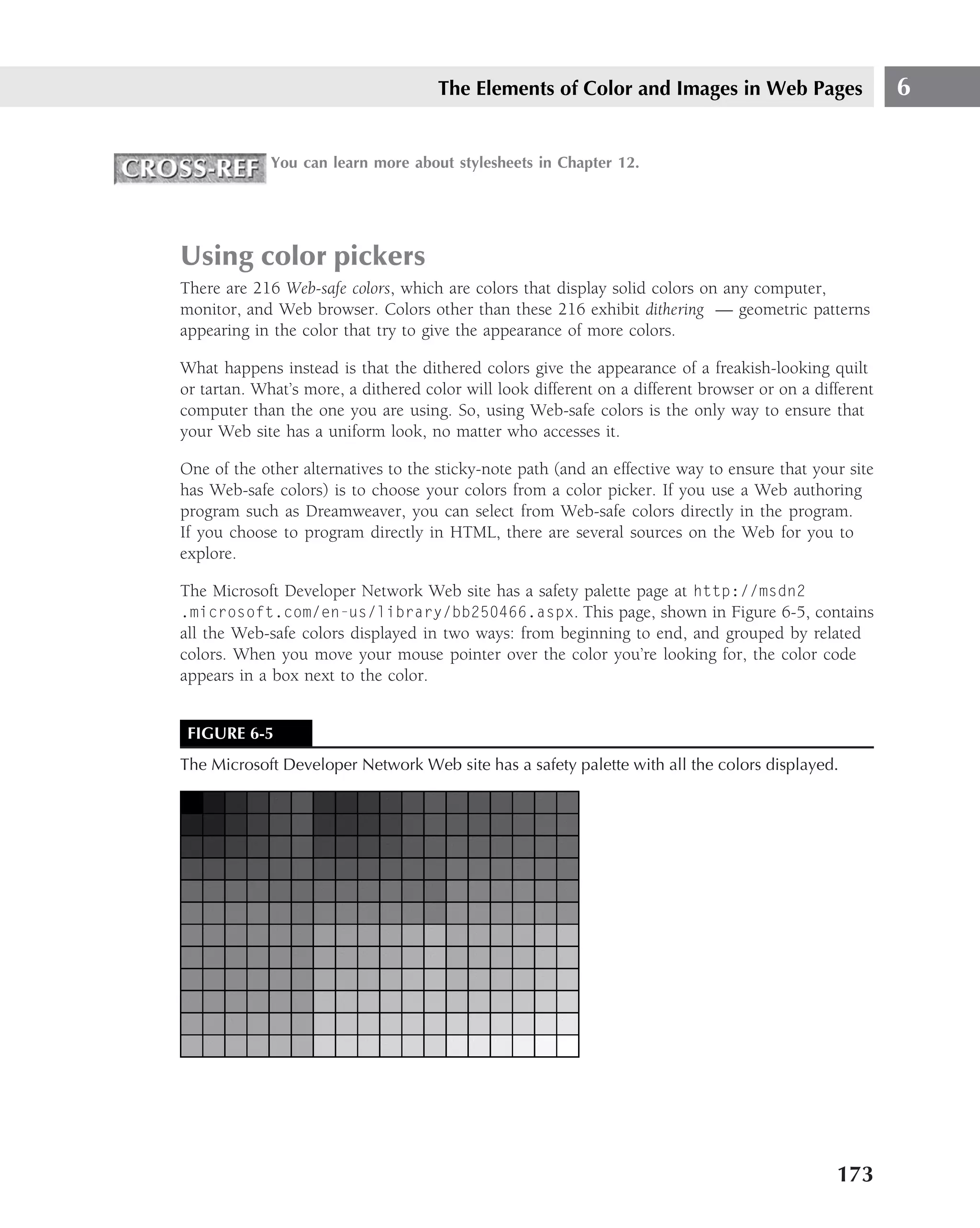
  • 422.
    Part IV Making It Look Professional Windows Media Video files can be imported and played in Adobe Premiere Pro 2.0. From Adobe CS3 Flash 9.0 Professional, support has been provided for MPEG 4, H.264 (video codecs), and HE-AAC and Real Audio (audio codecs). In other words, Flash supports .mwv and .mwa, though there is some trouble running .swf. Note, however, that H.264 does not provide support for alpha channel and does not have the capability to embed video into a .swf file. You can use imported bitmaps as a patterned fill for shapes you draw. Other uses for imported art include animating images by changing the size, shape, and orientation to simulate animation. You can use this technique with still photos to create the illusion of movement. Also, bitmaps and vector art often make good backgrounds for movies. Imported files are amazingly large, particularly for some movie types and PostScript files. They can easily climb into the double-digit megabyte range. Bitmaps also increase the file size of the authoring file (.fla) and the compiled Flash Player version (.swf). The file size and the browser downloading time are important to keep in mind when creating Flash movies, because large files force your visitors to wait forever until they see the movie. Obviously, waiting for many minutes to see your movie is not going to create a favorable attitude toward your Web site. PostScript is a standard language for defining images and print. In addition, PostScript files are vector graphics files that are scalable. They can be printed at various resolu- tions, according to the capabilities of the output device. Using the Library panel When you import images, they appear in the Library panel. You can access this panel by selecting Window → Library or Import to Library. The Library panel displays the names of all imported objects. Clicking a name in the list displays the object in the Library panel. Items listed in the Library panel can be reused in other scenes and even other movies. Modifying Objects You have seen how easily you can create objects on the Stage. You have also experimented a little with modifying them. But you are not limited to the oval and rectangular shapes in Flash. You can easily change the nature of the shape by using a click-and-drag routine. Stretching and distorting objects Clear the Stage and select the Oval tool to draw a new oval. Ensure that the object’s line or fill is not selected. Choose the Selection tool and bring it very close to the edge of the oval shape. Be careful not to select it. When you see a tiny arc symbol form below the pointer, you can click and drag to pull the shape outward or inward (see Figure 11-13). Practice pushing and pulling the edge of the shape until it becomes distorted and the shape changes. If the oval object moves its position instead of changing shape, you have accidentally selected it. Just select Undo from the Edit menu to return it to its original position. 386
  • 423.
    Adding Multimedia andOther Objects 11 FIGURE 11-13 You can change the oval object’s shape. When the Selection tool is touching a line, a right-angle symbol (it looks as if it’s a corner) or an arc symbol appears below the cursor. The angle means that if you drag the line at that point, it pulls into a straight angle, and the arc signifies that any manipulating gives the line a curve. Flash has a feature that becomes a little tricky when dealing with multiple objects. This is espe- cially true when it catches you by surprise. With your distorted oval object on the Stage, select the Oval tool again and draw a small oval shape partly on top of the original object; be sure that the new object overlaps the existing one. Now, use the Selection tool to select the new oval object. Double-click to verify that the fill and outline are both selected. When selected, click and drag the shape away from the original object. A hole is now revealed in the first oval shape, as shown in Figure 11-14. When objects come in contact with one another on the same Layer, they connect, causing the object on top to displace the covered portion of the bottom object. When you move the top object, the corresponding portion of the bottom object disappears as if it were displaced by the connection. 387
  • 424.
    Part IV Making It Look Professional FIGURE 11-14 You can change the old shape by moving the new one. Grouping objects To learn about this feature, clear the Stage. Select the Oval tool and draw a new oval shape. Select Modify → Group to create a group. Now, select the Oval tool again and select a new, contrasting fill color from the Color area of the Tools panel. Draw another oval shape overlapping the first one. Now, select the overlapping oval object and move it away from the original one. This time, the object remains unchanged. When grouping objects, those most recently grouped appear to be on top of the other objects. Scaling You can scale objects using the Free Transform tool. Select the Oval tool and draw a new oval shape. Select the Paint Bucket tool and select any color you like from the Fill Colors box (appear- ing below the Paint Bucket). Click inside the circle to color it. Choose the Selection tool and double-click the oval object to select both the line and fill. When both line and fill are selected, the fill appears in a crosshatched pattern and the line becomes darker and thicker. 388
  • 425.
    Adding Multimedia andOther Objects 11 FIGURE 11-15 You can scale the oval. Select the Scale modifier by clicking Modify → Transform → Paste. Small square tabs form around the oval object, as shown in Figure 11-15. Grab one of the corner tabs and drag toward the center of the object to make it smaller. The differences between bitmaps and vector images are illustrated and discussed in Chapter 2. You also can distort the object into an egg or oval shape by grabbing one of the middle tabs and dragging it toward the center. Rotating and skewing Rotating an object is similar to scaling it. Select the Free Transform tool and select the Rotate and Skew modifier in the Options area. Grab one of the corner tabs and drag in either clockwise or counterclockwise direction. The oval should now be upended, as shown in Figure 11-16. When you select the Free Transform tool, a small rectangular box appears just to the right and contains two options: Q and F. This is the Options area. If you want the Free Transform tool, select the Q option. Otherwise, if you want the Gradient Transform tool, select the F option. 389
  • 426.
    Part IV Making It Look Professional FIGURE 11-16 You can rotate the oval. Straightening and smoothing With the Selection tool, you can use the Straighten and Smooth modifiers in the Options area to modify shapes. Clear the Stage and select the Pencil tool. Draw a wavy line across the Stage. Choose the Selection tool and select the line you drew. Select the Straighten modifier in the Options area. Select the line and see if it changes. Now, select the Smooth modifier. Select the wavy line. How much difference you see in the shape of the line depends on the nature of the line drawn. Depending on how the line was drawn, the Smooth or Straighten modifier changes it more or less. As you can see, learning your way around Flash requires some experimentation. It is a good idea to experiment a lot before beginning serious projects. Using gradient fills So far, you have used solid colors for stroke and fill in the objects you created on the Stage, but there is a lot more you can do with color. You can select one of the premixed gradients by clicking the Fill color button (shown with the Paint Bucket icon) in the Color area. You also can select Window → Design Panels → Color Mixer to choose a fill type (solid, linear, or radial) and a fill color. At the bottom of the Fill color palette, you will see a selection of linear and radial gradient mixes. 390
  • 427.
    Adding Multimedia andOther Objects 11 A linear gradient shades in a straight line from the beginning to the end of the object being filled. A radial gradient shades in a circular pattern. Just a reminder that the same Icon tool can be used to create an oval or a rectangle Here’s how to add a gradient: 1. Clear the Stage and select the Rectangle tool to draw a square or rectangle. 2. If the Color Mixer panel is not showing, select Window → Design Panels → Color Mixer. 3. Select Radial gradient from the drop-down list box in the Color Mixer. 4. Select the rightmost pointer under the mixer bar, representing the outside of the rect- angle. Choose a color by clicking the Color area, setting the basis for the gradient. Now click the pointer on the far left. Select a different color from the palette. Move the point- ers displayed below the slider bar to change the color mix until you are satisfied with the gradient sample shown in the Gradient Preview box (see Figure 11-17). FIGURE 11-17 You can fill the rectangle with a gradient. 391
  • 428.
    Part IV Making It Look Professional Working with bitmap fills Not only can you fill objects with gradients and solid colors, you also can use bitmaps as fills. You can select a bitmap in the drop-down box on the Fill panel, where you just selected the Radial gradient. First, select the Rectangle tool and draw a rectangle on the Stage. Refer to Chapter 2 for additional information on bitmapped or raster graphics. Here’s how to add a bitmap fill: 1. Clear the Stage and select the Rectangle tool to draw a square or rectangle. 2. If the Color panel is not visible, select Window → Color. 3. Select Bitmap gradient from the drop-down list box in the Color Mixer. 4. In the Import to Library dialog box, navigate to the bitmap file you want to use, select it, and then click on the Open button to display the imported bitmap. 5. Select the Paint Bucket tool, and click inside the rectangle. It will be tiled with the bitmap (see Figure 11-18). FIGURE 11-18 You can fill an object with a bitmap pattern. 392
  • 429.
    Adding Multimedia andOther Objects 11 Working with Text It is easy to add text to your movies. You will find that you can transform text as simply as you can alter lines and shapes. Text is a great way to create stunning effects without creating a movie with a large overhead. Excellent examples of the uses of text in Flash movies can be found on the Internet. Some examples combine text and sound with no other graphics. Together, these create great effects. Adding text You add text using the Text tool on the Tools panel. Buttons and list boxes in the Property inspector enable you to select a font, a font size, tracking, kerning, and normal, superscript, and subscript, as well as the bold and italic styles and font color. Choosing fonts When you select a font and publish it with your movie, it will be exported with the Flash Player (.swf) file, so that font does not need to be installed on the user’s system. Device fonts shown at the top of the fonts list (sans serif, serif, typewriter) are not embedded in the exported Flash movie. Using a device font causes the movie to use the font on the user’s system that most closely resembles the selected device font. The purpose of using device fonts is to create a movie with a smaller file size because the font is not embedded in the .swf file. Any fonts that are purchased may not be allowed to be exported. A Web designer or developer should secure copyright and export permissions before deploying a font without distribution rights. You select a font from the list of fonts you have installed on your system. Sometimes the fonts are installed automatically when you install a new application, so you may not have used many of the fonts available to you. Windows and Mac users usually have many TrueType or PostScript fonts from which to choose. Fonts are available from the slider in sizes from 8 points to 120 points. But size is relative to the size of the Stage in your movie. If you really need bigger fonts, you can type numbers ranging from 0 to 2500 into the Font Size list box instead of using the slider. Setting font characteristics There are many ways to select a font. Enter the point size as 48 in the Property Properties sub- menu of the Window menu; click the down arrow to the right of the Font Size list box and use the slider to select a 48-point size, or simply click the Text icon on the Tools toolbar or Standard toolbar. Select a bright color and begin typing on the Stage. As you can see in Figure 11-19, 48 points doesn’t look very large when displayed on the default movie Stage. 393
  • 430.
    Part IV Making It Look Professional FIGURE 11-19 You can insert type on the Stage. In addition to font size and color, you can change the character spacing, also called kerning. An increase in the character spacing increases the space between letters. Use the Selection tool to select the text block just created. Select the down arrow on the Character Spacing list box, and use the slider to increase and decrease the value. Figure 11-20 shows the space between the letters when the character spacing value is increased to 18. Kerning controls the space between certain letters. In kerned text, differing amounts of space exist between letters, depending on the space the letter takes up. For example, in the preceding sentence, the space used by the letters t and a in the word takes is less than that used by the letters k and e. For the most part, kerning is not a major concern in Flash movies. You also can use the Selection tool and the Scale modifier to stretch the text block. With the text block selected, use the Selection tool and the Scale modifier, and drag one of the tabs formed on corners of the text block to enlarge or decrease the size. Drag a middle tab to scrunch or elongate the text. Dragging the middle tabs distorts the text, whereas dragging a corner tab maintains the aspect ratio while adjusting the size. 394
  • 431.
    Adding Multimedia andOther Objects 11 FIGURE 11-20 Adjust tracking to increase the spacing between characters. Creating text effects You can create some great effects using the Flash tools, including making pictures out of text by following these instructions: 1. Delete your text to clear the Stage. 2. Select the Text tool, click on the Stage, and type I LOVE on one line. 3. Click the mouse button on the Stage immediately below that text block to begin a new text block, and then type MY WIFE. 4. Select the I LOVE text block and select Modify → Break Apart to break apart the text block, as shown in Figure 11-21. This is necessary so that you can manipulate individual letters. Now you can change the shapes of each letter using the various transformation tools. 395
  • 432.
    Part IV Making It Look Professional FIGURE 11-21 Breaking apart the text block yields five text blocks instead of one. Working with Animation Timelines The Timeline is the basis for your Flash animation. The area above the Stage and immediately below the Scene title bar shows a ruler containing numbers incremented at regular intervals. The Timeline represents the time span of the movie. By using the Timeline, you can determine the sequence of your objects’ movements. You can animate the objects on the Stage by selecting different frames on the Timeline and changing the placement of objects. Using frames Each box directly below the numbers on the Timeline is a frame. A frame is a unit of time on the Timeline. For animation to appear, each successive frame must differ from the preceding one. If you ever created your own animated GIF movie frame by frame, you understand the amount of work involved. This is termed frame-by-frame animation, and it requires that you create a series of still images, each slightly different from the others, so that when these are viewed in succession, they appear to move. In fact, a motion picture is really a lot of frames (still photos) displayed in rapid succession. Using the Timeline, you can automate this process so that you do not need to create a specific action for each individual frame. 396
  • 433.
    Adding Multimedia andOther Objects 11 Assigning keyframes Keyframes are those frames you use to identify events. Each keyframe marks a change in objects on the Stage. You can simplify animation by placing keyframes at strategic points along the Time- line. To create a keyframe, right-click a frame somewhere on the Timeline, and select Insert → Keyframe from the shortcut menu. A black dot appears in that frame to signify it is a keyframe. Adding Layers Each layer has its own Timeline. Layers are important because they enable you to separate objects in the same scene. When the objects are on different layers, you do not have to worry about object interaction as you did in the shape exercise earlier in this chapter. That is, when objects are on different layers, they cannot affect one another. You add new layers by clicking Insert Layer button at the bottom left of the Timeline area, above the Scene title bar. You may also right-click a layer name and select Insert Layer from the context menu. Clear the Stage to begin a new movie. Double-click the layer name (Layer 1), and rename it to Background. Naming the layers according to their functions is helpful. Click the Insert Layer button in the lower-left corner of the layer area to add a new layer. Double-click the new layer and rename it Action. You now have two layers and two Timelines, as shown in Figure 11-22. FIGURE 11-22 You can add and name a new layer. 397
  • 434.
    Part IV Making It Look Professional FIGURE 11-23 You can add an object to the layer. Adding objects to the Layers To add content to your document, you need to add objects to the Stage. It is important to identify the layer on which you are adding the objects. The active layer is the one you currently have selected. Select the Action layer and draw an oval shape near the top of the Stage. Use the Paint Bucket tool to select a light green fill. Click inside the oval to color it green (shown as a gray shade in Figure 11-23). This is a good time to save your movie. Select File → Save As and name the movie Test2. Type the name in the File name box, and check the Save box to ensure that you are saving it in the correct folder. If you want to change the folder, click the down arrow next to the Save in box to show all the folders on your system. You can move up one level by clicking the folder icon with the up arrow symbol. Converting objects to symbols Symbols can be reused in different scenes and also in different movies. When your project requires a number of similar objects, one symbol can be slightly changed several times to create different instances of the symbol. Each copy of a symbol is referred to as an instance. 398
  • 435.
    Adding Multimedia andOther Objects 11 In addition to saving time, converting an object to a symbol prevents accidental deletion or dis- tortion. Once converted, symbols also appear in the Library panel and in the Library list. You can click and drag symbols from the Library panel onto the Stage as needed. Actions carried out on a symbol also affect all instances of a symbol. Select the oval shape you just drew and select Insert → New Symbol. When the Create New Symbol window pops up, rename the symbol to GreenOval and click OK. Select Window → Library to verify that the symbol appears on the Library list. Creating animation Although you can change objects that have not been converted to symbols, you will find symbols in frames on a Timeline much easier to manage than simple objects. The first keyframe on a Timeline is always created for you when the layer is added. To make the green oval object appear to move and, at the same time, change color, follow these steps: 1. Right-click the 15th frame on the Action layer Timeline, and select Insert → Keyframe from the shortcut menu. Be sure that you have the correct layer selected before changing the action or attributes of objects or symbols. It is very easy to select the wrong layer, so check to see that the desired layer is highlighted. 2. Drag the oval downward to the center of the Stage. 3. Select a bright pink color in the Property inspector. 4. Play the movie by selecting Control → Play. Be sure the first frame is selected, or you will need to select Control → Rewind then Control → Play. When the movie plays, the oval stays put until the 15th frame, in which it jumps to the new position and changes color (see Figure 11-24). Now, this may not seem astonishing, but it is animation. If you want to change the action frame by frame, you could just move the oval in short increments by adding keyframes to every frame between 1 and 15. However, there is a much better and easier solution. Tweening action The solution to automating animation is called tweening. You can have your oval float gracefully down to center stage and change color gradually by tweening the action: 1. Select the first frame on the Action layer Timeline. 2. Choose Insert → Timeline → Create Motion Tween. An arrow forms on the Timeline between the first and the 15th keyframe. This signifies motion. In this case, the symbol is moving through space and changing color simultane- ously. Both events involve motion tweening. 399
  • 436.
    Part IV Making It Look Professional 3. Play the movie by selecting Control → Play. The action should be significantly better than the abrupt change experienced before the action was tweened. 4. You needn’t stop with one tweened action. You can extend the action by adding a keyframe to the 40th frame. Right-click the 40th frame of the Action layer and select Insert → Keyframe from the shortcut menu. 5. With the 40th frame selected, drag the oval to the far right of the Stage. 6. Choose a bright blue from the Property inspector. 7. With the 15th frame selected, choose Insert → Timeline → Create Motion Tween. 8. With the first frame selected, use Control → Play to view the movie. The movie should be decidedly better than the last change you made. Now the oval changes colors and moves in different directions, and for a longer time span (see Figure 11-25). Creating more Layer effects Now that you have something going on for the Action layer, you can turn your attention to the Background layer. The movement and color shift of the oval can be more interesting if you create an interesting background. FIGURE 11-24 You can add a new keyframe to the Action layer Timeline. 400
  • 437.
    Adding Multimedia andOther Objects 11 FIGURE 11-25 A new effect is introduced when you play the tweened movie. To make a simple background, select View → Zoom Out to view the entire Stage. Select the first frame on the Background layer. Then, select the Rectangle tool to draw a rectangle around the area of the Stage where the action takes place. You can then select a fill color and use the Paint Bucket to fill the rectangle with a color or gradient. Add a keyframe to the 40th frame directly below the keyframe for the Action layer. Play the movie, using Control → Play. The oval show now floats over a backdrop, as shown in Figure 11-26. To prevent making unwanted changes to layers, you can lock layers you are not working on. Click the dot in the column headed by a padlock symbol on the layer you want to lock. You can add more features to the background if you want. Click the dot in the column headed by the eye symbol on the Action layer. This removes the oval object from view, which is handy when you want to remove the distraction of objects that you are not currently working on. 1. Select View → Zoom In to zoom back into the Stage. 2. With the first frame in the Background layer selected, draw several shapes around the Stage. 3. Play the movie. Now, the oval action plays on a more interesting backdrop, as shown in Figure 11-27. 401
  • 438.
    Part IV Making It Look Professional FIGURE 11-26 You can view the added background. Using sound As discussed earlier, you can import several types of sound files into Flash movies, including the Windows Wave (.wav) format, the Macintosh AIFF format, and QuickTime 7.5 format, as well as HE-AAC and Real Audio codecs. The MP3 format is supported by both platforms. Though AAC (MPEG-4 Audio) is smaller, as is WMA, and both have higher perceptive quality at lower bit rates, the MP3 format is still considered the standard compression format, and so is most often used in Flash movies. Sound adds a great deal to Flash movies, as you experience from Web site introductions on the Web. Many Web sites use text and sound without graphics. Presumably, the combination of sound and text has a greater presence than text and graphics. The tradeoff in the form of a smaller file size caused by the absence of graphics probably influences the decision not to include them. 402
  • 439.
    Adding Multimedia andOther Objects 11 FIGURE 11-27 You can now play the completed movie with an interesting background. Importing sound files is as easy as selecting File → Import → Import to Library. Once imported, the sound files appear in the Library list. When selected, the wave forms of the sound files display in the Library window, as shown at the bottom of Figure 11-28. To incorporate the sound in your movie, select the layer and keyframe with which you want the sound associated. Drag the sound file from the Library onto the Stage. The sound begins playing when the associated keyframe is displayed and continues playing until the sound is complete. Adding MP3 sound Because MP3 sound is a highly desirable format to use in Flash movies, you must have a way of converting other file formats to MP3. You will also be able to download sound files from the Web that are already in MP3 format. To find file downloads, you can simply perform a search for ‘‘sound files’’ to get a list of potential sites. When you are learning, the actual sound effect is not important because you are just practicing using it in Flash. 403
  • 440.
    Part IV Making It Look Professional FIGURE 11-28 Wave forms are displayed in the Library window. If you have a number of Windows .wav files, you can use a sound-conversion program to convert them to MP3. These programs are available in trial versions on the Web. They can also be pur- chased in any software store. There are many different sound editing and conversion programs. Most of them will do well, but be sure the product’s documentation indicates that it converts your existing sound format into MP3. Flash can compress MP3s. Synchronizing sound and action To synchronize sound with events, select Event from the Sync list box in the Property inspector. The list box also includes a Stream option that can save loading time on the Web. Instead of waiting for the entire sound file to download before playing the movie, you can stream the sound, meaning that the sound begins playing almost immediately while continuing to download the rest of the file. Streaming the sound causes Flash to synchronize the sound and animation. If you stream sound, you should not enter a value in the Sound Panel Loops list box, because this lengthens the movie beyond the frames you select. 404
  • 441.
    Adding Multimedia andOther Objects 11 FIGURE 11-29 You can recompress an MP3 file from the Sound Properties dialog box. However, you must compress (or recompress) MP3 files before publishing your movie. One advantage of using a Wave file instead of an MP3 file is that the Wave file exports without recom- pression when the movie is published. To recompress the MP3 file, right-click the sound file in the Library panel and select Properties from the shortcut menu. In the Sound Properties Dialog box, select MP3 compression from the Compression list box, as shown in Figure 11-29, then click OK. Using Advanced Techniques Once you have tried and mastered the basic skills outlined in this chapter, you are ready to learn some more advanced techniques. It is not essential that you program in ActionScript (the built-in object-oriented programming language) in order to create great Flash movies. However, there are some projects that require these more advanced skills. 405
  • 442.
    Part IV Making It Look Professional Programming with ActionScript ActionScript is an object-oriented, scripting language similar to other object languages such as JavaScript and Visual Basic. You can build applications in Flash that interact with the user. Using ActionScript, you can create scripts that respond to a mouse click by displaying a Web site or playing a Flash movie. You can use this powerful tool in the Normal or Expert mode. Adding actions Using the Normal mode (Window → Development Panels → Actions) provides you with a selec- tion of preset scripts. Clicking the right arrow in the upper right-hand corner of the Actions panel displays a list of options, including the Normal or Expert setting for your ActionScript task. You can choose from options on the Toolbox list, and Flash creates the ActionScript code for you. However, you can edit the code if you want. Using Expert mode, you are required to type code in the text box on the right side of the Action panel. Basic actions provide a list of built-in actions, and when selected, generate the boilerplate code displayed in the text box. The basic actions for which Flash generates the code are shown in Table 11-8. TABLE 11-8 Basic Actions in ActionScript Action Panel Action Description Go To Goes to a frame or scene. Play Plays a movie. Stop Stops a movie playing. Toggle High Quality Adjusts the quality of the movie. Stop All Sounds Stops all sounds playing. Get URL Displays a URL in a browser. FSCommand Controls Flash Player. Load Movie Loads and plays a movie from local drive or URL. Unload Movie Unloads a loaded movie. Tell Target Specify path and control movies. If Frame Is Loaded Specifies actions taken if a particular frame is loaded. On Mouse Event Identifies actions taken when specified mouse event occurs. 406
  • 443.
    Adding Multimedia andOther Objects 11 Once you have begun using ActionScript, you may find that you need to troubleshoot some errors in running the scripts. The script debugger can be launched from Window → Debugger. To debug a movie in Test Movie mode, you select Control → Debug Movie. Exporting and Publishing Movies Exporting is different from publishing. Exporting means that you convert your movie (or a frame from it) to a file format other than Flash. Exporting into some formats will not include the sound files in the exported movie. Publishing converts your Flash movie to the Flash Player format. In a sense, it is compiled. All files incorporated into your movie (such as bitmaps and sound) are combined into the Flash Player file. Exporting movies You can export your movies just as you imported images into them. Why would you want to export a movie? There are at least two reasons. First, you might want to export a still image from one of the movie’s frames to use in an advertisement or a promotion. Second, you could export your movie to be played in a different player than Flash Player. Flash exports both still image and animated formats. Images from your movies can be exported as bitmap and vector graphic files. Following are some of the specific formats Flash exports: ■ Bitmap graphic — JPEG, GIF, PNG, BMP, PCD, PICT, PCX, or TIFF ■ Vector graphic — AI, CDR, CMX, CGM, DXF, WMF, EPS, SVG, or SWF When you export an image in your movie as an .swf file (which is the same format as the Flash movie file), the result is a still image of the first frame of the movie. Mac users cannot use files exported from Windows in the Windows Metafile format. If you are a Mac user exporting to a Windows user, you can export in nearly any format because most image-editing programs (such as PhotoShop and PhotoPaint) can import the Mac PICT format. Open the Test2.fla file that you saved previously. Select File → Export Image. In the Export Image dialog box, select JPEG Image (*.jpg) from the ‘‘Save as type’’ dialog box. Type test in the ‘‘File name’’ box and click the Save button. The Test2.jpg file will contain the frame displayed on the Stage at the time it was exported. You can export movies in movie (animated) formats just as easily as you can export still images. There are some additional consequences you need to be aware of when you export movies. When you export a movie from Flash instead of publishing it as a Flash Player file, it is going to be because you expect your recipients to play it using software other than Flash. Exporting in different formats yields different results. Export the file in two or three formats, and if you have more than one movie player, you can open it in each player and compare the results. 407
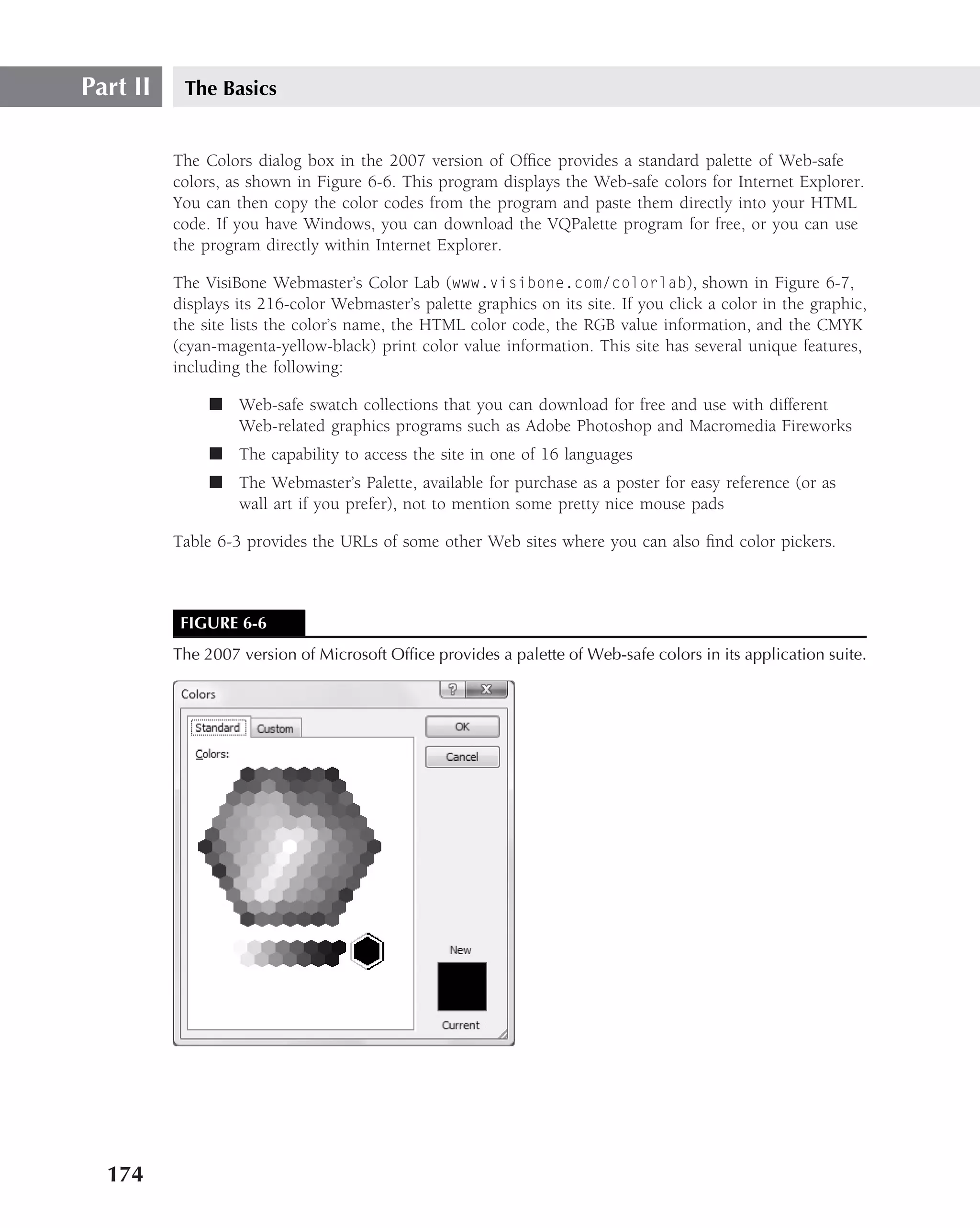
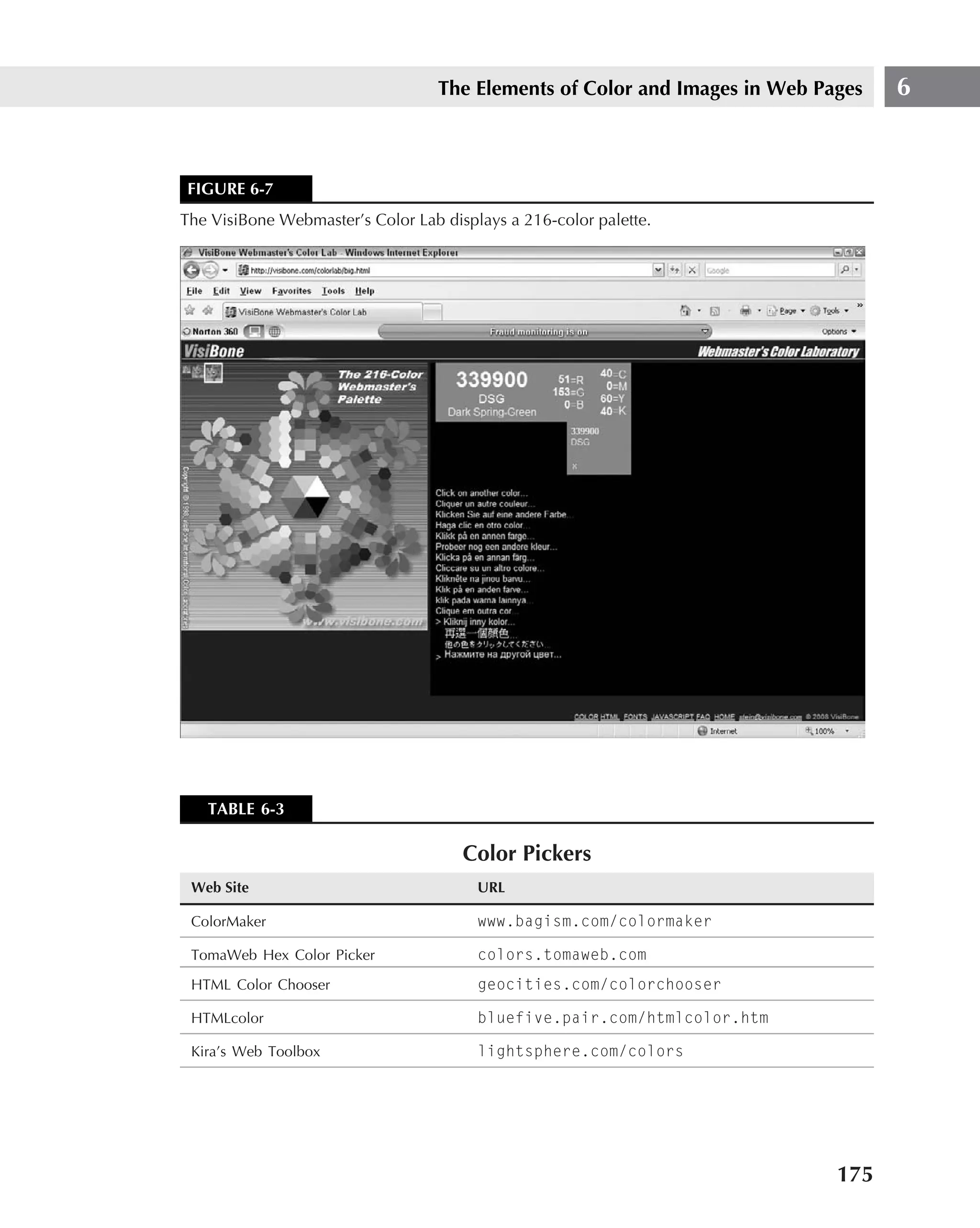
  • 444.
    Part IV Making It Look Professional For example, most Windows users have Windows Media Player because it is distributed with Windows. Mac users are likely to have QuickTime because it is an Apple product. Many player programs for the Windows or Macintosh platform can be downloaded for free from the Internet. Windows Media Player is available at www.microsoft.com and is usually included with the operating system, QuickTime can be found at www.apple.com/ quicktime, and RealPlayer has a free basic player at www.real.com. Among so many formats, how do you know which is best? The answer is that you select the best export format based on the player that will be used to play the movie. The Windows Media Player plays MPEG, MP3, MPEG-4, MPG, MP2, AVI, and WMV files. RealPlayer plays MPEG, MPG, MP2, MP3, and MPV formats. QuickTime plays MPEG, MP3, MPEG-4, MOV (QuickTime movies), and AVI formats, among others, including Flash! To determine which file format to use in exporting a movie, it is best to experiment by exporting and playing the files to test them in the selected player on the platform you intend to use. The Flash Player format works well across the Windows and Macintosh platforms. If possible, it is best to publish (in the Flash Player format) rather than export the movie. A further consideration in movie file exporting is the file size. Some files may be extremely large. For example, movies exported in the AVI format and also in Encapsulated PostScript (EPS) tend to be very large. A Flash movie that is less than 1MB when saved in the FLA format may be over 20MB when exported as an AVI file. Such a large file size will not work on the Web. Select File → Export → Export Movie. In the Export Movie dialog box, select the Windows AVI under ‘‘Save as type.’’ Name the file Test2.avi. Accept the defaults in the Export Windows AVI dialog box, and click OK to save. Start QuickTime, Windows Media Player, or RealPlayer. Any of them should be able to play your exported movie. If you have old versions of these programs, you can download the cur- rent version of each player from the Internet at www.microsoft.com, www.apple.com, or www.real.com. Next, launch Windows Explorer or use the Macintosh Finder to locate the Test2.avi and the Test2.fla files to compare. The AVI file is probably over 2MB, while the Flash movie file can be well under 100KB. Clearly, you would want to be selective about the movies you export. Publishing movies When you publish your movie, all the images, sounds, and symbols that you added to the movie are compiled into the Flash Player file. A Flash Player movie (.swf) is the compiled version of the Flash authoring (.fla) file. There is no need to copy all of these files to your Web site. Flash 408
  • 445.
    Adding Multimedia andOther Objects 11 FIGURE 11-30 You can set the file formats in the Publish Settings window. takes care of that when the movie is published. You can also select a number of different settings for your published movie. Select File → Publish Settings to view the Publish Settings window. Select the Formats tab. The file types Flash (.swf) and HTML (.html), are selected by default, as shown in Figure 11-30. You also have the option to create other files during publishing. If you create a Windows Projec- tor file, it can be executed by double-clicking the filename. Select the Flash tab (see Figure 11-31). You can determine the load order (the order in which objects load from bottom up or from top down). You also can generate a size report to show the resources used by each element in the movie. You can protect your product from import online. You can choose to permit or not permit debugging. You can use the JPEG Quality slider bar to adjust the bitmap quality. If you are streaming audio, you can modify these settings. You also can publish in previous versions of Flash. 409
  • 446.
    Part IV Making It Look Professional FIGURE 11-31 You can view the Flash tab in the Publish Settings window. The HTML tab (see Figure 11-32) affects the HTML file (Test2.html) settings. You can deter- mine the template to use, the movie dimensions, the Playback options, and whether Flash Player will display a menu. If you are playing the movie as part of a Web site, you probably won’t want a menu showing at the top of the action. You can modify the settings and play back the movie in Flash Player to experiment with the different effects. Click the Publish button, and then click OK. Locate your Test2.swf file on your system and double-click to play it in Flash Player. Does the movie play as it did when you selected Control → Play or Control → Test Movie? If you use a Web Publishing application such as Adobe Dreamweaver, you can use it to publish your new Web page containing the Flash movie. Dreamweaver automatically creates the HTML 410
  • 447.
    Adding Multimedia andOther Objects 11 FIGURE 11-32 You can modify the HTML Publish Settings. code for your Flash Player movie. You also can use any Word processor as an HTML editor, provided that it has an option to save the file in HTML format. The Test2.html file generated by Flash can be used just as it is by adding the page to an existing Web site. If you have FTP access, you can upload the .swf file directly to the Web site. Usually you have FTP access if you have your own domain name. FTP (File Transfer Protocol) provides access to file uploading and downloading. 411
  • 448.
    Part IV Making It Look Professional FIGURE 11-33 You can view the Test2.html file in Notepad. When you publish your movie, the Test2.swf file is created by default as an HTML file (Test2.html) that handles the HTML code on your Web page. The HTML code is generated for you to copy and paste into the Web page where you want the movie to play (see Figure 11-33). The HTML code can be tailored to specific needs according to the settings you select. When you use Windows Notepad or any text editor to view the Test2.html file generated by Flash, you will see that an entire Web page has been generated for you. If you already have a Web page, edit it by selecting the lines that are placed between the HTML BODY tags. Select the lines between the HTML tags, <BODY> and </BODY>. Copy these tags and paste them into the HTML code on your Web page as shown. Be sure to paste the code within the BODY element. 412
  • 449.
    Adding Multimedia andOther Objects 11 Tips for optimizing your movies There are several things to keep in mind when designing your movies in order to make them run better: ■ Convert all reusable objects to symbols. ■ Tween animations. ■ Don’t animate bitmaps. ■ Don’t embed large font files. ■ Use small sound files, get looped music from sites such as Flashkit.com. ■ Use small bitmaps. ■ Use vector (WMF) instead of bitmap (GIF, JPG, and so forth) graphics. Some of these options can be managed by the File → Publish options, and some by what you import into the movie. Using the previous suggestions, you can make any necessary modifications to reduce the download time and system requirements. Also, when you design and create new movies, you can keep the memory and connection speed factors in mind. Summary Multimedia — basically, the addition of audio and video to your Web pages — is the secret of lots of the glitz and splash of Web sites. Adobe Flash is the program of choice for most Web designers when it comes to creating Web animations. In this chapter, you learned that sound can be added to your Web page as an optional feature — just a link like any other link. The EMBED element can be used to add sound to any Web page regardless of which Web browser is used to access it. The volume you set for a Web page is a percentage of the normal volume your visitors have set for their own speakers. Professional musicians are waiting to provide you with the small amounts of music you need at worthwhile prices. Alternatively, prewritten music may suit your needs. You also learned that video can be added in almost the same manner as audio. Flash movies are made up of scenes. Each scene contains a Stage, Layers, and Timelines. Objects can either be created within Flash or imported into it. Animation is created by assigning events to keyframes. Chapter 12 introduces you to the features and functions of Cascading Style Sheets. 413
  • 451.
    Styling Web Pageswith Cascading Style Sheets C ascading style sheets (CSS) have the potential to provide Web page designers with a fabulous degree of control over the appearance IN THIS CHAPTER and functionality of their sites. Using CSS, you can specify the Testing your browser styles used in HTML pages for a whole Web site, per page, or for each tag. This allows the designer to separate the content from the presentation — a Coping with browser support good idea when it comes to making changes in a 1,000-page Web site. issues All of the formatting instructions in HTML have been Cascading priorities deprecated in favor of their CSS equivalents. Redefining HTML elements Using CSS, you can reduce the size of your HTML files, which in turn reduces the download time, improving user satisfaction because the page Assigning classes downloads faster. It also reduces the disk space used on both server and Using IDs client machines, and lessens the load on the server and network. All of this means that your Web site can support more users. Defining nested elements with contextual selectors What if you don’t use CSS? Several well-known office applications create HTML files that don’t use CSS. However, the same files with CSS can be Consulting the CSS reference reduced by half or more of their original size, and so will download two to Using stylesheet-creation three times faster (but the images won’t). However, there are drawbacks. programs First, the CSS specifications are large and complex. Second, the browser Interesting CSS sites doesn’t give any error messages if there are errors in the stylesheet. And third, while all modern browsers support CSS, there are sometimes minor Adding layers formatting differences, which may, on occasion, cause unexpected results. Clipping layer content This chapter provides a general overview of how CSS works within a Web Handling large elements with page and across a Web site. This chapter also discusses the uses of the overflow attributes ‹div› and ‹span› tags in relation to formatting Web page segments. 415
  • 452.
    Part IV Making It Look Professional Subsequent chapters explore specific implementations of these principles and how you can exploit them to your best advantage. Testing Your Browser The World Wide Web Consortium (W3C) has an online test suite through which you can see how well the browser you’re using handles selected CSS properties. The test suite is located at www.w3.org/Style/CSS/Test. There are three different CSS specifications, CSS1, CSS2, and CSS2 revision 1, all of which are simultaneously in effect. CSS1 was issued way back in the dim mists of Web history (1996) and CSS2 came out in 1998. CSS1 was then revised in 1999. That’s right — not CSS2, but CSS1, the year after CSS2 came out. And work is underway on CSS3. It’s enough to make you wish you were back in the days when people used sticks to scratch messages on clay tablets. But this is the crazy world that Web designers have to cope with today. Following are the locations of the official Web sites for the three CSS specifications: ■ CSS1: www.w3.org/TR/REC-CSS1 ■ CSS2: www.w3.org/TR/REC-CSS2 ■ CSS2: revision 1 www.w3.org/TR/2004/CR-CSS21-20040225 CSS3 is the latest spec in the works. For more information on CSS, go to www.w3.org/Style/CSS/current-work. Coping with Browser Support Issues New browser versions (both major and minor) come out at such odd and unpredictable intervals that it is impossible for any book to keep fully up to date with them. Although we will document the current state of browser support for the CSS properties covered in this chapter, you need to be aware that this could all change at any time. Tomorrow, Microsoft, Apple, and Opera, all could fully implement every feature of CSS1 or CSS2 (or the nascent CSS3), and the developers could implement a crash program to have the new browser finished in a month. It’s just as possible that they might ignore CSS2 entirely and go straight into adding support for CSS3, as tentative as that proposal is right now. Or, perhaps some of them will ignore the CSS support problem entirely and even introduce bugs in their latest versions that invalidate earlier CSS functionality. Stranger things have been known to happen. So, how do you, as a conscientious Web designer, know what’s going on now? The answer, as you’ve probably guessed, is on the Web itself. There are several Web sites that keep track of browser version issues, including the state of their CSS support. Table 12-1 lists some sites where you can get the latest news. 416
  • 453.
    Styling Web Pageswith Cascading Style Sheets 12 TABLE 12-1 CSS Support Information Sites Web Site Address QuirksMode www.quirksmode.org/home.html The Developer Archive www.dev-archive.net Index DOT Css www.blooberry.com/indexdot/css HTML Dog www.htmldog.com/guides/cssadvanced RichInStyle.com www.richinstyle.com/bugs Alsacreations Tutorials.alsacreations.com Cascading Priorities Cascading Style Sheets are called that for a good, solid reason. There are four different levels at which styles can be applied. An element can have its own style using the style attribute, a Web page can have a global style that is controlled by an embedded stylesheet created with the STYLE element, the styles on the same page can also be controlled by an external stylesheet that is linked to that page, and the user can specify his or her own stylesheet in the browser. With four different ways of styling the same element, the possibilities for conflict are practically endless. So, how could the designers of CSS manage to leave as much flexibility as possible for Web designers, yet still manage to handle the inevitable conflicts? The solution for this was to establish a set of priorities. The lowest-level style setting — an individual element’s style attribute — has the highest priority, and it will override any conflicting setting in both the STYLE element in its containing Web page and any linked stylesheet. The STYLE element in a Web page similarly overrides any conflict created by an external stylesheet that it’s linked to. The external stylesheet has the lowest priority of all, and any time it creates a conflict, it loses out. This prioritization system is seen as a sort of multilevel waterfall effect, and thus the term cascading came into use to describe it. Going inline with the style attribute The simplest way to set the style for an individual element is via its style attribute. For example, if you wanted to make a particular H1 element turn magenta instead of its default black, you could use the following code: ‹H1 style="color: magenta"›Everything in this heading is magenta-colored.‹/H1› 417
  • 454.
    Part IV Making It Look Professional Look at the syntax involved in an inline style statement: style="property:value; property:value;". Notice that property value pairs use colons to relate to each other, and that each property:value pair is separated by a semicolon. In HTML, the relationship is established by the equals sign (=), and quotation marks around the property value are frequently optional (depending on browser version, naturally). The semicolon is optional if only one Style element is used. This example sets the CSS color property to a value of magenta. If you want to set more than one CSS property, simply separate them with a semicolon (this is known as grouping the properties). The following example expands on the earlier one by also changing the H1 element so that it also uses a Helvetica or Arial font: ‹H1 style="font-family: Helivetica, Arial, sans-serif; color: magenta"›Everything in this heading is magenta-colored and uses a Helvetica font.‹/H1› Embedding with the ‹style› tag Setting a CSS property for one element is child’s play compared with the kind of power that CSS was meant to supply. After all, there are already native capabilities in plain old HTML that enable you to do many of the things that CSS can do — for each individual element, that is. Creating an embedded stylesheet (one that controls the whole Web page), however, gives you quite a bit more power. The ‹style› tag enables you to establish a broader impact. For example, you could set the CSS properties for every H1 element at once, instead of having to set each one, one at a time. You can save yourself an awful lot of work by just making one global setting like this: ‹HEAD› ‹STYLE› H1 { color: magenta } ‹/STYLE› ‹/HEAD› The ‹STYLE› tag has to go within the HEAD section of the HTML document. The syntax is very similar to that used in the style attribute, but there is a slightly different approach, and you have to be careful to get it just right. Between the ‹STYLE› and ‹/STYLE› tags, the name of the element to be styled comes first (H1, in this case). In CSS, it is called the selector. Next comes the opening curly bracket ({), then the name of the CSS property (color, in this case). The property name is separated from the value of the property (magenta, here) by a colon (:). Finally, you must close the style declaration with a closing curly bracket (}). Leave out any one of those items and the whole thing won’t work. Never treat the selector as a tag instead of an element. In other words, you cannot put angle brackets ‹› around a selector. If you used ‹H1› instead of plain H1 as the selector, no Web browser in the world would forgive the mistake. 418
  • 455.
    Styling Web Pageswith Cascading Style Sheets 12 You can set multiple global CSS properties simultaneously, just as you can with the style attribute for individual elements. With the ‹STYLE› tag, however, it’s customary to put each property on a separate line. This is not a requirement, but it does make it a lot easier to read and understand the HTML code. ‹HEAD› ‹STYLE› H1 { font-family: helvetica; color: magenta } ‹/STYLE› ‹/HEAD› Linking external stylesheets External stylesheets follow the same syntax as an embedded stylesheet, with one exception. There is no ‹STYLE› tag involved because an external stylesheet simply isn’t a Web page, so it doesn’t use any HTML. Instead, it’s a CSS file, and it ends in a .css extension. The function of a CSS file is to provide information on how the various elements on a Web page should be styled. A portion of an external stylesheet might look like this: H1 { font-size: 1in; margin-left: .5in } H2 { font-size: .75in; margin-left: .5in } H3 { font-size: .5in; margin-left: .5in } This segment specifies the size of H1 elements as 1 inch high, H2 elements as 3/4 of an inch high, and H3 elements as 1/2 inch high; it also sets all of them 1/2 inch away from the left border of the Web page. If the CSS file that held these declarations were called site xt sheet.css, it would be attached to a Web page by the following code: ‹HEAD› ‹LINK rel="stylesheet" href="site_x_sheet.css" type="text/css"› ‹/HEAD› 419
  • 456.
    Part IV Making It Look Professional Just like the ‹style› tag, the ‹link› tag has to go into the ‹HEAD› section of an HTML document (that is, the Web page). The best and highest use of stylesheets comes when the look of an entire Web site is established and controlled by a single external stylesheet. We once had a site with hundreds of pages and got tired of the look after a while, so we began to experiment a bit. We finally settled on a new appearance that we liked better and, in those days before stylesheets, we had to recode each one of the affected elements on every single page by hand. If we had been able to use a single stylesheet linked to each Web page in the entire site, all we would have had to do would be to make a few changes in that one CSS file, and the look of hundreds of Web pages would have changed instantly. You can also link more than one CSS file to a single Web page, just by stacking ‹link› tags like this: ‹HEAD› ‹LINK rel="stylesheet" href="site_a_sheet.css"› ‹LINK rel="stylesheet" href="site_b_sheet.css"› ‹LINK rel="stylesheet" href="site_c_sheet.css"› ‹LINK rel="stylesheet" href="site_d_sheet.css"› ‹/HEAD› This is simple to do, although it does have the potential to tremendously complicate things. It’s not a problem for a Web browser because the rules for cascading in this case are about as easy as they can get — whichever stylesheet is linked first has priority over any that come after it. The problem is that, if you have many conflicting declarations in the multiple CSS files, you may not be able to figure out what the results will be until you see them on screen. And they may not at all be what you had in mind. You can also import a stylesheet, as shown here: @import url(style.css); body { background-image: url(sky.png);} In this case, the imported stylesheet has less priority than the stylesheet that includes it. Redefining HTML Elements The most potent way to use CSS is to redefine how an HTML element works — not an individual instance of that element, but all occurrences of it throughout an entire web site. You can, for example, make all P elements have purple text. We’re not sure why you’d want to, but you can do it. Or, you could make every H3 centered. Or, you could make all images invisible. CSS gives you the power, but, like all power, it’s open to either constructive use or unfettered abuse. Note, however, that the most common uses for CSS are setting the fonts and link colors on a page. 420
  • 457.
    Styling Web Pageswith Cascading Style Sheets 12 You may want to assign a Helvetica-style font to all your heading elements, for example. Most Web designers have done this for eons, but they had to deal with it on an individual basis, heading by heading. This is a clearly constructive use of the power of CSS. Deliberately setting all P elements a certain distance from the edges of the screen would be another good example of constructive use. You could, however, just as easily make all the tables on your pages use dingbat fonts — delib- erately or otherwise. Take care when using redefinition of elements to ensure that you are, indeed, getting the exact effect you want, because doing so causes a sweeping and possibly overpowering change all across every page that’s affected by the style. With these cautions in mind, here’s an example of how element redefinition works in CSS: ‹HTML› ‹HEAD› ‹STYLE› P {color: purple} ‹/STYLE› ‹/HEAD› ‹BODY› ‹H1›This text is black.‹/H1› ‹P›This text is purple.‹/P› ‹/BODY› ‹/HTML› Assigning Classes Classes are a wonderful balancing act between the unfettered power of element selectors and the old style of doing things in plain HTML. They avoid the sweeping changes dictated by redefining entire tags, and enable you to limit the impact of a CSS property declaration to specified elements on your Web page. To assign a class and apply it to different elements on your Web pages, two things are necessary: the declaration of the class in the STYLE section in the HEAD of the Web page (or in an external stylesheet) and the addition of a class attribute to the elements you want to alter. The following example code shows how it’s done: ‹HTML› ‹HEAD› ‹STYLE› .helv16 {font-family: Arial, Helvetica, sans-serif; font-size: 16px} .mustardcolor {color: #FFCC00} ‹/STYLE› ‹/HEAD› 421
  • 458.
    Part IV Making It Look Professional ‹BODY› ‹p class="helv16"›This is an example of class 1.‹/p› ‹p class="mustardcolor"›This is an example of class 2.‹/p› ‹/BODY› ‹/HTML› The class declaration must be preceded by a period (.), but the period is not used in setting the class attribute. The first class declaration (helv16) sets the font to a Helvetica font, 16 pixels in height. The second class declaration (mustardcolor) sets the font to a mustard yellow color, but affects it in no other way. Using IDs While ID selectors aren’t as useful or powerful, generally speaking, as redefining an HTML element or assigning a class, they do have a place. At first glance, this seems a pretty limited capability, however. Why? Because an ID selector is usable only with a particular, individual element — not all instances of an element, but an individual use of it. For example, the follow- ing code creates an ID selector and then applies it by assigning an id attribute to one item on the Web page: ‹HTML› ‹HEAD› ‹STYLE› #truegreen {color: #00FF00} ‹/STYLE› ‹/HEAD› ‹BODY› ‹p id="truegreen"›This is an example of id assignment.‹/p› ‹/BODY› ‹/HTML› The ID declaration must be preceded by a hash mark (#), but the hash mark is not used in setting the id attribute. No other item on the entire page can have the same id value, which means that all the power of CSS is brought to bear upon one little spot on the Web page. There are times when it can be a handy tool. For example, if you have a header, footer, or menu and you want to specify how they should be formatted on every page, it’s a good idea to give each an id and then use an external stylesheet to change their appearances. 422
  • 459.
    Styling Web Pageswith Cascading Style Sheets 12 Defining Nested Elements with Contextual Selectors If one element is nested inside another, and the parent element has a CSS property set, then, in most cases, the child element automatically has the same setting, even if it is not specified in the child element. This phenomenon is known as inheritance. To illustrate how it works, consider the following example: ‹HTML› ‹HEAD› ‹STYLE› H1 {color="red" } ‹/STYLE› ‹/HEAD› ‹BODY› ‹H1›All Heading 1 elements ‹I›must‹/I› be red in color.‹/H1› ‹/BODY› ‹/HTML› The I element, as well as the H1 element, will be red in color. However, there are many times when you may want to override inheritance and have, instead, a specific CSS property show up. In those cases, contextual selectors are the key. A contextual selector is one that specifies that one element, when contained within another, is to be shown in a certain manner. For example, you may want all italicized items within Heading 1 elements to be shown in a blue color. The following code would accomplish this handily, overriding the inheritance factor: ‹HTML› ‹HEAD› ‹STYLE› H1 {color="red" } H1 I {color="blue" } ‹/STYLE› ‹/HEAD› ‹BODY› ‹H1›All Heading 1 elements ‹I›must‹/I› be red in color.‹/H1› ‹/BODY› ‹/HTML› Cool effects with CSS Many people use JavaScript to make menus, but few people realize that you can do the same thing with CSS. For example, the following code creates a menu that has images of stars instead of dots, and, as the user hovers over each link, it changes color and the text grows larger (Figure 12-1). 423
  • 460.
    Part IV Making It Look Professional FIGURE 12-1 Menus can be built with CSS. ‹html› ‹head› ‹link rel="stylesheet" href="hoverMenu.css" type="text/css" /› ‹/head› ‹body› ‹ul id="menu"› ‹li›One ‹ul› ‹li›‹a href=""›One‹/a›‹/li› ‹li›‹a href=""›Two‹/a›‹/li› ‹li›‹a href=""›Three‹/a›‹/li› ‹li›‹a href=""›Four‹/a›‹/li› ‹/ul› ‹/li› ‹li›Two ‹ul› ‹li›‹a href=""›One‹/a›‹/li› ‹li›‹a href=""›Two‹/a›‹/li› ‹li›‹a href=""›Three‹/a›‹/li› ‹/ul› ‹/li› 424
  • 461.
    Styling Web Pageswith Cascading Style Sheets 12 ‹li›Three ‹ul› ‹li›‹a href=""›One‹/a›‹/li› ‹li›‹a href=""›Two‹/a›‹/li› ‹li›‹a href=""›Three‹/a›‹/li› ‹/ul› ‹/li› ‹/ul› This is an example of a pure CSS menu. ‹/body› ‹/html› Following is the file hoverMenu.css: body { background-color: lightblue;font-size: x-large; } /* The background is lightblue with extra large fonts. */ #menu { background-color:blue;float:left; } /* The menu has a blue background and is floated to the left hand side. */ #menu li { list-style-image: url(ylwstar.gif); font-size: x-large; color:yellow; } /* The list items in the menu have a star as the image and are in a large yellow font. */ #menu li a { color:lime; } /* the links are lime colored */ #menu li a:hover { color:red; background-color: white; font-size: larger; } /* When the user hovers over a link it changes to red, the background to white, and the font grows larger. */ Just by changing the CSS stylesheet (as shown in the following code), we can hide each submenu initially and then have it appear as the user hovers over the menu items (see Figure 12-2). FIGURE 12-2 Submenus are hidden with a slight change in the stylesheet. 425
  • 462.
    Part IV Making It Look Professional body { background-color: lightblue;font-size: x-large; } /* The background is lightblue with extra large fonts. */ #menu { background-color:blue;float:left; } /* The menu has a blue background and is floated to the left-hand side. */ #menu li { font-size: x-large; color; yellow; } /* The list items in the menu are in a large yellow font. */ #menu li:hover { color:red; } /* List items change to red when the mouse passes over.*/ #menu li a { color:lime; } /* The links are lime colored. */ #menu li a:hover { color:red; background-color: white; } /* The links change to red with a white background when the mouse passes over. */ #menu li ul {display:none;position:absolute;background-color:blue; } /* Submenus are not displayed initially, absolutely positioned, and have a blue background. */ #menu li:hover ul { display:block; } /* When the mouse passes over a list item its submenu is displayed. */ Consulting the CSS Reference The CSS1 specification is the most widely supported one among the major Web browsers. How- ever, many CSS2 properties (such as absolute positioning) are also important. CSS1 properties We have compiled the information in this section from contents in the W3C’s CSS1 specification, originally dated December 17, 1996, and revised January 11, 1999. This specification carries the status of a W3C recommendation. The URL of the specification is www.w3.org/TR/REC-CSS1. Although the specification carries no specific copyright notice, we assume that the usual require- ment of adding the following notice to information taken from W3C documents still applies: Copyright © World Wide Web Consortium, (Massachusetts Institute of Technology, Institut National de Recherche en Informatique et en Automatique, Keio University). All Rights Reserved. 426
  • 463.
    Styling Web Pageswith Cascading Style Sheets 12 The properties in the following listing are specified by name (in alphabetical order) followed by this information: ■ Value — Shows all possible values that can be used with this property. ■ Initial value — Shows the default value if none is specified. ■ Applies to — Shows the elements the property can be applied to. ■ Inherited — Shows if the property can be inherited. ■ Percentage values — Shows how percentages are handled. Following is a breakdown of CSS1 properties. background ■ Value — ‹background-color› || ‹background-image› || ‹background- repeat› || ‹background-attachment› || ‹background-position› ■ Initial value — Not defined for shorthand properties ■ Applies to — All elements ■ Inherited — No ■ Percentage values — Allowed on ‹background-position› background-attachment ■ Value — scroll | fixed ■ Initial value — scroll ■ Applies to — All elements ■ Inherited — No ■ Percentage values — N/A background-color ■ Value — ‹color› | transparent ■ Initial value — transparent ■ Applies to — All elements ■ Inherited — No ■ Percentage values — N/A 427
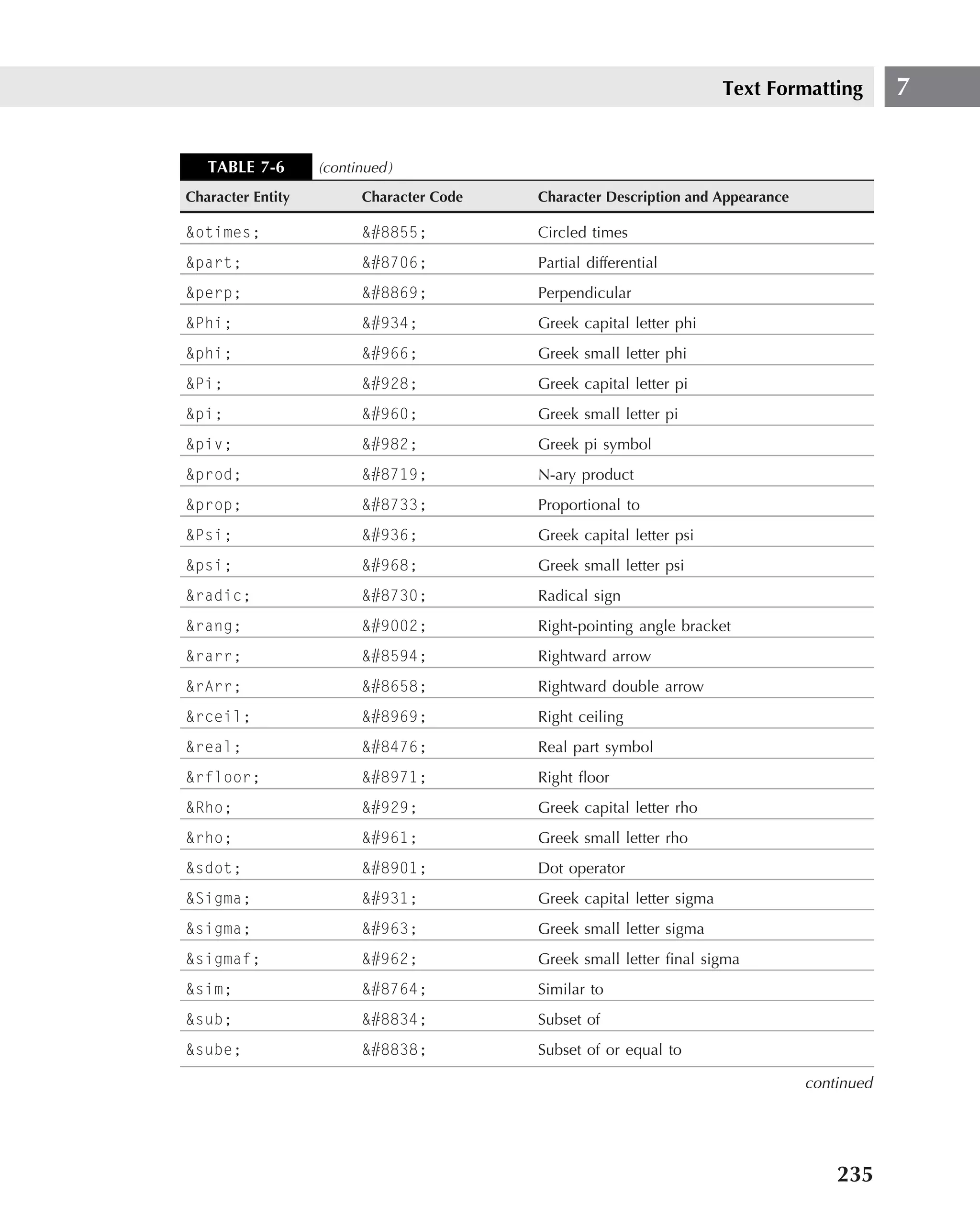
  • 464.
    Part IV Making It Look Professional background-image ■ Value — ‹url› | none ■ Initial value — None ■ Applies to — All elements ■ Inherited — No ■ Percentage values — N/A background-position ■ Value — [‹percentage› | ‹length›]{1,2} | [top | center | bottom] || [left | center | right] ■ Initial value — 0% 0% ■ Applies to — Block-level and replaced elements ■ Inherited — No ■ Percentage values — Refer to the size of the element itself background-repeat ■ Value — repeat | repeat-x | repeat-y | no-repeat ■ Initial value — repeat ■ Applies to — All elements ■ Inherited — No ■ Percentage values — N/A border ■ Value — ‹border-width› || ‹border-style› || ‹color› ■ Initial value — Not defined for shorthand properties ■ Applies to — All elements ■ Inherited — No ■ Percentage values — N/A border-color ■ Value — ‹color›{1,4} ■ Initial value — The value of the color property ■ Applies to — All elements ■ Inherited — No ■ Percentage values — N/A 428
  • 465.
    Styling Web Pageswith Cascading Style Sheets 12 border-style ■ Value — None | dotted | dashed | solid | double | groove | ridge | inset | outset ■ Initial value — None ■ Applies to — All elements ■ Inherited — No ■ Percentage values — N/A border-top, border-right, border-bottom, border-left ■ Value — ‹border-top-width› || ‹border-style› || ‹color› ■ Initial value — Not defined for shorthand properties ■ Applies to — All elements ■ Inherited — No ■ Percentage values — N/A border-width ■ Value — [thin | medium | thick | ‹length›]{1,4} ■ Initial value — Not defined for shorthand properties ■ Applies to — All elements ■ Inherited — No ■ Percentage values — N/A border-top-width, border-right-width, border-bottom-width, border-left-width ■ Value — thin | medium | thick | ‹length› ■ Initial value — medium ■ Applies to — All elements ■ Inherited — No ■ Percentage values — N/A clear ■ Value — none | left | right | both ■ Initial — None ■ Applies to — All elements 429
  • 466.
    Part IV Making It Look Professional ■ Inherited — No ■ Percentage values — N/A color ■ Value — ‹color› ■ Initial value — UA specific ■ Applies to — All elements ■ Inherited — Yes ■ Percentage values — N/A display ■ Value — block | inline | list-item | none ■ Initial value — block ■ Applies to — All elements ■ Inherited — No ■ Percentage values — N/A float ■ Value — left | right | none ■ Initial value — None ■ Applies to — All elements ■ Inherited — No ■ Percentage values — N/A font ■ Value — [ ‹font-style› || ‹font-variant› || ‹font-weight› ]? ‹font- size› [ / ‹line-height› ]? ‹font-family› ■ Initial value — Not defined for shorthand properties ■ Applies to — All elements ■ Inherited — Yes ■ Percentage values — Allowed on ‹font-size› and ‹line-height› font-family ■ Value — [[ ‹family-name› | ‹generic-family› ],]* [ ‹family-name› | ‹generic-family› ] ■ Initial value — Depends on user agent 430
  • 467.
    Styling Web Pageswith Cascading Style Sheets 12 ■ Applies to — All elements ■ Inherited — Yes ■ Percentage values — N/A font-size ■ Value — ‹absolute-size› | ‹relative-size› | ‹length› | ‹percentage› ■ Initial value — medium ■ Applies to — All elements ■ Inherited — Yes ■ Percentage values — Relative to parent element’s font size font-style ■ Value — normal | italic | oblique ■ Initial value — normal ■ Applies to — All elements ■ Inherited — Yes ■ Percentage values — N/A font-variant ■ Value — normal | small-caps ■ Initial value — normal ■ Applies to — All elements ■ Inherited — Yes ■ Percentage values — N/A font-weight ■ Value — normal | bold | bolder | lighter | 100 | 200 | 300 | 400 | 500 | 600 | 700 | 800 | 900 ■ Initial value — normal ■ Applies to — All elements ■ Inherited — Yes ■ Percentage values — N/A height ■ Value — ‹length› | auto ■ Initial value — auto 431
  • 468.
    Part IV Making It Look Professional ■ Applies to — Block-level and replaced elements ■ Inherited — No ■ Percentage values — N/A letter-spacing ■ Value — normal | ‹length› ■ Initial value — normal ■ Applies to — All elements ■ Inherited — Yes ■ Percentage values — N/A line-height ■ Value — normal | ‹number› | ‹length› | ‹percentage› ■ Initial value — Normal ■ Applies to — All elements ■ Inherited — Yes ■ Percentage values — Relative to the font size of the element itself list-style ■ Value — [disc | circle | square | decimal | lower-roman | upper- roman | lower-alpha | upper-alpha | none] || [inside | outside] || [‹url› | none] ■ Initial value — Not defined for shorthand properties ■ Applies to — Elements with display value list-item ■ Inherited — Yes ■ Percentage values — N/A list-style-image ■ Value — ‹url› | none ■ Initial value — none ■ Applies to — Elements with display value list-item ■ Inherited — Yes ■ Percentage values — N/A 432
  • 469.
    Styling Web Pageswith Cascading Style Sheets 12 list-style-position ■ Value — inside | outside ■ Initial value — outside ■ Applies to — Elements with display value list-item ■ Inherited — Yes ■ Percentage values — N/A list-style-type ■ Value — disc | circle | square | decimal | lower-roman | upper-roman | lower-alpha | upper-alpha | none ■ Initial value — disc ■ Applies to — Elements with display value list-item ■ Inherited — Yes ■ Percentage values — N/A margin ■ Value — [ ‹length› | ‹percentage› | auto ] {1,4} ■ Initial value — Not defined for shorthand properties ■ Applies to — All elements ■ Inherited — No ■ Percentage values — Refer to width of closest block-level ancestor margin-top, margin-right, margin-bottom, margin-left ■ Value — ‹length› | ‹percentage› | auto ■ Initial value — 0 ■ Applies to — All elements ■ Inherited — No ■ Percentage values — Refer to width of the closest block-level ancestor padding ■ Value — [ ‹length› | ‹percentage› ] {1,4} ■ Initial value — Not defined for shorthand properties 433
  • 470.
    Part IV Making It Look Professional ■ Applies to — All elements ■ Inherited — No ■ Percentage values — Refer to width of closest block-level ancestor padding-top, padding-right, padding-bottom, padding-left ■ Value — ‹length› | ‹percentage› ■ Initial value — 0 ■ Applies to — All elements ■ Inherited — No ■ Percentage values — Refer to width of closest block-level ancestor text-align ■ Value — left | right | center | justify ■ Initial value — UA specific ■ Applies to — Block-level elements ■ Inherited value — Yes ■ Percentage values — N/A text-decoration ■ Value — none | [ underline || overline || line-through || blink ] ■ Initial value — none ■ Applies to — All elements ■ Inherited — No, but elements should match their parent ■ Percentage values — N/A text-indent ■ Value — ‹length› | ‹percentage› ■ Initial value — 0 ■ Applies to — Block-level elements ■ Inherited — Yes ■ Percentage values — Refer to parent element’s width text-transform ■ Value — capitalize | uppercase | lowercase | none ■ Initial value — none 434
  • 471.
    Styling Web Pageswith Cascading Style Sheets 12 ■ Applies to — All elements ■ Inherited — Yes ■ Percentage values — N/A vertical-align ■ Value — baseline | sub | super | top | text-top | middle | bottom | text- bottom | ‹percentage› ■ Initial value — baseline ■ Applies to — Inline elements ■ Inherited — No ■ Percentage values — Refer to the line-height of the element itself white-space ■ Value — normal | pre | nowrap ■ Initial value — normal ■ Applies to — Block-level elements ■ Inherited — Yes ■ Percentage values — N/A width ■ Value — ‹length› | ‹percentage› | auto ■ Initial value — auto ■ Applies to — Block-level and replaced elements ■ Inherited — No ■ Percentage values — Refer to parent element’s width word-spacing ■ Value — normal | ‹length› ■ Initial value — normal ■ Applies to — All elements ■ Inherited — Yes ■ Percentage values — N/A CSS2 properties This section contains the official list of all CSS properties from the World Wide Web Consor- tium’s CSS2 specification, which carries the status of a W3C Recommendation. The URL of the 435
  • 472.
    Part IV Making It Look Professional specification is www.w3.org/TR/REC-CSS2. Although the specification carries no specific copy- right notice, we assume that the usual requirement of adding the following notice to information taken from W3C documents still applies: Copyright © World Wide Web Consortium, (Massachusetts Institute of Technology, Institut National de Recherche en Informatique et en Automatique, Keio University). All Rights Reserved. The properties in the following listing are specified by name (in alphabetical order), and then the following information is presented: ■ Values — Shows all possible values that can be used with this property. ■ Initial value — Shows the default value if none is specified. ■ Applies to — Shows the elements the property can be applied to. ■ Inherited — Shows if the property can be inherited. ■ Percentages — Shows how percentages are handled. ■ Media groups — Shows which media group (visual, aural, print, and so on) the property is intended for. Following is a breakdown of CSS2 properties. azimuth ■ Values — ‹angle› | [[ left-side | far-left | left | center-left | center | center-right | right | far-right | right-side ] || behind ] | leftwards | rightwards | inherit ■ Initial value — center ■ Applies to — All ■ Inherited — Yes ■ Percentages — N/A ■ Media groups — Aural background ■ Values — [‘background-color’ || ‘background-image’ || ‘background- repeat’ || ‘background-attachment’ || ‘background-position’] | inherit ■ Initial value — Not defined for shorthand properties ■ Applies to — All ■ Inherited — No ■ Percentages — Allowed on background-position ■ Media groups — Visual 436
  • 473.
    Styling Web Pageswith Cascading Style Sheets 12 background-attachment ■ Values — scroll | fixed | inherit ■ Initial value — scroll ■ Applies to — All ■ Inherited — No ■ Percentages — N/A ■ Media groups — Visual background-color ■ Values — ‹color› | transparent | inherit ■ Initial value — transparent ■ Applies to — All ■ Inherited — No ■ Percentages — N/A ■ Media groups — Visual background-image ■ Values — ‹uri› | none | inherit ■ Initial value — none ■ Applies to — All ■ Inherited — No ■ Percentages — N/A ■ Media groups — Visual background-position ■ Values — [ [‹percentage› | ‹length› ] {1,2} | [ [top | center | bottom] || [left | center | right] ] ] | inherit ■ Initial value — 0% 0% ■ Applies to — Block-level and replaced elements ■ Inherited — No ■ Percentages — Refer to the size of the box itself ■ Media groups — Visual 437
  • 474.
    Part IV Making It Look Professional background-repeat ■ Values — repeat | repeat-x | repeat-y | no-repeat | inherit ■ Initial value — repeat ■ Applies to — All ■ Inherited — No ■ Percentages — N/A ■ Media groups — Visual border ■ Values — [ ‘border-width’ || ‘border-style’ || ‹color› ] | inherit ■ Initial value — See individual properties ■ Applies to — All ■ Inherited — No ■ Percentages — N/A ■ Media groups — Visual border-collapse ■ Values — collapse | separate | inherit ■ Initial value — collapse ■ Applies to — table and inline-table elements ■ Inherited — Yes ■ Percentages — N/A ■ Media groups — Visual border-color ■ Values — ‹color›{1,4} | transparent | inherit ■ Initial value — See individual properties ■ Applies to — All ■ Inherited — No ■ Percentages — N/A ■ Media groups — Visual border-spacing ■ Values — ‹length› ‹length›? | inherit ■ Initial value — 0 438
  • 475.
    Styling Web Pageswith Cascading Style Sheets 12 ■ Applies to — table and inline-table elements ■ Inherited — Yes ■ Percentages — N/A ■ Media groups — Visual border-style ■ Values — ‹border-style› {1,4} | inherit ■ Initial value — See individual properties ■ Applies to — All ■ Inherited — No ■ Percentages — N/A ■ Media groups — Visual border-top, border-right, border-bottom, border-left ■ Values — [ ‘border-top-width’ || ‘border-style’ || ‹color› ] | inherit ■ Initial value — See individual properties ■ Applies to — All ■ Inherited — No ■ Percentages — N/A ■ Media groups — Visual border-top-color, border-right-color, border-bottom-color, border-left-color ■ Values — ‹color› | inherit ■ Initial value — The value of the color property ■ Applies to — All ■ Inherited — No ■ Percentages — N/A ■ Media groups — Visual border-top-style, border-right-style, border-bottom-style, border-left-style ■ Values — ‹border-style› | inherit ■ Initial value — None ■ Applies to — All ■ Inherited — No 439
  • 476.
    Part IV Making It Look Professional ■ Percentages — N/A ■ Media groups — Visual border-top-width, border-right-width, border-bottom-width, border-left-width ■ Values — ‹border-width› | inherit ■ Initial value — medium ■ Applies to — All ■ Inherited — No ■ Percentages — N/A ■ Media groups — Visual border-width ■ Values — ‹border-width› {1,4} | inherit ■ Initial value — See individual properties ■ Applies to — All ■ Inherited — No ■ Percentages — N/A ■ Media groups — Visual bottom ■ Values — ‹length› | ‹percentage› | auto | inherit ■ Initial value — auto ■ Applies to — Positioned elements ■ Inherited — No ■ Percentages — Refer to height of containing block ■ Media groups — Visual caption-side ■ Values — top | bottom | left | right | inherit ■ Initial value — top ■ Applies to — table-caption elements ■ Inherited — Yes ■ Percentages — N/A ■ Media groups — Visual 440
  • 477.
    Styling Web Pageswith Cascading Style Sheets 12 clear ■ Values — none | left | right | both | inherit ■ Initial value — none ■ Applies to — Block-level elements ■ Inherited — No ■ Percentages — N/A ■ Media groups — Visual clip ■ Values — ‹shape› | auto | inherit ■ Initial value — auto ■ Applies to — Block-level and replaced elements ■ Inherited — No ■ Percentages — N/A ■ Media groups — Visual color ■ Values — ‹color› | inherit ■ Initial value — Depends on user agent ■ Applies to — All ■ Inherited — Yes ■ Percentages — N/A ■ Media groups — Visual content ■ Values — [ ‹string› | ‹uri› | ‹counter› | attr(X) | open-quote | close- quote | no-open-quote | no-close-quote ]+ | inherit ■ Initial value — Empty string ■ Applies to — :before and :after pseudo-elements ■ Inherited — No ■ Percentages — N/A ■ Media groups — All 441
  • 478.
    Part IV Making It Look Professional counter-increment ■ Values — [ ‹identifier› ‹integer›?]+ | none | inherit ■ Initial value — none ■ Applies to — All ■ Inherited — No ■ Percentages — N/A ■ Media groups — All counter-reset ■ Values — [ ‹identifier› ‹integer›?]+ | none | inherit ■ Initial value — none ■ Applies to — All ■ Inherited — No ■ Percentages — N/A ■ Media groups — All cue ■ Values — [ ‘cue-before’ || ‘cue-after’ ] | inherit ■ Initial value — XX ■ Applies to — All ■ Inherited — No ■ Percentages — N/A ■ Media groups — Aural cue-after ■ Values — ‹uri› | none | inherit ■ Initial value — none ■ Applies to — All ■ Inherited — No ■ Percentages — N/A ■ Media groups — Aural 442
  • 479.
    Styling Web Pageswith Cascading Style Sheets 12 cue-before ■ Values — ‹uri› | none | inherit ■ Initial value — none ■ Applies to — All ■ Inherited — No ■ Percentages — N/A ■ Media groups — Aural cursor ■ Values — [ [‹uri› ,]* [ auto | crosshair | default | pointer | move | e-resize | ne-resize | nw-resize | n-resize | se-resize | sw-resize | s-resize | w-resize| text | wait | help ] ] | inherit ■ Initial value — auto ■ Applies to — All ■ Inherited — Yes ■ Percentages — N/A ■ Media groups — Visual, interactive direction ■ Values — ltr | rtl | inherit ■ Initial value — ltr ■ Applies to — All elements, but see prose ■ Inherited — Yes ■ Percentages — N/A ■ Media groups — Visual The cautionary message, ’’but see prose,’’ basically tells the author or user to ignore the properties in author and user stylesheets. display ■ Values — inline | block | list-item | run-in | compact | marker | table | inline-table | table-row-group | table-header-group | table-footer- group | table-row | table-column-group | table-column | table-cell | table-caption | none | inherit ■ Initial value — inline ■ Applies to — All 443
  • 480.
    Part IV Making It Look Professional ■ Inherited — No ■ Percentages — N/A ■ Media groups — All elevation ■ Values — ‹angle› | below | level | above | higher | lower | inherit ■ Initial value — level ■ Applies to — All ■ Inherited — Yes ■ Percentages — N/A ■ Media groups — Aural empty-cells ■ Values — show | hide | inherit ■ Initial value — show ■ Applies to — table-cell elements ■ Inherited — Yes ■ Percentages — N/A ■ Media groups — Visual float ■ Values — left | right | none | inherit ■ Initial value — none ■ Applies to — All but positioned elements and generated content ■ Inherited — No ■ Percentages — N/A ■ Media groups — Visual font ■ Values — [ [ ‘font-style’ || ‘font-variant’ || ‘font-weight’ ]? ‘font- size’ [ / ‘line-height’ ]? ‘font-family’ ] | caption | icon | menu | message-box | small-caption | status-bar | inherit ■ Initial value — See individual properties ■ Applies to — All 444
  • 481.
    Styling Web Pageswith Cascading Style Sheets 12 ■ Inherited — Yes ■ Percentages — Allowed on font-size and line-height ■ Media groups — Visual font-family ■ Values — [[ ‹family-name› | ‹generic-family› ],]* [ ‹family-name› | ‹generic-family› ] | inherit ■ Initial value — Depends on user agent ■ Applies to — All ■ Inherited — Yes ■ Percentages — N/A ■ Media groups — Visual font-size ■ Values — ‹absolute-size› | ‹relative-size› | ‹length› | ‹percentage› | inherit ■ Initial value — medium ■ Applies to — All ■ Inherited — Yes, the computed value is inherited ■ Percentages — Refer to parent element’s font size ■ Media groups — Visual font-size-adjust ■ Values — ‹number› | none | inherit ■ Initial value — none ■ Applies to — All ■ Inherited — Yes ■ Percentages — N/A ■ Media groups — Visual font-stretch ■ Values — normal | wider | narrower | ultra-condensed | extra-condensed | condensed | semi-condensed | semi-expanded | expanded | extra- expanded | ultra-expanded | inherit ■ Initial value — normal ■ Applies to — All 445
  • 482.
    Part IV Making It Look Professional ■ Inherited — Yes ■ Percentages — N/A ■ Media groups — Visual font-style ■ Values — normal | italic | oblique | inherit ■ Initial value — normal ■ Applies to — All ■ Inherited — Yes ■ Percentages — N/A ■ Media groups — Visual font-variant ■ Values — normal | small-caps | inherit ■ Initial value — normal ■ Applies to — All ■ Inherited — Yes ■ Percentages — N/A ■ Media groups — Visual font-weight ■ Values — normal | bold | bolder | lighter | 100 | 200 | 300 | 400 | 500 | 600 | 700 | 800 | 900 | inherit ■ Initial value — normal ■ Applies to — All ■ Inherited — Yes ■ Percentages — N/A ■ Media groups — Visual height ■ Values — ‹length› | ‹percentage› | auto | inherit ■ Initial value — auto ■ Applies to — All elements but nonreplaced inline elements, table columns, and column groups 446
  • 483.
    Styling Web Pageswith Cascading Style Sheets 12 ■ Inherited — No ■ Percentages — See prose ■ Media groups — Visual The cautionary message, ’’but see prose,’’ basically tells the author or user to ignore the properties in author and user stylesheets. left ■ Values — ‹length› | ‹percentage› | auto | inherit ■ Initial value — auto ■ Applies to — Positioned elements ■ Inherited — No ■ Percentages — Refer to width of containing block ■ Media groups — Visual letter-spacing ■ Values — normal | ‹length› | inherit ■ Initial value — normal ■ Applies to — All ■ Inherited — Yes ■ Percentages — N/A ■ Media groups — Visual line-height ■ Values — normal | ‹number› | ‹length› | ‹percentage› | inherit ■ Initial value — normal ■ Applies to — All ■ Inherited — Yes ■ Percentages — Refer to the font size of the element itself ■ Media groups — Visual list-style ■ Values — [ ‘list-style-type’ || ‘list-style-position’ || ‘list-style- image’ ] | inherit ■ Initial value — Not defined for shorthand properties 447
  • 484.
    Part IV Making It Look Professional ■ Applies to — Elements with display: list-item ■ Inherited — Yes ■ Percentages — N/A ■ Media groups — Visual list-style-image ■ Values — ‹uri› | none | inherit ■ Initial value — none ■ Applies to — Elements with display: list-item ■ Inherited — Yes ■ Percentages — N/A ■ Media groups — Visual list-style-position ■ Values — inside | outside | inherit ■ Initial value — outside ■ Applies to — Elements with ‘display: list-item’ ■ Inherited — Yes ■ Percentages — N/A ■ Media groups — Visual list-style-type ■ Values — disc | circle | square | decimal | decimal-leading-zero | lower-roman | upper-roman | lower-greek | lower-alpha | lower-latin | upper-alpha | upper-latin | hebrew | armenian | georgian | cjk- ideographic | hiragana | katakana | hiragana-iroha | katakana-iroha | none | inherit ■ Initial value — disc ■ Applies to — Elements with display: list-item ■ Inherited — Yes ■ Percentages — N/A ■ Media groups — Visual 448
  • 485.
    Styling Web Pageswith Cascading Style Sheets 12 margin ■ Values — ‹margin-width› {1,4} | inherit ■ Initial value — Not defined for shorthand properties ■ Applies to — All ■ Inherited — No ■ Percentages — Refer to width of containing block ■ Media groups — Visual margin-top, margin-right, margin-bottom, margin-left ■ Values — ‹margin-width› | inherit ■ Initial value — 0 ■ Applies to — All ■ Inherited — No ■ Percentages — Refer to width of containing block ■ Media groups — Visual marker-offset ■ Values — ‹length› | auto | inherit ■ Initial value — auto ■ Applies to — Elements with display: marker ■ Inherited — No ■ Percentages — N/A ■ Media groups — Visual marks ■ Values — [ crop || cross ] | none | inherit ■ Initial value — none ■ Applies to — Page context ■ Inherited — N/A ■ Percentages — N/A ■ Media groups — Visual, paged 449
  • 486.
    Part IV Making It Look Professional max-height ■ Values — ‹length› | ‹percentage› | none | inherit ■ Initial value — none ■ Applies to — All elements except nonreplaced inline elements and table elements ■ Inherited — No ■ Percentages — Refer to height of containing block ■ Media groups — Visual max-width ■ Values — ‹length› | ‹percentage› | none | inherit ■ Initial value — none ■ Applies to — All elements except nonreplaced inline elements and table elements ■ Inherited — No ■ Percentages — Refer to width of containing block ■ Media groups — Visual min-height ■ Values — ‹length› | ‹percentage› | inherit ■ Initial value — 0 ■ Applies to — All elements except nonreplaced inline elements and table elements ■ Inherited — No ■ Percentages — Refer to height of containing block ■ Media groups — Visual min-width ■ Values — ‹length› | ‹percentage› | inherit ■ Initial value — Depends on user agent ■ Applies to — All elements except nonreplaced inline elements and table elements ■ Inherited — No ■ Percentages — Refer to width of containing block ■ Media groups — Visual 450
  • 487.
    Styling Web Pageswith Cascading Style Sheets 12 orphans ■ Values — ‹integer› | inherit ■ Initial value — 2 ■ Applies to — Block-level elements ■ Inherited — Yes ■ Percentages — N/A ■ Media groups — Visual, paged outline ■ Values — [ ‘outline-color’ || ‘outline-style’ || ‘outline-width’ ] | inherit ■ Initial value — See individual properties ■ Applies to — All ■ Inherited — No ■ Percentages — N/A ■ Media groups — Visual, interactive outline-color ■ Values — ‹color› | invert | inherit ■ Initial value — invert ■ Applies to — All ■ Inherited — No ■ Percentages — N/A ■ Media groups — Visual, interactive outline-style ■ Values — ‹border-style› | inherit ■ Initial value — none ■ Applies to — All ■ Inherited — No ■ Percentages — N/A ■ Media groups — Visual, interactive 451
  • 488.
    Part IV Making It Look Professional outline-width ■ Values — ‹border-width› | inherit ■ Initial value — medium ■ Applies to — All ■ Inherited — No ■ Percentages — N/A ■ Media groups — Visual, interactive overflow ■ Values — visible | hidden | scroll | auto | inherit ■ Initial value — visible ■ Applies to — Block-level and replaced elements ■ Inherited — No ■ Percentages — N/A ■ Media groups — Visual padding ■ Values — ‹padding-width› {1,4} | inherit ■ Initial value — Not defined for shorthand properties ■ Applies to — All ■ Inherited — No ■ Percentages — Refer to width of containing block ■ Media groups — Visual padding-top, padding-right, padding-bottom, padding-left ■ Values — ‹padding-width› | inherit ■ Initial value — 0 ■ Applies to — All ■ Inherited — No ■ Percentages — Refer to width of containing block ■ Media groups — Visual 452
  • 489.
    Styling Web Pageswith Cascading Style Sheets 12 page ■ Values — ‹identifier› | auto ■ Initial value — auto ■ Applies to — Block-level elements ■ Inherited — Yes ■ Percentages — N/A ■ Media groups — Visual, paged page-break-after ■ Values — auto | always | avoid | left | right | inherit ■ Initial value — auto ■ Applies to — Block-level elements ■ Inherited — No ■ Percentages — N/A ■ Media groups — Visual, paged page-break-before ■ Values — auto | always | avoid |left | right | inherit ■ Initial value — auto ■ Applies to — Block-level elements ■ Inherited — No ■ Percentages — N/A ■ Media groups — Visual, paged page-break-inside ■ Values — avoid | auto | inherit ■ Initial value — auto ■ Applies to — Block-level elements ■ Inherited — Yes ■ Percentages — N/A ■ Media groups — Visual, paged 453
  • 490.
    Part IV Making It Look Professional pause ■ Values — [ [‹time› | ‹percentage›]{1,2} ] | inherit ■ Initial value — Depends on user agent ■ Applies to — All ■ Inherited — No ■ Percentages — See descriptions of pause-after and pause-before ■ Media groups — Aural pause-after ■ Values — ‹time› | ‹percentage› | inherit ■ Initial value — Depends on user agent ■ Applies to — All ■ Inherited — No ■ Percentages — See prose ■ Media groups — Aural The cautionary message, ’’but see prose,’’ basically tells the author or user to ignore the properties in author and user stylesheets. pause-before ■ Values — ‹time› | ‹percentage› | inherit ■ Initial value — Depends on user agent ■ Applies to — All ■ Inherited — No ■ Percentages — See prose ■ Media groups — Aural pitch ■ Values — ‹frequency› | x-low | low | medium | high | x-high | inherit ■ Initial value — medium ■ Applies to — All ■ Inherited — Yes ■ Percentages — N/A ■ Media groups — Aural 454
  • 491.
    Styling Web Pageswith Cascading Style Sheets 12 pitch-range ■ Values — ‹number› | inherit ■ Initial value — 50 ■ Applies to — All ■ Inherited — Yes ■ Percentages — N/A ■ Media groups — Aural play-during ■ Values — ‹uri› mix? repeat? | auto | none | inherit ■ Initial value — Auto ■ Applies to — All ■ Inherited — No ■ Percentages — N/A ■ Media groups — Aural position ■ Values — static | relative | absolute | fixed | inherit ■ Initial value — static ■ Applies to — All elements, but not to generated content ■ Inherited — No ■ Percentages — N/A ■ Media groups — Visual quotes ■ Values — [‹string› ‹string›]+ | none | inherit ■ Initial value — Depends on user agent ■ Applies to — All ■ Inherited — Yes ■ Percentages — N/A ■ Media groups — Visual 455
  • 492.
    Part IV Making It Look Professional richness ■ Values — ‹number› | inherit ■ Initial value — 50 ■ Applies to — All ■ Inherited — Yes ■ Percentages — N/A ■ Media groups — Aural right ■ Values — ‹length› | ‹percentage› | auto | inherit ■ Initial value — auto ■ Applies to — Positioned elements ■ Inherited — No ■ Percentages — Refer to width of containing block ■ Media groups — Visual size ■ Values — ‹length›{1,2} | auto | portrait | landscape | inherit ■ Initial value — auto ■ Applies to — The page context ■ Inherited — N/A ■ Percentages — N/A ■ Media groups — Visual, paged speak ■ Values — normal | none | spell-out | inherit ■ Initial value — normal ■ Applies to — All ■ Inherited — Yes ■ Percentages — N/A ■ Media groups — Aural 456
  • 493.
    Styling Web Pageswith Cascading Style Sheets 12 speak-header ■ Values — once | always | inherit ■ Initial value — once ■ Applies to — Elements that have table header information ■ Inherited — Yes ■ Percentages — N/A ■ Media groups — Aural speak-numeral ■ Values — digits | continuous | inherit ■ Initial value — continuous ■ Applies to — All ■ Inherited — Yes ■ Percentages — N/A ■ Media groups — Aural speak-punctuation ■ Values — code | none | inherit ■ Initial value — none ■ Applies to — All ■ Inherited — Yes ■ Percentages — N/A ■ Media groups — Aural speech-rate ■ Values — ‹number› | x-slow | slow | medium | fast | x-fast | faster | slower | inherit ■ Initial value — medium ■ Applies to — All ■ Inherited — Yes ■ Percentages — N/A ■ Media groups — Aural 457
  • 494.
    Part IV Making It Look Professional stress ■ Values — ‹number› | inherit ■ Initial value — 50 ■ Applies to — All ■ Inherited — Yes ■ Percentages — N/A ■ Media groups — Aural table-layout ■ Values — auto | fixed | inherit ■ Initial value — auto ■ Applies to — table and inline-table elements ■ Inherited — No ■ Percentages — N/A ■ Media groups — Visual text-align ■ Values — left | right | center | justify | ‹string› | inherit ■ Initial value — Depends on user agent and writing direction ■ Applies to — Block-level elements ■ Inherited — Yes ■ Percentages — N/A ■ Media groups — Visual text-decoration ■ Values — none | [ underline || overline || line-through || blink ] | inherit ■ Initial value — none ■ Applies to — All ■ Inherited — No (see prose) ■ Percentages — N/A ■ Media groups — Visual 458
  • 495.
    Styling Web Pageswith Cascading Style Sheets 12 The cautionary message, ‘‘see prose,’’ refers to the distinction between inline and block level when using this feature. All descendants of element inherit specified text feature. text-indent ■ Values — ‹length› | ‹percentage› | inherit ■ Initial value — 0 ■ Applies to — Block-level elements ■ Inherited — Yes ■ Percentages — Refer to width of containing block ■ Media groups — Visual text-shadow ■ Values — none | [‹color› || ‹length› ‹length› ‹length›? ,]* [‹color› || ‹length› ‹length› ‹length›?] | inherit ■ Initial value — none ■ Applies to — All ■ Inherited — No (see prose) ■ Percentages — N/A ■ Media groups — Visual The cautionary message, ‘‘see prose,’’ refers to the distinction between inline and block level when using this feature. All descendants of element inherit specified text feature. text-transform ■ Values — capitalize | uppercase | lowercase | none | inherit ■ Initial value — none ■ Applies to — All ■ Inherited — Yes ■ Percentages — N/A ■ Media groups — Visual top ■ Values — ‹length› | ‹percentage› | auto | inherit ■ Initial value — auto 459
  • 496.
    Part IV Making It Look Professional ■ Applies to — Positioned elements ■ Inherited — No ■ Percentages — Refer to height of containing block ■ Media groups — Visual unicode-bidi ■ Values — normal | embed | bidi-override | inherit ■ Initial value — normal ■ Applies to — All elements, but see prose ■ Inherited — No ■ Percentages — N/A ■ Media groups — Visual The cautionary message, ‘‘see prose,’’ refers to the distinction between inline and block level when using this feature. All descendants of element inherit specified text feature. vertical-align ■ Values — baseline | sub | super | top | text-top | middle | bottom | text- bottom | ‹percentage› | ‹length› | inherit ■ Initial value — baseline ■ Applies to — inline-level and table-cell elements ■ Inherited — No ■ Percentages — Refer to the line-height of the element itself ■ Media groups — Visual visibility ■ Values — visible | hidden | collapse | inherit ■ Initial value — inherit ■ Applies to — All ■ Inherited — No ■ Percentages — N/A ■ Media groups — Visual 460
  • 497.
    Styling Web Pageswith Cascading Style Sheets 12 voice-family ■ Values — [[ ‹specific-voice› | ‹generic-voice› ],]* [ ‹specific-voice› | ‹generic-voice› ] | inherit ■ Initial value — Depends on user agent ■ Applies to — All ■ Inherited — Yes ■ Percentages — N/A ■ Media groups — Aural volume ■ Values — ‹number› | ‹percentage› | silent | x-soft | soft | medium | loud | x-loud | inherit ■ Initial value — medium ■ Applies to — All ■ Inherited — Yes ■ Percentages — Refer to inherited value ■ Media groups — Aural white-space ■ Values — normal | pre | nowrap | inherit ■ Initial value — normal ■ Applies to — Block-level elements ■ Inherited — Yes ■ Percentages — N/A ■ Media groups — Visual widows ■ Values — ‹integer› | inherit ■ Initial value — 2 ■ Applies to — Block-level elements ■ Inherited — Yes ■ Percentages — N/A ■ Media groups — Visual, paged 461
  • 498.
    Part IV Making It Look Professional width ■ Values — ‹length› | ‹percentage› | auto | inherit ■ Initial value — auto ■ Applies to — All elements but nonreplaced inline elements, table rows, and row groups ■ Inherited — No ■ Percentages — Refer to width of containing block ■ Media groups — Visual word-spacing ■ Values — normal | ‹length› | inherit ■ Initial value — normal ■ Applies to — All ■ Inherited — Yes ■ Percentages — N/A ■ Media groups — Visual z-index ■ Values — auto | ‹integer› | inherit ■ Initial value — auto ■ Applies to — Positioned elements ■ Inherited — No ■ Percentages — N/A ■ Media groups — Visual CSS3 specs are still a work in progress but the current status of development may be reviewed by visiting www.w3.org/Style/CSS/current-work. Using Stylesheet-Creation Programs No matter what approach you take to Web page creation — hardnosed hand-coding, WYSI- WYG prototyping, or a combination of the two — you can always make life and work a lit- tle bit easier. Top-of-the-line Web page-creation programs such as Dreamweaver, GoLive, and Microsoft Expression Web have built-in capabilities for handling the creation of Cascading Style Sheets — both internal and external — as well as Web pages (see Figure 12-3). 462
  • 499.
    Styling Web Pageswith Cascading Style Sheets 12 FIGURE 12-3 Dreamweaver has a built-in capability to generate stylesheets. TABLE 12-2 Stylesheet Creation Programs Name Platform Web Address Style Master Windows & Macintosh www.westciv.com/style master Visual Studio Web Windows http://www.microsoft.com/ Developer Express express/vwd/ 2008 However, you can also find a number of specialized programs for making Cascading Style Sheets. Table 12-2 lists two of them you may want to try out. Interesting CSS Sites If you want to find out more about CSS, there are many good sites on Internet, as shown in Table 12-3. 463
  • 500.
    Part IV Making It Look Professional TABLE 12-3 List of Useful CSS Sites Website URL Complete CSS Guide www.westciv.com/style master/academy/css tutorial CSS Discuss css-discuss.incutio.com The Developer’s Archive www.dev-archive.net CSS Tutorial www.w3schools.com/css CSS Vault cssvault.com CSS Zen Garden csszengarden.com Web Design Group www.htmlhelp.com/reference/css CSS support in Opera www.opera.com/docs/specs/opera9/css CSS Zen Garden (www.csszengarden.com) is a great site that uses different Cascading Style Sheets to transform the same HTML page in artistic ways. It shows the true potential of CSS to transform the same HTML into completely different visual formats. Also, there are some good links to CSS tricks and techniques. The following sections discuss the relative and absolute positioning of images and block-level elements within the page. They discuss how to handle overflow of such elements through use of scroll bars and clipping. They also introduce the use of the division (‹div›‹/div›) and span (‹span›‹/span›) tags. The division tag is used to selectively highlight block sections for special formatting, while span tags are used to selectively highlight small sections of text for styling. As is pointed out, these techniques were developed by competing browsers during the browser wars of the mid- to late 1990s, so you will sometimes see the term layers used when discussing ‹div›. Finally, we show how to set multiple layers in order using the z-index attribute within the ‹div› tag. Adding Layers In theory, any element on a Web page can be positioned on its own. In practice, however, you’ll find that implementation of CSS properties is inconsistent, though most Web browsers in use today support positioning. To play it safe (like a man who wears both suspenders and a belt), you may encapsulate whatever you want to position within a layer defined by a DIV element. The DIV element is a generic block level element and is used to encapsulate into one element several disparate elements on a Web page. An example would be to encapsulate ‹h3›, ‹p›, and ‹li› all within a DIV element with the id of sample. 464
  • 501.
    Styling Web Pageswith Cascading Style Sheets 12 ‹div id="sample"› ‹h3› content ‹p›paragraph content ‹ol› list content ‹/div› Netscape introduced a layer tag as an extension to HTML to position content. How- ever, the tag was only supported by Netscape Navigator 4.x. The layer tag has since been replaced by the ‹div› tag in all modern browsers, but the original terminology stuck, so you will often hear DIVs referred to as layers. Using CSS positioning properties The following HTML code positions a layer defined by a DIV element 20 pixels from the top of the Web page and 80 pixels from its left side, as shown in Figure 12-4: ‹HTML› ‹HEAD› ‹TITLE› Positioning a Layer ‹/TITLE› ‹/HEAD› ‹BODY› ‹DIV style="position:absolute;top:20;left:80;width:200;height:200; background-color:blue;"› ‹/DIV› ‹/BODY› ‹/HTML› FIGURE 12-4 Absolute positioning allows full control over the placement of layers. 465
  • 502.
    Part IV Making It Look Professional Giving layers negative values for the top and left attributes can move it off the screen. Of course, the values have to be at least as large as the height or width of the layer, or a portion of it will stick out from the edge into the visible area of the Web page. Going with the flow To really understand the positions in HTML, you must understand that everything is formatted as if it were surrounded by a box. These boxes are then stacked side by side (inline formatting) or one beneath the other (block formatting). Elements are classed as inline or block. The elements ‹span›, ‹u›, ‹b›, and ‹i› are inline and are placed inline, while ‹div›, ‹p›, and ‹img› are block elements and are block-formatted. See Chapter 4 for details of the formatting of HTML elements. For example, normal text is formatted inline, bold text as well, and superscripts , too. However, a paragraph is a block element and is placed below the preceding block. Notice that the elements flow across or down the page. Normal flow is the position where the next element would be positioned by default. However, this can be changed by the use of positioning instructions. To complicate matters, a block can be nested inside a block — for example, an image inside a paragraph. Choosing absolute or relative positioning Absolute positioning is based on the upper-left corner of a parent block. Relative positioning, on the other hand, is based on the place where the element would have been placed by default, according to the normal flow. Also, absolutely positioned elements don’t affect the normal flow. Consider the following HTML code: ‹HTML› ‹HEAD› ‹TITLE› Absolute versus Relative Positioning ‹/TITLE› ‹/HEAD› ‹BODY style="margin: 0 0 0 0"› ‹DIV style="position:absolute;top:50;left:30;width:200;height:200; background-color:green;"› ‹/DIV› ‹DIV style="position:relative;top:50;left:30;width:200;height:200; background-color:blue;"› ‹/DIV› ‹/BODY› ‹/HTML› Notice in Figure 12-5 that the last block obscures the previous one. If the order is changed, then you will only see the green block. 466
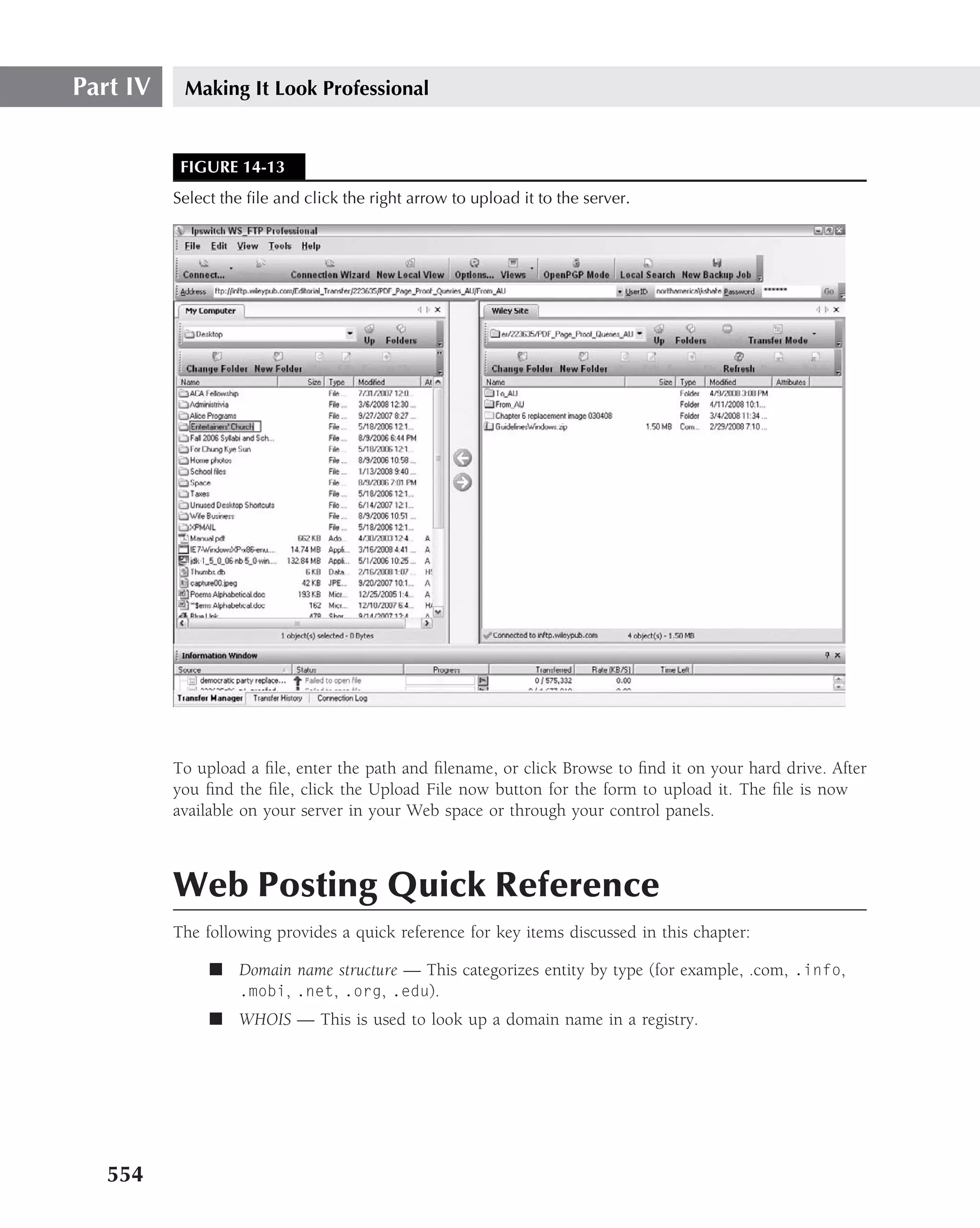
  • 503.
    Styling Web Pageswith Cascading Style Sheets 12 FIGURE 12-5 Relative positioning is based on the place where the element would have been placed by default. Note that the margin for the body has been set to zero. If the statement style="margin: 0 0 0 0" is removed, then we see something like Figure 12-6. By default, the body element has a margin, so the normal flow of its first element, the blue square, will be offset. However, the position of the absolutely positioned green square is relative to the top left of the parent element; in this case, the parent is the body of the Web page, as shown in Figure 12-7. FIGURE 12-6 Removing the margin settings reveals the other DIV. 467
  • 504.
    Part IV Making It Look Professional FIGURE 12-7 Adding text moves the relatively positioned block down. It might be a bit confusing that even absolutes are relative to something. It just goes to show that Einstein was right, and everything is relative. To explain further let’s see what happens when some text is inserted: ‹html› ‹head› ‹title›Absolute and Relative Positioning with Text‹/title› ‹/head› ‹body style="margin:0 0 0 0"› Some text to move the relatively positioned block ‹div style="position:absolute; top:50; left:30; width:200; height:200; background-color:blue;"› This is Absolutely amazing ‹/div› ‹div style="position:relative; top:50; left:30; width:200; height:200; background-color:yellow;"› This is Relatively cool ‹/div› ‹/body› ‹/html› Nested elements What happens if there is a box inside a box? Take a look at the following: ‹html› ‹head› ‹title›Nested boxes Absolute and Relative Positioning‹/title› 468
  • 505.
    Styling Web Pageswith Cascading Style Sheets 12 ‹/head› ‹body style="margin:0 0 0 0"› ‹div style="position:absolute;top:50;left:30;width:200;height:200; background-color:blue;"› ‹span style="font-size: large; color: lime "› This is Absolutely Relatively amazing‹/span› ‹div style="position:relative;top:50;left:30;width:30;height:30; background-color:red;"› ‹/div› ‹div style="position:absolute;top:50;left:30;width:30;height:30; background-color:yellow;"› ‹/div› ‹/div› ‹/body› ‹/html› You can see in Figure 12-8 that the first large box has two boxes inside: a light gray relatively positioned box and a white absolute box. You can see that the yellow box is placed relative to the top left of the blue box, and the red box is shifted downward because of the text. Overlapping Layers Because layers can be positioned without regard to the location of other layers on the same Web page, as you have seen, they can occupy the same location on the page. This, obviously, can present problems seeing all the elements, because one of them can obscure another. However, it also opens up some intriguing possibilities in Web page design. FIGURE 12-8 The white box is placed relative to the top left of the dark gray box, and the light gray box is shifted downward. 469
  • 506.
    Part IV Making It Look Professional Stacking layers with z-order The basic solution for handling overlapping layers is called z-order because there are three axes involved in positioning. If you think of the Web page as existing only on the screen of your monitor, the X axis runs across the screen from left to right. The Y axis runs from the top to the bottom of the screen. The Z axis, however, requires a little more imagination. It runs from the back of your monitor to the front of it. The order of layers on the Z axis is specified via the z-index attribute. Any layer with a lower z-index value will be underneath another layer with a higher z-index value. Thus, in the following code sample, the first layer is on top of the second layer. ‹DIV style="position:absolute; top:0; left:0; width:200; height:200; z-index:5"› ‹/DIV› ‹DIV style="position:absolute; top:0; left:0; width:200; height:200; z-index:4"› ‹/DIV› If no z-index value is specified, it defaults to zero. If multiple layers have the same z-index value, the one that comes first in the code is the one that is beneath all the others, and the one that comes last is the one that is above all the others. Using transparency and background color While z-order is often used to make one layer cover another to hide it from view, the background color of the DIV element can be manipulated to create varying effects. If no background color is specified, then the layer is transparent and any underlying elements can show through. In the following HTML code, the first layer completely covers the second one, and the back- ground color of the second layer is still fully visible, as shown in Figure 12-9. ‹HTML› ‹HEAD› ‹TITLE› Using Background Color ‹/TITLE› ‹/HEAD› ‹BODY› ‹DIV style="position:absolute; top:0;left:0; width:200; height:200; z-index:1; color:yellow; font-size:large;"›Can you see me? ‹/DIV› ‹DIV style="position:absolute; top:0; left:0; width:200; height:200; background-color:blue"› ‹/DIV› ‹/BODY› ‹/HTML› 470
  • 507.
    Styling Web Pageswith Cascading Style Sheets 12 FIGURE 12-9 Backgrounds show through transparent layers. Clipping Layer Content Clipping a layer is pretty much the same thing as cropping an image, with one exception — the remainder of the layer is still there but not visible. As with cropping, you are specifying a rectan- gular portion of the layer within which the visible portion of the element will appear. The rectangle is set up with the clip property, and the values for it run as follows: top, right, bottom, and left. The following HTML code demonstrates how to set up a clipping region with a rectangle specified as rect(20,80,100,10) that has its top-left corner 20 pixels from the top, the right clip 80 pixels from the left side of the box, and the bottom clip 100 pixels from the top of the box and 10 pixels in from the left side. So, the clipped region is 80 − 10 = 70 pixels wide and 100 − 20 = 80 pixels high. The results are shown in Figure 12-10. FIGURE 12-10 Clipping a layer is much like cropping an image. 471
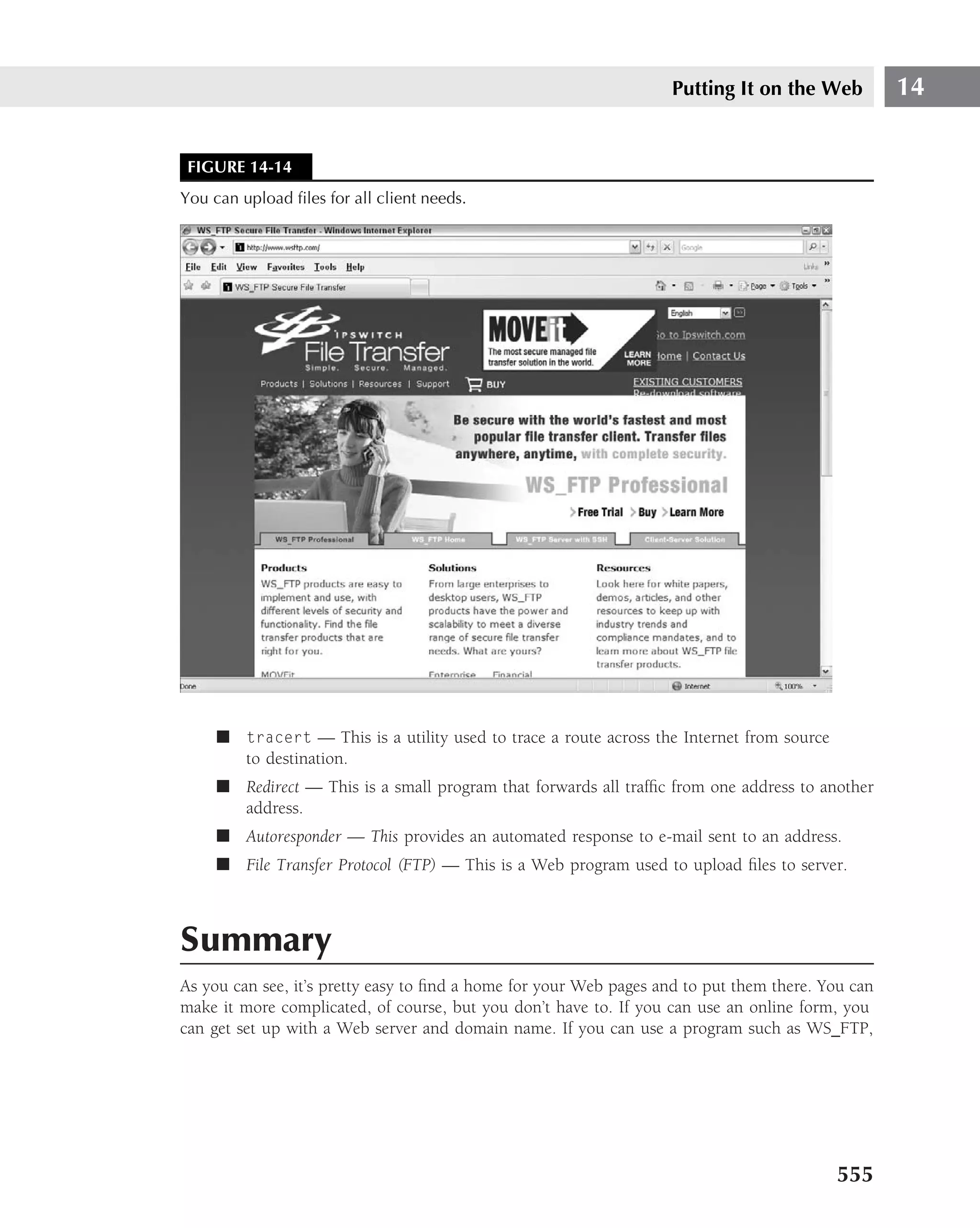
  • 508.
    Part IV Making It Look Professional If you have trouble remembering the sequence (top, right, bottom, and left), simply envision a clock with its hands at 12, 3, 6, and 9, respectively. In other words, the sequence is clockwise. ‹HTML› ‹HEAD› ‹TITLE› Clipping a Region ‹/TITLE› ‹/HEAD› ‹BODY› ‹DIV style="position:absolute; top:0; left:0; width:200; height:200; background-color:yellow;"› ‹DIV style="position:absolute; top:0; left:0; width:200; height:200; clip:rect(20,80,100,10); background-color:blue;"› ‹/DIV› ‹/BODY› ‹/HTML› A browser or two have still not fully implemented the CSS2 specification published by W3C. This states that the clip regions work in the same way as margins do — that is, the right side is measured from the right and the bottom is measured from the bottom. Visibility of layers Not only can layers be positioned, but, like any HTML element, they can be set to be either visible or invisible. Obviously, an invisible layer isn’t much use because no one can see it. The trick is to make it visible at some point to achieve a particular effect. You can make a layer invisible by including the attribute style="visibility: hidden" And then set up a flag variable to determine visibility. Handling Large Elements with Overflow Attributes When an element is larger than the size of the layer that contains it, it is said to overflow the layer. There are various methods for handling this situation, ranging from letting the element’s size override the layer size to adding scroll bars so the whole element can be viewed from within the layer’s fixed size. 472
  • 509.
    Styling Web Pageswith Cascading Style Sheets 12 FIGURE 12-11 Overflowing content can be fully displayed despite the layer size. Visible overflow When the overflow is set to visible, then the entire content becomes — you guessed it — visible, even if the layer that contains it is smaller than it is. The following HTML code illustrates how to accomplish this feat, and Figure 12-11 shows the results: ‹HTML› ‹HEAD› ‹TITLE› Showing Overflowing Content ‹/TITLE› ‹/HEAD› ‹BODY› ‹DIV style="position:absolute; top:0; left:0; width:200; height:200; overflow:visible; background-color:blue"› ‹IMG src="breakfast.gif"› ‹/DIV› ‹/BODY› ‹/HTML› Hidden overflow Hiding the overflowing content of a layer may seem similar to clipping a region, but what you’re really doing is simply not showing anything that falls outside the layer. The following HTML code 473
  • 510.
    Part IV Making It Look Professional FIGURE 12-12 Content that overflows but is hidden is not visible outside of the layer. demonstrates how to set a layer so that only the portions of elements that are actually within its confines are displayed, and Figure 12-12 shows the results: ‹HTML› ‹HEAD› ‹TITLE› Hiding Overflowing Content ‹/TITLE› ‹/HEAD› ‹BODY› ‹DIV style="position:absolute; top:0; left:0; width:200; height:200; overflow:hidden"› ‹IMG src="breakfast.gif"› ‹/DIV› ‹/BODY› ‹/HTML› Scroll bars As a compromise between full visibility and chopping off any overflowing content, CSS offers scroll bars. The following HTML code shows how to add scroll bars to your layers, and Figure 12-13 shows how they look: ‹HTML› ‹HEAD› ‹TITLE› ‹/TITLE› ‹/HEAD› ‹BODY› ‹DIV style="position:absolute; top:0; left:0; width:200; height:200; overflow:scroll"› ‹IMG src="breakfast.gif"› ‹/DIV› ‹/BODY› ‹/HTML› 474
  • 511.
    Styling Web Pageswith Cascading Style Sheets 12 FIGURE 12-13 You can make overflowing content fully visible within the confines of the layer by adding scroll bars. You can also set overflow to auto, but there’s not much point to that. The results are the same as not bothering to specify the overflow property at all. CSS and Layers Quick Reference The following provides a quick reference for key items discussed in this chapter: ■ Inline — Used to assign values to properties of a single element. ■ Embedded style — Positioned in head of document to define style(s) for multiple elements (also known as selectors) within document. ■ DIV — Used to define a generic block of elements just as span is used to define a generic group of inline elements ■ ID — Used to define a single instance of an element ■ class — Used to create a common identifier for a group of elements formatted in a stylesheet: .classname { property1:value1; property2:value2; property3: value3;. . .}. Remember that a dot (.) precedes class. Summary Cascading Style Sheets (CSS) are one of the most powerful Web technologies in a Web designer’s toolbox. CSS allows the Web designer to have a great deal of control over all the pages of a site, enabling him or her to configure numerous instances of an element through a single command in an external stylesheet, or to fine-tune multiple instances of an element (such as a list), or even to select a single element, through the use of embedded and inline styles. 475
  • 512.
    Part IV Making It Look Professional In this chapter, you learned that style specifications ‘‘cascade’’ in importance, with the most important being the style closest to the element and the external stylesheet having the lowest priority. External stylesheets may be linked to several different Web pages simultaneously, thus creating overall stylistic control of an entire site. You learned that the appearance of HTML elements can be redefined via CSS. Any element may become part of a CSS class, thus redefining specified attributes. Any element relationship may be specified via contextual selectors. Absolute positioning is relative to the top left of the parent element. Relative positioning is relative to where the element would normally be displayed. This chapter discussed how the z-index value of an element determines which one is ‘‘on top’’ of another that occupies the same position on the Web page. The one with the lowest value is on the bottom. If two elements have the same z-index, the last one is displayed on top of the first. Layers provide a good way to position elements on your Web pages. You learned that layers can be transparent or opaque. The content of a layer can be clipped or allowed to overflow the boundaries of the layer. Chapter 13 introduces you to JavaScript. 476
  • 513.
    Making Dynamic Pages with JavaScript M any people confuse JavaScript with Java. It’s understandable, given the similarity in their names. But the two are not the same. IN THIS CHAPTER Although some of JavaScript is somewhat similar to Java, Java is Trying out JavaScript closer to C++ — all programming languages bear some degree of resem- blance to one another. Java is a major language that is used for developing Understanding JavaScript standalone programs, many of which are huge and extremely complex. JavaScript, on the other hand, is used to write short and simple programs Using events to trigger scripts that can run in Web browsers. Seeing elements as objects JavaScript’s name came from Netscape licensing the Java name from Sun in Form Validation order to capitalize on the Java craze at the time. JavaScript was originally called LiveScript. Examining browser compatibility Of course, you can use Java to write short and simple programs; many of the Java applets available to use on Web pages certainly fit this description. JavaScript quick reference And you can also use JavaScript to create some incredibly intricate interac- tive programs on your Web pages. As with anything else on the Web, the limits are mainly up to you. Trying Out JavaScript Before we get into any of the details of how JavaScript works, let’s see just how simple it can be. Type the following code into your HTML editor: ‹HTML› ‹HEAD› ‹TITLE›JavaScript Is Great‹/TITLE› ‹/HEAD› 477
  • 514.
    Part IV Making It Look Professional ‹BODY onLoad="alert(’Welcome to the war, Robert!’)" onUnload="alert(’Goodbye to all that’)"› ‹P›Visit‹A href="http://www.wiley.com/"›www.wiley.com‹/A›.‹/P› ‹/BODY› ‹/HTML› Save the file, and open it in a Web browser. The first thing you’ll see is the popup message window shown in Figure 13-1. Click OK to make the popup go away. Then click the link. You’ll get another popup message with the ‘‘So long’’ message shown in Figure 13-2. Click its OK button and the link is activated. Simple, isn’t it? Yet, in this short example, you’ve already trapped two events, used that fact to invoke the appropriate event handlers, and called on a built-in method of the window object, feeding it two different parameters to display two different popup messages. In plain English, you told the Web browser to display one message when the Web page is opened and another message when it went to another location. These italicized terms will be elucidated later in the chapter. FIGURE 13-1 A popup message window appears when you open the browser. FIGURE 13-2 The ‘‘Goodbye to all that’’ Message appears. 478
  • 515.
    Making Dynamic Pageswith JavaScript 13 Understanding JavaScript JavaScript isn’t Java, and it isn’t HTML, either. JavaScript was built from the bottom up, however, to work together with HTML so that Web page designers could create programs to read and alter the values of HTML elements. JavaScript is a language embedded within Web pages to provide interactivity and multimedia features within a static Web page. It provides dynamism through the use of events and event handlers. An event could be user input, such as clicking a mouse. That would be referred to as an onclick event. Events could also be onload (which does not require user intervention) or onsubmit (which could run validation checks on data input into a form once the form data has been submitted to a server for further processing). Events called functions (which is, for our purposes, the same as a method and is indistinguishable from a method in actual formatting) reside in the head portion of the HTML document. Functions, when called from the body by various events, execute the command blocks they contain, and then return control of the logic flow to the main program. From time to time, people still ask if scripts are ‘‘really’’ programs. The answer is ‘‘yes.’’ A program is a set of instructions to be carried out by a computer, and that’s just what JavaScript creates. JavaScript, while a simpler language than many, is indeed a viable programming language in its own right. Following are a few brief examples of features of JavaScript and associated programs to demon- strate the concepts. For more information, those who are just starting out with JavaScript might want to check out Beginning JavaScript, 3rd Edition, by Paul Wilton and Jeremy McPeak (Wrox, 2007). Working with variables, constants, and literals Variables are the heart of programming. Without them, life would be much more difficult. A variable is an item that holds a value that is expected to change over time. The assignment operator is an old friend you’ve known since elementary school — the equal sign (=). If you want to assign the value 42 to the variable answer, for example, you simply write answer=42. This is an example of a numeric variable. A character value for a variable is surrounded by single quotes and a string variable value is enclosed in double quotation marks. This is done to signal to the program how it is to process the data. If it were numeric, then arithmetic operators would be applied. If it were string or character, logical operators would be applied. Constant A constant is a variable in which the associated value does not change. An illustration of a constant would be in an interest calculation program for a bank loan. While the amount of a loan and the duration would have variable inputs, the interest rate could be fixed (that is, constant) at some given percentage. An exception to that, however, would be where you were actually adding the underlying ASCII values of characters. 479
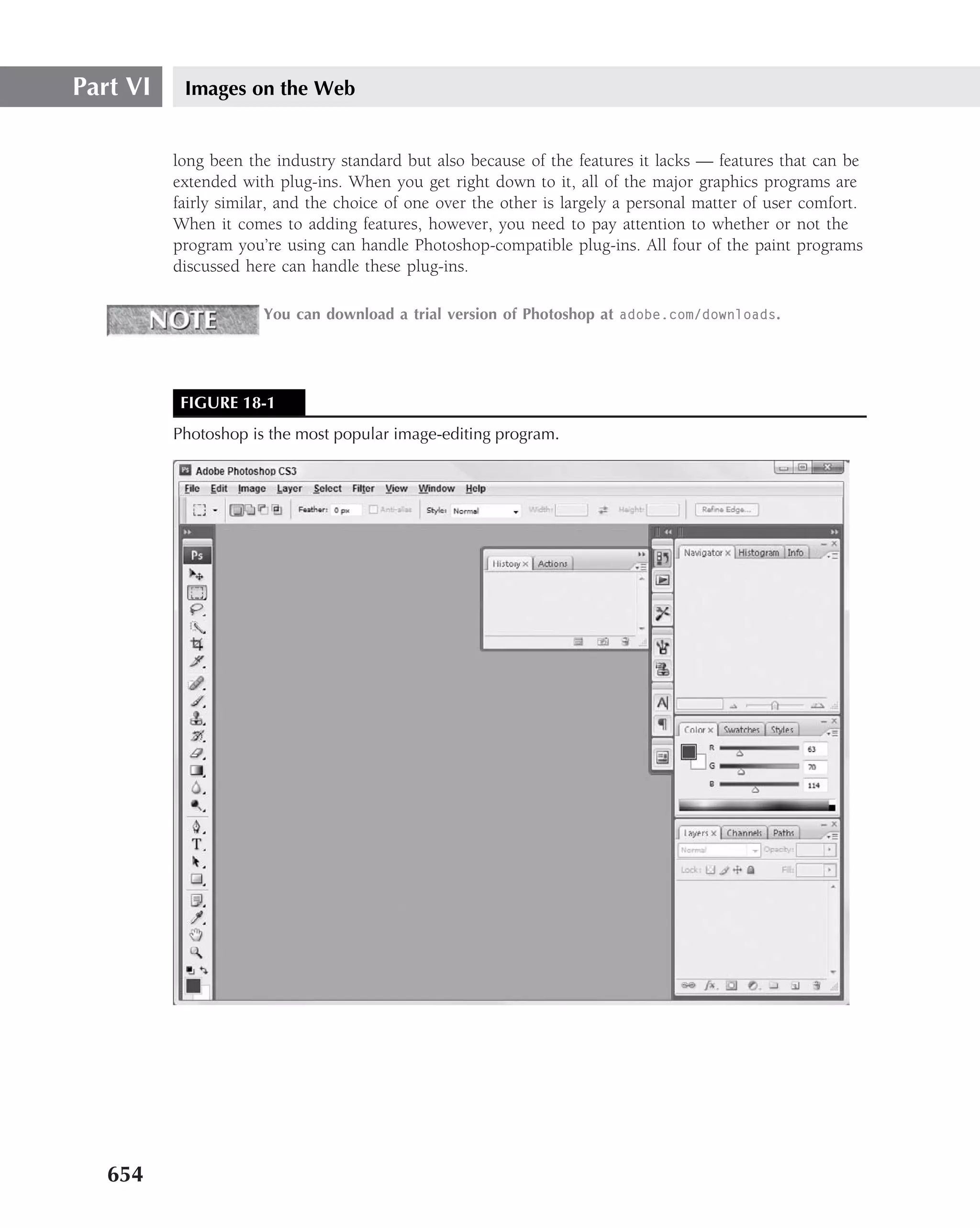
  • 516.
    Part IV Making It Look Professional Note that, in the following example, we have used a fixed rate loan and not a variable rate loan. The variable must always be on the left side of the assignment operator. The value to be assigned to it must always be on the right side of the assignment operator. Declaring variables Before it is actually used in a script, a variable should be declared, which means that you’re giving the Web browser notice that it eventually has to deal with the variable. Variable declaration is done with the var keyword: var answer; This process is referred to as declaring a variable, or variable declaration. You can kill two birds with one stone by assigning an initial value to the variable at the time of declaration: var answer=42; This process is referred to as initializing a variable, or initialization of a variable. In JavaScript, if you declare a variable but do not initialize it, the variable is eventually purged from the system to reclaim memory. Other languages require an explicit garbage collection state- ment to reclaim memory. Remember that a variable is actually a location in memory. You do not, however, have to assign a value at declaration, nor do you have to use the var keyword. In fact, you often see JavaScript programs that have a line such as this in them: textEntry = window.document.orderNow.visitorName.value; In this case, the variable textEntry is both created and fed a value in one statement. It is, however, a good idea to explicitly declare the variable because, as time passes, you will forget why you created it. Naming variables and constants Although you have wide latitude in naming variables, the names should be descriptive of the kind of information they hold. For example, the current temperature might be expressed by the variables currentTemperature, currTemp, or even cT. If you wanted to specify that it was in Fahrenheit, you might invent the variables degreesFahrenheit, degF, or dF, instead. It’s best to use descriptive, but not unnecessarily long, variable names. 480
  • 517.
    Making Dynamic Pageswith JavaScript 13 It is customary (but not required) to start variables that consist of more than one word with a lowercase letter, and then to uppercase the first letter of each subsequent word. This helpful convention is referred to as camel casing. However, bear in mind that JavaScript is case-sensitive, so whatever capitalization you use must be consistent. If you call a variable shirtSize in one place and ShirtSize in another, don’t expect your program to work properly. JavaScript reserved words he following table shows reserved words used in JavaScript. T Reserved Word Reserved Word Reserved Word abstract final protected as finally public boolean float return break for short byte function static case goto super catch if switch char implements synchronized class import this continue in throw const instanceof throws debugger int transient default interface true delete is try do long typeof double namespace use else native var enum new void export null volatile extends package while false private with There are a few restrictions on how you can name your variables. For example, you cannot give a variable the same name as any of the JavaScript reserved words (see the JavaScript Reference in sidebar for a list of reserved words). Your variable names cannot have any spaces in them, either. Finally, keep in mind that you cannot begin a variable name with anything but a letter or the underscore character (_). Table 13-1 shows examples of valid and invalid variable names. 481
  • 518.
    Part IV Making It Look Professional TABLE 13-1 Valid and Invalid Variable Names Valid Example Invalid Example Explanation Number1Choice #1Choice The invalid example begins with something other than a letter or underscore. 1Choice moonPhase moon Phase The invalid example has a space between the words. _switch switch The invalid example is a reserved word. The valid one, even though technically legal, isn’t a good idea either, because it’s just too close to the reserved word for comfort. A simple typographical error could easily change _switch into switch. As long as the name is legal, and you know what the variable name means, that’s fine. But it’s a good idea to bear in mind that you may have to come back to the script one day and revise it. And that day may be months or even years after you wrote it — months or years during which you’ve written many other scripts that all tend to blur together in your memory. It’s always tempting to go for a very short and pithy variable name, but the more clearly it expresses its meaning, the easier it is for you to work with it over time. Assigning different values Once you’ve decided on a name for your variable, you can continue to assign different values to it forever. The currentTemperature variable may hold a value of 16 on a winter morning, 37 that same afternoon, or 105 in the depths of August. No matter what value is assigned to it, the variable itself remains the same, only its value changes. A literal, on the other hand, is a fixed value that never changes. You could set up a variable called yardstick that you assigned a value of 36 to, but there’s no point in that because a yard is always 36 inches long. The value never changes, and the whole idea of variables is that they are a way to cope easily with changing values. Value types A value, whether literal or held in a variable, can be one of several types. The three most com- monly used are numeric, string, and Boolean: ■ Numeric — Just as it sounds — numbers, such as 8 or 37. ■ String — Alphabetical characters or, to be more accurate, alphanumeric characters. Both ‘‘John ate a hot dog’’ and ‘‘78’’ are strings because the number 78 is enclosed in 482
  • 519.
    Making Dynamic Pageswith JavaScript 13 quotation marks. If you intend to use numbers for calculation instead of using them as words in their own right, they should be numeric, not strings in quotation marks. ■ Boolean — Logical values; the only two possibilities are true and false. Affecting values with operators You’ve already met one JavaScript operator, the assignment operator (=), earlier in this chapter in the section ‘‘Working with variables, constants, and literals.’’ There are, however, many more, each of which performs a different task. Comparison operators The equality operator (which tests to see if two expressions are equal) is two equal signs (==). If you need to see if A is equal to B, and take different actions depending on the answer, you could use code such as the following example: if (A==B) { actionOne; } else { actionTwo; } See the section, ‘‘Making choices with If and If . . . Else,’’ later in this chapter for details on how the if statement works. It’s really, really easy to confuse the assignment operator (=) with the equality oper- ator (==), even for professional programmers. After all, unless you learned programming in kindergarten, you were using ‘‘=’’ to mean ‘‘equals’’ long before you ever tried programming, and it’s pure reflex to type it that way instead of ‘‘==’’. This is probably the single most common programming bug. If your script isn’t working right, this is one of the first things to look for. The following example shows the right way to use both the equality operator and the assignment operator: if (A==B) { B=C; } else { B=D; } The meaning of this example, step by step, is that the script looks first to see if variable A has the same value as variable B. If it does, B gets the value of C assigned to it. If not, B gets the value of D assigned to it. Whichever result you get for the equality comparison, the value of B changes. The values in the other two variables — C and D — remain unchanged because assignment is strictly a one-way street. 483
  • 520.
    Part IV Making It Look Professional The assignment of a value always goes from right to left. Thus, the value in the variable on the left ends up the same as that in the variable on the right. Also note that if you accidentally use = instead of ==, you’ll get true, so the if case will always execute, (since a=b means a was successfully assigned the value of b, and thus true). Other commonly used comparison operators include the following: ■ != — Not equal to ■ › — Greater than ■ ‹ — Less than ■ ›= — Greater than or equal to ■ ‹= — Less than or equal to There is no single key to define less than or equal to, greater than or equal to, or not equal to for comparison operators. In each instance the equal to (=) is the second character of the string. Arithmetic operators The arithmetic operators used most often reflect, of course, the most common mathematical operations: addition, subtraction, multiplication, and division. Also, the unary negation operator and the increment and decrement operators come into play quite often. ■ + — Addition. Adds two values together. When used with string values, it concatenates the strings — in other words, makes them into one string. In that case, it is known as the concatenation operator. ■ – — Subtraction. Subtracts one value from another. ■ * — Multiplication. Multiplies one value by another. ■ / — Division. Divides one value by another. ■ – — Unary negation. Although this uses the exact same sign as the subtraction oper- ator, there is a subtle shade of difference. It is placed before a variable (literal numerical value) to reverse its current status. If the value is negative, the result becomes positive; if it is positive, the result becomes negative. ■ ++ — Increment. Increases the value by 1. If placed before a variable (as in ++variable), the value of that variable is returned, and then the increment takes place. If placed after a variable (as in variable++), the value of the variable after the increment takes place is returned. This only works with variables containing a number; otherwise, you’ll get an error. ■ -- — Decrement. Decreases the value by 1. If placed before a variable (as in -- variable), the value of that variable is returned, and then the decrement takes place. If placed after a variable (as in variable--), the value of the variable after the decrement 484
  • 521.
    Making Dynamic Pageswith JavaScript 13 takes place is returned. This only works with variables containing a number; otherwise, you’ll get an error. The + operator (which is used either to add two numerical values or concatenate two string values) has a built-in solution for situations in which a JavaScript program tries to add a numerical value and a string value. It assumes that you mean the number to be interpreted as a string — as if it were within quotation marks — and converts it for you. Thus, if you try something such as A = 78 + "modem" you get ‘‘78modem’’ as the result. Also, Y = "37" + 10 gets you ‘‘3710’’ instead of 47. There is a special kind of shorthand you can perform with the basic arithmetic operators to handle common situations such as the following one: tax = tax - deductions; Alternatively, this can be expressed in JavaScript shorthand like this: tax -= deductions; The addition, multiplication, and division operators can also be handled this way. A += B is the same as A = A + B, just as A *= B is the same as A = A * B, and A /= B is the same as A = A / B. Note that when discussing arithmetic operators, you should keep in mind the following: ■ A binary operator is one which requires operands both before and after the operator, as in 2 + 2, 10 – 5, 10 * 10, and 21 / 4. ■ The % operator is called a modulus. The modulus returns the value of the remainder of an operator. Hence, if you were to take the division example, 21 / 4, and make it modulus, 21 % 4, the result would be 1. The remainder of 21 divided by 4 is 1. ■ A unary operator simply requires an operand either before or after the operator. ++X would be an example of a prefixed expression, and X++ would be an example of a post- fixed expression. The following code shows an example of a prefix variable: var x = 100; var currentValue; currentValue = ++x; /* The currentValue would be 101 because x is prefixed. This means that 1 is added to X (100) and the result, 101, is then assigned to currentValue. */ The following code shows an example of a postfix variable: var x = 100; var currentValue; currentValue = x++; /* The currentValue would be 100 because x is postfixed. This means that x (100) is assigned to currentValue and then 1 is added to x. */ 485
  • 522.
    Part IV Making It Look Professional Logical operators The three logical operators common to all programming languages are AND, OR, and NOT. When two values are compared with an AND operator, both of them must be true or the answer to the AND comparison is false. When two values are compared with the OR operator, either one of them may be true and still return a value of true. Only if both of them evaluate to false is a return of false possible. The logical NOT, on the other hand, is the logical equivalent of the arithmetic unary negation operator. If the value being evaluated is true, it returns false; if the value is false, it returns true. You would use a NOT statement to set a flag to indicate whether to enter a certain selection structure, for example. Logical operators are expressed in JavaScript as follows: ■ && — AND ■ || — OR ■ ! — NOT Table 13-2 summarizes common JavaScript operator types. Assignment operators The assignment operator (=) is straightforward. Take the value on the right and assign it to the variable on the left, as shown here: a = b TABLE 13-2 Common JavaScript Operator Types JavaScript Operator Types Description of Operators Comparison ‹, ›, ‹=, ›=, =, != Arithmetic Uses following binary operators: +, -, *, /, % Uses the following unary operators: ++, --, - Logical &&, ||, ! Assignment =, +=, -=, *=, /=, %= String Multiple characters within quotation marks 486
  • 523.
    Making Dynamic Pageswith JavaScript 13 If you use compound statements such as +=, the instruction is to take the operand on the left of +=, add it to the value on the right of the compound operator, and then assign that new value to the variable on the left of the compound assignment operator. Consider the following example: a = 25; b = 125; a += b; The statement a += b is the equivalent of a = b + a. The result of this statement is 150, since a = (125 + 25). Hence, the value of a is now 150, while the value of b is still 125. Similarly, using subtraction, you take the value of the operand on the left, subtract from it the value of the operand on the right, and assign the new value to the operand on the left. Consider the following example: x = 99; y = 22; What will the result of the y -= x expression be? (Hint: The answer is -77.) Compound multiplication (*=) and division (/=) assignment expressions work the same as += and -=. Other compound assignment statements you may make might include %=, which will take the value of the left operand and divide it by the value of the right operand. The remainder will then be assigned to the left operand. Consider the following example: x = 4; y = 14; y %= x; The expression y %= x is equivalent to y = y/x. Then, y = 2 because 2 is the remainder when you divide 14 by 4. Strings Finally, note that compound assignment statements can be made by combining separate string variables. This adding of separate strings into one longer string is called concatenation. It’s a long word and a pain to pronounce, but all it means is adding variable values together. Consider the following example: beginString = "It is hotter than"; endString = "blazes in here!"; beginString += endString; 487
  • 524.
    Part IV Making It Look Professional You could print it as follows: document.writeln(beginString + "It’s 103 with the air conditioning on."); The output would be: It is hotter than blazes in here!It’s 103 with the air conditioning on. We leave it to you to insert two spaces between the two sentences. You can also add string and non-string variables into one sentence. Adding statements using event handlers An event in JavaScript is an action that is taken by a visitor. A visitor may, for example, move his or mouse pointer over an image, enter data into a form, or click a link. An event handler is a script that you write to react to an event. Event handlers for particular events always begin with on, followed by the name of the event. A click event, for example, is processed by an onClick event handler. Any time you use JavaScript to tell a browser to do one thing, you’re making a statement. Each line in the following code is a separate statement: document.write("This is being added to the page."); alert("This is in a popup message window."); globe = round; The document.write() is a basic method of JavaScript and, with trivial variations, several other object-oriented languages. If the three preceding lines of code were to actually be executed, the output for the first line would be the literal in double quotation marks enclosed within the parenthesis of the document.write method. For the second line, a message box would appear as shown in Figure 13-3 The third line just assigns the value in the right to the left variable. FIGURE 13-3 The message can appear in a popup window. 488
  • 525.
    Making Dynamic Pageswith JavaScript 13 The three ways to put statements into your Web pages are: ■ As attributes of an HTML element ■ As plain statements in the contents of a ‹SCRIPT› tag ■ As part of a function in the contents of a ‹SCRIPT› tag HTML elements, of course, have various attributes. For example, the BODY element has a back- ground color attribute, bgcolor. If you want to specify a value for that attribute, use this code: ‹BODY bgcolor="blue"› In addition to the simple attributes you’re used to, the elements also have some special attributes called event handlers. Event handler attributes are assigned values just as with any other attribute. You put the name of the attribute in, follow it with an equal sign, and then put the value within quotation marks. The following line from the opening example in this chapter shows how the process is identical to the way a background color is assigned. The only difference is the name of the attribute and the value that is assigned to it. The value, in this case, is a JavaScript statement. ‹BODY onLoad="alert(’Hi!’)" onUnload="alert(’So long - hurry back!’)"› See the section, ‘‘Using Events to Trigger Scripts,’’ later in this chapter for more information on event handlers. With event handler attributes, you can even specify multiple actions to be taken for a single attribute. Just separate each statement with a semicolon: ‹BODY onLoad="alert(’Hi!’);alert(’Welcome!’)"› This causes the first statement — alert("Hi!") — to take place once the page is loaded, launching a popup window that contains the text Hi! When you’ve finished reading that state- ment and click OK, the next statement executes, launching the second popup message window as shown in Figure 13-4. FIGURE 13-4 The second statement executes. 489
  • 526.
    Part IV Making It Look Professional Statements that aren’t contained in functions always execute in the order in which they appear. You could also run the previous code by calling a function to execute the statements. The eagle-eyed will have already noticed the use of two different kinds of quotation marks — double quotation marks (") to contain the attribute’s value and single quotation marks (") within the statements themselves. This is a critical factor. If you tried the following line instead, you’d be creating trouble: ‹BODY onLoad="alert("Hi!");alert("Welcome!")"› The problem here is that the Web browser knows that the first double quotation mark shows where the attribute’s value begins, and the next one is where it ends. Thus, a Web browser reads this value as alert and comes to a screeching halt because it’s a meaningless value. You can, if you want to, use single quotation marks to delimit the attribute’s value, and double quotation marks inside the statements. The following code is perfectly valid: ‹BODY onLoad=’alert("Hi!");alert("Welcome!")’› As long as you use a different kind of quotation mark to set off the attribute’s value from the contents of the statements, you’ll be fine. Using the <SCRIPT> tag Another way to add statements is within the ‹SCRIPT› tag: ‹SCRIPT language="JavaScript"› document.write("This is the first line.‹BR›"); document.write("This is the second line.‹BR›"); document.write("This is the third line.‹BR›"); document.write("This is the fourth line."); ‹/SCRIPT› The first line opens with the ‹SCRIPT› tag to tell a Web browser that it’s about to encounter a script, and it specifies JavaScript as the scripting language using the language attribute. If you do not specify a language, JavaScript is assumed to be the language used. However, no one can guarantee that this will always be the case, so it’s best to go ahead and specify it. The four statements simply add four separate sentences to a Web page, each one placed on a different line because there is a line break (BR element) included at the end of each of the first three sentences (Figure 13-5). Candidly, there are much better ways to achieve the same end, but it illustrates exactly how multiple statements have to be included. The ‹/SCRIPT› end tag specifies that there is no more script to follow. 490
  • 527.
    Making Dynamic Pageswith JavaScript 13 FIGURE 13-5 Four statements are executed. HTML comments are normally used to add notes on the meaning of the HTML code on a Web page. This helps both the original author and anyone else who works on the Web page later to grasp the meaning of any complex or unusual code. They have a special use when it comes to JavaScript, however. Because, in the past, several Web browsers did not support JavaScript, it became customary to wrap the material inside ‹SCRIPT› tags within HTML comments. These comments have a start tag of ‹!-- and an end tag of --›. The following shows how they were used: ‹SCRIPT language="JavaScript"› ‹!-- Make this script invisible to old browsers. document.write("This is the first line.‹BR›"); document.write("This is the second line.‹BR›"); document.write("This is the third line.‹BR›"); document.write("This is the fourth line."); // Back to normal. --› ‹/SCRIPT› The reason this works is that a Web browser ignores anything within HTML comment tags. It also ignores any tags it encounters that it doesn’t understand, which is why the ‹SCRIPT› and ‹/SCRIPT› tags don’t have to be inside the HTML comments. If a non-JavaScript browser encountered a script that wasn’t inside comments, however, it would treat it as text to be dis- played on the Web page. Understanding the double slash (//) comment marker But what about the double slash (//) at the beginning of the last line before the end tag? That’s a comment marker, too, but it’s a JavaScript comment this time, not an HTML comment. Take a moment to relax; it’s okay if you’re a bit confused at this point. Just remember that JavaScript isn’t HTML, and HTML isn’t JavaScript. If that last line just read Back to normal and ended in 491
  • 528.
    Part IV Making It Look Professional an HTML comment end tag, then the JavaScript interpreter wouldn’t much like it. Although the interpreter would ignore the HTML comment end tag (just as it ignores the HTML comment start tag), it would see the "Back to normal" part as just plain text, neither HTML nor JavaScript. Including comments JavaScript comments are used for the same purpose as HTML comments — to add commentary to the Web page that won’t be interpreted as any kind of actionable code. For example, the following bit of JavaScript includes a notation on its meaning: alert("You have entered an invalid e-mail address."); // Notifies the visitor that they need to go back and change the // entry in the e-mail address text box. The // method is one of two ways to add comments to JavaScript, and it has a simple limitation — it hides only one line. It doesn’t matter how long that comment is, as long as you don’t press your Enter key before you’re finished with it. If you press your Enter key to add a line break, however, you begin typing on a new line — in the following example, everything after that is outside the comment: alert("You have entered an invalid e-mail address."); /* Notifies the visitor that they need to go back and // change the entry in the e-mail address text box.*/ If you need to make long comments, there is an alternative method, which uses both a start and end tag. The start tag for JavaScript comments is /* and the end tag is */. The following code shows how they’re used: alert("You have entered an invalid e-mail address."); /* This is the alert message that corresponds to one of the new form entry checking algorithms developed by XYZ Corporation. They were added to our site in February. This one notifies the visitor that they need to go back and change the entry in the e-mail address text box. */ It is customary to put comments before the code, rather than after. Processing statements The ‹SCRIPT› tag can be placed anywhere on a Web page, either in the HEAD or the BODY elements. However, you must remember that statements are processed in the order they’re found. This means that if you place a statement before the things it acts on, then you’re asking for trouble. Consider the following bad example: ‹HTML› ‹HEAD› ‹TITLE›Do Not Attempt This At Home‹/TITLE› 492
  • 529.
    Making Dynamic Pageswith JavaScript 13 ‹/HEAD› ‹BODY› ‹SCRIPT type="text/JavaScript"› ‹!-- Make this script invisible to old browsers. document.write("The initial value was John.‹BR›"); document.write("The current value is " + window.document.formOne.firstName.value); // Back to normal. --› ‹/SCRIPT› ‹FORM id="formOne" name="formOne"› ‹P›Enter your first name: ‹/P› ‹INPUT type="text" id="firstName" name="firstName" value="John"› ‹/FORM› ‹/BODY› ‹/HTML› When you load this example into a Web browser, only the first document.write statement takes effect because the second one requires a value that hasn’t been defined yet — the value in the text box named firstName, which is contained in the form named formOne. If the code is modified to place the ‹SCRIPT› tag and its contents after that form and text box are defined, however, it’s a different story: ‹HTML› ‹HEAD› ‹TITLE›This Time, It Works‹/TITLE› ‹/HEAD› ‹BODY› ‹FORM name="formOne" method="post"› ‹P›Enter your first name: ‹/P› ‹INPUT type="text" name="firstName" value="John"› ‹/FORM› ‹SCRIPT language="JavaScript"› ‹!-- Make this script invisible to old browsers. document.write("The initial value was John.‹BR›"); document.write("The current value is " + window.document.formOne.firstName.value); // Back to normal. --› ‹/SCRIPT› ‹P›Enter a new name, then click on the "Refresh" or "Reload" button at the top of your browser.‹/P› ‹/BODY› ‹/HTML› Now, when the page opens, both document.write statements work. Because the initial value is still the same as the current value, both say the value is John, as is shown in Figure 13-6. 493
  • 530.
    Part IV Making It Look Professional FIGURE 13-6 This figure illustrates identical values. Resetting form value This is probably as good a place as any to point out that Web browsers and JavaScript don’t always do what you expect them to do. Generally, however, when you reload a Web page in a browser, everything is reset to its initial values. Combining statements into functions A function is a grouped series of statements that execute one after another. They are used to create more complex programming constructs than can be accomplished with simple statements alone. The basic layout isn’t much different from any series of statements: ‹SCRIPT› function functionName(){ firstStatement; secondStatement; thirdStatement; } ‹/SCRIPT› The only differences are that a function is declared with the function keyword, which is fol- lowed by the name of the function, a closed pair of parentheses, and then an opening curly bracket. The statements are then listed as usual, and a closing curly bracket ends the function. Calling a function Remember that the statements that are inside of functions run only when called. The following example illustrates how this works: Functions exist with ‹script› ‹/script› tags ‹HTML› ‹HEAD› ‹TITLE›Reading and Displaying a Value‹/TITLE› 494
  • 531.
    Making Dynamic Pageswith JavaScript 13 ‹SCRIPT› function getTheName(){ var textEntry; textEntry = window.document.orderNow.visitorName.value; alert(textEntry); } ‹/SCRIPT› ‹/HEAD› ‹BODY› ‹P›Enter your name, then click on the button.‹/P› ‹FORM name="orderNow"› ‹label› Name‹/label› ‹INPUT type="text" name="visitorName"› ‹INPUT type="button" value="Click Here to display name in the message box." onClick="getTheName()"› ‹/FORM› ‹/BODY› ‹/HTML› Here’s what happens in the code, step by step: 1. The function called getTheName() is declared. The Web browser reads it and stores all the information in it in memory, including the existence of the variable, textEntry. Although the function is ready to go whenever it is invoked, it does nothing at all at this time. 2. The visitor follows the instructions, makes an entry into the text box, and then clicks the button specified in the form. 3. The button’s onClick event handler calls the getTheName function. 4. The current value of the text inside the text box is assigned to the variable textEntry. 5. The alert() method is triggered, with the textEntry value as its parameter. As a result, the value of the text inside the text box is displayed in a popup message box, as shown in Figure 13-7. FIGURE 13-7 This figure shows the value in the message box. 495
  • 532.
    Part IV Making It Look Professional Calling a statement A standalone statement or series of statements, however, runs automatically. Statements that are inside of functions run only when called. There’s nothing mysterious about calling a statement. Just as you might call a friend’s name to attract his or her attention, you call a function by using the function’s name. The alert() method is a built-in method of the window object and can also be writ- ten as window.alert(). However, in most instances, the use of window in the path is unnecessary. It is assumed during the execution of the program. Understanding the scope of variables The scope of a variable is the part of a Web page that it exists in. A variable that is declared before any functions are defined can be used in any function or by any statement that follows. A variable that is declared within a function, on the other hand, has scope only within that function. This means that you can declare many different variables, all of which have the same name, without creating a conflict — as long as those variables are declared within separate functions. This is one of those capabilities that it’s good to be leery of, however, because you might cause confusion. Table 13-3 explains the types and ranges of variable scope. A common example of this type of variable name duplication is the count variable that is normally used in loops. See the section, ‘‘Going in loops,’’ later in this chapter. Making choices with If and If . . . Else A program, as mentioned earlier, is a series of instructions that are carried out in sequence. The sequence, however, doesn’t have to be the same every time. The if statement and the slightly more complex if...else statement give a program the power to make decisions based on current conditions. TABLE 13-3 Variable Scope Variable Type Scope (Range) Global Accessible to all functions. Declared at class level. For our purposes in this chapter, a class may be thought of as the same as the Web page. Local Accessible only to specific function where variable is declared 496
  • 533.
    Making Dynamic Pageswith JavaScript 13 In plain English, an if statement says, ‘‘If the condition is true, then take this action. If it isn’t true, then don’t take any action.’’ The JavaScript code version is as follows: if (thisIsTrue) { doThis; } The condition represented by thisIsTrue can be any kind of comparison test. The part that reads doThis would be replaced with any JavaScript statement or function. In the following example, we test to see if the value of the variable x is less than 3. If it is, then the variable y is assigned a value of 12 and the variable z is assigned a value of 53: if (x ‹ 3) { y = 12; z = 53; } If x is equal to or greater than 3, however, nothing happens. The variables y and z are not changed, and the program flow simply continues on down to the next line of the code. The if...else statement allows for a similar, but more complex, branching decision. This one might be expressed in English as, ‘‘If the condition is true, then take the first action. If it isn’t true, then take the second action.’’ The JavaScript version is as follows: if (thisIsTrue) { doThis; } else { doThat; } The following example tests to see whether the value of the season variable is "spring", "summer", "autumn", or "winter" and invokes different functions to display the appropriate seasonal observation: if (season == "spring"){ document.write("The Earth is like a child that knows poems."); } else { if (season=="summer") { document.write ("To see the summer sky is poetry"); } else { if (season=="autumn"){ document.write("Autumn is a second spring, where every leaf is a flower."); } else { 497
  • 534.
    Part IV Making It Look Professional document.write("Every mile is two in winter."); } } } You will note that it is easy to make a mistake in coding, especially with the curly braces ({ }), so you may wish to simplify the coding by using a feature known as a switch (or case) structure. A switch structure allows you to check for multiple values of a single variable. In the earlier example, this variable was season. Here is the same if. . .else structure rewritten as a case structure: switch (season) { case "spring": document.write("The Earth is like a child that knows poems."); break; case "summer": document.write("To see the summer sky is poetry."); break; case "autumn": document.write("Autumn is a second spring, where every leaf is a flower."); break; case "winter": document.write("Every mile is two in winter."); break; } You would really not necessarily deem this to be shorter than a selection structure, but you have neatly reduced the number of curly braces from 12 to 2. In other words, you have eliminated 10 possible sources of error. You may have noticed the use of the break statement. This drops the execution of the pro- gram out of the case structure once the proper match has been made. If the break statement were absent, the case structure would still work, but the output would be different. In the first instance, let us say the value of season is summer. The output then would be: "To see the summer sky is poetry." If the break statements were omitted, however, and the variable were still to be summer, the output would be: To see the summer sky is poetry. Autumn is a second spring where every leaf is a flower. Every mile is two in winter. Finally, you may, even more simply, put the multivalued variable, season, in an array. var Season = new Array(); season[0] = "spring"; 498
  • 535.
    Making Dynamic Pageswith JavaScript 13 season[1] = "summer"; season[2] = "autumn"; season[3] = "winter"; However, the number of values is rather small for an array. If you need to test for multiple conditions before deciding what action to take, if statements can be nested so that one condition is tested after another one is passed. This says, ‘‘If the first condition is true, then — and only then — check to see if the second condition is true. If the second one is true, too, then take an action.’’ The following is the JavaScript version: if (thisIsTrue) { if (thatIsTrue) { doThis; } } The following example tests first to see if a credit card number is correct, and then checks to see if the balance of available credit is enough to pay for the product. The credit limit is not checked unless the card number is a valid one. Only if both of these comparisons are true will the purchase be completed. if (cardNumber == valid) { if (limit == highEnough) { completePurchase(); } } You can also nest an if statement within an if...else statement, an if... else statement within an if statement, or an if...else statement within another if...else statement. The levels of complexity you can reach are truly mind-blowing, allowing for a practically infinite number of conditional decisions. As with any other kind of power, it’s best to exercise this in moderation. If you have 37 different if...else statements nested within 24 different if statements that are themselves nested within another dozen if...else statements, you’ll never be able to untangle things if you need to modify the code later. When code appears to be too complex, rethink your approach. Going in loops Most of us spend at least some time running around in circles. In JavaScript, you sometimes want to do this deliberately — a loop, in programming terms. If you’ve ever cooked a turkey on Thanksgiving, you already know all about loops. You open the oven and look at the meat thermometer to see if it’s up to the ‘‘poultry’’ mark yet. If it isn’t, you wait a little while, and then 499
  • 536.
    Part IV Making It Look Professional check again. You keep doing this until the thermometer shows the right reading, and then you break out of the loop and eat dinner. The most commonly used loop is called a for loop, and in plain English, it could be articulated as, ‘‘For as long as a condition remains the same, I’ll keep taking action. When it changes, I’ll stop.’’ Here’s what it is in JavaScript: for (initial expression ; condition ; increment expression) { statement or statements } The initial expression is simply where you declare a variable and assign a value to it. The variable name that is traditionally used here is count or i because the for loop counts over and over again (or you could say it iterates, if you want to get fancy about it). The condition is anything using the comparison operators. You might, for example, establish a condition of count==36, a condition of count‹=100, or just about any other comparison you want. The increment expression is used to change the value of the variable established in the initial expression by adding 1 to it. It is poorly named because you can decrement the value as well, subtracting 1 from it. To add 1, you use count++; to subtract one, you use count --. Let’s say that you wanted to run through a loop that counted up from 1 to 10. Here’s the JavaScript code you’d use: for (var count = 1; count ‹= 10; count++) { statement or statements } We’re being a little picky by including the var keyword. This is one of those situations in which you really don’t need it, but it never hurts to specify that you’re declaring the variable at this point. The variable count is assigned a value of 1. Next, the looping condition is set so that the loop continues for as long as the value of count is less than or equal to 10. Finally, the increment operator ensures that the value of count increases by one every time the loop comes around again. When the loop begins, count is 1. The statement or statements are executed. When they’re all done, the loop starts over again and checks to see if the value of count is still less than or equal to 10. It isn’t, so 1 is added to 1 to make it 2, and then the loop runs again. This goes on until the 10th time the loop completes. At that time, the condition is met because count finally holds a value of 10. The loop is finished at that point. The following example shows this kind of count-up in action. It displays the numbers 1 through 5, each as an H1 header: ‹HTML› ‹HEAD› 500
  • 537.
    Making Dynamic Pageswith JavaScript 13 ‹TITLE›Looping Up‹/TITLE› ‹/HEAD› ‹BODY› ‹SCRIPT language="JavaScript"› ‹!-- Make this script invisible to old browsers. for (var count = 1; count ‹= 5; count++) { document.write("‹H1›" + count + "‹/H1›"); } // Back to normal. --› ‹/SCRIPT› ‹/BODY› ‹/HTML› Figure 13-8 shows the results. FIGURE 13-8 Here is the result of printing a looping value. You can accomplish the reverse of this — counting down from 5 to 1 — by a slight variation in the code: ‹HTML› ‹HEAD› ‹TITLE›Looping Down‹/TITLE› ‹/HEAD› ‹BODY› ‹SCRIPT language="JavaScript"› ‹!-- Make this script invisible to old browsers. 501
  • 538.
    Part IV Making It Look Professional for (var count = 5; count ›= 1; count--) { document.write("‹H1›" + count + "‹/H1›"); } // Back to normal. --› ‹/SCRIPT› ‹/BODY› ‹/HTML› Here, the value of count is set to 5 to begin with and decremented by 1 with each pass through the loop. The condition that is tested for is whether or not the value in count is 1 or higher. Figure 13-9 shows the countdown page. FIGURE 13-9 This figure shows the result of counting down with a decrement. See the section, ‘‘Arithmetic operators,’’ earlier in this chapter for an explanation of the -- (decrement) operator. The for...next loop is but one of the looping structures available. The other common itera- tive structures are the do ... while and do...until. Each of these does the same thing as a for . . . next loop but each serves a different purpose. If you do not know the number of itera- tions in a loop, you would use a while statement. If you knew the number of times the program would execute the loop, then for...next is a reasonable choice. 502
  • 539.
    Making Dynamic Pageswith JavaScript 13 Which JavaScript? avaScript was invented by Netscape and was originally called LiveScript. LiveScript was a J wonderful idea that got a lot of Web designers interested in the possibilities, but it was pretty limited in what it could do. JavaScript has changed a lot since those early days and is currently in its fifth version. With each new revision, new capabilities are added. This means, of course, that older Web browsers can’t interpret the latest changes because they don’t even know they exist, and you can’t teach an old browser new tricks. Microsoft, as part of the browser wars, introduced a JavaScript variant called JScript. Although it is essentially identical to JavaScript, there are just enough differences to create problems for Web designers. The solution here is simple compared with other cross-browser compatibility issues, however. Internet Explorer supports only JScript variants, but JavaScript works on Internet Explorer. If you just stick with normal JavaScript, you’re better off. In an attempt to develop a standard version of JavaScript, the European Computer Manufacturers Association (ECMA), a European standards body, came up with ECMAScript. As you can guess if you have any experience with Web standards, this standard is way behind the times. Using Events to Trigger Scripts An event in JavaScript is an action that is taken by a visitor. A visitor may, for example, move his or her mouse pointer over an image, enter data into a form, or click a link. An event han- dler is a script that you write to react to an event. Event handlers for particular events always begin with on, followed by the name of the event. A click event, for example, is processed by an onClick event handler. Table 13-4 shows the event handlers that are common to Firefox, Internet Explorer, and all popular JavaScript-capable browsers. If you look at other JavaScript documentation, you find a great deal of confusion about events and event handlers. When a page loads into a Web browser, for example, this is a Load event. The event handler that reacts to that always begins with onLoad= and then some JavaScript code. However, you often find a Load event referred to as an onLoad event, even though onLoad is technically the event handler, not the event itself. The HTML standard even falls into this trap. It’s best to just shrug this sort of thing off — as long as you know what’s meant, that’s all that’s important. In addition to the common event handlers, specialized ones are particular to specific elements. The FORM element, for example, has onSubmit and onReset form handlers. Respectively, these mean that someone has clicked the Submit and Reset buttons. 503
  • 540.
    Part IV Making It Look Professional TABLE 13-4 Alphabetical List of Event Handlers Event Meaning onAbort A user clicks the Stop button while an image is loading. onBlur An element loses focus. onChange An element changes. onClick The mouse button is pressed and released once. onDblClick The mouse button is pressed and released twice in rapid succession. onError An error occurs. onFocus An element receives focus. onKeyDown A key is pressed. onKeyPress A key is pressed and released. onKeyUp A pressed key is released. onLoad The Web page is loaded into the browser. onMouseDown The mouse button is pressed. onMouseMove The mouse pointer moves. onMouseOut The mouse pointer moves off the object. onMouseOver The mouse pointer moves over the object. onMouseUp The mouse button is released. onMove A window is moved. onReset A form is reset. onResize A window is resized. onSelect Text is selected in a text box or text area. onSubmit A form is submitted. onUnload The browser moves on to another page. Triggering on page loads and unloads When you go to a Web page, you cause a Load event. When you leave it, you cause an Unload event. A Web page is loaded when all the code for it has been transmitted from the Web server to the Web browser. A Web page is unloaded when a different Web page (or other file) is loaded into the browser. Unloading can occur in many ways — when a visitor clicks a link, uses the 504
  • 541.
    Making Dynamic Pageswith JavaScript 13 Back or Forward buttons in the browser, manually enters an address in the address bar, or selects a page from his or her bookmarks (or Favorites) listing or the History listing. One of the handiest things to do on a page load is to break your page out if it is contained within another Web site’s frames. The following code shows one way to do it: ‹HTML› ‹HEAD› ‹TITLE›Breaking Out Of Frames‹/TITLE› ‹SCRIPT language="JavaScript"› ‹!-- Make this script invisible to old browsers. function frameBuster() { if (parent.location != window.location) { parent.location = window.location; } } // Back to normal. --› ‹/SCRIPT› ‹/HEAD› ‹BODY onLoad="frameBuster()"› ‹h1›Hahahahahahahahahaha! You can’t keep me in your frame!‹/h1› ‹/BODY› ‹/HTML› Figure 13-10 shows the Web page this code creates. FIGURE 13-10 This figure shows the result of breaking out of frames. The function frameBuster() is called when the page is finished loading. It checks to see if the parent frame (parent.location) has the same URL as the Web page itself (window.location). 505
  • 542.
    Part IV Making It Look Professional If the values of the two are not equal, they are made equal. The effect of this is to automatically detect the presence of a frame around your Web page and automatically ditch the frame. See Chapter 9 for information on frames and framesets. Reacting to mouse movements One of the most popular of all JavaScript techniques is the onMouseOver event handler (com- monly called a rollover), which detects when the mouse pointer is over an element. Two related event handlers, onMouseOut and onMouseMove, are not as common, but are still a valuable part of your JavaScript armory. The three event handlers are distinguished from one another by when they are detected. An onMouseOver event handler is triggered when the mouse pointer first crosses the edge of an ele- ment (usually an image, such as a navigation button), and remains active for as long as the pointer isn’t moved off the element. An onMouseOut event handler is triggered when the mouse pointer is moved off the element. An onMouseMove event handler is triggered when the mouse pointer is over the object and is moved. The following code demonstrates how these events work: ‹HTML› ‹HEAD› ‹TITLE›Testing Mouseovers‹/TITLE› ‹SCRIPT language="JavaScript"› ‹!-- Make this script invisible to old browsers. function showOver() { document.outputForm.readItHere.value = "Over"; } function showOut() { document.outputForm.readItHere.value = "Out"; } // Back to normal. --› ‹/SCRIPT› ‹/HEAD› ‹BODY› › ‹IMG src="female_student_relaxing_200.gif" width="200" height="177" border="0" onMouseOver="showOver()" onMouseOut="showOut()"› ‹FORM id="outputForm" name="outputForm"› ‹INPUT type="text" id="readItHere" name="readItHere" value="Nada"› 506
  • 543.
    Making Dynamic Pageswith JavaScript 13 ‹/FORM› ‹/BODY› ‹/HTML› The two functions each write a word (Over or Out) into a text box depending on whether the MouseOver or MouseOut event is occurring, as shown in Figure 13-11. FIGURE 13-11 This page uses a mouseover image. It is strongly recommended that you use both the ‹id› tag and a ‹name› tag with identical values. The Document Object Model (DOM) uses the id attribute to identify elements, for example when using document.getElementById(). However, browsers use the name value to identify elements when using expressions like document.outputForm.readItHere.value. If you are going to send a form, you need to specify the name attribute. If you don’t, the informa- tion won’t even be sent to the server. Clicking and double-clicking Every time you click with your mouse, you are causing three different events. Pressing the mouse button down is a MouseDown event, and releasing it causes a MouseUp event. The combination of these two is the third event, which is called an OnClick event. Although you can assign all three events to a single element, it is not recommended that you assign both a MouseUp and an OnClick event to the same element because both are triggered when the mouse button is released. 507
  • 544.
    Part IV Making It Look Professional The following example creates a graphic demonstration in which the background color of the page changes in response to MouseDown and MouseUp events: ‹HTML› ‹HEAD› ‹TITLE›Changing Background Colors‹/TITLE› ‹SCRIPT language="JavaScript"› ‹!-- Make this script invisible to old browsers. function makeBlue() { document.bgColor="blue"; } function makeWhite() { document.bgColor="white"; } // Back to normal. --› ‹/SCRIPT› ‹/HEAD› ‹BODY› ‹A href="#" onMouseDown="makeBlue()" onMouseUp="makeWhite()"›Click this to change the background color back and forth.‹/A› ‹/BODY› ‹/HTML› Two functions are defined — one to set the document’s background color to blue, and the other to return it to white. The first is triggered when the mouse button is pressed over the link, and the second when it is released. Figure 13-12 shows the Web page when the mouse button is down. The # sign is acting as a placeholder until the actual link is inserted. FIGURE 13-12 You can change background colors with MouseDown and MouseUp events. 508
  • 545.
    Making Dynamic Pageswith JavaScript 13 Pressing and releasing keys Using your keyboard is pretty much the same thing as clicking a mouse button as far as JavaScript is concerned. Once again, what we normally think of as a single action — pressing a key — is broken down into three different events. When the key is pressed, but before it is released, it is causing a KeyDown event. Releasing the key causes a KeyUp event, and the combination of the two actions is a KeyPress event. This works exactly as the mouse buttons, and the preceding example could be rewritten as follows: ‹HTML› ‹HEAD› ‹TITLE›Changing Background Colors with Keys‹/TITLE› ‹SCRIPT language="JavaScript"› ‹!-- Make this script invisible to old browsers. function makeBlue() { document.bgColor="blue"; } function makeWhite() { document.bgColor="white"; } // Back to normal. --› ‹/SCRIPT› ‹/HEAD› ‹BODY› ‹FORM› ‹INPUT type="text" onKeyDown="makeBlue()" onKeyUp="makeWhite()"› ‹/FORM› ‹/BODY› ‹/HTML› In this version, the background colors change in reaction to typing that takes place within a text box in a form. Each time a key is pressed, the background color changes to blue. Each time it is released, the background color reverts to white. This causes the screen to rapidly flash back and forth between the colors as you type. Seeing Elements as Objects Object-oriented programming sounds ominous at first, but it’s simply a way of looking at things. Even if you’ve never done any programming at all, you’re already familiar with the way it works, because it’s simply an expression of the way the real world works. The book in your hands is an object. It contains other objects such as chapters, illustrations, example code, and so forth. 509
  • 546.
    Part IV Making It Look Professional Similarly, a Web browser is an object that contains other objects that are represented by HTML elements. When you’re using JavaScript, a Web browser is called a window object. The Web page it con- tains is known as a document object. If there is an image in the Web page, it’s an image object. You get the idea — it’s all just another way of stating what’s showing up in the browser and what’s on the page. Objects are referenced from the top down, starting with the window object, and each object is separated from the next by a period. Thus, the Web page is referenced as window.document. If it contains an element named sidePanel, that form can be referenced as window. document.sidePanel. It’s just as if you’re going down a stairway one step at a time. The Document Object Model (DOM) is a way of looking at a Web page that sees every element as an object and all of the element’s attributes as properties of that object. Every object on a Web page is also a property of some object that is higher in the hierarchy than it is. It’s common practice among Web designers to skip the stage specifying the win- dow object — because one Web browser is involved, you don’t usually have to state that fact. Thus, many Web designers would simply write document.sidePanel instead of window.document.sidePanel. However, this approach can be hazardous, occasionally cre- ating unforeseen results. Forms that are specified by name instead of position in the forms array, for example, can return a false error message if the entire object hierarchy leading to them is not used. Understanding properties Every object has properties. For example, as an object, a coat has several properties, and some of these are the same for all coats — the number of sleeves, for example. Other coats have properties specific to that particular coat. The coat, as an object, has a size property. It has a color property. It has a lapel property, a pocket property, a lining property, and so on. In JavaScript, properties are referenced by appending them to the object name. The two — object and property — are separated by a period, just as objects in the object tree are. For example, the size property would be expressed as coat.size. To put it all together, if you want to get the text that a visitor typed into a text box named myText in the form named formSeven, you would express it as document.formSeven .myText.value. This flows down from the document object to the form object to the text box object, and finally to the value of that last object. To get the value in a form that you can actually work with, you assign it to a variable, as in the following example: wordsTyped = document.formSeven.myText.value; 510
  • 547.
    Making Dynamic Pageswith JavaScript 13 From that point on, all you have to do is to work with the variable. The following example shows how this can be done in a form that allows a visitor to change the background color of the page: ‹HTML› ‹HEAD› ‹TITLE›Working with Properties‹/TITLE› ‹SCRIPT language="JavaScript"› ‹!-- Make this script invisible to old browsers. function getColor(){ colorChoice = document.pickAColor.visitorColor.options[document .pickAColor.visitorColor.selectedIndex].value; document.bgColor = colorChoice; } // Back to normal. --› ‹/SCRIPT› ‹/HEAD› ‹BODY bgcolor="Green"› ‹H1›Pick a color, any color.‹/H1› ‹FORM id="pickAColor" name="pickAColor"› ‹SELECT id="visitorColor" name="visitorColor" onChange="getColor()"› ‹OPTION value="Aqua"›Aqua‹/OPTION› ‹OPTION value="Black"›Black‹/OPTION› ‹OPTION value="Blue"›Blue‹/OPTION› ‹OPTION value="Fuschia"›Fuschia‹/OPTION› ‹OPTION value="Gray"›Gray‹/OPTION› ‹OPTION value="Green"›Green‹/OPTION› ‹OPTION value="Lime"›Lime‹/OPTION› ‹OPTION value="Maroon"›Maroon‹/OPTION› ‹OPTION value="Navy"›Navy‹/OPTION› ‹OPTION value="Olive"›Olive‹/OPTION› ‹OPTION value="Purple"›Purple‹/OPTION› ‹OPTION value="Red"›Red‹/OPTION› ‹OPTION value="Silver"›Silver‹/OPTION› ‹OPTION value="Teal"›Teal‹/OPTION› ‹OPTION value="White"›White‹/OPTION› ‹OPTION value="Yellow"›Yellow‹/OPTION› ‹/SELECT› ‹/FORM› ‹/BODY› ‹/HTML› 511
  • 548.
    Part IV Making It Look Professional FIGURE 13-13 You can change colors using list properties. The results, as shown in Figure 13-13, are that the color that is chosen from the list sets the background color of the page. Here’s how it works, step by step: 1. The visitor chooses a color from the list. 2. The onChange event handler is triggered, which calls the function getColor(). 3. The function reads the value of the choice — the selectedIndex of the list — and assigns that value to a variable called colorChoice. 4. The value of that variable is assigned to the document.bgColor property, thus chang- ing the color of the page. Working with methods A method is a capability of an object rather than a property of it. Think of a method as a built-in function that you don’t have to bother with writing. For example, a refrigerator with an automatic ice maker has the capability to make ice, which is a method of the refrigerator object, and it is expressed as refrigerator.makeIce(). The document object, for example, has a write method, which enables you to programmatically add new text to the Web page. It is expressed as document.write(). It’s easy to confuse prop- erties and methods at first, because both follow the object’s name. Just remember that, as with functions, methods end with a closed set of parentheses. The parentheses are there for a reason — the same reason they are there in functions. They are meant to hold parameters for the method to process. The parameters for the document.write() 512
  • 549.
    Making Dynamic Pageswith JavaScript 13 method are the text or HTML code to be placed onto the Web page. To add the sentence, ‘‘Hey, I’m changing the page!’’ to the page, you would write the following: document.write(Hey, I’m changing the page!); Remember, you’re not limited to adding only plain text — you can use HTML code as well. The following variation is just as valid as the original example: document.write(Hey, I’m ‹I›changing‹/I› the page!); Form Validation One of the most common uses of JavaScript is to validate forms before they are submitted to the Web server. The following code shows how to verify that the data in a form contains a name and an e-mail address. It uses regular expressions to perform the validation. ‹html› ‹head› ‹title›Validating Forms‹/title› ‹script language="JavaScript"› ‹!-- Make this script invisible to old browsers. function check() { if (document.form.name.value.length==0 ) { alert ("You must enter your name"); return false; }; var nameRe=new RegExp("^[A-Za-z]+$"); if (!nameRe.test(document.form.name.value)) { alert ("You must enter your name only alphabetic characters are allowed no spaces"); return false; } var emailRe=new RegExp("^ [A-Za-z0-9]+@[A-Za-z0-9.]+$"); if (!emailRe.test(document.form.email.value)) { alert ("You must enter a valid email address eg: user@host .com"); return false; } return true; 513
  • 550.
    Part IV Making It Look Professional }; // Back to normal. --› ‹/script› ‹/head› ‹body› ‹form id="form" name="form" onSubmit="return check();"› First Name ‹INPUT type="text" id="name" name="name"› Email ‹INPUT type="text" id="email" name="email"› ‹input type="submit" value="Send"› ‹/form› ‹/body› ‹/html› In the form, we specify the onSubmit handler to call the function check before the form is submitted. If the event handler returns false, then the form is not submitted, so we say return check(). The check function validates the form and returns true if it is valid. The following expression returns the number of characters in the string entered in the name text box. If it is zero then we ask the user to enter something. document.form.name.value.length Now for the complicated part — regular expressions. Regular expressions (REs) are used to search for matches of a particular character sequence in text. They are part of many program- ming languages — the Unix operating system uses them extensively in tools from the command line, and they have been included in JavaScript since version 1.1. The following is brief (and simplified) explanation of REs. You are probably familiar with wildcard characters such as ? (representing one character) and * (representing any number of characters) in the DOS and Unix command line. The regular expression for ? would be a period (.), followed by any character, or alternatively [A-Za-z0-9], which means one character in the ranges of A to Z, a to z, and 0 to 9. If it is not in the given ranges, then it doesn’t match. So, for *, it would be: .* or alternatively: [A-Za-z0-9]* The * at the end means zero or more of the preceding character or range of characters. It’s a bit confusing that the RE for * has a * in it, but you have to bear in mind that they are different 514
  • 551.
    Making Dynamic Pageswith JavaScript 13 syntaxes. If we wanted one or more, we could write: [A-Za-z0-9][A-Za-z0-9]* But there is a better way: [A-Za-z0-9]+ Here, + means one or more of the previous expression. In the preceding code, we checked the name with: RegExp("^ [A-Za-z]+$") This is because when the test method of the RE is called it returns true if the character sequence is found anywhere in the text. However, we want it to only return true if the whole text given corresponds to the RE. The ^ character specifies the start of the text and the $ specifies the end of the text. So, ^[A-Za-z]+$ translates into English as a match for text that, from start to end, is composed of a sequence of one or more alphabetic characters. Now for the e-mail: ^ [A-Za-z0-9]+@[A-Za-z0-9.]+$ It starts with a sequence of one or more alphanumeric characters, has a @ in the middle, and then ends with a sequence of one or more alphanumeric characters. However, this isn’t quite specific enough for a real e-mail address. If you really want to graduate in REs, take a look at the following: ^[A-Za-z0-9]+[-A-Za-z0-9._]*@([-A-Za-z0-9]+.)+[A-Za-z]{2,5}$ Table 13-5 takes you through this complex example of REs step by step. TABLE 13-5 Complex Example of Regular Expressions Part of the Regular Expression Explanation ˆ Starts with. [A-Za-z0-9] + A sequence of one or more alphanumeric characters. [-A-Za-z0-9. ]* A sequence of zero or more alphanumeric characters or -, . or _. The – is specified as the first character because in this position it doesn’t signify a range just the character itself. ([-A-Za-z0-9] + .) + The brackets turn a list of expressions into one group expression, so this really means one or more of the sequences alphanumeric character or - followed by a ., so this matched abc.xyz. 515
  • 552.
    Part IV Making It Look Professional You can also check to see if check boxes, option buttons, or menu options are being selected. The following example shows how: ‹html› ‹head› ‹title›Validating Forms‹/title› ‹script language="JavaScript"› ‹!-- Make this script invisible to old browsers. function check() { if(! (document.form.football.checked && document.form .swimming.checked)) { alert("We only accept members who play football and swim so you might as well select them both"); return false; } if (document.form.gender[0].checked) { alert("You have to select your gender"); return false; } if (document.form.language.selectedIndex==0) { alert("Please select a language"); return false; } return true; }; // Back to normal. --› ‹/script› ‹/head› ‹body› ‹h2›Club Membership‹/h2› ‹form id="form" name="form" onSubmit="return check();"› First Name ‹INPUT type="text" id="name" name="name"› ‹br› Gender ‹input type="radio" name="gender" value="none" checked="checked"› ‹input type="radio" name="gender" value="male"› ‹input type="radio" name="gender" value="female"› ‹br› Hobbies ‹input type="checkbox" name="football"› ‹input type="checkbox" name="swimming"› 516
  • 553.
    Making Dynamic Pageswith JavaScript 13 ‹br› Language ‹select name="language"› ‹option value="none"›Please Select‹/option› ‹option value="en"›English‹/option› ‹option value="de"›German‹/option› ‹option value="es"›Spanish‹/option› ‹/select› ‹br› ‹input type="submit" value="Send"› ‹/form› ‹/body› ‹/html› Examining Browser Compatibility That old bugaboo of Web designers, browser incompatibility, is nowhere more evident than when working with JavaScript. For example, the following code is perfectly valid JavaScript, yet it doesn’t work in all browsers that have JavaScript support: ‹HTML› ‹HEAD› ‹TITLE›Testing Mouseovers‹/TITLE› ‹SCRIPT language="JavaScript"› ‹!-- Make this script invisible to old browsers. function showOver() { outputForm.readItHere.value = "Over"; } function showOut() { outputForm.readItHere.value = "Out"; } // Back to normal. --› ‹/SCRIPT› ‹/HEAD› ‹BODY› ‹IMG src="female student relaxing_200.gif" width="200" height="177" onMouseOver="showOver()" onMouseOut="showOut()"› ‹FORM id="outputForm" name="outputForm"› ‹INPUT type="text" id="readItHere" name="readItHere" value="Nada"› ‹/FORM› ‹/BODY› ‹/HTML› 517
  • 554.
    Part IV Making It Look Professional To make the same code work with other browsers, the reference to the text box’s value must be changed from outputForm.readItHere.value to document.outputForm.readItHere .value. This is necessary, even though a form can only be a property of the document object. The revised version (which works with Internet Explorer, Firefox, and Opera) is as follows: ‹HTML› ‹HEAD› ‹TITLE›Testing Mouseovers‹/TITLE› ‹SCRIPT language="JavaScript"› ‹!-- Make this script invisible to old browsers. function showOver() { document.outputForm.readItHere.value = "Over"; } function showOut() { document.outputForm.readItHere.value = "Out"; } // Back to normal. --› ‹/SCRIPT› ‹/HEAD› ‹BODY› ‹A href="#" onMouseOver="showOver()" onMouseOut="showOut()"› ‹IMG src="female student relaxing_200.gif" width="200" height="177" border="0"› ‹/A› ‹FORM id="outputForm" name="outputForm"› ‹INPUT type="text" id="readItHere" name="readItHere" value="Nada"› ‹/FORM› ‹/BODY› ‹/HTML› All modern browsers support MouseOver and MouseOut events for all elements. You could become the world’s greatest expert on JavaScript by designing complex code that works with both browsers. Believe us, some of the things you need to do to make the same function work on both browsers are incredibly complex. We’ve only scratched the surface. Other than that unpalatable alternative, though, what can you do about the differences? Many Web designers have adopted the technique of creating one Web site for each browser, making an entry page that determines the browser type and version. This page automatically redirects a visitor to the appropriate Web page. 518
  • 555.
    Making Dynamic Pageswith JavaScript 13 Browser detection and redirection is done with the navigator object. Despite the name, it’s present in Internet Explorer also. The browser name is found with the navigator.appName property and the browser version is detected with the navigator.appVersion property. The following code creates a Web page that displays these values for you: ‹HTML› ‹HEAD› ‹TITLE›Reading and Displaying Browser Information‹/TITLE› ‹/HEAD› ‹BODY› ‹SCRIPT language="JavaScript"› ‹!-- Make this script invisible to old browsers. document.writeln("Your browser is: " + navigator.appName + "‹BR›"); document.writeln("The version is: " + navigator.appVersion + "‹BR›"); // Back to normal. --› ‹/SCRIPT› ‹/BODY› ‹/HTML› Figure 13-14 shows the results. This means that the browser used is MSIE version 4.0, it is compatible through MSIE 6.0, and can run in Windows NT 5.1 FIGURE 13-14 This figure shows the result of reading and displaying browser information. 519
  • 556.
    Part IV Making It Look Professional The actual output, of course, depends upon which browser you are using. To apply this capability of sending visitors to an appropriate Web page for their browsers, you would use an if statement. Basically, you need to say ‘‘If the browser is Firefox, then go to the Firefox-enabled page. If it’s Internet Explorer, then go to the Microsoft-enabled page instead.’’ Of course, there are all sorts of variations, depending on your needs. You might want to take action only for Internet Explorer users, for example. The principles, however, are the same. The following code tests to see if the browser is Internet Explorer. If not, it tests to see if it’s Firefox. If it’s either one, it sends the browser to the appropriate Web page. If it’s neither, this Web page displays a message stating that the visitor is using a third kind of browser: ‹!DOCTYPE HTML PUBLIC "-//W3C//DTD HTML 4.01 Transitional//EN"› ‹html› ‹head› ‹title›Finding Browser Type‹/title› ‹script type="text/javascript"› function browserTesting() { if (navigator.userAgent.indexOf("MSIE") != -1) { alert("You are running Microsoft Internet Explorer."); { window.location = "http://www.microsoft.com/windows/ products/winfamily/ie/default.mspx"; } } else if (navigator.userAgent.indexOf("Firefox") != -1) { alert("You are running FireFox."); { window.location="http://www.mozilla.com/en-US/firefox/?utm_id=Q108 &utm_source=google&utm_medium=ppc&gclid=COTlyODi2pICFQEoPQod3FCGkg"; } } else { alert("You are not using either Firefox or Internet Explorer."); } } 520
  • 557.
    Making Dynamic Pageswith JavaScript 13 ‹/script› ‹/head› ‹body› ‹input type="button" value="Browser Type?" onclick="browserTesting()"/› ‹/body› ‹/html› If you were to check for Firefox, you would look for navigator.userAgent="Firefox". For Opera, you would check for window.opera="Opera". For Safari, it would be navigator.vendor="Safari". Although this technique of browser sniffing is very common on Web sites, there are several major problems. The first is that there is no real standard as to how browsers identify themselves in the app name, so you might not identify it correctly. Also, there are more than 30 browsers currently in use on the Web — Internet Explorer, Firefox, and Opera are among the most popular. Imagine the complex if statement required to support all of these. And what happens if a new super cool browser suddenly appears on the market and everyone starts using it? You would have to change all of your Web pages to support it. If you want to use specific methods, the best way to handle browser detection is to test for capabilities. For example, you can test to see if the browser supports the DOM by checking for getElementById, or whether it is Internet Explorer by checking for document.all. The code is as follows: if (document.getElementById) { //Code that requires DOM support goes here. } else if (document.all) { //Code specific to Internet Explorer goes here. } else { //If it’s none of the above should we kindly //ask the user to upgrade??? //In fact it could be a braille browser //or some other custom browser. } 521
  • 558.
    Part IV Making It Look Professional JavaScript Quick Reference The following provides a quick reference for key items discussed in this chapter: ■ var — This is a location in memory. ■ numeric — This variable is used in calculations. It does not have quotation marks around it. ■ non-numeric — This variable has quotation marks around it and is used for strings, characters, and numeric values that are not used in calculations These are sometimes referred to as literals. ■ =, -, *, /, % — These are arithmetic operators. ■ ‹;, ‹=, ›, ›= — These are comparison operators. ■ &&, ||, ! — These are logical operators. ■ Function — This is a user-generated method called from the body of the program to execute its blocks of statements. ■ if. . .else — This is a conditional statement determining which branch in the program the logic might flow to. ■ for. . .next — This is a looping structure used when the number of repetitions is known in advance (preset). ■ Event — This is an action taken by a visitor to your site. ■ ‹onLoad› — This is an attribute that specifies command(s) for browser to execute while loading Web page. ■ ‹onUnload› — This specifies actions to be taken by Web browser upon shedding a Web page. ■ Property — This is a characteristic describing the object. ■ Method — This is a capability of an object. Summary JavaScript is a programming language that works within a Web browser to give you greater con- trol over the appearance and behavior of your Web pages. In this chapter, you learned that JavaScript is used to create programs that read and alter the values of HTML elements. A variable is an item that holds a value that is expected to change over time. Any time you use JavaScript to tell a browser to do one thing, you’re making a statement. 522
  • 559.
    Making Dynamic Pageswith JavaScript 13 A switch structure is an iterative structure that simplifies coding. An array is a simple way to store multiple values in a single variable. A function is a grouped series of statements that execute one after another after being called to execute from within the program. Each element on the Web page is a separate object. Chapter 14 investigates ways to place the Web site you have designed on the Web, and discusses best practices for site placement. 523
  • 561.
    Putting It onthe Web O nce you’ve created your Web site, you’ll naturally want to put it online, right? Although you might have some Web space through IN THIS CHAPTER your Internet service provider (ISP) or through a free Web service, Getting your domain name a superior Web site deserves superior Web space. And picking that Web space involves just a little forethought, some planning, and even a little bit Finding a Web hosting provider of fun. Testing responsiveness to your In this chapter, you’ll find a new home for your Web pages and move them needs in. Everything from picking your domain name to uploading your pages with an FTP program is covered here. Whether you just need a home for Avoiding common provider scams a personal home page or an expandable site for your e-commerce solution, you’ll be ready to go when your Web site is finished. Exploring bells and whistles Uploading your pages Getting Your Domain Name Web posting quick reference Your Web site’s URL is the most visible part of your online identity. It’s what you put on your business cards, in your advertisements, and on com- pany T-shirts and letterhead. It’s how people remember where you are on the Web, so an easily remembered URL is as important nowadays as an easily remembered company name. Although you can use a URL offered by free Web space providers or your own ISP (such as http://geocities.yahoo.com), most businesses and many individuals buy their own domain names to make it easy for people to find them on the Web. If your online presence is www.GoDaddy.com, 525
  • 562.
    Part IV Making It Look Professional people can remember and find your site more quickly and easily. A domain name is generally a worthwhile and very affordable investment, once you’re ready to get serious about your Web site and go beyond a simple personal page. Choosing a domain name Dot-com has become synonymous with online business. That’s because the .com ending of many domain names stands for commercial. Originally, the domain name system was set up to categorize online entities by their types. The top-level domain names are the last part of a domain name (such as .com). Each top-level domain stands for a different category. Thus, there’s .com (for commercial), .org (organization, usually nonprofit), .net (network services such as ISPs), .gov (government agencies only), .edu (educational), and .mil (military). Unless you’re a public agency, you can’t get a domain name in one of the last three top-level domains, but you can get them in .com, .org, and .net. The Internet Corporation for Assigned Names and Numbers (ICANN) has also approved additional top-level domains: .biz, .info, .name, .pro, .mobi, .aero, and .coop. As you think about possible domain names, you might want to follow these guidelines for making a decision: ■ .com, .pro, .aero, or .biz — These are for a company or corporation. ■ .org or .info — These are for a nonprofit organization. ■ .net — These are for network service, but are usually used as a common alternative to .com, since many .com names are taken. ■ .name or .coop — These are for personal Web site. You may also want to use a country-specific domain name. You should also consider the following questions: ■ Can I pronounce the name easily? Will people know how to spell it just by hearing it? ■ Can I spell the name clearly? Many letters (especially ‘‘f’’ and ‘‘s’’) sound similar when spelled out over the phone. ■ Is the name easy to remember? Does it have something to do with the content of my Web space, or the product or service I’m providing? These days, most people realize that they’re probably not going to get their first choice in domain names. Let’s face it, most of the shorter domains are taken, and many of the longer ones are hard to pronounce or to type. So, when you go looking for a domain name, remember that it’s hard to find a good domain — but not impossible. Have a list of at least 10 possible domains that would be acceptable, but don’t go register them all. Domain ‘‘squatting’’ is one reason there just aren’t enough domain names to go around anymore. Luckily, most domain name services will help you choose a domain name that’s similar if your initial choice isn’t available. Once you have your list, the first thing to do is check out the WHOIS lookup at http://netsol .com/whois, shown in Figure 14-1. Type in the domain name you’d like and click Search. Don’t include the www — that’s not part of the domain name. 526
  • 563.
    Putting It onthe Web 14 FIGURE 14-1 The WHOIS lookup at Network Solutions enables you to look up a domain name quickly and easily. If the results look something like Figure 14-2, go back and try a different name. The domain that you wanted is already taken by someone else. If you have some money to spend and you really want that domain name, you can always send a letter to the administrative contact offering to buy the domain. Popular domain names can run from a few thousand to a couple million dollars, so be sure to get your credit limit raised before you call! If the results of your domain name search come back empty, you’ll get a response similar to Figure 14-3. Here’s your chance to grab that domain! Click Add Selected Domain(s) to Order to register the domain using Network Solutions, or find a different registrar. Picking a registrar When you go to register your domain name, you’ll need to find a registration company (also called a registrar) to register with. Registrars vary in price and services, ranging from about $7 a year to $80 a year, depending on the extension. Few registrars are more than $35 per year, although several of them are less. A good online guide to picking a registrar is at www .register.com. 527
  • 564.
    Part IV Making It Look Professional FIGURE 14-2 WHOIS reveals the contact information for every domain name registered with Network Solutions. Some registrars require you to pay a fee if you want to transfer a domain name. Others don’t. The transfer fee shouldn’t be more than a year’s worth of domain name registration. Also, you shouldn’t have to pay a sign-up fee for registering your domain name, and you shouldn’t sign up for more than two years at first. Be willing to sign up for those two years, though — a domain name is a commitment. Many registrars require you to create a Domain Name Service (DNS) server entry within a specific amount of time. This policy prevents name grabbing by companies and individuals who just want to ‘‘hold onto’’ a domain name and prevent others from getting or using it. If you don’t have a Web space provider or a domain name yet, hold off on register- ing your domain name. Most Web hosting companies offer reasonable domain name registration as part of their services. 528
  • 565.
    Putting It onthe Web 14 FIGURE 14-3 When a domain hasn’t been registered yet, WHOIS lets you know. You would be well advised to be circumspect on accepting any offers of a free Web page site with domain name registration, however. It may be little more than an ad magnet. Those ads could be from your competitors, or on topics that you don’t want but have no control over. It’s best to use your own domain name and a hosting provider that doesn’t add ads. Ask yourself, ‘‘What message am I sending to my customer?’’ There’s another domain name registration option available to individuals, organizations, and many businesses. Although the registry is pretty much tapped out, the country-specific domains are not. Every country has its own rules on registering a domain. Many countries will let nonresidents register domain names for their country-specific codes. That’s how all those .tv Web sites got their domain names — they registered with a domain registry at www.tv for Tuvalo, a small Pacific Island nation near Fiji. The United States will let you register any .us domain, as long as you provide complete geo- graphic information in your domain name. 529
  • 566.
    Part IV Making It Look Professional For example, Wiley Publishing, the publisher of this book, could register wileypublishing .new-york.ny.us. While that might not be the easiest domain name to remember for a corporation, it works pretty well if you’re an individual or organization and just want your own domain. To register a domain name in the .us domain, go to www.nic.us. To register a domain name in another country, check the list at www.marcaria.com. Coping with registration pitfalls There aren’t a lot of things that can go seriously wrong when registering your domain name, but there are a lot of little hang-ups that can happen when you register or transfer a domain name. Just remember that even though ‘‘Internet time’’ is a thousand times faster than the real world, there are still people behind the process of domain name registration. Be patient, and be wary. Signing up for multiple years at a discount Domain name registrars often offer a bulk discount if you sign up and prepay for several years’ worth of service at the outset. Although this may seem like a good idea, be aware of how much time you’re actually signing up for. Other registrars might offer up to five years with some type of discount. In general, you should avoid being locked in to a registrar for more than two years. Domain name registrars may change the terms of service agreements in the middle of your contract. With a five-year contract, you could end up committed to new service terms that you don’t agree with. In most cases, you can leave the registrar, but if you break your contract early, you probably can’t get a refund. Also keep in mind that many providers store your credit card information and auto- matically renew you when your original period expires. If you use a check card, make sure that you don’t get bank fees. If you have a credit card and it expires, you may lose your domain name. Most registrars will notify you when they’re about to renew you, or if your credit card has expired. However, remain aware of the status of your domains. Why does it take so long? Some domain name registrars work very efficiently. They have an online sign-up system where you just enter in your information and credit card number, and everything goes very quickly and smoothly, automatically processed with a computer. Others are a little slower. If they’re slow, it usually means that there’s a human being somewhere holding up the process. Usually, that translates into more careful customer service. Even in the fastest systems, there’s a technological barrier to registering a domain name Even in Internet time, the whole process can take several days. During that time, your Web site might 530
  • 567.
    Putting It onthe Web 14 be available in one geographical area, but not in another as one server recognizes it ahead of the time when another does. Finding a Web Hosting Provider A Web hosting provider is like an ISP, except that it doesn’t give you access to the Internet; it gives the Internet access to you. Specifically, the Web hosting provider makes your Web site available and visible to the public. Web hosting providers fall into three categories: ■ Virtual hosts ■ Dedicated servers ■ Co-located servers These providers generally offer different amounts of Web space, allowable bandwidth use, cus- tomer support, and technological expertise. The server itself might run on a variety of software and hardware, some of which vary in reliability and ease of use. Naturally, more choices mean more prices; as you choose a Web hosting provider, be sure to pay attention to how much the service costs, compared to how much you’re getting. Picking the right Web server A Web server is the combination of hardware and software that holds and displays your Web site to the Internet. Many people will try to connect to your server all at the same time, so the machine itself should have a powerful processor and lots of random access memory (RAM). Your server should also use a strong server software program to deliver your Web pages quickly and with few errors. For the same reason, your Web server should have a very fast connection to the Internet, at least a T1 line, or better a T3. You should put as much thought into your Web server as you do into your domain name. It’s a key part of your Web site — without it, there’s no site at all. Finally, the Web server software should be secure enough that you don’t have to worry about hackers getting in and changing your pages or hijacking your site without your permission. If you’re going to be accepting or storing financial information (including credit card data), your server should use a high level of encryption. If you’re inside the United States, use 128-bit for domestic connections and 40-bit for international connections (the higher the bit rate for encryp- tion, the better the encoding is). Although a Web server can generally run on almost any computer, most commercial Web servers will have a sufficient amount of RAM, hard drive space, and processor speed for a small- to medium-scale Web site. Any site holding more than 100MB of data or transferring more than 500MB a day should have its own dedicated server, either onsite or in a co-location facility. Dedicated servers and co-location are discussed later in this section. 531
  • 568.
    Part IV Making It Look Professional Web servers run a variety of server software programs on all operating systems (OS). Some of the most common and reliable server combinations are the following: ■ Sun Solaris OS with Apache as the Web server ■ Linux (any flavor) with Apache as the Web server ■ Windows Server with Internet Information Server (IIS) as the Web server Other combinations include Macintosh with Netscape or another Mac OS Web server, BeOS, and even DOS. There are even tiny Web server programs available for the PDAs! If you’re shopping for a Web server combination, and you’d like to know what your competitors or partners use, go to the Netcraft Web site at www.netcraft.com and enter the Web site’s domain name in the field. Click ‘‘What’s that site running?’’ to see the results. You’ll be given a short description of what OS, server, and extensions are installed on the server, as shown in Figure 14-4. FIGURE 14-4 Find the OS, Web server, and server extensions and APIs (such as PHP) for any Web server on Netcraft. 532
  • 569.
    Putting It onthe Web 14 If the information is available, you can also see at a glance how long the server has been running, and when any data on it was last changed, as shown in Figure 14-5. FIGURE 14-5 View uptime graphs and data quickly. One other thing you should look for are server extensions, APIs, and installed languages that enable you to install scripts to automate your site. An example of a Web server API is Microsoft API for Windows (MSAPI). Programmers can write scripts and programs to use MSAPI features and automate the site. The free, open source options include Perl, a scripting language that has been used extensively on the Internet. In addition, PHP is a server-side HTML scripting language. It’s probably the most effective way to create browser-independent dynamic Web pages, and it is an open source project, so no single company has control over its development. 533
  • 570.
    Part IV Making It Look Professional Determining your space needs The next question you’ll probably be asking is ‘‘How much space do I need?’’ Well, that depends on a few things. First, are you just hosting a couple of HTML pages with a few graphics? Will you have a downloadable program on your site? Are you including audio files? Are you planning to serve Napster audio and video files? The more complicated your media, the larger the files. The larger the files, the more space you’ll need. As you know, HTML is just plain text, the simplest type of file. Compressed graphics such as GIFs and JPEGs are the next simplest type of file, followed by PDF files, audio files, and finally FLASH video. Executable programs can take up a little bit of space or a lot, depending on the size of the program. In general, however, you should plan for a lot of hard drive space if you want your users to be able to download programs and audio/video files from your site. Most Web hosting providers will provide much more than you need since storage is so cheap these days. Take the size of your site and multiply times five. There is one other reason you might need more storage space. If you plan to run a database on your Web site, or to deliver database-driven content, you’ll need to have a database available on your server. A database can be a simple Perl script and take up very little room on your hard drive, or it can be a full-blown relational database such as MySQL, Microsoft SQL Server, or Oracle, in which case you’d better invest in a multigigabyte dedicated drive. If you’re doing database work (the discussion of which is out of the scope of this book), keep in mind that database space is not nearly as cheap when provided by the hosting service. However, it’s usually much cheaper to pay for space from the host’s database server, since you don’t have to pay any of the database server licensing fees (which can be tremendous for an individual or small business). Choosing a nonvirtual, virtual, dedicated, or co-located server As you look at different Web hosting options, you’ll notice that there is a very large variety of ways to put a Web site online. In order of technical complexity (and price), these are nonvirtual hosting, virtual hosting, dedicated servers, and co-located servers. Nonvirtual hosting The first option is nonvirtual hosting, which means that you don’t have your own domain name. Instead, you either host your Web site on someone else’s server (as in www.theirdomain.com/ myspace), or you park your site on another domain (as in www.myspace.theirdomain.com). Sometimes these parked sites are also called subdomains. There are countless free Web space providers (such as Yahoo!, Geocities, Apple’s .Mac, Tripod, TheGlobe, and others), and these usually offer nonvirtual hosting only. The 100 Best Free Web Space Services list at http://100best-free-Web-space .com is a good quick reference for choosing a free Web host. 534
  • 571.
    Putting It onthe Web 14 Many ISPs offer Web space to their customers at no additional charge, and most Web hosting companies let you park your site on their domain at no additional charge. Because you don’t have to pay for the domain name registration fees, the main advantage to this model is price. Sometimes domain availability is also a factor. If you can’t find a domain name that suits you, you might find a Web hosting company with something similar where you can park your site and still have an easy-to-remember name. But remember, free parking may have unintended consequences. Virtual Web hosting The second option is called virtual Web hosting, or using a virtual domain. Here, you keep your Web pages and files on someone else’s Web server, but you have your own domain name. People viewing your site don’t know that your server isn’t actually at your business or in a dedicated server. Depending on the size of your Web site, virtual hosting can cost anywhere from $5 per month to about $100 per month. If you have enough Web material that you need more space or bandwidth, you should consider a dedicated server. Dedicated servers Using a dedicated server involves leasing or providing your own Web server software and Internet connection, as well as the hard drive space. The hosting company maintains the Web server itself, so the hardware is maintained by someone else, and any software or technical problems are usually covered by the hosting company. These services generally cost $150 and up per month. They’re good if you have a lot of files, a database, or if you’re expecting a lot of hits to your site. Co-located servers Finally, you can purchase co-located servers for yourself. You own the hardware, the software, and everything in the box. You rent space on a rack in a specialized facility for computers. These facilities are generally climate-controlled for computers, have dry fire-suppression systems (so they won’t fry your machine), onsite security ranging from someone who checks passes to special, locked rooms with bulletproof walls. Co-location facilities often offer technical support options. The most basic is the ability to request a technician to physically restart your machine if you’re not able to go to the facility itself to fix a problem. If you choose to co-locate your server, you’ll probably need to know a lot more about system administration than this book will cover, or hire someone who does. Search for a co-location facility online at http://www.nyi.net/colocation.html. When you select a co-location facility, make sure that it’s close enough that you can reach it in an hour or so, in case of server trouble. Check their security and tech support options, and find out if they monitor their own network connection 24 hours a day. How quickly do they respond to network problems? Ask their current clients about their customer response and network response times. How fast is their network connection, and can they guarantee redundancy? Do they have more than one connection to the Internet in the building? Don’t neglect the physical space, too. Is the room cool when you walk in? Are the aisles between the racks neat and free of clutter? Do you detect any dust when you look at their facility? Do they have a fire-suppression system that 535
  • 572.
    Part IV Making It Look Professional uses dry materials (such as gas) to put out fires? Dust, heat, and water are computer killers, so be picky about what you will and won’t accept for these answers. Balancing price-service ratios As you can see, when it comes to Web space and service, you can get what you pay for, if you do a little research. Nonvirtual Web space should be free or included with your Internet service from your ISP. virtual Web space should cost from $5 per month to $100 per month, depending on how much bandwidth and storage space you get. A dedicated server is about $150 per month and up, and space in a co-location facility will cost anywhere from $300 per month to $1,000 per month and up. But what does that $5 or $100 or $1,000 include? We’ve created a little table to help you understand what services are typically included or available in a virtual Web hosting package. Nonvirtual Web hosting companies usually offer the same services, unless they provide Web space for free. Free Web space companies offer a minimum of services, but you just can’t beat the price. Because dedicated and co-location models put you in control of what’s available on your server, we left those out of the table, too. Typically, a Web hosting company offers two or three packages for your Web hosting needs. They might be called Silver, Gold, Platinum or Personal, Business, Executive, but they’re basically three levels of Web services. Not all Web hosting companies offer the same package deals, of course, but the information from HostingMatters, Inc., shown in Table 14-1, gives you a quick look at what you might find in a typical package. Ultimately, you want to have enough storage space, a reliable network connection, and enough user accounts to handle however many people will be working on your Web site or using your domain for e-mail or Web space. If you’re the only one who will be working on the site, then you only need one FTP or telnet account. If you’re one person on a ten-person team, you’ll need more accounts. You may also wish to look at such sites as 1and1.com or Brinkster.net for inexpen- sive, reliable hosting services. If you’re looking for a way to give accounts to Web users, ensure that you have CGI scripting, PHP, ASP.NET, Java, or a server module such as FrontPage or Expression Web available to create that kind of online community. Web user accounts aren’t the same as Telnet, FTP, or e-mail accounts; they’re a function of the Web site programming, not the server. Investigating Web space providers The best way to research Web space providers is to look at what you already have (through ISPs, work, school, or for free) and then hit the Internet. You want to look at as many Web hosting companies as possible before you make your final decision. One great resource for finding low-cost virtual and nonvirtual hosting companies is www.budgetweb.com/budgetweb. Run a query to find a Web service provider that offers what you want for the price you’re willing to pay, and look into them until you narrow your search down to two or three that offer similar packages at a good price. 536
  • 573.
    Putting It onthe Web 14 Don’t get locked into a yearly contract with your Web service provider. You should be able to leave any time you’re not satisfied with their service. TABLE 14-1 Web Hosting Plan Comparison Service Low-Level Plan Mid-Level Plan High-Level Plan Disk Space (MB) 70 1050 2500 Data Transfer (MB) 20000 50000 100000 Sub Domains 1 35 100 FTP Accounts 1 15 50 MySQL Databases 1 9 20 E-mail Addresses 30 100 1000 Mailing Lists — 10 40 Multi Domain Capable 1 35 100 Control Panel Yes Yes Yes FrontPage Extensions Yes Yes Yes Shell Access Available? No Yes Yes Raw Log Files Yes Yes Yes Subdomains Stats Yes Yes Yes Error Log Yes Yes Yes Perl Yes Yes Yes SSI Yes Yes Yes PHP Yes Yes Yes Monthly $6.00 $16.00 $36.00 Quarterly $18.00 $46.40 $99.60 Semiannually $36.00 $86.40 $194.40 Annually $72.00 $163.20 $367.20 Source: HostingMatters, Inc. (www.hostmatters.com). Once you’ve picked two or three Web space providers, use the traceroute program to check how close to a network backbone the host company’s servers are. In MS-DOS, type 537
  • 574.
    Part IV Making It Look Professional tracert, followed by the domain name of the hosting company. In Linux, the program is called traceroute and works like this: traceroute yahoo.com The output is similar to this: traceroute to yahoo.com (216.115.108.243), 30 hops max, 40 byte packets 1 phoenix-nap.neta.com (206.124.164.1) 0.930 ms 0.607 ms 0.573 ms 2 33.atm3-1-0.phnx-cust1.phnx.uswest.net (63.226.31.229) 3.934 ms 3.852 ms 3.686 ms 3 gig2-0.phnx-gw2.phnx.uswest.net (206.80.192.251) 3.602 ms 3.702 ms 3.990 ms 4 sl-gw15-ana-1-1.sprintlink.net (144.232.192.21) 11.339 ms 11.496 ms 11.467 ms 5 sl-bb22-ana-5-0.sprintlink.net (144.232.1.109) 11.451 ms 11.927 ms 12.076 ms 6 sl-bb20-ana-15-0.sprintlink.net (144.232.1.178) 11.505 ms 12.734 ms 12.016 ms 7 sl-intsys-6-0-0.sprintlink.net (144.228.179.226) 61.808 ms 62.052 ms 61.629 ms 8 pos4-0-622M.wr1.LAX1.gblx.net (206.132.112.85) 63.554 ms 63.292 ms 64.401 ms 9 pos2-0-2488M.wr2.SFO1.gblx.net (206.132.110.85) 261.032 ms 274.364 ms * 10 so-6-0-0-2488M.wr2.SNV2.gblx.net (208.50.169.113) 258.041 ms 260.173 ms Each line is a hop (or move from one machine to another) in the network connection. Essentially, it took 10 ‘‘hops’’ from phoenix-nap.neta.com (where the tracert connection started) to yahoo.com. It also took 260 milliseconds to reach yahoo.com. You can also use www.tracert.com/cgi-bin/trace.pl to run tracert through the Web. The traceroute originated through our service provider. The number of hops and server locations would be different if it started from your site. Testing Responsiveness to Your Needs In addition to the speed of the connection, you might want to check a few other ways that your Web hosting company can respond. The first is reliability. What’s the uptime of the Web server and network connection? The Web server uptime can generally be obtained from Netcraft at www.netcraft.com. The network reliability is a little trickier. In general, you should go to the various online Web hosting company review sites and Usenet newsgroups, such as alt.www.webmaster, and check what’s said about your host when you do a Web search on their name plus the word ‘‘review.’’ 538
  • 575.
    Putting It onthe Web 14 Obtaining customer service The second thing you want to test is the customer service. If the Web hosting company doesn’t have a phone number listed on its Web site, go with another company. If it does list one and it claims to offer 24-hour customer service, call the company at 1:00 in the morning to see if it’s real. If you get voicemail or an answering service, you can expect that network problems won’t be solved until the next morning, something you might not be able to afford. Also be sure to call during a peak time, around 5:00 in the evening. Time how long it takes to get connected to a live person. If you get a prerecorded message telling you to visit the company’s Web site, hang up and walk away. If customer service is only available online, and a problem takes down their network, how are you supposed to ask them about it? On the other hand you shouldn’t expect network problems to be fixed immediately if you’re pay- ing very little. The level of service goes up with the type of service you have, which is somewhat directly related to the amount of money you pay. Many Web hosting companies start out just fine in terms of customer service. They’re fast, they answer the phone right away, and they provide continuous network connection on a very reli- able basis. Alas, this kind of service does not usually last. As more people learn about the great customer service, new customers flock to the Web hosting company. Eventually, the company outgrows its customer service department. If they don’t have a large enough customer base to justify a larger department, the quality of service suffers — and so do the customers. It’s an unfortunate fact online that few high-tech companies recognize the importance of customer satisfaction in making or breaking their businesses. In a matter of months, these companies may fail, simply because they did not help their customers in times of difficulty. Although it’s okay to try out a newly established Web hosting company, be aware that in 9 to 12 months, the company may experience customer service growing pains. Watch for these, and jump ship if it starts adversely affecting your Web service. Assessing technical support Finally, call the company’s technical support line to ask for help with installing a script or otherwise setting up your site. Ask them how much help they’re willing to offer with these types of problems, and whether or not you’ll have to pay for their technical expertise. In general, tech support should be willing to help you with questions directly relating to your account and setup, such as which e-mail servers to use when setting up your e-mail account. However, programming help and installing unsupported programs will probably cost a small fee, if it’s available at all. If you think you’ll be installing a lot of custom scripts, and you aren’t a programmer yet, try to find a Web hosting company that offers that type of technical support, even for a fee. You’ll have a much more positive experience with your Web service if technical support is available to you when you need it. Avoiding Common Provider Scams Although most Web hosting companies are legitimate businesses, some are run by unscrupulous people who are just trying to take advantage of customers. It’s like any industry; you have to 539
  • 576.
    Part IV Making It Look Professional watch out for the bad guys when you’re looking for the good ones. Naturally, you should stay away from any Web hosting company that sends you unsolicited e-mail about their services. By spamming you, such companies show no respect for your time and are unlikely to respect you as a customer. As you research your Web hosting companies, log on to http://groups.google.com to read alt.www.webmaster (or use your newsgroup reader to check out the group instead) and ask about the specific company to see if anyone has had experience with it. This newsgroup is also a good resource for other Webmaster questions as you go through the process of creating the rest of your Web site. For online reviews and rankings of Web hosting companies, visit http://best-web-hosting -2008.com/ or http://www.hostindex.com/voteresults.shtm.. Finally, be sure to read the Terms of Service before you agree to the Web hosting service. Not all Terms of Service agreements are identical. Some Web hosts reserve the right to change their Terms of Service agreements without notification, or to make major technical changes without notification. Changing IP addresses, though common, is a major technical change that should require that the Web hosting company notify you. Find out if they do before you sign on. Thinking like a crook As with any major investment, the adage caveat emptor (or ‘‘let the buyer beware’’) still holds true when choosing a Web hosting company. All Web hosting companies will tell you they’re the fastest, best, most affordable deal in the world. Beware of fly-by-night operations that have only been in service a short time. Watch out for any signs that your Web hosting ‘‘professionals’’ are, in fact, a couple of unqualified high school kids. (Customer service that’s only offered during after-school hours is a big tip-off!) If it looks too good to be true, it probably is. As you go into the review forums and online, remember that some unscrupulous people will post positive reviews about their own companies without providing information about their own interest in the company. So, in some reviews, you might get someone claiming that this is the best Web hosting company in the world. Be sure you pick a Web hosting company that has more than one reviewer reviewing it, and check more than one hosting review site as well. Suffering domain name theft Domain name theft rarely happens, but when it does, it’s serious. Because your domain name is registered through a registration service, it’s hard for someone to outright hijack it without any legal recourse. There are three main ways that someone can steal your domain name. First, they can hack into the DNS system and transfer your domain name entries to their site. Once detected, this kind of 540
  • 577.
    Putting It onthe Web 14 assault is easily remedied through your domain name registrar. The second method is to illegally convince the registrar to transfer the name. This is done through forged documents, faxes, and so on. If that happens, you may find that it’s a bit more difficult to clear up. You’ll have to prove that the transfer was fraudulent. There is, however, one way for someone to steal your domain name and flat out get away with it. Most Web space providers are willing to handle your domain name registration for you, and most of them are scrupulously honest about handling the process. But you must be sure to read the fine print if you let someone else do it for you. Some providers will register the domain name to themselves instead of to you. If they do, you’re out of luck. The best solution for this is to do the registration yourself. It’s not a difficult process — all you do is fill out an online form at any registrar. And you’re covered that way. Getting ‘‘unlimited’’ traffic or space Unlimited traffic or Web space sounds like a great deal. And it is, if you frequently use a lot of bandwidth or have large files. For example, many adult Web sites have large files and high amounts of traffic, and there’s only so much processor and network bandwidth to go around. If your Web hosting company offers unlimited traffic to you, they’re also offering it to every- one. Because there is no foolproof way to get unlimited bandwidth to the Internet, this is an empty promise that will leave your Web site stranded. Frequent downtime and slower speeds may haunt your site, and you may soon find that users leave your site for greener (and faster) pastures. The same goes for unlimited storage space. Although network speed isn’t as much of a problem, unlimited storage space is an open invitation to anyone who makes large files available for down- load. They’re also an open invite to anyone who wants to download those large files, which will ultimately lead to network slowdowns for you, too. When it comes down to it, any Web hosting company that offers unlimited traffic or storage space isn’t interested in providing customer satisfaction. Unlimited traffic and space are a setup for customer dissatisfaction. If you absolutely think you need to have unlimited bandwidth, find a Web hosting company that doesn’t permit Napster-like file serving or adult content. Rushing deadlines for special deals ‘‘Order by tomorrow night and get $15 off!’’ ‘‘Order now for a free T-Shirt!’’ ‘‘Sign up now for cheaper long distance!’’ We’ve all heard these kinds of deals, and they can sometimes be a real bargain. When it comes to Web hosting, however, there are few deadline deals that can’t be found elsewhere, later. There are so many thousands of Web hosting companies that you won’t have a problem finding someone who will beat that deadline-based deal. The only time you should sign on with one of these limited-time offers is when the Web hosting company is one of the two or three that you’ve researched, it’s beaten the tracert test, and you’re satisfied with its Terms of Services agreement and customer service options. In other words, if you were probably going to sign up with them anyway, then go for it. 541
  • 578.
    Part IV Making It Look Professional Exploring Bells and Whistles Most bells and whistles you might be looking for are probably available on any standard virtual hosting account. Typically, you should receive the following services: ■ One to five e-mail accounts ■ Message redirection ■ Autoresponders ■ Web statistic program to help you track traffic to your site, and possibly provide information on your visitors ■ Web-based control panel for you to use to manage your Web site and accounts Getting extra e-mail accounts Most Web hosting accounts come with an e-mail account, if not several. However, because e-mail accounts are fairly easy to set up, you can usually get additional e-mail accounts added to your account by contacting customer service for your Web hosting company. These extra e-mail accounts are not very expensive, usually incurring some small monthly fee per month for the extra service. Redirecting messages A redirect address is an e-mail address that forwards all mail sent to that address to another e-mail address. There are several advantages to redirecting e-mail. First, you can make your organization seem larger by having multiple e-mail addresses for user questions. For example, info@yourdomain.com, pricing@yourdomain.com, and techsupport@yourdomain.com can all go to yourname@yourdomain.com if you wear many hats in your organization. A redirect address also helps you filter messages in your Inbox. In most e-mail programs, you can set a filter to move and file messages into specific directories automatically. Then, you just go to the directory to view mail that matches the filter criteria. For example, you could have a filter that says any mail sent to techsupport@yourdomain.com should be filed in a folder called Technical Support. When you read mail in that folder, you know the only questions you’ll be asked are about technical support. And, you won’t have tech support e-mail cluttering up your Inbox. Many Web hosting companies have Web-based control panels to set up redirect addresses. If available, use these to set up as much of your site as possible. If you don’t have a Web-based control panel, but you do have a Telnet (or shell) account on a Unix or Linux server, you can often create redirect accounts in the shell program. Log in to your shell account using your username and password. Once logged in, at the prompt, type the following: ls -a 542
  • 579.
    Putting It onthe Web 14 This should produce a list of all files in your directory, including hidden files. Hidden files are usually system files. On Unix-flavor systems, their filenames start with a period. Thus, your direc- tory listing might look something like Listing 14-1. LISTING 14-1 Results of ls -a aw1:/home2/scottrell$ ls -a ./ .htgroup .redirect anonftp@ maillists/ ../ .htpasswd .redirect.bk1* dead.letter mbox .bash history .lynxrc .redirect.bk3* du.dat pass* .bash logout .passwd/ .screenrc infobots/ personal/ .bash profile .pine-debug1 .wusage/ laptop/ www@ .bashrc .pinerc access-log@ mail/ There’s only one thing you really need to pay attention to here. The .redirect file contains your forwarding addresses. You can edit this using a text editor, such as vi or emacs online, or download it with FTP, edit it in your text editor, and upload it again. Adding or changing redirected addresses is fairly easy. Each line in the .redirect file is a new forwarding address. Enter the name of the address, without the domain information (yourname, not yourname@yourdomain.com). Put in a space, and then enter the full destination address. Listing 14-2 shows an example of a .redirect file. LISTING 14-2 A .redirect File voicemail sbryant@ekno.com travelmail sbryant@ekno.com phone mortaine@myvzw.com chat scottrell@scottrell.com steph scottrell@scottrell.com webmaster scottrell@scottrell.com speech scottrell@scottrell.com default stephanie@Web-writer.net biblebook scottrell@scottrell.com The forwarding address in a .redirect is not a full e-mail address! It’s just the user- name (for example, Voicemail, instead of voicemail@scottrell.com). If you don’t have control panels or a shell account, or you don’t know how to use Telnet, contact your Web hosting company for help setting up redirect addresses. It’s possible the redirecting will bounce if you send to a domain not hosted by the service provider. 543
  • 580.
    Part IV Making It Look Professional Using autoresponders to provide information An autoresponder is similar to a redirect account in that it’s not a full-fledged e-mail account on the system. However, unlike a redirect address, an autoresponder sends the contents of a file back to the original sender. A user on your Web site might click a button that says ‘‘Send Me More Info!’’ The user is directed to an e-mail address and sends a message to your info@yourdomain. com account. Although you could have this info address set up to redirect to your main account, you can also provide instant access to a standard information sheet using an autoresponder. When the visitor sends an e-mail to the address, he or she receives an automatic reply with the information requested. You can usually set up an autoresponder to also forward the original message to a separate address. This is a good scheme for setting up a tech support address. You can set up an autore- sponder with a link to the most commonly asked questions but also assure your clients that a more personal response will be coming. Many Web hosts offer online forms for setting up and updating autoresponders on your Web site. The text of the autoresponder itself is usually saved as a file. If you’re using a telnet or shell account only and don’t have a Web-based control panel, look again at the contents of your directory, using the ls command. There should be a directory called autoresponder or infobots or something similar. In Listing 14-1, the directory is called infobots. Go to that directory and view the files available. To add a new autorespon- der, simply create a text file containing the information you wish to send as your response. Give it the same name as the autoresponder’s address. So, if your autoresponder’s address will be support@yourdomain.com, name the file support. You can create this file using any text editor, including Notepad, but make sure that there is no file extension when you save the file. In Windows, that may be tricky — you might have to go into Windows Explorer and change the name to remove the file extension. If you create the file on a desktop machine, use FTP to upload it to your autoresponder directory. If you’re using Telnet or a shell account to create an autoresponder, add an entry for the same e-mail address in your .redirect file to also forward a copy of the original message to a separate address. Autoresponders can greatly increase your spam level by making your email addresses appear to be reaching ‘‘live’’ people. Getting visitor statistics Any good Web hosting company will offer weekly server statistics telling you how many people visited your site, and when. These statistics may be as simple as a hit count, just telling you how many visitors you had. Or, they can be very extensive, including regional information on where your visitors come from, which pages they viewed and in what order, 544
  • 581.
    Putting It onthe Web 14 the times of day they visited, and any error messages they received. Data may be presented in tables, graphs, or charts. An example of a cumulative site report is shown in Figure 14-6. FIGURE 14-6 Web usage software outputs useful information. Most Web hosts also offer more advanced tables as well as weekly reports. These reports are a valuable way for you to track your Web site’s development. Beware of any Web host that deletes reports after less than 6 months. If you don’t have a Web statistics program installed on your server, Google Analytics provides free Web statistics at https://www.google.com/analytics/. Using control panels to set site options Just as you can use control panels to set up e-mail options, you can also generally use control panels or shell commands to set up site options and permissions, including password-protected directories. On Windows Web servers, a password-protected directory means that you have to create 545
  • 582.
    Part IV Making It Look Professional a new Windows user account to access the files in that directory. In Unix and Linux, however, you can use Basic Authentication, the common method for setting new users, to set these up. If you have a Web-based program to password-protect a directory, follow the instructions of your hosting provider. Although there will be individual variations in the process with different providers (see Figure 14-7), it essentially works like this: 1. Enter the directory you’d like to protect. 2. Type a username and a password for a user. Set a password that’s easy to remember but difficult to guess. The user won’t be able to change his or her own password after you create it, although you could change it if you want. 3. Click a button to add that username and password to your list. 4. Repeat Steps 2 and 3 for as many users as you want to add passwords for. FIGURE 14-7 Bravenet.com uses a common form for adding authorized users. 546
  • 583.
    Putting It onthe Web 14 Of course, there’s another option if you’re a telnet or shell account user. If you have a shell account on a Linux- or Unix-based machine, you can set up a similar Basic Authentication scheme. First, log on to your account and go to your home directory. Type htpasswd -c .htpasswd username to create a new username and password, as shown in Listing 14-3. LISTING 14-3 Creating a Username and Password for Basic Authentication aw1:/home2/scottrell$ htpasswd .htpasswd MySelf Adding user MySelf New password: MyPassword Re-type new password: MyPassword Note that the password itself (MyPassword) won’t actually appear on screen as you type. Next, create or edit the .htaccess file in the directory you want to protect, as shown in Listing 14-4. Go to that directory, and put this file inside it. Replace the path /home/ with the actual path to your home directory. LISTING 14-4 Contents of .htaccess AuthUserFile /home/.htpasswd AuthGroupFile /home/.htgroup AuthName Restricted Area AuthType Basic <Limit GET> require user personalaccess </Limit> The most important thing in this file is the AuthUserFile reference. This is a file containing the names and encrypted passwords of users. AuthGroupFile is optional — use it if you want to group your users so that they all have the same authorization. AuthName Restricted Area sets the name of this restricted area. We could have as easily named it HalloweenPictures. AuthType is basic — keep it that way. The next bit of code limits the HTTP server from getting anything from the protected directory. In the MySelf example, you could add the following to the .htaccess file in the protected directory: <Limit GET> require user MySelf </Limit> 547
  • 584.
    Part IV Making It Look Professional If you don’t have a Linux or Unix server, contact your Web hosting service about setting up password-protected directories. Becoming a reseller If you decide to resell your Web space, keep in mind the kinds of questions you asked your own Web hosting company before you signed on with it. Be ready to handle technical and network difficulties, many of which may be beyond your control. Be prepared to offer satisfactory customer service, competitive prices, and a meticulous payment tracking service. And of course, make sure your Web hosting Terms of Service permits you to resell your space. Here’s a checklist of things to do to become a Web space reseller: ■ Make sure you’re permitted to resell Web space through your Web host company. Some Web hosts offer a discount for signing up additional virtual domains. ■ Decide on a Terms of Service agreement that is fair to both you and your clients. ■ Set up a merchant account with a bank or credit card company so you can take payments by credit card. ■ Install a secure Web server to protect your clients’ credit card data when it’s transferred online. ■ Figure out how much it will cost you in costs and overhead, and set a competitive price that still covers your expenses. ■ Set up a separate phone line for incoming customer support calls. ■ Set up a blank account to serve as a template. Give it its own e-mail or shell account (or both), domain name (if you decide to offer virtual hosting), FTP account, and Web space. Put all the files you would ordinarily add to any new account (preinstalled CGI scripts, and so on) into this account. ■ When you sign up new clients, copy the contents of your template account to the new client’s account, changing filenames and paths as needed. ■ Follow up with your clients. Send them a personal e-mail or call to make sure that the Web space is working out. A 5-minute phone call will go a long way toward customer loyalty! Many resellers just have affiliate accounts and links, and everything’s handled by the end ISP, while the affiliates get their cut. Uploading Your Pages The last step is to upload your Web pages to the server. After all, if you have all these great Web pages sitting on your hard drive at home, they’re not doing anyone any good. So, you need to put them onto your Web server using FTP or HTTP. 548
  • 585.
    Putting It onthe Web 14 Transferring with FTP The most reliable way to transfer files originated more than 28 years ago, in the days of the Internet’s infancy. File Transfer Protocol (FTP) was a very simple system by which one computer could send a file to another computer, regardless of what operating system or platform the two computers were using. It was one of the first cross-platform file transfer types, and it quickly became the most reliable. Today, FTP is still the most stable, reliable way to move something from your computer to another computer. FTP programs are available in every platform and nearly every operating sys- tem, and many are even built into the operating system package. If you use a PC, you can open a DOS window and type ftp at the prompt. If you’re connected to the Internet, you’ll be able to connect to any FTP server in the world. Putting your Web pages onto the server with FTP is fairly easy, and this section shows you how, using the shareware program WS FTP. The first step is to connect to your Web server. Open WS FTP, and you’ll see a dialog box asking you to choose a server, as shown in Figure 14-8. WS FTP comes with several preset FTP sites where you can find many files and programs avail- able for free. However, you’re not looking to download programs today. So, enter a new name for your Web server into the Profile Name text box. Type the host name, which is something like ftp.yourdomain.com or just yourdomain.com. You may need to ask your Web host provider for this information. FIGURE 14-8 Pick a server from the Profile Name drop-down list box, or create a new one by typing in a new Profile Name. 549
  • 586.
    Part IV Making It Look Professional Leave the Host Type text box set to ‘‘Automatic detect,’’ unless you have other instructions from your Web host company. Enter your account login name in the User ID text box, and your password. For security reasons, your password is not displayed on screen when you type it in. Now, click the Startup tab to change your initial directory settings, as shown in Figure 14-9. FIGURE 14-9 You can set the initial directories on the Startup tab. Enter the path (from your login home directory) to your Web space on the Web server’s com- puter in the Initial Remote Site Folder directory text box. Enter the path to your local Web folder (on your hard drive) in the Initial Local Folder text box. Leave the rest of the fields blank; they’re for advanced FTP programming and automation. Next, select the Advanced tab, shown in Figure 14-10. Here, you can tell WS FTP to keep trying to connect if you can’t initially log on to your Web server. In addition, there’s a network timeout option, so if there’s no activity detected, WS FTP will automatically close the connection. The Remote Port is the port setting for FTP. Unless instructed otherwise by your Web host- ing company, this value is always 21. Finally, passive transfers are required for certain network configurations, and are generally a good idea. A passive transfer prevents the FTP server from initiating contact during a connection — a little security feature to thwart hackers. Unless your Web hosting company is using an old version of FTP that doesn’t support passive transfers, turn this option on by clicking the check box. If your connection to the server doesn’t appear to be working, toggle this switch and see which works best. Finally, click the Firewall tab (see Figure 14-11). You only need to specify these settings if you must go through a firewall to connect to the Internet. Most of the time, you won’t need to modify 550
  • 587.
    Putting It onthe Web 14 this. Your system administrator (the person responsible for the firewall) will help you fill in the required information and get through the firewall. FIGURE 14-10 The Advanced tab enables you to set timeout times and how many times to attempt the connection. FIGURE 14-11 Select the Firewall tab if your Internet connection goes through a firewall server. After you’ve filled in the fields and are ready to connect, click OK. As long as you’ve entered all the correct information, WS FTP should connect you to your Web server and log you in. You’ll be transferred to your initial directories, as shown in Figure 14-12. 551
  • 588.
    Part IV Making It Look Professional FIGURE 14-12 Once you log in, you’re transferred to the initial directories you set up. Look carefully at Figure 14-12. On the left-hand side is the Local System panel, which shows the contents of your hard drive. On the right-hand side is the Remote Site panel, which shows the contents of your Web server. The buttons next to each panel are explained in Table 14-2. There’s also a blank field into which you can enter text. There are two option buttons below these panels: ASCII and Binary. There’s also a check box for Auto. In FTP terms, ASCII means any plain-text file, such as .txt and .html files. If you can open and edit it in NotePad or TextEdit, it’s probably ASCII. Binary stands for all other files — graphics, programs, compressed archives (.zip or .sit), Word documents, and so on. Select the file type that you’ll be transferring — ASCII for HTML files, or Binary if you’re uploading graphics. Check Auto if you want to select and send more than one type of file at a time. The ASCII versus Binary option is very important in FTP! If you upload a file and it doesn’t seem to work, try transferring it in the correct type. 552
  • 589.
    Putting It onthe Web 14 TABLE 14-2 Transferring via FTP Button Description ChgDir Prompts you to enter the directory you’d like to change to. You can also browse directories by double-clicking the folders, or by double-clicking the up arrow at the top of the panel to go up one directory. MkDir Prompts you to enter the name of the directory you’d like to create. Once you create a new directory, you can move to it through ChgDir or by double-clicking it. View Opens the selected file in whatever program you’ve selected for viewing files of that type. Exec Runs a program if you select a program file (an executable program, often ending in .exe on Windows machines). Rename Enables you to rename the selected file or directory. Delete Prompts you to erase the selected file or directory. Refresh Reloads the directory listing, reflecting any changes made to the files. DirInfo Produces a text file containing information about the current directory and its contents. There are two buttons in the center, one pointing left and one pointing right. To upload a file, select it on the left side (the Local System side) and press the arrow pointing to the right. The file will be transferred to the server (see Figure 14-13). You can also double-click the file to copy it from its current panel to the opposite panel (local to remote or vice versa). When you’re finished transferring files, click Close to end your FTP session, and Exit to quit WS FTP. There are literally hundreds, if not thousands, of FTP programs available, however, so if you’re not happy with WS FTP, feel free to go online and find something better. For Mac users, the most popular by far is Fetch, which might already be installed on your Macintosh. Uploading with Web browsers via HTTP If your Web hosting company offers this service, you can also upload your files using an HTML form and HTTP. Many Web hosts provide a form for uploading files to the server, as shown in Figure 14-14. 553
  • 590.
    Part IV Making It Look Professional FIGURE 14-13 Select the file and click the right arrow to upload it to the server. To upload a file, enter the path and filename, or click Browse to find it on your hard drive. After you find the file, click the Upload File now button for the form to upload it. The file is now available on your server in your Web space or through your control panels. Web Posting Quick Reference The following provides a quick reference for key items discussed in this chapter: ■ Domain name structure — This categorizes entity by type (for example, .com, .info, .mobi, .net, .org, .edu). ■ WHOIS — This is used to look up a domain name in a registry. 554
  • 591.
    Putting It onthe Web 14 FIGURE 14-14 You can upload files for all client needs. ■ tracert — This is a utility used to trace a route across the Internet from source to destination. ■ Redirect — This is a small program that forwards all traffic from one address to another address. ■ Autoresponder — This provides an automated response to e-mail sent to an address. ■ File Transfer Protocol (FTP) — This is a Web program used to upload files to server. Summary As you can see, it’s pretty easy to find a home for your Web pages and to put them there. You can make it more complicated, of course, but you don’t have to. If you can use an online form, you can get set up with a Web server and domain name. If you can use a program such as WS FTP, 555
  • 592.
    Part IV Making It Look Professional or if your Web hosting service has control panels to permit you to upload to your Web server, you can easily put your pages up on the Internet and become a published Web developer! In this chapter, you learned how choosing an easily memorized domain name is one of the keys to online success. You may choose to use your own hardware, leased hardware, or even a software-only Web server solution. Whatever kind of Web server you choose should have plenty of extra space and transfer capability. Carefully research any Web space provider you plan to use. You can upload your Web pages via either FTP or HTTP, depending on your provider’s capabilities. Our sojourn continues with a jump from the marketing side to the more comfortable coding component as, in Chapter 15, we look into the future of HTML — XHTML. 556
  • 593.
    Transitioning to the Future: XHTML, XML, and Ajax IN THIS PART Chapter 15 XHTML Chapter 16 Designing with XML Chapter 17 Ajax
  • 595.
    XHTML T IN THIS CHAPTER here are hundreds of programming languages in dozens of families. They cannibalize, copy, contradict, and exterminate each other at a remarkable pace. There are procedural languages, func- A quick review of HTML tional languages, constraint languages, concurrent languages, object-oriented languages, query languages, logic languages, and on and on. Enter XHTML Though Standardized Generalized Markup Language (SGML) is viewed as Transitioning to XHTML 1.0 the source of today’s so-called markup languages, Generalized Markup Lan- Creating an XHTML document guage (GML), which was created by IBM in the 1960s, is the origin of all markup languages. From the parent source and mostly through the vehicle Code validation in an XHTML of SGML, the children HTML, XHTML, XML, XSL, MathML, CML, and document others have been derived, as well as such enhancements as frames, interac- tive forms, stylesheets, and scripts. Making your site mobile with WAP/WML SGML is device-independent and is not tied to particular processor archi- tecture. It is portable. It is extensible. It is scalable, and it can have design What is WML? implementations for minimal essential features (as would be true of hand- Interacting with users held devices). It can handle a wide variety of job implementations, even on a very large scale. Transforming XHTML into WML Microsoft is a big proponent of XHTML, although whether XHTML will WML Web sites take off and become something of an extension to HTML remains to be seen. Like any markup language, it is in a constant state of evolution and development because of the need to adapt to new technologies (primarily wireless handheld devices) and for improved integration with preexisting systems (HTML 4.01 and XML 1.0). However, the constraint (tradeoff) of offering such a powerful and flexible system is complexity. And complexity equals time, and time equals money. 559
  • 596.
    Part V Transitioning to the Future: XHTML, XML, and Ajax So, for the most of us, where time and money are daily challenges, we just use what we need of the vast SGML corpus. This is where HTML came from. In what will become a familiar refrain, this subset of SGML was designed to be smaller, faster, easier to design with, and focused on client needs. As you are aware, HTML allows the creation of Web pages that are device- independent, portable, and (as software and hardware advances have evolved) extensible. A Quick Review of HTML The first widely accepted version of HTML came about in the early 1990s as a joint contribution from Tim Berners-Lee and Dave Raggett. It was basically an instrument of text control, defining elements for paragraphs, lists, headings, inline formatting and inline images. In the mid-1990s, in response to new uses, HTML became more graphical and interactive. By the latter part of the decade, HTML had been ‘‘extended’’ by the inclusion of tables, forms, scripting, multimedia features, and international elements. The driving force for all these innovations were the so-called ‘‘browser wars’’ between the pri- mary contenders — dominant Netscape and late-starting Microsoft Internet Explorer (IE). While the benefits of the extensions were quickly obvious (such as greater options for site construction and organization, greater interactivity, and greater dynamism), the improvements paradoxically resulted in a fragmentation of the unitary goal of the Worldwide Web Consortium (W3C). Competing browsers brought forth slightly different versions of HTML, and, of course, their proprietary extensions nullified cross-browser compatibility. In a sense, we were back to square one. We had a vastly improved technology, but in compet- ing and mutually unintelligible versions. Plus, the plethora of browsers also made it difficult to determine what constituted valid code, and code could be incorrectly written but still success- fully executed by the browser. Such errors were euphemistically referred to as the browser having forgiveness. This glossed over the inconsistency of element definitions for code as browser com- panies fiercely struggled to grow their market. It also tended to minimize the inherent confusion (and sloppiness) of Web page developers in using the various available HTML code extensions. Such a situation created a ripe market for the greedy entrepreneurial Web guru wannabes. Those with the expertise were very, very limited, and very much in demand. They could command incomes roughly three times the level that were currently supported. Enter XHTML This all changed with the introduction of XHTML. Officially, in 2001, XHTML 1.0 was introduced as a hybrid system containing the best of both worlds from HTML and XML. The best of HTML would be forms, enhanced tables, enhanced scripting capabilities, more multimedia features, and stylesheets — basically more dynamic fea- tures, and a basketful of increased layout options for the Web designer and Web developer. Table 15-1 compares the features of HTML and XHTML. 560
  • 597.
    XHTML 15 TABLE 15-1 Features of HTML and XHTML Type and Version Introduced by W3C Summary of Features HTML 1.0 1990+ No actual standards existed, but so-called HTML v. 1.0 was an informal set of features not regularized until version 2.0 with significant inputs from Berners-Lee (who considered it an application of SGML), Cailliau, and Dave Raggett. It could include hypertext news, mail, documentation, and hypermedia; menus of options; database query results; simple structured documents with in-line graphics; and hypertext views of existing bodies of information. HTML 2.0 1995 This was the first standardization of HTML. It had graphical browser support and included new interactive elements for forms. It is still the most widely supported standard on Web. HTML 3.2 1997 There were earlier versions of version 3, but the pace of Internet developments and competing standards were rendered obsolete. This introduced support for scripts, as well as expanded elements for tables and forms. HTML 3.2 added widely deployed features such as tables, applets, and text flow around images. HTML 4.0x 1999 This brought in capabilities to use stylesheets. It made this version more internationally flavored (such as use of foreign symbols in code rendering). It expanded features for tables, forms, scripting, and multimedia. XHTML 1.0 2001 This is the most commonly used version today. It does not have universal browser support and will, perhaps, be superseded by XHTML 2.0 or (more likely) XML. It is really designed as a hybrid to bring uniformity, rigidity, and structure to HTML coding through standardization of elements and replacement of numerous attribute features with Cascading Style Sheets (CSS) equivalents. Minor revisions include the use of modules. XHTML 2.0 200? XHTML 2 is a general-purpose markup language designed for representing documents for a wide range of purposes across the World Wide Web. It does not attempt to be all things to all people, but rather supplies a generally useful set of elements. A key aspect is that it is likely designed not to be backward-compatible with earlier versions. This could mean a major reengineering of existing XHTML modules. 561
  • 598.
    Part V Transitioning to the Future: XHTML, XML, and Ajax Remember that, as recently as five years ago, the most universally supported standard of HTML was HTML 2.0, developed in 1995. In a good sense, this means that XHTML has provided needed rigor to Web page design and brought a great degree of cross-browser compatibility in the process. However, because XHTML does not use attribute:value pairs (with optional quotes) and requires you to close every element all the time, XHTML has removed some of the creative informality from HTML. XHTML also can enforce code standardization, check the validity of a document (for content and structure), and review the syntax to ensure that it is well formed. This helps the coder to resolve bugs. Transitioning to XHTML 1.0 On December 19, 2000, Tim Berners-Lee, creator of the World Wide Web and director of the W3C (www.w3.org), announced his support for XHTML 1.0. XHTML addresses the essential need of many developers — the creation of an HTML standard that is based on XML. XHTML 1.0 is the first major revision of HTML since 1997. Chapter 16 provides more information on XML. Transitioning from HTML to XHTML involves making changes in document structure. Document Type Definitions (DTDs) All languages derived from SGML (and all versions of such languages) have a Document Type Definition (DTD). Broadly, DTDs define the syntax of the language. The acceptable values and properties are set. The structure of the elements, what the elements mean, and the relationships of the elements to the document (and to each other) are all defined within the DTD. Therefore, when we use the expression, ‘‘x, y, and z elements are deprecated,’’ we are saying that the syntax has been changed — new things have been added and some things have been taken away. Table 15-2 shows deprecated elements and XHTML (CSS) equivalents. TABLE 15-2 Deprecated Elements and XHTML (CSS) Equivalents Name XHTML (CSS) equivalent Attribute:value Applet applet Basefont font-size: value Center text-align: center Dir dir: value 562
  • 599.
    XHTML 15 TABLE 15-2 (continued ) Name XHTML (CSS) equivalent Font font-family:value font-size: value iFrame isindex menu s text-decoration: line-through u text-decoration: underline Table 15-3 shows deprecated HTML 4.01 attributes and the equivalent XHTML (CSS) elements. TABLE 15-3 Deprecated HTML 4.01 Attributes and XHTML (CSS) Equivalents Attribute Prohibited Use in These Elements XHTML (CSS) Equivalent Attribute:Value Align H1 – H6, paragraphs, text-align: images, lines (hr), captions, and tables background Body background-image: bgcolor table, tr, td, th, body background-color: value background: value border img, object border: value compact dl, ol, ul line-height: value height td, th line-height: value hspace img, object padding: value Links body link: name img, a, applet, form, HTML attribute: id frame, iframe, map size hr width: value text body color :value vspace img, object margin: value width hr, td, th, pre width: value 563
  • 600.
    Part V Transitioning to the Future: XHTML, XML, and Ajax The following is a simple illustration of the coding structure used for any DTD: <!DOCTYPE ...> <html> <head> <title> ... </title> </head> <body> ... </body> </html> You will note that the only difference between it and your absolutely standard HTML code is that the first line includes a DOCTYPE statement, which we will get to shortly. To look to the future while accommodating the past, W3C settled upon three DTDs to go with the new look of XHTML: ■ Transitional — This is a definition of XHTML that enables HTML 4.0 tags to be used within the syntax, enabling a transition from one language to the next. It was designed to function while incorporating most of the deprecated elements of HTML 4.01 that could be incorporated, upgrading attributes that could be upgraded, and dispensing with the inconvenient remainder by consigning them to future versions of XHTML. ■ Strict — This is the implementation of XHTML as defined in the complete XHTML 1.0 standard. ■ Frames — This is a version of the language that enables Netscape Frame elements to be used within XHTML-formatted Web pages. Transitional If you look at the metatags of most documents, you will probably find the document type to be Transitional. Look at the following code snippet from a well-known cutting-edge publishing company: <!DOCTYPE HTML PUBLIC "-//W3C//DTD HTML 4.01 Transitional//EN" "http://www.w3.org/TR/html4/loose.dtd"> The use of the word document simply refers to the Web page, and to validate simply means to check and see if the coding (in particular, the elements used in the coding) are in conformance with the standards of the DTD specified. Validation is also known as checking for a ‘‘well-formed’’ document . This is referred to as a DOCTYPE declaration. It normally appears in the top of an XHTML doc- ument. Its purpose is to identify the type of DTD, as well as to reference for the XML parser the external location of the DTD file to be used to validate the document. A parser, like its linguistic cousin, is a program that is designed to verify that the grammar (syntax) is correct. Of course, it needs to know what kind of document it is parsing (Transitional, Strict, or Frame) before it can begin its long-nosed look. The previous code was an example of the Transitional DOCTYPE. 564

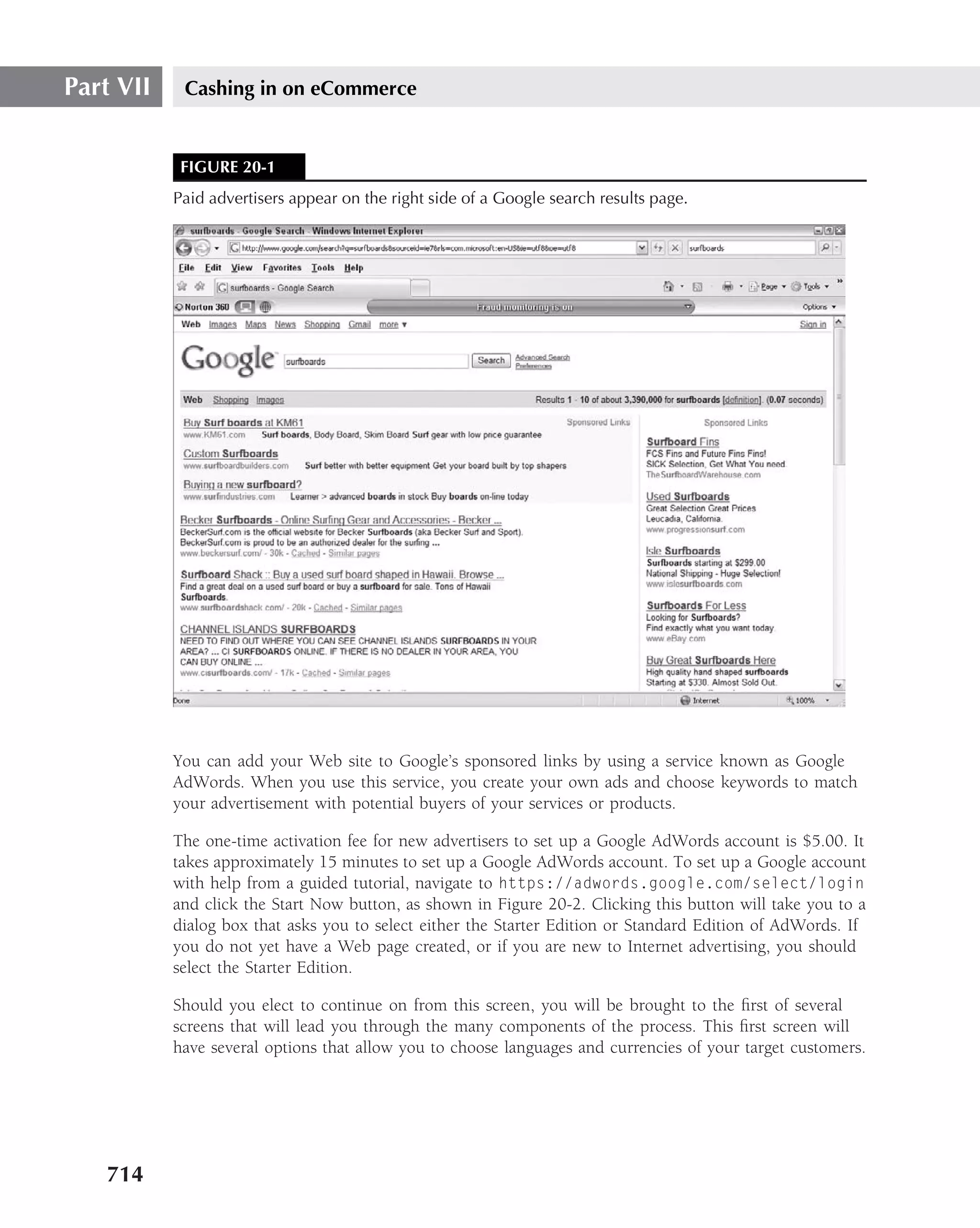
  • 601.
    XHTML 15 Let us do a bit of parsing ourselves as we decompose this declaration. The format of the generic DTD declaration is: <!DOCTYPE root type "id" "url"> In this code, you can see that root will refer to HTML as the root element of the document, and it is indeed a given in XHTML that the root element is HTML — for it does encompass all of the other elements in the document tree. Just as the root will always be HTML for XHTML documents, so shall the type always be Public. You will have different values assigned to the id and url attributes, depending upon the document type. The reason for the existence of Transitional DTD is because of sheer numbers — millions upon millions of Web pages are written using the various previous versions of HTML. You can’t just ignore them. Therefore, when you change into a system that is highly rationalized, you must still deal with the mishmash of order and looseness that is the absolute foundation. Strict DTD The generic form of the Strict DOCTYPE is as follows: <!DOCTYPE html PUBLIC "-//W3C//DTD XHTML 1.0 Strict//EN" "http://www.w3.org/TR/xhtml1/DTD/xhtml1-strict.dtd"> Strict DTD does not support any deprecated features of the other two types of DTDs. It does not support frames in any way. It strictly conforms to the latest standards and is a logical predecessor to XHTML 2.0 (should that ever see the light of day), which may have no backward compatibility with earlier browsers (something that is being seriously considered). Following are deprecated elements within Strict DTD: ■ a ■ abbr ■ acronym ■ b ■ bdo ■ big ■ br ■ button ■ cite ■ code ■ dfn 565
  • 602.
    Part V Transitioning to the Future: XHTML, XML, and Ajax ■ em ■ I ■ img ■ input ■ kdb ■ label ■ map ■ object ■ q ■ samp ■ select ■ small ■ span ■ strong ■ sub ■ sup ■ textarea ■ tt ■ var Frameset The generic format of the Frameset DOCTYPE is as follows: <!DOCTYPE html PUBLIC "-//W3C//DTD XHTML 1.0 Frameset//EN" "http://www.w3.org/TR/xhtml1/DTD/xhtml1-frameset.dtd"> This DTD, is used to support frames and, as its name implies, supports frame-based documents. Like Transitional DTD, it also supports deprecated attributes and elements. Following is some sample code using Frameset DTD: <!DOCTYPE HTML PUBLIC "-//W3C//DTD HTML 4.01 Frameset//EN" "http://www.w3.org/TR/html4/frameset.dtd"> <html> <head> ... </head> <frameset> ... 566
  • 603.
    XHTML 15 </frameset> </html> The following is an example of code used to create and render a Web page using Frameset DTD: <!DOCTYPE HTML PUBLIC "-//W3C//DTD HTML 4.01 Frameset//EN" "http://www.w3.org/TR/html4/frameset.dtd"> <html> <head> </head> <frameset rows ="85,*"> <frame src = "C:Documents and SettingsPhilMy DocumentsMyPicturesTheStorySingerHeader.jpg"> <frameset cols="*,*, *"> <frame src="C:Documents and SettingsPhilMy DocumentsMy PicturesHuRim1.jpg"> <frame src="C:Documents and SettingsPhilMy DocumentsMy PicturesHuRim2.jpg"> <frame src="C:Documents and SettingsPhilMy DocumentsMy PicturesHuRim.jpg"> </frameset> </frameset> </html> This code renders as shown in Figure 15-1. FIGURE 15-1 This is an example of coding using Frameset DTD. 567
  • 604.
    Part V Transitioning to the Future: XHTML, XML, and Ajax DTD templates The following list is a comprehensive set of templates for the correct forms for formatting all the DTD derivatives according to W3C (www.w3.org/QA/2002/04/valid-dtd-list.html): ■ HTML 4.01 — Strict, Transitional, Frameset (and others): <!DOCTYPE html PUBLIC "-//W3C//DTD HTML 4.01//EN" "http://www.w3.org/TR/html4/strict.dtd"> <!DOCTYPE html PUBLIC "-//W3C//DTD HTML 4.01 Transitional//EN" "http://www.w3.org/TR/html4/loose.dtd"> <!DOCTYPE html PUBLIC "-//W3C//DTD HTML 4.01 Frameset//EN" "http://www.w3.org/TR/html4/frameset.dtd"> ■ XHTML 1.0 — Strict, Transitional, Frameset: <!DOCTYPE html PUBLIC "-//W3C//DTD XHTML 1.0 Strict//EN" "http://www.w3.org/TR/xhtml1/DTD/xhtml1-strict.dtd"> <!DOCTYPE html PUBLIC "-//W3C//DTD XHTML 1.0 Transitional//EN" "http://www.w3.org/TR/xhtml1/DTD/xhtml1-transitional.dtd"> <!DOCTYPE html PUBLIC "-//W3C//DTD XHTML 1.0 Frameset//EN" "http://www.w3.org/TR/xhtml1/DTD/xhtml1-frameset.dtd"> ■ XHTML 1.1 — DTD: <!DOCTYPE html PUBLIC "-//W3C//DTD XHTML 1.1//EN" "http://www.w3.org/TR/xhtml11/DTD/xhtml11.dtd"> ■ XHTML Basic 1.0 — DTD: <!DOCTYPE html PUBLIC "-//W3C//DTD XHTML Basic 1.0//EN" "http://www.w3.org/TR/xhtml-basic/xhtml-basic10.dtd"> ■ XHTML Basic 1.1 — DTD: <!DOCTYPE html PUBLIC "-//W3C//DTD XHTML Basic 1.1//EN" "http://www.w3.org/TR/xhtml-basic/xhtml-basic11.dtd"> ■ HTML 2.0 — DTD: <!DOCTYPE html PUBLIC "-//IETF//DTD HTML 2.0//EN"> ■ HTML 3.2 — DTD: <!DOCTYPE html PUBLIC "-//W3C//DTD HTML 3.2 Final//EN"> ■ MathML 1.01 — DTD: <!DOCTYPE math SYSTEM "http://www.w3.org/Math/DTD/mathml1/mathml.dtd"> 568
  • 605.
    XHTML 15 ■ MathML 2.0 — DTD: <!DOCTYPE math PUBLIC "-//W3C//DTD MathML 2.0//EN" "http://www.w3.org/TR/MathML2/dtd/mathml2.dtd"> ■ XHTML, MathML, SVG — DTD: <!DOCTYPE html PUBLIC "-//W3C//DTD XHTML 1.1 plus MathML 2.0 plus SVG 1.1//EN" "http://www.w3.org/2002/04/xhtml-math-svg/xhtml-math-svg.dtd"> ■ SVG 1.0 — DTD: <!DOCTYPE svg PUBLIC "-//W3C//DTD SVG 1.0//EN" "http://www.w3.org/TR/2001/REC-SVG-20010904/DTD/svg10.dtd"> ■ SVG 1.1 Full — DTD: <!DOCTYPE svg PUBLIC "-//W3C//DTD SVG 1.1//EN" "http://www.w3.org/Graphics/SVG/1.1/DTD/svg11.dtd"> ■ SVG 1.1 Basic — DTD: <!DOCTYPE svg PUBLIC "-//W3C//DTD SVG 1.1 Basic//EN" "http://www.w3.org/Graphics/SVG/1.1/DTD/svg11-basic.dtd"> ■ SVG 1.1 Tiny — DTD: <!DOCTYPE svg PUBLIC "-//W3C//DTD SVG 1.1 Tiny//EN" "http://www.w3.org/Graphics/SVG/1.1/DTD/svg11-tiny.dtd"> ■ XHTML, MathML, SVG Profile (XHTML as the host language) — DTD: <!DOCTYPE html PUBLIC "-//W3C//DTD XHTML 1.1 plus MathML 2.0 plus SVG 1.1//EN" "http://www.w3.org/2002/04/xhtml-math-svg/xhtml-math-svg.dtd"> ■ XHTML, MathML, SVG Profile (using SVG as the host) — DTD: <!DOCTYPE svg:svg PUBLIC "-//W3C//DTD XHTML 1.1 plus MathML 2.0 plus SVG 1.1//EN" "http://www.w3.org/2002/04/xhtml-math-svg/xhtml-math-svg.dtd"> Making HTML compliant with XML To make HTML compliant with XML and to make it modular, a number of syntactical rules must be adhered to, the same as for XHTML documents. The most important rule to follow is to properly manage tags. Browsers have very loosely supported strict HTML. The proper closure of tags such as the <h1> or the <p> tag is not always needed. The following script shows an HTML example that will be presented accurately in any current Web browser: <html> <body bgcolor="#FFFFFF" text="#000000"> 569
  • 606.
    Part V Transitioning to the Future: XHTML, XML, and Ajax <p><font face="Arial" size="4">The following text will be displayed correctly in an HTML Web browser. <p>Even though some of the tags are not correctly closed.<b> Strict XHTML would not display this script. To begin with, the <p> and <font> tags are not correctly closed with a </p> and </font>. The strict nature of tag management within XML requires that all tags be correctly closed. In addition, the <font> is not supported in XHTML. Only CSS can be used to format the display of XHTML. Also missing from this document is the XML declaration at the top of the document identifying and defining the type of XML document, as well as the location of the DTD file to translate the XML tags. To have the previous code work correctly as XHTML, it must resemble the following: <?xml version="1.0"?> <!DOCTYPE html PUBLIC "-//W3C//DTD XHTML 1.0 Strict//EN" "http://www.w3.org/TR/xhtml1/DTD/xhtml1-strict.dtd"> <html xmlns="http://www.w3.org/1999/xhtml"> <head> <title>XHTML Page</title> <style type="text/css" xml:space="preserve"> body { background-color: #FFFFFF; //this is to say, white color: #000000; //this is to say, black } P { Font-Family: Arial; Font-Size: 14pt; } </style> </head> <body> <p>The following text will be displayed correctly in an XHTML Web Browser.</p><p>As all of the tags are correctly closed.<br />Ok</p> </html> As you can see, several new features have been added to the document. The first immediate change is the addition of the XML declaration at the top of the document. The insertion <?xml version="1.0"?> declares that the document is an XML document, and should be treated with the rules used with any XML document. Following the XML declaration is a DOCTYPE declaration, which declares the DTD that is used. As the Strict translation of XHTML, the DOCTYPE is "html PUBLIC "-//W3C//DTD XHTML 1.0 Strict//EN". In the previous sample code, the line http://www.w3.org/TR/xhtml1/DTD/xhtml1- strict.dtd directs the browser to download the appropriate DTD file to translate the document. 570
  • 607.
    XHTML 15 The XHMTL namespace is defined within the <HTML> tag, identifying where the namespace is located on the Internet. You cannot use the <font> and <body> tags to format in XHTML 1.0 with a strict DTD. A CSS replaces the tags in the first version of the document. The <body> background color and default text color are identified as white (#FFFFFF) and black (#000000), respectively. The presentation style for the <p> tag is defined as font Arial and size 14pt. The rest of the document is presented as it would be in HTML, only without the formatting tags. These are but a few of the number of changes that must be made to a document for it to be XHTML-compliant. Many tags that have been used by HTML designers have been removed For example, the <font> tag must be replaced with a CSS style. The same is true for the <center> tag, which also must now be a CSS style. The italics tag, <i>, must be replaced with the equiv- alent <em> tag, and the bold tag <b> must be replaced with <strong>. A complete description of how to make a document compliant with XHTML is detailed at the W3C’s Web site (www.w3.org/MarkUp). The site contains comprehensive documentation on the new standard, including links to tools that convert HTML 4.0 pages to XHTML. The W3C provides a set of tools to prepare Web pages for XHTML. The tools can be located at the W3C HTML Validation Service (http://validator.w3.org) site. One particular tool, HTML Tidy, is very useful in converting poorly written HTML documents (such as those gener- ated by Microsoft Word) and making them compliant with XHTML standards. Contrasting XHTML with HTML 4.0 You should not overlook the fact that HTML 4.01 bears many similarities to XHTML 1.0 and may hardly be distinguished if the DTD is Transitional or Frameset. Both languages require the use of CSS for formatting, and both require the closure of tags for paragraphs. In many ways, XHMTL is a reformulation of HTML 4.0 in order to follow the rules of XML. By reproducing HTML 4.01 as an XML language, many of the extensions that are added to XHTML can be done successfully in a modular format (XHTML 1.1). XHTML 1.0 enables the massive release of new Internet-accessing programs, such as personal desk accessories (PDAs), game consoles, and interactive TV boxes, which can be kept current with the latest Web page standards. All that is needed is a browser that understands XML and DTDs. A designer can still use text-editing tools to develop Web pages. Table 15-4 shows the various types of XHTML. Table 15-5 shows some commonly used event commands in HTML that are now used for well- formed documents under even Strict DTD for XHTML document types. With the rapidly changing environment of the Internet, the inclusion of modules and extensible language, such as XHTML, is a natural fit. 571
  • 608.
    Part V Transitioning to the Future: XHTML, XML, and Ajax TABLE 15-4 Types of XHTML Language Explanation XHTML Basic This was created in 2000 to answer the coding requirements of mobile Web users. It has a simplified version of modules. Being able to pick and choose the features allows smaller application sizes, resulting in faster download/upload times and faster execution of instructions by the processor. XHTML 1.0 This was created in 2000. It has three DTDs (Transitional, Strict, and Frame). It is designed to combine the strong presentation features of HTML 4.01 with the data design advantages of XML. XHTML 1.1 In this type, the provision of modules simplifies the coding process. Being able to pick and choose features allows smaller application sizes, resulting in faster download/upload times and faster execution of instructions by the processor. XHTML 2.0 This type has been worked on since 2004. This is really so different that it may be considered a different language. Most presentation features currently allowed under Transitional and Frame DTDs have disappeared. Additionally, there is a possibility that it may be incompatible with earlier versions. Currently ‘‘a work in progress,’’ its time of debut and final format are matters of some interest to the design/development community. TABLE 15-5 Events Common to Both HTML and XHTML Events Results onclick A button was clicked. ondblclick A button was clicked twice. onmousedown A button was pressed down. onmouseup A button was released. onmousemove A pointer moved onto an element. onmouseout A pointer exited an element. onkeypress A key was pressed and released. onkeydown A key was pressed down. onkeyup A key was released. 572
  • 609.
    XHTML 15 Modules After XHTML 1.0 came out, a minor revision was made to better provide for the extension of XHTML to the use of the ubiquitous Web: cell phones, PDAs (such as the Blueberry), pagers, and other handheld devices used for inventory or count purposes in business. The use of modules allows the development of applications that are specific to that device. For example, if you had a handheld device with text-only capability, it would use only the text module of XHTML and not have available such objects as images and maps. This modularization speeds up the sending and receiving of data because it takes up fewer CPU cycles and is less memory-intensive. Table 15-6 provides a list of XHTML 1.1 and XHTML Basic modules as given by W3C (www.w3.org/TR/2000/REC-xhtml-basic-20001219/xhtml-basic.txt). Note that XHTML Basic was primarily devised to be used on mobile devices. Other modules for XHTML 1.1 would include Frames (including iframes), some elements involv- ing the appearance of fonts (big, small, super and subscripting), and stylesheets, which, when you think about it, is not currently a big issue with most text-messaging systems. TABLE 15-6 Modules Used for XHTML 1.1 and XHTML Basic Module Function Structure Module body, head, html, title Text Module abbr, acronym, address, blockquote, br, cite, code, dfn, div, em, h1, h2, h3, h4, h5, h6, kbd, p, pre, q, samp, span, strong, var Hypertext Module a List Module dl, dt, dd, ol, ul, li Forms Module form, input, label, select, option, textarea Tables Module caption, table, td, th, tr Image Module img Object Module object, param Metainformation Module meta Link Module link Base Module base 573
  • 610.
    Part V Transitioning to the Future: XHTML, XML, and Ajax Frowned-upon practices in older HTML syntax In XHTML, the syntactic characteristics discussed here are no longer permitted, even though the results of such HTML foibles were often rendered correctly in several browsers: ■ Empty elements (also called single-sided tags) such as <br>, <hr>, <img> must be terminated with a forward slash, /, preceded by a space such as <br /> or <hr />. ■ You cannot use tags inconsistently. For example, if you mess up a header by coding <h3>Mary had a little lamb<h2>, some browsers will render it anyway, but XHTML-compliant browsers should not. ■ You cannot mix and mismatch presentation elements. They must be in parallel sets. So, if you were to say, <p>This is an <i><u><b>example</b></i></u> of somebody stressing a word element and heavily overdoing it</p>, it would not be rendered correctly (or at all within a Strict DTD document). ■ In the name of consistency, a document cannot be well formed unless it also has a clos- ing tag for every opening one. ■ All elements are lowercase in XHTML. You can’t use <BR> or <H1> or <Li>, and cer- tainly not something as inconsistent as <hTmL></HtMl> anymore. In particular, remember that attribute names must be lowercased, as in nowrap="nowrap", noresize="noresize", and bgcolor="red". With Strict DTD, everything — everything — must be just right. The syntax must be just right (well formed), and the content within the well-formed document must also conform to specifications (be valid). However, both Transitional and Frameset DTDs are designed to be backward compatible and fairly tolerant, and may still accept some of these. The following is also an example of using the strict DTD version of XHTML 1.0: <!DOCTYPE html PUBLIC "-//W3C//DTD XHTML 1.0 Strict//EN" "http://www.w3.org/TR/xhtml1/DTD/xhtml1-strict.dtd"> <html xmlns="http://www.w3.org/1999/xhtml"> <head> <meta http-equiv="content-type" content="text/html;charset=utf-8"/> <title>Illustration of Strict XHTML DTD Usage</title> <script type="text/javascript" src="javascript/main.js"></script> </head> <body> <h1>When Wind Does Blow</h1><br /> <pre> <p> When wind does blow among the trees And cool the earth with gentle breeze How softly then my thoughts do go To you my love in summer’s glow.</p><br /> <pre> For leaves are green on summer’s day And strong the limbs that slowly sway In these sweet winds that never die 574
  • 611.
    XHTML 15 But time goes on and so must I For summer now is turned to fall As age does bend what once was tall And gentle though the wind may blow It still must cease to warm me so. And I must leave thy golden breast To seek the earth to find my rest For softly though my dreams may go My dreams are dust and time does flow. </p></pre> <br /> <H3>The following excerpts also gives features of deprecated elements and inline styles together in strict DTD</h3> <h4 style="font-family:fantasy"> When one swims<h4> <br /> <pre> <h4 style="color:blue; font-family:Allegro BT"> When one swims the sea of life </h4> <p>One may not build a moat Nor firmly hold an anchor And still expect to float. Though anchor may seem steady And firmly hold you down If ye seek the air to breathe By anchor you will drown So swimmer of life’s waters Be careful what you dream What you think you think you know</p></pre> <pre> <style="font-family:Book Antiqua">( Is not as it would <span style="font-size:150%; font-family:Book Antiqua"> <em><strong>seem</strong></em></span>)</style> <p>And here’s the story’s moral If I may sum it up: </P> <ul> <li>Always be what God made thee...</li> <li> and with him ye shall sup</li> <li><b>The End </li> </ul> </pre> </body> </html> 575
  • 612.
    Part V Transitioning to the Future: XHTML, XML, and Ajax In this program, note the use of deprecated presentation elements. Curiously, in this version, they still work, even though they should not, according to the W3C standards cited earlier in this chapter. This is not to suggest anything other than that is how it was rendered in the IDE we used, and it is, therefore, obvious that the document behaved as it did because the browser we used to render it was not yet sufficiently up to date to support Strict DTD. Figure 15-2 shows how the coding renders the document using both styles and deprecated ele- ments. Some of the deprecated elements demonstrated include an unordered list (as in the last example), as well as the use of formatting tags and other presentational features in the body of the document illustration. In addition to the list of unsupported elements discussed earlier, some browser-specific elements such as the marquee element in IE are not valid under Strict DTD. Strict DTD requires that all attributes have values. In many instances of Boolean state- ments, this results in pointless redundancy. In Strict HTML, the checked attribute must be assigned a checked value. Table 15-7 shows a strict list of such required values. TABLE 15-7 Attributes Requiring Values HTML XHTML checked checked="checked" compact compact="compact" declare declare="declare" defer defer="defer" disabled disabled="disabled" ismap ismap="ismap" multiple multiple="multiple" nohref nohref="nohref" noresize noresize="noresize" noshade noshade="noshade" nowrap nowrap="nowrap" readonly readonly="readonly" selected selected="selected" 576
  • 613.
    XHTML 15 FIGURE 15-2 The code creates this rendered page. When wind does blow When wind does blow among the trees And cool the earth with gentle breeze How softly then my thoughts do go To you my love in summer's glow. For leaves are green on summer's day And strong the limbs that slowly sway In these sweet winds that never die But time goes on and so must I For summer now is turned to fall As age does bend what once was tall And gentle though the wind may blow It still must cease to warm me so. And I must leave thy golden breast To seek the earth to find my rest For softly though my dreams may go My dreams are dust and time does flow. When one swims... When one swims the sea of life One may not build a most Nor firmly hold an anchor And still expect to float. Though anchor may seem steady And firmly hold you down If ye seek the air to breathe By anchor you will drown So swimmer of life’s waters Be careful what you dream What you think you think you know Is not as it would seem And here's the story's moral if I may sum it up • always be what God made thee... • and with Him shall ye sup • The End 577
  • 614.
    Part V Transitioning to the Future: XHTML, XML, and Ajax Creating an XHTML Document According to W3C (www.w3.org), the following is the generalized template used for creating any XHTML DOCTYPE: <?xml version="1.0" encoding="utf-8" standalone="no" ?> <!DOCTYPE html PUBLIC "-//W3C//DTD XHTML 1.0 Strict//EN" "http://www.w3.org/TR/xhtml1/DTD/xhtml1-strict.dtd"> <html xmlns="http://www.w3.org/1999/xhtml" xml:lang="en" lang="en"> <head> <title>An XHTML 1.0 Strict standard template</title> <meta http-equiv="content-type" content="text/html;charset=utf-8" /> <meta http-equiv="Content-Style-Type" content="text/css" /> </head> <body> <p> ... Your HTML content here ... </p> </body> </html> Note that the first line of the Strict DTD (and all types of XHTML documents) should be some- thing very similar to <?xml version="1.0" encoding="utf-8" standalone="no" ?>. This is called the XML declaration, and while it is not a required line in the document, you should understand why it is there so that you can understand why you must always put it there, too. Remember the XML parsers? They use this data in the declaration to determine both the encoding type and the content. All data is text or binary. You want to make clear to the parser what is what by specifying the encoding schema. Also, there are a few versions of XML out there, each with its own idiosyncratic features, so you might want to let the browser know which version you are talking about, and which encoding scheme. Otherwise, the browser may make a few assumptions or queries while rendering, which would slow down the system a bit — or crash it all together. Thus, if you do not give the parsers this information explicitly, they will make (intelligent) assumptions on rendering. The XML declaration may be divided into three parts: ■ The version of XML ■ The encoding scheme ■ The DTD location These days, the XHTML version of the XML family most fully supported is XHTML 1.0 (although support for XHTML 1.1 is growing). As the differences between the two versions are not that 578
  • 615.
    XHTML 15 significant, we would specify 1.0 to ensure that it is rendered to the greatest number of browsers. Hence, in the declaration, we have ?xml version="1.0". The encoding tells the browser how to read the document. This is most likely going to be UTF-8 or UTF-16. If the encoding type is not specified, the browser defaults first to one and then to the other. UTF-8 is an encoding scheme that encodes characters in 8-bit blocks called bytes . UTF-16 is a character set that uses 16 bits (or 2 bytes) for encoding. Because there are thousands of possible characters for all the alphabets of the world, you can see why both encoding schemes are available. The encoding scheme will be either encoding="utf-8"or encoding="utf-16". Standalone is a Boolean attribute with the values of only "yes"or "no". For XHTML docu- ments, you always want to put "no" because otherwise the browser will not go looking at the W3C site for the proper DTD for code validation. Hence, standalone="no". Namespace A namespace is a way to uniquely identify duplicate elements with different values (called a local namespace) or combining languages from two or more sources into a single document (called a default namespace). Following is an example of a local namespace: <html xmlns:prefix=namespace> Let’s suppose you had coding from two separate languages within one document. If the default coding of the document were to be XML, the standard declaration would be <root xmlns="namespace">, where root is HTML and the namespace is a unique ID. For reasons of clarity and consistency, the namespace referenced is typically shown as follows: http://www.w3.org/1999/xhtml When you look at this, you probably believe it is a URL. But it’s not, really, even though you could use it to get to that location; it’s just a unique identifier that everyone uses by convention. If you were then to toss in a separate language (from the XML family) into the document, you would need to reference that language in the document as well for those element types. Let’s choose MathML as the second language. This would be declared immediately below the default namespace declaration as follows: <xml:ml=http://www.w3.org/1998/Math/MathML> Every element in the document that comes from that local namespace would then be prefixed with ml, as in <ml:tr></tr> <ml:td></td>. Any tag not so prefixed would belong to the default namespace. 579
  • 616.
    Part V Transitioning to the Future: XHTML, XML, and Ajax CDATA and PCDATA Character data (CDATA) is all content of an XML document. It is not the markup for the document structure, and it is not parsed. The parts of a document that are treated as code are referred to as parsed character data (PCDATA). The difficulty arises because some of the same symbols that are used to delimit code elements (such as <> or &) can also be used within the content. Therefore, the data may be rendered incorrectly. To remedy this situation within content, the character code and not the character itself is used. For example, the degree symbol would be &#176, as shown here: <pre>&lt;person sex=&quot;female&quot;&gt;</pre>e &#176. In this snippet of code, notice the use of character codes for the use of quotation marks " ". A similar difficulty arises in respect of use of quotes with strings and within strings in Java and JavaScript. This is resolved by alternating pairs of single and double quotation marks. This is also referred to as ‘‘escaping’’ characters. A complete copy of the ASCII code (courtesy of www.asciitable.com) is shown in Figure 15-3 and Figure 15-4. FIGURE 15-3 The original ASCII had only 127 characters and was developed for teletype communication. 580
  • 617.
    XHTML 15 FIGURE 15-4 The extended ASCII code was implemented to provide a character set for numerous other symbols that exceeded the limits of the original ASCII. In the event that data had embedded in it multiple instances of characters that could be misread by the browser as parsed rather than unparsed data (and cause a system crash), the data could be enclosed within a set of brackets that indicated the parser should ignore the data within the brackets. Occasionally, when using style commands, you may have data that would cause the system to render the page incorrectly, and this would be a good candidate to enclose within the brackets. The formatting of a CDATA block is: <![CDATA [ Enter the code you do not wish to be rendered here. ]]> You will automatically note that the one piece of code you cannot use in a CDATA block is the brackets because the parser, or Web browser, might read it. White space After the CDATA and the PCDATA have been dealt with, pretty much all that remains is the white space. In HTML, the white space is automatically removed unless preserved by the use of the <pre>structured content </pre> element. 581
  • 618.
    Part V Transitioning to the Future: XHTML, XML, and Ajax XHTML treats white space almost the same way, unless it is, say, within quotation marks. An example would be where you are appending a string variable to some other variable. For example, let’s have the other variable be a decimal type with two positions to the right of the decimal and an implicit ‘‘$’’ symbol, as shown here: document.write("The amount you owe is: " + decAmount + "."); The output would be: The amount you owe is: $12.95. Note that there is a space after the colon (:) because you inserted it there. Also note that the period at the end of the sentence did not have a space entered into it. Code Validation in an XHTML Document After the document has been made and is well-formed according to typical standards of coding, you can then run it through a code validator (such as validator.w3.org) to see if it is in con- formance with the W3C standards. Figure 15-5 shows the opening screen for the W3C validator, and Figure 15-6 shows the results of the validation. FIGURE 15-5 This is the code validator screen of validator.w3.org. 582
  • 619.
    XHTML 15 FIGURE 15-6 The results show that a site has successfully passed validation for Strict DTD. Once your site has passed validation, you may even add the following icon using the associated coding: <p> <a href="http://validator.w3.org/check?uri=referer"><img src="http://www.w3.org/Icons/valid-xhtml10" alt="Valid XHTML 1.0 Strict" height="31" width="88" /></a> </p> 583
  • 620.
    Part V Transitioning to the Future: XHTML, XML, and Ajax The address for the image is the W3C server where the image is located. To link to your local validation image, you must point the img src to it. Last, if you have CSS on your site you may also validate that by linking to http://jigsaw.w3. org/css-validator. Figure 15-7 shows a view of another site using code validator. FIGURE 15-7 The institution that did more than almost any other government entity to bring into being the Information Age has failed validation with 42 errors. A typical thing to look for if your site is getting a failed score on validation would be to verify that you actually have an XML and or DOCTYPE declaration at the top of your coding. Especially take a look at how attributes are coded, and replace deprecated ones with the appropriate styles attributes. You should review the list of deprecated attributes and elements shown earlier in this chapter, but your best source for finding and fixing coding errors is at the validator site itself. Errors are specified and correct coding is offered. This degree of help greatly simplifies the validation process, reducing it to not much more than a cut and paste effort. 584
  • 621.
    XHTML 15 The attribute given here is required for an element that you’ve used, but you have omitted it. For example, in most HTML and XHTML document types, the type attribute is required on the script element and the alt attribute is required for the img element. Table 15-8 shows some helpful sites for code validators. TABLE 15-8 URLs for Code Validators and Compliance Tools Source URL Tidy Little Code Checker and http://tidy.sourceforge.net Validator Used For Both XML and XHTML HTML Validator www.htmlvalidator.com Markup Validation Service http://validator.w3.org w3c Schools Site Validation www.w3schools.com/site/site validate.asp Validome www.validome.org Table 15-9 shows some helpful sites that provide more information about XHTML. TABLE 15-9 Helpful Web sites on XHTML Sites URLs The Fish Tank Forum www.johncfish.com Website Tips for XHTML http://websitetips.com/xhtml eMacs Utilities for XHTML http://ourcomments.org/Emacs/nXhtml/ doc/nxhtml.html Making Your Site Mobile with WAP/WML As it stands right now, there are more mobile computing devices in use than desktop ones. And the trend is that the growth in the number of portable devices will increase even more rapidly. With the implementation of the Internet Protocol Version 6 (IPv6), approximately 2ˆ 128 or 340,282,366,920,938,463,463,374,607,431,768,211,456 devices will be able to be directly connected to the Internet. 585
  • 622.
    Part V Transitioning to the Future: XHTML, XML, and Ajax Many cell phones and almost all personal digital assistants (PDAs) already have the capability to connect to Internet. And one of the problems faced by today’s Web developers is that they are used to designing pages for desktop computers with screen sizes of 15 inches and up. The ques- tion that faces them is how to view the same information in a cell phone with a screen that could be little more than 1 inch in width. This is where Wireless Markup Language (WML) comes in. What is WML? WML is similar to XHTML. Think of it as a subset of XHTML, but with a few additions. WML is the file format used by most mobile phone browsers. Although the tags themselves are simpler, in some ways WML has more features than HTML. For example, with input text boxes in WML, you can supply the format of the data required and the browser automatically validates the data before sending the form. In HTML, you could achieve the same (but in a much more complicated fashion) with JavaScript. Many people speak of WAP-enabled phones and WAP pages. Really, the page is a WML page that you view in a WML browser on a WAP-enabled phone. The Wireless Application Protocol (WAP) is to mobile phones what the HTTP is to desktop computer and laptops. It is the link between your mobile phone and Internet, and your Internet service provider (ISP), in this scenario, is the phone company. The ISP acts as a proxy or gateway by retrieving the WML pages you request, and then sends them via WAP to your phone. Any Web site can have WML pages without requiring any extra software. The scripting language for mobile phones is called WMLScript. WMLScript is similar in function and syntax to JavaScript, which can be used on a standard Web page. However, as we have already mentioned, the most common uses of JavaScript (such as validating forms) are already incorporated into WML, so WMLScript doesn’t play as big a role in the design of WML pages as JavaScript in HTML pages. Now that you understand some of the basic terminology, we can turn to the design of WML pages. Dealing with WML WML is designed for devices with limited memory, a limited bandwidth wireless connection to the Internet, and a low screen resolution In an attempt to overcome these problems, the designers of WML decided to break away from the way HTML works (where each HTML file represents a page on the screen). In WML, one file can contain several pages. The main file is called a deck and the pages inside are called cards. The basic structure of a WML file is as follows: <?xml version="1.0"?> <!DOCTYPE wml PUBLIC "-//WAPFORUM//DTD WML 1.1//EN" "http://www.wapforum.org/DTD/wml 1.1.xml"> <wml> 586
  • 623.
    XHTML 15 <card title="Welcome to WML"> <p> <em>Emphasised Text!</em><br/> <i>Italic Text!</i><br/> <b>Bold Text!</b><br/> <strong>Strong Text!</strong><br/> <u>Underlined Text!</u><br/> <small>Small Text!</small><br/> </p> </card> </wml> Note that this is an XML file, so the <br> tag, which has no content, is specified as <br/>. To view the file, you have several choices. One is to put the file on any Web server and connect to it with a WAP-enabled mobile phone with Internet access. You could also use a browser that emulates a mobile phone and provides WML support — many are available on the Internet. Alternatively, you can use a normal desktop browser that supports WML. Opera is one of the few desktop browsers that is WML-compatible — a free version is available from www.opera.com. Figure 15-8 shows how Opera displays the previous WML file. FIGURE 15-8 You can view a WML document in an Opera browser. 587
  • 624.
    Part V Transitioning to the Future: XHTML, XML, and Ajax Let’s go through the WML file step by step. The first line is the declaration that specifies that the file is XML: <?xml version="1.0"?> The next line is the declaration of the DTD for WML 1.1: <!DOCTYPE wml PUBLIC "-//WAPFORUM//DTD WML 1.1//EN" "http://www.wapforum.org/DTD/wml 1.1.xml"> As shown in the following line, the <wml> tag is the equivalent of the <HTML> tag for an HTML file. It is the root element for a WML document. <wml> As shown here, a card element is equivalent to an HTML page. WML browsers only show one card element at a time. <card title="Welcome to WML"> The following tags are identical to their HTML equivalents, with the exception of the <small> tag, which has the effect of displaying the text in a smaller font. <p> <em>Emphasised Text!</em><br/> <i>Italic Text!</i><br/> <b>Bold Text!</b><br/> <strong>Strong Text!</strong><br/> <u>Underlined Text!</u><br/> <small>Small Text!</small><br/> </p> </card> </wml> See Chapter 4 for more information on the basic HTML elements. WML Tags Most of the tags in WML are very similar to the tags in HTML. The major difference is that the number of attributes that they have is vastly reduced. Table 15-10 shows the set of WML tags in version 1.1. 588
  • 625.
    XHTML 15 TABLE 15-10 WML Tags in Version 1.1 WML Tag Definition a Anchor or link∗ anchor Anchor or link (see a) access Used to define permissions b Bold∗ big Larger font∗ br Line break∗ card A unit of user interaction (a page) do A button for navigation or submitting a form em Emphasis∗ fieldset Groups a number of input controls together∗ go Used to display a given card head Head∗ i Italic∗ img Image∗ input Input control∗ meta Meta tag∗ noop No operation (used in event handlers) p Paragraph∗ postfield Used to specify a parameter and value to send to the server pre Preformatted text∗ prev Displays the previous page equivalent to history.go(-1) in JavaScript onevent Specifies an event handler optgroup Group options in submenu∗ option Option in a select menu∗ refresh Refreshes the page applying variable select Select menu∗ small Small text∗ continued 589
  • 626.
    Part V Transitioning to the Future: XHTML, XML, and Ajax TABLE 15-10 (continued ) WML Tag Definition strong Bold∗ table Table∗ template A template for multiple cards timer Used to create a timer td Table data∗ tr Table row∗ u Underline∗ setvar Used to set a variable to a given value wml The root element of a WML page ∗ Similar to the <HTML> tag with the same name Shuffling the cards We have now seen one card in a deck, but there are many more cards available. Of course, we need to provide some means of navigating from one card to the others. One possibility is anchors. Notice in the following WML file that each card has an id attribute. The relative URL for a card in WML is #id, where id refers to the id specified in the card you want to show. The file shuffle.wml follows: <?xml version="1.0"?> <!DOCTYPE wml PUBLIC "- //WAPFORUM//DTD WML 1.1//EN" "http://www.wapforum.org/DTD/wml 1.1.xml"> <wml> <card id="one" title="Welcome to WML"> <p><big>A Big Welcome to WML</big></p> <a href="#two">Next</a> </card> <card id="two" title="Welcome to WML"> <p>A Medium Welcome to WML</p> <a href="#one">Prev</a> <a href="#three">Next</a> </card> <card id="three" title="Welcome to WML"> <p><small>A Small Welcome to WML</small></p> <a href="#two">Prev</a> </card> </wml> 590
  • 627.
    XHTML 15 FIGURE 15-9 This WML document is composed of several cards with hyperlinks. Figure 15-9 shows how this WML file is rendered. Remember that, although there can be several cards in one deck, 52 is going a bit too far. To go from one card to another, you use the URL of the deck (the WML file) plus # and the id of the card. You can, of course, jump from one deck to another. For example, if we wanted to show the second card in the previous file from another WML file in the same directory, we would use the relative URL "shuffle.wml#two", as shown here: <a href="shuffle.wml#two">Jump from one deck to another</a> If you prefer buttons to hyperlinks, the last code changes to the following: <?xml version="1.0"?> <!DOCTYPE wml PUBLIC "-//WAPFORUM//DTD WML 1.1//EN" "http://www.wapforum.org/DTD/wml 1.1.xml"> <wml> <card id="one" title="Shuffling Cards in WML"> <p><big>A Big Welcome to WML</big></p> <do type="accept" label="Next"> <go href="#two"/> </do> </card> <card id="two" title="Shuffling Cards in WML"> <p>A Medium Welcome to WML</p> <do type="accept" label="Prev"> <go href="#one"/> 591
  • 628.
    Part V Transitioning to the Future: XHTML, XML, and Ajax </do> <do type="accept" label="Next"> <go href="#three"/> </do> </card> <card id="three" title="Shuffling Cards in WML"> <p><small>A Small Welcome to WML</small></p> <do type="accept" label="Prev"> <go href="#two"/> </do> </card> </wml> Figure 15-10 shows the second card in the Opera browser. FIGURE 15-10 Here is the second of three cards with navigation buttons. The equivalent in HTML would be to use the following: <input type="button" onclick="window.location=’next.html’" value="Next"> See Chapter 10 for information on buttons and Chapter 13 for details on JavaScript. 592
  • 629.
    XHTML 15 Interacting with Users Up to now, we have seen the way to present information to the user. But most sites want to do more than that. After all, if someone wanted to navigate the Web, he or she would hardly choose a screen 1 inch by 1 inch to do so. The latest trend is mobile computing, where you can access the same sort of services available on the Web anytime, anyplace using a PDA, mobile phone, or an even smaller device. For example, many banks provide services such as consulting the account balance or making a transaction. There is no reason to stop anyone from providing services for mobile devices. However, to do so, you obviously need to solicit information from your users, even if it is just their login name and password. Forms in WML We have already seen in Chapter 10 how to use HTML forms to get input from users. In WML, the form elements are very similar. However, in WML, there is no <form> tag — all of the controls are directly in the card as if the card is already a form. WML has one-line text fields, multi-line text areas, and single-selection and multiselection lists. The processing of the form values on the server is much the same as for HTML forms. The main difference between WML and HTML is that there are no option button or check box input types. The equivalent is to use single-selection lists instead of option buttons, and mul- tiselection lists instead of check boxes. How a browser displays them depends on the browser implementation. It may display the options as a list or as option buttons or check boxes. Here is an example of one-line input boxes: <?xml version="1.0"?> <!DOCTYPE wml PUBLIC "-//WAPFORUM//DTD WML 1.1//EN" "http://www.wapforum.org/DTD/wml 1.1.xml"> <wml> <card id="one" title="User Interaction in WML"> <p>Please enter your name</p> <input type="text" name="name"/> <do type="accept" label="Next"> <go href="#two"/> </do> </card> <card id="two" title="User Interaction in WML"> <p>Hello $name</p> <do type="accept" label="Prev"> <go href="#one"/> </do> </card> </wml> 593
  • 630.
    Part V Transitioning to the Future: XHTML, XML, and Ajax Figure 15-11 and Figure 15-12 show how forms and variables function in WML. FIGURE 15-11 This WML document shows the form to enter your name. FIGURE 15-12 This WML document shows what happens when you click Next. 594
  • 631.
    XHTML 15 Specifying the format One advantage of WML is that there are attributes for the <input> tag that specify the type of value a user must enter into a field before advancing to the next card, or whether a field can be left blank. To specify what format is required, you use the format attribute. Specifying format="*M" means ‘‘any number of any characters.’’ This is the default format. The asterisk represents zero or more times. If you want to specify one or more times, you could use "M*M". This would mean one character plus zero or more characters, which adds up to one or more characters. To restrict the input to only alphabetic characters, you would use format="*A" for uppercase and format="*a" for lowercase. If you wanted to only allow numerical characters (0–9), then you would use format="*N". You can specify how many digits or characters you want to accept by either repeating a format code a certain number of times, or by putting a digit before the previous codes. For example, to specify a maximum of five digits, you can either use format="5 N" or format="NNNNN". Specifying required values emptyok is the attribute for the input box that specifies, not surprisingly, whether the box can be left empty or not. The emptyok attribute works in conjunction with the format attribute to specify what values are acceptable. The format mask by itself can be used to specify a required value. As mentioned earlier, "M*M" means one or more characters, so it’s obviously a required field. However, in this case, you could accomplish the same result by just saying emptyok="false". Remember that the default format value is "*M" — in other words, if the format mask says zero or more characters and emptyok="false", meaning it cannot be zero characters, then it has to be one or more ‘‘M*M’’. The default is emptyok="true" unless the format specifies otherwise. However, you can override what the format specification requires by explicitly including the emptyok attribute. Although this approach is a little complicated at first sight, it is a great improvement on HTML, where you have to use a scripting language to validate every input field. See Chapter 10 for information on text boxes and Chapter 13 on JavaScript. ` Menus a la card It’s an incredibly laborious task to enter text with a mobile phone. For those of you not familiar with mobile phones, you have to press a button anywhere from one to four times just to type in 595
  • 632.
    Part V Transitioning to the Future: XHTML, XML, and Ajax one letter. So, when designing a WML site, you should try to avoid using text boxes. One way of doing this is to use menus. As mentioned earlier, with WML, you can specify single-selection and multiple-selection lists. It’s almost the same as HTML — the basics are very similar to the HTML lists seen in Chapter 10. The following is a WML page showing a single-choice menu: <?xml version="1.0"?> <!DOCTYPE wml PUBLIC "-//WAPFORUM//DTD WML 1.1//EN" "http://www.wapforum.org/DTD/wml 1.1.xml"> <wml> <card title="Menus in WML"> <p><big>How about a menu</big></p> <select name="number"> <option value="1">One</option> <option value="2">Two</option> <option value="3">Three</option> <option value="4">Four</option> </select> <do type="accept" label="ok"> <go href="#next"/> </do> </card> <card id="next" title="Menus Choice"> You chose $number </card> </wml> Multiple-choice menus For multiple-choice menus, you must specify that the attribute multiple is true. After the user selects from the list, the value of the variable number will be a semicolon-separated list of the chosen options. Here is an example of a multiple-choice menu: <?xml version="1.0"?> <!DOCTYPE wml PUBLIC "-//WAPFORUM//DTD WML 1.1//EN" "http://www.wapforum.org/DTD/wml 1.1.xml"> <wml> <card title="Menus in WML"> <p><big>How about a multiple choice menu</big></p> <select name="number" multiple="true"> <option value="1">One</option> <option value="2">Two</option> <option value="3">Three</option> <option value="4">Four</option> </select> 596
  • 633.
    XHTML 15 <do type="accept" label="ok"> <go href="#next"/> </do> </card> <card id="next" title="Menus Choice"> You chose $number </card> </wml> Figure 15-13 shows the multiple-choice menu in action. FIGURE 15-13 Here is an example of a multiple-choice menu. In some browsers, it is presented as a set of check boxes. Differences between HTML lists and WML lists The main difference between HTML lists and WML lists is that WML provides extra attributes for select tags: value, iname, and ivalue. In HTML, if you want to specify that a certain option is selected, you must specify the selected attribute in the option or options. However, in WML, you just specify the variable name with the name attribute. If the variable is set, the corresponding option is automatically selected. If the variable is not set, then the default value is specified by the value attribute. In WML, you can also work with the indexes instead of the values. The attribute iname specifies the name of a variable that holds the value of the index. If the variable is undefined, then ivalue specifies the selected index or indexes. 597
  • 634.
    Part V Transitioning to the Future: XHTML, XML, and Ajax This may not seem like a huge benefit, but when you get down to server-side programming, you will appreciate that WML is much easier for this purpose. See Chapter 10 for details on getting input with HTML forms. Transforming XHTML into WML You’ve probably been wondering what all of the fuss about XHTML and XSL was for. After read- ing this section, you’ll understand why. Previously, we talked about the challenge that Web developers face in designing sites that can be viewed by both a desktop machine and a mobile phone. Of course, you would not be able to see the same pages on both devices, but the content of each page should be essentially the same. One solution is to have the content in one file, and separate templates that create the actual pages for each type of browser — for example, one template for a WML browser on cell phone with a minimal WML design, a second for an XHTML browser on a PDA only using basic XHTML, a third for a desktop machine with a resolution of 800 × 600, and yet another for a high-resolution graphical workstation with a broadband connection to the Internet. All this and more can be accomplished with XSL. To demonstrate the principle, let’s transform an example XHTML file into a WML file using a fairly simple XSL stylesheet. The XHTML file is as follows: <html> <head> <title>An example page</title> </head> <body> <h2>This is an example page</h2> <p>This is a paragraph</p> <ul> <li>List Item 1</li> <li>List Item 2</li> <li>List Item 3</li> <li>List Item 4</li> </ul> <b>Bold</b> <hr/> <em>Emphasised</em> </body> </html> Figure 15-14 shows the rendering of the XHTML file. 598
  • 635.
    XHTML 15 FIGURE 15-14 This is the XHTML file that will be transformed. The XSL file is as follows: <?xml version="1.0"?> <xsl:stylesheet version="1.0" xmlns:xsl="http://www.w3.org/1999/XSL/Transform"> <xsl:output method="xml"/> <!- replace html with wml -> <xsl:template match="html"> <wml> <xsl:apply-templates match="@*|*|text()"/> </wml> </xsl:template> <!- copy all html elements complete with attributes and content. Except for the templates after this one -> <xsl:template match="*"> <!- head|meta -> <xsl:copy> <xsl:apply-templates match="@*|*|text()"/> </xsl:copy> </xsl:template> <!- replace headers with big text -> <xsl:template match="h1|h2|h3|h4|h5|h6|h7|h8|h9"> <big> <xsl:value-of select="."/> </big> </xsl:template> 599
  • 636.
    Part V Transitioning to the Future: XHTML, XML, and Ajax <!- copy the following elements without copying attributes -> <xsl:template match="table|tr|td"> <xsl:copy> <xsl:apply-templates/> </xsl:copy> </xsl:template> <!- change th to td -> <xsl:template match="th"> <td class="th"> <xsl:apply-templates/> </td> </xsl:template> <!- change body to card -> <xsl:template match="body"> <card title="{/html/head/title}"> <xsl:apply-templates/> </card> </xsl:template> <!- replace the following elements with their content and a line break -> <xsl:template match="li|dt|hr"> <xsl:apply-templates/> <br/> </xsl:template> <!- replace the following elements with a paragraph -> <xsl:template match="div|ul|ol|dl|blockquote|form"> <p> <xsl:apply-templates/> </p> </xsl:template> <!- ignore the following elements -> <xsl:template match="title"> </xsl:template> </xsl:stylesheet> The resulting WML file after being processed by a program to apply XSLT transforms is as follows: <?xml version="1.0"?> <wml> <head> 600
  • 637.
    XHTML 15 </head> <card title="An example page"> <big>This is an example page</big> <p>This is a paragraph.</p> <p> List Item 1<br/> List Item 2<br/> List Item 3<br/> List Item 4<br/> </p> <b>Bold</b> <br/> <em>Emphasised</em> </card> </wml> Figure 15-15 shows the rendering of the resulting WML file. FIGURE 15-15 This is the result of our transformation. Explaining how this transformation works is beyond the scope of this book. For more information on XSL, see the XSL specifications at www.w3.org/Style/XSL. A quick search on the Internet also returns a long list of tutorials; for a good tutorial go to www.w3schools.com. 601
  • 638.
    Part V Transitioning to the Future: XHTML, XML, and Ajax WML Web Sites There are several interesting WAP sites on the Internet with in-depth information about WAP and WML, including the following: ■ www.wapforum.org ■ xml.coverpages.org/wap-wml.html ■ www.w3schools.com/WAP/wap forum.asp ■ www.ust.hk/itsc/wap/emulators/nokia.html Because the Nokia site is frequently updated, you would need to type WML or WAP in the search box to find the latest information. Summary This chapter began with a review of the history of HTML and its various iterations. This chapter also provided some background on XHTML, including the role that SGML played in the devel- opment of HTML, and noting that the latter was to be a simple subset of the former. This chapter discussed in general terms the changes that would need to be made in transforming HTML to XHTML. These included an awareness of deprecated attributes and elements. Several tables of such deprecated features were provided. The discussion examined DOCTYPE and the three DTDs. We gave the formatting of each and a coding illustration of each. This chapter introduced a generic XHTML type document. We also went over in great detail the DOCTYPE declaration covering the XML version, the encoding and the use of standalone for DTD validation. We also looked at the two types of namespaces (default and local) with examples of each. We discussed and gave illustrations of PCDATA, CDATA and CDATA blocks. We also presented uses of white space. This chapter also covered the rules of validation, noting, again, that the big areas of change were in depreciated atrributes and elements. We also introduced a code validator, validator .w3.org, to test for validity of the document. You learned how WML is very similar to XHTML, but with the introduction of decks and cards. You learned how to format text in WML, how to use WML hyperlinks, how to introduce user interaction with text boxes, how to use single and multiple-choice menus, and how to transform XHTML into WML. Chapter 16 examines XML in more detail. 602
  • 639.
    Designing with XML IN THIS CHAPTER W eb sites today must not only be prepared for rapidly chang- ing content, they also must be prepared for rapidly changing technology. It has been true since the mid-1990s that a site Designing with XML must leverage HTML and JavaScript in its construction. More recently, Schemas HTML 4.01 with Cascading Style Sheets (CSS), scripts, and so on, has become the standard for coding components of your typical Web site. Most XML Web sites recently, the technologies required for building a site range from HTML 4.01 to Wireless Markup Language (WML) to Extensible Markup Language (XML) to XHTML to the dozens of XML-based languages/vocabularies. The new languages are necessitated because of the massive deluge of Internet appliances. Designing with XML A new era is dawning. The always evolving Web browser is undergo- ing another major metamorphosis. The lingua franca of the Web is now proclaimed to be XML. The truth is that XML is an effort to simplify, systematize, and rationalize Web authoring through a set of easy-to-learn and easy-to-use markup com- mands. The new features are an effort to accommodate the changing face of the Web itself. HTML has always been designed as a markup language. By that we mean that HTML is concerned with providing a document with its structure. The content could be anything. There was no concern with being able to describe the content. 603
  • 640.
    Part V Transitioning to the Future: XHTML, XML, and Ajax However, as the Internet evolved, the World Wide Web became not only a display medium but also a storage-and-search medium. HTML consistently provided the use of keywords in most all Web pages for the search engines to utilize. But the inclusion of keywords does not remotely approach the sophistication of being able to search within a document to find the content of a specific element and then to modify that content. XML purports to address the perceived limi- tation of millions of existing Web pages coded in HTML by eradicating a browser’s support for only specific codes. The probable scope of XML XML, of course, is extensible. This means that it may be extended and modified to satisfy the needs of the Web developer. This extensibility is in contrast to HTML, which is not extensible, we are told. It uses add-ons. Scripts are add-ons. Frames are add-ons. Stylesheets are the latest add-ons. Never mind that they vastly improved the features available in HTML and opened the world of Web design to hundreds of thousands of new programmers while making the Web more indispensable. Never mind that HTML was the core. Add-ons complicated things, critics point out, which defeats the very advantage of using HTML in the first place. Now, XML is going to simplify things and make the Web pages responsive to the new demands and not only provide document structure but provide it in such a way that the document structure will tell about the document’s content. The truth of the matter is that XML is simple — if you do simple things with it. When you include features such as attributes and formatting of special characters, you also include local and default namespaces, external stylesheets, browser-specific elements, limited browser support for a number of features relating to its central function of data manipulation, multiple vocabularies, and so on — all making XML a far larger and more complex entity than many realize. In short, if XML reaches close to its promises, we believe it is going to be one very complex system by the time it’s over. The structure of XML is very similar to HTML. Frankly, you could look at numerous XML documents and hardly tell the difference between languages unless you went right to the top and looked at the DOCTYPE declaration. The pages are formed of tagged content. The difference is that the tags are used to categorize the content. In other words, the tags encompassing data do not format the content. HTML tells about the document structure, not the content; XML provides a way to define and manipulate document content. CSS and the Extensible Stylesheet Language (XSL) format tags on the page. The browser, inde- pendent of default standards, is forced to present the XML document as defined by the developer. XML as applied to the Web is made up of the following features: ■ Classified content ■ CSS and XSL ■ Namespaces 604
  • 641.
    Designing with XML 16 ■ Elements ■ Document Type Definitions (DTDs) See Chapter 15 for more information on DTDs. At this stage of its development, XML is the first language that can work on different operat- ing systems, Internet devices, and products. A properly formatted XML document can display in a Web browser such as Safari, or on a cell phone (through WML), a Motorola pager, or a Palm PDA. Note, however, that stylesheets must be coded differently for Internet Explorer (IE) browsers prior to Internet Explorer 7. The objectives of XML may be summed up in three statements: ■ XML must be easy to use, even for nonprogrammers. ■ It must have all the beneficial features of HTML. ■ It must be compatible for Internet use. The overriding objective of XML development was to develop a language structure that could be used over the Internet, was simple to understand and use, and provided access to document con- tent. The capability to author Web pages with XML made it seem a viable alternative to HTML. XML Rules Any XML document must adhere to a set of simple rules: ■ The tags and attribute values are case-sensitive. ■ There can only be one root element; all the rest of the tags must be inside the main ele- ment <html></html>. ■ The document must be well formed, which means the following: ■ Nonempty elements must have closing tags (<p></p>). ■ Empty elements must use a special syntax (<br />). ■ Tags must be properly nested (<p><a></a></p>). ■ Attribute values must always be quoted with matched double or single quotation marks (<p class="test"></p>). ■ Attribute values cannot be omitted (<dl compact="compact"></dl>). If you don’t follow these rules, the browser will report an error and will not display the page. However, working with XML in and of itself is not that difficult. If you understand the way HTML tags work, then you are more than halfway to understanding XML. In fact, XHTML is HTML written according to the restrictions of XML. See Chapter 15 for information on XHTML. 605
  • 642.
    Part V Transitioning to the Future: XHTML, XML, and Ajax Getting different XML vocabularies to work together – namespaces The following list shows several of the derivative ‘‘vocabularies’’ (that is, ‘‘language lites’’) that have now been developed with the freedom inherent in XML: ■ Channel Definition Format (CDF) ■ Chemical Markup Language (CML) ■ Math Markup Language (MathML) ■ Musical Markup Language (MML) ■ Open Financial Exchange (OFX) ■ Synchronized Multimedia Integration Language (SMIL) ■ Real Simple Syndication (RSS) ■ Voice Markup Language (VoiceML) ■ Extensible HTML (XHTML) Many emerging XML vocabularies are already in mainstream use. These vocabularies can be used in the same XML file, or managed and displayed in a single Web page. The browser requires the correct DTD declaration in order to support the XML vocabulary used. Technically speaking, the vocabulary is called a namespace. The following example demonstrates four different XML namespaces declared in a single HTML page: <html XMLns:v="urn:schemas-microsoft-com:vml" XMLns:o="urn:schemas-microsoft-com:office:office" XMLns:w="urn:schemas-microsoft-com:office:word" XMLns="http://www.w3.org/TR/REC-html40"> In these examples, the programmer is declaring the XML schemas for HTML 4.0, Word 2000, Office 2000, and Vector Markup Language (VML). Such leverage enables richer and more informative content within any single Web page. The tags within the document can specify which namespace they are in by prefixing the tag with the abbreviation for the namespace (for example <v:path ...>). The default namespace is the one that starts XMLns=" "; any tag that does not have a namespace defined is assumed to be from this vocabulary. Here is another example from w3.org documentation of XML to show a local namespace decla- ration, which associates the namespace prefix edi with the namespace name. http://ecommerce.org/schema: <x xmlns:edi=’http://ecommerce.org/schema’> <!-- the "edi" prefix is bound to http://ecommerce.org/schema for the "x" element and contents --> </x> 606
  • 643.
    Designing with XML 16 URN, URI, or URL? he term Uniform Resource Name (URN ) is a type of Uniform Resource Identifier (URI ). You T may remember that a Uniform Resource Locator (URL) is used to identify the location of a Web page (resource) on the Web. A URN names the resource. The use of the URN is unusual, and appears to be automatically generated when a normal Word document is saved as an XML document. Most Web programmers use URIs. Why are URLs so often used for URIs? Namespaces must be unique identifiers so that their vocabularies do not collide with each other in the event that they use the same tags and make the rendering of a document gibberish by the Web browser. URIs are built-in unique identifiers for namespaces. Classifying content versus defining presentation The content on an XML page is classified through the use of tags. The structure of a simple XML document is: <?XML version="1.0"?> <library> <Book> <Title>Creating Web Sites Bible</Title> <Author>David Crowder and Andrew Bailey</Author> <Category>Web Publishing </Category> </Book> <Book> <Title>Mastering Dreamweaver</Title> <Author>David Crowder</Author> <Category>Web Publishing </Category> </Book> <Book> <Title>Harry Potter and the Goblet of Fire</Title> <Author>J.K. Rowling</Author> <Category>Children/Adventure</Category> </Book> </library> The document declares itself as an XML document with the opening line <?XML version="1.0"?>. For any XML documents to be properly executed, this opening statement must be added. The structure of XML appears to be very similar to HTML. The content is structured in an ordinary text-readable format, not machine code (binary). Each section is separated by what appears to be ordinary HTML tags. The reality, however, is that none of the tags are HTML tags. If this document were to be run through a browser, the browser would not know how to format the document. What most browsers do is to show the document as is, adding pluses or minuses next to each element to show or hide its children, as shown in Figure 16-1. 607
  • 644.
    Part V Transitioning to the Future: XHTML, XML, and Ajax FIGURE 16-1 An XML document viewed in a browser with no stylesheet attached. The power of the document is that it does not format the data. The tags can be managed and modified with scripting by either the server delivering the content, or through JavaScript and CSS on the Web browser. More recently, another tool has become available for separating style from content XML and HTML documents, and that is XSL. This newer technology is an advancement over CSS in that developers using XSL stylesheets can now have control over the way their Web documents are printed out, and they are also portable across different applications using Extensible Style Language Transformation X(SLT). Specifying a CSS Now, let’s format the document in the previous example by using CSS technology. To do this, we insert the following line after the first line: <?XML-stylesheet type="text/css" href="library.css"?> The first three lines are now as follows: <?XML version="1.0" encoding="UTF-8"?> <?XML-stylesheet type="text/css" href="library.css"?> <library> .... Next, we must create the library.css reference file, which contains the style definitions that control the appearance of the individual content elements: 608
  • 645.
    Designing with XML 16 library { font-size: 14 pt; color: red; display: block; } Book { font-size: 30pt; color: red; display: block; margin: 1em; background-color: yellow; } Title { font-size: 30pt; color: blue; display: inline; } Author { font-size: 20pt; font-weight: bold; color: red; display: inline; } Category {font-size: 15pt; color: green; display: block; margin: 0 0 0 1em} See Chapter 12 for information on CSS. Figure 16-2 shows the result that the library.css file has on the XML document. It now looks like a normal HTML document. We are restricted by CSS in that it only allows us to specify the format of text already present. We cannot add text, and we also cannot change the order of the content in the original document. To overcome this problem, the W3C invented XSL. The good news is that this also works like a CSS. The bad news is that because it is more powerful, it is also more complicated. Specifying an XSL stylesheet For this example, we change the second line of the previous XML file to the following: <?XML-stylesheet type="text/xsl" href="library.xsl"?> FIGURE 16-2 The XML document formatted with CSS now looks like a normal HTML document. 609
  • 646.
    Part V Transitioning to the Future: XHTML, XML, and Ajax Now all that remains to do is to create the stylesheet library.xsl, as shown here: <?xml version="1.0" encoding="ISO-8859-1"?> <xsl:stylesheet version="1.0" xmlns:xsl="http://www.w3.org/1999/XSL/Transform"> <xsl:template match="/"> <html> <body> <h2>My Library</h2> <table border="1"> <tr bgcolor="lime"> <th>Title</th> <th>Author</th> <th>Category</th> </tr> <xsl:for-each select="library/book"> <tr bgcolor="yellow"> <td><xsl:value-of select="title"/></td> <td><xsl:value-of select="author"/></td> <td><xsl:value-of select="category"/></td> </tr> </xsl:for-each> </table> </body> </html> </xsl:template> </xsl:stylesheet> Figure 16-3 shows the result of this XSL transformation. FIGURE 16-3 You can use an XSL stylesheet to format an XML document. 610
  • 647.
    Designing with XML 16 Note that now we have added three extra text elements: a title, a main heading, and column headings. Let’s go step by step through the stylesheet library.xsl. First is the instruction that denotes that this is an XML document: <?XML version="1.0" encoding="ISO-8859-1"?> The following is the root element of the document; the element’s name is stylesheet. The xsl: prefix denotes that it is in the namespace xsl. xmlns="http://www.w3.org/TR/REC-html40" xmlns:xsl="http://www.w3.org/1999/XSL/Transform"> <xsl:stylesheet version="1.0" xmlns:xsl="http://www.w3.org/1999/XSL/Transform"> Because anyone can define XML tag names, namespaces were invented to avoid collisions. In this document, we are mixing HTML with XSL. Collisions occur when two elements have the same tag name, but belong to a different context. To distinguish between two tags that have the same name (for example, the HTML <title> and the XSL <title>), all you have to do is specify the namespace for one of them (for example, <xsl:title>). In this case, XSL doesn’t have an element called <title>; it’s just there to illustrate the point. The default namespace is declared by XMLns="(where to find the definition on the Internet)". Other namespaces used are declared by XMLns:prefixUsed=" (definition)". Note that any prefix could be used, but it’s best to use the standard one. Note that the output is in the following. (Other valid output options are XML or text). <xsl:output method="html"/> Next, look at the following line: <xsl:template match="/"> The forward slash "/" defines the document to be matched in its entirety. In this case it is the node element <"library">. Every time you come across an element called "library", apply the following template. Start with pure HTML to create the Web page: <html><body> <h2>My Library</h2> Note that we also use CSS formatting: <body> <h2>My Library</h2> <table border="1"> 611
  • 648.
    Part V Transitioning to the Future: XHTML, XML, and Ajax <tr bgcolor="lime"> <th>Title</th> <th>Author</th> <th>Category</th> </tr> <xsl:for-each select="library/book"> Remember that the library has three branches — the three books. For each child element that is a book, we do the following: <tr> <td><xsl:value-of select="title"/></td> The XSL element value-of inserts the value of the expression defined in the select attribute (in this case, the text content of the Title element of the book). Translated into English, this means that it inserts the title. The next two lines are similar: <td><xsl:value-of select="author"/></td> <td><xsl:value-of select="category"/></td> </tr> </xsl:for-each> And then you see the end of the loop: </table> </body> </html> </xsl:template> The following is the end of the first and, in this case, only template. However, there can be any number of templates in an XSL document. </xsl:stylesheet> The following browser versions currently support xsl and xslt: IE 6.0 and later, Firefox 1.0.2 and later, and Opera 9.0 and later. Firefox can display XSL and CSS, and has XSLT implementation. Even if your browser doesn’t support XSL transformations directly, you can use a tool to trans- form the XML content to HTML and then publish the result on the Web, or do it in real time with server-side processing. Many XSL transformation programs exist. Free ones include xsltproc (included in most Linux distributions), Saxon (available at http://saxon.sourceforge.net), or Xalan (http://XML.apache.org/xalan-j). Xalan is also included as part of the Java Devel- opment Kit (JDK) version 1.4 and later, freely available at http://java.sun.com. Both Xalan and Saxon are written in Java, and work on Windows, Mac OS, or Linux machines. Microsoft’s free Visual Web Developer Express may be of use as well. Keeping the content separate enables the previous document to be delivered to a multitude of programs. The same XML file can be delivered to any browser. 612
  • 649.
    Designing with XML 16 Similarities to a programming language XSL is very close to a programming language. It has for loops that repeat an action (or number of actions) for each element in the list, as shown here: <xsl:for-each select="list of elements"> <!-- Actions --> </xsl:for-each> It has if statements that execute one or more actions if the condition is true. The syntax is as follows: <xsl:if test="condition"> <!-- Actions --> </xsl:if> It also has a statement to choose one action from a set of actions, depending on the conditions specified for each action: <xsl:choose> <xsl:when test="condition1"> <!-- Action 1 --> </xsl:when> <xsl:when test="condition2"> <!-- Action 2 --> </xsl:when> <xsl:otherwise> <!-- Default Action --> </xsl:otherwise> </xsl:choose> The conditions are evaluated in turn. If a condition is true, then the associated action is per- formed and then the next instruction after the choose statement is executed. If none of the conditions are true, then the default action inside the otherwise tag is carried out. If you know a programming language, this is equivalent to a nested if statement. An example in C, VB, JavaScript, or Java would be as follows: if (condition1) { //action 1 { else if (condition2) { //action 2 } else { //default actions } However, the structure is more similar to a switch statement, as shown here: Int gradeLevel; gradeLevel=Integer.parseInt(); switch (gradeLevel) 613
  • 650.
    Part V Transitioning to the Future: XHTML, XML, and Ajax { case 1: System.out.println("Go to the Gym"); break; case 2: System.out.println("Go to the Humanities Bldg."); break; case 3: System.out.println("Go to Harrison-Jones"); break; case 4: System.out.println("Go to Science Hall"); break; } Following is the same document formatted in XML using Microsoft Word to create it and then saving the document as an XML document type. We have omitted monumental parts of it, but we just wanted to give you a better sense of the coding. <html xmlns:v="urn:schemas-microsoft-com:vml" xmlns:o="urn:schemas-microsoft-com:office:office" xmlns:w="urn:schemas-microsoft-com:office:word" xmlns="http://www.w3.org/TR/REC-html40"> <head> <meta http-equiv=Content-Type content="text/html; charset=us-ascii"> <meta name=ProgId content=Word.Document> <meta name=Generator content="Microsoft Word 11"> <meta name=Originator content="Microsoft Word 11"> <link rel=File-List href="DB5C578F files/filelist.xml"> <link rel=Edit-Time-Data href="DB5C578F files/editdata.mso"> <!--[if !mso]> <style> v:* {behavior:url(#default#VML);} o:* {behavior:url(#default#VML);} w:* {behavior:url(#default#VML);} .shape {behavior:url(#default#VML);} </style> <![endif]--> <title>Sample case or switch structure</title> <!--[if gte mso 9]><xml> </o:shapelayout></xml><![endif]--> </head> Note that the preceding code completes the <head> structure. The <body> has several divisions <div> in it to distinguish the sections, and, of course, each section has the standard HTML block elements of <p> and other tag identifiers (such as span and class). In the following code, the <table> structure with multiple <tr> and <td> is also used: <body lang=EN-US style=’tab-interval:.5in’> <div class=Section1> <p class=MsoTitle>Sample case or switch structure</p> <p class=MsoNormal><o:p>&nbsp;</o:p></p> <p class=MsoNormal>Int gradeLevel;</p> 614
  • 651.
    Designing with XML 16 style=’position:absolute; z-index:2’ from="1in,1.85pt" to="1in,19.85pt"> <v:stroke endarrow="block"/> </v:line><![endif]--><![if !vml]><span style=’mso-ignore:vglayout’> <table cellpadding=0 cellspacing=0 align=left> <tr> <td width=90 height=1></td> </tr> <tr> <td></td> <td><img width=12 height=27 src="DB5C578F files/image002.gif" v:shapes=" x0000 s1028"></td> </tr> </table> </span><![endif]><o:p>&nbsp;</o:p></p> <br style=’mso-ignore:vglayout’ clear=ALL> </div> </body> </html> You might remember that a big advantage of a case structure over a nested if structure is efficiency. XSL is very complicated at first sight, because it uses a different concept of programming. Tak- ing a page from object-oriented programming (OOP), you might call this type of programming template-oriented programming. To understand XSL, you must think of an XML document as an upside-down tree with the root at the top, as shown in Figure 16-4. The tree shown in Figure 16-4 represents the document structure and, although you cannot see the labels, the color coding represents the top-down document structure, showing the flow from root: library to the three branches of each book name (the second row). Derived from each of the three book names are the Title, Author, and Category of each book (the third row). Subordinate to those (the last row) is the content for each of the above document nodes. Defining the structure of an XML document For the stylesheet, library.css, we assumed that the library had books as child elements and that each book had Title, Author, and Category child elements. If this isn’t the case, then the stylesheet won’t produce an error — it will just do what it’s instructed to do. For example, if the library has children that are shelves, which, in turn, contain the book elements, the previous stylesheet would not show any books, because we instructed it to match only books that are children of the library element. How can we define the structure of the document to make sure it is valid? There are two solu- tions: a DTD or XML Schema. A DTD is much simpler but not as powerful as the XML Schema. 615
  • 652.
    Part V Transitioning to the Future: XHTML, XML, and Ajax FIGURE 16-4 An XSL document has an upside-down tree structure. Library Book1 Book2 Book3 TITLE AUTHOR CATEGORY TITLE AUTHOR CATEGORY TITLE AUTHOR CATEGORY CONTENT CONTENT CONTENT CONTENT CONTENT CONTENT CONTENT CONTENT CONTENT The DTD, as explained in Chapter 15, is a document that details how specific tags should be displayed, the type of content that can be entered in a given tag, as well as the method used to lay out tags. In many ways, it is the same as creating a custom HTML language that users can agree to. Here is the file again, this time with a line specifying the structure: <?XML version="1.0" encoding="UTF-8"?> <!DOCTYPE library SYSTEM "library.dtd"> <library> <Book> <Title>Creating Web Pages Bible</Title> <Author>David Crowder</Author> <Category>Web Publishing </Category> </Book> <Book> <Title>Mastering Dreamweaver</Title> <Author>David Crowder</Author> <Category>Web Publishing </Category> </Book> <Book> <Title>Harry Potter and the Goblet of Fire</Title> <Author>J.K. Rowling</Author> <Category>Childrens/Adventure</Category> </Book> </library> 616
  • 653.
    Designing with XML 16 The second line of the file specifies that the root element of the XML document is library and that the structure is specified in the file on the local file system library.dtd. The DTD (called library.dtd) referenced in the previous XML file is as follows: <!ELEMENT library (Book)+> <!ELEMENT Book (Title,Author,Category)> <!ELEMENT Title (#PCDATA)> <!ELEMENT Author (#PCDATA)> <!ELEMENT Category (#PCDATA)> Once again, let’s go though this step by step: The following line specifies that a library has one or more books as children. If we had wanted to allow a library with zero or more books, we could have said (Book)*. The brackets group an element or any number of elements. The + represents one or more of the previous, the * represents zero or more. <!ELEMENT library (Book)+> In the next line, you see that the book has a group of elements, Title, Author, and Category, in that order. <!ELEMENT Book (Title,Author,Category)> In the next three lines, PCDATA stands for ‘‘parsed character data,’’ which means text. In English, a Title element has text content, and the same applies for the Author and Category elements. <!ELEMENT Title (#PCDATA)> <!ELEMENT Author (#PCDATA)> <!ELEMENT Category (#PCDATA)> Customizing tags The ‘‘extensible’’ in XML is derived from the flexibility of the language. The previous example is XML displayed at its most simple: a declaration and some simple tags. The document can easily be extended. Richer information can be added by extending the document. In many ways, it is like categorizing content into different fields in a database table. The following example shows how easily a brand-new tag, called <Description>, can be inserted into the file: <?XML version="1.0"?> <!DOCTYPE library SYSTEM "library.dtd"> <library> <Book> <Title>Web Sites Bible </Title> <Author>David Crowder and Andrew Bailey</Author> <Description>The Web Publishing Bible provides the designer with the 617
  • 654.
    Part V Transitioning to the Future: XHTML, XML, and Ajax complete set of tools required to build, promote and manage a Web site. </Description> <Category>Web Publishing </Category> </Book> <Book> <Title>Mastering Dreamweaver</Title> <Author>David Crowder</Author> <Description>Mastering Dreamweaver takes the reader on a tour de force examination of every feature in Macromedia’s Dreamweaver. </Description> <Category>Web Publishing </Category> </Book> <Book> <Title>Harry Potter and the Goblet of Fire</Title> <Author>J.K. Rowling</Author> <Description>Harry Potter is now in his fourth year at Hogwarts. Prepare yourself for his most exciting adventures yet! </Description> <Category>Children/Adventure</Category> </Book> </library> More on DTD With XML, providing a freeform language is powerful. However, standard markup languages such as HTML have great strengths as well. With HTML, large groups of users can build Web sites and communicate, which is key. As mentioned previously, the DTD is inserted into the top of an XML document. The content of the XML document is then validated in accordance with the rules of the DTD. The declaration that enables Web browser to interpret HTML 4.0 from a DTD is placed in the <HTML> tag at the top of the Web page: <!DOCTYPE html PUBLIC "-//W3C//DTD XHTML 1.0 Strict//EN" "http://www.w3.org/TR/xhtml1/DTD/xhtml1-strict.dtd"> The !DOCTYPE provides the path the browser must take to find the DTD file that is used to inter- pret the XML tags on the page. An alternative method is to force the browser to locate a stored DTD within the browser program and execute that against the XML file. The following example is of Microsoft VML embedded within an HTML document. VML is a version of XML that, when translated with the correct DTD, takes the scripted VML tags and creates a vector image to display in IE. The DTD is stored within Microsoft IE and must be called from the browser: <html XMLns:v="urn:schemas-microsoft-com:vml" XMLns:o="urn:schemas-microsoft-com:office:office" 618
  • 655.
    Designing with XML 16 XMLns:w="urn:schemas-microsoft-com:office:word" XMLns="http://www.w3.org/TR/REC-html40"> <head> <link rel=File-List href="./Document2 files/filelist.XML"> <style> v:* {behavior:url(#default#VML); } o:* {behavior:url(#default#VML); } w:* {behavior:url(#default#VML); } .shape {behavior:url(#default#VML); } </style> </head> <body lang=EN-US style=`tab-interval:.5in´> <div class=Section1> <v:shapetype id=" x0000 t96" coordsize="21600,21600" o:spt="96" adj="17520" path="m10800,0qx0,10800,10800,21600,21600,10800,10800,0xem7340,6445qx 6215,7570,7340,8695,8465,7570,7340,6445xnfem14260,6445qx13135,7570,14 260,8695,15385,7570,14260,6445xnfem4960@0c8853@3,12747@3,16640@0nfe"> <v:formulas> <v:f eqn="sum 33030 0 #0"/> <v:f eqn="prod #0 4 3"/> <v:f eqn="prod @0 1 3"/> <v:f eqn="sum @1 0 @2"/> </v:formulas> <v:path o:extrusionok="f" gradientshapeok="t" o:connecttype="custom" o:connectlocs="10800,0;3163,3163;0,10800;3163,18437;10800,21600; 18437, 18437;21600,10800;18437,3163" textboxrect="3163,3163,18437,18437"/> <v:handles> <v:h position="center,#0" yrange="15510,17520"/> </v:handles> <o:complex v:ext="view"/> </v:shapetype><v:shape id=" x0000 s1026" type="# x0000 t96" style=’position:absolute; margin-left:112.05pt;margin-top:36.2pt;width:1in;height:1in; z-index:1’/> <table cellpadding=0 cellspacing=0 align=left> <tr> <td width=149 height=48></td> </tr> <tr> <td></td> 619
  • 656.
    Part V Transitioning to the Future: XHTML, XML, and Ajax <td><img width=97 height=97 src="./Document2 files/image001.gif" v:shapes=" x0000 s1026"></td> </tr> </table> </span> </body> </html> Web browsers do not recognize the VML tags unless they have the DTD for VML installed. The tags can only be displayed correctly with the inclusion of XMLns:v="urn:schemas- microsoft-com:vml" in the HTML tag. The tags are Microsoft-specific, and so only display correctly in IE. Beware of this when saving a Word document as a Web page. Recent Web developer tests have also shown VML to be compatible with Firefox 1.0.2 when exported with Word. DTDs provide programmers the flexibility to create their own tags and, through linking to the DTD, share the result with other users. This enables e-commerce between companies to greatly extend. No longer are expensive Electronic Data Interchange (EDI) solutions required to exchange information. The content in an XML document can be easily and efficiently shared between disparate systems. Further information on XML can be found at www.XML.org, www.biztalk.org, and www.w3.org. Each site provides a wealth of information on the latest DTDs, XML vocabularies, and supporting third-party products. DTDs are useful. They have been around pretty much as long as XML and have wide browser support. These are probably the reasons they are in process of being supplanted by an alternative Web page validation methodology called a schema. There are many schemas, of course. Schemas All schemas are referenced at the namespace www.w3.org/2001/XMLSchema. Schemas came about because of a limitation on the existing DTDs that was bound to be exacerbated with the relentless improvements to content on Web sites. Schemas support far more data types than do DTDs. (DTDs do not allow numeric data types, for example.) It is more difficult to develop mixed content with DTDs than with schemas, not to mention the fact that the DTD syntax is different than XML syntax. This means that a developer who also wishes to develop DTD must learn a new language. It should not surprise you to learn that any schema is an XML document. There are 44 built-in data types all together — 19 of them are so called primitive data types and the remaining 25 are derived data types from the primitive data types. Table 16-1 shows a list of XML data types and their facets. 620
  • 657.
    Designing with XML 16 TABLE 16-1 XML Data Types Data Type Ordered Bounded Cardinality Numeric string false false countably infinite false boolean false false finite false float partial true finite true double partial true finite true decimal total false countably infinite true duration partial false countably infinite false dateTime partial false countably infinite false time partial false countably infinite false date partial false countably infinite false Primitive qYearMonth partial false countably infinite false qYear partial false countably infinite false qMonthDay partial false countably infinite false qDay partial false countably infinite false qMonth partial false countably infinite false hexBinary false false countably infinite false base64Binary false false countably infinite false anyURI false false countably infinite false QName false false countably infinite false NOTATION false false countably infinite false Derived normalizedString false false countably infinite false token false false countably infinite false language false false countably infinite false IDREFS false false countably infinite false ENTITIES false false countably infinite false continued 621
  • 658.
    Part V Transitioning to the Future: XHTML, XML, and Ajax TABLE 16-1 (continued ) Data Type Ordered Bounded Cardinality Numeric NMTOKEN false false countably infinite false NMTOKENS false false countably infinite false Name false false countably infinite false NCNarne false false countably infinite false ID false false countably infinite false IDREF false false countably infinite false ENTITY false false countably infinite false integer total false countably infinite true Source: World Wide Web Consortium (W3C) at www.w3.org/TR/xmlschema-2 The most widely supported schema, XML Schema, is also the oldest. Inclusive of primitive and derived data types, XML schemas have more than four times as many data types offered as DTDs. Categories where differences must be taken into account include string, numeric, and date/time data types. string and numeric data types It was realized that the type string had little definition attached to it, and so various string types were subsequently enumerated to fine-tune the control possible over the content. All string types have the following features: ■ length ■ minLength ■ maxLength ■ pattern ■ enumeration ■ whitespace XLM has incorporated or constrained some of these features by defining the derived types shown in Table 16-2. In plain terms, a token is any old text without formatting. Half the definitions in there are based on this definition of tokens. Finally the numeric integral, boolean, and float data types are given with its subtypes. 622
  • 659.
    Designing with XML 16 TABLE 16-2 Derived Data Type Enumerated from string Type Description ENTITY An unparsed value in a DTD. An attribute type. ENTITIES A sequence of ENTITY values that have been declared to be unparsed in a DTD. ID Conceptually the same as an id in an HTML document, this is a single unique reference to a specific element within the XML document. IDREF Match the type of namespace specified in the local namespace. If this were identified as wazzit, then any element preceded by wazzit, as in wazzit:namespace, would be associated with that namespace. IDREFS Multiple IDREFs. language This is a so-called ‘‘natural language identifier.’’ It is the alphabet, uppercase, and lowercase, and the set numbers 0–9. Name The base type of Name is derived from token. NCName This does not permit colon use within a string. NMTOKEN This is a string without spaces NMTOKENS This is a space-separated list of tokens. The base type is derived from token. NormalizedString This returns a new string that has the same text value, but binary representation is Unicode normalization form C. token This is the set of strings that does not contain the carriage return, line feed, nor tab characters, have no leading or trailing spaces, and that have no internal sequences of two or more spaces. There are several data types in programming languages. A data type may be thought of as a class of data, and each of these data types has certain features associated with them. By analogy, if you were to consider books in a library, you could say that there is a general classification of books, and that within this general classification there are several types of books. One type of book would be fiction, one would be nonfiction, and then there could even be types of nonfiction such as science books, history books, biographies, and so on. There could even be something like an atlas, or a book without words (just pictures). Even though the content is very different, all of these fit the general classification of books. In the same way, you have several different types of data. They all store data, but they all store the content in a different way. So, when the computer gets the data, it knows the proper way to 623
  • 660.
    Part V Transitioning to the Future: XHTML, XML, and Ajax display it on the screen — whole number as whole number, decimal numbers as decimals, and character as the correct letter, number, or special symbol. If you have some data that is a number called an integer, you store it as an integer data type. This is a whole number. It does not have any decimal value associated with it. Because whole numbers can be anywhere from 1 to a very, very large number, they can be broken into more conveniently stored ranges. So, for example, a number may have a value of less than 255 would be stored using only a single byte of space. (This type of integer is called a byte or short.) Larger integers are called an Integer and even larger integers are called the long data type. Integers are used for counting whole objects or things, such as people or ornaments on a Christmas tree. Of course, if you want to count parts as portions of the whole (such as slices of a pumpkin pie remaining after Thanksgiving dinner), you could use decimal values. For example, you might observe that the three pumpkin pies for Thanksgiving had been reduced to roughly 67 percent after dinner. You use two data types to talk about decimals. One is called a float data type and the other is double. This simply means that the value of the float is expressed to 6 or 7 places to the right of the decimal, while the value of the double is expressed out to 15 places to the right of the decimal. So, when the browser reads the variable and sees it is decimal data type, it displays the number with decimal positions to the right. You also have a third numeric data type that you might not even realize is a number: the char (short for character) data type. Even though it displays uppercase and lowercase letters and spe- cial symbols, each individual number 0 to 9 it is considered to be in the number group because each of these are from the ASCII code and has a numeric value. Examples of pre-XML Integral and float data types are shown in Table 16-3. TABLE 16-3 General Numeric Data Types Type Length Integer 4 bytes (value can range from -2147483648 to 2147483647) Long 8 bytes (value can be a big number) Short 2 bytes (value can be from -32768 to 32767) Byte 1 byte (value can be up to 256) Char 2 bytes (value can be from 0 to 65535) Float 4 bytes Double 8 bytes 624
  • 661.
    Designing with XML 16 Note that the range of values in bytes spans the range of positive and negative. So, the Short Integral type, 2 bytes, would have a range of -32768 to 32767. The only exception to this rule of the Integrals is, naturally enough, char (a shortened version of Character), also 2 bytes, which has a range of 0 to 65535. If you think about it a moment, it makes sense. Characters cannot be added or subtracted from each other, and no character is ever a negative. XML allows its own class subtypes related to the types just shown. For the Integer data type, XML has four representations: positiveInteger, negativeInteger, nonPositiveInteger, and nonNegativeinteger. The distinctions between the first two, positiveInteger and negativeInteger, should be intuitive. nonNegative means a number greater than or equal to zero, and nonPositive means less than or equal to zero. Finally, it also has unsignedLong, unsignedInt, unsignedShort and unsignedByte which as you have already inferred, share a common feature. Surprisingly, it is not related to posi- tive or negative. The unsigned part refers to the presence of leading zeros. All four data types forbid them. As shown in Table 16-1, there are two decimal values: double and float. There are two funda- mental distinctions between the two types. One distinction, space allotted in memory, is shown in Table 16-3. The other distinction between the two is the number of places specified to the right of the decimal. There are six to seven spaces to the right for a float value, while a double type has 15. boolean (included for form’s sake) is actually a system that deals with logical values. Date and time data types Table 16-4 shows date and time types. TABLE 16-4 Date and Time Types 4th Dimension Format datetime yyyy-mm-dd:Thh:mm:ss time hh:mm:ss date yyyy-mm-dd gYearMonth yyyymm gYear yyyy gDay --dd gMonth --mm 625
  • 662.
    Part V Transitioning to the Future: XHTML, XML, and Ajax Styles preceded with a ‘‘g’’ mean Gregorian format. Gregorian is a sequential num- bering of the days of each year from first (1) to last (365). The ‘‘T’’ in the datetime format represents ‘‘timezone’’ Constraints on the month require that the entry be two-digit, and that no permissible value be greater than 31. All times are 24-hour military style. (There is no such critter as 2400 hours.) Primitive data types The purpose of the many data types is to provide greater control over elements, and their attributes. After reviewing the original 19 data types, 25 more were added to give greater flexibility and control for the XML designer. The following is a list of the 19 primitive data types. ■ Date/Time Group — dateTime, date, time, gYearMonth, gMonthDay, gYear, gMonth, gDay, duration ■ Decimal Group — decimal, double, float ■ Boolean Group — boolean ■ Binary Group — base, base64 ■ Other Group — string, anyURI, notation, qName As you can see, the majority of primitive data types concerned time and date features, the stan- dard Boolean, and some decimal data types. Schema format The general format of a schema is as follows: <schema XMLns=http://www.w3.org/2001/XMLSchema> </schema> If you were defining more than one namespace, you naturally add a prefix for the namespace declaration. In this case, we would call the prefix ex. <schema XMLns:ex=http://www.w3.org/2001/XMLSchema> </ex:schema> Schemas, again, go beyond what is available in DTDs, and can handle multiple content within an element. Such an element with multiple values is referred to as a complex type. The following album coding is a simple type. 626
  • 663.
    Designing with XML 16 A simple type contains only one value within the tag, as shown here: <song>Story of a Star</song> <song>Story of a Mermaid</song> <song>Story of Mother</song> <song>Tae Han Pal Kyung</song> We can make it complex easily enough. As you can see in the following, a complex tag is one that has multiple attributes. <song time="2:55">Story of a Star</song> <song time="2:25">Story of a Mermaid</song> <song time="3:12">Story of Mother</song> <song time="3:27">Tae Han Pal Kyung</song> Just to show you the versatility of the language you can also make tags all the following ways: ■ As an empty element with two attributes: <song time="2:55" songName="Story of a Star" /> ■ All elements with no attributes: <song> <time>2:55</time> <songName>Story of a Star</songName> </song> ■ A variation of these two using both elements and attributes: <song time="2.55"> <songName>Story of a Star</songName> Of course, to format them would require the use of a stylesheet, and, in the case of the previous example, using a stylesheet called sf1.css. /* Filename: sf1.css This file contains styles used in the album.xml file. */ intro {display: block;width:640px; color:black; text-align: center; font-size: 18pt; font-family:fantasy;border: 1; background-color: white; } 627
  • 664.
    Part V Transitioning to the Future: XHTML, XML, and Ajax singer {display:block; font-size: 14pt; color:black; font-style:italic; font-weight:bold; font-family: Times New Roman; margin-left: 20px } songName {display:block; font-size: 16pt; color:blue; font-weight:bold; font-family: sans-serif; line-height:2 } time {color:black; font-size: 12pt; font-weight: bold; font-family: Times New Roman; margin-left: 20px; } The output would be as shown in Figure 16-5 FIGURE 16-5 This shows the output of album.xml. 628
  • 665.
    Designing with XML 16 XML Web Sites Following are some useful Web sites for information about XML: ■ www.w3.org/XML ■ www.xml.org ■ www.w3schools.com/xml/default.asp ■ www.xml.com ■ http://xml.coverpages.org/ni2002-01-09-a.html ■ www.w3.org/TR/xmlschema-2 ■ www.w3.org/TR/2000/WD-xml-2e-20000814 ■ www.w3.org/TR/1999/REC-xml-names-19990114 ■ www.w3.org Summary In this chapter, you learned about XML, the latest step in the evolution in Web page creation. It allows for the creation of extended element definitions and provides a way to define and manipulate document content. It has many derived languages (such as CML, Math ML, WML, XHTML, and others). You learned how DTDs are used to define the structure of an XML document. DTDs detail how specific tags should be displayed, the type of content in defined tags, and the method used to lay out tags. DTDs ensure that document structure and content are in conformance with standards for being well formed and valid. You learned how XSL is used to transform XML to another format. You saw how CSS is used to format multiple pages from a single location, and how namespaces define local and default vocabularies for same document. Schemas provide improvements over DTDs. A schema offers many more data types than are available with DTDs. Additionally, since schemas are developed using XML, it is easier to write schemas for XML. Chapter 17 looks at Ajax, a combination of technologies, that allows you to retrieve data rapidly without need of page refreshes. 629
  • 667.
    Ajax IN THIS CHAPTER A jax is short for ‘‘Asynchronous JavaScript and XML.’’ It is cross-platform. It is effectively open source. It is supported by these versions of the major browsers: XMLHttpRequest ■ Internet Explorer 5.0 and up DOM 3 specifications for IDL node ■ Netscape 7 and up Interface ■ Firefox, Opera 8+ ■ Safari 1.2 and up Ajax and Mobile Web Chapter 13 discussed JavaScript and Chapter 16 discussed XML in detail. Ajax quick reference Ajax uses JavaScript to encode, call, transmit, and return small packets of data without requiring a screen reload. Although it would be a stretch to call Ajax a new technology, and it is certainly not a programming language, it is an adaptive implementation of preexisting tools to provide an integrated, efficient new tool that can be used to make better, faster, more versatile Web applications. As you may know, Ajax, which is a mix or reformulation of existing tech- nologies, facilitates server interaction with elements of a Web page. This, in turn, results in a more responsive application with lower bandwidth usage, and, hence, lower costs, resulting in a win-win situation for all concerned. It is also these features that make it attractive to the so-called Web 2.0 crowd and, those who are involved in software design and development for mobile handheld devices. We will be looking at the future of Ajax in the Mobile Web later this the chapter. 631
  • 668.
    Part IV Transitioning to the Future: XHTML, XML, and Ajax Following are the major components of Ajax: ■ JavaScript as the scripting language to call functions ■ XMLHttpRequest is used for asynchronous data transfer from a server ■ XHTML and Cascading Style Sheets (CSS) are used for uniform encoding and presentation cross-platform ■ Document Object Model (DOM) is used for precise mapping and data display ■ XML and XSLT (although, ironically, does not require use of XML for data fetch and transfer) Ajax provides that slight margin of advantage to get ahead of the competition. But you must know when to use it, and then use it judiciously. You would tend to defeat one of its appeal- ing features — fast, efficient downloads of small segments of data — if you repeatedly called for updates or refreshes of information. You would constantly be tying up system resources with repeated calls for new data, which may not be new at all (or necessary). Would you, for example, find it necessary to refresh the temperature field every 3 seconds on a weather page? It could be better done where a refresh of that field is only done when the new temperature does not equal the old temperature. Async (asynchronous) just means that requests and data may be exchanged across the Internet from the client Web page to the server and back at any time. The JavaScript object used to do this is called XMLHttpRequest. However, there is no requirement that the asynchronous content be formatted in XML. Let’s take a bit of a deeper look into the XMLHttpRequest object. XMLHttpRequest XMLHttpRequest is an object that has properties (which have values) and methods (which have values to be passed or implemented). Following are some uses of XMLHttpRequest that illustrate its lightning speed: ■ Instant translation — This is to the extent that a concept such as a word is synchro- nously defined among the thousands of existing human languages. ■ Smart shopping carts — Allows the user to add, remove, or edit products instantly. ■ Immediate saving of data — Why force the user to click ‘‘Submit’’ when this object allows direct saving of data? ■ Server/client side validation — Allows you to validate data input on form controls as data is typed into each element. 632
  • 669.
    Ajax 17 TABLE 17-1 XMLHttpRequest Properties Properties Explanation onreadystatechange This property is invoked every time the readyState changes in response to Web server action. This property is actually assigned a function that holds the value of the change in state. readyState Represents the state of the XMLHttpRequest object. Holds the status of the server response. Following are possible values: 0 — Unopened 1 — Open 2 — Sent request headers 3 — Loading 4 — Loaded.xmit complete responseText Response as string value. responseXML DOM representation of the response. status HTTP response status code. statusText String representation of HTTP status code of response. The biggest benefit of XMLHttpRequest is the elimination of roundtrips to the server. This makes the Web application work more like a desktop application, since the interface appears much more interactive and responsive than before. Table 17-1 shows a list of certain properties associated with the XMLHttpRequest object. Table 17-2 shows a list of certain methods associated with the XMLHttpRequest object. Because it is used to send and receive data to the server, the XMLHttpRequest object has three components or properties associated with each instance of it: ■ onreadystatechange ■ readyState ■ responseText The onreadystatechange property takes the value that has been returned by the server and stores it in the associated function(), which does the processing of the data returned by the server. This is a multistep process. 633
  • 670.
    Part IV Transitioning to the Future: XHTML, XML, and Ajax TABLE 17-2 Methods Associated with the XMLHttpRequest Object Methods Explanation open(method, url, async, method — HTTP method ( GET, POST, HEAD, PUT, username, password) DELETE, or OPTIONS ). url — The URL to request. async — Boolean to specify true or false condition. username — (Optional) Used for authenticating purposes. password — (Optional) Used for authenticating purposes. setRequestHeader(name, value) Specifies header-value pair to send. send(content) Sends request. getResponseHeader(headerName) Returns headerName. abort() Aborts the current request in response to invalid request or invalid format or user terminating the process. The first step, the assignment of the function to the onreadystatechange property, follows the standard assignment format: xmlHttp.onreadystatechange=function() { Executable statements } Execute The executable statements within the onreadystatechange property are contained within a selection structure that accepts one of five values from a server, each indicating a different state of the condition of the server in relation to the data request made. These returned values are stored within the readyState property. Each time the readyState property value changes, the onreadystatechange function() also executes. Those of you who are familiar with the OSI model might see a similarity to the request states and the analogous setup maintenance and teardown states of the Session Layer . . . or even Windowing. Table 17-3 shows the five states that are transmitted back from the server to the readyState property within the onreadystatechange property. The current state of the object is determined by value in the readyState attribute. When there is a change (in other words, when a state transition occurs), the value in this field changes as follows: 634
  • 671.
    Ajax 17 ■ The value of 0 would indicate that XMLHttpRequest object is in proper mode to be constructed. ■ A value of 1 allows the send method to set up headers and send them to the server using the send() method. ■ A value of 2 indicates that the request to the server has been sent. ■ A value of 3 indicates the server is processing the request. ■ A value of 4 indicates that the data request is complete. This does not necessarily mean that the data has been successfully received. It almost certainly has, but, in the event that the unexpected occurs, you will see a flagged message come up informing you of the failure. With the data successfully transferred from server to requestor object, you can then invoke the third property of the onreadystatechange object, which is the responseText property. When the readyState == 4 control of the program shifts downward, the actual data sent back from the server can be retrieved by the following generic syntax: Document.myForm.elementName=xmlHttp.responseText; This is then sent on to the Web page element that requested it without reloading the entire document. The responseText, of course, would be the response from the server in a string value. Figure 17-1 shows a flowchart illustrating the five conditions of onreadystatechange. TABLE 17-3 The Five States of onreadystatechange Property Variable Value (Constant) State Description OSI Equivalents 0 Unsent The request is not Line idle. initialized. 1 Opened The request has been Communications channel has been set up. set up. 2 Headers Received The request has been Sync and Ack. sent. 3 Loading The request is in Data is being sent (Windowing). process. 4 Done The request is Data transfer complete. Channel complete. teardown. 635
  • 672.
    Part IV Transitioning to the Future: XHTML, XML, and Ajax FIGURE 17-1 Five conditions of onreadystatechange. False If readyState = 0 True False If readyState = 1 xmlHttpRequest objects in UNSENTstate True Invoke open False method; If readyState = 2 set request Header; set Boolean flag to “true” True If ready All headers State = 3 received by server True False Data is being transferred to request object readyState = 4 Data transfer complete; Get data from server response (responseText property) Assign responseText value to requesting field on Web document The coding at this stage of the xmlHttpRequest selection would look something like this: If readyState = 0 the request has not been made Else if readyState = 1 Invoke the open methodSet requestHeaders() using send() 636
  • 673.
    Ajax 17 Set Boolean flag to "true" Else If readyState =2 All headers received by server Else if readyState=3 Data is being transferred to request object Else if readyState=4 Data transfer complete get data from server response (responseText property) and assign to field on web document. Error in data Transfer Set Boolean Error Flag to "true" End If End If End If End If End If Set xmlHttpRequest to default. This example is exaggerated just a bit to remind you of the importance of using white space to structure your coding — this is especially important when you have a series of nested statements, and you need to clearly associate each code block within a specific condition. If you have all columns flush to the left margin, you are likely to get sloppy and forget a closing comment, or become confused about which coding block goes with which selection. After the xmlHttpRequest object has been created, and its associated properties executed through the associated js file, the completed request is then returned to the originating file of the initial request (that is, the HTML file). xmlReq.onreadystatechange = function(); { switch (xmlReq.readyState) } 637
  • 674.
    Part IV Transitioning to the Future: XHTML, XML, and Ajax XMLRequest in Switch Format Case 0 In the following example, the request to the server by the xmlRequest object has not yet been made: case 0: readyState = 0; break; XMLRequest in Switch Format Case 1 Consider the following code: case 1: readyState = 1; open(); Several actions take place with the open method and its parameters. The parameters of the open() method are: open(method, url, async, user, password) The method parameter accepts the inputs of GET, POST, HEAD, PUT, DELETE, or OPTIONS and automatically converts them from lowercase to uppercase. Any other arguments will result in a Syntax_Err exception. The url parameter will accept as an argument a valid uniform resource identifier (URL) that can be resolved relative to the base URL. This means, in plain terms, that you can reach the location of the target URL from your page. If you can’t get there from here, you will get the error message, SYNTAX_ERR. The async parameter will only be set to a Boolean true or false. The default value is true. The user parameter will only accept user input that matched a stored user as valid, or that the program security scheme will accept. Other inputs will result in SYNTAX_ERR or SECURITY_ERR exceptions, and the program will be terminated. The password parameter follows the same requirements as the user parameter. It does have a stored password and not a stored user, of course. The user password combination (or just use) is often omitted where these values have been stored or are not required by the security scheme. In a similar way, where the default value of true is expected, the async parameter is also omitted. In short, you could end up with a valid open method with just the parameters of method and url: open(method, url), as in the following example: xmlReq.open(’GET’,myProgram.xml); setRequestHeader(); 638
  • 675.
    Ajax 17 Each request has a list of request headers with associated values. This method can be used to manipulate those values and set new request headers. The parameters of the setRequestHeader() are: setRequestHeader(header, value) The header parameter must be in conformance with the standards of field-name. Where a header is an approved header, a value is appended to it. The following is an example: client.setRequestHeader(’X-Test’, ’one’); In this case, the header would be X-Test and the associated value would be one. The send() method would then send the following header: ’X-Test, one’ There is a long list of potential problem headers. If any of the following appear in a header, the request is terminated for security reasons: ■ Accept-Charset ■ Accept-Encoding ■ Connection ■ Content-Length ■ Content-Transfer-Encoding ■ Date ■ Expect ■ Host ■ Keep-Alive ■ Referer ■ TE ■ Trailer ■ Transfer-Encoding ■ Upgrade ■ Via The request would also be terminated where the header = proxy- or for various instances of null. 639
  • 676.
    Part IV Transitioning to the Future: XHTML, XML, and Ajax XMLRequest in Switch Format Case 2 Consider the following: Send() The send() method would be used only when the setRequestHeader has been properly con- figured and the data in it is an acceptable not-null value. If the flag value is set to true, or if xmlRequestObject is not in the Opened state, you will get invalid error messages. Remem- ber that the only argument of the send method is the data, which must be properly encoded according to DOM format. Once data is properly formatted and encoded according to the default UTF-8 or other encoding scheme as specified, it can be sent. DOM is discussed in more detail later in this chapter. XMLRequest in Switch Format Case 3 Once all HTTP headers have been received, the state of the object is changed to headers received, and an onreadystatechange call is made to go from that state to the next — Loading. Consider the following example: case 3: xml.readystate = 3; The Loading state is the state of the object when the response entity body is being received. This state is represented by the Loading constant, with a value of 3. XMLRequest in Switch Format Case 4 At the conclusion of Loading, the state changes to Done, Finished, or Complete. The async, if necessary, is reset and we go on to the next case. Consider the following example: case 4: xml.readyState = 4; The Done state is the state of the object when either the data transfer has been completed, or something went wrong during the transfer. This state is represented by the Done constant, with a value of 4. The Done state has an associated error flag that can be either true or false. The initial value of the error flag is false. In its entirety, the switch structure for determining the state of server response to the JavaScript object xmlHttpRequest is as follows: xmlReq.onreadystatechange = function { switch (xmlReq.readyState) { 640
  • 677.
    Ajax 17 case 0: xmlReq.readyState //executable statements break; case 1: xmlReq.readyState //executable statements break; case 2: xmlReq.readyState //executable statements break; case 3: xmlReq.readyState //executable statements break; case 4: document.testForm.textBox.value = xmlHttp.responseText; // ready to send data back break; default: break; } } PHP code Remember that this call to the sever takes places within a JavaScript program and that the data request and the data response are within that program. Once the response has been received, it is then returned to the requesting element on the original HTML page. Remember, too, that the xmlRequest need not be made to an XML document. In an example that we will be reviewing later, we will be looking at a request made to a PHP doc. You can format a request to an ASP document, as well as PHP and XML document types. You will note that, in the beginning of the script within the HTML document, a test is performed on the browser to determine what kind of request to make. For example, you may need to know if the request should have the following form: testReqVer = new XMLHttpRequest(); or testReqVer = new ActiveXObject("Msxml12.XMLHTTP"); or testReqVer= new ActiveXObject("Microsoft.XMLHTTP"); The coding within the HTML doc for this browser support check is as follows: <HTML> <BODY> <SCRIPT type ="text/javascript"> function ajaxFunction() { var testReqVer; try { testReqVer = new XMLHttpRequest(); //for Firefox, Opera, Safari } catch (errID) 641
  • 678.
    Part IV Transitioning to the Future: XHTML, XML, and Ajax { try { testReqVer = new ActiveXObject("Msxml12.XMLHTTP"); // for IE 6.0 } catch (errID) { try { testReqVer= new ActiveXObject("Microsoft.XMLHTTP"); //for IE 5.5 } catch (errID) { alert("Your browswer does not support Ajax."); return false; } } } } </SCRIPT> <FORM name = "testForm"> <INPUT type = "text" name ="formfield1" /> <INPUT type = "text" name ="formfield2" /> </FORM> </BODY> </HTML> Making an XMLHttpRequest After you make the xmlHttpRequest object, you can now connect to the server using the open method. xmlReq.open(’POST’, url, true); xmlReq.send(’ ’); The first argument specifies the HTTP request method to use (GET, POST, or HEAD, for example). The second argument is the URL to request. The third argument specifies if the request should be asynchronous, or, if processing should halt until a response is received. In most cases, you would want to set this to true. To see what data the request object returned, you can use the responseText or response- Xml properties. The first is a string representation of the data returned from the server, and the second is a DOM-compatible version. Once you have made an XMLHttpRequest, you will 642
  • 679.
    Ajax 17 need to update the Web page element based on the data retrieved. To do this, you can use the innerHTML property, as shown here: document.getElementById(’elementID’).innerHTML = ’some text’; DOM will be discussed in more detail later in this chapter. So, you combine these together and update the contents of an element to reflect the data returned by the server using the following code: document.getElementById(’someElement’).innerHTML = xmlHttp.responseText; Taking all this together, you can write a simple Ajax application that consists of the following: ■ A Web page that contains the Ajax-enabled link. ■ When clicked, this link will make an Ajax request to the server. The server will retrieve some data and send it back to the device. ■ When the device receives the data, it will update a page element with the data. ■ If the device does not support Ajax, then it will automatically fall back to do a non- Ajax approach to fetch the data. Following is an example of checking the server response to an xmlHttpRequest: function test(data) { // taking care of data } function handler() { if(this.readyState == 4 && this.status == 200) { // so far so good if(this.responseXML != null && this.responseXML.getElementById(’test’).firstChild.data) // success! test(this.responseXML.getElementById(’test’).firstChild.data); else test(null); } else if (this.readyState == 4 && this.status != 200) { // fetched the wrong page or network error... test(null); } } 643
  • 680.
    Part IV Transitioning to the Future: XHTML, XML, and Ajax var client = new XMLHttpRequest(); client.onreadystatechange = handler; client.open("GET", "test.xml"); client.send(); Following is an example of logging a message on the server: function log(message) { var client = new XMLHttpRequest(); client.open("POST", "/log"); client.setRequestHeader("Content-Type", "text/plain;charset=UTF-8"); client.send(message); } Following is an example of checking document status on the server: function fetchStatus(address) { var client = new XMLHttpRequest(); client.onreadystatechange = function() { // in case of network errors this might not give reliable results if(this.readyState == 4) returnStatus(this.status); } client.open("HEAD", address); client.send(); } DOM 3 Specifications for IDL Node Interface As you learned in Chapter 10, the Document Object Model (DOM) can be represented as a tree-like structure having a root and trunk, many branches, and many trees. Figure 17-2 shows an overview of the DOM structure. The segment in Figure 17-3 shows how the parent/child relationship functions to bring together values in two distinct (but logically adjacent) nodes of the parent node, Paragraph, <p>. Whereas both are direct descendants, the output would be the concatenated expression Greensleeves. However, where the nodes have a unique attribute identifying one of them, then, even where adjacency occurs, the output would be sleeves where the other element does not match in form. Knowledge of how the DOM works will be important in tracking down some errors related to client-server exchanges using xmlHttpRequest but is beyond the purview of this chapter. More information on the DOM is contained in several Web sites easily accessible by any search engine, but we would suggest, as the ‘‘source of sources,’’ w3.org. 644
  • 681.
    Ajax 17 FIGURE 17-2 Overview of the DOM architecture. Core XML HTML XPath Validation Events LS Views Traversal LS–Async StyleSheets Range HTMLEvents MutationEvents UIEvents CSS MutationNameEvents CSS2 KeyboardEvents TextEvents MouseEvents FIGURE 17-3 Parent/child relationship. Parent <p> Child 1 Child 2 Green sleeves Ajax and the Mobile Web Ajax may become a useful technology for mobile applications for the same reason that it is rapidly expanding in the more sedate market of desktop browsers: It is fast, efficient, bandwidth- friendly, and, because of this, will have cost benefits. Following is a list of browsers in the 645
  • 682.
    Part IV Transitioning to the Future: XHTML, XML, and Ajax mobile market that support the basic Ajax components of the XMLHttpRequest object and basic JavaScript is generally current: ■ Internet Explorer Mobile (also known as Pocket Internet Explorer) ■ Safari Mobile (iPhone) ■ Opera Mobile newer than v. 8.x, (but excludes Opera Mini) ■ Minimo (Gecko-based) ■ OpenWave newer than Mercury ■ NetFront newer than v.3.4 ■ Blazer This list is constantly shifting as new browser versions (and new and improved mobile devices) come out. However appealing the features of Ajax might be to the mobile browser market, use alone will not drive the market. Applications developed for mobile devices would synergistically drive growth and would help Ajax achieve an unrivalled dominance in the Mobile Web-browsing experience. There are advances in mobile devices that really minimize the bandwidth demands put on wire- less browser communication. Using widgets (which are either the graphical interface on devices, or the slimmed-down application, including content, or a combination of both icon and appli- cation) that can be installed onto the mobile device via phone, this provides the focus and simplification required for ease of client use and ease of access to whichever applications are needed because so much of the content is preinstalled. In short, mobile widgets often use components of Ajax, namely the asynchronous data transfer. Some observers prognosticate that, since widgets for mobile devices use one of the key features of Ajax (async data transfer) and since iPhone (which is very popular) also uses Ajax-based widgets, then usage is sure to grow. Ajax Quick Reference The following provides a quick reference for key items discussed in this chapter: ■ Ajax is composed of the existing technologies of HTML, JavaScript, XML, CSS, and asynchronous data transfer. ■ XMLHttpRequest allows a Web page to communicate directly with a server and update the page (page element) even after the page has been loaded. ■ onreadystatechange property holds the latest value retrieved from the server’s response to the readystate request sent out. These values can be 0 to 4, and reflect various states of readiness for the data request sent. 646
  • 683.
    Ajax 17 ■ xmlReq.open(Head, url, async, username, password) is the generic request format. ■ xmlReq.send() is the generic send format. ■ document.getElementById(‘someElement’).innerHTML = xmlHttp.responseText; is used to send retrieved data to a Web page element for which the request was originated. ■ Different browsers have different versions of the XMLHttpRequest object. Summary This chapter provided a look at one of the Web’s newest technologies that shows great promise for future expansion into both traditional Web sites and mobile sites because of its efficient use of bandwidth and high granularity. This chapter began with a discussion of the basic features of Ajax, its origins, its main compo- nents, and how it functions to increase efficiency and decrease bandwidth for page refreshes. You learned about the components of the xmlHttpRequest object, including the methods, properties and values of each of the five possible values (0 – 4) of the change state. This chapter also explained the coding and technique for actually implementing an XMLHttpRequest. This chapter looked at the DOM 3 specifications and the related IDL. We also illustrated the concepts of hierarchy and inheritance in the model. This chapter also briefly looked at the expanding role Ajax may play in the mobile market. Chapter 18 examines how to find, create, and enhance images on the Web. 647
  • 685.
    Images on theWeb IN THIS PART Chapter 18 Finding, Creating, and Enhancing Images on the Web
  • 687.
    Finding, Creating, and Enhancing Images on the Web W hen it comes to Web site content, words are perhaps the most important thing. However, no site is visually appealing unless IN THIS CHAPTER it has some sort of graphical content as well. Unless you’re a skilled artist, you need to look elsewhere for help. You need to know at Exploring graphics file types least the basics of the image file types that work best on the Web. And you Choosing image-editing tools need to know where to find them, as well as how to stay out of trouble if you use them. Modifying images Using 3D graphics programs Exploring Graphics File Types Getting free images off the Web Avoiding legal problems As you learned in Chapter 6, three graphics file types are in common use on the World Wide Web: ■ GIF (Graphics Interchange Format) ■ JPEG (Joint Photographic Experts Group) ■ PNG (Portable Network Graphics) Each provides its own advantages and disadvantages. With each file type, you must consider, of course, some technical details, but there are also some legal pitfalls to watch out for. Chapter 6 provides more details on these graphics formats. GIF GIF, the old standard, is a lossless file format, meaning that every single pixel in the image is always preserved when it is saved. There are tradeoffs 651
  • 688.
    Part VI Images on the Web with every method of saving images, and the drawbacks to GIFs are a fairly large file size for photographs and that the format is limited to a paltry 256 colors. Nonetheless, even though the GIF file format is pretty old, it remains one of the most common ones. Part of the reason for this, other than plain old inertia (it’s supported by every graphics program), is that GIF provides a fast and easy method of adding animation to a Web site, and it is ideal for compressing text and solid shape, low-color images. Back in 1989, the GIF format was beefed up to include the capability to hold more than one image in a single file, and to display those images in sequence. Voil` — instant cartoons. Al- a though each new image in the file added to the size of the file, of course, it was still the smallest kind of animation file. GIF leads to PNG IF may have inadvertently been the father of PNG. In brief, the compression algorithm for G GIF was patented in 1983. This compression algorithm was named after its three co-inventors Zev, Lempel, and Wallace (LZW) The rights to this patent were granted to Unisys. It was a wildly popular compression technology and CompuServe chose it as their compression algorithm for their implementation of GIF (in 1987 and a revised version in 1989). In 1993, Unisys sought to enforce its legal rights by licensing agreements with several large commercial information service companies (such as CompuServe) at very reasonable rates. In addition, it was offered free for private and nonprofit organizations. Nonetheless, something of a grassroots rebellion began among Web developers who sought to develop and implement alternatives to GIF. This reaction against GIF (although not very successful) and the unjustified image of Unisys as a corporate bully going after the little guy did much to propel the subsequent growth of PNG. JPEG The JPEG format (commonly seen with the .JPG file extension) was an improvement in many ways over the GIF file format. In most cases, it allows for much smaller file sizes. The tradeoff is that there is some degree of information loss. However, JPEG images are generally much more than merely satisfactory, and the ‘‘loss’’ in most cases is only apparent in a mathematical formula. To the naked eye, the lossy image is as good as the original in almost every case. PNG One of the results of some legal difficulties with GIF licensing was the creation of a competing file format totally free of all legal complications. The PNG format was designed specifically to 652
  • 689.
    Finding, Creating, andEnhancing Images on the Web 18 replace GIF images by a group of people who wanted to free the World Wide Web of the licens- ing problem. While PNG files, in general, are competitive with GIFs, they do lack one major attribute — you cannot do animation with PNGs. However, a newer version known as Multiple Network Graphics (MNG) files is in the works that will include a GIF-like capability to include several images in a single file and play them back sequentially. Comparing the three JPG has compression and 16.7 million colors. GIF 89a has animation, transparency, and inter- weaving. It does not have compression but can be made to seem compressed by deleting certain colors from the image before transfer across Internet. PNG provides the best of both worlds in that it has everything GIF has and more — specifically multiple transparencies and the old JPG standby, compression. The only drawback to PNG is that it is not well supported by older browsers. Choosing Image-Editing Tools Unless you’re going to totally abandon all pretense of having anything to do with Web page graphics and hand all that mysterious stuff over to someone else, you need to have some notion of what needs to be done to make your Web pages work. Even if you don’t ever touch an image yourself, you’d better be aware of what is going on under the hood so that you have an idea of what can and can’t be done. It is impossible to do more than scratch the surface of such a complex topic in a single chapter. Thus, this is an overview. There are three graphics programs that anyone seriously interested in Web design should be familiar with — Adobe Photoshop and Adobe Fireworks, Corel Suite (which includes Corel Painter and Corel Paint Shop Pro), the GNU Image Manipulation Program (GIMP), and an impressively fast graphics design suite, Xara Extreme. At least one of these (and perhaps all of them) belongs in your Web page creation toolkit. Chapter 2 provides more details on Adobe’s Creative Suite 3 (CS3), which includes Photoshop and Fireworks. Photoshop Adobe Photoshop (see Figure 18-1) is the old, venerable workhorse of the graphics industry, familiar to every serious digital artist. Adobe Photoshop is important, not only because it has 653
  • 690.
    Part VI Images on the Web long been the industry standard but also because of the features it lacks — features that can be extended with plug-ins. When you get right down to it, all of the major graphics programs are fairly similar, and the choice of one over the other is largely a personal matter of user comfort. When it comes to adding features, however, you need to pay attention to whether or not the program you’re using can handle Photoshop-compatible plug-ins. All four of the paint programs discussed here can handle these plug-ins. You can download a trial version of Photoshop at adobe.com/downloads. FIGURE 18-1 Photoshop is the most popular image-editing program. 654
  • 691.
    Finding, Creating, andEnhancing Images on the Web 18 Fireworks Adobe Fireworks (see Figure 18-2) is one of the most impressive programs we’ve ever used. It is similar to Photoshop in layout and function. Fireworks, however, is a child of the Web, and was deliberately designed for the purpose of making graphics for Web pages, rather than having such functionality tacked on as an afterthought. It was planned to be used in concert with its companion program, Dreamweaver, the premier Web page-creation tool, but it is also a perfect standalone graphics program. Chapter 2 provides more details on Dreamweaver. FIGURE 18-2 Fireworks is designed for creating Web graphics. 655
  • 692.
    Part VI Images on the Web Painter X Corel Painter X (see Figure 18-3) gives you the feeling that you have gone into what is almost a case of virtual reality, rather than just another paint program. Working with it is like working on a real canvas with brushes so realistic that they almost drip paint onto your desk. You feel as if you need to keep a bottle of turpentine handy. FIGURE 18-3 Corel Painter X is a full-featured painting and illustration program, and a good choice for those making the transition from traditional art to digital art. Paint Shop Pro Corel Paint Shop Pro (see Figure 18-4) is an easy-to-use and powerful image editor. The newest edition as of the writing of this book, X2, has some plain-old fun features, such as the Time Machine (which gives photos a ‘‘period’’ look), in addition to enhanced cropping tools and sophisticated filter simulators. This is a program for both amateurs and pros. A personal plus for us is that it also offers reasonably priced academic editions. 656
  • 693.
    Finding, Creating, andEnhancing Images on the Web 18 FIGURE 18-4 Corel Paint Shop Pro, although shareware, is an excellent graphics program. Xara Xara Extreme Pro (see Figure 18-5) is a wonderful graphics program with extremely fast (as in Xara Extreme) vector graphics tools you can use for the designing and editing of images. It is very flexible, and you can create images ranging from the abstract (cartoons) to photorealistic images at speeds several times faster than Adobe Illustrator CS3. It has high levels of zoom and precision, has high onscreen quality, maintains a good work area, and, overall, is a bargain for serious illustrators. Modifying Images Most Web designers aren’t good enough artists to draw their own images from scratch. This has led to a large market in clip art (that is, ready-to-use images, either photographs or drawings) that can just be dropped into your Web pages as needed. 657
  • 694.
    Part VI Images on the Web FIGURE 18-5 This is a detailed vector graphic illustration created with Xara Extreme Pro. However, the needs of each site — indeed, the needs of each page within a site — vary, and there’s often something about an image that makes it just not quite right. Perhaps it’s too large, or too dark, or whatever. But with a little bit of tweaking, it can be made to work just fine. Every graphics program has several methods of handling these situations. If you don’t want to get deeply involved in learning the ins and outs of sophisticated graphics software just so you can use a few of the features once in a while, you might want to try a handy program called IrfanView (see Figure 18-6). It’s a graphics viewer that includes some nice extras such as file type conversion and most of the capabilities discussed in this section. You can download IrfanView at http://www.download.com/IrfanView/3000-2192 4- 10021962.html?tag=lst-1. 658
  • 695.
    Finding, Creating, andEnhancing Images on the Web 18 FIGURE 18-6 IrfanView is a good program for making small, quick adjustments to images. This section provides an overview of modifying images using the four most popular graphics programs — Photoshop, Fireworks, Painter, and Paint Shop Pro. Cropping Often, an image would be very useful, but in addition to things you want, there are also things in it you don’t want. For example, you might have a picture of a bagel and a cup of coffee, but you only want to show the bagel. Cropping (which is eliminating all but a selected portion of an image) solves the problem. Figure 18-7 shows an original image of a bagel and cup of coffee and, underneath it, the cropped version. The process is similar, but not identical, in each of the four major graphics programs. In each case, you use the Crop tool, usually represented by the icon shown in Figure 18-8. Three of the programs also offer a menu-based approach. 659
  • 696.
    Part VI Images on the Web FIGURE 18-7 Cropping enables you to eliminate the undesired portions of an image. FIGURE 18-8 The Crop tool looks the same in all four programs. Photoshop To crop an image in Photoshop, click the Crop tool. Then, drag it to select the area you want to crop. When the area is selected, double-click within it. Alternatively, select the portion you want and choose Crop from the Image menu. Fireworks To crop an image in Fireworks, click the Crop tool. Then, drag it to select the area you want to crop. When the area is selected, double-click within it. You can also select the part to be cropped, then choose Crop Document from the Edit menu. 660
  • 697.
    Finding, Creating, andEnhancing Images on the Web 18 Painter To crop an image in Painter, click the Crop tool. Then, drag it to select the area you want to crop. When the area is selected, click within it (the cursor changes to an animated pair of scissors when it is over the selected area) and you’re done. Paint Shop Pro To crop an image in Paint Shop Pro, click the Crop tool. Then, drag it to select the area you want to crop. When the area is selected, double-click anywhere on the image. Alternatively, select the area, and then choose Image → Crop to Selection from the menu. Resizing and resampling One of the most common problems with images on Web pages is dealing with the physical size of the image. There’s just a certain amount of real estate available on a computer screen, and a large image can quickly eat it up and overwhelm the rest of the Web page. While it’s true that you can easily set the height and width attributes of a Web image, changing its apparent size on the Web page, this is not the ideal solution because you aren’t actually changing anything but the way the image is displayed in a Web browser. The original file is still the same size as it originally was, which means that its download time is still longer than it has to be. Also, Web browsers are not as sophisticated as graphics programs — you can get far better results by modifying the image in one of the graphics programs instead, like the one shown in Figure 18-9, which was resized in Fireworks. When an image’s size is altered, it runs into an information problem. Although you might not think about it very often, each pixel in an image is data. If the image is made smaller, there can’t be as many pixels in it, meaning that some of that data has to go. If it’s made larger, it has to have more pixels than it originally did, and that data has to come from somewhere. Both processes are handled by resampling, which is the process of figuring out what to do about the wayward pixels. Making an image smaller is called downsampling . The reverse process is called upsampling . Photoshop To resize an image in Photoshop, follow these steps: 1. Choose Image → Image Size from the menu. 2. In the resulting Image Size dialog box (see Figure 18-10), enter the new figures for either the Width or Height. You can use pixels or percentages. If the Constrain Proportions check box is selected, you only need to enter one of the figures. The other is automatically calculated to keep the image from being distorted. 661
  • 698.
    Part VI Images on the Web FIGURE 18-9 Resizing in a graphics program produces better effects than simply resetting the width and height attributes in HTML. FIGURE 18-10 This figure shows the Image Size dialog box in Photoshop. 662
  • 699.
    Finding, Creating, andEnhancing Images on the Web 18 3. If desired, you can specify the type of resampling calculations to be performed by choos- ing one from the Resample Image drop-down list. The default is Bicubic sampling, which is the best. 4. Click the OK button. Fireworks In Fireworks, you resize an image exactly as you do in Photoshop, except that you choose Modify → Canvas → Image Size from the menu in Step 1. Painter Painter also follows the same routine as Photoshop, except that you choose Canvas → Resize from the menu in Step 1. Paint Shop Pro Paint Shop Pro’s resizing works similarly, but the dialog box is quite different. 1. Choose Image → Resize from the menu. 2. In the Resize dialog box (see Figure 18-11), you can either enter the new figures for the Width or Height manually, or you can use the two arrows to the right of the input boxes to scroll up and down. The third, larger, arrow brings up a slider bar that you can use to more quickly change the size. You can set the size in either pixels or percentages. 3. To keep the image’s proportions intact, make sure that the ‘‘Lock aspect ratio’’ check box is checked. 4. Click OK. Rotating and flipping The orientation of an image can be altered by just about any graphics program. Some of them have only simple choices such as flipping an image (that is, creating a mirror image) horizontally or vertically. Thus, if you have a portrait in which the person is facing right and you flip it horizontally, you end up with an image in which the person is facing to the left. If you flip an image vertically, you are simply turning it upside down. 663
  • 700.
    Part VI Images on the Web FIGURE 18-11 The Resize dialog box in Paint Shop Pro is different. Rotation, on the other hand, can be done in either a simple or complex way. Most programs enable you to rotate by some fixed amount — usually in multiples of 90 degrees. The better ones, however, enable you to specify a particular degree of rotation — anywhere from 1 to 360 degrees. Figure 18-12 shows an image in its original orientation and rotated as well. Photoshop Photoshop enables both coarse and fine rotation. For coarse rotation, simply choose Image → Rotate Canvas from the menu, then choose 180, 90 CW, 90 CCW, Flip Canvas Horizontal, or Flip Canvas Vertical from the submenu. For fine rotation, follow these steps: 1. Choose Image → Rotate Canvas → Arbitrary from the menu. 2. In the Rotate Canvas dialog box (see Figure 18-13), enter the number of degrees by which you want to rotate the image. 664
  • 701.
    Finding, Creating, andEnhancing Images on the Web 18 FIGURE 18-12 This figure shows a rotated image. FIGURE 18-13 The Rotate Canvas dialog box speaks for itself. 3. Click either the CW or CCW radio buttons to select clockwise (CW) or counterclock- wise (CCW) rotation. 4. Click the OK button. 665
  • 702.
    Part VI Images on the Web Fireworks For simple 90-degree rotation and flipping in Fireworks, select Modify → Transform from the menu, then choose 180, 90 CW, 90 CCW, Flip Horizontal, or Flip Vertical from the submenu. For finer rotation, the method isn’t as obvious, because it isn’t called ‘‘rotation.’’ Here’s how to do it: 1. Choose Modify → Transform → Skew from the menu. 2. Place the mouse pointer anywhere on the image (the pointer changes to a circular arrow). Hold down the left mouse button, and move the pointer in the direction in which you want the image to rotate. 3. When you are satisfied with the position of the image, release the mouse button. Painter 1. Choose Effects → Orientation → Rotate from the menu. 2. In the Rotate Selection dialog box, enter the value for the number of degrees you want to rotate. This is the only option. In Painter, all rotation is counterclockwise. To rotate clockwise, enter a negative number. 3. Click the OK button. Paint Shop Pro To do a quick 90-degree rotation, choose Image → Rotate, then choose either Rotate Clockwise 90 or Rotate Counter-clockwise 90. For fine-tuned rotation, follow these steps: 1. Choose Image → Rotate from the menu. 2. In the Free Rotate dialog box (see Figure 18-14), click the Right or Left option buttons to set the direction of rotation. 3. To rotate by a fixed degree, click one of the three option buttons in the Degrees panel. FIGURE 18-14 The Free Rotate dialog box allows you to perform fine-tuned rotation. 666
  • 703.
    Finding, Creating, andEnhancing Images on the Web 18 4. To rotate by a custom degree, click the Free option button and enter its value in the text box next to it. 5. Click the OK button. Sharpening and blurring It’s difficult to repair a bad image, but sharpening can sometimes do it. If the image is a bit out of focus, applying a sharpening filter (in theory) makes it appear to be more focused. We’re hedging so much in these comments because, with most images, sharpening doesn’t do much to improve the appearance — it simply brings out more of the little flaws you didn’t originally notice, but still leaves the important parts out of focus. It is, sadly, one of those things that sounds great, but just doesn’t work well in practice much of the time. Blurring, on the other hand, is the reverse — it takes a perfectly clear image and deliberately makes it out of focus. Despite how bizarre that may sound at first, there are often good reasons for doing this. Say, for example, that you were doing a Web site for an eyeglass manufacturer. You could use blurring for a before and after effect. The same technique could be used in any situation where a metaphor for achieving sight — or insight — would apply. Also, you don’t have to apply a heavy amount of blur. A tiny amount of it results in a simple softening that can help disguise (or even eliminate) small flaws or graininess in an image. It’s also commonly used to make the product stand out from the background. Blurring and sharpening work pretty much the same in all four programs, although there are minor differences in the menu options and layout. Photoshop In Photoshop, choose Filter → Blur or Filter → Sharpen from the menu. From the submenu, select the type of blur or sharpening you want to use. Fireworks In Fireworks, choose Filters → Blur, or Filters → Sharpen, from the menu. From the submenu, select the type of blur or sharpening you want to use. Painter In Painter, choose Effects → Focus from the menu. Then, select the kind of blur or sharpening you want to use from the submenu. Paint Shop Pro In Paint Shop Pro, choose Adjust → Blur, or Adjust → Sharpness, from the menu. Next, select the type of blur or sharpening you want to use. 667
  • 704.
    Part VI Images on the Web Applying artistic effects filters Plug-in filters, such as Kai’s Power Tools (KPT), extend the capabilities of graphics programs. The standard for graphics filters is Photoshop compatibility — always check any graphics program you plan to use to ensure that it can use Photoshop filters. If it can’t, you will find that your choices are rather limited. If it can, there are about 20 gazillion different options you can explore. The basic kinds of filters that come with most image-editing programs (sharpen, gamma correc- tion, and so on) are fairly common, and they are useful in a variety of situations. If you want to get really artistic (such as adding effects like metallic sheens, lightning, and so forth), you’ll have to go for the plug-ins. The exact method of operation depends on the individual plug-in filter, but in order to use them at all, you must make those filters available — that is, the program in which you’re using them must be told where to find them. Photoshop Photoshop keeps plug-ins in its own dedicated folder. However, you may also indicate a second plug-in folder, as in the following: 1. Choose Edit → Preferences → Plug-Ins and Scratch Disks from the menu. 2. In the Preferences dialog box (see Figure 18-15), click the Additional Plug-Ins Folder check box. FIGURE 18-15 You can set Photoshop preferences to locate plug-in filters. 668
  • 705.
    Finding, Creating, andEnhancing Images on the Web 18 3. Click the Choose button and navigate to the folder that holds your plug-in filters. Then, select the filter and click the OK button to return to the Preferences dialog box. 4. Click the OK button to finish. Fireworks In Fireworks, the process is virtually identical: 1. Choose Edit → Preferences from the menu. 2. In the Preferences dialog box (see Figure 18-16), click the Folders tab. 3. Click the Photoshop Plug-Ins check box. Then, click the Browse button. 4. Navigate to the folder that holds your plug-in filters. Then, select it and click the OK button to return to the Preferences dialog box. 5. Click OK to finish. FIGURE 18-16 You can set Fireworks preferences to locate plug-in filters. 669
  • 706.
    Part VI Images on the Web Painter Painter has a comparatively laborious process. You must create a shortcut to the folder containing the plug-ins and add that shortcut to Painter’s own plug-ins folder. In a typical Windows installa- tion, this would be C:Program FilesCorelCorel Painter 8Plugins. The way to avoid this is to simply install the plug-ins into that folder. Paint Shop Pro Paint Shop Pro allows multiple plug-in folders. To show the program where your plug-ins are located, follow these steps: 1. Choose File → Preferences → File Locations from the menu. 2. In the File Locations dialog box (see Figure 18-17), click the Plug-ins option in the list of file types. 3. Click the Add button, and then click the Browse button. 4. Navigate to the folder holding your plug-in filters and select it. Click the OK button to return to the Preferences dialog box. 5. Repeat Steps 3 and 4 until you have added all desired plug-in folders. 6. Click OK to finish. FIGURE 18-17 You can set Paint Shop Pro preferences to locate plug-in filters. 670
  • 707.
    Finding, Creating, andEnhancing Images on the Web 18 Using 3D Graphics Programs While standard image-editing software is very useful — in fact, irreplaceable — most people do not have the artistic skill necessary to use it to its fullest. Art is, well, an art. And it takes a lifetime commitment to really do it well. Most Web designers are more skilled with computers (perhaps a bit more left-brain-oriented) than they are with artistic endeavors. Yet, graphics are a big part of the World Wide Web. It’s difficult to imagine a serious Web site without graphics, and you can’t always find just what you need ready-made and available for use. Fortunately, there’s a fabulous solution available. Graphics programs that are used to create three-dimensional (3D) scenes are geared toward exactly those people who are least comfort- able with creating art in the traditional manner. Although some degree of visual awareness is required — you must be able to imagine what you want the finished product to look like, or you won’t know where you want to go — no manual skill is needed. The 3D scenes can, when completed, be exported as normal two-dimensional (2D) graphics files, thus giving anyone the capability to create professional-looking images for their Web sites. All 3D programs are capable of both importing and exporting a variety of 3D file formats, which means that you can use objects that were created in one program in another one. Poser Poser, from SmithMicro, solves one of the most pressing problems for non-artists: it allows the creation of stunning 3D human figures and animations through the use of its Simon and Sydney templates, and through the use of several exclusive third-party sources that allow the user to bring into startling realism new wildlife, as shown in Figure 18-18. Anime can be developed with Poser and it can be used to develop science-fiction and Fantasy themes, as well as using its tools to create photorealistic shots. The human figure is one of the most difficult of all things to manage perfectly, and Poser does run into an occasional problem. First of all, it’s pretty easy to do impossible things in Poser, such as moving an arm so that a hand is in the middle of someone’s head. The program lacks rules that would prevent this. On the other hand (no pun intended), this also gives you total flexibility in character design — and Poser is often used to create nonhuman characters. Bryce Bryce, is a favorite of 3D artists because it’s capable of quickly and easily creating realistic settings, as shown in Figure 18-19. It’s also a favorite because it’s capable of quickly and easily creating totally unrealistic settings. Whichever way your inclinations take you, Bryce happily generates land, sea, sky, stars, sun, and moon. It even throws in things like trees and comets if you instruct it to. 671
  • 708.
    Part VI Images on the Web FIGURE 18-18 Poser enables you to easily create detailed and realistic human figures. FIGURE 18-19 A seascape created in Bryce is an example of a realistic setting. 672
  • 709.
    Finding, Creating, andEnhancing Images on the Web 18 trueSpace Caligari trueSpace (see Figure 18-20) is a heavy-duty 3D program, requiring a much steeper learning curve than Bryce or Poser. The interface alone is a serious challenge and, if you haven’t cut your teeth on simpler 3D software, you might find this one a little bit intimidating. The old saying that anything worth doing takes some effort, however, is true here. trueSpace is more challenging because it is more flexible. Basically, if you can imagine it, you can make it in trueSpace. FIGURE 18-20 trueSpace is a more powerful and flexible 3D program. This program is, in our opinion, the best of the general 3D graphics programs. It is moderately priced, yet fully capable of holding its own with software costing much more. In fact, it offers a variety of features that are fabulously advanced. The best of these is that you can model in real time, operating directly on the various parts of your 3D creations. 673
  • 710.
    Part VI Images on the Web Getting Free Images off the Web There are so many different sources of free images on the World Wide Web that you could literally fill several volumes with nothing but listings of their URLs. We suggest that you pay careful attention to legal details (see the section, ‘‘Avoiding Legal Problems,’’ later in this chapter), but other than that, there’s such a cornucopia out there that you couldn’t begin to tap it all, no matter how hard you tried. Finding public domain photographs The major source of public domain photographs (those pictures that are not protected by any copyright) is the United States government. As you’re probably aware, there is a bewildering and complex assortment of different government agencies. You may not be aware, however, that any photographs taken by the employees of those agencies in the performance of their duties are public property. Just because a photograph is in the public domain doesn’t necessarily mean that you can use it any way you want to. For example, if there are identifiable individuals in the pictures, you cannot use them for advertising purposes without the permission of the people in question. When in doubt, ask a lawyer. Several agencies, such as NASA, have gone out of their way to make the vast array of such images easily available to the public, as shown in Figure 18-21. With other agencies, you may have to go to some trouble to get the images, and they may not be available in digital format, which means that you’ll have to scan them on your own. See the section, ‘‘Using copyrighted material,’’ later in this chapter for more informa- tion on copyrights. Downloading free artwork The Web is home to some of the most gifted artists the world has to offer. Many of them make some of their artwork available on the Web for the pleasant price of zero dollars, or a reasonable subscription fee, as shown in Figure 18-22. In most cases, such art is free only for noncommercial Web sites, but because the vast majority of sites fall into that category, that’s not a bad deal. Even if you run a commercial site, you will be pleasantly surprised to find that you can generally purchase high-quality artwork with funds out of the petty cash drawer. Finding suitable artists There are so many artists, with so many varying styles, that the best way to find the one able to help your graphical image the most is — sorry to say — to spend a great deal of time browsing and looking at the wares. Before you start, it’s best if you have a clear idea of the image you want to project on your site. Without that kind of preparation, you’re going to waste a lot of time and effort. With it, you can usually tell with merely a glance at the first image whether or not it’s worth your while to dig into the rest of the artist’s offerings. 674
  • 711.
    Finding, Creating, andEnhancing Images on the Web 18 FIGURE 18-21 The NASA image archives are a prime source for free images. Having a high-speed connection to the Internet will spare you from spending a lot of time waiting for images to download. Using stock photographs You can lay your hands on millions upon millions of photographs of everything imaginable — easily and cheaply. And today, most of these photographs are available in digital format, either on CD-ROM or on the Web for immediate download. Stock photo agencies have long supplied the needs of print media, and they have now turned their attention to the World Wide Web, which has provided them with a bonanza like they’ve never known before. Stock photo agencies typically require payment for use of their images and may restrict usage, so read all legal notices carefully. 675
  • 712.
    Part VI Images on the Web FIGURE 18-22 You can get tons of artwork with a subscription to Clipart.com. Avoiding Legal Problems Nothing can be easier than getting hold of or creating digital images. The Web is full of sites offering thousands upon thousands of image files. Practically every store that sells anything related to computers has CD-ROMs by the truckload that are filled with images, too. The ability to get your hands on an image file, however, is not the same thing as the right to use it. There are all sorts of variations, ranging from limitations on the type of Web site that may use a particular image to the trickier nuances of licensing fine print. 676
  • 713.
    Finding, Creating, andEnhancing Images on the Web 18 Using copyrighted material Copyright — the right to make copies — is usually vested in the individual who created the image. Whether that person is a digital artist or a photographer who later scans a print or trans- parency into a computer doesn’t matter. The act of creation is what gives someone the copyright. Modifying an existing image is not an act of creation. The resulting modified image is called a derivative work and is not considered to be original, no matter how major the modification is. This means that, if you use someone else’s copyrighted material, it makes no difference what you do with it — it’s still under their copyright. There are few ways for the creator of an image to lose the copyright. One is for them to create the work under the terms of a contract that specifically states they are waiving their rights. This is called a work-for-hire, (WFH) contract. Another is for the creator to sell the copyright. Copyright is property — intellectual property, but property nonetheless, just as a car or house is — and can be bought or sold. Often, however, the artist in question will license the rights instead of selling them. The artist retains the copyright while allowing others to use the image. There is, sadly, no such thing as a uniform license. Using existing artwork or photographs on your Web site is a wonderful way to solve the problem of adding good graphics. If you don’t take the time to read and understand the fine print in the license, however, you can end up with a hassle on your hands instead. This is especially true with ‘‘free’’ graphics. Many graphic images that are available at no cost cannot be used on a commercial Web site. The artists involved do not mind if someone uses the images on a private home page, or if a nonprofit organization uses them, but most artists take umbrage if someone is using their images in a money-making situation and not paying them for their work. Sometimes, the licensing terms can leave you wondering exactly what you’re supposed to do or not do. In more than one case we’ve seen, a license specifies that you’re allowed to use the images on your Web site, but can’t make the image files available for download. Maybe you can figure out some way to do both of those things, but we confess that it’s beyond us. We assume that the lawyers who wrote the license don’t have the slightest grasp of how Web pages work. Or, perhaps it’s just a question of intent. Maybe these licenses mean that you just can’t suggest that people download their own copies of the images. Who knows? Considering that no Web page image can be displayed unless it’s downloaded to a Web browser, and considering that browsers automatically cache a copy of the image on your visitors’ hard drives, it hardly matters what you suggest. There are two really good ways to handle a license like that. The first is to ask for clarification. If you get it, make a hard copy of the response and keep it where you can retrieve it if needed. 677
  • 714.
    Part VI Images on the Web If you don’t — or maybe even if you do, depending on the answer — then exercise the second good option. Don’t use those images. It’s just not worth it, even if they’re the greatest pictures you’ve ever seen. Respecting trademarks Whether an image is an original you drew yourself or whether it comes from a collection, the subject matter of the image may be something to be concerned about. Let’s say you’re a talented artist and grew up in twentieth century America. You no doubt learned (and deliberately prac- ticed) a good part of your artistic technique by carefully copying the work of established artists while you felt your way to your own approach. That means, simply, that you’re probably pretty good at whipping out a perfectly recognizable Snoopy or Garfield. These are normal stages in the growth of any artist — imitation is not only flattery, it is educa- tion. However, there’s a big difference between studying an artistic technique and using someone else’s trademarks on your Web site. Summary Images are the key to visually appealing Web pages. While it’s possible to get by without them, no page looks as good without images as it does with them. The choice of the right tool for creating and altering images can be critical to your success. Although most drawing tools work in a similar way, each has its own quirks, and the choice is ultimately a personal one. In this chapter, you learned that the three most common file formats on the Web are GIF, JPEG, and PNG. Fireworks, Photoshop, Painter, and Paint Shop Pro are the four most impor- tant image-editing programs. Existing images are often modified so that they fit the needs of a given Web page. You have seen that all major graphics programs accept the addition of plug-in filters, which expand the programs’ capabilities. 3D graphics programs can be used to quickly and easily create incredibly sophisticated scenes. You have learned that public domain photographs and artwork do not have any copyright pro- tection. Many images are available for free, even if they are copyrighted, as long as the copyright owner gives permission. Trademarked images cannot be used without permission even if you draw them yourself. Chapter 19 begins a review of how to set up your Web site for commercial purposes. 678
  • 715.
    Cashing in on eCommerce IN THIS PART Chapter 19 Setting Up Your Store Chapter 20 Using Advertising Chapter 21 Covering All the Bases
  • 717.
    Setting Up YourStore E Commerce is not some big, mysterious new thing. The goals for e-businesses are the same as the goals of traditional business — the IN THIS CHAPTER customer is simply reached through a new and different channel. You’re selling either a product or a service to the same people you’d be Choosing your eCommerce selling to if there were no such thing as the Internet. Of course, with the setup worldwide reach of the Internet, you have access to many more potential Setting up shopping carts customers or clients than ever before. And your customers can shop at your eCommerce store 24/7. Taking payment Utilizing Internet buying patterns Choosing Your eCommerce Updating your site Setup Keeping your site fresh Depending on what you’re selling and how you want to market it, your Adding extra value storefront needs will fall into one of five categories: ■ Single-product sites and specialty stores ■ General stores ■ Service sites ■ Shopping malls ■ Affiliate stores Single-product sites and specialty stores Single-product sales tend to be the province of the smallest kind of business — a single individual or small group of people. The product being sold is often a craft item or a book. 681
  • 718.
    Part VII Cashing in on eCommerce A specialty store is, at first glance, not very different from a single-product site. Both feature a very limited stock focused on one thing. A specialty store, however, carries more than one item, although those stores themselves fall into certain easy classifications: ■ Bookstores ■ Shoe stores ■ Jewelers ■ Automotive suppliers Some stores fall into kind of a gray area between the two classifications. For example, as shown in Figure 19-1, the Web site for Jerry Stocking and Karen Bates (www.achoiceexperience.org) sells both books and tapes, but by a single author. Thus, we classify it as a single-product site instead of a specialty store. FIGURE 19-1 achoiceexperience.org is a good example of a single-product Web site. 682
  • 719.
    Setting Up YourStore 19 General stores The era of the general store seemed to have pretty much passed many years ago, with the exception of a few large department stores. Even those have severely limited their stock, and if you want anything other than a few limited lines like clothing, jewelry, or perfume, you have to turn to their catalogs. Catalog sales, however, are practically tailor-made for the Internet. As a result, the new technology has brought about a return of the general store. Even the big department stores like JCPenney offer more on their Web sites than they do in their typical stores (see Figure 19-2). Why? Because Web sites don’t take up any physical space, which means that a huge site costs very little more than the simplest, one-page site does. When it comes to physical real estate, every square inch must be totally cost-effective. But a Web site can have several pages that don’t draw much business without increasing the cost of the site. FIGURE 19-2 You can find more at jcpenney.com than you can in most JCPenney physical stores. 683
  • 720.
    Part VII Cashing in on eCommerce Take Amazon.com as an example. Jeff Bezos started selling books, without even having a ‘‘brick- and-mortar’’ store. Now Amazon sells everything from books to consumer electronics to sporting goods and more. Customers can choose just to search a particular ‘‘department’’ at Amazon, or search the entire ‘‘store’’ for almost anything they need. Online superstores Technology is advancing at an amazing pace. New gadgets, computer-related products, and other technologies are finding their way into many mainstream stores. Retailers such as Best Buy have devoted a large portion of their showroom to the latest digital technology: computers, camcorders, digital cameras, PDAs, MP3 players, and much more. In addition to being a thoroughly stocked retailer, Best Buy also maintains a huge online presence at www.bestbuy.com (see Figure 19-3). You can browse their entire inventory online, order products, and check local inventory. FIGURE 19-3 You can find a wide variety of technology at bestbuy.com. 684
  • 721.
    Setting Up YourStore 19 In addition to Best Buy, two other technology-based retailers can be found online: CompUSA (www.compusa.com) and Circuit City (www.circuitcity.com). Circuit City features detailed product descriptions, as well as product reviews on its Web site. The CompUSA site gives you the option of searching inventory in local stores, as well as ordering online for store pickup (see Figure 19-4). FIGURE 19-4 You can reserve items for in-store pickup from the CompUSA Web site. Online computer stores Most computer manufacturers have their own Web sites. You can browse through their pages, read model specifications, and even order a system online. Dell revolutionized buying com- puters over the Internet. In fact, Dell computers can only be purchased through the Internet. When you visit the Dell Web site (see Figure 19-5), you build your system online and then place the order. 685
  • 722.
    Part VII Cashing in on eCommerce FIGURE 19-5 You can custom build your computer at the Dell Web site. Service sites The vast majority of people consider eCommerce to be the sale of some sort of product. However, the trend of the new economy — even before the advent of the Internet — has been largely toward services and information. In this regard, you’ll find Web sites where you can purchase insurance, refinance your home, plan vacations, and so on. Expedia.com is an excellent example of this type of service (see Figure 19-6). From the company’s Web site, you can check airfares and hotel accommodations, as well as rent cars. Following are some common examples of service-based sites: ■ Travel agencies ■ Stock trading firms ■ Insurance agencies 686
  • 723.
    Setting Up YourStore 19 ■ Banks ■ Auction houses ■ Mortgage companies FIGURE 19-6 Expedia.com is a good example of a service-based Web site. Service sites can offer visitors the opportunity to use — and purchase — the services on the spot, or they can be nothing but glorified advertisements for the brick-and-mortar version of the business. Shopping malls Running an online shopping mall requires an entirely different approach than opening any kind of store. If you’re going to open a mall, you’re not in the retail business, you’re in the province of property management instead — virtual property, that is. In that case, you’re in the B2B (business-to-business) market instead of the B2C (business-to-consumer) line. Shopping malls 687
  • 724.
    Part VII Cashing in on eCommerce such as Excite (shopping.excite.com) provide a variety of services to their merchants, ranging from Web design assistance to payment processing (see Figure 19-7). FIGURE 19-7 The Excite Web site is a major online shopping mall. The majority of online shopping malls, however, are really not what you think they are. They are simply sites whose Webmasters have signed up for a vast number of affiliate programs. The ‘‘stores’’ in them are nothing but links to the companies they’re affiliated with. So, oftentimes an Internet Mall is not where you would be especially interested in advertising yourself and your business. Affiliate stores If you own a Web site that provides information about a specific topic, and you’re drawing a steady stream of traffic, an excellent way to augment your income is by setting up an affiliate store that sells products related to your Web site. When you set up an affiliate store, you create 688
  • 725.
    Setting Up YourStore 19 links to products at other Web sites. When a visitor from your site purchases a product, you get a percentage of the sale. Affiliate programs offered by retailers and major Web sites can offer you all the tools you need to check sales, market their products, and more. Link Synergy is an example of an aggregator of affiliate programs, and many sites have their own. This helps you make money, and helps the retailer gain recognition and, hopefully, popularity. Setting Up Shopping Carts A shopping cart is an interface that enables your customers to choose which products they want to buy. The term is a good one because the analogy to an actual physical shopping cart is quite accurate. You wander up and down the aisles of a physical store, pick up items from the shelves, and drop them into a real shopping cart; then you take the cart to a checkout line and buy the items. Along the way, you may change your mind and remove some items from your cart. Shopping cart programs work just like that, except that the purchaser is wandering around a Web site instead of a brick-and-mortar store. The shopping cart software uses a combination of Web page forms and a database to keep track of the items a site visitor wants. See Chapter 10 for information on how forms work. After you choose the items you want to purchase, you proceed to the checkout. Most online shopping carts use some kind of secure server. This assures the purchaser that the credit card information they’re entering online cannot be intercepted by a third party. Other online retail- ers use services such as PayPal (www.paypal.com). This cuts down on the retailer’s investment, because the retailer doesn’t need to be hosted by a secure server, nor does the retailer need to deal with a bank. PayPal is the secure server, and it takes a cut of the transaction for its services. Addressing concerns about security The heart of any transaction on the World Wide Web is security. Without that, your visitors won’t want to purchase your product or service from your site. The security is provided, appro- priately enough, by a secure server, which is simply a Web server that is capable of sending and receiving encrypted information between itself and a Web browser. If the idea of digital certificates (a complex creation of coded information that identifies one entity as opposed to another) is a little intimidating to you, you’ll be happy to know that you don’t have to set it up yourself. VeriSign (see Figure 19-8) is the best-known issuer of digital certificates. DigiSign, Thawte, and GoDaddy are some other issuers of digital certificates. However, you don’t have to arrange to set up your own digital certificate. That’s one of those techie details that you can leave up to your Web hosting service. If your provider can’t set it up for you, get a new one. 689
  • 726.
    Part VII Cashing in on eCommerce FIGURE 19-8 VeriSign takes care of most of the Web’s digital certificates. Just because you have a secure server doesn’t mean a particular Web page is secure. Your Web site must be configured to use security. A secure connection is designated by the transfer protocol being identified with a URL beginning with HTTPS. The protocol used, Secure Sockets Layer (SSL), enables secure transmission of buyer data across the Internet from a client to a server. Joining mall-provided programs The simplest way to get involved in eCommerce is to join an existing online shopping mall such as Yahoo! Small Business (see Figure 19-9). Each one will have its own software already in place, and all you have to do is upload your own Web pages to be in business. Of course, the mall will want something for its troubles, which means that it will cost you. However, an online mall receives a lot of traffic — traffic you would have to generate if you set up your online store through your own Web site. Generating Web traffic is an art that online shopping malls have down to a science. If you decide to set up shop in an online shopping mall, you can be assured of getting some traffic. 690
  • 727.
    Setting Up YourStore 19 FIGURE 19-9 Yahoo! Small Business is one of the fastest ways to get an online store up and running. Check out the details of the agreement carefully. Some malls charge a percentage of sales, others a regular monthly rate. Which one you go for is largely a matter of personal preference, but ensure that you understand exactly what your own obligations are. If you pay a percentage, for example, is there a minimum amount per month? If so, you can find yourself with no sales one month, yet you still owe money for your online presence. Table 19-1 provides the Internet addresses of several shopping malls. Getting commercial programs If you do want to go it alone and set up your own freestanding Web site, you still need a shop- ping cart. As you might expect, this is a growing market, and the more people become used to dealing with e-commerce, the more choices you’re going to have. Many Web hosting companies can set you up with a shopping cart program. The Web hosting business has become so competitive that companies need to offer additional services to stay in the marketplace, as shown in Figure 19-10. 691
  • 728.
    Part VII Cashing in on eCommerce TABLE 19-1 Online Shopping Malls Mall URL ExciteStores shopping.excite.com Point & Shop www.pointshop.com MSN shopping.msn.com Shopzilla www.shopzilla.com Yahoo Shopping http://shopping.yahoo.com FIGURE 19-10 Web hosting companies can provide you with an online shopping cart system. 692
  • 729.
    Setting Up YourStore 19 Or, if you prefer, you can get software to set up an online shopping cart at your existing Web site. Table 19-2 provides the URLs of companies that provide shopping cart software. TABLE 19-2 Commercial Shopping Carts Software URL Americart www.cartserver.com/americart Electronic Merchant Systems www.emscorporate.com Hypermart hypermart.net MerchandiZer eCommerce merchandizer.com Miva miva.com/products ShopCart shopcart.com ShopFactory shopfactory.com Yahoo! Small Business http://smallbusiness.yahoo.com/ecommerce Some of the companies also provide eCommerce Web hosting. Using open source programs Open source software is freely available and often comparable to — or even superior to — similar commercially available programs. Most often, open source programs run on Unix systems and are particularly common for Linux, the Unix-like operating system that is, itself, an open source project (see Figure 19-11). Table 19-3 gives the addresses of some Web sites where you can find open source shopping carts. TABLE 19-3 Open Source Shopping Carts Software URL FishCart SQL fishcart.org Open Source Shopping Cart javaboutique.internet.com/articles/shoppingcart osCommerce osCommerce.com 693
  • 730.
    Part VII Cashing in on eCommerce FIGURE 19-11 osCommerce is a fine Open Source eCommerce program. Taking Payments The obvious difference between eCommerce and a brick-and-mortar store is that you cannot come face to face with your customers. There’s just no way in the world that they can hand you cash for what they’re buying, so you must have some way of accepting non-cash payments. There are three ways you can get paid: credit and debit cards, checks, and e-cash. Credit and debit cards The single most common way of purchasing products on the World Wide Web is with credit cards, as shown in Figure 19-12, although debit cards (the kind used to access ATMs) are gaining significant popularity as well and may soon exceed credit card use. No matter what kind of Web space provision you decide on, the odds are pretty good that the Web hosting service provides credit card acceptance. It’s only the purely tech providers who are missing out on the opportunity to grab a few extra bucks by adding basic eCommerce services to their roster. However, if your Web hosting service doesn’t provide credit card acceptance, all you have to do is go to the source. Table 19-4 lists the URLs for the major credit card companies. 694
  • 731.
    Setting Up YourStore 19 FIGURE 19-12 Credit cards are a necessity for any online business. The sites in Table 19-4 will give you a lot of good information. You can’t, however, get the credit card merchant account from the credit card companies themselves (except for American Express). Instead, they’ll refer you to an outside company called a merchant acquirer, with whom you will actually sign your merchant agreement. Table 19-5 lists several such companies. TABLE 19-4 Credit Card Companies Company URL American Express americanexpress.com Discover Card discovercard.com MasterCard International mastercard.com VISA International visa.com 695
  • 732.
    Part VII Cashing in on eCommerce TABLE 19-5 Merchant Account Acquirers Company URL AMS Merchant Account Services www.merchant-accounts.com Best Payment Solutions www.best-payment.com Discover Business Services www.discoverbiz.com ePayment Solutions www.epaymentsolutions.com EZ Merchant Accounts www.ezmerchantaccounts.com MerchantAccount.com www.merchantaccount.com Merchant Systems www.merchant-systems.com Monster Merchant Account www.monstermerchantaccount.com PayPal www.PayPal.com Skipjack Merchant Services www.skipjack.com Total Merchant Services www.totalmerchantservices.com When you talk to these merchant acquirers, there are a few details you need to nail down. In a nutshell, they all come under the heading of ‘‘how much is this going to cost me?’’ The answer to that question, however, isn’t as simple as you might think. Here are the points you need to cover: ■ Application fee — Is there a charge for submitting the application form? If so, do you get your money back if the application is denied? ■ Setup fee — Does it cost you anything for the account to be initiated once you are accepted? What does that fee include? ■ Statement fee — What is the monthly charge for sending you a statement of your earnings and fees? ■ Discount rate — This is one of the most important points. The discount is the per- centage of your sales that the credit card company will take for its cut. The lower the discount rate is, the better. However, most Internet companies cannot get the kind of low discount rate that conventional companies can. This rate is usually based on your transaction volume. ■ Per-transaction fee — Is there an additional flat fee that is charged for each trans- action? If you sell high-ticket items like customized Ferraris, then the additional amount (maybe 30 to 50 cents) will mean nothing. But you understand why most stores don’t 696
  • 733.
    Setting Up YourStore 19 like taking credit cards for low-priced items. Generally, the more transactions you process per month, the lower the fee. The fee structure has to be negotiated, though, so shop around before choosing anyone, and ask any friends who own stores or sites that process credit cards to make sure you’re not being scammed. ■ Monthly minimum fee — If your sales don’t take off as anticipated, you may have to pay the credit card company anyway. It’s their way of making sure that, no matter what happens to your business, they always have a little something coming in. PayPal now offers a secure API for processing using xmlHTTPRequest. Further information on this interface can obtained at www.paypal.com/IntegrationCenter/ic nvp.html. Watching out for chargebacks Sooner or later, you’re going to run into some situation in which your happiness over your credit card sale turns into anything from surprise to dismay as the sale goes sour. Your profit drops as you face a chargeback — the credit card company taking the money back from you. There are many possible reasons for a credit card sale to fail; it can even happen if the whole approval process runs smoothly. A cranky customer who didn’t read your return policy (or who did, but doesn’t want to admit it) writes to MasterCard that you defrauded them and suddenly you have to defend your right to get paid. Another typed in the wrong credit card number and it was charged anyway. Stay in business for a while, and you can write your own list of problems easily enough. Credit card fraud, however, is the one bugaboo that hits most companies the hardest. It’s a mul- tizillion dollar industry, and it’s not going to go away. Your merchant account provider will doubtless be fully on your side in helping you to prevent it, but be sure to ask for specifics before you sign anything. The most important item to have on your side is an address verification system (AVS). This is a service that compares the address your buyer gave on the order form with the address that the credit card company sends the bills to. If they’re not the same, then the chances increase that the credit card is being used by someone other than its owner. Of course, there are lots of cases where somebody legitimately wants to order something to be sent to a different address. The florist business, for example, would wither overnight if it insisted on delivering roses to your house instead of to your valentine’s house. Nonetheless, if you are in a more common line of business, you should consider conflicting addresses to be a red flag. If you are willing to accept shipments to an address other than the billing address, then at least have separate address sections on your order form — one for the shipping address and one for the credit card billing address. That way, you can still run the AVS on the billing address. If it matches, then you may feel a bit easier about shipping to the other address. Ensure that you follow up on chargebacks quickly. It’s sometimes cheaper to give the money back than to challenge the chargeback. Many providers will charge you ‘‘extra’’ if you lose the chargeback claim, and the law is usually on the consumer’s side. The extra charges can be $20 or more, so pay attention! 697
  • 734.
    Part VII Cashing in on eCommerce Checks You can accept checks for your online business in two different ways. The first, of course, is the old-fashioned way: someone simply prints out an order form, fills it in, and mails it along with a paper check. The second possibility is for you to print the check and deposit it just as if it had been sent in the mail. Yes, it’s legal — as long as you have the buyer’s permission, that is. If you’re not familiar with this approach, take a look at the bottom of the next TV ad that’s try- ing to sell you some fabulous gadget you just can’t live without. Somewhere in the payment details, it’ll doubtlessly say that you can pay with a check over the telephone. All you have to do is call them up and give them the information on the bottom of your check. This identifies two important things — your bank and the number of your checking account. Armed with that information, a check called a paper draft can be created. Checker (see Figure 19-13) is one com- pany that offers software you can use to create paper drafts. Instant Check by EasyDesk Software and Smart Checker are other sources for paper draft software. Table 19-6 lists sources for paper draft software. FIGURE 19-13 Checker enables you to create paper drafts that work just like regular checks. 698
  • 735.
    Setting Up YourStore 19 TABLE 19-6 Paper Draft Programs Program URL Checker www.checkersoftware.com Draft Creator www.advancemeants.com/draft ChecksAndDrafts.com http://checksanddrafts.zerman.com/ Smart-Checker www.web-store.net/checker This may sound scary to you — what’s to keep them from whipping up as many checks as they want to and emptying your bank account? That’s a good question, and you should carefully consider to whom you give that information. But everyone who ever wrote a check for anything already gave that information to everyone they ever gave or sent a check to. Remember, it’s right there for anyone to read. You may want to point this out to your customers if they seem antsy about using the technique. What’s the real value of this capability? Simple — people who don’t have credit cards can place an online order just as easily as if they had a wallet full of them. Overall, though, you may likely not want to do business with people who won’t use a credit card. Yes, you can save yourself the credit card processing fee. But that fee pales in comparison to bouncing the check and having to deal with banks and possibly attorneys to get paid. If you do decide to accept checks, it’s best to have a policy that the check must clear before the item ships, and that you are allowed to charge the customer a fee if their check bounces. Each state varies when it comes to fees, but know the law and consider carefully your willingness to accept checks. E-cash E-cash is one of those ideas that sounds so good, you wonder why it hasn’t taken off. In theory, it will one day be fully integrated with the online world. Some day, the visionaries say, your Web browser will interface with your bank account, and everything all along the line will be protected by the same kind of digital certificates that make secure Web servers work. When that day comes, all you will have to do to buy anything on the Web will be to say you want it. The money will be instantly debited, and the merchant will be instantly paid. The concept, however, is far from a reality for a variety of reasons. First of all, no one can agree on an e-cash standard. In addition, the concept of digital certificates is difficult to get across to the public. Remember, many of the folks who will presumably one day use e-cash are still having trouble navigating a Web browser to the site they want. 699
  • 736.
    Part VII Cashing in on eCommerce Establishing return and refund policies Before you ever ship your first order, you need to establish (and clearly post on your Web site) your policy regarding returns and refunds. Without it, you’re asking for trouble from day one. As a credit card merchant, you have a few things you can do to protect yourself from losses, and this policy is one of the most important, yet often overlooked, ones. Why? Because if you have a clearly stated (and obviously posted) refund-and-return policy, then the credit card company will abide by those posted rules in handling any complaints that your customers file with them. You can find a good example of a refund and return policy at www.microcenter.com/how to shop/return policy.html (see Figure 19-14). FIGURE 19-14 A clear return and refund policy is essential for a credit card merchant. Here are some tips for what to keep in mind while creating your site’s refund-and-return policy: ■ Time limits — You should specify the length of time during which a product may be returned. Is it 30 days, 90 days, a year, a lifetime? Does the time limit vary for particular products or classes of products? 700
  • 737.
    Setting Up YourStore 19 ■ Valid reasons — For what reasons will you accept a return or issue a refund? Are there any special conditions for different products? For example, do you need one policy for electronics and another for housewares? ■ Restocking fees — Your customers should be aware that any open box may be sub- ject to a restocking fee, often 15 percent. You should not allow returns of software or videos, since customers can buy, copy, and return. If you sell software downloads, you may restrict returns if you’ve already sent them a product key you can’t revoke. Look to other sites, such as BestBuy.com and Amazon.com to see how they handle returns. They have good reasons behind their policies and are a good model upon which to base yours. ■ Return authorization — Can your customers just send it back, or do they need to get an authorization form from you for the return? If the latter is the case, then you need to assign responsibility for handling the return approval process. Is it the job of customer service, technical support, accounting, or some other department? ■ Packaging — If the item has been opened (and that is usually the case), does it have to be returned in its original packaging? What if the UPC code is missing from the box? ■ Documentation — What proofs of purchase do you accept? If you’re dealing solely online, you don’t have a signed receipt. Any form of receipt you sent via e-mail, or that the buyer printed out from your Web site, can be easily forged. Therefore, you have to rely on your own sales records for your own protection. ■ Bricks and mortar — If you operate a conventional, physical store in conjunction with your Web site, does the same policy apply to purchases from both? What about if someone tries to return a product at your store that was purchased from your Web site? ■ Shipping charges — You need to factor shipping costs into your return calculations. Depending on your product, they may be a serious impediment to the return process. Be sure that you state who pays for what. There may be specific limitations that apply to you, depending on where you live and what industry you are in. For example, you may find that you have to lengthen your time limit or make exceptions for residents in other states. Check with your lawyer to ensure that the policy you adopt does not violate applicable laws. Setting up an affiliate store The amount of money you can earn with an affiliate store depends on the exact arrangement. Some affiliate programs track how many people visit them from your site and pay per click, just as with banner advertising. Others pay only if your referred visitor actually makes a pur- chase. Generally, a pay-per-click arrangement doesn’t pay very much — pennies at the most. Commissions on purchases, however, can add up to a tidy sum. How often you get paid also varies widely. Some companies pay monthly, but the vast majority pay quarterly, so you can only expect payment once every three months. And you may not receive a payment then either unless you pass the minimum threshold. Every such program has 701
  • 738.
    Part VII Cashing in on eCommerce some minimum amount you must generate in order for them to bother with cutting and mail- ing a check. Usually, it’s a pretty small amount, such as $10 or $20. And, if you’re not making that much, you need to take a good, hard look at either the program or your own site, because something’s wrong somewhere along the line. Amazon (www.amazon.com) is an excellent example of online merchandise you can use for your affiliate store. To become an Amazon affiliate (see Figure 19-15), you fill out an online form. After your application is accepted, you have access to a section of Amazon’s Web site where you set up your links, view traffic from your online store, and view your earning reports. Amazon even has storefronts you can build automatically — check out their aStores at http://astore .amazon.com. FIGURE 19-15 You can become an Amazon Associate by filling out an online form. The best way to find out which affiliate program or programs are available is to check out some of the online guides that keep track of the current state of affairs in the affiliate world. Many of them have top 10 lists that tell you which programs are paying the best. Some also have reviews and commentary by people who have used the programs. Most of them also make money by referring you, so be sure to take a good look at several of them and don’t just sign up right away with whichever any one site says is best. Table 19-7 lists the URLs of several different affiliate program directory sites. 702
  • 739.
    Setting Up YourStore 19 TABLE 19-7 Affiliate Guides Company URL AffiliateMatch.com affiliatematch.com ClickQuick.com clickquick.com ClicksLink.com clickslink.com Commission Junction cj.com LinkShare linkshare.com WebWorkers referralincome.com Utilizing Internet Buying Patterns ECommerce began to be taken seriously in 1999, and all signs point to it being a major force in the economy of the twenty-first century. As surely as the sun rises and sets, as surely as spring follows winter, the calendar sets the peaks and valleys of Internet commerce. Without question, the biggest buying spree on the Internet is during the December holiday sea- son. A great many people leave their holiday shopping to the last minute, and the World Wide Web is the best place for them to get their shopping done. The increase in eCommerce makes it easy to find almost any product online. Buyers also find many unique gifts they could not purchase locally. As shown in Figure 19-16, ClickZ Network (www.clickz.com) is one of the many online mar- keting firms dealing with eCommerce, and it has observed several interesting patterns developing over the past couple of years. Table 19-8 shows ClickZ Networks analysis of eCommerce purchasing by quarter since 1999. Notice that online sales have steadily increased and the busiest buying period is the fourth quarter when people do their holiday shopping. In line with this, note that the biggest shopping day of the year is actually the day after Christmas — not Black Friday (the day after Thanksgiving). It’s important, however, to remember that nothing changes faster than the Internet. If you’re going to be in business on it, you have to make it your business to keep up to date on the latest facts and figures. Online purchasing trends as researched at www.comscore.com show surging growth in the online retail market with yearly increases of 25 percent through the end of 2005, and projected sales through the fourth quarter of 2007 to $30 billion, a 20 percent increase over the same period for 2006. 703
  • 740.
    Part VII Cashing in on eCommerce FIGURE 19-16 ClickZ Network is an online source of eCommerce data. TABLE 19-8 Online Purchasing Trends Total Retail Sales eCommerce Sales Sales Period (in Billions) (in Billions) % of Retail Sales Q4 1999 $787,212 $ 5,335 0.7% Q1 2000 $714,561 $ 5,663 0.8% Q2 2000 $774,677 $ 6,185 0.8% Q3 2000 $768,139 $ 7,009 0.9% Q4 2000 $812,809 $ 9,143 1.1% 704
  • 741.
    Setting Up YourStore 19 TABLE 19-8 (continued ) Total Retail Sales eCommerce Sales Sales Period (in Billions) (in Billions) % of Retail Sales Q1 2001 $724,731 $ 7,893 1.1% Q2 2001 $802,662 $ 7,794 1.0% Q3 2001 $779,096 $ 7,821 1.0% Q4 2001 $850,265 $10,755 1.3% Q1 2002 $738,185 $ 9,549 1.3% Q2 2002 $814,626 $10,005 1.2% Q3 2002 $818,061 $10,734 1.3% Q4 2002 $859,250 $13,999 1.6% Q1 2003 $767,433 $12,115 1.6% Q2 2003 $852,760 $12,718 1.5% Q3 2003 $867,242 $13,651 1.6% Q4 2003 $912,109 $17,512 1.9% Updating Your Site The immediacy of the Internet demands that a site be updated regularly. Creating, publishing, and publicizing a Web site are only the initial steps in the evolution of your site. When customers arrive at your site, they believe that the content is live, meaning that at any moment the site can change to reveal new and engaging content. This belief is impressed upon them by sites such as CNN.com, CNET.com, eBay, and the thousands of other sites that are driven by rapidly changing content. Not only must Web sites be prepared for rapidly changing content, but they must also be prepared for rapidly changing technology. Not too long ago, a site would need to leverage HTML and JavaScript in its construction, whereas even more recently HTML 4.0 (HTML, Cascading Style Sheets, and Document Object Model Script) would have been the flavor of code required for the construction of a site. Today, the technologies required for building a site range from HTML 4.01 to Wireless Markup Language (WML) to Extensible Markup Language (XML) to Extensible HTML (XHTML) to the dozens of XML-based languages. The new languages are needed because of the massive deluge of Internet appliances. 705
  • 742.
    Part VII Cashing in on eCommerce Keeping Your Site Fresh There are a number of ways to provide new and fresh content on a site. One simple approach is to set up a schedule for news releases. Updated material ignites communication between a company or another kind of organization and the customer. As an alternative, a Web site can freshen its content by developing encouraging ways for customers to communicate with each other from the site. Using incremental uploads It is better to have no Web site than to have a site that has not been updated. The Internet is littered with tens of thousands of sites that have not been updated for a year or more. Not updating a site for more than a week should be considered a cybercrime. For a high-traffic site, with perhaps a million page views a week, several changes to the front page of the site should be done each and every week. This applies if your products change often. If you only sell a single product, it’s best to ensure that your information is up to date and that it’s easy to purchase the product. If you release a new version, yes, update the site. But ‘‘tried and true’’ is good, too. Don’t change things just for the sake of change itself. Your customers’ demands create the need for so many changes to a site. The single reason for the remarkable success of the Internet is that it offers immediate access to knowledge (hence the information superhighway). A site that does not provide a customer with the knowledge they are seeking — accurate and updated nearly up to the minute — will not keep that customer. Information-rich sites, such as Amazon.com (www.amazon.com), Barnes & Noble (www.bn.com), and CNET (www.cnet.com), keep and retain loyal customers not because they necessarily offer the lowest prices but because they are able to provide the most information about a product. At Amazon.com, a user can read reviews of a book. Barnes & Noble provides free education on literature. CNET offers the most up-to-date information and resources for computer users and people in the computer industry. The online magazine, Slate (slate.msn.com), discovered that the traffic to its site increased when the articles for a month were spread out over the course of a month. Customers could wait a day between fresh articles. But a whole month? It just doesn’t work on the Internet. A site must be designed with the capability for easily and quickly inserting fresh content. Establishing a schedule An enormous amount of work goes into the creation of a Web site. That’s why it’s a crime when the owners of a site sit back on their laurels and expect the site to run forever without any changes. Change is part of the Internet. Thus, change must be part of your site. But unlike change on the Internet as a whole, change on a Web site can be managed. The subject matter and content of a site determines the amount of change. 706
  • 743.
    Setting Up YourStore 19 Often, the key to managing change is to produce a schedule for change. Humans are creatures of habit. If a user knows that a favorite Web site changes content on Monday, the user may make it part of their routine to check the site every Monday. Choosing a schedule is dependent on the type of content on a site; for example, a football site will want to synchronize its schedule with key football games. In creating a schedule, consider the following questions: ■ Do you publish a weekly magazine or newsletter? If you do, break the articles up and publish them to the site during the week. ■ Do your customers expect information? Not every site requires daily updates. A company that manufactures zippers may only need to update monthly. ■ Is your site linked to time-sensitive material? A site dedicated to a political candidate will host a considerable number of news releases prior to any voting. Finding new material With a schedule defined for delivering material, the next challenge is to find the content. Again, the material is going to be strongly defined by the type of site you have developed. In creating new material, consider what you sell or otherwise provide on your site. Is your site for a manufacturing company, a medical business, or a financial concern? Each type of site has tools, products, and services unique to that business. Examine each product, tool, and service by defining the what, why, where, and how of each. If your company sells financial services, ask these questions for each service. When a customer’s question is answered before it can even be asked, the customer’s confidence with your product is increased. A great feature for any site is a ‘‘Frequently Asked Questions’’ (FAQ) section. Ask any help desk or support center for the most popular questions asked by customers. Then, list the most popular questions and place them on the Web site. As the site grows, break down the FAQs for each service or product to increase the knowledge base of each of them. Having your visitors provide material Creating and generating new material is time-consuming and expensive. While new material is necessary, a site does not need to rely on itself alone for generating content. Unlike magazines and books, the Internet is computer-driven. With this in mind, savvy sites leverage this power to encourage e-customers to add their two cents to a site. Companies such as Amazon.com and eBay learned early that enabling people to comment on products offered on their site empowers the customer. At Amazon.com, a customer doesn’t have to rely on a professional book critic’s review to judge a book. Amazon enables users to add their own comments to a book review. The customer is empowered to tell the world his or her likes and dislikes about a book. And this encourages other people to join the conversation. Before long, the product on sale is a talking point. Amazon capitalized on the Internet’s ability to build a community. 707
  • 744.
    Part VII Cashing in on eCommerce Developing online communities that talk and interact with each is a vital part of the Internet. The single largest Internet activity is e-mail. Why? People want to communicate with each other. Community building can be done on any Web site. Certainly, an excellent technique is to provide an opportunity for any product sold on the site to be not only a selling point but also a talking point. In many ways, acting as a talking point is a litmus test for any product. If the product really stands up to the sales and marketing, the comments posted will be positive and encourage sales. If the comments are negative, the feedback can be used to enhance the product. FIGURE 19-17 The power of giving customers a ‘‘voice’’ has driven the success of iVillage.com. Another way to encourage users to comment on the site is through online chat rooms and bulletin boards. This technology is nothing new and has been proven. Sites such as iVillage.com, the Women’s Network, have built their entire business around enabling people to meet, talk, and find information on numerous subjects. The success of iVillage.com is largely because the categorization of content on its site, as shown in Figure 19-17. Content is not haphazard. Communities are grouped together. In turn, members are encouraged to stay focused on the subject of the specific community’s content. For each community, a specific person is assigned as 708
  • 745.
    Setting Up YourStore 19 the site’s gatekeeper. This person’s role is to help keep the conversation moving if it has stalled, to encourage users to stick to the group’s topic, and to police unwanted criticism (such as a user verbally attacking other users). The iVillage technique is very successful and should be employed by other sites. Creating online chats where vice presidents and technologists talk to customers helps reinforce the company image. A customer who knows that he or she can talk directly to the company’s president is more likely to be a patron. Many companies wrestle with the idea of allowing anyone to add comments about its products on its Web sites. Let’s face it — no one enjoys getting bad press. A site that manufactures water pumps would not like to see a user complaining that the pumps leak. The result of allowing customers to voice their feelings is generally positive. The value of building a community is only just beginning to be fully realized. Adding Extra Value These steps — adding articles to a site and enabling customers to add their own comments — are only the first toward increasing the amount of information a site has available to share with its customers. Successful sites are composed of a slew of tools that are employed to bring customers back to the site over and over again. Producing newsletters and e-zines Tools used by many companies, because they are relatively inexpensive, are newsletters and e-zines. Both of these products are essentially the same: information on products and services is sent to customers in an e-mail. While this may sound as if it’s spam (the Internet equivalent of junk mail), it is not. The difference is that the customer requests the newsletter by filling out a check box on a form (the already notorious ‘‘check here to receive more information on our products’’ check box) or by registering with a site. A user is far more willing to receive e-mail from a company if they have requested it. Newsletters and e-zines can take many forms. Rich HTML can be used to format the newslet- ter. But this should be done cautiously. Not all e-mail programs display HTML with images by default, such as Microsoft Outlook, so your e-mail can appear funky when received. The alterna- tive is to use plain text, and although it’s not as pretty, it does guarantee that everyone receiving the e-mail can read it. It’s always a good idea to give your customers a choice to receive either format. When creating a newsletter to be sent through e-mail, the only rule to bear in mind is to keep it brief. The average Internet customer receives 25 to 100 e-mails a day. No one has time to read through lengthy newsletters. Indeed, many readers may give up after the first few paragraphs, the first page as viewed on a normal computer screen. If you have important information, place it at the top of the letter. 709
  • 746.
    Part VII Cashing in on eCommerce Successful newsletters from companies such as DevX, RealNetworks, and BusinessWeek are used as tools to drive users back to the sites. The newsletter may contain news information, stock quotes, or press releases, but the intent is to get users to the sites to begin viewing advertisements or buying. All articles in a newsletter should be very short — one to three paragraphs. If an article is longer than that, provide a link back to the main site for the full article. Important product news (such as a recall or news release) should be placed as the first article. The next article in the newsletter should be related to the main article, but with a twist. For example, the main article may be for a new car, whereas the second article can discuss the fuel savings of the new car. The third article should be part of some sort of series. For example, the third article for a car newsletter could be a series focused on maintenance. The idea is to create a consistent format that customers come to expect. Creating newsletters that change format with each issue only frustrates the reader and drives them away from future newsletters. Newsletters are a great way to get product information placed in your customer’s Inbox. It also allows for the timely dissemination of information to customers, instead of relying on them to come to your site. Writing product reviews Whether it is a product or a service, the single driving need for almost every Web site is to sell, sell, sell. The Web is unparalleled in its ability to reach and deliver to an enormously diverse range of customers. With this in mind, customers coming to your site expect to find product and service information that is fresh and up to date. Generally, customers search a company’s site to obtain information on a product before making a purchase. This is particularly true of big-ticket items such as TVs, game systems, motorbikes, cars, and trucks. By providing timely, accurate, and concise information, they allow the customers to make an informed decision about a product before they enter the showroom. Indeed, when an informed customer arrives at a showroom to make a purchase, the sale is made much faster. Perhaps nothing is more infuriating to a consumer than arriving at a site to find old, outdated information. This drives customers away. To ensure that a product is given proper visibility, work with a launch schedule, such as the following: ■ Understand the product or service being launched. ■ Create press releases for the new product. ■ Leverage the content of the press release on the company Web site. ■ Create a section on the site for the new product (the larger the product, the larger the section). ■ Create a newsletter to be delivered through e-mail informing customers of the new prod- uct and providing a link directly to the site, where they can read additional information about the product. 710
  • 747.
    Setting Up YourStore 19 By defining a new product launch schedule, a process is created whereby the Internet site is part and parcel of the whole advertising process. Creating tutorials Offering online education is an emerging technique being employed to keep customers coming back to a site. Today, many products (especially software) are complicated. Meanwhile, other products (such as books) are not necessarily complicated, but they still require interpretation. Online tutorials and classes are a great vehicle to further extend the customer relationship. In pro- viding training, your company is extending a hand to your customers to enable them to become product specialists. One company heavily involved in online training is Microsoft, which provides online tutorials and demos for its vast range of software products for its professional and home clientele. If you want to learn about an Office application (for example, Access), you can go to office .microsoft.com/en-us/training. Many other businesses provide training for their products online, and there are several organizations that exist primarily to only offer training online (one example being e-learning center). This form of training or education is now being referred to as edutainment. The education is an extension of the site’s traditional services. One goal of edutainment is to keep customers at the site longer so they have the opportunity to make additional purchases. Summary Many people see eCommerce as the most important aspect of the World Wide Web. It promises to revolutionize marketing. Your Web site needs updating in two ways. First, the content must be kept fresh. Second, the technology must keep pace. In this chapter, you learned how the type of product or service you offer will determine the kind of Web site you need to present it. Shopping carts are software designed to enable your site’s visitors to browse and purchase whatever you’re selling. You learned that Web hosting services can provide eCommerce solutions. Affiliate programs make it possible to sell products online without maintaining an inventory. Credit cards are the most common form of payment on the World Wide Web. Paper drafts enable you to take checks instead of credit cards via your Web site. This chapter showed how you need to establish a routine schedule for updating material such as product information and articles. Invite your visitors to participate in providing material. Opt-in e-zines are a great way to keep in touch with your site visitors and build community. Chapter 20 discusses ways to incorporate advertising into your Web site. 711
  • 749.
    Using Advertising I f you’re serious about marketing online, you may want to consider advertising. When you advertise online, you reach out and contact IN THIS CHAPTER more potential buyers or clients. You have various options for adver- tising online. You can pay a fee to search engines to boost your visibility Advertising with Google and when visitors search using keywords related to your product or service. In other search engines addition to advertising online, you can work with online marketing firms to Working with advertisement enhance your visibility on the Net. agencies Promoting your site Advertising with Google Exploiting search engines and Other Search Engines Working the Web directories Issuing press releases As of this writing, Google is undoubtedly the most widely used search engine. It’s used by a wide variety of people from all over the world. The Setting up reciprocal links search engine is very user-friendly and delivers accurate results. As an Inter- Evaluating banner exchanges net entrepreneur, you can significantly increase your chances of success by advertising with a search engine. In the following sections, you’ll learn how Investigating alternative to advertise your business using Google and other search engines. approaches Advertising with Google When a user types a keyword or key phrase into the Google search engine, relevant results appear quickly. The top results (descriptions and URLs for Web pages) for the keyword or key phrase appear on the first search results page, and subsequent search results pages contain less relevant hits. As shown in Figure 20-1, the right border of Google’s search engine results contains sponsored links from paid advertisers. 713
  • 750.
    Part VII Cashing in on eCommerce FIGURE 20-1 Paid advertisers appear on the right side of a Google search results page. You can add your Web site to Google’s sponsored links by using a service known as Google AdWords. When you use this service, you create your own ads and choose keywords to match your advertisement with potential buyers of your services or products. The one-time activation fee for new advertisers to set up a Google AdWords account is $5.00. It takes approximately 15 minutes to set up a Google AdWords account. To set up a Google account with help from a guided tutorial, navigate to https://adwords.google.com/select/login and click the Start Now button, as shown in Figure 20-2. Clicking this button will take you to a dialog box that asks you to select either the Starter Edition or Standard Edition of AdWords. If you do not yet have a Web page created, or if you are new to Internet advertising, you should select the Starter Edition. Should you elect to continue on from this screen, you will be brought to the first of several screens that will lead you through the many components of the process. This first screen will have several options that allow you to choose languages and currencies of your target customers. 714
  • 751.
    Using Advertising 20 However, we would strongly suggest that, before you go through all the steps of the sign-up process, you should first take a few minutes of your valuable time to view the sign-up demo at http://services.google.com/tutorial/awsignup/awsignup.html. It will be time well-spent. FIGURE 20-2 The AdWords home page provides a link to a step-by-step sign-up tutorial. The sign-up process is explained in a series of four major steps, and Figure 20-3 shows this on the Sign-up Demo screen. Following are the four steps: 1. Choose target languages and countries. 2. Create ad groups. 3. Set your daily budget. 4. Create your account. 715
  • 752.
    Part VII Cashing in on eCommerce FIGURE 20-3 You can use the AdWords Guided Tour to sign up for an AdWords account. FIGURE 20-4 Your first step is to choose your target language and country. 716
  • 753.
    Using Advertising 20 The following explains the process in detail: 1. To begin the sign-up process, click the Learn How button for Step 1 to launch the Step 1 animated tutorial. (The lower portion of the screen is shown in Figure 20-4.) The tutorial explains all the intricacies of choosing the target language and country for your Google ad. During this step, you’ll choose your target language and the country in which your Google advertisement will be displayed. If you’re targeting multiple languages, you must create a different advertisement for each language, and the adver- tisement must be written in the language you are targeting. After the tutorial for the first step finishes, you’ll be prompted to go to a URL (https://adwords.google.com), where you’ll complete Step 1. 2. After selecting your target language and region, return to the tutorial and click the Learn How button for Step 2 to launch the Step 2 tutorial. In Step 2, you create your advertisement group and choose your keywords (Figure 20-5). When you name the advertisement group and create the ad, think outside of the box and consider what would make a potential customer click the link to view your Web site and potentially purchase your products. After viewing the tutorial, you’re prompted to create your advertisement and to choose your keywords. FIGURE 20-5 Your second step is to choose keywords. 717
  • 754.
    Part VII Cashing in on eCommerce 3. After choosing your keywords and maximum cost per click, return to the tutorial and click the Learn How button for Step 3 to launch the Step 3 tutorial. Step 3 is basi- cally concerned with pricing issues and, in this step, you’ll also learn how to set the maximum amount you want to spend, which helps you control your advertising budget. Google doesn’t require a maximum or minimum advertising budget. You determine the amount you want to spend per month, divide it by 30, and enter that figure for your maximum daily budget (Figure 20-6). During this step, Google also makes a recommen- dation for a daily budget based upon estimated traffic. This budget is determined in part by the keywords you use to drive traffic to your site. If you decide to accept Google’s recommended budget and find it isn’t right for your business, you can change it (or a budget you specify) at any time. The purpose of the daily budget, whether you customize it or leave it largely in AdWords metaphoric hands, is to give you the imme- diate tools to gain and maintain control of your advertising costs. After finishing Step 3 of the Sign-up Demo, you establish your own pricing before returning to Step 4 of the tutorial. FIGURE 20-6 Setting your AdWords budget is the third step in the process. 4. Click the Learn How button for Step 4 to launch the Step 4 tutorial. In Step 4, you review your settings before creating your account. You set up your e-mail account and verify your username and password (Figure 20-7). Ensure that you access e-mail often, 718
  • 755.
    Using Advertising 20 for you will use it to conduct business with your customers. After you have created your account, and have verified your email address, be sure to set up billing information for your clients who will soon be visiting your newly established AdWords account to make purchases. That’s all there is to it! FIGURE 20-7 Create your AdWords account. After setting up the AdWords account, Google will send you an e-mail asking you to confirm the account by clicking a link within the e-mail. After that step, your account is active and ready to reach thousands of potential buyers. At the end of the tutorial, you’ll see a page that lists links which you can refer to for additional information and help on your AdWords account (see Figure 20-8). After you set up a Google AdWords account, you can monitor the account to see how much the advertisement is actually costing you, how many click-throughs your advertisement is gen- erating, cost per click, and so on. Figure 20-9 shows sample statistics for an account with three campaigns. 719
  • 756.
    Part VII Cashing in on eCommerce FIGURE 20-8 You can browse additional links for help on setting up and managing your AdWords account. FIGURE 20-9 This figure shows a sample AdWords account with three campaigns. 720
  • 757.
    Using Advertising 20 Advertising with other search engines Google is not the only search engine where you can pay to have your site turn up in a search results page. Many major search engines offer this service. The majority of these are pay-per-click ads, and the sign-up process is similar to Google. Different search engines have different criteria for the manner in which they return results. If a search engine continually returns Web sites that feature services or products similar to those that you’re marketing, it may be advisable for you to advertise with that search engine. Yahoo (www.yahoo.com) is an example of a major search engine where you can advertise your site on a pay-per-click basis. To advertise with Yahoo, go to the search engine marketing site at sem.smallbusiness.yahoo.com/searchenginemarketing (as shown in Figure 20-10) and follow the prompts to set up an account. FIGURE 20-10 You can set up pay-per-click advertising at the Yahoo Search Engine Marketing site. Table 20-1 provides an overview of major search engines that accept advertising. This is an area that changes with breathtaking speed. Overture and its resources and products have migrated to searchMarketing. Another great site is Microsoft Live Search (also listed in Table 20-1), which provides a variety of services for you to drive business to your content. 721
  • 758.
    Part VII Cashing in on eCommerce TABLE 20-1 Search Engines that Accept Advertising Search Engine URL About www.about.com Ask www.ask.com Google www.google.com Search Europe www.searcheurope.com Yahoo! www.yahoo.com Microsoft Live Search www.live.com Search Marketing searchmarketing.yahoo.com Each search engine company has its own policy and requirements. You can find additional infor- mation by navigating to the home page of the search engine you’re interested in advertising with, and clicking the site’s Advertise link. Advertising with banners In addition to vaulting your Web site to a position of prominence by advertising with a search engine on a pay-per-click basis, you can also advertise with banners. You can advertise with a banner exchange (see Figure 20-11), a service where you agree to post banners from other Web sites on your Web site, and your banner is displayed on other Web sites within the exchange. This form of banner advertising can be effective. However, you are advised to check into any free banner exchange. Remember: ‘‘There are no free lunches.’’ If you opt to use a free banner exchange, you may find yourself promoting other people’s services without getting much in return because the Web sites in the banner exchange don’t get much traffic. When you research a banner exchange, consider the quality of the Web sites participating in the banner exchange and the products they offer. Also consider whether or not you really want to advertise the products offered by the other banner exchange participants. If possible, contact other banner exchange participants to see if they are satisfied with the service. Other Web sites will require you to pay to display a banner on their sites. The cost of the banner depends on the prominence of the site and the page in the site on which you choose to display your banner. Frequency will also determine the cost of your banner ad. Many popular Web sites, such as MSN.com, are divided into sections by interest group. You can target a specific section of sites like this to maximize the impact of your banner ad. 722
  • 759.
    Using Advertising 20 FIGURE 20-11 You can promote your Web site by using a banner exchange. Working with Advertisement Agencies An Internet business is no different than its brick-and-mortar equivalent. As such, you can grow your business by being a savvy marketer. However, when you’re just beginning, or your business has grown to the point where you don’t have time to concern yourself with marketing, it may be in your best interest to employ professionals — an advertisement agency that specializes in promoting Internet businesses. Finding an Internet advertisement agency The easiest way to find an Internet advertisement agency is to do a search in your favorite search engine. You’ll find plenty of candidates from which to choose. In fact, the sheer quantity of returns you get from a search engine query may be quite intimidating — so many agencies and so little time. 723
  • 760.
    Part VII Cashing in on eCommerce The type of services offered by Internet advertisement agencies vary widely. You’ll find agencies that do little more than optimize your site for a search engine and then submit it, as well as full-fledged agencies that will do the aforementioned and provide other services such as banner creation, banner advertisement serving, e-mail marketing, and more. Figure 20-12 shows a listing of Internet advertisement agencies at one Web site. FIGURE 20-12 You’ll find a wide variety of Internet advertisement agencies from which to choose. When you peruse the Web sites of online advertisement agencies, here are a few things to consider: ■ Does the Web site look professional? ■ What services does the agency offer? ■ Does the agency list any case studies? ■ Are there testimonials from satisfied clients? If so, does the agency provide links or con- tact information of the satisfied client? Can you contact the satisfied client? ■ Does the site offer an FAQ page? 724
  • 761.
    Using Advertising 20 ■ Does the site list information about the representatives and key personnel? (This atten- tion to detail is the sign of a professional agency.) ■ Does the site have a contact page? If so, is the contact through e-mail only, or can you talk to a representative? If an advertisement agency lists only e-mail contact information, proceed with caution. If you do contact an advertisement agency with e-mail-only contact, and you don’t get a response within an hour or two, move on to another agency. We prefer phone contact because you can get immediate answers and size up the representative by his or her knowledge and tone of voice. Working with affiliates Another alternative you may consider is affiliate marketing, which is the practice of sharing rev- enue among multiple Web sites. When you join a group of affiliates, you create links to the affiliate sites. The link coding tells the affiliate from which site the click-through came. Affiliates are paid on a per-click basis. Another form of affiliate marketing is an online catalog where you feature merchandise that you do not inventory. When a visitor to your Web site orders a product, the product is shipped from the affiliate marketer and you get a percentage of the sale. Amazon.com is an example of an affiliate marketer. The coding in the link informs Amazon.com which affiliate merchant generated the sale. Payment for an affiliate marketer varies, depending on the company with whom you are affiliating. As a rule, payment is not issued until the affiliate has accrued a certain dollar amount. Payments are generally issued per quarter. Table 20-2 shows the name and URLs of some Internet affiliate marketing companies. TABLE 20-2 Internet Affiliate Marketing Companies Marketing Company Web site BBL Internet Media www.bblmedia.com Affiliates World www.affiliates-world.com Affiliate Manager Guide www.affiliatemanager.net Leadhound Network www.leadhound.com Clix Galore www.clixgalore.com Share A Sale www.zyra.net/sharsal.htm Associate Programs www.associateprograms.com 725
  • 762.
    Part VII Cashing in on eCommerce Before investing time and energy in any affiliate program, research the program thoroughly. Use the same criteria listed in the section, ‘‘Finding an Internet advertisement agency,’’ earlier in this chapter to determine if the affiliate program suits your needs. Promoting Your Site So, you have developed a Web site that is rich in content, interactivity, and chock-full of infor- mation and ways to link like-minded people together. But no one is coming to your site. The Web has some 1 billion, 350 million sites. And all these sites are pushing their content hard. But what do you have to do to attract visitors? Do you have to heavily promote your site? Savvy sites employ a multitude of popular services to drive users to their sites. From search engines to ad banners to e-mails, cleverly used services can drive customers to any site no matter how large or small. The most popular service used is a search engine, such as Google, where a customer can search a term and bring up a list of sites that meet the criteria. Web directories, such as Yahoo!, are similar in concept to search engines. E-mail is often a more focused method of distributing information. Though often lambasted in the press as spam, the door-to-door salesperson of the Internet, the clever use of e-mail can often yield higher traffic click-throughs (the term for driving a user to a site) than any other online mar- keting tool. Along with e-mail, an equally rich method for driving visitors to a site is the use of banners. Thoughtfully designed banners that work in conjunction with banner exchanges — large groups of users who share ad space with each other — can provide a cost-effective and statisti- cally accurate vehicle for driving sales. In the last couple of years, online ads have matured. This has enabled the technology to increase its effectiveness. As an old fortune cookie predicts, ‘‘The man who shouts from the top of the tree gets heard.’’ Exploiting Search Engines Search engines have enjoyed a long history on the Internet. Search engines such as AOL, Lycos, WebCrawler, and DogPile have been part of the Internet since the mid-1990s, although MSN, Yahoo!, and Google have certainly come out on top. A search engine is a site that enables a user to search for information by entering a term, clicking a button, and querying a database containing information on millions of Web sites to return a page of results in response to the query. Search engines immediately attract new Internet users for one simple reason: It is easy to find any Web site within a click or two. Although Google is by far and away the largest with close to 50 percent market share (accord- ing to the latest Nielsen ratings of search engines), some of the earlier ones, such as Lycos (see Figure 20-13), Excite, and DogPile, are still, almost invisibly, on the market. 726
  • 763.
    Using Advertising 20 Lycos was one of the first search engines. The site now serves as a springboard to the Web. FIGURE 20-13 Lycos search site is still in operation. Search engines are designed to be central aggregations of content. Most users, looking for infor- mation, start with search engines. Users search topics ranging from ‘‘brain surgery’’ to ‘‘VCR repair’’ to ‘‘Ritz crackers’’ (yes, thousands of Web sites are dedicated to the noble cracker). A search engine works by taking pieces of information on Web sites and storing them in a mas- sive database. When a search is performed, the submitted search words are sent to the database which returns a set of records matching the user’s request, and generates a results page. The information in the search engine database is collected by software called robots and spiders. The robots and spiders move throughout the Web from hypertext links on Web pages and return formatted information from these sites to the main search engine. The end result of this sort of action is information like that shown in Figure 20-14. Typically, only 10 to 20 Web pages are listed on the initial results page for a search engine. The trick is to ensure that your site makes the initial results list! 727
  • 764.
    Part VII Cashing in on eCommerce FIGURE 20-14 Lycos results page results from robots and spiders moving through the Web. Search engines share these commonalities: ■ A link to a Web site that contains the searched word ■ A description of the site ■ The full URL to the Web site that has been returned In a sweeping glance, a user can look down the list of results and click the link that makes sense. Brief information is the key. If your site is listed but does not accurately define what your site is about, a customer may potentially pass over your listing. Each piece of information that is delivered in the results page is critical. The link must be mean- ingful, the description must be detailed, and the name of the Web site must be easy to remember. Understanding robots and spiders A search engine works by cataloging information contained on Web sites throughout the entire World Wide Web. Search engines cannot catalog in detail all of the information on each and every site because of the massive amounts of data this would create. Search engines rely on 728
  • 765.
    Using Advertising 20 software programs called robots or spiders that are launched onto the Web. Robots follow URLs from one Web page to another, cataloging key information about each page. This information is sent back to the main search database. If a robot or spider has not investigated your site, you will not be in the search database. A robot can be forced to visit your site by completing a registration form with a search engine. To determine whether your site has been visited by a search engine’s robot, you will need to do some digging around. Each and every Web server maintains a set of records called logs, which provide rich data about the type of people visiting your site. You can ascertain what type of Web browser a user has, how long they stayed at your site, and where the user came from. Logs also show if a robot or spider has been to your site. Software such as WebTrends can analyze Web server logs to see if a robot has visited a Web site. Robots are always searching Web sites. If a robot visits your site, many methods are available to ensure that a large amount of information about your site is exchanged with the robot. Submitting your site All search engines require that a form be completed before a search is done. Each search engine has its own form. The following is a list of links to some search engines: ■ All the Web — www.alltheweb.com/help/webmaster/submit site ■ Ineedhits — www.ineedhits.com/submission/submissionservices.aspx ■ Excite — https://client.enhance.com/ols/index.do ■ Google — www.google.com/addurl.html ■ Search Europe — www.searcheurope.com/submit ■ Gigablast — http://www.gigablast.com/index.php?page= about&subPage=addUrl ■ Yahoo! — http://siteexplorer.search.yahoo.com/submit ■ Microsoft — http://search.msn.com/docs/submit.aspx Going to each of these pages requires that a comprehensive registration form for each site be completed. This can be labor-intensive. Keeping your site searchable Robots search for key information about a Web site. The search engine uses this information to categorize your site, to determine how to display the site in the results page, and to seduce the customer into clicking through to the site. Within the HTML on any Web site, you can add code to help make the site more search-friendly. The primary areas investigated by crawling robots and spiders are as follows: ■ ‹title› tag ■ ‹meta› tags ■ ‹alt› tag 729
  • 766.
    Part VII Cashing in on eCommerce TITLE In many ways, the most important tag on any page is the ‹title› tag that appears at the top of each page. This tag is located within the HEAD section of the HTML page. It appears like this: ‹html› ‹head› ‹title›This is where the Title for the Web Page is placed.‹/title› ‹/head› The ‹title› tag is very important because when a search engine displays a results page the text in the ‹title› tag is used as the link to your Web site. The link on the results page is underlined, which draws attention to it. Generally, a user glances down a list of highlighted links and chooses the most meaningful link. When giving a page a title, consider the content on the page. If the page is the front page to a site, do not call it ‹title›Home‹/title›. Add more meaning to the title such as the following: ‹TITLE›Company XYZ Home: Where you will find the best plumbing‹/TITLE› This title now tells the user about the company name, where the page is, and a little about what the company sells. The title for a page does have some limitations. HTML cannot be used to format the text. Wrap- ping a company name with ‹b› tags to bold the text does not work. On the flip side of the coin, special characters such as ? (question mark), * (asterisk), # (pound), and ! (exclamation mark) can be used. Some sites go to great lengths to use these characters to differentiate their titles from other sites. For example, the following will work: ‹title›^^^ --!STOP! CLICK THIS LINK FOR SUPER SALES! OR CALL MORTY @ 555 1212-^^^‹/title› Small amounts of extra information can make the difference between a user clicking through and ignoring the link. META ‹meta› tags are a great tool for fine-tuning how the results page will display a site. As with the ‹title› tag, ‹meta› tags are designed for multiple purposes, but their most common purpose is to provide information about a site. ‹meta› tags are located at the top of a Web page within the ‹head› tag. There are two ‹meta› tags that are frequently used by search engines: keywords and description. The following code shows two ‹meta› tags in conjunction with the ‹title› tag and their placement on the Web page: ‹html› ‹head› ‹meta name="keywords" content="book, bible, publishing, Wiley, Web, HTML, promotion"› ‹meta name="description" content="The Web Publishing Bible provides a user with the expertise to build, execute, and promote 730
  • 767.
    Using Advertising 20 a Web site."› ‹title›This is the title.‹/title›‹/head› In this code, the keywords and description ‹meta› tags display slightly different information that is used by the search engine. The ‹meta› tag keywords are used to categorize a site. Determining where to place a site depends on what words are used in the keywords ‹meta› tag. In the previous example, the keywords book, bible, publishing, Wiley, Web, ‹html›, and promotion are used. When a customer enters a search on any of these terms, this site will be presented. The more keywords you use to describe the content and theme of the site, the higher the probability of a site being retrieved by a search engine. One caveat is that the keywords ‹meta› tag is limited to 255 separate words. Most robots and spiders ignore any more words. Too many words will hurt the position of your site in the search engines — they can only work with so many keywords. The second ‹meta› tag, description, is an area enabling a description of the site to be filled out. In the previous example, the description explains that the site is about Web publishing. The description ‹meta› tag is not limited to 250 words. As such, it should be used to provide a clear description of the site. However, many search engines ignore long descriptions, usually those greater than 64 characters. ALT The final tag that is often used by search engines is the ‹alt› tag. The ‹alt› tag is most com- monly associated with the ‹img› tag. The following HTML code shows the ‹alt› tag being used in the ‹img› tag: ‹img src="foo.jpg" width="417" height="163" alt="The alt tag is similar to the Description meta tag and title tags"› The ‹alt› tag does a lot of double duty. For search engines, the ‹alt› tag is another method of extracting information from a page. This is important because graphic files cannot be searched by robots or spiders, but adding the ‹alt› tag enables a description to be associated with a graphic. The description can explain what the graphic file is and where it links to, as well as provide supplemental information about the content of the page. The search engine uses the ‹alt› tag to catalog the site. Use of the ‹alt› tag is especially important for sites designed for aurally impaired Web surfers. Today, more 10 million people surf the Web with computers that are enhanced to ‘‘speak’’ Web pages. Clever use of the ‹alt› tag can provide rich information about a Web site. The ‹alt› tag is not exclusively used by the ‹img› tag; image maps, placed on top of graphics to create hot spots, also leverage the ‹alt› tag. The following code shows a graphic with an image map: 731
  • 768.
    Part VII Cashing in on eCommerce ‹img src="foo.jpg" width="417" height="163" alt="The alt tag is similar to the title tag." usemap="#Map" border="0"› ‹map name="Map"› ‹area shape="rect" coords="47,45,97,92" href="home.htm" alt="This link goes to the home page" title="This link goes to the home page."› ‹area shape="circle" coords="187,69,55" href="contact.htm" alt="Click here for further information on how to contact us. " title="Click here for further information on how to contact us. "› ‹area shape="rect" coords="286,38,332,103" href="resources.htm" alt="Click here for further information on the site " title="Click here for further information on the site. "› ‹/map› Each hot spot has its own link and ‹alt› tag. A unique description is now associated with each and every hot spot through the use of the ‹alt› tag. This information, in turn, is used to further categorize the site. Extensive use of the ALT tag adds rich content on any given site. Pulling it all together The three sets of tags demonstrate how to add rich information to a site, but how does this trans- late to the search engine? Google clearly demonstrates the importance of meaningful information. Figure 20-15 demonstrates how all of this fits together. Use of the ‹title›, ‹meta›, and ‹alt› tags combine to provide a meaningful results page. The top of the page identifies the word ‘‘publishing’’ as the word being searched. The search has resulted in 12,300,000 entries, of which the top 1 to 10 are listed on this page. Following is how the results were obtained: ■ The ‹title› tag is used to create the link to each page. ■ The second ‘‘description’’ is extracted from a description ‹meta› tag. ■ Textual content on the cataloged Web page and the ‹alt› tags is used to create the description of the site. ■ Finally, the URL to the Web site is given along with the file size of the Web site. Combined together, the user is presented with a rich set of information that will drive the decision on whether to click and view the site. Ranking Being listed or ranked among the top 10 results for any site is extremely important, especially when 8 million other sites are fighting for the same business. To a certain degree, this can be achieved through the use of ‹meta›, ‹title›, and ‹alt› tags. A number of services (such as www.webposition.com) are available to let you know where your site is ranked. 732
  • 769.
    Using Advertising 20 FIGURE 20-15 The Google results page provides meaningful information. While search engines can change your site’s ranking, most charge to increase the ranking. Paying for higher ranking may be worthwhile, if a search engine drives a huge number of users to sites. Portals Search engine sites are in the business of driving users to their service. In the past couple of years, many search engines (influenced by the massive numbers of users coming to their sites each day) have evolved to add additional tools and services such as e-mail, calendars, shopping, auctions, and online communities. The list of new services is ever-increasing. These new sites are evolving to become central aggregates of content or portals. The depth of the tools and services available at search or portal sites is demonstrated in Figure 20-16 by the Excite site. You will notice that the Excite home page surrounds its search engine with rich content. Portals provide engaging content, driving users to the site. Once at the site, the primary service is the search engine. By providing a rich set of tools and services, search engine portals are more likely to encourage users to keep coming back. For this reason, it’s important that you strongly promote your Web site to search engine sites because, when the results page for a search is presented, you want to ensure that your site is there. 733
  • 770.
    Part VII Cashing in on eCommerce FIGURE 20-16 The Excite portal page surrounds its search engine field with content. Blocking search engines A robot or spider shouldn’t be able to search for every Web page ever created. For one of a hundred reasons such as the content of the page, or based on a company decision, you may want to block a robot or spider. While many ways are available to block spiders and robots, the easiest method to block is through the use of the ROBOTS ‹meta› tag. The tag is as follows: ‹head› ‹title›This page will not be indexed by a robot or spider.‹/title› ‹meta name="robots" content="noindex"› ‹/head› Placing this line at the top of a Web page stops most search engines. But not all search engines employ this method of blocking spiders and robots. Another method is to use the robots.txt file. The robots.txt file is placed in the topmost directory for a site. When a search engine arrives at a site, it first looks to see if the robots.txt file is being used. In a Web browser, the link to the robots.txt file appears as follows: http://www.companyname.com/robots.txt 734
  • 771.
    Using Advertising 20 The content within the robots.txt file determines how restrictive the search on the site will be. The following code prevents all robots from searching any part of the site: User-agent: * Disallow: / In contrast, the robots.txt file can also enable any robot to search the entire site. This is done with the following code: User-agent: * Disallow: Individual directories can be identified and blocked from robots: User-agent: * Disallow: /cgi-bin/ Disallow: /tmp/ Disallow: /private/ Disallow: /finance/results/ To fine-tune the robots.txt file, individual search engines can be excluded. In the following example, the Lycos spiders will not be able to search the site: User-agent: Lycos Disallow: / The opposite would be to enable only the Lycos spiders to index the site, with no other search engines being allowed to do so: User-agent: Lycos Disallow: User-agent: * Disallow: / The use of robots.txt is case-sensitive. It must be in lowercase. If you use ROBOTS.txt, it is simply ignored by any search engine. Some of these web crawlers (or spiders or robots as they are also known) may be sophisticated enough to override the commands within the robots.txt file or other exclusions contained in the metatag headers. Working the Web Directories Often confused as search engines, Web directories are a must-have for any Web site promotion. A Web directory differs from a search engine in that it presents a customer with an ordered series of directories through which a Web site can be found. For example, a Web directory may present a customer with a series of high-level categories, such as hobbies, shopping, and computers. Each category, when selected, exposes another set of categories that further defines the main directory. If Hobbies is selected, a user could be presented with Fishing, Hunting, Sports, Reading, or Music. Selecting the category Music produces a results page similar to a search engine results page. The significant difference is the method by which the results page is found. 735
  • 772.
    Part VII Cashing in on eCommerce Let’s assume that the most popular Web directory is Yahoo!. The most important feature on the page is the Web Site Directory. Directories, however, force users to take a number of steps to filter their results. In the case of Yahoo!, you might click the category News & Media. The linked page shows a set of categories within the broader scope of the Media. The categorization style enables a user to fine-tune a Web site search. It is not until you choose a subcategory that a set of links to actual Web sites is presented. By filtering through the categorized levels of the sites, a customer finds a Web site with arguably more accurate information. As Figure 20-17 demonstrates, the final results page may list only a handful of results. The benefit in the extra work is that each result holds information pertinent to the search. FIGURE 20-17 The final Yahoo! results page only yields few examples in this case. A directory search yields more accurate links. 736
  • 773.
    Using Advertising 20 Ranking in a directory Unlike search engines that rely on robots to find Web sites to populate a gargantuan database, directories rely on a human’s touch. Each site that is submitted to a directory is initially cat- egorized by the person submitting the site, and then, in the case of Yahoo!, it is inspected by a Yahoo! employee. When this process is completed, the submitted site is placed within the directory. Where and when a site is placed and ranked within the directory is important in driving traffic to your site. Many directories charge a fee for raising the ranking of a site. With many surfers unwilling to dig too deeply for information from a search engine, it may be worthwhile to pay to increase your ranking. Registering with the major sites The registration process for a directory is slightly different from the process of registering with a search engine. The primary difference is that a site must be placed in a category. Often, two or three sets of categories are presented before a site can be fully categorized. Yahoo! provides an excellent example on how to submit a site for registration to a directory. On each results page is a link to ‘‘Suggest a Site.’’ If a directory is too broad, Yahoo! requests that it be further refined in order to place the site. Clicking the Suggest a Site button takes a user to Step One of the submission process. Step One identifies the cost of partnering with Yahoo! if you run a business. This once free service now costs $299, although listings for private Web sites are still free. Yahoo! is the most popular location on the Web. Placement within its directory is crucial for promotion. With the largest Internet audience attracted to Yahoo!, a presence within its directory is critical for attracting business. In return, Yahoo! wants to guarantee that the level of content submitted to its site is rich and unique. By having a human analyze each site for content and originality, Yahoo! ensures that only elite sites are submitted. The next form that a user must agree to lists terms and conditions specified by Yahoo! to all directory members. The terms and conditions enable Yahoo! to maintain a high level of quality for the content in its directory. When all terms and conditions are met, the submission form requests title information, URL, and a description. On submission, Yahoo! checks that the site is not currently in the Yahoo! directory and that it is a unique site. Yahoo! now asks for contact information and finalizes the contract and payment. 737
  • 774.
    Part VII Cashing in on eCommerce Other directory services are taking their cue from Yahoo! and are now charging for their services. With an ever-increasing number of users accessing the Internet, these types of fees are likely to appear on more and more sites. Listing on free-for-all link pages A slightly different version of a directory is a free-for-all (FFA) site, which collects links to spe- cialty sites. Unlike commercial sites, such as Yahoo!, FFA directories are often run by hobbyists. Guests are encouraged to leave a link to other sites on the same topic as the hobbyist’s site. This, in turn, begins building a database of links. FFA directories are very cost-effective. They are free! The significant downfall comes with the return on investment. The traffic to your site from a link on a FFA directory may not be as heavy as a mainstream directory or a search engine. Issuing Press Releases Placement in search engines and directories is the first part of an online marketing campaign. As in the real world, some old standbys such as a press release can have Internet twists. Saying the right thing The site is built. It has been posted to all of the search engines and directories. Now, customers are starting to come to your site. As any salesperson will tell you, the hardest sell is to a customer who has already purchased from you. If you can persuade them to buy twice, then the third, fourth, and fifth sales are much easier. In the computer-centric world of the Internet, making the repeat sale is no easy task. Selling often requires two people discussing a product — one selling the product, the other buying it. Because Internet customers do not have this human interaction, they can experience a sense of anxiety. Did I buy that book? Will the company charge my credit card correctly? Did my mom receive the flowers I sent? By anticipating the anxiety and proactively working with customers, you can develop loyal rela- tionships. The most effective method of actively reducing customer anxiety is through the use of e-mail. Even though it’s an old Internet tool, it is still the most effective and widely used Internet service. Every customer coming to purchase a product from your online store has an e-mail address. These addresses must be collected during the purchasing process. When a customer presses the Submit button to purchase products from a site, an e-mail must be immediately sent to the customer, telling the customer that the transaction has been successful, how much has been spent, and what has been purchased. If the product is to be shipped, an additional e-mail should be sent to let the customer know the day the product shipped. UPS, FedEx, and many package 738
  • 775.
    Using Advertising 20 services have Web sites that can track packages as they move around the world. Generally, these services are free. Linking to these sites in any confirmation e-mail enables customers to track their own packages. The key is to communicate with customers immediately. This reduces anxiety and increases con- sumer confidence. The customer is likely to return to make additional purchases in the future. Finding e-mail addresses It can’t be denied that the strength and success of e-mail is its capability of penetrating directly into any user’s Inbox. It is extremely easy to write an e-mail that can be instantly sent to millions of people. But how do you know whom to target with an e-mail? Many companies supply e-mail distribution lists to millions of users for less than $1,000. Sending unsolicited e-mail to a large number of users is referred to as spamming. Spam, the official term for e-mail sent blindly to massive e-mail lists in the hopes of procuring sales, is not a good method for communicating with potential customers. Spam is the junk mail of the Internet, and most users rarely read it and seldom act on it. Spamming is illegal and fosters ill-will when received. See the Controlling the Assault of Non-Solicited Pornography and Marketing Act (CAN SPAM) Act of 2003 at www.ftc.gov/bcp/conline/pubs/buspubs/canspam.shtm for details. Meanwhile, e-mail can be effectively used when customers request it. For example, during reg- istration, asks users to mark a check box next to a question that asks them whether or not they would like to receive additional information. Users who select this option expect to receive infor- mation. In this way, you can generate a list of loyal readers. Formatting the e-mail – to use HTML or just plain text? Today, e-mail offers much greater opportunities than ever before. Many companies are no longer just sending plain-text e-mail messages but rather are designing rich and engaging e-mail mes- sages written in HTML. HTML-formatted e-mail is supported by most of the popular e-mail clients such as Microsoft Outlook and Eudora. Certainly, free e-mail services (such as Hot- mail) support HTML-formatted messages as well. When sending e-mail, ensure that you include instructions at the bottom of the e-mail on how to unsubscribe from the mailing list. This pro- vides users with the control over what e-mail is sent to them. If they do not want to receive the e-mail, they can unsubscribe. Setting Up Reciprocal Links Partnering is how businesses grow. The same happens on the Web. Web sites that offer similar or supporting services and products that complement your offering can help drive business to your site. The value of the two sites can be immediately increased by partnering, offering a link to the 739
  • 776.
    Part VII Cashing in on eCommerce other site and, in return, having the site link to yours. For example, a customer buying software from a site that links to another site for training on the software is receiving a fuller and more gratifying shopping experience. As with any partnership, understanding what you are getting into is the key to success. Before beginning any partnership, you must investigate the potential partnering site. Use a checklist, such as the following: ■ Do the products or services enhance and support your current products or services? ■ Are the same standards of design used on the site, and is the site similar in style to your own site? Using similar styles tells the customer that both sites have discussed and proactively agreed to work with each other. ■ Is the customer service to the same standard as your own site? ■ Does the potential partner site currently link with any sites that are considered competitors? If all of the criteria match your needs, then begin by approaching someone at the company you want to partner with. Evaluating Banner Exchanges Web banners and ads are a mainstay of the Internet. Large entertainment sites are littered with banner ads. Why? Because they drive users to sites. Today, banner ads appear on almost every site. The success of a banner is measured by a user clicking the ad, going to the advertised site, and making a successful purchase. This is known as the click-through rate. Most banners have a very low click-through rate of 0.04 percent. Depending on how many people hit a site determines how much to charge. The following list demonstrates some of the typical monthly charges for online ads if the host guarantees 500,000 placements of the ad per month: ■ Search engines — $20,000 to $50,000 ■ Keyword advertising — $40,000 to $70,000 ■ City guides — $20,000 to $80,000 ■ Top 100 Web sites — $25,000 to $100,000 With so much money riding on online advertising, the ad itself must sell. Building the banner What the banner looks like, how it is worded, and how it engages a user contribute to the final success of any banner. 740
  • 777.
    Using Advertising 20 To bring some standardization, the Internet Advertising Bureau (www.iab.net) has defined widths and heights for different styles of banners. The most common banner, the full banner, stretches across the top of the Web page and is 468 pixels wide by 60 pixels high. Following are other sizes of banners that can be used: ■ 392 × 72 pixels (full banner with vertical navigation bar) ■ 234 × 60 pixels (half banner) ■ 120 × 240 pixels (vertical banner) ■ 120 × 90 pixels (button 1) ■ 120 × 60 pixels (button 2) ■ 125 × 125 pixels (square button) ■ 88 × 31 pixels (micro-button) Almost all Web sites that place banners on their sites conform to these standards. Nielsen// Netratings (www.nielsennetratings.com) tracks the success of different sizes of online ads, as shown in Figure 20-18. FIGURE 20-18 Nielsen//Netratings track the success of online ads. 741
  • 778.
    Part VII Cashing in on eCommerce Design do’s and don’ts Creating the perfect banner size is one thing, but now the banner must be designed to be effective on the site. The default graphic format for most banners is GIF. The format is limited in color depth (only 255 colors), but it makes up for this limitation with the ability to be animated. Though not elegant, several GIF images can be placed on top of each other to form a simple animation. Another common feature on all banner ads is the inclusion of the words ‘‘click here.’’ These words provide the consumer with an action to perform. Multimedia ads The days of the animated GIF image are numbered. More efficient and elegant media formats have matured over the last few years to increase the tools available to agencies for use. The most interesting format to emerge is the Adobe Flash format. (Chapter 2 and Chapter 11 provide further information on Flash.) Flash is an animation format that can be scripted to inter- act with the user. Flash is engaging for several significant reasons. First, it is capable of bringing broadcast-quality animation over low-speed Internet modems. Second, its file sizes are smaller than animated GIFs (this enables the ad to start playing faster). And third, Flash can boast of having a significant portion of the entire Web-surfing population able to utilize it. Other media formats, such as video and audio, are being constantly enhanced. Within a few short years, animated GIFs will become part of Internet history. Banner exchanges Where and how to place an ad on a page can be almost an art form. To help reduce this potential headache, a number of banner exchanges manage the placement of banners on millions of sites. An exchange places banners on sites that relate to the content of the banner (for example, a gardening site will receive banners on lawn equipment). Each exchange functions similarly. A customer can buy advertising space by category and place- ment. Each exchange supplies statistics outlining the success of a banner. Future placement of the ad and the design of the ad should be influenced by this information. Traditional advertising With the increasing attention garnered by Internet and electronic advertising, it can be too easy to forget about more traditional means of advertising. Cable, magazine, and billboards can drive stunning results. 742
  • 779.
    Using Advertising 20 Unlike the Internet, more traditional forms of advertising do not have the exact empirical data online banners offer. There are no charts or graphs to measure click-through rates. This does not diminish the effectiveness of the advertising. Knowing who your audience is determines what type of ads to run. Running billboards, radio, and local cable ads may be a cost-effective method of reinforcing your brand name to offline users. Yes, the Web store is, by nature, located online — a banner makes any Web site only one click away. However, other methods of advertising can help build brand equity and drive traffic to any site. A subtle mixture of both provides the greatest impact for the widest range of audiences. Investigating Alternative Approaches If you have an entrepreneurial spirit, you probably like to do for yourself, rather than to have others do things for you. In this regard, there are several things you can do to boost your Internet business and increase the visibility of yourself, your Web site, and your products. The upcoming sections show some proven methods for promoting yourself and your offerings. E-mail advertising E-mail advertising is a touchy business. These days, Internet users are barraged with huge quan- tities of junk e-mail (also known as spam) for every type of product or service imaginable. We’re not suggesting that you resort to spam. If you send unwanted e-mail, it will actually harm your chances for success. However, a well-designed e-mail advertisement sent to buyers who have elected to receive information from your company can go a long way toward increasing your business. You can send a plain-Jane text e-mail advertisement or a full-fledged HTML advertise- ment, complete with images and hyperlinks to your Web site. Figure 20-19 shows an example of an HTML e-mail advertisement with images. Amassing a mailing list As mentioned in the previous section, we’re firm opponents of delivering any form of unwanted e-mail. So, how do you get the e-mail addresses of qualified prospects who are interested in receiving information about your products or services? One method you can use is to buy a mailing list. If you enter ‘‘e-mail mailing list’’ in your favorite search engine, you’ll receive the URLs to many companies that specialize in selling mailing lists. However, this still involves the problem of unwanted e-mail. After you buy a mailing list and begin distributing your e-mail advertisements to names on the mailing list, you’re going to get some nasty return e-mail messages telling you to cease and desist, while your other efforts will end up in your intended recipient’s spam folder, never to be read. All in all, this is not a good return on your time or investment. So, if you do decide to purchase an e-mail mailing list, ensure that the people on the list are at least qualified prospects. 743
  • 780.
    Part VII Cashing in on eCommerce FIGURE 20-19 This figure shows a well-designed e-mail advertisement with images and hyperlinks. Many states have an anti-spam law. Before sending out mass e-mails, check your local laws to ensure that you’re not violating them. Many anti-spam laws require qualified advertisers to put the abbreviation ‘‘ADV’’ in the subject line of a mass e-mail advertisement. Also, don’t forget to review the requirements of the Controlling the Assault of Non-Solicited Pornography and Marketing Act (CAN SPAM) Act of 2003, which can be found at www.ftc.gov/bcp/conline/ pubs/buspubs/canspam.shtm. A better method for building a list of qualified e-mail addresses is to collect them from your Web site. Many Web sites use a hover advertisement that drops in from the top of the home page when loaded, and asks the visitor to sign up for notification when the Web site is updated. The site Webmaster, or sole proprietor, then adds the e-mail address to a mail group in the address book of an e-mail application or to a database. Hover advertisements are created using software. You can find companies that sell hover advertisement software by doing an Internet search. You may be able to down- load a trial version of the software from some vendors. Another alternative for adding e-mail addresses to your address book or database is to give something away. For example, many Web sites that specialize in services such as promotion 744
  • 781.
    Using Advertising 20 or marketing will give away an eBook. In order to download the free eBook, the visitor must pro- vide his or her e-mail address. Clearly point out that the visitor will be receiving communication from you in the future, when new products or services are available. You’ll alleviate the fear of leaving an e-mail address at your Web site if you post a link to your privacy policy on the home page of your site and on any page that requests information from your Web site visitor. Sending newsletters Even though you do an exemplary job of selling high-quality merchandise or services, and you follow up to make sure that your customers are satisfied after the sale, your efforts are quickly forgotten in the humdrum buzz of everyday life. A newsletter is one method many marketers use to keep their name and products in front of their customers. You can ask Web site visitors to subscribe to your newsletter using one of the methods outlined in the previous section. If you do ask visitors to sign up for a newsletter, tell them how often you’ll deliver the newsletter, and make sure that you adhere to the schedule. Sending a newslet- ter once a month is generally all it takes to keep your customers informed and interested in your products or services. Alternatively, you can assume that customers on your mailing list will wel- come your newsletter and just send it to all recipients on your mailing list. Figure 20-20 shows an example of an HTML newsletter sent through e-mail. FIGURE 20-20 An e-mail newsletter keeps your customers informed. 745
  • 782.
    Part VII Cashing in on eCommerce There are also e-mail-sending management companies, such as ExactTarget (www.exacttarget .com) that you can use. Summary In this chapter, you learned how you can promote your Internet business using various methods. You can draw buyers to your Web site using Google AdWords. You can advertise with major search engines on a pay-per-click basis. You can advertise your product or services using banners. You can promote your business using Internet advertisement agencies. This chapter discussed how Internet affiliate marketing companies are available to aid in your marketing efforts. E-mail advertising is effective when directed to recipients who have requested information from you or your company. You can create an e-mail list of qualified prospects by requesting an e-mail address in exchange for a free eBook. E-mail newsletters are an effective way to keep your customers and prospects informed. Chapter 21 is a catch-all chapter, which, as its title implies, covers all the bases. 746
  • 783.
    Covering All theBases W ell, there just had to be a chapter where all the little, miscel- laneous bits were covered, and this one is it. No matter what IN THIS CHAPTER kind of Web site you’re running (or contemplating running), there’s something in this chapter that you’ll need to take a look at. Using domain names and trademarks From choosing a domain name that doesn’t conflict with old-style business models and trademarks to figuring out how to fit the latest techniques of Soothing common fears online advertising into your business model, we’ve got you covered. Establishing policies for returns Investigating alternate Using Domain Names approaches and Trademarks A domain name is often thought to be the same thing as a company name. In most people’s minds, a dot-com name is as much a corporate name as Nabisco, Ford, or Sears. But there’s a tremendous difference in the legal sense. We do not pretend to be lawyers, and this book does not offer legal advice, but rather merely presents a summary of situations that are of concern to Web developers. Always seek the advice of a qualified attorney with experience in matters pertaining to the Internet before making any decision or committing to any course of action relating to trademarks. A trademark is a symbol that indicates the source of a product or service. It has a tangible value because it establishes one brand as different from all others. A domain name is, legally speaking, an address on the Internet and nothing more. This may change over time as more judges become familiar with technical matters that are, so far, very new territory in law. But, as things stand right now, whether or not a domain name can be considered property is even disputed. 747
  • 784.
    Part VII Cashing in on eCommerce Why does such an esoteric question matter? According to the law, people and companies have property rights. What you own can’t be appropriated by anyone else unless they break the law. No one can take your car or use your trademark, both of which are your property, without your permission. But, if you don’t own your domain name, how can you have any rights to it? Domain name disputes Even if you find that a domain name isn’t taken yet, that doesn’t necessarily mean that you’re home free. You can certainly register it in your name at one of the registrars, such as Net- work Solutions at www.networksolutions.com (see Figure 21-1), or the registrars listed at icann.org/registrars/accreditation-qualified-list.html. But there are some situa- tions in which you may not be able to actually use it. See Chapter 14 for information on getting a domain name. FIGURE 21-1 Network Solutions is one the best-known registrars. 748
  • 785.
    Covering All theBases 21 The most common dispute situation occurs when someone registers a domain name that is the same as or very similar to an existing trademarked name by another company. As soon as the company notices that your Web site is using that name, the trouble starts. Under current U.S. trademark laws, trademark owners must go after anyone using their trademarked names or like- nesses without their permission. If they don’t defend their right to the trademark, the law assumes that they’re surrendering it. All it takes to lose a trademark is for the company to not object loudly enough to its use as anything but a name for their product or service. Some examples of trademarks that died this way include aspirin, ping pong, tarmac, gunk, escalator, kerosene, and yo-yo. Since very few companies are willing to lose their trademarks, you can expect to receive a ‘‘cease-and-desist’’ order, commanding you to stop using the trademarked name online. Under trademark law, they can’t take the actual dot-com domain name away from you just because they own the trademark. But they can tell you to stop using it. You can, of course, fight the trademark owner. With the awesome power of the Internet, numerous campaigns have been waged against such situations. Many individuals have won the public opinion judgment, which is far more important to corporate PR departments. The other recourse is to go to court and prove that you have a legitimate claim to your domain name — for example, if it’s a variation on your own name, if it’s a separate trademark for a company in a different industry, if it was registered before the trademark was registered, or if it’s an .org registration. People owning .org domains have started to lose them to companies holding trademarks, but there are grounds for a fight. Most importantly, however, if you get a cease-and-desist order that you plan to combat, contact your domain name registrar and ask them not to shut off service. Many domain name registrars shut off your domain name registry entries if they receive a copy of the cease-and-desist order, even though such an order is in no way a court order to the registrar. Read your terms of ser- vice agreement carefully to see if the registrar retains the right to halt or interrupt service in a trademark or domain name dispute. Another sticky issue is using a celebrity’s name as the basis for a domain name. While this will undoubtedly draw traffic to your site, as soon as the celebrity finds out, you’re going to receive some attention from the celebrity’s manager and attorney. There are a couple of well-publicized cases where domain names using celebrity names have been purchased. A person purchased juliaroberts.com and put the domain name up for auction. Although the famous actress did not have her name registered as a trademark, the ruling cited that her name had secondary meaning and, therefore, the actress possessed ‘‘trademark rights’’ to her name. Administrative panels from the Uniform Domain Name Resolution Policy (UDRP) and the Anti-Cybersquatting Consumer Protection Act (ACPA) transferred ownership of the domain name to the actress. Another case involving a celebrity name was jimihendrix.com. The estate of Jimi Hendrix complained under the UDRP that a Web site created by a supposed fan was actually being used 749
  • 786.
    Part VII Cashing in on eCommerce to sell other celebrity domain names. The panel decided to transfer the domain name to the estate of the deceased rock star, because the ‘‘fan club’’ was not registered in the state in which the domain owner lived, and because the domain name was being used in bad faith. Under the UDRP, when a domain name complaint is filed, the domain name owner is obligated to attend a mandatory hearing conducted by an administrative dispute resolution service approved by Internet Corporation for Assigned Names and Numbers (ICANN). A complaint may result in action against the domain name holder if the resolution service finds that the domain name is identical or similar to a trademark name to which the plaintiff has rights, if the domain name owner has no rights or legitimate interest in the domain name, or if the domain name has been registered and is being used in bad faith. During the administrative hearing, the plaintiff must prove some of these elements (see note below). Because of the difficulty in proving ‘‘use in bad faith,’’ this requirement has been changed from ‘‘mandatory’’ in conjunction with the two preceding conditions (the domain naming being identical or similar to a trademark name, as well as the domain name owner not having any rights or interest in the domain name) to ‘‘optional.’’ In other words, you must prove the first two conditions or the third condition. Anti-Cybersquatting Consumer Protection Act In November 1999, President Bill Clinton signed the ACPA into law. This law gives citizens the right to seek legal action if a trademark name or famous name is being used in bad faith. This act amends Section 43 of the Trademark law that prohibits bad faith registration or the use of a domain name that is identical to a registered trademark, is identical or disconcertingly similar to a distinctive mark (registered or not), or is misleadingly similar or damaging to a famous mark or name. When a case is ruled in a plaintiff’s favor, rewards issued under the Trademark Act are avail- able. Alternatively, the plaintiff may elect an award of statutory damage between $1,000 and $100,000 per domain name (the amount is awarded at the discretion of the presiding judge). The plaintiff may also be awarded the transfer of the domain name. Under the ACPA, a trade- mark holder may file suit in federal court under an explicit provision of the act without having to resort to a traditional trademark infringement or dilution action. Researching domain names online When you decide to set up an online presence, the domain name you choose can bolster your Internet presence. Even if you choose a short domain name that fits the service or product you’re intending to promote on the Internet, it’s not the equivalent of an online trademark. Using a trendy domain name is fine, as long as you don’t try to intentionally create a reasonable fac- simile of an existing trademark, or use a celebrity’s name. When choosing a domain name, it’s a good idea to come up with a couple of derivatives of the domain name, and then research whether or not the name is available. You can research a domain name at Better-Whois.com (www.betterwhois.com), as shown in Figure 21-2. 750
  • 787.
    Covering All theBases 21 FIGURE 21-2 You can find out if a domain name is available at Better-Whois.com. Registering a domain name in no way signifies rights control over the mark. Contact the US Patent and Trademark Office for information (www.uspto.gov). Maintaining your domain name You register a domain name for a given period of time, the shortest period being one year. After your registration expires, your domain name becomes available. Even if you don’t set up a Web site with the domain name prior to the name expiring, it’s a good idea to renew the registration, especially if it’s a good domain name. If it’s your company’s identity it’s a pain to re-educate all your customers. It’s especially important to renew the domain name if you’ve been running a Web business under the domain and have temporarily taken the Web site down. It has been a common practice of Internet porn sites to scoop up domain names when they become available and point the domain name toward the server of their site. If your domain name lapses and so-called porn pirates purchase your domain, your previous customers will be in for a shock. 751
  • 788.
    Part VII Cashing in on eCommerce When you register a domain name, you may also want to consider registering derivatives of the name. If your site becomes popular, porn pirates can register derivatives or your domain. When people mistype your domain name, the porn site appears in their browser. And here’s a funny story — this happened to the White House. Yes, whitehouse.gov pointed to the presidential quarters, while whitehouse.com pointed to, well, a very non-presidential destination. Another common practice is to register the domain name with the other domain extensions. In addition to registering your site with the .com extension, you should consider registering it with a .net and .biz extension. You may also want to consider registering your domain name with the .org or .info extensions, depending on the type of business you’re in. Researching trademarks online To avoid getting into a trademark/domain name dispute in the first place, you could hire a law firm specializing in trademark law to investigate all the possibilities for you. But that’s an expen- sive proposition. It’s far better to do the basic research yourself. Then, if you think you have a trademark-free domain name, have the lawyer confirm it — and trademark it for you, just to cover all the bases. FIGURE 21-3 The U.S. Patent and Trademark Office Web site provides a variety of search options. 752
  • 789.
    Covering All theBases 21 The first step in doing the trademark research is the most simple and obvious — go to any major search engine and punch in the name you want to use. If the search results show that someone is already using that name for their product or service, then it’s back to the drawing board, unless your product or service is radically different, and that’s a matter for a qualified attorney to decide. If you can’t find anyone already using the name, you’re not out of the woods yet. You still need to check out the listings of current trademarks, such as the one at the U.S. Patent and Trademark Office (www.uspto.gov), as shown in Figure 21-3. Table 21-1 lists the addresses of several trademark databases, including official and international ones. While some are free, others are fee-based. Be sure to read all the fine print before committing to using any of them. TABLE 21-1 Trademark Research Sites Company URL Australian Trademark pericles.ipaustralia.gov.au/ On-line Search System atmoss/falcon.application start Canadian Trademark http://strategis.ic.gc.ca/cipo/trademarks/ Database (English) search/tmSearch.do Canadian Trademark strategis.ic.gc.ca Database (French) /app/cipo/trademarks/search/tmSearch.do;jsessionid = 0000YhYaYQlEcJkmCi7HbBifdtV:1247nfca5?language = fre European Community http://oami.europa.eu/CTMOnline/RequestManager/ Trademark Consultation en SearchBasic Service Intellectual Property Office www.iponz.govt.nz/search/cad/dbssiten.main of New Zealand Japan Patent Office www.jpo.go.jp The American Trademark trademrk.com Company U.S. Patent and Trademark www.uspto.gov Office Soothing Common Fears While you may be perfectly comfortable with computers, networks, and all the latest technolog- ical innovations, the Internet is a strange and scary place for many people. As more and more nontechnical people become Internet users, addressing this common fear is bound to become more of a factor than it is even today. 753
  • 790.
    Part VII Cashing in on eCommerce Publicizing your security Except for the rare cases where a Webmaster is just plain crazy, all Internet sites have a fair degree of security. If you run your own Web server, you’ve doubtlessly seen to all the details yourself. If you’re leasing space on a virtual server or other Web hosting service, presumably standard security measures are a part of the package. If not, move on to a better provider — you’re not getting what you’re paying for. The general public, fed by Hollywood’s ‘‘vision’’ of the Internet as a place where anyone who feels like it can break into any system, often doesn’t understand that something as simple as encrypting an order in transit is all they need to be protected. Yes, there are plenty of talented hackers out there who can slip past just about any security setup. But most of them aren’t malicious, and few of them are criminally inclined. They’re far more likely to try to break into the United States government’s computers just to prove they can do it than to try to find out who’s ordering kippered herrings from an online grocery store. Of course, the real fear that most people have is that someone will get their credit card information. Why this fear has become associated with the Internet is anyone’s guess, because you give that information to strangers every time you use your credit card anywhere. Thou- sands of ‘‘someones’’ have access to your credit card information already, even without shopping online. And you probably literally throw it away every time you take out the trash. Seriously. Take a good look at your receipts. Some of them are done up right, listing only partial information, just enough to identify the credit card — such as the last four digits — in case you need to make a return. Many others, however, give your full name, credit card number, and expiration date. When you wad up that shopping bag and toss it into the same trashcan you throw your junk mail into, you’ve given any trash raider all they need to buy anything they want — on your credit card. It’s much more likely that criminals will go through your trash than intercept an online transaction or raid a database (this is not a joke — ask any detective who handles financial crimes). Although this book’s about the Internet, identity theft is a very real issue. To thwart the trash raiders, buy a paper shredder and shred anything that can be used to usurp your identity, including the endless barrage of credit card offers that appear in your mailbox. Nonetheless, as a Webmaster, you have to deal with the public perception, not the reality. And that means making a big deal about how secure your site is. Lay it on as thick as you honestly can. Display the logo of the company, such as VeriSign (www.verisign.com), that issues your digital certificate (see Figure 21-4). If your site uses 128-bit encryption, tell everyone that it’s so good that the U.S. government won’t allow it out of the country (it gets out anyway, of course, but that’s another story). Make a special page with links to every technical report on encryption you can find — the more obtuse, the better. Your aim here is not technical education but con- solation. Just let visitors know that they’re as protected as it is possible to be. An up-and-coming certification site to also look at is Hacker Safe, which has been chosen by such companies as Hewlett-Packard, Sony, and Yahoo!. 754
  • 791.
    Covering All theBases 21 FIGURE 21-4 VeriSign provides digital site identification. Creating a privacy policy The first thing we look for before we give any personal information to any Web site is the site’s privacy policy. Why? If the site doesn’t specifically state that they keep your information confi- dential, you don’t know who will end up with it. We’re hardly the only people with this attitude — Internet privacy is one of the hottest issues going. You’re well advised to give serious consideration to your own site’s privacy policy and to ensure that your visitors are well aware of it. Even if you don’t run a commercial site, even if you don’t sell anything to anyone, if you ask your visitors for any information at all, you need a publicly posted privacy policy. Put two links to your privacy policy on every page where you ask for personal information — maybe even on every page in your entire site. Put one at the top of the page and the other at the bottom. That makes it easy for anyone to find one of them quickly. A Web pro we know brought up these additional pointers. Don’t repeat links often. Privacy Policies are usually at the footer of Web sites or located in a menu somewhere, unless the site collects a lot of personal information. Such conditions would require telling people about the Privacy Policy by using a big ugly link or graphic. 755
  • 792.
    Part VII Cashing in on eCommerce Why ask? n astonishing number of Web sites ask their visitors to provide personal information when they A have no legitimate use for it. Or, they require their visitors to register, selecting a username and password in order to access the site, even though the site is free. Think long and hard before you do either of these things. Ask yourself, ‘‘What am I gaining by doing this?’’ Then ask yourself, ‘‘Is that worth putting my visitors through an extra hassle?’’ Everything that visitors must do that puts an unnecessary step between them and why they came to your site is a hassle. Instead of creating your own privacy statement, you can save a lot of work by using the Direct Marketing Association’s Privacy Policy Generator, which can be found at http://www.dmarwesponsibility.org/PPG (see Figure 21-5). Table 21-2 lists the Internet addresses for several privacy policies representing a variety of different companies and organizations. FIGURE 21-5 The Direct Marketing Association helps you create a privacy policy. 756
  • 793.
    Covering All theBases 21 TABLE 21-2 Example Privacy Policies Company Policy URL Bloomberg.com www.bloomberg.com/notices/privacy.html Gibson Research Corporation grc.com/privacy.htm Marriott Rewards http://marriott.com/privacy.mi Red Hat Linux redhat.com/legal/privacy statement.html The Free Garage Sale freegaragesale.net/privacy.htm The Internet Society isoc.org/help/privacy Tucows tucows.com/privacy.html United Parcel Service www.ups.com/about/privacy.html Establishing Policies for Returns As mentioned in Chapter 19, if you run any kind of commercial site, you will, sooner or later, have to deal with some dissatisfied consumers. Whether you offer products or services, that ulti- mately means that you have to handle returns, exchanges, and/or refunds. If you have no policy in place for handling these situations, your bottom line could suffer, both because you may have to issue refunds you hadn’t planned on and because many people will be reluctant to buy from you at all. You need to decide not only if you will accept returns but also details such as the following: ■ Type of settlement — On returns, will you offer a full refund or store credit only? Do you want to charge a restocking fee? Will you only allow exchanges for identical products in the event of a defect? Will you charge a repackaging fee for opened items? What happens when you allow for return? ■ Time limits — You probably don’t want every sale to perpetually be a potential return. Set some kind of time limit on it, so that you don’t have to maintain a large cash set-aside to cover returns long after the sale is made. Many merchants traditionally give 30 days for returns. Some go as high as 90 days, and only the most confident (and those with the deepest pockets) set no limits. Certain types of items that are particularly sus- ceptible to return fraud are often given very short time limits. The number of camcorders people attempt to return right after graduation day, for example, is incredible. Unless you actually plan to run an equipment rental facility, set tight limits on anything that is vulnerable to use on a short-term basis. Also, things you yourself can’t return should be excluded if the package is opened, such as software, DVDs, and CDs. The reason most stores don’t accept returns on these items is that many customers buy them, copy them, and try to return them. 757
  • 794.
    Part VII Cashing in on eCommerce ■ Shipping charges — Are you going to ‘‘eat’’ the shipping charges for a returned item? Some companies, in the interest of maintaining good customer relations, make this a practice. Others, in the interest of keeping their bank accounts full, avoid it like the plague. ■ Authorization — You don’t want to be caught off-guard by returns. Most online companies only allow returns if the customer first contacts the company and explains the situation. Many times, any problem the customer has can be handled at this point, and the return avoided (minor details such as ‘‘Have you pressed the On button, sir?’’). If the return is actually necessary, the company issues a Return Material Authorization (RMA) number. This number must be clearly written on the outside of the box when the cus- tomer returns it. Return departments automatically refuse to accept delivery of any item without an RMA number on it. And, of course, you’ll want the customer to include a copy of the invoice with his or her return. Whatever you decide to do in regard to your return policy, it should be prominently posted on your Web site. Presumably, most of your sales will be with credit card, and credit card companies automatically back up your return policy in the event of a complaint from the cardholder — but only if it is publicly available. FIGURE 21-6 Yahoo! includes a Terms of Service policy. 758
  • 795.
    Covering All theBases 21 Ensure that you check out applicable state laws regarding returns. You may have to modify your return policy because of them. If you have decided to set up shop in an established mall such as Yahoo!, you’ll have to accept the Yahoo! Terms of Service agreement (see Figure 21-6). Violation of a mall’s requirements generally results in losing your membership, which effectively means shutting down your business. Some malls, however, allow each merchant to set individual policies. Check out all the details before you decide to open a store in a mall. Table 21-3 lists the locations of a number of existing return policies that you can browse through for inspiration. TABLE 21-3 Example Return Policies Company Policy URL Bakery Equipment.com bakeryequipment.com/Customer-Service/Sales- Agreement.htm DreamRetail.com dreamretail.com/returns.html Hotel Supplies-Online hotelsupplies-online.com/returnpolicies.htm Investigating Alternative Approaches If you don’t intend to run a commercial site but still enjoy the idea of getting at least some money out of your Web site, you can take a couple of simple approaches. The first is to display advertising, making your site into a sort of online bus stop or billboard. The other is to refer your site’s visitors to another company’s products or services. Both are a type of advertising, of course, but they work slightly differently. Accepting advertising Banner advertising has long been an accepted part of the World Wide Web. Some banner adver- tising arrangements, called exchanges, are formed by groups of companies or even individual Webmasters, who agree to display small advertisements for each other’s sites. The banners are rotated automatically, and the number of sites your banner is displayed on depends on the num- ber of other members’ banners you display on your own site. Banner exchanges tend to have, by and large, pretty short lives and are of questionable usefulness. Too often, about all you end up doing is showing ads for the exchange itself. You can, however, pay for banner ad arrangements, such as those provided by Advertising.com (see Figure 21-7), one of the most professionally run outfits in Internet 759
  • 796.
    Part VII Cashing in on eCommerce advertising. They work both ends of the street, bringing together serious advertisers with both significant Web sites and opt-in e-newsletters. FIGURE 21-7 Advertising.com provides a variety of services to Internet publishers and advertisers alike. Companies such as this save you the trouble of finding advertisers who are interested in buying your space. These companies assist you in finding the right advertisers for your site’s target audi- ence. Usually, you have to demonstrate that you have a certain amount of steady traffic on your site in order to attract any kind of serious advertising. Just as a magazine must prove circulation figures, a Web site must be able to provide server logs upon request that show how many visitors come to the site each month. The number varies depending on the advertiser, but if you’re not generating more than 50,000 visits a month, you’re not even going to be close to making any money. Table 21-4 lists several paying banner advertising resources for Webmasters. 760
  • 797.
    Covering All theBases 21 TABLE 21-4 Banner Advertising Resources Company URL Advertising.com Advertising.com AdDynamix Addynamix.com The Financial Ad Trader adtrader.com ValueClick valueclick.com Optimize your site for search engines If you build it, they will come. Well, not quite. In order to ensure a steady stream of traffic to your Web site, you’ll have to take certain steps. The obvious steps are to include the URL for your Web site in every piece of literature you mail, on your business cards, and in every e-mail you send. The other step you should consider taking is optimizing your Web site for search engines. In the old days, Web developers resorted to all manner of chicanery to boost their Web sites as close as possible to the top of the first results page when a given keyword was entered into a search engine Search field. The methods were rather blatant, repeating the same keyword over and over on the home page and using a color that was so close to the background color, vis- itors couldn’t see the keyword. But the search engine robots could, and, therefore, the Web page jumped to the top of the hit parade every time that keyword was entered in a search engine. Times have changed, and search engine companies are wise to the tricks of the trade. Sites that resort to this type of chicanery can be booted from a search engine database or rank very low. So, how do you optimize your site for popular search engines? You can purchase software to optimize your Web site. One popular search engine optimization tool is called WebPosition 4. You can download a trial version of the software at www.webposition.com (see Figure 21-8). The standard edition of WebPosition 4 supports up to five different Web sites and retails for $149.00. The professional edition supports unlimited domains and retails for $389.00. Another great tool to look at is AddWeb, now in version 8.0. In the words of the company, AddWeb is ‘‘the most award-winning search engine optimization and promotion software,’’ and has earned numerous coveted industry recognitions for its excellence and thoroughness of its program offerings. 761
  • 798.
    Part VII Cashing in on eCommerce If you don’t like the idea of working with a piece of software, you can hire a company to optimize your Web site, and then submit it to the most popular search engines. The options vary depend- ing on the company. Some will repeatedly submit your Web site to popular search engines, while others will offer tips for optimizing the keywords and home page text to boost your search engine rating. FIGURE 21-8 You can download a trial version of WebPosition 4. Table 21-5 lists some companies that provide search engine optimization services. The cost of submission and optimization services vary, depending on the number of search engines the site is submitted to. You can find submission services for as low as $39.00. Before hiring any search optimization company, it’s a good idea to ask the company for referrals before plunking down your hard-earned cash. 762
  • 799.
    Covering All theBases 21 TABLE 21-5 Search Engine Optimization Companies Company URL 360i.com www.360i.com dMedia www.dmediallc.com HighRankings.com www.highrankings.com Reinventbusiness.com reinventbusiness.com SEO www.seoinc.com Submit Express www.submitexpress.com SubmitToday.com www.submittoday.com WebPublicitee.com www.webpublicitee.com WPromote.com www.wpromote.com Summary The new Web business model isn’t something that’s suddenly going to overwhelm the old one. It needs to fit into the existing one. In this chapter, you learned that trademarks and domain names aren’t the same thing. If you want to trademark your domain name, you’d better talk to an attorney who specializes in that sort of thing. There are also a lot of good books and professional journals about trademarks and copyrights. A couple are Patents, Copyrights and Trademarks for Dummies by Henri Charmasson (Wiley, 2004) and eBay PowerSeller Business Practices for Dummies by Marsha Collier (Wiley, 2008). You have seen how online security is a major concern with the majority of shoppers. If you offer online security but don’t actively publicize it, you’re making a major mistake. Make sure that you keep your visitors’ private information private — and ensure that you tell them up front that you’re going to do so. Your return policies must be stated clearly and plainly, and they must be in accord with all the laws of the states you’re doing business in. You have seen how you can add to your site’s revenues by accepting advertising — either direct or via affiliate programs. You can boost your site’s ranking in search engines by using optimization software or by hiring online optimization companies. Chapter 22 provides several ways to maintain your site and enable you to keep it up to date in terms of formatting and content presentation. 763
  • 801.
    Keeping Your SiteFresh IN THIS PART Chapter 22 Maintaining Your Site Chapter 23 RSS Chapter 24 Blogging
  • 803.
    Maintaining Your Site E ven though the bulk of the work you perform on a typical Web development project deals with the actual creation of the site, a fair IN THIS CHAPTER amount of time still needs to be devoted to site maintenance. In fact, it is the maintenance of a site that can often make or break it. This chapter Testing your site focuses on ways to lengthen your site’s functional life span through effective Coping with visitors changing site maintenance. your site Maintaining consistency on your site Testing Your Site Before uploading your site to a server and taking it live for all to see on the Internet, it is important to do some thorough testing. At this point, you want to determine that everything is working as you anticipated by ensuring the following: ■ There are no broken links. ■ The download times are acceptable for the targeted audience. ■ All content is legible and functional in targeted browsers. When you begin testing your site, it is helpful to have a table or spreadsheet containing information about your testing. For example, you can create a table that lists your targeted browsers across the top and targeted platforms down the left side. After you test each one, record your findings in the appropriate spaces. Table 22-1 gives you an idea of how this would look. 767
  • 804.
    Part VIII Keeping Your Site Fresh TABLE 22-1 Testing Spreadsheet PocketPC Safari Opera IE IE Mobile Konqueror 3.x 9.24 6.x 7.0 Firefox AOL Phone iPhone Windows 98 Windows 2000 Windows XP Windows Vista Mac OS 8 Mac OS 9.x Mac OS 10.x Not all of the browsers and platforms listed in Table 22-1 will be appropriate for your testing situation. Ultimately, the browsers and platforms you test should be representative of your target audience. To help determine the most important browsers and platforms for your testing scheme, prioritize them according to which constitutes the widest portion of your audience. For a review of Internet demographics, refer to Chapter 1. You may find that certain newer technologies fail to perform in older browsers. For example, while the use of Cascading Styles Sheets (CSS) provides more attractive pages in the newest browsers, you must also ensure that your pages ‘‘fail gracefully’’ in browsers that do not recognize or support CSS. If users of older browsers cannot see the newer technologies you’re using, they should still be able to read and view the content in some form. Not sure how to test multiple platforms when you have only one or two computers? In the section, ‘‘Finding outside testers,’’ later in this chapter, you’ll learn ways around this. In addition to browsers and platforms, you must also test a variety of screen resolutions, as dic- tated by your target audience. At the very least, you should test your site under the following resolutions, using both Internet Explorer (IE) and Firebox. ■ 800 × 600 ■ 1024 × 768 ■ 1280 × 800 768
  • 805.
    Maintaining Your Site 22 Visit your site as a stranger Chapter 1 discussed Internet demographics, specifically as they relate to knowing your target audience. When you test your site, you must do so with that target audience in mind. Take a break from your site for a few days and go back to visit it as if you were seeing it for the first time. One way to make this task easier is to assign a role for yourself within the target audi- ence, often referred to as a user scenario (see the sidebar ‘‘User scenario’’ for a typical example). For example, if you are creating a site for a toy company with a target audience that includes children ages 8 to 12, you might assign yourself the role of a 9-year-old child who is visiting the site in search of ideas for birthday presents. There is one final test, which, from what we can tell, is infallible. Have your mother test it. This is, in Web design circles, known as the ’’Mom Test.’’ Friends and family, in general, can do a number on your site. It can be quite useful (and even fun) to visit your Web site with the fresh perspective of a user scenario. By putting yourself in the shoes of a member of your target audience, you can identify elements that don’t work as you intended, or sections that need to be better clarified. In our own work, we prefer to use several user scenarios, representing each major group in the target audience. User scenario Web Site: Toy Store Role Name: Tommy Jones Role Description: Tommy is a nine-year-old boy who is visiting the site for the first time. Tommy has used many similar Web sites, mostly with the help of his parents. For this particular after-school visit, Tommy is looking for things to put on his birthday wish list. He plans to share the wish list with his parents at dinner tonight. Finding outside testers Once you’ve performed your own testing, be sure to enlist the help of others. This can be accom- plished through formal or informal user testing, depending on the size and complexity of your company and your Web site. In formal user testing, you hire users from the target audience to perform certain tasks on the new Web site. So, in the toy store scenario, you may decide to hire several parent/child teams to 769
  • 806.
    Part VIII Keeping Your Site Fresh test your site from both users’ perspectives. A large number of testers are not required. A group of 5 to 10 people can provide realistic results or recommendations to greatly improve your site’s usability. Testers are typically paid somewhere between $25 to $50 for an hour or two of testing. You can usually find the best testers by advertising to your target audience. If your site is for a toy store, consider advertising at a local toy store or in the local newspaper, or simply ask friends and coworkers. Prior to hiring the testers, create a list of key tasks, in order of importance, that you expect typical users to accomplish on your site. As your testers follow the key test list, observe them as they attempt to complete each task and record any relevant information. The sidebar ‘‘Record from user testing’’ gives a sample record from a user test performed on the fictional toy store Web site we’ve been using. Keep a list of bugs you find. Don’t add new features until you’ve fixed those bugs, and you’ll find you have a better product at the end. Record from user testing Web Site: Toy Store Tester: Tyler Hall, age 10 Task #1: Locate a pinball game for Nintendo 64 and add it to your shopping basket. Observations: From the home page (which was already loaded on the screen), Tyler quickly clicked the link for Video Games. After the Video Games page was loaded (it took 6 seconds), he read the page for 10 seconds before clicking a link for Nintendo 64. The Nintendo 64 page took 5 seconds to load. From here, Tyler couldn’t decide where to go. He read the category titles but none matched ‘‘pinball.’’ He also saw an alphabetical listing and finally decided to click ‘‘p’’ for pinball. When the ‘‘p’’ page was loaded, he read through all the titles listed (approximately 2 minutes) before giving up. Observer note: None of the pinball titles for Nintendo 64 begin with the word ‘‘pinball,’’ which is why they were not in the ‘‘p’’ section. Tyler could have found it by performing a search, but when asked why he hadn’t done so, he replied ‘‘I didn’t see the search box.’’ To create the best situation, you should have the testers in the same room as your observers so that you can control the computer setups, interruptions, and environment. Even better is to have a testing room with a mirrored glass wall behind which observers can sit, so they don’t distract the testers. You may be able to rent such a room in your area. In a more informal approach to user testing, you may simply ask a number of your friends or coworkers to test the site for you. This type of testing can be extremely helpful, particularly if you need to test your site under the AOL browser on a Mac, but you have only a PC, for example. You can also walk through the site 770
  • 807.
    Maintaining Your Site 22 with the person over the phone and record his or her comments in a similar fashion to that used in the formal testing. Yet another way to use outside testers is through surveys or polls on your Web site. You may have seen something similar on other Web sites, particularly if you’ve done any shopping on the Web. Many online stores ask you to fill out an evaluation form, which is similar to comment cards you obtain at traditional stores. One of the most popular evaluation systems for online stores is BizRate. Many stores use this company’s services to gather feedback from shoppers. Then, potential shoppers can view the company’s rate card at BizRate to determine whether or not to do business with it. A typical rate card at BizRate includes the following information from previous shoppers: ■ Overall rating ■ Ease of ordering ■ Product selection ■ Product information ■ Price ■ Web site performance ■ On-time delivery ■ Product representation ■ Customer support ■ Order tracking ■ Shipping and handling For more information about BizRate, visit www.bizrate.com. If you decide to create your own online form for a similar purpose, consider asking the same type of questions of shoppers. If you ask specific questions, you’re more likely to receive specific answers. In other words, it is more effective to post a form with questions such as, ‘‘How would you rate the download speed of our new site?’’ instead of ‘‘What do you think about our new site?’’ If you’re interested in asking a single question of your visitors, consider using a poll. If you don’t have the experience to write a CGI script to process your poll or survey, plenty of free or inexpensive options are available online. For example, companies such as Sparklit or Alxnet offer free polls and surveys (among other types of scripts) that are easy to use and customize. For more information on Sparklit or Alxnet, visit www.sparklit.com or www .alxnet.com. Another great source for online polling and surveys is www.zoomerang.com. 771
  • 808.
    Part VIII Keeping Your Site Fresh Evaluating input from testers and visitors Once you’ve gathered information from testers and visitors, it’s important to evaluate the findings and follow up with changes to your site as needed. The best way to prepare for an evaluation is to set up a series of success metrics prior to launching your test, poll, survey, or other feedback form. Success metrics identify how you plan to gauge whether or not your site has achieved its goals. To determine the success metrics for your site, first review the goals for your site to identify the intended purpose. The following list shows a few examples of success metrics for Web sites: ■ Improve consumer awareness of the company among 18- to 24-year-old female Internet users to at least 50 percent, as measured by independent surveys of customers. ■ Register 250 paying members within the first three months of the launch. ■ Generate online sales of merchandise totaling $500,000 after six months of operation. ■ Enhance satisfactory customer support for shoppers, as measured through independent surveys of customers. Once you’ve identified what you consider to be successful for your site, you can evaluate any feedback you receive. For example, if you have not met your targeted goal of $500,000 in sales after 6 months, you can ask your users why they didn’t make purchases. In many similar situa- tions, customer satisfaction surveys show that 68 percent of customers feel the ordering process is too difficult. After companies listen to users and alter the ordering process, sales are more likely to reach their targeted levels. Another key point in evaluating feedback is to set a specific time frame in which you will gather the feedback, and another time frame for evaluating it. If you evaluate responses one by one, it is more difficult to get a clear picture of the results than if you evaluate all of the feedback together. In other words, consider evaluating your site feedback on a weekly or monthly basis, instead of daily. Finally, don’t consider having an e-mail address on your Web site as your only form of gathering visitor feedback. While you may indeed get some feedback through a simple mailto link on your site, you’re likely to receive more complaints than constructive feedback. The best way to effectively gather and evaluate feedback is by asking direct questions of targeted users. Don’t forget about your site’s server logs! They may also be a source of feedback because they identify concerns, such as how many people received errors when visiting your site, how long typical visitors spent on your site, and where they came from. 772
  • 809.
    Maintaining Your Site 22 Coping with Visitors Changing Your Site One common frustration among Web designers is that visitors to a site have the ultimate authority on how it is displayed. In other designed media such as print advertising, every viewer sees the same advertisement, at the same size, with the same colors, and with the same layout. The opposite is true for Web design because a single Web page can be interpreted in many different ways, according to the viewer’s settings and preferences. Browser preference settings Most browsers give viewers the option to adjust preferences related to the display of Web pages. For example, Firefox enables users to specify in which font faces, sizes, and colors in which they want to view Web sites. Figure 22-1 shows how Firefox handles these preferences. FIGURE 22-1 Users of Firefox can customize font and color settings. IE users can also customize their browsers, although in a slightly different way than Firefox users. Figure 22-2 and Figure 22-3 show some examples of the IE preferences in Internet Explorer 7 on the PC. IE users can also set up their own personal style sheets to manage options such as the font size, style, and color of the displayed text content. Our impression is that the majority of Internet users do not customize their browsers in a way that greatly affects the display of your pages. Perhaps the most commonly adjusted setting in the browser is the font size, making it easier for visitors to see pages according to their own needs. As a result, it is probably worthwhile to test your site under several different font settings to ensure that all text is still legible. 773
  • 810.
    Part VIII Keeping Your Site Fresh FIGURE 22-2 Users of Internet Explorer 7 can customize color settings. FIGURE 22-3 Users of Internet Explorer 7 can customize these language settings. 774
  • 811.
    Maintaining Your Site 22 Maintaining Consistency on Your Site One of the beauties of the Web is the ease with which things can be changed. Although it may be tempting to change your site each time you learn of a new tool, technology, or feature, this approach may not necessarily benefit your visitors. Visitor comfort A constantly changing Web site cuts into your visitors’ comfort level with the site. Maintaining the comfort level on your site is important for two reasons. First, you don’t want to adopt any new Web technologies so early that no one knows how to use or comprehend them. And second, you don’t want to change the elements of your site so quickly that your visitors never really learn how to use them. For example, if your local grocery store switched the locations of your favorite foods weekly or monthly, you’d probably find shopping there quite frustrating. The same is true of Web sites that change structure and layout too often. For these reasons, it is worthwhile to limit major upgrades to the structure and layout of your site to once or twice a year. In the interim, focus on the actual content of your site, ensuring that it is user-friendly and timely. Gradually updating the content of your site over time and fixing minor problems as you encounter them is called site maintenance. Common maintenance tasks The following list provides an overview of some common maintenance tasks: ■ Update product information and sales ■ Archive or update news/press releases ■ Update job listings ■ Update contact information (such as e-mail addresses, mailing addresses, and phone and fax numbers) ■ Revise home page copy (such as a daily/weekly/monthly feature or article) ■ Publicize events (perhaps on a calendar) ■ Add new links ■ Verify existing links ■ Remove outdated links ■ Promote new services/features (within the Web site) ■ Update photos ■ Promote the Web site (on the Internet) 775
  • 812.
    Part VIII Keeping Your Site Fresh The question of whose responsibility it is to perform maintenance on a Web site is not easily answered. Large companies often subcontract the work to consultants or other firms. Smaller companies sometimes add this task to an existing employee’s responsibilities. However, you can hire a company that focuses specifically on Web site maintenance tasks. Site improvement tools If you decide to perform your own site maintenance, many tools are available to assist you. To make changes to your HTML, you’ll need some type of HTML editor. Many HTML editors offer specific site maintenance tools such as link and HTML validators, so be sure you check for those before looking for (and possibly paying for) other tools. In addition, don’t forget to check with your host company — many of these companies offer maintenance tools with hosting packages. Services in the improvement category of maintenance tools include a full range of tools from link validators to traffic analyzers. Several companies offer such services. Here’s a list of some of the more popular ones: ■ editCom (edit.com) ■ LinkAlarm (www.linkalarm.com) ■ Net Mechanic (www.netmechanic.com) So far, the tools we’ve listed are run online. However, you can purchase several high-quality products to install on your own system. Typically, products such as the following are used by Webmasters who want to manage their own site maintenance: ■ NetIQ (www.netiq.com) ■ AppScan QA by Watchfire (www.watchfire.com/products/appscan/) ■ WebMaster Resources. (www.google.com/webmasters/) ■ Google Analytics (www.google.com/analytics) ■ CyberSpyder by Aman Software (www.cyberspyder.com) Server monitors A relatively new breed of online maintenance tools relates to third-party server monitoring. Companies such as @Watch (www.atwatch.com) monitor your Web server, checking at reg- ular intervals to ensure that everything is working correctly. If they detect an outage, you are notified within five minutes. One of the biggest advantages of these services is the independent nature of the monitors. Because the monitoring company is not the hosting company, you may be more likely to be notified in a timely manner about lapses in service. 776
  • 813.
    Maintaining Your Site 22 Summary It’s not enough to just whip up a good-looking site and walk away from it. You need to thoroughly test and maintain it, too. In this chapter, you learned that broken links are one of the most common and irritating prob- lems with Web sites. Test your site with every available computer platform and browser. Ask outsiders to test your site and provide you with feedback. Keep your site consistent and fresh. Chapter 23 introduces you to the world of RSS. 777
  • 815.
    RSS R SS (Really Simple Syndication) is an easy way to distribute Web content (for example, newsfeeds, sports events, weather, other sub- IN THIS CHAPTER jects of personal interest) from one Web site to multiple others. A Origin of RSS user must subscribe to a syndicated feed. RSS files can be automatically updated. Content should be written in XML. NASA page with links to RSS feeds The simplicity of RSS (that is, the size of the data transfer and speed of transfer) makes it a very useful application to have for mobile devices (pod- RSS quick reference casts). You can easily imagine getting live feeds from the stock exchange when values of a selected portfolio of stocks change. You may, as well, look into space shuttle activities or our future trips to Mars and beyond. It is easier to have these feeds keep you abreast of what interests you in the happenings of the world, rather than your having to visit a few dozen sites several times a day. Modern operating systems have RSS built in. For example, Windows Vista has an RSS reader as part of its SideBar utility, and there’s an RSS database engine built into the operating system. Mac OS X 10.4 and later also has RSS built in as a screen saver and widget. RSS is a great way for your cus- tomers, employees, clients, and yourself to get up-to-date information as it’s released. Keep this in mind when marketing your RSS feed. Origin of RSS The background of the origin and development of RSS is a reminder that, even with the best of intentions, smart people with sound ambition and good technology can still go astray in the confusing morass of copyrights 779
  • 816.
    Part VIII Keeping Your Site Fresh and property rights. The origin of RSS goes way back in the almost mystical 1990s when Internet startups were almost as common as acne on a teen, and dot-com millionaires were popping up like toads in spring. It was Apple, of course, that led the way. One man in particular at Apple, R. V. Guha, continued his development of the syndication technology with another flagship of innovation and savvy, Netscape. As part of Apple’s Advanced Technology Group, Guha created a Meta Content Framework (MCF), which, as its name implies, specified formatting for metadata for Web sites. This is the foundation on which his subsequent development of the Resource Description Framework (RDF) took place at Netscape. RDF has a structure that translates easily into an object-oriented format — attribute and values — such that the statement ‘‘These autumn hills are of variegated colors’’ — could be decomposed into autumnalHills.color(variegated). These specifications became part of the RDF framework under the aegis of W3C, and further information on it can be found at the W3C site (www.w3.org/RDF). Indeed, RDF is so widely adaptable that it has been the modeling milieu for quite a number of syntax formats. In the late 1990s, versions of RSS (called RSS .9 and RSS .91) came out based on the RDF specs. RSS .9 was a syndication feed initially developed for only Netscape feeds through its portal My.Netscape.com. Subsequent developments removed RDF elements and replaced them with another syndication format produced by Dave Winer. This version was known as RSS 0.94. In the meantime, mergers and acquisitions killed off this promising new technology for Netscape for a number of years, during which time it continued to be developed by Winer at another company, UserLand. Depending upon which working group you follow, RSS could mean ‘‘Rich Site Summary,’’ or ‘‘RDF Site Summary,’’ as well as other interpretations. Despite identical acronyms, they were pretty dissimilar: one had a DTD component, and another didn’t; one provided syndication in the way we would understand it today, and another simply summarized site contents. And, as to be expected with competing groups working not necessarily in harmony with each other, you had incompatible versions being produced. Most versions are backward compatible, but, because RSS was almost two separate formats incidentally named, even that is not as useful as it might otherwise be. For those interested in the specifics, refer to the Web site at http://diveintomark.org/archives/2004/02/04/ incompatible-rss. UserLand Software failed to obtain trademark rights to RSS. But that did not stop development of RSS by UserLand and other groups. RSS 1.0 (through the combined efforts of Guha within the RSS-Dev working group) came out in 2000, adding support for XML namespaces, and brought back support for RDF. RSS 2.0 came out in 2002, but it was legally unclear as to who owned the rights (as well as what was open source, what was proprietary, and what was Netscape’s role) to it. So, another syndication version, Atom, came out in 2003. It was then adopted as the official syndication standard by Internet Engineering Task Force (IETF). 780
  • 817.
    RSS 23 FIGURE 23-1 The RSS icon was accepted by Microsoft. FIGURE 23-2 The RSS XML icon also is a standard. What appears to have solidified support and the future direction of RSS was Microsoft’s announcement in 2005 that it was using the standard RSS icon for syndication feeds, as shown in Figure 23-1. Figure 23-2 shows the RSS XML icon that is standard. NASA Page with Links to RSS Feeds Now let us take a look at a sample Web page with multiple links to a variety of RSS feeds. The Web page shown in Figure 23-3. is from the National Aeronautical and Space Administration, and has multiple links shown in the middle of the page. The following illustrates the process of making a link to an RSS feed on the NASA Web site. ■ The XML declaration defines the XML version as 1.0 and the encoding scheme as UTF-8: ‹?xml version="1.0" encoding="UTF-8"?› ■ The following defines the location of the stylesheet to be used. XML stylesheets have an XML extension and allow Web designers great elasticity in the way Web docs are pre- sented. This allows XML documents to have cross-platform support. ‹?xml-stylesheet href="/externalflash/NASA_Detail/NASA_Detail.xsl" type="text/xsl"?› ■ This defines the RSS version: ‹rss version="2.0"› 781
  • 818.
    Part VIII Keeping Your Site Fresh FIGURE 23-3 The NASA RSS Feeds page provides links to the various RSS channels. Now, consider the following code: */ ‹channel› ‹title›NASA Breaking News‹/title› ‹link›http://www.nasa.gov/audience/formedia/features/ index.html‹/link› ‹description›A RSS news feed containing the latest NASA news articles and press releases.‹/description› ‹language›en-us‹/language› ‹docs›http://blogs.harvard.edu/tech/rss‹/docs› ‹managingEditor›cenger@nasa.gov‹/managingEditor› ‹webMaster›brian.dunbar@nasa.gov‹/webMaster› 782
  • 819.
    RSS 23 ‹item› ‹title xmlns:java_code="xalan://gov.nasa.build.Utils1"›NASA Selects 38 Partnerships to Advance Key Technologies‹/title› ‹link xmlns:java_code="xalan://gov.nasa.build.Utils1"›http://www.nasa .gov/home/hqnews/2007/oct/HQ_07232_IPP_Seed_Fund.html‹/link› ‹guid xmlns:java_code="xalan://gov.nasa.build.Utils1"›http://www .nasa.gov/home/hqnews/2007/oct/HQ_07232_IPP_Seed_Fund.html‹/guid› ‹description xmlns:java_code="xalan://gov.nasa.build.Utils1"› On Wednesday, NASA’s Innovative Partnerships Program Seed Fund announced the selection of 38 partnerships that will advance key technologies to meet critical needs for NASA’s mission.‹/description› ‹pubDate xmlns:java_code="xalan://gov.nasa.build.Utils1"›Wed, 31 Oct 2007 00:00:00 EDT‹/pubDate› . . . ‹/item› ‹/channel› ‹/rss› Let’s take a look at what is going on in this code: ■ ‹channel› — This would be a specific RSS feed, such as a Christian Broadcast Network (CBN) channel or a Fox News Channel (FNC) channel. The channel element is used to describe the feed and has three sub-elements (or child elements, if you consider channel as the parent node.): ‹title›, ‹link›, and ‹description›. A channel must also have one or more ‹item› elements. Each ‹item› element also has three required child elements: ‹title›, ‹link›, and ‹description›. ■ ‹title› — This refers to the title of the channel. In the example code, the title for the channel is ‘‘NASA Breaking News.’’ ■ ‹link› — This is the URL to the channel. The following is the link in this example: ‹link›http://www.nasa.gov/audience/formedia/features/index .html‹/link› ■ ‹description› — This describes the nature of the channel. ■ ‹language› — This simply identifies the encoding scheme for that specific feed. ■ ‹item› — This has the same three required elements as the ‹channel› element pre- viously discussed, and they are used in the same way, but instead of defining on the channel level, they define the specific feed level. ■ ‹guid› — This element (short for Globally Unique Identifier) is a unique 128-bit num- ber that is produced by a Windows operating system or a Windows program to identify 783
  • 820.
    Part VIII Keeping Your Site Fresh a particular component, application, file, and/or user. As a matter of fact, it is such a good unique identifier that some database administrators use the guid as a primary key. Figure 23-4 shows the hierarchy of channel elements. Following are other elements not shown in this example: ■ ‹image› — This allows images to be displayed. It also has three elements: ‹url› (which defines the path to the image), ‹title› (which acts as text backup or alt tag while the image is being loaded for display), and ‹link› (which defines the hypertext link to the RSS channel). ■ ‹category› — This is used as a metatag to allow grouping of like domains by RSS aggregators. ■ ‹copyright› — This contains copyright information. Figure 23-5 shows the sub-elements of ‹item›. Table 23-1 shows a more comprehensive list of the optional elements. FIGURE 23-4 This hierarchy of channel elements in an RSS feed shows the required children of <channel> and required children of <item>. parent <channel> parent <item> child <title> child <link> child <description> child child child <title> <link> <description> 784
  • 821.
    RSS 23 FIGURE 23-5 In this diagram, you can see the optional sub-elements of ‹item›. element <item> optional sub-element optional sub-element <source> <author> attrb: url attrb: e-mail addr optional sub-element optional sub-element <pubdate> <guid> attrb: url attrb: url optional sub-element optional sub-element <snclosure> <comments> attrb: url attrb: length attrb: type optional sub-element <category> TABLE 23-1 Optional Elements for RSS Feeds Element Description Example language The language the channel is written in. This allows en-us aggregators to group all Italian language sites, for example, on a single page. You may also use values defined by the W3C. copyright Copyright notice for content in the channel. Copyright 2008, Wiley and Sons managingEditor E-mail address for person responsible for editorial www.wiley.com content. (Chris Webb) continued 785
  • 822.
    Part VIII Keeping Your Site Fresh TABLE 23-1 (continued ) Element Description Example webMaster E-mail address for person responsible for technical Auri@technorati.mobi issues relating to channel. pubDate The publication date for the content in the channel. Sat, 07 Sep 2007 For example, the New York Times publishes on a 12:12:00 EST daily basis, the publication date flips once every 24 hours. That’s when the pubDate of the channel changes. All date-times in RSS conform to the Date and Time Specification of RFC 822, with the exception that the year may be expressed with two characters or four characters (four preferred). lastBuildDate The last time the content of the channel changed. Sat, 29 Feb 2008 9:42:31 EST category Specify one or more categories that the channel ‹category› belongs to. Follows the same rules as the Newspapers‹/ ‹item›-level category element. category› generator A string indicating the program used to generate the MightyInHouse channel. Content System v2.3 docs A URL that points to the documentation for the http://backend format used in the RSS file. It’s probably a pointer to .userland.com/ this page. It’s for people who might stumble across rss an RSS file on a Web server 25 years from now and wonder what it is. cloud Allows processes to register with a cloud to be ‹cloud domain = notified of updates to the channel, implementing a "rpc.sys.com" port lightweight publish-subscribe protocol for RSS feeds. = "80" path = "/RPC2" registerProcedure = "pingMe" protocol = "soap"/› ttl ttl stands for ”time to live.” It’s a number of ‹ttl›60‹/ttl› minutes that indicates how long a channel can be cached before refreshing from the source. image Specifies a GIF, JPEG, or PNG image that can be displayed with the channel. textInput Specifies a text input box that can be displayed with the channel. 786
  • 823.
    RSS 23 TABLE 23-1 (continued ) Element Description Example skipHours A hint for aggregators telling them which hours they can skip. skipDays A hint for aggregators telling them which days they can skip. Source: www.w3.org Figure 23-6 shows a sample of an RSS Feed page generated from the NASA Web site. FIGURE 23-6 This is an illustration of a NASA RSS feed page. 787
  • 824.
    Part VIII Keeping Your Site Fresh Here is the full XML version of the example RSS Feeds page shown in Figure 23-6: ‹?xml version="1.0" encoding="UTF-8"?› ‹?xml-stylesheet href="/externalflash/NASA_Detail/NASA_Detail.xsl" type="text/xsl"?› ‹rss version="2.0"›‹channel› ‹title›NASA Breaking News‹/title› ‹link›http://www.nasa.gov/audience/formedia/features/ index.html‹/link› ‹description›A RSS news feed containing the latest NASA news articles and pressreleases.‹/description› ‹language›ens‹/language› ‹docs›http://blogs.harvard.edu/tech/rss‹/docs›‹managingEditor› cenger@nasa.gov‹/managingEditor›‹webMaster›brian.dunbar@nasa .gov‹/webMaster›‹item› ‹title xmlns:java_code="xalan://gov .nasa.build.Utils1"›NASA Selects 38 Partnerships to Advance Key Technologies‹/title› ‹link xmlns:java_code="xalan://gov.nasa.build .Utils1"›http://www.nasa.gov/home/hqnews/2007/oct/HQ_07232_IPP_ Seed_Fund.html‹/link› ‹guid xmlns:java_code="xalan://gov.nasa.build .Utils1"›http://www.nasa.gov/home/hqnews/2007/oct/HQ_07232_IPP_ Seed_Fund.html‹/guid› ‹description xmlns:java_code="xalan://gov .nasa.build.Utils1"›On Wednesday, NASA’s Innovative Partnerships Program Seed Fund announced the selection of 38 partnerships that will advance key technologies to meet critical needs for NASA’s mission.‹/description›‹pubDate xmlns:java_code="xalan://gov.nasa .build.Utils1"›Wed, 31 Oct 2007 00:00:00 EDT‹/pubDate› ‹/item› ‹item› ‹title xmlns:java_code="xalan://gov.nasa.build.Utils1"›NASA to Establish Nationwide Lunar Science Institute‹/title› ‹link xmlns: java_code="xalan://gov.nasa.build.Utils1"›http://www.nasa.gov/ home/hqnews/2007/oct/HQ_07233_ARC_Lunar_Institute.html‹/link› ‹guid xmlns:java_code="xalan://gov.nasa.build.Utils1"›http://www.nasa .gov/home/hqnews/2007/oct/HQ_07233_ARC_Lunar_Institute .html‹/guid› ‹description xmlns:java_code="xalan://gov .nasa.build.Utils1"›NASA has announced its intent to establish a new lunar science institute.‹/description› ‹pubDate xmlns:java_code= "xalan://gov.nasa.build.Utils1"›Tue, 30 Oct 2007 00:00:00 EDT‹/pubDate› ‹/item› ‹item›‹title xmlns:java_code="xalan://gov .nasa.build.Utils1"›New Center Assignments for Moon Exploration ‹/title› ‹link xmlns:java_code="xalan://gov.nasa.build.Utils1"› http://www.nasa.gov/home/hqnews/2007/oct/HQ_07234_ESMD_ Work_Assignments.html‹/link› ‹guid xmlns:java_code="xalan://gov.nasa .build.Utils1"›http://www.nasa.gov/home/hqnews/2007/oct/HQ_ 07234_ESMD_Work_Assignments.html‹/guid› ‹description xmlns:java_code= 788
  • 825.
    RSS 23 "xalan://gov.nasa.build.Utils1"›NASA announced Tuesday which agency centers will take responsibility for specific work to enable astronauts to explore the moon.‹/description› ‹pubDate xmlns:java_ code="xalan://gov.nasa.build.Utils1"›Tue, 30 Oct 2007 00:00:00 EDT‹/pubDate› ‹/item› ‹item›‹title xmlns:java_code="xalan://gov .nasa.build.Utils1"›NASA Awards Environmental Management, Safety Service Contract‹/title› ‹link xmlns:java_code="xalan://gov.nasa .build.Utils1"›http://www.nasa.gov/home/hqnews/2007/oct/HQ_ C07053_GRC_Envir_Mgmt_and_Safety.html‹/link› ‹guid xmlns:java_code="xalan://gov.nasa.build.Utils1"›http://www .nasa.gov/home/hqnews/2007/oct/HQ_C07053_GRC_Envir_ Mgmt_and_Safety.html‹/guid› ‹description xmlns:java_code= "xalan://gov.nasa.build.Utils1"›NASA has selected SAIC to provide environmental management and safety office support at NASA’s Glenn Research Center, Cleveland.‹/description› ‹pubDate xmlns:java_ code="xalan://gov.nasa.build.Utils1"›Mon, 29 Oct 2007 00:00:00 EDT‹/pubDate› ‹/item› ‹item›‹title xmlns:java_code="xalan://gov .nasa.build.Utils1"›NASA to Announce Work Assignments to Enable Lunar Exploration‹/title› ‹link xmlns:java_code="xalan://gov .nasa.build.Utils1"›http://www.nasa.gov/home/hqnews/2007/oct/HQ_ M07149_ESMD_Workforce_Telecon_Advisory.html‹/link› ‹guid xmlns:java_code="xalan://gov.nasa.build.Utils1"›http://www.nasa .gov/home/hqnews/2007/oct/HQ_M07149_ESMD_Workforce_Telecon_ Advisory.html‹/guid› ‹description xmlns:java_code="xalan://gov.nasa .build.Utils1"›On Tuesday, Oct. 30, NASA will take another important step toward returning astronauts to the moon by assigning key future Constellation Program work to its field centers.‹/description› ‹pubDate xmlns:java_code="xalan://gov.nasa.build.Utils1"›Tue, 30 Oct 2007 00:00:00 EDT‹/pubDate› ‹/item› ‹item›‹title xmlns:java_code="xalan://gov.nasa.build.Utils1"›Discovery, Space Station Crew News Conference‹/title› ‹link xmlns:java_code= "xalan://gov.nasa.build.Utils1"›http://www.nasa.gov/home/hqnews/ 2007/oct/HQ_M07150_Crew_News_Conference.html‹/link› ‹guid xmlns:java_ code="xalan://gov.nasa.build.Utils1"›http://www.nasa.gov/home/hqnews/ 2007/oct/HQ_M07150_Crew_News_Conference.html‹/guid› ‹description xmlns:java_code="xalan://gov.nasa.build.Utils1"›The 10 crew members flying aboard Discovery and the International Space Station will hold a news conference at 6:48 a.m. CDT on Oct. 31.‹/description› ‹pubDate xmlns:java_code="xalan://gov.nasa.build.Utils1"›Mon, 29 Oct 2007 00:00:00 EDT‹/pubDate› ‹/item› ‹item›‹title xmlns:java_code="xalan://gov.nasa.build.Utils1"›NASA Showcases Next International Space Station Component‹/title› ‹link xmlns:java_ code="xalan://gov.nasa.build.Utils1"›http://www.nasa.gov/home/hqnews/ 2007/oct/HQ_M07148_STS-122_Columbus_Media_Event.html‹/link› ‹guid xmlns:java_code="xalan://gov.nasa.build.Utils1"›http://www.nasa .gov/home/hqnews/2007/oct/HQ_M07148_STS-122_Columbus_Media_Event 789
  • 826.
    Part VIII Keeping Your Site Fresh .html‹/guid› ‹description xmlns:java_code="xalan://gov.nasa.build .Utils1"›NASA’s Kennedy Space Center will hold a media event at 2 p.m. EDT Wednesday, Oct. 31, to highlight the next pressurized element to be launched to the International Space Station .‹/description› ‹pubDate xmlns:java_code="xalan://gov.nasa .build.Utils1"›Thu, 25 Oct 2007 00:00:00 EDT‹/pubDate› ‹/item› ‹item›‹title xmlns:java_code="xalan://gov.nasa.build.Utils1"›Media Accreditation Deadlines for Next Shuttle Mission‹/title› ‹link xmlns:java_code="xalan://gov.nasa.build.Utils1"›http://www.nasa .gov/home/hqnews/2007/oct/HQ_M07147_STS-122_Media_Credentials .html‹/link› ‹guid xmlns:java_code="xalan://gov.nasa.build.Utils1"› http://www.nasa.gov/home/hqnews/2007/oct/HQ_M07147_STS-122_ Media_Credentials.html‹/guid› ‹description xmlns:java_code= "xalan://gov.nasa.build.Utils1"›NASA has set media accreditation deadlines for the upcoming space shuttle mission, STS-122. Shuttle Atlantis is targeted to launch Dec. 6.‹/description› ‹pubDate xmlns:java_code="xalan://gov.nasa.build.Utils1"›Wed, 24 Oct 2007 00:00:00 EDT‹/pubDate› ‹/item› ‹item›‹title xmlns:java_code="xalan://gov.nasa.build.Utils1"›NASA Offers $2 Million Lunar Lander Competition Prize‹/title› ‹link xmlns:java_code="xalan://gov.nasa.build.Utils1"›http://www.nasa .gov/home/hqnews/2007/oct/HQ_M07146_x_prize_Lunar.html‹/link› ‹guid xmlns:java_code="xalan://gov.nasa.build.Utils1"›http://www.nasa .gov/home/hqnews/2007/oct/HQ_M07146_x_prize_Lunar.html‹/guid› ‹description xmlns:java_code="xalan://gov.nasa.build.Utils1"›The purpose of the lunar lander challenge is to accelerate technology development leading to a commercial vehicle that could one day be capable of ferrying cargo or humans back and forth between lunar orbit and the moon’s surface.‹/description› ‹pubDate xmlns: java_code="xalan://gov.nasa.build.Utils1"›Wed, 24 Oct 2007 00:00:00 EDT‹/pubDate› ‹/item› ‹item›‹title xmlns:java_code="xalan://gov .nasa.build.Utils1"›New Satellite Images Show Vast Size of Wildfires ‹/title› ‹link xmlns:java_code="xalan://gov.nasa.build.Utils1"› http://www.nasa.gov/home/hqnews/2007/oct/HQ_M07145_Fires_ Image_Advisory.html‹/link› ‹guid xmlns:java_code="xalan://gov .nasa.build.Utils1"›http://www.nasa.gov/home/hqnews/2007/oct/HQ_ M07145_Fires_Image_Advisory.html‹/guid› ‹description xmlns:java_code="xalan://gov.nasa.build.Utils1"›NASA satellites have obtained new images of the California wildfires, illustrating the scale of the blazes. The National Interagency Fire Center reports that 12 uncontained fires have burned more than 335,000 acres. ‹/description› ‹pubDate xmlns:java_code="xalan://gov.nasa .build.Utils1"›Wed, 24 Oct 2007 00:00:00 EDT‹/pubDate› ‹/item›‹/channel›‹/rss› Figure 23-7 shows the NASA Breaking News RSS page. 790
  • 827.
    RSS 23 FIGURE 23-7 This is a NASA Web page channel feed. Following is the code from the page shown in Figure 23-7. Notice that this is an XML document. Each ‹item› element consists of four sub-elements that describe, respectfully, the source of the link: the URL for the channel (‹link›), a string that uniquely identifies the item (‹guid›, a brief description of the channel (‹description›), and, finally, when the item was published (‹pubDate›). ‹?xml version="1.0" encoding="UTF-8"?› ‹?xml-stylesheet href="/externalflash/NASA_Detail/NASA_Detail.xsl" type="text/xsl"?› ‹rss version="2.0"›‹channel›‹title›NASA Breaking News‹/title› ‹link›http://www.nasa.gov/audience/formedia/features/index.html ‹/link›‹description› 791
  • 828.
    Part VIII Keeping Your Site Fresh A RSS news feed containing the latest NASA news articles and press releases.‹/description›‹language›en- us‹/language›‹docs›http://blogs.harvard.edu/tech/rss‹/docs› ‹managingEditor›cenger@nasa.gov‹/managingEditor›‹webMaster› brian.dunbar@nasa.gov‹/webMaster› ‹item›‹title xmlns:java_code="xalan://gov.nasa.build.Utils1"›NASA Sets Media Credentials Deadlines for Next Shuttle Flight‹/title› ‹link xmlns:java_code="xalan://gov.nasa.build.Utils1"› http://www.nasa.gov/home/hqnews/2008/mar/HQ_M08070_STS-124_ credentials.html‹/link› ‹guid xmlns:java_code="xalan://gov.nasa.build.Utils1"› http://www.nasa.gov/home/hqnews/2008/mar/HQ_M08070_STS-124_ credentials.html‹/guid› ‹description xmlns:java_code="xalan://gov.nasa.build.Utils1"›All journalists must apply for credentials to attend the liftoff from NASA’s Kennedy Space Center in Florida or cover the mission from other NASA centers. To be accredited, media must work for legitimate, verifiable news-gathering organizations. Reporters may need to submit requests for credentials at multiple NASA facilities. ‹/description› ‹pubDate xmlns:java_code="xalan://gov.nasa.build.Utils1"› Mon, 31 Mar 2008 00:00:00 EDT‹/pubDate› ‹/item› ‹item›‹title xmlns:java_code="xalan://gov.nasa.build.Utils1"›NASA Updates Target Launch Date for Next Space Shuttle Flight‹/title› ‹link xmlns:java_code="xalan://gov.nasa.build.Utils1"› http://www.nasa.gov/home/hqnews/2008/mar/HQ_M08069_STS-124_ launch_date.html‹/link› ‹guid xmlns:java_code="xalan://gov.nasa.build.Utils1"› http://www.nasa.gov/home/hqnews/2008/mar/HQ_M08069_STS-124_ launch_date.html‹/guid› ‹description xmlns:java_code="xalan://gov.nasa.build.Utils1"›New target is 5:01 p.m. EDT on May 31.‹/description› ‹pubDate xmlns:java_code="xalan://gov.nasa.build.Utils1"›Mon, 31 Mar 2008 00:00:00 EDT‹/pubDate› ‹/item› ‹item›‹title xmlns:java_code="xalan://gov.nasa.build.Utils1"›News Briefing on Shuttle to Constellation Workforce Transition‹/title› ‹link xmlns:java_code="xalan://gov.nasa.build.Utils1"› http://www.nasa.gov/home/hqnews/2008/mar/HQ_M08072_workforce_ transistion.html‹/link› 792
  • 829.
    RSS 23 ‹guid xmlns:java_code="xalan://gov.nasa.build.Utils1"› http://www.nasa.gov/home/hqnews/2008/mar/HQ_M08072_workforce_ transistion.html‹/guid› ‹description xmlns:java_code="xalan://gov.nasa.build.Utils1"›NASA will hold a teleconference at 2 p.m. EDT, Tuesday, April 1, to discuss a report to Congress on the agency’s workforce strategy while transitioning from the Space Shuttle Program to the Constellation Program.‹/description› RSS Quick Reference The following provides a quick reference for key items discussed in this chapter: ■ ‹item› — An element within the RSS feed. Analogous to a program on a television channel. ■ ‹category› — Used as a metatag to allow grouping of like domains. ■ ‹comments› — Explanations of purpose of each Web feed. It is nonexecutable. ■ ‹image› — A graphic, such as a photo or drawing that is sometimes part of the Web feed. ■ ‹channel› — Content from an associated Web site that is fed into a host page frequently. Because it is a source of a specific RSS feed, it may be thought of as a particular channel on a television set that provides a specific type of program. (These programs, of course, may be thought of as items of the channel.) ■ ‹title› — The name of the feed. ■ ‹link› — A link to the source of a Web feed. ■ ‹guid› — This is a Globally Unique Identifier, which is a unique identifier used to identify a component, application, file, or user. ■ ‹description› — Another HTML tag that provides a concise statement of the contents of the feed. It would be analogous to a newspaper headline. Summary This chapter has discussed the origins of RSS and explained the reasoning leading to the develop- ment of Atom as an alternative syndication format. It provided examples of RSS feeds from NASA sites and presented a breakdown of the elements involved in creating links to sites used in the RSS feeds. Chapter 24 provides an overview of blogs and other communications for a Web site. 793
  • 831.
    Blogging A blog (short for Web log) is an online diary. From a high-level point IN THIS CHAPTER of view, a blog is simply a Web page that is updated every day or so with new thoughts, comments, and links to interesting Web con- The world of blogging tent. But blogs have taken on a life of their own and can be seen as an art form, a creative outlet, and a whole new way of looking at the Web — or Using Blogger.com even at the world. Alternative blogging tools Blogging solves the biggest problem people have after they get their initial Integrating blogging Web site up, that is, wondering what do I do now? A regular Web site can seem rather complete and finished and leave you (and the user) wondering where new, fresh content goes. With a blog, new, fresh content is the whole reason for the site — and all you have to do to keep the site alive is update it regularly. The World of Blogging Blogs came to many people’s attention through politics. The abortive pres- idential campaign of Howard Dean, Democratic candidate for president of the United States, reached a peak of popularity and hype in late 2003 and early 2004. At the center of the campaign’s success in attracting money and volunteers was the Internet — and at the center of the campaign’s Internet strategy was the candidate’s blog. The 2004 Dean campaign itself became its own Internet ‘‘bubble.’’ Many of Howard Dean’s advisers went from eyeing office space in the West Wing to looking for another campaign to join in a few short weeks in early 2004. But blogging continued to grow, having shown what a powerful tool it can be for getting people’s attention. 795
  • 832.
    Part VIII Keeping Your Site Fresh In this presidential cycle of 2008 there is a definite generational gap in the use of the Internet as a source of politicial activity and news gathering according to a survey of Internet usage during the 2008 campaign by the Pew Research Center. While 24% of the popula- tion overall learns something about the campaign off the Internet, almost half of young people ages 18 to 29 (42%) said they regularly got such information from the Internet. Both figures represent a doubling of use over January 2004. 27% of young people under 30 (and 37% of those under 24) cite the social networking sites of YouTube and Facebook as sources for their election and campaign news. Only 8% of the population admit to having actually visited a candidate’s Web site. This is the same percent as those who visit sites satirizing the campaign. Blogs already have their own subculture and vocabulary. Blogging is maintaining your blog by adding new content to it; the blogosphere is the wonderful world of blogs, which tend to be extensively linked to each other. (Some of the most popular blogs are simply updates about the latest postings on other blogs.) Many people spend several hours a day cruising their favorite blogs and adding new content to their own. But you don’t have to devote your life to blogging to get a lot out of it. Even major news outlets post updates (in lively areas such as politics) in blog form, and many Web site creators have added a blog to their existing sites. One way to use a blog is as a tool for adding news (and new interest) to existing Web or even printed content. Figure 24-1 shows the blog for a textbook, Fundamentals of Building Construction: Materials and Methods by Edward Allen and Joseph Iano (Wiley, 2003). The blog is hosted on Typepad, a popular tool. The blog takes what might seem a rather dry subject and brings it to life with frequent updates. If you need more information about blogs after reading this chapter, there’s a wealth of information online. There are also several good books about blogging. Some books we can recommend are Blogging for Dummies, 2nd Edition by Susannah Gardner and Shane Birley (Wiley, 2008), Blogging Heroes: Interviews with 30 of the World’s Top Bloggers by Michael A. Banks (Wiley, 2007), The IT Girl’s Guide to Blogging with Moxie by Joelle Reeder and Katherine Scoleri (Wiley, 2007), and ProBlogger: Secrets for Blogging Your Way to a Six-Figure Income by D. Rowse (Wiley, 2008). This chapter starts by introducing Blogger — the first widely popular tool for blogging. It then introduces other top tools and describes how to add blogging to an existing site, just as the construction example shown in Figure 24-1 does. Use the tools described in this chapter to put a toe in the water of blogging — or to dive all the way in. Using Blogger For several years now, the Number One tool for blogging has been a Web site with an easy name to remember: Blogger (www.blogger.com). Blogger makes it very easy to create your own Web site based around a blog of your own. 796
  • 833.
    Blogging 24 FIGURE 24-1 A blog can be used to bring a textbook to life. Blogger is a great way to get started with blogging — or even to make your initial foray into Web publishing. That’s because blogging keeps you focused on providing new content — and Blogger makes it very easy to create an initial site and to keep it updated. A brief history of Blogger Blogger was started several years ago by Pyra Labs, an energetic small company that recognized the potential of blogging early on. Blogger was begun as an easy-to-use, entry-level tool for creat- ing blogs. It quickly became extremely popular, gaining more than a million registered users. Being this popular, however, created challenges. Being the most popular brand in the blogosphere meant that hundreds of new users a day came to Blogger to get started — but these new users wanted a very easy-to-use tool with a lot of support. The experienced users wanted the tool to have depth so they could take their blogs further. Creating tools that can meet such a wide range of needs is expensive. So, Blogger itself needed some support. 797
  • 834.
    Part VIII Keeping Your Site Fresh Along came Google. As the most popular search engine on the Web, Google was a natural fit for the most popular blogging tool on the Web. Google needed to get better at helping its users search blogs — and Blogger needed Google’s resources to keep improving what it offered. In 2003, Google acquired Pyra Labs, its six employees, and its 1 million-plus registered users. Shortly afterward, the tool was improved with a spellchecker, increased stability, user-friendliness, and other new features — and it continues to be upgraded and improved. As with many other free Web services, Blogger hosts advertising on your pages — and keeps the revenue for itself. It’s not a bad tradeoff for what you get, and you can always move to an alternative service that doesn’t include advertising — although you’ll probably have to pay for the privilege. Radio Userland (www.userland.com) is one alternative paid service to consider if you want an ad-free site. It is also possible that your hosting provider has blogging tools available. The setup process described here will put your blog on blogspot.com, with a name something like yourname.blogspot.com. To have your site hosted elsewhere, use the advanced blog setup at www.blogger.com/adv-create-blog.g, described at the end of this chapter. To use the advanced setup, you’ll need details such as the FTP server to use; ask for help from your site’s host if you need it. Setting up your blog on Blogger Since the acquisition of Blogger by Google, many more resources have become available that make the service easier to use. Blogger recently updated its interface to make it even easier to create a blog. However, though the steps are easier, it’s still worth taking the time to create your blog carefully. If you like blogging, you may be living with the choices you make here for a long time! Entering initial information into Blogger Start by creating your blog by going to www.blogger.com (see Figure 24-2). If you look closely at the Blogger home page, you’ll see a link to BlogThis, a quick way to comment on any Web page. Don’t worry about this for now — we’ll describe it later in this chapter. The link, not shown in the figure, is at the bottom of the Home page. From the home page, click the orange arrow with the words, ‘‘Create your blog now.’’ You’ll then see the ‘‘Create a Google Account’’ page, as shown in Figure 24-3. Unfortunately, what you’re about to do next looks a little simpler than it is. You have to under- stand all of these steps to end up with a setup for your blog that you like. Read this section before you actually enter anything, so you can see how each step affects the whole. First, enter your e-mail address. If you already have an existing Google e-mail address, you must first sign in before you can proceed with creating and registering a blog. If you do not have an 798
  • 835.
    Blogging 24 FIGURE 24-2 Blogger greets you with a simple starting page. existing Google account, just proceed with completing the form. This is your sign-on name for Blogger; it will never be shared with others without your permission. Blogger is so popular that many of the choices you might think of (such as your first name followed by your last name, or ‘‘blogmaster,’’ or something similar) are likely to be already taken. Choose something that’s easy to remember but that’s likely to be unique. Next, enter and retype your password. Be sure to make it difficult to guess but easy for you to remember, and keep it secret. Anyone with your username and password in hand could post content to your blog, which could be quite embarrassing to you. The next step is where things get interesting. It’s time to enter your display name. This name will show up when you post on Blogger, so don’t make it too silly. Also, don’t choose a display name that gives away your real name. You want to preserve your anonymity, except when you specifically choose to reveal who you are. You also might want your display name to relate in some way to two things you enter on the next screen: your blog title and blog address. 799
  • 836.
    Part VIII Keeping Your Site Fresh FIGURE 24-3 Blogger asks for a bit of info to set up your account. Next do the word verification check. This to verify that a real person is applying to start a blog. Sometimes the word is hard to read, but if you make a mistake (or two), you’ll be given another chance to get it right. Next, take a moment to read the Terms of Service agreement. Click the link to read them. They pop up in a new window, so don’t worry about losing track of the data you’ve already entered. After you’ve read the Terms of Service agreement, click the check box to accept the terms. It’s worth reading the Terms of Service agreement; you’ll be entering a lot of personal data into your blog, and it’s worthwhile to know what Blogger and Google believe they have the rights to do with it. Now double-check your choices; you won’t get a chance to change them before creating your blog. Then click the Continue arrow. If you’re unlucky, the same screen will reappear, along with an error message that says there’s a problem with something you entered. Most likely, your username is a duplicate of one that’s already in use. Try a different one and click Continue again. When you’re fortunate enough to have all the data right, the next screen will appear. 800
  • 837.
    Blogging 24 Choosing your title and blog address After you get all the data right on the first screen and click Continue, you get the ‘‘Name your blog’’ page shown in Figure 24-4. FIGURE 24-4 Play the name game with your blog. Enter the title for your blog. Give this some thought. Ideally, the title should stand out, should describe something special about your blog, should relate to your display name (as mentioned previously), and should relate to the blog address you’ll enter next, which must be unique. Once you have the title right, enter the blog address, the first part of the URL for your blog. The blog address will be added to the domain name blogspot.com to form the URL for your blog. (A computer programmer would say the domain name is prepended by your blog address.) For example, if you enter frogwatcher as your blog address, and it’s accepted as unique, your URL will be frogwatcher.blogspot.com. Your blog address, like your username, must be unique — there’s no way two sites can be allowed to have the same URL. A great many desirable names are already taken. So, think care- fully about a display name, blog title, and blog address that work together and are unique, so as to pass muster. 801
  • 838.
    Part VIII Keeping Your Site Fresh Google can help you search for interesting blogs on blogspot.com, including blogs related to what you want to do. Use the search string ‘‘site:blogspot.com topic ’’, entering the topic you’re interested in. Google will return results with suitable pages. The results won’t be perfect — it’s difficult for Google, or any search engine, to keep up with bloggers! But you’re likely to find some interesting reading. Once you have everything as you want it, check it over. You won’t get another chance to change these options. Then, click the Continue arrow. As with the first screen, if you’re unlucky, the same screen will reappear, along with an error message saying that there’s a problem with some- thing you entered — probably a duplicate blog address. Try a different one and click Continue again. Eventually, you’ll hit on something unique, and the next screen will appear. Use a template for your blog’s look Once your second screen of data is accepted, you’ll get the ‘‘Choose a template’’ page shown in Figure 24-5. Scroll down to see all the template choices. FIGURE 24-5 Get the look you want. 802
  • 839.
    Blogging 24 Choosing a template is not quite as easy as it first appears. Look at the small template images (called thumbnails) to determine which might suit you. To see a preview, mouse over the thumb- nail image — your cursor will appear as a pointing finger. Next, click to see a popup window with a somewhat larger preview. To select a template as your choice for the appearance of your blog, click near the option button. But be careful. Once you make a choice, your blog will be created instantly; you won’t have a chance to review your choices or change anything first. You can always change your template later — either in part (by editing the page’s HTML) or completely (by choosing a different template). Blogger will move your data, intact. But the results of changing your template can be frustrating, so take a bit of extra time in choosing a template initially so as to do all you can to make a good choice. When you’re content with your choice of template, and are ready to create your blog, click Continue. Your blog will be created. Now’s a good time to take one more step. Click the Start Blogging arrow to open your blog so that you can start adding content to it. When your blog appears, save the URL in your Web browser’s Favorites list. (In Internet Explorer and Firefox, you can click Ctrl+D to add the cur- rent page to your Favorites.) Adding to your blog Although you have to think about the steps, creating a blog is pretty easy. It’s keeping it updated regularly with new content that’s difficult. Yet, keeping your blog up to date is what enables you to truly claim the title of blogger. Once you’ve created your blog in Blogger — try saying ‘‘blog in Blogger’’ three times fast! — you can let it sit, empty, for as long as you’d like. But we recommend that you dive right in and start entering content. As you do so, you have a lot of options about how to enter text, how to set up options for your blog, and more. This section describes each of the screens you use to update and manage your blog, so you and the people who visit can get the most out of your blog from the beginning. Posting You create the posts that appear in your blog using the Posting page shown in Figure 24-6. Though you can edit, delete, or rearrange posts later, your blogging life will be easier if you use this page to get your posts right the first time (at least most times). If you find yourself at your site’s Dashboard and want to post, click the link to your page and then click the Create link. When you enter text on the Posting page, it shows up as plain text, with no formatting. You can cause the text that actually appears as your posting on the Web to be formatted or linked using four options. 803
  • 840.
    Part VIII Keeping Your Site Fresh FIGURE 24-6 Posting is the whole point of blogging. The first option is bold. This makes the text you select appear as bold text in the user’s browser. First, highlight some text to select it, then choose the bold option. The HTML tags ‹B› and ‹/B› will surround the text, and the surrounded text will appear bold. Don’t overuse bolding — it makes it appear as if you’re yelling at your readers. For each phrase that you put in bold, consider whether you can reduce the bolding to a word or two. For each word (or two) that you put in bold, consider whether you can use clearer writing to remove the need for bolding altogether. The next option is italics. This works like bolding, but the text appears italic (of course). Select the text you want, then choose the italics option. The HTML tags ‹I› and ‹/I› surround the text, showing where italics will begin and end. Unlike printed italic text, italic text on screen actually grabs the reader’s eye less than plain text, because italics make the text more difficult to read on screen. So, as with bolding, use italic text sparingly, and keep in mind that some of your readers may have trouble reading it. The third option is to link. To link text, highlight the stretch of text that you want to make into a link, then click the globe-and-chain icon. You’ll have the opportunity to enter the Web address that you want to link to. To get rid of the link, delete the linked text. 804
  • 841.
    Blogging 24 Much of the point of blogging is to provide links to interesting content on the Web — sometimes within a main focus of interest for your blog, sometimes just a personal or a whimsical choice. So, link a lot. As with using bold and italic text, it’s good to keep the text that you link brief and to the point. (Although it’s overused, having the phrase ‘‘click here’’ as a link does tend to get readers to click.) But sure that the linked text, in combination with the text around it, lets the readers know what they’re likely to see on the other end of the link — unless part of the point of your blog is to surprise people! The final option is the blockquote. Text that you make into a blockquote is indented and displayed in a different font. It’s usually used to highlight quoted text. Don’t use unending paragraphs of blockquoted text. You may end up with copyright problems if you quote too much, for one thing. Consider using a blockquote in lieu of a link. If there’s an interesting few lines of text somewhere, consider blockquoting it, and providing a link to the source so that most of your blog visitors can see what you’re talking about without necessarily having to follow the link. Be careful about quoting song lyrics. They’re copyrighted, and quoting more than a line or two of them may bring you unwanted attention. Other people post song lyrics on their sites, but there’s no reason for you to push — or just plain exceed — the limits of copyright law. (Several sites that contain song lyrics have had to remove them under legal pressure.) You also have the option of spellchecking your content — a capability added since Google purchased Blogger, and for which those of us with bad spelling can be grateful. Other Blogger options Since it’s the area where you add new content and keep your blog up to date, you’re likely to spend most of your time editing your Blogger site in the Posting area (hopefully anyway). But Blogger has a lot of other options. One option you should use a lot is View Blog. All it does is pop up a new window with your blog in it. This is very nice for checking what you currently have. Don’t simply use View Blog to view your site after you make changes. You may also want to use this option to see what’s currently on your site as you’re writing new posts. The Settings area is nerd heaven. You can change dozens of options on separate pages with Basic, Publishing, Formatting, Comments, Archiving, Site Feed, Email, and Members options. You should spend time getting to know these options. With them, you can do really cool things like sending e-mail that automatically is posted as an addition to your blog. However, don’t spend all your time messing with the settings — a blog is there for you to post to! With the Template area, you can see the HTML code for your template. This may or may not useful to you. You need real HTML and design skill to make useful changes to your template, but if you have that skill (or know someone who does), this may be a good area for you to spend time on. You can also choose a different preexisting template in this area. This doesn’t take any special skill — your whole blog just automatically appears the way you want it. 805
  • 842.
    Part VIII Keeping Your Site Fresh FIGURE 24-7 The Dashboard is a control panel for your blog. The Dashboard is the screen you’ll typically see when you first sign in to Blogger. From the Dashboard, you can manage your entire blog. Figure 24-7 shows how the Dashboard appeared for one of the authors’ blogs. The BlogThis! option on the context menu is a particularly powerful one. It enables you to put a new icon in the toolbar of your Web browser, which you can use to quickly add a post to your blog that links to the site you’re visiting at that moment. This is a great tool for bulking up your blog quickly with interesting content. There’s a lot you can do with your blog. You can allow other people to add comments to it, for example. Enjoy your blog — and keep adding to it. It’s the gradual accumulation of comments and links over time that makes a blog worthwhile. As soon as you’ve set up your blog and chosen your basic settings, tell people about it. You can form a whole new online community around your very own blog. 806
  • 843.
    Blogging 24 Alternative Blogging Tools Blogger is not the only tool out there. In fact, as you spend time in the blogosphere and note where various blogs are hosted, you’ll run into a variety of different sites that host blogs. You’ll also run into many ‘‘roll your own’’ blogs, created with a tool or simply with pure HTML, that live on individual users’ domains. It’s worth knowing something about the various blogging tools and add-ons that are out there so you can make an informed choice of the best way to get started with blogging. Perhaps you can even make a different choice for the best tool to use once you’ve achieved some momentum as a blogger. If you want your blog to automatically include content from other blogs — or to serve as a source that publishes automatically to others — check out the description of RSS and Atom in the section ‘‘Radio Userland’’ later in this chapter. There’s a wide variety of blogging tools out there. Each has its own advantages and disadvantages, as well as its own thriving community of users. You may wish to check out Technorati and RSS Pings as a few examples. Technorati, in particular, has a coterie of Web developers who are dedicated to the principles of open source software. AOL’s Hometown If you know anything about AOL (which has always focused on users), it may not surprise you to know that AOL includes a strong blogging feature. What might surprise you is to find out that the tool, hosted at AOL’s Hometown Web-building site, is free to AOL members — that is, no charge beyond your AOL membership. AOL calls a blog a ‘‘journal,’’ as shown in Figure 24-8. AOL blogs are very easy to use and fairly capable — and, if you’re already an AOL user, an AOL blog might be just about an automatic first choice for you. AOL enables you to add posts directly to your journal or to send them in using instant messaging. AOLbyPhone is another way to add posts — you just call your post in by phone, and it appears as an audio clip. You can make it easy for people to add comments — even non-AOL members. And you can make your journal public or private. AOL Alerts let you know when someone comments, or lets readers of your journal know when you’ve posted. There are certainly limits on AOL Journals — older posts disappear from the screen fairly quickly, for example. But you can get around these limits by using other AOL capabilities, or combining your blog with a Hometown Web page or the ‘‘You’ve Got Photos’’ feature. These capabilities, and the support (from other users, and from AOL itself) that AOL is known for, may keep you an AOL Journals user for a long time. 807
  • 844.
    Part VIII Keeping Your Site Fresh FIGURE 24-8 AOL offers a Hometown for blogs — and Web pages. blogs.com and TypePad Blogs.com is home to the TypePad Weblogging service (see Figure 24-9). TypePad is a hosted service, much like Blogger but without the ads — and with a set of features that may lead you to prefer it to rivals. Cost is an issue. You may get a certain amount of introductory time free, but in mid-2007, charges for the service ranged from $4.95 a month for basic service to $29.95 for premium. (See http://www.typepad.com/pricing/ for current figures and associated features.) The charges aren’t bad if you’re serious about your blog, but if you only post once in a blue moon, or want to save your money for other purposes, a free service may be a better choice. For simply adding posts to your blog, TypePad is quite capable. You can allow or disallow com- ments on each individual post you make, and you can have comments wait in a queue for you to approve or disapprove them. (The first time someone comments on one of your posts with a string of obscenities, you may run, not walk, to turn on this feature.) 808
  • 845.
    Blogging 24 FIGURE 24-9 You’ll see some great blogs at Typepad. TypePad is also good for hosting photographs. You can add photo albums to your blog, with photo thumbnails, and display built-in pages. Links to Amazon.com for books or music are generated automatically within a list that appears alongside your posts. Keeping your blog up to date is easy, too. You can post using a browser, e-mail, or a Wireless Access Protocol (WAP) enabled phone. You need to know a little HTML to get the most out of TypePad, but it’s easy to pick up the little bit that’s needed. And TypePad will produce a nice-looking blog that you’ll be proud to have people link to. If you are technically savvy, or know someone who is, Movable Type may be for you. Movable Type is the engine behind TypePad, and you can install it on your own site. If you know Perl (the scripting language widely used within Web sites), or know someone who does, check out Movable Type at www.movabletype.com. 809
  • 846.
    Part VIII Keeping Your Site Fresh LiveJournal Want to join more than half a million people in an exciting online community based around blogging? LiveJournal (www.livejournal.com) may be the place for you to do it (see Figure 24-10). FIGURE 24-10 LiveJournal is a strong blogging community. LiveJournal is very community-oriented. In fact, when we tried the service, the only way to get a free account was to have a current member invite you — an invitation you may want to take, if you get one. Otherwise, the service recently charged a reasonable $25 a year for its Basic package. Comments on posts are as much a part of the LiveJournal scene as posts themselves. There’s a strong discussion board capability built in, and you can get an e-mail notice sent to you when someone responds to your comment. It’s easy for bloggers to link their blogs to one another, and you can add polls to your blog to get quick feedback. You can post using a browser or a simple tool, although photos weren’t supported when we checked the site out recently. (You can always post photos on another service and link to them from your blog.) But LiveJournal continues to grow in activity and popularity. 810
  • 847.
    Blogging 24 Radio UserLand Userland is a powerful tool well suited to creating a serious blog — one that includes other users’ content through an automatic stream, and that can easily be streamed into other sites. Figure 24-11 shows the Radio UserLand site. You need some technical knowledge to get the most out of UserLand — and a little dough. A UserLand blog costs just under $40 a year ($39.95). As for technical knowledge, the higher-end capabilities of UserLand are based on RSS, a specification for using Web site content as a syndi- cation source or feed into other Web sites. If this sounds like fun to you, then UserLand may be your best choice. If not, you may want to start with a simpler service. To create your UserLand blog, you use desktop Web server software so that you can edit your blog while disconnected from the Internet. Once online, you upstream your additions to the Web, leaving you with a local copy of your site’s content. You also have the option of posting from a browser or via e-mail, and you can post pictures as well as text. You can allow visitors to your site to add comments on your post. FIGURE 24-11 Radio UserLand makes you a blogging broadcaster. 811
  • 848.
    Part VIII Keeping Your Site Fresh The real power of UserLand kicks in if you use RSS. UserLand manages the RSS 2.0 specification, and you can automatically take in other RSS content as a feed to your site and enable others to take your own site as a feed to theirs. If you want to have all the latest content on a topic, or if you have a lot of people who want to republish what you say, RSS and UserLand may be the way to go. However, all of this is not simple. Even the acronym is controversial. Some say that RSS means Really Simple Syndication; others, Rich Site Summary. In any event, RSS may be replaced soon by an updated specification called Atom. RSS is discussed in Chapter 23 But the specifics of RSS may not be a problem for you. Increasingly, this kind of capability is being built into hosted sites, or made available through easy-to-use tools. So, you may be able to take advantages of the capabilities of RSS without worrying about what the acronym means. Check out Microsoft Live Spaces (http://home.services.spaces.live.com), which is also integrated into Windows, so you can blog from many of the free Microsoft Live applications, such as Photo Gallery and the free Live Writer application. Blogging add-ons There’s a tremendous range of blogging add-ons for everything from adding capabilities to your blog, to keeping up with new posts, to contributing to the latest and greatest technical specifica- tions underlying blogging. Following are a trio of the best resources for blogging add-ons: ■ http:windowslivewriter.spaces.live.com/blog/ ■ www.bloggersblog.com/widgetlinks ■ www.writerswrite.com/blogging/software.htm Each of these sources has dozens of resources. Perhaps a brief profile of a few of them will encourage you to go check out the range of what’s available: ■ Bloggers Blog — Bloggers Blog is a tool that enables you, as a blognatic, to do almost anything, or add almost anything, bloggish to your own blog site. Its blogging categories run from A to W and cover more topics than we, with our combined minds, would ever be able to conceive. Bloggers Blog is full of widgets and fun. Check it out at http://www.bloggersblog.com. Figure 24-12 shows the home page. ■ blogBuddy — blogBuddy is a tool that enables you to access the capabilities found in the Blogger API. The idea is that you can get access to added capabilities, before they’re implemented in Blogger or elsewhere. The blogBuddy news page (which you can visit at http://blogbuddy.sourceforge.net) hasn’t been updated for a while, but if you’re technically oriented, this might be a good place to find out something about what’s pos- sible with blogs. 812
  • 849.
    Blogging 24 ■ blogdex — Calling itself ‘‘the Weblog diffusion index,’’ blogdex tracks the most-quoted stories in the blogosphere. The contents don’t always reflect well on the blogging com- munity, and sometimes cover controversial topics, but they do tell you what’s going on out there. Visit http://blogdex.net to see for yourself. Bloggist beware, however. No one quite knows the current state of blogdex because, as the Web site delicately explains, it is being ‘‘rethought.’’ FIGURE 24-12 Bloggers Blog is just one of the scores of tools out there. Integrating Blogging Integrating blog content into a regular, non-blog Web site is not that difficult and can add life and interest to a site that might otherwise become stale. There are several ways to do this, from the easy to the complicated, but any of them can bring the power of blogging to a Web site near you. Blogging as a writing style Many mainstream news sites (such as msnbc.com) use blogging as a style of writing. Just add a new header and a few paragraphs of text to the top of your Web page every so often, commenting on whatever’s happened recently, and link to relevant resources. Presto — instant blog! 813
  • 850.
    Part VIII Keeping Your Site Fresh You can have one or several such blogs on a Web site. If you don’t mind cranking up your HTML-editing program, or using a Web site host’s tools for each update, this is a very easy way to make your site more lively and interesting. Integration by reference You can create a blog using any of the tools described in this chapter (or others) and then link to it from your Web site. For example, you can create a full blog in Blogger (described previously), posting everything you can think of in it and inviting comment from all and sundry. Then, copy and paste the ‘‘best of Blogger’’ from your blog into your regular Web site. Link to the whole thing for those who just can’t get enough. Using this approach, you might end up with the best of both worlds — a very good blog and a very good Web site. Full integration You can fully integrate a Web log into your site through several different means. For example, Blogger includes an option called Advanced Blog Setup (see Figure 24-13) that enables you to put a fully capable Blogger blog right onto a page of your Web site. FIGURE 24-13 Blogger offers one way to integrate a blog. 814
  • 851.
    Blogging 24 You may also use iframes. You’ll need FTP access to your Web site and a few details of where Blogger needs to send updates. Ask your Web host for help if you need it. But, with this capability, you end up with all the power of Blogger, right in the middle of a Web site over which you have full control. RSS is another way to integrate your blog into your site into your blog, or just about anything else you want to do. See the earlier section ‘‘Radio Userland’’ for details. RSS is discussed in Chapter 23. Summary Blogging is a breakthrough in keeping a Web site up to date and interesting. There are many ways to create your own blog or to add a blog to an existing site. You can even use a blog as a stream of data into your own site, or others’ sites. In this chapter, you learned that blogging makes it easy for anyone to be heard on the Web. Blog- ger, now owned by Google, is one popular way to start your own blog. Providers ranging from AOL to Microsoft to Radio UserLand and beyond provide a wide variety of tools for blogging. One of the most current and exciting open source web tool is Wordpress (codex.wordpress.org /Main Page). It’s easy to integrate a blog into your existing site. 815
  • 853.
    Symbols and Numbers - (unary negation), arithmetic operator, 484 3D programs -- (decrement), arithmetic operators, 484 Bryce, 671–672 <!-- -->, 125 overview of, 671 # (hash mark) Poser, 671 defined, 160 trueSpace, 673 linking to family page, 142–145 802.11g (Wireless Ethernet), 68 as pointer to page segment, 160 802.3 (Ethernet), 68 && (AND), logical operator, 486 * (asterisk) symbol A defined, 284 <a>. see anchor tags for relative sizing, 297 absolute links, 147–148 setting cell width with, 246 absolute measurement * (multiplication), arithmetic operators, 484 defined, 215 /*...*/, JavaScript comments, 492 font sizes in, 213 // (double slash), JavaScript comment marker, absolute positioning, CSS, 466–468 491–492 access keys, specifying for forms, 351–352 ||(OR), logical operator, 486 accesskey attribute, 352 + (addition), arithmetic operator, 484 ACPA (Anti-Cybersquatting Consumer Protection Act), < (less than), comparison operator, 484 749, 750 <= (less than or equal to), comparison operator, 484 Acrobat, 49 <> (angle brackets), HTML tag format and, 86 action attribute, forms, 353 = (assignment operators), JavaScript, 480, 486–487 ActionScript ! = (not equal to), comparison operator, 484 adding actions, 406–407 == (equality) operator, 483 list of basic actions, 406 == (increment), arithmetic operator, 484 addition (+), arithmetic operator, 484 > (greater than), comparison operator, 484 add-ons, blogging, 812–813 >= (greater than or equal to), comparison operator, address verification system (AVS), 697 484 addresses, blogs, 801–802 / (division), arithmetic operator, 484 AddWeb, optimizing sites for search engines, 761 / (forward slash) Adobe CS3 (Creative Suite 3). see CS3 (Creative for closing/turning off two-sided tags, 89 Suite 3) defined, 160 Adobe Fireworks. see Fireworks path delineation, 160 Adobe Flash. see Flash plug-in − (minus), arithmetic operator, Adobe Photoshop. see Photoshop 484 Advanced Research Projects Agency Network. see ! (NOT), logical operator, 486 ARPANET (Advanced Research Projects ‘‘ (quotation marks), use in JavaScript statement Agency Network) syntax, 490 advanced techniques, multimedia, 405–406 817
  • 854.
    A Index advertising XMLHttpRequest, making, 642–644 affiliate marketing and, 725–726 XMLHttpRequest object, 632–637 agencies for, 723–725 xmlRequest, to PHP doc, 641–642 banner ads, 722–723 xmlRequest object, switch format case options, banner exchanges, 740–743 638–641 blocking search engines, 734–735 algorithms, creating vector images with, 38 displaying on site, 759–761 align attribute Google search engine and, 713–720 graphical buttons, 345 multimedia ads, 742 images, 189 other search engines, 721–722 table row and table data tags, 266 overview of, 713 tables, 284 portals and, 733–734 alignment, image, 189–198 press releases, 738–739 clear attribute, 192 reciprocal links, 739–740 hspace and vspace attributes for, 191 robots and spiders and, 728–729 multiple images, 193–194 search engines and, 726–728 options, 190 site promotion, 726 overview of, 189 site ranking, 732–733 alignment, table site searchability and, 729–732 horizontal alignment, 266–267 submitting site to search engines, 729 overview of, 265–266 traditional, 742–743 alignment, text, 221–222 via e-mail, 743–745 ALT tags, searches and, 731–732 via newsletters, 745–746 Alxnet, 771 Web directories, 735–738 Amazon.com advertising agencies, 723–725 as example of affiliate store, 725 finding Internet ad agency, 723–725 as example of online general store, 684 overview of, 723 information-rich sites, 706 working with affiliate marketing, 725–726 setting up affiliate store, 701–703 Advertising.com, 760 visitor supplied material, 707–709 AdWords accounts, Google, 714–720 American Standard Code for Information Interchange affiliate marketing (ASCII) list of companies, 725 character set, 580–581 working with, 725–726 encoding scheme, 124 affiliate stores analogous colors, 167 list of affiliate guides, 703 anchor tags overview of, 688–689 defined, 160 setting up, 701–703 fragment identifiers and, 133 AIFF (Audio Interchange File Format), 363 function of, 160 Ajax (Asynchronous JavaScript and XML), 631–650 internal links with, 132–133 components of, 632 internal links with local anchors, 151 DOM 3 specifications for IDL node, 644–645 linking custom-named frames, 305–306 methods, XMLHttpRequest, 634 linking to other documents within site, 140–141 mobile Web and, 645–646 linking via images, 153 onreadystatechange property, 635–636 source and destination anchors, 134 overview of, 631 AND (&&), logical operator, 486 properties, XMLHttpRequest, 633 Andreessen, Marc, 6 quick reference, 646–647 angle brackets (<>), HTML tag format and, 86 summary, 647 animated GIFs, 178, 742 818
  • 855.
    Index B animation, Flash buying music, 369–370 creating on Timeline, 399 embedding, 364–365 importing animation file types, 385 file types, 363–364, 402 layer effects, 400–402 finding digital sources, 366–367 overview of, 374 importing audio files into Flash, 385 sound options, 402–405 making music, 367–369 tweening, 399–400 noembed element (<noembed>) for browser Anti-Cybersquatting Consumer Protection Act (ACPA), without sound capability, 366 749, 750 sound options in Flash animation, 402–405 AOL Hometown, 807–808 volume settings, 365–366 Apple Audio Interchange File Format (AIFF), 363 development of Hypercard, 74 augmented linear structure, Web pages, 14 development of RSS feeds, 780 Aurigma Graphics Processor, image-creation tool, 54 area attribute, defining hotlink areas, 160 authentication, Web servers and, 545–548 Arial font, 217–218 authoring tools arithmetic operators HTML editors, 108, 110 defined, 522 Notepad, 114–118 JavaScript, 484–485 overview of, 107–108 ARPANET (Advanced Research Projects Agency text editors, 108–109 Network) word processors, 113–114 development of, 66 WYSIWYG programs, 110–112 expansion and continued development, 68 authorization, returns policy and, 758 retirement of, 72 Automated Composing System (Tetsuji Katsuda), art, importing into Flash, 385–386 367–368 artistic filters, 668–670 autoplay attribute, embedding video and, 372 artists, finding, 674–675 autoresponsers ASCII (American Standard Code for Information function of, 555 Interchange) services offered by Web hosting providers, 544 character set, 580–581 autostart attribute, embedding audio and, 365 encoding scheme, 124 Avax Vector Active X, image-creation tool, 54 ASP.NET, 353–354 AVS (address verification system), 697 assignment operators (=), JavaScript, 480, 486–487 azimuth property, CSS2, 435–436 asterisk symbol. see * (asterisk) symbol asynchronous content, 632 Asynchronous JavaScript and XML. see Ajax B (Asynchronous JavaScript and XML) <b> (bold) tags, 118, 208 attributes B2B (business to business), 21, 687 applying, 98 B2C (business to consumer), 21, 687 in content of HTML tags, 86 back to top links, 137 HTML, 576 background color object, 47 CSS, 470–471 ordered lists, 102–103 HTML 4.0 coding for, 179–180 XHTML, 576 setting, 165 XML rules, 605 in tables, 278–283 Au files, 363 background images, 181–186. see also images audience, determining approach to, 26–28 avoiding busy background, 186 audio color and contrast selection, 186 adding, 362 overview of, 181 819
  • 856.
    B Index background images, (continued) Berners-Lee, Tim seamlessness of, 185–186 browser wars and, 560 sidebar backgrounds, 183–185 role in development of hypertext, 71, 75 in tables, 276–277 role in development of World Wide Web. see IP tiling, 182–183 addresses background property Best Buy, online superstore, 684 CSS1, 427 Better-Whois.com, researching domain names, CSS2, 436 750–751 specifying background images, 276–277 Bezos, Jeff, 684 background-attachment property bgcolor attribute, setting background color, CSS1, 428–429 179–180 CSS2, 437 Bina, Eric, 6, 76 background-color property binary operators, arithmetic, 485 CSS1, 427 bitmap fills, Flash plug-in, 392 CSS2, 437 bitmap images, 35–37 background-image property exporting, 407 CSS1, 428 formats, 36 CSS2, 437 overview of, 35 background-position property scaling, 36 CSS1, 428 bits, of data, 69 CSS2, 437 BizRate, website evaluation with, 771 background-repeat property block-level elements CSS1, 428 body, 96–97 CSS2, 438 defined, 125 backgrounds, good Web sites and, definition list, 104 30 head, 96 backward compatibility, XHTML and, 78 inline, 97–99 Band and Composer Sites, 370 overview of, 95–96 bandwidth requirements, 541 paragraph, 99–101 banner exchanges, 740–743 title, 96 accepting advertising on site and, 759 unordered and ordered lists, 101–103 building banners, 740 BLOCKQUOTE element, for indenting text, 223 overview of, 740 blockquotes, blogging and, 805 placement of banners, 742 blogBuddy, 812 promoting site with, 723 blogdex, 813 banners Blogger advertising with, 722–723 choosing title and blog address, 801–802 building, 740–741 entering initial information, 798–800 displaying on site, 759–761 history of, 797–798 do’s/don’ts, 742 other options, 805–806 placement of, 742 posting to blog, 803–805 resources for banner advertising, 761 setting up blogs, 798 base 10 (decimal) notation, 170–171 template for blog creation, 802–803 base element (<base>) using, 796–797 defined, 160 Bloggers Blog, 812 forcing links to use same domain name, blogosphere, 796 148–149 blogs/blogging targeting frames with, 306–307 add-ons, 812–813 BASEFONT element, applying font size, 211–214 alternative tools for, 807 820
  • 857.
    Index B AOL Hometown, 807–808 borders, frames/framesets Blogger. see Blogger color settings, 313, 319 Blogs.com and TypePad, 808–809 size settings, 311–312, 319 full integration, 814–815 borders, images, 195–197 integrating by reference, 814 borders, tables LiveJournal, 810 cell padding for space between border and content, overview of, 795–796 263–265 Radio UserLand, 811–812 color settings, 249 as writing style, 813 size settings, 248–250 Blogs.com, 808–809 zero setting, 263 blogspot.com, 801–802 border-spacing property, CSS2, 438–439 BlogThis! option, 806 border-style property blue color indicator, for links, 127 CSS1, 429 blurring images, image-editing tools, 667 CSS2, 439 BMP (bitmap) format, 36 border-top, border-right, <body background=bytebackground.fig">, border-bottom, border-left 202 property <body bgcolor= "#.......", 202 CSS1, 429 <body bgcolor= "rgb (....)", 202 CSS2, 439 <body bgcolor="color">, 202 border-top-color, border-right-color, body section, of Web pages, 11 border-bottom-color, <body style="background-color: ...", 202 border-left-color property, CSS2, <body style=color:#....: 439 background-color:...", 202 border-top-style, border-right-style, <body> section border-bottom-style, as basic block component, 90 border-left-style property, CSS2, bgcolor attribute, 179–180 439–440 comments in, 91 border-top-width, border-right-width, content in, 95 border-bottom-width, tags included in, 96–97 border-left-width property <body></body>, 125 CSS1, 429 Boggs, David, 68 CSS2, 440 bold border-width property for emphasis, 208–209 CSS1, 429 tags, 118 CSS2, 440 Boolean value type, JavaScript, 483 bottom property, CSS2, 440 border property <br/> (break) tag CSS1, 428 defined, 202 CSS2, 438–440 inserting blank lines, 100 frames/framesets, 311–312 one-sided tags, 89 tables, 248 browsers. see Web browsers border-collapse property, CSS2, 438 Brush tool, Flash, 384 bordercolor attribute budgeting, planning sites and, 28 frames (<frame>), 313, 319 bus topology, Ethernet, 69 setting border shading and color, business to business (B2B), 21, 687 249 business to consumer (B2C), 21, 687 border-color property, CSS1, 428 button element (<button>) bordercolorlight attribute, setting border creating buttons in forms, shading and color, 249 347–348 821
  • 858.
    B Index button element (<button>) (continued) CGI (Common Gateway Interface), 353–354 element types, 323 Channel Mixer, Flash Professional, 47 input buttons. see input buttons <channel>, RSS feeds and, 783 bytes, of data, 69 character data (CDATA), XHTML documents, 580–581 character entities HTML, 229–232 C overview of, 228 C2B (consumer to business), 21 technical and mathematical, 232–236 C2C (consumer to consumer), 21 text size settings and, 325–326 Cailliau, Robert, 4 character sets, 223–227 Caligari iSpace software, as Web authoring tool, 114 Cyrillic (KOI88-R), 225 Caligari trueSpace, 673 Eastern hemisphere, 228 camel casing, variable names and, 481 ECMA version of ISO 8859, 226 Camera Raw 4, Flash Professional, 47 ISO 8859 family of, 225–226 Camera Tool, Photoshop Extended, 48 overview of, 223–225 CAN SPAM Act (2003), 739, 744 Windows-specific, 227 caption tags (<caption>) character styles, customizing text with, 207 defined, 284 chargebacks, online payment systems and, 697 for headings, 262–263 charset attribute, metatags, 224 caption-side property, CSS2, 440 checkboxes cards, WML adding, 335–336 defined, 586 default choices, 336–338 menus, 595–597 input element types, 323 navigating, 590–592 for making choices, 334 case sensitivity checked attribute, default choices for checkboxes HTML, 12 and option buttons, 336–338 JavaScript, 481 checks, online payment systems and, 698–699 XHTML, 574 Circuit City, online superstore, 685 case structures, if/then/else statements, 92, 498 circuits, phone communication over, 64 catalogs, online catalogs in affiliate marketing, classes, CSS 725–726 assignments, 421–422 <category>, RSS feeds and, 784 defined, 475 cease-and-desist orders, domain name disputes and, clear property 749 CSS1, 429–430 cell padding, 263–265, 284 CSS2, 441 cell spacing, 265, 284 image alignment and, 192 cell spanning, 273–275, 284 click-throughs, site promotion and, 726 cells ClickZ Network, online buying patterns and, 703–704 alignment, 266 clip property, CSS2, 441 height and width settings, 243–245 clipping, CSS layers, 471–472 table data tags (<td>) and, 242 closing tags, HTML, 90 CENTER element, deprecated, 221–222 CMYK (cyan-magenta-yellow-black), 174 center tags (<center>) code defined, 125 development tools for writing, 43–44 for headings, 262–263 viewing source code, 81–83 Cerf, Vint, 68 code validation CERN (Organisation europ´ enne pour la recherche e validators, 105 nucl´ aire), 4 e XHTML documents, 582–585 CERT (Computer Emergency Response Team), 71 collapsible lists, frame links and, 307–309 822
  • 859.
    Index C co-located servers, Web hosting options, 535 comments, JavaScript, 491–492 color, 163–166 double slash (//), as comment marker, 491–492 background, 165 purpose of, 492 background images, 186 commercial sites border, 196 examples, 23–24 coding background color, 179–180 overview of, 19–20 coding foreground color, 180 types of, 21 complementary, 167–168 Common Gateway Interface (CGI), 353–354 contrasting, 168 Comp USA, online superstore, 685 cool colors, 169 comparison operators, 522 coordination of color schemes, 169 comparison operators, JavaScript, 483–484 foreground, 166 compatibility issues limitations of named colors, 172 HTML, 76 link, 166 JavaScript, 517–521 names and hex numbers, 170 compatibility testers, HTML tools, 105–106 overview of, 163–164 complementary colors, in 3C’s of color management, quick reference, 201–202 167–168 reference sites for, 170 complex types, XML, 626 RGB, 171 complexity, site planning and, 27 settings, 164 components, Flash table, 275 design panel, 380 text, 218 development panel, 381 three C’s of color management, 167 layers, 376 warm colors, 169 other panels, 381 Web-safe, 173–176 overview of, 374 Color dialog box, IE (Internet Explorer), 164–165 scenes, 375–376 color indicators, for visited links, 138 Stage, 374–375 Color Mixer, Flash Timeline, 376–377 bitmap fills, 392 toolbox, 377–378 gradient fills, 390–391 tools panel, 378–379 color pickers, Web-safe color and, 173–175 color property compound statements, JavaScript operators, 487 CSS1, 430 compression CSS2, 441 JPEG files, 178 FONT or BASEFONT elements, 218 MP3 files, 405 color wheel, as design tool, 168 PNG files, 179 Colors dialog box, Office 2007, 174 Computer Emergency Response Team (CERT), 71 cols attribute computer stores, 685–686 frames (<frame>), 293–296, 318 comScore.com, purchasing trends analyzed by, text area size settings, 330–331 703 colspan attribute, table data tags (<td>), 273–275 concatenation, string, 487 columns ConceptDraw, image-creation tool, 54 caption and centering tags, 262–263 concurrency features, Dreamweaver, 41 cell spanning, 273–275 constants, JavaScript framesets, 292–296 naming, 480–482 size settings in tables, 244 working with, 479–480 comments consumer to business (C2B), 21 in <body> section, 91 consumer to consumer (C2C), 21 in <head> section, 91–92 contact information, good Web sites and, 29–30 823
  • 860.
    C Index content CSS (Cascading Style Sheets), 415–476 aligning cell and row content, 266 absolute and relative positioning, 466–468 in <body> section, 95 adding layers, 464–465 cell padding for space between border and content, browser capacities and, 13 263–265 browser support, 416–417, 768 framesets (<frameset>), 301–302 class assignments, 421–422 HTML content defined, 87 clipping layers, 471–472 content, XML as component of Ajax, 632 CSS styles for formatting, 608–609 cool effects, 423–426 tags for structuring, 607–608 creation programs, 462–463 content property, CSS2, 441 deprecated HTML elements and, 562–563 context menus, 82 Dreamweaver using, 40 contextual selectors, CSS, 423 embedding styles, 418–419 contrast as extension to HTML, 77 in 3C’s of color management, 168 font special effects, 218–221 background images, 186 font specification methods, 206 Contribute, 49–50 id selectors, 422 control options, Web pages, 545–548 image styles, 188 controller attribute, embedding video and, 372 inheritance (nested elements), 423 controls linking external stylesheets, 419–420 forms, 321–322 nested elements, 468–469 hiding audio, 365 normal flow, 466 tab order of, 351 overflow options, 473–474 cool colors, 169 overlapping layers, 469 coordinates (x/y), mouse pointer location and, 346 overview of, 415–416 coordination, in 3C’s of color management, 169 positioning properties, 465–466 copyrights prioritization system in, 417 cutting/pasting HTML code and, 132 quick reference, 475 digital audio sources and, 366–367 redefining HTML elements with, 420–421 RSS feeds and, 784 scroll bars, 474–475 using copyrighted material, 677–678 setting background color, 180 Corel Paint Shop Pro. see Paint Shop Pro setting styles, 417–418 Corel Painter X. see Painter X site resources for, 463–464 CorelDraw, using with Photoshop, 34, 36 specifications, 416 counter-increment property, CSS2, 442 superscripts and subscripts, 209–211 counter-reset property, CSS2, 442 support sites, 417 counters, good Web sites and, 29 transparency and background color, 470–471 Creative Labs Poser, 671 validating, 583–585 Creative Suite 3. see CS3 (Creative Suite 3) visibility of layers, 472 credit cards XML styles, 604, 608–609 fraud and chargebacks, 697 z-order of layers, 470 list of credit card companies, 695 CSS1 properties setting up online payment systems, 694–697 backgrounds, 427–428 Crop tool, in Illustrator, 46 borders, 428–429 cropping images, 659–661 clear, 429–430 CS3 (Creative Suite 3). see also Flash plug-in color, 430 applications in, 34 display, 430 versions of, 33–34 float, 430 824
  • 861.
    Index D fonts, 430–431 pitch, 454 height, 431–432 play during, 455 letter spacing, 432 position, 455 lines, 432 quotes, 455 lists, 432–433 richness, 456 margins, 433 right, 456 overview of, 426–427 size, 456 padding, 433–434 speech, 456–457 text, 434–435 stress, 458 vertical alignment, 435 table, 458 white space, 435 text, 458–459 width, 435 top, 459–460 word spacing, 435 unicode, 460 CSS2 properties vertical alignment, 460 azimuth, 435–436 visibility, 460 backgrounds, 436–438 voice family, 460 borders, 438–440 volume, 461 bottom, 440 white space, 461 captions, 440 width, 462 clear, 441 windows, 461 clip, 441 word spacing, 462 color, 441 z-index, 462 content, 441 cue property, CSS2, 442 counters, 442 cue-after property, CSS2, 442 cues, 442–443 cue-before property, CSS2, 443 cursor, 443 cursor property, CSS2, 443 direction, 443 Curves dialog box, Flash Professional, 47 display, 443–444 custom buttons, creating for forms, 345 elevation, 444 customer service, provided by Web hosting providers, empty cells, 444 539 float, 444 cutting/pasting HTML code, 132 fonts, 444–446 cyan-magenta-yellow-black (CMYK), 174 height, 446–447 Cyrillic (KOI88-R) character set, 225 height and width, 449–450 left, 447 letter spacing, 447 D lines, 447 Dashboard control panel, for blogs, 806 lists, 447–448 data, measuring in bytes and bits, 69 margins, 449 data compression algorithm, LZW, 176 marker offset, 449 data packets, protocols for transmission of, 68 marks, 449 data types, 623 orphans, 451 data types, XML outlines, 451 date and time, 625–626 overflow, 452 derived from string, 623 overview of, 435–436 list of, 621–622 padding, 452 primitive, 626 page, 453 string and numeric, 622–625 pause, 454 Dean, Howard, 795 825
  • 862.
    D Index debit cards, setting up online payment systems, DIAL (Device Independent Authoring Language), for 694–697 Web authoring, 56 decimal notation (base 10), 170–171 DICOM (Digital Imaging and Communications in deck, WML Medicine) files, 48 defined, 586 digital audio navigating cards in, 590–592 finding, 366–367 declaring variables, 480 online sources, 370 decrement (−−) operator, arithmetic operator, 484 digital certificates dedicated servers, Web hosting options, 535 public perception of security and, 754–755 default choices security of eCommerce and, 689 checkboxes and option buttons, 336–338 Digital Imaging and Communications in Medicine content for text areas, 333 (DICOM) files, 48 overriding default fonts, 217–218 digital video, online sources, 373 popup menus and list boxes, 343 Direct Marketing Association, Privacy Policy Generator, definition list (<dl>) tags 756 within <body> tag, 97 direction property, CSS2, 443 overview of, 104 directory structures, absolute and relative paths, Dell Computer, online computer store, 686 147–148 demographics, target audience and, 769 dirty rendering (promiscuous mode), HTML, 12 Department of Defense (DoD) disabled attribute, locking text box content, 329–330 ARPANET, 66 display property role in development of Internet, 64 CSS1, 430 deprecated elements CSS2, 443–444 HTML and XHTML/CSS equivalents, 562–563 disputes, domain names, 748–750 Strict DTD, 565–566 dithering, Web-safe color and, 173 deprecated lists <div> tags CENTER element, 221–222 CSS positioning properties, 464–465 HTML features, 90 defined, 475 derivative works, copyrights and, 677 <description>, RSS feeds, 783 manipulating background color for special effects, design layout, frames 470 actions/results (or event-orientation) in, 290–291 text formats and, 211 functional analysis, 289 division (/), arithmetic operator, 484 navigation, 289–290 <dl> (definition list) tags overview of, 288–289 within <body> tag, 97 design panel, Flash overview of, 104 gradient fills, 390–391 DNS (Domain Name System), 70 overview of, 380 role of DNS servers in IP addressing, 10 Design Premium, CS3 versions, 33 DOCTYPE declaration Design Standard, CS3 versions, 33 Frameset, 566–567 destination anchors overview of, 564 back to top links and, 137 Strict, 565 internal linking and, 134 Transitional, 565 development panel, Flash components, 381 XML compared with HTML, 604 Device Independent Authoring Language (DIAL), for document object, JavaScript, 510 Web authoring, 56 Document Object Model. see DOM (Document Object DHTML (Dynamic HTML), as predecessor to DOM, Model) 356 Document properties window, Flash, 375–376 826
  • 863.
    Index E document type definitions. see DTDs (document type drop caps, embedding special fonts and, 201 definitions) DTDs (document type definitions), 562, 564 DoD (Department of Defense) Frameset DTDs, 566–567 ARPANET, 66 Strict DTDs, 565–566 role in development of Internet, 64 templates, 568–569 DOM (Document Object Model) Transitional DTDs, 564–565 architecture, 645 XML and, 618–620 as component of Ajax, 632 XML documents and, 78 DOM 3 specifications for IDL node, 644–645 Duplicate Frame, Photoshop Extended, 48 id attribute used by, 507 Dynamic HTML (DHTML), as predecessor to DOM, overview of, 354–356 356 parent-child relationships in, 645 viewing elements as objects, 510 domain names E ACPA and, 750 Eastern hemisphere character sets, 228 BASE element, for forcing links to use same e-cash, online payment system, 699 domain name, 148–149 ECMA (European Computer Manufacturers choosing, 525–527 Association) coping with registration pitfalls, 530–531 ECMAScript, 503 disputes, 748–750 versions of ISO 8859 character sets, 226 maintaining, 751–752 eCommerce, 681–711 registering, 527–530 adding extra value, 709 researching online, 750–751 affiliate stores, 688–689 structure of, 554 chargebacks, 697 theft of, 540–541 checks, 698–699 using, 747 computer stores, 685–686 domains credit and debit cards, 694–697 parts of URLs, 9 e-cash, 699 virtual, 535 general stores, 683 Dot-com, 526 Internet buying patterns and, 703–705 double data type, 624 merchant account acquirers, 696 double slash (//), JavaScript comment marker, newsletters and e-zines, 709–710 491–492 online superstores, 684–685 do...while loops, JavaScript, 502 overview of, 681 download speed, thumbnails for increasing, payments. see payments, setting up 199–200 product reviews, 710–711 drawing tools, in Flash, 382–384 return and refund policies, 700–701 Dreamweaver, 39–45 service sites, 686–687 automatically setting image width and height, setting up affiliate store, 701–703 197 shopping carts. see shopping carts concurrency features, 41 shopping malls, 687–688 as CSS creation programs, 462–463 single-product sites/specialty stores, IDE, 39 681–682 overview of, 39–45 tutorials, 711 publishing movies, 412 updating site, 705 toolbars, menu bars, and icons, 39–41 elements. see tags Web development tools in, 40 elevation property, CSS2, 444 WYSIWYG development with, 41–44 em keyword, font sizes and, 215 827
  • 864.
    E Index e-mail overview of, 488 advertising via, 743–745 page loads/unloads, 504–505 finding e-mail addresses, 739 ex keyword, font sizes and, 215 formats, 739 ExactTarget, e-mail management company, 746 mailto links for sending, 152 Excite e-mail accounts ExciteStores, 688 autoresponsers, 544 portal, 733–734 redirect address and, 542–543 expandable lists, frame links and, 307–309 Web hosting providers offering extra accounts, 542 Expedia.com, as service site, 686 embed element (<embed>) exporting movies, 407–408 audio, 364 Expression Web, CSS creation program, 462–463 video, 371–372 Extensible HTML. see XHTML (Extensible HTML) embedded styles, CSS, 475 Extensible Markup Language. see XML (Extensible embedding special fonts, 200–201 Markup Language) empty tags (one-sided) Extensible Stylesheet Language. see XSL (Extensible examples of, 89 Stylesheet Language) HTML, 11 extensions XHTML, 574 HTML, 77 XML, 605 overview of, 361–362 empty-cells property, CSS2, 444 external links, 150–156 emptyok attribute, WML, 595 function of, 127 English, Bill, 70 hypertext references and, 150–151 equality operator (==), 483 image map as, 154–156 Eraser tool, Flash, 383 images as, 153 escaping characters, JavaScript, 580 types of, 152 Ethernet, 68–69 to Web sites, 150 development of, 68 e-zines, adding value to eCommerce site, 709–710 topologies, 69 European Computer Manufacturers Association (ECMA) F ECMAScript, 503 family page, linking to, 142–145 versions of ISO 8859 character sets, 226 fantasy fonts, 205 event handlers, frame design layout and, 290–291 fees, merchant account acquirers, 696–697 event handlers, JavaScript FFA (free-for-all), Web directories and, 738 adding statements with, 488–490 field testing, Web sites, 30 defined, 503 file, input element type, 323 as element attribute, 489 File Transfer Protocol. see FTP (File Transfer keyboard key strokes, 509 Protocol) list of, 504 file types mouse clicks, 507–508 audio, 363–364 mouse movement, 506–507 exporting movies and, 407–408 overview of, 488 sound options, for Flash movies, 402 page loads/unloads, 504–506 file types, graphic events, common to HTML and XHTML, 572 comparing, 653 events, JavaScript GIF format, 651–652 defined, 503, 522 JPEG format, 652 keyboard, 509 overview of, 651 mouse, 506–508 PNG format, 652–653 828
  • 865.
    Index F files multimedia ads, 742 importing in Flash, 385–386 other panels, 381 importing sound files, 403 rotating/skewing objects, 389–390 save as, 407 saving files, 385 saving in Flash, 385 scaling objects, 388–389 filters, artistic, 668–670 scenes, 375–376 Firefox selecting/deleting objects, 383–384 browser preferences settings, 773 sound options, 402–403 Netscape/Mosaic as basis of, 7 Stage, 374–375 testing before deploying, 76 straightening/smoothing objects, 390 testing screen resolutions, 768 stretching/distorting objects, 386–388 Fireworks syncing sound with action, 404–405 artistic effects filters, 669 text effects, 395 cropping images, 660 Timeline component, 376–377 MX freeware edition, 52 Timeline for animation, 396 overview of, 48–49, 655 toolbox, 377–378 resizing and sampling images, 663 tools panel, 378–379 rotating and flipping images, 666 tweening, 399–400 sharpening and blurring images, 667 Flash Professional, 46–47 tools for modifying images, 41 Flashkit.com, 413 .fla (Flash authoring file), 408 flipping images, 663–667 Flash animations, 374 float data type, 624 Flash Macromedia ads, 30 float property Flash movies, 374 CSS1, 430 Flash plug-in CSS2, 444 adding layers to Timeline, 397–398 focus, controls receiving, 351 adding MP3 sound, 403–404 FONT element, applying font size, 211–214 adding objects to layers, 398 font property, CSS1, 430 adding text to movies, 393 font property, CSS2, 444–445 animating with, 374, 399 font-change style, CSS, 219 bitmap fills, 392 font-family property components, 374 CSS1, 430–431 converting objects to symbols, 398–399 CSS2, 445 creating objects, 381 fonts, 205–207 creating shape, 384 bad Web sites and, 30 design panel, 380 embedding special, 200–201 development panel, 381 good Web sites and, 30 drawing lines, 382–383 heading size compared with font size, 216–217 font settings, 393–395 inline styles for sizing, 216 frames for Timeline animation, 396 overriding default face, 217–218 gradient fills, 390–391 overriding defaults, 217–218 grouping objects, 388 relative sizes, 216 importing art, 385–386 scalability vs. absolute measurement, 215 keyframes, 397 sizes, 212–215 layer effects, 400–402 special effects with CSS styles, 218–221 layers, 376 fonts, Flash, 393–395 library panel, 386 choosing, 393 modifying objects, 386 settings, 393–394 829
  • 866.
    F Index font-size property resetting form values, 494 CSS1, 431 space saving options, 338 CSS2, 445 submit buttons, 343–344 font-size-adjust property, CSS2, 445 submitting, 353–354 font-stretch property, CSS2, 445–446 tab order settings, 351 font-style property text areas, 330–333 CSS1, 431 text boxes. see text boxes CSS2, 446 WML, 593–594 font-variant property for...next loops CSS1, 431 defined, 522 CSS2, 446 JavaScript, 502 font-variant style, CSS text styling, 219 forward slash. see / (forward slash) font-weight property fragment identifiers CSS1, 431 anchor tags and, 133 CSS2, 446 linking between pages of a site and, 139 font-weight style, CSS text styling, 219 frame attribute. see frames, table for loops, JavaScript, 500 frameborder attribute, 319 ForceVision, 55 frame-by-frame animation, 396 foreground color (text) frames (<frame>) HTML 4.0 coding for, 180 adding noframes element, 304–305 setting, 166 alternative to, 314 form validation, JavaScript, 513–517 avoiding problems with, 316–317 format attribute, WML, 595 border color, 313 formats border widths, 311–312 blog text, 804 creating framesets, 291–292 tags, 86 design layout, 288–289 WML, 595 event-orientation in design layout, 290–291 forms (<form>), 321–358 functional analysis in design layout, 289 access keys, 351–352 iframes compared with, 314–315 adding, 321–322 legal issues, 317–318 adding checkboxes, 335–336 linking to custom-named, 305–306 bad Web sites and, 30 linking to expandable and collapsible lists, button elements (<button>), 347–348 307–309 checkboxes and option buttons, 334 linking using base target element, 306–307 combining forms with tables, 267–269 margin widths, 313 custom buttons, 345 naming conventions, 300–301 default settings, 336–338 navigation in design layout, 289–290 DOM and, 354–356 nesting framesets, 302–304 graphical buttons, 345–347 overview of, 287–288 grouping option buttons, 336 quick reference, 318–319 hidden fields, 349 reserved names, 310 input buttons, 343 resize prevention, 300 input elements (<input>), 322–323 scroll bar options, 313 labels, 349–350 server-side includes as alternative to, 315 naming conventions, 323–324 size settings, 296–299 overview of, 321 without borders, 310–311 pop-up menus and list boxes, 339–343 XML and XSL as alternative to, 315 reset buttons, 344 frames, Ethernet, 68 830
  • 867.
    Index G frames, in Flash animation functions, JavaScript adding to Timeline, 377 calling, 494–495 defined, 376 combining statements into, 494–495 keyframes, 397 overview of, 396 frames, table G attribute values, 251 Galatic Network (Licklider), 64 overview of, 250–251 general stores, 683 Frameset DTDs Generalized Markup Language (GML), 559 backward compatibility and, 574 generic fonts, 206 overview of, 564 get method, forms, 353 types of DTDs, 78, 566–567 GIF (Graphics Interchange Format) framesets (<frameset>) animated GIFs, 178, 742 adding noframes element, 304–305 bitmap formats, 36 alternative to, 314 comparing graphics file types, 653 avoiding problems with, 316–317 overview of, 176–178, 651–652 border color, 313 transparent GIFs, 177–178 border widths, 311–312 versions, 176–177 column and row settings, 292–296 GIMP (GNU Image Manipulation Program), 53 content, 302 GML (Generalized Markup Language), 559 creating, 291–292 GNU Image Manipulation Program (GIMP), 53 event handlers teamed with frames, goals, setting site goals, 27 290–291 GoLive, CSS creation program, 462–463 iframes compared with, 314–315 Google, 713–720 legal issues, 317–318 blogging and, 798 nesting framesets, 302–304 market share, 726 overview of, 287 overview of, 713 quick reference, 318–319 searching for interesting blogs with, 802 reserved names, 310 setting up AdWords account, 714–720 server-side includes as alternative to, 315 gradient fills, Flash plug-in, 390–391 size settings, 296–299 graphical user interface (GUI), for Web browsers, 4–5 Free Transform tool, Flash graphics file formats. see also images rotating/skewing objects, 389–390 comparing, 653 scaling objects, 388–389 GIF, 176–178, 651–652 free-for-all (FFA), Web directories and, 738 importing into Flash, 385–386 freeware and shareware JPEG, 178, 652 graphics-related, 54–55 overview of, 176, 651 image editors, 52–53 PNG, 179, 652–653 image-creation tools, 53–54 quick reference, 201–202 overview of, 50–51 Graphics Interchange Format. see GIF (Graphics FTP (File Transfer Protocol) Interchange Format) developed and run over ARPANET, 68 graphics-related applications HTTP compared with, 10–11 3D. see 3D programs overview of, 555 image-editing tools. see image editors for uploading pages, 549–553 greater than (>), comparison operator, 484 functions greater than or equal to (>=), comparison operator, defined, 125, 522 484 in <head> section, 93–94 Grouping objects, in Flash, 388 831
  • 868.
    G Index Guha, R. V., 780 horizontal line (<hr>), 89 GUI (graphical user interface), for Web browsers, 4–5 hotspots <guid>, RSS feeds and, 783 linking via image maps, 154–156 GWD Text Editor, 108 as links, 14 hover colors, changing, 166 <hr> (horizontal line), 89 H href attribute <H> (heading tags). see headings custom-named frames and, 305–306 hardware development, software as driver in, 74 defined, 160 hash mark. see # (hash mark) function of, 160 <head> section, 90–94 hypertext references and, 150–151 as basic block component, 90 in-folder links and, 139 comments, 91–92 internal links and, 151 titles, metatags, and functions, 92–94 specifying resource location, 133 of Web pages, 11 hspace attribute, 191 <head> tag HTML (Hypertext Markup Language) defined, 125 ALT tags, 731–732 format of, 96 attributes requiring values, 576 headings Berners-Lee’s role in development of, 4 alignment options, 221 within <body> tag, 97 character entities and code, 229–232 caption and centering tags, 262–263 character styles, 207 heading size compared with font size, 216–217 coding, 74–75 not including within anchors, 132–133 coding for background color, 179–180 overview of, 104 coding for foreground color (text), 180 height property coding tables, 242–243 CSS1, 431–432 compatibility issues and, 76 CSS2, 446–447 CSS redefining HTML elements, 420–421 embedding audio and, 364 cutting/pasting HTML code, 132 embedding video and, 372 deprecated elements, 562–563 images, 197–199 Dreamweaver using HTML code, 40 tables, 243–245, 284 e-mail formats, 739 Helvetica font, 217–218 events common to HTML and XHTML, 572 hexadecimal notation features in HTML 2.0, 75 for border color, 250 features in HTML+, 75–76 color, 170 font specification methods, 206 for RGB color, 170–171 formatting Web pages with, 9 hidden attribute, embedding audio and, 365 future trends in, 77 hidden type, input element Hypercard and, 74 adding hidden fields to forms, 349 META tags, 730–731 overview of, 323 named colors, 172 hierarchical structure, Web pages, 14 review of, 560 home pages SGML and, 10 bad Web sites and, 30 standardization issues, 77 personal home pages, 16 superscripts and subscripts, 209–211 Web site structure and, 14 syntax characteristics not allowed by XHTML, Hometown, AOL, 807–808 574–576 hops, 157 syntax for compliance with XML/XHTML, 569–571 832
  • 869.
    Index H technical and math character entities and code, <hx>, 125 232–236 Hypercard, 72, 74 TITLE tags, 730 hyperlinks, 166 versions of, 11 absolute and relative paths, 147–148 Web page elements, 11–12 absolute links, 147–148 XHTML compared with, 78–79, 560–562 bad Web sites and, 30–31 XHTML compared with HTML 4.0, 571 blogging and, 805 XML compared with, 604 color settings for Visited, Unvisited, and Active, HTML building blocks 166 block-level elements, 95–96 creating anchors to site documents, 140–141 body element, 96–97 developing Web site with internal links, 135–137 body section, of Web page, 95 in example Web site, 129–132 creating Web page with, 81–90 external links, 150–156 definition list (dl) tags, 104 to family page, 142–145 element quick reference, 125 forcing links to use same domain name, 148 head element, 96 hypertext references and, 150–151 head section, of Web page, 90–94 image map as, 154–156 heading tags, 104 images as, 153 inline elements, 97–99 internal links with anchor tags, 132–133 logical and physical elements, 118–120 internal links with local anchors, 151 logical tags, 121–123 line checkers for testing, 104–105 ordered list (ol) tags, 102–103 navigating Web site using internal links, 137–139 overview of, 81 options for, 14 paragraph tags, 99–101 overview of, 127–128 physical tags, 120–123 between pages of a site, 139–140 special characters (ASCII and Unicode), 124 previous and next, 149–150 tags and tag formats, 86 quick reference, 160 title element, 96 reciprocal links as advertising approach, 739–740 tools. see HTML tools sending email with mailto links, 152 unordered list (ul) tags, 101–102 source and destination, 134–137 HTML editors to sports and schools sections, 146 as authoring tool, 108, 110 storyboarding site structure, 157–160 site improvement tools, 776 types of, 152 HTML tools WML, 591–592 authoring tools. see authoring tools XHTML, 128–129 code validators, 105 hyperlinks, for frames/framesets compatibility testers, 105–106 expandable and collapsible lists and, 307–309 line checkers, 104–105 targeting custom-named frames, 305–306 overview of, 104 targeting with base target element, 306–307 server monitor service, 106–107 hypertext <html></html>, 125 defined, 74 HTML-Kit, 197 getting hypertext references right when linking, HTTP (Hypertext Transfer Protocol) 150–151 Berners-Lee’s role in development of, 4 role of Berners-Lee in development of, 71 FTP compared with, 10–11 Hypertext Markup Language. see HTML (Hypertext for transfer of document content, 9 Markup Language) for uploading pages, 553–554 Hypertext Transfer Protocol. see HTTP (Hypertext hub topology, Ethernet, 69 Transfer Protocol) 833
  • 870.
    I Index I image maps graphical buttons and, 346–347 <i> tags, for italics, 207–208 as hyperlinks, 154–156 ICANN (Internet Corporation for Assigned Names and image object, JavaScript, 510 Numbers) <image>, RSS feeds and, 784 domain name disputes and, 750 image-creation freeware, 53–54 IP addressing and, 10 image-editing tools, 653 registering domain names, 748 artistic filters, 668–670 top-level domains, 526 cropping images, 659–661 icons Fireworks, 655 Dreamweaver, 39–41 modifying images, 657–659 as small image, 193 Paint Shop Pro, 656–657 id attribute, 160 Painter X, 656 id element, unique identification, 160 Photoshop, 653–654 id selectors, CSS, 422, 475 resizing and sampling images, 661–663 IDE (integrated development environment), rotating and flipping images, 663–667 Dreamweaver, 39 sharpening and blurring images, 667 IE (Internet Explorer) Xara, 657 accessing color settings, 164 images. see also background images browser preferences settings, 774 adding to Web pages, 186–189 color attribute settings, 163–164 aligning, 189–198 CSS support issues, 416 aligning multiple, 193–194 Mosaic as basis of, 7 artistic filters, 668–670 stylesheets and, 605 artists, finding, 674–675 testing browsers before deploying, 76 border settings, 195–197 testing website screen resolutions, 768 copyrighted material, using, 677–678 IEEE 802.11b (Wireless Ethernet), 68 cropping, 659–661 IEEE 802.3 (Ethernet), 68 CSS styles for, 188 IETF (Internet Engineering Task Force), 18, 20 editing. see image-editing tools if statements, JavaScript empty tag for image location, 160 making choices with, 496–499 free artwork, downloading, 674 nesting, 499 height and width attributes, 197–199 if statements, XSL, 613 as hyperlinks, 153 if...else statements as inline element, 97–99 defined, 522 low-res, 177 JavaScript, 496–499 margin settings, 194–195 iframes (internal frames), alternatives to modifying, 657–659 frames/framesets, 314–315 overview of, 651 if/then/else statements, case structures, 92 public domain photographs, finding, 674 Illustrator quick reference, 201–202 overview of, 46 resizing and sampling, 661–663 vector images manipulated with, 35 rotating and flipping, 663–667 image, input element type, 323 sharpening and blurring, 667 image editors size settings, 197 changing image size with, 197 stock photographs, using, 675–676 defined, 34 in tables, 275 list of popular, 52–53 thumbnails for increasing page download, 199–200 Photoshop as, 34 trademarks, respecting, 678 834
  • 871.
    Index I images, 3D style attribute, for setting styles, 417–418 Bryce, 3D application, 671–672 inline tags, within <body> tag, 96 overview of, 671 input box, WML, 592 Poser, 3D application, 671 input buttons trueSpace, 3D application, 673 custom buttons, 345 <img scr="myPhoto.jpg" height="..." graphical buttons, 345–347 width="...", 202 overview of, 343 <img src="MaryPickford.jpg" align=left reset buttons, 344 vspace= " " hspace= " " width=" submit buttons, 343–344 "height= " " style= "float: input element (<input>) right: margin: ..:">, 202 checkbox type. see checkboxes <img src="myPhoto.jpg" align="right">, overview of, 322–323 202 radio type. see option buttons <img src>, empty tag for image location, 160 reset buttons, 344 <img> tags. see also images submit buttons, 343–344 adding images to table cells, 275 text type. see text boxes for adding images to Web pages, 186 type attribute, 323 within <body> tag, 96 Insert toolbar, Dreamweaver, 41 code for inline image, 97–99 instances, symbol, 398–399 images as links, 153 integer data type, 624 one-sided tags, 89 integrated blogging importing art, 385–386 full integration, 814–815 importing sound files, 403 by reference, 814 IMPs (Interface Message Processors), 66 integrated development environment (IDE), increment (==), arithmetic operator, 484 Dreamweaver, 39 indentation intellectual property, 677. see also copyrights BLOCKQUOTE element for indenting text, 223 Interface Message Processors (IMPs), 66 CSS text styling, 220 interfaces, development of mouse, 70 informational sites internal frames (iframes), alternatives to finding good information on Internet, 23–25 frames/framesets, 314–315 list of examples, 19 internal links overview of, 16–18 with anchor tags, 132–135 information-rich sites, 706 creating anchors to site documents, 140–141 inheritance (nested elements), CSS (Cascading Style within document, 135–137 Sheets), 423 to family page, 142–145 initializing variables, 480 function of, 127 Ink Bottle tool, 383 inserting, 142 inline, CSS, 475 with local anchors, 151 inline elements navigating Web site using, 137–138 character styles, 207 between pages of a site, 139–140 defined, 125 previous and next, 149–150 format of, 97–99 to sports and schools sections, 146 image map as link, 154–156 International Organization for Standardization. see ISO images as, 192 (International Organization for images as links, 153 Standardization) inline styles Internet defined, 216 advertising agencies, 723–725 font sizes, 212 audience, determining approach to, 26–28 835
  • 872.
    I Index Internet (continued) buying patterns, 703–705 J Java changing technology on, 27 JavaScript compared with, 477 finding good information on, 23–25 submitting forms and, 353–354 political campaigning and, 796 JavaScript research firms, 26 Ajax using, 631–632 surveying site visitors, 25–26 arithmetic operators, 484–485 World Wide Web compared with, 73 assignment operators, 486–487 Internet backbone browser compatibility, 517–521 changes to (1988), 72 comments, 491–492 changes to (1990s), 73 comparison operators, 483–484 regional supercomputing centers in, 71 constants, 479–480 Internet Corporation for Assigned Names and Dreamweaver using, 40 Numbers. see ICANN (Internet Corporation escaping characters, 580 for Assigned Names and Numbers) event handlers, 488–490 Internet Engineering Task Force (IETF), 18, 20 event handlers, list of, 504 Internet Explorer. see IE (Internet Explorer) event handlers teamed with frames, 290–291 Internet origins form validation, 513–517 bytes and bits and, 69 functions, 494–495 Ethernet and, 68–69 functions in <head> section, 93 HTML. see HTML (Hypertext Markup Language) if and if...else statements, 496–499 hypertext, 71–73 keyboard, as event trigger, 509 internationalization of, 71 logical operators, 486 overview of, 64 loops, 499–502 packet switching and ARPANET, 64–67 mouse clicks, as event trigger, 507–508 public emergence of, 70–71 mouse movement, as event trigger, 506–507 regional supercomputing centers in Internet naming variables and constants, 480–482 backbone, 71 object methods, 512–513 routing, 67 object orientation in, 509–510 standards/protocols, 68 object properties, 510–512 Internet Service Providers. see ISPs (Internet Service overview of, 479 Providers) page loads/unloads, as event trigger, 504–506 interpolation, pixels and, 36 quick reference, 522 IP addresses regular expressions, 515 domain names and, 10 reserved words, 481 format of, 9 SCRIPT element, adding statements with, iPhoto, 53 490–491 ISO (International Organization for Standardization) statement processing, 492–494 10646 (Unicode), 223–224 statements, calling, 495 8859 family, of character sets, 225–226 strings, 487–488 8859–1 (Western or Latin 1), 224 trying out simple code, 477–478 ISPs (Internet Service Providers) value types, 481–482 fees, 536 values, resetting form values, 494 posting Web pages to, 525 variable declaration, 480 Web hosting providers compared with, 531 variable scope, 495 italics, for emphasis, 207–208 variations on, 503 <item>, RSS feeds and, 783, 785 Joint Photographic Experts Group. see JPEG (Joint iVillage.com, 709 Photographic Experts Group) 836
  • 873.
    Index L journals, AOL, 807–808. see also blogs/blogging domain names, 747–748 Joy, Bill, 70 frames/framesets, 317–318 JPEG (Joint Photographic Experts Group) trademarks, 678, 747–748 bitmap formats, 36 length style, changing font size with, 213 comparing graphics file types, 653 less than (<), comparison operator, 484 overview of, 178, 652 less than or equal to (<=), comparison operator, 484 JScript, 503 letter-spacing property Jupiter Communications, 25 CSS1, 432 justifying text, 221 CSS2, 447 library panel, Flash, 386 K licensing, graphic images, 677–678 Licklider, J.C.R., 64 Kahn, Robert, 68 line checkers, 104–105 kerning, letter spacing, 219, 394 Line tool, Flash keyboard events, JavaScript, 509 keyboard shortcuts, in Dreamweaver, 42 drawing lines with, 382 KeyDown event, JavaScript, 509 stroke settings, 382–383 keyframes, Flash linear linking, 157 assigning, 397 linear structure, Web pages, 14 inserting, 399 line-height property KeyPress event, JavaScript, 509 CSS1, 432 KeyUp event, JavaScript, 509 CSS2, 447 keywords, Google searches and, 713 lines, drawing in Flash, 382–383 Kleinrock, Leonard, 64 Link Synergy, 689 link tag, XHTML, 128–129 <link>, RSS feeds and, 783 L links. see hyperlinks labels, adding to forms, 349–350 Linux OSs language attribute, specifying scripting language HTML editors, 110 with, 490 text editors, 108–109 LANs (local area networks), 68 WYSIWYG editors, 112 layer effects, Flash, 400–402 list boxes layers, CSS for complex choices, 339–343 adding, 464–465 default settings, 343 clipping, 471–472 menu types, 341 overlapping, 469 multiple selections, 341–342 quick reference, 475 select and option elements in, 339–340 visibility, 472 z-order for stacking, 470 specifying values, 340–341 layers, Flash lists, HTML lists compared with WML lists, 597–598 adding objects to, 398 list-style property adding to Timeline, 397–398 CSS1, 432 layer effects, 400–402 CSS2, 447–448 overview of, 376 list-style-image property learning process, technology and, 45–46 CSS1, 432 left property, CSS2, 447 CSS2, 448 legal issues list-style-position property copyrights, 677–678 CSS1, 433 cutting/pasting HTML code and, 132 CSS2, 448 837
  • 874.
    L Index list-style-type property margin-top, margin-right, margin- CSS1, 433 bottom, margin-left properties CSS2, 448 CSS1, 433 literals, JavaScript CSS2, 449 fixed values in, 482 marginwidth attribute, frames/framesets, 313 working with, 479–480 marker offset property, CSS2, 449 LiveColor, in Illustrator, 46 marketing, affiliate, 725–726 LiveJournal, 810 marks property, CSS2, 449 LiveScript, 503 Master Collection, CS3 versions, 34 Load events, JavaScript, 504–505 max-height property, CSS2, 450 local area networks (LANs), 68 maxlength attribute, text boxes, 326–328 locking content, text boxes, 329–330 max-width property, CSS2, 450 logical operators MCF (Meta Content Framework), 780 defined, 522 media files, Web hosting requirements and, 534 JavaScript, 486 Melody Assistant, for converting audio formats, logical tags 368 common, 121 menu bars, Dreamweaver, 39–41 example of working with, 121–123 menus overview of, 118–120 building with CSS, 424–426 loop attribute, repeating sound, 365 pop-up and list boxes, 341 loops, JavaScript, 499–502 menus, WML, 595–597 low-res images, 177 multiple-choice, 596–597 Lycos search engine, 726–727 single choice, 595–596 Lynx, as text-based browser, 4 merchant account acquirers LZW, data compression algorithm, fees, 696–697 176 list of, 696 Meta Content Framework (MCF), 780 meta tags M blocking search engines and, 734–735 Mac OSs character sets specified in, 224 HTML editors, 110 in <head> section, 92 text editors, 108–109 one-sided tags, 89 WYSIWYG editors, 112 searchability of site and, 730–731 mailing lists, 743–744 searches and, 732 mailto links, for sending email, 152 metafiles, 38 maintenance Metcalfe, Robert, 68 domain names, 751–752 method attribute, forms, 353 websites. see website maintenance methods, JavaScript, 512–513, 522 ManyCam Virtual Webcam 2.1, 55 methods, XMLHttpRequest, 634 <map>, 160 metrics, testers and, 772 margin property microbrowsers, Dreamweaver and, 42 CSS1, 433 Microsoft CSS2, 449 Paint, 53 margin settings RSS feeds and, 781 frames (<frame>), 313 Word, 113–114 images, 194–195 Microsoft API (MSAPI), 533 marginheight attribute, frames/framesets, Microsoft Developer Network (MSDN), 313 173 838
  • 875.
    Index N MIDI format multimedia, 361–415 audio file types, 363 ActionScript programming, 406–407 Automated Composing System (Tetsuji Katsuda) adding audio, 362 and, 368 advanced techniques, 405–406 min-height property, CSS2, 450 animation with Adobe Flash. see Flash plug-in minus (−), arithmetic operator, 484 audio file types, 363–364 min-width property, CSS2, 450 buying music, 369–370 mobile browser (microbrowsers), Dreamweaver and, 42 creating music, 367–369 mobile Web, 55–59. see also WML (Wireless Markup digital audio sources, 366–367 Language) digital video sources, 373 Ajax and, 645–646 embedding audio, 364–365 background for mobile Web design, 56–57 embedding video, 371–372 difficulties of Web use on, 57–58 exporting movies, 407–408 future of, 58–59 noembed element for browser without sound making sites mobile, 585–586 capability, 366 overview of, 55–56 optimizing movies, 413 Mobile Web Initiative (MWI), 55–56 overview of, 361–362 modifiers, for Flash drawing tools, 383 publishing movies, 408–412 modules, XHTML, 573 running movies, 372–373 monospace cursive fonts, 205 volume settings, 365–366 monospace fonts, vs. proportionally spaced fonts, multimedia ads, 742 208–209 multiple selections, pop-up and list boxes, Moore, Gordon, 74 341–342 Moore’s Law, 74 music Morris worm, 71 bad Web sites and, 30 Mosaic browser, 6–7 Band and Composer Sites, 370 mouse buying, 369–370 development of, 70 creating, 367–368 location coordinates, 346 good Web sites and, 29 mouse clicks, as event trigger in JavaScript, public domain sources, 369 507–508 MWI (Mobile Web Initiative), 55–56 mouse movement, as event trigger in JavaScript, My.Netscape.com, 780 506–507 MouseDown event, JavaScript, 507 MouseUp event, JavaScript, 507 N movies, adding text to, 393 name attribute Mozilla frames (<frame>), 301, 319 browsers, 163–164 input element (<input>), 323–324 CSS support issues, 416 named colors Mozilla Firefox. see Firefox hexadecimal notation compared with, MP3s 170–171 adding sound to Flash movies, 403–404 limitations of, 172 audio file types, 363–364 namespaces compression, 405 XHTML, 579 converting MIDI to, 368 XML, 606 MP4s, 364 naming conventions MSAPI (Microsoft API), 533 forms (<form>), 323–324 MSDN (Microsoft Developer Network), 173 frames (<frame>), 300–301 839
  • 876.
    N Index naming conventions, JavaScript NOT (!), logical operator, 486 NASA (National Aeronautical and Space not equal to (! =), comparison operator, 484 Administration), 482 Notepad variables and constants, 480–482 accessing, 82 NASA (National Aeronautical and Space coding with, 43 Administration), RSS feeds, 781–785, 791, creating simple Web page with, 114–118 793 Test2.html file in, 412 National Center for Supercomputer Applications as text editor, 108 (NCSA), 6 wordwrap feature, 115 National Science Foundation (NSF), 70 nowrap attribute, for preventing word wrap, navigation 272–273 good Web sites and, 29 NSF (National Science Foundation), 70 internal links, 137–138 numeric, 522 next and previous links for, 149–150 numeric data type, XML, 622–625 problems with frames and framesets and, 317 numeric value type, JavaScript, 482 navigation frames creating layout for, 289–290 defined, 287 O NCP (Network Control Protocol), 67 object creation, Flash NCSA (National Center for Supercomputer creating shapes, 384 Applications), 6 drawing lines, 382–383 nested elements, CSS, 423, 468–469 overview of, 381 nested if statements, 499 selecting/deleting, 383–384 nested tables object element (<object>), embedding audio, 364 listing for, 256–261 object modification, Flash overview of, 256 bitmap fills, 392 nesting framesets, 302–304 gradient fills, 390–391 Netcraft, 532 grouping objects, 388 Netscape browser overview of, 386 Mosaic as basis of, 7 rotating/skewing objects, 389–390 testing browsers before deploying, 76 scaling objects, 388–389 network addresses. see IP addresses straightening/smoothing objects, 390 Network Control Protocol (NCP), 67 stretching/distorting objects, 386–388 Network Solutions, registering domain names, 748 Object Tool, Photoshop Extended, 48 news articles, links to, 152 object-based graphics. see vector images newsgroups, links to, 152 objects, Flash newsletters adding objects to layers, 398 adding value to eCommerce site, 709–710 converting to symbols, 398–399 advertising via, 745–746 objects, JavaScript next link, Web site navigation and, 149–150 methods, 512–513 nibbles, 69 object orientation, 509–510 noembed (<noembed>) element, 366 properties, 510–512 noframes (<noframes>) element, 304–305 objects, properties and attributes, 47 noninterlaced GIF images, 177 octet, 69 non-numeric, 522 Ogg, audio file types, 363 nonvirtual hosting, Web hosting options, 534–535 Okoker All Video Converter and Burner Pro 3.6, 54 noresize attribute, frames (<frame>), 300, 319 <ol> (ordered list) tags normal flow, CSS, 466 within <body> tag, 97 840
  • 877.
    Index P defined, 125 Organisation europ´ enne pour la recherche nucl´ aire e e overview of, 102–103 (CERN), 4 omnibus studies, 24 organizational sites OnClick events, JavaScript, 507 IETF as example of organization site, 20 one-sided tags. see empty tags (one-sided) list of examples, 21 online advertising agencies, 723–725 overview of, 18–19 online business, 526 orphans property, CSS2, 451 online catalogs, 725–726 Osborne, Adam, 70 online marketplace, demographics of, 23–28 OSs (operating systems), Web servers and, online research 532 domain names, 750–751 outer tables, 256 trademarks, 752–753 outline property, CSS2, 451–452 online superstores, 684–685 outline-color property, CSS2, 451 <onLoad> attribute, JavaScript, 522 outline-style property, CSS2, 451 OnMouseMove event, JavaScript, 506 outline-width property, CSS2, 452 OnMouseOut event, JavaScript, 506 Oval tool, Flash, 386–388 OnMouseOver event, JavaScript, 506 overflow property, CSS2 onreadystatechange property, hidden, 473 XMLHttpRequest, 635–636 overview of, 452 <onUnload> attribute, JavaScript, 522 visible, 473 open source programs, for shopping carts, 693–694 Opera CSS support issues, 416 P WML-compatible, 587 <p> (paragraph) tags operators, JavaScript alignment options, 221 arithmetic, 484–485 within <body> tag, 96 assignment, 486–487 overview of, 99–101 comparison, 483–484 packet switching, 64–67 compound statements, 487 circuit-switching compared with, 65 list of, 486 development of, 64–65 logical, 486 IMPs (Interface Message Processors), 66 overview of, 483 packets, protocols for transmission of, 68 strings, 487–488 padding property optimizing movies, multimedia, 413 CSS1, 433 optimizing site, for search engines, 761 CSS2, 452 option buttons padding-top, padding-right, padding- default choices, 336–338 bottom, padding-left property grouping, 336 CSS1, 434 for making choices, 334 CSS2, 452 option element (<option>) Page Focus Pro 6.85, image-creation tools, multiple attribute for multiple selections, 53 341–342 page loads/unloads, as event trigger in JavaScript, selected attribute for default selections, 343 504–506 size attribute for, 341 page property, CSS2, 453 specifying choices in a list, 339–340 page-break-after property, CSS2, 453 value attribute, 341 page-break-before property, CSS2, 453 OR (||), logical operator, 486 page-break-inside property, CSS2, 453 ordered list. see <ol> (ordered list) tags Paint Bucket tool, Flash, 384 841
  • 878.
    P Index Paint Shop Pro, 656–657 PCDATA (parsed character data), XHTML documents, artistic effects filters, 670 580–581 cropping images, 660 PCs (personal computers), 70 illustration of, 657 PDF files, Acrobat for working with, 49 overview of, 656–657 Pencil tool, Flash, 383 resizing and sampling images, 663 personal computers (PCs), 70 rotating and flipping images, 666–667 personal home pages, 16 sharpening and blurring images, 667 Pew Research Center, 796 Painter X Photo Pos Pro 1.37, 52 artistic effects filters, 670 photographs cropping images, 660 public domain, 674 illustration of, 656 stock, 675–676 overview of, 656 PhotoImpact X3, 52 resizing and sampling images, 663 Photoshop, 34–38 rotating and flipping images, 666 artistic effects filters, 668–669 sharpening and blurring images, 667 cropping images, 660 PaintStar, 55 as image editor, 34 panels, Flash overview of, 653–654 design panel, 380 resizing and sampling images, 661–663 rotating and flipping images, 664–665 development panel, 381 sharpening and blurring images, 667 library panel, 386 trial edition as freeware, 52 options in, 378 used with bitmap images, 35–37 other panels, 381 vector images and, 38 tools panel, 378–379 Photoshop Extended, 48 paper drafts, payment alternatives for eCommerce, PHP program 698–699 browser-independent Web pages, 532 paragraph tags. see <p> (paragraph) tags submitting forms and, 353–354 parsed character data (PCDATA), XHTML documents, physical tags 580–581 common, 120 parser, for checking language syntax, 564 example of working with, 121–123 password, input element types, 323 overview of, 118–120 passwords picas, font size, 213 password-protected directories, 545–548 PICT (Picture), bitmap formats, 36 text size settings and, 326 pitch property, CSS2, 454 paths, absolute and relative, 147–148 pitch-range property, CSS2, 455 pause property, CSS2, 454 pixels pause-after property, CSS2, 454 bitmap images and, 35–36 pause-before property, CSS2, 454 border sizes, 248 payments, setting up font sizes and, 215 chargebacks, 697 frames/frameset sizing, 296–299 checks, 698–699 height and width settings in tables, credit and debit cards, 694 243–245 e-cash, 699 RGB color and, 170 merchant account acquirers, 696 screen resolutions in, 182 overview of, 694 plain text, e-mail formats, 739 PayPal, 689 play-during property, CSS2, 455 pay-per-click ads, 721 plug-ins, 361–362. see also Flash plug-in 842
  • 879.
    Index R PNG (Portable Network Graphics) promiscuous mode (dirty rendering), HTML, 12 bitmap formats, 36 promotion, site, 726. see also advertising comparing graphics file types, 653 properties graphics file formats, 179 JavaScript, 510–512, 522 overview of, 652–653 object, 47 points XMLHttpRequest, 633 font sizes, 212 proportionally spaced fonts, 208–209 picas defined as, 213 protocols Polar Draw Component 3, image-creation tools, 54 early communication protocols, 67 policies parts of URLs, 9 privacy, 755–757 standards compared with, 68 returns, 757–759 public domain political campaigning, Internet and, 796 artwork, 674 political sites music, 369 list of examples, 22 photographs, 674 overview of, 19 publicizing security, Webmasters, 754–755 polls, companies offering, 771 publishing movies, multimedia, 408–412 pop-up menus push buttons, 345, 347 for complex choices, 339–343 Pyra Labs, 797 default settings, 343 menu types, 341 multiple selections, 341–342 Q select and option elements in, 339–340 queries, 89 specifying values, 340–341 QuickTime media Portable Network Graphics. see PNG (Portable embedding video, 371–372 Network Graphics) exporting movies, 407–408 portals, 733–734 quotation marks (‘‘), use in JavaScript statement position property, CSS2, 455 syntax, 490 positioning properties, CSS, 465–466 quotes property, CSS2, 455 post method, submitting forms and, 353 posting to blogs, 803–805 PostScript files, 386 R <PRE> tags, for preformatting text, 208–209 radio, input element types, 323 preformatting text, 208–209 radio buttons. see option buttons presets, in Fireworks, 48 Radio UserLand, 798, 811–812 press releases, 738–739 Raggett, David, 75, 560 previous link, Web site navigation and, 149–150 RAM requirements, picking Web servers and, 531 price-service ratios, Web hosting providers, 536 ranking primitive data types, XML, 626 in Web directories, 737 privacy policies, 755–757 websites, 732–733 Privacy Policy Generator, 756 Rasterbrator, 55 product reviews, adding value to eCommerce site, rate cards, BizRate, 771 710–711 RDF (Resource Description Framework), 780 Production Premium, CS3 versions, 34 readonly attribute, text box content, 329 programs, for shopping carts RealAudio, audio file types, 363 commercial, 691–693 Really Simple Syndication. see RSS (Really Simple open source, 693–694 Syndication) programs, scripts as, 479 RealPlayer, 408 843
  • 880.
    R Index Rectangle tool, Flash, 384, 392 Roberts, Larry, 66 red, green, blue. see RGB (red, green, blue) robots redirect address, 542–543 blocking, 734–735 Redirect program, 555 overview of, 728–729 redirection of messages, Web hosting providers, searchability of site and, 729–732 542–543 robots.txt file, 734–735 references, hypertext, 150–151 rollovers, 506 refund policies, eCommerce, 700–701 rotating images, 663–667 regional supercomputing centers, in Internet backbone, routers 71 functions of, 67 registrars IMPs (Interface Message Processors) and, 66 coping with registration pitfalls, 530–531 routing, 67 registering domain names, 527–530, 748 rows registration process, Web directories and, 737–738 alignment, 266 regular expressions (REs), 514, 515 cell spanning, 273–275 relative links, 147–148 copying and pasting, 281 relative measurement framesets, 293–296 font sizes in, 213 table row tags (<tr>), 242–243 fonts in standard HTML coding, 216 rows attribute relative positioning, CSS, 466–468 defined, 318 relative sizes, frames, 296–299 frames (<frame>), 292–296, 318 REs (regular expressions), 514, 515 text area size settings, 330–331 research rowspan attribute, 273–275 domain names, 750–751 RSS (Really Simple Syndication), 779–793 trademarks, 752–753 based on RDF framework, 780 Web hosting providers, 536–538 illustration of NASA RSS feed page, 787 research firms, Internet, 26 NASA page with links to RSS feeds, 781–785 reserved frame names, 310, 319 NASA Web page channel feed, 791 reserved words, JavaScript, 481 optional elements, 785–787 reset, input element types, 323 origins of, 779–781 reset buttons overview of, 779 adding to forms, 344 quick reference, 793 creating with button element, 347 XML version of RSS Feeds page, 788–793 resize prevention, frames/framesets, 300 rules, for XMl documents, 605 resizing images, 661–663 rules, table resolution, low-res images, 177 attributes and values, 255 Resource Description Framework (RDF), 780 listing for rules in a table, 251–256 return policies overview of, 250–251 creating, 757–759 rules attribute. see rules, table eCommerce, 700–701 RGB (red, green, blue) decoding, 171 S hexadecimal notation for, 170–171 Safari, 76 setting background color, 180 sampling images, 661–663 setting border color, 250 san-serif fonts richness property, CSS2, 456 Arial and Helvetica, 217–218 right property, CSS2, 456 types of fonts, 205–206 ring topology, Ethernet, 69 save as, 398 844
  • 881.
    Index S saving documents, within same folder, select element (<select>) 147 multiple attribute for multiple selections, saving files, Flash, 385 341–342 scalability, fonts, 215 pop-up menus and, 339–340 scams, Web hosting providers, 539–541 selected attribute for default selections, 343 scenes, Flash components, 375–376 size attribute for, 341 schemas, XML selected attribute, 343 format of, 626–628 Selection tool, Flash overview of, 620–622 selecting objects, 386–387 schools sections, linking to, 146 Straighten and Smooth modifiers, 390 scope, JavaScript variable, 496 selectors, CSS styles, 418 scope/extensibility, XML, 604 serif fonts, 205–206 screen resolution server monitor service good Web sites and, 30 maintaining websites, 776 mobile Web and, 56 testing Web site availability, 106–107 in pixels, 182 servers, DNS, 10 problems with frames and framesets and, server-side includes, as alternative to frames, 315 316 services sidebar backgrounds and, 185 development of Internet and, 72 testing websites, 768 service sites, 686–687 screen size, mobile Web and, 56 settlements, in returns policy, 757 SCRIPT element, adding JavaScript statements, SGML (Standard Generalized Markup Language) 490–491 history of markup languages and, 559 scripting languages. see ActionScript; JavaScript HTML modeled on, 10, 75 scripts, as programs, 479 shape attribute, defining hotspot structure, 160 scroll bars shapes, creating in Flash, 384 CSS, 474–475 shareware. see freeware and shareware frames (<frame>), 313 sharpening images, 667 seamlessness, of background images, 185–186 shipping charges search engines bad Web sites and, 30 advertising with, 721–722 returns policy and, 758 blocking, 734–735 shopping carts development of Internet and, 72 commercial programs for, 691–693 exploiting in advertising, 726–728 joining shopping malls and, 690–691 Flash animations and, 374 open source programs for, 693–694 how they work, 727–728 overview of, 689 informational sites and, 17 security issues, 689–690 list of common, 729 shopping malls optimizing site for, 761 joining, 690–691 robots and spiders and, 728–729 list of, 692 searchability of sites and, 729–732 overview of, 687–688 setting up AdWords account, 714–720 .shtml, 315 site rankings, 732–733 sidebar backgrounds Web crawlers and, 89 screen resolutions and, 185 secure servers, eCommerce and, 689 tiling and, 183–185 security sidebars, tables and, 269–271 publicizing, 754–755 Simple Mail Transfer Protocol (SMTP), 68 shopping carts, 689–690 single-product sites, 681–682 845
  • 882.
    S Index site maintenance. see website maintenance specific fonts, 206 site promotion, 726 speech-rate property, CSS2, 457 size attribute speed, good Web sites and, 29 for select and option elements, 341 spellcheckers text boxes, 325–326 bad Web sites and, 31 size property, CSS2, 456 blogging and, 805 size settings good Web sites and, 29 frames/framesets, 296–299 spiders images, 197–199 blocking, 734–735 tables, 243–247 overview of, 728–729 text areas, 330–331 searchability of site and, 729–732 text boxes, 325–326 sports sections, linking to, 146 Smooth modifier, Flash Selection tool, 390 spreadsheet, for testing website, 768 SMTP (Simple Mail Transfer Protocol), 68 Spry framework, for Ajax, 39 SND, audio file types, 363 src (source) attribute, Web page location and, 301 software Stage, Flash components, 374–375 CSS creation programs, 462–463 Standard Generalized Markup Language (SGML) role in driving development of hardware, 74 history of markup languages and, 559 sound. see audio HTML modeled on, 10, 75 sound options, for Flash movies standards MP3 sound, 403–404 HTML development hindered by lack of, 77 overview of, 402–403 protocols compared with, 68 syncing with action, 404–405 statements, JavaScript source anchors calling, 495 back to top links and, 137 combining into functions, 494–495 internal linking and, 134 event handlers for adding, 488–490 source code, viewing, 81–83 methods for adding to Web pages, 488 space requirements, for Web posting, 534 processing, 492–494 spacer images, 279 stock photographs, 675–676 spamming, 739 storefronts, eCommerce <span> tags affiliate stores, 688–689 text formats and, 211 computer stores, 685–686 uses of, 415 general stores, 683 spanning cell. see cell spanning online superstores, 684–685 Sparklit, 771 service sites, 686–687 speak header property, CSS2, 457 shopping malls, 687–688 speak property, CSS2, 456 single-product sites/specialty stores, 681–682 speak-numeral property, CSS2, 457 types of, 681 speak-punctuation property, CSS2, 457 storyboarding, 157–160 special characters Straighten modifier, Flash Selection tool, 390 codes for, 229 streaming sound, 404 encoding schemes and, 124 stress property, CSS2, 458 HTML character entities and code, 229–232 Strict DTDs overview of, 227–228 attributes requiring values, 576 technical and math character entities and code, backward compatibility and, 574 232–236 DTDs (document type definitions), 78, special effects, 29 565–566 specialty stores, 681–682 overview of, 564 846
  • 883.
    Index T string value type, JavaScript, 482–483 table heading tags (<th>) strings defined, 283 types derived from XML string, 623 specifying background images, 276 XML data types, 622–625 table row tags (<tr>) strings, JavaScript, 487–488 align attribute for, 266 stroke settings, Flash line tool, 382–383 copying and pasting rows, 281 style attribute, setting CSS styles, 417–418 defined, 284 style element (<style>), embedding CSS styles, row elements in tables, 242–243 418–419 table tags <style="margin-bottom:..">, 202 adding tables with, 242–243 stylesheets, 419–420. see also CSS (Cascading Style alignment attribute, 265–267 Sheets); XSL (Extensible Stylesheet cellpadding attribute. see cell padding Language) cellspacing attribute, 264 submit buttons combining forms with tables, 267–269 adding to forms, 343–344 creating tables with, 283 creating with button element, 347 specifying background images, 276 graphical buttons, 345–347 table-layout property, CSS2, 458 input element types, 323 tables submitting forms, 353–354 adding, 241–243 subnet masks, IP addressing and, 10 aligning, 265–266 subscripts, text formats, 209–211 background color, 278–283 summary attribute, 262, 284 background images, 276–277 superscripts, text formats, 209–211 border settings, 248–250 surveys, companies offering, 771 cell padding, 263–265 swatches, color, 165 cell spanning, 273–275 .swf (Flash Player movie), 408 forms combined with, 267–269 switch statements, in XSL, 613–614 frames and rules, 250–251 switch structures, if/then/else statements, generic table as template, 262 498 horizontal alignment, 266–267 symbols, Flash, 398–399 HTML code for, 242–243 syndication. see RSS (Really Simple Syndication) images and color in, 275 syntax, parsers, 564 nested, 256–261 overview of, 241 preventing wordwrap in, 272–273 T quick reference, 283–284 T1/T3 lines, 531 rules in, 251–256 tab order, setting for forms, 351 sidebars combined with, 269–271 tabindex attribute, 351 size settings, 243–247 table data tags (<td>) vertical alignment (valign), 261, adding images to table cells, 275 271–272 align attribute, 266 Tagged Image File Format (TIFF), 36 cell elements in tables, 242–243 tags colspan attribute, 273–275 JavaScript and, 509–510 defined, 284 WML, 588–590 nowrap attribute, for preventing word wrap, XHTML, 574 272–273 tags, HTML rowspan attribute, 273–275 beginning and end tags, 90 specifying background images, 276 borrowed from SGML, 75 847
  • 884.
    T Index tags, HTML (continued) text area element (<textarea>) CSS redefining, 420–421 default content settings, 333 formats of, 86 overview of, 330 overview of, 11–12 size settings, 330–331 quick reference, 125 wordwrap settings, 331–332 two-sided and one-sided, 87–89 text boxes tags, XML locking content, 329–330 customizing, 617–618 maximum length of input allowed, 326–328 overview of, 605 overview of, 324–325 structuring XML documents, 607–608 prefilling, 327–329 target attribute size settings, 325–326 defined, 160 text editors, 108–109 links and, 156 text effects, adding to Flash movies, 395–396 referencing window with, 160 text formats, 205–239 target audience, demographics and, 769 alignment, 221–222 taxonomies, of Web sites, 16 bold, 208–209 TCP/IP (Transmission Control Protocol/Internet character sets and, 223–227 Protocol), 67, 68 character styles, 207 <td>. see table data tags (<td>) color options, 218 technical support, provided by Web hosting providers, CSS styles for special effects, 218–221 539 Eastern hemisphere character sets, 228 technology ECMA character sets, 226 emergence of Internet and, 70–71 font sizes, 212–215 learning process, 45–46 fonts, 205–207 planning sites and, 27 heading size, 216–217 Telnet, 68 HTML character entities and code, 229–232 template-oriented programming, 615 HTML technical and math character entities and templates code, 232–236 for blog’s, 802–803 indentation, 223 DTDs, 568–569 inline styles, 216 Fireworks, 48 ISO 8859 family of character sets, 225–226 generic tables as, 262 italics, 207–208 testing websites overriding default fonts, 217–218 evaluating input from users and testers, preformatting, 208–209 772 relative size, for fonts, 216 outside testing services, 769–770 scalability vs. absolute measurement, of fonts, 215 overview of, 767–768 <span> and <div> tags and, 211 recording user test, 770–771 special characters and entities, 227–228 text superscripts and subscripts, 209–211 cell padding, 263–265 Windows-specific character sets, 227 embedding special fonts, 200–201 text input type. see text boxes input element types, 323 Text tool, Flash readability of, 168 adding text with, 393 setting foreground color, 166 text effects, 395 text, in Flash movies text-align property effects, 395–396 CSS1, 434 font settings, 393–395 CSS2, 458 overview of, 393 text-based browsers, 4 848
  • 885.
    Index U text-decoration property searchability of site and, 730 CSS1, 434 searches and, 732 CSS2, 458 titles, blogs, 801–802 text-decoration style, CSS text styling, 218–219 Tomlison, Ray, 68 text-indent property toolbars, Dreamweaver, 39–41 CSS1, 434 tools panel CSS2, 459 Flash components, 377–379 text-shadow property, CSS2, 458 floating and docking, 377–378 text-transform property list of tools in, 379 CSS1, 434–435 top property, CSS2, 459–460 CSS2, 458 top-level domains, 9, 526 text-transform style, CSS text styling, 219 <tr>. see table row tags (<tr>) <th>. see table heading tags (<th>) tracert/traceroute three C’s, of color management checking Web hosting providers with, 538 complementary colors, 167–168 function of, 555 contrasting colors, 168 tracking, word spacing, 219 coordination of color schemes, 169 Trademark Act, 750 overview of, 167 trademarks thumbnails ACPA and, 750 blog templates, 803 defending, 749 good Web sites and, 29 researching online, 752–753 for increasing page download speeds, 199–200 respecting, 678 TIFF (Tagged Image File Format), 36 using, 747 tiling Transitional DTDs background images, 182–183 backward compatibility and, 574 horizontal, 184 DTDs (document type definitions), 78, 564–565 vertical, 183–184 overview of, 564 time data type, XML, 625–626 Transmission Control Protocol/Internet Protocol time limits, in returns policy, 757 (TCP/IP), 67, 68 Timeline, Flash transparency, CSS, 470–471 adding layers, 397–398 transparent GIFs, 177–178 adding MP3 sound, 403–404 trueSpace, Caligari, 673 adding objects to layers, 398 tutorials, adding value to eCommerce site, 711 animation in, 396 tweening, Flash, 399–400 converting objects to symbols, 398–399 two-sided tags creating animations, 399 closing/turning off, 89 frames, 396 examples of, 87–88 keyframes, 397 type attribute layer effects, 400–402 button element (<button>), 347–348 overview of, 376–377 input element (<input>), 323 sound options, 402–403 TypePad syncing sound with action, 404–405 blogging service, 808–809 tweening, 399–400 tools for hosting blogs, 796 TITLE tags defined, 125 format of, 96 U in <head> section, 92 Ubiquitous Web, 55. see also mobile Web RSS feeds and, 783 UCS (Universal Character Set). see Unicode 849
  • 886.
    U Index UDRP (Uniform Domain Name Resolution Policy), 749 valign attribute (vertical alignment), in tables, 261, <ul> (unordered list) tags 271–272 within <body> tag, 96 value attribute, option element (<option>), 341 defined, 125 values, JavaScript overview of, 101–102 assigning to variables, 482 unary negation (−), arithmetic operator, 484, 485 operators for effecting, 483 Unicode resetting form values, 494 character set, 223 types of, 482–483 encoding scheme, 124 values, WML, 595 unicode-bidi property, CSS2, 460 Vanishing point feature, in Photoshop Extended, 48 Uniform Domain Name Resolution Policy (UDRP), 749 var, 522 Uniform Resource Locators. see URLs (Uniform variables, JavaScript Resource Locators) assigning values to, 482 Uniform Resource Names (URNs), 606 constants, 479–480 Universal Character Set (UCS). see Unicode declaring, 480 universal resource identifiers (URIs), 9, 606 naming, 480–482 Unload events, JavaScript, 504–505 scope of, 496 unordered lists, see <ul> (unordered list) tags vector images updating e-commerce sites, 705 creating with algorithms, 38 establishing schedule for, 706–707 exporting, 407 finding new material, 707 Illustrator for working with, 35 incremental uploads for, 706 Vector Markup Language (VML), 620 overview of, 705 VeriSign visitor supplied material, 707–709 digital certificates, 689–690 uploading pages, to Web. see Web posting public perception of security and, 754–755 URIs (universal resource identifiers), 9, 606 vertical alignment (valign attribute), in tables, 261, URLs (Uniform Resource Locators) 271–272 blogs and, 801 vertical-align property CSS1, 435 format of, 9 CSS2, 460 locking relative URLs with BASE element, 148–149 video online identity and, 525 digital video sources, 373 parts of, 9–10 embedding, 371–372 URNs and URIs compared with, 606 running movies, 372–373 URNs (Uniform Resource Names), 606 View Blog option, 805 US Patent and Trademark Office, 751–753 violaWWW browser, 5–6 user scenario, testing websites and, 769 virtual Web hosting, 535 UserLand, Radio, 798, 811–812 viruses, CERT created in response to, 71 usernames, blogs and, 801 visibility property CSS2, 460 hidden, 472 V VisiBone Webmaster’s Color Lab, 175 validation visitors, Web sites checking for well-formed documents, 564 statistics, 544–545 code validation, 105, 582–585 surveying, 25–26 CSS, 584 website maintenance, 775 XHTML documents, 582–585 VML (Vector Markup Language), 620 validators, 105, 585 voice family property, CSS2, 461 850
  • 887.
    Index W volume property, CSS2, 461 WML-compatible, 587 volume settings, audio, 365–366 XHTML support, 78 vspace attribute, image alignment and, 191 XML support, 612 XSL and XSLT support, 612 Web crawlers W inability to to crawl Flash animations, 374 W3C (World Wide Web Consortium) search engines making use of, 89 online test suite for Web browsers, 416 Web design tools preference for CSS vs. HTML character styles, 207 Acrobat, 49 RDF framework, 780 Contribute, 49–50 standards for Web development, 55–56 CS3 suite, 33–34 WAP (Wireless Access Protocol) Dreamweaver, 39–45 as default standard, 56 Fireworks, 48–49 WML and, 586 Flash Professional, 46–47 warm colors, vs. cool colors, 169 freeware and shareware, 50–51 @Watch, server monitor service, 776 Illustrator, 46 WAV image editors, 52–53 audio file types, 363 image-creation freeware, 53–54 converting to MP3s, 404 list of graphics-related freeware applications, 54–55 Web 2.0. see also mobile Web for mobile Web, 55–59 Ajax features and, 631 overview of, 33 overview of, 55 Photoshop, 34–38 Web authoring tools Photoshop Extended, 48 automatically setting image width and height, 197 Web development tools, in Dreamweaver, 40 Dreamweaver, 40 Web directories, 735–738 Web browsers, 4–9 listing on free-for-alll link pages, 738 Ajax support in, 631, 646 overview of, 735 best (fastest, secure, feature-rich), 8–9 ranking in, 737 browser wars, 560 registration process, 737–738 color attribute settings, 163–164 Yahoo! as example of, 736 compatibility issues, 76, 106 Web hosting providers CSS support issues, 416–417 autoresponsers, 544 defined, 4 bells and whistles, 542 features of, 8 comparing plans, 537 history of, 4–7 controlling site options, 545–548 HTML-browser safe color, 74 customer service, 539 JavaScript compatibility issues, 517–521 extra e-mail accounts, 542 leading edge vs. reliability, 28 options available, 534–535 mobile browser (microbrowsers), 56–57 overview of, 531 noembed element (<noembed>) for browser price-service ratios, 536 without sound capability, 366 redirection of messages, 542–543 plug-ins and extensions, 361–362 researching, 536–538 preference settings, 297, 773–774 reselling Web space, 548 rendering Web page features, 13 responsiveness to your needs, 538 testing and debugging and, 245 scams to avoid, 539–541 testing screen resolutions, 768 selecting Web servers, 531–533 testing Web projects in multiple, 114 shopping cart service, 692 uploading pages with HTTP and, 553–554 space requirements, determining, 534 851
  • 888.
    W Index Web hosting providers (continued) overview of, 15–16 technical support, 539 personal home pages, 16 visitor statistics, 544–545 political, 19, 22 Web pages, 9–13 Web sites, 13–15 addresses and, 9–10 defined, 14 browser capability to render Web page features, 13 mobility of, 585–586 compatibility issues and, 76 overview of, 13–14 defined, 9 storyboarding to create structure of, 157–160 features of, 11 Web Standard, CS3 versions, 33 file transfer protocols, 10–11 Webmasters, publicizing security, 754–755 HTML and, 11–13 WebPosition 4, 761–762 linear, hierarchical, and augmented linear webposition.com, 732–733 structures, 14 Web-safe posting online. see Web posting browsers, 74 URLs, 9–10 color, 173–176 XHTML and, 13 website maintenance Web pages, creating with HTML, 81–90 browser preferences settings, 773–774 example of underlying code, 84–85 common tasks, 775–776 viewing page source, 83 defined, 775 viewing source code, 81–83 evaluating input from users and testers, 772 Web posting, 525–556 outside testing services, 769–770 FTP for uploading pages, 549–553 overview of, 767 getting domain name, 525–527 recording user test, 770–771 hosting services. see Web hosting providers server monitors, 776 HTTP/browser for uploading pages, 553–554 testing site, 767–768 quick reference, 553–554 tools for improving site, 776 registering domain names, 527–530 visiting own site as a stranger, 769 uploading pages, 548 visitor comfort, 775 Web Premium, CS3 versions, 33 Wei, Pei, 5 Web servers well-formed documents, XML rules, 605 authentication and, 545–548 WFH (work for hire) contracts, 677 editing sites on, 40 what you see is what you get. see WYSIWYG (what security of eCommerce and, 689 you see is what you get) selecting Web hosting provider and, 531–533 white space server monitor service, 106–107 HTML, 12 Web site development XHTML, 581–582 dont’s, 30–31 white-space property do’s, 29–30 CSS1, 435 Web site resources CSS2, 461 CSS, 417, 463–464 WHOIS validators, 585 checking availability of domain names, 527–529 WML, 602 function of, 554 XHTML, 585 widgets, Ajax, 646 XML, 629 width attribute Web site types, 15–22 embedding audio, 364 commercial, 19–20, 23–24 embedding video, 372 informational, 16–18 images, 197–199 organizational, 18–19, 21 tables, 243–245, 284 852
  • 889.
    Index X width property wrap attribute, 331 CSS1, 435 writing style, blogging as, 813 CSS2, 462 WWW (World Wide Web) wildcard characters, regular expressions (REs) and, 514 Berners-Lee role in creating, 4 window object, JavaScript, 510 Internet compared with, 73 Windows Media Player, 407–408 w prefix, for domain names,D Windows OS 10 HTML editors, 110 WYSIWYG (what you see is what you get) text editors, 108–109 CSS and, 462–463 WYSIWYG programs, 112 Dreamweaver and, 41–44 Windows Photo Gallery, 53 programs, 110–112 windows property, CSS2, 461 Windows-specific character sets, 227 Wireless Access Protocol (WAP) X as default standard, 56 Xara WML and, 586 illustration of, 658 Wireless Ethernet (802.11), 68 overview of, 657 WMA, audio file types, 363 XHTML (Extensible HTML), 559–606. see also WML WML (Wireless Markup Language) (Wireless Markup Language) basic file structure, 586–587 as alternative to frames, 315 cards, 590–592 attributes requiring values, 576 format specification with, 595 CDATA and PCDATA, 580–581 forms, 593–594 as component of Ajax, 632 HTML lists compared with WML lists, 597–598 development of, 78–79 menus, 595–597 DTD templates, 568–569 options for viewing WML files, 587–588 DTDs and, 562, 564 overview of, 586 equivalents to deprecated HTML elements, specifying required values, 595 562–563 tags, 588–590 events common to HTML and XHTML, 572 transforming XHTML into, 598–601 Frameset DTDs, 566–567 Web site resources, 602 HTML 4.0 compared with, 571 XML documents displayed on cell phones, 605 HTML compared with, 560–562 WMLScript, 586 HTML syntax characteristics not allowed by, word processors, as authoring tool, 113–114 574–576 words, bytes as, 69 hyperlinks, 128–129 word-spacing property modules, 573 CSS1, 435 namespace, 579 CSS2, 462 overview of, 559–560, 578–579 wordwrap Strict DTDs, 13, 565–566 Notepad, 115 syntax for HTML/XML compliance, 569–571 preventing in tables, 272–273 transforming into WML, 598–601 settings, for text areas, 331–332 Transitional DTDs, 564–565 work for hire (WFH) contract, 677 two-sided and one-sided tags and, 87–89 workspace, Dreamweaver, 40 types of, 572 World Wide Web. see WWW (World Wide Web) validation, 582–585 World Wide Web Consortium. see W3C (World Wide Web site resources, 585 Web Consortium) white space, 581–582 WP3.com, 369–370 writing Web pages in, 11 853
  • 890.
    X Index XML (Extensible Markup Language), 603–630 methods, 634 comparing XSL to programming languages, properties, 633–634 613–615 uses of, 632 as component of Ajax, 632 XMLHttpRequest object, onreadystatechange CSS styles for formatting content, 608–609 property, states of, 635–636 customizing tags, 617–618 xmlRequest object data types, 621–622 request made of PHP doc, 641–642 data types derived from strings, 623 switch format case options, 638–641 date and time data types, 625–626 XSL (Extensible Stylesheet Language) derived vocabularies, 606 as alternative to frames, 315 DTD and, 618–620 formatting XML tags, 604 namespaces, 606 similarities to programming languages, 613–615 overview of, 78, 603–604 specifying stylesheets for XML documents, primitive data types, 626 609–612 rules for XML documents, 605 transforming XHTML into WML, 598–601 schema format, 626–628 tree structure of XSL documents, 616 schemas, 620–622 XSLT, Web browsers supporting, 612 scope/extensibility of, 604 x/y (coordinates), mouse location and, 346 specifying XSL stylesheets, 609–612 string and numeric data types, 622–625 structuring XML documents, 615–617 Y syntax for HTML compliance, 569–571 Yahoo! tags for structuring content, 607–608 pay-per-click ads, 721 tree structure of XSL documents, 616 as Web directory, 736 Web site resources, 629 Yahoo! Small Business, 691 Web-oriented features, 604–605 XML version of RSS Feeds page, 788–793 XMLHttpRequest object, 632–637 Z z-index property, CSS2, 462 making, 642–644 854