
Drupal
Gardens
Creating a site
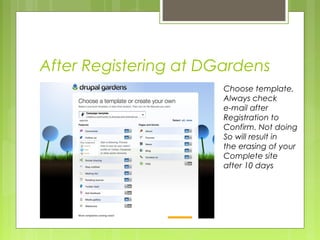
After Registering at DGardens
Choose template,
Always check
e-mail after
Registration to
Confirm. Not doing
So will result in
the erasing of your
Complete site
after 10 days
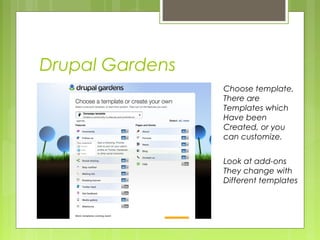
Drupal Gardens
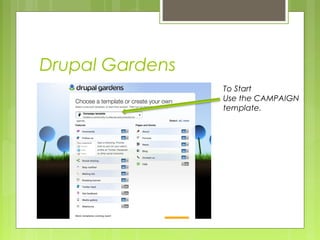
Choose template,
There are
Templates which
Have been
Created, or you
can customize.
Look at add-ons
They change with
Different templates
Drupal Gardens
To Start
Use the CAMPAIGN
template.
Confirm registration
via your email !!
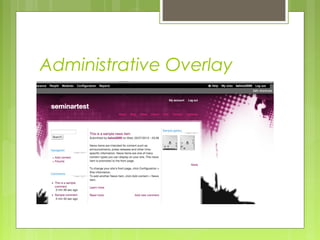
Administrative Overlay
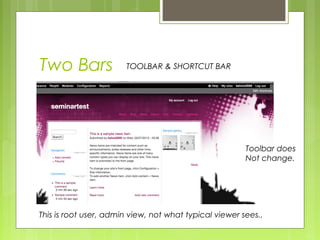
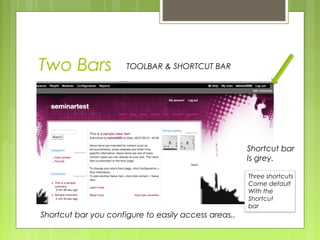
Two Bars TOOLBAR & SHORTCUT BAR
Toolbar does
Not change.
This is root user, admin view, not what typical viewer sees..
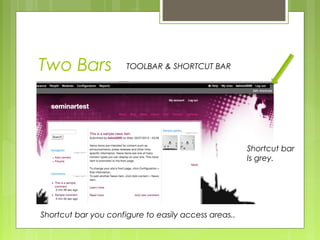
Two Bars TOOLBAR & SHORTCUT BAR
Shortcut bar
Is grey.
Shortcut bar you configure to easily access areas..
Two Bars TOOLBAR & SHORTCUT BAR
Shortcut bar
Is grey.
Shortcut bar you configure to easily access areas..
Three shortcuts
Come default
With the
Shortcut
bar
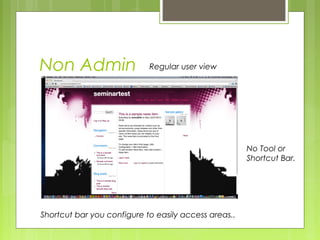
Non Admin Regular user view
No Tool or
Shortcut Bar.
Shortcut bar you configure to easily access areas..
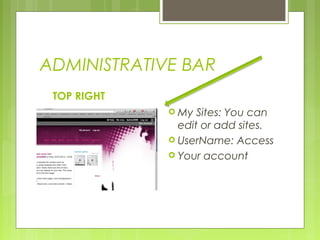
ADMINISTRATIVE BAR
TOP RIGHT
 My Sites: You can
edit or add sites.
 UserName: Access
 Your account
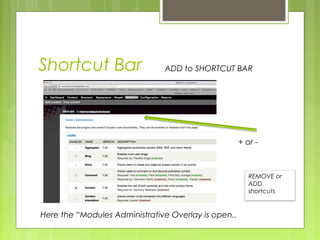
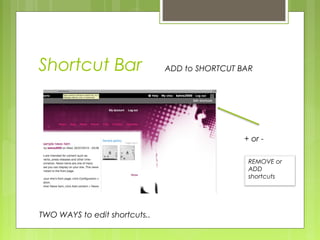
Shortcut Bar ADD to SHORTCUT BAR
+ or -
Here the “Modules Administrative Overlay is open..
REMOVE or
ADD
shortcuts
Shortcut Bar ADD to SHORTCUT BAR
+ or -
TWO WAYS to edit shortcuts..
REMOVE or
ADD
shortcuts
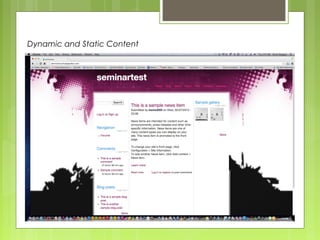
Dynamic and Static Content
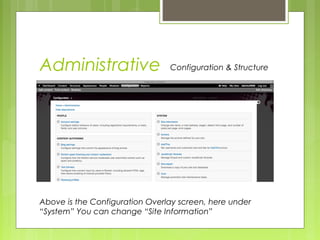
Administrative Configuration & Structure
Above is the Configuration Overlay screen, here under
“System” You can change “Site Information”
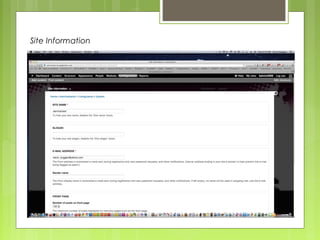
Site Information
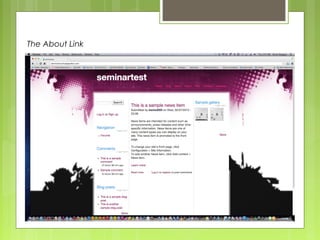
The About Link
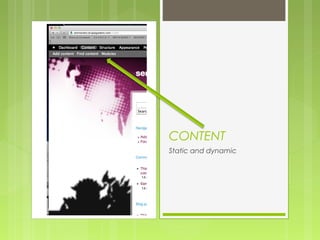
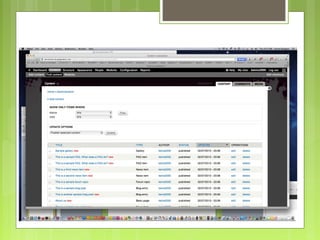
CONTENT
Static and dynamic
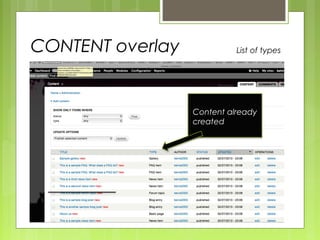
CONTENT overlay List of types
Content already
created
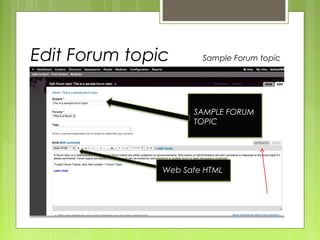
Edit Forum topic Sample Forum topic
SAMPLE FORUM
TOPIC
Web Safe HTML
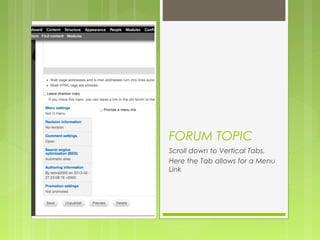
FORUM TOPIC
Scroll down to Vertical Tabs,
Here the Tab allows for a Menu
Link
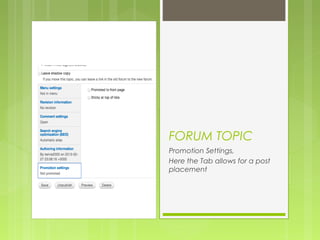
FORUM TOPIC
Promotion Settings,
Here the Tab allows for a post
placement
ADDING CONTENT
Adding a basic page
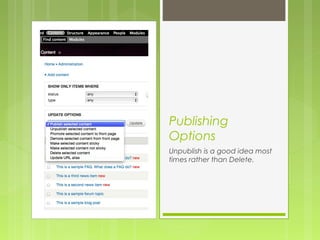
Publishing
Options
Unpublish is a good idea most
times rather than Delete.
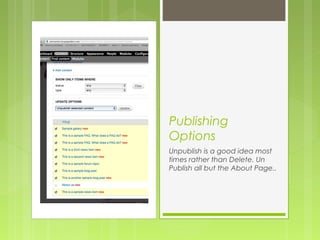
Publishing
Options
Unpublish is a good idea most
times rather than Delete. Un
Publish all but the About Page..
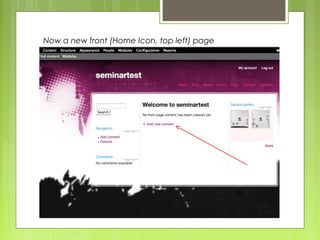
Now a new front (Home Icon, top left) page
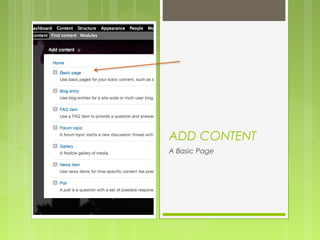
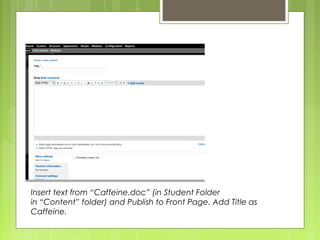
ADD CONTENT
A Basic Page
Insert text from “Caffeine.doc” (in Student Folder
in “Content” folder) and Publish to Front Page. Add Title as
Caffeine.
Add Content again
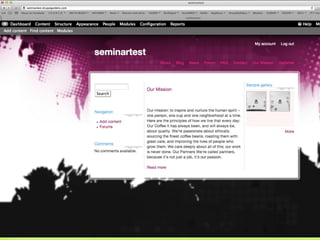
Mission Statement
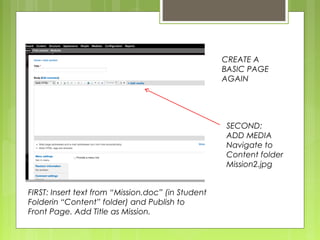
FIRST: Insert text from “Mission.doc” (in Student
Folderin “Content” folder) and Publish to
Front Page. Add Title as Mission.
CREATE A
BASIC PAGE
AGAIN
SECOND:
ADD MEDIA
Navigate to
Content folder
Mission2.jpg
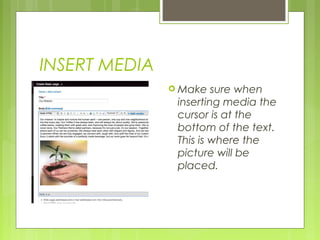
INSERT MEDIA
 Make sure when
inserting media the
cursor is at the
bottom of the text.
This is where the
picture will be
placed.
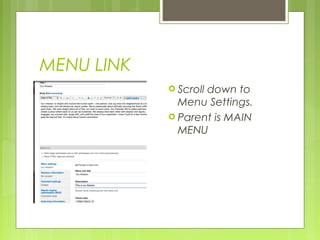
MENU LINK
 Scroll down to
Menu Settings.
 Parent is MAIN
MENU
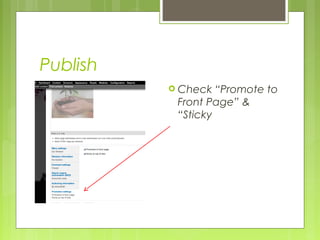
Publish
 Check “Promote to
Front Page” &
“Sticky
Drupal Gardens Tutorial 1 of 4

Drupal Gardens Tutorial 1 of 4