Weebly is one of my
favorite free hosting
services. I love their
website builder! It’s so
easy to use!
Before you can use it,
you must create an
account.
You can either connect
the service to your
Facebook account …
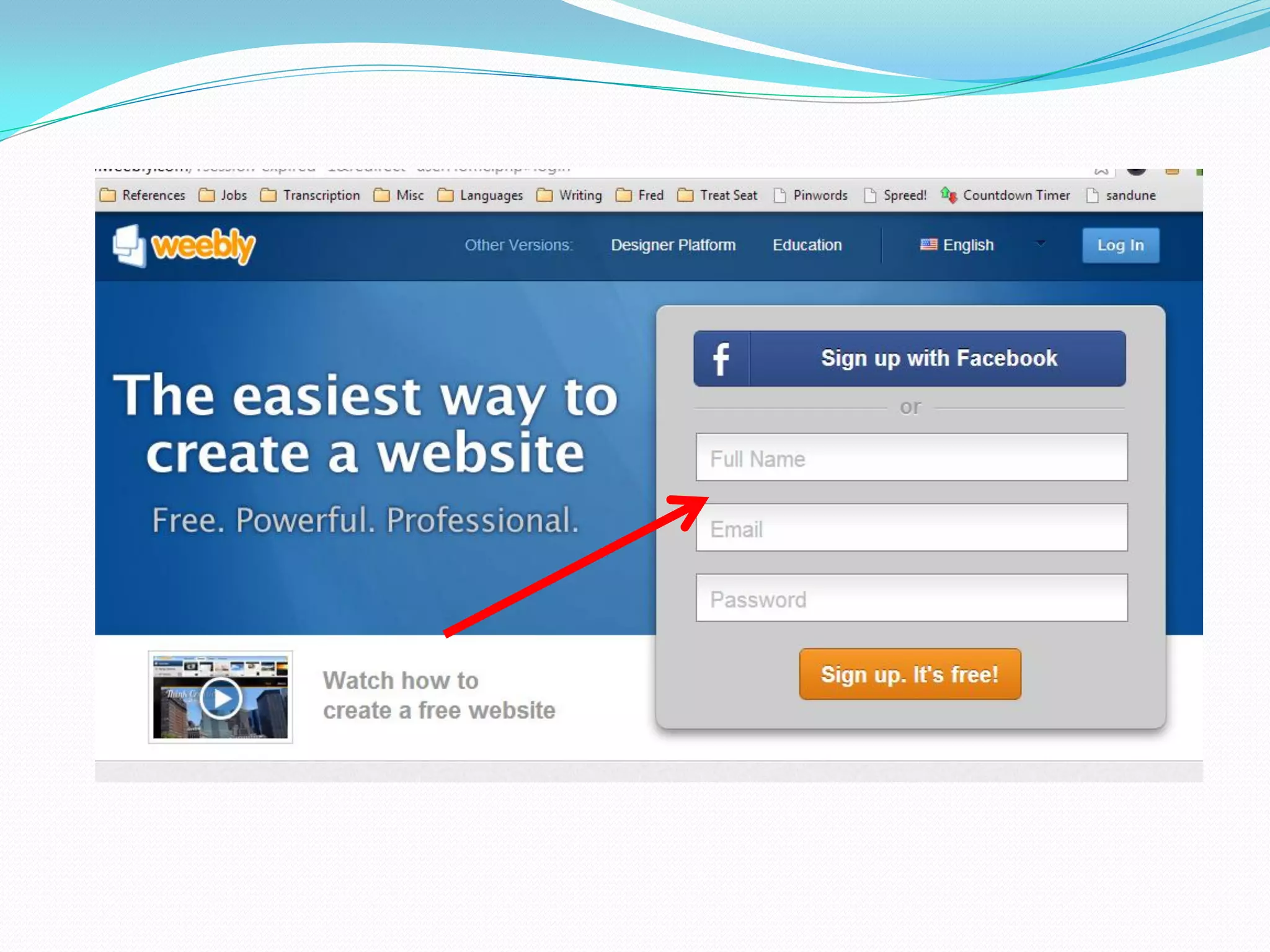
… or you can sign up the
old-fashioned way: by
providing your name,
email, and password.
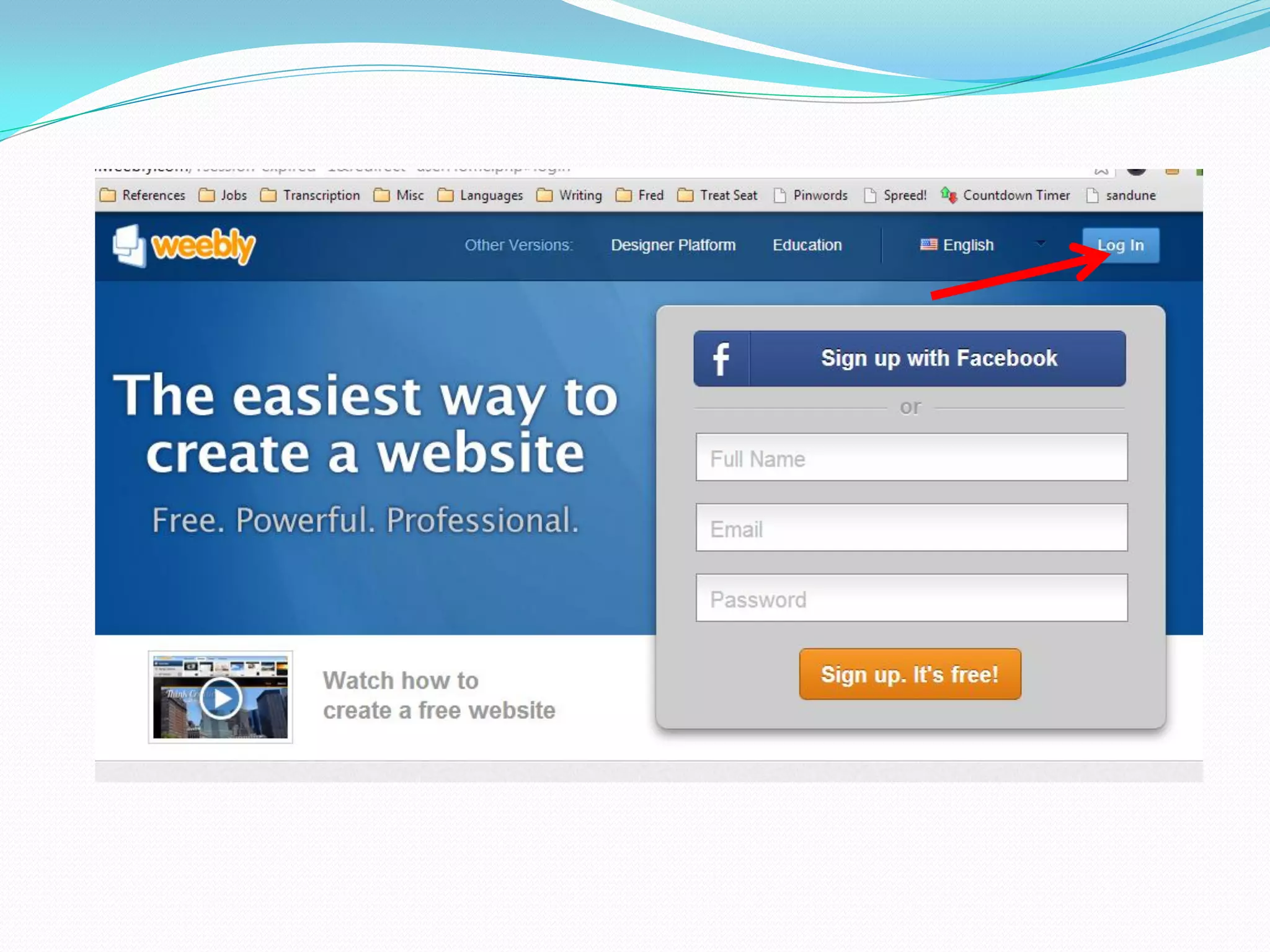
Once you have signed
up, you can now log in.
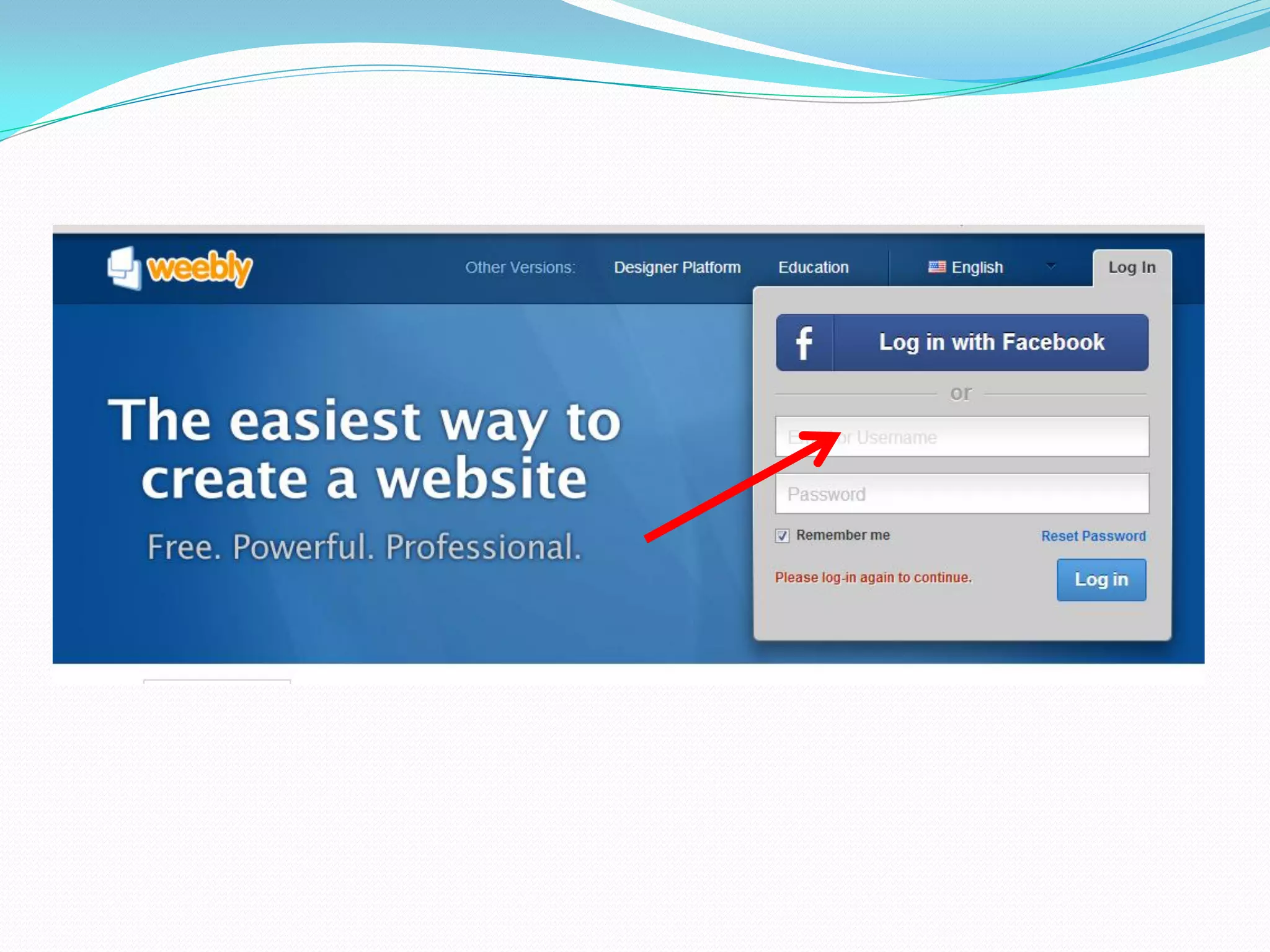
Click the Facebook tab
or enter your email and
password.
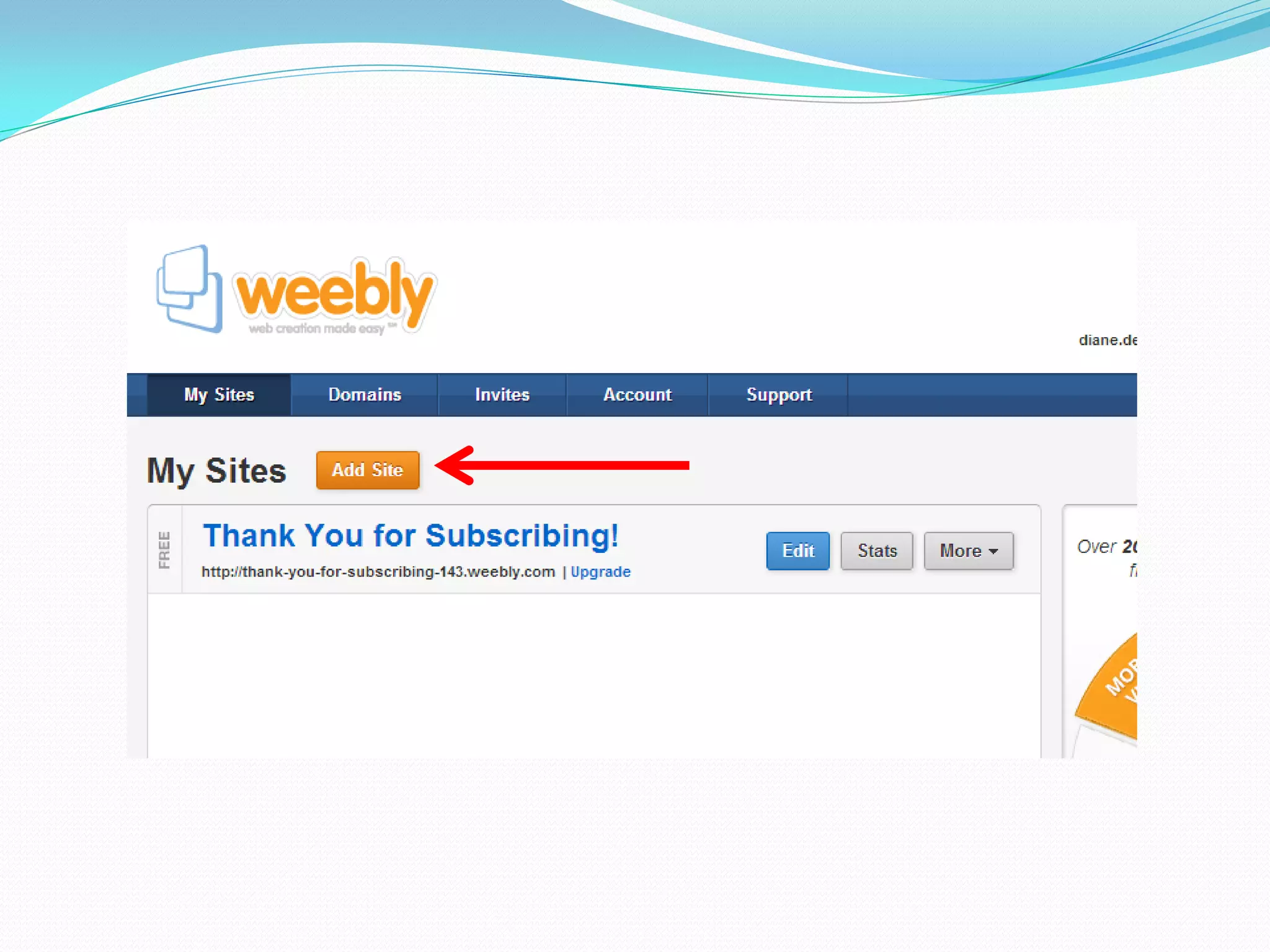
To build a website, click
the orange “Add Site”
button.
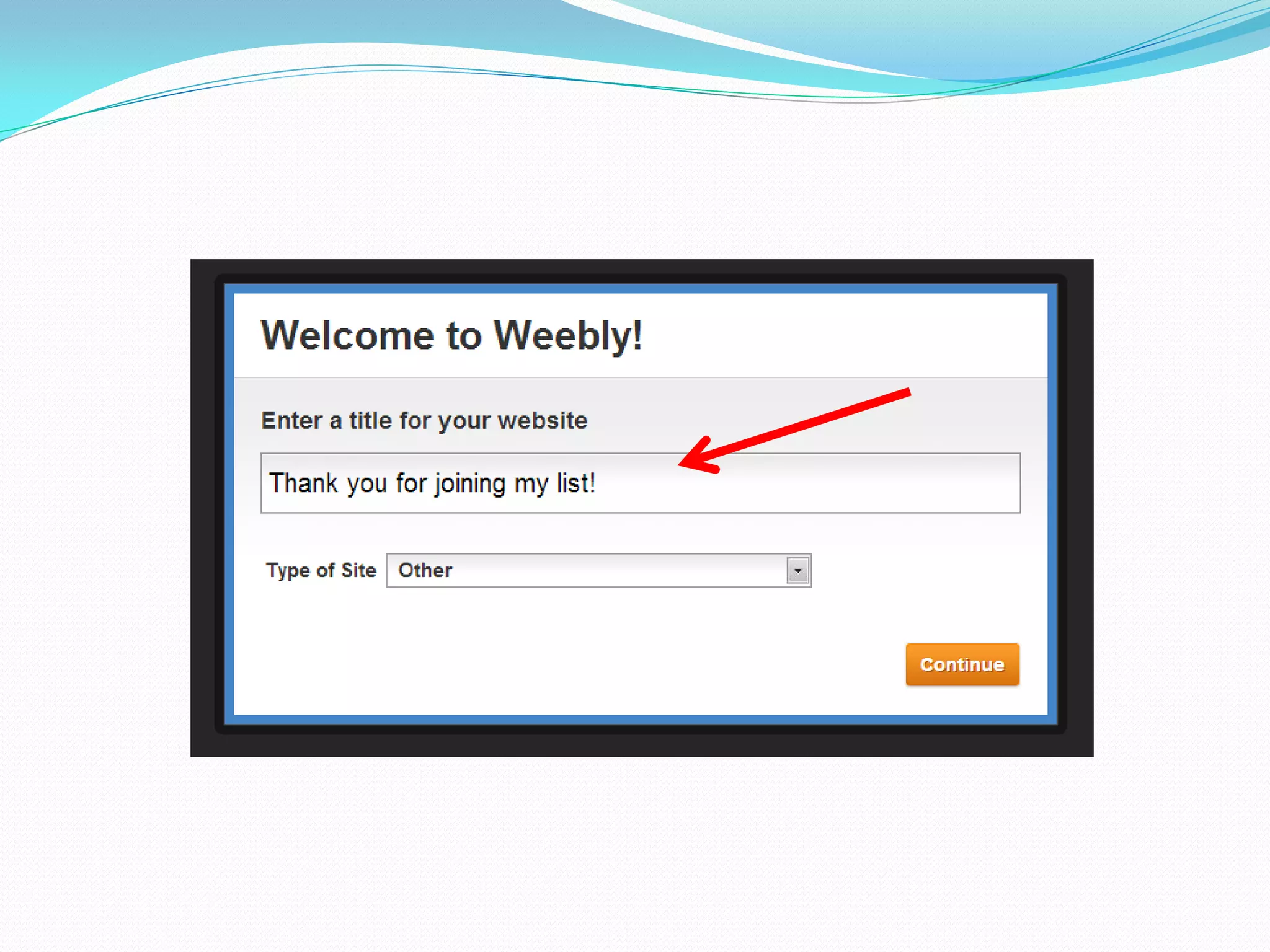
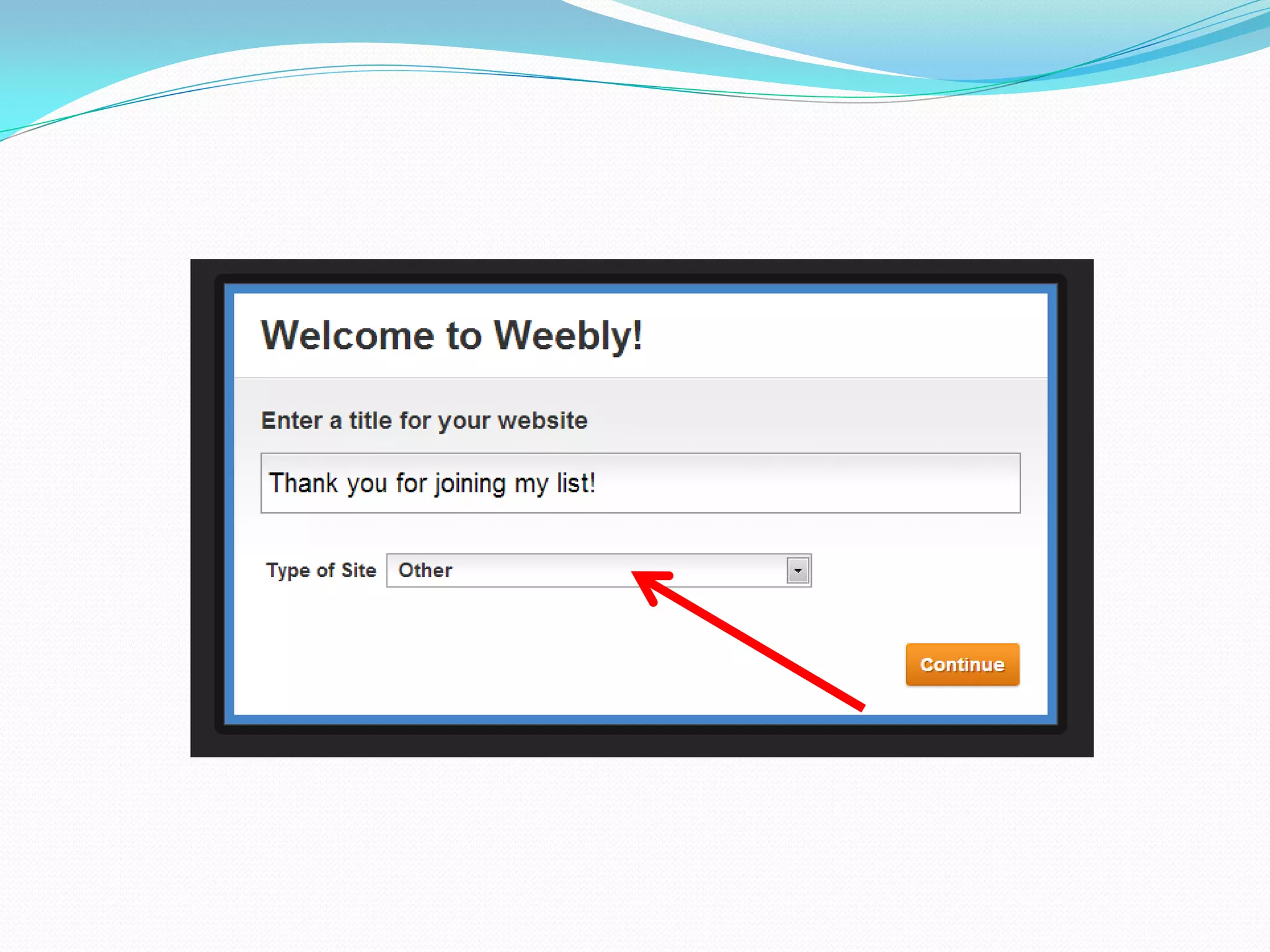
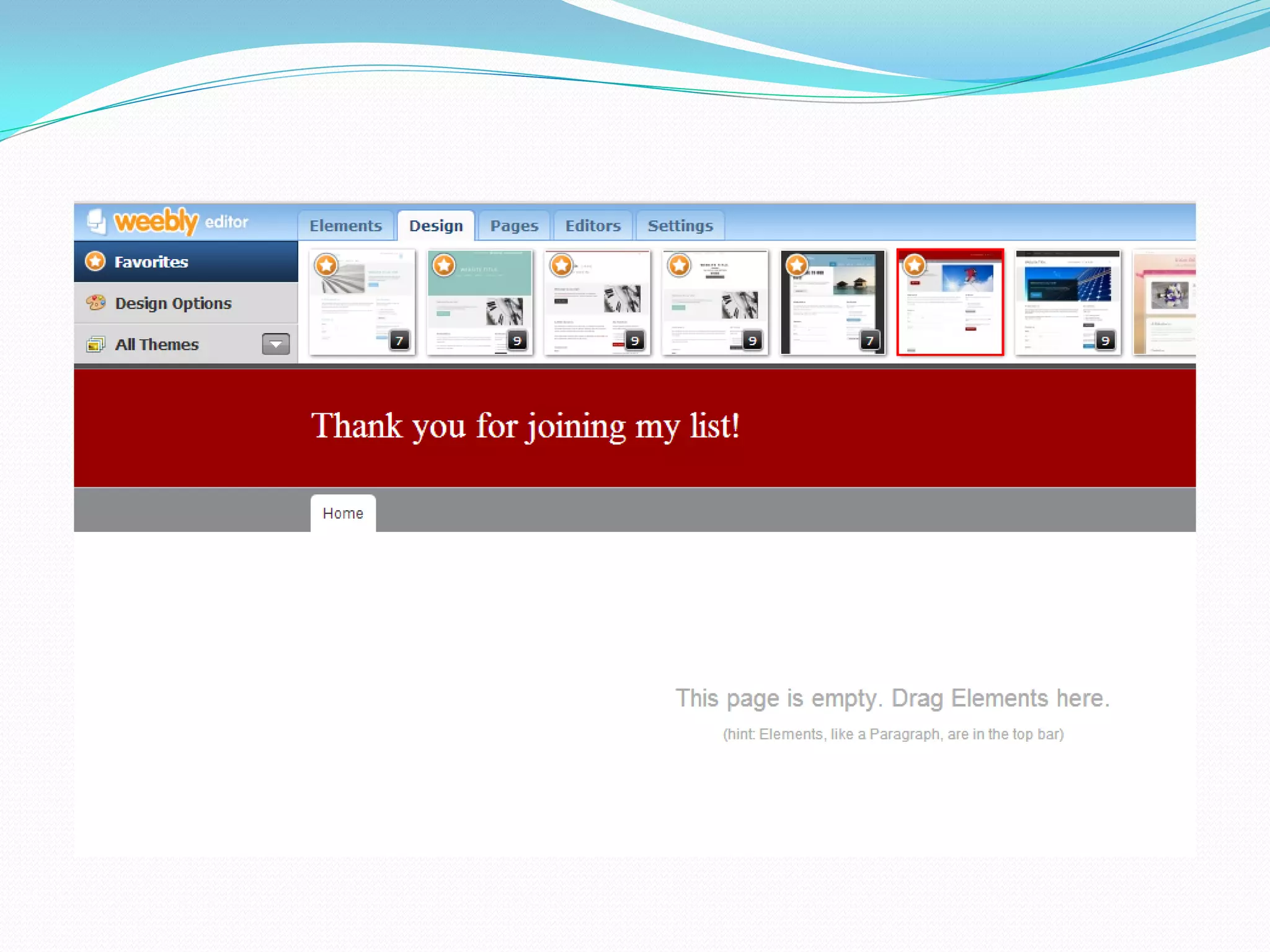
Enter the title of your
landing page.
I suggest that you name
it as something like,
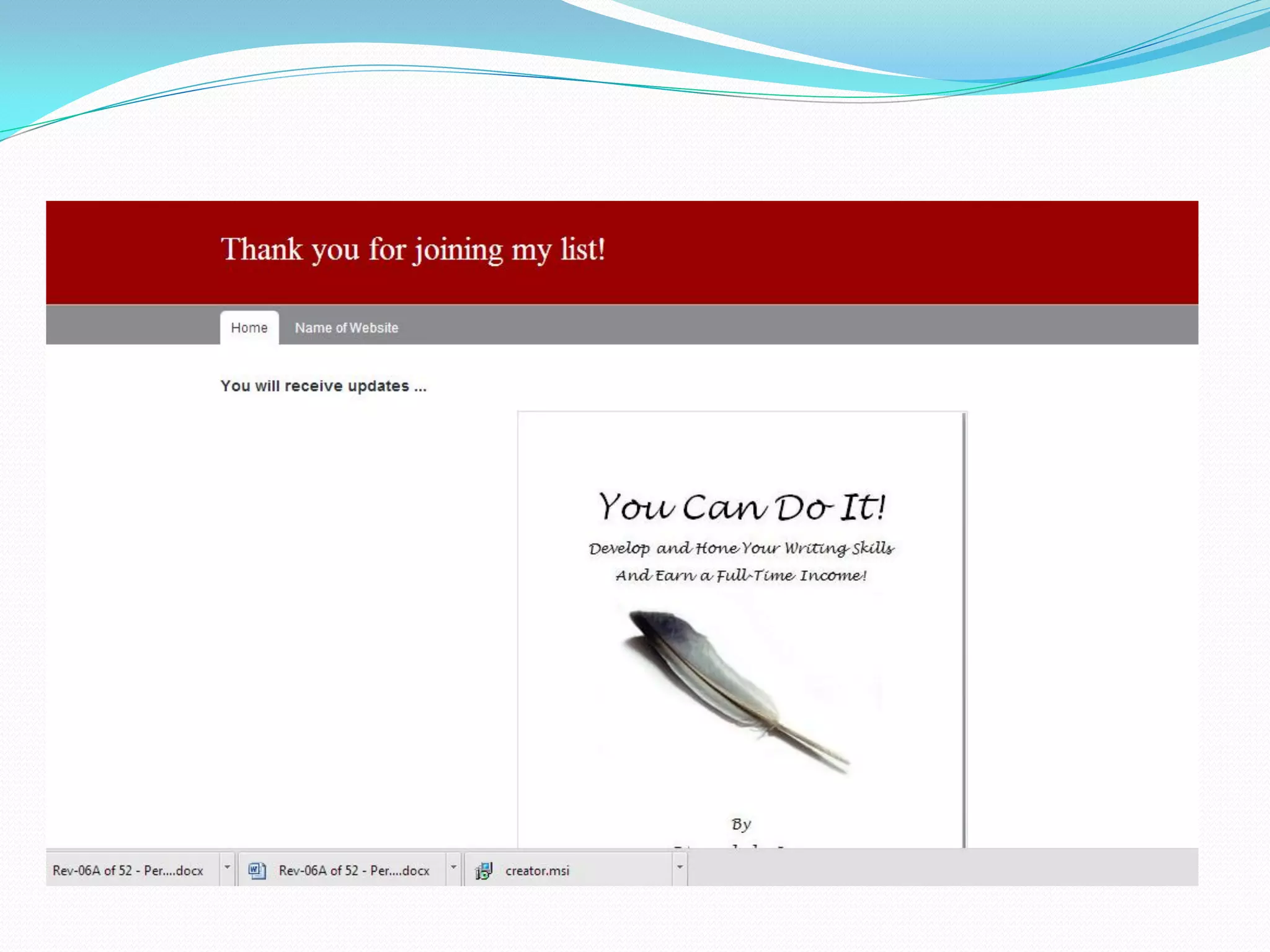
“Thank you for joining
my list.”
Select “Other” in the
“Type of Site”
dropdown menu.
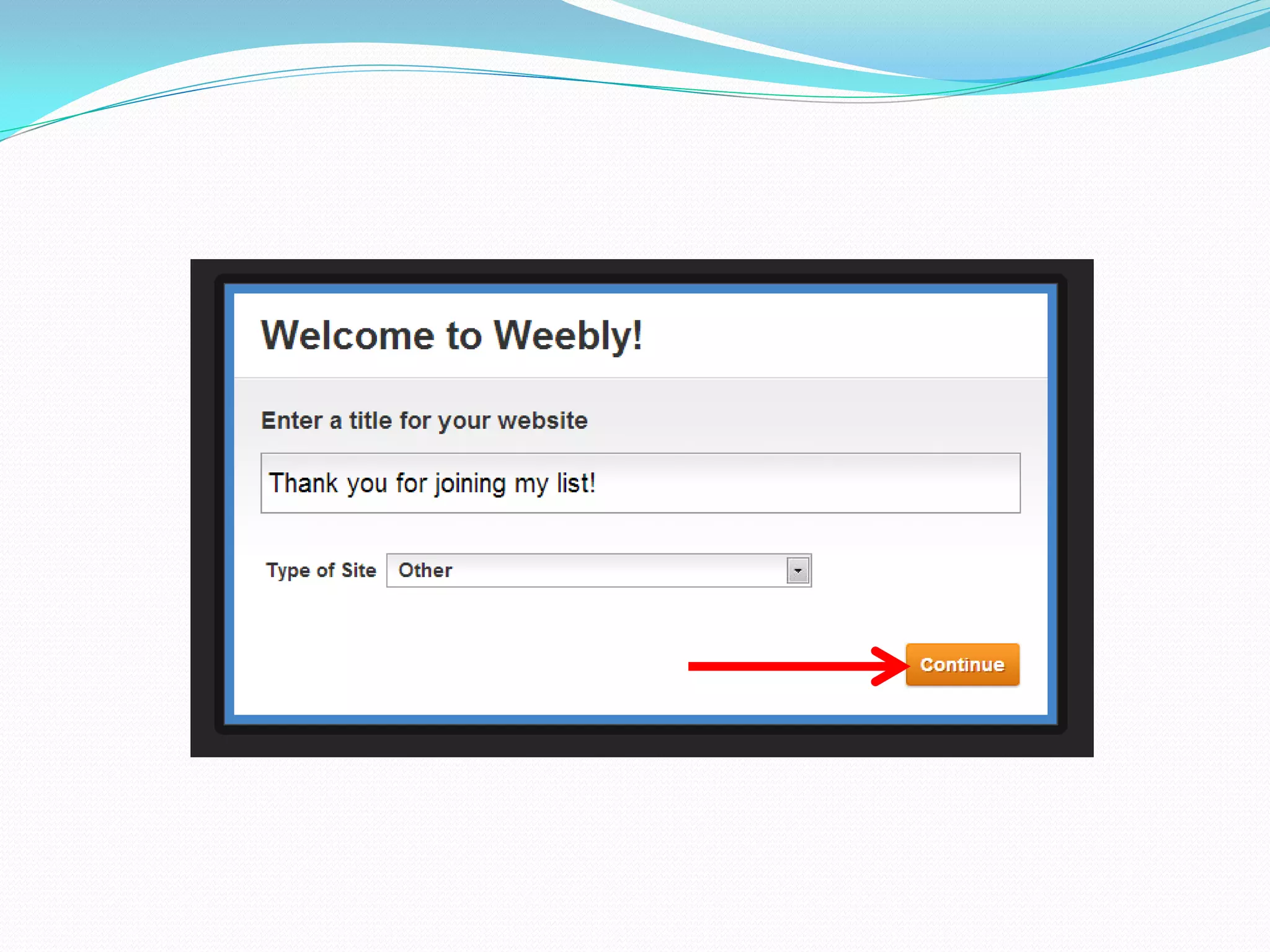
Hit the continue
     button.
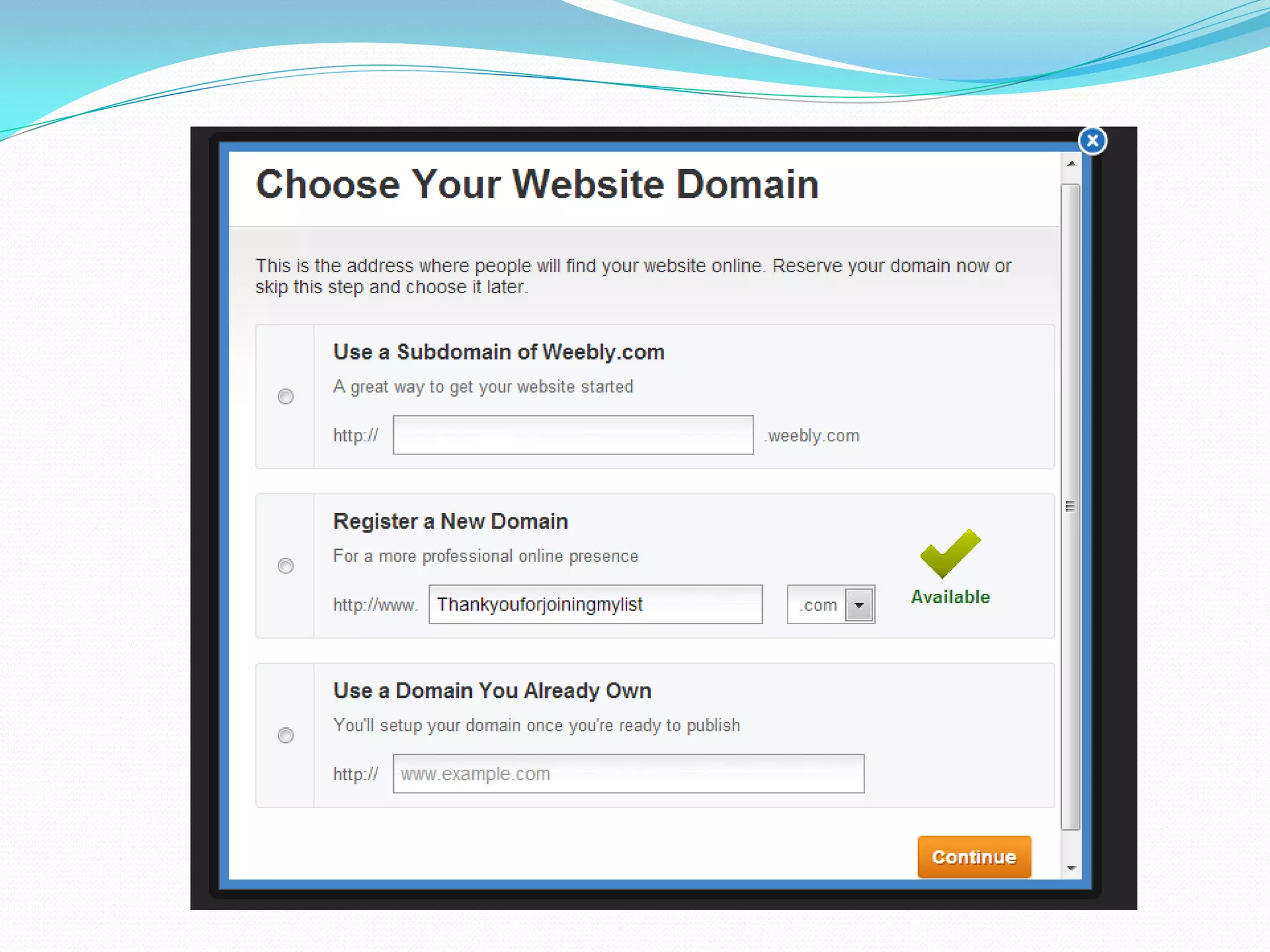
You will be prompted to
select a website
domain.
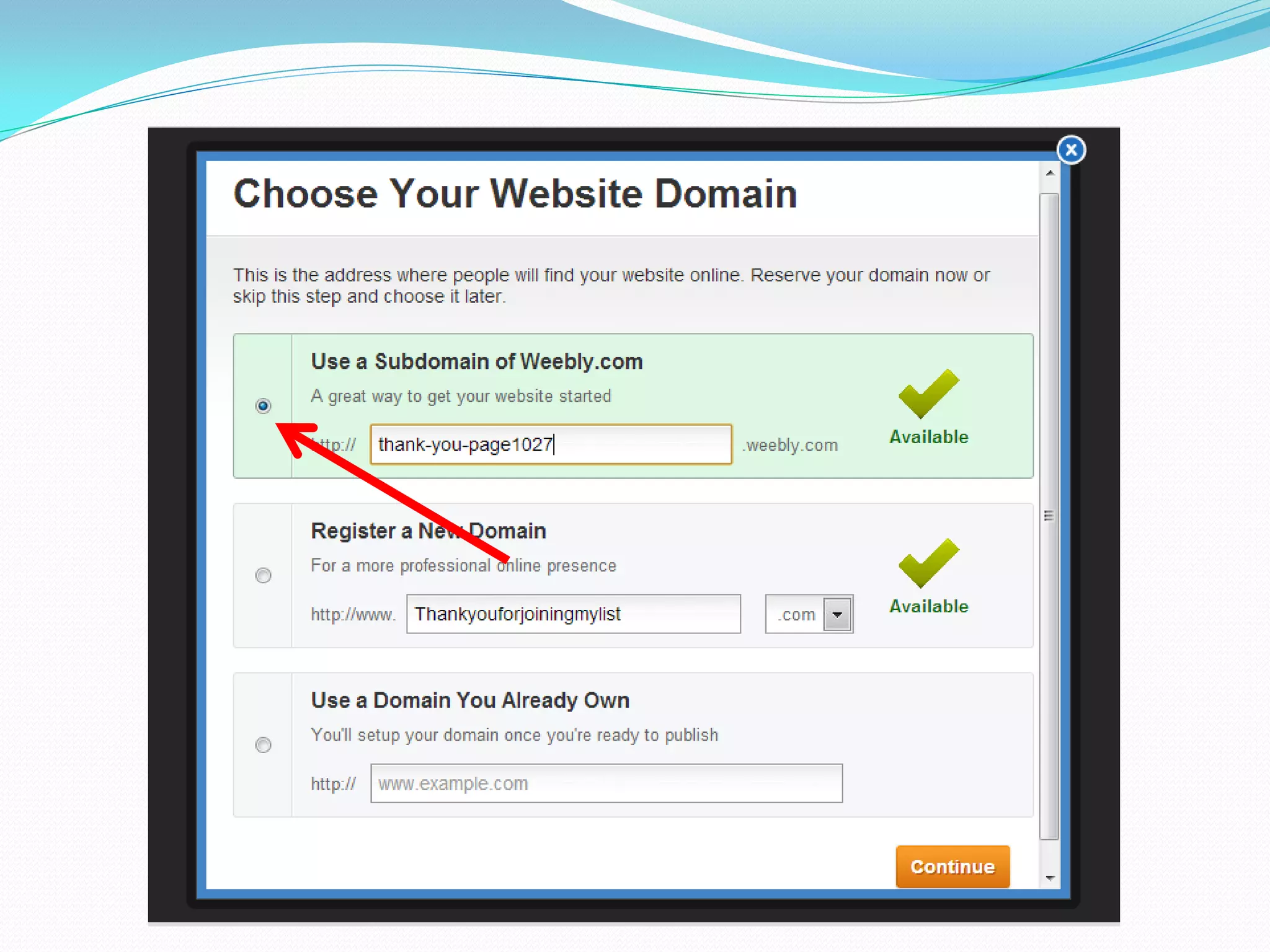
Select “Use a subdomain of
 Weebly.com” and hit the
      orange button.
You will be brought to the
     website editor.
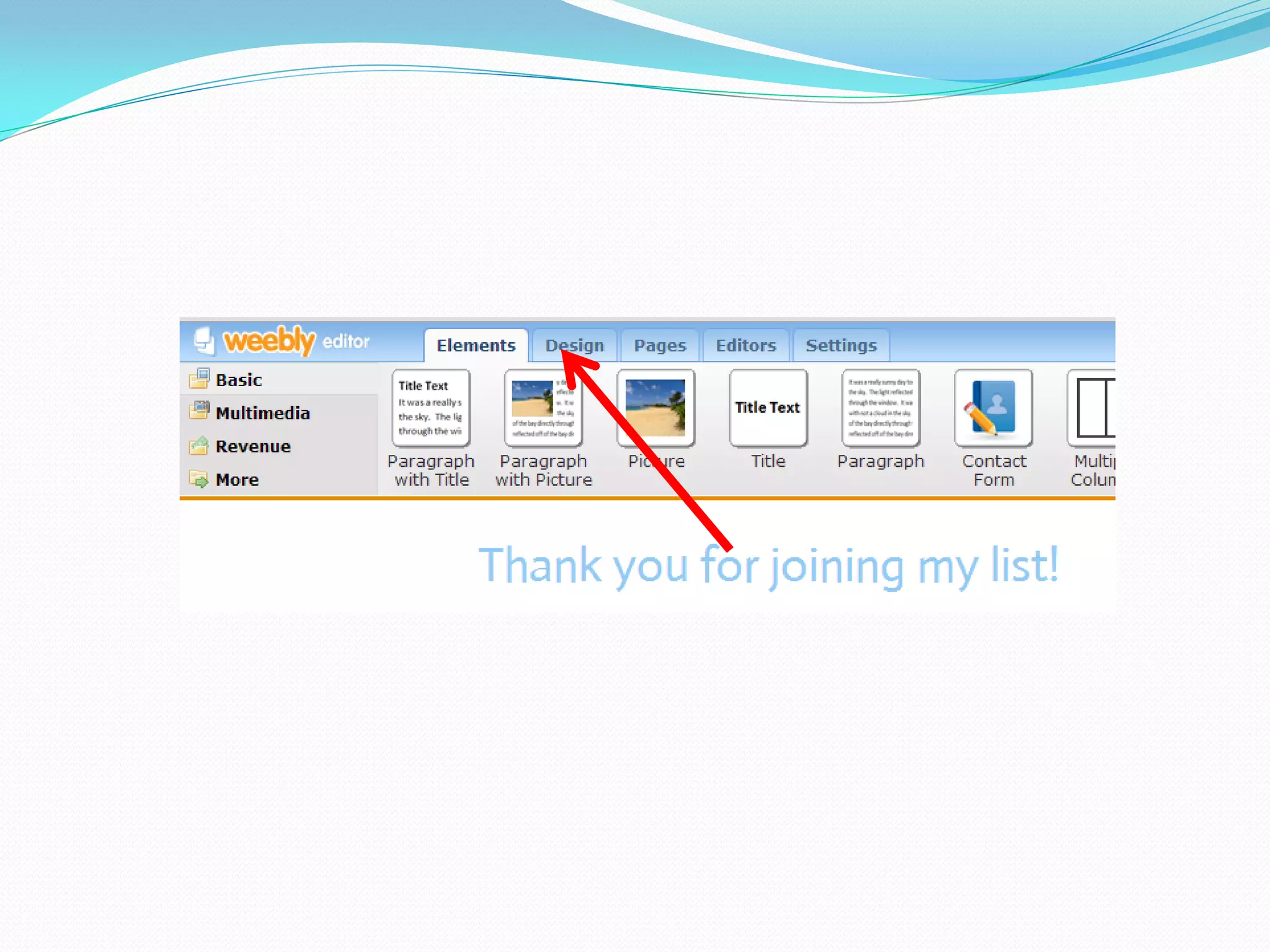
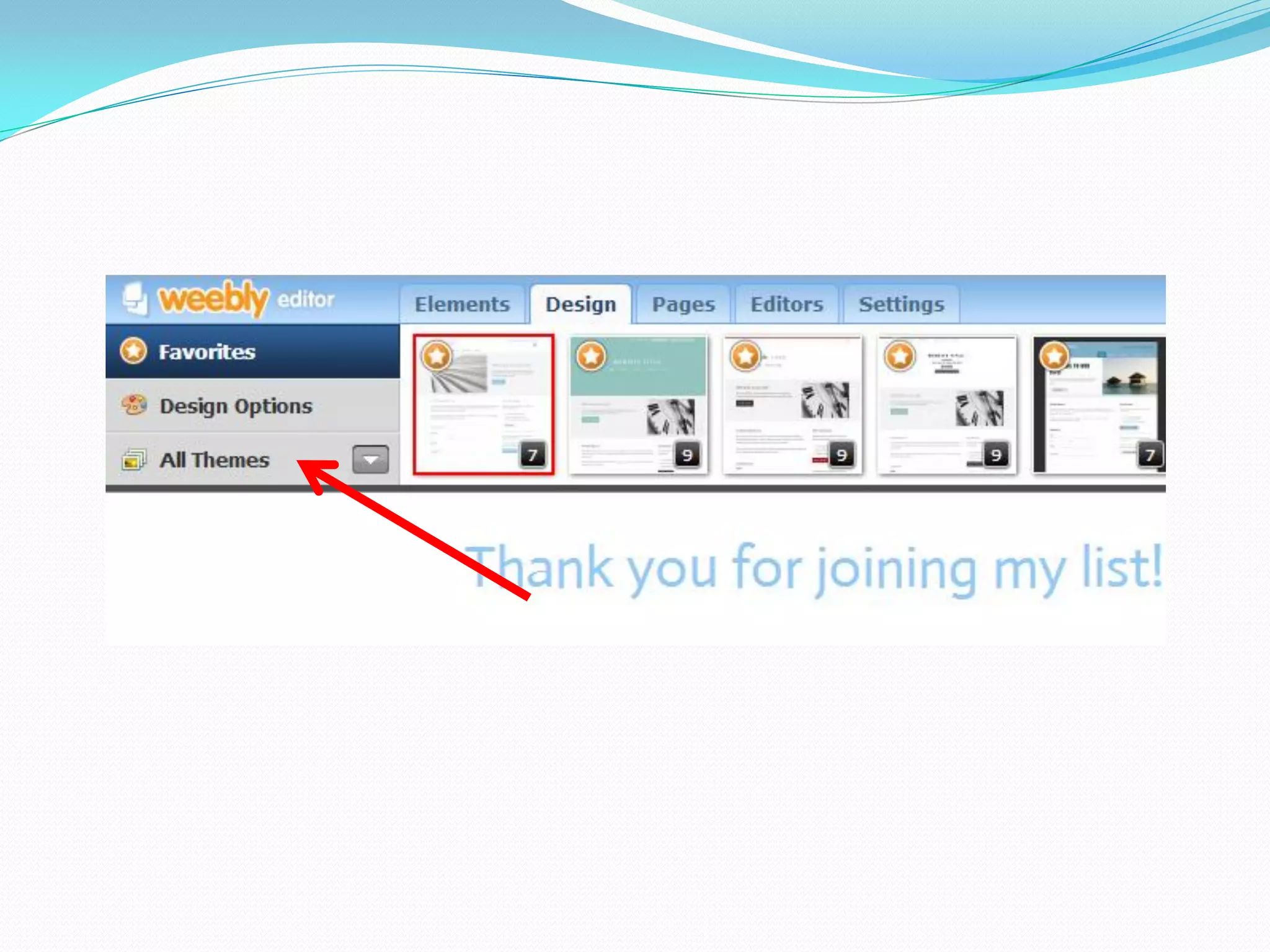
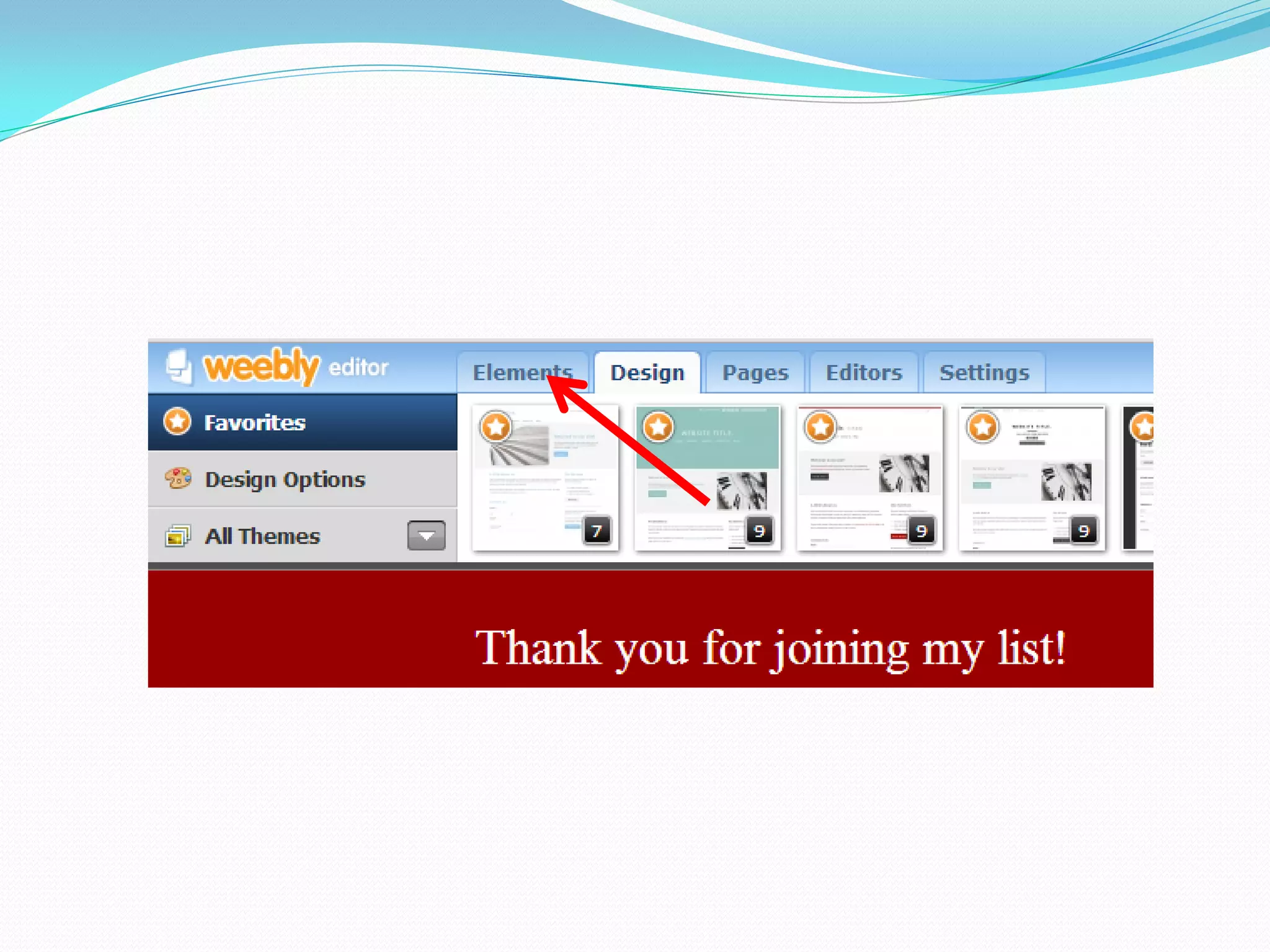
To change the theme of the
website, click the “Design”
            tab.
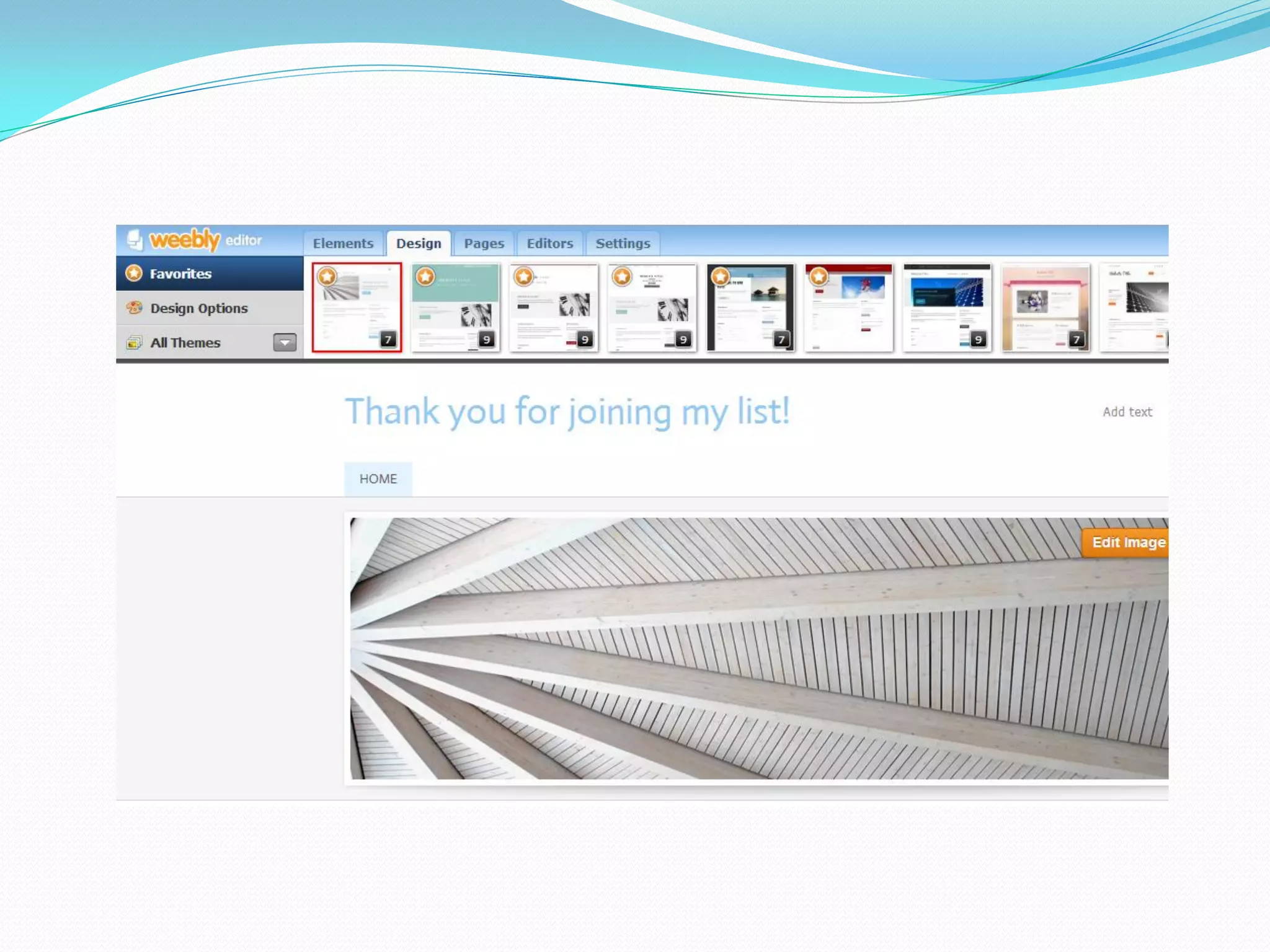
You will see this:
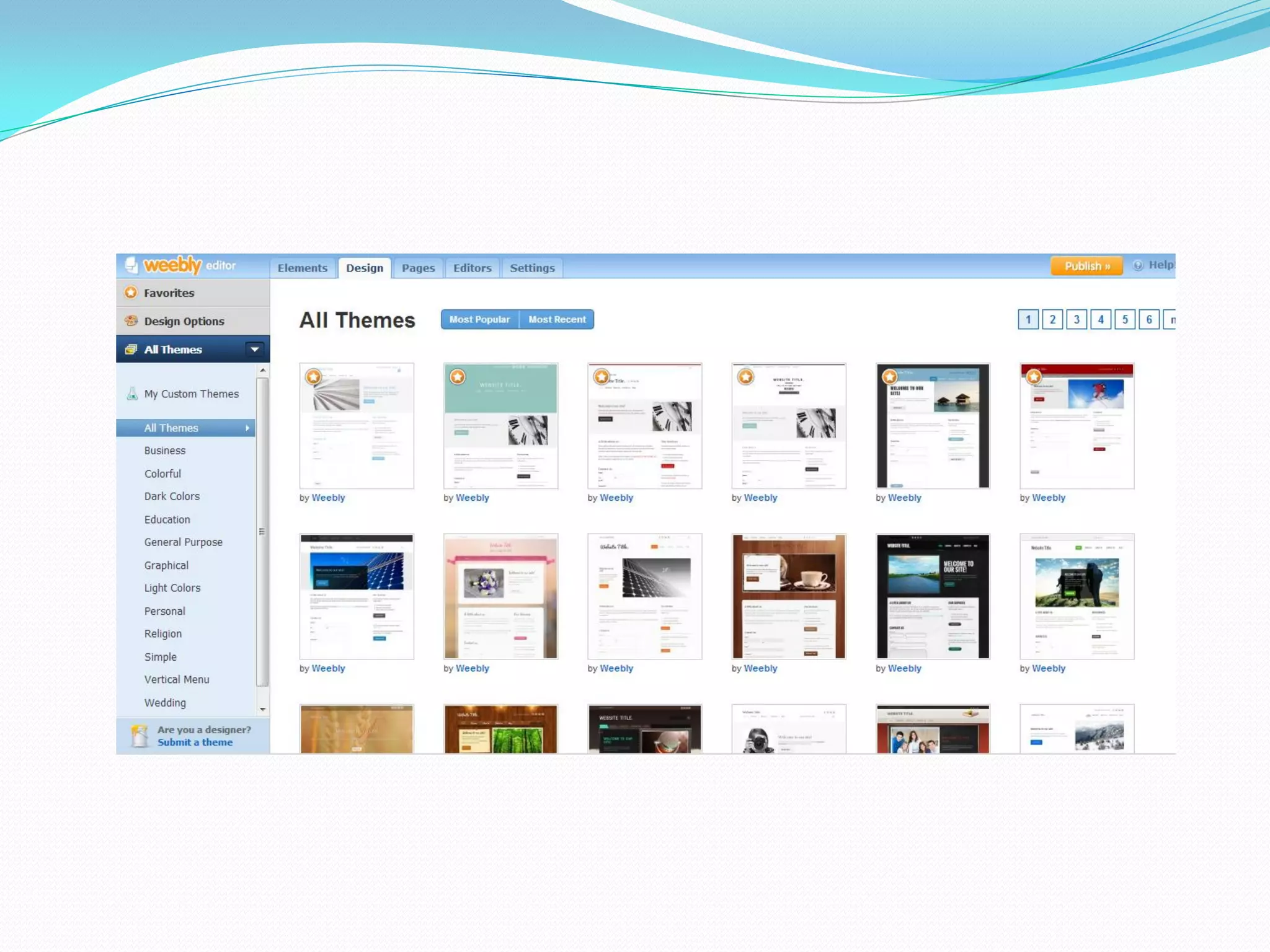
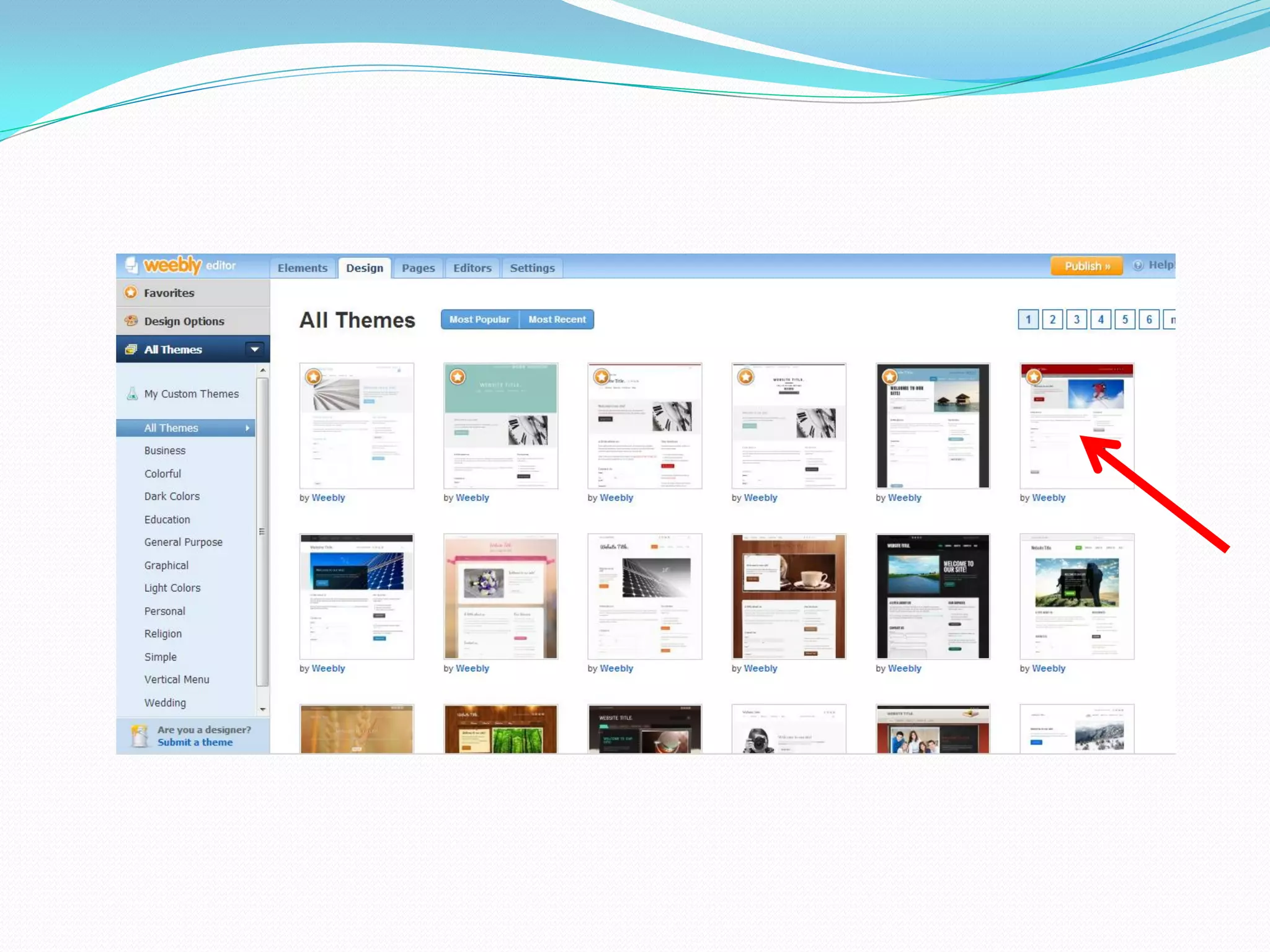
To get a better look of all the
available themes, click on “All
           Themes.”
You will find a gallery of
themes. Click on the theme
          you like.
This is a good theme for a
      landing page:
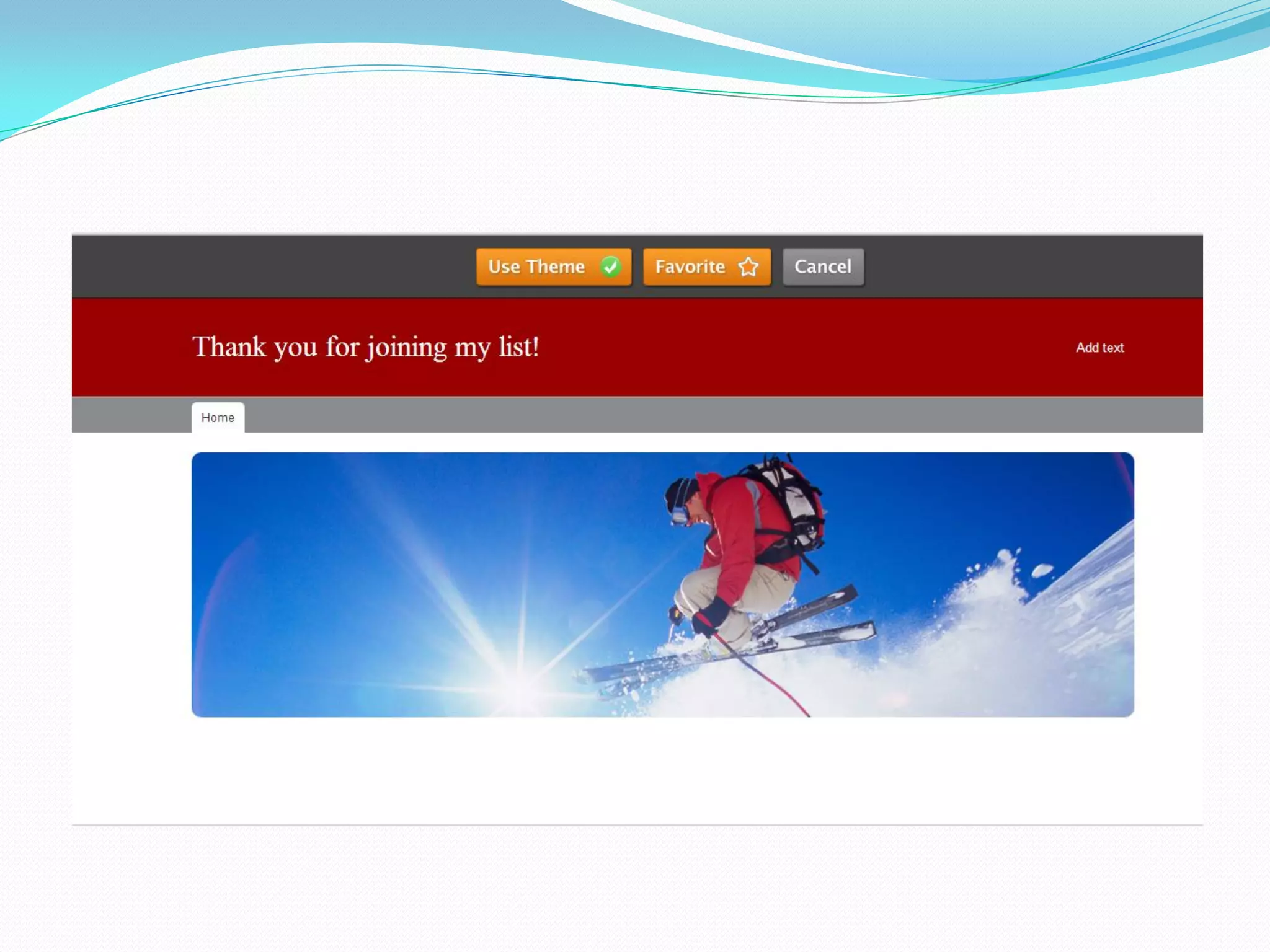
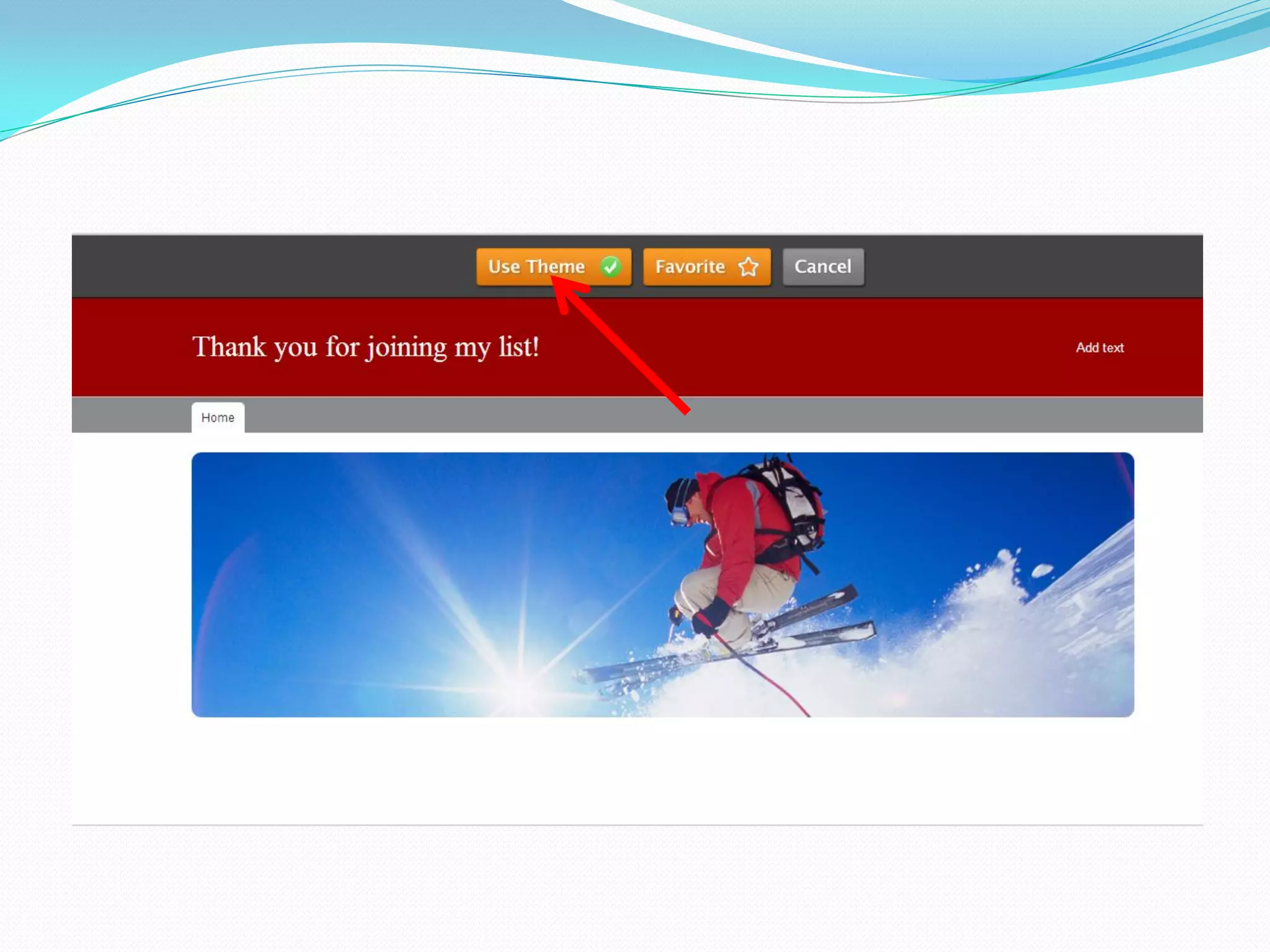
When you click on the theme
you like, you will be shown a
           preview.
Click “Use Theme” to use the
      design you want.
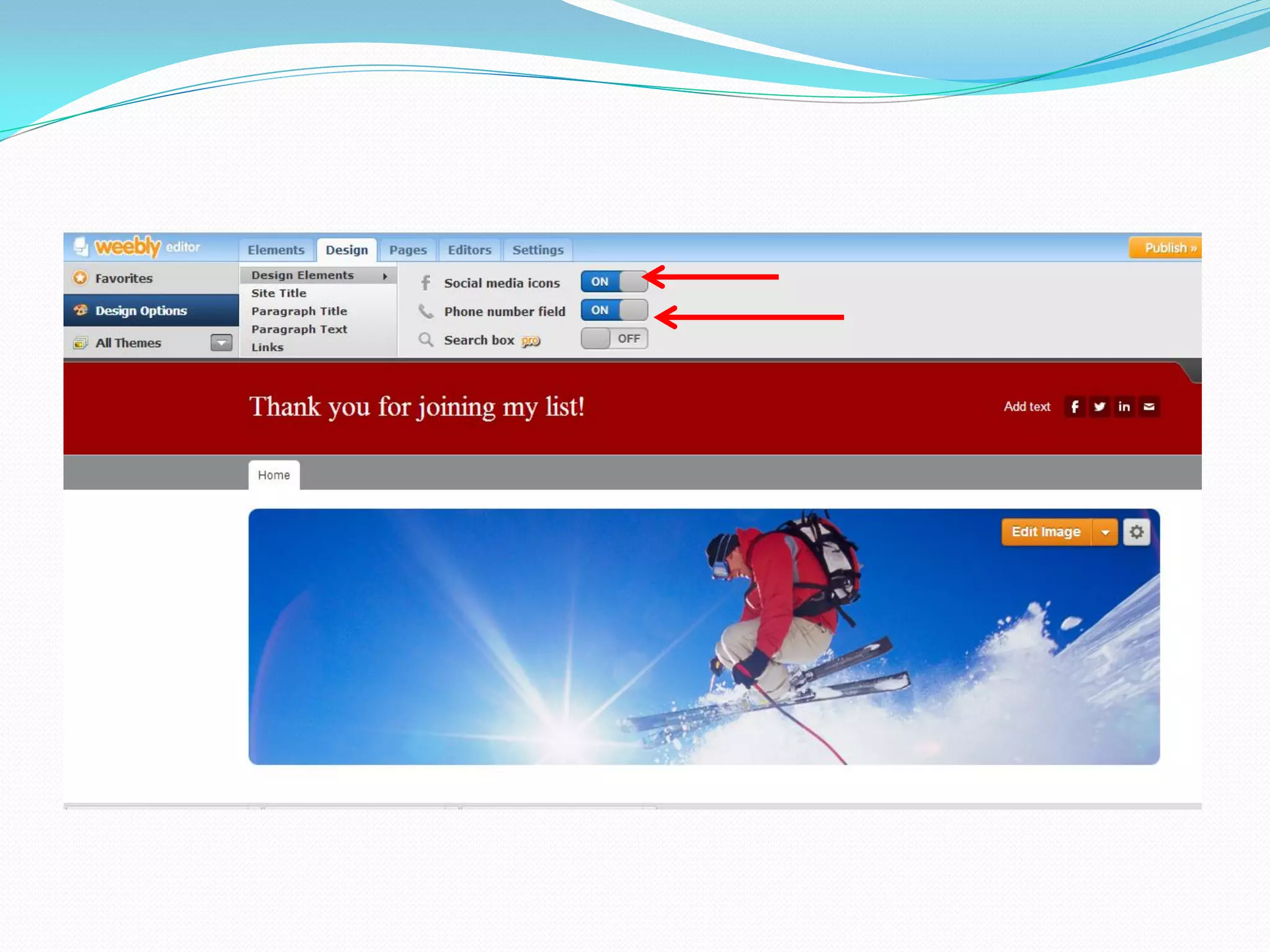
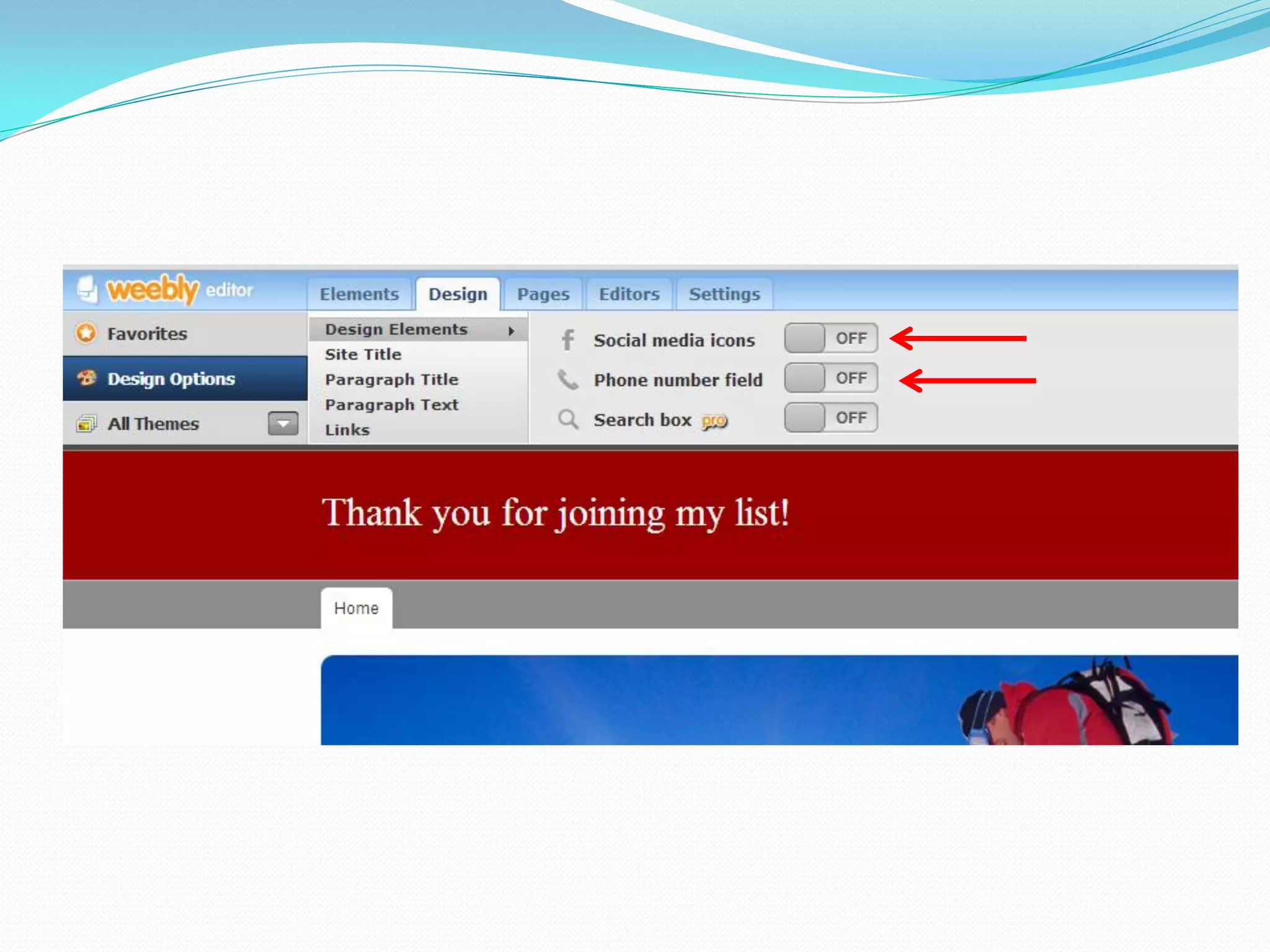
Make sure that these are all
       turned off:
Click to turn off:
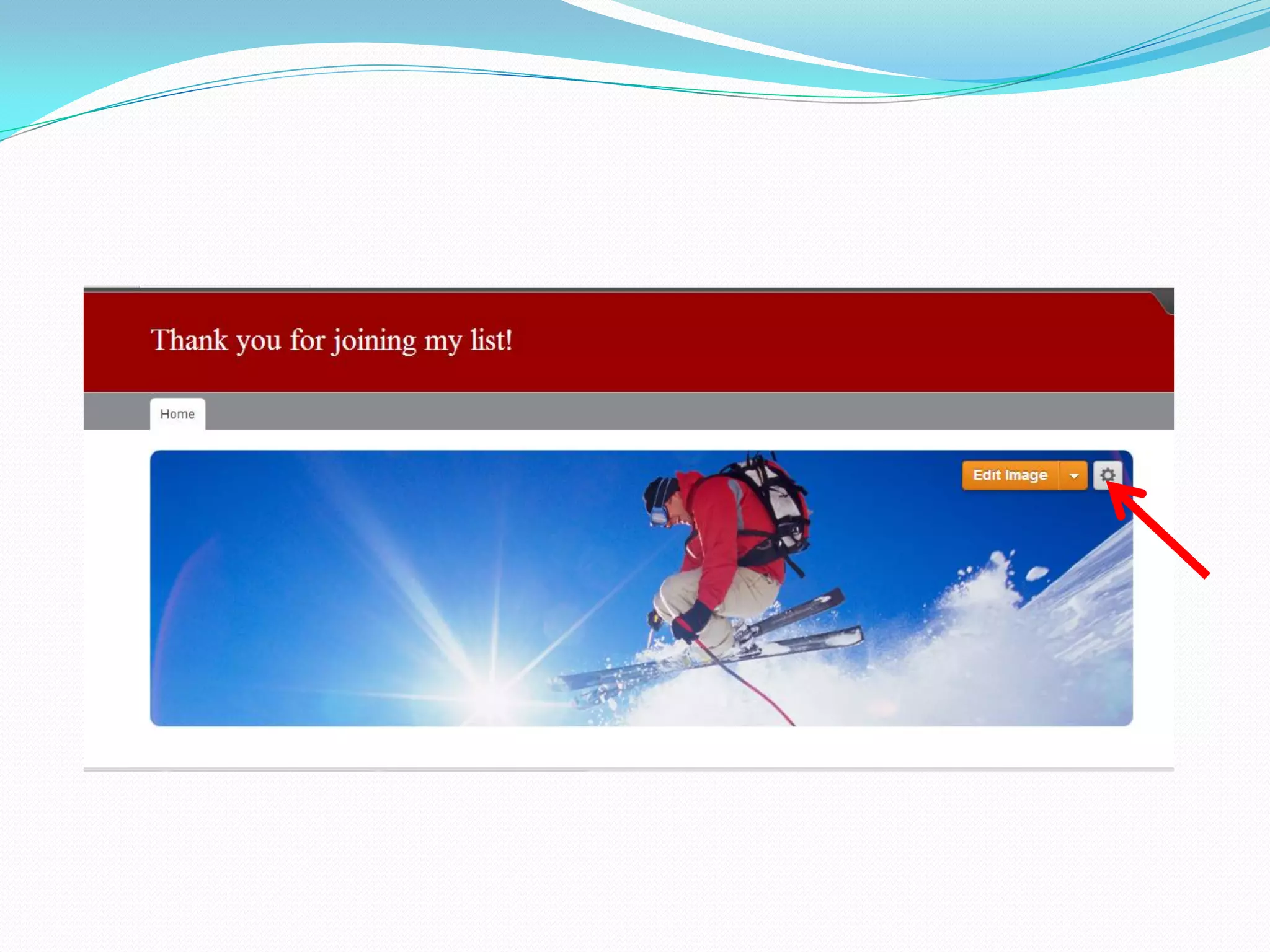
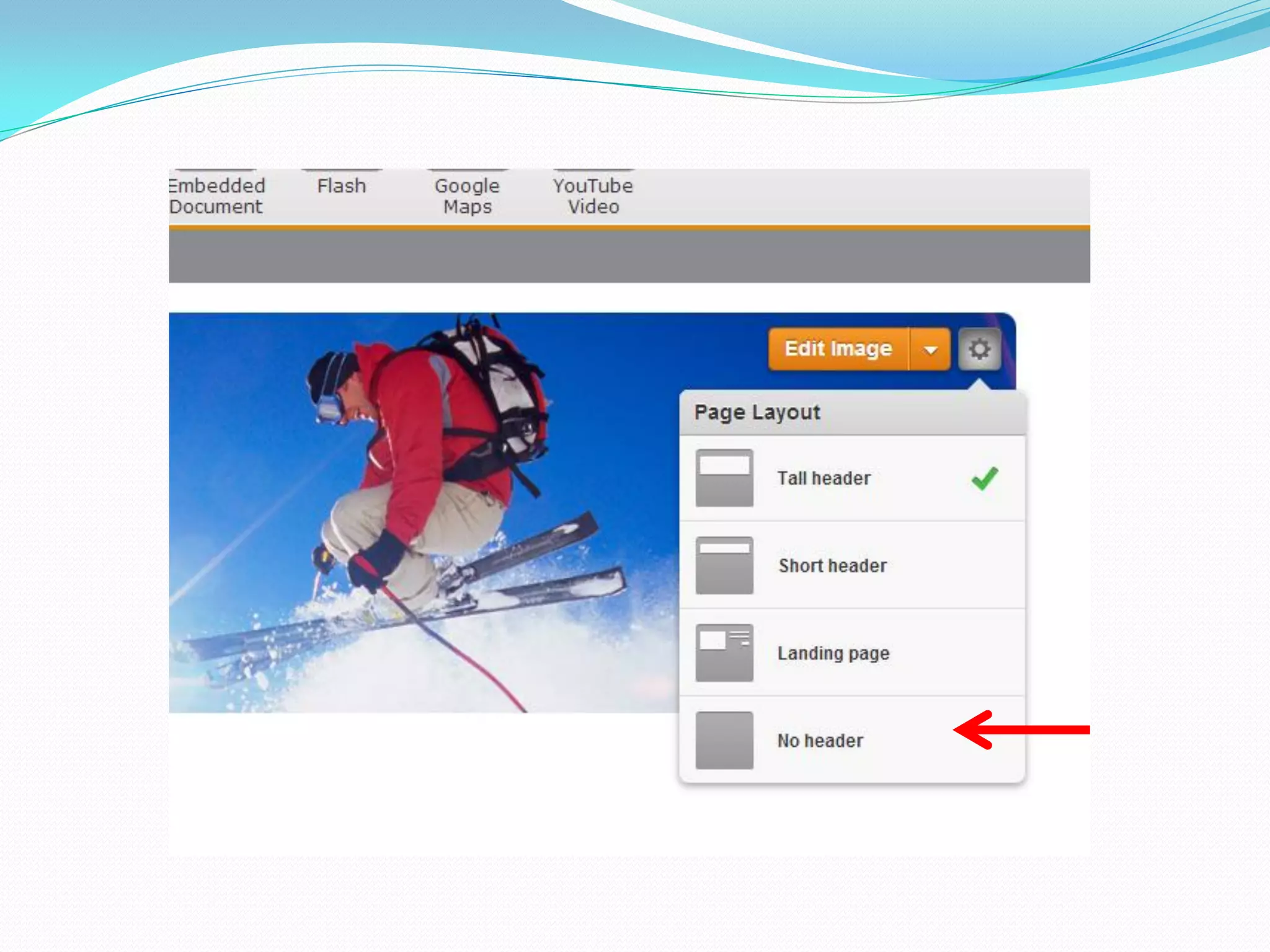
To remove the header, hover
 your mouse on the picture
 and click on the gear icon.
Select “No Header.”
See, the picture is gone!
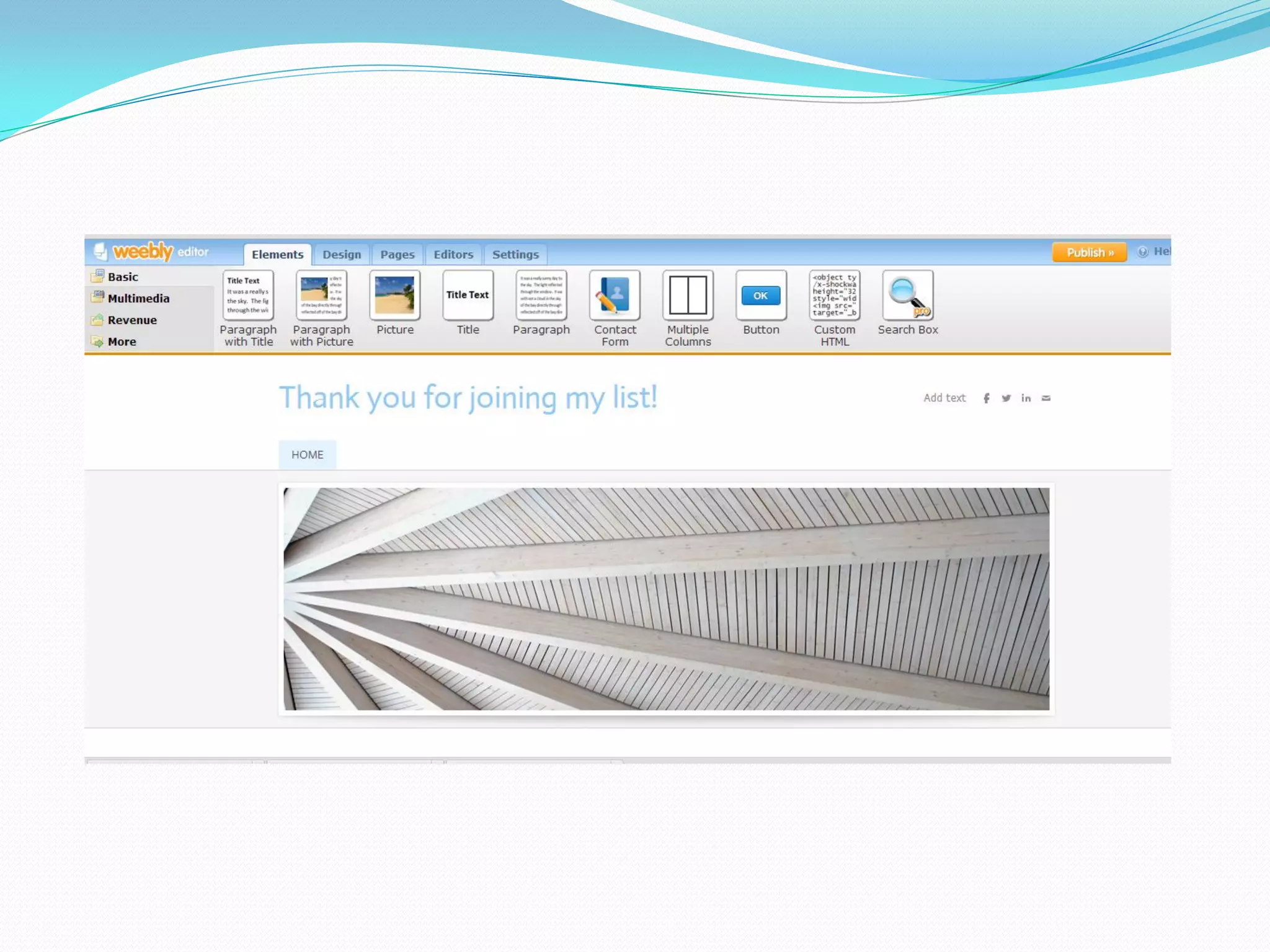
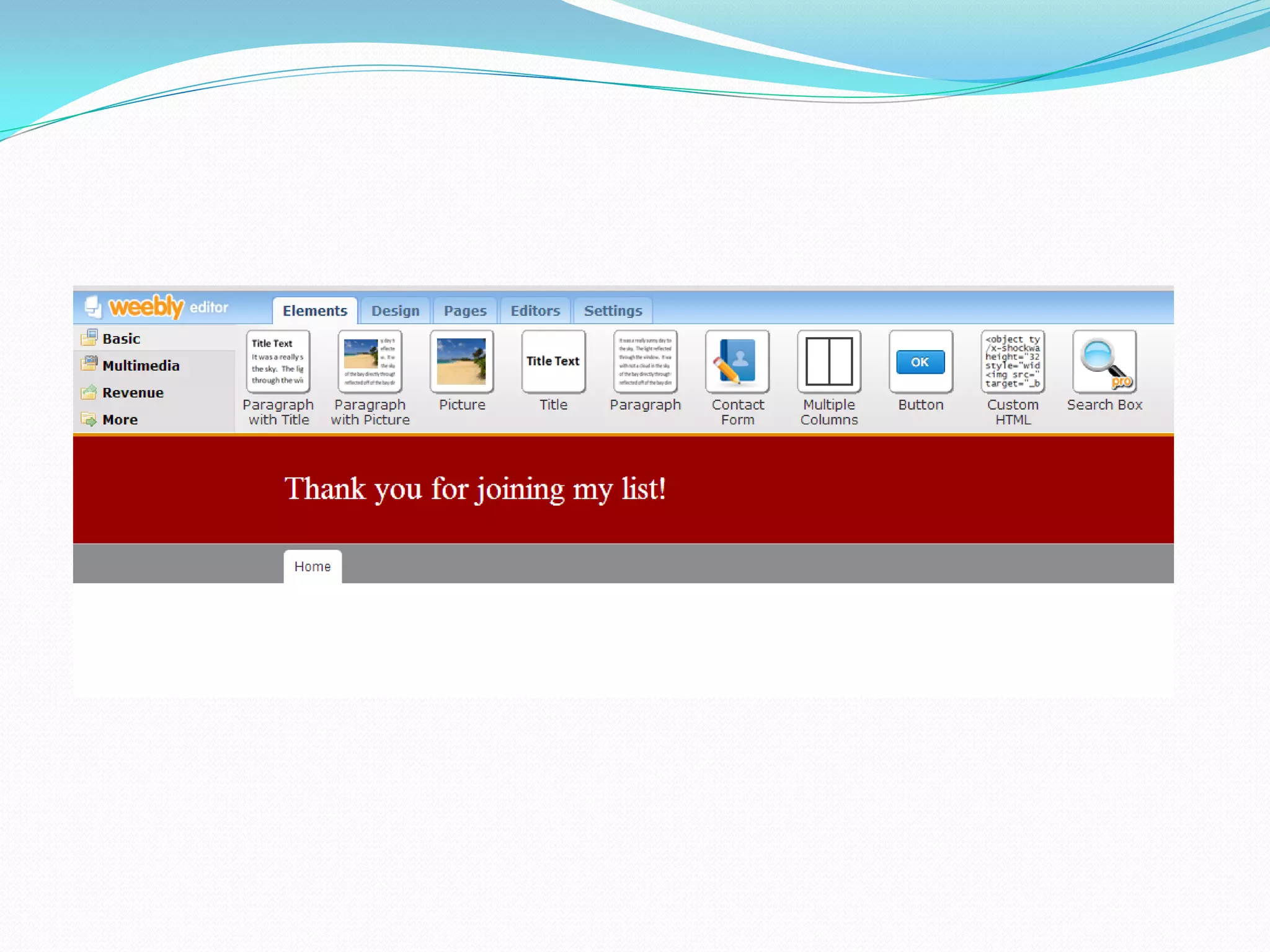
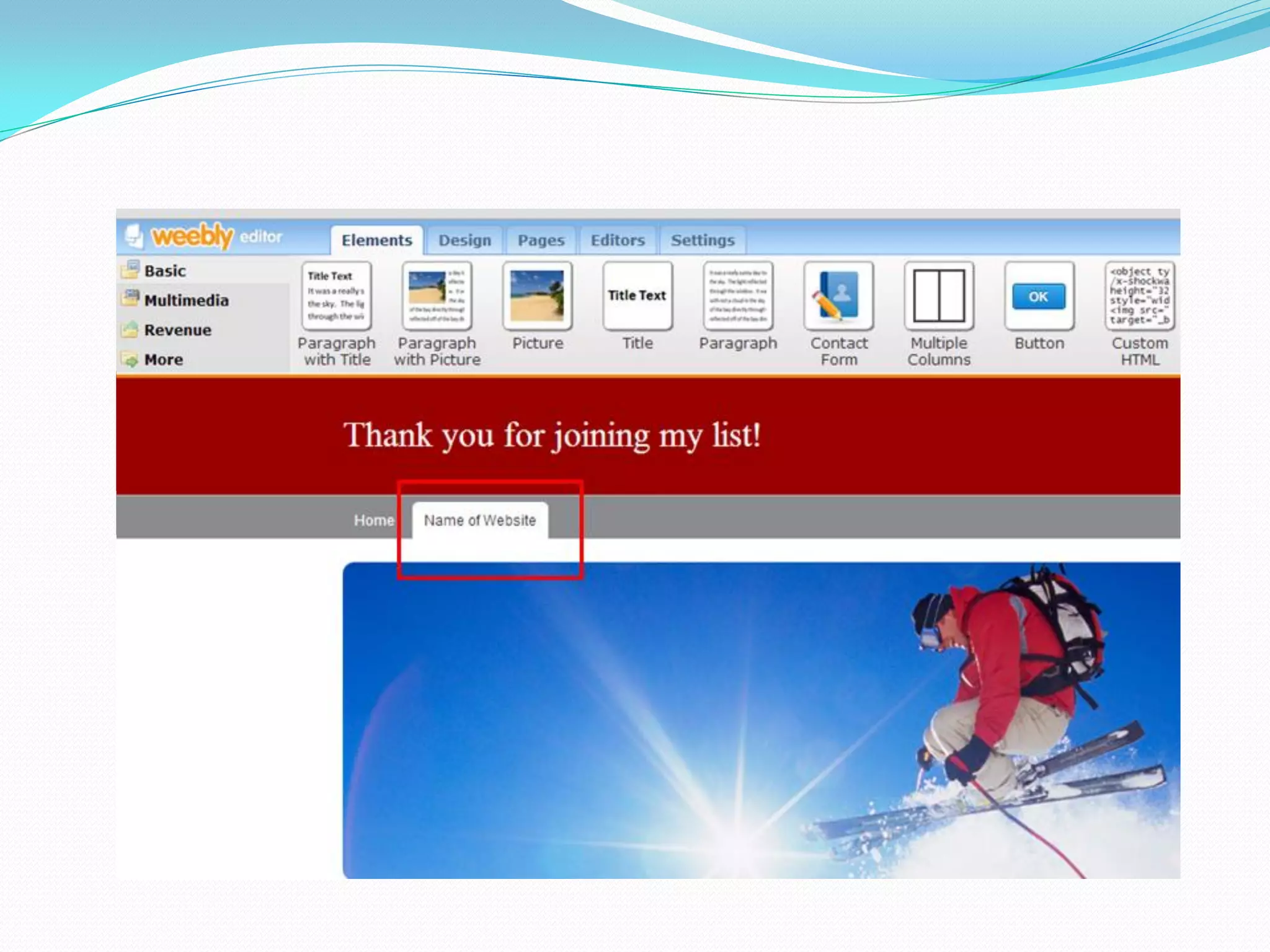
To add text and pictures to
your landing page, click on
    the “Elements” tab.
You will find elements of the
  website, which you can
        simply drag.
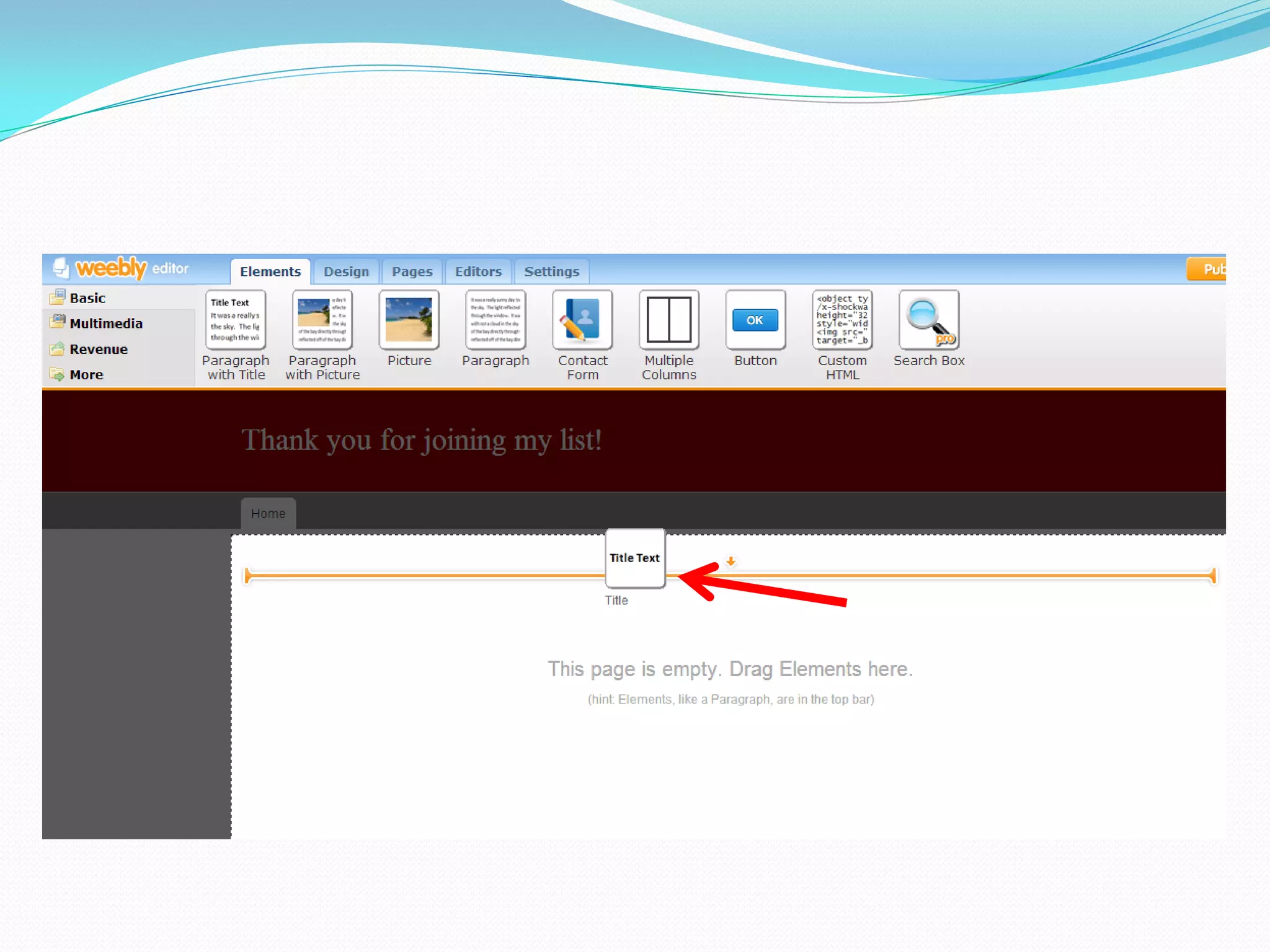
Let’s say you want to add
      some title text.
Drag the “Title Text” icon
 into the website area.
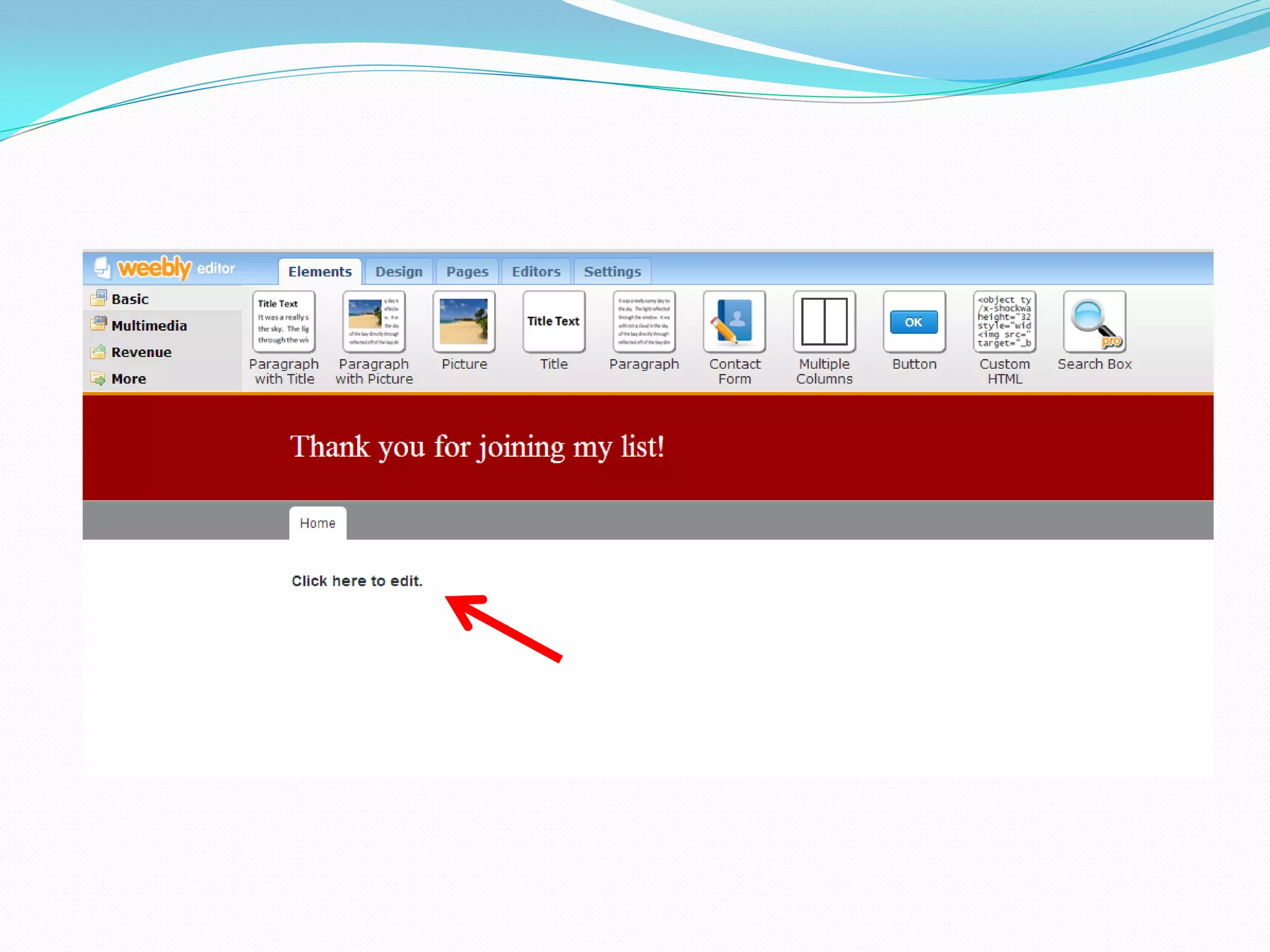
You will see the words “Click
        here to edit.”
Now, obviously, you know
     what to do. 
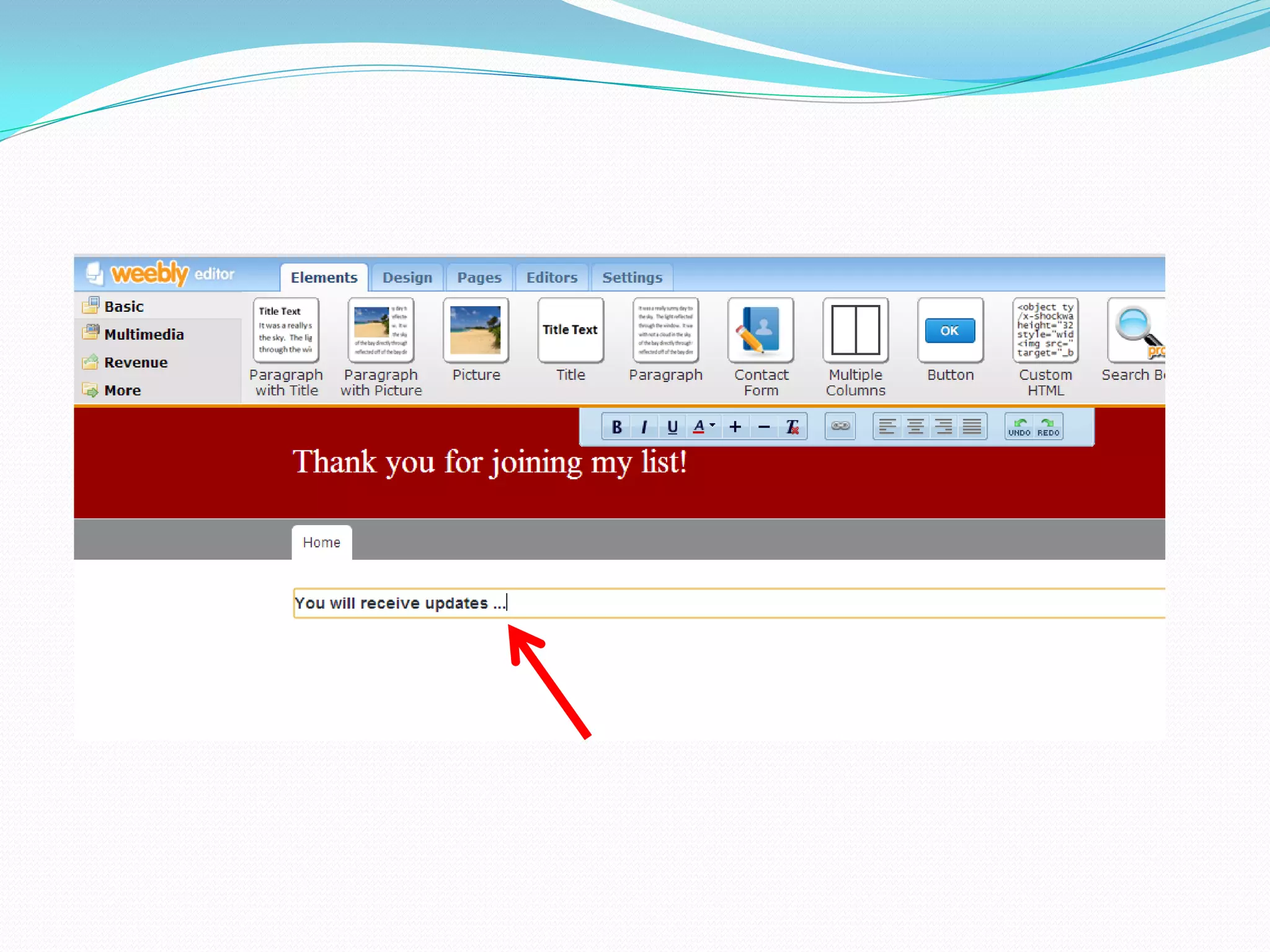
When you click, the area
where the text should be will
   have a yellow outline.
Enter your text.
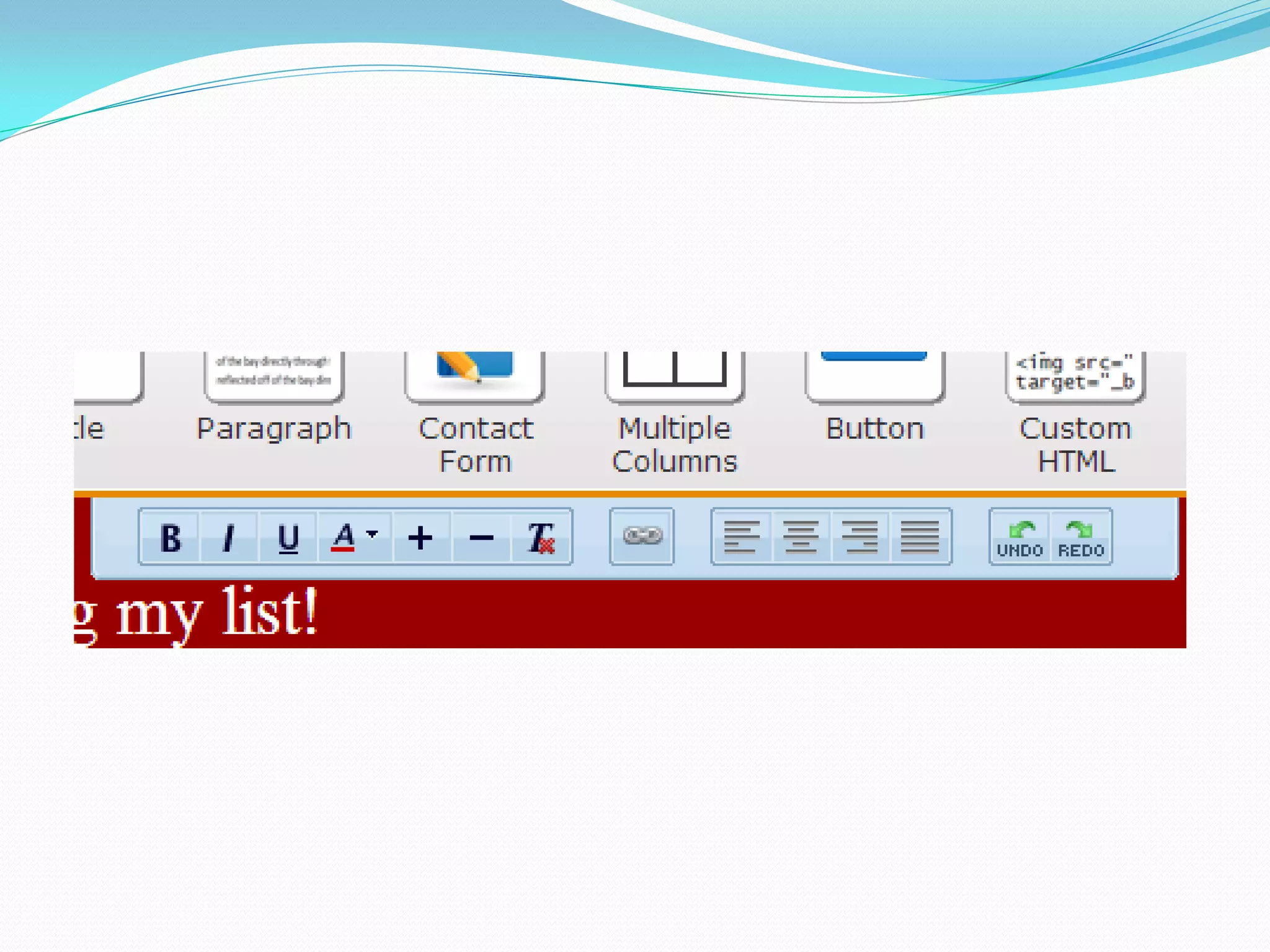
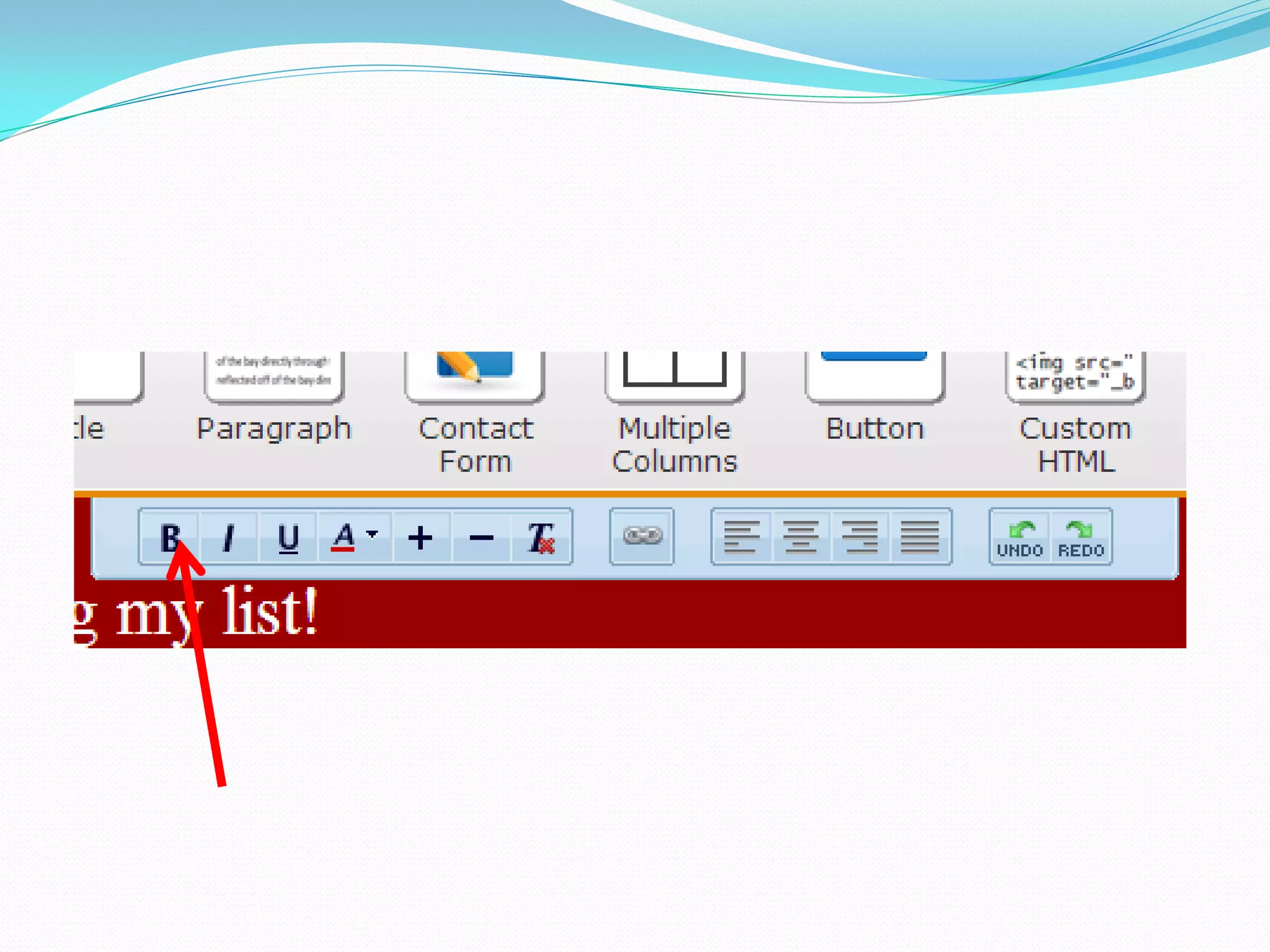
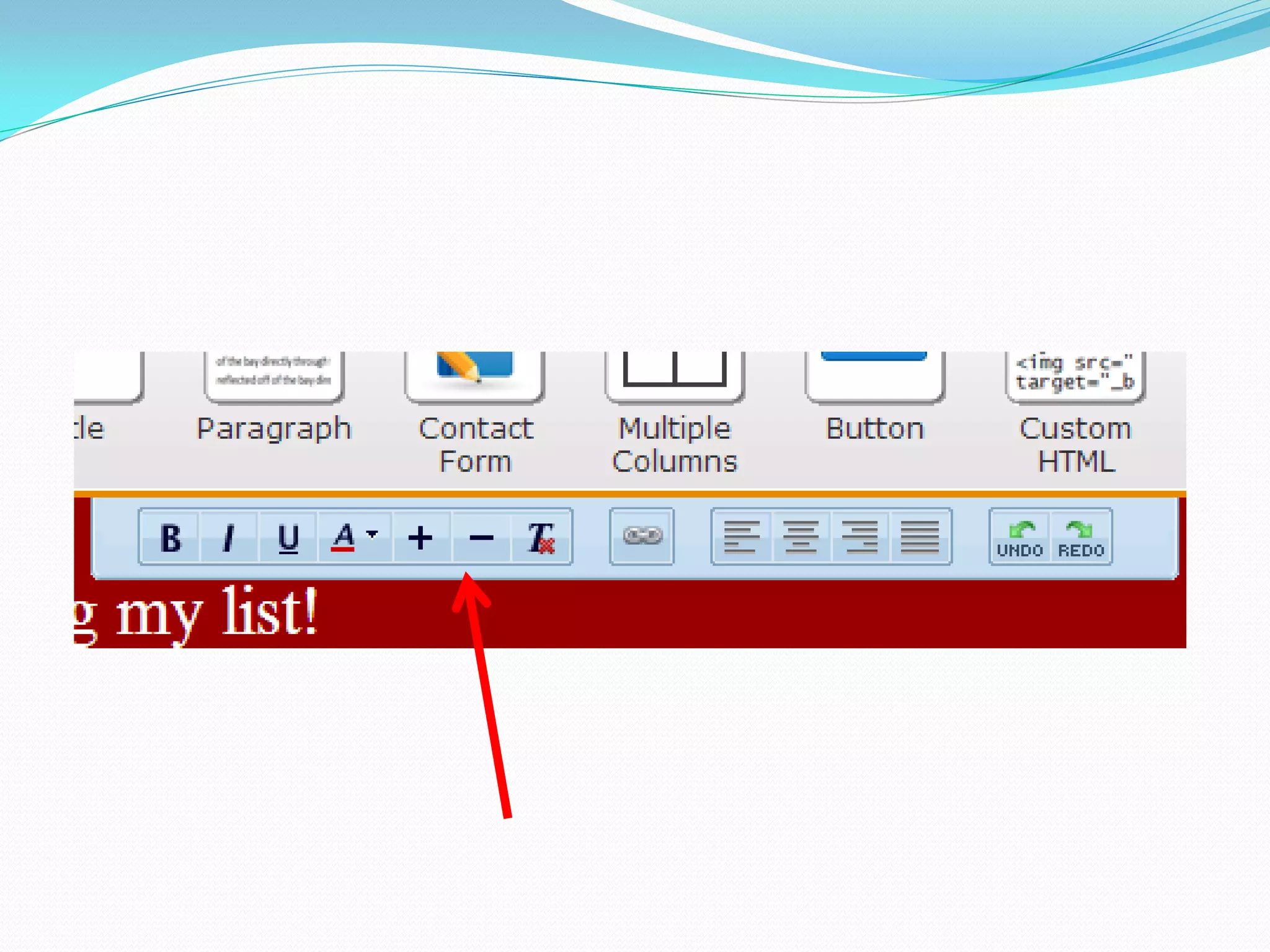
This tool bar here will help
  you format the text (bold,
italicize, change the font size,
              etc.)
Use this to make your text
           bold.
Use the plus (+) or minus (-)
sign to change the size of the
            font.
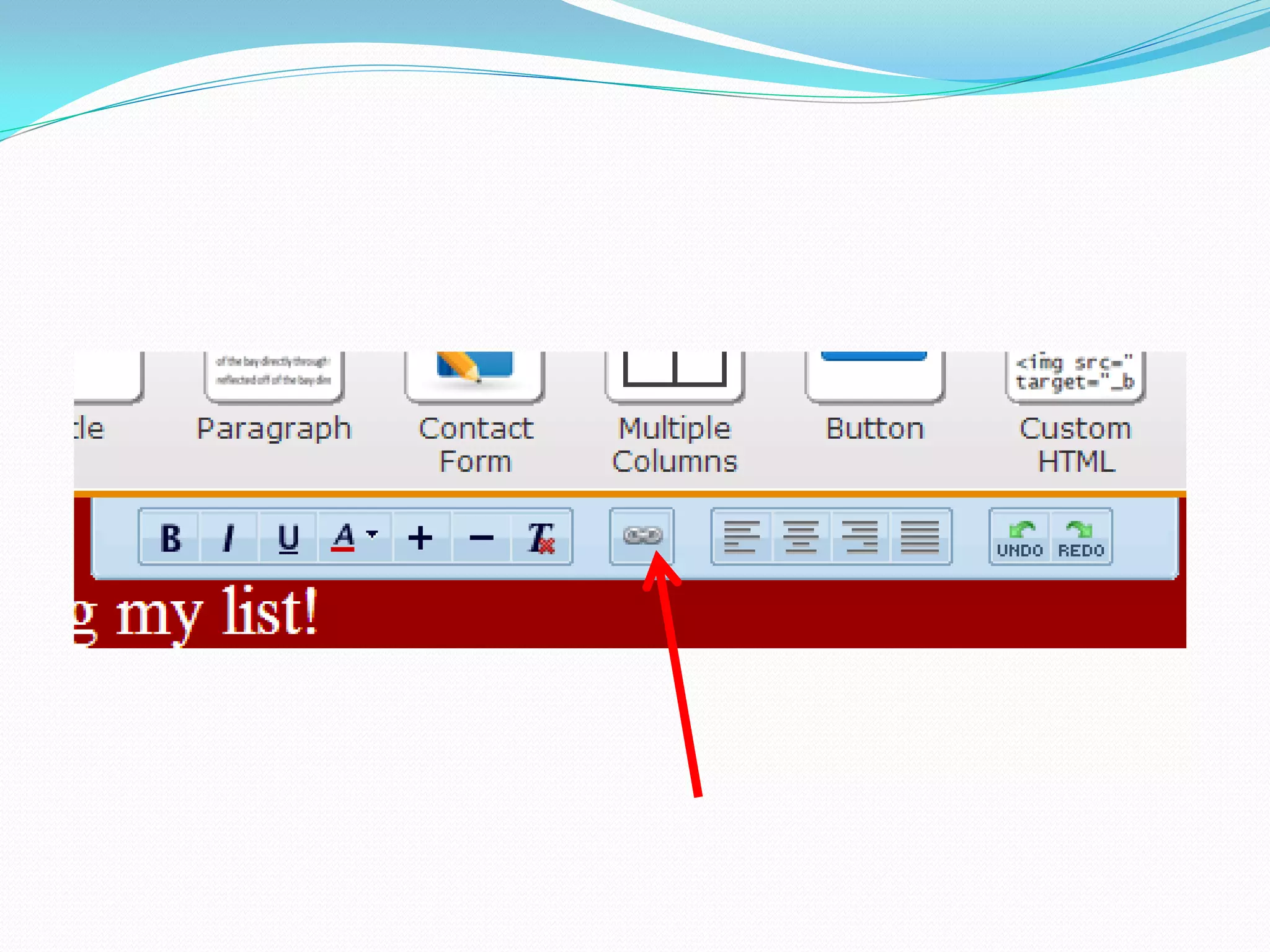
Use this to hyperlink your text:
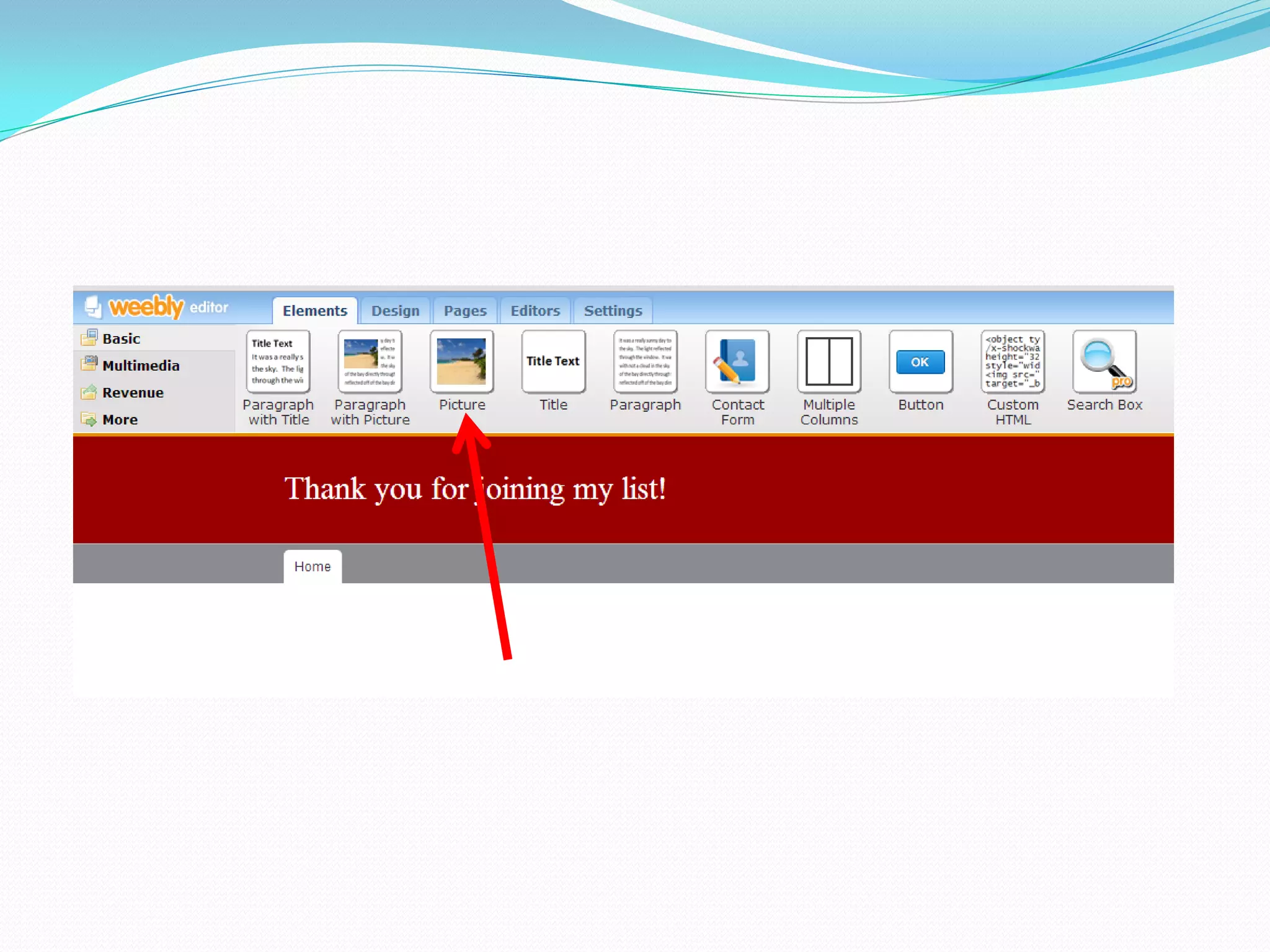
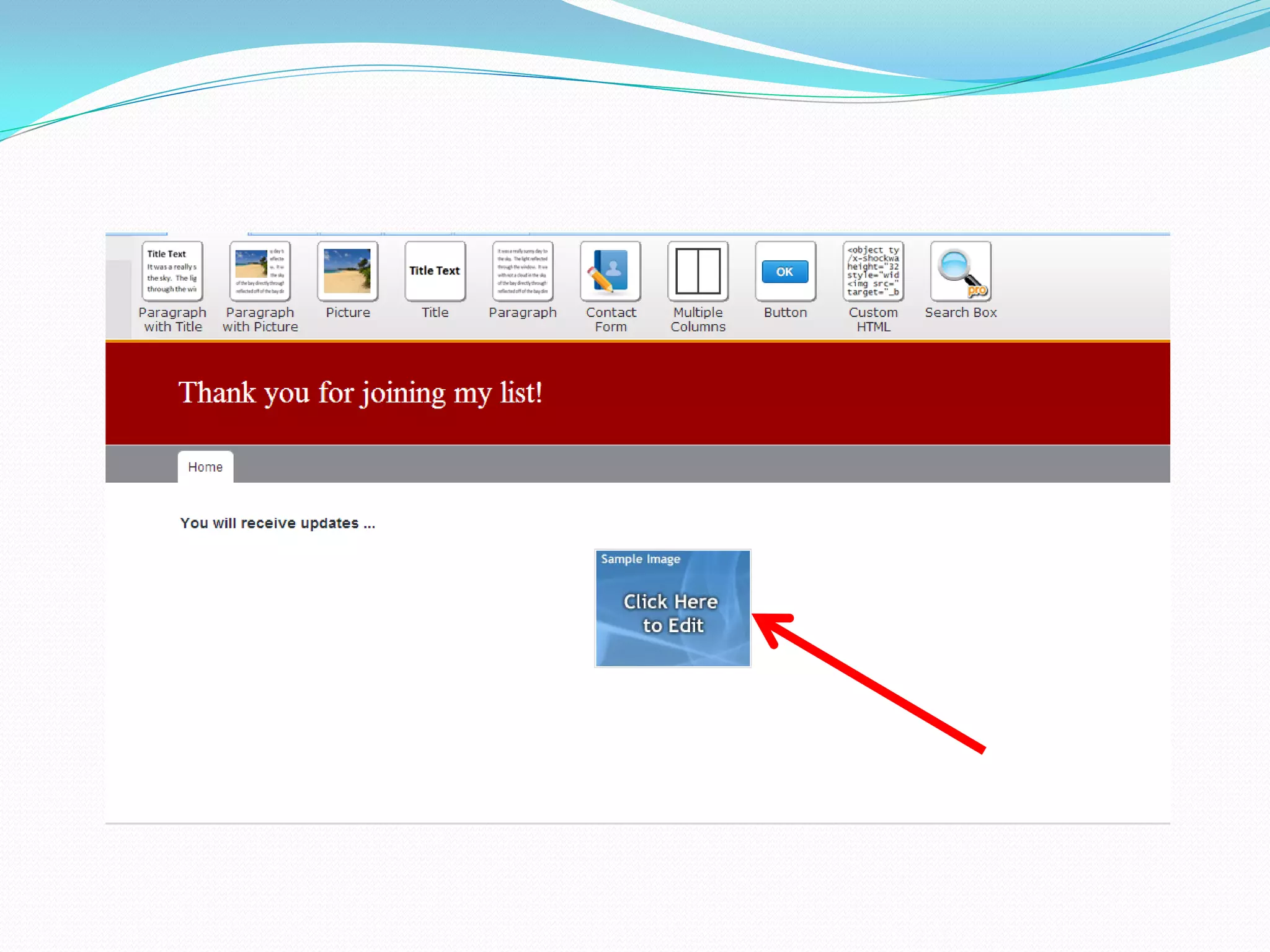
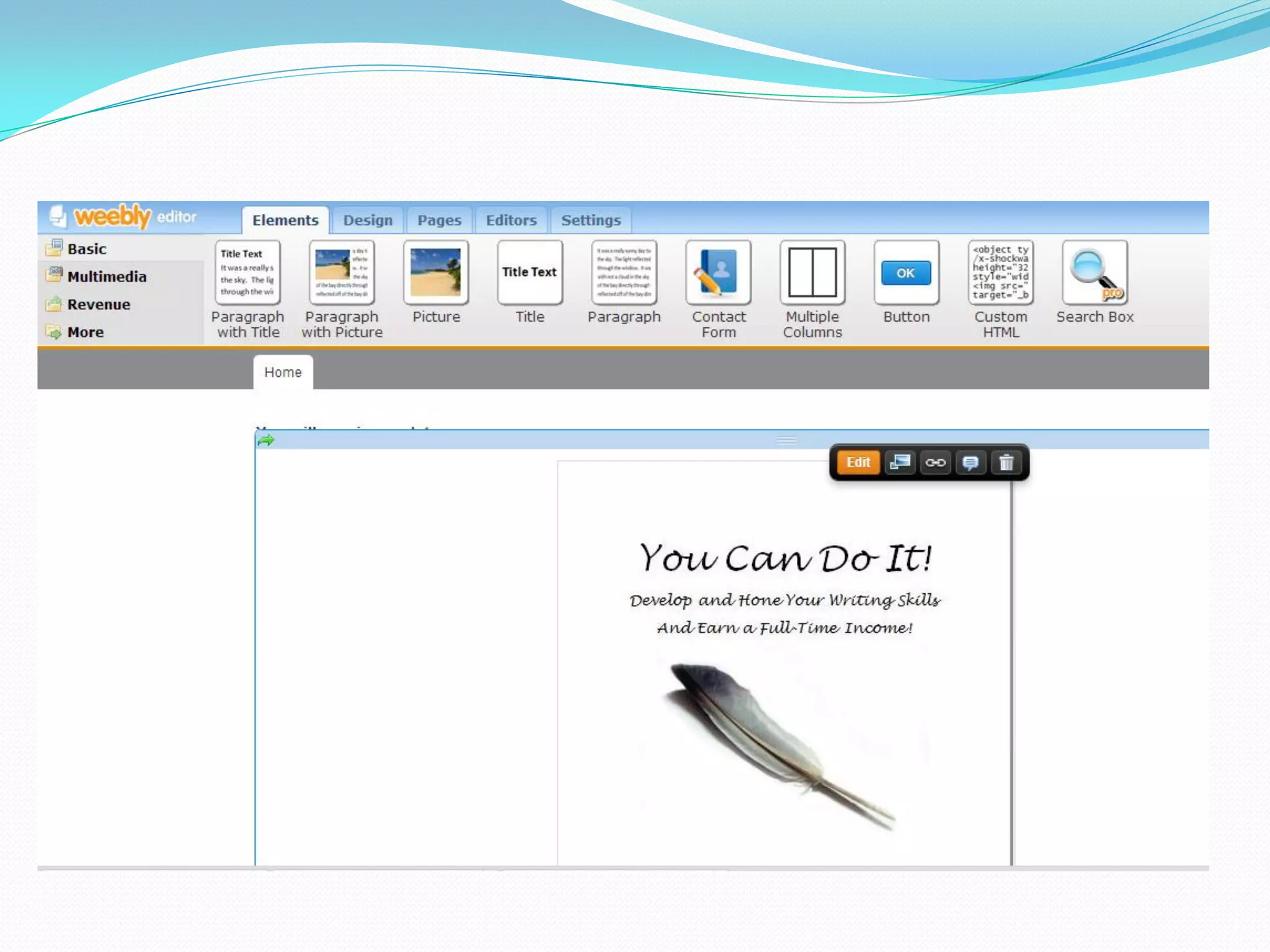
To insert a picture, drag the
       picture icon.
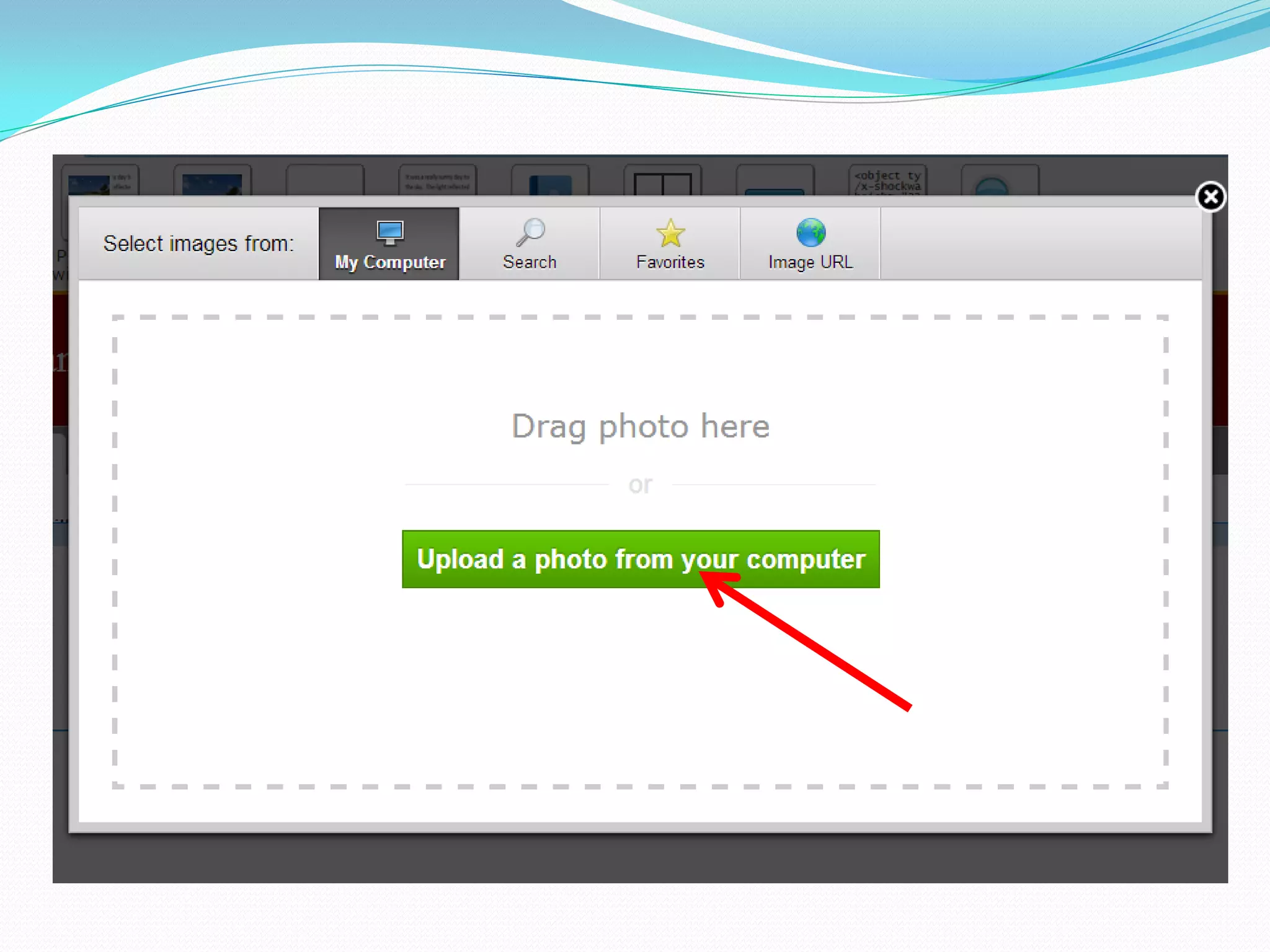
Click the blue rectangle to
upload a photo from your
        computer.
Then, click the green bar.
Here’s the picture:
You may want to reward your
subscribers by giving them a
   freebie like an e-book.
So how do you upload a file on a
         Weebly site?
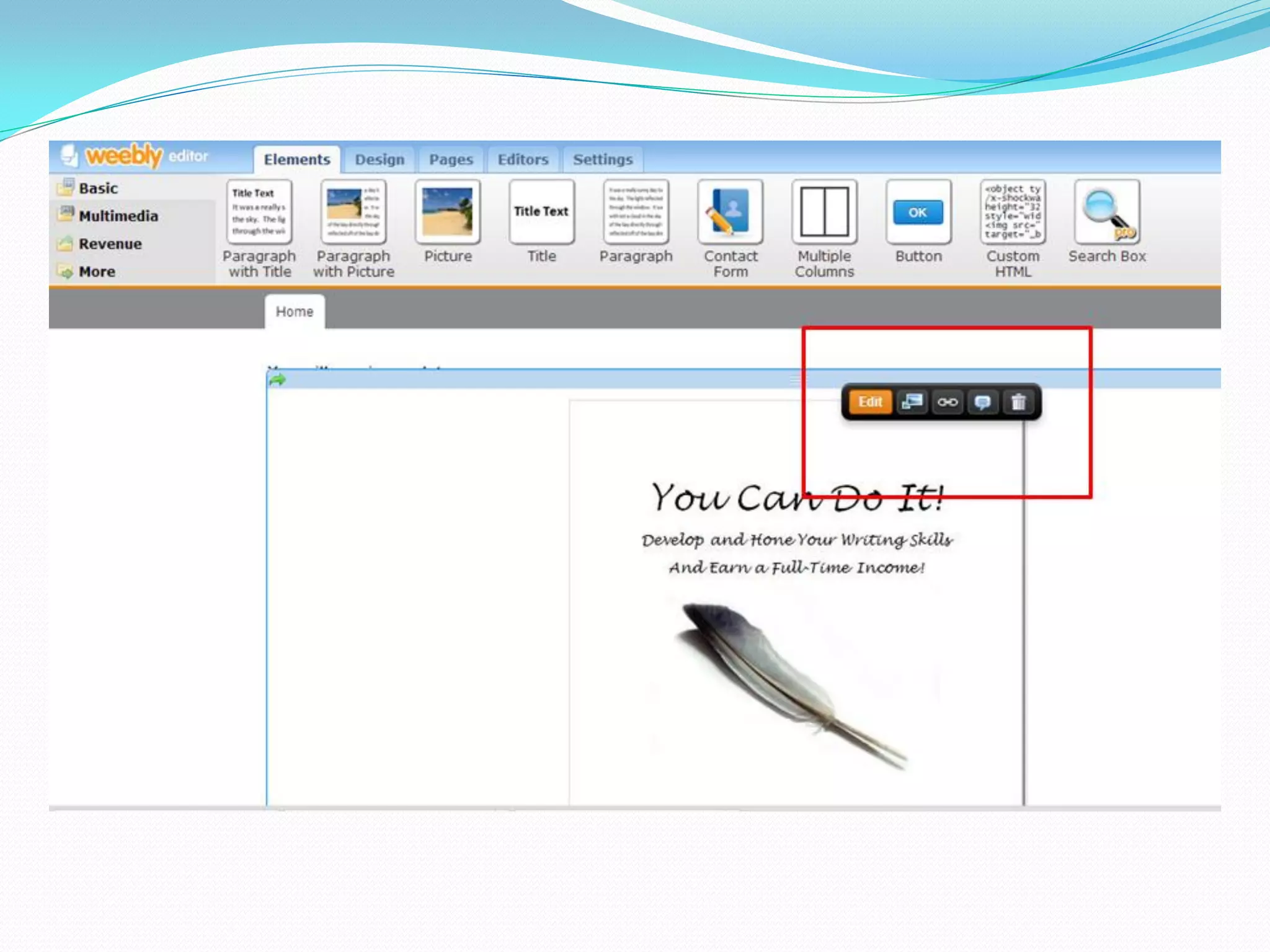
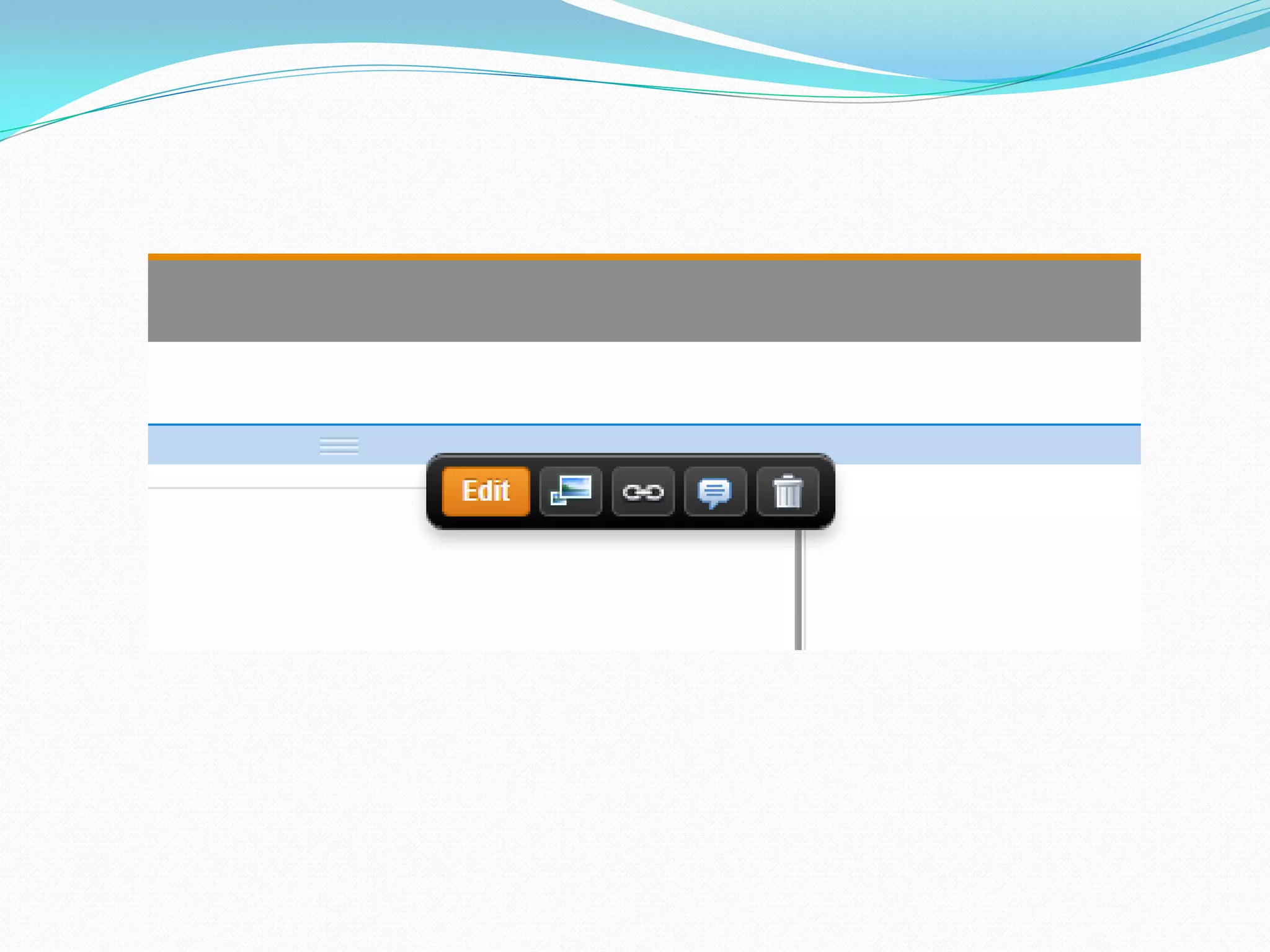
See this?
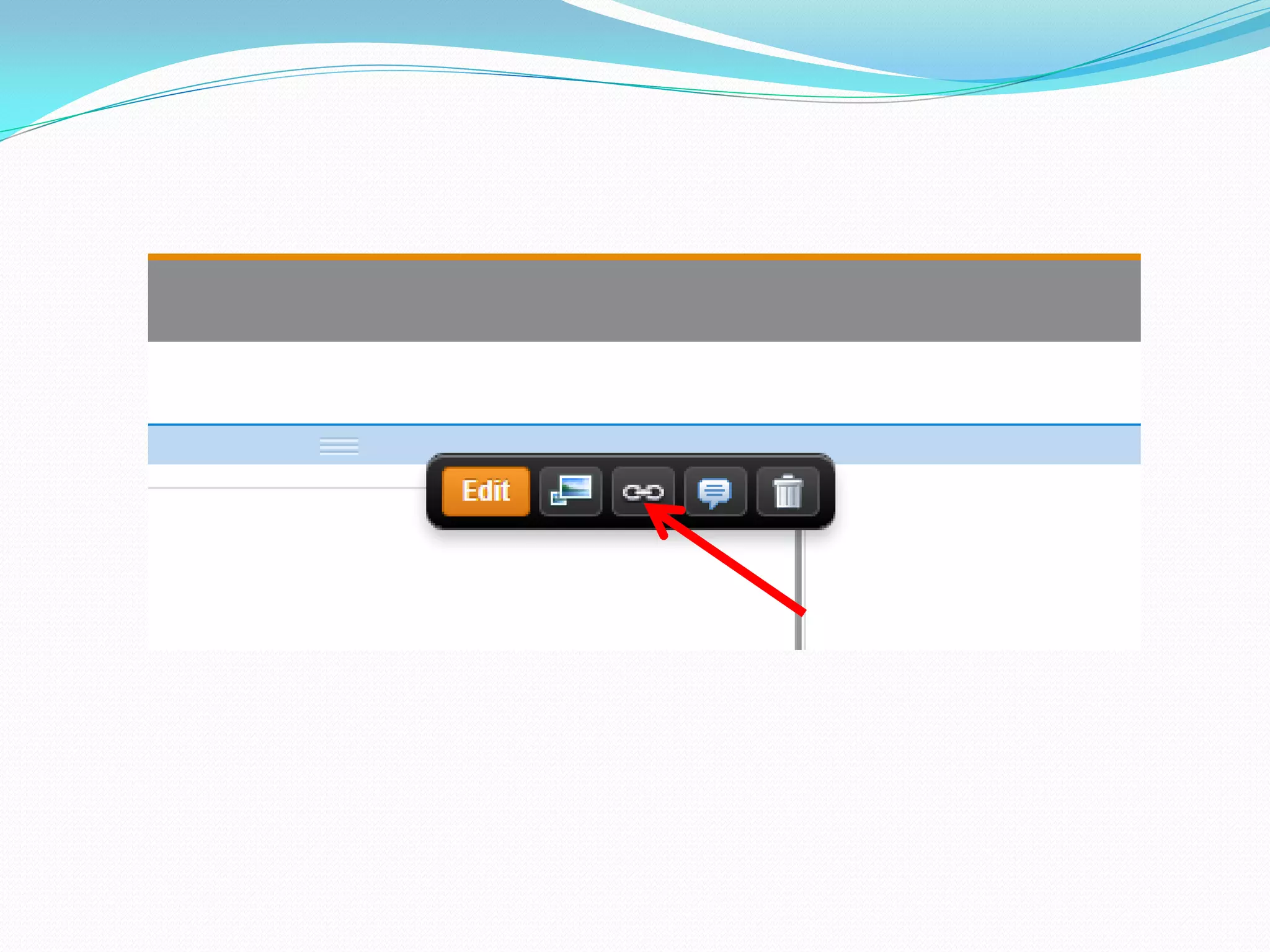
Let’s take a closer look:
Click the link icon:
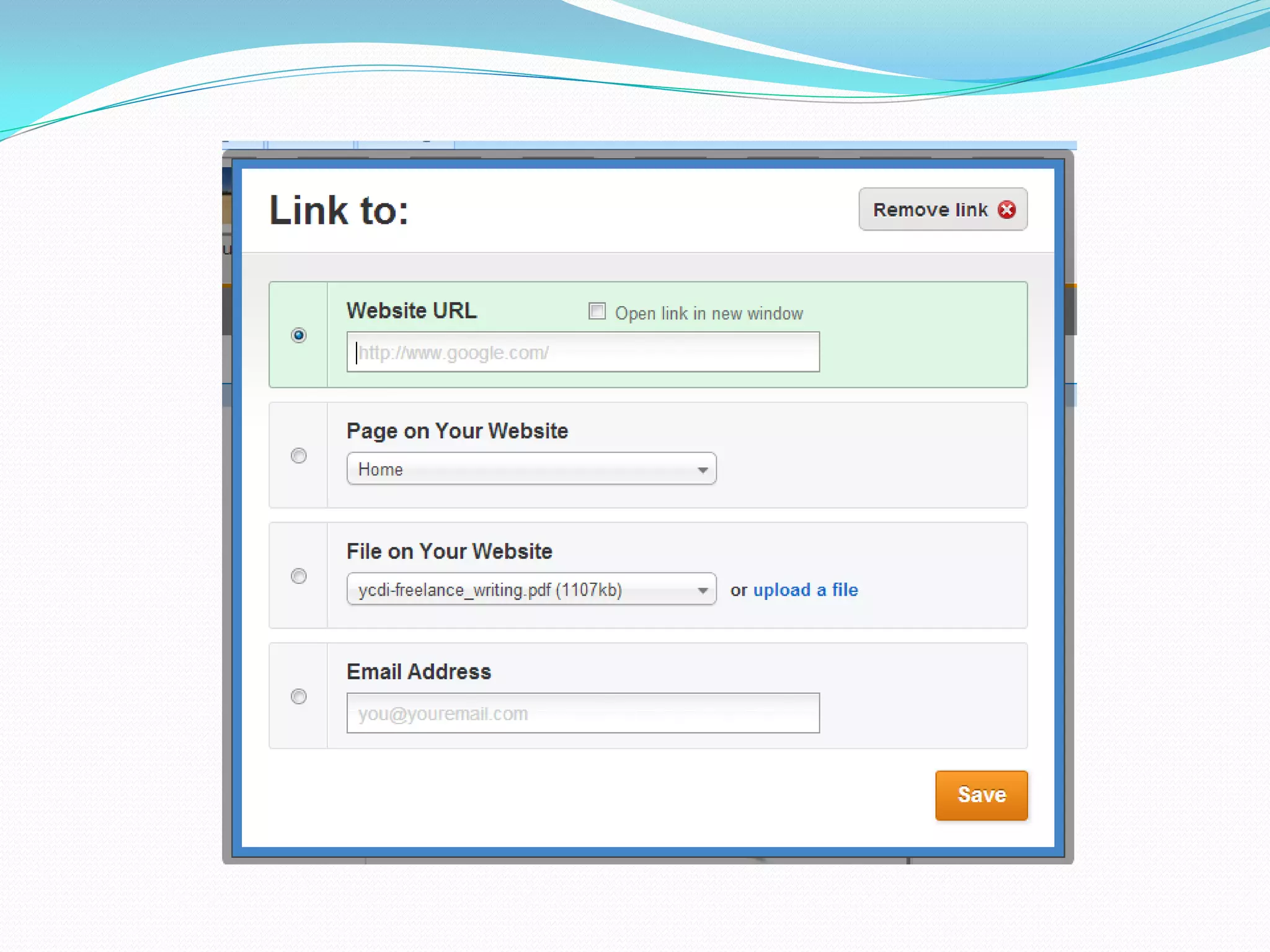
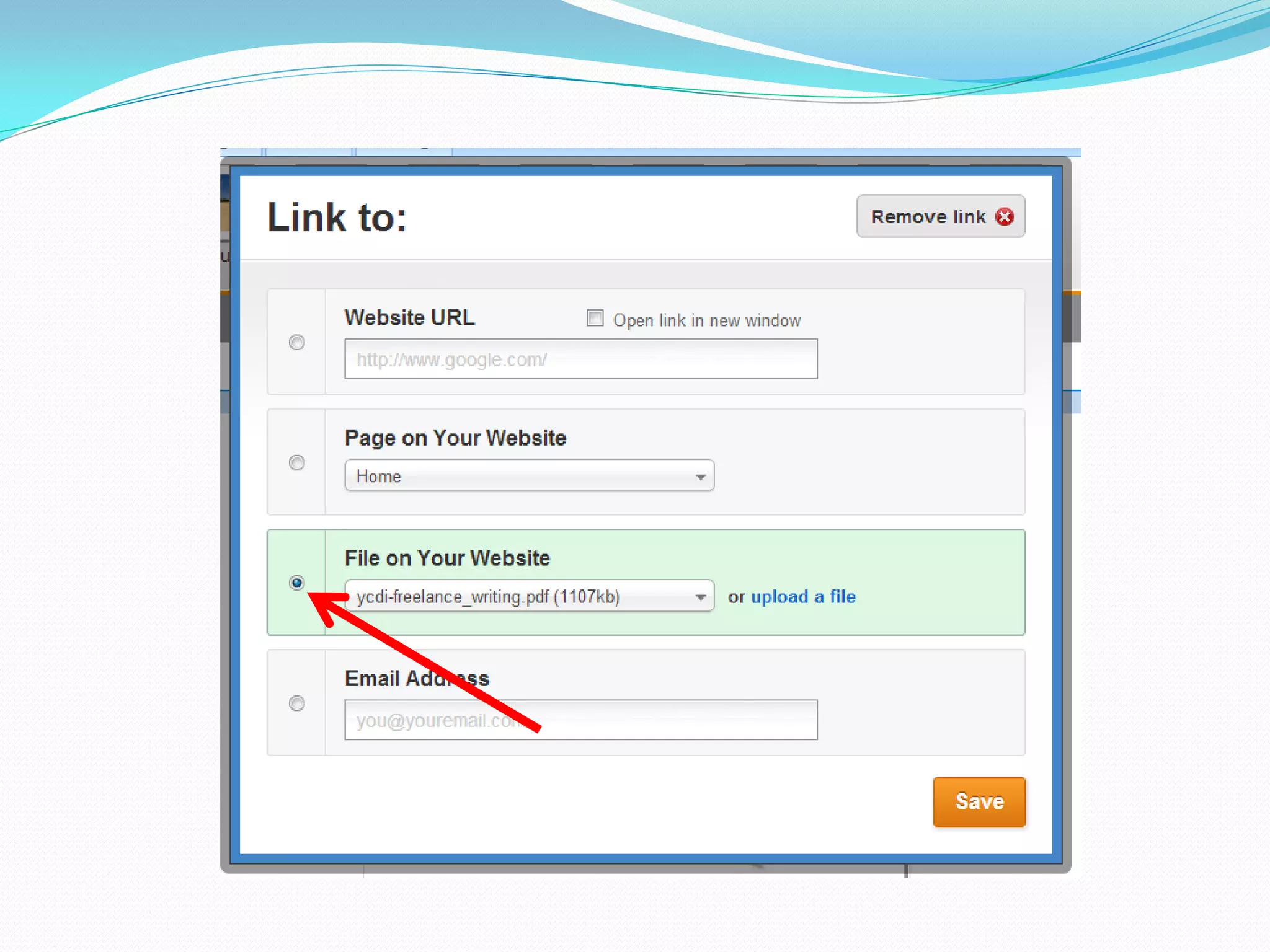
This will appear:
Click “File on your website.”
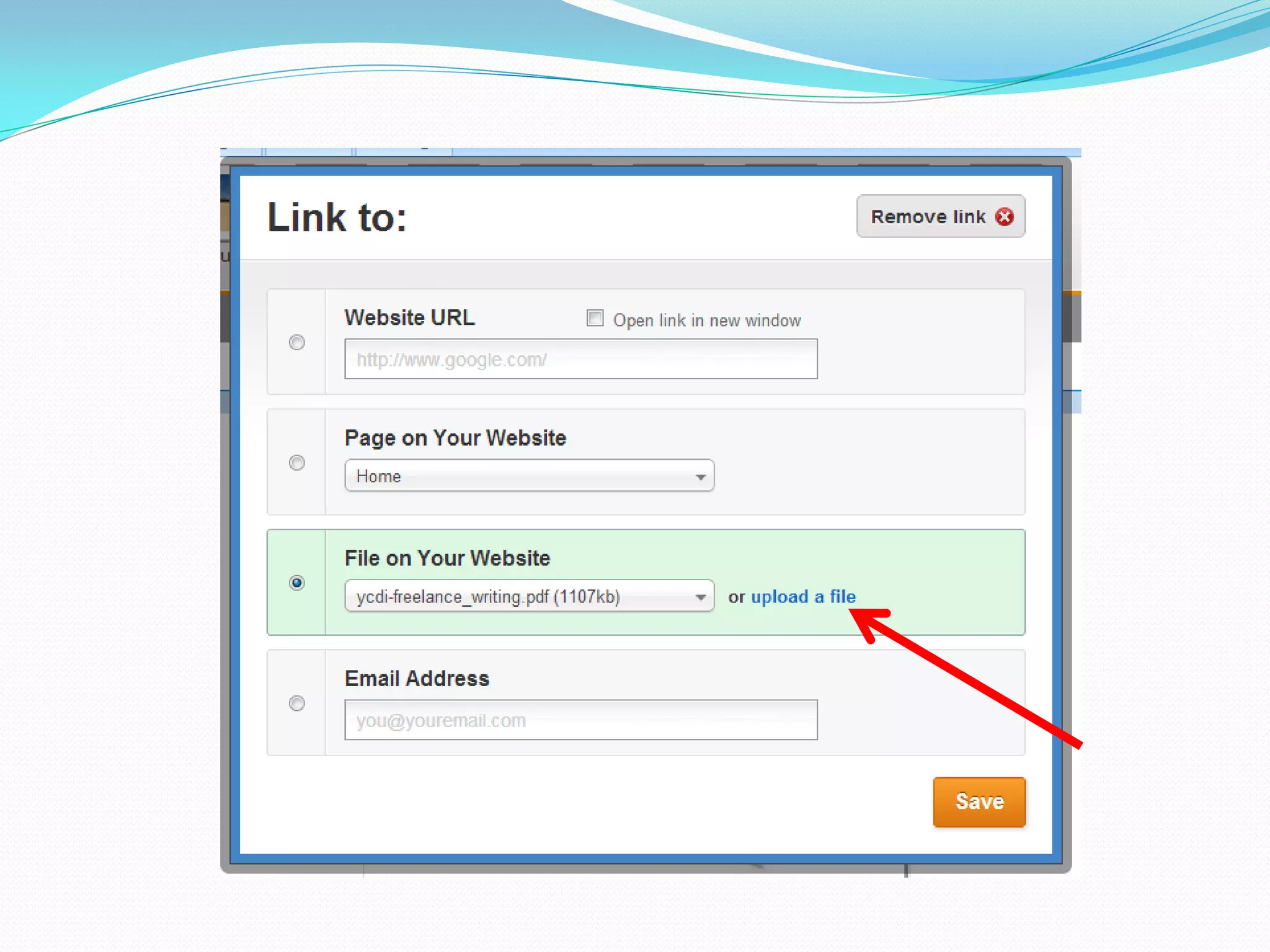
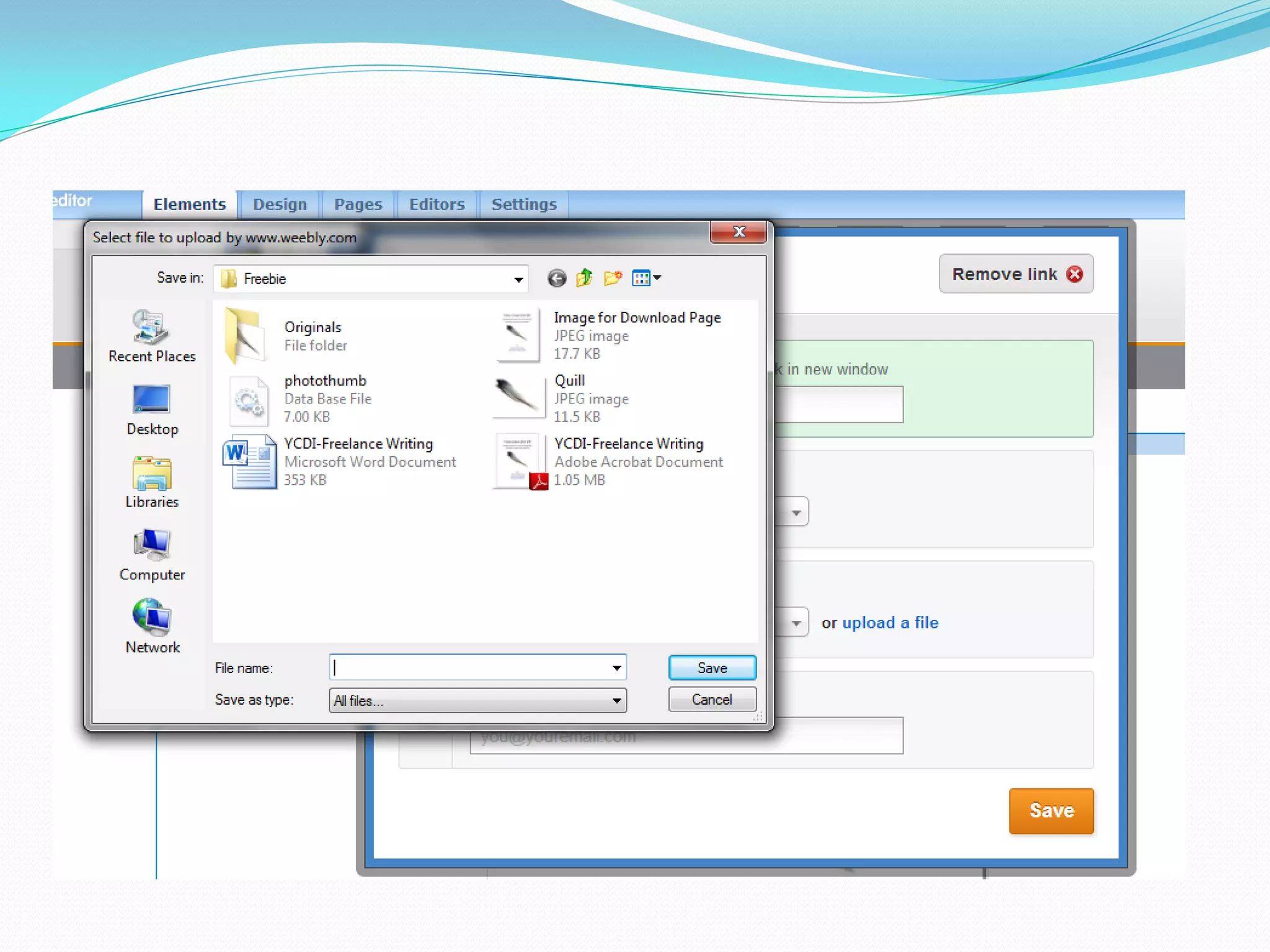
Click “upload a file.”
Choose the file you want to
         upload.
There are a few things you still
         need to do.
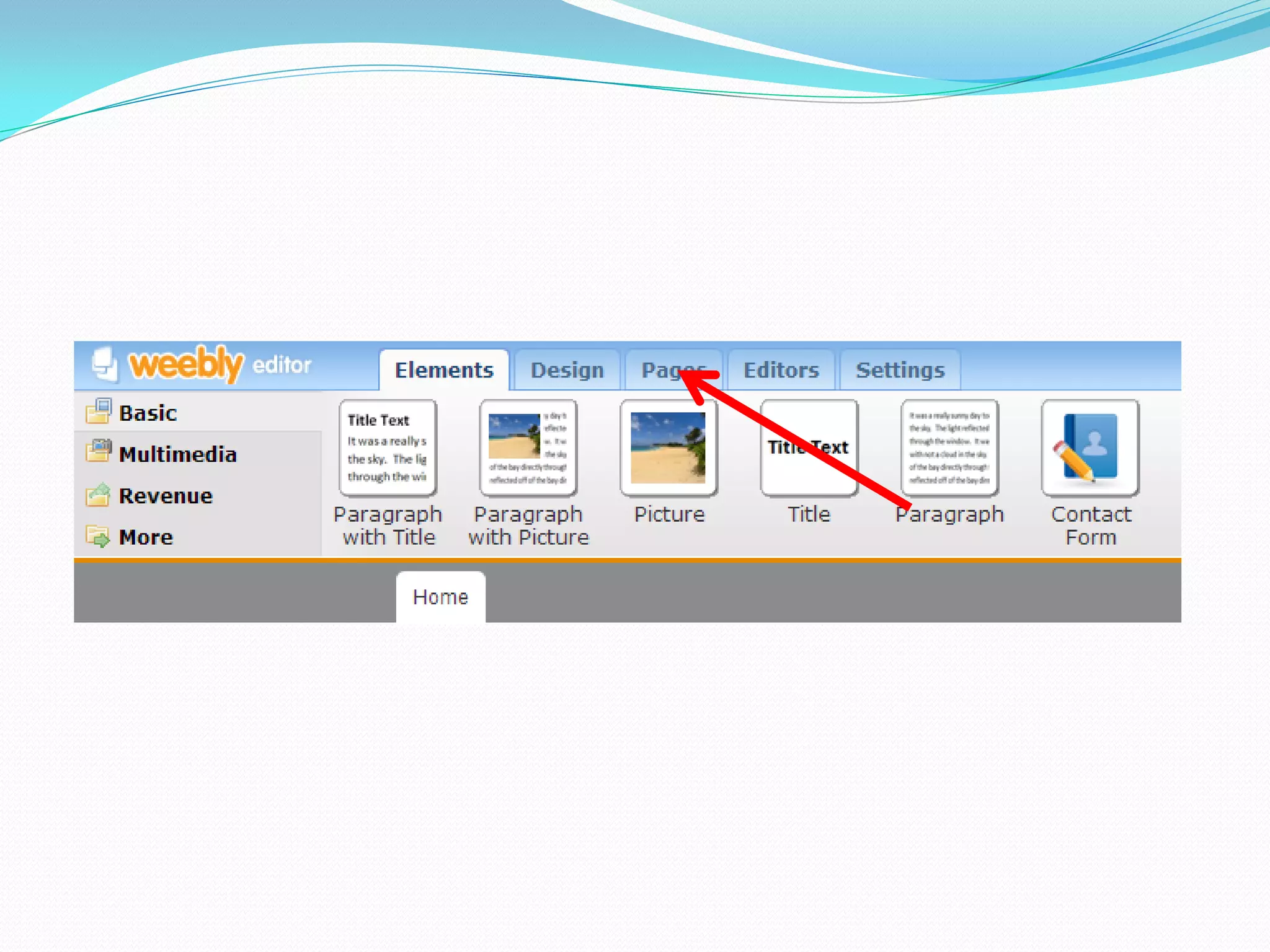
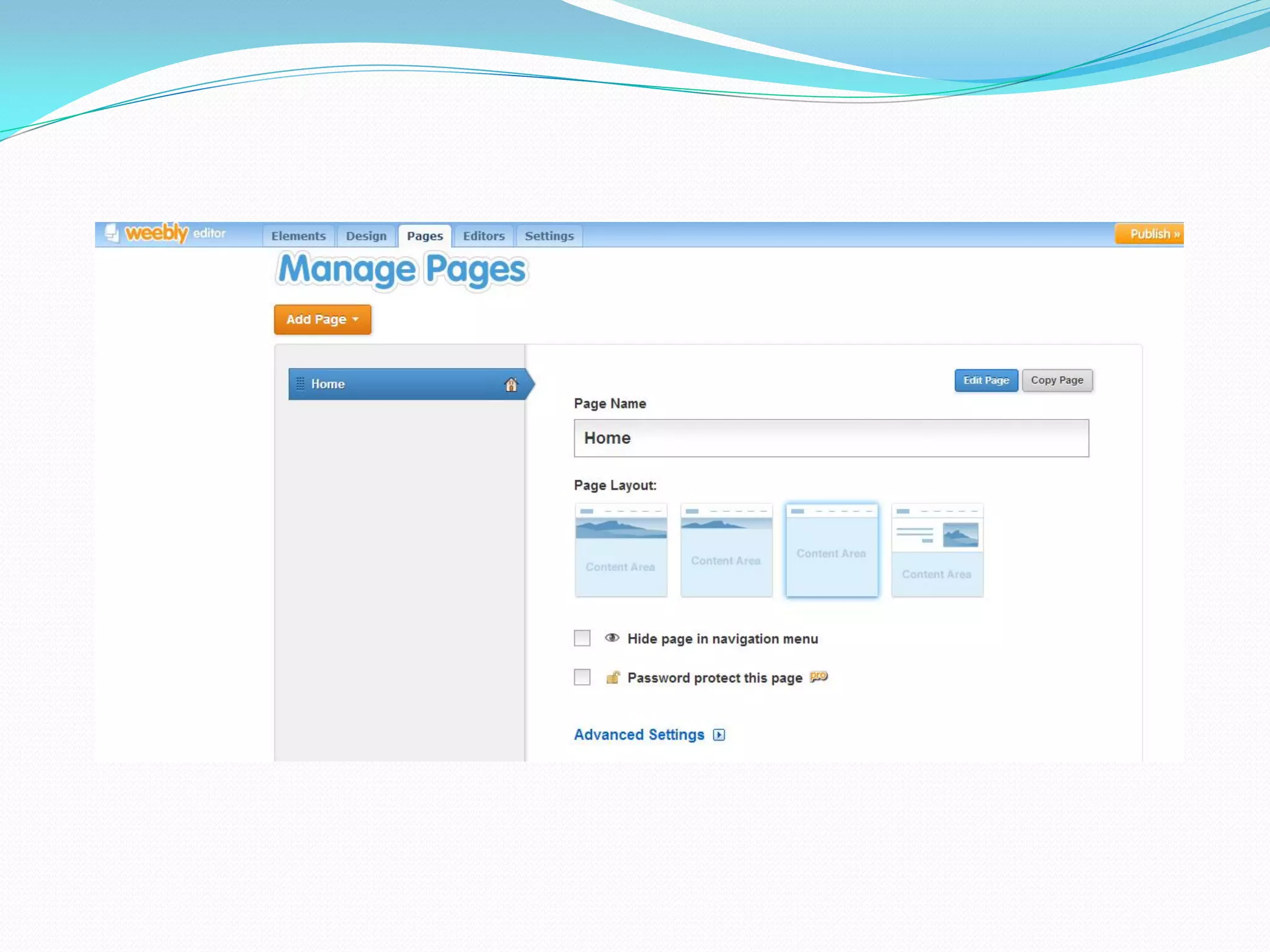
Click the “Pages” tab.
You will see this:
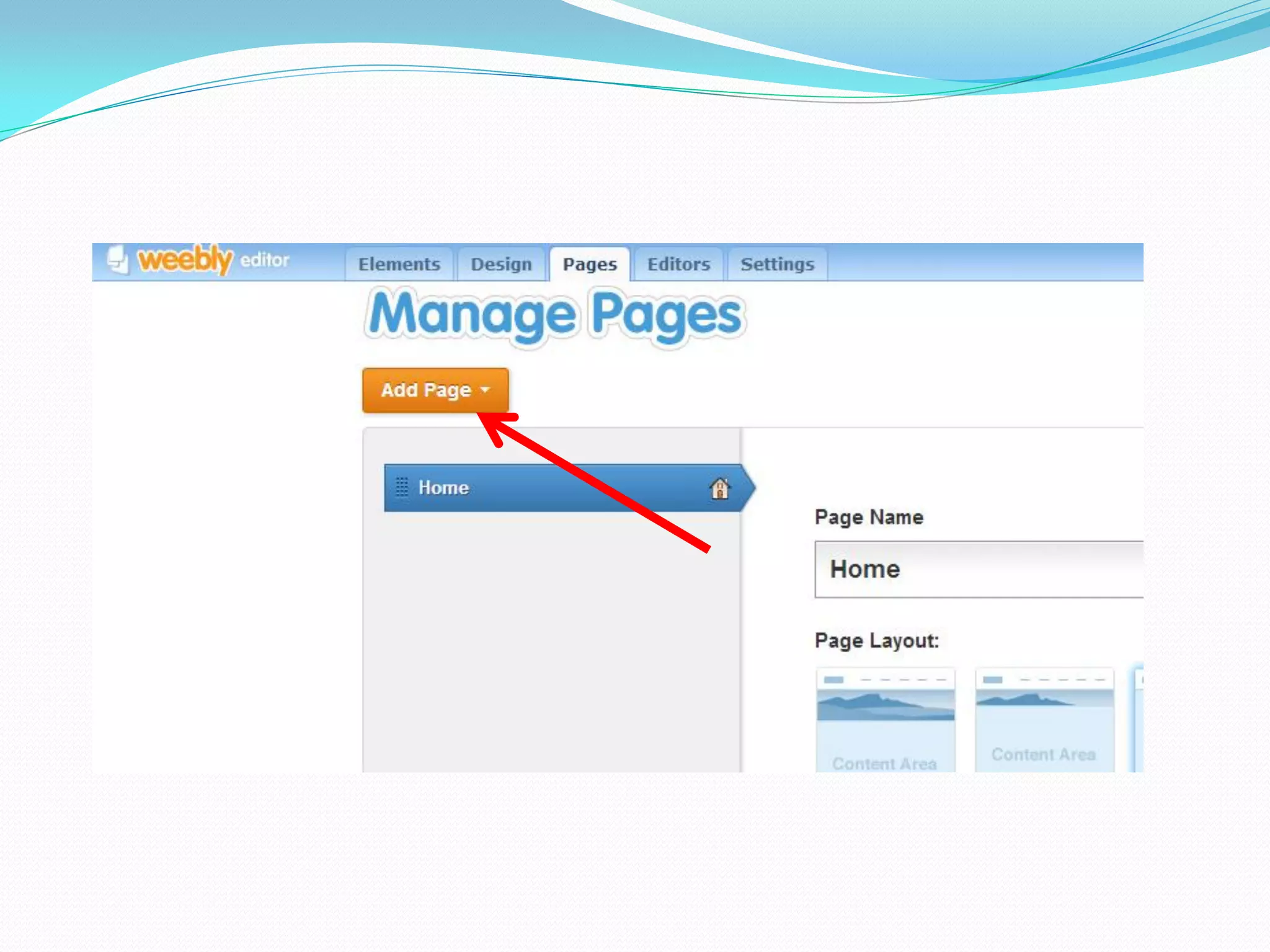
Click the orange “Add a Page”
           button.
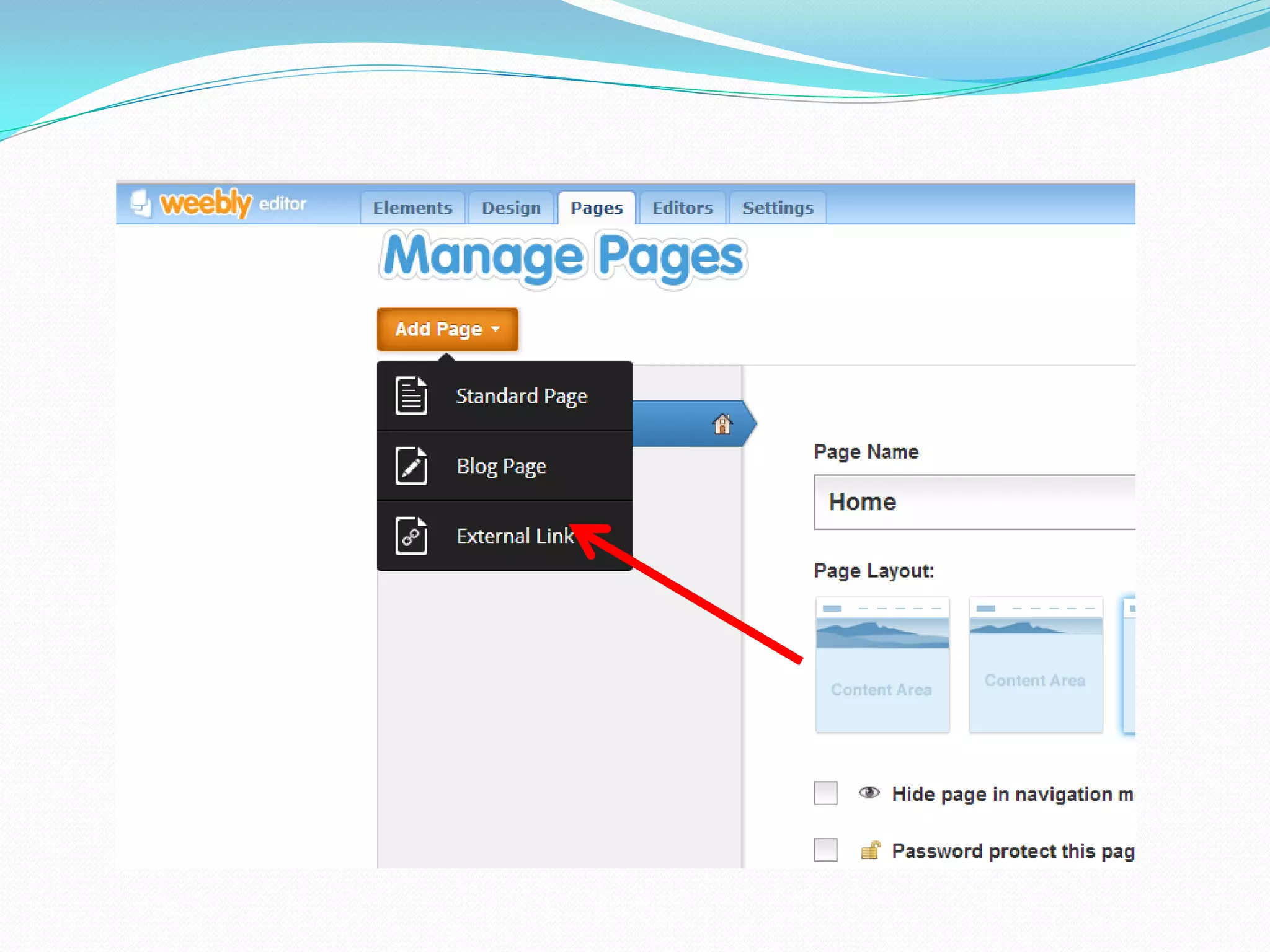
Click “External Link” in the
     black dropdown.
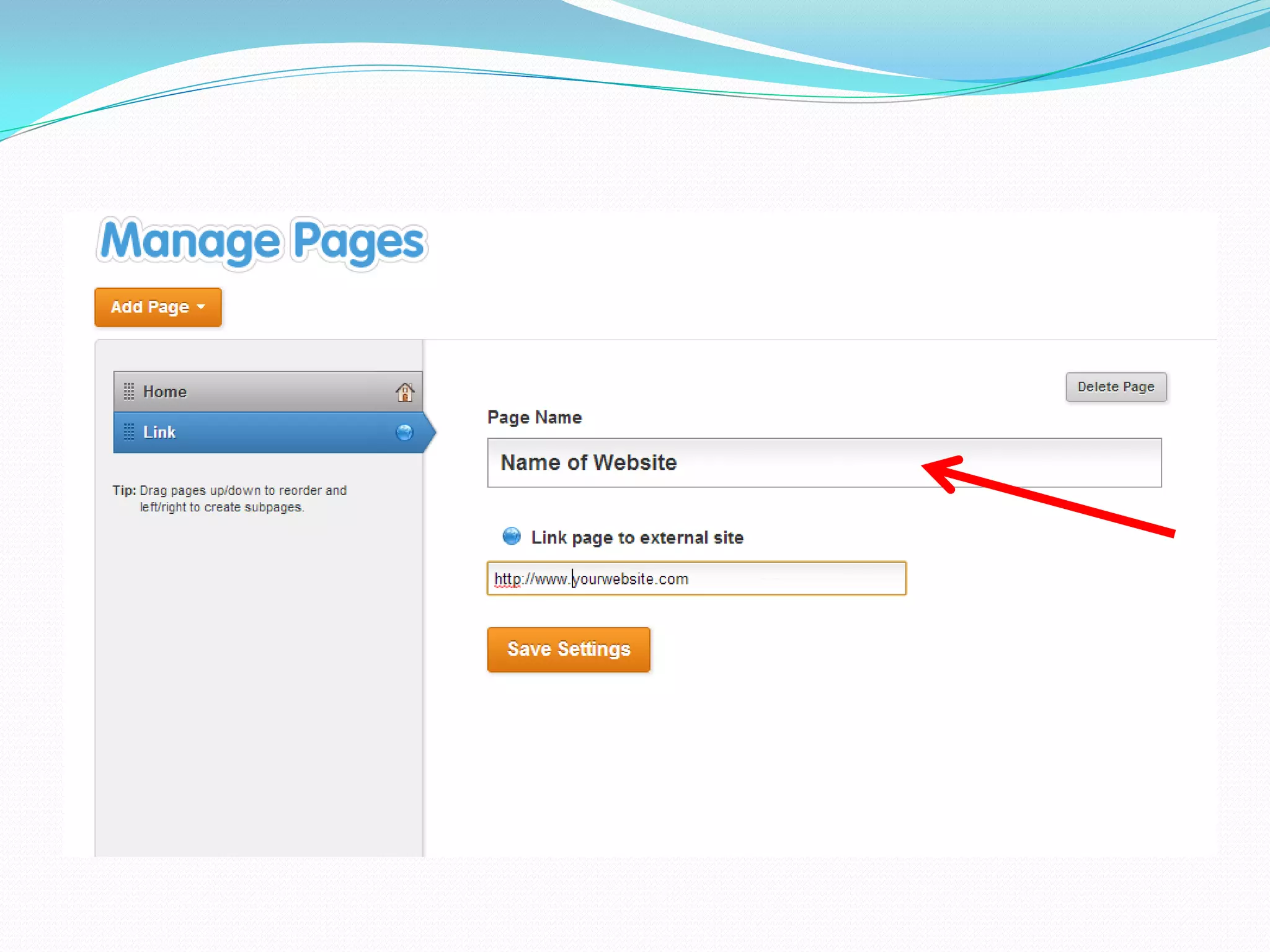
Type the name of your main
website or you can simply type
  “blog” if you have a blog.
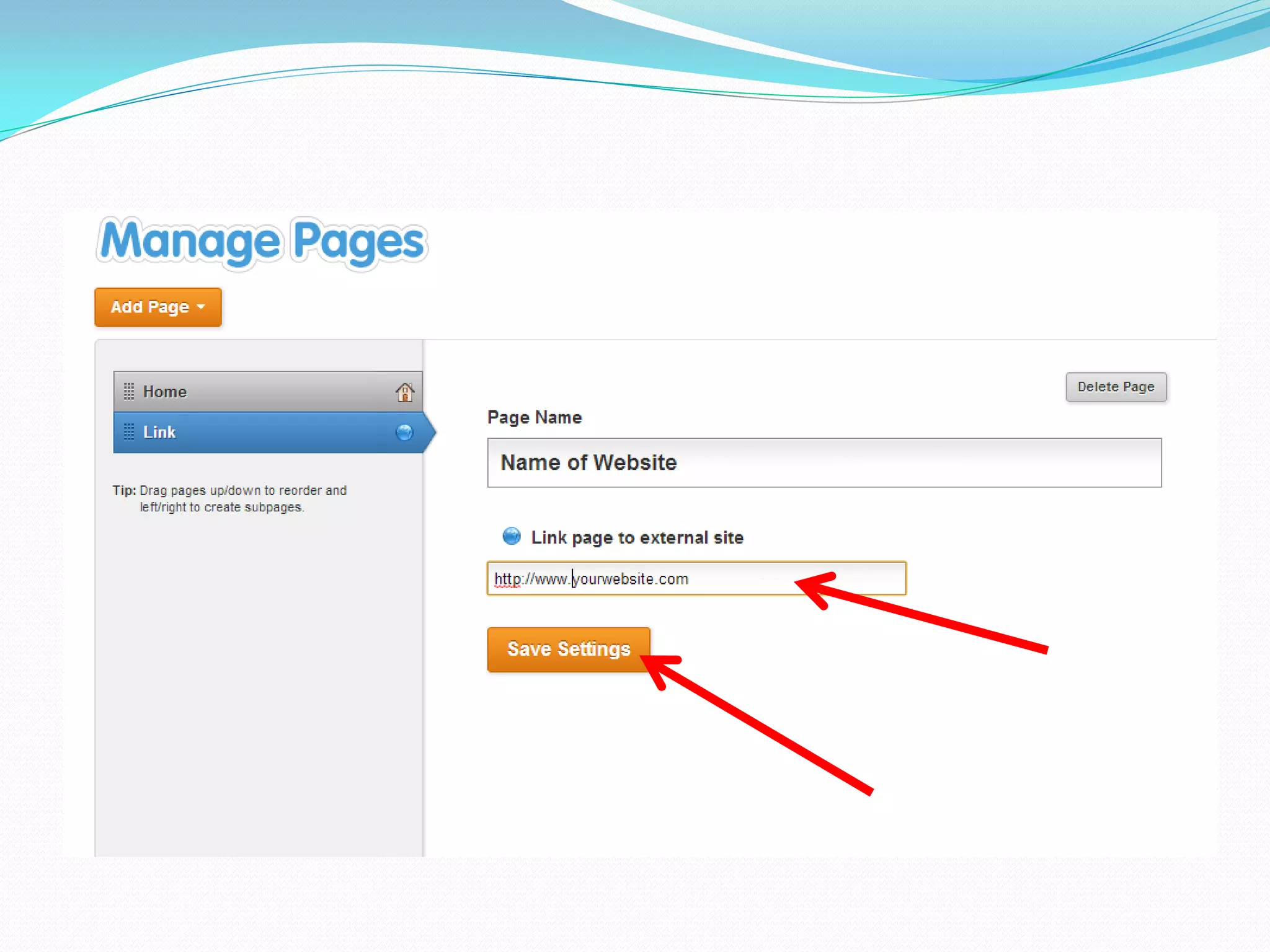
Type the link to your blog or
  website and click “Save
         Settings.”
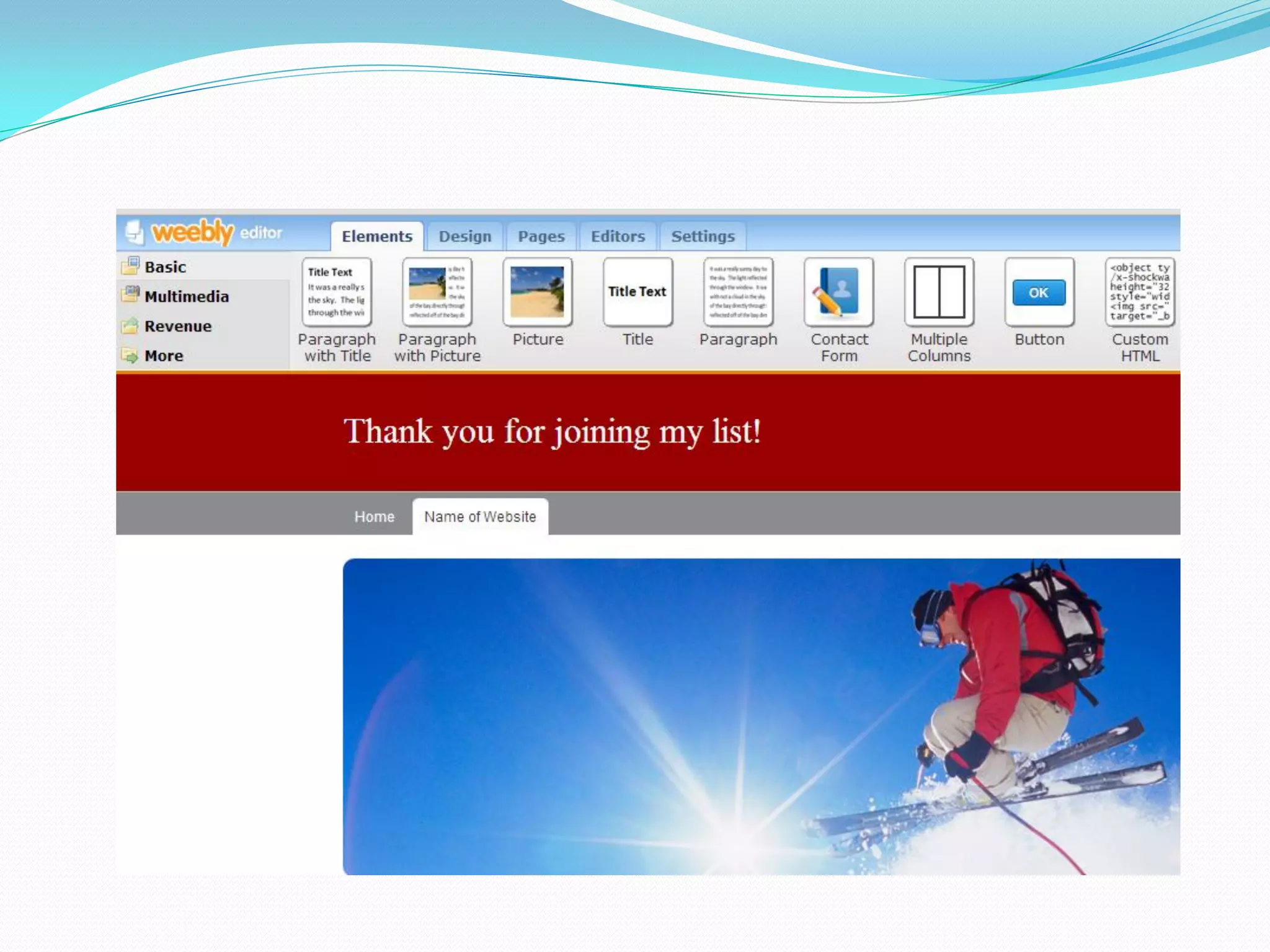
You will see this:
Don’t worry about the picture.
The tab that has your main site
  name or your blog’s title will
lead people to your site or blog.
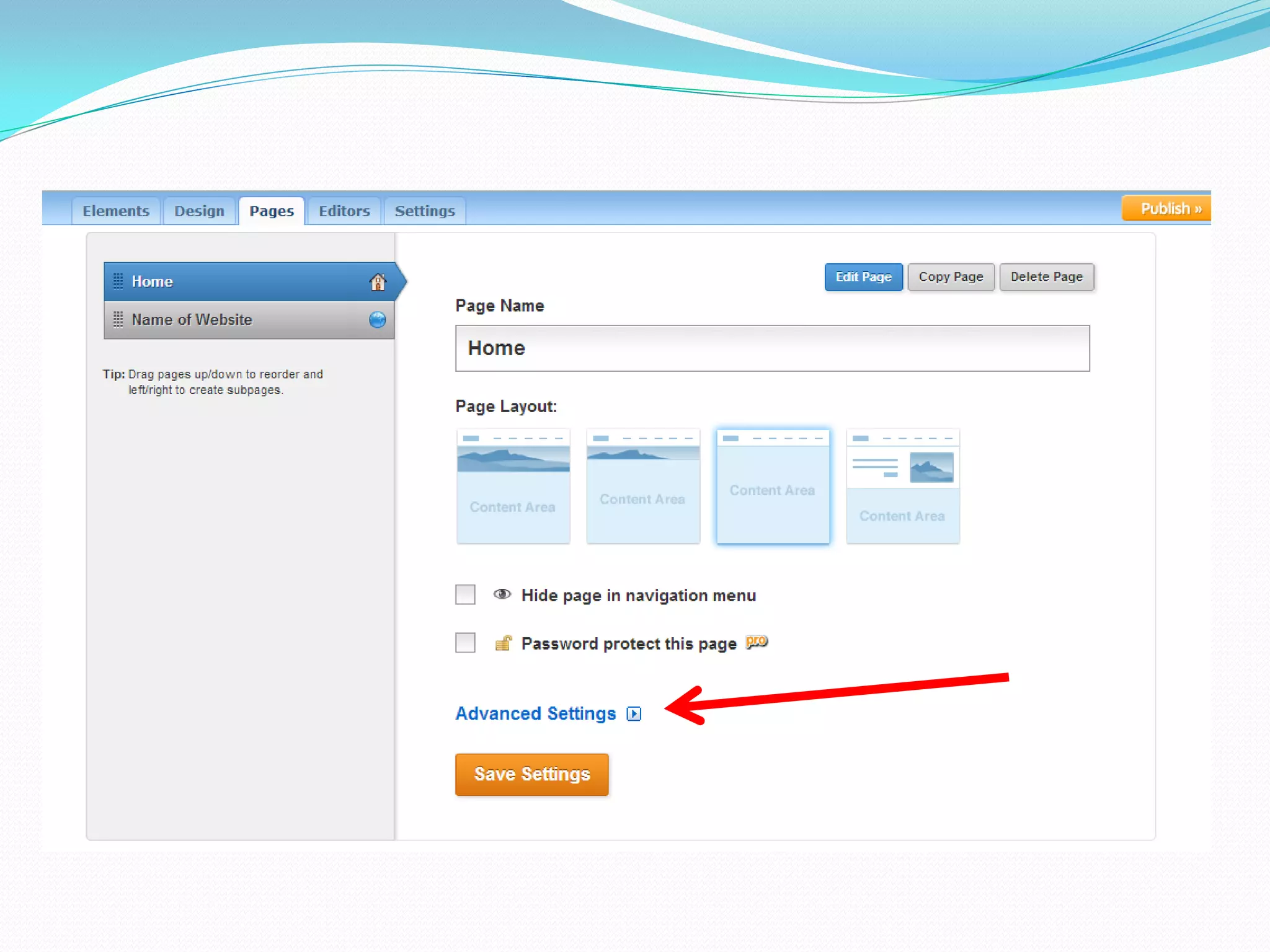
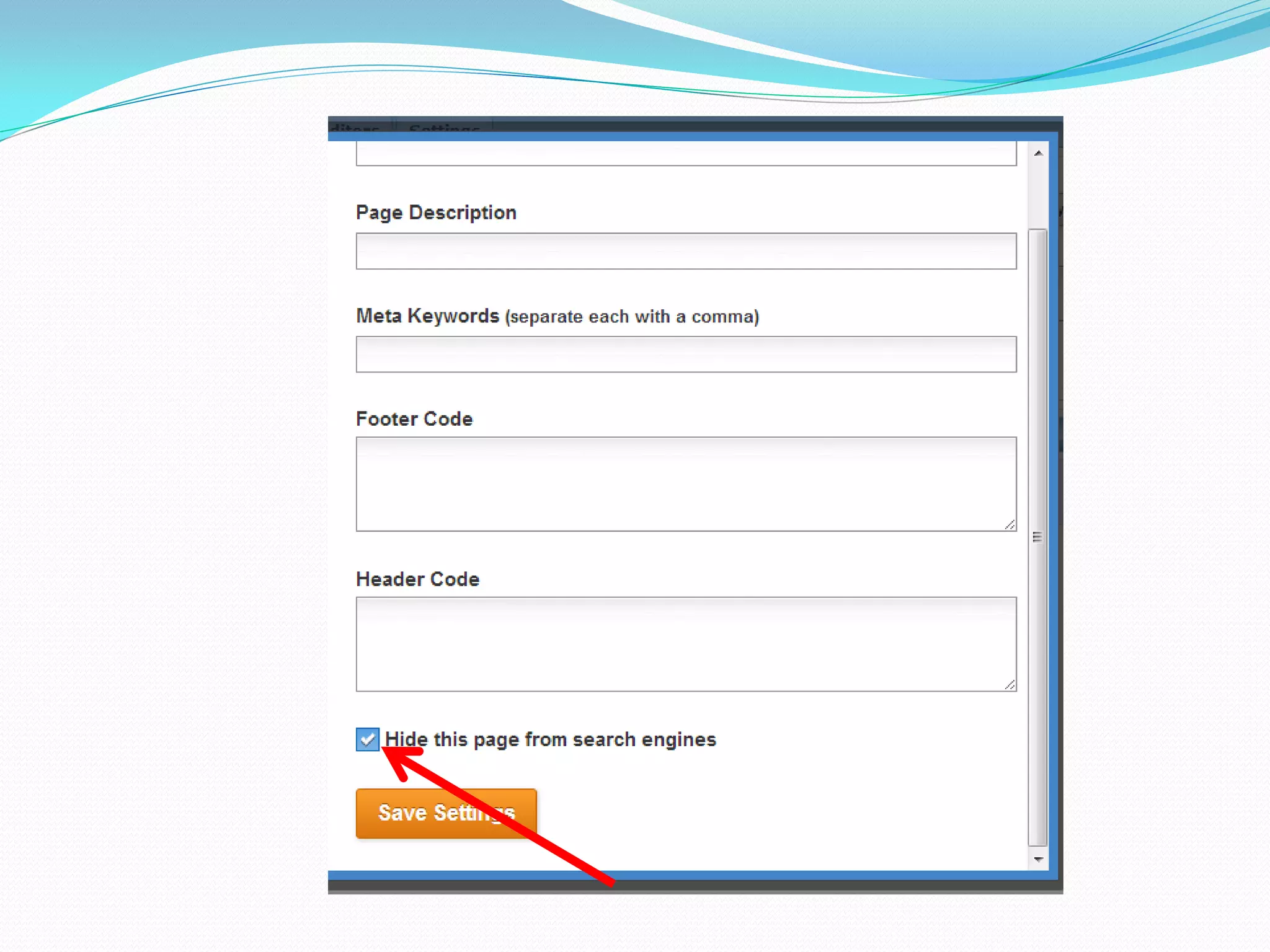
Click “Advanced Settings.”
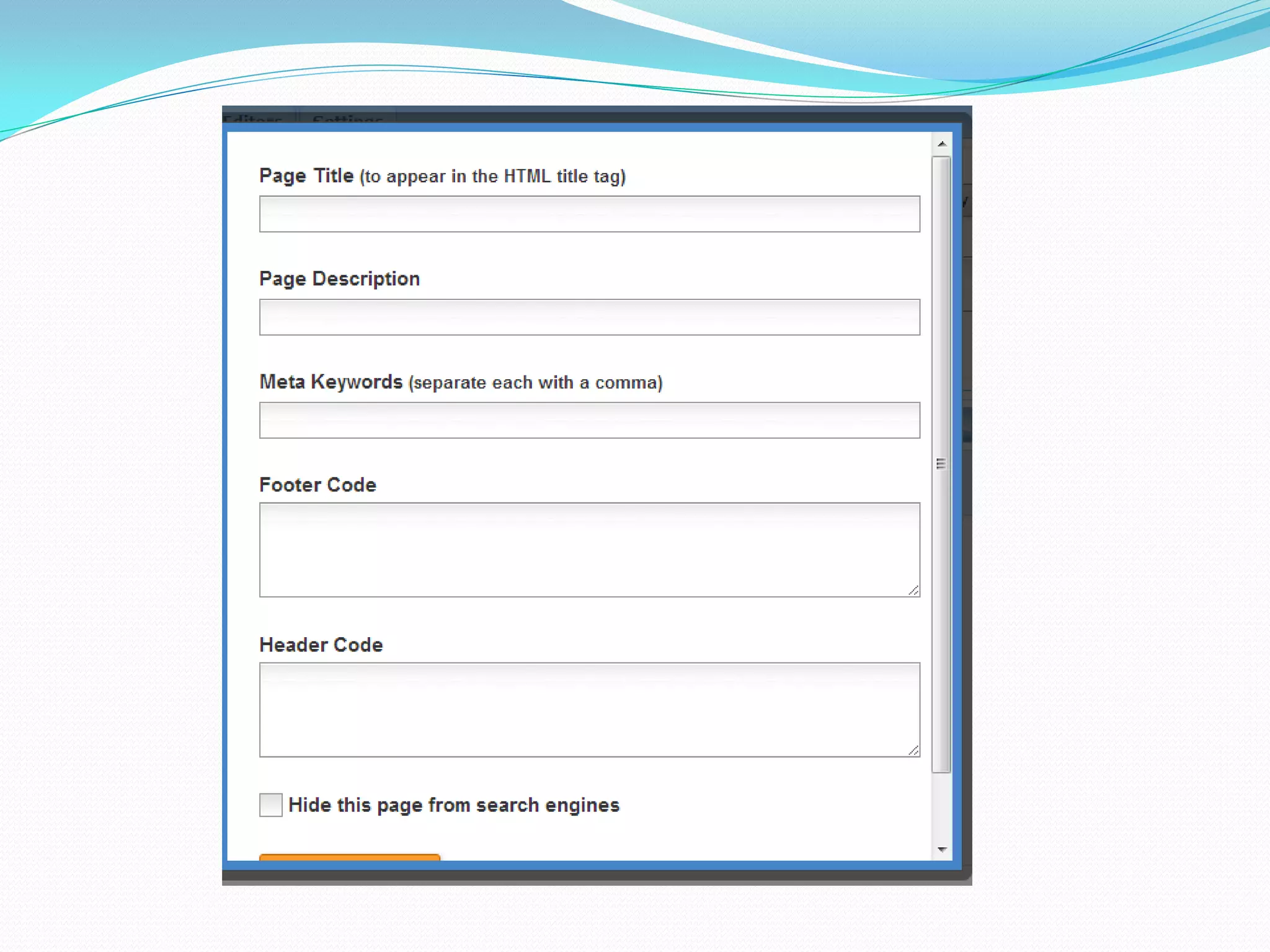
You will see this:
Scroll down a bit further and
  check the box that says:
“Hide this page from search
          engines.”
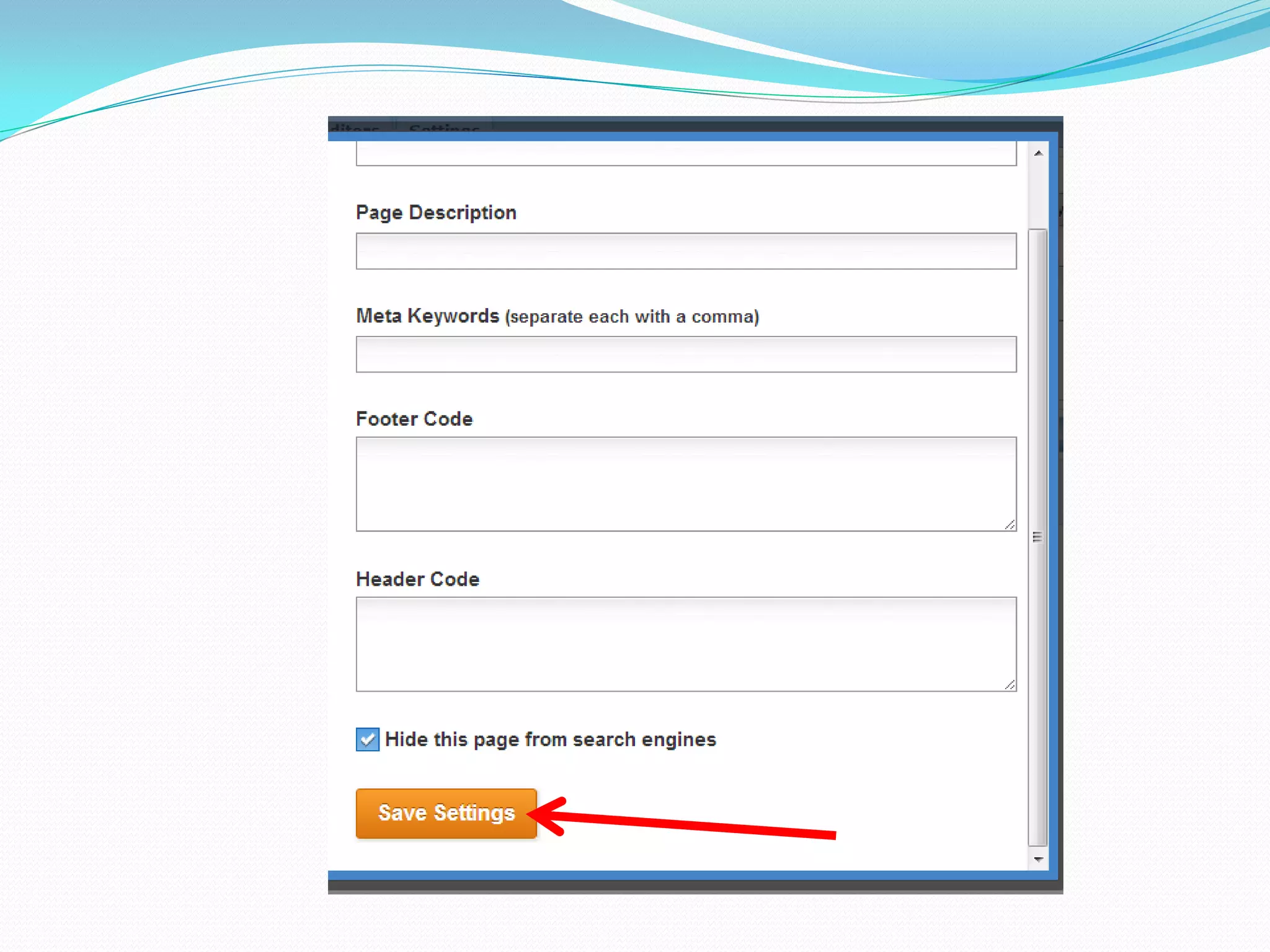
Hit the “Save Settings” button.
Why would you want your site
 to be hidden from search
         engines?
Because your freebie, which is
 only for your subscribers, is
 available through that site.
You wouldn’t want it to be
found on search engines.
Why?
Because your freebie is meant to
 be downloaded by people who
 give you their email addresses!
They should get your freebie by
entering their name and email
   in your “email catcher.”
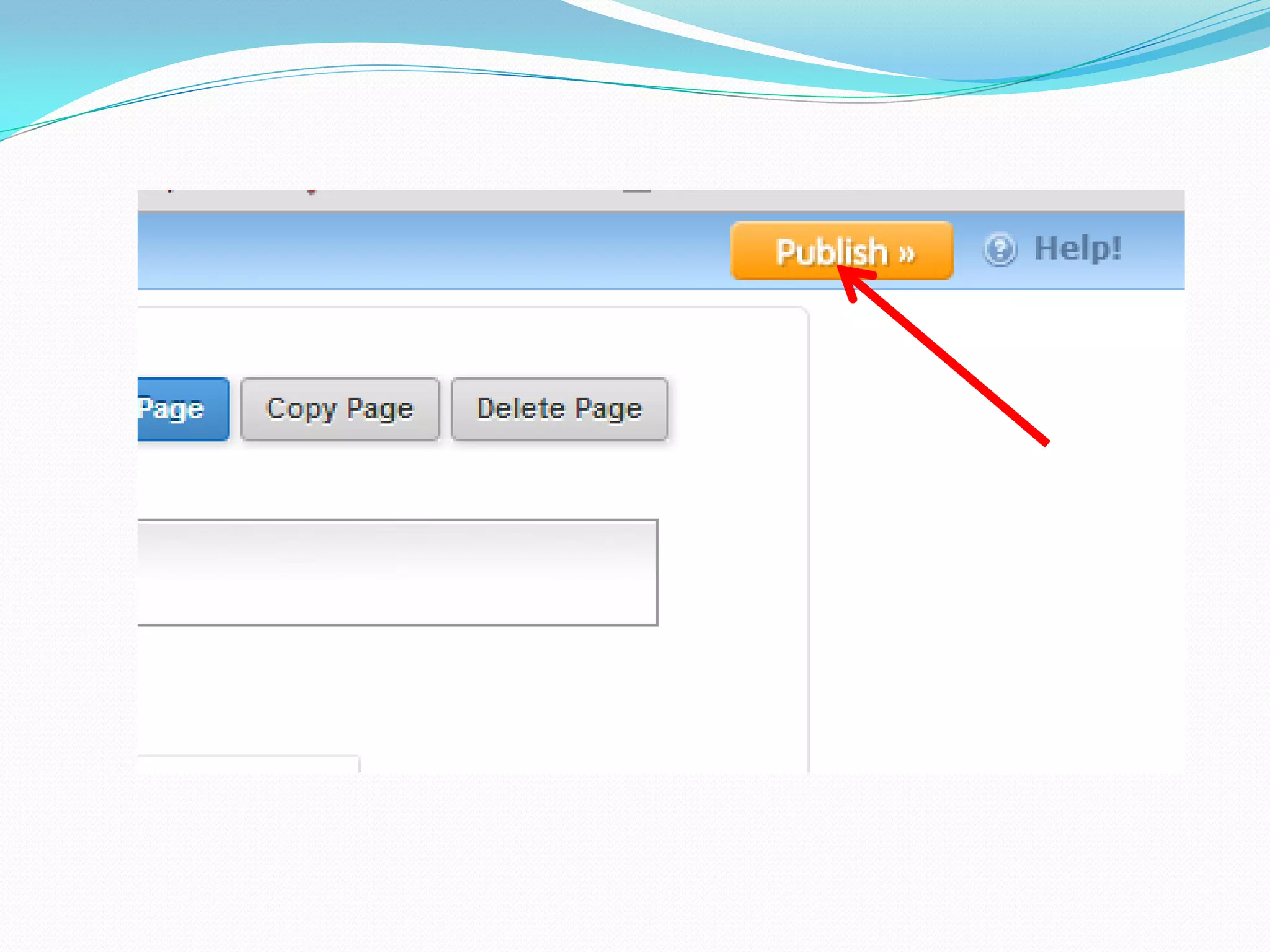
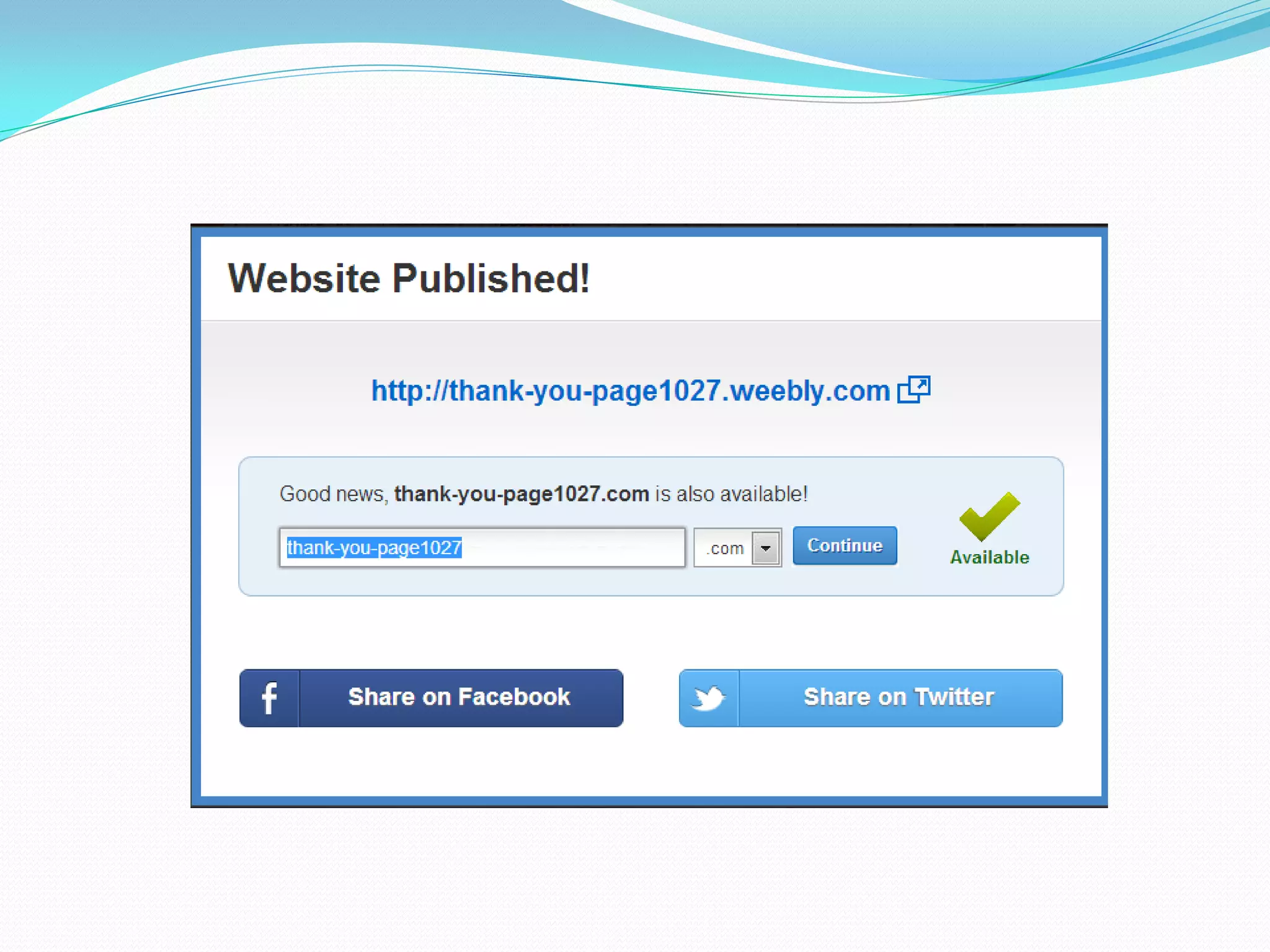
When your site is ready, hit the
  orange “Publish” button.
There you go!
The End. 

Diane dela cruz_how to create a simple landing page with weebly