Wilson Wingston Sharon
wingston.sharon@gmail.com
What now?
 manage and administer content in drupal.
 Menu and blocks to link to content.
 Forums creation and moderation.
 Taxonomy for advanced content organization.
 Use views to run optimized SQL queries.
 Use CCK to customize drupal.
Nodes
 All content on a Drupal website is stored and treated
  as "nodes.“
 allows the flexibility of creating new types of content.
 to painlessly apply new features or changes to all
  content

 The nodes module
    List, sort through, and manage all the content on your
     site;
    set norms for how all posts are displayed
    List and configure the "content types" for your site, and
     create new ones.
 Administer Nodes - Administer >>Content management >> Content


 Administer workflow - Administer >> Content management >>
  Content types

 Administer misc - Administer >> Content management >> Post
  settings

 Administer user access control - Administer >> User management >>
  Access control.
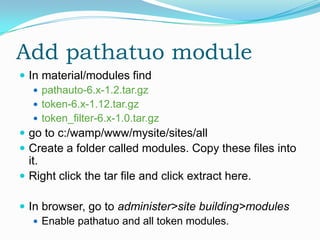
Add pathatuo module
 In material/modules find
    pathauto-6.x-1.2.tar.gz
    token-6.x-1.12.tar.gz
    token_filter-6.x-1.0.tar.gz
 go to c:/wamp/www/mysite/sites/all
 Create a folder called modules. Copy these files into
  it.
 Right click the tar file and click extract here.

 In browser, go to administer>site building>modules
    Enable pathatuo and all token modules.
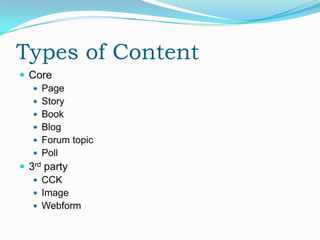
Types of Content
 Core
    Page
    Story
    Book
    Blog
    Forum topic
    Poll
 3rd party
    CCK
    Image
    Webform
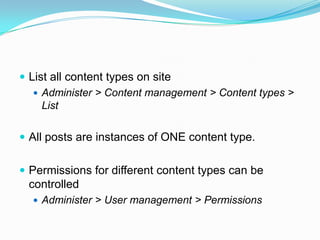
 List all content types on site
    Administer > Content management > Content types >
     List

 All posts are instances of ONE content type.


 Permissions for different content types can be
 controlled
   Administer > User management > Permissions
Creating Content
 Go to Content management > Create content >

 Select content type you want to create. [story]

 Give title and Enter your required content.
    Input format as required – full/filtered HTML/php
    Give a log entry if there are multiple editors.
    Enable/disable comments
    Give alt URL path
    Set published, promoted to front page


 Make at least 3 story items for your site
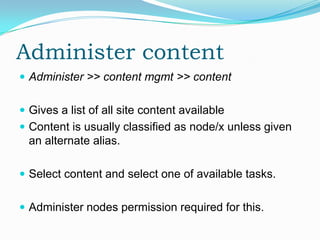
Administer content
 Administer >> content mgmt >> content


 Gives a list of all site content available
 Content is usually classified as node/x unless given
  an alternate alias.

 Select content and select one of available tasks.


 Administer nodes permission required for this.
Comments moderation
 Administer >> content mgmt >> comments


 Allows you to see and edit all user comments.


 Block anonymous commenting. (in user permissions)


 Use a spam blocker like mollom
Content mgmt>>post settings
 Rebuilding permissions – cron does it automatically.
 Manual control here.

 Lets you control no of automatic post publishing to
 front page.

 Lets you force people to preview post before
 publishing.
Front page
 Create a front page from create content and
 remember its node number or give it an
 alias(frontpage).

 Go to Site Configuration > Site Information


 Enter either node/x or the alias (frontpage) in the
 "Default front page“ text box.
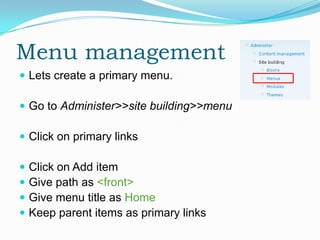
Menu management
 Lets create a primary menu.

 Go to Administer>>site building>>menu

 Click on primary links

   Click on Add item
   Give path as <front>
   Give menu title as Home
   Keep parent items as primary links
 Create these paths as more primary menu menu
    blog
    contact
    search
    Forum
    logout
   Or pages you’ve created as node/x or as its alias
    node/1
    node/2 – give parent as node/1
    node/3 – give parent as node/1
   Or link directly to create a content type
    node/add/story
Building secondary links
from primary links
 Now go to administer>>site building>>menu
 go to settings
 Set source for secondary links as primary links


 Check out your menu.
 Click on node/1 item link and see the submenu.
Create a new custom menu
 From administer>>site building>>menu

 click the add menu and give it a name and title.

 Now you can add links to it as usual with add item option.
  Add links to all the content pages you’ve created. Use
  path aliasing.

 Now, how do we see this menu?
    You can see it as a block
    you can go to menu settings and redirect primary links to
     retrieve its links from your custom menu.
Blocks
 Go to administer>>site building>>blocks


 Blocks are the boxes of content (such as "User Login" or "Who's
  online") that can be displayed in regions (such as footer or sidebar)
  on your page

 Your site's theme defines the regions available. Therefore, block
  placement in regions is done per theme on the Block Admin page.

 If you have more than one theme enabled on your site blocks can be
  placed differently for each theme
 Blocks must be Enabled and assigned to a region.
 Disabled blocks are never shown.
 Throttled blocks are hidden during high server loads.
 Page-specific visibility settings. Individual blocks can
  be configured to only show/hide on certain pages
 Custom visibility settings. Individual blocks can be
  configured so that users decide whether to
  show/hide certain blocks.
 Dynamic blocks (such as those defined by modules)
  may be empty on certain pages and will not be
  shown
Blocks
 Drag who’s new and who’s online blocks to right sidebar
    area in block list.
   Click save.
   Go to configure link next to the who’s new block entry.
   Select show only on listed pages
   And enter <front>
   Save
   Repeat for who’s online

 Remember the menu we made earlier? It should be there
    in the block list. You can put it and set it to appear in a
    specific set of pages.
More block control
 Go to administer>>content mgmt>>content
    click on edit content.
 Change url path settings to page/<description>
    Where description is page name you want to give
 Repeat for two or three content pages.
    This allows you to group content.
 Eg: page/* routes to all content that you’ve just made.
 In block settings of that menu Select show on every pages
  except listed pages.
 Give this entry in list
    page/*
    Page
 Click save
A block trick – step 1
 Go to site config>>input formats.
 Click configure next to filtered HTML
 If you’ve installed the token filter module earlier, you
  will see a token filter checkbox. Check it and click
  save.

 Go to administer>>site building>>blocks
 Click add block.
 Give block description as hello.
 Give this as body.
 Hi [token global user-name]!
A block trick – step 2
 Select show block for authenticated users.


 Now, in block page, find the hello block you’ve just
 created and drag it to the header region.

 Click save.


 Voila! This will appear only for logged in users and
 will provide a customized personal feel to the site
 users.
Forums.
 In material/modules find
    advanced_forum
    advanced_forum_more_styles
    Author_pane
 go to c:/wamp/www/mysite/sites/all
 Copy these files into modules folder.
 Right click the tar file and click extract here.

 In browser, go to administer>site building>modules
    Enable all forum modules.
About forums
 Go to administer>>content mgmt>>forums


 Containers – placeholders for forums
 Forums – placeholders for forum threads
 Forum Topic – the content type for forums
 Comments – the subsequent replies.
Creating forums
 In administer>>content mgmt>>forums
 Click add container and create the following containers
  one by one
    tech discussions
    Gardening
    Help here
 Then click on add foums
    Create mobiles, computers and give parent as tech
     discussions
    Create landscaping, flowers and give parent as gardening
    Create help forum under help
Advanced forum
 Go to In administer>>site cofig>>advanced forums
 Select blue lagoon as theme


 Change other setting as necessary.


 Go to forums link and check the forum out.


 Congratulate yourself.
Organizing content
 Taxonomy is the practice and science of
 classification according to natural relationships.

 In Drupal, this is one method administrators use to
 organize content in a web site.

 When users view a post to which a term has been
 assigned, along with the post, themes can be set to
 display the taxonomy terms as links.
Working with taxonomy
 Go to Administer >> Content management >> Taxonomy

 Click add vocabulary. Name it music.
 You can tie your vocab with a custom content type if
  required. Choose page for the time being.

 Now click on add terms next to music vocab entry.
 Here you can choose parent terms as well as related
  terms. [synonyms]

 Create page content to see how these tags work.
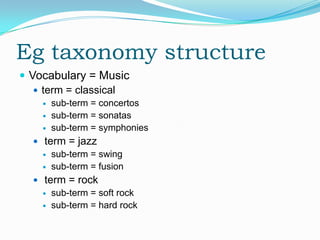
Eg taxonomy structure
 Vocabulary = Music
    term = classical
       sub-term = concertos
       sub-term = sonatas
       sub-term = symphonies
   term = jazz
     sub-term = swing
     sub-term = fusion

   term = rock
     sub-term = soft rock
     sub-term = hard rock
Taxonomy tricks
 Make a couple of pages with music vocabularies
 Go to menu administration and make a menu link in primary
  with path as
    category/music/classical


 Now, to find taxonomy number – when editing a termn in URL
  ….taxonomy/edit/term/8&destin….
    When you create a new term, Drupal assigns it a number. And
       you can call up all the items categorized under that term by
       calling for its number.
      taxonomy/term/8
      taxonomy/term/8,9 [two term listing by AND]
      Taxonomy/term/8+9 [two term listing by OR]
      taxonomy/term/8/all [all child terms]
Views
 Views is a powerful query builder for Drupal that
 allows you to fetch and present lists and tables of
 content (posts/nodes) to the user in ways that are
 tailored to your site and your content.

 This tool is essentially a smart query builder that,
 given enough information, can build the proper
 query, execute it, and display the results as a page,
 block, or other format such as an RSS feed.
Install DEVEL
 In material/modules find
    Devel module
 go to c:/wamp/www/mysite/sites/all
 Create a folder called modules. Copy these files into
  it.
 Right click the tar file and click extract here.
 In browser, go to administer>site building>modules
   Enable all devel modules


 Now go to administer>>Generate items.
   Populate categories, users and content.
views.
 In material/modules find
    views
 go to c:/wamp/www/mysite/sites/all
 Copy these files into modules folder.
 Right click the tar file and click extract here.


 In browser, go to administer>site building>modules
    Enable all views & views UI
 Go to administer>>site building>>views

 Click “add”

 Give name as music types

 Give view type as node. If using CCK, give type as
 that content type here.

 Click next.
 In basic setting click on row style and make it node.


 Click plus button on filters.
 Change groups to taxonomy and select
  taxonomy:vocabulary.
 Click add.
 Keep operator as is one off and check Music.
 Click update.
 Click plus button next to arguments.
 Group:taxonomy and select taxonomy:term.
 Click add.
 In Action to take if argument is not present: choose
    Summary, sorted ascending.
   Click update.
   Click style: and choose list.
   Click update
   use defaults for the next option.
 Under page click on the add display button.
 Now on this page, give title to your view.
 On page settings give a path to your view [music].
 And add a normal menu item link for it in primary
 links.

 Click save.


 Check out your views from the primary link created.
CCK – why we use drupal.
 Drupal comes with core content types like story and
 blog. 'create content' to submit a new story, blog
 entry, etc.

 The Content Construction Kit allows you to add
 custom fields to any of the content types using a web
 interface

 CCK is one the most important and at the same time
 most mystifying features of the Drupal platform.
uses
 CCK allows you to add one or more fields to an
  existing content type.

 You could also add a field to make it easier for you to
  organize or theme your content later using views.

 If you want ultimate flexibility in customizing your
  content types then you can use CCK to create a
  whole new content type that meets your
  specifications.
advantages
 Easier block visibility - display a block when the node
 viewed has this type

 Different URL schemes when auto-naming - EG:
 /node-type/*

 content laid out by different custom types can also
 be a benefit in organizing and searching content in
 the content manager.
Do the CCK
 Go to Administer>>content types
 Go to add content type
 Fill in all details.


 In submission form settings, keep body field label
  blank.
 In workflow, uncheck all.
 In comment settings, disable comments.
 Save content type
 Now, go to manage fields for your new content type.

 Create fields as required for your custom content.
 [try making one now for a fruit]

 More contrib modules will increase the field types
 available here. Get them from drupalmodules.org

 In manage fields, after adding, configure for more
 settings related to the field type.
CCK
 Fields will show up in the views – filters area under
 groups “content type”.

 You can customise exactly how you present all
 available content sorted however you require from
 the views module.

 Play around with this as per your requirements.

4.content mgmt

  • 1.
  • 2.
    What now?  manageand administer content in drupal.  Menu and blocks to link to content.  Forums creation and moderation.  Taxonomy for advanced content organization.  Use views to run optimized SQL queries.  Use CCK to customize drupal.
  • 3.
    Nodes  All contenton a Drupal website is stored and treated as "nodes.“  allows the flexibility of creating new types of content.  to painlessly apply new features or changes to all content  The nodes module  List, sort through, and manage all the content on your site;  set norms for how all posts are displayed  List and configure the "content types" for your site, and create new ones.
  • 4.
     Administer Nodes- Administer >>Content management >> Content  Administer workflow - Administer >> Content management >> Content types  Administer misc - Administer >> Content management >> Post settings  Administer user access control - Administer >> User management >> Access control.
  • 5.
    Add pathatuo module In material/modules find  pathauto-6.x-1.2.tar.gz  token-6.x-1.12.tar.gz  token_filter-6.x-1.0.tar.gz  go to c:/wamp/www/mysite/sites/all  Create a folder called modules. Copy these files into it.  Right click the tar file and click extract here.  In browser, go to administer>site building>modules  Enable pathatuo and all token modules.
  • 6.
    Types of Content Core  Page  Story  Book  Blog  Forum topic  Poll  3rd party  CCK  Image  Webform
  • 7.
     List allcontent types on site  Administer > Content management > Content types > List  All posts are instances of ONE content type.  Permissions for different content types can be controlled  Administer > User management > Permissions
  • 8.
    Creating Content  Goto Content management > Create content >  Select content type you want to create. [story]  Give title and Enter your required content.  Input format as required – full/filtered HTML/php  Give a log entry if there are multiple editors.  Enable/disable comments  Give alt URL path  Set published, promoted to front page  Make at least 3 story items for your site
  • 9.
    Administer content  Administer>> content mgmt >> content  Gives a list of all site content available  Content is usually classified as node/x unless given an alternate alias.  Select content and select one of available tasks.  Administer nodes permission required for this.
  • 10.
    Comments moderation  Administer>> content mgmt >> comments  Allows you to see and edit all user comments.  Block anonymous commenting. (in user permissions)  Use a spam blocker like mollom
  • 11.
    Content mgmt>>post settings Rebuilding permissions – cron does it automatically. Manual control here.  Lets you control no of automatic post publishing to front page.  Lets you force people to preview post before publishing.
  • 12.
    Front page  Createa front page from create content and remember its node number or give it an alias(frontpage).  Go to Site Configuration > Site Information  Enter either node/x or the alias (frontpage) in the "Default front page“ text box.
  • 13.
    Menu management  Letscreate a primary menu.  Go to Administer>>site building>>menu  Click on primary links  Click on Add item  Give path as <front>  Give menu title as Home  Keep parent items as primary links
  • 14.
     Create thesepaths as more primary menu menu  blog  contact  search  Forum  logout Or pages you’ve created as node/x or as its alias  node/1  node/2 – give parent as node/1  node/3 – give parent as node/1 Or link directly to create a content type  node/add/story
  • 15.
    Building secondary links fromprimary links  Now go to administer>>site building>>menu  go to settings  Set source for secondary links as primary links  Check out your menu.  Click on node/1 item link and see the submenu.
  • 16.
    Create a newcustom menu  From administer>>site building>>menu  click the add menu and give it a name and title.  Now you can add links to it as usual with add item option. Add links to all the content pages you’ve created. Use path aliasing.  Now, how do we see this menu?  You can see it as a block  you can go to menu settings and redirect primary links to retrieve its links from your custom menu.
  • 17.
    Blocks  Go toadminister>>site building>>blocks  Blocks are the boxes of content (such as "User Login" or "Who's online") that can be displayed in regions (such as footer or sidebar) on your page  Your site's theme defines the regions available. Therefore, block placement in regions is done per theme on the Block Admin page.  If you have more than one theme enabled on your site blocks can be placed differently for each theme
  • 18.
     Blocks mustbe Enabled and assigned to a region.  Disabled blocks are never shown.  Throttled blocks are hidden during high server loads.  Page-specific visibility settings. Individual blocks can be configured to only show/hide on certain pages  Custom visibility settings. Individual blocks can be configured so that users decide whether to show/hide certain blocks.  Dynamic blocks (such as those defined by modules) may be empty on certain pages and will not be shown
  • 19.
    Blocks  Drag who’snew and who’s online blocks to right sidebar area in block list.  Click save.  Go to configure link next to the who’s new block entry.  Select show only on listed pages  And enter <front>  Save  Repeat for who’s online  Remember the menu we made earlier? It should be there in the block list. You can put it and set it to appear in a specific set of pages.
  • 20.
    More block control Go to administer>>content mgmt>>content  click on edit content.  Change url path settings to page/<description>  Where description is page name you want to give  Repeat for two or three content pages.  This allows you to group content.  Eg: page/* routes to all content that you’ve just made.  In block settings of that menu Select show on every pages except listed pages.  Give this entry in list  page/*  Page  Click save
  • 21.
    A block trick– step 1  Go to site config>>input formats.  Click configure next to filtered HTML  If you’ve installed the token filter module earlier, you will see a token filter checkbox. Check it and click save.  Go to administer>>site building>>blocks  Click add block.  Give block description as hello.  Give this as body.  Hi [token global user-name]!
  • 22.
    A block trick– step 2  Select show block for authenticated users.  Now, in block page, find the hello block you’ve just created and drag it to the header region.  Click save.  Voila! This will appear only for logged in users and will provide a customized personal feel to the site users.
  • 23.
    Forums.  In material/modulesfind  advanced_forum  advanced_forum_more_styles  Author_pane  go to c:/wamp/www/mysite/sites/all  Copy these files into modules folder.  Right click the tar file and click extract here.  In browser, go to administer>site building>modules  Enable all forum modules.
  • 24.
    About forums  Goto administer>>content mgmt>>forums  Containers – placeholders for forums  Forums – placeholders for forum threads  Forum Topic – the content type for forums  Comments – the subsequent replies.
  • 25.
    Creating forums  Inadminister>>content mgmt>>forums  Click add container and create the following containers one by one  tech discussions  Gardening  Help here  Then click on add foums  Create mobiles, computers and give parent as tech discussions  Create landscaping, flowers and give parent as gardening  Create help forum under help
  • 26.
    Advanced forum  Goto In administer>>site cofig>>advanced forums  Select blue lagoon as theme  Change other setting as necessary.  Go to forums link and check the forum out.  Congratulate yourself.
  • 27.
    Organizing content  Taxonomyis the practice and science of classification according to natural relationships.  In Drupal, this is one method administrators use to organize content in a web site.  When users view a post to which a term has been assigned, along with the post, themes can be set to display the taxonomy terms as links.
  • 28.
    Working with taxonomy Go to Administer >> Content management >> Taxonomy  Click add vocabulary. Name it music.  You can tie your vocab with a custom content type if required. Choose page for the time being.  Now click on add terms next to music vocab entry.  Here you can choose parent terms as well as related terms. [synonyms]  Create page content to see how these tags work.
  • 29.
    Eg taxonomy structure Vocabulary = Music  term = classical  sub-term = concertos  sub-term = sonatas  sub-term = symphonies  term = jazz  sub-term = swing  sub-term = fusion  term = rock  sub-term = soft rock  sub-term = hard rock
  • 30.
    Taxonomy tricks  Makea couple of pages with music vocabularies  Go to menu administration and make a menu link in primary with path as  category/music/classical  Now, to find taxonomy number – when editing a termn in URL ….taxonomy/edit/term/8&destin….  When you create a new term, Drupal assigns it a number. And you can call up all the items categorized under that term by calling for its number.  taxonomy/term/8  taxonomy/term/8,9 [two term listing by AND]  Taxonomy/term/8+9 [two term listing by OR]  taxonomy/term/8/all [all child terms]
  • 31.
    Views  Views isa powerful query builder for Drupal that allows you to fetch and present lists and tables of content (posts/nodes) to the user in ways that are tailored to your site and your content.  This tool is essentially a smart query builder that, given enough information, can build the proper query, execute it, and display the results as a page, block, or other format such as an RSS feed.
  • 32.
    Install DEVEL  Inmaterial/modules find  Devel module  go to c:/wamp/www/mysite/sites/all  Create a folder called modules. Copy these files into it.  Right click the tar file and click extract here.  In browser, go to administer>site building>modules  Enable all devel modules  Now go to administer>>Generate items.  Populate categories, users and content.
  • 33.
    views.  In material/modulesfind  views  go to c:/wamp/www/mysite/sites/all  Copy these files into modules folder.  Right click the tar file and click extract here.  In browser, go to administer>site building>modules  Enable all views & views UI
  • 34.
     Go toadminister>>site building>>views  Click “add”  Give name as music types  Give view type as node. If using CCK, give type as that content type here.  Click next.
  • 36.
     In basicsetting click on row style and make it node.  Click plus button on filters.  Change groups to taxonomy and select taxonomy:vocabulary.  Click add.  Keep operator as is one off and check Music.  Click update.
  • 37.
     Click plusbutton next to arguments.  Group:taxonomy and select taxonomy:term.  Click add.  In Action to take if argument is not present: choose Summary, sorted ascending.  Click update.  Click style: and choose list.  Click update  use defaults for the next option.
  • 38.
     Under pageclick on the add display button.  Now on this page, give title to your view.  On page settings give a path to your view [music].  And add a normal menu item link for it in primary links.  Click save.  Check out your views from the primary link created.
  • 39.
    CCK – whywe use drupal.  Drupal comes with core content types like story and blog. 'create content' to submit a new story, blog entry, etc.  The Content Construction Kit allows you to add custom fields to any of the content types using a web interface  CCK is one the most important and at the same time most mystifying features of the Drupal platform.
  • 40.
    uses  CCK allowsyou to add one or more fields to an existing content type.  You could also add a field to make it easier for you to organize or theme your content later using views.  If you want ultimate flexibility in customizing your content types then you can use CCK to create a whole new content type that meets your specifications.
  • 41.
    advantages  Easier blockvisibility - display a block when the node viewed has this type  Different URL schemes when auto-naming - EG: /node-type/*  content laid out by different custom types can also be a benefit in organizing and searching content in the content manager.
  • 42.
    Do the CCK Go to Administer>>content types  Go to add content type  Fill in all details.  In submission form settings, keep body field label blank.  In workflow, uncheck all.  In comment settings, disable comments.  Save content type
  • 43.
     Now, goto manage fields for your new content type.  Create fields as required for your custom content. [try making one now for a fruit]  More contrib modules will increase the field types available here. Get them from drupalmodules.org  In manage fields, after adding, configure for more settings related to the field type.
  • 44.
    CCK  Fields willshow up in the views – filters area under groups “content type”.  You can customise exactly how you present all available content sorted however you require from the views module.  Play around with this as per your requirements.