DeltaV Operator Training
A reference guide to DeltaV DCS
controls and operation.
45 Eisenhower Drive, Suite 350, Paramus, NJ 07652 | Tel: (201) 267-8670 | Fax: (201) 368-8989 | www.modularprocess.com
M O D U L A R P R O C E S S S Y S T E M S | D I S T I L L A T I O N | L I Q U I D E X T R A C T I O N | E N G I N E E R I N G | P I L O T T E S T I N G
Telephone: (201) 267-8670
www.modularprocess.com
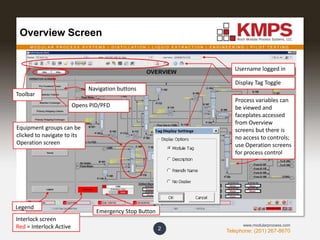
Overview Screen
2
Toolbar
Navigation buttons
Equipment groups can be
clicked to navigate to its
Operation screen
Legend
Username logged in
Display Tag Toggle
Process variables can
be viewed and
faceplates accessed
from Overview
screens but there is
no access to controls;
use Operation screens
for process control
Emergency Stop Button
Interlock screen
Red = Interlock Active
Opens PID/PFD
M O D U L A R P R O C E S S S Y S T E M S | D I S T I L L A T I O N | L I Q U I D E X T R A C T I O N | E N G I N E E R I N G | P I L O T T E S T I N G
Telephone: (201) 267-8670
www.modularprocess.com
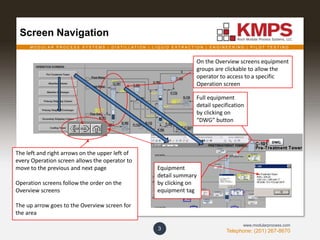
Screen Navigation
3
On the Overview screens equipment
groups are clickable to allow the
operator to access to a specific
Operation screen
The left and right arrows on the upper left of
every Operation screen allows the operator to
move to the previous and next page
Operation screens follow the order on the
Overview screens
The up arrow goes to the Overview screen for
the area
Equipment
detail summary
by clicking on
equipment tag
Full equipment
detail specification
by clicking on
“DWG” button
M O D U L A R P R O C E S S S Y S T E M S | D I S T I L L A T I O N | L I Q U I D E X T R A C T I O N | E N G I N E E R I N G | P I L O T T E S T I N G
Telephone: (201) 267-8670
www.modularprocess.com
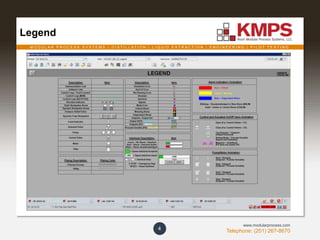
Legend
4
M O D U L A R P R O C E S S S Y S T E M S | D I S T I L L A T I O N | L I Q U I D E X T R A C T I O N | E N G I N E E R I N G | P I L O T T E S T I N G
Telephone: (201) 267-8670
www.modularprocess.com
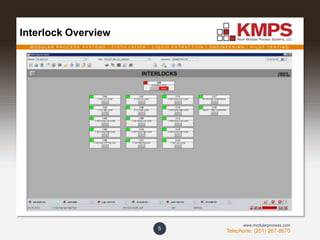
Interlock Overview
5
M O D U L A R P R O C E S S S Y S T E M S | D I S T I L L A T I O N | L I Q U I D E X T R A C T I O N | E N G I N E E R I N G | P I L O T T E S T I N G
Telephone: (201) 267-8670
www.modularprocess.com
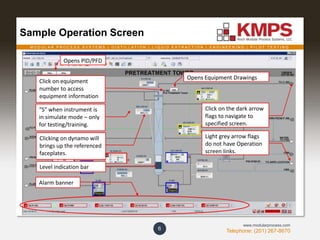
Sample Operation Screen
6
Light grey arrow flags
do not have Operation
screen links.
Click on the dark arrow
flags to navigate to
specified screen.
“S” when instrument is
in simulate mode – only
for testing/training.
Click on equipment
number to access
equipment information
Clicking on dynamo will
brings up the referenced
faceplates.
Level indication bar
Alarm banner
Opens PID/PFD
Opens Equipment Drawings
M O D U L A R P R O C E S S S Y S T E M S | D I S T I L L A T I O N | L I Q U I D E X T R A C T I O N | E N G I N E E R I N G | P I L O T T E S T I N G
Telephone: (201) 267-8670
www.modularprocess.com
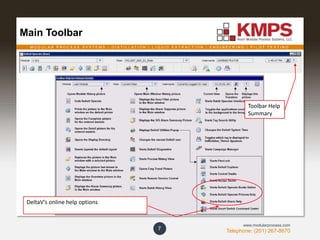
Main Toolbar
7
DeltaV’s online help options
Toolbar Help
Summary
M O D U L A R P R O C E S S S Y S T E M S | D I S T I L L A T I O N | L I Q U I D E X T R A C T I O N | E N G I N E E R I N G | P I L O T T E S T I N G
Telephone: (201) 267-8670
www.modularprocess.com
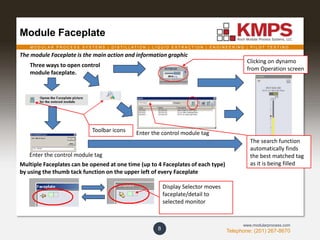
Module Faceplate
8
Clicking on dynamo
from Operation screen
Three ways to open control
module faceplate.
Enter the control module tag
Multiple Faceplates can be opened at one time (up to 4 Faceplates of each type)
by using the thumb tack function on the upper left of every Faceplate
Display Selector moves
faceplate/detail to
selected monitor
The search function
automatically finds
the best matched tag
as it is being filled
Enter the control module tagToolbar icons
The module Faceplate is the main action and information graphic
M O D U L A R P R O C E S S S Y S T E M S | D I S T I L L A T I O N | L I Q U I D E X T R A C T I O N | E N G I N E E R I N G | P I L O T T E S T I N G
Telephone: (201) 267-8670
www.modularprocess.com
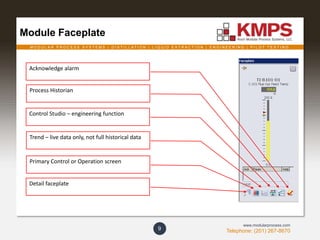
Module Faceplate
9
Process Historian
Control Studio – engineering function
Primary Control or Operation screen
Detail faceplate
Acknowledge alarm
Trend – live data only, not full historical data
M O D U L A R P R O C E S S S Y S T E M S | D I S T I L L A T I O N | L I Q U I D E X T R A C T I O N | E N G I N E E R I N G | P I L O T T E S T I N G
Telephone: (201) 267-8670
www.modularprocess.com
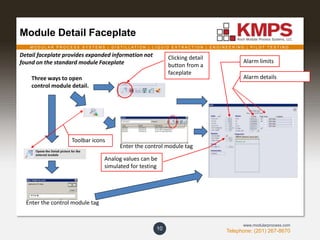
Module Detail Faceplate
10
Enter the control module tag
Clicking detail
button from a
faceplate
Alarm details
Alarm limits
Analog values can be
simulated for testing
Three ways to open
control module detail.
Detail faceplate provides expanded information not
found on the standard module Faceplate
Enter the control module tag
Toolbar icons
M O D U L A R P R O C E S S S Y S T E M S | D I S T I L L A T I O N | L I Q U I D E X T R A C T I O N | E N G I N E E R I N G | P I L O T T E S T I N G
Telephone: (201) 267-8670
www.modularprocess.com
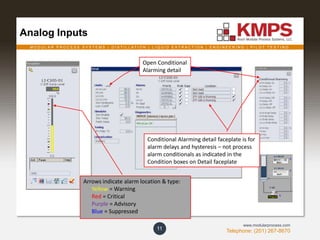
Analog Inputs
11
Arrows indicate alarm location & type:
Yellow = Warning
Red = Critical
Purple = Advisory
Blue = Suppressed
Open Conditional
Alarming detail
Conditional Alarming detail faceplate is for
alarm delays and hysteresis – not process
alarm conditionals as indicated in the
Condition boxes on Detail faceplate
M O D U L A R P R O C E S S S Y S T E M S | D I S T I L L A T I O N | L I Q U I D E X T R A C T I O N | E N G I N E E R I N G | P I L O T T E S T I N G
Telephone: (201) 267-8670
www.modularprocess.com
Analog Dynamo
12
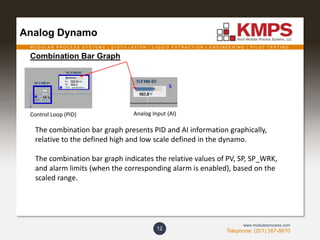
Combination Bar Graph
The combination bar graph presents PID and AI information graphically,
relative to the defined high and low scale defined in the dynamo.
The combination bar graph indicates the relative values of PV, SP, SP_WRK,
and alarm limits (when the corresponding alarm is enabled), based on the
scaled range.
Control Loop (PID) Analog Input (AI)
M O D U L A R P R O C E S S S Y S T E M S | D I S T I L L A T I O N | L I Q U I D E X T R A C T I O N | E N G I N E E R I N G | P I L O T T E S T I N G
Telephone: (201) 267-8670
www.modularprocess.com
Analog Dynamo – Bar Graph
13
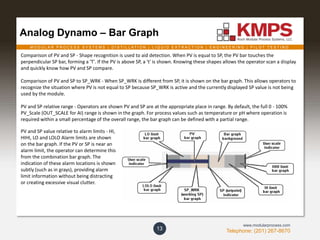
Comparison of PV and SP - Shape recognition is used to aid detection. When PV is equal to SP, the PV bar touches the
perpendicular SP bar, forming a 'T'. If the PV is above SP, a 't' is shown. Knowing these shapes allows the operator scan a display
and quickly know how PV and SP compare.
Comparison of PV and SP to SP_WRK - When SP_WRK is different from SP, it is shown on the bar graph. This allows operators to
recognize the situation where PV is not equal to SP because SP_WRK is active and the currently displayed SP value is not being
used by the module.
PV and SP relative range - Operators are shown PV and SP are at the appropriate place in range. By default, the full 0 - 100%
PV_Scale (OUT_SCALE for AI) range is shown in the graph. For process values such as temperature or pH where operation is
required within a small percentage of the overall range, the bar graph can be defined with a partial range.
PV and SP value relative to alarm limits - HI,
HIHI, LO and LOLO Alarm limits are shown
on the bar graph. If the PV or SP is near an
alarm limit, the operator can determine this
from the combination bar graph. The
indication of these alarm locations is shown
subtly (such as in grays), providing alarm
limit information without being distracting
or creating excessive visual clutter.
M O D U L A R P R O C E S S S Y S T E M S | D I S T I L L A T I O N | L I Q U I D E X T R A C T I O N | E N G I N E E R I N G | P I L O T T E S T I N G
Telephone: (201) 267-8670
www.modularprocess.com
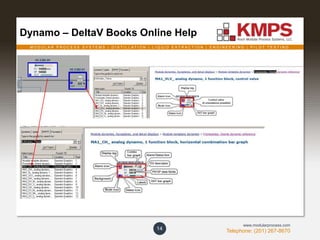
Dynamo – DeltaV Books Online Help
14
M O D U L A R P R O C E S S S Y S T E M S | D I S T I L L A T I O N | L I Q U I D E X T R A C T I O N | E N G I N E E R I N G | P I L O T T E S T I N G
Telephone: (201) 267-8670
www.modularprocess.com
Discrete Input – Process Switches
15
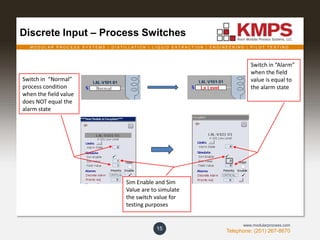
Switch in “Alarm”
when the field
value is equal to
the alarm state
Sim Enable and Sim
Value are to simulate
the switch value for
testing purposes
Switch in “Normal”
process condition
when the field value
does NOT equal the
alarm state
M O D U L A R P R O C E S S S Y S T E M S | D I S T I L L A T I O N | L I Q U I D E X T R A C T I O N | E N G I N E E R I N G | P I L O T T E S T I N G
Telephone: (201) 267-8670
www.modularprocess.com
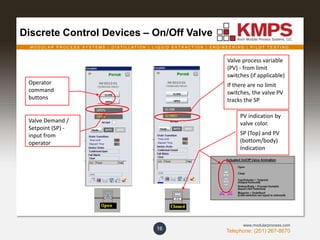
Discrete Control Devices – On/Off Valve
16
Valve Demand /
Setpoint (SP) -
input from
operator
Operator
command
buttons
Valve process variable
(PV) - from limit
switches (if applicable)
If there are no limit
switches, the valve PV
tracks the SP
PV indication by
valve color.
SP (Top) and PV
(bottom/body)
Indication
M O D U L A R P R O C E S S S Y S T E M S | D I S T I L L A T I O N | L I Q U I D E X T R A C T I O N | E N G I N E E R I N G | P I L O T T E S T I N G
Telephone: (201) 267-8670
www.modularprocess.com
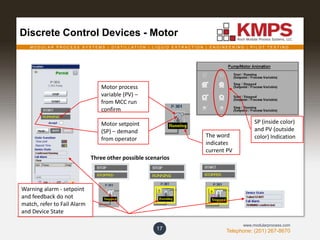
Discrete Control Devices - Motor
17
Motor setpoint
(SP) – demand
from operator
Motor process
variable (PV) –
from MCC run
confirm
Three other possible scenarios
Warning alarm - setpoint
and feedback do not
match, refer to Fail Alarm
and Device State
SP (inside color)
and PV (outside
color) IndicationThe word
indicates
current PV
M O D U L A R P R O C E S S S Y S T E M S | D I S T I L L A T I O N | L I Q U I D E X T R A C T I O N | E N G I N E E R I N G | P I L O T T E S T I N G
Telephone: (201) 267-8670
www.modularprocess.com
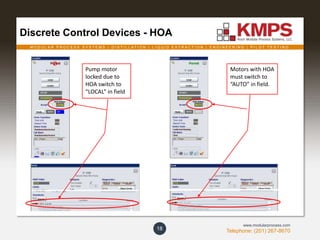
Discrete Control Devices - HOA
18
Motors with HOA
must switch to
“AUTO” in field.
Pump motor
locked due to
HOA switch to
“LOCAL” in field
M O D U L A R P R O C E S S S Y S T E M S | D I S T I L L A T I O N | L I Q U I D E X T R A C T I O N | E N G I N E E R I N G | P I L O T T E S T I N G
Telephone: (201) 267-8670
www.modularprocess.com
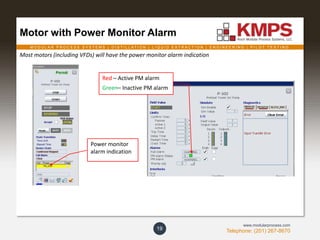
Motor with Power Monitor Alarm
19
Power monitor
alarm indication
Red – Active PM alarm
Green– Inactive PM alarm
Most motors (including VFDs) will have the power monitor alarm indication
M O D U L A R P R O C E S S S Y S T E M S | D I S T I L L A T I O N | L I Q U I D E X T R A C T I O N | E N G I N E E R I N G | P I L O T T E S T I N G
Telephone: (201) 267-8670
www.modularprocess.com
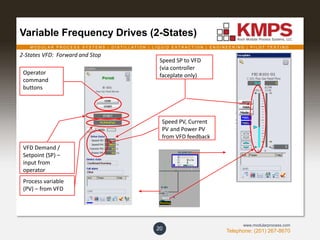
Variable Frequency Drives (2-States)
20
VFD Demand /
Setpoint (SP) –
input from
operator
Operator
command
buttons
Speed PV, Current
PV and Power PV
from VFD feedback
Process variable
(PV) – from VFD
Speed SP to VFD
(via controller
faceplate only)
2-States VFD: Forward and Stop
M O D U L A R P R O C E S S S Y S T E M S | D I S T I L L A T I O N | L I Q U I D E X T R A C T I O N | E N G I N E E R I N G | P I L O T T E S T I N G
Telephone: (201) 267-8670
www.modularprocess.com
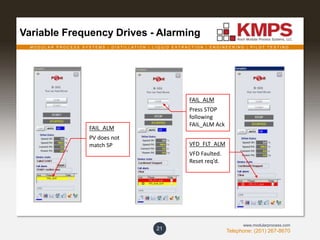
Variable Frequency Drives - Alarming
21
FAIL_ALM
PV does not
match SP
FAIL_ALM
Press STOP
following
FAIL_ALM Ack
VFD_FLT_ALM
VFD Faulted.
Reset req’d.
M O D U L A R P R O C E S S S Y S T E M S | D I S T I L L A T I O N | L I Q U I D E X T R A C T I O N | E N G I N E E R I N G | P I L O T T E S T I N G
Telephone: (201) 267-8670
www.modularprocess.com
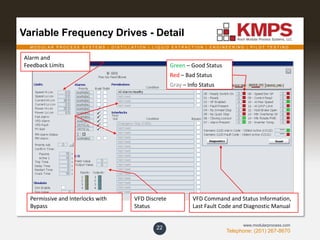
Variable Frequency Drives - Detail
22
Permissive and Interlocks with
Bypass
Alarm and
Feedback Limits
VFD Discrete
Status
VFD Command and Status Information,
Last Fault Code and Diagnostic Manual
Green – Good Status
Red – Bad Status
Gray – Info Status
M O D U L A R P R O C E S S S Y S T E M S | D I S T I L L A T I O N | L I Q U I D E X T R A C T I O N | E N G I N E E R I N G | P I L O T T E S T I N G
Telephone: (201) 267-8670
www.modularprocess.com
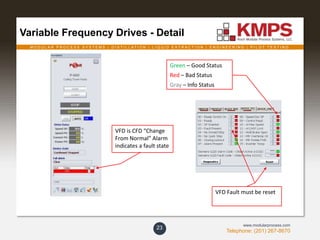
Variable Frequency Drives - Detail
23
VFD is CFD “Change
From Normal” Alarm
indicates a fault state
VFD Fault must be reset
Green – Good Status
Red – Bad Status
Gray – Info Status
M O D U L A R P R O C E S S S Y S T E M S | D I S T I L L A T I O N | L I Q U I D E X T R A C T I O N | E N G I N E E R I N G | P I L O T T E S T I N G
Telephone: (201) 267-8670
www.modularprocess.com
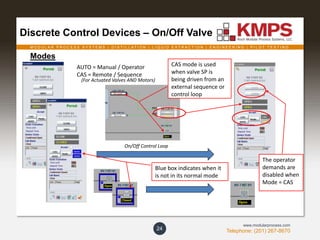
Discrete Control Devices – On/Off Valve
24
Modes
AUTO = Manual / Operator
CAS = Remote / Sequence
CAS mode is used
when valve SP is
being driven from an
external sequence or
control loop
The operator
demands are
disabled when
Mode = CAS
(For Actuated Valves AND Motors)
On/Off Control Loop
Blue box indicates when it
is not in its normal mode
M O D U L A R P R O C E S S S Y S T E M S | D I S T I L L A T I O N | L I Q U I D E X T R A C T I O N | E N G I N E E R I N G | P I L O T T E S T I N G
Telephone: (201) 267-8670
www.modularprocess.com
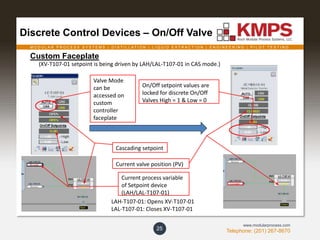
Discrete Control Devices – On/Off Valve
25
Custom Faceplate
(XV-T107-01 setpoint is being driven by LAH/LAL-T107-01 in CAS mode.)
On/Off setpoint values are
locked for discrete On/Off
Valves High = 1 & Low = 0
Current process variable
of Setpoint device
(LAH/LAL-T107-01)
Current valve position (PV)
Cascading setpoint
Valve Mode
can be
accessed on
custom
controller
faceplate
LAH-T107-01: Opens XV-T107-01
LAL-T107-01: Closes XV-T107-01
M O D U L A R P R O C E S S S Y S T E M S | D I S T I L L A T I O N | L I Q U I D E X T R A C T I O N | E N G I N E E R I N G | P I L O T T E S T I N G
Telephone: (201) 267-8670
www.modularprocess.com
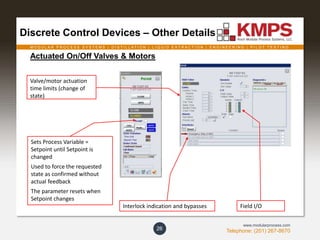
Discrete Control Devices – Other Details
26
Actuated On/Off Valves & Motors
Sets Process Variable =
Setpoint until Setpoint is
changed
Used to force the requested
state as confirmed without
actual feedback
The parameter resets when
Setpoint changes
Interlock indication and bypasses
Valve/motor actuation
time limits (change of
state)
Field I/O
M O D U L A R P R O C E S S S Y S T E M S | D I S T I L L A T I O N | L I Q U I D E X T R A C T I O N | E N G I N E E R I N G | P I L O T T E S T I N G
Telephone: (201) 267-8670
www.modularprocess.com
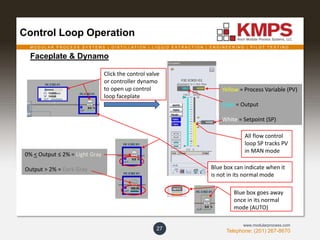
Control Loop Operation
27
Faceplate & Dynamo
0% < Output ≤ 2% = Light Gray
Output > 2% = Dark Gray
Yellow = Process Variable (PV)
Cyan = Output
White = Setpoint (SP)
Click the control valve
or controller dynamo
to open up control
loop faceplate
All flow control
loop SP tracks PV
in MAN mode
Blue box can indicate when it
is not in its normal mode
Blue box goes away
once in its normal
mode (AUTO)
M O D U L A R P R O C E S S S Y S T E M S | D I S T I L L A T I O N | L I Q U I D E X T R A C T I O N | E N G I N E E R I N G | P I L O T T E S T I N G
Telephone: (201) 267-8670
www.modularprocess.com
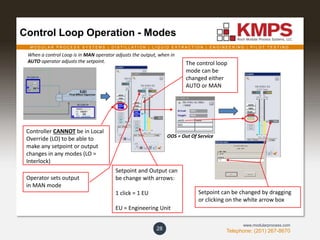
Control Loop Operation - Modes
28
Controller CANNOT be in Local
Override (LO) to be able to
make any setpoint or output
changes in any modes (LO =
Interlock)
Operator sets output
in MAN mode
The control loop
mode can be
changed either
AUTO or MAN
Setpoint and Output can
be change with arrows:
1 click = 1 EU
EU = Engineering Unit
OOS = Out Of Service
Setpoint can be changed by dragging
or clicking on the white arrow box
When a control Loop is in MAN operator adjusts the output, when in
AUTO operator adjusts the setpoint.
M O D U L A R P R O C E S S S Y S T E M S | D I S T I L L A T I O N | L I Q U I D E X T R A C T I O N | E N G I N E E R I N G | P I L O T T E S T I N G
Telephone: (201) 267-8670
www.modularprocess.com
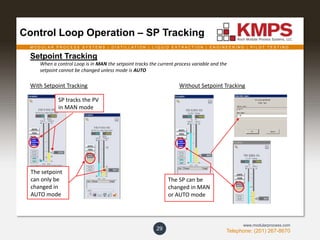
Control Loop Operation – SP Tracking
29
Setpoint Tracking
When a control Loop is in MAN the setpoint tracks the current process variable and the
setpoint cannot be changed unless mode is AUTO
With Setpoint Tracking Without Setpoint Tracking
SP tracks the PV
in MAN mode
The setpoint
can only be
changed in
AUTO mode
The SP can be
changed in MAN
or AUTO mode
M O D U L A R P R O C E S S S Y S T E M S | D I S T I L L A T I O N | L I Q U I D E X T R A C T I O N | E N G I N E E R I N G | P I L O T T E S T I N G
Telephone: (201) 267-8670
www.modularprocess.com
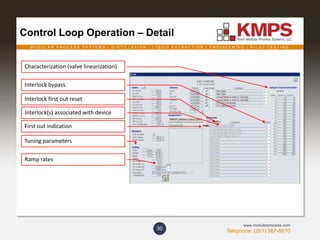
Control Loop Operation – Detail
30
Interlock(s) associated with device
Interlock bypass
Interlock first out reset
First out indication
Tuning parameters
Ramp rates
Characterization (valve linearization)
M O D U L A R P R O C E S S S Y S T E M S | D I S T I L L A T I O N | L I Q U I D E X T R A C T I O N | E N G I N E E R I N G | P I L O T T E S T I N G
Telephone: (201) 267-8670
www.modularprocess.com
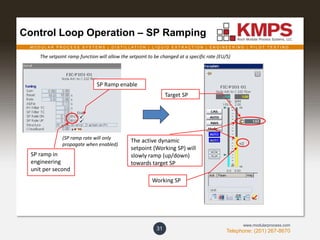
Control Loop Operation – SP Ramping
31
The setpoint ramp function will allow the setpoint to be changed at a specific rate (EU/S)
SP ramp in
engineering
unit per second
Working SP
The active dynamic
setpoint (Working SP) will
slowly ramp (up/down)
towards target SP
SP Ramp enable
(SP ramp rate will only
propagate when enabled)
Target SP
M O D U L A R P R O C E S S S Y S T E M S | D I S T I L L A T I O N | L I Q U I D E X T R A C T I O N | E N G I N E E R I N G | P I L O T T E S T I N G
Telephone: (201) 267-8670
www.modularprocess.com
Control Loop Operation - Cascade
32
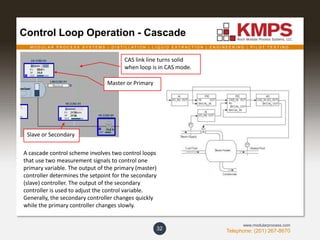
Slave or Secondary
Master or Primary
CAS link line turns solid
when loop is in CAS mode.
A cascade control scheme involves two control loops
that use two measurement signals to control one
primary variable. The output of the primary (master)
controller determines the setpoint for the secondary
(slave) controller. The output of the secondary
controller is used to adjust the control variable.
Generally, the secondary controller changes quickly
while the primary controller changes slowly.
M O D U L A R P R O C E S S S Y S T E M S | D I S T I L L A T I O N | L I Q U I D E X T R A C T I O N | E N G I N E E R I N G | P I L O T T E S T I N G
Telephone: (201) 267-8670
www.modularprocess.com
Control Loop Operation - Cascade
33
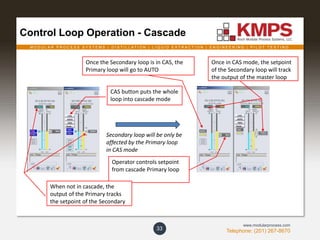
Secondary loop will be only be
affected by the Primary loop
in CAS mode
Once the Secondary loop is in CAS, the
Primary loop will go to AUTO
CAS button puts the whole
loop into cascade mode
Once in CAS mode, the setpoint
of the Secondary loop will track
the output of the master loop
Operator controls setpoint
from cascade Primary loop
When not in cascade, the
output of the Primary tracks
the setpoint of the Secondary
M O D U L A R P R O C E S S S Y S T E M S | D I S T I L L A T I O N | L I Q U I D E X T R A C T I O N | E N G I N E E R I N G | P I L O T T E S T I N G
Telephone: (201) 267-8670
www.modularprocess.com
Control Loop Operation - Other
34
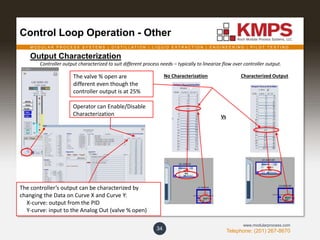
Output Characterization
Controller output characterized to suit different process needs – typically to linearize flow over controller output.
Operator can Enable/Disable
Characterization
The controller’s output can be characterized by
changing the Data on Curve X and Curve Y:
X-curve: output from the PID
Y-curve: input to the Analog Out (valve % open)
No Characterization Characterized Output
Vs
The valve % open are
different even though the
controller output is at 25%
M O D U L A R P R O C E S S S Y S T E M S | D I S T I L L A T I O N | L I Q U I D E X T R A C T I O N | E N G I N E E R I N G | P I L O T T E S T I N G
Telephone: (201) 267-8670
www.modularprocess.com
Alarm/Interlock – Overview Flow Chart
35
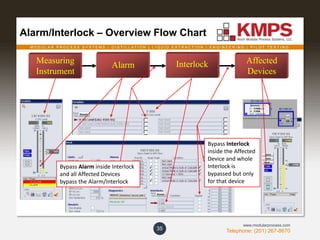
Measuring
Instrument
Alarm Interlock Affected
Devices
Bypass Alarm inside Interlock
and all Affected Devices
bypass the Alarm/Interlock
Bypass Interlock
inside the Affected
Device and whole
Interlock is
bypassed but only
for that device
M O D U L A R P R O C E S S S Y S T E M S | D I S T I L L A T I O N | L I Q U I D E X T R A C T I O N | E N G I N E E R I N G | P I L O T T E S T I N G
Telephone: (201) 267-8670
www.modularprocess.com
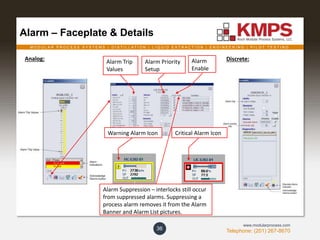
Alarm – Faceplate & Details
36
Alarm Trip
Values
Alarm Priority
Setup
Analog: Discrete:
Warning Alarm Icon Critical Alarm Icon
Alarm Suppression – interlocks still occur
from suppressed alarms. Suppressing a
process alarm removes it from the Alarm
Banner and Alarm List pictures.
Alarm
Enable
M O D U L A R P R O C E S S S Y S T E M S | D I S T I L L A T I O N | L I Q U I D E X T R A C T I O N | E N G I N E E R I N G | P I L O T T E S T I N G
Telephone: (201) 267-8670
www.modularprocess.com
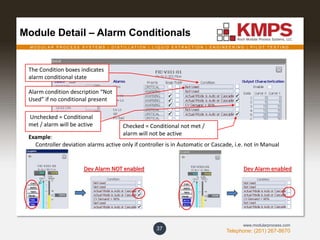
Module Detail – Alarm Conditionals
37
The Condition boxes indicates
alarm conditional state
Alarm condition description “Not
Used” if no conditional present
Unchecked = Conditional
met / alarm will be active Checked = Conditional not met /
alarm will not be active
Example:
Controller deviation alarms active only if controller is in Automatic or Cascade, i.e. not in Manual
Dev Alarm NOT enabled Dev Alarm enabled
M O D U L A R P R O C E S S S Y S T E M S | D I S T I L L A T I O N | L I Q U I D E X T R A C T I O N | E N G I N E E R I N G | P I L O T T E S T I N G
Telephone: (201) 267-8670
www.modularprocess.com
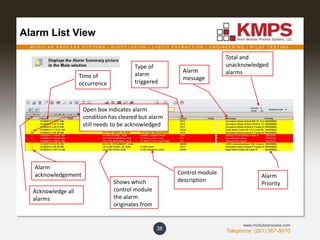
Alarm List View
38
Time of
occurrence
Type of
alarm
triggered
Shows which
control module
the alarm
originates from
Total and
unacknowledged
alarmsAlarm
message
Alarm
Priority
Alarm
acknowledgement
Acknowledge all
alarms
Control module
description
Open box indicates alarm
condition has cleared but alarm
still needs to be acknowledged
M O D U L A R P R O C E S S S Y S T E M S | D I S T I L L A T I O N | L I Q U I D E X T R A C T I O N | E N G I N E E R I N G | P I L O T T E S T I N G
Telephone: (201) 267-8670
www.modularprocess.com
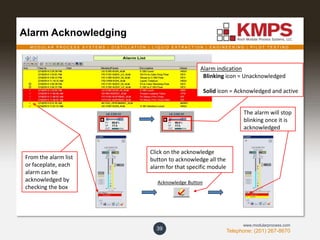
Alarm Acknowledging
39
Alarm indication
Blinking icon = Unacknowledged
Solid icon = Acknowledged and active
From the alarm list
or faceplate, each
alarm can be
acknowledged by
checking the box
Acknowledge Button
Click on the acknowledge
button to acknowledge all the
alarm for that specific module
The alarm will stop
blinking once it is
acknowledged
M O D U L A R P R O C E S S S Y S T E M S | D I S T I L L A T I O N | L I Q U I D E X T R A C T I O N | E N G I N E E R I N G | P I L O T T E S T I N G
Telephone: (201) 267-8670
www.modularprocess.com
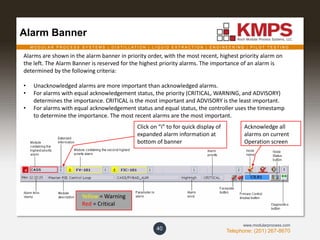
Alarm Banner
40
Alarms are shown in the alarm banner in priority order, with the most recent, highest priority alarm on
the left. The Alarm Banner is reserved for the highest priority alarms. The importance of an alarm is
determined by the following criteria:
• Unacknowledged alarms are more important than acknowledged alarms.
• For alarms with equal acknowledgement status, the priority (CRITICAL, WARNING, and ADVISORY)
determines the importance. CRITICAL is the most important and ADVISORY is the least important.
• For alarms with equal acknowledgement status and equal status, the controller uses the timestamp
to determine the importance. The most recent alarms are the most important.
Yellow = Warning
Red = Critical
Click on “i” to for quick display of
expanded alarm information at
bottom of banner
Acknowledge all
alarms on current
Operation screen
M O D U L A R P R O C E S S S Y S T E M S | D I S T I L L A T I O N | L I Q U I D E X T R A C T I O N | E N G I N E E R I N G | P I L O T T E S T I N G
Telephone: (201) 267-8670
www.modularprocess.com
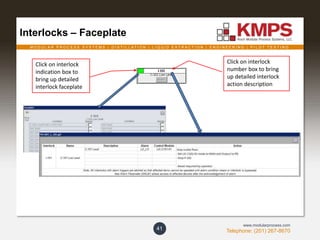
Interlocks – Faceplate
41
Click on interlock
number box to bring
up detailed interlock
action description
Click on interlock
indication box to
bring up detailed
interlock faceplate
M O D U L A R P R O C E S S S Y S T E M S | D I S T I L L A T I O N | L I Q U I D E X T R A C T I O N | E N G I N E E R I N G | P I L O T T E S T I N G
Telephone: (201) 267-8670
www.modularprocess.com
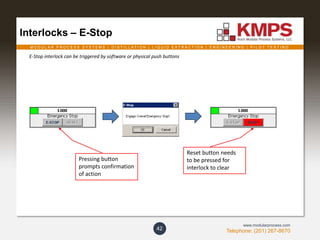
Interlocks – E-Stop
42
E-Stop interlock can be triggered by software or physical push buttons
Pressing button
prompts confirmation
of action
Reset button needs
to be pressed for
interlock to clear
M O D U L A R P R O C E S S S Y S T E M S | D I S T I L L A T I O N | L I Q U I D E X T R A C T I O N | E N G I N E E R I N G | P I L O T T E S T I N G
Telephone: (201) 267-8670
www.modularprocess.com
Interlocks – E-Stop
43
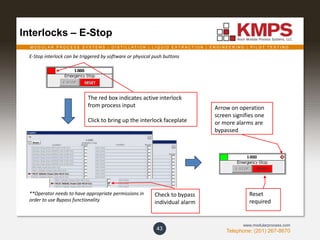
E-Stop interlock can be triggered by software or physical push buttons
The red box indicates active interlock
from process input
Click to bring up the interlock faceplate
Arrow on operation
screen signifies one
or more alarms are
bypassed
**Operator needs to have appropriate permissions in
order to use Bypass functionality
Check to bypass
individual alarm
Reset
required
M O D U L A R P R O C E S S S Y S T E M S | D I S T I L L A T I O N | L I Q U I D E X T R A C T I O N | E N G I N E E R I N G | P I L O T T E S T I N G
Telephone: (201) 267-8670
www.modularprocess.com
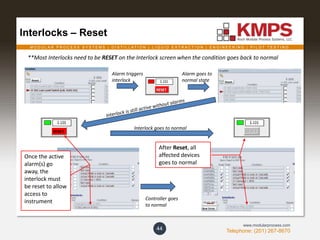
**Most Interlocks need to be RESET on the Interlock screen when the condition goes back to normal
Interlocks – Reset
44
Alarm triggers
interlock
Controller goes
to normal
Alarm goes to
normal state
Once the active
alarm(s) go
away, the
interlock must
be reset to allow
access to
instrument
Interlock goes to normal
After Reset, all
affected devices
goes to normal
M O D U L A R P R O C E S S S Y S T E M S | D I S T I L L A T I O N | L I Q U I D E X T R A C T I O N | E N G I N E E R I N G | P I L O T T E S T I N G
Telephone: (201) 267-8670
www.modularprocess.com
Interlocks – Reset Animation Summary
45
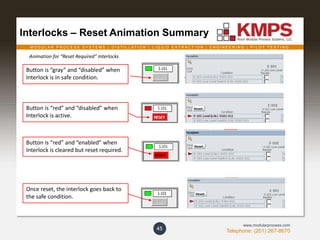
Button is “gray” and “disabled” when
Interlock is in safe condition.
Button is “red” and “disabled” when
Interlock is active.
Button is “red” and “enabled” when
Interlock is cleared but reset required.
Animation for “Reset Required” Interlocks
Once reset, the interlock goes back to
the safe condition.
M O D U L A R P R O C E S S S Y S T E M S | D I S T I L L A T I O N | L I Q U I D E X T R A C T I O N | E N G I N E E R I N G | P I L O T T E S T I N G
Telephone: (201) 267-8670
www.modularprocess.com
Interlocks – New Alarm (NALM)
46
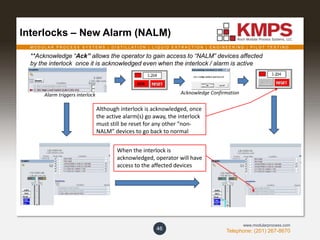
**Acknowledge “Ack” allows the operator to gain access to “NALM” devices affected
by the interlock once it is acknowledged even when the interlock / alarm is active
Alarm triggers interlock Acknowledge Confirmation
Although interlock is acknowledged, once
the active alarm(s) go away, the interlock
must still be reset for any other “non-
NALM” devices to go back to normal
When the interlock is
acknowledged, operator will have
access to the affected devices
M O D U L A R P R O C E S S S Y S T E M S | D I S T I L L A T I O N | L I Q U I D E X T R A C T I O N | E N G I N E E R I N G | P I L O T T E S T I N G
Telephone: (201) 267-8670
www.modularprocess.com
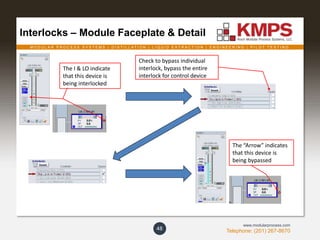
Once “ACK” button is hit, it becomes
“gray”/”disabled“. (NOTE: While the
interlock is still active, those devices with
(NALM) will now have access.)
Interlocks – NALM Animation Summary
47
Buttons are “gray” and “disabled” when
Interlock is in safe condition.
“ACK” button is “red”/“enabled” and
“Reset” button is “red”/”disabled” when
interlock is active.
Animation for “New Alarm Parameter” Interlocks
“Reset” button is “red” and “enabled” when
Interlock is cleared but reset required.
If interlock goes away prior to “ACK” button
being pushed, individual (NALM) devices
can be accessed without hitting the “Reset”
button.
M O D U L A R P R O C E S S S Y S T E M S | D I S T I L L A T I O N | L I Q U I D E X T R A C T I O N | E N G I N E E R I N G | P I L O T T E S T I N G
Telephone: (201) 267-8670
www.modularprocess.com
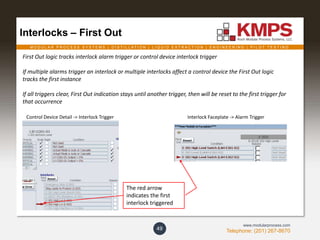
Interlocks – Module Faceplate & Detail
48
Check to bypass individual
interlock, bypass the entire
interlock for control device
The I & LO indicate
that this device is
being interlocked
The “Arrow” indicates
that this device is
being bypassed
M O D U L A R P R O C E S S S Y S T E M S | D I S T I L L A T I O N | L I Q U I D E X T R A C T I O N | E N G I N E E R I N G | P I L O T T E S T I N G
Telephone: (201) 267-8670
www.modularprocess.com
Interlocks – First Out
49
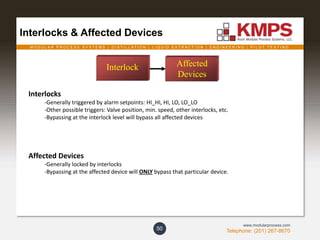
First Out logic tracks interlock alarm trigger or control device interlock trigger
If multiple alarms trigger an interlock or multiple interlocks affect a control device the First Out logic
tracks the first instance
If all triggers clear, First Out indication stays until another trigger, then will be reset to the first trigger for
that occurrence
Interlock Faceplate -> Alarm TriggerControl Device Detail -> Interlock Trigger
The red arrow
indicates the first
interlock triggered
M O D U L A R P R O C E S S S Y S T E M S | D I S T I L L A T I O N | L I Q U I D E X T R A C T I O N | E N G I N E E R I N G | P I L O T T E S T I N G
Telephone: (201) 267-8670
www.modularprocess.com
Interlocks & Affected Devices
50
Interlocks
-Generally triggered by alarm setpoints: HI_HI, HI, LO, LO_LO
-Other possible triggers: Valve position, min. speed, other interlocks, etc.
-Bypassing at the interlock level will bypass all affected devices
Affected Devices
-Generally locked by interlocks
-Bypassing at the affected device will ONLY bypass that particular device.
Interlock Affected
Devices
M O D U L A R P R O C E S S S Y S T E M S | D I S T I L L A T I O N | L I Q U I D E X T R A C T I O N | E N G I N E E R I N G | P I L O T T E S T I N G
Telephone: (201) 267-8670
www.modularprocess.com
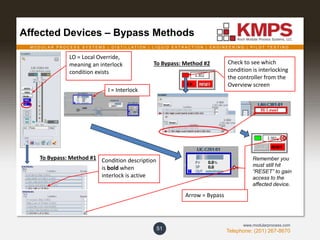
Affected Devices – Bypass Methods
51
To Bypass: Method #1
Check to see which
condition is interlocking
the controller from the
Overview screen
To Bypass: Method #2
Arrow = Bypass
LO = Local Override,
meaning an interlock
condition exists
I = Interlock
Condition description
is bold when
interlock is active
Remember you
must still hit
“RESET” to gain
access to the
affected device.
M O D U L A R P R O C E S S S Y S T E M S | D I S T I L L A T I O N | L I Q U I D E X T R A C T I O N | E N G I N E E R I N G | P I L O T T E S T I N G
Telephone: (201) 267-8670
www.modularprocess.com
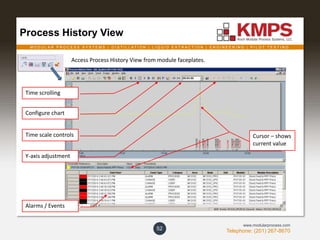
Process History View
52
Access Process History View from module faceplates.
Time scrolling
Configure chart
Time scale controls
Y-axis adjustment
Alarms / Events
Cursor – shows
current value
M O D U L A R P R O C E S S S Y S T E M S | D I S T I L L A T I O N | L I Q U I D E X T R A C T I O N | E N G I N E E R I N G | P I L O T T E S T I N G
Telephone: (201) 267-8670
www.modularprocess.com
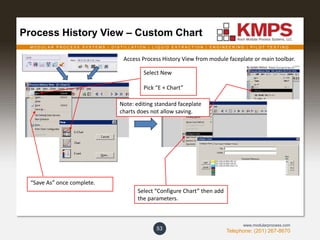
Process History View – Custom Chart
53
Access Process History View from module faceplate or main toolbar.
Select New
Pick “E + Chart”
Select “Configure Chart” then add
the parameters.
“Save As” once complete.
Note: editing standard faceplate
charts does not allow saving.
M O D U L A R P R O C E S S S Y S T E M S | D I S T I L L A T I O N | L I Q U I D E X T R A C T I O N | E N G I N E E R I N G | P I L O T T E S T I N G
Telephone: (201) 267-8670
www.modularprocess.com
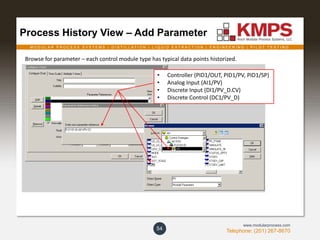
Process History View – Add Parameter
54
Browse for parameter – each control module type has typical data points historized.
• Controller (PID1/OUT, PID1/PV, PID1/SP)
• Analog Input (AI1/PV)
• Discrete Input (DI1/PV_D.CV)
• Discrete Control (DC1/PV_D)
M O D U L A R P R O C E S S S Y S T E M S | D I S T I L L A T I O N | L I Q U I D E X T R A C T I O N | E N G I N E E R I N G | P I L O T T E S T I N G
Telephone: (201) 267-8670
www.modularprocess.com
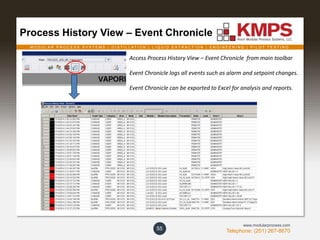
Process History View – Event Chronicle
55
Access Process History View – Event Chronicle from main toolbar
Event Chronicle logs all events such as alarm and setpoint changes.
Event Chronicle can be exported to Excel for analysis and reports.
M O D U L A R P R O C E S S S Y S T E M S | D I S T I L L A T I O N | L I Q U I D E X T R A C T I O N | E N G I N E E R I N G | P I L O T T E S T I N G
Telephone: (201) 267-8670
www.modularprocess.com
DeltaV Operator Training
56
THE END

DeltaV Operator Training

  • 1.
    DeltaV Operator Training Areference guide to DeltaV DCS controls and operation. 45 Eisenhower Drive, Suite 350, Paramus, NJ 07652 | Tel: (201) 267-8670 | Fax: (201) 368-8989 | www.modularprocess.com
  • 2.
    M O DU L A R P R O C E S S S Y S T E M S | D I S T I L L A T I O N | L I Q U I D E X T R A C T I O N | E N G I N E E R I N G | P I L O T T E S T I N G Telephone: (201) 267-8670 www.modularprocess.com Overview Screen 2 Toolbar Navigation buttons Equipment groups can be clicked to navigate to its Operation screen Legend Username logged in Display Tag Toggle Process variables can be viewed and faceplates accessed from Overview screens but there is no access to controls; use Operation screens for process control Emergency Stop Button Interlock screen Red = Interlock Active Opens PID/PFD
  • 3.
    M O DU L A R P R O C E S S S Y S T E M S | D I S T I L L A T I O N | L I Q U I D E X T R A C T I O N | E N G I N E E R I N G | P I L O T T E S T I N G Telephone: (201) 267-8670 www.modularprocess.com Screen Navigation 3 On the Overview screens equipment groups are clickable to allow the operator to access to a specific Operation screen The left and right arrows on the upper left of every Operation screen allows the operator to move to the previous and next page Operation screens follow the order on the Overview screens The up arrow goes to the Overview screen for the area Equipment detail summary by clicking on equipment tag Full equipment detail specification by clicking on “DWG” button
  • 4.
    M O DU L A R P R O C E S S S Y S T E M S | D I S T I L L A T I O N | L I Q U I D E X T R A C T I O N | E N G I N E E R I N G | P I L O T T E S T I N G Telephone: (201) 267-8670 www.modularprocess.com Legend 4
  • 5.
    M O DU L A R P R O C E S S S Y S T E M S | D I S T I L L A T I O N | L I Q U I D E X T R A C T I O N | E N G I N E E R I N G | P I L O T T E S T I N G Telephone: (201) 267-8670 www.modularprocess.com Interlock Overview 5
  • 6.
    M O DU L A R P R O C E S S S Y S T E M S | D I S T I L L A T I O N | L I Q U I D E X T R A C T I O N | E N G I N E E R I N G | P I L O T T E S T I N G Telephone: (201) 267-8670 www.modularprocess.com Sample Operation Screen 6 Light grey arrow flags do not have Operation screen links. Click on the dark arrow flags to navigate to specified screen. “S” when instrument is in simulate mode – only for testing/training. Click on equipment number to access equipment information Clicking on dynamo will brings up the referenced faceplates. Level indication bar Alarm banner Opens PID/PFD Opens Equipment Drawings
  • 7.
    M O DU L A R P R O C E S S S Y S T E M S | D I S T I L L A T I O N | L I Q U I D E X T R A C T I O N | E N G I N E E R I N G | P I L O T T E S T I N G Telephone: (201) 267-8670 www.modularprocess.com Main Toolbar 7 DeltaV’s online help options Toolbar Help Summary
  • 8.
    M O DU L A R P R O C E S S S Y S T E M S | D I S T I L L A T I O N | L I Q U I D E X T R A C T I O N | E N G I N E E R I N G | P I L O T T E S T I N G Telephone: (201) 267-8670 www.modularprocess.com Module Faceplate 8 Clicking on dynamo from Operation screen Three ways to open control module faceplate. Enter the control module tag Multiple Faceplates can be opened at one time (up to 4 Faceplates of each type) by using the thumb tack function on the upper left of every Faceplate Display Selector moves faceplate/detail to selected monitor The search function automatically finds the best matched tag as it is being filled Enter the control module tagToolbar icons The module Faceplate is the main action and information graphic
  • 9.
    M O DU L A R P R O C E S S S Y S T E M S | D I S T I L L A T I O N | L I Q U I D E X T R A C T I O N | E N G I N E E R I N G | P I L O T T E S T I N G Telephone: (201) 267-8670 www.modularprocess.com Module Faceplate 9 Process Historian Control Studio – engineering function Primary Control or Operation screen Detail faceplate Acknowledge alarm Trend – live data only, not full historical data
  • 10.
    M O DU L A R P R O C E S S S Y S T E M S | D I S T I L L A T I O N | L I Q U I D E X T R A C T I O N | E N G I N E E R I N G | P I L O T T E S T I N G Telephone: (201) 267-8670 www.modularprocess.com Module Detail Faceplate 10 Enter the control module tag Clicking detail button from a faceplate Alarm details Alarm limits Analog values can be simulated for testing Three ways to open control module detail. Detail faceplate provides expanded information not found on the standard module Faceplate Enter the control module tag Toolbar icons
  • 11.
    M O DU L A R P R O C E S S S Y S T E M S | D I S T I L L A T I O N | L I Q U I D E X T R A C T I O N | E N G I N E E R I N G | P I L O T T E S T I N G Telephone: (201) 267-8670 www.modularprocess.com Analog Inputs 11 Arrows indicate alarm location & type: Yellow = Warning Red = Critical Purple = Advisory Blue = Suppressed Open Conditional Alarming detail Conditional Alarming detail faceplate is for alarm delays and hysteresis – not process alarm conditionals as indicated in the Condition boxes on Detail faceplate
  • 12.
    M O DU L A R P R O C E S S S Y S T E M S | D I S T I L L A T I O N | L I Q U I D E X T R A C T I O N | E N G I N E E R I N G | P I L O T T E S T I N G Telephone: (201) 267-8670 www.modularprocess.com Analog Dynamo 12 Combination Bar Graph The combination bar graph presents PID and AI information graphically, relative to the defined high and low scale defined in the dynamo. The combination bar graph indicates the relative values of PV, SP, SP_WRK, and alarm limits (when the corresponding alarm is enabled), based on the scaled range. Control Loop (PID) Analog Input (AI)
  • 13.
    M O DU L A R P R O C E S S S Y S T E M S | D I S T I L L A T I O N | L I Q U I D E X T R A C T I O N | E N G I N E E R I N G | P I L O T T E S T I N G Telephone: (201) 267-8670 www.modularprocess.com Analog Dynamo – Bar Graph 13 Comparison of PV and SP - Shape recognition is used to aid detection. When PV is equal to SP, the PV bar touches the perpendicular SP bar, forming a 'T'. If the PV is above SP, a 't' is shown. Knowing these shapes allows the operator scan a display and quickly know how PV and SP compare. Comparison of PV and SP to SP_WRK - When SP_WRK is different from SP, it is shown on the bar graph. This allows operators to recognize the situation where PV is not equal to SP because SP_WRK is active and the currently displayed SP value is not being used by the module. PV and SP relative range - Operators are shown PV and SP are at the appropriate place in range. By default, the full 0 - 100% PV_Scale (OUT_SCALE for AI) range is shown in the graph. For process values such as temperature or pH where operation is required within a small percentage of the overall range, the bar graph can be defined with a partial range. PV and SP value relative to alarm limits - HI, HIHI, LO and LOLO Alarm limits are shown on the bar graph. If the PV or SP is near an alarm limit, the operator can determine this from the combination bar graph. The indication of these alarm locations is shown subtly (such as in grays), providing alarm limit information without being distracting or creating excessive visual clutter.
  • 14.
    M O DU L A R P R O C E S S S Y S T E M S | D I S T I L L A T I O N | L I Q U I D E X T R A C T I O N | E N G I N E E R I N G | P I L O T T E S T I N G Telephone: (201) 267-8670 www.modularprocess.com Dynamo – DeltaV Books Online Help 14
  • 15.
    M O DU L A R P R O C E S S S Y S T E M S | D I S T I L L A T I O N | L I Q U I D E X T R A C T I O N | E N G I N E E R I N G | P I L O T T E S T I N G Telephone: (201) 267-8670 www.modularprocess.com Discrete Input – Process Switches 15 Switch in “Alarm” when the field value is equal to the alarm state Sim Enable and Sim Value are to simulate the switch value for testing purposes Switch in “Normal” process condition when the field value does NOT equal the alarm state
  • 16.
    M O DU L A R P R O C E S S S Y S T E M S | D I S T I L L A T I O N | L I Q U I D E X T R A C T I O N | E N G I N E E R I N G | P I L O T T E S T I N G Telephone: (201) 267-8670 www.modularprocess.com Discrete Control Devices – On/Off Valve 16 Valve Demand / Setpoint (SP) - input from operator Operator command buttons Valve process variable (PV) - from limit switches (if applicable) If there are no limit switches, the valve PV tracks the SP PV indication by valve color. SP (Top) and PV (bottom/body) Indication
  • 17.
    M O DU L A R P R O C E S S S Y S T E M S | D I S T I L L A T I O N | L I Q U I D E X T R A C T I O N | E N G I N E E R I N G | P I L O T T E S T I N G Telephone: (201) 267-8670 www.modularprocess.com Discrete Control Devices - Motor 17 Motor setpoint (SP) – demand from operator Motor process variable (PV) – from MCC run confirm Three other possible scenarios Warning alarm - setpoint and feedback do not match, refer to Fail Alarm and Device State SP (inside color) and PV (outside color) IndicationThe word indicates current PV
  • 18.
    M O DU L A R P R O C E S S S Y S T E M S | D I S T I L L A T I O N | L I Q U I D E X T R A C T I O N | E N G I N E E R I N G | P I L O T T E S T I N G Telephone: (201) 267-8670 www.modularprocess.com Discrete Control Devices - HOA 18 Motors with HOA must switch to “AUTO” in field. Pump motor locked due to HOA switch to “LOCAL” in field
  • 19.
    M O DU L A R P R O C E S S S Y S T E M S | D I S T I L L A T I O N | L I Q U I D E X T R A C T I O N | E N G I N E E R I N G | P I L O T T E S T I N G Telephone: (201) 267-8670 www.modularprocess.com Motor with Power Monitor Alarm 19 Power monitor alarm indication Red – Active PM alarm Green– Inactive PM alarm Most motors (including VFDs) will have the power monitor alarm indication
  • 20.
    M O DU L A R P R O C E S S S Y S T E M S | D I S T I L L A T I O N | L I Q U I D E X T R A C T I O N | E N G I N E E R I N G | P I L O T T E S T I N G Telephone: (201) 267-8670 www.modularprocess.com Variable Frequency Drives (2-States) 20 VFD Demand / Setpoint (SP) – input from operator Operator command buttons Speed PV, Current PV and Power PV from VFD feedback Process variable (PV) – from VFD Speed SP to VFD (via controller faceplate only) 2-States VFD: Forward and Stop
  • 21.
    M O DU L A R P R O C E S S S Y S T E M S | D I S T I L L A T I O N | L I Q U I D E X T R A C T I O N | E N G I N E E R I N G | P I L O T T E S T I N G Telephone: (201) 267-8670 www.modularprocess.com Variable Frequency Drives - Alarming 21 FAIL_ALM PV does not match SP FAIL_ALM Press STOP following FAIL_ALM Ack VFD_FLT_ALM VFD Faulted. Reset req’d.
  • 22.
    M O DU L A R P R O C E S S S Y S T E M S | D I S T I L L A T I O N | L I Q U I D E X T R A C T I O N | E N G I N E E R I N G | P I L O T T E S T I N G Telephone: (201) 267-8670 www.modularprocess.com Variable Frequency Drives - Detail 22 Permissive and Interlocks with Bypass Alarm and Feedback Limits VFD Discrete Status VFD Command and Status Information, Last Fault Code and Diagnostic Manual Green – Good Status Red – Bad Status Gray – Info Status
  • 23.
    M O DU L A R P R O C E S S S Y S T E M S | D I S T I L L A T I O N | L I Q U I D E X T R A C T I O N | E N G I N E E R I N G | P I L O T T E S T I N G Telephone: (201) 267-8670 www.modularprocess.com Variable Frequency Drives - Detail 23 VFD is CFD “Change From Normal” Alarm indicates a fault state VFD Fault must be reset Green – Good Status Red – Bad Status Gray – Info Status
  • 24.
    M O DU L A R P R O C E S S S Y S T E M S | D I S T I L L A T I O N | L I Q U I D E X T R A C T I O N | E N G I N E E R I N G | P I L O T T E S T I N G Telephone: (201) 267-8670 www.modularprocess.com Discrete Control Devices – On/Off Valve 24 Modes AUTO = Manual / Operator CAS = Remote / Sequence CAS mode is used when valve SP is being driven from an external sequence or control loop The operator demands are disabled when Mode = CAS (For Actuated Valves AND Motors) On/Off Control Loop Blue box indicates when it is not in its normal mode
  • 25.
    M O DU L A R P R O C E S S S Y S T E M S | D I S T I L L A T I O N | L I Q U I D E X T R A C T I O N | E N G I N E E R I N G | P I L O T T E S T I N G Telephone: (201) 267-8670 www.modularprocess.com Discrete Control Devices – On/Off Valve 25 Custom Faceplate (XV-T107-01 setpoint is being driven by LAH/LAL-T107-01 in CAS mode.) On/Off setpoint values are locked for discrete On/Off Valves High = 1 & Low = 0 Current process variable of Setpoint device (LAH/LAL-T107-01) Current valve position (PV) Cascading setpoint Valve Mode can be accessed on custom controller faceplate LAH-T107-01: Opens XV-T107-01 LAL-T107-01: Closes XV-T107-01
  • 26.
    M O DU L A R P R O C E S S S Y S T E M S | D I S T I L L A T I O N | L I Q U I D E X T R A C T I O N | E N G I N E E R I N G | P I L O T T E S T I N G Telephone: (201) 267-8670 www.modularprocess.com Discrete Control Devices – Other Details 26 Actuated On/Off Valves & Motors Sets Process Variable = Setpoint until Setpoint is changed Used to force the requested state as confirmed without actual feedback The parameter resets when Setpoint changes Interlock indication and bypasses Valve/motor actuation time limits (change of state) Field I/O
  • 27.
    M O DU L A R P R O C E S S S Y S T E M S | D I S T I L L A T I O N | L I Q U I D E X T R A C T I O N | E N G I N E E R I N G | P I L O T T E S T I N G Telephone: (201) 267-8670 www.modularprocess.com Control Loop Operation 27 Faceplate & Dynamo 0% < Output ≤ 2% = Light Gray Output > 2% = Dark Gray Yellow = Process Variable (PV) Cyan = Output White = Setpoint (SP) Click the control valve or controller dynamo to open up control loop faceplate All flow control loop SP tracks PV in MAN mode Blue box can indicate when it is not in its normal mode Blue box goes away once in its normal mode (AUTO)
  • 28.
    M O DU L A R P R O C E S S S Y S T E M S | D I S T I L L A T I O N | L I Q U I D E X T R A C T I O N | E N G I N E E R I N G | P I L O T T E S T I N G Telephone: (201) 267-8670 www.modularprocess.com Control Loop Operation - Modes 28 Controller CANNOT be in Local Override (LO) to be able to make any setpoint or output changes in any modes (LO = Interlock) Operator sets output in MAN mode The control loop mode can be changed either AUTO or MAN Setpoint and Output can be change with arrows: 1 click = 1 EU EU = Engineering Unit OOS = Out Of Service Setpoint can be changed by dragging or clicking on the white arrow box When a control Loop is in MAN operator adjusts the output, when in AUTO operator adjusts the setpoint.
  • 29.
    M O DU L A R P R O C E S S S Y S T E M S | D I S T I L L A T I O N | L I Q U I D E X T R A C T I O N | E N G I N E E R I N G | P I L O T T E S T I N G Telephone: (201) 267-8670 www.modularprocess.com Control Loop Operation – SP Tracking 29 Setpoint Tracking When a control Loop is in MAN the setpoint tracks the current process variable and the setpoint cannot be changed unless mode is AUTO With Setpoint Tracking Without Setpoint Tracking SP tracks the PV in MAN mode The setpoint can only be changed in AUTO mode The SP can be changed in MAN or AUTO mode
  • 30.
    M O DU L A R P R O C E S S S Y S T E M S | D I S T I L L A T I O N | L I Q U I D E X T R A C T I O N | E N G I N E E R I N G | P I L O T T E S T I N G Telephone: (201) 267-8670 www.modularprocess.com Control Loop Operation – Detail 30 Interlock(s) associated with device Interlock bypass Interlock first out reset First out indication Tuning parameters Ramp rates Characterization (valve linearization)
  • 31.
    M O DU L A R P R O C E S S S Y S T E M S | D I S T I L L A T I O N | L I Q U I D E X T R A C T I O N | E N G I N E E R I N G | P I L O T T E S T I N G Telephone: (201) 267-8670 www.modularprocess.com Control Loop Operation – SP Ramping 31 The setpoint ramp function will allow the setpoint to be changed at a specific rate (EU/S) SP ramp in engineering unit per second Working SP The active dynamic setpoint (Working SP) will slowly ramp (up/down) towards target SP SP Ramp enable (SP ramp rate will only propagate when enabled) Target SP
  • 32.
    M O DU L A R P R O C E S S S Y S T E M S | D I S T I L L A T I O N | L I Q U I D E X T R A C T I O N | E N G I N E E R I N G | P I L O T T E S T I N G Telephone: (201) 267-8670 www.modularprocess.com Control Loop Operation - Cascade 32 Slave or Secondary Master or Primary CAS link line turns solid when loop is in CAS mode. A cascade control scheme involves two control loops that use two measurement signals to control one primary variable. The output of the primary (master) controller determines the setpoint for the secondary (slave) controller. The output of the secondary controller is used to adjust the control variable. Generally, the secondary controller changes quickly while the primary controller changes slowly.
  • 33.
    M O DU L A R P R O C E S S S Y S T E M S | D I S T I L L A T I O N | L I Q U I D E X T R A C T I O N | E N G I N E E R I N G | P I L O T T E S T I N G Telephone: (201) 267-8670 www.modularprocess.com Control Loop Operation - Cascade 33 Secondary loop will be only be affected by the Primary loop in CAS mode Once the Secondary loop is in CAS, the Primary loop will go to AUTO CAS button puts the whole loop into cascade mode Once in CAS mode, the setpoint of the Secondary loop will track the output of the master loop Operator controls setpoint from cascade Primary loop When not in cascade, the output of the Primary tracks the setpoint of the Secondary
  • 34.
    M O DU L A R P R O C E S S S Y S T E M S | D I S T I L L A T I O N | L I Q U I D E X T R A C T I O N | E N G I N E E R I N G | P I L O T T E S T I N G Telephone: (201) 267-8670 www.modularprocess.com Control Loop Operation - Other 34 Output Characterization Controller output characterized to suit different process needs – typically to linearize flow over controller output. Operator can Enable/Disable Characterization The controller’s output can be characterized by changing the Data on Curve X and Curve Y: X-curve: output from the PID Y-curve: input to the Analog Out (valve % open) No Characterization Characterized Output Vs The valve % open are different even though the controller output is at 25%
  • 35.
    M O DU L A R P R O C E S S S Y S T E M S | D I S T I L L A T I O N | L I Q U I D E X T R A C T I O N | E N G I N E E R I N G | P I L O T T E S T I N G Telephone: (201) 267-8670 www.modularprocess.com Alarm/Interlock – Overview Flow Chart 35 Measuring Instrument Alarm Interlock Affected Devices Bypass Alarm inside Interlock and all Affected Devices bypass the Alarm/Interlock Bypass Interlock inside the Affected Device and whole Interlock is bypassed but only for that device
  • 36.
    M O DU L A R P R O C E S S S Y S T E M S | D I S T I L L A T I O N | L I Q U I D E X T R A C T I O N | E N G I N E E R I N G | P I L O T T E S T I N G Telephone: (201) 267-8670 www.modularprocess.com Alarm – Faceplate & Details 36 Alarm Trip Values Alarm Priority Setup Analog: Discrete: Warning Alarm Icon Critical Alarm Icon Alarm Suppression – interlocks still occur from suppressed alarms. Suppressing a process alarm removes it from the Alarm Banner and Alarm List pictures. Alarm Enable
  • 37.
    M O DU L A R P R O C E S S S Y S T E M S | D I S T I L L A T I O N | L I Q U I D E X T R A C T I O N | E N G I N E E R I N G | P I L O T T E S T I N G Telephone: (201) 267-8670 www.modularprocess.com Module Detail – Alarm Conditionals 37 The Condition boxes indicates alarm conditional state Alarm condition description “Not Used” if no conditional present Unchecked = Conditional met / alarm will be active Checked = Conditional not met / alarm will not be active Example: Controller deviation alarms active only if controller is in Automatic or Cascade, i.e. not in Manual Dev Alarm NOT enabled Dev Alarm enabled
  • 38.
    M O DU L A R P R O C E S S S Y S T E M S | D I S T I L L A T I O N | L I Q U I D E X T R A C T I O N | E N G I N E E R I N G | P I L O T T E S T I N G Telephone: (201) 267-8670 www.modularprocess.com Alarm List View 38 Time of occurrence Type of alarm triggered Shows which control module the alarm originates from Total and unacknowledged alarmsAlarm message Alarm Priority Alarm acknowledgement Acknowledge all alarms Control module description Open box indicates alarm condition has cleared but alarm still needs to be acknowledged
  • 39.
    M O DU L A R P R O C E S S S Y S T E M S | D I S T I L L A T I O N | L I Q U I D E X T R A C T I O N | E N G I N E E R I N G | P I L O T T E S T I N G Telephone: (201) 267-8670 www.modularprocess.com Alarm Acknowledging 39 Alarm indication Blinking icon = Unacknowledged Solid icon = Acknowledged and active From the alarm list or faceplate, each alarm can be acknowledged by checking the box Acknowledge Button Click on the acknowledge button to acknowledge all the alarm for that specific module The alarm will stop blinking once it is acknowledged
  • 40.
    M O DU L A R P R O C E S S S Y S T E M S | D I S T I L L A T I O N | L I Q U I D E X T R A C T I O N | E N G I N E E R I N G | P I L O T T E S T I N G Telephone: (201) 267-8670 www.modularprocess.com Alarm Banner 40 Alarms are shown in the alarm banner in priority order, with the most recent, highest priority alarm on the left. The Alarm Banner is reserved for the highest priority alarms. The importance of an alarm is determined by the following criteria: • Unacknowledged alarms are more important than acknowledged alarms. • For alarms with equal acknowledgement status, the priority (CRITICAL, WARNING, and ADVISORY) determines the importance. CRITICAL is the most important and ADVISORY is the least important. • For alarms with equal acknowledgement status and equal status, the controller uses the timestamp to determine the importance. The most recent alarms are the most important. Yellow = Warning Red = Critical Click on “i” to for quick display of expanded alarm information at bottom of banner Acknowledge all alarms on current Operation screen
  • 41.
    M O DU L A R P R O C E S S S Y S T E M S | D I S T I L L A T I O N | L I Q U I D E X T R A C T I O N | E N G I N E E R I N G | P I L O T T E S T I N G Telephone: (201) 267-8670 www.modularprocess.com Interlocks – Faceplate 41 Click on interlock number box to bring up detailed interlock action description Click on interlock indication box to bring up detailed interlock faceplate
  • 42.
    M O DU L A R P R O C E S S S Y S T E M S | D I S T I L L A T I O N | L I Q U I D E X T R A C T I O N | E N G I N E E R I N G | P I L O T T E S T I N G Telephone: (201) 267-8670 www.modularprocess.com Interlocks – E-Stop 42 E-Stop interlock can be triggered by software or physical push buttons Pressing button prompts confirmation of action Reset button needs to be pressed for interlock to clear
  • 43.
    M O DU L A R P R O C E S S S Y S T E M S | D I S T I L L A T I O N | L I Q U I D E X T R A C T I O N | E N G I N E E R I N G | P I L O T T E S T I N G Telephone: (201) 267-8670 www.modularprocess.com Interlocks – E-Stop 43 E-Stop interlock can be triggered by software or physical push buttons The red box indicates active interlock from process input Click to bring up the interlock faceplate Arrow on operation screen signifies one or more alarms are bypassed **Operator needs to have appropriate permissions in order to use Bypass functionality Check to bypass individual alarm Reset required
  • 44.
    M O DU L A R P R O C E S S S Y S T E M S | D I S T I L L A T I O N | L I Q U I D E X T R A C T I O N | E N G I N E E R I N G | P I L O T T E S T I N G Telephone: (201) 267-8670 www.modularprocess.com **Most Interlocks need to be RESET on the Interlock screen when the condition goes back to normal Interlocks – Reset 44 Alarm triggers interlock Controller goes to normal Alarm goes to normal state Once the active alarm(s) go away, the interlock must be reset to allow access to instrument Interlock goes to normal After Reset, all affected devices goes to normal
  • 45.
    M O DU L A R P R O C E S S S Y S T E M S | D I S T I L L A T I O N | L I Q U I D E X T R A C T I O N | E N G I N E E R I N G | P I L O T T E S T I N G Telephone: (201) 267-8670 www.modularprocess.com Interlocks – Reset Animation Summary 45 Button is “gray” and “disabled” when Interlock is in safe condition. Button is “red” and “disabled” when Interlock is active. Button is “red” and “enabled” when Interlock is cleared but reset required. Animation for “Reset Required” Interlocks Once reset, the interlock goes back to the safe condition.
  • 46.
    M O DU L A R P R O C E S S S Y S T E M S | D I S T I L L A T I O N | L I Q U I D E X T R A C T I O N | E N G I N E E R I N G | P I L O T T E S T I N G Telephone: (201) 267-8670 www.modularprocess.com Interlocks – New Alarm (NALM) 46 **Acknowledge “Ack” allows the operator to gain access to “NALM” devices affected by the interlock once it is acknowledged even when the interlock / alarm is active Alarm triggers interlock Acknowledge Confirmation Although interlock is acknowledged, once the active alarm(s) go away, the interlock must still be reset for any other “non- NALM” devices to go back to normal When the interlock is acknowledged, operator will have access to the affected devices
  • 47.
    M O DU L A R P R O C E S S S Y S T E M S | D I S T I L L A T I O N | L I Q U I D E X T R A C T I O N | E N G I N E E R I N G | P I L O T T E S T I N G Telephone: (201) 267-8670 www.modularprocess.com Once “ACK” button is hit, it becomes “gray”/”disabled“. (NOTE: While the interlock is still active, those devices with (NALM) will now have access.) Interlocks – NALM Animation Summary 47 Buttons are “gray” and “disabled” when Interlock is in safe condition. “ACK” button is “red”/“enabled” and “Reset” button is “red”/”disabled” when interlock is active. Animation for “New Alarm Parameter” Interlocks “Reset” button is “red” and “enabled” when Interlock is cleared but reset required. If interlock goes away prior to “ACK” button being pushed, individual (NALM) devices can be accessed without hitting the “Reset” button.
  • 48.
    M O DU L A R P R O C E S S S Y S T E M S | D I S T I L L A T I O N | L I Q U I D E X T R A C T I O N | E N G I N E E R I N G | P I L O T T E S T I N G Telephone: (201) 267-8670 www.modularprocess.com Interlocks – Module Faceplate & Detail 48 Check to bypass individual interlock, bypass the entire interlock for control device The I & LO indicate that this device is being interlocked The “Arrow” indicates that this device is being bypassed
  • 49.
    M O DU L A R P R O C E S S S Y S T E M S | D I S T I L L A T I O N | L I Q U I D E X T R A C T I O N | E N G I N E E R I N G | P I L O T T E S T I N G Telephone: (201) 267-8670 www.modularprocess.com Interlocks – First Out 49 First Out logic tracks interlock alarm trigger or control device interlock trigger If multiple alarms trigger an interlock or multiple interlocks affect a control device the First Out logic tracks the first instance If all triggers clear, First Out indication stays until another trigger, then will be reset to the first trigger for that occurrence Interlock Faceplate -> Alarm TriggerControl Device Detail -> Interlock Trigger The red arrow indicates the first interlock triggered
  • 50.
    M O DU L A R P R O C E S S S Y S T E M S | D I S T I L L A T I O N | L I Q U I D E X T R A C T I O N | E N G I N E E R I N G | P I L O T T E S T I N G Telephone: (201) 267-8670 www.modularprocess.com Interlocks & Affected Devices 50 Interlocks -Generally triggered by alarm setpoints: HI_HI, HI, LO, LO_LO -Other possible triggers: Valve position, min. speed, other interlocks, etc. -Bypassing at the interlock level will bypass all affected devices Affected Devices -Generally locked by interlocks -Bypassing at the affected device will ONLY bypass that particular device. Interlock Affected Devices
  • 51.
    M O DU L A R P R O C E S S S Y S T E M S | D I S T I L L A T I O N | L I Q U I D E X T R A C T I O N | E N G I N E E R I N G | P I L O T T E S T I N G Telephone: (201) 267-8670 www.modularprocess.com Affected Devices – Bypass Methods 51 To Bypass: Method #1 Check to see which condition is interlocking the controller from the Overview screen To Bypass: Method #2 Arrow = Bypass LO = Local Override, meaning an interlock condition exists I = Interlock Condition description is bold when interlock is active Remember you must still hit “RESET” to gain access to the affected device.
  • 52.
    M O DU L A R P R O C E S S S Y S T E M S | D I S T I L L A T I O N | L I Q U I D E X T R A C T I O N | E N G I N E E R I N G | P I L O T T E S T I N G Telephone: (201) 267-8670 www.modularprocess.com Process History View 52 Access Process History View from module faceplates. Time scrolling Configure chart Time scale controls Y-axis adjustment Alarms / Events Cursor – shows current value
  • 53.
    M O DU L A R P R O C E S S S Y S T E M S | D I S T I L L A T I O N | L I Q U I D E X T R A C T I O N | E N G I N E E R I N G | P I L O T T E S T I N G Telephone: (201) 267-8670 www.modularprocess.com Process History View – Custom Chart 53 Access Process History View from module faceplate or main toolbar. Select New Pick “E + Chart” Select “Configure Chart” then add the parameters. “Save As” once complete. Note: editing standard faceplate charts does not allow saving.
  • 54.
    M O DU L A R P R O C E S S S Y S T E M S | D I S T I L L A T I O N | L I Q U I D E X T R A C T I O N | E N G I N E E R I N G | P I L O T T E S T I N G Telephone: (201) 267-8670 www.modularprocess.com Process History View – Add Parameter 54 Browse for parameter – each control module type has typical data points historized. • Controller (PID1/OUT, PID1/PV, PID1/SP) • Analog Input (AI1/PV) • Discrete Input (DI1/PV_D.CV) • Discrete Control (DC1/PV_D)
  • 55.
    M O DU L A R P R O C E S S S Y S T E M S | D I S T I L L A T I O N | L I Q U I D E X T R A C T I O N | E N G I N E E R I N G | P I L O T T E S T I N G Telephone: (201) 267-8670 www.modularprocess.com Process History View – Event Chronicle 55 Access Process History View – Event Chronicle from main toolbar Event Chronicle logs all events such as alarm and setpoint changes. Event Chronicle can be exported to Excel for analysis and reports.
  • 56.
    M O DU L A R P R O C E S S S Y S T E M S | D I S T I L L A T I O N | L I Q U I D E X T R A C T I O N | E N G I N E E R I N G | P I L O T T E S T I N G Telephone: (201) 267-8670 www.modularprocess.com DeltaV Operator Training 56 THE END