Tools to Help
Create a Book
Trailer
Created by Naomi Bates
Northwest HighSchool
2015
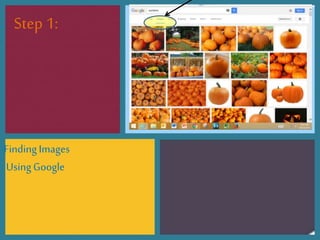
FindingImages
UsingGoogle
Step 1:
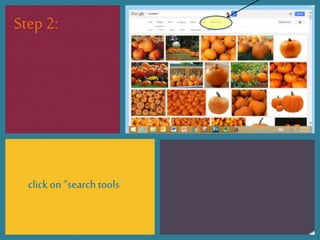
click on “search tools”
Step 2:
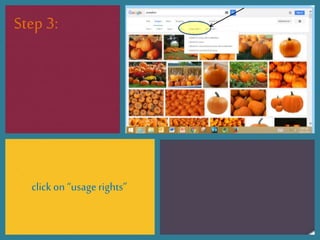
click on “usagerights”
Step 3:
choose “labeledfor non-
commericalreuse”
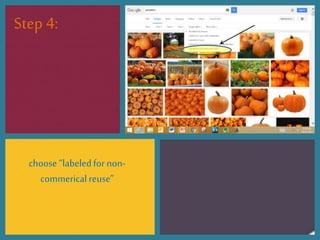
Step 4:
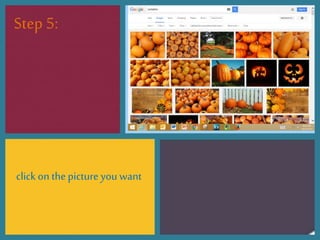
click on thepicture you want
Step 5:
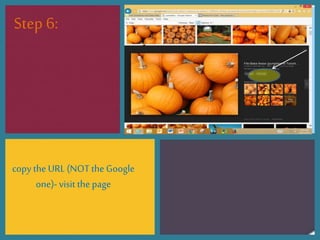
copy the URL(NOTthe Google
one)- visit the page
Step 6:
Whatto dowith
the URL?
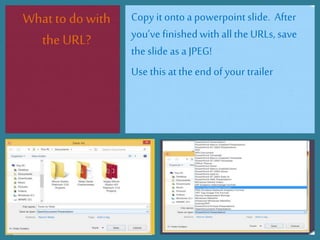
Copy it onto a powerpoint slide. After
you’ve finishedwith allthe URLs, save
the slide as a JPEG!
Use this atthe end of your trailer
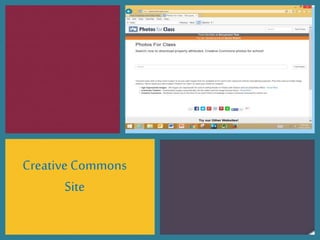
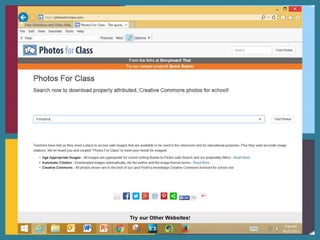
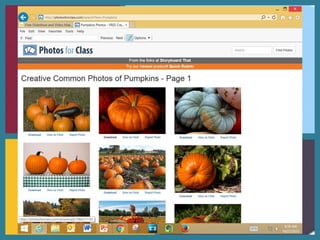
Creative Commons
Site
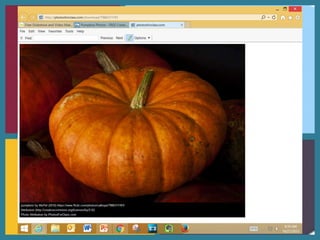
Save allphotos to a
folder you create on
your desktop…
Do NOT leave it
on the desktop
of the library
computers (they
will be deleted!)
Important
information
below!!
Move the
folder to either
your “h” drive
or your Google
Drive.
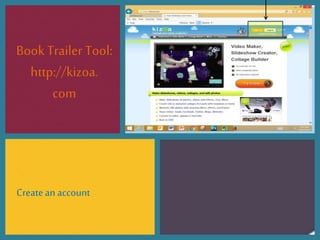
BookTrailer Tool:
http://kizoa.
com
Createan account
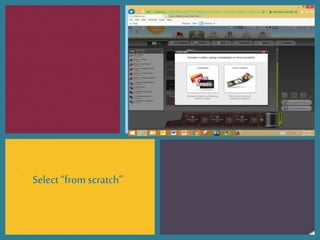
Select “from scratch”
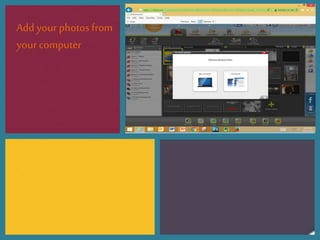
Add your photos from
your computer
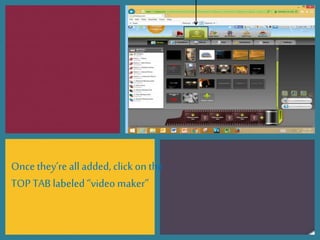
Once they’re all added, click on the
TOP TAB labeled “video maker”
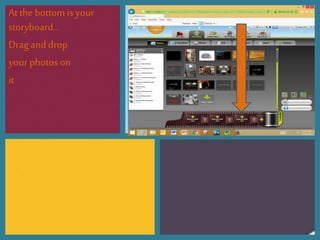
Atthe bottomisyour
storyboard…
Dragand drop
your photoson
it
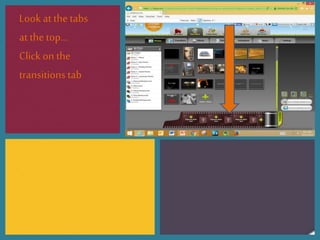
Look at thetabs
at thetop…
Clickon the
transitionstab
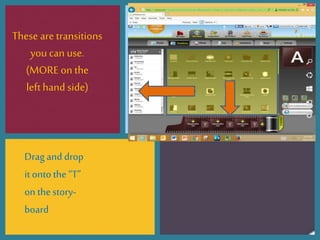
These are transitions
you can use.
(MORE on the
lefthand side)
Dragand drop
itontothe “T”
on thestory-
board
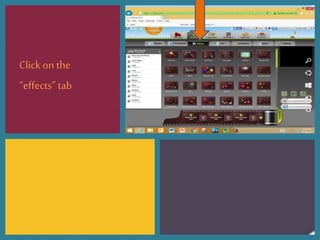
Click on the
“effects” tab
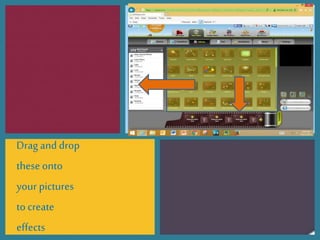
Drag and drop
theseonto
your pictures
to create
effects
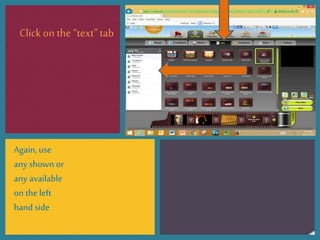
Click on the“text”tab
Again, use
any shown or
anyavailable
on the left
hand side
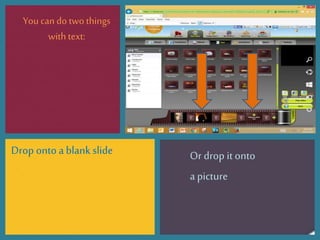
Youcando twothings
with text:
Drop onto a blank slide Or drop it onto
a picture
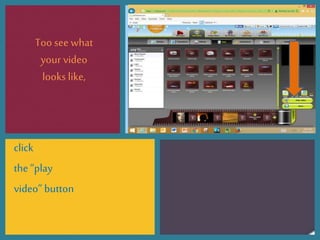
Too see what
your video
looks like,
click
the “play
video” button
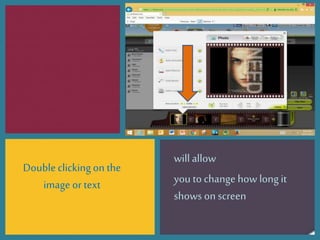
Doubleclickingon the
image or text
will allow
you to change how long it
shows on screen
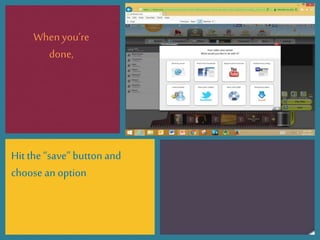
Whenyou’re
done,
Hit the“save” button and
choose an option

Creating a Book Trailer: images and webtools