Center for Research and Application for Satellite Remote Sensing
Yamaguchi University
Co-Registration of Small-Scale
Satellite Data
Introduction to small-scale satellites
Small-scale satellites
A small-scale satellites is a small satellite typically with a mass around 50 kilograms. It has a
shorter life cycle (few years), and low cost. These small-scale satellites may offer less
coverage of the earth at lower or medium spatial resolution, but they provides more
frequent image capture at a much lower cost. Thus, if we send a large number of small-scale
satellites into orbit, they will increase coverage of the Earth.
In 2014, more than ten small-scale satellites for remote sensing will make constellation, and
they will contribute to monitoring earth environment, such as natural resource management,
human settlements, environment conservation, natural disaster management.
Microsatellites have great potential as remote sensing platforms because of the cost-
effective implementation of satellite constellations and formations, which increase their
overall temporal resolution and ground coverage. However, microsatellites have many
limitations, such as:
1. Geometric distortion due to alignment, band to band registration, satellite orbit and
attitude, and projection conversation algorithm.
2. Shift between bands.
Limitations in use of small-satellites
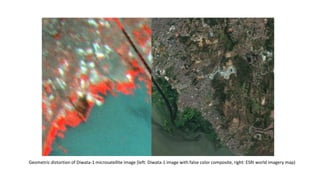
Geometric distortion of Diwata-1 microsatellite image (left: Diwata-1 image with false color composite, right: ESRI world imagery map)
Co-registration of Diwata satellite data to
Landsat data
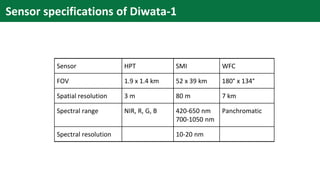
Sensor HPT SMI WFC
FOV 1.9 x 1.4 km 52 x 39 km 180° x 134°
Spatial resolution 3 m 80 m 7 km
Spectral range NIR, R, G, B 420-650 nm
700-1050 nm
Panchromatic
Spectral resolution 10-20 nm
Sensor specifications of Diwata-1
A guide to using satellite/microsatellite data
Diwata
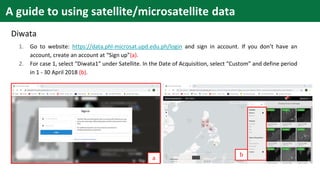
1. Go to website: https://data.phl-microsat.upd.edu.ph/login and sign in account. If you don’t have an
account, create an account at “Sign up”(a).
2. For case 1, select “Diwata1” under Satellite. In the Date of Acquisition, select “Custom” and define period
in 1 - 30 April 2018 (b).
a
b
A guide to using satellite/microsatellite data
Diwata
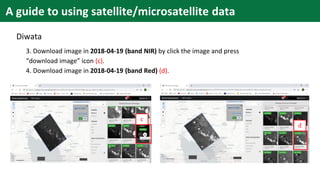
3. Download image in 2018-04-19 (band NIR) by click the image and press
“download image” icon (c).
4. Download image in 2018-04-19 (band Red) (d).
c
d
Diwata
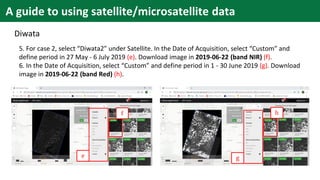
5. For case 2, select “Diwata2” under Satellite. In the Date of Acquisition, select “Custom” and
define period in 27 May - 6 July 2019 (e). Download image in 2019-06-22 (band NIR) (f).
6. In the Date of Acquisition, select “Custom” and define period in 1 - 30 June 2019 (g). Download
image in 2019-06-22 (band Red) (h).
e
f
g
h
A guide to using satellite/microsatellite data
Landsat
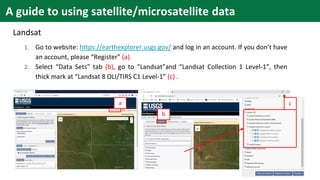
1. Go to website: https://earthexplorer.usgs.gov/ and log in an account. If you don’t have
an account, please “Register” (a).
2. Select “Data Sets” tab (b), go to “Landsat”and “Landsat Collection 1 Level-1”, then
thick mark at “Landsat 8 OLI/TIRS C1 Level-1” (c) .
a
b
c
A guide to using satellite/microsatellite data
Landsat
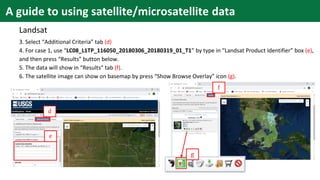
3. Select “Additional Criteria” tab (d)
4. For case 1, use “LC08_L1TP_116050_20180306_20180319_01_T1” by type in “Landsat Product Identifier” box (e),
and then press “Results” button below.
5. The data will show in “Results” tab (f).
6. The satellite image can show on basemap by press “Show Browse Overlay” icon (g).
d
e
f
g
A guide to using satellite/microsatellite data
Landsat
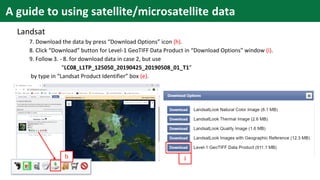
7. Download the data by press “Download Options” icon (h).
8. Click “Download” button for Level-1 GeoTIFF Data Product in “Download Options” window (i).
9. Follow 3. - 8. for download data in case 2, but use
“LC08_L1TP_125050_20190425_20190508_01_T1”
by type in “Landsat Product Identifier” box (e).
h i
A guide to using satellite/microsatellite data
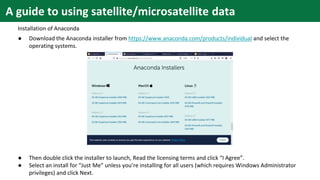
Installation of Anaconda
● Download the Anaconda installer from https://www.anaconda.com/products/individual and select the
operating systems.
● Then double click the installer to launch, Read the licensing terms and click “I Agree”.
● Select an install for “Just Me” unless you’re installing for all users (which requires Windows Administrator
privileges) and click Next.
conda create --name arosics
conda activate arosics
conda install -c conda-forge python numpy gdal scikit-image matplotlib
pyproj "shapely<=1.6.4" geopandas pandas cmocean
conda install -c conda-forge pyfftw
pip install arosics
python [installation path of Anaconda]envsarosicsScriptsarosics_cli.py
Installation of AROSICS and prerequisites
• Open Anaconda prompt
A guide to using satellite/microsatellite data
Layer stacking the Diwata data
Example:
● Stack output: The result name “XXXX.tif”
● NIR of Diwata:
[Path of Diwata NIR]D1_SMI_2018-04-19T073107096_N840.tif
● Red band of Diwata:
[Path of Diwata Red band]D1_SMI_2018-04-19T073107046_V670.tif
gdal_merge.py -o [stack output] -separate [NIR of Diwata] [Red band of
Diwata
A guide to using satellite/microsatellite data
Example:
● Reference Landsat:
[Path of Landsat
image]LC08_L1TP_116050_20180306_20180319_01_T1_B5.TIF
● Target Diwata image to be shifted:
[Path of Diwata image to be shifted]XXXX.tif
Coregistration by AROSICS
python [installation path of Anaconda]envsarosicsScriptsarosics_
cli.py local -nodata 0 0 -ws 1024 1024 -max_shift 300 -max_points 2000
-bs 1 -min_reliability 20 [reference Landsat] [target Diwata image to
be shifted] 1
A guide to using satellite/microsatellite data
NOTE: In case of [error message indicating different projection], it should be transform coordinate reference
system of the data by the command below.
gdalwarp -t_srs [Target CRS] -r cubic [input Diwata] [output transformed]
Example:
● Target CRS for Landsat data, such as EPSG:32648
● Input diwata:
[Path of input Diwata]D1_SMI_2018-04-19T073107096_N840_L1C.tif
● Output transformed:
[Path to collect output transformed]D1_SMI_2018-04-
19T073107096_N840_L1C.transformed.tif
A guide to using satellite/microsatellite data
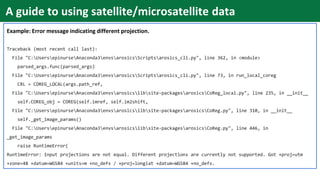
Example: Error message indicating different projection.
Traceback (most recent call last):
File "C:UsersepinurseAnaconda3envsarosicsScriptsarosics_cli.py", line 362, in <module>
parsed_args.func(parsed_args)
File "C:UsersepinurseAnaconda3envsarosicsScriptsarosics_cli.py", line 73, in run_local_coreg
CRL = COREG_LOCAL(args.path_ref,
File "C:UsersepinurseAnaconda3envsarosicslibsite-packagesarosicsCoReg_local.py", line 235, in __init__
self.COREG_obj = COREG(self.imref, self.im2shift,
File "C:UsersepinurseAnaconda3envsarosicslibsite-packagesarosicsCoReg.py", line 310, in __init__
self._get_image_params()
File "C:UsersepinurseAnaconda3envsarosicslibsite-packagesarosicsCoReg.py", line 446, in
_get_image_params
raise RuntimeError(
RuntimeError: Input projections are not equal. Different projections are currently not supported. Got +proj=utm
+zone=48 +datum=WGS84 +units=m +no_defs / +proj=longlat +datum=WGS84 +no_defs.
A guide to using satellite/microsatellite data
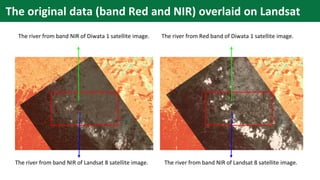
The river from band NIR of Diwata 1 satellite image.
The river from band NIR of Landsat 8 satellite image. The river from band NIR of Landsat 8 satellite image.
The river from Red band of Diwata 1 satellite image.
The original data (band Red and NIR) overlaid on Landsat
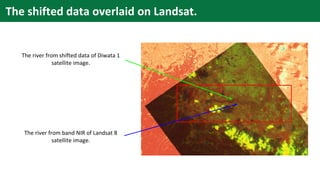
The river from shifted data of Diwata 1
satellite image.
The river from band NIR of Landsat 8
satellite image.
The shifted data overlaid on Landsat.
Co-registration of Hodoyoshi-1 satellite
data to ASTER data
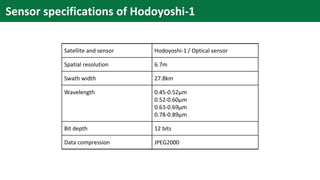
Satellite and sensor Hodoyoshi-1 / Optical sensor
Spatial resolution 6.7m
Swath width 27.8km
Wavelength 0.45-0.52µm
0.52-0.60µm
0.63-0.69µm
0.78-0.89µm
Bit depth 12 bits
Data compression JPEG2000
Sensor specifications of Hodoyoshi-1
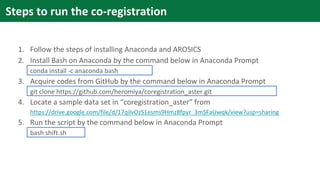
1. Follow the steps of installing Anaconda and AROSICS
2. Install Bash on Anaconda by the command below in Anaconda Prompt
conda install -c anaconda bash
3. Acquire codes from GitHub by the command below in Anaconda Prompt
git clone https://github.com/heromiya/coregistration_aster.git
4. Locate a sample data set in “coregistration_aster” from
https://drive.google.com/file/d/17qilvOzS1esms9Hmz8fpyr_3mSFaUwqk/view?usp=sharing
5. Run the script by the command below in Anaconda Prompt
bash shift.sh
Steps to run the co-registration
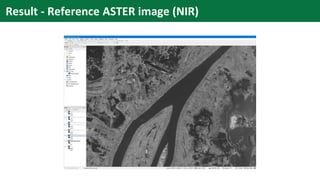
Result - Reference ASTER image (NIR)
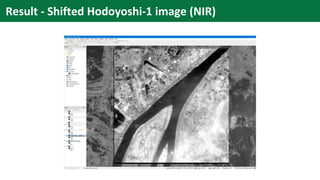
Result - Shifted Hodoyoshi-1 image (NIR)
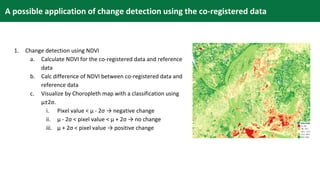
1. Change detection using NDVI
a. Calculate NDVI for the co-registered data and reference
data
b. Calc difference of NDVI between co-registered data and
reference data
c. Visualize by Choropleth map with a classification using
μ±2σ.
i. Pixel value < μ - 2σ → negative change
ii. μ - 2σ < pixel value < μ + 2σ → no change
iii. μ + 2σ < pixel value → positive change
A possible application of change detection using the co-registered data

Co-Registration of Small-Scale Satellite Data

  • 1.
    Center for Researchand Application for Satellite Remote Sensing Yamaguchi University Co-Registration of Small-Scale Satellite Data
  • 2.
    Introduction to small-scalesatellites Small-scale satellites A small-scale satellites is a small satellite typically with a mass around 50 kilograms. It has a shorter life cycle (few years), and low cost. These small-scale satellites may offer less coverage of the earth at lower or medium spatial resolution, but they provides more frequent image capture at a much lower cost. Thus, if we send a large number of small-scale satellites into orbit, they will increase coverage of the Earth. In 2014, more than ten small-scale satellites for remote sensing will make constellation, and they will contribute to monitoring earth environment, such as natural resource management, human settlements, environment conservation, natural disaster management.
  • 3.
    Microsatellites have greatpotential as remote sensing platforms because of the cost- effective implementation of satellite constellations and formations, which increase their overall temporal resolution and ground coverage. However, microsatellites have many limitations, such as: 1. Geometric distortion due to alignment, band to band registration, satellite orbit and attitude, and projection conversation algorithm. 2. Shift between bands. Limitations in use of small-satellites
  • 4.
    Geometric distortion ofDiwata-1 microsatellite image (left: Diwata-1 image with false color composite, right: ESRI world imagery map)
  • 5.
    Co-registration of Diwatasatellite data to Landsat data
  • 6.
    Sensor HPT SMIWFC FOV 1.9 x 1.4 km 52 x 39 km 180° x 134° Spatial resolution 3 m 80 m 7 km Spectral range NIR, R, G, B 420-650 nm 700-1050 nm Panchromatic Spectral resolution 10-20 nm Sensor specifications of Diwata-1
  • 7.
    A guide tousing satellite/microsatellite data Diwata 1. Go to website: https://data.phl-microsat.upd.edu.ph/login and sign in account. If you don’t have an account, create an account at “Sign up”(a). 2. For case 1, select “Diwata1” under Satellite. In the Date of Acquisition, select “Custom” and define period in 1 - 30 April 2018 (b). a b
  • 8.
    A guide tousing satellite/microsatellite data Diwata 3. Download image in 2018-04-19 (band NIR) by click the image and press “download image” icon (c). 4. Download image in 2018-04-19 (band Red) (d). c d
  • 9.
    Diwata 5. For case2, select “Diwata2” under Satellite. In the Date of Acquisition, select “Custom” and define period in 27 May - 6 July 2019 (e). Download image in 2019-06-22 (band NIR) (f). 6. In the Date of Acquisition, select “Custom” and define period in 1 - 30 June 2019 (g). Download image in 2019-06-22 (band Red) (h). e f g h A guide to using satellite/microsatellite data
  • 10.
    Landsat 1. Go towebsite: https://earthexplorer.usgs.gov/ and log in an account. If you don’t have an account, please “Register” (a). 2. Select “Data Sets” tab (b), go to “Landsat”and “Landsat Collection 1 Level-1”, then thick mark at “Landsat 8 OLI/TIRS C1 Level-1” (c) . a b c A guide to using satellite/microsatellite data
  • 11.
    Landsat 3. Select “AdditionalCriteria” tab (d) 4. For case 1, use “LC08_L1TP_116050_20180306_20180319_01_T1” by type in “Landsat Product Identifier” box (e), and then press “Results” button below. 5. The data will show in “Results” tab (f). 6. The satellite image can show on basemap by press “Show Browse Overlay” icon (g). d e f g A guide to using satellite/microsatellite data
  • 12.
    Landsat 7. Download thedata by press “Download Options” icon (h). 8. Click “Download” button for Level-1 GeoTIFF Data Product in “Download Options” window (i). 9. Follow 3. - 8. for download data in case 2, but use “LC08_L1TP_125050_20190425_20190508_01_T1” by type in “Landsat Product Identifier” box (e). h i A guide to using satellite/microsatellite data
  • 13.
    A guide tousing satellite/microsatellite data Installation of Anaconda ● Download the Anaconda installer from https://www.anaconda.com/products/individual and select the operating systems. ● Then double click the installer to launch, Read the licensing terms and click “I Agree”. ● Select an install for “Just Me” unless you’re installing for all users (which requires Windows Administrator privileges) and click Next.
  • 14.
    conda create --namearosics conda activate arosics conda install -c conda-forge python numpy gdal scikit-image matplotlib pyproj "shapely<=1.6.4" geopandas pandas cmocean conda install -c conda-forge pyfftw pip install arosics python [installation path of Anaconda]envsarosicsScriptsarosics_cli.py Installation of AROSICS and prerequisites • Open Anaconda prompt A guide to using satellite/microsatellite data
  • 15.
    Layer stacking theDiwata data Example: ● Stack output: The result name “XXXX.tif” ● NIR of Diwata: [Path of Diwata NIR]D1_SMI_2018-04-19T073107096_N840.tif ● Red band of Diwata: [Path of Diwata Red band]D1_SMI_2018-04-19T073107046_V670.tif gdal_merge.py -o [stack output] -separate [NIR of Diwata] [Red band of Diwata A guide to using satellite/microsatellite data
  • 16.
    Example: ● Reference Landsat: [Pathof Landsat image]LC08_L1TP_116050_20180306_20180319_01_T1_B5.TIF ● Target Diwata image to be shifted: [Path of Diwata image to be shifted]XXXX.tif Coregistration by AROSICS python [installation path of Anaconda]envsarosicsScriptsarosics_ cli.py local -nodata 0 0 -ws 1024 1024 -max_shift 300 -max_points 2000 -bs 1 -min_reliability 20 [reference Landsat] [target Diwata image to be shifted] 1 A guide to using satellite/microsatellite data
  • 17.
    NOTE: In caseof [error message indicating different projection], it should be transform coordinate reference system of the data by the command below. gdalwarp -t_srs [Target CRS] -r cubic [input Diwata] [output transformed] Example: ● Target CRS for Landsat data, such as EPSG:32648 ● Input diwata: [Path of input Diwata]D1_SMI_2018-04-19T073107096_N840_L1C.tif ● Output transformed: [Path to collect output transformed]D1_SMI_2018-04- 19T073107096_N840_L1C.transformed.tif A guide to using satellite/microsatellite data
  • 18.
    Example: Error messageindicating different projection. Traceback (most recent call last): File "C:UsersepinurseAnaconda3envsarosicsScriptsarosics_cli.py", line 362, in <module> parsed_args.func(parsed_args) File "C:UsersepinurseAnaconda3envsarosicsScriptsarosics_cli.py", line 73, in run_local_coreg CRL = COREG_LOCAL(args.path_ref, File "C:UsersepinurseAnaconda3envsarosicslibsite-packagesarosicsCoReg_local.py", line 235, in __init__ self.COREG_obj = COREG(self.imref, self.im2shift, File "C:UsersepinurseAnaconda3envsarosicslibsite-packagesarosicsCoReg.py", line 310, in __init__ self._get_image_params() File "C:UsersepinurseAnaconda3envsarosicslibsite-packagesarosicsCoReg.py", line 446, in _get_image_params raise RuntimeError( RuntimeError: Input projections are not equal. Different projections are currently not supported. Got +proj=utm +zone=48 +datum=WGS84 +units=m +no_defs / +proj=longlat +datum=WGS84 +no_defs. A guide to using satellite/microsatellite data
  • 19.
    The river fromband NIR of Diwata 1 satellite image. The river from band NIR of Landsat 8 satellite image. The river from band NIR of Landsat 8 satellite image. The river from Red band of Diwata 1 satellite image. The original data (band Red and NIR) overlaid on Landsat
  • 20.
    The river fromshifted data of Diwata 1 satellite image. The river from band NIR of Landsat 8 satellite image. The shifted data overlaid on Landsat.
  • 21.
    Co-registration of Hodoyoshi-1satellite data to ASTER data
  • 22.
    Satellite and sensorHodoyoshi-1 / Optical sensor Spatial resolution 6.7m Swath width 27.8km Wavelength 0.45-0.52µm 0.52-0.60µm 0.63-0.69µm 0.78-0.89µm Bit depth 12 bits Data compression JPEG2000 Sensor specifications of Hodoyoshi-1
  • 23.
    1. Follow thesteps of installing Anaconda and AROSICS 2. Install Bash on Anaconda by the command below in Anaconda Prompt conda install -c anaconda bash 3. Acquire codes from GitHub by the command below in Anaconda Prompt git clone https://github.com/heromiya/coregistration_aster.git 4. Locate a sample data set in “coregistration_aster” from https://drive.google.com/file/d/17qilvOzS1esms9Hmz8fpyr_3mSFaUwqk/view?usp=sharing 5. Run the script by the command below in Anaconda Prompt bash shift.sh Steps to run the co-registration
  • 24.
    Result - ReferenceASTER image (NIR)
  • 25.
    Result - ShiftedHodoyoshi-1 image (NIR)
  • 26.
    1. Change detectionusing NDVI a. Calculate NDVI for the co-registered data and reference data b. Calc difference of NDVI between co-registered data and reference data c. Visualize by Choropleth map with a classification using μ±2σ. i. Pixel value < μ - 2σ → negative change ii. μ - 2σ < pixel value < μ + 2σ → no change iii. μ + 2σ < pixel value → positive change A possible application of change detection using the co-registered data