Computer Vision Syndrome
Dr M M Sabnis
Definition -
 Computer vision syndrome (CVS)
is a temporary condition resulting from
focusing the eyes on a computer
display for protracted, uninterrupted
periods of time.
Symptoms -
 Eye Strain
 Headache
 Blurred vision
 Fatigue
 Neck, shoulder & back pain
 Dry, irritated eyes
 Difficulty in refocusing the eye
 Double Vision
These symptoms can be further aggravated by improper lighting
conditions (ie. bright overhead lighting or glare) or air moving
past the eyes (e.g. overhead vents, direct air from a fan).
Pathophysiology -
 CVS is caused by decreased blinking reflex while
working long hours focusing on computer screens.
 The normal blink rate in human eyes is 16-20 per
minute.
 Studies have shown the blink rate to decrease to as
low as 6-8 blinks/minute for persons working on the
computer screen.
 This leads to dry eyes.
 Additionally, the near focusing effort required
for such long hours puts strain on ciliary
muscles of the eye.
 This induces symptoms of asthenopia and
leads to a feeling of tiredness in the eyes
after long hours of work.
 Some patients present with inability to
properly focus on near objects after a short
duration.
 This can be seen in people aged
around 30-40 yrs of age, leading to a
decrease in the accommodative
focusing mechanisms of the eye. This
can be a setting for early presbyopia.
Statistics of CVS -
 CVS is now a one of the major office related
health problem
 Studies show that eye strain and other
bothersome visual symptoms occur in 50
percent to 90 percent of computer workers.
 The average American child now spends one
to three hours per day on the computer doing
homework, talking online with friends, and
playing games
 More than 143 million Americans work on a computer
each day, with 88 percent of them suffering from
computer eye strain, according to estimates.
 54 million American children (Almost 100%) work at a
computer each day either at home or in school.
 Prolonged computer use can stress a child's eyes
and impact his or her vision development
Computer Eye Strain: 10 steps to Relief -
1. Get a computer eye exam –
 This is the most important thing you can do to
prevent or treat computer vision problems.
 According to the National Institute of Occupational
Safety and Health (NIOSH), computer users should
have an eye exam before they start working on a
computer and once a year thereafter.
 Be sure to ask your patient how often he/she uses
a computer at work and at home.
2. Use proper lighting –
 Eye strain is often caused by excessively
bright light either from outdoor sunlight
coming in through a window or from harsh
interior lighting.
 When you use a computer, your ambient
lighting should be about half that found in
most offices.
 Eliminate exterior light by closing drapes,
shades or blinds.
 Reduce interior lighting by using fewer light
bulbs or fluorescent tubes, or use lower
intensity bulbs and tubes.
 If possible, position your monitor so that
windows are to the side of it, instead of in
front or back.
3. Minimize glare –
 Glare on walls and finished surfaces, as well as
reflections on the computer screen can also cause
computer eye strain.
 You may want to install an anti-glare screen on your
monitor and,
 if possible, paint bright white walls a darker color with
a matte finish.
 Again, cover the windows. When outside light
cannot be reduced, consider using a
computer hood.
 If you wear glasses, have an anti-reflective
(AR) coating applied to your lenses. AR
coating reduces glare by minimizing the
amount of light reflecting off the front and
back surfaces of your eyeglass lenses.
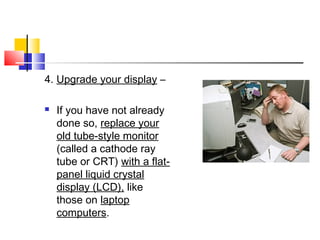
4. Upgrade your display –
 If you have not already
done so, replace your
old tube-style monitor
(called a cathode ray
tube or CRT) with a flat-
panel liquid crystal
display (LCD), like
those on laptop
computers.
 LCD screens are easier on the eyes and
usually have an anti-reflective surface.
 Old-fashioned CRT screens can cause a
noticeable "flicker" of images on the screen, a
major source of computer eye strain. Even if
this flicker is imperceptible, it can still
contribute to eye strain and fatigue during
computer work.
 Complications due to flicker are even
more likely if the refresh rate of the
monitor is less than 75 hertz (Hz). If you
must use a CRT at work, adjust the
display settings to the highest possible
refresh rate.
 When choosing a new flat panel display, select a
screen with the highest resolution possible.
 Resolution is related to the "dot pitch" of the display.
Generally, displays with a lower dot pitch have
sharper images. Choose a display with a dot pitch of
0.28 mm or smaller.
 Finally, choose a relatively large display. For a
desktop computer, select a display that has a
diagonal screen size of at least 19 inches.
5. Adjust the brightness and contrast of your computer
screen –
 Adjust the display settings on your computer so the
brightness of the screen is about the same as your
work environment.
 As a test, try looking at the white background of this
web page. If it looks like a light source, it's too bright.
If it seems dull and gray, it may be too dark.
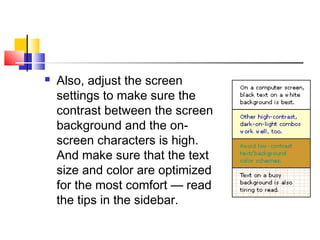
 Also, adjust the screen
settings to make sure the
contrast between the screen
background and the on-
screen characters is high.
And make sure that the text
size and color are optimized
for the most comfort — read
the tips in the sidebar.
 Adjusting how your monitor displays
text can provide welcome eyestrain
relief. Ideally, your text size should be
three times the smallest text size you
can read from your normal viewing
position.
6. Blink more often –
 Blinking is very important when working
at a computer; it rewets your eyes to
avoid dryness and irritation.
 When working at a computer, people
blink less frequently — about five times
less than normally, according to
studies.
 Tears coating the eye evaporate more
rapidly during long non-blinking phases
and cause dry eyes. Also, the air in
many office environments is dry, which
can increase the evaporation rate of
your tears, placing you at greater risk
for dry eye problems.
 If patient experiences dry eye
symptoms, Prescribe him artificial tears
for use during the day.
 Artificial Tears are formulated to reduce
dryness and irritation.
7. "20-20-20 rule“ –
 Asthenopic symptoms in the eye are responsible
much of the morbidity in CVS.
 Proper rest to the eye & its muscles is recommended
to relieve the associated eye strain.
 Various catch-phrases have been propagated for
spreading awareness about giving rest to the eyes
while working on computers.
 A routinely recommended approach is
to consciously blink the eyes every now
and then (this helps replenish the tear
film), and look out of the window into a
distance object or the sky - (this
provides rest to the ciliary muscles).
 One of the catch phrases is the "20-20-20 rule":
 every 20 minutes, focus the eyes on an object 20 feet
(6 meters) away for 20 seconds.
 This basically gives a convenient distance & time-
frame for a person to follow the advice from the
ophthalmologist.
 Otherwise, the patient is advised to close his/her
eyes (which has a similar effect) for 20 seconds, at
least every half hour or even more frequently.
8. Take frequent breaks –
 To reduce your risk for computer vision
syndrome and neck, back and shoulder pain,
take frequent breaks during your computer
work day.
 Many workers take only two 15-minute breaks
from their computer throughout their work
day.
 According to a recent study conducted
by the National Institute of Occupational
Safety and Health (NIOSH), discomfort
and eye strain were significantly lower
when computer workers took four
additional five-minute "mini-breaks"
throughout their work day. (Total 20
minutes Extra per day)
 And these supplementary breaks did
not reduce the workers' productivity.
 Data entry speed was significantly
faster as a result of the extra breaks, so
work output was maintained even
though the workers had 20 extra
minutes of break time each day.’
 During your computer breaks, stand up, move
about and stretch your arms, legs, back, neck
and shoulders.
 Check your local bookstore or consult your
fitness club for suggestions on developing a
quick sequence of exercises you can perform
during your breaks and after work, to reduce
tension in your arms, neck, shoulders and
back.
9. Modify your workstation (Ergonomics) –
 If you need to look back and forth between a printed
page and your computer screen, this can cause eye
strain. Place written pages on a copy stand adjacent
to the monitor. Light the copy stand properly. You
may want to use a desk lamp, but make sure it
doesn't shine into your eyes or onto the computer
screen.
 Improper posture during computer work also
contributes to computer vision syndrome. Adjust your
workstation and chair to the correct height.
 Purchase Ergonomic
furniture to enable you to
position your computer
screen 20 to 24 inches from
your eyes.
 The center of your screen
should be about 10 to 15
degrees below your eyes for
comfortable positioning of
your head and neck.
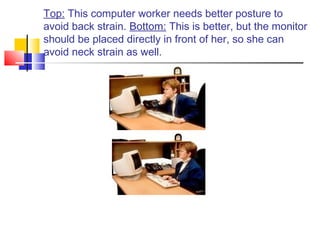
Top: This computer worker needs better posture to
avoid back strain. Bottom: This is better, but the monitor
should be placed directly in front of her, so she can
avoid neck strain as well.
 keep in mind that your arms should be
parallel to the floor when you type
 your feet should be flat on the floor (or a
footstool).
10. Consider computer eyewear –
 For the greatest comfort at your computer,
you may benefit from having a Customized
Eyeglasses prescription for your computer
work.
 Computer glasses are also a good choice if
you wear bifocals or progressive lenses,
because these lenses are generally not
optimal for the distance to your computer
screen.
Computer Glasses -
 When you work at a computer for any length
of time, it's common to experience blurred
vision and other symptoms of computer vision
syndrome (CVS).
 You're more likely to experience eyestrain
and eye fatigue while sitting at the computer,
because of unique visual demands that are
unlike those associated with most other
activities.
 If you're under age 40, blurred vision may be
due to an inability of your eyes to remain
accurately focused on your computer screen
for a sustained time period
 eye fatigue and blurriness may be related to
problems with quickly and accurately
changing focus, such as when you shift your
gaze from your monitor to your keyboard and
back again. This lag of accommodation can
be associated with CVS.
 If you're over age 40, the problem may be due to the
onset of presbyopia — the normal age-related loss of
near focusing ability. This, too, can cause CVS
symptoms.
 What can you do? For one thing, obtaining
Customized Computer Glasses can make a world of
difference in your comfort level while you're using the
computer. These special-purpose glasses are
prescribed specifically to reduce eyestrain and to give
you the most comfortable vision at your computer
What exactly is “Computer Glasses?” 
Is it different from a routine Presbyopic
Glasses?...
 Regular Eyeglasses (For Far Vision) &
Reading (Presbyopic) glasses are
Entirely different from Computer
Glasses…
 Regular glasses (For Far & reading) are
probably not quite right for computer
work.
 Many people (Including
Ophthalmologists) have misconception
that “the Reading / Presbyopic Glasses
& the Computer Glasses are the same
things.”
 Unfortunately, This is a “Myth”.
Myth: Reading (Presbyopic) Glasses &
Computer Glasses are the same thing.
Reality: Reading Glasses are for near
vision only (For 12 to 18 inches from
the eye) to read the newspaper or any
other printed material.
 In short, Reading (Presbyopic)
Glasses are for reading Purpose only.
 Now, Computer Screens are positioned
“20 to 26 inches” away from the eyes.
 Average Distance for Computer Work is
“18 to 28 inches” away from the eyes.
 And Distance Vision is > 20 Feets (6
Meters)
 So Reality is that, Computer Work falls
in the “Intermediary Zone of Vision”
 21st
Centaury Zones of Vision –
1) Far Zone  > 20 Feets (6 meters), (For
Driving Vehicles)
2) Intermediary Zone  18 to 28 inches
(For Computer Work)
3) Near Zone  12 to 18 inches (For
Reading and other near Work)
Real Problem with 19th
centaury
Prescription of Glasses-
 Most young people wear eyeglasses to
correct their distance vision.
 Reading glasses are prescribed to correct
near vision only.
 And bifocals prescribed for those over age 40
with presbyopia correct only near and far.
 Even trifocals and progressive lenses (which do have
some lens power for intermediate vision) have only a
small portion of the lens dedicated to this area, not
nearly large enough for comfortable computer work.
 So, many people try to compensate for their blurred
vision by leaning forward, or by tipping their head to
look through the bottom portion of their glasses.
 Both of these actions can result in a sore neck, sore
shoulders and a sore back.
Computer Glasses & Worker
Productivity -
 By now, we know that Computer Glasses are
different than Reading Glasses.
 Research supports the notion that computer
eyeglasses can increase worker productivity and that
even a slightly inaccurate prescription can decrease
it.
 A study conducted at the University of Alabama
School of Optometry examined the vision of
computer users, ages 19 to 30, before and while
performing tasks that required them to read fonts of
various sizes on a computer screen.
 Participants in the study were randomly
assigned to wear either computer glasses or
non-corrective eyeglasses.
 Researchers timed the tests and recorded the
number of errors the subjects made. The
participants then answered questions about
the vision problems they had experienced
 Even when symptoms were not reported and the
computer screen was seen clearly, we found
differences in productivity and accuracy over time,"
said Kent Daum, OD, the lead investigator.
 "The greater the miscorrection, the greater the
decrease in productivity.”
 Even when the subject's vision was slightly off,
productivity was significantly affected.“
 A difference of just 0.5 diopters from the correct lens
prescription resulted in an average 9 percent loss in
productivity and a 38 percent decrease in accuracy
Computer Lens Designs -
1) Single Vision Lenses –
 with a modified lens power prescribed to give the
most comfortable vision at the user's computer
screen.
 This lens relaxes the amount of accommodation
required to keep things in focus at the distance of
the computer screen and provides the largest field
of view, reducing the risk of eyestrain, blurred
vision, and unnatural posture that can cause neck
and back pain.
 These lenses can be used comfortably by younger
and older computer users alike.
2) occupational progressive lens –
 A popular type of computer eyeglass lenses for
people with presbyopia is the occupational
progressive lens — a no-line multifocal that
corrects near, intermediate, and, up to a point,
distance vision.
 It has a larger intermediate zone than regular
progressive lenses for more comfortable vision at the
computer.
 But this leaves less lens area for distance vision. So
these lenses are not recommended for driving or
other significant distance vision tasks.
3) Lined Trifocal –
 Another option for presbyopic computer
users is a lined trifocal, with a larger
intermediate zone than regular trifocals
4) Occupational bifocal –
 Still another possibility is an
occupational bifocal, with the top
part of the lens for intermediate vision
(computer screen) and the bottom
portion for near vision (reading).
5) Clip-ons –
 Computer lenses are also available in clip-ons that
can be attached to regular eyeglasses
6) Over – The - Counter glasses –
 Decreased focusing capability is mitigated by wearing
a small plus powered over-the-counter glasses (+1 to
+1.50). It helps such patients regain their ability to
focus on Intermediary Zone objects like Computer
Screen.
 However, Prescribed glasses are recommended
Children & Computer Vision
Syndrome -
 Parents encourage children as young as two
or three years old to use the computer. In
fact:
 90 percent of school-age children have
computer access at home or in school.
 
 54 million children in the United States alone
use a computer at home or in school.
 Many pediatric computer vision eye
specialists believe that heavy computer
use among children puts them at risk
for early myopia.
 They point to several recent studies as
evidence that computers can have a
negative impact on a child's vision
Recent Studies -
 25 percent to 30 percent of computer-using children need
corrective eyewear to work comfortably and safely at the
computer at home or in school, says a study at the University of
California at Berkeley School of Optometry.
 The percentage of first-graders with myopia has increased from
12.1 percent to 20.4 percent since 1995, according to a study by
the Department of Health in Taiwan.
 
 A similar study in Singapore found that in three years the
percentage of seven- to nine-year-olds with myopia had
doubled, to 34 percent
 Sitting for hours in front of a computer screen
stresses a child's eyes because the computer forces
the child's vision system to focus and strain a lot
more than any other task
 Twenty years ago, most children played outside, and
their distant vision was more important. Today, most
children work at a computer either at home or school
each day.
 Sitting in front of a computer and starring at a
computer screen is causing vision problems that
were not known years ago.
According to the American Optometric
Association, the impact of computer use
on children's vision involves these factors
 Children have a limited degree of self-awareness.
They may perform a task on the computer for hours
with few breaks. This prolonged activity can cause
eye focusing and eye strain problems.
 
 Children are very adaptable. They assume that what
they see and how they see is normal — even if their
vision is problematic. That's why it is important for
parents to monitor the time a child spends working at
a computer.
 
 Children are smaller than adults. Since
computer workstations are often arranged for
adult use, this can change the viewing angle
for children.
 Computer users should view the screen
slightly downward, at a 15-degree angle.
Furthermore, as a result of difficulty reaching
the keyboard or placing their feet on the floor,
a child may experience neck, shoulder and/or
back pain
Five Tips for Preventing Computer Vision
Syndrome in Children
1. Before starting school, every child should have a
comprehensive eye exam, including near-point
(computer and reading) and distance testing.
 
2. Workstations should be arranged to suit a child — not
an adult.
 
3. The recommended distance between the monitor and
the eye for children is 18-28 inches. By viewing the
computer screen closer than 18 inches, children risk
straining their eyes.
3. Parents and teachers should be aware of any
behavior that indicates potential problems,
such as eye redness, frequent rubbing of
the eyes, head turns and other unusual
postures, or complaints of blurriness or eye
fatigue.
 
4. Most importantly, have your child's eyes
examined by a computer vision specialist.
THE END

Computer vision syndrome

  • 1.
  • 2.
    Definition -  Computervision syndrome (CVS) is a temporary condition resulting from focusing the eyes on a computer display for protracted, uninterrupted periods of time.
  • 3.
    Symptoms -  EyeStrain  Headache  Blurred vision  Fatigue  Neck, shoulder & back pain  Dry, irritated eyes  Difficulty in refocusing the eye  Double Vision These symptoms can be further aggravated by improper lighting conditions (ie. bright overhead lighting or glare) or air moving past the eyes (e.g. overhead vents, direct air from a fan).
  • 4.
    Pathophysiology -  CVSis caused by decreased blinking reflex while working long hours focusing on computer screens.  The normal blink rate in human eyes is 16-20 per minute.  Studies have shown the blink rate to decrease to as low as 6-8 blinks/minute for persons working on the computer screen.  This leads to dry eyes.
  • 5.
     Additionally, thenear focusing effort required for such long hours puts strain on ciliary muscles of the eye.  This induces symptoms of asthenopia and leads to a feeling of tiredness in the eyes after long hours of work.  Some patients present with inability to properly focus on near objects after a short duration.
  • 6.
     This canbe seen in people aged around 30-40 yrs of age, leading to a decrease in the accommodative focusing mechanisms of the eye. This can be a setting for early presbyopia.
  • 7.
    Statistics of CVS-  CVS is now a one of the major office related health problem  Studies show that eye strain and other bothersome visual symptoms occur in 50 percent to 90 percent of computer workers.  The average American child now spends one to three hours per day on the computer doing homework, talking online with friends, and playing games
  • 8.
     More than143 million Americans work on a computer each day, with 88 percent of them suffering from computer eye strain, according to estimates.  54 million American children (Almost 100%) work at a computer each day either at home or in school.  Prolonged computer use can stress a child's eyes and impact his or her vision development
  • 9.
    Computer Eye Strain:10 steps to Relief - 1. Get a computer eye exam –  This is the most important thing you can do to prevent or treat computer vision problems.  According to the National Institute of Occupational Safety and Health (NIOSH), computer users should have an eye exam before they start working on a computer and once a year thereafter.  Be sure to ask your patient how often he/she uses a computer at work and at home.
  • 10.
    2. Use properlighting –  Eye strain is often caused by excessively bright light either from outdoor sunlight coming in through a window or from harsh interior lighting.  When you use a computer, your ambient lighting should be about half that found in most offices.
  • 11.
     Eliminate exteriorlight by closing drapes, shades or blinds.  Reduce interior lighting by using fewer light bulbs or fluorescent tubes, or use lower intensity bulbs and tubes.  If possible, position your monitor so that windows are to the side of it, instead of in front or back.
  • 12.
    3. Minimize glare–  Glare on walls and finished surfaces, as well as reflections on the computer screen can also cause computer eye strain.  You may want to install an anti-glare screen on your monitor and,  if possible, paint bright white walls a darker color with a matte finish.
  • 13.
     Again, coverthe windows. When outside light cannot be reduced, consider using a computer hood.  If you wear glasses, have an anti-reflective (AR) coating applied to your lenses. AR coating reduces glare by minimizing the amount of light reflecting off the front and back surfaces of your eyeglass lenses.
  • 14.
    4. Upgrade yourdisplay –  If you have not already done so, replace your old tube-style monitor (called a cathode ray tube or CRT) with a flat- panel liquid crystal display (LCD), like those on laptop computers.
  • 15.
     LCD screensare easier on the eyes and usually have an anti-reflective surface.  Old-fashioned CRT screens can cause a noticeable "flicker" of images on the screen, a major source of computer eye strain. Even if this flicker is imperceptible, it can still contribute to eye strain and fatigue during computer work.
  • 16.
     Complications dueto flicker are even more likely if the refresh rate of the monitor is less than 75 hertz (Hz). If you must use a CRT at work, adjust the display settings to the highest possible refresh rate.
  • 17.
     When choosinga new flat panel display, select a screen with the highest resolution possible.  Resolution is related to the "dot pitch" of the display. Generally, displays with a lower dot pitch have sharper images. Choose a display with a dot pitch of 0.28 mm or smaller.  Finally, choose a relatively large display. For a desktop computer, select a display that has a diagonal screen size of at least 19 inches.
  • 18.
    5. Adjust thebrightness and contrast of your computer screen –  Adjust the display settings on your computer so the brightness of the screen is about the same as your work environment.  As a test, try looking at the white background of this web page. If it looks like a light source, it's too bright. If it seems dull and gray, it may be too dark.
  • 19.
     Also, adjustthe screen settings to make sure the contrast between the screen background and the on- screen characters is high. And make sure that the text size and color are optimized for the most comfort — read the tips in the sidebar.
  • 20.
     Adjusting howyour monitor displays text can provide welcome eyestrain relief. Ideally, your text size should be three times the smallest text size you can read from your normal viewing position.
  • 21.
    6. Blink moreoften –  Blinking is very important when working at a computer; it rewets your eyes to avoid dryness and irritation.  When working at a computer, people blink less frequently — about five times less than normally, according to studies.
  • 22.
     Tears coatingthe eye evaporate more rapidly during long non-blinking phases and cause dry eyes. Also, the air in many office environments is dry, which can increase the evaporation rate of your tears, placing you at greater risk for dry eye problems.
  • 23.
     If patientexperiences dry eye symptoms, Prescribe him artificial tears for use during the day.  Artificial Tears are formulated to reduce dryness and irritation.
  • 24.
    7. "20-20-20 rule“–  Asthenopic symptoms in the eye are responsible much of the morbidity in CVS.  Proper rest to the eye & its muscles is recommended to relieve the associated eye strain.  Various catch-phrases have been propagated for spreading awareness about giving rest to the eyes while working on computers.
  • 25.
     A routinelyrecommended approach is to consciously blink the eyes every now and then (this helps replenish the tear film), and look out of the window into a distance object or the sky - (this provides rest to the ciliary muscles).
  • 26.
     One ofthe catch phrases is the "20-20-20 rule":  every 20 minutes, focus the eyes on an object 20 feet (6 meters) away for 20 seconds.  This basically gives a convenient distance & time- frame for a person to follow the advice from the ophthalmologist.  Otherwise, the patient is advised to close his/her eyes (which has a similar effect) for 20 seconds, at least every half hour or even more frequently.
  • 27.
    8. Take frequentbreaks –  To reduce your risk for computer vision syndrome and neck, back and shoulder pain, take frequent breaks during your computer work day.  Many workers take only two 15-minute breaks from their computer throughout their work day.
  • 28.
     According toa recent study conducted by the National Institute of Occupational Safety and Health (NIOSH), discomfort and eye strain were significantly lower when computer workers took four additional five-minute "mini-breaks" throughout their work day. (Total 20 minutes Extra per day)
  • 29.
     And thesesupplementary breaks did not reduce the workers' productivity.  Data entry speed was significantly faster as a result of the extra breaks, so work output was maintained even though the workers had 20 extra minutes of break time each day.’
  • 30.
     During yourcomputer breaks, stand up, move about and stretch your arms, legs, back, neck and shoulders.  Check your local bookstore or consult your fitness club for suggestions on developing a quick sequence of exercises you can perform during your breaks and after work, to reduce tension in your arms, neck, shoulders and back.
  • 31.
    9. Modify yourworkstation (Ergonomics) –  If you need to look back and forth between a printed page and your computer screen, this can cause eye strain. Place written pages on a copy stand adjacent to the monitor. Light the copy stand properly. You may want to use a desk lamp, but make sure it doesn't shine into your eyes or onto the computer screen.  Improper posture during computer work also contributes to computer vision syndrome. Adjust your workstation and chair to the correct height.
  • 32.
     Purchase Ergonomic furnitureto enable you to position your computer screen 20 to 24 inches from your eyes.  The center of your screen should be about 10 to 15 degrees below your eyes for comfortable positioning of your head and neck.
  • 33.
    Top: This computerworker needs better posture to avoid back strain. Bottom: This is better, but the monitor should be placed directly in front of her, so she can avoid neck strain as well.
  • 34.
     keep inmind that your arms should be parallel to the floor when you type  your feet should be flat on the floor (or a footstool).
  • 35.
    10. Consider computereyewear –  For the greatest comfort at your computer, you may benefit from having a Customized Eyeglasses prescription for your computer work.  Computer glasses are also a good choice if you wear bifocals or progressive lenses, because these lenses are generally not optimal for the distance to your computer screen.
  • 36.
    Computer Glasses - When you work at a computer for any length of time, it's common to experience blurred vision and other symptoms of computer vision syndrome (CVS).  You're more likely to experience eyestrain and eye fatigue while sitting at the computer, because of unique visual demands that are unlike those associated with most other activities.
  • 37.
     If you'reunder age 40, blurred vision may be due to an inability of your eyes to remain accurately focused on your computer screen for a sustained time period  eye fatigue and blurriness may be related to problems with quickly and accurately changing focus, such as when you shift your gaze from your monitor to your keyboard and back again. This lag of accommodation can be associated with CVS.
  • 38.
     If you'reover age 40, the problem may be due to the onset of presbyopia — the normal age-related loss of near focusing ability. This, too, can cause CVS symptoms.  What can you do? For one thing, obtaining Customized Computer Glasses can make a world of difference in your comfort level while you're using the computer. These special-purpose glasses are prescribed specifically to reduce eyestrain and to give you the most comfortable vision at your computer
  • 39.
    What exactly is“Computer Glasses?”  Is it different from a routine Presbyopic Glasses?...  Regular Eyeglasses (For Far Vision) & Reading (Presbyopic) glasses are Entirely different from Computer Glasses…  Regular glasses (For Far & reading) are probably not quite right for computer work.
  • 40.
     Many people(Including Ophthalmologists) have misconception that “the Reading / Presbyopic Glasses & the Computer Glasses are the same things.”  Unfortunately, This is a “Myth”.
  • 41.
    Myth: Reading (Presbyopic)Glasses & Computer Glasses are the same thing. Reality: Reading Glasses are for near vision only (For 12 to 18 inches from the eye) to read the newspaper or any other printed material.  In short, Reading (Presbyopic) Glasses are for reading Purpose only.
  • 42.
     Now, ComputerScreens are positioned “20 to 26 inches” away from the eyes.  Average Distance for Computer Work is “18 to 28 inches” away from the eyes.  And Distance Vision is > 20 Feets (6 Meters)
  • 43.
     So Realityis that, Computer Work falls in the “Intermediary Zone of Vision”
  • 44.
     21st Centaury Zonesof Vision – 1) Far Zone  > 20 Feets (6 meters), (For Driving Vehicles) 2) Intermediary Zone  18 to 28 inches (For Computer Work) 3) Near Zone  12 to 18 inches (For Reading and other near Work)
  • 45.
    Real Problem with19th centaury Prescription of Glasses-  Most young people wear eyeglasses to correct their distance vision.  Reading glasses are prescribed to correct near vision only.  And bifocals prescribed for those over age 40 with presbyopia correct only near and far.
  • 46.
     Even trifocalsand progressive lenses (which do have some lens power for intermediate vision) have only a small portion of the lens dedicated to this area, not nearly large enough for comfortable computer work.  So, many people try to compensate for their blurred vision by leaning forward, or by tipping their head to look through the bottom portion of their glasses.  Both of these actions can result in a sore neck, sore shoulders and a sore back.
  • 47.
    Computer Glasses &Worker Productivity -  By now, we know that Computer Glasses are different than Reading Glasses.  Research supports the notion that computer eyeglasses can increase worker productivity and that even a slightly inaccurate prescription can decrease it.  A study conducted at the University of Alabama School of Optometry examined the vision of computer users, ages 19 to 30, before and while performing tasks that required them to read fonts of various sizes on a computer screen.
  • 48.
     Participants inthe study were randomly assigned to wear either computer glasses or non-corrective eyeglasses.  Researchers timed the tests and recorded the number of errors the subjects made. The participants then answered questions about the vision problems they had experienced
  • 49.
     Even whensymptoms were not reported and the computer screen was seen clearly, we found differences in productivity and accuracy over time," said Kent Daum, OD, the lead investigator.  "The greater the miscorrection, the greater the decrease in productivity.”  Even when the subject's vision was slightly off, productivity was significantly affected.“  A difference of just 0.5 diopters from the correct lens prescription resulted in an average 9 percent loss in productivity and a 38 percent decrease in accuracy
  • 50.
    Computer Lens Designs- 1) Single Vision Lenses –  with a modified lens power prescribed to give the most comfortable vision at the user's computer screen.  This lens relaxes the amount of accommodation required to keep things in focus at the distance of the computer screen and provides the largest field of view, reducing the risk of eyestrain, blurred vision, and unnatural posture that can cause neck and back pain.  These lenses can be used comfortably by younger and older computer users alike.
  • 51.
    2) occupational progressivelens –  A popular type of computer eyeglass lenses for people with presbyopia is the occupational progressive lens — a no-line multifocal that corrects near, intermediate, and, up to a point, distance vision.  It has a larger intermediate zone than regular progressive lenses for more comfortable vision at the computer.  But this leaves less lens area for distance vision. So these lenses are not recommended for driving or other significant distance vision tasks.
  • 52.
    3) Lined Trifocal–  Another option for presbyopic computer users is a lined trifocal, with a larger intermediate zone than regular trifocals
  • 53.
    4) Occupational bifocal–  Still another possibility is an occupational bifocal, with the top part of the lens for intermediate vision (computer screen) and the bottom portion for near vision (reading).
  • 54.
    5) Clip-ons – Computer lenses are also available in clip-ons that can be attached to regular eyeglasses 6) Over – The - Counter glasses –  Decreased focusing capability is mitigated by wearing a small plus powered over-the-counter glasses (+1 to +1.50). It helps such patients regain their ability to focus on Intermediary Zone objects like Computer Screen.  However, Prescribed glasses are recommended
  • 55.
    Children & ComputerVision Syndrome -  Parents encourage children as young as two or three years old to use the computer. In fact:  90 percent of school-age children have computer access at home or in school.    54 million children in the United States alone use a computer at home or in school.
  • 56.
     Many pediatriccomputer vision eye specialists believe that heavy computer use among children puts them at risk for early myopia.  They point to several recent studies as evidence that computers can have a negative impact on a child's vision
  • 57.
    Recent Studies - 25 percent to 30 percent of computer-using children need corrective eyewear to work comfortably and safely at the computer at home or in school, says a study at the University of California at Berkeley School of Optometry.  The percentage of first-graders with myopia has increased from 12.1 percent to 20.4 percent since 1995, according to a study by the Department of Health in Taiwan.    A similar study in Singapore found that in three years the percentage of seven- to nine-year-olds with myopia had doubled, to 34 percent
  • 58.
     Sitting forhours in front of a computer screen stresses a child's eyes because the computer forces the child's vision system to focus and strain a lot more than any other task  Twenty years ago, most children played outside, and their distant vision was more important. Today, most children work at a computer either at home or school each day.  Sitting in front of a computer and starring at a computer screen is causing vision problems that were not known years ago.
  • 59.
    According to theAmerican Optometric Association, the impact of computer use on children's vision involves these factors  Children have a limited degree of self-awareness. They may perform a task on the computer for hours with few breaks. This prolonged activity can cause eye focusing and eye strain problems.    Children are very adaptable. They assume that what they see and how they see is normal — even if their vision is problematic. That's why it is important for parents to monitor the time a child spends working at a computer.  
  • 60.
     Children aresmaller than adults. Since computer workstations are often arranged for adult use, this can change the viewing angle for children.  Computer users should view the screen slightly downward, at a 15-degree angle. Furthermore, as a result of difficulty reaching the keyboard or placing their feet on the floor, a child may experience neck, shoulder and/or back pain
  • 61.
    Five Tips forPreventing Computer Vision Syndrome in Children 1. Before starting school, every child should have a comprehensive eye exam, including near-point (computer and reading) and distance testing.   2. Workstations should be arranged to suit a child — not an adult.   3. The recommended distance between the monitor and the eye for children is 18-28 inches. By viewing the computer screen closer than 18 inches, children risk straining their eyes.
  • 62.
    3. Parents andteachers should be aware of any behavior that indicates potential problems, such as eye redness, frequent rubbing of the eyes, head turns and other unusual postures, or complaints of blurriness or eye fatigue.   4. Most importantly, have your child's eyes examined by a computer vision specialist.
  • 63.