E X C L U S I V E L Y F O R
Introduction 1
Your Website 2
Terminologies 4
Login 5
Tabs 7
• Pages 9
• Manage Ad 13
• 88Like 14
• More 19
Library 21
• Image Library 22
• File Library 23
Appearance 24
• Backgrounds 25
• Header 26
• Menu Navigation 29
• Footer 30
Content & Images 31
• Image Sliders 32
• Images 33
• Content 34
• Hyperlink 35
• Combo 36
INTRODUCTION
CMS 2 is a proprietary content management system developed
by 88DB Philippines as part of the web design and
development services that we offer.
This user guide helps you understand the basics of updating
and managing your web content and images without the need
to seek professional IT help.
1
YOUR WEBSITE
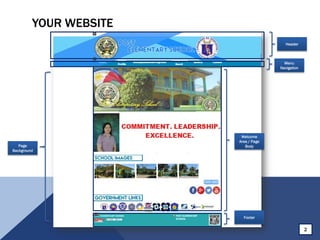
Page
Background
Footer
Welcome
Area / Page
Body
Header
Menu
Navigation
2
YOUR WEBSITE
• Shop Header – the shop header is an image that is separated from the main body
and appears at the top of the page.
• Shop Menu – the shop menu is a list of tabs linked to the available web pages.
• Welcome Area/Page Body – the welcome area/page body is the part of page that
contains text and images such as articles about your company, products and
services.
• Shop Info/Footer – shop info/footer refers to the details of the shop including the
company name, logo, introduction and contact info.
• Page Background/Body Background – a web page has 990 pixels dimension. The
page background refers to the background outside the page area; while the body
background refers to the background within the page area.
3
TERMINOLOGIES
• Layout refers to the arrangement of text, images and other objects on the
page.
• Content refers to the text, images, audio files, videos and animations that
you can see in a web page.
• Body refers to the area where your text and images section are arranged.
4
LOGIN
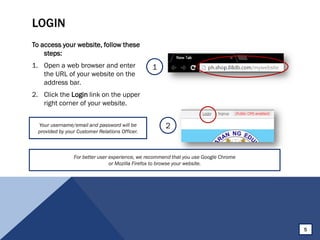
To access your website, follow these
steps:
1. Open a web browser and enter
the URL of your website on the
address bar.
2. Click the Login link on the upper
right corner of your website.
1
2Your username/email and password will be
provided by your Customer Relations Officer.
5
For better user experience, we recommend that you use Google Chrome
or Mozilla Firefox to browse your website.
LOGIN
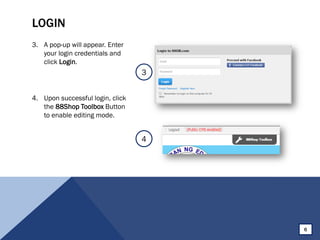
3. A pop-up will appear. Enter
your login credentials and
click Login.
4. Upon successful login, click
the 88Shop Toolbox Button
to enable editing mode.
3
4
6
TABS
7
TABS
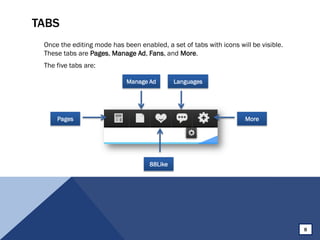
Once the editing mode has been enabled, a set of tabs with icons will be visible.
These tabs are Pages, Manage Ad, Fans, and More.
The five tabs are:
Pages More
88Like
Manage Ad Languages
8
PAGES
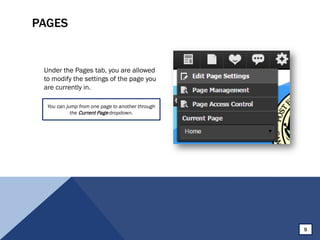
Under the Pages tab, you are allowed
to modify the settings of the page you
are currently in.
You can jump from one page to another through
the Current Page dropdown.
9
PAGES > EDIT PAGE SETTINGS
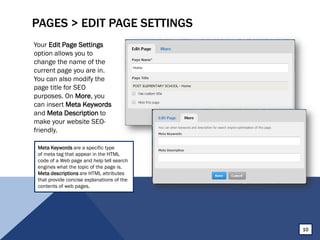
Your Edit Page Settings
option allows you to
change the name of the
current page you are in.
You can also modify the
page title for SEO
purposes. On More, you
can insert Meta Keywords
and Meta Description to
make your website SEO-
friendly.
10
Meta Keywords are a specific type
of meta tag that appear in the HTML
code of a Web page and help tell search
engines what the topic of the page is.
Meta descriptions are HTML attributes
that provide concise explanations of the
contents of web pages.
PAGES > PAGE MANAGEMENT
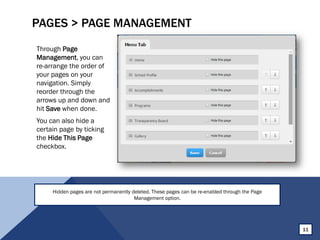
Through Page
Management, you can
re-arrange the order of
your pages on your
navigation. Simply
reorder through the
arrows up and down and
hit Save when done.
You can also hide a
certain page by ticking
the Hide This Page
checkbox.
11
Hidden pages are not permanently deleted. These pages can be re-enabled through the Page
Management option.
PAGES > PAGE ACCESS CONTROL
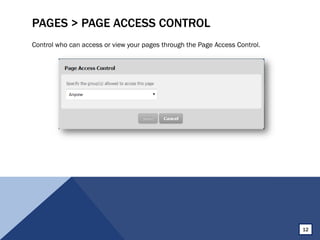
Control who can access or view your pages through the Page Access Control.
12
MANAGE AD
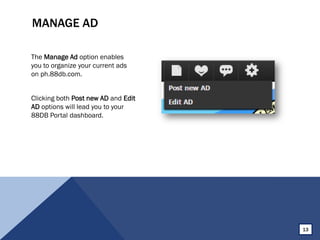
The Manage Ad option enables
you to organize your current ads
on ph.88db.com.
Clicking both Post new AD and Edit
AD options will lead you to your
88DB Portal dashboard.
13
88LIKE
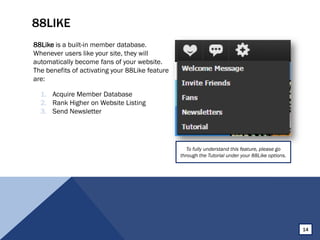
88Like is a built-in member database.
Whenever users like your site, they will
automatically become fans of your website.
The benefits of activating your 88Like feature
are:
To fully understand this feature, please go
through the Tutorial under your 88Like options.
1. Acquire Member Database
2. Rank Higher on Website Listing
3. Send Newsletter
14
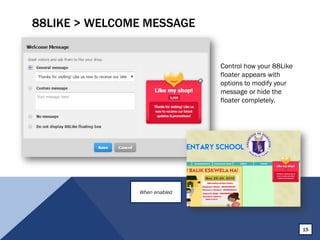
88LIKE > WELCOME MESSAGE
Control how your 88Like
floater appears with
options to modify your
message or hide the
floater completely.
15
When enabled
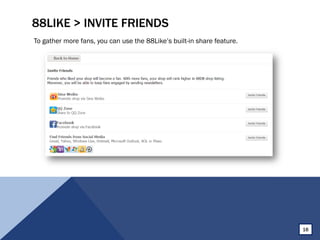
88LIKE > INVITE FRIENDS
To gather more fans, you can use the 88Like’s built-in share feature.
16
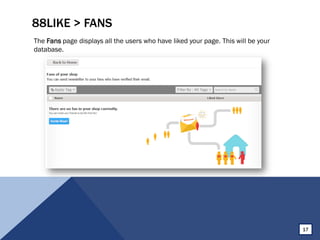
88LIKE > FANS
The Fans page displays all the users who have liked your page. This will be your
database.
17
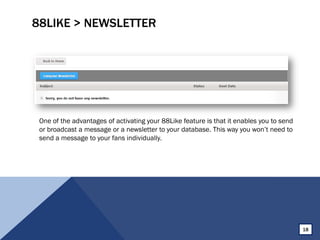
88LIKE > NEWSLETTER
One of the advantages of activating your 88Like feature is that it enables you to send
or broadcast a message or a newsletter to your database. This way you won’t need to
send a message to your fans individually.
18
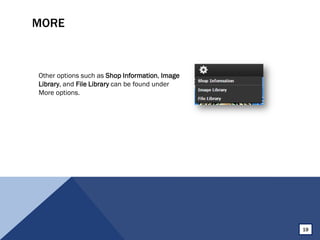
MORE
Other options such as Shop Information, Image
Library, and File Library can be found under
More options.
19
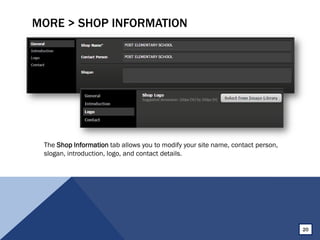
MORE > SHOP INFORMATION
The Shop Information tab allows you to modify your site name, contact person,
slogan, introduction, logo, and contact details.
20
LIBRARIES
21
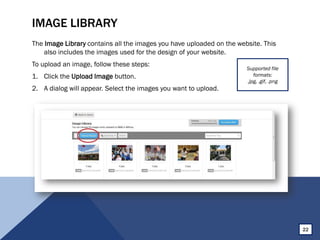
IMAGE LIBRARY
The Image Library contains all the images you have uploaded on the website. This
also includes the images used for the design of your website.
To upload an image, follow these steps:
1. Click the Upload Image button.
2. A dialog will appear. Select the images you want to upload.
22
Supported file
formats:
.jpg, .gif, .png
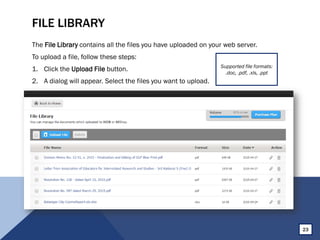
FILE LIBRARY
The File Library contains all the files you have uploaded on your web server.
To upload a file, follow these steps:
1. Click the Upload File button.
2. A dialog will appear. Select the files you want to upload.
Supported file formats:
.doc, .pdf, .xls, .ppt
23
APPEARANCE
24
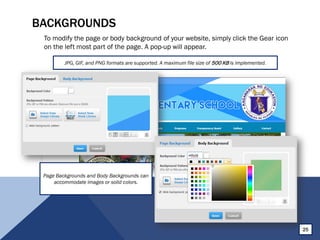
BACKGROUNDS
To modify the page or body background of your website, simply click the Gear icon
on the left most part of the page. A pop-up will appear.
JPG, GIF, and PNG formats are supported. A maximum file size of 500 KB is implemented.
25
Page Backgrounds and Body Backgrounds can
accommodate images or solid colors.
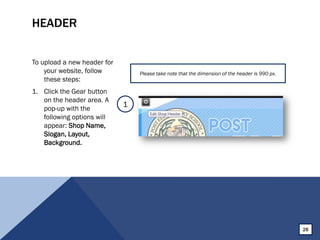
HEADER
To upload a new header for
your website, follow
these steps:
1. Click the Gear button
on the header area. A
pop-up with the
following options will
appear: Shop Name,
Slogan, Layout,
Background.
Please take note that the dimension of the header is 990 px.
1
26
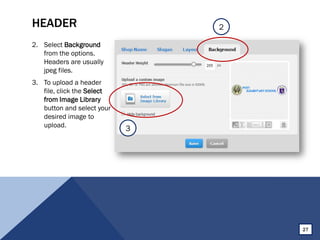
HEADER
2. Select Background
from the options.
Headers are usually
jpeg files.
3. To upload a header
file, click the Select
from Image Library
button and select your
desired image to
upload.
2
3
27
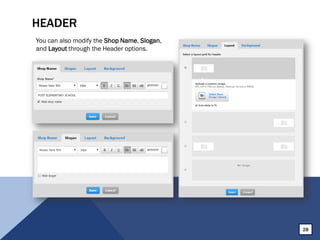
HEADER
You can also modify the Shop Name, Slogan,
and Layout through the Header options.
28
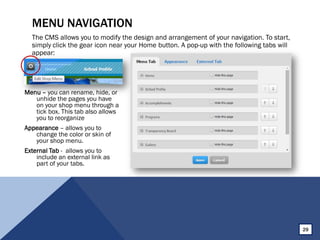
MENU NAVIGATION
The CMS allows you to modify the design and arrangement of your navigation. To start,
simply click the gear icon near your Home button. A pop-up with the following tabs will
appear:
Menu – you can rename, hide, or
unhide the pages you have
on your shop menu through a
tick box. This tab also allows
you to reorganize
Appearance – allows you to
change the color or skin of
your shop menu.
External Tab - allows you to
include an external link as
part of your tabs.
29
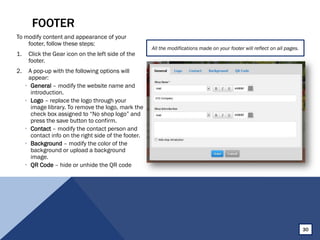
FOOTER
To modify content and appearance of your
footer, follow these steps:
1. Click the Gear icon on the left side of the
footer.
2. A pop-up with the following options will
appear:
• General – modify the website name and
introduction.
• Logo – replace the logo through your
image library. To remove the logo, mark the
check box assigned to “No shop logo” and
press the save button to confirm.
• Contact – modify the contact person and
contact info on the right side of the footer.
• Background – modify the color of the
background or upload a background
image.
• QR Code – hide or unhide the QR code
All the modifications made on your footer will reflect on all pages.
30
CONTENT
& IMAGES
31
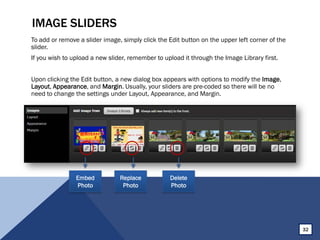
IMAGE SLIDERS
To add or remove a slider image, simply click the Edit button on the upper left corner of the
slider.
If you wish to upload a new slider, remember to upload it through the Image Library first.
Upon clicking the Edit button, a new dialog box appears with options to modify the Image,
Layout, Appearance, and Margin. Usually, your sliders are pre-coded so there will be no
need to change the settings under Layout, Appearance, and Margin.
Embed
Photo
Replace
Photo
Delete
Photo
32
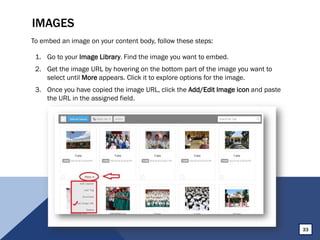
IMAGES
To embed an image on your content body, follow these steps:
1. Go to your Image Library. Find the image you want to embed.
2. Get the image URL by hovering on the bottom part of the image you want to
select until More appears. Click it to explore options for the image.
3. Once you have copied the image URL, click the Add/Edit Image icon and paste
the URL in the assigned field.
33
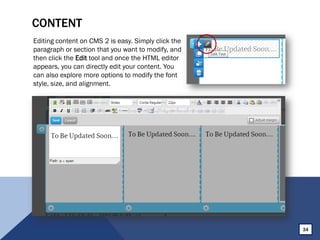
CONTENT
Editing content on CMS 2 is easy. Simply click the
paragraph or section that you want to modify, and
then click the Edit tool and once the HTML editor
appears, you can directly edit your content. You
can also explore more options to modify the font
style, size, and alignment.
34
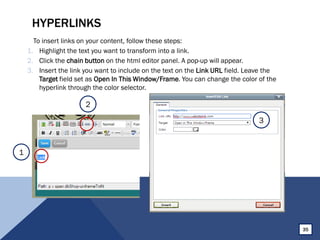
HYPERLINKS
To insert links on your content, follow these steps:
1. Highlight the text you want to transform into a link.
2. Click the chain button on the html editor panel. A pop-up will appear.
3. Insert the link you want to include on the text on the Link URL field. Leave the
Target field set as Open In This Window/Frame. You can change the color of the
hyperlink through the color selector.
35
1
2
3
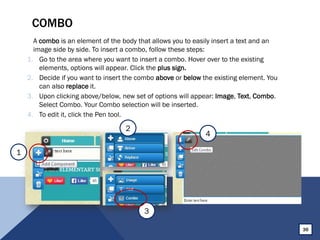
COMBO
A combo is an element of the body that allows you to easily insert a text and an
image side by side. To insert a combo, follow these steps:
1. Go to the area where you want to insert a combo. Hover over to the existing
elements, options will appear. Click the plus sign.
2. Decide if you want to insert the combo above or below the existing element. You
can also replace it.
3. Upon clicking above/below, new set of options will appear: Image, Text, Combo.
Select Combo. Your Combo selection will be inserted.
4. To edit it, click the Pen tool.
36
2
3
4
1
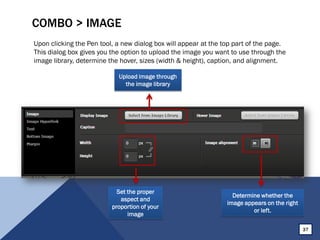
COMBO > IMAGE
Upon clicking the Pen tool, a new dialog box will appear at the top part of the page.
This dialog box gives you the option to upload the image you want to use through the
image library, determine the hover, sizes (width & height), caption, and alignment.
37
Set the proper
aspect and
proportion of your
image
Determine whether the
image appears on the right
or left.
Upload image through
the image library
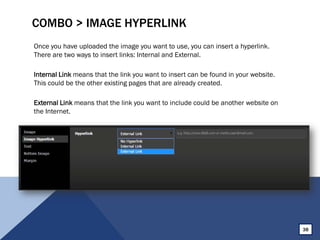
COMBO > IMAGE HYPERLINK
Once you have uploaded the image you want to use, you can insert a hyperlink.
There are two ways to insert links: Internal and External.
Internal Link means that the link you want to insert can be found in your website.
This could be the other existing pages that are already created.
External Link means that the link you want to include could be another website on
the Internet.
38
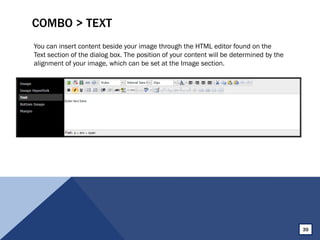
COMBO > TEXT
You can insert content beside your image through the HTML editor found on the
Text section of the dialog box. The position of your content will be determined by the
alignment of your image, which can be set at the Image section.
39
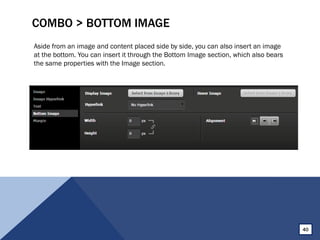
COMBO > BOTTOM IMAGE
Aside from an image and content placed side by side, you can also insert an image
at the bottom. You can insert it through the Bottom Image section, which also bears
the same properties with the Image section.
40
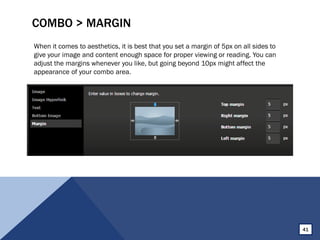
COMBO > MARGIN
When it comes to aesthetics, it is best that you set a margin of 5px on all sides to
give your image and content enough space for proper viewing or reading. You can
adjust the margins whenever you like, but going beyond 10px might affect the
appearance of your combo area.
41
SUPPORT
For more information, you can visit our
online FAQ section at http://ph.88db.com/FAQ.
You can also reach us through our hotline
+63 917 8391843 or e-mail us at deped@88db.com.ph.
Cms2 v1.2

Cms2 v1.2

  • 1.
    E X CL U S I V E L Y F O R
  • 2.
    Introduction 1 Your Website2 Terminologies 4 Login 5 Tabs 7 • Pages 9 • Manage Ad 13 • 88Like 14 • More 19 Library 21 • Image Library 22 • File Library 23 Appearance 24 • Backgrounds 25 • Header 26 • Menu Navigation 29 • Footer 30 Content & Images 31 • Image Sliders 32 • Images 33 • Content 34 • Hyperlink 35 • Combo 36
  • 3.
    INTRODUCTION CMS 2 isa proprietary content management system developed by 88DB Philippines as part of the web design and development services that we offer. This user guide helps you understand the basics of updating and managing your web content and images without the need to seek professional IT help. 1
  • 4.
    YOUR WEBSITE Page Background Footer Welcome Area /Page Body Header Menu Navigation 2
  • 5.
    YOUR WEBSITE • ShopHeader – the shop header is an image that is separated from the main body and appears at the top of the page. • Shop Menu – the shop menu is a list of tabs linked to the available web pages. • Welcome Area/Page Body – the welcome area/page body is the part of page that contains text and images such as articles about your company, products and services. • Shop Info/Footer – shop info/footer refers to the details of the shop including the company name, logo, introduction and contact info. • Page Background/Body Background – a web page has 990 pixels dimension. The page background refers to the background outside the page area; while the body background refers to the background within the page area. 3
  • 6.
    TERMINOLOGIES • Layout refersto the arrangement of text, images and other objects on the page. • Content refers to the text, images, audio files, videos and animations that you can see in a web page. • Body refers to the area where your text and images section are arranged. 4
  • 7.
    LOGIN To access yourwebsite, follow these steps: 1. Open a web browser and enter the URL of your website on the address bar. 2. Click the Login link on the upper right corner of your website. 1 2Your username/email and password will be provided by your Customer Relations Officer. 5 For better user experience, we recommend that you use Google Chrome or Mozilla Firefox to browse your website.
  • 8.
    LOGIN 3. A pop-upwill appear. Enter your login credentials and click Login. 4. Upon successful login, click the 88Shop Toolbox Button to enable editing mode. 3 4 6
  • 9.
  • 10.
    TABS Once the editingmode has been enabled, a set of tabs with icons will be visible. These tabs are Pages, Manage Ad, Fans, and More. The five tabs are: Pages More 88Like Manage Ad Languages 8
  • 11.
    PAGES Under the Pagestab, you are allowed to modify the settings of the page you are currently in. You can jump from one page to another through the Current Page dropdown. 9
  • 12.
    PAGES > EDITPAGE SETTINGS Your Edit Page Settings option allows you to change the name of the current page you are in. You can also modify the page title for SEO purposes. On More, you can insert Meta Keywords and Meta Description to make your website SEO- friendly. 10 Meta Keywords are a specific type of meta tag that appear in the HTML code of a Web page and help tell search engines what the topic of the page is. Meta descriptions are HTML attributes that provide concise explanations of the contents of web pages.
  • 13.
    PAGES > PAGEMANAGEMENT Through Page Management, you can re-arrange the order of your pages on your navigation. Simply reorder through the arrows up and down and hit Save when done. You can also hide a certain page by ticking the Hide This Page checkbox. 11 Hidden pages are not permanently deleted. These pages can be re-enabled through the Page Management option.
  • 14.
    PAGES > PAGEACCESS CONTROL Control who can access or view your pages through the Page Access Control. 12
  • 15.
    MANAGE AD The ManageAd option enables you to organize your current ads on ph.88db.com. Clicking both Post new AD and Edit AD options will lead you to your 88DB Portal dashboard. 13
  • 16.
    88LIKE 88Like is abuilt-in member database. Whenever users like your site, they will automatically become fans of your website. The benefits of activating your 88Like feature are: To fully understand this feature, please go through the Tutorial under your 88Like options. 1. Acquire Member Database 2. Rank Higher on Website Listing 3. Send Newsletter 14
  • 17.
    88LIKE > WELCOMEMESSAGE Control how your 88Like floater appears with options to modify your message or hide the floater completely. 15 When enabled
  • 18.
    88LIKE > INVITEFRIENDS To gather more fans, you can use the 88Like’s built-in share feature. 16
  • 19.
    88LIKE > FANS TheFans page displays all the users who have liked your page. This will be your database. 17
  • 20.
    88LIKE > NEWSLETTER Oneof the advantages of activating your 88Like feature is that it enables you to send or broadcast a message or a newsletter to your database. This way you won’t need to send a message to your fans individually. 18
  • 21.
    MORE Other options suchas Shop Information, Image Library, and File Library can be found under More options. 19
  • 22.
    MORE > SHOPINFORMATION The Shop Information tab allows you to modify your site name, contact person, slogan, introduction, logo, and contact details. 20
  • 23.
  • 24.
    IMAGE LIBRARY The ImageLibrary contains all the images you have uploaded on the website. This also includes the images used for the design of your website. To upload an image, follow these steps: 1. Click the Upload Image button. 2. A dialog will appear. Select the images you want to upload. 22 Supported file formats: .jpg, .gif, .png
  • 25.
    FILE LIBRARY The FileLibrary contains all the files you have uploaded on your web server. To upload a file, follow these steps: 1. Click the Upload File button. 2. A dialog will appear. Select the files you want to upload. Supported file formats: .doc, .pdf, .xls, .ppt 23
  • 26.
  • 27.
    BACKGROUNDS To modify thepage or body background of your website, simply click the Gear icon on the left most part of the page. A pop-up will appear. JPG, GIF, and PNG formats are supported. A maximum file size of 500 KB is implemented. 25 Page Backgrounds and Body Backgrounds can accommodate images or solid colors.
  • 28.
    HEADER To upload anew header for your website, follow these steps: 1. Click the Gear button on the header area. A pop-up with the following options will appear: Shop Name, Slogan, Layout, Background. Please take note that the dimension of the header is 990 px. 1 26
  • 29.
    HEADER 2. Select Background fromthe options. Headers are usually jpeg files. 3. To upload a header file, click the Select from Image Library button and select your desired image to upload. 2 3 27
  • 30.
    HEADER You can alsomodify the Shop Name, Slogan, and Layout through the Header options. 28
  • 31.
    MENU NAVIGATION The CMSallows you to modify the design and arrangement of your navigation. To start, simply click the gear icon near your Home button. A pop-up with the following tabs will appear: Menu – you can rename, hide, or unhide the pages you have on your shop menu through a tick box. This tab also allows you to reorganize Appearance – allows you to change the color or skin of your shop menu. External Tab - allows you to include an external link as part of your tabs. 29
  • 32.
    FOOTER To modify contentand appearance of your footer, follow these steps: 1. Click the Gear icon on the left side of the footer. 2. A pop-up with the following options will appear: • General – modify the website name and introduction. • Logo – replace the logo through your image library. To remove the logo, mark the check box assigned to “No shop logo” and press the save button to confirm. • Contact – modify the contact person and contact info on the right side of the footer. • Background – modify the color of the background or upload a background image. • QR Code – hide or unhide the QR code All the modifications made on your footer will reflect on all pages. 30
  • 33.
  • 34.
    IMAGE SLIDERS To addor remove a slider image, simply click the Edit button on the upper left corner of the slider. If you wish to upload a new slider, remember to upload it through the Image Library first. Upon clicking the Edit button, a new dialog box appears with options to modify the Image, Layout, Appearance, and Margin. Usually, your sliders are pre-coded so there will be no need to change the settings under Layout, Appearance, and Margin. Embed Photo Replace Photo Delete Photo 32
  • 35.
    IMAGES To embed animage on your content body, follow these steps: 1. Go to your Image Library. Find the image you want to embed. 2. Get the image URL by hovering on the bottom part of the image you want to select until More appears. Click it to explore options for the image. 3. Once you have copied the image URL, click the Add/Edit Image icon and paste the URL in the assigned field. 33
  • 36.
    CONTENT Editing content onCMS 2 is easy. Simply click the paragraph or section that you want to modify, and then click the Edit tool and once the HTML editor appears, you can directly edit your content. You can also explore more options to modify the font style, size, and alignment. 34
  • 37.
    HYPERLINKS To insert linkson your content, follow these steps: 1. Highlight the text you want to transform into a link. 2. Click the chain button on the html editor panel. A pop-up will appear. 3. Insert the link you want to include on the text on the Link URL field. Leave the Target field set as Open In This Window/Frame. You can change the color of the hyperlink through the color selector. 35 1 2 3
  • 38.
    COMBO A combo isan element of the body that allows you to easily insert a text and an image side by side. To insert a combo, follow these steps: 1. Go to the area where you want to insert a combo. Hover over to the existing elements, options will appear. Click the plus sign. 2. Decide if you want to insert the combo above or below the existing element. You can also replace it. 3. Upon clicking above/below, new set of options will appear: Image, Text, Combo. Select Combo. Your Combo selection will be inserted. 4. To edit it, click the Pen tool. 36 2 3 4 1
  • 39.
    COMBO > IMAGE Uponclicking the Pen tool, a new dialog box will appear at the top part of the page. This dialog box gives you the option to upload the image you want to use through the image library, determine the hover, sizes (width & height), caption, and alignment. 37 Set the proper aspect and proportion of your image Determine whether the image appears on the right or left. Upload image through the image library
  • 40.
    COMBO > IMAGEHYPERLINK Once you have uploaded the image you want to use, you can insert a hyperlink. There are two ways to insert links: Internal and External. Internal Link means that the link you want to insert can be found in your website. This could be the other existing pages that are already created. External Link means that the link you want to include could be another website on the Internet. 38
  • 41.
    COMBO > TEXT Youcan insert content beside your image through the HTML editor found on the Text section of the dialog box. The position of your content will be determined by the alignment of your image, which can be set at the Image section. 39
  • 42.
    COMBO > BOTTOMIMAGE Aside from an image and content placed side by side, you can also insert an image at the bottom. You can insert it through the Bottom Image section, which also bears the same properties with the Image section. 40
  • 43.
    COMBO > MARGIN Whenit comes to aesthetics, it is best that you set a margin of 5px on all sides to give your image and content enough space for proper viewing or reading. You can adjust the margins whenever you like, but going beyond 10px might affect the appearance of your combo area. 41
  • 44.
    SUPPORT For more information,you can visit our online FAQ section at http://ph.88db.com/FAQ. You can also reach us through our hotline +63 917 8391843 or e-mail us at deped@88db.com.ph.