UNIX


 Basic Shell Scripting


            Presentation By

                      Nihar R Paital
Shell Types in Unix

   Bourne Shell.
   Bourne Again Shell (bash).
   C Shell (c-shell).
   Korn Shell (k-shell).
   TC Shell (tcsh)


                                 Nihar R Paital
Executing a shell script


   There are many ways of executing a shell script:
     – By passing the shell script name as an argument to the shell. For
       example:
     – sh script1.sh


                                                        Nihar R Paital
Shell Scripts


   A script, or file that contains shell commands, is a shell program
   There are two ways to run a script
          1 By using . (dot) command
   Ex:-
           Scriptname
     – By typing scriptname , if the current directory is part of command
        search path . If dot isn’t in your path then type
     – . /scriptname


                                                        Nihar R Paital
Command-line Editing

Enabling Command-line Editing
There are two ways of entering either editing mode
Add following line in .profile file
  $ set -o emacs
or
    $ set -o vi


                                                     Nihar R Paital
Simple Control Mode Commands


Basic vi Control Mode Commands
Command          Description
 h              Move left one character
 l              Move right one character
 w              Move right one word
 b              Move left one word
 e              Move to end of current word
 0              Move to beginning of line
 ^              Move to first non-blank character in line
 $              Move to end of line

                                                     Nihar R Paital
Entering and Changing Text
Commands for Entering vi Input Mode
Command               Description
 i           Text inserted before current character (insert)
 a           Text inserted after current character (append)
 I           Text inserted at beginning of line
 A           Text inserted at end of line
 R           Text overwrites existing text


                                                  Nihar R Paital
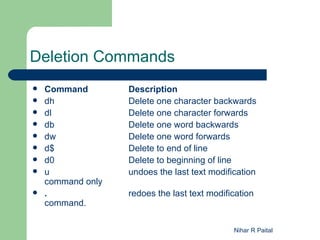
Deletion Commands
   Command        Description
   dh             Delete one character backwards
   dl             Delete one character forwards
   db             Delete one word backwards
   dw             Delete one word forwards
   d$             Delete to end of line
   d0             Delete to beginning of line
   u              undoes the last text modification
    command only
   .              redoes the last text modification
    command.

                                              Nihar R Paital
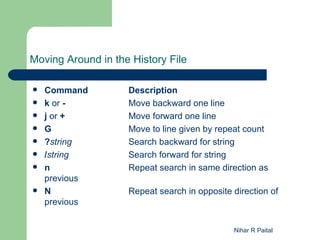
Moving Around in the History File

   Command         Description
   k or -          Move backward one line
   j or +          Move forward one line
   G               Move to line given by repeat count
   ?string         Search backward for string
   /string         Search forward for string
   n               Repeat search in same direction as
    previous
   N               Repeat search in opposite direction of
    previous


                                              Nihar R Paital
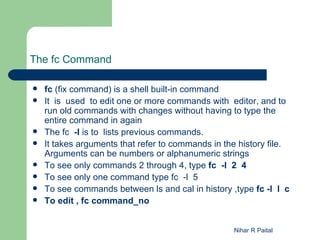
The fc Command

   fc (fix command) is a shell built-in command
   It is used to edit one or more commands with editor, and to
    run old commands with changes without having to type the
    entire command in again
   The fc -l is to lists previous commands.
   It takes arguments that refer to commands in the history file.
    Arguments can be numbers or alphanumeric strings
   To see only commands 2 through 4, type fc -l 2 4
   To see only one command type fc -l 5
   To see commands between ls and cal in history ,type fc -l l c
   To edit , fc command_no


                                                   Nihar R Paital
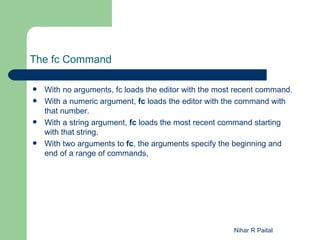
The fc Command

   With no arguments, fc loads the editor with the most recent command.
   With a numeric argument, fc loads the editor with the command with
    that number.
   With a string argument, fc loads the most recent command starting
    with that string.
   With two arguments to fc, the arguments specify the beginning and
    end of a range of commands,


                                                        Nihar R Paital
Shell Variables.

   Positional Parameters.
   Special Parameters.
   Named variables


                             Nihar R Paital
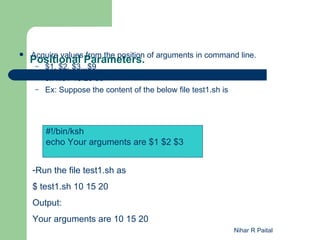
Positional Parameters. of arguments in command line.
    Acquire values from the position

     –   $1, $2, $3,..$9
     –   sh file1 10 20 30
     –   Ex: Suppose the content of the below file test1.sh is


         #!/bin/ksh
         echo Your arguments are $1 $2 $3


    -Run the file test1.sh as
    $ test1.sh 10 15 20
    Output:
    Your arguments are 10 15 20
                                                                 Nihar R Paital
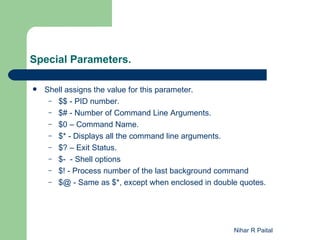
Special Parameters.

   Shell assigns the value for this parameter.
     – $$ - PID number.
     – $# - Number of Command Line Arguments.
     – $0 – Command Name.
     – $* - Displays all the command line arguments.
     – $? – Exit Status.
     – $- - Shell options
     – $! - Process number of the last background command
     – $@ - Same as $*, except when enclosed in double quotes.


                                                     Nihar R Paital
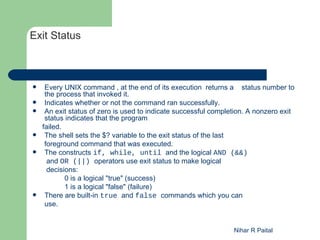
Exit Status


    Every UNIX command , at the end of its execution returns a status number to
     the process that invoked it.
    Indicates whether or not the command ran successfully.
    An exit status of zero is used to indicate successful completion. A nonzero exit
     status indicates that the program
    failed.
    The shell sets the $? variable to the exit status of the last
     foreground command that was executed.
    The constructs if, while, until and the logical AND (&&)
      and OR (||) operators use exit status to make logical
      decisions:
            0 is a logical "true" (success)
            1 is a logical "false" (failure)
    There are built-in true and false commands which you can
     use.


                                                                 Nihar R Paital
Exit Status

   A shell, like any other process, sets an exit status when it
    finishes
    executing. Shell scripts will finish in one of the following ways:
 Abort - If the script aborts due to an internal errorand exit or return
    command, the exit
    status is that set by those commands.
, the exit status is
    that of the last command (the one that aborted the script).
 End - If the script runs to completion, the exit status is that of the last
    command in the script
 Exit - If the script encounters


                                                            Nihar R Paital
Named Variables.

   User-defined variable that can be assigned a value.
   Used extensively in shell-scripts.
   Used for reading data, storing and displaying it.


                                                          Nihar R Paital
Accepting Data from User.

   read.
     – Accepts input from the user.
     – Syntax : read variable_name.
     – Example :

     $ read sname # This will prompt for user input


Here sname is the user defied variable


                                                      Nihar R Paital
Display Data.

   echo
     – Used to display a message or any data as required by the user.
     – echo [Message, Variable]
     – Example:

      $ echo “IBM.”
      $ echo $sname # This will display the value of sname


                                                       Nihar R Paital
Comment Line

   Normally we use the comment lines for documentation purpose.
   The comment lines are not compiled by the compiler
   For make a line a comment line we use # symbol at the beginning of
    the line

   For Ex:
    # This is the First Program


                                                       Nihar R Paital
test command.

   Used extensively for evaluating shell script conditions.
   It evaluates the condition on its right and returns a true or false exit
    status.
   The return value is used by the construct for further execution.
   In place of writing test explicitly, the user could also use [ ].


                                                             Nihar R Paital
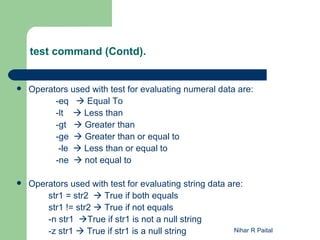
test command (Contd).


   Operators used with test for evaluating numeral data are:
          -eq  Equal To
          -lt  Less than
          -gt  Greater than
          -ge  Greater than or equal to
           -le  Less than or equal to
          -ne  not equal to

   Operators used with test for evaluating string data are:
        str1 = str2  True if both equals
        str1 != str2  True if not equals
        -n str1 True if str1 is not a null string
        -z str1  True if str1 is a null string           Nihar R Paital
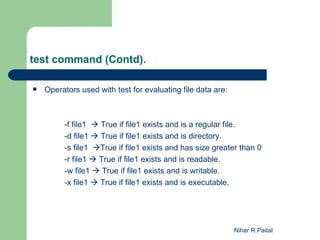
test command (Contd).

   Operators used with test for evaluating file data are:


         -f file1  True if file1 exists and is a regular file.
         -d file1  True if file1 exists and is directory.
         -s file1 True if file1 exists and has size greater than 0
         -r file1  True if file1 exists and is readable.
         -w file1  True if file1 exists and is writable.
         -x file1  True if file1 exists and is executable.


                                                             Nihar R Paital
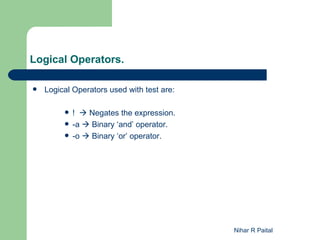
Logical Operators.

   Logical Operators used with test are:

            !  Negates the expression.
            -a  Binary ‘and’ operator.
            -o  Binary ‘or’ operator.


                                            Nihar R Paital
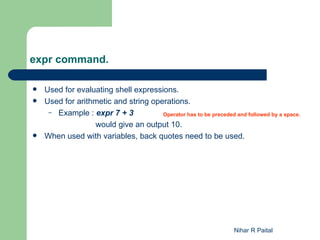
expr command.

   Used for evaluating shell expressions.
   Used for arithmetic and string operations.
     – Example : expr 7 + 3           Operator has to be preceded and followed by a space.

                  would give an output 10.
   When used with variables, back quotes need to be used.


                                                                   Nihar R Paital
expr command.
                     String operations

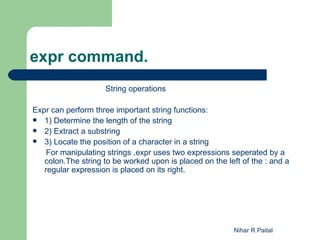
Expr can perform three important string functions:
 1) Determine the length of the string
 2) Extract a substring
 3) Locate the position of a character in a string
    For manipulating strings ,expr uses two expressions seperated by a
   colon.The string to be worked upon is placed on the left of the : and a
   regular expression is placed on its right.


                                                          Nihar R Paital
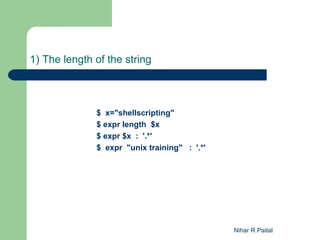
1) The length of the string


              $ x="shellscripting"
              $ expr length $x
              $ expr $x : '.*'
              $ expr "unix training" : '.*'


                                              Nihar R Paital
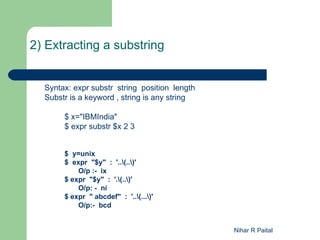
2) Extracting a substring


  Syntax: expr substr string position length
  Substr is a keyword , string is any string

       $ x="IBMIndia"
       $ expr substr $x 2 3


       $ y=unix
       $ expr "$y" : '..(..)'
           O/p :- ix
       $ expr "$y" : '.(..)'
           O/p: - ni
       $ expr " abcdef" : '..(...)'
           O/p:- bcd


                                               Nihar R Paital
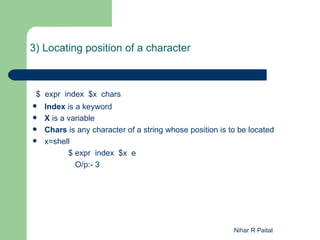
3) Locating position of a character


 $ expr index $x chars
   Index is a keyword
   X is a variable
   Chars is any character of a string whose position is to be located
   x=shell
           $ expr index $x e
             O/p:- 3


                                                          Nihar R Paital
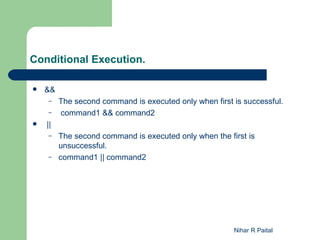
Conditional Execution.

   &&
    –    The second command is executed only when first is successful.
    –    command1 && command2
   ||
    –    The second command is executed only when the first is
         unsuccessful.
    –    command1 || command2


                                                        Nihar R Paital
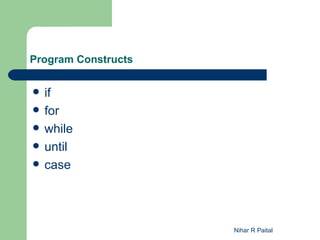
Program Constructs


   if
   for
   while
   until
   case


                     Nihar R Paital
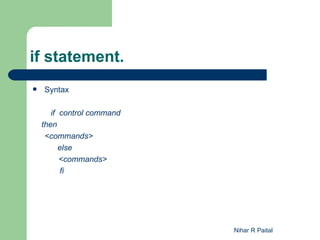
if statement.
   Syntax

       if control command
    then
     <commands>
          else
          <commands>
           fi


                            Nihar R Paital
Ex:if statement.

   1) If [ 10 -gt 5 ]
       then
           echo hi
       else
           echo bye
       fi

   2) If grep "unix" xyz && echo found
      then
          ls -l xyz
      fi


                                          Nihar R Paital
Nihar R Paital

UNIX - Class1 - Basic Shell

  • 1.
    UNIX Basic ShellScripting Presentation By Nihar R Paital
  • 2.
    Shell Types inUnix  Bourne Shell.  Bourne Again Shell (bash).  C Shell (c-shell).  Korn Shell (k-shell).  TC Shell (tcsh) Nihar R Paital
  • 3.
    Executing a shellscript  There are many ways of executing a shell script: – By passing the shell script name as an argument to the shell. For example: – sh script1.sh Nihar R Paital
  • 4.
    Shell Scripts  A script, or file that contains shell commands, is a shell program  There are two ways to run a script  1 By using . (dot) command  Ex:-  Scriptname – By typing scriptname , if the current directory is part of command search path . If dot isn’t in your path then type – . /scriptname Nihar R Paital
  • 5.
    Command-line Editing Enabling Command-lineEditing There are two ways of entering either editing mode Add following line in .profile file  $ set -o emacs or  $ set -o vi Nihar R Paital
  • 6.
    Simple Control ModeCommands Basic vi Control Mode Commands Command Description  h Move left one character  l Move right one character  w Move right one word  b Move left one word  e Move to end of current word  0 Move to beginning of line  ^ Move to first non-blank character in line  $ Move to end of line Nihar R Paital
  • 7.
    Entering and ChangingText Commands for Entering vi Input Mode Command Description  i Text inserted before current character (insert)  a Text inserted after current character (append)  I Text inserted at beginning of line  A Text inserted at end of line  R Text overwrites existing text Nihar R Paital
  • 8.
    Deletion Commands  Command Description  dh Delete one character backwards  dl Delete one character forwards  db Delete one word backwards  dw Delete one word forwards  d$ Delete to end of line  d0 Delete to beginning of line  u undoes the last text modification command only  . redoes the last text modification command. Nihar R Paital
  • 9.
    Moving Around inthe History File  Command Description  k or - Move backward one line  j or + Move forward one line  G Move to line given by repeat count  ?string Search backward for string  /string Search forward for string  n Repeat search in same direction as previous  N Repeat search in opposite direction of previous Nihar R Paital
  • 10.
    The fc Command  fc (fix command) is a shell built-in command  It is used to edit one or more commands with editor, and to run old commands with changes without having to type the entire command in again  The fc -l is to lists previous commands.  It takes arguments that refer to commands in the history file. Arguments can be numbers or alphanumeric strings  To see only commands 2 through 4, type fc -l 2 4  To see only one command type fc -l 5  To see commands between ls and cal in history ,type fc -l l c  To edit , fc command_no Nihar R Paital
  • 11.
    The fc Command  With no arguments, fc loads the editor with the most recent command.  With a numeric argument, fc loads the editor with the command with that number.  With a string argument, fc loads the most recent command starting with that string.  With two arguments to fc, the arguments specify the beginning and end of a range of commands, Nihar R Paital
  • 12.
    Shell Variables.  Positional Parameters.  Special Parameters.  Named variables Nihar R Paital
  • 13.
    Positional Parameters. ofarguments in command line. Acquire values from the position  – $1, $2, $3,..$9 – sh file1 10 20 30 – Ex: Suppose the content of the below file test1.sh is #!/bin/ksh echo Your arguments are $1 $2 $3 -Run the file test1.sh as $ test1.sh 10 15 20 Output: Your arguments are 10 15 20 Nihar R Paital
  • 14.
    Special Parameters.  Shell assigns the value for this parameter. – $$ - PID number. – $# - Number of Command Line Arguments. – $0 – Command Name. – $* - Displays all the command line arguments. – $? – Exit Status. – $- - Shell options – $! - Process number of the last background command – $@ - Same as $*, except when enclosed in double quotes. Nihar R Paital
  • 15.
    Exit Status  Every UNIX command , at the end of its execution returns a status number to the process that invoked it.  Indicates whether or not the command ran successfully.  An exit status of zero is used to indicate successful completion. A nonzero exit status indicates that the program failed.  The shell sets the $? variable to the exit status of the last foreground command that was executed.  The constructs if, while, until and the logical AND (&&) and OR (||) operators use exit status to make logical decisions: 0 is a logical "true" (success) 1 is a logical "false" (failure)  There are built-in true and false commands which you can use. Nihar R Paital
  • 16.
    Exit Status  A shell, like any other process, sets an exit status when it finishes executing. Shell scripts will finish in one of the following ways:  Abort - If the script aborts due to an internal errorand exit or return command, the exit status is that set by those commands. , the exit status is that of the last command (the one that aborted the script).  End - If the script runs to completion, the exit status is that of the last command in the script  Exit - If the script encounters Nihar R Paital
  • 17.
    Named Variables.  User-defined variable that can be assigned a value.  Used extensively in shell-scripts.  Used for reading data, storing and displaying it. Nihar R Paital
  • 18.
    Accepting Data fromUser.  read. – Accepts input from the user. – Syntax : read variable_name. – Example : $ read sname # This will prompt for user input Here sname is the user defied variable Nihar R Paital
  • 19.
    Display Data.  echo – Used to display a message or any data as required by the user. – echo [Message, Variable] – Example: $ echo “IBM.” $ echo $sname # This will display the value of sname Nihar R Paital
  • 20.
    Comment Line  Normally we use the comment lines for documentation purpose.  The comment lines are not compiled by the compiler  For make a line a comment line we use # symbol at the beginning of the line  For Ex: # This is the First Program Nihar R Paital
  • 21.
    test command.  Used extensively for evaluating shell script conditions.  It evaluates the condition on its right and returns a true or false exit status.  The return value is used by the construct for further execution.  In place of writing test explicitly, the user could also use [ ]. Nihar R Paital
  • 22.
    test command (Contd).  Operators used with test for evaluating numeral data are: -eq  Equal To -lt  Less than -gt  Greater than -ge  Greater than or equal to -le  Less than or equal to -ne  not equal to  Operators used with test for evaluating string data are: str1 = str2  True if both equals str1 != str2  True if not equals -n str1 True if str1 is not a null string -z str1  True if str1 is a null string Nihar R Paital
  • 23.
    test command (Contd).  Operators used with test for evaluating file data are: -f file1  True if file1 exists and is a regular file. -d file1  True if file1 exists and is directory. -s file1 True if file1 exists and has size greater than 0 -r file1  True if file1 exists and is readable. -w file1  True if file1 exists and is writable. -x file1  True if file1 exists and is executable. Nihar R Paital
  • 24.
    Logical Operators.  Logical Operators used with test are:  !  Negates the expression.  -a  Binary ‘and’ operator.  -o  Binary ‘or’ operator. Nihar R Paital
  • 25.
    expr command.  Used for evaluating shell expressions.  Used for arithmetic and string operations. – Example : expr 7 + 3 Operator has to be preceded and followed by a space. would give an output 10.  When used with variables, back quotes need to be used. Nihar R Paital
  • 26.
    expr command. String operations Expr can perform three important string functions:  1) Determine the length of the string  2) Extract a substring  3) Locate the position of a character in a string For manipulating strings ,expr uses two expressions seperated by a colon.The string to be worked upon is placed on the left of the : and a regular expression is placed on its right. Nihar R Paital
  • 27.
    1) The lengthof the string $ x="shellscripting" $ expr length $x $ expr $x : '.*' $ expr "unix training" : '.*' Nihar R Paital
  • 28.
    2) Extracting asubstring Syntax: expr substr string position length Substr is a keyword , string is any string $ x="IBMIndia" $ expr substr $x 2 3 $ y=unix $ expr "$y" : '..(..)' O/p :- ix $ expr "$y" : '.(..)' O/p: - ni $ expr " abcdef" : '..(...)' O/p:- bcd Nihar R Paital
  • 29.
    3) Locating positionof a character $ expr index $x chars  Index is a keyword  X is a variable  Chars is any character of a string whose position is to be located  x=shell $ expr index $x e O/p:- 3 Nihar R Paital
  • 30.
    Conditional Execution.  && – The second command is executed only when first is successful. – command1 && command2  || – The second command is executed only when the first is unsuccessful. – command1 || command2 Nihar R Paital
  • 31.
    Program Constructs  if  for  while  until  case Nihar R Paital
  • 32.
    if statement.  Syntax if control command then <commands> else <commands> fi Nihar R Paital
  • 33.
    Ex:if statement.  1) If [ 10 -gt 5 ] then echo hi else echo bye fi  2) If grep "unix" xyz && echo found then ls -l xyz fi Nihar R Paital
  • 34.