Shell Scripting
Pepper
(Help from Dr. Robert Siegfried)
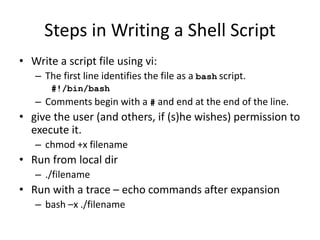
Steps in Writing a Shell Script
• Write a script file using vi:
– The first line identifies the file as a bash script.
#!/bin/bash
– Comments begin with a # and end at the end of the line.
• give the user (and others, if (s)he wishes) permission to
execute it.
– chmod +x filename
• Run from local dir
– ./filename
• Run with a trace – echo commands after expansion
– bash –x ./filename
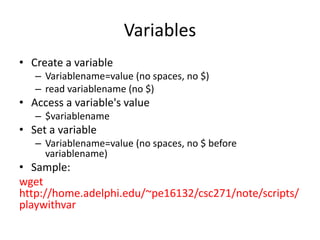
Variables
• Create a variable
– Variablename=value (no spaces, no $)
– read variablename (no $)
• Access a variable's value
– $variablename
• Set a variable
– Variablename=value (no spaces, no $ before
variablename)
• Sample:
wget
http://home.adelphi.edu/~pe16132/csc271/note/scripts/
playwithvar
Positional Parameters
Positional Parameter What It References
$0 References the name of the script
$# Holds the value of the number of positional parameters
$* Lists all of the positional parameters
$@ Means the same as $@, except when enclosed in double
quotes
"$*" Expands to a single argument (e.g., "$1 $2 $3")
"$@" Expands to separate arguments (e.g., "$1" "$2" "$3")
$1 .. ${10} References individual positional parameters
set Command to reset the script arguments
wget
http://home.adelphi.edu/~pe16132/csc271/no
te/scripts/envvar
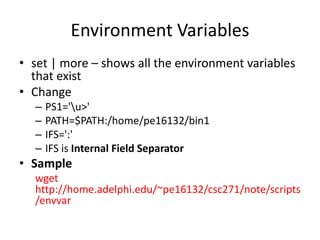
Environment Variables
• set | more – shows all the environment variables
that exist
• Change
– PS1='u>'
– PATH=$PATH:/home/pe16132/bin1
– IFS=':'
– IFS is Internal Field Separator
• Sample
wget
http://home.adelphi.edu/~pe16132/csc271/note/scripts
/envvar
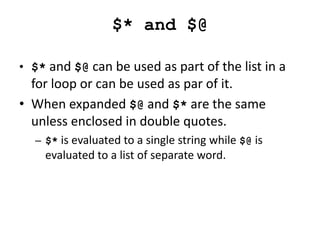
$* and $@
• $* and $@ can be used as part of the list in a
for loop or can be used as par of it.
• When expanded $@ and $* are the same
unless enclosed in double quotes.
– $* is evaluated to a single string while $@ is
evaluated to a list of separate word.
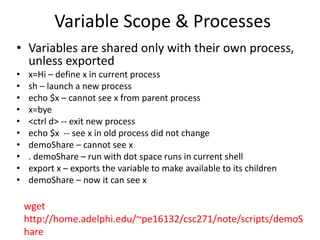
Variable Scope & Processes
• Variables are shared only with their own process,
unless exported
• x=Hi – define x in current process
• sh – launch a new process
• echo $x – cannot see x from parent process
• x=bye
• <ctrl d> -- exit new process
• echo $x -- see x in old process did not change
• demoShare – cannot see x
• . demoShare – run with dot space runs in current shell
• export x – exports the variable to make available to its children
• demoShare – now it can see x
wget
http://home.adelphi.edu/~pe16132/csc271/note/scripts/demoS
hare
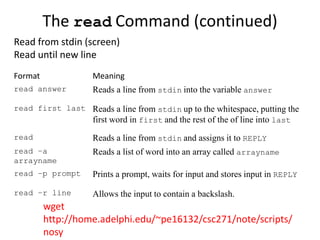
The read Command (continued)
Format Meaning
read answer Reads a line from stdin into the variable answer
read first last Reads a line from stdin up to the whitespace, putting the
first word in first and the rest of the of line into last
read Reads a line from stdin and assigns it to REPLY
read –a
arrayname
Reads a list of word into an array called arrayname
read –p prompt Prints a prompt, waits for input and stores input in REPLY
read –r line Allows the input to contain a backslash.
wget
http://home.adelphi.edu/~pe16132/csc271/note/scripts/
nosy
Read from stdin (screen)
Read until new line
Shortcut to Display Lots of Words
• Here file:
– You give it the end token at the start
– Type a list
– Type the end token to end
– cat << Here
words
Here
wget
http://home.adelphi.edu/~pe16132/csc271/note/scripts/
nosy
Numbers
• Assumes variables are strings
• Math operations on strings are essentially
ignored
– Normalvar=1
– 3+$normalvar yields 3+1
• Must force consideration as number
– Create variable with declare - i
– Surround your mathematical statement with (( ))
wget
http://home.adelphi.edu/~pe16132/csc271/note/scripts/
numbers
Different Base Nums: Octal, Hex
• Leading 0 in a number makes it be interpreted
as octal so 017 represents the decimal # 15
• Leading 0x in a number makes it be
interpreted as hex.
• Leading <Base># in a number makes it be
interpreted as that base.
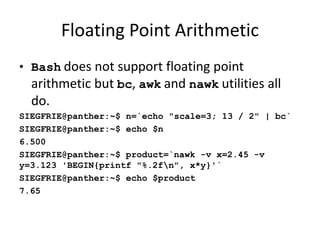
Floating Point Arithmetic
• Bash does not support floating point
arithmetic but bc, awk and nawk utilities all
do.
SIEGFRIE@panther:~$ n=`echo "scale=3; 13 / 2" | bc`
SIEGFRIE@panther:~$ echo $n
6.500
SIEGFRIE@panther:~$ product=`nawk -v x=2.45 -v
y=3.123 'BEGIN{printf "%.2fn", x*y}'`
SIEGFRIE@panther:~$ echo $product
7.65
Test Command
• Command to test true or false:
– test
– [ the comparison ]
• [ means 'test'
• Spaces around [
• ] for looks only
– Logical
• -o for OR
• -a for AND
wget
http://home.adelphi.edu/~pe16132/csc271/note/scripts/i
fscript
Using test For Numbers And Strings – Old
Format
if test expression
then
command
fi
or
if [ string/numeric expression]
then
command
fi
wget
http://home.adelphi.edu/~pe16132/csc271/n
ote/scripts/ifscript
Using test For Strings – New Format
if [[ string expression ]] ; then
command
elif
fi
or
if (( numeric expression ))
NOTE: new line for then or ; then
wget
http://home.adelphi.edu/~pe16132/csc271/note/sc
ripts/ifscript
Testing Strings vs Numbers
Comparing numbers
• remember (( ))
• -eq , -ne, -gt, -ge, -lt, -le
Comparing strings
• Remember [[ ]]
• Remember space after [
• =
• !=
• Unary string tests
– [ string ] (not null)
– -z (0 length)
– -n (some length)
– -l returns the length of the string
wget
http://home.adelphi.edu/~pe16132/csc271/note/sc
ripts/ifscriptnum
test Command Operators – String Test
Test Operator Tests True if
[ string1 = string2 ] String1 is equal to String2 (space
surrounding = is necessary
[ string1 != string2 ] String1 is not equal to String2 (space
surrounding != is not necessary
[ string ] String is not null.
[ -z string ] Length of string is zero.
[ -n string ] Length of string is nonzero.
[ -l string ] Length of string (number of character)
[[ ]] gives some pattern matching
[[ $name == [Tt]om ]] matches if $name contains Tom or tom
[[ $name == [^t]om ]] matches if $name contains any character but t followed by om
[[ $name == ?o* ]] matches if $name contains any character followed by o and then
whatever number of characters after that.
Just shell patterns, not regex
test Command Operators – Logical Tests
Test Operator Test True If
[ string1 –a string2 ] Both string1 and string 2 are true.
[ string1 –o string2 ] Both string1 or string 2 are true.
[ ! string ] Not a string1 match
pattern1 and pattern2 can contain metacharacters.
Test operator Tests True if
[[ pattern1 && Pattern2 ]] Both pattern1 and pattern2 are true
[[ pattern1 || Pattern2 ]] Either pattern1 or pattern2 is true
[[ !pattern ]] Not a pattern match
test Command Operators – Integer Tests
Test operator Tests True if
[ int1 –eq int2 ] int1 = int2
[ int1 –ne int2 ] int1 ≠ int2
[ int1 –gt int2 ] int1 > int2
[ int1 –ge int2 ] int1 ≥ int2
[ int1 –lt int2 ] int1 < int2
[ int1 –le int2 ] int1 ≤ int2
test Command Operators – File Tests
Test Operator Test True If
[ file1 –nt file2 ] True if file1 is newer than file2*
[ file1 –ot file2 ] True if file1 is older than file2*
[ file1 –ef file2 ] True if file1 and file2 have the same
device and inode numbers.
* according to modfication date and time
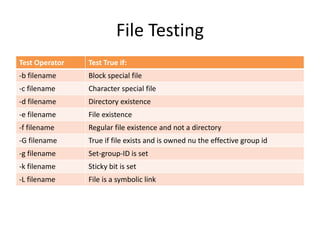
File Testing
Test Operator Test True if:
-b filename Block special file
-c filename Character special file
-d filename Directory existence
-e filename File existence
-f filename Regular file existence and not a directory
-G filename True if file exists and is owned nu the effective group id
-g filename Set-group-ID is set
-k filename Sticky bit is set
-L filename File is a symbolic link
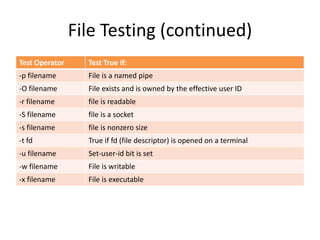
File Testing (continued)
Test Operator Test True if:
-p filename File is a named pipe
-O filename File exists and is owned by the effective user ID
-r filename file is readable
-S filename file is a socket
-s filename file is nonzero size
-t fd True if fd (file descriptor) is opened on a terminal
-u filename Set-user-id bit is set
-w filename File is writable
-x filename File is executable
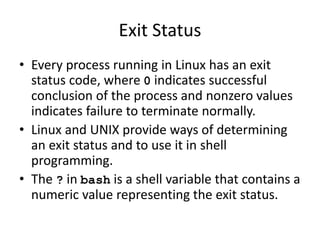
Exit Status
• Every process running in Linux has an exit
status code, where 0 indicates successful
conclusion of the process and nonzero values
indicates failure to terminate normally.
• Linux and UNIX provide ways of determining
an exit status and to use it in shell
programming.
• The ? in bash is a shell variable that contains a
numeric value representing the exit status.
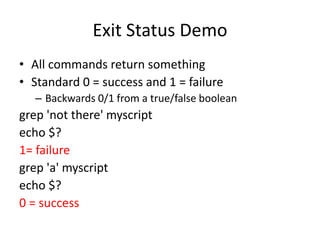
Exit Status Demo
• All commands return something
• Standard 0 = success and 1 = failure
– Backwards 0/1 from a true/false boolean
grep 'not there' myscript
echo $?
1= failure
grep 'a' myscript
echo $?
0 = success
exit Command and the ? Variable
• exit is used to terminate the script; it is
mainly to used to exit the script if some
condition is true.
• exit has one parameter – a number ranging
from 0 to 255, indicating if is ended
successfully (0) or unsuccessfully (nonzero).
• The argument given to the script is stored in
the variable ?
wget
http://home.adelphi.edu/~pe16132/csc271/note/script
s/ifbigfiles
Looping in Bash – The for Command
• Loop through a list – like java for each loop (pg 37)
for variable in word_list
do
command(s)
done
• variable will take on the value of each of the words
in the list.
• To get a list, you can execute a subcommand that
returns a list inside $( ) ex $(ls)
wget
http://home.adelphi.edu/~pe16132/csc271/note/script
s/forscript
while Command
• The while command evaluates the command
following it and, if its exit status is 0, the commands
in the body of the loop are execeuted.
• The loop continues until the exit status is nonzero.
• Format:
while command
do
command(s)
done
wget
http://home.adelphi.edu/~pe16132/csc271/note/script
s/numm
The until Command
• until works like the while command, except it
execute the loop if the exit status is nonzero
(i.e., the command failed).
• Format:
until command
do
command(s)
done
wget
http://home.adelphi.edu/~pe16132/csc271/note/script
s/hour
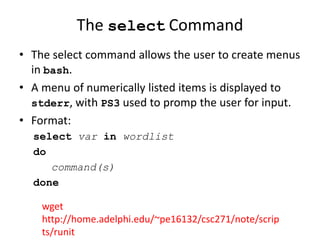
The select Command
• The select command allows the user to create menus
in bash.
• A menu of numerically listed items is displayed to
stderr, with PS3 used to promp the user for input.
• Format:
select var in wordlist
do
command(s)
done
wget
http://home.adelphi.edu/~pe16132/csc271/note/scrip
ts/runit
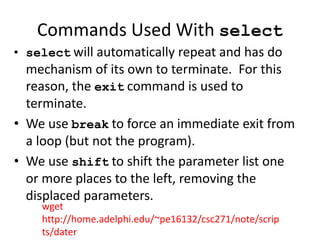
Commands Used With select
• select will automatically repeat and has do
mechanism of its own to terminate. For this
reason, the exit command is used to
terminate.
• We use break to force an immediate exit from
a loop (but not the program).
• We use shift to shift the parameter list one
or more places to the left, removing the
displaced parameters.
wget
http://home.adelphi.edu/~pe16132/csc271/note/scrip
ts/dater
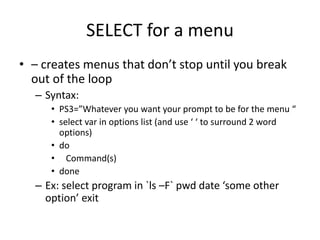
SELECT for a menu
• – creates menus that don’t stop until you break
out of the loop
– Syntax:
• PS3=”Whatever you want your prompt to be for the menu “
• select var in options list (and use ‘ ‘ to surround 2 word
options)
• do
• Command(s)
• done
– Ex: select program in `ls –F` pwd date ‘some other
option’ exit
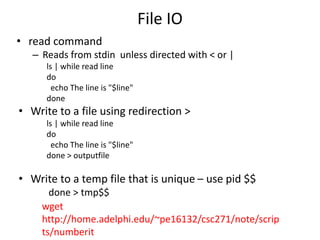
File IO
• read command
– Reads from stdin unless directed with < or |
ls | while read line
do
echo The line is "$line"
done
• Write to a file using redirection >
ls | while read line
do
echo The line is "$line"
done > outputfile
• Write to a temp file that is unique – use pid $$
done > tmp$$
wget
http://home.adelphi.edu/~pe16132/csc271/note/scrip
ts/numberit
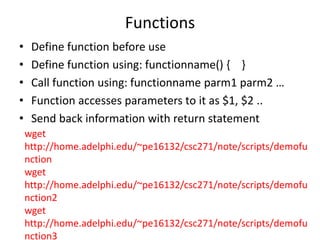
Functions
• Define function before use
• Define function using: functionname() { }
• Call function using: functionname parm1 parm2 …
• Function accesses parameters to it as $1, $2 ..
• Send back information with return statement
wget
http://home.adelphi.edu/~pe16132/csc271/note/scripts/demofu
nction
wget
http://home.adelphi.edu/~pe16132/csc271/note/scripts/demofu
nction2
wget
http://home.adelphi.edu/~pe16132/csc271/note/scripts/demofu
nction3
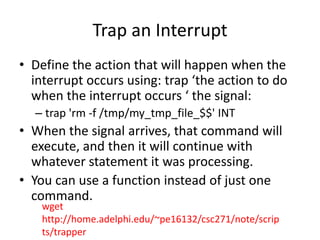
Trap an Interrupt
• Define the action that will happen when the
interrupt occurs using: trap ‘the action to do
when the interrupt occurs ‘ the signal:
– trap 'rm -f /tmp/my_tmp_file_$$' INT
• When the signal arrives, that command will
execute, and then it will continue with
whatever statement it was processing.
• You can use a function instead of just one
command.
wget
http://home.adelphi.edu/~pe16132/csc271/note/scrip
ts/trapper
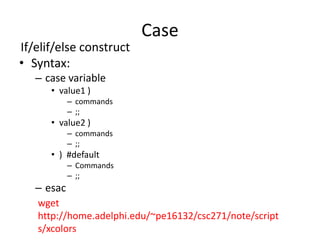
Case
If/elif/else construct
• Syntax:
– case variable
• value1 )
– commands
– ;;
• value2 )
– commands
– ;;
• ) #default
– Commands
– ;;
– esac
wget
http://home.adelphi.edu/~pe16132/csc271/note/script
s/xcolors
Summary
• Variables
• Decision - If / case / select (embedded while)
– Numbers vs Strings
– Unary tests
– File tests
• Loop – for/ while / until
– File IO
• Functions
• Trap

shellScriptAlt.pptx

  • 1.
    Shell Scripting Pepper (Help fromDr. Robert Siegfried)
  • 2.
    Steps in Writinga Shell Script • Write a script file using vi: – The first line identifies the file as a bash script. #!/bin/bash – Comments begin with a # and end at the end of the line. • give the user (and others, if (s)he wishes) permission to execute it. – chmod +x filename • Run from local dir – ./filename • Run with a trace – echo commands after expansion – bash –x ./filename
  • 3.
    Variables • Create avariable – Variablename=value (no spaces, no $) – read variablename (no $) • Access a variable's value – $variablename • Set a variable – Variablename=value (no spaces, no $ before variablename) • Sample: wget http://home.adelphi.edu/~pe16132/csc271/note/scripts/ playwithvar
  • 4.
    Positional Parameters Positional ParameterWhat It References $0 References the name of the script $# Holds the value of the number of positional parameters $* Lists all of the positional parameters $@ Means the same as $@, except when enclosed in double quotes "$*" Expands to a single argument (e.g., "$1 $2 $3") "$@" Expands to separate arguments (e.g., "$1" "$2" "$3") $1 .. ${10} References individual positional parameters set Command to reset the script arguments wget http://home.adelphi.edu/~pe16132/csc271/no te/scripts/envvar
  • 5.
    Environment Variables • set| more – shows all the environment variables that exist • Change – PS1='u>' – PATH=$PATH:/home/pe16132/bin1 – IFS=':' – IFS is Internal Field Separator • Sample wget http://home.adelphi.edu/~pe16132/csc271/note/scripts /envvar
  • 6.
    $* and $@ •$* and $@ can be used as part of the list in a for loop or can be used as par of it. • When expanded $@ and $* are the same unless enclosed in double quotes. – $* is evaluated to a single string while $@ is evaluated to a list of separate word.
  • 7.
    Variable Scope &Processes • Variables are shared only with their own process, unless exported • x=Hi – define x in current process • sh – launch a new process • echo $x – cannot see x from parent process • x=bye • <ctrl d> -- exit new process • echo $x -- see x in old process did not change • demoShare – cannot see x • . demoShare – run with dot space runs in current shell • export x – exports the variable to make available to its children • demoShare – now it can see x wget http://home.adelphi.edu/~pe16132/csc271/note/scripts/demoS hare
  • 8.
    The read Command(continued) Format Meaning read answer Reads a line from stdin into the variable answer read first last Reads a line from stdin up to the whitespace, putting the first word in first and the rest of the of line into last read Reads a line from stdin and assigns it to REPLY read –a arrayname Reads a list of word into an array called arrayname read –p prompt Prints a prompt, waits for input and stores input in REPLY read –r line Allows the input to contain a backslash. wget http://home.adelphi.edu/~pe16132/csc271/note/scripts/ nosy Read from stdin (screen) Read until new line
  • 9.
    Shortcut to DisplayLots of Words • Here file: – You give it the end token at the start – Type a list – Type the end token to end – cat << Here words Here wget http://home.adelphi.edu/~pe16132/csc271/note/scripts/ nosy
  • 10.
    Numbers • Assumes variablesare strings • Math operations on strings are essentially ignored – Normalvar=1 – 3+$normalvar yields 3+1 • Must force consideration as number – Create variable with declare - i – Surround your mathematical statement with (( )) wget http://home.adelphi.edu/~pe16132/csc271/note/scripts/ numbers
  • 11.
    Different Base Nums:Octal, Hex • Leading 0 in a number makes it be interpreted as octal so 017 represents the decimal # 15 • Leading 0x in a number makes it be interpreted as hex. • Leading <Base># in a number makes it be interpreted as that base.
  • 12.
    Floating Point Arithmetic •Bash does not support floating point arithmetic but bc, awk and nawk utilities all do. SIEGFRIE@panther:~$ n=`echo "scale=3; 13 / 2" | bc` SIEGFRIE@panther:~$ echo $n 6.500 SIEGFRIE@panther:~$ product=`nawk -v x=2.45 -v y=3.123 'BEGIN{printf "%.2fn", x*y}'` SIEGFRIE@panther:~$ echo $product 7.65
  • 13.
    Test Command • Commandto test true or false: – test – [ the comparison ] • [ means 'test' • Spaces around [ • ] for looks only – Logical • -o for OR • -a for AND wget http://home.adelphi.edu/~pe16132/csc271/note/scripts/i fscript
  • 14.
    Using test ForNumbers And Strings – Old Format if test expression then command fi or if [ string/numeric expression] then command fi wget http://home.adelphi.edu/~pe16132/csc271/n ote/scripts/ifscript
  • 15.
    Using test ForStrings – New Format if [[ string expression ]] ; then command elif fi or if (( numeric expression )) NOTE: new line for then or ; then wget http://home.adelphi.edu/~pe16132/csc271/note/sc ripts/ifscript
  • 16.
    Testing Strings vsNumbers Comparing numbers • remember (( )) • -eq , -ne, -gt, -ge, -lt, -le Comparing strings • Remember [[ ]] • Remember space after [ • = • != • Unary string tests – [ string ] (not null) – -z (0 length) – -n (some length) – -l returns the length of the string wget http://home.adelphi.edu/~pe16132/csc271/note/sc ripts/ifscriptnum
  • 17.
    test Command Operators– String Test Test Operator Tests True if [ string1 = string2 ] String1 is equal to String2 (space surrounding = is necessary [ string1 != string2 ] String1 is not equal to String2 (space surrounding != is not necessary [ string ] String is not null. [ -z string ] Length of string is zero. [ -n string ] Length of string is nonzero. [ -l string ] Length of string (number of character) [[ ]] gives some pattern matching [[ $name == [Tt]om ]] matches if $name contains Tom or tom [[ $name == [^t]om ]] matches if $name contains any character but t followed by om [[ $name == ?o* ]] matches if $name contains any character followed by o and then whatever number of characters after that. Just shell patterns, not regex
  • 18.
    test Command Operators– Logical Tests Test Operator Test True If [ string1 –a string2 ] Both string1 and string 2 are true. [ string1 –o string2 ] Both string1 or string 2 are true. [ ! string ] Not a string1 match pattern1 and pattern2 can contain metacharacters. Test operator Tests True if [[ pattern1 && Pattern2 ]] Both pattern1 and pattern2 are true [[ pattern1 || Pattern2 ]] Either pattern1 or pattern2 is true [[ !pattern ]] Not a pattern match
  • 19.
    test Command Operators– Integer Tests Test operator Tests True if [ int1 –eq int2 ] int1 = int2 [ int1 –ne int2 ] int1 ≠ int2 [ int1 –gt int2 ] int1 > int2 [ int1 –ge int2 ] int1 ≥ int2 [ int1 –lt int2 ] int1 < int2 [ int1 –le int2 ] int1 ≤ int2
  • 20.
    test Command Operators– File Tests Test Operator Test True If [ file1 –nt file2 ] True if file1 is newer than file2* [ file1 –ot file2 ] True if file1 is older than file2* [ file1 –ef file2 ] True if file1 and file2 have the same device and inode numbers. * according to modfication date and time
  • 21.
    File Testing Test OperatorTest True if: -b filename Block special file -c filename Character special file -d filename Directory existence -e filename File existence -f filename Regular file existence and not a directory -G filename True if file exists and is owned nu the effective group id -g filename Set-group-ID is set -k filename Sticky bit is set -L filename File is a symbolic link
  • 22.
    File Testing (continued) TestOperator Test True if: -p filename File is a named pipe -O filename File exists and is owned by the effective user ID -r filename file is readable -S filename file is a socket -s filename file is nonzero size -t fd True if fd (file descriptor) is opened on a terminal -u filename Set-user-id bit is set -w filename File is writable -x filename File is executable
  • 23.
    Exit Status • Everyprocess running in Linux has an exit status code, where 0 indicates successful conclusion of the process and nonzero values indicates failure to terminate normally. • Linux and UNIX provide ways of determining an exit status and to use it in shell programming. • The ? in bash is a shell variable that contains a numeric value representing the exit status.
  • 24.
    Exit Status Demo •All commands return something • Standard 0 = success and 1 = failure – Backwards 0/1 from a true/false boolean grep 'not there' myscript echo $? 1= failure grep 'a' myscript echo $? 0 = success
  • 25.
    exit Command andthe ? Variable • exit is used to terminate the script; it is mainly to used to exit the script if some condition is true. • exit has one parameter – a number ranging from 0 to 255, indicating if is ended successfully (0) or unsuccessfully (nonzero). • The argument given to the script is stored in the variable ? wget http://home.adelphi.edu/~pe16132/csc271/note/script s/ifbigfiles
  • 26.
    Looping in Bash– The for Command • Loop through a list – like java for each loop (pg 37) for variable in word_list do command(s) done • variable will take on the value of each of the words in the list. • To get a list, you can execute a subcommand that returns a list inside $( ) ex $(ls) wget http://home.adelphi.edu/~pe16132/csc271/note/script s/forscript
  • 27.
    while Command • Thewhile command evaluates the command following it and, if its exit status is 0, the commands in the body of the loop are execeuted. • The loop continues until the exit status is nonzero. • Format: while command do command(s) done wget http://home.adelphi.edu/~pe16132/csc271/note/script s/numm
  • 28.
    The until Command •until works like the while command, except it execute the loop if the exit status is nonzero (i.e., the command failed). • Format: until command do command(s) done wget http://home.adelphi.edu/~pe16132/csc271/note/script s/hour
  • 29.
    The select Command •The select command allows the user to create menus in bash. • A menu of numerically listed items is displayed to stderr, with PS3 used to promp the user for input. • Format: select var in wordlist do command(s) done wget http://home.adelphi.edu/~pe16132/csc271/note/scrip ts/runit
  • 30.
    Commands Used Withselect • select will automatically repeat and has do mechanism of its own to terminate. For this reason, the exit command is used to terminate. • We use break to force an immediate exit from a loop (but not the program). • We use shift to shift the parameter list one or more places to the left, removing the displaced parameters. wget http://home.adelphi.edu/~pe16132/csc271/note/scrip ts/dater
  • 31.
    SELECT for amenu • – creates menus that don’t stop until you break out of the loop – Syntax: • PS3=”Whatever you want your prompt to be for the menu “ • select var in options list (and use ‘ ‘ to surround 2 word options) • do • Command(s) • done – Ex: select program in `ls –F` pwd date ‘some other option’ exit
  • 32.
    File IO • readcommand – Reads from stdin unless directed with < or | ls | while read line do echo The line is "$line" done • Write to a file using redirection > ls | while read line do echo The line is "$line" done > outputfile • Write to a temp file that is unique – use pid $$ done > tmp$$ wget http://home.adelphi.edu/~pe16132/csc271/note/scrip ts/numberit
  • 33.
    Functions • Define functionbefore use • Define function using: functionname() { } • Call function using: functionname parm1 parm2 … • Function accesses parameters to it as $1, $2 .. • Send back information with return statement wget http://home.adelphi.edu/~pe16132/csc271/note/scripts/demofu nction wget http://home.adelphi.edu/~pe16132/csc271/note/scripts/demofu nction2 wget http://home.adelphi.edu/~pe16132/csc271/note/scripts/demofu nction3
  • 34.
    Trap an Interrupt •Define the action that will happen when the interrupt occurs using: trap ‘the action to do when the interrupt occurs ‘ the signal: – trap 'rm -f /tmp/my_tmp_file_$$' INT • When the signal arrives, that command will execute, and then it will continue with whatever statement it was processing. • You can use a function instead of just one command. wget http://home.adelphi.edu/~pe16132/csc271/note/scrip ts/trapper
  • 35.
    Case If/elif/else construct • Syntax: –case variable • value1 ) – commands – ;; • value2 ) – commands – ;; • ) #default – Commands – ;; – esac wget http://home.adelphi.edu/~pe16132/csc271/note/script s/xcolors
  • 36.
    Summary • Variables • Decision- If / case / select (embedded while) – Numbers vs Strings – Unary tests – File tests • Loop – for/ while / until – File IO • Functions • Trap