Shell Programming
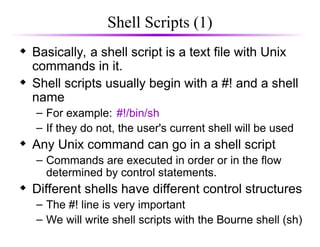
Shell Scripts (1)
 Basically, a shell script is a text file with Unix
commands in it.
 Shell scripts usually begin with a #! and a shell
name
– For example: #!/bin/sh
– If they do not, the user's current shell will be used
 Any Unix command can go in a shell script
– Commands are executed in order or in the flow
determined by control statements.
 Different shells have different control structures
– The #! line is very important
– We will write shell scripts with the Bourne shell (sh)
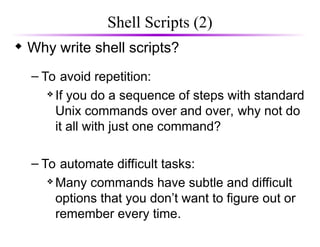
Shell Scripts (2)
 Why write shell scripts?
– To avoid repetition:
 If you do a sequence of steps with standard
Unix commands over and over, why not do
it all with just one command?
– To automate difficult tasks:
 Many commands have subtle and difficult
options that you don’t want to figure out or
remember every time.
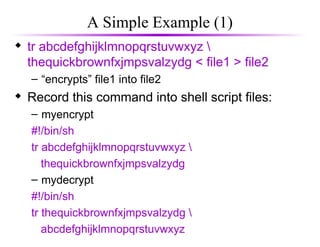
A Simple Example (1)
 tr abcdefghijklmnopqrstuvwxyz 
thequickbrownfxjmpsvalzydg < file1 > file2
– “encrypts” file1 into file2
 Record this command into shell script files:
– myencrypt
#!/bin/sh
tr abcdefghijklmnopqrstuvwxyz 
thequickbrownfxjmpsvalzydg
– mydecrypt
#!/bin/sh
tr thequickbrownfxjmpsvalzydg 
abcdefghijklmnopqrstuvwxyz
A Simple Example (2)
 chmod the files to be executable;
otherwise, you couldn’t run the scripts
obelix[3] > chmod u+x myencrypt mydecrypt
 Run them as normal commands:
obelix[4] > ./myencrypt < file1 > file2
obelix[5] > ./mydecrypt < file2 > file3
obelix[6] > diff file1 file3
Remember: This is needed
when “.” is not in the path
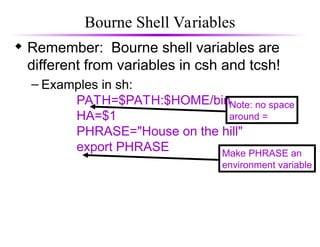
Bourne Shell Variables
 Remember: Bourne shell variables are
different from variables in csh and tcsh!
– Examples in sh:
PATH=$PATH:$HOME/bin
HA=$1
PHRASE="House on the hill"
export PHRASE
Note: no space
around =
Make PHRASE an
environment variable
Assigning Command Output to a Variable
 Using backquotes, we can assign the
output of a command to a variable:
#!/bin/sh
files=`ls`
echo $files
 Very useful in numerical computation:
#!/bin/sh
value=`expr 12345 + 54321`
echo $value
Using expr for Calculations
 Variables as arguments:
% count=5
% count=`expr $count + 1`
% echo $count
6
– Variables are replaced with their values by the shell!
 expr supports the following operators:
– arithmetic operators: +,-,*,/,%
– comparison operators: <, <=, ==, !=, >=, >
– boolean/logical operators: &, |
– parentheses: (, )
– precedence is the same as C, Java
Control Statements
 Without control statements, execution
within a shell scripts flows from one
statement to the next in succession.
 Control statements control the flow of
execution in a programming language
 The three most common types of control
statements:
– conditionals: if/then/else, case, ...
– loop statements: while, for, until, do, ...
– branch statements: subroutine calls (good),
goto (bad)
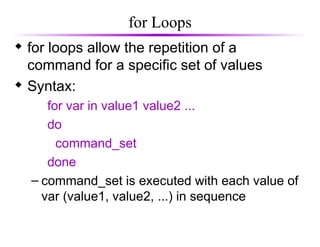
for Loops
 for loops allow the repetition of a
command for a specific set of values
 Syntax:
for var in value1 value2 ...
do
command_set
done
– command_set is executed with each value of
var (value1, value2, ...) in sequence
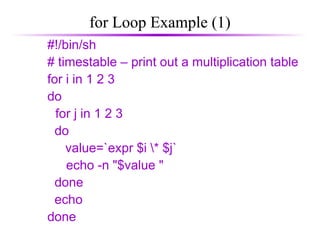
for Loop Example (1)
#!/bin/sh
# timestable – print out a multiplication table
for i in 1 2 3
do
for j in 1 2 3
do
value=`expr $i * $j`
echo -n "$value "
done
echo
done
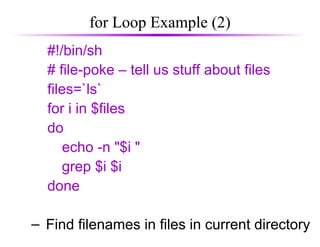
for Loop Example (2)
#!/bin/sh
# file-poke – tell us stuff about files
files=`ls`
for i in $files
do
echo -n "$i "
grep $i $i
done
– Find filenames in files in current directory
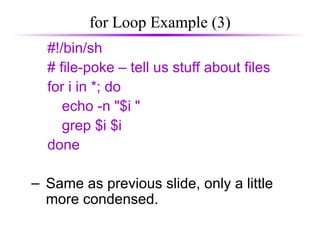
for Loop Example (3)
#!/bin/sh
# file-poke – tell us stuff about files
for i in *; do
echo -n "$i "
grep $i $i
done
– Same as previous slide, only a little
more condensed.
Conditionals
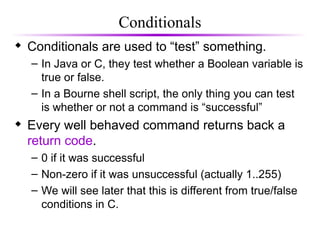
 Conditionals are used to “test” something.
– In Java or C, they test whether a Boolean variable is
true or false.
– In a Bourne shell script, the only thing you can test
is whether or not a command is “successful”
 Every well behaved command returns back a
return code.
– 0 if it was successful
– Non-zero if it was unsuccessful (actually 1..255)
– We will see later that this is different from true/false
conditions in C.
The if Statement
 Simple form:
if decision_command_1
then
command_set_1
fi
 Example:
if grep unix myfile >/dev/null
then
echo "It's there"
fi
grep returns 0 if it finds something
returns non-zero otherwise
redirect to /dev/null so that
"intermediate" results do not get
printed
if and else
if grep "UNIX" myfile >/dev/null
then
echo UNIX occurs in myfile
else
echo No!
echo UNIX does not occur in myfile
fi
if and elif
if grep "UNIX" myfile >/dev/null
then
echo "UNIX occurs in file"
elif grep "DOS" myfile >/dev/null
then
echo "Unix does not occur, but DOS does"
else
echo "Nobody is there"
fi
Use of Semicolons
 Instead of being on separate lines,
statements can be separated by a
semicolon (;)
– For example:
if grep "UNIX" myfile; then echo "Got it"; fi
– This actually works anywhere in the shell.
% cwd=`pwd`; cd $HOME; ls; cd $cwd
Use of Colon
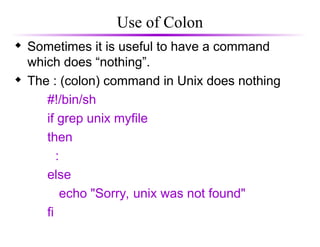
 Sometimes it is useful to have a command
which does “nothing”.
 The : (colon) command in Unix does nothing
#!/bin/sh
if grep unix myfile
then
:
else
echo "Sorry, unix was not found"
fi
The test Command – File Tests
 test –f file does file exist and is not a directory?
 test -d file does file exist and is a directory?
 test –x file does file exist and is executable?
 test –s file does file exist and is longer than 0 bytes?
#!/bin/sh
count=0
for i in *; do
if test –x $i; then
count=`expr $count + 1`
fi
done
echo Total of $count files executable.
The test Command – String Tests
 test –z string is string of length 0?
 test string1 = string2 does string1 equal string2?
 test string1 != string2 not equal?
 Example:
if test -z $REMOTEHOST
then
:
else
DISPLAY="$REMOTEHOST:0"
export DISPLAY
fi
The test Command – Integer Tests
 Integers can also be compared:
– Use -eq, -ne, -lt, -le, -gt, -ge
 For example:
#!/bin/sh
smallest=10000
for i in 5 8 19 8 7 3; do
if test $i -lt $smallest; then
smallest=$i
fi
done
echo $smallest
Use of [ ]
 The test program has an alias as [ ]
– Each bracket must be surrounded by spaces!
– This is supposed to be a bit easier to read.
 For example:
#!/bin/sh
smallest=10000
for i in 5 8 19 8 7 3; do
if [ $i -lt $smallest ] ; then
smallest=$i
fi
done
echo $smallest
The while Loop
 While loops repeat statements as long as
the next Unix command is successful.
 For example:
#!/bin/sh
i=1
sum=0
while [ $i -le 100 ]; do
sum=`expr $sum + $i`
i=`expr $i + 1`
done
echo The sum is $sum.
The until Loop
 Until loops repeat statements until the next
Unix command is successful.
 For example:
#!/bin/sh
x=1
until [ $x -gt 3 ]; do
echo x = $x
x=`expr $x + 1`
done
Command Line Arguments (1)
 Shell scripts would not be very useful if we
could not pass arguments to them on the
command line
 Shell script arguments are “numbered” from left
to right
– $1 - first argument after command
– $2 - second argument after command
– ... up to $9
– They are called “positional parameters”.
Command Line Arguments (2)
 Example: get a particular line of a file
– Write a command with the format:
getlineno linenumber filename
#!/bin/sh
head -$1 $2 | tail -1
 Other variables related to arguments:
 $0 name of the command running
 $* All the arguments (even if there are
more than 9)
 $# the number of arguments
Command Line Arguments (3)
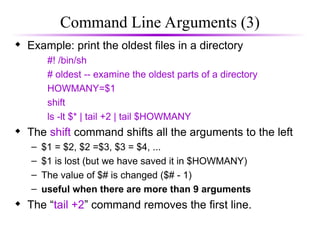
 Example: print the oldest files in a directory
#! /bin/sh
# oldest -- examine the oldest parts of a directory
HOWMANY=$1
shift
ls -lt $* | tail +2 | tail $HOWMANY
 The shift command shifts all the arguments to the left
– $1 = $2, $2 =$3, $3 = $4, ...
– $1 is lost (but we have saved it in $HOWMANY)
– The value of $# is changed ($# - 1)
– useful when there are more than 9 arguments
 The “tail +2” command removes the first line.
More on Bourne Shell Variables (1)
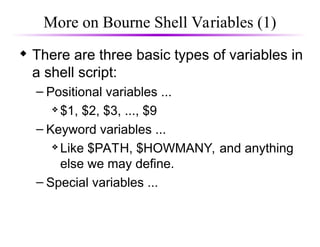
 There are three basic types of variables in
a shell script:
– Positional variables ...
 $1, $2, $3, ..., $9
– Keyword variables ...
 Like $PATH, $HOWMANY, and anything
else we may define.
– Special variables ...
More on Bourne Shell Variables (2)
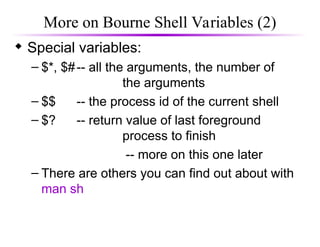
 Special variables:
– $*, $#-- all the arguments, the number of
the arguments
– $$ -- the process id of the current shell
– $? -- return value of last foreground
process to finish
-- more on this one later
– There are others you can find out about with
man sh
Reading Variables From Standard Input (1)
 The read command reads one line of input from
the terminal and assigns it to variables give as
arguments
 Syntax: read var1 var2 var3 ...
 Action: reads a line of input from standard input
 Assign first word to var1, second word to var2, ...
 The last variable gets any excess words on the
line.
Reading Variables from Standard Input (2)
 Example:
% read X Y Z
Here are some words as input
% echo $X
Here
% echo $Y
are
% echo $Z
some words as input
The case Statement
 The case statement supports multiway
branching based on the value of a single string.
 General form:
case string in
pattern1)
command_set_11
;;
pattern2)
command_set_2
;;
…
esac
case Example
#!/bin/sh
echo -n 'Choose command [1-4] > '
read reply
echo
case $reply in
"1")
date
;;
"2"|"3")
pwd
;;
"4")
ls
;;
*)
echo Illegal choice!
;;
esac
Use the pipe symbol “|” as a logical
or between several choices.
Provide a default case when no
other cases are matched.
Redirection in Bourne Shell Scripts (1)
 Standard input is redirected the same (<).
 Standard output can be redirected the same (>).
– Can also be directed using the notation 1>
– For example: cat x 1> ls.txt (only stdout)
 Standard error is redirected using the notation 2>
– For example: cat x y 1> stdout.txt 2> stderr.txt
 Standard output and standard error can be
redirected to the same file using the notation 2>&1
– For example: cat x y > xy.txt 2>&1
 Standard output and standard error can be piped
to the same command using similar notation
– For example: cat x y 2>&1 | grep text
Redirection in Bourne Shell Scripts (2)
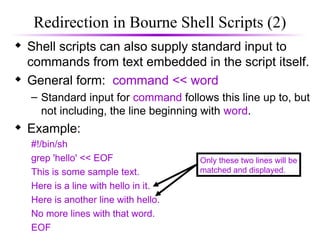
 Shell scripts can also supply standard input to
commands from text embedded in the script itself.
 General form: command << word
– Standard input for command follows this line up to, but
not including, the line beginning with word.
 Example:
#!/bin/sh
grep 'hello' << EOF
This is some sample text.
Here is a line with hello in it.
Here is another line with hello.
No more lines with that word.
EOF
Only these two lines will be
matched and displayed.
A Shell Script Example (1)
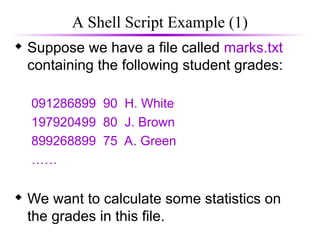
 Suppose we have a file called marks.txt
containing the following student grades:
091286899 90 H. White
197920499 80 J. Brown
899268899 75 A. Green
……
 We want to calculate some statistics on
the grades in this file.
A Shell Script Example (2)
#!/bin/sh
sum=0; countfail=0; count=0;
while read studentnum grade name; do
sum=`expr $sum + $grade`
count=`expr $count + 1`
if [ $grade -lt 50 ]; then
countfail=`expr $countfail + 1`
fi
done
echo The average is `expr $sum / $count`.
echo $countfail students failed.
A Shell Script Example (3)
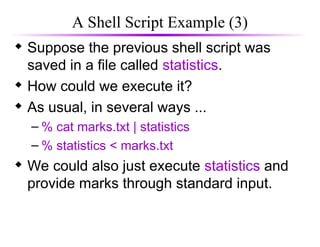
 Suppose the previous shell script was
saved in a file called statistics.
 How could we execute it?
 As usual, in several ways ...
– % cat marks.txt | statistics
– % statistics < marks.txt
 We could also just execute statistics and
provide marks through standard input.

34-shell-programming asda asda asd asd.ppt

  • 1.
  • 2.
    Shell Scripts (1) Basically, a shell script is a text file with Unix commands in it.  Shell scripts usually begin with a #! and a shell name – For example: #!/bin/sh – If they do not, the user's current shell will be used  Any Unix command can go in a shell script – Commands are executed in order or in the flow determined by control statements.  Different shells have different control structures – The #! line is very important – We will write shell scripts with the Bourne shell (sh)
  • 3.
    Shell Scripts (2) Why write shell scripts? – To avoid repetition:  If you do a sequence of steps with standard Unix commands over and over, why not do it all with just one command? – To automate difficult tasks:  Many commands have subtle and difficult options that you don’t want to figure out or remember every time.
  • 4.
    A Simple Example(1)  tr abcdefghijklmnopqrstuvwxyz thequickbrownfxjmpsvalzydg < file1 > file2 – “encrypts” file1 into file2  Record this command into shell script files: – myencrypt #!/bin/sh tr abcdefghijklmnopqrstuvwxyz thequickbrownfxjmpsvalzydg – mydecrypt #!/bin/sh tr thequickbrownfxjmpsvalzydg abcdefghijklmnopqrstuvwxyz
  • 5.
    A Simple Example(2)  chmod the files to be executable; otherwise, you couldn’t run the scripts obelix[3] > chmod u+x myencrypt mydecrypt  Run them as normal commands: obelix[4] > ./myencrypt < file1 > file2 obelix[5] > ./mydecrypt < file2 > file3 obelix[6] > diff file1 file3 Remember: This is needed when “.” is not in the path
  • 6.
    Bourne Shell Variables Remember: Bourne shell variables are different from variables in csh and tcsh! – Examples in sh: PATH=$PATH:$HOME/bin HA=$1 PHRASE="House on the hill" export PHRASE Note: no space around = Make PHRASE an environment variable
  • 7.
    Assigning Command Outputto a Variable  Using backquotes, we can assign the output of a command to a variable: #!/bin/sh files=`ls` echo $files  Very useful in numerical computation: #!/bin/sh value=`expr 12345 + 54321` echo $value
  • 8.
    Using expr forCalculations  Variables as arguments: % count=5 % count=`expr $count + 1` % echo $count 6 – Variables are replaced with their values by the shell!  expr supports the following operators: – arithmetic operators: +,-,*,/,% – comparison operators: <, <=, ==, !=, >=, > – boolean/logical operators: &, | – parentheses: (, ) – precedence is the same as C, Java
  • 9.
    Control Statements  Withoutcontrol statements, execution within a shell scripts flows from one statement to the next in succession.  Control statements control the flow of execution in a programming language  The three most common types of control statements: – conditionals: if/then/else, case, ... – loop statements: while, for, until, do, ... – branch statements: subroutine calls (good), goto (bad)
  • 10.
    for Loops  forloops allow the repetition of a command for a specific set of values  Syntax: for var in value1 value2 ... do command_set done – command_set is executed with each value of var (value1, value2, ...) in sequence
  • 11.
    for Loop Example(1) #!/bin/sh # timestable – print out a multiplication table for i in 1 2 3 do for j in 1 2 3 do value=`expr $i * $j` echo -n "$value " done echo done
  • 12.
    for Loop Example(2) #!/bin/sh # file-poke – tell us stuff about files files=`ls` for i in $files do echo -n "$i " grep $i $i done – Find filenames in files in current directory
  • 13.
    for Loop Example(3) #!/bin/sh # file-poke – tell us stuff about files for i in *; do echo -n "$i " grep $i $i done – Same as previous slide, only a little more condensed.
  • 14.
    Conditionals  Conditionals areused to “test” something. – In Java or C, they test whether a Boolean variable is true or false. – In a Bourne shell script, the only thing you can test is whether or not a command is “successful”  Every well behaved command returns back a return code. – 0 if it was successful – Non-zero if it was unsuccessful (actually 1..255) – We will see later that this is different from true/false conditions in C.
  • 15.
    The if Statement Simple form: if decision_command_1 then command_set_1 fi  Example: if grep unix myfile >/dev/null then echo "It's there" fi grep returns 0 if it finds something returns non-zero otherwise redirect to /dev/null so that "intermediate" results do not get printed
  • 16.
    if and else ifgrep "UNIX" myfile >/dev/null then echo UNIX occurs in myfile else echo No! echo UNIX does not occur in myfile fi
  • 17.
    if and elif ifgrep "UNIX" myfile >/dev/null then echo "UNIX occurs in file" elif grep "DOS" myfile >/dev/null then echo "Unix does not occur, but DOS does" else echo "Nobody is there" fi
  • 18.
    Use of Semicolons Instead of being on separate lines, statements can be separated by a semicolon (;) – For example: if grep "UNIX" myfile; then echo "Got it"; fi – This actually works anywhere in the shell. % cwd=`pwd`; cd $HOME; ls; cd $cwd
  • 19.
    Use of Colon Sometimes it is useful to have a command which does “nothing”.  The : (colon) command in Unix does nothing #!/bin/sh if grep unix myfile then : else echo "Sorry, unix was not found" fi
  • 20.
    The test Command– File Tests  test –f file does file exist and is not a directory?  test -d file does file exist and is a directory?  test –x file does file exist and is executable?  test –s file does file exist and is longer than 0 bytes? #!/bin/sh count=0 for i in *; do if test –x $i; then count=`expr $count + 1` fi done echo Total of $count files executable.
  • 21.
    The test Command– String Tests  test –z string is string of length 0?  test string1 = string2 does string1 equal string2?  test string1 != string2 not equal?  Example: if test -z $REMOTEHOST then : else DISPLAY="$REMOTEHOST:0" export DISPLAY fi
  • 22.
    The test Command– Integer Tests  Integers can also be compared: – Use -eq, -ne, -lt, -le, -gt, -ge  For example: #!/bin/sh smallest=10000 for i in 5 8 19 8 7 3; do if test $i -lt $smallest; then smallest=$i fi done echo $smallest
  • 23.
    Use of []  The test program has an alias as [ ] – Each bracket must be surrounded by spaces! – This is supposed to be a bit easier to read.  For example: #!/bin/sh smallest=10000 for i in 5 8 19 8 7 3; do if [ $i -lt $smallest ] ; then smallest=$i fi done echo $smallest
  • 24.
    The while Loop While loops repeat statements as long as the next Unix command is successful.  For example: #!/bin/sh i=1 sum=0 while [ $i -le 100 ]; do sum=`expr $sum + $i` i=`expr $i + 1` done echo The sum is $sum.
  • 25.
    The until Loop Until loops repeat statements until the next Unix command is successful.  For example: #!/bin/sh x=1 until [ $x -gt 3 ]; do echo x = $x x=`expr $x + 1` done
  • 26.
    Command Line Arguments(1)  Shell scripts would not be very useful if we could not pass arguments to them on the command line  Shell script arguments are “numbered” from left to right – $1 - first argument after command – $2 - second argument after command – ... up to $9 – They are called “positional parameters”.
  • 27.
    Command Line Arguments(2)  Example: get a particular line of a file – Write a command with the format: getlineno linenumber filename #!/bin/sh head -$1 $2 | tail -1  Other variables related to arguments:  $0 name of the command running  $* All the arguments (even if there are more than 9)  $# the number of arguments
  • 28.
    Command Line Arguments(3)  Example: print the oldest files in a directory #! /bin/sh # oldest -- examine the oldest parts of a directory HOWMANY=$1 shift ls -lt $* | tail +2 | tail $HOWMANY  The shift command shifts all the arguments to the left – $1 = $2, $2 =$3, $3 = $4, ... – $1 is lost (but we have saved it in $HOWMANY) – The value of $# is changed ($# - 1) – useful when there are more than 9 arguments  The “tail +2” command removes the first line.
  • 29.
    More on BourneShell Variables (1)  There are three basic types of variables in a shell script: – Positional variables ...  $1, $2, $3, ..., $9 – Keyword variables ...  Like $PATH, $HOWMANY, and anything else we may define. – Special variables ...
  • 30.
    More on BourneShell Variables (2)  Special variables: – $*, $#-- all the arguments, the number of the arguments – $$ -- the process id of the current shell – $? -- return value of last foreground process to finish -- more on this one later – There are others you can find out about with man sh
  • 31.
    Reading Variables FromStandard Input (1)  The read command reads one line of input from the terminal and assigns it to variables give as arguments  Syntax: read var1 var2 var3 ...  Action: reads a line of input from standard input  Assign first word to var1, second word to var2, ...  The last variable gets any excess words on the line.
  • 32.
    Reading Variables fromStandard Input (2)  Example: % read X Y Z Here are some words as input % echo $X Here % echo $Y are % echo $Z some words as input
  • 33.
    The case Statement The case statement supports multiway branching based on the value of a single string.  General form: case string in pattern1) command_set_11 ;; pattern2) command_set_2 ;; … esac
  • 34.
    case Example #!/bin/sh echo -n'Choose command [1-4] > ' read reply echo case $reply in "1") date ;; "2"|"3") pwd ;; "4") ls ;; *) echo Illegal choice! ;; esac Use the pipe symbol “|” as a logical or between several choices. Provide a default case when no other cases are matched.
  • 35.
    Redirection in BourneShell Scripts (1)  Standard input is redirected the same (<).  Standard output can be redirected the same (>). – Can also be directed using the notation 1> – For example: cat x 1> ls.txt (only stdout)  Standard error is redirected using the notation 2> – For example: cat x y 1> stdout.txt 2> stderr.txt  Standard output and standard error can be redirected to the same file using the notation 2>&1 – For example: cat x y > xy.txt 2>&1  Standard output and standard error can be piped to the same command using similar notation – For example: cat x y 2>&1 | grep text
  • 36.
    Redirection in BourneShell Scripts (2)  Shell scripts can also supply standard input to commands from text embedded in the script itself.  General form: command << word – Standard input for command follows this line up to, but not including, the line beginning with word.  Example: #!/bin/sh grep 'hello' << EOF This is some sample text. Here is a line with hello in it. Here is another line with hello. No more lines with that word. EOF Only these two lines will be matched and displayed.
  • 37.
    A Shell ScriptExample (1)  Suppose we have a file called marks.txt containing the following student grades: 091286899 90 H. White 197920499 80 J. Brown 899268899 75 A. Green ……  We want to calculate some statistics on the grades in this file.
  • 38.
    A Shell ScriptExample (2) #!/bin/sh sum=0; countfail=0; count=0; while read studentnum grade name; do sum=`expr $sum + $grade` count=`expr $count + 1` if [ $grade -lt 50 ]; then countfail=`expr $countfail + 1` fi done echo The average is `expr $sum / $count`. echo $countfail students failed.
  • 39.
    A Shell ScriptExample (3)  Suppose the previous shell script was saved in a file called statistics.  How could we execute it?  As usual, in several ways ... – % cat marks.txt | statistics – % statistics < marks.txt  We could also just execute statistics and provide marks through standard input.