SHELL PROGRAMMING
WHAT IS SHELL
• Shell is program
• It is used for executing program in LINUX/UNIX
• Shell is a command line interpreter
• By shell script we can print text, program execution and file
manipulation.
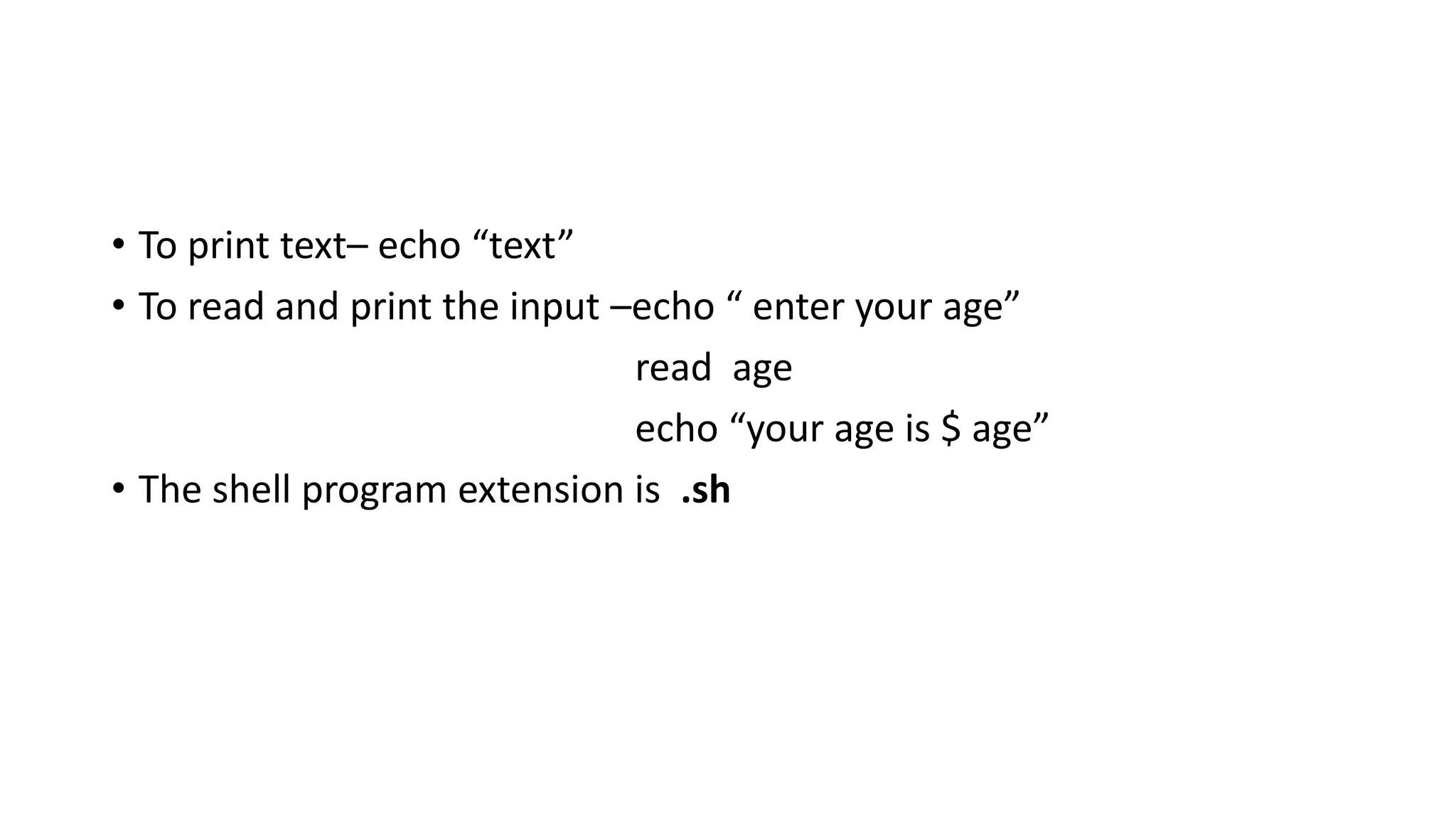
• To print text– echo “text”
• To read and print the input –echo “ enter your age”
read age
echo “your age is $ age”
• The shell program extension is .sh
Operators
There are various type of operator in each shell.
• Arithmetic Operators
• Relational Operators
• Boolean Operators
• String Operators
• File Test Operators
Arithmetic Operators
Operator Description Example
+ (Addition) Adds values on either side of the operator `expr $a + $b` will give 30
- (Subtraction) Subtracts right hand operand from left hand operand `expr $a - $b` will give -10
* (Multiplication) Multiplies values on either side of the operator `expr $a * $b` will give 200
/ (Division) Divides left hand operand by right hand operand `expr $b / $a` will give 2
% (Modulus) Divides left hand operand by right hand operand and
returns remainder
`expr $b % $a` will give 0
= (Assignment)
Assigns right operand in left operand
a = $b assign value of b into a
== (Equality) Compares two numbers, if both are same then returns
true.
[ $a == $b ] would return false.
!= (Not Equality) Compares two numbers, if both are different then
returns true.
[ $a != $b ] would return true.
Note: conditional expressions should be inside square braces with spaces around them,
Eg: [ $a == $b ] is correct whereas, [$a==$b] is incorrect.
Relational Operator
Operator Description Example
-eq Checks if the value of two operands are equal or not; if yes, then the
condition becomes true.
[ $a -eq $b ] is not true.
-ne Checks if the value of two operands are equal or not; if values are not equal,
then the condition becomes true. [ $a -ne $b ] is true.
-gt Checks if the value of left operand is greater than the value of right operand;
if yes, then the condition becomes true. [ $a -gt $b ] is not true.
-lt Checks if the value of left operand is less than the value of right operand; if
yes, then the condition becomes true. [ $a -lt $b ] is true.
-ge Checks if the value of left operand is greater than or equal to the value of
right operand; if yes, then the condition becomes true. [ $a -ge $b ] is not true.
-le Checks if the value of left operand is less than or equal to the value of right
operand; if yes, then the condition becomes true. [ $a -le $b ] is true.
Boolean Operators
Operator Description Example
! This is logical negation. This inverts a true
condition into false and vice versa.
[ ! false ] is true.
-o This is logical OR. If one of the operands is true,
then the condition becomes true.
[ $a -lt 20 -o $b -gt 100 ] is true.
-a This is logical AND. If both the operands are true,
then the condition becomes true otherwise false.
[ $a -lt 20 -a $b -gt 100 ] is false.
String operator
Operator Description Example
= Checks if the value of two operands are equal or not; if yes, then
the condition becomes true.
[ $a = $b ] is not true.
!= Checks if the value of two operands are equal or not; if values are
not equal then the condition becomes true.
[ $a != $b ] is true.
-z Checks if the given string operand size is zero; if it is zero length,
then it returns true.
[ -z $a ] is not true.
-n Checks if the given string operand size is non-zero; if it is nonzero
length, then it returns true.
[ -n $a ] is not false.
str Checks if str is not the empty string; if it is empty, then it returns
false.
[ $a ] is not false.
File test operators
Operator Description Example
-d file Checks if file is a directory; if yes, then the condition becomes true. [ -d $file ] is not true.
-r file Checks if file is readable; if yes, then the condition becomes true. [ -r $file ] is true.
-w file Checks if file is writable; if yes, then the condition becomes true. [ -w $file ] is true.
-x file Checks if file is executable; if yes, then the condition becomes true. [ -x $file ] is true.
-s file Checks if file has size greater than 0; if yes, then condition becomes true. [ -s $file ] is true.
-e file Checks if file exists; is true even if file is a directory but exists. [ -e $file ] is true.
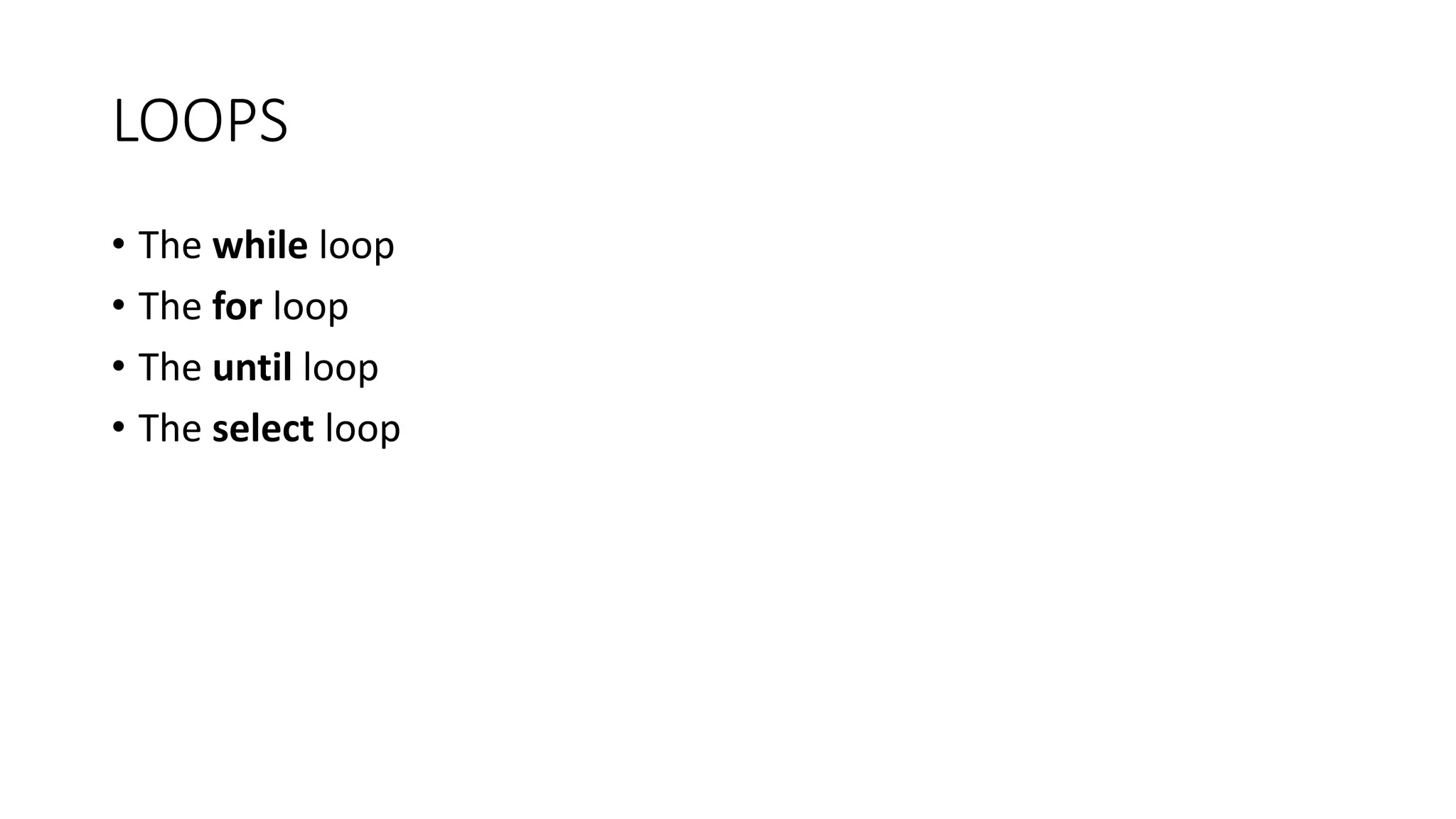
LOOPS
• The while loop
• The for loop
• The until loop
• The select loop
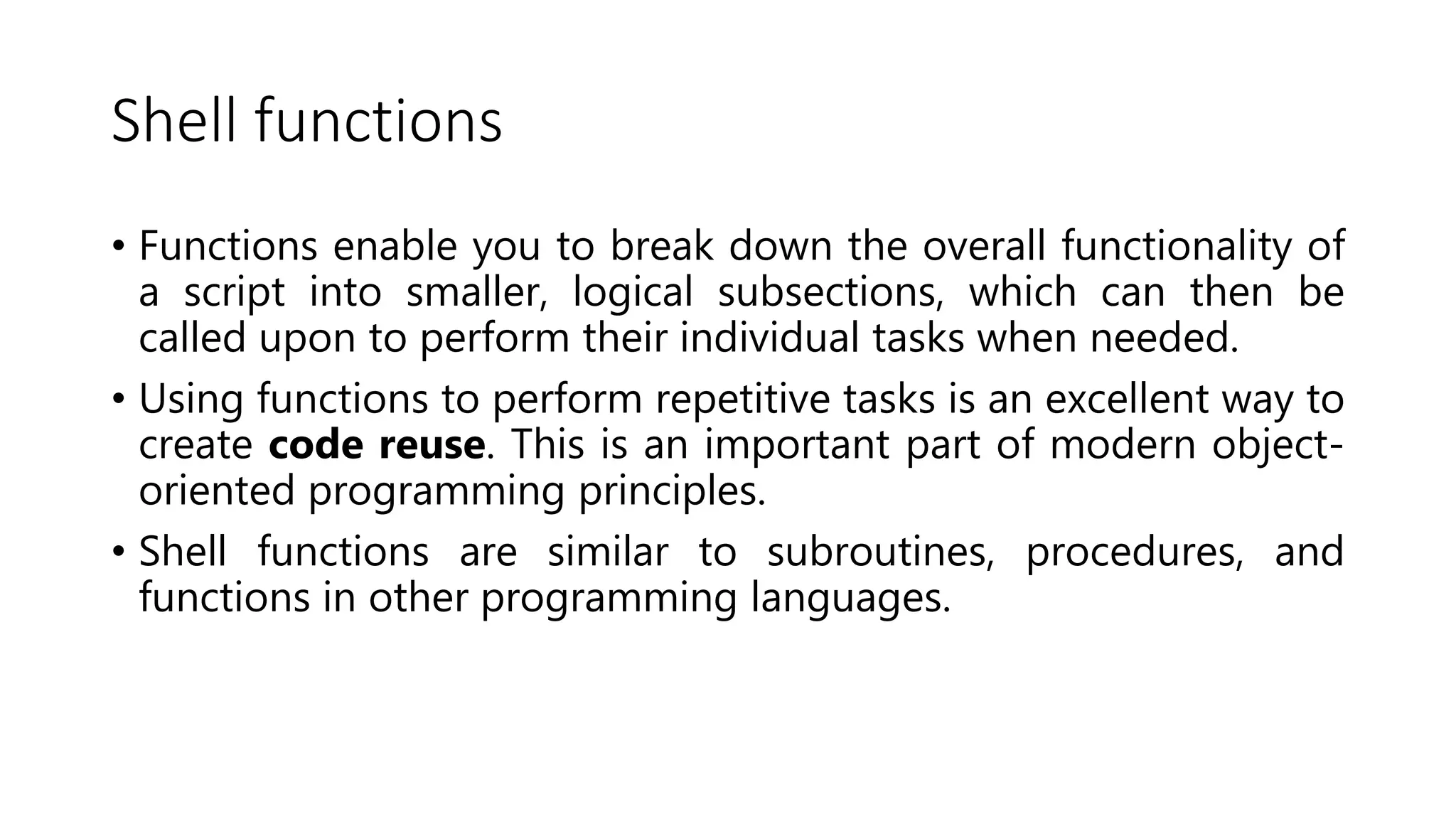
Shell functions
• Functions enable you to break down the overall functionality of
a script into smaller, logical subsections, which can then be
called upon to perform their individual tasks when needed.
• Using functions to perform repetitive tasks is an excellent way to
create code reuse. This is an important part of modern object-
oriented programming principles.
• Shell functions are similar to subroutines, procedures, and
functions in other programming languages.
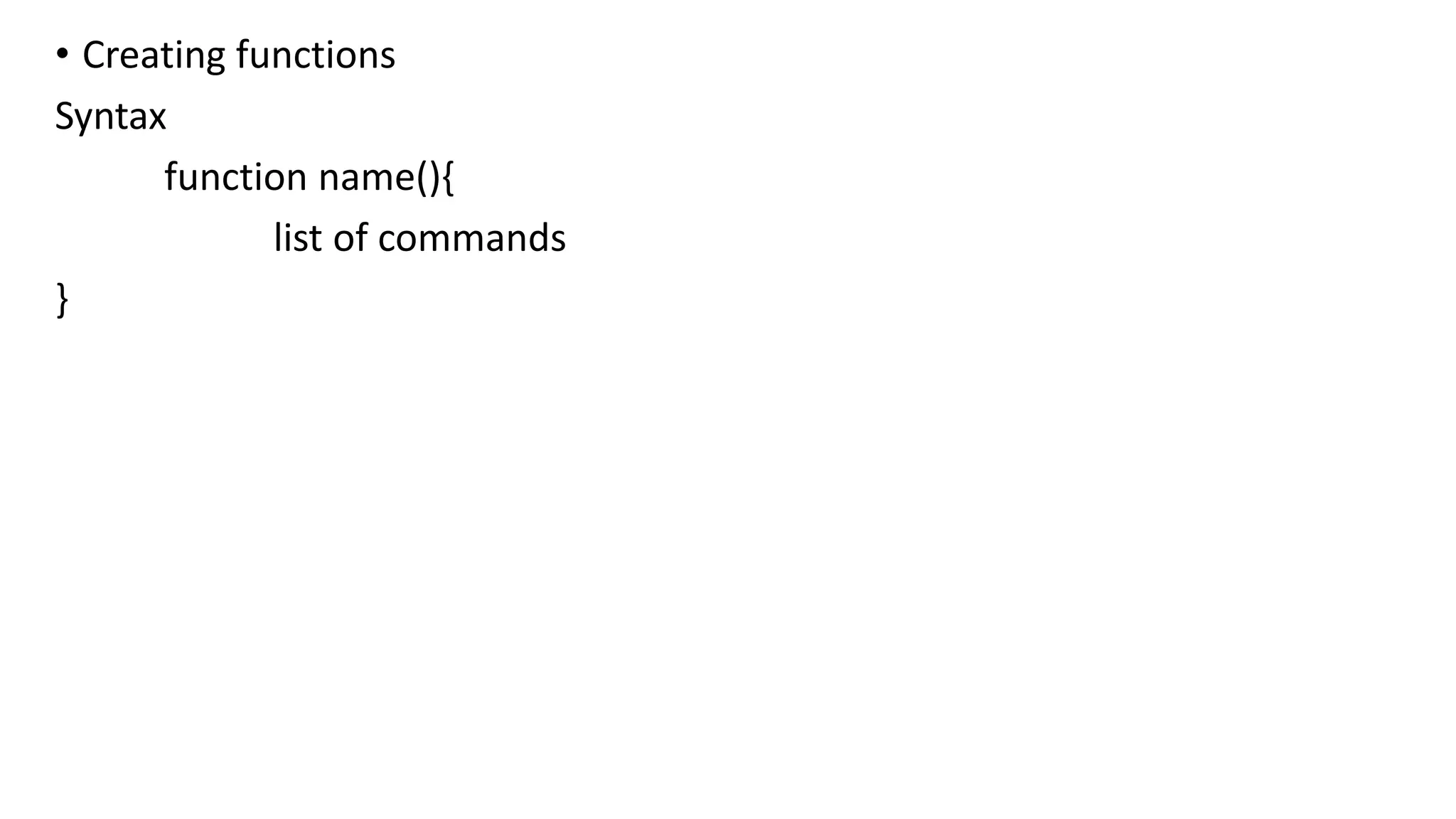
• Creating functions
Syntax
function name(){
list of commands
}
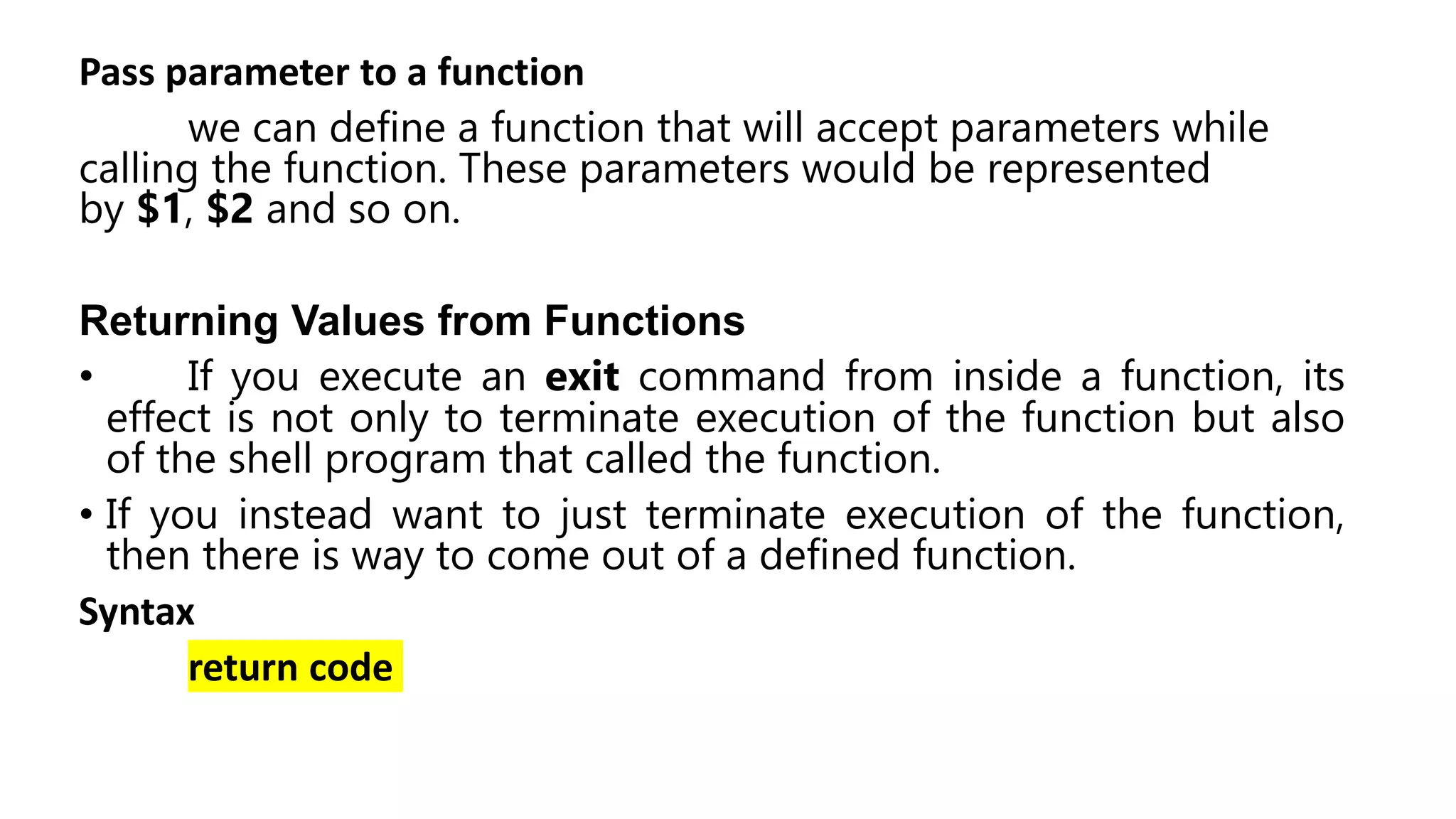
Pass parameter to a function
we can define a function that will accept parameters while
calling the function. These parameters would be represented
by $1, $2 and so on.
Returning Values from Functions
• If you execute an exit command from inside a function, its
effect is not only to terminate execution of the function but also
of the shell program that called the function.
• If you instead want to just terminate execution of the function,
then there is way to come out of a defined function.
Syntax
return code
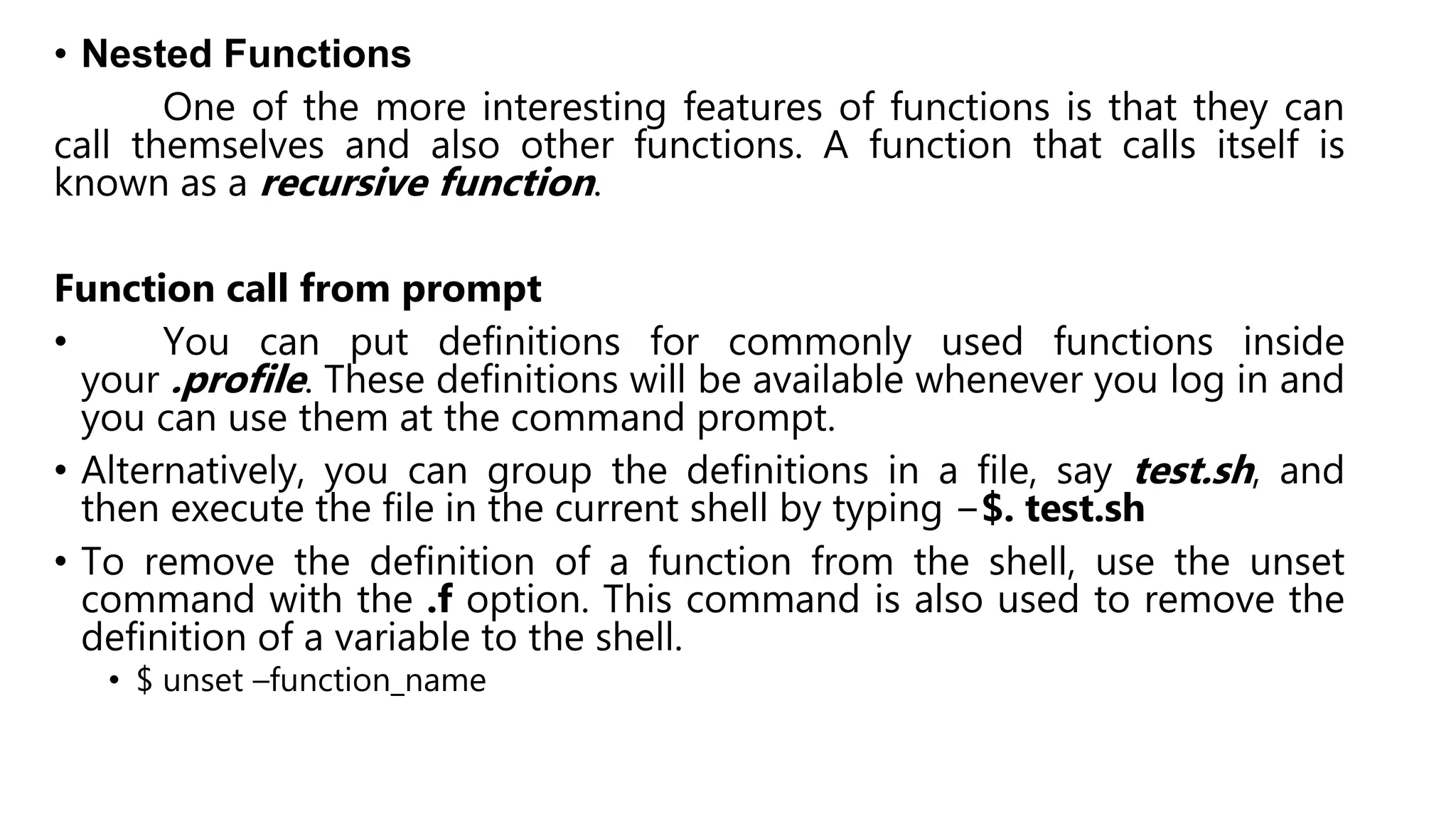
• Nested Functions
One of the more interesting features of functions is that they can
call themselves and also other functions. A function that calls itself is
known as a recursive function.
Function call from prompt
• You can put definitions for commonly used functions inside
your .profile. These definitions will be available whenever you log in and
you can use them at the command prompt.
• Alternatively, you can group the definitions in a file, say test.sh, and
then execute the file in the current shell by typing −$. test.sh
• To remove the definition of a function from the shell, use the unset
command with the .f option. This command is also used to remove the
definition of a variable to the shell.
• $ unset –function_name
SHELL PROGRAMMING.pptx

SHELL PROGRAMMING.pptx

  • 1.
  • 2.
    WHAT IS SHELL •Shell is program • It is used for executing program in LINUX/UNIX • Shell is a command line interpreter • By shell script we can print text, program execution and file manipulation.
  • 3.
    • To printtext– echo “text” • To read and print the input –echo “ enter your age” read age echo “your age is $ age” • The shell program extension is .sh
  • 4.
    Operators There are varioustype of operator in each shell. • Arithmetic Operators • Relational Operators • Boolean Operators • String Operators • File Test Operators
  • 5.
    Arithmetic Operators Operator DescriptionExample + (Addition) Adds values on either side of the operator `expr $a + $b` will give 30 - (Subtraction) Subtracts right hand operand from left hand operand `expr $a - $b` will give -10 * (Multiplication) Multiplies values on either side of the operator `expr $a * $b` will give 200 / (Division) Divides left hand operand by right hand operand `expr $b / $a` will give 2 % (Modulus) Divides left hand operand by right hand operand and returns remainder `expr $b % $a` will give 0 = (Assignment) Assigns right operand in left operand a = $b assign value of b into a == (Equality) Compares two numbers, if both are same then returns true. [ $a == $b ] would return false. != (Not Equality) Compares two numbers, if both are different then returns true. [ $a != $b ] would return true. Note: conditional expressions should be inside square braces with spaces around them, Eg: [ $a == $b ] is correct whereas, [$a==$b] is incorrect.
  • 6.
    Relational Operator Operator DescriptionExample -eq Checks if the value of two operands are equal or not; if yes, then the condition becomes true. [ $a -eq $b ] is not true. -ne Checks if the value of two operands are equal or not; if values are not equal, then the condition becomes true. [ $a -ne $b ] is true. -gt Checks if the value of left operand is greater than the value of right operand; if yes, then the condition becomes true. [ $a -gt $b ] is not true. -lt Checks if the value of left operand is less than the value of right operand; if yes, then the condition becomes true. [ $a -lt $b ] is true. -ge Checks if the value of left operand is greater than or equal to the value of right operand; if yes, then the condition becomes true. [ $a -ge $b ] is not true. -le Checks if the value of left operand is less than or equal to the value of right operand; if yes, then the condition becomes true. [ $a -le $b ] is true.
  • 7.
    Boolean Operators Operator DescriptionExample ! This is logical negation. This inverts a true condition into false and vice versa. [ ! false ] is true. -o This is logical OR. If one of the operands is true, then the condition becomes true. [ $a -lt 20 -o $b -gt 100 ] is true. -a This is logical AND. If both the operands are true, then the condition becomes true otherwise false. [ $a -lt 20 -a $b -gt 100 ] is false.
  • 8.
    String operator Operator DescriptionExample = Checks if the value of two operands are equal or not; if yes, then the condition becomes true. [ $a = $b ] is not true. != Checks if the value of two operands are equal or not; if values are not equal then the condition becomes true. [ $a != $b ] is true. -z Checks if the given string operand size is zero; if it is zero length, then it returns true. [ -z $a ] is not true. -n Checks if the given string operand size is non-zero; if it is nonzero length, then it returns true. [ -n $a ] is not false. str Checks if str is not the empty string; if it is empty, then it returns false. [ $a ] is not false.
  • 9.
    File test operators OperatorDescription Example -d file Checks if file is a directory; if yes, then the condition becomes true. [ -d $file ] is not true. -r file Checks if file is readable; if yes, then the condition becomes true. [ -r $file ] is true. -w file Checks if file is writable; if yes, then the condition becomes true. [ -w $file ] is true. -x file Checks if file is executable; if yes, then the condition becomes true. [ -x $file ] is true. -s file Checks if file has size greater than 0; if yes, then condition becomes true. [ -s $file ] is true. -e file Checks if file exists; is true even if file is a directory but exists. [ -e $file ] is true.
  • 10.
    LOOPS • The whileloop • The for loop • The until loop • The select loop
  • 11.
    Shell functions • Functionsenable you to break down the overall functionality of a script into smaller, logical subsections, which can then be called upon to perform their individual tasks when needed. • Using functions to perform repetitive tasks is an excellent way to create code reuse. This is an important part of modern object- oriented programming principles. • Shell functions are similar to subroutines, procedures, and functions in other programming languages.
  • 12.
    • Creating functions Syntax functionname(){ list of commands }
  • 13.
    Pass parameter toa function we can define a function that will accept parameters while calling the function. These parameters would be represented by $1, $2 and so on. Returning Values from Functions • If you execute an exit command from inside a function, its effect is not only to terminate execution of the function but also of the shell program that called the function. • If you instead want to just terminate execution of the function, then there is way to come out of a defined function. Syntax return code
  • 14.
    • Nested Functions Oneof the more interesting features of functions is that they can call themselves and also other functions. A function that calls itself is known as a recursive function. Function call from prompt • You can put definitions for commonly used functions inside your .profile. These definitions will be available whenever you log in and you can use them at the command prompt. • Alternatively, you can group the definitions in a file, say test.sh, and then execute the file in the current shell by typing −$. test.sh • To remove the definition of a function from the shell, use the unset command with the .f option. This command is also used to remove the definition of a variable to the shell. • $ unset –function_name