Productive Bash
Getting Comfortable Scripting on the Command Line
Command Line Basics
● Terminal:
○ command line interface application
● Shell:
○ command line interpreter that runs in terminal
● Why use the command line terminal?
○ fast
○ less memory intensive than GUI tools
○ simple, efficient on remote hosts
■ display host not needed
○ versatile set of built in commands
○ custom commands with scripts
Command Help
● Command help
○ man pages (or info)
■ command, function, system call (usually C) lookup
○ help
■ list built in commands
■ describe a built in command
○ type
■ reports type (shell builtin, keyword, file etc.)
○ alias
■ make command shortcuts
● alias ll=”ls -la”
■ simplify command and flag combinations
○ tab autocomplete
○ ↑↓ through command history
Command History
● history
○ command etc. history list with line numbers
● !n
○ repeat from history by line number
● !-i
○ repeat ith previous command
● !!
○ repeat last command
○ same as !-1
● chain commands
○ command1 ; command2
○ command1 && command2
○ command1 || command2
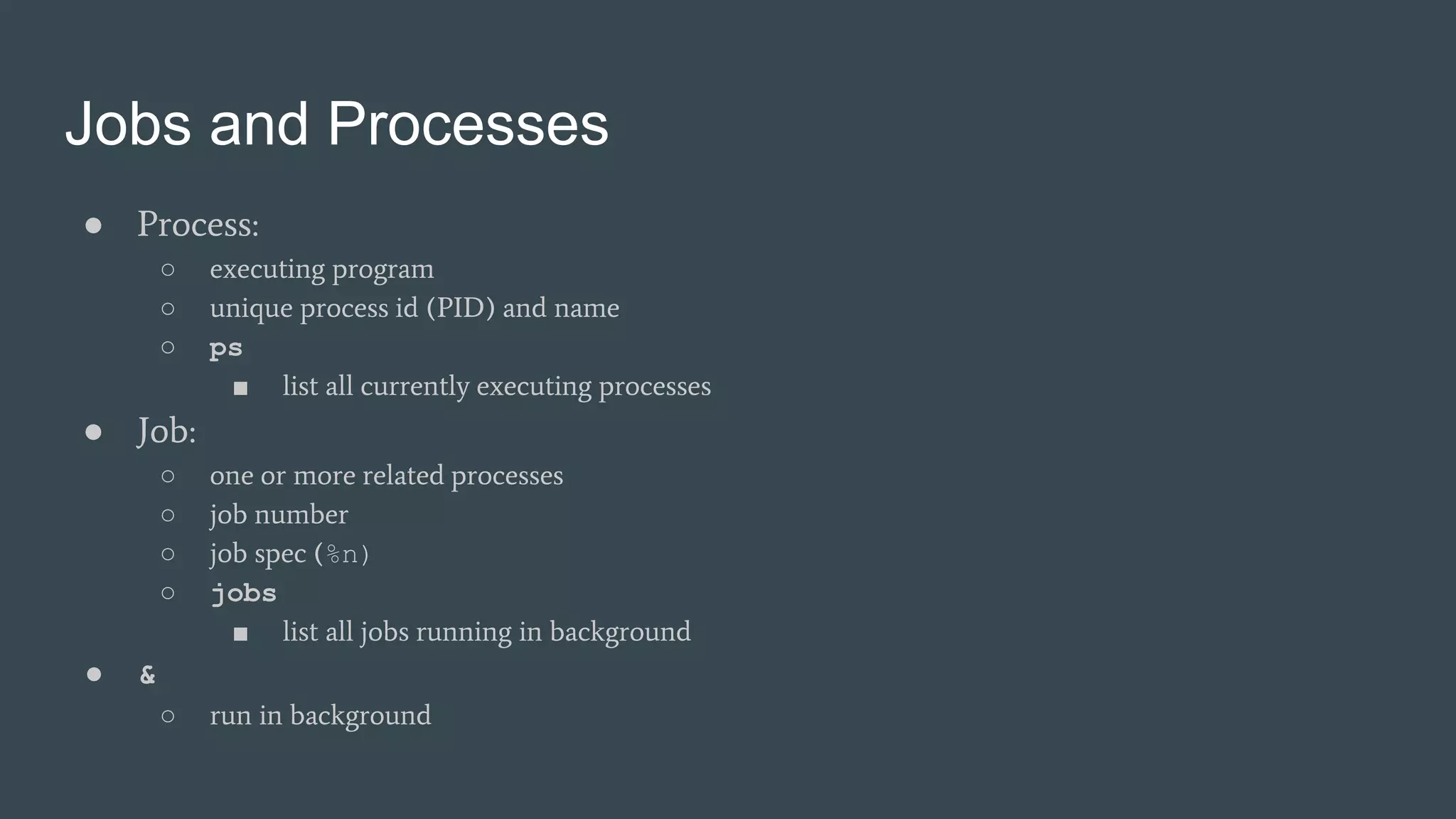
Jobs and Processes
● Process:
○ executing program
○ unique process id (PID) and name
○ ps
■ list all currently executing processes
● Job:
○ one or more related processes
○ job number
○ job spec (%n)
○ jobs
■ list all jobs running in background
● &
○ run in background
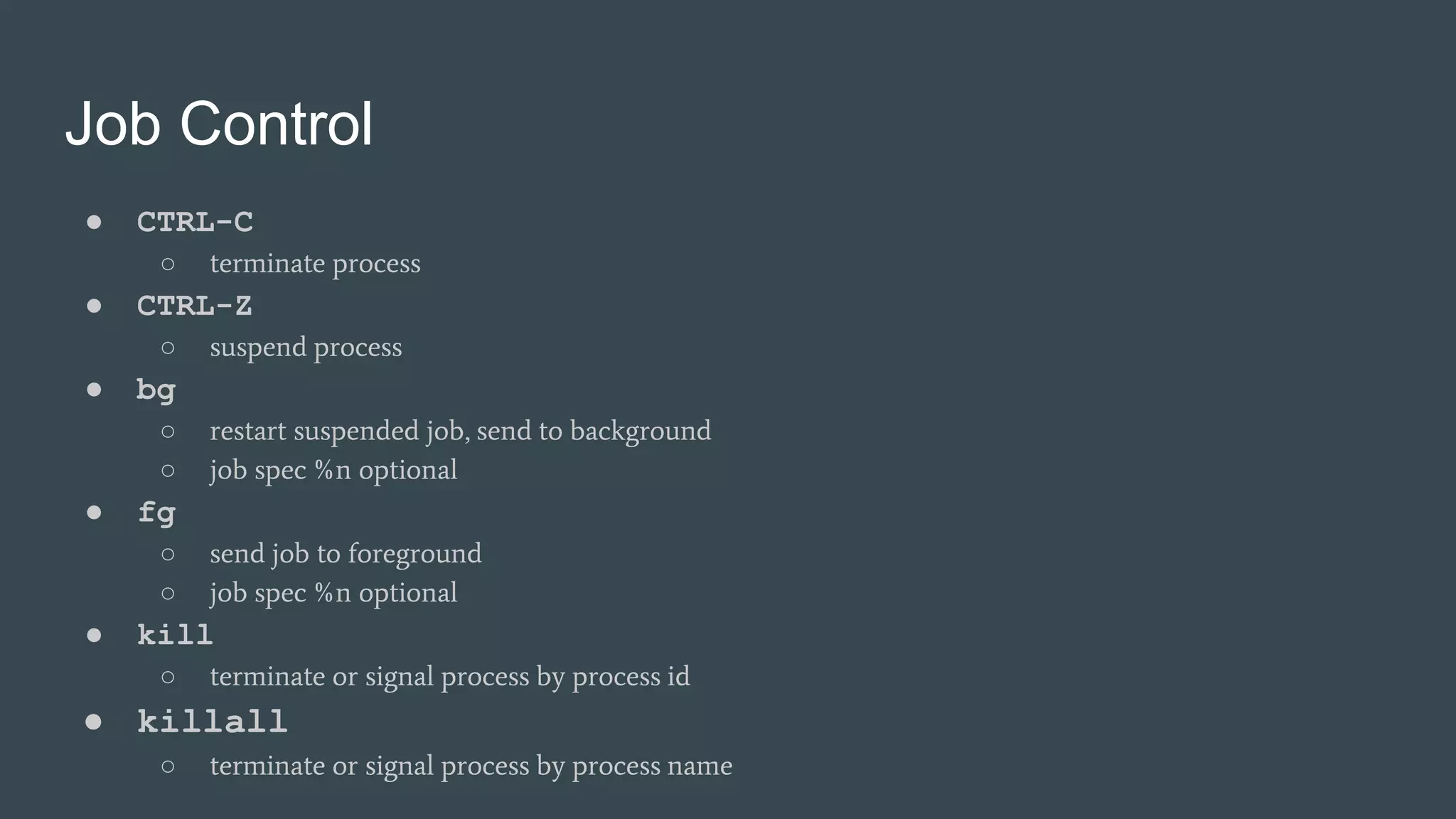
Job Control
● CTRL-C
○ terminate process
● CTRL-Z
○ suspend process
● bg
○ restart suspended job, send to background
○ job spec %n optional
● fg
○ send job to foreground
○ job spec %n optional
● kill
○ terminate or signal process by process id
● killall
○ terminate or signal process by process name
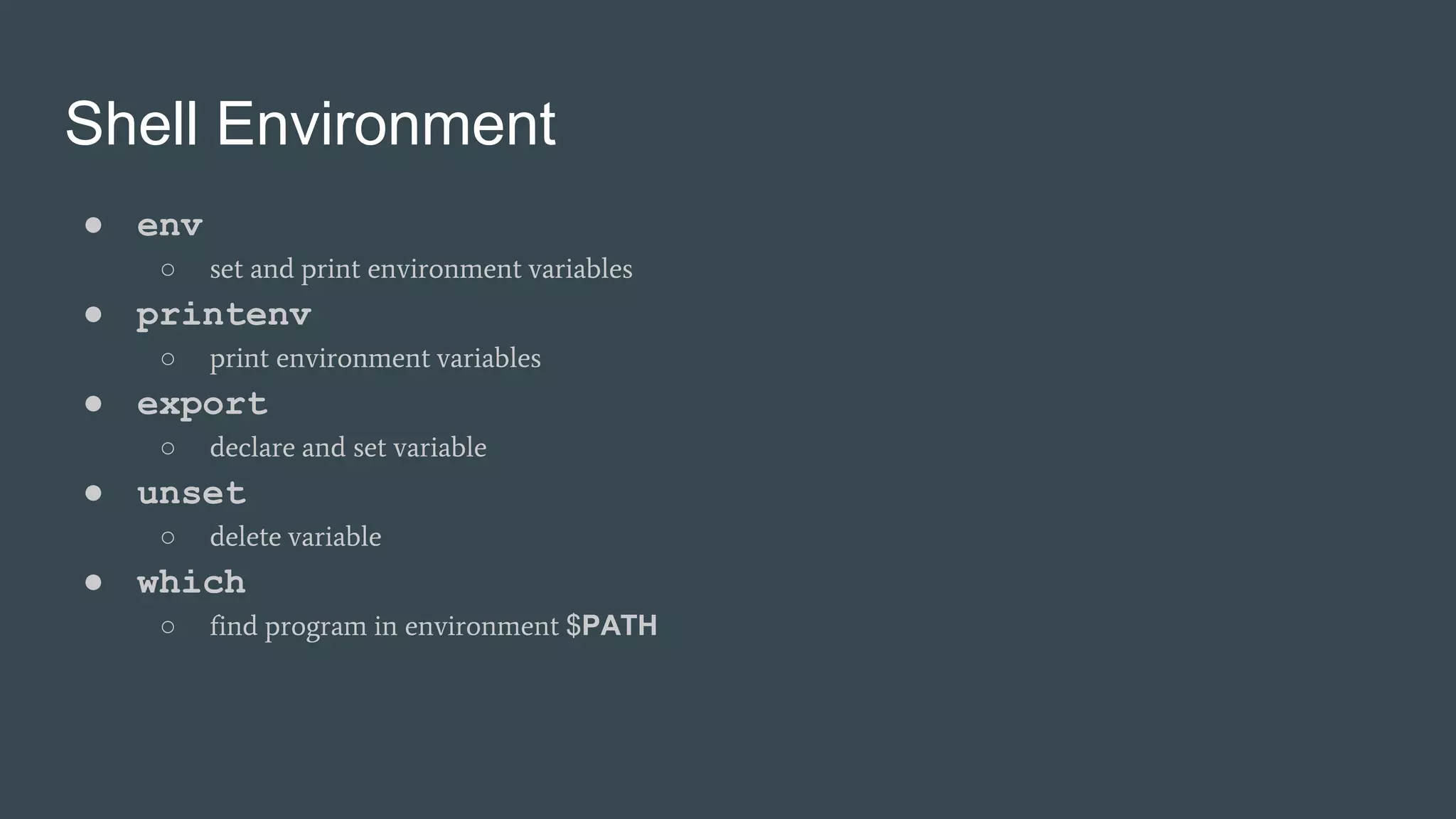
Shell Environment
● env
○ set and print environment variables
● printenv
○ print environment variables
● export
○ declare and set variable
● unset
○ delete variable
● which
○ find program in environment $PATH
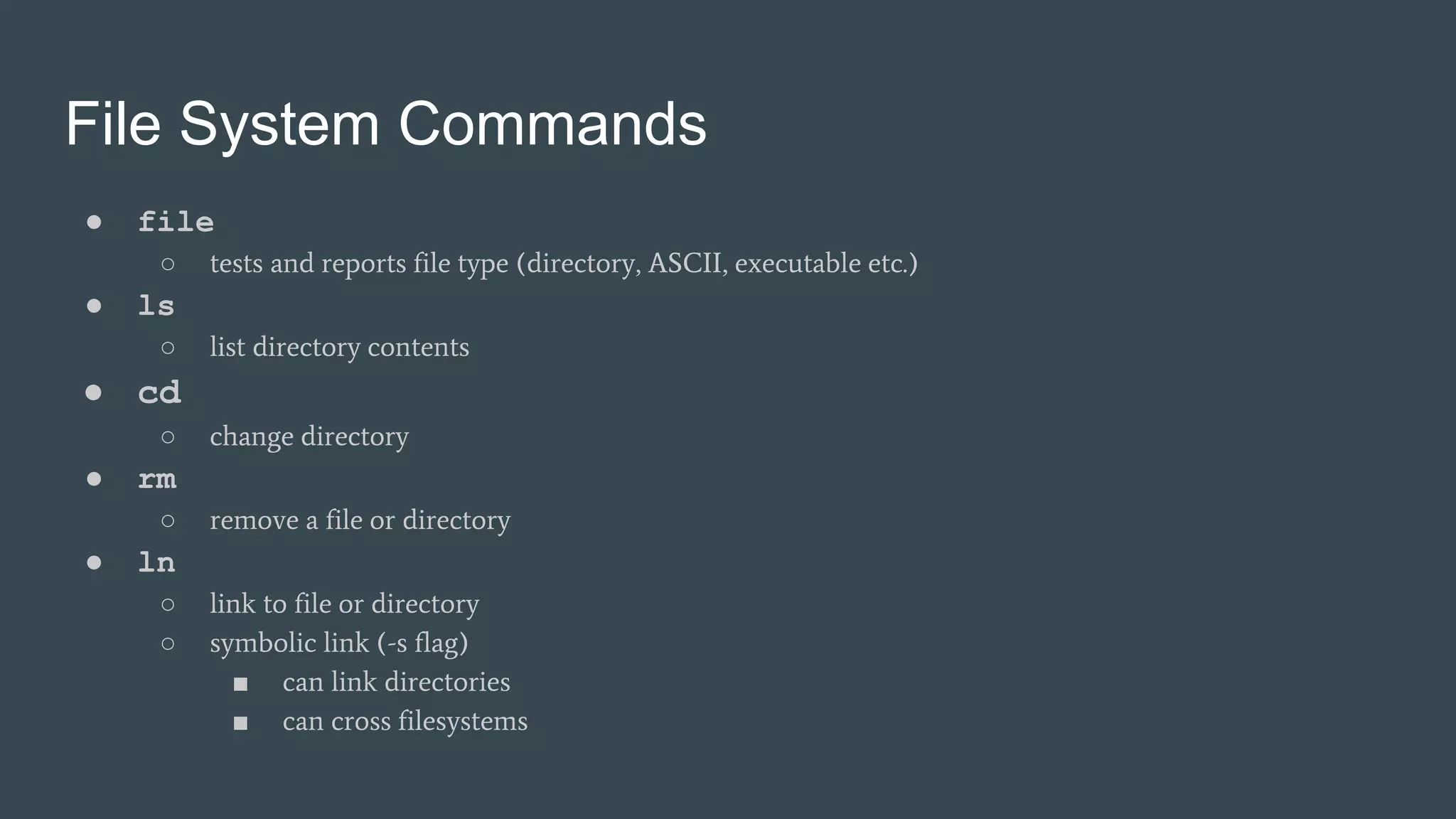
File System Commands
● file
○ tests and reports file type (directory, ASCII, executable etc.)
● ls
○ list directory contents
● cd
○ change directory
● rm
○ remove a file or directory
● ln
○ link to file or directory
○ symbolic link (-s flag)
■ can link directories
■ can cross filesystems
File System Commands
● chmod
○ change file or directory permissions
● mkdir
○ create a directory
● find
○ search directory
■ find . -name “*.py”
■ find A B -name “*.bak” -exec rm {} ;
● grep
○ search file contents
■ grep -i copyright *.py
■ grep -Rn 201[5-7] .
● diff
○ compare 2 or more files line by line
File System Commands
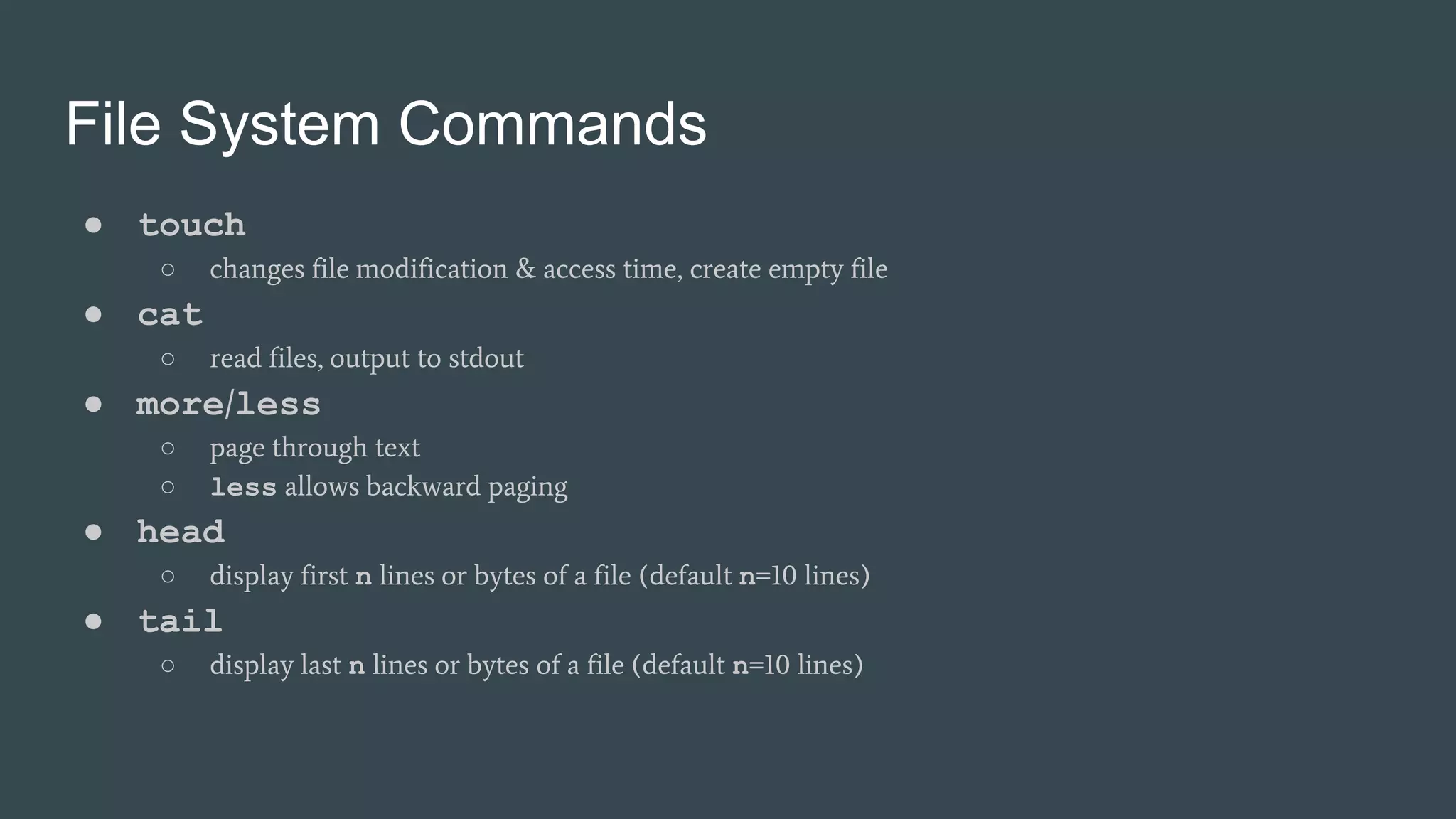
● touch
○ changes file modification & access time, create empty file
● cat
○ read files, output to stdout
● more/less
○ page through text
○ less allows backward paging
● head
○ display first n lines or bytes of a file (default n=10 lines)
● tail
○ display last n lines or bytes of a file (default n=10 lines)
File System Commands
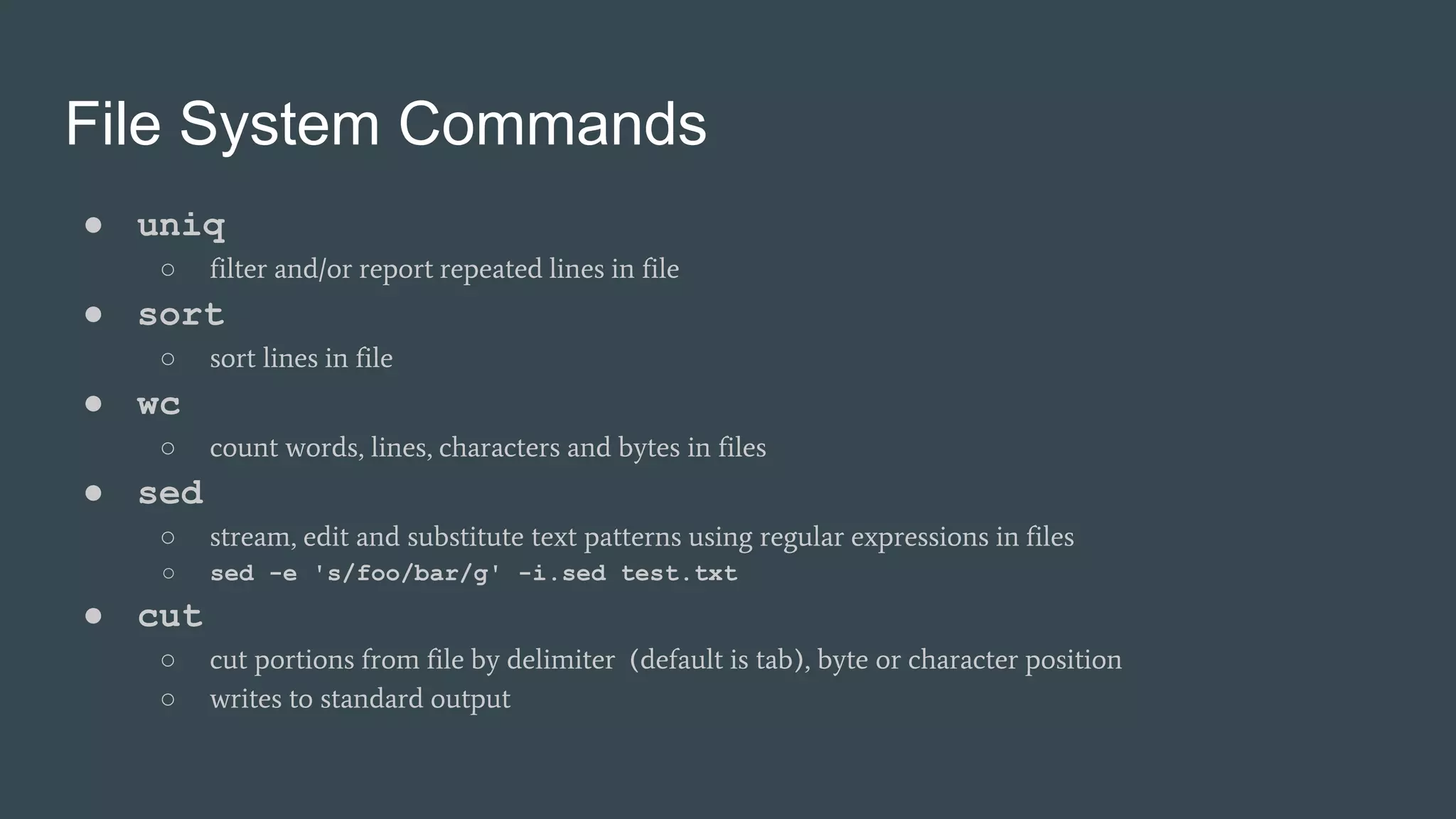
● uniq
○ filter and/or report repeated lines in file
● sort
○ sort lines in file
● wc
○ count words, lines, characters and bytes in files
● sed
○ stream, edit and substitute text patterns using regular expressions in files
○ sed -e 's/foo/bar/g' -i.sed test.txt
● cut
○ cut portions from file by delimiter (default is tab), byte or character position
○ writes to standard output
Chaining Commands
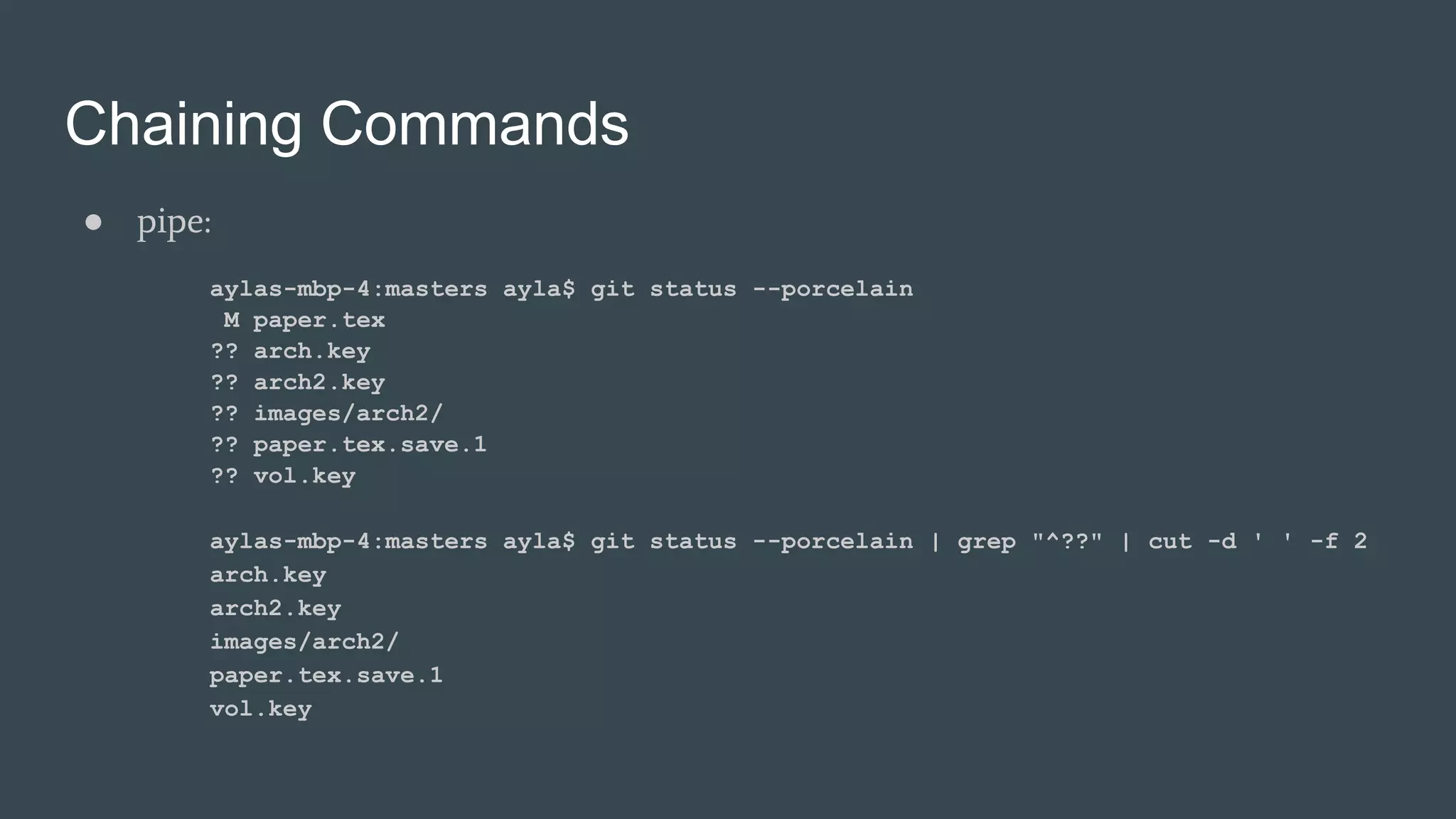
● pipe:
aylas-mbp-4:masters ayla$ git status --porcelain
M paper.tex
?? arch.key
?? arch2.key
?? images/arch2/
?? paper.tex.save.1
?? vol.key
aylas-mbp-4:masters ayla$ git status --porcelain | grep "^??" | cut -d ' ' -f 2
arch.key
arch2.key
images/arch2/
paper.tex.save.1
vol.key
Chaining Commands
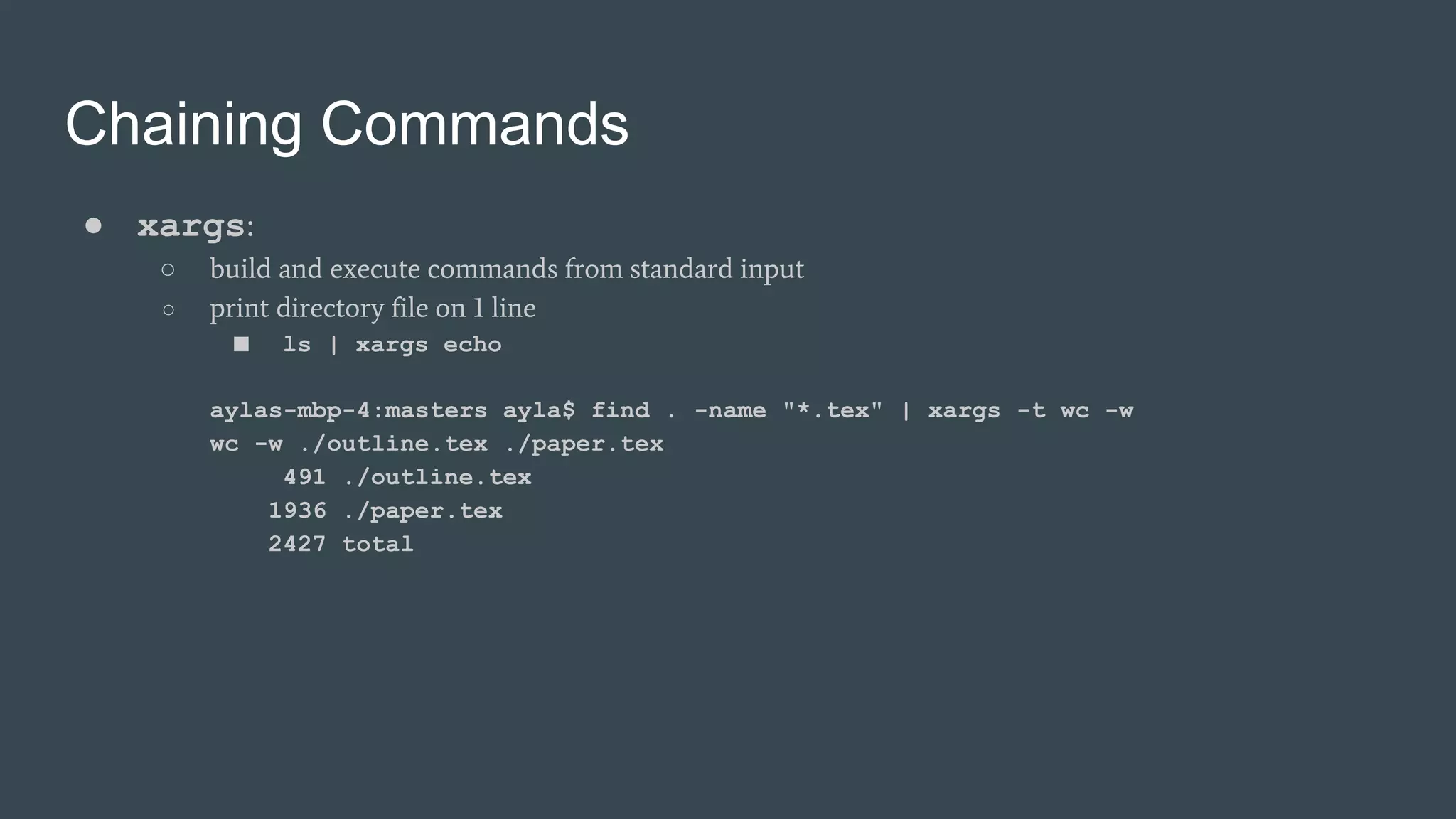
● xargs:
○ build and execute commands from standard input
○ print directory file on 1 line
■ ls | xargs echo
aylas-mbp-4:masters ayla$ find . -name "*.tex" | xargs -t wc -w
wc -w ./outline.tex ./paper.tex
491 ./outline.tex
1936 ./paper.tex
2427 total
Bash Script Variables
● Variables
○ string, integers, arrays etc.
○ no native floating point math
■ use builtin tools instead (bc: arbitrary precision calculator language)
○ readonly
○ declare
■ limit type (array, integer)
■ can make variables readonly
■ declare [option flag] [variable[=value] ...]
● Positional parameters
○ $*: quoted string containing positional parameters
○ $@: array of positional parameters
○ $0, $1,…: parameter variables
○ $#: number of arguments
Bash Control Flow
● Conditional statements:
○ if test -f $1; then echo “File $1 exists”; fi
○ if [ -f $1 ]; then echo “File $1 exists”; fi
○ if [[ -f $1 ]]; then echo “File $1 exists”; fi
if [[ $i -lt 0 ]] && (( $i % 2 == 0 ))
then
echo “$i is negative and even”
elif [[ $i -ge 0 ]]
then
if (( $i % 2 == 0 ))
then
echo "$i is positive and even"
else
echo "$i is positive and odd"
fi
else
echo “$i is negative and odd”
fi
Bash Control Flow
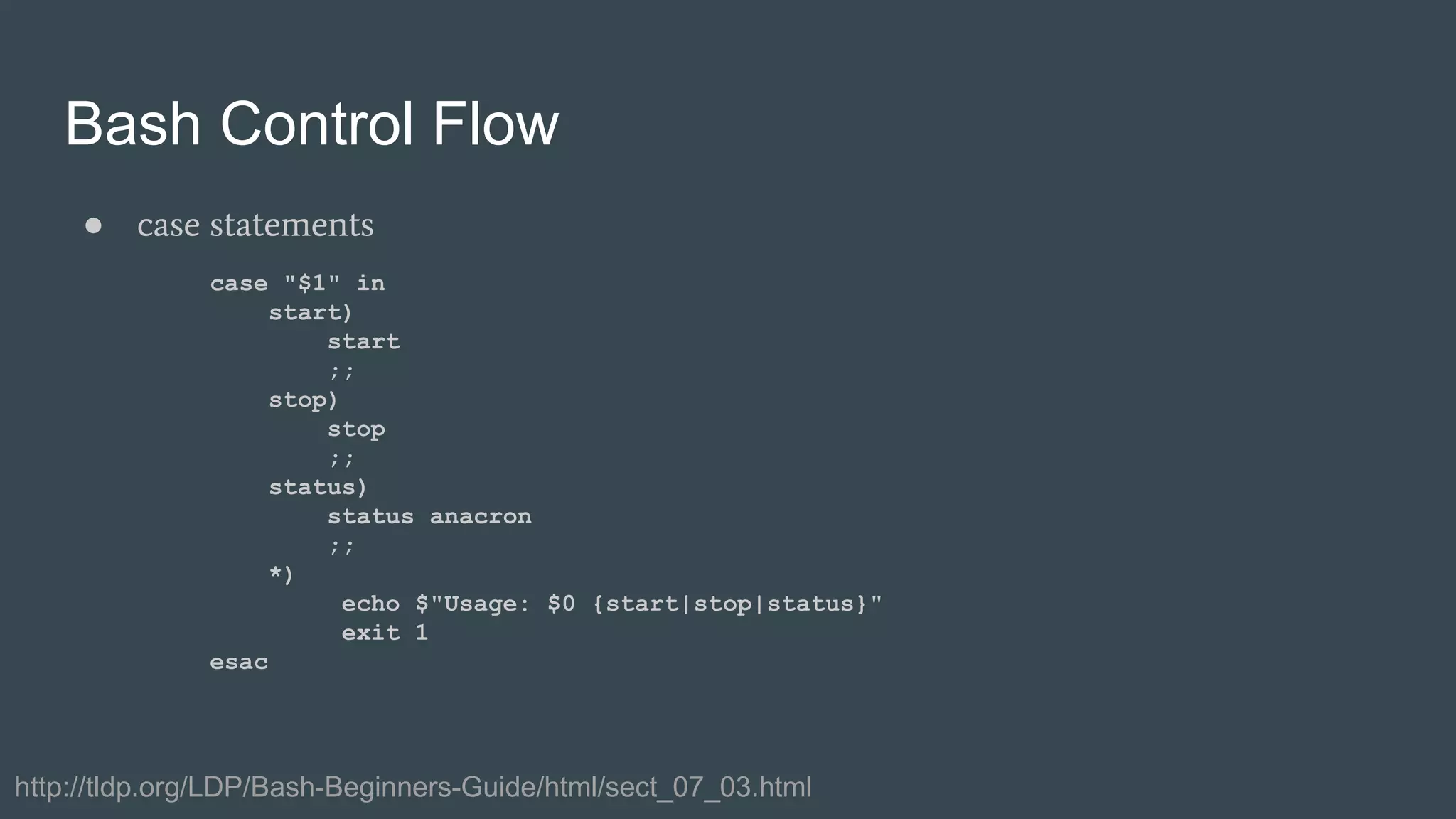
● case statements
case "$1" in
start)
start
;;
stop)
stop
;;
status)
status anacron
;;
*)
echo $"Usage: $0 {start|stop|status}"
exit 1
esac
http://tldp.org/LDP/Bash-Beginners-Guide/html/sect_07_03.html
Bash Control Flow
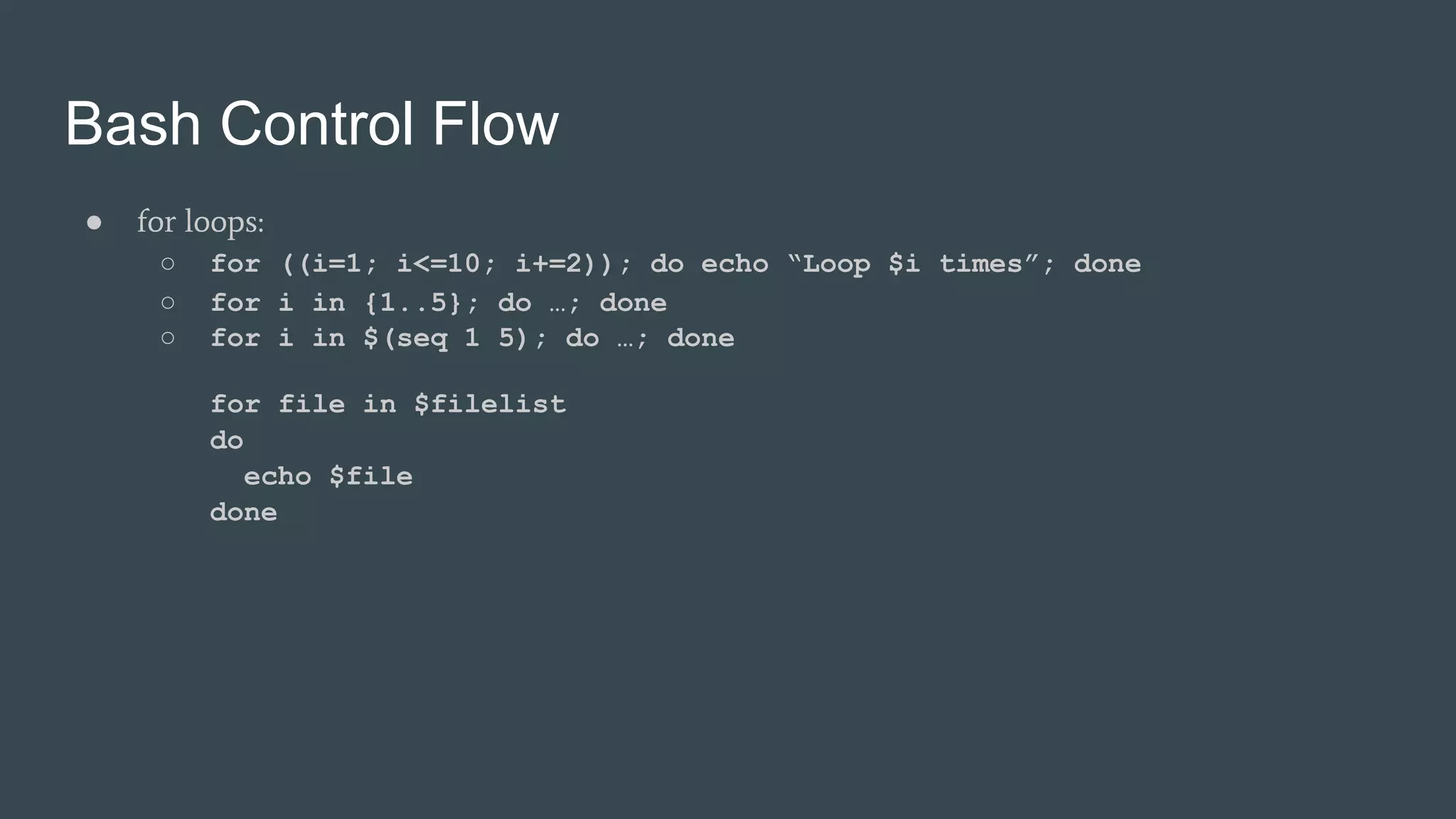
● for loops:
○ for ((i=1; i<=10; i+=2)); do echo “Loop $i times”; done
○ for i in {1..5}; do …; done
○ for i in $(seq 1 5); do …; done
for file in $filelist
do
echo $file
done
Bash Control Flow
● while loops:
○ while [[ $i -lt 4 ]]; do echo $i; i=$(($i+1)); done
while true
do
if [[ $i -lt 4 ]]; then
break
fi
i=$(($i+1))
done
Bash Operators
● Integer comparison
○ in [[ ]] and [ ]: -gt, -ge, -lt, -le, -eq, -ne
○ in (( )): <, <=, >, >=, ==, !=
● String comparison
○ ==, !=
○ in ASCII alphabetical order: >, <
○ -z (null string), -n (not null)
○ also file test operators (-e, -f, -d etc.)
● Boolean
○ in [[ ]]: &&, ||, !
○ in [ ] and with test: -a, -o, !
● Math
○ in (( )): +, -, *, / (rounds to integer), ++, --, %, +=, *=, /=, -=, %=
Parameters and Strings
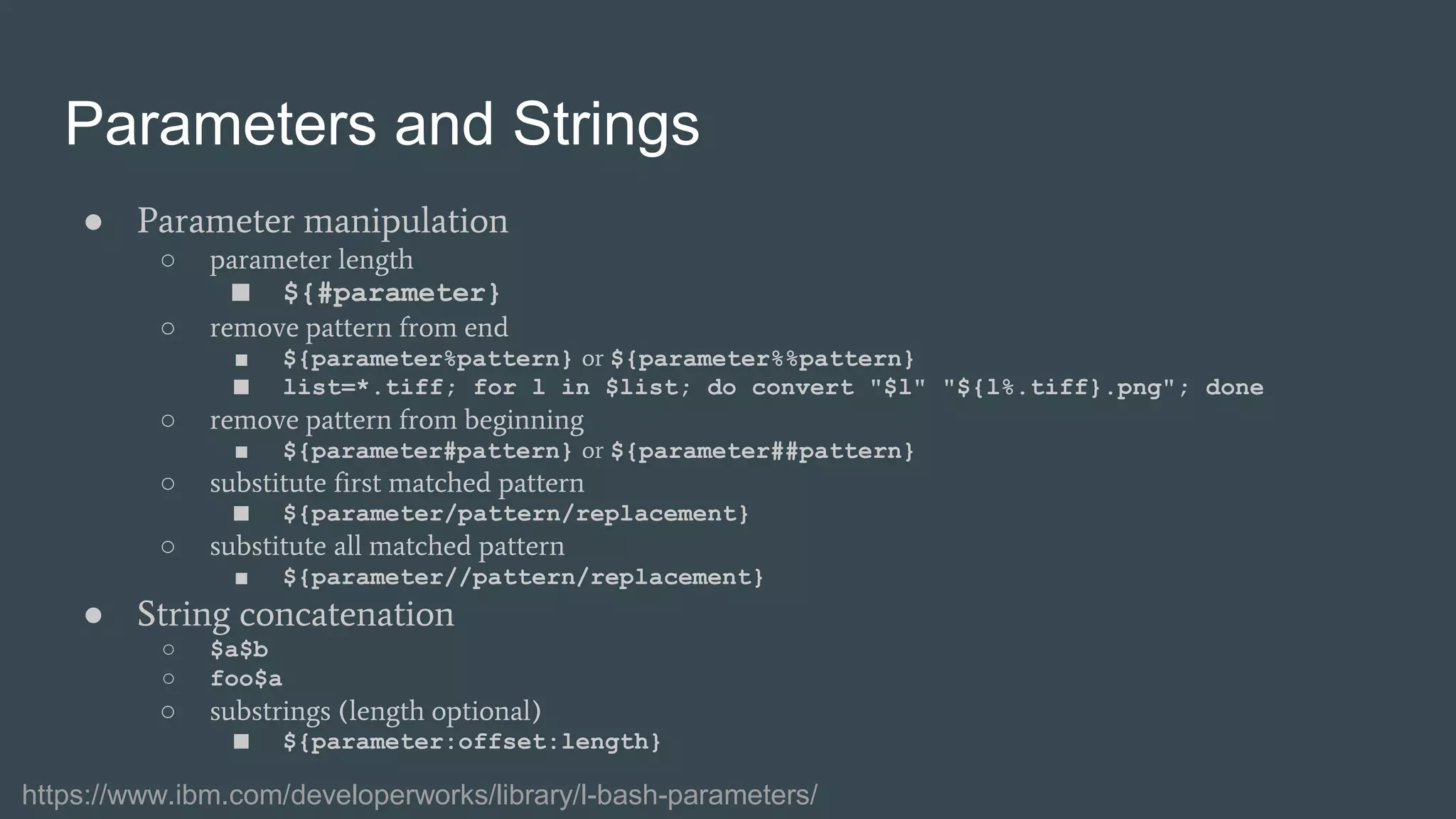
● Parameter manipulation
○ parameter length
■ ${#parameter}
○ remove pattern from end
■ ${parameter%pattern} or ${parameter%%pattern}
■ list=*.tiff; for l in $list; do convert "$l" "${l%.tiff}.png"; done
○ remove pattern from beginning
■ ${parameter#pattern} or ${parameter##pattern}
○ substitute first matched pattern
■ ${parameter/pattern/replacement}
○ substitute all matched pattern
■ ${parameter//pattern/replacement}
● String concatenation
○ $a$b
○ foo$a
○ substrings (length optional)
■ ${parameter:offset:length}
https://www.ibm.com/developerworks/library/l-bash-parameters/
Bash Functions
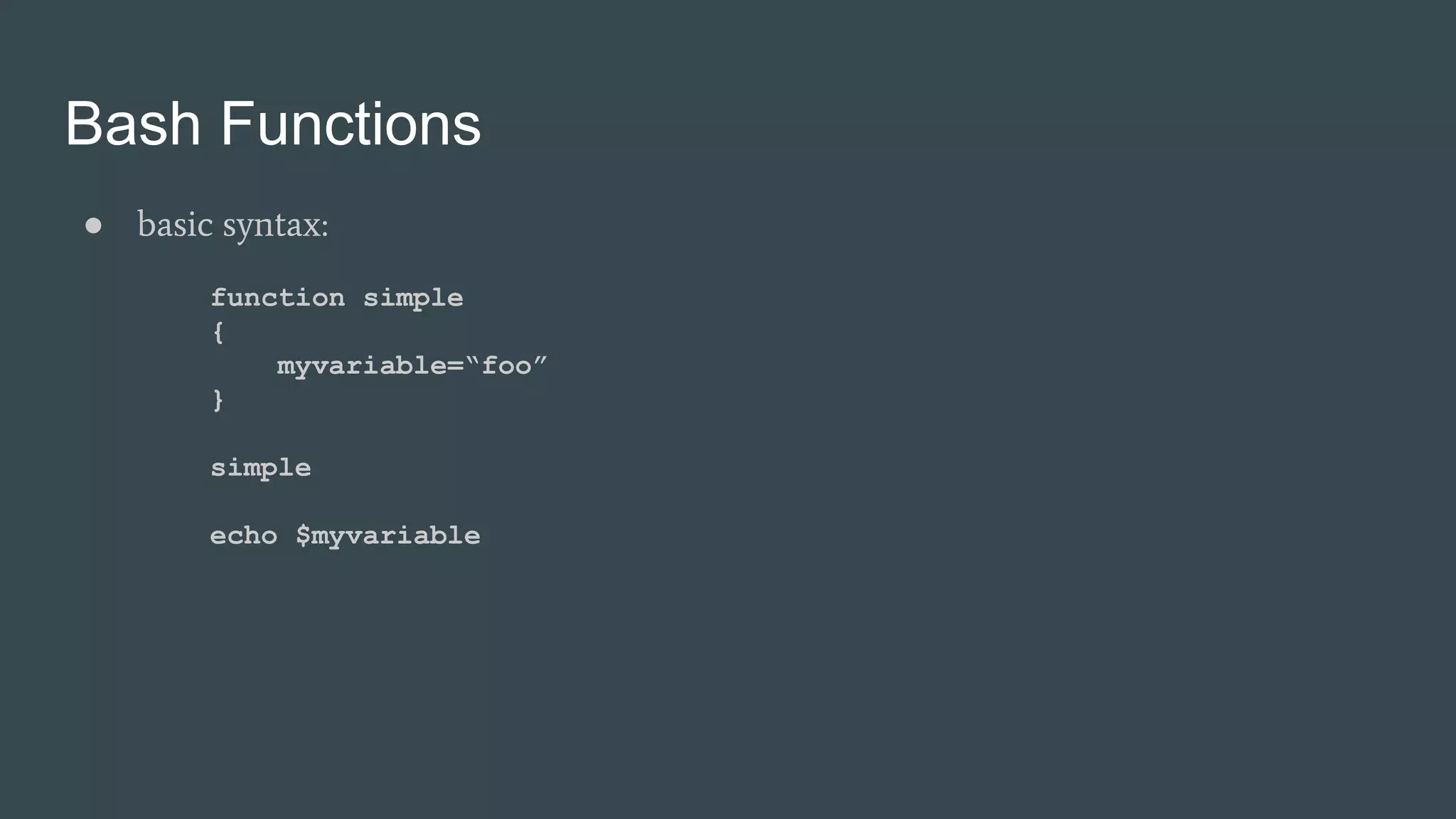
● basic syntax:
function simple
{
myvariable=“foo”
}
simple
echo $myvariable
Bash Functions
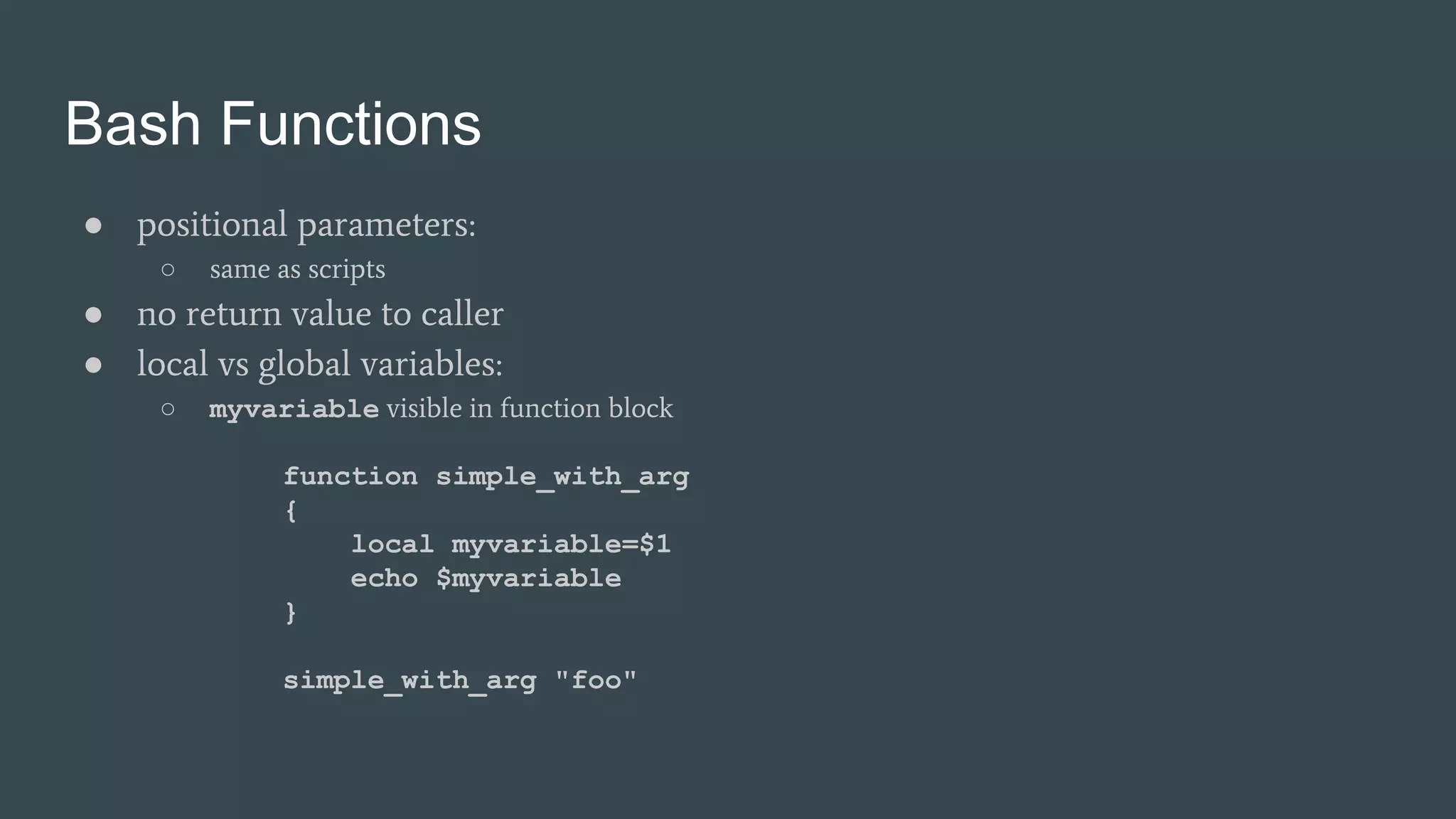
● positional parameters:
○ same as scripts
● no return value to caller
● local vs global variables:
○ myvariable visible in function block
function simple_with_arg
{
local myvariable=$1
echo $myvariable
}
simple_with_arg "foo"
Bash Scripts
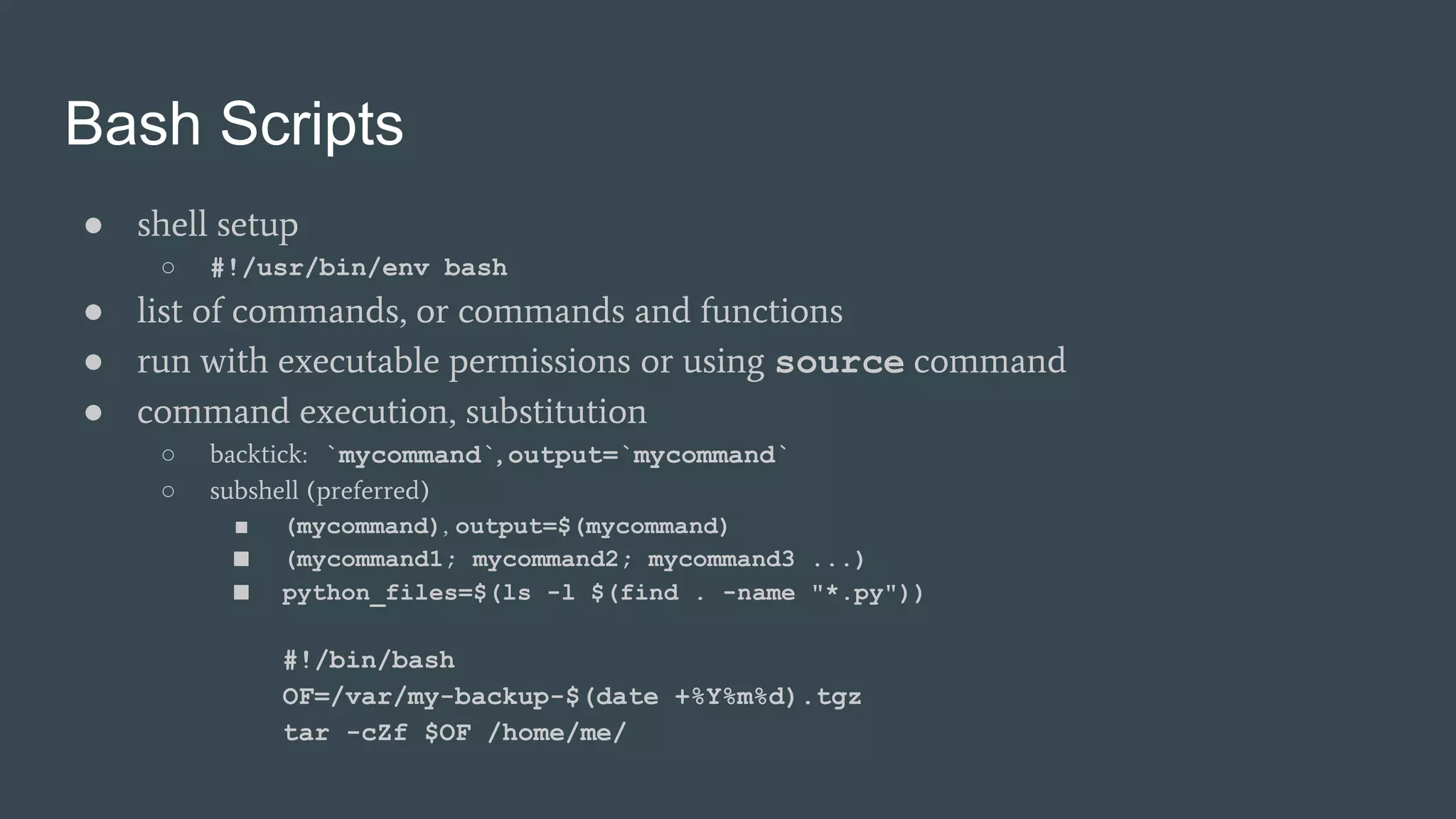
● shell setup
○ #!/usr/bin/env bash
● list of commands, or commands and functions
● run with executable permissions or using source command
● command execution, substitution
○ backtick: `mycommand`, output=`mycommand`
○ subshell (preferred)
■ (mycommand), output=$(mycommand)
■ (mycommand1; mycommand2; mycommand3 ...)
■ python_files=$(ls -l $(find . -name "*.py"))
#!/bin/bash
OF=/var/my-backup-$(date +%Y%m%d).tgz
tar -cZf $OF /home/me/
Bash Configuration Scripts
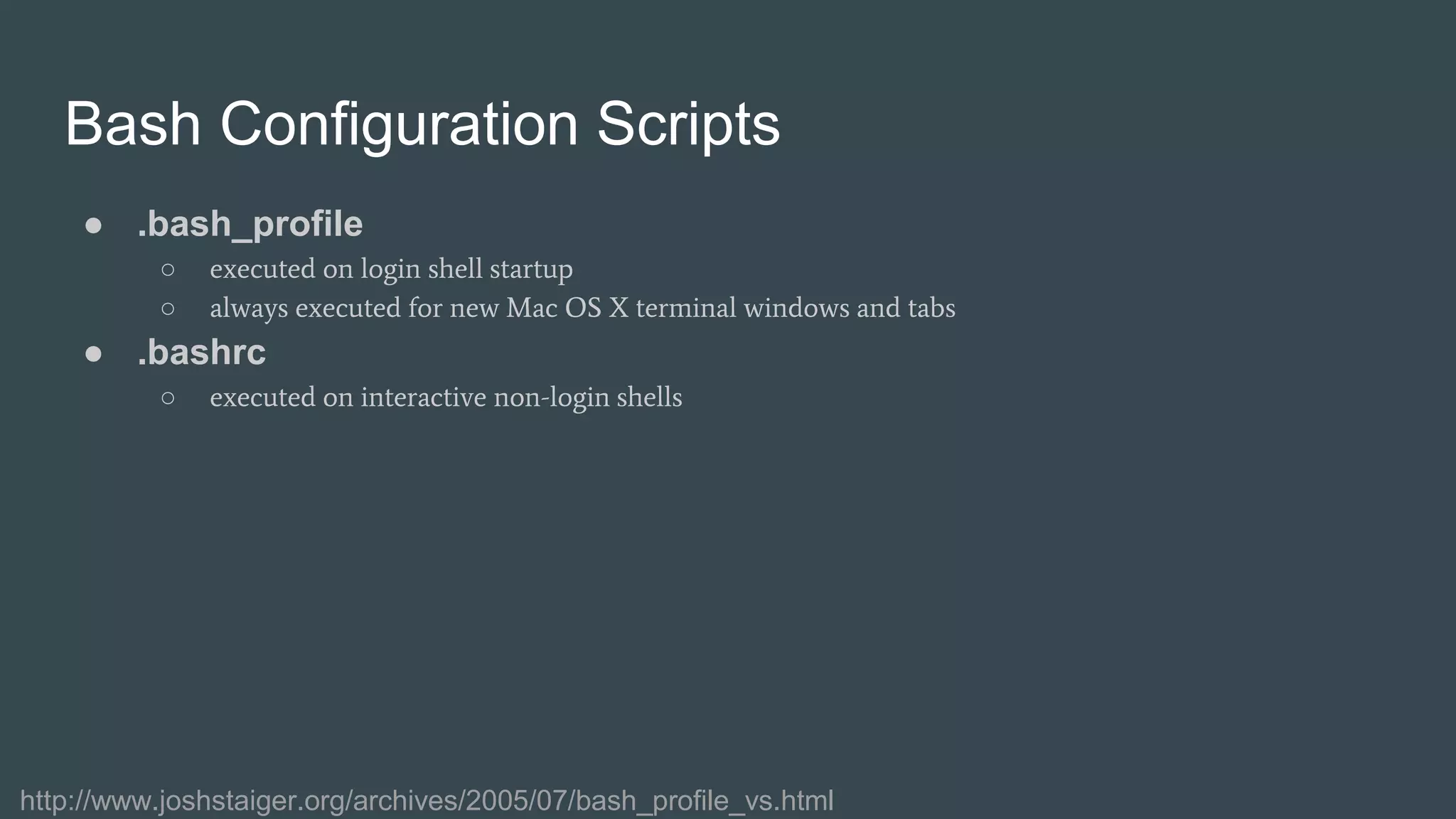
● .bash_profile
○ executed on login shell startup
○ always executed for new Mac OS X terminal windows and tabs
● .bashrc
○ executed on interactive non-login shells
http://www.joshstaiger.org/archives/2005/07/bash_profile_vs.html
Useful, hands-on bash tutorials...
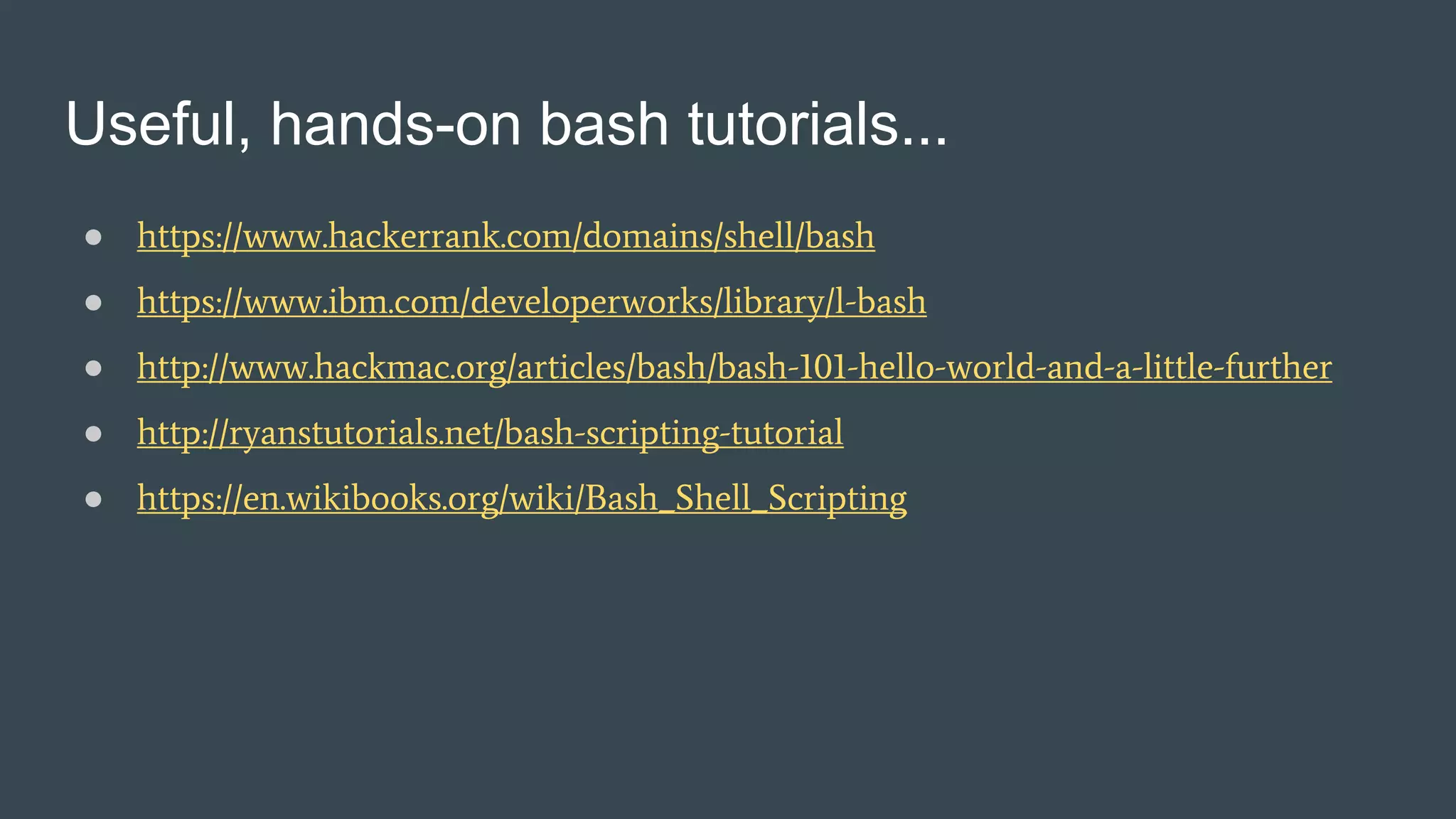
● https://www.hackerrank.com/domains/shell/bash
● https://www.ibm.com/developerworks/library/l-bash
● http://www.hackmac.org/articles/bash/bash-101-hello-world-and-a-little-further
● http://ryanstutorials.net/bash-scripting-tutorial
● https://en.wikibooks.org/wiki/Bash_Shell_Scripting

Productive bash

  • 1.
    Productive Bash Getting ComfortableScripting on the Command Line
  • 2.
    Command Line Basics ●Terminal: ○ command line interface application ● Shell: ○ command line interpreter that runs in terminal ● Why use the command line terminal? ○ fast ○ less memory intensive than GUI tools ○ simple, efficient on remote hosts ■ display host not needed ○ versatile set of built in commands ○ custom commands with scripts
  • 3.
    Command Help ● Commandhelp ○ man pages (or info) ■ command, function, system call (usually C) lookup ○ help ■ list built in commands ■ describe a built in command ○ type ■ reports type (shell builtin, keyword, file etc.) ○ alias ■ make command shortcuts ● alias ll=”ls -la” ■ simplify command and flag combinations ○ tab autocomplete ○ ↑↓ through command history
  • 4.
    Command History ● history ○command etc. history list with line numbers ● !n ○ repeat from history by line number ● !-i ○ repeat ith previous command ● !! ○ repeat last command ○ same as !-1 ● chain commands ○ command1 ; command2 ○ command1 && command2 ○ command1 || command2
  • 5.
    Jobs and Processes ●Process: ○ executing program ○ unique process id (PID) and name ○ ps ■ list all currently executing processes ● Job: ○ one or more related processes ○ job number ○ job spec (%n) ○ jobs ■ list all jobs running in background ● & ○ run in background
  • 6.
    Job Control ● CTRL-C ○terminate process ● CTRL-Z ○ suspend process ● bg ○ restart suspended job, send to background ○ job spec %n optional ● fg ○ send job to foreground ○ job spec %n optional ● kill ○ terminate or signal process by process id ● killall ○ terminate or signal process by process name
  • 7.
    Shell Environment ● env ○set and print environment variables ● printenv ○ print environment variables ● export ○ declare and set variable ● unset ○ delete variable ● which ○ find program in environment $PATH
  • 8.
    File System Commands ●file ○ tests and reports file type (directory, ASCII, executable etc.) ● ls ○ list directory contents ● cd ○ change directory ● rm ○ remove a file or directory ● ln ○ link to file or directory ○ symbolic link (-s flag) ■ can link directories ■ can cross filesystems
  • 9.
    File System Commands ●chmod ○ change file or directory permissions ● mkdir ○ create a directory ● find ○ search directory ■ find . -name “*.py” ■ find A B -name “*.bak” -exec rm {} ; ● grep ○ search file contents ■ grep -i copyright *.py ■ grep -Rn 201[5-7] . ● diff ○ compare 2 or more files line by line
  • 10.
    File System Commands ●touch ○ changes file modification & access time, create empty file ● cat ○ read files, output to stdout ● more/less ○ page through text ○ less allows backward paging ● head ○ display first n lines or bytes of a file (default n=10 lines) ● tail ○ display last n lines or bytes of a file (default n=10 lines)
  • 11.
    File System Commands ●uniq ○ filter and/or report repeated lines in file ● sort ○ sort lines in file ● wc ○ count words, lines, characters and bytes in files ● sed ○ stream, edit and substitute text patterns using regular expressions in files ○ sed -e 's/foo/bar/g' -i.sed test.txt ● cut ○ cut portions from file by delimiter (default is tab), byte or character position ○ writes to standard output
  • 12.
    Chaining Commands ● pipe: aylas-mbp-4:mastersayla$ git status --porcelain M paper.tex ?? arch.key ?? arch2.key ?? images/arch2/ ?? paper.tex.save.1 ?? vol.key aylas-mbp-4:masters ayla$ git status --porcelain | grep "^??" | cut -d ' ' -f 2 arch.key arch2.key images/arch2/ paper.tex.save.1 vol.key
  • 13.
    Chaining Commands ● xargs: ○build and execute commands from standard input ○ print directory file on 1 line ■ ls | xargs echo aylas-mbp-4:masters ayla$ find . -name "*.tex" | xargs -t wc -w wc -w ./outline.tex ./paper.tex 491 ./outline.tex 1936 ./paper.tex 2427 total
  • 14.
    Bash Script Variables ●Variables ○ string, integers, arrays etc. ○ no native floating point math ■ use builtin tools instead (bc: arbitrary precision calculator language) ○ readonly ○ declare ■ limit type (array, integer) ■ can make variables readonly ■ declare [option flag] [variable[=value] ...] ● Positional parameters ○ $*: quoted string containing positional parameters ○ $@: array of positional parameters ○ $0, $1,…: parameter variables ○ $#: number of arguments
  • 15.
    Bash Control Flow ●Conditional statements: ○ if test -f $1; then echo “File $1 exists”; fi ○ if [ -f $1 ]; then echo “File $1 exists”; fi ○ if [[ -f $1 ]]; then echo “File $1 exists”; fi if [[ $i -lt 0 ]] && (( $i % 2 == 0 )) then echo “$i is negative and even” elif [[ $i -ge 0 ]] then if (( $i % 2 == 0 )) then echo "$i is positive and even" else echo "$i is positive and odd" fi else echo “$i is negative and odd” fi
  • 16.
    Bash Control Flow ●case statements case "$1" in start) start ;; stop) stop ;; status) status anacron ;; *) echo $"Usage: $0 {start|stop|status}" exit 1 esac http://tldp.org/LDP/Bash-Beginners-Guide/html/sect_07_03.html
  • 17.
    Bash Control Flow ●for loops: ○ for ((i=1; i<=10; i+=2)); do echo “Loop $i times”; done ○ for i in {1..5}; do …; done ○ for i in $(seq 1 5); do …; done for file in $filelist do echo $file done
  • 18.
    Bash Control Flow ●while loops: ○ while [[ $i -lt 4 ]]; do echo $i; i=$(($i+1)); done while true do if [[ $i -lt 4 ]]; then break fi i=$(($i+1)) done
  • 19.
    Bash Operators ● Integercomparison ○ in [[ ]] and [ ]: -gt, -ge, -lt, -le, -eq, -ne ○ in (( )): <, <=, >, >=, ==, != ● String comparison ○ ==, != ○ in ASCII alphabetical order: >, < ○ -z (null string), -n (not null) ○ also file test operators (-e, -f, -d etc.) ● Boolean ○ in [[ ]]: &&, ||, ! ○ in [ ] and with test: -a, -o, ! ● Math ○ in (( )): +, -, *, / (rounds to integer), ++, --, %, +=, *=, /=, -=, %=
  • 20.
    Parameters and Strings ●Parameter manipulation ○ parameter length ■ ${#parameter} ○ remove pattern from end ■ ${parameter%pattern} or ${parameter%%pattern} ■ list=*.tiff; for l in $list; do convert "$l" "${l%.tiff}.png"; done ○ remove pattern from beginning ■ ${parameter#pattern} or ${parameter##pattern} ○ substitute first matched pattern ■ ${parameter/pattern/replacement} ○ substitute all matched pattern ■ ${parameter//pattern/replacement} ● String concatenation ○ $a$b ○ foo$a ○ substrings (length optional) ■ ${parameter:offset:length} https://www.ibm.com/developerworks/library/l-bash-parameters/
  • 21.
    Bash Functions ● basicsyntax: function simple { myvariable=“foo” } simple echo $myvariable
  • 22.
    Bash Functions ● positionalparameters: ○ same as scripts ● no return value to caller ● local vs global variables: ○ myvariable visible in function block function simple_with_arg { local myvariable=$1 echo $myvariable } simple_with_arg "foo"
  • 23.
    Bash Scripts ● shellsetup ○ #!/usr/bin/env bash ● list of commands, or commands and functions ● run with executable permissions or using source command ● command execution, substitution ○ backtick: `mycommand`, output=`mycommand` ○ subshell (preferred) ■ (mycommand), output=$(mycommand) ■ (mycommand1; mycommand2; mycommand3 ...) ■ python_files=$(ls -l $(find . -name "*.py")) #!/bin/bash OF=/var/my-backup-$(date +%Y%m%d).tgz tar -cZf $OF /home/me/
  • 24.
    Bash Configuration Scripts ●.bash_profile ○ executed on login shell startup ○ always executed for new Mac OS X terminal windows and tabs ● .bashrc ○ executed on interactive non-login shells http://www.joshstaiger.org/archives/2005/07/bash_profile_vs.html
  • 25.
    Useful, hands-on bashtutorials... ● https://www.hackerrank.com/domains/shell/bash ● https://www.ibm.com/developerworks/library/l-bash ● http://www.hackmac.org/articles/bash/bash-101-hello-world-and-a-little-further ● http://ryanstutorials.net/bash-scripting-tutorial ● https://en.wikibooks.org/wiki/Bash_Shell_Scripting

Editor's Notes

  • #3 Bash is not perfect, but it’s very popular and it’s the one I use most
  • #4  alias can make complex command and flag combinations easier to remember
  • #7 bg & fg run on “current process” if no job spec kill can be used to send specific signals - weird more job control commands...
  • #8 common environment variables: PATH, PWD, SHELL etc.
  • #9 Bash builtins and language features vs command line tools… links...
  • #11  more and less don’t need to load entire file contents in memory, so good for larger files
  • #12  wc, sed: also std input sed useful with find, piped...
  • #14 xargs flag -t echos command before executing
  • #15 weakly typed positional paramenters: basically script arguments
  • #16 should expand on differences between [], [[]] and (()) test is old way, grammar is a bit sketchy so use with care case statements also supported
  • #17 snippet from anacron startup script (Linux daemon (service) that runs commands scheduled by the day)
  • #18 Range, like Python seq: can set increment {..}: brace expansion
  • #19 Range, like Python seq: can set increment {..}: brace expansion
  • #20 strings can be compared as integers, so be careful! also bitwise operators etc. - can find online
  • #21 pattern can be plain string or regular expression
  • #22 output is “foo”
  • #23 output is foo not covering reading from stdin
  • #24 can run script in external shell also, but this is better /usr/bin/bash also, but using env is more portable source command can be used to load any functions file into the current shell script or a command prompt subshells are child processes - inherits parent’s environment, however subshell environment is local only to subshell process
  • #25 Mac is a strange case because every terminal is a login shell not necessarily the case for Linuxes