
Sybex CCNA 640-802
Chapter 4: Cisco’s IOS and SDM
Instructor & Todd Lammle
Chapter 4 Objectives
• The Cisco router IOS
• Enhanced editing
• Administrative functions
– Hostnames
– Banners
– Passwords
– Interface descriptions
• Verifying your configuration
2
Cisco Router IOS
• Carries network protocols and
functions
• Connects high-speed traffic
between devices
• Adds security to control access
• Provides scalability for growth
• Supplies reliability
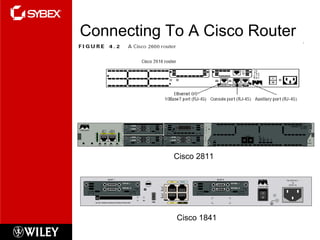
Connecting To A Cisco Router
Cisco 2811
Cisco 1841
Bringing up a Router
• Boot-up process:
1: POST
2: Looks for the Cisco IOS from Flash
memory
3: IOS loads & looks for a valid
configuration;
• startup-configstartup-config
• stored in nonvolatile RAM (NVRAM)
4: If a valid config is not found in NVRAM:
• setup modesetup mode
Setup Mode
• Basic Management Setup
• Extended Setup
• Command-Line Interface
Command-Line Interface (CLI)
• More flexible than setup mode.
• To use the CLI, just say No to
entering the initial configuration
dialog.
Logging into the Router
• User mode:
– Router>
– Used mostly to view statistics
• Privileged mode:
– Router#
– Used to view & change router
configuration
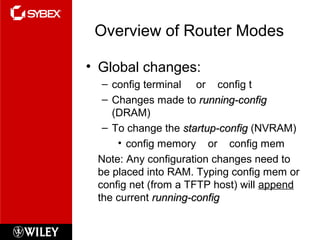
Overview of Router Modes
• Global changes:
– config terminal or config t
– Changes made to running-configrunning-config
(DRAM)
– To change the startup-configstartup-config (NVRAM)
• config memory or config mem
Note: Any configuration changes need to
be placed into RAM. Typing config mem or
config net (from a TFTP host) will append
the current running-configrunning-config
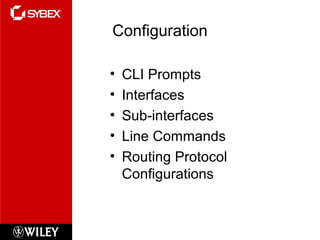
Configuration
• CLI Prompts
• Interfaces
• Sub-interfaces
• Line Commands
• Routing Protocol
Configurations
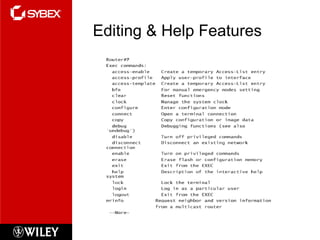
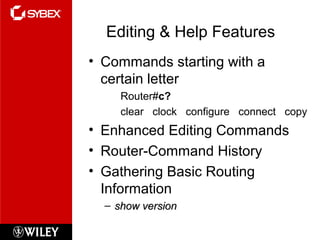
Editing & Help Features
• Commands starting with a
certain letter
Router#c?
clear clock configure connect copy
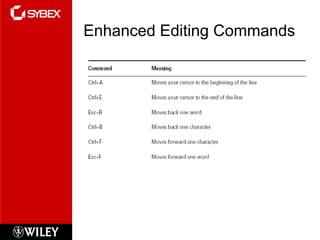
• Enhanced Editing Commands
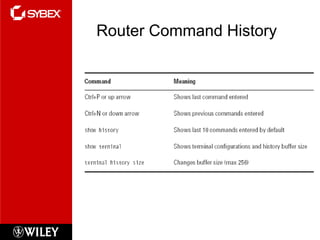
• Router-Command History
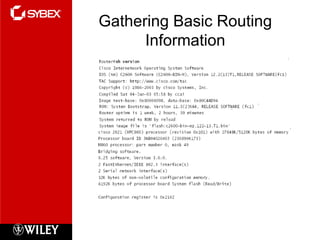
• Gathering Basic Routing
Information
– show versionshow version
Enhanced Editing Commands
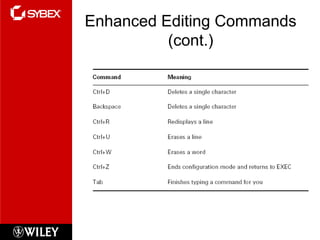
(cont.)
Router Command History
Gathering Basic Routing
Information
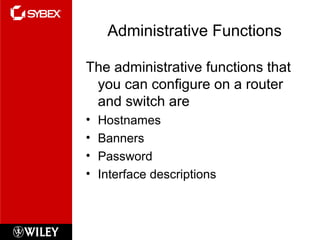
Administrative Functions
The administrative functions that
you can configure on a router
and switch are
• Hostnames
• Banners
• Password
• Interface descriptions
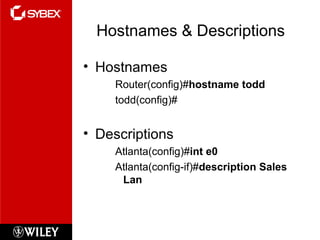
Hostnames & Descriptions
• Hostnames
Router(config)#hostname todd
todd(config)#
• Descriptions
Atlanta(config)#int e0
Atlanta(config-if)#description Sales
Lan
Banners
• Purpose
• Types
– exec
– incoming
– login
– motd
• Delimiting character
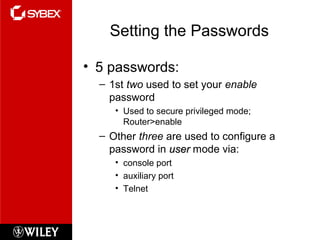
Setting the Passwords
• 5 passwords:
– 1st two used to set your enable
password
• Used to secure privileged mode;
Router>enable
– Other three are used to configure a
password in useruser mode via:
• console port
• auxiliary port
• Telnet
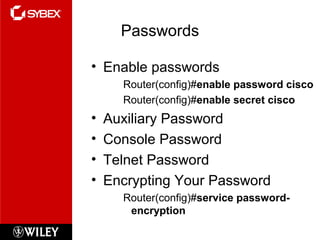
Passwords
• Enable passwords
Router(config)#enable password cisco
Router(config)#enable secret cisco
• Auxiliary Password
• Console Password
• Telnet Password
• Encrypting Your Password
Router(config)#service password-
encryption
Interface Descriptions
Setting descriptions on an interface is helpful to the
administrator and, like the hostname, only locally
significant. The description command is a helpful one
because you can, for instance, use it to keep track of
circuit numbers.
Here’s an example:
Atlanta(config)#int e0
Atlanta(config-if)#description Sales Lan
Atlanta(config-if)#int s0
Atlanta(config-if)#desc Wan to Miami circuit:6fdda4321
You can view the description of an interface
either with the show running-config
command or the show interface command.
Router Interfaces
• Bringing up an Interface
no shutdown
shutdown
show interface
• Configuring an IP Address on an
Interface
Router(config)#int e0
Router(config-if)#ip address 172.16.10.2
255.255.255.0
Router(config-if)#no shut
• Serial Interface Commands
clock rate & bandwidth (entered in
kilobits)
Viewing, & Saving
Configurations
• Viewing & Saving Configurations
– running-configrunning-config saved in DRAM
– startup-configstartup-config saved in NVRAM
copy run start
sh run
sh start
erase startup-config
Verifying Your Configuration
Tools:
– show running-config
– show startup-config
– ping
– show cdp nei detail
– trace
– telnet
Other Verification Methods
• Verifying with the show interface
command
– Router#show interface ?
• Verifying with the show ip
interface command
– Router#show ip interface
– Router#show ip interface brief
– Router#show controllers
Summary
• Go through all the written labs and review
questions
• Review answers in class
27

Chapter4ccna

  • 1.
    Sybex CCNA 640-802 Chapter4: Cisco’s IOS and SDM Instructor & Todd Lammle
  • 2.
    Chapter 4 Objectives •The Cisco router IOS • Enhanced editing • Administrative functions – Hostnames – Banners – Passwords – Interface descriptions • Verifying your configuration 2
  • 3.
    Cisco Router IOS •Carries network protocols and functions • Connects high-speed traffic between devices • Adds security to control access • Provides scalability for growth • Supplies reliability
  • 4.
    Connecting To ACisco Router Cisco 2811 Cisco 1841
  • 5.
    Bringing up aRouter • Boot-up process: 1: POST 2: Looks for the Cisco IOS from Flash memory 3: IOS loads & looks for a valid configuration; • startup-configstartup-config • stored in nonvolatile RAM (NVRAM) 4: If a valid config is not found in NVRAM: • setup modesetup mode
  • 6.
    Setup Mode • BasicManagement Setup • Extended Setup • Command-Line Interface
  • 7.
    Command-Line Interface (CLI) •More flexible than setup mode. • To use the CLI, just say No to entering the initial configuration dialog.
  • 8.
    Logging into theRouter • User mode: – Router> – Used mostly to view statistics • Privileged mode: – Router# – Used to view & change router configuration
  • 9.
    Overview of RouterModes • Global changes: – config terminal or config t – Changes made to running-configrunning-config (DRAM) – To change the startup-configstartup-config (NVRAM) • config memory or config mem Note: Any configuration changes need to be placed into RAM. Typing config mem or config net (from a TFTP host) will append the current running-configrunning-config
  • 10.
    Configuration • CLI Prompts •Interfaces • Sub-interfaces • Line Commands • Routing Protocol Configurations
  • 11.
  • 12.
    Editing & HelpFeatures • Commands starting with a certain letter Router#c? clear clock configure connect copy • Enhanced Editing Commands • Router-Command History • Gathering Basic Routing Information – show versionshow version
  • 13.
  • 14.
  • 15.
  • 16.
  • 17.
    Administrative Functions The administrativefunctions that you can configure on a router and switch are • Hostnames • Banners • Password • Interface descriptions
  • 18.
    Hostnames & Descriptions •Hostnames Router(config)#hostname todd todd(config)# • Descriptions Atlanta(config)#int e0 Atlanta(config-if)#description Sales Lan
  • 19.
    Banners • Purpose • Types –exec – incoming – login – motd • Delimiting character
  • 20.
    Setting the Passwords •5 passwords: – 1st two used to set your enable password • Used to secure privileged mode; Router>enable – Other three are used to configure a password in useruser mode via: • console port • auxiliary port • Telnet
  • 21.
    Passwords • Enable passwords Router(config)#enablepassword cisco Router(config)#enable secret cisco • Auxiliary Password • Console Password • Telnet Password • Encrypting Your Password Router(config)#service password- encryption
  • 22.
    Interface Descriptions Setting descriptionson an interface is helpful to the administrator and, like the hostname, only locally significant. The description command is a helpful one because you can, for instance, use it to keep track of circuit numbers. Here’s an example: Atlanta(config)#int e0 Atlanta(config-if)#description Sales Lan Atlanta(config-if)#int s0 Atlanta(config-if)#desc Wan to Miami circuit:6fdda4321 You can view the description of an interface either with the show running-config command or the show interface command.
  • 23.
    Router Interfaces • Bringingup an Interface no shutdown shutdown show interface • Configuring an IP Address on an Interface Router(config)#int e0 Router(config-if)#ip address 172.16.10.2 255.255.255.0 Router(config-if)#no shut • Serial Interface Commands clock rate & bandwidth (entered in kilobits)
  • 24.
    Viewing, & Saving Configurations •Viewing & Saving Configurations – running-configrunning-config saved in DRAM – startup-configstartup-config saved in NVRAM copy run start sh run sh start erase startup-config
  • 25.
    Verifying Your Configuration Tools: –show running-config – show startup-config – ping – show cdp nei detail – trace – telnet
  • 26.
    Other Verification Methods •Verifying with the show interface command – Router#show interface ? • Verifying with the show ip interface command – Router#show ip interface – Router#show ip interface brief – Router#show controllers
  • 27.
    Summary • Go throughall the written labs and review questions • Review answers in class 27