HOW TO CONFIGURE A CISCO ROUTER?
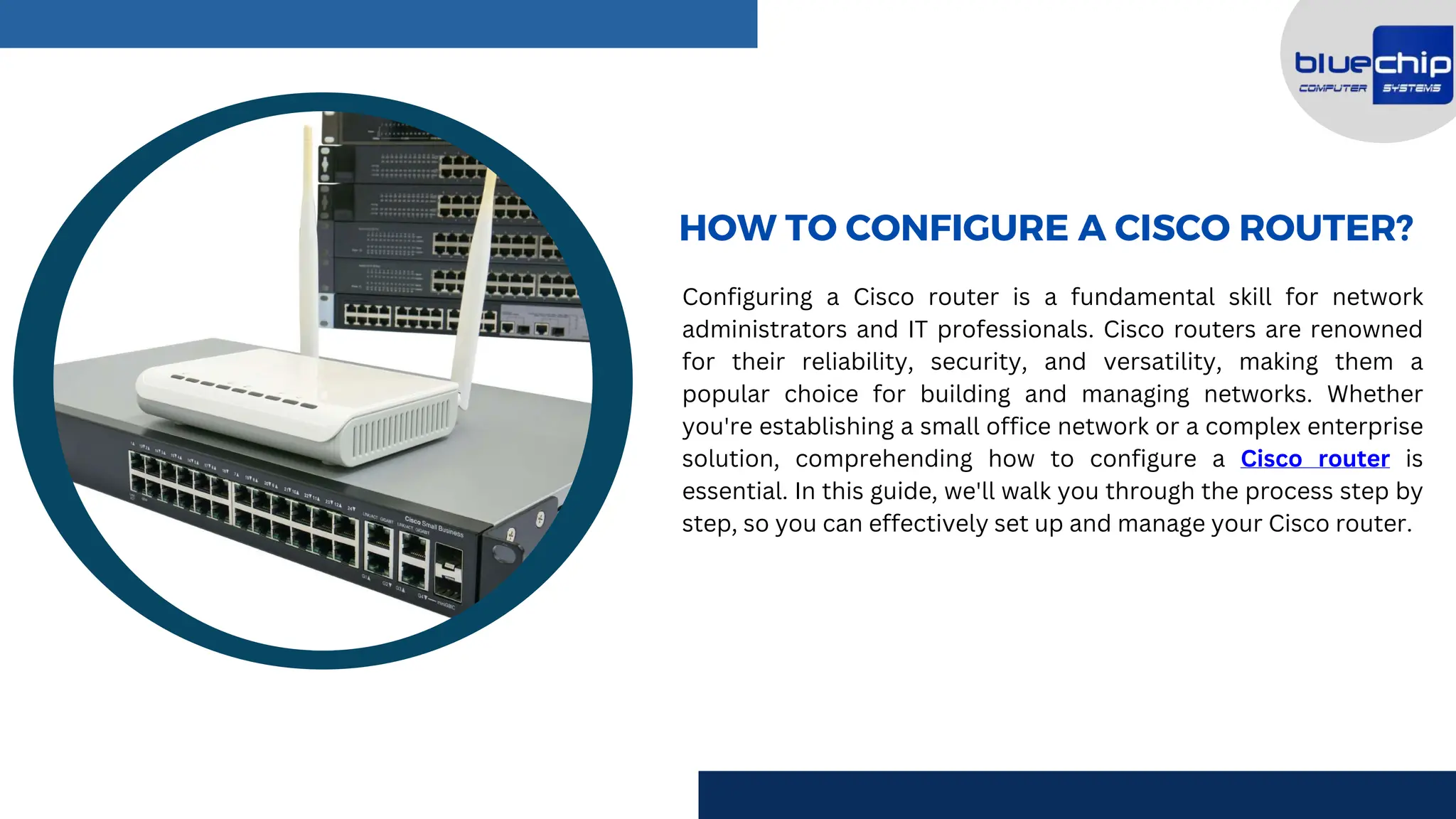
Configuring a Cisco router is a fundamental skill for network
administrators and IT professionals. Cisco routers are renowned
for their reliability, security, and versatility, making them a
popular choice for building and managing networks. Whether
you're establishing a small office network or a complex enterprise
solution, comprehending how to configure a Cisco router is
essential. In this guide, we'll walk you through the process step by
step, so you can effectively set up and manage your Cisco router.
TYPES OF CISCO ROUTER
Cisco presents a broad spectrum of routers designed to
fulfill different networking conditions. These routers can be
categorized based on their intended use and capabilities.
Below are some common types of Cisco routers –
INTEGRATED SERVICES ROUTERS
(ISR)
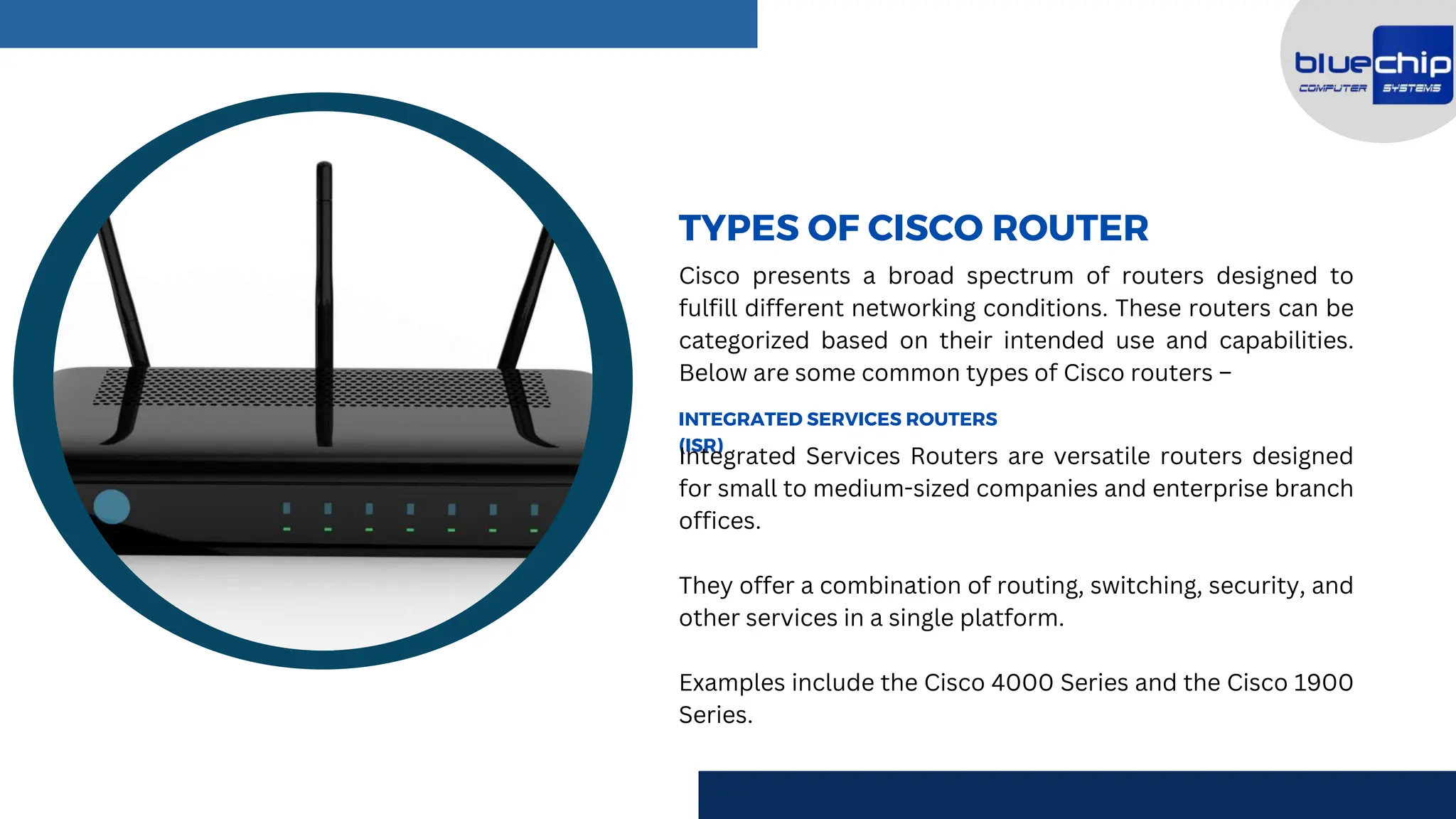
Integrated Services Routers are versatile routers designed
for small to medium-sized companies and enterprise branch
offices.
They offer a combination of routing, switching, security, and
other services in a single platform.
Examples include the Cisco 4000 Series and the Cisco 1900
Series.
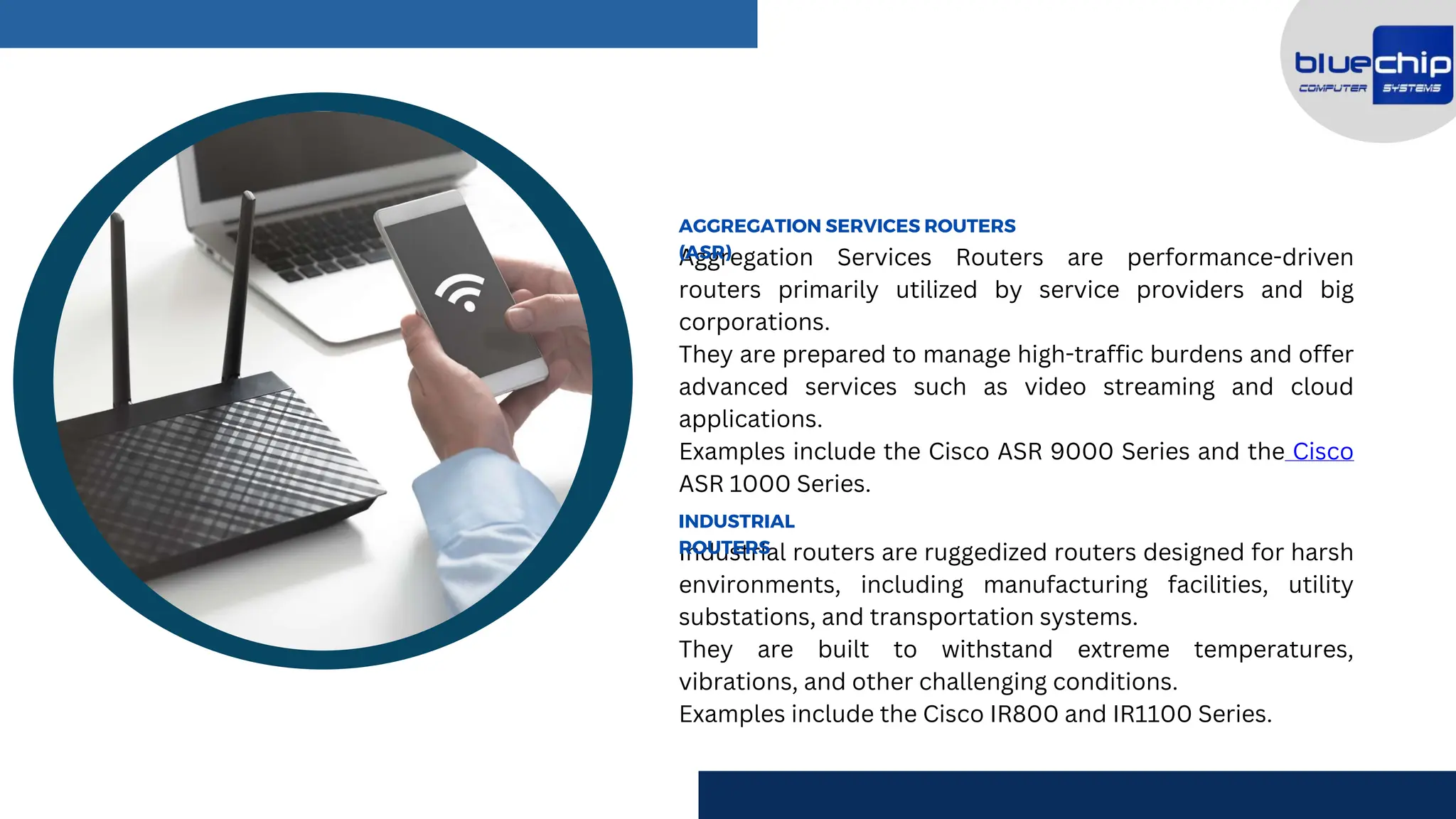
Aggregation Services Routers are performance-driven
routers primarily utilized by service providers and big
corporations.
They are prepared to manage high-traffic burdens and offer
advanced services such as video streaming and cloud
applications.
Examples include the Cisco ASR 9000 Series and the Cisco
ASR 1000 Series.
AGGREGATION SERVICES ROUTERS
(ASR)
Industrial routers are ruggedized routers designed for harsh
environments, including manufacturing facilities, utility
substations, and transportation systems.
They are built to withstand extreme temperatures,
vibrations, and other challenging conditions.
Examples include the Cisco IR800 and IR1100 Series.
INDUSTRIAL
ROUTERS
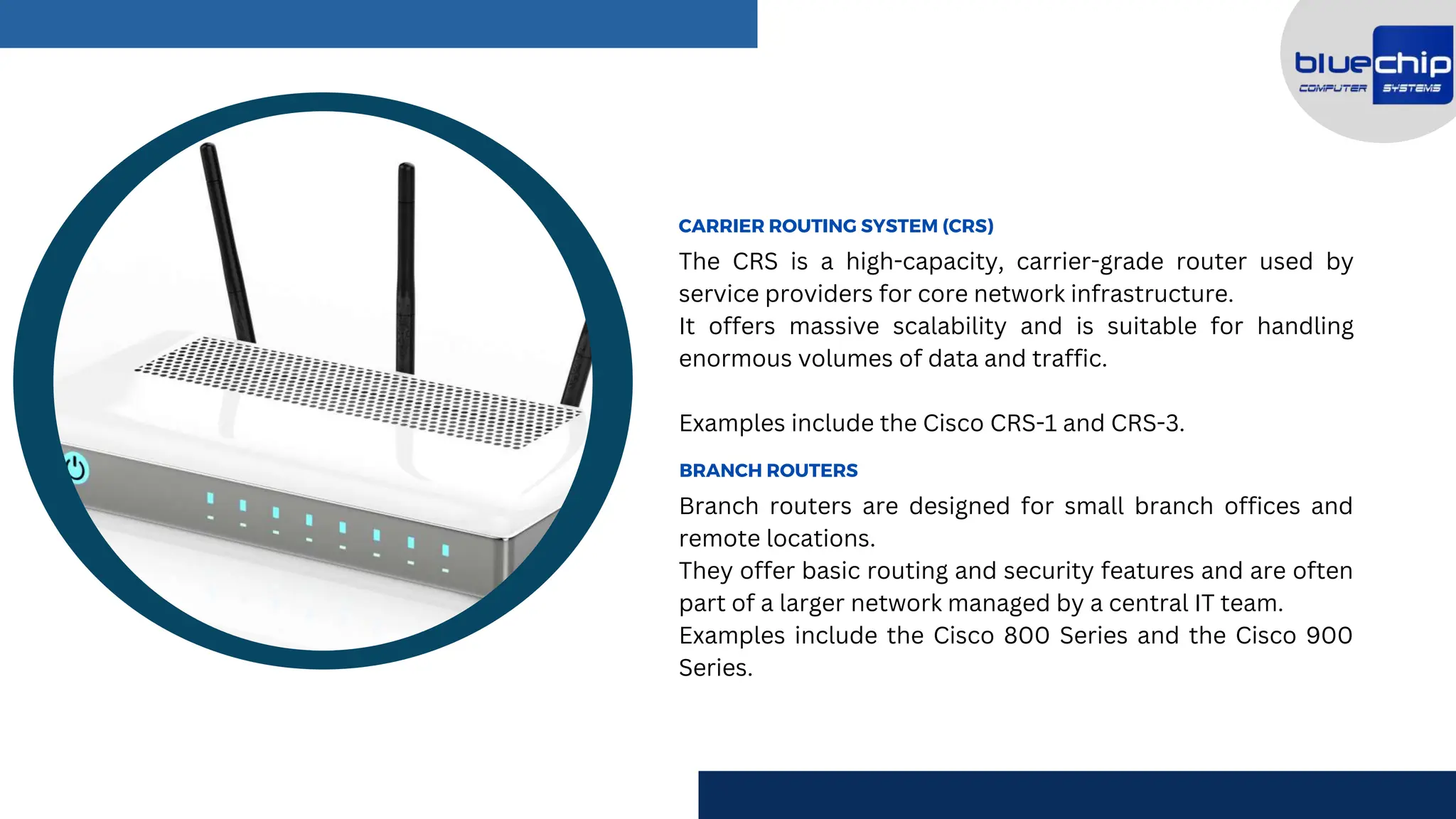
The CRS is a high-capacity, carrier-grade router used by
service providers for core network infrastructure.
It offers massive scalability and is suitable for handling
enormous volumes of data and traffic.
Examples include the Cisco CRS-1 and CRS-3.
CARRIER ROUTING SYSTEM (CRS)
Branch routers are designed for small branch offices and
remote locations.
They offer basic routing and security features and are often
part of a larger network managed by a central IT team.
Examples include the Cisco 800 Series and the Cisco 900
Series.
BRANCH ROUTERS
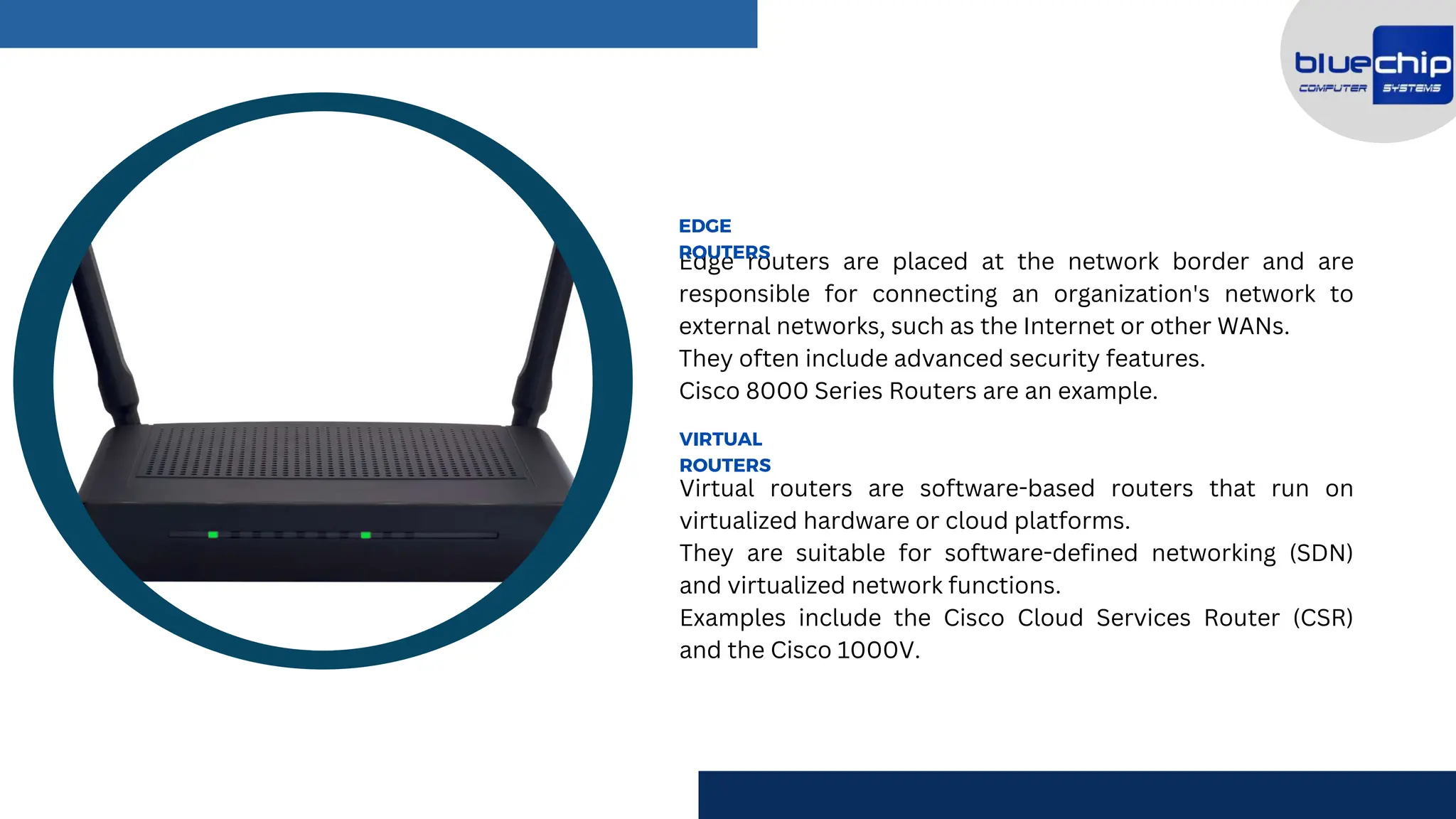
Edge routers are placed at the network border and are
responsible for connecting an organization's network to
external networks, such as the Internet or other WANs.
They often include advanced security features.
Cisco 8000 Series Routers are an example.
EDGE
ROUTERS
Virtual routers are software-based routers that run on
virtualized hardware or cloud platforms.
They are suitable for software-defined networking (SDN)
and virtualized network functions.
Examples include the Cisco Cloud Services Router (CSR)
and the Cisco 1000V.
VIRTUAL
ROUTERS
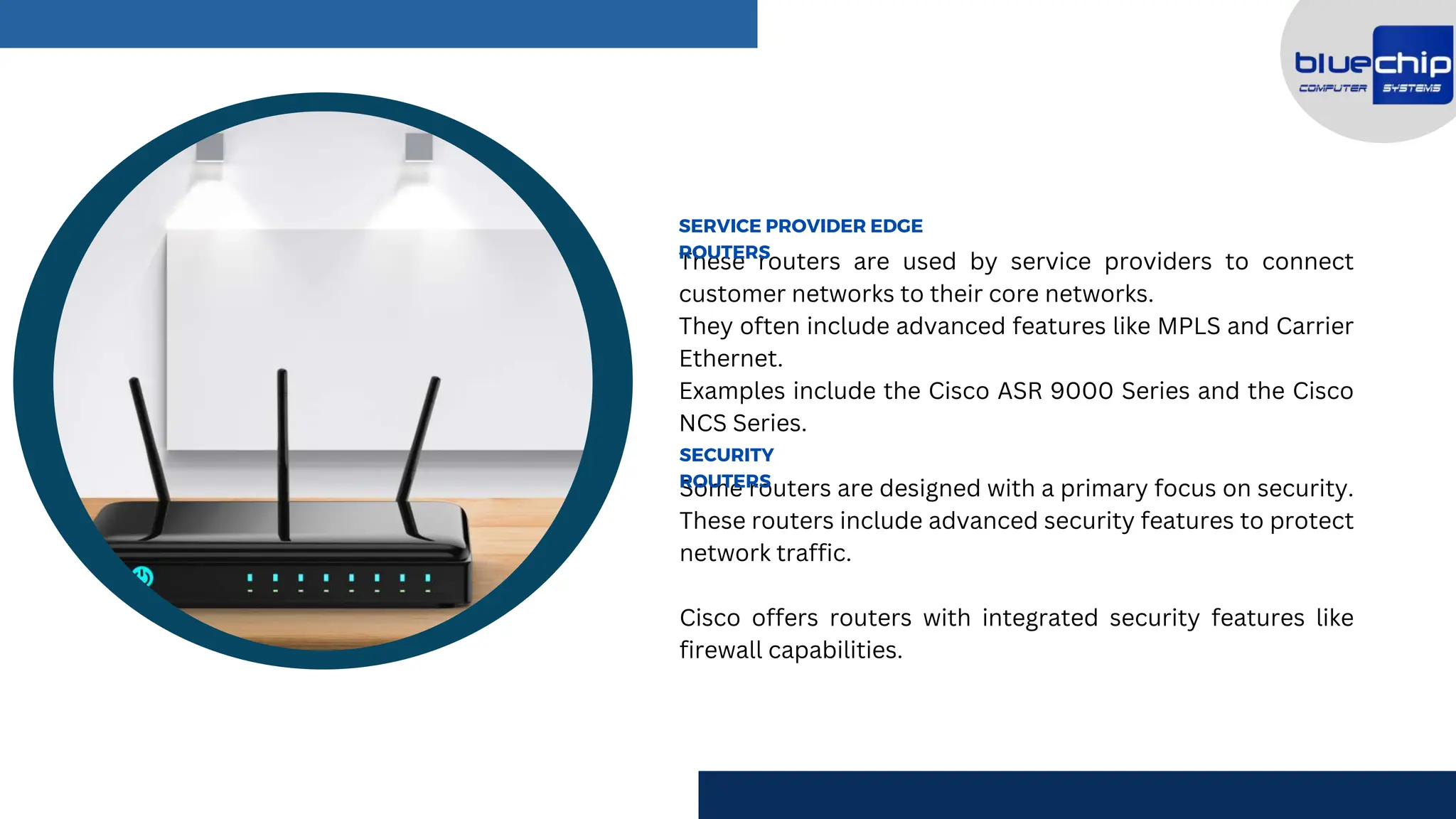
These routers are used by service providers to connect
customer networks to their core networks.
They often include advanced features like MPLS and Carrier
Ethernet.
Examples include the Cisco ASR 9000 Series and the Cisco
NCS Series.
SERVICE PROVIDER EDGE
ROUTERS
Some routers are designed with a primary focus on security.
These routers include advanced security features to protect
network traffic.
Cisco offers routers with integrated security features like
firewall capabilities.
SECURITY
ROUTERS
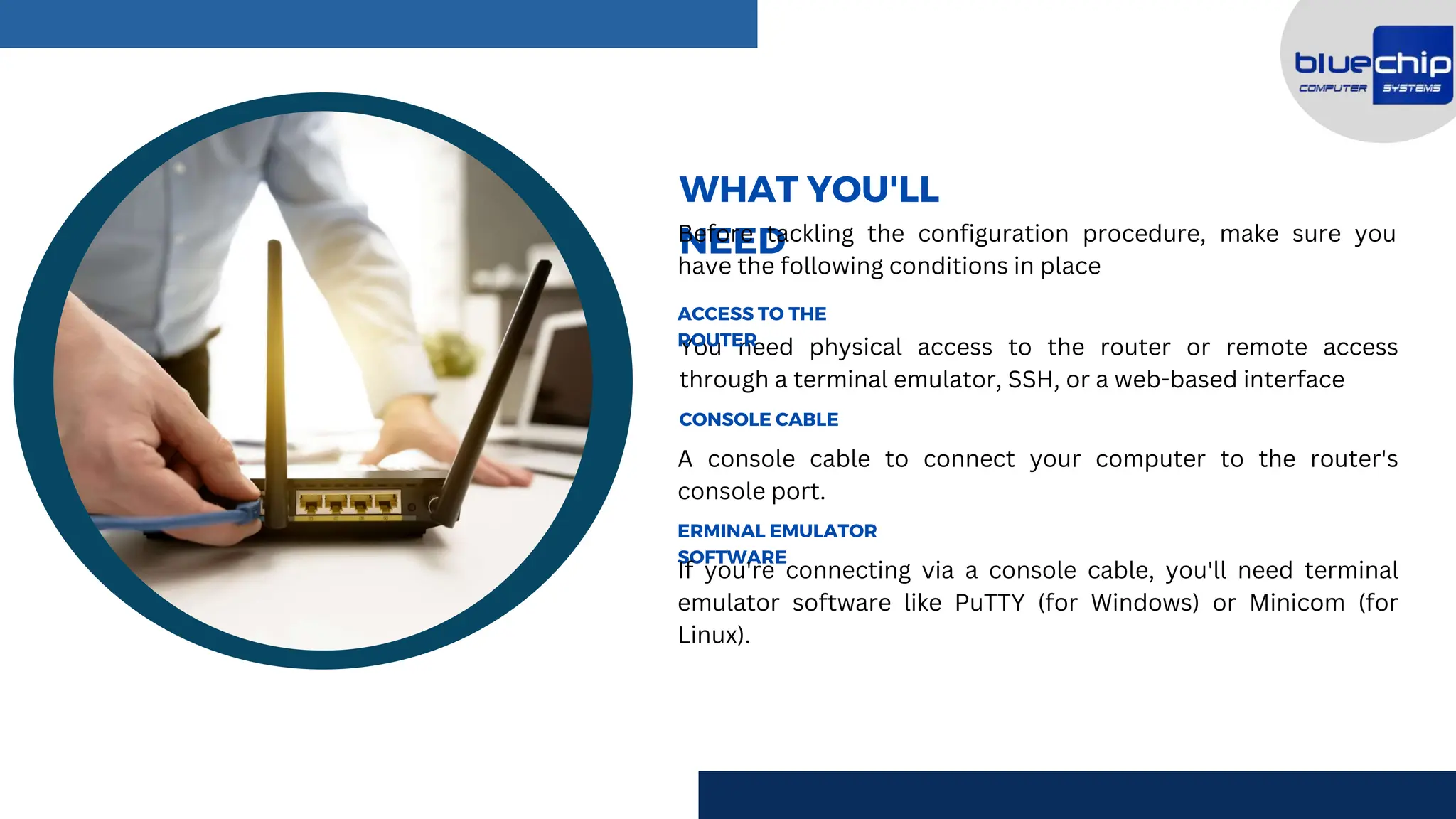
You need physical access to the router or remote access
through a terminal emulator, SSH, or a web-based interface
A console cable to connect your computer to the router's
console port.
ACCESS TO THE
ROUTER
WHAT YOU'LL
NEED
Before tackling the configuration procedure, make sure you
have the following conditions in place
CONSOLE CABLE
ERMINAL EMULATOR
SOFTWARE
If you're connecting via a console cable, you'll need terminal
emulator software like PuTTY (for Windows) or Minicom (for
Linux).
Know the router's IP address, username, and password. The
default is often "admin/admin," but it should be changed for
security.
A network diagram outlining your network's structure and
requirements can be extremely helpful.
ROUTER'S IP ADDRESS
NETWORK DIAGRAM
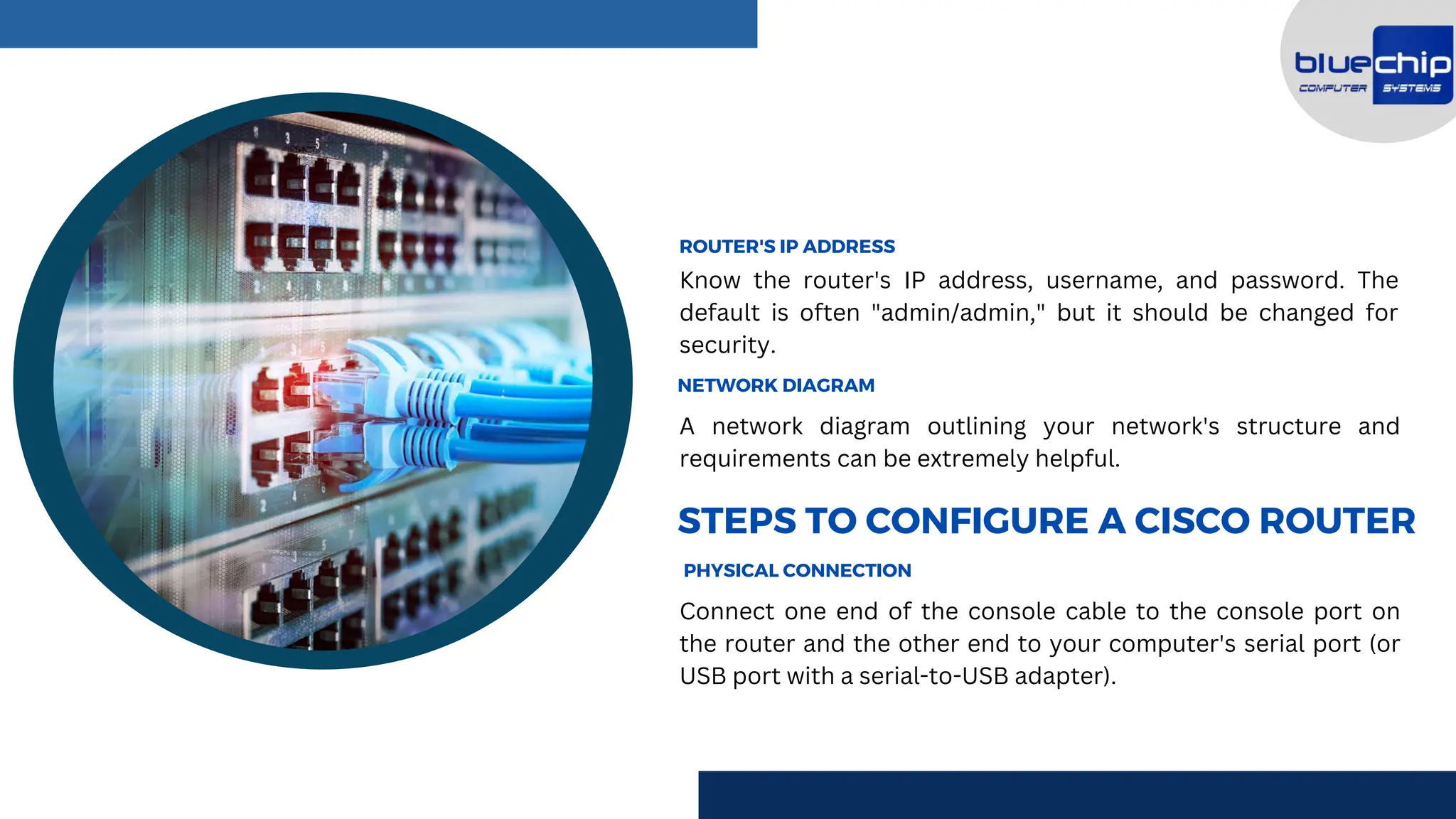
Connect one end of the console cable to the console port on
the router and the other end to your computer's serial port (or
USB port with a serial-to-USB adapter).
STEPS TO CONFIGURE A CISCO ROUTER
PHYSICAL CONNECTION
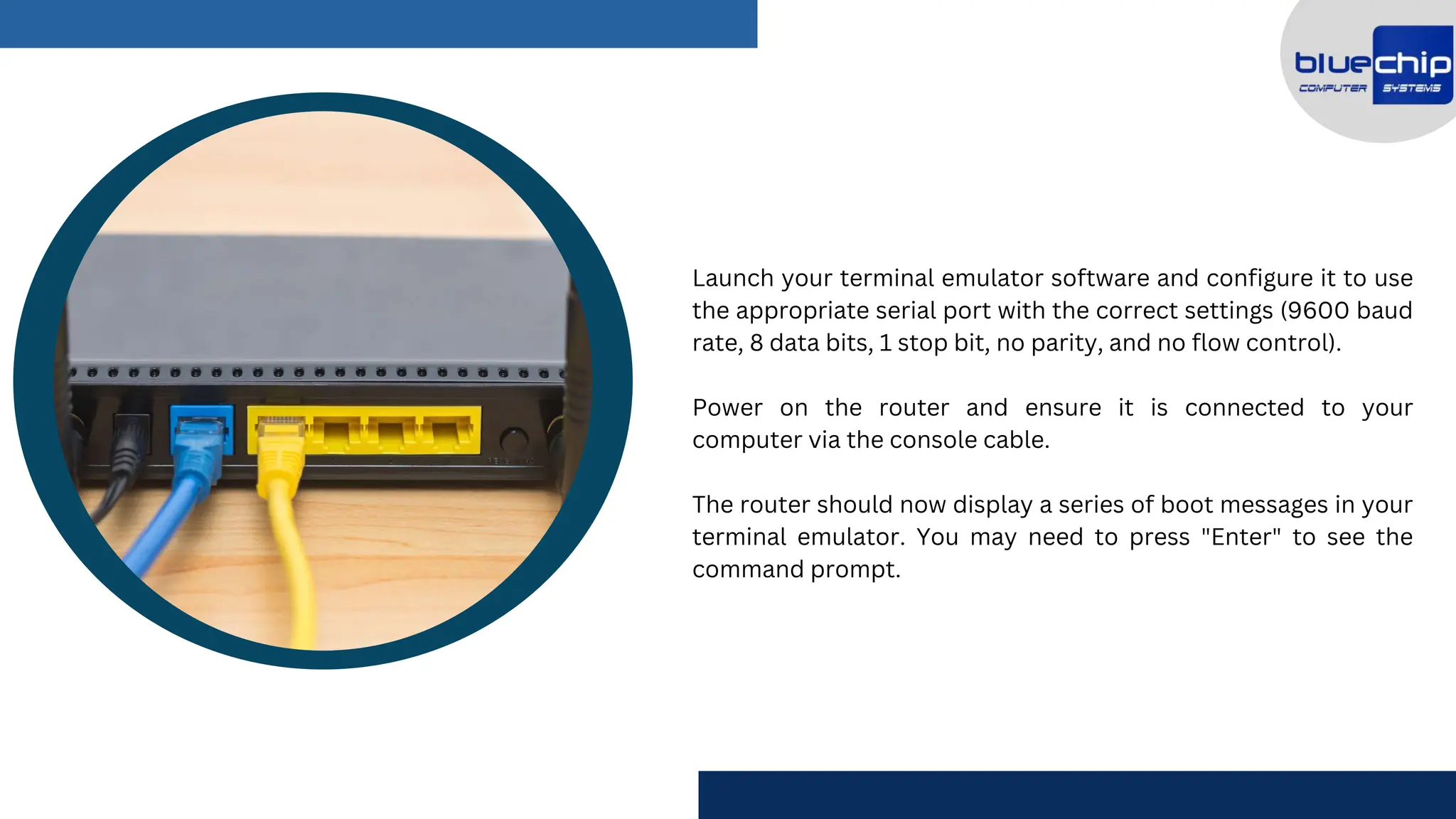
Launch your terminal emulator software and configure it to use
the appropriate serial port with the correct settings (9600 baud
rate, 8 data bits, 1 stop bit, no parity, and no flow control).
Power on the router and ensure it is connected to your
computer via the console cable.
The router should now display a series of boot messages in your
terminal emulator. You may need to press "Enter" to see the
command prompt.
You should see a prompt resembling "RouterName>." Type
"enable" and press "Enter." This will take you to privileged exec
mode.
You can now access the router's configuration mode. Type
"configure terminal" or simply "conf t" and press "Enter."
ACCESSING CONFIGURATION MODE
CONFIGURING THE
ROUTER
Now that you're in configuration mode, you can start configuring
your Cisco router. Here are some essential configurations –
Hostname
Passwords
IP Addresses
Routing
Banner Messages
Saving Configuration
After configuring the router, it's crucial to verify that it's
functioning correctly. Test connectivity by pinging other
devices on the network, check routing tables and inspect log
messages for any issues.
TESTING AND VERIFICATION
SECURING YOUR
ROUTER
Cisco routers are often the primary targets for malicious attacks,
so ensure that your router is secure:
Use strong passwords.
Implement access control lists (ACLs) to control traffic.
Regularly update router firmware.
Enable firewall features, if available.
Restrict physical access to the router.
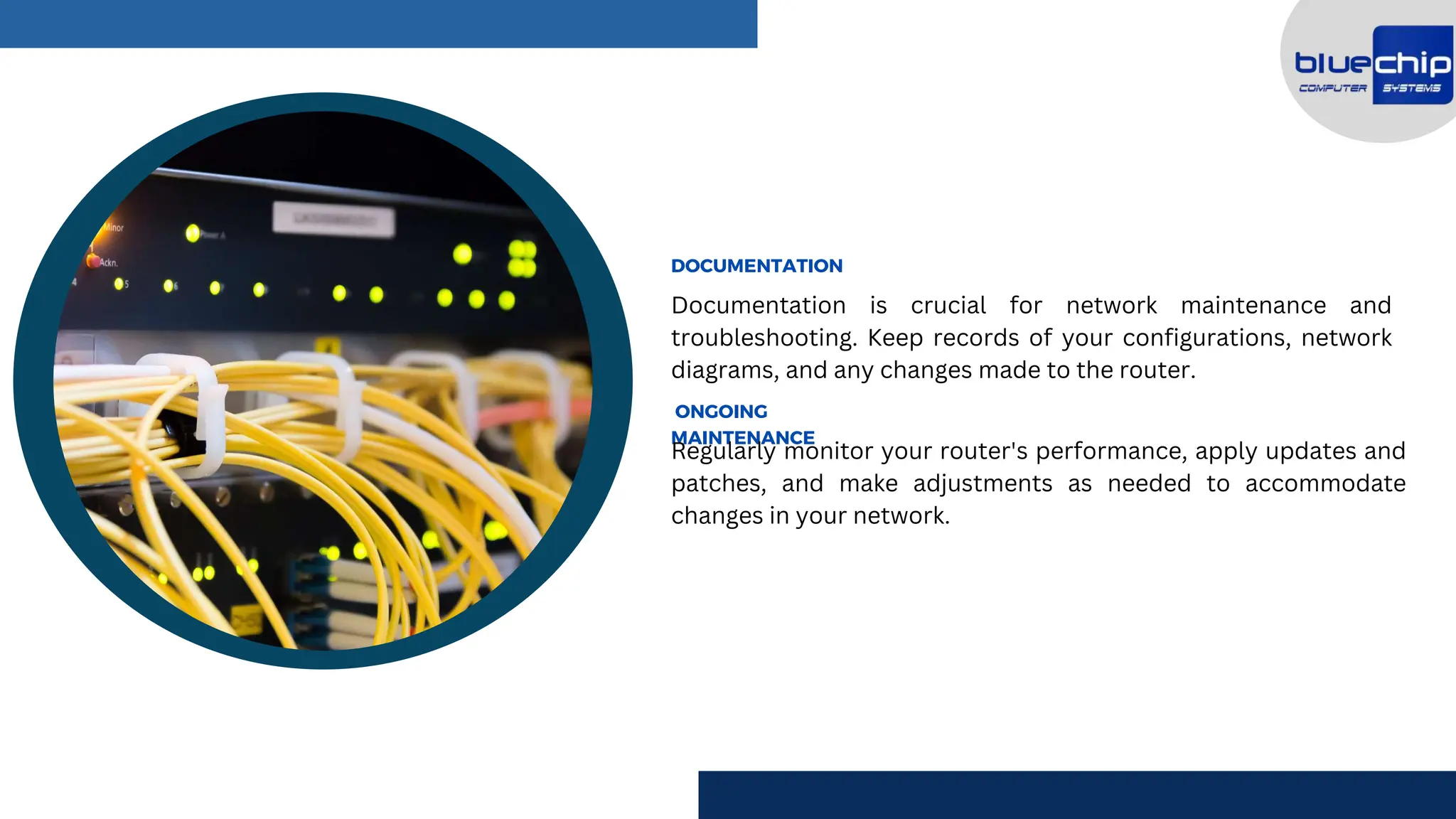
Documentation is crucial for network maintenance and
troubleshooting. Keep records of your configurations, network
diagrams, and any changes made to the router.
DOCUMENTATION
ONGOING
MAINTENANCE
Regularly monitor your router's performance, apply updates and
patches, and make adjustments as needed to accommodate
changes in your network.
CONCLUSIO
N
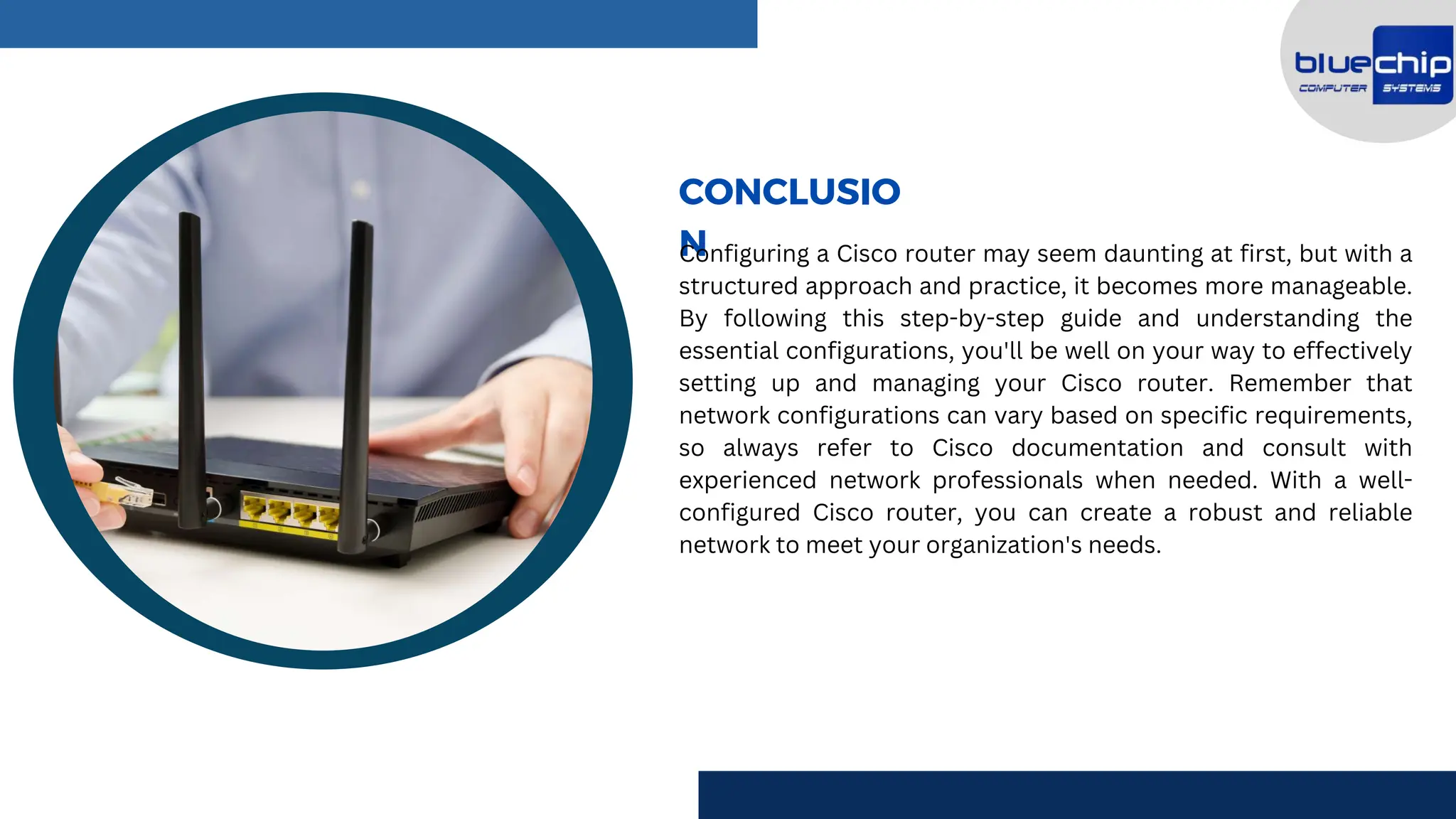
Configuring a Cisco router may seem daunting at first, but with a
structured approach and practice, it becomes more manageable.
By following this step-by-step guide and understanding the
essential configurations, you'll be well on your way to effectively
setting up and managing your Cisco router. Remember that
network configurations can vary based on specific requirements,
so always refer to Cisco documentation and consult with
experienced network professionals when needed. With a well-
configured Cisco router, you can create a robust and reliable
network to meet your organization's needs.
INGOUDE COMPANY
CONTACT US
+97143524988
www.bluechipgulf.ae
leads@bluechipgulf.com
18th St, Al Jahra Building, Office 703, Khalid
Bin Al Waleed Road, Near Hotel Royal Ascot,
P.O Box: 233468, Dubai, UAE.

How to Configure a Cisco Router

  • 2.
    HOW TO CONFIGUREA CISCO ROUTER? Configuring a Cisco router is a fundamental skill for network administrators and IT professionals. Cisco routers are renowned for their reliability, security, and versatility, making them a popular choice for building and managing networks. Whether you're establishing a small office network or a complex enterprise solution, comprehending how to configure a Cisco router is essential. In this guide, we'll walk you through the process step by step, so you can effectively set up and manage your Cisco router.
  • 3.
    TYPES OF CISCOROUTER Cisco presents a broad spectrum of routers designed to fulfill different networking conditions. These routers can be categorized based on their intended use and capabilities. Below are some common types of Cisco routers – INTEGRATED SERVICES ROUTERS (ISR) Integrated Services Routers are versatile routers designed for small to medium-sized companies and enterprise branch offices. They offer a combination of routing, switching, security, and other services in a single platform. Examples include the Cisco 4000 Series and the Cisco 1900 Series.
  • 4.
    Aggregation Services Routersare performance-driven routers primarily utilized by service providers and big corporations. They are prepared to manage high-traffic burdens and offer advanced services such as video streaming and cloud applications. Examples include the Cisco ASR 9000 Series and the Cisco ASR 1000 Series. AGGREGATION SERVICES ROUTERS (ASR) Industrial routers are ruggedized routers designed for harsh environments, including manufacturing facilities, utility substations, and transportation systems. They are built to withstand extreme temperatures, vibrations, and other challenging conditions. Examples include the Cisco IR800 and IR1100 Series. INDUSTRIAL ROUTERS
  • 5.
    The CRS isa high-capacity, carrier-grade router used by service providers for core network infrastructure. It offers massive scalability and is suitable for handling enormous volumes of data and traffic. Examples include the Cisco CRS-1 and CRS-3. CARRIER ROUTING SYSTEM (CRS) Branch routers are designed for small branch offices and remote locations. They offer basic routing and security features and are often part of a larger network managed by a central IT team. Examples include the Cisco 800 Series and the Cisco 900 Series. BRANCH ROUTERS
  • 6.
    Edge routers areplaced at the network border and are responsible for connecting an organization's network to external networks, such as the Internet or other WANs. They often include advanced security features. Cisco 8000 Series Routers are an example. EDGE ROUTERS Virtual routers are software-based routers that run on virtualized hardware or cloud platforms. They are suitable for software-defined networking (SDN) and virtualized network functions. Examples include the Cisco Cloud Services Router (CSR) and the Cisco 1000V. VIRTUAL ROUTERS
  • 7.
    These routers areused by service providers to connect customer networks to their core networks. They often include advanced features like MPLS and Carrier Ethernet. Examples include the Cisco ASR 9000 Series and the Cisco NCS Series. SERVICE PROVIDER EDGE ROUTERS Some routers are designed with a primary focus on security. These routers include advanced security features to protect network traffic. Cisco offers routers with integrated security features like firewall capabilities. SECURITY ROUTERS
  • 8.
    You need physicalaccess to the router or remote access through a terminal emulator, SSH, or a web-based interface A console cable to connect your computer to the router's console port. ACCESS TO THE ROUTER WHAT YOU'LL NEED Before tackling the configuration procedure, make sure you have the following conditions in place CONSOLE CABLE ERMINAL EMULATOR SOFTWARE If you're connecting via a console cable, you'll need terminal emulator software like PuTTY (for Windows) or Minicom (for Linux).
  • 9.
    Know the router'sIP address, username, and password. The default is often "admin/admin," but it should be changed for security. A network diagram outlining your network's structure and requirements can be extremely helpful. ROUTER'S IP ADDRESS NETWORK DIAGRAM Connect one end of the console cable to the console port on the router and the other end to your computer's serial port (or USB port with a serial-to-USB adapter). STEPS TO CONFIGURE A CISCO ROUTER PHYSICAL CONNECTION
  • 10.
    Launch your terminalemulator software and configure it to use the appropriate serial port with the correct settings (9600 baud rate, 8 data bits, 1 stop bit, no parity, and no flow control). Power on the router and ensure it is connected to your computer via the console cable. The router should now display a series of boot messages in your terminal emulator. You may need to press "Enter" to see the command prompt.
  • 11.
    You should seea prompt resembling "RouterName>." Type "enable" and press "Enter." This will take you to privileged exec mode. You can now access the router's configuration mode. Type "configure terminal" or simply "conf t" and press "Enter." ACCESSING CONFIGURATION MODE CONFIGURING THE ROUTER Now that you're in configuration mode, you can start configuring your Cisco router. Here are some essential configurations – Hostname Passwords IP Addresses Routing Banner Messages Saving Configuration
  • 12.
    After configuring therouter, it's crucial to verify that it's functioning correctly. Test connectivity by pinging other devices on the network, check routing tables and inspect log messages for any issues. TESTING AND VERIFICATION SECURING YOUR ROUTER Cisco routers are often the primary targets for malicious attacks, so ensure that your router is secure: Use strong passwords. Implement access control lists (ACLs) to control traffic. Regularly update router firmware. Enable firewall features, if available. Restrict physical access to the router.
  • 13.
    Documentation is crucialfor network maintenance and troubleshooting. Keep records of your configurations, network diagrams, and any changes made to the router. DOCUMENTATION ONGOING MAINTENANCE Regularly monitor your router's performance, apply updates and patches, and make adjustments as needed to accommodate changes in your network.
  • 14.
    CONCLUSIO N Configuring a Ciscorouter may seem daunting at first, but with a structured approach and practice, it becomes more manageable. By following this step-by-step guide and understanding the essential configurations, you'll be well on your way to effectively setting up and managing your Cisco router. Remember that network configurations can vary based on specific requirements, so always refer to Cisco documentation and consult with experienced network professionals when needed. With a well- configured Cisco router, you can create a robust and reliable network to meet your organization's needs.
  • 15.
    INGOUDE COMPANY CONTACT US +97143524988 www.bluechipgulf.ae leads@bluechipgulf.com 18thSt, Al Jahra Building, Office 703, Khalid Bin Al Waleed Road, Near Hotel Royal Ascot, P.O Box: 233468, Dubai, UAE.