Cisco Router
Configuration Basics
Nishal Goburdhan
Router Components
 Bootstrap – stored in ROM microcode – brings router up
during initialisation, boots router and loads the IOS.
 POST – Power On Self Test - stored in ROM microcode –
checks for basic functionality of router hardware and
determines which interfaces are present
 ROM Monitor – stored in ROM microcode – used for
manufacturing, testing and troubleshooting
 Mini-IOS – a.k.a RXBOOT/boot loader by Cisco – small IOS
ROM used to bring up an interface and load a Cisco IOS into
flash memory from a TFTP server; can also perform a few
other maintenance operations
Router Components
 RAM – holds packet buffers, ARP cache, routing table,
software and data structure that allows the router to
function; running-config is stored in RAM, as well as the
decompressed IOS in later router models
 ROM – starts and maintains the router
 Flash memory – holds the IOS; is not erased when the
router is reloaded; is an EEPROM [Electrically Erasable
Programmable Read-Only Memory] created by Intel, that
can be erased and reprogrammed repeatedly through an
application of higher than normal electric voltage
 NVRAM – Non-Volatile RAM - holds router configuration; is
not erased when router is reloaded
Router Components
 Config-Register
 controls how router boots;
 value can be seen with “show version”
command;
 is typically 0x2102, which tells the router to
load the IOS from flash memory and the
startup-config file from NVRAM
Purpose of the Config Register
 Reasons why you would want to modify
the config-register:
 Force the router into ROM Monitor Mode
 Select a boot source and default boot
filename
 Enable/Disable the Break function
 Control broadcast addresses
 Set console terminal baud rate
 Load operating software from ROM
 Enable booting from a TFTP server
System Startup
 POST – loaded from ROM and runs diagnostics on
all router hardware
 Bootstrap – locates and loads the IOS image;
default setting is to load the IOS from flash
memory
 IOS – locates and loads a valid configuration from
NVRAM; file is called startup-config; only
exists if you copy the running-config to NVRAM
 startup-config – if found, router loads it and runs
embedded configuration; if not found, router
enters setup mode
Overview
 Router configuration controls the operation
of the router’s:
 Interface IP address and netmask
 Routing information (static, dynamic or
default)
 Boot and startup information
 Security (passwords and authentication)
Where is the Configuration?
 Router always has two configurations:
 Running configuration
 In RAM, determines how the router is currently
operating
 Is modified using the configure command
 To see it: show running-config
 Startup confguration
 In NVRAM, determines how the router will
operate after next reload
 Is modified using the copy command
 To see it: show startup-config
Where is the Configuration?
 Can also be stored in more permanent places:
 External hosts, using TFTP (Trivial File Transfer Protocol)
 In flash memory in the router
 Copy command is used to move it around
 copy run start copy run tftp
 copy start tftp copy tftp start
 copy flash start copy start flash
Router Access Modes
 User EXEC mode – limited examination of router
 Router>
 Privileged EXEC mode – detailed examination of
router, debugging, testing, file manipulation
(router prompt changes to an octothorp)
 Router#
 ROM Monitor – useful for password recovery &
new IOS upload session
 Setup Mode – available when router has no
startup-config file
External Configuration Sources
 Console
 Direct PC serial access
 Auxiliary port
 Modem access
 Virtual terminals
 Telnet/SSH access
 TFTP Server
 Copy configuration file into router RAM
 Network Management Software
 e.g. CiscoWorks
Changing the Configuration
 Configuration statements can be entered
interactively
 changes are made (almost) immediately, to the running
configuration
 Can use direct serial connection to console port,
or
 Telnet/SSH to vty’s (“virtual terminals”), or
 Modem connection to aux port, or
 Edited in a text file and uploaded to the router at
a later time via tftp; copy tftp start or config
net
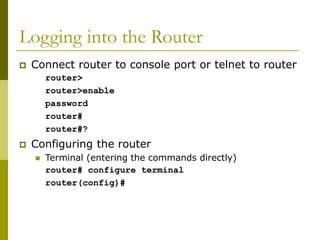
Logging into the Router
 Connect router to console port or telnet to router
router>
router>enable
password
router#
router#?
 Configuring the router
 Terminal (entering the commands directly)
router# configure terminal
router(config)#
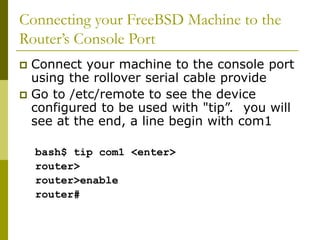
Connecting your FreeBSD Machine to the
Router’s Console Port
 Connect your machine to the console port
using the rollover serial cable provide
 Go to /etc/remote to see the device
configured to be used with "tip”. you will
see at the end, a line begin with com1
bash$ tip com1 <enter>
router>
router>enable
router#
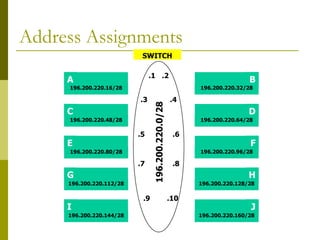
Address Assignments
SWITCH
A
C
E
I
G
196.200.220.16/28
196.200.220.48/28
196.200.220.80/28
196.200.220.112/28
196.200.220.144/28
B
F
D
H
J
196.200.220.32/28
196.200.220.64/28
196.200.220.96/28
196.200.220.128/28
196.200.220.160/28
196.200.220.0/28
.1
.3
.5
.7
.9
.2
.4
.6
.8
.10
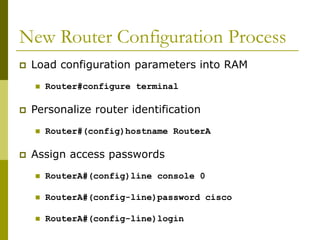
New Router Configuration Process
 Load configuration parameters into RAM
 Router#configure terminal
 Personalize router identification
 Router#(config)hostname RouterA
 Assign access passwords
 RouterA#(config)line console 0
 RouterA#(config-line)password cisco
 RouterA#(config-line)login
New Router Configuration Process
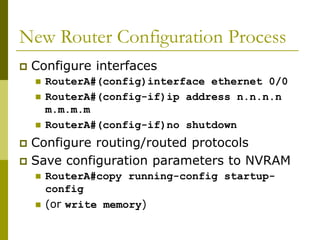
 Configure interfaces
 RouterA#(config)interface ethernet 0/0
 RouterA#(config-if)ip address n.n.n.n
m.m.m.m
 RouterA#(config-if)no shutdown
 Configure routing/routed protocols
 Save configuration parameters to NVRAM
 RouterA#copy running-config startup-
config
 (or write memory)
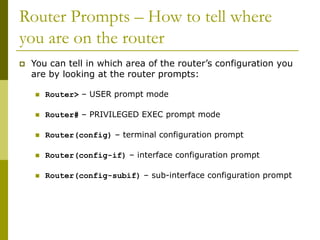
Router Prompts – How to tell where
you are on the router
 You can tell in which area of the router’s configuration you
are by looking at the router prompts:
 Router> – USER prompt mode
 Router# – PRIVILEGED EXEC prompt mode
 Router(config) – terminal configuration prompt
 Router(config-if) – interface configuration prompt
 Router(config-subif) – sub-interface configuration prompt
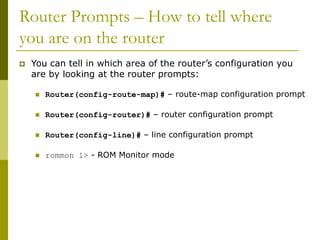
Router Prompts – How to tell where
you are on the router
 You can tell in which area of the router’s configuration you
are by looking at the router prompts:
 Router(config-route-map)# – route-map configuration prompt
 Router(config-router)# – router configuration prompt
 Router(config-line)# – line configuration prompt
 rommon 1> - ROM Monitor mode
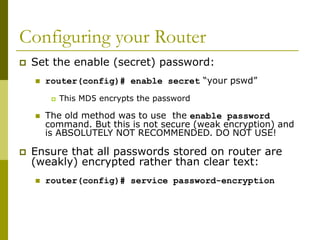
Configuring your Router
 Set the enable (secret) password:
 router(config)# enable secret “your pswd”
 This MD5 encrypts the password
 The old method was to use the enable password
command. But this is not secure (weak encryption) and
is ABSOLUTELY NOT RECOMMENDED. DO NOT USE!
 Ensure that all passwords stored on router are
(weakly) encrypted rather than clear text:
 router(config)# service password-encryption
Configuring Your Router
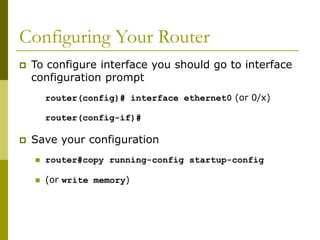
 To configure interface you should go to interface
configuration prompt
router(config)# interface ethernet0 (or 0/x)
router(config-if)#
 Save your configuration
 router#copy running-config startup-config
 (or write memory)
Configuring Your Router
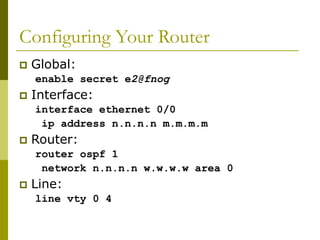
 Global:
enable secret e2@fnog
 Interface:
interface ethernet 0/0
ip address n.n.n.n m.m.m.m
 Router:
router ospf 1
network n.n.n.n w.w.w.w area 0
 Line:
line vty 0 4
Global Configuration
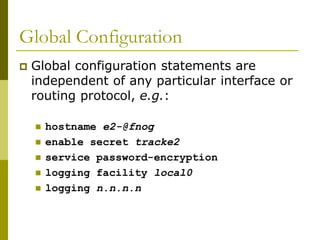
 Global configuration statements are
independent of any particular interface or
routing protocol, e.g.:
 hostname e2-@fnog
 enable secret tracke2
 service password-encryption
 logging facility local0
 logging n.n.n.n
Global Configuration
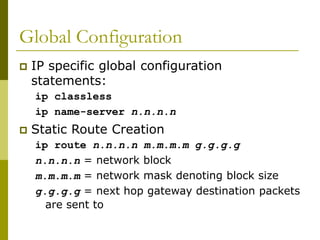
 IP specific global configuration
statements:
ip classless
ip name-server n.n.n.n
 Static Route Creation
ip route n.n.n.n m.m.m.m g.g.g.g
n.n.n.n = network block
m.m.m.m = network mask denoting block size
g.g.g.g = next hop gateway destination packets
are sent to
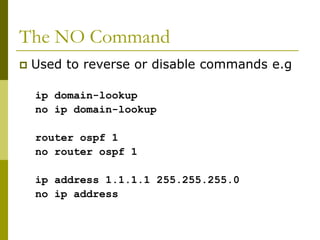
The NO Command
 Used to reverse or disable commands e.g
ip domain-lookup
no ip domain-lookup
router ospf 1
no router ospf 1
ip address 1.1.1.1 255.255.255.0
no ip address
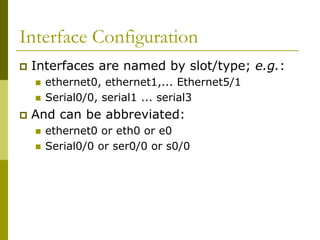
Interface Configuration
 Interfaces are named by slot/type; e.g.:
 ethernet0, ethernet1,... Ethernet5/1
 Serial0/0, serial1 ... serial3
 And can be abbreviated:
 ethernet0 or eth0 or e0
 Serial0/0 or ser0/0 or s0/0
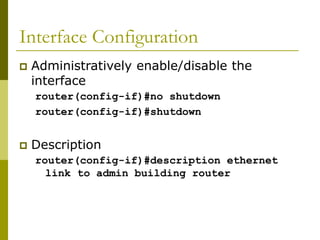
Interface Configuration
 Administratively enable/disable the
interface
router(config-if)#no shutdown
router(config-if)#shutdown
 Description
router(config-if)#description ethernet
link to admin building router
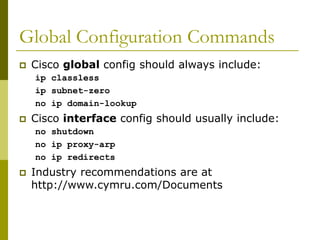
Global Configuration Commands
 Cisco global config should always include:
ip classless
ip subnet-zero
no ip domain-lookup
 Cisco interface config should usually include:
no shutdown
no ip proxy-arp
no ip redirects
 Industry recommendations are at
http://www.cymru.com/Documents
Looking at the Configuration
 Use “show running-configuration” to see
the current configuration
 Use “show startup-configuration” to see
the configuration in NVRAM, that will be
loaded the next time the router is
rebooted or reloaded
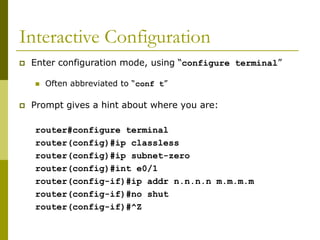
Interactive Configuration
 Enter configuration mode, using “configure terminal”
 Often abbreviated to “conf t”
 Prompt gives a hint about where you are:
router#configure terminal
router(config)#ip classless
router(config)#ip subnet-zero
router(config)#int e0/1
router(config-if)#ip addr n.n.n.n m.m.m.m
router(config-if)#no shut
router(config-if)#^Z
Storing the Configuration on a Remote
System
 Requires: ‘tftpd’ on a unix host; destination file
must exist before the file is written and must be
world writable...
router#copy run tftp
Remote host []? n.n.n.n
Name of configuration file to write [hoste2-rtr-
confg]? hoste2-rtr-confg
Write file hoste2-rtr-confg on Host n.n.n.n?
[confirm]
Building configuration...
Writing hoste2-rtr-confg !![OK]
router#
Restoring the Configuration from a
Remote System
 Use ‘tftp’ to pull file from UNIX host, copying to running
config or startup
router#copy tftp start
Address of remote host [255.255.255.255]? n.n.n.n
Name of configuration file [hoste2-rtr-confg]?
Configure using hostel-rtr-confg from n.n.n.n?
[confirm]
Loading hoste2-rtr-confg from n.n.n.n (via
Ethernet0/0): !
[OK - 1005/128975 bytes]
[OK]
hoste2-rtr# reload
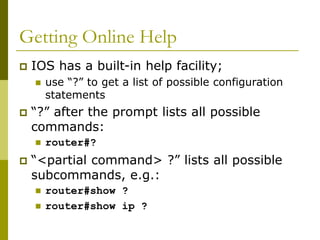
Getting Online Help
 IOS has a built-in help facility;
 use “?” to get a list of possible configuration
statements
 “?” after the prompt lists all possible
commands:
 router#?
 “<partial command> ?” lists all possible
subcommands, e.g.:
 router#show ?
 router#show ip ?
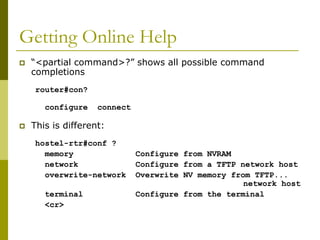
Getting Online Help
 “<partial command>?” shows all possible command
completions
router#con?
configure connect
 This is different:
hostel-rtr#conf ?
memory Configure from NVRAM
network Configure from a TFTP network host
overwrite-network Overwrite NV memory from TFTP...
network host
terminal Configure from the terminal
<cr>
Getting Online Help
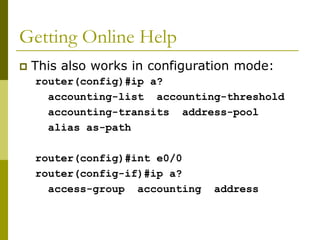
 This also works in configuration mode:
router(config)#ip a?
accounting-list accounting-threshold
accounting-transits address-pool
alias as-path
router(config)#int e0/0
router(config-if)#ip a?
access-group accounting address
Getting Online Help
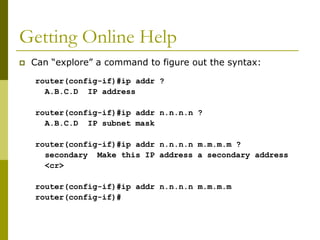
 Can “explore” a command to figure out the syntax:
router(config-if)#ip addr ?
A.B.C.D IP address
router(config-if)#ip addr n.n.n.n ?
A.B.C.D IP subnet mask
router(config-if)#ip addr n.n.n.n m.m.m.m ?
secondary Make this IP address a secondary address
<cr>
router(config-if)#ip addr n.n.n.n m.m.m.m
router(config-if)#
Getting Lazy Online Help
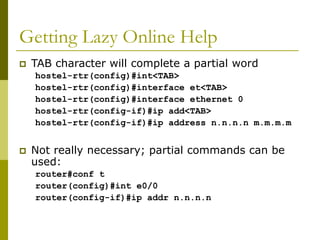
 TAB character will complete a partial word
hostel-rtr(config)#int<TAB>
hostel-rtr(config)#interface et<TAB>
hostel-rtr(config)#interface ethernet 0
hostel-rtr(config-if)#ip add<TAB>
hostel-rtr(config-if)#ip address n.n.n.n m.m.m.m
 Not really necessary; partial commands can be
used:
router#conf t
router(config)#int e0/0
router(config-if)#ip addr n.n.n.n
Getting Lazy Online Help
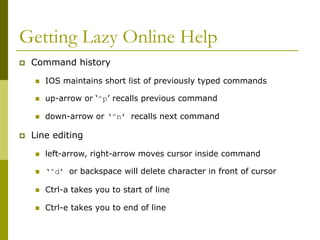
 Command history
 IOS maintains short list of previously typed commands
 up-arrow or ‘^p’ recalls previous command
 down-arrow or ‘^n’ recalls next command
 Line editing
 left-arrow, right-arrow moves cursor inside command
 ‘^d’ or backspace will delete character in front of cursor
 Ctrl-a takes you to start of line
 Ctrl-e takes you to end of line
Connecting your FreeBSD machine to
the Router’s Console port
 Look at your running configuration
 Configure an IP address for e0/0
depending on your table
 use n.n.n.n for table A etc
 Look at your running configuration and
your startup configuration
 Check what difference there is, if any
Deleting your Router’s Configuration
 To delete your router’s configuration
Router#erase startup-config
OR
Router#write erase
Router#reload
 Router will start up again, but in setup mode,
since startup-config file does not exists
Using Access Control Lists (ACLs)
 Access Control Lists used to implement
security in routers
 powerful tool for network control
 filter packets flow in or out of router interfaces
 restrict network use by certain users or
devices
 deny or permit traffic
Rules followed when comparing traffic
with an ACL
 Is done in sequential order; line 1, line 2,
line 3 etc
 Is done in the direction indicated by the
keyword in or out
 Is compared with the access list until a
match is made; then NO further
comparisons are made
 There is an implicit “deny” at the end of
each access list; if a packet does not
match in the access list, it will be
discarded
Using ACLs
 Standard IP Access Lists
 ranges (1 - 99) & (1300-1999)
 simpler address specifications
 generally permits or denies entire protocol suite
 Extended IP Access Lists
 ranges (100 - 199) & (2000-2699)
 more complex address specification
 generally permits or denies specific protocols
 There are also named access-lists
 Standard
 Extended
ACL Syntax
 Standard IP Access List Configuration Syntax
 access-list access-list-number {permit | deny}
source {source-mask}
 ip access-group access-list-number {in | out}
 Extended IP Access List Configuration Syntax
 access-list access-list-number {permit | deny}
protocol source {source-mask} destination
{destination-mask}
 ip access-group access-list-number {in | out}
 Named IP Access List Configuration Syntax
 ip access-list {standard | extended} {name |
number}
Where to place ACLs
 Place Standard IP access list close to
destination
 Place Extended IP access lists close to
the source of the traffic you want to
manage
What are Wild Card Masks?
 Are used with access lists to specify a
host, network or part of a network
 To specify an address range, choose the
next largest block size e.g.
 to specify 34 hosts, you need a 64 block size
 to specify 18 hosts, you need a 32 block size
 to specify 2 hosts, you need a 4 block size
What are Wild Card Masks?
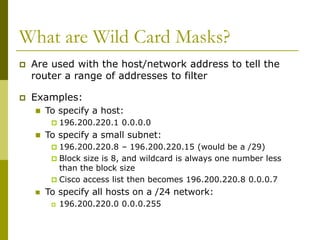
 Are used with the host/network address to tell the
router a range of addresses to filter
 Examples:
 To specify a host:
 196.200.220.1 0.0.0.0
 To specify a small subnet:
 196.200.220.8 – 196.200.220.15 (would be a /29)
 Block size is 8, and wildcard is always one number less
than the block size
 Cisco access list then becomes 196.200.220.8 0.0.0.7
 To specify all hosts on a /24 network:
 196.200.220.0 0.0.0.255
What are Wild Card Masks?
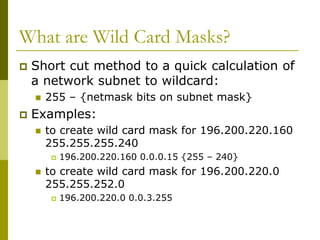
 Short cut method to a quick calculation of
a network subnet to wildcard:
 255 – {netmask bits on subnet mask}
 Examples:
 to create wild card mask for 196.200.220.160
255.255.255.240
 196.200.220.160 0.0.0.15 {255 – 240}
 to create wild card mask for 196.200.220.0
255.255.252.0
 196.200.220.0 0.0.3.255
ACL Example
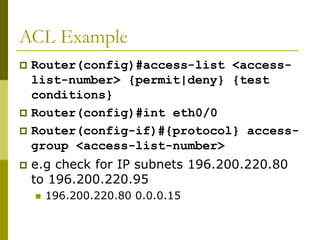
 Router(config)#access-list <access-
list-number> {permit|deny} {test
conditions}
 Router(config)#int eth0/0
 Router(config-if)#{protocol} access-
group <access-list-number>
 e.g check for IP subnets 196.200.220.80
to 196.200.220.95
 196.200.220.80 0.0.0.15
ACL Example
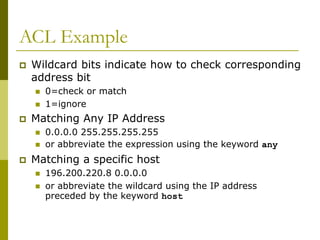
 Wildcard bits indicate how to check corresponding
address bit
 0=check or match
 1=ignore
 Matching Any IP Address
 0.0.0.0 255.255.255.255
 or abbreviate the expression using the keyword any
 Matching a specific host
 196.200.220.8 0.0.0.0
 or abbreviate the wildcard using the IP address
preceded by the keyword host
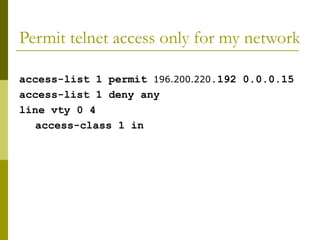
Permit telnet access only for my network
access-list 1 permit 196.200.220.192 0.0.0.15
access-list 1 deny any
line vty 0 4
access-class 1 in
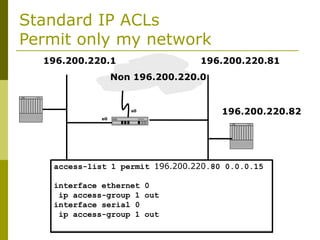
Standard IP ACLs
Permit only my network
Non 196.200.220.0
196.200.220.1 196.200.220.81
196.200.220.82
E0 S0
access-list 1 permit 196.200.220.80 0.0.0.15
interface ethernet 0
ip access-group 1 out
interface serial 0
ip access-group 1 out
e0
s0
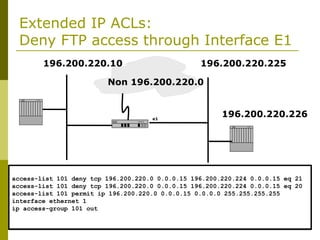
Extended IP ACLs:
Deny FTP access through Interface E1
Non 196.200.220.0
196.200.220.10 196.200.220.225
196.200.220.226
E0 e1
S0
access-list 101 deny tcp 196.200.220.0 0.0.0.15 196.200.220.224 0.0.0.15 eq 21
access-list 101 deny tcp 196.200.220.0 0.0.0.15 196.200.220.224 0.0.0.15 eq 20
access-list 101 permit ip 196.200.220.0 0.0.0.15 0.0.0.0 255.255.255.255
interface ethernet 1
ip access-group 101 out
Prefix Lists
 Cisco first introduced prefix lists in IOS 12.0
 Used to filter routes, and can be combined with
route maps for route filtering and manipulation
 Provide much higher performance than access
control lists and distribute lists
 Are much easier to configure and manage
 Using CIDR address/mask notation
 Sequence numbers (as in named access-lists)
Prefix Lists
 Prefix lists have an implicit “deny” at the
end of them, like access control lists
 Are quicker to process than regular access
control lists
 If you do have IOS 12.0 or later, it is
STRONGLY RECOMMENDED to use prefix
lists rather than access lists for route
filtering and manipulation
Prefix List Configuration Syntax
 Prefix list configuration syntax
config t
ip prefix-list list-name {seq seq-
value} {permit|deny} network/len {ge ge-
value} {le le-value}
 list-name – name to use for the prefix list
 seq-value – numeric value of the sequence;
optional
 network/len – CIDR network address notation
Prefix List Configuration Syntax
 Prefix list configuration Syntax
 ge-value – “from” value of range; matches
equal or longer prefixes (more bits in the
prefix, smaller blocks of address space)
 le-value – “to” value of range; matches equal
or shorter prefixes (less bits in the prefix,
bigger blocks of address space)
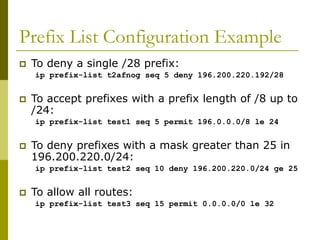
Prefix List Configuration Example
 To deny a single /28 prefix:
ip prefix-list t2afnog seq 5 deny 196.200.220.192/28
 To accept prefixes with a prefix length of /8 up to
/24:
ip prefix-list test1 seq 5 permit 196.0.0.0/8 le 24
 To deny prefixes with a mask greater than 25 in
196.200.220.0/24:
ip prefix-list test2 seq 10 deny 196.200.220.0/24 ge 25
 To allow all routes:
ip prefix-list test3 seq 15 permit 0.0.0.0/0 le 32
Disaster Recovery – ROM Monitor
 ROM Monitor is very helpful in recovering
from emergency failures such as:
 Password recovery
 Upload new IOS into router with NO IOS
installed
 Selecting a boot source and default boot
filename
 Set console terminal baud rate to upload new
IOS quicker
 Load operating software from ROM
 Enable booting from a TFTP server
Getting to the ROM Monitor
 Windows using HyperTerminal for the console
session
 Ctrl-Break
 FreeBSD/UNIX using Tip for the console session
 <Enter>, then ~# OR
 Ctrl-], then Break or Ctrl-C
 Linux using Minicom for the console session
 Ctrl-A F
Disaster Recovery:
How to Recover a Lost Password
 Connect your PC’s serial port to the
router’s console port
 Configure your PC’s serial port:
 9600 baud rate
 No parity
 8 data bits
 1 stop bit
 No flow control
Disaster Recovery:
How to Recover a Lost Password
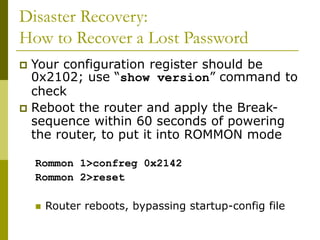
 Your configuration register should be
0x2102; use “show version” command to
check
 Reboot the router and apply the Break-
sequence within 60 seconds of powering
the router, to put it into ROMMON mode
Rommon 1>confreg 0x2142
Rommon 2>reset
 Router reboots, bypassing startup-config file
Disaster Recovery:
How to Recover a Lost Password
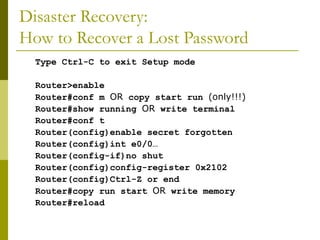
Type Ctrl-C to exit Setup mode
Router>enable
Router#conf m OR copy start run (only!!!)
Router#show running OR write terminal
Router#conf t
Router(config)enable secret forgotten
Router(config)int e0/0…
Router(config-if)no shut
Router(config)config-register 0x2102
Router(config)Ctrl-Z or end
Router#copy run start OR write memory
Router#reload
Cisco Router
Configuration Basics
Questions?

introduction-to-cisco-routers basic .ppt

  • 1.
  • 2.
    Router Components  Bootstrap– stored in ROM microcode – brings router up during initialisation, boots router and loads the IOS.  POST – Power On Self Test - stored in ROM microcode – checks for basic functionality of router hardware and determines which interfaces are present  ROM Monitor – stored in ROM microcode – used for manufacturing, testing and troubleshooting  Mini-IOS – a.k.a RXBOOT/boot loader by Cisco – small IOS ROM used to bring up an interface and load a Cisco IOS into flash memory from a TFTP server; can also perform a few other maintenance operations
  • 3.
    Router Components  RAM– holds packet buffers, ARP cache, routing table, software and data structure that allows the router to function; running-config is stored in RAM, as well as the decompressed IOS in later router models  ROM – starts and maintains the router  Flash memory – holds the IOS; is not erased when the router is reloaded; is an EEPROM [Electrically Erasable Programmable Read-Only Memory] created by Intel, that can be erased and reprogrammed repeatedly through an application of higher than normal electric voltage  NVRAM – Non-Volatile RAM - holds router configuration; is not erased when router is reloaded
  • 4.
    Router Components  Config-Register controls how router boots;  value can be seen with “show version” command;  is typically 0x2102, which tells the router to load the IOS from flash memory and the startup-config file from NVRAM
  • 5.
    Purpose of theConfig Register  Reasons why you would want to modify the config-register:  Force the router into ROM Monitor Mode  Select a boot source and default boot filename  Enable/Disable the Break function  Control broadcast addresses  Set console terminal baud rate  Load operating software from ROM  Enable booting from a TFTP server
  • 6.
    System Startup  POST– loaded from ROM and runs diagnostics on all router hardware  Bootstrap – locates and loads the IOS image; default setting is to load the IOS from flash memory  IOS – locates and loads a valid configuration from NVRAM; file is called startup-config; only exists if you copy the running-config to NVRAM  startup-config – if found, router loads it and runs embedded configuration; if not found, router enters setup mode
  • 7.
    Overview  Router configurationcontrols the operation of the router’s:  Interface IP address and netmask  Routing information (static, dynamic or default)  Boot and startup information  Security (passwords and authentication)
  • 8.
    Where is theConfiguration?  Router always has two configurations:  Running configuration  In RAM, determines how the router is currently operating  Is modified using the configure command  To see it: show running-config  Startup confguration  In NVRAM, determines how the router will operate after next reload  Is modified using the copy command  To see it: show startup-config
  • 9.
    Where is theConfiguration?  Can also be stored in more permanent places:  External hosts, using TFTP (Trivial File Transfer Protocol)  In flash memory in the router  Copy command is used to move it around  copy run start copy run tftp  copy start tftp copy tftp start  copy flash start copy start flash
  • 10.
    Router Access Modes User EXEC mode – limited examination of router  Router>  Privileged EXEC mode – detailed examination of router, debugging, testing, file manipulation (router prompt changes to an octothorp)  Router#  ROM Monitor – useful for password recovery & new IOS upload session  Setup Mode – available when router has no startup-config file
  • 11.
    External Configuration Sources Console  Direct PC serial access  Auxiliary port  Modem access  Virtual terminals  Telnet/SSH access  TFTP Server  Copy configuration file into router RAM  Network Management Software  e.g. CiscoWorks
  • 12.
    Changing the Configuration Configuration statements can be entered interactively  changes are made (almost) immediately, to the running configuration  Can use direct serial connection to console port, or  Telnet/SSH to vty’s (“virtual terminals”), or  Modem connection to aux port, or  Edited in a text file and uploaded to the router at a later time via tftp; copy tftp start or config net
  • 13.
    Logging into theRouter  Connect router to console port or telnet to router router> router>enable password router# router#?  Configuring the router  Terminal (entering the commands directly) router# configure terminal router(config)#
  • 14.
    Connecting your FreeBSDMachine to the Router’s Console Port  Connect your machine to the console port using the rollover serial cable provide  Go to /etc/remote to see the device configured to be used with "tip”. you will see at the end, a line begin with com1 bash$ tip com1 <enter> router> router>enable router#
  • 15.
  • 16.
    New Router ConfigurationProcess  Load configuration parameters into RAM  Router#configure terminal  Personalize router identification  Router#(config)hostname RouterA  Assign access passwords  RouterA#(config)line console 0  RouterA#(config-line)password cisco  RouterA#(config-line)login
  • 17.
    New Router ConfigurationProcess  Configure interfaces  RouterA#(config)interface ethernet 0/0  RouterA#(config-if)ip address n.n.n.n m.m.m.m  RouterA#(config-if)no shutdown  Configure routing/routed protocols  Save configuration parameters to NVRAM  RouterA#copy running-config startup- config  (or write memory)
  • 18.
    Router Prompts –How to tell where you are on the router  You can tell in which area of the router’s configuration you are by looking at the router prompts:  Router> – USER prompt mode  Router# – PRIVILEGED EXEC prompt mode  Router(config) – terminal configuration prompt  Router(config-if) – interface configuration prompt  Router(config-subif) – sub-interface configuration prompt
  • 19.
    Router Prompts –How to tell where you are on the router  You can tell in which area of the router’s configuration you are by looking at the router prompts:  Router(config-route-map)# – route-map configuration prompt  Router(config-router)# – router configuration prompt  Router(config-line)# – line configuration prompt  rommon 1> - ROM Monitor mode
  • 20.
    Configuring your Router Set the enable (secret) password:  router(config)# enable secret “your pswd”  This MD5 encrypts the password  The old method was to use the enable password command. But this is not secure (weak encryption) and is ABSOLUTELY NOT RECOMMENDED. DO NOT USE!  Ensure that all passwords stored on router are (weakly) encrypted rather than clear text:  router(config)# service password-encryption
  • 21.
    Configuring Your Router To configure interface you should go to interface configuration prompt router(config)# interface ethernet0 (or 0/x) router(config-if)#  Save your configuration  router#copy running-config startup-config  (or write memory)
  • 22.
    Configuring Your Router Global: enable secret e2@fnog  Interface: interface ethernet 0/0 ip address n.n.n.n m.m.m.m  Router: router ospf 1 network n.n.n.n w.w.w.w area 0  Line: line vty 0 4
  • 23.
    Global Configuration  Globalconfiguration statements are independent of any particular interface or routing protocol, e.g.:  hostname e2-@fnog  enable secret tracke2  service password-encryption  logging facility local0  logging n.n.n.n
  • 24.
    Global Configuration  IPspecific global configuration statements: ip classless ip name-server n.n.n.n  Static Route Creation ip route n.n.n.n m.m.m.m g.g.g.g n.n.n.n = network block m.m.m.m = network mask denoting block size g.g.g.g = next hop gateway destination packets are sent to
  • 25.
    The NO Command Used to reverse or disable commands e.g ip domain-lookup no ip domain-lookup router ospf 1 no router ospf 1 ip address 1.1.1.1 255.255.255.0 no ip address
  • 26.
    Interface Configuration  Interfacesare named by slot/type; e.g.:  ethernet0, ethernet1,... Ethernet5/1  Serial0/0, serial1 ... serial3  And can be abbreviated:  ethernet0 or eth0 or e0  Serial0/0 or ser0/0 or s0/0
  • 27.
    Interface Configuration  Administrativelyenable/disable the interface router(config-if)#no shutdown router(config-if)#shutdown  Description router(config-if)#description ethernet link to admin building router
  • 28.
    Global Configuration Commands Cisco global config should always include: ip classless ip subnet-zero no ip domain-lookup  Cisco interface config should usually include: no shutdown no ip proxy-arp no ip redirects  Industry recommendations are at http://www.cymru.com/Documents
  • 29.
    Looking at theConfiguration  Use “show running-configuration” to see the current configuration  Use “show startup-configuration” to see the configuration in NVRAM, that will be loaded the next time the router is rebooted or reloaded
  • 30.
    Interactive Configuration  Enterconfiguration mode, using “configure terminal”  Often abbreviated to “conf t”  Prompt gives a hint about where you are: router#configure terminal router(config)#ip classless router(config)#ip subnet-zero router(config)#int e0/1 router(config-if)#ip addr n.n.n.n m.m.m.m router(config-if)#no shut router(config-if)#^Z
  • 31.
    Storing the Configurationon a Remote System  Requires: ‘tftpd’ on a unix host; destination file must exist before the file is written and must be world writable... router#copy run tftp Remote host []? n.n.n.n Name of configuration file to write [hoste2-rtr- confg]? hoste2-rtr-confg Write file hoste2-rtr-confg on Host n.n.n.n? [confirm] Building configuration... Writing hoste2-rtr-confg !![OK] router#
  • 32.
    Restoring the Configurationfrom a Remote System  Use ‘tftp’ to pull file from UNIX host, copying to running config or startup router#copy tftp start Address of remote host [255.255.255.255]? n.n.n.n Name of configuration file [hoste2-rtr-confg]? Configure using hostel-rtr-confg from n.n.n.n? [confirm] Loading hoste2-rtr-confg from n.n.n.n (via Ethernet0/0): ! [OK - 1005/128975 bytes] [OK] hoste2-rtr# reload
  • 33.
    Getting Online Help IOS has a built-in help facility;  use “?” to get a list of possible configuration statements  “?” after the prompt lists all possible commands:  router#?  “<partial command> ?” lists all possible subcommands, e.g.:  router#show ?  router#show ip ?
  • 34.
    Getting Online Help “<partial command>?” shows all possible command completions router#con? configure connect  This is different: hostel-rtr#conf ? memory Configure from NVRAM network Configure from a TFTP network host overwrite-network Overwrite NV memory from TFTP... network host terminal Configure from the terminal <cr>
  • 35.
    Getting Online Help This also works in configuration mode: router(config)#ip a? accounting-list accounting-threshold accounting-transits address-pool alias as-path router(config)#int e0/0 router(config-if)#ip a? access-group accounting address
  • 36.
    Getting Online Help Can “explore” a command to figure out the syntax: router(config-if)#ip addr ? A.B.C.D IP address router(config-if)#ip addr n.n.n.n ? A.B.C.D IP subnet mask router(config-if)#ip addr n.n.n.n m.m.m.m ? secondary Make this IP address a secondary address <cr> router(config-if)#ip addr n.n.n.n m.m.m.m router(config-if)#
  • 37.
    Getting Lazy OnlineHelp  TAB character will complete a partial word hostel-rtr(config)#int<TAB> hostel-rtr(config)#interface et<TAB> hostel-rtr(config)#interface ethernet 0 hostel-rtr(config-if)#ip add<TAB> hostel-rtr(config-if)#ip address n.n.n.n m.m.m.m  Not really necessary; partial commands can be used: router#conf t router(config)#int e0/0 router(config-if)#ip addr n.n.n.n
  • 38.
    Getting Lazy OnlineHelp  Command history  IOS maintains short list of previously typed commands  up-arrow or ‘^p’ recalls previous command  down-arrow or ‘^n’ recalls next command  Line editing  left-arrow, right-arrow moves cursor inside command  ‘^d’ or backspace will delete character in front of cursor  Ctrl-a takes you to start of line  Ctrl-e takes you to end of line
  • 39.
    Connecting your FreeBSDmachine to the Router’s Console port  Look at your running configuration  Configure an IP address for e0/0 depending on your table  use n.n.n.n for table A etc  Look at your running configuration and your startup configuration  Check what difference there is, if any
  • 40.
    Deleting your Router’sConfiguration  To delete your router’s configuration Router#erase startup-config OR Router#write erase Router#reload  Router will start up again, but in setup mode, since startup-config file does not exists
  • 41.
    Using Access ControlLists (ACLs)  Access Control Lists used to implement security in routers  powerful tool for network control  filter packets flow in or out of router interfaces  restrict network use by certain users or devices  deny or permit traffic
  • 42.
    Rules followed whencomparing traffic with an ACL  Is done in sequential order; line 1, line 2, line 3 etc  Is done in the direction indicated by the keyword in or out  Is compared with the access list until a match is made; then NO further comparisons are made  There is an implicit “deny” at the end of each access list; if a packet does not match in the access list, it will be discarded
  • 43.
    Using ACLs  StandardIP Access Lists  ranges (1 - 99) & (1300-1999)  simpler address specifications  generally permits or denies entire protocol suite  Extended IP Access Lists  ranges (100 - 199) & (2000-2699)  more complex address specification  generally permits or denies specific protocols  There are also named access-lists  Standard  Extended
  • 44.
    ACL Syntax  StandardIP Access List Configuration Syntax  access-list access-list-number {permit | deny} source {source-mask}  ip access-group access-list-number {in | out}  Extended IP Access List Configuration Syntax  access-list access-list-number {permit | deny} protocol source {source-mask} destination {destination-mask}  ip access-group access-list-number {in | out}  Named IP Access List Configuration Syntax  ip access-list {standard | extended} {name | number}
  • 45.
    Where to placeACLs  Place Standard IP access list close to destination  Place Extended IP access lists close to the source of the traffic you want to manage
  • 46.
    What are WildCard Masks?  Are used with access lists to specify a host, network or part of a network  To specify an address range, choose the next largest block size e.g.  to specify 34 hosts, you need a 64 block size  to specify 18 hosts, you need a 32 block size  to specify 2 hosts, you need a 4 block size
  • 47.
    What are WildCard Masks?  Are used with the host/network address to tell the router a range of addresses to filter  Examples:  To specify a host:  196.200.220.1 0.0.0.0  To specify a small subnet:  196.200.220.8 – 196.200.220.15 (would be a /29)  Block size is 8, and wildcard is always one number less than the block size  Cisco access list then becomes 196.200.220.8 0.0.0.7  To specify all hosts on a /24 network:  196.200.220.0 0.0.0.255
  • 48.
    What are WildCard Masks?  Short cut method to a quick calculation of a network subnet to wildcard:  255 – {netmask bits on subnet mask}  Examples:  to create wild card mask for 196.200.220.160 255.255.255.240  196.200.220.160 0.0.0.15 {255 – 240}  to create wild card mask for 196.200.220.0 255.255.252.0  196.200.220.0 0.0.3.255
  • 49.
    ACL Example  Router(config)#access-list<access- list-number> {permit|deny} {test conditions}  Router(config)#int eth0/0  Router(config-if)#{protocol} access- group <access-list-number>  e.g check for IP subnets 196.200.220.80 to 196.200.220.95  196.200.220.80 0.0.0.15
  • 50.
    ACL Example  Wildcardbits indicate how to check corresponding address bit  0=check or match  1=ignore  Matching Any IP Address  0.0.0.0 255.255.255.255  or abbreviate the expression using the keyword any  Matching a specific host  196.200.220.8 0.0.0.0  or abbreviate the wildcard using the IP address preceded by the keyword host
  • 51.
    Permit telnet accessonly for my network access-list 1 permit 196.200.220.192 0.0.0.15 access-list 1 deny any line vty 0 4 access-class 1 in
  • 52.
    Standard IP ACLs Permitonly my network Non 196.200.220.0 196.200.220.1 196.200.220.81 196.200.220.82 E0 S0 access-list 1 permit 196.200.220.80 0.0.0.15 interface ethernet 0 ip access-group 1 out interface serial 0 ip access-group 1 out e0 s0
  • 53.
    Extended IP ACLs: DenyFTP access through Interface E1 Non 196.200.220.0 196.200.220.10 196.200.220.225 196.200.220.226 E0 e1 S0 access-list 101 deny tcp 196.200.220.0 0.0.0.15 196.200.220.224 0.0.0.15 eq 21 access-list 101 deny tcp 196.200.220.0 0.0.0.15 196.200.220.224 0.0.0.15 eq 20 access-list 101 permit ip 196.200.220.0 0.0.0.15 0.0.0.0 255.255.255.255 interface ethernet 1 ip access-group 101 out
  • 54.
    Prefix Lists  Ciscofirst introduced prefix lists in IOS 12.0  Used to filter routes, and can be combined with route maps for route filtering and manipulation  Provide much higher performance than access control lists and distribute lists  Are much easier to configure and manage  Using CIDR address/mask notation  Sequence numbers (as in named access-lists)
  • 55.
    Prefix Lists  Prefixlists have an implicit “deny” at the end of them, like access control lists  Are quicker to process than regular access control lists  If you do have IOS 12.0 or later, it is STRONGLY RECOMMENDED to use prefix lists rather than access lists for route filtering and manipulation
  • 56.
    Prefix List ConfigurationSyntax  Prefix list configuration syntax config t ip prefix-list list-name {seq seq- value} {permit|deny} network/len {ge ge- value} {le le-value}  list-name – name to use for the prefix list  seq-value – numeric value of the sequence; optional  network/len – CIDR network address notation
  • 57.
    Prefix List ConfigurationSyntax  Prefix list configuration Syntax  ge-value – “from” value of range; matches equal or longer prefixes (more bits in the prefix, smaller blocks of address space)  le-value – “to” value of range; matches equal or shorter prefixes (less bits in the prefix, bigger blocks of address space)
  • 58.
    Prefix List ConfigurationExample  To deny a single /28 prefix: ip prefix-list t2afnog seq 5 deny 196.200.220.192/28  To accept prefixes with a prefix length of /8 up to /24: ip prefix-list test1 seq 5 permit 196.0.0.0/8 le 24  To deny prefixes with a mask greater than 25 in 196.200.220.0/24: ip prefix-list test2 seq 10 deny 196.200.220.0/24 ge 25  To allow all routes: ip prefix-list test3 seq 15 permit 0.0.0.0/0 le 32
  • 59.
    Disaster Recovery –ROM Monitor  ROM Monitor is very helpful in recovering from emergency failures such as:  Password recovery  Upload new IOS into router with NO IOS installed  Selecting a boot source and default boot filename  Set console terminal baud rate to upload new IOS quicker  Load operating software from ROM  Enable booting from a TFTP server
  • 60.
    Getting to theROM Monitor  Windows using HyperTerminal for the console session  Ctrl-Break  FreeBSD/UNIX using Tip for the console session  <Enter>, then ~# OR  Ctrl-], then Break or Ctrl-C  Linux using Minicom for the console session  Ctrl-A F
  • 61.
    Disaster Recovery: How toRecover a Lost Password  Connect your PC’s serial port to the router’s console port  Configure your PC’s serial port:  9600 baud rate  No parity  8 data bits  1 stop bit  No flow control
  • 62.
    Disaster Recovery: How toRecover a Lost Password  Your configuration register should be 0x2102; use “show version” command to check  Reboot the router and apply the Break- sequence within 60 seconds of powering the router, to put it into ROMMON mode Rommon 1>confreg 0x2142 Rommon 2>reset  Router reboots, bypassing startup-config file
  • 63.
    Disaster Recovery: How toRecover a Lost Password Type Ctrl-C to exit Setup mode Router>enable Router#conf m OR copy start run (only!!!) Router#show running OR write terminal Router#conf t Router(config)enable secret forgotten Router(config)int e0/0… Router(config-if)no shut Router(config)config-register 0x2102 Router(config)Ctrl-Z or end Router#copy run start OR write memory Router#reload
  • 64.