1
AGENDA
EX.NO: 1
AIM:
To provide an agenda with given changes and operation.
ALGORITHM:
STEP 1: Open a new document using
File  new  text document.
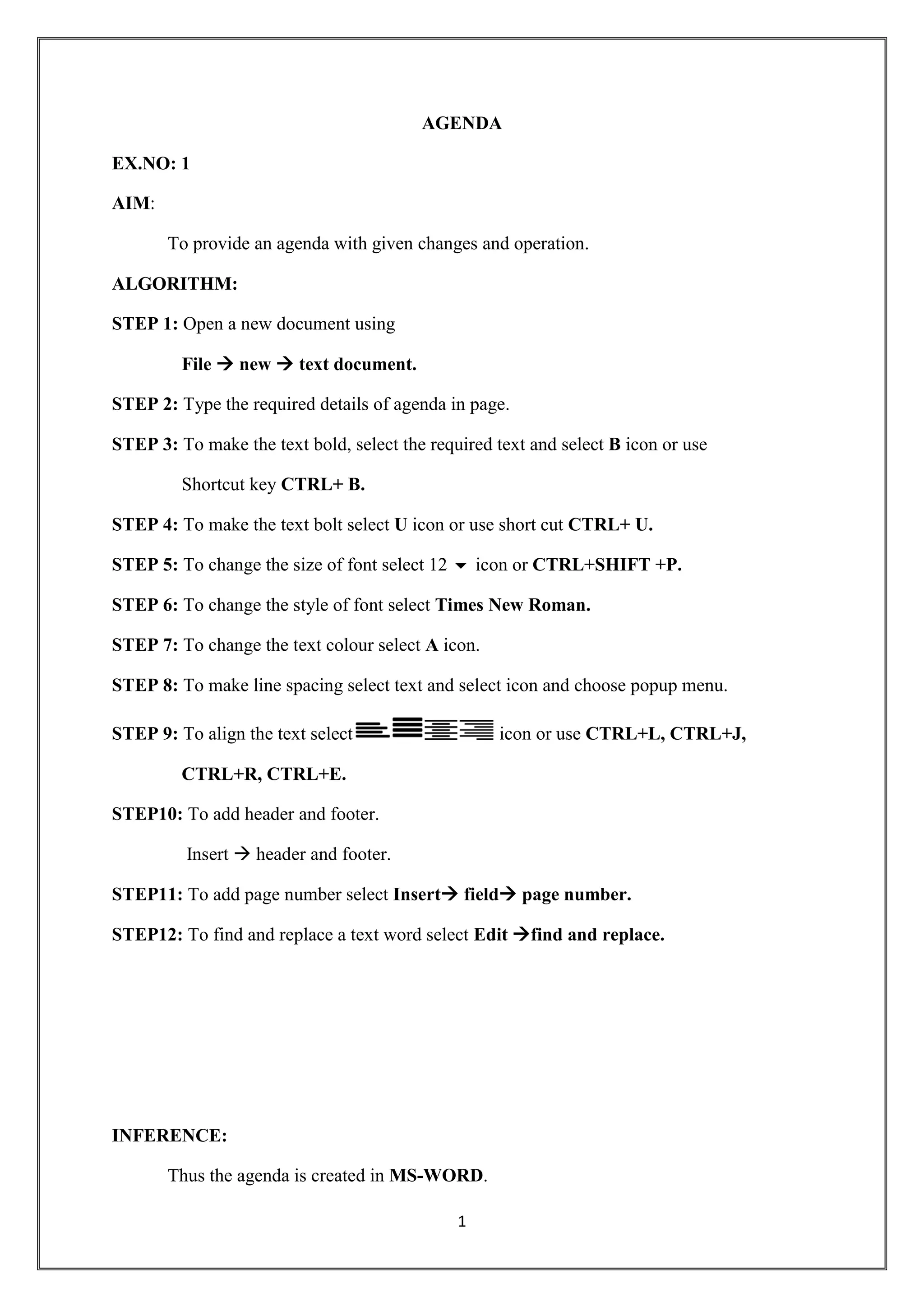
STEP 2: Type the required details of agenda in page.
STEP 3: To make the text bold, select the required text and select B icon or use
Shortcut key CTRL+ B.
STEP 4: To make the text bolt select U icon or use short cut CTRL+ U.
STEP 5: To change the size of font select 12  icon or CTRL+SHIFT +P.
STEP 6: To change the style of font select Times New Roman.
STEP 7: To change the text colour select A icon.
STEP 8: To make line spacing select text and select icon and choose popup menu.
STEP 9: To align the text select icon or use CTRL+L, CTRL+J,
CTRL+R, CTRL+E.
STEP10: To add header and footer.
Insert  header and footer.
STEP11: To add page number select Insert field page number.
STEP12: To find and replace a text word select Edit find and replace.
INFERENCE:
Thus the agenda is created in MS-WORD.
2
INVITATION
EX.NO: 2
AIM:
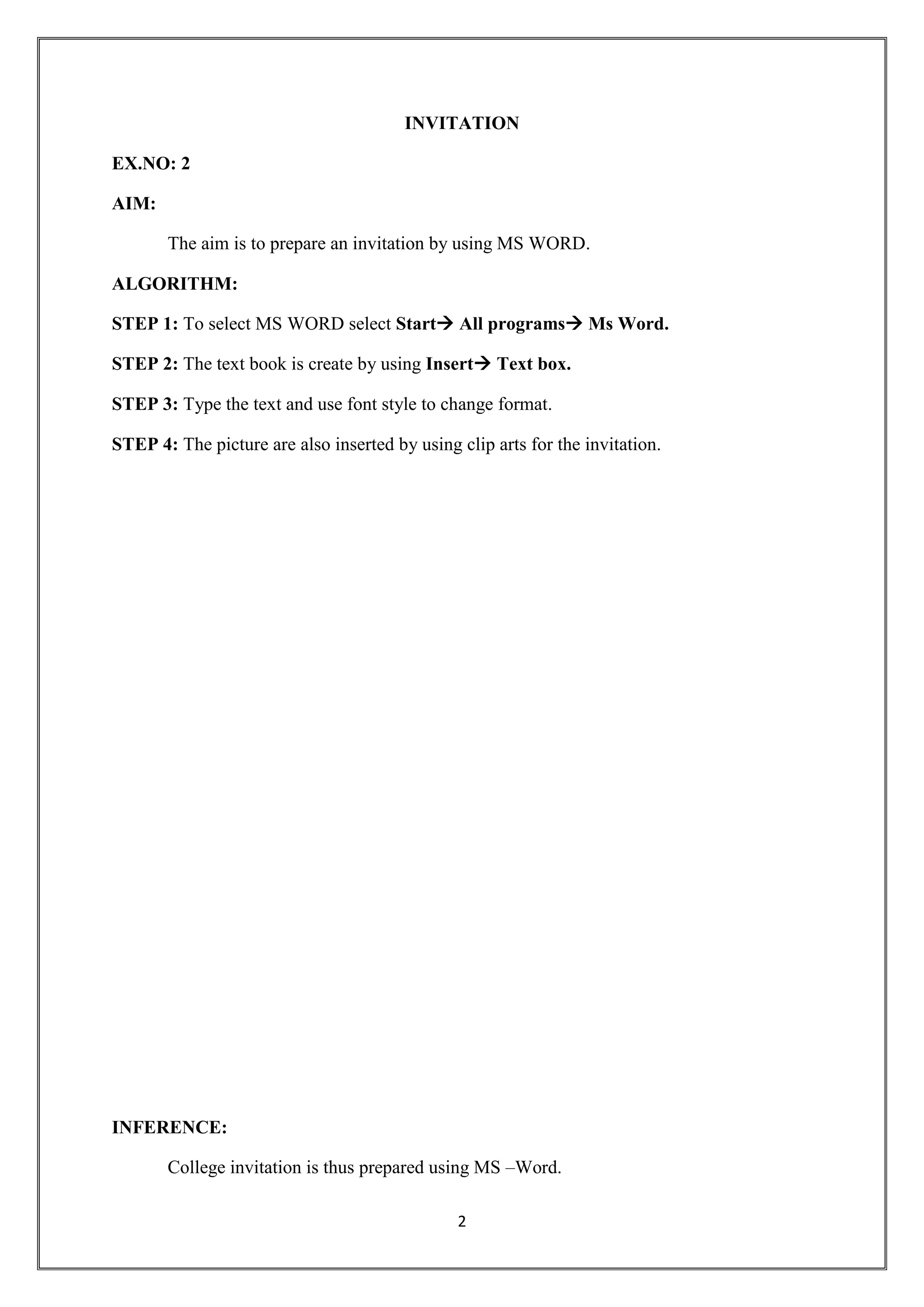
The aim is to prepare an invitation by using MS WORD.
ALGORITHM:
STEP 1: To select MS WORD select Start All programs Ms Word.
STEP 2: The text book is create by using Insert Text box.
STEP 3: Type the text and use font style to change format.
STEP 4: The picture are also inserted by using clip arts for the invitation.
INFERENCE:
College invitation is thus prepared using MS –Word.
3
INVOICE
EX.NO: 3
AIM:
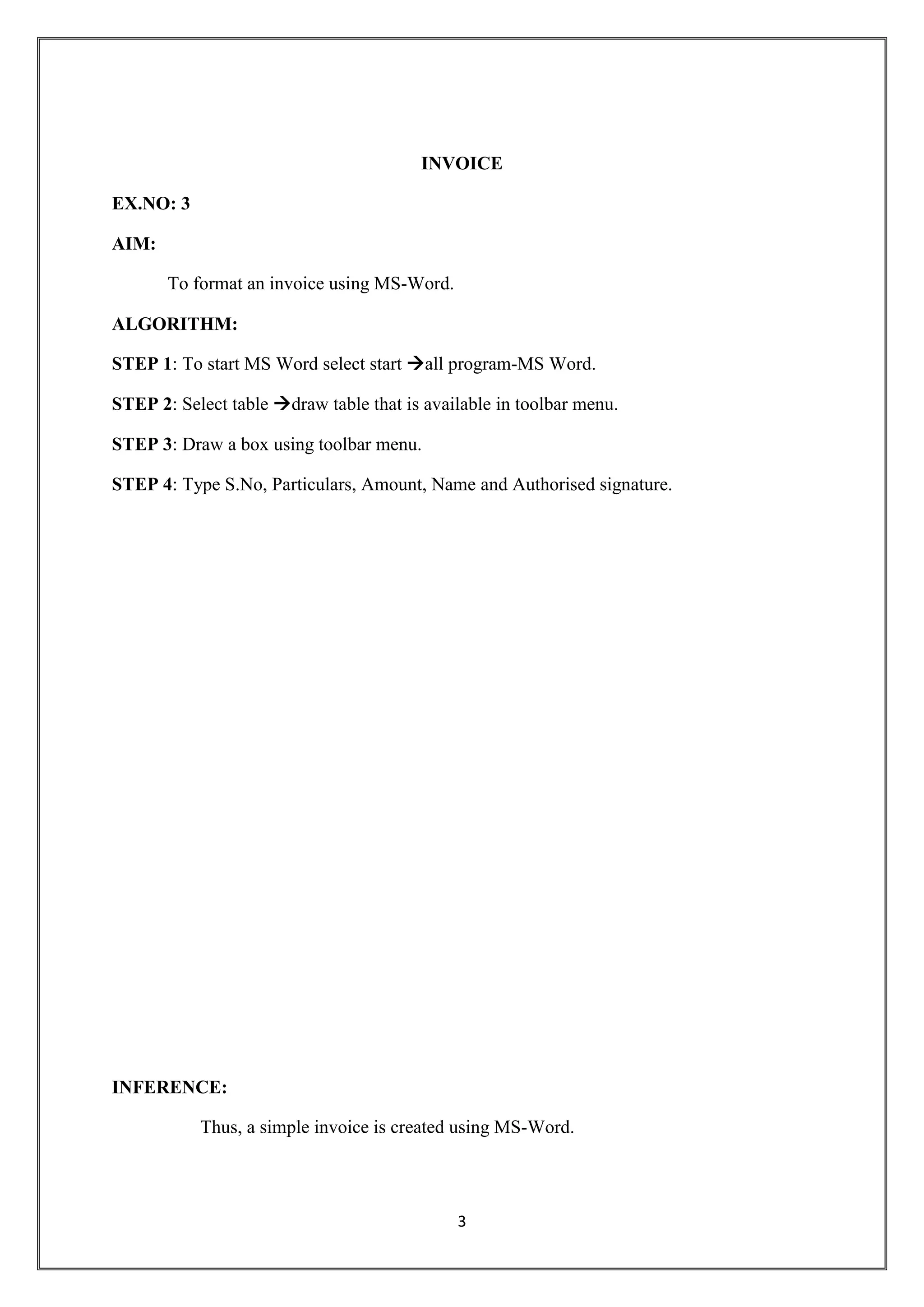
To format an invoice using MS-Word.
ALGORITHM:
STEP 1: To start MS Word select start all program-MS Word.
STEP 2: Select table draw table that is available in toolbar menu.
STEP 3: Draw a box using toolbar menu.
STEP 4: Type S.No, Particulars, Amount, Name and Authorised signature.
INFERENCE:
Thus, a simple invoice is created using MS-Word.
4
TIME TABLE
EX.NO: 4
AIM:
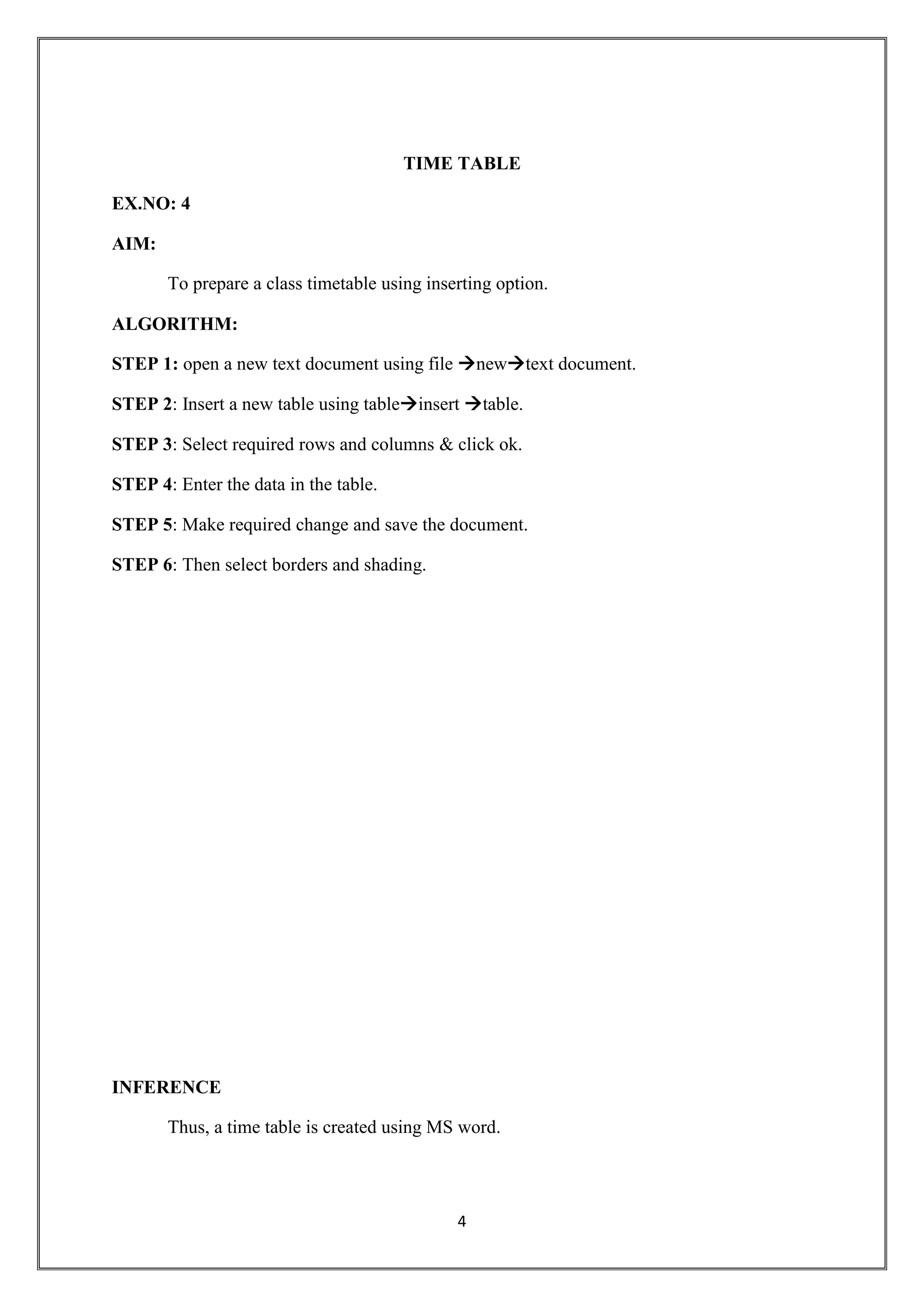
To prepare a class timetable using inserting option.
ALGORITHM:
STEP 1: open a new text document using file newtext document.
STEP 2: Insert a new table using tableinsert table.
STEP 3: Select required rows and columns & click ok.
STEP 4: Enter the data in the table.
STEP 5: Make required change and save the document.
STEP 6: Then select borders and shading.
INFERENCE
Thus, a time table is created using MS word.
5
MAIL MERGE
EX.NO: 5
AIM:
To prepare annual general meeting letters for mail merge operation.
ALGORITHM:
STEP 1: Open a document using file new text document.
STEP 2: Type the required data in the document.
STEP 3: Open the mail merge using tableletter mailing mail merge.
STEP 4: Select letters option in popup menu.
STEP 5: Then in final step edit individual letter.
STEP 6: The required letters are prepared.
INFERENCE:
Thus, from above procedure the receipt is obtained.
6
RESUME WIZARD
EX.NO: 6
AIM:
To prepare the data by using wizard and templates
ALGORITHM:
STEP 1: Open a new document using file  new text document.
STEP 2: Select templates as on my computer and then select resume wizard under Topic.
STEP 3: A popup wizard appears make a required field and finish the wizard.
STEP 4: The fields are entered in the documents.
STEP 5: After entering save the document.
INFERENCE:
Thus from above procedure the output is obtained.
7
PRODUCT ADVERTISEMENT
EX.NO: 7
AIM:
To develop an advertisement using wizard in the slides.
ALGORITHM:
STEP 1: To start MS- power point select
Start all programs MS-power point.
STEP 2: Choose a wizard and type the title as “advertisement”.
STEP 3: Choose the product and type the information about the product.
STEP 4: Insert clipart for that product.
STEP 5: Thus the advertisement wizard is formulated.
INFERENCE:
Thus an advertisement for the product is created by using MS – PowerPoint.
8
ORGANISATION CHART
EX.NO: 8
AIM:
To design for organisation of chart of a company.
ALGORITHAM:
STEP 1: To start MS-power point select
StartAll programMS-power point.
STEP 2: Select the new slide and title.
STEP 3: Using the subordinate different size of slides are installed.
STEP 4: In the subordinate respective category of the placement are co-written in the text is
Entered in the subordinate.
STEP 5: F12 is used to see the developed organisation charts as slide show.
INFERENCE:
Thus the organisation chart is created by using MS – PowerPoint.
9
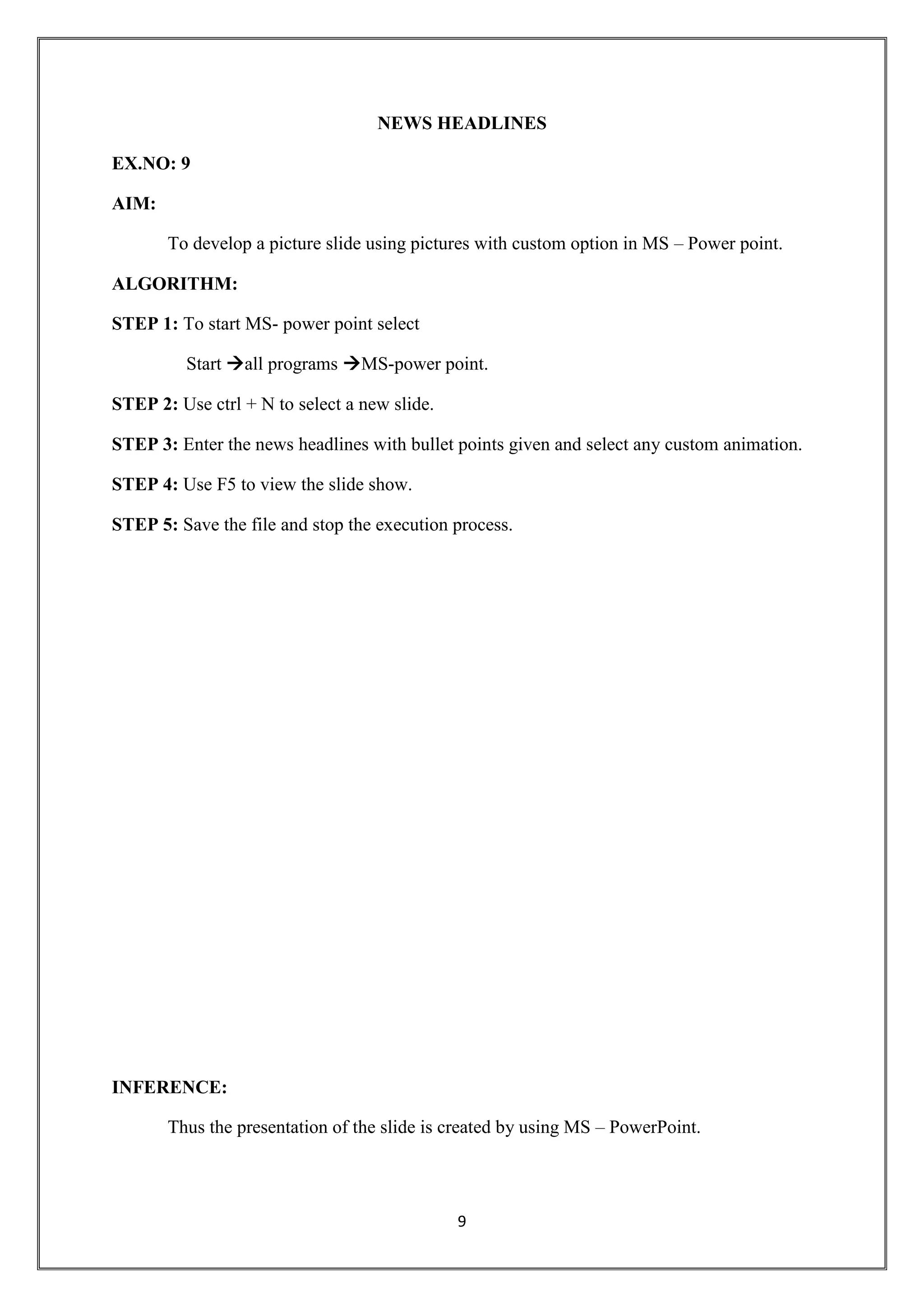
NEWS HEADLINES
EX.NO: 9
AIM:
To develop a picture slide using pictures with custom option in MS – Power point.
ALGORITHM:
STEP 1: To start MS- power point select
Start all programs MS-power point.
STEP 2: Use ctrl + N to select a new slide.
STEP 3: Enter the news headlines with bullet points given and select any custom animation.
STEP 4: Use F5 to view the slide show.
STEP 5: Save the file and stop the execution process.
INFERENCE:
Thus the presentation of the slide is created by using MS – PowerPoint.
10
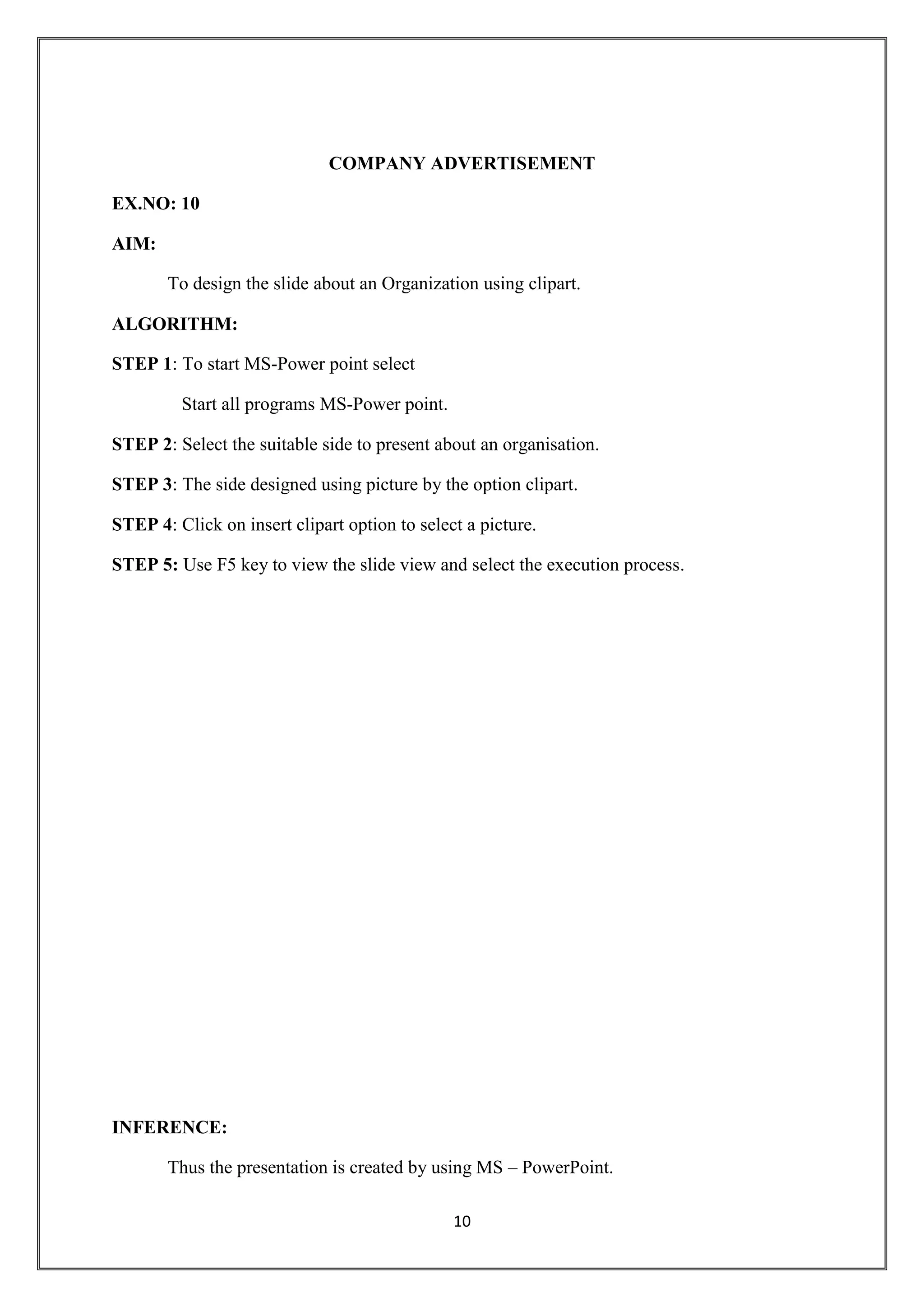
COMPANY ADVERTISEMENT
EX.NO: 10
AIM:
To design the slide about an Organization using clipart.
ALGORITHM:
STEP 1: To start MS-Power point select
Start all programs MS-Power point.
STEP 2: Select the suitable side to present about an organisation.
STEP 3: The side designed using picture by the option clipart.
STEP 4: Click on insert clipart option to select a picture.
STEP 5: Use F5 key to view the slide view and select the execution process.
INFERENCE:
Thus the presentation is created by using MS – PowerPoint.
11
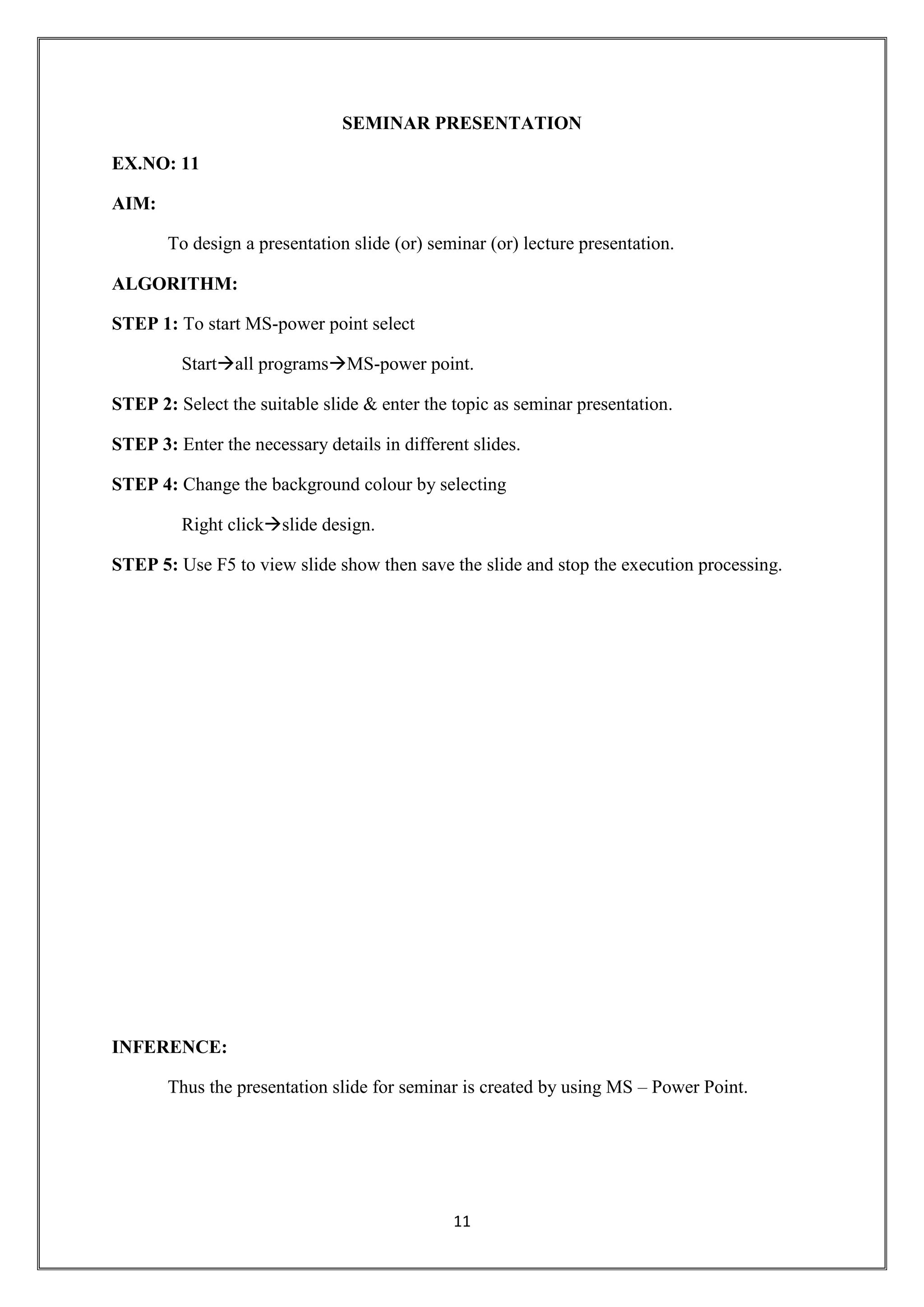
SEMINAR PRESENTATION
EX.NO: 11
AIM:
To design a presentation slide (or) seminar (or) lecture presentation.
ALGORITHM:
STEP 1: To start MS-power point select
Startall programsMS-power point.
STEP 2: Select the suitable slide & enter the topic as seminar presentation.
STEP 3: Enter the necessary details in different slides.
STEP 4: Change the background colour by selecting
Right clickslide design.
STEP 5: Use F5 to view slide show then save the slide and stop the execution processing.
INFERENCE:
Thus the presentation slide for seminar is created by using MS – Power Point.
12
QUERIES
EX.NO: 12
AIM :
To prepare a query for the employee Database.
ALGORITHM:
STEP 1: To start Ms-Access. Select Start  All program Ms-Access.
STEP 2: Employee table is prepared using the Option table and details for the Employee
table and double click.
STEP 3: Save the table and select create queries in wizard using view option and create
the necessary table
DA: [BP]*10/100, HRA:[BP]*2/100
GP: [BP]+[DA]+[HRA],
Deduction:[GP]*3/100
NP: [GP]-[Deduction].
STEP 4: Save the table and when you open the table, queries created are activated.
INFERENCE:
Thus employee table is prepared using queries table in MS Access.
13
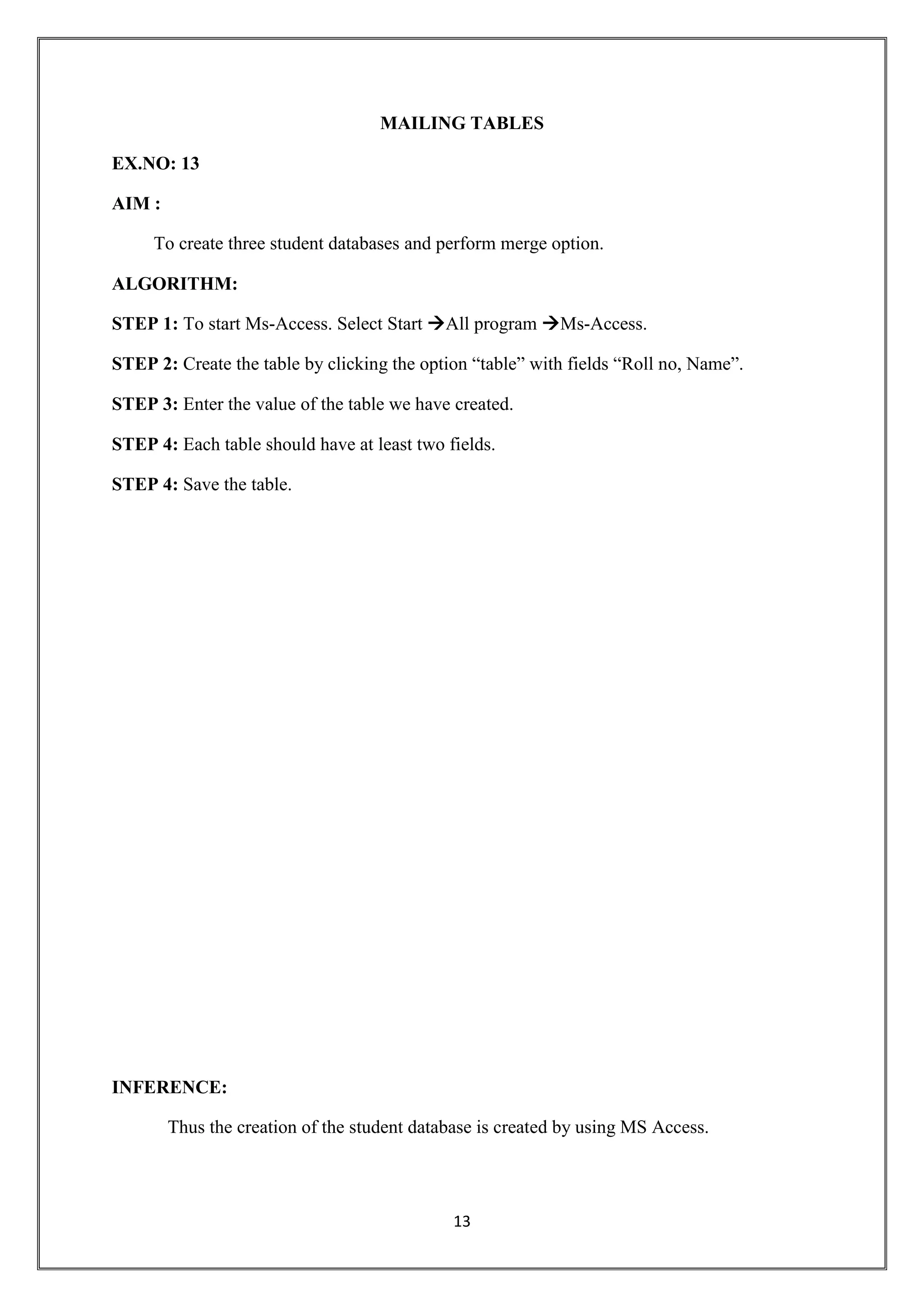
MAILING TABLES
EX.NO: 13
AIM :
To create three student databases and perform merge option.
ALGORITHM:
STEP 1: To start Ms-Access. Select Start All program Ms-Access.
STEP 2: Create the table by clicking the option “table” with fields “Roll no, Name”.
STEP 3: Enter the value of the table we have created.
STEP 4: Each table should have at least two fields.
STEP 4: Save the table.
INFERENCE:
Thus the creation of the student database is created by using MS Access.
14
FORM DESIGNS
EX.NO: 14
AIM:
To create an invoice in the form using design view.
ALGORITHM
STEP 1: To start MS-access select
Start  All programs MS access.
STEP 2: Create a program [produce] table, with the field of Id, produce name, unit,
Price quantity and total.
STEP 3: Select the “create form in design view” option and design the form for your
further product table.
STEP 4: Save the form and stop the execution process.
INFERENCE:
Thus an invoice form using design view is created in MS- Access.
15
E-MAIL ETIQUTTE
EX.NO: 15
AIM:
To write a polite E- mail by following rules of E- mail etiquette.
ALGORITHM:
STEP 1: To open a browser select
Startall programsGoogle Chrome.
STEP 2: Open a new tab  use google search engine to open Gmail.
STEP 3: Log in to Gmail account and click compose mail option.
STEP 4: Type the receiver’s address in the address field.
STEP 5: Type subject line, greeting, body, closing and signature.
STEP 6: Click the option send.
INFERENCE:
Thus, the polite E- mail by following rules of E- mail etiquette is prepared.
16
DATA COLLECTION
EX.NO: 16
AIM:
To visit Wikipedia and National Digital Library of India to collect required
information.
ALGORITHM:
STEP 1: To open a browser select
Startall programsGoogle Chrome.
STEP 2: Open a new tab use google search engine to open Wikipedia.
STEP 3: Visit the Wikipedia to collect necessary information by using search option.
STEP 4: Visit the National Digital Library of India and crate your account using
Sign-up option.
STEP 5: Log into your account and create your profile.
STEP 6: Search for necessary information by using search option.
INFERENCE:
Thus, information is collected from Wikipedia and National Digital Library of India
Successfully.

Ms word, access, powerpoint and internet

  • 1.
    1 AGENDA EX.NO: 1 AIM: To providean agenda with given changes and operation. ALGORITHM: STEP 1: Open a new document using File  new  text document. STEP 2: Type the required details of agenda in page. STEP 3: To make the text bold, select the required text and select B icon or use Shortcut key CTRL+ B. STEP 4: To make the text bolt select U icon or use short cut CTRL+ U. STEP 5: To change the size of font select 12  icon or CTRL+SHIFT +P. STEP 6: To change the style of font select Times New Roman. STEP 7: To change the text colour select A icon. STEP 8: To make line spacing select text and select icon and choose popup menu. STEP 9: To align the text select icon or use CTRL+L, CTRL+J, CTRL+R, CTRL+E. STEP10: To add header and footer. Insert  header and footer. STEP11: To add page number select Insert field page number. STEP12: To find and replace a text word select Edit find and replace. INFERENCE: Thus the agenda is created in MS-WORD.
  • 2.
    2 INVITATION EX.NO: 2 AIM: The aimis to prepare an invitation by using MS WORD. ALGORITHM: STEP 1: To select MS WORD select Start All programs Ms Word. STEP 2: The text book is create by using Insert Text box. STEP 3: Type the text and use font style to change format. STEP 4: The picture are also inserted by using clip arts for the invitation. INFERENCE: College invitation is thus prepared using MS –Word.
  • 3.
    3 INVOICE EX.NO: 3 AIM: To formatan invoice using MS-Word. ALGORITHM: STEP 1: To start MS Word select start all program-MS Word. STEP 2: Select table draw table that is available in toolbar menu. STEP 3: Draw a box using toolbar menu. STEP 4: Type S.No, Particulars, Amount, Name and Authorised signature. INFERENCE: Thus, a simple invoice is created using MS-Word.
  • 4.
    4 TIME TABLE EX.NO: 4 AIM: Toprepare a class timetable using inserting option. ALGORITHM: STEP 1: open a new text document using file newtext document. STEP 2: Insert a new table using tableinsert table. STEP 3: Select required rows and columns & click ok. STEP 4: Enter the data in the table. STEP 5: Make required change and save the document. STEP 6: Then select borders and shading. INFERENCE Thus, a time table is created using MS word.
  • 5.
    5 MAIL MERGE EX.NO: 5 AIM: Toprepare annual general meeting letters for mail merge operation. ALGORITHM: STEP 1: Open a document using file new text document. STEP 2: Type the required data in the document. STEP 3: Open the mail merge using tableletter mailing mail merge. STEP 4: Select letters option in popup menu. STEP 5: Then in final step edit individual letter. STEP 6: The required letters are prepared. INFERENCE: Thus, from above procedure the receipt is obtained.
  • 6.
    6 RESUME WIZARD EX.NO: 6 AIM: Toprepare the data by using wizard and templates ALGORITHM: STEP 1: Open a new document using file  new text document. STEP 2: Select templates as on my computer and then select resume wizard under Topic. STEP 3: A popup wizard appears make a required field and finish the wizard. STEP 4: The fields are entered in the documents. STEP 5: After entering save the document. INFERENCE: Thus from above procedure the output is obtained.
  • 7.
    7 PRODUCT ADVERTISEMENT EX.NO: 7 AIM: Todevelop an advertisement using wizard in the slides. ALGORITHM: STEP 1: To start MS- power point select Start all programs MS-power point. STEP 2: Choose a wizard and type the title as “advertisement”. STEP 3: Choose the product and type the information about the product. STEP 4: Insert clipart for that product. STEP 5: Thus the advertisement wizard is formulated. INFERENCE: Thus an advertisement for the product is created by using MS – PowerPoint.
  • 8.
    8 ORGANISATION CHART EX.NO: 8 AIM: Todesign for organisation of chart of a company. ALGORITHAM: STEP 1: To start MS-power point select StartAll programMS-power point. STEP 2: Select the new slide and title. STEP 3: Using the subordinate different size of slides are installed. STEP 4: In the subordinate respective category of the placement are co-written in the text is Entered in the subordinate. STEP 5: F12 is used to see the developed organisation charts as slide show. INFERENCE: Thus the organisation chart is created by using MS – PowerPoint.
  • 9.
    9 NEWS HEADLINES EX.NO: 9 AIM: Todevelop a picture slide using pictures with custom option in MS – Power point. ALGORITHM: STEP 1: To start MS- power point select Start all programs MS-power point. STEP 2: Use ctrl + N to select a new slide. STEP 3: Enter the news headlines with bullet points given and select any custom animation. STEP 4: Use F5 to view the slide show. STEP 5: Save the file and stop the execution process. INFERENCE: Thus the presentation of the slide is created by using MS – PowerPoint.
  • 10.
    10 COMPANY ADVERTISEMENT EX.NO: 10 AIM: Todesign the slide about an Organization using clipart. ALGORITHM: STEP 1: To start MS-Power point select Start all programs MS-Power point. STEP 2: Select the suitable side to present about an organisation. STEP 3: The side designed using picture by the option clipart. STEP 4: Click on insert clipart option to select a picture. STEP 5: Use F5 key to view the slide view and select the execution process. INFERENCE: Thus the presentation is created by using MS – PowerPoint.
  • 11.
    11 SEMINAR PRESENTATION EX.NO: 11 AIM: Todesign a presentation slide (or) seminar (or) lecture presentation. ALGORITHM: STEP 1: To start MS-power point select Startall programsMS-power point. STEP 2: Select the suitable slide & enter the topic as seminar presentation. STEP 3: Enter the necessary details in different slides. STEP 4: Change the background colour by selecting Right clickslide design. STEP 5: Use F5 to view slide show then save the slide and stop the execution processing. INFERENCE: Thus the presentation slide for seminar is created by using MS – Power Point.
  • 12.
    12 QUERIES EX.NO: 12 AIM : Toprepare a query for the employee Database. ALGORITHM: STEP 1: To start Ms-Access. Select Start  All program Ms-Access. STEP 2: Employee table is prepared using the Option table and details for the Employee table and double click. STEP 3: Save the table and select create queries in wizard using view option and create the necessary table DA: [BP]*10/100, HRA:[BP]*2/100 GP: [BP]+[DA]+[HRA], Deduction:[GP]*3/100 NP: [GP]-[Deduction]. STEP 4: Save the table and when you open the table, queries created are activated. INFERENCE: Thus employee table is prepared using queries table in MS Access.
  • 13.
    13 MAILING TABLES EX.NO: 13 AIM: To create three student databases and perform merge option. ALGORITHM: STEP 1: To start Ms-Access. Select Start All program Ms-Access. STEP 2: Create the table by clicking the option “table” with fields “Roll no, Name”. STEP 3: Enter the value of the table we have created. STEP 4: Each table should have at least two fields. STEP 4: Save the table. INFERENCE: Thus the creation of the student database is created by using MS Access.
  • 14.
    14 FORM DESIGNS EX.NO: 14 AIM: Tocreate an invoice in the form using design view. ALGORITHM STEP 1: To start MS-access select Start  All programs MS access. STEP 2: Create a program [produce] table, with the field of Id, produce name, unit, Price quantity and total. STEP 3: Select the “create form in design view” option and design the form for your further product table. STEP 4: Save the form and stop the execution process. INFERENCE: Thus an invoice form using design view is created in MS- Access.
  • 15.
    15 E-MAIL ETIQUTTE EX.NO: 15 AIM: Towrite a polite E- mail by following rules of E- mail etiquette. ALGORITHM: STEP 1: To open a browser select Startall programsGoogle Chrome. STEP 2: Open a new tab  use google search engine to open Gmail. STEP 3: Log in to Gmail account and click compose mail option. STEP 4: Type the receiver’s address in the address field. STEP 5: Type subject line, greeting, body, closing and signature. STEP 6: Click the option send. INFERENCE: Thus, the polite E- mail by following rules of E- mail etiquette is prepared.
  • 16.
    16 DATA COLLECTION EX.NO: 16 AIM: Tovisit Wikipedia and National Digital Library of India to collect required information. ALGORITHM: STEP 1: To open a browser select Startall programsGoogle Chrome. STEP 2: Open a new tab use google search engine to open Wikipedia. STEP 3: Visit the Wikipedia to collect necessary information by using search option. STEP 4: Visit the National Digital Library of India and crate your account using Sign-up option. STEP 5: Log into your account and create your profile. STEP 6: Search for necessary information by using search option. INFERENCE: Thus, information is collected from Wikipedia and National Digital Library of India Successfully.