Managing a Microsoft Windows Server 2003 Environment Chapter 7: Advanced File System Management
Objectives Understand and configure file and folder attributes Understand and configure advanced file and folder attributes Implement and manage disk quotas Understand and implement the Distributed File System
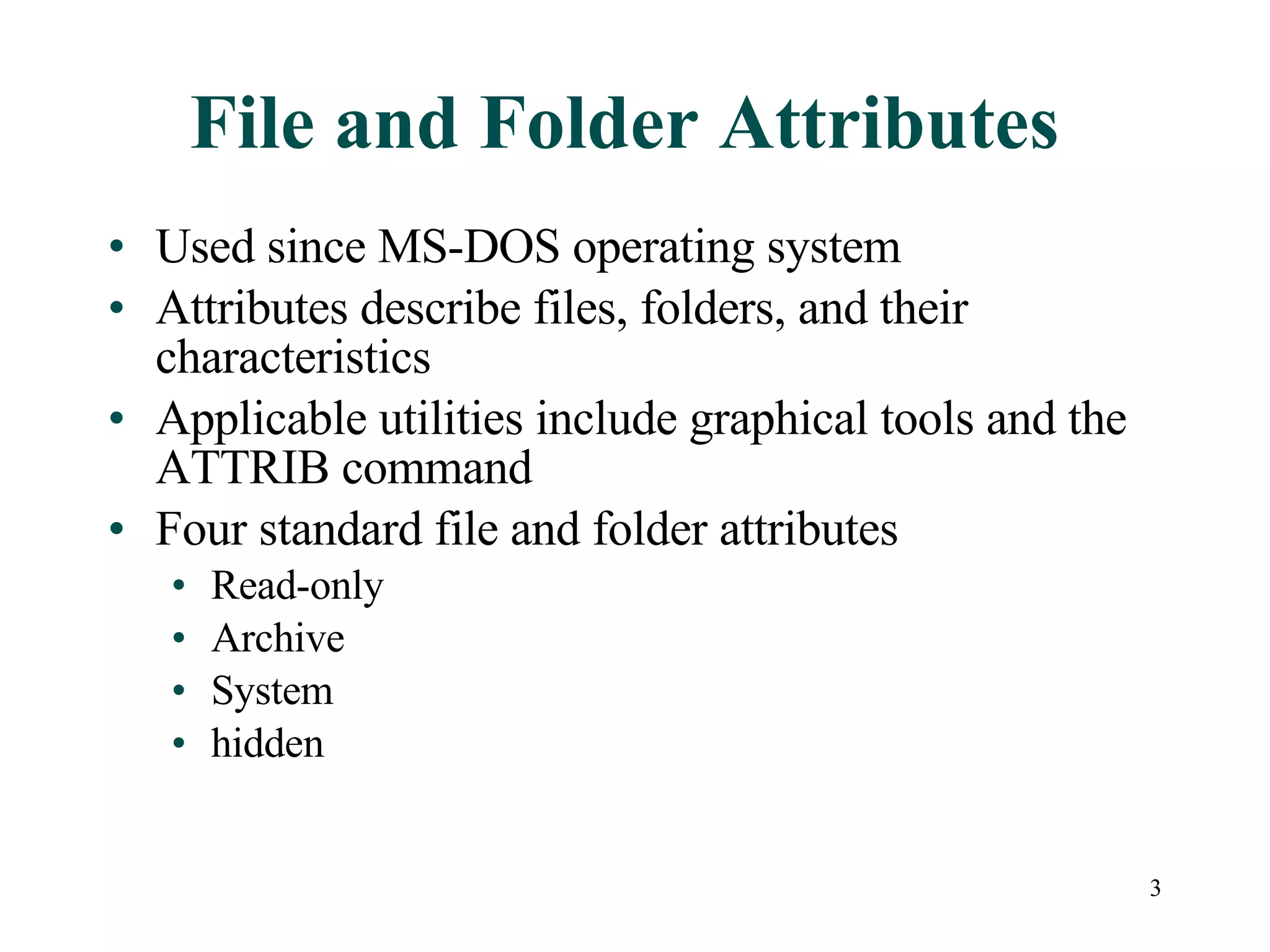
File and Folder Attributes Used since MS-DOS operating system Attributes describe files, folders, and their characteristics Applicable utilities include graphical tools and the ATTRIB command Four standard file and folder attributes Read-only Archive System hidden
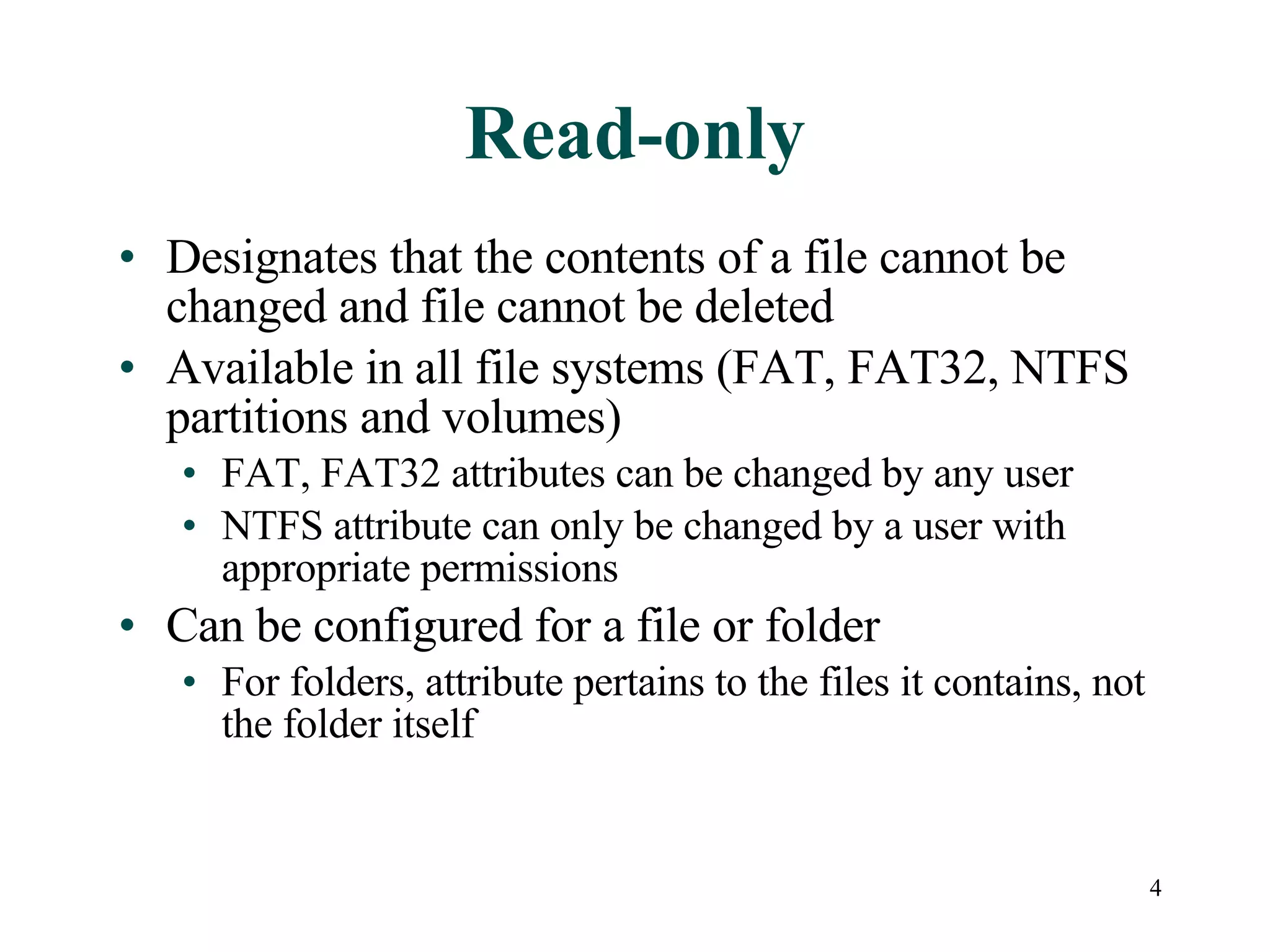
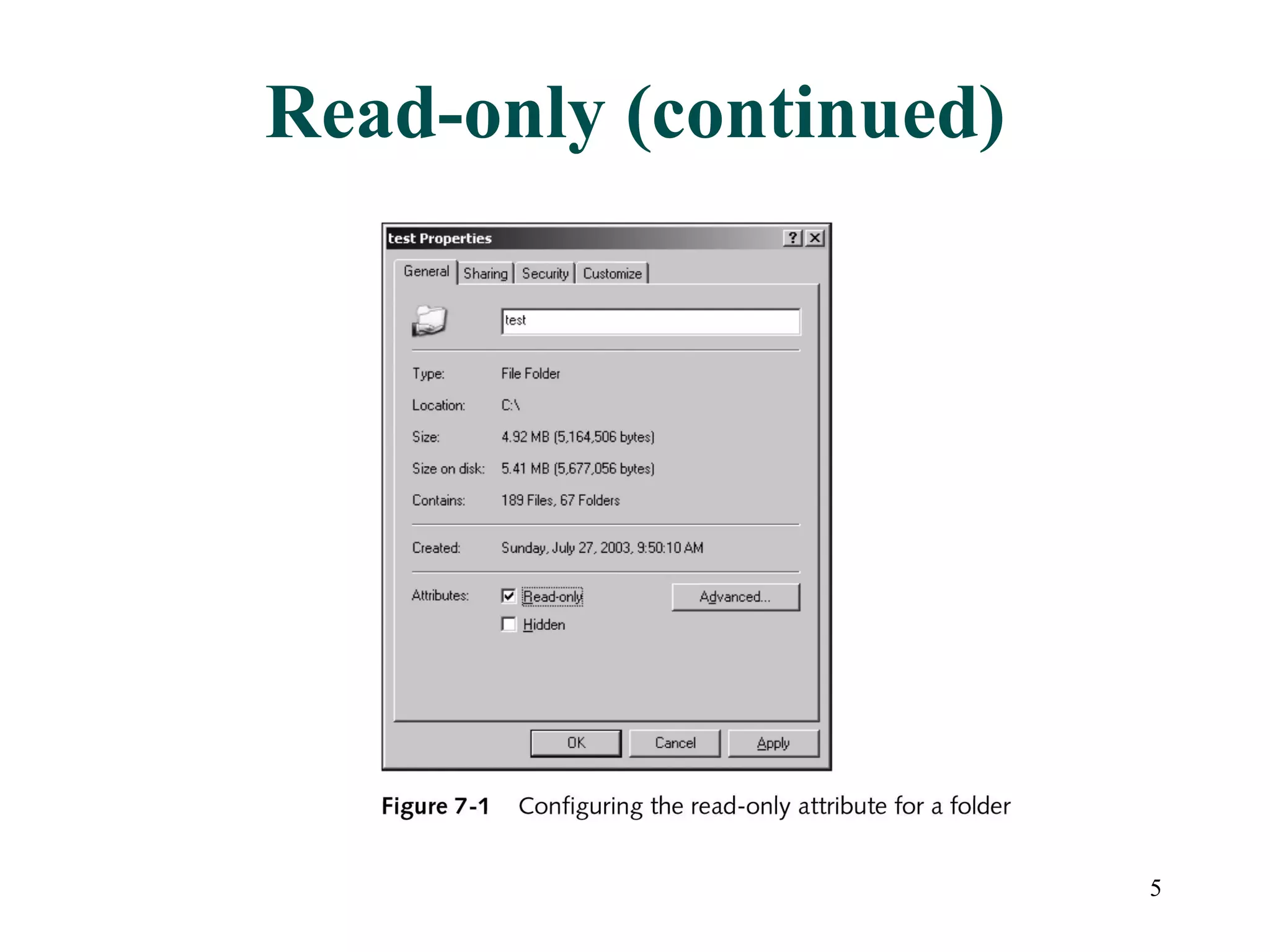
Read-only Designates that the contents of a file cannot be changed and file cannot be deleted Available in all file systems (FAT, FAT32, NTFS partitions and volumes) FAT, FAT32 attributes can be changed by any user NTFS attribute can only be changed by a user with appropriate permissions Can be configured for a file or folder For folders, attribute pertains to the files it contains, not the folder itself
Read-only (continued)
Archive Marks which files and folders have been recently changed or created Recently modified files are marked as  ready for archiving Important for backup Backup methods  update the status of the archive attribute Viewing the attribute is done using Windows Explorer or command-line utilities (e.g., DIR, ATTRIB)
System Originally designed to identify O.S. in MS-DOS In Windows Server 2003 Used in conjunction with hidden attribute When system and hidden both true, file or folder is “super hidden” (not displayed in Windows Explorer interface) Treated as “protected operating system files” with specific alternate display options Can only be manipulated using ATTRIB command
Hidden Used to make files and folders less visible to users from Windows Explorer and command-line Default configuration in Windows Server 2003 displays hidden files as semi-transparent icons unless in conjunction with system attribute Hidden attribute can be configured from General tab of Properties
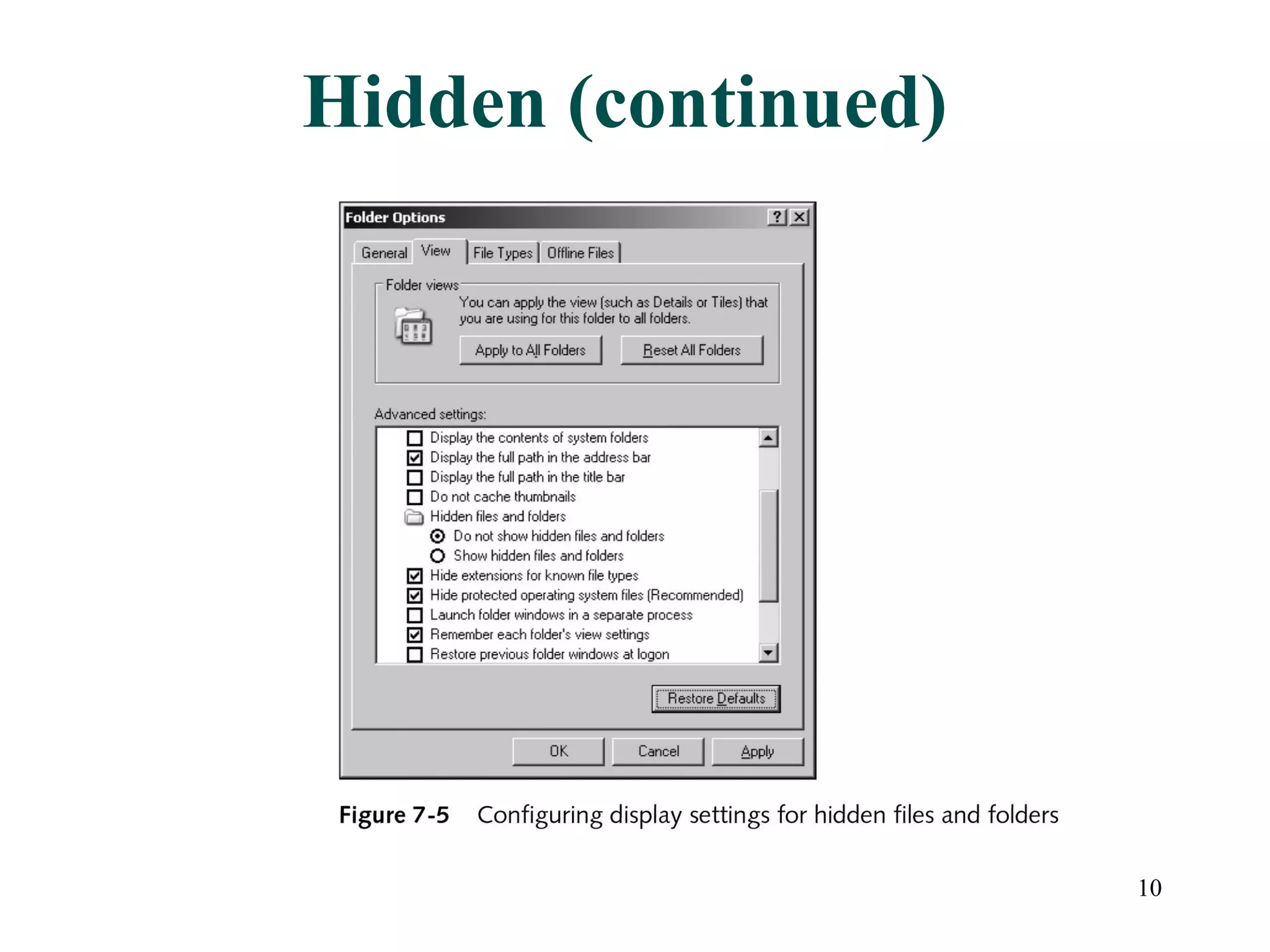
Hidden (continued) Visibility can be configured from View tab of Folder Options from Tools in Windows Explorer Show hidden file and folders Hidden files and folders appear in Windows Explorer as semi-transparent icons Do not show hidden files and folders Files with set hidden attributes do not appear in Windows Explorer Hide protected operating system files All files with both hidden and system attributes set are hidden in Windows Explorer when set
Hidden (continued)
Activity 7-1: Viewing and Configuring File and Folder Attributes Using Windows Explorer Objective: Use Windows Explorer to view and configure file and folder attributes Use Windows Explorer to view sets of files and folders that are visible by default Reconfigure View settings Observe results of configurations
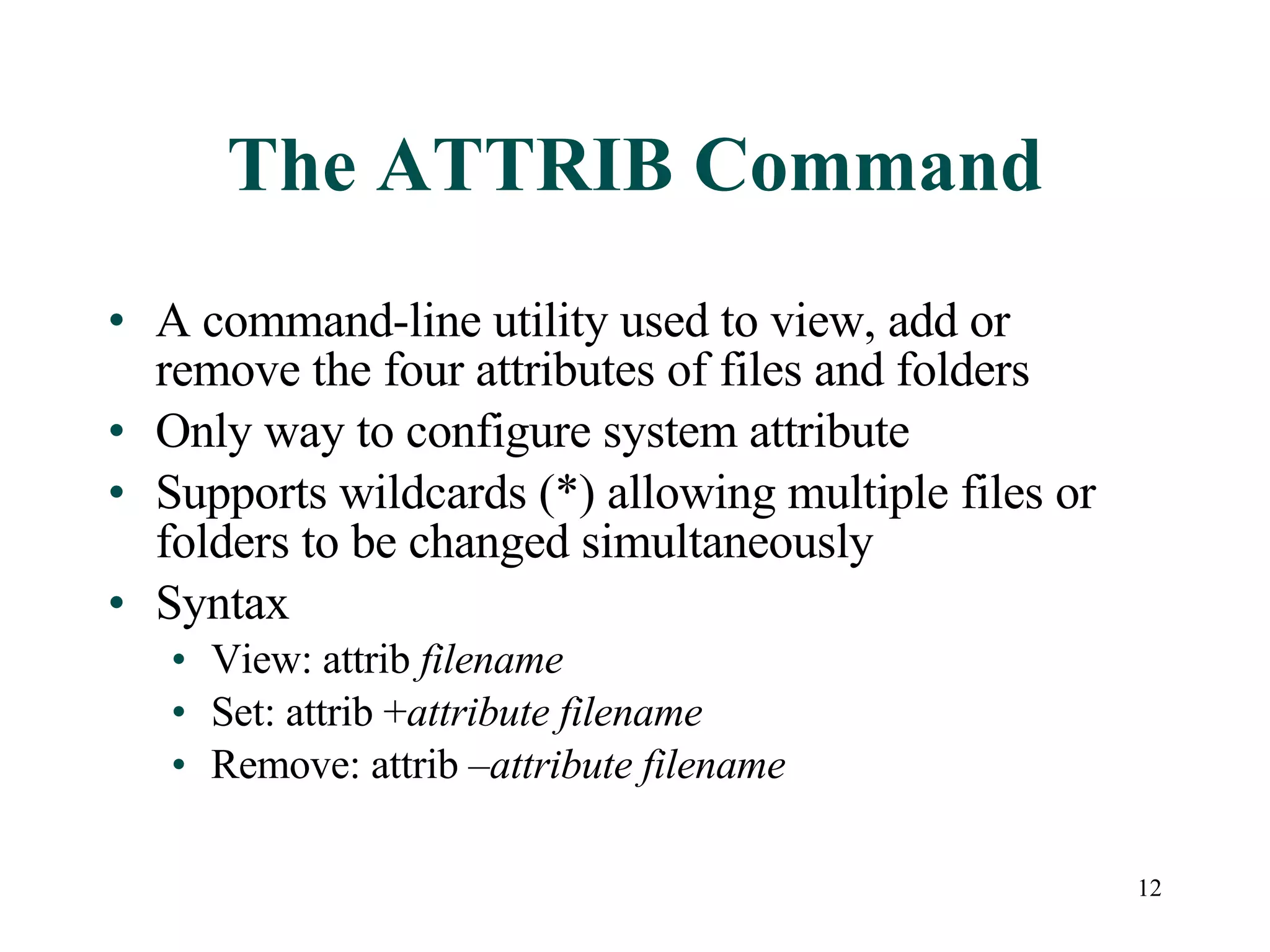
The ATTRIB Command A command-line utility used to view, add or remove the four attributes of files and folders Only way to configure system attribute Supports wildcards (*) allowing multiple files or folders to be changed simultaneously Syntax View: attrib  filename Set: attrib + attribute   filename Remove: attrib – attribute   filename
Activity 7-2: Changing File Attributes Using the ATTRIB Command Objective: View and change file attributes from the command line Create a new folder and files Observe attributes Change attributes using ATTRIB Observe changes Hide protected files Observe changes
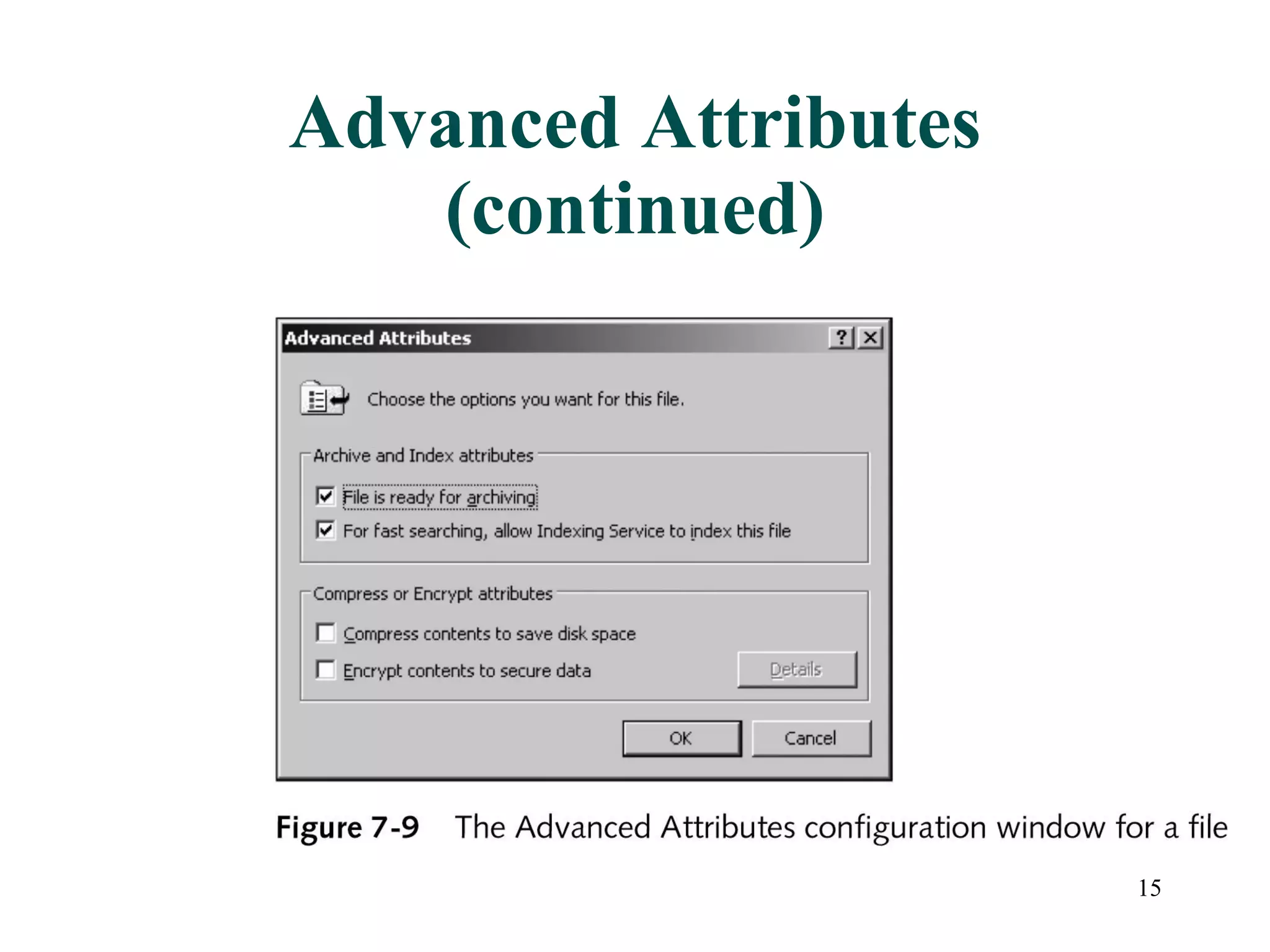
Advanced Attributes Advanced attributes found on NTFS partitions or volumes Archive and Index attributes File is ready for archiving Indexing service Compress or Encrypt Compress contents to save disk space Encrypt contents to secure data
Advanced Attributes (continued)
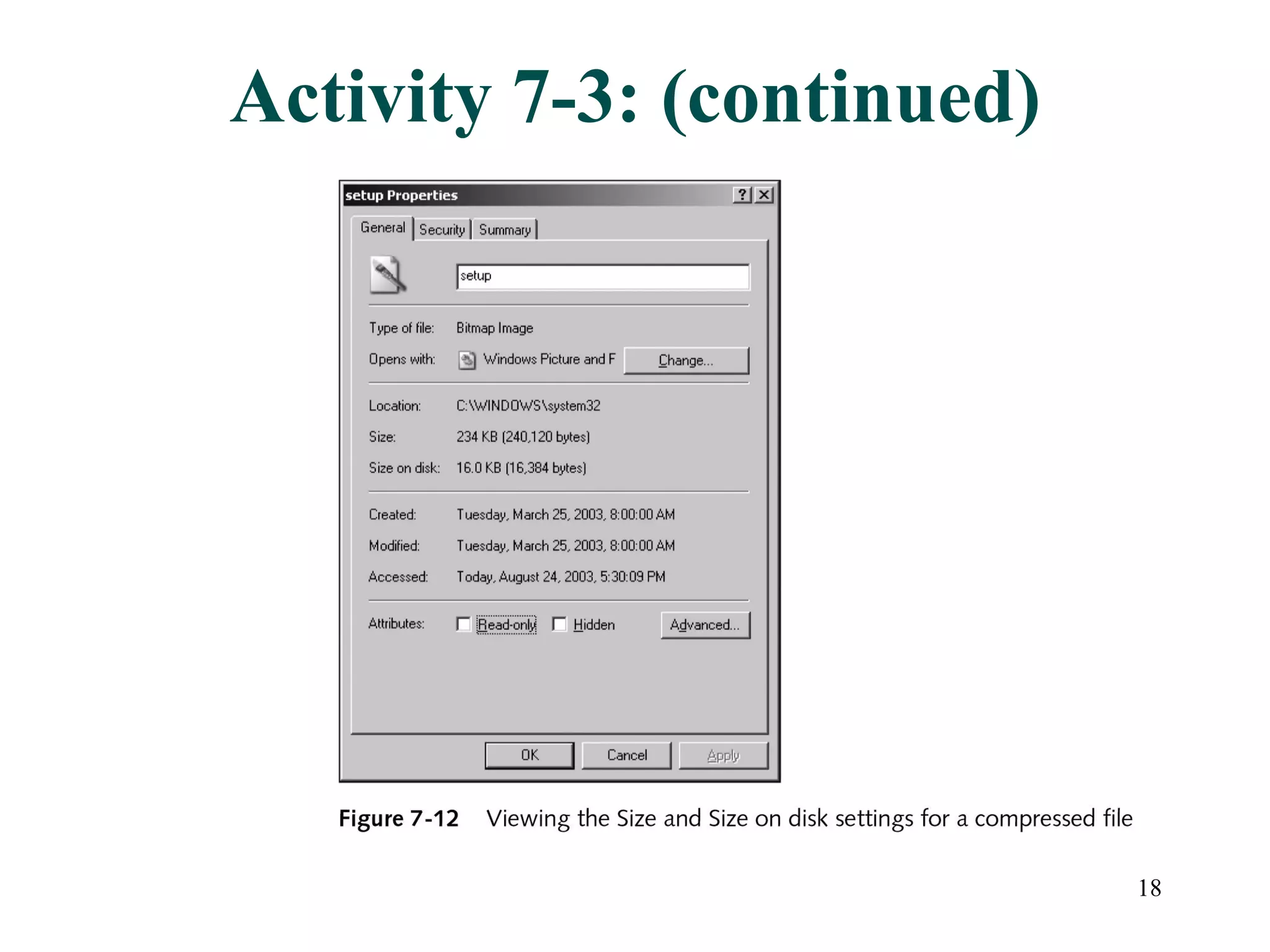
File Compression Reduces amount of disk space needed for files and folders Automatically uncompressed when the resource is accessed Compressed resources displayed in different color in Windows Explorer (blue by default) Moving and copying resources can affect compression
Activity 7-3: Configuring Folder Compression Settings Objective: Configure a folder to compress its contents Create a folder, copy a file into it Set the compression attribute on the folder to compress itself and its contents Note the appearance of the folder and verify compression of contents
Activity 7-3: (continued)
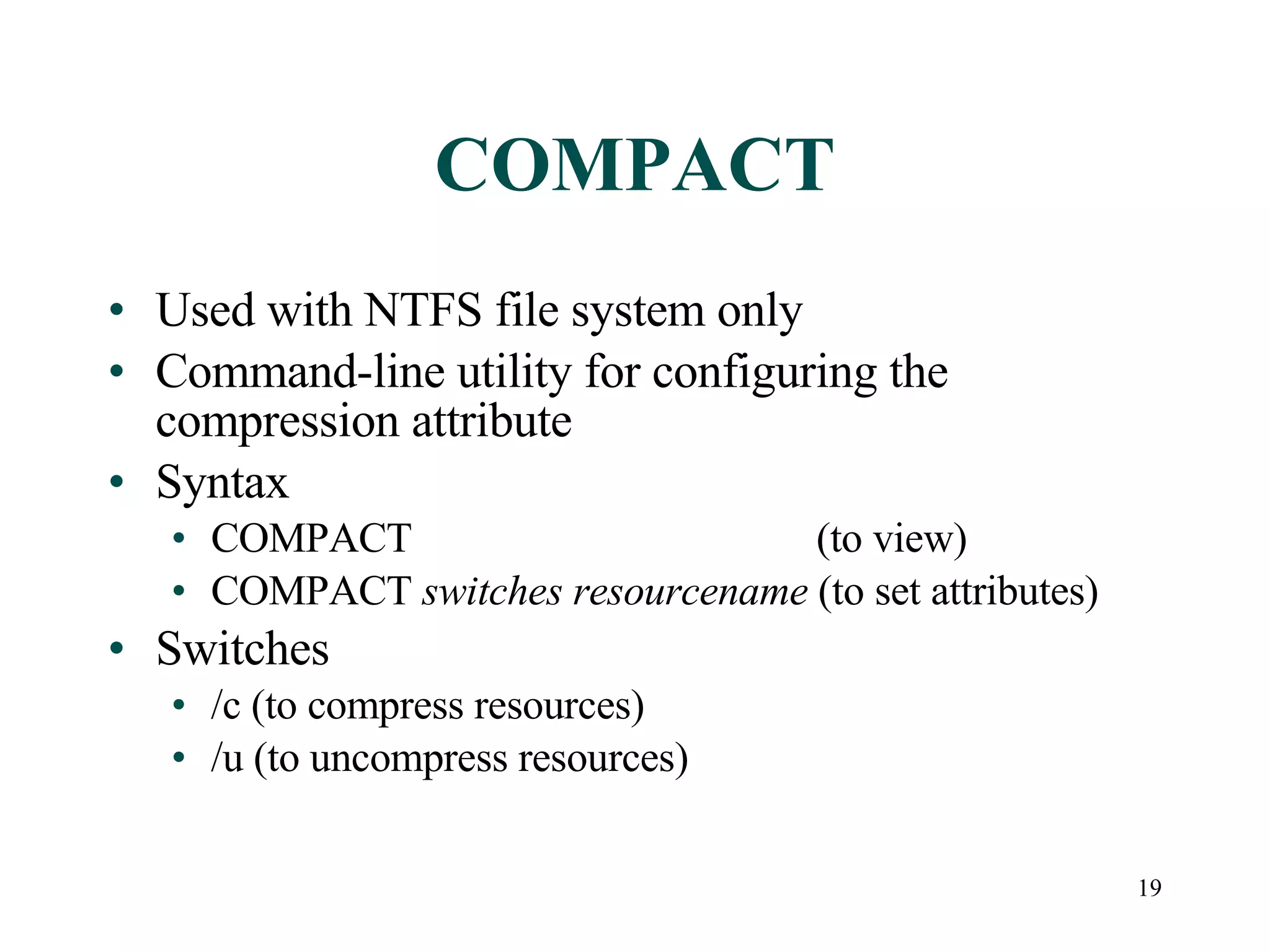
COMPACT Used with NTFS file system only Command-line utility for configuring the compression attribute  Syntax COMPACT   (to view) COMPACT  switches   resourcename  (to set attributes) Switches /c (to compress resources) /u (to uncompress resources)
File Encryption Encrypting File System (EFS)  uses public key cryptography to encrypt files and folders Only on NTFS file systems Transparent to user Implemented using 2 main types of keys File encryption key (FEK) Session key added to header of encrypted data ( data decryption field ) Public key encrypts DDF
File Encryption (continued) Main challenge for public key cryptography is when users leave organization Can rename user account Can use  data recovery agent FEK also stored in  data recovery field (DRF) Encrypted using data recovery agent’s public key Default is administrator, additional recovery agents can be designated Moving or copying files can affect encryption Encrypted files cannot be compressed, vice versa
Activity 7-4: Encrypting Files Using Windows Explorer Objective: Implement and test file encryption security using EFS Configure encryption on a folder and create a file in the folder Try to open the folder and file from another user account and observe results Try to open the folder and file from a domain administrator account and observe results
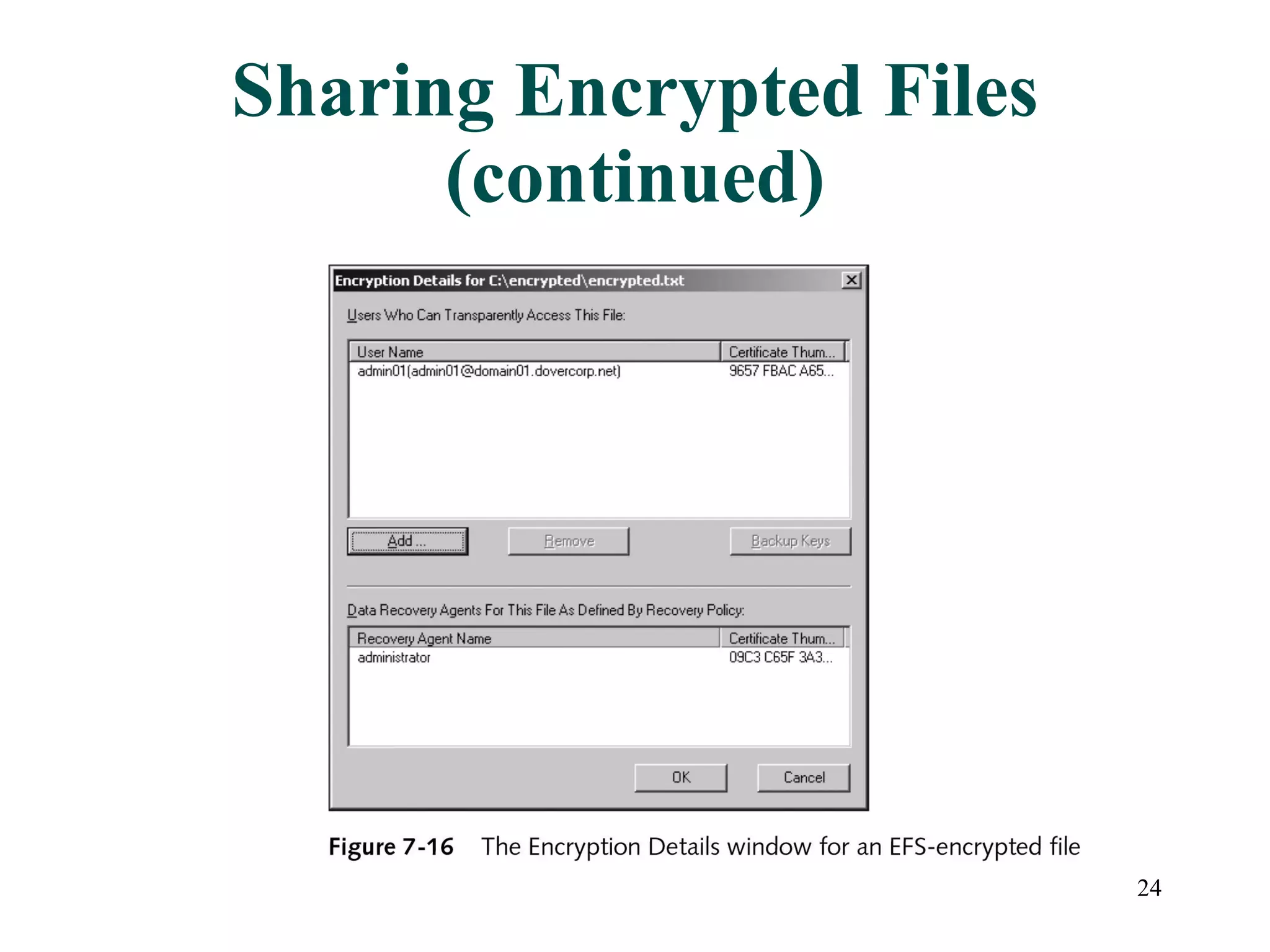
Sharing Encrypted Files In Windows 2000, only user and data recovery agent could access an encrypted file In Windows Server 2003, Advanced Attributes allows sharing with other specific named users Issues: Only for files, not folders Can only share with users, not groups Users must have a certificate on computer Users must have appropriate NTFS permissions
Sharing Encrypted Files (continued)
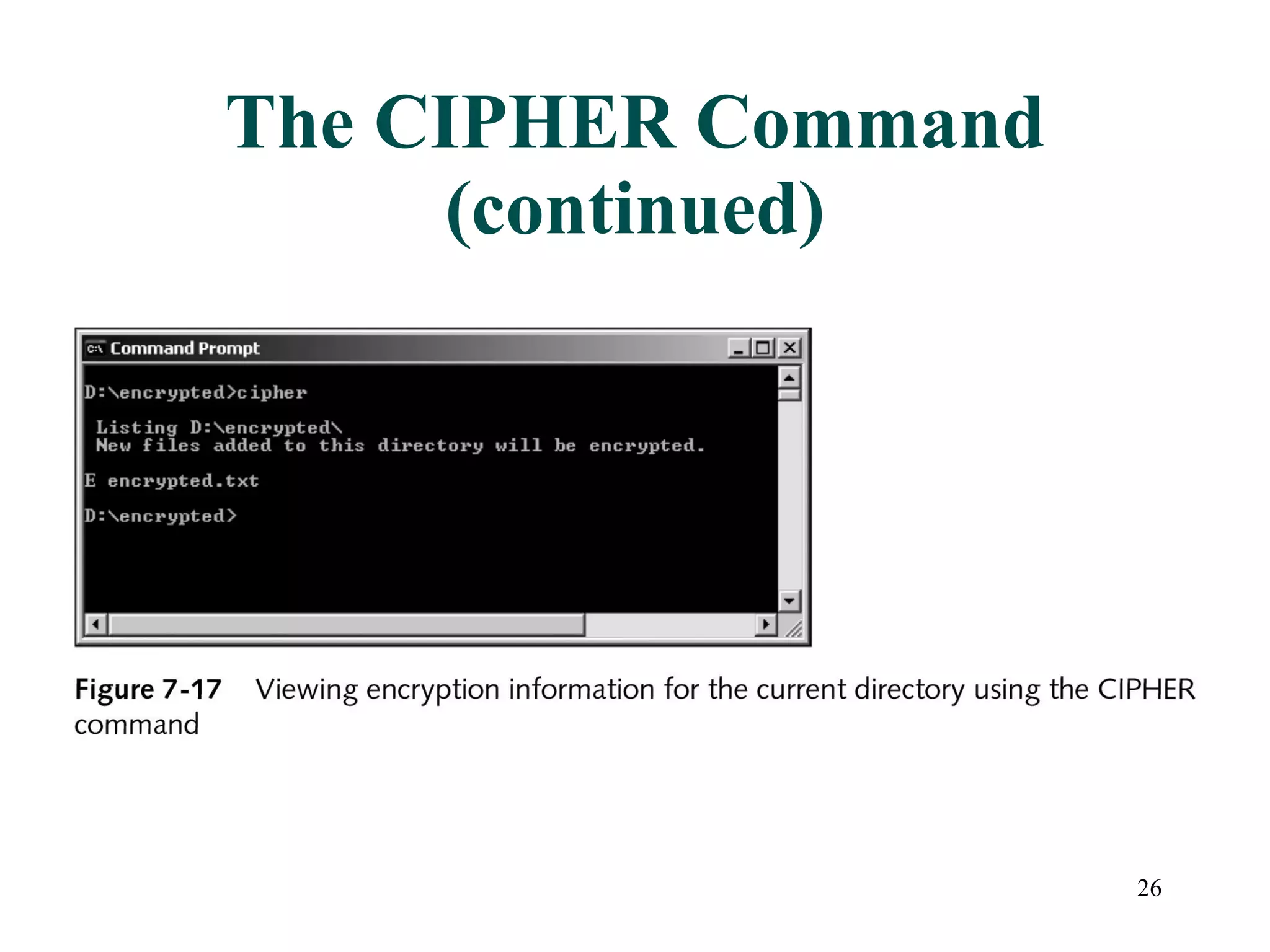
The CIPHER Command Command-line utility for file and folder encryption Used by administrator NTFS partitions and volumes only Syntax CIPHER   (to view) CIPHER  switches   resourcename  (to set attributes)
The CIPHER Command (continued)
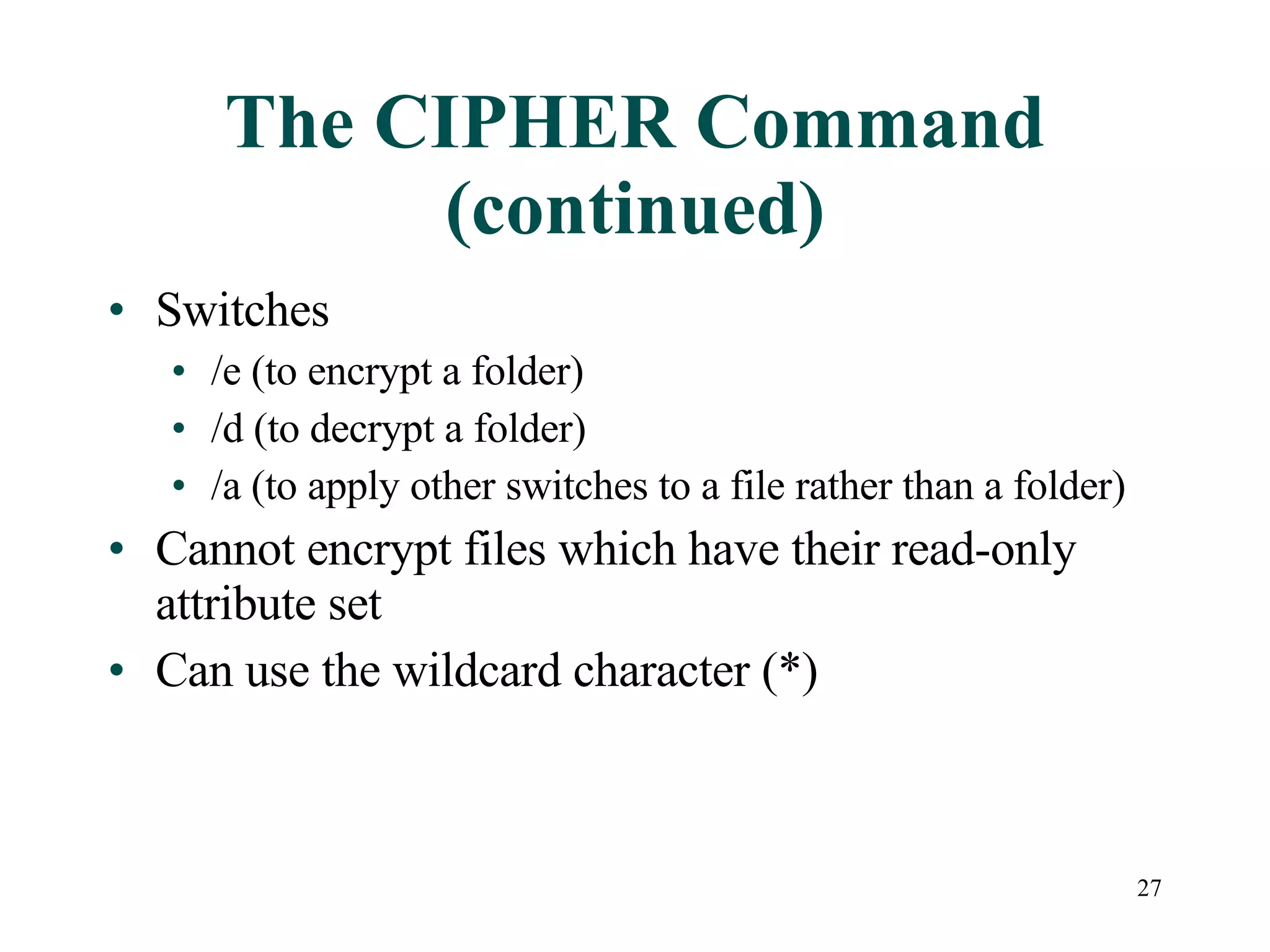
The CIPHER Command (continued) Switches /e (to encrypt a folder) /d (to decrypt a folder) /a (to apply other switches to a file rather than a folder) Cannot encrypt files which have their read-only attribute set Can use the wildcard character (*)
Activity 7-5: Encrypting Files Using the CIPHER Utility Objective: To encrypt and decrypt files using CIPHER Create a new folder and files Encrypt a single file and observe the results Encrypt files using the wildcard character and observe results
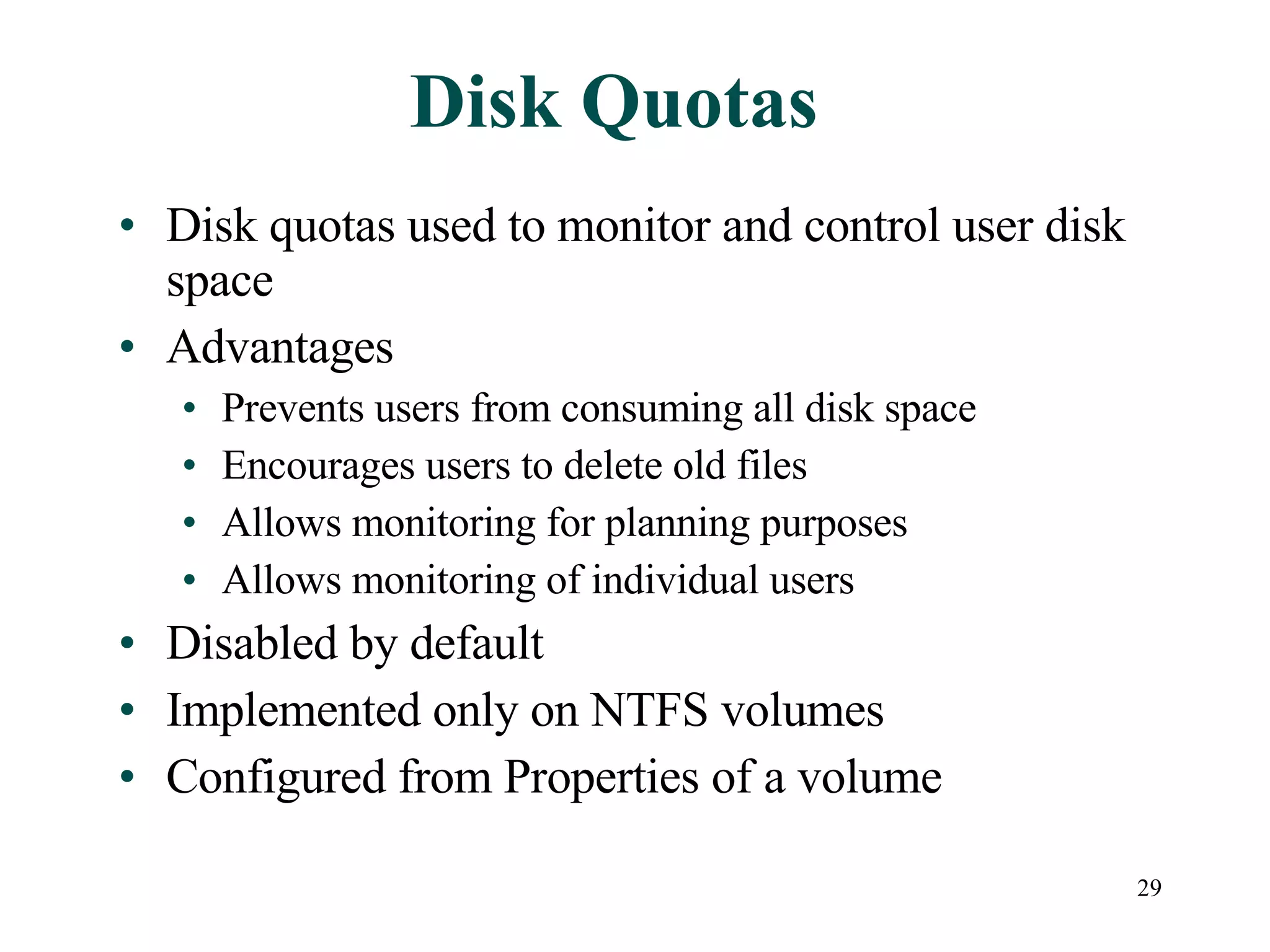
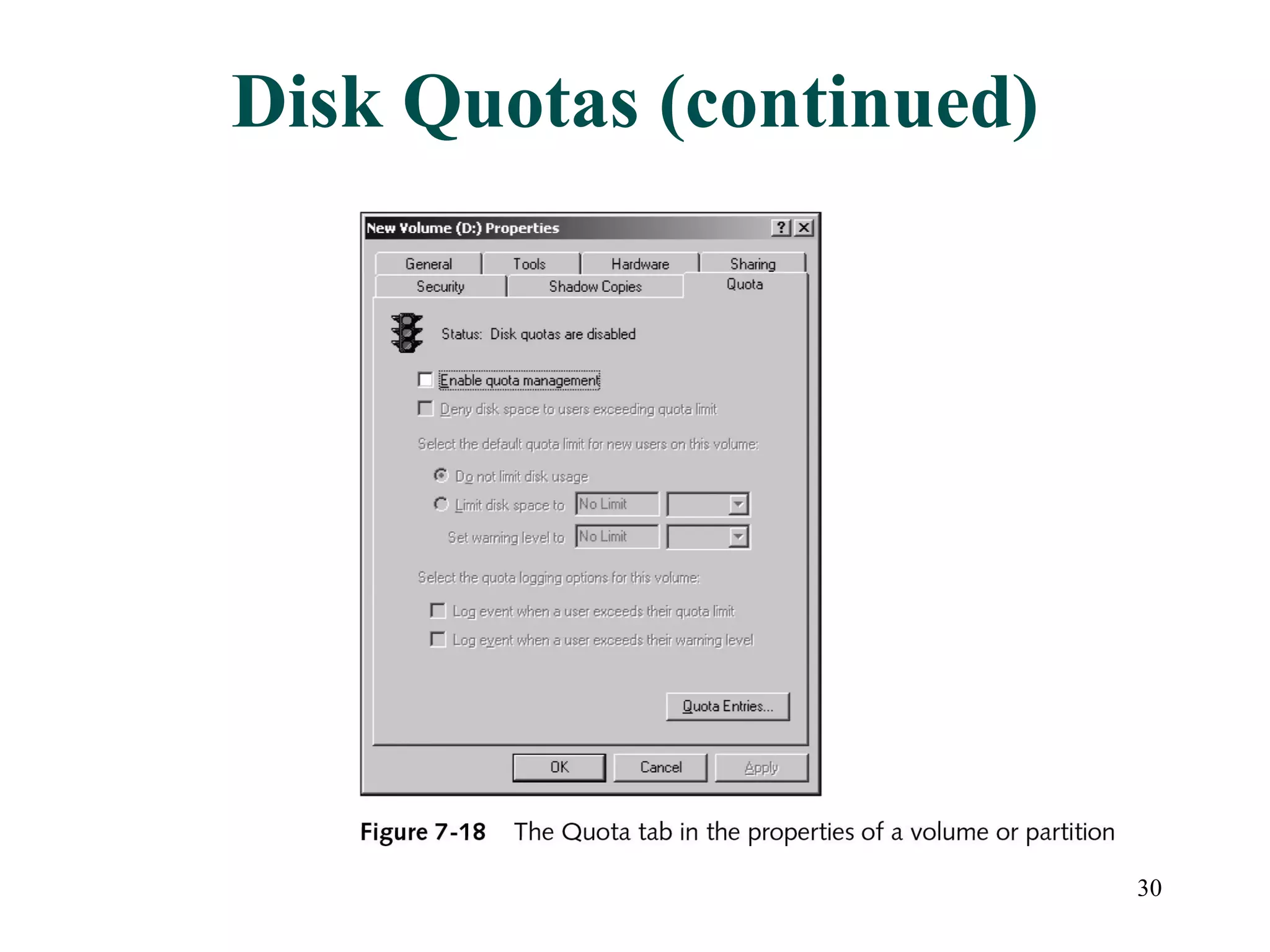
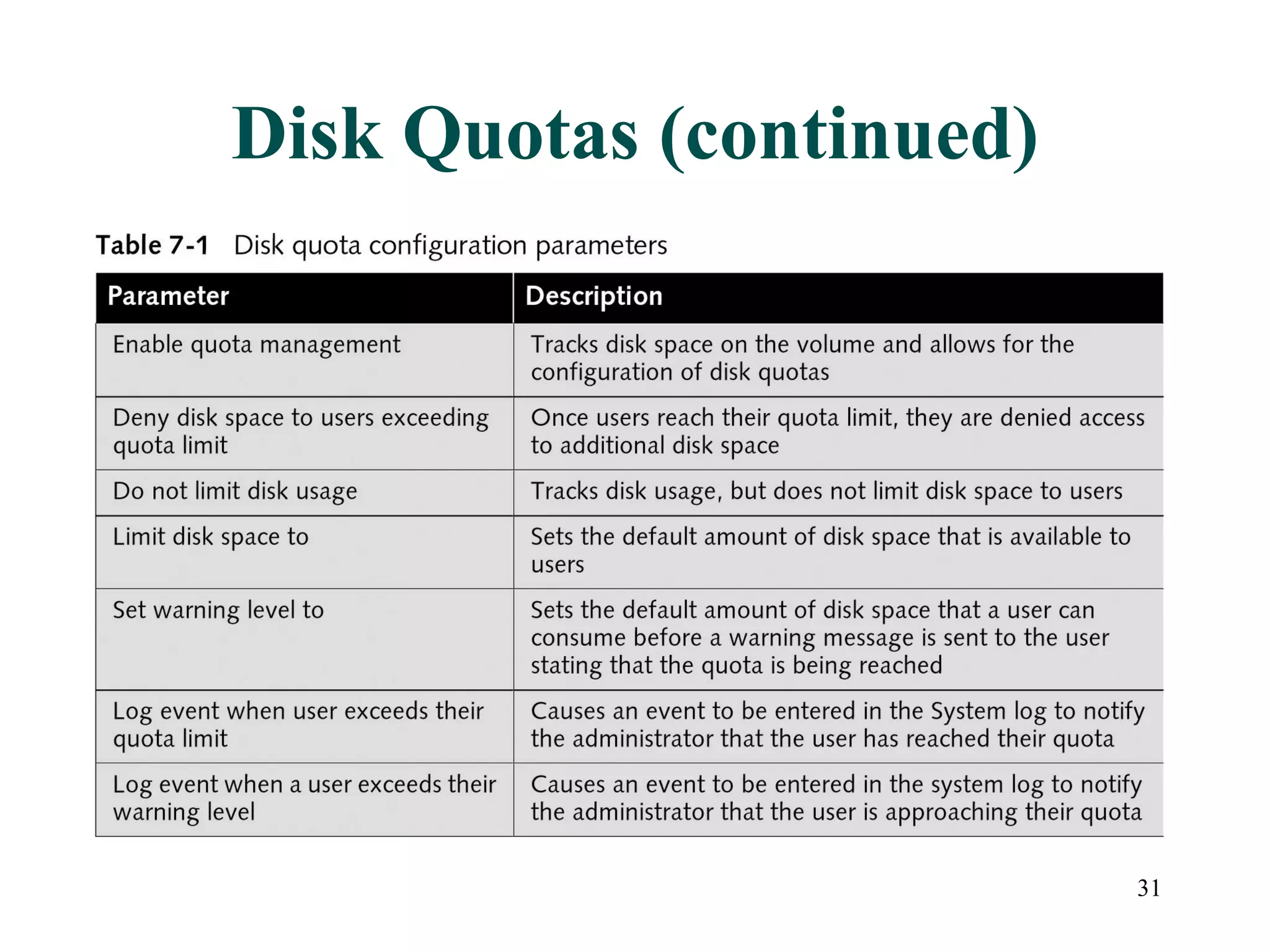
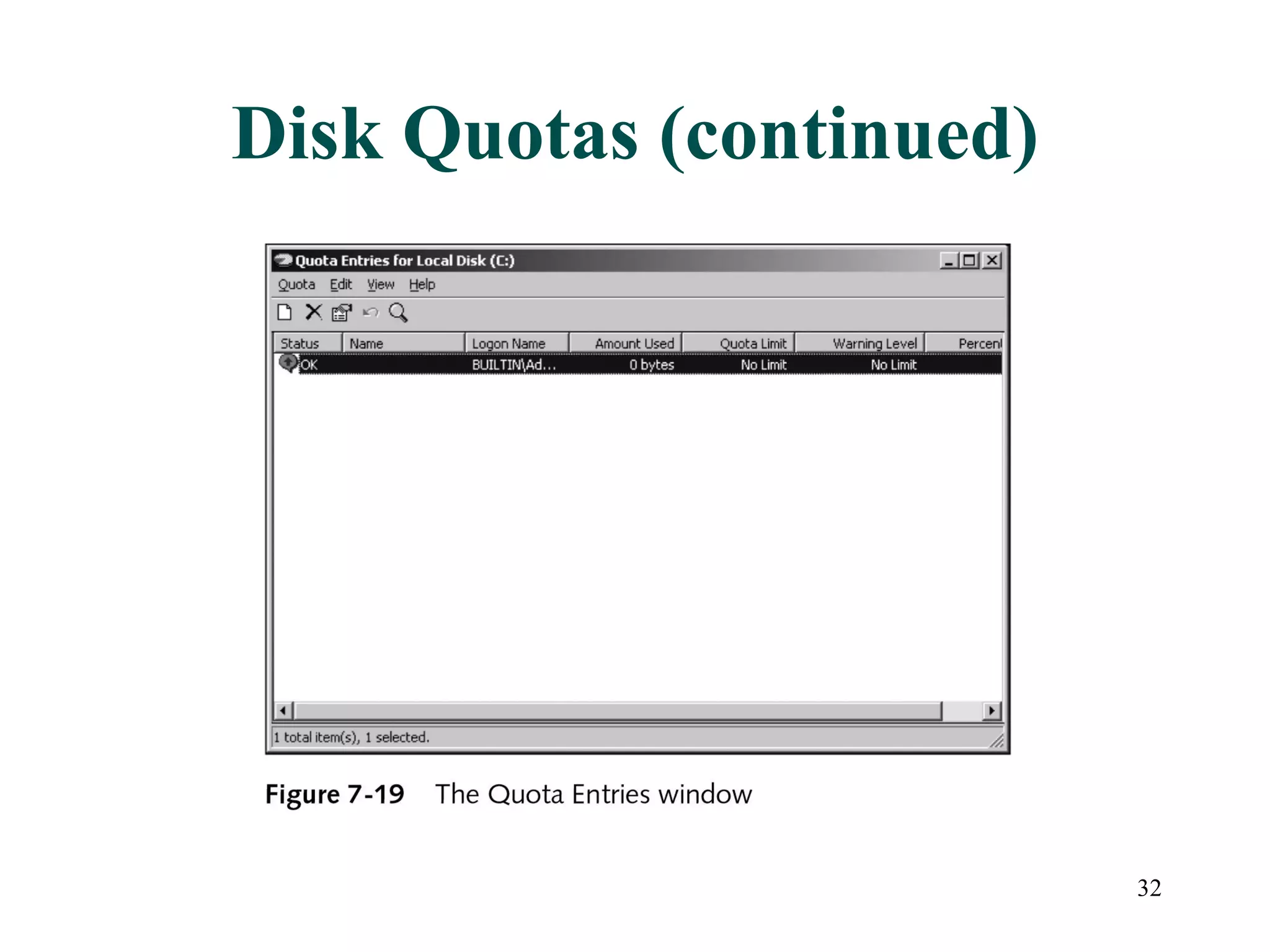
Disk Quotas Disk quotas used to monitor and control user disk space Advantages Prevents users from consuming all disk space Encourages users to delete old files Allows monitoring for planning purposes Allows monitoring of individual users Disabled by default Implemented only on NTFS volumes Configured from Properties of a volume
Disk Quotas (continued)
Activity 7-6: Configuring and Managing Disk Quotas Objective: Enable and manage disk quota settings Enable quota management Configure “soft” disk quota settings Observe results Set up a warning situation and observe results
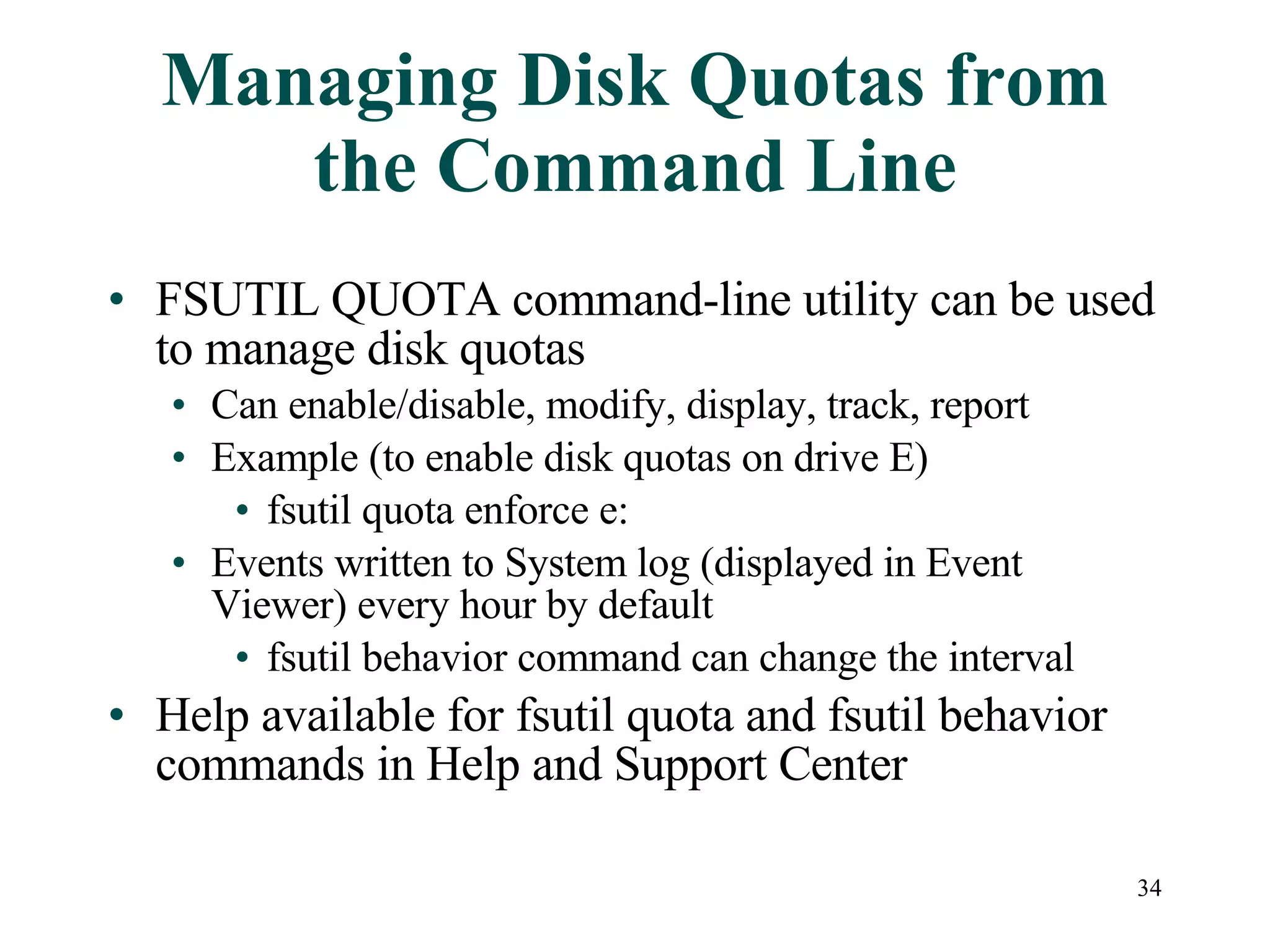
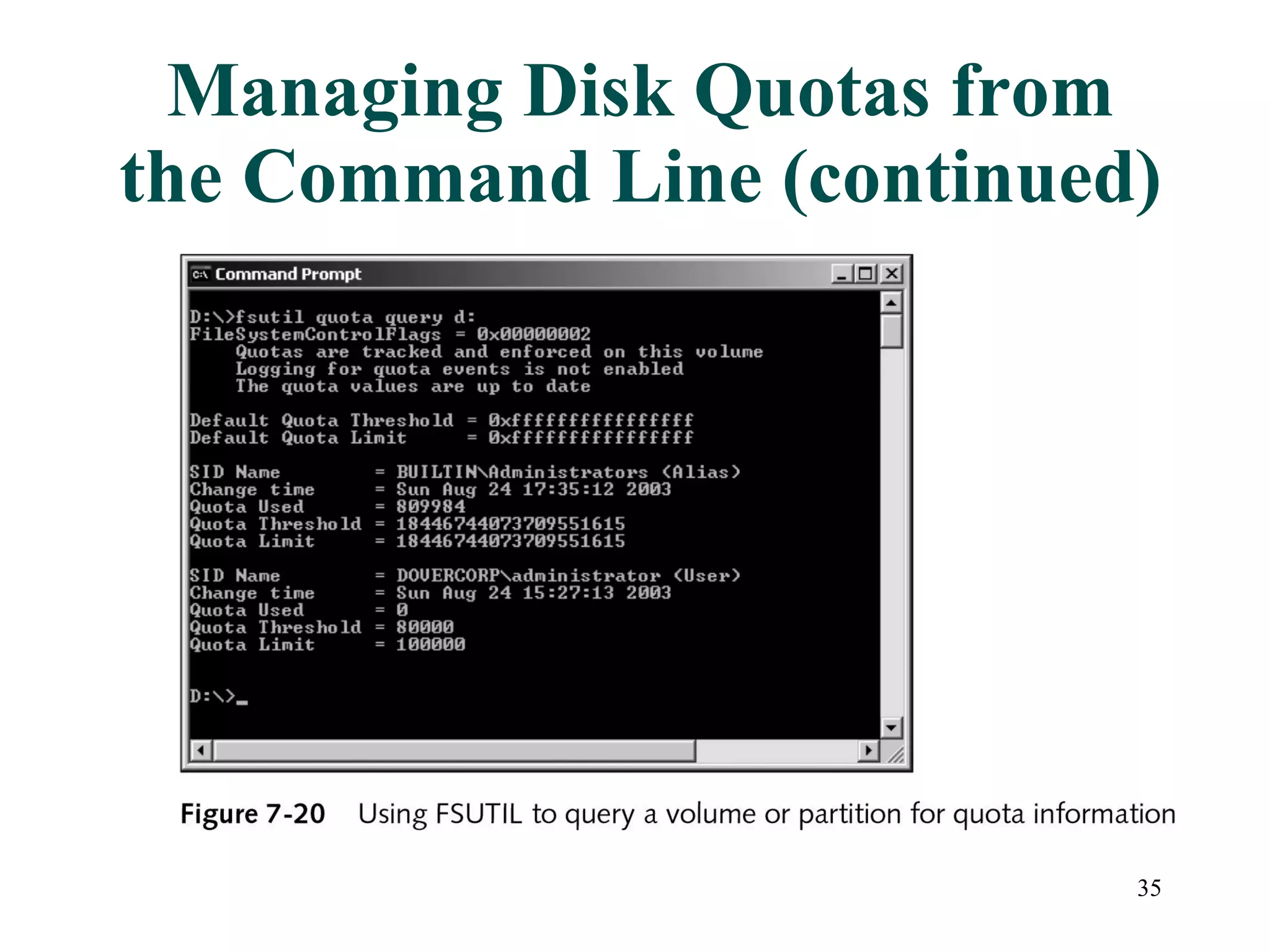
Managing Disk Quotas from the Command Line FSUTIL QUOTA command-line utility can be used to manage disk quotas Can enable/disable, modify, display, track, report  Example (to enable disk quotas on drive E) fsutil quota enforce e: Events written to System log (displayed in Event Viewer) every hour by default fsutil behavior command can change the interval Help available for fsutil quota and fsutil behavior commands in Help and Support Center
Managing Disk Quotas from the Command Line (continued)
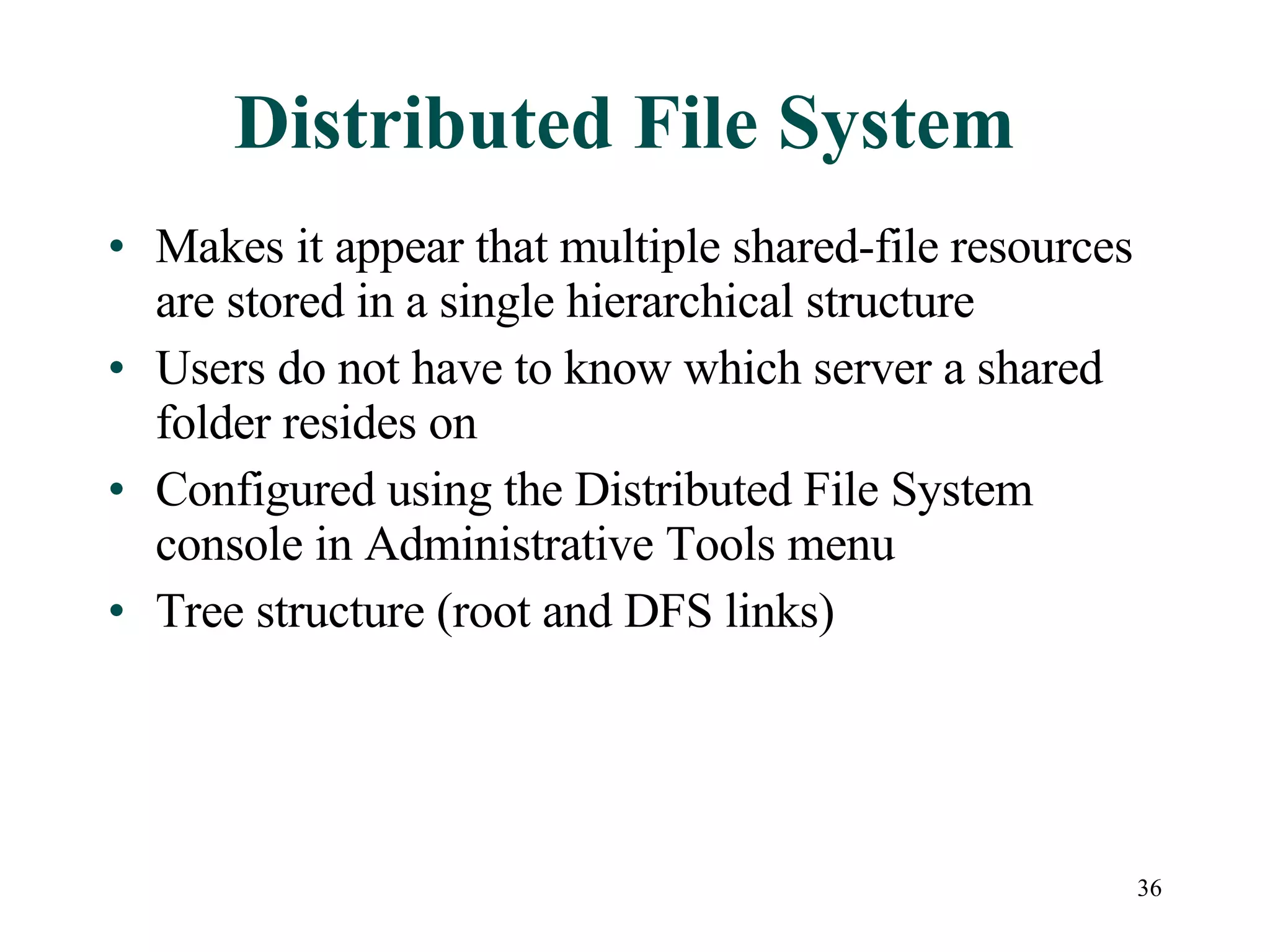
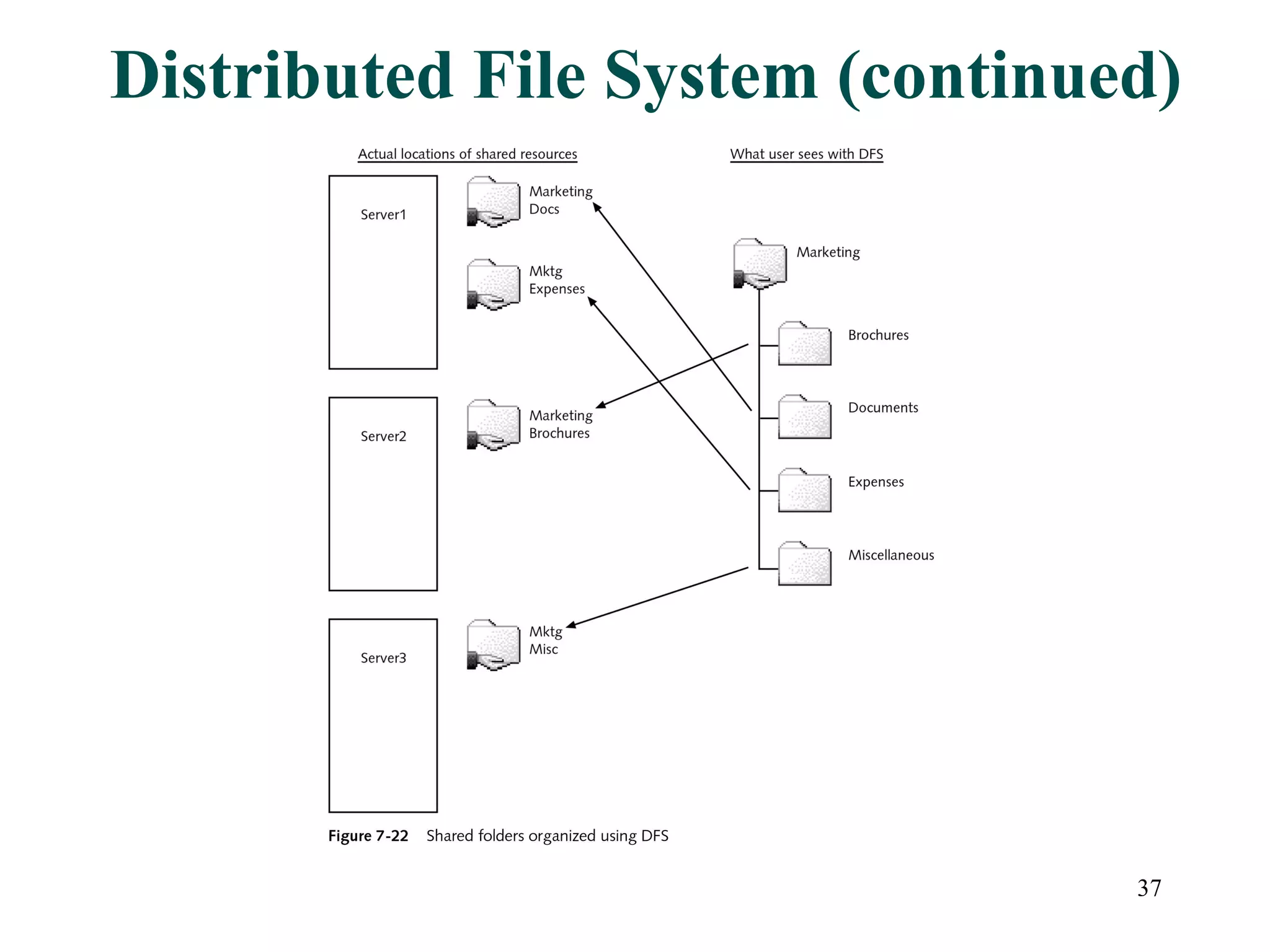
Distributed File System Makes it appear that multiple shared-file resources are stored in a single hierarchical structure Users do not have to know which server a shared folder resides on Configured using the Distributed File System console in Administrative Tools menu Tree structure (root and DFS links)
Distributed File System (continued)
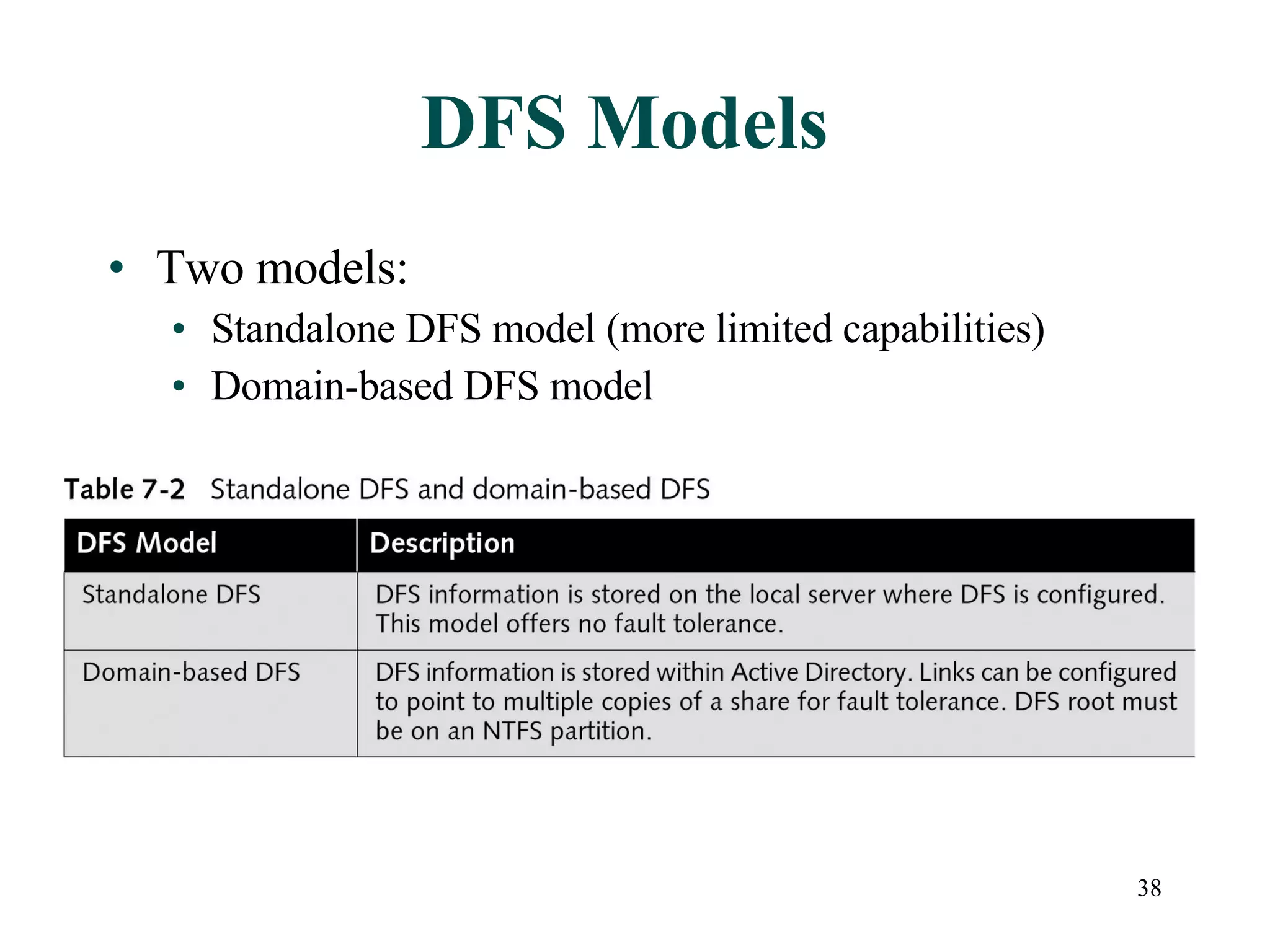
DFS Models Two models: Standalone DFS model (more limited capabilities) Domain-based DFS model
DFS Models (continued) Hierarchical structure is called DFS topology or logical structure, three elements to structure The DFS root  Main container on host server The DFS links Pointers to physical location of shared folders Servers on which the DFS shared folders are replicated as replica sets Replica set is set of shared folders that is replicated across multiple servers
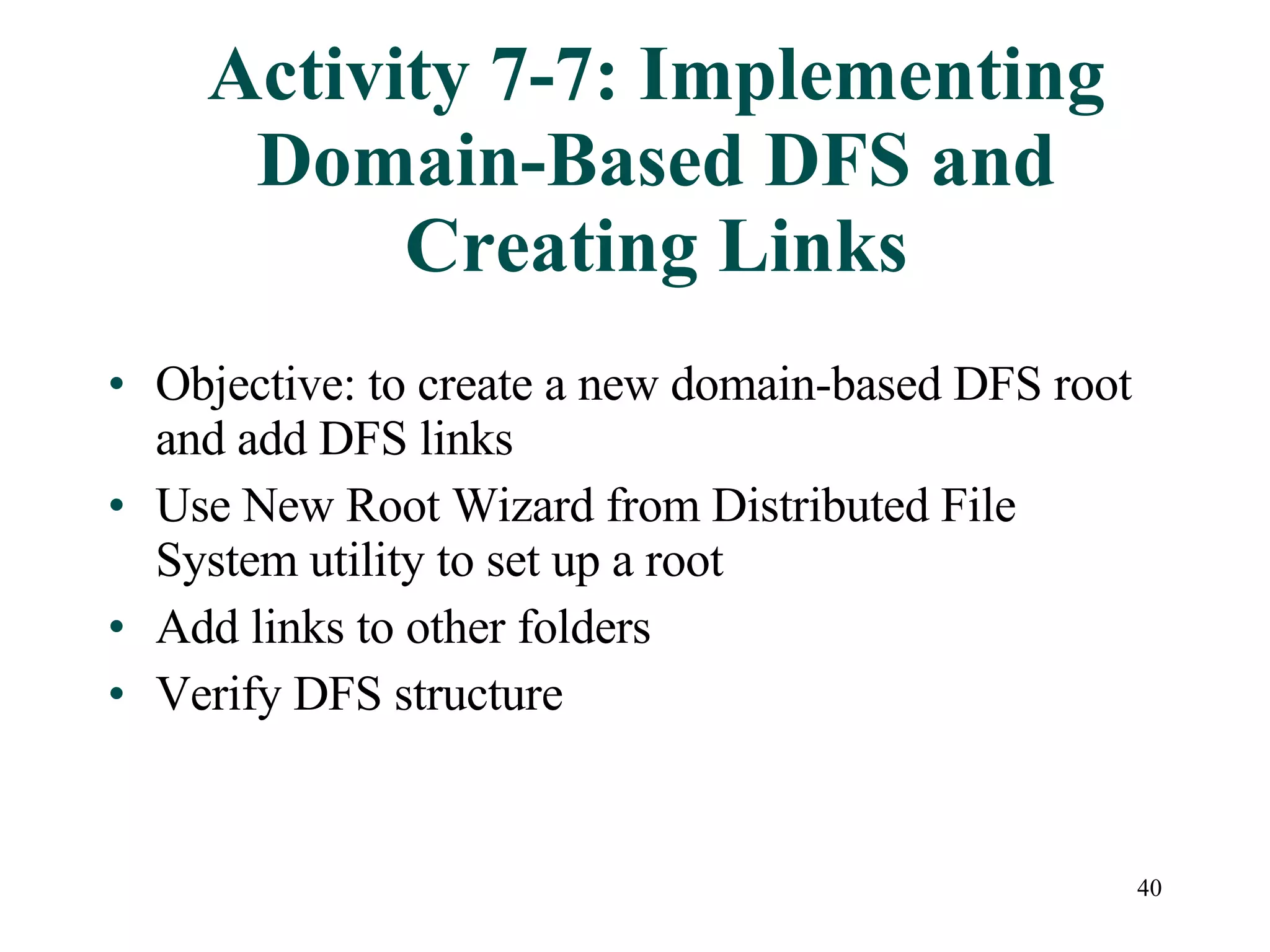
Activity 7-7: Implementing Domain-Based DFS and Creating Links Objective: to create a new domain-based DFS root and add DFS links Use New Root Wizard from Distributed File System utility to set up a root Add links to other folders Verify DFS structure
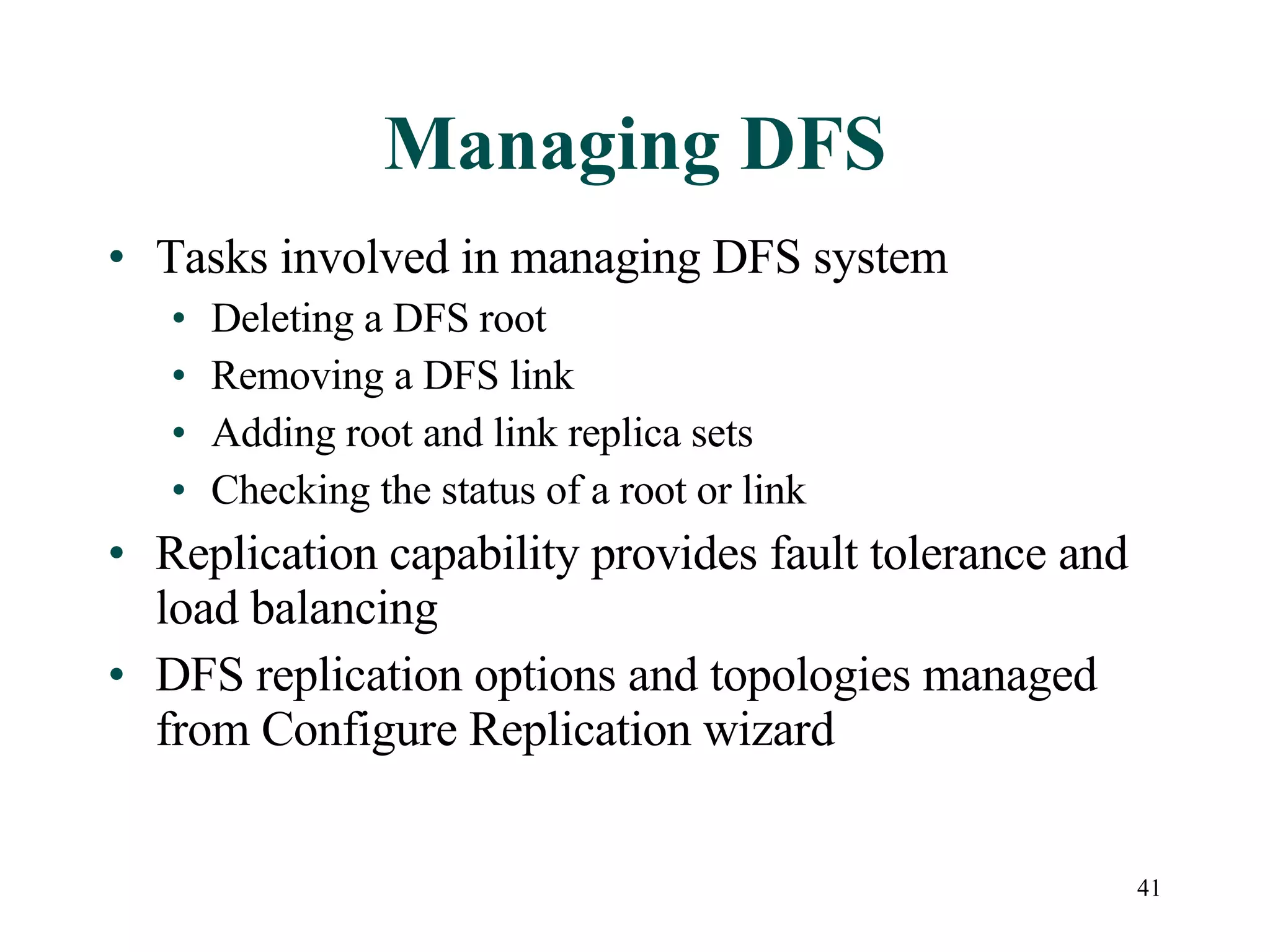
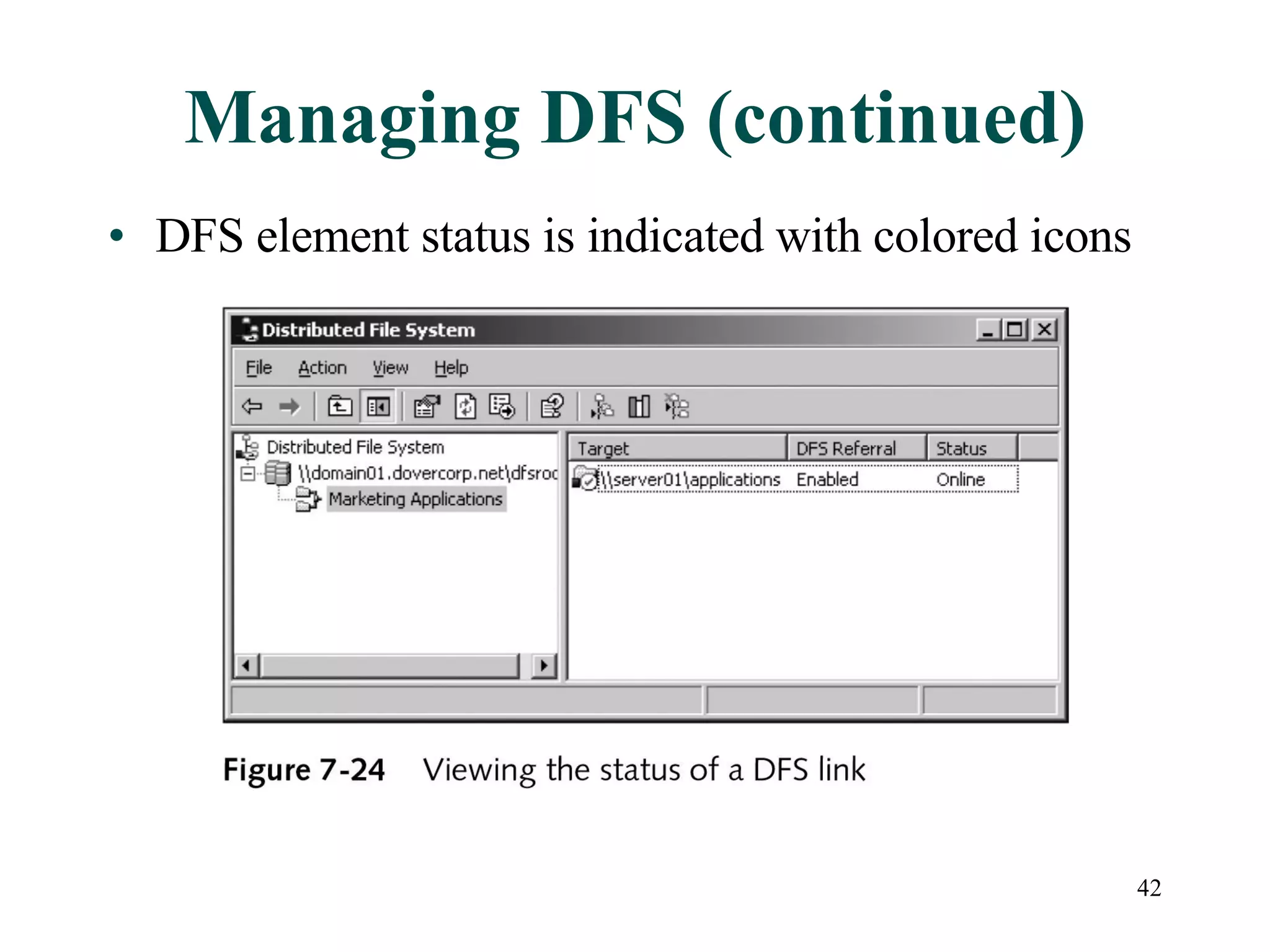
Managing DFS Tasks involved in managing DFS system Deleting a DFS root Removing a DFS link Adding root and link replica sets Checking the status of a root or link Replication capability provides fault tolerance and load balancing DFS replication options and topologies managed from Configure Replication wizard
Managing DFS (continued) DFS element status is indicated with colored icons
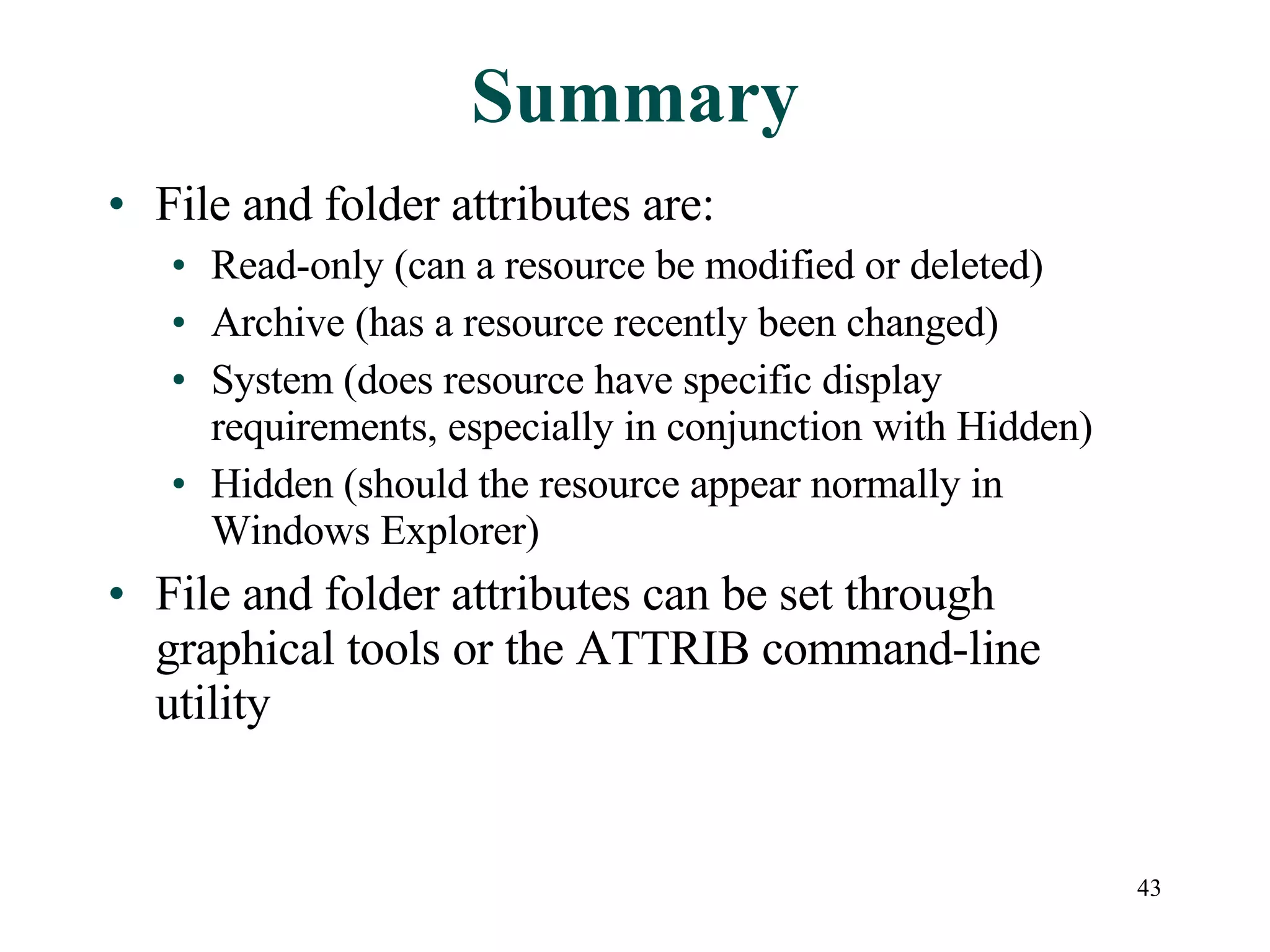
Summary File and folder attributes are: Read-only (can a resource be modified or deleted) Archive (has a resource recently been changed) System (does resource have specific display requirements, especially in conjunction with Hidden) Hidden (should the resource appear normally in Windows Explorer) File and folder attributes can be set through graphical tools or the ATTRIB command-line utility
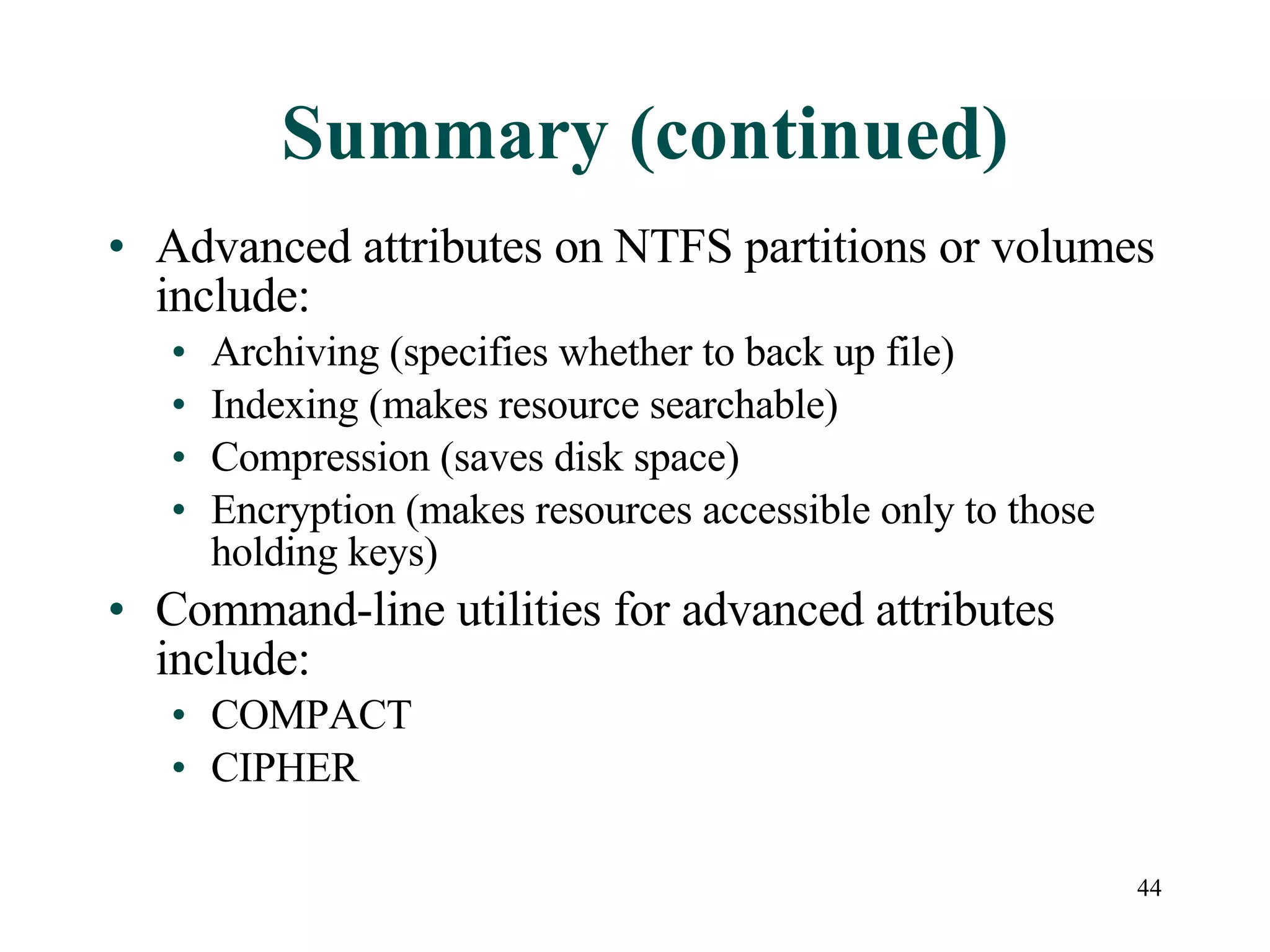
Summary (continued) Advanced attributes on NTFS partitions or volumes include: Archiving (specifies whether to back up file) Indexing (makes resource searchable) Compression (saves disk space) Encryption (makes resources accessible only to those holding keys) Command-line utilities for advanced attributes include: COMPACT CIPHER
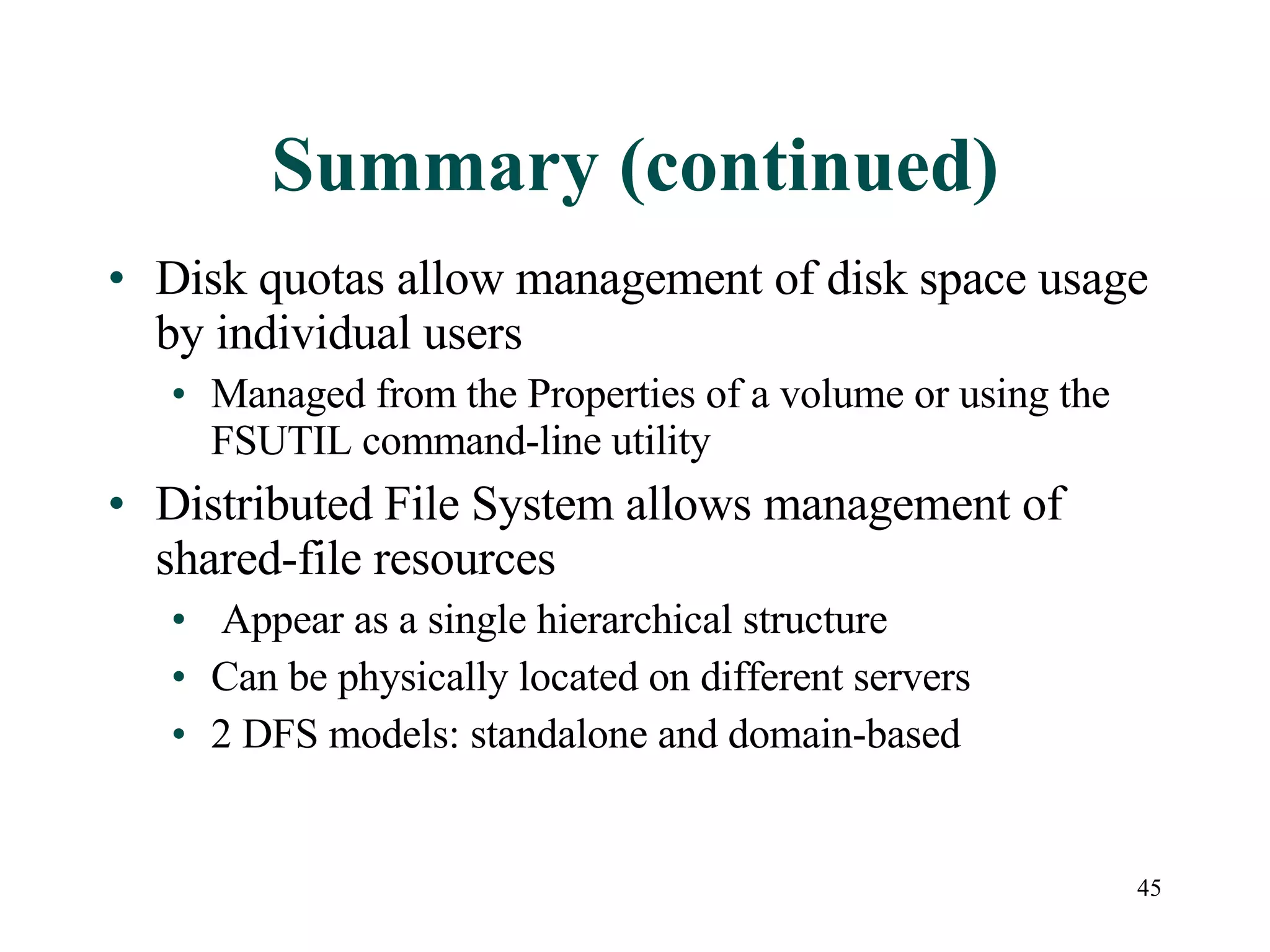
Summary (continued) Disk quotas allow management of disk space usage by individual users Managed from the Properties of a volume or using the FSUTIL command-line utility  Distributed File System allows management of shared-file resources  Appear as a single hierarchical structure Can be physically located on different servers 2 DFS models: standalone and domain-based

Chapter07 Advanced File System Management

  • 1.
    Managing a MicrosoftWindows Server 2003 Environment Chapter 7: Advanced File System Management
  • 2.
    Objectives Understand andconfigure file and folder attributes Understand and configure advanced file and folder attributes Implement and manage disk quotas Understand and implement the Distributed File System
  • 3.
    File and FolderAttributes Used since MS-DOS operating system Attributes describe files, folders, and their characteristics Applicable utilities include graphical tools and the ATTRIB command Four standard file and folder attributes Read-only Archive System hidden
  • 4.
    Read-only Designates thatthe contents of a file cannot be changed and file cannot be deleted Available in all file systems (FAT, FAT32, NTFS partitions and volumes) FAT, FAT32 attributes can be changed by any user NTFS attribute can only be changed by a user with appropriate permissions Can be configured for a file or folder For folders, attribute pertains to the files it contains, not the folder itself
  • 5.
  • 6.
    Archive Marks whichfiles and folders have been recently changed or created Recently modified files are marked as ready for archiving Important for backup Backup methods update the status of the archive attribute Viewing the attribute is done using Windows Explorer or command-line utilities (e.g., DIR, ATTRIB)
  • 7.
    System Originally designedto identify O.S. in MS-DOS In Windows Server 2003 Used in conjunction with hidden attribute When system and hidden both true, file or folder is “super hidden” (not displayed in Windows Explorer interface) Treated as “protected operating system files” with specific alternate display options Can only be manipulated using ATTRIB command
  • 8.
    Hidden Used tomake files and folders less visible to users from Windows Explorer and command-line Default configuration in Windows Server 2003 displays hidden files as semi-transparent icons unless in conjunction with system attribute Hidden attribute can be configured from General tab of Properties
  • 9.
    Hidden (continued) Visibilitycan be configured from View tab of Folder Options from Tools in Windows Explorer Show hidden file and folders Hidden files and folders appear in Windows Explorer as semi-transparent icons Do not show hidden files and folders Files with set hidden attributes do not appear in Windows Explorer Hide protected operating system files All files with both hidden and system attributes set are hidden in Windows Explorer when set
  • 10.
  • 11.
    Activity 7-1: Viewingand Configuring File and Folder Attributes Using Windows Explorer Objective: Use Windows Explorer to view and configure file and folder attributes Use Windows Explorer to view sets of files and folders that are visible by default Reconfigure View settings Observe results of configurations
  • 12.
    The ATTRIB CommandA command-line utility used to view, add or remove the four attributes of files and folders Only way to configure system attribute Supports wildcards (*) allowing multiple files or folders to be changed simultaneously Syntax View: attrib filename Set: attrib + attribute filename Remove: attrib – attribute filename
  • 13.
    Activity 7-2: ChangingFile Attributes Using the ATTRIB Command Objective: View and change file attributes from the command line Create a new folder and files Observe attributes Change attributes using ATTRIB Observe changes Hide protected files Observe changes
  • 14.
    Advanced Attributes Advancedattributes found on NTFS partitions or volumes Archive and Index attributes File is ready for archiving Indexing service Compress or Encrypt Compress contents to save disk space Encrypt contents to secure data
  • 15.
  • 16.
    File Compression Reducesamount of disk space needed for files and folders Automatically uncompressed when the resource is accessed Compressed resources displayed in different color in Windows Explorer (blue by default) Moving and copying resources can affect compression
  • 17.
    Activity 7-3: ConfiguringFolder Compression Settings Objective: Configure a folder to compress its contents Create a folder, copy a file into it Set the compression attribute on the folder to compress itself and its contents Note the appearance of the folder and verify compression of contents
  • 18.
  • 19.
    COMPACT Used withNTFS file system only Command-line utility for configuring the compression attribute Syntax COMPACT (to view) COMPACT switches resourcename (to set attributes) Switches /c (to compress resources) /u (to uncompress resources)
  • 20.
    File Encryption EncryptingFile System (EFS) uses public key cryptography to encrypt files and folders Only on NTFS file systems Transparent to user Implemented using 2 main types of keys File encryption key (FEK) Session key added to header of encrypted data ( data decryption field ) Public key encrypts DDF
  • 21.
    File Encryption (continued)Main challenge for public key cryptography is when users leave organization Can rename user account Can use data recovery agent FEK also stored in data recovery field (DRF) Encrypted using data recovery agent’s public key Default is administrator, additional recovery agents can be designated Moving or copying files can affect encryption Encrypted files cannot be compressed, vice versa
  • 22.
    Activity 7-4: EncryptingFiles Using Windows Explorer Objective: Implement and test file encryption security using EFS Configure encryption on a folder and create a file in the folder Try to open the folder and file from another user account and observe results Try to open the folder and file from a domain administrator account and observe results
  • 23.
    Sharing Encrypted FilesIn Windows 2000, only user and data recovery agent could access an encrypted file In Windows Server 2003, Advanced Attributes allows sharing with other specific named users Issues: Only for files, not folders Can only share with users, not groups Users must have a certificate on computer Users must have appropriate NTFS permissions
  • 24.
  • 25.
    The CIPHER CommandCommand-line utility for file and folder encryption Used by administrator NTFS partitions and volumes only Syntax CIPHER (to view) CIPHER switches resourcename (to set attributes)
  • 26.
    The CIPHER Command(continued)
  • 27.
    The CIPHER Command(continued) Switches /e (to encrypt a folder) /d (to decrypt a folder) /a (to apply other switches to a file rather than a folder) Cannot encrypt files which have their read-only attribute set Can use the wildcard character (*)
  • 28.
    Activity 7-5: EncryptingFiles Using the CIPHER Utility Objective: To encrypt and decrypt files using CIPHER Create a new folder and files Encrypt a single file and observe the results Encrypt files using the wildcard character and observe results
  • 29.
    Disk Quotas Diskquotas used to monitor and control user disk space Advantages Prevents users from consuming all disk space Encourages users to delete old files Allows monitoring for planning purposes Allows monitoring of individual users Disabled by default Implemented only on NTFS volumes Configured from Properties of a volume
  • 30.
  • 31.
  • 32.
  • 33.
    Activity 7-6: Configuringand Managing Disk Quotas Objective: Enable and manage disk quota settings Enable quota management Configure “soft” disk quota settings Observe results Set up a warning situation and observe results
  • 34.
    Managing Disk Quotasfrom the Command Line FSUTIL QUOTA command-line utility can be used to manage disk quotas Can enable/disable, modify, display, track, report Example (to enable disk quotas on drive E) fsutil quota enforce e: Events written to System log (displayed in Event Viewer) every hour by default fsutil behavior command can change the interval Help available for fsutil quota and fsutil behavior commands in Help and Support Center
  • 35.
    Managing Disk Quotasfrom the Command Line (continued)
  • 36.
    Distributed File SystemMakes it appear that multiple shared-file resources are stored in a single hierarchical structure Users do not have to know which server a shared folder resides on Configured using the Distributed File System console in Administrative Tools menu Tree structure (root and DFS links)
  • 37.
  • 38.
    DFS Models Twomodels: Standalone DFS model (more limited capabilities) Domain-based DFS model
  • 39.
    DFS Models (continued)Hierarchical structure is called DFS topology or logical structure, three elements to structure The DFS root Main container on host server The DFS links Pointers to physical location of shared folders Servers on which the DFS shared folders are replicated as replica sets Replica set is set of shared folders that is replicated across multiple servers
  • 40.
    Activity 7-7: ImplementingDomain-Based DFS and Creating Links Objective: to create a new domain-based DFS root and add DFS links Use New Root Wizard from Distributed File System utility to set up a root Add links to other folders Verify DFS structure
  • 41.
    Managing DFS Tasksinvolved in managing DFS system Deleting a DFS root Removing a DFS link Adding root and link replica sets Checking the status of a root or link Replication capability provides fault tolerance and load balancing DFS replication options and topologies managed from Configure Replication wizard
  • 42.
    Managing DFS (continued)DFS element status is indicated with colored icons
  • 43.
    Summary File andfolder attributes are: Read-only (can a resource be modified or deleted) Archive (has a resource recently been changed) System (does resource have specific display requirements, especially in conjunction with Hidden) Hidden (should the resource appear normally in Windows Explorer) File and folder attributes can be set through graphical tools or the ATTRIB command-line utility
  • 44.
    Summary (continued) Advancedattributes on NTFS partitions or volumes include: Archiving (specifies whether to back up file) Indexing (makes resource searchable) Compression (saves disk space) Encryption (makes resources accessible only to those holding keys) Command-line utilities for advanced attributes include: COMPACT CIPHER
  • 45.
    Summary (continued) Diskquotas allow management of disk space usage by individual users Managed from the Properties of a volume or using the FSUTIL command-line utility Distributed File System allows management of shared-file resources Appear as a single hierarchical structure Can be physically located on different servers 2 DFS models: standalone and domain-based