1 
Isometric Drawings 
A 
ISOMETRIC BASICS 
Isometric drawings are a means of drawing an object in picture form for better clari-fying 
the object’s appearance. These types of drawings resemble a picture of an object 
that is drawn in two dimensions. As a result, existing AutoCAD commands such as 
LINE and COPY are used for producing isometric drawings. This chapter will explain 
isometric basics including how regular, angular, and circular objects are drawn in 
isometric. Numerous isometric aids such as snap and isometric axes will be explained 
to assist in the construction of isometric drawings. 
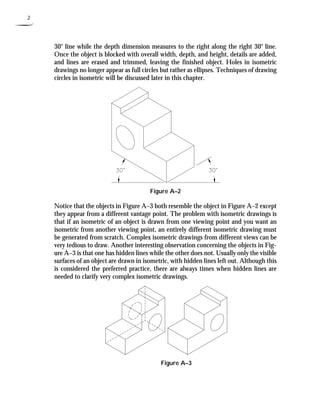
Isometric drawings consist of two-dimensional drawings that are tilted at some angle 
to expose other views and give the viewer the illusion that what he or she is viewing is 
a three-dimensional drawing. The tilting occurs with two 30° angles that are struck 
from the intersection of a horizontal baseline and a vertical line (see Figure A–1). 
The directions formed by the 30° angles represent actual dimensions of the object; 
this may be either the width or depth. The vertical line in most cases represents the 
height dimension. 
Figure A–1 
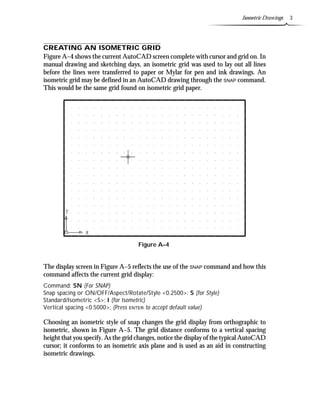
Figure A–2 is a very simple example of how an object is aligned to the isometric axis. 
Once the horizontal baseline and vertical line are drawn, the 30° angles are projected 
from this common point, which becomes the reference point of the isometric view. 
In this example, once the 30° lines are drawn, the baseline is no longer needed and it 
is usually discarded through erasing. Depending on how the object is to be viewed, 
width and depth measurements are made along the 30° lines. Height is measured 
along the vertical line. Figure A–2 has the width dimension measured off to the left
2 
30° line while the depth dimension measures to the right along the right 30° line. 
Once the object is blocked with overall width, depth, and height, details are added, 
and lines are erased and trimmed, leaving the finished object. Holes in isometric 
drawings no longer appear as full circles but rather as ellipses. Techniques of drawing 
circles in isometric will be discussed later in this chapter. 
Figure A–2 
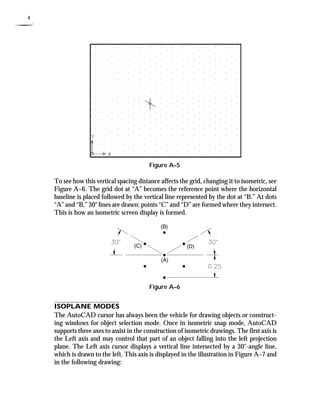
Notice that the objects in Figure A–3 both resemble the object in Figure A–2 except 
they appear from a different vantage point. The problem with isometric drawings is 
that if an isometric of an object is drawn from one viewing point and you want an 
isometric from another viewing point, an entirely different isometric drawing must 
be generated from scratch. Complex isometric drawings from different views can be 
very tedious to draw. Another interesting observation concerning the objects in Fig-ure 
A–3 is that one has hidden lines while the other does not. Usually only the visible 
surfaces of an object are drawn in isometric, with hidden lines left out. Although this 
is considered the preferred practice, there are always times when hidden lines are 
needed to clarify very complex isometric drawings. 
Figure A–3
Isometric Drawings 3 
CREATING AN ISOMETRIC GRID 
Figure A–4 shows the current AutoCAD screen complete with cursor and grid on. In 
manual drawing and sketching days, an isometric grid was used to lay out all lines 
before the lines were transferred to paper or Mylar for pen and ink drawings. An 
isometric grid may be defined in an AutoCAD drawing through the SNAP command. 
This would be the same grid found on isometric grid paper. 
Figure A–4 
The display screen in Figure A–5 reflects the use of the SNAP command and how this 
command affects the current grid display: 
Command: SN (For SNAP) 
Snap spacing or ON/OFF/Aspect/Rotate/Style <0.2500>: S (for Style) 
Standard/Isometric <S>: I (for Isometric) 
Vertical spacing <0.5000>: (Press ENTERto accept default value) 
Choosing an isometric style of snap changes the grid display from orthographic to 
isometric, shown in Figure A–5. The grid distance conforms to a vertical spacing 
height that you specify. As the grid changes, notice the display of the typical AutoCAD 
cursor; it conforms to an isometric axis plane and is used as an aid in constructing 
isometric drawings.
4 
Figure A–5 
To see how this vertical spacing distance affects the grid, changing it to isometric, see 
Figure A–6. The grid dot at “A” becomes the reference point where the horizontal 
baseline is placed followed by the vertical line represented by the dot at “B.” At dots 
“A” and “B,” 30° lines are drawn; points “C” and “D” are formed where they intersect. 
This is how an isometric screen display is formed. 
Figure A–6 
ISOPLANE MODES 
The AutoCAD cursor has always been the vehicle for drawing objects or construct-ing 
windows for object selection mode. Once in isometric snap mode, AutoCAD 
supports three axes to assist in the construction of isometric drawings. The first axis is 
the Left axis and may control that part of an object falling into the left projection 
plane. The Left axis cursor displays a vertical line intersected by a 30°-angle line, 
which is drawn to the left. This axis is displayed in the illustration in Figure A–7 and 
in the following drawing:
Isometric Drawings 5 
Figure A–7 
The next isometric axis is the Top mode. Objects falling into the top projection plane 
may be drawn using this isometric axis. This cursor consists of two 30°-angle lines 
intersecting each other forming the center of the cursor. This mode is displayed in 
Figure A–8 and in the following drawing: 
Figure A–8
6 
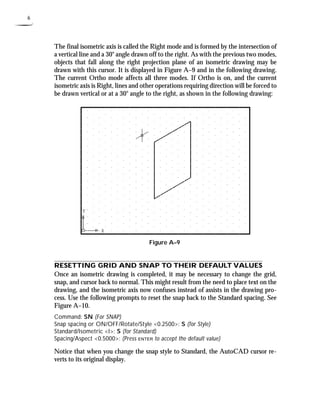
The final isometric axis is called the Right mode and is formed by the intersection of 
a vertical line and a 30° angle drawn off to the right. As with the previous two modes, 
objects that fall along the right projection plane of an isometric drawing may be 
drawn with this cursor. It is displayed in Figure A–9 and in the following drawing. 
The current Ortho mode affects all three modes. If Ortho is on, and the current 
isometric axis is Right, lines and other operations requiring direction will be forced to 
be drawn vertical or at a 30° angle to the right, as shown in the following drawing: 
Figure A–9 
RESETTING GRID AND SNAP TO THEIR DEFAULT VALUES 
Once an isometric drawing is completed, it may be necessary to change the grid, 
snap, and cursor back to normal. This might result from the need to place text on the 
drawing, and the isometric axis now confuses instead of assists in the drawing pro-cess. 
Use the following prompts to reset the snap back to the Standard spacing. See 
Figure A–10. 
Command: SN (For SNAP) 
Snap spacing or ON/OFF/Rotate/Style 0.2500: S (for Style) 
Standard/Isometric I: S (for Standard) 
Spacing/Aspect 0.5000: (Press ENTERto accept the default value) 
Notice that when you change the snap style to Standard, the AutoCAD cursor re-verts 
to its original display.
Isometric Drawings 7 
Figure A–10 
ISOMETRIC AIDS IN THE DRAFTING SETTINGS DIALOG BOX 
Choosing Drafting Settings… from the Tools pull-down menu in Figure A–11A 
displays the Drafting Settings dialog box in Figure A–11B. Here, in addition to Snap 
and Grid, an Isometric area exists to automatically set up an isometric grid by click-ing 
in the radio button next to Isometric Snap. This has the same effect as using the 
SNAP-Style-Isometric option. 
Figure A–11A Figure A–11B
8 
Various methods exist to switch from one isometric axis mode to another. By default, 
after you set up an isometric grid, the Left isometric axis mode is active (see Figure 
A–12). When you press CTRL+E, the Left axis mode changes to the Top axis mode. 
Pressing CTRL+E again changes from the Top axis mode to the Right axis mode. 
Pressing CTRL+E a third time changes from the Right axis mode back to the Left axis 
mode, and the pattern repeats from here. Using this keyboard entry, it is possible to 
switch or toggle from one mode to another. 
The F5 function key also allows you to scroll through the different Isoplane modes. 
Figure A–12 
CREATING ISOMETRIC CIRCLES 
Circles appear as ellipses when drawn in any of the three isometric axes. The ELLIPSE 
command has a special Isocircle option to assist in drawing isometric circles; the 
Isocircle option will appear in the ELLIPSE command only if the current SNAP-Style 
is Isometric (see Figure A–13). The prompt sequence for this command is: 
Command: EL (For ELLIPSE) 
Arc/Center/Isocircle/Axis endpoint 1: I (for Isocircle) 
Center of circle: (Select a center point) 
Circle radius/Diameter: (Enter a value for the radius or type “D” for diameter and 
enter a value) 
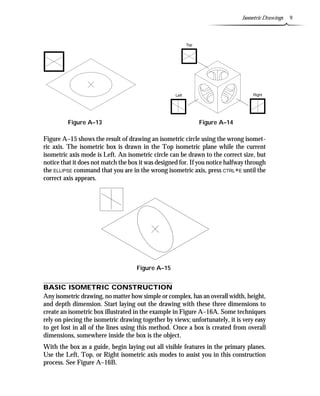
When you draw isometric circles using the ELLIPSE command, it is important to match 
the isometric axis with the isometric plane the circle is to be drawn in. Figure A–14 
shows a cube displaying all three axes. 
Try It! - Open the drawing file A_Iso Ellipse1. This drawing is similar to Figure 
A–14. Using the three isometric planes, construct ellipses with a diameter of 2.00 
units using the “X” points as centers.
Isometric Drawings 9 
Figure A–13 Figure A–14 
Figure A–15 shows the result of drawing an isometric circle using the wrong isomet-ric 
axis. The isometric box is drawn in the Top isometric plane while the current 
isometric axis mode is Left. An isometric circle can be drawn to the correct size, but 
notice that it does not match the box it was designed for. If you notice halfway through 
the ELLIPSE command that you are in the wrong isometric axis, press CTRL+E until the 
correct axis appears. 
Figure A–15 
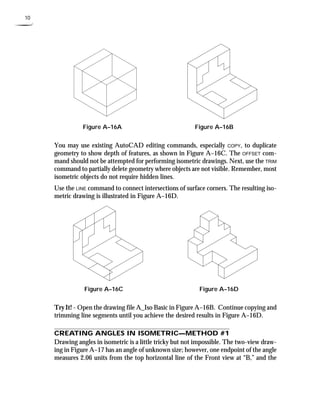
BASIC ISOMETRIC CONSTRUCTION 
Any isometric drawing, no matter how simple or complex, has an overall width, height, 
and depth dimension. Start laying out the drawing with these three dimensions to 
create an isometric box illustrated in the example in Figure A–16A. Some techniques 
rely on piecing the isometric drawing together by views; unfortunately, it is very easy 
to get lost in all of the lines using this method. Once a box is created from overall 
dimensions, somewhere inside the box is the object. 
With the box as a guide, begin laying out all visible features in the primary planes. 
Use the Left, Top, or Right isometric axis modes to assist you in this construction 
process. See Figure A–16B.
10 
Figure A–16A Figure A–16B 
You may use existing AutoCAD editing commands, especially COPY, to duplicate 
geometry to show depth of features, as shown in Figure A–16C. The OFFSET com-mand 
should not be attempted for performing isometric drawings. Next, use the TRIM 
command to partially delete geometry where objects are not visible. Remember, most 
isometric objects do not require hidden lines. 
Use the LINE command to connect intersections of surface corners. The resulting iso-metric 
drawing is illustrated in Figure A–16D. 
Figure A–16C Figure A–16D 
Try It! - Open the drawing file A_Iso Basic in Figure A–16B. Continue copying and 
trimming line segments until you achieve the desired results in Figure A–16D. 
CREATING ANGLES IN ISOMETRIC—METHOD #1 
Drawing angles in isometric is a little tricky but not impossible. The two-view draw-ing 
in Figure A–17 has an angle of unknown size; however, one endpoint of the angle 
measures 2.06 units from the top horizontal line of the Front view at “B,” and the
Isometric Drawings 11 
other endpoint measures 1.00 unit from the vertical line of the Front view at “A.” 
This is more than enough information to lay out the endpoints of the angle in iso-metric. 
You can use the MEASURE command to lay out these distances easily. The LINE 
command is then used to connect the points to form the angle. 
Figure A–17 
Before using the MEASURE command, set the PDMODE variable to a new value of 3. 
Points will appear as an X instead of a dot, as shown in Figure A–18A. Points may 
also be set through the Point Style dialog box found in the Format menu. Now use 
the MEASURE command to set off the two distances. 
Command: PDMODE 
New value for PDMODE 0: 3 
Command: ME (For MEASURE) 
Select object to measure: (Select the inclined line at “A”) 
Segment length/Block: 1.00 
Command: ME (For MEASURE) 
Select object to measure: (Select the vertical line at “B”) 
Segment length/Block: 2.06 
When using the MEASURE command, the measuring will occur at the nearest endpoint 
of the line where the line was selected. Once the points have been placed, the LINE 
command is used to draw a line from one point to the other using the OSNAP-Node 
option (see Figure A–18B).
12 
Figure A–18A Figure A–18B 
Try It! - Open the drawing file A_Iso Angle1. Use the previous figures as guides in 
constructing the angle in isometric mode in Figure A–18B. Notice that you may get 
more points than needed. Draw the line from the nodes nearest the end of the line 
you selected with the MEASURE command. 
CREATING ANGLES IN ISOMETRIC—METHOD #2 
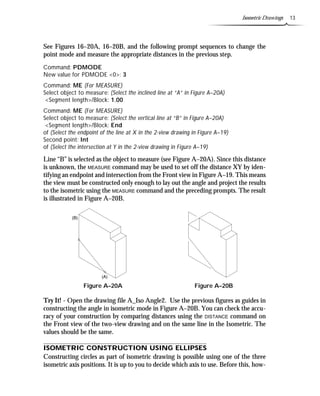
The same two-view drawing is illustrated in Figure A–19. This time, one distance is 
specified along with an angle of 30°. Even with the angle given, the position of the 
isometric axes makes any angle construction by degrees inaccurate. The distance XY is 
still needed for constructing the angle in isometric. Use the MEASURE command to find 
distance XY, place a point, and connect the first distance with the second to form the 
30° angle in isometric. It is always best to set the PDMODE system variable to a new value 
in order to visibly view the point. Points may also be set through the Point Style dialog 
box found in the Format menu. A new value of 3 will assign the point as an X. 
Figure A–19
Isometric Drawings 13 
See Figures 16–20A, 16–20B, and the following prompt sequences to change the 
point mode and measure the appropriate distances in the previous step. 
Command: PDMODE 
New value for PDMODE 0: 3 
Command: ME (For MEASURE) 
Select object to measure: (Select the inclined line at “A” in Figure A–20A) 
Segment length/Block: 1.00 
Command: ME (For MEASURE) 
Select object to measure: (Select the vertical line at “B” in Figure A–20A) 
Segment length/Block: End 
of (Select the endpoint of the line at X in the 2-view drawing in Figure A–19) 
Second point: Int 
of (Select the intersection at Y in the 2-view drawing in Figure A–19) 
Line “B” is selected as the object to measure (see Figure A–20A). Since this distance 
is unknown, the MEASURE command may be used to set off the distance XY by iden-tifying 
an endpoint and intersection from the Front view in Figure A–19. This means 
the view must be constructed only enough to lay out the angle and project the results 
to the isometric using the MEASURE command and the preceding prompts. The result 
is illustrated in Figure A–20B. 
Figure A–20A Figure A–20B 
Try It! - Open the drawing file A_Iso Angle2. Use the previous figures as guides in 
constructing the angle in isometric mode in Figure A–20B. You can check the accu-racy 
of your construction by comparing distances using the DISTANCE command on 
the Front view of the two-view drawing and on the same line in the Isometric. The 
values should be the same. 
ISOMETRIC CONSTRUCTION USING ELLIPSES 
Constructing circles as part of isometric drawing is possible using one of the three 
isometric axis positions. It is up to you to decide which axis to use. Before this, how-
14 
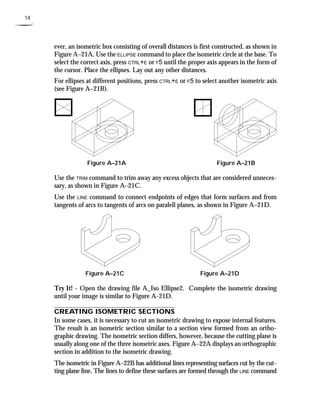
ever, an isometric box consisting of overall distances is first constructed, as shown in 
Figure A–21A. Use the ELLIPSE command to place the isometric circle at the base. To 
select the correct axis, press CTRL+E or F5 until the proper axis appears in the form of 
the cursor. Place the ellipses. Lay out any other distances. 
For ellipses at different positions, press CTRL+E or F5 to select another isometric axis 
(see Figure A–21B). 
Figure A–21A Figure A–21B 
Use the TRIM command to trim away any excess objects that are considered unneces-sary, 
as shown in Figure A–21C. 
Use the LINE command to connect endpoints of edges that form surfaces and from 
tangents of arcs to tangents of arcs on paralell planes, as shown in Figure A–21D. 
Figure A–21C Figure A–21D 
Try It! - Open the drawing file A_Iso Ellipse2. Complete the isometric drawing 
until your image is similar to Figure A-21D. 
CREATING ISOMETRIC SECTIONS 
In some cases, it is necessary to cut an isometric drawing to expose internal features. 
The result is an isometric section similar to a section view formed from an ortho-graphic 
drawing. The isometric section differs, however, because the cutting plane is 
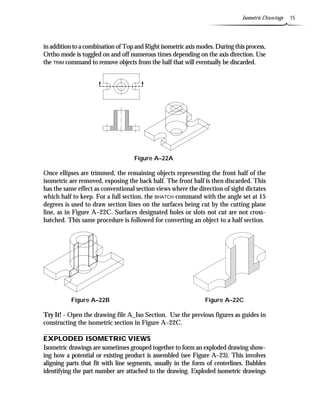
usually along one of the three isometric axes. Figure A–22A displays an orthographic 
section in addition to the isometric drawing. 
The isometric in Figure A–22B has additional lines representing surfaces cut by the cut-ting 
plane line. The lines to define these surfaces are formed through the LINE command
Isometric Drawings 15 
in addition to a combination of Top and Right isometric axis modes. During this process, 
Ortho mode is toggled on and off numerous times depending on the axis direction. Use 
the TRIM command to remove objects from the half that will eventually be discarded. 
. 
Figure A–22A 
Once ellipses are trimmed, the remaining objects representing the front half of the 
isometric are removed, exposing the back half. The front half is then discarded. This 
has the same effect as conventional section views where the direction of sight dictates 
which half to keep. For a full section, the BHATCH command with the angle set at 15 
degrees is used to draw section lines on the surfaces being cut by the cutting plane 
line, as in Figure A–22C. Surfaces designated holes or slots not cut are not cross-hatched. 
This same procedure is followed for converting an object to a half section. 
Figure A–22B Figure A–22C 
Try It! - Open the drawing file A_Iso Section. Use the previous figures as guides in 
constructing the isometric section in Figure A–22C. 
EXPLODED ISOMETRIC VIEWS 
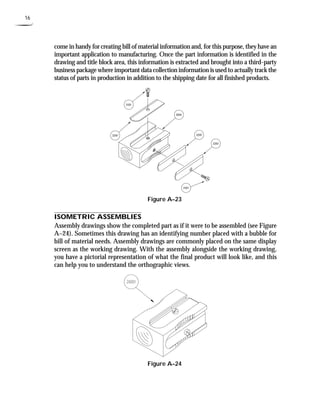
Isometric drawings are sometimes grouped together to form an exploded drawing show-ing 
how a potential or existing product is assembled (see Figure A–23). This involves 
aligning parts that fit with line segments, usually in the form of centerlines. Bubbles 
identifying the part number are attached to the drawing. Exploded isometric drawings
16 
come in handy for creating bill of material information and, for this purpose, they have an 
important application to manufacturing. Once the part information is identified in the 
drawing and title block area, this information is extracted and brought into a third-party 
business package where important data collection information is used to actually track the 
status of parts in production in addition to the shipping date for all finished products. 
Figure A–23 
ISOMETRIC ASSEMBLIES 
Assembly drawings show the completed part as if it were to be assembled (see Figure 
A–24). Sometimes this drawing has an identifying number placed with a bubble for 
bill of material needs. Assembly drawings are commonly placed on the same display 
screen as the working drawing. With the assembly alongside the working drawing, 
you have a pictorial representation of what the final product will look like, and this 
can help you to understand the orthographic views. 
Figure A–24
Isometric Drawings 17 
TUTORIAL EXERCISE: PLATE.DWG 
Figure A–25 
Purpose 
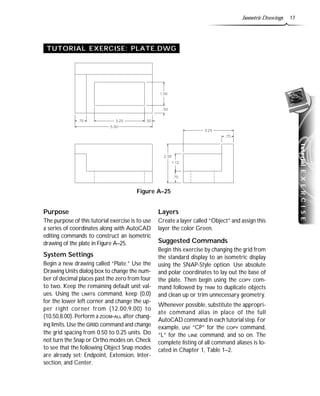
The purpose of this tutorial exercise is to use 
a series of coordinates along with AutoCAD 
editing commands to construct an isometric 
drawing of the plate in Figure A–25. 
System Settings 
Begin a new drawing called “Plate.” Use the 
Drawing Units dialog box to change the num-ber 
of decimal places past the zero from four 
to two. Keep the remaining default unit val-ues. 
Using the LIMITS command, keep (0,0) 
for the lower left corner and change the up-per 
right corner from (12.00,9.00) to 
(10.50,8.00). Perform a ZOOM-ALL after chang-ing 
limits. Use the GRID command and change 
the grid spacing from 0.50 to 0.25 units. Do 
not turn the Snap or Ortho modes on. Check 
to see that the following Object Snap modes 
are already set: Endpoint, Extension, Inter-section, 
and Center. 
Layers 
Create a layer called “Object” and assign this 
layer the color Green. 
Suggested Commands 
Begin this exercise by changing the grid from 
the standard display to an isometric display 
using the SNAP-Style option. Use absolute 
and polar coordinates to lay out the base of 
the plate. Then begin using the COPY com-mand 
followed by TRIM to duplicate objects 
and clean up or trim unnecessary geometry. 
Whenever possible, substitute the appropri-ate 
command alias in place of the full 
AutoCAD command in each tutorial step. For 
example, use “CP” for the COPY command, 
“L” for the LINE command, and so on. The 
complete listing of all command aliases is lo-cated 
in Chapter 1, Table 1–2. 
tutorial E X E R C I S E
18 
STEP 1 
Set a new polar tracking angle of 30° 
through the Polar Tracking tab of the 
Drafting Settings dialog box in Figure A– 
26A. Make the Object layer current. Then 
use the LINE command to draw the object 
in Figure A–26B. Notice, in the prompt 
sequence, that the Direct Distance mode 
is used because of the polar tracking angle 
setting of 30°. Also, be sure to turn Polar 
mode on by clicking on the POLAR but-ton 
in the status bar. 
Command: L (For LINE) 
Specify first point: 5.50,0.75 
Specify next point or [Undo]: (Move your 
cursor up and to the right until the polar 
angle tooltip reads 30 degrees and enter 
3.25) 
Specify next point or [Undo]: (Move your 
cursor up and to the left until the polar 
angle tooltip reads 150 degrees and enter 
5.00) 
Specify next point or [Close/Undo]: 
(Move your cursor down and to the left 
until the polar angle tooltip reads 210 
degrees and enter 3.25) 
Specify next point or [Close/Undo]: C 
(To close the shape and exit the 
command) 
Figure A–26A 
Figure A–26B
Isometric Drawings 19 
STEP 2 
Copy the four lines drawn in Step 1 up a 
distance of 2.50 units in the 90° direction 
in Figure A–27. 
Command: CP (For COPY) 
Select objects: (Select lines “A”, “B”,”C”, 
and “D”) 
Select objects: (Press ENTER to continue) 
Specify base point or displacement, or 
[Multiple]: (Pick the endpoint of the line 
at “A”) 
Specify second point of displacement or 
use first point as displacement: 
(Move your cursor up until the polar 
angle tooltip reads 90° and enter 2.50) 
Figure A–27 
STEP 3 
Connect the top and bottom isometric 
boxes with line segments, as shown in 
Figure A–28. Draw one segment using 
the LINE command. Repeat this process 
using the LINE command at points “C” and 
“D,” or use the COPY command and Mul-tiple 
option to duplicate and form the re-maining 
segments at “C” and “D.” Erase 
the two dashed lines because they are not 
visible in an isometric drawing. 
Command: L (For LINE) 
Specify first point: (Select the endpoint of 
the line at “A”) 
Specify next point or [Undo]: (Select the 
endpoint of the line at “B”) 
Specify next point or [Undo]: (Press 
ENTER to exit this command) 
Command: E (For ERASE) 
Select objects: (Select the two dashed lines 
in Figure A–28) 
Select objects: (Press ENTER to execute this 
command) 
Figure A–28
20 
STEP 4 
Copy the two dashed lines in Figure A–29 
a distance of 0.75 in the 210° direction. 
Command: CP (For COPY) 
Select objects: (Select the two dashed lines 
in Figure A–29) 
Select objects: (Press ENTER to continue) 
Specify base point or displacement, or 
[Multiple]: (Select the endpoint at “A”) 
Specify second point of displacement or 
use first point as displacement: 
(Move your cursor down and to the left 
until the polar angle tooltip reads 210° 
and enter 0.75) 
Figure A–29 
STEP 5 
Copy the two dashed lines in Figure A–30 
a distance of 0.75 in the 90° direction. 
This forms the base of the plate. 
Command: CP (For COPY) 
Select objects: (Select the two dashed lines 
in Figure A–30) 
Select objects: (Press ENTER to continue) 
Specify base point or displacement, or 
[Multiple]: (Select the endpoint at “A”) 
Specify second point of displacement or 
use first point as displacement: 
(Move your cursor up until the polar 
angle tooltip reads 90°and enter 0.75) Figure A–30
Isometric Drawings 21 
Figure A–31 
STEP 6 
Copy the dashed line in Figure A–31 a 
distance of 0.75 in the 330° direction. 
Command: CP (For COPY) 
Select objects: (Select the dashed line in 
Figure A–31) 
Select objects: (Press ENTER to continue) 
Specify base point or displacement, or 
[Multiple]: (Select the endpoint at “A”) 
Specify second point of displacement or 
use first point as displacement: 
(Move your cursor down and to the right 
until the polar angle tooltip reads 
330°and enter 0.75) 
STEP 7 
Use the FILLET command to place a cor-ner 
between the two dashed lines at “A” 
and “B” and at “C” and “D” in Figure 
A–32. Set the fillet radius to a value of 0 
to accomplish this. 
Command: F (For FILLET) 
Current settings: Mode = TRIM, Radius = 
0.50 
Select first object or [Polyline/Radius/ 
Trim]: R (For Radius) 
Specify fillet radius 0.50: 0 
Select first object or [Polyline/Radius/ 
Trim]: (Select line “A”) 
Select second object: (Select line “B”) 
Command: F (For FILLET) 
Current settings: Mode = TRIM, Radius = 
0.00 
Select first object or [Polyline/Radius/ 
Trim]: (Select line “C”) 
Select second object: (Select line “D”) 
Figure A–32
22 
STEP 8 
Copy the dashed line in Figure A–33 to 
begin forming the top of the base. 
Command: CP (For COPY) 
Select objects: (Select the dashed line in 
Figure A–33) 
Select objects: (Press ENTERto continue) 
Specify base point or displacement, or 
[Multiple]: (Select the endpoint at “A”) 
Specify second point of displacement or 
use first point as displacement: 
(Select the endpoint at “B”) 
Figure A–33 
STEP 9 
Copy the dashed line in Figure A–34. 
This forms the base of the plate. 
Command: CP (For COPY) 
Select objects: (Select the dashed line in 
Figure A–34) 
Select objects: (Press ENTER to continue) 
Specify base point or displacement, or 
[Multiple]: (Select the endpoint at “A”) 
Specify second point of displacement or 
use first point as displacement: 
(Select the endpoint at “B”) 
Figure A–34
Isometric Drawings 23 
STEP 10 
Use the TRIM command to clean up the 
excess lines in Figure A–35. 
Command: TR (For TRIM) 
Current settings: Projection=UCS 
Edge=None 
Select cutting edges ... 
Select objects: (Select the three dashed 
lines shown in Figure A–35) 
Select objects: (Press ENTER to continue) 
Select object to trim or shift-select to 
extend or [Project/Edge/Undo]: (Select 
the inclined line at “A”) 
Select object to trim or shift-select to 
extend or [Project/Edge/Undo]: (Select 
the inclined line at “B”) 
Select object to trim or shift-select to 
extend or [Project/Edge/Undo]: (Select 
the inclined line at “C”) 
Select object to trim or shift-select to 
extend or [Project/Edge/Undo]: (Press 
ENTER to exit this command) 
Figure A–35 
STEP 11 
Your display should be similar to Figure 
A–36. 
Figure A–36 
STEP 12 
Copy the dashed line in Figure A–37 a 
distance of 1.12 units in the 90° direc-tion. 
Command: CP (For COPY) 
Select objects: (Select the dashed line in 
Figure A–37) 
Select objects: (Press ENTER to continue) 
Specify base point or displacement, or 
[Multiple]: (Select the endpoint at “A”) 
Specify second point of displacement or 
use first point as displacement: 
(Move your cursor up until the polar 
angle tooltip reads 90°and enter 1.12) Figure A–37
24 
STEP 13 
As shown in Figure A–38, copy the 
dashed line at “A” to new positions at “B” 
and “C.” Then delete the line at “A” us-ing 
the ERASE command. 
Command: CP (For COPY) 
Select objects: (Select the dashed line in 
Figure A–38) 
Select objects: (Press ENTER to continue) 
Specify base point or displacement, or 
[Multiple]: M (For Multiple) 
Specify base point: (Select the endpoint at 
“A”) 
Specify second point of displacement or 
use first point as displacement: 
(Select the endpoint at “B”) 
Specify second point of displacement or 
use first point as displacement: 
(Select the endpoint at “C”) 
Specify second point of displacement or 
use first point as displacement: 
(Press ENTER to exit this command) 
Command: E (For ERASE) 
Select objects: (Select the dashed line at 
“A”) 
Select objects: (Press ENTER to execute this 
command) 
Figure A–38 
STEP 14 
Use the TRIM command to clean up the 
excess lines in Figure A–39. 
Command: TR (For TRIM) 
Current settings: Projection=UCS 
Edge=None 
Select cutting edges ... 
Select objects: (Select the two dashed lines 
in Figure A–39) 
Select objects: (Press ENTERto continue) 
Select object to trim or shift-select to 
extend or [Project/Edge/Undo]: (Select 
the vertical line at “A”) 
Select object to trim or shift-select to 
extend or [Project/Edge/Undo]: (Select 
the vertical line at “B”) 
Select object to trim or shift-select to 
extend or [Project/Edge/Undo]: (Select 
the inclined line at “C”) 
Figure A–39 
Select object to trim or shift-select to 
extend or [Project/Edge/Undo]: (Press 
ENTER to exit this command)
Isometric Drawings 25 
STEP 15 
Use the COPY command to duplicate the 
dashed line in Figure A–40 from the end-point 
of “A” to the endpoint at “B.” 
Command: CP (For COPY) 
Select objects: (Select the dashed line in 
Figure A–40) 
Select objects: (Press ENTER to continue) 
Specify base point or displacement, or 
[Multiple]: (Select the endpoint at “A”) 
Specify second point of displacement or 
use first point as displacement: 
(Select the endpoint at “B”) Figure A–40 
STEP 16 
Use the COPY command to duplicate the 
dashed line in Figure A–41 from the end-point 
of “A” to the endpoint at “B.” 
Command: CP (For COPY) 
Select objects: (Select the dashed line in 
Figure A–41) 
Select objects: (Press ENTER to continue) 
Specify base point or displacement, or 
[Multiple]: (Select the endpoint at “A”) 
Specify second point of displacement or 
use first point as displacement: 
(Select the endpoint at “B”) Figure A–41
26 
STEP 17 
Use the LINE command to connect the 
endpoints of the segments at “A” and “B” 
in Figure A–42. 
Command: L (For LINE) 
Specify first point: (Select the endpoint at 
“A”) 
Specify next point or [Undo]: (Select the 
endpoint at “B”) 
Specify next point or [Undo]: (Press 
ENTER to exit this command) Figure A–42 
STEP 18 
Use the COPY command to duplicate the 
dashed line in Figure A–43 from the 
endpoint of “A” a distance of 0.50 units 
in the 210° direction. This value begins 
the outline of the rectangular hole 
through the object. 
Command: CP (For COPY) 
Select objects: (Select the dashed line in 
Figure A–43) 
Select objects: (Press ENTER to continue) 
Specify base point or displacement, or 
[Multiple]: (Select the endpoint at “A”) 
Specify second point of displacement or 
use first point as displacement: 
(Move your cursor down and to the left 
until the polar angle tooltip reads 210° 
and enter 0.50) 
Figure A–43
Isometric Drawings 27 
STEP 19 
Use the COPY command to duplicate the 
dashed line in Figure A–44 from the 
endpoint of “A” a distance of 0.50 in the 
330° direction. 
Command: CP (For COPY) 
Select objects: (Select the dashed line in 
Figure A–44) 
Select objects: (Press ENTER to continue) 
Specify base point or displacement, or 
[Multiple]: (Select the endpoint at “A”) 
Specify second point of displacement or 
use first point as displacement: 
(Move your cursor down and to the right 
until the polar angle tooltip reads 330° 
and enter 0.50) 
Figure A–44 
STEP 20 
Use the COPY command to duplicate the 
dashed line in Figure A–45 from the 
endpoint of “A” a distance of 0.50 in the 
30° direction. 
Command: CP (For COPY) 
Select objects: (Select the dashed line in 
Figure A–45) 
Select objects: (Press ENTER to continue) 
Specify base point or displacement, or 
[Multiple]: (Select the endpoint at “A”) 
Specify second point of displacement or 
use first point as displacement: 
(Move your cursor up and to the right 
until the polar angle tooltip reads 30° 
and enter 0.50) 
Figure A–45
28 
STEP 21 
Use the COPY command to duplicate the 
dashed line in Figure A–46 from the 
endpoint of “A” a distance of 0.50 in the 
150° direction. 
Command: CP (For COPY) 
Select objects: (Select the dashed line in 
Figure A–46) 
Select objects: (Press ENTER to continue) 
Specify base point or displacement, or 
[Multiple]: (Select the endpoint at “A”) 
Specify second point of displacement or 
use first point as displacement: 
(Move your cursor up and to the right 
until the polar angle tooltip reads 150° 
and enter 0.50) 
Figure A–46 
STEP 22 
Use the FILLET command with a radius of 
0 to corner the four dashed lines in Fig-ure 
A–47. Use the MULTIPLE command to 
remain in the FILLET command. To exit 
the FILLET command prompts, press ESC 
to cancel the command when finished. 
Command: MULTIPLE 
Enter command name to repeat: F (For 
FILLET) 
Current settings: Mode = TRIM, Radius = 
0.0000 
Select first object or [Polyline/Radius/ 
Trim]: (Select the line at “A”) 
Select second object: (Select the line at “B”) 
FILLET 
Current settings: Mode = TRIM, Radius = 
0.0000 
Select first object or [Polyline/Radius/ 
Trim]: (Select the line at “B”) 
Select second object: (Select the line at “C”) 
FILLET 
Current settings: Mode = TRIM, Radius = 
0.0000 
Select first object or [Polyline/Radius/ 
Trim]: (Select the line at “C”) 
Select second object: (Select the line at “D”) 
FILLET 
Current settings: Mode = TRIM, Radius = 
0.0000 
Select first object or [Polyline/Radius/ 
Trim]: (Select the line at “D”) 
Select second object: (Select the line at “A”) 
FILLET 
Current settings: Mode = TRIM, Radius = 
0.0000 
Select first object or [Polyline/Radius/ 
Trim]: (Press ESC to cancel this 
command) 
Figure A–47
Isometric Drawings 29 
STEP 23 
Use the COPY command to duplicate the 
dashed line in Figure A–48. This will 
begin forming the thickness of the base 
inside the rectangular hole. 
Command: CP (For COPY) 
Select objects: (Select the dashed line in 
Figure A–48) 
Select objects: (Press ENTER to continue) 
Specify base point or displacement, or 
[Multiple]: (Select the endpoint at “A”) 
Specify second point of displacement or 
use first point as displacement: 
(Select the endpoint at “B”) 
Figure A–48 
STEP 24 
Use the COPY command to duplicate the 
dashed lines in Figure A–49. These lines 
form the inside surfaces to the rectangu-lar 
hole. 
Command: CP (For COPY) 
Select objects: (Select the dashed lines in 
Figure A–49) 
Select objects: (Press ENTER to continue) 
Specify base point or displacement, or 
[Multiple]: (Select the endpoint at “A”) 
Specify second point of displacement or 
use first point as displacement: 
(Select the endpoint at “B”) 
Figure A–49
30 
STEP 25 
Use the TRIM command to clean up excess 
lines in Figure A–50. 
Command: TR (For TRIM) 
Current settings: Projection=UCS 
Edge=None 
Select cutting edges ... 
Select objects: (Select the two dashed lines 
in Figure A–50) 
Select objects: (Press ENTER to continue) 
Select object to trim or shift-select to 
extend or [Project/Edge/Undo]: (Select 
the line at “A”) 
Select object to trim or shift-select to 
extend or [Project/Edge/Undo]: (Select 
the line at “B”) 
Select object to trim or shift-select to 
extend or [Project/Edge/Undo]: (Press 
ENTER to exit this command) 
Figure A–50 
STEP 26 
The completed isometric is illustrated 
in Figure A–51. This drawing may be 
dimensioned with the Oblique option of the 
DIMEDIT command. Consult your instructor 
if this next step is necessary. 
Figure A–51
Isometric Drawings 31 
TUTORIAL EXERCISE: HANGER.DWG 
Figure A–52 
Purpose 
The purpose of this tutorial exercise is to 
use a series of coordinates along with 
AutoCAD editing commands to construct 
an isometric drawing of the hanger in Fig-ure 
A–52. 
System Settings 
Begin a new drawing called “Hanger.” Use 
the Drawing Units dialog box to change the 
number of decimal places past the zero 
from four to two. Keep the remaining de-fault 
unit values. Using the LIMITS command, 
keep (0,0) for the lower left corner and 
change the upper right corner from (12,9) 
to (15.50,9.50). Perform a ZOOM-ALL after 
changing Limits. Use the GRID command and 
change the grid spacing from 0.50 to 0.25 
units. Turn Snap mode off; turn Ortho 
mode on. Check to see that the following 
Object Snap modes are already set: End-point, 
Extension, Intersection, Center. 
Layers 
Create a layer called “Object” and assign this 
layer the color Green. 
Suggested Commands 
Begin this exercise by changing the grid from 
the standard display to an isometric display 
using the SNAP-Style option. Remember, 
both the grid and snap can be manipulated by 
the SNAP command only if the current grid 
value is 0. Use absolute and polar coordinates 
to lay out the base of the hanger. Then begin 
using the COPY command followed by TRIM to 
duplicate objects and clean up or trim un-necessary 
geometry. 
Whenever possible, substitute the appropri-ate 
command alias in place of the full 
AutoCAD command in each tutorial step. For 
example, use “CP” for the COPY command, 
“L” for the LINE command, and so on. The 
complete listing of all command aliases is lo-cated 
in Chapter 1, Table 1–2. 
tutorial E X E R C I S E
32 
STEP 1 
Make the Object layer current. Then set 
the SNAP-Style option to Isometric with 
a vertical spacing of 0.25 units. Press 
CTRL+E or F5 to switch to the Top 
Isoplane mode. Use the LINE command to 
draw the rectangular isometric box rep-resenting 
the total depth of the object 
along with the center-to-center distance 
of the holes and arcs that will be placed 
in the next step. See Figure A–53. 
Command: SN (For SNAP) 
Specify snap spacing or [ON/OFF/Aspect/ 
Rotate/Style/Type] 0.50: S (For 
Style) 
Enter snap grid style [Standard/Isometric] 
S: I (For Isometric) 
Specify vertical spacing 0.50: 0.25 
Command: (Press CTRL+E to switch to the 
Top Isoplane mode) 
Command: L (For LINE) 
Specify first point: 6.00,0.50 
Specify next point or [Undo]: (Move your 
cursor up and to the right and enter 
5.00) 
Specify next point or [Undo]: (Move your 
cursor up and to the left and enter 3.00) 
Specify next point or [Close/Undo]: 
(Move your cursor down and to the left 
and enter 5.00) 
Specify next point or [Close/Undo]: C 
(To close the shape and exit the 
command) 
Figure A–53 
STEP 2 
While in the Top Isoplane mode, use the 
ELLIPSE command to draw two isometric 
ellipses of 0.75 and 1.50 radii each in Fig-ure 
A–54. Identify the midpoint of the 
inclined line at “A” as the center of the 
first ellipse. To identify the center of the 
second ellipse, use the @ option, which 
stands for “last point” and will identify the 
center of the small circle as the same cen-ter 
as the large circle. 
Command: EL (For ELLIPSE) 
Specify axis endpoint of ellipse or [Arc/ 
Center/Isocircle]: I (For Isocircle) 
Specify center of isocircle: Mid 
of (Pick the midpoint of the line at “A”) 
Specify radius of isocircle or [Diameter]: 
0.75 
Command: EL (For ELLIPSE) 
Specify axis endpoint of ellipse or [Arc/ 
Center/Isocircle]: I (For Isocircle) 
Specify center of isocircle: @ (For the last 
point) 
Specify radius of isocircle or [Diameter]: 
1.50 
Figure A–54
Isometric Drawings 33 
STEP 3 
Copy both ellipses from the endpoint 
of the inclined line at “A” to the end-point 
of the inclined line at “B” in Fig-ure 
A–55. Be sure Snap is turned off. 
Command: CP (For COPY) 
Select objects: (Select both ellipses in 
Figure A–55) 
Select objects: (Press ENTER to continue) 
Specify base point or displacement, or 
[Multiple]: (Select the endpoint at “A”) 
Specify second point of displacement or 
use first point as displacement: 
(Select the endpoint at “B”) 
Figure A–55 
STEP 4 
Use the TRIM command to delete segments 
of the ellipses in Figure A–56. 
Command: TR (For TRIM) 
Current settings: Projection=UCS 
Edge=None 
Select cutting edges ... 
Select objects: (Select dashed lines “A” 
and “B”) 
Select objects: (Press ENTER to continue) 
Select object to trim or shift-select to 
extend or [Project/Edge/Undo]: (Select 
the ellipse at “C”) 
Select object to trim or shift-select to 
extend or [Project/Edge/Undo]: (Select 
the ellipse at “D”) 
Select object to trim or shift-select to 
extend or [Project/Edge/Undo]: (Press 
ENTER to exit this command) 
Figure A–56
34 
STEP 5 
Copy all objects in Figure A–57 up the 
distance of 0.25 units to form the bottom 
base of the hanger. Pressing CTRL+E or 
F5 can activate the Right Isoplane mode. 
Command: (Press CTRL+E To switch to 
the Right Isoplane mode) 
Right Isoplane 
Command: CP (For COPY) 
Select objects: (Select all objects in Figure 
A–57) 
Select objects: (Press ENTER to continue) 
Specify base point or displacement, or 
[Multiple]: (Select the endpoint at “A”) 
Specify second point of displacement or 
use first point as displacement: 
(Move your cursor up and enter a value 
of 0.25) 
Figure A–57 
STEP 6 
Use the ERASE command to delete the 
three dashed lines in Figure A–58. These 
lines are not visible from this point of view 
and should be erased. 
Command: E (For ERASE) 
Select objects: (Select the three dashed 
lines in Figure A–58) 
Select objects: (Press ENTERto execute this 
command) 
Figure A–58
Isometric Drawings 35 
STEP 7 
Your display should appear similar to the 
illustration in Figure A–59. Begin par-tially 
deleting other objects to show only 
visible features of the isometric drawing. 
Check that the snap has been turned off 
to better assist in the next series of opera-tions. 
The next few steps refer to the area 
outlined in Figure A–59. Use the ZOOM-Window 
option to magnify this area. 
Command: Z (For ZOOM) 
Specify corner of window, enter a scale 
factor (nX or nXP), or 
[All/Center/Dynamic/Extents/Previous/ 
Scale/Window] real time: (Pick a 
point at “A”) 
Specify opposite corner: (Pick a point 
at “B”) 
Figure A–59 
STEP 8 
Carefully draw a line tangent to both el-lipses. 
Use the OSNAP-Quadrant option 
to assist in constructing the line. See Fig-ure 
A–60. 
Command: L (For LINE) 
Specify first point: Qua 
of (Select the quadrant at “A”) 
Specify next point or [Undo]: (Pick the 
polar intersection at “B”) 
Specify next point or [Undo]: (Press 
ENTER to exit this command) Figure A–60
36 
STEP 9 
Use the TRIM command, select the short 
dashed line as the cutting edge, and select 
the arc segment in Figure A–61 to trim. 
Command: TR (For TRIM) 
Current settings: Projection=UCS 
Edge=None 
Select cutting edges ... 
Select objects: (Select the dashed line at “A”) 
Select objects: (Press ENTER to continue) 
Select object to trim or shift-select to 
extend or [Project/Edge/Undo]: (Select 
the ellipse at “B”) 
Select object to trim or shift-select to 
extend or [Project/Edge/Undo]: (Press 
ENTER to exit this command) 
Figure A–61 
STEP 10 
The completed operation is in Figure A–62. 
Use ZOOM command and the Previous option 
to return to the previous display. 
Command: Z (For ZOOM) 
Specify corner of window, enter a scale 
factor (nX or nXP), or 
[All/Center/Dynamic/Extents/Previous/ 
Scale/Window] real time: P (For 
Previous) Figure A–62 
STEP 11 
Use ZOOM-Window to magnify the 
right half of the base in Figure A–63. Pre-pare 
to construct the tangent edge to the 
object using the procedure in Step 8. 
Command: Z (For ZOOM) 
Specify corner of window, enter a scale 
factor (nX or nXP), or 
[All/Center/Dynamic/Extents/Previous/ 
Scale/Window] real time: (Pick a 
point at “A”) 
Specify opposite corner: (Pick a point at “B”) Figure A–63
Isometric Drawings 37 
STEP 12 
Follow the same procedure as in Step 8 
to construct a line from the quadrant point 
on the top ellipse to the polar intersec-tion 
on the bottom ellipse. Then use the 
TRIM command in Step 9 to clean up any 
excess objects. Use the ERASE command 
to delete any elliptical arc segments that 
may have been left untrimmed. (See Fig-ure 
A–64.) Figure A–64 
STEP 13 
Zoom to the Previous display. Use the 
TRIM command to partially delete the el-lipses 
in Figure A–65 to expose the thick-ness 
of the base. 
Command: TR (For TRIM) 
Current settings: Projection=UCS 
Edge=None 
Select cutting edges ... 
Select objects: (Select dashed ellipses “A” 
and “B”) 
Select objects: (Press ENTER to continue) 
Select object to trim or shift-select to 
extend or [Project/Edge/Undo]: (Select 
the lower ellipse at “C”) 
Select object to trim or shift-select to 
extend or [Project/Edge/Undo]: (Select 
the lower ellipse at “D”) 
Select object to trim or shift-select to 
extend or [Project/Edge/Undo]: (Press 
ENTER to exit this command) 
Figure A–65
38 
STEP 14 
Use the COPY command to duplicate the 
bottom base and form the upper plate of 
the hanger as shown in Figure A–66. Copy 
the base a distance of 4 units straight up. 
Command: CP (For COPY) 
Select objects: (Select all dashed objects in 
Figure A–66) 
Select objects: (Press ENTER to continue) 
Specify base point or displacement, or 
[Multiple]: (Select the endpoint of the 
ellipse at “A”) 
Specify second point of displacement or 
use first point as displacement: 
(Move your cursor up and enter a value 
of 4.00) Figure A–66 
STEP 15 
Use the COPY command to duplicate the 
inclined line at “A” the distance of 2.50 units 
to form the line represented by a series of 
dashes in Figure A–67. This line happens 
to be located at the center of the object. 
Command: CP (For COPY) 
Select objects: (Select the line at “A”) 
Select objects: (Press ENTER to continue) 
Specify base point or displacement, or 
[Multiple]: (Select the endpoint at “A”) 
Specify second point of displacement or 
use first point as displacement: 
(Move your cursor up and to the right 
and enter 2.50) 
Figure A–67
Isometric Drawings 39 
STEP 16 
Duplicate the line represented by dashes 
in Figure A–68 to form the two inclined 
lines at “B” and “C.” These lines will be-gin 
the construction of the sides of the 
hanger. Use the COPY command along with 
the Multiple option to accomplish this. 
Command: CP (For COPY) 
Select objects: (Select the dashed line in 
Figure A–68) 
Select objects: (Press ENTER to continue) 
Specify base point or displacement, or 
[Multiple]: M (For Multiple) 
Specify base point: (Select the endpoint at 
“A”) 
Specify second point of displacement or 
use first point as displacement: 
(Move your cursor up and to the right 
and enter 1.25) 
Specify second point of displacement or 
use first point as displacement: 
(Move your cursor down and to the left 
and enter 1.25) 
Figure A–68 
Specify second point of displacement or 
use first point as displacement: 
(Press ENTER to exit this command) 
STEP 17 
Use the COPY command to duplicate the 
two dashed lines in Figure A–69 straight 
up at a distance of 3.75 units. Use the 
Polar coordinate mode to accomplish this. 
Make sure the Polar mode is turned On. 
Command: CP (For COPY) 
Select objects: (Select both dashed lines in 
Figure A–69) 
Select objects: (Press ENTER to continue) 
Specify base point or displacement, or 
[Multiple]: (Select the endpoint at “A”) 
Specify second point of displacement or 
use first point as displacement: (Pick 
the Polar Intersection at “B”) Figure A–69
40 
STEP 18 
Use the LINE command along with the 
OSNAP-Endpoint option to draw a line 
from endpoint “A” to endpoint “B” in 
Figure A–70. 
Command: L (For LINE) 
Specify first point: (Select the endpoint at 
“A”) 
Specify next point or [Undo]: (Select the 
endpoint at “B”) 
Specify next point or [Undo]: (Press 
ENTER to exit this command) 
Figure A–70 
STEP 19 
Use the COPY command and the Multiple 
option to copy the dashed line at “A” to 
“B,” “C,” and “D” in Figure A–71. 
Command: CP (For COPY) 
Select objects: (Select the dashed line in 
Figure A–71) 
Select objects: (Press ENTER to continue) 
Specify base point or displacement, or 
[Multiple]: M (For Multiple) 
Specify base point: (Select the endpoint of 
the vertical line at “A”) 
Specify second point of displacement or 
use first point as displacement: 
(Select the endpoint of the line at “B”) 
Specify second point of displacement or 
use first point as displacement: 
(Select the endpoint of the line at “C”) 
Specify second point of displacement or 
use first point as displacement: 
(Select the endpoint of the line at “D”) 
Specify second point of displacement or 
use first point as displacement: 
(Press ENTER to exit this command) 
Figure A–71
Isometric Drawings 41 
STEP 20 
Use the ERASE command to delete all 
lines represented as dashed lines in Fig-ure 
A–72. 
Command: E (For ERASE) 
Select objects: (Select all dashed objects in 
Figure A–72) 
Select objects: (Press ENTER to execute this 
command) 
Figure A–72 
STEP 21 
Use the TRIM command to partially delete 
the vertical line in Figure A–73. The seg-ment 
to be deleted is hidden and not 
shown in an isometric drawing. 
Command: TR (For TRIM) 
Current settings: Projection=UCS 
Edge=None 
Select cutting edges ... 
Select objects: (Select the dashed objects at 
“A” and “B”) 
Select objects: (Press ENTER to continue) 
Select object to trim or shift-select to 
extend or [Project/Edge/Undo]: (Select 
the vertical line at “C”) 
Select object to trim or shift-select to 
extend or [Project/Edge/Undo]: (Press 
ENTER to exit this command) 
Figure A–73
42 
STEP 22 
Use the TRIM command to partially delete 
the vertical line in Figure A–74. The seg-ment 
to be deleted is hidden and not 
shown in an isometric drawing. 
Command: TR (For TRIM) 
Current settings: Projection=UCS 
Edge=None 
Select cutting edges ... 
Select objects: (Select the dashed elliptical 
arc at “A”) 
Select objects: (Press ENTER to continue) 
Select object to trim or shift-select to 
extend or [Project/Edge/Undo]: (Select 
the vertical line at “B”) 
Select object to trim or shift-select to 
extend or [Project/Edge/Undo]: (Press 
ENTER to exit this command) 
Figure A–74 
STEP 23 
Use the TRIM command to partially delete 
the inclined line in Figure A–75. 
Command: TR (For TRIM) 
Current settings: Projection=UCS 
Edge=None 
Select cutting edges ... 
Select objects: (Select the dashed lines “A” 
and “B”) 
Select objects: (Press ENTER to continue) 
Select object to trim or shift-select to 
extend or [Project/Edge/Undo]: (Select 
the line at “C”) 
Select object to trim or shift-select to 
extend or [Project/Edge/Undo]: (Select 
the line at “D”) 
Select object to trim or shift-select to 
extend or [Project/Edge/Undo]: (Press 
ENTER to exit this command) 
Figure A–75
Isometric Drawings 43 
STEP 24 
Use the TRIM command to partially delete 
the objects in Figure A–76. The segments 
to be deleted are hidden and not shown 
in an isometric drawing. Use ERASE to 
delete any leftover elliptical arc segments. 
Command: TR (For TRIM) 
Current settings: Projection=UCS 
Edge=None 
Select cutting edges ... 
Select objects: (Select the dashed lines “A” 
and “B”) 
Select objects: (Press ENTER to continue) 
Select object to trim or shift-select to 
extend or [Project/Edge/Undo]: (Select 
the line at “C”) 
Select object to trim or shift-select to 
extend or [Project/Edge/Undo]: (Select 
the elliptical arc at “D”) 
Select object to trim or shift-select to 
extend or [Project/Edge/Undo]: (Select 
the ellipse at “E”) 
Select object to trim or shift-select to 
extend or [Project/Edge/Undo]: (Select 
the elliptical arc at “F”) 
Select object to trim or shift-select to 
extend or [Project/Edge/Undo]: (Press 
ENTER to exit this command) 
Figure A–76 
STEP 25 
The completed isometric appears in Fig-ure 
A–77. This drawing may be dimen-sioned 
with the Oblique option of the 
DIMEDIT command. Consult your instruc-tor 
if this next step is necessary. 
Figure A–77
44 
STEP 26 
As an extra step, convert the completed 
hanger to an object with a rectangular hole 
through its center in Figure A–78. Begin 
by copying lines “A,” “B,” “C,” and “D” a 
distance of 0.25 units to form the inside 
rectangle using polar coordinates. Since 
the lines will overlap at the corners, use 
the FILLET command set to a radius of 0 to 
create corners of the hole. Use the LINE 
command to draw the inclined line “E” 
at a 150° angle. Use Polar intersection to 
connect the “E” to “C” and complete the 
new version of the hanger. 
Figure A–78
Isometric Drawings 45 
PROBLEMS FOR CHAPTER A 
Directions for Problem A–1: 
Construct an isometric drawing of the object. 
PROBLEM A–1 
Directions for Problem A–2: 
Construct an isometric drawing of the object. Begin the corner of the isometric at “A.” 
PROBLEM A–2 
problem E X E R C I S E S
46 
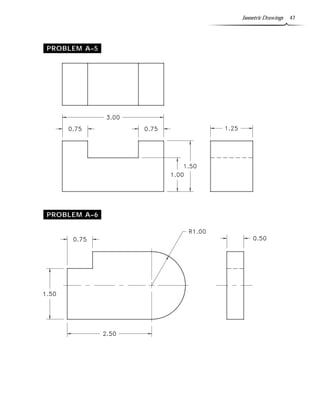
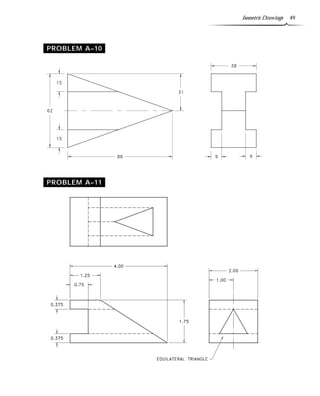
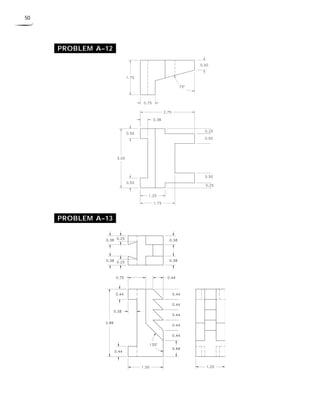
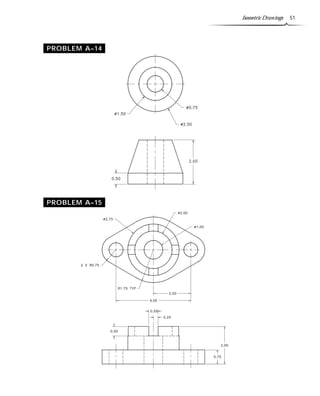
Directions for Problems A–3 through A–17: 
Construct an isometric drawing of the object. 
PROBLEM A–3 
PROBLEM A–4
Isometric Drawings 47 
PROBLEM A–5 
PROBLEM A–6
48 
PROBLEM A–7 
PROBLEM A–8 
PROBLEM A–9
Isometric Drawings 49 
PROBLEM A–10 
PROBLEM A–11
50 
PROBLEM A–12 
PROBLEM A–13
Isometric Drawings 51 
PROBLEM A–14 
PROBLEM A–15
52 
PROBLEM A–16 
PROBLEM A–17

isometric drawing (Chapter )

  • 1.
    1 Isometric Drawings A ISOMETRIC BASICS Isometric drawings are a means of drawing an object in picture form for better clari-fying the object’s appearance. These types of drawings resemble a picture of an object that is drawn in two dimensions. As a result, existing AutoCAD commands such as LINE and COPY are used for producing isometric drawings. This chapter will explain isometric basics including how regular, angular, and circular objects are drawn in isometric. Numerous isometric aids such as snap and isometric axes will be explained to assist in the construction of isometric drawings. Isometric drawings consist of two-dimensional drawings that are tilted at some angle to expose other views and give the viewer the illusion that what he or she is viewing is a three-dimensional drawing. The tilting occurs with two 30° angles that are struck from the intersection of a horizontal baseline and a vertical line (see Figure A–1). The directions formed by the 30° angles represent actual dimensions of the object; this may be either the width or depth. The vertical line in most cases represents the height dimension. Figure A–1 Figure A–2 is a very simple example of how an object is aligned to the isometric axis. Once the horizontal baseline and vertical line are drawn, the 30° angles are projected from this common point, which becomes the reference point of the isometric view. In this example, once the 30° lines are drawn, the baseline is no longer needed and it is usually discarded through erasing. Depending on how the object is to be viewed, width and depth measurements are made along the 30° lines. Height is measured along the vertical line. Figure A–2 has the width dimension measured off to the left
  • 2.
    2 30° linewhile the depth dimension measures to the right along the right 30° line. Once the object is blocked with overall width, depth, and height, details are added, and lines are erased and trimmed, leaving the finished object. Holes in isometric drawings no longer appear as full circles but rather as ellipses. Techniques of drawing circles in isometric will be discussed later in this chapter. Figure A–2 Notice that the objects in Figure A–3 both resemble the object in Figure A–2 except they appear from a different vantage point. The problem with isometric drawings is that if an isometric of an object is drawn from one viewing point and you want an isometric from another viewing point, an entirely different isometric drawing must be generated from scratch. Complex isometric drawings from different views can be very tedious to draw. Another interesting observation concerning the objects in Fig-ure A–3 is that one has hidden lines while the other does not. Usually only the visible surfaces of an object are drawn in isometric, with hidden lines left out. Although this is considered the preferred practice, there are always times when hidden lines are needed to clarify very complex isometric drawings. Figure A–3
  • 3.
    Isometric Drawings 3 CREATING AN ISOMETRIC GRID Figure A–4 shows the current AutoCAD screen complete with cursor and grid on. In manual drawing and sketching days, an isometric grid was used to lay out all lines before the lines were transferred to paper or Mylar for pen and ink drawings. An isometric grid may be defined in an AutoCAD drawing through the SNAP command. This would be the same grid found on isometric grid paper. Figure A–4 The display screen in Figure A–5 reflects the use of the SNAP command and how this command affects the current grid display: Command: SN (For SNAP) Snap spacing or ON/OFF/Aspect/Rotate/Style <0.2500>: S (for Style) Standard/Isometric <S>: I (for Isometric) Vertical spacing <0.5000>: (Press ENTERto accept default value) Choosing an isometric style of snap changes the grid display from orthographic to isometric, shown in Figure A–5. The grid distance conforms to a vertical spacing height that you specify. As the grid changes, notice the display of the typical AutoCAD cursor; it conforms to an isometric axis plane and is used as an aid in constructing isometric drawings.
  • 4.
    4 Figure A–5 To see how this vertical spacing distance affects the grid, changing it to isometric, see Figure A–6. The grid dot at “A” becomes the reference point where the horizontal baseline is placed followed by the vertical line represented by the dot at “B.” At dots “A” and “B,” 30° lines are drawn; points “C” and “D” are formed where they intersect. This is how an isometric screen display is formed. Figure A–6 ISOPLANE MODES The AutoCAD cursor has always been the vehicle for drawing objects or construct-ing windows for object selection mode. Once in isometric snap mode, AutoCAD supports three axes to assist in the construction of isometric drawings. The first axis is the Left axis and may control that part of an object falling into the left projection plane. The Left axis cursor displays a vertical line intersected by a 30°-angle line, which is drawn to the left. This axis is displayed in the illustration in Figure A–7 and in the following drawing:
  • 5.
    Isometric Drawings 5 Figure A–7 The next isometric axis is the Top mode. Objects falling into the top projection plane may be drawn using this isometric axis. This cursor consists of two 30°-angle lines intersecting each other forming the center of the cursor. This mode is displayed in Figure A–8 and in the following drawing: Figure A–8
  • 6.
    6 The finalisometric axis is called the Right mode and is formed by the intersection of a vertical line and a 30° angle drawn off to the right. As with the previous two modes, objects that fall along the right projection plane of an isometric drawing may be drawn with this cursor. It is displayed in Figure A–9 and in the following drawing. The current Ortho mode affects all three modes. If Ortho is on, and the current isometric axis is Right, lines and other operations requiring direction will be forced to be drawn vertical or at a 30° angle to the right, as shown in the following drawing: Figure A–9 RESETTING GRID AND SNAP TO THEIR DEFAULT VALUES Once an isometric drawing is completed, it may be necessary to change the grid, snap, and cursor back to normal. This might result from the need to place text on the drawing, and the isometric axis now confuses instead of assists in the drawing pro-cess. Use the following prompts to reset the snap back to the Standard spacing. See Figure A–10. Command: SN (For SNAP) Snap spacing or ON/OFF/Rotate/Style 0.2500: S (for Style) Standard/Isometric I: S (for Standard) Spacing/Aspect 0.5000: (Press ENTERto accept the default value) Notice that when you change the snap style to Standard, the AutoCAD cursor re-verts to its original display.
  • 7.
    Isometric Drawings 7 Figure A–10 ISOMETRIC AIDS IN THE DRAFTING SETTINGS DIALOG BOX Choosing Drafting Settings… from the Tools pull-down menu in Figure A–11A displays the Drafting Settings dialog box in Figure A–11B. Here, in addition to Snap and Grid, an Isometric area exists to automatically set up an isometric grid by click-ing in the radio button next to Isometric Snap. This has the same effect as using the SNAP-Style-Isometric option. Figure A–11A Figure A–11B
  • 8.
    8 Various methodsexist to switch from one isometric axis mode to another. By default, after you set up an isometric grid, the Left isometric axis mode is active (see Figure A–12). When you press CTRL+E, the Left axis mode changes to the Top axis mode. Pressing CTRL+E again changes from the Top axis mode to the Right axis mode. Pressing CTRL+E a third time changes from the Right axis mode back to the Left axis mode, and the pattern repeats from here. Using this keyboard entry, it is possible to switch or toggle from one mode to another. The F5 function key also allows you to scroll through the different Isoplane modes. Figure A–12 CREATING ISOMETRIC CIRCLES Circles appear as ellipses when drawn in any of the three isometric axes. The ELLIPSE command has a special Isocircle option to assist in drawing isometric circles; the Isocircle option will appear in the ELLIPSE command only if the current SNAP-Style is Isometric (see Figure A–13). The prompt sequence for this command is: Command: EL (For ELLIPSE) Arc/Center/Isocircle/Axis endpoint 1: I (for Isocircle) Center of circle: (Select a center point) Circle radius/Diameter: (Enter a value for the radius or type “D” for diameter and enter a value) When you draw isometric circles using the ELLIPSE command, it is important to match the isometric axis with the isometric plane the circle is to be drawn in. Figure A–14 shows a cube displaying all three axes. Try It! - Open the drawing file A_Iso Ellipse1. This drawing is similar to Figure A–14. Using the three isometric planes, construct ellipses with a diameter of 2.00 units using the “X” points as centers.
  • 9.
    Isometric Drawings 9 Figure A–13 Figure A–14 Figure A–15 shows the result of drawing an isometric circle using the wrong isomet-ric axis. The isometric box is drawn in the Top isometric plane while the current isometric axis mode is Left. An isometric circle can be drawn to the correct size, but notice that it does not match the box it was designed for. If you notice halfway through the ELLIPSE command that you are in the wrong isometric axis, press CTRL+E until the correct axis appears. Figure A–15 BASIC ISOMETRIC CONSTRUCTION Any isometric drawing, no matter how simple or complex, has an overall width, height, and depth dimension. Start laying out the drawing with these three dimensions to create an isometric box illustrated in the example in Figure A–16A. Some techniques rely on piecing the isometric drawing together by views; unfortunately, it is very easy to get lost in all of the lines using this method. Once a box is created from overall dimensions, somewhere inside the box is the object. With the box as a guide, begin laying out all visible features in the primary planes. Use the Left, Top, or Right isometric axis modes to assist you in this construction process. See Figure A–16B.
  • 10.
    10 Figure A–16AFigure A–16B You may use existing AutoCAD editing commands, especially COPY, to duplicate geometry to show depth of features, as shown in Figure A–16C. The OFFSET com-mand should not be attempted for performing isometric drawings. Next, use the TRIM command to partially delete geometry where objects are not visible. Remember, most isometric objects do not require hidden lines. Use the LINE command to connect intersections of surface corners. The resulting iso-metric drawing is illustrated in Figure A–16D. Figure A–16C Figure A–16D Try It! - Open the drawing file A_Iso Basic in Figure A–16B. Continue copying and trimming line segments until you achieve the desired results in Figure A–16D. CREATING ANGLES IN ISOMETRIC—METHOD #1 Drawing angles in isometric is a little tricky but not impossible. The two-view draw-ing in Figure A–17 has an angle of unknown size; however, one endpoint of the angle measures 2.06 units from the top horizontal line of the Front view at “B,” and the
  • 11.
    Isometric Drawings 11 other endpoint measures 1.00 unit from the vertical line of the Front view at “A.” This is more than enough information to lay out the endpoints of the angle in iso-metric. You can use the MEASURE command to lay out these distances easily. The LINE command is then used to connect the points to form the angle. Figure A–17 Before using the MEASURE command, set the PDMODE variable to a new value of 3. Points will appear as an X instead of a dot, as shown in Figure A–18A. Points may also be set through the Point Style dialog box found in the Format menu. Now use the MEASURE command to set off the two distances. Command: PDMODE New value for PDMODE 0: 3 Command: ME (For MEASURE) Select object to measure: (Select the inclined line at “A”) Segment length/Block: 1.00 Command: ME (For MEASURE) Select object to measure: (Select the vertical line at “B”) Segment length/Block: 2.06 When using the MEASURE command, the measuring will occur at the nearest endpoint of the line where the line was selected. Once the points have been placed, the LINE command is used to draw a line from one point to the other using the OSNAP-Node option (see Figure A–18B).
  • 12.
    12 Figure A–18AFigure A–18B Try It! - Open the drawing file A_Iso Angle1. Use the previous figures as guides in constructing the angle in isometric mode in Figure A–18B. Notice that you may get more points than needed. Draw the line from the nodes nearest the end of the line you selected with the MEASURE command. CREATING ANGLES IN ISOMETRIC—METHOD #2 The same two-view drawing is illustrated in Figure A–19. This time, one distance is specified along with an angle of 30°. Even with the angle given, the position of the isometric axes makes any angle construction by degrees inaccurate. The distance XY is still needed for constructing the angle in isometric. Use the MEASURE command to find distance XY, place a point, and connect the first distance with the second to form the 30° angle in isometric. It is always best to set the PDMODE system variable to a new value in order to visibly view the point. Points may also be set through the Point Style dialog box found in the Format menu. A new value of 3 will assign the point as an X. Figure A–19
  • 13.
    Isometric Drawings 13 See Figures 16–20A, 16–20B, and the following prompt sequences to change the point mode and measure the appropriate distances in the previous step. Command: PDMODE New value for PDMODE 0: 3 Command: ME (For MEASURE) Select object to measure: (Select the inclined line at “A” in Figure A–20A) Segment length/Block: 1.00 Command: ME (For MEASURE) Select object to measure: (Select the vertical line at “B” in Figure A–20A) Segment length/Block: End of (Select the endpoint of the line at X in the 2-view drawing in Figure A–19) Second point: Int of (Select the intersection at Y in the 2-view drawing in Figure A–19) Line “B” is selected as the object to measure (see Figure A–20A). Since this distance is unknown, the MEASURE command may be used to set off the distance XY by iden-tifying an endpoint and intersection from the Front view in Figure A–19. This means the view must be constructed only enough to lay out the angle and project the results to the isometric using the MEASURE command and the preceding prompts. The result is illustrated in Figure A–20B. Figure A–20A Figure A–20B Try It! - Open the drawing file A_Iso Angle2. Use the previous figures as guides in constructing the angle in isometric mode in Figure A–20B. You can check the accu-racy of your construction by comparing distances using the DISTANCE command on the Front view of the two-view drawing and on the same line in the Isometric. The values should be the same. ISOMETRIC CONSTRUCTION USING ELLIPSES Constructing circles as part of isometric drawing is possible using one of the three isometric axis positions. It is up to you to decide which axis to use. Before this, how-
  • 14.
    14 ever, anisometric box consisting of overall distances is first constructed, as shown in Figure A–21A. Use the ELLIPSE command to place the isometric circle at the base. To select the correct axis, press CTRL+E or F5 until the proper axis appears in the form of the cursor. Place the ellipses. Lay out any other distances. For ellipses at different positions, press CTRL+E or F5 to select another isometric axis (see Figure A–21B). Figure A–21A Figure A–21B Use the TRIM command to trim away any excess objects that are considered unneces-sary, as shown in Figure A–21C. Use the LINE command to connect endpoints of edges that form surfaces and from tangents of arcs to tangents of arcs on paralell planes, as shown in Figure A–21D. Figure A–21C Figure A–21D Try It! - Open the drawing file A_Iso Ellipse2. Complete the isometric drawing until your image is similar to Figure A-21D. CREATING ISOMETRIC SECTIONS In some cases, it is necessary to cut an isometric drawing to expose internal features. The result is an isometric section similar to a section view formed from an ortho-graphic drawing. The isometric section differs, however, because the cutting plane is usually along one of the three isometric axes. Figure A–22A displays an orthographic section in addition to the isometric drawing. The isometric in Figure A–22B has additional lines representing surfaces cut by the cut-ting plane line. The lines to define these surfaces are formed through the LINE command
  • 15.
    Isometric Drawings 15 in addition to a combination of Top and Right isometric axis modes. During this process, Ortho mode is toggled on and off numerous times depending on the axis direction. Use the TRIM command to remove objects from the half that will eventually be discarded. . Figure A–22A Once ellipses are trimmed, the remaining objects representing the front half of the isometric are removed, exposing the back half. The front half is then discarded. This has the same effect as conventional section views where the direction of sight dictates which half to keep. For a full section, the BHATCH command with the angle set at 15 degrees is used to draw section lines on the surfaces being cut by the cutting plane line, as in Figure A–22C. Surfaces designated holes or slots not cut are not cross-hatched. This same procedure is followed for converting an object to a half section. Figure A–22B Figure A–22C Try It! - Open the drawing file A_Iso Section. Use the previous figures as guides in constructing the isometric section in Figure A–22C. EXPLODED ISOMETRIC VIEWS Isometric drawings are sometimes grouped together to form an exploded drawing show-ing how a potential or existing product is assembled (see Figure A–23). This involves aligning parts that fit with line segments, usually in the form of centerlines. Bubbles identifying the part number are attached to the drawing. Exploded isometric drawings
  • 16.
    16 come inhandy for creating bill of material information and, for this purpose, they have an important application to manufacturing. Once the part information is identified in the drawing and title block area, this information is extracted and brought into a third-party business package where important data collection information is used to actually track the status of parts in production in addition to the shipping date for all finished products. Figure A–23 ISOMETRIC ASSEMBLIES Assembly drawings show the completed part as if it were to be assembled (see Figure A–24). Sometimes this drawing has an identifying number placed with a bubble for bill of material needs. Assembly drawings are commonly placed on the same display screen as the working drawing. With the assembly alongside the working drawing, you have a pictorial representation of what the final product will look like, and this can help you to understand the orthographic views. Figure A–24
  • 17.
    Isometric Drawings 17 TUTORIAL EXERCISE: PLATE.DWG Figure A–25 Purpose The purpose of this tutorial exercise is to use a series of coordinates along with AutoCAD editing commands to construct an isometric drawing of the plate in Figure A–25. System Settings Begin a new drawing called “Plate.” Use the Drawing Units dialog box to change the num-ber of decimal places past the zero from four to two. Keep the remaining default unit val-ues. Using the LIMITS command, keep (0,0) for the lower left corner and change the up-per right corner from (12.00,9.00) to (10.50,8.00). Perform a ZOOM-ALL after chang-ing limits. Use the GRID command and change the grid spacing from 0.50 to 0.25 units. Do not turn the Snap or Ortho modes on. Check to see that the following Object Snap modes are already set: Endpoint, Extension, Inter-section, and Center. Layers Create a layer called “Object” and assign this layer the color Green. Suggested Commands Begin this exercise by changing the grid from the standard display to an isometric display using the SNAP-Style option. Use absolute and polar coordinates to lay out the base of the plate. Then begin using the COPY com-mand followed by TRIM to duplicate objects and clean up or trim unnecessary geometry. Whenever possible, substitute the appropri-ate command alias in place of the full AutoCAD command in each tutorial step. For example, use “CP” for the COPY command, “L” for the LINE command, and so on. The complete listing of all command aliases is lo-cated in Chapter 1, Table 1–2. tutorial E X E R C I S E
  • 18.
    18 STEP 1 Set a new polar tracking angle of 30° through the Polar Tracking tab of the Drafting Settings dialog box in Figure A– 26A. Make the Object layer current. Then use the LINE command to draw the object in Figure A–26B. Notice, in the prompt sequence, that the Direct Distance mode is used because of the polar tracking angle setting of 30°. Also, be sure to turn Polar mode on by clicking on the POLAR but-ton in the status bar. Command: L (For LINE) Specify first point: 5.50,0.75 Specify next point or [Undo]: (Move your cursor up and to the right until the polar angle tooltip reads 30 degrees and enter 3.25) Specify next point or [Undo]: (Move your cursor up and to the left until the polar angle tooltip reads 150 degrees and enter 5.00) Specify next point or [Close/Undo]: (Move your cursor down and to the left until the polar angle tooltip reads 210 degrees and enter 3.25) Specify next point or [Close/Undo]: C (To close the shape and exit the command) Figure A–26A Figure A–26B
  • 19.
    Isometric Drawings 19 STEP 2 Copy the four lines drawn in Step 1 up a distance of 2.50 units in the 90° direction in Figure A–27. Command: CP (For COPY) Select objects: (Select lines “A”, “B”,”C”, and “D”) Select objects: (Press ENTER to continue) Specify base point or displacement, or [Multiple]: (Pick the endpoint of the line at “A”) Specify second point of displacement or use first point as displacement: (Move your cursor up until the polar angle tooltip reads 90° and enter 2.50) Figure A–27 STEP 3 Connect the top and bottom isometric boxes with line segments, as shown in Figure A–28. Draw one segment using the LINE command. Repeat this process using the LINE command at points “C” and “D,” or use the COPY command and Mul-tiple option to duplicate and form the re-maining segments at “C” and “D.” Erase the two dashed lines because they are not visible in an isometric drawing. Command: L (For LINE) Specify first point: (Select the endpoint of the line at “A”) Specify next point or [Undo]: (Select the endpoint of the line at “B”) Specify next point or [Undo]: (Press ENTER to exit this command) Command: E (For ERASE) Select objects: (Select the two dashed lines in Figure A–28) Select objects: (Press ENTER to execute this command) Figure A–28
  • 20.
    20 STEP 4 Copy the two dashed lines in Figure A–29 a distance of 0.75 in the 210° direction. Command: CP (For COPY) Select objects: (Select the two dashed lines in Figure A–29) Select objects: (Press ENTER to continue) Specify base point or displacement, or [Multiple]: (Select the endpoint at “A”) Specify second point of displacement or use first point as displacement: (Move your cursor down and to the left until the polar angle tooltip reads 210° and enter 0.75) Figure A–29 STEP 5 Copy the two dashed lines in Figure A–30 a distance of 0.75 in the 90° direction. This forms the base of the plate. Command: CP (For COPY) Select objects: (Select the two dashed lines in Figure A–30) Select objects: (Press ENTER to continue) Specify base point or displacement, or [Multiple]: (Select the endpoint at “A”) Specify second point of displacement or use first point as displacement: (Move your cursor up until the polar angle tooltip reads 90°and enter 0.75) Figure A–30
  • 21.
    Isometric Drawings 21 Figure A–31 STEP 6 Copy the dashed line in Figure A–31 a distance of 0.75 in the 330° direction. Command: CP (For COPY) Select objects: (Select the dashed line in Figure A–31) Select objects: (Press ENTER to continue) Specify base point or displacement, or [Multiple]: (Select the endpoint at “A”) Specify second point of displacement or use first point as displacement: (Move your cursor down and to the right until the polar angle tooltip reads 330°and enter 0.75) STEP 7 Use the FILLET command to place a cor-ner between the two dashed lines at “A” and “B” and at “C” and “D” in Figure A–32. Set the fillet radius to a value of 0 to accomplish this. Command: F (For FILLET) Current settings: Mode = TRIM, Radius = 0.50 Select first object or [Polyline/Radius/ Trim]: R (For Radius) Specify fillet radius 0.50: 0 Select first object or [Polyline/Radius/ Trim]: (Select line “A”) Select second object: (Select line “B”) Command: F (For FILLET) Current settings: Mode = TRIM, Radius = 0.00 Select first object or [Polyline/Radius/ Trim]: (Select line “C”) Select second object: (Select line “D”) Figure A–32
  • 22.
    22 STEP 8 Copy the dashed line in Figure A–33 to begin forming the top of the base. Command: CP (For COPY) Select objects: (Select the dashed line in Figure A–33) Select objects: (Press ENTERto continue) Specify base point or displacement, or [Multiple]: (Select the endpoint at “A”) Specify second point of displacement or use first point as displacement: (Select the endpoint at “B”) Figure A–33 STEP 9 Copy the dashed line in Figure A–34. This forms the base of the plate. Command: CP (For COPY) Select objects: (Select the dashed line in Figure A–34) Select objects: (Press ENTER to continue) Specify base point or displacement, or [Multiple]: (Select the endpoint at “A”) Specify second point of displacement or use first point as displacement: (Select the endpoint at “B”) Figure A–34
  • 23.
    Isometric Drawings 23 STEP 10 Use the TRIM command to clean up the excess lines in Figure A–35. Command: TR (For TRIM) Current settings: Projection=UCS Edge=None Select cutting edges ... Select objects: (Select the three dashed lines shown in Figure A–35) Select objects: (Press ENTER to continue) Select object to trim or shift-select to extend or [Project/Edge/Undo]: (Select the inclined line at “A”) Select object to trim or shift-select to extend or [Project/Edge/Undo]: (Select the inclined line at “B”) Select object to trim or shift-select to extend or [Project/Edge/Undo]: (Select the inclined line at “C”) Select object to trim or shift-select to extend or [Project/Edge/Undo]: (Press ENTER to exit this command) Figure A–35 STEP 11 Your display should be similar to Figure A–36. Figure A–36 STEP 12 Copy the dashed line in Figure A–37 a distance of 1.12 units in the 90° direc-tion. Command: CP (For COPY) Select objects: (Select the dashed line in Figure A–37) Select objects: (Press ENTER to continue) Specify base point or displacement, or [Multiple]: (Select the endpoint at “A”) Specify second point of displacement or use first point as displacement: (Move your cursor up until the polar angle tooltip reads 90°and enter 1.12) Figure A–37
  • 24.
    24 STEP 13 As shown in Figure A–38, copy the dashed line at “A” to new positions at “B” and “C.” Then delete the line at “A” us-ing the ERASE command. Command: CP (For COPY) Select objects: (Select the dashed line in Figure A–38) Select objects: (Press ENTER to continue) Specify base point or displacement, or [Multiple]: M (For Multiple) Specify base point: (Select the endpoint at “A”) Specify second point of displacement or use first point as displacement: (Select the endpoint at “B”) Specify second point of displacement or use first point as displacement: (Select the endpoint at “C”) Specify second point of displacement or use first point as displacement: (Press ENTER to exit this command) Command: E (For ERASE) Select objects: (Select the dashed line at “A”) Select objects: (Press ENTER to execute this command) Figure A–38 STEP 14 Use the TRIM command to clean up the excess lines in Figure A–39. Command: TR (For TRIM) Current settings: Projection=UCS Edge=None Select cutting edges ... Select objects: (Select the two dashed lines in Figure A–39) Select objects: (Press ENTERto continue) Select object to trim or shift-select to extend or [Project/Edge/Undo]: (Select the vertical line at “A”) Select object to trim or shift-select to extend or [Project/Edge/Undo]: (Select the vertical line at “B”) Select object to trim or shift-select to extend or [Project/Edge/Undo]: (Select the inclined line at “C”) Figure A–39 Select object to trim or shift-select to extend or [Project/Edge/Undo]: (Press ENTER to exit this command)
  • 25.
    Isometric Drawings 25 STEP 15 Use the COPY command to duplicate the dashed line in Figure A–40 from the end-point of “A” to the endpoint at “B.” Command: CP (For COPY) Select objects: (Select the dashed line in Figure A–40) Select objects: (Press ENTER to continue) Specify base point or displacement, or [Multiple]: (Select the endpoint at “A”) Specify second point of displacement or use first point as displacement: (Select the endpoint at “B”) Figure A–40 STEP 16 Use the COPY command to duplicate the dashed line in Figure A–41 from the end-point of “A” to the endpoint at “B.” Command: CP (For COPY) Select objects: (Select the dashed line in Figure A–41) Select objects: (Press ENTER to continue) Specify base point or displacement, or [Multiple]: (Select the endpoint at “A”) Specify second point of displacement or use first point as displacement: (Select the endpoint at “B”) Figure A–41
  • 26.
    26 STEP 17 Use the LINE command to connect the endpoints of the segments at “A” and “B” in Figure A–42. Command: L (For LINE) Specify first point: (Select the endpoint at “A”) Specify next point or [Undo]: (Select the endpoint at “B”) Specify next point or [Undo]: (Press ENTER to exit this command) Figure A–42 STEP 18 Use the COPY command to duplicate the dashed line in Figure A–43 from the endpoint of “A” a distance of 0.50 units in the 210° direction. This value begins the outline of the rectangular hole through the object. Command: CP (For COPY) Select objects: (Select the dashed line in Figure A–43) Select objects: (Press ENTER to continue) Specify base point or displacement, or [Multiple]: (Select the endpoint at “A”) Specify second point of displacement or use first point as displacement: (Move your cursor down and to the left until the polar angle tooltip reads 210° and enter 0.50) Figure A–43
  • 27.
    Isometric Drawings 27 STEP 19 Use the COPY command to duplicate the dashed line in Figure A–44 from the endpoint of “A” a distance of 0.50 in the 330° direction. Command: CP (For COPY) Select objects: (Select the dashed line in Figure A–44) Select objects: (Press ENTER to continue) Specify base point or displacement, or [Multiple]: (Select the endpoint at “A”) Specify second point of displacement or use first point as displacement: (Move your cursor down and to the right until the polar angle tooltip reads 330° and enter 0.50) Figure A–44 STEP 20 Use the COPY command to duplicate the dashed line in Figure A–45 from the endpoint of “A” a distance of 0.50 in the 30° direction. Command: CP (For COPY) Select objects: (Select the dashed line in Figure A–45) Select objects: (Press ENTER to continue) Specify base point or displacement, or [Multiple]: (Select the endpoint at “A”) Specify second point of displacement or use first point as displacement: (Move your cursor up and to the right until the polar angle tooltip reads 30° and enter 0.50) Figure A–45
  • 28.
    28 STEP 21 Use the COPY command to duplicate the dashed line in Figure A–46 from the endpoint of “A” a distance of 0.50 in the 150° direction. Command: CP (For COPY) Select objects: (Select the dashed line in Figure A–46) Select objects: (Press ENTER to continue) Specify base point or displacement, or [Multiple]: (Select the endpoint at “A”) Specify second point of displacement or use first point as displacement: (Move your cursor up and to the right until the polar angle tooltip reads 150° and enter 0.50) Figure A–46 STEP 22 Use the FILLET command with a radius of 0 to corner the four dashed lines in Fig-ure A–47. Use the MULTIPLE command to remain in the FILLET command. To exit the FILLET command prompts, press ESC to cancel the command when finished. Command: MULTIPLE Enter command name to repeat: F (For FILLET) Current settings: Mode = TRIM, Radius = 0.0000 Select first object or [Polyline/Radius/ Trim]: (Select the line at “A”) Select second object: (Select the line at “B”) FILLET Current settings: Mode = TRIM, Radius = 0.0000 Select first object or [Polyline/Radius/ Trim]: (Select the line at “B”) Select second object: (Select the line at “C”) FILLET Current settings: Mode = TRIM, Radius = 0.0000 Select first object or [Polyline/Radius/ Trim]: (Select the line at “C”) Select second object: (Select the line at “D”) FILLET Current settings: Mode = TRIM, Radius = 0.0000 Select first object or [Polyline/Radius/ Trim]: (Select the line at “D”) Select second object: (Select the line at “A”) FILLET Current settings: Mode = TRIM, Radius = 0.0000 Select first object or [Polyline/Radius/ Trim]: (Press ESC to cancel this command) Figure A–47
  • 29.
    Isometric Drawings 29 STEP 23 Use the COPY command to duplicate the dashed line in Figure A–48. This will begin forming the thickness of the base inside the rectangular hole. Command: CP (For COPY) Select objects: (Select the dashed line in Figure A–48) Select objects: (Press ENTER to continue) Specify base point or displacement, or [Multiple]: (Select the endpoint at “A”) Specify second point of displacement or use first point as displacement: (Select the endpoint at “B”) Figure A–48 STEP 24 Use the COPY command to duplicate the dashed lines in Figure A–49. These lines form the inside surfaces to the rectangu-lar hole. Command: CP (For COPY) Select objects: (Select the dashed lines in Figure A–49) Select objects: (Press ENTER to continue) Specify base point or displacement, or [Multiple]: (Select the endpoint at “A”) Specify second point of displacement or use first point as displacement: (Select the endpoint at “B”) Figure A–49
  • 30.
    30 STEP 25 Use the TRIM command to clean up excess lines in Figure A–50. Command: TR (For TRIM) Current settings: Projection=UCS Edge=None Select cutting edges ... Select objects: (Select the two dashed lines in Figure A–50) Select objects: (Press ENTER to continue) Select object to trim or shift-select to extend or [Project/Edge/Undo]: (Select the line at “A”) Select object to trim or shift-select to extend or [Project/Edge/Undo]: (Select the line at “B”) Select object to trim or shift-select to extend or [Project/Edge/Undo]: (Press ENTER to exit this command) Figure A–50 STEP 26 The completed isometric is illustrated in Figure A–51. This drawing may be dimensioned with the Oblique option of the DIMEDIT command. Consult your instructor if this next step is necessary. Figure A–51
  • 31.
    Isometric Drawings 31 TUTORIAL EXERCISE: HANGER.DWG Figure A–52 Purpose The purpose of this tutorial exercise is to use a series of coordinates along with AutoCAD editing commands to construct an isometric drawing of the hanger in Fig-ure A–52. System Settings Begin a new drawing called “Hanger.” Use the Drawing Units dialog box to change the number of decimal places past the zero from four to two. Keep the remaining de-fault unit values. Using the LIMITS command, keep (0,0) for the lower left corner and change the upper right corner from (12,9) to (15.50,9.50). Perform a ZOOM-ALL after changing Limits. Use the GRID command and change the grid spacing from 0.50 to 0.25 units. Turn Snap mode off; turn Ortho mode on. Check to see that the following Object Snap modes are already set: End-point, Extension, Intersection, Center. Layers Create a layer called “Object” and assign this layer the color Green. Suggested Commands Begin this exercise by changing the grid from the standard display to an isometric display using the SNAP-Style option. Remember, both the grid and snap can be manipulated by the SNAP command only if the current grid value is 0. Use absolute and polar coordinates to lay out the base of the hanger. Then begin using the COPY command followed by TRIM to duplicate objects and clean up or trim un-necessary geometry. Whenever possible, substitute the appropri-ate command alias in place of the full AutoCAD command in each tutorial step. For example, use “CP” for the COPY command, “L” for the LINE command, and so on. The complete listing of all command aliases is lo-cated in Chapter 1, Table 1–2. tutorial E X E R C I S E
  • 32.
    32 STEP 1 Make the Object layer current. Then set the SNAP-Style option to Isometric with a vertical spacing of 0.25 units. Press CTRL+E or F5 to switch to the Top Isoplane mode. Use the LINE command to draw the rectangular isometric box rep-resenting the total depth of the object along with the center-to-center distance of the holes and arcs that will be placed in the next step. See Figure A–53. Command: SN (For SNAP) Specify snap spacing or [ON/OFF/Aspect/ Rotate/Style/Type] 0.50: S (For Style) Enter snap grid style [Standard/Isometric] S: I (For Isometric) Specify vertical spacing 0.50: 0.25 Command: (Press CTRL+E to switch to the Top Isoplane mode) Command: L (For LINE) Specify first point: 6.00,0.50 Specify next point or [Undo]: (Move your cursor up and to the right and enter 5.00) Specify next point or [Undo]: (Move your cursor up and to the left and enter 3.00) Specify next point or [Close/Undo]: (Move your cursor down and to the left and enter 5.00) Specify next point or [Close/Undo]: C (To close the shape and exit the command) Figure A–53 STEP 2 While in the Top Isoplane mode, use the ELLIPSE command to draw two isometric ellipses of 0.75 and 1.50 radii each in Fig-ure A–54. Identify the midpoint of the inclined line at “A” as the center of the first ellipse. To identify the center of the second ellipse, use the @ option, which stands for “last point” and will identify the center of the small circle as the same cen-ter as the large circle. Command: EL (For ELLIPSE) Specify axis endpoint of ellipse or [Arc/ Center/Isocircle]: I (For Isocircle) Specify center of isocircle: Mid of (Pick the midpoint of the line at “A”) Specify radius of isocircle or [Diameter]: 0.75 Command: EL (For ELLIPSE) Specify axis endpoint of ellipse or [Arc/ Center/Isocircle]: I (For Isocircle) Specify center of isocircle: @ (For the last point) Specify radius of isocircle or [Diameter]: 1.50 Figure A–54
  • 33.
    Isometric Drawings 33 STEP 3 Copy both ellipses from the endpoint of the inclined line at “A” to the end-point of the inclined line at “B” in Fig-ure A–55. Be sure Snap is turned off. Command: CP (For COPY) Select objects: (Select both ellipses in Figure A–55) Select objects: (Press ENTER to continue) Specify base point or displacement, or [Multiple]: (Select the endpoint at “A”) Specify second point of displacement or use first point as displacement: (Select the endpoint at “B”) Figure A–55 STEP 4 Use the TRIM command to delete segments of the ellipses in Figure A–56. Command: TR (For TRIM) Current settings: Projection=UCS Edge=None Select cutting edges ... Select objects: (Select dashed lines “A” and “B”) Select objects: (Press ENTER to continue) Select object to trim or shift-select to extend or [Project/Edge/Undo]: (Select the ellipse at “C”) Select object to trim or shift-select to extend or [Project/Edge/Undo]: (Select the ellipse at “D”) Select object to trim or shift-select to extend or [Project/Edge/Undo]: (Press ENTER to exit this command) Figure A–56
  • 34.
    34 STEP 5 Copy all objects in Figure A–57 up the distance of 0.25 units to form the bottom base of the hanger. Pressing CTRL+E or F5 can activate the Right Isoplane mode. Command: (Press CTRL+E To switch to the Right Isoplane mode) Right Isoplane Command: CP (For COPY) Select objects: (Select all objects in Figure A–57) Select objects: (Press ENTER to continue) Specify base point or displacement, or [Multiple]: (Select the endpoint at “A”) Specify second point of displacement or use first point as displacement: (Move your cursor up and enter a value of 0.25) Figure A–57 STEP 6 Use the ERASE command to delete the three dashed lines in Figure A–58. These lines are not visible from this point of view and should be erased. Command: E (For ERASE) Select objects: (Select the three dashed lines in Figure A–58) Select objects: (Press ENTERto execute this command) Figure A–58
  • 35.
    Isometric Drawings 35 STEP 7 Your display should appear similar to the illustration in Figure A–59. Begin par-tially deleting other objects to show only visible features of the isometric drawing. Check that the snap has been turned off to better assist in the next series of opera-tions. The next few steps refer to the area outlined in Figure A–59. Use the ZOOM-Window option to magnify this area. Command: Z (For ZOOM) Specify corner of window, enter a scale factor (nX or nXP), or [All/Center/Dynamic/Extents/Previous/ Scale/Window] real time: (Pick a point at “A”) Specify opposite corner: (Pick a point at “B”) Figure A–59 STEP 8 Carefully draw a line tangent to both el-lipses. Use the OSNAP-Quadrant option to assist in constructing the line. See Fig-ure A–60. Command: L (For LINE) Specify first point: Qua of (Select the quadrant at “A”) Specify next point or [Undo]: (Pick the polar intersection at “B”) Specify next point or [Undo]: (Press ENTER to exit this command) Figure A–60
  • 36.
    36 STEP 9 Use the TRIM command, select the short dashed line as the cutting edge, and select the arc segment in Figure A–61 to trim. Command: TR (For TRIM) Current settings: Projection=UCS Edge=None Select cutting edges ... Select objects: (Select the dashed line at “A”) Select objects: (Press ENTER to continue) Select object to trim or shift-select to extend or [Project/Edge/Undo]: (Select the ellipse at “B”) Select object to trim or shift-select to extend or [Project/Edge/Undo]: (Press ENTER to exit this command) Figure A–61 STEP 10 The completed operation is in Figure A–62. Use ZOOM command and the Previous option to return to the previous display. Command: Z (For ZOOM) Specify corner of window, enter a scale factor (nX or nXP), or [All/Center/Dynamic/Extents/Previous/ Scale/Window] real time: P (For Previous) Figure A–62 STEP 11 Use ZOOM-Window to magnify the right half of the base in Figure A–63. Pre-pare to construct the tangent edge to the object using the procedure in Step 8. Command: Z (For ZOOM) Specify corner of window, enter a scale factor (nX or nXP), or [All/Center/Dynamic/Extents/Previous/ Scale/Window] real time: (Pick a point at “A”) Specify opposite corner: (Pick a point at “B”) Figure A–63
  • 37.
    Isometric Drawings 37 STEP 12 Follow the same procedure as in Step 8 to construct a line from the quadrant point on the top ellipse to the polar intersec-tion on the bottom ellipse. Then use the TRIM command in Step 9 to clean up any excess objects. Use the ERASE command to delete any elliptical arc segments that may have been left untrimmed. (See Fig-ure A–64.) Figure A–64 STEP 13 Zoom to the Previous display. Use the TRIM command to partially delete the el-lipses in Figure A–65 to expose the thick-ness of the base. Command: TR (For TRIM) Current settings: Projection=UCS Edge=None Select cutting edges ... Select objects: (Select dashed ellipses “A” and “B”) Select objects: (Press ENTER to continue) Select object to trim or shift-select to extend or [Project/Edge/Undo]: (Select the lower ellipse at “C”) Select object to trim or shift-select to extend or [Project/Edge/Undo]: (Select the lower ellipse at “D”) Select object to trim or shift-select to extend or [Project/Edge/Undo]: (Press ENTER to exit this command) Figure A–65
  • 38.
    38 STEP 14 Use the COPY command to duplicate the bottom base and form the upper plate of the hanger as shown in Figure A–66. Copy the base a distance of 4 units straight up. Command: CP (For COPY) Select objects: (Select all dashed objects in Figure A–66) Select objects: (Press ENTER to continue) Specify base point or displacement, or [Multiple]: (Select the endpoint of the ellipse at “A”) Specify second point of displacement or use first point as displacement: (Move your cursor up and enter a value of 4.00) Figure A–66 STEP 15 Use the COPY command to duplicate the inclined line at “A” the distance of 2.50 units to form the line represented by a series of dashes in Figure A–67. This line happens to be located at the center of the object. Command: CP (For COPY) Select objects: (Select the line at “A”) Select objects: (Press ENTER to continue) Specify base point or displacement, or [Multiple]: (Select the endpoint at “A”) Specify second point of displacement or use first point as displacement: (Move your cursor up and to the right and enter 2.50) Figure A–67
  • 39.
    Isometric Drawings 39 STEP 16 Duplicate the line represented by dashes in Figure A–68 to form the two inclined lines at “B” and “C.” These lines will be-gin the construction of the sides of the hanger. Use the COPY command along with the Multiple option to accomplish this. Command: CP (For COPY) Select objects: (Select the dashed line in Figure A–68) Select objects: (Press ENTER to continue) Specify base point or displacement, or [Multiple]: M (For Multiple) Specify base point: (Select the endpoint at “A”) Specify second point of displacement or use first point as displacement: (Move your cursor up and to the right and enter 1.25) Specify second point of displacement or use first point as displacement: (Move your cursor down and to the left and enter 1.25) Figure A–68 Specify second point of displacement or use first point as displacement: (Press ENTER to exit this command) STEP 17 Use the COPY command to duplicate the two dashed lines in Figure A–69 straight up at a distance of 3.75 units. Use the Polar coordinate mode to accomplish this. Make sure the Polar mode is turned On. Command: CP (For COPY) Select objects: (Select both dashed lines in Figure A–69) Select objects: (Press ENTER to continue) Specify base point or displacement, or [Multiple]: (Select the endpoint at “A”) Specify second point of displacement or use first point as displacement: (Pick the Polar Intersection at “B”) Figure A–69
  • 40.
    40 STEP 18 Use the LINE command along with the OSNAP-Endpoint option to draw a line from endpoint “A” to endpoint “B” in Figure A–70. Command: L (For LINE) Specify first point: (Select the endpoint at “A”) Specify next point or [Undo]: (Select the endpoint at “B”) Specify next point or [Undo]: (Press ENTER to exit this command) Figure A–70 STEP 19 Use the COPY command and the Multiple option to copy the dashed line at “A” to “B,” “C,” and “D” in Figure A–71. Command: CP (For COPY) Select objects: (Select the dashed line in Figure A–71) Select objects: (Press ENTER to continue) Specify base point or displacement, or [Multiple]: M (For Multiple) Specify base point: (Select the endpoint of the vertical line at “A”) Specify second point of displacement or use first point as displacement: (Select the endpoint of the line at “B”) Specify second point of displacement or use first point as displacement: (Select the endpoint of the line at “C”) Specify second point of displacement or use first point as displacement: (Select the endpoint of the line at “D”) Specify second point of displacement or use first point as displacement: (Press ENTER to exit this command) Figure A–71
  • 41.
    Isometric Drawings 41 STEP 20 Use the ERASE command to delete all lines represented as dashed lines in Fig-ure A–72. Command: E (For ERASE) Select objects: (Select all dashed objects in Figure A–72) Select objects: (Press ENTER to execute this command) Figure A–72 STEP 21 Use the TRIM command to partially delete the vertical line in Figure A–73. The seg-ment to be deleted is hidden and not shown in an isometric drawing. Command: TR (For TRIM) Current settings: Projection=UCS Edge=None Select cutting edges ... Select objects: (Select the dashed objects at “A” and “B”) Select objects: (Press ENTER to continue) Select object to trim or shift-select to extend or [Project/Edge/Undo]: (Select the vertical line at “C”) Select object to trim or shift-select to extend or [Project/Edge/Undo]: (Press ENTER to exit this command) Figure A–73
  • 42.
    42 STEP 22 Use the TRIM command to partially delete the vertical line in Figure A–74. The seg-ment to be deleted is hidden and not shown in an isometric drawing. Command: TR (For TRIM) Current settings: Projection=UCS Edge=None Select cutting edges ... Select objects: (Select the dashed elliptical arc at “A”) Select objects: (Press ENTER to continue) Select object to trim or shift-select to extend or [Project/Edge/Undo]: (Select the vertical line at “B”) Select object to trim or shift-select to extend or [Project/Edge/Undo]: (Press ENTER to exit this command) Figure A–74 STEP 23 Use the TRIM command to partially delete the inclined line in Figure A–75. Command: TR (For TRIM) Current settings: Projection=UCS Edge=None Select cutting edges ... Select objects: (Select the dashed lines “A” and “B”) Select objects: (Press ENTER to continue) Select object to trim or shift-select to extend or [Project/Edge/Undo]: (Select the line at “C”) Select object to trim or shift-select to extend or [Project/Edge/Undo]: (Select the line at “D”) Select object to trim or shift-select to extend or [Project/Edge/Undo]: (Press ENTER to exit this command) Figure A–75
  • 43.
    Isometric Drawings 43 STEP 24 Use the TRIM command to partially delete the objects in Figure A–76. The segments to be deleted are hidden and not shown in an isometric drawing. Use ERASE to delete any leftover elliptical arc segments. Command: TR (For TRIM) Current settings: Projection=UCS Edge=None Select cutting edges ... Select objects: (Select the dashed lines “A” and “B”) Select objects: (Press ENTER to continue) Select object to trim or shift-select to extend or [Project/Edge/Undo]: (Select the line at “C”) Select object to trim or shift-select to extend or [Project/Edge/Undo]: (Select the elliptical arc at “D”) Select object to trim or shift-select to extend or [Project/Edge/Undo]: (Select the ellipse at “E”) Select object to trim or shift-select to extend or [Project/Edge/Undo]: (Select the elliptical arc at “F”) Select object to trim or shift-select to extend or [Project/Edge/Undo]: (Press ENTER to exit this command) Figure A–76 STEP 25 The completed isometric appears in Fig-ure A–77. This drawing may be dimen-sioned with the Oblique option of the DIMEDIT command. Consult your instruc-tor if this next step is necessary. Figure A–77
  • 44.
    44 STEP 26 As an extra step, convert the completed hanger to an object with a rectangular hole through its center in Figure A–78. Begin by copying lines “A,” “B,” “C,” and “D” a distance of 0.25 units to form the inside rectangle using polar coordinates. Since the lines will overlap at the corners, use the FILLET command set to a radius of 0 to create corners of the hole. Use the LINE command to draw the inclined line “E” at a 150° angle. Use Polar intersection to connect the “E” to “C” and complete the new version of the hanger. Figure A–78
  • 45.
    Isometric Drawings 45 PROBLEMS FOR CHAPTER A Directions for Problem A–1: Construct an isometric drawing of the object. PROBLEM A–1 Directions for Problem A–2: Construct an isometric drawing of the object. Begin the corner of the isometric at “A.” PROBLEM A–2 problem E X E R C I S E S
  • 46.
    46 Directions forProblems A–3 through A–17: Construct an isometric drawing of the object. PROBLEM A–3 PROBLEM A–4
  • 47.
    Isometric Drawings 47 PROBLEM A–5 PROBLEM A–6
  • 48.
    48 PROBLEM A–7 PROBLEM A–8 PROBLEM A–9
  • 49.
    Isometric Drawings 49 PROBLEM A–10 PROBLEM A–11
  • 50.
    50 PROBLEM A–12 PROBLEM A–13
  • 51.
    Isometric Drawings 51 PROBLEM A–14 PROBLEM A–15
  • 52.
    52 PROBLEM A–16 PROBLEM A–17