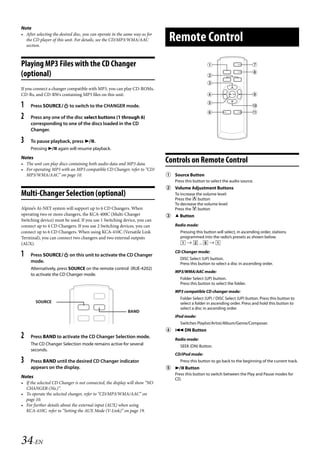
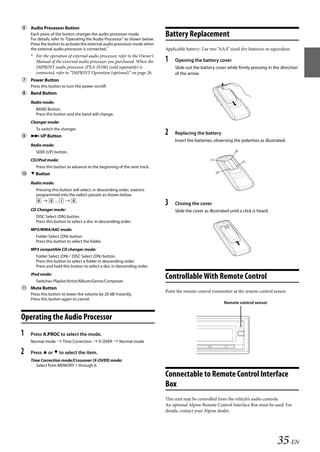
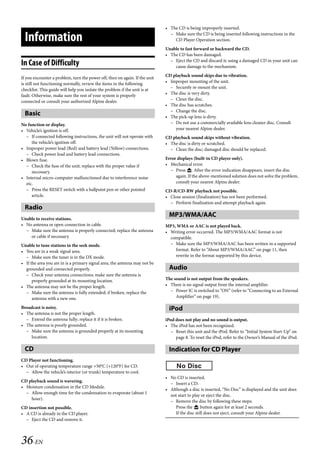
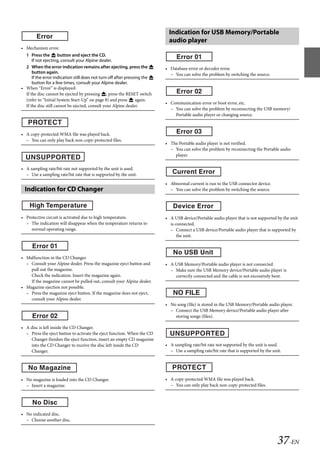
00ALPINE.book Page 1 Wednesday, January 20, 2010 2:30 PM


     Contents                                                                                                                                       ENGLISH
                                                                                                 Turning Subwoofer ON/OFF.............................14
   Operating Instructions                                                                        Setting the Subwoofer System ........................14
                                                                                                 Setting the Subwoofer Phase...........................14
   WARNING                                                                                       Setting the Subwoofer Channel
       WARNING ....................................................... 4                         (SUBW. Channel) ...................................................14
       CAUTION ........................................................ 4                        Setting EQ mode...................................................14
                                                                                                 Setting the Time Correction Unit
       PRECAUTIONS ............................................... 4                             (TCR Parameter) ....................................................14
                                                                                                 Sound Field Adjustment ....................................15
   Getting Started                                                                                   Adjusting the Parametric Equalizer Curve ........15
       Accessory List ...............................................................7               Adjusting the Graphic Equalizer Curve ..............15
       Turning Power On and Off.......................................7                              Adjusting the Time Correction ..............................15
                                                                                                     Storing the Sound Field Adjustment
       Source Selection..........................................................7                   Settings ..........................................................................15
       Detaching and Attaching the Front Panel .........7                                            Recalling the Stored Sound Field Adjustment
         Detaching ..................................................................7               Settings ..........................................................................15
         Attaching ...................................................................7
                                                                                            Other Functions
       Initial System Start-Up ..............................................8
       Adjusting Volume .......................................................8              Displaying the Text...................................................16
                                                                                                About the indication display............................16
       Lowering Volume Quickly........................................8
                                                                                                About “Text” ...........................................................17
       Setting the Time and Calendar ..............................8
                                                                                              Displaying Time.........................................................17
   Radio                                                                                    SETUP
       Listening to Radio.......................................................9
                                                                                              Setting ..........................................................................17
       Presetting Stations Manually..................................9                          BLUETOOTH Setting ............................................18
       Presetting Stations Automatically.........................9                                   Setting the BLUETOOTH Connection ..................18
       Tuning to Preset Stations .........................................9                      General Setting .....................................................18
       Frequency Search Function.....................................9                               Birthday Opening Message Setting
                                                                                                     (Birthday Set) ...............................................................18
   CD/MP3/WMA/AAC                                                                                    Setting the Clock Display (Clock Mode) .............18
                                                                                                     Setting of Calendar Display Pattern Switching
       Playback ...................................................................... 10            (Calendar)......................................................................18
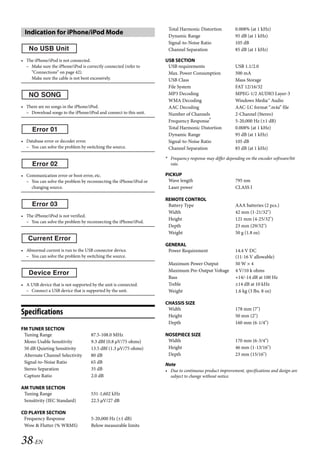
       Repeat Play................................................................. 10               Playing MP3/WMA/AAC Data (Play Mode)........18
       M.I.X. (Random Play) ............................................... 10                       Sound (Beep) Guide Function................................18
                                                                                                     Turning Mute Mode On/Off (INT Mute)..............18
       Searching for CD Text ............................................. 10
                                                                                                     Setting the AUX+ Setup Mode ..............................19
       Folder/File Name Search (Concerning MP3/                                                      Setting the AUX+ Level (AUX IN GAIN)...............19
       WMA/AAC).................................................................. 11                 Setting the External Digital Input.........................19
         Folder Name Search mode ............................... 11                                  Setting the AUX Mode (V-Link) .............................19
         File Name Search mode..................................... 11                               Connecting to an External Amplifier...................19
                                                                                                     Demonstration ............................................................20
       Quick Search .............................................................. 11
                                                                                                 Display Setting ......................................................20
       Search Position Memory ....................................... 11                             Changing Lighting Colour ......................................20
       About MP3/WMA/AAC........................................... 11                               Dimmer Control ..........................................................20
         Terminology........................................................... 12                   Dimmer Level Setting ...............................................20
                                                                                                     Scroll Type Setting .....................................................20
   Sound Setting                                                                                     Scroll Setting (Text Scroll) .......................................20
       Adjusting Subwoofer Level/Balance (Between                                                    Switching the Character Font ................................20
                                                                                                     Switching the Animation Display Type
       Left and Right)/Fader (Between Front and Rear)/                                               (BGV Select) ..................................................................20
       Black Out/Defeat ...................................................... 13                    Opening Message ON/OFF Setting .....................20
       Setting the MX Mode.............................................. 13                      Tuner Setting..........................................................20
       Sound Setting............................................................ 14                  Setting the TUNER (FM) tone quality ..................20
         Adjusting the High Pass Filter ......................... 14

                                                                                                                                                                                1-EN
          Ver.2-2
          03TOC.fm
                                                                                                                                ALPINE CDA-117E 68-14470Z54-B (EN)
00ALPINE.book Page 2 Wednesday, January 20, 2010 2:30 PM


     Contents                                                                                                                                          ENGLISH
   USB Memory/Portable audio player                                                                 Setting EQ mode...................................................29
   (optional)                                                                                       Setting the Time Correction Unit (TCR
                                                                                                    Parameter)...............................................................29
       Connecting the USB Memory (optional) ......... 21                                            Sound Field Adjustment ....................................29
       Using the USB Memory/Portable audio player                                                       Adjusting the Parametric Equalizer Curve ........29
       Banking Function..................................................... 21                         Adjusting the Graphic Equalizer Curve ..............29
       Playback ...................................................................... 21               Adjusting the Time Correction ..............................29
                                                                                                        Adjusting the Crossover Settings .........................30
       Repeat Play................................................................. 21
                                                                                                        Storing the Sound Field Adjustment
       M.I.X. (Random Play) ............................................... 22                          Settings ..........................................................................30
       Searching for a desired Song............................... 22                                   Recalling the Stored Sound Field Adjustment
         Searching by artist name .................................. 22                                 Settings ..........................................................................30
       Select Playlist/Artist/Album/Genre/Composer/                                              About Time Correction ...........................................31
       Folder ........................................................................... 22      Example 1: Front Left Seat.................................31
       Alphabet Skip Function ......................................... 23                        Example 2: All Seats .............................................31
       Quick Search .............................................................. 23            About the Crossover................................................32
       Search Position Memory ....................................... 23                       Changer (optional)
   iPhone/iPod (optional)                                                                        Controlling CD Changer (optional) ....................33
       Connecting an iPhone/iPod................................. 23                             Playing MP3 Files with the CD Changer
                                                                                                 (optional) .....................................................................34
       Playback ...................................................................... 23
                                                                                                 Multi-Changer Selection (optional) ...................34
       Searching for a desired Song............................... 24
         Searching by artist name .................................. 24                        Remote Control
       Quick Search .............................................................. 24            Controls on Remote Control.................................34
       Direct Search Function........................................... 24                      Operating the Audio Processor ...........................35
       Select Playlist/Artist/Album/Genre/Composer/                                              Battery Replacement...............................................35
       Episode ........................................................................ 25
                                                                                                 Controllable With Remote Control.....................35
       Alphabet Skip Function ......................................... 25
                                                                                                 Connectable to Remote Control Interface
       Search Position Memory ....................................... 25                         Box .................................................................................35
       Random Play Shuffle (M.I.X.) ................................ 25
       Repeat Play................................................................. 25         Information
       Displaying the Text.................................................. 26                  In Case of Difficulty ..................................................36
                                                                                                   Basic...........................................................................36
   IMPRINT Operation (optional)                                                                    Radio .........................................................................36
       Changing MultEQ mode........................................ 26                             CD...............................................................................36
       Adjusting Subwoofer Level/Bass Level/Treble                                                 MP3/WMA/AAC .....................................................36
       Level/Fader (Between Front and Rear)/Balance                                                Audio.........................................................................36
       (Between Left and Right)/Black Out in MultEQ                                                iPod............................................................................36
       mode ............................................................................ 27        Indication for CD Player......................................36
       Setting the MX Mode.............................................. 27                        Indication for CD Changer.................................37
                                                                                                   Indication for USB Memory/Portable audio
       Adjusting Sound Setting in Manual Mode ..... 27
                                                                                                   player ........................................................................37
         Turning Subwoofer ON/OFF ............................ 28
                                                                                                   Indication for iPhone/iPod Mode ...................38
         Setting the Subwoofer System ....................... 28
         Setting the Subwoofer Phase .......................... 28                               Specifications .............................................................38
         Setting the Subwoofer Channel
         (SUBW. Channel)................................................... 28
         Equalizer Presets (Factory’s EQ) ...................... 28
         Setting the Response Slope for the High
         Range Speaker (TW Setup)............................... 28
         Setting the Filter type......................................... 28

   2-EN
          Ver.2-2
          03TOC.fm
                                                                                                                                   ALPINE CDA-117E 68-14470Z54-B (EN)
00ALPINE.book Page 3 Wednesday, January 20, 2010 2:30 PM


     Contents                                                                                         ENGLISH

   Installation and Connections
       Warning ....................................................... 39
       Caution ........................................................ 39
       Precautions.................................................. 39
       Installation.................................................................. 40
         Removal................................................................... 40
         iPhone/iPod Connection
         (sold separately) ................................................... 41
              Remove the iPhone/iPod.........................................41
          USB Memory Connection
          (sold separately) ................................................... 41
              Connect USB Memory ..............................................41
              Remove USB Memory...............................................41
       Connections............................................................... 42


                                                                                                                      3-EN
          Ver.2-2
          03TOC.fm
                                                                                           ALPINE CDA-117E 68-14470Z54-B (EN)
00ALPINE.book Page 4 Wednesday, January 20, 2010 2:30 PM


   Operating Instructions
                                                                            HALT USE IMMEDIATELY IF A PROBLEM APPEARS.
     WARNING                                                                Failure to do so may cause personal injury or damage to the
                                                                            product. Return it to your authorized Alpine dealer or the nearest
                                                                            Alpine Service Centre for repairing.
   WARNING                                                                 DO NOT MIX NEW BATTERIES WITH OLD BATTERIES. INSERT WITH THE
    This symbol means important instructions. Failure                       CORRECT BATTERY POLARITY.
    to heed them can result in serious injury or death.                     When inserting the batteries, be sure to observe proper polarity (+
                                                                            and –) as instructed. Rupture or chemical leakage from the battery
   DO NOT OPERATE ANY FUNCTION THAT TAKES YOUR ATTENTION AWAY               may cause fire or personal injury.
   FROM SAFELY DRIVING YOUR VEHICLE.
   Any function that requires your prolonged attention should only be       PRECAUTIONS
   performed after coming to a complete stop. Always stop the vehicle
   in a safe location before performing these functions. Failure to do so
   may result in an accident.                                               Product Cleaning
                                                                            Use a soft dry cloth for periodic cleaning of the product. For more
   KEEP THE VOLUME AT A LEVEL WHERE YOU CAN STILL HEAR OUTSIDE              severe stains, please dampen the cloth with water only. Anything
   NOISES WHILE DRIVING.                                                    else has the chance of dissolving the paint or damaging the plastic.
   Excessive volume levels that obscure sounds such as emergency
   vehicle sirens or road warning signals (train crossings, etc.) can be
                                                                            Temperature
   dangerous and may result in an accident. LISTENING AT LOUD               Be sure the temperature inside the vehicle is between +60°C
   VOLUME LEVELS IN A CAR MAY ALSO CAUSE HEARING                            (+140°F) and –10°C (+14°F) before turning your unit on.
   DAMAGE.
                                                                            Moisture Condensation
   DO NOT DISASSEMBLE OR ALTER.                                             You may notice the CD playback sound wavering due to
   Doing so may result in an accident, fire or electric shock.              condensation. If this happens, remove the disc from the player and
                                                                            wait about an hour for the moisture to evaporate.
   USE ONLY IN CARS WITH A 12 VOLT NEGATIVE GROUND.
                                                                            Damaged Disc
   (Check with your dealer if you are not sure.) Failure to do so may
   result in fire, etc.                                                     Do not attempt to play cracked, warped, or damaged discs. Playing
                                                                            a bad disc could severely damage the playback mechanism.
   KEEP SMALL OBJECTS SUCH AS BATTERIES OUT OF THE REACH OF
                                                                            Maintenance
   CHILDREN.
                                                                            If you have problems, do not attempt to repair the unit yourself.
   Swallowing them may result in serious injury. If swallowed, consult
                                                                            Return it to your Alpine dealer or the nearest Alpine Service Station
   a physician immediately.
                                                                            for servicing.
   USE THE CORRECT AMPERE RATING WHEN REPLACING FUSES.
                                                                            Never Attempt the Following
   Failure to do so may result in fire or electric shock.
                                                                            Do not grip or pull out the disc while it is being pulled back into the
                                                                            player by the automatic reloading mechanism.
   DO NOT BLOCK VENTS OR RADIATOR PANELS.
                                                                            Do not attempt to insert a disc into the unit when the unit power is
   Doing so may cause heat to build up inside and may result in fire.
                                                                            off.
   USE THIS PRODUCT FOR MOBILE 12V APPLICATIONS.
   Use for other than its designed application may result in fire,
   electric shock or other injury.

   DO NOT PLACE HANDS, FINGERS OR FOREIGN OBJECTS IN INSERTION
   SLOTS OR GAPS.
   Doing so may result in personal injury or damage to the product.


   CAUTION
    This symbol means important instructions. Failure
    to heed them can result in injury or material
    property damage.


   4-EN

                                                                                                         ALPINE CDA-117E 68-14470Z54-B (EN)
00ALPINE.book Page 5 Wednesday, January 20, 2010 2:30 PM


   Inserting Discs                                                         Disc Cleaning
   Your player accepts only one disc at a time for playback. Do not        Fingerprints, dust, or soil on the surface of the disc could cause the
   attempt to load more than one disc.                                     CD player to skip. For routine cleaning, wipe the playing surface
   Make sure the label side is facing up when you insert the disc.         with a clean, soft cloth from the centre of the disc to the outer edge.
   “Error” will be displayed on your player if you insert a disc           If the surface is heavily soiled, dampen a clean, soft cloth in a
   incorrectly. If “Error” continues to be displayed even though the       solution of mild neutral detergent before cleaning the disc.
   disc has been inserted correctly, push the RESET switch with a
   pointed object such as a ballpoint pen.
   Playing a disc while driving on a very bumpy road may result in
   skips, but this will not scratch the disc or damage the player.

   New Discs
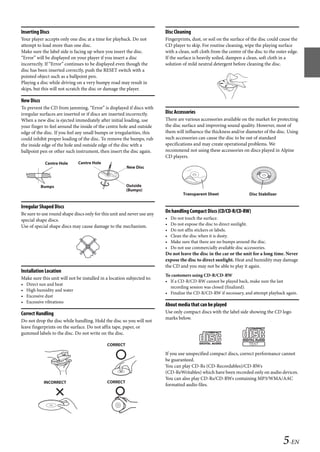
   To prevent the CD from jamming, “Error” is displayed if discs with
   irregular surfaces are inserted or if discs are inserted incorrectly.   Disc Accessories
   When a new disc is ejected immediately after initial loading, use       There are various accessories available on the market for protecting
   your finger to feel around the inside of the centre hole and outside    the disc surface and improving sound quality. However, most of
   edge of the disc. If you feel any small bumps or irregularities, this   them will influence the thickness and/or diameter of the disc. Using
   could inhibit proper loading of the disc. To remove the bumps, rub      such accessories can cause the disc to be out of standard
   the inside edge of the hole and outside edge of the disc with a         specifications and may create operational problems. We
   ballpoint pen or other such instrument, then insert the disc again.     recommend not using these accessories on discs played in Alpine
                                                                           CD players.
                Centre Hole      Centre Hole
                                                           New Disc


               Bumps                                      Outside
                                                          (Bumps)
                                                                                     Transparent Sheet                   Disc Stabilizer

   Irregular Shaped Discs
   Be sure to use round shape discs only for this unit and never use any
                                                                           On handling Compact Discs (CD/CD-R/CD-RW)
   special shape discs.                                                    •   Do not touch the surface.
   Use of special shape discs may cause damage to the mechanism.           •   Do not expose the disc to direct sunlight.
                                                                           •   Do not affix stickers or labels.
                                                                           •   Clean the disc when it is dusty.
                                                                           •   Make sure that there are no bumps around the disc.
                                                                           •   Do not use commercially available disc accessories.
                                                                           Do not leave the disc in the car or the unit for a long time. Never
                                                                           expose the disc to direct sunlight. Heat and humidity may damage
                                                                           the CD and you may not be able to play it again.
   Installation Location
                                                                           To customers using CD-R/CD-RW
   Make sure this unit will not be installed in a location subjected to:
                                                                           • If a CD-R/CD-RW cannot be played back, make sure the last
   •   Direct sun and heat
                                                                             recording session was closed (finalized).
   •   High humidity and water
                                                                           • Finalize the CD-R/CD-RW if necessary, and attempt playback again.
   •   Excessive dust
   •   Excessive vibrations
                                                                           About media that can be played
   Correct Handling                                                        Use only compact discs with the label side showing the CD logo
                                                                           marks below.
   Do not drop the disc while handling. Hold the disc so you will not
   leave fingerprints on the surface. Do not affix tape, paper, or
   gummed labels to the disc. Do not write on the disc.

                                                CORRECT

                                                                           If you use unspecified compact discs, correct performance cannot
                                                                           be guaranteed.
                                                                           You can play CD-Rs (CD-Recordables)/CD-RWs
                                                                           (CD-ReWritables) which have been recorded only on audio devices.
                                                                           You can also play CD-Rs/CD-RWs containing MP3/WMA/AAC
                INCORRECT                       CORRECT
                                                                           formatted audio files.


                                                                                                                                           5-EN

                                                                                                         ALPINE CDA-117E 68-14470Z54-B (EN)
00ALPINE.book Page 6 Wednesday, January 20, 2010 2:30 PM


   • Some of the following CDs may not play on this unit: Flawed CDs,        • Portable audio player function is not guaranteed. Use Portable audio
     CDs with fingerprints, CDs exposed to extreme temperatures or             player according to the terms of agreement. Read the Portable audio
     sunlight (e.g., left in the car or this unit), CDs recorded under         player Owner’s Manual thoroughly.
     unstable conditions, CDs on which a recording failed or a               • Avoid usage or storage in the following locations:
     re-recording was attempted, copy-protected CDs which do not               Anywhere in the car exposed to direct sunlight or high temperatures.
     conform to the audio CD industry standard.                                Anywhere the possibility of high humidity or corrosive substances are
   • Use discs with MP3/WMA/AAC files written in a format compatible           present.
     with this unit. For details, refer to “About MP3/WMA/AAC” on            • Fix the Portable audio player in a location where driver operation will
     page 11.                                                                  not be hindered.
   • ROM data other than audio files contained in a disc will not produce    • Portable audio player may not function correctly at high or low
     sound when played back.                                                   temperature.
                                                                             • Depending on the settings of the Portable audio player type, memory
   Protecting the USB connector                                                state or encoding software, the unit may not play back or display
   • Only a USB Memory, iPhone/iPod or Portable audio player can be            properly.
     connected to the USB connector on this unit. Correct performance        • If the Portable audio player has an MSC/MTP setting, set to MTP.
     using other USB products cannot be guaranteed.                          • A Portable audio player in which data is stored by USB Mass Storage
   • If the USB connector is used, be sure to use a USB extension cable        may not be playable on the unit.
     (supplied). A USB hub is not supported.                                 • Depending on the Portable audio player settings, USB Mass Storage
   • Depending on the connected USB Memory device, the unit may not            may be supported. For setting, refer to the Owner’s Manual of the
     function or some functions may not be performed.                          player.
   • The audio file format that can be played back on the unit is MP3/       • The unit can play back MP3/WMA files synchronized by Windows
     WMA/AAC.                                                                  Media Player (Ver. 7, 8, 9), and are then forwarded to the player. The
   • Artist/song name, etc., can be displayed. Certain, special characters     “mp3” or “wma” file extensions are playable.
     may not be correctly displayed.                                         • If data is not synchronized by Windows Media Player and is
                                                                               forwarded in another way, the unit may not be able to correctly play
   On Handling USB Memory                                                      back the files.
                                                                             • A file that is copy-protected (copyright protection) cannot be played
                                                                               back.
   CAUTION                                                                  • It is recommended to back up important data on a personal
   Alpine accepts no responsibility for lost data, etc., even if data,
                                                                               computer.
   etc. is lost while using this product.
                                                                             • Do not remove the USB device while playback is in progress. Change
   • To prevent malfunction or damage, note the following points.              SOURCE to something other than USB, then remove the USB device
     Read the USB Memory Owner’s Manual thoroughly.                            to prevent possible damage to its memory.
     Do not touch the terminals by hand or metal.
     Do not subject USB Memory to excessive shock.                            • Windows Media and the Windows logo are trademarks, or
     Do not bend, drop, disassemble, modify or soak in water.                   registered trademarks of Microsoft Corporation in the United States
   • Avoid usage or storage in the following locations:                         and/or other countries.
     Anywhere in the car exposed to direct sunlight or high temperatures.     • iPod is a trademark of Apple Inc., registered in the U.S. and other
     Anywhere the possibility of high humidity or corrosive substances are      countries.
     present.                                                                 • iPhone is a trademark of Apple Inc.
   • Fix the USB Memory in a location where driver operation will not be      • “Made for iPod” means that an electronic accessory has been
     hindered.                                                                  designed to connect specifically to iPod and has been certified by the
   • USB Memory may not function correctly at high or low temperature.          developer to meet Apple performance standards.
   • Use only certified USB Memory. Pay attention that even certified USB     • “Works with iPhone” means that an electronic accessory has been
     Memory, may not function correctly depending on its type or state.         designed to connect specifically to iPhone and has been certified by
   • USB Memory function is not guaranteed. Use USB Memory                      the developer to meet Apple performance standards.
     according to the terms of agreement.                                     • Apple is not responsible for the operation of this device or its
   • Depending on the settings of the USB Memory type, memory state or          compliance with safety and regulatory standards.
     encoding software, the unit may not play back or display properly.       • The BLUETOOTH word mark and logos are owned by the
   • A file that is copy-protected (copyright protection) cannot be played      Bluetooth SIG, Inc. and any use of such marks by Alpine Electronics,
     back.                                                                      Inc. is under license.
   • USB Memory may take time to start playback. If there is a particular     • “MPEG Layer-3 audio coding technology licensed from Fraunhofer
     file other than audio in the USB Memory, it may take considerable          IIS and Thomson.”
     time before the file is played back or searched.                         • “Supply of this product only conveys a license for private,
   • The unit can play back “mp3”, “wma” or “m4a” file extensions.              non-commercial use and does not convey a license nor imply any
   • Do not add the above extensions to a file other than audio data. This      right to use this product in any commercial (i.e. revenue-generation)
     non-audio data will not be recognized. The resulting playback may          real time broadcasting (terrestrial, satellite, cable and/or any other
     contain noise that can damage speakers and/or amplifiers.                  media), broadcasting/streaming via internet, intranets and/or other
   • It is recommended to back up important data on a personal                  networks or in other electronic content distribution systems, such as
     computer.                                                                  pay-audio or audio-on-demand applications. An independent
   • Do not remove the USB device while playback is in progress. Change         license for such use is required. For details, please visit
     SOURCE to something other than USB, then remove the USB device             http://www.mp3licensing.com”
     to prevent possible damage to its memory.                                • Audyssey MultEQ XT is a registered trademark of Audyssey
                                                                                Laboratories, Inc.
   On Handling Portable audio player
   • The unit can control a Portable audio player with the USB interface.
     Playable audio file formats are MP3 and WMA.


   6-EN

                                                                                                           ALPINE CDA-117E 68-14470Z54-B (EN)
00ALPINE.book Page 7 Wednesday, January 20, 2010 2:30 PM


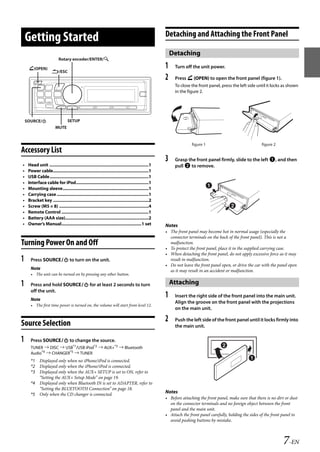
                                                                                                        Detaching and Attaching the Front Panel
       Getting Started
                                                                                                            Detaching
                              Rotary encoder/ENTER/

        (OPEN)                                                                                         1    Turn off the unit power.
                         /ESC
                                                                                                        2    Press  (OPEN) to open the front panel (figure 1).
                                                                                                             To close the front panel, press the left side until it locks as shown
                                                                                                             in the figure 2.


       SOURCE/                      SETUP
                            MUTE


                                                                                                                       figure 1                               figure 2
   Accessory List
                                                                                                        3    Grasp the front panel firmly, slide to the left , and then
   •    Head unit ..................................................................................1        pull  to remove.
   •    Power cable...............................................................................1
   •    USB Cable..................................................................................1
   •    Interface cable for iPod............................................................1
   •    Mounting sleeve.......................................................................1
   •    Carrying case ............................................................................1
   •    Bracket key ...............................................................................2
   •    Screw (M5 × 8) ..........................................................................4
   •    Remote Control ........................................................................1
   •    Battery (AAA size).....................................................................2
   •    Owner’s Manual..................................................................1 set           Notes
                                                                                                        • The front panel may become hot in normal usage (especially the
                                                                                                          connector terminals on the back of the front panel). This is not a
   Turning Power On and Off                                                                               malfunction.
                                                                                                        • To protect the front panel, place it in the supplied carrying case.
                                                                                                        • When detaching the front panel, do not apply excessive force as it may
   1     Press SOURCE to turn on the unit.                                                              result in malfunction.
                                                                                                        • Do not leave the front panel open, or drive the car with the panel open
         Note                                                                                             as it may result in an accident or malfunction.
         • The unit can be turned on by pressing any other button.

   1     Press and hold SOURCE for at least 2 seconds to turn                                             Attaching
         off the unit.
         Note
                                                                                                        1    Insert the right side of the front panel into the main unit.
                                                                                                             Align the groove on the front panel with the projections
         • The first time power is turned on, the volume will start from level 12.
                                                                                                             on the main unit.


   Source Selection
                                                                                                        2    Push the left side of the front panel until it locks firmly into
                                                                                                             the main unit.

   1     Press SOURCE to change the source.
         TUNER  DISC  USB*1/USB iPod*2  AUX+*3  Bluetooth
         Audio*4  CHANGER*5  TUNER
         *1 Displayed only when no iPhone/iPod is connected.
         *2 Displayed only when the iPhone/iPod is connected.
         *3 Displayed only when the AUX+ SETUP is set to ON, refer to
            “Setting the AUX+ Setup Mode” on page 19.
         *4 Displayed only when Bluetooth IN is set to ADAPTER, refer to
            “Setting the BLUETOOTH Connection” on page 18.
         *5 Only when the CD changer is connected.
                                                                                                        Notes
                                                                                                        • Before attaching the front panel, make sure that there is no dirt or dust
                                                                                                          on the connector terminals and no foreign object between the front
                                                                                                          panel and the main unit.
                                                                                                        • Attach the front panel carefully, holding the sides of the front panel to
                                                                                                          avoid pushing buttons by mistake.


                                                                                                                                                                          7-EN

                                                                                                                                       ALPINE CDA-117E 68-14470Z54-B (EN)
00ALPINE.book Page 8 Wednesday, January 20, 2010 2:30 PM


                                                                               • If no operation is performed for 60 seconds, SETUP is cancelled.
   Initial System Start-Up                                                     • To synchronize the clock to another clock/watch or radio time
                                                                                 announcement, press and hold ENTER for at least 2 seconds after
                                                                                 setting the “hour”. Minutes will reset to 00. If the display shows over
   Be sure to press the RESET switch when using the unit for the first time,     “30” minutes when you do this, the time will advance one hour.
   after changing the car battery, etc.

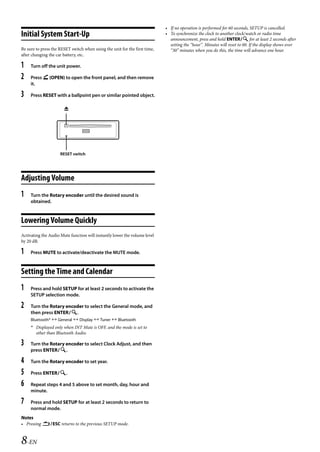
   1    Turn off the unit power.

   2    Press  (OPEN) to open the front panel, and then remove
        it.

   3    Press RESET with a ballpoint pen or similar pointed object.

                          


                        RESET switch


   Adjusting Volume
   1    Turn the Rotary encoder until the desired sound is
        obtained.


   Lowering Volume Quickly
   Activating the Audio Mute function will instantly lower the volume level
   by 20 dB.

   1    Press MUTE to activate/deactivate the MUTE mode.


   Setting the Time and Calendar
   1    Press and hold SETUP for at least 2 seconds to activate the
        SETUP selection mode.

   2    Turn the Rotary encoder to select the General mode, and
        then press ENTER.
        Bluetooth*  General  Display  Tuner  Bluetooth
        * Displayed only when INT Mute is OFF, and the mode is set to
          other than Bluetooth Audio.

   3    Turn the Rotary encoder to select Clock Adjust, and then
        press ENTER.

   4    Turn the Rotary encoder to set year.

   5    Press ENTER.

   6    Repeat steps 4 and 5 above to set month, day, hour and
        minute.

   7    Press and hold SETUP for at least 2 seconds to return to
        normal mode.
   Notes
   • Pressing ESC returns to the previous SETUP mode.


   8-EN

                                                                                                             ALPINE CDA-117E 68-14470Z54-B (EN)
00ALPINE.book Page 9 Wednesday, January 20, 2010 2:30 PM


                                                                                 Presetting Stations Automatically
       Radio
                                                                                 1    Press BAND repeatedly until the desired radio band is
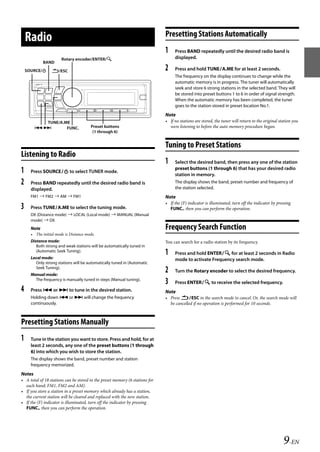
                          Rotary encoder/ENTER/                                      displayed.
                BAND
       SOURCE/     /ESC                                                        2    Press and hold TUNEA.ME for at least 2 seconds.
                                                                                      The frequency on the display continues to change while the
                                                                                      automatic memory is in progress. The tuner will automatically
                                                                                      seek and store 6 strong stations in the selected band. They will
                                                                                      be stored into preset buttons 1 to 6 in order of signal strength.
                                                                                      When the automatic memory has been completed, the tuner
                                                                                      goes to the station stored in preset location No.1.
                                                                                 Note
             TUNE/A.ME                                                           • If no stations are stored, the tuner will return to the original station you
                   FUNC.                Preset buttons                           were listening to before the auto memory procedure began.
                                           (1 through 6)


                                                                                 Tuning to Preset Stations
   Listening to Radio
                                                                                 1    Select the desired band, then press any one of the station
                                                                                      preset buttons (1 through 6) that has your desired radio
   1     Press SOURCE to select TUNER mode.
                                                                                      station in memory.
   2     Press BAND repeatedly until the desired radio band is                        The display shows the band, preset number and frequency of
         displayed.                                                                   the station selected.
         FM1  FM2  AM  FM1                                                    Note
                                                                                 • If the (F) indicator is illuminated, turn off the indicator by pressing
   3     Press TUNEA.ME to select the tuning mode.                                FUNC., then you can perform the operation.
         DX (Distance mode)  LOCAL (Local mode)  MANUAL (Manual
         mode)  DX
         Note                                                                    Frequency Search Function
         • The initial mode is Distance mode.
         Distance mode:                                                          You can search for a radio station by its frequency.
            Both strong and weak stations will be automatically tuned in
            (Automatic Seek Tuning).
         Local mode:
                                                                                 1    Press and hold ENTER for at least 2 seconds in Radio
                                                                                      mode to activate Frequency search mode.
           Only strong stations will be automatically tuned in (Automatic
           Seek Tuning).
         Manual mode:
                                                                                 2    Turn the Rotary encoder to select the desired frequency.
           The frequency is manually tuned in steps (Manual tuning).
                                                                                 3    Press ENTER to receive the selected frequency.
   4     Press  or  to tune in the desired station.                            Note
         Holding down  or  will change the frequency                           • Press ESC in the search mode to cancel. Or, the search mode will
         continuously.                                                             be cancelled if no operation is performed for 10 seconds.


   Presetting Stations Manually
   1     Tune in the station you want to store. Press and hold, for at
         least 2 seconds, any one of the preset buttons (1 through
         6) into which you wish to store the station.
         The display shows the band, preset number and station
         frequency memorized.
   Notes
   • A total of 18 stations can be stored in the preset memory (6 stations for
     each band; FM1, FM2 and AM).
   • If you store a station in a preset memory which already has a station,
     the current station will be cleared and replaced with the new station.
   • If the (F) indicator is illuminated, turn off the indicator by pressing
     FUNC., then you can perform the operation.


                                                                                                                                                      9-EN

                                                                                                                 ALPINE CDA-117E 68-14470Z54-B (EN)
00ALPINE.book Page 10 Wednesday, January 20, 2010 2:30 PM


                                                                                         • The playback time may not be correctly displayed when a VBR

       CD/MP3/WMA/AAC                                                                      (Variable Bit Rate) recorded file is played back.
                                                                                         • Press VIEW to switch the display. For details, refer to “Displaying the
                                                                                           Text” on page 16.


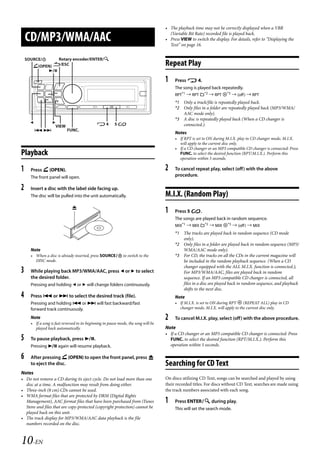
       SOURCE/           Rotary encoder/ENTER/
          (OPEN) /ESC                                                                  Repeat Play
               

                                                                                         1    Press  4.
                                                                                              The song is played back repeatedly.
                                                                                              RPT*1  RPT *2  RPT *3  (off )  RPT
                                                                                              *1 Only a track/file is repeatedly played back.
                                                                                              *2 Only files in a folder are repeatedly played back (MP3/WMA/
                                                                                                 AAC mode only).
                                                                                              *3 A disc is repeatedly played back (When a CD changer is
                                                4         5                                  connected.).
                       VIEW
                             FUNC.
                                                                                              Notes
                                                                                              • If RPT is set to ON during M.I.X. play in CD changer mode, M.I.X.
                                                                                                will apply to the current disc only.
                                                                                              • If a CD changer or an MP3 compatible CD changer is connected: Press
   Playback                                                                                     FUNC. to select the desired function (RPT/M.I.X.). Perform this
                                                                                                operation within 5 seconds.

   1     Press  (OPEN).                                                                 2    To cancel repeat play, select (off) with the above
         The front panel will open.                                                           procedure.

   2     Insert a disc with the label side facing up.
         The disc will be pulled into the unit automatically.                            M.I.X. (Random Play)
                                  
                                                                                         1    Press 5 .
                                                                                              The songs are played back in random sequence.
                                                                                              MIX*1  MIX *2  MIX *3  (off )  MIX
                                                                                              *1 The tracks are played back in random sequence (CD mode
                                                                                                 only).
                                                                                              *2 Only files in a folder are played back in random sequence (MP3/
         Note                                                                                    WMA/AAC mode only).
         • When a disc is already inserted, press SOURCE to switch to the                   *3 For CD, the tracks on all the CDs in the current magazine will
           DISC mode.                                                                            be included in the random playback sequence. (When a CD
                                                                                                 changer equipped with the ALL M.I.X. function is connected.);
   3     While playing back MP3/WMA/AAC, press  or  to select                                  For MP3/WMA/AAC, files are played back in random
         the desired folder.                                                                     sequence. If an MP3 compatible CD changer is connected, all
         Pressing and holding  or  will change folders continuously.                           files in a disc are played back in random sequence, and playback
                                                                                                 shifts to the next disc.
   4     Press  or  to select the desired track (file).                                     Note
         Pressing and holding  or  will fast backward/fast                                  • If M.I.X. is set to ON during RPT  (REPEAT ALL) play in CD
         forward track continuously.                                                            changer mode, M.I.X. will apply to the current disc only.

         Note                                                                            2    To cancel M.I.X. play, select (off) with the above procedure.
         • If a song is fast reversed to its beginning in pause mode, the song will be
           played back automatically.                                                    Note
                                                                                         • If a CD changer or an MP3 compatible CD changer is connected: Press
   5     To pause playback, press .                                                       FUNC. to select the desired function (RPT/M.I.X.). Perform this
         Pressing  again will resume playback.                                            operation within 5 seconds.

   6     After pressing  (OPEN) to open the front panel, press 
         to eject the disc.                                                              Searching for CD Text
   Notes
   • Do not remove a CD during its eject cycle. Do not load more than one                On discs utilizing CD Text, songs can be searched and played by using
     disc at a time. A malfunction may result from doing either.                         their recorded titles. For discs without CD Text, searches are made using
   • Three-inch (8 cm) CDs cannot be used.                                               the track numbers associated with each song.
   • WMA format files that are protected by DRM (Digital Rights
     Management), AAC format files that have been purchased from iTunes                  1    Press ENTER during play.
     Store and files that are copy-protected (copyright protection) cannot be                 This will set the search mode.
     played back on this unit.
   • The track display for MP3/WMA/AAC data playback is the file
     numbers recorded on the disc.


   10-EN

                                                                                                                        ALPINE CDA-117E 68-14470Z54-B (EN)
00ALPINE.book Page 11 Wednesday, January 20, 2010 2:30 PM


   2    Turn the Rotary encoder to select the desired track, and
        then press ENTER.                                                      Quick Search
        This will play the selected track.
   Notes                                                                         You can search for tracks (files).
   • Press ESC in the search mode to cancel. Or, the search mode is
     cancelled if no operation is performed for 60 seconds.                      1    Press and hold ENTER for at least 2 seconds in the CD/
   • When CD Text Search is made during M.I.X. play, the M.I.X. play                  MP3/WMA/AAC mode to activate Quick Search mode.
     mode will be cancelled.
   • In CD changer mode, searches can only be made using the track               2    Turn the Rotary encoder to select a desired track (file).
     numbers associated with each song, even though discs utilize CD text.            The selected track is played back immediately.
                                                                                 Notes
                                                                                 • Press ESC in the search mode to cancel. Or, the search mode is
   Folder/File Name Search (Concerning MP3/                                        cancelled if no operation is performed for 10 seconds.
   WMA/AAC)                                                                      • When Quick Search is made during M.I.X. play, the M.I.X. play mode
                                                                                   will be cancelled.

   Folder and file names may be searched and displayed during playback.

       Folder Name Search mode
                                                                                 Search Position Memory
                                                                                 During playback, you can quickly return to the last-selected hierarchy
   1    During MP3/WMA/AAC playback, press ENTER to
                                                                                 level in the search mode.
        activate the search mode.

   2    Turn the Rotary encoder to select Folder Name Search
                                                                                 1    Press ESC.
                                                                                      The hierarchy you selected last in the search mode is displayed.
        mode, and then press ENTER.

   3    Turn the Rotary encoder to select the desired folder.
                                                                                 About MP3/WMA/AAC
   4    Press and hold ENTER for at least 2 seconds to play
        back the first file in the selected folder.
                                                                                 CAUTION
   Notes
                                                                                 Except for private use, duplicating audio data (including MP3/
   • Press and hold ESC for at least 2 seconds in the search mode to           WMA/AAC data) or distributing, transferring, or copying it,
     cancel. Or, the search mode is cancelled if no operation is performed for   whether for free or for a fee, without permission of the copyright
     60 seconds.                                                                 holder is strictly prohibited by the Copyright Act and by
   • To search for files in the Folder Name Search mode, press ENTER.          international treaty.
     Files in the folder may be searched.
   • Press  or  to select folders in which to search for a file.               What is MP3?
   • Press ESC to exit Folder Name Search mode in step 3 in order to             MP3, whose official name is “MPEG-1 Audio Layer 3,” is a compression
     select File Name Search mode.                                                 standard prescribed by the ISO, the International Standardization
   • When Folder Name Search is made during M.I.X. play, the M.I.X. play           Organization and MPEG which is a joint activity institution of the IEC.
     mode will be cancelled.                                                       MP3 files contain compressed audio data. MP3 encoding is capable of
   • The root folder of a disc is displayed as “ROOT”.                            compressing audio data at extremely high ratios, reducing the size of
                                                                                   music files to as much as one-tenth their original size. This is achieved
                                                                                   while still maintaining near CD quality. The MP3 format realises such
       File Name Search mode                                                       high compression ratios by eliminating the sounds that are either
                                                                                   inaudible to the human ear or masked by other sounds.
   1    During MP3/WMA/AAC playback, press ENTER to
                                                                                 What is WMA?
        activate the search mode.
                                                                                   WMA, or “Windows Media™ Audio,” is compressed audio data.
   2    Turn the Rotary encoder to select File Name Search mode,
                                                                                   WMA is similar to MP3 audio data and can achieve CD quality sound
                                                                                   with small file sizes.
        and then press ENTER.
                                                                                 What is AAC?
   3    Select the desired file by turning the Rotary encoder.                     AAC is the abbreviation for “Advanced Audio Coding”, and is a basic
                                                                                   format of audio compression used by MPEG2 or MPEG4.
   4    Press ENTER to play back the selected file.
                                                                                 Method for creating MP3/WMA/AAC files
   Notes                                                                           Audio data is compressed using software with MP3/WMA/AAC codecs.
   • Press and hold ESC for at least 2 seconds in the search mode to             For details on creating MP3/WMA/AAC files, refer to the user’s manual
     cancel. Or, the search mode is cancelled if no operation is performed for     for that software.
     60 seconds.                                                                   MP3/WMA/AAC files that are playable on this device have the file
   • Press ESC in the search mode to return to the previous mode.                extensions “mp3”/“wma”/“m4a”. Files with no extension cannot be
                                                                                   played back (WMA ver. 7, 8 and 9 are supported). Protected files are not
   • When File Name Search is made during M.I.X. play, the M.I.X. play
                                                                                   supported, neither are raw AAC files (using the “.aac” extension).
     mode will be cancelled.                                                       There are many different versions of the AAC format. Confirm that the
                                                                                   software being used conforms to the acceptable formats listed above.
                                                                                   It’s possible that the format may be unplayable even though the
                                                                                   extension is valid.
                                                                                   Playback of AAC files encoded by iTunes is supported.


                                                                                                                                                 11-EN

                                                                                                                ALPINE CDA-117E 68-14470Z54-B (EN)
00ALPINE.book Page 12 Wednesday, January 20, 2010 2:30 PM


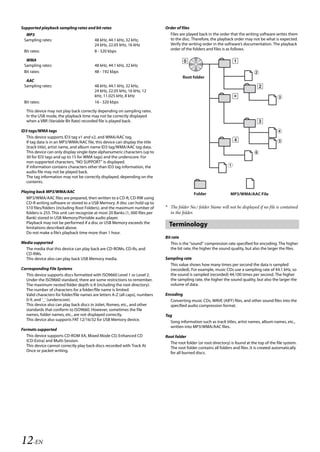
   Supported playback sampling rates and bit rates                                 Order of files
     MP3                                                                             Files are played back in the order that the writing software writes them
    Sampling rates:                          48 kHz, 44.1 kHz, 32 kHz,               to the disc. Therefore, the playback order may not be what is expected.
                                             24 kHz, 22.05 kHz, 16 kHz               Verify the writing order in the software’s documentation. The playback
    Bit rates:                               8 - 320 kbps                            order of the folders and files is as follows.

     WMA
    Sampling rates:                          48 kHz, 44.1 kHz, 32 kHz
    Bit rates:                               48 - 192 kbps
                                                                                             Root folder
     AAC
    Sampling rates:                          48 kHz, 44.1 kHz, 32 kHz,
                                             24 kHz, 22.05 kHz, 16 kHz, 12
                                             kHz, 11.025 kHz, 8 kHz
    Bit rates:                               16 - 320 kbps
                                                                                                                           *
      This device may not play back correctly depending on sampling rates.
      In the USB mode, the playback time may not be correctly displayed
      when a VBR (Variable Bit Rate) recorded file is played back.

   ID3 tags/WMA tags
     This device supports ID3 tag v1 and v2, and WMA/AAC tag.
     If tag data is in an MP3/WMA/AAC file, this device can display the title
     (track title), artist name, and album name ID3 tag/WMA/AAC tag data.
     This device can only display single-byte alphanumeric characters (up to
     30 for ID3 tags and up to 15 for WMA tags) and the underscore. For
     non-supported characters, “NO SUPPORT” is displayed.
     If information contains characters other than ID3 tag information, the
     audio file may not be played back.
     The tag information may not be correctly displayed, depending on the
     contents.

   Playing back MP3/WMA/AAC                                                                        Folder                MP3/WMA/AAC File
      MP3/WMA/AAC files are prepared, then written to a CD-R, CD-RW using
      CD-R writing software or stored to a USB Memory. A disc can hold up to
      510 files/folders (including Root Folders), and the maximum number of        * The folder No./ folder Name will not be displayed if no file is contained
      folders is 255. This unit can recognize at most 20 Banks (1, 000 files per     in the folder.
      Bank) stored in USB Memory/Portable audio player.
      Playback may not be performed if a disc or USB Memory exceeds the
      limitations described above.
                                                                                     Terminology
      Do not make a file’s playback time more than 1 hour.
                                                                                   Bit rate
   Media supported                                                                    This is the “sound” compression rate specified for encoding. The higher
     The media that this device can play back are CD-ROMs, CD-Rs, and                 the bit rate, the higher the sound quality, but also the larger the files.
     CD-RWs.
     This device also can play back USB Memory media.                              Sampling rate
                                                                                     This value shows how many times per second the data is sampled
   Corresponding File Systems                                                        (recorded). For example, music CDs use a sampling rate of 44.1 kHz, so
     This device supports discs formatted with ISO9660 Level 1 or Level 2.           the sound is sampled (recorded) 44,100 times per second. The higher
     Under the ISO9660 standard, there are some restrictions to remember.            the sampling rate, the higher the sound quality, but also the larger the
     The maximum nested folder depth is 8 (including the root directory).            volume of data.
     The number of characters for a folder/file name is limited.
     Valid characters for folder/file names are letters A-Z (all caps), numbers    Encoding
     0-9, and ‘_’ (underscore).                                                      Converting music CDs, WAVE (AIFF) files, and other sound files into the
     This device also can play back discs in Joliet, Romeo, etc., and other          specified audio compression format.
     standards that conform to ISO9660. However, sometimes the file
     names, folder names, etc., are not displayed correctly.                       Tag
     This device also supports FAT 12/16/32 for USB Memory device.                   Song information such as track titles, artist names, album names, etc.,
                                                                                     written into MP3/WMA/AAC files.
   Formats supported
     This device supports CD-ROM XA, Mixed Mode CD, Enhanced CD                    Root folder
     (CD-Extra) and Multi-Session.                                                   The root folder (or root directory) is found at the top of the file system.
     This device cannot correctly play back discs recorded with Track At             The root folder contains all folders and files. It is created automatically
     Once or packet writing.                                                         for all burned discs.


   12-EN

                                                                                                                   ALPINE CDA-117E 68-14470Z54-B (EN)
00ALPINE.book Page 13 Wednesday, January 20, 2010 2:30 PM


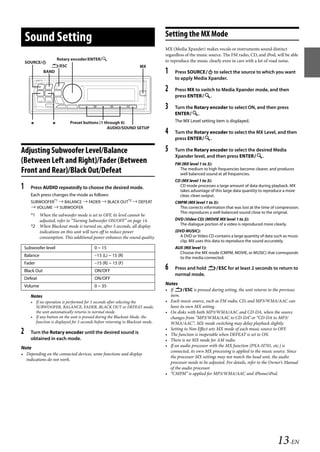
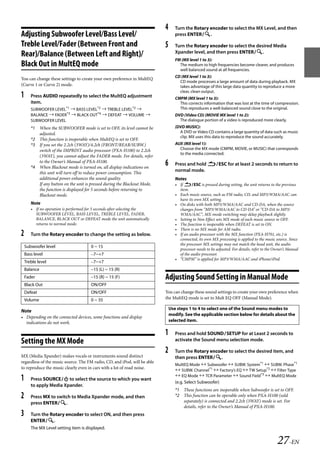
                                                                                     Setting the MX Mode
       Sound Setting
                                                                                     MX (Media Xpander) makes vocals or instruments sound distinct
                                                                                     regardless of the music source. The FM radio, CD, and iPod, will be able
                          Rotary encoder/ENTER/                                     to reproduce the music clearly even in cars with a lot of road noise.
       SOURCE/
                      /ESC                                              MX
                   BAND                                                              1    Press SOURCE to select the source to which you want
                                                                                          to apply Media Xpander.

                                                                                     2    Press MX to switch to Media Xpander mode, and then
                                                                                          press ENTER.

                                                                                     3    Turn the Rotary encoder to select ON, and then press
                                                                                          ENTER.
                               Preset buttons (1 through 6)                             The MX Level setting item is displayed.
                                                     AUDIO/SOUND SETUP
                                                                                     4    Turn the Rotary encoder to select the MX Level, and then
                                                                                          press ENTER.

   Adjusting Subwoofer Level/Balance                                                 5    Turn the Rotary encoder to select the desired Media
                                                                                          Xpander level, and then press ENTER.
   (Between Left and Right)/Fader (Between                                                FM (MX level 1 to 3):
   Front and Rear)/Black Out/Defeat                                                         The medium to high frequencies become clearer, and produces
                                                                                            well balanced sound at all frequencies.
                                                                                          CD (MX level 1 to 3):
   1      Press AUDIO repeatedly to choose the desired mode.                                CD mode processes a large amount of data during playback. MX
                                                                                            takes advantage of this large data quantity to reproduce a more
          Each press changes the mode as follows:                                           clear, clean output.
          SUBWOOFER*1  BALANCE  FADER  BLACK OUT*2  DEFEAT                            CMPM (MX level 1 to 3):
           VOLUME  SUBWOOFER                                                              This corrects information that was lost at the time of compression.
                                                                                            This reproduces a well-balanced sound close to the original.
          *1 When the subwoofer mode is set to OFF, its level cannot be
             adjusted, refer to “Turning Subwoofer ON/OFF” on page 14.                    DVD (Video CD) (MOVIE MX level 1 to 2):
          *2 When Blackout mode is turned on, after 5 seconds, all display                  The dialogue portion of a video is reproduced more clearly.
             indications on this unit will turn off to reduce power                       (DVD MUSIC):
             consumption. This additional power enhances the sound quality.                 A DVD or Video CD contains a large quantity of data such as music
                                                                                            clip. MX uses this data to reproduce the sound accurately.
       Subwoofer level                         0 ~ 15                                     AUX (MX level 1):
                                                                                            Choose the MX mode (CMPM, MOVIE, or MUSIC) that corresponds
       Balance                                 –15 (L) ~ 15 (R)                             to the media connected.
       Fader                                   –15 (R) ~ 15 (F)
       Black Out                               ON/OFF
                                                                                     6    Press and hold ESC for at least 2 seconds to return to
                                                                                          normal mode.
       Defeat                                  ON/OFF
       Volume                                  0 ~ 35                                Notes
                                                                                     • If ESC is pressed during setting, the unit returns to the previous
          Notes                                                                        item.
          • If no operation is performed for 5 seconds after selecting the           • Each music source, such as FM radio, CD, and MP3/WMA/AAC can
            SUBWOOFER, BALANCE, FADER, BLACK OUT or DEFEAT mode,                       have its own MX setting.
            the unit automatically returns to normal mode.                           • On disks with both MP3/WMA/AAC and CD-DA, when the source
          • If any button on the unit is pressed during the Blackout Mode, the         changes from “MP3/WMA/AAC to CD-DA” or “CD-DA to MP3/
            function is displayed for 5 seconds before returning to Blackout mode.     WMA/AAC”, MX-mode switching may delay playback slightly.
                                                                                     • Setting to Non Effect sets MX mode of each music source to OFF.
   2      Turn the Rotary encoder until the desired sound is                         • The function is inoperable when DEFEAT is set to ON.
          obtained in each mode.                                                     • There is no MX mode for AM radio.
   Note                                                                              • If an audio processor with the MX function (PXA-H701, etc.) is
                                                                                       connected, its own MX processing is applied to the music source. Since
   • Depending on the connected devices, some functions and display
                                                                                       the processor MX settings may not match the head unit, the audio
     indications do not work.
                                                                                       processor needs to be adjusted. For details, refer to the Owner’s Manual
                                                                                       of the audio processor.
                                                                                     • “CMPM” is applied for MP3/WMA/AAC and iPhone/iPod.


                                                                                                                                                   13-EN

                                                                                                                   ALPINE CDA-117E 68-14470Z54-B (EN)
00ALPINE.book Page 14 Wednesday, January 20, 2010 2:30 PM


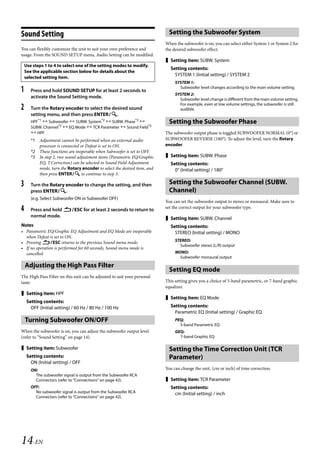
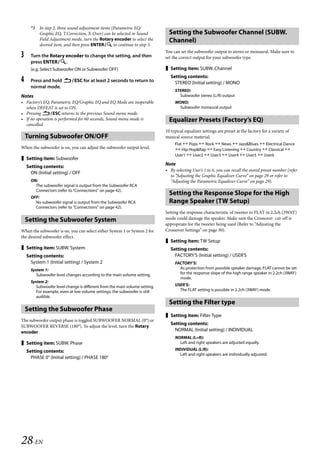
   Sound Setting                                                               Setting the Subwoofer System
                                                                             When the subwoofer is on, you can select either System 1 or System 2 for
   You can flexibly customize the unit to suit your own preference and       the desired subwoofer effect.
   usage. From the SOUND SETUP menu, Audio Setting can be modified.
                                                                              Setting item: SUBW. System
       Use steps 1 to 4 to select one of the setting modes to modify.
                                                                               Setting contents:
       See the applicable section below for details about the
                                                                                 SYSTEM 1 (Initial setting) / SYSTEM 2
       selected setting item.
                                                                                  SYSTEM 1:
   1      Press and hold SOUND SETUP for at least 2 seconds to
                                                                                    Subwoofer level changes according to the main volume setting.
                                                                                  SYSTEM 2:
          activate the Sound Setting mode.                                          Subwoofer level change is different from the main volume setting.
                                                                                    For example, even at low volume settings, the subwoofer is still
   2      Turn the Rotary encoder to select the desired sound                       audible.
          setting menu, and then press ENTER.
          HPF*1  Subwoofer  SUBW. System*2  SUBW. Phase*2                  Setting the Subwoofer Phase
          SUBW. Channel*2  EQ Mode  TCR Parameter  Sound Field*3
           HPF                                                              The subwoofer output phase is toggled SUBWOOFER NORMAL (0°) or
          *1 Adjustment cannot be performed when an external audio           SUBWOOFER REVERSE (180°). To adjust the level, turn the Rotary
             processor is connected or Defeat is set to ON.                  encoder.
          *2 These functions are inoperable when Subwoofer is set to OFF.
          *3 In step 2, two sound adjustment items (Parametric EQ/Graphic     Setting item: SUBW. Phase
             EQ, T.Correction) can be selected in Sound Field Adjustment       Setting contents:
             mode, turn the Rotary encoder to select the desired item, and       0° (Initial setting) / 180°
             then press ENTER to continue to step 3.

   3      Turn the Rotary encoder to change the setting, and then              Setting the Subwoofer Channel (SUBW.
          press ENTER.                                                       Channel)
          (e.g. Select Subwoofer ON or Subwoofer OFF)
                                                                             You can set the subwoofer output to stereo or monaural. Make sure to
   4      Press and hold ESC for at least 2 seconds to return to           set the correct output for your subwoofer type.
          normal mode.                                                        Setting item: SUBW. Channel
   Notes                                                                       Setting contents:
   • Parametric EQ/Graphic EQ Adjustment and EQ Mode are inoperable              STEREO (Initial setting) / MONO
     when Defeat is set to ON.
   • Pressing ESC returns to the previous Sound menu mode.                      STEREO:
                                                                                    Subwoofer stereo (L/R) output
   • If no operation is performed for 60 seconds, Sound menu mode is
     cancelled.                                                                   MONO:
                                                                                    Subwoofer monaural output

       Adjusting the High Pass Filter
                                                                               Setting EQ mode
   The High Pass Filter on this unit can be adjusted to suit your personal
   taste.                                                                    This setting gives you a choice of 5-band parametric, or 7-band graphic
                                                                             equalizer.
    Setting item: HPF
                                                                              Setting item: EQ Mode
        Setting contents:
          OFF (Initial setting) / 60 Hz / 80 Hz / 100 Hz                       Setting contents:
                                                                                 Parametric EQ (Initial setting) / Graphic EQ
       Turning Subwoofer ON/OFF                                                   PEQ:
                                                                                    5-band Parametric EQ
   When the subwoofer is on, you can adjust the subwoofer output level            GEQ:
   (refer to “Sound Setting” on page 14).                                           7-band Graphic EQ

    Setting item: Subwoofer                                                   Setting the Time Correction Unit (TCR
        Setting contents:                                                      Parameter)
          ON (Initial setting) / OFF
          ON:                                                                You can change the unit, (cm or inch) of time correction.
            The subwoofer signal is output from the Subwoofer RCA
            Connectors (refer to “Connections” on page 42).                   Setting item: TCR Parameter
          OFF:                                                                 Setting contents:
            No subwoofer signal is output from the Subwoofer RCA                 cm (Initial setting) / inch
            Connectors (refer to “Connections” on page 42).


   14-EN

                                                                                                           ALPINE CDA-117E 68-14470Z54-B (EN)
00ALPINE.book Page 15 Wednesday, January 20, 2010 2:30 PM


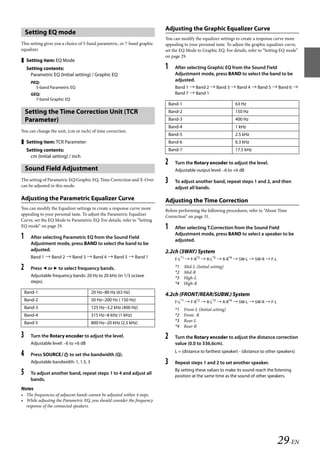
                                                                                   Adjusting the Time Correction
       Sound Field Adjustment
                                                                                   Before performing the following procedures, refer to “About Time
   The setting of Parametric EQ/Graphic EQ and Time Correction can be              Correction” on page 31.
   adjusted in this mode.
                                                                                   1    After selecting T.Correction from the Sound Field mode,
   Adjusting the Parametric Equalizer Curve                                             press BAND to select a speaker to be adjusted.
                                                                                        F-L*1  F-R*2  R-L*3  R-R*4  SW-L  SW-R  F-L
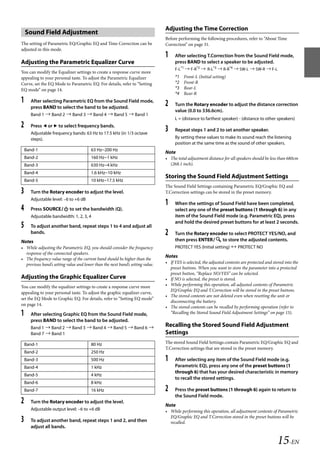
   You can modify the Equalizer settings to create a response curve more
   appealing to your personal taste. To adjust the Parametric Equalizer                 *1   Front-L (Initial setting)
   Curve, set the EQ Mode to Parametric EQ. For details, refer to “Setting              *2   Front-R
   EQ mode” on page 14.                                                                 *3   Rear-L
                                                                                        *4   Rear-R
   1     After selecting Parametric EQ from the Sound Field mode,
                                                                                   2    Turn the Rotary encoder to adjust the distance correction
         press BAND to select the band to be adjusted.
                                                                                        value (0.0 to 336.6cm).
         Band 1  Band 2  Band 3  Band 4  Band 5  Band 1
                                                                                        L = (distance to farthest speaker) - (distance to other speakers)
   2     Press  or  to select frequency bands.
                                                                                   3    Repeat steps 1 and 2 to set another speaker.
         Adjustable frequency bands: 63 Hz to 17.5 kHz (in 1/3 octave
         steps).                                                                        By setting these values to make its sound reach the listening
                                                                                        position at the same time as the sound of other speakers.
       Band-1                              63 Hz~200 Hz
                                                                                   Note
       Band-2                              160 Hz~1 kHz                            • The total adjustment distance for all speakers should be less than 680cm
       Band-3                              630 Hz~4 kHz                              (268.1 inch).
       Band-4                              1.6 kHz~10 kHz
                                                                                   Storing the Sound Field Adjustment Settings
       Band-5                              10 kHz~17.5 kHz
                                                                                   The Sound Field Settings containing Parametric EQ/Graphic EQ and
   3     Turn the Rotary encoder to adjust the level.                              T.Correction settings can be stored in the preset memory.
         Adjustable level: –6 to +6 dB
                                                                                   1    When the settings of Sound Field have been completed,
   4     Press SOURCE to set the bandwidth (Q).                                       select any one of the preset buttons (1 through 6) in any
         Adjustable bandwidth: 1, 2, 3, 4                                               item of the Sound Field mode (e.g. Parametric EQ), press
                                                                                        and hold the desired preset buttons for at least 2 seconds.
   5     To adjust another band, repeat steps 1 to 4 and adjust all
         bands.                                                                    2    Turn the Rotary encoder to select PROTECT YES/NO, and
   Notes                                                                                then press ENTER to store the adjusted contents.
   • While adjusting the Parametric EQ, you should consider the frequency               PROTECT YES (Initial setting)  PROTECT NO
     response of the connected speakers.
                                                                                   Notes
   • The frequency value range of the current band should be higher than the
     previous band’s setting value and lower than the next band’s setting value.   • If YES is selected, the adjusted contents are protected and stored into the
                                                                                     preset buttons. When you want to store the parameter into a protected
                                                                                     preset button, “Replace NO/YES” can be selected.
   Adjusting the Graphic Equalizer Curve                                           • If NO is selected, the preset is stored.
   You can modify the equalizer settings to create a response curve more           • While performing this operation, all adjusted contents of Parametric
                                                                                     EQ/Graphic EQ and T.Correction will be stored in the preset buttons.
   appealing to your personal taste. To adjust the graphic equalizer curve,
                                                                                   • The stored contents are not deleted even when resetting the unit or
   set the EQ Mode to Graphic EQ. For details, refer to “Setting EQ mode”
                                                                                     disconnecting the battery.
   on page 14.
                                                                                   • The stored contents can be recalled by performing operation (refer to
   1     After selecting Graphic EQ from the Sound Field mode,                       “Recalling the Stored Sound Field Adjustment Settings” on page 15).
         press BAND to select the band to be adjusted.
         Band 1  Band 2  Band 3  Band 4  Band 5  Band 6 
                                                                                   Recalling the Stored Sound Field Adjustment
         Band 7  Band 1                                                           Settings
       Band-1                              80 Hz                                   The stored Sound Field Settings contain Parametric EQ/Graphic EQ and
                                                                                   T.Correction settings that are stored in the preset memory.
       Band-2                              250 Hz
       Band-3                              500 Hz                                  1    After selecting any item of the Sound Field mode (e.g.
       Band-4                              1 kHz                                        Parametric EQ), press any one of the preset buttons (1
                                                                                        through 6) that has your desired characteristic in memory
       Band-5                              4 kHz
                                                                                        to recall the stored settings.
       Band-6                              8 kHz
       Band-7                              16 kHz                                  2    Press the preset buttons (1 through 6) again to return to
                                                                                        the Sound Field mode.
   2     Turn the Rotary encoder to adjust the level.
                                                                                   Note
         Adjustable output level: –6 to +6 dB                                      • While performing this operation, all adjustment contents of Parametric
                                                                                     EQ/Graphic EQ and T.Correction stored in the preset buttons will be
   3     To adjust another band, repeat steps 1 and 2, and then                      recalled.
         adjust all bands.


                                                                                                                                                   15-EN

                                                                                                                  ALPINE CDA-117E 68-14470Z54-B (EN)
00ALPINE.book Page 16 Wednesday, January 20, 2010 2:30 PM


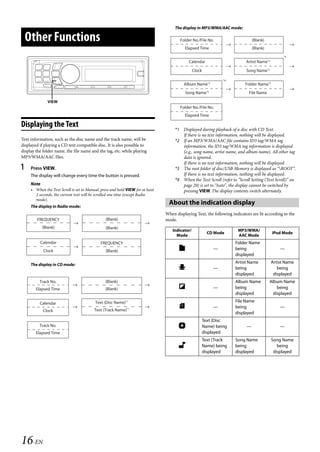
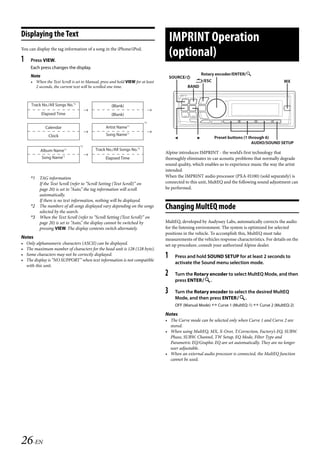
                                                                                         The display in MP3/WMA/AAC mode:

       Other Functions                                                                      Folder No./File No.                     (Blank)
                                                                                              Elapsed Time                          (Blank)
                                                                                                                                                      *4

                                                                                                Calendar                        Artist Name*2

                                                                                                    Clock                       Song Name*2

                                                                                                                      *4
                                                                                              Album Name*2                     Folder Name*3
                                                                                                            *2
                                                                                               Song Name                          File Name

                  VIEW
                                                                                            Folder No./File No.
                                                                                              Elapsed Time

   Displaying the Text                                                                   *1 Displayed during playback of a disc with CD Text.
                                                                                            If there is no text information, nothing will be displayed.
   Text information, such as the disc name and the track name, will be                   *2 If an MP3/WMA/AAC file contains ID3 tag/WMA tag
   displayed if playing a CD text compatible disc. It is also possible to                   information, the ID3 tag/WMA tag information is displayed
   display the folder name, the file name and the tag, etc. while playing                   (e.g., song name, artist name, and album name). All other tag
   MP3/WMA/AAC files.                                                                       data is ignored.
                                                                                            If there is no text information, nothing will be displayed.
   1    Press VIEW.                                                                      *3 The root folder of disc/USB Memory is displayed as “ROOT”.
        The display will change every time the button is pressed.                           If there is no text information, nothing will be displayed.
                                                                                         *4 When the Text Scroll (refer to “Scroll Setting (Text Scroll)” on
        Note                                                                                page 20) is set to “Auto”, the display cannot be switched by
        • When the Text Scroll is set to Manual, press and hold VIEW for at least           pressing VIEW. The display contents switch alternately.
          2 seconds, the current text will be scrolled one time (except Radio
          mode).
        The display in Radio mode:
                                                                                      About the indication display
                                                                                    When displaying Text, the following indicators are lit according to the
           FREQUENCY                                (Blank)                         mode.
               (Blank)                              (Blank)
                                                                                       Indicator/                           MP3/WMA/
                                                                                                            CD Mode                             iPod Mode
                                                                                         Mode                               AAC Mode
             Calendar                            FREQUENCY                                                                 Folder Name
               Clock                                (Blank)                                                     —         being                    —
                                                                                                                           displayed

        The display in CD mode:
                                                                                                                           Artist Name          Artist Name
                                                                                                                —         being                   being
                                                                                                                           displayed             displayed
             Track No.                              (Blank)                                                                Album Name         Album Name
           Elapsed Time                             (Blank)                                                     —         being                  being
                                                                                                                           displayed            displayed

             Calendar                         Text (Disc Name)*1                                                           File Name
                                                                                                                —         being                    —
               Clock                         Text (Track Name)*1
                                                                                                                           displayed
                                                                                                        Text (Disc
             Track No.                                                                                 Name) being             —                   —
           Elapsed Time                                                                                 displayed
                                                                                                        Text (Track        Song Name            Song Name
                                                                                                       Name) being        being                   being
                                                                                                        displayed          displayed             displayed


   16-EN

                                                                                                                     ALPINE CDA-117E 68-14470Z54-B (EN)
00ALPINE.book Page 17 Wednesday, January 20, 2010 2:30 PM


       About “Text”
   Text compatible CDs contain text information such as the disc name and
                                                                                    SETUP
   track name. Such text information is referred to as “text”.
   Notes                                                                                      BAND
   • Some characters may not be displayed correctly with this device,               SOURCE/          Rotary encoder/ENTER/
     depending on the character type.                                                              /ESC
   • The CD changer must also be CD Text compatible for the Text
     information to be displayed.
   • If there is no TEXT information, the display is blank.
   • The text or tag information may not be correctly displayed, depending
     on the contents.


   Displaying Time
                                                                                                           SETUP
   1    Press VIEW repeatedly until the time is displayed.
        Each press changes the display.
        For details, refer to “Displaying the Text” on page 16.
                                                                                Setting
   Note
   • Selecting any tuner or CD function while in the clock priority mode will
                                                                                You can flexibly customize the unit to suit your own preferences and
     interrupt the time display momentarily. The function selected will be
                                                                                usage. From the SETUP menu, General Setting, Display Setting, etc., can
     displayed for about 5 seconds before the time returns to the display.
                                                                                be modified.

                                                                                    Use steps 1 to 5 to select one of the SETUP modes to modify.
                                                                                    See the applicable section below for details about the
                                                                                    selected SETUP item.

                                                                                1      Press and hold SETUP for at least 2 seconds to activate the
                                                                                       SETUP mode.

                                                                                2      Turn the Rotary encoder to select the desired item, and
                                                                                       then press ENTER.
                                                                                       Bluetooth*1  General  Display  Tuner  Bluetooth
                                                                                       (e.g. Select General)

                                                                                3      Turn the Rotary encoder to select a setting item, and then
                                                                                       press ENTER.
                                                                                       (e.g. Select Power IC)
                                                                                       Bluetooth:
                                                                                          Bluetooth IN
                                                                                       General:
                                                                                          Birthday Set  Clock Mode  Clock Adjust*2  Calendar 
                                                                                          Play Mode  Beep  INT Mute*3  AUX+ Setup  AUX+
                                                                                          Name*4  AUX IN GAIN*4  Digital AUX  D.AUX Name*5 
                                                                                          AUX IN  AUX Name*6  Power IC  Demo  Birthday Set
                                                                                       Display:
                                                                                          Illumination  Dimmer  Dimmer Level  Scroll Type 
                                                                                          Text Scroll  Font Select  BGV Select  Opening MSG 
                                                                                          Illumination
                                                                                       Tuner:
                                                                                         FM Tuner Set
                                                                                       *1 Displayed only when INT Mute is OFF and the mode is set to
                                                                                          other than Bluetooth Audio.
                                                                                       *2 Refer to “Setting the Time and Calendar” on page 8.
                                                                                       *3 Displayed only when Bluetooth IN is OFF.
                                                                                       *4 Displayed only when AUX+ Setup is ON.
                                                                                       *5 Displayed only when Digital AUX is ON.
                                                                                       *6 Displayed only when AUX IN is ON.

                                                                                4      Turn the Rotary encoder to change the setting, and then
                                                                                       press ENTER.
                                                                                       (e.g. Select Power IC ON or Power IC OFF)


                                                                                                                                           17-EN

                                                                                                                ALPINE CDA-117E 68-14470Z54-B (EN)
00ALPINE.book Page 18 Wednesday, January 20, 2010 2:30 PM


   5     Press and hold SETUP for at least 2 seconds to return to              Setting of Calendar Display Pattern Switching
         normal mode.                                                          (Calendar)
   Notes                                                                       You can switch the calendar display pattern to be shown when the time
   • Pressing ESC returns to the previous SETUP mode.                        is displayed.
   • If no operation is performed for 60 seconds, SETUP is cancelled.
                                                                                Setting item: Calendar
       BLUETOOTH Setting
                                                                                  Setting contents:
   Select Bluetooth from the setup main menu in step 2 above.                       dd/mm/yyyy / yyyy/mm/dd / mm/dd/yyyy (Initial setting)
                                                                                    yyyy :
   Setting the BLUETOOTH Connection                                                   Shows the year
                                                                                    mm :
   If an optional BLUETOOTH INTERFACE (KCE-400BT) is connected,                      Shows the month
   you can place a hands-free call by a BLUETOOTH-equipped mobile                   dd :
   phone. Make this setting when the BLUETOOTH INTERFACE                               Shows the day
   (KCE-400BT) is connected and the BLUETOOTH function is used. For
                                                                                    ex. dd/mm/yyyy  01/11/2009
   details, refer to the Owner’s Manual of the optional BLUETOOTH
   INTERFACE (KCE-400BT). Set ADAPTER when the BLUETOOTH
   INTERFACE (KCE-400BT) is connected.                                         Playing MP3/WMA/AAC Data (Play Mode)
                                                                               This unit can play back CDs containing both CD and MP3/WMA/AAC
    Setting item: Bluetooth IN
                                                                               data (created in Enhanced CD (CD Extra) format). However, in some
       Setting contents:                                                       situations, playback of an enhanced CD may be difficult. In this case,
         ADAPTER / OFF (Initial setting)                                       you can select playback of a single session only, containing the CD data.
                                                                               When a disc contains both CD and MP3/WMA/AAC data, playback
   Notes
                                                                               starts from the CD data portion of the disc.
   • The      button can be used only when the optional BLUETOOTH
     INTERFACE (KCE-400BT) is connected.
                                                                                Setting item: Play Mode
   • If the mobile phone compatible with the Voice Dial function is
     connected, the Voice Dial function can be used.                              Setting contents:
   • When INT Mute is set to ON, the BLUETOOTH setting cannot be                    CD-DA (Initial setting) / CDDA&MP3/WMA
     made. When the BLUETOOTH INTERFACE (KCE-400BT) is                              CD-DA:
     connected, set INT Mute to OFF. Refer to “Turning Mute Mode On/Off               Only the CD data in Session 1 can be played back.
     (INT Mute)” on page 18.
                                                                                    CDDA&MP3/WMA:
                                                                                      CD data, MP3/WMA/AAC files in mixed mode, and multi-session
       General Setting                                                                discs can be played back.

   General is selected on the setup main menu in step 2.                       Note
                                                                               • Perform this setting before inserting a disc. If a disc has already been
                                                                                 inserted, remove it first. (If you use an MP3 changer, you have to
   Birthday Opening Message Setting (Birthday                                    change discs.)
   Set)
   While Opening MSG is set to ON (refer to “Opening Message ON/OFF            Sound (Beep) Guide Function
   Setting” on page 20), and then input your birthday details, a message can   This function will give audible feedback with varying tones depending
   be displayed on that day. Turn the Rotary encoder to set “mm”               upon the button pressed.
   (Month), and then press ENTER. Turn the Rotary encoder again to
   set “dd” (Date).                                                             Setting item: Beep

    Setting item: Birthday Set                                                   Setting contents:
                                                                                    ON (Initial setting) / OFF
       Setting contents:
         mm/dd
                                                                               Turning Mute Mode On/Off (INT Mute)
   Setting the Clock Display (Clock Mode)                                      If a device having the interrupt feature is connected, audio will be
                                                                               automatically muted whenever the interrupt signal is received from the
   You can select the clock display type, 12-hour or 24-hour, depending on     device.
   your preference.
                                                                                Setting item: INT Mute
    Setting item: Clock Mode
                                                                                  Setting contents:
       Setting contents:                                                            ON / OFF (Initial setting)
         AM (Before noon) 12:00 (12-hour) (Initial setting) / 00:00
         (24-hour)


   18-EN

                                                                                                              ALPINE CDA-117E 68-14470Z54-B (EN)
00ALPINE.book Page 19 Wednesday, January 20, 2010 2:30 PM


   Setting the AUX+ Setup Mode                                                Setting the AUX Mode (V-Link)
   You can input the audio of an external device, (such as a Portable audio   You can input TV/video sound by connecting an optional Ai-NET/RCA
   player) to the BLUETOOTH interface connector of this unit. A special       Interface cable (KCA-121B) or Versatile Link Terminal (KCA-410C) to
   Conversion cable (KCE-237B) is necessary to adapt the BLUETOOTH            this component.
   interface connector as an AUX IN.                                          You can change the AUX name display when AUX IN is set to ON. Press
   A portable music device and a BLUETOOTH INTERFACE                          ENTER when AUX IN is set to ON, and select AUX Name by
   (KCE-400BT) cannot be connected to the BLUETOOTH interface                 turning the Rotary encoder, and then press ENTER.
   connector at the same time.                                                After that, turn the Rotary encoder to select the desired AUX name. If
                                                                              the KCA-410C is connected, it is possible to select two AUX names.
    Setting item: AUX+ Setup
     Setting contents:                                                         Setting item: AUX IN
       ON / OFF (Initial setting)                                               Setting contents:
        ON*:                                                                      ON / OFF (Initial setting)
          Set to ON when a portable device is connected. If SOURCE is
          pressed and AUX+ is selected, the sound of the portable device is
                                                                              Note
          input to the unit.                                                  • Via KCA-410C, up to 2 external devices with RCA output can be
                                                                                connected. In this case, press SOURCE to select AUX mode and
           * You can change the AUX+ Name display when AUX+ Setup is
                                                                                then press BAND to select your desired device.
             set to ON. Press ENTER when AUX+ SETUP is set to ON,
             and select AUX+ Name by turning the Rotary encoder, then
             press ENTER. After that, turn the Rotary encoder to            Connecting to an External Amplifier
             select the desired AUX+ Name.
                                                                              When an external amplifier is connected, sound quality can be
        OFF:                                                                  improved by stopping the power supply of the built-in amplifier.
          When set to OFF, AUX+ source cannot be selected.
                                                                               Setting item: Power IC
   Setting the AUX+ Level (AUX IN GAIN)
                                                                                Setting contents:
   After setting to ON in “Setting the AUX+ Setup Mode”, this setting can         ON (Initial setting) / OFF
   be carried out.                                                                 Power IC ON :
                                                                                     The speakers are driven by the built-in amplifier.
    Setting item: AUX IN GAIN                                                     Power IC OFF :
     Setting contents:                                                               Use this mode when the line output of this unit is used to drive an
       Low (Initial setting) / High                                                  external amplifier. In this setting, the head unit’s internal amplifier
                                                                                     is turned OFF and can not drive speakers.
        Low:
          Decreases the external input audio level.
                                                                                          POWER IC ON:
        High:
           Increases the external input audio level.                                                                            Speakers

                                                                                                SPEAKER
   Setting the External Digital Input                                                           RIGHT FRONT
                                                                                                                                  Front
                                                                                                                                  right
   When an ALPINE Ai-NET compatible digital audio processor
   (PXA-H701) and a DVD player (DVE-5207) not compatible with
   Ai-NET are connected, set Digital AUX to ON to enjoy 5.1-channel                             SPEAKER
                                                                                                RIGHT REAR                        Rear
   surround sound.                                                                                                                right
   You can change the Digital AUX name display when Digital AUX is set
   to ON. Press ENTERwhen Digital AUX is set to ON, and select
   Digital AUX name by turning the Rotary encoder, then press                                   SPEAKER
                                                                                                LEFT REAR                         Rear
   ENTER. After that, turn the Rotary encoder to select the desired                                                             left
   Digital AUX name.

    Setting item: Digital AUX                                                                  SPEAKER
                                                                                                                                  Front
                                                                                                LEFT FRONT
     Setting contents:                                                                                                            left
       ON / OFF (Initial setting)
   Notes
                                                                                        POWER IC OFF:
   • Press SOURCE, and select the D.Aux mode, and adjust the volume,
                                                                                                                                       Front
     etc.                                                                                                                              left
   • After input selection is completed, turn the ignition off and back on                                      Amplifier
     again. Setting of the optical digital input switch is completed.                                                                  Front
   • Depending on the connected audio processor, DVD player sound may                                                                  right
     continue to be output, even though the source is changed to another                                                               Rear
     one. If this occurs, set the DVD player’s power to OFF.                                                                           left
                                                                                                                Amplifier
                                                                                                                                       Rear
                                                                                                                                       right


                                                                              Note
                                                                              • No sound is produced by the system when the Power IC is set to OFF.


                                                                                                                                               19-EN

                                                                                                             ALPINE CDA-117E 68-14470Z54-B (EN)
00ALPINE.book Page 20 Wednesday, January 20, 2010 2:30 PM


   Demonstration                                                                  Scroll Setting (Text Scroll)
   This unit has a demonstration feature for the display.                         This CD player can scroll the disc and track names recorded on
                                                                                  CD-TEXT discs, as well as text information of MP3/WMA/AAC files,
    Setting item: Demo                                                           folder names and tags.
     Setting contents:                                                             Setting item: Text Scroll
       ON / OFF (Initial setting)
                                                                                     Setting contents:
   Note                                                                                Auto / Manual (Initial setting)
   • To quit Demo mode, set to Demo OFF.                                               Text Scroll Auto:
                                                                                          CD text information, folder and file names are scrolled continuously.
     Display Setting                                                                      In addition, all tag information is automatically rotated in the
                                                                                          display continuously, without pressing the VIEW button.
   Display is selected on the setup main menu in step 2.                               Text Scroll Manual:
                                                                                         The above information is scrolled only when a disc is loaded, a
                                                                                         channel or track is changed, etc.
   Changing Lighting Colour
                                                                                  Note
   You can change the lighting colour of the following six buttons.
                                                                                  • In parts of the display, scrolling may not occur, or scroll content may
   SOURCE, BAND,, , , .
                                                                                    differ.
    Setting item: Illumination                                                   Switching the Character Font
     Setting contents:
                                                                                  Two types of font can be selected.
       TYPE1 (Initial setting) / TYPE2 / TYPE3
                                                                                  You can select the font type you like.
        TYPE 1 :
          When the colour of the six buttons is blue, the colour of the other      Setting item: Font Select
          is blue.
                                                                                     Setting contents:
        TYPE 2 :
          When the colour of the six buttons is blue, the colour of the other
                                                                                       TYPE 1 (Initial setting) / TYPE 2
          is red.
                                                                                  Switching the Animation Display Type (BGV Select)
        TYPE 3:
          When the colour of the six buttons is red, the colour of the other is   You can select your favorite animation display for background from
          red.                                                                    4 types.

   Dimmer Control                                                                  Setting item: BGV Select
                                                                                     Setting contents:
   Set the Dimmer control to Auto to decrease the illumination brightness
                                                                                       OFF (Initial setting) / TYPE 1 / TYPE 2 / TYPE 3 / TYPE 4
   of the unit with the head lights of the vehicle ON. This mode is useful if
   you feel the unit’s backlighting is too bright at night.
                                                                                  Opening Message ON/OFF Setting
    Setting item: Dimmer                                                         This unit includes a special message feature with various patterns, which
     Setting contents:                                                            when enabled displays opening messages for certain occasions.
       Auto (Initial setting) / Manual                                            For example, when you turn this unit on December 25th (according to
                                                                                  the unit’s date setting), a Christmas greeting is displayed if the Opening
                                                                                  Message is set to ON.
   Dimmer Level Setting
                                                                                   Setting item: Opening MSG
   In the Dimmer Level setting, three levels are available, the highest level
   (Lev3) being the dimmest when the car headlights are on.                          Setting contents:
                                                                                       ON / OFF (Initial setting)
    Setting item: Dimmer Level
     Setting contents:                                                              Tuner Setting
       Lev1 (Initial setting) / Lev2 / Lev3
                                                                                  TUNER is selected on the setup main menu in step 2.

   Scroll Type Setting                                                            Setting the TUNER (FM) tone quality
   Choose from two scrolling methods.                                             This unit can set your preferred tone quality for FM radio source.
   Select the type you prefer.
                                                                                   Setting item: FM Tuner Set
    Setting item: Scroll Type
                                                                                     Setting contents:
     Setting contents:                                                                 Normal (Initial setting) / HiFi / Stable
       TYPE 1 / TYPE 2 (Initial setting)
                                                                                       Normal:
        TYPE 1 :                                                                         Standard setting
          The characters scroll from right to left, one character at a time,
                                                                                       HiFi:
          until the entire title has scrolled.
                                                                                          High-quality setting
        TYPE 2 :
                                                                                       Stable:
          Words are built up from left to right, a single character at a time.
                                                                                          Control noise
          When the display is full, it is cleared and the subsequent words are
          displayed the same way until all words of the title have been           Note
          shown.                                                                  • Noise may be more noticeable when HiFi is set, depending on the
                                                                                    reception status. In this case, the Normal setting is recommended.


   20-EN

                                                                                                                 ALPINE CDA-117E 68-14470Z54-B (EN)
00ALPINE.book Page 21 Wednesday, January 20, 2010 2:30 PM


                                                                                     • Searching is not recommended during the Banking process as the
                                                                                       database is under construction at this time, and malfunction may result
     USB Memory/Portable                                                               in some cases.
                                                                                 This unit has a BANK function that automatically divides every 1,000

     audio player (optional)                                                     songs stored in USB Memory/Portable audio player into individual
                                                                                 banks to make searching and playing back a song easier. A maximum of
                                                                                 1,000 songs for one bank can be stored according to the order stored in
                                                                                 USB Memory/Portable audio player. A maximum of 20 banks (20,000
    SOURCE/         Rotary encoder/ENTER/                                      songs) can be recognized.
                    /ESC
                                                                                                Bank No.                               Song number
                  
                                                                                                  Bank1                                   1~1,000
                                                                                                  Bank2                                 1,001~2,000
                                                                                                    .
                                                                                                    .                                        .
                                                                                                                                             .
                                                                                                    .                                        .
                                                                                                 Bank20                               19,001~20,000


                   
                                                                                 Playback
                                              4       5
                     VIEW
           
                                                                                 1     Press SOURCE to select the USB mode.

                                                                                 2     Press  or  to select the desired track (file).
   Connecting the USB Memory (optional)                                                Pressing and holding  or  will fast backward/fast
                                                                                       forward track continuously.
   If a USB memory device/Portable audio player is connected to the unit,              Notes
   MP3/WMA/AAC files can be played back.                                               • If a song is fast reversed to its beginning in pause mode, the song will be
                                                                                         played back automatically.
   Note                                                                                • Depending on the connected portable audio player, fast-forwarding/
   • In the USB mode, when this unit is reset, ACC is switched from OFF to               fast-reversing may not be available.
     ON, or when the USB is connected to this unit, “Banking” is displayed
     for several seconds.                                                        3     To pause playback, press .
                                                                                       Pressing  again will resume playback.
                                                                                 Notes
   Using the USB Memory/Portable audio                                           • WMA format files that are protected by DRM (Digital Rights
   player Banking Function                                                         Management), AAC format files that have been purchased from the
                                                                                   iTunes Store and files that are copy-protected (copyright protection)
                                                                                   cannot be played back on this unit.
   What is a Bank?                                                               • The playback time may not be correctly displayed when a VBR
     A bank is a unit of up to 1,000 songs, which is stored in memory/             (Variable Bit Rate) recorded file is played back.
     Portable audio player. “Banking” refers to the grouping of songs            • If there is tag information, artist name/album name/track name is
     available in USB Memory/Portable audio player, in banks of 1,000 songs        displayed.
     each. However, when a USB Memory is connected, 1BANK can store up           • If an MP3/WMA/AAC file contains ID3 tag/WMA tag information,
     to 1,000 songs under the following conditions. Otherwise, the number          the ID3 tag/WMA tag information is displayed (e.g., song name, artist
     of songs that can be stored may be less than 1,000.
     Conditions (general estimate values)
                                                                                   name, and album name). All other tag data is ignored.
                                                                                 • If text information is not compatible with this unit, the display is “NO
     Playlists: 20 (32 characters; 64 bytes)                                       SUPPORT”.
     Genres: 10 (32 characters; 64 bytes)                                        • Before disconnecting USB Memory, be sure to change to another source
     Composers: 30 (32 characters; 64 bytes)                                       or set to pause.
     Artists: 30 (32 characters; 64 bytes)                                       • Press VIEW to switch the display. For details, refer to “Displaying the
     Albums: 100 (32 characters; 64 bytes)                                         Text” on page 16.
     Titles: 1,000 (32 characters; 64 bytes)
     Folders: 100 (32 characters; 64 bytes)
     Files: 1,000 (32 characters; 64 bytes)
     File Paths: 1,000 (128 characters; 256 bytes)                               Repeat Play
   About Banking
     While a bank is being built up, “Banking” is displayed. Banking occurs
     whenever a USB Memory device/Portable audio player is connected or
                                                                                 1     Press  4.
     after power to the head unit turns on.                                            The song is played back repeatedly.
     It can take anywhere from a few seconds to up to several minutes for              RPT*1  RPT       *2  RPT *3  (off )  RPT
     banking to complete. This depends on the number of files and folders
     in USB Memory/Portable audio player.                                              *1 Only a file is repeatedly played back.
                                                                                       *2 According to the artist information of the current song, a playlist
   Available operations while Banking                                                     about all the songs with the same artist of the Bank are made
     • During Banking, the information display changes so the VIEW                        into a playlist, which then starts to play back.
        operation is not available.                                                    *3 According to the album information of the current song, a
     • With a song playing, Regular fast-forwarding and next song selection is            playlist about all the songs with the same album of the Bank are
        available.                                                                        made into a playlist, which then starts to play back.
     • While Banking, the song playback order may differ from the song order
        in the USB Memory device/Portable audio player.


                                                                                                                                                      21-EN

                                                                                                                   ALPINE CDA-117E 68-14470Z54-B (EN)
00ALPINE.book Page 22 Wednesday, January 20, 2010 2:30 PM


   2     To cancel repeat play, select (off) with the above
         procedure.                                                                    Searching by artist name
         Note
         • During repeat play, setting M.I.X. to ON will cancel the repeat play.
                                                                                   1    Press ENTER to activate the search selection mode.

                                                                                   2    Turn the Rotary encoder to select a desired Bank, and
                                                                                        then press ENTER.
   M.I.X. (Random Play)                                                                 The “Banking” may be displayed for a few seconds.

   1     Press 5 .                                                                3    Turn the Rotary encoder to select the Artist search mode,
                                                                                        and then press ENTER.
         The songs are played back in random sequence.
                                                                                        Playlist  Artist  Album  Song  Genre  Composer 
         MIX*1  MIX ALL*2  (off )  MIX
                                                                                        Folder  File  Playlist
         *1 Song shuffle randomly plays back songs within a selected
            category (playlist, album, etc.). The songs within the category
            are played just once until all songs have been played.
                                                                                   4    Turn the Rotary encoder to select the desired Artist, and
                                                                                        then press ENTER.
         *2 All songs in the current Bank are played back in random
            sequence. Any one song does not play back again until all songs
            have been played back.
                                                                                   5    Turn the Rotary encoder to select an album, and then
                                                                                        press ENTER.
   2     To cancel M.I.X. play, select (off) with the above procedure.
                                                                                   6    Turn the Rotary encoder to select a song and press
   Notes                                                                                ENTER.
   • When a song is played back during Random (M.I.X.) play in the USB                  The selected song is played back.
     mode, the song can be played back again randomly even if not all songs
     in the current Bank have been played back.                                    Notes
   • During M.I.X. play, setting repeat play to ON will cancel the M.I.X.          • After pressing and holding ENTER for at least 2 seconds while in
     play.                                                                           each hierarchy (except Song and File hierarchy), all songs of the selected
   • During repeat play, etc., the track number display for M.I.X. play may          hierarchy are played back.
     be incorrect.                                                                 • After selecting [ALL] in the search mode with “*”, press and hold
                                                                                     ENTER for at least 2 seconds to play back all songs in the selected
                                                                                     search mode.
                                                                                   • While in the search mode, if you press and hold ESC for at least
   Searching for a desired Song                                                      2 seconds, or no operation is performed for 60 seconds, the search mode
                                                                                     is cancelled.
   A USB Memory or Portable audio player can contain hundreds of songs.            • The root folder of USB Memory/Portable audio player is displayed as
   By using file tag information and keeping these songs organised in                “ROOT”.
   playlists, this unit’s search functions will ease song searches.                • When the bank is changed during Repeat play, the Repeat play will be
   Each music category has its own individual hierarchy. Use the Bank/               cancelled.
   Playlists*1/Artists/Albums/Songs/Genres/Composers/Folders/Files                 • In the search mode, pressing ESC will return to the previous
   search mode to narrow searches based on the table below.                          mode.
                                                                                   • When search is made during M.I.X. play, the M.I.X. play mode will be
       Hierarchy     Hierarchy        Hierarchy       Hierarchy       Hierarchy      cancelled.
           1             2                3               4               5        • In the search mode, a search can be made quickly by Alphabet skip
                                                                                     function to find the desired artist or song, etc. For details, refer to
         Bank         Playlist*1        Song              —               —
                                                                                     “Alphabet Skip Function” on page 23.
         Bank          Artist*         Album*           Song              —        • When searching for a song, artist, etc., in a USB Memory, the display
         Bank          Album*           Song              —               —          order may be incorrect if the character code of the file tag information is
                                                                                     mixed.
         Bank           Song              —               —               —
         Bank          Genre*           Artist*        Album*           Song
         Bank        Composer*         Album*           Song              —        Select Playlist*/Artist/Album/Genre/
         Bank          Folder            File             —               —
         Bank            File             —               —               —
                                                                                   Composer/Folder
   *1 Playlist search is not available when a Portable audio player is             Playlist*/Artist/Album/Genre/Composer/Folder can be easily changed.
      connected.                                                                   For example, if you listen to a song from a selected album, the album can
                                                                                   be changed.
   For example:
     Searching by Artist name
     The following example explains how an Artists search is performed.            1    Press  or  to select the desired Playlist*/Artist/Album/
     Another search mode can be used for the same operation, although the               Genre/Composer/Folder.
     hierarchy differs.                                                                 *    This item is invalid when a portable audio player is connected.
                                                                                   Notes
                                                                                   • If the song search mode was used to select a song, this function is
                                                                                     inactive.
                                                                                   • If an album is selected during an artist search, other albums by that
                                                                                     artist are searchable.
                                                                                   • This function is inactive during shuffle (M.I.X.) playback.


   22-EN

                                                                                                                  ALPINE CDA-117E 68-14470Z54-B (EN)
00ALPINE.book Page 23 Wednesday, January 20, 2010 2:30 PM


   Alphabet Skip Function
                                                                                     iPhone/iPod (optional)
   The initial skip function is skipped to the next number, symbol or letter
   such as from A to B, B to C.
   You can skip in reverse order such as B to A by pressing .                        SOURCE/ Rotary encoder/ENTER/
                                                                                              /ESC
                                                                                                                 4 5 6
   1    During search mode, press  or  to perform the
        Alphabet Skip Function.
        A list is skipped to the next number, symbol or letter.
   Notes
   • The alphabet select object is only the alphabet that is recorded by
     UTF-16 character code.
   • If the Song search mode is activated in Playlist search, this function is
     invalid.
                                                                                                                       Preset buttons
                                                                                                                         (1 through 6)
                                                                                         VIEW
   Quick Search
   You can search a song from all songs in current bank of USB Memory/           Connecting an iPhone/iPod
   portable audio player without selecting an album, artist, etc.

   1    Press and hold ENTER for at least 2 seconds to activate                An iPhone/iPod can be connected to this unit by using the Interface
                                                                                 cable for iPod (supplied). When this unit is connected by using the
        Quick Search mode.
                                                                                 cable, the controls on the iPod are not functional.
   2    Turn the Rotary encoder to select a desired track (file).                Notes
        The selected track is played back immediately.                           • Internet and telephone functions of the iPod touch or iPhone, ect. can
                                                                                   also be used while connected to this unit. Using these functions will stop
   Note                                                                            or pause the currently playing songs. During this time, do not operate
   • Press ESC in the search mode to cancel. Or, the search mode is              the unit to avoid a malfunction.
     cancelled if no operation is performed for 10 seconds.                      • If you connect an iPhone to this unit, it can be used as an iPod. If you
                                                                                   use iPhone as a hands-free phone, you need the optional BLUETOOTH
                                                                                   INTERFACE (KCE-400BT).
   Search Position Memory                                                        iPhone/iPod models usable with this unit
                                                                                 • Confirmed devices regarding Made for iPod. Correct function of
   During playback, you can quickly return to the last-selected hierarchy          earlier versions cannot be guaranteed.
   level in the search mode.                                                       iPod touch (2nd generation): Ver.3.0
                                                                                   iPod nano (4th generation): Ver.1.0.2
   1    Press ESC.                                                               iPod classic (120 GB only): Ver.2.0.1
        The hierarchy you selected last in the search mode is displayed.           iPod touch (1st generation): Ver.3.0
                                                                                   iPod nano (3rd generation): Ver.1.1.3 PC
                                                                                   iPod classic (80 GB, 160 GB only): Ver.1.1.2 PC
                                                                                   iPod nano (2nd generation): Ver.1.1.3
                                                                                   iPod with video: Ver.1.3
                                                                                   iPod nano (1st generation): Ver.1.3.1
                                                                                 • Confirmed devices regarding Works with iPhone. Correct function of
                                                                                   earlier versions cannot be guaranteed.
                                                                                   iPhone 3GS: Ver.3.1
                                                                                   iPhone 3G: Ver.3.0
                                                                                   iPhone: Ver.3.0
                                                                                 • For clarity in identifying your model of iPod, please see Apple’s own
                                                                                   document “Identifying iPod models” at
                                                                                   http://support.apple.com/kb/HT1353.
                                                                                 • This unit does not support video playback from iPhone/iPod, even
                                                                                   using a video-compatible cable.


                                                                                 Playback
                                                                                 1    Press SOURCE to switch to the USB iPod mode.

                                                                                 2    Press  or  to select the desired song.
                                                                                      Pressing and holding  or  will fast backward/fast
                                                                                      forward the current song.


                                                                                                                                                 23-EN

                                                                                                                ALPINE CDA-117E 68-14470Z54-B (EN)
00ALPINE.book Page 24 Wednesday, January 20, 2010 2:30 PM


   3    To pause playback, press .                                               • While in the search mode, if you press and hold ESC for 2 seconds,
        Pressing  again will resume playback.                                      or no operation is performed for 60 seconds, the search mode is
                                                                                    cancelled.
   Notes                                                                          • In the search mode, pressing ESC will return to the previous
   • A song playing on the iPhone/iPod while it is connected to this unit will      mode.
     continue to play from where it was paused after disconnection.               • When search is made during M.I.X. play, the M.I.X. play mode will be
   • If you listen to an episode from a selected podcast or audiobook, the          cancelled.
     episode can be changed by pressing  or .                                   • “No Song” will be displayed if there are no songs in the selected playlist
   • An episode may have several chapters. The chapter can be changed by            in the Playlist search mode.
     pressing  or .                                                             • “No Podcast” will be displayed if there is no podcast data in the iPhone/
   • When an iPhone 3GS or an iPod (Ver.3.x) is connected to this unit,             iPod in the Podcast search mode.
     after changing the source or received interruption, etc., to return to USB   • “No Audiobook” will be displayed if there is no audiobook data in the
     iPod mode, “No USB Unit” may be displayed. In this case, reconnect the         iPhone/iPod in the Audiobook search mode.
     iPhone 3GS/iPod.                                                             • If “iPod name” stored in the iPhone/iPod is selected in the desired
                                                                                    Playlist search mode, and ENTER is pressed, you can search for all
                                                                                    songs in the iPhone/iPod. Also, if you press and hold ENTER for at
                                                                                    least 2 seconds, all songs in the iPhone/iPod are played back.
   Searching for a desired Song                                                   • Depending on the iPhone/iPod, podcast search is not supported.
                                                                                  • If Alphabet Skip Function is activated in the search mode, a search can
   An iPhone/iPod can contain hundreds of songs. By using file tag                  be made quickly by Alphabet skip function to find the desired artist or
   information and keeping these songs organised in playlists, this unit’s          song, etc. For details, refer to “Alphabet Skip Function” on page 25.
   search functions will ease song searches.                                      • If any one of the preset buttons (1 through 6) is pressed in the
   Each music category has its own individual hierarchy. Use the Playlist/          search mode, a search can be made quickly by skipping to the specified
   Artist/Album/Song/Podcast/Genre/Composer/Audiobook search mode                   location. For details, refer to “Direct Search Function” on page 24.
   to narrow searches based on the table below.

       Hierarchy 1       Hierarchy 2        Hierarchy 3        Hierarchy 4        Quick Search
         Playlist           Song                 —                  —
         Artist*           Album*              Song                 —             You can search a song from all songs in the iPhone/iPod without
        Album*              Song                 —                  —             selecting an album, artist, etc.
          Song                —                  —                  —
                                                                                  1    Press and hold ENTER for at least 2 seconds to activate
        Podcast            Episode               —                  —                  the Quick Search mode.
         Genre*             Artist*           Album*               Song
       Composer*           Album*              Song                 —
                                                                                  2    Turn the Rotary encoder to select a desired song.
                                                                                       The selected song is played back immediately.
       Audiobook              —                  —                  —
                                                                                  Notes
   For example:                                                                   • Press ESC in the search mode to cancel. Or, the search mode is
     Searching by Artist name.                                                      cancelled if no operation is performed for 10 seconds.
     The following example explains how an Artist search is performed.            • If many songs are in iPhone/iPod, it takes time to search for songs.
     Another search mode can be used for the same operation, although the         • If any one of the preset buttons (1 through 6) is pressed in the
     hierarchy differs.                                                             search mode, a search can be made quickly by skipping to the specified
                                                                                    location. For details, refer to “Direct Search Function” on page 24.
       Searching by artist name                                                   • This function is inactive during repeat (RPT) playback.

   1    Press ENTER to activate the search selection mode.
                                                                                  Direct Search Function
   2    Turn the Rotary encoder to select the Artist search mode,
        and then press ENTER.
                                                                                  The unit’s direct search function can be used to search for an album,
        Playlist  Artist  Album  Song  Podcast  Genre                       song, etc., more efficiently. In Playlist/Artist/Album/Song/Podcast/
        Composer  Audiobook  Playlist                                           Genre/Composer/Audiobook mode, you can quickly target any song.

   3    Turn the Rotary encoder to select the desired Artist, and                 1    In the search mode, press any one of the preset buttons (1
        then press ENTER.                                                            through 6) to quickly skip over a designated percent of
                                                                                       your song content.
   4    Turn the Rotary encoder to select the desired Album, and
        then press ENTER.                                                            Song search example:
                                                                                         If there are 100 songs in your iPhone/iPod, they are divided into 6
   5    Turn the Rotary encoder to select the desired Song, and                          groups using percentages (shown below). These groups are
        then press ENTER.                                                              assigned to preset buttons 1 through 6.
        The selected song is played back.                                                 Example 1:
                                                                                            Suppose the song you are searching for is located at around the
   Notes                                                                                    middle (50%) of your library: press button 4 to jump to the 50th
   • After pressing and holding ENTER for at least 2 seconds while in                     song and turn the Rotary encoder to find the desired song.
     each hierarchy (except Song and Audiobook hierarchy), all songs of the
     selected hierarchy are played back.
   • After selecting [ALL] in the search mode with “*”, press and hold
     ENTER for at least 2 seconds to play back all songs in the iPhone/
     iPod or selected search mode.


   24-EN

                                                                                                                 ALPINE CDA-117E 68-14470Z54-B (EN)
00ALPINE.book Page 25 Wednesday, January 20, 2010 2:30 PM


           Example 2:
             Suppose the song you are searching for is located near the end
             (83%) of your library: press button 6 to jump to the 83rd song
                                                                                 Random Play Shuffle (M.I.X.)
             and turn the Rotary encoder to find the desired song.
                                                                                 The Shuffle function of the iPhone/iPod is displayed as M.I.X. on this
                                      All 100 songs (100%)                       unit.
                     0%        17%        33%       50%        67%        83%
                                                                                 Shuffle Albums:
        Preset                                                                        The songs on each album are played back in proper order. Upon
                      1          2          3         4          5         6
       buttons                                                                        completion of all the songs on the album, the next album is selected
                     1st       17th       33rd      50th       67th      83rd         randomly. This continues until all albums have been played.
       Songs
                    song       song       song      song       song      song
                                                                                 Shuffle Songs:
                                                                                      Song shuffle randomly plays back songs within a selected category
                                                                                      (playlist, album, etc.). The songs within the category are played just
                                                                                      once until all songs have been played.
   Select Playlist/Artist/Album/Genre/
   Composer/Episode                                                              1    Press 5 .
                                                                                      The songs are played back in random sequence.
                                                                                      MIX *1  MIX*2  (off )  MIX 
   Playlist/Artist/Album/Genre/Composer/Episode can be easily changed.
   For example, if you listen to a song from a selected album, the album can          *1 Shuffle Albums.
   be changed.                                                                        *2 Shuffle Songs.

   1    Press  or  to select the desired Playlist/Artist/Album/                2    To cancel M.I.X. play, select (off) with the above procedure.
        Genre/Composer/Episode.                                                       Note
                                                                                      • If a song is selected in the album search mode before selecting M.I.X.
   Notes
                                                                                        play, the songs will not play back randomly even when Shuffle Albums
   • If the song search mode was used to select a song, this function is                is selected.
     inactive.
   • If an album is selected during an artist search, other albums by that       Shuffle ALL:
     artist are searchable.                                                           Shuffle ALL plays all songs in the iPhone/iPod randomly. Any one
   • This function is inactive during shuffle (M.I.X.) playback.                      song does not play back again until all songs have been played back.

                                                                                 1    Press 6.
   Alphabet Skip Function                                                             The songs are played back in random sequence.
                                                                                      MIX ALL*  (off )  MIX ALL
   The initial skip function is skipped to the next number, symbol or letter          * Shuffle ALL.
   such as from A to B, B to C.
   You can skip in reverse order such as B to A by pressing .                   2    To cancel M.I.X. play, select (off) with the above procedure.
                                                                                 Note
   1    During search mode, press  or  to perform the
                                                                                 • If Shuffle ALL is selected, the selected songs being played back in the
        Alphabet Skip Function.                                                    search mode are cancelled.
        A list is skipped to the next number, symbol or letter.
   Note
   • Titles are listed alphabetically, and can be skipped every 200 titles. If   Repeat Play
     there are fewer than 200 titles, titles beginning with the next
     alphabetical character are selected.                                        Only Repeat One is available for the iPhone/iPod.

                                                                                 Repeat One:
   Search Position Memory                                                            A single song is repeatedly played back.


   During iPhone/iPod playback, you can quickly return to the
                                                                                 1    Press  4.
                                                                                      The song is played back repeatedly.
   last-selected hierarchy level in the search mode.
                                                                                      RPT*  (off )  RPT
   1    Press ESC.                                                                  * Repeat One.
        The hierarchy you selected last in the search mode is displayed.
                                                                                 2    To cancel repeat play, select (off) with the above
                                                                                      procedure.
                                                                                 Note
                                                                                 • Depending on the connected iPod, track up/down may be not available
                                                                                   during Repeat play.


                                                                                                                                                 25-EN

                                                                                                                ALPINE CDA-117E 68-14470Z54-B (EN)
00ALPINE.book Page 26 Wednesday, January 20, 2010 2:30 PM


   Displaying the Text
                                                                                         IMPRINT Operation
   You can display the tag information of a song in the iPhone/iPod.

   1     Press VIEW.
                                                                                         (optional)
         Each press changes the display.
         Note                                                                                             Rotary encoder/ENTER/
                                                                                         SOURCE/
         • When the Text Scroll is set to Manual, press and hold VIEW for at least                  /ESC                                             MX
           2 seconds, the current text will be scrolled one time.                                BAND


         Track No./All Songs No.*2                      (Blank)
                Elapsed Time                            (Blank)
                                                                            *3

                  Calendar                           Artist Name*1
                   Clock                             Song Name*1
                                                                                                             Preset buttons (1 through 6)
                                                                                                                                   AUDIO/SOUND SETUP
                                      *3
                Album Name*1                   Track No./All Songs No.*2
                                                                                     Alpine introduces IMPRINT - the world’s first technology that
                             *1
                Song Name                            Elapsed Time                    thoroughly eliminates in-car acoustic problems that normally degrade
                                                                                     sound quality, which enables us to experience music the way the artist
                                                                                     intended.
         *1 TAG information                                                          When the IMPRINT audio processor (PXA-H100) (sold separately) is
            If the Text Scroll (refer to “Scroll Setting (Text Scroll)” on           connected to this unit, MultEQ and the following sound adjustment can
            page 20) is set to “Auto,” the tag information will scroll               be performed.
            automatically.
            If there is no text information, nothing will be displayed.
         *2 The numbers of all songs displayed vary depending on the songs           Changing MultEQ mode
            selected by the search.
         *3 When the Text Scroll (refer to “Scroll Setting (Text Scroll)” on
            page 20) is set to “Auto,” the display cannot be switched by             MultEQ, developed by Audyssey Labs, automatically corrects the audio
            pressing VIEW. The display contents switch alternately.                  for the listening environment. The system is optimized for selected
                                                                                     positions in the vehicle. To accomplish this, MultEQ must take
   Notes                                                                             measurements of the vehicles response characteristics. For details on the
   •   Only alphanumeric characters (ASCII) can be displayed.                        set up procedure, consult your authorized Alpine dealer.
   •   The maximum number of characters for the head unit is 128 (128 byte).
   •
   •
       Some characters may not be correctly displayed.
       The display is “NO SUPPORT” when text information is not compatible
                                                                                     1     Press and hold SOUND SETUP for at least 2 seconds to
                                                                                           activate the Sound menu selection mode.
       with this unit.
                                                                                     2     Turn the Rotary encoder to select MultEQ Mode, and then
                                                                                           press ENTER.

                                                                                     3     Turn the Rotary encoder to select the desired MultEQ
                                                                                           Mode, and then press ENTER.
                                                                                           OFF (Manual Mode)  Curve 1 (MultEQ-1)  Curve 2 (MultEQ-2)

                                                                                     Notes
                                                                                     • The Curve mode can be selected only when Curve 1 and Curve 2 are
                                                                                       stored.
                                                                                     • When using MultEQ, MX, X-Over, T.Correction, Factory’s EQ, SUBW.
                                                                                       Phase, SUBW. Channel, TW Setup, EQ Mode, Filter Type and
                                                                                       Parametric EQ/Graphic EQ are set automatically. They are no longer
                                                                                       user adjustable.
                                                                                     • When an external audio processor is connected, the MultEQ function
                                                                                       cannot be used.


   26-EN

                                                                                                                   ALPINE CDA-117E 68-14470Z54-B (EN)
00ALPINE.book Page 27 Wednesday, January 20, 2010 2:30 PM


                                                                              4      Turn the Rotary encoder to select the MX Level, and then
   Adjusting Subwoofer Level/Bass Level/                                             press ENTER.

   Treble Level/Fader (Between Front and                                      5      Turn the Rotary encoder to select the desired Media
                                                                                     Xpander level, and then press ENTER.
   Rear)/Balance (Between Left and Right)/
                                                                                     FM (MX level 1 to 3):
   Black Out in MultEQ mode                                                            The medium to high frequencies become clearer, and produces
                                                                                       well balanced sound at all frequencies.
                                                                                     CD (MX level 1 to 3):
   You can change these settings to create your own preference in MultEQ
                                                                                       CD mode processes a large amount of data during playback. MX
   (Curve 1 or Curve 2) mode.                                                          takes advantage of this large data quantity to reproduce a more
                                                                                       clear, clean output.
   1      Press AUDIO repeatedly to select the MultEQ adjustment                     CMPM (MX level 1 to 3):
          item.                                                                        This corrects information that was lost at the time of compression.
          SUBWOOFER LEVEL*1  BASS LEVEL*2  TREBLE LEVEL*2                           This reproduces a well-balanced sound close to the original.
          BALANCE  FADER*3  BLACK OUT*4  DEFEAT  VOLUME                         DVD (Video CD) (MOVIE MX level 1 to 2):
          SUBWOOFER LEVEL                                                              The dialogue portion of a video is reproduced more clearly.
          *1 When the SUBWOOFER mode is set to OFF, its level cannot be              (DVD MUSIC):
             adjusted.                                                                 A DVD or Video CD contains a large quantity of data such as music
                                                                                       clip. MX uses this data to reproduce the sound accurately.
          *2 This function is inoperable when MultEQ is set to OFF.
          *3 If you set the 2.2ch (3WAY)/4.2ch (FRONT/REAR/SUBW.)                    AUX (MX level 1):
             switch of the IMPRINT audio processor (PXA-H100) to 2.2ch                 Choose the MX mode (CMPM, MOVIE, or MUSIC) that corresponds
                                                                                       to the media connected.
             (3WAY), you cannot adjust the FADER mode. For details, refer
             to the Owner’s Manual of PXA-H100.
          *4 When Blackout mode is turned on, all display indications on
                                                                              6      Press and hold ESC for at least 2 seconds to return to
             this unit will turn off to reduce power consumption. This
                                                                                     normal mode.
             additional power enhances the sound quality.                            Notes
             If any button on the unit is pressed during the Blackout Mode,          • If ESC is pressed during setting, the unit returns to the previous
             the function is displayed for 5 seconds before returning to               item.
             Blackout mode.                                                          • Each music source, such as FM radio, CD, and MP3/WMA/AAC can
                                                                                       have its own MX setting.
          Note                                                                       • On disks with both MP3/WMA/AAC and CD-DA, when the source
          • If no operation is performed for 5 seconds after selecting the             changes from “MP3/WMA/AAC to CD-DA” or “CD-DA to MP3/
            SUBWOOFER LEVEL, BASS LEVEL, TREBLE LEVEL, FADER,                          WMA/AAC”, MX-mode switching may delay playback slightly.
            BALANCE, BLACK OUT or DEFEAT mode the unit automatically                 • Setting to Non Effect sets MX mode of each music source to OFF.
            returns to normal mode.                                                  • The function is inoperable when DEFEAT is set to ON.
                                                                                     • There is no MX mode for AM radio.
   2      Turn the Rotary encoder to change the setting as below.                    • If an audio processor with the MX function (PXA-H701, etc.) is
                                                                                       connected, its own MX processing is applied to the music source. Since
                                                                                       the processor MX settings may not match the head unit, the audio
       Subwoofer level                    0 ~ 15
                                                                                       processor needs to be adjusted. For details, refer to the Owner’s Manual
       Bass level                         –7~+7                                        of the audio processor.
                                                                                     • “CMPM” is applied for MP3/WMA/AAC and iPhone/iPod.
       Treble level                       –7~+7
       Balance                            –15 (L) ~ 15 (R)
       Fader                              –15 (R) ~ 15 (F)                    Adjusting Sound Setting in Manual Mode
       Black Out                          ON/OFF
       Defeat                             ON/OFF                              You can change these sound settings to create your own preference when
       Volume                             0 ~ 35                              the MultEQ mode is set to Mult EQ OFF (Manual Mode).

                                                                                  Use steps 1 to 4 to select one of the Sound menu modes to
   Note
                                                                                  modify. See the applicable section below for details about the
   • Depending on the connected devices, some functions and display
     indications do not work.                                                     selected item.

                                                                              1      Press and hold SOUNDSETUP for at Least 2 seconds to
   Setting the MX Mode                                                               activate the Sound menu selection mode.

                                                                              2      Turn the Rotary encoder to select the desired item, and
   MX (Media Xpander) makes vocals or instruments sound distinct                     then press ENTER.
   regardless of the music source. The FM radio, CD, and iPod, will be able
                                                                                     MultEQ Mode  Subwoofer  SUBW. System*1  SUBW. Phase*1
   to reproduce the music clearly even in cars with a lot of road noise.
                                                                                      SUBW. Channel*1  Factory’s EQ  TW Setup*2  Filter Type
                                                                                      EQ Mode  TCR Parameter  Sound Field*3  MultEQ Mode
   1      Press SOURCE to select the source to which you want
                                                                                     (e.g. Select Subwoofer)
          to apply Media Xpander.
                                                                                     *1 These functions are inoperable when Subwoofer is set to OFF.
   2      Press MX to switch to Media Xpander mode, and then                         *2 This function can be operable only when PXA-H100 (sold
                                                                                        separately) is connected and 2.2ch (3WAY) mode is set. For
          press ENTER.
                                                                                        details, refer to the Owner’s Manual of PXA-H100.
   3      Turn the Rotary encoder to select ON, and then press
          ENTER.
          The MX Level setting item is displayed.


                                                                                                                                                  27-EN

                                                                                                                ALPINE CDA-117E 68-14470Z54-B (EN)
00ALPINE.book Page 28 Wednesday, January 20, 2010 2:30 PM


         *3 In step 2, three sound adjustment items (Parametric EQ/
            Graphic EQ, T.Correction, X-Over) can be selected in Sound            Setting the Subwoofer Channel (SUBW.
            Field Adjustment mode, turn the Rotary encoder to select the          Channel)
            desired item, and then press ENTER to continue to step 3.
                                                                                You can set the subwoofer output to stereo or monaural. Make sure to
   3     Turn the Rotary encoder to change the setting, and then                set the correct output for your subwoofer type.
         press ENTER.
         (e.g. Select Subwoofer ON or Subwoofer OFF)                             Setting item: SUBW. Channel
                                                                                   Setting contents:
   4     Press and hold ESC for at least 2 seconds to return to                    STEREO (Initial setting) / MONO
         normal mode.
                                                                                     STEREO:
   Notes                                                                               Subwoofer stereo (L/R) output
   • Factory’s EQ, Parametric EQ/Graphic EQ and EQ Mode are inoperable               MONO:
     when DEFEAT is set to ON.                                                         Subwoofer monaural output
   • Pressing ESC returns to the previous Sound menu mode.
   • If no operation is performed for 60 seconds, Sound menu mode is              Equalizer Presets (Factory’s EQ)
     cancelled.
                                                                                10 typical equalizer settings are preset at the factory for a variety of
       Turning Subwoofer ON/OFF                                                 musical source material.
                                                                                     Flat  Pops  Rock  News  Jazz&Blues  Electrical Dance
   When the subwoofer is on, you can adjust the subwoofer output level.               Hip Hop&Rap  Easy Listening  Country  Classical 
                                                                                     User1  User2  User3  User4  User5  User6
    Setting item: Subwoofer
                                                                                Note
       Setting contents:
                                                                                • By selecting User’s 1 to 6, you can recall the stored preset number (refer
         ON (Initial setting) / OFF
                                                                                  to “Adjusting the Graphic Equalizer Curve” on page 29 or refer to
         ON:                                                                      “Adjusting the Parametric Equalizer Curve” on page 29).
           The subwoofer signal is output from the Subwoofer RCA
           Connectors (refer to “Connections” on page 42).
                                                                                  Setting the Response Slope for the High
         OFF:
           No subwoofer signal is output from the Subwoofer RCA                   Range Speaker (TW Setup)
           Connectors (refer to “Connections” on page 42).
                                                                                Setting the response characteristic of tweeter to FLAT in 2.2ch (3WAY)
       Setting the Subwoofer System                                             mode could damage the speaker. Make sure the Crossover cut-off is
                                                                                appropriate for the tweeter being used (Refer to “Adjusting the
   When the subwoofer is on, you can select either System 1 or System 2 for     Crossover Settings” on page 30).
   the desired subwoofer effect.
                                                                                 Setting item: TW Setup
    Setting item: SUBW. System                                                    Setting contents:
       Setting contents:                                                             FACTORY’S (Initial setting) / USER’S
         System 1 (Initial setting) / System 2                                       FACTORY’S:
         System 1:                                                                     As protection from possible speaker damage, FLAT cannot be set
            Subwoofer level changes according to the main volume setting.              for the response slope of the high range speaker in 2.2ch (3WAY)
                                                                                       mode.
         System 2:
            Subwoofer level change is different from the main volume setting.        USER’S:
            For example, even at low volume settings, the subwoofer is still           The FLAT setting is possible in 2.2ch (3WAY) mode.
            audible.
                                                                                  Setting the Filter type
       Setting the Subwoofer Phase
                                                                                 Setting item: Filter Type
   The subwoofer output phase is toggled SUBWOOFER NORMAL (0°) or
                                                                                   Setting contents:
   SUBWOOFER REVERSE (180°). To adjust the level, turn the Rotary
   encoder.                                                                          NORMAL (Initial setting) / INDIVIDUAL
                                                                                     NORMAL (L=R):
    Setting item: SUBW. Phase                                                         Left and right speakers are adjusted equally.

       Setting contents:                                                             INDIVIDUAL (L/R):
                                                                                       Left and right speakers are individually adjusted.
         PHASE 0° (Initial setting) / PHASE 180°


   28-EN

                                                                                                                ALPINE CDA-117E 68-14470Z54-B (EN)
00ALPINE.book Page 29 Wednesday, January 20, 2010 2:30 PM


                                                                             Adjusting the Graphic Equalizer Curve
       Setting EQ mode
                                                                             You can modify the equalizer settings to create a response curve more
   This setting gives you a choice of 5-band parametric, or 7-band graphic   appealing to your personal taste. To adjust the graphic equalizer curve,
   equalizer.                                                                set the EQ Mode to Graphic EQ. For details, refer to “Setting EQ mode”
                                                                             on page 29.
    Setting item: EQ Mode
       Setting contents:                                                     1     After selecting Graphic EQ from the Sound Field
         Parametric EQ (Initial setting) / Graphic EQ                              Adjustment mode, press BAND to select the band to be
         PEQ:
                                                                                   adjusted.
           5-band Parametric EQ                                                    Band 1  Band 2  Band 3  Band 4  Band 5  Band 6 
         GEQ:                                                                      Band 7  Band 1
           7-band Graphic EQ
                                                                                 Band-1                               63 Hz
       Setting the Time Correction Unit (TCR                                     Band-2                               150 Hz
       Parameter)                                                                Band-3                               400 Hz
                                                                                 Band-4                               1 kHz
   You can change the unit, (cm or inch) of time correction.
                                                                                 Band-5                               2.5 kHz
    Setting item: TCR Parameter                                                 Band-6                               6.3 kHz
       Setting contents:                                                         Band-7                               17.5 kHz
         cm (Initial setting) / inch
                                                                             2     Turn the Rotary encoder to adjust the level.
       Sound Field Adjustment                                                      Adjustable output level: –6 to +6 dB

   The setting of Parametric EQ/Graphic EQ, Time Correction and X-Over
   can be adjusted in this mode.
                                                                             3     To adjust another band, repeat steps 1 and 2, and then
                                                                                   adjust all bands.

   Adjusting the Parametric Equalizer Curve                                  Adjusting the Time Correction
   You can modify the Equalizer settings to create a response curve more     Before performing the following procedures, refer to “About Time
   appealing to your personal taste. To adjust the Parametric Equalizer      Correction” on page 31.
   Curve, set the EQ Mode to Parametric EQ. For details, refer to “Setting
   EQ mode” on page 29.                                                      1     After selecting T.Correction from the Sound Field
                                                                                   Adjustment mode, press BAND to select a speaker to be
   1     After selecting Parametric EQ from the Sound Field
                                                                                   adjusted.
         Adjustment mode, press BAND to select the band to be
         adjusted.                                                           2.2ch (3WAY) System
         Band 1  Band 2  Band 3  Band 4  Band 5  Band 1                       F-L*1  F-R*2  R-L*3  R-R*4  SW-L  SW-R  F-L

   2     Press  or  to select frequency bands.                                   *1
                                                                                   *2
                                                                                          Mid-L (Initial setting)
                                                                                          Mid-R
         Adjustable frequency bands: 20 Hz to 20 kHz (in 1/3 octave                *3     High-L
         steps).                                                                   *4     High-R
       Band-1                              20 Hz~80 Hz (63 Hz)
                                                                             4.2ch (FRONT/REAR/SUBW.) System
       Band-2                              50 Hz~200 Hz ( 150 Hz)                  F-L*1  F-R*2  R-L*3  R-R*4  SW-L  SW-R  F-L
       Band-3                              125 Hz~3.2 kHz (400 Hz)                 *1     Front-L (Initial setting)
       Band-4                              315 Hz~8 kHz (1 kHz)                    *2     Front -R
       Band-5                              800 Hz~20 kHz (2.5 kHz)                 *3     Rear-L
                                                                                   *4     Rear-R

   3     Turn the Rotary encoder to adjust the level.                        2     Turn the Rotary encoder to adjust the distance correction
         Adjustable level: –6 to +6 dB                                             value (0.0 to 336.6cm).
                                                                                   L = (distance to farthest speaker) - (distance to other speakers)
   4     Press SOURCE to set the bandwidth (Q).
         Adjustable bandwidth: 1, 1.5, 3                                     3     Repeat steps 1 and 2 to set another speaker.
                                                                                   By setting these values to make its sound reach the listening
   5     To adjust another band, repeat steps 1 to 4 and adjust all
                                                                                   position at the same time as the sound of other speakers.
         bands.
   Notes
   • The frequencies of adjacent bands cannot be adjusted within 4 steps.
   • While adjusting the Parametric EQ, you should consider the frequency
     response of the connected speakers.


                                                                                                                                          29-EN

                                                                                                               ALPINE CDA-117E 68-14470Z54-B (EN)
00ALPINE.book Page 30 Wednesday, January 20, 2010 2:30 PM


   Adjusting the Crossover Settings                                             4    Turn the Rotary encoder to adjust the output level.
                                                                                     Adjustable output level: –12 to 0 dB.
   Before performing the following procedures, refer to “About the
   Crossover” on page 32.
                                                                                5    Repeat steps 1 to 4 to make adjustment to the other
                                                                                     bands.
   2.2ch (3WAY) System
                                                                                Notes
   1     After selecting X-Over from the Sound Field Adjustment                 • While adjusting the X-Over, you should consider the frequency response
         mode, press BAND to select the band to be adjusted.                      of the connected speakers.
         NORMAL (L=R)                                                           • About the 2.2ch (3WAY)/4.2ch (FRONT/REAR/SUBW.) system, you
                                                                                  can switch to 2.2ch (3WAY)/4.2ch (FRONT/REAR/SUBW.) system
          Setting items: LOW / MID-L / MID-H / HIGH                              mode with the 2.2ch (3WAY)/4.2ch (FRONT/REAR/SUBW.) switch on
         INDIVIDUAL (L/R)                                                         the PXA-H100. For details, refer to the Owner’s Manual of PXA-H100.

          Setting items: LOW-L / LOW-R / MID-L-L / MID-L-R /                   Storing the Sound Field Adjustment Settings
           MID-H-L / MID-H-R / HIGH-L / HIGH-R
                                                                                The Sound Field Adjustment Settings containing Parametric EQ/
   2     Press  or  to select the desired cut-off frequency                   Graphic EQ, T.Correction and X-Over settings can be stored in the
                                                                                preset memory.
         (Crossover Point).
         Adjustable frequency bands:                                            1    When the settings of Sound Field Adjustment have been
       LOW / MID-L              20 Hz~200 Hz
                                                                                     completed, select any one of the preset buttons (1
                                                                                     through 6) in any item of the Sound Field Adjustment
       MID-H                    20 Hz~20 kHz                                         mode (e.g. X-Over), press and hold the desired preset
       HIGH                     (1 kHz~20 kHz)*1/(20 Hz~20 kHz)*2                    buttons for at least 2 seconds.
         *1 When FACTORY’S is selected, refer to “Setting the Response
            Slope for the High Range Speaker (TW Setup)” on page 28.
                                                                                2    Turn the Rotary encoder to select PROTECT YES/NO, and
         *2 When USER’S is selected, refer to “Setting the Response Slope for        then press ENTER to store the adjusted contents.
            the High Range Speaker (TW Setup)” on page 28.                           PROTECT YES (Initial setting)  PROTECT NO

   3     Press SOURCE to adjust the slope.                                    Notes
                                                                                • If YES is selected, the adjusted contents are protected and stored into the
         Adjustable slope: FLAT*, 6 dB/oct., 12 dB/oct., 18 dB/oct., 24 dB/       preset buttons. When you want to store the parameter into a protected
         oct.                                                                     preset button, “Replace NO/YES” can be selected.
         * FLAT can be set for the HIGH slope only when TW Setup is set to      • If NO is selected, the preset is stored.
           USER’S (refer to “Setting the Response Slope for the High Range      • While performing this operation, all adjusted contents of Parametric
           Speaker (TW Setup)” on page 28). Depending on the response             EQ/Graphic EQ, T.Correction and X-Over will be stored in the preset
           characteristics of the speaker, care should be taken when setting      buttons.
           the response slope to FLAT, as speaker damage may result. With       • The stored contents are not deleted even when resetting the unit or
           this unit, a message is displayed when the response slope for the      disconnecting the battery.
           high range speaker is set to FLAT.                                   • The stored contents can be recalled by performing operation (refer to
                                                                                  “Recalling the Stored Sound Field Adjustment Settings” on page 30).
   4     Turn the Rotary encoder to adjust the output level.
         Adjustable output level: –12 to 0 dB.                                  Recalling the Stored Sound Field Adjustment
                                                                                Settings
   5     Repeat steps 1 to 4 to make adjustment to the other
         bands.                                                                 The stored Sound Field Adjustment Settings contain Parametric EQ/
                                                                                Graphic EQ, T.Correction and X-Over settings that are stored in the
   4.2ch (FRONT/REAR/SUBW.) System                                              preset memory.

   1     After selecting X-Over from the Sound Field Adjustment                 1    After selecting any item of the Sound Field Adjustment
         mode, press BAND to select the band to be adjusted.                         mode (e.g. X-Over), press any one of the preset buttons (1
         NORMAL (L=R)                                                                through 6) that has your desired characteristic in memory
                                                                                     to recall the stored settings.
          Setting items: LOW (SUB-W) / MID (REAR) / HIGH
           (FRONT)                                                              2    Press the preset buttons (1 through 6) again to return to
         INDIVIDUAL (L/R)                                                            the Sound Field Adjustment mode.
                                                                                Note
          Setting items: LOW (SUB-W)-L / LOW (SUB-W)-R / MID
                                                                                • While performing this operation, all adjustment contents of Parametric
           (REAR)-L / MID (REAR)-R / HIGH (FRONT)-L / HIGH
                                                                                  EQ/Graphic EQ, T.Correction and X-Over stored in the preset buttons
           (FRONT)-R                                                              will be recalled.

   2     Press  or  to select the desired cut-off frequency
         (Crossover Point).
         Adjustable frequency bands: 20 Hz~200 Hz

   3     Press SOURCE to adjust the slope.
         Adjustable slope: FLAT, 6 dB/oct., 12 dB/oct., 18 dB/oct., 24 dB/
         oct.


   30-EN

                                                                                                               ALPINE CDA-117E 68-14470Z54-B (EN)
00ALPINE.book Page 31 Wednesday, January 20, 2010 2:30 PM


                                                                                  Time Correction Value List
   About Time Correction                                                            Delay Num-     Time Differ-
                                                                                                                   Distance (cm)
                                                                                                                                    Distance
                                                                                        ber         ence (ms)                        (inch)
   The distance between the listener and the speakers in a car vary widely
   due to the complex speaker placement. This difference in the distances                0             0.0              0.0           0.0
   from the speakers to the listener creates a shift in the sounds image and             1             0.1              3.4           1.3
   frequency characteristics. This is caused by the time delay between the
                                                                                         2             0.2              6.8           2.7
   sound reaching the listener’s right versus the left ear.
   To correct this, this unit is able to delay the audio signal to the speakers          3             0.3             10.2           4.0
   closest to the listener. This effectively creates a perception of increased           4             0.4             13.6           5.4
   distance for those speakers. The listener can be placed at an equal
                                                                                         5             0.5             17.0           6.7
   distance between the left and right speakers for optimum staging. The
   adjustment will be made for each speaker in 3.4cm steps.                              6             0.6             20.4           8.0
   Listening Position example as follows:                                                7             0.7             23.8           9.4
                                                                                         8             0.8             27.2           10.7
       Example 1: Front Left Seat                                                        9             0.9             30.6           12.1
   Adjust the time correction level of the front left speaker to a high value           10             1.0             34.0           13.4
   and the rear right to zero or a low value.
                                                                                        11             1.1             37.4           14.7
                                                                                        12             1.2             40.8           16.1
                                                                                        13             1.3             44.2           17.4
                                                                                        14             1.4             47.6           18.8
                                                                                        15             1.5             51.0           20.1
                                                                                        16             1.6             54.4           21.4
                                             5.1ms
                                                                                        17             1.7             57.8           22.8
          0.5m
                                                                                        18             1.8             61.2           24.1
                        2.25m
                                                                                        19             1.9             64.6           25.5
                                                                                        20             2.0             68.0           26.8
                                                                                        21             2.1             71.4           28.1
                                                                                        22             2.2             74.8           29.5
                                                                                        23             2.3             78.2           30.8
   The sound is not balanced because the distance between the listening                 24             2.4             81.6           32.2
   position and the various speakers is different.                                      25             2.5             85.0           33.5
   The difference in distance between the front left speaker and the rear
   right speaker is 1.75 m (68-7/8").                                                   26             2.6             88.4           34.8
   Here we calculate the time correction value for the front left speaker in            27             2.7             91.8           36.2
   the diagram on the above.
                                                                                        28             2.8             95.2           37.5
        Conditions:
                                                                                        29             2.9             98.6           38.9
        Farthest Speaker - listening position : 2.25 m (88-9/16")
        Front left speaker - listening position : 0.5 m (19-11/16")                     30             3.0             102.0          40.2
        Calculation: L = 2.25 m - 0.5 m = 1.75 m (68-7/8")                              31             3.1             105.4          41.5
        Time correction = 1.75 ÷ 343*1 × 1000 = 5.1 (ms)
        *1 Speed of sound: 343 m/s (765 mph) at 20°C                                    32             3.2             108.8          42.9

   In other words, giving the front left speaker a time correction value of             33             3.3             112.2          44.2
   5.1 ms makes it seem as if its distance from the listener is the same as the         34             3.4             115.6          45.6
   distance to the farthest speaker.
                                                                                        35             3.5             119.0          46.9
   Time correction eliminates the differences in the time required for the
   sound to reach the listening position.                                               36             3.6             122.4          48.2
   The time of the front left speaker is corrected by 5.1 ms so that its sound          37             3.7             125.8          49.6
   reaches the listening position at the same time as the sound of other
   speakers.                                                                            38             3.8             129.2          50.9
                                                                                        39             3.9             132.6          52.3
       Example 2: All Seats                                                             40             4.0             136.0          53.6
   Adjust the time correction level of each speaker to almost the same level.           41             4.1             139.4          54.9
                                                                                        42             4.2             142.8          56.3
   1    Sit in the listening position (driver’s seat, etc.) and
                                                                                        43             4.3             146.2          57.6
        measure the distance (in meters) between your head and
        the various speakers.                                                           44             4.4             149.6          59.0

   2    Calculate the difference between the distance correction
                                                                                        45             4.5             153.0          60.3
        value to the farthest speaker and the other speakers.                           46             4.6             156.4          61.6
        L = (distance to farthest speaker) - (distance to other speakers)               47             4.7             159.8          63.0
        These values are the time correction values for the different                   48             4.8             163.2          64.3
        speakers. Setting these values to make each sound reach the                     49             4.9             166.6          65.7
        listening position at the same time as the sound of other speakers.


                                                                                                                                     31-EN

                                                                                                             ALPINE CDA-117E 68-14470Z54-B (EN)
00ALPINE.book Page 32 Wednesday, January 20, 2010 2:30 PM


     Delay Num-      Time Differ-                       Distance
                                     Distance (cm)
         ber          ence (ms)                          (inch)     About the Crossover
         50               5.0            170.0              67.0
         51               5.1            173.4              68.3    Crossover (X-OVER):
         52               5.2            176.8              69.7      This unit is equipped with an active crossover. The crossover limits the
                                                                      frequencies delivered to the outputs. Each channel is controlled
         53               5.3            180.2              71.0      independently. Thus, each speaker pair can be driven by the
         54               5.4            183.6              72.4      frequencies for which they have been optimally designed.
                                                                      The crossover adjusts the HPF (high pass filter) or LPF (low pass filter) of
         55               5.5            187.0              73.7      each band, and also the slope (how fast the filter rolls off the highs or
         56               5.6            190.4              75.0      lows).
                                                                      Adjustments should be made according to the reproduction
         57               5.7            193.8              76.4      characteristics of the speakers. Depending on the speakers, a passive
         58               5.8            197.2              77.7      network may not be necessary. If you are unsure about this point,
                                                                      consult your authorized Alpine dealer.
         59               5.9            200.6              79.1
                                                                    4.2ch (FRONT/REAR/SUBW.) mode
         60               6.0            204.0              80.4
                                                                                    Cut-off frequency
         61               6.1            207.4              81.7                                                        Slope
                                                                                    (1/3 octave steps)                                    Level
         62               6.2            210.8              83.1                     HPF            LPF          HPF             LPF
         63               6.3            214.2              84.4                                                               FLAT, 6,
                                                                       Low
         64               6.4            217.6              85.8                                  20 Hz -                      12, 18,     0 to
                                                                      range           ----                       ----
         65               6.5            221.0              87.1                                  200 Hz                       24 dB/     –12 dB
                                                                     speaker
                                                                                                                                 oct.
         66               6.6            224.4              88.4
                                                                       Rear                                    FLAT, 6,
         67               6.7            227.8              89.8
                                                                       high        20 Hz -                     12, 18,                     0 to
                                                                                                    ----                         ----
         68               6.8            231.2              91.1      range        200 Hz                      24 dB/                     –12 dB
         69               6.9            234.6              92.5     speaker                                     oct.
         70               7.0            238.0              93.8      Front                                    FLAT, 6,
                                                                       high        20 Hz -                     12, 18,                     0 to
         71               7.1            241.4              95.1                                    ----                         ----
                                                                      range        200 Hz                      24 dB/                     –12 dB
         72               7.2            244.8              96.5     speaker                                     oct.
         73               7.3            248.2              97.8
         74               7.4            251.6              99.2                               Low range     High range
         75               7.5            255.0              100.5
         76               7.6            258.4              101.8
         77               7.7            261.8              103.2
         78               7.8            265.2              104.5
         79               7.9            268.6              105.9
                                                                                             (Different from actual display)
         80               8.0            272.0              107.2
         81               8.1            275.4              108.5   2.2ch (3WAY) mode
         82               8.2            278.8              109.9
                                                                                    Cut-off frequency
                                                                                                                        Slope
         83               8.3            282.2              111.2                   (1/3 octave steps)                                    Level
         84               8.4            285.6              112.6                    HPF            LPF          HPF             LPF
         85               8.5            289.0              113.9                                                              FLAT, 6,
                                                                       Low
                                                                                                  20 Hz -                      12, 18,     0 to
         86               8.6            292.4              115.2     range           ----                       ----
                                                                                                  200 Hz                       24 dB/     –12 dB
         87               8.7            295.8              116.6    speaker
                                                                                                                                 oct.
         88               8.8            299.2              117.9                                              FLAT, 6,        FLAT, 6,
                                                                       Mid
         89               8.9            302.6              119.3                  20 Hz -        20 Hz -      12, 18,         12, 18,     0 to
                                                                      range
         90               9.0            306.0              120.6                  200 Hz         20 kHz       24 dB/          24 dB/     –12 dB
                                                                     speaker
                                                                                                                 oct.            oct.
         91               9.1            309.4              121.9
                                                                                    1 kHz -                   FLAT* 6,
         92               9.2            312.8              123.3      High
                                                                                    20 kHz,                    12, 18,                     0 to
         93               9.3            316.2              124.6     range                         ----                         ----
                                                                                   (20 Hz ~                    24 dB/                     –12 dB
                                                                     speaker
         94               9.4            319.6              126.0                  20 kHz)*                     oct.
         95               9.5            323.0              127.3   * Only when TW Setup is set to USER’S (refer to “Setting the Response
         96               9.6            326.4              128.6     Slope for the High Range Speaker (TW Setup)” on page 28).
         97               9.7            329.8              130.0
         98               9.8            333.2              131.3
         99               9.9            336.6              132.7


   32-EN

                                                                                                      ALPINE CDA-117E 68-14470Z54-B (EN)
00ALPINE.book Page 33 Wednesday, January 20, 2010 2:30 PM


                    Low range       Mid range      High range

                                                                                    Changer (optional)
                                                                                              BAND
                                                                                    SOURCE/
                        (Different from actual display)                                          


    Level adjusting
    (0 to −12 dB)       Output frequency range


                                                                Slope FLAT

                                                     Slope adjusting                                                     Select buttons
                                                                                                                          (1 through 6)
                                                                                                          FUNC.

         20 Hz                              (Different from actual display)
                      HPF cut-off    LPF cut-off
                      frequency      frequency
                                                                                Controlling CD Changer (optional)
   Notes
                                                                                An optional 6-disc or 12-disc CD Changer may be connected to this unit
   • HPF (high pass filter): Cuts the lower frequencies and allows the higher
     frequencies to pass.                                                       if it is Ai-NET compatible. With a CD Changer connected to the
   • LPF (low pass filter): Cuts the higher frequencies and allows the lower    Ai-NET input of this unit, the CD Changer will be controllable from this
     frequencies to pass.                                                       unit.
   • Slope: The level change (in dB) for a frequency change of one octave.      Using the KCA-400C (Multi-Changer Switching device) or the
   • The higher the slope value, the steeper the slope becomes.                 KCA-410C (Versatile Link Terminal) multiple changers can be
   • Adjust the slope to FLAT to bypass the HP or LP filters.                   controlled by this unit.
   • Do not use a tweeter without the HPF on or set to a low frequency, as it   Refer to “Multi-Changer Selection (optional)” on page 34 for selecting
     may cause damage to the speaker due to the low frequency content.          the CD Changers.
   • You cannot adjust the crossover frequency higher than the HPF or lower
     than the LPF.                                                              Notes
   • Adjustment should be made according to the recommended crossover           • The controls on this unit for CD Changer operation are operative only
     frequency of the connected speakers. Determine the recommended               when a CD Changer is connected.
     crossover frequency of the speakers. Adjusting to a frequency range        • The DVD changer (optional) is controllable from this unit as well as the
     outside that recommended may cause damage to the speakers.                   CD changer.
     For the recommended crossover frequencies of Alpine speakers, refer to     • Depending on the connected DVD Changer, some functions may not be
     the respective Owner’s Manual.                                               available.
     We are not responsible for damage or malfunction of speakers caused by
     using the crossover outside the recommended value.                         1     Press SOURCE to activate the CHANGER mode.
                                                                                      The display shows the disc number and track number.
                                                                                      Notes
                                                                                      • The source indicator varies depending on the connected source.
                                                                                      • Press BAND to switch the Disc mode in the Changer mode.

                                                                                2     Press FUNC. to activate Disc Select mode.


                                                                                      Disc Select Mode : Disc No.1~6


                                                                                      Disc Select Mode* : Disc No.7~12


                                                                                      RPT/M.I.X. Mode


                                                                                      * When a 12-disc CD changer is connected.

                                                                                3     Press the disc select buttons (1 through 6) corresponding
                                                                                      to one of the discs loaded in the CD Changer.
                                                                                      The selected disc number appears in the display and CD/MP3
                                                                                      playback starts.


                                                                                                                                                 33-EN

                                                                                                                ALPINE CDA-117E 68-14470Z54-B (EN)
00ALPINE.book Page 34 Wednesday, January 20, 2010 2:30 PM


   Note
   • After selecting the desired disc, you can operate in the same way as for
     the CD player of this unit. For details, see the CD/MP3/WMA/AAC
     section.
                                                                                 Remote Control
   Playing MP3 Files with the CD Changer                                                                                       
                                                                                                                                
   (optional)                                                                                        
                                                                                                     
   If you connect a changer compatible with MP3, you can play CD-ROMs,
   CD-Rs, and CD-RWs containing MP3 files on this unit.                                                                        
                                                                                                     
   1    Press SOURCE to switch to the CHANGER mode.                                                                           
                                                                                                                               
   2    Press any one of the disc select buttons (1 through 6)
        corresponding to one of the discs loaded in the CD
        Changer.

   3    To pause playback, press .
        Pressing  again will resume playback.
   Notes
   • The unit can play discs containing both audio data and MP3 data.
                                                                                Controls on Remote Control
   • For operating MP3 with an MP3 compatible CD Changer, refer to “CD/
     MP3/WMA/AAC” on page 10.                                                    Source Button
                                                                                   Press this button to select the audio source.
                                                                                 Volume Adjustment Buttons
   Multi-Changer Selection (optional)                                              To increase the volume level:
                                                                                   Press the  button
                                                                                   To decrease the volume level:
   Alpine’s Ai-NET system will support up to 6 CD Changers. When                   Press the  button
   operating two or more changers, the KCA-400C (Multi-Changer                    Button
   Switching device) must be used. If you use 1 Switching device, you can
   connect up to 4 CD Changers. If you use 2 Switching devices, you can            Radio mode:
   connect up to 6 CD Changers. When using KCA-410C (Versatile Link                   Pressing this button will select, in ascending order, stations
   Terminal), you can connect two changers and two external outputs                   programmed into the radio’s presets as shown below.
   (AUX).                                                                                ...   

   1    Press SOURCE on this unit to activate the CD Changer
                                                                                   CD Changer mode:
                                                                                      DISC Select (UP) button.
        mode.                                                                         Press this button to select a disc in ascending order.
        Alternatively, press SOURCE on the remote control (RUE-4202)
                                                                                   MP3/WMA/AAC mode:
        to activate the CD Changer mode.
                                                                                      Folder Select (UP) button.
                                                                                      Press this button to select the folder.
                                                                                   MP3 compatible CD changer mode:
                                                                                      Folder Select (UP) / DISC Select (UP) button. Press this button to
           SOURCE                                                                     select a folder in ascending order. Press and hold this button to
                                                                                      select a disc in ascending order.
                                                               BAND
                                                                                   iPod mode:
                                                                                      Switches Playlist/Artist/Album/Genre/Composer.
                                                                                  DN Button
   2    Press BAND to activate the CD Changer Selection mode.
                                                                                   Radio mode:
        The CD Changer Selection mode remains active for several                      SEEK (DN) Button.
        seconds.
                                                                                   CD/iPod mode:
   3    Press BAND until the desired CD Changer indicator                             Press this button to go back to the beginning of the current track.
        appears on the display.                                                   Button
                                                                                   Press this button to switch between the Play and Pause modes for
   Notes                                                                           CD.
   • If the selected CD Changer is not connected, the display will show “NO
     CHANGER-(No.)”.
   • To operate the selected changer, refer to “CD/MP3/WMA/AAC” on
     page 10.
   • For further details about the external input (AUX) when using
     KCA-410C, refer to “Setting the AUX Mode (V-Link)” on page 19.


   34-EN

                                                                                                             ALPINE CDA-117E 68-14470Z54-B (EN)
00ALPINE.book Page 35 Wednesday, January 20, 2010 2:30 PM


    Audio Processor Button
       Each press of the button changes the audio processor mode.
       For details, refer to “Operating the Audio Processor” as shown below.
                                                                               Battery Replacement
       Press the button to activate the external audio processor mode when
       the external audio processor is connected.*                             Applicable battery: Use two “AAA” sized dry batteries or equivalent.
       * For the operation of external audio processor, refer to the Owner’s
         Manual of the external audio processor you purchased. When the        1    Opening the battery cover
         IMPRINT audio processor (PXA-H100) (sold separately) is                    Slide out the battery cover while firmly pressing in the direction
         connected, refer to “IMPRINT Operation (optional)” on page 26.             of the arrow.
    Power Button
       Press this button to turn the power on/off.
    Band Button
       Radio mode:
          BAND Button.
          Press this button and the band will change.
       Changer mode:
          To switch the changer.
     UP Button
                                                                               2    Replacing the battery
                                                                                    Insert the batteries, observing the polarities as illustrated.
       Radio mode:
          SEEK (UP) button.
       CD/iPod mode:
          Press this button to advance to the beginning of the next track.
     Button
       Radio mode:
          Pressing this button will select, in descending order, stations
          programmed into the radio’s presets as shown below.
             ...   
                                                                               3    Closing the cover
       CD Changer mode:                                                             Slide the cover as illustrated until a click is heard.
          DISC Select (DN) button.
          Press this button to select a disc in descending order.
       MP3/WMA/AAC mode:
          Folder Select (DN) button.
          Press this button to select the folder.
       MP3 compatible CD changer mode:
          Folder Select (DN) / DISC Select (DN) button.
          Press this button to select a folder in descending order.
          Press and hold this button to select a disc in descending order.
       iPod mode:
          Switches Playlist/Artist/Album/Genre/Composer.
                                                                               Controllable With Remote Control
    Mute Button
                                                                               Point the remote control transmitter at the remote control sensor.
       Press this button to lower the volume by 20 dB instantly.
       Press this button again to cancel.
                                                                                                                Remote control sensor


   Operating the Audio Processor
   1   Press A.PROC to select the mode.
       Normal mode  Time Correction  X-OVER  Normal mode

   2   Press  or  to select the item.
       Time Correction mode/Crossover (X-OVER) mode:
          Select from MEMORY 1 through 6.

                                                                               Connectable to Remote Control Interface
                                                                               Box
                                                                               This unit may be controlled from the vehicle’s audio controls.
                                                                               An optional Alpine Remote Control Interface Box must be used. For
                                                                               details, contact your Alpine dealer.


                                                                                                                                             35-EN

                                                                                                              ALPINE CDA-117E 68-14470Z54-B (EN)
00ALPINE.book Page 36 Wednesday, January 20, 2010 2:30 PM


                                                                                • The CD is being improperly inserted.

     Information                                                                  – Make sure the CD is being inserted following instructions in the
                                                                                    CD Player Operation section.
                                                                                Unable to fast forward or backward the CD.
                                                                                • The CD has been damaged.
                                                                                  – Eject the CD and discard it; using a damaged CD in your unit can
   In Case of Difficulty                                                            cause damage to the mechanism.
                                                                                CD playback sound skips due to vibration.
   If you encounter a problem, turn the power off, then on again. If the unit
   is still not functioning normally, review the items in the following         • Improper mounting of the unit.
                                                                                  – Securely re-mount the unit.
   checklist. This guide will help you isolate the problem if the unit is at
                                                                                • The disc is very dirty.
   fault. Otherwise, make sure the rest of your system is properly
   connected or consult your authorized Alpine dealer.                            – Clean the disc.
                                                                                • The disc has scratches.
                                                                                  – Change the disc.
     Basic                                                                      • The pick-up lens is dirty.
   No function or display.                                                        – Do not use a commercially available lens cleaner disc. Consult
   • Vehicle’s ignition is off.                                                     your nearest Alpine dealer.
     – If connected following instructions, the unit will not operate with      CD playback sound skips without vibration.
        the vehicle’s ignition off.                                             • The disc is dirty or scratched.
   • Improper power lead (Red) and battery lead (Yellow) connections.             – Clean the disc; damaged disc should be replaced.
     – Check power lead and battery lead connections.
   • Blown fuse.                                                                Error displays (built-in CD player only).
     – Check the fuse of the unit; replace with the proper value if             • Mechanical error.
        necessary.                                                                – Press . After the error indication disappears, insert the disc
   • Internal micro-computer malfunctioned due to interference noise                 again. If the above-mentioned solution does not solve the problem,
     etc.                                                                            consult your nearest Alpine dealer.
     – Press the RESET switch with a ballpoint pen or other pointed             CD-R/CD-RW playback not possible.
        article.                                                                • Close session (finalization) has not been performed.
                                                                                  – Perform finalization and attempt playback again.
     Radio
   Unable to receive stations.
                                                                                  MP3/WMA/AAC
   • No antenna or open connection in cable.                                    MP3, WMA or AAC is not played back.
     – Make sure the antenna is properly connected; replace the antenna         • Writing error occurred. The MP3/WMA/AAC format is not
       or cable if necessary.                                                     compatible.
   Unable to tune stations in the seek mode.                                      – Make sure the MP3/WMA/AAC has been written in a supported
   • You are in a weak signal area.                                                 format. Refer to “About MP3/WMA/AAC” on page 11, then
     – Make sure the tuner is in the DX mode.                                       rewrite in the format supported by this device.
   • If the area you are in is a primary signal area, the antenna may not be
     grounded and connected properly.                                             Audio
     – Check your antenna connections; make sure the antenna is
         properly grounded at its mounting location.                            The sound is not output from the speakers.
   • The antenna may not be the proper length.                                  • There is no signal output from the internal amplifier.
     – Make sure the antenna is fully extended; if broken, replace the            – Power IC is switched to “ON” (refer to “Connecting to an External
         antenna with a new one.                                                     Amplifier” on page 19).

   Broadcast is noisy.                                                            iPod
   • The antenna is not the proper length.
     – Extend the antenna fully; replace it if it is broken.                    iPod does not play and no sound is output.
   • The antenna is poorly grounded.                                            • The iPod has not been recognized.
     – Make sure the antenna is grounded properly at its mounting                  – Reset this unit and the iPod. Refer to “Initial System Start-Up” on
       location.                                                                     page 8. To reset the iPod, refer to the Owner’s Manual of the iPod.

     CD                                                                           Indication for CD Player
   CD Player not functioning.
   • Out of operating temperature range +50°C (+120°F) for CD.
     – Allow the vehicle’s interior (or trunk) temperature to cool.
                                                                                • No CD is inserted.
   CD playback sound is wavering.
                                                                                  – Insert a CD.
   • Moisture condensation in the CD Module.
                                                                                • Although a disc is inserted, “No Disc” is displayed and the unit does
     – Allow enough time for the condensation to evaporate (about 1
                                                                                  not start to play or eject the disc.
       hour).
                                                                                  – Remove the disc by following these steps:
   CD insertion not possible.                                                        Press the  button again for at least 2 seconds.
   • A CD is already in the CD player.                                               If the disc still does not eject, consult your Alpine dealer.
     – Eject the CD and remove it.


   36-EN

                                                                                                             ALPINE CDA-117E 68-14470Z54-B (EN)
00ALPINE.book Page 37 Wednesday, January 20, 2010 2:30 PM


                                                                                  Indication for USB Memory/Portable
                                                                                  audio player
   • Mechanism error.
     1 Press the  button and eject the CD.
         If not ejecting, consult your Alpine dealer.
     2 When the error indication remains after ejecting, press the             • Database error or decoder error.
         button again.                                                            – You can solve the problem by switching the source.
         If the error indication still does not turn off after pressing the 
         button for a few times, consult your Alpine dealer.
   • When “Error” is displayed:
     If the disc cannot be ejected by pressing , press the RESET switch
     (refer to “Initial System Start-Up” on page 8) and press  again.
                                                                                • Communication error or boot error, etc.
     If the disc still cannot be ejected, consult your Alpine dealer.
                                                                                  – You can solve the problem by reconnecting the USB memory/
                                                                                    Portable audio player or changing source.


   • A copy-protected WMA file was played back.
     – You can only play back non-copy-protected files.
                                                                                • The Portable audio player is not verified.
                                                                                  – You can solve the problem by reconnecting the Portable audio
                                                                                    player.

   • A sampling rate/bit rate not supported by the unit is used.
     – Use a sampling rate/bit rate that is supported by the unit.
                                                                                • Abnormal current is run to the USB connector device.
     Indication for CD Changer                                                    – You can solve the problem by switching the source.


   • Protective circuit is activated due to high temperature.                   • A USB device/Portable audio player that is not supported by the unit
     – The indication will disappear when the temperature returns to              is connected.
       normal operating range.                                                    – Connect a USB device/Portable audio player that is supported by
                                                                                      the unit.


   • Malfunction in the CD Changer.
     – Consult your Alpine dealer. Press the magazine eject button and          • A USB Memory/Portable audio player is not connected.
       pull out the magazine.                                                     – Make sure the USB Memory device/Portable audio player is
       Check the indication. Insert the magazine again.                             correctly connected and the cable is not excessively bent.
       If the magazine cannot be pulled out, consult your Alpine dealer.
   • Magazine ejection not possible.
     – Press the magazine eject button. If the magazine does not eject,
       consult your Alpine dealer.
                                                                                • No song (file) is stored in the USB Memory/Portable audio player.
                                                                                  – Connect the USB Memory device/Portable audio player after
                                                                                    storing songs (files).

   • A disc is left inside the CD Changer.
     – Press the eject button to activate the eject function. When the CD
       Changer finishes the eject function, insert an empty CD magazine
       into the CD Changer to receive the disc left inside the CD               • A sampling rate/bit rate not supported by the unit is used.
       Changer.                                                                   – Use a sampling rate/bit rate that is supported by the unit.


   • No magazine is loaded into the CD Changer.                                 • A copy-protected WMA file was played back.
     – Insert a magazine.                                                         – You can only play back non-copy-protected files.


   • No indicated disc.
     – Choose another disc.


                                                                                                                                            37-EN

                                                                                                             ALPINE CDA-117E 68-14470Z54-B (EN)
00ALPINE.book Page 38 Wednesday, January 20, 2010 2:30 PM


                                                                       Total Harmonic Distortion           0.008% (at 1 kHz)
    Indication for iPhone/iPod Mode                                    Dynamic Range                       95 dB (at 1 kHz)
                                                                       Signal-to-Noise Ratio               105 dB
                                                                       Channel Separation                  85 dB (at 1 kHz)

   • The iPhone/iPod is not connected.                                USB SECTION
     – Make sure the iPhone/iPod is correctly connected (refer to      USB requirements                    USB 1.1/2.0
       “Connections” on page 42).                                      Max. Power Consumption              500 mA
       Make sure the cable is not bent excessively.                    USB Class                           Mass Storage
                                                                       File System                         FAT 12/16/32
                                                                       MP3 Decoding                        MPEG-1/2 AUDIO Layer-3
                                                                       WMA Decoding                        Windows Media™ Audio
   • There are no songs in the iPhone/iPod.                            AAC Decoding                        AAC-LC format “.m4a” file
     – Download songs to the iPhone/iPod and connect to this unit.     Number of Channels                  2-Channel (Stereo)
                                                                       Frequency Response*                 5-20,000 Hz (±1 dB)
                                                                       Total Harmonic Distortion           0.008% (at 1 kHz)
                                                                       Dynamic Range                       95 dB (at 1 kHz)
   • Database error or decoder error.                                  Signal-to-Noise Ratio               105 dB
     – You can solve the problem by switching the source.              Channel Separation                  85 dB (at 1 kHz)

                                                                      * Frequency response may differ depending on the encoder software/bit
                                                                        rate.

   • Communication error or boot error, etc.                          PICKUP
     – You can solve the problem by reconnecting the iPhone/iPod or    Wave length                         795 nm
       changing source.                                                Laser power                         CLASS I

                                                                      REMOTE CONTROL
                                                                       Battery Type                        AAA batteries (2 pcs.)
                                                                       Width                               42 mm (1-21/32")
   • The iPhone/iPod is not verified.
                                                                       Height                              121 mm (4-25/32")
     – You can solve the problem by reconnecting the iPhone/iPod.
                                                                       Depth                               23 mm (29/32")
                                                                       Weight                              50 g (1.8 oz)

                                                                      GENERAL
   • Abnormal current is run to the USB connector device.              Power Requirement                   14.4 V DC
     – You can solve the problem by switching the source.                                                  (11-16 V allowable)
                                                                       Maximum Power Output                50 W × 4
                                                                       Maximum Pre-Output Voltage          4 V/10 k ohms
                                                                       Bass                                +14/-14 dB at 100 Hz
   • A USB device that is not supported by the unit is connected.      Treble                              ±14 dB at 10 kHz
     – Connect a USB device that is supported by the unit.             Weight                              1.6 kg (3 lbs. 8 oz)

                                                                      CHASSIS SIZE
                                                                       Width                               178 mm (7")
   Specifications                                                      Height                              50 mm (2")
                                                                       Depth                               160 mm (6-1/4")
   FM TUNER SECTION
    Tuning Range                        87.5-108.0 MHz                NOSEPIECE SIZE
    Mono Usable Sensitivity             9.3 dBf (0.8 µV/75 ohms)       Width                               170 mm (6-3/4")
    50 dB Quieting Sensitivity          13.5 dBf (1.3 µV/75 ohms)      Height                              46 mm (1-13/16")
    Alternate Channel Selectivity       80 dB                          Depth                               23 mm (15/16")
    Signal-to-Noise Ratio               65 dB                         Note
    Stereo Separation                   35 dB                         • Due to continuous product improvement, specifications and design are
    Capture Ratio                       2.0 dB                          subject to change without notice.

   AM TUNER SECTION
    Tuning Range                        531-1,602 kHz
    Sensitivity (IEC Standard)          22.5 µV/27 dB

   CD PLAYER SECTION
    Frequency Response                  5-20,000 Hz (±1 dB)
    Wow & Flutter (% WRMS)              Below measurable limits


   38-EN

                                                                                                   ALPINE CDA-117E 68-14470Z54-B (EN)
00ALPINE.book Page 39 Wednesday, January 20, 2010 2:30 PM


   Installation and Connections
   Before installing or connecting the unit, please read the following
   and refer to “Operating Instructions” on page 4 for proper use.           USE SPECIFIED ACCESSORY PARTS AND INSTALL THEM SECURELY.
                                                                             Be sure to use only the specified accessory parts. Use of other than
                                                                             designated parts may damage this unit internally or may not
   Warning                                                                  securely install the unit in place. This may cause parts to become
                                                                             loose resulting in hazards or product failure.
   MAKE THE CORRECT CONNECTIONS.                                             ARRANGE THE WIRING SO IT IS NOT CRIMPED OR PINCHED BY A SHARP
   Failure to make the proper connections may result in fire or product
                                                                             METAL EDGE.
   damage.
                                                                             Route the cables and wiring away from moving parts (like the seat
   USE ONLY IN CARS WITH A 12 VOLT NEGATIVE GROUND.                          rails) or sharp or pointed edges. This will prevent crimping and
                                                                             damage to the wiring. If wiring passes through a hole in metal, use a
   (Check with your dealer if you are not sure.) Failure to do so may
                                                                             rubber grommet to prevent the wire’s insulation from being cut by
   result in fire, etc.
                                                                             the metal edge of the hole.
   BEFORE WIRING, DISCONNECT THE CABLE FROM THE NEGATIVE BATTERY
                                                                             DO NOT INSTALL IN LOCATIONS WITH HIGH MOISTURE OR DUST.
   TERMINAL.
                                                                             Avoid installing the unit in locations with high incidence of
   Failure to do so may result in electric shock or injury due to            moisture or dust. Moisture or dust that penetrates into this unit may
   electrical shorts.                                                        result in product failure.

   DO NOT SPLICE INTO ELECTRICAL CABLES.
   Never cut away cable insulation to supply power to other                  Precautions
   equipment. Doing so will exceed the current carrying capacity of
   the wire and result in fire or electric shock.                            • Be sure to disconnect the cable from the (–) battery post before
                                                                               installing your CDA-117E. This will reduce any chance of damage to
   DO NOT DAMAGE PIPE OR WIRING WHEN DRILLING HOLES.                           the unit in case of a short-circuit.
                                                                             • Be sure to connect the colour coded leads according to the diagram.
   When drilling holes in the chassis for installation, take precautions
                                                                               Incorrect connections may cause the unit to malfunction or damage
   so as not to contact, damage or obstruct pipes, fuel lines, tanks or        to the vehicle’s electrical system.
   electrical wiring. Failure to take such precautions may result in fire.   • When making connections to the vehicle’s electrical system, be aware
                                                                               of the factory installed components (e.g. on-board computer). Do not
   DO NOT USE BOLTS OR NUTS IN THE BRAKE OR STEERING SYSTEMS TO                tap into these leads to provide power for this unit. When connecting
   MAKE GROUND CONNECTIONS.                                                    the CDA-117E to the fuse box, make sure the fuse for the intended
   Bolts or nuts used for the brake or steering systems (or any other          circuit of the CDA-117E has the appropriate amperage. Failure to do
   safety-related system), or tanks should NEVER be used for                   so may result in damage to the unit and/or the vehicle. When in
   installations or ground connections. Using such parts could disable         doubt, consult your Alpine dealer.
   control of the vehicle and cause fire etc.                                • The CDA-117E uses female RCA-type jacks for connection to other
                                                                               units (e.g. amplifier) having RCA connectors. You may need an
   KEEP SMALL OBJECTS SUCH AS BATTERIES OUT OF THE REACH OF                    adaptor to connect other units. If so, please contact your authorized
                                                                               Alpine dealer for assistance.
   CHILDREN.                                                                 • Be sure to connect the speaker (–) leads to the speaker (–) terminal.
   Swallowing them may result in serious injury. If swallowed, consult         Never connect left and right channel speaker cables to each other or
   a physician immediately.                                                    to the vehicle body.

   DO NOT INSTALL IN LOCATIONS WHICH MIGHT HINDER VEHICLE                    IMPORTANT
   OPERATION, SUCH AS THE STEERING WHEEL OR SHIFT LEVER.                      Please record the serial number of your unit in the space provided
   Doing so may obstruct forward vision or hamper movement etc.               below and keep it as a permanent record. The serial number or the
   and results in serious accident.                                           engraved serial number is located on the bottom of the unit.
                                                                              SERIAL NUMBER: [                                                  ]
                                                                              INSTALLATION DATE: [                                              ]
   Caution                                                                   INSTALLATION TECHNICIAN: [                                        ]
                                                                              PLACE OF PURCHASE: [                                              ]

   HAVE THE WIRING AND INSTALLATION DONE BY EXPERTS.
   The wiring and installation of this unit requires special technical
   skill and experience. To ensure safety, always contact the dealer
   where you purchased this product to have the work done.


                                                                                                                                        39-EN

                                                                                                          ALPINE CDA-117E 68-14470Z54-B (EN)
00ALPINE.book Page 40 Wednesday, January 20, 2010 2:30 PM


                                                                                    Hex Nut (M5)                         Screw
   Installation
                                                                                                                *2
                                                                                                                            Bolt Stud
   Caution
   When you install this unit in your car, do not remove the
   detachable front panel.                                                          Metal
   If the detachable front panel is removed during installation, you                Mounting
   might press too hard and warp the metal plate that holds it in                   Strap
   place.                                                                                                       *1
   The main unit must be mounted within 35 degrees of the
   horizontal plane, back to front.                                                                                                 This unit
                                                                                    Ground Lead
                                                                                                                  Chassis


                                             Detachable Front                   Note
                                             Panel
                                                                                • For the screw marked “*2”, use an appropriate screw for the chosen
                                                                                  mounting location.

                                                                           3    Slide the CDA-117E into the dashboard until it clicks. This
                                                                                ensures that the unit is properly locked and will not
               Less than 35°                                                    accidentally come out from the dashboard.

                                                                               Removal

   1   Remove the mounting sleeve from the main unit (refer to
                                                                           1    Remove the detachable front panel.

       “Removal” on page 40).                                              2    Insert the bracket keys into the unit, along the guides on
                                                                                either side. The unit can now be removed from the
                        Mounting Sleeve (Included)                              mounting sleeve.

                                                     Dashboard
                                                                                                      This unit


                                                                                                                       Bracket keys
                                                                                                                       (Included)


             Pressure Plates*
                                       This unit                           3    Pull the unit out, keeping it unlocked as you do so.

       * If the installed mounting sleeve is loose in the dashboard, the   JAPANESE CAR
         pressure plates may be bent slightly to remedy the problem.

   2   Reinforce the head unit with the metal mounting strap
       (not supplied). Secure the ground lead of the unit to a
       clean metal spot using a screw (*1) already attached to the                                                          Front Frame
       vehicle’s chassis.
       Connect each input lead coming from an amplifier or equalizer                                                             Screws (M5 × 8)
       to the corresponding output lead coming from the left rear of                                    This unit                (Included)
       the CDA-117E. Connect all other leads of the CDA-117E                           Ground Lead
       according to details described in the CONNECTlONS section.
                                                                                             *3


                                                                                                                    Mounting Bracket


                                                                           Note
                                                                           • Secure the ground lead of the unit to a clean metal spot using a screw
                                                                             (*3) already attached to the vehicle’s chassis.


   40-EN

                                                                                                          ALPINE CDA-117E 68-14470Z54-B (EN)
00ALPINE.book Page 41 Wednesday, January 20, 2010 2:30 PM


                                                                               Notes
     iPhone/iPod Connection (sold separately)                                  • When removing USB Memory, pull it out straight.
                                                                               • If sound is not output or USB Memory is not recognized even when
   Connect USB cable to an iPhone/iPod with Interface cable for iPod.            USB Memory is connected, remove USB Memory once, then connect it
                                                                                 again.
                                                                               • Change to a source other than the USB Memory mode, then remove the
                                                                                 USB Memory. If the USB Memory is removed in the USB Memory
                                                                                 mode, data may be damaged.
                                                                               • Route the USB cable away from another cables.
                                                          USB cable


         Interface cable for iPod (supplied)


   Remove the iPhone/iPod
   Remove the iPhone/iPod from Interface cable for iPod.


   Notes
   • After changing the unit to a source other than the USB iPod, remove the
     iPhone/iPod. If the iPhone/iPod is removed in the USB iPod mode, data
     may cause damage.
   • If sound is not output or the iPhone/iPod is not recognized even when
     the iPhone/iPod is connected, remove the iPhone/iPod once, then
     connect it again, or reset the iPod.
   • Do not leave the iPhone/iPod in a vehicle for a long time. Heat and
     humidity may damage the iPhone/iPod and you may not be able to play
     it again.

     USB Memory Connection (sold
     separately)

   Connect USB Memory
   Connect the USB cable to the USB connector of the unit, and then
   secure the connection using the lock case supplied with USB cable as
   shown below.

           This unit                                     USB Memory
                                                         (sold separately)

                                      lock case

                                          Cable(Supplied)
                         USB Connector


   Remove USB Memory
   Pull out USB Memory squarely from the USB cable.

             This unit                               USB Memory
                           USB Connector             (sold separately)


                                         Cable(Supplied)


                                                                                                                                        41-EN

                                                                                                           ALPINE CDA-117E 68-14470Z54-B (EN)
00ALPINE.book Page 42 Wednesday, January 20, 2010 2:30 PM


   Connections

                                                                                          To BLUETOOTH INTERFACE (KCE-400BT)
                                                                                          (sold separately)

                                                                                                          Antenna

                                                (Blue)          POWER ANT
                                                                                             To power antenna

                                         (Blue/White)      REMOTE TURN-ON
                                                                                             To amplifier or equalizer

                                          (Pink/Black )   AUDIO INTERRUPT IN
                                                                                             To vehicle phone

                                             (Orange)          ILLUMINATION
                                                                                             To the instrument cluster illumination lead

                                                 (Red)           IGNITION

                                                                                     Ignition Key
                                              (Yellow)           BATTERY


                                               (Black)             GND
                                                                                                           Battery

                                                                                         To USB Memory/Portable audio player or
                                                                                         iPhone/iPod


                                                                       (Grey)
                                                                                          Speakers
                                                                   SPEAKER
                                                                   RIGHT FRONT              Front right
                                                                    (Grey/Black)
                                                                    (Violet/Black)
                                                                   SPEAKER
                                                                   RIGHT REAR
                                                                                            Rear right
                                                                      (Violet)
                                                                      (Green)
                                                                   SPEAKER
                                                                   LEFT REAR
                                                                                            Rear left
                                                                    (Green/Black)
                                                                    (White/Black)
                                                                   SPEAKER
                                                                   LEFT FRONT
                                                                                            Front left
                                                                      (White)


                                                                                                       CD Changer
                                                                                                    (sold separately)     Speakers

                                                                                                                          Rear Left
                                                                                            Amplifier
                                                                                                                          Rear Right


                                                                                                                          Front Left
                                                                                            Amplifier
                                                                                                                          Front Right


                                                                                             Amplifier                    Subwoofers


   * The system switch is located on the bottom of the unit.


   42-EN

                                                                                                       ALPINE CDA-117E 68-14470Z54-B (EN)
00ALPINE.book Page 43 Wednesday, January 20, 2010 2:30 PM


    Antenna Receptacle                                                          BLUETOOTH interface connector (Blue)
    Power Antenna Lead (Blue)                                                      Connect this to an optional BLUETOOTH INTERFACE (KCE-400BT). To
                                                                                    use a hands-free mobile phone, an optional BLUETOOTH INTERFACE
       Connect this lead to the +B terminal of your power antenna, if               (KCE-400BT) connection is required. For details on connection, refer
       applicable.                                                                  to the Owner’s Manual of the BLUETOOTH INTERFACE (KCE-400BT).
       Note                                                                         You can also connect this to an external device (such as a portable
       • This lead should be used only for controlling the vehicle’s power          player) by using Conversion cable (KCE-237B) for building up the AUX
         antenna. Do not use this lead to turn on an amplifier, or a signal         IN (sold separately).
         processor, etc.                                                            Note
    Remote Turn-On Lead (Blue/White)                                               • Refer to “Setting the AUX+ Setup Mode” on page 19.
       Connect this lead to the remote turn-on lead of your amplifier or            AUX+ ON :
       signal processor.                                                            When the external device is connected.
                                                                                    AUX+ OFF :
    Audio Interrupt In Lead (Pink/Black)                                           When set to OFF, AUX+ source cannot be selected.
       Connect this lead to the Audio interface output of a cellular phone
       which provides ground shorting when a call is received.
                                                                                 KCE-400BT Connection Cable (Included with KCE-400BT)

    Illumination Lead (Orange)                                                  System Switch
       This lead may be connected to the vehicle’s instrument cluster               When connecting a processor or divider using Ai-NET, place the three
       illumination lead. This will allow the backlighting of the CDA-117E to       swithes in the EXT AP position. When no device is connected, leave
       dim whenever the vehicle’s lights are turned on.                             the switch in the NORM position.
    Switched Power Lead (Ignition) (Red)                                           Notes
       Connect this lead to an open terminal on the vehicle’s fuse box or           • Do not make the three switches to different settings.
       another unused power source which provides (+)12V only when the              • Be sure to turn the power off to the unit before changing the switch
       ignition is turned on or in the accessory position.                            position.
    Battery Lead (Yellow)                                                       USB Connector
       Connect this lead to the positive (+) post of the vehicle’s battery.         Connect this to an USB Memory/Portable audio player or to an
                                                                                    iPhone/iPod. To use an iPhone/iPod, Interface cable for iPod
    Ground Lead (Black)                                                            connection is required.
       Connect this lead to a good chassis ground on the vehicle. Make sure
       the connection is made to bare metal and is securely fastened using          Notes
       the sheet metal screw provided.                                              • Use the supplied USB cable. If a USB cable other than the supplied is
                                                                                      used, correct performance cannot be guaranteed.
    Power Supply Connector                                                         • Route the USB cable away from other cables.
    Right Front (+) Speaker Output Lead (Grey)
                                                                                 To prevent external noise from entering the audio system.
    Right Front (–) Speaker Output Lead (Grey/Black)                            • Locate the unit and route the leads at least 10 cm away from the
    Right Rear (–) Speaker Output Lead (Violet/Black)                             car harness.
    Right Rear (+) Speaker Output Lead (Violet)                                 • Keep the battery power leads as far away from other leads as
                                                                                   possible.
    Left Rear (+) Speaker Output Lead (Green)                                   • Connect the ground lead securely to a bare metal spot (remove
    Left Rear (–) Speaker Output Lead (Green/Black)                               any paint, dirt or grease if necessary) of the car chassis.
                                                                                 • If you add an optional noise suppressor, connect it as far away
    Left Front (–) Speaker Output Lead (White/Black)
                                                                                   from the unit as possible. Your Alpine dealer carries various
    Left Front (+) Speaker Output Lead (White)                                    noise suppressors, contact them for further information.
    Fuse Holder (10A)                                                           • Your Alpine dealer knows best about noise prevention
                                                                                   measures so consult your dealer for further information.
    Ai-NET Connector
       Connect this to the output or input connector of other product (CD
       changer, IMPRINT audio processor, Equalizer, etc.) equipped with
       Ai-NET.
       Notes
       • Interface adapter for iPod (KCA-420i) is not recommended for use
         with this product.
       • You can input TV/video sound by connecting an optional Ai-NET/
         RCA Interface cable (KCA-121B) to this component.
       • Be sure to set “Setting the Connected Head Unit (MODEL SETUP)” to
         “CD CHG”, when the DHA-S690 is connected.
    Steering Remote Control Interface Connector
       To steering Remote control interface box.
    Rear Output/Input RCA Connectors
       It can be used as Rear Output or Input RCA Connectors. RED is right
       and WHITE is left.
    Front Output/Input RCA Connectors
       It can be used as Front Output or Input RCA Connectors. RED is right
       and WHITE is left.
    Subwoofer RCA Connectors
       RED is right and WHITE is left.
    Ai-NET Cable (Included with CD Changer)
    RCA Extension Cable (sold separately)


                                                                                                                                                 43-EN

                                                                                                               ALPINE CDA-117E 68-14470Z54-B (EN)

Cda 117e apvers

  • 1.
    00ALPINE.book Page 1Wednesday, January 20, 2010 2:30 PM Contents ENGLISH Turning Subwoofer ON/OFF.............................14 Operating Instructions Setting the Subwoofer System ........................14 Setting the Subwoofer Phase...........................14 WARNING Setting the Subwoofer Channel WARNING ....................................................... 4 (SUBW. Channel) ...................................................14 CAUTION ........................................................ 4 Setting EQ mode...................................................14 Setting the Time Correction Unit PRECAUTIONS ............................................... 4 (TCR Parameter) ....................................................14 Sound Field Adjustment ....................................15 Getting Started Adjusting the Parametric Equalizer Curve ........15 Accessory List ...............................................................7 Adjusting the Graphic Equalizer Curve ..............15 Turning Power On and Off.......................................7 Adjusting the Time Correction ..............................15 Storing the Sound Field Adjustment Source Selection..........................................................7 Settings ..........................................................................15 Detaching and Attaching the Front Panel .........7 Recalling the Stored Sound Field Adjustment Detaching ..................................................................7 Settings ..........................................................................15 Attaching ...................................................................7 Other Functions Initial System Start-Up ..............................................8 Adjusting Volume .......................................................8 Displaying the Text...................................................16 About the indication display............................16 Lowering Volume Quickly........................................8 About “Text” ...........................................................17 Setting the Time and Calendar ..............................8 Displaying Time.........................................................17 Radio SETUP Listening to Radio.......................................................9 Setting ..........................................................................17 Presetting Stations Manually..................................9 BLUETOOTH Setting ............................................18 Presetting Stations Automatically.........................9 Setting the BLUETOOTH Connection ..................18 Tuning to Preset Stations .........................................9 General Setting .....................................................18 Frequency Search Function.....................................9 Birthday Opening Message Setting (Birthday Set) ...............................................................18 CD/MP3/WMA/AAC Setting the Clock Display (Clock Mode) .............18 Setting of Calendar Display Pattern Switching Playback ...................................................................... 10 (Calendar)......................................................................18 Repeat Play................................................................. 10 Playing MP3/WMA/AAC Data (Play Mode)........18 M.I.X. (Random Play) ............................................... 10 Sound (Beep) Guide Function................................18 Turning Mute Mode On/Off (INT Mute)..............18 Searching for CD Text ............................................. 10 Setting the AUX+ Setup Mode ..............................19 Folder/File Name Search (Concerning MP3/ Setting the AUX+ Level (AUX IN GAIN)...............19 WMA/AAC).................................................................. 11 Setting the External Digital Input.........................19 Folder Name Search mode ............................... 11 Setting the AUX Mode (V-Link) .............................19 File Name Search mode..................................... 11 Connecting to an External Amplifier...................19 Demonstration ............................................................20 Quick Search .............................................................. 11 Display Setting ......................................................20 Search Position Memory ....................................... 11 Changing Lighting Colour ......................................20 About MP3/WMA/AAC........................................... 11 Dimmer Control ..........................................................20 Terminology........................................................... 12 Dimmer Level Setting ...............................................20 Scroll Type Setting .....................................................20 Sound Setting Scroll Setting (Text Scroll) .......................................20 Adjusting Subwoofer Level/Balance (Between Switching the Character Font ................................20 Switching the Animation Display Type Left and Right)/Fader (Between Front and Rear)/ (BGV Select) ..................................................................20 Black Out/Defeat ...................................................... 13 Opening Message ON/OFF Setting .....................20 Setting the MX Mode.............................................. 13 Tuner Setting..........................................................20 Sound Setting............................................................ 14 Setting the TUNER (FM) tone quality ..................20 Adjusting the High Pass Filter ......................... 14 1-EN Ver.2-2 03TOC.fm ALPINE CDA-117E 68-14470Z54-B (EN)
  • 2.
    00ALPINE.book Page 2Wednesday, January 20, 2010 2:30 PM Contents ENGLISH USB Memory/Portable audio player Setting EQ mode...................................................29 (optional) Setting the Time Correction Unit (TCR Parameter)...............................................................29 Connecting the USB Memory (optional) ......... 21 Sound Field Adjustment ....................................29 Using the USB Memory/Portable audio player Adjusting the Parametric Equalizer Curve ........29 Banking Function..................................................... 21 Adjusting the Graphic Equalizer Curve ..............29 Playback ...................................................................... 21 Adjusting the Time Correction ..............................29 Adjusting the Crossover Settings .........................30 Repeat Play................................................................. 21 Storing the Sound Field Adjustment M.I.X. (Random Play) ............................................... 22 Settings ..........................................................................30 Searching for a desired Song............................... 22 Recalling the Stored Sound Field Adjustment Searching by artist name .................................. 22 Settings ..........................................................................30 Select Playlist/Artist/Album/Genre/Composer/ About Time Correction ...........................................31 Folder ........................................................................... 22 Example 1: Front Left Seat.................................31 Alphabet Skip Function ......................................... 23 Example 2: All Seats .............................................31 Quick Search .............................................................. 23 About the Crossover................................................32 Search Position Memory ....................................... 23 Changer (optional) iPhone/iPod (optional) Controlling CD Changer (optional) ....................33 Connecting an iPhone/iPod................................. 23 Playing MP3 Files with the CD Changer (optional) .....................................................................34 Playback ...................................................................... 23 Multi-Changer Selection (optional) ...................34 Searching for a desired Song............................... 24 Searching by artist name .................................. 24 Remote Control Quick Search .............................................................. 24 Controls on Remote Control.................................34 Direct Search Function........................................... 24 Operating the Audio Processor ...........................35 Select Playlist/Artist/Album/Genre/Composer/ Battery Replacement...............................................35 Episode ........................................................................ 25 Controllable With Remote Control.....................35 Alphabet Skip Function ......................................... 25 Connectable to Remote Control Interface Search Position Memory ....................................... 25 Box .................................................................................35 Random Play Shuffle (M.I.X.) ................................ 25 Repeat Play................................................................. 25 Information Displaying the Text.................................................. 26 In Case of Difficulty ..................................................36 Basic...........................................................................36 IMPRINT Operation (optional) Radio .........................................................................36 Changing MultEQ mode........................................ 26 CD...............................................................................36 Adjusting Subwoofer Level/Bass Level/Treble MP3/WMA/AAC .....................................................36 Level/Fader (Between Front and Rear)/Balance Audio.........................................................................36 (Between Left and Right)/Black Out in MultEQ iPod............................................................................36 mode ............................................................................ 27 Indication for CD Player......................................36 Setting the MX Mode.............................................. 27 Indication for CD Changer.................................37 Indication for USB Memory/Portable audio Adjusting Sound Setting in Manual Mode ..... 27 player ........................................................................37 Turning Subwoofer ON/OFF ............................ 28 Indication for iPhone/iPod Mode ...................38 Setting the Subwoofer System ....................... 28 Setting the Subwoofer Phase .......................... 28 Specifications .............................................................38 Setting the Subwoofer Channel (SUBW. Channel)................................................... 28 Equalizer Presets (Factory’s EQ) ...................... 28 Setting the Response Slope for the High Range Speaker (TW Setup)............................... 28 Setting the Filter type......................................... 28 2-EN Ver.2-2 03TOC.fm ALPINE CDA-117E 68-14470Z54-B (EN)
  • 3.
    00ALPINE.book Page 3Wednesday, January 20, 2010 2:30 PM Contents ENGLISH Installation and Connections Warning ....................................................... 39 Caution ........................................................ 39 Precautions.................................................. 39 Installation.................................................................. 40 Removal................................................................... 40 iPhone/iPod Connection (sold separately) ................................................... 41 Remove the iPhone/iPod.........................................41 USB Memory Connection (sold separately) ................................................... 41 Connect USB Memory ..............................................41 Remove USB Memory...............................................41 Connections............................................................... 42 3-EN Ver.2-2 03TOC.fm ALPINE CDA-117E 68-14470Z54-B (EN)
  • 4.
    00ALPINE.book Page 4Wednesday, January 20, 2010 2:30 PM Operating Instructions HALT USE IMMEDIATELY IF A PROBLEM APPEARS. WARNING Failure to do so may cause personal injury or damage to the product. Return it to your authorized Alpine dealer or the nearest Alpine Service Centre for repairing. WARNING DO NOT MIX NEW BATTERIES WITH OLD BATTERIES. INSERT WITH THE This symbol means important instructions. Failure CORRECT BATTERY POLARITY. to heed them can result in serious injury or death. When inserting the batteries, be sure to observe proper polarity (+ and –) as instructed. Rupture or chemical leakage from the battery DO NOT OPERATE ANY FUNCTION THAT TAKES YOUR ATTENTION AWAY may cause fire or personal injury. FROM SAFELY DRIVING YOUR VEHICLE. Any function that requires your prolonged attention should only be PRECAUTIONS performed after coming to a complete stop. Always stop the vehicle in a safe location before performing these functions. Failure to do so may result in an accident. Product Cleaning Use a soft dry cloth for periodic cleaning of the product. For more KEEP THE VOLUME AT A LEVEL WHERE YOU CAN STILL HEAR OUTSIDE severe stains, please dampen the cloth with water only. Anything NOISES WHILE DRIVING. else has the chance of dissolving the paint or damaging the plastic. Excessive volume levels that obscure sounds such as emergency vehicle sirens or road warning signals (train crossings, etc.) can be Temperature dangerous and may result in an accident. LISTENING AT LOUD Be sure the temperature inside the vehicle is between +60°C VOLUME LEVELS IN A CAR MAY ALSO CAUSE HEARING (+140°F) and –10°C (+14°F) before turning your unit on. DAMAGE. Moisture Condensation DO NOT DISASSEMBLE OR ALTER. You may notice the CD playback sound wavering due to Doing so may result in an accident, fire or electric shock. condensation. If this happens, remove the disc from the player and wait about an hour for the moisture to evaporate. USE ONLY IN CARS WITH A 12 VOLT NEGATIVE GROUND. Damaged Disc (Check with your dealer if you are not sure.) Failure to do so may result in fire, etc. Do not attempt to play cracked, warped, or damaged discs. Playing a bad disc could severely damage the playback mechanism. KEEP SMALL OBJECTS SUCH AS BATTERIES OUT OF THE REACH OF Maintenance CHILDREN. If you have problems, do not attempt to repair the unit yourself. Swallowing them may result in serious injury. If swallowed, consult Return it to your Alpine dealer or the nearest Alpine Service Station a physician immediately. for servicing. USE THE CORRECT AMPERE RATING WHEN REPLACING FUSES. Never Attempt the Following Failure to do so may result in fire or electric shock. Do not grip or pull out the disc while it is being pulled back into the player by the automatic reloading mechanism. DO NOT BLOCK VENTS OR RADIATOR PANELS. Do not attempt to insert a disc into the unit when the unit power is Doing so may cause heat to build up inside and may result in fire. off. USE THIS PRODUCT FOR MOBILE 12V APPLICATIONS. Use for other than its designed application may result in fire, electric shock or other injury. DO NOT PLACE HANDS, FINGERS OR FOREIGN OBJECTS IN INSERTION SLOTS OR GAPS. Doing so may result in personal injury or damage to the product. CAUTION This symbol means important instructions. Failure to heed them can result in injury or material property damage. 4-EN ALPINE CDA-117E 68-14470Z54-B (EN)
  • 5.
    00ALPINE.book Page 5Wednesday, January 20, 2010 2:30 PM Inserting Discs Disc Cleaning Your player accepts only one disc at a time for playback. Do not Fingerprints, dust, or soil on the surface of the disc could cause the attempt to load more than one disc. CD player to skip. For routine cleaning, wipe the playing surface Make sure the label side is facing up when you insert the disc. with a clean, soft cloth from the centre of the disc to the outer edge. “Error” will be displayed on your player if you insert a disc If the surface is heavily soiled, dampen a clean, soft cloth in a incorrectly. If “Error” continues to be displayed even though the solution of mild neutral detergent before cleaning the disc. disc has been inserted correctly, push the RESET switch with a pointed object such as a ballpoint pen. Playing a disc while driving on a very bumpy road may result in skips, but this will not scratch the disc or damage the player. New Discs To prevent the CD from jamming, “Error” is displayed if discs with irregular surfaces are inserted or if discs are inserted incorrectly. Disc Accessories When a new disc is ejected immediately after initial loading, use There are various accessories available on the market for protecting your finger to feel around the inside of the centre hole and outside the disc surface and improving sound quality. However, most of edge of the disc. If you feel any small bumps or irregularities, this them will influence the thickness and/or diameter of the disc. Using could inhibit proper loading of the disc. To remove the bumps, rub such accessories can cause the disc to be out of standard the inside edge of the hole and outside edge of the disc with a specifications and may create operational problems. We ballpoint pen or other such instrument, then insert the disc again. recommend not using these accessories on discs played in Alpine CD players. Centre Hole Centre Hole New Disc Bumps Outside (Bumps) Transparent Sheet Disc Stabilizer Irregular Shaped Discs Be sure to use round shape discs only for this unit and never use any On handling Compact Discs (CD/CD-R/CD-RW) special shape discs. • Do not touch the surface. Use of special shape discs may cause damage to the mechanism. • Do not expose the disc to direct sunlight. • Do not affix stickers or labels. • Clean the disc when it is dusty. • Make sure that there are no bumps around the disc. • Do not use commercially available disc accessories. Do not leave the disc in the car or the unit for a long time. Never expose the disc to direct sunlight. Heat and humidity may damage the CD and you may not be able to play it again. Installation Location To customers using CD-R/CD-RW Make sure this unit will not be installed in a location subjected to: • If a CD-R/CD-RW cannot be played back, make sure the last • Direct sun and heat recording session was closed (finalized). • High humidity and water • Finalize the CD-R/CD-RW if necessary, and attempt playback again. • Excessive dust • Excessive vibrations About media that can be played Correct Handling Use only compact discs with the label side showing the CD logo marks below. Do not drop the disc while handling. Hold the disc so you will not leave fingerprints on the surface. Do not affix tape, paper, or gummed labels to the disc. Do not write on the disc. CORRECT If you use unspecified compact discs, correct performance cannot be guaranteed. You can play CD-Rs (CD-Recordables)/CD-RWs (CD-ReWritables) which have been recorded only on audio devices. You can also play CD-Rs/CD-RWs containing MP3/WMA/AAC INCORRECT CORRECT formatted audio files. 5-EN ALPINE CDA-117E 68-14470Z54-B (EN)
  • 6.
    00ALPINE.book Page 6Wednesday, January 20, 2010 2:30 PM • Some of the following CDs may not play on this unit: Flawed CDs, • Portable audio player function is not guaranteed. Use Portable audio CDs with fingerprints, CDs exposed to extreme temperatures or player according to the terms of agreement. Read the Portable audio sunlight (e.g., left in the car or this unit), CDs recorded under player Owner’s Manual thoroughly. unstable conditions, CDs on which a recording failed or a • Avoid usage or storage in the following locations: re-recording was attempted, copy-protected CDs which do not Anywhere in the car exposed to direct sunlight or high temperatures. conform to the audio CD industry standard. Anywhere the possibility of high humidity or corrosive substances are • Use discs with MP3/WMA/AAC files written in a format compatible present. with this unit. For details, refer to “About MP3/WMA/AAC” on • Fix the Portable audio player in a location where driver operation will page 11. not be hindered. • ROM data other than audio files contained in a disc will not produce • Portable audio player may not function correctly at high or low sound when played back. temperature. • Depending on the settings of the Portable audio player type, memory Protecting the USB connector state or encoding software, the unit may not play back or display • Only a USB Memory, iPhone/iPod or Portable audio player can be properly. connected to the USB connector on this unit. Correct performance • If the Portable audio player has an MSC/MTP setting, set to MTP. using other USB products cannot be guaranteed. • A Portable audio player in which data is stored by USB Mass Storage • If the USB connector is used, be sure to use a USB extension cable may not be playable on the unit. (supplied). A USB hub is not supported. • Depending on the Portable audio player settings, USB Mass Storage • Depending on the connected USB Memory device, the unit may not may be supported. For setting, refer to the Owner’s Manual of the function or some functions may not be performed. player. • The audio file format that can be played back on the unit is MP3/ • The unit can play back MP3/WMA files synchronized by Windows WMA/AAC. Media Player (Ver. 7, 8, 9), and are then forwarded to the player. The • Artist/song name, etc., can be displayed. Certain, special characters “mp3” or “wma” file extensions are playable. may not be correctly displayed. • If data is not synchronized by Windows Media Player and is forwarded in another way, the unit may not be able to correctly play On Handling USB Memory back the files. • A file that is copy-protected (copyright protection) cannot be played back. CAUTION • It is recommended to back up important data on a personal Alpine accepts no responsibility for lost data, etc., even if data, computer. etc. is lost while using this product. • Do not remove the USB device while playback is in progress. Change • To prevent malfunction or damage, note the following points. SOURCE to something other than USB, then remove the USB device Read the USB Memory Owner’s Manual thoroughly. to prevent possible damage to its memory. Do not touch the terminals by hand or metal. Do not subject USB Memory to excessive shock. • Windows Media and the Windows logo are trademarks, or Do not bend, drop, disassemble, modify or soak in water. registered trademarks of Microsoft Corporation in the United States • Avoid usage or storage in the following locations: and/or other countries. Anywhere in the car exposed to direct sunlight or high temperatures. • iPod is a trademark of Apple Inc., registered in the U.S. and other Anywhere the possibility of high humidity or corrosive substances are countries. present. • iPhone is a trademark of Apple Inc. • Fix the USB Memory in a location where driver operation will not be • “Made for iPod” means that an electronic accessory has been hindered. designed to connect specifically to iPod and has been certified by the • USB Memory may not function correctly at high or low temperature. developer to meet Apple performance standards. • Use only certified USB Memory. Pay attention that even certified USB • “Works with iPhone” means that an electronic accessory has been Memory, may not function correctly depending on its type or state. designed to connect specifically to iPhone and has been certified by • USB Memory function is not guaranteed. Use USB Memory the developer to meet Apple performance standards. according to the terms of agreement. • Apple is not responsible for the operation of this device or its • Depending on the settings of the USB Memory type, memory state or compliance with safety and regulatory standards. encoding software, the unit may not play back or display properly. • The BLUETOOTH word mark and logos are owned by the • A file that is copy-protected (copyright protection) cannot be played Bluetooth SIG, Inc. and any use of such marks by Alpine Electronics, back. Inc. is under license. • USB Memory may take time to start playback. If there is a particular • “MPEG Layer-3 audio coding technology licensed from Fraunhofer file other than audio in the USB Memory, it may take considerable IIS and Thomson.” time before the file is played back or searched. • “Supply of this product only conveys a license for private, • The unit can play back “mp3”, “wma” or “m4a” file extensions. non-commercial use and does not convey a license nor imply any • Do not add the above extensions to a file other than audio data. This right to use this product in any commercial (i.e. revenue-generation) non-audio data will not be recognized. The resulting playback may real time broadcasting (terrestrial, satellite, cable and/or any other contain noise that can damage speakers and/or amplifiers. media), broadcasting/streaming via internet, intranets and/or other • It is recommended to back up important data on a personal networks or in other electronic content distribution systems, such as computer. pay-audio or audio-on-demand applications. An independent • Do not remove the USB device while playback is in progress. Change license for such use is required. For details, please visit SOURCE to something other than USB, then remove the USB device http://www.mp3licensing.com” to prevent possible damage to its memory. • Audyssey MultEQ XT is a registered trademark of Audyssey Laboratories, Inc. On Handling Portable audio player • The unit can control a Portable audio player with the USB interface. Playable audio file formats are MP3 and WMA. 6-EN ALPINE CDA-117E 68-14470Z54-B (EN)
  • 7.
    00ALPINE.book Page 7Wednesday, January 20, 2010 2:30 PM Detaching and Attaching the Front Panel Getting Started Detaching Rotary encoder/ENTER/ (OPEN) 1 Turn off the unit power. /ESC 2 Press  (OPEN) to open the front panel (figure 1). To close the front panel, press the left side until it locks as shown in the figure 2. SOURCE/ SETUP MUTE figure 1 figure 2 Accessory List 3 Grasp the front panel firmly, slide to the left , and then • Head unit ..................................................................................1 pull  to remove. • Power cable...............................................................................1 • USB Cable..................................................................................1 • Interface cable for iPod............................................................1 • Mounting sleeve.......................................................................1 • Carrying case ............................................................................1 • Bracket key ...............................................................................2 • Screw (M5 × 8) ..........................................................................4 • Remote Control ........................................................................1 • Battery (AAA size).....................................................................2 • Owner’s Manual..................................................................1 set Notes • The front panel may become hot in normal usage (especially the connector terminals on the back of the front panel). This is not a Turning Power On and Off malfunction. • To protect the front panel, place it in the supplied carrying case. • When detaching the front panel, do not apply excessive force as it may 1 Press SOURCE to turn on the unit. result in malfunction. • Do not leave the front panel open, or drive the car with the panel open Note as it may result in an accident or malfunction. • The unit can be turned on by pressing any other button. 1 Press and hold SOURCE for at least 2 seconds to turn Attaching off the unit. Note 1 Insert the right side of the front panel into the main unit. Align the groove on the front panel with the projections • The first time power is turned on, the volume will start from level 12. on the main unit. Source Selection 2 Push the left side of the front panel until it locks firmly into the main unit. 1 Press SOURCE to change the source. TUNER  DISC  USB*1/USB iPod*2  AUX+*3  Bluetooth Audio*4  CHANGER*5  TUNER *1 Displayed only when no iPhone/iPod is connected. *2 Displayed only when the iPhone/iPod is connected. *3 Displayed only when the AUX+ SETUP is set to ON, refer to “Setting the AUX+ Setup Mode” on page 19. *4 Displayed only when Bluetooth IN is set to ADAPTER, refer to “Setting the BLUETOOTH Connection” on page 18. *5 Only when the CD changer is connected. Notes • Before attaching the front panel, make sure that there is no dirt or dust on the connector terminals and no foreign object between the front panel and the main unit. • Attach the front panel carefully, holding the sides of the front panel to avoid pushing buttons by mistake. 7-EN ALPINE CDA-117E 68-14470Z54-B (EN)
  • 8.
    00ALPINE.book Page 8Wednesday, January 20, 2010 2:30 PM • If no operation is performed for 60 seconds, SETUP is cancelled. Initial System Start-Up • To synchronize the clock to another clock/watch or radio time announcement, press and hold ENTER for at least 2 seconds after setting the “hour”. Minutes will reset to 00. If the display shows over Be sure to press the RESET switch when using the unit for the first time, “30” minutes when you do this, the time will advance one hour. after changing the car battery, etc. 1 Turn off the unit power. 2 Press  (OPEN) to open the front panel, and then remove it. 3 Press RESET with a ballpoint pen or similar pointed object.  RESET switch Adjusting Volume 1 Turn the Rotary encoder until the desired sound is obtained. Lowering Volume Quickly Activating the Audio Mute function will instantly lower the volume level by 20 dB. 1 Press MUTE to activate/deactivate the MUTE mode. Setting the Time and Calendar 1 Press and hold SETUP for at least 2 seconds to activate the SETUP selection mode. 2 Turn the Rotary encoder to select the General mode, and then press ENTER. Bluetooth*  General  Display  Tuner  Bluetooth * Displayed only when INT Mute is OFF, and the mode is set to other than Bluetooth Audio. 3 Turn the Rotary encoder to select Clock Adjust, and then press ENTER. 4 Turn the Rotary encoder to set year. 5 Press ENTER. 6 Repeat steps 4 and 5 above to set month, day, hour and minute. 7 Press and hold SETUP for at least 2 seconds to return to normal mode. Notes • Pressing ESC returns to the previous SETUP mode. 8-EN ALPINE CDA-117E 68-14470Z54-B (EN)
  • 9.
    00ALPINE.book Page 9Wednesday, January 20, 2010 2:30 PM Presetting Stations Automatically Radio 1 Press BAND repeatedly until the desired radio band is Rotary encoder/ENTER/ displayed. BAND SOURCE/ /ESC 2 Press and hold TUNEA.ME for at least 2 seconds. The frequency on the display continues to change while the automatic memory is in progress. The tuner will automatically seek and store 6 strong stations in the selected band. They will be stored into preset buttons 1 to 6 in order of signal strength. When the automatic memory has been completed, the tuner goes to the station stored in preset location No.1. Note TUNE/A.ME • If no stations are stored, the tuner will return to the original station you  FUNC. Preset buttons were listening to before the auto memory procedure began. (1 through 6) Tuning to Preset Stations Listening to Radio 1 Select the desired band, then press any one of the station preset buttons (1 through 6) that has your desired radio 1 Press SOURCE to select TUNER mode. station in memory. 2 Press BAND repeatedly until the desired radio band is The display shows the band, preset number and frequency of displayed. the station selected. FM1  FM2  AM  FM1 Note • If the (F) indicator is illuminated, turn off the indicator by pressing 3 Press TUNEA.ME to select the tuning mode. FUNC., then you can perform the operation. DX (Distance mode)  LOCAL (Local mode)  MANUAL (Manual mode)  DX Note Frequency Search Function • The initial mode is Distance mode. Distance mode: You can search for a radio station by its frequency. Both strong and weak stations will be automatically tuned in (Automatic Seek Tuning). Local mode: 1 Press and hold ENTER for at least 2 seconds in Radio mode to activate Frequency search mode. Only strong stations will be automatically tuned in (Automatic Seek Tuning). Manual mode: 2 Turn the Rotary encoder to select the desired frequency. The frequency is manually tuned in steps (Manual tuning). 3 Press ENTER to receive the selected frequency. 4 Press  or  to tune in the desired station. Note Holding down  or  will change the frequency • Press ESC in the search mode to cancel. Or, the search mode will continuously. be cancelled if no operation is performed for 10 seconds. Presetting Stations Manually 1 Tune in the station you want to store. Press and hold, for at least 2 seconds, any one of the preset buttons (1 through 6) into which you wish to store the station. The display shows the band, preset number and station frequency memorized. Notes • A total of 18 stations can be stored in the preset memory (6 stations for each band; FM1, FM2 and AM). • If you store a station in a preset memory which already has a station, the current station will be cleared and replaced with the new station. • If the (F) indicator is illuminated, turn off the indicator by pressing FUNC., then you can perform the operation. 9-EN ALPINE CDA-117E 68-14470Z54-B (EN)
  • 10.
    00ALPINE.book Page 10Wednesday, January 20, 2010 2:30 PM • The playback time may not be correctly displayed when a VBR CD/MP3/WMA/AAC (Variable Bit Rate) recorded file is played back. • Press VIEW to switch the display. For details, refer to “Displaying the Text” on page 16. SOURCE/ Rotary encoder/ENTER/ (OPEN) /ESC Repeat Play  1 Press  4. The song is played back repeatedly. RPT*1  RPT *2  RPT *3  (off )  RPT *1 Only a track/file is repeatedly played back. *2 Only files in a folder are repeatedly played back (MP3/WMA/ AAC mode only). *3 A disc is repeatedly played back (When a CD changer is   4 5 connected.). VIEW  FUNC. Notes • If RPT is set to ON during M.I.X. play in CD changer mode, M.I.X. will apply to the current disc only. • If a CD changer or an MP3 compatible CD changer is connected: Press Playback FUNC. to select the desired function (RPT/M.I.X.). Perform this operation within 5 seconds. 1 Press  (OPEN). 2 To cancel repeat play, select (off) with the above The front panel will open. procedure. 2 Insert a disc with the label side facing up. The disc will be pulled into the unit automatically. M.I.X. (Random Play)  1 Press 5 . The songs are played back in random sequence. MIX*1  MIX *2  MIX *3  (off )  MIX *1 The tracks are played back in random sequence (CD mode only). *2 Only files in a folder are played back in random sequence (MP3/ Note WMA/AAC mode only). • When a disc is already inserted, press SOURCE to switch to the *3 For CD, the tracks on all the CDs in the current magazine will DISC mode. be included in the random playback sequence. (When a CD changer equipped with the ALL M.I.X. function is connected.); 3 While playing back MP3/WMA/AAC, press  or  to select For MP3/WMA/AAC, files are played back in random the desired folder. sequence. If an MP3 compatible CD changer is connected, all Pressing and holding  or  will change folders continuously. files in a disc are played back in random sequence, and playback shifts to the next disc. 4 Press  or  to select the desired track (file). Note Pressing and holding  or  will fast backward/fast • If M.I.X. is set to ON during RPT  (REPEAT ALL) play in CD forward track continuously. changer mode, M.I.X. will apply to the current disc only. Note 2 To cancel M.I.X. play, select (off) with the above procedure. • If a song is fast reversed to its beginning in pause mode, the song will be played back automatically. Note • If a CD changer or an MP3 compatible CD changer is connected: Press 5 To pause playback, press . FUNC. to select the desired function (RPT/M.I.X.). Perform this Pressing  again will resume playback. operation within 5 seconds. 6 After pressing  (OPEN) to open the front panel, press  to eject the disc. Searching for CD Text Notes • Do not remove a CD during its eject cycle. Do not load more than one On discs utilizing CD Text, songs can be searched and played by using disc at a time. A malfunction may result from doing either. their recorded titles. For discs without CD Text, searches are made using • Three-inch (8 cm) CDs cannot be used. the track numbers associated with each song. • WMA format files that are protected by DRM (Digital Rights Management), AAC format files that have been purchased from iTunes 1 Press ENTER during play. Store and files that are copy-protected (copyright protection) cannot be This will set the search mode. played back on this unit. • The track display for MP3/WMA/AAC data playback is the file numbers recorded on the disc. 10-EN ALPINE CDA-117E 68-14470Z54-B (EN)
  • 11.
    00ALPINE.book Page 11Wednesday, January 20, 2010 2:30 PM 2 Turn the Rotary encoder to select the desired track, and then press ENTER. Quick Search This will play the selected track. Notes You can search for tracks (files). • Press ESC in the search mode to cancel. Or, the search mode is cancelled if no operation is performed for 60 seconds. 1 Press and hold ENTER for at least 2 seconds in the CD/ • When CD Text Search is made during M.I.X. play, the M.I.X. play MP3/WMA/AAC mode to activate Quick Search mode. mode will be cancelled. • In CD changer mode, searches can only be made using the track 2 Turn the Rotary encoder to select a desired track (file). numbers associated with each song, even though discs utilize CD text. The selected track is played back immediately. Notes • Press ESC in the search mode to cancel. Or, the search mode is Folder/File Name Search (Concerning MP3/ cancelled if no operation is performed for 10 seconds. WMA/AAC) • When Quick Search is made during M.I.X. play, the M.I.X. play mode will be cancelled. Folder and file names may be searched and displayed during playback. Folder Name Search mode Search Position Memory During playback, you can quickly return to the last-selected hierarchy 1 During MP3/WMA/AAC playback, press ENTER to level in the search mode. activate the search mode. 2 Turn the Rotary encoder to select Folder Name Search 1 Press ESC. The hierarchy you selected last in the search mode is displayed. mode, and then press ENTER. 3 Turn the Rotary encoder to select the desired folder. About MP3/WMA/AAC 4 Press and hold ENTER for at least 2 seconds to play back the first file in the selected folder. CAUTION Notes Except for private use, duplicating audio data (including MP3/ • Press and hold ESC for at least 2 seconds in the search mode to WMA/AAC data) or distributing, transferring, or copying it, cancel. Or, the search mode is cancelled if no operation is performed for whether for free or for a fee, without permission of the copyright 60 seconds. holder is strictly prohibited by the Copyright Act and by • To search for files in the Folder Name Search mode, press ENTER. international treaty. Files in the folder may be searched. • Press  or  to select folders in which to search for a file. What is MP3? • Press ESC to exit Folder Name Search mode in step 3 in order to MP3, whose official name is “MPEG-1 Audio Layer 3,” is a compression select File Name Search mode. standard prescribed by the ISO, the International Standardization • When Folder Name Search is made during M.I.X. play, the M.I.X. play Organization and MPEG which is a joint activity institution of the IEC. mode will be cancelled. MP3 files contain compressed audio data. MP3 encoding is capable of • The root folder of a disc is displayed as “ROOT”. compressing audio data at extremely high ratios, reducing the size of music files to as much as one-tenth their original size. This is achieved while still maintaining near CD quality. The MP3 format realises such File Name Search mode high compression ratios by eliminating the sounds that are either inaudible to the human ear or masked by other sounds. 1 During MP3/WMA/AAC playback, press ENTER to What is WMA? activate the search mode. WMA, or “Windows Media™ Audio,” is compressed audio data. 2 Turn the Rotary encoder to select File Name Search mode, WMA is similar to MP3 audio data and can achieve CD quality sound with small file sizes. and then press ENTER. What is AAC? 3 Select the desired file by turning the Rotary encoder. AAC is the abbreviation for “Advanced Audio Coding”, and is a basic format of audio compression used by MPEG2 or MPEG4. 4 Press ENTER to play back the selected file. Method for creating MP3/WMA/AAC files Notes Audio data is compressed using software with MP3/WMA/AAC codecs. • Press and hold ESC for at least 2 seconds in the search mode to For details on creating MP3/WMA/AAC files, refer to the user’s manual cancel. Or, the search mode is cancelled if no operation is performed for for that software. 60 seconds. MP3/WMA/AAC files that are playable on this device have the file • Press ESC in the search mode to return to the previous mode. extensions “mp3”/“wma”/“m4a”. Files with no extension cannot be played back (WMA ver. 7, 8 and 9 are supported). Protected files are not • When File Name Search is made during M.I.X. play, the M.I.X. play supported, neither are raw AAC files (using the “.aac” extension). mode will be cancelled. There are many different versions of the AAC format. Confirm that the software being used conforms to the acceptable formats listed above. It’s possible that the format may be unplayable even though the extension is valid. Playback of AAC files encoded by iTunes is supported. 11-EN ALPINE CDA-117E 68-14470Z54-B (EN)
  • 12.
    00ALPINE.book Page 12Wednesday, January 20, 2010 2:30 PM Supported playback sampling rates and bit rates Order of files MP3 Files are played back in the order that the writing software writes them Sampling rates: 48 kHz, 44.1 kHz, 32 kHz, to the disc. Therefore, the playback order may not be what is expected. 24 kHz, 22.05 kHz, 16 kHz Verify the writing order in the software’s documentation. The playback Bit rates: 8 - 320 kbps order of the folders and files is as follows. WMA Sampling rates: 48 kHz, 44.1 kHz, 32 kHz Bit rates: 48 - 192 kbps Root folder AAC Sampling rates: 48 kHz, 44.1 kHz, 32 kHz, 24 kHz, 22.05 kHz, 16 kHz, 12 kHz, 11.025 kHz, 8 kHz Bit rates: 16 - 320 kbps * This device may not play back correctly depending on sampling rates. In the USB mode, the playback time may not be correctly displayed when a VBR (Variable Bit Rate) recorded file is played back. ID3 tags/WMA tags This device supports ID3 tag v1 and v2, and WMA/AAC tag. If tag data is in an MP3/WMA/AAC file, this device can display the title (track title), artist name, and album name ID3 tag/WMA/AAC tag data. This device can only display single-byte alphanumeric characters (up to 30 for ID3 tags and up to 15 for WMA tags) and the underscore. For non-supported characters, “NO SUPPORT” is displayed. If information contains characters other than ID3 tag information, the audio file may not be played back. The tag information may not be correctly displayed, depending on the contents. Playing back MP3/WMA/AAC Folder MP3/WMA/AAC File MP3/WMA/AAC files are prepared, then written to a CD-R, CD-RW using CD-R writing software or stored to a USB Memory. A disc can hold up to 510 files/folders (including Root Folders), and the maximum number of * The folder No./ folder Name will not be displayed if no file is contained folders is 255. This unit can recognize at most 20 Banks (1, 000 files per in the folder. Bank) stored in USB Memory/Portable audio player. Playback may not be performed if a disc or USB Memory exceeds the limitations described above. Terminology Do not make a file’s playback time more than 1 hour. Bit rate Media supported This is the “sound” compression rate specified for encoding. The higher The media that this device can play back are CD-ROMs, CD-Rs, and the bit rate, the higher the sound quality, but also the larger the files. CD-RWs. This device also can play back USB Memory media. Sampling rate This value shows how many times per second the data is sampled Corresponding File Systems (recorded). For example, music CDs use a sampling rate of 44.1 kHz, so This device supports discs formatted with ISO9660 Level 1 or Level 2. the sound is sampled (recorded) 44,100 times per second. The higher Under the ISO9660 standard, there are some restrictions to remember. the sampling rate, the higher the sound quality, but also the larger the The maximum nested folder depth is 8 (including the root directory). volume of data. The number of characters for a folder/file name is limited. Valid characters for folder/file names are letters A-Z (all caps), numbers Encoding 0-9, and ‘_’ (underscore). Converting music CDs, WAVE (AIFF) files, and other sound files into the This device also can play back discs in Joliet, Romeo, etc., and other specified audio compression format. standards that conform to ISO9660. However, sometimes the file names, folder names, etc., are not displayed correctly. Tag This device also supports FAT 12/16/32 for USB Memory device. Song information such as track titles, artist names, album names, etc., written into MP3/WMA/AAC files. Formats supported This device supports CD-ROM XA, Mixed Mode CD, Enhanced CD Root folder (CD-Extra) and Multi-Session. The root folder (or root directory) is found at the top of the file system. This device cannot correctly play back discs recorded with Track At The root folder contains all folders and files. It is created automatically Once or packet writing. for all burned discs. 12-EN ALPINE CDA-117E 68-14470Z54-B (EN)
  • 13.
    00ALPINE.book Page 13Wednesday, January 20, 2010 2:30 PM Setting the MX Mode Sound Setting MX (Media Xpander) makes vocals or instruments sound distinct regardless of the music source. The FM radio, CD, and iPod, will be able Rotary encoder/ENTER/ to reproduce the music clearly even in cars with a lot of road noise. SOURCE/ /ESC MX BAND 1 Press SOURCE to select the source to which you want to apply Media Xpander. 2 Press MX to switch to Media Xpander mode, and then press ENTER. 3 Turn the Rotary encoder to select ON, and then press ENTER.   Preset buttons (1 through 6) The MX Level setting item is displayed. AUDIO/SOUND SETUP 4 Turn the Rotary encoder to select the MX Level, and then press ENTER. Adjusting Subwoofer Level/Balance 5 Turn the Rotary encoder to select the desired Media Xpander level, and then press ENTER. (Between Left and Right)/Fader (Between FM (MX level 1 to 3): Front and Rear)/Black Out/Defeat The medium to high frequencies become clearer, and produces well balanced sound at all frequencies. CD (MX level 1 to 3): 1 Press AUDIO repeatedly to choose the desired mode. CD mode processes a large amount of data during playback. MX takes advantage of this large data quantity to reproduce a more Each press changes the mode as follows: clear, clean output. SUBWOOFER*1  BALANCE  FADER  BLACK OUT*2  DEFEAT CMPM (MX level 1 to 3):  VOLUME  SUBWOOFER This corrects information that was lost at the time of compression. This reproduces a well-balanced sound close to the original. *1 When the subwoofer mode is set to OFF, its level cannot be adjusted, refer to “Turning Subwoofer ON/OFF” on page 14. DVD (Video CD) (MOVIE MX level 1 to 2): *2 When Blackout mode is turned on, after 5 seconds, all display The dialogue portion of a video is reproduced more clearly. indications on this unit will turn off to reduce power (DVD MUSIC): consumption. This additional power enhances the sound quality. A DVD or Video CD contains a large quantity of data such as music clip. MX uses this data to reproduce the sound accurately. Subwoofer level 0 ~ 15 AUX (MX level 1): Choose the MX mode (CMPM, MOVIE, or MUSIC) that corresponds Balance –15 (L) ~ 15 (R) to the media connected. Fader –15 (R) ~ 15 (F) Black Out ON/OFF 6 Press and hold ESC for at least 2 seconds to return to normal mode. Defeat ON/OFF Volume 0 ~ 35 Notes • If ESC is pressed during setting, the unit returns to the previous Notes item. • If no operation is performed for 5 seconds after selecting the • Each music source, such as FM radio, CD, and MP3/WMA/AAC can SUBWOOFER, BALANCE, FADER, BLACK OUT or DEFEAT mode, have its own MX setting. the unit automatically returns to normal mode. • On disks with both MP3/WMA/AAC and CD-DA, when the source • If any button on the unit is pressed during the Blackout Mode, the changes from “MP3/WMA/AAC to CD-DA” or “CD-DA to MP3/ function is displayed for 5 seconds before returning to Blackout mode. WMA/AAC”, MX-mode switching may delay playback slightly. • Setting to Non Effect sets MX mode of each music source to OFF. 2 Turn the Rotary encoder until the desired sound is • The function is inoperable when DEFEAT is set to ON. obtained in each mode. • There is no MX mode for AM radio. Note • If an audio processor with the MX function (PXA-H701, etc.) is connected, its own MX processing is applied to the music source. Since • Depending on the connected devices, some functions and display the processor MX settings may not match the head unit, the audio indications do not work. processor needs to be adjusted. For details, refer to the Owner’s Manual of the audio processor. • “CMPM” is applied for MP3/WMA/AAC and iPhone/iPod. 13-EN ALPINE CDA-117E 68-14470Z54-B (EN)
  • 14.
    00ALPINE.book Page 14Wednesday, January 20, 2010 2:30 PM Sound Setting Setting the Subwoofer System When the subwoofer is on, you can select either System 1 or System 2 for You can flexibly customize the unit to suit your own preference and the desired subwoofer effect. usage. From the SOUND SETUP menu, Audio Setting can be modified.  Setting item: SUBW. System Use steps 1 to 4 to select one of the setting modes to modify. Setting contents: See the applicable section below for details about the SYSTEM 1 (Initial setting) / SYSTEM 2 selected setting item. SYSTEM 1: 1 Press and hold SOUND SETUP for at least 2 seconds to Subwoofer level changes according to the main volume setting. SYSTEM 2: activate the Sound Setting mode. Subwoofer level change is different from the main volume setting. For example, even at low volume settings, the subwoofer is still 2 Turn the Rotary encoder to select the desired sound audible. setting menu, and then press ENTER. HPF*1  Subwoofer  SUBW. System*2  SUBW. Phase*2  Setting the Subwoofer Phase SUBW. Channel*2  EQ Mode  TCR Parameter  Sound Field*3  HPF The subwoofer output phase is toggled SUBWOOFER NORMAL (0°) or *1 Adjustment cannot be performed when an external audio SUBWOOFER REVERSE (180°). To adjust the level, turn the Rotary processor is connected or Defeat is set to ON. encoder. *2 These functions are inoperable when Subwoofer is set to OFF. *3 In step 2, two sound adjustment items (Parametric EQ/Graphic  Setting item: SUBW. Phase EQ, T.Correction) can be selected in Sound Field Adjustment Setting contents: mode, turn the Rotary encoder to select the desired item, and 0° (Initial setting) / 180° then press ENTER to continue to step 3. 3 Turn the Rotary encoder to change the setting, and then Setting the Subwoofer Channel (SUBW. press ENTER. Channel) (e.g. Select Subwoofer ON or Subwoofer OFF) You can set the subwoofer output to stereo or monaural. Make sure to 4 Press and hold ESC for at least 2 seconds to return to set the correct output for your subwoofer type. normal mode.  Setting item: SUBW. Channel Notes Setting contents: • Parametric EQ/Graphic EQ Adjustment and EQ Mode are inoperable STEREO (Initial setting) / MONO when Defeat is set to ON. • Pressing ESC returns to the previous Sound menu mode. STEREO: Subwoofer stereo (L/R) output • If no operation is performed for 60 seconds, Sound menu mode is cancelled. MONO: Subwoofer monaural output Adjusting the High Pass Filter Setting EQ mode The High Pass Filter on this unit can be adjusted to suit your personal taste. This setting gives you a choice of 5-band parametric, or 7-band graphic equalizer.  Setting item: HPF  Setting item: EQ Mode Setting contents: OFF (Initial setting) / 60 Hz / 80 Hz / 100 Hz Setting contents: Parametric EQ (Initial setting) / Graphic EQ Turning Subwoofer ON/OFF PEQ: 5-band Parametric EQ When the subwoofer is on, you can adjust the subwoofer output level GEQ: (refer to “Sound Setting” on page 14). 7-band Graphic EQ  Setting item: Subwoofer Setting the Time Correction Unit (TCR Setting contents: Parameter) ON (Initial setting) / OFF ON: You can change the unit, (cm or inch) of time correction. The subwoofer signal is output from the Subwoofer RCA Connectors (refer to “Connections” on page 42).  Setting item: TCR Parameter OFF: Setting contents: No subwoofer signal is output from the Subwoofer RCA cm (Initial setting) / inch Connectors (refer to “Connections” on page 42). 14-EN ALPINE CDA-117E 68-14470Z54-B (EN)
  • 15.
    00ALPINE.book Page 15Wednesday, January 20, 2010 2:30 PM Adjusting the Time Correction Sound Field Adjustment Before performing the following procedures, refer to “About Time The setting of Parametric EQ/Graphic EQ and Time Correction can be Correction” on page 31. adjusted in this mode. 1 After selecting T.Correction from the Sound Field mode, Adjusting the Parametric Equalizer Curve press BAND to select a speaker to be adjusted. F-L*1  F-R*2  R-L*3  R-R*4  SW-L  SW-R  F-L You can modify the Equalizer settings to create a response curve more appealing to your personal taste. To adjust the Parametric Equalizer *1 Front-L (Initial setting) Curve, set the EQ Mode to Parametric EQ. For details, refer to “Setting *2 Front-R EQ mode” on page 14. *3 Rear-L *4 Rear-R 1 After selecting Parametric EQ from the Sound Field mode, 2 Turn the Rotary encoder to adjust the distance correction press BAND to select the band to be adjusted. value (0.0 to 336.6cm). Band 1  Band 2  Band 3  Band 4  Band 5  Band 1 L = (distance to farthest speaker) - (distance to other speakers) 2 Press  or  to select frequency bands. 3 Repeat steps 1 and 2 to set another speaker. Adjustable frequency bands: 63 Hz to 17.5 kHz (in 1/3 octave steps). By setting these values to make its sound reach the listening position at the same time as the sound of other speakers. Band-1 63 Hz~200 Hz Note Band-2 160 Hz~1 kHz • The total adjustment distance for all speakers should be less than 680cm Band-3 630 Hz~4 kHz (268.1 inch). Band-4 1.6 kHz~10 kHz Storing the Sound Field Adjustment Settings Band-5 10 kHz~17.5 kHz The Sound Field Settings containing Parametric EQ/Graphic EQ and 3 Turn the Rotary encoder to adjust the level. T.Correction settings can be stored in the preset memory. Adjustable level: –6 to +6 dB 1 When the settings of Sound Field have been completed, 4 Press SOURCE to set the bandwidth (Q). select any one of the preset buttons (1 through 6) in any Adjustable bandwidth: 1, 2, 3, 4 item of the Sound Field mode (e.g. Parametric EQ), press and hold the desired preset buttons for at least 2 seconds. 5 To adjust another band, repeat steps 1 to 4 and adjust all bands. 2 Turn the Rotary encoder to select PROTECT YES/NO, and Notes then press ENTER to store the adjusted contents. • While adjusting the Parametric EQ, you should consider the frequency PROTECT YES (Initial setting)  PROTECT NO response of the connected speakers. Notes • The frequency value range of the current band should be higher than the previous band’s setting value and lower than the next band’s setting value. • If YES is selected, the adjusted contents are protected and stored into the preset buttons. When you want to store the parameter into a protected preset button, “Replace NO/YES” can be selected. Adjusting the Graphic Equalizer Curve • If NO is selected, the preset is stored. You can modify the equalizer settings to create a response curve more • While performing this operation, all adjusted contents of Parametric EQ/Graphic EQ and T.Correction will be stored in the preset buttons. appealing to your personal taste. To adjust the graphic equalizer curve, • The stored contents are not deleted even when resetting the unit or set the EQ Mode to Graphic EQ. For details, refer to “Setting EQ mode” disconnecting the battery. on page 14. • The stored contents can be recalled by performing operation (refer to 1 After selecting Graphic EQ from the Sound Field mode, “Recalling the Stored Sound Field Adjustment Settings” on page 15). press BAND to select the band to be adjusted. Band 1  Band 2  Band 3  Band 4  Band 5  Band 6  Recalling the Stored Sound Field Adjustment Band 7  Band 1 Settings Band-1 80 Hz The stored Sound Field Settings contain Parametric EQ/Graphic EQ and T.Correction settings that are stored in the preset memory. Band-2 250 Hz Band-3 500 Hz 1 After selecting any item of the Sound Field mode (e.g. Band-4 1 kHz Parametric EQ), press any one of the preset buttons (1 through 6) that has your desired characteristic in memory Band-5 4 kHz to recall the stored settings. Band-6 8 kHz Band-7 16 kHz 2 Press the preset buttons (1 through 6) again to return to the Sound Field mode. 2 Turn the Rotary encoder to adjust the level. Note Adjustable output level: –6 to +6 dB • While performing this operation, all adjustment contents of Parametric EQ/Graphic EQ and T.Correction stored in the preset buttons will be 3 To adjust another band, repeat steps 1 and 2, and then recalled. adjust all bands. 15-EN ALPINE CDA-117E 68-14470Z54-B (EN)
  • 16.
    00ALPINE.book Page 16Wednesday, January 20, 2010 2:30 PM The display in MP3/WMA/AAC mode: Other Functions Folder No./File No. (Blank) Elapsed Time (Blank) *4 Calendar Artist Name*2 Clock Song Name*2 *4 Album Name*2 Folder Name*3 *2 Song Name File Name VIEW Folder No./File No. Elapsed Time Displaying the Text *1 Displayed during playback of a disc with CD Text. If there is no text information, nothing will be displayed. Text information, such as the disc name and the track name, will be *2 If an MP3/WMA/AAC file contains ID3 tag/WMA tag displayed if playing a CD text compatible disc. It is also possible to information, the ID3 tag/WMA tag information is displayed display the folder name, the file name and the tag, etc. while playing (e.g., song name, artist name, and album name). All other tag MP3/WMA/AAC files. data is ignored. If there is no text information, nothing will be displayed. 1 Press VIEW. *3 The root folder of disc/USB Memory is displayed as “ROOT”. The display will change every time the button is pressed. If there is no text information, nothing will be displayed. *4 When the Text Scroll (refer to “Scroll Setting (Text Scroll)” on Note page 20) is set to “Auto”, the display cannot be switched by • When the Text Scroll is set to Manual, press and hold VIEW for at least pressing VIEW. The display contents switch alternately. 2 seconds, the current text will be scrolled one time (except Radio mode). The display in Radio mode: About the indication display When displaying Text, the following indicators are lit according to the FREQUENCY (Blank) mode. (Blank) (Blank) Indicator/ MP3/WMA/ CD Mode iPod Mode Mode AAC Mode Calendar FREQUENCY Folder Name Clock (Blank)  — being — displayed The display in CD mode: Artist Name Artist Name  — being being displayed displayed Track No. (Blank) Album Name Album Name Elapsed Time (Blank)  — being being displayed displayed Calendar Text (Disc Name)*1 File Name  — being — Clock Text (Track Name)*1 displayed Text (Disc Track No.  Name) being — — Elapsed Time displayed Text (Track Song Name Song Name  Name) being being being displayed displayed displayed 16-EN ALPINE CDA-117E 68-14470Z54-B (EN)
  • 17.
    00ALPINE.book Page 17Wednesday, January 20, 2010 2:30 PM About “Text” Text compatible CDs contain text information such as the disc name and SETUP track name. Such text information is referred to as “text”. Notes BAND • Some characters may not be displayed correctly with this device, SOURCE/ Rotary encoder/ENTER/ depending on the character type. /ESC • The CD changer must also be CD Text compatible for the Text information to be displayed. • If there is no TEXT information, the display is blank. • The text or tag information may not be correctly displayed, depending on the contents. Displaying Time SETUP 1 Press VIEW repeatedly until the time is displayed. Each press changes the display. For details, refer to “Displaying the Text” on page 16. Setting Note • Selecting any tuner or CD function while in the clock priority mode will You can flexibly customize the unit to suit your own preferences and interrupt the time display momentarily. The function selected will be usage. From the SETUP menu, General Setting, Display Setting, etc., can displayed for about 5 seconds before the time returns to the display. be modified. Use steps 1 to 5 to select one of the SETUP modes to modify. See the applicable section below for details about the selected SETUP item. 1 Press and hold SETUP for at least 2 seconds to activate the SETUP mode. 2 Turn the Rotary encoder to select the desired item, and then press ENTER. Bluetooth*1  General  Display  Tuner  Bluetooth (e.g. Select General) 3 Turn the Rotary encoder to select a setting item, and then press ENTER. (e.g. Select Power IC) Bluetooth: Bluetooth IN General: Birthday Set  Clock Mode  Clock Adjust*2  Calendar  Play Mode  Beep  INT Mute*3  AUX+ Setup  AUX+ Name*4  AUX IN GAIN*4  Digital AUX  D.AUX Name*5  AUX IN  AUX Name*6  Power IC  Demo  Birthday Set Display: Illumination  Dimmer  Dimmer Level  Scroll Type  Text Scroll  Font Select  BGV Select  Opening MSG  Illumination Tuner: FM Tuner Set *1 Displayed only when INT Mute is OFF and the mode is set to other than Bluetooth Audio. *2 Refer to “Setting the Time and Calendar” on page 8. *3 Displayed only when Bluetooth IN is OFF. *4 Displayed only when AUX+ Setup is ON. *5 Displayed only when Digital AUX is ON. *6 Displayed only when AUX IN is ON. 4 Turn the Rotary encoder to change the setting, and then press ENTER. (e.g. Select Power IC ON or Power IC OFF) 17-EN ALPINE CDA-117E 68-14470Z54-B (EN)
  • 18.
    00ALPINE.book Page 18Wednesday, January 20, 2010 2:30 PM 5 Press and hold SETUP for at least 2 seconds to return to Setting of Calendar Display Pattern Switching normal mode. (Calendar) Notes You can switch the calendar display pattern to be shown when the time • Pressing ESC returns to the previous SETUP mode. is displayed. • If no operation is performed for 60 seconds, SETUP is cancelled.  Setting item: Calendar BLUETOOTH Setting Setting contents: Select Bluetooth from the setup main menu in step 2 above. dd/mm/yyyy / yyyy/mm/dd / mm/dd/yyyy (Initial setting) yyyy : Setting the BLUETOOTH Connection Shows the year mm : If an optional BLUETOOTH INTERFACE (KCE-400BT) is connected, Shows the month you can place a hands-free call by a BLUETOOTH-equipped mobile dd : phone. Make this setting when the BLUETOOTH INTERFACE Shows the day (KCE-400BT) is connected and the BLUETOOTH function is used. For ex. dd/mm/yyyy  01/11/2009 details, refer to the Owner’s Manual of the optional BLUETOOTH INTERFACE (KCE-400BT). Set ADAPTER when the BLUETOOTH INTERFACE (KCE-400BT) is connected. Playing MP3/WMA/AAC Data (Play Mode) This unit can play back CDs containing both CD and MP3/WMA/AAC  Setting item: Bluetooth IN data (created in Enhanced CD (CD Extra) format). However, in some Setting contents: situations, playback of an enhanced CD may be difficult. In this case, ADAPTER / OFF (Initial setting) you can select playback of a single session only, containing the CD data. When a disc contains both CD and MP3/WMA/AAC data, playback Notes starts from the CD data portion of the disc. • The button can be used only when the optional BLUETOOTH INTERFACE (KCE-400BT) is connected.  Setting item: Play Mode • If the mobile phone compatible with the Voice Dial function is connected, the Voice Dial function can be used. Setting contents: • When INT Mute is set to ON, the BLUETOOTH setting cannot be CD-DA (Initial setting) / CDDA&MP3/WMA made. When the BLUETOOTH INTERFACE (KCE-400BT) is CD-DA: connected, set INT Mute to OFF. Refer to “Turning Mute Mode On/Off Only the CD data in Session 1 can be played back. (INT Mute)” on page 18. CDDA&MP3/WMA: CD data, MP3/WMA/AAC files in mixed mode, and multi-session General Setting discs can be played back. General is selected on the setup main menu in step 2. Note • Perform this setting before inserting a disc. If a disc has already been inserted, remove it first. (If you use an MP3 changer, you have to Birthday Opening Message Setting (Birthday change discs.) Set) While Opening MSG is set to ON (refer to “Opening Message ON/OFF Sound (Beep) Guide Function Setting” on page 20), and then input your birthday details, a message can This function will give audible feedback with varying tones depending be displayed on that day. Turn the Rotary encoder to set “mm” upon the button pressed. (Month), and then press ENTER. Turn the Rotary encoder again to set “dd” (Date).  Setting item: Beep  Setting item: Birthday Set Setting contents: ON (Initial setting) / OFF Setting contents: mm/dd Turning Mute Mode On/Off (INT Mute) Setting the Clock Display (Clock Mode) If a device having the interrupt feature is connected, audio will be automatically muted whenever the interrupt signal is received from the You can select the clock display type, 12-hour or 24-hour, depending on device. your preference.  Setting item: INT Mute  Setting item: Clock Mode Setting contents: Setting contents: ON / OFF (Initial setting) AM (Before noon) 12:00 (12-hour) (Initial setting) / 00:00 (24-hour) 18-EN ALPINE CDA-117E 68-14470Z54-B (EN)
  • 19.
    00ALPINE.book Page 19Wednesday, January 20, 2010 2:30 PM Setting the AUX+ Setup Mode Setting the AUX Mode (V-Link) You can input the audio of an external device, (such as a Portable audio You can input TV/video sound by connecting an optional Ai-NET/RCA player) to the BLUETOOTH interface connector of this unit. A special Interface cable (KCA-121B) or Versatile Link Terminal (KCA-410C) to Conversion cable (KCE-237B) is necessary to adapt the BLUETOOTH this component. interface connector as an AUX IN. You can change the AUX name display when AUX IN is set to ON. Press A portable music device and a BLUETOOTH INTERFACE ENTER when AUX IN is set to ON, and select AUX Name by (KCE-400BT) cannot be connected to the BLUETOOTH interface turning the Rotary encoder, and then press ENTER. connector at the same time. After that, turn the Rotary encoder to select the desired AUX name. If the KCA-410C is connected, it is possible to select two AUX names.  Setting item: AUX+ Setup Setting contents:  Setting item: AUX IN ON / OFF (Initial setting) Setting contents: ON*: ON / OFF (Initial setting) Set to ON when a portable device is connected. If SOURCE is pressed and AUX+ is selected, the sound of the portable device is Note input to the unit. • Via KCA-410C, up to 2 external devices with RCA output can be connected. In this case, press SOURCE to select AUX mode and * You can change the AUX+ Name display when AUX+ Setup is then press BAND to select your desired device. set to ON. Press ENTER when AUX+ SETUP is set to ON, and select AUX+ Name by turning the Rotary encoder, then press ENTER. After that, turn the Rotary encoder to Connecting to an External Amplifier select the desired AUX+ Name. When an external amplifier is connected, sound quality can be OFF: improved by stopping the power supply of the built-in amplifier. When set to OFF, AUX+ source cannot be selected.  Setting item: Power IC Setting the AUX+ Level (AUX IN GAIN) Setting contents: After setting to ON in “Setting the AUX+ Setup Mode”, this setting can ON (Initial setting) / OFF be carried out. Power IC ON : The speakers are driven by the built-in amplifier.  Setting item: AUX IN GAIN Power IC OFF : Setting contents: Use this mode when the line output of this unit is used to drive an Low (Initial setting) / High external amplifier. In this setting, the head unit’s internal amplifier is turned OFF and can not drive speakers. Low: Decreases the external input audio level. POWER IC ON: High: Increases the external input audio level. Speakers SPEAKER Setting the External Digital Input RIGHT FRONT Front right When an ALPINE Ai-NET compatible digital audio processor (PXA-H701) and a DVD player (DVE-5207) not compatible with Ai-NET are connected, set Digital AUX to ON to enjoy 5.1-channel SPEAKER RIGHT REAR Rear surround sound. right You can change the Digital AUX name display when Digital AUX is set to ON. Press ENTERwhen Digital AUX is set to ON, and select Digital AUX name by turning the Rotary encoder, then press SPEAKER LEFT REAR Rear ENTER. After that, turn the Rotary encoder to select the desired left Digital AUX name.  Setting item: Digital AUX SPEAKER Front LEFT FRONT Setting contents: left ON / OFF (Initial setting) Notes POWER IC OFF: • Press SOURCE, and select the D.Aux mode, and adjust the volume, Front etc. left • After input selection is completed, turn the ignition off and back on Amplifier again. Setting of the optical digital input switch is completed. Front • Depending on the connected audio processor, DVD player sound may right continue to be output, even though the source is changed to another Rear one. If this occurs, set the DVD player’s power to OFF. left Amplifier Rear right Note • No sound is produced by the system when the Power IC is set to OFF. 19-EN ALPINE CDA-117E 68-14470Z54-B (EN)
  • 20.
    00ALPINE.book Page 20Wednesday, January 20, 2010 2:30 PM Demonstration Scroll Setting (Text Scroll) This unit has a demonstration feature for the display. This CD player can scroll the disc and track names recorded on CD-TEXT discs, as well as text information of MP3/WMA/AAC files,  Setting item: Demo folder names and tags. Setting contents:  Setting item: Text Scroll ON / OFF (Initial setting) Setting contents: Note Auto / Manual (Initial setting) • To quit Demo mode, set to Demo OFF. Text Scroll Auto: CD text information, folder and file names are scrolled continuously. Display Setting In addition, all tag information is automatically rotated in the display continuously, without pressing the VIEW button. Display is selected on the setup main menu in step 2. Text Scroll Manual: The above information is scrolled only when a disc is loaded, a channel or track is changed, etc. Changing Lighting Colour Note You can change the lighting colour of the following six buttons. • In parts of the display, scrolling may not occur, or scroll content may SOURCE, BAND,, , , . differ.  Setting item: Illumination Switching the Character Font Setting contents: Two types of font can be selected. TYPE1 (Initial setting) / TYPE2 / TYPE3 You can select the font type you like. TYPE 1 : When the colour of the six buttons is blue, the colour of the other  Setting item: Font Select is blue. Setting contents: TYPE 2 : When the colour of the six buttons is blue, the colour of the other TYPE 1 (Initial setting) / TYPE 2 is red. Switching the Animation Display Type (BGV Select) TYPE 3: When the colour of the six buttons is red, the colour of the other is You can select your favorite animation display for background from red. 4 types. Dimmer Control  Setting item: BGV Select Setting contents: Set the Dimmer control to Auto to decrease the illumination brightness OFF (Initial setting) / TYPE 1 / TYPE 2 / TYPE 3 / TYPE 4 of the unit with the head lights of the vehicle ON. This mode is useful if you feel the unit’s backlighting is too bright at night. Opening Message ON/OFF Setting  Setting item: Dimmer This unit includes a special message feature with various patterns, which Setting contents: when enabled displays opening messages for certain occasions. Auto (Initial setting) / Manual For example, when you turn this unit on December 25th (according to the unit’s date setting), a Christmas greeting is displayed if the Opening Message is set to ON. Dimmer Level Setting  Setting item: Opening MSG In the Dimmer Level setting, three levels are available, the highest level (Lev3) being the dimmest when the car headlights are on. Setting contents: ON / OFF (Initial setting)  Setting item: Dimmer Level Setting contents: Tuner Setting Lev1 (Initial setting) / Lev2 / Lev3 TUNER is selected on the setup main menu in step 2. Scroll Type Setting Setting the TUNER (FM) tone quality Choose from two scrolling methods. This unit can set your preferred tone quality for FM radio source. Select the type you prefer.  Setting item: FM Tuner Set  Setting item: Scroll Type Setting contents: Setting contents: Normal (Initial setting) / HiFi / Stable TYPE 1 / TYPE 2 (Initial setting) Normal: TYPE 1 : Standard setting The characters scroll from right to left, one character at a time, HiFi: until the entire title has scrolled. High-quality setting TYPE 2 : Stable: Words are built up from left to right, a single character at a time. Control noise When the display is full, it is cleared and the subsequent words are displayed the same way until all words of the title have been Note shown. • Noise may be more noticeable when HiFi is set, depending on the reception status. In this case, the Normal setting is recommended. 20-EN ALPINE CDA-117E 68-14470Z54-B (EN)
  • 21.
    00ALPINE.book Page 21Wednesday, January 20, 2010 2:30 PM • Searching is not recommended during the Banking process as the database is under construction at this time, and malfunction may result USB Memory/Portable in some cases. This unit has a BANK function that automatically divides every 1,000 audio player (optional) songs stored in USB Memory/Portable audio player into individual banks to make searching and playing back a song easier. A maximum of 1,000 songs for one bank can be stored according to the order stored in USB Memory/Portable audio player. A maximum of 20 banks (20,000 SOURCE/ Rotary encoder/ENTER/ songs) can be recognized. /ESC Bank No. Song number  Bank1 1~1,000 Bank2 1,001~2,000 . . . . . . Bank20 19,001~20,000   Playback 4 5 VIEW  1 Press SOURCE to select the USB mode. 2 Press  or  to select the desired track (file). Connecting the USB Memory (optional) Pressing and holding  or  will fast backward/fast forward track continuously. If a USB memory device/Portable audio player is connected to the unit, Notes MP3/WMA/AAC files can be played back. • If a song is fast reversed to its beginning in pause mode, the song will be played back automatically. Note • Depending on the connected portable audio player, fast-forwarding/ • In the USB mode, when this unit is reset, ACC is switched from OFF to fast-reversing may not be available. ON, or when the USB is connected to this unit, “Banking” is displayed for several seconds. 3 To pause playback, press . Pressing  again will resume playback. Notes Using the USB Memory/Portable audio • WMA format files that are protected by DRM (Digital Rights player Banking Function Management), AAC format files that have been purchased from the iTunes Store and files that are copy-protected (copyright protection) cannot be played back on this unit. What is a Bank? • The playback time may not be correctly displayed when a VBR A bank is a unit of up to 1,000 songs, which is stored in memory/ (Variable Bit Rate) recorded file is played back. Portable audio player. “Banking” refers to the grouping of songs • If there is tag information, artist name/album name/track name is available in USB Memory/Portable audio player, in banks of 1,000 songs displayed. each. However, when a USB Memory is connected, 1BANK can store up • If an MP3/WMA/AAC file contains ID3 tag/WMA tag information, to 1,000 songs under the following conditions. Otherwise, the number the ID3 tag/WMA tag information is displayed (e.g., song name, artist of songs that can be stored may be less than 1,000. Conditions (general estimate values) name, and album name). All other tag data is ignored. • If text information is not compatible with this unit, the display is “NO Playlists: 20 (32 characters; 64 bytes) SUPPORT”. Genres: 10 (32 characters; 64 bytes) • Before disconnecting USB Memory, be sure to change to another source Composers: 30 (32 characters; 64 bytes) or set to pause. Artists: 30 (32 characters; 64 bytes) • Press VIEW to switch the display. For details, refer to “Displaying the Albums: 100 (32 characters; 64 bytes) Text” on page 16. Titles: 1,000 (32 characters; 64 bytes) Folders: 100 (32 characters; 64 bytes) Files: 1,000 (32 characters; 64 bytes) File Paths: 1,000 (128 characters; 256 bytes) Repeat Play About Banking While a bank is being built up, “Banking” is displayed. Banking occurs whenever a USB Memory device/Portable audio player is connected or 1 Press  4. after power to the head unit turns on. The song is played back repeatedly. It can take anywhere from a few seconds to up to several minutes for RPT*1  RPT *2  RPT *3  (off )  RPT banking to complete. This depends on the number of files and folders in USB Memory/Portable audio player. *1 Only a file is repeatedly played back. *2 According to the artist information of the current song, a playlist Available operations while Banking about all the songs with the same artist of the Bank are made • During Banking, the information display changes so the VIEW into a playlist, which then starts to play back. operation is not available. *3 According to the album information of the current song, a • With a song playing, Regular fast-forwarding and next song selection is playlist about all the songs with the same album of the Bank are available. made into a playlist, which then starts to play back. • While Banking, the song playback order may differ from the song order in the USB Memory device/Portable audio player. 21-EN ALPINE CDA-117E 68-14470Z54-B (EN)
  • 22.
    00ALPINE.book Page 22Wednesday, January 20, 2010 2:30 PM 2 To cancel repeat play, select (off) with the above procedure. Searching by artist name Note • During repeat play, setting M.I.X. to ON will cancel the repeat play. 1 Press ENTER to activate the search selection mode. 2 Turn the Rotary encoder to select a desired Bank, and then press ENTER. M.I.X. (Random Play) The “Banking” may be displayed for a few seconds. 1 Press 5 . 3 Turn the Rotary encoder to select the Artist search mode, and then press ENTER. The songs are played back in random sequence. Playlist  Artist  Album  Song  Genre  Composer  MIX*1  MIX ALL*2  (off )  MIX Folder  File  Playlist *1 Song shuffle randomly plays back songs within a selected category (playlist, album, etc.). The songs within the category are played just once until all songs have been played. 4 Turn the Rotary encoder to select the desired Artist, and then press ENTER. *2 All songs in the current Bank are played back in random sequence. Any one song does not play back again until all songs have been played back. 5 Turn the Rotary encoder to select an album, and then press ENTER. 2 To cancel M.I.X. play, select (off) with the above procedure. 6 Turn the Rotary encoder to select a song and press Notes ENTER. • When a song is played back during Random (M.I.X.) play in the USB The selected song is played back. mode, the song can be played back again randomly even if not all songs in the current Bank have been played back. Notes • During M.I.X. play, setting repeat play to ON will cancel the M.I.X. • After pressing and holding ENTER for at least 2 seconds while in play. each hierarchy (except Song and File hierarchy), all songs of the selected • During repeat play, etc., the track number display for M.I.X. play may hierarchy are played back. be incorrect. • After selecting [ALL] in the search mode with “*”, press and hold ENTER for at least 2 seconds to play back all songs in the selected search mode. • While in the search mode, if you press and hold ESC for at least Searching for a desired Song 2 seconds, or no operation is performed for 60 seconds, the search mode is cancelled. A USB Memory or Portable audio player can contain hundreds of songs. • The root folder of USB Memory/Portable audio player is displayed as By using file tag information and keeping these songs organised in “ROOT”. playlists, this unit’s search functions will ease song searches. • When the bank is changed during Repeat play, the Repeat play will be Each music category has its own individual hierarchy. Use the Bank/ cancelled. Playlists*1/Artists/Albums/Songs/Genres/Composers/Folders/Files • In the search mode, pressing ESC will return to the previous search mode to narrow searches based on the table below. mode. • When search is made during M.I.X. play, the M.I.X. play mode will be Hierarchy Hierarchy Hierarchy Hierarchy Hierarchy cancelled. 1 2 3 4 5 • In the search mode, a search can be made quickly by Alphabet skip function to find the desired artist or song, etc. For details, refer to Bank Playlist*1 Song — — “Alphabet Skip Function” on page 23. Bank Artist* Album* Song — • When searching for a song, artist, etc., in a USB Memory, the display Bank Album* Song — — order may be incorrect if the character code of the file tag information is mixed. Bank Song — — — Bank Genre* Artist* Album* Song Bank Composer* Album* Song — Select Playlist*/Artist/Album/Genre/ Bank Folder File — — Bank File — — — Composer/Folder *1 Playlist search is not available when a Portable audio player is Playlist*/Artist/Album/Genre/Composer/Folder can be easily changed. connected. For example, if you listen to a song from a selected album, the album can be changed. For example: Searching by Artist name The following example explains how an Artists search is performed. 1 Press  or  to select the desired Playlist*/Artist/Album/ Another search mode can be used for the same operation, although the Genre/Composer/Folder. hierarchy differs. * This item is invalid when a portable audio player is connected. Notes • If the song search mode was used to select a song, this function is inactive. • If an album is selected during an artist search, other albums by that artist are searchable. • This function is inactive during shuffle (M.I.X.) playback. 22-EN ALPINE CDA-117E 68-14470Z54-B (EN)
  • 23.
    00ALPINE.book Page 23Wednesday, January 20, 2010 2:30 PM Alphabet Skip Function iPhone/iPod (optional) The initial skip function is skipped to the next number, symbol or letter such as from A to B, B to C. You can skip in reverse order such as B to A by pressing . SOURCE/ Rotary encoder/ENTER/ /ESC  4 5 6 1 During search mode, press  or  to perform the Alphabet Skip Function. A list is skipped to the next number, symbol or letter. Notes • The alphabet select object is only the alphabet that is recorded by UTF-16 character code. • If the Song search mode is activated in Playlist search, this function is invalid.   Preset buttons (1 through 6)   VIEW Quick Search You can search a song from all songs in current bank of USB Memory/ Connecting an iPhone/iPod portable audio player without selecting an album, artist, etc. 1 Press and hold ENTER for at least 2 seconds to activate An iPhone/iPod can be connected to this unit by using the Interface cable for iPod (supplied). When this unit is connected by using the Quick Search mode. cable, the controls on the iPod are not functional. 2 Turn the Rotary encoder to select a desired track (file). Notes The selected track is played back immediately. • Internet and telephone functions of the iPod touch or iPhone, ect. can also be used while connected to this unit. Using these functions will stop Note or pause the currently playing songs. During this time, do not operate • Press ESC in the search mode to cancel. Or, the search mode is the unit to avoid a malfunction. cancelled if no operation is performed for 10 seconds. • If you connect an iPhone to this unit, it can be used as an iPod. If you use iPhone as a hands-free phone, you need the optional BLUETOOTH INTERFACE (KCE-400BT). Search Position Memory iPhone/iPod models usable with this unit • Confirmed devices regarding Made for iPod. Correct function of During playback, you can quickly return to the last-selected hierarchy earlier versions cannot be guaranteed. level in the search mode. iPod touch (2nd generation): Ver.3.0 iPod nano (4th generation): Ver.1.0.2 1 Press ESC. iPod classic (120 GB only): Ver.2.0.1 The hierarchy you selected last in the search mode is displayed. iPod touch (1st generation): Ver.3.0 iPod nano (3rd generation): Ver.1.1.3 PC iPod classic (80 GB, 160 GB only): Ver.1.1.2 PC iPod nano (2nd generation): Ver.1.1.3 iPod with video: Ver.1.3 iPod nano (1st generation): Ver.1.3.1 • Confirmed devices regarding Works with iPhone. Correct function of earlier versions cannot be guaranteed. iPhone 3GS: Ver.3.1 iPhone 3G: Ver.3.0 iPhone: Ver.3.0 • For clarity in identifying your model of iPod, please see Apple’s own document “Identifying iPod models” at http://support.apple.com/kb/HT1353. • This unit does not support video playback from iPhone/iPod, even using a video-compatible cable. Playback 1 Press SOURCE to switch to the USB iPod mode. 2 Press  or  to select the desired song. Pressing and holding  or  will fast backward/fast forward the current song. 23-EN ALPINE CDA-117E 68-14470Z54-B (EN)
  • 24.
    00ALPINE.book Page 24Wednesday, January 20, 2010 2:30 PM 3 To pause playback, press . • While in the search mode, if you press and hold ESC for 2 seconds, Pressing  again will resume playback. or no operation is performed for 60 seconds, the search mode is cancelled. Notes • In the search mode, pressing ESC will return to the previous • A song playing on the iPhone/iPod while it is connected to this unit will mode. continue to play from where it was paused after disconnection. • When search is made during M.I.X. play, the M.I.X. play mode will be • If you listen to an episode from a selected podcast or audiobook, the cancelled. episode can be changed by pressing  or . • “No Song” will be displayed if there are no songs in the selected playlist • An episode may have several chapters. The chapter can be changed by in the Playlist search mode. pressing  or . • “No Podcast” will be displayed if there is no podcast data in the iPhone/ • When an iPhone 3GS or an iPod (Ver.3.x) is connected to this unit, iPod in the Podcast search mode. after changing the source or received interruption, etc., to return to USB • “No Audiobook” will be displayed if there is no audiobook data in the iPod mode, “No USB Unit” may be displayed. In this case, reconnect the iPhone/iPod in the Audiobook search mode. iPhone 3GS/iPod. • If “iPod name” stored in the iPhone/iPod is selected in the desired Playlist search mode, and ENTER is pressed, you can search for all songs in the iPhone/iPod. Also, if you press and hold ENTER for at least 2 seconds, all songs in the iPhone/iPod are played back. Searching for a desired Song • Depending on the iPhone/iPod, podcast search is not supported. • If Alphabet Skip Function is activated in the search mode, a search can An iPhone/iPod can contain hundreds of songs. By using file tag be made quickly by Alphabet skip function to find the desired artist or information and keeping these songs organised in playlists, this unit’s song, etc. For details, refer to “Alphabet Skip Function” on page 25. search functions will ease song searches. • If any one of the preset buttons (1 through 6) is pressed in the Each music category has its own individual hierarchy. Use the Playlist/ search mode, a search can be made quickly by skipping to the specified Artist/Album/Song/Podcast/Genre/Composer/Audiobook search mode location. For details, refer to “Direct Search Function” on page 24. to narrow searches based on the table below. Hierarchy 1 Hierarchy 2 Hierarchy 3 Hierarchy 4 Quick Search Playlist Song — — Artist* Album* Song — You can search a song from all songs in the iPhone/iPod without Album* Song — — selecting an album, artist, etc. Song — — — 1 Press and hold ENTER for at least 2 seconds to activate Podcast Episode — — the Quick Search mode. Genre* Artist* Album* Song Composer* Album* Song — 2 Turn the Rotary encoder to select a desired song. The selected song is played back immediately. Audiobook — — — Notes For example: • Press ESC in the search mode to cancel. Or, the search mode is Searching by Artist name. cancelled if no operation is performed for 10 seconds. The following example explains how an Artist search is performed. • If many songs are in iPhone/iPod, it takes time to search for songs. Another search mode can be used for the same operation, although the • If any one of the preset buttons (1 through 6) is pressed in the hierarchy differs. search mode, a search can be made quickly by skipping to the specified location. For details, refer to “Direct Search Function” on page 24. Searching by artist name • This function is inactive during repeat (RPT) playback. 1 Press ENTER to activate the search selection mode. Direct Search Function 2 Turn the Rotary encoder to select the Artist search mode, and then press ENTER. The unit’s direct search function can be used to search for an album, Playlist  Artist  Album  Song  Podcast  Genre  song, etc., more efficiently. In Playlist/Artist/Album/Song/Podcast/ Composer  Audiobook  Playlist Genre/Composer/Audiobook mode, you can quickly target any song. 3 Turn the Rotary encoder to select the desired Artist, and 1 In the search mode, press any one of the preset buttons (1 then press ENTER. through 6) to quickly skip over a designated percent of your song content. 4 Turn the Rotary encoder to select the desired Album, and then press ENTER. Song search example: If there are 100 songs in your iPhone/iPod, they are divided into 6 5 Turn the Rotary encoder to select the desired Song, and groups using percentages (shown below). These groups are then press ENTER. assigned to preset buttons 1 through 6. The selected song is played back. Example 1: Suppose the song you are searching for is located at around the Notes middle (50%) of your library: press button 4 to jump to the 50th • After pressing and holding ENTER for at least 2 seconds while in song and turn the Rotary encoder to find the desired song. each hierarchy (except Song and Audiobook hierarchy), all songs of the selected hierarchy are played back. • After selecting [ALL] in the search mode with “*”, press and hold ENTER for at least 2 seconds to play back all songs in the iPhone/ iPod or selected search mode. 24-EN ALPINE CDA-117E 68-14470Z54-B (EN)
  • 25.
    00ALPINE.book Page 25Wednesday, January 20, 2010 2:30 PM Example 2: Suppose the song you are searching for is located near the end (83%) of your library: press button 6 to jump to the 83rd song Random Play Shuffle (M.I.X.) and turn the Rotary encoder to find the desired song. The Shuffle function of the iPhone/iPod is displayed as M.I.X. on this All 100 songs (100%) unit. 0% 17% 33% 50% 67% 83% Shuffle Albums: Preset The songs on each album are played back in proper order. Upon 1 2 3 4 5 6 buttons completion of all the songs on the album, the next album is selected 1st 17th 33rd 50th 67th 83rd randomly. This continues until all albums have been played. Songs song song song song song song Shuffle Songs: Song shuffle randomly plays back songs within a selected category (playlist, album, etc.). The songs within the category are played just once until all songs have been played. Select Playlist/Artist/Album/Genre/ Composer/Episode 1 Press 5 . The songs are played back in random sequence. MIX *1  MIX*2  (off )  MIX  Playlist/Artist/Album/Genre/Composer/Episode can be easily changed. For example, if you listen to a song from a selected album, the album can *1 Shuffle Albums. be changed. *2 Shuffle Songs. 1 Press  or  to select the desired Playlist/Artist/Album/ 2 To cancel M.I.X. play, select (off) with the above procedure. Genre/Composer/Episode. Note • If a song is selected in the album search mode before selecting M.I.X. Notes play, the songs will not play back randomly even when Shuffle Albums • If the song search mode was used to select a song, this function is is selected. inactive. • If an album is selected during an artist search, other albums by that Shuffle ALL: artist are searchable. Shuffle ALL plays all songs in the iPhone/iPod randomly. Any one • This function is inactive during shuffle (M.I.X.) playback. song does not play back again until all songs have been played back. 1 Press 6. Alphabet Skip Function The songs are played back in random sequence. MIX ALL*  (off )  MIX ALL The initial skip function is skipped to the next number, symbol or letter * Shuffle ALL. such as from A to B, B to C. You can skip in reverse order such as B to A by pressing . 2 To cancel M.I.X. play, select (off) with the above procedure. Note 1 During search mode, press  or  to perform the • If Shuffle ALL is selected, the selected songs being played back in the Alphabet Skip Function. search mode are cancelled. A list is skipped to the next number, symbol or letter. Note • Titles are listed alphabetically, and can be skipped every 200 titles. If Repeat Play there are fewer than 200 titles, titles beginning with the next alphabetical character are selected. Only Repeat One is available for the iPhone/iPod. Repeat One: Search Position Memory A single song is repeatedly played back. During iPhone/iPod playback, you can quickly return to the 1 Press  4. The song is played back repeatedly. last-selected hierarchy level in the search mode. RPT*  (off )  RPT 1 Press ESC. * Repeat One. The hierarchy you selected last in the search mode is displayed. 2 To cancel repeat play, select (off) with the above procedure. Note • Depending on the connected iPod, track up/down may be not available during Repeat play. 25-EN ALPINE CDA-117E 68-14470Z54-B (EN)
  • 26.
    00ALPINE.book Page 26Wednesday, January 20, 2010 2:30 PM Displaying the Text IMPRINT Operation You can display the tag information of a song in the iPhone/iPod. 1 Press VIEW. (optional) Each press changes the display. Note Rotary encoder/ENTER/ SOURCE/ • When the Text Scroll is set to Manual, press and hold VIEW for at least /ESC MX 2 seconds, the current text will be scrolled one time. BAND Track No./All Songs No.*2 (Blank) Elapsed Time (Blank) *3 Calendar Artist Name*1 Clock Song Name*1   Preset buttons (1 through 6) AUDIO/SOUND SETUP *3 Album Name*1 Track No./All Songs No.*2 Alpine introduces IMPRINT - the world’s first technology that *1 Song Name Elapsed Time thoroughly eliminates in-car acoustic problems that normally degrade sound quality, which enables us to experience music the way the artist intended. *1 TAG information When the IMPRINT audio processor (PXA-H100) (sold separately) is If the Text Scroll (refer to “Scroll Setting (Text Scroll)” on connected to this unit, MultEQ and the following sound adjustment can page 20) is set to “Auto,” the tag information will scroll be performed. automatically. If there is no text information, nothing will be displayed. *2 The numbers of all songs displayed vary depending on the songs Changing MultEQ mode selected by the search. *3 When the Text Scroll (refer to “Scroll Setting (Text Scroll)” on page 20) is set to “Auto,” the display cannot be switched by MultEQ, developed by Audyssey Labs, automatically corrects the audio pressing VIEW. The display contents switch alternately. for the listening environment. The system is optimized for selected positions in the vehicle. To accomplish this, MultEQ must take Notes measurements of the vehicles response characteristics. For details on the • Only alphanumeric characters (ASCII) can be displayed. set up procedure, consult your authorized Alpine dealer. • The maximum number of characters for the head unit is 128 (128 byte). • • Some characters may not be correctly displayed. The display is “NO SUPPORT” when text information is not compatible 1 Press and hold SOUND SETUP for at least 2 seconds to activate the Sound menu selection mode. with this unit. 2 Turn the Rotary encoder to select MultEQ Mode, and then press ENTER. 3 Turn the Rotary encoder to select the desired MultEQ Mode, and then press ENTER. OFF (Manual Mode)  Curve 1 (MultEQ-1)  Curve 2 (MultEQ-2) Notes • The Curve mode can be selected only when Curve 1 and Curve 2 are stored. • When using MultEQ, MX, X-Over, T.Correction, Factory’s EQ, SUBW. Phase, SUBW. Channel, TW Setup, EQ Mode, Filter Type and Parametric EQ/Graphic EQ are set automatically. They are no longer user adjustable. • When an external audio processor is connected, the MultEQ function cannot be used. 26-EN ALPINE CDA-117E 68-14470Z54-B (EN)
  • 27.
    00ALPINE.book Page 27Wednesday, January 20, 2010 2:30 PM 4 Turn the Rotary encoder to select the MX Level, and then Adjusting Subwoofer Level/Bass Level/ press ENTER. Treble Level/Fader (Between Front and 5 Turn the Rotary encoder to select the desired Media Xpander level, and then press ENTER. Rear)/Balance (Between Left and Right)/ FM (MX level 1 to 3): Black Out in MultEQ mode The medium to high frequencies become clearer, and produces well balanced sound at all frequencies. CD (MX level 1 to 3): You can change these settings to create your own preference in MultEQ CD mode processes a large amount of data during playback. MX (Curve 1 or Curve 2) mode. takes advantage of this large data quantity to reproduce a more clear, clean output. 1 Press AUDIO repeatedly to select the MultEQ adjustment CMPM (MX level 1 to 3): item. This corrects information that was lost at the time of compression. SUBWOOFER LEVEL*1  BASS LEVEL*2  TREBLE LEVEL*2  This reproduces a well-balanced sound close to the original. BALANCE  FADER*3  BLACK OUT*4  DEFEAT  VOLUME  DVD (Video CD) (MOVIE MX level 1 to 2): SUBWOOFER LEVEL The dialogue portion of a video is reproduced more clearly. *1 When the SUBWOOFER mode is set to OFF, its level cannot be (DVD MUSIC): adjusted. A DVD or Video CD contains a large quantity of data such as music clip. MX uses this data to reproduce the sound accurately. *2 This function is inoperable when MultEQ is set to OFF. *3 If you set the 2.2ch (3WAY)/4.2ch (FRONT/REAR/SUBW.) AUX (MX level 1): switch of the IMPRINT audio processor (PXA-H100) to 2.2ch Choose the MX mode (CMPM, MOVIE, or MUSIC) that corresponds to the media connected. (3WAY), you cannot adjust the FADER mode. For details, refer to the Owner’s Manual of PXA-H100. *4 When Blackout mode is turned on, all display indications on 6 Press and hold ESC for at least 2 seconds to return to this unit will turn off to reduce power consumption. This normal mode. additional power enhances the sound quality. Notes If any button on the unit is pressed during the Blackout Mode, • If ESC is pressed during setting, the unit returns to the previous the function is displayed for 5 seconds before returning to item. Blackout mode. • Each music source, such as FM radio, CD, and MP3/WMA/AAC can have its own MX setting. Note • On disks with both MP3/WMA/AAC and CD-DA, when the source • If no operation is performed for 5 seconds after selecting the changes from “MP3/WMA/AAC to CD-DA” or “CD-DA to MP3/ SUBWOOFER LEVEL, BASS LEVEL, TREBLE LEVEL, FADER, WMA/AAC”, MX-mode switching may delay playback slightly. BALANCE, BLACK OUT or DEFEAT mode the unit automatically • Setting to Non Effect sets MX mode of each music source to OFF. returns to normal mode. • The function is inoperable when DEFEAT is set to ON. • There is no MX mode for AM radio. 2 Turn the Rotary encoder to change the setting as below. • If an audio processor with the MX function (PXA-H701, etc.) is connected, its own MX processing is applied to the music source. Since the processor MX settings may not match the head unit, the audio Subwoofer level 0 ~ 15 processor needs to be adjusted. For details, refer to the Owner’s Manual Bass level –7~+7 of the audio processor. • “CMPM” is applied for MP3/WMA/AAC and iPhone/iPod. Treble level –7~+7 Balance –15 (L) ~ 15 (R) Fader –15 (R) ~ 15 (F) Adjusting Sound Setting in Manual Mode Black Out ON/OFF Defeat ON/OFF You can change these sound settings to create your own preference when Volume 0 ~ 35 the MultEQ mode is set to Mult EQ OFF (Manual Mode). Use steps 1 to 4 to select one of the Sound menu modes to Note modify. See the applicable section below for details about the • Depending on the connected devices, some functions and display indications do not work. selected item. 1 Press and hold SOUNDSETUP for at Least 2 seconds to Setting the MX Mode activate the Sound menu selection mode. 2 Turn the Rotary encoder to select the desired item, and MX (Media Xpander) makes vocals or instruments sound distinct then press ENTER. regardless of the music source. The FM radio, CD, and iPod, will be able MultEQ Mode  Subwoofer  SUBW. System*1  SUBW. Phase*1 to reproduce the music clearly even in cars with a lot of road noise.  SUBW. Channel*1  Factory’s EQ  TW Setup*2  Filter Type  EQ Mode  TCR Parameter  Sound Field*3  MultEQ Mode 1 Press SOURCE to select the source to which you want (e.g. Select Subwoofer) to apply Media Xpander. *1 These functions are inoperable when Subwoofer is set to OFF. 2 Press MX to switch to Media Xpander mode, and then *2 This function can be operable only when PXA-H100 (sold separately) is connected and 2.2ch (3WAY) mode is set. For press ENTER. details, refer to the Owner’s Manual of PXA-H100. 3 Turn the Rotary encoder to select ON, and then press ENTER. The MX Level setting item is displayed. 27-EN ALPINE CDA-117E 68-14470Z54-B (EN)
  • 28.
    00ALPINE.book Page 28Wednesday, January 20, 2010 2:30 PM *3 In step 2, three sound adjustment items (Parametric EQ/ Graphic EQ, T.Correction, X-Over) can be selected in Sound Setting the Subwoofer Channel (SUBW. Field Adjustment mode, turn the Rotary encoder to select the Channel) desired item, and then press ENTER to continue to step 3. You can set the subwoofer output to stereo or monaural. Make sure to 3 Turn the Rotary encoder to change the setting, and then set the correct output for your subwoofer type. press ENTER. (e.g. Select Subwoofer ON or Subwoofer OFF)  Setting item: SUBW. Channel Setting contents: 4 Press and hold ESC for at least 2 seconds to return to STEREO (Initial setting) / MONO normal mode. STEREO: Notes Subwoofer stereo (L/R) output • Factory’s EQ, Parametric EQ/Graphic EQ and EQ Mode are inoperable MONO: when DEFEAT is set to ON. Subwoofer monaural output • Pressing ESC returns to the previous Sound menu mode. • If no operation is performed for 60 seconds, Sound menu mode is Equalizer Presets (Factory’s EQ) cancelled. 10 typical equalizer settings are preset at the factory for a variety of Turning Subwoofer ON/OFF musical source material. Flat  Pops  Rock  News  Jazz&Blues  Electrical Dance When the subwoofer is on, you can adjust the subwoofer output level.  Hip Hop&Rap  Easy Listening  Country  Classical  User1  User2  User3  User4  User5  User6  Setting item: Subwoofer Note Setting contents: • By selecting User’s 1 to 6, you can recall the stored preset number (refer ON (Initial setting) / OFF to “Adjusting the Graphic Equalizer Curve” on page 29 or refer to ON: “Adjusting the Parametric Equalizer Curve” on page 29). The subwoofer signal is output from the Subwoofer RCA Connectors (refer to “Connections” on page 42). Setting the Response Slope for the High OFF: No subwoofer signal is output from the Subwoofer RCA Range Speaker (TW Setup) Connectors (refer to “Connections” on page 42). Setting the response characteristic of tweeter to FLAT in 2.2ch (3WAY) Setting the Subwoofer System mode could damage the speaker. Make sure the Crossover cut-off is appropriate for the tweeter being used (Refer to “Adjusting the When the subwoofer is on, you can select either System 1 or System 2 for Crossover Settings” on page 30). the desired subwoofer effect.  Setting item: TW Setup  Setting item: SUBW. System Setting contents: Setting contents: FACTORY’S (Initial setting) / USER’S System 1 (Initial setting) / System 2 FACTORY’S: System 1: As protection from possible speaker damage, FLAT cannot be set Subwoofer level changes according to the main volume setting. for the response slope of the high range speaker in 2.2ch (3WAY) mode. System 2: Subwoofer level change is different from the main volume setting. USER’S: For example, even at low volume settings, the subwoofer is still The FLAT setting is possible in 2.2ch (3WAY) mode. audible. Setting the Filter type Setting the Subwoofer Phase  Setting item: Filter Type The subwoofer output phase is toggled SUBWOOFER NORMAL (0°) or Setting contents: SUBWOOFER REVERSE (180°). To adjust the level, turn the Rotary encoder. NORMAL (Initial setting) / INDIVIDUAL NORMAL (L=R):  Setting item: SUBW. Phase Left and right speakers are adjusted equally. Setting contents: INDIVIDUAL (L/R): Left and right speakers are individually adjusted. PHASE 0° (Initial setting) / PHASE 180° 28-EN ALPINE CDA-117E 68-14470Z54-B (EN)
  • 29.
    00ALPINE.book Page 29Wednesday, January 20, 2010 2:30 PM Adjusting the Graphic Equalizer Curve Setting EQ mode You can modify the equalizer settings to create a response curve more This setting gives you a choice of 5-band parametric, or 7-band graphic appealing to your personal taste. To adjust the graphic equalizer curve, equalizer. set the EQ Mode to Graphic EQ. For details, refer to “Setting EQ mode” on page 29.  Setting item: EQ Mode Setting contents: 1 After selecting Graphic EQ from the Sound Field Parametric EQ (Initial setting) / Graphic EQ Adjustment mode, press BAND to select the band to be PEQ: adjusted. 5-band Parametric EQ Band 1  Band 2  Band 3  Band 4  Band 5  Band 6  GEQ: Band 7  Band 1 7-band Graphic EQ Band-1 63 Hz Setting the Time Correction Unit (TCR Band-2 150 Hz Parameter) Band-3 400 Hz Band-4 1 kHz You can change the unit, (cm or inch) of time correction. Band-5 2.5 kHz  Setting item: TCR Parameter Band-6 6.3 kHz Setting contents: Band-7 17.5 kHz cm (Initial setting) / inch 2 Turn the Rotary encoder to adjust the level. Sound Field Adjustment Adjustable output level: –6 to +6 dB The setting of Parametric EQ/Graphic EQ, Time Correction and X-Over can be adjusted in this mode. 3 To adjust another band, repeat steps 1 and 2, and then adjust all bands. Adjusting the Parametric Equalizer Curve Adjusting the Time Correction You can modify the Equalizer settings to create a response curve more Before performing the following procedures, refer to “About Time appealing to your personal taste. To adjust the Parametric Equalizer Correction” on page 31. Curve, set the EQ Mode to Parametric EQ. For details, refer to “Setting EQ mode” on page 29. 1 After selecting T.Correction from the Sound Field Adjustment mode, press BAND to select a speaker to be 1 After selecting Parametric EQ from the Sound Field adjusted. Adjustment mode, press BAND to select the band to be adjusted. 2.2ch (3WAY) System Band 1  Band 2  Band 3  Band 4  Band 5  Band 1 F-L*1  F-R*2  R-L*3  R-R*4  SW-L  SW-R  F-L 2 Press  or  to select frequency bands. *1 *2 Mid-L (Initial setting) Mid-R Adjustable frequency bands: 20 Hz to 20 kHz (in 1/3 octave *3 High-L steps). *4 High-R Band-1 20 Hz~80 Hz (63 Hz) 4.2ch (FRONT/REAR/SUBW.) System Band-2 50 Hz~200 Hz ( 150 Hz) F-L*1  F-R*2  R-L*3  R-R*4  SW-L  SW-R  F-L Band-3 125 Hz~3.2 kHz (400 Hz) *1 Front-L (Initial setting) Band-4 315 Hz~8 kHz (1 kHz) *2 Front -R Band-5 800 Hz~20 kHz (2.5 kHz) *3 Rear-L *4 Rear-R 3 Turn the Rotary encoder to adjust the level. 2 Turn the Rotary encoder to adjust the distance correction Adjustable level: –6 to +6 dB value (0.0 to 336.6cm). L = (distance to farthest speaker) - (distance to other speakers) 4 Press SOURCE to set the bandwidth (Q). Adjustable bandwidth: 1, 1.5, 3 3 Repeat steps 1 and 2 to set another speaker. By setting these values to make its sound reach the listening 5 To adjust another band, repeat steps 1 to 4 and adjust all position at the same time as the sound of other speakers. bands. Notes • The frequencies of adjacent bands cannot be adjusted within 4 steps. • While adjusting the Parametric EQ, you should consider the frequency response of the connected speakers. 29-EN ALPINE CDA-117E 68-14470Z54-B (EN)
  • 30.
    00ALPINE.book Page 30Wednesday, January 20, 2010 2:30 PM Adjusting the Crossover Settings 4 Turn the Rotary encoder to adjust the output level. Adjustable output level: –12 to 0 dB. Before performing the following procedures, refer to “About the Crossover” on page 32. 5 Repeat steps 1 to 4 to make adjustment to the other bands. 2.2ch (3WAY) System Notes 1 After selecting X-Over from the Sound Field Adjustment • While adjusting the X-Over, you should consider the frequency response mode, press BAND to select the band to be adjusted. of the connected speakers. NORMAL (L=R) • About the 2.2ch (3WAY)/4.2ch (FRONT/REAR/SUBW.) system, you can switch to 2.2ch (3WAY)/4.2ch (FRONT/REAR/SUBW.) system  Setting items: LOW / MID-L / MID-H / HIGH mode with the 2.2ch (3WAY)/4.2ch (FRONT/REAR/SUBW.) switch on INDIVIDUAL (L/R) the PXA-H100. For details, refer to the Owner’s Manual of PXA-H100.  Setting items: LOW-L / LOW-R / MID-L-L / MID-L-R / Storing the Sound Field Adjustment Settings MID-H-L / MID-H-R / HIGH-L / HIGH-R The Sound Field Adjustment Settings containing Parametric EQ/ 2 Press  or  to select the desired cut-off frequency Graphic EQ, T.Correction and X-Over settings can be stored in the preset memory. (Crossover Point). Adjustable frequency bands: 1 When the settings of Sound Field Adjustment have been LOW / MID-L 20 Hz~200 Hz completed, select any one of the preset buttons (1 through 6) in any item of the Sound Field Adjustment MID-H 20 Hz~20 kHz mode (e.g. X-Over), press and hold the desired preset HIGH (1 kHz~20 kHz)*1/(20 Hz~20 kHz)*2 buttons for at least 2 seconds. *1 When FACTORY’S is selected, refer to “Setting the Response Slope for the High Range Speaker (TW Setup)” on page 28. 2 Turn the Rotary encoder to select PROTECT YES/NO, and *2 When USER’S is selected, refer to “Setting the Response Slope for then press ENTER to store the adjusted contents. the High Range Speaker (TW Setup)” on page 28. PROTECT YES (Initial setting)  PROTECT NO 3 Press SOURCE to adjust the slope. Notes • If YES is selected, the adjusted contents are protected and stored into the Adjustable slope: FLAT*, 6 dB/oct., 12 dB/oct., 18 dB/oct., 24 dB/ preset buttons. When you want to store the parameter into a protected oct. preset button, “Replace NO/YES” can be selected. * FLAT can be set for the HIGH slope only when TW Setup is set to • If NO is selected, the preset is stored. USER’S (refer to “Setting the Response Slope for the High Range • While performing this operation, all adjusted contents of Parametric Speaker (TW Setup)” on page 28). Depending on the response EQ/Graphic EQ, T.Correction and X-Over will be stored in the preset characteristics of the speaker, care should be taken when setting buttons. the response slope to FLAT, as speaker damage may result. With • The stored contents are not deleted even when resetting the unit or this unit, a message is displayed when the response slope for the disconnecting the battery. high range speaker is set to FLAT. • The stored contents can be recalled by performing operation (refer to “Recalling the Stored Sound Field Adjustment Settings” on page 30). 4 Turn the Rotary encoder to adjust the output level. Adjustable output level: –12 to 0 dB. Recalling the Stored Sound Field Adjustment Settings 5 Repeat steps 1 to 4 to make adjustment to the other bands. The stored Sound Field Adjustment Settings contain Parametric EQ/ Graphic EQ, T.Correction and X-Over settings that are stored in the 4.2ch (FRONT/REAR/SUBW.) System preset memory. 1 After selecting X-Over from the Sound Field Adjustment 1 After selecting any item of the Sound Field Adjustment mode, press BAND to select the band to be adjusted. mode (e.g. X-Over), press any one of the preset buttons (1 NORMAL (L=R) through 6) that has your desired characteristic in memory to recall the stored settings.  Setting items: LOW (SUB-W) / MID (REAR) / HIGH (FRONT) 2 Press the preset buttons (1 through 6) again to return to INDIVIDUAL (L/R) the Sound Field Adjustment mode. Note  Setting items: LOW (SUB-W)-L / LOW (SUB-W)-R / MID • While performing this operation, all adjustment contents of Parametric (REAR)-L / MID (REAR)-R / HIGH (FRONT)-L / HIGH EQ/Graphic EQ, T.Correction and X-Over stored in the preset buttons (FRONT)-R will be recalled. 2 Press  or  to select the desired cut-off frequency (Crossover Point). Adjustable frequency bands: 20 Hz~200 Hz 3 Press SOURCE to adjust the slope. Adjustable slope: FLAT, 6 dB/oct., 12 dB/oct., 18 dB/oct., 24 dB/ oct. 30-EN ALPINE CDA-117E 68-14470Z54-B (EN)
  • 31.
    00ALPINE.book Page 31Wednesday, January 20, 2010 2:30 PM Time Correction Value List About Time Correction Delay Num- Time Differ- Distance (cm) Distance ber ence (ms) (inch) The distance between the listener and the speakers in a car vary widely due to the complex speaker placement. This difference in the distances 0 0.0 0.0 0.0 from the speakers to the listener creates a shift in the sounds image and 1 0.1 3.4 1.3 frequency characteristics. This is caused by the time delay between the 2 0.2 6.8 2.7 sound reaching the listener’s right versus the left ear. To correct this, this unit is able to delay the audio signal to the speakers 3 0.3 10.2 4.0 closest to the listener. This effectively creates a perception of increased 4 0.4 13.6 5.4 distance for those speakers. The listener can be placed at an equal 5 0.5 17.0 6.7 distance between the left and right speakers for optimum staging. The adjustment will be made for each speaker in 3.4cm steps. 6 0.6 20.4 8.0 Listening Position example as follows: 7 0.7 23.8 9.4 8 0.8 27.2 10.7 Example 1: Front Left Seat 9 0.9 30.6 12.1 Adjust the time correction level of the front left speaker to a high value 10 1.0 34.0 13.4 and the rear right to zero or a low value. 11 1.1 37.4 14.7 12 1.2 40.8 16.1 13 1.3 44.2 17.4 14 1.4 47.6 18.8 15 1.5 51.0 20.1 16 1.6 54.4 21.4 5.1ms 17 1.7 57.8 22.8 0.5m 18 1.8 61.2 24.1 2.25m 19 1.9 64.6 25.5 20 2.0 68.0 26.8 21 2.1 71.4 28.1 22 2.2 74.8 29.5 23 2.3 78.2 30.8 The sound is not balanced because the distance between the listening 24 2.4 81.6 32.2 position and the various speakers is different. 25 2.5 85.0 33.5 The difference in distance between the front left speaker and the rear right speaker is 1.75 m (68-7/8"). 26 2.6 88.4 34.8 Here we calculate the time correction value for the front left speaker in 27 2.7 91.8 36.2 the diagram on the above. 28 2.8 95.2 37.5 Conditions: 29 2.9 98.6 38.9 Farthest Speaker - listening position : 2.25 m (88-9/16") Front left speaker - listening position : 0.5 m (19-11/16") 30 3.0 102.0 40.2 Calculation: L = 2.25 m - 0.5 m = 1.75 m (68-7/8") 31 3.1 105.4 41.5 Time correction = 1.75 ÷ 343*1 × 1000 = 5.1 (ms) *1 Speed of sound: 343 m/s (765 mph) at 20°C 32 3.2 108.8 42.9 In other words, giving the front left speaker a time correction value of 33 3.3 112.2 44.2 5.1 ms makes it seem as if its distance from the listener is the same as the 34 3.4 115.6 45.6 distance to the farthest speaker. 35 3.5 119.0 46.9 Time correction eliminates the differences in the time required for the sound to reach the listening position. 36 3.6 122.4 48.2 The time of the front left speaker is corrected by 5.1 ms so that its sound 37 3.7 125.8 49.6 reaches the listening position at the same time as the sound of other speakers. 38 3.8 129.2 50.9 39 3.9 132.6 52.3 Example 2: All Seats 40 4.0 136.0 53.6 Adjust the time correction level of each speaker to almost the same level. 41 4.1 139.4 54.9 42 4.2 142.8 56.3 1 Sit in the listening position (driver’s seat, etc.) and 43 4.3 146.2 57.6 measure the distance (in meters) between your head and the various speakers. 44 4.4 149.6 59.0 2 Calculate the difference between the distance correction 45 4.5 153.0 60.3 value to the farthest speaker and the other speakers. 46 4.6 156.4 61.6 L = (distance to farthest speaker) - (distance to other speakers) 47 4.7 159.8 63.0 These values are the time correction values for the different 48 4.8 163.2 64.3 speakers. Setting these values to make each sound reach the 49 4.9 166.6 65.7 listening position at the same time as the sound of other speakers. 31-EN ALPINE CDA-117E 68-14470Z54-B (EN)
  • 32.
    00ALPINE.book Page 32Wednesday, January 20, 2010 2:30 PM Delay Num- Time Differ- Distance Distance (cm) ber ence (ms) (inch) About the Crossover 50 5.0 170.0 67.0 51 5.1 173.4 68.3 Crossover (X-OVER): 52 5.2 176.8 69.7 This unit is equipped with an active crossover. The crossover limits the frequencies delivered to the outputs. Each channel is controlled 53 5.3 180.2 71.0 independently. Thus, each speaker pair can be driven by the 54 5.4 183.6 72.4 frequencies for which they have been optimally designed. The crossover adjusts the HPF (high pass filter) or LPF (low pass filter) of 55 5.5 187.0 73.7 each band, and also the slope (how fast the filter rolls off the highs or 56 5.6 190.4 75.0 lows). Adjustments should be made according to the reproduction 57 5.7 193.8 76.4 characteristics of the speakers. Depending on the speakers, a passive 58 5.8 197.2 77.7 network may not be necessary. If you are unsure about this point, consult your authorized Alpine dealer. 59 5.9 200.6 79.1 4.2ch (FRONT/REAR/SUBW.) mode 60 6.0 204.0 80.4 Cut-off frequency 61 6.1 207.4 81.7 Slope (1/3 octave steps) Level 62 6.2 210.8 83.1 HPF LPF HPF LPF 63 6.3 214.2 84.4 FLAT, 6, Low 64 6.4 217.6 85.8 20 Hz - 12, 18, 0 to range ---- ---- 65 6.5 221.0 87.1 200 Hz 24 dB/ –12 dB speaker oct. 66 6.6 224.4 88.4 Rear FLAT, 6, 67 6.7 227.8 89.8 high 20 Hz - 12, 18, 0 to ---- ---- 68 6.8 231.2 91.1 range 200 Hz 24 dB/ –12 dB 69 6.9 234.6 92.5 speaker oct. 70 7.0 238.0 93.8 Front FLAT, 6, high 20 Hz - 12, 18, 0 to 71 7.1 241.4 95.1 ---- ---- range 200 Hz 24 dB/ –12 dB 72 7.2 244.8 96.5 speaker oct. 73 7.3 248.2 97.8 74 7.4 251.6 99.2 Low range High range 75 7.5 255.0 100.5 76 7.6 258.4 101.8 77 7.7 261.8 103.2 78 7.8 265.2 104.5 79 7.9 268.6 105.9 (Different from actual display) 80 8.0 272.0 107.2 81 8.1 275.4 108.5 2.2ch (3WAY) mode 82 8.2 278.8 109.9 Cut-off frequency Slope 83 8.3 282.2 111.2 (1/3 octave steps) Level 84 8.4 285.6 112.6 HPF LPF HPF LPF 85 8.5 289.0 113.9 FLAT, 6, Low 20 Hz - 12, 18, 0 to 86 8.6 292.4 115.2 range ---- ---- 200 Hz 24 dB/ –12 dB 87 8.7 295.8 116.6 speaker oct. 88 8.8 299.2 117.9 FLAT, 6, FLAT, 6, Mid 89 8.9 302.6 119.3 20 Hz - 20 Hz - 12, 18, 12, 18, 0 to range 90 9.0 306.0 120.6 200 Hz 20 kHz 24 dB/ 24 dB/ –12 dB speaker oct. oct. 91 9.1 309.4 121.9 1 kHz - FLAT* 6, 92 9.2 312.8 123.3 High 20 kHz, 12, 18, 0 to 93 9.3 316.2 124.6 range ---- ---- (20 Hz ~ 24 dB/ –12 dB speaker 94 9.4 319.6 126.0 20 kHz)* oct. 95 9.5 323.0 127.3 * Only when TW Setup is set to USER’S (refer to “Setting the Response 96 9.6 326.4 128.6 Slope for the High Range Speaker (TW Setup)” on page 28). 97 9.7 329.8 130.0 98 9.8 333.2 131.3 99 9.9 336.6 132.7 32-EN ALPINE CDA-117E 68-14470Z54-B (EN)
  • 33.
    00ALPINE.book Page 33Wednesday, January 20, 2010 2:30 PM Low range Mid range High range Changer (optional) BAND SOURCE/ (Different from actual display)  Level adjusting (0 to −12 dB) Output frequency range Slope FLAT Slope adjusting Select buttons (1 through 6) FUNC. 20 Hz (Different from actual display) HPF cut-off LPF cut-off frequency frequency Controlling CD Changer (optional) Notes An optional 6-disc or 12-disc CD Changer may be connected to this unit • HPF (high pass filter): Cuts the lower frequencies and allows the higher frequencies to pass. if it is Ai-NET compatible. With a CD Changer connected to the • LPF (low pass filter): Cuts the higher frequencies and allows the lower Ai-NET input of this unit, the CD Changer will be controllable from this frequencies to pass. unit. • Slope: The level change (in dB) for a frequency change of one octave. Using the KCA-400C (Multi-Changer Switching device) or the • The higher the slope value, the steeper the slope becomes. KCA-410C (Versatile Link Terminal) multiple changers can be • Adjust the slope to FLAT to bypass the HP or LP filters. controlled by this unit. • Do not use a tweeter without the HPF on or set to a low frequency, as it Refer to “Multi-Changer Selection (optional)” on page 34 for selecting may cause damage to the speaker due to the low frequency content. the CD Changers. • You cannot adjust the crossover frequency higher than the HPF or lower than the LPF. Notes • Adjustment should be made according to the recommended crossover • The controls on this unit for CD Changer operation are operative only frequency of the connected speakers. Determine the recommended when a CD Changer is connected. crossover frequency of the speakers. Adjusting to a frequency range • The DVD changer (optional) is controllable from this unit as well as the outside that recommended may cause damage to the speakers. CD changer. For the recommended crossover frequencies of Alpine speakers, refer to • Depending on the connected DVD Changer, some functions may not be the respective Owner’s Manual. available. We are not responsible for damage or malfunction of speakers caused by using the crossover outside the recommended value. 1 Press SOURCE to activate the CHANGER mode. The display shows the disc number and track number. Notes • The source indicator varies depending on the connected source. • Press BAND to switch the Disc mode in the Changer mode. 2 Press FUNC. to activate Disc Select mode. Disc Select Mode : Disc No.1~6 Disc Select Mode* : Disc No.7~12 RPT/M.I.X. Mode * When a 12-disc CD changer is connected. 3 Press the disc select buttons (1 through 6) corresponding to one of the discs loaded in the CD Changer. The selected disc number appears in the display and CD/MP3 playback starts. 33-EN ALPINE CDA-117E 68-14470Z54-B (EN)
  • 34.
    00ALPINE.book Page 34Wednesday, January 20, 2010 2:30 PM Note • After selecting the desired disc, you can operate in the same way as for the CD player of this unit. For details, see the CD/MP3/WMA/AAC section. Remote Control Playing MP3 Files with the CD Changer    (optional)   If you connect a changer compatible with MP3, you can play CD-ROMs, CD-Rs, and CD-RWs containing MP3 files on this unit.    1 Press SOURCE to switch to the CHANGER mode.    2 Press any one of the disc select buttons (1 through 6) corresponding to one of the discs loaded in the CD Changer. 3 To pause playback, press . Pressing  again will resume playback. Notes • The unit can play discs containing both audio data and MP3 data. Controls on Remote Control • For operating MP3 with an MP3 compatible CD Changer, refer to “CD/ MP3/WMA/AAC” on page 10.  Source Button Press this button to select the audio source.  Volume Adjustment Buttons Multi-Changer Selection (optional) To increase the volume level: Press the  button To decrease the volume level: Alpine’s Ai-NET system will support up to 6 CD Changers. When Press the  button operating two or more changers, the KCA-400C (Multi-Changer   Button Switching device) must be used. If you use 1 Switching device, you can connect up to 4 CD Changers. If you use 2 Switching devices, you can Radio mode: connect up to 6 CD Changers. When using KCA-410C (Versatile Link Pressing this button will select, in ascending order, stations Terminal), you can connect two changers and two external outputs programmed into the radio’s presets as shown below. (AUX).    ...    1 Press SOURCE on this unit to activate the CD Changer CD Changer mode: DISC Select (UP) button. mode. Press this button to select a disc in ascending order. Alternatively, press SOURCE on the remote control (RUE-4202) MP3/WMA/AAC mode: to activate the CD Changer mode. Folder Select (UP) button. Press this button to select the folder. MP3 compatible CD changer mode: Folder Select (UP) / DISC Select (UP) button. Press this button to SOURCE select a folder in ascending order. Press and hold this button to select a disc in ascending order. BAND iPod mode: Switches Playlist/Artist/Album/Genre/Composer.   DN Button 2 Press BAND to activate the CD Changer Selection mode. Radio mode: The CD Changer Selection mode remains active for several SEEK (DN) Button. seconds. CD/iPod mode: 3 Press BAND until the desired CD Changer indicator Press this button to go back to the beginning of the current track. appears on the display.   Button Press this button to switch between the Play and Pause modes for Notes CD. • If the selected CD Changer is not connected, the display will show “NO CHANGER-(No.)”. • To operate the selected changer, refer to “CD/MP3/WMA/AAC” on page 10. • For further details about the external input (AUX) when using KCA-410C, refer to “Setting the AUX Mode (V-Link)” on page 19. 34-EN ALPINE CDA-117E 68-14470Z54-B (EN)
  • 35.
    00ALPINE.book Page 35Wednesday, January 20, 2010 2:30 PM  Audio Processor Button Each press of the button changes the audio processor mode. For details, refer to “Operating the Audio Processor” as shown below. Battery Replacement Press the button to activate the external audio processor mode when the external audio processor is connected.* Applicable battery: Use two “AAA” sized dry batteries or equivalent. * For the operation of external audio processor, refer to the Owner’s Manual of the external audio processor you purchased. When the 1 Opening the battery cover IMPRINT audio processor (PXA-H100) (sold separately) is Slide out the battery cover while firmly pressing in the direction connected, refer to “IMPRINT Operation (optional)” on page 26. of the arrow.  Power Button Press this button to turn the power on/off.  Band Button Radio mode: BAND Button. Press this button and the band will change. Changer mode: To switch the changer.   UP Button 2 Replacing the battery Insert the batteries, observing the polarities as illustrated. Radio mode: SEEK (UP) button. CD/iPod mode: Press this button to advance to the beginning of the next track.   Button Radio mode: Pressing this button will select, in descending order, stations programmed into the radio’s presets as shown below.    ...    3 Closing the cover CD Changer mode: Slide the cover as illustrated until a click is heard. DISC Select (DN) button. Press this button to select a disc in descending order. MP3/WMA/AAC mode: Folder Select (DN) button. Press this button to select the folder. MP3 compatible CD changer mode: Folder Select (DN) / DISC Select (DN) button. Press this button to select a folder in descending order. Press and hold this button to select a disc in descending order. iPod mode: Switches Playlist/Artist/Album/Genre/Composer. Controllable With Remote Control  Mute Button Point the remote control transmitter at the remote control sensor. Press this button to lower the volume by 20 dB instantly. Press this button again to cancel. Remote control sensor Operating the Audio Processor 1 Press A.PROC to select the mode. Normal mode  Time Correction  X-OVER  Normal mode 2 Press  or  to select the item. Time Correction mode/Crossover (X-OVER) mode: Select from MEMORY 1 through 6. Connectable to Remote Control Interface Box This unit may be controlled from the vehicle’s audio controls. An optional Alpine Remote Control Interface Box must be used. For details, contact your Alpine dealer. 35-EN ALPINE CDA-117E 68-14470Z54-B (EN)
  • 36.
    00ALPINE.book Page 36Wednesday, January 20, 2010 2:30 PM • The CD is being improperly inserted. Information – Make sure the CD is being inserted following instructions in the CD Player Operation section. Unable to fast forward or backward the CD. • The CD has been damaged. – Eject the CD and discard it; using a damaged CD in your unit can In Case of Difficulty cause damage to the mechanism. CD playback sound skips due to vibration. If you encounter a problem, turn the power off, then on again. If the unit is still not functioning normally, review the items in the following • Improper mounting of the unit. – Securely re-mount the unit. checklist. This guide will help you isolate the problem if the unit is at • The disc is very dirty. fault. Otherwise, make sure the rest of your system is properly connected or consult your authorized Alpine dealer. – Clean the disc. • The disc has scratches. – Change the disc. Basic • The pick-up lens is dirty. No function or display. – Do not use a commercially available lens cleaner disc. Consult • Vehicle’s ignition is off. your nearest Alpine dealer. – If connected following instructions, the unit will not operate with CD playback sound skips without vibration. the vehicle’s ignition off. • The disc is dirty or scratched. • Improper power lead (Red) and battery lead (Yellow) connections. – Clean the disc; damaged disc should be replaced. – Check power lead and battery lead connections. • Blown fuse. Error displays (built-in CD player only). – Check the fuse of the unit; replace with the proper value if • Mechanical error. necessary. – Press . After the error indication disappears, insert the disc • Internal micro-computer malfunctioned due to interference noise again. If the above-mentioned solution does not solve the problem, etc. consult your nearest Alpine dealer. – Press the RESET switch with a ballpoint pen or other pointed CD-R/CD-RW playback not possible. article. • Close session (finalization) has not been performed. – Perform finalization and attempt playback again. Radio Unable to receive stations. MP3/WMA/AAC • No antenna or open connection in cable. MP3, WMA or AAC is not played back. – Make sure the antenna is properly connected; replace the antenna • Writing error occurred. The MP3/WMA/AAC format is not or cable if necessary. compatible. Unable to tune stations in the seek mode. – Make sure the MP3/WMA/AAC has been written in a supported • You are in a weak signal area. format. Refer to “About MP3/WMA/AAC” on page 11, then – Make sure the tuner is in the DX mode. rewrite in the format supported by this device. • If the area you are in is a primary signal area, the antenna may not be grounded and connected properly. Audio – Check your antenna connections; make sure the antenna is properly grounded at its mounting location. The sound is not output from the speakers. • The antenna may not be the proper length. • There is no signal output from the internal amplifier. – Make sure the antenna is fully extended; if broken, replace the – Power IC is switched to “ON” (refer to “Connecting to an External antenna with a new one. Amplifier” on page 19). Broadcast is noisy. iPod • The antenna is not the proper length. – Extend the antenna fully; replace it if it is broken. iPod does not play and no sound is output. • The antenna is poorly grounded. • The iPod has not been recognized. – Make sure the antenna is grounded properly at its mounting – Reset this unit and the iPod. Refer to “Initial System Start-Up” on location. page 8. To reset the iPod, refer to the Owner’s Manual of the iPod. CD Indication for CD Player CD Player not functioning. • Out of operating temperature range +50°C (+120°F) for CD. – Allow the vehicle’s interior (or trunk) temperature to cool. • No CD is inserted. CD playback sound is wavering. – Insert a CD. • Moisture condensation in the CD Module. • Although a disc is inserted, “No Disc” is displayed and the unit does – Allow enough time for the condensation to evaporate (about 1 not start to play or eject the disc. hour). – Remove the disc by following these steps: CD insertion not possible. Press the  button again for at least 2 seconds. • A CD is already in the CD player. If the disc still does not eject, consult your Alpine dealer. – Eject the CD and remove it. 36-EN ALPINE CDA-117E 68-14470Z54-B (EN)
  • 37.
    00ALPINE.book Page 37Wednesday, January 20, 2010 2:30 PM Indication for USB Memory/Portable audio player • Mechanism error. 1 Press the  button and eject the CD. If not ejecting, consult your Alpine dealer. 2 When the error indication remains after ejecting, press the  • Database error or decoder error. button again. – You can solve the problem by switching the source. If the error indication still does not turn off after pressing the  button for a few times, consult your Alpine dealer. • When “Error” is displayed: If the disc cannot be ejected by pressing , press the RESET switch (refer to “Initial System Start-Up” on page 8) and press  again. • Communication error or boot error, etc. If the disc still cannot be ejected, consult your Alpine dealer. – You can solve the problem by reconnecting the USB memory/ Portable audio player or changing source. • A copy-protected WMA file was played back. – You can only play back non-copy-protected files. • The Portable audio player is not verified. – You can solve the problem by reconnecting the Portable audio player. • A sampling rate/bit rate not supported by the unit is used. – Use a sampling rate/bit rate that is supported by the unit. • Abnormal current is run to the USB connector device. Indication for CD Changer – You can solve the problem by switching the source. • Protective circuit is activated due to high temperature. • A USB device/Portable audio player that is not supported by the unit – The indication will disappear when the temperature returns to is connected. normal operating range. – Connect a USB device/Portable audio player that is supported by the unit. • Malfunction in the CD Changer. – Consult your Alpine dealer. Press the magazine eject button and • A USB Memory/Portable audio player is not connected. pull out the magazine. – Make sure the USB Memory device/Portable audio player is Check the indication. Insert the magazine again. correctly connected and the cable is not excessively bent. If the magazine cannot be pulled out, consult your Alpine dealer. • Magazine ejection not possible. – Press the magazine eject button. If the magazine does not eject, consult your Alpine dealer. • No song (file) is stored in the USB Memory/Portable audio player. – Connect the USB Memory device/Portable audio player after storing songs (files). • A disc is left inside the CD Changer. – Press the eject button to activate the eject function. When the CD Changer finishes the eject function, insert an empty CD magazine into the CD Changer to receive the disc left inside the CD • A sampling rate/bit rate not supported by the unit is used. Changer. – Use a sampling rate/bit rate that is supported by the unit. • No magazine is loaded into the CD Changer. • A copy-protected WMA file was played back. – Insert a magazine. – You can only play back non-copy-protected files. • No indicated disc. – Choose another disc. 37-EN ALPINE CDA-117E 68-14470Z54-B (EN)
  • 38.
    00ALPINE.book Page 38Wednesday, January 20, 2010 2:30 PM Total Harmonic Distortion 0.008% (at 1 kHz) Indication for iPhone/iPod Mode Dynamic Range 95 dB (at 1 kHz) Signal-to-Noise Ratio 105 dB Channel Separation 85 dB (at 1 kHz) • The iPhone/iPod is not connected. USB SECTION – Make sure the iPhone/iPod is correctly connected (refer to USB requirements USB 1.1/2.0 “Connections” on page 42). Max. Power Consumption 500 mA Make sure the cable is not bent excessively. USB Class Mass Storage File System FAT 12/16/32 MP3 Decoding MPEG-1/2 AUDIO Layer-3 WMA Decoding Windows Media™ Audio • There are no songs in the iPhone/iPod. AAC Decoding AAC-LC format “.m4a” file – Download songs to the iPhone/iPod and connect to this unit. Number of Channels 2-Channel (Stereo) Frequency Response* 5-20,000 Hz (±1 dB) Total Harmonic Distortion 0.008% (at 1 kHz) Dynamic Range 95 dB (at 1 kHz) • Database error or decoder error. Signal-to-Noise Ratio 105 dB – You can solve the problem by switching the source. Channel Separation 85 dB (at 1 kHz) * Frequency response may differ depending on the encoder software/bit rate. • Communication error or boot error, etc. PICKUP – You can solve the problem by reconnecting the iPhone/iPod or Wave length 795 nm changing source. Laser power CLASS I REMOTE CONTROL Battery Type AAA batteries (2 pcs.) Width 42 mm (1-21/32") • The iPhone/iPod is not verified. Height 121 mm (4-25/32") – You can solve the problem by reconnecting the iPhone/iPod. Depth 23 mm (29/32") Weight 50 g (1.8 oz) GENERAL • Abnormal current is run to the USB connector device. Power Requirement 14.4 V DC – You can solve the problem by switching the source. (11-16 V allowable) Maximum Power Output 50 W × 4 Maximum Pre-Output Voltage 4 V/10 k ohms Bass +14/-14 dB at 100 Hz • A USB device that is not supported by the unit is connected. Treble ±14 dB at 10 kHz – Connect a USB device that is supported by the unit. Weight 1.6 kg (3 lbs. 8 oz) CHASSIS SIZE Width 178 mm (7") Specifications Height 50 mm (2") Depth 160 mm (6-1/4") FM TUNER SECTION Tuning Range 87.5-108.0 MHz NOSEPIECE SIZE Mono Usable Sensitivity 9.3 dBf (0.8 µV/75 ohms) Width 170 mm (6-3/4") 50 dB Quieting Sensitivity 13.5 dBf (1.3 µV/75 ohms) Height 46 mm (1-13/16") Alternate Channel Selectivity 80 dB Depth 23 mm (15/16") Signal-to-Noise Ratio 65 dB Note Stereo Separation 35 dB • Due to continuous product improvement, specifications and design are Capture Ratio 2.0 dB subject to change without notice. AM TUNER SECTION Tuning Range 531-1,602 kHz Sensitivity (IEC Standard) 22.5 µV/27 dB CD PLAYER SECTION Frequency Response 5-20,000 Hz (±1 dB) Wow & Flutter (% WRMS) Below measurable limits 38-EN ALPINE CDA-117E 68-14470Z54-B (EN)
  • 39.
    00ALPINE.book Page 39Wednesday, January 20, 2010 2:30 PM Installation and Connections Before installing or connecting the unit, please read the following and refer to “Operating Instructions” on page 4 for proper use. USE SPECIFIED ACCESSORY PARTS AND INSTALL THEM SECURELY. Be sure to use only the specified accessory parts. Use of other than designated parts may damage this unit internally or may not Warning securely install the unit in place. This may cause parts to become loose resulting in hazards or product failure. MAKE THE CORRECT CONNECTIONS. ARRANGE THE WIRING SO IT IS NOT CRIMPED OR PINCHED BY A SHARP Failure to make the proper connections may result in fire or product METAL EDGE. damage. Route the cables and wiring away from moving parts (like the seat USE ONLY IN CARS WITH A 12 VOLT NEGATIVE GROUND. rails) or sharp or pointed edges. This will prevent crimping and damage to the wiring. If wiring passes through a hole in metal, use a (Check with your dealer if you are not sure.) Failure to do so may rubber grommet to prevent the wire’s insulation from being cut by result in fire, etc. the metal edge of the hole. BEFORE WIRING, DISCONNECT THE CABLE FROM THE NEGATIVE BATTERY DO NOT INSTALL IN LOCATIONS WITH HIGH MOISTURE OR DUST. TERMINAL. Avoid installing the unit in locations with high incidence of Failure to do so may result in electric shock or injury due to moisture or dust. Moisture or dust that penetrates into this unit may electrical shorts. result in product failure. DO NOT SPLICE INTO ELECTRICAL CABLES. Never cut away cable insulation to supply power to other Precautions equipment. Doing so will exceed the current carrying capacity of the wire and result in fire or electric shock. • Be sure to disconnect the cable from the (–) battery post before installing your CDA-117E. This will reduce any chance of damage to DO NOT DAMAGE PIPE OR WIRING WHEN DRILLING HOLES. the unit in case of a short-circuit. • Be sure to connect the colour coded leads according to the diagram. When drilling holes in the chassis for installation, take precautions Incorrect connections may cause the unit to malfunction or damage so as not to contact, damage or obstruct pipes, fuel lines, tanks or to the vehicle’s electrical system. electrical wiring. Failure to take such precautions may result in fire. • When making connections to the vehicle’s electrical system, be aware of the factory installed components (e.g. on-board computer). Do not DO NOT USE BOLTS OR NUTS IN THE BRAKE OR STEERING SYSTEMS TO tap into these leads to provide power for this unit. When connecting MAKE GROUND CONNECTIONS. the CDA-117E to the fuse box, make sure the fuse for the intended Bolts or nuts used for the brake or steering systems (or any other circuit of the CDA-117E has the appropriate amperage. Failure to do safety-related system), or tanks should NEVER be used for so may result in damage to the unit and/or the vehicle. When in installations or ground connections. Using such parts could disable doubt, consult your Alpine dealer. control of the vehicle and cause fire etc. • The CDA-117E uses female RCA-type jacks for connection to other units (e.g. amplifier) having RCA connectors. You may need an KEEP SMALL OBJECTS SUCH AS BATTERIES OUT OF THE REACH OF adaptor to connect other units. If so, please contact your authorized Alpine dealer for assistance. CHILDREN. • Be sure to connect the speaker (–) leads to the speaker (–) terminal. Swallowing them may result in serious injury. If swallowed, consult Never connect left and right channel speaker cables to each other or a physician immediately. to the vehicle body. DO NOT INSTALL IN LOCATIONS WHICH MIGHT HINDER VEHICLE IMPORTANT OPERATION, SUCH AS THE STEERING WHEEL OR SHIFT LEVER. Please record the serial number of your unit in the space provided Doing so may obstruct forward vision or hamper movement etc. below and keep it as a permanent record. The serial number or the and results in serious accident. engraved serial number is located on the bottom of the unit. SERIAL NUMBER: [ ] INSTALLATION DATE: [ ] Caution INSTALLATION TECHNICIAN: [ ] PLACE OF PURCHASE: [ ] HAVE THE WIRING AND INSTALLATION DONE BY EXPERTS. The wiring and installation of this unit requires special technical skill and experience. To ensure safety, always contact the dealer where you purchased this product to have the work done. 39-EN ALPINE CDA-117E 68-14470Z54-B (EN)
  • 40.
    00ALPINE.book Page 40Wednesday, January 20, 2010 2:30 PM Hex Nut (M5) Screw Installation *2 Bolt Stud Caution When you install this unit in your car, do not remove the detachable front panel. Metal If the detachable front panel is removed during installation, you Mounting might press too hard and warp the metal plate that holds it in Strap place. *1 The main unit must be mounted within 35 degrees of the horizontal plane, back to front. This unit Ground Lead Chassis Detachable Front Note Panel • For the screw marked “*2”, use an appropriate screw for the chosen mounting location. 3 Slide the CDA-117E into the dashboard until it clicks. This ensures that the unit is properly locked and will not Less than 35° accidentally come out from the dashboard. Removal 1 Remove the mounting sleeve from the main unit (refer to 1 Remove the detachable front panel. “Removal” on page 40). 2 Insert the bracket keys into the unit, along the guides on either side. The unit can now be removed from the Mounting Sleeve (Included) mounting sleeve. Dashboard This unit Bracket keys (Included) Pressure Plates* This unit 3 Pull the unit out, keeping it unlocked as you do so. * If the installed mounting sleeve is loose in the dashboard, the JAPANESE CAR pressure plates may be bent slightly to remedy the problem. 2 Reinforce the head unit with the metal mounting strap (not supplied). Secure the ground lead of the unit to a clean metal spot using a screw (*1) already attached to the Front Frame vehicle’s chassis. Connect each input lead coming from an amplifier or equalizer Screws (M5 × 8) to the corresponding output lead coming from the left rear of This unit (Included) the CDA-117E. Connect all other leads of the CDA-117E Ground Lead according to details described in the CONNECTlONS section. *3 Mounting Bracket Note • Secure the ground lead of the unit to a clean metal spot using a screw (*3) already attached to the vehicle’s chassis. 40-EN ALPINE CDA-117E 68-14470Z54-B (EN)
  • 41.
    00ALPINE.book Page 41Wednesday, January 20, 2010 2:30 PM Notes iPhone/iPod Connection (sold separately) • When removing USB Memory, pull it out straight. • If sound is not output or USB Memory is not recognized even when Connect USB cable to an iPhone/iPod with Interface cable for iPod. USB Memory is connected, remove USB Memory once, then connect it again. • Change to a source other than the USB Memory mode, then remove the USB Memory. If the USB Memory is removed in the USB Memory mode, data may be damaged. • Route the USB cable away from another cables. USB cable Interface cable for iPod (supplied) Remove the iPhone/iPod Remove the iPhone/iPod from Interface cable for iPod. Notes • After changing the unit to a source other than the USB iPod, remove the iPhone/iPod. If the iPhone/iPod is removed in the USB iPod mode, data may cause damage. • If sound is not output or the iPhone/iPod is not recognized even when the iPhone/iPod is connected, remove the iPhone/iPod once, then connect it again, or reset the iPod. • Do not leave the iPhone/iPod in a vehicle for a long time. Heat and humidity may damage the iPhone/iPod and you may not be able to play it again. USB Memory Connection (sold separately) Connect USB Memory Connect the USB cable to the USB connector of the unit, and then secure the connection using the lock case supplied with USB cable as shown below. This unit USB Memory (sold separately) lock case Cable(Supplied) USB Connector Remove USB Memory Pull out USB Memory squarely from the USB cable. This unit USB Memory USB Connector (sold separately) Cable(Supplied) 41-EN ALPINE CDA-117E 68-14470Z54-B (EN)
  • 42.
    00ALPINE.book Page 42Wednesday, January 20, 2010 2:30 PM Connections To BLUETOOTH INTERFACE (KCE-400BT) (sold separately) Antenna (Blue) POWER ANT To power antenna (Blue/White) REMOTE TURN-ON To amplifier or equalizer (Pink/Black ) AUDIO INTERRUPT IN To vehicle phone (Orange) ILLUMINATION To the instrument cluster illumination lead (Red) IGNITION Ignition Key (Yellow) BATTERY (Black) GND Battery To USB Memory/Portable audio player or iPhone/iPod (Grey) Speakers SPEAKER RIGHT FRONT Front right (Grey/Black) (Violet/Black) SPEAKER RIGHT REAR Rear right (Violet) (Green) SPEAKER LEFT REAR Rear left (Green/Black) (White/Black) SPEAKER LEFT FRONT Front left (White) CD Changer (sold separately) Speakers Rear Left Amplifier Rear Right Front Left Amplifier Front Right Amplifier Subwoofers * The system switch is located on the bottom of the unit. 42-EN ALPINE CDA-117E 68-14470Z54-B (EN)
  • 43.
    00ALPINE.book Page 43Wednesday, January 20, 2010 2:30 PM  Antenna Receptacle  BLUETOOTH interface connector (Blue)  Power Antenna Lead (Blue) Connect this to an optional BLUETOOTH INTERFACE (KCE-400BT). To use a hands-free mobile phone, an optional BLUETOOTH INTERFACE Connect this lead to the +B terminal of your power antenna, if (KCE-400BT) connection is required. For details on connection, refer applicable. to the Owner’s Manual of the BLUETOOTH INTERFACE (KCE-400BT). Note You can also connect this to an external device (such as a portable • This lead should be used only for controlling the vehicle’s power player) by using Conversion cable (KCE-237B) for building up the AUX antenna. Do not use this lead to turn on an amplifier, or a signal IN (sold separately). processor, etc. Note  Remote Turn-On Lead (Blue/White) • Refer to “Setting the AUX+ Setup Mode” on page 19. Connect this lead to the remote turn-on lead of your amplifier or AUX+ ON : signal processor. When the external device is connected. AUX+ OFF :  Audio Interrupt In Lead (Pink/Black) When set to OFF, AUX+ source cannot be selected. Connect this lead to the Audio interface output of a cellular phone which provides ground shorting when a call is received.  KCE-400BT Connection Cable (Included with KCE-400BT)  Illumination Lead (Orange)  System Switch This lead may be connected to the vehicle’s instrument cluster When connecting a processor or divider using Ai-NET, place the three illumination lead. This will allow the backlighting of the CDA-117E to swithes in the EXT AP position. When no device is connected, leave dim whenever the vehicle’s lights are turned on. the switch in the NORM position.  Switched Power Lead (Ignition) (Red) Notes Connect this lead to an open terminal on the vehicle’s fuse box or • Do not make the three switches to different settings. another unused power source which provides (+)12V only when the • Be sure to turn the power off to the unit before changing the switch ignition is turned on or in the accessory position. position.  Battery Lead (Yellow)  USB Connector Connect this lead to the positive (+) post of the vehicle’s battery. Connect this to an USB Memory/Portable audio player or to an iPhone/iPod. To use an iPhone/iPod, Interface cable for iPod  Ground Lead (Black) connection is required. Connect this lead to a good chassis ground on the vehicle. Make sure the connection is made to bare metal and is securely fastened using Notes the sheet metal screw provided. • Use the supplied USB cable. If a USB cable other than the supplied is used, correct performance cannot be guaranteed.  Power Supply Connector • Route the USB cable away from other cables.  Right Front (+) Speaker Output Lead (Grey) To prevent external noise from entering the audio system.  Right Front (–) Speaker Output Lead (Grey/Black) • Locate the unit and route the leads at least 10 cm away from the  Right Rear (–) Speaker Output Lead (Violet/Black) car harness.  Right Rear (+) Speaker Output Lead (Violet) • Keep the battery power leads as far away from other leads as possible.  Left Rear (+) Speaker Output Lead (Green) • Connect the ground lead securely to a bare metal spot (remove  Left Rear (–) Speaker Output Lead (Green/Black) any paint, dirt or grease if necessary) of the car chassis. • If you add an optional noise suppressor, connect it as far away  Left Front (–) Speaker Output Lead (White/Black) from the unit as possible. Your Alpine dealer carries various  Left Front (+) Speaker Output Lead (White) noise suppressors, contact them for further information.  Fuse Holder (10A) • Your Alpine dealer knows best about noise prevention measures so consult your dealer for further information.  Ai-NET Connector Connect this to the output or input connector of other product (CD changer, IMPRINT audio processor, Equalizer, etc.) equipped with Ai-NET. Notes • Interface adapter for iPod (KCA-420i) is not recommended for use with this product. • You can input TV/video sound by connecting an optional Ai-NET/ RCA Interface cable (KCA-121B) to this component. • Be sure to set “Setting the Connected Head Unit (MODEL SETUP)” to “CD CHG”, when the DHA-S690 is connected.  Steering Remote Control Interface Connector To steering Remote control interface box.  Rear Output/Input RCA Connectors It can be used as Rear Output or Input RCA Connectors. RED is right and WHITE is left.  Front Output/Input RCA Connectors It can be used as Front Output or Input RCA Connectors. RED is right and WHITE is left.  Subwoofer RCA Connectors RED is right and WHITE is left.  Ai-NET Cable (Included with CD Changer)  RCA Extension Cable (sold separately) 43-EN ALPINE CDA-117E 68-14470Z54-B (EN)