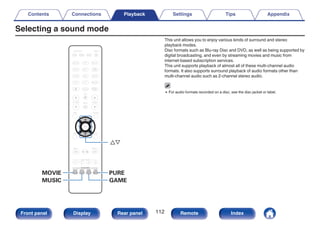
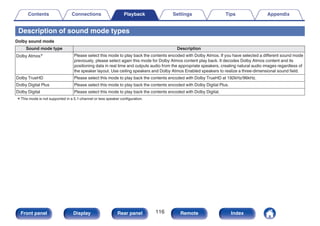
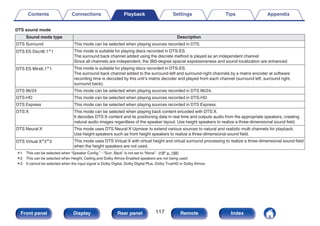
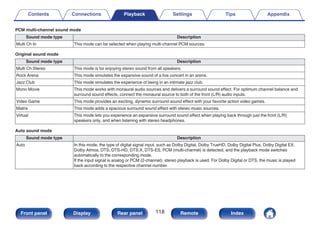
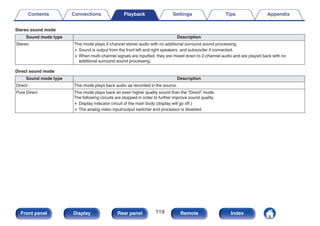
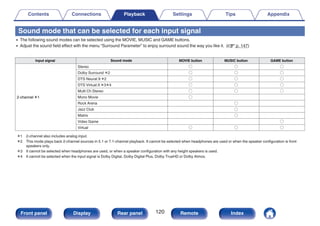
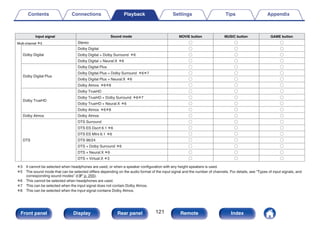
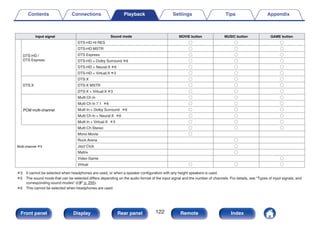
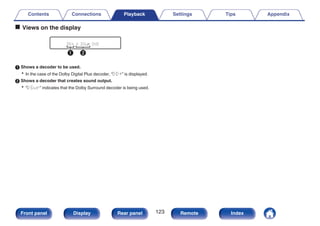
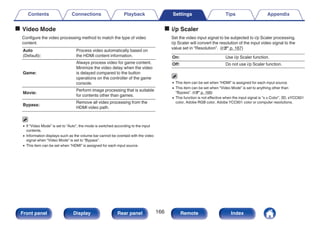
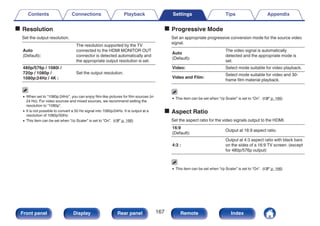
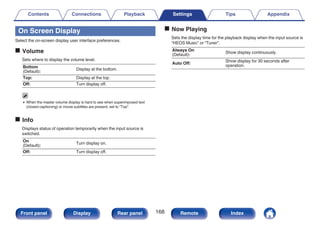
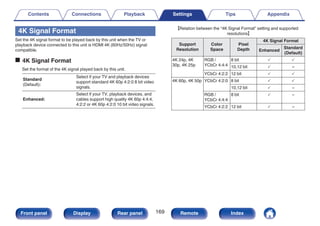
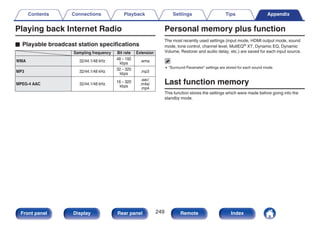
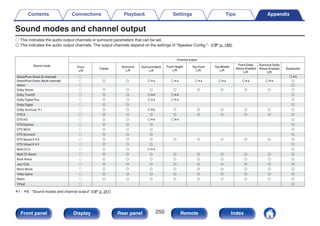
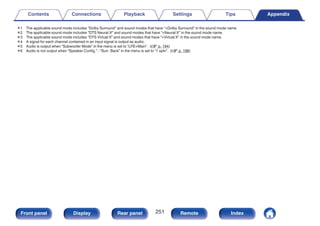
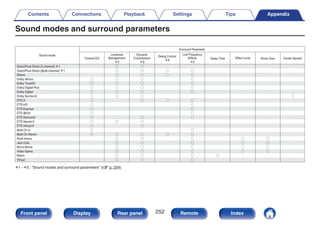
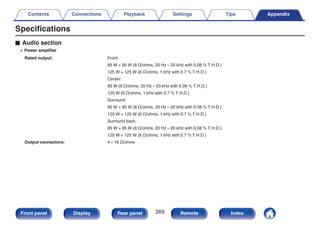
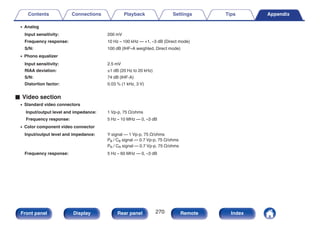
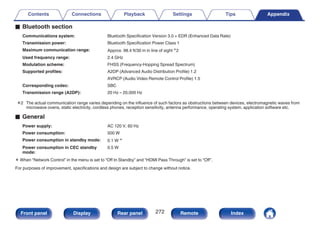
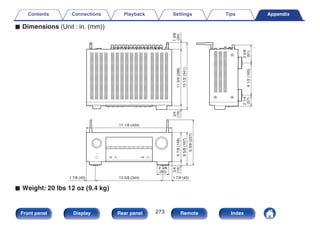
.
AVR-X2500H
INTEGRATED NETWORK AV RECEIVER
Owner’s Manual
Contents Connections Playback Settings Tips Appendix
1
Front panel Display Rear panel Remote Index
Accessories 8
Inserting the batteries 9
Operating range of the remote control unit 9
Features 10
High quality sound 10
High performance 10
Easy operation 14
Part names and functions 15
Front panel 15
Display 18
Rear panel 20
Remote control unit 24
Connections
Speaker installation 28
Connecting speakers 35
Before connecting speakers 35
Speaker configuration and “Amp Assign” settings 39
Connecting 5.1-channel speakers 40
Connecting 7.1-channel speakers 41
Connecting 5.1-channel speakers: Bi-amp connection of front
speaker 47
Connecting 5.1-channel speakers: Second pair of front speaker 48
Connecting multi-zone speakers 49
Connecting a TV 50
Connection 1 : TV equipped with an HDMI connector and
compatible with the ARC (Audio Return Channel) 51
Connection 2 : TV equipped with an HDMI connector and
incompatible with the ARC (Audio Return Channel) 52
Connection 3 : TV equipped without an HDMI connector 53
Connecting a playback device 54
Connecting a set-top box (Satellite tuner/cable TV) 55
Connecting a DVD player or Blu-ray Disc player 56
Connecting a video camcorder or game console 57
Connecting a turntable 58
Connecting a USB memory device to the USB port 59
Connecting an FM/AM antenna 60
Connecting to a home network (LAN) 62
Wired LAN 62
Wireless LAN 63
Connecting an external control device 64
REMOTE CONTROL jacks 64
Connecting the power cord 65
Contents Connections Playback Settings Tips Appendix
2
Front panel Display Rear panel Remote Index
Playback
Basic operation 67
Turning the power on 67
Selecting the input source 67
Adjusting the volume 68
Turning off the sound temporarily (Muting) 68
Playback a DVD player/Blu-ray Disc player 68
Playing a USB memory device 69
Playing files stored on USB memory devices 70
Listening to music on a Bluetooth device 73
Playing music from Bluetooth device 74
Pairing with other Bluetooth devices 75
Reconnecting to this unit from a Bluetooth device 76
Listening to FM/AM broadcasts 77
Listening to FM/AM broadcasts 78
Tuning in by entering the frequency (Direct Tune) 79
Changing the tune mode (Tune Mode) 80
Tuning in to stations and presetting them automatically (Auto
Preset Memory) 80
Presetting the current broadcast station (Preset Memory) 81
Listening to preset stations 81
Specify a name for the preset broadcast station (Preset Name) 82
Skipping preset broadcast stations (Preset Skip) 83
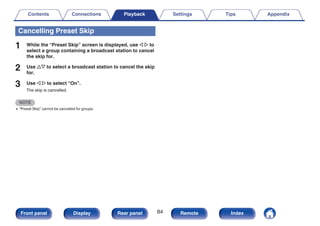
Cancelling Preset Skip 84
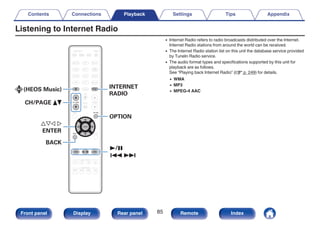
Listening to Internet Radio 85
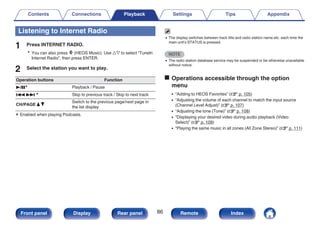
Listening to Internet Radio 86
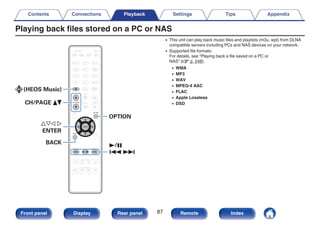
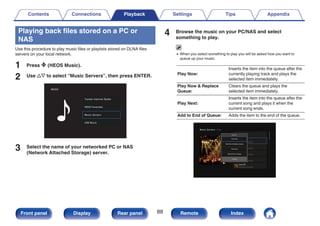
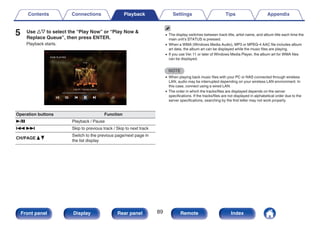
Playing back files stored on a PC or NAS 87
Playing back files stored on a PC or NAS 88
Getting the HEOS App 91
HEOS Account 92
Playing from streaming music services 93
Listening to the same music in multiple rooms 96
AirPlay function 100
Playing songs from your iPhone, iPod touch or iPad 101
Playing iTunes music with this unit 101
Perform iTunes playback operations with the remote control unit
of this unit 102
Spotify Connect function 103
Playing Spotify music with this unit 103
Contents Connections Playback Settings Tips Appendix
3
Front panel Display Rear panel Remote Index
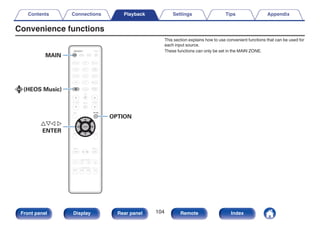
Convenience functions 104
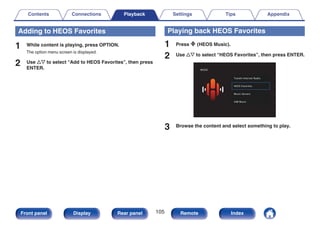
Adding to HEOS Favorites 105
Playing back HEOS Favorites 105
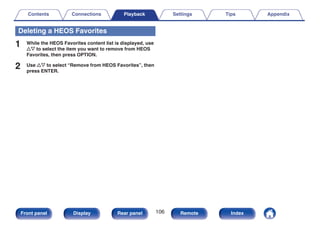
Deleting a HEOS Favorites 106
Adjusting the volume of each channel to match the input source
(Channel Level Adjust) 107
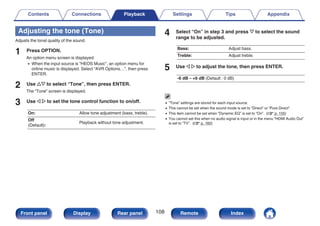
Adjusting the tone (Tone) 108
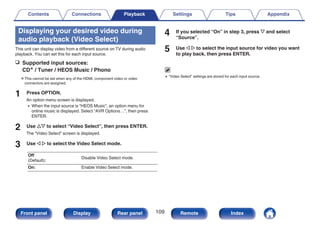
Displaying your desired video during audio playback (Video
Select) 109
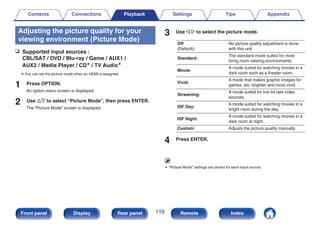
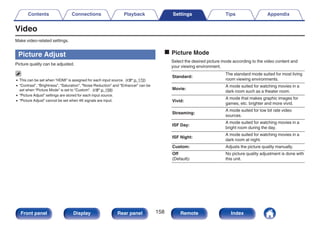
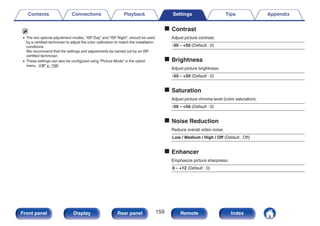
Adjusting the picture quality for your viewing environment (Picture
Mode) 110
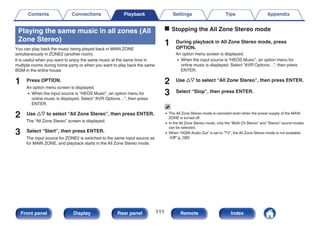
Playing the same music in all zones (All Zone Stereo) 111
Selecting a sound mode 112
Selecting a sound mode 113
Direct playback 114
Pure Direct playback 115
Auto surround playback 115
Description of sound mode types 116
Sound mode that can be selected for each input signal 120
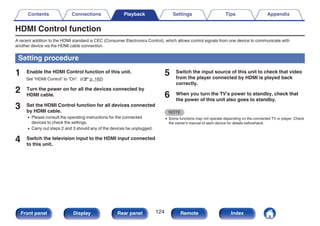
HDMI Control function 124
Setting procedure 124
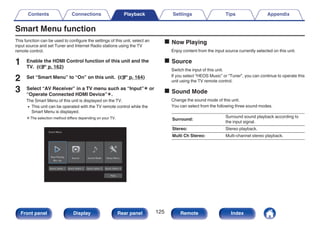
Smart Menu function 125
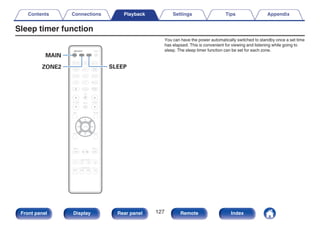
Sleep timer function 127
Using the sleep timer 128
Quick select plus function 129
Calling up the settings 130
Changing the settings 131
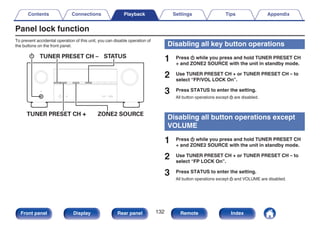
Panel lock function 132
Disabling all key button operations 132
Disabling all button operations except VOLUME 132
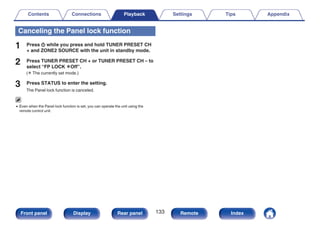
Canceling the Panel lock function 133
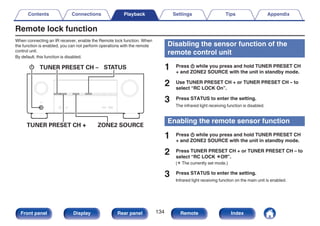
Remote lock function 134
Disabling the sensor function of the remote control unit 134
Enabling the remote sensor function 134
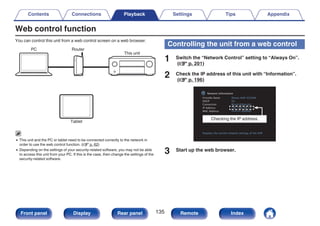
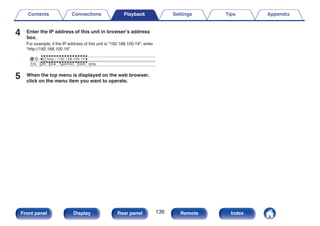
Web control function 135
Controlling the unit from a web control 135
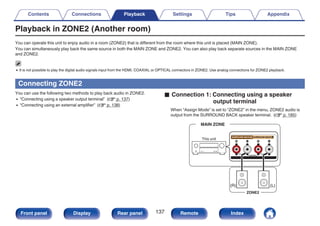
Playback in ZONE2 (Another room) 137
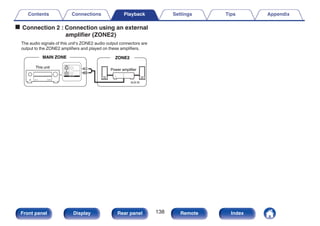
Connecting ZONE2 137
Playback in ZONE2 139
Settings
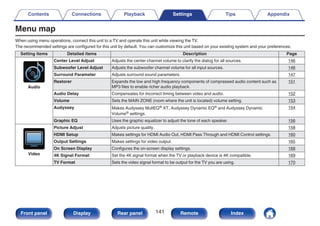
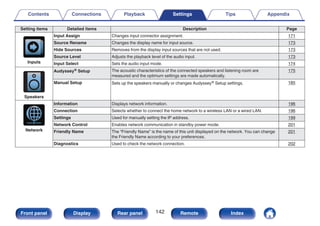
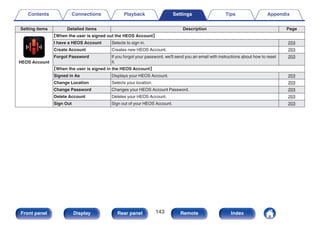
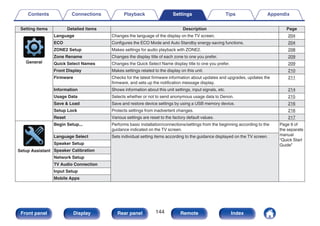
Menu map 141
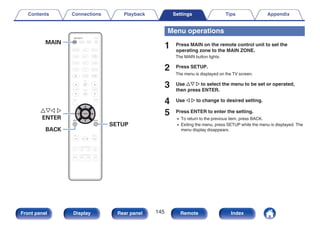
Menu operations 145
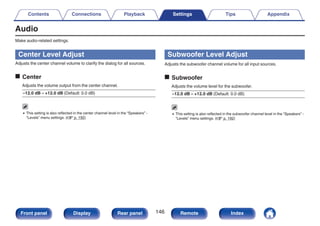
Audio 146
Center Level Adjust 146
Subwoofer Level Adjust 146
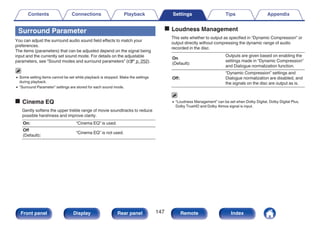
Surround Parameter 147
Restorer 151
Audio Delay 152
Volume 153
Audyssey® 154
Graphic EQ 156
Contents Connections Playback Settings Tips Appendix
4
Front panel Display Rear panel Remote Index
Video 158
Picture Adjust 158
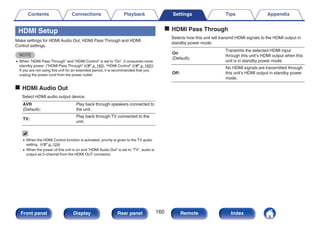
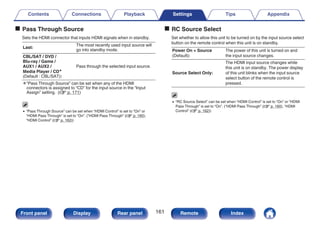
HDMI Setup 160
Output Settings 165
On Screen Display 168
4K Signal Format 169
TV Format 170
Inputs 171
Input Assign 171
Source Rename 173
Hide Sources 173
Source Level 173
Input Select 174
Speakers 175
Audyssey® Setup 175
Procedure for speaker settings (Audyssey® Setup) 177
Error messages 183
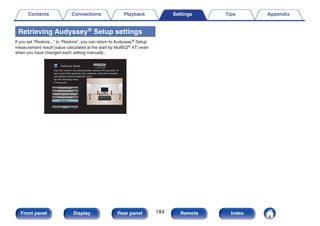
Retrieving Audyssey® Setup settings 184
Manual Setup 185
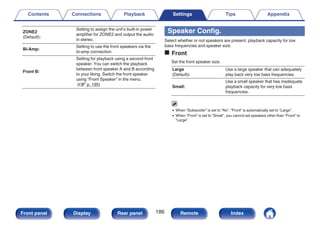
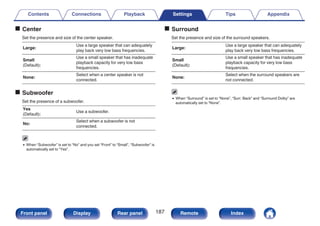
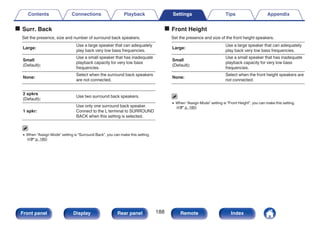
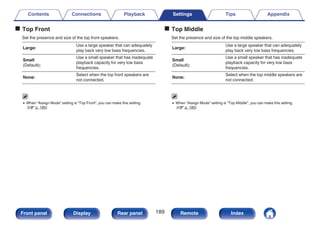
Amp Assign 185
Speaker Config. 186
Distances 191
Levels 192
Crossovers 193
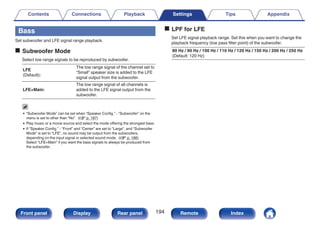
Bass 194
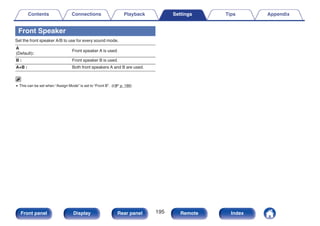
Front Speaker 195
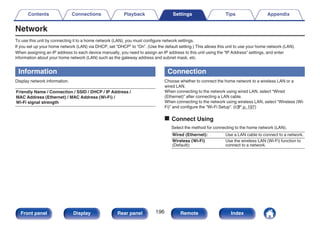
Network 196
Information 196
Connection 196
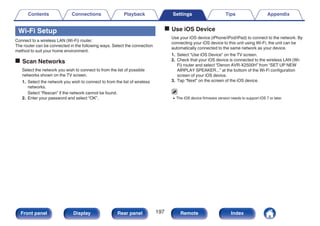
Wi-Fi Setup 197
Settings 199
Network Control 201
Friendly Name 201
Diagnostics 202
Contents Connections Playback Settings Tips Appendix
5
Front panel Display Rear panel Remote Index
HEOS Account 203
You have not signed in 203
You have already signed in 203
General 204
Language 204
ECO 204
ZONE2 Setup 208
Zone Rename 209
Quick Select Names 209
Front Display 210
Firmware 211
Information 214
Usage Data 215
Save & Load 216
Setup Lock 216
Reset 217
Limiting the operating zone with the remote control 218
Tips
Tips 220
Troubleshooting 222
Power does not turn on / Power is turned off 223
Operations cannot be performed through the remote control unit 224
Display on this unit shows nothing 224
No sound comes out 225
Desired sound does not come out 226
Sound is interrupted or noise occurs 228
No video is shown on the TV 229
The menu screen is not displayed on the TV 230
The color of the menu screen and operations content displayed
on the television is different from normal 230
AirPlay cannot be played back 231
USB memory devices cannot be played back 232
Bluetooth cannot be played back 233
The Internet radio cannot be played back 234
Music files on PC or NAS cannot be played back 235
Various online services cannot be played 236
The HDMI Control function does not work 236
Cannot connect to a wireless LAN network 237
Update/upgrade error messages 238
Resetting factory settings 239
Resetting network settings 240
Contents Connections Playback Settings Tips Appendix
6
Front panel Display Rear panel Remote Index
Appendix
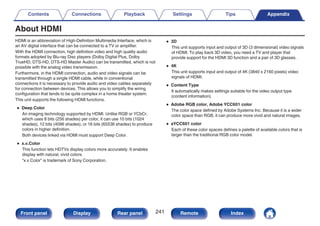
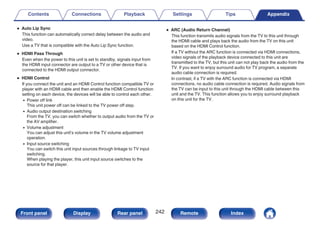
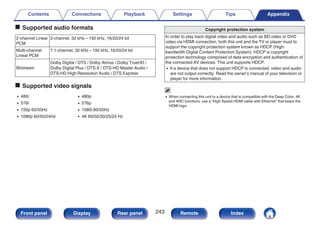
About HDMI 241
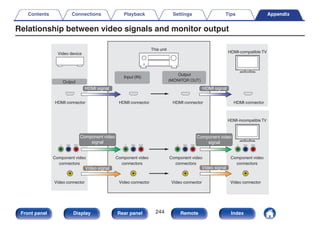
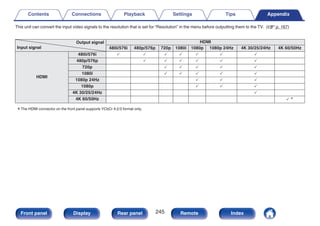
Relationship between video signals and monitor output 244
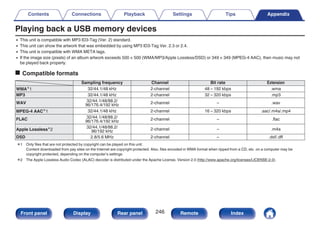
Playing back a USB memory devices 246
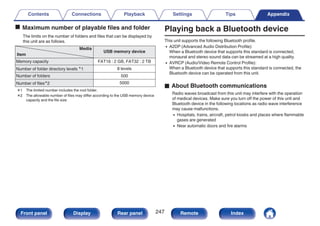
Playing back a Bluetooth device 247
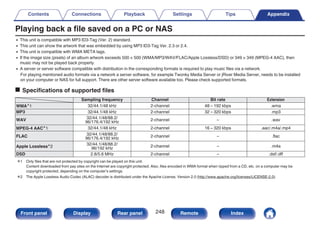
Playing back a file saved on a PC or NAS 248
Playing back Internet Radio 249
Personal memory plus function 249
Last function memory 249
Sound modes and channel output 250
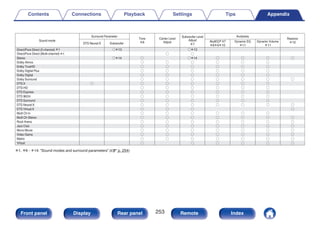
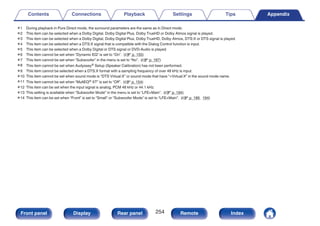
Sound modes and surround parameters 252
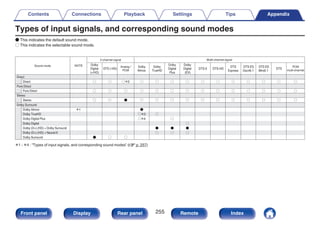
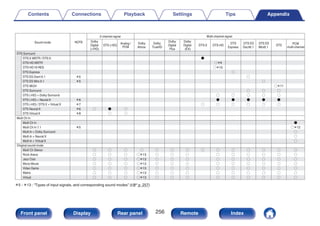
Types of input signals, and corresponding sound modes 255
Explanation of terms 258
Trademark information 267
Specifications 269
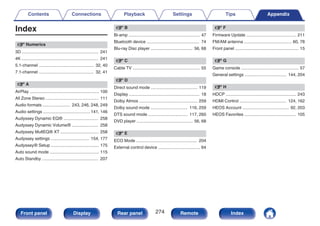
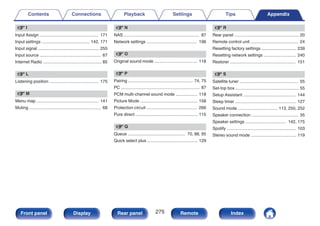
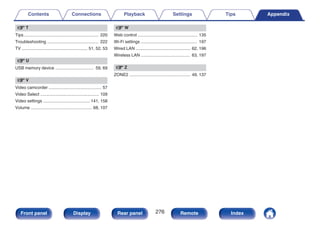
Index 274
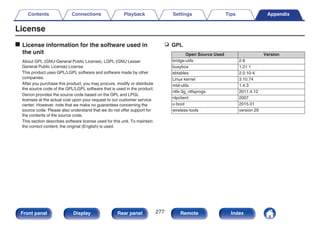
License 277
Contents Connections Playback Settings Tips Appendix
7
Front panel Display Rear panel Remote Index
Thank you for purchasing this Denon product.
To ensure proper operation, please read this owner’s manual carefully before using the product.
After reading this manual, be sure to keep it for future reference.
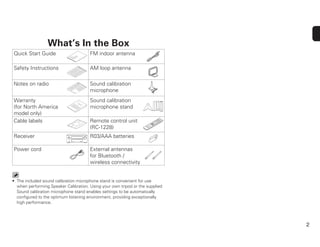
Accessories
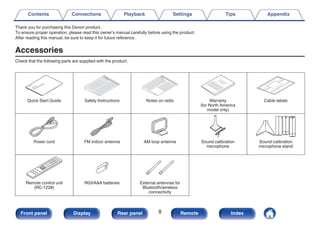
Check that the following parts are supplied with the product.
.
Quick Start Guide Safety Instructions Notes on radio Warranty
(for North America
model only)
Cable labels
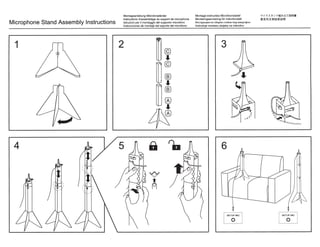
Power cord FM indoor antenna AM loop antenna Sound calibration
microphone stand
R03/AAA batteries External antennas for
Bluetooth/wireless
connectivity
Sound calibration
microphone
Remote control unit
(RC-1228)
Contents Connections Playback Settings Tips Appendix
8
Front panel Display Rear panel Remote Index
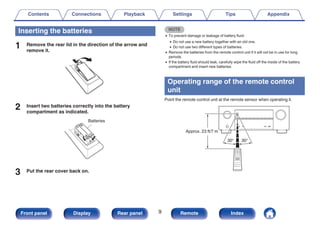
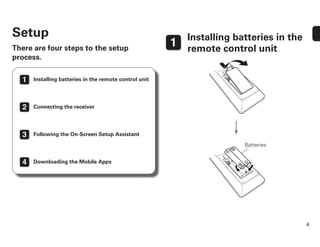
Inserting the batteries
1 Remove the rear lid in the direction of the arrow and
remove it.
.
2 Insert two batteries correctly into the battery
compartment as indicated.
.
Batteries
3 Put the rear cover back on.
NOTE
0 To prevent damage or leakage of battery fluid:
0 Do not use a new battery together with an old one.
0 Do not use two different types of batteries.
0 Remove the batteries from the remote control unit if it will not be in use for long
periods.
0 If the battery fluid should leak, carefully wipe the fluid off the inside of the battery
compartment and insert new batteries.
Operating range of the remote control
unit
Point the remote control unit at the remote sensor when operating it.
.
Approx. 23 ft/7 m
30° 30°
Contents Connections Playback Settings Tips Appendix
9
Front panel Display Rear panel Remote Index
Features
High quality sound
0 With discrete circuit technology, the power amplifier provides
identical quality for all 7-channels (125 Watts x 7-channels)
For optimum realism and stunning dynamic range, the power amplifier
section features discrete power devices (not integrated circuitry).
By using high current, high power discrete power devices, the amplifier
is able to easily drive high quality speakers.
0 Dolby Atmos (v p. 259)
This unit is equipped with a decoder that supports Dolby Atmos audio
format. The placement or movement of sound is accurately reproduced
by the addition of overhead speakers, enabling you to experience an
incredibly natural and realistic surround sound field.
0 DTS:X (v p. 261)
This unit is equipped with the DTS:X decoder technology. DTS:X brings
the home theater experience to new heights with its immersive object
based audio technology which removes the bounds of channels. The
flexibility of objects allows for sound to be scaled large or small and
moved around the room with greater accuracy than ever before leading
to a richer immersive audio experience.
0 DTS Virtual:X (v p. 262)
DTS Virtual:X technology features DTS’s proprietary virtual height and
virtual surround processing to deliver an immersive sound experience
from any type of input source (stereo to 7.1.4 channel) and speaker
configuration.
zDTS Virtual:X is not for use when Height speakers are connected.
High performance
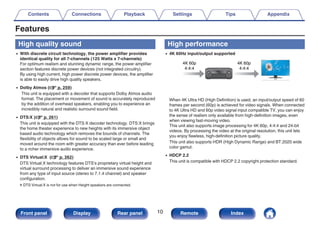
0 4K 60Hz input/output supported
.
4K 60p
4:4:4
4K 60p
4:4:4
When 4K Ultra HD (High Definition) is used, an input/output speed of 60
frames per second (60p) is achieved for video signals. When connected
to 4K Ultra HD and 60p video signal input compatible TV, you can enjoy
the sense of realism only available from high-definition images, even
when viewing fast-moving video.
This unit also supports image processing for 4K 60p, 4:4:4 and 24-bit
videos. By processing the video at the original resolution, this unit lets
you enjoy flawless, high-definition picture quality.
This unit also supports HDR (High Dynamic Range) and BT.2020 wide
color gamut.
0 HDCP 2.2
This unit is compatible with HDCP 2.2 copyright protection standard.
Contents Connections Playback Settings Tips Appendix
10
Front panel Display Rear panel Remote Index
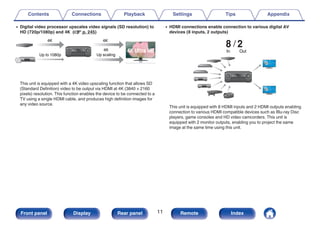
0 Digital video processor upscales video signals (SD resolution) to
HD (720p/1080p) and 4K (v p. 245)
.
4K
Up scaling
Up to 1080p
4K 4K
This unit is equipped with a 4K video upscaling function that allows SD
(Standard Definition) video to be output via HDMI at 4K (3840 × 2160
pixels) resolution. This function enables the device to be connected to a
TV using a single HDMI cable, and produces high definition images for
any video source.
0 HDMI connections enable connection to various digital AV
devices (8 inputs, 2 outputs)
.
8 2
Out
In
This unit is equipped with 8 HDMI inputs and 2 HDMI outputs enabling
connection to various HDMI compatible devices such as Blu-ray Disc
players, game consoles and HD video camcorders. This unit is
equipped with 2 monitor outputs, enabling you to project the same
image at the same time using this unit.
Contents Connections Playback Settings Tips Appendix
11
Front panel Display Rear panel Remote Index
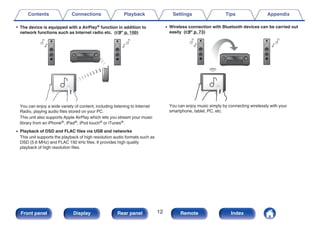
0 The device is equipped with a AirPlay® function in addition to
network functions such as Internet radio etc. (v p. 100)
.
You can enjoy a wide variety of content, including listening to Internet
Radio, playing audio files stored on your PC.
This unit also supports Apple AirPlay which lets you stream your music
library from an iPhone®, iPad®, iPod touch® or iTunes®.
0 Playback of DSD and FLAC files via USB and networks
This unit supports the playback of high resolution audio formats such as
DSD (5.6 MHz) and FLAC 192 kHz files. It provides high quality
playback of high resolution files.
0 Wireless connection with Bluetooth devices can be carried out
easily (v p. 73)
.
You can enjoy music simply by connecting wirelessly with your
smartphone, tablet, PC, etc.
Contents Connections Playback Settings Tips Appendix
12
Front panel Display Rear panel Remote Index
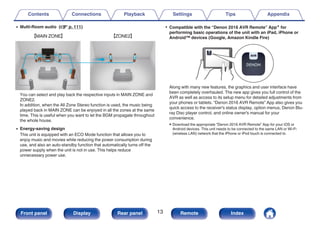
0 Multi-Room audio (v p. 111)
.
GMAIN ZONEH GZONE2H
You can select and play back the respective inputs in MAIN ZONE and
ZONE2.
In addition, when the All Zone Stereo function is used, the music being
played back in MAIN ZONE can be enjoyed in all the zones at the same
time. This is useful when you want to let the BGM propagate throughout
the whole house.
0 Energy-saving design
This unit is equipped with an ECO Mode function that allows you to
enjoy music and movies while reducing the power consumption during
use, and also an auto-standby function that automatically turns off the
power supply when the unit is not in use. This helps reduce
unnecessary power use.
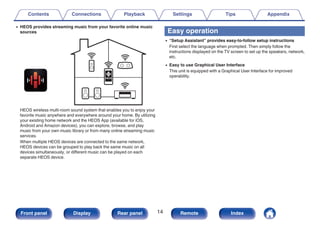
0 Compatible with the “Denon 2016 AVR Remote” Appz for
performing basic operations of the unit with an iPad, iPhone or
Android™ devices (Google, Amazon Kindle Fire)
.
Along with many new features, the graphics and user interface have
been completely overhauled. The new app gives you full control of the
AVR as well as access to its setup menu for detailed adjustments from
your phones or tablets. “Denon 2016 AVR Remote” App also gives you
quick access to the receiver's status display, option menus, Denon Blu-
ray Disc player control, and online owner's manual for your
convenience.
zDownload the appropriate “Denon 2016 AVR Remote” App for your iOS or
Android devices. This unit needs to be connected to the same LAN or Wi-Fi
(wireless LAN) network that the iPhone or iPod touch is connected to.
Contents Connections Playback Settings Tips Appendix
13
Front panel Display Rear panel Remote Index
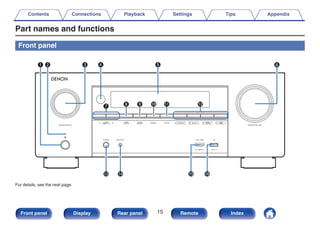
0 HEOS provides streaming music from your favorite online music
sources
.
HEOS wireless multi-room sound system that enables you to enjoy your
favorite music anywhere and everywhere around your home. By utilizing
your existing home network and the HEOS App (available for iOS,
Android and Amazon devices), you can explore, browse, and play
music from your own music library or from many online streaming music
services.
When multiple HEOS devices are connected to the same network,
HEOS devices can be grouped to play back the same music on all
devices simultaneously, or different music can be played on each
separate HEOS device.
Easy operation
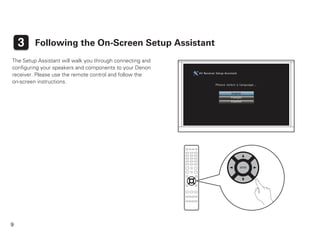
0 “Setup Assistant” provides easy-to-follow setup instructions
First select the language when prompted. Then simply follow the
instructions displayed on the TV screen to set up the speakers, network,
etc.
0 Easy to use Graphical User Interface
This unit is equipped with a Graphical User Interface for improved
operability.
Contents Connections Playback Settings Tips Appendix
14
Front panel Display Rear panel Remote Index
Part names and functions
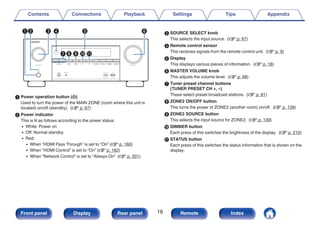
Front panel
.
e r t y
Q3 Q6
Q4
q w
Q5
u i o Q0 Q1 Q2
For details, see the next page.
Contents Connections Playback Settings Tips Appendix
15
Front panel Display Rear panel Remote Index
.
e r t y
qw
ui o Q0 Q1
A Power operation button (X)
Used to turn the power of the MAIN ZONE (room where this unit is
located) on/off (standby). (v p. 67)
B Power indicator
This is lit as follows according to the power status:
0 White: Power on
0 Off: Normal standby
0 Red:
0 When “HDMI Pass Through” is set to “On” (v p. 160)
0 When “HDMI Control” is set to “On” (v p. 162)
0 When “Network Control” is set to “Always On” (v p. 201)
C SOURCE SELECT knob
This selects the input source. (v p. 67)
D Remote control sensor
This receives signals from the remote control unit. (v p. 9)
E Display
This displays various pieces of information. (v p. 18)
F MASTER VOLUME knob
This adjusts the volume level. (v p. 68)
G Tuner preset channel buttons
(TUNER PRESET CH +, –)
These select preset broadcast stations. (v p. 81)
H ZONE2 ON/OFF button
This turns the power of ZONE2 (another room) on/off. (v p. 139)
I ZONE2 SOURCE button
This selects the input source for ZONE2. (v p. 139)
J DIMMER button
Each press of this switches the brightness of the display. (v p. 210)
K STATUS button
Each press of this switches the status information that is shown on the
display.
Contents Connections Playback Settings Tips Appendix
16
Front panel Display Rear panel Remote Index
.
Q3 Q6
Q4 Q5
Q2
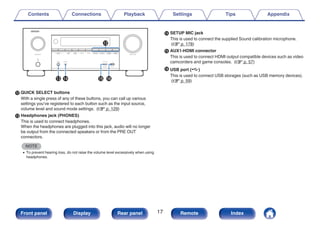
L QUICK SELECT buttons
With a single press of any of these buttons, you can call up various
settings you’ve registered to each button such as the input source,
volume level and sound mode settings. (v p. 129)
M Headphones jack (PHONES)
This is used to connect headphones.
When the headphones are plugged into this jack, audio will no longer
be output from the connected speakers or from the PRE OUT
connectors.
NOTE
0 To prevent hearing loss, do not raise the volume level excessively when using
headphones.
N SETUP MIC jack
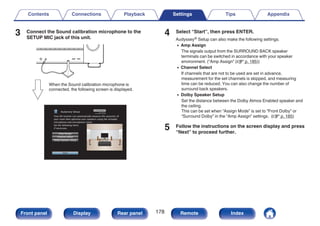
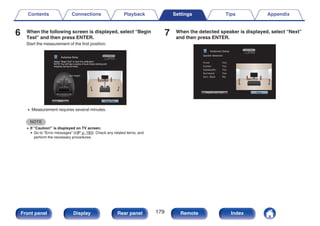
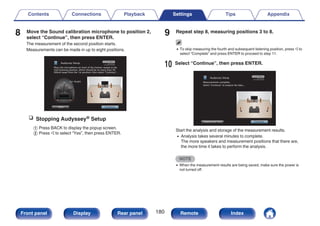
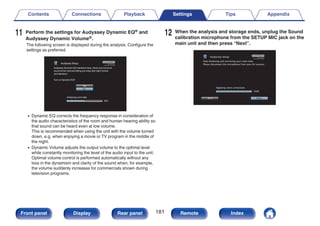
This is used to connect the supplied Sound calibration microphone.
(v p. 178)
O AUX1-HDMI connector
This is used to connect HDMI output compatible devices such as video
camcorders and game consoles. (v p. 57)
P USB port (T)
This is used to connect USB storages (such as USB memory devices).
(v p. 59)
Contents Connections Playback Settings Tips Appendix
17
Front panel Display Rear panel Remote Index
Display
.
u i
y
t
r
e
w
q
o Q0 Q1
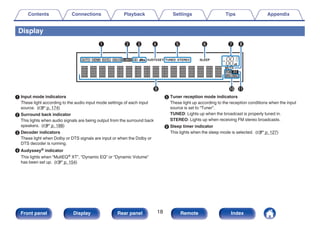
A Input mode indicators
These light according to the audio input mode settings of each input
source. (v p. 174)
B Surround back indicator
This lights when audio signals are being output from the surround back
speakers. (v p. 188)
C Decoder indicators
These light when Dolby or DTS signals are input or when the Dolby or
DTS decoder is running.
D Audyssey® indicator
This lights when “MultEQ® XT”, “Dynamic EQ” or “Dynamic Volume”
has been set up. (v p. 154)
E Tuner reception mode indicators
These light up according to the reception conditions when the input
source is set to “Tuner”.
TUNED: Lights up when the broadcast is properly tuned in.
STEREO: Lights up when receiving FM stereo broadcasts.
F Sleep timer indicator
This lights when the sleep mode is selected. (v p. 127)
Contents Connections Playback Settings Tips Appendix
18
Front panel Display Rear panel Remote Index
.
u i
Q1
Q0
o
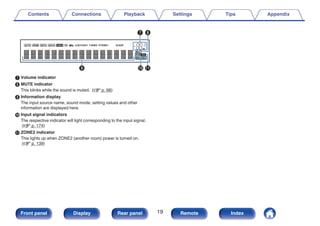
G Volume indicator
H MUTE indicator
This blinks while the sound is muted. (v p. 68)
I Information display
The input source name, sound mode, setting values and other
information are displayed here.
J Input signal indicators
The respective indicator will light corresponding to the input signal.
(v p. 174)
K ZONE2 indicator
This lights up when ZONE2 (another room) power is turned on.
(v p. 139)
Contents Connections Playback Settings Tips Appendix
19
Front panel Display Rear panel Remote Index
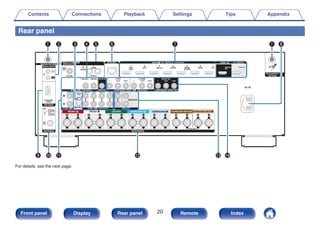
Rear panel
.
q w t
e y u q i
o Q0 Q1 Q2 Q3 Q4
r
For details, see the next page.
Contents Connections Playback Settings Tips Appendix
20
Front panel Display Rear panel Remote Index
.
w e
q q
r
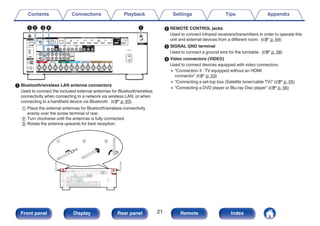
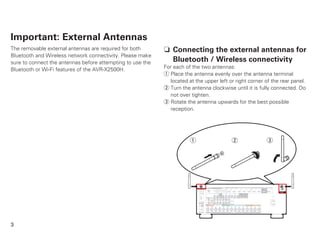
A Bluetooth/wireless LAN antenna connectors
Used to connect the included external antennas for Bluetooth/wireless
connectivity when connecting to a network via wireless LAN, or when
connecting to a handheld device via Bluetooth. (v p. 63)
A Place the external antennas for Bluetooth/wireless connectivity
evenly over the screw terminal of rear.
B Turn clockwise until the antennas is fully connected.
C Rotate the antenna upwards for best reception.
.
q w e
B REMOTE CONTROL jacks
Used to connect infrared receivers/transmitters in order to operate this
unit and external devices from a different room. (v p. 64)
C SIGNAL GND terminal
Used to connect a ground wire for the turntable. (v p. 58)
D Video connectors (VIDEO)
Used to connect devices equipped with video connectors.
0 “Connection 3 : TV equipped without an HDMI
connector” (v p. 53)
0 “Connecting a set-top box (Satellite tuner/cable TV)” (v p. 55)
0 “Connecting a DVD player or Blu-ray Disc player” (v p. 56)
Contents Connections Playback Settings Tips Appendix
21
Front panel Display Rear panel Remote Index
.
t y u i
o
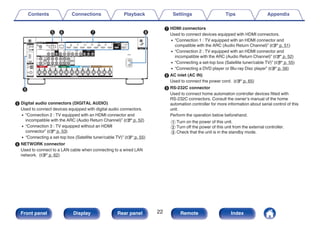
E Digital audio connectors (DIGITAL AUDIO)
Used to connect devices equipped with digital audio connectors.
0 “Connection 2 : TV equipped with an HDMI connector and
incompatible with the ARC (Audio Return Channel)” (v p. 52)
0 “Connection 3 : TV equipped without an HDMI
connector” (v p. 53)
0 “Connecting a set-top box (Satellite tuner/cable TV)” (v p. 55)
F NETWORK connector
Used to connect to a LAN cable when connecting to a wired LAN
network. (v p. 62)
G HDMI connectors
Used to connect devices equipped with HDMI connectors.
0 “Connection 1 : TV equipped with an HDMI connector and
compatible with the ARC (Audio Return Channel)” (v p. 51)
0 “Connection 2 : TV equipped with an HDMI connector and
incompatible with the ARC (Audio Return Channel)” (v p. 52)
0 “Connecting a set-top box (Satellite tuner/cable TV)” (v p. 55)
0 “Connecting a DVD player or Blu-ray Disc player” (v p. 56)
H AC inlet (AC IN)
Used to connect the power cord. (v p. 65)
I RS-232C connector
Used to connect home automation controller devices fitted with
RS-232C connectors. Consult the owner’s manual of the home
automation controller for more information about serial control of this
unit.
Perform the operation below beforehand.
A Turn on the power of this unit.
B Turn off the power of this unit from the external controller.
C Check that the unit is in the standby mode.
Contents Connections Playback Settings Tips Appendix
22
Front panel Display Rear panel Remote Index
.
Q0Q11 Q2 Q3 Q4
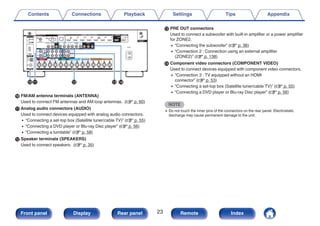
J FM/AM antenna terminals (ANTENNA)
Used to connect FM antennas and AM loop antennas. (v p. 60)
K Analog audio connectors (AUDIO)
Used to connect devices equipped with analog audio connectors.
0 “Connecting a set-top box (Satellite tuner/cable TV)” (v p. 55)
0 “Connecting a DVD player or Blu-ray Disc player” (v p. 56)
0 “Connecting a turntable” (v p. 58)
L Speaker terminals (SPEAKERS)
Used to connect speakers. (v p. 35)
M PRE OUT connectors
Used to connect a subwoofer with built-in amplifier or a power amplifier
for ZONE2.
0 “Connecting the subwoofer” (v p. 36)
0 “Connection 2 : Connection using an external amplifier
(ZONE2)” (v p. 138)
N Component video connectors (COMPONENT VIDEO)
Used to connect devices equipped with component video connectors.
0 “Connection 3 : TV equipped without an HDMI
connector” (v p. 53)
0 “Connecting a set-top box (Satellite tuner/cable TV)” (v p. 55)
0 “Connecting a DVD player or Blu-ray Disc player” (v p. 56)
NOTE
0 Do not touch the inner pins of the connectors on the rear panel. Electrostatic
discharge may cause permanent damage to the unit.
Contents Connections Playback Settings Tips Appendix
23
Front panel Display Rear panel Remote Index
Remote control unit
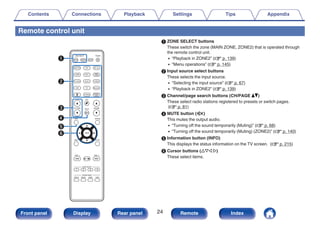
A ZONE SELECT buttons
These switch the zone (MAIN ZONE, ZONE2) that is operated through
the remote control unit.
0 “Playback in ZONE2” (v p. 139)
0 “Menu operations” (v p. 145)
B Input source select buttons
These selects the input source.
0 “Selecting the input source” (v p. 67)
0 “Playback in ZONE2” (v p. 139)
C Channel/page search buttons (CH/PAGE df)
These select radio stations registered to presets or switch pages.
(v p. 81)
D MUTE button (:)
This mutes the output audio.
0 “Turning off the sound temporarily (Muting)” (v p. 68)
0 “Turning off the sound temporarily (Muting) (ZONE2)” (v p. 140)
E Information button (INFO)
This displays the status information on the TV screen. (v p. 215)
F Cursor buttons (uio p)
These select items.
e
t
r
y
q
w
Contents Connections Playback Settings Tips Appendix
24
Front panel Display Rear panel Remote Index
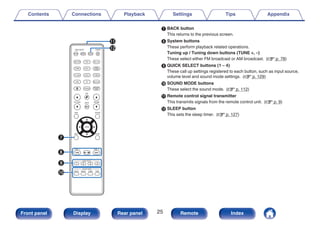
G BACK button
This returns to the previous screen.
H System buttons
These perform playback related operations.
Tuning up / Tuning down buttons (TUNE +, –)
These select either FM broadcast or AM broadcast. (v p. 78)
I QUICK SELECT buttons (1 – 4)
These call up settings registered to each button, such as input source,
volume level and sound mode settings. (v p. 129)
J SOUND MODE buttons
These select the sound mode. (v p. 112)
K Remote control signal transmitter
This transmits signals from the remote control unit. (v p. 9)
L SLEEP button
This sets the sleep timer. (v p. 127)
Q2
Q1
Q0
o
i
u
Contents Connections Playback Settings Tips Appendix
25
Front panel Display Rear panel Remote Index
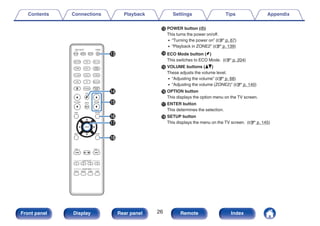
M POWER button (X)
This turns the power on/off.
0 “Turning the power on” (v p. 67)
0 “Playback in ZONE2” (v p. 139)
N ECO Mode button (G)
This switches to ECO Mode. (v p. 204)
O VOLUME buttons (df)
These adjusts the volume level.
0 “Adjusting the volume” (v p. 68)
0 “Adjusting the volume (ZONE2)” (v p. 140)
P OPTION button
This displays the option menu on the TV screen.
Q ENTER button
This determines the selection.
R SETUP button
This displays the menu on the TV screen. (v p. 145)
Q3
Q5
Q4
Q8
Q6
Q7
Contents Connections Playback Settings Tips Appendix
26
Front panel Display Rear panel Remote Index
o Contents
Speaker installation 28
Connecting speakers 35
Connecting a TV 50
Connecting a playback device 54
Connecting a USB memory device to the USB port 59
Connecting an FM/AM antenna 60
Connecting to a home network (LAN) 62
Connecting an external control device 64
Connecting the power cord 65
NOTE
0 Do not plug in the power cord until all connections have been completed.
However, when the “Setup Assistant” is running, follow the instructions in the
“Setup Assistant” (page 9 in the separate “Quick Start Guide”) screen for making
connections. (During “Setup Assistant” operation, the input/output connectors do
not conduct current.)
0 Do not bundle power cords together with connection cables. Doing so can result in
noise.
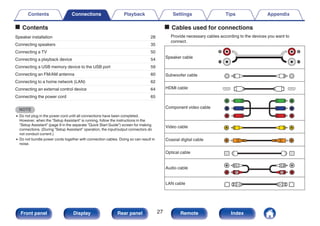
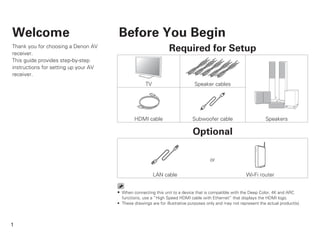
o Cables used for connections
Provide necessary cables according to the devices you want to
connect.
Speaker cable
.
Subwoofer cable
.
HDMI cable
.
Component video cable
.
Video cable
.
Coaxial digital cable
.
Optical cable
.
Audio cable
.
R
L
R
L
LAN cable
.
Contents Connections Playback Settings Tips Appendix
27
Front panel Display Rear panel Remote Index
Speaker installation
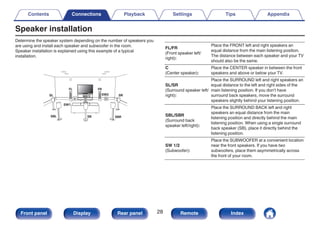
Determine the speaker system depending on the number of speakers you
are using and install each speaker and subwoofer in the room.
Speaker installation is explained using this example of a typical
installation.
.
C
FL FR
SBL SBR
SB
SW1
SW2
SL SR
FL/FR
(Front speaker left/
right):
Place the FRONT left and right speakers an
equal distance from the main listening position.
The distance between each speaker and your TV
should also be the same.
C
(Center speaker):
Place the CENTER speaker in between the front
speakers and above or below your TV.
SL/SR
(Surround speaker left/
right):
Place the SURROUND left and right speakers an
equal distance to the left and right sides of the
main listening position. If you don’t have
surround back speakers, move the surround
speakers slightly behind your listening position.
SBL/SBR
(Surround back
speaker left/right):
Place the SURROUND BACK left and right
speakers an equal distance from the main
listening position and directly behind the main
listening position. When using a single surround
back speaker (SB), place it directly behind the
listening position.
SW 1/2
(Subwoofer):
Place the SUBWOOFER at a convenient location
near the front speakers. If you have two
subwoofers, place them asymmetrically across
the front of your room.
Contents Connections Playback Settings Tips Appendix
28
Front panel Display Rear panel Remote Index
.
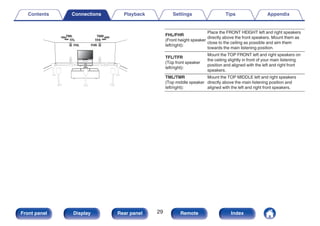
FHL FHR
TFR
TFL
TMR
TML FHL/FHR
(Front height speaker
left/right):
Place the FRONT HEIGHT left and right speakers
directly above the front speakers. Mount them as
close to the ceiling as possible and aim them
towards the main listening position.
TFL/TFR
(Top front speaker
left/right):
Mount the TOP FRONT left and right speakers on
the ceiling slightly in front of your main listening
position and aligned with the left and right front
speakers.
TML/TMR
(Top middle speaker
left/right):
Mount the TOP MIDDLE left and right speakers
directly above the main listening position and
aligned with the left and right front speakers.
Contents Connections Playback Settings Tips Appendix
29
Front panel Display Rear panel Remote Index
.
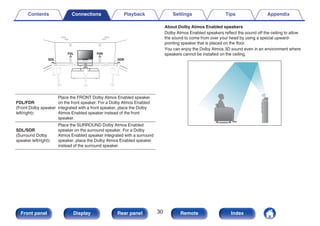
FDL FDR
SDL SDR
FDL/FDR
(Front Dolby speaker
left/right):
Place the FRONT Dolby Atmos Enabled speaker
on the front speaker. For a Dolby Atmos Enabled
integrated with a front speaker, place the Dolby
Atmos Enabled speaker instead of the front
speaker.
SDL/SDR
(Surround Dolby
speaker left/right):
Place the SURROUND Dolby Atmos Enabled
speaker on the surround speaker. For a Dolby
Atmos Enabled speaker integrated with a surround
speaker, place the Dolby Atmos Enabled speaker
instead of the surround speaker.
About Dolby Atmos Enabled speakers
Dolby Atmos Enabled speakers reflect the sound off the ceiling to allow
the sound to come from over your head by using a special upward-
pointing speaker that is placed on the floor.
You can enjoy the Dolby Atmos 3D sound even in an environment where
speakers cannot be installed on the ceiling.
.
Contents Connections Playback Settings Tips Appendix
30
Front panel Display Rear panel Remote Index
0 This unit is compatible with Dolby Atmos and DTS:X which offers an even wider
and deeper surround sensation.
0 Dolby Atmos is not supported in a 5.1-channel or less speaker configuration.
0 DTS:X can be selected regardless of the speaker configuration.
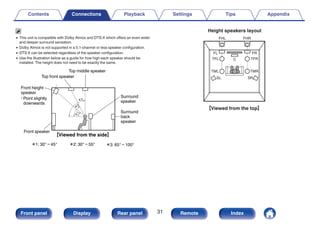
0 Use the illustration below as a guide for how high each speaker should be
installed. The height does not need to be exactly the same.
.
z
1
z
2
z3
Front height
speaker
z1: 30° – 45° z2: 30° – 55° z3: 65° – 100°
GViewed from the sideH
Top middle speaker
Top front speaker
Front speaker
Surround
speaker
Surround
back
speaker
Point slightly
downwards
.
SL
FHL
TML
TFL
FL
SR
FHR
TMR
TFR
FR
C
Height speakers layout
GViewed from the topH
Contents Connections Playback Settings Tips Appendix
31
Front panel Display Rear panel Remote Index
o When 7.1-channel speakers are installed using
surround back speakers
.
z1
z2 z3
FL
SW C
SL
SBL
FR
SR
SBR
Listening
position
z1 22° - 30° z2 90° - 110° z3 135° - 150°
0 When using a single surround back speaker, place it directly behind the listening
position.
o When 5.1-channel speakers are installed
.
z1
z2
FL
SW C
SL
FR
SR
z1 22° - 30° z2 120°
Contents Connections Playback Settings Tips Appendix
32
Front panel Display Rear panel Remote Index
o Layout including height speakers and ceiling
speakers
n Height speaker layout example
Combination of 5.1-channel layout and front height speakers.
.
FHL FHR
C
FL FR
SW
SL SR
n Ceiling speaker layout example
Combination of 5.1-channel layout and top middle speakers.
.
TMR
TML
C
FL FR
SW
SL SR
Contents Connections Playback Settings Tips Appendix
33
Front panel Display Rear panel Remote Index
n Dolby Atmos Enabled speaker layout example
Combination of 5.1-channel layout and front Dolby speakers.
.
C
FL FR
FDL FDR
SW
SL SR
Contents Connections Playback Settings Tips Appendix
34
Front panel Display Rear panel Remote Index
Connecting speakers
Here we connect the speakers in the room to this unit.
Before connecting speakers
NOTE
0 Disconnect this unit’s power plug from the power outlet before connecting the
speakers. Also, turn off the subwoofer.
0 Connect so that the speaker cable core wires do not protrude from the speaker
terminal. The protection circuit may be activated if the core wires touch the rear
panel or if the + and - sides touch each other. (“Protection circuit” (v p. 266))
0 Never touch the speaker terminals while the power cord is connected. Doing so
could result in electric shock. When the “Setup Assistant” (page 9 in the separate
“Quick Start Guide”) is running, follow the instructions in the “Setup Assistant”
screen for making connections. (Power is not supplied to the speaker terminals
while the “Setup Assistant” is running.)
0 Use speakers with an impedance of 4 – 16 Ω/ohms.
NOTE
0 Carry out the following settings when using a speaker with an impedance of 4 – 6
Ω/ohms.
1. Press and hold the main unit’s ZONE2 SOURCE and STATUS at the same
time for at least 3 seconds.
“V.Format:< NTSC>” appears on the display.
2. Press DIMMER on the main unit three times.
“Sp.Imp.:<8ohms>” appears on the display.
3. Press TUNER PRESET CH + or TUNER PRESET CH - on the main unit to
select the impedance.
8ohms
(Default):
Select when the impedance for all of the
connected speakers is 8 Ω/ohms or over.
6ohms:
Select when the impedance for any of the
connected speakers is 6 Ω/ohms.
4ohms:
Select when the impedance for any of the
connected speakers is 4 Ω/ohms.
4. Press the main unit’s STATUS to complete the setting.
Contents Connections Playback Settings Tips Appendix
35
Front panel Display Rear panel Remote Index
o Connecting the speaker cables
Carefully check the left (L) and right (R) channels and + (red) and –
(black) polarities on the speakers being connected to this unit, and be
sure to connect the channels and polarities correctly.
1 Peel off about 3/8 inch (10 mm) of sheathing from the
tip of the speaker cable, then either twist the core wire
tightly or terminate it.
.
2 Turn the speaker terminal counterclockwise to loosen it.
.
3 Insert the speaker cable’s core wire to the hilt into the
speaker terminal.
.
4 Turn the speaker terminal clockwise to tighten it.
.
o Connecting the subwoofer
Use a subwoofer cable to connect the subwoofer. Two subwoofers can
be connected to this unit.
The same signal is output from the respective subwoofer terminals.
.
SW1 SW2
Contents Connections Playback Settings Tips Appendix
36
Front panel Display Rear panel Remote Index
o About the cable labels (supplied) for channel
identification
The channel display section for speaker terminals on the rear panel is
color-coded for each channel to be identifiable.
Attach the cable label corresponding to each speaker to each speaker
cable.
This makes it easy to connect the correct cable to the speaker
terminals on the rear panel.
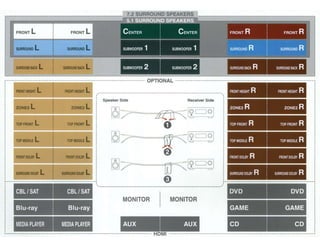
Speaker Color
FRONT L White
FRONT R Red
CENTER Green
SURROUND L Light Blue
SURROUND R Blue
SURROUND BACK L Beige
SURROUND BACK R Brown
FRONT HEIGHT L Beige
FRONT HEIGHT R Brown
ZONE2 L Beige
ZONE2 R Brown
TOP FRONT L Beige
TOP FRONT R Brown
TOP MIDDLE L Beige
TOP MIDDLE R Brown
FRONT DOLBY L Beige
FRONT DOLBY R Brown
SURROUND DOLBY L Beige
SURROUND DOLBY R Brown
SUBWOOFER 1 Black
SUBWOOFER 2 Black
Contents Connections Playback Settings Tips Appendix
37
Front panel Display Rear panel Remote Index
Attach the cable label for each channel to its speaker cable as shown
in the diagram.
Refer to the table and attach the label to each speaker cable.
Then, make connection so that the color of the speaker terminal
matches that of the cable label.
G How to attach the cable labels H
.
Speaker
This unit
Contents Connections Playback Settings Tips Appendix
38
Front panel Display Rear panel Remote Index
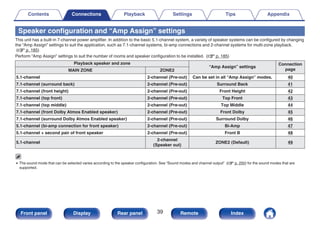
Speaker configuration and “Amp Assign” settings
This unit has a built-in 7-channel power amplifier. In addition to the basic 5.1-channel system, a variety of speaker systems can be configured by changing
the “Amp Assign” settings to suit the application, such as 7.1-channel systems, bi-amp connections and 2-channel systems for multi-zone playback.
(v p. 185)
Perform “Amp Assign” settings to suit the number of rooms and speaker configuration to be installed. (v p. 185)
Playback speaker and zone
“Amp Assign” settings
Connection
page
MAIN ZONE ZONE2
5.1-channel 2-channel (Pre-out) Can be set in all “Amp Assign” modes. 40
7.1-channel (surround back) 2-channel (Pre-out) Surround Back 41
7.1-channel (front height) 2-channel (Pre-out) Front Height 42
7.1-channel (top front) 2-channel (Pre-out) Top Front 43
7.1-channel (top middle) 2-channel (Pre-out) Top Middle 44
7.1-channel (front Dolby Atmos Enabled speaker) 2-channel (Pre-out) Front Dolby 45
7.1-channel (surround Dolby Atmos Enabled speaker) 2-channel (Pre-out) Surround Dolby 46
5.1-channel (bi-amp connection for front speaker) 2-channel (Pre-out) Bi-Amp 47
5.1-channel + second pair of front speaker 2-channel (Pre-out) Front B 48
5.1-channel
2-channel
(Speaker out)
ZONE2 (Default) 49
0 The sound mode that can be selected varies according to the speaker configuration. See “Sound modes and channel output” (v p. 250) for the sound modes that are
supported.
Contents Connections Playback Settings Tips Appendix
39
Front panel Display Rear panel Remote Index
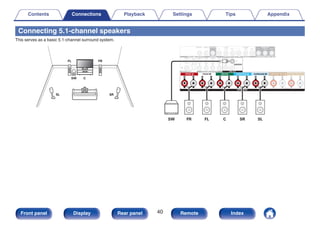
Connecting 5.1-channel speakers
This serves as a basic 5.1-channel surround system.
.
FL
SW C
SL
FR
SR
.
SW FL
FR C SR SL
Contents Connections Playback Settings Tips Appendix
40
Front panel Display Rear panel Remote Index
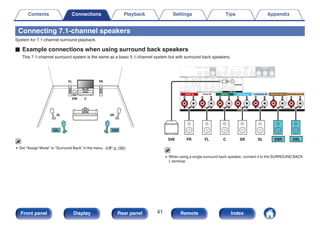
Connecting 7.1-channel speakers
System for 7.1-channel surround playback.
o Example connections when using surround back speakers
This 7.1-channel surround system is the same as a basic 5.1-channel system but with surround back speakers.
.
FL
SW C
SL
FR
SR
SBR
SBL
0 Set “Assign Mode” to “Surround Back” in the menu. (v p. 185)
.
SBR SBL
SW FL
FR C SR SL
0 When using a single surround back speaker, connect it to the SURROUND BACK
L terminal.
Contents Connections Playback Settings Tips Appendix
41
Front panel Display Rear panel Remote Index
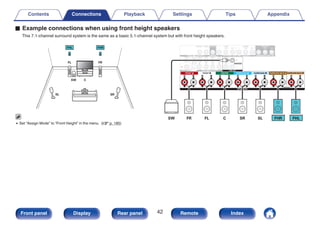
o Example connections when using front height speakers
This 7.1-channel surround system is the same as a basic 5.1-channel system but with front height speakers.
.
FL
SW C
SL
FHR
FR
SR
FHL
0 Set “Assign Mode” to “Front Height” in the menu. (v p. 185)
.
FHR FHL
SW FL
FR C SR SL
Contents Connections Playback Settings Tips Appendix
42
Front panel Display Rear panel Remote Index
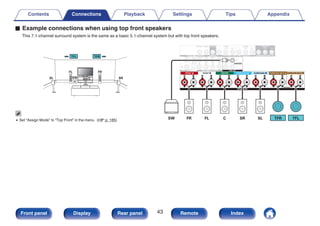
o Example connections when using top front speakers
This 7.1-channel surround system is the same as a basic 5.1-channel system but with top front speakers.
.
C
FL FR
SW
SL SR
TFL TFR
0 Set “Assign Mode” to “Top Front” in the menu. (v p. 185)
.
SW FL
FR C SR SL TFR TFL
Contents Connections Playback Settings Tips Appendix
43
Front panel Display Rear panel Remote Index
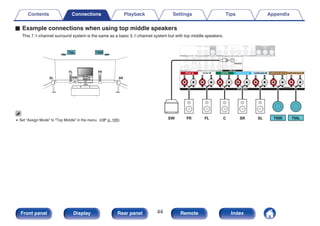
o Example connections when using top middle speakers
This 7.1-channel surround system is the same as a basic 5.1-channel system but with top middle speakers.
.
C
FL FR
SW
SL SR
TML TMR
0 Set “Assign Mode” to “Top Middle” in the menu. (v p. 185)
.
SW FL
FR C SR SL TMR TML
Contents Connections Playback Settings Tips Appendix
44
Front panel Display Rear panel Remote Index
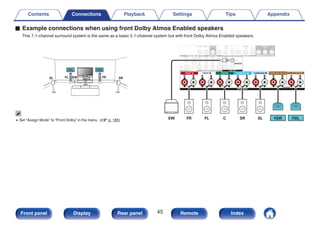
o Example connections when using front Dolby Atmos Enabled speakers
This 7.1-channel surround system is the same as a basic 5.1-channel system but with front Dolby Atmos Enabled speakers.
.
C
SW
FL FR
SL SR
FDL FDR
0 Set “Assign Mode” to “Front Dolby” in the menu. (v p. 185)
.
FDR FDL
SW FL
FR C SR SL
Contents Connections Playback Settings Tips Appendix
45
Front panel Display Rear panel Remote Index
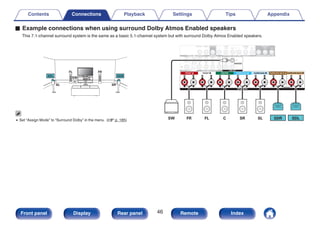
o Example connections when using surround Dolby Atmos Enabled speakers
This 7.1-channel surround system is the same as a basic 5.1-channel system but with surround Dolby Atmos Enabled speakers.
.
C
FL FR
SW
SL SR
SDL SDR
0 Set “Assign Mode” to “Surround Dolby” in the menu. (v p. 185)
.
SW FL
FR C SR SL SDR SDL
Contents Connections Playback Settings Tips Appendix
46
Front panel Display Rear panel Remote Index
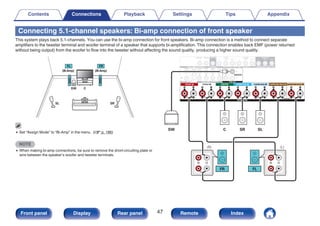
Connecting 5.1-channel speakers: Bi-amp connection of front speaker
This system plays back 5.1-channels. You can use the bi-amp connection for front speakers. Bi-amp connection is a method to connect separate
amplifiers to the tweeter terminal and woofer terminal of a speaker that supports bi-amplification. This connection enables back EMF (power returned
without being output) from the woofer to flow into the tweeter without affecting the sound quality, producing a higher sound quality.
.
FL FR
SW C
SL SR
(Bi-Amp) (Bi-Amp)
0 Set “Assign Mode” to “Bi-Amp” in the menu. (v p. 186)
NOTE
0 When making bi-amp connections, be sure to remove the short-circuiting plate or
wire between the speaker’s woofer and tweeter terminals.
.
w
q w
q
(R) (L)
FL
FR
SW C SR SL
Contents Connections Playback Settings Tips Appendix
47
Front panel Display Rear panel Remote Index
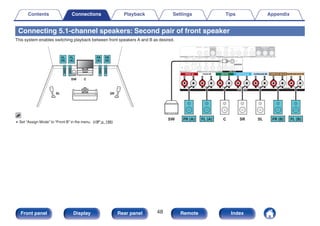
Connecting 5.1-channel speakers: Second pair of front speaker
This system enables switching playback between front speakers A and B as desired.
.
SW C
SL SR
FL
FL
(B) (A)
FR
FR
(A) (B)
0 Set “Assign Mode” to “Front B” in the menu. (v p. 186)
.
SW C SR SL
FR (A) FL (A) FR (B) FL (B)
Contents Connections Playback Settings Tips Appendix
48
Front panel Display Rear panel Remote Index
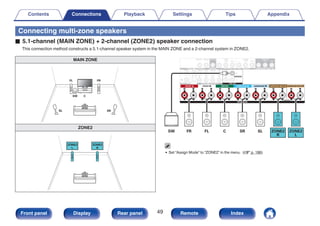
Connecting multi-zone speakers
o 5.1-channel (MAIN ZONE) + 2-channel (ZONE2) speaker connection
This connection method constructs a 5.1-channel speaker system in the MAIN ZONE and a 2-channel system in ZONE2.
MAIN ZONE
.
FL
SW C
SL
FR
SR
ZONE2
.
ZONE2
L
ZONE2
R
.
SW FL
FR C SR SL ZONE2
R
ZONE2
L
0 Set “Assign Mode” to “ZONE2” in the menu. (v p. 186)
Contents Connections Playback Settings Tips Appendix
49
Front panel Display Rear panel Remote Index
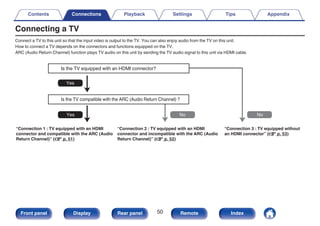
Connecting a TV
Connect a TV to this unit so that the input video is output to the TV. You can also enjoy audio from the TV on this unit.
How to connect a TV depends on the connectors and functions equipped on the TV.
ARC (Audio Return Channel) function plays TV audio on this unit by sending the TV audio signal to this unit via HDMI cable.
.
No
Yes
Is the TV equipped with an HDMI connector?
Is the TV compatible with the ARC (Audio Return Channel) ?
Yes No
“Connection 1 : TV equipped with an HDMI
connector and compatible with the ARC (Audio
Return Channel)” (v p. 51)
“Connection 2 : TV equipped with an HDMI
connector and incompatible with the ARC (Audio
Return Channel)” (v p. 52)
“Connection 3 : TV equipped without
an HDMI connector” (v p. 53)
Contents Connections Playback Settings Tips Appendix
50
Front panel Display Rear panel Remote Index
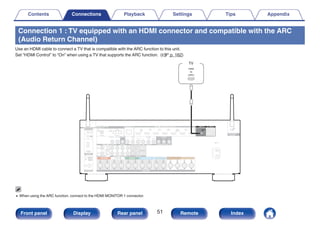
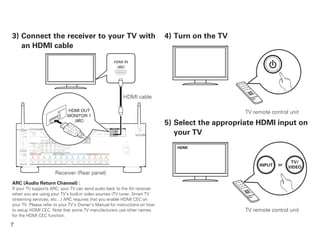
Connection 1 : TV equipped with an HDMI connector and compatible with the ARC
(Audio Return Channel)
Use an HDMI cable to connect a TV that is compatible with the ARC function to this unit.
Set “HDMI Control” to “On” when using a TV that supports the ARC function. (v p. 162)
.
(ARC)
IN
HDMI
TV
0 When using the ARC function, connect to the HDMI MONITOR 1 connector.
Contents Connections Playback Settings Tips Appendix
51
Front panel Display Rear panel Remote Index
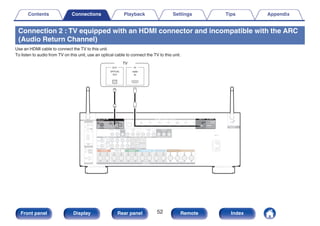
Connection 2 : TV equipped with an HDMI connector and incompatible with the ARC
(Audio Return Channel)
Use an HDMI cable to connect the TV to this unit.
To listen to audio from TV on this unit, use an optical cable to connect the TV to this unit.
.
OUT
OPTICAL
OUT IN
IN
HDMI
TV
Contents Connections Playback Settings Tips Appendix
52
Front panel Display Rear panel Remote Index
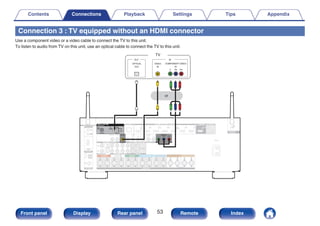
Connection 3 : TV equipped without an HDMI connector
Use a component video or a video cable to connect the TV to this unit.
To listen to audio from TV on this unit, use an optical cable to connect the TV to this unit.
.
IN
COMPONENT VIDEO
Y PB PR
IN
OUT
OPTICAL
OUT
IN
VIDEO
TV
or
Contents Connections Playback Settings Tips Appendix
53
Front panel Display Rear panel Remote Index
Connecting a playback device
This unit is equipped with three types of video input connectors (HDMI, component video and composite video) and three types of audio input connectors
(HDMI, digital audio and audio).
Select input connectors on this unit according to the connectors equipped on the device you want to connect.
If the device connected to this unit is equipped with an HDMI connector, it is recommended to use HDMI connections.
In the HDMI connection, audio and video signals can be transmitted through a single HDMI cable.
0 “Connecting a set-top box (Satellite tuner/cable TV)” (v p. 55)
0 “Connecting a DVD player or Blu-ray Disc player” (v p. 56)
0 “Connecting a video camcorder or game console” (v p. 57)
0 “Connecting a turntable” (v p. 58)
0 Connect devices to this unit as indicated by the input sources printed on the audio/video input connectors of this unit.
0 The source that is assigned to the HDMI IN, DIGITAL AUDIO IN, COMPONENT VIDEO IN, VIDEO IN and AUDIO IN connectors can be changed. See “Input Assign” on how
to change the input source assigned to the input connectors. (v p. 171)
0 To play back audio signals that are input to this unit on a TV connected via HDMI, set in the menu “HDMI Audio Out” to “TV”. (v p. 160)
0 To enjoy content that is copyright protected by HDCP 2.2, use a playback device and TV compatible with HDCP 2.2 only.
Contents Connections Playback Settings Tips Appendix
54
Front panel Display Rear panel Remote Index
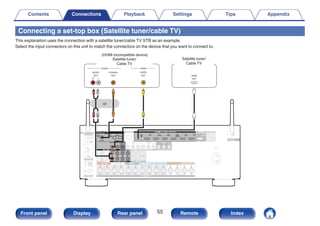
Connecting a set-top box (Satellite tuner/cable TV)
This explanation uses the connection with a satellite tuner/cable TV STB as an example.
Select the input connectors on this unit to match the connectors on the device that you want to connect to.
.
R L
R L
OUT
HDMI
OUT
COAXIAL
AUDIO
AUDIO
R L
OUT OUT
VIDEO
VIDEO
(HDMI incompatible device)
or
Satellite tuner/
Cable TV
Satellite tuner/
Cable TV
Contents Connections Playback Settings Tips Appendix
55
Front panel Display Rear panel Remote Index
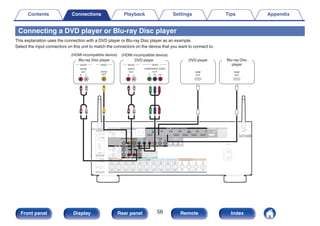
Connecting a DVD player or Blu-ray Disc player
This explanation uses the connection with a DVD player or Blu-ray Disc player as an example.
Select the input connectors on this unit to match the connectors on the device that you want to connect to.
.
R L
R L
R L
R L
AUDIO VIDEO
AUDIO
R L
OUT
AUDIO
AUDIO
R L
OUT
OUT
HDMI
OUT
VIDEO
VIDEO
COMPONENT VIDEO
Y PB PR
OUT
OUT
HDMI
DVD player Blu-ray Disc
player
(HDMI incompatible device)
DVD player
(HDMI incompatible device)
Blu-ray Disc player
Contents Connections Playback Settings Tips Appendix
56
Front panel Display Rear panel Remote Index
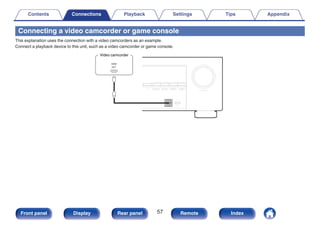
Connecting a video camcorder or game console
This explanation uses the connection with a video camcorders as an example.
Connect a playback device to this unit, such as a video camcorder or game console.
.
OUT
HDMI
Video camcorder
Contents Connections Playback Settings Tips Appendix
57
Front panel Display Rear panel Remote Index
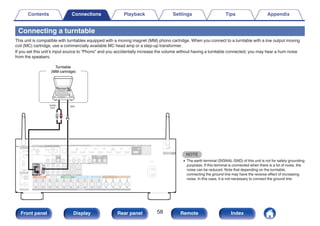
Connecting a turntable
This unit is compatible with turntables equipped with a moving magnet (MM) phono cartridge. When you connect to a turntable with a low output moving
coil (MC) cartridge, use a commercially available MC head amp or a step-up transformer.
If you set this unit’s input source to “Phono” and you accidentally increase the volume without having a turntable connected, you may hear a hum noise
from the speakers.
NOTE
0 The earth terminal (SIGNAL GND) of this unit is not for safety grounding
purposes. If this terminal is connected when there is a lot of noise, the
noise can be reduced. Note that depending on the turntable,
connecting the ground line may have the reverse effect of increasing
noise. In this case, it is not necessary to connect the ground line.
GND
AUDIO
OUT
L R
(MM cartridge)
Turntable
Contents Connections Playback Settings Tips Appendix
58
Front panel Display Rear panel Remote Index
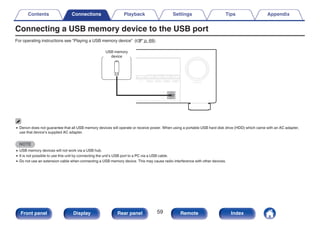
Connecting a USB memory device to the USB port
For operating instructions see “Playing a USB memory device” (v p. 69).
.
USB memory
device
0 Denon does not guarantee that all USB memory devices will operate or receive power. When using a portable USB hard disk drive (HDD) which came with an AC adapter,
use that device’s supplied AC adapter.
NOTE
0 USB memory devices will not work via a USB hub.
0 It is not possible to use this unit by connecting the unit’s USB port to a PC via a USB cable.
0 Do not use an extension cable when connecting a USB memory device. This may cause radio interference with other devices.
Contents Connections Playback Settings Tips Appendix
59
Front panel Display Rear panel Remote Index
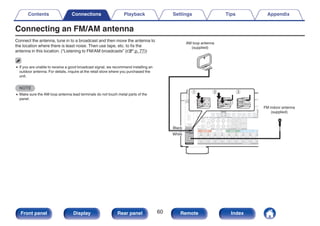
Connecting an FM/AM antenna
Connect the antenna, tune in to a broadcast and then move the antenna to
the location where there is least noise. Then use tape, etc. to fix the
antenna in this location. (“Listening to FM/AM broadcasts” (v p. 77))
0 If you are unable to receive a good broadcast signal, we recommend installing an
outdoor antenna. For details, inquire at the retail store where you purchased the
unit.
NOTE
0 Make sure the AM loop antenna lead terminals do not touch metal parts of the
panel.
.
w
q e
AM loop antenna
(supplied)
FM indoor antenna
(supplied)
Black
White
Contents Connections Playback Settings Tips Appendix
60
Front panel Display Rear panel Remote Index
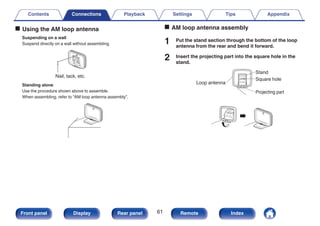
o Using the AM loop antenna
Suspending on a wall
Suspend directly on a wall without assembling.
.
Nail, tack, etc.
Standing alone
Use the procedure shown above to assemble.
When assembling, refer to “AM loop antenna assembly”.
.
o AM loop antenna assembly
1 Put the stand section through the bottom of the loop
antenna from the rear and bend it forward.
2 Insert the projecting part into the square hole in the
stand.
.
Projecting part
Square hole
Stand
Loop antenna
Contents Connections Playback Settings Tips Appendix
61
Front panel Display Rear panel Remote Index
Connecting to a home network (LAN)
This unit can connect to a network using a wired LAN or wireless LAN.
You can connect this unit to your home network (LAN) to enable various
types of playback and operations as described below.
0 Playback of network audio such as Internet Radio and from your media
server(s)
0 Playback of streaming music services
0 Using the Apple AirPlay function
0 Operation on this unit via the network
0 Operation with the HEOS wireless multi-room sound system
0 Firmware Update
For connections to the Internet, contact an ISP (Internet Service
Provider) or a computer shop.
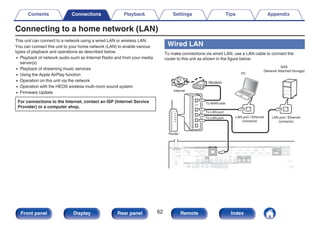
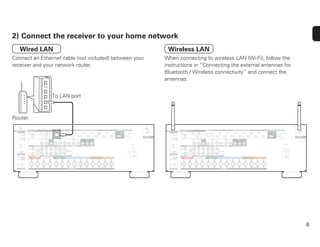
Wired LAN
To make connections via wired LAN, use a LAN cable to connect the
router to this unit as shown in the figure below.
.
Internet
Modem
PC
Router
To WAN side
To LAN port
To LAN port LAN port / Ethernet
connector
LAN port / Ethernet
connector
NAS
(Network Attached Storage)
Contents Connections Playback Settings Tips Appendix
62
Front panel Display Rear panel Remote Index
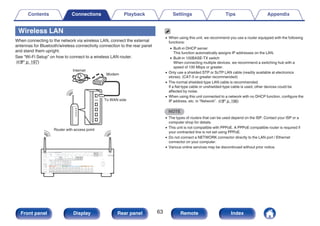
Wireless LAN
When connecting to the network via wireless LAN, connect the external
antennas for Bluetooth/wireless connectivity connection to the rear panel
and stand them upright.
See “Wi-Fi Setup” on how to connect to a wireless LAN router.
(v p. 197)
.
Internet
Modem
To WAN side
Router with access point
0 When using this unit, we recommend you use a router equipped with the following
functions:
0 Built-in DHCP server
This function automatically assigns IP addresses on the LAN.
0 Built-in 100BASE-TX switch
When connecting multiple devices, we recommend a switching hub with a
speed of 100 Mbps or greater.
0 Only use a shielded STP or ScTP LAN cable (readily available at electronics
stores). (CAT-5 or greater recommended)
0 The normal shielded-type LAN cable is recommended.
If a flat-type cable or unshielded-type cable is used, other devices could be
affected by noise.
0 When using this unit connected to a network with no DHCP function, configure the
IP address, etc. in “Network”. (v p. 196)
NOTE
0 The types of routers that can be used depend on the ISP. Contact your ISP or a
computer shop for details.
0 This unit is not compatible with PPPoE. A PPPoE compatible router is required if
your contracted line is not set using PPPoE.
0 Do not connect a NETWORK connector directly to the LAN port / Ethernet
connector on your computer.
0 Various online services may be discontinued without prior notice.
Contents Connections Playback Settings Tips Appendix
63
Front panel Display Rear panel Remote Index
Connecting an external control device
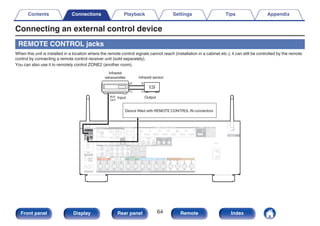
REMOTE CONTROL jacks
When this unit is installed in a location where the remote control signals cannot reach (installation in a cabinet etc.), it can still be controlled by the remote
control by connecting a remote control receiver unit (sold separately).
You can also use it to remotely control ZONE2 (another room).
.
AUX
OUT
Device fitted with REMOTE CONTROL IN connectors
Input Output
Infrared
retransmitter Infrared sensor
Contents Connections Playback Settings Tips Appendix
64
Front panel Display Rear panel Remote Index
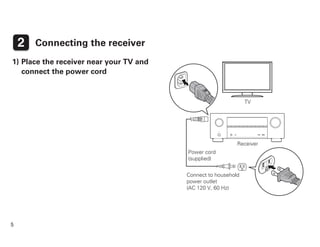
Connecting the power cord
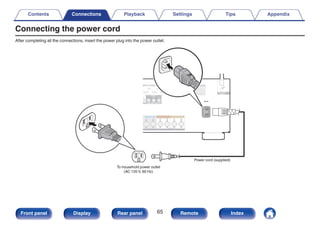
After completing all the connections, insert the power plug into the power outlet.
.
Power cord (supplied)
To household power outlet
(AC 120 V, 60 Hz)
Contents Connections Playback Settings Tips Appendix
65
Front panel Display Rear panel Remote Index
o Contents
Basic operation
Turning the power on 67
Selecting the input source 67
Adjusting the volume 68
Turning off the sound temporarily (Muting) 68
Selecting a sound mode 112
Playback a device
Playing a DVD player/Blu-ray Disc player 68
Playing a USB memory device 69
Listening to music on a Bluetooth device 73
Listening to FM/AM broadcasts 77
Playback network audio/service
Listening to Internet Radio 85
Playing back files stored on a PC or NAS 87
Getting the HEOS App 91
AirPlay function 100
Spotify Connect function 103
Convenience functions
Convenience functions 104
HDMI Control function 124
Smart Menu function 125
Sleep timer function 127
Quick select plus function 129
Panel lock function 132
Remote lock function 134
Other functions
Web control function 135
Playback in ZONE2 (Another room) 137
Contents Connections Playback Settings Tips Appendix
66
Front panel Display Rear panel Remote Index
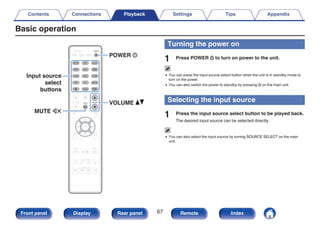
Basic operation
.
MUTE
POWER
VOLUME
X
df
:
Input source
select
buttons
Turning the power on
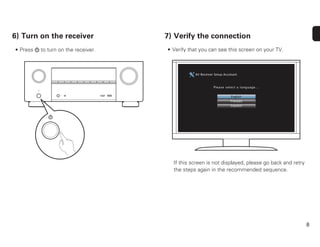
1 Press POWER X to turn on power to the unit.
0 You can press the input source select button when the unit is in standby mode to
turn on the power.
0 You can also switch the power to standby by pressing X on the main unit.
Selecting the input source
1 Press the input source select button to be played back.
The desired input source can be selected directly.
0 You can also select the input source by turning SOURCE SELECT on the main
unit.
Contents Connections Playback Settings Tips Appendix
67
Front panel Display Rear panel Remote Index
Adjusting the volume
1 Use VOLUME df to adjust the volume.
0 The variable range differs according to the input signal and channel level setting.
0 You can also adjust the master volume by turning MASTER VOLUME on the main
unit.
Turning off the sound temporarily
(Muting)
1 Press MUTE :.
0 MUTE indicator on the display flashes.
0 : appears on the TV screen.
0 The sound is reduced to the level set at “Mute Level” in the menu. (v p. 153)
0 To cancel mute, either adjust the sound volume or press MUTE : again.
Playback a DVD player/Blu-ray Disc
player
The following describes the procedure for playing DVD player/Blu-ray Disc
player.
1 Prepare for playback.
A Turn on the power of the TV, subwoofer and player.
B Change the TV input to the input of this unit.
2 Press POWER X to turn on power to the unit.
3 Press DVD or Blu-ray to switch an input source for a
player used for playback.
4 Play the DVD player or Blu-ray Disc player.
o Surround playback (v p. 112)
Contents Connections Playback Settings Tips Appendix
68
Front panel Display Rear panel Remote Index
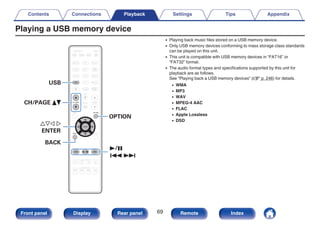
Playing a USB memory device
.
1/3
8 9
USB
uio p
ENTER
CH/PAGE df
BACK
OPTION
0 Playing back music files stored on a USB memory device.
0 Only USB memory devices conforming to mass storage class standards
can be played on this unit.
0 This unit is compatible with USB memory devices in “FAT16” or
“FAT32” format.
0 The audio format types and specifications supported by this unit for
playback are as follows.
See “Playing back a USB memory devices” (v p. 246) for details.
0 WMA
0 MP3
0 WAV
0 MPEG-4 AAC
0 FLAC
0 Apple Lossless
0 DSD
Contents Connections Playback Settings Tips Appendix
69
Front panel Display Rear panel Remote Index
Playing files stored on USB memory
devices
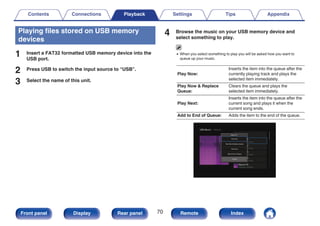
1 Insert a FAT32 formatted USB memory device into the
USB port.
2 Press USB to switch the input source to “USB”.
3 Select the name of this unit.
4 Browse the music on your USB memory device and
select something to play.
0 When you select something to play you will be asked how you want to
queue up your music.
Play Now:
Inserts the item into the queue after the
currently playing track and plays the
selected item immediately.
Play Now & Replace
Queue:
Clears the queue and plays the
selected item immediately.
Play Next:
Inserts the item into the queue after the
current song and plays it when the
current song ends.
Add to End of Queue: Adds the item to the end of the queue.
.
Nature 01
Nature 02
Nature 03
Nature 04
Various Artists
Various Artists
Various Artists
Various Artists
Nature 05
Various Artists
USB Music -
Naure 01
Play Now
Play Next
Add to End of Queue
Play Now & Replace Queue
Nature
Cancel
Contents Connections Playback Settings Tips Appendix
70
Front panel Display Rear panel Remote Index
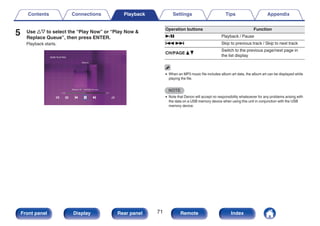
5 Use ui to select the “Play Now” or “Play Now &
Replace Queue”, then press ENTER.
Playback starts.
.
Nature 01 - Various Artists
NOW PLAYING
-2:21
2:45
Nature
Operation buttons Function
1/3 Playback / Pause
8 9 Skip to previous track / Skip to next track
CH/PAGE d f
Switch to the previous page/next page in
the list display
0 When an MP3 music file includes album art data, the album art can be displayed while
playing the file.
NOTE
0 Note that Denon will accept no responsibility whatsoever for any problems arising with
the data on a USB memory device when using this unit in conjunction with the USB
memory device.
Contents Connections Playback Settings Tips Appendix
71
Front panel Display Rear panel Remote Index
o Operations accessible through the option
menu
0 “Adjusting the volume of each channel to match the input source
(Channel Level Adjust)” (v p. 107)
0 “Adjusting the tone (Tone)” (v p. 108)
0 “Displaying your desired video during audio playback (Video
Select)” (v p. 109)
0 “Playing the same music in all zones (All Zone Stereo)” (v p. 111)
Contents Connections Playback Settings Tips Appendix
72
Front panel Display Rear panel Remote Index
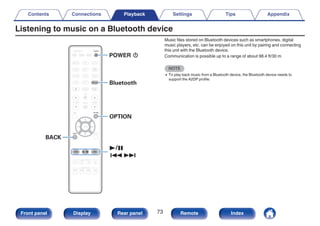
Listening to music on a Bluetooth device
.
1/3
8 9
OPTION
Bluetooth
BACK
POWER X
Music files stored on Bluetooth devices such as smartphones, digital
music players, etc. can be enjoyed on this unit by pairing and connecting
this unit with the Bluetooth device.
Communication is possible up to a range of about 98.4 ft/30 m.
NOTE
0 To play back music from a Bluetooth device, the Bluetooth device needs to
support the A2DP profile.
Contents Connections Playback Settings Tips Appendix
73
Front panel Display Rear panel Remote Index
Playing music from Bluetooth device
In order to enjoy music from a Bluetooth device on this unit, the Bluetooth
device must first be paired with this unit.
Once the Bluetooth device has been paired, it does not need to be paired
again.
1 Prepare for playback.
A Connect the supplied external antennas for Bluetooth/wireless
connectivity to the Bluetooth/wireless LAN antenna connectors
on the rear panel. (v p. 21)
B Press POWER X to turn on power to the unit.
2 Press Bluetooth.
When using for the first time, the unit will go into the pairing mode
automatically and “Pairing...” will appear on the display of the unit.
3 Activate the Bluetooth settings on your mobile device.
4 Select this unit when its name appears in the list of
devices displayed on the screen of the Bluetooth
device.
Connect to the Bluetooth device while “Pairing” is being displayed
on the display of the unit.
Perform the connection with the Bluetooth device close to the unit
(about 3.3 ft/1 m).
5 Play music using any app on your Bluetooth device.
0 The Bluetooth device can also be operated with the remote
control of this unit.
0 The next time the Bluetooth button is pressed on the remote
control unit, this unit automatically connects to the last Bluetooth
device that was connected.
Operation buttons Function
1/3 Playback / Pause
8 9 Skip to previous track / Skip to next track
0 Press STATUS on this unit during playback to switch the display between Title
name, Artist name, Album name, etc.
Contents Connections Playback Settings Tips Appendix
74
Front panel Display Rear panel Remote Index
Pairing with other Bluetooth devices
Pair a Bluetooth device with this unit.
1 Activate the Bluetooth settings on your mobile device.
2 Press and hold Bluetooth on the remote control unit for
at least 3 seconds.
This unit will go into the pairing mode.
3 Select this unit when its name appears in the list of
devices displayed on the screen of the Bluetooth
device.
0 This unit can be paired with a maximum of 8 Bluetooth devices. When a 9th
Bluetooth device is paired, it will be registered in place of the oldest registered
device.
0 You can also enter pairing mode by pressing the OPTION button when the
Bluetooth playback screen is displayed and selecting “Pairing Mode” from the
displayed option menu.
NOTE
0 To operate the Bluetooth device with the remote control of this unit, the Bluetooth
device needs to support the AVRCP profile.
0 The remote control of this unit is not guaranteed to work with all Bluetooth devices.
0 Depending on the type of Bluetooth device, this unit outputs audio that is coupled
to the volume setting on the Bluetooth device.
o Operations accessible through the option
menu
0 “Pairing with other Bluetooth devices” (v p. 75)
0 “Adjusting the volume of each channel to match the input source
(Channel Level Adjust)” (v p. 107)
0 “Adjusting the tone (Tone)” (v p. 108)
0 “Displaying your desired video during audio playback (Video
Select)” (v p. 109)
0 “Playing the same music in all zones (All Zone Stereo)” (v p. 111)
Contents Connections Playback Settings Tips Appendix
75
Front panel Display Rear panel Remote Index
Reconnecting to this unit from a
Bluetooth device
After pairing is completed, the Bluetooth device can be connected without
performing any operations on this unit.
This operation also needs to be performed when switching the Bluetooth
device for playback.
1 If a Bluetooth device is currently connected, deactivate
the Bluetooth setting of that device to disconnect it.
2 Activate the Bluetooth setting of the Bluetooth device
to be connected.
3 Select this unit from the Bluetooth device list on your
Bluetooth device.
4 Play music using any app on your Bluetooth device.
0 The screen automatically switches to the “Bluetooth” playback screen if a
Bluetooth device is connected while the power of this unit is on.
0 When the “Network Control” setting of this unit is set to “Always On” and a
Bluetooth device is connected with the unit in the standby state, the power of the
unit will be turned on automatically. (v p. 201)
Contents Connections Playback Settings Tips Appendix
76
Front panel Display Rear panel Remote Index
Listening to FM/AM broadcasts
.
TUNER
uio p
ENTER
CH/PAGE df
BACK
TUNE +, –
OPTION
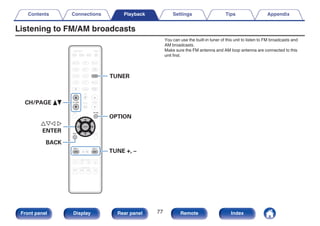
You can use the built-in tuner of this unit to listen to FM broadcasts and
AM broadcasts.
Make sure the FM antenna and AM loop antenna are connected to this
unit first.
Contents Connections Playback Settings Tips Appendix
77
Front panel Display Rear panel Remote Index
Listening to FM/AM broadcasts
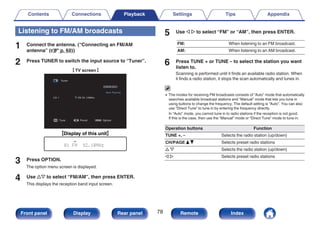
1 Connect the antenna. (“Connecting an FM/AM
antenna” (v p. 60))
2 Press TUNER to switch the input source to “Tuner”.
G TV screen H
.
STEREO AUTO
OPTION
OPTION
Tuner
FM 92.10MHz
Now Playing
Tune Preset Option
CH 1
.
01 FM 92.10MHz
GDisplay of this unitH
3 Press OPTION.
The option menu screen is displayed.
4 Use ui to select “FM/AM”, then press ENTER.
This displays the reception band input screen.
5 Use o p to select “FM” or “AM”, then press ENTER.
FM: When listening to an FM broadcast.
AM: When listening to an AM broadcast.
6 Press TUNE + or TUNE – to select the station you want
listen to.
Scanning is performed until it finds an available radio station. When
it finds a radio station, it stops the scan automatically and tunes in.
0 The modes for receiving FM broadcasts consists of “Auto” mode that automatically
searches available broadcast stations and “Manual” mode that lets you tune in
using buttons to change the frequency. The default setting is “Auto”. You can also
use “Direct Tune” to tune in by entering the frequency directly.
In “Auto” mode, you cannot tune in to radio stations if the reception is not good.
If this is the case, then use the “Manual” mode or “Direct Tune” mode to tune in.
Operation buttons Function
TUNE +, – Selects the radio station (up/down)
CH/PAGE d f Selects preset radio stations
u i Selects the radio station (up/down)
o p Selects preset radio stations
Contents Connections Playback Settings Tips Appendix
78
Front panel Display Rear panel Remote Index
o Operations accessible through the option
menu
0 “Tuning in by entering the frequency (Direct Tune)” (v p. 79)
0 “Changing the tune mode (Tune Mode)” (v p. 80)
0 “Tuning in to stations and presetting them automatically (Auto Preset
Memory)” (v p. 80)
0 “Presetting the current broadcast station (Preset
Memory)” (v p. 81)
0 “Specify a name for the preset broadcast station (Preset
Name)” (v p. 82)
0 “Skipping preset broadcast stations (Preset Skip)” (v p. 83)
0 “Adjusting the volume of each channel to match the input source
(Channel Level Adjust)” (v p. 107)
0 “Adjusting the tone (Tone)” (v p. 108)
0 “Displaying your desired video during audio playback (Video
Select)” (v p. 109)
0 “Playing the same music in all zones (All Zone Stereo)” (v p. 111)
Tuning in by entering the frequency
(Direct Tune)
You can enter the receiving frequency directly to tune in.
1 Press OPTION when the input source is “Tuner”.
The option menu screen is displayed.
2 Use ui to select “Direct Tune”, then press ENTER.
The screen that lets you enter the frequency is displayed.
3 Use ui to select a number, then press p.
0 If o is pressed, the immediately preceding input is cancelled.
4 Repeat step 3 and enter the frequency of the radio
station you want to hear.
5 When setting is completed, press ENTER.
The preset frequency is tuned in.
Contents Connections Playback Settings Tips Appendix
79
Front panel Display Rear panel Remote Index
Changing the tune mode (Tune Mode)
You can change the mode for tuning into FM and AM broadcasts. If you
cannot tune in automatically with “Auto” mode, change the mode to
“Manual” and tune in manually.
1 Press OPTION when the input source is “Tuner”.
The option menu screen is displayed.
2 Use ui to select “Tune Mode”, then press ENTER.
3 Use o p to select the tune mode, then press ENTER.
Auto:
Automatically search for and tune to a
receivable radio station.
Manual:
Manually change the frequency one
step at a time each time the button is
pressed.
Tuning in to stations and presetting
them automatically (Auto Preset
Memory)
A maximum of 56 radio stations can be automatically preset.
1 Press OPTION when the input source is “Tuner”.
The option menu screen is displayed.
2 Use ui to select “Auto Preset Memory”, then press
ENTER.
3 Press ENTER.
The unit starts to tune in to radio stations automatically and preset
them.
0 When presetting is completed, “Completed” is displayed for about
5 seconds and the option menu screen turns off.
0 The preset memory is overwritten.
Contents Connections Playback Settings Tips Appendix
80
Front panel Display Rear panel Remote Index
Presetting the current broadcast
station (Preset Memory)
Your favorite broadcast stations can be preset so that you can tune them
in easily.
Up to 56 stations can be preset.
1 Tune in the broadcast station you want to preset.
(“Listening to FM/AM broadcasts” (v p. 78))
2 Press OPTION.
The option menu screen is displayed.
3 Use ui to select “Preset Memory”, then press ENTER.
The list of already preset channels is displayed.
4 Use ui to select the channel you want to preset, then
press ENTER.
The current broadcast station that is preset.
0 To preset other stations, repeat steps 1 to 4.
Channel Default settings
1 – 8
92.10 / 92.30 / 92.50 / 92.70 / 93.10 / 93.50 / 93.70 / 94.10
MHz
9 – 16
94.30 / 94.50 / 94.70 / 94.90 / 95.10 / 95.30 / 95.50 / 95.70
MHz
17 – 24
98.10 / 98.30 / 98.50 / 98.70 / 98.90 / 99.10 / 100.10 /
100.30 MHz
25 – 32
100.50 / 100.70 / 100.90 / 101.10 / 101.30 / 101.50 /
101.70 / 101.90 MHz
33 – 40
103.10 / 103.30 / 103.50 / 103.70 / 103.90 / 104.10 /
104.30 / 104.50 MHz
41 – 48
104.70 / 104.90 / 105.10 / 105.30 / 105.50 / 105.70 /
105.90 / 106.10 MHz
49 – 56
106.30 / 106.50 / 106.70 / 106.90 / 107.10 / 107.30 /
107.50 / 107.90 MHz
Listening to preset stations
1 Use CH/PAGE df to select the desired preset channel.
0 You can also select preset broadcast stations by pressing TUNER PRESET CH +
or TUNER PRESET CH – on the main unit.
Contents Connections Playback Settings Tips Appendix
81
Front panel Display Rear panel Remote Index
Specify a name for the preset
broadcast station (Preset Name)
You can set the name to the preset broadcast station or change it.
Up to 8 characters can be input.
1 Press OPTION when the input source is “Tuner”.
The option menu screen is displayed.
2 Use ui to select “Preset Name”, then press ENTER.
The “Preset Name” screen is displayed.
3 Use o p to select the group of the broadcast station
you want to name.
4 Use ui to select the broadcast station you want to
name, then press ENTER.
5 Use ui to select a name label, then press ENTER.
The screen that lets you edit the Preset Name is displayed.
0 If you select “Set Defaults”, then the unit returns to displaying the
frequency.
6 Enter the characters, then press “OK”.
7 Press OPTION to return to the previous screen.
Contents Connections Playback Settings Tips Appendix
82
Front panel Display Rear panel Remote Index
Skipping preset broadcast stations
(Preset Skip)
Perform auto preset memory to save all the broadcasting stations that can
be received in the memory. Selecting a broadcast station becomes easier
by skipping unnecessary memories.
1 Press OPTION when the input source is “Tuner”.
The option menu screen is displayed.
2 Use ui to select “Preset Skip”, then press ENTER.
The “Preset Skip” screen is displayed.
3 n To set the stations you want to skip by groups
A Use o p to select the group of broadcast stations you want to
skip.
B Press u to select “Set No.z – z to Skip”, then press ENTER.
Skip all the broadcast stations that are included in the
selected group “z-z”.
(z is the selected group number.)
n To set the stations you want to skip by stations
A Use o p to select the group of broadcast stations you want
to skip.
B Use ui to select the broadcast station you want to skip.
C Use o p to select “Skip”.
The station you selected is not displayed.
4 Press OPTION to return to the previous screen.
Contents Connections Playback Settings Tips Appendix
83
Front panel Display Rear panel Remote Index
Cancelling Preset Skip
1 While the “Preset Skip” screen is displayed, use o p to
select a group containing a broadcast station to cancel
the skip for.
2 Use ui to select a broadcast station to cancel the skip
for.
3 Use o p to select “On”.
The skip is cancelled.
NOTE
0 “Preset Skip” cannot be cancelled for groups.
Contents Connections Playback Settings Tips Appendix
84
Front panel Display Rear panel Remote Index
Listening to Internet Radio
.
uio p
ENTER
CH/PAGE df
BACK
OPTION
INTERNET
RADIO
(HEOS Music)
1/3
8 9
0 Internet Radio refers to radio broadcasts distributed over the Internet.
Internet Radio stations from around the world can be received.
0 The Internet Radio station list on this unit the database service provided
by TuneIn Radio service.
0 The audio format types and specifications supported by this unit for
playback are as follows.
See “Playing back Internet Radio” (v p. 249) for details.
0 WMA
0 MP3
0 MPEG-4 AAC
Contents Connections Playback Settings Tips Appendix
85
Front panel Display Rear panel Remote Index
Listening to Internet Radio
1 Press INTERNET RADIO.
0 You can also press R (HEOS Music). Use ui to select “TuneIn
Internet Radio”, then press ENTER.
2 Select the station you want to play.
Operation buttons Function
1/3z Playback / Pause
8 9 z Skip to previous track / Skip to next track
CH/PAGE d f
Switch to the previous page/next page in
the list display
z Enabled when playing Podcasts.
0 The display switches between track title and radio station name etc. each time the
main unit’s STATUS is pressed.
NOTE
0 The radio station database service may be suspended or be otherwise unavailable
without notice.
o Operations accessible through the option
menu
0 “Adding to HEOS Favorites” (v p. 105)
0 “Adjusting the volume of each channel to match the input source
(Channel Level Adjust)” (v p. 107)
0 “Adjusting the tone (Tone)” (v p. 108)
0 “Displaying your desired video during audio playback (Video
Select)” (v p. 109)
0 “Playing the same music in all zones (All Zone Stereo)” (v p. 111)
Contents Connections Playback Settings Tips Appendix
86
Front panel Display Rear panel Remote Index
Playing back files stored on a PC or NAS
.
uio p
8 9
ENTER
OPTION
CH/PAGE df
1/3
BACK
(HEOS Music)
0 This unit can play back music files and playlists (m3u, wpl) from DLNA
compatible servers including PCs and NAS devices on your network.
0 Supported file formats:
For details, see “Playing back a file saved on a PC or
NAS” (v p. 248).
0 WMA
0 MP3
0 WAV
0 MPEG-4 AAC
0 FLAC
0 Apple Lossless
0 DSD
Contents Connections Playback Settings Tips Appendix
87
Front panel Display Rear panel Remote Index
Playing back files stored on a PC or
NAS
Use this procedure to play music files or playlists stored on DLNA files
servers on your local network.
1 Press R (HEOS Music).
2 Use ui to select “Music Servers”, then press ENTER.
.
MUSIC
USB Music
Music Servers
HEOS Favorites
TuneIn Internet Radio
3 Select the name of your networked PC or NAS
(Network Attached Storage) server.
4 Browse the music on your PC/NAS and select
something to play.
0 When you select something to play you will be asked how you want to
queue up your music.
Play Now:
Inserts the item into the queue after the
currently playing track and plays the
selected item immediately.
Play Now & Replace
Queue:
Clears the queue and plays the
selected item immediately.
Play Next:
Inserts the item into the queue after the
current song and plays it when the
current song ends.
Add to End of Queue: Adds the item to the end of the queue.
.
Live 01
Live 02
Live 03
Live 04
Various Artists
Various Artists
Various Artists
Various Artists
Live 05
Various Artists
Music Servers -
Live 01
Play Now
Play Next
Add to End of Queue
Play Now & Replace Queue
Live
Cancel
Contents Connections Playback Settings Tips Appendix
88
Front panel Display Rear panel Remote Index
5 Use ui to select the “Play Now” or “Play Now &
Replace Queue”, then press ENTER.
Playback starts.
.
Live 01 - Various Artists
NOW PLAYING
-2:21
2:45
Live
Operation buttons Function
1/3 Playback / Pause
8 9 Skip to previous track / Skip to next track
CH/PAGE d f
Switch to the previous page/next page in
the list display
0 The display switches between track title, artist name, and album title each time the
main unit’s STATUS is pressed.
0 When a WMA (Windows Media Audio), MP3 or MPEG-4 AAC file includes album
art data, the album art can be displayed while the music files are playing.
0 If you use Ver.11 or later of Windows Media Player, the album art for WMA files
can be displayed.
NOTE
0 When playing back music files with your PC or NAS connected through wireless
LAN, audio may be interrupted depending on your wireless LAN environment. In
this case, connect using a wired LAN.
0 The order in which the tracks/files are displayed depends on the server
specifications. If the tracks/files are not displayed in alphabetical order due to the
server specifications, searching by the first letter may not work properly.
Contents Connections Playback Settings Tips Appendix
89
Front panel Display Rear panel Remote Index
o Operations accessible through the option
menu
0 “Adjusting the volume of each channel to match the input source
(Channel Level Adjust)” (v p. 107)
0 “Adjusting the tone (Tone)” (v p. 108)
0 “Displaying your desired video during audio playback (Video
Select)” (v p. 109)
0 “Playing the same music in all zones (All Zone Stereo)” (v p. 111)
Contents Connections Playback Settings Tips Appendix
90
Front panel Display Rear panel Remote Index
Getting the HEOS App
You can use many online music streaming services from the HEOS App. Depending upon your geographical location, there are several options to choose
from. For more information about which services are available in your area please visit http://www.HEOSbyDenon.com
Download the HEOS App for iOS or Android by searching App Store, Google Play store or Amazon Appstore for “HEOS”.
.
Contents Connections Playback Settings Tips Appendix
91
Front panel Display Rear panel Remote Index
HEOS Account
HEOS Accounts can be registered in “HEOS Account” (v p. 203) in the
menu of this unit or by tapping “Music” tab - “Settings” icon a in the
HEOS App.
o What is a HEOS Account?
A HEOS Account is master account or “keychain” for managing all of
your HEOS music services with one single username and password.
o Why do I need a HEOS Account?
With the HEOS Account you just have to enter your music services
login names and passwords one time. This allows you to easily and
quickly use multiple controller apps on different devices.
You just log into your HEOS Account on any device and you will have
access to all of your associated music services, play history and
custom playlists, even if you are at a friend’s house listening to music
on their HEOS system.
o Signing up for a HEOS Account
You will be instructed to signup for a HEOS Account the first time you
try to access any music service from the main “Music” menu of the
HEOS App.
o Changing your HEOS Account
1 Tap the “Music” tab.
2 Select the Settings icon a in the upper left corner of
the screen.
3 Select “HEOS Account”.
4 Change your location, change your password, delete
your account or sign out of your account.
Contents Connections Playback Settings Tips Appendix
92
Front panel Display Rear panel Remote Index
Playing from streaming music services
A music service is an online music company that provides access to vast
music collections via free and/or paid subscriptions. Depending upon your
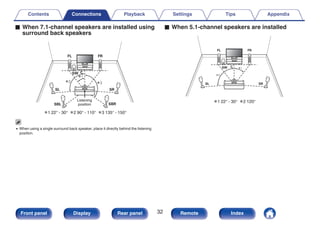
geographical location, there are several options to choose from. For more
information about which services are available in your area please visit
http://www.HEOSbyDenon.com
o Selecting a room/device
1 Tap the “Rooms” tab, and select “AVR-X2500H” if there
are multiple HEOS devices.
0 Tap the Pencil icon e at the top right to switch edit mode. You can change the
displayed name.
.
Rooms
Drag one room into another to group them
Rooms
Now Playing
Music
Song Name 3
AVR-X2500H
Song Name 1
Dining L + Dining R
Song Name 2
Kitchen
Contents Connections Playback Settings Tips Appendix
93
Front panel Display Rear panel Remote Index
o Selecting the music track or station from
music sources
1 Tap the “Music” tab and select a music source.
0 All music services displayed may not be available in your location.
.
Now Playing
Music
Rooms
This Phone
Music
Music Servers USB Music
Playlists History
Contents Connections Playback Settings Tips Appendix
94
Front panel Display Rear panel Remote Index
2 Browse the music to play.
After selecting a music track or radio station the app will
automatically change to the “Now Playing” screen.
0 When you select a music track to play you will be asked how you want to
queue up your music.
Play Now:
Inserts the item into the queue after the
currently playing track and plays the
selected item immediately.
Play Now & Replace
Queue:
Clears the queue and plays the
selected item immediately.
Play Next:
Inserts the item into the queue after the
current song and plays it when the
current song ends.
Add to End of Queue: Adds the item to the end of the queue.
0 When you select a radio station the following items are displayed.
Play Now: Plays the selected item immediately.
Add to HEOS Favorites: Adds to HEOS Favorites.
.
Music
Rooms Now Playing
Album
Album
Play Now
Cancel
Play Now & Replace Queue
Play Next
Add to End of Queue
Track 01
Rooms
10 Tracks,60 Mins.,2014
Artist
Music
Rooms Now Playing
Track 01
Album
0:50 -2:51
Artist
Now Playing
Contents Connections Playback Settings Tips Appendix
95
Front panel Display Rear panel Remote Index
Listening to the same music in multiple
rooms
The HEOS system is a true multi-room audio system that automatically
synchronizes audio playback between multiple HEOS devices so that the
audio coming from different rooms is perfectly in sync and always sounds
amazing! You can easily add up to 32 HEOS devices to your HEOS
system. You can join or group up to 16 individual HEOS devices into a
group of HEOS devices that function as if they were a single HEOS
device.
o Grouping rooms
1 Press and hold your finger on room that is not playing
music.
2 Drag it into the room that is playing music (indicated by
the red outline) and lift your finger.
3 The two rooms will be grouped together into a single
device group and both rooms will be playing the same
music in perfect sync.
0 When you select external inputs of this AV receiver for group playback, please
make sure the selected audio devices are connected to the AV receiver via analog
audio inputs. HDMI, optical and coax connections are not supported for HEOS
group playback.
.
2
1
3
Now Playing
Music
Rooms
Song Name 1
Dining
Kitchen
Drag one room into another to group them
Rooms
Now Playing
Music
Rooms
Song Name 3
Song Name 3
Song Name 2
Song Name 2
Song Name 1
Bedroom
Bedroom
Dining
Living
Kitchen
Drag one room into another to group them
Rooms
Living
Drag a room out of this group to ungroup it
Living+Kitchen
Contents Connections Playback Settings Tips Appendix
96
Front panel Display Rear panel Remote Index
o Ungrouping rooms
1 Press and hold your finger on room that you want to
remove from the group.
2 Drag it out of the group and lift your finger.
NOTE
0 You can not remove the first room that started playing the music before grouping.
.
2
1
Song Name 3
Song Name 2
Song Name 1
Bedroom
Dining
Living
Kitchen
Drag one room into another to group them
Rooms
Song Name 4
Song Name 3
Song Name 2
Song Name 1
Bedroom
Dining
Living
Kitchen
Drag one room into another to group them
Rooms
Living
Now Playing
Music
Rooms
Now Playing
Music
Rooms
Contents Connections Playback Settings Tips Appendix
97
Front panel Display Rear panel Remote Index
o Grouping all rooms (party mode)
You can easily group 16 rooms together into Party Mode by using a
"pinch" gesture.
1 Place two fingers on the screen over the list of rooms.
2 Quickly pinch your two fingers together and release.
3 All of your rooms will be joined together and begin
playing the same music in perfect sync.
.
1
2
3
Song Name 1
Bedroom
Dining
Kitchen
Drag one room into another to group them
Rooms
Song Name 4
Song Name 3
Song Name 2
Song Name 1
Bedroom
Dining
Living
Kitchen
Drag one room into another to group them
Rooms
Living
Now Playing
Music
Rooms Now Playing
Music
Rooms
Drag a room out of this group to ungroup it
Dining+Living+...
Contents Connections Playback Settings Tips Appendix
98
Front panel Display Rear panel Remote Index
o Ungrouping all rooms
You can easily ungroup all of your rooms and exit Party Mode by using
a "spread" gesture.
1 Place two fingers close together on the screen over list
of rooms.
2 Quickly spread your two fingers apart from each other
and release.
3 All of your rooms will be ungrouped.
.
1
2 3
Song Name 1
Bedroom
Dining
Dining
Kitchen
Drag one room into another to group them
Rooms
Song Name 4
Song Name 3
Song Name 2
Song Name 1
Bedroom
Dining
Living
Kitchen
Drag one room into another to group them
Rooms
Living
Now Playing
Music
Rooms
Now Playing
Music
Rooms
Drag a room out of this group to ungroup it
Contents Connections Playback Settings Tips Appendix
99
Front panel Display Rear panel Remote Index
AirPlay function
Music files stored on your iPhone, iPod touch, iPad or iTunes can be
played on this unit via the network.
0 Source input will be switched to “HEOS Music” when AirPlay playback is started.
0 You can stop AirPlay playback by choosing other input source.
0 To see song and artist names together, press STATUS on the main unit.
0 For information about how to use iTunes, also see the Help for iTunes.
0 The screen may differ depending on the OS and software versions.
.
PC Router
This unit
Contents Connections Playback Settings Tips Appendix
100
Front panel Display Rear panel Remote Index
Playing songs from your iPhone, iPod
touch or iPad
If you update your “iPhone/iPod touch/iPad” to iOS 4.2.1 or later, you can
stream music stored in your “iPhone/iPod touch/iPad” directly to this unit.
1 Connect your iPhone, iPod touch or iPad Wi-Fi to the
same network as this unit.
0 For details, see your device’s manual.
2 Play the song on your iPhone, iPod touch or iPad.
AirPlay icon is displayed on the iPhone, iPod touch or iPad screen.
3 Tap the AirPlay icon.
.
AirPlay
AirPlay
Drop:
AirDrop:
ryone
ryone
[Example] iOS 10 [Example] iOS 9
4 Select the speaker (devices) you want to use.
Playing iTunes music with this unit
1 Install iTunes 10, or later, on a Mac or Windows PC that
is connected to the same network as this unit.
2 Turn this unit ON.
Set “Network Control” to “Always On” for this unit. (v p. 201)
NOTE
0 When “Network Control” is set to “Always On”, the unit consumes more
standby power.
3 Start iTunes and click the AirPlay icon to select the
main unit.
.
[Example] iTunes
4 Choose a song and click play in iTunes.
The music will stream to this unit.
Contents Connections Playback Settings Tips Appendix
101
Front panel Display Rear panel Remote Index
NOTE
0 In playback using the AirPlay function, the sound is output at the iPhone, iPod
touch, iPad or iTunes volume setting level.
You should turn down the iPhone, iPod touch, iPad or iTunes volume prior to
playback and then adjust it to a suitable level.
Perform iTunes playback operations
with the remote control unit of this unit
With this unit’s remote control unit, you can perform iTunes song play,
pause, and auto search (cue) operations.
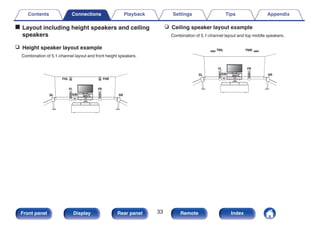
1 Select the “Edit” - “Preferences...” in the iTunes menu.
2 Select “Devices” in the iTunes setting window.
3 Check “Allow iTunes audio control from remote
speakers”, and then click “OK”.
0 This does not need to be set if using version 12 or later of iTunes.
Contents Connections Playback Settings Tips Appendix
102
Front panel Display Rear panel Remote Index
Spotify Connect function
Spotify is the world’s most popular streaming service. If you subscribe to
Spotify Premium, you can control your new speaker with your phone or
tablet. Because Spotify is built-in to your speaker, you can still take calls or
use other apps - the music never stops.
For information on how to set up and use Spotify Connect please visit
www.spotify.com/connect
.
Spotify server
Control
This unit
Spotify App
Audio
streaming /
control
Playing Spotify music with this unit
Download the “Spotify App” onto your Android or iOS device beforehand.
To play a Spotify track in this unit, you need to register in the Spotify
premium account first.
1 Connect the Wi-Fi settings of the iOS or Android device
in the same network as this unit.
2 Launch the Spotify App.
3 Play back the Spotify track.
4 Tap the Spotify icon F to select the unit.
The music will stream to this unit.
Contents Connections Playback Settings Tips Appendix
103
Front panel Display Rear panel Remote Index
Convenience functions
.
MAIN
uio p
ENTER
OPTION
(HEOS Music)
This section explains how to use convenient functions that can be used for
each input source.
These functions can only be set in the MAIN ZONE.
Contents Connections Playback Settings Tips Appendix
104
Front panel Display Rear panel Remote Index
Adding to HEOS Favorites
1 While content is playing, press OPTION.
The option menu screen is displayed.
2 Use ui to select “Add to HEOS Favorites”, then press
ENTER.
Playing back HEOS Favorites
1 Press R (HEOS Music).
2 Use ui to select “HEOS Favorites”, then press ENTER.
.
MUSIC
USB Music
Music Servers
HEOS Favorites
TuneIn Internet Radio
3 Browse the content and select something to play.
Contents Connections Playback Settings Tips Appendix
105
Front panel Display Rear panel Remote Index
Deleting a HEOS Favorites
1 While the HEOS Favorites content list is displayed, use
ui to select the item you want to remove from HEOS
Favorites, then press OPTION.
2 Use ui to select “Remove from HEOS Favorites”, then
press ENTER.
Contents Connections Playback Settings Tips Appendix
106
Front panel Display Rear panel Remote Index
Adjusting the volume of each channel
to match the input source (Channel
Level Adjust)
The volume of each channel can be changed while listening to music. You
can set this for each input source.
1 Press OPTION.
An option menu screen is displayed.
0 When the input source is “HEOS Music”, an option menu for
online music is displayed. Select “AVR Options…”, then press
ENTER.
2 Use ui to select “Channel Level Adjust”, then press
ENTER.
The “Channel Level Adjust” screen is displayed.
3 Use ui to select the channel that you wish to adjust.
4 Use o p to adjust the volume.
–12.0 dB – +12.0 dB (Default: 0.0 dB)
5 Use uio p to select “Exit”, then press ENTER.
0 Select “Reset” and press ENTER if you want to restore the adjustment values of
the various channels to “0.0 dB” (Default).
0 Headphone volume can be adjusted when a headphone is connected.
0 “Channel Level Adjust” settings are stored for each input source.
0 You can only set this for speakers that output audio. In addition, you cannot set
this when in the menu “HDMI Audio Out” is set to “TV”. (v p. 160)
Contents Connections Playback Settings Tips Appendix
107
Front panel Display Rear panel Remote Index
Adjusting the tone (Tone)
Adjusts the tonal quality of the sound.
1 Press OPTION.
An option menu screen is displayed.
0 When the input source is “HEOS Music”, an option menu for
online music is displayed. Select “AVR Options…”, then press
ENTER.
2 Use ui to select “Tone”, then press ENTER.
The “Tone” screen is displayed.
3 Use o p to set the tone control function to on/off.
On: Allow tone adjustment (bass, treble).
Off
(Default):
Playback without tone adjustment.
4 Select “On” in step 3 and press i to select the sound
range to be adjusted.
Bass: Adjust bass.
Treble: Adjust treble.
5 Use o p to adjust the tone, then press ENTER.
-6 dB – +6 dB (Default : 0 dB)
0 “Tone” settings are stored for each input source.
0 This cannot be set when the sound mode is set to “Direct” or “Pure Direct”.
0 This item cannot be set when “Dynamic EQ” is set to “On”. (v p. 155)
0 You cannot set this when no audio signal is input or in the menu “HDMI Audio Out”
is set to “TV”. (v p. 160)
Contents Connections Playback Settings Tips Appendix
108
Front panel Display Rear panel Remote Index
Displaying your desired video during
audio playback (Video Select)
This unit can display video from a different source on TV during audio
playback. You can set this for each input source.
n Supported input sources:
CDz / Tuner / HEOS Music / Phono
zThis cannot be set when any of the HDMI, component video or video
connectors are assigned.
1 Press OPTION.
An option menu screen is displayed.
0 When the input source is “HEOS Music”, an option menu for
online music is displayed. Select “AVR Options…”, then press
ENTER.
2 Use ui to select “Video Select”, then press ENTER.
The “Video Select” screen is displayed.
3 Use o p to select the Video Select mode.
Off
(Default):
Disable Video Select mode.
On: Enable Video Select mode.
4 If you selected “On” in step 3, press i and select
“Source”.
5 Use o p to select the input source for video you want
to play back, then press ENTER.
0 “Video Select” settings are stored for each input source.
Contents Connections Playback Settings Tips Appendix
109
Front panel Display Rear panel Remote Index
Adjusting the picture quality for your
viewing environment (Picture Mode)
n Supported input sources :
CBL/SAT / DVD / Blu-ray / Game / AUX1 /
AUX2 / Media Player / CDz / TV Audioz
zYou can set the picture mode when an HDMI is assigned.
1 Press OPTION.
An option menu screen is displayed.
2 Use ui to select “Picture Mode”, then press ENTER.
The “Picture Mode” screen is displayed.
3 Use o p to select the picture mode.
Off
(Default):
No picture quality adjustment is done
with this unit.
Standard:
The standard mode suited for most
living room viewing environments.
Movie:
A mode suited for watching movies in a
dark room such as a theater room.
Vivid:
A mode that makes graphic images for
games, etc. brighter and more vivid.
Streaming:
A mode suited for low bit rate video
sources.
ISF Day:
A mode suited for watching movies in a
bright room during the day.
ISF Night:
A mode suited for watching movies in a
dark room at night.
Custom: Adjusts the picture quality manually.
4 Press ENTER.
0 “Picture Mode” settings are stored for each input source.
Contents Connections Playback Settings Tips Appendix
110
Front panel Display Rear panel Remote Index
Playing the same music in all zones (All
Zone Stereo)
You can play back the music being played back in MAIN ZONE
simultaneously in ZONE2 (another room).
It is useful when you want to enjoy the same music at the same time in
multiple rooms during home party or when you want to play back the same
BGM in the entire house.
1 Press OPTION.
An option menu screen is displayed.
0 When the input source is “HEOS Music”, an option menu for
online music is displayed. Select “AVR Options…”, then press
ENTER.
2 Use ui to select “All Zone Stereo”, then press ENTER.
The “All Zone Stereo” screen is displayed.
3 Select “Start”, then press ENTER.
The input source for ZONE2 is switched to the same input source as
for MAIN ZONE, and playback starts in the All Zone Stereo mode.
o Stopping the All Zone Stereo mode
1 During playback in All Zone Stereo mode, press
OPTION.
An option menu screen is displayed.
0 When the input source is “HEOS Music”, an option menu for
online music is displayed. Select “AVR Options…”, then press
ENTER.
2 Use ui to select “All Zone Stereo”, then press ENTER.
3 Select “Stop”, then press ENTER.
0 The All Zone Stereo mode is canceled even when the power supply of the MAIN
ZONE is turned off.
0 In the All Zone Stereo mode, only the “Multi Ch Stereo” and “Stereo” sound modes
can be selected.
0 When “HDMI Audio Out” is set to “TV”, the All Zone Stereo mode is not available.
(v p. 160)
Contents Connections Playback Settings Tips Appendix
111
Front panel Display Rear panel Remote Index
Selecting a sound mode
.
PURE
MOVIE
MUSIC GAME
ui
This unit allows you to enjoy various kinds of surround and stereo
playback modes.
Disc formats such as Blu-ray Disc and DVD, as well as being supported by
digital broadcasting, and even by streaming movies and music from
internet-based subscription services.
This unit supports playback of almost all of these multi-channel audio
formats. It also supports surround playback of audio formats other than
multi-channel audio such as 2-channel stereo audio.
0 For audio formats recorded on a disc, see the disc jacket or label.
Contents Connections Playback Settings Tips Appendix
112
Front panel Display Rear panel Remote Index
Selecting a sound mode
1 Press MOVIE, MUSIC or GAME to select a sound mode.
MOVIE :
Switches to the sound mode suitable for
enjoying movies and TV programs.
MUSIC :
Switches to the sound mode suitable for
enjoying music.
GAME :
Switches to the sound mode suitable for
enjoying games.
0 The MOVIE, MUSIC, or GAME button memorizes the last sound mode selected for
its button. Pressing MOVIE, MUSIC, or GAME recalls the same sound mode as
the one selected at the previous playback.
0 If the content played back does not support the previously selected sound mode,
the most appropriate sound mode for the content is automatically selected.
o Switching the sound mode
0 Press MOVIE, MUSIC or GAME to display a list of the sound modes
that can be selected. Each time you press MOVIE, MUSIC or GAME,
the sound mode changes.
0 While the list is displayed, you can also use ui to select a sound
mode.
0 Try out various sound modes and enjoy sound mode in your favorite
mode.
0 Please set the surround mode to Dolby Atmos/Surround when playing back Dolby
Atmos encoded content. Dolby Atmos/Surround delivers the optimum playback
experience from Blu-ray and streaming sources encoded with Dolby Atmos as well
as channel based content. The default setting of this receiver is Dolby Atmos/
Surround.
Contents Connections Playback Settings Tips Appendix
113
Front panel Display Rear panel Remote Index
GExampleH When MOVIE is pressed
.
MOVIE SOUND
Stereo
Dolby Audio - Dolby Surround
DTS Neural:X
Multi Ch Stereo
Mono Movie
Virtual
This unit provides not only sound modes that conform to the formats
recorded on discs such as Dolby and DTS, but also extended types of
modes that match your speaker configuration and “original sound modes”
that create atmosphere of Rock Arena and Jazz Club, etc.
Direct playback
Sound recorded in source is played as is.
1 Press PURE to select “Direct”.
Direct playback begins.
Contents Connections Playback Settings Tips Appendix
114
Front panel Display Rear panel Remote Index
Pure Direct playback
This mode is for playback with higher sound quality than in Direct playback
mode.
This mode turns off the main unit display and analog video circuit. Doing
so suppresses noise sources that affect sound quality.
1 Press PURE to select “Pure Direct”.
The display goes dark, and Pure Direct playback begins.
0 In Direct and Pure Direct sound modes, the following items cannot be adjusted.
0 Tone (v p. 108)
0 Restorer (v p. 151)
0 MultEQ® XT (v p. 154)
0 Dynamic EQ (v p. 155)
0 Dynamic Volume (v p. 156)
0 Graphic EQ (v p. 156)
NOTE
0 Video signals are only output when HDMI signals are played in the Pure Direct
mode.
0 When the Pure Direct mode has been selected, the display turns off after about 5
seconds.
Auto surround playback
This mode detects the type of input digital signal, and automatically
selects the corresponding mode for playback.
Perform stereo playback when the input signal is PCM. When the input
signal is Dolby Digital or DTS, the music is played back according to the
respective channel number.
1 Press PURE to select “Auto”.
Auto surround playback begins.
Contents Connections Playback Settings Tips Appendix
115
Front panel Display Rear panel Remote Index
Description of sound mode types
Dolby sound mode
Sound mode type Description
Dolby Atmosz Please select this mode to play back the contents encoded with Dolby Atmos. If you have selected a different sound mode
previously, please select again this mode for Dolby Atmos content play back. It decodes Dolby Atmos content and its
positioning data in real time and outputs audio from the appropriate speakers, creating natural audio images regardless of
the speaker layout. Use ceiling speakers and Dolby Atmos Enabled speakers to realize a three-dimensional sound field.
Dolby TrueHD Please select this mode to play back the contents encoded with Dolby TrueHD at 192kHz/96kHz.
Dolby Digital Plus Please select this mode to play back the contents encoded with Dolby Digital Plus.
Dolby Digital Please select this mode to play back the contents encoded with Dolby Digital.
zThis mode is not supported in a 5.1-channel or less speaker configuration.
Contents Connections Playback Settings Tips Appendix
116
Front panel Display Rear panel Remote Index
DTS sound mode
Sound mode type Description
DTS Surround This mode can be selected when playing sources recorded in DTS.
DTS ES Dscrt6.1z1 This mode is suitable for playing discs recorded in DTS-ES.
The surround back channel added using the discrete method is played as an independent channel.
Since all channels are independent, the 360-degree spacial expressiveness and sound localization are enhanced.
DTS ES Mtrx6.1z1 This mode is suitable for playing discs recorded in DTS-ES.
The surround back channel added to the surround-left and surround-right channels by a matrix encoder at software
recording time is decoded by this unit’s matrix decoder and played from each channel (surround left, surround right,
surround back).
DTS 96/24 This mode can be selected when playing sources recorded in DTS 96/24.
DTS-HD This mode can be selected when playing sources recorded in DTS-HD.
DTS Express This mode can be selected when playing sources recorded in DTS Express.
DTS:X This mode can be selected when playing back content encoded with DTS:X.
It decodes DTS:X content and its positioning data in real time and outputs audio from the appropriate speakers, creating
natural audio images regardless of the speaker layout. Use height speakers to realize a three-dimensional sound field.
DTS Neural:X This mode uses DTS Neural:X Upmixer to extend various sources to natural and realistic multi channels for playback.
Use height speakers such as front height speakers to realize a three-dimensional sound field.
DTS Virtual:Xz2z3 This mode uses DTS Virtual:X with virtual height and virtual surround processing to realize a three-dimensional sound field
when the height speakers are not used.
z1 This can be selected when “Speaker Config.” - “Surr. Back” is not set to “None”. (v p. 188)
z2 This can be selected when Height, Ceiling and Dolby Atmos Enabled speakers are not being used.
z3 It cannot be selected when the input signal is Dolby Digital, Dolby Digital Plus, Dolby TrueHD or Dolby Atmos.
Contents Connections Playback Settings Tips Appendix
117
Front panel Display Rear panel Remote Index
PCM multi-channel sound mode
Sound mode type Description
Multi Ch In This mode can be selected when playing multi-channel PCM sources.
Original sound mode
Sound mode type Description
Multi Ch Stereo This mode is for enjoying stereo sound from all speakers.
Rock Arena This mode simulates the expansive sound of a live concert in an arena.
Jazz Club This mode simulates the experience of being in an intimate jazz club.
Mono Movie This mode works with monaural audio sources and delivers a surround sound effect. For optimum channel balance and
surround sound effects, connect the monaural source to both of the front (L/R) audio inputs.
Video Game This mode provides an exciting, dynamic surround sound effect with your favorite action video games.
Matrix This mode adds a spacious surround sound effect with stereo music sources.
Virtual This mode lets you experience an expansive surround sound effect when playing back through just the front (L/R)
speakers only, and when listening with stereo headphones.
Auto sound mode
Sound mode type Description
Auto In this mode, the type of digital signal input, such as Dolby Digital, Dolby TrueHD, Dolby Digital Plus, Dolby Digital EX,
Dolby Atmos, DTS, DTS-HD, DTS:X, DTS-ES, PCM (multi-channel) is detected, and the playback mode switches
automatically to the corresponding mode.
If the input signal is analog or PCM (2-channel), stereo playback is used. For Dolby Digital or DTS, the music is played
back according to the respective channel number.
Contents Connections Playback Settings Tips Appendix
118
Front panel Display Rear panel Remote Index
Stereo sound mode
Sound mode type Description
Stereo This mode plays 2-channel stereo audio with no additional surround sound processing.
0 Sound is output from the front left and right speakers, and subwoofer if connected.
0 When multi-channel signals are inputted, they are mixed down to 2-channel audio and are played back with no
additional surround sound processing.
Direct sound mode
Sound mode type Description
Direct This mode plays back audio as recorded in the source.
Pure Direct This mode plays back an even higher quality sound than the “Direct” mode.
The following circuits are stopped in order to further improve sound quality.
0 Display indicator circuit of the main body (display will go off.)
0 The analog video input/output switcher and processor is disabled.
Contents Connections Playback Settings Tips Appendix
119
Front panel Display Rear panel Remote Index
Sound mode that can be selected for each input signal
0 The following sound modes can be selected using the MOVIE, MUSIC and GAME buttons.
0 Adjust the sound field effect with the menu “Surround Parameter” to enjoy surround sound the way you like it. (v p. 147)
.
Stereo S S S
Dolby Surround z2 S S S
DTS Neural:Xz2 S S S
DTS Virtual:Xz3z4 S S S
Multi Ch Stereo S S S
Mono Movie S
Rock Arena S
Jazz Club S
Matrix S
Video Game S
Virtual S S S
GAME button
MUSIC button
MOVIE button
Sound mode
Input signal
2-channel z1
z1 2-channel also includes analog input.
z2 This mode plays back 2-channel sources in 5.1 or 7.1-channel playback. It cannot be selected when headphones are used or when the speaker configuration is front
speakers only.
z3 It cannot be selected when headphones are used, or when a speaker configuration with any height speakers is used.
z4 It cannot be selected when the input signal is Dolby Digital, Dolby Digital Plus, Dolby TrueHD or Dolby Atmos.
Contents Connections Playback Settings Tips Appendix
120
Front panel Display Rear panel Remote Index
.
Stereo S S S
Dolby Digital
Dolby Digital S S S
Dolby Digital + Dolby Surround z6 S S S
Dolby Digital + Neural:X z6 S S S
Dolby Digital Plus
Dolby Digital Plus S S S
Dolby Digital Plus + Dolby Surround z6z7 S S S
Dolby Digital Plus + Neural:X z6 S S S
Dolby Atmos z6z8 S S S
Dolby TrueHD
Dolby TrueHD S S S
Dolby TrueHD + Dolby Surround z6z7 S S S
Dolby TrueHD + Neural:X z6 S S S
Dolby Atmos z6z8 S S S
Dolby Atmos Dolby Atmos S S S
DTS
DTS Surround S S S
DTS ES Dscrt 6.1 z6 S S S
DTS ES Mtrx 6.1 z6 S S S
DTS 96/24 S S S
DTS + Dolby Surround z6 S S S
DTS + Neural:X z6 S S S
DTS + Virtual:X z3 S S S
Multi-channel z5
GAME button
MUSIC button
MOVIE button
Sound mode
Input signal
z3 It cannot be selected when headphones are used, or when a speaker configuration with any height speakers is used.
z5 The sound mode that can be selected differs depending on the audio format of the input signal and the number of channels. For details, see “Types of input signals, and
corresponding sound modes” (v p. 255).
z6 This cannot be selected when headphones are used.
z7 This can be selected when the input signal does not contain Dolby Atmos.
z8 This can be selected when the input signal contains Dolby Atmos.
Contents Connections Playback Settings Tips Appendix
121
Front panel Display Rear panel Remote Index
.
DTS-HD /
DTS Express
DTS-HD HI RES S S S
DTS-HD MSTR S S S
DTS Express S S S
DTS-HD + Dolby Surround z6 S S S
DTS-HD + Neural:X z6 S S S
DTS-HD + Virtual:X z3 S S S
DTS:X
DTS:X S S S
DTS:X MSTR S S S
DTS:X + Virtual:X z3 S S S
Multi Ch In S S S
Multi Ch In 7.1 z6 S S S
Multi In + Dolby Surround z6 S S S
Multi Ch In + Neural:X z6 S S S
Multi In + Virtual:X z3 S S S
Multi Ch Stereo S S S
Mono Movie S
Rock Arena S
Jazz Club S
Matrix S
Video Game S
Virtual S S S
Multi-channel z5
PCM multi-channel
GAME button
MUSIC button
MOVIE button
Sound mode
Input signal
z3 It cannot be selected when headphones are used, or when a speaker configuration with any height speakers is used.
z5 The sound mode that can be selected differs depending on the audio format of the input signal and the number of channels. For details, see “Types of input signals, and
corresponding sound modes” (v p. 255).
z6 This cannot be selected when headphones are used.
Contents Connections Playback Settings Tips Appendix
122
Front panel Display Rear panel Remote Index
o Views on the display
.
DD+ + DSu DVD
q w
A Shows a decoder to be used.
0 In the case of the Dolby Digital Plus decoder, “W” is displayed.
B Shows a decoder that creates sound output.
0 “V” indicates that the Dolby Surround decoder is being used.
Contents Connections Playback Settings Tips Appendix
123
Front panel Display Rear panel Remote Index
HDMI Control function
A recent addition to the HDMI standard is CEC (Consumer Electronics Control), which allows control signals from one device to communicate with
another device via the HDMI cable connection.
Setting procedure
1 Enable the HDMI Control function of this unit.
Set “HDMI Control” to “On”. (v p. 162)
2 Turn the power on for all the devices connected by
HDMI cable.
3 Set the HDMI Control function for all devices connected
by HDMI cable.
0 Please consult the operating instructions for the connected
devices to check the settings.
0 Carry out steps 2 and 3 should any of the devices be unplugged.
4 Switch the television input to the HDMI input connected
to this unit.
5 Switch the input source of this unit to check that video
from the player connected by HDMI is played back
correctly.
6 When you turn the TV’s power to standby, check that
the power of this unit also goes to standby.
NOTE
0 Some functions may not operate depending on the connected TV or player. Check
the owner’s manual of each device for details beforehand.
Contents Connections Playback Settings Tips Appendix
124
Front panel Display Rear panel Remote Index
Smart Menu function
This function can be used to configure the settings of this unit, select an
input source and set Tuner and Internet Radio stations using the TV
remote control.
1 Enable the HDMI Control function of this unit and the
TV. (v p. 162)
2 Set “Smart Menu” to “On” on this unit. (v p. 164)
3 Select “AV Receiver” in a TV menu such as “Input”z or
“Operate Connected HDMI Device”z.
The Smart Menu of this unit is displayed on the TV.
0 This unit can be operated with the TV remote control while the
Smart Menu is displayed.
zThe selection method differs depending on your TV.
.
Smart Menu
Quick Select 4
Help
Quick Select 3
Quick Select 2
Quick Select 1
Smart Menu
Setup Menu
Sound Mode
Source
Now Playing
Blu-ray
o Now Playing
Enjoy content from the input source currently selected on this unit.
o Source
Switch the input of this unit.
If you select “HEOS Music” or “Tuner”, you can continue to operate this
unit using the TV remote control.
o Sound Mode
Change the sound mode of this unit.
You can select from the following three sound modes.
Surround:
Surround sound playback according to
the input signal.
Stereo: Stereo playback.
Multi Ch Stereo: Multi-channel stereo playback.
Contents Connections Playback Settings Tips Appendix
125
Front panel Display Rear panel Remote Index
o Setup Menu
Displays a setup menu for configuring the settings of this unit.
o Quick Select
Calls up the QUICK SELECT items registered to this unit.
NOTE
0 If the “HDMI Control” or “Smart Menu” settings have been changed, always reset
the power to connected devices after the change.
0 The Smart Menu function may not work properly depending on the specifications
of your TV. In this case, set “Smart Menu” to “Off”. (v p. 164)
Contents Connections Playback Settings Tips Appendix
126
Front panel Display Rear panel Remote Index
Sleep timer function
.
ZONE2 SLEEP
MAIN
You can have the power automatically switched to standby once a set time
has elapsed. This is convenient for viewing and listening while going to
sleep. The sleep timer function can be set for each zone.
Contents Connections Playback Settings Tips Appendix
127
Front panel Display Rear panel Remote Index
Using the sleep timer
1 Press MAIN or ZONE2 to select the operating zone with
the remote control.
The button for the selected zone is lit.
2 Press SLEEP and display the time you want to set.
0 The SLEEP indicator lights up on the display and the sleep timer
starts.
0 You can set the sleep timer in the range from 10 to 120 minutes in
steps of 10 minutes.
o Checking the remaining time
Press SLEEP when the sleep timer is in operation.
The remaining time appears on the display.
o To cancel the sleep timer
Press SLEEP to select “Off”.
The SLEEP indicator on the display turns off.
0 The sleep timer setting is canceled when the unit switches to standby mode.
NOTE
0 The sleep timer function cannot turn off the power of devices connected to this
unit. To turn off the power of those connected devices, set up sleep timers on the
connected devices themselves.
Contents Connections Playback Settings Tips Appendix
128
Front panel Display Rear panel Remote Index
Quick select plus function
.
QUICK
SELECT
1 – 4
ZONE2
MAIN
Settings such as the input source, volume level and sound mode can be
registered to the QUICK SELECT 1 - 4 buttons.
You can simply press one of the registered QUICK SELECT buttons in
subsequent playbacks to switch to the group of saved settings in a batch.
By saving frequently used settings at the QUICK SELECT 1 – 4 buttons,
you will always be able to easily call up the same playback environment.
The Quick Select Plus function can be memorized for each zone.
0 The QUICK SELECT button on main unit can only be used to operate the MAIN
ZONE.
Contents Connections Playback Settings Tips Appendix
129
Front panel Display Rear panel Remote Index
Calling up the settings
1 Press MAIN or ZONE2 to select the operating zone with
the remote control.
The button for the selected zone is lit.
2 Press QUICK SELECT.
The Quick Select settings registered to the button you pressed are
called up.
0 The default settings for the input source are as shown below.
GMAIN ZONEH
Button Input source
QUICK SELECT 1 CBL/SAT
QUICK SELECT 2 Blu-ray
QUICK SELECT 3 Media Player
QUICK SELECT 4 HEOS Music
GZONE2H
Button Input source
QUICK SELECT 1 CBL/SAT
QUICK SELECT 2 Blu-ray
QUICK SELECT 3 –
QUICK SELECT 4 HEOS Music
0 Volume is not registered to Quick Select Plus in the factory default settings.
See “Changing the settings” to register volume to Quick Select Plus. (v p. 131)
Contents Connections Playback Settings Tips Appendix
130
Front panel Display Rear panel Remote Index
Changing the settings
1 Set the items below to the settings you want to
register.
The following settings from A to I can be memorized for MAIN
ZONE, and settings A and B can be memorized for ZONE2.
A Input source (v p. 67)
B Volume (v p. 68)
C Sound mode (v p. 112)
D Audyssey (Audyssey MultEQ® XT, Audyssey Dynamic EQ®,
Audyssey Dynamic Volume®) (v p. 154)
E “Restorer” (v p. 151)
F “Adjusting the volume of each channel to match the input source
(Channel Level Adjust)” (v p. 107)
G “Displaying your desired video during audio playback (Video
Select)” (v p. 109)
H “Adjusting the picture quality for your viewing environment
(Picture Mode)” (v p. 110)
I “HDMI Video Output” (v p. 165)
0 Press and hold QUICK SELECT while a radio station is being received is
being played back with any of the following sources, the current radio
station is memorized.
0 Tuner / Internet Radio Station
2 Press MAIN or ZONE2 to select the operating zone with
the remote control.
The button for the selected zone is lit.
3 Press and hold the desired QUICK SELECT until
“Quickz Memory” or “Z2 Quickz Memory” appear on
the display.
The current settings will be memorized.
z is displayed the number for the QUICK SELECT button you
pressed.
o Changing the Quick Select Name
The MAIN ZONE Quick Select name displayed on the TV screen or
display of this unit can be changed to a different name.
For the name change method, see “Quick Select Names”.
(v p. 209)
Contents Connections Playback Settings Tips Appendix
131
Front panel Display Rear panel Remote Index
Panel lock function
To prevent accidental operation of this unit, you can disable operation of
the buttons on the front panel.
.
X
TUNER PRESET CH + ZONE2 SOURCE
TUNER PRESET CH – STATUS
Disabling all key button operations
1 Press X while you press and hold TUNER PRESET CH
+ and ZONE2 SOURCE with the unit in standby mode.
2 Use TUNER PRESET CH + or TUNER PRESET CH – to
select “FP/VOL LOCK On”.
3 Press STATUS to enter the setting.
All button operations except X are disabled.
Disabling all button operations except
VOLUME
1 Press X while you press and hold TUNER PRESET CH
+ and ZONE2 SOURCE with the unit in standby mode.
2 Use TUNER PRESET CH + or TUNER PRESET CH – to
select “FP LOCK On”.
3 Press STATUS to enter the setting.
All button operations except X and VOLUME are disabled.
Contents Connections Playback Settings Tips Appendix
132
Front panel Display Rear panel Remote Index
Canceling the Panel lock function
1 Press X while you press and hold TUNER PRESET CH
+ and ZONE2 SOURCE with the unit in standby mode.
2 Press TUNER PRESET CH + or TUNER PRESET CH – to
select “FP LOCK zOff”.
(z The currently set mode.)
3 Press STATUS to enter the setting.
The Panel lock function is canceled.
0 Even when the Panel lock function is set, you can operate the unit using the
remote control unit.
Contents Connections Playback Settings Tips Appendix
133
Front panel Display Rear panel Remote Index
Remote lock function
When connecting an IR receiver, enable the Remote lock function. When
the function is enabled, you can not perform operations with the remote
control unit.
By default, this function is disabled.
.
X
TUNER PRESET CH + ZONE2 SOURCE
TUNER PRESET CH – STATUS
Disabling the sensor function of the
remote control unit
1 Press X while you press and hold TUNER PRESET CH
+ and ZONE2 SOURCE with the unit in standby mode.
2 Use TUNER PRESET CH + or TUNER PRESET CH – to
select “RC LOCK On”.
3 Press STATUS to enter the setting.
The infrared light receiving function is disabled.
Enabling the remote sensor function
1 Press X while you press and hold TUNER PRESET CH
+ and ZONE2 SOURCE with the unit in standby mode.
2 Press TUNER PRESET CH + or TUNER PRESET CH – to
select “RC LOCK zOff”.
(z The currently set mode.)
3 Press STATUS to enter the setting.
Infrared light receiving function on the main unit is enabled.
Contents Connections Playback Settings Tips Appendix
134
Front panel Display Rear panel Remote Index
Web control function
You can control this unit from a web control screen on a web browser.
.
Tablet
This unit
Router
PC
0 This unit and the PC or tablet need to be connected correctly to the network in
order to use the web control function. (v p. 62)
0 Depending on the settings of your security-related software, you may not be able
to access this unit from your PC. If this is the case, then change the settings of the
security-related software.
Controlling the unit from a web control
1 Switch the “Network Control” setting to “Always On”.
(v p. 201)
2 Check the IP address of this unit with “Information”.
(v p. 196)
.
Network/Information
Friendly Name
DHCP
IP Address
MAC Address
Displays the current network settings of the AVR
Denon AVR-X2500H
On
192.168.100.19
Connection Wired (Ethernet)
zzzzzz-000000
Checking the IP address.
3 Start up the web browser.
Contents Connections Playback Settings Tips Appendix
135
Front panel Display Rear panel Remote Index
4 Enter the IP address of this unit in browser’s address
box.
For example, if the IP address of this unit is “192.168.100.19”, enter
“http://192.168.100.19”.
.
http://192.168.100.19
File Edit View Tools Help
Favorites
5 When the top menu is displayed on the web browser,
click on the menu item you want to operate.
Contents Connections Playback Settings Tips Appendix
136
Front panel Display Rear panel Remote Index
Playback in ZONE2 (Another room)
You can operate this unit to enjoy audio in a room (ZONE2) that is different from the room where this unit is placed (MAIN ZONE).
You can simultaneously play back the same source in both the MAIN ZONE and ZONE2. You can also play back separate sources in the MAIN ZONE
and ZONE2.
0 It is not possible to play the digital audio signals input from the HDMI, COAXIAL or OPTICAL connectors in ZONE2. Use analog connections for ZONE2 playback.
Connecting ZONE2
You can use the following two methods to play back audio in ZONE2.
0 “Connecting using a speaker output terminal” (v p. 137)
0 “Connecting using an external amplifier” (v p. 138)
o Connection 1: Connecting using a speaker
output terminal
When “Assign Mode” is set to “ZONE2” in the menu, ZONE2 audio is
output from the SURROUND BACK speaker terminal. (v p. 185)
.
(L)
MAIN ZONE
ZONE2
This unit
(R)
Contents Connections Playback Settings Tips Appendix
137
Front panel Display Rear panel Remote Index
o Connection 2 : Connection using an external
amplifier (ZONE2)
The audio signals of this unit’s ZONE2 audio output connectors are
output to the ZONE2 amplifiers and played on these amplifiers.
.
R
L
AUX IN
ZONE2
This unit
MAIN ZONE
Power amplifier
Contents Connections Playback Settings Tips Appendix
138
Front panel Display Rear panel Remote Index
Playback in ZONE2
.
MUTE
ZONE2 POWER
VOLUME df
X
:
Input source
select
buttons
1 Press ZONE2 to set the operating zone to ZONE2 with
the remote control.
The ZONE2 button lights.
2 Press POWER X to turn on the ZONE2 power.
The ( indicator on the display lights.
0 Power in ZONE2 can be turned on or off by pressing ZONE2
ON/OFF on the main unit.
3 Press the input source select button to select the input
source to be played.
The audio signal of the selected source is output to ZONE2.
0 To perform an operation with the main unit, press ZONE2
SOURCE. Each time you press ZONE2 SOURCE, the input
source changes.
Contents Connections Playback Settings Tips Appendix
139
Front panel Display Rear panel Remote Index
o Adjusting the volume (ZONE2)
Use VOLUME df to adjust the volume.
0 At time of purchase, “Volume Limit” is set to “70 (–10 dB)”.
(v p. 208)
0 Turn MASTER VOLUME after pressing ZONE2 SOURCE on the main unit to
adjust the volume.
o Turning off the sound temporarily (Muting)
(ZONE2)
Press MUTE :.
The sound is reduced to the level set at “Mute Level” in the menu.
(v p. 209)
0 To cancel mute, either adjust the sound volume or press MUTE :
again.
Contents Connections Playback Settings Tips Appendix
140
Front panel Display Rear panel Remote Index
Menu map
When using menu operations, connect this unit to a TV and operate this unit while viewing the TV.
The recommended settings are configured for this unit by default. You can customize this unit based on your existing system and your preferences.
Setting items Detailed items Description Page
.
Audio
Center Level Adjust Adjusts the center channel volume to clarify the dialog for all sources. 146
Subwoofer Level Adjust Adjusts the subwoofer channel volume for all input sources. 146
Surround Parameter Adjusts surround sound parameters. 147
Restorer Expands the low and high frequency components of compressed audio content such as
MP3 files to enable richer audio playback.
151
Audio Delay Compensates for incorrect timing between video and audio. 152
Volume Sets the MAIN ZONE (room where the unit is located) volume setting. 153
Audyssey Makes Audyssey MultEQ® XT, Audyssey Dynamic EQ® and Audyssey Dynamic
Volume® settings.
154
Graphic EQ Uses the graphic equalizer to adjust the tone of each speaker. 156
.
Video
Picture Adjust Adjusts picture quality. 158
HDMI Setup Makes settings for HDMI Audio Out, HDMI Pass Through and HDMI Control settings. 160
Output Settings Makes settings for video output. 165
On Screen Display Configures the on-screen display settings. 168
4K Signal Format Set the 4K signal format when the TV or playback device is 4K compatible. 169
TV Format Sets the video signal format to be output for the TV you are using. 170
Contents Connections Playback Settings Tips Appendix
141
Front panel Display Rear panel Remote Index
Setting items Detailed items Description Page
.
Inputs
Input Assign Changes input connector assignment. 171
Source Rename Changes the display name for input source. 173
Hide Sources Removes from the display input sources that are not used. 173
Source Level Adjusts the playback level of the audio input. 173
Input Select Sets the audio input mode. 174
.
Speakers
Audyssey® Setup The acoustic characteristics of the connected speakers and listening room are
measured and the optimum settings are made automatically.
175
Manual Setup Sets up the speakers manually or changes Audyssey® Setup settings. 185
.
Network
Information Displays network information. 196
Connection Selects whether to connect the home network to a wireless LAN or a wired LAN. 196
Settings Used for manually setting the IP address. 199
Network Control Enables network communication in standby power mode. 201
Friendly Name The “Friendly Name” is the name of this unit displayed on the network. You can change
the Friendly Name according to your preferences.
201
Diagnostics Used to check the network connection. 202
Contents Connections Playback Settings Tips Appendix
142
Front panel Display Rear panel Remote Index
Setting items Detailed items Description Page
.
HEOS Account
【When the user is signed out the HEOS Account】
I have a HEOS Account Selects to sign in. 203
Create Account Creates new HEOS Account. 203
Forgot Password If you forgot your password, we'll send you an email with instructions about how to reset
it.
203
【When the user is signed in the HEOS Account】
Signed in As Displays your HEOS Account. 203
Change Location Selects your location. 203
Change Password Changes your HEOS Account Password. 203
Delete Account Deletes your HEOS Account. 203
Sign Out Sign out of your HEOS Account. 203
Contents Connections Playback Settings Tips Appendix
143
Front panel Display Rear panel Remote Index
Setting items Detailed items Description Page
.
General
Language Changes the language of the display on the TV screen. 204
ECO Configures the ECO Mode and Auto Standby energy-saving functions. 204
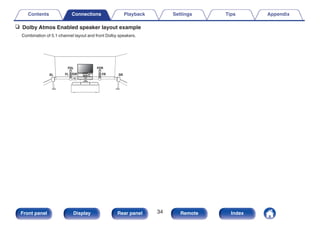
ZONE2 Setup Makes settings for audio playback with ZONE2. 208
Zone Rename Changes the display title of each zone to one you prefer. 209
Quick Select Names Changes the Quick Select Name display title to one you prefer. 209
Front Display Makes settings related to the display on this unit. 210
Firmware Checks for the latest firmware information about updates and upgrades, updates the
firmware, and sets up the notification message display.
211
Information Shows information about this unit settings, input signals, etc. 214
Usage Data Selects whether or not to send anonymous usage data to Denon. 215
Save & Load Save and restore device settings by using a USB memory device. 216
Setup Lock Protects settings from inadvertent changes. 216
Reset Various settings are reset to the factory default values. 217
.
Setup Assistant
Begin Setup... Performs basic installation/connections/settings from the beginning according to the
guidance indicated on the TV screen.
Page 9 of
the separate
manual
“Quick Start
Guide”
Language Select Sets individual setting items according to the guidance displayed on the TV screen.
Speaker Setup
Speaker Calibration
Network Setup
TV Audio Connection
Input Setup
Mobile Apps
Contents Connections Playback Settings Tips Appendix
144
Front panel Display Rear panel Remote Index
.
uio p
ENTER
SETUP
BACK
MAIN
Menu operations
1 Press MAIN on the remote control unit to set the
operating zone to the MAIN ZONE.
The MAIN button lights.
2 Press SETUP.
The menu is displayed on the TV screen.
3 Use ui p to select the menu to be set or operated,
then press ENTER.
4 Use o p to change to desired setting.
5 Press ENTER to enter the setting.
0 To return to the previous item, press BACK.
0 Exiting the menu, press SETUP while the menu is displayed. The
menu display disappears.
Contents Connections Playback Settings Tips Appendix
145
Front panel Display Rear panel Remote Index
Audio
Make audio-related settings.
Center Level Adjust
Adjusts the center channel volume to clarify the dialog for all sources.
o Center
Adjusts the volume output from the center channel.
–12.0 dB – +12.0 dB (Default: 0.0 dB)
0 This setting is also reflected in the center channel level in the “Speakers” -
“Levels” menu settings. (v p. 192)
Subwoofer Level Adjust
Adjusts the subwoofer channel volume for all input sources.
o Subwoofer
Adjusts the volume level for the subwoofer.
–12.0 dB – +12.0 dB (Default: 0.0 dB)
0 This setting is also reflected in the subwoofer channel level in the “Speakers” -
“Levels” menu settings. (v p. 192)
Contents Connections Playback Settings Tips Appendix
146
Front panel Display Rear panel Remote Index
Surround Parameter
You can adjust the surround audio sound field effects to match your
preferences.
The items (parameters) that can be adjusted depend on the signal being
input and the currently set sound mode. For details on the adjustable
parameters, see “Sound modes and surround parameters” (v p. 252).
0 Some setting items cannot be set while playback is stopped. Make the settings
during playback.
0 “Surround Parameter” settings are stored for each sound mode.
o Cinema EQ
Gently softens the upper treble range of movie soundtracks to reduce
possible harshness and improve clarity.
On: “Cinema EQ” is used.
Off
(Default):
“Cinema EQ” is not used.
o Loudness Management
This sets whether to output as specified in “Dynamic Compression” or
output directly without compressing the dynamic range of audio
recorded in the disc.
On
(Default):
Outputs are given based on enabling the
settings made in “Dynamic Compression”
and Dialogue normalization function.
Off:
“Dynamic Compression” settings and
Dialogue normalization are disabled, and
the signals on the disc are output as is.
0 “Loudness Management” can be set when Dolby Digital, Dolby Digital Plus,
Dolby TrueHD and Dolby Atmos signal is input.
Contents Connections Playback Settings Tips Appendix
147
Front panel Display Rear panel Remote Index
o Dynamic Compression
Compress dynamic range (difference between loud and soft sounds).
Auto:
Automatic dynamic range compression
on/off control according to source.
Low / Medium / High: These set the compression level.
Off:
Dynamic range compression is always
off.
0 “Dynamic Compression” can be set when Dolby Digital, Dolby Digital Plus,
Dolby TrueHD, Dolby Atmos or DTS signal is input.
0 The default setting is “Off”. When the input signal is the Dolby TrueHD or
Dolby Atmos source, the default setting is “Auto”.
0 “Auto” cannot be set when inputting a DTS signal.
o Dialog Control
Adjust the volume of dialog in movies, vocals in music, etc. so these
can be heard more easily.
0 – 6 (Default : 0)
0 This can be set when a DTS:X signal that is compatible with the Dialog Control
function is input.
o Low Frequency Effects
Adjust the low frequency effects level (LFE).
-10 dB – 0 dB (Default: 0 dB)
0 For proper playback of the different sources, we recommend setting to the
values below.
0 Dolby Digital sources: 0 dB
0 DTS movie sources: 0 dB
0 DTS music sources: -10 dB
Contents Connections Playback Settings Tips Appendix
148
Front panel Display Rear panel Remote Index
o Center Spread
Center Spread expands the center channel signal to left and right front
speakers to create a wider frontal audio image for the listener. It is
optimized and designed primary for playback of stereo music content.
On: Use “Center Spread”.
Off
(Default):
Do not use “Center Spread”.
0 You can set this when sound mode is “Dolby Surround”.
o DTS Neural:X
DTS Neural:X Expands the non-object based audio signals and
optimizes them for your speaker configuration.
On
(Default):
Use “DTS Neural:X”.
Off: Do not use “DTS Neural:X”.
0 You can set this when sound mode is “DTS:X” or “DTS:X MSTR”.
o Delay Time
Adjust the audio delay time against video to extend the sound field
image.
0 ms – 300 ms (Default: 30 ms)
0 You can set this when the sound mode is “Matrix”.
o Effect Level
Adjust the sound effect level of the current sound mode.
1 – 15 (Default: 10)
0 Set to a lower level if the positioning and sense of phase of the surround
signals seems unnatural.
Contents Connections Playback Settings Tips Appendix
149
Front panel Display Rear panel Remote Index
o Room Size
Determine size of acoustic environment.
Small: Simulate acoustics of a small room.
Medium small:
Simulate acoustics of a medium-small
room.
Medium
(Default):
Simulate acoustics of a medium room.
Medium large:
Simulate acoustics of a medium-large
room.
Large: Simulate acoustics of a large room.
0 “Room Size” does not indicate the size of the room in which sources are
played.
o Subwoofer
Turn subwoofer output on and off.
On
(Default):
The subwoofer is used.
Off: The subwoofer is not used.
0 You can set this when the sound mode is “Direct” or “Stereo” and in the menu
“Subwoofer Mode” is set to “LFE+Main”. (v p. 194)
o Set Defaults
The “Surround Parameter” settings are returned to the default settings.
Contents Connections Playback Settings Tips Appendix
150
Front panel Display Rear panel Remote Index
Restorer
Compressed audio formats such as MP3, WMA (Windows Media Audio)
and MPEG-4 AAC reduce the amount of data by eliminating signal
components that are hard for the human ear to hear. The “Restorer”
function generates the signals eliminated upon compression, restoring the
sound to conditions near those of the original sound before compression.
It also restores the original bass characteristics for a rich and expanded
tonal range.
o Mode
High:
Optimized mode for compressed sources
with very weak highs (64 kbps and
under).
Medium:
Apply suitable bass and treble boost for
all compressed sources (96 kbps and
under).
Low:
Optimized mode for compressed sources
with normal highs (96 kbps and over).
Off: Do not use “Restorer”.
0 This item can be set with analog signals or PCM signal (Sample Rate =
44.1/48 kHz) is input.
0 This item default setting for “HEOS Music” is “Low”. All others are set to “Off”.
0 This cannot be set when the sound mode is set to “Direct” or “Pure Direct”.
0 “Restorer” settings are stored for each input source.
Contents Connections Playback Settings Tips Appendix
151
Front panel Display Rear panel Remote Index
Audio Delay
Compensates for incorrect timing between video and audio.
0 Audio Delay for game mode can be set when “Video Mode” is set to “Auto” or
“Game”. (v p. 166)
0 “Audio Delay” settings are stored for each input source.
o Auto Lip Sync
Automatically adjusts the audio processing time to compensate for
delays in audio/video timing from TV compatible with Auto Lip Sync.
On
(Default):
Correct automatically.
Off: Do not correct automatically.
0 Automatic correction may not be performed depending on the specifications of
your TV even when “Auto Lip Sync” is set to “On”.
o Adjust
The timing mismatch between the picture and sound needs to be
corrected manually.
0 ms – 500 ms (Default : 0 ms)
0 You can also finely adjust the delay correction value set by “Auto Lip Sync”.
0 Adjust for game mode can be set when “Video Mode” is set to “Auto” or
“Game”. (v p. 166)
Contents Connections Playback Settings Tips Appendix
152
Front panel Display Rear panel Remote Index
Volume
Set the MAIN ZONE (room where the unit is located) volume setting.
o Scale
Set how volume is displayed.
0 - 98
(Default):
Display in the range 0 (Min) to 98.
-79.5 dB - 18.0 dB:
Display ---dB (Min), in the range –79.5 dB
to 18.0 dB.
0 “Scale” settings are reflected in all the zones.
o Limit
Make a setting for maximum volume.
60 (–20 dB) / 70 (–10 dB) / 80 (0 dB)
Off (Default)
0 The dB value is displayed when the “Scale” setting is “-79.5 dB - 18.0
dB”. (v p. 153)
o Power On Level
Define the volume setting that is active when the power is turned on.
Last
(Default):
Use the memorized setting from the last
session.
Mute:
Always use the muting on condition when
power is turned on.
1 – 98 (–79 dB – 18 dB) : The volume is adjusted to the set level.
0 The dB value is displayed when the “Scale” setting is “-79.5 dB - 18.0
dB”. (v p. 153)
o Mute Level
Set the amount of attenuation when muting is on.
Full
(Default):
The sound is muted entirely.
–40 dB : The sound is attenuated by 40 dB down.
–20 dB : The sound is attenuated by 20 dB down.
Contents Connections Playback Settings Tips Appendix
153
Front panel Display Rear panel Remote Index
Audyssey®
Set Audyssey MultEQ® XT, Audyssey Dynamic EQ® and Audyssey
Dynamic Volume®. These can be selected after Audyssey® Setup has
been performed.
For additional information on Audyssey technology, please see
“Explanation of terms” (v p. 258).
0 “MultEQ® XT”, “Dynamic EQ”, “Reference Level Offset” and “Dynamic Volume”
settings are stored for each input source.
0 When the sound mode is in the “Direct” or “Pure Direct” mode, “MultEQ® XT”,
“Dynamic EQ” and “Dynamic Volume” settings cannot be configured.
0 When the sound mode is in “DTS Virtual:X” or sound mode that have “+Virtual:X”
in the sound mode name, “MultEQ® XT”, “Dynamic EQ” and “Dynamic Volume”
settings cannot be configured.
o MultEQ® XT
MultEQ® XT compensates for both time and frequency characteristics
of the listening area based on Audyssey® Setup measurement results.
Selection is done from three types of compensation curves. We
recommend the “Reference” setting.
Reference
(Default):
Selects the default calibrated setting with
a slight roll off at high frequencies, which
is optimized for movies.
L/R Bypass:
Selects the reference setting, but
bypasses MultEQ® XT on the front left
and right speakers.
Flat:
Selects the calibrated setting which is
optimized for small rooms where your
listening position is closer to the
speakers.
Off: Do not use “MultEQ® XT”.
0 When using headphones, “MultEQ® XT” is automatically set to “Off”.
Contents Connections Playback Settings Tips Appendix
154
Front panel Display Rear panel Remote Index
o Dynamic EQ
Solves the problem of deteriorating sound quality as volume is
decreased by taking into account human perception and room
acoustics.
Works with MultEQ® XT.
On
(Default):
Use “Dynamic EQ”.
Off: Do not use “Dynamic EQ”.
0 When the menu “Dynamic EQ” setting is “On”, it is not possible to do “Tone”
adjustment. (v p. 108)
o Reference Level Offset
Audyssey Dynamic EQ® is referenced to the standard film mix level. It
makes adjustments to maintain the reference response and surround
envelopment when the volume is turned down from 0 dB. However,
film reference level is not always used in music or other non-film
content. Dynamic EQ Reference Level Offset provides three offsets
from the film level reference (5 dB, 10 dB, and 15 dB) that can be
selected when the mix level of the content is not within the standard.
Recommended setting levels for content are shown below.
0 dB (Film Reference)
(Default):
Optimized for content such as movies.
5 dB :
Select this setting for content that has a
very wide dynamic range, such as
classical music.
10 dB :
Select this setting for jazz or other music
that has a wider dynamic range. This
setting should also be selected for TV
content as that is usually mixed at 10 dB
below film reference.
15 dB :
Select this setting for pop/rock music or
other program material that is mixed at
very high listening levels and has a
compressed dynamic range.
0 Setting is enabled when “Dynamic EQ” is “On”. (v p. 155)
Contents Connections Playback Settings Tips Appendix
155
Front panel Display Rear panel Remote Index
o Dynamic Volume
Solves the problem of large variations in volume level between TV,
movies and other content (between quiet passages and loud
passages, etc.) by automatically adjusting to the user’s preferred
volume setting.
Works with MultEQ® XT.
Heavy:
Most adjustment to softest and loudest
sounds.
Medium:
Medium adjustment to loudest and
softest sound.
Light:
Least adjustment to loudest and softest
sounds.
Off
(Default):
Do not use “Dynamic Volume”.
0 If “Dynamic Volume” is set to “Yes” in “Audyssey® Setup”, the setting is
automatically changed to “Medium”. (v p. 175)
Graphic EQ
Uses the graphic equalizer to adjust the tone of each speaker.
0 Speakers for which “Graphic EQ” can be set differ according to the sound mode.
0 This can be set when “MultEQ® XT” setting is “Off”. (v p. 154)
0 This cannot be set when the sound mode is set to “Direct” or “Pure Direct”.
0 If you are using headphones, you can set the equalizer for headphones.
(v p. 156)
o Graphic EQ / Headphone EQ
Set whether to use the graphic equalizer or not.
On: Use the graphic equalizer.
Off
(Default):
Do not use the graphic equalizer.
0 “Headphone EQ” is set in the menu when headphones are used.
Contents Connections Playback Settings Tips Appendix
156
Front panel Display Rear panel Remote Index
o Speaker Selection
Select whether to adjust tones for individual speakers or for all
speakers.
All: Adjust all speaker tones together.
Left/Right
(Default):
Adjust the left and right speaker tones
together.
Each: Adjust the tone for each speaker.
o Adjust EQ
Adjust tonal balance for each frequency band.
1. Select the speaker.
2. Select the adjustment frequency band.
63 Hz / 125 Hz / 250 Hz / 500 Hz / 1 kHz / 2 kHz / 4 kHz / 8 kHz /
16 kHz
3. Adjust the level.
–20.0 dB – +6.0 dB (Default: 0.0 dB)
0 Front Dolby and Surround Dolby speakers can only be set when
63 Hz/125 Hz/250 Hz/500 Hz/1 kHz.
o Curve Copy
Copy the Flat correction curve created in Audyssey® Setup.
0 “Curve Copy” is displayed after Audyssey® Setup has been performed.
0 “Curve Copy” cannot be used when using headphones.
o Set Defaults
The “Graphic EQ” settings are returned to the default settings.
Contents Connections Playback Settings Tips Appendix
157
Front panel Display Rear panel Remote Index
Video
Make video-related settings.
Picture Adjust
Picture quality can be adjusted.
0 This can be set when “HDMI” is assigned for each input source. (v p. 172)
0 “Contrast”, “Brightness”, “Saturation”, “Noise Reduction” and “Enhancer” can be
set when “Picture Mode” is set to “Custom”. (v p. 158)
0 “Picture Adjust” settings are stored for each input source.
0 “Picture Adjust” cannot be set when 4K signals are input.
o Picture Mode
Select the desired picture mode according to the video content and
your viewing environment.
Standard:
The standard mode suited for most living
room viewing environments.
Movie:
A mode suited for watching movies in a
dark room such as a theater room.
Vivid:
A mode that makes graphic images for
games, etc. brighter and more vivid.
Streaming:
A mode suited for low bit rate video
sources.
ISF Day:
A mode suited for watching movies in a
bright room during the day.
ISF Night:
A mode suited for watching movies in a
dark room at night.
Custom: Adjusts the picture quality manually.
Off
(Default):
No picture quality adjustment is done with
this unit.
Contents Connections Playback Settings Tips Appendix
158
Front panel Display Rear panel Remote Index
0 The two special adjustment modes, “ISF Day” and “ISF Night”, should be used
by a certified technician to adjust the color calibration to match the installation
conditions.
We recommend that the settings and adjustments be carried out by an ISF-
certified technician.
0 These settings can also be configured using “Picture Mode” in the option
menu. (v p. 158)
o Contrast
Adjust picture contrast.
-50 – +50 (Default : 0)
o Brightness
Adjust picture brightness.
-50 – +50 (Default : 0)
o Saturation
Adjust picture chroma level (color saturation).
-50 – +50 (Default : 0)
o Noise Reduction
Reduce overall video noise.
Low / Medium / High / Off (Default : Off)
o Enhancer
Emphasize picture sharpness.
0 – +12 (Default : 0)
Contents Connections Playback Settings Tips Appendix
159
Front panel Display Rear panel Remote Index
HDMI Setup
Make settings for HDMI Audio Out, HDMI Pass Through and HDMI
Control settings.
NOTE
0 When “HDMI Pass Through” and “HDMI Control” is set to “On”, it consumes more
standby power. (“HDMI Pass Through” (v p. 160), “HDMI Control” (v p. 162))
If you are not using this unit for an extended period, it is recommended that you
unplug the power cord from the power outlet.
o HDMI Audio Out
Select HDMI audio output device.
AVR
(Default):
Play back through speakers connected to
the unit.
TV:
Play back through TV connected to the
unit.
0 When the HDMI Control function is activated, priority is given to the TV audio
setting. (v p. 124)
0 When the power of this unit is on and “HDMI Audio Out” is set to “TV”, audio is
output as 2-channel from the HDMI OUT connector.
o HDMI Pass Through
Selects how this unit will transmit HDMI signals to the HDMI output in
standby power mode.
On
(Default):
Transmits the selected HDMI input
through this unit’s HDMI output when this
unit is in standby power mode.
Off:
No HDMI signals are transmitted through
this unit’s HDMI output in standby power
mode.
Contents Connections Playback Settings Tips Appendix
160
Front panel Display Rear panel Remote Index
o Pass Through Source
Sets the HDMI connector that inputs HDMI signals when in standby.
Last:
The most recently used input source will
go into standby mode.
CBL/SAT / DVD /
Blu-ray / Game /
AUX1 / AUX2 /
Media Player / CDz
(Default : CBL/SAT):
Pass through the selected input source.
z“Pass Through Source” can be set when any of the HDMI
connectors is assigned to “CD” for the input source in the “Input
Assign” setting. (v p. 171)
0 “Pass Through Source” can be set when “HDMI Control” is set to “On” or
“HDMI Pass Through” is set to “On”. (“HDMI Pass Through” (v p. 160),
“HDMI Control” (v p. 162))
o RC Source Select
Set whether to allow this unit to be turned on by the input source select
button on the remote control when this unit is on standby.
Power On + Source
(Default):
The power of this unit is turned on and
the input source changes.
Source Select Only:
The HDMI input source changes while
this unit is on standby. The power display
of this unit blinks when the input source
select button of the remote control is
pressed.
0 “RC Source Select” can be set when “HDMI Control” is set to “On” or “HDMI
Pass Through” is set to “On”. (“HDMI Pass Through” (v p. 160), “HDMI
Control” (v p. 162))
Contents Connections Playback Settings Tips Appendix
161
Front panel Display Rear panel Remote Index
o HDMI Control
You can link operations with devices connected to HDMI and
compatible with HDMI Control.
On: Use HDMI Control function.
Off
(Default):
Do not use HDMI Control function.
0 If using the HDMI Control function, connect a TV compatible with HDMI control
to the HDMI MONITOR 1 connector.
0 Please consult the operating instructions for each connected device to check
the settings.
0 Refer to “HDMI Control function” for more information about the HDMI Control
function. (v p. 124)
NOTE
0 If the “HDMI Control” settings have been changed, always reset the power to
connected devices after the change.
o ARC
On the TV connected to the HDMI MONITOR 1 connector, set whether
to receive sound from the TV via HDMI.
On: Use ARC function.
Off
(Default):
Do not use ARC function.
0 You can adjust the volume of this unit using the TV remote control.
0 If using this function, use a TV compatible with ARC (Audio Return Channel)
and enable the HDMI Control function of the TV.
0 When “HDMI Control” is set to “On”, the “ARC” settings automatically switch
“On”. (v p. 162)
NOTE
0 If the “ARC” settings have been changed, always reset the power to
connected devices after the change.
Contents Connections Playback Settings Tips Appendix
162
Front panel Display Rear panel Remote Index
o TV Audio Switching
Sets automatic switching to the “TV Audio” input when a TV connected
via HDMI sends an appropriate CEC control command to this unit.
On
(Default):
Select the “TV Audio” input automatically
when receiving a command from the TV.
Off:
Do not select the “TV Audio” input
automatically when receiving a command
from the TV.
0 “TV Audio Switching” can be set when “HDMI Control” is set to “On”.
(v p. 162)
o Power Off Control
Links the power standby of this unit to external devices.
All
(Default):
If power to a connected TV is turned off
independently of the input source, power
to this unit is automatically set to standby.
Video:
With an input source being selected that
is assigned either “HDMI”, “COMP” or
“VIDEO”, when you turn the power of the
TV off, power to this unit is automatically
set to standby. (v p. 172)
Off: This unit does not link with power to a TV.
0 “Power Off Control” can be set when “HDMI Control” is set to “On”.
(v p. 162)
Contents Connections Playback Settings Tips Appendix
163
Front panel Display Rear panel Remote Index
o Power Saving
If “TV Speaker” is set as the audio output setting of your TV, this unit is
automatically set to standby mode to reduce power consumption.
This function is activated in the following cases.
0 When “TV Audio” is selected as the input source of this unit
0 When playing content from a device connected by HDMI
On: Use Power Saving function.
Off
(Default):
Do not use Power Saving function.
0 “Power Saving” can be set when “HDMI Control” is set to “On”. (v p. 162)
o Smart Menu
This function can be used to configure the settings of this unit, select
an input source and set Tuner and Internet Radio stations using the TV
remote control.
On: Use Smart Menu function.
Off: Do not use Smart Menu function.
0 “Smart Menu” can be set when “HDMI Control” is set to “On”. (v p. 162)
NOTE
0 If the “Smart Menu” settings have been changed, always reset the power to
connected devices after the change.
0 The Smart Menu function may not work properly depending on the
specifications of your TV. In this case, set “Smart Menu” to “Off”.
Contents Connections Playback Settings Tips Appendix
164
Front panel Display Rear panel Remote Index
Output Settings
Makes settings for video output.
0 “Output Settings” cannot be set when 4K signals are input.
0 “i/p Scaler”, “Resolution”, “Progressive Mode” and “Aspect Ratio” settings are
stored for each input source. (“i/p Scaler” (v p. 166), “Resolution” (v p. 167),
“Progressive Mode” (v p. 167), “Aspect Ratio” (v p. 167))
o HDMI Video Output
Select the HDMI monitor connector to be used.
Auto(Dual)
(Default):
The presence of a TV connected to the
HDMI MONITOR 1 or HDMI MONITOR 2
connector is detected automatically, and
that TV connection is used.
Monitor 1:
A TV connected to the HDMI MONITOR
1 connector is always used.
Monitor 2:
A TV connected to the HDMI MONITOR
2 connector is always used.
0 If both the HDMI MONITOR 1 and HDMI MONITOR 2 connectors are
connected and “Resolution” is set to “Auto”, the signals are output with a
resolution that is compatible with both TVs. (v p. 167)
When the “Resolution” setting in the menu is not set to “Auto”, set the
resolution in “Video” - “HDMI Monitor 1” and “HDMI Monitor 2” to one that is
compatible with both TVs. (v p. 214)
0 You can check which resolutions are compatible with your TV in “HDMI
Monitor 1” and “HDMI Monitor 2”. (v p. 214)
0 When connecting multiple Dolby Vision TVs, the signal will only be optimal for
one TV. A TV connected to the HDMI MONITOR 1 connector has priority.
Contents Connections Playback Settings Tips Appendix
165
Front panel Display Rear panel Remote Index
o Video Mode
Configure the video processing method to match the type of video
content.
Auto
(Default):
Process video automatically based on
the HDMI content information.
Game:
Always process video for game content.
Minimize the video delay when the video
is delayed compared to the button
operations on the controller of the game
console.
Movie:
Perform image processing that is suitable
for contents other than games.
Bypass:
Remove all video processing from the
HDMI video path.
0 If “Video Mode” is set to “Auto”, the mode is switched according to the input
contents.
0 Information displays such as the volume bar cannot be overlaid with the video
signal when “Video Mode” is set to “Bypass”.
0 This item can be set when “HDMI” is assigned for each input source.
o i/p Scaler
Set the video input signal to be subjected to i/p Scaler processing.
i/p Scaler will convert the resolution of the input video signal to the
value set in “Resolution”. (v p. 167)
On: Use i/p Scaler function.
Off: Do not use i/p Scaler function.
0 This item can be set when “HDMI” is assigned for each input source.
0 This item can be set when “Video Mode” is set to anything other than
“Bypass”. (v p. 166)
0 This function is not effective when the input signal is “x.v.Color”, 3D, sYCC601
color, Adobe RGB color, Adobe YCC601 color or computer resolutions.
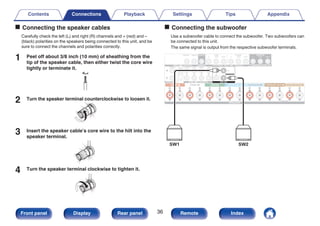
Contents Connections Playback Settings Tips Appendix
166
Front panel Display Rear panel Remote Index
o Resolution
Set the output resolution.
Auto
(Default):
The resolution supported by the TV
connected to the HDMI MONITOR OUT
connector is detected automatically and
the appropriate output resolution is set.
480p/576p / 1080i /
720p / 1080p /
1080p:24Hz / 4K :
Set the output resolution.
0 When set to “1080p:24Hz”, you can enjoy film-like pictures for film sources (in
24 Hz). For video sources and mixed sources, we recommend setting the
resolution to “1080p”.
0 It is not possible to convert a 50 Hz signal into 1080p/24Hz. It is output at a
resolution of 1080p/50Hz.
0 This item can be set when “i/p Scaler” is set to “On”. (v p. 166)
o Progressive Mode
Set an appropriate progressive conversion mode for the source video
signal.
Auto
(Default):
The video signal is automatically
detected and the appropriate mode is
set.
Video: Select mode suitable for video playback.
Video and Film:
Select mode suitable for video and 30-
frame film material playback.
0 This item can be set when “i/p Scaler” is set to “On”. (v p. 166)
o Aspect Ratio
Set the aspect ratio for the video signals output to the HDMI.
16:9
(Default):
Output at 16:9 aspect ratio.
4:3 :
Output at 4:3 aspect ratio with black bars
on the sides of a 16:9 TV screen. (except
for 480p/576p output)
0 This item can be set when “i/p Scaler” is set to “On”. (v p. 166)
Contents Connections Playback Settings Tips Appendix
167
Front panel Display Rear panel Remote Index
On Screen Display
Select the on-screen display user interface preferences.
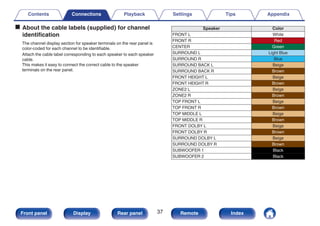
o Volume
Sets where to display the volume level.
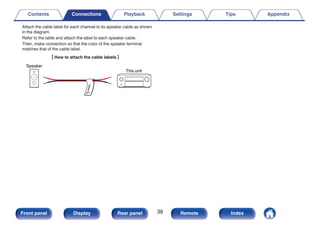
Bottom
(Default):
Display at the bottom.
Top: Display at the top.
Off: Turn display off.
0 When the master volume display is hard to see when superimposed text
(closed captioning) or movie subtitles are present, set to “Top”.
o Info
Displays status of operation temporarily when the input source is
switched.
On
(Default):
Turn display on.
Off: Turn display off.
o Now Playing
Sets the display time for the playback display when the input source is
“HEOS Music” or “Tuner”.
Always On
(Default):
Show display continuously.
Auto Off:
Show display for 30 seconds after
operation.
Contents Connections Playback Settings Tips Appendix
168
Front panel Display Rear panel Remote Index
4K Signal Format
Set the 4K signal format to be played back by this unit when the TV or
playback device connected to this unit is HDMI 4K (60Hz/50Hz) signal
compatible.
o 4K Signal Format
Set the format of the 4K signal played back by this unit.
Standard
(Default):
Select if your TV and playback devices
support standard 4K 60p 4:2:0 8 bit video
signals.
Enhanced:
Select if your TV, playback devices, and
cables support high quality 4K 60p 4:4:4,
4:2:2 or 4K 60p 4:2:0 10 bit video signals.
GRelation between the “4K Signal Format” setting and supported
resolutionsH
Support
Resolution
Color
Space
Pixel
Depth
4K Signal Format
Enhanced
Standard
(Default)
4K 24p, 4K
30p, 4K 25p
RGB /
YCbCr 4:4:4
8 bit P P
10,12 bit P –
YCbCr 4:2:2 12 bit P P
4K 60p, 4K 50p YCbCr 4:2:0 8 bit P P
10,12 bit P –
RGB /
YCbCr 4:4:4
8 bit P –
YCbCr 4:2:2 12 bit P –
Contents Connections Playback Settings Tips Appendix
169
Front panel Display Rear panel Remote Index
0 When setting this to “Enhanced”, we recommend using a “Premium High
Speed HDMI Cable” or “Premium High Speed HDMI Cable with Ethernet” that
has an “HDMI Premium Certified Cable” label attached to the product
package.
0 When this setting is “Enhanced”, configure the television or playback device
settings to match this setting.
0 When this setting is “Enhanced”, video may not be output correctly depending
on the connected playback device or HDMI cable. In this case, change this
setting to “Standard”.
0 “Custom” is displayed for the setting item if our service engineers or custom
installers has configured the HDMI signal format for this unit.
0 “4K Signal Format” can also be set by the following procedure. However, the
menu screen is not displayed. Watch the display while configuring the setting.
1. Press and hold the main unit’s ZONE2 SOURCE and STATUS at the same
time for at least 3 seconds.
“V.Format:<NTSC>” appears on the display.
2. Press the main unit's DIMMER.
“4K :<Standard>” appears on the display.
3. Use the main unit's TUNER PRESET CH + or TUNER PRESET CH – and
select the 4K Signal Format.
4. Press the main unit’s STATUS to complete the setting.
TV Format
Set the video signal format to be output for the TV you are using.
o Format
NTSC
(Default):
Select NTSC output.
PAL: Select PAL output.
0 “Format” can also be set by the following procedure. However, the menu
screen is not displayed. Following the display content to make the setting.
1. Press and hold the main unit’s ZONE2 SOURCE and STATUS at the same
time for at least 3 seconds.
“V.Format:<NTSC>” appears on the display.
2. Use the main unit’s TUNER PRESET CH + or TUNER PRESET CH – and
set the video signal format.
3. Press the main unit’s STATUS to complete the setting.
NOTE
0 When a format other than the video format of the connected TV is set, the
picture will not be displayed properly.
Contents Connections Playback Settings Tips Appendix
170
Front panel Display Rear panel Remote Index
Inputs
Perform settings related to input source playback.
You do not have to change the settings to use the unit. Make settings when needed.
Input Assign
By making connections as indicated by the input sources printed on the
audio/video input connectors of this unit, you can just press one of the
input source select buttons to easily play back audio or video from a
connected device.
Please change the assignment of the HDMI input connector, digital audio
input connector, analog audio input connector, component video input
connector and video input connector when connecting an input source
that differs from that printed to the audio/video input connectors of this
unit.
.
DIGITAL ANALOG
HDMI VIDEO
Inputs/Input Assign
Set Defaults
CBL/SAT
DVD
Blu-ray
Game
Media Player
TV Audio
AUX1
AUX2
1
2
3
4
5
-
FRONT
6
1
2
3
-
-
-
-
-
VIDEO1
COMP1
VIDEO2
COMP2
-
-
-
-
COAX
-
-
OPT2
-
OPT1
-
-
Changes HDMI input assignments
CD - 4 -
-
0 By default, each item is set as follows.
Input source
Input connector
HDMI DIGITAL ANALOG VIDEO
CBL/SAT 1 COAX 1 VIDEO1
DVD 2 – 2 COMP1
Blu-ray 3 – 3 VIDEO2
Game 4 OPT2 – COMP2
Media Player 5 – – –
TV Audio – OPT1 – –
AUX1 FRONT – – –
AUX2 6 – – –
CD – – 4 –
n TV set top box/satellite users please note
When using the digital audio output on a TV/satellite box:
To play the video signal assigned to “HDMI” combined with the audio
signal assigned at “Input Assign” - “DIGITAL”, you will also need to
select “Digital” in the “Input Mode”. (v p. 174)
Contents Connections Playback Settings Tips Appendix
171
Front panel Display Rear panel Remote Index
o HDMI
Set this to change the HDMI input connectors assigned to the input
sources.
1 / 2 / 3 / 4 / 5 / 6 / 7 /
FRONT:
Assign an HDMI input connector to the
selected input source.
– :
Do not assign an HDMI input connector
to the selected input source.
0 When “HDMI Control” or “ARC” is set to “On” in the menu, “HDMI” cannot be
assigned to “TV Audio”. (“HDMI Control” (v p. 162), “ARC” (v p. 162))
o DIGITAL
Set this to change the digital audio input connectors assigned to the
input sources.
COAX (Coaxial) /
OPT1 (Optical) / OPT2:
Assign a digital audio input connector to
the selected input source.
– :
Do not assign a digital audio input
connector to the selected input source.
o ANALOG
Set this to change the analog audio input connectors assigned to the
input sources.
1 / 2 / 3 / 4:
Assign a analog audio input connector to
the selected input source.
– :
Do not assign a analog audio input
connector to the selected input source.
o VIDEO
Set this to change the component video input connectors and
composite video input connectors assigned to the input sources.
COMP1 (Component
video) / COMP2 /
VIDEO1 / VIDEO2:
Assign the video input connector to the
selected input source.
– :
Do not assign a video input connector to
the selected input source.
o Set Defaults
The “Input Assign” settings are returned to the default settings.
Contents Connections Playback Settings Tips Appendix
172
Front panel Display Rear panel Remote Index
Source Rename
Change the display name for input source.
This is convenient when the name of your device and the input source
name of this unit are different. You can change the name to suit your
needs. When the renaming is completed, the name is displayed on this
unit’s display and on the menu screen.
CBL/SAT / DVD / Blu-ray /
Game / AUX1 / AUX2 /
Media Player / CD /
TV Audio / Phono:
Change the display name for input source.
Set Defaults:
The “Source Rename” settings are returned
to the default settings.
0 Up to 12 characters can be input.
Hide Sources
Remove from the display input sources that are not used.
Show
(Default):
Use this source.
Hide: Do not use this source.
Source Level
This function corrects the playback level of the selected input source’s
audio input.
Make this setting if there are differences in the input volume levels
between the different sources.
-12 dB – +12 dB (Default : 0 dB)
0 “Source Level” settings are stored for each input source.
Contents Connections Playback Settings Tips Appendix
173
Front panel Display Rear panel Remote Index
Input Select
Set the audio input mode of each input source.
The input modes available for selection may vary depending on the input
source.
0 “Input Select” settings are stored for each input source.
o Input Mode
Set the audio input modes for the different input sources.
It is normally recommended to set the audio input mode to “Auto”.
Auto
(Default):
Automatically detect input signal and
perform playback.
HDMI: Play only signals from HDMI input.
Digital: Play only signals from digital audio input.
Analog: Play only signals from analog audio input.
0 When digital signals are properly input, the ~ indicator lights on the display.
If the ~ indicator does not light, check “Input Assign” and the connections.
(v p. 171)
0 If “HDMI Control” is set to “On” and a TV compatible with the ARC is
connected via the HDMI MONITOR 1 connectors, the input mode whose input
source is “TV Audio” is fixed to ARC.
Contents Connections Playback Settings Tips Appendix
174
Front panel Display Rear panel Remote Index
Speakers
The acoustic characteristics of the connected speakers and listening room are measured and the optimum settings are made automatically. This is called
“Audyssey® Setup”.
You do not have to perform Audyssey® Setup when you have already performed “Speaker Calibration” in “Setup Assistant”.
To set up the speakers manually, use “Manual Setup” on the menu. (v p. 185)
Audyssey® Setup
To perform measurement, place the Sound calibration microphone in
multiple locations all around the listening area. For best results, we
recommend you measure in six or more positions, as shown in the
illustration (up to eight positions).
When measuring the second and subsequent positions, install the Sound
calibration microphone within 2 ft (60 cm) of the first measurement position
(main listening position).
0 If you perform Audyssey® Setup, Audyssey MultEQ® XT, Audyssey Dynamic EQ®
and Audyssey Dynamic Volume® functions are enabled. (v p. 154)
.
FL SW C FR
SR
SL
Surround speaker (R)
Surround speaker (L)
Subwoofer
Center speaker
Front speaker (R)
Front speaker (L)
( :Measuring positions)
FL
FR
C
SW
SL
SR
Listening position
Contents Connections Playback Settings Tips Appendix
175
Front panel Display Rear panel Remote Index
o About the main listening position
The main listening position is the position where listeners would
normally sit or where one would normally sit alone within the listening
environment. Before starting Audyssey® Setup, place the Sound
calibration microphone in the main listening position.
Audyssey MultEQ® XT uses the measurements from this position to
calculate speaker distance, level, polarity, and the optimum crossover
value for the subwoofer.
NOTE
0 Make the room as quiet as possible. Background noise can disrupt the room
measurements. Close windows and turn off the power on electronic devices
(radios, air conditioners, fluorescent lights, etc.). The measurements could be
affected by the sounds emitted by such devices.
0 During the measurement process, place cell phones outside the listening room.
Cell phone signals could disrupt the measurements.
0 Do not stand between the speakers and Sound calibration microphone or allow
obstacles in the path while the measurements are being made. Also, install the
Sound calibration microphone at least 20 inches (50 cm) away from the wall.
Failure to do so will result in inaccurate readings.
0 During the measurement process, audible test tones will come from the speakers
and subwoofer(s), but this is part of normal operation. If there is background noise
in the room, these test signals will increase in volume.
0 Operating VOLUME d f on the remote control unit or MASTER VOLUME on the
main unit during the measurements will cancel the measurements.
0 Measurement cannot be performed when headphones are connected. Unplug the
headphones before performing Audyssey® Setup.
Contents Connections Playback Settings Tips Appendix
176
Front panel Display Rear panel Remote Index
Procedure for speaker settings
(Audyssey® Setup)
.
Finish
Check
Calculation & Store
Measurement
Preparation
1 Attach the Sound calibration microphone to the
supplied microphone stand or own tripod and install it
at the main listening position.
When installing the Sound calibration microphone, point the tip of
the microphone toward the ceiling and adjust the height to match the
height of the ears of a listener in a seated position.
2 If using a subwoofer capable of the following
adjustments, set up the subwoofer as shown below.
n When using a subwoofer with a direct mode
Set the direct mode to “On” and disable the volume adjustment
and crossover frequency setting.
n When using a subwoofer without a direct mode
Make the following settings:
0 Volume : 12 o’clock position
0 Crossover frequency : Maximum/Highest Frequency
0 Low pass filter : Off
0 Standby mode : Off
Contents Connections Playback Settings Tips Appendix
177
Front panel Display Rear panel Remote Index
3 Connect the Sound calibration microphone to the
SETUP MIC jack of this unit.
.
When the Sound calibration microphone is
connected, the following screen is displayed.
.
Audyssey Setup
Dolby Speaker Setup
Channel Select
Amp Assign
Start
Your AV receiver can automatically measure the acoustics of
your room then optimize your speakers using the included
microphone and microphone stand.
Set the following items
if necessary.
4 Select “Start”, then press ENTER.
Audyssey® Setup can also make the following settings.
0 Amp Assign
The signals output from the SURROUND BACK speaker
terminals can be switched in accordance with your speaker
environment. (“Amp Assign” (v p. 185))
0 Channel Select
If channels that are not to be used are set in advance,
measurement for the set channels is skipped, and measuring
time can be reduced. You can also change the number of
surround back speakers.
0 Dolby Speaker Setup
Set the distance between the Dolby Atmos Enabled speaker and
the ceiling.
This can be set when “Assign Mode” is set to “Front Dolby” or
“Surround Dolby” in the “Amp Assign” settings. (v p. 185)
5 Follow the instructions on the screen display and press
“Next” to proceed further.
Contents Connections Playback Settings Tips Appendix
178
Front panel Display Rear panel Remote Index
6 When the following screen is displayed, select “Begin
Test” and then press ENTER.
Start the measurement of the first position.
.
Ear Height
stopping during the tests.
Select "Begin Test" to start the calibration.
Audyssey Setup
NOTE:You will hear a series of loud chirps starting and
Back Begin Test
0 Measurement requires several minutes.
NOTE
0 If “Caution!” is displayed on TV screen:
0 Go to “Error messages” (v p. 183). Check any related items, and
perform the necessary procedures.
7 When the detected speaker is displayed, select “Next”
and then press ENTER.
.
Audyssey Setup
Repeat Last Test Next
Speaker Detection
Front
Center
Subwoofer
Surround
Surr. Back
:Yes
:Yes
:Yes
:Yes
:No
Contents Connections Playback Settings Tips Appendix
179
Front panel Display Rear panel Remote Index
8 Move the Sound calibration microphone to position 2,
select “Continue”, then press ENTER.
The measurement of the second position starts.
Measurements can be made in up to eight positions.
.
Continue
Place the microphone ear level of the listener seated at the
2nd listening position, which should be no more than 2ft
(60cm) away from the 1st position, then select “Continue”...
Audyssey Setup
Back
Ear Height
n Stopping Audyssey® Setup
A Press BACK to display the popup screen.
B Press o to select “Yes”, then press ENTER.
9 Repeat step 8, measuring positions 3 to 8.
0 To skip measuring the fourth and subsequent listening position, press o to
select “Complete” and press ENTER to proceed to step 11.
10 Select “Continue”, then press ENTER.
.
Audyssey Setup
Continue
Repeat Last Test
Measurements complete.
Select “Continue” to analyze the data...
Start the analysis and storage of the measurement results.
0 Analysis takes several minutes to complete.
The more speakers and measurement positions that there are,
the more time it takes to perform the analysis.
NOTE
0 When the measurement results are being saved, make sure the power is
not turned off.
Contents Connections Playback Settings Tips Appendix
180
Front panel Display Rear panel Remote Index
11 Perform the settings for Audyssey Dynamic EQ® and
Audyssey Dynamic Volume®.
The following screen is displayed during the analysis. Configure the
settings as preferred.
.
50%
Turn on Dynamic EQ?
and television.
sound at low volumes letting you enjoy late-night movies
Audyssey Dynamic EQ maintains bass, clarity and surround
Audyssey Setup
Yes
No
Analyzing room data
0 Dynamic EQ corrects the frequency response in consideration of
the audio characteristics of the room and human hearing ability so
that sound can be heard even at low volume.
This is recommended when using the unit with the volume turned
down, e.g. when enjoying a movie or TV program in the middle of
the night.
0 Dynamic Volume adjusts the output volume to the optimal level
while constantly monitoring the level of the audio input to the unit.
Optimal volume control is performed automatically without any
loss in the dynamism and clarity of the sound when, for example,
the volume suddenly increases for commercials shown during
television programs.
12 When the analysis and storage ends, unplug the Sound
calibration microphone from the SETUP MIC jack on the
main unit and then press “Next”.
.
Audyssey Setup
Now Analyzing and correcting your room data.
Please disconnect the microphone from your AV receiver.
Next
Back
Applying room corrections
100%
Contents Connections Playback Settings Tips Appendix
181
Front panel Display Rear panel Remote Index
13 Select “Details” and press ENTER to verify the
measurement results.
0 Subwoofers may measure a greater reported distance than the
actual distance due to added electrical delay common in
subwoofers.
NOTE
0 Do not change the speaker connection or subwoofer volume after Audyssey®
Setup. If these are changed, run Audyssey® Setup again in order to configure the
optimum equalizer settings.
Contents Connections Playback Settings Tips Appendix
182
Front panel Display Rear panel Remote Index
Error messages
An error message is displayed if Audyssey® Setup could not be completed due to speaker placement, the measurement environment, etc. If an error
message is displayed, check the relevant items and perform the necessary measures. Be sure to turn off the power before checking speaker connections.
Examples Error details Measures
No speakers found. 0 Sound calibration microphone is not
detected.
0 Connect the included Sound calibration microphone to the
SETUP MIC jack of this unit.
0 Not all speakers could be detected. 0 Check the speaker connections.
Ambient noise is too high or level is too
low
0 There is too much noise in the room. 0 Either turn off any device generating noise or move it away.
0 Perform again when the surroundings are quieter.
0 Speaker or subwoofer sound is too low. 0 Check the speaker installation and the direction in which the
speakers are facing.
0 Adjust the subwoofer’s volume.
Front R : None 0 The displayed speaker could not be
detected.
0 Check the connections of the displayed speaker.
Front R : Phase 0 The displayed speaker is connected with the
polarity reversed.
0 Check the polarity of the displayed speaker.
0 For some speakers, this error message may be displayed
even if the speaker is properly connected. If you are sure the
connection is correct, press p to select “Ignore”, then press
ENTER.
Contents Connections Playback Settings Tips Appendix
183
Front panel Display Rear panel Remote Index
Retrieving Audyssey® Setup settings
If you set “Restore...” to “Restore”, you can return to Audyssey® Setup
measurement result (value calculated at the start by MultEQ® XT) even
when you have changed each setting manually.
.
Audyssey Setup
Dolby Speaker Setup
Channel Select
Amp Assign
Check Results
Restore...
Start
Your AV receiver can automatically measure the acoustics of
your room then optimize your speakers using the included
microphone and microphone stand.
Set the following items
if necessary.
Contents Connections Playback Settings Tips Appendix
184
Front panel Display Rear panel Remote Index
Manual Setup
Perform when setting the speakers manually or when changing settings
made in Audyssey® Setup.
0 If you add or remove a speaker after performing Audyssey® Setup, you
will no longer be able to select Audyssey MultEQ® XT, Audyssey
Dynamic EQ® or Audyssey Dynamic Volume®. (v p. 154)
0 “Manual Setup” can be used without changing the settings. Please set if
necessary.
Amp Assign
Select the power amplifier usage method to match your speaker system.
See “Speaker configuration and “Amp Assign” settings” (v p. 39)
regarding the speaker configuration and connection.
o Assign Mode
Select how to use the power amp.
Surround Back:
Setting for 7.1-channel playback using
surround back speakers.
Front Height:
Setting for 7.1-channel playback using
front height speakers.
Top Front:
Setting for 7.1-channel playback using
top front speakers.
Top Middle:
Setting for 7.1-channel playback using
top middle speakers.
Front Dolby:
Setting for 7.1-channel playback using
front Dolby Atmos Enabled speakers.
Surround Dolby:
Setting for 7.1-channel playback using
surround Dolby Atmos Enabled
speakers.
Contents Connections Playback Settings Tips Appendix
185
Front panel Display Rear panel Remote Index
ZONE2
(Default):
Setting to assign the unit’s built-in power
amplifier for ZONE2 and output the audio
in stereo.
Bi-Amp:
Setting to use the front speakers via the
bi-amp connection.
Front B:
Setting for playback using a second front
speaker. You can switch the playback
between front speaker A and B according
to your liking. Switch the front speaker
using “Front Speaker” in the menu.
(v p. 195)
Speaker Config.
Select whether or not speakers are present, playback capacity for low
bass frequencies and speaker size.
o Front
Set the front speaker size.
Large
(Default):
Use a large speaker that can adequately
play back very low bass frequencies.
Small:
Use a small speaker that has inadequate
playback capacity for very low bass
frequencies.
0 When “Subwoofer” is set to “No”, “Front” is automatically set to “Large”.
0 When “Front” is set to “Small”, you cannot set speakers other than “Front” to
“Large”.
Contents Connections Playback Settings Tips Appendix
186
Front panel Display Rear panel Remote Index
o Center
Set the presence and size of the center speaker.
Large:
Use a large speaker that can adequately
play back very low bass frequencies.
Small
(Default):
Use a small speaker that has inadequate
playback capacity for very low bass
frequencies.
None:
Select when a center speaker is not
connected.
o Subwoofer
Set the presence of a subwoofer.
Yes
(Default):
Use a subwoofer.
No:
Select when a subwoofer is not
connected.
0 When “Subwoofer” is set to “No” and you set “Front” to “Small”, “Subwoofer” is
automatically set to “Yes”.
o Surround
Set the presence and size of the surround speakers.
Large:
Use a large speaker that can adequately
play back very low bass frequencies.
Small
(Default):
Use a small speaker that has inadequate
playback capacity for very low bass
frequencies.
None:
Select when the surround speakers are
not connected.
0 When “Surround” is set to “None”, “Surr. Back” and “Surround Dolby” are
automatically set to “None”.
Contents Connections Playback Settings Tips Appendix
187
Front panel Display Rear panel Remote Index
o Surr. Back
Set the presence, size and number of surround back speakers.
Large:
Use a large speaker that can adequately
play back very low bass frequencies.
Small
(Default):
Use a small speaker that has inadequate
playback capacity for very low bass
frequencies.
None:
Select when the surround back speakers
are not connected.
2 spkrs
(Default):
Use two surround back speakers.
1 spkr:
Use only one surround back speaker.
Connect to the L terminal to SURROUND
BACK when this setting is selected.
0 When “Assign Mode” setting is “Surround Back”, you can make this setting.
(v p. 185)
o Front Height
Set the presence and size of the front height speakers.
Large:
Use a large speaker that can adequately
play back very low bass frequencies.
Small
(Default):
Use a small speaker that has inadequate
playback capacity for very low bass
frequencies.
None:
Select when the front height speakers are
not connected.
0 When “Assign Mode” setting is “Front Height”, you can make this setting.
(v p. 185)
Contents Connections Playback Settings Tips Appendix
188
Front panel Display Rear panel Remote Index
o Top Front
Set the presence and size of the top front speakers.
Large:
Use a large speaker that can adequately
play back very low bass frequencies.
Small
(Default):
Use a small speaker that has inadequate
playback capacity for very low bass
frequencies.
None:
Select when the top front speakers are
not connected.
0 When “Assign Mode” setting is “Top Front”, you can make this setting.
(v p. 185)
o Top Middle
Set the presence and size of the top middle speakers.
Large:
Use a large speaker that can adequately
play back very low bass frequencies.
Small
(Default):
Use a small speaker that has inadequate
playback capacity for very low bass
frequencies.
None:
Select when the top middle speakers are
not connected.
0 When “Assign Mode” setting is “Top Middle”, you can make this setting.
(v p. 185)
Contents Connections Playback Settings Tips Appendix
189
Front panel Display Rear panel Remote Index
o Front Dolby
Set the presence and size of the front Dolby speakers.
Large:
Use a large speaker that can adequately
play back very low bass frequencies.
Small
(Default):
Use a small speaker that has inadequate
playback capacity for very low bass
frequencies.
None:
Select when the front Dolby speakers are
not connected.
0 When “Assign Mode” setting is “Front Dolby”, you can make this setting.
(v p. 185)
o Surround Dolby
Set the presence and size of the surround Dolby speakers.
Large:
Use a large speaker that can adequately
play back very low bass frequencies.
Small
(Default):
Use a small speaker that has inadequate
playback capacity for very low bass
frequencies.
None:
Select when the surround Dolby
speakers are not connected.
0 When “Assign Mode” setting is “Surround Dolby”, you can make this setting.
(v p. 185)
Contents Connections Playback Settings Tips Appendix
190
Front panel Display Rear panel Remote Index
Distances
Set distance from listening position to speakers.
Measure beforehand the distance from the listening position to each
speaker.
o Unit
Set the unit of distance.
Feet (Default)
Meters
o Step
Set the minimum variable width of the distance.
1 ft / 0.1 ft (Default: 1 ft)
0.1 m / 0.01 m
o Set the distance
0.0 ft – 60.0 ft / 0.00 m – 18.00 m
0 The speakers that can be selected differ depending on the “Amp Assign” and
“Speaker Config.” settings. (“Amp Assign” (v p. 185), “Speaker
Config.” (v p. 186))
0 Default settings:
Front L / Front R / F. Height L / F. Height R / Center / Front Dolby L /
Front Dolby R / Subwoofer: 12.0 ft (3.60 m)
Speakers other than the above: 10.0 ft (3.00 m)
0 Set the difference in the distance between the speakers to less than 20.0 ft
(6.00 m).
Contents Connections Playback Settings Tips Appendix
191
Front panel Display Rear panel Remote Index
o Dolby Speaker Setup
Set the distance between the Dolby Atmos Enabled speaker and the
ceiling.
3.0 ft - 11.0 ft / 0.90 m - 3.30 m (Default: 6.0 ft / 1.80 m)
0 This can be set when “Front Dolby” or “Surround Dolby” is set to “Large” or
“Small” in “Speaker Config.”.
o Set Defaults
The “Distances” settings are returned to the default settings.
Levels
Set the volume of the test tone to be the same at the listening position
when it is output from each speaker.
o Test Tone Start
A test tone is output from the selected speaker.
While listening to the test tone, adjust the volume output from the
selected speaker.
–12.0 dB – +12.0 dB (Default : 0.0 dB)
0 The set “Levels” are reflected in all sound modes.
0 If you wish to adjust the channel level for each input source, carry out the
settings in “Channel Level Adjust”. (v p. 107)
0 When headphones are connected to the PHONES connector on this unit, you
cannot set “Levels”.
o Set Defaults
The “Levels” settings are returned to the default settings.
Contents Connections Playback Settings Tips Appendix
192
Front panel Display Rear panel Remote Index
Crossovers
Set in accordance with the lower limit frequency of the base frequencies
that can be played back through each speaker. See the speaker manual
for information concerning speaker crossover frequency.
o Speaker Selection
Selects how to set the crossover frequency.
All
(Default):
Sets the same crossover frequency for all
speakers.
Individual:
Selects the crossover points for each
speaker individually.
o Set the crossover frequency
40 Hz / 60 Hz / 80 Hz / 90 Hz / 100 Hz / 110 Hz / 120 Hz / 150 Hz /
200 Hz / 250 Hz (Default: 80 Hz)
0 “Crossovers” can be set when the “Subwoofer Mode” setting is “LFE+Main”, or
when you have a speaker that is set to “Small”. (v p. 194)
0 The default crossover frequency is “80 Hz”, which will work best with the
widest variety of speakers. We recommend setting to a higher frequency that
the crossover frequency when small speakers are used. For example, set to
“250 Hz” when the frequency range of the speakers is 250 Hz – 20 kHz.
0 Sound below the crossover frequency is cut off from the output of the
speakers set in “Small”. This cut off bass frequency is output from the
subwoofer or front speakers.
0 The speakers that can be set when “Individual” is selected differ depending on
to the “Subwoofer Mode” setting. (v p. 194)
0 When “LFE” is selected, speakers set to “Small” at “Speaker Config.” can be
set. If the speakers are set to “Large”, “Full Band” is displayed and the
setting cannot be made. (v p. 186)
0 When “LFE+Main” is selected, speakers can be set regardless of the
“Speaker Config.” setting. (v p. 186)
Contents Connections Playback Settings Tips Appendix
193
Front panel Display Rear panel Remote Index
Bass
Set subwoofer and LFE signal range playback.
o Subwoofer Mode
Select low range signals to be reproduced by subwoofer.
LFE
(Default):
The low range signal of the channel set to
“Small” speaker size is added to the LFE
signal output from the subwoofer.
LFE+Main:
The low range signal of all channels is
added to the LFE signal output from the
subwoofer.
0 “Subwoofer Mode” can be set when “Speaker Config.” - “Subwoofer” on the
menu is set to other than “No”. (v p. 187)
0 Play music or a movie source and select the mode offering the strongest bass.
0 If “Speaker Config.” - “Front” and “Center” are set to “Large”, and “Subwoofer
Mode” is set to “LFE”, no sound may be output from the subwoofers,
depending on the input signal or selected sound mode. (v p. 186)
Select “LFE+Main” if you want the bass signals to always be produced from
the subwoofer.
o LPF for LFE
Set LFE signal playback range. Set this when you want to change the
playback frequency (low pass filter point) of the subwoofer.
80 Hz / 90 Hz / 100 Hz / 110 Hz / 120 Hz / 150 Hz / 200 Hz / 250 Hz
(Default: 120 Hz)
Contents Connections Playback Settings Tips Appendix
194
Front panel Display Rear panel Remote Index
Front Speaker
Set the front speaker A/B to use for every sound mode.
A
(Default):
Front speaker A is used.
B : Front speaker B is used.
A+B : Both front speakers A and B are used.
0 This can be set when “Assign Mode” is set to “Front B”. (v p. 186)
Contents Connections Playback Settings Tips Appendix
195
Front panel Display Rear panel Remote Index
Network
To use this unit by connecting it to a home network (LAN), you must configure network settings.
If you set up your home network (LAN) via DHCP, set “DHCP” to “On”. (Use the default setting.) This allows this unit to use your home network (LAN).
When assigning an IP address to each device manually, you need to assign an IP address to this unit using the “IP Address” settings, and enter
information about your home network (LAN) such as the gateway address and subnet mask, etc.
Information
Display network information.
Friendly Name / Connection / SSID / DHCP / IP Address /
MAC Address (Ethernet) / MAC Address (Wi-Fi) /
Wi-Fi signal strength
Connection
Choose whether to connect the home network to a wireless LAN or a
wired LAN.
When connecting to the network using wired LAN, select “Wired
(Ethernet)” after connecting a LAN cable.
When connecting to the network using wireless LAN, select “Wireless (Wi-
Fi)” and configure the “Wi-Fi Setup”. (v p. 197)
o Connect Using
Select the method for connecting to the home network (LAN).
Wired (Ethernet): Use a LAN cable to connect to a network.
Wireless (Wi-Fi)
(Default):
Use the wireless LAN (Wi-Fi) function to
connect to a network.
Contents Connections Playback Settings Tips Appendix
196
Front panel Display Rear panel Remote Index
Wi-Fi Setup
Connect to a wireless LAN (Wi-Fi) router.
The router can be connected in the following ways. Select the connection
method to suit your home environment.
o Scan Networks
Select the network you wish to connect to from the list of possible
networks shown on the TV screen.
1. Select the network you wish to connect to from the list of wireless
networks.
Select “Rescan” if the network cannot be found.
2. Enter your password and select “OK”.
o Use iOS Device
Use your iOS device (iPhone/iPod/iPad) to connect to the network. By
connecting your iOS device to this unit using Wi-Fi, the unit can be
automatically connected to the same network as your device.
1. Select “Use iOS Device” on the TV screen.
2. Check that your iOS device is connected to the wireless LAN (Wi-
Fi) router and select “Denon AVR-X2500H” from “SET UP NEW
AIRPLAY SPEAKER...” at the bottom of the Wi-Fi configuration
screen of your iOS device.
3. Tap “Next” on the screen of the iOS device.
0 The iOS device firmware version needs to support iOS 7 or later.
Contents Connections Playback Settings Tips Appendix
197
Front panel Display Rear panel Remote Index
o WPS Router
Use a WPS-compatible router to connect using the push button
method.
1. Select “Push Button” on the TV screen.
2. Switch to the WPS mode by pressing the WPS button of the router
you wish to connect to.
0 The time for pressing the button varies depending on the router.
3. Select “Connect” on the TV screen within 2 minutes.
o Manual
Enter the name (SSID) and password of the network you wish to
connect to.
1. Set the following items.
SSID:
Input the name of the wireless network
(SSID).
Security:
Select the encryption method according
to the encryption setting of the access
point you are using.
Password: Input the password.
2. Select “Connect” at the end of the setting.
Contents Connections Playback Settings Tips Appendix
198
Front panel Display Rear panel Remote Index
0 The wireless LAN (Wi-Fi) settings of this unit can also be configured from a PC or
tablet that supports wireless LAN connection.
1. Press and hold the DIMMER and STATUS buttons on the main unit for at least 3
seconds when the power of the unit is on.
2. Connect the wireless LAN of the PC or tablet used to “Denon AVR-X2500H”
when the message “Connect your Wi-Fi device to Wi-Fi network called “Denon
AVR-X2500H”.” appears in the display.
3. Start up the browser and enter “192.168.1.16/Settings/” in the URL.
4. Use the browser to enter the settings, select “Connect” and then exit the
settings.
0 The Default key of this unit is fixed at “1”. Set Default key of the router to “1” to use.
Settings
Configure the IP address.
0 If you are using a broadband router (DHCP function), the information
required for network connection such as the IP address will be
automatically configured since the DHCP function is set to “On” in the
default settings of this unit.
0 Set up the IP Address, Subnet Mask, Default Gateway and DNS server
information only when assigning a fixed IP address or when connecting
to a network without DHCP function.
.
DHCP
-IP Address
-Subnet Mask
Save
Cancel
-Default Gateway
-DNS
Configures the network settings automatically or manually
Off
Network/Settings
000.000.000.000
000.000.000.000
000.000.000.000
000.000.000.000
Contents Connections Playback Settings Tips Appendix
199
Front panel Display Rear panel Remote Index
o DHCP
Selects how to connect to the network.
On
(Default):
Configure the network settings
automatically from your router.
Off: Configure the network settings manually.
o IP Address
Set the IP address within the ranges shown below.
0 The Network Audio function cannot be used if other IP addresses
are set.
CLASS A: 10.0.0.1 - 10.255.255.254
CLASS B: 172.16.0.1 - 172.31.255.254
CLASS C: 192.168.0.1 - 192.168.255.254
o Subnet Mask
When connecting an xDSL modem or connector adapter directly to
this unit, input the subnet mask indicated in the documentation
supplied by your provider. Normally input “255.255.255.0”.
o Default Gateway
When connected to a gateway (router), input its IP address.
o DNS
Enter the DNS address indicated in the documentation supplied by
your provider.
0 If you cannot connect to the Internet, recheck the connections and settings.
(v p. 62)
0 If you do not understand about Internet connection, contact your ISP (Internet
Service Provider) or the store from which you purchased your computer.
Contents Connections Playback Settings Tips Appendix
200
Front panel Display Rear panel Remote Index
Network Control
Enables network communication in standby power mode.
Off In Standby: Suspend network function during standby.
Always On
(Default):
Network is on during standby. Main unit
operable with a network compatible
controller.
0 When using the web control function, Denon 2016 AVR Remote App or HEOS
App, use with the “Network Control” setting set to “Always On”.
NOTE
0 When “Network Control” is set to “Always On”, the unit consumes more standby
power.
Friendly Name
The Friendly Name is the name of this unit displayed on the network. You
can change the Friendly Name according to your preferences.
o Friendly Name
Selects Friendly Name from the list.
When you select “Other”, you can change the Friendly Name
according to your preferences.
Home Theater /Living Room / Family Room / Guest Room /
Kitchen / Dining Room / Master Bedroom / Bedroom / Den /
Office / Other
0 Up to 30 characters can be input.
0 The default Friendly Name on first use is “Denon AVR-X2500H”.
o Set Defaults
Restores Friendly Name, which you had changed, to the default
setting.
Contents Connections Playback Settings Tips Appendix
201
Front panel Display Rear panel Remote Index
Diagnostics
Used to check the network connection.
o Physical Connection
Checks the physical LAN port connection.
OK
Error:
The LAN cable is not connected. Check
the connection.
0 When connected using a wireless LAN, “Connection Wireless (Wi-Fi)” will
be displayed.
o Router Access
Checks the connection from this unit to the router.
OK
Error:
Failed to communicate with the router.
Check the router settings.
o Internet Access
Checks whether this unit has access to the Internet (WAN).
OK
Error:
Failed to connect to the Internet. Check
the Internet connection environment or
router settings.
Contents Connections Playback Settings Tips Appendix
202
Front panel Display Rear panel Remote Index
HEOS Account
Make HEOS Account-related settings.
HEOS Account is needed in order to use HEOS Favorites.
The menu displayed differs depending on the status of the HEOS Account.
You have not signed in
o I have a HEOS Account
If you already have a HEOS Account, enter the current account name
and password to sign in.
o Create Account
If you do not have a HEOS Account, create a new HEOS Account.
o Forgot Password
If you have forgotten the password, an email explaining how to reset
the password will be sent.
You have already signed in
o Signed in As
The currently signed in HEOS Account is displayed.
o Change Location
Change the regional settings for the signed in HEOS Account.
o Change Password
Change the password for the signed in HEOS Account.
o Delete Account
Delete the signed in HEOS Account.
o Sign Out
Sign out from the HEOS Account.
Contents Connections Playback Settings Tips Appendix
203
Front panel Display Rear panel Remote Index
General
Make various other settings.
Language
Set the language for display the menu on the TV screen.
English / Français / Español (Default: English)
0 “Language” can also be set up by the following operation. However, the menu
screen is not displayed. Watch the display while configuring the settings.
1. Press and hold the main unit’s ZONE2 SOURCE and STATUS at the same time
for at least 3 seconds.
“V.Format:< NTSC>” appears on the display.
2. Press DIMMER on the main unit twice.
“Lang.:<ENGLISH >” appears on the display.
3. Use the main unit’s TUNER PRESET CH + or TUNER PRESET CH – and set
the language.
4. Press the main unit’s STATUS to complete the setting.
ECO
Configure the ECO Mode and auto standby mode settings.
o ECO Mode
This mode can reduce the power consumption and heat generation of
your AV receiver when power on.
This is done by reducing the power supply line to the power amplifier,
in turn the maximum power output.
Contents Connections Playback Settings Tips Appendix
204
Front panel Display Rear panel Remote Index
On:
Power savings are always active,
regardless of volume or input signal.
Auto:
Gives you the best balance between
power savings and maximum power
output:
For low volume levels, the power savings
are active. If you increase the volume
level, the power savings are switched off
automatically, so you can enjoy
maximum output power without
distortion.
If the volume is set to a high level but no
input signal is detected for more than 2
minutes, this unit will enable power
savings. When an input signal is detected
again or the input source is changed, this
unit will automatically turn off power
savings again at high volume levels.
Off
(Default):
No power savings.
0 When the unit is switching between the different power saving states in “ECO
Mode: Auto”, you may notice a click noise from the inside of this unit, this is
normal.
0 If content is paused for more than 2 minutes and playback is resumed from the
same source at these high volume levels, there may be short delay before
maximum power is restored.
0 “ECO Mode” can also be switched by pressing ECO G on the remote control
unit.
Contents Connections Playback Settings Tips Appendix
205
Front panel Display Rear panel Remote Index
o Power On Default
Set the mode to ECO when the power is on.
Last
(Default):
The ECO Mode will be set to the previous
setting before the power was switched
off.
On:
When power is turned on, the mode will
always be switched to the ECO Mode in
“On”.
Auto:
When power is turned on, the mode will
always be switched to the ECO Mode in
“Auto”.
Off:
When power is turned on, the mode will
always be switched to the ECO Mode in
“Off”.
o On Screen Display
Display the power consumption of this unit using a meter on the TV
screen.
Always On:
Always display the meter on the TV
screen.
Auto
(Default):
Display the meter when changing the
mode or volume.
Off: Do not display the meter.
Contents Connections Playback Settings Tips Appendix
206
Front panel Display Rear panel Remote Index
o Auto Standby
Set so the unit power automatically switches to standby.
n MAIN ZONE
Sets the time for switching to auto standby when there are no audio or
video signals input into this unit.
Before the unit enters standby mode, “Auto Standby” is displayed on
the unit display and the menu screen.
60 min: The unit goes into standby after 60 minutes.
30 min: The unit goes into standby after 30 minutes.
15 min: The unit goes into standby after 15 minutes.
Off
(Default):
The unit does not go into standby
automatically.
n ZONE2
When there are no operations for a certain period of time as set here,
the power is automatically shut off even if there is audio or video input.
8 hours:
Switches ZONE2 the standby state after
about 8 hours.
4 hours:
Switches ZONE2 to the standby state
after about 4 hours.
2 hours:
Switches ZONE2 to the standby state
after about 2 hours.
Off
(Default):
Does not automatically switch ZONE2 to
the standby state.
Contents Connections Playback Settings Tips Appendix
207
Front panel Display Rear panel Remote Index
ZONE2 Setup
Makes settings for audio playback with ZONE2.
0 Values set for “Volume Limit” and “Power On Volume” are displayed according to
the setting specified for the volume “Scale”. (v p. 153)
o Lch Level
Adjust the left channel output level.
-12 dB – +12 dB (Default : 0 dB)
o Rch Level
Adjust the right channel output level.
-12 dB – +12 dB (Default : 0 dB)
o Volume Level
Set the volume output level.
Variable
(Default):
Volume can be adjusted.
1 – 98
(–79 dB – 18 dB):
Volume is fixed at the desired level. The
volume cannot be adjusting using the
remote control unit.
0 The dB value is displayed when the “Scale” setting is “ –79.5 dB – 18.0 dB”.
(v p. 153)
o Volume Limit
Make a setting for maximum volume.
60 (-20 dB) / 70 (-10 dB) / 80 (0 dB)
(Default : 70 (-10 dB))
Off: Do not set a maximum volume.
0 This can be set when “Volume Level” is set to “Variable”. (v p. 208)
0 The dB value is displayed when the “Scale” setting is “ –79.5 dB – 18.0 dB”.
(v p. 153)
Contents Connections Playback Settings Tips Appendix
208
Front panel Display Rear panel Remote Index
o Power On Volume
Define the volume setting that is active when the power is turned on.
Last
(Default):
Use the memorized setting from the last
session.
Mute: Always mute when power is turned on.
1 – 98
(–79 dB – 18 dB):
The volume is adjusted to the set level.
0 This can be set when “Volume Level” is set to “Variable”. (v p. 208)
0 The dB value is displayed when the “Scale” setting is “ –79.5 dB – 18.0 dB”.
(v p. 153)
o Mute Level
Set the amount of attenuation when muting is on.
Full
(Default):
The sound is muted entirely.
-40 dB : The sound is attenuated by 40 dB down.
-20 dB : The sound is attenuated by 20 dB down.
Zone Rename
Change the display title of each zone to one you prefer.
MAIN ZONE / ZONE2
Set Defaults:
The default setting is restored for the edited
zone name.
0 Up to 10 characters can be input.
Quick Select Names
Change the quick select name that appears on the TV screen to one you
prefer.
Quick Select 1 / Quick Select 2 / Quick Select 3 / Quick Select 4
Set Defaults:
The default setting is restored for the edited
quick select name.
0 Up to 16 characters can be input.
Contents Connections Playback Settings Tips Appendix
209
Front panel Display Rear panel Remote Index
Front Display
Makes settings related to the display on this unit.
o Dimmer
Adjust the display brightness of this unit.
Bright
(Default):
Normal display brightness.
Dim: Reduced display brightness.
Dark: Very low display brightness.
Off: Turns the display off.
0 You can also adjust the display by pressing DIMMER on the main unit.
Contents Connections Playback Settings Tips Appendix
210
Front panel Display Rear panel Remote Index
Firmware
Checks for the latest firmware information about updates and upgrades,
updates the firmware, and sets up the notification message display for
upgrades.
o Check for Update
Check for firmware updates.
The firmware can be updated if a firmware update has been released.
Update Now:
Execute the update process. When the
update starts, the menu screen is shut
down. During the update, the progress is
shown on the display.
Update Later: Update later.
0 This unit automatically retries updating if updating fails. If an update still
cannot be performed, an “Update Error” message appears in the display. See
“Troubleshooting” – “Update/upgrade error messages” for information on
update error messages. (v p. 238)
Check the conditions according to the message and try the update again.
0 This menu cannot be selected when “Allow Update” is set to “Off”.
o Auto-Update
Turns on Automatic Updates so that futures updates are automatically
downloaded and installed when this unit is in standby mode.
n Auto-Update
This unit will automatically update to the newest firmware when in
standby mode.
On: Turns on Automatic Updates.
Off
(Default):
Turns off Automatic Updates.
n Time Zone
Change the time zone.
Set the time zone that matches the area where you live.
0 This menu cannot be selected when “Allow Update” is set to “Off”.
Contents Connections Playback Settings Tips Appendix
211
Front panel Display Rear panel Remote Index
o Allow Update
Enable or disable updates and upgrades for this unit.
On
(Default):
Enables this unit to receive updates and
upgrades.
Off:
Prevents this unit from receiving update
and upgrade.
0 This setting causes Incompatibilities between this unit and HEOS App.
o Upgrade Notification
When the latest Upgrade firmware is available, a notification message
is displayed on the TV screen at power on.
The notification message is displayed for about 40 seconds when the
power is turned on.
On
(Default):
Display upgrade message.
Off: Do not display upgrade message.
0 This menu cannot be selected when “Allow Update” is set to “Off”.
Contents Connections Playback Settings Tips Appendix
212
Front panel Display Rear panel Remote Index
o Add New Feature
Display new features that can be downloaded to this unit and perform
an upgrade.
Upgrade Package: Display the items to be upgraded.
Upgrade Status:
Display a list of the additional functions
provided by the upgrade.
Upgrade:
Execute the upgrade process.
When the upgrade starts, the menu
screen is shut down. During the upgrade,
the amount of upgrade time which has
elapsed is displayed.
0 Information regarding the “Update” function and “Add New Feature” will be
announced on the Denon website each time related plans are defined. See
the Denon website for details about upgrades.
0 When the procedure is complete, “Registered” is displayed in this menu and
upgrades can be carried out. If the procedure has not been carried out, “-------”
is displayed.
The ID number shown on this screen is needed when carrying out the
procedure.
The ID number can also be displayed by pressing and holding the main unit’s
TUNER PRESET CH + and STATUS for at least 3 seconds.
0 If the upgrade is not successful, “Upgrade Error” message appears in the
display. See “Troubleshooting” – “Update/upgrade error messages” for
information on upgrade error messages. (v p. 238)
Check the settings and network environment and then perform the upgrade
again.
0 This menu cannot be selected when “Allow Update” is set to “Off”.
Notes concerning use of “Update” and “Add New Feature”
0 In order to use these functions, you must have the correct system
requirements and settings for an Internet connection. (v p. 62)
0 Do not turn off the power until updating or upgrading is completed.
0 Approximately 1 hour is required for the updating/upgrading procedure
to be completed.
0 Once updating/upgrade starts, normal operations on this unit cannot
be performed until updating/upgrading is completed. Furthermore,
there may be cases where backup data is reset for the parameters,
etc., set on this unit.
0 If the update or upgrade fails, press and hold the X on the main unit for
more than 5 seconds, or remove and re-insert the power cord. After
about 1 minute, “Please wait” appears on the display and update
restarts. If the error continues, check the network environment.
Contents Connections Playback Settings Tips Appendix
213
Front panel Display Rear panel Remote Index
Information
Show information about this unit settings, input signals, etc.
o Audio
Show the audio information for MAIN ZONE.
Sound Mode: The currently set sound mode.
Input Signal: The input signal type.
Format:
The number of input signal channels
(presence of front, surround, LFE).
Sample Rate: The input signal’s sampling frequency.
Offset:
The dialogue normalization correction
value.
Flag:
This is displayed when inputting signals
including a surround back channel.
“MATRIX” is displayed with DTS-ES
Matrix input signals, “DISCRETE” with
DTS-ES Discrete signals.
o Video
Show the HDMI input/output signals and HDMI monitor information for
MAIN ZONE.
HDMI Signal Info.
Resolution / HDR / Color Space / Pixel Depth
HDMI Monitor 1 / HDMI Monitor 2
Interface / HDR / Resolutions
o ZONE
Show information about current settings.
MAIN ZONE:
This item shows information about
settings for MAIN ZONE. The information
displayed differs according to the input
source.
ZONE2:
This item shows information about
settings for ZONE2.
o Firmware
Version:
Displays information for the current
firmware.
DTS Version: Displays the current DTS version.
Contents Connections Playback Settings Tips Appendix
214
Front panel Display Rear panel Remote Index
o Notifications
Displays and sets notifications.
Also, sets whether or not to display the notification when the power is
turned on.
Notification Alerts
On
(Default):
Notification messages are displayed.
Off: Notification messages are not displayed.
0 Press INFO on the remote control unit to display current source name, volume,
sound mode name, and other information at the bottom of the screen.
.
AUDYSSEY
SIGNAL
EXT
LFE
SB SBR
SBL
C FR FWR
FHR SW
FL
FWL
FHL
SR
SL
SBR
SBL
C FR
FL
SR
SL
INPUT SIGNAL ACTIVE SPEAKERS
SOUND
SOURCE
Dynamic EQ : On
MultEQ XT : Reference
Dynamic Volume : Medium
Dolby Audio - Dolby TrueHD
50.0
Dolby Audio - Dolby TrueHD
Blu-ray
Usage Data
To help us improve our products and customer service, Denon collects
anonymous information about how you use this unit (such as frequently
used input sources and sound modes and speaker settings).
Denon will never provide any information we collect to third parties.
Yes:
Provide information on the operating status
of this unit.
No:
Do not provide information on the operating
status of this unit.
Contents Connections Playback Settings Tips Appendix
215
Front panel Display Rear panel Remote Index
Save & Load
Save and restore device settings by using a USB memory device.
0 Use a USB memory device that has at least 128 MB of free space and is formatted
to FAT32. Data may not Save/Load correctly to some USB memory devices.
0 It may take up to 10 minutes for data to Save/Load. Do not turn off the power until
the process is complete.
o Save Configuration
Current unit settings are stored on the USB memory device.
When the settings are saved correctly, “Saved” appears on the display
and the file “config.avr” is created on the USB memory device.
0 Do not change the file name of the created file. Doing so will prevent the file
from being recognized as a settings file when restoring.
o Load Configuration
Settings saved on the USB memory device are restored.
When the saved settings are restored correctly, “Loaded” appears on
the display and the unit automatically restarts.
Setup Lock
Protect settings from inadvertent changes.
o Lock
On: Turn protection on.
Off
(Default):
Turn protection off.
0 When cancelling the setting, set “Lock” to “Off”.
NOTE
0 When “Lock” is set to “On”, no setting items are displayed except for “Setup
Lock”.
Contents Connections Playback Settings Tips Appendix
216
Front panel Display Rear panel Remote Index
Reset
Returns settings to the factory default.
Initialization can be performed for all unit settings or for Network settings
only.
o All Settings
All settings are reset to the factory default values.
o Network Settings
Only network settings are reset to the factory default values.
0 Before returning the settings to the default settings, use the “Save & Load” function
from the menu to save and restore the details of various settings configured on the
unit. (v p. 216)
0 The “Reset” operation can also be performed by using the button on the main unit.
For details on resetting all of the settings to the factory defaults see “Resetting
factory settings” (v p. 239), and for details on resetting the network settings to
the factory defaults see “Resetting network settings” (v p. 240).
NOTE
0 Do not disconnect the power or turn the device off during network settings
initialization.
Contents Connections Playback Settings Tips Appendix
217
Front panel Display Rear panel Remote Index
Limiting the operating zone with the remote control
.
ZONE2
SETUP
ZONE2 operations can be disabled using the remote control.
1 Press and hold ZONE2 and SETUP.
The MAIN and ZONE2 buttons blink.
o Canceling the settings
1 Press and hold ZONE2 and SETUP while configuring
the setting.
The MAIN and ZONE2 buttons blink and the setting is canceled.
Contents Connections Playback Settings Tips Appendix
218
Front panel Display Rear panel Remote Index
o Contents
Tips
I want the volume not to become too loud by mistake 220
I want to keep the volume at the same level when I turn the power
on 220
I want to have the subwoofer always output audio 220
I want to make human voices in the movies clearer 220
I want to keep bass and clarity during playback at a lower volume
level 220
I want to automatically adjust the volume level difference in content
such as TV and movies 220
I want to set the optimized listening environment after changing the
configuration/position of the speakers or changing a speaker to a
new one 221
I want to combine a desired video with the current music 221
I want to skip unused input sources 221
I want to enjoy the same music in all zones at the home party, etc. 221
I want to minimize the delay in video signals when I’m playing a
game on my game console 221
I want to operate this unit using the TV remote control 221
Troubleshooting
Power does not turn on / Power is turned off 223
Operations cannot be performed through the remote control unit 224
Display on this unit shows nothing 224
No sound comes out 225
Desired sound does not come out 226
Sound is interrupted or noise occurs 228
No video is shown on the TV 229
The menu screen is not displayed on the TV 230
The color of the menu screen and operations content displayed on
the television is different from normal 230
AirPlay cannot be played back 231
USB memory devices cannot be played back 232
Bluetooth cannot be played back 233
The Internet radio cannot be played back 234
Music files on PC or NAS cannot be played back 235
Various online services cannot be played 236
The HDMI Control function does not work 236
Cannot connect to a wireless LAN network 237
Update/upgrade error messages 238
Contents Connections Playback Settings Tips Appendix
219
Front panel Display Rear panel Remote Index
Tips
I want the volume not to become too loud by mistake
0 Set the volume upper limit for “Volume Limit” in the menu beforehand. This prevents children or others from increasing the volume too much by mistake.
You can set this for each zone. (“Volume” (v p. 153), “Volume Limit” (v p. 208))
I want to keep the volume at the same level when I turn the power on
0 By default, the volume setting when power was previously set to standby on this unit is applied at next power on with no change. To use a fixed volume
level, set the volume level at power on for “Power On Volume” in the menu. You can set this for each zone. (“Volume” (v p. 153), “Power On
Volume” (v p. 209))
I want to have the subwoofer always output audio
0 Depending on the input signals and sound mode, the subwoofer may not output audio. When “Subwoofer Mode” in the menu is set to “LFE+Main”, you
can have the subwoofer always output audio. (v p. 194)
I want to make human voices in the movies clearer
0 Use “Center Level Adjust” in the menu to adjust the level. (v p. 146)
I want to keep bass and clarity during playback at a lower volume level
0 Set “Dynamic EQ” in the menu to “On”. This setting corrects the frequency characteristics to allow you to enjoy clear sound without the bass being lost
even during playback at a lower volume level. (v p. 155)
I want to automatically adjust the volume level difference in content such as TV and movies
0 Set “Dynamic Volume” in the menu. Volume level changes (between quiet scenes and loud scenes) in TV shows or movies are automatically adjusted
to your desired level. (v p. 156)
Contents Connections Playback Settings Tips Appendix
220
Front panel Display Rear panel Remote Index
I want to set the optimized listening environment after changing the configuration/position of the speakers or changing a speaker to a new
one
0 Perform Audyssey® Setup. This automatically makes the optimized speaker settings for the new listening environment. (v p. 175)
I want to combine a desired video with the current music
0 Set “Video Select” in the option menu to “On”. You can combine the current music with your desired video source from a Set-top Box or DVD, etc. while
listening to music from the Tuner, CD, Phono, HEOS Music, USB or Bluetooth. (v p. 109)
I want to skip unused input sources
0 Set unused input sources for “Hide Sources” in the menu. This allows you to skip unused input sources when turning the SOURCE SELECT knob on
this unit. (v p. 173)
I want to enjoy the same music in all zones at the home party, etc.
0 Set “All Zone Stereo” in the option menu to “Start”. You can simultaneously play back music in another room (ZONE2) that is played back in MAIN
ZONE. (v p. 111)
I want to minimize the delay in video signals when I’m playing a game on my game console
0 When the video is delayed against button operations with the controller on the game console, set “Video Mode” in the menu to “Game”. (v p. 166)
I want to operate this unit using the TV remote control
0 Select “AV Receiver” in a TV menu such as “Input”z or “Operate Connected HDMI Device”z. The Smart Menu of this unit is displayed on the TV. This
Smart Menu can be operated using the remote control of your TV.
z The selection method differs depending on your TV. See the owner's manual of your TV for details.
Contents Connections Playback Settings Tips Appendix
221
Front panel Display Rear panel Remote Index
Troubleshooting
If a problem should arise, first check the following:
1. Are the connections correct?
2. Is the set being operated as described in the owner’s manual?
3. Are the other devices operating properly?
0 If steps 1 to 3 above do not improve the problem, restarting the device may improve the problem.
Continue pressing the X button on the unit until “Restart” appears in the display, or remove and re-insert the power cord of the unit.
If this unit does not operate properly, check the corresponding symptoms in this section.
If the symptoms do not match any of those described here, consult your dealer as it could be due to a fault in this unit. In this case, disconnect the power
immediately and contact the store where you purchased this unit.
Contents Connections Playback Settings Tips Appendix
222
Front panel Display Rear panel Remote Index
Power does not turn on / Power is turned off
Power does not turn on.
0 Check whether the power plug is correctly inserted into the power outlet. (v p. 65)
Power automatically turns off.
0 The sleep timer is set. Turn on the power again. (v p. 127)
0 “Auto Standby” is set. “Auto Standby” is triggered when there is no operation for a set amount of time. To disable “Auto Standby”, set “Auto Standby” on
the menu to “Off”. (v p. 207)
Power turns off and the power indicator flashes in red approx. every 2 seconds.
0 The protection circuit has been activated due to a rise in temperature within this unit. Turn the power off, wait about an hour until this unit cools down
sufficiently, and then turn the power on again. (v p. 266)
0 Please re-install this unit in a place having good ventilation.
Power turns off and the power indicator flashes in red approx. every 0.5 seconds.
0 Check the speaker connections. The protection circuit may have been activated because speaker cable core wires came in contact with each other or a
core wire was disconnected from the connector and came in contact with the rear panel of this unit. After unplugging the power cord, take corrective
action such as firmly re-twisting the core wire or taking care of the connector, and then reconnect the wire. (v p. 35)
0 Turn down the volume and turn on the power again. (v p. 67)
0 This unit’s amplifier circuit has failed. Unplug the power cord and contact our customer service center.
Power does not turn off even when the power button is pressed, and the display shows “ZONE2 On”.
0 The power supply of ZONE2 is turned to ON. To turn off the power supply of this unit (standby), press the ZONE2 ON/OFF on the main unit, or press
the POWER X button after pressing the ZONE2 button on the remote control unit to turn off the power supply of ZONE2.
The power to this unit does not turn off when you press the Power operation button. “HEOS On” appears on the display.
0 A HEOS device on the same network is playing an input source from this unit. Stop playback on the HEOS device when turning this unit off (setting it to
standby). The power of this unit will turn off automatically after around 20 minutes.
Contents Connections Playback Settings Tips Appendix
223
Front panel Display Rear panel Remote Index
Operations cannot be performed through the remote control unit
Operations cannot be performed through the remote control unit.
0 Batteries are worn out. Replace with new batteries. (v p. 9)
0 Operate the remote control unit within a distance of about 23 ft/7 m from this unit and at an angle of within 30°. (v p. 9)
0 Remove any obstacle between this unit and the remote control unit.
0 Insert the batteries in the proper direction, checking the q and w marks. (v p. 9)
0 The set’s remote control sensor is exposed to strong light (direct sunlight, inverter type fluorescent bulb light, etc.). Move the set to a place in which the
remote control sensor will not be exposed to strong light.
0 The operation target zone does not correspond to the zone setting specified on the remote control unit. Press the MAIN or ZONE2 button to select the
operating zone of the remote control. (v p. 145)
0 When using a 3D video device, the remote control unit of this unit may not function due to effects of infrared communications between units (such as TV
and glasses for 3D viewing). In this case, adjust the direction of units with the 3D communications function and their distance to ensure they do not
affect operations from the remote control unit of this unit.
Display on this unit shows nothing
Display is off.
0 Set “Dimmer” on the menu to something other than “Off”. (v p. 210)
0 When the sound mode is set to “Pure Direct”, the display is off. (v p. 115)
Contents Connections Playback Settings Tips Appendix
224
Front panel Display Rear panel Remote Index
No sound comes out
No sound comes out of speakers.
0 Check the connections for all devices. (v p. 35)
0 Insert connection cables all the way in.
0 Check that input connectors and output connectors are not reversely connected.
0 Check cables for damage.
0 Check that speaker cables are properly connected. Check that cable core wires come in contact with the metal part on speaker terminals. (v p. 35)
0 Securely tighten the speaker terminals. Check speaker terminals for looseness. (v p. 35)
0 Check that a proper input source is selected. (v p. 67)
0 Adjust the volume. (v p. 68)
0 Cancel the mute mode. (v p. 68)
0 Check the digital audio input connector setting. (v p. 171)
0 Check the digital audio output setting on the connected device. On some devices, the digital audio output is set to off by default.
0 When a headphone is plugged into the PHONES jack on the main unit, sound is not output from the speaker terminal and PRE OUT connector.
No sound comes out when using the DVI-D connection.
0 When this unit is connected to a device equipped with a DVI-D connector, no sound is output. Make a separate audio connection.
Contents Connections Playback Settings Tips Appendix
225
Front panel Display Rear panel Remote Index
Desired sound does not come out
The volume does not increase.
0 The maximum volume is set too low. Set the maximum volume using “Limit” on the menu. (v p. 153)
0 Appropriate volume correction processing is performed according to the input audio format and settings, so the volume may not reach the upper limit.
No sound comes out with the HDMI connection.
0 Check the connection of the HDMI connectors. (v p. 51)
0 When outputting HDMI audio from the speakers, set “HDMI Audio Out” on the menu to “AVR”. To output from the TV, set “TV”. (v p. 160)
0 When using the HDMI Control function, check that the audio output is set to the AV amplifier on the TV. (v p. 124)
No sound comes out of a specific speaker.
0 Check that speaker cables are properly connected.
0 Check that a selection other than “None” is set for the “Speaker Config.” setting in menu. (v p. 186)
0 Check the “Assign Mode” setting in the menu. (v p. 185)
0 When the sound mode is “Stereo” and “Virtual”, audio is only output from the front speakers and subwoofer.
No sound is produced from subwoofer.
0 Check the subwoofer connections.
0 Turn on the subwoofer’s power.
0 Set “Speaker Config.” – “Subwoofer” on the menu to “Yes”. (v p. 187)
0 When “Speaker Config.” - “Front” in the menu is set to “Large”, depending on the input signal and the sound mode, no sound may be output from the
subwoofer. (v p. 187)
0 When no subwoofer audio signal (LFE) is included in the input signals, no sound may be output from the subwoofer. (v p. 194)
0 You can make the subwoofer always output sound by setting the “Subwoofer Mode” to “LFE+Main”. (v p. 194)
Contents Connections Playback Settings Tips Appendix
226
Front panel Display Rear panel Remote Index
DTS sound is not output.
0 Check that the digital audio output setting on the connected device is set to “DTS”.
Dolby Atmos, Dolby TrueHD, DTS-HD, Dolby Digital Plus audio is not output.
0 Make HDMI connections. (v p. 55)
0 Check the digital audio output setting on the connected device. On some devices, “PCM” is set by default.
DTS Neural:X mode cannot be selected.
0 DTS Neural:X cannot be selected when using the headphones.
Dolby Surround mode cannot be selected.
0 Dolby Surround cannot be selected when using the headphones.
Audyssey MultEQ® XT, Audyssey Dynamic EQ® and Audyssey Dynamic Volume® cannot be selected.
0 These cannot be selected when you have not performed Audyssey® Setup. (v p. 175)
0 Switch to a sound mode other than “Direct” or “Pure Direct”. (v p. 114)
0 These cannot be selected when sound mode is “DTS Virtual:X” or sound mode that have “+Virtual:X” in the sound mode name.
0 These cannot be selected when using the headphones.
“Restorer” cannot be selected.
0 Check that an analog signal or PCM signal (Sample Rate = 44.1/48 kHz) is input. For playback of multichannel signals such as Dolby Digital or DTS
surround, “Restorer” cannot be used. (v p. 151)
0 Switch to a sound mode other than “Direct” or “Pure Direct”. (v p. 114)
No sound is output when using ZONE2.
0 Digital signal audio input from the HDMI connector or digital audio connectors (OPTICAL/COAXIAL) cannot be played back. Use analog connections.
0 When listening to audio from a Bluetooth device in ZONE2, remove any obstructions between the Bluetooth device and this unit and use it within a
range of about 98.4 ft/30 m.
Contents Connections Playback Settings Tips Appendix
227
Front panel Display Rear panel Remote Index
Sound is interrupted or noise occurs
During playback from the Internet radio or USB memory device, sound is occasionally interrupted.
0 When the transfer speed of the USB memory device is slow, sound may occasionally be interrupted.
0 The network communication speed is slow or the radio station is busy.
When making a call on iPhone, noise occurs in audio output on this unit.
0 When making a call, keep a distance of 0.7 ft/20 cm or longer between iPhone and this unit.
Noise often occurs in FM/AM broadcasting.
0 Change the antenna orientation or position. (v p. 60)
0 Separate the AM loop antenna from the unit.
0 Use an outdoor antenna. (v p. 60)
0 Separate the antenna from other connection cables. (v p. 60)
The sounds appear to be distorted.
0 Lower the volume. (v p. 68)
0 Set “Off” to the “ECO Mode”. When “On” or “Auto” is in the “ECO Mode”, the audio may by distorted when the playback volume is high. (v p. 204)
Sound cuts out when using Wi-Fi connection.
0 The frequency band used by the wireless LAN is also used by microwave ovens, cordless telephones, wireless game controllers and other wireless
LAN devices. Using such devices at the same time as this unit may cause sound to cut out due to electronic interference. Sound cut out can be
improved using the following methods. (v p. 62)
- Install devices that cause interference away from this unit.
- Turn off the power supply to devices that cause interference.
- Change the settings of the router channel to which this unit is connected to. (See the instruction manual of the wireless router for details on how to
change the channel.)
- Switch to a wired LAN connection.
0 Particularly when you play back large music files, depending on your wireless LAN environment, the playback sound may be interrupted. In this case,
make the wired LAN connection. (v p. 197)
Contents Connections Playback Settings Tips Appendix
228
Front panel Display Rear panel Remote Index
No video is shown on the TV
No picture appears.
0 Check the connections for all devices. (v p. 51)
0 Insert connection cables all the way in.
0 Check that input connectors and output connectors are not reversely connected.
0 Check cables for damage.
0 Match the input settings to the input connector of the TV connected to this unit. (v p. 171)
0 Check that the proper input source is selected. (v p. 67)
0 Check the video input connector setting. (v p. 171)
0 Check that the resolution of the player corresponds to that of the TV. (v p. 214)
0 Check whether the TV is compatible with copyright protection (HDCP). If connected to a device not compatible with HDCP, video will not be output
correctly. (v p. 243)
0 To enjoy content that is copyright protected by HDCP 2.2, use a playback device and TV compatible with HDCP 2.2 only.
0 To play back a 4K (60/50Hz) video, use a “High Speed HDMI Cable” or an “High Speed HDMI Cable with Ethernet”. In order to achieve a higher fidelity
for 4K (60/50Hz) videos, it is recommended to use a “Premium High Speed HDMI Cables” or an “Premium High Speed HDMI Cables with Ethernet” that
has an HDMI Premium Certified Cable label on the product package.
No video is shown on the TV with the DVI-D connection.
0 With the DVI-D connection, on some device combinations, devices may not function properly due to the copy guard copyright protection (HDCP).
(v p. 243)
While the menu is being displayed, no video is shown on the TV.
0 The video being played will not appear in the background of the menu when the menu is operated during playback of the following video signals.
- Some images of 3D video contents
- Computer resolution images (example: VGA)
- Video with an aspect ratio other than 16:9 or 4:3
- 4K video
- Some kind of HDR signals
Contents Connections Playback Settings Tips Appendix
229
Front panel Display Rear panel Remote Index
The menu screen is not displayed on the TV
The menu screen or status information screen is not displayed on the TV.
0 The menu screen is only displayed on this unit and a TV connected with an HDMI cable. If this unit is connected to a TV using a different video output
connector, operate while watching the display on this unit.
0 The status information will not appear on the TV when the following video signals are being played.
- Some images of 3D video content
- Computer resolution images (example: VGA)
- Video with an aspect ratio other than 16:9 or 4:3
- Some kind of HDR signals
0 When a 2D video is converted to a 3D video on the TV, the menu screen or status information screen is not displayed properly. (v p. 215)
0 In the pure direct playback mode, the menu screen or status information is not displayed. Switch to a sound mode other than the pure direct mode.
(v p. 113)
0 Set the “TV Format” setting in the menu to a selection that is appropriate for the TV. (v p. 170)
The color of the menu screen and operations content displayed on the television is
different from normal
The color of the menu screen and operations content displayed on the television is different.
0 Performing operations on this unit during playback of a Dolby Vision signal may cause variance in the color display of the menu screen and operations
content. This is a characteristic of the Dolby Vision signal and is not a malfunction.
Contents Connections Playback Settings Tips Appendix
230
Front panel Display Rear panel Remote Index
AirPlay cannot be played back
The AirPlay icon is not displayed on iTunes / iPhone / iPod touch / iPad.
0 This unit and PC / iPhone / iPod touch / iPad are not connected to the same network (LAN). Connect it to the same LAN as this unit. (v p. 62)
0 The firmware on iTunes / iPhone / iPod touch / iPad is not compatible with AirPlay. Update the firmware to the latest version.
Audio is not output.
0 The volume on iTunes / iPhone / iPod touch / iPad is set to the minimum level. The volume on iTunes / iPhone / iPod touch / iPad is linked with the
volume on this unit. Set a proper volume level.
0 The AirPlay playback is not performed, or this unit is not selected. Click the AirPlay icon on the iTunes / iPhone / iPod touch / iPad screen and select this
unit. (v p. 101)
Audio is interrupted during the AirPlay playback on iPhone / iPod touch / iPad.
0 Quit the application running in the background of the iPhone/iPod touch/iPad, and then play using AirPlay.
0 Some external factors may be affecting the wireless connection. Modify the network environment by taking measures such as shortening the distance
from the wireless LAN access point.
iTunes cannot be played back through the remote control unit.
0 Enable the “Allow iTunes audio control from remote speakers” setting on iTunes. Then, you can perform playback, pause, and skip operations through
the remote control unit.
Contents Connections Playback Settings Tips Appendix
231
Front panel Display Rear panel Remote Index
USB memory devices cannot be played back
USB memory device is not recognized.
0 Disconnect and reconnect the USB memory device. (v p. 59)
0 Mass storage class compatible USB memory devices are supported.
0 This unit does not support a connection through a USB hub. Connect the USB memory device directly to the USB port.
0 The USB memory device must be formatted to FAT16 or FAT32.
0 Not all USB memory devices are guaranteed to work. Some USB memory devices are not recognized. When using a type of portable hard disc drive
compatible with the USB connection that requires power from an AC adapter, use the AC adapter that came with the drive.
Files on the USB memory device are not displayed.
0 Files of a type not supported by this unit are not displayed. (v p. 69)
0 This unit is able to display files in a maximum of eight folder layers. A maximum of 5000 files (folders) can also be displayed for each layer. Modify the
folder structure of the USB memory device.
0 When multiple partitions exist on the USB memory device, only files on the first partition are displayed.
iOS and Android devices are not recognized.
0 The USB port of this unit does not support playback from iOS and Android devices.
Files on a USB memory device cannot be played.
0 Files are created in a format that is not supported by this unit. Check the formats supported by this unit. (v p. 246)
0 You are attempting to play a file that is copyright protected. Files that are copyright protected cannot be played on this unit.
0 Playback may not be possible if the album art file size exceeds 2 MB.
Contents Connections Playback Settings Tips Appendix
232
Front panel Display Rear panel Remote Index
Bluetooth cannot be played back
Bluetooth devices cannot be connected to this unit.
0 The Bluetooth function in the Bluetooth device has not been enabled. See the Owner’s Manual of the Bluetooth device to enable the Bluetooth function.
0 Bring the Bluetooth device near to this unit.
0 The Bluetooth device cannot connect with this unit if it is not compatible with the A2DP profile.
0 Turn the power of the Bluetooth device off and on again, and then try again.
The sound is cut off.
0 Bring the Bluetooth device near to this unit.
0 Remove obstructions between the Bluetooth device and this unit.
0 To prevent electromagnetic interference, locate this unit away from microwave ovens, wireless LAN devices and other Bluetooth devices.
0 Reconnect the Bluetooth device.
Contents Connections Playback Settings Tips Appendix
233
Front panel Display Rear panel Remote Index
The Internet radio cannot be played back
A list of broadcasting stations is not displayed.
0 The LAN cable is not properly connected, or the network is disconnected. Check the connection status. (v p. 62)
0 Perform the network diagnostic mode.
Internet Radio cannot be played.
0 The selected radio station is broadcasting in a format that is not supported by this unit. Formats that can be played back in this unit are MP3, WMA and
AAC. (v p. 249)
0 The firewall function is enabled on the router. Check the firewall setting.
0 The IP address is not properly set. (v p. 199)
0 Check the power of the router is on.
0 To obtain the IP address automatically, enable the DHCP server function on the router. Also, set the DHCP setting to “On” on this unit. (v p. 199)
0 To obtain the IP address manually, set the IP address on this unit. (v p. 199)
0 Some radio stations broadcast silently during some time period. In this case, no audio is output. Wait for a while and select the same radio station, or
select another radio station. (v p. 86)
0 The selected radio station is not in service. Select a radio station in service.
Cannot connect to favorite radio stations.
0 Radio station is not currently in service. Register radio stations in service.
Contents Connections Playback Settings Tips Appendix
234
Front panel Display Rear panel Remote Index
Music files on PC or NAS cannot be played back
Files stored on a computer cannot be played.
0 Files are stored in a non-compatible format. Record in a compatible format. (v p. 248)
0 Files that are copyright protected cannot be played on this unit.
0 The USB port of this unit cannot be used for connection to a computer.
0 Media sharing settings on the server or NAS do not allow this unit. Change the settings to allow this unit. For details, see the owner’s manual of the
server or NAS.
Server is not found, or it is not possible to connect to the server.
0 The computer’s or router’s firewall is activated. Check the computer’s or router’s firewall settings.
0 Computer’s power is not turned on. Turn on the power.
0 Server is not running. Launch the server.
0 IP address of this unit is wrong. Check the IP address of this unit. (v p. 196)
Music files on PC cannot be played back.
0 Even if PC is connected to the USB port on this unit, music files on it cannot be played back. Connect PC to this unit through the network. (v p. 62)
Files on PC or NAS are not displayed.
0 Files of a type not supported by this unit are not displayed. (v p. 248)
Music stored on a NAS cannot be played.
0 If you use a NAS in conformity with the DLNA standard, enable the DLNA server function in the NAS setting.
0 If you use a NAS that does not conform with the DLNA standard, play the music via a PC. Set Windows Media Player’s media sharing function and add
NAS to the selected play folder.
0 If connection is restricted, set audio equipment as the connection target.
Contents Connections Playback Settings Tips Appendix
235
Front panel Display Rear panel Remote Index
Various online services cannot be played
Various online services cannot be played.
0 The online service may have been discontinued.
The HDMI Control function does not work
The HDMI Control function does not work.
0 Check that “HDMI Control” in the menu is set to “On”. (v p. 162)
0 You cannot operate devices that are not compatible with the HDMI Control function. In addition, depending on the connected device or the settings, the
HDMI Control function may not work. In this case, operate the external device directly. (v p. 124)
0 Check that the HDMI Control function setting is enabled on all devices connected to this unit. (v p. 124)
0 When you make connection related changes such as connecting an additional HDMI device, the link operation settings may be initialized. Turn off this
unit and devices connected via HDMI, and turn them on again. (v p. 124)
0 The HDMI MONITOR 2 connector is not compatible with the HDMI Control function. Use the HDMI MONITOR 1 connector to connect to the TV.
(v p. 51)
Contents Connections Playback Settings Tips Appendix
236
Front panel Display Rear panel Remote Index
Cannot connect to a wireless LAN network
Cannot connect to the network.
0 The network name (SSID), password and encryption setting have not been set up correctly. Configure the network settings according to the setting
details of this unit. (v p. 198)
0 Shorten the distance from the wireless LAN access point and remove any obstructions to improve access first before re-connecting again. Place the
unit away from microwave ovens and other network access points.
0 Configure the access point channel settings away from channels that are being used by other networks.
0 This unit is not compatible with WEP (TSN).
Cannot connect to a WPS Router.
0 Check that the WPS mode of the router is operating.
0 Press the WPS button on the router and then press the “Connect” button displayed on the TV within 2 minutes.
0 A router/settings that are compatible with WPS 2.0 standards are required. Set the encryption time to “None”, “WPA-PSK (AES)” or WPA2-PSK (AES).
(v p. 198)
0 If the router encryption method is WEP/WPA-TKIP/WPA2-TKIP, you cannot connect by using the WPS button on the router. In this case, use the “Scan
Networks” or “Manual” method to connect.
Cannot connect to the network using iPhone/iPod touch/iPad.
0 Update the iPhone/iPod touch/iPad firmware to the latest version.
0 When configuring the settings via a wireless connection, iOS 7 or later needs to be supported.
Contents Connections Playback Settings Tips Appendix
237
Front panel Display Rear panel Remote Index
Update/upgrade error messages
If an update/upgrade is interrupted or fails, an error message appears.
Display Description
Connection failed. Please check your network, then try
again.
The network connection is unstable.
Connection to the server failed.
Check your network environment and try the update again.
Update failed. Please check your network, then try
again.
The download of the firmware failed.
Check your network environment and try the update again.
Upgrade failed. Please check your network, then try
again.
The download of the firmware failed.
Check your network environment and try the upgrade again.
Please check your network, unplug and reconnect the
power cord, and try again.
The update failed.
Press and hold the X on the main unit for more than 5 seconds, or remove and re-insert the
power cord.
The update restarts automatically.
Please contact customer service in your area. This unit may be broken.
Contact our Customer Service Center in your area.
Contents Connections Playback Settings Tips Appendix
238
Front panel Display Rear panel Remote Index
Resetting factory settings
If the indicators are incorrect or the unit cannot be operated, restarting the unit may improve the problem. We recommend restarting the unit before
returning the settings to the default settings. (v p. 222)
If the operations are not improved by restarting the unit, follow the steps below.
Various settings are reset to the factory default values. Make settings again.
.
X
TUNER PRESET CH +
TUNER PRESET CH – 1 Turn off the power using X.
2 Press X while simultaneously pressing TUNER
PRESET CH + and TUNER PRESET CH –.
3 Remove your fingers from the two buttons when
“Initialized” appears on the display.
0 Before returning the settings to the default settings, use the “Save & Load” function
from the menu to save and restore the details of various settings configured on the
unit. (v p. 216)
0 You can also reset all settings to the factory defaults using “Reset” - “All Settings”
in the menu. (v p. 217)
Contents Connections Playback Settings Tips Appendix
239
Front panel Display Rear panel Remote Index
Resetting network settings
If network contents cannot be played or the unit cannot connect to the network, restarting the unit may improve the problem. We recommend restarting the
unit before returning the settings to the default settings. (v p. 222)
If the operations are not improved by restarting the unit, follow the steps below.
Network settings are reset to the factory default values. Make settings again.
However, the menu “Amp Assign”, “Speaker Config.” and “Video” settings are not reset.
.
SOURCE SELECT
TUNER PRESET CH +
X
ZONE2 ON/OFF
1 Press X to turn on power to the unit.
2 Turn SOURCE SELECT to select “HEOS Music”.
3 Press and hold the main unit's TUNER PRESET CH +
and ZONE2 ON/OFF at the same time for at least 3
seconds.
4 Remove your fingers from the two buttons when
“Network Reset...” appears on the display.
5 “Completed” is shown in the display when reset is
complete.
0 Before returning the settings to the default settings, use the “Save & Load” function
from the menu to save and restore the details of various settings configured on the
unit. (v p. 216)
0 You can also reset the network settings to the factory defaults using “Reset” -
“Network Settings” in the menu. (v p. 217)
NOTE
0 Do not turn the power off until reset is complete.
Contents Connections Playback Settings Tips Appendix
240
Front panel Display Rear panel Remote Index
About HDMI
HDMI is an abbreviation of High-Definition Multimedia Interface, which is
an AV digital interface that can be connected to a TV or amplifier.
With the HDMI connection, high definition video and high quality audio
formats adopted by Blu-ray Disc players (Dolby Digital Plus, Dolby
TrueHD, DTS-HD, DTS-HD Master Audio) can be transmitted, which is not
possible with the analog video transmission.
Furthermore, in the HDMI connection, audio and video signals can be
transmitted through a single HDMI cable, while in conventional
connections it is necessary to provide audio and video cables separately
for connection between devices. This allows you to simplify the wiring
configuration that tends to be quite complex in a home theater system.
This unit supports the following HDMI functions.
0 Deep Color
An imaging technology supported by HDMI. Unlike RGB or YCbCr,
which uses 8 bits (256 shades) per color, it can use 10 bits (1024
shades), 12 bits (4096 shades), or 16 bits (65536 shades) to produce
colors in higher definition.
Both devices linked via HDMI must support Deep Color.
0 x.v.Color
This function lets HDTVs display colors more accurately. It enables
display with natural, vivid colors.
“x.v.Color” is trademark of Sony Corporation.
0 3D
This unit supports input and output of 3D (3 dimensional) video signals
of HDMI. To play back 3D video, you need a TV and player that
provide support for the HDMI 3D function and a pair of 3D glasses.
0 4K
This unit supports input and output of 4K (3840 x 2160 pixels) video
signals of HDMI.
0 Content Type
It automatically makes settings suitable for the video output type
(content information).
0 Adobe RGB color, Adobe YCC601 color
The color space defined by Adobe Systems Inc. Because it is a wider
color space than RGB, it can produce more vivid and natural images.
0 sYCC601 color
Each of these color spaces defines a palette of available colors that is
larger than the traditional RGB color model.
Contents Connections Playback Settings Tips Appendix
241
Front panel Display Rear panel Remote Index
0 Auto Lip Sync
This function can automatically correct delay between the audio and
video.
Use a TV that is compatible with the Auto Lip Sync function.
0 HDMI Pass Through
Even when the power to this unit is set to standby, signals input from
the HDMI input connector are output to a TV or other device that is
connected to the HDMI output connector.
0 HDMI Control
If you connect the unit and an HDMI Control function compatible TV or
player with an HDMI cable and then enable the HDMI Control function
setting on each device, the devices will be able to control each other.
0 Power off link
This unit power off can be linked to the TV power off step.
0 Audio output destination switching
From the TV, you can switch whether to output audio from the TV or
the AV amplifier.
0 Volume adjustment
You can adjust this unit’s volume in the TV volume adjustment
operation.
0 Input source switching
You can switch this unit input sources through linkage to TV input
switching.
When playing the player, this unit input source switches to the
source for that player.
0 ARC (Audio Return Channel)
This function transmits audio signals from the TV to this unit through
the HDMI cable and plays back the audio from the TV on this unit
based on the HDMI Control function.
If a TV without the ARC function is connected via HDMI connections,
video signals of the playback device connected to this unit are
transmitted to the TV, but this unit can not play back the audio from the
TV. If you want to enjoy surround audio for TV program, a separate
audio cable connection is required.
In contrast, if a TV with the ARC function is connected via HDMI
connections, no audio cable connection is required. Audio signals from
the TV can be input to this unit through the HDMI cable between this
unit and the TV. This function allows you to enjoy surround playback
on this unit for the TV.
Contents Connections Playback Settings Tips Appendix
242
Front panel Display Rear panel Remote Index
o Supported audio formats
2-channel Linear
PCM
2-channel, 32 kHz – 192 kHz, 16/20/24 bit
Multi-channel
Linear PCM
7.1-channel, 32 kHz – 192 kHz, 16/20/24 bit
Bitstream
Dolby Digital / DTS / Dolby Atmos / Dolby TrueHD /
Dolby Digital Plus / DTS:X / DTS-HD Master Audio /
DTS-HD High Resolution Audio / DTS Express
o Supported video signals
0 480i 0 480p
0 576i 0 576p
0 720p 60/50Hz 0 1080i 60/50Hz
0 1080p 60/50/24Hz 0 4K 60/50/30/25/24 Hz
Copyright protection system
In order to play back digital video and audio such as BD video or DVD
video via HDMI connection, both this unit and the TV or player must to
support the copyright protection system known as HDCP (High-
bandwidth Digital Content Protection System). HDCP is copyright
protection technology comprised of data encryption and authentication of
the connected AV devices. This unit supports HDCP.
0 If a device that does not support HDCP is connected, video and audio
are not output correctly. Read the owner’s manual of your television or
player for more information.
0 When connecting this unit to a device that is compatible with the Deep Color, 4K
and ARC functions, use a “High Speed HDMI cable with Ethernet” that bears the
HDMI logo.
Contents Connections Playback Settings Tips Appendix
243
Front panel Display Rear panel Remote Index
Relationship between video signals and monitor output
.
HDMI-compatible TV
Output
(MONITOR OUT)
Input (IN)
Video signal Video signal
Component video
signal
HDMI signal
Output
Video device
HDMI-incompatible TV
HDMI signal
HDMI connector HDMI connector HDMI connector HDMI connector
Component video
signal
Component video
connectors
Component video
connectors
Component video
connectors
Component video
connectors
Video connector Video connector Video connector Video connector
This unit
Contents Connections Playback Settings Tips Appendix
244
Front panel Display Rear panel Remote Index
This unit can convert the input video signals to the resolution that is set for “Resolution” in the menu before outputting them to the TV. (v p. 167)
.
HDMI
480i/576i 480p/576p 720p 1080i 1080p 1080p 24Hz 4K 30/25/24Hz 4K 60/50Hz
HDMI
480i/576i       
480p/576p      
720p     
1080i     
1080p 24Hz   
1080p   
4K 30/25/24Hz 
4K 60/50Hz  z
Input signal
Output signal
zThe HDMI connector on the front panel supports YCbCr 4:2:0 format only.
Contents Connections Playback Settings Tips Appendix
245
Front panel Display Rear panel Remote Index
Playing back a USB memory devices
0 This unit is compatible with MP3 ID3-Tag (Ver. 2) standard.
0 This unit can show the artwork that was embedded by using MP3 ID3-Tag Ver. 2.3 or 2.4.
0 This unit is compatible with WMA META tags.
0 If the image size (pixels) of an album artwork exceeds 500 × 500 (WMA/MP3/Apple Lossless/DSD) or 349 × 349 (MPEG-4 AAC), then music may not
be played back properly.
o Compatible formats
Sampling frequency Channel Bit rate Extension
WMAz1 32/44.1/48 kHz 2-channel 48 – 192 kbps .wma
MP3 32/44.1/48 kHz 2-channel 32 – 320 kbps .mp3
WAV 32/44.1/48/88.2/
96/176.4/192 kHz 2-channel – .wav
MPEG-4 AACz1 32/44.1/48 kHz 2-channel 16 – 320 kbps .aac/.m4a/.mp4
FLAC 32/44.1/48/88.2/
96/176.4/192 kHz 2-channel – .flac
Apple Losslessz2
32/44.1/48/88.2/
96/192 kHz 2-channel – .m4a
DSD 2.8/5.6 MHz 2-channel – .dsf/.dff
z1 Only files that are not protected by copyright can be played on this unit.
Content downloaded from pay sites on the Internet are copyright protected. Also, files encoded in WMA format when ripped from a CD, etc. on a computer may be
copyright protected, depending on the computer’s settings.
z2 The Apple Lossless Audio Codec (ALAC) decoder is distributed under the Apache License, Version 2.0 (http://www.apache.org/licenses/LICENSE-2.0).
Contents Connections Playback Settings Tips Appendix
246
Front panel Display Rear panel Remote Index
o Maximum number of playable files and folder
The limits on the number of folders and files that can be displayed by
this unit are as follows.
Media
Item
USB memory device
Memory capacity FAT16 : 2 GB, FAT32 : 2 TB
Number of folder directory levels z1 8 levels
Number of folders 500
Number of filesz2 5000
z1 The limited number includes the root folder.
z2 The allowable number of files may differ according to the USB memory device
capacity and the file size.
Playing back a Bluetooth device
This unit supports the following Bluetooth profile.
0 A2DP (Advanced Audio Distribution Profile):
When a Bluetooth device that supports this standard is connected,
monaural and stereo sound data can be streamed at a high quality.
0 AVRCP (Audio/Video Remote Control Profile):
When a Bluetooth device that supports this standard is connected, the
Bluetooth device can be operated from this unit.
o About Bluetooth communications
Radio waves broadcast from this unit may interfere with the operation
of medical devices. Make sure you turn off the power of this unit and
Bluetooth device in the following locations as radio wave interference
may cause malfunctions.
0 Hospitals, trains, aircraft, petrol kiosks and places where flammable
gases are generated
0 Near automatic doors and fire alarms
Contents Connections Playback Settings Tips Appendix
247
Front panel Display Rear panel Remote Index
Playing back a file saved on a PC or NAS
0 This unit is compatible with MP3 ID3-Tag (Ver. 2) standard.
0 This unit can show the artwork that was embedded by using MP3 ID3-Tag Ver. 2.3 or 2.4.
0 This unit is compatible with WMA META tags.
0 If the image size (pixels) of an album artwork exceeds 500 × 500 (WMA/MP3/WAV/FLAC/Apple Lossless/DSD) or 349 × 349 (MPEG-4 AAC), then
music may not be played back properly.
0 A server or server software compatible with distribution in the corresponding formats is required to play music files via a network.
For playing mentioned audio formats via a network a server software, for example Twonky Media Server or jRiver Media Server, needs to be installed
on your computer or NAS for full support. There are other server software available too. Please check supported formats.
o Specifications of supported files
Sampling frequency Channel Bit rate Extension
WMAz1 32/44.1/48 kHz 2-channel 48 – 192 kbps .wma
MP3 32/44.1/48 kHz 2-channel 32 – 320 kbps .mp3
WAV 32/44.1/48/88.2/
96/176.4/192 kHz 2-channel – .wav
MPEG-4 AACz1 32/44.1/48 kHz 2-channel 16 – 320 kbps .aac/.m4a/.mp4
FLAC 32/44.1/48/88.2/
96/176.4/192 kHz 2-channel – .flac
Apple Losslessz2
32/44.1/48/88.2/
96/192 kHz 2-channel – .m4a
DSD 2.8/5.6 MHz 2-channel – .dsf/.dff
z1 Only files that are not protected by copyright can be played on this unit.
Content downloaded from pay sites on the Internet are copyright protected. Also, files encoded in WMA format when ripped from a CD, etc. on a computer may be
copyright protected, depending on the computer’s settings.
z2 The Apple Lossless Audio Codec (ALAC) decoder is distributed under the Apache License, Version 2.0 (http://www.apache.org/licenses/LICENSE-2.0).
Contents Connections Playback Settings Tips Appendix
248
Front panel Display Rear panel Remote Index
Playing back Internet Radio
o Playable broadcast station specifications
Sampling frequency Bit rate Extension
WMA 32/44.1/48 kHz
48 – 192
kbps .wma
MP3 32/44.1/48 kHz
32 – 320
kbps
.mp3
MPEG-4 AAC 32/44.1/48 kHz
16 – 320
kbps
.aac/
.m4a/
.mp4
Personal memory plus function
The most recently used settings (input mode, HDMI output mode, sound
mode, tone control, channel level, MultEQ® XT, Dynamic EQ, Dynamic
Volume, Restorer and audio delay, etc.) are saved for each input source.
0 “Surround Parameter” settings are stored for each sound mode.
Last function memory
This function stores the settings which were made before going into the
standby mode.
Contents Connections Playback Settings Tips Appendix
249
Front panel Display Rear panel Remote Index
Sound modes and channel output
S This indicates the audio output channels or surround parameters that can be set.
D This indicates the audio output channels. The output channels depend on the settings of “Speaker Config.”. (v p. 186)
.
S Dz5
S D D Dz4 Dz4 Dz4 Dz4 Dz4 Dz4 D
Stereo S D
Dolby Atmos S D D D D D D D D D
Dolby TrueHD S D D Dz4 Dz4 D
Dolby Digital Plus S D D Dz4 Dz4 D
Dolby Digital S D D D
Dolby Surround z1 S D D Dz6 D D D D D D
DTS:X S D D D D D D D D D
DTS-HD S D D Dz4 Dz4 D
DTS Express S D D D D
DTS 96/24 S D D D D
DTS Surround S D D D D
DTS Neural:Xz2 S D D D D D D D D D
DTS Virtual:Xz3 S D D D D
Multi Ch In S D D Dz4 D
Multi Ch Stereo S D D D D D D D D D
Rock Arena S D D D D D D D D D
Jazz Club S D D D D D D D D D
Mono Movie S D D D D D D D D D
Video Game S D D D D D D D D D
Matrix S D D D D D D D D D
Virtual S D
Direct/Pure Direct (Multi-channel)
Direct/Pure Direct (2-channel)
Subwoofer
Surround Dolby
Atmos Enabled
L/R
Front Dolby
Atmos Enabled
L/R
Top Middle
L/R
Top Front
L/R
Front Height
L/R
Surround Back
L/R
Surround
L/R
Center
Front
L/R
Channel output
Sound mode
z1 - z6 : “Sound modes and channel output” (v p. 251)
Contents Connections Playback Settings Tips Appendix
250
Front panel Display Rear panel Remote Index
z1 The applicable sound mode includes “Dolby Surround” and sound modes that have “+Dolby Surround” in the sound mode name.
z2 The applicable sound mode includes “DTS Neural:X” and sound modes that have “+Neural:X” in the sound mode name.
z3 The applicable sound mode includes “DTS Virtual:X” and sound modes that have “+Virtual:X” in the sound mode name.
z4 A signal for each channel contained in an input signal is output as audio.
z5 Audio is output when “Subwoofer Mode” in the menu is set to “LFE+Main”. (v p. 194)
z6 Audio is not output when “Speaker Config.” - “Surr. Back” in the menu is set to “1 spkr”. (v p. 188)
Contents Connections Playback Settings Tips Appendix
251
Front panel Display Rear panel Remote Index
Sound modes and surround parameters
.
z2 z3
z4
z5
z1 S S
z1 S S S S
Stereo S S S S
Dolby Atmos S S S S
Dolby TrueHD S S S S
Dolby Digital Plus S S S S
Dolby Digital S S S S
Dolby Surround S S S S
DTS:X S S S S
DTS-HD S S
DTS Express S S
DTS 96/24 S S
DTS Surround S S S
DTS Neural:X S S S
DTS Virtual:X S S
Multi Ch In S S
Multi Ch Stereo S S S S S
Rock Arena S S S S S
Jazz Club S S S S S
Mono Movie S S S S S
Video Game S S S S S
Matrix S S S S
Virtual S S S
Direct/Pure Direct (Multi-channel)
Direct/Pure Direct (2-channel)
Center Spread
Room Size
Effect Level
Delay Time
Low Frequency
Effects
Dynamic
Compression
Loudness
Management
Cinema EQ
Sound mode Dialog Control
Surround Parameter
z1 - z5 : “Sound modes and surround parameters” (v p. 254)
Contents Connections Playback Settings Tips Appendix
252
Front panel Display Rear panel Remote Index
.
z6
z7
Audyssey
z12
DTS Neural:X
MultEQ® XT
z8z9z10
Dynamic EQ
z11
Dynamic Volume
z11
z1 Sz13 Sz13
z1 S S
Stereo Sz14 S Sz14 S S S S
Dolby Atmos S S S S S S
Dolby TrueHD S S S S S S
Dolby Digital Plus S S S S S S
Dolby Digital S S S S S S
Dolby Surround S S S S S S S
DTS:X S S S S S S S
DTS-HD S S S S S S
DTS Express S S S S S S
DTS 96/24 S S S S S S
DTS Surround S S S S S S
DTS Neural:X S S S S S S S
DTS Virtual:X S S S S
Multi Ch In S S S S S S
Multi Ch Stereo S S S S S S S
Rock Arena S S S S S S S
Jazz Club S S S S S S S
Mono Movie S S S S S S S
Video Game S S S S S S S
Matrix S S S S S S S
Virtual S S S S S S
Direct/Pure Direct (Multi-channel)
Direct/Pure Direct (2-channel)
Restorer
Subwoofer Level
Adjust
Center Level
Adjust
Tone
Subwoofer
Surround Parameter
Sound mode
z1, z6 - z14: “Sound modes and surround parameters” (v p. 254)
Contents Connections Playback Settings Tips Appendix
253
Front panel Display Rear panel Remote Index
z1 During playback in Pure Direct mode, the surround parameters are the same as in Direct mode.
z2 This item can be selected when a Dolby Digital, Dolby Digital Plus, Dolby TrueHD or Dolby Atmos signal is played.
z3 This item can be selected when a Dolby Digital, Dolby Digital Plus, Dolby TrueHD, Dolby Atmos, DTS:X or DTS signal is played.
z4 This item can be selected when a DTS:X signal that is compatible with the Dialog Control function is input.
z5 This item can be selected when a Dolby Digital or DTS signal or DVD-Audio is played.
z6 This item cannot be set when “Dynamic EQ” is set to “On”. (v p. 155)
z7 This item cannot be set when “Subwoofer” in the menu is set to “No”. (v p. 187)
z8 This item cannot be set when Audyssey® Setup (Speaker Calibration) has not been performed.
z9 This item cannot be selected when a DTS:X format with a sampling frequency of over 48 kHz is input.
z10 This item cannot be set when sound mode is “DTS Virtual:X” or sound mode that have “+Virtual:X” in the sound mode name.
z11 This item cannot be set when “MultEQ® XT” is set to “Off”. (v p. 154)
z12 This item can be set when the input signal is analog, PCM 48 kHz or 44.1 kHz.
z13 This setting is available when “Subwoofer Mode” in the menu is set to “LFE+Main”. (v p. 194)
z14 This item can be set when “Front” is set to “Small” or “Subwoofer Mode” is set to “LFE+Main”. (v p. 186, 194)
Contents Connections Playback Settings Tips Appendix
254
Front panel Display Rear panel Remote Index
Types of input signals, and corresponding sound modes
F This indicates the default sound mode.
S This indicates the selectable sound mode.
.
Dolby
Digital
(+/HD)
DTS (-HD)
Dolby
Atmos
Dolby
TrueHD
Dolby
Digital
Plus
Dolby
Digital
(EX)
DTS:X DTS-HD
DTS
Express
DTS ES
Dscrt6.1
DTS ES
Mtrx6.1
DTS
Direct
Direct S S Sz2 S S S S S S S S S S S
Pure Direct
Pure Direct S S S S S S S S S S S S S S
Stereo
Stereo S S F S S S S S S S S S S S
Dolby Surround
Dolby Atmos z1 F
Dolby TrueHD Sz3 S
Dolby Digital Plus Sz4 S
Dolby Digital S
Dolby (D+) (HD) + Dolby Surround F F F
Dolby (D+) (HD) + Neural:X S S S
Dolby Surround F S S
PCM
multi-channel
Analog /
PCM
Multi-channel signal
2-channel signal
NOTE
Sound mode
z1 - z4 : “Types of input signals, and corresponding sound modes” (v p. 257)
Contents Connections Playback Settings Tips Appendix
255
Front panel Display Rear panel Remote Index
.
Dolby
Digital
(+/HD)
DTS (-HD)
Dolby
Atmos
Dolby
TrueHD
Dolby
Digital
Plus
Dolby
Digital
(EX)
DTS:X DTS-HD
DTS
Express
DTS ES
Dscrt6.1
DTS ES
Mtrx6.1
DTS
DTS Surround
DTS:X MSTR / DTS:X F
DTS-HD MSTR Sz9
DTS-HD HI RES Sz10
DTS Express S
DTS ES Dscrt 6.1 z5 S
DTS ES Mtrx 6.1 z5 S
DTS 96/24 Sz11
DTS Surround S S S
DTS (-HD) + Dolby Surround S S S S S
DTS (-HD) + Neural:X z6 F F F F F
DTS (-HD) / DTS:X + Virtual:X z7 S S S S S S
DTS Neural:X z6 S F S
DTS Virtual:X z8 S S
Multi Ch In
Multi Ch In F
Multi Ch In 7.1 z5 Sz12
Multi In + Dolby Surround S
Multi In + Neural:X S
Multi In + Virtual:X S
Multi Ch Stereo S S S S S S S S S S S S S S
Rock Arena S S S Sz13 S S S S S S S S S
Jazz Club S S S Sz13 S S S S S S S S S
Mono Movie S S S Sz13 S S S S S S S S S
Video Game S S S Sz13 S S S S S S S S S
Matrix S S S Sz13 S S S S S S S S S
Virtual S S S Sz13 S S S S S S S S S
Original sound mode
PCM
multi-channel
Analog /
PCM
Multi-channel signal
2-channel signal
NOTE
Sound mode
z5 - z13 : “Types of input signals, and corresponding sound modes” (v p. 257)
Contents Connections Playback Settings Tips Appendix
256
Front panel Display Rear panel Remote Index
z1 This item can be selected when using any of the Surround Back, Front Height, Top Front, Top Middle, Front Dolby or Surround Dolby speaker.
z2 The default sound mode for the AirPlay playback is “Direct”.
z3 This can be selected when the Dolby Atmos signal contains the Dolby TrueHD signal.
z4 This can be selected when the Dolby Atmos signal contains the Dolby Digital Plus signal.
z5 This item can be selected when surround back speakers are used.
z6 This item cannot be selected when a DTS(-HD) format with a sampling frequency of over 48 kHz is input.
z7 This item cannot be selected when a DTS:X format with a sampling frequency of over 48 kHz is input.
z8 This item cannot be selected when the input signal is Dolby Digital, Dolby Digital Plus, Dolby TrueHD or Dolby Atmos.
z9 This item can be selected when the input signal is DTS-HD Master Audio.
z10 This item can be selected when the input signal is DTS-HD Hi Resolution.
z11 This item can be selected when the input signal is DTS 96/24.
z12 This item can be selected when the input signals contain surround back signals.
z13 This can be selected when the Dolby Atmos signal contains the Dolby TrueHD or Dolby Digital Plus signal.
Contents Connections Playback Settings Tips Appendix
257
Front panel Display Rear panel Remote Index
Explanation of terms
o Audyssey
Audyssey Dynamic EQ®
Audyssey Dynamic EQ® solves the problem of deteriorating sound quality
as volume is decreased by taking into account human perception and
room acoustics.
Audyssey Dynamic EQ® works in tandem with Audyssey MultEQ® XT to
provide well-balanced sound for every listener at any volume level.
Audyssey Dynamic Volume®
Dynamic Volume solves the problem of large variations in volume level
between television programs, commercials, and between the soft and loud
passages of movies. Audyssey Dynamic EQ® is integrated into Dynamic
Volume so that as the playback volume is adjusted automatically, the
perceived bass response, tonal balance, surround impression, and dialog
clarity remain the same.
Audyssey MultEQ® XT
Audyssey MultEQ® XT is a room equalization solution that calibrates any
audio system so that it can achieve optimum performance for every
listener in a large listening area. Based on several room measurements,
MultEQ® XT calculates an equalization solution that corrects for both time
and frequency response problems in the listening area and also performs
a fully automated surround system setup.
Contents Connections Playback Settings Tips Appendix
258
Front panel Display Rear panel Remote Index
o Dolby
Dolby Atmos
Introduced first in the cinema, Dolby Atmos brings a revolutionary sense of
dimension and immersion to the Home Theater experience. Dolby Atmos
is an adaptable and scalable object based format that reproduces audio
as independent sounds (or objects) that can be accurately positioned and
move dynamically throughout the 3 dimensional listening space during
playback. A key ingredient of Dolby Atmos is the introduction of a height
plane of sound above the listener.
Dolby Atmos Stream
Dolby Atmos content will be delivered to your Dolby Atmos Enabled AV
receiver via Dolby Digital Plus or Dolby TrueHD on Blu-ray Disc,
downloadable files and streaming media. A Dolby Atmos stream contains
special metadata that describes the positioning of sounds within the room.
This object audio data is decoded by a Dolby Atmos AV receiver and
scaled for optimum playback through Home Theater speaker systems of
every size and configuration.
Dolby Digital
Dolby Digital is a multi-channel digital signal format developed by Dolby
Laboratories.
A total of 5.1-channels are played: 3 front channels (“FL”, “FR” and “C”), 2
surround channels (“SL” and “SR”) and the “LFE” channel for low
frequency effects.
Because of this, there is no crosstalk between channels and a realistic
sound field with a “three-dimensional” feeling (sense of distance,
movement and positioning) is achieved. This delivers a thrilling surround
sound experience in the home.
Dolby Digital Plus
Dolby Digital Plus is an improved Dolby Digital signal format that is
compatible with up to 7.1-channels of discrete digital sound and also
improves sound quality thanks to extra data bit rate performance. It is
upwardly compatible with conventional Dolby Digital, so it offers greater
flexibility in response to the source signal and the conditions of the
playback device.
Dolby Surround
Dolby Surround is a next generation surround technology that intelligently
up mixes stereo; 5.1 and 7.1 content for playback through your surround
speaker system. Dolby Surround is compatible with traditional speaker
layouts, as well as Dolby Atmos enabled playback systems that employ in-
ceiling speakers or products with Dolby speaker technology.
Contents Connections Playback Settings Tips Appendix
259
Front panel Display Rear panel Remote Index
Dolby Speaker Technology (Dolby Atmos Enabled speakers)
A convenient alternative to speakers built into the ceiling, Dolby Atmos
Enabled speakers employ the ceiling above you as a reflective surface for
reproducing audio in the height plane above the listener. These speakers
feature a unique upward firing driver and special signal processing. These
features can be built into a conventional speaker or standalone speaker
module. The features minimally impact the overall speaker footprint while
providing an immersive listening experience during Dolby Atmos and
Dolby Surround playback.
Dolby TrueHD
Dolby TrueHD is a high definition audio technology developed by Dolby
Laboratories, using lossless coding technology to faithfully reproduce the
sound of the studio master.
This format provides the facility to support up to 8 audio channels with a
sampling frequency of 96 kHz/24 bit resolution and up to 6 audio channels
with a sampling frequency of 192 kHz/24 bit resolution.
o DTS
Dialog Control
Gives you control of the listening experience. You can lift the dialog out
from the background sounds when clarity and intelligibility are desired.
This requires that content has been authored to support Dialog Control.
DTS
This is an abbreviation of Digital Theater System, which is a digital audio
system developed by DTS. DTS delivers a powerful and dynamic
surround sound experience, and is found in the world’s finest movie
theaters and screening rooms.
DTS 96/24
DTS 96/24 is a digital audio format enabling high sound quality playback in
5.1-channels with a sampling frequency of 96 kHz and 24 bit quantization
on DVD-Video.
DTS Digital Surround
DTS™ Digital Surround is the standard digital surround format of DTS,
Inc., compatible with a sampling frequency of 44.1 or 48 kHz and up to
5.1-channels of digital discrete surround sound.
Contents Connections Playback Settings Tips Appendix
260
Front panel Display Rear panel Remote Index
DTS-ES™ Discrete 6.1
DTS-ES™ Discrete 6.1 is a 6.1-channel discrete digital audio format
adding a surround back (SB) channel to the DTS digital surround sound.
Decoding of conventional 5.1-channel audio signals is also possible
according to the decoder.
DTS-ES™ Matrix 6.1
DTS-ES™ Matrix 6.1 is a 6.1-channel audio format that inserts a surround
back (SB) channel to the DTS digital surround sound through matrix
encoding. Decoding of conventional 5.1-channel audio signals is also
possible according to the decoder.
DTS Express
DTS Express is an audio format supporting low bit rates (max. 5.1-
channels, 24 to 256 kbps).
DTS-HD
This audio technology provides higher sound quality and enhanced
functionality than the conventional DTS and is adopted as an optional
audio for Blu-ray Disc.
This technology supports multi-channel, high data transfer speed, high
sampling frequency, and lossless audio playback. Maximum 7.1-channels
are supported in Blu-ray Disc.
DTS-HD High Resolution Audio
DTS-HD High Resolution Audio is an improved version of the conventional
DTS, DTS-ES and DTS 96/24 signals formats, compatible with sampling
frequencies of 96 or 48 kHz and up to 7.1-channels of discrete digital
sound. High data bit rate performance provides high quality sound. This
format is fully compatible with conventional products, including
conventional DTS digital surround 5.1-channel data.
DTS-HD Master Audio
DTS-HD Master Audio is a lossless audio format created by Digital
Theater System (DTS). This format provides the facility to support up to 8
audio channels with a sampling frequency of 96 kHz/24 bit resolution and
up to 6 audio channels with a sampling frequency of 192 kHz/24 bit
resolution. It is fully compatible with conventional products, including
conventional DTS digital surround 5.1-channel data.
DTS:X
DTS:X produces a hemisphere of audio, where flyovers as well as ambient
backgrounds become truly enveloping. DTS:X objects enable audio to
move smoothly from one speaker to any other creating life-like realism.
Contents Connections Playback Settings Tips Appendix
261
Front panel Display Rear panel Remote Index
DTS Neural:X
Enables an immersive audio experience for older content. DTS Neural:X
can upmix your stereo, 5.1 or 7.1 content to take full advantage of all
speakers in your surround sound system.
DTS Virtual:X
DTS Virtual:X allows you to enjoy multi-dimensional sound regardless of
room size, layout, or speaker configuration.
o Audio
Apple Lossless Audio Codec
This is a codec for lossless audio compression method developed by
Apple Inc. This codec can be played back on iTunes, iPod or iPhone. Data
compressed to approximately 60 – 70 % can be decompressed to exactly
the same original data.
FLAC (Free Lossless Audio Codec)
FLAC stands for Free lossless Audio Codec, and is a lossless free audio
file format. Lossless means that the audio is compressed without any loss
in quality.
The FLAC license is as shown below.
Copyright (C) 2000, 2001, 2002, 2003, 2004, 2005, 2006, 2007, 2008,
2009 Josh Coalson
Redistribution and use in source and binary forms, with or without
modification, are permitted provided that the following conditions are met:
0 Redistributions of source code must retain the above copyright notice,
this list of conditions and the following disclaimer.
0 Redistributions in binary form must reproduce the above copyright
notice, this list of conditions and the following disclaimer in the
documentation and/or other materials provided with the distribution.
0 Neither the name of the Xiph.org Foundation nor the names of its
contributors may be used to endorse or promote products derived from
this software without specific prior written permission.
Contents Connections Playback Settings Tips Appendix
262
Front panel Display Rear panel Remote Index
THIS SOFTWARE IS PROVIDED BY THE COPYRIGHT HOLDERS AND
CONTRIBUTORS “AS IS” AND ANY EXPRESS OR IMPLIED
WARRANTIES, INCLUDING, BUT NOT LIMITED TO, THE IMPLIED
WARRANTIES OF MERCHANTABILITY AND FITNESS FOR A
PARTICULAR PURPOSE ARE DISCLAIMED. IN NO EVENT SHALL THE
FOUNDATION OR CONTRIBUTORS BE LIABLE FOR ANY DIRECT,
INDIRECT, INCIDENTAL, SPECIAL, EXEMPLARY, OR
CONSEQUENTIAL DAMAGES (INCLUDING, BUT NOT LIMITED TO,
PROCUREMENT OF SUBSTITUTE GOODS OR SERVICES; LOSS OF
USE, DATA, OR PROFITS; OR BUSINESS INTERRUPTION) HOWEVER
CAUSED AND ON ANY THEORY OF LIABILITY, WHETHER IN
CONTRACT, STRICT LIABILITY, OR TORT (INCLUDING NEGLIGENCE
OR OTHERWISE) ARISING IN ANY WAY OUT OF THE USE OF THIS
SOFTWARE, EVEN IF ADVISED OF THE POSSIBILITY OF SUCH
DAMAGE.
LFE
This is an abbreviation of Low Frequency Effect, which is an output
channel that emphasizes low frequency effect sound. Surround audio is
intensified by outputting 20 Hz to 120 Hz deep bass to the system
subwoofer(s).
MP3 (MPEG Audio Layer-3)
This is an internationally standardized audio data compression scheme,
using the “MPEG-1” video compression standard. It compresses the data
volume to about one eleventh its original size while maintaining sound
quality equivalent to a music CD.
MPEG (Moving Picture Experts Group), MPEG-2, MPEG-4
These are the names for digital compression format standards used for
the encoding of video and audio. Video standards include “MPEG-1
Video”, “MPEG-2 Video”, “MPEG-4 Visual”, “MPEG-4 AVC”. Audio
standards include “MPEG-1 Audio”, “MPEG-2 Audio”, “MPEG-4 AAC”.
WMA (Windows Media Audio)
This is audio compression technology developed by Microsoft
Corporation.
WMA data can be encoded using Windows Media® Player.
To encode WMA files, only use applications authorized by Microsoft
Corporation. If you use an unauthorized application, the file may not work
properly.
Sampling frequency
Sampling involves taking a reading of a sound wave (analog signal) at
regular intervals and expressing the height of the wave at each reading in
digitized format (producing a digital signal).
The number of readings taken in one second is called the “sampling
frequency”. The larger the value, the closer the reproduced sound is to the
original.
Contents Connections Playback Settings Tips Appendix
263
Front panel Display Rear panel Remote Index
Speaker impedance
This is an AC resistance value, indicated in Ω (ohms).
Greater power can be obtained when this value is smaller.
Dialogue normalization function
This function operates automatically during playback of Dolby Digital,
Dolby Digital Plus, Dolby TrueHD, Dolby Atmos, DTS or DTS-HD sources.
It automatically corrects the standard signal level for individual program
sources.
Dynamic range
The difference between the maximum undistorted sound level and the
minimum discernible level above the noise emitted by the device.
Downmix
This function converts the number of channels of surround audio to a
lower number of channels and plays back according to the system’s
configuration.
o Video
ISF
ISF (Imaging Science Foundation) is an organization that certifies video
technicians who are then qualified to carry out calibration and adjustment
to match the installation conditions. It also sets quality standards for the
optimization of device video performance.
Progressive (sequential scanning)
This is a scanning system of the video signal that displays 1 frame of video
as one image. Compared to the interlace system, this system provides
images with less flickering and jagged edges.
Contents Connections Playback Settings Tips Appendix
264
Front panel Display Rear panel Remote Index
o Network
AirPlay
AirPlay sends (plays) contents recorded in iTunes or on an iPhone/iPod
touch/iPad to a compatible device via the network.
WEP Key (network key)
This is key information used for encrypting data when conducting data
transfer. On this unit, the same WEP key is used for data encryption and
decryption, so the same WEP key must be set on both devices in order for
communications to be established between them.
Wi-Fi®
Wi-Fi Certification assures tested and proven interoperability by the Wi-Fi
Alliance, a group certifying interoperability among wireless LAN devices.
WPA (Wi-Fi Protected Access)
This is a security standard established by the Wi-Fi Alliance. In addition to
the conventional SSID (network name) and WEP key (network key), it also
uses a user identification function and encrypting protocol for stronger
security.
WPA2 (Wi-Fi Protected Access 2)
This is a new version of the WPA established by the Wi-Fi Alliance,
compatible with more secure AES encryption.
WPA-PSK/WPA2-PSK (Pre-shared Key)
This is a simple authentication system for mutual authentication when a
preset character string matches on the wireless LAN access point and
client.
Network Names (SSID: Service Set Identifier)
When forming wireless LAN networks, groups are formed to prevent
interference, data theft, etc. These groups are based on “SSID (network
names)”. For enhanced security, a WEP key is set so that communication
is unavailable unless both the “SSID” and the WEP key match. This is
suitable for constructing a simplified network.
Contents Connections Playback Settings Tips Appendix
265
Front panel Display Rear panel Remote Index
o Others
HDCP
When transmitting digital signals between devices, this copyright
protection technology encrypts the signals to prevent content from being
copied without authorization.
MAIN ZONE
The room where this unit is placed is called the MAIN ZONE.
Pairing
Pairing (registration) is an operation that is required in order to connect a
Bluetooth device to this unit using Bluetooth. When paired, the devices
authenticate each other and can connect without mistaken connections
occurring.
When using Bluetooth connection for the first time, you need to pair this
unit and the Bluetooth device to be connected.
Protection circuit
This is a function to prevent damage to devices within the power supply
when an abnormality such as an overload, excess voltage occurs or over
temperature for any reason.
Contents Connections Playback Settings Tips Appendix
266
Front panel Display Rear panel Remote Index
Trademark information
.
“Made for iPod,” “Made for iPhone,” and “Made for iPad” mean that an
electronic accessory has been designed to connect specifically to iPod,
iPhone, or iPad, respectively, and has been certified by the developer to
meet Apple performance standards.
Apple is not responsible for the operation of this device or its compliance
with safety and regulatory standards.
Please note that the use of this accessory with iPod, iPhone, or iPad may
affect wireless performance.
AirPlay, iPad, iPhone, iPod touch, and Retina are trademarks of Apple
Inc., registered in the U.S. and other countries.
iPad Pro, iPad Air, iPad mini, and Lightning are trademarks of Apple Inc.
0 Individual users are permitted to use iPhone, iPod, iPod classic, iPod
nano, iPod shuffle, and iPod touch for private copy and playback of
non-copyrighted contents and contents whose copy and playback is
permitted by law. Copyright infringement is prohibited by law.
.
Manufactured under license from Audyssey Laboratories™. U.S. and
foreign patents pending. Audyssey MultEQ® XT, Audyssey Dynamic EQ®
and Audyssey Dynamic Volume® are registered trademarks of Audyssey
Laboratories.
.
The Bluetooth® word mark and logos are registered trademarks owned
by Bluetooth SIG, Inc. and any use of such marks by DM Holdings Inc.
is under license. Other trademarks and trade names are those of their
respective owners.
.
Manufactured under license from Dolby Laboratories.
Dolby, Dolby Atmos, Dolby Surround, Dolby Vision, and the double-D
symbol are trademarks of Dolby Laboratories.
Contents Connections Playback Settings Tips Appendix
267
Front panel Display Rear panel Remote Index
.
For DTS patents, see http://patents.dts.com. Manufactured under license
from DTS, Inc. DTS, the Symbol, DTS and the Symbol together, DTS:X,
the DTS:X logo, Virtual:X, and the DTS Virtual:X logo are registered
trademarks and/or trademarks of DTS, Inc. in the United States and/or
other countries. © DTS, Inc. All Rights Reserved.
.
The terms HDMI and HDMI High-Definition Multimedia Interface, and the
HDMI Logo are trademarks or registered trademarks of HDMI Licensing
LLC in the United States and other countries.
.
The Wi-Fi CERTIFIED logo is a registered trademark of the Wi-Fi
Alliance.
Wi-Fi Certification provides assurance that the device has passed the
interoperability test conducted by the Wi-Fi Alliance, a group that certifies
interoperability among wireless LAN devices.
Contents Connections Playback Settings Tips Appendix
268
Front panel Display Rear panel Remote Index
Specifications
o Audio section
0 Power amplifier
Rated output: Front:
95 W + 95 W (8 Ω/ohms, 20 Hz – 20 kHz with 0.08 % T.H.D.)
125 W + 125 W (6 Ω/ohms, 1 kHz with 0.7 % T.H.D.)
Center:
95 W (8 Ω/ohms, 20 Hz – 20 kHz with 0.08 % T.H.D.)
125 W (6 Ω/ohms, 1 kHz with 0.7 % T.H.D.)
Surround:
95 W + 95 W (8 Ω/ohms, 20 Hz – 20 kHz with 0.08 % T.H.D.)
125 W + 125 W (6 Ω/ohms, 1 kHz with 0.7 % T.H.D.)
Surround back:
95 W + 95 W (8 Ω/ohms, 20 Hz – 20 kHz with 0.08 % T.H.D.)
125 W + 125 W (6 Ω/ohms, 1 kHz with 0.7 % T.H.D.)
Output connectors: 4 – 16 Ω/ohms
Contents Connections Playback Settings Tips Appendix
269
Front panel Display Rear panel Remote Index
0 Analog
Input sensitivity: 200 mV
Frequency response: 10 Hz – 100 kHz — +1, –3 dB (Direct mode)
S/N: 100 dB (IHF–A weighted, Direct mode)
0 Phono equalizer
Input sensitivity: 2.5 mV
RIAA deviation: ±1 dB (20 Hz to 20 kHz)
S/N: 74 dB (IHF-A)
Distortion factor: 0.03 % (1 kHz, 3 V)
o Video section
0 Standard video connectors
Input/output level and impedance: 1 Vp-p, 75 Ω/ohms
Frequency response: 5 Hz – 10 MHz — 0, –3 dB
0 Color component video connector
Input/output level and impedance: Y signal — 1 Vp-p, 75 Ω/ohms
PB / CB signal — 0.7 Vp-p, 75 Ω/ohms
PR / CR signal — 0.7 Vp-p, 75 Ω/ohms
Frequency response: 5 Hz – 60 MHz — 0, –3 dB
Contents Connections Playback Settings Tips Appendix
270
Front panel Display Rear panel Remote Index
o Tuner section [FM] [AM]
(Note: μV at 75 Ω/ohms, 0 dBf = 1 x 10 –15 W)
Reception frequency range: 87.5 MHz – 107.9 MHz 520 kHz – 1710 kHz
Effective sensitivity: 1.2 μV (12.8 dBf) 18 μV
50 dB sensitivity: MONO ― 2.8 μV (20.2 dBf)
S/N ratio: MONO ― 70 dB (IHF–A weighted, Direct mode)
STEREO ― 67 dB (IHF–A weighted, Direct mode)
Distortion: MONO ― 0.7 % (1 kHz)
STEREO ― 1.0 % (1 kHz)
o Wireless LAN section
Network type (wireless LAN standard): Conforming to IEEE 802.11a/b/g/n
(Wi-Fi® compliant) z1
Security: WEP 64 bit, WEP 128 bit
WPA/WPA2-PSK (AES)
WPA/WPA2-PSK (TKIP)
Used frequency range: 2.4 GHz, 5 GHz
z1 The Wi-Fi® CERTIFIED Logo and the Wi-Fi CERTIFIED On-Product Logo are registered trademarks of the Wi-Fi Alliance.
Contents Connections Playback Settings Tips Appendix
271
Front panel Display Rear panel Remote Index
o Bluetooth section
Communications system: Bluetooth Specification Version 3.0 + EDR (Enhanced Data Rate)
Transmission power: Bluetooth Specification Power Class 1
Maximum communication range: Approx. 98.4 ft/30 m in line of sight z2
Used frequency range: 2.4 GHz
Modulation scheme: FHSS (Frequency-Hopping Spread Spectrum)
Supported profiles: A2DP (Advanced Audio Distribution Profile) 1.2
AVRCP (Audio Video Remote Control Profile) 1.5
Corresponding codec: SBC
Transmission range (A2DP): 20 Hz – 20,000 Hz
z2 The actual communication range varies depending on the influence of such factors as obstructions between devices, electromagnetic waves from
microwave ovens, static electricity, cordless phones, reception sensitivity, antenna performance, operating system, application software etc.
o General
Power supply: AC 120 V, 60 Hz
Power consumption: 500 W
Power consumption in standby mode: 0.1 W z
Power consumption in CEC standby
mode:
0.5 W
z When “Network Control” in the menu is set to “Off In Standby” and “HDMI Pass Through” is set to “Off”.
For purposes of improvement, specifications and design are subject to change without notice.
Contents Connections Playback Settings Tips Appendix
272
Front panel Display Rear panel Remote Index
o Dimensions (Unit : in. (mm))
.
5
7/8
(148)
1 7/8 (45)
13 5/8 (344)
1 7/8 (45)
6
5/8
(167)
17 1/8 (434)
3/4
(19)
3/4
(19)
11
3/8
(288)
1
3/8
(34)
13
1/2
(341)
2
1/4
(57)
6
1/2
(165)
3
5/8
(91)
9
3/8
(237)
2 3/8
(60)
o Weight: 20 lbs 12 oz (9.4 kg)
Contents Connections Playback Settings Tips Appendix
273
Front panel Display Rear panel Remote Index
Index
v Numerics
3D ................................................................ 241
4K ................................................................ 241
5.1-channel .............................................. 32, 40
7.1-channel .............................................. 32, 41
v A
AirPlay .......................................................... 100
All Zone Stereo ............................................ 111
Audio formats ....................... 243, 246, 248, 249
Audio settings ....................................... 141, 146
Audyssey Dynamic EQ® ............................. 258
Audyssey Dynamic Volume® ...................... 258
Audyssey MultEQ® XT ................................ 258
Audyssey settings ................................ 154, 177
Audyssey® Setup ........................................ 175
Auto sound mode ......................................... 115
Auto Standby ............................................... 207
v B
Bi-amp ............................................................ 47
Bluetooth device ............................................ 74
Blu-ray Disc player ................................... 56, 68
v C
Cable TV ........................................................ 55
v D
Direct sound mode ....................................... 119
Display ........................................................... 18
Dolby Atmos ................................................. 259
Dolby sound mode ............................... 116, 259
DTS sound mode ................................. 117, 260
DVD player ............................................... 56, 68
v E
ECO Mode ................................................... 204
External control device ................................... 64
v F
Firmware Update .......................................... 211
FM/AM antenna ........................................ 60, 78
Front panel ..................................................... 15
v G
Game console ................................................ 57
General settings ................................... 144, 204
v H
HDCP ........................................................... 243
HDMI Control ....................................... 124, 162
HEOS Account ....................................... 92, 203
HEOS Favorites ........................................... 105
Contents Connections Playback Settings Tips Appendix
274
Front panel Display Rear panel Remote Index
v I
Input Assign ................................................. 171
Input settings ........................................ 142, 171
Input signal ................................................... 255
Input source ................................................... 67
Internet Radio ................................................. 85
v L
Listening position ......................................... 175
v M
Menu map .................................................... 141
Muting ............................................................ 68
v N
NAS ............................................................... 87
Network settings .......................................... 196
v O
Original sound mode .................................... 118
v P
Pairing ...................................................... 74, 75
PC .................................................................. 87
PCM multi-channel sound mode .................. 118
Picture Mode ................................................ 158
Protection circuit .......................................... 266
Pure direct .................................................... 115
v Q
Queue ................................................ 70, 88, 95
Quick select plus .......................................... 129
v R
Rear panel ...................................................... 20
Remote control unit ........................................ 24
Resetting factory settings ............................. 239
Resetting network settings ........................... 240
Restorer ....................................................... 151
v S
Satellite tuner ................................................. 55
Set-top box ..................................................... 55
Setup Assistant ............................................ 144
Sleep timer ................................................... 127
Sound mode ................................. 113, 250, 252
Speaker connection ....................................... 35
Speaker settings .................................. 142, 175
Spotify .......................................................... 103
Stereo sound mode ...................................... 119
Contents Connections Playback Settings Tips Appendix
275
Front panel Display Rear panel Remote Index
v T
Tips .............................................................. 220
Troubleshooting ........................................... 222
TV ....................................................... 51, 52, 53
v U
USB memory device ................................ 59, 69
v V
Video camcorder ............................................ 57
Video Select ................................................. 109
Video settings ....................................... 141, 158
Volume ................................................... 68, 107
v W
Web control .................................................. 135
Wi-Fi settings ............................................... 197
Wired LAN .............................................. 62, 196
Wireless LAN ......................................... 63, 197
v Z
ZONE2 ................................................... 49, 137
Contents Connections Playback Settings Tips Appendix
276
Front panel Display Rear panel Remote Index
License
o License information for the software used in
the unit
About GPL (GNU-General Public License), LGPL (GNU Lesser
General Public License) License
This product uses GPL/LGPL software and software made by other
companies.
After you purchase this product, you may procure, modify or distribute
the source code of the GPL/LGPL software that is used in the product.
Denon provides the source code based on the GPL and LPGL
licenses at the actual cost upon your request to our customer service
center. However, note that we make no guarantees concerning the
source code. Please also understand that we do not offer support for
the contents of the source code.
This section describes software license used for this unit. To maintain
the correct content, the original (English) is used.
n GPL
Open Source Used Version
bridge-utils 2.8
busybox 1.21.1
ebtables 2.0.10-4
Linux kernel 3.10.74
mtd-utils 1.4.3
ntfs-3g_ntfsprogs 2011.4.12
ntpclient 2007
u-boot 2015.01
wireless-tools version 29
Contents Connections Playback Settings Tips Appendix
277
Front panel Display Rear panel Remote Index
n LGPL
Open Source Used Version
ffmpeg 0.8.3
glibc 2.9
libmms 0.6.2
n curl-7.24.0
COPYRIGHT AND PERMISSION NOTICE
Copyright (c) 1996 - 2014, Daniel Stenberg, daniel@haxx.se
All rights reserved.
Permission to use, copy, modify, and distribute this software for any
purpose with or without fee is hereby granted, provided that the above
copyright notice and this permission notice appear in all copies.
THE SOFTWARE IS PROVIDED “AS IS”, WITHOUT WARRANTY OF
ANY KIND, EXPRESS OR IMPLIED, INCLUDING BUT NOT LIMITED
TO THE WARRANTIES OF MERCHANTABILITY, FITNESS FOR A
PARTICULAR PURPOSE AND NONINFRINGEMENT OF THIRD
PARTY RIGHTS. IN NO EVENT SHALL THE AUTHORS OR
COPYRIGHT HOLDERS BE LIABLE FOR ANY CLAIM, DAMAGES
OR OTHER LIABILITY, WHETHER IN AN ACTION OF CONTRACT,
TORT OR OTHERWISE, ARISING FROM, OUT OF OR IN
CONNECTION WITH THE SOFTWARE OR THE USE OR OTHER
DEALINGS IN THE SOFTWARE.
Except as contained in this notice, the name of a copyright holder shall
not be used in advertising or otherwise to promote the sale, use or
other dealings in this Software without prior written authorization of the
copyright holder.
n e2fsprogs-libs-1.40.8/lib/uuid
Redistribution and use in source and binary forms, with or without
modification, are permitted provided that the following conditions are
met:
1. Redistributions of source code must retain the above copyright
notice, and the entire permission notice in its entirety, including the
disclaimer of warranties.
2. Redistributions in binary form must reproduce the above copyright
notice, this list of conditions and the following disclaimer in the
documentation and/or other materials provided with the distribution.
3. The name of the author may not be used to endorse or promote
products derived from this software without specific prior written
permission.
THIS SOFTWARE IS PROVIDED “AS IS” AND ANY EXPRESS OR
IMPLIED WARRANTIES, INCLUDING, BUT NOT LIMITED TO, THE
IMPLIED WARRANTIES OF MERCHANTABILITY AND FITNESS
FOR A PARTICULAR PURPOSE, ALL OF WHICH ARE HEREBY
DISCLAIMED. IN NO EVENT SHALL THE AUTHOR BE LIABLE FOR
ANY DIRECT, INDIRECT, INCIDENTAL, SPECIAL, EXEMPLARY, OR
CONSEQUENTIAL DAMAGES (INCLUDING, BUT NOT LIMITED TO,
PROCUREMENT OF SUBSTITUTE GOODS OR SERVICES; LOSS
OF USE, DATA, OR PROFITS; OR BUSINESS INTERRUPTION)
HOWEVER CAUSED AND ON ANY THEORY OF LIABILITY,
WHETHER IN CONTRACT, STRICT LIABILITY, OR TORT
(INCLUDING NEGLIGENCE OR OTHERWISE) ARISING IN ANY
WAY OUT OF THE USE OF THIS SOFTWARE, EVEN IF NOT
ADVISED OF THE POSSIBILITY OF SUCH DAMAGE.
Contents Connections Playback Settings Tips Appendix
278
Front panel Display Rear panel Remote Index
n expat-2.0.1
Copyright (c) 1998, 1999, 2000 Thai Open Source Software Center Ltd
and Clark Cooper
Copyright (c) 2001, 2002, 2003, 2004, 2005, 2006 Expat maintainers.
Permission is hereby granted, free of charge, to any person obtaining a
copy of this software and associated documentation files (the
“Software”), to deal in the Software without restriction, including
without limitation the rights to use, copy, modify, merge, publish,
distribute, sublicense, and/or sell copies of the Software, and to permit
persons to whom the Software is furnished to do so, subject to the
following conditions:
The above copyright notice and this permission notice shall be
included in all copies or substantial portions of the Software.
THE SOFTWARE IS PROVIDED “AS IS”, WITHOUT WARRANTY OF
ANY KIND, EXPRESS OR IMPLIED, INCLUDING BUT NOT LIMITED
TO THE WARRANTIES OF MERCHANTABILITY, FITNESS FOR A
PARTICULAR PURPOSE AND NONINFRINGEMENT.
IN NO EVENT SHALL THE AUTHORS OR COPYRIGHT HOLDERS
BE LIABLE FOR ANY CLAIM, DAMAGES OR OTHER LIABILITY,
WHETHER IN AN ACTION OF CONTRACT, TORT OR OTHERWISE,
ARISING FROM, OUT OF OR IN CONNECTION WITH THE
SOFTWARE OR THE USE OR OTHER DEALINGS IN THE
SOFTWARE.
n getopt
http://cvsweb.netbsd.org/bsdweb.cgi/src/lib/libc/stdlib/
Copyright (c) 1987, 1993, 1994 The Regents of the University of
California. All rights reserved.
Redistribution and use in source and binary forms, with or without
modification, are permitted provided that the following conditions are
met:
1. Redistributions of source code must retain the above copyright
notice, this list of conditions and the following disclaimer.
2. Redistributions in binary form must reproduce the above copyright
notice, this list of conditions and the following disclaimer in the
documentation and/or other materials provided with the distribution.
3. Neither the name of the University nor the names of its contributors
may be used to endorse or promote products derived from this
software without specific prior written permission.
THIS SOFTWARE IS PROVIDED BY THE REGENTS AND
CONTRIBUTORS “AS IS” AND ANY EXPRESS OR IMPLIED
WARRANTIES, INCLUDING, BUT NOT LIMITED TO, THE IMPLIED
WARRANTIES OF MERCHANTABILITY AND FITNESS FOR A
PARTICULAR PURPOSE ARE DISCLAIMED. IN NO EVENT SHALL
THE REGENTS OR CONTRIBUTORS BE LIABLE FOR ANY DIRECT,
INDIRECT, INCIDENTAL, SPECIAL, EXEMPLARY, OR
CONSEQUENTIAL DAMAGES (INCLUDING, BUT NOT LIMITED TO,
PROCUREMENT OF SUBSTITUTE GOODS OR SERVICES; LOSS
OF USE, DATA, OR PROFITS; OR BUSINESS INTERRUPTION)
HOWEVER CAUSED AND ON ANY THEORY OF LIABILITY,
WHETHER IN CONTRACT, STRICT LIABILITY, OR TORT
(INCLUDING NEGLIGENCE OR OTHERWISE) ARISING IN ANY
WAY OUT OF THE USE OF THIS SOFTWARE, EVEN IF ADVISED
OF THE POSSIBILITY OF SUCH DAMAGE.
Contents Connections Playback Settings Tips Appendix
279
Front panel Display Rear panel Remote Index
n jQuery
Copyright 2014 jQuery Foundation and other contributors
http://jquery.com/
Permission is hereby granted, free of charge, to any person obtaining a
copy of this software and associated documentation files (the
“Software”), to deal in the Software without restriction, including
without limitation the rights to use, copy, modify, merge, publish,
distribute, sublicense, and/or sell copies of the Software, and to permit
persons to whom the Software is furnished to do so, subject to the
following conditions:
The above copyright notice and this permission notice shall be
included in all copies or substantial portions of the Software.
THE SOFTWARE IS PROVIDED “AS IS”, WITHOUT WARRANTY OF
ANY KIND, EXPRESS OR IMPLIED, INCLUDING BUT NOT LIMITED
TO THE WARRANTIES OF MERCHANTABILITY, FITNESS FOR A
PARTICULAR PURPOSE AND NONINFRINGEMENT. IN NO EVENT
SHALL THE AUTHORS OR COPYRIGHT HOLDERS BE LIABLE FOR
ANY CLAIM, DAMAGES OR OTHER LIABILITY, WHETHER IN AN
ACTION OF CONTRACT, TORT OR OTHERWISE, ARISING FROM,
OUT OF OR IN CONNECTION WITH THE SOFTWARE OR THE USE
OR OTHER DEALINGS IN THE SOFTWARE.
n libpcap-1.4.0
License: BSD
Redistribution and use in source and binary forms, with or without
modification, are permitted provided that the following conditions are
met:
1. Redistributions of source code must retain the above copyright
notice, this list of conditions and the following disclaimer.
2. Redistributions in binary form must reproduce the above copyright
notice, this list of conditions and the following disclaimer in the
documentation and/or other materials provided with the distribution.
3. The names of the authors may not be used to endorse or promote
products derived from this software without specific prior written
permission.
THIS SOFTWARE IS PROVIDED “AS IS” AND WITHOUT ANY
EXPRESS OR IMPLIED WARRANTIES, INCLUDING, WITHOUT
LIMITATION, THE IMPLIED WARRANTIES OF MERCHANTABILITY
AND FITNESS FOR A PARTICULAR PURPOSE.
Contents Connections Playback Settings Tips Appendix
280
Front panel Display Rear panel Remote Index
n libtar-1.2.11
Copyright (c) 1998-2003 University of Illinois Board of Trustees
Copyright (c) 1998-2003 Mark D. Roth
All rights reserved.
Developed by: Campus Information Technologies and Educational
Services, University of Illinois at Urbana-Champaign
Permission is hereby granted, free of charge, to any person obtaining a
copy of this software and associated documentation files (the “Software”),
to deal with the Software without restriction, including without limitation
the rights to use, copy, modify, merge, publish, distribute, sublicense,
and/or sell copies of the Software, and to permit persons to whom the
Software is furnished to do so, subject to the following conditions:
0 Redistributions of source code must retain the above copyright
notice, this list of conditions and the following disclaimers.
0 Redistributions in binary form must reproduce the above copyright
notice, this list of conditions and the following disclaimers in the
documentation and/or other materials provided with the distribution.
0 Neither the names of Campus Information Technologies and
Educational Services, University of Illinois at Urbana-Champaign,
nor the names of its contributors may be used to endorse or
promote products derived from this Software without specific prior
written permission.
THE SOFTWARE IS PROVIDED “AS IS”, WITHOUT WARRANTY OF
ANY KIND, EXPRESS OR IMPLIED, INCLUDING BUT NOT LIMITED TO
THE WARRANTIES OF MERCHANTABILITY, FITNESS FOR A
PARTICULAR PURPOSE AND NONINFRINGEMENT.
IN NO EVENT SHALL THE CONTRIBUTORS OR COPYRIGHT
HOLDERS BE LIABLE FOR ANY CLAIM, DAMAGES OR OTHER
LIABILITY, WHETHER IN AN ACTION OF CONTRACT, TORT OR
OTHERWISE, ARISING FROM, OUT OF OR IN CONNECTION WITH
THE SOFTWARE OR THE USE OR OTHER DEALINGS WITH THE
SOFTWARE.
n mDNS 320.10.80
The majority of the source code in the mDNSResponder project is licensed
under the terms of the Apache License, Version 2.0, available from:
http://www.apache.org/licenses/LICENSE-2.0
To accommodate license compatibility with the widest possible range
of client code licenses, the shared library code, which is linked at
runtime into the same address space as the client using it, is licensed
under the terms of the “Three-Clause BSD License”.
The Linux Name Service Switch code, contributed by National ICT
Australia Ltd (NICTA) is licensed under the terms of the NICTA Public
Software Licence (which is substantially similar to the “Three-Clause BSD
License”, with some additional language pertaining to Australian law).
Contents Connections Playback Settings Tips Appendix
281
Front panel Display Rear panel Remote Index
n mongoose
https://github.com/cesanta/mongoose/
Copyright (c) 2004-2013 Sergey Lyubka
Permission is hereby granted, free of charge, to any person obtaining a
copy of this software and associated documentation files (the
“Software”), to deal in the Software without restriction, including
without limitation the rights to use, copy, modify, merge, publish,
distribute, sublicense, and/or sell copies of the Software, and to permit
persons to whom the Software is furnished to do so, subject to the
following conditions:
The above copyright notice and this permission notice shall be
included in all copies or substantial portions of the Software.
THE SOFTWARE IS PROVIDED “AS IS”, WITHOUT WARRANTY OF
ANY KIND, EXPRESS OR IMPLIED, INCLUDING BUT NOT LIMITED
TO THE WARRANTIES OF MERCHANTABILITY, FITNESS FOR A
PARTICULAR PURPOSE AND NONINFRINGEMENT. IN NO EVENT
SHALL THE AUTHORS OR COPYRIGHT HOLDERS BE LIABLE FOR
ANY CLAIM, DAMAGES OR OTHER LIABILITY, WHETHER IN AN
ACTION OF CONTRACT, TORT OR OTHERWISE, ARISING FROM,
OUT OF OR IN CONNECTION WITH THE SOFTWARE OR THE USE
OR OTHER DEALINGS IN THE SOFTWARE.
n openssl-1.0.0d
Copyright (c) 1998-2011 The OpenSSL Project. All rights reserved.
Redistribution and use in source and binary forms, with or without
modification, are permitted provided that the following conditions are
met:
1. Redistributions of source code must retain the above copyright
notice, this list of conditions and the following disclaimer.
2. Redistributions in binary form must reproduce the above copyright
notice, this list of conditions and the following disclaimer in the
documentation and/or other materials provided with the distribution.
3. All advertising materials mentioning features or use of this software
must display the following acknowledgment:
“This product includes software developed by the OpenSSL Project
for use in the OpenSSL Toolkit. (http://www.openssl.org/)”
4. The names “OpenSSL Toolkit” and “OpenSSL Project” must not be
used to endorse or promote products derived from this software
without prior written permission. For written permission, please
contact openssl-core@openssl.org.
5. Products derived from this software may not be called “OpenSSL”
nor may “OpenSSL” appear in their names without prior written
permission of the OpenSSL Project.
6. Redistributions of any form whatsoever must retain the following
acknowledgment:
“This product includes software developed by the OpenSSL Project
for use in the OpenSSL Toolkit (http://www.openssl.org/)”
Contents Connections Playback Settings Tips Appendix
282
Front panel Display Rear panel Remote Index
THIS SOFTWARE IS PROVIDED BY THE OpenSSL PROJECT “AS
IS” AND ANY EXPRESSED OR IMPLIED WARRANTIES,
INCLUDING, BUT NOT LIMITED TO, THE IMPLIED WARRANTIES
OF MERCHANTABILITY AND FITNESS FOR A PARTICULAR
PURPOSE ARE DISCLAIMED. IN NO EVENT SHALL THE OpenSSL
PROJECT OR ITS CONTRIBUTORS BE LIABLE FOR ANY DIRECT,
INDIRECT, INCIDENTAL, SPECIAL, EXEMPLARY, OR
CONSEQUENTIAL DAMAGES (INCLUDING, BUT NOT LIMITED TO,
PROCUREMENT OF SUBSTITUTE GOODS OR SERVICES; LOSS
OF USE, DATA, OR PROFITS; OR BUSINESS INTERRUPTION)
HOWEVER CAUSED AND ON ANY THEORY OF LIABILITY,
WHETHER IN CONTRACT, STRICT LIABILITY, OR TORT
(INCLUDING NEGLIGENCE OR OTHERWISE) ARISING IN ANY
WAY OUT OF THE USE OF THIS SOFTWARE, EVEN IF ADVISED
OF THE POSSIBILITY OF SUCH DAMAGE.
This product includes cryptographic software written by Eric Young
(eay@cryptsoft.com). This product includes software written by Tim
Hudson (tjh@cryptsoft.com).
n portmap-6.0
Copyright (c) 1990 The Regents of the University of California.
0 All rights reserved.
0 Redistribution and use in source and binary forms, with or without
modification, are permitted provided that the following conditions
are met:
1. Redistributions of source code must retain the above copyright
notice, this list of conditions and the following disclaimer.
2. Redistributions in binary form must reproduce the above copyright
notice, this list of conditions and the following disclaimer in the
documentation and/or other materials provided with the distribution.
3. A ll advertising materials mentioning features or use of this software
must display the following acknowledgement:
This product includes software developed by the University of
California, Berkeley and its contributors.
4. Neither the name of the University nor the names of its contributors
may be used to endorse or promote products derived from this
software without specific prior written permission.
0 THIS SOFTWARE IS PROVIDED BY THE REGENTS AND
CONTRIBUTORS “AS IS” AND ANY EXPRESS OR IMPLIED
WARRANTIES, INCLUDING, BUT NOT LIMITED TO, THE IMPLIED
WARRANTIES OF MERCHANTABILITY AND FITNESS FOR A
PARTICULAR PURPOSE ARE DISCLAIMED. IN NO EVENT SHALL
THE REGENTS OR CONTRIBUTORS BE LIABLE FOR ANY DIRECT,
INDIRECT, INCIDENTAL, SPECIAL, EXEMPLARY, OR
CONSEQUENTIAL DAMAGES (INCLUDING, BUT NOT LIMITED TO,
PROCUREMENT OF SUBSTITUTE GOODS OR SERVICES; LOSS OF
USE, DATA, OR PROFITS; OR BUSINESS INTERRUPTION)
HOWEVER CAUSED AND ON ANY THEORY OF LIABILITY,
WHETHER IN CONTRACT, STRICT LIABILITY, OR TORT (INCLUDING
NEGLIGENCE OR OTHERWISE) ARISING IN ANY WAY OUT OF THE
USE OF THIS SOFTWARE, EVEN IF ADVISED OF THE POSSIBILITY
OF SUCH DAMAGE.
Contents Connections Playback Settings Tips Appendix
283
Front panel Display Rear panel Remote Index
n pstdint.h-0.1.12
0 BSD License:
0 Copyright (c) 2005-2011 Paul Hsieh
0 All rights reserved.
0 Redistribution and use in source and binary forms, with or without
modification, are permitted provided that the following conditions
are met:
1. Redistributions of source code must retain the above copyright
notice, this list of conditions and the following disclaimer.
2. Redistributions in binary form must reproduce the above copyright
notice, this list of conditions and the following disclaimer in the
documentation and/or other materials provided with the distribution.
3. The name of the author may not be used to endorse or promote
products derived from this software without specific prior written
permission.
0 THIS SOFTWARE IS PROVIDED BY THE AUTHOR “AS IS” AND
ANY EXPRESS OR IMPLIED WARRANTIES, INCLUDING, BUT
NOT LIMITED TO, THE IMPLIED WARRANTIES OF
MERCHANTABILITY AND FITNESS FOR A PARTICULAR
PURPOSE ARE DISCLAIMED.
0 IN NO EVENT SHALL THE AUTHOR BE LIABLE FOR ANY
DIRECT, INDIRECT, INCIDENTAL, SPECIAL, EXEMPLARY, OR
CONSEQUENTIAL DAMAGES (INCLUDING, BUT NOT LIMITED
TO, PROCUREMENT OF SUBSTITUTE GOODS OR SERVICES;
LOSS OF USE, DATA, OR PROFITS; OR BUSINESS
INTERRUPTION) HOWEVER CAUSED AND ON ANY THEORY OF
LIABILITY, WHETHER IN CONTRACT, STRICT LIABILITY, OR
TORT (INCLUDING NEGLIGENCE OR OTHERWISE) ARISING IN
ANY WAY OUT OF THE USE OF THIS SOFTWARE, EVEN IF
ADVISED OF THE POSSIBILITY OF SUCH DAMAGE.
n rl78flash 2000.3.1
License
=======
The MIT License (MIT)
Copyright (c) 2012 Maxim Salov
Permission is hereby granted, free of charge, to any person obtaining a
copy of this software and associated documentation files (the
“Software”), to deal in the Software without restriction, including
without limitation the rights to use, copy, modify, merge, publish,
distribute, sublicense, and/or sell copies of the Software, and to permit
persons to whom the Software is furnished to do so, subject to the
following conditions:
The above copyright notice and this permission notice shall be
included in all copies or substantial portions of the Software.
THE SOFTWARE IS PROVIDED “AS IS”, WITHOUT WARRANTY OF
ANY KIND, EXPRESS OR IMPLIED, INCLUDING BUT NOT LIMITED
TO THE WARRANTIES OF MERCHANTABILITY, FITNESS FOR A
PARTICULAR PURPOSE AND NONINFRINGEMENT. IN NO EVENT
SHALL THE AUTHORS OR COPYRIGHT HOLDERS BE LIABLE FOR
ANY CLAIM, DAMAGES OR OTHER LIABILITY, WHETHER IN AN
ACTION OF CONTRACT, TORT OR OTHERWISE, ARISING FROM,
OUT OF OR IN CONNECTION WITH THE SOFTWARE OR THE USE
OR OTHER DEALINGS IN THE SOFTWARE.
Contents Connections Playback Settings Tips Appendix
284
Front panel Display Rear panel Remote Index
n sqlite 2003.5.7
SQLite Copyright
SQLite is in the
Public Domain
All of the code and documentation in SQLite has been dedicated to the
public domain by the authors. All code authors, and representatives of
the companies they work for, have signed affidavits dedicating their
contributions to the public domain and originals of those signed
affidavits are stored in a firesafe at the main offices of Hwaci. Anyone
is free to copy, modify, publish, use, compile, sell, or distribute the
original SQLite code, either in source code form or as a compiled
binary, for any purpose, commercial or non-commercial, and by any
means.
The previous paragraph applies to the deliverable code and
documentation in SQLite - those parts of the SQLite library that you
actually bundle and ship with a larger application. Some scripts used
as part of the build process (for example the “configure” scripts
generated by autoconf) might fall under other open-source licenses.
Nothing from these build scripts ever reaches the final deliverable
SQLite library, however, and so the licenses associated with those
scripts should not be a factor in assessing your rights to copy and use
the SQLite library.
All of the deliverable code in SQLite has been written from scratch. No
code has been taken from other projects or from the open internet.
Every line of code can be traced back to its original author, and all of
those authors have public domain dedications on file. So the SQLite
code base is clean and is uncontaminated with licensed code from
other projects.
n strlcpy.c , v1.11
0 Copyright (c) 1998 Todd C. Miller Todd.Miller@courtesan.com
0 Permission to use, copy, modify, and distribute this software for any
purpose with or without fee is hereby granted, provided that the
above copyright notice and this permission notice appear in all
copies.
0 THE SOFTWARE IS PROVIDED “AS IS” AND THE AUTHOR
DISCLAIMS ALL WARRANTIES WITH REGARD TO THIS
SOFTWARE INCLUDING ALL IMPLIED WARRANTIES OF
MERCHANTABILITY AND FITNESS. IN NO EVENT SHALL THE
AUTHOR BE LIABLE FOR ANY SPECIAL, DIRECT, INDIRECT, OR
CONSEQUENTIAL DAMAGES OR ANY DAMAGES
WHATSOEVER RESULTING FROM LOSS OF USE, DATA OR
PROFITS, WHETHER IN AN ACTION OF CONTRACT,
NEGLIGENCE OR OTHER TORTIOUS ACTION, ARISING OUT OF
OR IN CONNECTION WITH THE USE OR PERFORMANCE OF
THIS SOFTWARE.
n taglib-1.5
copyright : (C) 2002 - 2008 by Scott Wheeler
email : wheeler@kde.org
“The contents of this file are subject to the Mozilla Public License
Version 1.1 (the “License”); you may not use this file except in
compliance with the License. You may obtain a copy of the License at
http://www.mozilla.org/MPL/
Software distributed under the License is distributed on an “AS IS”
basis, WITHOUT WARRANTY OF ANY KIND, either express or
implied. See the License for the specific language governing rights and
limitations under the License.
Contents Connections Playback Settings Tips Appendix
285
Front panel Display Rear panel Remote Index
n tinyxml 2002.4.3
www.sourceforge.net/projects/tinyxml
This software is provided 'as-is', without any express or implied
warranty. In no event will the authors be held liable for any damages
arising from the use of this software.
Permission is granted to anyone to use this software for any purpose,
including commercial applications, and to alter it and redistribute it
freely, subject to the following restrictions:
1. The origin of this software must not be misrepresented; you must
not claim that you wrote the original software. If you use this
software in a product, an acknowledgment in the product
documentation would be appreciated but is not required.
2. Altered source versions must be plainly marked as such, and must
not be misrepresented as being the original software.
3. This notice may not be removed or altered from any source
distribution.
n Tremor
http://wiki.xiph.org/index.php/Tremor
Copyright (c) 2002, Xiph.org Foundation
Redistribution and use in source and binary forms, with or without
modification, are permitted provided that the following conditions are
met:
1. Redistributions of source code must retain the above copyright
notice, this list of conditions and the following disclaimer.
2. Redistributions in binary form must reproduce the above copyright
notice, this list of conditions and the following disclaimer in the
documentation and/or other materials provided with the distribution.
3. Neither the name of the Xiph.org Foundation nor the names of its
contributors may be used to endorse or promote products derived
from this software without specific prior written permission.
THIS SOFTWARE IS PROVIDED BY THE COPYRIGHT HOLDERS
AND CONTRIBUTORS “AS IS” AND ANY EXPRESS OR IMPLIED
WARRANTIES, INCLUDING, BUT NOT LIMITED TO, THE IMPLIED
WARRANTIES OF MERCHANTABILITY AND FITNESS FOR A
PARTICULAR PURPOSE ARE DISCLAIMED. IN NO EVENT SHALL
THE FOUNDATION OR CONTRIBUTORS BE LIABLE FOR ANY
DIRECT, INDIRECT, INCIDENTAL, SPECIAL, EXEMPLARY, OR
CONSEQUENTIAL DAMAGES (INCLUDING, BUT NOT LIMITED TO,
PROCUREMENT OF SUBSTITUTE GOODS OR SERVICES; LOSS
OF USE, DATA, OR PROFITS; OR BUSINESS INTERRUPTION)
HOWEVER CAUSED AND ON ANY THEORY OF LIABILITY,
WHETHER IN CONTRACT, STRICT LIABILITY, OR TORT
(INCLUDING NEGLIGENCE OR OTHERWISE) ARISING IN ANY
WAY OUT OF THE USE OF THIS SOFTWARE, EVEN IF ADVISED
OF THE POSSIBILITY OF SUCH DAMAGE.
Contents Connections Playback Settings Tips Appendix
286
Front panel Display Rear panel Remote Index
n zlib
http://www.zlib.net/
zlib.h -- interface of the ‘zlib’ general purpose compression library
version 1.2.3, July 18th, 2005
Copyright (C) 1995-2004 Jean-loup Gailly and Mark Adler
This software is provided ‘as-is’, without any express or implied
warranty. In no event will the authors be held liable for any damages
arising from the use of this software.
Permission is granted to anyone to use this software for any purpose,
including commercial applications, and to alter it and redistribute it
freely, subject to the following restrictions:
1. The origin of this software must not be misrepresented; you must
not claim that you wrote the original software. If you use this
software in a product, an acknowledgment in the product
documentation would be appreciated but is not required.
2. Altered source versions must be plainly marked as such, and must
not be misrepresented as being the original software.
3. This notice may not be removed or altered from any source
distribution.
Jean-loup Gailly jloup@gzip.org, Mark Adler
madler@alumni.caltech.edu
n The Spotify software is subject to third party
licenses found here:
www.spotify.com/connect/third-party-licenses
Contents Connections Playback Settings Tips Appendix
287
Front panel Display Rear panel Remote Index
.
www.denon.com 3520 10588 00ADA
Copyright © 2018 DM Holdings Inc. All Rights Reserved.
288
Lisez-moi en premier.... / Lea esto primero....
ENGLISH
FRANÇAIS
ESPAÑOL
AVR-X2500H
INTEGRATED NETWORK AV RECEIVER
Quick Start Guide
Read Me First....
Guide de démarrage rapide / Guía de inicio rápido
Please do not return this unit to the
store.
If you need help…
Check our AVR setup tips online
Usa.denon.com/SetupTips
Ca.Denon.com/SetupTips
Call for Assistance
1-855-MY.DENON (USA) 1-855-693-3666
1-800-668-0652 (Canada)
Monday – Friday 10:00AM to 10:00PM E.S.T
Saturday 12:00PM to 8:00PM E.S.T
1
Thank you for choosing a Denon AV
receiver.
This guide provides step-by-step
instructions for setting up your AV
receiver.
Welcome Before You Begin
Required for Setup
TV Speaker cables
HDMI cable Subwoofer cable Speakers
Optional
LAN cable Wi-Fi router
• When connecting this unit to a device that is compatible with the Deep Color, 4K and ARC
functions, use a “High Speed HDMI cable with Ethernet” that displays the HDMI logo.
• These drawings are for illustrative purposes only and may not represent the actual product(s).
or
2
What’s In the Box
Quick Start Guide FM indoor antenna
Safety Instructions AM loop antenna
Notes on radio Sound calibration
microphone
Warranty
(for North America
model only)
Sound calibration
microphone stand
Cable labels Remote control unit
(RC-1228)
Receiver R03/AAA batteries
Power cord External antennas
for Bluetooth /
wireless connectivity
• The included sound calibration microphone stand is convenient for use
when performing Speaker Calibration. Using your own tripod or the supplied
Sound calibration microphone stand enables settings to be automatically
configured to the optimum listening environment, providing exceptionally
high performance.
3
Important: External Antennas
The removable external antennas are required for both
Bluetooth and Wireless network connectivity. Please make
sure to connect the antennas before attempting to use the
Bluetooth or Wi-Fi features of the AVR-X2500H.
n Connecting the external antennas for
Bluetooth / Wireless connectivity
For each of the two antennas:
q Place the antenna evenly over the antenna terminal
located at the upper left or right corner of the rear panel.
w Turn the antenna clockwise until it is fully connected. Do
not over tighten.
e Rotate the antenna upwards for the best possible
reception.
q w e
4
1
Installing batteries in the
remote control unit
Batteries
There are four steps to the setup
process.
1 Installing batteries in the remote control unit
2 Connecting the receiver
3 Following the On-Screen Setup Assistant
4 Downloading the Mobile Apps
Setup
5
2 Connecting the receiver
1) Place the receiver near your TV and
connect the power cord
TV
Receiver
Power cord
(supplied)
Connect to household
power outlet
(AC 120 V, 60 Hz)
6
2) Connect the receiver to your home network
Wired LAN
Connect an Ethernet cable (not included) between your
receiver and your network router.
Router
To LAN port
Wireless LAN
When connecting to wireless LAN (Wi-Fi), follow the
instructions in “Connecting the external antennas for
Bluetooth / Wireless connectivity” and connect the
antennas.
7
3) Connect the receiver to your TV with
an HDMI cable
$5
HDMI IN
HDMI OUT
MONITOR 1
$5
HDMI cable
Receiver (Rear panel)
ARC (Audio Return Channel) :
If your TV supports ARC, your TV can send audio back to the AV receiver
when you are using your TV’s built-in video sources (TV tuner, Smart TV
streaming services, etc…) ARC requires that you enable HDMI CEC on
your TV. Please refer to your TV’s Owner’s Manual for instructions on how
to setup HDMI CEC. Note that some TV manufacturers use other names
for the HDMI CEC function.
4) Turn on the TV
TV remote control unit
5) Select the appropriate HDMI input on
your TV
HDMI
TV/
VIDEO
INPUT or
TV remote control unit
8
6) Turn on the receiver
• Press X to turn on the receiver.
7) Verify the connection
• Verify that you can see this screen on your TV.
AV Receiver Setup Assistant
Please select a language...
Español
Français
English
If this screen is not displayed, please go back and retry
the steps again in the recommended sequence.
9
3 Following the On-Screen Setup Assistant
The Setup Assistant will walk you through connecting and
configuring your speakers and components to your Denon
receiver. Please use the remote control and follow the
on-screen instructions.
AV Receiver Setup Assistant
Please select a language...
Español
Français
English
10
4 Downloading the Mobile Apps
Download both the “HEOS” App and the “Denon 2016 AVR Remote” App for the full home entertainment experience.
The HEOS App is required to access online music through your AVR.
HEOS
The HEOS App allows you to explore,
browse, and play music from many online
streaming services or from your own music
library.
Denon 2016 AVR Remote
Control your new AVR with the latest
Denon 2016 AVR Remote App. Volume
control, sound mode selection and
advanced settings are always only a tap
away.
11
Owner’s Manual
PDF
Overview
Connections
Playback
Settings
Tips
Appendix
PDF Download
INTEGRATED NETWORK AV RECEIVER
WEB Manual
Copyright © 2018 DM Holdings Inc. All Rights Reserved.
AVR-X2500H
Contents
English
Online Manual
• For more information, visit www.denon.com
• Refer to the Online Manual for other functions
information and operation procedure details.
manuals.denon.com/AVRX2500H/NA/EN/
www.denon.com
Printed in Vietnam 5411 11593 00AD
Copyright © 2018 DM Holdings Inc. All Rights Reserved.
Microphone Stand Assembly Instructions
1 2
4
Montageanleitung Mikrofonstander
Instructions d'assemblage du support de microphone
lstruzioni per il montaggio del supporto microfono
lnstrucciones de montaje del soporte del micr6fono
Montage-instructies Microfoonstatief
Monteringsanvisning for mikrofonstall
li1HCTPYK4~~ no c6opKe CTO~KI-1 nOA Ml-lKpOcjOH
lnstrukcje montaiu stojaka na mikrofon
3
6
'4??:.9::..- ~'*!l.tJ.rr-z-maJJ•
~~JXI.~~rn~t•HJta!l
~------------------------------------------ ---------------- ----------------------------------------------------------1
I I
I FRONT L FRONT L I
I SURROUND L SURROUND L l
I I
l SURROtJI)BACK L I SURROUNDBACK L j
1
I I
l---------------~---------~----------------- _____'-------J
·----------------------- --------------------------------------------- C~lri()~~L ---------------------------------------------------------------------,
FRONTHEIGHT LI
FRONTHEIGHT L
ZONE2L ZONE2L
TOPFRONT L TOPFRONT L
I
TOP MIDDLE L I
TOPMIDDLE L
I
I
I
I
I
I
FRONTDOLBY L
I
FRONTDOLBY L
I
I
~-------------------------------------------------------------,
I 
I
: Speaker Side
I
I
I
I
I
I
I
I
I
I
I
0
~
Receiver Side
-IQc=Jol
c:::J c::::J
-l9c=J0 1
c::::::J c::::::J
I
I
I
I
I
I
j fiJ -I£CJ~I j
I
FRONT HEIGHT R ~ FRONT HEIGHT R
I
I
ZONE2 R ~ ZONE2 R
I
I
TOP FRONT R ! TOP FRONT R
I
I
TOP MIDDLE R ! TOP MIDDLE R
I
I
FRONT DOLBY R ~ FRONT DOLBY R
I
I
I
I
I
I
I
I
I
I
I
I
I
I
I
I
I
I
I
SURROlll) DOLBY L IIIIICUGDOLBY L
I
I I
•
SURROUND DOLBY R ! SURROUND DOLBY R
I
l--------------------------------------------i ~ l--------------------------------------------·
I
I
I
I
I
I
I
I
I
I
I
I
I
CBL/SAT l CBL/SAT
I
I
I
Blu-ray : Blu-ray
I
I
M
EDIA PLAYER ~ MEDIA PLAYER
I
I I
''-----------------------------------------------------------~/
MONITOR MONITOR
I
AUX 1 AUX
I
I
I
DVD 1 DVD
I
I
I
GAME ~ GAME
I
I
CD 1 CD
I
I
t________________________________________________________________________ ti[)nnJ ------------------------------------------------------------------------
WEb ETO THE HEOS FAMIL¥.
ANY so • vROOM. INDOORS oR our.
~
-
• ~
-
[o o)
~
-
•
AU C(EUR DE VOTRE NOUVEAU
SYSTEME SANS FIL.
Vous venez de transformer votre home cinema existant
en un systeme HEOS multi-room sans fil. Profitez desormais
de tous vos titres preferes, dans toutes les pieces de chez
vous, atout moment. Et grace a!'application HEOS gratuite*
vous pouvez contr61er votre musique sans effort,
partout dans votre maison.
Chaque chanson. Chaque playlist.
Du bout des doigts.
MEET THE HEART OF YOUR
NEW WIRELESS NETWORK.
You've just upgraded your existing home theatre to a
HEOS wireless multi-room audio network-automatically.
Enjoy any song, in any room, anytime. And thanks to the
free HEOS app* you can control your favourite music
effortlessly, from anywhere in your home.
Every song. Every playlist.
At your fingertips.
ffi~(, '?'f~v.A·*':~i'?-?0)
titW.~f*~~*~J::?
i.V./J.tc.O)*-b. /75. - /.A'Tb.IJ H EOS~Jt--7-Jt---b. ·
;;t-:T-n'- ·;?:. ·y t- '7 -7 t;:: J 1J. tJ$ ~J *9 o
t-s~t;::J....~JO)E!B~, l-OC''tcO)'S~.¥t;::t,''l:t, 1!U.40)
I HEOST:1 1
) J ~f~ -:J TM*t;::~ L, ti' : t: IJ~C' ~ *9 o
~~~~~.~~~~7~~~~~~
®~t~~t~;t-z::
Fi
CERTIFIED
Notes on radio DENON
FCC Information (For US customers)
1. COMPLIANCE INFORMATION
• Product Name: Integrated Network AV Receiver
• Model Number: AVR-S640H I AVR-S740H I AVR-S940H I AVR-X1500H I
AVR-X2500H I AVR-X3500H I AVR-X4500H I AVR·X6500H
• CONTAINS TRANSMITIER MODULE FCC 10: RAX·AIOS4-0S
This product complies w 1
th Part 15 of the FCC Rules. Operation is subJect to the following two
conditions· (1) this product may not cause harmfulmterference. and (2) this product must accept
any interference received. including mterference that may cause undesired operation
Denon Electronics iUSAI, LLC
(a D  M Holdings Company)
100 Corporate Drive
Mahwah. NJ 07430-2041
Tel. 1201 ) 762-6665
2. IMPORTANT NOTICE: DO NOT MODIFY THIS PRODUCT
This product, when installed as indicated in the instructions contamed in this manual. meets FCC
requirements. Modification not expressly approved by Denon may void your authority, granted by
the FCC, to use the product.
3. IMPORTANT (For Network)
When connecting this product to network hub or router, use only a shielded STP or ScTP LAN cable
which is available at retailer. Follow all installation instructions. Failure to follow instructions could
void your authority, granted by the FCC. to use the product
4. CAUTION (For BluetoothiWi-Fi)
• To comply with FCC RF exposure compliance requirement, separation distance of at least 20 em
must be maintained between this product and all persons
• Thrs product and its antenna m ust not be co-located or operating m conjunction with any other
antenna or transmitter
5. NOTE
This product has been tested and found to comply with the limits for a Class B drgital device.
pursuant to Part 15 of the FCC Rules. These limits are designed to provide reasonable protection
againstharmful interferenceinaresidentialinstallation .
This product generates, uses and can radiate radio frequency energy and. if not installed and used
in accordance w ith the instructions, may cause harmful interference to radio communications
However, there is no guarantee that interference will not occur in a particular installation. If this
product does cause harmful interference to radio or television reception. which can be determined
by turning the product Off and ON, the user is encouraged to try to correct the rnterference by one
or more of the following measures
• Reorientor relocatethereceivingantenna
• Increase the separation between the equipment and receiver
• Connect the product into an outlet on a circuit different from that to whrch the receiver is
connected
• Consult the local retailer authorized to distribute this type of product or an experienced radio I
TV technician for help
INFORMATION FCC (Pour Ia clientele 8tasunienne)
1. INFORMATIONS DE CONFORMITE
• Nom du produit: Ampli-Tuner Audio/Video Reseau
• Numl!ro de modele: AVR-S640H I AVR-S740H I AVR-S940H I AVR-X1500H I
AVR-X2500H I AVR-X3500H I AVR-X4500H I AVR-X6500H
• CONTIENT MODULE EMETIEUR FCC ID: RAX-AIOS4-0S
Ce produit est conforme tr Ia section 15 du reglement FCC. Lutilisation est sujette aux deux
conditions suivantes: (1) ce produit ne provoque pas d'interterences nocives et (2) ce produit doit
accepter toute interference. y compris las interferences pouvant entralner un fonctionnement non
souhaitable
Denon Electron ics IUSAJ, LLC
Ia D  M Holdings Company)
100Corporate Drive
Mahwah. NJ 07430-2041
Tel. 1201)762-6665
2. REMARQUE IMPORTANTE: NE PAS MODIFIER CE PRODUIT
Ce produit, lorsqu'il est installe comme indique dans les instructions de ce manuel, est conforme
aux normes FCC. Les modifications qui ne sont pas expressement approuvees par Denon peuvent
annuler lautorisation FCC a utiliser le produit
3. IMPORTANT (Pour teseau)
Lars du branchement de ce produita un routeur oua un concentrateur reseau, n'utihsez qu'un cable
STP ou ScTP LAN blinde ldisponible chez un detaillant).
Survre toutes instructions d'installation. Dans le cas contraire. cela pourrait annuler l'autorisation
fCCautilisercetappareil
4. PRECAUT10N (Pour BluetoothiWi-Fi)
• Afin de repondre aux exigences de conformite FCC sur I'exposition aux RF, une distance dau
mains 20 em doit etre maintenue entre cet appareil et toutes les personnes.
• Cet appareil ainsi que son antenna ne doivent pas se trouver a proximite immediate, ni eue
utilises en association avec une autre antenne ou un autre emetteur.
5. NOTE
Ce produit a ete teste et il est confer me aux limitations des disposrt1fs numEniques de Class B. en
vertu de Ia se:tion 15 du r9glement fCC. Ces limitations sontconcues pour fournir une protection
raisonnable contra les interferences nocives sur una installation r8sidentielle
Ce produit genere, utilise et emet de renergie de radiofrequence et s'il n'est pas installe et
utilise conformement aux instructions, il peut entrainer des interferences netastes avec les
communications radio. Toutefois. nous ne pouvons pas garantir !'absence d'interterence avec
certaines installations. En cas d'interferences nefastes sur Ia receptron de Ia radio ou de Ia television
provoquees par cat appareil, survenant au moment de I'activation ON ou de Ia desactivation OFF,
nous conseillons a l'utilisateur d'essayer de corriger !'interference comme suit:
• Reorienter ou deplacer l'antenne
• Augmenter Ia distance entre !'equipement et le recepteur
• Connecter l'apparerl a Ia pnse murale d'un circuit different de celui du recepteur.
• Consulter un revendeur local agree pour Ia distribution de ce type de produit ou un te:hnicien
radio/TV experimente
IC Information (For Canadian customers)
! . PRODUCT
CONTAINS TRANSMITIER MODULE IC: 4711A-AIOS40S
Thrs product complies with RSS-247 of Industry Canada. Operation is subJ
ect to the following two
conditiOns: (1) this product may not cause harmful interference. and (2) this product must accept
any interference received. including interference that may cause undesired operation. This Class 8
digital apparatus complies w ith Canadian ICE-003
2. CAUTION
To reduce potential radio interference to other users. the antenna type and its gain should be so
chosen that the equivalent isotropically radiated power (e.i.r.p.) is not more t han that permitted for
successful communication
li) the device for operation in the band 5.150- 5,250 MHz is only for indoor use to reduce the
potential for harmful interference to co-channel mobile satellite systems
Iii) high-power radars are allocated as primary users (i.e. priority usersl of the bands 5.250- 5,350
MHz and 5,650 - 5.850 MHz and that these radars could cause interference and/or damage to
LE-LAN devices
Informations sur IC (pour les clients canadiens)
1. APPAREIL
CONTIENT MODULE EMETIEUR IC: 4711A·AIOS40S
Cet appareil est conforme a Ia norme CNR-247 du Canada. L'utilisaiiOn de ce dispositif est autorisee
seulement aux deux conditrons suivantes: (1) rl nedoit pas produire de brouillage. et (2) l'utilisateur
du drsposit1f doit etre pret aaccepter tout brouillage radio€1
ectrique reyu, meme si ce brouillage est
susceptible de compromettre le fonctionnement du dispositif. Cet appareil numerique de Ia classe
B est conforme a Ia norme NMB-003 du Canada
2. ATIENTION
Afin de reduire le risque d'interference aux autres utilisateurs, il !aut choisir le type d'antenne et son
gain de fayon ace que Ia puissance isotrope rayonnee equivalente lp.i.r.e.) ne soit pas superieure
au niveau requrs pour !obtention d'une communication satislaisante
{i) les dispositifs fonctionnant dans Ia bande 5 150-5 250 MHz sont reserves uniquement pour
une utilisation al'interieur afin de reduire les risques de brouillage prejudiciable aux systemes
de satellites mobiles utilisant les memes canaux.
(ii) De plus, les utilisateurs devraient aussi etre avises que les utilisateurs de radars de haute
puissance sent designes utilisateurs principaux (c.-a-cl.. qu'ils ant Ia priorit8) pour les bandes 5
250 - 5 350 MHz et 5 650 - 5 850 MHz et que ces radars pourraient causer du brouillage et/ou
des dommages aux dispositifs LAN-EL.
For Canadran custom ers I Pour les clients canadklns:
CAN ICES-3 (B) / NMB-3 {B)
w
for indoor use only
D RF Exposure Information
This equipment complies with FCC I IC radiation exposure limits set forth for an uncontrolled
environment and meets the FCC radio frequency (RF) Exposure Guidelines in Supplement C to
OET65 and RSS-102 of the IC radio frequency IRF) Exposure rules. This equipment has very low
levels of RF energy that are deemed to comply without testing of specific absorption ratio (SARJ
Cet equipement est conforme aux normes d'exposition aux radiations FCC /IC definies pour un
environnement non contr618 et satisfait les directives d'exposition a Ia radiofrequence (RF) dans
le supplement C des OET65 et RSS-102 des r9gles d'exposition a Ia fr6quence radio (RF) IC. Cet
equipement a de tres faibles niveaux d'8nergie RF qui sent juges conformes sans test de taux
dabsorption sp8cifique SARL
-#•- CE:
[ENGLISH)
1. DECLARATION OF CONFORMITY
Our products following the provisions of ECIEU directives, that as follows;
RE Directive 2014/53/EU
2. IMPORTANT NOTICE: DO NOT MODIFY THIS PRODUCT
This product, when rnstalled as indicated in the instructions contained in this manual. meets RE
directive requirements. Modification of the product could result in hazardous Radio and EMC
radiation
3. CAUTION
Separation distance of at least 20 em must be maintained between this product and all persons
This product and its antenna must not be co-located or operating in conjunction with any other
antenna or transmitter
(DEUTSCH(
1. 0BEREINSTIMMUNGSERKI.ARUNG
Unsere Produkte unterliegen den Bestimmungen der folgenden EG/EU-Richtlinien:
RE Directive 2014/53/EU
2. WICHTIGER HINWEIS: NEHMEN SIE KEINE VERANDERUNGEN AN DIESEM
PRODUKTVOR
Wenn dreses Produkt entsprechend dieser Bedienungsanlertung aufgebaut wird, entspricht es den
Anforderungen der RE-Richtlinie. Veriinderungen am Produkt k.Onnen zu gefiihrlicher Funk- und
EMV-Strahlung fUhren
3. VORSICHT
Zwischen dieses Produkts und Personen muss ein Schutzabstand von 20 em eingehalten werden
Dieses Produkt und seine Antenna dUrfen nicht neben anderen Antennen oder Sendern aufgestellt
oder zusammen mit ihnen verwendet warden.
(FRAN~AISI
1. DECLARATION DE CONFORMITE
Nos produits sent conformes aux dispositions des direct ives CENE comme suit :
RE Directive 2014/53/EU
2. MISE EN GARDE IMPORTANTE : NE JAMAIS MODIFIER CE PRODUrT
Si toutes les consignes indiquees dans ce mode ont ete respectees pendant son installation, ce
produit est conforme aux directives RE . Toute modification du produit nsquerait alors de generer
des radiations radio et EMC dangereuses
3. ATTENTION
lappareil devra ~tre situee tr une distance de 20 em au mains des personnes
Ce produit ainsi que son antenna ne devront en aucun cas eue utilises aproxrmite d'une autre
antenneou transmetteur.
(ITALIANO)
1. DICHIARAZIONE Dl CONFORMrTA
I nostn prodotti sono conformi a quanta previsto dalle direttive EC/EU. come specificate di seguito
RE Direct1
ve 2014/53/EU
2. AWERTENZA IMPORTANTE: NON MODIFICARE QUESTO PRODOTIO
Se installato come indicate nelle istruzion i del presente manuale, questa prodotto soddrsfa i
requisiti della direttiva RE. Eventuali modifiche apportate al prodotto potrebbero causare pericolose
radiazioniradioedEMC
3. ATIENZIONE
Enecessaria mantenere una distanza minima di 20 c'm tra questa prodotto e le persone
Questa prodotto e Ia relativa antenna non devono essere posizionati in prossimita di altre antenne
o trasmettitori e non devono essere utilizzati congruntamente a questi ultimi.
IESPANOL)
1. DECLARACI6N DE CONFORMIDAD
Nuestros productos cumplen las disposiciones de las directivas de Ia CE/U E siguientes:
RE Directive 2014/53/EU
2. NOTA IMPORTANTE: NO MODIFIQUE ESTE PRODUCTO
Este producto. si es instalado de acuerdo con las insuucciones contenidas en este manual, cumple
los requisrtos de Ia directive RE. La modificaci6n del producto puede producir radiaci6n de Radio
yEMC peligrosa
3. PRECAUCI6N
Se debe mantener una separaci6n de al manes 20 em del producto y las personas.
Este producto y su antena no debe instalarse ni utilizarse conjuntamente con otra antena o
transmisor
(NEDERLANDS)
1. EENVORMIGHEIDSVERKLARING
Onze producten volgen de voorwaarden van de EGIEU-richtli]nen zeals volgt;
RE Directive2014/53/EU
2. BELANGRIJKE MEDEDEUNG:
BRENG AAN DIT PRODUCT GEEN AANPASSINGEN AAN
Dit product, indian geinstalleerd volgens de aanwijzingen in deze gebruiksaanwijzing. voldoet aan
de vereisten van de RE-richtlijn. Aanpassing van dit product kan gevaarlijke radio- en EMC-straling
tot gevolghebben
3. LETOP
Houd tussen en personen altijd een al stand van tenminste 20 em aan
Dit product en zijn antenne mogen niet in de buurt van een andere antenne of zender worden
geplaatst of in combinatie daarmee worden gebruikt
Radio Specification (for Europe model)
Type Frequency Range Max. RF Power
Bluetooth 2,402 2,480 MHz 20 dBm
WLAN (2.4 GHz) 2,400 2,483.5 MHz 20 dBm
5,150-5,250 MHz 23 dBm
5 GHz Radio 5,250- 5,350 MHz 23 dBm
5,470 - 5,725 MHz 30 dBm
*Note: The above specifications is based on the RE Directive.
There is a possibility to varies by countries.
(SVENSKAI
1. OVERENSSTAMMELSESINTYG
Vtlra produkter uppfyller fOijande fOreskrilter i ECIEU-direktiv
RE Directive 2014/53/EU
2. VIKTIGT: APPARATEN FAR INTE MODIFIERAS
Under fOrutsiittning att apparaten installeras enligt anvisningarna i denna bruksanvisning.
uppfyller denna kraven i RE-direktivet. Ev. modifiering av apparaten kan resultera i farlig radio- och
elektromagnetiskstralning.
3. F0RSIKTIGT
Se till att de! !inns ett avst~nd ptl minst 20 em mellan apparatens och personer i omgivningen
Apparaten och dess antenn f~r inte placeras eller anviindas 1 niirheten av andra antenner eller
siindare.
IPYCCKIU1)
1. CEPTHDHKAT COOTBETCTBHR
HaWH npo,D,yKTbl COOTBeTCTByiOT cne,QyiOlUI-Ii1 fiOJlO)I(eHHAMH .QHpeKTHBbl E3CIEC
RE Directive 2014/53/EU
2. BAKHOI HE H3MEHRI1TE AAHHbll1 OPOAYKT
npo,QyKT, yCTaHOBneHHbiH cornaCHO IIIHCTpyn.]HAM B HaCTOAlUeM pyKOBO,Il,CTBe, O
TBe'laer
rpe6oeaHHAM ,D,IIrpeKTHBbl RE. liiJMeHeHHe npo,11,yna Moxer npHseCTH K nOHsneHHIO onacHoro
3neKTpOMarHITHOrO H3Tly'leHHA
3. OPEAYOPEKAEHHE
He np1-16nHxaHrecb r .D,aHHOro 113J1en1-1A 6n11xe. 'leM Ha 20 eM
3anpewaeTCA I-ICf10Jlb30BaTb .D,aHHbiH npo.QyKT 1-1 aHTeHHY C,apyroH 8HTeHHOH 1-1111-1 nepe.D,aT'-lHKOM
(POLSKI)
1. DEKLARACJA ZGODNO$CI
Nasze produkty zgodnie z postanowieniamr KE/UE, tj.
RE Directive2014/53/EU
2. UWAGA: MODYFIKACJA TEGO UR21DZENIA JEST ZABRONIONA
Po zainstalowaniu zgodnie z instrukcjami zawartymi w nrniejszej instrukcj i obslugi urzqdzenie
to ~dz i e spetniaC IIIIYfTlOQi dyrektywy RE. Wprowadzanie modyfikacji do tego urzqdzenia moie
skutkowaC powstaniem niebezpiecznego promieniowania elektromagnetycznego oraz radiowego
3. OSTR2EiENIE
M r ~dzy tego produktu i wszelkimi osobami musi byC zachowana odlegtoSC przynajmniej 20 em
Urzqdzenia wraz z antenq nie moina instalowaC w polijczeniu z innq antenq lub nadajnikiem.
DM Europe B.V
Beemdstraat 11, 5653 MA Eindhoven, The Netherlands
EU declaration of conformity URL:
bttp-!frnaO!Jals denon com{Cfdeclaration
(ENGLISH)
5,150- 5.350 MHz is restricted to indoor use only
(DEUTSCH(
5.150 - 5.350 M Hz dar! nur in geschlossenen Riumen verwendet werden
IFRAN~AIS)
5 150 • 5 350 MHz est limite a une utilisation en interieur uniquement
(ITALIANO)
La frequenza 5.150- 5.350 MHz elimitata al solo usc interne
IESPANOL)
5.150 - 5.350 MHz esta restringido al uso en interiores solamente
(NEDERLANDS)
5.150 - 5.350 MHz is beperkt tot aileen binnenshuis gebruik
(SVENSKA(
5 150- 5 350 MHz ar begriinsat till inomhusbruk
(PYCCKHH)
5150 - 5350 M r u. orpaHH41-1BaeTCfiHCnonb30BaHHeM TOObKO e noMetu,eHHH
(POLSKI)
5 150- 5 350 MHz to cz~stotl iwoSC ograniczona do uZytkowania jedynie w pomieszczeniach
UK DE FR
ES NL SE
IT
PL
DM Holdings Inc.
5431 10583 OOAD
-
0 l!ljSff;:IIJg~i:~·
;;Ml!li~:'l:'!if-:iI~~i':tMlruE':!fll i'!G!::Ijl~:i:J
7-?I:.Hii§::::~; 7.AO)Ji~Foi~ilii~l*iio!Gn '*~o
• ott!!':~I'll~ ;/:: ~I:Ji~Foi0)9ci':fli!b'l!130'J ;ttl,,
0 LITO)::/::':ill::tJ-51:5n~HlttGtl;::/:: IJ'ilOlJ
*~0
· P'Jll~ ;lji~:IJ7-?I:.HI~:Y 7 7 LO)Ji~Foi~ilii':i
~ ~ G';(~~;::c
• i*ir.!~ ;1j1~ :!J 7-?I:.HI~Y 7 7 .AO)JilC~Foi ~001:
l!iJc®;ruEEJJ5-Jll':IJ:IJ'~=I::
• ::O)til!i®O)~fll!lil:;il!l (2.4GHz/5GHz) 11:. LITO)
J, ?U~!lil5il!;i~!Ji'Jfll':nn '*~0
· ~f~YY~O)£~·~~·~mflltil!i®
• I l!iJO)~~ 7 -1' Y~c~fll ':tln';!$!11JPIIilillUJ'llO)
Wii*IJI~Foi (9c,'F':'l!i~;Ji~Foi)
• '!li:iEIJI~:tJJIl!liFoi (9cHH~VJL1Ji~Foi)
• 1'77~?Ji~Foi C9c,H'l!i~;Ji~Foi)
· liJ;;gJilC~Mnfll~
• ll~ ~-?1--1 GPS i11Jllt 'i''¥t':]l'il!i1~0)'f''ll!l
~I'll~
·~Lli!C~Mnfll~C0000~-?1-~)
1. ::O)til!i®':~fll~ ;iJiit:. iii -rLi':cO)Ji~FoiiJ'iillfll
':tlTL1fJL1::/::Hi:MlGTt;C':C'o
2. lJ!J'-. ::O)til!i®IJ'6LI:CO)Ji%~Foii:11G T'll~t
J~
5il!T'51J'O)'!i'i?lJIJ'1li:'EGtc!Jllgi:IJ:. Jm-!J'I:~fll!lii5Jli
;!i':;lli'!!~;IJ ;tcli~5JliO)~t-J':ll'.ll:GtcL. T
i':C~~:JtC:~~l 1!::1'::~. ilE~IQJi!!!O)i::II.JO)lU~~
I:-::Jl1cC:::lll!:GTt;C;':L1o
3. 'fO)ft!l. ::O)ti!lliliJ'GJ:ci':cO)Ji~Foil:11 Gc'!l~t~
5JliT'i!JiO)li'1?1Jmt:'EUcJl!g'd:l::'. f6JIJ'illl'!llJO);::c
m.~tcl: ~1:11:. ;)iO)~ ~lt-illlllll,gt:Jtt t;C':
l )0
)1;li:Jt:
ttzt,g.tl 71' - PYri.A;J;- Jl!7.,- /::t7
7 J Yill'il'11H§O!:t/?l-
05?0 (666) 112
http:/I denon.jp/jp/ html/contact.htmI
C:N~i?lJ) I~~0~ I
© ~5815ni:J,l.J. 5.150-5.350MHz O)Jlii5Jli;)~ffili.
lli!i*IO)i'!:ili~'N':tlTL 1;j;~o
© :$:tilciJ:. 2.4GHz/5GHz O)Jlil581;!ilil0)~5JliHIJ fll G
n ';ll!l!*-r. T::Cti!~/::T')JffiG. 'oW~tlltltclJlil.
g;IJ'i]t:'f.UclJ '9';OJ1ft:!i!J'®l.J ;J;~o
[2.4GHz/5GHzOJil!l51l!;!I~':~FllGTl19±'d:tilllll
· !IH~YY
· li!C~LAN HIJJ'llGtcti~ (/-1-l'iC/:::JY, !!U~
J~ -?1-, !!~ LAN 111G AV till~§~)
· 77-c7~Y I :::J-r~77~Y
• Bluetooth ncr~lll
• 'J-i''l'~/1ilGAVti~
•'J-i'''~7:::JYcD - 5 -
0 liW'tlltltclJlil.lifiJ'~:'EUc lJ~;tli81:11:. T'c
0)1J5ncolF!!l~;OJ!lt!i!J'®'J ;~;-g-0
1. T'51JiGn '9ti!llil/::O)~§IIIU!t'9' o
2. T'~~GTl1;ti!~O)~Jli': t!J ;o
© «-7x -:iJ- 1!J'O)~Ii!fll~illti!lll': C~J'llO)~g l :
1
1:. ~~fll~llt!llllx-:iJ-Ucli~'ffik51:~5Jlil:
J,;!!;l!II':Cit~O)_tC~Fll t::':l1o
© }._CdJ.O)cjJc~FllUc'). :$:ti!O)fllll:~i!'1i :::J Y-? 1) ­
c0Jl!!-l!li..'d:I:O)~~~WIJ'®;/::, illli§t!i!ib'!!!i
tr'J'l1fb''Wtltc l.J. J41.'giJ'~:'EGtclJ'9' ;::c!J'ao
l);~o g!J'~WtltclJ. !litiW~:'EUcl.JJ;lJ!g
1:11:. ~:.HIGO)fi!l 1lJpfil:~iiil'Gil!!GT  t;CN'o
© 'l!~O)flli!lli-~~~amwc )J~g-rt. ~5JliO)!l1l't:
J:lJ~iM'?;L'IJ''d:l1l!i]giJ'f5lJ;i;'9'o 'tO)~g
I:IJ::$:jtj!O)ioJ~-Illiii!!':;lli;ii.91:G';(5~9;::1::b%'J
;1;lo
© 5V:t-17~ t:. BS/CS 7 ~ -:t--'d:/::'0)~5JliHIJffi
Ucti!~O)'f lfc~fllJ 91:. J 4 7':~:'£9 ;;::: C:
b'®l) ;i;To 'fO)IJ]Igi:IJ:ti!i®b'6JIC'Itli':l!ii!!GT
t;CN1o
© :ttill:iii'i!Will!.i.tl:ti~HliiOIGTIO'J ;i;JIJ'. ~:=:'IJ'
IN!lll:*fclii/ll?.ill:~i§9 9 OJilt!iiJ'® l) ;9o
© :t.fliiI:Oill!i*icO)g'!ii:, B:I:~~O)l'l:'f.':§8()1:Uc
;Ji-hiY?I-7-i'XYI-:Y77.Al'9'oft!lO)~
§8(JcO)~fllliill-lll.l t;C':L'0
2.4 FH 1
2.4 2.4GHz;o;':~fll~;Ji~~1lil'::NG;~o
DS/OF/FH ;l'iil'JJ'Jit'::NG;~o
4/1 !$t!JPIOIll~li!'il!iO)II!i*IJI~Foii:11G TJ1!:5':':tl;-3-T'51Jiii!;iii'::NG;~C*'l: :N~filix 10 m)o
- - - 2.4GHz ;o;O)~;o;lll!':~fllG. IJ'::!$0JJPIOIllUli!'~O);o;li!':IQJl!!!OJ1ft:c30;::c':li!WVr~o
2.4GHz ;o;O)~!lli!':~FllG. IJ'-::J!$t!JPIOiillUl'il!!O)!lll!f.fiQJl!!!'fOJc30;::c':~WG;~ o
IEEE802.1 1b/g/n/a/ac 111GGTl1gJi%~ LAN l!III':J.G;~o
~ 1i!GGTl19 5GHz!1l!li LANJlii5Jli;l;m':J.G;~o
l!m )l;IIGGn )tJL' 5GHz !ltl~ LAN J'l51l!;llil':J.G;9o
tH
g -9-~~ tli .C ~ :u:~~ ~ 7 ~-5~0 1 5.'1.9.££ ~ ~~~:rr~ ~~E A-J I::I I~~ ~? rug yq .
B ii 71
71( 7f~~ '~h1~-tl7 1 Xf:H )
O
l 71
71 -E 7 f~* (8 i'} ) ~Xflif~ g{7171 £Ai ?£7f~OII Ai Af*'O'f-E ';!~ ~2.£ 'O'foj , 2.-§XI'21 011 Ai Af*~ 9 7./Ei'-l ef.
tHg- .!f-{j~ I::II .C ~~% ~II~g~ 7~~~ 01 91.££ £ 89:'12.!-B TI~ -E)-~.§ A-j t:1 j ~~ ~ 9 '8;!_-g LJ c~ .
-
§f;+=ll
~~i':~~S't§;Lif.I;J.J~~j!ffi~l!ll • ml'~DJ · ::illl , il'lil!!lt§IZiiEI!l~t3l'i®~El!!!:i!i:!ffi~, JJOAJ.l~§IZ~:i!i:~~ilt;L1M't:JJ.Jiill o
§f;+e!lll
iMJ~~~~~~;LiiEI!l l'i®ilJllffi~i'L~~:'fllil'Jt®~ ; ~,!i'~llHH!tm®:ll¥ · l!!:rr§PI¥1!l · Micll~~!!Hitii¥J'Jj!¥1l!llfliiEI!l o
iliJJ.Il'@r)tjj~ · ll:lit1ll:~)tffl.)Ei'F¥;LJ!M~~®~ o
if.I;JJ.J~~~i'i~~!.lli'J~'@r)t@0§1ZI¥ ''fll~:~rn!l!l~)~~~tt~~~i/ii;L'flf o
-
0 lj:l!i~!il@~lltli!~ (SRRC)
§f;+=~
I. • @I!J~jjj$ : 2.4 - 2.4835GHz
• ;;!¥lll('E~~~JJ.J~ (EIRP) :
70~ijl~  1OdBi IIi :  1OOmW §IZ  20dBm CD
70~11!~  I OdBi IIi :  500mW §IZ 27dBm ~
· ~AJ.IJ~~!tl/.ll:
70~1!l~ 1OdBi IIi :  20dBm I MHz (EIRP) CD
70~11!~ 1OdBi IIi :  27dBm I MHz (EIRP) ~
• llt~'g~ : 20ppm
• 9f.'!;tt,IJJ]$ Itt 2.4 - 2.4835GHz ~l! LJ9f)
 -SOdBm I Hz IEIRP)
· ~~at,~ 1~t,~ J JJ.J$ 1x11ill.iltJ~ ± 2.5 i§ig~m
MIJ.9fl :
 -36dBm I 1OOkHz 130 - I OOOMHz)
 - 33dBm I 1OOkHz 12.4 - 2.4835GHz)
 -40dBm I 1MHz (3.4 - 3.53GHz)
 -40dBm 11 MHz 15.725- 5.85GHz)
 - 30dBm 11 MHz I #l:'8 1 - 12.75GHz)
1. • Ii'F:Jili~J'BI'lli: 5150- 5350MHz
• ;;!jlll('E~~t,IJJ]~ IEtRP) :  200mW
• ~AJJ.J'!fl~!tlf.ll :  1OdBm I MHz
• llt:Jili'g~ : 20ppm
• 'l'9f.'!;tt,IJ.]$ IEIRP) :  -SOdBm I Hz
· ~~at,~l~t,~)J.J$:
 -36dBm I 1OOkHz (30 - 1OOOMHz)
 - 54dBm 11OOkHz (48.5 - 72.5MHz,
76- 118MHz, 167 - 223MHz, 470- 798MHz)
 -40dBm I I MHz (2400 - 2483.5MHz)
 -33dBm I I OOKHz (5150 - 5350MHz)
 -40dBm I 1MHz (5470 - 5850MHz)
 -30dBm I 1MHz I :11;'8 1 - 40GHz)
'* Jt~Filfii~Pii!rtt~llfil!.l!l . IJ.I!iiEf~ 5150 ~
5350MHz ~$~~'f!;to
2. l'i®liiiE!:i!i:cllat,l~$, JJDAaMJJ.J~ I E!!i5!ili9fJJD~t,i:JiliJJ.J$J)l(Ag§ l , l'i®I!!!E!9fli70~§1Z2lll!l:ll:'8a~if70~;
I. • Ii'F~jij$J'BI'lli : 5725 - 5850MHz
• a~JJ.J~ :  500mW :fO  27dBm
• ;;!¥l'E~!iiiit,IJ.l$ (EIRP) :  2W :fO  33dBm
·~AJJJ$l~!tl/.ll :
 13dBm I MHz:fO 19dBm I MHz (EIRP)
• ilt:Jili'g~ : 20ppm
• ffl9fa~JJ.J$ IEIRP) :
 -SOdBm I Hz I  5725MHz §IZ 5850MHz)
• ~~.'!;!:~ I 'fl,l~j ) J.IJ$ :
 -36dBm I 1OOkHz (30 - 1OOOMHz)
 - 40dBm I IMHz (2400 - 2483.5MHz)
 - 40dBm I IMHz (3400 - 3530MHz)
 -33dBm I I OOkHz (5725 - 5850MHz)
I )1 : Jj@~j~ 2.5 i§1B~'Il'MLJ9f)
 -30dBm I I MHz ( :11;'8 1 - 40GHz)
3. iiEI!lllil'i®x1§~1S'Jtffii:EMeg@fE51H~F'±~~'flt; - §aiR~'f!tiR!RBi. lill.:rr§P!;!J..tiiEI!l, 'lf*llllnl!i!iJ~':f-'fltFoJ'JDJ!It~iiEI!l :
4. iiEI!lilWJJ.J'!f:E~egiJl~' !iDJ»'ii'J~§~ot;~egill_~ffil'flt§IZiill., 'lll'l'.~f:flill.l!lill~ffii~t,J'fj;t;
5. l'i®1£t,~/l,:fDt/L:t1JIIJ.tiQiiEI!l ,
DENON
www.denon.com
Safety Instructions !Read these safety instructions before operating the unit.) DENON
0 SAFETY PRECAUTIONS
CAUTION:
TO REDUCE THE RISK OF ELECTRIC SHOCK. DO NOT REMOVE COVER (OR BACK). NO USER-SERVICEABLE
PARTS INSIDE. REFER SERVICING TO QUALIFIED SERVICE PERSONNEL.
The lightning flash with arrowhead symbol, within an equilateral triangle, is intended to alert the user to
the presence of uninsulated dangerous voltage within the product'senclosure that may be of sufficient
magnitude to constitute a risk of electric shock to persons.
The exclamation point w ithin an equilateral triangle is intended to alert the user to the presence of
importantoperating and maintenance (servicing) instructions in the literature accompanying the appliance.
WARNING:
TO REDUCE THE RISKOFFIRE OR ELECTRIC SHOCK. DO NOTEXPOSE THISAPPLIANCE TORAIN ORMOISTURE.
0 IMPORTANT SAFETY INSTRUCTIONS
1. Read these instructions.
2. Keep these instructions.
3. Heed all warnings.
4. Follow all instructions.
5. Do not use this apparatus near water.
6. Cleanonly with dry cloth.
7. Do not block any ventilation openings.
Install in accordance with the manufacturer's instructions.
8. Do not install near any heat sources such as radiators, heat registers, stoves, or other apparatus (including amplifiers)
that produce heat.
9. Do not defeat the safety purpose of the polarized or grounding·type plug. A polarized plug has two blades with one
wider than the other. A grounding type plug has two blades and a third grounding prong. The wide blade or the
third prong are provided tor your safety. If the provided plug does not fit into your outlet, consult an electrician for
replacement of the obsolete outlet.
10. Protect the power cord from being walked on or pinched particularly at plugs, convenience receptacles. and the point
where they exit from the apparatus. ®
11. Only use attachments/accessories specified by the manufacturer. tli
12. ~~ea~~~r~~~-t~~~~~~~.'r.~~~~:d~·~:!c;eCti~~~~=.ns~~.~~~gt~Y.et~:rt7a~~~~~~~r~~~~i~~~~o~i~~ •
13. ~vno~~u~n~~~~g~r~f~~v~~~inglightning storms or when unused ior long periods of time. • ~~
14. Refer all servicing to quahf1ed service personnel. Servicing IS reqUired when the apparatus has been ~
damaged in any way, such as power-supply cord or plug is damaged. liquid has been spilled or objects have fallen into
the apparatus. the apparatus has been exposed to rain or moisture, does not operate normally, or has been dropped.
15. Batteries shall not be exposed to excessive heat such as sunshine. fire or the like
0 FCC INFORMATION (For US customers)
1. COMPUANCE INFORMATION
This product complies with Part 15 of the FCC Rules. Operation is subject to the following two conditions: (1) this
product may not cause harmful interference, and (2) this product must accept any interference received, including
interference that may cause undesired operation.
Denon Electronics (USA), LLC (a OM Holdings Company)
100 Corporate Drive, Mahwah, NJ 07430-2041
Tel. 12011762-6665
2. IMPORTANT NOTICE: DO NOT MODIFY THIS PRODUCT
This product. when installed as indicated in the instructions contained in this manual, meets FCC requirements.
Modification not expressly approved by Denon may void your authority, granted by the FCC, to use the product.
3. NOTE
This product has been tested and found to comply with the limits for a Class B digital device. pursuant to Part 15 of
the FCC Rules. These limits are designed to provide reasonable protection against harmful interference in a residential
installation
This product generates, uses and can radiate radio frequency energy and, if not installed and used in accordance
with the Instructions, may cause harmful interference to radio communications. However, there is no guarantee that
interference will notoccur in aparticular installation.lf this product does cause harmful interference to radio or television
reception, which can be determined by turning the product OFF and ON, the user is encouraged to try to correct the
interference by one or more of the following measures:
• Reorient or relocate the receiving antenna
• Increase the separation between the equipment and receiver.
• Connect the product into an outlet on a circuit different from that to wh1ch the receiver is connected.
• Consult the local retailer authorized to distribute this type of product or an experienced radio I TV technician for help
4. IMPORTANT (For Network model)
When connecting this product to network. hub or router, use only a shielded STP or ScTP LAN cable which is available
at retailer.
Follow all installation instructions. Failure to follow instructions could void your authority, granted by the FCC, to use
the product.
5. CAUTION (For Bluetooth/Wi·Fi model)
• To comply with FCC RF exposure compliance requirement. separation distance of at least 20 em must be maintained
between this product and all persons.
• This product and its antenna must not be co-located or operating in conjunction with any other antenna or transmitter.
0 IC INFORMATION (For Canadian customers)
CAN ICES·31BI I NMB-31BJ
CAUTION:
To completely disconnect this product from the mains, disconnect the plug from the wall socket outlet.
The mains plug is used to completely interrupt the power supply to the unit and must be within easy
access by the user.
PRECAUTION:
Pour d6connecter compl€!tement ce produit du courant secteur, dE!branchez Ia prise de Ia prise murale.
La prise secteur est utilisee pour couper compiEnement !'alimentation de l'appareil et l'utilisateur doit
pouvoir y acceder facilement.
PRECAUCION:
Para desconectar completamente este producto de Ia al1
mentaci6n electrica, desconecte el enchufe del
enchufe de Ia pared.
El enchufe de Iaalimentaci6n electrica seutiliza para interrumpirpar complete el suministrode alimentaci6n
electnca a Ia unidad y debe de encontrarse en un Iugar al que el usuario tenga tacil acceso.
ATENC,:AO:
Para desligar este produto completamente da tomada de alimentaGiiO, retire a ficha da tomada de
alimentac;ao.
A ficha da tomada de alimentac;ao eutilizada para cortar completamente a alimentac;ao de corrente a
unidade e tern de estar facilmente acessfvel ao utilizador.
CAUTIONS ON INSTALLATION
For proper heat dispersal, do not install this unit in a confined space, such as a bookcase or similar
enclosure.
• Amplifier: 0.3 m or more
• Other units: 0.1 m or more
PRECAUTIONS D'INSTALLATION
Pour permettre Ia dissipation de chaleur requise, n'installez pas cette unite dans un espace confine tel
qu'une bibliotheque au un endroit similaire.
• Amplificateur: 0,3 m ou plus
• Autres appareils: 0,1 m ou plus
EMPLAZAMIENTO DE LA INSTALACION
Para Ia dispersiOn del calor adecuadamente, no instale este equipo en un Iugar confinado tal como una
libreria o unidad similar.
• Amplificador:0,3 m o mas
• Otras unidades: 0,1 m o mas
PRECAUC,:OES DE INSTALAC,:AO
Para uma correcta dispersao do calor. nao instaleesta unidade num espac;o confinado, como uma estante
de llvros ou uma estrutura semelhante.
• Amplificador: 0.3 m au mais
• Outros unidades: 0.1 m ou mais
0 NOTES ON USE I OBSERVATIONS RELATIVES A L'UTILISATION I NOTAS SOBRE EL USO /NOTAS SOBRE A UTILIZAC,:AO
WARNINGS
• Avoid high temperatures
Allow for sufficient heat dispersion when
installed in a rack.
• Handle the power cord carefully.
Hold the plug when unplugging the cord
• Keep the unit free from moisture. water, and
dust.
• Unplug the power cord when not using the unit
for long periods of t1me
• Do not obstruct the ventilation holes.
• Do not let foreign objects into the unit.
• Do not let insecticides, benzene, and thinner
come in contact with the unit
• Never disassemble or modify the unit in any way.
• Ventilation should not be impeded by covering
the ventilation openings with items, such as
newspapers, tablecloths or curtains.
• Naked flame sources such as lighted candles
should not be placed on the unit.
• Observe and follow local regulations regarding
battery disposal.
• Do not expose the unit to dripping or splashing
fluids.
• Do not place objects filled with liquids, such as
vases, on the unit.
• Do not handle the mains cord with wet hands.
• When the switch is in the OFF (STANDBY)
position, the equipment is not completely
switched oft from MAINS.
• The equipment shall be installed near the
power supply so that the power supply is easily
accessible.
• Do not keep the battery in a place exposed to
direct sunlight or in places with extremely high
temperatures. such as near a heater.
• Do not bend forcedly the plug on the equipment
for the connection between the connector and
micro USBNSB cable.
AVERTISSEMENTS
• Eviter des temperatures erevees.
Tenir compte d'une dispersion de chaleur
suffisante Iars de !'installation sur une etagere.
• Manipuler le cordon d'alimentation avec
precaution
Tenir Ia prise Iars du dl!branchement du cordon.
• Prot8ger l'appareil centre l'humidit€, l'eau et Ia
poussiere.
• D8brancher le cordon d'alimentation lorsque
l'appareil n'est pas utilise pendant de longues
periodes.
• Ne pas obstruer les trous d'a8ration
• Ne pas laisser des objets Strangers dans
l'appareil.
• Ne pas mettre en contact des insecticides, du
benzene et un dituant avec l'appareil.
• Ne jamais d9monter ou modifier l'appareil d'une
maniere ou d'une autre.
• Ne pas recouvrir les orifi ces de ventilation avec
des objets tels que des journaux, nappes ou
rideaux. Cela entraverait Ia ventilation.
• Ne jamais placer de flamme nue sur l'appareil,
notamment des bougies allumees.
• Velllezarespecter les lois en vigueur lorsque
vous jetez les piles usag6es
• l 'appareil ne doit pas etre expos€ al'eau ou a
l'humid1
te.
• Ne pas poser d'objet contenant du liquide, par
exemple un vase. sur l'appareil.
• Ne pas manipuler le cordon d'alimentation avec
les mains mouill8es.
• Lorsque l'interrupteur est sur Ia position OFF
{STANDBY), l'appareil n'est pas completement
deconnecte du SECTEUR(MAINS).
• L'appareil sera install€ pres de Ia source
d'alimentation, de sorte que cette derniere soit
iacilement accessible.
• Ne placez pas Ia pile dans un endroit expose a
Ia lumiere directe du soleil ou dans des endroits
presentant des temperatures extr~mement
€levees. par exemple pres d'un radiateur.
• Ne pliez pas Ia fiche sur I'appareil en forc;ant pour
connecter Ia borne au cfible micro USB/USB.
ADVERTENCIAS
• Evite altas temperaturas.
Permite Ia suficiente dispersiO
n del calor cuando
esta instalado en Ia consola.
• Maneje el cord6n de energfa con cuidado.
Sostenga el enchufe cuando desconecte el
cord6n de energfa.
• Mantenga el equipo libre de humedad, agua y
polvo.
• Desconecte el cord6n de energfa cuando no
utilice el equipo par mucho tiempo.
• No obstruya los orificios de ventilaci6n.
• No deje objetos extranos dentro del equipo
• No permita el contacto de insecticidas, gasolinay
diluyentes con el equipo.
• Nunca desarme o modifique el equipo de ninguna
manera.
• La ventilaci6n no debe quedar obstruida par
haberse cubierto las aperturas con objetos como
peri6dicos, manteles o cortinas.
• No deberan colocarse sabre el aparato fuentes
inflamables sin protecci6n, como velas
encendidas.
• A Ia hora de deshacerse de las pilas, respete Ia
normativa para el cuidado del media ambiente.
• No exponer el aparato al goteo o salpicaduras
cuando se utilice
• No colocar sabre el aparato objetos llenos de
liqu1
do. como jarros.
• No maneje el cable de alimentaci6n con las
manes mojadas.
• Cuando el interrupter esta en Ia posiciOn OFF
(STANDBY), el equipo no esta completamente
desconectado de Ia alimentaci6n MAINS.
• El equipo se instalara cere? de Ia fuente de
alimentaci6n de manera que resulte f8cil acceder
a ella.
• No coloque las p1las en un Iugar expuesto a
Ia luz directa del sol o donde Ia temperatura
sea extremadamente alta, como cerca de una
calefacci6n
• No doble a Ia fuerza Ia clavija del equipo para Ia
conexi6n entre el conector y el cable micro USB/
USB.
AVISOS
• Evite temperaturas altas.
Assegure uma suficiente dispersao do calor
quando a unidade for instalada numa prateleira.
• Manuseie o cabo de alimenta9ao com cuidado.
Puxe pela ficha quando desligar o cabo de
alimentac;c'io.
• Mantenha a unidade afastada da humidade, da
i'lgua e do p6.
• Desligue o cabo de alimentagao quando nao
estiver a utilizar a unidade par longos periodos de
tempo.
• Nao obstrua os oritrcios de ventila~o.
• Nao deixe objectos estranhos dentro da unidade.
• Nao permita que insecticidas, benzina e diluente
entrem em contacto com a unidade.
• Nunca desmonte ou modifique de alguma forma
a unidade.
• A ventila~o nao deve ser obstruida, tapando
as aberturas de ventilagao com objectos, como
jornais. toalhas ou cortinas.
• Nao devem ser colocadas junto a unidade fontes
de chama aberta, como velas acesas.
• Respeite as regulamentac6es locais relativas a
eliminacao de pilhas
• Nao exponha a unidade agotejamento ou salpicos
de liquidos.
• Nao coloque objectos com liquidos, como jarras.
em cima da unidade.
• Nao manuseie o cabo de alimentaGc'io com as
maos molhadas
• Quando o interrupter se encontra na posic;ao
OFF (STANDBY). o equipamento nao esta
completamente desligado da REDE ELI~CTRICA
IMAINSJ.
• 0 equipamento deve ser instalado junto da fonte
de alimenta~o, para que a fonte de alimenta;c'io
estejafacilmente acessfvel.
• Nao mantenha a pilha num local directamente
expostoa luzsolar auem locaiscom temperatures
extremamente elevadas, tal como perto de um
aquecedor.
• Nao dobre forcedly o plugue do equipamento para
a conexao entre o conector e cabo USB I micro
USB.
DM Holdings Inc
5431 10359 50AD
CAUTION (FOR AMPLIFIER):
HOT SURFACE. DO NOT TOUCH.
The top surface over the internal heat sink may become hot when operating this product continuously.
Do not touch hot areas, especially around the Hot surface mark and the top panel.
PRECAUTION (POUR AMPLIFICATEUR):
SURFACE CHAUDE. NE PAS TOUCHER.
La surface sup9rieure du dissipateur de chaleur peut devenir chaude si vous utilisez ce produit en continu.
Ne touchez pas les zones chaudes, tout particulierement vers !'inscription Hot surface mark et le panneau superieur.
PRECAUCI6N (PARA EL AMPLIFICADOR):
SUPERFICIE CALIENTE. NO TOCAR.
La superficie superior sabre el disipador de calor interne podrfa llegar a calentarse al operar este producto de forma continua.
No toque las areas calie ntes, especialmente las situadas alrededor de Ia Hot surface mark'' y del panel superior.
CUIDADO (PARA 0 AMPLIFICADOR):
SUPERFICIE OUENTE. NAO TOCAR.
A face superior localizada par cima do dissipador interne de calor pode ficar quente ao funcionar com este produto em modo continuo.
N8o tocar nas zonas quentes, especialmente avolta do ''Hot surface mark e no painel superior.
CLASS 1 LASER PRODUCT (FOR DISC PLAYER)
CAUTION:
CLASS 1
Hot
surface
mark
USE OF CONTROLS OR ADJUSTMENTS OR PERFORMANCE OF PROCEDURES OTHER THAN
THOSE SPECIFIED HEREIN MAY RESULT IN HAZARDOUS RADIATION EXPOSURE. LASER PRODUCT
THIS PRODUCT SHOULD NOT BE ADJUSTED OR REPAIRED BY ANYONE EXCEPT PROPERLY
QUALIFIED SERVICE PERSONNEL.
PRODUIT LASER CLASSE 1 (POUR LECTEUR DE DISQUE)
ATTENTION:
L'UTILISATION DE COMMANDES, DE REGLAGES OU DE PERFORMANCE DE PROCEDURES AUTRES QUE CELLES SPECIFIEES ICI PEUT
ENTRAiNER UNE EXPOSITION DANGEREUSE A DES RADIATIONS.
CE PRODUIT DOlT UNIOUEMENTETRE REGLE OU REPAREPAR UN PERSONNEL DE SERVICE SUFFISAMMENT OUALIFIE.
PRODUCTO lASER DE CLASE 1 (PARA EL REPRODUCTOR DE DISCOS)
PRECAUCI6N:
EL USO DE CONTROLES, AJUSTES, 0 LA REALIZACI6N DE PROCEDIMIENTOS DISTINTOS A LOSAOUi ESPECIFICADOS, PUEDE PROVOCAR
UNA EXPOSICI6N PELIGROSA A LA RADIACI6N.
ESTE PRODUCTO NO DEBE SEA AJUSTADO 0 REPARADO POR NINGUNA PERSONA EXCEPTO POR PERSONAL DE SERVICIO DEBIDAMENTE
CUALIFICADO.
PRODUTO LASER DECLASSE 1 (PARA LEITOR DE DISCOS)
CUIDADO:
0 USO DE CONTROLOS, AJUSTES OU DESEMPENHO DE PROCEDIMENTOS QUE NAO OS AOUI ESPECIFICADOS PODE RESULTAR EM
EXPOSit;AO A RADIAt;AO PERIGOSA.
ESTE PRODUTO NAO DEVE SEA AJUSTADO OU REPARADO POR NINGUEM EXCEPTO POR PESSOAL TECNICO DEVIDAMENTE QUALIFICADO.
WARNING:
DO NOT INGEST BATIERY, CHEMICAL BURN HAZARD
• The remote control supplied with this product contains a coin/button cell battery. If the coin/button cell battery is swallowed,
it can cause severe internal burns in just 2 hours and can lead to death.
• Keep new and used batteries away from children. If the battery compartment does not close securely, stop using the product
and keep it away from children. If you think batteries might have swallowed or placed inside any part of the body, seek
immediate Medical attention.
AVERTISSEMENT:
N'INGEREZ PAS LA PILE. RISQUE DE BRULURE CHIMIQUE
• La t818commande fournie avec ce produit contient une pile bouton. Une ingestion de Ia pile bouton risque de causer de severes brOiures internes
en apeine 2 heures et peut entrainer Ia mort.
• Conservez les piles neuves et usagees hers de portee des enfants. Si le compartiment apiles ne se ferme pas de maniere securisee, arrEnez
d'utiliser le produit et conservez-le hers de portee des enfants. Si vous pensez que des piles ant ete ingerees ou placees dans n'importe quel
orifice corporal, contactez imm€diatement une assistance medicate.
ADVERTENCIA:
NO INGERIR LA BATERiA, RIESGO DE OUEMADURAS POR PRODUCTOS OUiMICOS
• El control remota suministrado con este producto contiene una pila de bot6n. En case de ingesti6n. Ia pila de bot6n puede causar quemaduras
internas graves en solo 2 horas y puede ocasionar Ia muerte.
• Mantenga las pilas nuevas y usadas fuera del alcance de los nirlos. Si el compartimento de Ia pila no se cierra firmemente, deje de utilizar el
producto y mantengalo fuera del alcance de los nirios. Si cree que se han podido ingerir pitas. o las mismas se encuentran en alguna parte en el
interior del cuerpo, solicite atenci6n medica de inmediate.
AVISO:
NAO INGIRA A PILHA, PERIGO DE QUEIMADURA OUiMICA
• 0 controlo remota fornecido com este produto contem uma pilha de cEllula moeda/botao. Se a pilha de celula moeda/botao for engolida, pede
causar queimaduras internas graves em apenas 2 horas e pede levar amorte.
• Mantenha as pilhas novas e usadas Ionge das crian9as. Se o compartimento da pilha nao fechar com firmeza, pare de utilizar o produto e
mantenha-o afastado das crian9as. Se pensa que as pilhas possam ter sido engolidas au colocadas dentro de qualquer parte do corpo. procure
ajuda medica imediata.
CAUTIONS ON USING BATTERIES
• Insert the specified batteries in the remote control unit.
• Replace the batteries with new ones if the set does not operate even when the
remote control unit is operated close to the unit. (The supplied batteries are only
for verifying operation. Replace them with new batteries at an early date.)
• When inserting the batteries, be sure to do so in the proper direction. following the
ffi and 8 marks in the battery compartment .
• To prevent damage or leakage of battery fluid:
• Do not use a new battery together with an old one.
• Do not use two different types of batteries.
• Do not attempt to charge dry batteries.
• Do not short-circuit. disassemble, heat or dispose of batteries in flames.
• Do not keep the battery in a place exposed to direct sunlight or in places with
extremely high temperatures, such as near a heater.
• If the battery fluid should leak, carefully wipe the fluid oft the inside of the battery
compartment and insert new batteries.
• Remove the batteries from the remote control unit if it will not be in use for long
periods.
• Used batteries should be disposed of in accordance with the local regulations
regarding battery disposal.
• The remote control unit may function improperly it rechargeable batteries are
used.
PRECAUTIONS RELATIVES AI'UTILISATION DES PILES
• lnserez les piles spBcifiees dans Ia telecommande.
• Remplacez les piles si l'appareil ne fonctionne pas meme lorsque Ia t81
8commande
est actionnee aproximite. (Les piles fournies ne servent qu'aux operations de
verification. Remplacez-les par des piles neuves sans attendre.)
• Lorsque vous inserez les piles, assurez-vous de les placer dans le bon sens, en
respectant les marques $ et e qui figurent dans le compartiment apiles.
• Pour 6viter un endommagement de Ia t818commande ou une fuite du liquide des
piles:
• Ne pas melanger piles neuves et anciennes.
• Ne pas utiliser deux types de piles differents.
• Ne pas essayer de charger de piles seches.
• Ne pas court-circuiter. d8monter, chauffer ou brOier les piles.
• Ne placez pas Ia pile dans un endroit expose aIa lumiere directe du soleiI ou dans
des endroits presentant des temperatures extremement Slevees, par exemple
pres d'un radiateur.
• En cas de fuite du liquide de pile, essuyez soigneusement l'int6rieur du
compartiment avant d'inserer de nouvelles piles.
• 6tez les piles de Ia telecommande si vous ne l'utilisez pas pendant longtemps.
• Veuillez vous d6barrasser des piles usagees conformement aux lois locales
relatives aIa mise au rebut des piles.
• La t619commande risque de ne pas tonctionner correctement en cas d'utilisation
de piles rechargeables.
AVISOS SOBRE DE LAS PILAS
• lntroduzca las pilas especificadas en el mando a distancia.
• Ponga pilas nuevas si el equipo no funciona ni siquiera si el mando a distancia se
pone muy cerca. (las pilas que se entregan con Ia unidad solo sirven para veriticar
que funciona. Cilmbielas per pilas nuevas lo antes posible.l
• Cuando inserte las baterias, asegUrese de hacerlo en Ia direcci6n correcta, segUn
las marcas ® y 8 en el compartimiento de baterias.
• Para evitar darlos o derrames del fluido de Ia bateria:
• No utilice una nueva bateria junto con una ya utilizada.
• No utilice dos tipos diferentes de baterfas.
• No intente cargar baterias secas.
• No corte circuite, desensamble, caliente o queme las baterias.
• No coloque las pilas en un Iugar expuesto a Ia luz directa del sol o donde Ia
temperatura sea extremadamente alta. como cerca de una calefacci6n.
• Si hay fluido de bateria, limpie cuidadosamente el fluido en el compartimiento de
las baterias e inserte unas nuevas.
• Retire las baterias del mando a distancia si no lo va a utilizar por una largo periodo
de tiempo.
• Las pilas usadas deben desecharse de acuerdo a las regulaciones locales
concernientes al desecho de pilas.
• Puede que el mando a distancia no funcione correctamente si se utilizan pilas
recargables.
CUIDADOS NA UTILIZAC,:AO PILHAS
• Coloque as pilhas indicadas na unidade de controlo remota.
• Substitua as pilhas por novas se o conjunto nao funcionar mesmo accionando a
unidade de controlo remota pr6ximo da unidade. (As pilhas fornecidas destinam-
se apenas averifica;ao do correcto funcionamento da unidade.l
• Ao colocar as pilhas, certifique-se de que as coloca na direc;ao correcta, seguindo
as indicac_;:6es $ e 8 existentes no compartimento das pilhas.
• Para evitar danos ou derrame de liquido das pilhas:
• Nao utilize uma pilha nova em conjunto com uma usada.
• Nao utilize dois tipos diferentes de pilhas.
• Nao tente carregar pilhas secas.
• Nao fa;:a a liga98o em curto-circuito, nao desmonte, nao aquec.;:a nem queime as
pilhas numa fogueira.
• Nao coloque as pilhas num local exposto a luz directa do sol nem em locais
com temperaturas extremamente elevadas como, por exemplo, pr6ximo de um
aquecedor.
• Em caso de derrame de liquido das pilhas, li.mpe cuidadosamente o liquido do
interior do compartimento das pilhas e coloque pilhas novas.
• Retire as pilhas da unidade de controlo remota case nao a va utilizar durante
longos periodos de tempo.
• As pilhas usadas devem ser descartadas em conformidade com os regulamentos
locais relatives aelimina;:8o de pilhas/baterias.
• A unidade de controlo remota podera nao funcionar correctamente se forem
uti!izadas pilhas recarregaveis.
DENON
vwvw.denon.com
The Denon Extended Protection Plan
Today's highly technical products are mechanically and electronically
complex, and even the best equipment may need periodic attention that
can result in costly repair bills. With the Denon Extended Protection Plan,
there are no deductibles or hidden charges. Best of all, if your Denon
product is unrepairable, we will replace it, absolutely free with a unit that
has similar features and functionality.
Don't delay! You must extend your coverage before your factory
warranty expires. To extend your warranty, simply log on to our website:
http://servicecontracts.denon.com, or call us toll-free at (855) 720-0823.
(US Residents Only)
Features  Benefits
• 100°/o coverage on parts  labor
• If unrepairable, we'll replace it!
• No deductibles or hidden charges
• Power surge protection
• Unlimited service calls
• Nationwide authorized service
center network
• Service representatives
available to assist you
24 hours a day
• No Lemon guarantee
• Fully insured
• Fully transferable
To start your Extended Protection Plan coverage:
1. Call us toll-free at (855) 720-0823 (US Residents Only)
Have your model number, serial number,
and purchase receipt available when calling.
2. Log on to http://servicecontracts.denon.com
Copyright © 2011 DM Holdings Inc. All Rights Reserved.
Congratulations on purchasing this Denon product!
We invite you to join the Denon Owner's Club.
Thank you for choosing Denon.
Be the first to know about upcoming Denon products and get exclusive
previews of new technologies. You will also receive members only offers from
our online store and be the first in line for all promotions and contests.
http://usa.denon.com/ownersclub
Join today!
Please register your product at,
USA Customers : http://usa.denon.com/register
Canada Customers : http://ca.denon.com/register
Denon Factory Service Information
USA
DENON FACTORY SERVICE by PANURGY OEM
701 Ford Road (South Dock)
Rockaway, NJ 07866-2053
(973) 625-4056
(973) 625-9489 Fax
http://www.panurgyoem.com/Denon/Denonrepair.html
To locate an authorized warranty service center within your area please visit our web site at
http://usa.denon.com/servicecenters
CANADA
DENON FACTORY SERVICE by MICROLANDTECHNICAL SERVICES
170 Alden Road, Unit 2
Markham, ON L3R4C1
(905) 940-1982
http://cl ientportal.microland.ca/rmastart.aspx
To locate an authorized warranty service center within your area please visit our web site at
http://ca.denon.com/servicecenters
WARRANTY DE COMMON
5431 10003 90AD
1
2
~·•tlt•·-~··•ll''·*·•tll·...··tlll:·'*··•ll·. .··•ll~·...··•ll•··...···~····...··tlll•·...·•tlll•·. .·•tlll•·....··tlll•·...·•tlll•·....·•tlll•·....·•tlll•·...·•tll••·....·•tlll•·*·•tlll•·...·••••••·...··•ll••·...·•tlll•·...·•tlll•·...··tlll•·...·•tlll•·....·••••••·....·•tlll•·...··~····...·•tll·...·•tllll·...·•tlll•·....·•tlll•·....·•tlll.
ITh '' woll '''''moly'ilidJ.S.A. DEN0 N® I
t •
t LengthofNon-TransferableWarranty LIMITED WARRANTY '
t This warranty on your DENON product which is distributed and warranted by DENON ELECTRONICS (USA), LLC remains in effect for the following periods from ,
 the date of the original consumer purchase from an AUTHORIZED DENON ELECTRONICS (USA), LLC DEALER. •
Product Category
NV Controller, NV Receiver, AM/FM Receiver AVC,AVR.DRA 2
IN-Command series ™ AV Receivers, Sound bar AVR-....CI, AVR-X..... DHT-S.... 3
DVD Receiver, DVD Home Theater System ADV. S 1
D/A Converter. Portable USB-DAC I Headphone Amplifier DA 2
Pre-Amplifier, Digital Pre-Amplifier, Power-Amplifier, Head Amplifier PRA, AVP, DAP, POA, HA 3
Tuner, Integrated Amplifier TU, PMA 3
Option Board ACD 3
Super Audio CD I CD Player, DVD Player. Blu-ray Disc Player DCD. DCM. DVD, DVM. DBP, DBT 1
CD Recorder CDRW 1
CD Receiver, Network CD Receiver, Network Receiver RCD, DRA-N 1
Network Audio Player DNP 2
System Audio, CD Receiver System D-F, D-M, S, D-T 1 YEARISI
Turntable I 1 I Autolift I Manual DP-L. DP-M 4
I 2 I Full Automatic DP-F, DP-USB 2
Speaker sc 5
Sub-woofer DSW 1
Microphone DM-S, DM-A 2
Bluetooth Speaker DSB 1
iPhone® I iPod® Docks ASD,DSD 1
Headphone AH 1
Front Surround Home Theater System DHT-FS 1
TV Speaker Base DHT~T**** 1
Video Processor DVP 3
Cartridge DL 90
Remote Controller RC 90
DAYS
Cables AK 90
Speaker stands ASF 90
iPod is a trademark of Apple Inc., registered in the U.S. and other countries
What is Covered
Except as specified below, this Warranty covers all defects in material and workmanship in this product occurring during the above warranty periods. The following are
not covered by the Warranty: (I) Any product which is not distributed in the U.S.A. by DENON ELECTRONICS (USA), LLC. (2) Any product which is not purchased in
the U.S.A. from an authorized DENON dealer. (Note: AUTHORIZED DENON DEALERS can be identified by DENON AUTHORIZED DEALER sticker displayed in
the stores. If you are uncertain as to whether a dealer is a DENON AUTHORIZED DEALER, please contact DENON as listed below). (3) Any product on which the serial
number has been defaced, modified or removed. (4) Damaged deterioration or malfunction resulting from: a) Accident, act of nature, abuse, misuse, neglect, unauthorized
product repair, opening of or modification or failure to follow instructions supplied with the product. b) Repair or attempted repair by anyone not authorized by DENON.
c) Any shipment of the product (claim must be presented to carrier). (5) Items subject to wear from normal usage (tape heads, cartridges, stylus, battery, etc.). (6)
Periodic check-ups which do not disclose any defect. (7) Use of the product outside the U.S.A. (8) Damaged magnetic tape or CD/DVD/BD discs. (9) Use in industrial,
commercial, and/or professional applications. (10) Any installation or removal charges resulting from product failure.
;
~~~~fu •
If during the applicable warranty period from the date of original consumer purchase your DENON product is found to be defective by DENON, DENON will ~
repair, or at its option, replace with new, reconditioned or equivalent model, such defective product without charge for parts or labor. ;
How to Obtain Warranty Performance •
If your unit ever needs service, it may be taken or shipped to any authorized DENON service station or DENON ELECTRONICS (if you are uncertain as to whether i
a service station is DENON authorized, please visit our website at http://usa.denon.cornlservicecenters or contact DENON as listed below.) In all other cases, the
following procedures apply whenever your unit must be transported for warranty service; i
a. You are responsible for transporting your unit or arranging for its transportation.
b. If shipment of your unit is required;
You must pay the initial shipping charges, but we will pay the return shipping charges if the repairs are covered by the Warranty.
c. WHEN RETURNING YOUR UNIT FOR WARRANTY SERVICE. A COPY OF THE ORIGINAL SALES SLIP MUST BE ATTACHED.
d. You should include the following: your name, address, daytime telephone number, model and serial number of the product and a description of the problem.
In the case of a CD/DVD/BD Player, please enclose ONE (l) disc that the unit has failed with for test reasons. It will be returned with the unit.
THIS WARRANTY IS VALID IN THE U.S.A. ONLY.
If your product does not require service, but you have questions regarding its operation, please contact our Customer Support Department as listed below.
THIS WARRANTY IS EXPRESSLY MADE IN LIEU OF ALL OTHER WARRANTIES, EXPRESSED OR IMPLIED, INCLUDING WITHOUT LIMITATION,
WARRANTIES OF MERCHANTABILITY AND FITNESS FOR A PARTICULAR PURPOSE.
OUR LIABILITY IS LIMITED TO THE REPAIR OR REPLACEMENT, AT OUR OPTION, OF ANY DEFECTIVE PRODUCT AND SHALL lN NO EVENT
INCLUDE INCIDENTAL OR CONSEQUENTIAL COMMERCIAL OR PROPERTY DAMAGES OF ANY KIND. WE ARE NOT RESPONSIBLE FOR
PRODUCTS LOST, STOLEN AND/OR DAMAGED DURING SHIPPING.
SOME STATES DO NOT ALLOW LIMITATIONS ON HOW LONG AN IMPLIED WARRANTY LASTS AND/OR DO NOT ALLOW THE EXCLUSION OF
INCIDENTAL OR CONSEQUENTIAL DAMAGES, SO THE ABOVE LIMITATIONS AND EXCLUSIONS MAY NOT APPLY TO YOU.
This warranty gives you specific legal rights, but you may also have other rights which vary from state to state. This Warranty may not be altered other than in a
writing signed by an officer of Denon Electronics USA, LLC.
;
i
DENON ELECTRONICS (USA), LLC
(a DM Holdings Company)
~
i
DENON FACTORY SERVICE by PANURGY OEM -
701 Ford Road (South Dock) i
100 Corporate Drive
Mahwah, NJ 07430-2041
(201) 762-6665
www.usa.denon.com
Rockaway, NJ 07866-2053 '
(973) 625-4056 =
(973) 625-9489 Fax 4
.
http://www.panurgyoem.com/Denon/Denonrepair.html 4
• •
·•tlll•·....··•ll•··....··•ll•··....·•tlll•·....···•'''·....·•tllh·...·•tll••·....·•tlll•·....·•tll•··...·•tllh·....·•••••··...·•tllll·....·•tlll•·...•tll•··. .·•dllo·. .·•lll·. .••••••••. .·•llll•·. .·•llll•·. .·•lil''·. .·••lll•·. .··•ll•··. .·•llll•·. .·•lllh·. .·•lll·. .·•lil''·. .·•llll•·. .·•llll•·. .·······-. .•••••••·. .·•1111•·. .·•1111•·'*
~ ·•tllh·. .·•tlll•·...·•tiii•·...·•JIII•·...·•tlll•·...·••lll•·...·•tlll•·...·•tlll•·...·•tllh·....·•tlll•·...·•tlll•·...·•tlll•·....·•lll·....·ulll•·...·•tlll•·....·••ll'''....,,,llo·...· ~lll•·....·•tlll•·...·•tll·....·lllll•·...·•tll·....·•tlll•·...·•tlll•·....·•tll·....·•tllh·...·•tlll•·...·•tlll•·...·•tllh·...·•tllh·...·•tlll•·....·•llll.
IThi'-'Y will be hoooredo•ly i•C•••d• DEN0 N® !
t ;
t Length of Non-Transferable Warranty LlMITED wARRANTY ;
t This warranty on your DENON product which is distributed and warranted by DM CANADA INC. remains in effect for the following periods from the date of the t
~ original consumer purchase from an AUTHORIZED DM CANADA INC. DEALER. ,
'~ Product Category
AN Controller, NV Receiver, AM/FM Receiver AVC, AVR, DRA 2
IN-Command series TM AV Receivers, Sound bar AVR-....CI, AVR-X...., DHT-S.... 3
DVD Receiver, DVD Home Theater System ADV, S 1
D/A Converter, Portable USB-DAC I Headphone Amplifier DA 2
Pre-Amplifier, Digital Pre-Amplifier, Power-Amplifier, Head Amplifier PRA,AVP,DAP,POA,HA 3
Tuner, Integrated Amplifier TU, PMA 3
Option Board ACD 3
Super Audio CD I CD Player. DVD Player, Blu-ray Disc Player DCD. DCM, DVD, DVM, DBP, DBT 1
CD Recorder CDRW 1
CD Receiver, Network CD Receiver, Network Receiver RCD, DRA-N 1
Network Audio Player DNP 2
System Audio, CD Rece1ver System D-F, D-M, S, D-T 1 YEARISI
Turntable
1 AutoI1
ft I Manual DP-L, DP-M 4
2 Fu ll Automatic DP-F, DP-USB 2
Speaker sc 5
Sub-woofer DSW 1
Microphone OM-S, OM-A 2
Bluetooth Speaker DSB 1
iPhone® I iPod® Docks ASD,OSD 1
Headphone AH 1
Front Surround Home Theater System DHT-FS 1
TV Speaker Base DHT-T 1
Video Processor DVP 3
Cartridge DL 90
Remote Controller RC 90
DAYS
Cables AK 90
Speaker stands ASF 90
iPod is a trademark of Apple Inc., registered in the U.S. and other countries.
What is Covered
Except as specified below, this Warranty covers all defects in material and workmanship in this product occurring during the above warranty periods. The following
are not covered by the Warranty: (I) Any product which is not distributed in Canada by DM CANADA INC. (2) Any product which is not purchased in Canada
from an authorized DENON dealer. (Note: AUTHORIZED DENON DEALERS can be identified by DENON AUTHORIZED DEALER sticker displayed in the
stores. If you are uncertain as to whether a dealer is a DENON AUTHORIZED DEALER, please contact DM CANADA INC. as listed below). (3) Any product on
which the serial number has been defaced, modified or removed. (4) Damaged deterioration or malfunction resulting from: a) Accident, act of nature, abuse, misuse,
neglect, unauthorized product repair, opening of or modification or failure to follow instructions supplied with the product. b) Repair or attempted repair by anyone
not authorized by DENON. c) Any shipment of the product (claim must be presented to carrier). (5) Items subject to wear from norrnal usage (tape heads, cartridges,
stylus, battery, etc.). (6) Periodic check-ups which do not disclose any defect. (7) Use of the product outside Canada. (8) Damaged magnetic tape or CD/DVD/BD
discs. (9) Use in industrial, commercial, and/or professional applications. (I 0) Any installation or removal charges resulting from product failure.
What We Will Pay For
If during the applicable warranty period from the date of original consumer purchase your DENON product is found to be defective by DENON, DENON will
repair, or at its option, replace with new, reconditioned or equivalent model, such defective product without charge for parts or labor.
How to Obtain Warranty Performance
If your unit ever needs service, it may be taken or shipped to any authorized DENON service station or DM CANADA INC. (For an authorized DENON service
station near you, please check our website http://ca.denon.com/servicecenters or contact DM CANADA INC. as listed below.) In all other cases, the following
procedures apply whenever your unit must be transported for warranty service;
a. You are responsible for transporting your unit or arranging for its transportation.
b. If shipment of your unit is required;
You must pay the initial shipping charges, but we will pay the return shipping charges if the repairs are covered by the Warranty.
c. WHEN RETURNING YOUR UNIT FOR WARRANTY SERVICE A COPY OF THE ORIGINAL SALES SLIP MUST BE ATTACHED.
d. You should include the following: your name, address, daytime telephone number, model and serial number of the product and a description of the problem.
In the case of a CD/DVD/BD Player, please enclose ONE (I) disc that the unit has failed with for test reasons. It will be returned with the unit.
THIS WARRANTY IS VALID IN CANADA ONLY.
If your product does not require service, but you have questions regarding its operation, please contact our Customer Support Department as listed below.
THIS WARRANTY IS EXPRESSLY MADE IN LIEU OF ALL OTHER WARRANTIES, EXPRESSED OR IMPLIED, INCLUDING WITHOUT LIMITATION,
WARRANTIES OF MERCHANTABILITY AND FITNESS FOR A PARTICULAR PURPOSE. ;
OUR LIABILITY IS LIMITED TO THE REPAIR OR REPLACEMENT, AT OUR OPTION, OF ANY DEFECTIVE PRODUCT AND SHALL IN NO EVENT •
INCLUDE INCIDENTAL OR CONSEQUENTIAL COMMERCIAL OR PROPERTY DAMAGES OF ANY KIND. WE ARE NOT RESPONSIBLE FOR
PRODUCTS LOST, STOLEN AND/OR DAMAGED DURING SHIPPING.
SOME PROVINCES DO NOT ALLOW LIMITATIONS ON HOW LONG AN IMPLIED WARRANTY LASTS AND/OR DO NOT ALLOW THE EXCLUSION OF
INCIDENTAL OR CONSEQUENTIAL DAMAGES, SO THE ABOVE LIMITATIONS AND EXCLUSIONS MAY NOT APPLY TO YOU.
This warranty gives you specific legal rights, but you may also have other rights which vary from province to province. This Warranty may not be altered other than
in a writing signed by an officer of DM Canada Inc.
DM CANADA INC. DENON FACTORY SERVICE
t 10462 Islington Avenue, Unit 88 by MICROLANDTECHNICAL SERVICES
t Kleinburg, Ontario LOJ 1CO 170 Alden Road, Unit 2
,_=_, (905) 475-4085 Markham, ON L3R 4C1
, www.ca.denon.com (905) 940-1982
; http://clientportal.microland.ca/rmastart.aspx t
·•llll•·~·••ll••·~·•lll•··~·•llll•·~·•lil''·~·•llll•·~·•llll•·...·•tlll•·...·•llll•·...·•llll•·~·•llll•·...·•llll•·~·•llll•·~·•ll/l•·...·•tlll•·...·•l/'·~·•lil''·~·•lll'•·~·•i/ll•·...·••lll•·...·•llll•·~·•llll•·~·•llll•·...·•il/h·...·•llll•·~·•llll•·~·•llll•·....•di·...·OIIII•·...·•IIII•·....•IIII•·....•IIII•·~
3
4
~··•II'....·•IIII•·....·~III•·....·~III•·....·••JII•·....·•IIII•·....·••IIh·....·•IIII•·....·~III•·....·••HI.....,IIII•·....·•III•·....·•IIII•·....·•IIII•...·••III•·..,._·,IIII•·....·•IIIh·*·•lllh·..,._·~llh·....·•lllh·....·•lllh·..,._·,lllh·....·~lll··....·~lll•·....·•lllh·....·•llll•·....·•llll•·....·~lll•·....·•lllh·....·•IUI'·....·•IIII•·~·•IIIi.
lect·~~·k oo=·'re'q 'eon.... DEN0 N® I
t GARANTIE LIMITEE ;
:~~~~~~~ ;
• La garantie de votre produit DENON, distribue et garanti par DM CANADA INC. prend effet apartir de Ia date d'achat du consommateur original aupres d'un =
~ revendeur official DM CANADA INC. pendant les periodes suivantes. •
t Categorie de produit
Contr61eur AN. Aecepteu AN. Aecepteur AMIFM AVC. AVA. DAA 2
IN·Command series TM Recepteurs AV, Barre de son AVA-....CI. AVA-X' .. *. DHT-S*' .. 3
Aecepteur DVD, Systems DVD Home Theater ADV. S 1
Convertisseur NIA, USB-DAC Portable I Amplif1cateur casque DA 2
Pr€amplificateur, pr€amplificateur num€rique,
PAA, AVP. DAP. POA. HA 3
Amplificateur de puissance. Pr€amplificateur phone
Syntoniseur, amplificateur int9gre TU. PMA 3
Carte optionnelle ACD 3
Lecteur Super Audio CD I CD, Lecteur DVD. Lecteur Disque Blu-ray DCD, DCM. DVD. DVM, DB~ DBT 1
Enregistreur CD CDRW 1
Ampri-tuner avec Lecteur de CO,
RCD, DRA·N 1
R€cepteur audio I CD avec reseau int€gr€ I Chaine audio avec reseau integre
Lecteur Audio R8seau DNP 2 ANNEES
Systems Audio, Systems CD tuner D·F. D·M. S. D-T 1
Table tournante
1 Levee auto DP-L. DP-M 4
I 2 Auto complet DP-F. DP-USB 2
Haut·parleurs sc 5
Sub-woofer DSW 1
Micro DM·S. DM·A 2
Enceinte Bluetooth DSB 1
1Phone® I iPod® Docks ASD.DSD 1
Casque d'€coute AH 1
Avant Surround Systems HomeTheater DHT-FS 1
Base d'enceinte pour TV DHT-T** .. 1
Processeur video DVP 3
Cellule phonolectrice DL 90
TSIE!commande RC 90
JOURS
Cable AK 90
Support pour enceinte acoustique ASF 90
Apple et iPod sont des marques commerciales d'Apple Inc., d€posees aux Etats-Unis et dans d'autres pays
Couverture
Cette garantie couvre tous les ctefauts de materiel ou de fabrication du produit, a!'exception de ceux indiques ci-apres qui conforrment selon les termes durant Ia periode
de Ia garantie. Ne sont pas couverts par Ia garantie: (I) Tout produit qui n'est pas distribue au Canada par DM CANADA INC. (2) Tout produit qui n'a pas ete achete au
Canada aupres d'un revendeur officiel DENON (Note: On peut identifier les revendeurs officiels DENON par leur auto-collant REVENDEUR OFFICJEL DENON aftiche
dans leur magasin. Si vous doutez qu'un revendeur soit officiellement reconnu, contactez DM CANADA INC. it l'adresse ci-dessous.) (3) Tout produit dont le numero
de serie a ete efface, modifie ou enleve. (4) Dommages dus it Ia deterioration ou aun fonctionnement defectueux aIa suite de: a) accident, acte de Ia nature, abus, utilisation
impropre, negligence, reparation au moyen d'un produit non autorise, debale, modification, emploi contraire aux instructions fournies avec le produit, b) reparation ou
tentative de reparation par quelqu' un non reconnu par DENON. c) tout envoi du produit (Ia reclamation doit etre presentee au transporteur), (5) Articles sujets adeterioration
par !'usage (tetes de magnetophone, cellules phono, pointes de lecture phono, piles, etc.). (6) Verification periodique qui ne revele aucun defaut. (7) Utilisation du produit hors
du Canada. (8) Bandes magnetiques, disques CD/DVD/BD endommages. (9) Utilisation commerciale, industrielle ou professionnelle. (10) Toutes charges d'installation ou de
cteplacement resultant d'un defaut du produit.
Notre paiement
Si votre produit DENON est reconnu defectueux par DENON durant Ia periode d'application de Ia garantie apres Ia date d'achat du consommateur, DENON reparera
ou, ason choix, remplacera avec un modele neuf, usage ou equivalent ce produit defectueux sans frais de pieces ni de main d'ceuvre.
Application de Ia garantie
Si votre appareil necessite une verification ou une reparation, il peut etre apporte ou envoye atout atelier de service autorise DENON ou directement chez DM CANADA
INC. (Pour trouver !'atelier autorise le plus pres, priere de verifier sur le site Internet de DENON au http://ca.denon.com/servicecenters ou bien contactez DM Canada Inc
aux coordonnes indiquees ci bas).
Dans tousles autres cas, les procedures suivantes s'appliquent si votre appareil doit etre envoye pour une verification ou une reparation sous garantie.
a. Vous etes responsable du transport de votre article ou vous devez vous arranger vous-meme pour son transport.
b. Si votre article doit etre envoye, vous devez payer les frais d'envoi initiaux, mais nous payerons les frais de retour si Ia garantie couvre les reparations.
c. LORSQUE VOUS RENVOYEZ VOTRE ARTICLE POUR UN SERVICE SOUS GARANTIE, VOUS DEVEZ JOINDRE UNE COPIE DE LA FACTURE
D' ACHAT D'ORIGINE.
d. Vous devez inclure egalement VOS nom, adresse, numero de telephone de jour, numeros de modele et de serie du produit et une description du probleme.
Dans le cas d' un lecleur CD/DVD/BD, joindre un disque que l'appareil n'a pu lire pour test. II vous sera retourne avec !'article.
CETTE GARANTIE EST VALABLE SEULMENT AU CANADA.
Si votre produit ne requiert aucun service mais que vous avez des questions quanta son fonctionnement, contactez notre departement service clientele dont l'adresse figure ci-dessous.
CETTE GARANTIE EST EXPRESSEMENT FAITE EN LIEU ET PLACE DE TOUTES LES AUTRES GARANTIES EXPRJMEES OU SOUS-ENTENDUES' Y COMPRIS,
SANS SE LIMITER ACELLES-CI, LES GARANTIES MARCHANDES ET SPECIFIQUES POUR UN USAGE PARTICULIER.
NOTRE RESPONSABILITE SE LIMITE ALA REPARATION OU AU REMPLACEMENT, A NOTRE CHOIX, DE TOUT PRODUIT DEFECTUEUX ET N'INCLUT EN
AUCUN CAS DES DOMMAGES FORTUITS, COMMERCIAUX INDIRECTS NI MATERIELS D'AUCUNE SORTE. NOUS NOUS SOMMES PAS RESPONSABLES
POUR LA PERTE DE LES PRODUITS ETIOU LES MARCHANDISES ENDOMMAGEES PENDANT LE TRNASPORT DES BIENS.
CERTAINES PROVINCES NE PERMETTENT PAS DE LIMITES QUANT A LA DUREE D'UNE GARANTIE SOUS-ENTENDUE ETIOU NE PERMETTENT PAS
L'EXCLUSION DE DOMMAGES FORTUITS. LES LIMITATIONS ET EXCLUSIONS MENTIONNEES PLUS HAUT PEUVENT NE PAS S' APPLIQUER AVOTRE CAS.
Cette garantie vous donne des droits legaux spccifiques, mais il se pourrait que vous ayez d'autres droits qui varient d'une province a!'autre. La garantie ne peut
etre modifies que par un document signe par un gestionnaire autorise de DM Canada.
DM CANADA INC. DENON FACTORY SERVICE
10462 Islington Avenue, Unit 88 by MICROLANDTECHNICAL SERVICES
• Kleinburg, Ontario LOJ 1CO 170 Alden Road, Unit 2
r (905) 475-4085 Markham, ON L3R 4C1
' www.ca.denon.com (905) 940-1982
4 http://clientportal.microland.ca/rmastart.aspx t
·•llll•·....•llll•·.....•llll•·...•llll•·....olll·...·•llll•·..-.•llll•·....•llll•·.....•llll•·....·•llll•·.....•llll•·...·•llllo·...·•llll•·....·•IIII•·...·•IIII•·....•IIII•·~·•JIII•......•IIII•.....•llll•-..-.•liii•-....•JIII•-.....,,III•-...·•IIII•·....•IIII•-.......•tlll•·.....•llll•-....·•llll•·....•llll•·....•llll• ·~·• llll•·~·•l tl l•·....·•!lll•·....

033AVX2500.pdf

  • 1.
    . AVR-X2500H INTEGRATED NETWORK AVRECEIVER Owner’s Manual Contents Connections Playback Settings Tips Appendix 1 Front panel Display Rear panel Remote Index
  • 2.
    Accessories 8 Inserting thebatteries 9 Operating range of the remote control unit 9 Features 10 High quality sound 10 High performance 10 Easy operation 14 Part names and functions 15 Front panel 15 Display 18 Rear panel 20 Remote control unit 24 Connections Speaker installation 28 Connecting speakers 35 Before connecting speakers 35 Speaker configuration and “Amp Assign” settings 39 Connecting 5.1-channel speakers 40 Connecting 7.1-channel speakers 41 Connecting 5.1-channel speakers: Bi-amp connection of front speaker 47 Connecting 5.1-channel speakers: Second pair of front speaker 48 Connecting multi-zone speakers 49 Connecting a TV 50 Connection 1 : TV equipped with an HDMI connector and compatible with the ARC (Audio Return Channel) 51 Connection 2 : TV equipped with an HDMI connector and incompatible with the ARC (Audio Return Channel) 52 Connection 3 : TV equipped without an HDMI connector 53 Connecting a playback device 54 Connecting a set-top box (Satellite tuner/cable TV) 55 Connecting a DVD player or Blu-ray Disc player 56 Connecting a video camcorder or game console 57 Connecting a turntable 58 Connecting a USB memory device to the USB port 59 Connecting an FM/AM antenna 60 Connecting to a home network (LAN) 62 Wired LAN 62 Wireless LAN 63 Connecting an external control device 64 REMOTE CONTROL jacks 64 Connecting the power cord 65 Contents Connections Playback Settings Tips Appendix 2 Front panel Display Rear panel Remote Index
  • 3.
    Playback Basic operation 67 Turningthe power on 67 Selecting the input source 67 Adjusting the volume 68 Turning off the sound temporarily (Muting) 68 Playback a DVD player/Blu-ray Disc player 68 Playing a USB memory device 69 Playing files stored on USB memory devices 70 Listening to music on a Bluetooth device 73 Playing music from Bluetooth device 74 Pairing with other Bluetooth devices 75 Reconnecting to this unit from a Bluetooth device 76 Listening to FM/AM broadcasts 77 Listening to FM/AM broadcasts 78 Tuning in by entering the frequency (Direct Tune) 79 Changing the tune mode (Tune Mode) 80 Tuning in to stations and presetting them automatically (Auto Preset Memory) 80 Presetting the current broadcast station (Preset Memory) 81 Listening to preset stations 81 Specify a name for the preset broadcast station (Preset Name) 82 Skipping preset broadcast stations (Preset Skip) 83 Cancelling Preset Skip 84 Listening to Internet Radio 85 Listening to Internet Radio 86 Playing back files stored on a PC or NAS 87 Playing back files stored on a PC or NAS 88 Getting the HEOS App 91 HEOS Account 92 Playing from streaming music services 93 Listening to the same music in multiple rooms 96 AirPlay function 100 Playing songs from your iPhone, iPod touch or iPad 101 Playing iTunes music with this unit 101 Perform iTunes playback operations with the remote control unit of this unit 102 Spotify Connect function 103 Playing Spotify music with this unit 103 Contents Connections Playback Settings Tips Appendix 3 Front panel Display Rear panel Remote Index
  • 4.
    Convenience functions 104 Addingto HEOS Favorites 105 Playing back HEOS Favorites 105 Deleting a HEOS Favorites 106 Adjusting the volume of each channel to match the input source (Channel Level Adjust) 107 Adjusting the tone (Tone) 108 Displaying your desired video during audio playback (Video Select) 109 Adjusting the picture quality for your viewing environment (Picture Mode) 110 Playing the same music in all zones (All Zone Stereo) 111 Selecting a sound mode 112 Selecting a sound mode 113 Direct playback 114 Pure Direct playback 115 Auto surround playback 115 Description of sound mode types 116 Sound mode that can be selected for each input signal 120 HDMI Control function 124 Setting procedure 124 Smart Menu function 125 Sleep timer function 127 Using the sleep timer 128 Quick select plus function 129 Calling up the settings 130 Changing the settings 131 Panel lock function 132 Disabling all key button operations 132 Disabling all button operations except VOLUME 132 Canceling the Panel lock function 133 Remote lock function 134 Disabling the sensor function of the remote control unit 134 Enabling the remote sensor function 134 Web control function 135 Controlling the unit from a web control 135 Playback in ZONE2 (Another room) 137 Connecting ZONE2 137 Playback in ZONE2 139 Settings Menu map 141 Menu operations 145 Audio 146 Center Level Adjust 146 Subwoofer Level Adjust 146 Surround Parameter 147 Restorer 151 Audio Delay 152 Volume 153 Audyssey® 154 Graphic EQ 156 Contents Connections Playback Settings Tips Appendix 4 Front panel Display Rear panel Remote Index
  • 5.
    Video 158 Picture Adjust158 HDMI Setup 160 Output Settings 165 On Screen Display 168 4K Signal Format 169 TV Format 170 Inputs 171 Input Assign 171 Source Rename 173 Hide Sources 173 Source Level 173 Input Select 174 Speakers 175 Audyssey® Setup 175 Procedure for speaker settings (Audyssey® Setup) 177 Error messages 183 Retrieving Audyssey® Setup settings 184 Manual Setup 185 Amp Assign 185 Speaker Config. 186 Distances 191 Levels 192 Crossovers 193 Bass 194 Front Speaker 195 Network 196 Information 196 Connection 196 Wi-Fi Setup 197 Settings 199 Network Control 201 Friendly Name 201 Diagnostics 202 Contents Connections Playback Settings Tips Appendix 5 Front panel Display Rear panel Remote Index
  • 6.
    HEOS Account 203 Youhave not signed in 203 You have already signed in 203 General 204 Language 204 ECO 204 ZONE2 Setup 208 Zone Rename 209 Quick Select Names 209 Front Display 210 Firmware 211 Information 214 Usage Data 215 Save & Load 216 Setup Lock 216 Reset 217 Limiting the operating zone with the remote control 218 Tips Tips 220 Troubleshooting 222 Power does not turn on / Power is turned off 223 Operations cannot be performed through the remote control unit 224 Display on this unit shows nothing 224 No sound comes out 225 Desired sound does not come out 226 Sound is interrupted or noise occurs 228 No video is shown on the TV 229 The menu screen is not displayed on the TV 230 The color of the menu screen and operations content displayed on the television is different from normal 230 AirPlay cannot be played back 231 USB memory devices cannot be played back 232 Bluetooth cannot be played back 233 The Internet radio cannot be played back 234 Music files on PC or NAS cannot be played back 235 Various online services cannot be played 236 The HDMI Control function does not work 236 Cannot connect to a wireless LAN network 237 Update/upgrade error messages 238 Resetting factory settings 239 Resetting network settings 240 Contents Connections Playback Settings Tips Appendix 6 Front panel Display Rear panel Remote Index
  • 7.
    Appendix About HDMI 241 Relationshipbetween video signals and monitor output 244 Playing back a USB memory devices 246 Playing back a Bluetooth device 247 Playing back a file saved on a PC or NAS 248 Playing back Internet Radio 249 Personal memory plus function 249 Last function memory 249 Sound modes and channel output 250 Sound modes and surround parameters 252 Types of input signals, and corresponding sound modes 255 Explanation of terms 258 Trademark information 267 Specifications 269 Index 274 License 277 Contents Connections Playback Settings Tips Appendix 7 Front panel Display Rear panel Remote Index
  • 8.
    Thank you forpurchasing this Denon product. To ensure proper operation, please read this owner’s manual carefully before using the product. After reading this manual, be sure to keep it for future reference. Accessories Check that the following parts are supplied with the product. . Quick Start Guide Safety Instructions Notes on radio Warranty (for North America model only) Cable labels Power cord FM indoor antenna AM loop antenna Sound calibration microphone stand R03/AAA batteries External antennas for Bluetooth/wireless connectivity Sound calibration microphone Remote control unit (RC-1228) Contents Connections Playback Settings Tips Appendix 8 Front panel Display Rear panel Remote Index
  • 9.
    Inserting the batteries 1Remove the rear lid in the direction of the arrow and remove it. . 2 Insert two batteries correctly into the battery compartment as indicated. . Batteries 3 Put the rear cover back on. NOTE 0 To prevent damage or leakage of battery fluid: 0 Do not use a new battery together with an old one. 0 Do not use two different types of batteries. 0 Remove the batteries from the remote control unit if it will not be in use for long periods. 0 If the battery fluid should leak, carefully wipe the fluid off the inside of the battery compartment and insert new batteries. Operating range of the remote control unit Point the remote control unit at the remote sensor when operating it. . Approx. 23 ft/7 m 30° 30° Contents Connections Playback Settings Tips Appendix 9 Front panel Display Rear panel Remote Index
  • 10.
    Features High quality sound 0With discrete circuit technology, the power amplifier provides identical quality for all 7-channels (125 Watts x 7-channels) For optimum realism and stunning dynamic range, the power amplifier section features discrete power devices (not integrated circuitry). By using high current, high power discrete power devices, the amplifier is able to easily drive high quality speakers. 0 Dolby Atmos (v p. 259) This unit is equipped with a decoder that supports Dolby Atmos audio format. The placement or movement of sound is accurately reproduced by the addition of overhead speakers, enabling you to experience an incredibly natural and realistic surround sound field. 0 DTS:X (v p. 261) This unit is equipped with the DTS:X decoder technology. DTS:X brings the home theater experience to new heights with its immersive object based audio technology which removes the bounds of channels. The flexibility of objects allows for sound to be scaled large or small and moved around the room with greater accuracy than ever before leading to a richer immersive audio experience. 0 DTS Virtual:X (v p. 262) DTS Virtual:X technology features DTS’s proprietary virtual height and virtual surround processing to deliver an immersive sound experience from any type of input source (stereo to 7.1.4 channel) and speaker configuration. zDTS Virtual:X is not for use when Height speakers are connected. High performance 0 4K 60Hz input/output supported . 4K 60p 4:4:4 4K 60p 4:4:4 When 4K Ultra HD (High Definition) is used, an input/output speed of 60 frames per second (60p) is achieved for video signals. When connected to 4K Ultra HD and 60p video signal input compatible TV, you can enjoy the sense of realism only available from high-definition images, even when viewing fast-moving video. This unit also supports image processing for 4K 60p, 4:4:4 and 24-bit videos. By processing the video at the original resolution, this unit lets you enjoy flawless, high-definition picture quality. This unit also supports HDR (High Dynamic Range) and BT.2020 wide color gamut. 0 HDCP 2.2 This unit is compatible with HDCP 2.2 copyright protection standard. Contents Connections Playback Settings Tips Appendix 10 Front panel Display Rear panel Remote Index
  • 11.
    0 Digital videoprocessor upscales video signals (SD resolution) to HD (720p/1080p) and 4K (v p. 245) . 4K Up scaling Up to 1080p 4K 4K This unit is equipped with a 4K video upscaling function that allows SD (Standard Definition) video to be output via HDMI at 4K (3840 × 2160 pixels) resolution. This function enables the device to be connected to a TV using a single HDMI cable, and produces high definition images for any video source. 0 HDMI connections enable connection to various digital AV devices (8 inputs, 2 outputs) . 8 2 Out In This unit is equipped with 8 HDMI inputs and 2 HDMI outputs enabling connection to various HDMI compatible devices such as Blu-ray Disc players, game consoles and HD video camcorders. This unit is equipped with 2 monitor outputs, enabling you to project the same image at the same time using this unit. Contents Connections Playback Settings Tips Appendix 11 Front panel Display Rear panel Remote Index
  • 12.
    0 The deviceis equipped with a AirPlay® function in addition to network functions such as Internet radio etc. (v p. 100) . You can enjoy a wide variety of content, including listening to Internet Radio, playing audio files stored on your PC. This unit also supports Apple AirPlay which lets you stream your music library from an iPhone®, iPad®, iPod touch® or iTunes®. 0 Playback of DSD and FLAC files via USB and networks This unit supports the playback of high resolution audio formats such as DSD (5.6 MHz) and FLAC 192 kHz files. It provides high quality playback of high resolution files. 0 Wireless connection with Bluetooth devices can be carried out easily (v p. 73) . You can enjoy music simply by connecting wirelessly with your smartphone, tablet, PC, etc. Contents Connections Playback Settings Tips Appendix 12 Front panel Display Rear panel Remote Index
  • 13.
    0 Multi-Room audio(v p. 111) . GMAIN ZONEH GZONE2H You can select and play back the respective inputs in MAIN ZONE and ZONE2. In addition, when the All Zone Stereo function is used, the music being played back in MAIN ZONE can be enjoyed in all the zones at the same time. This is useful when you want to let the BGM propagate throughout the whole house. 0 Energy-saving design This unit is equipped with an ECO Mode function that allows you to enjoy music and movies while reducing the power consumption during use, and also an auto-standby function that automatically turns off the power supply when the unit is not in use. This helps reduce unnecessary power use. 0 Compatible with the “Denon 2016 AVR Remote” Appz for performing basic operations of the unit with an iPad, iPhone or Android™ devices (Google, Amazon Kindle Fire) . Along with many new features, the graphics and user interface have been completely overhauled. The new app gives you full control of the AVR as well as access to its setup menu for detailed adjustments from your phones or tablets. “Denon 2016 AVR Remote” App also gives you quick access to the receiver's status display, option menus, Denon Blu- ray Disc player control, and online owner's manual for your convenience. zDownload the appropriate “Denon 2016 AVR Remote” App for your iOS or Android devices. This unit needs to be connected to the same LAN or Wi-Fi (wireless LAN) network that the iPhone or iPod touch is connected to. Contents Connections Playback Settings Tips Appendix 13 Front panel Display Rear panel Remote Index
  • 14.
    0 HEOS providesstreaming music from your favorite online music sources . HEOS wireless multi-room sound system that enables you to enjoy your favorite music anywhere and everywhere around your home. By utilizing your existing home network and the HEOS App (available for iOS, Android and Amazon devices), you can explore, browse, and play music from your own music library or from many online streaming music services. When multiple HEOS devices are connected to the same network, HEOS devices can be grouped to play back the same music on all devices simultaneously, or different music can be played on each separate HEOS device. Easy operation 0 “Setup Assistant” provides easy-to-follow setup instructions First select the language when prompted. Then simply follow the instructions displayed on the TV screen to set up the speakers, network, etc. 0 Easy to use Graphical User Interface This unit is equipped with a Graphical User Interface for improved operability. Contents Connections Playback Settings Tips Appendix 14 Front panel Display Rear panel Remote Index
  • 15.
    Part names andfunctions Front panel . e r t y Q3 Q6 Q4 q w Q5 u i o Q0 Q1 Q2 For details, see the next page. Contents Connections Playback Settings Tips Appendix 15 Front panel Display Rear panel Remote Index
  • 16.
    . e r ty qw ui o Q0 Q1 A Power operation button (X) Used to turn the power of the MAIN ZONE (room where this unit is located) on/off (standby). (v p. 67) B Power indicator This is lit as follows according to the power status: 0 White: Power on 0 Off: Normal standby 0 Red: 0 When “HDMI Pass Through” is set to “On” (v p. 160) 0 When “HDMI Control” is set to “On” (v p. 162) 0 When “Network Control” is set to “Always On” (v p. 201) C SOURCE SELECT knob This selects the input source. (v p. 67) D Remote control sensor This receives signals from the remote control unit. (v p. 9) E Display This displays various pieces of information. (v p. 18) F MASTER VOLUME knob This adjusts the volume level. (v p. 68) G Tuner preset channel buttons (TUNER PRESET CH +, –) These select preset broadcast stations. (v p. 81) H ZONE2 ON/OFF button This turns the power of ZONE2 (another room) on/off. (v p. 139) I ZONE2 SOURCE button This selects the input source for ZONE2. (v p. 139) J DIMMER button Each press of this switches the brightness of the display. (v p. 210) K STATUS button Each press of this switches the status information that is shown on the display. Contents Connections Playback Settings Tips Appendix 16 Front panel Display Rear panel Remote Index
  • 17.
    . Q3 Q6 Q4 Q5 Q2 LQUICK SELECT buttons With a single press of any of these buttons, you can call up various settings you’ve registered to each button such as the input source, volume level and sound mode settings. (v p. 129) M Headphones jack (PHONES) This is used to connect headphones. When the headphones are plugged into this jack, audio will no longer be output from the connected speakers or from the PRE OUT connectors. NOTE 0 To prevent hearing loss, do not raise the volume level excessively when using headphones. N SETUP MIC jack This is used to connect the supplied Sound calibration microphone. (v p. 178) O AUX1-HDMI connector This is used to connect HDMI output compatible devices such as video camcorders and game consoles. (v p. 57) P USB port (T) This is used to connect USB storages (such as USB memory devices). (v p. 59) Contents Connections Playback Settings Tips Appendix 17 Front panel Display Rear panel Remote Index
  • 18.
    Display . u i y t r e w q o Q0Q1 A Input mode indicators These light according to the audio input mode settings of each input source. (v p. 174) B Surround back indicator This lights when audio signals are being output from the surround back speakers. (v p. 188) C Decoder indicators These light when Dolby or DTS signals are input or when the Dolby or DTS decoder is running. D Audyssey® indicator This lights when “MultEQ® XT”, “Dynamic EQ” or “Dynamic Volume” has been set up. (v p. 154) E Tuner reception mode indicators These light up according to the reception conditions when the input source is set to “Tuner”. TUNED: Lights up when the broadcast is properly tuned in. STEREO: Lights up when receiving FM stereo broadcasts. F Sleep timer indicator This lights when the sleep mode is selected. (v p. 127) Contents Connections Playback Settings Tips Appendix 18 Front panel Display Rear panel Remote Index
  • 19.
    . u i Q1 Q0 o G Volumeindicator H MUTE indicator This blinks while the sound is muted. (v p. 68) I Information display The input source name, sound mode, setting values and other information are displayed here. J Input signal indicators The respective indicator will light corresponding to the input signal. (v p. 174) K ZONE2 indicator This lights up when ZONE2 (another room) power is turned on. (v p. 139) Contents Connections Playback Settings Tips Appendix 19 Front panel Display Rear panel Remote Index
  • 20.
    Rear panel . q wt e y u q i o Q0 Q1 Q2 Q3 Q4 r For details, see the next page. Contents Connections Playback Settings Tips Appendix 20 Front panel Display Rear panel Remote Index
  • 21.
    . w e q q r ABluetooth/wireless LAN antenna connectors Used to connect the included external antennas for Bluetooth/wireless connectivity when connecting to a network via wireless LAN, or when connecting to a handheld device via Bluetooth. (v p. 63) A Place the external antennas for Bluetooth/wireless connectivity evenly over the screw terminal of rear. B Turn clockwise until the antennas is fully connected. C Rotate the antenna upwards for best reception. . q w e B REMOTE CONTROL jacks Used to connect infrared receivers/transmitters in order to operate this unit and external devices from a different room. (v p. 64) C SIGNAL GND terminal Used to connect a ground wire for the turntable. (v p. 58) D Video connectors (VIDEO) Used to connect devices equipped with video connectors. 0 “Connection 3 : TV equipped without an HDMI connector” (v p. 53) 0 “Connecting a set-top box (Satellite tuner/cable TV)” (v p. 55) 0 “Connecting a DVD player or Blu-ray Disc player” (v p. 56) Contents Connections Playback Settings Tips Appendix 21 Front panel Display Rear panel Remote Index
  • 22.
    . t y ui o E Digital audio connectors (DIGITAL AUDIO) Used to connect devices equipped with digital audio connectors. 0 “Connection 2 : TV equipped with an HDMI connector and incompatible with the ARC (Audio Return Channel)” (v p. 52) 0 “Connection 3 : TV equipped without an HDMI connector” (v p. 53) 0 “Connecting a set-top box (Satellite tuner/cable TV)” (v p. 55) F NETWORK connector Used to connect to a LAN cable when connecting to a wired LAN network. (v p. 62) G HDMI connectors Used to connect devices equipped with HDMI connectors. 0 “Connection 1 : TV equipped with an HDMI connector and compatible with the ARC (Audio Return Channel)” (v p. 51) 0 “Connection 2 : TV equipped with an HDMI connector and incompatible with the ARC (Audio Return Channel)” (v p. 52) 0 “Connecting a set-top box (Satellite tuner/cable TV)” (v p. 55) 0 “Connecting a DVD player or Blu-ray Disc player” (v p. 56) H AC inlet (AC IN) Used to connect the power cord. (v p. 65) I RS-232C connector Used to connect home automation controller devices fitted with RS-232C connectors. Consult the owner’s manual of the home automation controller for more information about serial control of this unit. Perform the operation below beforehand. A Turn on the power of this unit. B Turn off the power of this unit from the external controller. C Check that the unit is in the standby mode. Contents Connections Playback Settings Tips Appendix 22 Front panel Display Rear panel Remote Index
  • 23.
    . Q0Q11 Q2 Q3Q4 J FM/AM antenna terminals (ANTENNA) Used to connect FM antennas and AM loop antennas. (v p. 60) K Analog audio connectors (AUDIO) Used to connect devices equipped with analog audio connectors. 0 “Connecting a set-top box (Satellite tuner/cable TV)” (v p. 55) 0 “Connecting a DVD player or Blu-ray Disc player” (v p. 56) 0 “Connecting a turntable” (v p. 58) L Speaker terminals (SPEAKERS) Used to connect speakers. (v p. 35) M PRE OUT connectors Used to connect a subwoofer with built-in amplifier or a power amplifier for ZONE2. 0 “Connecting the subwoofer” (v p. 36) 0 “Connection 2 : Connection using an external amplifier (ZONE2)” (v p. 138) N Component video connectors (COMPONENT VIDEO) Used to connect devices equipped with component video connectors. 0 “Connection 3 : TV equipped without an HDMI connector” (v p. 53) 0 “Connecting a set-top box (Satellite tuner/cable TV)” (v p. 55) 0 “Connecting a DVD player or Blu-ray Disc player” (v p. 56) NOTE 0 Do not touch the inner pins of the connectors on the rear panel. Electrostatic discharge may cause permanent damage to the unit. Contents Connections Playback Settings Tips Appendix 23 Front panel Display Rear panel Remote Index
  • 24.
    Remote control unit AZONE SELECT buttons These switch the zone (MAIN ZONE, ZONE2) that is operated through the remote control unit. 0 “Playback in ZONE2” (v p. 139) 0 “Menu operations” (v p. 145) B Input source select buttons These selects the input source. 0 “Selecting the input source” (v p. 67) 0 “Playback in ZONE2” (v p. 139) C Channel/page search buttons (CH/PAGE df) These select radio stations registered to presets or switch pages. (v p. 81) D MUTE button (:) This mutes the output audio. 0 “Turning off the sound temporarily (Muting)” (v p. 68) 0 “Turning off the sound temporarily (Muting) (ZONE2)” (v p. 140) E Information button (INFO) This displays the status information on the TV screen. (v p. 215) F Cursor buttons (uio p) These select items. e t r y q w Contents Connections Playback Settings Tips Appendix 24 Front panel Display Rear panel Remote Index
  • 25.
    G BACK button Thisreturns to the previous screen. H System buttons These perform playback related operations. Tuning up / Tuning down buttons (TUNE +, –) These select either FM broadcast or AM broadcast. (v p. 78) I QUICK SELECT buttons (1 – 4) These call up settings registered to each button, such as input source, volume level and sound mode settings. (v p. 129) J SOUND MODE buttons These select the sound mode. (v p. 112) K Remote control signal transmitter This transmits signals from the remote control unit. (v p. 9) L SLEEP button This sets the sleep timer. (v p. 127) Q2 Q1 Q0 o i u Contents Connections Playback Settings Tips Appendix 25 Front panel Display Rear panel Remote Index
  • 26.
    M POWER button(X) This turns the power on/off. 0 “Turning the power on” (v p. 67) 0 “Playback in ZONE2” (v p. 139) N ECO Mode button (G) This switches to ECO Mode. (v p. 204) O VOLUME buttons (df) These adjusts the volume level. 0 “Adjusting the volume” (v p. 68) 0 “Adjusting the volume (ZONE2)” (v p. 140) P OPTION button This displays the option menu on the TV screen. Q ENTER button This determines the selection. R SETUP button This displays the menu on the TV screen. (v p. 145) Q3 Q5 Q4 Q8 Q6 Q7 Contents Connections Playback Settings Tips Appendix 26 Front panel Display Rear panel Remote Index
  • 27.
    o Contents Speaker installation28 Connecting speakers 35 Connecting a TV 50 Connecting a playback device 54 Connecting a USB memory device to the USB port 59 Connecting an FM/AM antenna 60 Connecting to a home network (LAN) 62 Connecting an external control device 64 Connecting the power cord 65 NOTE 0 Do not plug in the power cord until all connections have been completed. However, when the “Setup Assistant” is running, follow the instructions in the “Setup Assistant” (page 9 in the separate “Quick Start Guide”) screen for making connections. (During “Setup Assistant” operation, the input/output connectors do not conduct current.) 0 Do not bundle power cords together with connection cables. Doing so can result in noise. o Cables used for connections Provide necessary cables according to the devices you want to connect. Speaker cable . Subwoofer cable . HDMI cable . Component video cable . Video cable . Coaxial digital cable . Optical cable . Audio cable . R L R L LAN cable . Contents Connections Playback Settings Tips Appendix 27 Front panel Display Rear panel Remote Index
  • 28.
    Speaker installation Determine thespeaker system depending on the number of speakers you are using and install each speaker and subwoofer in the room. Speaker installation is explained using this example of a typical installation. . C FL FR SBL SBR SB SW1 SW2 SL SR FL/FR (Front speaker left/ right): Place the FRONT left and right speakers an equal distance from the main listening position. The distance between each speaker and your TV should also be the same. C (Center speaker): Place the CENTER speaker in between the front speakers and above or below your TV. SL/SR (Surround speaker left/ right): Place the SURROUND left and right speakers an equal distance to the left and right sides of the main listening position. If you don’t have surround back speakers, move the surround speakers slightly behind your listening position. SBL/SBR (Surround back speaker left/right): Place the SURROUND BACK left and right speakers an equal distance from the main listening position and directly behind the main listening position. When using a single surround back speaker (SB), place it directly behind the listening position. SW 1/2 (Subwoofer): Place the SUBWOOFER at a convenient location near the front speakers. If you have two subwoofers, place them asymmetrically across the front of your room. Contents Connections Playback Settings Tips Appendix 28 Front panel Display Rear panel Remote Index
  • 29.
    . FHL FHR TFR TFL TMR TML FHL/FHR (Frontheight speaker left/right): Place the FRONT HEIGHT left and right speakers directly above the front speakers. Mount them as close to the ceiling as possible and aim them towards the main listening position. TFL/TFR (Top front speaker left/right): Mount the TOP FRONT left and right speakers on the ceiling slightly in front of your main listening position and aligned with the left and right front speakers. TML/TMR (Top middle speaker left/right): Mount the TOP MIDDLE left and right speakers directly above the main listening position and aligned with the left and right front speakers. Contents Connections Playback Settings Tips Appendix 29 Front panel Display Rear panel Remote Index
  • 30.
    . FDL FDR SDL SDR FDL/FDR (FrontDolby speaker left/right): Place the FRONT Dolby Atmos Enabled speaker on the front speaker. For a Dolby Atmos Enabled integrated with a front speaker, place the Dolby Atmos Enabled speaker instead of the front speaker. SDL/SDR (Surround Dolby speaker left/right): Place the SURROUND Dolby Atmos Enabled speaker on the surround speaker. For a Dolby Atmos Enabled speaker integrated with a surround speaker, place the Dolby Atmos Enabled speaker instead of the surround speaker. About Dolby Atmos Enabled speakers Dolby Atmos Enabled speakers reflect the sound off the ceiling to allow the sound to come from over your head by using a special upward- pointing speaker that is placed on the floor. You can enjoy the Dolby Atmos 3D sound even in an environment where speakers cannot be installed on the ceiling. . Contents Connections Playback Settings Tips Appendix 30 Front panel Display Rear panel Remote Index
  • 31.
    0 This unitis compatible with Dolby Atmos and DTS:X which offers an even wider and deeper surround sensation. 0 Dolby Atmos is not supported in a 5.1-channel or less speaker configuration. 0 DTS:X can be selected regardless of the speaker configuration. 0 Use the illustration below as a guide for how high each speaker should be installed. The height does not need to be exactly the same. . z 1 z 2 z3 Front height speaker z1: 30° – 45° z2: 30° – 55° z3: 65° – 100° GViewed from the sideH Top middle speaker Top front speaker Front speaker Surround speaker Surround back speaker Point slightly downwards . SL FHL TML TFL FL SR FHR TMR TFR FR C Height speakers layout GViewed from the topH Contents Connections Playback Settings Tips Appendix 31 Front panel Display Rear panel Remote Index
  • 32.
    o When 7.1-channelspeakers are installed using surround back speakers . z1 z2 z3 FL SW C SL SBL FR SR SBR Listening position z1 22° - 30° z2 90° - 110° z3 135° - 150° 0 When using a single surround back speaker, place it directly behind the listening position. o When 5.1-channel speakers are installed . z1 z2 FL SW C SL FR SR z1 22° - 30° z2 120° Contents Connections Playback Settings Tips Appendix 32 Front panel Display Rear panel Remote Index
  • 33.
    o Layout includingheight speakers and ceiling speakers n Height speaker layout example Combination of 5.1-channel layout and front height speakers. . FHL FHR C FL FR SW SL SR n Ceiling speaker layout example Combination of 5.1-channel layout and top middle speakers. . TMR TML C FL FR SW SL SR Contents Connections Playback Settings Tips Appendix 33 Front panel Display Rear panel Remote Index
  • 34.
    n Dolby AtmosEnabled speaker layout example Combination of 5.1-channel layout and front Dolby speakers. . C FL FR FDL FDR SW SL SR Contents Connections Playback Settings Tips Appendix 34 Front panel Display Rear panel Remote Index
  • 35.
    Connecting speakers Here weconnect the speakers in the room to this unit. Before connecting speakers NOTE 0 Disconnect this unit’s power plug from the power outlet before connecting the speakers. Also, turn off the subwoofer. 0 Connect so that the speaker cable core wires do not protrude from the speaker terminal. The protection circuit may be activated if the core wires touch the rear panel or if the + and - sides touch each other. (“Protection circuit” (v p. 266)) 0 Never touch the speaker terminals while the power cord is connected. Doing so could result in electric shock. When the “Setup Assistant” (page 9 in the separate “Quick Start Guide”) is running, follow the instructions in the “Setup Assistant” screen for making connections. (Power is not supplied to the speaker terminals while the “Setup Assistant” is running.) 0 Use speakers with an impedance of 4 – 16 Ω/ohms. NOTE 0 Carry out the following settings when using a speaker with an impedance of 4 – 6 Ω/ohms. 1. Press and hold the main unit’s ZONE2 SOURCE and STATUS at the same time for at least 3 seconds. “V.Format:< NTSC>” appears on the display. 2. Press DIMMER on the main unit three times. “Sp.Imp.:<8ohms>” appears on the display. 3. Press TUNER PRESET CH + or TUNER PRESET CH - on the main unit to select the impedance. 8ohms (Default): Select when the impedance for all of the connected speakers is 8 Ω/ohms or over. 6ohms: Select when the impedance for any of the connected speakers is 6 Ω/ohms. 4ohms: Select when the impedance for any of the connected speakers is 4 Ω/ohms. 4. Press the main unit’s STATUS to complete the setting. Contents Connections Playback Settings Tips Appendix 35 Front panel Display Rear panel Remote Index
  • 36.
    o Connecting thespeaker cables Carefully check the left (L) and right (R) channels and + (red) and – (black) polarities on the speakers being connected to this unit, and be sure to connect the channels and polarities correctly. 1 Peel off about 3/8 inch (10 mm) of sheathing from the tip of the speaker cable, then either twist the core wire tightly or terminate it. . 2 Turn the speaker terminal counterclockwise to loosen it. . 3 Insert the speaker cable’s core wire to the hilt into the speaker terminal. . 4 Turn the speaker terminal clockwise to tighten it. . o Connecting the subwoofer Use a subwoofer cable to connect the subwoofer. Two subwoofers can be connected to this unit. The same signal is output from the respective subwoofer terminals. . SW1 SW2 Contents Connections Playback Settings Tips Appendix 36 Front panel Display Rear panel Remote Index
  • 37.
    o About thecable labels (supplied) for channel identification The channel display section for speaker terminals on the rear panel is color-coded for each channel to be identifiable. Attach the cable label corresponding to each speaker to each speaker cable. This makes it easy to connect the correct cable to the speaker terminals on the rear panel. Speaker Color FRONT L White FRONT R Red CENTER Green SURROUND L Light Blue SURROUND R Blue SURROUND BACK L Beige SURROUND BACK R Brown FRONT HEIGHT L Beige FRONT HEIGHT R Brown ZONE2 L Beige ZONE2 R Brown TOP FRONT L Beige TOP FRONT R Brown TOP MIDDLE L Beige TOP MIDDLE R Brown FRONT DOLBY L Beige FRONT DOLBY R Brown SURROUND DOLBY L Beige SURROUND DOLBY R Brown SUBWOOFER 1 Black SUBWOOFER 2 Black Contents Connections Playback Settings Tips Appendix 37 Front panel Display Rear panel Remote Index
  • 38.
    Attach the cablelabel for each channel to its speaker cable as shown in the diagram. Refer to the table and attach the label to each speaker cable. Then, make connection so that the color of the speaker terminal matches that of the cable label. G How to attach the cable labels H . Speaker This unit Contents Connections Playback Settings Tips Appendix 38 Front panel Display Rear panel Remote Index
  • 39.
    Speaker configuration and“Amp Assign” settings This unit has a built-in 7-channel power amplifier. In addition to the basic 5.1-channel system, a variety of speaker systems can be configured by changing the “Amp Assign” settings to suit the application, such as 7.1-channel systems, bi-amp connections and 2-channel systems for multi-zone playback. (v p. 185) Perform “Amp Assign” settings to suit the number of rooms and speaker configuration to be installed. (v p. 185) Playback speaker and zone “Amp Assign” settings Connection page MAIN ZONE ZONE2 5.1-channel 2-channel (Pre-out) Can be set in all “Amp Assign” modes. 40 7.1-channel (surround back) 2-channel (Pre-out) Surround Back 41 7.1-channel (front height) 2-channel (Pre-out) Front Height 42 7.1-channel (top front) 2-channel (Pre-out) Top Front 43 7.1-channel (top middle) 2-channel (Pre-out) Top Middle 44 7.1-channel (front Dolby Atmos Enabled speaker) 2-channel (Pre-out) Front Dolby 45 7.1-channel (surround Dolby Atmos Enabled speaker) 2-channel (Pre-out) Surround Dolby 46 5.1-channel (bi-amp connection for front speaker) 2-channel (Pre-out) Bi-Amp 47 5.1-channel + second pair of front speaker 2-channel (Pre-out) Front B 48 5.1-channel 2-channel (Speaker out) ZONE2 (Default) 49 0 The sound mode that can be selected varies according to the speaker configuration. See “Sound modes and channel output” (v p. 250) for the sound modes that are supported. Contents Connections Playback Settings Tips Appendix 39 Front panel Display Rear panel Remote Index
  • 40.
    Connecting 5.1-channel speakers Thisserves as a basic 5.1-channel surround system. . FL SW C SL FR SR . SW FL FR C SR SL Contents Connections Playback Settings Tips Appendix 40 Front panel Display Rear panel Remote Index
  • 41.
    Connecting 7.1-channel speakers Systemfor 7.1-channel surround playback. o Example connections when using surround back speakers This 7.1-channel surround system is the same as a basic 5.1-channel system but with surround back speakers. . FL SW C SL FR SR SBR SBL 0 Set “Assign Mode” to “Surround Back” in the menu. (v p. 185) . SBR SBL SW FL FR C SR SL 0 When using a single surround back speaker, connect it to the SURROUND BACK L terminal. Contents Connections Playback Settings Tips Appendix 41 Front panel Display Rear panel Remote Index
  • 42.
    o Example connectionswhen using front height speakers This 7.1-channel surround system is the same as a basic 5.1-channel system but with front height speakers. . FL SW C SL FHR FR SR FHL 0 Set “Assign Mode” to “Front Height” in the menu. (v p. 185) . FHR FHL SW FL FR C SR SL Contents Connections Playback Settings Tips Appendix 42 Front panel Display Rear panel Remote Index
  • 43.
    o Example connectionswhen using top front speakers This 7.1-channel surround system is the same as a basic 5.1-channel system but with top front speakers. . C FL FR SW SL SR TFL TFR 0 Set “Assign Mode” to “Top Front” in the menu. (v p. 185) . SW FL FR C SR SL TFR TFL Contents Connections Playback Settings Tips Appendix 43 Front panel Display Rear panel Remote Index
  • 44.
    o Example connectionswhen using top middle speakers This 7.1-channel surround system is the same as a basic 5.1-channel system but with top middle speakers. . C FL FR SW SL SR TML TMR 0 Set “Assign Mode” to “Top Middle” in the menu. (v p. 185) . SW FL FR C SR SL TMR TML Contents Connections Playback Settings Tips Appendix 44 Front panel Display Rear panel Remote Index
  • 45.
    o Example connectionswhen using front Dolby Atmos Enabled speakers This 7.1-channel surround system is the same as a basic 5.1-channel system but with front Dolby Atmos Enabled speakers. . C SW FL FR SL SR FDL FDR 0 Set “Assign Mode” to “Front Dolby” in the menu. (v p. 185) . FDR FDL SW FL FR C SR SL Contents Connections Playback Settings Tips Appendix 45 Front panel Display Rear panel Remote Index
  • 46.
    o Example connectionswhen using surround Dolby Atmos Enabled speakers This 7.1-channel surround system is the same as a basic 5.1-channel system but with surround Dolby Atmos Enabled speakers. . C FL FR SW SL SR SDL SDR 0 Set “Assign Mode” to “Surround Dolby” in the menu. (v p. 185) . SW FL FR C SR SL SDR SDL Contents Connections Playback Settings Tips Appendix 46 Front panel Display Rear panel Remote Index
  • 47.
    Connecting 5.1-channel speakers:Bi-amp connection of front speaker This system plays back 5.1-channels. You can use the bi-amp connection for front speakers. Bi-amp connection is a method to connect separate amplifiers to the tweeter terminal and woofer terminal of a speaker that supports bi-amplification. This connection enables back EMF (power returned without being output) from the woofer to flow into the tweeter without affecting the sound quality, producing a higher sound quality. . FL FR SW C SL SR (Bi-Amp) (Bi-Amp) 0 Set “Assign Mode” to “Bi-Amp” in the menu. (v p. 186) NOTE 0 When making bi-amp connections, be sure to remove the short-circuiting plate or wire between the speaker’s woofer and tweeter terminals. . w q w q (R) (L) FL FR SW C SR SL Contents Connections Playback Settings Tips Appendix 47 Front panel Display Rear panel Remote Index
  • 48.
    Connecting 5.1-channel speakers:Second pair of front speaker This system enables switching playback between front speakers A and B as desired. . SW C SL SR FL FL (B) (A) FR FR (A) (B) 0 Set “Assign Mode” to “Front B” in the menu. (v p. 186) . SW C SR SL FR (A) FL (A) FR (B) FL (B) Contents Connections Playback Settings Tips Appendix 48 Front panel Display Rear panel Remote Index
  • 49.
    Connecting multi-zone speakers o5.1-channel (MAIN ZONE) + 2-channel (ZONE2) speaker connection This connection method constructs a 5.1-channel speaker system in the MAIN ZONE and a 2-channel system in ZONE2. MAIN ZONE . FL SW C SL FR SR ZONE2 . ZONE2 L ZONE2 R . SW FL FR C SR SL ZONE2 R ZONE2 L 0 Set “Assign Mode” to “ZONE2” in the menu. (v p. 186) Contents Connections Playback Settings Tips Appendix 49 Front panel Display Rear panel Remote Index
  • 50.
    Connecting a TV Connecta TV to this unit so that the input video is output to the TV. You can also enjoy audio from the TV on this unit. How to connect a TV depends on the connectors and functions equipped on the TV. ARC (Audio Return Channel) function plays TV audio on this unit by sending the TV audio signal to this unit via HDMI cable. . No Yes Is the TV equipped with an HDMI connector? Is the TV compatible with the ARC (Audio Return Channel) ? Yes No “Connection 1 : TV equipped with an HDMI connector and compatible with the ARC (Audio Return Channel)” (v p. 51) “Connection 2 : TV equipped with an HDMI connector and incompatible with the ARC (Audio Return Channel)” (v p. 52) “Connection 3 : TV equipped without an HDMI connector” (v p. 53) Contents Connections Playback Settings Tips Appendix 50 Front panel Display Rear panel Remote Index
  • 51.
    Connection 1 :TV equipped with an HDMI connector and compatible with the ARC (Audio Return Channel) Use an HDMI cable to connect a TV that is compatible with the ARC function to this unit. Set “HDMI Control” to “On” when using a TV that supports the ARC function. (v p. 162) . (ARC) IN HDMI TV 0 When using the ARC function, connect to the HDMI MONITOR 1 connector. Contents Connections Playback Settings Tips Appendix 51 Front panel Display Rear panel Remote Index
  • 52.
    Connection 2 :TV equipped with an HDMI connector and incompatible with the ARC (Audio Return Channel) Use an HDMI cable to connect the TV to this unit. To listen to audio from TV on this unit, use an optical cable to connect the TV to this unit. . OUT OPTICAL OUT IN IN HDMI TV Contents Connections Playback Settings Tips Appendix 52 Front panel Display Rear panel Remote Index
  • 53.
    Connection 3 :TV equipped without an HDMI connector Use a component video or a video cable to connect the TV to this unit. To listen to audio from TV on this unit, use an optical cable to connect the TV to this unit. . IN COMPONENT VIDEO Y PB PR IN OUT OPTICAL OUT IN VIDEO TV or Contents Connections Playback Settings Tips Appendix 53 Front panel Display Rear panel Remote Index
  • 54.
    Connecting a playbackdevice This unit is equipped with three types of video input connectors (HDMI, component video and composite video) and three types of audio input connectors (HDMI, digital audio and audio). Select input connectors on this unit according to the connectors equipped on the device you want to connect. If the device connected to this unit is equipped with an HDMI connector, it is recommended to use HDMI connections. In the HDMI connection, audio and video signals can be transmitted through a single HDMI cable. 0 “Connecting a set-top box (Satellite tuner/cable TV)” (v p. 55) 0 “Connecting a DVD player or Blu-ray Disc player” (v p. 56) 0 “Connecting a video camcorder or game console” (v p. 57) 0 “Connecting a turntable” (v p. 58) 0 Connect devices to this unit as indicated by the input sources printed on the audio/video input connectors of this unit. 0 The source that is assigned to the HDMI IN, DIGITAL AUDIO IN, COMPONENT VIDEO IN, VIDEO IN and AUDIO IN connectors can be changed. See “Input Assign” on how to change the input source assigned to the input connectors. (v p. 171) 0 To play back audio signals that are input to this unit on a TV connected via HDMI, set in the menu “HDMI Audio Out” to “TV”. (v p. 160) 0 To enjoy content that is copyright protected by HDCP 2.2, use a playback device and TV compatible with HDCP 2.2 only. Contents Connections Playback Settings Tips Appendix 54 Front panel Display Rear panel Remote Index
  • 55.
    Connecting a set-topbox (Satellite tuner/cable TV) This explanation uses the connection with a satellite tuner/cable TV STB as an example. Select the input connectors on this unit to match the connectors on the device that you want to connect to. . R L R L OUT HDMI OUT COAXIAL AUDIO AUDIO R L OUT OUT VIDEO VIDEO (HDMI incompatible device) or Satellite tuner/ Cable TV Satellite tuner/ Cable TV Contents Connections Playback Settings Tips Appendix 55 Front panel Display Rear panel Remote Index
  • 56.
    Connecting a DVDplayer or Blu-ray Disc player This explanation uses the connection with a DVD player or Blu-ray Disc player as an example. Select the input connectors on this unit to match the connectors on the device that you want to connect to. . R L R L R L R L AUDIO VIDEO AUDIO R L OUT AUDIO AUDIO R L OUT OUT HDMI OUT VIDEO VIDEO COMPONENT VIDEO Y PB PR OUT OUT HDMI DVD player Blu-ray Disc player (HDMI incompatible device) DVD player (HDMI incompatible device) Blu-ray Disc player Contents Connections Playback Settings Tips Appendix 56 Front panel Display Rear panel Remote Index
  • 57.
    Connecting a videocamcorder or game console This explanation uses the connection with a video camcorders as an example. Connect a playback device to this unit, such as a video camcorder or game console. . OUT HDMI Video camcorder Contents Connections Playback Settings Tips Appendix 57 Front panel Display Rear panel Remote Index
  • 58.
    Connecting a turntable Thisunit is compatible with turntables equipped with a moving magnet (MM) phono cartridge. When you connect to a turntable with a low output moving coil (MC) cartridge, use a commercially available MC head amp or a step-up transformer. If you set this unit’s input source to “Phono” and you accidentally increase the volume without having a turntable connected, you may hear a hum noise from the speakers. NOTE 0 The earth terminal (SIGNAL GND) of this unit is not for safety grounding purposes. If this terminal is connected when there is a lot of noise, the noise can be reduced. Note that depending on the turntable, connecting the ground line may have the reverse effect of increasing noise. In this case, it is not necessary to connect the ground line. GND AUDIO OUT L R (MM cartridge) Turntable Contents Connections Playback Settings Tips Appendix 58 Front panel Display Rear panel Remote Index
  • 59.
    Connecting a USBmemory device to the USB port For operating instructions see “Playing a USB memory device” (v p. 69). . USB memory device 0 Denon does not guarantee that all USB memory devices will operate or receive power. When using a portable USB hard disk drive (HDD) which came with an AC adapter, use that device’s supplied AC adapter. NOTE 0 USB memory devices will not work via a USB hub. 0 It is not possible to use this unit by connecting the unit’s USB port to a PC via a USB cable. 0 Do not use an extension cable when connecting a USB memory device. This may cause radio interference with other devices. Contents Connections Playback Settings Tips Appendix 59 Front panel Display Rear panel Remote Index
  • 60.
    Connecting an FM/AMantenna Connect the antenna, tune in to a broadcast and then move the antenna to the location where there is least noise. Then use tape, etc. to fix the antenna in this location. (“Listening to FM/AM broadcasts” (v p. 77)) 0 If you are unable to receive a good broadcast signal, we recommend installing an outdoor antenna. For details, inquire at the retail store where you purchased the unit. NOTE 0 Make sure the AM loop antenna lead terminals do not touch metal parts of the panel. . w q e AM loop antenna (supplied) FM indoor antenna (supplied) Black White Contents Connections Playback Settings Tips Appendix 60 Front panel Display Rear panel Remote Index
  • 61.
    o Using theAM loop antenna Suspending on a wall Suspend directly on a wall without assembling. . Nail, tack, etc. Standing alone Use the procedure shown above to assemble. When assembling, refer to “AM loop antenna assembly”. . o AM loop antenna assembly 1 Put the stand section through the bottom of the loop antenna from the rear and bend it forward. 2 Insert the projecting part into the square hole in the stand. . Projecting part Square hole Stand Loop antenna Contents Connections Playback Settings Tips Appendix 61 Front panel Display Rear panel Remote Index
  • 62.
    Connecting to ahome network (LAN) This unit can connect to a network using a wired LAN or wireless LAN. You can connect this unit to your home network (LAN) to enable various types of playback and operations as described below. 0 Playback of network audio such as Internet Radio and from your media server(s) 0 Playback of streaming music services 0 Using the Apple AirPlay function 0 Operation on this unit via the network 0 Operation with the HEOS wireless multi-room sound system 0 Firmware Update For connections to the Internet, contact an ISP (Internet Service Provider) or a computer shop. Wired LAN To make connections via wired LAN, use a LAN cable to connect the router to this unit as shown in the figure below. . Internet Modem PC Router To WAN side To LAN port To LAN port LAN port / Ethernet connector LAN port / Ethernet connector NAS (Network Attached Storage) Contents Connections Playback Settings Tips Appendix 62 Front panel Display Rear panel Remote Index
  • 63.
    Wireless LAN When connectingto the network via wireless LAN, connect the external antennas for Bluetooth/wireless connectivity connection to the rear panel and stand them upright. See “Wi-Fi Setup” on how to connect to a wireless LAN router. (v p. 197) . Internet Modem To WAN side Router with access point 0 When using this unit, we recommend you use a router equipped with the following functions: 0 Built-in DHCP server This function automatically assigns IP addresses on the LAN. 0 Built-in 100BASE-TX switch When connecting multiple devices, we recommend a switching hub with a speed of 100 Mbps or greater. 0 Only use a shielded STP or ScTP LAN cable (readily available at electronics stores). (CAT-5 or greater recommended) 0 The normal shielded-type LAN cable is recommended. If a flat-type cable or unshielded-type cable is used, other devices could be affected by noise. 0 When using this unit connected to a network with no DHCP function, configure the IP address, etc. in “Network”. (v p. 196) NOTE 0 The types of routers that can be used depend on the ISP. Contact your ISP or a computer shop for details. 0 This unit is not compatible with PPPoE. A PPPoE compatible router is required if your contracted line is not set using PPPoE. 0 Do not connect a NETWORK connector directly to the LAN port / Ethernet connector on your computer. 0 Various online services may be discontinued without prior notice. Contents Connections Playback Settings Tips Appendix 63 Front panel Display Rear panel Remote Index
  • 64.
    Connecting an externalcontrol device REMOTE CONTROL jacks When this unit is installed in a location where the remote control signals cannot reach (installation in a cabinet etc.), it can still be controlled by the remote control by connecting a remote control receiver unit (sold separately). You can also use it to remotely control ZONE2 (another room). . AUX OUT Device fitted with REMOTE CONTROL IN connectors Input Output Infrared retransmitter Infrared sensor Contents Connections Playback Settings Tips Appendix 64 Front panel Display Rear panel Remote Index
  • 65.
    Connecting the powercord After completing all the connections, insert the power plug into the power outlet. . Power cord (supplied) To household power outlet (AC 120 V, 60 Hz) Contents Connections Playback Settings Tips Appendix 65 Front panel Display Rear panel Remote Index
  • 66.
    o Contents Basic operation Turningthe power on 67 Selecting the input source 67 Adjusting the volume 68 Turning off the sound temporarily (Muting) 68 Selecting a sound mode 112 Playback a device Playing a DVD player/Blu-ray Disc player 68 Playing a USB memory device 69 Listening to music on a Bluetooth device 73 Listening to FM/AM broadcasts 77 Playback network audio/service Listening to Internet Radio 85 Playing back files stored on a PC or NAS 87 Getting the HEOS App 91 AirPlay function 100 Spotify Connect function 103 Convenience functions Convenience functions 104 HDMI Control function 124 Smart Menu function 125 Sleep timer function 127 Quick select plus function 129 Panel lock function 132 Remote lock function 134 Other functions Web control function 135 Playback in ZONE2 (Another room) 137 Contents Connections Playback Settings Tips Appendix 66 Front panel Display Rear panel Remote Index
  • 67.
    Basic operation . MUTE POWER VOLUME X df : Input source select buttons Turningthe power on 1 Press POWER X to turn on power to the unit. 0 You can press the input source select button when the unit is in standby mode to turn on the power. 0 You can also switch the power to standby by pressing X on the main unit. Selecting the input source 1 Press the input source select button to be played back. The desired input source can be selected directly. 0 You can also select the input source by turning SOURCE SELECT on the main unit. Contents Connections Playback Settings Tips Appendix 67 Front panel Display Rear panel Remote Index
  • 68.
    Adjusting the volume 1Use VOLUME df to adjust the volume. 0 The variable range differs according to the input signal and channel level setting. 0 You can also adjust the master volume by turning MASTER VOLUME on the main unit. Turning off the sound temporarily (Muting) 1 Press MUTE :. 0 MUTE indicator on the display flashes. 0 : appears on the TV screen. 0 The sound is reduced to the level set at “Mute Level” in the menu. (v p. 153) 0 To cancel mute, either adjust the sound volume or press MUTE : again. Playback a DVD player/Blu-ray Disc player The following describes the procedure for playing DVD player/Blu-ray Disc player. 1 Prepare for playback. A Turn on the power of the TV, subwoofer and player. B Change the TV input to the input of this unit. 2 Press POWER X to turn on power to the unit. 3 Press DVD or Blu-ray to switch an input source for a player used for playback. 4 Play the DVD player or Blu-ray Disc player. o Surround playback (v p. 112) Contents Connections Playback Settings Tips Appendix 68 Front panel Display Rear panel Remote Index
  • 69.
    Playing a USBmemory device . 1/3 8 9 USB uio p ENTER CH/PAGE df BACK OPTION 0 Playing back music files stored on a USB memory device. 0 Only USB memory devices conforming to mass storage class standards can be played on this unit. 0 This unit is compatible with USB memory devices in “FAT16” or “FAT32” format. 0 The audio format types and specifications supported by this unit for playback are as follows. See “Playing back a USB memory devices” (v p. 246) for details. 0 WMA 0 MP3 0 WAV 0 MPEG-4 AAC 0 FLAC 0 Apple Lossless 0 DSD Contents Connections Playback Settings Tips Appendix 69 Front panel Display Rear panel Remote Index
  • 70.
    Playing files storedon USB memory devices 1 Insert a FAT32 formatted USB memory device into the USB port. 2 Press USB to switch the input source to “USB”. 3 Select the name of this unit. 4 Browse the music on your USB memory device and select something to play. 0 When you select something to play you will be asked how you want to queue up your music. Play Now: Inserts the item into the queue after the currently playing track and plays the selected item immediately. Play Now & Replace Queue: Clears the queue and plays the selected item immediately. Play Next: Inserts the item into the queue after the current song and plays it when the current song ends. Add to End of Queue: Adds the item to the end of the queue. . Nature 01 Nature 02 Nature 03 Nature 04 Various Artists Various Artists Various Artists Various Artists Nature 05 Various Artists USB Music - Naure 01 Play Now Play Next Add to End of Queue Play Now & Replace Queue Nature Cancel Contents Connections Playback Settings Tips Appendix 70 Front panel Display Rear panel Remote Index
  • 71.
    5 Use uito select the “Play Now” or “Play Now & Replace Queue”, then press ENTER. Playback starts. . Nature 01 - Various Artists NOW PLAYING -2:21 2:45 Nature Operation buttons Function 1/3 Playback / Pause 8 9 Skip to previous track / Skip to next track CH/PAGE d f Switch to the previous page/next page in the list display 0 When an MP3 music file includes album art data, the album art can be displayed while playing the file. NOTE 0 Note that Denon will accept no responsibility whatsoever for any problems arising with the data on a USB memory device when using this unit in conjunction with the USB memory device. Contents Connections Playback Settings Tips Appendix 71 Front panel Display Rear panel Remote Index
  • 72.
    o Operations accessiblethrough the option menu 0 “Adjusting the volume of each channel to match the input source (Channel Level Adjust)” (v p. 107) 0 “Adjusting the tone (Tone)” (v p. 108) 0 “Displaying your desired video during audio playback (Video Select)” (v p. 109) 0 “Playing the same music in all zones (All Zone Stereo)” (v p. 111) Contents Connections Playback Settings Tips Appendix 72 Front panel Display Rear panel Remote Index
  • 73.
    Listening to musicon a Bluetooth device . 1/3 8 9 OPTION Bluetooth BACK POWER X Music files stored on Bluetooth devices such as smartphones, digital music players, etc. can be enjoyed on this unit by pairing and connecting this unit with the Bluetooth device. Communication is possible up to a range of about 98.4 ft/30 m. NOTE 0 To play back music from a Bluetooth device, the Bluetooth device needs to support the A2DP profile. Contents Connections Playback Settings Tips Appendix 73 Front panel Display Rear panel Remote Index
  • 74.
    Playing music fromBluetooth device In order to enjoy music from a Bluetooth device on this unit, the Bluetooth device must first be paired with this unit. Once the Bluetooth device has been paired, it does not need to be paired again. 1 Prepare for playback. A Connect the supplied external antennas for Bluetooth/wireless connectivity to the Bluetooth/wireless LAN antenna connectors on the rear panel. (v p. 21) B Press POWER X to turn on power to the unit. 2 Press Bluetooth. When using for the first time, the unit will go into the pairing mode automatically and “Pairing...” will appear on the display of the unit. 3 Activate the Bluetooth settings on your mobile device. 4 Select this unit when its name appears in the list of devices displayed on the screen of the Bluetooth device. Connect to the Bluetooth device while “Pairing” is being displayed on the display of the unit. Perform the connection with the Bluetooth device close to the unit (about 3.3 ft/1 m). 5 Play music using any app on your Bluetooth device. 0 The Bluetooth device can also be operated with the remote control of this unit. 0 The next time the Bluetooth button is pressed on the remote control unit, this unit automatically connects to the last Bluetooth device that was connected. Operation buttons Function 1/3 Playback / Pause 8 9 Skip to previous track / Skip to next track 0 Press STATUS on this unit during playback to switch the display between Title name, Artist name, Album name, etc. Contents Connections Playback Settings Tips Appendix 74 Front panel Display Rear panel Remote Index
  • 75.
    Pairing with otherBluetooth devices Pair a Bluetooth device with this unit. 1 Activate the Bluetooth settings on your mobile device. 2 Press and hold Bluetooth on the remote control unit for at least 3 seconds. This unit will go into the pairing mode. 3 Select this unit when its name appears in the list of devices displayed on the screen of the Bluetooth device. 0 This unit can be paired with a maximum of 8 Bluetooth devices. When a 9th Bluetooth device is paired, it will be registered in place of the oldest registered device. 0 You can also enter pairing mode by pressing the OPTION button when the Bluetooth playback screen is displayed and selecting “Pairing Mode” from the displayed option menu. NOTE 0 To operate the Bluetooth device with the remote control of this unit, the Bluetooth device needs to support the AVRCP profile. 0 The remote control of this unit is not guaranteed to work with all Bluetooth devices. 0 Depending on the type of Bluetooth device, this unit outputs audio that is coupled to the volume setting on the Bluetooth device. o Operations accessible through the option menu 0 “Pairing with other Bluetooth devices” (v p. 75) 0 “Adjusting the volume of each channel to match the input source (Channel Level Adjust)” (v p. 107) 0 “Adjusting the tone (Tone)” (v p. 108) 0 “Displaying your desired video during audio playback (Video Select)” (v p. 109) 0 “Playing the same music in all zones (All Zone Stereo)” (v p. 111) Contents Connections Playback Settings Tips Appendix 75 Front panel Display Rear panel Remote Index
  • 76.
    Reconnecting to thisunit from a Bluetooth device After pairing is completed, the Bluetooth device can be connected without performing any operations on this unit. This operation also needs to be performed when switching the Bluetooth device for playback. 1 If a Bluetooth device is currently connected, deactivate the Bluetooth setting of that device to disconnect it. 2 Activate the Bluetooth setting of the Bluetooth device to be connected. 3 Select this unit from the Bluetooth device list on your Bluetooth device. 4 Play music using any app on your Bluetooth device. 0 The screen automatically switches to the “Bluetooth” playback screen if a Bluetooth device is connected while the power of this unit is on. 0 When the “Network Control” setting of this unit is set to “Always On” and a Bluetooth device is connected with the unit in the standby state, the power of the unit will be turned on automatically. (v p. 201) Contents Connections Playback Settings Tips Appendix 76 Front panel Display Rear panel Remote Index
  • 77.
    Listening to FM/AMbroadcasts . TUNER uio p ENTER CH/PAGE df BACK TUNE +, – OPTION You can use the built-in tuner of this unit to listen to FM broadcasts and AM broadcasts. Make sure the FM antenna and AM loop antenna are connected to this unit first. Contents Connections Playback Settings Tips Appendix 77 Front panel Display Rear panel Remote Index
  • 78.
    Listening to FM/AMbroadcasts 1 Connect the antenna. (“Connecting an FM/AM antenna” (v p. 60)) 2 Press TUNER to switch the input source to “Tuner”. G TV screen H . STEREO AUTO OPTION OPTION Tuner FM 92.10MHz Now Playing Tune Preset Option CH 1 . 01 FM 92.10MHz GDisplay of this unitH 3 Press OPTION. The option menu screen is displayed. 4 Use ui to select “FM/AM”, then press ENTER. This displays the reception band input screen. 5 Use o p to select “FM” or “AM”, then press ENTER. FM: When listening to an FM broadcast. AM: When listening to an AM broadcast. 6 Press TUNE + or TUNE – to select the station you want listen to. Scanning is performed until it finds an available radio station. When it finds a radio station, it stops the scan automatically and tunes in. 0 The modes for receiving FM broadcasts consists of “Auto” mode that automatically searches available broadcast stations and “Manual” mode that lets you tune in using buttons to change the frequency. The default setting is “Auto”. You can also use “Direct Tune” to tune in by entering the frequency directly. In “Auto” mode, you cannot tune in to radio stations if the reception is not good. If this is the case, then use the “Manual” mode or “Direct Tune” mode to tune in. Operation buttons Function TUNE +, – Selects the radio station (up/down) CH/PAGE d f Selects preset radio stations u i Selects the radio station (up/down) o p Selects preset radio stations Contents Connections Playback Settings Tips Appendix 78 Front panel Display Rear panel Remote Index
  • 79.
    o Operations accessiblethrough the option menu 0 “Tuning in by entering the frequency (Direct Tune)” (v p. 79) 0 “Changing the tune mode (Tune Mode)” (v p. 80) 0 “Tuning in to stations and presetting them automatically (Auto Preset Memory)” (v p. 80) 0 “Presetting the current broadcast station (Preset Memory)” (v p. 81) 0 “Specify a name for the preset broadcast station (Preset Name)” (v p. 82) 0 “Skipping preset broadcast stations (Preset Skip)” (v p. 83) 0 “Adjusting the volume of each channel to match the input source (Channel Level Adjust)” (v p. 107) 0 “Adjusting the tone (Tone)” (v p. 108) 0 “Displaying your desired video during audio playback (Video Select)” (v p. 109) 0 “Playing the same music in all zones (All Zone Stereo)” (v p. 111) Tuning in by entering the frequency (Direct Tune) You can enter the receiving frequency directly to tune in. 1 Press OPTION when the input source is “Tuner”. The option menu screen is displayed. 2 Use ui to select “Direct Tune”, then press ENTER. The screen that lets you enter the frequency is displayed. 3 Use ui to select a number, then press p. 0 If o is pressed, the immediately preceding input is cancelled. 4 Repeat step 3 and enter the frequency of the radio station you want to hear. 5 When setting is completed, press ENTER. The preset frequency is tuned in. Contents Connections Playback Settings Tips Appendix 79 Front panel Display Rear panel Remote Index
  • 80.
    Changing the tunemode (Tune Mode) You can change the mode for tuning into FM and AM broadcasts. If you cannot tune in automatically with “Auto” mode, change the mode to “Manual” and tune in manually. 1 Press OPTION when the input source is “Tuner”. The option menu screen is displayed. 2 Use ui to select “Tune Mode”, then press ENTER. 3 Use o p to select the tune mode, then press ENTER. Auto: Automatically search for and tune to a receivable radio station. Manual: Manually change the frequency one step at a time each time the button is pressed. Tuning in to stations and presetting them automatically (Auto Preset Memory) A maximum of 56 radio stations can be automatically preset. 1 Press OPTION when the input source is “Tuner”. The option menu screen is displayed. 2 Use ui to select “Auto Preset Memory”, then press ENTER. 3 Press ENTER. The unit starts to tune in to radio stations automatically and preset them. 0 When presetting is completed, “Completed” is displayed for about 5 seconds and the option menu screen turns off. 0 The preset memory is overwritten. Contents Connections Playback Settings Tips Appendix 80 Front panel Display Rear panel Remote Index
  • 81.
    Presetting the currentbroadcast station (Preset Memory) Your favorite broadcast stations can be preset so that you can tune them in easily. Up to 56 stations can be preset. 1 Tune in the broadcast station you want to preset. (“Listening to FM/AM broadcasts” (v p. 78)) 2 Press OPTION. The option menu screen is displayed. 3 Use ui to select “Preset Memory”, then press ENTER. The list of already preset channels is displayed. 4 Use ui to select the channel you want to preset, then press ENTER. The current broadcast station that is preset. 0 To preset other stations, repeat steps 1 to 4. Channel Default settings 1 – 8 92.10 / 92.30 / 92.50 / 92.70 / 93.10 / 93.50 / 93.70 / 94.10 MHz 9 – 16 94.30 / 94.50 / 94.70 / 94.90 / 95.10 / 95.30 / 95.50 / 95.70 MHz 17 – 24 98.10 / 98.30 / 98.50 / 98.70 / 98.90 / 99.10 / 100.10 / 100.30 MHz 25 – 32 100.50 / 100.70 / 100.90 / 101.10 / 101.30 / 101.50 / 101.70 / 101.90 MHz 33 – 40 103.10 / 103.30 / 103.50 / 103.70 / 103.90 / 104.10 / 104.30 / 104.50 MHz 41 – 48 104.70 / 104.90 / 105.10 / 105.30 / 105.50 / 105.70 / 105.90 / 106.10 MHz 49 – 56 106.30 / 106.50 / 106.70 / 106.90 / 107.10 / 107.30 / 107.50 / 107.90 MHz Listening to preset stations 1 Use CH/PAGE df to select the desired preset channel. 0 You can also select preset broadcast stations by pressing TUNER PRESET CH + or TUNER PRESET CH – on the main unit. Contents Connections Playback Settings Tips Appendix 81 Front panel Display Rear panel Remote Index
  • 82.
    Specify a namefor the preset broadcast station (Preset Name) You can set the name to the preset broadcast station or change it. Up to 8 characters can be input. 1 Press OPTION when the input source is “Tuner”. The option menu screen is displayed. 2 Use ui to select “Preset Name”, then press ENTER. The “Preset Name” screen is displayed. 3 Use o p to select the group of the broadcast station you want to name. 4 Use ui to select the broadcast station you want to name, then press ENTER. 5 Use ui to select a name label, then press ENTER. The screen that lets you edit the Preset Name is displayed. 0 If you select “Set Defaults”, then the unit returns to displaying the frequency. 6 Enter the characters, then press “OK”. 7 Press OPTION to return to the previous screen. Contents Connections Playback Settings Tips Appendix 82 Front panel Display Rear panel Remote Index
  • 83.
    Skipping preset broadcaststations (Preset Skip) Perform auto preset memory to save all the broadcasting stations that can be received in the memory. Selecting a broadcast station becomes easier by skipping unnecessary memories. 1 Press OPTION when the input source is “Tuner”. The option menu screen is displayed. 2 Use ui to select “Preset Skip”, then press ENTER. The “Preset Skip” screen is displayed. 3 n To set the stations you want to skip by groups A Use o p to select the group of broadcast stations you want to skip. B Press u to select “Set No.z – z to Skip”, then press ENTER. Skip all the broadcast stations that are included in the selected group “z-z”. (z is the selected group number.) n To set the stations you want to skip by stations A Use o p to select the group of broadcast stations you want to skip. B Use ui to select the broadcast station you want to skip. C Use o p to select “Skip”. The station you selected is not displayed. 4 Press OPTION to return to the previous screen. Contents Connections Playback Settings Tips Appendix 83 Front panel Display Rear panel Remote Index
  • 84.
    Cancelling Preset Skip 1While the “Preset Skip” screen is displayed, use o p to select a group containing a broadcast station to cancel the skip for. 2 Use ui to select a broadcast station to cancel the skip for. 3 Use o p to select “On”. The skip is cancelled. NOTE 0 “Preset Skip” cannot be cancelled for groups. Contents Connections Playback Settings Tips Appendix 84 Front panel Display Rear panel Remote Index
  • 85.
    Listening to InternetRadio . uio p ENTER CH/PAGE df BACK OPTION INTERNET RADIO (HEOS Music) 1/3 8 9 0 Internet Radio refers to radio broadcasts distributed over the Internet. Internet Radio stations from around the world can be received. 0 The Internet Radio station list on this unit the database service provided by TuneIn Radio service. 0 The audio format types and specifications supported by this unit for playback are as follows. See “Playing back Internet Radio” (v p. 249) for details. 0 WMA 0 MP3 0 MPEG-4 AAC Contents Connections Playback Settings Tips Appendix 85 Front panel Display Rear panel Remote Index
  • 86.
    Listening to InternetRadio 1 Press INTERNET RADIO. 0 You can also press R (HEOS Music). Use ui to select “TuneIn Internet Radio”, then press ENTER. 2 Select the station you want to play. Operation buttons Function 1/3z Playback / Pause 8 9 z Skip to previous track / Skip to next track CH/PAGE d f Switch to the previous page/next page in the list display z Enabled when playing Podcasts. 0 The display switches between track title and radio station name etc. each time the main unit’s STATUS is pressed. NOTE 0 The radio station database service may be suspended or be otherwise unavailable without notice. o Operations accessible through the option menu 0 “Adding to HEOS Favorites” (v p. 105) 0 “Adjusting the volume of each channel to match the input source (Channel Level Adjust)” (v p. 107) 0 “Adjusting the tone (Tone)” (v p. 108) 0 “Displaying your desired video during audio playback (Video Select)” (v p. 109) 0 “Playing the same music in all zones (All Zone Stereo)” (v p. 111) Contents Connections Playback Settings Tips Appendix 86 Front panel Display Rear panel Remote Index
  • 87.
    Playing back filesstored on a PC or NAS . uio p 8 9 ENTER OPTION CH/PAGE df 1/3 BACK (HEOS Music) 0 This unit can play back music files and playlists (m3u, wpl) from DLNA compatible servers including PCs and NAS devices on your network. 0 Supported file formats: For details, see “Playing back a file saved on a PC or NAS” (v p. 248). 0 WMA 0 MP3 0 WAV 0 MPEG-4 AAC 0 FLAC 0 Apple Lossless 0 DSD Contents Connections Playback Settings Tips Appendix 87 Front panel Display Rear panel Remote Index
  • 88.
    Playing back filesstored on a PC or NAS Use this procedure to play music files or playlists stored on DLNA files servers on your local network. 1 Press R (HEOS Music). 2 Use ui to select “Music Servers”, then press ENTER. . MUSIC USB Music Music Servers HEOS Favorites TuneIn Internet Radio 3 Select the name of your networked PC or NAS (Network Attached Storage) server. 4 Browse the music on your PC/NAS and select something to play. 0 When you select something to play you will be asked how you want to queue up your music. Play Now: Inserts the item into the queue after the currently playing track and plays the selected item immediately. Play Now & Replace Queue: Clears the queue and plays the selected item immediately. Play Next: Inserts the item into the queue after the current song and plays it when the current song ends. Add to End of Queue: Adds the item to the end of the queue. . Live 01 Live 02 Live 03 Live 04 Various Artists Various Artists Various Artists Various Artists Live 05 Various Artists Music Servers - Live 01 Play Now Play Next Add to End of Queue Play Now & Replace Queue Live Cancel Contents Connections Playback Settings Tips Appendix 88 Front panel Display Rear panel Remote Index
  • 89.
    5 Use uito select the “Play Now” or “Play Now & Replace Queue”, then press ENTER. Playback starts. . Live 01 - Various Artists NOW PLAYING -2:21 2:45 Live Operation buttons Function 1/3 Playback / Pause 8 9 Skip to previous track / Skip to next track CH/PAGE d f Switch to the previous page/next page in the list display 0 The display switches between track title, artist name, and album title each time the main unit’s STATUS is pressed. 0 When a WMA (Windows Media Audio), MP3 or MPEG-4 AAC file includes album art data, the album art can be displayed while the music files are playing. 0 If you use Ver.11 or later of Windows Media Player, the album art for WMA files can be displayed. NOTE 0 When playing back music files with your PC or NAS connected through wireless LAN, audio may be interrupted depending on your wireless LAN environment. In this case, connect using a wired LAN. 0 The order in which the tracks/files are displayed depends on the server specifications. If the tracks/files are not displayed in alphabetical order due to the server specifications, searching by the first letter may not work properly. Contents Connections Playback Settings Tips Appendix 89 Front panel Display Rear panel Remote Index
  • 90.
    o Operations accessiblethrough the option menu 0 “Adjusting the volume of each channel to match the input source (Channel Level Adjust)” (v p. 107) 0 “Adjusting the tone (Tone)” (v p. 108) 0 “Displaying your desired video during audio playback (Video Select)” (v p. 109) 0 “Playing the same music in all zones (All Zone Stereo)” (v p. 111) Contents Connections Playback Settings Tips Appendix 90 Front panel Display Rear panel Remote Index
  • 91.
    Getting the HEOSApp You can use many online music streaming services from the HEOS App. Depending upon your geographical location, there are several options to choose from. For more information about which services are available in your area please visit http://www.HEOSbyDenon.com Download the HEOS App for iOS or Android by searching App Store, Google Play store or Amazon Appstore for “HEOS”. . Contents Connections Playback Settings Tips Appendix 91 Front panel Display Rear panel Remote Index
  • 92.
    HEOS Account HEOS Accountscan be registered in “HEOS Account” (v p. 203) in the menu of this unit or by tapping “Music” tab - “Settings” icon a in the HEOS App. o What is a HEOS Account? A HEOS Account is master account or “keychain” for managing all of your HEOS music services with one single username and password. o Why do I need a HEOS Account? With the HEOS Account you just have to enter your music services login names and passwords one time. This allows you to easily and quickly use multiple controller apps on different devices. You just log into your HEOS Account on any device and you will have access to all of your associated music services, play history and custom playlists, even if you are at a friend’s house listening to music on their HEOS system. o Signing up for a HEOS Account You will be instructed to signup for a HEOS Account the first time you try to access any music service from the main “Music” menu of the HEOS App. o Changing your HEOS Account 1 Tap the “Music” tab. 2 Select the Settings icon a in the upper left corner of the screen. 3 Select “HEOS Account”. 4 Change your location, change your password, delete your account or sign out of your account. Contents Connections Playback Settings Tips Appendix 92 Front panel Display Rear panel Remote Index
  • 93.
    Playing from streamingmusic services A music service is an online music company that provides access to vast music collections via free and/or paid subscriptions. Depending upon your geographical location, there are several options to choose from. For more information about which services are available in your area please visit http://www.HEOSbyDenon.com o Selecting a room/device 1 Tap the “Rooms” tab, and select “AVR-X2500H” if there are multiple HEOS devices. 0 Tap the Pencil icon e at the top right to switch edit mode. You can change the displayed name. . Rooms Drag one room into another to group them Rooms Now Playing Music Song Name 3 AVR-X2500H Song Name 1 Dining L + Dining R Song Name 2 Kitchen Contents Connections Playback Settings Tips Appendix 93 Front panel Display Rear panel Remote Index
  • 94.
    o Selecting themusic track or station from music sources 1 Tap the “Music” tab and select a music source. 0 All music services displayed may not be available in your location. . Now Playing Music Rooms This Phone Music Music Servers USB Music Playlists History Contents Connections Playback Settings Tips Appendix 94 Front panel Display Rear panel Remote Index
  • 95.
    2 Browse themusic to play. After selecting a music track or radio station the app will automatically change to the “Now Playing” screen. 0 When you select a music track to play you will be asked how you want to queue up your music. Play Now: Inserts the item into the queue after the currently playing track and plays the selected item immediately. Play Now & Replace Queue: Clears the queue and plays the selected item immediately. Play Next: Inserts the item into the queue after the current song and plays it when the current song ends. Add to End of Queue: Adds the item to the end of the queue. 0 When you select a radio station the following items are displayed. Play Now: Plays the selected item immediately. Add to HEOS Favorites: Adds to HEOS Favorites. . Music Rooms Now Playing Album Album Play Now Cancel Play Now & Replace Queue Play Next Add to End of Queue Track 01 Rooms 10 Tracks,60 Mins.,2014 Artist Music Rooms Now Playing Track 01 Album 0:50 -2:51 Artist Now Playing Contents Connections Playback Settings Tips Appendix 95 Front panel Display Rear panel Remote Index
  • 96.
    Listening to thesame music in multiple rooms The HEOS system is a true multi-room audio system that automatically synchronizes audio playback between multiple HEOS devices so that the audio coming from different rooms is perfectly in sync and always sounds amazing! You can easily add up to 32 HEOS devices to your HEOS system. You can join or group up to 16 individual HEOS devices into a group of HEOS devices that function as if they were a single HEOS device. o Grouping rooms 1 Press and hold your finger on room that is not playing music. 2 Drag it into the room that is playing music (indicated by the red outline) and lift your finger. 3 The two rooms will be grouped together into a single device group and both rooms will be playing the same music in perfect sync. 0 When you select external inputs of this AV receiver for group playback, please make sure the selected audio devices are connected to the AV receiver via analog audio inputs. HDMI, optical and coax connections are not supported for HEOS group playback. . 2 1 3 Now Playing Music Rooms Song Name 1 Dining Kitchen Drag one room into another to group them Rooms Now Playing Music Rooms Song Name 3 Song Name 3 Song Name 2 Song Name 2 Song Name 1 Bedroom Bedroom Dining Living Kitchen Drag one room into another to group them Rooms Living Drag a room out of this group to ungroup it Living+Kitchen Contents Connections Playback Settings Tips Appendix 96 Front panel Display Rear panel Remote Index
  • 97.
    o Ungrouping rooms 1Press and hold your finger on room that you want to remove from the group. 2 Drag it out of the group and lift your finger. NOTE 0 You can not remove the first room that started playing the music before grouping. . 2 1 Song Name 3 Song Name 2 Song Name 1 Bedroom Dining Living Kitchen Drag one room into another to group them Rooms Song Name 4 Song Name 3 Song Name 2 Song Name 1 Bedroom Dining Living Kitchen Drag one room into another to group them Rooms Living Now Playing Music Rooms Now Playing Music Rooms Contents Connections Playback Settings Tips Appendix 97 Front panel Display Rear panel Remote Index
  • 98.
    o Grouping allrooms (party mode) You can easily group 16 rooms together into Party Mode by using a "pinch" gesture. 1 Place two fingers on the screen over the list of rooms. 2 Quickly pinch your two fingers together and release. 3 All of your rooms will be joined together and begin playing the same music in perfect sync. . 1 2 3 Song Name 1 Bedroom Dining Kitchen Drag one room into another to group them Rooms Song Name 4 Song Name 3 Song Name 2 Song Name 1 Bedroom Dining Living Kitchen Drag one room into another to group them Rooms Living Now Playing Music Rooms Now Playing Music Rooms Drag a room out of this group to ungroup it Dining+Living+... Contents Connections Playback Settings Tips Appendix 98 Front panel Display Rear panel Remote Index
  • 99.
    o Ungrouping allrooms You can easily ungroup all of your rooms and exit Party Mode by using a "spread" gesture. 1 Place two fingers close together on the screen over list of rooms. 2 Quickly spread your two fingers apart from each other and release. 3 All of your rooms will be ungrouped. . 1 2 3 Song Name 1 Bedroom Dining Dining Kitchen Drag one room into another to group them Rooms Song Name 4 Song Name 3 Song Name 2 Song Name 1 Bedroom Dining Living Kitchen Drag one room into another to group them Rooms Living Now Playing Music Rooms Now Playing Music Rooms Drag a room out of this group to ungroup it Contents Connections Playback Settings Tips Appendix 99 Front panel Display Rear panel Remote Index
  • 100.
    AirPlay function Music filesstored on your iPhone, iPod touch, iPad or iTunes can be played on this unit via the network. 0 Source input will be switched to “HEOS Music” when AirPlay playback is started. 0 You can stop AirPlay playback by choosing other input source. 0 To see song and artist names together, press STATUS on the main unit. 0 For information about how to use iTunes, also see the Help for iTunes. 0 The screen may differ depending on the OS and software versions. . PC Router This unit Contents Connections Playback Settings Tips Appendix 100 Front panel Display Rear panel Remote Index
  • 101.
    Playing songs fromyour iPhone, iPod touch or iPad If you update your “iPhone/iPod touch/iPad” to iOS 4.2.1 or later, you can stream music stored in your “iPhone/iPod touch/iPad” directly to this unit. 1 Connect your iPhone, iPod touch or iPad Wi-Fi to the same network as this unit. 0 For details, see your device’s manual. 2 Play the song on your iPhone, iPod touch or iPad. AirPlay icon is displayed on the iPhone, iPod touch or iPad screen. 3 Tap the AirPlay icon. . AirPlay AirPlay Drop: AirDrop: ryone ryone [Example] iOS 10 [Example] iOS 9 4 Select the speaker (devices) you want to use. Playing iTunes music with this unit 1 Install iTunes 10, or later, on a Mac or Windows PC that is connected to the same network as this unit. 2 Turn this unit ON. Set “Network Control” to “Always On” for this unit. (v p. 201) NOTE 0 When “Network Control” is set to “Always On”, the unit consumes more standby power. 3 Start iTunes and click the AirPlay icon to select the main unit. . [Example] iTunes 4 Choose a song and click play in iTunes. The music will stream to this unit. Contents Connections Playback Settings Tips Appendix 101 Front panel Display Rear panel Remote Index
  • 102.
    NOTE 0 In playbackusing the AirPlay function, the sound is output at the iPhone, iPod touch, iPad or iTunes volume setting level. You should turn down the iPhone, iPod touch, iPad or iTunes volume prior to playback and then adjust it to a suitable level. Perform iTunes playback operations with the remote control unit of this unit With this unit’s remote control unit, you can perform iTunes song play, pause, and auto search (cue) operations. 1 Select the “Edit” - “Preferences...” in the iTunes menu. 2 Select “Devices” in the iTunes setting window. 3 Check “Allow iTunes audio control from remote speakers”, and then click “OK”. 0 This does not need to be set if using version 12 or later of iTunes. Contents Connections Playback Settings Tips Appendix 102 Front panel Display Rear panel Remote Index
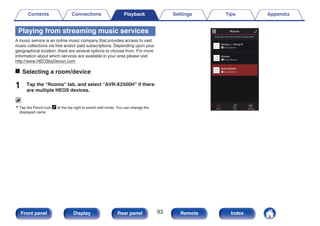
  • 103.
    Spotify Connect function Spotifyis the world’s most popular streaming service. If you subscribe to Spotify Premium, you can control your new speaker with your phone or tablet. Because Spotify is built-in to your speaker, you can still take calls or use other apps - the music never stops. For information on how to set up and use Spotify Connect please visit www.spotify.com/connect . Spotify server Control This unit Spotify App Audio streaming / control Playing Spotify music with this unit Download the “Spotify App” onto your Android or iOS device beforehand. To play a Spotify track in this unit, you need to register in the Spotify premium account first. 1 Connect the Wi-Fi settings of the iOS or Android device in the same network as this unit. 2 Launch the Spotify App. 3 Play back the Spotify track. 4 Tap the Spotify icon F to select the unit. The music will stream to this unit. Contents Connections Playback Settings Tips Appendix 103 Front panel Display Rear panel Remote Index
  • 104.
    Convenience functions . MAIN uio p ENTER OPTION (HEOSMusic) This section explains how to use convenient functions that can be used for each input source. These functions can only be set in the MAIN ZONE. Contents Connections Playback Settings Tips Appendix 104 Front panel Display Rear panel Remote Index
  • 105.
    Adding to HEOSFavorites 1 While content is playing, press OPTION. The option menu screen is displayed. 2 Use ui to select “Add to HEOS Favorites”, then press ENTER. Playing back HEOS Favorites 1 Press R (HEOS Music). 2 Use ui to select “HEOS Favorites”, then press ENTER. . MUSIC USB Music Music Servers HEOS Favorites TuneIn Internet Radio 3 Browse the content and select something to play. Contents Connections Playback Settings Tips Appendix 105 Front panel Display Rear panel Remote Index
  • 106.
    Deleting a HEOSFavorites 1 While the HEOS Favorites content list is displayed, use ui to select the item you want to remove from HEOS Favorites, then press OPTION. 2 Use ui to select “Remove from HEOS Favorites”, then press ENTER. Contents Connections Playback Settings Tips Appendix 106 Front panel Display Rear panel Remote Index
  • 107.
    Adjusting the volumeof each channel to match the input source (Channel Level Adjust) The volume of each channel can be changed while listening to music. You can set this for each input source. 1 Press OPTION. An option menu screen is displayed. 0 When the input source is “HEOS Music”, an option menu for online music is displayed. Select “AVR Options…”, then press ENTER. 2 Use ui to select “Channel Level Adjust”, then press ENTER. The “Channel Level Adjust” screen is displayed. 3 Use ui to select the channel that you wish to adjust. 4 Use o p to adjust the volume. –12.0 dB – +12.0 dB (Default: 0.0 dB) 5 Use uio p to select “Exit”, then press ENTER. 0 Select “Reset” and press ENTER if you want to restore the adjustment values of the various channels to “0.0 dB” (Default). 0 Headphone volume can be adjusted when a headphone is connected. 0 “Channel Level Adjust” settings are stored for each input source. 0 You can only set this for speakers that output audio. In addition, you cannot set this when in the menu “HDMI Audio Out” is set to “TV”. (v p. 160) Contents Connections Playback Settings Tips Appendix 107 Front panel Display Rear panel Remote Index
  • 108.
    Adjusting the tone(Tone) Adjusts the tonal quality of the sound. 1 Press OPTION. An option menu screen is displayed. 0 When the input source is “HEOS Music”, an option menu for online music is displayed. Select “AVR Options…”, then press ENTER. 2 Use ui to select “Tone”, then press ENTER. The “Tone” screen is displayed. 3 Use o p to set the tone control function to on/off. On: Allow tone adjustment (bass, treble). Off (Default): Playback without tone adjustment. 4 Select “On” in step 3 and press i to select the sound range to be adjusted. Bass: Adjust bass. Treble: Adjust treble. 5 Use o p to adjust the tone, then press ENTER. -6 dB – +6 dB (Default : 0 dB) 0 “Tone” settings are stored for each input source. 0 This cannot be set when the sound mode is set to “Direct” or “Pure Direct”. 0 This item cannot be set when “Dynamic EQ” is set to “On”. (v p. 155) 0 You cannot set this when no audio signal is input or in the menu “HDMI Audio Out” is set to “TV”. (v p. 160) Contents Connections Playback Settings Tips Appendix 108 Front panel Display Rear panel Remote Index
  • 109.
    Displaying your desiredvideo during audio playback (Video Select) This unit can display video from a different source on TV during audio playback. You can set this for each input source. n Supported input sources: CDz / Tuner / HEOS Music / Phono zThis cannot be set when any of the HDMI, component video or video connectors are assigned. 1 Press OPTION. An option menu screen is displayed. 0 When the input source is “HEOS Music”, an option menu for online music is displayed. Select “AVR Options…”, then press ENTER. 2 Use ui to select “Video Select”, then press ENTER. The “Video Select” screen is displayed. 3 Use o p to select the Video Select mode. Off (Default): Disable Video Select mode. On: Enable Video Select mode. 4 If you selected “On” in step 3, press i and select “Source”. 5 Use o p to select the input source for video you want to play back, then press ENTER. 0 “Video Select” settings are stored for each input source. Contents Connections Playback Settings Tips Appendix 109 Front panel Display Rear panel Remote Index
  • 110.
    Adjusting the picturequality for your viewing environment (Picture Mode) n Supported input sources : CBL/SAT / DVD / Blu-ray / Game / AUX1 / AUX2 / Media Player / CDz / TV Audioz zYou can set the picture mode when an HDMI is assigned. 1 Press OPTION. An option menu screen is displayed. 2 Use ui to select “Picture Mode”, then press ENTER. The “Picture Mode” screen is displayed. 3 Use o p to select the picture mode. Off (Default): No picture quality adjustment is done with this unit. Standard: The standard mode suited for most living room viewing environments. Movie: A mode suited for watching movies in a dark room such as a theater room. Vivid: A mode that makes graphic images for games, etc. brighter and more vivid. Streaming: A mode suited for low bit rate video sources. ISF Day: A mode suited for watching movies in a bright room during the day. ISF Night: A mode suited for watching movies in a dark room at night. Custom: Adjusts the picture quality manually. 4 Press ENTER. 0 “Picture Mode” settings are stored for each input source. Contents Connections Playback Settings Tips Appendix 110 Front panel Display Rear panel Remote Index
  • 111.
    Playing the samemusic in all zones (All Zone Stereo) You can play back the music being played back in MAIN ZONE simultaneously in ZONE2 (another room). It is useful when you want to enjoy the same music at the same time in multiple rooms during home party or when you want to play back the same BGM in the entire house. 1 Press OPTION. An option menu screen is displayed. 0 When the input source is “HEOS Music”, an option menu for online music is displayed. Select “AVR Options…”, then press ENTER. 2 Use ui to select “All Zone Stereo”, then press ENTER. The “All Zone Stereo” screen is displayed. 3 Select “Start”, then press ENTER. The input source for ZONE2 is switched to the same input source as for MAIN ZONE, and playback starts in the All Zone Stereo mode. o Stopping the All Zone Stereo mode 1 During playback in All Zone Stereo mode, press OPTION. An option menu screen is displayed. 0 When the input source is “HEOS Music”, an option menu for online music is displayed. Select “AVR Options…”, then press ENTER. 2 Use ui to select “All Zone Stereo”, then press ENTER. 3 Select “Stop”, then press ENTER. 0 The All Zone Stereo mode is canceled even when the power supply of the MAIN ZONE is turned off. 0 In the All Zone Stereo mode, only the “Multi Ch Stereo” and “Stereo” sound modes can be selected. 0 When “HDMI Audio Out” is set to “TV”, the All Zone Stereo mode is not available. (v p. 160) Contents Connections Playback Settings Tips Appendix 111 Front panel Display Rear panel Remote Index
  • 112.
    Selecting a soundmode . PURE MOVIE MUSIC GAME ui This unit allows you to enjoy various kinds of surround and stereo playback modes. Disc formats such as Blu-ray Disc and DVD, as well as being supported by digital broadcasting, and even by streaming movies and music from internet-based subscription services. This unit supports playback of almost all of these multi-channel audio formats. It also supports surround playback of audio formats other than multi-channel audio such as 2-channel stereo audio. 0 For audio formats recorded on a disc, see the disc jacket or label. Contents Connections Playback Settings Tips Appendix 112 Front panel Display Rear panel Remote Index
  • 113.
    Selecting a soundmode 1 Press MOVIE, MUSIC or GAME to select a sound mode. MOVIE : Switches to the sound mode suitable for enjoying movies and TV programs. MUSIC : Switches to the sound mode suitable for enjoying music. GAME : Switches to the sound mode suitable for enjoying games. 0 The MOVIE, MUSIC, or GAME button memorizes the last sound mode selected for its button. Pressing MOVIE, MUSIC, or GAME recalls the same sound mode as the one selected at the previous playback. 0 If the content played back does not support the previously selected sound mode, the most appropriate sound mode for the content is automatically selected. o Switching the sound mode 0 Press MOVIE, MUSIC or GAME to display a list of the sound modes that can be selected. Each time you press MOVIE, MUSIC or GAME, the sound mode changes. 0 While the list is displayed, you can also use ui to select a sound mode. 0 Try out various sound modes and enjoy sound mode in your favorite mode. 0 Please set the surround mode to Dolby Atmos/Surround when playing back Dolby Atmos encoded content. Dolby Atmos/Surround delivers the optimum playback experience from Blu-ray and streaming sources encoded with Dolby Atmos as well as channel based content. The default setting of this receiver is Dolby Atmos/ Surround. Contents Connections Playback Settings Tips Appendix 113 Front panel Display Rear panel Remote Index
  • 114.
    GExampleH When MOVIEis pressed . MOVIE SOUND Stereo Dolby Audio - Dolby Surround DTS Neural:X Multi Ch Stereo Mono Movie Virtual This unit provides not only sound modes that conform to the formats recorded on discs such as Dolby and DTS, but also extended types of modes that match your speaker configuration and “original sound modes” that create atmosphere of Rock Arena and Jazz Club, etc. Direct playback Sound recorded in source is played as is. 1 Press PURE to select “Direct”. Direct playback begins. Contents Connections Playback Settings Tips Appendix 114 Front panel Display Rear panel Remote Index
  • 115.
    Pure Direct playback Thismode is for playback with higher sound quality than in Direct playback mode. This mode turns off the main unit display and analog video circuit. Doing so suppresses noise sources that affect sound quality. 1 Press PURE to select “Pure Direct”. The display goes dark, and Pure Direct playback begins. 0 In Direct and Pure Direct sound modes, the following items cannot be adjusted. 0 Tone (v p. 108) 0 Restorer (v p. 151) 0 MultEQ® XT (v p. 154) 0 Dynamic EQ (v p. 155) 0 Dynamic Volume (v p. 156) 0 Graphic EQ (v p. 156) NOTE 0 Video signals are only output when HDMI signals are played in the Pure Direct mode. 0 When the Pure Direct mode has been selected, the display turns off after about 5 seconds. Auto surround playback This mode detects the type of input digital signal, and automatically selects the corresponding mode for playback. Perform stereo playback when the input signal is PCM. When the input signal is Dolby Digital or DTS, the music is played back according to the respective channel number. 1 Press PURE to select “Auto”. Auto surround playback begins. Contents Connections Playback Settings Tips Appendix 115 Front panel Display Rear panel Remote Index
  • 116.
    Description of soundmode types Dolby sound mode Sound mode type Description Dolby Atmosz Please select this mode to play back the contents encoded with Dolby Atmos. If you have selected a different sound mode previously, please select again this mode for Dolby Atmos content play back. It decodes Dolby Atmos content and its positioning data in real time and outputs audio from the appropriate speakers, creating natural audio images regardless of the speaker layout. Use ceiling speakers and Dolby Atmos Enabled speakers to realize a three-dimensional sound field. Dolby TrueHD Please select this mode to play back the contents encoded with Dolby TrueHD at 192kHz/96kHz. Dolby Digital Plus Please select this mode to play back the contents encoded with Dolby Digital Plus. Dolby Digital Please select this mode to play back the contents encoded with Dolby Digital. zThis mode is not supported in a 5.1-channel or less speaker configuration. Contents Connections Playback Settings Tips Appendix 116 Front panel Display Rear panel Remote Index
  • 117.
    DTS sound mode Soundmode type Description DTS Surround This mode can be selected when playing sources recorded in DTS. DTS ES Dscrt6.1z1 This mode is suitable for playing discs recorded in DTS-ES. The surround back channel added using the discrete method is played as an independent channel. Since all channels are independent, the 360-degree spacial expressiveness and sound localization are enhanced. DTS ES Mtrx6.1z1 This mode is suitable for playing discs recorded in DTS-ES. The surround back channel added to the surround-left and surround-right channels by a matrix encoder at software recording time is decoded by this unit’s matrix decoder and played from each channel (surround left, surround right, surround back). DTS 96/24 This mode can be selected when playing sources recorded in DTS 96/24. DTS-HD This mode can be selected when playing sources recorded in DTS-HD. DTS Express This mode can be selected when playing sources recorded in DTS Express. DTS:X This mode can be selected when playing back content encoded with DTS:X. It decodes DTS:X content and its positioning data in real time and outputs audio from the appropriate speakers, creating natural audio images regardless of the speaker layout. Use height speakers to realize a three-dimensional sound field. DTS Neural:X This mode uses DTS Neural:X Upmixer to extend various sources to natural and realistic multi channels for playback. Use height speakers such as front height speakers to realize a three-dimensional sound field. DTS Virtual:Xz2z3 This mode uses DTS Virtual:X with virtual height and virtual surround processing to realize a three-dimensional sound field when the height speakers are not used. z1 This can be selected when “Speaker Config.” - “Surr. Back” is not set to “None”. (v p. 188) z2 This can be selected when Height, Ceiling and Dolby Atmos Enabled speakers are not being used. z3 It cannot be selected when the input signal is Dolby Digital, Dolby Digital Plus, Dolby TrueHD or Dolby Atmos. Contents Connections Playback Settings Tips Appendix 117 Front panel Display Rear panel Remote Index
  • 118.
    PCM multi-channel soundmode Sound mode type Description Multi Ch In This mode can be selected when playing multi-channel PCM sources. Original sound mode Sound mode type Description Multi Ch Stereo This mode is for enjoying stereo sound from all speakers. Rock Arena This mode simulates the expansive sound of a live concert in an arena. Jazz Club This mode simulates the experience of being in an intimate jazz club. Mono Movie This mode works with monaural audio sources and delivers a surround sound effect. For optimum channel balance and surround sound effects, connect the monaural source to both of the front (L/R) audio inputs. Video Game This mode provides an exciting, dynamic surround sound effect with your favorite action video games. Matrix This mode adds a spacious surround sound effect with stereo music sources. Virtual This mode lets you experience an expansive surround sound effect when playing back through just the front (L/R) speakers only, and when listening with stereo headphones. Auto sound mode Sound mode type Description Auto In this mode, the type of digital signal input, such as Dolby Digital, Dolby TrueHD, Dolby Digital Plus, Dolby Digital EX, Dolby Atmos, DTS, DTS-HD, DTS:X, DTS-ES, PCM (multi-channel) is detected, and the playback mode switches automatically to the corresponding mode. If the input signal is analog or PCM (2-channel), stereo playback is used. For Dolby Digital or DTS, the music is played back according to the respective channel number. Contents Connections Playback Settings Tips Appendix 118 Front panel Display Rear panel Remote Index
  • 119.
    Stereo sound mode Soundmode type Description Stereo This mode plays 2-channel stereo audio with no additional surround sound processing. 0 Sound is output from the front left and right speakers, and subwoofer if connected. 0 When multi-channel signals are inputted, they are mixed down to 2-channel audio and are played back with no additional surround sound processing. Direct sound mode Sound mode type Description Direct This mode plays back audio as recorded in the source. Pure Direct This mode plays back an even higher quality sound than the “Direct” mode. The following circuits are stopped in order to further improve sound quality. 0 Display indicator circuit of the main body (display will go off.) 0 The analog video input/output switcher and processor is disabled. Contents Connections Playback Settings Tips Appendix 119 Front panel Display Rear panel Remote Index
  • 120.
    Sound mode thatcan be selected for each input signal 0 The following sound modes can be selected using the MOVIE, MUSIC and GAME buttons. 0 Adjust the sound field effect with the menu “Surround Parameter” to enjoy surround sound the way you like it. (v p. 147) . Stereo S S S Dolby Surround z2 S S S DTS Neural:Xz2 S S S DTS Virtual:Xz3z4 S S S Multi Ch Stereo S S S Mono Movie S Rock Arena S Jazz Club S Matrix S Video Game S Virtual S S S GAME button MUSIC button MOVIE button Sound mode Input signal 2-channel z1 z1 2-channel also includes analog input. z2 This mode plays back 2-channel sources in 5.1 or 7.1-channel playback. It cannot be selected when headphones are used or when the speaker configuration is front speakers only. z3 It cannot be selected when headphones are used, or when a speaker configuration with any height speakers is used. z4 It cannot be selected when the input signal is Dolby Digital, Dolby Digital Plus, Dolby TrueHD or Dolby Atmos. Contents Connections Playback Settings Tips Appendix 120 Front panel Display Rear panel Remote Index
  • 121.
    . Stereo S SS Dolby Digital Dolby Digital S S S Dolby Digital + Dolby Surround z6 S S S Dolby Digital + Neural:X z6 S S S Dolby Digital Plus Dolby Digital Plus S S S Dolby Digital Plus + Dolby Surround z6z7 S S S Dolby Digital Plus + Neural:X z6 S S S Dolby Atmos z6z8 S S S Dolby TrueHD Dolby TrueHD S S S Dolby TrueHD + Dolby Surround z6z7 S S S Dolby TrueHD + Neural:X z6 S S S Dolby Atmos z6z8 S S S Dolby Atmos Dolby Atmos S S S DTS DTS Surround S S S DTS ES Dscrt 6.1 z6 S S S DTS ES Mtrx 6.1 z6 S S S DTS 96/24 S S S DTS + Dolby Surround z6 S S S DTS + Neural:X z6 S S S DTS + Virtual:X z3 S S S Multi-channel z5 GAME button MUSIC button MOVIE button Sound mode Input signal z3 It cannot be selected when headphones are used, or when a speaker configuration with any height speakers is used. z5 The sound mode that can be selected differs depending on the audio format of the input signal and the number of channels. For details, see “Types of input signals, and corresponding sound modes” (v p. 255). z6 This cannot be selected when headphones are used. z7 This can be selected when the input signal does not contain Dolby Atmos. z8 This can be selected when the input signal contains Dolby Atmos. Contents Connections Playback Settings Tips Appendix 121 Front panel Display Rear panel Remote Index
  • 122.
    . DTS-HD / DTS Express DTS-HDHI RES S S S DTS-HD MSTR S S S DTS Express S S S DTS-HD + Dolby Surround z6 S S S DTS-HD + Neural:X z6 S S S DTS-HD + Virtual:X z3 S S S DTS:X DTS:X S S S DTS:X MSTR S S S DTS:X + Virtual:X z3 S S S Multi Ch In S S S Multi Ch In 7.1 z6 S S S Multi In + Dolby Surround z6 S S S Multi Ch In + Neural:X z6 S S S Multi In + Virtual:X z3 S S S Multi Ch Stereo S S S Mono Movie S Rock Arena S Jazz Club S Matrix S Video Game S Virtual S S S Multi-channel z5 PCM multi-channel GAME button MUSIC button MOVIE button Sound mode Input signal z3 It cannot be selected when headphones are used, or when a speaker configuration with any height speakers is used. z5 The sound mode that can be selected differs depending on the audio format of the input signal and the number of channels. For details, see “Types of input signals, and corresponding sound modes” (v p. 255). z6 This cannot be selected when headphones are used. Contents Connections Playback Settings Tips Appendix 122 Front panel Display Rear panel Remote Index
  • 123.
    o Views onthe display . DD+ + DSu DVD q w A Shows a decoder to be used. 0 In the case of the Dolby Digital Plus decoder, “W” is displayed. B Shows a decoder that creates sound output. 0 “V” indicates that the Dolby Surround decoder is being used. Contents Connections Playback Settings Tips Appendix 123 Front panel Display Rear panel Remote Index
  • 124.
    HDMI Control function Arecent addition to the HDMI standard is CEC (Consumer Electronics Control), which allows control signals from one device to communicate with another device via the HDMI cable connection. Setting procedure 1 Enable the HDMI Control function of this unit. Set “HDMI Control” to “On”. (v p. 162) 2 Turn the power on for all the devices connected by HDMI cable. 3 Set the HDMI Control function for all devices connected by HDMI cable. 0 Please consult the operating instructions for the connected devices to check the settings. 0 Carry out steps 2 and 3 should any of the devices be unplugged. 4 Switch the television input to the HDMI input connected to this unit. 5 Switch the input source of this unit to check that video from the player connected by HDMI is played back correctly. 6 When you turn the TV’s power to standby, check that the power of this unit also goes to standby. NOTE 0 Some functions may not operate depending on the connected TV or player. Check the owner’s manual of each device for details beforehand. Contents Connections Playback Settings Tips Appendix 124 Front panel Display Rear panel Remote Index
  • 125.
    Smart Menu function Thisfunction can be used to configure the settings of this unit, select an input source and set Tuner and Internet Radio stations using the TV remote control. 1 Enable the HDMI Control function of this unit and the TV. (v p. 162) 2 Set “Smart Menu” to “On” on this unit. (v p. 164) 3 Select “AV Receiver” in a TV menu such as “Input”z or “Operate Connected HDMI Device”z. The Smart Menu of this unit is displayed on the TV. 0 This unit can be operated with the TV remote control while the Smart Menu is displayed. zThe selection method differs depending on your TV. . Smart Menu Quick Select 4 Help Quick Select 3 Quick Select 2 Quick Select 1 Smart Menu Setup Menu Sound Mode Source Now Playing Blu-ray o Now Playing Enjoy content from the input source currently selected on this unit. o Source Switch the input of this unit. If you select “HEOS Music” or “Tuner”, you can continue to operate this unit using the TV remote control. o Sound Mode Change the sound mode of this unit. You can select from the following three sound modes. Surround: Surround sound playback according to the input signal. Stereo: Stereo playback. Multi Ch Stereo: Multi-channel stereo playback. Contents Connections Playback Settings Tips Appendix 125 Front panel Display Rear panel Remote Index
  • 126.
    o Setup Menu Displaysa setup menu for configuring the settings of this unit. o Quick Select Calls up the QUICK SELECT items registered to this unit. NOTE 0 If the “HDMI Control” or “Smart Menu” settings have been changed, always reset the power to connected devices after the change. 0 The Smart Menu function may not work properly depending on the specifications of your TV. In this case, set “Smart Menu” to “Off”. (v p. 164) Contents Connections Playback Settings Tips Appendix 126 Front panel Display Rear panel Remote Index
  • 127.
    Sleep timer function . ZONE2SLEEP MAIN You can have the power automatically switched to standby once a set time has elapsed. This is convenient for viewing and listening while going to sleep. The sleep timer function can be set for each zone. Contents Connections Playback Settings Tips Appendix 127 Front panel Display Rear panel Remote Index
  • 128.
    Using the sleeptimer 1 Press MAIN or ZONE2 to select the operating zone with the remote control. The button for the selected zone is lit. 2 Press SLEEP and display the time you want to set. 0 The SLEEP indicator lights up on the display and the sleep timer starts. 0 You can set the sleep timer in the range from 10 to 120 minutes in steps of 10 minutes. o Checking the remaining time Press SLEEP when the sleep timer is in operation. The remaining time appears on the display. o To cancel the sleep timer Press SLEEP to select “Off”. The SLEEP indicator on the display turns off. 0 The sleep timer setting is canceled when the unit switches to standby mode. NOTE 0 The sleep timer function cannot turn off the power of devices connected to this unit. To turn off the power of those connected devices, set up sleep timers on the connected devices themselves. Contents Connections Playback Settings Tips Appendix 128 Front panel Display Rear panel Remote Index
  • 129.
    Quick select plusfunction . QUICK SELECT 1 – 4 ZONE2 MAIN Settings such as the input source, volume level and sound mode can be registered to the QUICK SELECT 1 - 4 buttons. You can simply press one of the registered QUICK SELECT buttons in subsequent playbacks to switch to the group of saved settings in a batch. By saving frequently used settings at the QUICK SELECT 1 – 4 buttons, you will always be able to easily call up the same playback environment. The Quick Select Plus function can be memorized for each zone. 0 The QUICK SELECT button on main unit can only be used to operate the MAIN ZONE. Contents Connections Playback Settings Tips Appendix 129 Front panel Display Rear panel Remote Index
  • 130.
    Calling up thesettings 1 Press MAIN or ZONE2 to select the operating zone with the remote control. The button for the selected zone is lit. 2 Press QUICK SELECT. The Quick Select settings registered to the button you pressed are called up. 0 The default settings for the input source are as shown below. GMAIN ZONEH Button Input source QUICK SELECT 1 CBL/SAT QUICK SELECT 2 Blu-ray QUICK SELECT 3 Media Player QUICK SELECT 4 HEOS Music GZONE2H Button Input source QUICK SELECT 1 CBL/SAT QUICK SELECT 2 Blu-ray QUICK SELECT 3 – QUICK SELECT 4 HEOS Music 0 Volume is not registered to Quick Select Plus in the factory default settings. See “Changing the settings” to register volume to Quick Select Plus. (v p. 131) Contents Connections Playback Settings Tips Appendix 130 Front panel Display Rear panel Remote Index
  • 131.
    Changing the settings 1Set the items below to the settings you want to register. The following settings from A to I can be memorized for MAIN ZONE, and settings A and B can be memorized for ZONE2. A Input source (v p. 67) B Volume (v p. 68) C Sound mode (v p. 112) D Audyssey (Audyssey MultEQ® XT, Audyssey Dynamic EQ®, Audyssey Dynamic Volume®) (v p. 154) E “Restorer” (v p. 151) F “Adjusting the volume of each channel to match the input source (Channel Level Adjust)” (v p. 107) G “Displaying your desired video during audio playback (Video Select)” (v p. 109) H “Adjusting the picture quality for your viewing environment (Picture Mode)” (v p. 110) I “HDMI Video Output” (v p. 165) 0 Press and hold QUICK SELECT while a radio station is being received is being played back with any of the following sources, the current radio station is memorized. 0 Tuner / Internet Radio Station 2 Press MAIN or ZONE2 to select the operating zone with the remote control. The button for the selected zone is lit. 3 Press and hold the desired QUICK SELECT until “Quickz Memory” or “Z2 Quickz Memory” appear on the display. The current settings will be memorized. z is displayed the number for the QUICK SELECT button you pressed. o Changing the Quick Select Name The MAIN ZONE Quick Select name displayed on the TV screen or display of this unit can be changed to a different name. For the name change method, see “Quick Select Names”. (v p. 209) Contents Connections Playback Settings Tips Appendix 131 Front panel Display Rear panel Remote Index
  • 132.
    Panel lock function Toprevent accidental operation of this unit, you can disable operation of the buttons on the front panel. . X TUNER PRESET CH + ZONE2 SOURCE TUNER PRESET CH – STATUS Disabling all key button operations 1 Press X while you press and hold TUNER PRESET CH + and ZONE2 SOURCE with the unit in standby mode. 2 Use TUNER PRESET CH + or TUNER PRESET CH – to select “FP/VOL LOCK On”. 3 Press STATUS to enter the setting. All button operations except X are disabled. Disabling all button operations except VOLUME 1 Press X while you press and hold TUNER PRESET CH + and ZONE2 SOURCE with the unit in standby mode. 2 Use TUNER PRESET CH + or TUNER PRESET CH – to select “FP LOCK On”. 3 Press STATUS to enter the setting. All button operations except X and VOLUME are disabled. Contents Connections Playback Settings Tips Appendix 132 Front panel Display Rear panel Remote Index
  • 133.
    Canceling the Panellock function 1 Press X while you press and hold TUNER PRESET CH + and ZONE2 SOURCE with the unit in standby mode. 2 Press TUNER PRESET CH + or TUNER PRESET CH – to select “FP LOCK zOff”. (z The currently set mode.) 3 Press STATUS to enter the setting. The Panel lock function is canceled. 0 Even when the Panel lock function is set, you can operate the unit using the remote control unit. Contents Connections Playback Settings Tips Appendix 133 Front panel Display Rear panel Remote Index
  • 134.
    Remote lock function Whenconnecting an IR receiver, enable the Remote lock function. When the function is enabled, you can not perform operations with the remote control unit. By default, this function is disabled. . X TUNER PRESET CH + ZONE2 SOURCE TUNER PRESET CH – STATUS Disabling the sensor function of the remote control unit 1 Press X while you press and hold TUNER PRESET CH + and ZONE2 SOURCE with the unit in standby mode. 2 Use TUNER PRESET CH + or TUNER PRESET CH – to select “RC LOCK On”. 3 Press STATUS to enter the setting. The infrared light receiving function is disabled. Enabling the remote sensor function 1 Press X while you press and hold TUNER PRESET CH + and ZONE2 SOURCE with the unit in standby mode. 2 Press TUNER PRESET CH + or TUNER PRESET CH – to select “RC LOCK zOff”. (z The currently set mode.) 3 Press STATUS to enter the setting. Infrared light receiving function on the main unit is enabled. Contents Connections Playback Settings Tips Appendix 134 Front panel Display Rear panel Remote Index
  • 135.
    Web control function Youcan control this unit from a web control screen on a web browser. . Tablet This unit Router PC 0 This unit and the PC or tablet need to be connected correctly to the network in order to use the web control function. (v p. 62) 0 Depending on the settings of your security-related software, you may not be able to access this unit from your PC. If this is the case, then change the settings of the security-related software. Controlling the unit from a web control 1 Switch the “Network Control” setting to “Always On”. (v p. 201) 2 Check the IP address of this unit with “Information”. (v p. 196) . Network/Information Friendly Name DHCP IP Address MAC Address Displays the current network settings of the AVR Denon AVR-X2500H On 192.168.100.19 Connection Wired (Ethernet) zzzzzz-000000 Checking the IP address. 3 Start up the web browser. Contents Connections Playback Settings Tips Appendix 135 Front panel Display Rear panel Remote Index
  • 136.
    4 Enter theIP address of this unit in browser’s address box. For example, if the IP address of this unit is “192.168.100.19”, enter “http://192.168.100.19”. . http://192.168.100.19 File Edit View Tools Help Favorites 5 When the top menu is displayed on the web browser, click on the menu item you want to operate. Contents Connections Playback Settings Tips Appendix 136 Front panel Display Rear panel Remote Index
  • 137.
    Playback in ZONE2(Another room) You can operate this unit to enjoy audio in a room (ZONE2) that is different from the room where this unit is placed (MAIN ZONE). You can simultaneously play back the same source in both the MAIN ZONE and ZONE2. You can also play back separate sources in the MAIN ZONE and ZONE2. 0 It is not possible to play the digital audio signals input from the HDMI, COAXIAL or OPTICAL connectors in ZONE2. Use analog connections for ZONE2 playback. Connecting ZONE2 You can use the following two methods to play back audio in ZONE2. 0 “Connecting using a speaker output terminal” (v p. 137) 0 “Connecting using an external amplifier” (v p. 138) o Connection 1: Connecting using a speaker output terminal When “Assign Mode” is set to “ZONE2” in the menu, ZONE2 audio is output from the SURROUND BACK speaker terminal. (v p. 185) . (L) MAIN ZONE ZONE2 This unit (R) Contents Connections Playback Settings Tips Appendix 137 Front panel Display Rear panel Remote Index
  • 138.
    o Connection 2: Connection using an external amplifier (ZONE2) The audio signals of this unit’s ZONE2 audio output connectors are output to the ZONE2 amplifiers and played on these amplifiers. . R L AUX IN ZONE2 This unit MAIN ZONE Power amplifier Contents Connections Playback Settings Tips Appendix 138 Front panel Display Rear panel Remote Index
  • 139.
    Playback in ZONE2 . MUTE ZONE2POWER VOLUME df X : Input source select buttons 1 Press ZONE2 to set the operating zone to ZONE2 with the remote control. The ZONE2 button lights. 2 Press POWER X to turn on the ZONE2 power. The ( indicator on the display lights. 0 Power in ZONE2 can be turned on or off by pressing ZONE2 ON/OFF on the main unit. 3 Press the input source select button to select the input source to be played. The audio signal of the selected source is output to ZONE2. 0 To perform an operation with the main unit, press ZONE2 SOURCE. Each time you press ZONE2 SOURCE, the input source changes. Contents Connections Playback Settings Tips Appendix 139 Front panel Display Rear panel Remote Index
  • 140.
    o Adjusting thevolume (ZONE2) Use VOLUME df to adjust the volume. 0 At time of purchase, “Volume Limit” is set to “70 (–10 dB)”. (v p. 208) 0 Turn MASTER VOLUME after pressing ZONE2 SOURCE on the main unit to adjust the volume. o Turning off the sound temporarily (Muting) (ZONE2) Press MUTE :. The sound is reduced to the level set at “Mute Level” in the menu. (v p. 209) 0 To cancel mute, either adjust the sound volume or press MUTE : again. Contents Connections Playback Settings Tips Appendix 140 Front panel Display Rear panel Remote Index
  • 141.
    Menu map When usingmenu operations, connect this unit to a TV and operate this unit while viewing the TV. The recommended settings are configured for this unit by default. You can customize this unit based on your existing system and your preferences. Setting items Detailed items Description Page . Audio Center Level Adjust Adjusts the center channel volume to clarify the dialog for all sources. 146 Subwoofer Level Adjust Adjusts the subwoofer channel volume for all input sources. 146 Surround Parameter Adjusts surround sound parameters. 147 Restorer Expands the low and high frequency components of compressed audio content such as MP3 files to enable richer audio playback. 151 Audio Delay Compensates for incorrect timing between video and audio. 152 Volume Sets the MAIN ZONE (room where the unit is located) volume setting. 153 Audyssey Makes Audyssey MultEQ® XT, Audyssey Dynamic EQ® and Audyssey Dynamic Volume® settings. 154 Graphic EQ Uses the graphic equalizer to adjust the tone of each speaker. 156 . Video Picture Adjust Adjusts picture quality. 158 HDMI Setup Makes settings for HDMI Audio Out, HDMI Pass Through and HDMI Control settings. 160 Output Settings Makes settings for video output. 165 On Screen Display Configures the on-screen display settings. 168 4K Signal Format Set the 4K signal format when the TV or playback device is 4K compatible. 169 TV Format Sets the video signal format to be output for the TV you are using. 170 Contents Connections Playback Settings Tips Appendix 141 Front panel Display Rear panel Remote Index
  • 142.
    Setting items Detaileditems Description Page . Inputs Input Assign Changes input connector assignment. 171 Source Rename Changes the display name for input source. 173 Hide Sources Removes from the display input sources that are not used. 173 Source Level Adjusts the playback level of the audio input. 173 Input Select Sets the audio input mode. 174 . Speakers Audyssey® Setup The acoustic characteristics of the connected speakers and listening room are measured and the optimum settings are made automatically. 175 Manual Setup Sets up the speakers manually or changes Audyssey® Setup settings. 185 . Network Information Displays network information. 196 Connection Selects whether to connect the home network to a wireless LAN or a wired LAN. 196 Settings Used for manually setting the IP address. 199 Network Control Enables network communication in standby power mode. 201 Friendly Name The “Friendly Name” is the name of this unit displayed on the network. You can change the Friendly Name according to your preferences. 201 Diagnostics Used to check the network connection. 202 Contents Connections Playback Settings Tips Appendix 142 Front panel Display Rear panel Remote Index
  • 143.
    Setting items Detaileditems Description Page . HEOS Account 【When the user is signed out the HEOS Account】 I have a HEOS Account Selects to sign in. 203 Create Account Creates new HEOS Account. 203 Forgot Password If you forgot your password, we'll send you an email with instructions about how to reset it. 203 【When the user is signed in the HEOS Account】 Signed in As Displays your HEOS Account. 203 Change Location Selects your location. 203 Change Password Changes your HEOS Account Password. 203 Delete Account Deletes your HEOS Account. 203 Sign Out Sign out of your HEOS Account. 203 Contents Connections Playback Settings Tips Appendix 143 Front panel Display Rear panel Remote Index
  • 144.
    Setting items Detaileditems Description Page . General Language Changes the language of the display on the TV screen. 204 ECO Configures the ECO Mode and Auto Standby energy-saving functions. 204 ZONE2 Setup Makes settings for audio playback with ZONE2. 208 Zone Rename Changes the display title of each zone to one you prefer. 209 Quick Select Names Changes the Quick Select Name display title to one you prefer. 209 Front Display Makes settings related to the display on this unit. 210 Firmware Checks for the latest firmware information about updates and upgrades, updates the firmware, and sets up the notification message display. 211 Information Shows information about this unit settings, input signals, etc. 214 Usage Data Selects whether or not to send anonymous usage data to Denon. 215 Save & Load Save and restore device settings by using a USB memory device. 216 Setup Lock Protects settings from inadvertent changes. 216 Reset Various settings are reset to the factory default values. 217 . Setup Assistant Begin Setup... Performs basic installation/connections/settings from the beginning according to the guidance indicated on the TV screen. Page 9 of the separate manual “Quick Start Guide” Language Select Sets individual setting items according to the guidance displayed on the TV screen. Speaker Setup Speaker Calibration Network Setup TV Audio Connection Input Setup Mobile Apps Contents Connections Playback Settings Tips Appendix 144 Front panel Display Rear panel Remote Index
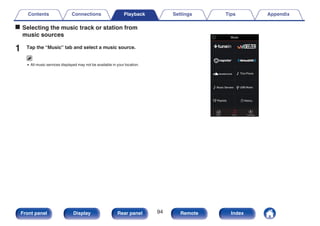
  • 145.
    . uio p ENTER SETUP BACK MAIN Menu operations 1Press MAIN on the remote control unit to set the operating zone to the MAIN ZONE. The MAIN button lights. 2 Press SETUP. The menu is displayed on the TV screen. 3 Use ui p to select the menu to be set or operated, then press ENTER. 4 Use o p to change to desired setting. 5 Press ENTER to enter the setting. 0 To return to the previous item, press BACK. 0 Exiting the menu, press SETUP while the menu is displayed. The menu display disappears. Contents Connections Playback Settings Tips Appendix 145 Front panel Display Rear panel Remote Index
  • 146.
    Audio Make audio-related settings. CenterLevel Adjust Adjusts the center channel volume to clarify the dialog for all sources. o Center Adjusts the volume output from the center channel. –12.0 dB – +12.0 dB (Default: 0.0 dB) 0 This setting is also reflected in the center channel level in the “Speakers” - “Levels” menu settings. (v p. 192) Subwoofer Level Adjust Adjusts the subwoofer channel volume for all input sources. o Subwoofer Adjusts the volume level for the subwoofer. –12.0 dB – +12.0 dB (Default: 0.0 dB) 0 This setting is also reflected in the subwoofer channel level in the “Speakers” - “Levels” menu settings. (v p. 192) Contents Connections Playback Settings Tips Appendix 146 Front panel Display Rear panel Remote Index
  • 147.
    Surround Parameter You canadjust the surround audio sound field effects to match your preferences. The items (parameters) that can be adjusted depend on the signal being input and the currently set sound mode. For details on the adjustable parameters, see “Sound modes and surround parameters” (v p. 252). 0 Some setting items cannot be set while playback is stopped. Make the settings during playback. 0 “Surround Parameter” settings are stored for each sound mode. o Cinema EQ Gently softens the upper treble range of movie soundtracks to reduce possible harshness and improve clarity. On: “Cinema EQ” is used. Off (Default): “Cinema EQ” is not used. o Loudness Management This sets whether to output as specified in “Dynamic Compression” or output directly without compressing the dynamic range of audio recorded in the disc. On (Default): Outputs are given based on enabling the settings made in “Dynamic Compression” and Dialogue normalization function. Off: “Dynamic Compression” settings and Dialogue normalization are disabled, and the signals on the disc are output as is. 0 “Loudness Management” can be set when Dolby Digital, Dolby Digital Plus, Dolby TrueHD and Dolby Atmos signal is input. Contents Connections Playback Settings Tips Appendix 147 Front panel Display Rear panel Remote Index
  • 148.
    o Dynamic Compression Compressdynamic range (difference between loud and soft sounds). Auto: Automatic dynamic range compression on/off control according to source. Low / Medium / High: These set the compression level. Off: Dynamic range compression is always off. 0 “Dynamic Compression” can be set when Dolby Digital, Dolby Digital Plus, Dolby TrueHD, Dolby Atmos or DTS signal is input. 0 The default setting is “Off”. When the input signal is the Dolby TrueHD or Dolby Atmos source, the default setting is “Auto”. 0 “Auto” cannot be set when inputting a DTS signal. o Dialog Control Adjust the volume of dialog in movies, vocals in music, etc. so these can be heard more easily. 0 – 6 (Default : 0) 0 This can be set when a DTS:X signal that is compatible with the Dialog Control function is input. o Low Frequency Effects Adjust the low frequency effects level (LFE). -10 dB – 0 dB (Default: 0 dB) 0 For proper playback of the different sources, we recommend setting to the values below. 0 Dolby Digital sources: 0 dB 0 DTS movie sources: 0 dB 0 DTS music sources: -10 dB Contents Connections Playback Settings Tips Appendix 148 Front panel Display Rear panel Remote Index
  • 149.
    o Center Spread CenterSpread expands the center channel signal to left and right front speakers to create a wider frontal audio image for the listener. It is optimized and designed primary for playback of stereo music content. On: Use “Center Spread”. Off (Default): Do not use “Center Spread”. 0 You can set this when sound mode is “Dolby Surround”. o DTS Neural:X DTS Neural:X Expands the non-object based audio signals and optimizes them for your speaker configuration. On (Default): Use “DTS Neural:X”. Off: Do not use “DTS Neural:X”. 0 You can set this when sound mode is “DTS:X” or “DTS:X MSTR”. o Delay Time Adjust the audio delay time against video to extend the sound field image. 0 ms – 300 ms (Default: 30 ms) 0 You can set this when the sound mode is “Matrix”. o Effect Level Adjust the sound effect level of the current sound mode. 1 – 15 (Default: 10) 0 Set to a lower level if the positioning and sense of phase of the surround signals seems unnatural. Contents Connections Playback Settings Tips Appendix 149 Front panel Display Rear panel Remote Index
  • 150.
    o Room Size Determinesize of acoustic environment. Small: Simulate acoustics of a small room. Medium small: Simulate acoustics of a medium-small room. Medium (Default): Simulate acoustics of a medium room. Medium large: Simulate acoustics of a medium-large room. Large: Simulate acoustics of a large room. 0 “Room Size” does not indicate the size of the room in which sources are played. o Subwoofer Turn subwoofer output on and off. On (Default): The subwoofer is used. Off: The subwoofer is not used. 0 You can set this when the sound mode is “Direct” or “Stereo” and in the menu “Subwoofer Mode” is set to “LFE+Main”. (v p. 194) o Set Defaults The “Surround Parameter” settings are returned to the default settings. Contents Connections Playback Settings Tips Appendix 150 Front panel Display Rear panel Remote Index
  • 151.
    Restorer Compressed audio formatssuch as MP3, WMA (Windows Media Audio) and MPEG-4 AAC reduce the amount of data by eliminating signal components that are hard for the human ear to hear. The “Restorer” function generates the signals eliminated upon compression, restoring the sound to conditions near those of the original sound before compression. It also restores the original bass characteristics for a rich and expanded tonal range. o Mode High: Optimized mode for compressed sources with very weak highs (64 kbps and under). Medium: Apply suitable bass and treble boost for all compressed sources (96 kbps and under). Low: Optimized mode for compressed sources with normal highs (96 kbps and over). Off: Do not use “Restorer”. 0 This item can be set with analog signals or PCM signal (Sample Rate = 44.1/48 kHz) is input. 0 This item default setting for “HEOS Music” is “Low”. All others are set to “Off”. 0 This cannot be set when the sound mode is set to “Direct” or “Pure Direct”. 0 “Restorer” settings are stored for each input source. Contents Connections Playback Settings Tips Appendix 151 Front panel Display Rear panel Remote Index
  • 152.
    Audio Delay Compensates forincorrect timing between video and audio. 0 Audio Delay for game mode can be set when “Video Mode” is set to “Auto” or “Game”. (v p. 166) 0 “Audio Delay” settings are stored for each input source. o Auto Lip Sync Automatically adjusts the audio processing time to compensate for delays in audio/video timing from TV compatible with Auto Lip Sync. On (Default): Correct automatically. Off: Do not correct automatically. 0 Automatic correction may not be performed depending on the specifications of your TV even when “Auto Lip Sync” is set to “On”. o Adjust The timing mismatch between the picture and sound needs to be corrected manually. 0 ms – 500 ms (Default : 0 ms) 0 You can also finely adjust the delay correction value set by “Auto Lip Sync”. 0 Adjust for game mode can be set when “Video Mode” is set to “Auto” or “Game”. (v p. 166) Contents Connections Playback Settings Tips Appendix 152 Front panel Display Rear panel Remote Index
  • 153.
    Volume Set the MAINZONE (room where the unit is located) volume setting. o Scale Set how volume is displayed. 0 - 98 (Default): Display in the range 0 (Min) to 98. -79.5 dB - 18.0 dB: Display ---dB (Min), in the range –79.5 dB to 18.0 dB. 0 “Scale” settings are reflected in all the zones. o Limit Make a setting for maximum volume. 60 (–20 dB) / 70 (–10 dB) / 80 (0 dB) Off (Default) 0 The dB value is displayed when the “Scale” setting is “-79.5 dB - 18.0 dB”. (v p. 153) o Power On Level Define the volume setting that is active when the power is turned on. Last (Default): Use the memorized setting from the last session. Mute: Always use the muting on condition when power is turned on. 1 – 98 (–79 dB – 18 dB) : The volume is adjusted to the set level. 0 The dB value is displayed when the “Scale” setting is “-79.5 dB - 18.0 dB”. (v p. 153) o Mute Level Set the amount of attenuation when muting is on. Full (Default): The sound is muted entirely. –40 dB : The sound is attenuated by 40 dB down. –20 dB : The sound is attenuated by 20 dB down. Contents Connections Playback Settings Tips Appendix 153 Front panel Display Rear panel Remote Index
  • 154.
    Audyssey® Set Audyssey MultEQ®XT, Audyssey Dynamic EQ® and Audyssey Dynamic Volume®. These can be selected after Audyssey® Setup has been performed. For additional information on Audyssey technology, please see “Explanation of terms” (v p. 258). 0 “MultEQ® XT”, “Dynamic EQ”, “Reference Level Offset” and “Dynamic Volume” settings are stored for each input source. 0 When the sound mode is in the “Direct” or “Pure Direct” mode, “MultEQ® XT”, “Dynamic EQ” and “Dynamic Volume” settings cannot be configured. 0 When the sound mode is in “DTS Virtual:X” or sound mode that have “+Virtual:X” in the sound mode name, “MultEQ® XT”, “Dynamic EQ” and “Dynamic Volume” settings cannot be configured. o MultEQ® XT MultEQ® XT compensates for both time and frequency characteristics of the listening area based on Audyssey® Setup measurement results. Selection is done from three types of compensation curves. We recommend the “Reference” setting. Reference (Default): Selects the default calibrated setting with a slight roll off at high frequencies, which is optimized for movies. L/R Bypass: Selects the reference setting, but bypasses MultEQ® XT on the front left and right speakers. Flat: Selects the calibrated setting which is optimized for small rooms where your listening position is closer to the speakers. Off: Do not use “MultEQ® XT”. 0 When using headphones, “MultEQ® XT” is automatically set to “Off”. Contents Connections Playback Settings Tips Appendix 154 Front panel Display Rear panel Remote Index
  • 155.
    o Dynamic EQ Solvesthe problem of deteriorating sound quality as volume is decreased by taking into account human perception and room acoustics. Works with MultEQ® XT. On (Default): Use “Dynamic EQ”. Off: Do not use “Dynamic EQ”. 0 When the menu “Dynamic EQ” setting is “On”, it is not possible to do “Tone” adjustment. (v p. 108) o Reference Level Offset Audyssey Dynamic EQ® is referenced to the standard film mix level. It makes adjustments to maintain the reference response and surround envelopment when the volume is turned down from 0 dB. However, film reference level is not always used in music or other non-film content. Dynamic EQ Reference Level Offset provides three offsets from the film level reference (5 dB, 10 dB, and 15 dB) that can be selected when the mix level of the content is not within the standard. Recommended setting levels for content are shown below. 0 dB (Film Reference) (Default): Optimized for content such as movies. 5 dB : Select this setting for content that has a very wide dynamic range, such as classical music. 10 dB : Select this setting for jazz or other music that has a wider dynamic range. This setting should also be selected for TV content as that is usually mixed at 10 dB below film reference. 15 dB : Select this setting for pop/rock music or other program material that is mixed at very high listening levels and has a compressed dynamic range. 0 Setting is enabled when “Dynamic EQ” is “On”. (v p. 155) Contents Connections Playback Settings Tips Appendix 155 Front panel Display Rear panel Remote Index
  • 156.
    o Dynamic Volume Solvesthe problem of large variations in volume level between TV, movies and other content (between quiet passages and loud passages, etc.) by automatically adjusting to the user’s preferred volume setting. Works with MultEQ® XT. Heavy: Most adjustment to softest and loudest sounds. Medium: Medium adjustment to loudest and softest sound. Light: Least adjustment to loudest and softest sounds. Off (Default): Do not use “Dynamic Volume”. 0 If “Dynamic Volume” is set to “Yes” in “Audyssey® Setup”, the setting is automatically changed to “Medium”. (v p. 175) Graphic EQ Uses the graphic equalizer to adjust the tone of each speaker. 0 Speakers for which “Graphic EQ” can be set differ according to the sound mode. 0 This can be set when “MultEQ® XT” setting is “Off”. (v p. 154) 0 This cannot be set when the sound mode is set to “Direct” or “Pure Direct”. 0 If you are using headphones, you can set the equalizer for headphones. (v p. 156) o Graphic EQ / Headphone EQ Set whether to use the graphic equalizer or not. On: Use the graphic equalizer. Off (Default): Do not use the graphic equalizer. 0 “Headphone EQ” is set in the menu when headphones are used. Contents Connections Playback Settings Tips Appendix 156 Front panel Display Rear panel Remote Index
  • 157.
    o Speaker Selection Selectwhether to adjust tones for individual speakers or for all speakers. All: Adjust all speaker tones together. Left/Right (Default): Adjust the left and right speaker tones together. Each: Adjust the tone for each speaker. o Adjust EQ Adjust tonal balance for each frequency band. 1. Select the speaker. 2. Select the adjustment frequency band. 63 Hz / 125 Hz / 250 Hz / 500 Hz / 1 kHz / 2 kHz / 4 kHz / 8 kHz / 16 kHz 3. Adjust the level. –20.0 dB – +6.0 dB (Default: 0.0 dB) 0 Front Dolby and Surround Dolby speakers can only be set when 63 Hz/125 Hz/250 Hz/500 Hz/1 kHz. o Curve Copy Copy the Flat correction curve created in Audyssey® Setup. 0 “Curve Copy” is displayed after Audyssey® Setup has been performed. 0 “Curve Copy” cannot be used when using headphones. o Set Defaults The “Graphic EQ” settings are returned to the default settings. Contents Connections Playback Settings Tips Appendix 157 Front panel Display Rear panel Remote Index
  • 158.
    Video Make video-related settings. PictureAdjust Picture quality can be adjusted. 0 This can be set when “HDMI” is assigned for each input source. (v p. 172) 0 “Contrast”, “Brightness”, “Saturation”, “Noise Reduction” and “Enhancer” can be set when “Picture Mode” is set to “Custom”. (v p. 158) 0 “Picture Adjust” settings are stored for each input source. 0 “Picture Adjust” cannot be set when 4K signals are input. o Picture Mode Select the desired picture mode according to the video content and your viewing environment. Standard: The standard mode suited for most living room viewing environments. Movie: A mode suited for watching movies in a dark room such as a theater room. Vivid: A mode that makes graphic images for games, etc. brighter and more vivid. Streaming: A mode suited for low bit rate video sources. ISF Day: A mode suited for watching movies in a bright room during the day. ISF Night: A mode suited for watching movies in a dark room at night. Custom: Adjusts the picture quality manually. Off (Default): No picture quality adjustment is done with this unit. Contents Connections Playback Settings Tips Appendix 158 Front panel Display Rear panel Remote Index
  • 159.
    0 The twospecial adjustment modes, “ISF Day” and “ISF Night”, should be used by a certified technician to adjust the color calibration to match the installation conditions. We recommend that the settings and adjustments be carried out by an ISF- certified technician. 0 These settings can also be configured using “Picture Mode” in the option menu. (v p. 158) o Contrast Adjust picture contrast. -50 – +50 (Default : 0) o Brightness Adjust picture brightness. -50 – +50 (Default : 0) o Saturation Adjust picture chroma level (color saturation). -50 – +50 (Default : 0) o Noise Reduction Reduce overall video noise. Low / Medium / High / Off (Default : Off) o Enhancer Emphasize picture sharpness. 0 – +12 (Default : 0) Contents Connections Playback Settings Tips Appendix 159 Front panel Display Rear panel Remote Index
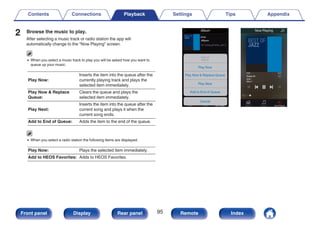
  • 160.
    HDMI Setup Make settingsfor HDMI Audio Out, HDMI Pass Through and HDMI Control settings. NOTE 0 When “HDMI Pass Through” and “HDMI Control” is set to “On”, it consumes more standby power. (“HDMI Pass Through” (v p. 160), “HDMI Control” (v p. 162)) If you are not using this unit for an extended period, it is recommended that you unplug the power cord from the power outlet. o HDMI Audio Out Select HDMI audio output device. AVR (Default): Play back through speakers connected to the unit. TV: Play back through TV connected to the unit. 0 When the HDMI Control function is activated, priority is given to the TV audio setting. (v p. 124) 0 When the power of this unit is on and “HDMI Audio Out” is set to “TV”, audio is output as 2-channel from the HDMI OUT connector. o HDMI Pass Through Selects how this unit will transmit HDMI signals to the HDMI output in standby power mode. On (Default): Transmits the selected HDMI input through this unit’s HDMI output when this unit is in standby power mode. Off: No HDMI signals are transmitted through this unit’s HDMI output in standby power mode. Contents Connections Playback Settings Tips Appendix 160 Front panel Display Rear panel Remote Index
  • 161.
    o Pass ThroughSource Sets the HDMI connector that inputs HDMI signals when in standby. Last: The most recently used input source will go into standby mode. CBL/SAT / DVD / Blu-ray / Game / AUX1 / AUX2 / Media Player / CDz (Default : CBL/SAT): Pass through the selected input source. z“Pass Through Source” can be set when any of the HDMI connectors is assigned to “CD” for the input source in the “Input Assign” setting. (v p. 171) 0 “Pass Through Source” can be set when “HDMI Control” is set to “On” or “HDMI Pass Through” is set to “On”. (“HDMI Pass Through” (v p. 160), “HDMI Control” (v p. 162)) o RC Source Select Set whether to allow this unit to be turned on by the input source select button on the remote control when this unit is on standby. Power On + Source (Default): The power of this unit is turned on and the input source changes. Source Select Only: The HDMI input source changes while this unit is on standby. The power display of this unit blinks when the input source select button of the remote control is pressed. 0 “RC Source Select” can be set when “HDMI Control” is set to “On” or “HDMI Pass Through” is set to “On”. (“HDMI Pass Through” (v p. 160), “HDMI Control” (v p. 162)) Contents Connections Playback Settings Tips Appendix 161 Front panel Display Rear panel Remote Index
  • 162.
    o HDMI Control Youcan link operations with devices connected to HDMI and compatible with HDMI Control. On: Use HDMI Control function. Off (Default): Do not use HDMI Control function. 0 If using the HDMI Control function, connect a TV compatible with HDMI control to the HDMI MONITOR 1 connector. 0 Please consult the operating instructions for each connected device to check the settings. 0 Refer to “HDMI Control function” for more information about the HDMI Control function. (v p. 124) NOTE 0 If the “HDMI Control” settings have been changed, always reset the power to connected devices after the change. o ARC On the TV connected to the HDMI MONITOR 1 connector, set whether to receive sound from the TV via HDMI. On: Use ARC function. Off (Default): Do not use ARC function. 0 You can adjust the volume of this unit using the TV remote control. 0 If using this function, use a TV compatible with ARC (Audio Return Channel) and enable the HDMI Control function of the TV. 0 When “HDMI Control” is set to “On”, the “ARC” settings automatically switch “On”. (v p. 162) NOTE 0 If the “ARC” settings have been changed, always reset the power to connected devices after the change. Contents Connections Playback Settings Tips Appendix 162 Front panel Display Rear panel Remote Index
  • 163.
    o TV AudioSwitching Sets automatic switching to the “TV Audio” input when a TV connected via HDMI sends an appropriate CEC control command to this unit. On (Default): Select the “TV Audio” input automatically when receiving a command from the TV. Off: Do not select the “TV Audio” input automatically when receiving a command from the TV. 0 “TV Audio Switching” can be set when “HDMI Control” is set to “On”. (v p. 162) o Power Off Control Links the power standby of this unit to external devices. All (Default): If power to a connected TV is turned off independently of the input source, power to this unit is automatically set to standby. Video: With an input source being selected that is assigned either “HDMI”, “COMP” or “VIDEO”, when you turn the power of the TV off, power to this unit is automatically set to standby. (v p. 172) Off: This unit does not link with power to a TV. 0 “Power Off Control” can be set when “HDMI Control” is set to “On”. (v p. 162) Contents Connections Playback Settings Tips Appendix 163 Front panel Display Rear panel Remote Index
  • 164.
    o Power Saving If“TV Speaker” is set as the audio output setting of your TV, this unit is automatically set to standby mode to reduce power consumption. This function is activated in the following cases. 0 When “TV Audio” is selected as the input source of this unit 0 When playing content from a device connected by HDMI On: Use Power Saving function. Off (Default): Do not use Power Saving function. 0 “Power Saving” can be set when “HDMI Control” is set to “On”. (v p. 162) o Smart Menu This function can be used to configure the settings of this unit, select an input source and set Tuner and Internet Radio stations using the TV remote control. On: Use Smart Menu function. Off: Do not use Smart Menu function. 0 “Smart Menu” can be set when “HDMI Control” is set to “On”. (v p. 162) NOTE 0 If the “Smart Menu” settings have been changed, always reset the power to connected devices after the change. 0 The Smart Menu function may not work properly depending on the specifications of your TV. In this case, set “Smart Menu” to “Off”. Contents Connections Playback Settings Tips Appendix 164 Front panel Display Rear panel Remote Index
  • 165.
    Output Settings Makes settingsfor video output. 0 “Output Settings” cannot be set when 4K signals are input. 0 “i/p Scaler”, “Resolution”, “Progressive Mode” and “Aspect Ratio” settings are stored for each input source. (“i/p Scaler” (v p. 166), “Resolution” (v p. 167), “Progressive Mode” (v p. 167), “Aspect Ratio” (v p. 167)) o HDMI Video Output Select the HDMI monitor connector to be used. Auto(Dual) (Default): The presence of a TV connected to the HDMI MONITOR 1 or HDMI MONITOR 2 connector is detected automatically, and that TV connection is used. Monitor 1: A TV connected to the HDMI MONITOR 1 connector is always used. Monitor 2: A TV connected to the HDMI MONITOR 2 connector is always used. 0 If both the HDMI MONITOR 1 and HDMI MONITOR 2 connectors are connected and “Resolution” is set to “Auto”, the signals are output with a resolution that is compatible with both TVs. (v p. 167) When the “Resolution” setting in the menu is not set to “Auto”, set the resolution in “Video” - “HDMI Monitor 1” and “HDMI Monitor 2” to one that is compatible with both TVs. (v p. 214) 0 You can check which resolutions are compatible with your TV in “HDMI Monitor 1” and “HDMI Monitor 2”. (v p. 214) 0 When connecting multiple Dolby Vision TVs, the signal will only be optimal for one TV. A TV connected to the HDMI MONITOR 1 connector has priority. Contents Connections Playback Settings Tips Appendix 165 Front panel Display Rear panel Remote Index
  • 166.
    o Video Mode Configurethe video processing method to match the type of video content. Auto (Default): Process video automatically based on the HDMI content information. Game: Always process video for game content. Minimize the video delay when the video is delayed compared to the button operations on the controller of the game console. Movie: Perform image processing that is suitable for contents other than games. Bypass: Remove all video processing from the HDMI video path. 0 If “Video Mode” is set to “Auto”, the mode is switched according to the input contents. 0 Information displays such as the volume bar cannot be overlaid with the video signal when “Video Mode” is set to “Bypass”. 0 This item can be set when “HDMI” is assigned for each input source. o i/p Scaler Set the video input signal to be subjected to i/p Scaler processing. i/p Scaler will convert the resolution of the input video signal to the value set in “Resolution”. (v p. 167) On: Use i/p Scaler function. Off: Do not use i/p Scaler function. 0 This item can be set when “HDMI” is assigned for each input source. 0 This item can be set when “Video Mode” is set to anything other than “Bypass”. (v p. 166) 0 This function is not effective when the input signal is “x.v.Color”, 3D, sYCC601 color, Adobe RGB color, Adobe YCC601 color or computer resolutions. Contents Connections Playback Settings Tips Appendix 166 Front panel Display Rear panel Remote Index
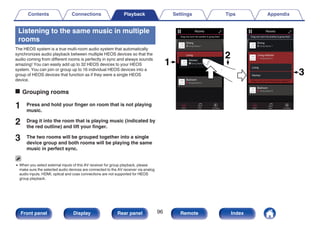
  • 167.
    o Resolution Set theoutput resolution. Auto (Default): The resolution supported by the TV connected to the HDMI MONITOR OUT connector is detected automatically and the appropriate output resolution is set. 480p/576p / 1080i / 720p / 1080p / 1080p:24Hz / 4K : Set the output resolution. 0 When set to “1080p:24Hz”, you can enjoy film-like pictures for film sources (in 24 Hz). For video sources and mixed sources, we recommend setting the resolution to “1080p”. 0 It is not possible to convert a 50 Hz signal into 1080p/24Hz. It is output at a resolution of 1080p/50Hz. 0 This item can be set when “i/p Scaler” is set to “On”. (v p. 166) o Progressive Mode Set an appropriate progressive conversion mode for the source video signal. Auto (Default): The video signal is automatically detected and the appropriate mode is set. Video: Select mode suitable for video playback. Video and Film: Select mode suitable for video and 30- frame film material playback. 0 This item can be set when “i/p Scaler” is set to “On”. (v p. 166) o Aspect Ratio Set the aspect ratio for the video signals output to the HDMI. 16:9 (Default): Output at 16:9 aspect ratio. 4:3 : Output at 4:3 aspect ratio with black bars on the sides of a 16:9 TV screen. (except for 480p/576p output) 0 This item can be set when “i/p Scaler” is set to “On”. (v p. 166) Contents Connections Playback Settings Tips Appendix 167 Front panel Display Rear panel Remote Index
  • 168.
    On Screen Display Selectthe on-screen display user interface preferences. o Volume Sets where to display the volume level. Bottom (Default): Display at the bottom. Top: Display at the top. Off: Turn display off. 0 When the master volume display is hard to see when superimposed text (closed captioning) or movie subtitles are present, set to “Top”. o Info Displays status of operation temporarily when the input source is switched. On (Default): Turn display on. Off: Turn display off. o Now Playing Sets the display time for the playback display when the input source is “HEOS Music” or “Tuner”. Always On (Default): Show display continuously. Auto Off: Show display for 30 seconds after operation. Contents Connections Playback Settings Tips Appendix 168 Front panel Display Rear panel Remote Index
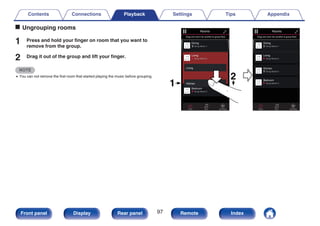
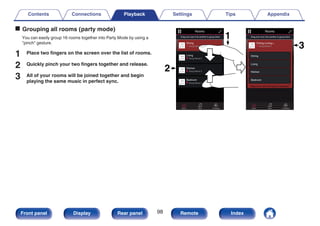
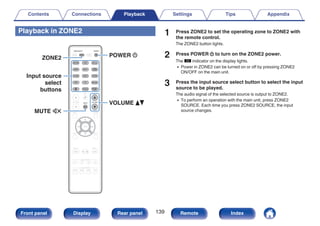
  • 169.
    4K Signal Format Setthe 4K signal format to be played back by this unit when the TV or playback device connected to this unit is HDMI 4K (60Hz/50Hz) signal compatible. o 4K Signal Format Set the format of the 4K signal played back by this unit. Standard (Default): Select if your TV and playback devices support standard 4K 60p 4:2:0 8 bit video signals. Enhanced: Select if your TV, playback devices, and cables support high quality 4K 60p 4:4:4, 4:2:2 or 4K 60p 4:2:0 10 bit video signals. GRelation between the “4K Signal Format” setting and supported resolutionsH Support Resolution Color Space Pixel Depth 4K Signal Format Enhanced Standard (Default) 4K 24p, 4K 30p, 4K 25p RGB / YCbCr 4:4:4 8 bit P P 10,12 bit P – YCbCr 4:2:2 12 bit P P 4K 60p, 4K 50p YCbCr 4:2:0 8 bit P P 10,12 bit P – RGB / YCbCr 4:4:4 8 bit P – YCbCr 4:2:2 12 bit P – Contents Connections Playback Settings Tips Appendix 169 Front panel Display Rear panel Remote Index
  • 170.
    0 When settingthis to “Enhanced”, we recommend using a “Premium High Speed HDMI Cable” or “Premium High Speed HDMI Cable with Ethernet” that has an “HDMI Premium Certified Cable” label attached to the product package. 0 When this setting is “Enhanced”, configure the television or playback device settings to match this setting. 0 When this setting is “Enhanced”, video may not be output correctly depending on the connected playback device or HDMI cable. In this case, change this setting to “Standard”. 0 “Custom” is displayed for the setting item if our service engineers or custom installers has configured the HDMI signal format for this unit. 0 “4K Signal Format” can also be set by the following procedure. However, the menu screen is not displayed. Watch the display while configuring the setting. 1. Press and hold the main unit’s ZONE2 SOURCE and STATUS at the same time for at least 3 seconds. “V.Format:<NTSC>” appears on the display. 2. Press the main unit's DIMMER. “4K :<Standard>” appears on the display. 3. Use the main unit's TUNER PRESET CH + or TUNER PRESET CH – and select the 4K Signal Format. 4. Press the main unit’s STATUS to complete the setting. TV Format Set the video signal format to be output for the TV you are using. o Format NTSC (Default): Select NTSC output. PAL: Select PAL output. 0 “Format” can also be set by the following procedure. However, the menu screen is not displayed. Following the display content to make the setting. 1. Press and hold the main unit’s ZONE2 SOURCE and STATUS at the same time for at least 3 seconds. “V.Format:<NTSC>” appears on the display. 2. Use the main unit’s TUNER PRESET CH + or TUNER PRESET CH – and set the video signal format. 3. Press the main unit’s STATUS to complete the setting. NOTE 0 When a format other than the video format of the connected TV is set, the picture will not be displayed properly. Contents Connections Playback Settings Tips Appendix 170 Front panel Display Rear panel Remote Index
  • 171.
    Inputs Perform settings relatedto input source playback. You do not have to change the settings to use the unit. Make settings when needed. Input Assign By making connections as indicated by the input sources printed on the audio/video input connectors of this unit, you can just press one of the input source select buttons to easily play back audio or video from a connected device. Please change the assignment of the HDMI input connector, digital audio input connector, analog audio input connector, component video input connector and video input connector when connecting an input source that differs from that printed to the audio/video input connectors of this unit. . DIGITAL ANALOG HDMI VIDEO Inputs/Input Assign Set Defaults CBL/SAT DVD Blu-ray Game Media Player TV Audio AUX1 AUX2 1 2 3 4 5 - FRONT 6 1 2 3 - - - - - VIDEO1 COMP1 VIDEO2 COMP2 - - - - COAX - - OPT2 - OPT1 - - Changes HDMI input assignments CD - 4 - - 0 By default, each item is set as follows. Input source Input connector HDMI DIGITAL ANALOG VIDEO CBL/SAT 1 COAX 1 VIDEO1 DVD 2 – 2 COMP1 Blu-ray 3 – 3 VIDEO2 Game 4 OPT2 – COMP2 Media Player 5 – – – TV Audio – OPT1 – – AUX1 FRONT – – – AUX2 6 – – – CD – – 4 – n TV set top box/satellite users please note When using the digital audio output on a TV/satellite box: To play the video signal assigned to “HDMI” combined with the audio signal assigned at “Input Assign” - “DIGITAL”, you will also need to select “Digital” in the “Input Mode”. (v p. 174) Contents Connections Playback Settings Tips Appendix 171 Front panel Display Rear panel Remote Index
  • 172.
    o HDMI Set thisto change the HDMI input connectors assigned to the input sources. 1 / 2 / 3 / 4 / 5 / 6 / 7 / FRONT: Assign an HDMI input connector to the selected input source. – : Do not assign an HDMI input connector to the selected input source. 0 When “HDMI Control” or “ARC” is set to “On” in the menu, “HDMI” cannot be assigned to “TV Audio”. (“HDMI Control” (v p. 162), “ARC” (v p. 162)) o DIGITAL Set this to change the digital audio input connectors assigned to the input sources. COAX (Coaxial) / OPT1 (Optical) / OPT2: Assign a digital audio input connector to the selected input source. – : Do not assign a digital audio input connector to the selected input source. o ANALOG Set this to change the analog audio input connectors assigned to the input sources. 1 / 2 / 3 / 4: Assign a analog audio input connector to the selected input source. – : Do not assign a analog audio input connector to the selected input source. o VIDEO Set this to change the component video input connectors and composite video input connectors assigned to the input sources. COMP1 (Component video) / COMP2 / VIDEO1 / VIDEO2: Assign the video input connector to the selected input source. – : Do not assign a video input connector to the selected input source. o Set Defaults The “Input Assign” settings are returned to the default settings. Contents Connections Playback Settings Tips Appendix 172 Front panel Display Rear panel Remote Index
  • 173.
    Source Rename Change thedisplay name for input source. This is convenient when the name of your device and the input source name of this unit are different. You can change the name to suit your needs. When the renaming is completed, the name is displayed on this unit’s display and on the menu screen. CBL/SAT / DVD / Blu-ray / Game / AUX1 / AUX2 / Media Player / CD / TV Audio / Phono: Change the display name for input source. Set Defaults: The “Source Rename” settings are returned to the default settings. 0 Up to 12 characters can be input. Hide Sources Remove from the display input sources that are not used. Show (Default): Use this source. Hide: Do not use this source. Source Level This function corrects the playback level of the selected input source’s audio input. Make this setting if there are differences in the input volume levels between the different sources. -12 dB – +12 dB (Default : 0 dB) 0 “Source Level” settings are stored for each input source. Contents Connections Playback Settings Tips Appendix 173 Front panel Display Rear panel Remote Index
  • 174.
    Input Select Set theaudio input mode of each input source. The input modes available for selection may vary depending on the input source. 0 “Input Select” settings are stored for each input source. o Input Mode Set the audio input modes for the different input sources. It is normally recommended to set the audio input mode to “Auto”. Auto (Default): Automatically detect input signal and perform playback. HDMI: Play only signals from HDMI input. Digital: Play only signals from digital audio input. Analog: Play only signals from analog audio input. 0 When digital signals are properly input, the ~ indicator lights on the display. If the ~ indicator does not light, check “Input Assign” and the connections. (v p. 171) 0 If “HDMI Control” is set to “On” and a TV compatible with the ARC is connected via the HDMI MONITOR 1 connectors, the input mode whose input source is “TV Audio” is fixed to ARC. Contents Connections Playback Settings Tips Appendix 174 Front panel Display Rear panel Remote Index
  • 175.
    Speakers The acoustic characteristicsof the connected speakers and listening room are measured and the optimum settings are made automatically. This is called “Audyssey® Setup”. You do not have to perform Audyssey® Setup when you have already performed “Speaker Calibration” in “Setup Assistant”. To set up the speakers manually, use “Manual Setup” on the menu. (v p. 185) Audyssey® Setup To perform measurement, place the Sound calibration microphone in multiple locations all around the listening area. For best results, we recommend you measure in six or more positions, as shown in the illustration (up to eight positions). When measuring the second and subsequent positions, install the Sound calibration microphone within 2 ft (60 cm) of the first measurement position (main listening position). 0 If you perform Audyssey® Setup, Audyssey MultEQ® XT, Audyssey Dynamic EQ® and Audyssey Dynamic Volume® functions are enabled. (v p. 154) . FL SW C FR SR SL Surround speaker (R) Surround speaker (L) Subwoofer Center speaker Front speaker (R) Front speaker (L) ( :Measuring positions) FL FR C SW SL SR Listening position Contents Connections Playback Settings Tips Appendix 175 Front panel Display Rear panel Remote Index
  • 176.
    o About themain listening position The main listening position is the position where listeners would normally sit or where one would normally sit alone within the listening environment. Before starting Audyssey® Setup, place the Sound calibration microphone in the main listening position. Audyssey MultEQ® XT uses the measurements from this position to calculate speaker distance, level, polarity, and the optimum crossover value for the subwoofer. NOTE 0 Make the room as quiet as possible. Background noise can disrupt the room measurements. Close windows and turn off the power on electronic devices (radios, air conditioners, fluorescent lights, etc.). The measurements could be affected by the sounds emitted by such devices. 0 During the measurement process, place cell phones outside the listening room. Cell phone signals could disrupt the measurements. 0 Do not stand between the speakers and Sound calibration microphone or allow obstacles in the path while the measurements are being made. Also, install the Sound calibration microphone at least 20 inches (50 cm) away from the wall. Failure to do so will result in inaccurate readings. 0 During the measurement process, audible test tones will come from the speakers and subwoofer(s), but this is part of normal operation. If there is background noise in the room, these test signals will increase in volume. 0 Operating VOLUME d f on the remote control unit or MASTER VOLUME on the main unit during the measurements will cancel the measurements. 0 Measurement cannot be performed when headphones are connected. Unplug the headphones before performing Audyssey® Setup. Contents Connections Playback Settings Tips Appendix 176 Front panel Display Rear panel Remote Index
  • 177.
    Procedure for speakersettings (Audyssey® Setup) . Finish Check Calculation & Store Measurement Preparation 1 Attach the Sound calibration microphone to the supplied microphone stand or own tripod and install it at the main listening position. When installing the Sound calibration microphone, point the tip of the microphone toward the ceiling and adjust the height to match the height of the ears of a listener in a seated position. 2 If using a subwoofer capable of the following adjustments, set up the subwoofer as shown below. n When using a subwoofer with a direct mode Set the direct mode to “On” and disable the volume adjustment and crossover frequency setting. n When using a subwoofer without a direct mode Make the following settings: 0 Volume : 12 o’clock position 0 Crossover frequency : Maximum/Highest Frequency 0 Low pass filter : Off 0 Standby mode : Off Contents Connections Playback Settings Tips Appendix 177 Front panel Display Rear panel Remote Index
  • 178.
    3 Connect theSound calibration microphone to the SETUP MIC jack of this unit. . When the Sound calibration microphone is connected, the following screen is displayed. . Audyssey Setup Dolby Speaker Setup Channel Select Amp Assign Start Your AV receiver can automatically measure the acoustics of your room then optimize your speakers using the included microphone and microphone stand. Set the following items if necessary. 4 Select “Start”, then press ENTER. Audyssey® Setup can also make the following settings. 0 Amp Assign The signals output from the SURROUND BACK speaker terminals can be switched in accordance with your speaker environment. (“Amp Assign” (v p. 185)) 0 Channel Select If channels that are not to be used are set in advance, measurement for the set channels is skipped, and measuring time can be reduced. You can also change the number of surround back speakers. 0 Dolby Speaker Setup Set the distance between the Dolby Atmos Enabled speaker and the ceiling. This can be set when “Assign Mode” is set to “Front Dolby” or “Surround Dolby” in the “Amp Assign” settings. (v p. 185) 5 Follow the instructions on the screen display and press “Next” to proceed further. Contents Connections Playback Settings Tips Appendix 178 Front panel Display Rear panel Remote Index
  • 179.
    6 When thefollowing screen is displayed, select “Begin Test” and then press ENTER. Start the measurement of the first position. . Ear Height stopping during the tests. Select "Begin Test" to start the calibration. Audyssey Setup NOTE:You will hear a series of loud chirps starting and Back Begin Test 0 Measurement requires several minutes. NOTE 0 If “Caution!” is displayed on TV screen: 0 Go to “Error messages” (v p. 183). Check any related items, and perform the necessary procedures. 7 When the detected speaker is displayed, select “Next” and then press ENTER. . Audyssey Setup Repeat Last Test Next Speaker Detection Front Center Subwoofer Surround Surr. Back :Yes :Yes :Yes :Yes :No Contents Connections Playback Settings Tips Appendix 179 Front panel Display Rear panel Remote Index
  • 180.
    8 Move theSound calibration microphone to position 2, select “Continue”, then press ENTER. The measurement of the second position starts. Measurements can be made in up to eight positions. . Continue Place the microphone ear level of the listener seated at the 2nd listening position, which should be no more than 2ft (60cm) away from the 1st position, then select “Continue”... Audyssey Setup Back Ear Height n Stopping Audyssey® Setup A Press BACK to display the popup screen. B Press o to select “Yes”, then press ENTER. 9 Repeat step 8, measuring positions 3 to 8. 0 To skip measuring the fourth and subsequent listening position, press o to select “Complete” and press ENTER to proceed to step 11. 10 Select “Continue”, then press ENTER. . Audyssey Setup Continue Repeat Last Test Measurements complete. Select “Continue” to analyze the data... Start the analysis and storage of the measurement results. 0 Analysis takes several minutes to complete. The more speakers and measurement positions that there are, the more time it takes to perform the analysis. NOTE 0 When the measurement results are being saved, make sure the power is not turned off. Contents Connections Playback Settings Tips Appendix 180 Front panel Display Rear panel Remote Index
  • 181.
    11 Perform thesettings for Audyssey Dynamic EQ® and Audyssey Dynamic Volume®. The following screen is displayed during the analysis. Configure the settings as preferred. . 50% Turn on Dynamic EQ? and television. sound at low volumes letting you enjoy late-night movies Audyssey Dynamic EQ maintains bass, clarity and surround Audyssey Setup Yes No Analyzing room data 0 Dynamic EQ corrects the frequency response in consideration of the audio characteristics of the room and human hearing ability so that sound can be heard even at low volume. This is recommended when using the unit with the volume turned down, e.g. when enjoying a movie or TV program in the middle of the night. 0 Dynamic Volume adjusts the output volume to the optimal level while constantly monitoring the level of the audio input to the unit. Optimal volume control is performed automatically without any loss in the dynamism and clarity of the sound when, for example, the volume suddenly increases for commercials shown during television programs. 12 When the analysis and storage ends, unplug the Sound calibration microphone from the SETUP MIC jack on the main unit and then press “Next”. . Audyssey Setup Now Analyzing and correcting your room data. Please disconnect the microphone from your AV receiver. Next Back Applying room corrections 100% Contents Connections Playback Settings Tips Appendix 181 Front panel Display Rear panel Remote Index
  • 182.
    13 Select “Details”and press ENTER to verify the measurement results. 0 Subwoofers may measure a greater reported distance than the actual distance due to added electrical delay common in subwoofers. NOTE 0 Do not change the speaker connection or subwoofer volume after Audyssey® Setup. If these are changed, run Audyssey® Setup again in order to configure the optimum equalizer settings. Contents Connections Playback Settings Tips Appendix 182 Front panel Display Rear panel Remote Index
  • 183.
    Error messages An errormessage is displayed if Audyssey® Setup could not be completed due to speaker placement, the measurement environment, etc. If an error message is displayed, check the relevant items and perform the necessary measures. Be sure to turn off the power before checking speaker connections. Examples Error details Measures No speakers found. 0 Sound calibration microphone is not detected. 0 Connect the included Sound calibration microphone to the SETUP MIC jack of this unit. 0 Not all speakers could be detected. 0 Check the speaker connections. Ambient noise is too high or level is too low 0 There is too much noise in the room. 0 Either turn off any device generating noise or move it away. 0 Perform again when the surroundings are quieter. 0 Speaker or subwoofer sound is too low. 0 Check the speaker installation and the direction in which the speakers are facing. 0 Adjust the subwoofer’s volume. Front R : None 0 The displayed speaker could not be detected. 0 Check the connections of the displayed speaker. Front R : Phase 0 The displayed speaker is connected with the polarity reversed. 0 Check the polarity of the displayed speaker. 0 For some speakers, this error message may be displayed even if the speaker is properly connected. If you are sure the connection is correct, press p to select “Ignore”, then press ENTER. Contents Connections Playback Settings Tips Appendix 183 Front panel Display Rear panel Remote Index
  • 184.
    Retrieving Audyssey® Setupsettings If you set “Restore...” to “Restore”, you can return to Audyssey® Setup measurement result (value calculated at the start by MultEQ® XT) even when you have changed each setting manually. . Audyssey Setup Dolby Speaker Setup Channel Select Amp Assign Check Results Restore... Start Your AV receiver can automatically measure the acoustics of your room then optimize your speakers using the included microphone and microphone stand. Set the following items if necessary. Contents Connections Playback Settings Tips Appendix 184 Front panel Display Rear panel Remote Index
  • 185.
    Manual Setup Perform whensetting the speakers manually or when changing settings made in Audyssey® Setup. 0 If you add or remove a speaker after performing Audyssey® Setup, you will no longer be able to select Audyssey MultEQ® XT, Audyssey Dynamic EQ® or Audyssey Dynamic Volume®. (v p. 154) 0 “Manual Setup” can be used without changing the settings. Please set if necessary. Amp Assign Select the power amplifier usage method to match your speaker system. See “Speaker configuration and “Amp Assign” settings” (v p. 39) regarding the speaker configuration and connection. o Assign Mode Select how to use the power amp. Surround Back: Setting for 7.1-channel playback using surround back speakers. Front Height: Setting for 7.1-channel playback using front height speakers. Top Front: Setting for 7.1-channel playback using top front speakers. Top Middle: Setting for 7.1-channel playback using top middle speakers. Front Dolby: Setting for 7.1-channel playback using front Dolby Atmos Enabled speakers. Surround Dolby: Setting for 7.1-channel playback using surround Dolby Atmos Enabled speakers. Contents Connections Playback Settings Tips Appendix 185 Front panel Display Rear panel Remote Index
  • 186.
    ZONE2 (Default): Setting to assignthe unit’s built-in power amplifier for ZONE2 and output the audio in stereo. Bi-Amp: Setting to use the front speakers via the bi-amp connection. Front B: Setting for playback using a second front speaker. You can switch the playback between front speaker A and B according to your liking. Switch the front speaker using “Front Speaker” in the menu. (v p. 195) Speaker Config. Select whether or not speakers are present, playback capacity for low bass frequencies and speaker size. o Front Set the front speaker size. Large (Default): Use a large speaker that can adequately play back very low bass frequencies. Small: Use a small speaker that has inadequate playback capacity for very low bass frequencies. 0 When “Subwoofer” is set to “No”, “Front” is automatically set to “Large”. 0 When “Front” is set to “Small”, you cannot set speakers other than “Front” to “Large”. Contents Connections Playback Settings Tips Appendix 186 Front panel Display Rear panel Remote Index
  • 187.
    o Center Set thepresence and size of the center speaker. Large: Use a large speaker that can adequately play back very low bass frequencies. Small (Default): Use a small speaker that has inadequate playback capacity for very low bass frequencies. None: Select when a center speaker is not connected. o Subwoofer Set the presence of a subwoofer. Yes (Default): Use a subwoofer. No: Select when a subwoofer is not connected. 0 When “Subwoofer” is set to “No” and you set “Front” to “Small”, “Subwoofer” is automatically set to “Yes”. o Surround Set the presence and size of the surround speakers. Large: Use a large speaker that can adequately play back very low bass frequencies. Small (Default): Use a small speaker that has inadequate playback capacity for very low bass frequencies. None: Select when the surround speakers are not connected. 0 When “Surround” is set to “None”, “Surr. Back” and “Surround Dolby” are automatically set to “None”. Contents Connections Playback Settings Tips Appendix 187 Front panel Display Rear panel Remote Index
  • 188.
    o Surr. Back Setthe presence, size and number of surround back speakers. Large: Use a large speaker that can adequately play back very low bass frequencies. Small (Default): Use a small speaker that has inadequate playback capacity for very low bass frequencies. None: Select when the surround back speakers are not connected. 2 spkrs (Default): Use two surround back speakers. 1 spkr: Use only one surround back speaker. Connect to the L terminal to SURROUND BACK when this setting is selected. 0 When “Assign Mode” setting is “Surround Back”, you can make this setting. (v p. 185) o Front Height Set the presence and size of the front height speakers. Large: Use a large speaker that can adequately play back very low bass frequencies. Small (Default): Use a small speaker that has inadequate playback capacity for very low bass frequencies. None: Select when the front height speakers are not connected. 0 When “Assign Mode” setting is “Front Height”, you can make this setting. (v p. 185) Contents Connections Playback Settings Tips Appendix 188 Front panel Display Rear panel Remote Index
  • 189.
    o Top Front Setthe presence and size of the top front speakers. Large: Use a large speaker that can adequately play back very low bass frequencies. Small (Default): Use a small speaker that has inadequate playback capacity for very low bass frequencies. None: Select when the top front speakers are not connected. 0 When “Assign Mode” setting is “Top Front”, you can make this setting. (v p. 185) o Top Middle Set the presence and size of the top middle speakers. Large: Use a large speaker that can adequately play back very low bass frequencies. Small (Default): Use a small speaker that has inadequate playback capacity for very low bass frequencies. None: Select when the top middle speakers are not connected. 0 When “Assign Mode” setting is “Top Middle”, you can make this setting. (v p. 185) Contents Connections Playback Settings Tips Appendix 189 Front panel Display Rear panel Remote Index
  • 190.
    o Front Dolby Setthe presence and size of the front Dolby speakers. Large: Use a large speaker that can adequately play back very low bass frequencies. Small (Default): Use a small speaker that has inadequate playback capacity for very low bass frequencies. None: Select when the front Dolby speakers are not connected. 0 When “Assign Mode” setting is “Front Dolby”, you can make this setting. (v p. 185) o Surround Dolby Set the presence and size of the surround Dolby speakers. Large: Use a large speaker that can adequately play back very low bass frequencies. Small (Default): Use a small speaker that has inadequate playback capacity for very low bass frequencies. None: Select when the surround Dolby speakers are not connected. 0 When “Assign Mode” setting is “Surround Dolby”, you can make this setting. (v p. 185) Contents Connections Playback Settings Tips Appendix 190 Front panel Display Rear panel Remote Index
  • 191.
    Distances Set distance fromlistening position to speakers. Measure beforehand the distance from the listening position to each speaker. o Unit Set the unit of distance. Feet (Default) Meters o Step Set the minimum variable width of the distance. 1 ft / 0.1 ft (Default: 1 ft) 0.1 m / 0.01 m o Set the distance 0.0 ft – 60.0 ft / 0.00 m – 18.00 m 0 The speakers that can be selected differ depending on the “Amp Assign” and “Speaker Config.” settings. (“Amp Assign” (v p. 185), “Speaker Config.” (v p. 186)) 0 Default settings: Front L / Front R / F. Height L / F. Height R / Center / Front Dolby L / Front Dolby R / Subwoofer: 12.0 ft (3.60 m) Speakers other than the above: 10.0 ft (3.00 m) 0 Set the difference in the distance between the speakers to less than 20.0 ft (6.00 m). Contents Connections Playback Settings Tips Appendix 191 Front panel Display Rear panel Remote Index
  • 192.
    o Dolby SpeakerSetup Set the distance between the Dolby Atmos Enabled speaker and the ceiling. 3.0 ft - 11.0 ft / 0.90 m - 3.30 m (Default: 6.0 ft / 1.80 m) 0 This can be set when “Front Dolby” or “Surround Dolby” is set to “Large” or “Small” in “Speaker Config.”. o Set Defaults The “Distances” settings are returned to the default settings. Levels Set the volume of the test tone to be the same at the listening position when it is output from each speaker. o Test Tone Start A test tone is output from the selected speaker. While listening to the test tone, adjust the volume output from the selected speaker. –12.0 dB – +12.0 dB (Default : 0.0 dB) 0 The set “Levels” are reflected in all sound modes. 0 If you wish to adjust the channel level for each input source, carry out the settings in “Channel Level Adjust”. (v p. 107) 0 When headphones are connected to the PHONES connector on this unit, you cannot set “Levels”. o Set Defaults The “Levels” settings are returned to the default settings. Contents Connections Playback Settings Tips Appendix 192 Front panel Display Rear panel Remote Index
  • 193.
    Crossovers Set in accordancewith the lower limit frequency of the base frequencies that can be played back through each speaker. See the speaker manual for information concerning speaker crossover frequency. o Speaker Selection Selects how to set the crossover frequency. All (Default): Sets the same crossover frequency for all speakers. Individual: Selects the crossover points for each speaker individually. o Set the crossover frequency 40 Hz / 60 Hz / 80 Hz / 90 Hz / 100 Hz / 110 Hz / 120 Hz / 150 Hz / 200 Hz / 250 Hz (Default: 80 Hz) 0 “Crossovers” can be set when the “Subwoofer Mode” setting is “LFE+Main”, or when you have a speaker that is set to “Small”. (v p. 194) 0 The default crossover frequency is “80 Hz”, which will work best with the widest variety of speakers. We recommend setting to a higher frequency that the crossover frequency when small speakers are used. For example, set to “250 Hz” when the frequency range of the speakers is 250 Hz – 20 kHz. 0 Sound below the crossover frequency is cut off from the output of the speakers set in “Small”. This cut off bass frequency is output from the subwoofer or front speakers. 0 The speakers that can be set when “Individual” is selected differ depending on to the “Subwoofer Mode” setting. (v p. 194) 0 When “LFE” is selected, speakers set to “Small” at “Speaker Config.” can be set. If the speakers are set to “Large”, “Full Band” is displayed and the setting cannot be made. (v p. 186) 0 When “LFE+Main” is selected, speakers can be set regardless of the “Speaker Config.” setting. (v p. 186) Contents Connections Playback Settings Tips Appendix 193 Front panel Display Rear panel Remote Index
  • 194.
    Bass Set subwoofer andLFE signal range playback. o Subwoofer Mode Select low range signals to be reproduced by subwoofer. LFE (Default): The low range signal of the channel set to “Small” speaker size is added to the LFE signal output from the subwoofer. LFE+Main: The low range signal of all channels is added to the LFE signal output from the subwoofer. 0 “Subwoofer Mode” can be set when “Speaker Config.” - “Subwoofer” on the menu is set to other than “No”. (v p. 187) 0 Play music or a movie source and select the mode offering the strongest bass. 0 If “Speaker Config.” - “Front” and “Center” are set to “Large”, and “Subwoofer Mode” is set to “LFE”, no sound may be output from the subwoofers, depending on the input signal or selected sound mode. (v p. 186) Select “LFE+Main” if you want the bass signals to always be produced from the subwoofer. o LPF for LFE Set LFE signal playback range. Set this when you want to change the playback frequency (low pass filter point) of the subwoofer. 80 Hz / 90 Hz / 100 Hz / 110 Hz / 120 Hz / 150 Hz / 200 Hz / 250 Hz (Default: 120 Hz) Contents Connections Playback Settings Tips Appendix 194 Front panel Display Rear panel Remote Index
  • 195.
    Front Speaker Set thefront speaker A/B to use for every sound mode. A (Default): Front speaker A is used. B : Front speaker B is used. A+B : Both front speakers A and B are used. 0 This can be set when “Assign Mode” is set to “Front B”. (v p. 186) Contents Connections Playback Settings Tips Appendix 195 Front panel Display Rear panel Remote Index
  • 196.
    Network To use thisunit by connecting it to a home network (LAN), you must configure network settings. If you set up your home network (LAN) via DHCP, set “DHCP” to “On”. (Use the default setting.) This allows this unit to use your home network (LAN). When assigning an IP address to each device manually, you need to assign an IP address to this unit using the “IP Address” settings, and enter information about your home network (LAN) such as the gateway address and subnet mask, etc. Information Display network information. Friendly Name / Connection / SSID / DHCP / IP Address / MAC Address (Ethernet) / MAC Address (Wi-Fi) / Wi-Fi signal strength Connection Choose whether to connect the home network to a wireless LAN or a wired LAN. When connecting to the network using wired LAN, select “Wired (Ethernet)” after connecting a LAN cable. When connecting to the network using wireless LAN, select “Wireless (Wi- Fi)” and configure the “Wi-Fi Setup”. (v p. 197) o Connect Using Select the method for connecting to the home network (LAN). Wired (Ethernet): Use a LAN cable to connect to a network. Wireless (Wi-Fi) (Default): Use the wireless LAN (Wi-Fi) function to connect to a network. Contents Connections Playback Settings Tips Appendix 196 Front panel Display Rear panel Remote Index
  • 197.
    Wi-Fi Setup Connect toa wireless LAN (Wi-Fi) router. The router can be connected in the following ways. Select the connection method to suit your home environment. o Scan Networks Select the network you wish to connect to from the list of possible networks shown on the TV screen. 1. Select the network you wish to connect to from the list of wireless networks. Select “Rescan” if the network cannot be found. 2. Enter your password and select “OK”. o Use iOS Device Use your iOS device (iPhone/iPod/iPad) to connect to the network. By connecting your iOS device to this unit using Wi-Fi, the unit can be automatically connected to the same network as your device. 1. Select “Use iOS Device” on the TV screen. 2. Check that your iOS device is connected to the wireless LAN (Wi- Fi) router and select “Denon AVR-X2500H” from “SET UP NEW AIRPLAY SPEAKER...” at the bottom of the Wi-Fi configuration screen of your iOS device. 3. Tap “Next” on the screen of the iOS device. 0 The iOS device firmware version needs to support iOS 7 or later. Contents Connections Playback Settings Tips Appendix 197 Front panel Display Rear panel Remote Index
  • 198.
    o WPS Router Usea WPS-compatible router to connect using the push button method. 1. Select “Push Button” on the TV screen. 2. Switch to the WPS mode by pressing the WPS button of the router you wish to connect to. 0 The time for pressing the button varies depending on the router. 3. Select “Connect” on the TV screen within 2 minutes. o Manual Enter the name (SSID) and password of the network you wish to connect to. 1. Set the following items. SSID: Input the name of the wireless network (SSID). Security: Select the encryption method according to the encryption setting of the access point you are using. Password: Input the password. 2. Select “Connect” at the end of the setting. Contents Connections Playback Settings Tips Appendix 198 Front panel Display Rear panel Remote Index
  • 199.
    0 The wirelessLAN (Wi-Fi) settings of this unit can also be configured from a PC or tablet that supports wireless LAN connection. 1. Press and hold the DIMMER and STATUS buttons on the main unit for at least 3 seconds when the power of the unit is on. 2. Connect the wireless LAN of the PC or tablet used to “Denon AVR-X2500H” when the message “Connect your Wi-Fi device to Wi-Fi network called “Denon AVR-X2500H”.” appears in the display. 3. Start up the browser and enter “192.168.1.16/Settings/” in the URL. 4. Use the browser to enter the settings, select “Connect” and then exit the settings. 0 The Default key of this unit is fixed at “1”. Set Default key of the router to “1” to use. Settings Configure the IP address. 0 If you are using a broadband router (DHCP function), the information required for network connection such as the IP address will be automatically configured since the DHCP function is set to “On” in the default settings of this unit. 0 Set up the IP Address, Subnet Mask, Default Gateway and DNS server information only when assigning a fixed IP address or when connecting to a network without DHCP function. . DHCP -IP Address -Subnet Mask Save Cancel -Default Gateway -DNS Configures the network settings automatically or manually Off Network/Settings 000.000.000.000 000.000.000.000 000.000.000.000 000.000.000.000 Contents Connections Playback Settings Tips Appendix 199 Front panel Display Rear panel Remote Index
  • 200.
    o DHCP Selects howto connect to the network. On (Default): Configure the network settings automatically from your router. Off: Configure the network settings manually. o IP Address Set the IP address within the ranges shown below. 0 The Network Audio function cannot be used if other IP addresses are set. CLASS A: 10.0.0.1 - 10.255.255.254 CLASS B: 172.16.0.1 - 172.31.255.254 CLASS C: 192.168.0.1 - 192.168.255.254 o Subnet Mask When connecting an xDSL modem or connector adapter directly to this unit, input the subnet mask indicated in the documentation supplied by your provider. Normally input “255.255.255.0”. o Default Gateway When connected to a gateway (router), input its IP address. o DNS Enter the DNS address indicated in the documentation supplied by your provider. 0 If you cannot connect to the Internet, recheck the connections and settings. (v p. 62) 0 If you do not understand about Internet connection, contact your ISP (Internet Service Provider) or the store from which you purchased your computer. Contents Connections Playback Settings Tips Appendix 200 Front panel Display Rear panel Remote Index
  • 201.
    Network Control Enables networkcommunication in standby power mode. Off In Standby: Suspend network function during standby. Always On (Default): Network is on during standby. Main unit operable with a network compatible controller. 0 When using the web control function, Denon 2016 AVR Remote App or HEOS App, use with the “Network Control” setting set to “Always On”. NOTE 0 When “Network Control” is set to “Always On”, the unit consumes more standby power. Friendly Name The Friendly Name is the name of this unit displayed on the network. You can change the Friendly Name according to your preferences. o Friendly Name Selects Friendly Name from the list. When you select “Other”, you can change the Friendly Name according to your preferences. Home Theater /Living Room / Family Room / Guest Room / Kitchen / Dining Room / Master Bedroom / Bedroom / Den / Office / Other 0 Up to 30 characters can be input. 0 The default Friendly Name on first use is “Denon AVR-X2500H”. o Set Defaults Restores Friendly Name, which you had changed, to the default setting. Contents Connections Playback Settings Tips Appendix 201 Front panel Display Rear panel Remote Index
  • 202.
    Diagnostics Used to checkthe network connection. o Physical Connection Checks the physical LAN port connection. OK Error: The LAN cable is not connected. Check the connection. 0 When connected using a wireless LAN, “Connection Wireless (Wi-Fi)” will be displayed. o Router Access Checks the connection from this unit to the router. OK Error: Failed to communicate with the router. Check the router settings. o Internet Access Checks whether this unit has access to the Internet (WAN). OK Error: Failed to connect to the Internet. Check the Internet connection environment or router settings. Contents Connections Playback Settings Tips Appendix 202 Front panel Display Rear panel Remote Index
  • 203.
    HEOS Account Make HEOSAccount-related settings. HEOS Account is needed in order to use HEOS Favorites. The menu displayed differs depending on the status of the HEOS Account. You have not signed in o I have a HEOS Account If you already have a HEOS Account, enter the current account name and password to sign in. o Create Account If you do not have a HEOS Account, create a new HEOS Account. o Forgot Password If you have forgotten the password, an email explaining how to reset the password will be sent. You have already signed in o Signed in As The currently signed in HEOS Account is displayed. o Change Location Change the regional settings for the signed in HEOS Account. o Change Password Change the password for the signed in HEOS Account. o Delete Account Delete the signed in HEOS Account. o Sign Out Sign out from the HEOS Account. Contents Connections Playback Settings Tips Appendix 203 Front panel Display Rear panel Remote Index
  • 204.
    General Make various othersettings. Language Set the language for display the menu on the TV screen. English / Français / Español (Default: English) 0 “Language” can also be set up by the following operation. However, the menu screen is not displayed. Watch the display while configuring the settings. 1. Press and hold the main unit’s ZONE2 SOURCE and STATUS at the same time for at least 3 seconds. “V.Format:< NTSC>” appears on the display. 2. Press DIMMER on the main unit twice. “Lang.:<ENGLISH >” appears on the display. 3. Use the main unit’s TUNER PRESET CH + or TUNER PRESET CH – and set the language. 4. Press the main unit’s STATUS to complete the setting. ECO Configure the ECO Mode and auto standby mode settings. o ECO Mode This mode can reduce the power consumption and heat generation of your AV receiver when power on. This is done by reducing the power supply line to the power amplifier, in turn the maximum power output. Contents Connections Playback Settings Tips Appendix 204 Front panel Display Rear panel Remote Index
  • 205.
    On: Power savings arealways active, regardless of volume or input signal. Auto: Gives you the best balance between power savings and maximum power output: For low volume levels, the power savings are active. If you increase the volume level, the power savings are switched off automatically, so you can enjoy maximum output power without distortion. If the volume is set to a high level but no input signal is detected for more than 2 minutes, this unit will enable power savings. When an input signal is detected again or the input source is changed, this unit will automatically turn off power savings again at high volume levels. Off (Default): No power savings. 0 When the unit is switching between the different power saving states in “ECO Mode: Auto”, you may notice a click noise from the inside of this unit, this is normal. 0 If content is paused for more than 2 minutes and playback is resumed from the same source at these high volume levels, there may be short delay before maximum power is restored. 0 “ECO Mode” can also be switched by pressing ECO G on the remote control unit. Contents Connections Playback Settings Tips Appendix 205 Front panel Display Rear panel Remote Index
  • 206.
    o Power OnDefault Set the mode to ECO when the power is on. Last (Default): The ECO Mode will be set to the previous setting before the power was switched off. On: When power is turned on, the mode will always be switched to the ECO Mode in “On”. Auto: When power is turned on, the mode will always be switched to the ECO Mode in “Auto”. Off: When power is turned on, the mode will always be switched to the ECO Mode in “Off”. o On Screen Display Display the power consumption of this unit using a meter on the TV screen. Always On: Always display the meter on the TV screen. Auto (Default): Display the meter when changing the mode or volume. Off: Do not display the meter. Contents Connections Playback Settings Tips Appendix 206 Front panel Display Rear panel Remote Index
  • 207.
    o Auto Standby Setso the unit power automatically switches to standby. n MAIN ZONE Sets the time for switching to auto standby when there are no audio or video signals input into this unit. Before the unit enters standby mode, “Auto Standby” is displayed on the unit display and the menu screen. 60 min: The unit goes into standby after 60 minutes. 30 min: The unit goes into standby after 30 minutes. 15 min: The unit goes into standby after 15 minutes. Off (Default): The unit does not go into standby automatically. n ZONE2 When there are no operations for a certain period of time as set here, the power is automatically shut off even if there is audio or video input. 8 hours: Switches ZONE2 the standby state after about 8 hours. 4 hours: Switches ZONE2 to the standby state after about 4 hours. 2 hours: Switches ZONE2 to the standby state after about 2 hours. Off (Default): Does not automatically switch ZONE2 to the standby state. Contents Connections Playback Settings Tips Appendix 207 Front panel Display Rear panel Remote Index
  • 208.
    ZONE2 Setup Makes settingsfor audio playback with ZONE2. 0 Values set for “Volume Limit” and “Power On Volume” are displayed according to the setting specified for the volume “Scale”. (v p. 153) o Lch Level Adjust the left channel output level. -12 dB – +12 dB (Default : 0 dB) o Rch Level Adjust the right channel output level. -12 dB – +12 dB (Default : 0 dB) o Volume Level Set the volume output level. Variable (Default): Volume can be adjusted. 1 – 98 (–79 dB – 18 dB): Volume is fixed at the desired level. The volume cannot be adjusting using the remote control unit. 0 The dB value is displayed when the “Scale” setting is “ –79.5 dB – 18.0 dB”. (v p. 153) o Volume Limit Make a setting for maximum volume. 60 (-20 dB) / 70 (-10 dB) / 80 (0 dB) (Default : 70 (-10 dB)) Off: Do not set a maximum volume. 0 This can be set when “Volume Level” is set to “Variable”. (v p. 208) 0 The dB value is displayed when the “Scale” setting is “ –79.5 dB – 18.0 dB”. (v p. 153) Contents Connections Playback Settings Tips Appendix 208 Front panel Display Rear panel Remote Index
  • 209.
    o Power OnVolume Define the volume setting that is active when the power is turned on. Last (Default): Use the memorized setting from the last session. Mute: Always mute when power is turned on. 1 – 98 (–79 dB – 18 dB): The volume is adjusted to the set level. 0 This can be set when “Volume Level” is set to “Variable”. (v p. 208) 0 The dB value is displayed when the “Scale” setting is “ –79.5 dB – 18.0 dB”. (v p. 153) o Mute Level Set the amount of attenuation when muting is on. Full (Default): The sound is muted entirely. -40 dB : The sound is attenuated by 40 dB down. -20 dB : The sound is attenuated by 20 dB down. Zone Rename Change the display title of each zone to one you prefer. MAIN ZONE / ZONE2 Set Defaults: The default setting is restored for the edited zone name. 0 Up to 10 characters can be input. Quick Select Names Change the quick select name that appears on the TV screen to one you prefer. Quick Select 1 / Quick Select 2 / Quick Select 3 / Quick Select 4 Set Defaults: The default setting is restored for the edited quick select name. 0 Up to 16 characters can be input. Contents Connections Playback Settings Tips Appendix 209 Front panel Display Rear panel Remote Index
  • 210.
    Front Display Makes settingsrelated to the display on this unit. o Dimmer Adjust the display brightness of this unit. Bright (Default): Normal display brightness. Dim: Reduced display brightness. Dark: Very low display brightness. Off: Turns the display off. 0 You can also adjust the display by pressing DIMMER on the main unit. Contents Connections Playback Settings Tips Appendix 210 Front panel Display Rear panel Remote Index
  • 211.
    Firmware Checks for thelatest firmware information about updates and upgrades, updates the firmware, and sets up the notification message display for upgrades. o Check for Update Check for firmware updates. The firmware can be updated if a firmware update has been released. Update Now: Execute the update process. When the update starts, the menu screen is shut down. During the update, the progress is shown on the display. Update Later: Update later. 0 This unit automatically retries updating if updating fails. If an update still cannot be performed, an “Update Error” message appears in the display. See “Troubleshooting” – “Update/upgrade error messages” for information on update error messages. (v p. 238) Check the conditions according to the message and try the update again. 0 This menu cannot be selected when “Allow Update” is set to “Off”. o Auto-Update Turns on Automatic Updates so that futures updates are automatically downloaded and installed when this unit is in standby mode. n Auto-Update This unit will automatically update to the newest firmware when in standby mode. On: Turns on Automatic Updates. Off (Default): Turns off Automatic Updates. n Time Zone Change the time zone. Set the time zone that matches the area where you live. 0 This menu cannot be selected when “Allow Update” is set to “Off”. Contents Connections Playback Settings Tips Appendix 211 Front panel Display Rear panel Remote Index
  • 212.
    o Allow Update Enableor disable updates and upgrades for this unit. On (Default): Enables this unit to receive updates and upgrades. Off: Prevents this unit from receiving update and upgrade. 0 This setting causes Incompatibilities between this unit and HEOS App. o Upgrade Notification When the latest Upgrade firmware is available, a notification message is displayed on the TV screen at power on. The notification message is displayed for about 40 seconds when the power is turned on. On (Default): Display upgrade message. Off: Do not display upgrade message. 0 This menu cannot be selected when “Allow Update” is set to “Off”. Contents Connections Playback Settings Tips Appendix 212 Front panel Display Rear panel Remote Index
  • 213.
    o Add NewFeature Display new features that can be downloaded to this unit and perform an upgrade. Upgrade Package: Display the items to be upgraded. Upgrade Status: Display a list of the additional functions provided by the upgrade. Upgrade: Execute the upgrade process. When the upgrade starts, the menu screen is shut down. During the upgrade, the amount of upgrade time which has elapsed is displayed. 0 Information regarding the “Update” function and “Add New Feature” will be announced on the Denon website each time related plans are defined. See the Denon website for details about upgrades. 0 When the procedure is complete, “Registered” is displayed in this menu and upgrades can be carried out. If the procedure has not been carried out, “-------” is displayed. The ID number shown on this screen is needed when carrying out the procedure. The ID number can also be displayed by pressing and holding the main unit’s TUNER PRESET CH + and STATUS for at least 3 seconds. 0 If the upgrade is not successful, “Upgrade Error” message appears in the display. See “Troubleshooting” – “Update/upgrade error messages” for information on upgrade error messages. (v p. 238) Check the settings and network environment and then perform the upgrade again. 0 This menu cannot be selected when “Allow Update” is set to “Off”. Notes concerning use of “Update” and “Add New Feature” 0 In order to use these functions, you must have the correct system requirements and settings for an Internet connection. (v p. 62) 0 Do not turn off the power until updating or upgrading is completed. 0 Approximately 1 hour is required for the updating/upgrading procedure to be completed. 0 Once updating/upgrade starts, normal operations on this unit cannot be performed until updating/upgrading is completed. Furthermore, there may be cases where backup data is reset for the parameters, etc., set on this unit. 0 If the update or upgrade fails, press and hold the X on the main unit for more than 5 seconds, or remove and re-insert the power cord. After about 1 minute, “Please wait” appears on the display and update restarts. If the error continues, check the network environment. Contents Connections Playback Settings Tips Appendix 213 Front panel Display Rear panel Remote Index
  • 214.
    Information Show information aboutthis unit settings, input signals, etc. o Audio Show the audio information for MAIN ZONE. Sound Mode: The currently set sound mode. Input Signal: The input signal type. Format: The number of input signal channels (presence of front, surround, LFE). Sample Rate: The input signal’s sampling frequency. Offset: The dialogue normalization correction value. Flag: This is displayed when inputting signals including a surround back channel. “MATRIX” is displayed with DTS-ES Matrix input signals, “DISCRETE” with DTS-ES Discrete signals. o Video Show the HDMI input/output signals and HDMI monitor information for MAIN ZONE. HDMI Signal Info. Resolution / HDR / Color Space / Pixel Depth HDMI Monitor 1 / HDMI Monitor 2 Interface / HDR / Resolutions o ZONE Show information about current settings. MAIN ZONE: This item shows information about settings for MAIN ZONE. The information displayed differs according to the input source. ZONE2: This item shows information about settings for ZONE2. o Firmware Version: Displays information for the current firmware. DTS Version: Displays the current DTS version. Contents Connections Playback Settings Tips Appendix 214 Front panel Display Rear panel Remote Index
  • 215.
    o Notifications Displays andsets notifications. Also, sets whether or not to display the notification when the power is turned on. Notification Alerts On (Default): Notification messages are displayed. Off: Notification messages are not displayed. 0 Press INFO on the remote control unit to display current source name, volume, sound mode name, and other information at the bottom of the screen. . AUDYSSEY SIGNAL EXT LFE SB SBR SBL C FR FWR FHR SW FL FWL FHL SR SL SBR SBL C FR FL SR SL INPUT SIGNAL ACTIVE SPEAKERS SOUND SOURCE Dynamic EQ : On MultEQ XT : Reference Dynamic Volume : Medium Dolby Audio - Dolby TrueHD 50.0 Dolby Audio - Dolby TrueHD Blu-ray Usage Data To help us improve our products and customer service, Denon collects anonymous information about how you use this unit (such as frequently used input sources and sound modes and speaker settings). Denon will never provide any information we collect to third parties. Yes: Provide information on the operating status of this unit. No: Do not provide information on the operating status of this unit. Contents Connections Playback Settings Tips Appendix 215 Front panel Display Rear panel Remote Index
  • 216.
    Save & Load Saveand restore device settings by using a USB memory device. 0 Use a USB memory device that has at least 128 MB of free space and is formatted to FAT32. Data may not Save/Load correctly to some USB memory devices. 0 It may take up to 10 minutes for data to Save/Load. Do not turn off the power until the process is complete. o Save Configuration Current unit settings are stored on the USB memory device. When the settings are saved correctly, “Saved” appears on the display and the file “config.avr” is created on the USB memory device. 0 Do not change the file name of the created file. Doing so will prevent the file from being recognized as a settings file when restoring. o Load Configuration Settings saved on the USB memory device are restored. When the saved settings are restored correctly, “Loaded” appears on the display and the unit automatically restarts. Setup Lock Protect settings from inadvertent changes. o Lock On: Turn protection on. Off (Default): Turn protection off. 0 When cancelling the setting, set “Lock” to “Off”. NOTE 0 When “Lock” is set to “On”, no setting items are displayed except for “Setup Lock”. Contents Connections Playback Settings Tips Appendix 216 Front panel Display Rear panel Remote Index
  • 217.
    Reset Returns settings tothe factory default. Initialization can be performed for all unit settings or for Network settings only. o All Settings All settings are reset to the factory default values. o Network Settings Only network settings are reset to the factory default values. 0 Before returning the settings to the default settings, use the “Save & Load” function from the menu to save and restore the details of various settings configured on the unit. (v p. 216) 0 The “Reset” operation can also be performed by using the button on the main unit. For details on resetting all of the settings to the factory defaults see “Resetting factory settings” (v p. 239), and for details on resetting the network settings to the factory defaults see “Resetting network settings” (v p. 240). NOTE 0 Do not disconnect the power or turn the device off during network settings initialization. Contents Connections Playback Settings Tips Appendix 217 Front panel Display Rear panel Remote Index
  • 218.
    Limiting the operatingzone with the remote control . ZONE2 SETUP ZONE2 operations can be disabled using the remote control. 1 Press and hold ZONE2 and SETUP. The MAIN and ZONE2 buttons blink. o Canceling the settings 1 Press and hold ZONE2 and SETUP while configuring the setting. The MAIN and ZONE2 buttons blink and the setting is canceled. Contents Connections Playback Settings Tips Appendix 218 Front panel Display Rear panel Remote Index
  • 219.
    o Contents Tips I wantthe volume not to become too loud by mistake 220 I want to keep the volume at the same level when I turn the power on 220 I want to have the subwoofer always output audio 220 I want to make human voices in the movies clearer 220 I want to keep bass and clarity during playback at a lower volume level 220 I want to automatically adjust the volume level difference in content such as TV and movies 220 I want to set the optimized listening environment after changing the configuration/position of the speakers or changing a speaker to a new one 221 I want to combine a desired video with the current music 221 I want to skip unused input sources 221 I want to enjoy the same music in all zones at the home party, etc. 221 I want to minimize the delay in video signals when I’m playing a game on my game console 221 I want to operate this unit using the TV remote control 221 Troubleshooting Power does not turn on / Power is turned off 223 Operations cannot be performed through the remote control unit 224 Display on this unit shows nothing 224 No sound comes out 225 Desired sound does not come out 226 Sound is interrupted or noise occurs 228 No video is shown on the TV 229 The menu screen is not displayed on the TV 230 The color of the menu screen and operations content displayed on the television is different from normal 230 AirPlay cannot be played back 231 USB memory devices cannot be played back 232 Bluetooth cannot be played back 233 The Internet radio cannot be played back 234 Music files on PC or NAS cannot be played back 235 Various online services cannot be played 236 The HDMI Control function does not work 236 Cannot connect to a wireless LAN network 237 Update/upgrade error messages 238 Contents Connections Playback Settings Tips Appendix 219 Front panel Display Rear panel Remote Index
  • 220.
    Tips I want thevolume not to become too loud by mistake 0 Set the volume upper limit for “Volume Limit” in the menu beforehand. This prevents children or others from increasing the volume too much by mistake. You can set this for each zone. (“Volume” (v p. 153), “Volume Limit” (v p. 208)) I want to keep the volume at the same level when I turn the power on 0 By default, the volume setting when power was previously set to standby on this unit is applied at next power on with no change. To use a fixed volume level, set the volume level at power on for “Power On Volume” in the menu. You can set this for each zone. (“Volume” (v p. 153), “Power On Volume” (v p. 209)) I want to have the subwoofer always output audio 0 Depending on the input signals and sound mode, the subwoofer may not output audio. When “Subwoofer Mode” in the menu is set to “LFE+Main”, you can have the subwoofer always output audio. (v p. 194) I want to make human voices in the movies clearer 0 Use “Center Level Adjust” in the menu to adjust the level. (v p. 146) I want to keep bass and clarity during playback at a lower volume level 0 Set “Dynamic EQ” in the menu to “On”. This setting corrects the frequency characteristics to allow you to enjoy clear sound without the bass being lost even during playback at a lower volume level. (v p. 155) I want to automatically adjust the volume level difference in content such as TV and movies 0 Set “Dynamic Volume” in the menu. Volume level changes (between quiet scenes and loud scenes) in TV shows or movies are automatically adjusted to your desired level. (v p. 156) Contents Connections Playback Settings Tips Appendix 220 Front panel Display Rear panel Remote Index
  • 221.
    I want toset the optimized listening environment after changing the configuration/position of the speakers or changing a speaker to a new one 0 Perform Audyssey® Setup. This automatically makes the optimized speaker settings for the new listening environment. (v p. 175) I want to combine a desired video with the current music 0 Set “Video Select” in the option menu to “On”. You can combine the current music with your desired video source from a Set-top Box or DVD, etc. while listening to music from the Tuner, CD, Phono, HEOS Music, USB or Bluetooth. (v p. 109) I want to skip unused input sources 0 Set unused input sources for “Hide Sources” in the menu. This allows you to skip unused input sources when turning the SOURCE SELECT knob on this unit. (v p. 173) I want to enjoy the same music in all zones at the home party, etc. 0 Set “All Zone Stereo” in the option menu to “Start”. You can simultaneously play back music in another room (ZONE2) that is played back in MAIN ZONE. (v p. 111) I want to minimize the delay in video signals when I’m playing a game on my game console 0 When the video is delayed against button operations with the controller on the game console, set “Video Mode” in the menu to “Game”. (v p. 166) I want to operate this unit using the TV remote control 0 Select “AV Receiver” in a TV menu such as “Input”z or “Operate Connected HDMI Device”z. The Smart Menu of this unit is displayed on the TV. This Smart Menu can be operated using the remote control of your TV. z The selection method differs depending on your TV. See the owner's manual of your TV for details. Contents Connections Playback Settings Tips Appendix 221 Front panel Display Rear panel Remote Index
  • 222.
    Troubleshooting If a problemshould arise, first check the following: 1. Are the connections correct? 2. Is the set being operated as described in the owner’s manual? 3. Are the other devices operating properly? 0 If steps 1 to 3 above do not improve the problem, restarting the device may improve the problem. Continue pressing the X button on the unit until “Restart” appears in the display, or remove and re-insert the power cord of the unit. If this unit does not operate properly, check the corresponding symptoms in this section. If the symptoms do not match any of those described here, consult your dealer as it could be due to a fault in this unit. In this case, disconnect the power immediately and contact the store where you purchased this unit. Contents Connections Playback Settings Tips Appendix 222 Front panel Display Rear panel Remote Index
  • 223.
    Power does notturn on / Power is turned off Power does not turn on. 0 Check whether the power plug is correctly inserted into the power outlet. (v p. 65) Power automatically turns off. 0 The sleep timer is set. Turn on the power again. (v p. 127) 0 “Auto Standby” is set. “Auto Standby” is triggered when there is no operation for a set amount of time. To disable “Auto Standby”, set “Auto Standby” on the menu to “Off”. (v p. 207) Power turns off and the power indicator flashes in red approx. every 2 seconds. 0 The protection circuit has been activated due to a rise in temperature within this unit. Turn the power off, wait about an hour until this unit cools down sufficiently, and then turn the power on again. (v p. 266) 0 Please re-install this unit in a place having good ventilation. Power turns off and the power indicator flashes in red approx. every 0.5 seconds. 0 Check the speaker connections. The protection circuit may have been activated because speaker cable core wires came in contact with each other or a core wire was disconnected from the connector and came in contact with the rear panel of this unit. After unplugging the power cord, take corrective action such as firmly re-twisting the core wire or taking care of the connector, and then reconnect the wire. (v p. 35) 0 Turn down the volume and turn on the power again. (v p. 67) 0 This unit’s amplifier circuit has failed. Unplug the power cord and contact our customer service center. Power does not turn off even when the power button is pressed, and the display shows “ZONE2 On”. 0 The power supply of ZONE2 is turned to ON. To turn off the power supply of this unit (standby), press the ZONE2 ON/OFF on the main unit, or press the POWER X button after pressing the ZONE2 button on the remote control unit to turn off the power supply of ZONE2. The power to this unit does not turn off when you press the Power operation button. “HEOS On” appears on the display. 0 A HEOS device on the same network is playing an input source from this unit. Stop playback on the HEOS device when turning this unit off (setting it to standby). The power of this unit will turn off automatically after around 20 minutes. Contents Connections Playback Settings Tips Appendix 223 Front panel Display Rear panel Remote Index
  • 224.
    Operations cannot beperformed through the remote control unit Operations cannot be performed through the remote control unit. 0 Batteries are worn out. Replace with new batteries. (v p. 9) 0 Operate the remote control unit within a distance of about 23 ft/7 m from this unit and at an angle of within 30°. (v p. 9) 0 Remove any obstacle between this unit and the remote control unit. 0 Insert the batteries in the proper direction, checking the q and w marks. (v p. 9) 0 The set’s remote control sensor is exposed to strong light (direct sunlight, inverter type fluorescent bulb light, etc.). Move the set to a place in which the remote control sensor will not be exposed to strong light. 0 The operation target zone does not correspond to the zone setting specified on the remote control unit. Press the MAIN or ZONE2 button to select the operating zone of the remote control. (v p. 145) 0 When using a 3D video device, the remote control unit of this unit may not function due to effects of infrared communications between units (such as TV and glasses for 3D viewing). In this case, adjust the direction of units with the 3D communications function and their distance to ensure they do not affect operations from the remote control unit of this unit. Display on this unit shows nothing Display is off. 0 Set “Dimmer” on the menu to something other than “Off”. (v p. 210) 0 When the sound mode is set to “Pure Direct”, the display is off. (v p. 115) Contents Connections Playback Settings Tips Appendix 224 Front panel Display Rear panel Remote Index
  • 225.
    No sound comesout No sound comes out of speakers. 0 Check the connections for all devices. (v p. 35) 0 Insert connection cables all the way in. 0 Check that input connectors and output connectors are not reversely connected. 0 Check cables for damage. 0 Check that speaker cables are properly connected. Check that cable core wires come in contact with the metal part on speaker terminals. (v p. 35) 0 Securely tighten the speaker terminals. Check speaker terminals for looseness. (v p. 35) 0 Check that a proper input source is selected. (v p. 67) 0 Adjust the volume. (v p. 68) 0 Cancel the mute mode. (v p. 68) 0 Check the digital audio input connector setting. (v p. 171) 0 Check the digital audio output setting on the connected device. On some devices, the digital audio output is set to off by default. 0 When a headphone is plugged into the PHONES jack on the main unit, sound is not output from the speaker terminal and PRE OUT connector. No sound comes out when using the DVI-D connection. 0 When this unit is connected to a device equipped with a DVI-D connector, no sound is output. Make a separate audio connection. Contents Connections Playback Settings Tips Appendix 225 Front panel Display Rear panel Remote Index
  • 226.
    Desired sound doesnot come out The volume does not increase. 0 The maximum volume is set too low. Set the maximum volume using “Limit” on the menu. (v p. 153) 0 Appropriate volume correction processing is performed according to the input audio format and settings, so the volume may not reach the upper limit. No sound comes out with the HDMI connection. 0 Check the connection of the HDMI connectors. (v p. 51) 0 When outputting HDMI audio from the speakers, set “HDMI Audio Out” on the menu to “AVR”. To output from the TV, set “TV”. (v p. 160) 0 When using the HDMI Control function, check that the audio output is set to the AV amplifier on the TV. (v p. 124) No sound comes out of a specific speaker. 0 Check that speaker cables are properly connected. 0 Check that a selection other than “None” is set for the “Speaker Config.” setting in menu. (v p. 186) 0 Check the “Assign Mode” setting in the menu. (v p. 185) 0 When the sound mode is “Stereo” and “Virtual”, audio is only output from the front speakers and subwoofer. No sound is produced from subwoofer. 0 Check the subwoofer connections. 0 Turn on the subwoofer’s power. 0 Set “Speaker Config.” – “Subwoofer” on the menu to “Yes”. (v p. 187) 0 When “Speaker Config.” - “Front” in the menu is set to “Large”, depending on the input signal and the sound mode, no sound may be output from the subwoofer. (v p. 187) 0 When no subwoofer audio signal (LFE) is included in the input signals, no sound may be output from the subwoofer. (v p. 194) 0 You can make the subwoofer always output sound by setting the “Subwoofer Mode” to “LFE+Main”. (v p. 194) Contents Connections Playback Settings Tips Appendix 226 Front panel Display Rear panel Remote Index
  • 227.
    DTS sound isnot output. 0 Check that the digital audio output setting on the connected device is set to “DTS”. Dolby Atmos, Dolby TrueHD, DTS-HD, Dolby Digital Plus audio is not output. 0 Make HDMI connections. (v p. 55) 0 Check the digital audio output setting on the connected device. On some devices, “PCM” is set by default. DTS Neural:X mode cannot be selected. 0 DTS Neural:X cannot be selected when using the headphones. Dolby Surround mode cannot be selected. 0 Dolby Surround cannot be selected when using the headphones. Audyssey MultEQ® XT, Audyssey Dynamic EQ® and Audyssey Dynamic Volume® cannot be selected. 0 These cannot be selected when you have not performed Audyssey® Setup. (v p. 175) 0 Switch to a sound mode other than “Direct” or “Pure Direct”. (v p. 114) 0 These cannot be selected when sound mode is “DTS Virtual:X” or sound mode that have “+Virtual:X” in the sound mode name. 0 These cannot be selected when using the headphones. “Restorer” cannot be selected. 0 Check that an analog signal or PCM signal (Sample Rate = 44.1/48 kHz) is input. For playback of multichannel signals such as Dolby Digital or DTS surround, “Restorer” cannot be used. (v p. 151) 0 Switch to a sound mode other than “Direct” or “Pure Direct”. (v p. 114) No sound is output when using ZONE2. 0 Digital signal audio input from the HDMI connector or digital audio connectors (OPTICAL/COAXIAL) cannot be played back. Use analog connections. 0 When listening to audio from a Bluetooth device in ZONE2, remove any obstructions between the Bluetooth device and this unit and use it within a range of about 98.4 ft/30 m. Contents Connections Playback Settings Tips Appendix 227 Front panel Display Rear panel Remote Index
  • 228.
    Sound is interruptedor noise occurs During playback from the Internet radio or USB memory device, sound is occasionally interrupted. 0 When the transfer speed of the USB memory device is slow, sound may occasionally be interrupted. 0 The network communication speed is slow or the radio station is busy. When making a call on iPhone, noise occurs in audio output on this unit. 0 When making a call, keep a distance of 0.7 ft/20 cm or longer between iPhone and this unit. Noise often occurs in FM/AM broadcasting. 0 Change the antenna orientation or position. (v p. 60) 0 Separate the AM loop antenna from the unit. 0 Use an outdoor antenna. (v p. 60) 0 Separate the antenna from other connection cables. (v p. 60) The sounds appear to be distorted. 0 Lower the volume. (v p. 68) 0 Set “Off” to the “ECO Mode”. When “On” or “Auto” is in the “ECO Mode”, the audio may by distorted when the playback volume is high. (v p. 204) Sound cuts out when using Wi-Fi connection. 0 The frequency band used by the wireless LAN is also used by microwave ovens, cordless telephones, wireless game controllers and other wireless LAN devices. Using such devices at the same time as this unit may cause sound to cut out due to electronic interference. Sound cut out can be improved using the following methods. (v p. 62) - Install devices that cause interference away from this unit. - Turn off the power supply to devices that cause interference. - Change the settings of the router channel to which this unit is connected to. (See the instruction manual of the wireless router for details on how to change the channel.) - Switch to a wired LAN connection. 0 Particularly when you play back large music files, depending on your wireless LAN environment, the playback sound may be interrupted. In this case, make the wired LAN connection. (v p. 197) Contents Connections Playback Settings Tips Appendix 228 Front panel Display Rear panel Remote Index
  • 229.
    No video isshown on the TV No picture appears. 0 Check the connections for all devices. (v p. 51) 0 Insert connection cables all the way in. 0 Check that input connectors and output connectors are not reversely connected. 0 Check cables for damage. 0 Match the input settings to the input connector of the TV connected to this unit. (v p. 171) 0 Check that the proper input source is selected. (v p. 67) 0 Check the video input connector setting. (v p. 171) 0 Check that the resolution of the player corresponds to that of the TV. (v p. 214) 0 Check whether the TV is compatible with copyright protection (HDCP). If connected to a device not compatible with HDCP, video will not be output correctly. (v p. 243) 0 To enjoy content that is copyright protected by HDCP 2.2, use a playback device and TV compatible with HDCP 2.2 only. 0 To play back a 4K (60/50Hz) video, use a “High Speed HDMI Cable” or an “High Speed HDMI Cable with Ethernet”. In order to achieve a higher fidelity for 4K (60/50Hz) videos, it is recommended to use a “Premium High Speed HDMI Cables” or an “Premium High Speed HDMI Cables with Ethernet” that has an HDMI Premium Certified Cable label on the product package. No video is shown on the TV with the DVI-D connection. 0 With the DVI-D connection, on some device combinations, devices may not function properly due to the copy guard copyright protection (HDCP). (v p. 243) While the menu is being displayed, no video is shown on the TV. 0 The video being played will not appear in the background of the menu when the menu is operated during playback of the following video signals. - Some images of 3D video contents - Computer resolution images (example: VGA) - Video with an aspect ratio other than 16:9 or 4:3 - 4K video - Some kind of HDR signals Contents Connections Playback Settings Tips Appendix 229 Front panel Display Rear panel Remote Index
  • 230.
    The menu screenis not displayed on the TV The menu screen or status information screen is not displayed on the TV. 0 The menu screen is only displayed on this unit and a TV connected with an HDMI cable. If this unit is connected to a TV using a different video output connector, operate while watching the display on this unit. 0 The status information will not appear on the TV when the following video signals are being played. - Some images of 3D video content - Computer resolution images (example: VGA) - Video with an aspect ratio other than 16:9 or 4:3 - Some kind of HDR signals 0 When a 2D video is converted to a 3D video on the TV, the menu screen or status information screen is not displayed properly. (v p. 215) 0 In the pure direct playback mode, the menu screen or status information is not displayed. Switch to a sound mode other than the pure direct mode. (v p. 113) 0 Set the “TV Format” setting in the menu to a selection that is appropriate for the TV. (v p. 170) The color of the menu screen and operations content displayed on the television is different from normal The color of the menu screen and operations content displayed on the television is different. 0 Performing operations on this unit during playback of a Dolby Vision signal may cause variance in the color display of the menu screen and operations content. This is a characteristic of the Dolby Vision signal and is not a malfunction. Contents Connections Playback Settings Tips Appendix 230 Front panel Display Rear panel Remote Index
  • 231.
    AirPlay cannot beplayed back The AirPlay icon is not displayed on iTunes / iPhone / iPod touch / iPad. 0 This unit and PC / iPhone / iPod touch / iPad are not connected to the same network (LAN). Connect it to the same LAN as this unit. (v p. 62) 0 The firmware on iTunes / iPhone / iPod touch / iPad is not compatible with AirPlay. Update the firmware to the latest version. Audio is not output. 0 The volume on iTunes / iPhone / iPod touch / iPad is set to the minimum level. The volume on iTunes / iPhone / iPod touch / iPad is linked with the volume on this unit. Set a proper volume level. 0 The AirPlay playback is not performed, or this unit is not selected. Click the AirPlay icon on the iTunes / iPhone / iPod touch / iPad screen and select this unit. (v p. 101) Audio is interrupted during the AirPlay playback on iPhone / iPod touch / iPad. 0 Quit the application running in the background of the iPhone/iPod touch/iPad, and then play using AirPlay. 0 Some external factors may be affecting the wireless connection. Modify the network environment by taking measures such as shortening the distance from the wireless LAN access point. iTunes cannot be played back through the remote control unit. 0 Enable the “Allow iTunes audio control from remote speakers” setting on iTunes. Then, you can perform playback, pause, and skip operations through the remote control unit. Contents Connections Playback Settings Tips Appendix 231 Front panel Display Rear panel Remote Index
  • 232.
    USB memory devicescannot be played back USB memory device is not recognized. 0 Disconnect and reconnect the USB memory device. (v p. 59) 0 Mass storage class compatible USB memory devices are supported. 0 This unit does not support a connection through a USB hub. Connect the USB memory device directly to the USB port. 0 The USB memory device must be formatted to FAT16 or FAT32. 0 Not all USB memory devices are guaranteed to work. Some USB memory devices are not recognized. When using a type of portable hard disc drive compatible with the USB connection that requires power from an AC adapter, use the AC adapter that came with the drive. Files on the USB memory device are not displayed. 0 Files of a type not supported by this unit are not displayed. (v p. 69) 0 This unit is able to display files in a maximum of eight folder layers. A maximum of 5000 files (folders) can also be displayed for each layer. Modify the folder structure of the USB memory device. 0 When multiple partitions exist on the USB memory device, only files on the first partition are displayed. iOS and Android devices are not recognized. 0 The USB port of this unit does not support playback from iOS and Android devices. Files on a USB memory device cannot be played. 0 Files are created in a format that is not supported by this unit. Check the formats supported by this unit. (v p. 246) 0 You are attempting to play a file that is copyright protected. Files that are copyright protected cannot be played on this unit. 0 Playback may not be possible if the album art file size exceeds 2 MB. Contents Connections Playback Settings Tips Appendix 232 Front panel Display Rear panel Remote Index
  • 233.
    Bluetooth cannot beplayed back Bluetooth devices cannot be connected to this unit. 0 The Bluetooth function in the Bluetooth device has not been enabled. See the Owner’s Manual of the Bluetooth device to enable the Bluetooth function. 0 Bring the Bluetooth device near to this unit. 0 The Bluetooth device cannot connect with this unit if it is not compatible with the A2DP profile. 0 Turn the power of the Bluetooth device off and on again, and then try again. The sound is cut off. 0 Bring the Bluetooth device near to this unit. 0 Remove obstructions between the Bluetooth device and this unit. 0 To prevent electromagnetic interference, locate this unit away from microwave ovens, wireless LAN devices and other Bluetooth devices. 0 Reconnect the Bluetooth device. Contents Connections Playback Settings Tips Appendix 233 Front panel Display Rear panel Remote Index
  • 234.
    The Internet radiocannot be played back A list of broadcasting stations is not displayed. 0 The LAN cable is not properly connected, or the network is disconnected. Check the connection status. (v p. 62) 0 Perform the network diagnostic mode. Internet Radio cannot be played. 0 The selected radio station is broadcasting in a format that is not supported by this unit. Formats that can be played back in this unit are MP3, WMA and AAC. (v p. 249) 0 The firewall function is enabled on the router. Check the firewall setting. 0 The IP address is not properly set. (v p. 199) 0 Check the power of the router is on. 0 To obtain the IP address automatically, enable the DHCP server function on the router. Also, set the DHCP setting to “On” on this unit. (v p. 199) 0 To obtain the IP address manually, set the IP address on this unit. (v p. 199) 0 Some radio stations broadcast silently during some time period. In this case, no audio is output. Wait for a while and select the same radio station, or select another radio station. (v p. 86) 0 The selected radio station is not in service. Select a radio station in service. Cannot connect to favorite radio stations. 0 Radio station is not currently in service. Register radio stations in service. Contents Connections Playback Settings Tips Appendix 234 Front panel Display Rear panel Remote Index
  • 235.
    Music files onPC or NAS cannot be played back Files stored on a computer cannot be played. 0 Files are stored in a non-compatible format. Record in a compatible format. (v p. 248) 0 Files that are copyright protected cannot be played on this unit. 0 The USB port of this unit cannot be used for connection to a computer. 0 Media sharing settings on the server or NAS do not allow this unit. Change the settings to allow this unit. For details, see the owner’s manual of the server or NAS. Server is not found, or it is not possible to connect to the server. 0 The computer’s or router’s firewall is activated. Check the computer’s or router’s firewall settings. 0 Computer’s power is not turned on. Turn on the power. 0 Server is not running. Launch the server. 0 IP address of this unit is wrong. Check the IP address of this unit. (v p. 196) Music files on PC cannot be played back. 0 Even if PC is connected to the USB port on this unit, music files on it cannot be played back. Connect PC to this unit through the network. (v p. 62) Files on PC or NAS are not displayed. 0 Files of a type not supported by this unit are not displayed. (v p. 248) Music stored on a NAS cannot be played. 0 If you use a NAS in conformity with the DLNA standard, enable the DLNA server function in the NAS setting. 0 If you use a NAS that does not conform with the DLNA standard, play the music via a PC. Set Windows Media Player’s media sharing function and add NAS to the selected play folder. 0 If connection is restricted, set audio equipment as the connection target. Contents Connections Playback Settings Tips Appendix 235 Front panel Display Rear panel Remote Index
  • 236.
    Various online servicescannot be played Various online services cannot be played. 0 The online service may have been discontinued. The HDMI Control function does not work The HDMI Control function does not work. 0 Check that “HDMI Control” in the menu is set to “On”. (v p. 162) 0 You cannot operate devices that are not compatible with the HDMI Control function. In addition, depending on the connected device or the settings, the HDMI Control function may not work. In this case, operate the external device directly. (v p. 124) 0 Check that the HDMI Control function setting is enabled on all devices connected to this unit. (v p. 124) 0 When you make connection related changes such as connecting an additional HDMI device, the link operation settings may be initialized. Turn off this unit and devices connected via HDMI, and turn them on again. (v p. 124) 0 The HDMI MONITOR 2 connector is not compatible with the HDMI Control function. Use the HDMI MONITOR 1 connector to connect to the TV. (v p. 51) Contents Connections Playback Settings Tips Appendix 236 Front panel Display Rear panel Remote Index
  • 237.
    Cannot connect toa wireless LAN network Cannot connect to the network. 0 The network name (SSID), password and encryption setting have not been set up correctly. Configure the network settings according to the setting details of this unit. (v p. 198) 0 Shorten the distance from the wireless LAN access point and remove any obstructions to improve access first before re-connecting again. Place the unit away from microwave ovens and other network access points. 0 Configure the access point channel settings away from channels that are being used by other networks. 0 This unit is not compatible with WEP (TSN). Cannot connect to a WPS Router. 0 Check that the WPS mode of the router is operating. 0 Press the WPS button on the router and then press the “Connect” button displayed on the TV within 2 minutes. 0 A router/settings that are compatible with WPS 2.0 standards are required. Set the encryption time to “None”, “WPA-PSK (AES)” or WPA2-PSK (AES). (v p. 198) 0 If the router encryption method is WEP/WPA-TKIP/WPA2-TKIP, you cannot connect by using the WPS button on the router. In this case, use the “Scan Networks” or “Manual” method to connect. Cannot connect to the network using iPhone/iPod touch/iPad. 0 Update the iPhone/iPod touch/iPad firmware to the latest version. 0 When configuring the settings via a wireless connection, iOS 7 or later needs to be supported. Contents Connections Playback Settings Tips Appendix 237 Front panel Display Rear panel Remote Index
  • 238.
    Update/upgrade error messages Ifan update/upgrade is interrupted or fails, an error message appears. Display Description Connection failed. Please check your network, then try again. The network connection is unstable. Connection to the server failed. Check your network environment and try the update again. Update failed. Please check your network, then try again. The download of the firmware failed. Check your network environment and try the update again. Upgrade failed. Please check your network, then try again. The download of the firmware failed. Check your network environment and try the upgrade again. Please check your network, unplug and reconnect the power cord, and try again. The update failed. Press and hold the X on the main unit for more than 5 seconds, or remove and re-insert the power cord. The update restarts automatically. Please contact customer service in your area. This unit may be broken. Contact our Customer Service Center in your area. Contents Connections Playback Settings Tips Appendix 238 Front panel Display Rear panel Remote Index
  • 239.
    Resetting factory settings Ifthe indicators are incorrect or the unit cannot be operated, restarting the unit may improve the problem. We recommend restarting the unit before returning the settings to the default settings. (v p. 222) If the operations are not improved by restarting the unit, follow the steps below. Various settings are reset to the factory default values. Make settings again. . X TUNER PRESET CH + TUNER PRESET CH – 1 Turn off the power using X. 2 Press X while simultaneously pressing TUNER PRESET CH + and TUNER PRESET CH –. 3 Remove your fingers from the two buttons when “Initialized” appears on the display. 0 Before returning the settings to the default settings, use the “Save & Load” function from the menu to save and restore the details of various settings configured on the unit. (v p. 216) 0 You can also reset all settings to the factory defaults using “Reset” - “All Settings” in the menu. (v p. 217) Contents Connections Playback Settings Tips Appendix 239 Front panel Display Rear panel Remote Index
  • 240.
    Resetting network settings Ifnetwork contents cannot be played or the unit cannot connect to the network, restarting the unit may improve the problem. We recommend restarting the unit before returning the settings to the default settings. (v p. 222) If the operations are not improved by restarting the unit, follow the steps below. Network settings are reset to the factory default values. Make settings again. However, the menu “Amp Assign”, “Speaker Config.” and “Video” settings are not reset. . SOURCE SELECT TUNER PRESET CH + X ZONE2 ON/OFF 1 Press X to turn on power to the unit. 2 Turn SOURCE SELECT to select “HEOS Music”. 3 Press and hold the main unit's TUNER PRESET CH + and ZONE2 ON/OFF at the same time for at least 3 seconds. 4 Remove your fingers from the two buttons when “Network Reset...” appears on the display. 5 “Completed” is shown in the display when reset is complete. 0 Before returning the settings to the default settings, use the “Save & Load” function from the menu to save and restore the details of various settings configured on the unit. (v p. 216) 0 You can also reset the network settings to the factory defaults using “Reset” - “Network Settings” in the menu. (v p. 217) NOTE 0 Do not turn the power off until reset is complete. Contents Connections Playback Settings Tips Appendix 240 Front panel Display Rear panel Remote Index
  • 241.
    About HDMI HDMI isan abbreviation of High-Definition Multimedia Interface, which is an AV digital interface that can be connected to a TV or amplifier. With the HDMI connection, high definition video and high quality audio formats adopted by Blu-ray Disc players (Dolby Digital Plus, Dolby TrueHD, DTS-HD, DTS-HD Master Audio) can be transmitted, which is not possible with the analog video transmission. Furthermore, in the HDMI connection, audio and video signals can be transmitted through a single HDMI cable, while in conventional connections it is necessary to provide audio and video cables separately for connection between devices. This allows you to simplify the wiring configuration that tends to be quite complex in a home theater system. This unit supports the following HDMI functions. 0 Deep Color An imaging technology supported by HDMI. Unlike RGB or YCbCr, which uses 8 bits (256 shades) per color, it can use 10 bits (1024 shades), 12 bits (4096 shades), or 16 bits (65536 shades) to produce colors in higher definition. Both devices linked via HDMI must support Deep Color. 0 x.v.Color This function lets HDTVs display colors more accurately. It enables display with natural, vivid colors. “x.v.Color” is trademark of Sony Corporation. 0 3D This unit supports input and output of 3D (3 dimensional) video signals of HDMI. To play back 3D video, you need a TV and player that provide support for the HDMI 3D function and a pair of 3D glasses. 0 4K This unit supports input and output of 4K (3840 x 2160 pixels) video signals of HDMI. 0 Content Type It automatically makes settings suitable for the video output type (content information). 0 Adobe RGB color, Adobe YCC601 color The color space defined by Adobe Systems Inc. Because it is a wider color space than RGB, it can produce more vivid and natural images. 0 sYCC601 color Each of these color spaces defines a palette of available colors that is larger than the traditional RGB color model. Contents Connections Playback Settings Tips Appendix 241 Front panel Display Rear panel Remote Index
  • 242.
    0 Auto LipSync This function can automatically correct delay between the audio and video. Use a TV that is compatible with the Auto Lip Sync function. 0 HDMI Pass Through Even when the power to this unit is set to standby, signals input from the HDMI input connector are output to a TV or other device that is connected to the HDMI output connector. 0 HDMI Control If you connect the unit and an HDMI Control function compatible TV or player with an HDMI cable and then enable the HDMI Control function setting on each device, the devices will be able to control each other. 0 Power off link This unit power off can be linked to the TV power off step. 0 Audio output destination switching From the TV, you can switch whether to output audio from the TV or the AV amplifier. 0 Volume adjustment You can adjust this unit’s volume in the TV volume adjustment operation. 0 Input source switching You can switch this unit input sources through linkage to TV input switching. When playing the player, this unit input source switches to the source for that player. 0 ARC (Audio Return Channel) This function transmits audio signals from the TV to this unit through the HDMI cable and plays back the audio from the TV on this unit based on the HDMI Control function. If a TV without the ARC function is connected via HDMI connections, video signals of the playback device connected to this unit are transmitted to the TV, but this unit can not play back the audio from the TV. If you want to enjoy surround audio for TV program, a separate audio cable connection is required. In contrast, if a TV with the ARC function is connected via HDMI connections, no audio cable connection is required. Audio signals from the TV can be input to this unit through the HDMI cable between this unit and the TV. This function allows you to enjoy surround playback on this unit for the TV. Contents Connections Playback Settings Tips Appendix 242 Front panel Display Rear panel Remote Index
  • 243.
    o Supported audioformats 2-channel Linear PCM 2-channel, 32 kHz – 192 kHz, 16/20/24 bit Multi-channel Linear PCM 7.1-channel, 32 kHz – 192 kHz, 16/20/24 bit Bitstream Dolby Digital / DTS / Dolby Atmos / Dolby TrueHD / Dolby Digital Plus / DTS:X / DTS-HD Master Audio / DTS-HD High Resolution Audio / DTS Express o Supported video signals 0 480i 0 480p 0 576i 0 576p 0 720p 60/50Hz 0 1080i 60/50Hz 0 1080p 60/50/24Hz 0 4K 60/50/30/25/24 Hz Copyright protection system In order to play back digital video and audio such as BD video or DVD video via HDMI connection, both this unit and the TV or player must to support the copyright protection system known as HDCP (High- bandwidth Digital Content Protection System). HDCP is copyright protection technology comprised of data encryption and authentication of the connected AV devices. This unit supports HDCP. 0 If a device that does not support HDCP is connected, video and audio are not output correctly. Read the owner’s manual of your television or player for more information. 0 When connecting this unit to a device that is compatible with the Deep Color, 4K and ARC functions, use a “High Speed HDMI cable with Ethernet” that bears the HDMI logo. Contents Connections Playback Settings Tips Appendix 243 Front panel Display Rear panel Remote Index
  • 244.
    Relationship between videosignals and monitor output . HDMI-compatible TV Output (MONITOR OUT) Input (IN) Video signal Video signal Component video signal HDMI signal Output Video device HDMI-incompatible TV HDMI signal HDMI connector HDMI connector HDMI connector HDMI connector Component video signal Component video connectors Component video connectors Component video connectors Component video connectors Video connector Video connector Video connector Video connector This unit Contents Connections Playback Settings Tips Appendix 244 Front panel Display Rear panel Remote Index
  • 245.
    This unit canconvert the input video signals to the resolution that is set for “Resolution” in the menu before outputting them to the TV. (v p. 167) . HDMI 480i/576i 480p/576p 720p 1080i 1080p 1080p 24Hz 4K 30/25/24Hz 4K 60/50Hz HDMI 480i/576i 480p/576p 720p 1080i 1080p 24Hz 1080p 4K 30/25/24Hz 4K 60/50Hz z Input signal Output signal zThe HDMI connector on the front panel supports YCbCr 4:2:0 format only. Contents Connections Playback Settings Tips Appendix 245 Front panel Display Rear panel Remote Index
  • 246.
    Playing back aUSB memory devices 0 This unit is compatible with MP3 ID3-Tag (Ver. 2) standard. 0 This unit can show the artwork that was embedded by using MP3 ID3-Tag Ver. 2.3 or 2.4. 0 This unit is compatible with WMA META tags. 0 If the image size (pixels) of an album artwork exceeds 500 × 500 (WMA/MP3/Apple Lossless/DSD) or 349 × 349 (MPEG-4 AAC), then music may not be played back properly. o Compatible formats Sampling frequency Channel Bit rate Extension WMAz1 32/44.1/48 kHz 2-channel 48 – 192 kbps .wma MP3 32/44.1/48 kHz 2-channel 32 – 320 kbps .mp3 WAV 32/44.1/48/88.2/ 96/176.4/192 kHz 2-channel – .wav MPEG-4 AACz1 32/44.1/48 kHz 2-channel 16 – 320 kbps .aac/.m4a/.mp4 FLAC 32/44.1/48/88.2/ 96/176.4/192 kHz 2-channel – .flac Apple Losslessz2 32/44.1/48/88.2/ 96/192 kHz 2-channel – .m4a DSD 2.8/5.6 MHz 2-channel – .dsf/.dff z1 Only files that are not protected by copyright can be played on this unit. Content downloaded from pay sites on the Internet are copyright protected. Also, files encoded in WMA format when ripped from a CD, etc. on a computer may be copyright protected, depending on the computer’s settings. z2 The Apple Lossless Audio Codec (ALAC) decoder is distributed under the Apache License, Version 2.0 (http://www.apache.org/licenses/LICENSE-2.0). Contents Connections Playback Settings Tips Appendix 246 Front panel Display Rear panel Remote Index
  • 247.
    o Maximum numberof playable files and folder The limits on the number of folders and files that can be displayed by this unit are as follows. Media Item USB memory device Memory capacity FAT16 : 2 GB, FAT32 : 2 TB Number of folder directory levels z1 8 levels Number of folders 500 Number of filesz2 5000 z1 The limited number includes the root folder. z2 The allowable number of files may differ according to the USB memory device capacity and the file size. Playing back a Bluetooth device This unit supports the following Bluetooth profile. 0 A2DP (Advanced Audio Distribution Profile): When a Bluetooth device that supports this standard is connected, monaural and stereo sound data can be streamed at a high quality. 0 AVRCP (Audio/Video Remote Control Profile): When a Bluetooth device that supports this standard is connected, the Bluetooth device can be operated from this unit. o About Bluetooth communications Radio waves broadcast from this unit may interfere with the operation of medical devices. Make sure you turn off the power of this unit and Bluetooth device in the following locations as radio wave interference may cause malfunctions. 0 Hospitals, trains, aircraft, petrol kiosks and places where flammable gases are generated 0 Near automatic doors and fire alarms Contents Connections Playback Settings Tips Appendix 247 Front panel Display Rear panel Remote Index
  • 248.
    Playing back afile saved on a PC or NAS 0 This unit is compatible with MP3 ID3-Tag (Ver. 2) standard. 0 This unit can show the artwork that was embedded by using MP3 ID3-Tag Ver. 2.3 or 2.4. 0 This unit is compatible with WMA META tags. 0 If the image size (pixels) of an album artwork exceeds 500 × 500 (WMA/MP3/WAV/FLAC/Apple Lossless/DSD) or 349 × 349 (MPEG-4 AAC), then music may not be played back properly. 0 A server or server software compatible with distribution in the corresponding formats is required to play music files via a network. For playing mentioned audio formats via a network a server software, for example Twonky Media Server or jRiver Media Server, needs to be installed on your computer or NAS for full support. There are other server software available too. Please check supported formats. o Specifications of supported files Sampling frequency Channel Bit rate Extension WMAz1 32/44.1/48 kHz 2-channel 48 – 192 kbps .wma MP3 32/44.1/48 kHz 2-channel 32 – 320 kbps .mp3 WAV 32/44.1/48/88.2/ 96/176.4/192 kHz 2-channel – .wav MPEG-4 AACz1 32/44.1/48 kHz 2-channel 16 – 320 kbps .aac/.m4a/.mp4 FLAC 32/44.1/48/88.2/ 96/176.4/192 kHz 2-channel – .flac Apple Losslessz2 32/44.1/48/88.2/ 96/192 kHz 2-channel – .m4a DSD 2.8/5.6 MHz 2-channel – .dsf/.dff z1 Only files that are not protected by copyright can be played on this unit. Content downloaded from pay sites on the Internet are copyright protected. Also, files encoded in WMA format when ripped from a CD, etc. on a computer may be copyright protected, depending on the computer’s settings. z2 The Apple Lossless Audio Codec (ALAC) decoder is distributed under the Apache License, Version 2.0 (http://www.apache.org/licenses/LICENSE-2.0). Contents Connections Playback Settings Tips Appendix 248 Front panel Display Rear panel Remote Index
  • 249.
    Playing back InternetRadio o Playable broadcast station specifications Sampling frequency Bit rate Extension WMA 32/44.1/48 kHz 48 – 192 kbps .wma MP3 32/44.1/48 kHz 32 – 320 kbps .mp3 MPEG-4 AAC 32/44.1/48 kHz 16 – 320 kbps .aac/ .m4a/ .mp4 Personal memory plus function The most recently used settings (input mode, HDMI output mode, sound mode, tone control, channel level, MultEQ® XT, Dynamic EQ, Dynamic Volume, Restorer and audio delay, etc.) are saved for each input source. 0 “Surround Parameter” settings are stored for each sound mode. Last function memory This function stores the settings which were made before going into the standby mode. Contents Connections Playback Settings Tips Appendix 249 Front panel Display Rear panel Remote Index
  • 250.
    Sound modes andchannel output S This indicates the audio output channels or surround parameters that can be set. D This indicates the audio output channels. The output channels depend on the settings of “Speaker Config.”. (v p. 186) . S Dz5 S D D Dz4 Dz4 Dz4 Dz4 Dz4 Dz4 D Stereo S D Dolby Atmos S D D D D D D D D D Dolby TrueHD S D D Dz4 Dz4 D Dolby Digital Plus S D D Dz4 Dz4 D Dolby Digital S D D D Dolby Surround z1 S D D Dz6 D D D D D D DTS:X S D D D D D D D D D DTS-HD S D D Dz4 Dz4 D DTS Express S D D D D DTS 96/24 S D D D D DTS Surround S D D D D DTS Neural:Xz2 S D D D D D D D D D DTS Virtual:Xz3 S D D D D Multi Ch In S D D Dz4 D Multi Ch Stereo S D D D D D D D D D Rock Arena S D D D D D D D D D Jazz Club S D D D D D D D D D Mono Movie S D D D D D D D D D Video Game S D D D D D D D D D Matrix S D D D D D D D D D Virtual S D Direct/Pure Direct (Multi-channel) Direct/Pure Direct (2-channel) Subwoofer Surround Dolby Atmos Enabled L/R Front Dolby Atmos Enabled L/R Top Middle L/R Top Front L/R Front Height L/R Surround Back L/R Surround L/R Center Front L/R Channel output Sound mode z1 - z6 : “Sound modes and channel output” (v p. 251) Contents Connections Playback Settings Tips Appendix 250 Front panel Display Rear panel Remote Index
  • 251.
    z1 The applicablesound mode includes “Dolby Surround” and sound modes that have “+Dolby Surround” in the sound mode name. z2 The applicable sound mode includes “DTS Neural:X” and sound modes that have “+Neural:X” in the sound mode name. z3 The applicable sound mode includes “DTS Virtual:X” and sound modes that have “+Virtual:X” in the sound mode name. z4 A signal for each channel contained in an input signal is output as audio. z5 Audio is output when “Subwoofer Mode” in the menu is set to “LFE+Main”. (v p. 194) z6 Audio is not output when “Speaker Config.” - “Surr. Back” in the menu is set to “1 spkr”. (v p. 188) Contents Connections Playback Settings Tips Appendix 251 Front panel Display Rear panel Remote Index
  • 252.
    Sound modes andsurround parameters . z2 z3 z4 z5 z1 S S z1 S S S S Stereo S S S S Dolby Atmos S S S S Dolby TrueHD S S S S Dolby Digital Plus S S S S Dolby Digital S S S S Dolby Surround S S S S DTS:X S S S S DTS-HD S S DTS Express S S DTS 96/24 S S DTS Surround S S S DTS Neural:X S S S DTS Virtual:X S S Multi Ch In S S Multi Ch Stereo S S S S S Rock Arena S S S S S Jazz Club S S S S S Mono Movie S S S S S Video Game S S S S S Matrix S S S S Virtual S S S Direct/Pure Direct (Multi-channel) Direct/Pure Direct (2-channel) Center Spread Room Size Effect Level Delay Time Low Frequency Effects Dynamic Compression Loudness Management Cinema EQ Sound mode Dialog Control Surround Parameter z1 - z5 : “Sound modes and surround parameters” (v p. 254) Contents Connections Playback Settings Tips Appendix 252 Front panel Display Rear panel Remote Index
  • 253.
    . z6 z7 Audyssey z12 DTS Neural:X MultEQ® XT z8z9z10 DynamicEQ z11 Dynamic Volume z11 z1 Sz13 Sz13 z1 S S Stereo Sz14 S Sz14 S S S S Dolby Atmos S S S S S S Dolby TrueHD S S S S S S Dolby Digital Plus S S S S S S Dolby Digital S S S S S S Dolby Surround S S S S S S S DTS:X S S S S S S S DTS-HD S S S S S S DTS Express S S S S S S DTS 96/24 S S S S S S DTS Surround S S S S S S DTS Neural:X S S S S S S S DTS Virtual:X S S S S Multi Ch In S S S S S S Multi Ch Stereo S S S S S S S Rock Arena S S S S S S S Jazz Club S S S S S S S Mono Movie S S S S S S S Video Game S S S S S S S Matrix S S S S S S S Virtual S S S S S S Direct/Pure Direct (Multi-channel) Direct/Pure Direct (2-channel) Restorer Subwoofer Level Adjust Center Level Adjust Tone Subwoofer Surround Parameter Sound mode z1, z6 - z14: “Sound modes and surround parameters” (v p. 254) Contents Connections Playback Settings Tips Appendix 253 Front panel Display Rear panel Remote Index
  • 254.
    z1 During playbackin Pure Direct mode, the surround parameters are the same as in Direct mode. z2 This item can be selected when a Dolby Digital, Dolby Digital Plus, Dolby TrueHD or Dolby Atmos signal is played. z3 This item can be selected when a Dolby Digital, Dolby Digital Plus, Dolby TrueHD, Dolby Atmos, DTS:X or DTS signal is played. z4 This item can be selected when a DTS:X signal that is compatible with the Dialog Control function is input. z5 This item can be selected when a Dolby Digital or DTS signal or DVD-Audio is played. z6 This item cannot be set when “Dynamic EQ” is set to “On”. (v p. 155) z7 This item cannot be set when “Subwoofer” in the menu is set to “No”. (v p. 187) z8 This item cannot be set when Audyssey® Setup (Speaker Calibration) has not been performed. z9 This item cannot be selected when a DTS:X format with a sampling frequency of over 48 kHz is input. z10 This item cannot be set when sound mode is “DTS Virtual:X” or sound mode that have “+Virtual:X” in the sound mode name. z11 This item cannot be set when “MultEQ® XT” is set to “Off”. (v p. 154) z12 This item can be set when the input signal is analog, PCM 48 kHz or 44.1 kHz. z13 This setting is available when “Subwoofer Mode” in the menu is set to “LFE+Main”. (v p. 194) z14 This item can be set when “Front” is set to “Small” or “Subwoofer Mode” is set to “LFE+Main”. (v p. 186, 194) Contents Connections Playback Settings Tips Appendix 254 Front panel Display Rear panel Remote Index
  • 255.
    Types of inputsignals, and corresponding sound modes F This indicates the default sound mode. S This indicates the selectable sound mode. . Dolby Digital (+/HD) DTS (-HD) Dolby Atmos Dolby TrueHD Dolby Digital Plus Dolby Digital (EX) DTS:X DTS-HD DTS Express DTS ES Dscrt6.1 DTS ES Mtrx6.1 DTS Direct Direct S S Sz2 S S S S S S S S S S S Pure Direct Pure Direct S S S S S S S S S S S S S S Stereo Stereo S S F S S S S S S S S S S S Dolby Surround Dolby Atmos z1 F Dolby TrueHD Sz3 S Dolby Digital Plus Sz4 S Dolby Digital S Dolby (D+) (HD) + Dolby Surround F F F Dolby (D+) (HD) + Neural:X S S S Dolby Surround F S S PCM multi-channel Analog / PCM Multi-channel signal 2-channel signal NOTE Sound mode z1 - z4 : “Types of input signals, and corresponding sound modes” (v p. 257) Contents Connections Playback Settings Tips Appendix 255 Front panel Display Rear panel Remote Index
  • 256.
    . Dolby Digital (+/HD) DTS (-HD) Dolby Atmos Dolby TrueHD Dolby Digital Plus Dolby Digital (EX) DTS:X DTS-HD DTS Express DTSES Dscrt6.1 DTS ES Mtrx6.1 DTS DTS Surround DTS:X MSTR / DTS:X F DTS-HD MSTR Sz9 DTS-HD HI RES Sz10 DTS Express S DTS ES Dscrt 6.1 z5 S DTS ES Mtrx 6.1 z5 S DTS 96/24 Sz11 DTS Surround S S S DTS (-HD) + Dolby Surround S S S S S DTS (-HD) + Neural:X z6 F F F F F DTS (-HD) / DTS:X + Virtual:X z7 S S S S S S DTS Neural:X z6 S F S DTS Virtual:X z8 S S Multi Ch In Multi Ch In F Multi Ch In 7.1 z5 Sz12 Multi In + Dolby Surround S Multi In + Neural:X S Multi In + Virtual:X S Multi Ch Stereo S S S S S S S S S S S S S S Rock Arena S S S Sz13 S S S S S S S S S Jazz Club S S S Sz13 S S S S S S S S S Mono Movie S S S Sz13 S S S S S S S S S Video Game S S S Sz13 S S S S S S S S S Matrix S S S Sz13 S S S S S S S S S Virtual S S S Sz13 S S S S S S S S S Original sound mode PCM multi-channel Analog / PCM Multi-channel signal 2-channel signal NOTE Sound mode z5 - z13 : “Types of input signals, and corresponding sound modes” (v p. 257) Contents Connections Playback Settings Tips Appendix 256 Front panel Display Rear panel Remote Index
  • 257.
    z1 This itemcan be selected when using any of the Surround Back, Front Height, Top Front, Top Middle, Front Dolby or Surround Dolby speaker. z2 The default sound mode for the AirPlay playback is “Direct”. z3 This can be selected when the Dolby Atmos signal contains the Dolby TrueHD signal. z4 This can be selected when the Dolby Atmos signal contains the Dolby Digital Plus signal. z5 This item can be selected when surround back speakers are used. z6 This item cannot be selected when a DTS(-HD) format with a sampling frequency of over 48 kHz is input. z7 This item cannot be selected when a DTS:X format with a sampling frequency of over 48 kHz is input. z8 This item cannot be selected when the input signal is Dolby Digital, Dolby Digital Plus, Dolby TrueHD or Dolby Atmos. z9 This item can be selected when the input signal is DTS-HD Master Audio. z10 This item can be selected when the input signal is DTS-HD Hi Resolution. z11 This item can be selected when the input signal is DTS 96/24. z12 This item can be selected when the input signals contain surround back signals. z13 This can be selected when the Dolby Atmos signal contains the Dolby TrueHD or Dolby Digital Plus signal. Contents Connections Playback Settings Tips Appendix 257 Front panel Display Rear panel Remote Index
  • 258.
    Explanation of terms oAudyssey Audyssey Dynamic EQ® Audyssey Dynamic EQ® solves the problem of deteriorating sound quality as volume is decreased by taking into account human perception and room acoustics. Audyssey Dynamic EQ® works in tandem with Audyssey MultEQ® XT to provide well-balanced sound for every listener at any volume level. Audyssey Dynamic Volume® Dynamic Volume solves the problem of large variations in volume level between television programs, commercials, and between the soft and loud passages of movies. Audyssey Dynamic EQ® is integrated into Dynamic Volume so that as the playback volume is adjusted automatically, the perceived bass response, tonal balance, surround impression, and dialog clarity remain the same. Audyssey MultEQ® XT Audyssey MultEQ® XT is a room equalization solution that calibrates any audio system so that it can achieve optimum performance for every listener in a large listening area. Based on several room measurements, MultEQ® XT calculates an equalization solution that corrects for both time and frequency response problems in the listening area and also performs a fully automated surround system setup. Contents Connections Playback Settings Tips Appendix 258 Front panel Display Rear panel Remote Index
  • 259.
    o Dolby Dolby Atmos Introducedfirst in the cinema, Dolby Atmos brings a revolutionary sense of dimension and immersion to the Home Theater experience. Dolby Atmos is an adaptable and scalable object based format that reproduces audio as independent sounds (or objects) that can be accurately positioned and move dynamically throughout the 3 dimensional listening space during playback. A key ingredient of Dolby Atmos is the introduction of a height plane of sound above the listener. Dolby Atmos Stream Dolby Atmos content will be delivered to your Dolby Atmos Enabled AV receiver via Dolby Digital Plus or Dolby TrueHD on Blu-ray Disc, downloadable files and streaming media. A Dolby Atmos stream contains special metadata that describes the positioning of sounds within the room. This object audio data is decoded by a Dolby Atmos AV receiver and scaled for optimum playback through Home Theater speaker systems of every size and configuration. Dolby Digital Dolby Digital is a multi-channel digital signal format developed by Dolby Laboratories. A total of 5.1-channels are played: 3 front channels (“FL”, “FR” and “C”), 2 surround channels (“SL” and “SR”) and the “LFE” channel for low frequency effects. Because of this, there is no crosstalk between channels and a realistic sound field with a “three-dimensional” feeling (sense of distance, movement and positioning) is achieved. This delivers a thrilling surround sound experience in the home. Dolby Digital Plus Dolby Digital Plus is an improved Dolby Digital signal format that is compatible with up to 7.1-channels of discrete digital sound and also improves sound quality thanks to extra data bit rate performance. It is upwardly compatible with conventional Dolby Digital, so it offers greater flexibility in response to the source signal and the conditions of the playback device. Dolby Surround Dolby Surround is a next generation surround technology that intelligently up mixes stereo; 5.1 and 7.1 content for playback through your surround speaker system. Dolby Surround is compatible with traditional speaker layouts, as well as Dolby Atmos enabled playback systems that employ in- ceiling speakers or products with Dolby speaker technology. Contents Connections Playback Settings Tips Appendix 259 Front panel Display Rear panel Remote Index
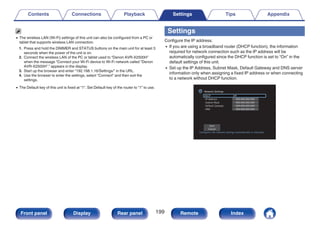
  • 260.
    Dolby Speaker Technology(Dolby Atmos Enabled speakers) A convenient alternative to speakers built into the ceiling, Dolby Atmos Enabled speakers employ the ceiling above you as a reflective surface for reproducing audio in the height plane above the listener. These speakers feature a unique upward firing driver and special signal processing. These features can be built into a conventional speaker or standalone speaker module. The features minimally impact the overall speaker footprint while providing an immersive listening experience during Dolby Atmos and Dolby Surround playback. Dolby TrueHD Dolby TrueHD is a high definition audio technology developed by Dolby Laboratories, using lossless coding technology to faithfully reproduce the sound of the studio master. This format provides the facility to support up to 8 audio channels with a sampling frequency of 96 kHz/24 bit resolution and up to 6 audio channels with a sampling frequency of 192 kHz/24 bit resolution. o DTS Dialog Control Gives you control of the listening experience. You can lift the dialog out from the background sounds when clarity and intelligibility are desired. This requires that content has been authored to support Dialog Control. DTS This is an abbreviation of Digital Theater System, which is a digital audio system developed by DTS. DTS delivers a powerful and dynamic surround sound experience, and is found in the world’s finest movie theaters and screening rooms. DTS 96/24 DTS 96/24 is a digital audio format enabling high sound quality playback in 5.1-channels with a sampling frequency of 96 kHz and 24 bit quantization on DVD-Video. DTS Digital Surround DTS™ Digital Surround is the standard digital surround format of DTS, Inc., compatible with a sampling frequency of 44.1 or 48 kHz and up to 5.1-channels of digital discrete surround sound. Contents Connections Playback Settings Tips Appendix 260 Front panel Display Rear panel Remote Index
  • 261.
    DTS-ES™ Discrete 6.1 DTS-ES™Discrete 6.1 is a 6.1-channel discrete digital audio format adding a surround back (SB) channel to the DTS digital surround sound. Decoding of conventional 5.1-channel audio signals is also possible according to the decoder. DTS-ES™ Matrix 6.1 DTS-ES™ Matrix 6.1 is a 6.1-channel audio format that inserts a surround back (SB) channel to the DTS digital surround sound through matrix encoding. Decoding of conventional 5.1-channel audio signals is also possible according to the decoder. DTS Express DTS Express is an audio format supporting low bit rates (max. 5.1- channels, 24 to 256 kbps). DTS-HD This audio technology provides higher sound quality and enhanced functionality than the conventional DTS and is adopted as an optional audio for Blu-ray Disc. This technology supports multi-channel, high data transfer speed, high sampling frequency, and lossless audio playback. Maximum 7.1-channels are supported in Blu-ray Disc. DTS-HD High Resolution Audio DTS-HD High Resolution Audio is an improved version of the conventional DTS, DTS-ES and DTS 96/24 signals formats, compatible with sampling frequencies of 96 or 48 kHz and up to 7.1-channels of discrete digital sound. High data bit rate performance provides high quality sound. This format is fully compatible with conventional products, including conventional DTS digital surround 5.1-channel data. DTS-HD Master Audio DTS-HD Master Audio is a lossless audio format created by Digital Theater System (DTS). This format provides the facility to support up to 8 audio channels with a sampling frequency of 96 kHz/24 bit resolution and up to 6 audio channels with a sampling frequency of 192 kHz/24 bit resolution. It is fully compatible with conventional products, including conventional DTS digital surround 5.1-channel data. DTS:X DTS:X produces a hemisphere of audio, where flyovers as well as ambient backgrounds become truly enveloping. DTS:X objects enable audio to move smoothly from one speaker to any other creating life-like realism. Contents Connections Playback Settings Tips Appendix 261 Front panel Display Rear panel Remote Index
  • 262.
    DTS Neural:X Enables animmersive audio experience for older content. DTS Neural:X can upmix your stereo, 5.1 or 7.1 content to take full advantage of all speakers in your surround sound system. DTS Virtual:X DTS Virtual:X allows you to enjoy multi-dimensional sound regardless of room size, layout, or speaker configuration. o Audio Apple Lossless Audio Codec This is a codec for lossless audio compression method developed by Apple Inc. This codec can be played back on iTunes, iPod or iPhone. Data compressed to approximately 60 – 70 % can be decompressed to exactly the same original data. FLAC (Free Lossless Audio Codec) FLAC stands for Free lossless Audio Codec, and is a lossless free audio file format. Lossless means that the audio is compressed without any loss in quality. The FLAC license is as shown below. Copyright (C) 2000, 2001, 2002, 2003, 2004, 2005, 2006, 2007, 2008, 2009 Josh Coalson Redistribution and use in source and binary forms, with or without modification, are permitted provided that the following conditions are met: 0 Redistributions of source code must retain the above copyright notice, this list of conditions and the following disclaimer. 0 Redistributions in binary form must reproduce the above copyright notice, this list of conditions and the following disclaimer in the documentation and/or other materials provided with the distribution. 0 Neither the name of the Xiph.org Foundation nor the names of its contributors may be used to endorse or promote products derived from this software without specific prior written permission. Contents Connections Playback Settings Tips Appendix 262 Front panel Display Rear panel Remote Index
  • 263.
    THIS SOFTWARE ISPROVIDED BY THE COPYRIGHT HOLDERS AND CONTRIBUTORS “AS IS” AND ANY EXPRESS OR IMPLIED WARRANTIES, INCLUDING, BUT NOT LIMITED TO, THE IMPLIED WARRANTIES OF MERCHANTABILITY AND FITNESS FOR A PARTICULAR PURPOSE ARE DISCLAIMED. IN NO EVENT SHALL THE FOUNDATION OR CONTRIBUTORS BE LIABLE FOR ANY DIRECT, INDIRECT, INCIDENTAL, SPECIAL, EXEMPLARY, OR CONSEQUENTIAL DAMAGES (INCLUDING, BUT NOT LIMITED TO, PROCUREMENT OF SUBSTITUTE GOODS OR SERVICES; LOSS OF USE, DATA, OR PROFITS; OR BUSINESS INTERRUPTION) HOWEVER CAUSED AND ON ANY THEORY OF LIABILITY, WHETHER IN CONTRACT, STRICT LIABILITY, OR TORT (INCLUDING NEGLIGENCE OR OTHERWISE) ARISING IN ANY WAY OUT OF THE USE OF THIS SOFTWARE, EVEN IF ADVISED OF THE POSSIBILITY OF SUCH DAMAGE. LFE This is an abbreviation of Low Frequency Effect, which is an output channel that emphasizes low frequency effect sound. Surround audio is intensified by outputting 20 Hz to 120 Hz deep bass to the system subwoofer(s). MP3 (MPEG Audio Layer-3) This is an internationally standardized audio data compression scheme, using the “MPEG-1” video compression standard. It compresses the data volume to about one eleventh its original size while maintaining sound quality equivalent to a music CD. MPEG (Moving Picture Experts Group), MPEG-2, MPEG-4 These are the names for digital compression format standards used for the encoding of video and audio. Video standards include “MPEG-1 Video”, “MPEG-2 Video”, “MPEG-4 Visual”, “MPEG-4 AVC”. Audio standards include “MPEG-1 Audio”, “MPEG-2 Audio”, “MPEG-4 AAC”. WMA (Windows Media Audio) This is audio compression technology developed by Microsoft Corporation. WMA data can be encoded using Windows Media® Player. To encode WMA files, only use applications authorized by Microsoft Corporation. If you use an unauthorized application, the file may not work properly. Sampling frequency Sampling involves taking a reading of a sound wave (analog signal) at regular intervals and expressing the height of the wave at each reading in digitized format (producing a digital signal). The number of readings taken in one second is called the “sampling frequency”. The larger the value, the closer the reproduced sound is to the original. Contents Connections Playback Settings Tips Appendix 263 Front panel Display Rear panel Remote Index
  • 264.
    Speaker impedance This isan AC resistance value, indicated in Ω (ohms). Greater power can be obtained when this value is smaller. Dialogue normalization function This function operates automatically during playback of Dolby Digital, Dolby Digital Plus, Dolby TrueHD, Dolby Atmos, DTS or DTS-HD sources. It automatically corrects the standard signal level for individual program sources. Dynamic range The difference between the maximum undistorted sound level and the minimum discernible level above the noise emitted by the device. Downmix This function converts the number of channels of surround audio to a lower number of channels and plays back according to the system’s configuration. o Video ISF ISF (Imaging Science Foundation) is an organization that certifies video technicians who are then qualified to carry out calibration and adjustment to match the installation conditions. It also sets quality standards for the optimization of device video performance. Progressive (sequential scanning) This is a scanning system of the video signal that displays 1 frame of video as one image. Compared to the interlace system, this system provides images with less flickering and jagged edges. Contents Connections Playback Settings Tips Appendix 264 Front panel Display Rear panel Remote Index
  • 265.
    o Network AirPlay AirPlay sends(plays) contents recorded in iTunes or on an iPhone/iPod touch/iPad to a compatible device via the network. WEP Key (network key) This is key information used for encrypting data when conducting data transfer. On this unit, the same WEP key is used for data encryption and decryption, so the same WEP key must be set on both devices in order for communications to be established between them. Wi-Fi® Wi-Fi Certification assures tested and proven interoperability by the Wi-Fi Alliance, a group certifying interoperability among wireless LAN devices. WPA (Wi-Fi Protected Access) This is a security standard established by the Wi-Fi Alliance. In addition to the conventional SSID (network name) and WEP key (network key), it also uses a user identification function and encrypting protocol for stronger security. WPA2 (Wi-Fi Protected Access 2) This is a new version of the WPA established by the Wi-Fi Alliance, compatible with more secure AES encryption. WPA-PSK/WPA2-PSK (Pre-shared Key) This is a simple authentication system for mutual authentication when a preset character string matches on the wireless LAN access point and client. Network Names (SSID: Service Set Identifier) When forming wireless LAN networks, groups are formed to prevent interference, data theft, etc. These groups are based on “SSID (network names)”. For enhanced security, a WEP key is set so that communication is unavailable unless both the “SSID” and the WEP key match. This is suitable for constructing a simplified network. Contents Connections Playback Settings Tips Appendix 265 Front panel Display Rear panel Remote Index
  • 266.
    o Others HDCP When transmittingdigital signals between devices, this copyright protection technology encrypts the signals to prevent content from being copied without authorization. MAIN ZONE The room where this unit is placed is called the MAIN ZONE. Pairing Pairing (registration) is an operation that is required in order to connect a Bluetooth device to this unit using Bluetooth. When paired, the devices authenticate each other and can connect without mistaken connections occurring. When using Bluetooth connection for the first time, you need to pair this unit and the Bluetooth device to be connected. Protection circuit This is a function to prevent damage to devices within the power supply when an abnormality such as an overload, excess voltage occurs or over temperature for any reason. Contents Connections Playback Settings Tips Appendix 266 Front panel Display Rear panel Remote Index
  • 267.
    Trademark information . “Made foriPod,” “Made for iPhone,” and “Made for iPad” mean that an electronic accessory has been designed to connect specifically to iPod, iPhone, or iPad, respectively, and has been certified by the developer to meet Apple performance standards. Apple is not responsible for the operation of this device or its compliance with safety and regulatory standards. Please note that the use of this accessory with iPod, iPhone, or iPad may affect wireless performance. AirPlay, iPad, iPhone, iPod touch, and Retina are trademarks of Apple Inc., registered in the U.S. and other countries. iPad Pro, iPad Air, iPad mini, and Lightning are trademarks of Apple Inc. 0 Individual users are permitted to use iPhone, iPod, iPod classic, iPod nano, iPod shuffle, and iPod touch for private copy and playback of non-copyrighted contents and contents whose copy and playback is permitted by law. Copyright infringement is prohibited by law. . Manufactured under license from Audyssey Laboratories™. U.S. and foreign patents pending. Audyssey MultEQ® XT, Audyssey Dynamic EQ® and Audyssey Dynamic Volume® are registered trademarks of Audyssey Laboratories. . The Bluetooth® word mark and logos are registered trademarks owned by Bluetooth SIG, Inc. and any use of such marks by DM Holdings Inc. is under license. Other trademarks and trade names are those of their respective owners. . Manufactured under license from Dolby Laboratories. Dolby, Dolby Atmos, Dolby Surround, Dolby Vision, and the double-D symbol are trademarks of Dolby Laboratories. Contents Connections Playback Settings Tips Appendix 267 Front panel Display Rear panel Remote Index
  • 268.
    . For DTS patents,see http://patents.dts.com. Manufactured under license from DTS, Inc. DTS, the Symbol, DTS and the Symbol together, DTS:X, the DTS:X logo, Virtual:X, and the DTS Virtual:X logo are registered trademarks and/or trademarks of DTS, Inc. in the United States and/or other countries. © DTS, Inc. All Rights Reserved. . The terms HDMI and HDMI High-Definition Multimedia Interface, and the HDMI Logo are trademarks or registered trademarks of HDMI Licensing LLC in the United States and other countries. . The Wi-Fi CERTIFIED logo is a registered trademark of the Wi-Fi Alliance. Wi-Fi Certification provides assurance that the device has passed the interoperability test conducted by the Wi-Fi Alliance, a group that certifies interoperability among wireless LAN devices. Contents Connections Playback Settings Tips Appendix 268 Front panel Display Rear panel Remote Index
  • 269.
    Specifications o Audio section 0Power amplifier Rated output: Front: 95 W + 95 W (8 Ω/ohms, 20 Hz – 20 kHz with 0.08 % T.H.D.) 125 W + 125 W (6 Ω/ohms, 1 kHz with 0.7 % T.H.D.) Center: 95 W (8 Ω/ohms, 20 Hz – 20 kHz with 0.08 % T.H.D.) 125 W (6 Ω/ohms, 1 kHz with 0.7 % T.H.D.) Surround: 95 W + 95 W (8 Ω/ohms, 20 Hz – 20 kHz with 0.08 % T.H.D.) 125 W + 125 W (6 Ω/ohms, 1 kHz with 0.7 % T.H.D.) Surround back: 95 W + 95 W (8 Ω/ohms, 20 Hz – 20 kHz with 0.08 % T.H.D.) 125 W + 125 W (6 Ω/ohms, 1 kHz with 0.7 % T.H.D.) Output connectors: 4 – 16 Ω/ohms Contents Connections Playback Settings Tips Appendix 269 Front panel Display Rear panel Remote Index
  • 270.
    0 Analog Input sensitivity:200 mV Frequency response: 10 Hz – 100 kHz — +1, –3 dB (Direct mode) S/N: 100 dB (IHF–A weighted, Direct mode) 0 Phono equalizer Input sensitivity: 2.5 mV RIAA deviation: ±1 dB (20 Hz to 20 kHz) S/N: 74 dB (IHF-A) Distortion factor: 0.03 % (1 kHz, 3 V) o Video section 0 Standard video connectors Input/output level and impedance: 1 Vp-p, 75 Ω/ohms Frequency response: 5 Hz – 10 MHz — 0, –3 dB 0 Color component video connector Input/output level and impedance: Y signal — 1 Vp-p, 75 Ω/ohms PB / CB signal — 0.7 Vp-p, 75 Ω/ohms PR / CR signal — 0.7 Vp-p, 75 Ω/ohms Frequency response: 5 Hz – 60 MHz — 0, –3 dB Contents Connections Playback Settings Tips Appendix 270 Front panel Display Rear panel Remote Index
  • 271.
    o Tuner section[FM] [AM] (Note: μV at 75 Ω/ohms, 0 dBf = 1 x 10 –15 W) Reception frequency range: 87.5 MHz – 107.9 MHz 520 kHz – 1710 kHz Effective sensitivity: 1.2 μV (12.8 dBf) 18 μV 50 dB sensitivity: MONO ― 2.8 μV (20.2 dBf) S/N ratio: MONO ― 70 dB (IHF–A weighted, Direct mode) STEREO ― 67 dB (IHF–A weighted, Direct mode) Distortion: MONO ― 0.7 % (1 kHz) STEREO ― 1.0 % (1 kHz) o Wireless LAN section Network type (wireless LAN standard): Conforming to IEEE 802.11a/b/g/n (Wi-Fi® compliant) z1 Security: WEP 64 bit, WEP 128 bit WPA/WPA2-PSK (AES) WPA/WPA2-PSK (TKIP) Used frequency range: 2.4 GHz, 5 GHz z1 The Wi-Fi® CERTIFIED Logo and the Wi-Fi CERTIFIED On-Product Logo are registered trademarks of the Wi-Fi Alliance. Contents Connections Playback Settings Tips Appendix 271 Front panel Display Rear panel Remote Index
  • 272.
    o Bluetooth section Communicationssystem: Bluetooth Specification Version 3.0 + EDR (Enhanced Data Rate) Transmission power: Bluetooth Specification Power Class 1 Maximum communication range: Approx. 98.4 ft/30 m in line of sight z2 Used frequency range: 2.4 GHz Modulation scheme: FHSS (Frequency-Hopping Spread Spectrum) Supported profiles: A2DP (Advanced Audio Distribution Profile) 1.2 AVRCP (Audio Video Remote Control Profile) 1.5 Corresponding codec: SBC Transmission range (A2DP): 20 Hz – 20,000 Hz z2 The actual communication range varies depending on the influence of such factors as obstructions between devices, electromagnetic waves from microwave ovens, static electricity, cordless phones, reception sensitivity, antenna performance, operating system, application software etc. o General Power supply: AC 120 V, 60 Hz Power consumption: 500 W Power consumption in standby mode: 0.1 W z Power consumption in CEC standby mode: 0.5 W z When “Network Control” in the menu is set to “Off In Standby” and “HDMI Pass Through” is set to “Off”. For purposes of improvement, specifications and design are subject to change without notice. Contents Connections Playback Settings Tips Appendix 272 Front panel Display Rear panel Remote Index
  • 273.
    o Dimensions (Unit: in. (mm)) . 5 7/8 (148) 1 7/8 (45) 13 5/8 (344) 1 7/8 (45) 6 5/8 (167) 17 1/8 (434) 3/4 (19) 3/4 (19) 11 3/8 (288) 1 3/8 (34) 13 1/2 (341) 2 1/4 (57) 6 1/2 (165) 3 5/8 (91) 9 3/8 (237) 2 3/8 (60) o Weight: 20 lbs 12 oz (9.4 kg) Contents Connections Playback Settings Tips Appendix 273 Front panel Display Rear panel Remote Index
  • 274.
    Index v Numerics 3D ................................................................241 4K ................................................................ 241 5.1-channel .............................................. 32, 40 7.1-channel .............................................. 32, 41 v A AirPlay .......................................................... 100 All Zone Stereo ............................................ 111 Audio formats ....................... 243, 246, 248, 249 Audio settings ....................................... 141, 146 Audyssey Dynamic EQ® ............................. 258 Audyssey Dynamic Volume® ...................... 258 Audyssey MultEQ® XT ................................ 258 Audyssey settings ................................ 154, 177 Audyssey® Setup ........................................ 175 Auto sound mode ......................................... 115 Auto Standby ............................................... 207 v B Bi-amp ............................................................ 47 Bluetooth device ............................................ 74 Blu-ray Disc player ................................... 56, 68 v C Cable TV ........................................................ 55 v D Direct sound mode ....................................... 119 Display ........................................................... 18 Dolby Atmos ................................................. 259 Dolby sound mode ............................... 116, 259 DTS sound mode ................................. 117, 260 DVD player ............................................... 56, 68 v E ECO Mode ................................................... 204 External control device ................................... 64 v F Firmware Update .......................................... 211 FM/AM antenna ........................................ 60, 78 Front panel ..................................................... 15 v G Game console ................................................ 57 General settings ................................... 144, 204 v H HDCP ........................................................... 243 HDMI Control ....................................... 124, 162 HEOS Account ....................................... 92, 203 HEOS Favorites ........................................... 105 Contents Connections Playback Settings Tips Appendix 274 Front panel Display Rear panel Remote Index
  • 275.
    v I Input Assign................................................. 171 Input settings ........................................ 142, 171 Input signal ................................................... 255 Input source ................................................... 67 Internet Radio ................................................. 85 v L Listening position ......................................... 175 v M Menu map .................................................... 141 Muting ............................................................ 68 v N NAS ............................................................... 87 Network settings .......................................... 196 v O Original sound mode .................................... 118 v P Pairing ...................................................... 74, 75 PC .................................................................. 87 PCM multi-channel sound mode .................. 118 Picture Mode ................................................ 158 Protection circuit .......................................... 266 Pure direct .................................................... 115 v Q Queue ................................................ 70, 88, 95 Quick select plus .......................................... 129 v R Rear panel ...................................................... 20 Remote control unit ........................................ 24 Resetting factory settings ............................. 239 Resetting network settings ........................... 240 Restorer ....................................................... 151 v S Satellite tuner ................................................. 55 Set-top box ..................................................... 55 Setup Assistant ............................................ 144 Sleep timer ................................................... 127 Sound mode ................................. 113, 250, 252 Speaker connection ....................................... 35 Speaker settings .................................. 142, 175 Spotify .......................................................... 103 Stereo sound mode ...................................... 119 Contents Connections Playback Settings Tips Appendix 275 Front panel Display Rear panel Remote Index
  • 276.
    v T Tips ..............................................................220 Troubleshooting ........................................... 222 TV ....................................................... 51, 52, 53 v U USB memory device ................................ 59, 69 v V Video camcorder ............................................ 57 Video Select ................................................. 109 Video settings ....................................... 141, 158 Volume ................................................... 68, 107 v W Web control .................................................. 135 Wi-Fi settings ............................................... 197 Wired LAN .............................................. 62, 196 Wireless LAN ......................................... 63, 197 v Z ZONE2 ................................................... 49, 137 Contents Connections Playback Settings Tips Appendix 276 Front panel Display Rear panel Remote Index
  • 277.
    License o License informationfor the software used in the unit About GPL (GNU-General Public License), LGPL (GNU Lesser General Public License) License This product uses GPL/LGPL software and software made by other companies. After you purchase this product, you may procure, modify or distribute the source code of the GPL/LGPL software that is used in the product. Denon provides the source code based on the GPL and LPGL licenses at the actual cost upon your request to our customer service center. However, note that we make no guarantees concerning the source code. Please also understand that we do not offer support for the contents of the source code. This section describes software license used for this unit. To maintain the correct content, the original (English) is used. n GPL Open Source Used Version bridge-utils 2.8 busybox 1.21.1 ebtables 2.0.10-4 Linux kernel 3.10.74 mtd-utils 1.4.3 ntfs-3g_ntfsprogs 2011.4.12 ntpclient 2007 u-boot 2015.01 wireless-tools version 29 Contents Connections Playback Settings Tips Appendix 277 Front panel Display Rear panel Remote Index
  • 278.
    n LGPL Open SourceUsed Version ffmpeg 0.8.3 glibc 2.9 libmms 0.6.2 n curl-7.24.0 COPYRIGHT AND PERMISSION NOTICE Copyright (c) 1996 - 2014, Daniel Stenberg, daniel@haxx.se All rights reserved. Permission to use, copy, modify, and distribute this software for any purpose with or without fee is hereby granted, provided that the above copyright notice and this permission notice appear in all copies. THE SOFTWARE IS PROVIDED “AS IS”, WITHOUT WARRANTY OF ANY KIND, EXPRESS OR IMPLIED, INCLUDING BUT NOT LIMITED TO THE WARRANTIES OF MERCHANTABILITY, FITNESS FOR A PARTICULAR PURPOSE AND NONINFRINGEMENT OF THIRD PARTY RIGHTS. IN NO EVENT SHALL THE AUTHORS OR COPYRIGHT HOLDERS BE LIABLE FOR ANY CLAIM, DAMAGES OR OTHER LIABILITY, WHETHER IN AN ACTION OF CONTRACT, TORT OR OTHERWISE, ARISING FROM, OUT OF OR IN CONNECTION WITH THE SOFTWARE OR THE USE OR OTHER DEALINGS IN THE SOFTWARE. Except as contained in this notice, the name of a copyright holder shall not be used in advertising or otherwise to promote the sale, use or other dealings in this Software without prior written authorization of the copyright holder. n e2fsprogs-libs-1.40.8/lib/uuid Redistribution and use in source and binary forms, with or without modification, are permitted provided that the following conditions are met: 1. Redistributions of source code must retain the above copyright notice, and the entire permission notice in its entirety, including the disclaimer of warranties. 2. Redistributions in binary form must reproduce the above copyright notice, this list of conditions and the following disclaimer in the documentation and/or other materials provided with the distribution. 3. The name of the author may not be used to endorse or promote products derived from this software without specific prior written permission. THIS SOFTWARE IS PROVIDED “AS IS” AND ANY EXPRESS OR IMPLIED WARRANTIES, INCLUDING, BUT NOT LIMITED TO, THE IMPLIED WARRANTIES OF MERCHANTABILITY AND FITNESS FOR A PARTICULAR PURPOSE, ALL OF WHICH ARE HEREBY DISCLAIMED. IN NO EVENT SHALL THE AUTHOR BE LIABLE FOR ANY DIRECT, INDIRECT, INCIDENTAL, SPECIAL, EXEMPLARY, OR CONSEQUENTIAL DAMAGES (INCLUDING, BUT NOT LIMITED TO, PROCUREMENT OF SUBSTITUTE GOODS OR SERVICES; LOSS OF USE, DATA, OR PROFITS; OR BUSINESS INTERRUPTION) HOWEVER CAUSED AND ON ANY THEORY OF LIABILITY, WHETHER IN CONTRACT, STRICT LIABILITY, OR TORT (INCLUDING NEGLIGENCE OR OTHERWISE) ARISING IN ANY WAY OUT OF THE USE OF THIS SOFTWARE, EVEN IF NOT ADVISED OF THE POSSIBILITY OF SUCH DAMAGE. Contents Connections Playback Settings Tips Appendix 278 Front panel Display Rear panel Remote Index
  • 279.
    n expat-2.0.1 Copyright (c)1998, 1999, 2000 Thai Open Source Software Center Ltd and Clark Cooper Copyright (c) 2001, 2002, 2003, 2004, 2005, 2006 Expat maintainers. Permission is hereby granted, free of charge, to any person obtaining a copy of this software and associated documentation files (the “Software”), to deal in the Software without restriction, including without limitation the rights to use, copy, modify, merge, publish, distribute, sublicense, and/or sell copies of the Software, and to permit persons to whom the Software is furnished to do so, subject to the following conditions: The above copyright notice and this permission notice shall be included in all copies or substantial portions of the Software. THE SOFTWARE IS PROVIDED “AS IS”, WITHOUT WARRANTY OF ANY KIND, EXPRESS OR IMPLIED, INCLUDING BUT NOT LIMITED TO THE WARRANTIES OF MERCHANTABILITY, FITNESS FOR A PARTICULAR PURPOSE AND NONINFRINGEMENT. IN NO EVENT SHALL THE AUTHORS OR COPYRIGHT HOLDERS BE LIABLE FOR ANY CLAIM, DAMAGES OR OTHER LIABILITY, WHETHER IN AN ACTION OF CONTRACT, TORT OR OTHERWISE, ARISING FROM, OUT OF OR IN CONNECTION WITH THE SOFTWARE OR THE USE OR OTHER DEALINGS IN THE SOFTWARE. n getopt http://cvsweb.netbsd.org/bsdweb.cgi/src/lib/libc/stdlib/ Copyright (c) 1987, 1993, 1994 The Regents of the University of California. All rights reserved. Redistribution and use in source and binary forms, with or without modification, are permitted provided that the following conditions are met: 1. Redistributions of source code must retain the above copyright notice, this list of conditions and the following disclaimer. 2. Redistributions in binary form must reproduce the above copyright notice, this list of conditions and the following disclaimer in the documentation and/or other materials provided with the distribution. 3. Neither the name of the University nor the names of its contributors may be used to endorse or promote products derived from this software without specific prior written permission. THIS SOFTWARE IS PROVIDED BY THE REGENTS AND CONTRIBUTORS “AS IS” AND ANY EXPRESS OR IMPLIED WARRANTIES, INCLUDING, BUT NOT LIMITED TO, THE IMPLIED WARRANTIES OF MERCHANTABILITY AND FITNESS FOR A PARTICULAR PURPOSE ARE DISCLAIMED. IN NO EVENT SHALL THE REGENTS OR CONTRIBUTORS BE LIABLE FOR ANY DIRECT, INDIRECT, INCIDENTAL, SPECIAL, EXEMPLARY, OR CONSEQUENTIAL DAMAGES (INCLUDING, BUT NOT LIMITED TO, PROCUREMENT OF SUBSTITUTE GOODS OR SERVICES; LOSS OF USE, DATA, OR PROFITS; OR BUSINESS INTERRUPTION) HOWEVER CAUSED AND ON ANY THEORY OF LIABILITY, WHETHER IN CONTRACT, STRICT LIABILITY, OR TORT (INCLUDING NEGLIGENCE OR OTHERWISE) ARISING IN ANY WAY OUT OF THE USE OF THIS SOFTWARE, EVEN IF ADVISED OF THE POSSIBILITY OF SUCH DAMAGE. Contents Connections Playback Settings Tips Appendix 279 Front panel Display Rear panel Remote Index
  • 280.
    n jQuery Copyright 2014jQuery Foundation and other contributors http://jquery.com/ Permission is hereby granted, free of charge, to any person obtaining a copy of this software and associated documentation files (the “Software”), to deal in the Software without restriction, including without limitation the rights to use, copy, modify, merge, publish, distribute, sublicense, and/or sell copies of the Software, and to permit persons to whom the Software is furnished to do so, subject to the following conditions: The above copyright notice and this permission notice shall be included in all copies or substantial portions of the Software. THE SOFTWARE IS PROVIDED “AS IS”, WITHOUT WARRANTY OF ANY KIND, EXPRESS OR IMPLIED, INCLUDING BUT NOT LIMITED TO THE WARRANTIES OF MERCHANTABILITY, FITNESS FOR A PARTICULAR PURPOSE AND NONINFRINGEMENT. IN NO EVENT SHALL THE AUTHORS OR COPYRIGHT HOLDERS BE LIABLE FOR ANY CLAIM, DAMAGES OR OTHER LIABILITY, WHETHER IN AN ACTION OF CONTRACT, TORT OR OTHERWISE, ARISING FROM, OUT OF OR IN CONNECTION WITH THE SOFTWARE OR THE USE OR OTHER DEALINGS IN THE SOFTWARE. n libpcap-1.4.0 License: BSD Redistribution and use in source and binary forms, with or without modification, are permitted provided that the following conditions are met: 1. Redistributions of source code must retain the above copyright notice, this list of conditions and the following disclaimer. 2. Redistributions in binary form must reproduce the above copyright notice, this list of conditions and the following disclaimer in the documentation and/or other materials provided with the distribution. 3. The names of the authors may not be used to endorse or promote products derived from this software without specific prior written permission. THIS SOFTWARE IS PROVIDED “AS IS” AND WITHOUT ANY EXPRESS OR IMPLIED WARRANTIES, INCLUDING, WITHOUT LIMITATION, THE IMPLIED WARRANTIES OF MERCHANTABILITY AND FITNESS FOR A PARTICULAR PURPOSE. Contents Connections Playback Settings Tips Appendix 280 Front panel Display Rear panel Remote Index
  • 281.
    n libtar-1.2.11 Copyright (c)1998-2003 University of Illinois Board of Trustees Copyright (c) 1998-2003 Mark D. Roth All rights reserved. Developed by: Campus Information Technologies and Educational Services, University of Illinois at Urbana-Champaign Permission is hereby granted, free of charge, to any person obtaining a copy of this software and associated documentation files (the “Software”), to deal with the Software without restriction, including without limitation the rights to use, copy, modify, merge, publish, distribute, sublicense, and/or sell copies of the Software, and to permit persons to whom the Software is furnished to do so, subject to the following conditions: 0 Redistributions of source code must retain the above copyright notice, this list of conditions and the following disclaimers. 0 Redistributions in binary form must reproduce the above copyright notice, this list of conditions and the following disclaimers in the documentation and/or other materials provided with the distribution. 0 Neither the names of Campus Information Technologies and Educational Services, University of Illinois at Urbana-Champaign, nor the names of its contributors may be used to endorse or promote products derived from this Software without specific prior written permission. THE SOFTWARE IS PROVIDED “AS IS”, WITHOUT WARRANTY OF ANY KIND, EXPRESS OR IMPLIED, INCLUDING BUT NOT LIMITED TO THE WARRANTIES OF MERCHANTABILITY, FITNESS FOR A PARTICULAR PURPOSE AND NONINFRINGEMENT. IN NO EVENT SHALL THE CONTRIBUTORS OR COPYRIGHT HOLDERS BE LIABLE FOR ANY CLAIM, DAMAGES OR OTHER LIABILITY, WHETHER IN AN ACTION OF CONTRACT, TORT OR OTHERWISE, ARISING FROM, OUT OF OR IN CONNECTION WITH THE SOFTWARE OR THE USE OR OTHER DEALINGS WITH THE SOFTWARE. n mDNS 320.10.80 The majority of the source code in the mDNSResponder project is licensed under the terms of the Apache License, Version 2.0, available from: http://www.apache.org/licenses/LICENSE-2.0 To accommodate license compatibility with the widest possible range of client code licenses, the shared library code, which is linked at runtime into the same address space as the client using it, is licensed under the terms of the “Three-Clause BSD License”. The Linux Name Service Switch code, contributed by National ICT Australia Ltd (NICTA) is licensed under the terms of the NICTA Public Software Licence (which is substantially similar to the “Three-Clause BSD License”, with some additional language pertaining to Australian law). Contents Connections Playback Settings Tips Appendix 281 Front panel Display Rear panel Remote Index
  • 282.
    n mongoose https://github.com/cesanta/mongoose/ Copyright (c)2004-2013 Sergey Lyubka Permission is hereby granted, free of charge, to any person obtaining a copy of this software and associated documentation files (the “Software”), to deal in the Software without restriction, including without limitation the rights to use, copy, modify, merge, publish, distribute, sublicense, and/or sell copies of the Software, and to permit persons to whom the Software is furnished to do so, subject to the following conditions: The above copyright notice and this permission notice shall be included in all copies or substantial portions of the Software. THE SOFTWARE IS PROVIDED “AS IS”, WITHOUT WARRANTY OF ANY KIND, EXPRESS OR IMPLIED, INCLUDING BUT NOT LIMITED TO THE WARRANTIES OF MERCHANTABILITY, FITNESS FOR A PARTICULAR PURPOSE AND NONINFRINGEMENT. IN NO EVENT SHALL THE AUTHORS OR COPYRIGHT HOLDERS BE LIABLE FOR ANY CLAIM, DAMAGES OR OTHER LIABILITY, WHETHER IN AN ACTION OF CONTRACT, TORT OR OTHERWISE, ARISING FROM, OUT OF OR IN CONNECTION WITH THE SOFTWARE OR THE USE OR OTHER DEALINGS IN THE SOFTWARE. n openssl-1.0.0d Copyright (c) 1998-2011 The OpenSSL Project. All rights reserved. Redistribution and use in source and binary forms, with or without modification, are permitted provided that the following conditions are met: 1. Redistributions of source code must retain the above copyright notice, this list of conditions and the following disclaimer. 2. Redistributions in binary form must reproduce the above copyright notice, this list of conditions and the following disclaimer in the documentation and/or other materials provided with the distribution. 3. All advertising materials mentioning features or use of this software must display the following acknowledgment: “This product includes software developed by the OpenSSL Project for use in the OpenSSL Toolkit. (http://www.openssl.org/)” 4. The names “OpenSSL Toolkit” and “OpenSSL Project” must not be used to endorse or promote products derived from this software without prior written permission. For written permission, please contact openssl-core@openssl.org. 5. Products derived from this software may not be called “OpenSSL” nor may “OpenSSL” appear in their names without prior written permission of the OpenSSL Project. 6. Redistributions of any form whatsoever must retain the following acknowledgment: “This product includes software developed by the OpenSSL Project for use in the OpenSSL Toolkit (http://www.openssl.org/)” Contents Connections Playback Settings Tips Appendix 282 Front panel Display Rear panel Remote Index
  • 283.
    THIS SOFTWARE ISPROVIDED BY THE OpenSSL PROJECT “AS IS” AND ANY EXPRESSED OR IMPLIED WARRANTIES, INCLUDING, BUT NOT LIMITED TO, THE IMPLIED WARRANTIES OF MERCHANTABILITY AND FITNESS FOR A PARTICULAR PURPOSE ARE DISCLAIMED. IN NO EVENT SHALL THE OpenSSL PROJECT OR ITS CONTRIBUTORS BE LIABLE FOR ANY DIRECT, INDIRECT, INCIDENTAL, SPECIAL, EXEMPLARY, OR CONSEQUENTIAL DAMAGES (INCLUDING, BUT NOT LIMITED TO, PROCUREMENT OF SUBSTITUTE GOODS OR SERVICES; LOSS OF USE, DATA, OR PROFITS; OR BUSINESS INTERRUPTION) HOWEVER CAUSED AND ON ANY THEORY OF LIABILITY, WHETHER IN CONTRACT, STRICT LIABILITY, OR TORT (INCLUDING NEGLIGENCE OR OTHERWISE) ARISING IN ANY WAY OUT OF THE USE OF THIS SOFTWARE, EVEN IF ADVISED OF THE POSSIBILITY OF SUCH DAMAGE. This product includes cryptographic software written by Eric Young (eay@cryptsoft.com). This product includes software written by Tim Hudson (tjh@cryptsoft.com). n portmap-6.0 Copyright (c) 1990 The Regents of the University of California. 0 All rights reserved. 0 Redistribution and use in source and binary forms, with or without modification, are permitted provided that the following conditions are met: 1. Redistributions of source code must retain the above copyright notice, this list of conditions and the following disclaimer. 2. Redistributions in binary form must reproduce the above copyright notice, this list of conditions and the following disclaimer in the documentation and/or other materials provided with the distribution. 3. A ll advertising materials mentioning features or use of this software must display the following acknowledgement: This product includes software developed by the University of California, Berkeley and its contributors. 4. Neither the name of the University nor the names of its contributors may be used to endorse or promote products derived from this software without specific prior written permission. 0 THIS SOFTWARE IS PROVIDED BY THE REGENTS AND CONTRIBUTORS “AS IS” AND ANY EXPRESS OR IMPLIED WARRANTIES, INCLUDING, BUT NOT LIMITED TO, THE IMPLIED WARRANTIES OF MERCHANTABILITY AND FITNESS FOR A PARTICULAR PURPOSE ARE DISCLAIMED. IN NO EVENT SHALL THE REGENTS OR CONTRIBUTORS BE LIABLE FOR ANY DIRECT, INDIRECT, INCIDENTAL, SPECIAL, EXEMPLARY, OR CONSEQUENTIAL DAMAGES (INCLUDING, BUT NOT LIMITED TO, PROCUREMENT OF SUBSTITUTE GOODS OR SERVICES; LOSS OF USE, DATA, OR PROFITS; OR BUSINESS INTERRUPTION) HOWEVER CAUSED AND ON ANY THEORY OF LIABILITY, WHETHER IN CONTRACT, STRICT LIABILITY, OR TORT (INCLUDING NEGLIGENCE OR OTHERWISE) ARISING IN ANY WAY OUT OF THE USE OF THIS SOFTWARE, EVEN IF ADVISED OF THE POSSIBILITY OF SUCH DAMAGE. Contents Connections Playback Settings Tips Appendix 283 Front panel Display Rear panel Remote Index
  • 284.
    n pstdint.h-0.1.12 0 BSDLicense: 0 Copyright (c) 2005-2011 Paul Hsieh 0 All rights reserved. 0 Redistribution and use in source and binary forms, with or without modification, are permitted provided that the following conditions are met: 1. Redistributions of source code must retain the above copyright notice, this list of conditions and the following disclaimer. 2. Redistributions in binary form must reproduce the above copyright notice, this list of conditions and the following disclaimer in the documentation and/or other materials provided with the distribution. 3. The name of the author may not be used to endorse or promote products derived from this software without specific prior written permission. 0 THIS SOFTWARE IS PROVIDED BY THE AUTHOR “AS IS” AND ANY EXPRESS OR IMPLIED WARRANTIES, INCLUDING, BUT NOT LIMITED TO, THE IMPLIED WARRANTIES OF MERCHANTABILITY AND FITNESS FOR A PARTICULAR PURPOSE ARE DISCLAIMED. 0 IN NO EVENT SHALL THE AUTHOR BE LIABLE FOR ANY DIRECT, INDIRECT, INCIDENTAL, SPECIAL, EXEMPLARY, OR CONSEQUENTIAL DAMAGES (INCLUDING, BUT NOT LIMITED TO, PROCUREMENT OF SUBSTITUTE GOODS OR SERVICES; LOSS OF USE, DATA, OR PROFITS; OR BUSINESS INTERRUPTION) HOWEVER CAUSED AND ON ANY THEORY OF LIABILITY, WHETHER IN CONTRACT, STRICT LIABILITY, OR TORT (INCLUDING NEGLIGENCE OR OTHERWISE) ARISING IN ANY WAY OUT OF THE USE OF THIS SOFTWARE, EVEN IF ADVISED OF THE POSSIBILITY OF SUCH DAMAGE. n rl78flash 2000.3.1 License ======= The MIT License (MIT) Copyright (c) 2012 Maxim Salov Permission is hereby granted, free of charge, to any person obtaining a copy of this software and associated documentation files (the “Software”), to deal in the Software without restriction, including without limitation the rights to use, copy, modify, merge, publish, distribute, sublicense, and/or sell copies of the Software, and to permit persons to whom the Software is furnished to do so, subject to the following conditions: The above copyright notice and this permission notice shall be included in all copies or substantial portions of the Software. THE SOFTWARE IS PROVIDED “AS IS”, WITHOUT WARRANTY OF ANY KIND, EXPRESS OR IMPLIED, INCLUDING BUT NOT LIMITED TO THE WARRANTIES OF MERCHANTABILITY, FITNESS FOR A PARTICULAR PURPOSE AND NONINFRINGEMENT. IN NO EVENT SHALL THE AUTHORS OR COPYRIGHT HOLDERS BE LIABLE FOR ANY CLAIM, DAMAGES OR OTHER LIABILITY, WHETHER IN AN ACTION OF CONTRACT, TORT OR OTHERWISE, ARISING FROM, OUT OF OR IN CONNECTION WITH THE SOFTWARE OR THE USE OR OTHER DEALINGS IN THE SOFTWARE. Contents Connections Playback Settings Tips Appendix 284 Front panel Display Rear panel Remote Index
  • 285.
    n sqlite 2003.5.7 SQLiteCopyright SQLite is in the Public Domain All of the code and documentation in SQLite has been dedicated to the public domain by the authors. All code authors, and representatives of the companies they work for, have signed affidavits dedicating their contributions to the public domain and originals of those signed affidavits are stored in a firesafe at the main offices of Hwaci. Anyone is free to copy, modify, publish, use, compile, sell, or distribute the original SQLite code, either in source code form or as a compiled binary, for any purpose, commercial or non-commercial, and by any means. The previous paragraph applies to the deliverable code and documentation in SQLite - those parts of the SQLite library that you actually bundle and ship with a larger application. Some scripts used as part of the build process (for example the “configure” scripts generated by autoconf) might fall under other open-source licenses. Nothing from these build scripts ever reaches the final deliverable SQLite library, however, and so the licenses associated with those scripts should not be a factor in assessing your rights to copy and use the SQLite library. All of the deliverable code in SQLite has been written from scratch. No code has been taken from other projects or from the open internet. Every line of code can be traced back to its original author, and all of those authors have public domain dedications on file. So the SQLite code base is clean and is uncontaminated with licensed code from other projects. n strlcpy.c , v1.11 0 Copyright (c) 1998 Todd C. Miller Todd.Miller@courtesan.com 0 Permission to use, copy, modify, and distribute this software for any purpose with or without fee is hereby granted, provided that the above copyright notice and this permission notice appear in all copies. 0 THE SOFTWARE IS PROVIDED “AS IS” AND THE AUTHOR DISCLAIMS ALL WARRANTIES WITH REGARD TO THIS SOFTWARE INCLUDING ALL IMPLIED WARRANTIES OF MERCHANTABILITY AND FITNESS. IN NO EVENT SHALL THE AUTHOR BE LIABLE FOR ANY SPECIAL, DIRECT, INDIRECT, OR CONSEQUENTIAL DAMAGES OR ANY DAMAGES WHATSOEVER RESULTING FROM LOSS OF USE, DATA OR PROFITS, WHETHER IN AN ACTION OF CONTRACT, NEGLIGENCE OR OTHER TORTIOUS ACTION, ARISING OUT OF OR IN CONNECTION WITH THE USE OR PERFORMANCE OF THIS SOFTWARE. n taglib-1.5 copyright : (C) 2002 - 2008 by Scott Wheeler email : wheeler@kde.org “The contents of this file are subject to the Mozilla Public License Version 1.1 (the “License”); you may not use this file except in compliance with the License. You may obtain a copy of the License at http://www.mozilla.org/MPL/ Software distributed under the License is distributed on an “AS IS” basis, WITHOUT WARRANTY OF ANY KIND, either express or implied. See the License for the specific language governing rights and limitations under the License. Contents Connections Playback Settings Tips Appendix 285 Front panel Display Rear panel Remote Index
  • 286.
    n tinyxml 2002.4.3 www.sourceforge.net/projects/tinyxml Thissoftware is provided 'as-is', without any express or implied warranty. In no event will the authors be held liable for any damages arising from the use of this software. Permission is granted to anyone to use this software for any purpose, including commercial applications, and to alter it and redistribute it freely, subject to the following restrictions: 1. The origin of this software must not be misrepresented; you must not claim that you wrote the original software. If you use this software in a product, an acknowledgment in the product documentation would be appreciated but is not required. 2. Altered source versions must be plainly marked as such, and must not be misrepresented as being the original software. 3. This notice may not be removed or altered from any source distribution. n Tremor http://wiki.xiph.org/index.php/Tremor Copyright (c) 2002, Xiph.org Foundation Redistribution and use in source and binary forms, with or without modification, are permitted provided that the following conditions are met: 1. Redistributions of source code must retain the above copyright notice, this list of conditions and the following disclaimer. 2. Redistributions in binary form must reproduce the above copyright notice, this list of conditions and the following disclaimer in the documentation and/or other materials provided with the distribution. 3. Neither the name of the Xiph.org Foundation nor the names of its contributors may be used to endorse or promote products derived from this software without specific prior written permission. THIS SOFTWARE IS PROVIDED BY THE COPYRIGHT HOLDERS AND CONTRIBUTORS “AS IS” AND ANY EXPRESS OR IMPLIED WARRANTIES, INCLUDING, BUT NOT LIMITED TO, THE IMPLIED WARRANTIES OF MERCHANTABILITY AND FITNESS FOR A PARTICULAR PURPOSE ARE DISCLAIMED. IN NO EVENT SHALL THE FOUNDATION OR CONTRIBUTORS BE LIABLE FOR ANY DIRECT, INDIRECT, INCIDENTAL, SPECIAL, EXEMPLARY, OR CONSEQUENTIAL DAMAGES (INCLUDING, BUT NOT LIMITED TO, PROCUREMENT OF SUBSTITUTE GOODS OR SERVICES; LOSS OF USE, DATA, OR PROFITS; OR BUSINESS INTERRUPTION) HOWEVER CAUSED AND ON ANY THEORY OF LIABILITY, WHETHER IN CONTRACT, STRICT LIABILITY, OR TORT (INCLUDING NEGLIGENCE OR OTHERWISE) ARISING IN ANY WAY OUT OF THE USE OF THIS SOFTWARE, EVEN IF ADVISED OF THE POSSIBILITY OF SUCH DAMAGE. Contents Connections Playback Settings Tips Appendix 286 Front panel Display Rear panel Remote Index
  • 287.
    n zlib http://www.zlib.net/ zlib.h --interface of the ‘zlib’ general purpose compression library version 1.2.3, July 18th, 2005 Copyright (C) 1995-2004 Jean-loup Gailly and Mark Adler This software is provided ‘as-is’, without any express or implied warranty. In no event will the authors be held liable for any damages arising from the use of this software. Permission is granted to anyone to use this software for any purpose, including commercial applications, and to alter it and redistribute it freely, subject to the following restrictions: 1. The origin of this software must not be misrepresented; you must not claim that you wrote the original software. If you use this software in a product, an acknowledgment in the product documentation would be appreciated but is not required. 2. Altered source versions must be plainly marked as such, and must not be misrepresented as being the original software. 3. This notice may not be removed or altered from any source distribution. Jean-loup Gailly jloup@gzip.org, Mark Adler madler@alumni.caltech.edu n The Spotify software is subject to third party licenses found here: www.spotify.com/connect/third-party-licenses Contents Connections Playback Settings Tips Appendix 287 Front panel Display Rear panel Remote Index
  • 288.
    . www.denon.com 3520 1058800ADA Copyright © 2018 DM Holdings Inc. All Rights Reserved. 288
  • 289.
    Lisez-moi en premier..../ Lea esto primero.... ENGLISH FRANÇAIS ESPAÑOL AVR-X2500H INTEGRATED NETWORK AV RECEIVER Quick Start Guide Read Me First.... Guide de démarrage rapide / Guía de inicio rápido Please do not return this unit to the store. If you need help… Check our AVR setup tips online Usa.denon.com/SetupTips Ca.Denon.com/SetupTips Call for Assistance 1-855-MY.DENON (USA) 1-855-693-3666 1-800-668-0652 (Canada) Monday – Friday 10:00AM to 10:00PM E.S.T Saturday 12:00PM to 8:00PM E.S.T
  • 290.
    1 Thank you forchoosing a Denon AV receiver. This guide provides step-by-step instructions for setting up your AV receiver. Welcome Before You Begin Required for Setup TV Speaker cables HDMI cable Subwoofer cable Speakers Optional LAN cable Wi-Fi router • When connecting this unit to a device that is compatible with the Deep Color, 4K and ARC functions, use a “High Speed HDMI cable with Ethernet” that displays the HDMI logo. • These drawings are for illustrative purposes only and may not represent the actual product(s). or
  • 291.
    2 What’s In theBox Quick Start Guide FM indoor antenna Safety Instructions AM loop antenna Notes on radio Sound calibration microphone Warranty (for North America model only) Sound calibration microphone stand Cable labels Remote control unit (RC-1228) Receiver R03/AAA batteries Power cord External antennas for Bluetooth / wireless connectivity • The included sound calibration microphone stand is convenient for use when performing Speaker Calibration. Using your own tripod or the supplied Sound calibration microphone stand enables settings to be automatically configured to the optimum listening environment, providing exceptionally high performance.
  • 292.
    3 Important: External Antennas Theremovable external antennas are required for both Bluetooth and Wireless network connectivity. Please make sure to connect the antennas before attempting to use the Bluetooth or Wi-Fi features of the AVR-X2500H. n Connecting the external antennas for Bluetooth / Wireless connectivity For each of the two antennas: q Place the antenna evenly over the antenna terminal located at the upper left or right corner of the rear panel. w Turn the antenna clockwise until it is fully connected. Do not over tighten. e Rotate the antenna upwards for the best possible reception. q w e
  • 293.
    4 1 Installing batteries inthe remote control unit Batteries There are four steps to the setup process. 1 Installing batteries in the remote control unit 2 Connecting the receiver 3 Following the On-Screen Setup Assistant 4 Downloading the Mobile Apps Setup
  • 294.
    5 2 Connecting thereceiver 1) Place the receiver near your TV and connect the power cord TV Receiver Power cord (supplied) Connect to household power outlet (AC 120 V, 60 Hz)
  • 295.
    6 2) Connect thereceiver to your home network Wired LAN Connect an Ethernet cable (not included) between your receiver and your network router. Router To LAN port Wireless LAN When connecting to wireless LAN (Wi-Fi), follow the instructions in “Connecting the external antennas for Bluetooth / Wireless connectivity” and connect the antennas.
  • 296.
    7 3) Connect thereceiver to your TV with an HDMI cable $5 HDMI IN HDMI OUT MONITOR 1 $5 HDMI cable Receiver (Rear panel) ARC (Audio Return Channel) : If your TV supports ARC, your TV can send audio back to the AV receiver when you are using your TV’s built-in video sources (TV tuner, Smart TV streaming services, etc…) ARC requires that you enable HDMI CEC on your TV. Please refer to your TV’s Owner’s Manual for instructions on how to setup HDMI CEC. Note that some TV manufacturers use other names for the HDMI CEC function. 4) Turn on the TV TV remote control unit 5) Select the appropriate HDMI input on your TV HDMI TV/ VIDEO INPUT or TV remote control unit
  • 297.
    8 6) Turn onthe receiver • Press X to turn on the receiver. 7) Verify the connection • Verify that you can see this screen on your TV. AV Receiver Setup Assistant Please select a language... Español Français English If this screen is not displayed, please go back and retry the steps again in the recommended sequence.
  • 298.
    9 3 Following theOn-Screen Setup Assistant The Setup Assistant will walk you through connecting and configuring your speakers and components to your Denon receiver. Please use the remote control and follow the on-screen instructions. AV Receiver Setup Assistant Please select a language... Español Français English
  • 299.
    10 4 Downloading theMobile Apps Download both the “HEOS” App and the “Denon 2016 AVR Remote” App for the full home entertainment experience. The HEOS App is required to access online music through your AVR. HEOS The HEOS App allows you to explore, browse, and play music from many online streaming services or from your own music library. Denon 2016 AVR Remote Control your new AVR with the latest Denon 2016 AVR Remote App. Volume control, sound mode selection and advanced settings are always only a tap away.
  • 300.
    11 Owner’s Manual PDF Overview Connections Playback Settings Tips Appendix PDF Download INTEGRATEDNETWORK AV RECEIVER INTEGRATED NETWORK AV RECEIVER WEB Manual Copyright © 2018 DM Holdings Inc. All Rights Reserved. AVR-X2500H Contents English Online Manual • For more information, visit www.denon.com • Refer to the Online Manual for other functions information and operation procedure details. manuals.denon.com/AVRX2500H/NA/EN/
  • 301.
    www.denon.com Printed in Vietnam5411 11593 00AD Copyright © 2018 DM Holdings Inc. All Rights Reserved.
  • 302.
    Microphone Stand AssemblyInstructions 1 2 4 Montageanleitung Mikrofonstander Instructions d'assemblage du support de microphone lstruzioni per il montaggio del supporto microfono lnstrucciones de montaje del soporte del micr6fono Montage-instructies Microfoonstatief Monteringsanvisning for mikrofonstall li1HCTPYK4~~ no c6opKe CTO~KI-1 nOA Ml-lKpOcjOH lnstrukcje montaiu stojaka na mikrofon 3 6 '4??:.9::..- ~'*!l.tJ.rr-z-maJJ• ~~JXI.~~rn~t•HJta!l
  • 303.
    ~------------------------------------------ ---------------- ----------------------------------------------------------1 II I FRONT L FRONT L I I SURROUND L SURROUND L l I I l SURROtJI)BACK L I SURROUNDBACK L j 1 I I l---------------~---------~----------------- _____'-------J ·----------------------- --------------------------------------------- C~lri()~~L ---------------------------------------------------------------------, FRONTHEIGHT LI FRONTHEIGHT L ZONE2L ZONE2L TOPFRONT L TOPFRONT L I TOP MIDDLE L I TOPMIDDLE L I I I I I I FRONTDOLBY L I FRONTDOLBY L I I ~-------------------------------------------------------------, I I : Speaker Side I I I I I I I I I I I 0 ~ Receiver Side -IQc=Jol c:::J c::::J -l9c=J0 1 c::::::J c::::::J I I I I I I j fiJ -I£CJ~I j I FRONT HEIGHT R ~ FRONT HEIGHT R I I ZONE2 R ~ ZONE2 R I I TOP FRONT R ! TOP FRONT R I I TOP MIDDLE R ! TOP MIDDLE R I I FRONT DOLBY R ~ FRONT DOLBY R I I I I I I I I I I I I I I I I I I I SURROlll) DOLBY L IIIIICUGDOLBY L I I I • SURROUND DOLBY R ! SURROUND DOLBY R I l--------------------------------------------i ~ l--------------------------------------------· I I I I I I I I I I I I I CBL/SAT l CBL/SAT I I I Blu-ray : Blu-ray I I M EDIA PLAYER ~ MEDIA PLAYER I I I ''-----------------------------------------------------------~/ MONITOR MONITOR I AUX 1 AUX I I I DVD 1 DVD I I I GAME ~ GAME I I CD 1 CD I I t________________________________________________________________________ ti[)nnJ ------------------------------------------------------------------------
  • 305.
    WEb ETO THEHEOS FAMIL¥. ANY so • vROOM. INDOORS oR our.
  • 306.
    ~ - • ~ - [o o) ~ - • AUC(EUR DE VOTRE NOUVEAU SYSTEME SANS FIL. Vous venez de transformer votre home cinema existant en un systeme HEOS multi-room sans fil. Profitez desormais de tous vos titres preferes, dans toutes les pieces de chez vous, atout moment. Et grace a!'application HEOS gratuite* vous pouvez contr61er votre musique sans effort, partout dans votre maison. Chaque chanson. Chaque playlist. Du bout des doigts. MEET THE HEART OF YOUR NEW WIRELESS NETWORK. You've just upgraded your existing home theatre to a HEOS wireless multi-room audio network-automatically. Enjoy any song, in any room, anytime. And thanks to the free HEOS app* you can control your favourite music effortlessly, from anywhere in your home. Every song. Every playlist. At your fingertips. ffi~(, '?'f~v.A·*':~i'?-?0) titW.~f*~~*~J::? i.V./J.tc.O)*-b. /75. - /.A'Tb.IJ H EOS~Jt--7-Jt---b. · ;;t-:T-n'- ·;?:. ·y t- '7 -7 t;:: J 1J. tJ$ ~J *9 o t-s~t;::J....~JO)E!B~, l-OC''tcO)'S~.¥t;::t,''l:t, 1!U.40) I HEOST:1 1 ) J ~f~ -:J TM*t;::~ L, ti' : t: IJ~C' ~ *9 o ~~~~~.~~~~7~~~~~~ ®~t~~t~;t-z::
  • 307.
  • 308.
    Notes on radioDENON FCC Information (For US customers) 1. COMPLIANCE INFORMATION • Product Name: Integrated Network AV Receiver • Model Number: AVR-S640H I AVR-S740H I AVR-S940H I AVR-X1500H I AVR-X2500H I AVR-X3500H I AVR-X4500H I AVR·X6500H • CONTAINS TRANSMITIER MODULE FCC 10: RAX·AIOS4-0S This product complies w 1 th Part 15 of the FCC Rules. Operation is subJect to the following two conditions· (1) this product may not cause harmfulmterference. and (2) this product must accept any interference received. including mterference that may cause undesired operation Denon Electronics iUSAI, LLC (a D M Holdings Company) 100 Corporate Drive Mahwah. NJ 07430-2041 Tel. 1201 ) 762-6665 2. IMPORTANT NOTICE: DO NOT MODIFY THIS PRODUCT This product, when installed as indicated in the instructions contamed in this manual. meets FCC requirements. Modification not expressly approved by Denon may void your authority, granted by the FCC, to use the product. 3. IMPORTANT (For Network) When connecting this product to network hub or router, use only a shielded STP or ScTP LAN cable which is available at retailer. Follow all installation instructions. Failure to follow instructions could void your authority, granted by the FCC. to use the product 4. CAUTION (For BluetoothiWi-Fi) • To comply with FCC RF exposure compliance requirement, separation distance of at least 20 em must be maintained between this product and all persons • Thrs product and its antenna m ust not be co-located or operating m conjunction with any other antenna or transmitter 5. NOTE This product has been tested and found to comply with the limits for a Class B drgital device. pursuant to Part 15 of the FCC Rules. These limits are designed to provide reasonable protection againstharmful interferenceinaresidentialinstallation . This product generates, uses and can radiate radio frequency energy and. if not installed and used in accordance w ith the instructions, may cause harmful interference to radio communications However, there is no guarantee that interference will not occur in a particular installation. If this product does cause harmful interference to radio or television reception. which can be determined by turning the product Off and ON, the user is encouraged to try to correct the rnterference by one or more of the following measures • Reorientor relocatethereceivingantenna • Increase the separation between the equipment and receiver • Connect the product into an outlet on a circuit different from that to whrch the receiver is connected • Consult the local retailer authorized to distribute this type of product or an experienced radio I TV technician for help INFORMATION FCC (Pour Ia clientele 8tasunienne) 1. INFORMATIONS DE CONFORMITE • Nom du produit: Ampli-Tuner Audio/Video Reseau • Numl!ro de modele: AVR-S640H I AVR-S740H I AVR-S940H I AVR-X1500H I AVR-X2500H I AVR-X3500H I AVR-X4500H I AVR-X6500H • CONTIENT MODULE EMETIEUR FCC ID: RAX-AIOS4-0S Ce produit est conforme tr Ia section 15 du reglement FCC. Lutilisation est sujette aux deux conditions suivantes: (1) ce produit ne provoque pas d'interterences nocives et (2) ce produit doit accepter toute interference. y compris las interferences pouvant entralner un fonctionnement non souhaitable Denon Electron ics IUSAJ, LLC Ia D M Holdings Company) 100Corporate Drive Mahwah. NJ 07430-2041 Tel. 1201)762-6665 2. REMARQUE IMPORTANTE: NE PAS MODIFIER CE PRODUIT Ce produit, lorsqu'il est installe comme indique dans les instructions de ce manuel, est conforme aux normes FCC. Les modifications qui ne sont pas expressement approuvees par Denon peuvent annuler lautorisation FCC a utiliser le produit 3. IMPORTANT (Pour teseau) Lars du branchement de ce produita un routeur oua un concentrateur reseau, n'utihsez qu'un cable STP ou ScTP LAN blinde ldisponible chez un detaillant). Survre toutes instructions d'installation. Dans le cas contraire. cela pourrait annuler l'autorisation fCCautilisercetappareil 4. PRECAUT10N (Pour BluetoothiWi-Fi) • Afin de repondre aux exigences de conformite FCC sur I'exposition aux RF, une distance dau mains 20 em doit etre maintenue entre cet appareil et toutes les personnes. • Cet appareil ainsi que son antenna ne doivent pas se trouver a proximite immediate, ni eue utilises en association avec une autre antenne ou un autre emetteur. 5. NOTE Ce produit a ete teste et il est confer me aux limitations des disposrt1fs numEniques de Class B. en vertu de Ia se:tion 15 du r9glement fCC. Ces limitations sontconcues pour fournir une protection raisonnable contra les interferences nocives sur una installation r8sidentielle Ce produit genere, utilise et emet de renergie de radiofrequence et s'il n'est pas installe et utilise conformement aux instructions, il peut entrainer des interferences netastes avec les communications radio. Toutefois. nous ne pouvons pas garantir !'absence d'interterence avec certaines installations. En cas d'interferences nefastes sur Ia receptron de Ia radio ou de Ia television provoquees par cat appareil, survenant au moment de I'activation ON ou de Ia desactivation OFF, nous conseillons a l'utilisateur d'essayer de corriger !'interference comme suit: • Reorienter ou deplacer l'antenne • Augmenter Ia distance entre !'equipement et le recepteur • Connecter l'apparerl a Ia pnse murale d'un circuit different de celui du recepteur. • Consulter un revendeur local agree pour Ia distribution de ce type de produit ou un te:hnicien radio/TV experimente IC Information (For Canadian customers) ! . PRODUCT CONTAINS TRANSMITIER MODULE IC: 4711A-AIOS40S Thrs product complies with RSS-247 of Industry Canada. Operation is subJ ect to the following two conditiOns: (1) this product may not cause harmful interference. and (2) this product must accept any interference received. including interference that may cause undesired operation. This Class 8 digital apparatus complies w ith Canadian ICE-003 2. CAUTION To reduce potential radio interference to other users. the antenna type and its gain should be so chosen that the equivalent isotropically radiated power (e.i.r.p.) is not more t han that permitted for successful communication li) the device for operation in the band 5.150- 5,250 MHz is only for indoor use to reduce the potential for harmful interference to co-channel mobile satellite systems Iii) high-power radars are allocated as primary users (i.e. priority usersl of the bands 5.250- 5,350 MHz and 5,650 - 5.850 MHz and that these radars could cause interference and/or damage to LE-LAN devices Informations sur IC (pour les clients canadiens) 1. APPAREIL CONTIENT MODULE EMETIEUR IC: 4711A·AIOS40S Cet appareil est conforme a Ia norme CNR-247 du Canada. L'utilisaiiOn de ce dispositif est autorisee seulement aux deux conditrons suivantes: (1) rl nedoit pas produire de brouillage. et (2) l'utilisateur du drsposit1f doit etre pret aaccepter tout brouillage radio€1 ectrique reyu, meme si ce brouillage est susceptible de compromettre le fonctionnement du dispositif. Cet appareil numerique de Ia classe B est conforme a Ia norme NMB-003 du Canada 2. ATIENTION Afin de reduire le risque d'interference aux autres utilisateurs, il !aut choisir le type d'antenne et son gain de fayon ace que Ia puissance isotrope rayonnee equivalente lp.i.r.e.) ne soit pas superieure au niveau requrs pour !obtention d'une communication satislaisante {i) les dispositifs fonctionnant dans Ia bande 5 150-5 250 MHz sont reserves uniquement pour une utilisation al'interieur afin de reduire les risques de brouillage prejudiciable aux systemes de satellites mobiles utilisant les memes canaux. (ii) De plus, les utilisateurs devraient aussi etre avises que les utilisateurs de radars de haute puissance sent designes utilisateurs principaux (c.-a-cl.. qu'ils ant Ia priorit8) pour les bandes 5 250 - 5 350 MHz et 5 650 - 5 850 MHz et que ces radars pourraient causer du brouillage et/ou des dommages aux dispositifs LAN-EL. For Canadran custom ers I Pour les clients canadklns: CAN ICES-3 (B) / NMB-3 {B) w for indoor use only D RF Exposure Information This equipment complies with FCC I IC radiation exposure limits set forth for an uncontrolled environment and meets the FCC radio frequency (RF) Exposure Guidelines in Supplement C to OET65 and RSS-102 of the IC radio frequency IRF) Exposure rules. This equipment has very low levels of RF energy that are deemed to comply without testing of specific absorption ratio (SARJ Cet equipement est conforme aux normes d'exposition aux radiations FCC /IC definies pour un environnement non contr618 et satisfait les directives d'exposition a Ia radiofrequence (RF) dans le supplement C des OET65 et RSS-102 des r9gles d'exposition a Ia fr6quence radio (RF) IC. Cet equipement a de tres faibles niveaux d'8nergie RF qui sent juges conformes sans test de taux dabsorption sp8cifique SARL -#•- CE: [ENGLISH) 1. DECLARATION OF CONFORMITY Our products following the provisions of ECIEU directives, that as follows; RE Directive 2014/53/EU 2. IMPORTANT NOTICE: DO NOT MODIFY THIS PRODUCT This product, when rnstalled as indicated in the instructions contained in this manual. meets RE directive requirements. Modification of the product could result in hazardous Radio and EMC radiation 3. CAUTION Separation distance of at least 20 em must be maintained between this product and all persons This product and its antenna must not be co-located or operating in conjunction with any other antenna or transmitter (DEUTSCH( 1. 0BEREINSTIMMUNGSERKI.ARUNG Unsere Produkte unterliegen den Bestimmungen der folgenden EG/EU-Richtlinien: RE Directive 2014/53/EU 2. WICHTIGER HINWEIS: NEHMEN SIE KEINE VERANDERUNGEN AN DIESEM PRODUKTVOR Wenn dreses Produkt entsprechend dieser Bedienungsanlertung aufgebaut wird, entspricht es den Anforderungen der RE-Richtlinie. Veriinderungen am Produkt k.Onnen zu gefiihrlicher Funk- und EMV-Strahlung fUhren 3. VORSICHT Zwischen dieses Produkts und Personen muss ein Schutzabstand von 20 em eingehalten werden Dieses Produkt und seine Antenna dUrfen nicht neben anderen Antennen oder Sendern aufgestellt oder zusammen mit ihnen verwendet warden. (FRAN~AISI 1. DECLARATION DE CONFORMITE Nos produits sent conformes aux dispositions des direct ives CENE comme suit : RE Directive 2014/53/EU 2. MISE EN GARDE IMPORTANTE : NE JAMAIS MODIFIER CE PRODUrT Si toutes les consignes indiquees dans ce mode ont ete respectees pendant son installation, ce produit est conforme aux directives RE . Toute modification du produit nsquerait alors de generer des radiations radio et EMC dangereuses 3. ATTENTION lappareil devra ~tre situee tr une distance de 20 em au mains des personnes Ce produit ainsi que son antenna ne devront en aucun cas eue utilises aproxrmite d'une autre antenneou transmetteur. (ITALIANO) 1. DICHIARAZIONE Dl CONFORMrTA I nostn prodotti sono conformi a quanta previsto dalle direttive EC/EU. come specificate di seguito RE Direct1 ve 2014/53/EU 2. AWERTENZA IMPORTANTE: NON MODIFICARE QUESTO PRODOTIO Se installato come indicate nelle istruzion i del presente manuale, questa prodotto soddrsfa i requisiti della direttiva RE. Eventuali modifiche apportate al prodotto potrebbero causare pericolose radiazioniradioedEMC 3. ATIENZIONE Enecessaria mantenere una distanza minima di 20 c'm tra questa prodotto e le persone Questa prodotto e Ia relativa antenna non devono essere posizionati in prossimita di altre antenne o trasmettitori e non devono essere utilizzati congruntamente a questi ultimi. IESPANOL) 1. DECLARACI6N DE CONFORMIDAD Nuestros productos cumplen las disposiciones de las directivas de Ia CE/U E siguientes: RE Directive 2014/53/EU 2. NOTA IMPORTANTE: NO MODIFIQUE ESTE PRODUCTO Este producto. si es instalado de acuerdo con las insuucciones contenidas en este manual, cumple los requisrtos de Ia directive RE. La modificaci6n del producto puede producir radiaci6n de Radio yEMC peligrosa 3. PRECAUCI6N Se debe mantener una separaci6n de al manes 20 em del producto y las personas. Este producto y su antena no debe instalarse ni utilizarse conjuntamente con otra antena o transmisor (NEDERLANDS) 1. EENVORMIGHEIDSVERKLARING Onze producten volgen de voorwaarden van de EGIEU-richtli]nen zeals volgt; RE Directive2014/53/EU 2. BELANGRIJKE MEDEDEUNG: BRENG AAN DIT PRODUCT GEEN AANPASSINGEN AAN Dit product, indian geinstalleerd volgens de aanwijzingen in deze gebruiksaanwijzing. voldoet aan de vereisten van de RE-richtlijn. Aanpassing van dit product kan gevaarlijke radio- en EMC-straling tot gevolghebben 3. LETOP Houd tussen en personen altijd een al stand van tenminste 20 em aan Dit product en zijn antenne mogen niet in de buurt van een andere antenne of zender worden geplaatst of in combinatie daarmee worden gebruikt Radio Specification (for Europe model) Type Frequency Range Max. RF Power Bluetooth 2,402 2,480 MHz 20 dBm WLAN (2.4 GHz) 2,400 2,483.5 MHz 20 dBm 5,150-5,250 MHz 23 dBm 5 GHz Radio 5,250- 5,350 MHz 23 dBm 5,470 - 5,725 MHz 30 dBm *Note: The above specifications is based on the RE Directive. There is a possibility to varies by countries. (SVENSKAI 1. OVERENSSTAMMELSESINTYG Vtlra produkter uppfyller fOijande fOreskrilter i ECIEU-direktiv RE Directive 2014/53/EU 2. VIKTIGT: APPARATEN FAR INTE MODIFIERAS Under fOrutsiittning att apparaten installeras enligt anvisningarna i denna bruksanvisning. uppfyller denna kraven i RE-direktivet. Ev. modifiering av apparaten kan resultera i farlig radio- och elektromagnetiskstralning. 3. F0RSIKTIGT Se till att de! !inns ett avst~nd ptl minst 20 em mellan apparatens och personer i omgivningen Apparaten och dess antenn f~r inte placeras eller anviindas 1 niirheten av andra antenner eller siindare. IPYCCKIU1) 1. CEPTHDHKAT COOTBETCTBHR HaWH npo,D,yKTbl COOTBeTCTByiOT cne,QyiOlUI-Ii1 fiOJlO)I(eHHAMH .QHpeKTHBbl E3CIEC RE Directive 2014/53/EU 2. BAKHOI HE H3MEHRI1TE AAHHbll1 OPOAYKT npo,QyKT, yCTaHOBneHHbiH cornaCHO IIIHCTpyn.]HAM B HaCTOAlUeM pyKOBO,Il,CTBe, O TBe'laer rpe6oeaHHAM ,D,IIrpeKTHBbl RE. liiJMeHeHHe npo,11,yna Moxer npHseCTH K nOHsneHHIO onacHoro 3neKTpOMarHITHOrO H3Tly'leHHA 3. OPEAYOPEKAEHHE He np1-16nHxaHrecb r .D,aHHOro 113J1en1-1A 6n11xe. 'leM Ha 20 eM 3anpewaeTCA I-ICf10Jlb30BaTb .D,aHHbiH npo.QyKT 1-1 aHTeHHY C,apyroH 8HTeHHOH 1-1111-1 nepe.D,aT'-lHKOM (POLSKI) 1. DEKLARACJA ZGODNO$CI Nasze produkty zgodnie z postanowieniamr KE/UE, tj. RE Directive2014/53/EU 2. UWAGA: MODYFIKACJA TEGO UR21DZENIA JEST ZABRONIONA Po zainstalowaniu zgodnie z instrukcjami zawartymi w nrniejszej instrukcj i obslugi urzqdzenie to ~dz i e spetniaC IIIIYfTlOQi dyrektywy RE. Wprowadzanie modyfikacji do tego urzqdzenia moie skutkowaC powstaniem niebezpiecznego promieniowania elektromagnetycznego oraz radiowego 3. OSTR2EiENIE M r ~dzy tego produktu i wszelkimi osobami musi byC zachowana odlegtoSC przynajmniej 20 em Urzqdzenia wraz z antenq nie moina instalowaC w polijczeniu z innq antenq lub nadajnikiem. DM Europe B.V Beemdstraat 11, 5653 MA Eindhoven, The Netherlands EU declaration of conformity URL: bttp-!frnaO!Jals denon com{Cfdeclaration (ENGLISH) 5,150- 5.350 MHz is restricted to indoor use only (DEUTSCH( 5.150 - 5.350 M Hz dar! nur in geschlossenen Riumen verwendet werden IFRAN~AIS) 5 150 • 5 350 MHz est limite a une utilisation en interieur uniquement (ITALIANO) La frequenza 5.150- 5.350 MHz elimitata al solo usc interne IESPANOL) 5.150 - 5.350 MHz esta restringido al uso en interiores solamente (NEDERLANDS) 5.150 - 5.350 MHz is beperkt tot aileen binnenshuis gebruik (SVENSKA( 5 150- 5 350 MHz ar begriinsat till inomhusbruk (PYCCKHH) 5150 - 5350 M r u. orpaHH41-1BaeTCfiHCnonb30BaHHeM TOObKO e noMetu,eHHH (POLSKI) 5 150- 5 350 MHz to cz~stotl iwoSC ograniczona do uZytkowania jedynie w pomieszczeniach UK DE FR ES NL SE IT PL DM Holdings Inc. 5431 10583 OOAD
  • 309.
    - 0 l!ljSff;:IIJg~i:~· ;;Ml!li~:'l:'!if-:iI~~i':tMlruE':!fll i'!G!::Ijl~:i:J 7-?I:.Hii§::::~;7.AO)Ji~Foi~ilii~l*iio!Gn '*~o • ott!!':~I'll~ ;/:: ~I:Ji~Foi0)9ci':fli!b'l!130'J ;ttl,, 0 LITO)::/::':ill::tJ-51:5n~HlttGtl;::/:: IJ'ilOlJ *~0 · P'Jll~ ;lji~:IJ7-?I:.HI~:Y 7 7 LO)Ji~Foi~ilii':i ~ ~ G';(~~;::c • i*ir.!~ ;1j1~ :!J 7-?I:.HI~Y 7 7 .AO)JilC~Foi ~001: l!iJc®;ruEEJJ5-Jll':IJ:IJ'~=I:: • ::O)til!i®O)~fll!lil:;il!l (2.4GHz/5GHz) 11:. LITO) J, ?U~!lil5il!;i~!Ji'Jfll':nn '*~0 · ~f~YY~O)£~·~~·~mflltil!i® • I l!iJO)~~ 7 -1' Y~c~fll ':tln';!$!11JPIIilillUJ'llO) Wii*IJI~Foi (9c,'F':'l!i~;Ji~Foi) • '!li:iEIJI~:tJJIl!liFoi (9cHH~VJL1Ji~Foi) • 1'77~?Ji~Foi C9c,H'l!i~;Ji~Foi) · liJ;;gJilC~Mnfll~ • ll~ ~-?1--1 GPS i11Jllt 'i''¥t':]l'il!i1~0)'f''ll!l ~I'll~ ·~Lli!C~Mnfll~C0000~-?1-~) 1. ::O)til!i®':~fll~ ;iJiit:. iii -rLi':cO)Ji~FoiiJ'iillfll ':tlTL1fJL1::/::Hi:MlGTt;C':C'o 2. lJ!J'-. ::O)til!i®IJ'6LI:CO)Ji%~Foii:11G T'll~t J~ 5il!T'51J'O)'!i'i?lJIJ'1li:'EGtc!Jllgi:IJ:. Jm-!J'I:~fll!lii5Jli ;!i':;lli'!!~;IJ ;tcli~5JliO)~t-J':ll'.ll:GtcL. T i':C~~:JtC:~~l 1!::1'::~. ilE~IQJi!!!O)i::II.JO)lU~~ I:-::Jl1cC:::lll!:GTt;C;':L1o 3. 'fO)ft!l. ::O)ti!lliliJ'GJ:ci':cO)Ji~Foil:11 Gc'!l~t~ 5JliT'i!JiO)li'1?1Jmt:'EUcJl!g'd:l::'. f6JIJ'illl'!llJO);::c m.~tcl: ~1:11:. ;)iO)~ ~lt-illlllll,gt:Jtt t;C': l )0 )1;li:Jt: ttzt,g.tl 71' - PYri.A;J;- Jl!7.,- /::t7 7 J Yill'il'11H§O!:t/?l- 05?0 (666) 112 http:/I denon.jp/jp/ html/contact.htmI C:N~i?lJ) I~~0~ I © ~5815ni:J,l.J. 5.150-5.350MHz O)Jlii5Jli;)~ffili. lli!i*IO)i'!:ili~'N':tlTL 1;j;~o © :$:tilciJ:. 2.4GHz/5GHz O)Jlil581;!ilil0)~5JliHIJ fll G n ';ll!l!*-r. T::Cti!~/::T')JffiG. 'oW~tlltltclJlil. g;IJ'i]t:'f.UclJ '9';OJ1ft:!i!J'®l.J ;J;~o [2.4GHz/5GHzOJil!l51l!;!I~':~FllGTl19±'d:tilllll · !IH~YY · li!C~LAN HIJJ'llGtcti~ (/-1-l'iC/:::JY, !!U~ J~ -?1-, !!~ LAN 111G AV till~§~) · 77-c7~Y I :::J-r~77~Y • Bluetooth ncr~lll • 'J-i''l'~/1ilGAVti~ •'J-i'''~7:::JYcD - 5 - 0 liW'tlltltclJlil.lifiJ'~:'EUc lJ~;tli81:11:. T'c 0)1J5ncolF!!l~;OJ!lt!i!J'®'J ;~;-g-0 1. T'51JiGn '9ti!llil/::O)~§IIIU!t'9' o 2. T'~~GTl1;ti!~O)~Jli': t!J ;o © «-7x -:iJ- 1!J'O)~Ii!fll~illti!lll': C~J'llO)~g l : 1 1:. ~~fll~llt!llllx-:iJ-Ucli~'ffik51:~5Jlil: J,;!!;l!II':Cit~O)_tC~Fll t::':l1o © }._CdJ.O)cjJc~FllUc'). :$:ti!O)fllll:~i!'1i :::J Y-? 1) ­ c0Jl!!-l!li..'d:I:O)~~~WIJ'®;/::, illli§t!i!ib'!!!i tr'J'l1fb''Wtltc l.J. J41.'giJ'~:'EGtclJ'9' ;::c!J'ao l);~o g!J'~WtltclJ. !litiW~:'EUcl.JJ;lJ!g 1:11:. ~:.HIGO)fi!l 1lJpfil:~iiil'Gil!!GT t;CN'o © 'l!~O)flli!lli-~~~amwc )J~g-rt. ~5JliO)!l1l't: J:lJ~iM'?;L'IJ''d:l1l!i]giJ'f5lJ;i;'9'o 'tO)~g I:IJ::$:jtj!O)ioJ~-Illiii!!':;lli;ii.91:G';(5~9;::1::b%'J ;1;lo © 5V:t-17~ t:. BS/CS 7 ~ -:t--'d:/::'0)~5JliHIJffi Ucti!~O)'f lfc~fllJ 91:. J 4 7':~:'£9 ;;::: C: b'®l) ;i;To 'fO)IJ]Igi:IJ:ti!i®b'6JIC'Itli':l!ii!!GT t;CN1o © :ttill:iii'i!Will!.i.tl:ti~HliiOIGTIO'J ;i;JIJ'. ~:=:'IJ' IN!lll:*fclii/ll?.ill:~i§9 9 OJilt!iiJ'® l) ;9o © :t.fliiI:Oill!i*icO)g'!ii:, B:I:~~O)l'l:'f.':§8()1:Uc ;Ji-hiY?I-7-i'XYI-:Y77.Al'9'oft!lO)~ §8(JcO)~fllliill-lll.l t;C':L'0 2.4 FH 1 2.4 2.4GHz;o;':~fll~;Ji~~1lil'::NG;~o DS/OF/FH ;l'iil'JJ'Jit'::NG;~o 4/1 !$t!JPIOIll~li!'il!iO)II!i*IJI~Foii:11G TJ1!:5':':tl;-3-T'51Jiii!;iii'::NG;~C*'l: :N~filix 10 m)o - - - 2.4GHz ;o;O)~;o;lll!':~fllG. IJ'::!$0JJPIOIllUli!'~O);o;li!':IQJl!!!OJ1ft:c30;::c':li!WVr~o 2.4GHz ;o;O)~!lli!':~FllG. IJ'-::J!$t!JPIOiillUl'il!!O)!lll!f.fiQJl!!!'fOJc30;::c':~WG;~ o IEEE802.1 1b/g/n/a/ac 111GGTl1gJi%~ LAN l!III':J.G;~o ~ 1i!GGTl19 5GHz!1l!li LANJlii5Jli;l;m':J.G;~o l!m )l;IIGGn )tJL' 5GHz !ltl~ LAN J'l51l!;llil':J.G;9o tH g -9-~~ tli .C ~ :u:~~ ~ 7 ~-5~0 1 5.'1.9.££ ~ ~~~:rr~ ~~E A-J I::I I~~ ~? rug yq . B ii 71 71( 7f~~ '~h1~-tl7 1 Xf:H ) O l 71 71 -E 7 f~* (8 i'} ) ~Xflif~ g{7171 £Ai ?£7f~OII Ai Af*'O'f-E ';!~ ~2.£ 'O'foj , 2.-§XI'21 011 Ai Af*~ 9 7./Ei'-l ef. tHg- .!f-{j~ I::II .C ~~% ~II~g~ 7~~~ 01 91.££ £ 89:'12.!-B TI~ -E)-~.§ A-j t:1 j ~~ ~ 9 '8;!_-g LJ c~ . - §f;+=ll ~~i':~~S't§;Lif.I;J.J~~j!ffi~l!ll • ml'~DJ · ::illl , il'lil!!lt§IZiiEI!l~t3l'i®~El!!!:i!i:!ffi~, JJOAJ.l~§IZ~:i!i:~~ilt;L1M't:JJ.Jiill o §f;+e!lll iMJ~~~~~~;LiiEI!l l'i®ilJllffi~i'L~~:'fllil'Jt®~ ; ~,!i'~llHH!tm®:ll¥ · l!!:rr§PI¥1!l · Micll~~!!Hitii¥J'Jj!¥1l!llfliiEI!l o iliJJ.Il'@r)tjj~ · ll:lit1ll:~)tffl.)Ei'F¥;LJ!M~~®~ o if.I;JJ.J~~~i'i~~!.lli'J~'@r)t@0§1ZI¥ ''fll~:~rn!l!l~)~~~tt~~~i/ii;L'flf o - 0 lj:l!i~!il@~lltli!~ (SRRC) §f;+=~ I. • @I!J~jjj$ : 2.4 - 2.4835GHz • ;;!¥lll('E~~~JJ.J~ (EIRP) : 70~ijl~ 1OdBi IIi : 1OOmW §IZ 20dBm CD 70~11!~ I OdBi IIi : 500mW §IZ 27dBm ~ · ~AJ.IJ~~!tl/.ll: 70~1!l~ 1OdBi IIi : 20dBm I MHz (EIRP) CD 70~11!~ 1OdBi IIi : 27dBm I MHz (EIRP) ~ • llt~'g~ : 20ppm • 9f.'!;tt,IJJ]$ Itt 2.4 - 2.4835GHz ~l! LJ9f) -SOdBm I Hz IEIRP) · ~~at,~ 1~t,~ J JJ.J$ 1x11ill.iltJ~ ± 2.5 i§ig~m MIJ.9fl : -36dBm I 1OOkHz 130 - I OOOMHz) - 33dBm I 1OOkHz 12.4 - 2.4835GHz) -40dBm I 1MHz (3.4 - 3.53GHz) -40dBm 11 MHz 15.725- 5.85GHz) - 30dBm 11 MHz I #l:'8 1 - 12.75GHz) 1. • Ii'F:Jili~J'BI'lli: 5150- 5350MHz • ;;!jlll('E~~t,IJJ]~ IEtRP) : 200mW • ~AJJ.J'!fl~!tlf.ll : 1OdBm I MHz • llt:Jili'g~ : 20ppm • 'l'9f.'!;tt,IJ.]$ IEIRP) : -SOdBm I Hz · ~~at,~l~t,~)J.J$: -36dBm I 1OOkHz (30 - 1OOOMHz) - 54dBm 11OOkHz (48.5 - 72.5MHz, 76- 118MHz, 167 - 223MHz, 470- 798MHz) -40dBm I I MHz (2400 - 2483.5MHz) -33dBm I I OOKHz (5150 - 5350MHz) -40dBm I 1MHz (5470 - 5850MHz) -30dBm I 1MHz I :11;'8 1 - 40GHz) '* Jt~Filfii~Pii!rtt~llfil!.l!l . IJ.I!iiEf~ 5150 ~ 5350MHz ~$~~'f!;to 2. l'i®liiiE!:i!i:cllat,l~$, JJDAaMJJ.J~ I E!!i5!ili9fJJD~t,i:JiliJJ.J$J)l(Ag§ l , l'i®I!!!E!9fli70~§1Z2lll!l:ll:'8a~if70~; I. • Ii'F~jij$J'BI'lli : 5725 - 5850MHz • a~JJ.J~ : 500mW :fO 27dBm • ;;!¥l'E~!iiiit,IJ.l$ (EIRP) : 2W :fO 33dBm ·~AJJJ$l~!tl/.ll : 13dBm I MHz:fO 19dBm I MHz (EIRP) • ilt:Jili'g~ : 20ppm • ffl9fa~JJ.J$ IEIRP) : -SOdBm I Hz I 5725MHz §IZ 5850MHz) • ~~.'!;!:~ I 'fl,l~j ) J.IJ$ : -36dBm I 1OOkHz (30 - 1OOOMHz) - 40dBm I IMHz (2400 - 2483.5MHz) - 40dBm I IMHz (3400 - 3530MHz) -33dBm I I OOkHz (5725 - 5850MHz) I )1 : Jj@~j~ 2.5 i§1B~'Il'MLJ9f) -30dBm I I MHz ( :11;'8 1 - 40GHz) 3. iiEI!lllil'i®x1§~1S'Jtffii:EMeg@fE51H~F'±~~'flt; - §aiR~'f!tiR!RBi. lill.:rr§P!;!J..tiiEI!l, 'lf*llllnl!i!iJ~':f-'fltFoJ'JDJ!It~iiEI!l : 4. iiEI!lilWJJ.J'!f:E~egiJl~' !iDJ»'ii'J~§~ot;~egill_~ffil'flt§IZiill., 'lll'l'.~f:flill.l!lill~ffii~t,J'fj;t; 5. l'i®1£t,~/l,:fDt/L:t1JIIJ.tiQiiEI!l , DENON www.denon.com
  • 310.
    Safety Instructions !Readthese safety instructions before operating the unit.) DENON 0 SAFETY PRECAUTIONS CAUTION: TO REDUCE THE RISK OF ELECTRIC SHOCK. DO NOT REMOVE COVER (OR BACK). NO USER-SERVICEABLE PARTS INSIDE. REFER SERVICING TO QUALIFIED SERVICE PERSONNEL. The lightning flash with arrowhead symbol, within an equilateral triangle, is intended to alert the user to the presence of uninsulated dangerous voltage within the product'senclosure that may be of sufficient magnitude to constitute a risk of electric shock to persons. The exclamation point w ithin an equilateral triangle is intended to alert the user to the presence of importantoperating and maintenance (servicing) instructions in the literature accompanying the appliance. WARNING: TO REDUCE THE RISKOFFIRE OR ELECTRIC SHOCK. DO NOTEXPOSE THISAPPLIANCE TORAIN ORMOISTURE. 0 IMPORTANT SAFETY INSTRUCTIONS 1. Read these instructions. 2. Keep these instructions. 3. Heed all warnings. 4. Follow all instructions. 5. Do not use this apparatus near water. 6. Cleanonly with dry cloth. 7. Do not block any ventilation openings. Install in accordance with the manufacturer's instructions. 8. Do not install near any heat sources such as radiators, heat registers, stoves, or other apparatus (including amplifiers) that produce heat. 9. Do not defeat the safety purpose of the polarized or grounding·type plug. A polarized plug has two blades with one wider than the other. A grounding type plug has two blades and a third grounding prong. The wide blade or the third prong are provided tor your safety. If the provided plug does not fit into your outlet, consult an electrician for replacement of the obsolete outlet. 10. Protect the power cord from being walked on or pinched particularly at plugs, convenience receptacles. and the point where they exit from the apparatus. ® 11. Only use attachments/accessories specified by the manufacturer. tli 12. ~~ea~~~r~~~-t~~~~~~~.'r.~~~~:d~·~:!c;eCti~~~~=.ns~~.~~~gt~Y.et~:rt7a~~~~~~~r~~~~i~~~~o~i~~ • 13. ~vno~~u~n~~~~g~r~f~~v~~~inglightning storms or when unused ior long periods of time. • ~~ 14. Refer all servicing to quahf1ed service personnel. Servicing IS reqUired when the apparatus has been ~ damaged in any way, such as power-supply cord or plug is damaged. liquid has been spilled or objects have fallen into the apparatus. the apparatus has been exposed to rain or moisture, does not operate normally, or has been dropped. 15. Batteries shall not be exposed to excessive heat such as sunshine. fire or the like 0 FCC INFORMATION (For US customers) 1. COMPUANCE INFORMATION This product complies with Part 15 of the FCC Rules. Operation is subject to the following two conditions: (1) this product may not cause harmful interference, and (2) this product must accept any interference received, including interference that may cause undesired operation. Denon Electronics (USA), LLC (a OM Holdings Company) 100 Corporate Drive, Mahwah, NJ 07430-2041 Tel. 12011762-6665 2. IMPORTANT NOTICE: DO NOT MODIFY THIS PRODUCT This product. when installed as indicated in the instructions contained in this manual, meets FCC requirements. Modification not expressly approved by Denon may void your authority, granted by the FCC, to use the product. 3. NOTE This product has been tested and found to comply with the limits for a Class B digital device. pursuant to Part 15 of the FCC Rules. These limits are designed to provide reasonable protection against harmful interference in a residential installation This product generates, uses and can radiate radio frequency energy and, if not installed and used in accordance with the Instructions, may cause harmful interference to radio communications. However, there is no guarantee that interference will notoccur in aparticular installation.lf this product does cause harmful interference to radio or television reception, which can be determined by turning the product OFF and ON, the user is encouraged to try to correct the interference by one or more of the following measures: • Reorient or relocate the receiving antenna • Increase the separation between the equipment and receiver. • Connect the product into an outlet on a circuit different from that to wh1ch the receiver is connected. • Consult the local retailer authorized to distribute this type of product or an experienced radio I TV technician for help 4. IMPORTANT (For Network model) When connecting this product to network. hub or router, use only a shielded STP or ScTP LAN cable which is available at retailer. Follow all installation instructions. Failure to follow instructions could void your authority, granted by the FCC, to use the product. 5. CAUTION (For Bluetooth/Wi·Fi model) • To comply with FCC RF exposure compliance requirement. separation distance of at least 20 em must be maintained between this product and all persons. • This product and its antenna must not be co-located or operating in conjunction with any other antenna or transmitter. 0 IC INFORMATION (For Canadian customers) CAN ICES·31BI I NMB-31BJ CAUTION: To completely disconnect this product from the mains, disconnect the plug from the wall socket outlet. The mains plug is used to completely interrupt the power supply to the unit and must be within easy access by the user. PRECAUTION: Pour d6connecter compl€!tement ce produit du courant secteur, dE!branchez Ia prise de Ia prise murale. La prise secteur est utilisee pour couper compiEnement !'alimentation de l'appareil et l'utilisateur doit pouvoir y acceder facilement. PRECAUCION: Para desconectar completamente este producto de Ia al1 mentaci6n electrica, desconecte el enchufe del enchufe de Ia pared. El enchufe de Iaalimentaci6n electrica seutiliza para interrumpirpar complete el suministrode alimentaci6n electnca a Ia unidad y debe de encontrarse en un Iugar al que el usuario tenga tacil acceso. ATENC,:AO: Para desligar este produto completamente da tomada de alimentaGiiO, retire a ficha da tomada de alimentac;ao. A ficha da tomada de alimentac;ao eutilizada para cortar completamente a alimentac;ao de corrente a unidade e tern de estar facilmente acessfvel ao utilizador. CAUTIONS ON INSTALLATION For proper heat dispersal, do not install this unit in a confined space, such as a bookcase or similar enclosure. • Amplifier: 0.3 m or more • Other units: 0.1 m or more PRECAUTIONS D'INSTALLATION Pour permettre Ia dissipation de chaleur requise, n'installez pas cette unite dans un espace confine tel qu'une bibliotheque au un endroit similaire. • Amplificateur: 0,3 m ou plus • Autres appareils: 0,1 m ou plus EMPLAZAMIENTO DE LA INSTALACION Para Ia dispersiOn del calor adecuadamente, no instale este equipo en un Iugar confinado tal como una libreria o unidad similar. • Amplificador:0,3 m o mas • Otras unidades: 0,1 m o mas PRECAUC,:OES DE INSTALAC,:AO Para uma correcta dispersao do calor. nao instaleesta unidade num espac;o confinado, como uma estante de llvros ou uma estrutura semelhante. • Amplificador: 0.3 m au mais • Outros unidades: 0.1 m ou mais 0 NOTES ON USE I OBSERVATIONS RELATIVES A L'UTILISATION I NOTAS SOBRE EL USO /NOTAS SOBRE A UTILIZAC,:AO WARNINGS • Avoid high temperatures Allow for sufficient heat dispersion when installed in a rack. • Handle the power cord carefully. Hold the plug when unplugging the cord • Keep the unit free from moisture. water, and dust. • Unplug the power cord when not using the unit for long periods of t1me • Do not obstruct the ventilation holes. • Do not let foreign objects into the unit. • Do not let insecticides, benzene, and thinner come in contact with the unit • Never disassemble or modify the unit in any way. • Ventilation should not be impeded by covering the ventilation openings with items, such as newspapers, tablecloths or curtains. • Naked flame sources such as lighted candles should not be placed on the unit. • Observe and follow local regulations regarding battery disposal. • Do not expose the unit to dripping or splashing fluids. • Do not place objects filled with liquids, such as vases, on the unit. • Do not handle the mains cord with wet hands. • When the switch is in the OFF (STANDBY) position, the equipment is not completely switched oft from MAINS. • The equipment shall be installed near the power supply so that the power supply is easily accessible. • Do not keep the battery in a place exposed to direct sunlight or in places with extremely high temperatures. such as near a heater. • Do not bend forcedly the plug on the equipment for the connection between the connector and micro USBNSB cable. AVERTISSEMENTS • Eviter des temperatures erevees. Tenir compte d'une dispersion de chaleur suffisante Iars de !'installation sur une etagere. • Manipuler le cordon d'alimentation avec precaution Tenir Ia prise Iars du dl!branchement du cordon. • Prot8ger l'appareil centre l'humidit€, l'eau et Ia poussiere. • D8brancher le cordon d'alimentation lorsque l'appareil n'est pas utilise pendant de longues periodes. • Ne pas obstruer les trous d'a8ration • Ne pas laisser des objets Strangers dans l'appareil. • Ne pas mettre en contact des insecticides, du benzene et un dituant avec l'appareil. • Ne jamais d9monter ou modifier l'appareil d'une maniere ou d'une autre. • Ne pas recouvrir les orifi ces de ventilation avec des objets tels que des journaux, nappes ou rideaux. Cela entraverait Ia ventilation. • Ne jamais placer de flamme nue sur l'appareil, notamment des bougies allumees. • Velllezarespecter les lois en vigueur lorsque vous jetez les piles usag6es • l 'appareil ne doit pas etre expos€ al'eau ou a l'humid1 te. • Ne pas poser d'objet contenant du liquide, par exemple un vase. sur l'appareil. • Ne pas manipuler le cordon d'alimentation avec les mains mouill8es. • Lorsque l'interrupteur est sur Ia position OFF {STANDBY), l'appareil n'est pas completement deconnecte du SECTEUR(MAINS). • L'appareil sera install€ pres de Ia source d'alimentation, de sorte que cette derniere soit iacilement accessible. • Ne placez pas Ia pile dans un endroit expose a Ia lumiere directe du soleil ou dans des endroits presentant des temperatures extr~mement €levees. par exemple pres d'un radiateur. • Ne pliez pas Ia fiche sur I'appareil en forc;ant pour connecter Ia borne au cfible micro USB/USB. ADVERTENCIAS • Evite altas temperaturas. Permite Ia suficiente dispersiO n del calor cuando esta instalado en Ia consola. • Maneje el cord6n de energfa con cuidado. Sostenga el enchufe cuando desconecte el cord6n de energfa. • Mantenga el equipo libre de humedad, agua y polvo. • Desconecte el cord6n de energfa cuando no utilice el equipo par mucho tiempo. • No obstruya los orificios de ventilaci6n. • No deje objetos extranos dentro del equipo • No permita el contacto de insecticidas, gasolinay diluyentes con el equipo. • Nunca desarme o modifique el equipo de ninguna manera. • La ventilaci6n no debe quedar obstruida par haberse cubierto las aperturas con objetos como peri6dicos, manteles o cortinas. • No deberan colocarse sabre el aparato fuentes inflamables sin protecci6n, como velas encendidas. • A Ia hora de deshacerse de las pilas, respete Ia normativa para el cuidado del media ambiente. • No exponer el aparato al goteo o salpicaduras cuando se utilice • No colocar sabre el aparato objetos llenos de liqu1 do. como jarros. • No maneje el cable de alimentaci6n con las manes mojadas. • Cuando el interrupter esta en Ia posiciOn OFF (STANDBY), el equipo no esta completamente desconectado de Ia alimentaci6n MAINS. • El equipo se instalara cere? de Ia fuente de alimentaci6n de manera que resulte f8cil acceder a ella. • No coloque las p1las en un Iugar expuesto a Ia luz directa del sol o donde Ia temperatura sea extremadamente alta, como cerca de una calefacci6n • No doble a Ia fuerza Ia clavija del equipo para Ia conexi6n entre el conector y el cable micro USB/ USB. AVISOS • Evite temperaturas altas. Assegure uma suficiente dispersao do calor quando a unidade for instalada numa prateleira. • Manuseie o cabo de alimenta9ao com cuidado. Puxe pela ficha quando desligar o cabo de alimentac;c'io. • Mantenha a unidade afastada da humidade, da i'lgua e do p6. • Desligue o cabo de alimentagao quando nao estiver a utilizar a unidade par longos periodos de tempo. • Nao obstrua os oritrcios de ventila~o. • Nao deixe objectos estranhos dentro da unidade. • Nao permita que insecticidas, benzina e diluente entrem em contacto com a unidade. • Nunca desmonte ou modifique de alguma forma a unidade. • A ventila~o nao deve ser obstruida, tapando as aberturas de ventilagao com objectos, como jornais. toalhas ou cortinas. • Nao devem ser colocadas junto a unidade fontes de chama aberta, como velas acesas. • Respeite as regulamentac6es locais relativas a eliminacao de pilhas • Nao exponha a unidade agotejamento ou salpicos de liquidos. • Nao coloque objectos com liquidos, como jarras. em cima da unidade. • Nao manuseie o cabo de alimentaGc'io com as maos molhadas • Quando o interrupter se encontra na posic;ao OFF (STANDBY). o equipamento nao esta completamente desligado da REDE ELI~CTRICA IMAINSJ. • 0 equipamento deve ser instalado junto da fonte de alimenta~o, para que a fonte de alimenta;c'io estejafacilmente acessfvel. • Nao mantenha a pilha num local directamente expostoa luzsolar auem locaiscom temperatures extremamente elevadas, tal como perto de um aquecedor. • Nao dobre forcedly o plugue do equipamento para a conexao entre o conector e cabo USB I micro USB. DM Holdings Inc 5431 10359 50AD
  • 311.
    CAUTION (FOR AMPLIFIER): HOTSURFACE. DO NOT TOUCH. The top surface over the internal heat sink may become hot when operating this product continuously. Do not touch hot areas, especially around the Hot surface mark and the top panel. PRECAUTION (POUR AMPLIFICATEUR): SURFACE CHAUDE. NE PAS TOUCHER. La surface sup9rieure du dissipateur de chaleur peut devenir chaude si vous utilisez ce produit en continu. Ne touchez pas les zones chaudes, tout particulierement vers !'inscription Hot surface mark et le panneau superieur. PRECAUCI6N (PARA EL AMPLIFICADOR): SUPERFICIE CALIENTE. NO TOCAR. La superficie superior sabre el disipador de calor interne podrfa llegar a calentarse al operar este producto de forma continua. No toque las areas calie ntes, especialmente las situadas alrededor de Ia Hot surface mark'' y del panel superior. CUIDADO (PARA 0 AMPLIFICADOR): SUPERFICIE OUENTE. NAO TOCAR. A face superior localizada par cima do dissipador interne de calor pode ficar quente ao funcionar com este produto em modo continuo. N8o tocar nas zonas quentes, especialmente avolta do ''Hot surface mark e no painel superior. CLASS 1 LASER PRODUCT (FOR DISC PLAYER) CAUTION: CLASS 1 Hot surface mark USE OF CONTROLS OR ADJUSTMENTS OR PERFORMANCE OF PROCEDURES OTHER THAN THOSE SPECIFIED HEREIN MAY RESULT IN HAZARDOUS RADIATION EXPOSURE. LASER PRODUCT THIS PRODUCT SHOULD NOT BE ADJUSTED OR REPAIRED BY ANYONE EXCEPT PROPERLY QUALIFIED SERVICE PERSONNEL. PRODUIT LASER CLASSE 1 (POUR LECTEUR DE DISQUE) ATTENTION: L'UTILISATION DE COMMANDES, DE REGLAGES OU DE PERFORMANCE DE PROCEDURES AUTRES QUE CELLES SPECIFIEES ICI PEUT ENTRAiNER UNE EXPOSITION DANGEREUSE A DES RADIATIONS. CE PRODUIT DOlT UNIOUEMENTETRE REGLE OU REPAREPAR UN PERSONNEL DE SERVICE SUFFISAMMENT OUALIFIE. PRODUCTO lASER DE CLASE 1 (PARA EL REPRODUCTOR DE DISCOS) PRECAUCI6N: EL USO DE CONTROLES, AJUSTES, 0 LA REALIZACI6N DE PROCEDIMIENTOS DISTINTOS A LOSAOUi ESPECIFICADOS, PUEDE PROVOCAR UNA EXPOSICI6N PELIGROSA A LA RADIACI6N. ESTE PRODUCTO NO DEBE SEA AJUSTADO 0 REPARADO POR NINGUNA PERSONA EXCEPTO POR PERSONAL DE SERVICIO DEBIDAMENTE CUALIFICADO. PRODUTO LASER DECLASSE 1 (PARA LEITOR DE DISCOS) CUIDADO: 0 USO DE CONTROLOS, AJUSTES OU DESEMPENHO DE PROCEDIMENTOS QUE NAO OS AOUI ESPECIFICADOS PODE RESULTAR EM EXPOSit;AO A RADIAt;AO PERIGOSA. ESTE PRODUTO NAO DEVE SEA AJUSTADO OU REPARADO POR NINGUEM EXCEPTO POR PESSOAL TECNICO DEVIDAMENTE QUALIFICADO. WARNING: DO NOT INGEST BATIERY, CHEMICAL BURN HAZARD • The remote control supplied with this product contains a coin/button cell battery. If the coin/button cell battery is swallowed, it can cause severe internal burns in just 2 hours and can lead to death. • Keep new and used batteries away from children. If the battery compartment does not close securely, stop using the product and keep it away from children. If you think batteries might have swallowed or placed inside any part of the body, seek immediate Medical attention. AVERTISSEMENT: N'INGEREZ PAS LA PILE. RISQUE DE BRULURE CHIMIQUE • La t818commande fournie avec ce produit contient une pile bouton. Une ingestion de Ia pile bouton risque de causer de severes brOiures internes en apeine 2 heures et peut entrainer Ia mort. • Conservez les piles neuves et usagees hers de portee des enfants. Si le compartiment apiles ne se ferme pas de maniere securisee, arrEnez d'utiliser le produit et conservez-le hers de portee des enfants. Si vous pensez que des piles ant ete ingerees ou placees dans n'importe quel orifice corporal, contactez imm€diatement une assistance medicate. ADVERTENCIA: NO INGERIR LA BATERiA, RIESGO DE OUEMADURAS POR PRODUCTOS OUiMICOS • El control remota suministrado con este producto contiene una pila de bot6n. En case de ingesti6n. Ia pila de bot6n puede causar quemaduras internas graves en solo 2 horas y puede ocasionar Ia muerte. • Mantenga las pilas nuevas y usadas fuera del alcance de los nirlos. Si el compartimento de Ia pila no se cierra firmemente, deje de utilizar el producto y mantengalo fuera del alcance de los nirios. Si cree que se han podido ingerir pitas. o las mismas se encuentran en alguna parte en el interior del cuerpo, solicite atenci6n medica de inmediate. AVISO: NAO INGIRA A PILHA, PERIGO DE QUEIMADURA OUiMICA • 0 controlo remota fornecido com este produto contem uma pilha de cEllula moeda/botao. Se a pilha de celula moeda/botao for engolida, pede causar queimaduras internas graves em apenas 2 horas e pede levar amorte. • Mantenha as pilhas novas e usadas Ionge das crian9as. Se o compartimento da pilha nao fechar com firmeza, pare de utilizar o produto e mantenha-o afastado das crian9as. Se pensa que as pilhas possam ter sido engolidas au colocadas dentro de qualquer parte do corpo. procure ajuda medica imediata. CAUTIONS ON USING BATTERIES • Insert the specified batteries in the remote control unit. • Replace the batteries with new ones if the set does not operate even when the remote control unit is operated close to the unit. (The supplied batteries are only for verifying operation. Replace them with new batteries at an early date.) • When inserting the batteries, be sure to do so in the proper direction. following the ffi and 8 marks in the battery compartment . • To prevent damage or leakage of battery fluid: • Do not use a new battery together with an old one. • Do not use two different types of batteries. • Do not attempt to charge dry batteries. • Do not short-circuit. disassemble, heat or dispose of batteries in flames. • Do not keep the battery in a place exposed to direct sunlight or in places with extremely high temperatures, such as near a heater. • If the battery fluid should leak, carefully wipe the fluid oft the inside of the battery compartment and insert new batteries. • Remove the batteries from the remote control unit if it will not be in use for long periods. • Used batteries should be disposed of in accordance with the local regulations regarding battery disposal. • The remote control unit may function improperly it rechargeable batteries are used. PRECAUTIONS RELATIVES AI'UTILISATION DES PILES • lnserez les piles spBcifiees dans Ia telecommande. • Remplacez les piles si l'appareil ne fonctionne pas meme lorsque Ia t81 8commande est actionnee aproximite. (Les piles fournies ne servent qu'aux operations de verification. Remplacez-les par des piles neuves sans attendre.) • Lorsque vous inserez les piles, assurez-vous de les placer dans le bon sens, en respectant les marques $ et e qui figurent dans le compartiment apiles. • Pour 6viter un endommagement de Ia t818commande ou une fuite du liquide des piles: • Ne pas melanger piles neuves et anciennes. • Ne pas utiliser deux types de piles differents. • Ne pas essayer de charger de piles seches. • Ne pas court-circuiter. d8monter, chauffer ou brOier les piles. • Ne placez pas Ia pile dans un endroit expose aIa lumiere directe du soleiI ou dans des endroits presentant des temperatures extremement Slevees, par exemple pres d'un radiateur. • En cas de fuite du liquide de pile, essuyez soigneusement l'int6rieur du compartiment avant d'inserer de nouvelles piles. • 6tez les piles de Ia telecommande si vous ne l'utilisez pas pendant longtemps. • Veuillez vous d6barrasser des piles usagees conformement aux lois locales relatives aIa mise au rebut des piles. • La t619commande risque de ne pas tonctionner correctement en cas d'utilisation de piles rechargeables. AVISOS SOBRE DE LAS PILAS • lntroduzca las pilas especificadas en el mando a distancia. • Ponga pilas nuevas si el equipo no funciona ni siquiera si el mando a distancia se pone muy cerca. (las pilas que se entregan con Ia unidad solo sirven para veriticar que funciona. Cilmbielas per pilas nuevas lo antes posible.l • Cuando inserte las baterias, asegUrese de hacerlo en Ia direcci6n correcta, segUn las marcas ® y 8 en el compartimiento de baterias. • Para evitar darlos o derrames del fluido de Ia bateria: • No utilice una nueva bateria junto con una ya utilizada. • No utilice dos tipos diferentes de baterfas. • No intente cargar baterias secas. • No corte circuite, desensamble, caliente o queme las baterias. • No coloque las pilas en un Iugar expuesto a Ia luz directa del sol o donde Ia temperatura sea extremadamente alta. como cerca de una calefacci6n. • Si hay fluido de bateria, limpie cuidadosamente el fluido en el compartimiento de las baterias e inserte unas nuevas. • Retire las baterias del mando a distancia si no lo va a utilizar por una largo periodo de tiempo. • Las pilas usadas deben desecharse de acuerdo a las regulaciones locales concernientes al desecho de pilas. • Puede que el mando a distancia no funcione correctamente si se utilizan pilas recargables. CUIDADOS NA UTILIZAC,:AO PILHAS • Coloque as pilhas indicadas na unidade de controlo remota. • Substitua as pilhas por novas se o conjunto nao funcionar mesmo accionando a unidade de controlo remota pr6ximo da unidade. (As pilhas fornecidas destinam- se apenas averifica;ao do correcto funcionamento da unidade.l • Ao colocar as pilhas, certifique-se de que as coloca na direc;ao correcta, seguindo as indicac_;:6es $ e 8 existentes no compartimento das pilhas. • Para evitar danos ou derrame de liquido das pilhas: • Nao utilize uma pilha nova em conjunto com uma usada. • Nao utilize dois tipos diferentes de pilhas. • Nao tente carregar pilhas secas. • Nao fa;:a a liga98o em curto-circuito, nao desmonte, nao aquec.;:a nem queime as pilhas numa fogueira. • Nao coloque as pilhas num local exposto a luz directa do sol nem em locais com temperaturas extremamente elevadas como, por exemplo, pr6ximo de um aquecedor. • Em caso de derrame de liquido das pilhas, li.mpe cuidadosamente o liquido do interior do compartimento das pilhas e coloque pilhas novas. • Retire as pilhas da unidade de controlo remota case nao a va utilizar durante longos periodos de tempo. • As pilhas usadas devem ser descartadas em conformidade com os regulamentos locais relatives aelimina;:8o de pilhas/baterias. • A unidade de controlo remota podera nao funcionar correctamente se forem uti!izadas pilhas recarregaveis. DENON vwvw.denon.com
  • 313.
    The Denon ExtendedProtection Plan Today's highly technical products are mechanically and electronically complex, and even the best equipment may need periodic attention that can result in costly repair bills. With the Denon Extended Protection Plan, there are no deductibles or hidden charges. Best of all, if your Denon product is unrepairable, we will replace it, absolutely free with a unit that has similar features and functionality. Don't delay! You must extend your coverage before your factory warranty expires. To extend your warranty, simply log on to our website: http://servicecontracts.denon.com, or call us toll-free at (855) 720-0823. (US Residents Only)
  • 314.
    Features Benefits •100°/o coverage on parts labor • If unrepairable, we'll replace it! • No deductibles or hidden charges • Power surge protection • Unlimited service calls • Nationwide authorized service center network • Service representatives available to assist you 24 hours a day • No Lemon guarantee • Fully insured • Fully transferable
  • 315.
    To start yourExtended Protection Plan coverage: 1. Call us toll-free at (855) 720-0823 (US Residents Only) Have your model number, serial number, and purchase receipt available when calling. 2. Log on to http://servicecontracts.denon.com Copyright © 2011 DM Holdings Inc. All Rights Reserved.
  • 316.
    Congratulations on purchasingthis Denon product! We invite you to join the Denon Owner's Club. Thank you for choosing Denon. Be the first to know about upcoming Denon products and get exclusive previews of new technologies. You will also receive members only offers from our online store and be the first in line for all promotions and contests. http://usa.denon.com/ownersclub Join today! Please register your product at, USA Customers : http://usa.denon.com/register Canada Customers : http://ca.denon.com/register Denon Factory Service Information USA DENON FACTORY SERVICE by PANURGY OEM 701 Ford Road (South Dock) Rockaway, NJ 07866-2053 (973) 625-4056 (973) 625-9489 Fax http://www.panurgyoem.com/Denon/Denonrepair.html To locate an authorized warranty service center within your area please visit our web site at http://usa.denon.com/servicecenters CANADA DENON FACTORY SERVICE by MICROLANDTECHNICAL SERVICES 170 Alden Road, Unit 2 Markham, ON L3R4C1 (905) 940-1982 http://cl ientportal.microland.ca/rmastart.aspx To locate an authorized warranty service center within your area please visit our web site at http://ca.denon.com/servicecenters WARRANTY DE COMMON 5431 10003 90AD 1
  • 317.
    2 ~·•tlt•·-~··•ll''·*·•tll·...··tlll:·'*··•ll·. .··•ll~·...··•ll•··...···~····...··tlll•·...·•tlll•·. .·•tlll•·....··tlll•·...·•tlll•·....·•tlll•·....·•tlll•·...·•tll••·....·•tlll•·*·•tlll•·...·••••••·...··•ll••·...·•tlll•·...·•tlll•·...··tlll•·...·•tlll•·....·••••••·....·•tlll•·...··~····...·•tll·...·•tllll·...·•tlll•·....·•tlll•·....·•tlll. ITh'' woll '''''moly'ilidJ.S.A. DEN0 N® I t • t LengthofNon-TransferableWarranty LIMITED WARRANTY ' t This warranty on your DENON product which is distributed and warranted by DENON ELECTRONICS (USA), LLC remains in effect for the following periods from , the date of the original consumer purchase from an AUTHORIZED DENON ELECTRONICS (USA), LLC DEALER. • Product Category NV Controller, NV Receiver, AM/FM Receiver AVC,AVR.DRA 2 IN-Command series ™ AV Receivers, Sound bar AVR-....CI, AVR-X..... DHT-S.... 3 DVD Receiver, DVD Home Theater System ADV. S 1 D/A Converter. Portable USB-DAC I Headphone Amplifier DA 2 Pre-Amplifier, Digital Pre-Amplifier, Power-Amplifier, Head Amplifier PRA, AVP, DAP, POA, HA 3 Tuner, Integrated Amplifier TU, PMA 3 Option Board ACD 3 Super Audio CD I CD Player, DVD Player. Blu-ray Disc Player DCD. DCM. DVD, DVM. DBP, DBT 1 CD Recorder CDRW 1 CD Receiver, Network CD Receiver, Network Receiver RCD, DRA-N 1 Network Audio Player DNP 2 System Audio, CD Receiver System D-F, D-M, S, D-T 1 YEARISI Turntable I 1 I Autolift I Manual DP-L. DP-M 4 I 2 I Full Automatic DP-F, DP-USB 2 Speaker sc 5 Sub-woofer DSW 1 Microphone DM-S, DM-A 2 Bluetooth Speaker DSB 1 iPhone® I iPod® Docks ASD,DSD 1 Headphone AH 1 Front Surround Home Theater System DHT-FS 1 TV Speaker Base DHT~T**** 1 Video Processor DVP 3 Cartridge DL 90 Remote Controller RC 90 DAYS Cables AK 90 Speaker stands ASF 90 iPod is a trademark of Apple Inc., registered in the U.S. and other countries What is Covered Except as specified below, this Warranty covers all defects in material and workmanship in this product occurring during the above warranty periods. The following are not covered by the Warranty: (I) Any product which is not distributed in the U.S.A. by DENON ELECTRONICS (USA), LLC. (2) Any product which is not purchased in the U.S.A. from an authorized DENON dealer. (Note: AUTHORIZED DENON DEALERS can be identified by DENON AUTHORIZED DEALER sticker displayed in the stores. If you are uncertain as to whether a dealer is a DENON AUTHORIZED DEALER, please contact DENON as listed below). (3) Any product on which the serial number has been defaced, modified or removed. (4) Damaged deterioration or malfunction resulting from: a) Accident, act of nature, abuse, misuse, neglect, unauthorized product repair, opening of or modification or failure to follow instructions supplied with the product. b) Repair or attempted repair by anyone not authorized by DENON. c) Any shipment of the product (claim must be presented to carrier). (5) Items subject to wear from normal usage (tape heads, cartridges, stylus, battery, etc.). (6) Periodic check-ups which do not disclose any defect. (7) Use of the product outside the U.S.A. (8) Damaged magnetic tape or CD/DVD/BD discs. (9) Use in industrial, commercial, and/or professional applications. (10) Any installation or removal charges resulting from product failure. ; ~~~~fu • If during the applicable warranty period from the date of original consumer purchase your DENON product is found to be defective by DENON, DENON will ~ repair, or at its option, replace with new, reconditioned or equivalent model, such defective product without charge for parts or labor. ; How to Obtain Warranty Performance • If your unit ever needs service, it may be taken or shipped to any authorized DENON service station or DENON ELECTRONICS (if you are uncertain as to whether i a service station is DENON authorized, please visit our website at http://usa.denon.cornlservicecenters or contact DENON as listed below.) In all other cases, the following procedures apply whenever your unit must be transported for warranty service; i a. You are responsible for transporting your unit or arranging for its transportation. b. If shipment of your unit is required; You must pay the initial shipping charges, but we will pay the return shipping charges if the repairs are covered by the Warranty. c. WHEN RETURNING YOUR UNIT FOR WARRANTY SERVICE. A COPY OF THE ORIGINAL SALES SLIP MUST BE ATTACHED. d. You should include the following: your name, address, daytime telephone number, model and serial number of the product and a description of the problem. In the case of a CD/DVD/BD Player, please enclose ONE (l) disc that the unit has failed with for test reasons. It will be returned with the unit. THIS WARRANTY IS VALID IN THE U.S.A. ONLY. If your product does not require service, but you have questions regarding its operation, please contact our Customer Support Department as listed below. THIS WARRANTY IS EXPRESSLY MADE IN LIEU OF ALL OTHER WARRANTIES, EXPRESSED OR IMPLIED, INCLUDING WITHOUT LIMITATION, WARRANTIES OF MERCHANTABILITY AND FITNESS FOR A PARTICULAR PURPOSE. OUR LIABILITY IS LIMITED TO THE REPAIR OR REPLACEMENT, AT OUR OPTION, OF ANY DEFECTIVE PRODUCT AND SHALL lN NO EVENT INCLUDE INCIDENTAL OR CONSEQUENTIAL COMMERCIAL OR PROPERTY DAMAGES OF ANY KIND. WE ARE NOT RESPONSIBLE FOR PRODUCTS LOST, STOLEN AND/OR DAMAGED DURING SHIPPING. SOME STATES DO NOT ALLOW LIMITATIONS ON HOW LONG AN IMPLIED WARRANTY LASTS AND/OR DO NOT ALLOW THE EXCLUSION OF INCIDENTAL OR CONSEQUENTIAL DAMAGES, SO THE ABOVE LIMITATIONS AND EXCLUSIONS MAY NOT APPLY TO YOU. This warranty gives you specific legal rights, but you may also have other rights which vary from state to state. This Warranty may not be altered other than in a writing signed by an officer of Denon Electronics USA, LLC. ; i DENON ELECTRONICS (USA), LLC (a DM Holdings Company) ~ i DENON FACTORY SERVICE by PANURGY OEM - 701 Ford Road (South Dock) i 100 Corporate Drive Mahwah, NJ 07430-2041 (201) 762-6665 www.usa.denon.com Rockaway, NJ 07866-2053 ' (973) 625-4056 = (973) 625-9489 Fax 4 . http://www.panurgyoem.com/Denon/Denonrepair.html 4 • • ·•tlll•·....··•ll•··....··•ll•··....·•tlll•·....···•'''·....·•tllh·...·•tll••·....·•tlll•·....·•tll•··...·•tllh·....·•••••··...·•tllll·....·•tlll•·...•tll•··. .·•dllo·. .·•lll·. .••••••••. .·•llll•·. .·•llll•·. .·•lil''·. .·••lll•·. .··•ll•··. .·•llll•·. .·•lllh·. .·•lll·. .·•lil''·. .·•llll•·. .·•llll•·. .·······-. .•••••••·. .·•1111•·. .·•1111•·'*
  • 318.
    ~ ·•tllh·. .·•tlll•·...·•tiii•·...·•JIII•·...·•tlll•·...·••lll•·...·•tlll•·...·•tlll•·...·•tllh·....·•tlll•·...·•tlll•·...·•tlll•·....·•lll·....·ulll•·...·•tlll•·....·••ll'''....,,,llo·...·~lll•·....·•tlll•·...·•tll·....·lllll•·...·•tll·....·•tlll•·...·•tlll•·....·•tll·....·•tllh·...·•tlll•·...·•tlll•·...·•tllh·...·•tllh·...·•tlll•·....·•llll. IThi'-'Y will be hoooredo•ly i•C•••d• DEN0 N® ! t ; t Length of Non-Transferable Warranty LlMITED wARRANTY ; t This warranty on your DENON product which is distributed and warranted by DM CANADA INC. remains in effect for the following periods from the date of the t ~ original consumer purchase from an AUTHORIZED DM CANADA INC. DEALER. , '~ Product Category AN Controller, NV Receiver, AM/FM Receiver AVC, AVR, DRA 2 IN-Command series TM AV Receivers, Sound bar AVR-....CI, AVR-X...., DHT-S.... 3 DVD Receiver, DVD Home Theater System ADV, S 1 D/A Converter, Portable USB-DAC I Headphone Amplifier DA 2 Pre-Amplifier, Digital Pre-Amplifier, Power-Amplifier, Head Amplifier PRA,AVP,DAP,POA,HA 3 Tuner, Integrated Amplifier TU, PMA 3 Option Board ACD 3 Super Audio CD I CD Player. DVD Player, Blu-ray Disc Player DCD. DCM, DVD, DVM, DBP, DBT 1 CD Recorder CDRW 1 CD Receiver, Network CD Receiver, Network Receiver RCD, DRA-N 1 Network Audio Player DNP 2 System Audio, CD Rece1ver System D-F, D-M, S, D-T 1 YEARISI Turntable 1 AutoI1 ft I Manual DP-L, DP-M 4 2 Fu ll Automatic DP-F, DP-USB 2 Speaker sc 5 Sub-woofer DSW 1 Microphone OM-S, OM-A 2 Bluetooth Speaker DSB 1 iPhone® I iPod® Docks ASD,OSD 1 Headphone AH 1 Front Surround Home Theater System DHT-FS 1 TV Speaker Base DHT-T 1 Video Processor DVP 3 Cartridge DL 90 Remote Controller RC 90 DAYS Cables AK 90 Speaker stands ASF 90 iPod is a trademark of Apple Inc., registered in the U.S. and other countries. What is Covered Except as specified below, this Warranty covers all defects in material and workmanship in this product occurring during the above warranty periods. The following are not covered by the Warranty: (I) Any product which is not distributed in Canada by DM CANADA INC. (2) Any product which is not purchased in Canada from an authorized DENON dealer. (Note: AUTHORIZED DENON DEALERS can be identified by DENON AUTHORIZED DEALER sticker displayed in the stores. If you are uncertain as to whether a dealer is a DENON AUTHORIZED DEALER, please contact DM CANADA INC. as listed below). (3) Any product on which the serial number has been defaced, modified or removed. (4) Damaged deterioration or malfunction resulting from: a) Accident, act of nature, abuse, misuse, neglect, unauthorized product repair, opening of or modification or failure to follow instructions supplied with the product. b) Repair or attempted repair by anyone not authorized by DENON. c) Any shipment of the product (claim must be presented to carrier). (5) Items subject to wear from norrnal usage (tape heads, cartridges, stylus, battery, etc.). (6) Periodic check-ups which do not disclose any defect. (7) Use of the product outside Canada. (8) Damaged magnetic tape or CD/DVD/BD discs. (9) Use in industrial, commercial, and/or professional applications. (I 0) Any installation or removal charges resulting from product failure. What We Will Pay For If during the applicable warranty period from the date of original consumer purchase your DENON product is found to be defective by DENON, DENON will repair, or at its option, replace with new, reconditioned or equivalent model, such defective product without charge for parts or labor. How to Obtain Warranty Performance If your unit ever needs service, it may be taken or shipped to any authorized DENON service station or DM CANADA INC. (For an authorized DENON service station near you, please check our website http://ca.denon.com/servicecenters or contact DM CANADA INC. as listed below.) In all other cases, the following procedures apply whenever your unit must be transported for warranty service; a. You are responsible for transporting your unit or arranging for its transportation. b. If shipment of your unit is required; You must pay the initial shipping charges, but we will pay the return shipping charges if the repairs are covered by the Warranty. c. WHEN RETURNING YOUR UNIT FOR WARRANTY SERVICE A COPY OF THE ORIGINAL SALES SLIP MUST BE ATTACHED. d. You should include the following: your name, address, daytime telephone number, model and serial number of the product and a description of the problem. In the case of a CD/DVD/BD Player, please enclose ONE (I) disc that the unit has failed with for test reasons. It will be returned with the unit. THIS WARRANTY IS VALID IN CANADA ONLY. If your product does not require service, but you have questions regarding its operation, please contact our Customer Support Department as listed below. THIS WARRANTY IS EXPRESSLY MADE IN LIEU OF ALL OTHER WARRANTIES, EXPRESSED OR IMPLIED, INCLUDING WITHOUT LIMITATION, WARRANTIES OF MERCHANTABILITY AND FITNESS FOR A PARTICULAR PURPOSE. ; OUR LIABILITY IS LIMITED TO THE REPAIR OR REPLACEMENT, AT OUR OPTION, OF ANY DEFECTIVE PRODUCT AND SHALL IN NO EVENT • INCLUDE INCIDENTAL OR CONSEQUENTIAL COMMERCIAL OR PROPERTY DAMAGES OF ANY KIND. WE ARE NOT RESPONSIBLE FOR PRODUCTS LOST, STOLEN AND/OR DAMAGED DURING SHIPPING. SOME PROVINCES DO NOT ALLOW LIMITATIONS ON HOW LONG AN IMPLIED WARRANTY LASTS AND/OR DO NOT ALLOW THE EXCLUSION OF INCIDENTAL OR CONSEQUENTIAL DAMAGES, SO THE ABOVE LIMITATIONS AND EXCLUSIONS MAY NOT APPLY TO YOU. This warranty gives you specific legal rights, but you may also have other rights which vary from province to province. This Warranty may not be altered other than in a writing signed by an officer of DM Canada Inc. DM CANADA INC. DENON FACTORY SERVICE t 10462 Islington Avenue, Unit 88 by MICROLANDTECHNICAL SERVICES t Kleinburg, Ontario LOJ 1CO 170 Alden Road, Unit 2 ,_=_, (905) 475-4085 Markham, ON L3R 4C1 , www.ca.denon.com (905) 940-1982 ; http://clientportal.microland.ca/rmastart.aspx t ·•llll•·~·••ll••·~·•lll•··~·•llll•·~·•lil''·~·•llll•·~·•llll•·...·•tlll•·...·•llll•·...·•llll•·~·•llll•·...·•llll•·~·•llll•·~·•ll/l•·...·•tlll•·...·•l/'·~·•lil''·~·•lll'•·~·•i/ll•·...·••lll•·...·•llll•·~·•llll•·~·•llll•·...·•il/h·...·•llll•·~·•llll•·~·•llll•·....•di·...·OIIII•·...·•IIII•·....•IIII•·....•IIII•·~ 3
  • 319.
    4 ~··•II'....·•IIII•·....·~III•·....·~III•·....·••JII•·....·•IIII•·....·••IIh·....·•IIII•·....·~III•·....·••HI.....,IIII•·....·•III•·....·•IIII•·....·•IIII•...·••III•·..,._·,IIII•·....·•IIIh·*·•lllh·..,._·~llh·....·•lllh·....·•lllh·..,._·,lllh·....·~lll··....·~lll•·....·•lllh·....·•llll•·....·•llll•·....·~lll•·....·•lllh·....·•IUI'·....·•IIII•·~·•IIIi. lect·~~·k oo=·'re'q 'eon....DEN0 N® I t GARANTIE LIMITEE ; :~~~~~~~ ; • La garantie de votre produit DENON, distribue et garanti par DM CANADA INC. prend effet apartir de Ia date d'achat du consommateur original aupres d'un = ~ revendeur official DM CANADA INC. pendant les periodes suivantes. • t Categorie de produit Contr61eur AN. Aecepteu AN. Aecepteur AMIFM AVC. AVA. DAA 2 IN·Command series TM Recepteurs AV, Barre de son AVA-....CI. AVA-X' .. *. DHT-S*' .. 3 Aecepteur DVD, Systems DVD Home Theater ADV. S 1 Convertisseur NIA, USB-DAC Portable I Amplif1cateur casque DA 2 Pr€amplificateur, pr€amplificateur num€rique, PAA, AVP. DAP. POA. HA 3 Amplificateur de puissance. Pr€amplificateur phone Syntoniseur, amplificateur int9gre TU. PMA 3 Carte optionnelle ACD 3 Lecteur Super Audio CD I CD, Lecteur DVD. Lecteur Disque Blu-ray DCD, DCM. DVD. DVM, DB~ DBT 1 Enregistreur CD CDRW 1 Ampri-tuner avec Lecteur de CO, RCD, DRA·N 1 R€cepteur audio I CD avec reseau int€gr€ I Chaine audio avec reseau integre Lecteur Audio R8seau DNP 2 ANNEES Systems Audio, Systems CD tuner D·F. D·M. S. D-T 1 Table tournante 1 Levee auto DP-L. DP-M 4 I 2 Auto complet DP-F. DP-USB 2 Haut·parleurs sc 5 Sub-woofer DSW 1 Micro DM·S. DM·A 2 Enceinte Bluetooth DSB 1 1Phone® I iPod® Docks ASD.DSD 1 Casque d'€coute AH 1 Avant Surround Systems HomeTheater DHT-FS 1 Base d'enceinte pour TV DHT-T** .. 1 Processeur video DVP 3 Cellule phonolectrice DL 90 TSIE!commande RC 90 JOURS Cable AK 90 Support pour enceinte acoustique ASF 90 Apple et iPod sont des marques commerciales d'Apple Inc., d€posees aux Etats-Unis et dans d'autres pays Couverture Cette garantie couvre tous les ctefauts de materiel ou de fabrication du produit, a!'exception de ceux indiques ci-apres qui conforrment selon les termes durant Ia periode de Ia garantie. Ne sont pas couverts par Ia garantie: (I) Tout produit qui n'est pas distribue au Canada par DM CANADA INC. (2) Tout produit qui n'a pas ete achete au Canada aupres d'un revendeur officiel DENON (Note: On peut identifier les revendeurs officiels DENON par leur auto-collant REVENDEUR OFFICJEL DENON aftiche dans leur magasin. Si vous doutez qu'un revendeur soit officiellement reconnu, contactez DM CANADA INC. it l'adresse ci-dessous.) (3) Tout produit dont le numero de serie a ete efface, modifie ou enleve. (4) Dommages dus it Ia deterioration ou aun fonctionnement defectueux aIa suite de: a) accident, acte de Ia nature, abus, utilisation impropre, negligence, reparation au moyen d'un produit non autorise, debale, modification, emploi contraire aux instructions fournies avec le produit, b) reparation ou tentative de reparation par quelqu' un non reconnu par DENON. c) tout envoi du produit (Ia reclamation doit etre presentee au transporteur), (5) Articles sujets adeterioration par !'usage (tetes de magnetophone, cellules phono, pointes de lecture phono, piles, etc.). (6) Verification periodique qui ne revele aucun defaut. (7) Utilisation du produit hors du Canada. (8) Bandes magnetiques, disques CD/DVD/BD endommages. (9) Utilisation commerciale, industrielle ou professionnelle. (10) Toutes charges d'installation ou de cteplacement resultant d'un defaut du produit. Notre paiement Si votre produit DENON est reconnu defectueux par DENON durant Ia periode d'application de Ia garantie apres Ia date d'achat du consommateur, DENON reparera ou, ason choix, remplacera avec un modele neuf, usage ou equivalent ce produit defectueux sans frais de pieces ni de main d'ceuvre. Application de Ia garantie Si votre appareil necessite une verification ou une reparation, il peut etre apporte ou envoye atout atelier de service autorise DENON ou directement chez DM CANADA INC. (Pour trouver !'atelier autorise le plus pres, priere de verifier sur le site Internet de DENON au http://ca.denon.com/servicecenters ou bien contactez DM Canada Inc aux coordonnes indiquees ci bas). Dans tousles autres cas, les procedures suivantes s'appliquent si votre appareil doit etre envoye pour une verification ou une reparation sous garantie. a. Vous etes responsable du transport de votre article ou vous devez vous arranger vous-meme pour son transport. b. Si votre article doit etre envoye, vous devez payer les frais d'envoi initiaux, mais nous payerons les frais de retour si Ia garantie couvre les reparations. c. LORSQUE VOUS RENVOYEZ VOTRE ARTICLE POUR UN SERVICE SOUS GARANTIE, VOUS DEVEZ JOINDRE UNE COPIE DE LA FACTURE D' ACHAT D'ORIGINE. d. Vous devez inclure egalement VOS nom, adresse, numero de telephone de jour, numeros de modele et de serie du produit et une description du probleme. Dans le cas d' un lecleur CD/DVD/BD, joindre un disque que l'appareil n'a pu lire pour test. II vous sera retourne avec !'article. CETTE GARANTIE EST VALABLE SEULMENT AU CANADA. Si votre produit ne requiert aucun service mais que vous avez des questions quanta son fonctionnement, contactez notre departement service clientele dont l'adresse figure ci-dessous. CETTE GARANTIE EST EXPRESSEMENT FAITE EN LIEU ET PLACE DE TOUTES LES AUTRES GARANTIES EXPRJMEES OU SOUS-ENTENDUES' Y COMPRIS, SANS SE LIMITER ACELLES-CI, LES GARANTIES MARCHANDES ET SPECIFIQUES POUR UN USAGE PARTICULIER. NOTRE RESPONSABILITE SE LIMITE ALA REPARATION OU AU REMPLACEMENT, A NOTRE CHOIX, DE TOUT PRODUIT DEFECTUEUX ET N'INCLUT EN AUCUN CAS DES DOMMAGES FORTUITS, COMMERCIAUX INDIRECTS NI MATERIELS D'AUCUNE SORTE. NOUS NOUS SOMMES PAS RESPONSABLES POUR LA PERTE DE LES PRODUITS ETIOU LES MARCHANDISES ENDOMMAGEES PENDANT LE TRNASPORT DES BIENS. CERTAINES PROVINCES NE PERMETTENT PAS DE LIMITES QUANT A LA DUREE D'UNE GARANTIE SOUS-ENTENDUE ETIOU NE PERMETTENT PAS L'EXCLUSION DE DOMMAGES FORTUITS. LES LIMITATIONS ET EXCLUSIONS MENTIONNEES PLUS HAUT PEUVENT NE PAS S' APPLIQUER AVOTRE CAS. Cette garantie vous donne des droits legaux spccifiques, mais il se pourrait que vous ayez d'autres droits qui varient d'une province a!'autre. La garantie ne peut etre modifies que par un document signe par un gestionnaire autorise de DM Canada. DM CANADA INC. DENON FACTORY SERVICE 10462 Islington Avenue, Unit 88 by MICROLANDTECHNICAL SERVICES • Kleinburg, Ontario LOJ 1CO 170 Alden Road, Unit 2 r (905) 475-4085 Markham, ON L3R 4C1 ' www.ca.denon.com (905) 940-1982 4 http://clientportal.microland.ca/rmastart.aspx t ·•llll•·....•llll•·.....•llll•·...•llll•·....olll·...·•llll•·..-.•llll•·....•llll•·.....•llll•·....·•llll•·.....•llll•·...·•llllo·...·•llll•·....·•IIII•·...·•IIII•·....•IIII•·~·•JIII•......•IIII•.....•llll•-..-.•liii•-....•JIII•-.....,,III•-...·•IIII•·....•IIII•-.......•tlll•·.....•llll•-....·•llll•·....•llll•·....•llll• ·~·• llll•·~·•l tl l•·....·•!lll•·....