Downloaded 15 times

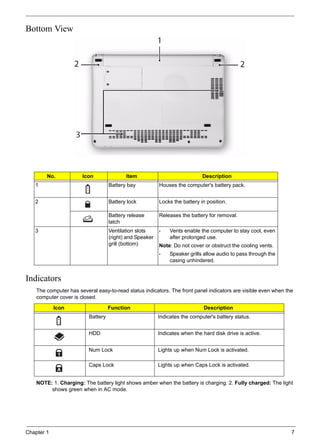
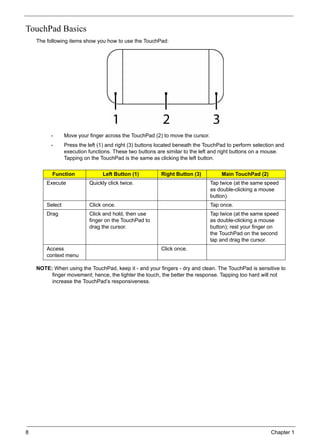
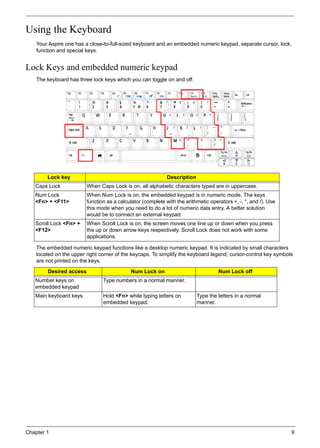
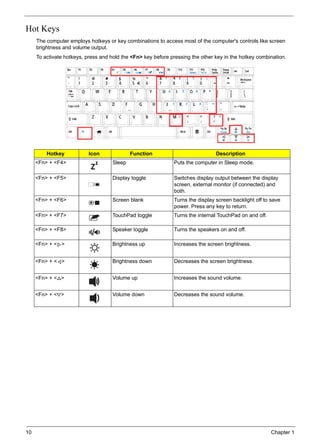
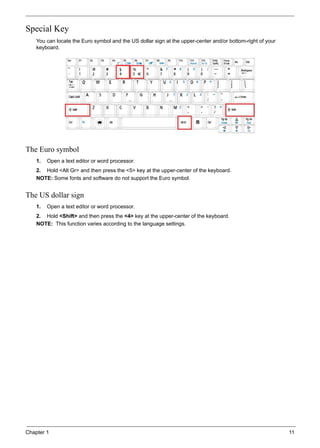
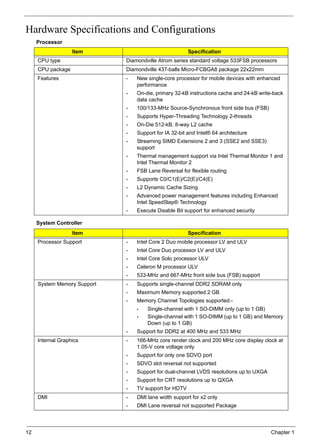
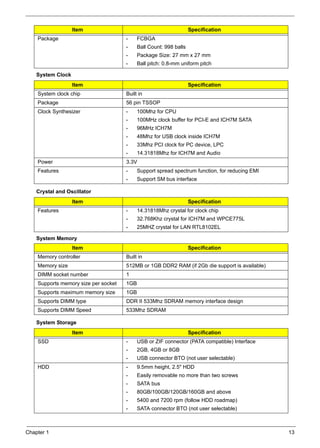
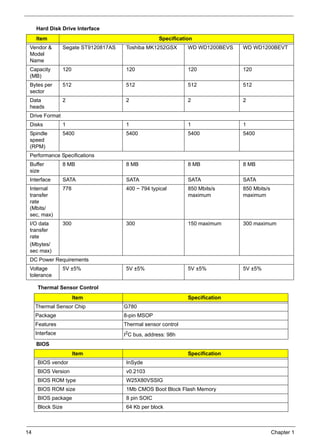

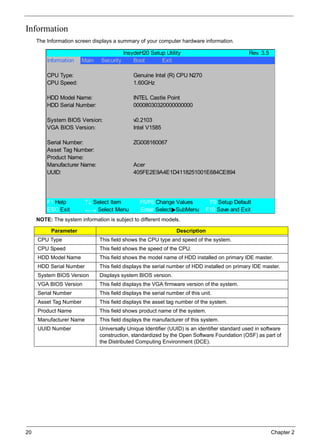
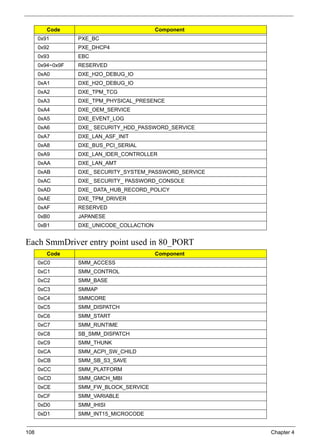
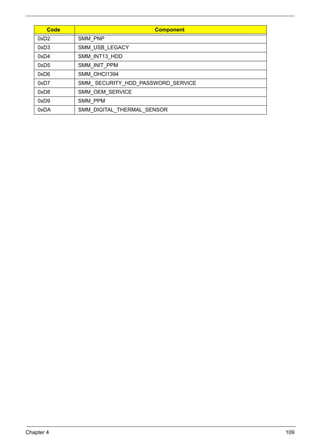
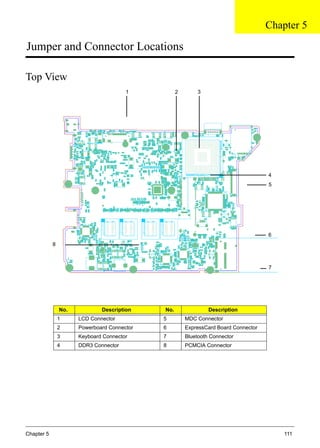
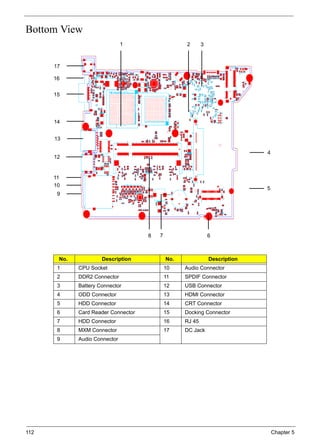
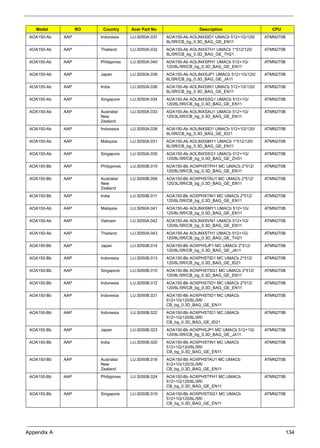
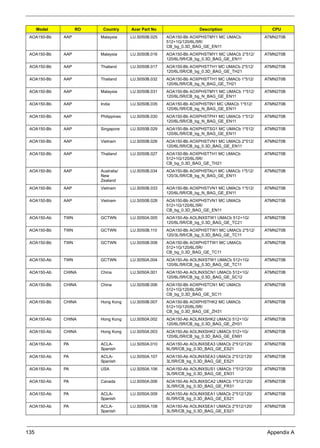
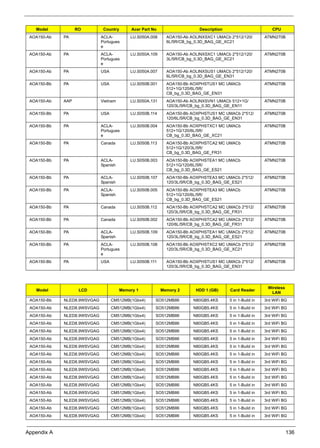
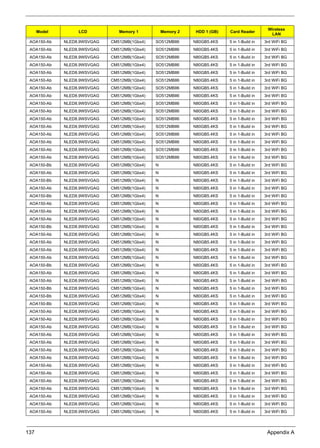
![Chapter 2 21
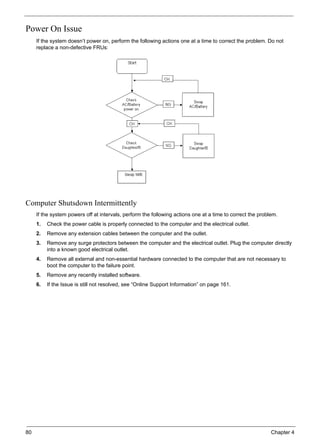
Main
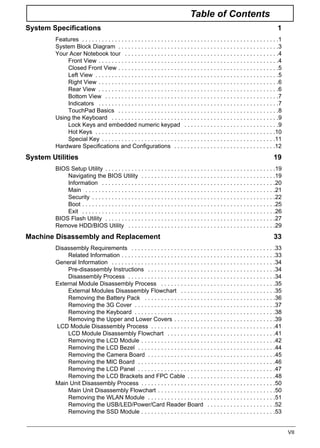
The Main screen allows the user to set the system time and date as well as enable and disable boot option
and recovery.
NOTE: The screen above is for your reference only. Actual values may differ.
The table below describes the parameters in this screen. Settings in boldface are the default and suggested
parameter settings.
Parameter Description Format/Option
System Time Sets the system time. The hours are displayed with 24-
hour format.
Format: HH:MM:SS
(hour:minute:second)
System Date Sets the system date. Format MM/DD/YYYY
(month/day/year)
Total Memory This field reports the memory size of the system.
Memory size is fixed to 3017 MB.
N/A
Video Memory Shows the video memory size. VGA Memory size=32 MB N/A
Quick Boot Allows startup to skip certain tests while booting,
decreasing the time needed to boot the system.
Option: Enabled or Disabled
Network Boot Enables, disables the system boot from LAN (remote
server).
Option: Enabled or Disabled
F12 Boot Menu Enables, disables Boot Menu during POST. Option: Enabled or Enabled
D2D Recovery Enables, disables D2D Recovery function. The function
allows the user to create a hidden partition on hard disc
drive to store operation system and restore the system
to factory defaults.
Option: Enabled or Disabled
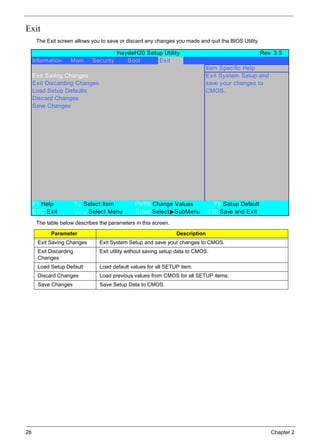
InsydeH20 Setup Utility Rev. 3.5
Information Main Security Boot Exit
Item Specific Help
System Time [13:04:04] This is the help for the
System Date [06/04/2008] hour field. Valid range
is from 0 to 23.
Total Memory 512 MB INCREASE/REDUCE : F5/F6
Video Memory [8 MB]
Quick Boot [Enabled]
Network Boot [Enabled]
F12 Boot Menu [Enabled]
D2D Recovery [Enabled]
F1 Help ↑↓ Select Item F5/F6 Change Values F9 Setup Default
ESC Exit ←→ Select Menu Enter Select SubMenu F10 Save and Exit](https://image.slidesharecdn.com/aspireoneseriesserviceguide-130625063746-phpapp02/85/Aspire-one-series-service-guide-31-320.jpg)
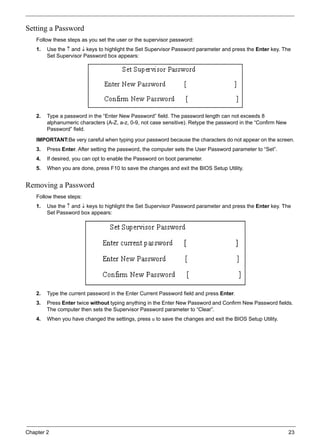
![22 Chapter 2
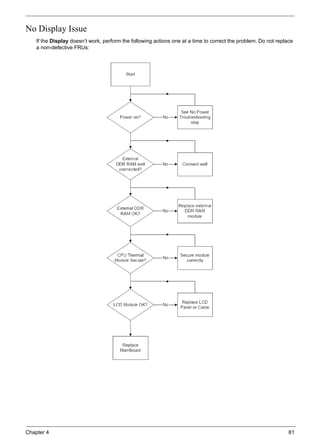
Security
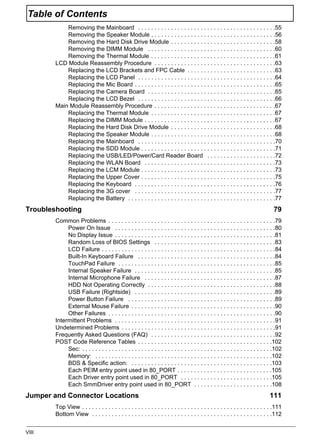
The Security screen contains parameters that help safeguard and protect your computer from unauthorized
use.
The table below describes the parameters in this screen. Settings in boldface are the default and suggested
parameter settings.
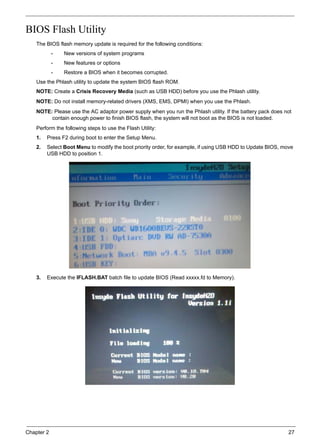
NOTE: When you are prompted to enter a password, you have three tries before the system halts. Don’t forget
your password. If you forget your password, you may have to return your notebook computer to your
dealer to reset it.
Parameter Description Option
Supervisor Password Is Shows the setting of the Supervisor password Clear or Set
User Password Is Shows the setting of the user password. Clear or Set
Set Supervisor Password Press Enter to set the supervisor password. When
set, this password protects the BIOS Setup Utility
from unauthorized access. The user can not either
enter the Setup menu nor change the value of
parameters.
Set User Password Press Enter to set the user password. When user
password is set, this password protects the BIOS
Setup Utility from unauthorized access. The user can
enter Setup menu only and does not have right to
change the value of parameters.
Power on password Defines whether a password is required or not while
the events defined in this group happened. The
following sub-options are all requires the Supervisor
password for changes and should be grayed out if the
user password was used to enter setup.
Enabled or
Disabled
InsydeH20 Setup Utility Rev. 3.5
Information Main Security Boot Exit
Item Specific Help
Supervisor Password Is: Clear Install or Change the
User Password Is: Clear password and the length
than eight words.
Set Supervisor Password
Set User Password
Power on password [Enabled]
F1 Help ↑↓ Select Item F5/F6 Change Values F9 Setup Default
ESC Exit ←→ Select Menu Enter Select SubMenu F10 Save and Exit](https://image.slidesharecdn.com/aspireoneseriesserviceguide-130625063746-phpapp02/85/Aspire-one-series-service-guide-32-320.jpg)

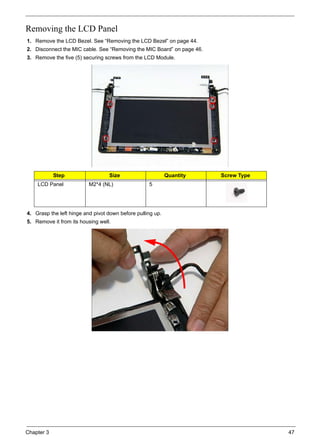
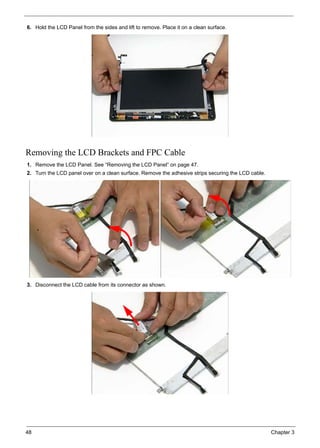
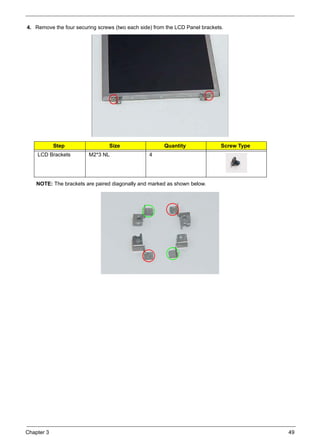
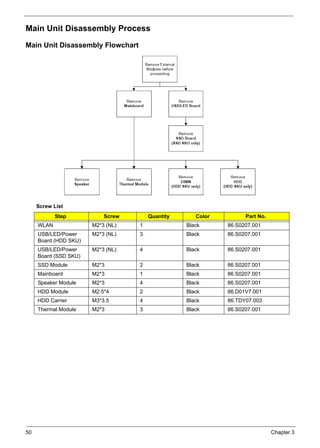
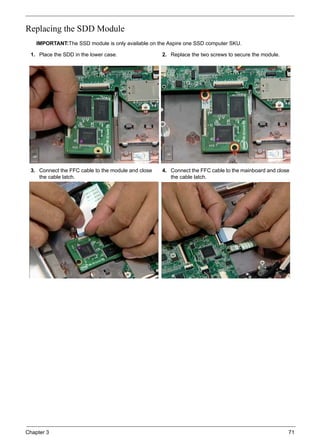
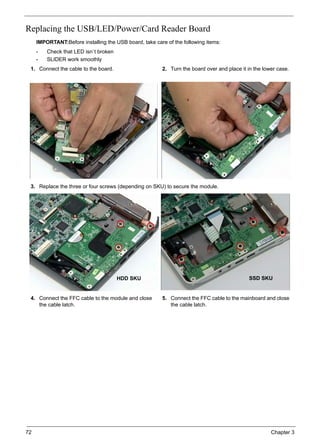
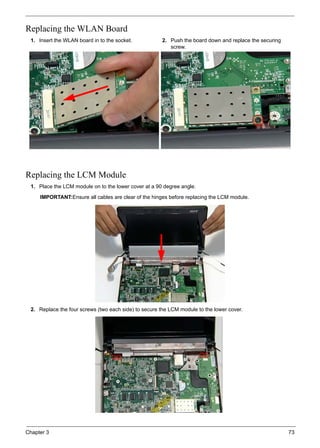
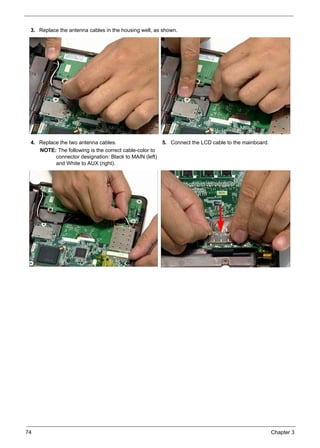

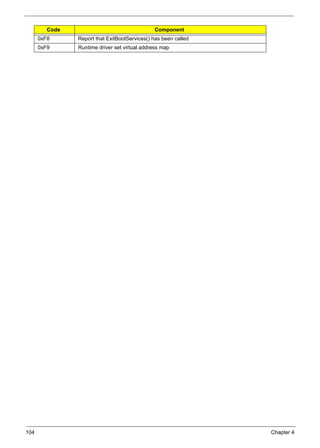
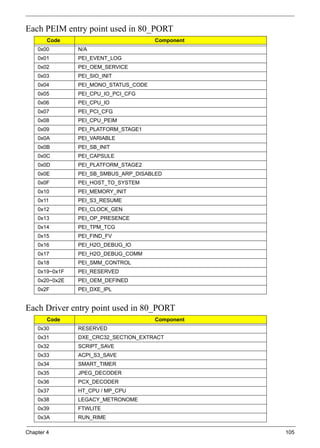
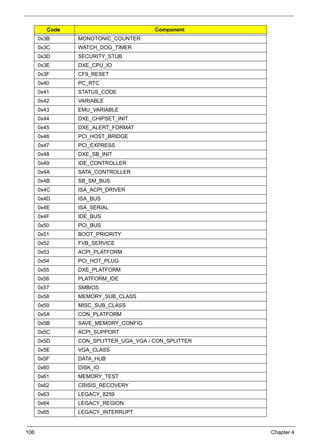
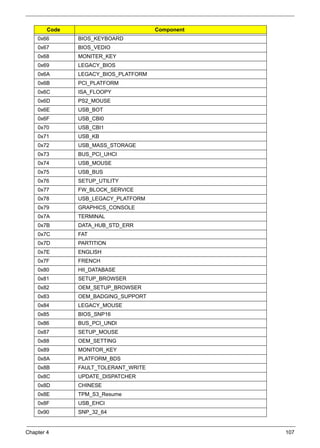

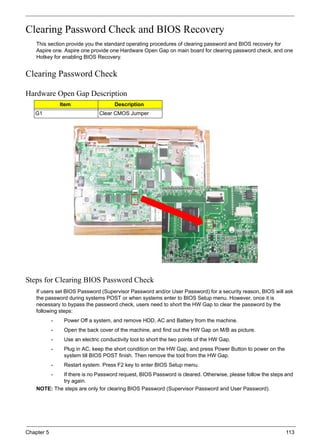
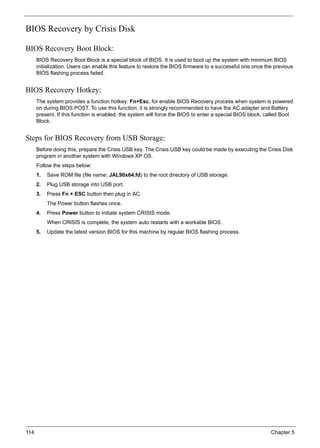
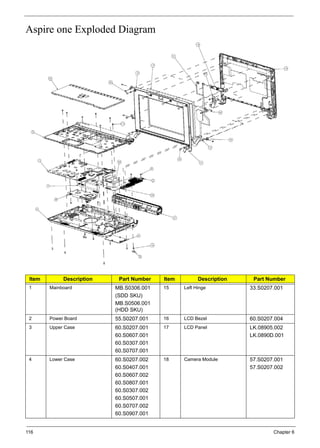
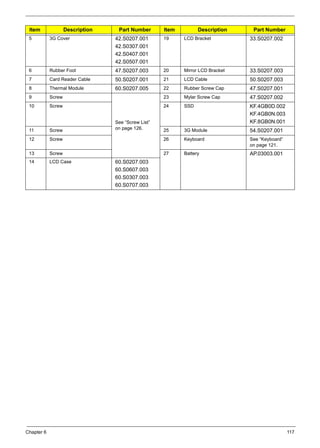
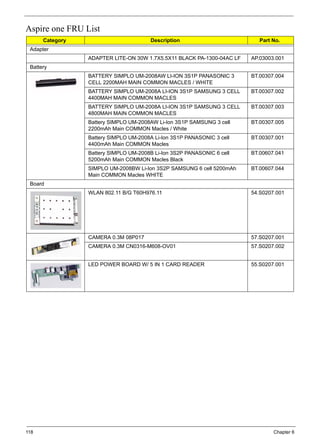
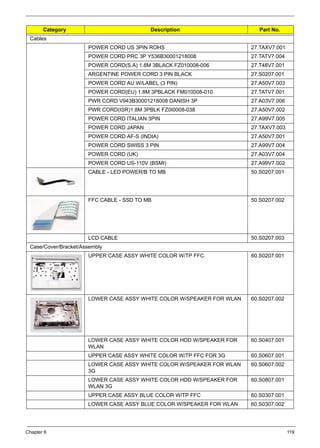
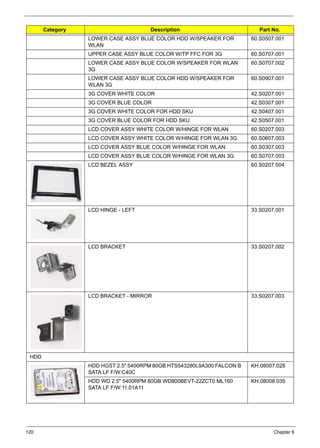
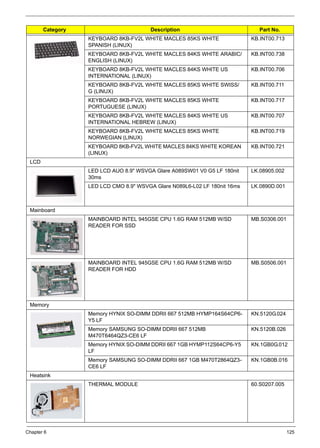
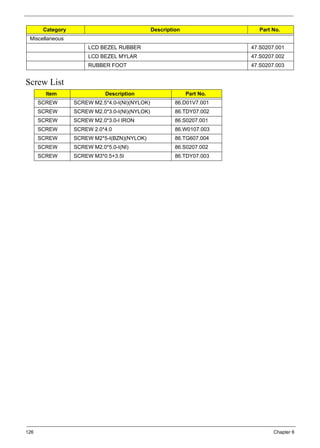

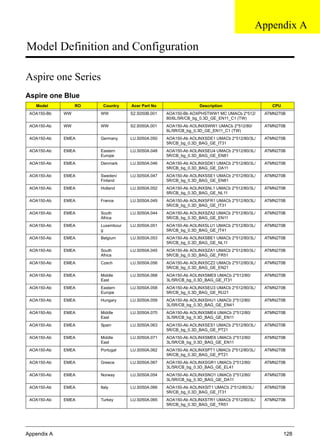
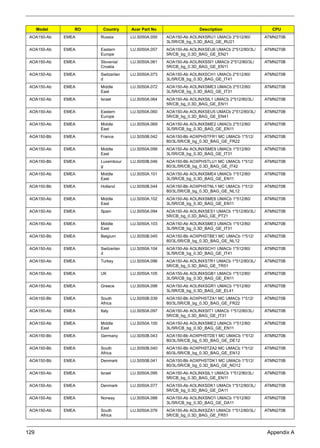
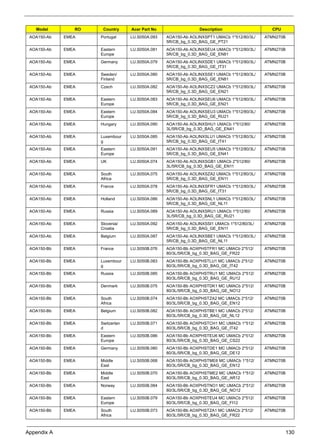
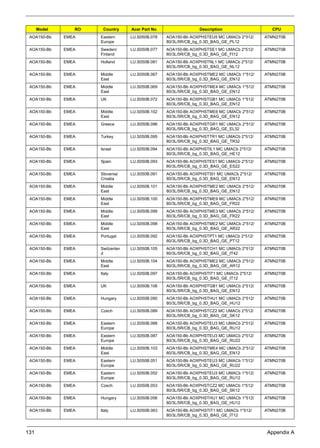
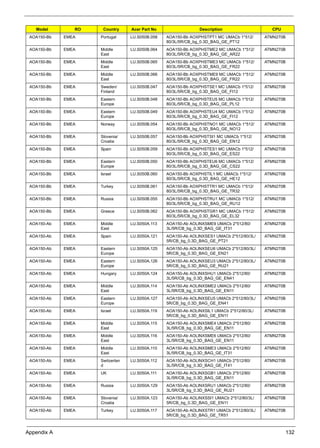
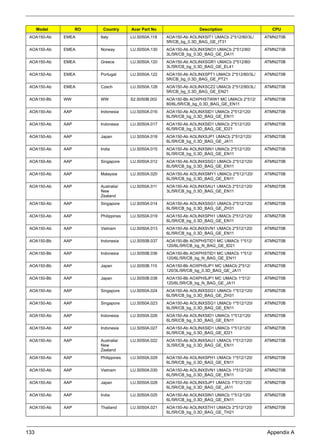
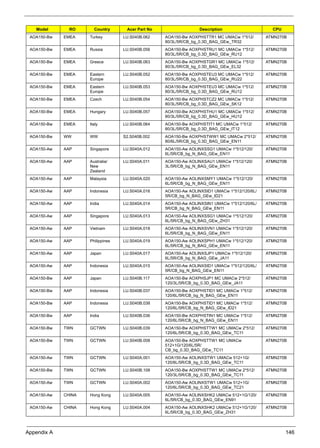

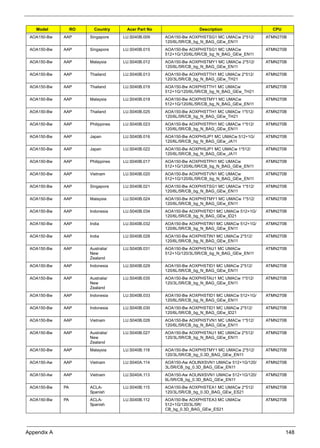
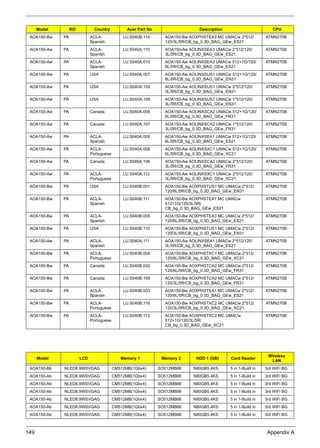
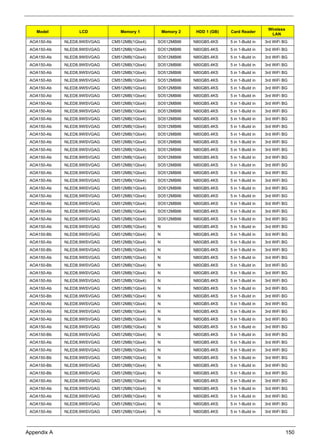
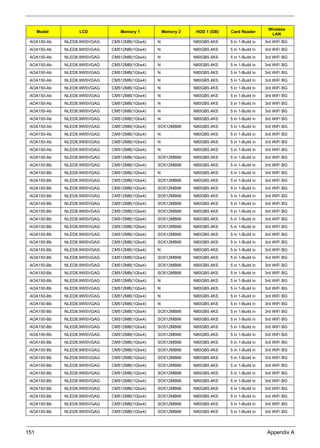
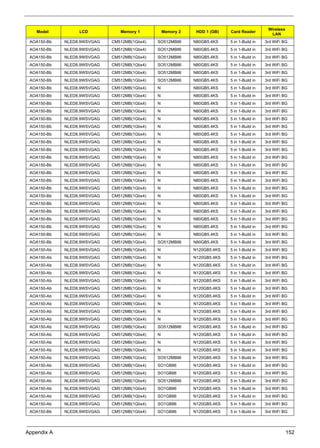
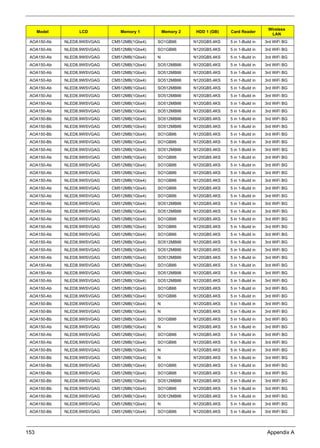
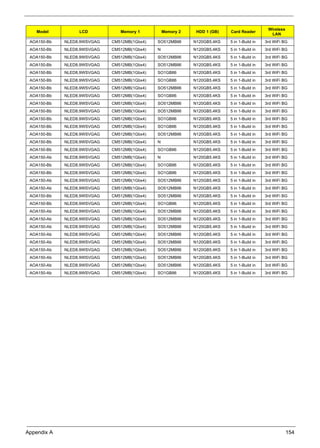
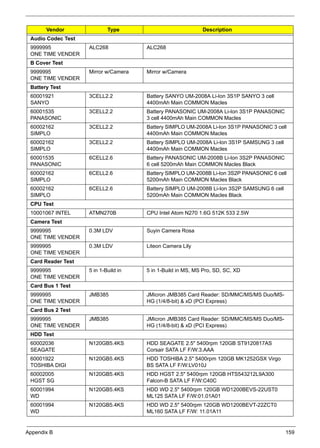
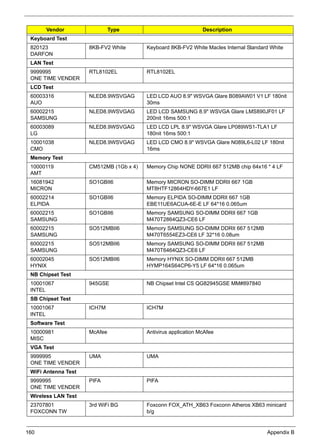


This document provides service information for the Acer Aspire one Series notebook, including disassembly and reassembly instructions. It contains 7 sections and covers removing and replacing external modules like the battery and keyboard, as well as internal components such as the LCD module, mainboard, hard drive, and other parts. Precautions are given to properly conduct disassembly and reassembly procedures.


