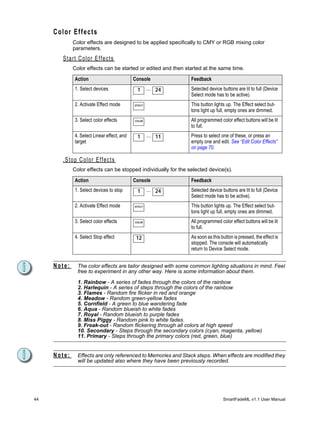
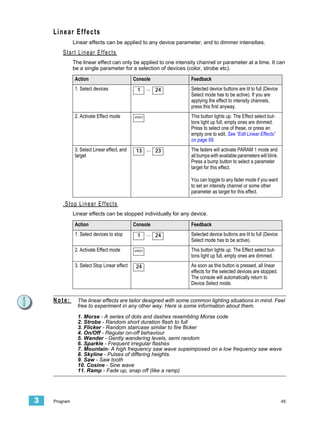
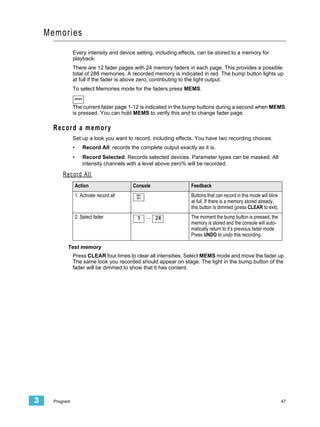
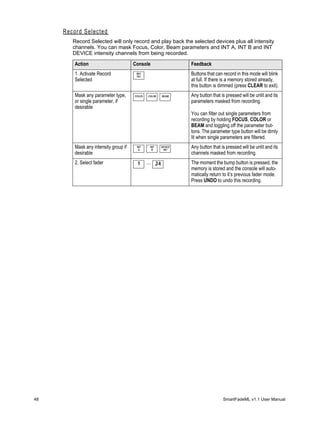
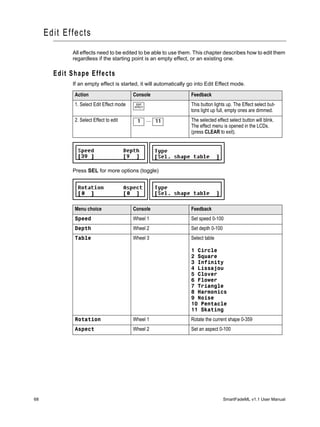
Control Console
User Manual
Version 1.1


                             C o p y r i g h t © 2 0 0 7 E le c tr o n i c T h e a t r e C o n t r o l s , I n c .
                                                                                    All Rights reserved.
                  P r o d u c t in f o r m a t i on a n d s p e c i f i c a t i o n s s u bj e c t t o c h a n g e .
                                                      P a r t N u m b e r : 7219M1210-1.1.0 R e v A
                                                                                  Released: June 2007
ET C ®, E m p h a s i s ®, E x p r e s s i o n ®, I n s i g h t ™ , I m ag i n e ™ , F o c u s ™ , E x p r e s s ™ , U n i s o n ®, O b s e s s i o n ® I I, S m a r t P a c k ®,
S m a r t F a d e ™ , E T C N e t2 ™ , E D M X ™ , S o u r c e F o u r ®, R e v o l u t i o n ®, S e n s o r ®, a n d W Y S I L i n k ™ a r e e i t h e r r e g i s t e r e d
t r a d e m a r k s o r t r a d e m a r k s o f E l e c t r o n i c T h e a t r e C o n t r o ls , I n c . i n t h e U n i t e d S t a t e s a n d o th e r c o u n t r i e s .

M i c r o s o f t ® a n d W i n d o w s ® a r e r e g i s t e r e d t r a d e ma r k s o f M i c r o s o f t C o r p or a t i o n in t h e U n i t e d S t a t e s a n d o t h e r
countries.

A l l o t h e r t r a d em a r k s , b o t h m a r k e d a n d n o t m a r k e d , a r e th e p r o p e r t y o f t h e i r r e s p e c t i v e o w n e r s .
Table of Contents
            Introduction . . . . . . . . . . . . . . . . . . . . . . . . . . 1
               Using this Manual . . . . . . . . . . . . . . . . . . . . . . . . . . . . . . . . . . . . . . . .2
                   Instructions . . . . . . . . . . . . . . . . . . . . . . . . . . . . . . . . . . . . . . . . .2
                   Menu Directions. . . . . . . . . . . . . . . . . . . . . . . . . . . . . . . . . . . . . .2
                   Text Conventions. . . . . . . . . . . . . . . . . . . . . . . . . . . . . . . . . . . . .2
               Help from ETC Technical Services . . . . . . . . . . . . . . . . . . . . . . . . . .3
               Power-up and Shutdown Procedures. . . . . . . . . . . . . . . . . . . . . . . . .4
                  Unpack & Connect. . . . . . . . . . . . . . . . . . . . . . . . . . . . . . . . . . . .4
                  Power-up Procedure . . . . . . . . . . . . . . . . . . . . . . . . . . . . . . . . . .4
                  Shutdown Procedure . . . . . . . . . . . . . . . . . . . . . . . . . . . . . . . . . .4
                  Operating Modes . . . . . . . . . . . . . . . . . . . . . . . . . . . . . . . . . . . . .5
               Save & Load to Memory Card . . . . . . . . . . . . . . . . . . . . . . . . . . . . . .6
                  Save Show to card. . . . . . . . . . . . . . . . . . . . . . . . . . . . . . . . . . . .6
                  Quick Save Show to card . . . . . . . . . . . . . . . . . . . . . . . . . . . . . .6
                  Load show from card . . . . . . . . . . . . . . . . . . . . . . . . . . . . . . . . . .6
                  Load patch from card. . . . . . . . . . . . . . . . . . . . . . . . . . . . . . . . . .7
                  Format SD Memory Card. . . . . . . . . . . . . . . . . . . . . . . . . . . . . . .8


Chapter 1   General Information . . . . . . . . . . . . . . . . . . . 9
               Control Capacity . . . . . . . . . . . . . . . . . . . . . . . . . . . . . . . . . . . . . . . .10
               Frontpanel Functionality . . . . . . . . . . . . . . . . . . . . . . . . . . . . . . . . . .11
                   General Buttons. . . . . . . . . . . . . . . . . . . . . . . . . . . . . . . . . . . . .11
                   Faders & Bump buttons . . . . . . . . . . . . . . . . . . . . . . . . . . . . . . .12
                   Master & Black Out function . . . . . . . . . . . . . . . . . . . . . . . . . . .12
                   Independents . . . . . . . . . . . . . . . . . . . . . . . . . . . . . . . . . . . . . . .12
                   Crossfader . . . . . . . . . . . . . . . . . . . . . . . . . . . . . . . . . . . . . . . . .13
                   Sequence & Stack functions . . . . . . . . . . . . . . . . . . . . . . . . . . .13
                   Record & Edit functions . . . . . . . . . . . . . . . . . . . . . . . . . . . . . . .13
                   The Select section . . . . . . . . . . . . . . . . . . . . . . . . . . . . . . . . . . .13
                   LCD And Wheel Functions . . . . . . . . . . . . . . . . . . . . . . . . . . . .14
               Philosophy Of The Console . . . . . . . . . . . . . . . . . . . . . . . . . . . . . . .15
                   HTP and LTP control rules . . . . . . . . . . . . . . . . . . . . . . . . . . . .15
                   Different ways to use SmartFadeML . . . . . . . . . . . . . . . . . . . . .15
               Data structure & Timing . . . . . . . . . . . . . . . . . . . . . . . . . . . . . . . . . .16


Chapter 2   Setup . . . . . . . . . . . . . . . . . . . . . . . . . . . . . 17
               DMX Output . . . . . . . . . . . . . . . . . . . . . . . . . . . . . . . . . . . . . . . . . . .18
                 DMX Out Speed. . . . . . . . . . . . . . . . . . . . . . . . . . . . . . . . . . . . .18
               Clear/Set Patch . . . . . . . . . . . . . . . . . . . . . . . . . . . . . . . . . . . . . . . .19
                   Clear Intensity Patch . . . . . . . . . . . . . . . . . . . . . . . . . . . . . . . . .19
                   Set Intensity Patch 1:1. . . . . . . . . . . . . . . . . . . . . . . . . . . . . . . .19


                                                                                                                 i
Clear Device Patch . . . . . . . . . . . . . . . . . . . . . . . . . . . . . . . . . .19
               Patch Dimmers (INT) . . . . . . . . . . . . . . . . . . . . . . . . . . . . . . . . . . . .20
                   Patch by Dimmer . . . . . . . . . . . . . . . . . . . . . . . . . . . . . . . . . . . .20
                   Patch by Channel . . . . . . . . . . . . . . . . . . . . . . . . . . . . . . . . . . .21
               Patch Independents . . . . . . . . . . . . . . . . . . . . . . . . . . . . . . . . . . . . .22
                   Set up Independents . . . . . . . . . . . . . . . . . . . . . . . . . . . . . . . . .22
               Patch Devices . . . . . . . . . . . . . . . . . . . . . . . . . . . . . . . . . . . . . . . . .23
                   Patch multiple devices . . . . . . . . . . . . . . . . . . . . . . . . . . . . . . . .23
                   Device Commands . . . . . . . . . . . . . . . . . . . . . . . . . . . . . . . . . .24
                   View/Modify Device Patch . . . . . . . . . . . . . . . . . . . . . . . . . . . . .24
                   Device Settings . . . . . . . . . . . . . . . . . . . . . . . . . . . . . . . . . . . . .24
               Console Setup . . . . . . . . . . . . . . . . . . . . . . . . . . . . . . . . . . . . . . . . .25
                  Erase Functions. . . . . . . . . . . . . . . . . . . . . . . . . . . . . . . . . . . . .25
                  Crossfade faders . . . . . . . . . . . . . . . . . . . . . . . . . . . . . . . . . . . .25
                  Default Times. . . . . . . . . . . . . . . . . . . . . . . . . . . . . . . . . . . . . . .25
                  DMX Out . . . . . . . . . . . . . . . . . . . . . . . . . . . . . . . . . . . . . . . . . .25
                  MIDI Settings . . . . . . . . . . . . . . . . . . . . . . . . . . . . . . . . . . . . . . .25
                  Language. . . . . . . . . . . . . . . . . . . . . . . . . . . . . . . . . . . . . . . . . .26
                  Displays . . . . . . . . . . . . . . . . . . . . . . . . . . . . . . . . . . . . . . . . . . .26
                  Software Version . . . . . . . . . . . . . . . . . . . . . . . . . . . . . . . . . . . .26
               MIDI Setup . . . . . . . . . . . . . . . . . . . . . . . . . . . . . . . . . . . . . . . . . . . .27
                  MIDI Show Contol . . . . . . . . . . . . . . . . . . . . . . . . . . . . . . . . . . .27
                  Synchronising Two SmartFadeML. . . . . . . . . . . . . . . . . . . . . . .27
                  Basic MIDI implementation . . . . . . . . . . . . . . . . . . . . . . . . . . . .28
                  MIDI channel. . . . . . . . . . . . . . . . . . . . . . . . . . . . . . . . . . . . . . .28
                  Sending MIDI Controllers. . . . . . . . . . . . . . . . . . . . . . . . . . . . . .29


Chapter 3   Program . . . . . . . . . . . . . . . . . . . . . . . . . . . 31
               Intensity channels. . . . . . . . . . . . . . . . . . . . . . . . . . . . . . . . . . . . . . .32
                   Live or Next mode . . . . . . . . . . . . . . . . . . . . . . . . . . . . . . . . . . .32
                   Adjust Channel Range. . . . . . . . . . . . . . . . . . . . . . . . . . . . . . . .33
                   Set Channel Range . . . . . . . . . . . . . . . . . . . . . . . . . . . . . . . . . .33
               Devices. . . . . . . . . . . . . . . . . . . . . . . . . . . . . . . . . . . . . . . . . . . . . . .34
                  Select Devices . . . . . . . . . . . . . . . . . . . . . . . . . . . . . . . . . . . . . .35
                  Device Groups . . . . . . . . . . . . . . . . . . . . . . . . . . . . . . . . . . . . . .36
                  Device Parameters . . . . . . . . . . . . . . . . . . . . . . . . . . . . . . . . . .37
                  Device Palettes . . . . . . . . . . . . . . . . . . . . . . . . . . . . . . . . . . . . .38
                  General device functions . . . . . . . . . . . . . . . . . . . . . . . . . . . . . .39
               Effects . . . . . . . . . . . . . . . . . . . . . . . . . . . . . . . . . . . . . . . . . . . . . . .42
                   Shape effects. . . . . . . . . . . . . . . . . . . . . . . . . . . . . . . . . . . . . . .42
                   Offset Relations In Shape and Color Effects . . . . . . . . . . . . . . .43
                   Color Effects . . . . . . . . . . . . . . . . . . . . . . . . . . . . . . . . . . . . . . .44
                   Linear Effects. . . . . . . . . . . . . . . . . . . . . . . . . . . . . . . . . . . . . . .45
               Memories . . . . . . . . . . . . . . . . . . . . . . . . . . . . . . . . . . . . . . . . . . . . .47
                  Record a memory . . . . . . . . . . . . . . . . . . . . . . . . . . . . . . . . . . .47
               Snapshots . . . . . . . . . . . . . . . . . . . . . . . . . . . . . . . . . . . . . . . . . . . .49
                  Record a Snapshot . . . . . . . . . . . . . . . . . . . . . . . . . . . . . . . . . .49
                  Copy a Snapshot to a Memory . . . . . . . . . . . . . . . . . . . . . . . . .49


ii                                                                            SmartFadeML v1.1 User Manual
Clear all Snapshots . . . . . . . . . . . . . . . . . . . . . . . . . . . . . . . . . .49
               Sequences . . . . . . . . . . . . . . . . . . . . . . . . . . . . . . . . . . . . . . . . . . . .50
                  Record a sequence . . . . . . . . . . . . . . . . . . . . . . . . . . . . . . . . . .51
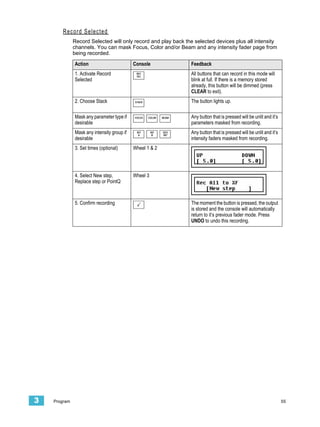
               Stack . . . . . . . . . . . . . . . . . . . . . . . . . . . . . . . . . . . . . . . . . . . . . . . .52
                   Record the Stack from bumps . . . . . . . . . . . . . . . . . . . . . . . . . .53
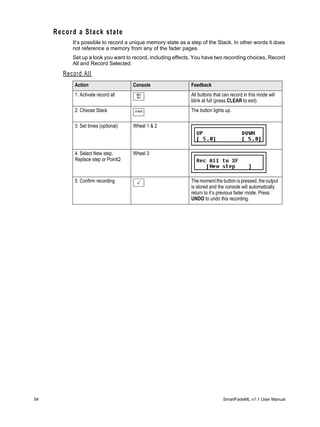
                   Record a Stack state . . . . . . . . . . . . . . . . . . . . . . . . . . . . . . . . .54


Chapter 4   Edit . . . . . . . . . . . . . . . . . . . . . . . . . . . . . . . 57
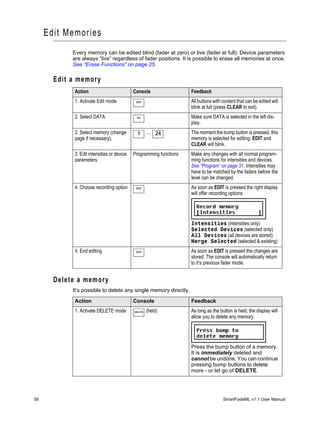
               Edit Memories . . . . . . . . . . . . . . . . . . . . . . . . . . . . . . . . . . . . . . . . .58
                   Edit a memory . . . . . . . . . . . . . . . . . . . . . . . . . . . . . . . . . . . . . .58
                   Delete a memory . . . . . . . . . . . . . . . . . . . . . . . . . . . . . . . . . . . .58
                   Copy a Memory . . . . . . . . . . . . . . . . . . . . . . . . . . . . . . . . . . . . .59
                   Delete device data from a memory . . . . . . . . . . . . . . . . . . . . . .59
                   Default Device Times. . . . . . . . . . . . . . . . . . . . . . . . . . . . . . . . .59
                   Memory FCB Times. . . . . . . . . . . . . . . . . . . . . . . . . . . . . . . . . .60
               Edit Sequences & Stack . . . . . . . . . . . . . . . . . . . . . . . . . . . . . . . . . .61
                   Edit the content of a Step . . . . . . . . . . . . . . . . . . . . . . . . . . . . .61
                   Delete a Step . . . . . . . . . . . . . . . . . . . . . . . . . . . . . . . . . . . . . . .62
                   Insert a Step . . . . . . . . . . . . . . . . . . . . . . . . . . . . . . . . . . . . . . .62
                   Insert a PointQ. . . . . . . . . . . . . . . . . . . . . . . . . . . . . . . . . . . . . .63
                   Change the content of a Step . . . . . . . . . . . . . . . . . . . . . . . . . .63
                   Copy a Sequence . . . . . . . . . . . . . . . . . . . . . . . . . . . . . . . . . . .64
                   Run Modes . . . . . . . . . . . . . . . . . . . . . . . . . . . . . . . . . . . . . . . .64
                   Sequence & Stack Times . . . . . . . . . . . . . . . . . . . . . . . . . . . . .65
               Edit Effects . . . . . . . . . . . . . . . . . . . . . . . . . . . . . . . . . . . . . . . . . . . .68
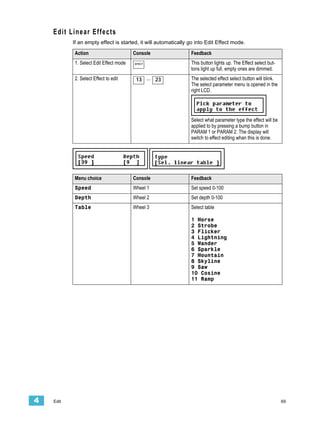
                   Edit Shape Effects . . . . . . . . . . . . . . . . . . . . . . . . . . . . . . . . . . .68
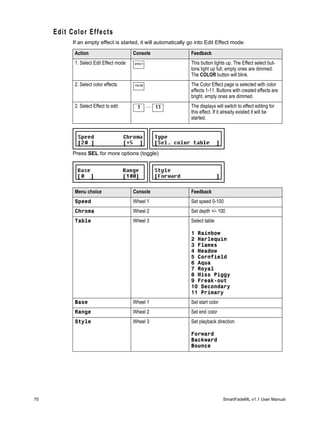
                   Edit Linear Effects . . . . . . . . . . . . . . . . . . . . . . . . . . . . . . . . . . .69
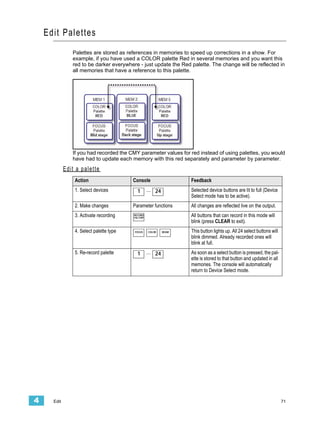
                   Edit Color Effects . . . . . . . . . . . . . . . . . . . . . . . . . . . . . . . . . . . .70
               Edit Palettes . . . . . . . . . . . . . . . . . . . . . . . . . . . . . . . . . . . . . . . . . . .71


Chapter 5   Playback . . . . . . . . . . . . . . . . . . . . . . . . . . . 73
               General Functions . . . . . . . . . . . . . . . . . . . . . . . . . . . . . . . . . . . . . .74
                  Master & Black Out function . . . . . . . . . . . . . . . . . . . . . . . . . . .74
                  Clear . . . . . . . . . . . . . . . . . . . . . . . . . . . . . . . . . . . . . . . . . . . . .74
                  Bump Master . . . . . . . . . . . . . . . . . . . . . . . . . . . . . . . . . . . . . . .74
               Memories . . . . . . . . . . . . . . . . . . . . . . . . . . . . . . . . . . . . . . . . . . . . .75
                  Select Fader Page . . . . . . . . . . . . . . . . . . . . . . . . . . . . . . . . . . .75
                  Memory Fader Modes . . . . . . . . . . . . . . . . . . . . . . . . . . . . . . . .75
                  Memory Bump Modes . . . . . . . . . . . . . . . . . . . . . . . . . . . . . . . .75
                  Clear Output from Memory Faders . . . . . . . . . . . . . . . . . . . . . .76
                  Examples of using memory faders . . . . . . . . . . . . . . . . . . . . . .76
               Sequences . . . . . . . . . . . . . . . . . . . . . . . . . . . . . . . . . . . . . . . . . . . .77
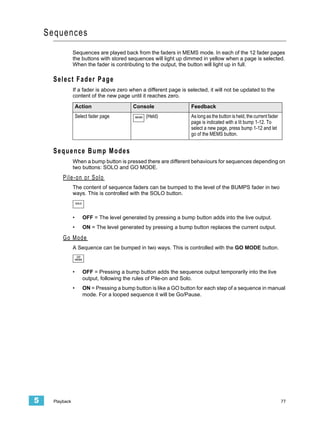
                  Select Fader Page . . . . . . . . . . . . . . . . . . . . . . . . . . . . . . . . . . .77
                  Sequence Bump Modes . . . . . . . . . . . . . . . . . . . . . . . . . . . . . .77
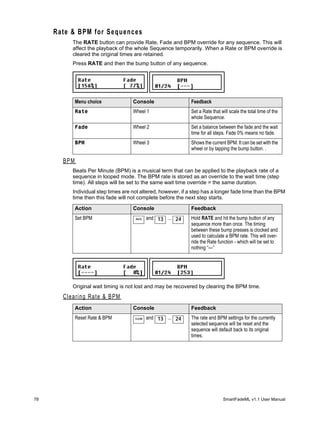
                  Rate & BPM for Sequences. . . . . . . . . . . . . . . . . . . . . . . . . . . .78
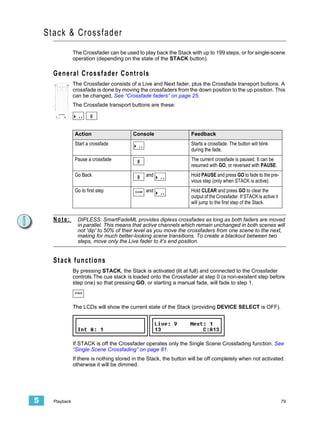
               Stack & Crossfader . . . . . . . . . . . . . . . . . . . . . . . . . . . . . . . . . . . . .79
                   General Crossfader Controls . . . . . . . . . . . . . . . . . . . . . . . . . . .79


                                                                                                                   iii
Stack functions . . . . . . . . . . . . . . . . . . . . . . . . . . . . . . . . . . . . .79
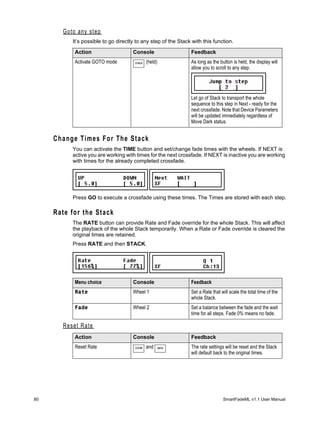
                   Change Times For The Stack . . . . . . . . . . . . . . . . . . . . . . . . . .80
                   Rate for the Stack . . . . . . . . . . . . . . . . . . . . . . . . . . . . . . . . . . .80
                   Single Scene Crossfading . . . . . . . . . . . . . . . . . . . . . . . . . . . . .81


Appendix A   Software Update . . . . . . . . . . . . . . . . . . . . . 82
                   Update the Software . . . . . . . . . . . . . . . . . . . . . . . . . . . . . . . . .82


iv                                                                      SmartFadeML v1.1 User Manual
Introduction
            Congratulations on your purchase of the SmartFadeML lighting control console. The
            SmartFadeML console offers a great feature range including hands-on manual control,
            memory driven operation, and an impressive array of features for systems work.
            SmartFadeML is perfect for any venue, usable for small touring shows, auditorium
            productions, or as a stage manager’s remote console.
            This chapter contains the following sections:
                 •   Using this Manual . . . . . . . . . . . . . . . . . . . . . . . . . . . . . . . . . . .2
                 •   Help from ETC Technical Services. . . . . . . . . . . . . . . . . . . . . .3
                 •   Power-up and Shutdown Procedures . . . . . . . . . . . . . . . . . . .4
                 •   Save & Load to Memory Card . . . . . . . . . . . . . . . . . . . . . . . . . .6


  Introduction                                                                                                  1
Using thi s Manual

              Congratulations on your purchase of the SmartFadeML control console. This manual will
              hopefully get you up and running in no time. These are the manual conventions.

      Instructions
              Instructions are shown in a table with columns for Action, Console and Feedback.

                  Action                   Console                  Feedback
                  Activate Blackout mode    BLACK
                                             OUT
                                                                    Button lights up. No output except from the
                                                                    Independents.*

              * There may be a comment like this with an asterisk.

      Menu Directions
              Many functions require menu navigation. For brevity’s sake, menu navigation is conveyed
              in the following method:
              Menu>Settings>Language>[English]
              Each “>” indicates passage to a new menu sublevel, usually by pressing the MENU button.
              Items [within brackets] are changed with the wheels or the SEL or MORE buttons.
              Displays are shown like this


      Text Conventions
              •      Buttons in tables are shown as images. Buttons in text are indicated with bold captial
                     letters followed by the word button. Like STACK button.
              •      References to other parts of the manual are indicated in italics. When viewing this
                     manual electronically, click on the reference to jump to that section of the manual.


      Note:        Notes are helpful hints and information that is supplemental to the main text.


      CAUTION:             A Caution statement indicates situations where there may be undefined or
                           unwanted consequences of an action, possible data loss or equipment problems.

         Please E-mail comments about this manual to: TechComm@etcconnect.com


2                                                                                   SmartFadeML v1.1 User Manual
Help from ETC Technical Services

            If you are having difficulties, your most convenient resources are the references given in
            this user manual. To search more widely, try the ETC Web site at www.etcconnect.com.
            You can ask other users for advice on the ETC forums at www.etcconnect.com/community.
            If none of these resources is sufficient, contact ETC Technical Services directly at one of
            the offices identified below. Emergency service is available from all ETC offices outside of
            normal business hours.
            When calling for help, please have the following information handy:
            •    Console model and serial number (located on back panel)
            •    Dimmer manufacturer and installation type
            •    Other components in your system (Unison®, other consoles, etc.)


  Americas                                                   United Kingdom
            Electronic Theatre Controls Inc.                        Electronic Theatre Controls Ltd.
            Technical Services Department                           Technical Services Department
            3031 Pleasant View Road                                 26-28 Victoria Industrial Estate
            Middleton, WI 53562                                     Victoria Road,
            800-775-4382 (USA, toll-free)                           London W3 6UU England
            +1-608 831-4116                                         +44 (0)20 8896 1000
            service@etcconnect.com                                  service@etceurope.com

  Asia                                                       Germany
            ETC Asia, Ltd.                                          Electronic Theatre Controls GmbH
            Technical Services Department                           Technical Services Department
            Room 1801, 18/F, Tower 1
                                                                    Ohmstrasse 3
            Phase 1, Enterprise Square
                                                                    83607 Holzkirchen, Germany
            9 Sheung Yuet Road
                                                                    +49 (80 24) 47 00-0
            Kowloon Bay, Kowloon,
            Hong Kong                                               techserv-hoki@etcconnect.com
            +852 2799 1220
            service@etcasia.com


  Introduction                                                                                         3
Power-up and Shutdown Procedures

      Unpack & Connect
           You can get SmartFadeML up and running in no time.
           •      Unpack
           •      Connect power
           •      Connect DMX to dimmers and moving lights
           •      Power up


      Power-up Procedure
           SmartFade uses the power button for power-up and power-down. It is also used to access
           the operating mode selection menu.

               Action                 Console                 Feedback
               Press and release                              The LCD shows the current software version.

                                                              [ETC SmartFade ML ]
                                                              [Version 1.0.0 2007]

                                                              The button LEDs will light up in the following
                                                              order: GREEN, RED, rest. After this all LEDs
                                                              light to the levels appropriate to the selected
                                                              mode of operation. *

           * During the startup process, LEDs will fade to full brightness regardless of user settings.

      Shutdown Procedure
               Action                 Console                 Feedback
               1. Press and release                           The LCD shows a message asking that you
                                                              confirm the shutdown command.
               2a. Confirm                                    Console is shut down.

               2b. Cancel              <                      Shutdown is cancelled and operation
                                                              resumed.

           When you use the shutdown procedure, the SmartFade console will complete any pending
           operations and save any system data as required to ensure error-free startup at the next
           session. Disconnecting power from the console while it is shut down produces no ill effects.


4                                                                              SmartFadeML v1.1 User Manual
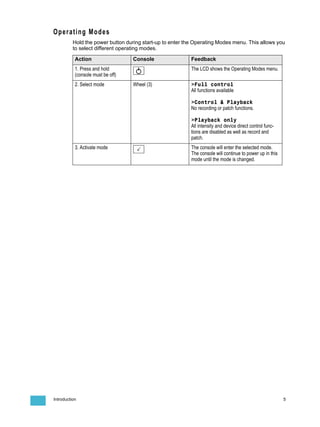
Operating Modes
          Hold the power button during start-up to enter the Operating Modes menu. This allows you
          to select different operating modes.

           Action                  Console                 Feedback
           1. Press and hold                               The LCD shows the Operating Modes menu.
           (console must be off)
           2. Select mode          Wheel (3)               >Full control
                                                           All functions available

                                                           >Control & Playback
                                                           No recording or patch functions.

                                                           >Playback only
                                                           All intensity and device direct control func-
                                                           tions are disabled as well as record and
                                                           patch.
           3. Activate mode                                The console will enter the selected mode.
                                                           The console will continue to power up in this
                                                           mode until the mode is changed.


Introduction                                                                                               5
Save & Load to Memory Card

           SmartFadeML uses a standard SD Memory card as the primary external storage device.
           Before you can use a new SD card make sure it is formatted correctly (FAT16). See
           “Format SD Memory Card” on page 8.
           The file format is Standard ASCII Light Cues. This format is compatible with other systems
           that follow the same (and only) standard. Although there may be discrepancies between
           systems, usually the main play data is compatible. For more information see www.usitt.org.

      Save Show to card
           This is done from the Save/Load Show menu
           Menu>Save/Load Show>[Save as]


           Shows may be given a two digit number with the wheel.
           Showfiles saved in the ETC PC application SmartSoft can be given any valid DOS-style
           name of 8 characters plus the suffix .ASC

      Quick Save Show to card
           This is done from the Save/Load Show menu
           Menu>Save/Load Show>[Quick save]


           If a file name has been used, it will save to this name, otherwise it will jump to the Save as
           menu.

      Load show from card
           This is done from the Save/Load Show menu
           Menu>Save/Load Show>[Load show]


           Select the show with the wheel. The default show offered for loading will be the last show,
           or the lowest numbered recording on the card.


6                                                                            SmartFadeML v1.1 User Manual
Load patch from card
          This is done from the Save/Load Show menu
          Menu>Save/Load Show>[Save as]


          Select the show with the wheel. The default show offered for loading a patch from will be
          the lowest numbered recording on the card. The reason for this is that you may want to save
          a dummy show with just a patch as show 001.


Introduction                                                                                        7
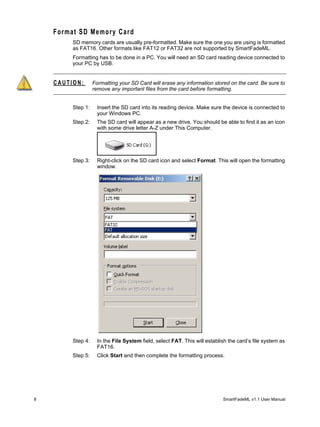
Format SD Memory Card
         SD memory cards are usually pre-formatted. Make sure the one you are using is formatted
         as FAT16. Other formats like FAT12 or FAT32 are not supported by SmartFadeML.
         Formatting has to be done in a PC. You will need an SD card reading device connected to
         your PC by USB.


    CAUTION:       Formatting your SD Card will erase any information stored on the card. Be sure to
                   remove any important files from the card before formatting.


         Step 1:     Insert the SD card into its reading device. Make sure the device is connected to
                     your Windows PC.
         Step 2:     The SD card will appear as a new drive. You should be able to find it as an icon
                     with some drive letter A-Z under This Computer.


         Step 3:     Right-click on the SD card icon and select Format. This will open the formatting
                     window.


         Step 4:     In the File System field, select FAT. This will establish the card’s file system as
                     FAT16.
         Step 5:     Click Start and then complete the formatting process.


8                                                                           SmartFadeML v1.1 User Manual
Chapter 1
General Information
             This chapter gives you the general information you need to get started.
             This chapter contains the following sections:
                  •       Control Capacity . . . . . . . . . . . . . . . . . . . . . . . . . . . . . . . . . . .10
                  •       Frontpanel Functionality . . . . . . . . . . . . . . . . . . . . . . . . . . . . .11
                  •       Philosophy Of The Console . . . . . . . . . . . . . . . . . . . . . . . . . .15
                  •       Data structure & Timing . . . . . . . . . . . . . . . . . . . . . . . . . . . . .16


1   General Information                                                                                              9
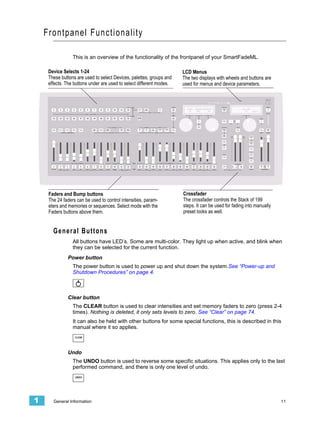
Control Capacity

          SmartFade is a simple to use but very powerful lighting console for 48 intensity channels and
          24 moving light devices, specifically designed to be usable right out of the box.
          Intensity channels
            There are 48 intensity channels. Each intensity channel can control one or more dimmers.
            They are divided into two groups of 24 (to simplify numbering on the faders).
            Fader mode INT A = A1-A24
            Fader mode INT B = B1-B24
            Dimmers with the DMX address 1-48 should be possible to control right out of the box from
            these two fader modes, since the default patch is 1:1. Intensities can be controlled live, and
            then stored into memories, sequences or the Stack steps. All intensities interact on a
            Highest Takes Precedence basis (HTP). HTP and LTP control rules, page 15
          Moving Lights
            Up to 24 moving light devices can be controlled. Each Device has a dedicated button in the
            Selects section. Devices need to be patched before they can be used. See “Patch Devices”
            on page 23.
            The intensity channels for the devices are automatically mapped to, and can be controlled
            from the faders just like the 48 intensity channels for dimmers.
            Fader mode DEVICE INT = D1-D24
            Moving lights can be controlled live, and then stored into groups, palettes, memories and
            sequence or the Stack steps. There is an effect generator for movements (Shapes), colors
            (Color) and patterns (Linear).
          Independents
            There are two Independent buttons that can control one output each, for specials like
            houselights, smoke machine or followspot. See “Patch Independents” on page 22.
          DMX Outputs
            There are 2 DMX outputs allowing control of up to 1024 DMX outputs.
          MIDI
            There is a recommended subset of the standard MIDI Show Control (MSC) which is one of
            the most common ways to use MIDI to synchronise show equipment. Master Memory
            faders can be controlled with MIDI controllers, and Program Change commands can be
            used for some different functions.
          Memory Card
            Shows can be saved to a standard SD Memory card. See “Save & Load to Memory Card”
            on page 6.


10                                                                            SmartFadeML v1.1 User Manual
Frontpanel Functionality

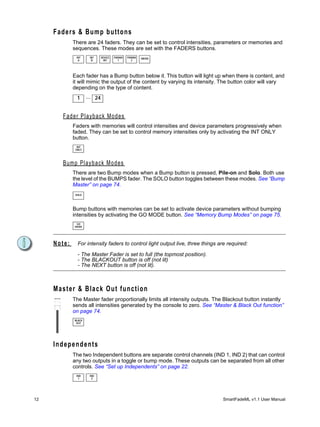
                 This is an overview of the functionality of the frontpanel of your SmartFadeML.

     Device Selects 1-24                                              LCD Menus
     These buttons are used to select Devices, palettes, groups and   The two displays with wheels and buttons are
     effects. The buttons under are used to select different modes.   used for menus and device parameters.


     Faders and Bump buttons                                          Crossfader
     The 24 faders can be used to control intensities, param-         The crossfader controls the Stack of 199
     eters and memories or sequences. Select mode with the            steps. It can be used for fading into manually
     Faders buttons above them.                                       preset looks as well.


       G e n e r a l B u t to n s
                 All buttons have LED’s. Some are multi-color. They light up when active, and blink when
                 they can be selected for the current function.
              Power button
                 The power button is used to power up and shut down the system.See “Power-up and
                 Shutdown Procedures” on page 4.


              Clear button
                 The CLEAR button is used to clear intensities and set memory faders to zero (press 2-4
                 times). Nothing is deleted, it only sets levels to zero. See “Clear” on page 74.
                 It can also be held with other buttons for some special functions, this is described in this
                 manual where it so applies.
                  CLEAR


              Undo
                 The UNDO button is used to reverse some specific situations. This applies only to the last
                 performed command, and there is only one level of undo.
                  UNDO


1      General Information                                                                                             11
Faders & Bump buttons
              There are 24 faders. They can be set to control intensities, parameters or memories and
              sequences. These modes are set with the FADERS buttons.
                INT     INT     DEVICE   PARAM   PARAM   MEMS
                 A       B       INT       1       2


              Each fader has a Bump button below it. This button will light up when there is content, and
              it will mimic the output of the content by varying its intensity. The button color will vary
              depending on the type of content.
                1      ... 24


         Fader Playback Modes
              Faders with memories will control intensities and device parameters progressively when
              faded. They can be set to control memory intensities only by activating the INT ONLY
              button.
                INT
               ONLY


         Bump Playback Modes
              There are two Bump modes when a Bump button is pressed, Pile-on and Solo. Both use
              the level of the BUMPS fader. The SOLO button toggles between these modes. See “Bump
              Master” on page 74.
               SOLO


              Bump buttons with memories can be set to activate device parameters without bumping
              intensities by activating the GO MODE button. See “Memory Bump Modes” on page 75.
                GO
               MODE


     Note:       For intensity faders to control light output live, three things are required:

                 - The Master Fader is set to full (the topmost position).
                 - The BLACKOUT button is off (not lit)
                 - The NEXT button is off (not lit).


     Master & Black Out function
              The Master fader proportionally limits all intensity outputs. The Blackout button instantly
              sends all intensities generated by the console to zero. See “Master & Black Out function”
              on page 74.
               BLACK
                OUT


     I n d e p e n d e n ts
              The two Independent buttons are separate control channels (IND 1, IND 2) that can control
              any two outputs in a toggle or bump mode. These outputs can be separated from all other
              controls. See “Set up Independents” on page 22.
                IND     IND
                 1       2


12                                                                                SmartFadeML v1.1 User Manual
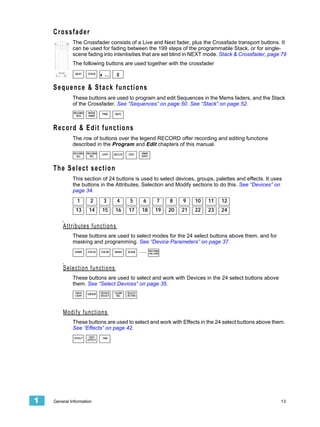
Crossfader
             The Crossfader consists of a Live and Next fader, plus the Crossfade transport buttons. It
             can be used for fading between the 199 steps of the programmable Stack, or for single-
             scene fading into intentisities that are set blind in NEXT mode. Stack & Crossfader, page 79
             The following buttons are used together with the crossfader
               NEXT    STACK


    Sequence & Stack functions
             These buttons are used to program and edit Sequences in the Mems faders, and the Stack
             of the Crossfader. See “Sequences” on page 50. See “Stack” on page 52.
              RECORD   MOVE     TIME     RATE
                SEQ    DARK


    R e c o r d & E di t f u n c t i o n s
             The row of buttons over the legend RECORD offer recording and editing functions
             described in the Program and Edit chapters of this manual.
              RECORD   RECORD   COPY     DELETE    EDIT     SNAP
                ALL      SEL                                SHOT


    The Select section
             This section of 24 buttons is used to select devices, groups, palettes and effects. It uses
             the buttons in the Attributes, Selection and Modify sections to do this. See “Devices” on
             page 34.
                1        2        3        4        5        6          7    8    9    10   11   12
               13       14      15        16      17        18         19    20   21   22   23   24


        Attributes functions
             These buttons are used to select modes for the 24 select buttons above them, and for
             masking and programming. See “Device Parameters” on page 37.
              HOME     FOCUS    COLOR    BEAM     ALIGN    .....   RECORD
                                                                   PAL/GRP


        Selection functions
             These buttons are used to select and work with Devices in the 24 select buttons above
             them. See “Select Devices” on page 35.
              HIGH     GROUP    DEVICE   CLEAR    SELECT
              LIGHT             SELECT    SEL     ACTIVE


        Modify functions
             These buttons are used to select and work with Effects in the 24 select buttons above them.
             See “Effects” on page 42.
              EFFECT    EDIT     FAN
                       EFFECT


1   General Information                                                                                13
LCD And Wheel Functions
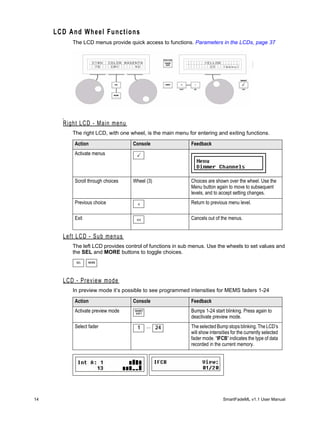
          The LCD menus provide quick access to functions. Parameters in the LCDs, page 37


       Right LCD - Main menu
          The right LCD, with one wheel, is the main menu for entering and exiting functions.

          Action                   Console                 Feedback
          Activate menus


          Scroll through choices   Wheel (3)               Choices are shown over the wheel. Use the
                                                           Menu button again to move to subsequent
                                                           levels, and to accept setting changes.
          Previous choice            <                     Return to previous menu level.

          Exit                       <<                    Cancels out of the menus.


       Left LCD - Sub menus
          The left LCD provides control of functions in sub menus. Use the wheels to set values and
          the SEL and MORE buttons to toggle choices.
           SEL   MORE


       LCD - Preview mode
          In preview mode it’s possible to see programmed intensities for MEMS faders 1-24

          Action                   Console                 Feedback
          Activate preview mode     SMART
                                     SOFT
                                                           Bumps 1-24 start blinking. Press again to
                                                           deactivate preview mode.
          Select fader               1      ... 24         The selected Bump stops blinking. The LCD’s
                                                           will show intensities for the currently selected
                                                           fader mode. “IFCB” indicates the type of data
                                                           recorded in the current memory.


14                                                                          SmartFadeML v1.1 User Manual
Phi losophy Of The Console

               SmartFade ML is designed to be simple to use, and still offer advanced functionality for a
               standard rig of conventional and moving lights.
               There is a direct button for every intensity and device parameter. These functions are
               mainly accessed from the fader modes.
               The buttons make it possible to run SmartFadeML without an additional screen. They offer
               information about content, mode, intensities and color with their back-lit LEDs.
               The LCDs and the three wheels provide a powerful menu-driven editing functionality, and
               direct control of device parameters.

      HTP and LTP control rules
             Intensities
               Dimmer channels and Device intensity channels operate using Highest Takes Precedence
               (HTP). This means that if an intensity is output from more than one fader, the highest level
               will be the resulting output.
               Intensity channels can be set to a level using the faders in INT A, INT B and DEVICE INT
               mode. These channel faders operate in the Live fader of the Crossfader. They can be used
               to take a level originating from the Crossfader either up or down. Set levels will fade out
               when the Crossfader is operated.
             Device Parameters
               All device parameters operate exclusively live, using Latest Takes Precence (LTP). This
               means that they are always “stolen” by the last action.
               When you control devices using the PARAM faders, you may see those parameters "jump"
               to a level and then "catch up" to the fader's position. This is because a fader is always at
               some level between 0% and Full. Because the first move of the fader is considered the last
               action for that parameter, you will see these jumps when the fader does not match the
               starting level for the parameter. To avoid this jump, use the encoders to control your
               devices. Encoders only indicate a direction of change, not a fixed percentage level, so you
               will not see the jump since there is nothing to catch up to.
               A memory containing device parameters can be set to have the device parameters follow
               the fader progressively, or not.

      Different ways to use SmartFadeML
               These are some different approaches to using SmartFadeML
             Manual control
               Levels and device parameters are set directly using faders and encoders..
             Single-Scene crossfading
               Set up levels blind, and then crossfade into them Live. See “Single Scene Crossfading” on
               page 81.
             Programming for improvised playback
               Prepare groups, palettes, effects and store into memories and sequences.
             Programming a Cue List for playback
               Record a Stack with up to 199 steps and fade times for playback in the crossfaders.


1     General Information                                                                                15
Data structure & Timing

           The data structure is very simple. The faders offer direct control of intensities and
           parameters. These levels can be stored in different ways.
          Groups
           Device selections can be stored in 24 groups for fast recall.
          Palettes
           Device parameters can be stored in three types of palettes for fast recall and to be
           programmed as referenced sources in memories and sequences. The palette types are
           FOCUS, COLOR and BEAM. There are 24 of each type. The concept of creating palettes
           for positions, colors and beam settings, and referencing them into memories instead of
           storing the actual parameters is to save time. Its very fast to select four devices and say “go
           to centre stage (Focus Palette 2) in red (Color Palette 1). If anything changes in your show
           you will save time again, by editing the palettes instead of editing all memories and steps
           that they are stored in. If they are changed they will update themselves where they have
           been used throughout a show. For example when the focus palette for a piece of scenery
           is moved, or when a certain red color palette has been changed into a deeper red.
          Effects
           A very fast way to create interesting patterns and movements with devices are the effects.
           There are 11 Shape effects for pan/tilt movements in devices, 11 Linear effects for
           intensities or any single device parameter and 11 Color effects for color mixing devices. The
           effects are referenced as sources just like palettes. Offset is stored in the mem, but not
           Depth and Speed. Those are stored in the effect.
          Memories
           Memories are created to store intensities, device parameters, palettes and effects to a
           fader. These memories can be played back from the faders, and they can be stored as
           steps in sequences or the Stack. There are 24 fader memories in 12 fader pages = 288
           Memories in total. Each memory can have an FCB time to control the transition of device
           parameters.
          Snapshots
           The complete output can be instantly stored with a Snapshot function. Up to 10 such
           Snapshots can be buffered. They can be stored as memories at a later point.
          Sequences
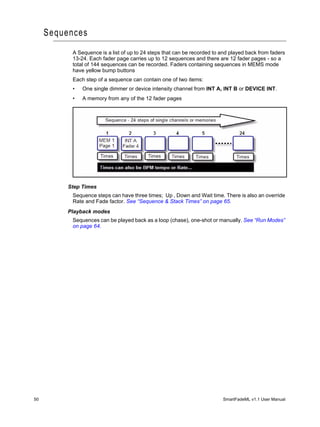
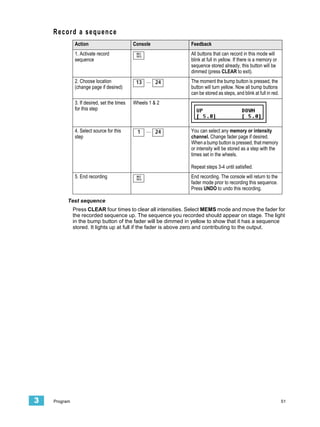
           The fastest way to create a loop of memories is to record a sequence. A sequence is a list
           of 24 steps that can be played back manually, looped or as a single shot from the faders.
           Each step can be a single intensity channel or a memory. Each step can have an Up, Down
           and Wait time. There are general timing override functions like Rate, Fade and BPM as
           well.
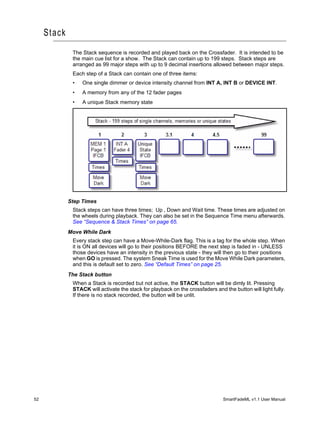
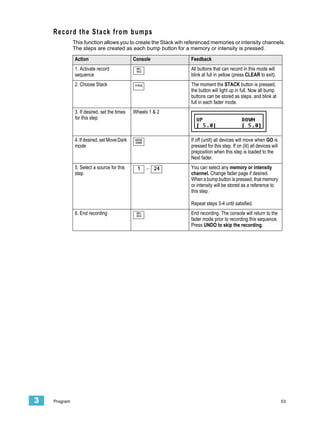
          Stack
           The Stack is theatre style list of 199 steps that can be played back manually or as a single
           shot from the Crossfader. It is intended as a main cue list for a show. Each step can be a
           single intensity channel, a memory or a unique Stack memory state. Each step can have
           an Up, Down and Wait time. There are general timing override functions like Rate and Fade
           override as well.


16                                                                            SmartFadeML v1.1 User Manual
Chapter 2
Setup
            The default setup of SmartFadeML allows you to run 48 dimmer channels straight out of
            the box. Moving lights always have to be patched, since they require a specific template
            corresponding to each type. There are other user Settings for displays and language.
            These are described in this chapter.
            This chapter contains the following sections:
                •   DMX Output . . . . . . . . . . . . . . . . . . . . . . . . . . . . . . . . . . . . . . .18
                •   Clear/Set Patch. . . . . . . . . . . . . . . . . . . . . . . . . . . . . . . . . . . . .19
                •   Patch Dimmers (INT) . . . . . . . . . . . . . . . . . . . . . . . . . . . . . . . .20
                •   Patch Independents. . . . . . . . . . . . . . . . . . . . . . . . . . . . . . . . .22
                •   Patch Devices . . . . . . . . . . . . . . . . . . . . . . . . . . . . . . . . . . . . .23
                •   Console Setup . . . . . . . . . . . . . . . . . . . . . . . . . . . . . . . . . . . . .25
                •   MIDI Setup . . . . . . . . . . . . . . . . . . . . . . . . . . . . . . . . . . . . . . . .27


2   Setup                                                                                                          17
DMX Output
           DMX (Digital MultipleX) is a worldwide standard (or protocol) that your SmartFadeML uses
           to communicate with lighting equipment. It is a digital protocol that basically defines a state
           of “on”, “off” or a percentage of “on”. DMX can be used to control dimmers, moving lights,
           fog machines, color scrollers, media servers or any number of other DMX devices.
           DMX is restricted to a total of 512 (output) channels available in one DMX line (referred to
           as a universe). Your SmartFadeML has two such universes, allowing control of up to 1024
           outputs (2x512).
           The DMX outputs are patched to console channels for intensities or devices in
           SmartFadeML. There are 48 intensity channels, 24 device channels and 2 independent
           channels. Each console channel can be patched to multiple outputs. The default is set 1:1.
           INT A1-A24, , INT B1-B24, DEVICE INT D1-D24, IND 1, IND 2


           A moving light device can have up to 48 different parameters, each parameter requiring one
           of the 1024 outputs. This depends on the type of moving light, and is automatically set by
           patching the appropriate template.

       DMX Out Speed
           In rare cases some DMX devices may have trouble reading DMX at the full standard speed
           supplied by SmartFadeML. This is often seen as flicker in your lighting devices. You can
           slow down the DMX out speed to try to alleviate such communications errors with other
           manufacturer’s equipment. The default is set to “Max”.
           Menu>Setup>DMX Out>[Max]..[Slow]..[Medium]..[Fast]


18                                                                            SmartFadeML v1.1 User Manual
Clear/Set Patch

      Clear Intensity Patch
              The intensity patch for INT A and INT B is cleared from the Patch Menu.
              Menu>Patch>Patch Set/Clear>[Clear INT Patch]


              Press OK to confirm.

      Set Intensity Patch 1:1
              The intensity patch for INT A and INT B is set 1:1 from the Patch Menu.
              Menu>Patch>Patch Set/Clear>[Set INT Patch 1:1?]


              Press OK to confirm.

      Note:     The Device Intensitiy channels can be used to patch 24 more conventional lights if no
                Devices are being used. See “Patch by Channel” on page 21.


      Clear Device Patch
              Devices can be unpatced “all” or one by one in the Patch Menu.
              Menu>Patch>Patch Set/Clear>[Clear Device]


              Select All or 1-24 with wheel, and press OK to confirm.


2     Setup                                                                                             19
Patch Dimmers (INT)
               There are 48 intensity channels that can be patched to two DMX universes (1024 outputs).
               They are divided into two groups of 24 - fader mode INT A and INT B.
           The Default Patch
               SmartFadeML defaults to a “1 to 1” patch mode in DMX universe 1 for dimmers.
                             INT A = DMX1-24
                             INT B = DMX 25-48
               This is the simplest version of a patch and is the most common, as it is easy to remember
               and provides immediate control with all of your available channels. It is also possible to
               create a custom patch by assigning any DMX output(s) to any control channel. Setting the
               patch is simple and is performed on the LCD menu.
           Patch Live or Blind
               Patching in Live will set the selected DMX output to full , and set all other dimmers to zero
               so you can see what’s connected to that dimmer. Patching in Blind will not affect current
               DMX values until changes in the patch override any active channels.

       Note:     A dimmer can only be patched to one control channel at a time. If you patch a dimmer
                 and then later patch the same dimmer to a different channel, the dimmer will be
                 automatically unpatched from its original channel and assigned to the new channel.


       Patch by Dimmer
               Patching by dimmer is probably the easiest way to patch a rig that is unknown to you. In
               Live mode you can turn on each output one by one, select an intensity channel and patch it.
               Step 1:   Open the Patch:
                         Menu>Patch>[Patch by dimmer]
               Step 2:   Choose between Live and Blind mode using encoder wheel 3.


                         Press (MENU) to confirm.
               Step 3:   All patching is done in the left LCD.


               Menu choice               Console                  Feedback
               DMX                       Wheel 1                  Select a DMX output. If you are patching Live
                                                                  it will be set to full instantly.
               CH.                       Wheel 2                  Select a channel to patch or unpatch to the
                                                                  selected DMX output.
               <[U1]                      MORE                    Toggles the DMX universe between 1 and 2.

               [UNPATCH]                   SEL                    Press to patch or unpatch the currently
                                                                  selected channel to the currently selected
                                                                  DMX output and universe.


20                                                                                SmartFadeML v1.1 User Manual
Patch by Channel
            Patching by channel is just as simple as patching by dimmer. The only difference is that the
            starting point is the intensity channel. By doing it Live you can check what is patched to
            each intensity channel, and then patch or unpatch more dimmer outputs to this channel.
            Step 1:   Open the Patch:
                      Menu>Patch>[Patch by channel]
            Step 2:   Choose between Live and Blind mode using encoder wheel 3.


                      Press (MENU) to confirm.
            Step 3:   Patching is done in the left LCD. The right LCD shows all dimmer outputs
                      patched to the currently selected channel - use encoder wheel 3 to scroll if there
                      are more than three dimmer outputs patched to the same intensity channel.


            Menu choice               Console                  Feedback
            CH.                       Wheel 1                  Select a channel to patch or unpatch. The
                                                               corresponding DMX output will be selected
                                                               immediately when the wheel is moved. D1-
                                                               D24 can be selected as well. See Note.
            DMX                       Wheel 2                  Select a DMX output to patch to the selected
                                                               channel. If it is already patched there is an “*”
                                                               before the number as in the image above.
            [U1]>                      MORE                    Toggles the DMX universe between 1 and 2.

            [UNPATCH]                  SEL                     Press to patch or unpatch the currently
                                                               selected channel to the currently selected
                                                               DMX output and universe.


    Note:     You can patch any of the Device Intensity channels D1-D24 to conventional lights if you
              aren’t using these channels for devices.


2   Setup                                                                                                          21
Patch Independents
            Independent buttons IND 1 and IND 2 provide two outputs separated from all other controls.
            They are intended to operate devices such as smoke machines, tab tracks, cue lights, etc.
            •      SOLO does not affect these outputs.
            •      The state or result of the 2 independent outputs is not recordable.

           The Default Patch
            SmartFadeML defaults to the last outputs in DMX universe 1 for the independents.
                              IND 1 = DMX 511
                              IND 2 = DMX 512
            This is easy to remember and provides immediate control with two outputs. It is also
            possible to create a custom patch by assigning any DMX outputs to the independents.

       Set up Independents
            They are patched and set up in the Independents menu.
            Menu>Independents>[Patch to]


                Menu choice             Console                  Feedback
                IND 1                   Wheel 1                  Choose output for Independent 1.
                <[U1]                     SEL                    Toggles the DMX universe for Independent 1
                                                                 between 1 and 2.
                [U1]>                    MORE                    Toggles the DMX universe for Independent 2
                                                                 between 1 and 2.
                IND 2                   Wheel 2                  Choose output for Independent 2.

           Button behaviour

                Menu choice             Console                  Feedback
                [Button mode]           Wheels 1 & 2


                [Master mode]           Wheels 1 & 2


                                                                 Sets if BLACKOUT and MASTER
                                                                 fader will affect or not.
                [Set Level]             Wheels 1 & 2


22                                                                              SmartFadeML v1.1 User Manual
Patch Devices
               There are 24 device channels that can be patched to two DMX universes (1024 outputs).
               Each device can have a DMX footprint of up to 48 outputs.
               There is no default patch since every moving light or DMX device requires a specific pre-
               built patching personality.These personalities are provided within the software.
               We recommend that you patch all your devices at the same time, to avoid problems with
               overlapping addresses. Make sure you know what mode you want the device to be in and
               why before you patch it. Consult the manual of the device for this decision.
               Patching devices is simple and is performed in the LCD menu.

      Patch multiple devices
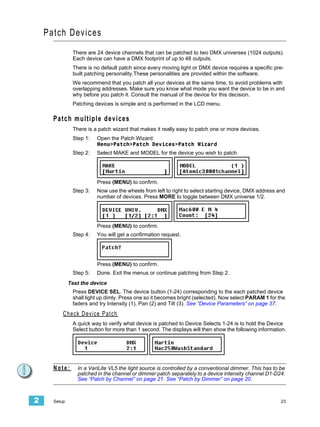
               There is a patch wizard that makes it really easy to patch one or more devices.
               Step 1:      Open the Patch Wizard:
                            Menu>Patch>Patch Devices>Patch Wizard
               Step 2:      Select MAKE and MODEL for the device you wish to patch.


                            Press (MENU) to confirm.
               Step 3:      Now use the wheels from left to right to select starting device, DMX address and
                            number of devices. Press MORE to toggle between DMX universe 1/2.


                            Press (MENU) to confirm.
               Step 4:      You will get a confirmation request.


                            Press (MENU) to confirm.
               Step 5:      Done. Exit the menus or continue patching from Step 2.
              Test the device
               Press DEVICE SEL. The device button (1-24) corresponding to the each patched device
               shall light up dimly. Press one so it becomes bright (selected). Now select PARAM 1 for the
               faders and try Intensity (1), Pan (2) and Tilt (3). See “Device Parameters” on page 37.
          C h e c k D e v i ce P a t ch
               A quick way to verify what device is patched to Device Selects 1-24 is to hold the Device
               Select button for more than 1 second. The displays will then show the following information.


      Note:      In a VariLite VL5 the light source is controlled by a conventional dimmer. This has to be
                 patched in the channel or dimmer patch separately to a device intensity channel D1-D24.
                 See “Patch by Channel” on page 21. See “Patch by Dimmer” on page 20.


2     Setup                                                                                               23
Device Commands
          Device commands like Lamp On, Lamp Off and Reset are done from the Device menu. The
          currently selected Devices are affected. See “Select Devices” on page 35.
          Menu>Devices>Device Commands>[Lamp On]..[Lamp Off]..[Reset]

     View/Modify Device Patch
          To check DMX addresses and modify the patch of single devices, open the View/Modify
          Patch menu:
          Menu>Patch>Patch Devices>View/Modify Patch


          These are the options. NOTHING is changed unless (MENU) is pressed and confirmed.

           Menu choice             Console                  Feedback
           Select a device         Wheel 1                  As the device number is changed, the rest of
                                                            the settings will update to reflect each device.


           Universe 1 or 2          MORE                    Toggles the DMX address between DMX uni-
                                                            verse 1 and 2.
           DMX address             Wheel 2                  Change DMX address for the device.


     Device Settings
          You can invert and/or swap pan and tilt functions individually for every device. This is
          usually only used when they are not rigged in the same way - to make pan and tilt have the
          same result on stage.
          These functions are available from the Device Menu. Go to Menu>Devices>

           Menu choice             Console                  Feedback
           [Invert Pan]            Wheel 2 selects device
                                   (DEV).

                                   SEL toggles on/off.
           [Invert Tilt]           Wheel 2 selects device
                                   (DEV).

                                   SEL toggles on/off.
           [Swap Pan/Tilt]         Wheel 2 selects device
                                   (DEV).

                                   SEL toggles on/off.


24                                                                           SmartFadeML v1.1 User Manual
Console Setup

      Erase Functions
              Erasing data is done from the Setup menu.
              Menu>Setup>[Erase]


              The following kind of data can be erased:
              •   All show data
              •   Memories
              •   Sequences
              •   Stack
              •   Palettes

      Crossfade faders
              The direction in which the Crossfade faders advance to the next step in STACK mode is set
              in the Setup menu.
              Menu>Setup>[Crossfade faders]


              There are two choices of behaviour
              •   Upwards only
              •   Both ways

      Default Times
              Default times can be set for
              •   Fades in Sequences and Stack. See “Default Fade Times” on page 65.
              •   Speed Limit.
              •   FCB Sneak time.

      DMX Out
              See “DMX Out Speed” on page 18.

      MIDI Settings
              See “MIDI Settings” on page 25.


2     Setup                                                                                          25
Language
          You can choose language for the menus from the Setup menu.
          Menu>Setup>Language>[English]


          Current choices are
          •      English
          •      Français
          •      Deutsch
          •      Español
          The console will continue to boot with the last selected language until it is changed.

     Displays
          Display settings are done from the Setup menu.
          Menu>Setup>Displays


              Menu choice           Console                  Feedback
              BUTTON                Wheel 1                  Button intensities
              SCREEN                Wheel 2                  LCD intensities
              CONTRAST              Wheel 3                  LCD Contrast


     Software Version
          You can verify what software version your console is running in the Setup menu.
          Menu>Setup>[Software version]


26                                                                             SmartFadeML v1.1 User Manual
MIDI Setup
              SmartFade ML has included MIDI (Musical Instrument Digital Interface) facilities to provide
              three primary functions.
              •   Show control systems: SmartFadeML may be set to respond to MIDI data from a
                  time-based sequencer or show control system. This can be MSC or functions from the
                  Basic MIDI implementation of SmartFadeML.
              •   Synchronising playback of two SmartFadeML: the Memory faders, bumps and the
                  playback functions of the Stack plus Grand Master and Blackout can be synchronised.
              •   Sending MIDI controller data: There is a controller patch where any channel in
                  SmartFadeML can be set to send any MIDI controller 1-127 to control external devices.
              For show control and synchronising playback it is normally enough to make a MIDI
              connection and start using without having to set up anything.

      MIDI Show Contol
              MSC is a show control standard within MIDI that usually is used when different devices are
              linked in a show control setup. SmartFadeML supports a basic set of Midi Show Control
              (MSC) commands. They are both sent and received at all times - regardless of the settings
              for MIDI channel.
              You can set the MSC Device ID from the MIDI menu.
              Menu>Setup>MIDI>[MSC Device ID]


              Midi Show Control Commands
              •   Go
              •   Stop
              •   Resume

      Synchronising Two SmartFadeML
              To synchronise playback of two SmartFadeML consoles, just connect MIDI OUT from
              console A to MIDI IN on console B. Now the main playback functions are “mirrored” from
              console A to console B.
              If you want to be able to playback from B as well, and mirror back to console A - connect
              MIDI OUT from console B to console A as well.
              There is no MIDI THRU in SmartFadeML - so there will be no “looping” of information.
              Functions
              •   Since MSC is default on so GO, PAUSE and STOP will be synchronised right away.
              •   In MEM mode the faders and bumps will be synchronised*
              •   SOLO mode will be synchronised for MEM bumps*
              •   Grand Master, Blackout and Bumps Master will be synchronised*
              * These functions are transmitted from within the Basic MIDI implementation on the
              currently set MIDI channel. MIDI channel, page 28, Basic MIDI implementation, page 28.


2     Setup                                                                                            27
Basic MIDI implementation
          A set of controllers and buttons can be sent and received. This can be used both for Show
          Control and to Synchronise two SmartFadeML consoles.
          Controllers
          •   1-48 = Master 1-48 (only in MEM mode)
          •   124 = Live fader
          •   125 = Next fader
          •   126 = Bump Master
          •   127 = Grand Master
          Program Change
          •   0 = Reset the Stack to step 0
          •   1-99 = GOTO step 1-99 in the Stack
          •   100-111 = Memory pages 1-12
          •   124 = Pause
          •   125 = Start (GO)
          •   126 = B.O. not active
          •   127 = B.O. active
          Note on/off
          •   0-47 = MEM bumps 1-48 (only in MEM mode)

     MIDI channel
          The Basic and Advanced MIDI functions apart from MSC are sent and received on the
          same MIDI channel. This is set in the MIDI menu.
          Menu>Setup>MIDI>[MSC Device ID]


          Press OK


          Use the wheel 1 to select MIDI channel 1-16 and press OK to confirm.


28                                                                       SmartFadeML v1.1 User Manual
Sending MIDI Controllers
            This function is designed to allow any control channel in SmartFadeML to control an
            external device using any MIDI controller 0-127. This is set up in the Controller Patch.
            Menu>Setup>MIDI>[Controller Patch]


            Press OK


            Use the wheel 1 to select SmartFadeML control channel 1-72, then use wheel 2 to select
            MIDI controller 1-127. Press OK to confirm.
            Once this is set up the output of this channel will also be transmitted on the MIDI controller
            assigned in the Controller Patch.

    Note:     When a MIDI controller is patched to a channel, the default MIDI implementation function
              of this controller is disabled.


2   Setup                                                                                               29
30   SmartFadeML v1.1 User Manual
Chapter 3
Program
              Once you have set up your console to control the dimmers and devices in your rig, you can
              start programming.
              This chapter contains the following sections:
                  •   Intensity channels . . . . . . . . . . . . . . . . . . . . . . . . . . . . . . . . . .32
                  •   Devices . . . . . . . . . . . . . . . . . . . . . . . . . . . . . . . . . . . . . . . . . . .34
                  •   Effects . . . . . . . . . . . . . . . . . . . . . . . . . . . . . . . . . . . . . . . . . . . .42
                  •   Memories . . . . . . . . . . . . . . . . . . . . . . . . . . . . . . . . . . . . . . . . .47
                  •   Snapshots. . . . . . . . . . . . . . . . . . . . . . . . . . . . . . . . . . . . . . . . .49
                  •   Sequences . . . . . . . . . . . . . . . . . . . . . . . . . . . . . . . . . . . . . . . .50
                  •   Stack . . . . . . . . . . . . . . . . . . . . . . . . . . . . . . . . . . . . . . . . . . . . .52


3   Program                                                                                                               31
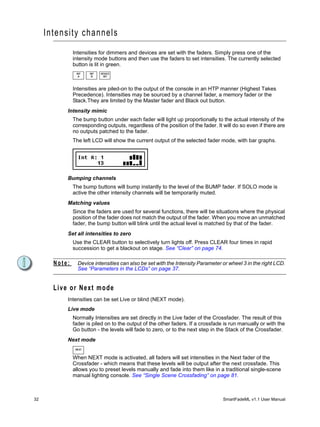
Intensity channels
               Intensities for dimmers and devices are set with the faders. Simply press one of the
               intensity mode buttons and then use the faders to set intensities. The currently selected
               button is lit in green.
                INT    INT   DEVICE
                 A      B     INT


               Intensities are piled-on to the output of the console in an HTP manner (Highest Takes
               Precedence). Intensities may be sourced by a channel fader, a memory fader or the
               Stack.They are limited by the Master fader and Black out button.
           Intensity mimic
               The bump button under each fader will light up proportionally to the actual intensity of the
               corresponding outputs, regardless of the position of the fader. It will do so even if there are
               no outputs patched to the fader.
               The left LCD will show the current output of the selected fader mode, with bar graphs.


           Bumping channels
               The bump buttons will bump instantly to the level of the BUMP fader. If SOLO mode is
               active the other intensity channels will be temporarily muted.
           Matching values
               Since the faders are used for several functions, there will be situations where the physical
               position of the fader does not match the output of the fader. When you move an unmatched
               fader, the bump button will blink until the actual level is matched by that of the fader.
           Set all intensities to zero
               Use the CLEAR button to selectively turn lights off. Press CLEAR four times in rapid
               succession to get a blackout on stage. See “Clear” on page 74.

       Note:     Device intensities can also be set with the Intensity Parameter or wheel 3 in the right LCD.
                 See “Parameters in the LCDs” on page 37.


       Live or Next mode
           Intensities can be set Live or blind (NEXT mode).
           Live mode
               Normally Intensities are set directly in the Live fader of the Crossfader. The result of this
               fader is piled on to the output of the other faders. If a crossfade is run manually or with the
               Go button - the levels will fade to zero, or to the next step in the Stack of the Crossfader.
           Next mode
                NEXT


               When NEXT mode is activated, all faders will set intensities in the Next fader of the
               Crossfader - which means that these levels will be output after the next crossfade. This
               allows you to preset levels manually and fade into them like in a traditional single-scene
               manual lighting console. See “Single Scene Crossfading” on page 81.


32                                                                                SmartFadeML v1.1 User Manual
Adjust Channel Range
              It’s possible to select any channel range and adjust proportionally in the Channel menu.
              Menu>Channels>[Adjust Channel Range]


              Menu choice              Console                  Feedback
              START                    Wheel 1                  Select first channel in range
              END                      Wheel 2                  Select last channel in range
              [All]                      SEL                    Selects all channels as channel range.

              Adjust LEVEL             Wheel 3                  Adjust the levels proportionally


    Set Channel Range
              It’s possible to select any channel range and set levels in the Channel menu.
              Menu>Channels>[Set Channel Range]


              Menu choice              Console                  Feedback
              START                    Wheel 1                  Select first channel in range
              END                      Wheel 2                  Select last channel in range
              [All]                      SEL                    Selects all channels as channel range.

              Set LEVEL                Wheel 3                  As soon as the wheel is moved, all channels
                                                                in the range will instantly be set to this level.


3   Program                                                                                                         33
Devices
           SmartFadeML is specially designed to handle devices, like moving lights, in a very simple
           and straightforward way.
           Device intensities and parameters can be set manually with the faders and/or with the LCD
           parameter menus. See “Intensity channels” on page 32.
            DEVICE   PARAM   PARAM
             INT       1       2


           Working with devices like moving lights often requires more preparation than dimmers.
           Both programming and playback will be easier if you prepare Palettes and Groups for
           quickly selecting and adjusting devices. See “Palettes” on page 16. See “Groups” on
           page 16.
          Device Times
           There are two default time settings that will affect how devices are controlled. See “Default
           Device Times” on page 59.
          Know your device
           If you are going to control a device, make sure you know how it works. Read the manual
           for the device, and check what operating mode it is set to work in. Make sure this operating
           mode corresponds to the personality in the Device Patch of SmartFadeML. See “Patch
           Devices” on page 23.


34                                                                          SmartFadeML v1.1 User Manual
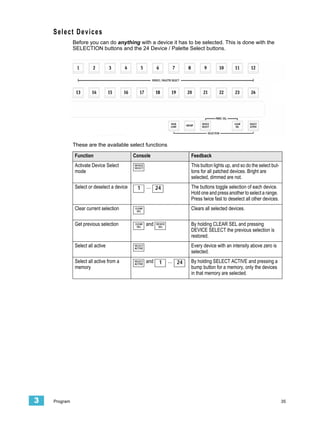
Select Devices
              Before you can do anything with a device it has to be selected. This is done with the
              SELECTION buttons and the 24 Device / Palette Select buttons.


              These are the available select functions

              Function                      Console                          Feedback
              Activate Device Select        DEVICE
                                            SELECT
                                                                             This button lights up, and so do the select but-
              mode                                                           tons for all patched devices. Bright are
                                                                             selected, dimmed are not.
              Select or deselect a device    1       ... 24                  The buttons toggle selection of each device.
                                                                             Hold one and press another to select a range.
                                                                             Press twice fast to deselect all other devices.
              Clear current selection       CLEAR
                                             SEL
                                                                             Clears all selected devices.

              Get previous selection        CLEAR
                                             SEL
                                                     and   DEVICE
                                                            SEL
                                                                             By holding CLEAR SEL and pressing
                                                                             DEVICE SELECT the previous selection is
                                                                             restored.
              Select all active             SELECT
                                            ACTIVE
                                                                             Every device with an intensity above zero is
                                                                             selected.
              Select all active from a      SELECT
                                            ACTIVE
                                                     and    1       ... 24   By holding SELECT ACTIVE and pressing a
              memory                                                         bump button for a memory, only the devices
                                                                             in that memory are selected.


3   Program                                                                                                                     35
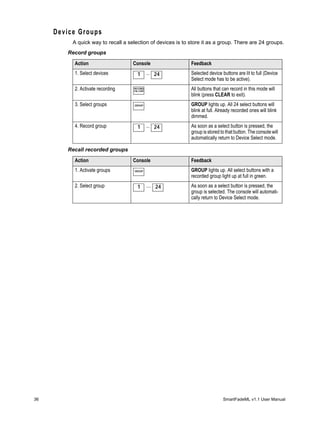
Device Groups
          A quick way to recall a selection of devices is to store it as a group. There are 24 groups.
        Record groups

          Action                    Console                  Feedback
          1. Select devices           1       ... 24         Selected device buttons are lit to full (Device
                                                             Select mode has to be active).
          2. Activate recording     RECORD
                                    PAL/GRP
                                                             All buttons that can record in this mode will
                                                             blink (press CLEAR to exit).
          3. Select groups          GROUP                    GROUP lights up. All 24 select buttons will
                                                             blink at full. Already recorded ones will blink
                                                             dimmed.
          4. Record group             1       ... 24         As soon as a select button is pressed, the
                                                             group is stored to that button. The console will
                                                             automatically return to Device Select mode.

        Recall recorded groups

          Action                    Console                  Feedback
          1. Activate groups        GROUP                    GROUP lights up. All select buttons with a
                                                             recorded group light up at full in green.
          2. Select group             1       ... 24         As soon as a select button is pressed, the
                                                             group is selected. The console will automati-
                                                             cally return to Device Select mode.


36                                                                            SmartFadeML v1.1 User Manual
Device Parameters
              A device in SmartFadeML can have up to 48 parameters such as pan, tilt, gobo etc. These
              parameters are automatically mapped to the controls by the personality in the device patch.
              Parameters for the selected devices are always moved to the last issued value in an LTP
              manner (Latest Takes Precedence). They are not affected by the Master Fader or Blackout
              button.
       P a r a m e t e r s i n t h e f a de r s
              When a device is selected all its parameters are mapped into two PARAM fader pages.
              PARAM   PARAM
                1       2

              As soon as one of these fader pages is activated (button is lit) the bump button will light up
              under the fader of any parameter that is available in the currently selected devices.
              The parameter of each fader is printed on the console frontpanel, under the fader.


              PARAM 1 parameters are printed below the buttons and PARAM 2 above. For example,
              fader 1 in PARAM 1 = Intensity.
              When a fader is moved, that parameter will jump to the value of the fader (which may be
              unwanted behaviour). To adjust parameters relative to their current value, use the encoder
              wheels and LCDs.
          Bump buttons
              The bump buttons will toggle a parameter between zero and full when PARAM 1 or 2 are
              held.
       Parameters in the LCDs
              As soon as a device is selected, both LCD’s provide parameter control with the encoder
              wheels. This is necessary if you want to adjust parameters relative to their current position.
              The left LCD shows the current parameter type in the top middle (Focus in this example).


              The top right corner of the right LCD shows the number of this menu, and underneath is the
              number of available sub-menus. In this example Coarse is the current sub-menu, and it’s
              sub-menu number 1 out of 2 (1/2).
              Parameters that do not exist in the currently selected device(s) are displayed [---].
          Navigation buttons

              Action                              Console         Feedback
              Next parameter menu                  SEL            The next parameter menu is selected and dis-
                                                                  played top/mid in the left LCD.
              Sub-menus                           MORE            Sub-menus are displayed bottom/mid in the
                                                                  left LCD, and the button lights up.


3   Program                                                                                                      37
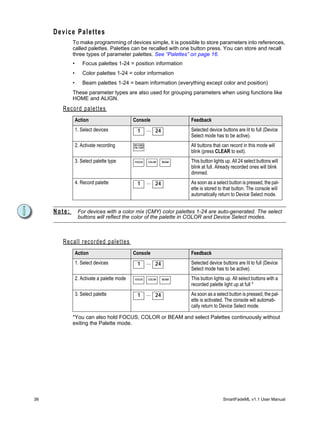
Device Palettes
             To make programming of devices simple, it is possible to store parameters into references,
             called palettes. Palettes can be recalled with one button press. You can store and recall
             three types of parameter palettes. See “Palettes” on page 16.
             •       Focus palettes 1-24 = position information
             •       Color palettes 1-24 = color information
             •       Beam palettes 1-24 = beam information (everything except color and position)
             These parameter types are also used for grouping parameters when using functions like
             HOME and ALIGN.
       Record palettes
                 Action                             Console                   Feedback
                 1. Select devices                    1       ... 24          Selected device buttons are lit to full (Device
                                                                              Select mode has to be active).
                 2. Activate recording              RECORD
                                                    PAL/GRP
                                                                              All buttons that can record in this mode will
                                                                              blink (press CLEAR to exit).
                 3. Select palette type             FOCUS     COLOR    BEAM   This button lights up. All 24 select buttons will
                                                                              blink at full. Already recorded ones will blink
                                                                              dimmed.
                 4. Record palette                    1       ... 24          As soon as a select button is pressed, the pal-
                                                                              ette is stored to that button. The console will
                                                                              automatically return to Device Select mode.


     Note:        For devices with a color mix (CMY) color palettes 1-24 are auto-generated. The select
                  buttons will reflect the color of the palette in COLOR and Device Select modes.


       R e c a l l r ec o r d e d p a l e t t e s
                 Action                             Console                   Feedback
                 1. Select devices                    1       ... 24          Selected device buttons are lit to full (Device
                                                                              Select mode has to be active).
                 2. Activate a palette mode         FOCUS     COLOR    BEAM   This button lights up. All select buttons with a
                                                                              recorded palette light up at full *
                 3. Select palette                    1       ... 24          As soon as a select button is pressed, the pal-
                                                                              ette is activated. The console will automati-
                                                                              cally return to Device Select mode.

             *You can also hold FOCUS, COLOR or BEAM and select Palettes continuously without
             exiting the Palette mode.


38                                                                                              SmartFadeML v1.1 User Manual
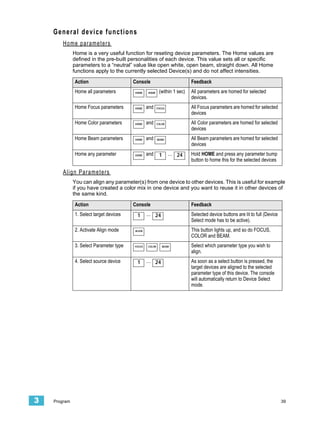
General device functions
       Home parameters
              Home is a very useful function for reseting device parameters. The Home values are
              defined in the pre-built personalities of each device. This value sets all or specific
              parameters to a “neutral” value like open white, open beam, straight down. All Home
              functions apply to the currently selected Device(s) and do not affect intensities.

              Action                     Console                           Feedback
              Home all parameters        HOME    HOME     (within 1 sec)   All parameters are homed for selected
                                                                           devices.
              Home Focus parameters      HOME    and     FOCUS             All Focus parameters are homed for selected
                                                                           devices
              Home Color parameters      HOME    and     COLOR             All Color parameters are homed for selected
                                                                           devices
              Home Beam parameters       HOME    and     BEAM              All Beam parameters are homed for selected
                                                                           devices
              Home any parameter         HOME    and      1      ... 24    Hold HOME and press any parameter bump
                                                                           button to home this for the selected devices

       Align Parameters
              You can align any parameter(s) from one device to other devices. This is useful for example
              if you have created a color mix in one device and you want to reuse it in other devices of
              the same kind.

              Action                     Console                           Feedback
              1. Select target devices    1      ... 24                    Selected device buttons are lit to full (Device
                                                                           Select mode has to be active).
              2. Activate Align mode     ALIGN                             This button lights up, and so do FOCUS,
                                                                           COLOR and BEAM.
              3. Select Parameter type   FOCUS   COLOR        BEAM         Select which parameter type you wish to
                                                                           align.
              4. Select source device     1      ... 24                    As soon as a select button is pressed, the
                                                                           target devices are aligned to the selected
                                                                           parameter type of this device. The console
                                                                           will automatically return to Device Select
                                                                           mode.


3   Program                                                                                                                  39
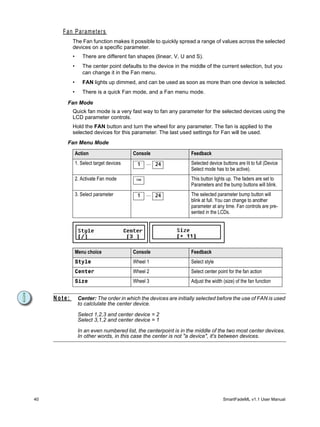
Fan Parameters
             The Fan function makes it possible to quickly spread a range of values across the selected
             devices on a specific parameter.
             •      There are different fan shapes (linear, V, U and S).
             •      The center point defaults to the device in the middle of the current selection, but you
                    can change it in the Fan menu.
             •      FAN lights up dimmed, and can be used as soon as more than one device is selected.
             •      There is a quick Fan mode, and a Fan menu mode.

         Fan Mode
             Quick fan mode is a very fast way to fan any parameter for the selected devices using the
             LCD parameter controls.
             Hold the FAN button and turn the wheel for any parameter. The fan is applied to the
             selected devices for this parameter. The last used settings for Fan will be used.
         Fan Menu Mode

                 Action                     Console                Feedback
                 1. Select target devices    1     ... 24          Selected device buttons are lit to full (Device
                                                                   Select mode has to be active).
                 2. Activate Fan mode        FAN                   This button lights up. The faders are set to
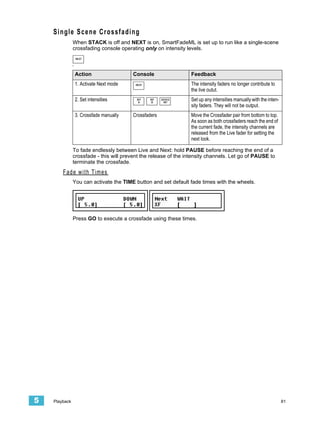
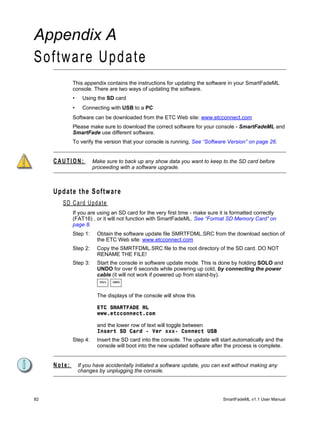
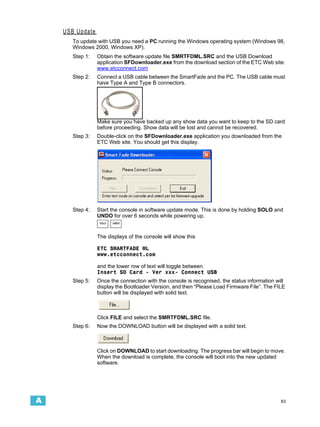
                                                                   Parameters and the bump buttons will blink.
                 3. Select parameter         1     ... 24          The selected parameter bump button will
                                                                   blink at full. You can change to another
                                                                   parameter at any time. Fan controls are pre-
                                                                   sented in the LCDs.


                 Menu choice                Console                Feedback
                 Style                      Wheel 1                Select style
                 Center                     Wheel 2                Select center point for the fan action
                 Size                       Wheel 3                Adjust the width (size) of the fan function


     Note:        Center: The order in which the devices are initially selected before the use of FAN is used
                  to calclulate the center device.

                  Select 1,2,3 and center device = 2
                  Select 3,1,2 and center device = 1

                  In an even numbered list, the centerpoint is in the middle of the two most center devices.
                  In other words, in this case the center is not "a device", it's between devices.


40                                                                                  SmartFadeML v1.1 User Manual
Highlight Mode
              Highlight is a mode designed for when you are adjusting a group of devices, one by one. It
              will bring the selected devices to a dimmed value and allow you to select one at a time at
              full. All devices that are not selected are set temporarily to zero and cannot be selected.

              Action                       Console                 Feedback
              1. Select devices             1      ... 24          Selected device buttons are lit to full (Device
                                                                   Select mode has to be active).
              2. Activate Highlight mode   HIGH
                                           LIGHT
                                                                   This button lights up.
              3. Select a device within     1      ... 24          This button lights up, and the device is set to
              the first selection                                  full. The other devices are set to zero. Adjust
                                                                   parameters, and select the next device. Only
                                                                   one device can be selected at a time. Press
                                                                   HIGHLIGHT to exit the mode.

       Fetch Parameters from a Memory
              If you want to copy the parameters of a device from a specific memory to reuse a color,
              position or beam setting, use Fetch.

              Action                       Console                 Feedback
              1. Select devices             1      ... 24          Selected device buttons are lit to full (Device
                                                                   Select mode has to be active).
              2. Activate a palette mode   FOCUS   COLOR    BEAM   This button lights up. All select buttons with a
                                                                   recorded palette light up at full
              3. Select any memory          1      ... 24          As soon as a select button is pressed, the
              bump                                                 parameters for the selected type are copied
                                                                   from this memory. The console will automati-
                                                                   cally return to Device Select mode.


3   Program                                                                                                           41
Effects
               There is a pre-defined library of 33 effects using wave-forms to generate the result. These
               effects are divided into three categories
               •      Shape (pan/tilt only)
               •      Linear (any parameter)
               •      Color (CMY or RGB mix only).


               The last button in each row controls the STOP function for each effect type.

       Note:        Effects are stored in Memories and Stack steps. They are referenced as a source, just
                    like palettes. Thus, if you edit shape effect 3 it will be altered throughout your show
                    whenever a memory containing it is played back.


       Shape effects
               Shape effects can only be applied to pan and tilt in devices to create a movement.
         Start Shape Effects
                   Action                        Console            Feedback
                   1. Select devices              1       ... 24    Selected device buttons are lit to full (Device
                                                                    Select mode has to be active).
                   2. Activate Effect mode       EFFECT             This button lights up. The Effect select but-
                                                                    tons light up full, empty ones are dimmed.
                   3. Select Shape effect         1       ... 11    As soon as a select button is pressed, the
                                                                    effect is activated. If the effect was empty it
                                                                    will enter Edit Mode. See “Edit Shape Effects”
                                                                    on page 68.

         S t o p S ha p e E f f e c t s
               Shape effects can be stopped individually for any device.

                   Action                        Console            Feedback
                   1. Select devices to stop      1       ... 24    Selected device buttons are lit to full (Device
                                                                    Select mode has to be active).
                   2. Activate Effect mode       EFFECT             This button lights up. The Effect select but-
                                                                    tons light up full, empty ones are dimmed.
                   3. Select Stop Shape effect    12                As soon as this button is pressed, the effect is
                                                                    stopped. The console will automatically
                                                                    return to Device Select mode.


42                                                                                   SmartFadeML v1.1 User Manual
Note:       The shape effects are tailor designed with some common lighting situations in mind. Feel
                free to experiment in any other way. Remember that a moving head with tilt at 50% will
                never do a circle - it needs to be pointing forward or backward. Here is some information
                about them.

                1. Circle - A circular fading movement
                2. Square - A square fading movement
                3. Infinity - A never ending journey in smooth moves
                4. Lissajou - A pendular movement
                5. Clover - The path outlining a four leaf clover
                6. Flower - The path outlining a flower
                7. Triangle- A triangular fading movement
                8. Harmonics - A fast flower movement
                9. Noise - An irregular and irratic movement pattern
                10. Pentacle - The path outlining a pentacle
                11. Skating - The movements of a skater seen from top


    O f f s e t R e l a t i o n s I n S ha p e a n d C o l o r E f f e c t s
              It’s possible to offset each device that is affected by a Shape or Color effect, so that they
              start one by one, or two by two (etc) - instead of always moving at the same time. This
              information is stored individually in each Memory or Stack state.

              Action                       Console                     Feedback
              1. Select Fan mode            FAN                        This button lights up. EFFECT will blink. If any
                                                                       devices are selected the parameter bump
                                                                       buttons will blink as well.
              2. Select effect             EFFECT                      FAN and EFFECT will blink. The Offset Rela-
                                                                       tion menu is opened in the LCDs.


              Menu choice                  Console                     Feedback
              Type                          SEL                        Toggles between Shape and Color effects for
                                                                       the selected Devices.
              Relation                     Wheel 3                     Select relation

                                                                       ALL
                                                                       Evenly
                                                                       1:2
                                                                       1:3
                                                                       1:4
                                                                       1:5
                                                                       1:6
                                                                       1:7
                                                                       1:8
                                                                       1:9


    Note:       To make sure you can use the same effect with different relations, the relation is stored
                in the memory or Stack state only - it is not part of the effect itself.


3   Program                                                                                                               43
Color Effects
             Color effects are designed to be applied specifically to CMY or RGB mixing color
             parameters.
       Start Color Effects
             Color effects can be started or edited and then started at the same time.

             Action                         Console             Feedback
             1. Select devices               1       ... 24     Selected device buttons are lit to full (Device
                                                                Select mode has to be active).
             2. Activate Effect mode        EFFECT              This button lights up. The Effect select but-
                                                                tons light up full, empty ones are dimmed.
             3. Select color effects        COLOR               All programmed color effect buttons will be lit
                                                                to full.
             4. Select Linear effect, and    1       ... 11     Press to select one of these, or press an
             target                                             empty one and edit. See “Edit Color Effects”
                                                                on page 70.

       .Stop Color Effects
             Color effects can be stopped individually for the selected device(s).

             Action                         Console             Feedback
             1. Select devices to stop       1       ... 24     Selected device buttons are lit to full (Device
                                                                Select mode has to be active).
             2. Activate Effect mode        EFFECT              This button lights up. The Effect select but-
                                                                tons light up full, empty ones are dimmed.
             3. Select color effects        COLOR               All programmed color effect buttons will be lit
                                                                to full.
             4. Select Stop effect           12                 As soon as this button is pressed, the effect is
                                                                stopped. The console will automatically
                                                                return to Device Select mode.


     Note:     The color effects are tailor designed with some common lighting situations in mind. Feel
               free to experiment in any other way. Here is some information about them.

               1. Rainbow - A series of fades through the colors of the rainbow
               2. Harlequin - A series of steps through the colors of the rainbow
               3. Flames - Random fire flicker in red and orange
               4. Meadow - Random green-yellow fades
               5. Cornfield - A green to blue wandering fade
               6. Aqua - Random blueish to white fades
               7. Royal - Random blueish to purple fades
               8. Miss Piggy - Random pink to white fades.
               9. Freak-out - Random flickering through all colors at high speed
               10. Secondary - Steps through the secondary colors (cyan, magenta, yellow)
               11. Primary - Steps through the primary colors (red, green, blue)


     Note:     Effects are only referenced to Memories and Stack steps. When effects are modified they
               will be updated also where they have been previously recorded.


44                                                                               SmartFadeML v1.1 User Manual
Linear Effects
              Linear effects can be applied to any device parameter, and to dimmer intensities.
       Start Linear Effects
              The linear effect can only be applied to one intensity channel or parameter at a time. It can
              be a single parameter for a selection of devices (color, strobe etc).

              Action                         Console             Feedback
              1. Select devices               1       ... 24     Selected device buttons are lit to full (Device
                                                                 Select mode has to be active). If you are
                                                                 applying the effect to intensity channels,
                                                                 press this first anyway.
              2. Activate Effect mode        EFFECT              This button lights up. The Effect select but-
                                                                 tons light up full, empty ones are dimmed.
                                                                 Press to select one of these, or press an
                                                                 empty one to edit. See “Edit Linear Effects”
                                                                 on page 69.
              3. Select Linear effect, and    13 ... 23          The faders will activate PARAM 1 mode and
              target                                             all bumps with available parameters will blink.
                                                                 Press a bump button to select a parameter
                                                                 target for this effect.

                                                                 You can toggle to any fader mode if you want
                                                                 to set an intensity channel or some other
                                                                 parameter as target for this effect.

       .Stop Linear Effects
              Linear effects can be stopped individually for any device.

              Action                         Console             Feedback
              1. Select devices to stop       1       ... 24     Selected device buttons are lit to full (Device
                                                                 Select mode has to be active).
              2. Activate Effect mode        EFFECT              This button lights up. The Effect select but-
                                                                 tons light up full, empty ones are dimmed.
              3. Select Stop Linear effect    24                 As soon as this button is pressed, all linear
                                                                 effects for the selected devices are stopped.
                                                                 The console will automatically return to
                                                                 Device Select mode.


    Note:       The linear effects are tailor designed with some common lighting situations in mind. Feel
                free to experiment in any other way. Here is some information about them.

                1. Morse - A series of dots and dashes resembling Morse code
                2. Strobe - Random short duration flash to full
                3. Flicker - Random staircase similar to fire flicker
                4. On/Off - Regular on-off behaviour
                5. Wander - Gently wandering levels, semi random
                6. Sparkle - Frequent irregular flashes
                7. Mountain- A high frequency saw wave supeimposed on a low frequency saw wave
                8. Skyline - Pulses of differing heights.
                9. Saw - Saw tooth
                10. Cosine - Sine wave
                11. Ramp - Fade up, snap off (like a ramp)


3   Program                                                                                                        45
46   SmartFadeML v1.1 User Manual
Memories
                Every intensity and device setting, including effects, can be stored to a memory for
                playback.
                There are 12 fader pages with 24 memory faders in each page. This provides a possible
                total of 288 memories. A recorded memory is indicated in red. The bump button lights up
                at full if the fader is above zero, contributing to the light output.
                To select Memories mode for the faders press MEMS.
                    MEMS


                The current fader page 1-12 is indicated in the bump buttons during a second when MEMS
                is pressed. You can hold MEMS to verify this and to change fader page.

      Record a memory
                Set up a look you want to record, including effects. You have two recording choices:
                •          Record All: records the complete output exactly as it is.
                •          Record Selected: Records selected devices. Parameter types can be masked. All
                           intensity channels with a level above zero% will be recorded.

         Record All
                    Action                      Console                  Feedback
                    1. Activate record all        REC
                                                  ALL
                                                                         Buttons that can record in this mode will blink
                                                                         at full. If there is a memory stored already,
                                                                         this button is dimmed (press CLEAR to exit).
                    2. Select fader               1     ... 24           The moment the bump button is pressed, the
                                                                         memory is stored and the console will auto-
                                                                         matically return to it’s previous fader mode.
                                                                         Press UNDO to undo this recording.

            Test memory
                Press CLEAR four times to clear all intensities. Select MEMS mode and move the fader up.
                The same look you recorded should appear on stage. The light in the bump button of the
                fader will be dimmed to show that it has content.


3     Program                                                                                                              47
Record Selected
        Record Selected will only record and play back the selected devices plus all intensity
        channels. You can mask Focus, Color, Beam parameters and INT A, INT B and INT
        DEVICE intensity channels from being recorded.

         Action                        Console                   Feedback
         1. Activate Record             REC
                                        SEL
                                                                 Buttons that can record in this mode will blink
         Selected                                                at full. If there is a memory stored already,
                                                                 this button is dimmed (press CLEAR to exit).
         Mask any parameter type,      FOCUS   COLOR    BEAM     Any button that is pressed will be unlit and its
         or single parameter, if                                 parameters masked from recording.
         desirable
                                                                 You can filter out single parameters from
                                                                 recording by holding FOCUS, COLOR or
                                                                 BEAM and toggling off the parameter but-
                                                                 tons. The parameter type button will be dimly
                                                                 lit when single parameters are filtered.
         Mask any intensity group if    INT
                                         A
                                                INT
                                                 B
                                                        DEVICE
                                                         INT
                                                                 Any button that is pressed will be unlit and its
         desirable                                               channels masked from recording.
         2. Select fader                1      ... 24            The moment the bump button is pressed, the
                                                                 memory is stored and the console will auto-
                                                                 matically return to it’s previous fader mode.
                                                                 Press UNDO to undo this recording.


48                                                                                SmartFadeML v1.1 User Manual
Snapshots
                The Snapshot function is designed to make it easy to capture the current output, and store
                it as a memory at a later point.
                •      Snapshot can be pressed at any time inside any menu or function.
                Snapshot captures a complete state of all output channels and stores them into a buffer.
                This buffer has 10 snapshot positions. If pressed 11 times, Snapshot will overwrite the 1st
                Snapshot in the buffer.
            The Snapshot button
                The button is off when there are no Snapshots recorded. As soon as there is a Snapshot
                recorded it will light at full in red.

      Record a Snapshot
                    Action                      Console              Feedback
                    Record the current output    SNAP
                                                 SHOT
                                                                     The current output is recorded. The display
                                                                     will momentarily display a confirmation.


                                                                     The Snapshot button will light up as soon as
                                                                     there are one or more Snapshots.


      Copy a Snapshot to a Memory
                It’s possible to copy a Snapshot to a memory in the Memories menu.
                Menu>Memories>[Copy Snapshots]


                Use SEL to choose between Live and Blind mode, press OK to confirm.


                    Menu choice                 Console              Feedback
                    SNAP                        Wheel 1              Select snapshot 1-10
                    TARGET                      Wheel 2              Select target fader page and memory. Press
                                                                     OK twice to confirm.


      Clear all Snapshots
                    Action                      Console              Feedback
                    Clear the Snapshot buffer   CLEAR   and   SNAP
                                                              SHOT
                                                                     The Snapshot buffer is immediately deleted,
                                                                     and cannot be undone.


3     Program                                                                                                       49
Sequences
           A Sequence is a list of up to 24 steps that can be recorded to and played back from faders
           13-24. Each fader page carries up to 12 sequences and there are 12 fader pages - so a
           total of 144 sequences can be recorded. Faders containing sequences in MEMS mode
           have yellow bump buttons
           Each step of a sequence can contain one of two items:
           •   One single dimmer or device intensity channel from INT A, INT B or DEVICE INT.
           •   A memory from any of the 12 fader pages


          Step Times
           Sequence steps can have three times; Up , Down and Wait time. There is also an override
           Rate and Fade factor. See “Sequence & Stack Times” on page 65.
          Playback modes
           Sequences can be played back as a loop (chase), one-shot or manually. See “Run Modes”
           on page 64.


50                                                                        SmartFadeML v1.1 User Manual
Record a sequence
              Action                         Console           Feedback
              1. Activate record              REC
                                              SEQ
                                                               All buttons that can record in this mode will
              sequence                                         blink at full in yellow. If there is a memory or
                                                               sequence stored already, this button will be
                                                               dimmed (press CLEAR to exit).
              2. Choose location              13 ... 24        The moment the bump button is pressed, the
              (change page if desired)                         button will turn yellow. Now all bump buttons
                                                               can be stored as steps, and blink at full in red.
              3. If desired, set the times   Wheels 1 & 2
              for this step


              4. Select source for this        1    ... 24     You can select any memory or intensity
              step                                             channel. Change fader page if desired.
                                                               When a bump button is pressed, that memory
                                                               or intensity will be stored as a step with the
                                                               times set in the wheels.

                                                               Repeat steps 3-4 until satisfied.
              5. End recording                REC
                                              SEQ
                                                               End recording. The console will return to the
                                                               fader mode prior to recording this sequence.
                                                               Press UNDO to undo this recording.

          Test sequence
              Press CLEAR four times to clear all intensities. Select MEMS mode and move the fader for
              the recorded sequence up. The sequence you recorded should appear on stage. The light
              in the bump button of the fader will be dimmed in yellow to show that it has a sequence
              stored. It lights up at full if the fader is above zero and contributing to the output.


3   Program                                                                                                        51
Stack
              The Stack sequence is recorded and played back on the Crossfader. It is intended to be
              the main cue list for a show. The Stack can contain up to 199 steps. Stack steps are
              arranged as 99 major steps with up to 9 decimal insertions allowed between major steps.
              Each step of a Stack can contain one of three items:
              •   One single dimmer or device intensity channel from INT A, INT B or DEVICE INT.
              •   A memory from any of the 12 fader pages
              •   A unique Stack memory state


             Step Times
              Stack steps can have three times; Up , Down and Wait time. These times are adjusted on
              the wheels during playback. They can also be set in the Sequence Time menu afterwards.
              See “Sequence & Stack Times” on page 65.
             Move While Dark
              Every stack step can have a Move-While-Dark flag. This is a tag for the whole step. When
              it is ON all devices will go to their positions BEFORE the next step is faded in - UNLESS
              those devices have an intensity in the previous state - they will then go to their positions
              when GO is pressed. The system Sneak Time is used for the Move While Dark parameters,
              and this is default set to zero. See “Default Times” on page 25.
             The Stack button
              When a Stack is recorded but not active, the STACK button will be dimly lit. Pressing
              STACK will activate the stack for playback on the crossfaders and the button will light fully.
              If there is no stack recorded, the button will be unlit.


52                                                                              SmartFadeML v1.1 User Manual
Record the Stack from bumps
              This function allows you to create the Stack wih referenced memories or intensity channels.
              The steps are created as each bump button for a memory or intensity is pressed.

              Action                         Console            Feedback
              1. Activate record              REC
                                              SEQ
                                                                All buttons that can record in this mode will
              sequence                                          blink at full in yellow (press CLEAR to exit).
              2. Choose Stack                STACK              The moment the STACK button is pressed,
                                                                the button will light up in full. Now all bump
                                                                buttons can be stored as steps, and blink at
                                                                full in each fader mode.
              3. If desired, set the times   Wheels 1 & 2
              for this step


              4. If desired, set Move Dark    MOVE
                                              DARK
                                                                If off (unlit) all devices will move when GO is
              mode                                              pressed for this step. If on (lit) all devices will
                                                                preposition when this step is loaded to the
                                                                Next fader.
              5. Select a source for this      1     ... 24     You can select any memory or intensity
              step                                              channel. Change fader page if desired.
                                                                When a bump button is pressed, that memory
                                                                or intensity will be stored as a reference to
                                                                this step.

                                                                Repeat steps 3-4 until satisfied.
              6. End recording                REC
                                              SEQ
                                                                End recording. The console will return to the
                                                                fader mode prior to recording this sequence.
                                                                Press UNDO to skip the recording.


3   Program                                                                                                           53
Record a Stack state
          It’s possible to record a unique memory state as a step of the Stack. In other words it does
          not reference a memory from any of the fader pages.
          Set up a look you want to record, including effects. You have two recording choices, Record
          All and Record Selected.
       Record All
           Action                    Console                 Feedback
           1. Activate record all     REC
                                      ALL
                                                             All buttons that can record in this mode will
                                                             blink at full (press CLEAR to exit).
           2. Choose Stack           STACK                   The button lights up.

           3. Set times (optional)   Wheel 1 & 2


           4. Select New step,       Wheel 3
           Replace step or PointQ


           5. Confirm recording                              The moment the button is pressed, the output
                                                             is stored and the console will automatically
                                                             return to it’s previous fader mode. Press
                                                             UNDO to undo this recording.


54                                                                            SmartFadeML v1.1 User Manual
Record Selected
              Record Selected will only record and play back the selected devices plus all intensity
              channels. You can mask Focus, Color and/or Beam and any intensity fader page from
              being recorded.

              Action                        Console                Feedback
              1. Activate Record             REC
                                             SEL
                                                                   All buttons that can record in this mode will
              Selected                                             blink at full. If there is a memory stored
                                                                   already, this button will be dimmed (press
                                                                   CLEAR to exit).
              2. Choose Stack               STACK                  The button lights up.

              Mask any parameter type if    FOCUS   COLOR   BEAM   Any button that is pressed will be unlit and it’s
              desirable                                            parameters masked from recording.
              Mask any intensity group if    INT
                                              A
                                                      INT
                                                       B
                                                            DEV
                                                            INT
                                                                   Any button that is pressed will be unlit and it’s
              desirable                                            intensity faders masked from recording.
              3. Set times (optional)       Wheel 1 & 2


              4. Select New step,           Wheel 3
              Replace step or PointQ


              5. Confirm recording                                 The moment the button is pressed, the output
                                                                   is stored and the console will automatically
                                                                   return to it’s previous fader mode. Press
                                                                   UNDO to undo this recording.


3   Program                                                                                                            55
56   SmartFadeML v1.1 User Manual
Chapter 4
Edit
           Once you have started recording information as described in Program you can play back
           this information, and you can edit it. This Chapter is about editing.
           This chapter contains the following sections:
               •   Edit Memories . . . . . . . . . . . . . . . . . . . . . . . . . . . . . . . . . . . . .58
               •   Edit Sequences & Stack . . . . . . . . . . . . . . . . . . . . . . . . . . . . .61
               •   Edit Effects . . . . . . . . . . . . . . . . . . . . . . . . . . . . . . . . . . . . . . . .68
               •   Edit Palettes . . . . . . . . . . . . . . . . . . . . . . . . . . . . . . . . . . . . . . .71


4   Edit                                                                                                            57
Edi t Memories
            Every memory can be edited blind (fader at zero) or live (fader at full). Device parameters
            are always “live” regardless of fader positions. It is possible to erase all memories at once.
            See “Erase Functions” on page 25.

       Edit a memory
            Action                          Console                 Feedback
            1. Activate Edit mode            EDIT                   All buttons with content that can be edited will
                                                                    blink at full (press CLEAR to exit).
            2. Select DATA                   SEL                    Make sure DATA is selected in the left dis-
                                                                    play.
            2. Select memory (change          1      ... 24         The moment the bump button is pressed, this
            page if necessary).                                     memory is selected for editing. EDIT and
                                                                    CLEAR will blink.
            3. Edit intensities or device   Programming functions   Make any changes with all normal program-
            parameters                                              ming functions for intensities and devices.
                                                                    See “Program” on page 31. Intensities may
                                                                    have to be matched by the faders before the
                                                                    level can be changed.
            4. Choose recording option       EDIT                   As soon as EDIT is pressed the right display
                                                                    will offer recording options


                                                                    Intensities (intensities only)
                                                                    Selected Devices (selected only)
                                                                    All Devices (all devices are stored)
                                                                    Merge Selected (selected & existing)
            4. End editing                   EDIT                   As soon as EDIT is pressed the changes are
                                                                    stored. The console will automatically return
                                                                    to it’s previous fader mode.


       Delete a memory
            It’s possible to delete any single memory directly.

            Action                          Console                 Feedback
            1. Activate DELETE mode         DELETE   (held)         As long as the button is held, the display will
                                                                    allow you to delete any memory.


                                                                    Press the bump button of a memory.
                                                                    It is immediately deleted and
                                                                    cannot be undone. You can continue
                                                                    pressing bump buttons to delete
                                                                    more - or let go of DELETE.


58                                                                                   SmartFadeML v1.1 User Manual
C o p y a M e m or y
               Action                        Console                   Feedback
               1. Activate Copy mode          COPY                     This button lights up. All buttons with content
                                                                       will blink at full (press CLEAR to exit).
               2. Select source memory         1      ... 24           When this button is pressed, all possible tar-
               (change page if neces-                                  gets for this copy operation will blink. Empty
               sary).                                                  ones blink at full, occupied ones are dimmed.
               3. Mask any parameter         FOCUS    COLOR    BEAM    Any button that is pressed will be unlit and it’s
               type if desirable                                       parameters masked from copying.
               4. Select target                1      ... 24           As soon as the button is pressed, the source
                                                                       memory is recorded. The console will auto-
                                                                       matically return to it’s previous fader mode.


    Delete device data from a memory
               Action                        Console                   Feedback
               1. Activate Delete mode       DELETE                    All buttons with content that can be deleted
                                                                       will blink at full (press CLEAR to exit).
               2. Select memory (change        1      ... 24           The moment the bump button is pressed, this
               page if necessary).                                     memory is selected for editing. DELETE and
                                                                       CLEAR will blink.
               3. Select devices to delete   Device select functions   Use any device selection functions to select
                                                                       the devices you wish to delete.
               4. Mask any parameter         FOCUS    COLOR    BEAM    Any button that is pressed will be unlit and it’s
               type if desirable                                       parameters masked from deleting.
               5. End editing                DELETE                    As soon as DELETE is pressed the changes
                                                                       are stored. The console will automatically
                                                                       return to it’s previous fader mode.


    Default Device Times
           There are two types of default device times.
           •       Speed Limit = A limiting time that sets a maximum speed for any function, mainly to
                   keep mechanical noise down. This time is used by Move by Dark prepositioning in
                   sequence/Stack and Home.
           •       FCB Sneak Time = A time used when activating a palette or using Align.
           They are both set in the Default Time menu
           Menu>Setup>Default times[SpeedLimit & Sneak]


           Use encoder wheel 2 and 3 to set the times. Exit menu when done.


4   Edit                                                                                                                   59
M e m or y F C B T i m e s
            A memory can have a time for the FCB parameters, that is used (only) when they are
            executed with the Bump button in GO mode. See “Memory Bump Modes” on page 75.
            Step 1:   Press EDIT


                       Make sure [Times] is selected (press SEL to toggle).
            Step 2:   Now press a bump button for a memory. The display will change to time setting.


             Menu choice             Console                  Feedback
             PAGE                    Wheel 1                  Select another fader page (or press a bump)
             MEMORY                  Wheel 2                  Select another memory (or press a bump)
             FCB TIME                Wheel 3                  Set the FCB time for the selected memory


            Step 3:   Press EDIT to exit.
          Test the FCB time
            If you have set this time to a memory with devices and want to try it, press CLEAR 4 times
            to clear the output. Set all memory faders to zero. Select all devices and set to HOME. Set
            faders to INT ONLY and bring up the fader for the memory. Activate GO mode. Press the
            bump button for the memory where you set an FCB time. The device parameters should
            change in this time.


60                                                                           SmartFadeML v1.1 User Manual
Edi t Sequences & Stack
             Sequence and Stack steps are edited in the same way. The Stack has some extra editing
             functions since there are unique Stack states and point cues, which don’t exist in
             sequences. To delete all Sequences and the Stack See “Erase Functions” on page 25.
             The functions available for modifying Sequence & Stack steps are Edit, Delete, Insert and
             Change. For the stack there is also the option of recording up to 9 point Qs between each
             step.

      Edit the content of a Step
             A sequence or Stack step can contain a reference to a memory in a specific page, or a
             single channel intensity. The Stack can have a unique memory state as well. Memories can
             be edited in the memory fader, or in the step. Steps that reference a single intensity channel
             can not be edited, you have to use change instead to change to a different single intensity
             channel. Unique Stack steps are edited as described, just like memories.
             Step 1:   Press EDIT


                       Make sure [Data] is selected (press SEL to toggle).
             Step 2:   Select Sequence by pressing a bump button, or press STACK.
             Step 3:   Select Step (wheel 2) and Edit (wheel 3). The content of the selected step will
                       be selected for editing.


                       Press (MENU) to confirm.
             Step 4:   The left display will show the intensities in the selected fader page of this step.
                       Use the intensity faders and Device controls to edit the memory.


                       Press EDIT to confirm.
             Step 5:   You now have the choice of recording only intensities, all devices or only the
                       selected devices. If you choose Selected Devices you can mask FCB in the
                       same way as when using the Rec Sel button. See “Record a memory” on
                       page 47.


                       Press (MENU) to confirm. You will automatically exit the Edit function and return
                       to the fader mode previous to pressing EDIT the first time.


4     Edit                                                                                               61
Delete a Step
          Step 1:    Press EDIT


                     Make sure [Data] is selected (press SEL to toggle).
          Step 2:    Select Sequence by pressing a bump button, or press STACK.
          Step 3:    Select Step (wheel 1) and Insert (wheel 3).


                     Press (MENU) to confirm.
          Step 4:    You will be asked to confirm deleting the selected step.


                     Press (MENU) to confirm.
          Step 5:    Exit by pressing EDIT or continue with Actions from Step 2. You can press UNDO
                     to skip and revert to the data previous to this action.

     Insert a Step
          Step 1:    Press EDIT


                     Make sure [Data] is selected (press SEL to toggle).
          Step 2:    Select Sequence by pressing a bump button, or press STACK.
          Step 3:    Select Step (wheel 1) and Insert (wheel 3). The new step will be inserted after
                     the selected step.


                     Press (MENU) to confirm.
          Step 4:    Press any bump in any fader page and fader mode.


                     The step is inserted as soon as the bump button is pressed.
          Step 5:    Press EDIT to complete, or continue with Actions from Step 2. You can press
                     UNDO to skip and revert to the data previous to this action.


62                                                                        SmartFadeML v1.1 User Manual
Insert a PointQ
           Step 1:   Press EDIT


                     Make sure [Data] is selected (press SEL to toggle).
           Step 2:   Select Stack by pressing STACK.
           Step 3:   Select Step (wheel 1) and Insert PointQ (wheel 3). The new PointQ step will be
                     inserted after the selected step.


                     Press (MENU) to confirm.
           Step 4:   Use wheel 2 to select which PointQ (0.1-0.9), and then press any bump in any
                     fader page and fader mode.


                     The PointQ is stored as soon as the bump button is pressed.
           Step 5:   Press EDIT to complete, or continue with Actions from Step 2.

    Change the content of a Step
           Use this function to change the memory or channel content of a step to another content.
           Step 1:   Press EDIT


                     Make sure [Data] is selected (press SEL to toggle).
           Step 2:   Select Sequence by pressing a bump button, or press STACK.
           Step 3:   Select Step (wheel 1) and Insert (wheel 3). The content of the selected step will
                     be changed for a new content.


                     Press (MENU) to confirm.
           Step 4:   Press any bump in any fader page and fader mode.


                     The change is stored as soon as the bump button is pressed.
           Step 5:   Press EDIT to exit, or continue with Actions from Step 2. You can press UNDO
                     to skip and revert to the data previous to this action.


4   Edit                                                                                            63
Copy a Sequence
          Action                      Console               Feedback
          1. Activate Copy mode        COPY                 This button lights up. All buttons with content
                                                            will blink at full (press CLEAR to exit).
          2. Select source sequence     1     ... 24        When this button is pressed, all possible tar-
          (change page if neces-                            gets for this copy operation will blink. Empty
          sary).                                            ones blink at full, occupied ones are dimmed.
          3. Select target              1     ... 24        As soon as the button is pressed, the source
                                                            sequence is recorded. The console will auto-
                                                            matically return to it’s previous fader mode.


     Run Modes
          There are three run modes for a Sequence: Manual, One Shot and Loop (default). The
          Stack only has Manual and One Shot. Run modes are set from the Sequences menu.
          Step 1:    Press EDIT


                     Make sure [Times] is selected (press SEL to toggle).
          Step 2:    Now press a bump button for a sequence. You will get this display.


          Step 3:    Use encoder wheel 3 to select [Run mode]. Press (MENU) to confirm.
          Step 4:    Select run mode using encoder wheel 3. Press (MENU) to confirm.


          Menu choice                 Console               Feedback
          Loop                        Wheel 3               Default behaviour for Sequences (not avail-
                                                            able for the Stack). The Sequence will loop
                                                            from the last step back to the first, endlessly.
          Manual                      Wheel 3               Default behaviour for the Stack. A press of
                                                            the GO key is required to advance to the next
                                                            step. Sequences in this mode use the bump
                                                            button to advance to the next step.
          One Sht                     Wheel 3               Runs sequences through one full cycle only.
                                                            Stack will run automatically through the cue
                                                            list once with a single press of GO.

          Step 5:    Done. Press EDIT to exit.


64                                                                           SmartFadeML v1.1 User Manual
Sequence & Stack Times
              Each Sequence step can have three times, Up, Down and Wait. In addition to these times
              there is an overall Rate and Fade time that affect the whole Sequence. These times are set/
              changed during playback.
           Default Fade Times
              Default fade times are set from the Setup menu.
              Menu>Setup>Default Times>[Fade Times]


               Menu choice                Console               Feedback
               UP                         Wheel 1               Default Up times
               DOWN                       Wheel 2               Default Down times
               WAIT                       Wheel 3               Default Wait times

           Set Times Live
              The TIME button allows you to change the fade times for each step of the Stack during
              playback. This can be done for the last fade (normal) or the next fade (NEXT active).
              Press TIME and then STACK.


              The set times are stored.
           Rate
              The RATE button can provide Rate and Fade controls for the Stack. This will affect the
              playback of the whole Sequence or Stack.
              Press RATE and then STACK.


               Menu choice                Console               Feedback
               Rate                       Wheel 1               Set a Rate that will scale the total time of the
                                                                whole Stack.
               Fade                       Wheel 2               Set a balance between the fade and the wait
                                                                time for all steps. Fade 0% means no fade.


4   Edit                                                                                                           65
Edit step times blind
        It is possible to edit the times blind, for each step of a Sequence or Stack. This is done with
        the EDIT function.
        Step 1:   Press EDIT


                  Make sure [Times] is selected (press SEL to toggle).
        Step 2:   Now press a bump button for a sequence. You will get this display.


        Step 3:   Use encoder wheel 3 to select [Single step]. Press (MENU) to confirm.
        Step 4:   Use encoder wheel 3 to select a step.


                  Press (MENU) to confirm.
        Step 5:   Use the encoder wheels to set times for the selecte step. Exit the menus when
                  done.


         Menu choice               Console                   Feedback
         UP                        Wheel 1                   Up time
         DOWN                      Wheel 2                   Down time
         WAIT                      Wheel 3                   Wait time

        Step 6:   Done. Press EDIT to exit.


66                                                                         SmartFadeML v1.1 User Manual
Global Time for all steps
              It is possible to edit the times globally for all steps of a Sequence or Stack. This is set with
              the EDIT functions. All previous timing information is replaced and cannot be undone.
              Step 1:    Press EDIT


                         Make sure [Times] is selected (press SEL to toggle).
              Step 2:    Now press a bump button for a sequence. You will get this display.


              Step 3:    Use encoder wheel 3 to select [All steps]. Press (MENU) to confirm.
              Step 4:    Use the wheels to set Global Timing for all steps of the selecte Sequence or
                         Stack.


               Menu choice               Console                   Feedback
               UP                        Wheel 1                   Up time for all steps
               DOWN                      Wheel 2                   Down time for all steps
               WAIT                      Wheel 3                   Wait time for all steps

              Step 5:    Press (MENU) to store.


                         Press (MENU) to confirm

              Step 6:    Done. Press EDIT to exit.


4   Edit                                                                                                    67
Edi t Effects
             All effects need to be edited to be able to use them. This chapter describes how to edit them
             regardless if the starting point is an empty effect, or an existing one.

       Edit Shape Effects
             If an empty effect is started, it will automatically go into Edit Effect mode.

             Action                       Console                 Feedback
             1. Select Edit Effect mode    EDIT
                                          EFFECT
                                                                  This button lights up. The Effect select but-
                                                                  tons light up full, empty ones are dimmed.
             2. Select Effect to edit      1       ... 11         The selected effect select button will blink.
                                                                  The effect menu is opened in the LCDs.
                                                                  (press CLEAR to exit).


             Press SEL for more options (toggle)


             Menu choice                  Console                 Feedback
             Speed                        Wheel 1                 Set speed 0-100
             Depth                        Wheel 2                 Set depth 0-100
             Table                        Wheel 3                 Select table

                                                                  1 Circle
                                                                  2 Square
                                                                  3 Infinity
                                                                  4 Lissajou
                                                                  5 Clover
                                                                  6 Flower
                                                                  7 Triangle
                                                                  8 Harmonics
                                                                  9 Noise
                                                                  10 Pentacle
                                                                  11 Skating
             Rotation                     Wheel 1                 Rotate the current shape 0-359
             Aspect                       Wheel 2                 Set an aspect 0-100


68                                                                                  SmartFadeML v1.1 User Manual
Edit Linear Effects
           If an empty effect is started, it will automatically go into Edit Effect mode.

           Action                       Console                 Feedback
           1. Select Edit Effect mode   EFFECT                  This button lights up. The Effect select but-
                                                                tons light up full, empty ones are dimmed.
           2. Select Effect to edit      13 ... 23              The selected effect select button will blink.
                                                                The select parameter menu is opened in the
                                                                right LCD.


                                                                Select what parameter type the effect will be
                                                                applied to by pressing a bump button in
                                                                PARAM 1 or PARAM 2. The display will
                                                                switch to effect editing whan this is done.


           Menu choice                  Console                 Feedback
           Speed                        Wheel 1                 Set speed 0-100
           Depth                        Wheel 2                 Set depth 0-100
           Table                        Wheel 3                 Select table

                                                                1 Morse
                                                                2 Strobe
                                                                3 Flicker
                                                                4 Lightning
                                                                5 Wander
                                                                6 Sparkle
                                                                7 Mountain
                                                                8 Skyline
                                                                9 Saw
                                                                10 Cosine
                                                                11 Ramp


4   Edit                                                                                                        69
Edit Color Effects
          If an empty effect is started, it will automatically go into Edit Effect mode.

           Action                       Console                Feedback
           1. Select Edit Effect mode   EFFECT                 This button lights up. The Effect select but-
                                                               tons light up full, empty ones are dimmed.
                                                               The COLOR button will blink.
           2. Select color effects      COLOR                  The Color Effect page is selected with color
                                                               effects 1-11. Buttons with created effects are
                                                               bright, empty ones are dimmed.
           2. Select Effect to edit      1       ... 11        The displays will switch to effect editing for
                                                               this effect. If it already existed it will be
                                                               started.


          Press SEL for more options (toggle)


           Menu choice                  Console                Feedback
           Speed                        Wheel 1                Set speed 0-100
           Chroma                       Wheel 2                Set depth +/- 100
           Table                        Wheel 3                Select table

                                                               1 Rainbow
                                                               2 Harlequin
                                                               3 Flames
                                                               4 Meadow
                                                               5 Cornfield
                                                               6 Aqua
                                                               7 Royal
                                                               8 Miss Piggy
                                                               9 Freak-out
                                                               10 Secondary
                                                               11 Primary
           Base                         Wheel 1                Set start color
           Range                        Wheel 2                Set end color
           Style                        Wheel 3                Set playback direction

                                                               Forward
                                                               Backward
                                                               Bounce


70                                                                               SmartFadeML v1.1 User Manual
Edi t Palettes
                Palettes are stored as references in memories to speed up corrections in a show. For
                example, if you have used a COLOR palette Red in several memories and you want this
                red to be darker everywhere - just update the Red palette. The change will be reflected in
                all memories that have a reference to this palette.


                If you had recorded the CMY parameter values for red instead of using palettes, you would
                have had to update each memory with this red separately and parameter by parameter.
             Edit a palette
                 Action                   Console                   Feedback
                 1. Select devices          1       ... 24          Selected device buttons are lit to full (Device
                                                                    Select mode has to be active).
                 2. Make changes          Parameter functions       All changes are reflected live on the output.
                 3. Activate recording    RECORD
                                          PAL/GRP
                                                                    All buttons that can record in this mode will
                                                                    blink (press CLEAR to exit).
                 4. Select palette type   FOCUS     COLOR    BEAM   This button lights up. All 24 select buttons will
                                                                    blink dimmed. Already recorded ones will
                                                                    blink at full.
                 5. Re-record palette       1       ... 24          As soon as a select button is pressed, the pal-
                                                                    ette is stored to that button and updated in all
                                                                    memories. The console will automatically
                                                                    return to Device Select mode.


4     Edit                                                                                                              71
72   SmartFadeML v1.1 User Manual
Chapter 5
Playback
               As soon as you have programmed information you can play it back in different ways. This
               Chapter is about playback functions.
               This chapter contains the following sections:
                   •   General Functions . . . . . . . . . . . . . . . . . . . . . . . . . . . . . . . . . .74
                   •   Memories . . . . . . . . . . . . . . . . . . . . . . . . . . . . . . . . . . . . . . . . .75
                   •   Sequences . . . . . . . . . . . . . . . . . . . . . . . . . . . . . . . . . . . . . . . .77
                   •   Stack & Crossfader . . . . . . . . . . . . . . . . . . . . . . . . . . . . . . . . .79


5   Playback                                                                                                          73
General Functions

       Master & Black Out function
               To get light output (at all), the Master needs to be at full, and the Black Out button off.
               The Master fader proportionally limits all intensity outputs, while parameters for devices are
               left untouched. As soon as the Master is faded under 100% the Blackout button will blink.
               The Blackout button instantly sends all intensity outputs to zero. As soon as it is activated
               the button will light up. Device parameters are not affected by these two functions.
               BLACK
                OUT


       Note:     The Independent channels patched to IND 1 and IND 2 are not affected by the Master
                 fader or Black Out button unless they are set to “GM” in the Independent Settings. See
                 “Set up Independents” on page 22.

                 Light output from the intensity faders is also affected by the NEXT button. See “Intensity
                 channels” on page 32.


       Clear
               Clear is a very useful button that will bring you back to a “clean” state of the console with
               no output. Pressing CLEAR will NEVER erase content - it only brings the fader intensities
               to zero. You can press CLEAR to abort any recording function if it is blinking.
               • Set all dimmer and device intensity faders to zero. . . = 2 presses
               • Set all memory faders to zero (blackout) . . . . . . . . . . = 3 presses
               • Set sequence/Stack faders to zero (blackout) . . . . . . = 4 presses
               • Deselect all currently selected devices . . . . . . . . . . . = 5 presses
               CLEAR is also used in combination with other keys. For example

                Action                     Console                     Feedback
                Clear A intensities         CLEAR   and    INT
                                                            A
                                                                       All INT A intensities are cleared.

                Clear B intensities         CLEAR   and    INT
                                                            B
                                                                       All INT B intensities are cleared.

                Clear Device Intensities    CLEAR   and    DEV
                                                           INTE
                                                                       All Device intensities are cleared.

                Clear Effects               CLEAR   and   EFFECT       All Effects are cleared.

                Clear Stack                 CLEAR   and   STACK        The Stack is cleared and set to zero.

                Clear Rate                  CLEAR   and   RATE         All Rate settings are cleared.


       Bump Master
               The Bump Master sets the level to which bump buttons will flash. See Bump Button
               functionality for each type of fader mode.


74                                                                                      SmartFadeML v1.1 User Manual
Memories
                 Memories are played back from the faders in MEMS mode. In each of the 12 fader pages
                 the buttons with memories stored will light up dimmed in red when a page is selected. When
                 the fader is contributing to the output, the button will light up in full.

      Select Fader Page
                 If a fader is above zero when a different page is selected, it will not be updated to the
                 content of the new page until it is brought to zero. Press MEMS twice within 1 second to
                 select page 1 quickly.

                     Action                       Console                  Feedback
                     Select fader page             MEMS   (Held)           As long as the button is held, the current fader
                                                                           page is indicated with a lit bump 1-12. To
                                                                           select a new page, press bump 1-12 and let
                                                                           go of the MEMS button.


      M e m or y F a d e r M o d e s
                 Memories with both intensities and device parameters can behave in two ways when the
                 corresponding fader is moved. This is controlled with the INT ONLY button.
                      INT
                     ONLY


                 •          OFF = Intensities and device parameters follow the fader progressively from zero to full.
                 •          ON = Only intensities will follow the fader.

      M e m or y B u m p M o d e s
                 When a bump button is pressed there are different behaviours for memories depending on
                 two modes: SOLO and GO MODE.
          Pile-on or Solo
                 The content of memory faders can be bumped to the level of the BUMPS fader in two ways.
                 This is controlled with the SOLO button.
                     SOLO


                 •          OFF = The level generated by pressing a bump button adds into the live output.
                 •          ON = The level generated by pressing a bump button replaces the current output.

          Go Mode
                 Device parameters in a memory can be bumped in two ways. This is controlled with the GO
                 MODE button.
                      GO
                     MODE


                 •          OFF = Pressing a bump button adds device parameters and intensisites temporarily
                            into the live output, following the rules of Pile-on and Solo.
                 •          ON = Pressing a bump button activates all device parameters in this memory.
                            Intensities are not affected.


5     Playback                                                                                                                75
C l e a r O u t p u t f r o m M e m or y F a d e r s
                Action                            Console                 Feedback
                Clear output from Memory           CLEAR   and   MEMS     All memory faders will be set to zero.
                Faders


     Examples of using memory faders
              Learning how to use SmartFadeML in different situations, combining the different functions
              to create shows on the fly, or adapting to different situations is in many ways a matter of
              your previous experience of moving devices, the time you can spend testing, and your
              curiosity about what is possible. There are many different ways to approach the same
              situation, here are some examples that might prove helpful.
         S t e a l i n g l o o k s b e t w e e n m e m o r y f ad e r s
              Device parameters are LTP. Try the following setup.
              Step 1:        Create two completely different memories using devices on fader 1 & 2. Different
                             intensities, different color, focus and beam properties.
              Step 2:        Make sure INT ONLY and GO MODE are off.
              Step 3:        Bring up fader 1. The devices will fade into the intensities and parameters of this
                             fader. Leave the fader up.
              Step 4:        Bring up fader 2. The devices will fade into the intensities and parameters of this
                             fader.
              Step 5:        Bring fader 1 down. Nothing will happen because parameters have been “stolen”
                             by fader 2, and are only “stolen back” when a fader is brought up from zero.
              Step 6:        Bring fader 1 back up. The devices will fade into the intensities and parameters
                             of this fader.
              Step 7:        Bring both faders down. Press the bump button. Intensities and parameters will
                             flash simultaneously to the full values of this fader.
              Step 8:        Now activate GO MODE. This will change the behavious of the bump buttons.
                             Instead of temporarily flashing the contents of the fader to full, ONLY the
                             parameters will be triggered, and stay triggered so that you can bump into a
                             position and then bring up the fader with the intensities.
              Step 9:        Now activate INT ONLY. Faders will now ONLY control intensities. This means
                             that you can use the bump buttons to activate parameters, and the faders to fade
                             intensities.

     Note:       The times used here are the default FCB times or the memory FCB times. See “Default
                 Device Times” on page 59. See “Memory FCB Times” on page 60.


76                                                                                        SmartFadeML v1.1 User Manual
Sequences
                 Sequences are played back from the faders in MEMS mode. In each of the 12 fader pages
                 the buttons with stored sequences will light up dimmed in yellow when a page is selected.
                 When the fader is contributing to the output, the button will light up in full.

      Select Fader Page
                 If a fader is above zero when a different page is selected, it will not be updated to the
                 content of the new page until it reaches zero.

                     Action                      Console                 Feedback
                     Select fader page            MEMS   (Held)          As long as the button is held, the current fader
                                                                         page is indicated with a lit bump 1-12. To
                                                                         select a new page, press bump 1-12 and let
                                                                         go of the MEMS button.


      Sequence Bump Modes
                 When a bump button is pressed there are different behaviours for sequences depending on
                 two buttons: SOLO and GO MODE.
          Pile-on or Solo
                 The content of sequence faders can be bumped to the level of the BUMPS fader in two
                 ways. This is controlled with the SOLO button.
                     SOLO


                 •          OFF = The level generated by pressing a bump button adds into the live output.
                 •          ON = The level generated by pressing a bump button replaces the current output.

          Go Mode
                 A Sequence can be bumped in two ways. This is controlled with the GO MODE button.
                      GO
                     MODE


                 •          OFF = Pressing a bump button adds the sequence output temporarily into the live
                            output, following the rules of Pile-on and Solo.
                 •          ON = Pressing a bump button is like a GO button for each step of a sequence in manual
                            mode. For a looped sequence it will be Go/Pause.


5     Playback                                                                                                              77
Rate & BPM for Sequences
          The RATE button can provide Rate, Fade and BPM override for any sequence. This will
          affect the playback of the whole Sequence temporarily. When a Rate or BPM override is
          cleared the original times are retained.
          Press RATE and then the bump button of any sequence.


              Menu choice           Console                  Feedback
              Rate                  Wheel 1                  Set a Rate that will scale the total time of the
                                                             whole Sequence.
              Fade                  Wheel 2                  Set a balance between the fade and the wait
                                                             time for all steps. Fade 0% means no fade.
              BPM                   Wheel 3                  Shows the current BPM. It can be set with the
                                                             wheel or by tapping the bump button. .

       BP M
          Beats Per Minute (BPM) is a musical term that can be applied to the playback rate of a
          sequence in looped mode. The BPM rate is stored as an override to the wait time (step
          time). All steps will be set to the same wait time override = the same duration.
          Individual step times are not altered, however, if a step has a longer fade time than the BPM
          time then this fade will not complete before the next step starts.

              Action                Console                  Feedback
              Set BPM                RATE    and 13 ... 24   Hold RATE and hit the bump button of any
                                                             sequence more than once. The timing
                                                             between these bump presses is clocked and
                                                             used to calculate a BPM rate. This will over-
                                                             ride the Rate function - which will be set to
                                                             nothing “---”


          Original wait timing is not lost and may be recovered by clearing the BPM time.
       Clearing Rate & BPM
              Action                Console                  Feedback
              Reset Rate & BPM       CLEAR   and 13 ... 24   The rate and BPM settings for the currently
                                                             selected sequence will be reset and the
                                                             sequence will default back to its original
                                                             times.


78                                                                            SmartFadeML v1.1 User Manual
Stack & Crossfader
                 The Crossfader can be used to play back the Stack with up to 199 steps, or for single-scene
                 operation (depending on the state of the STACK button).

      General Crossfader Controls
                 The Crossfader consists of a Live and Next fader, plus the Crossfade transport buttons. A
                 crossfade is done by moving the crossfaders from the down position to the up position. This
                 can be changed, See “Crossfade faders” on page 25.
                 The Crossfade transport buttons are these:


                 Action                    Console                   Feedback
                 Start a crossfade                                   Starts a crossfade. The button will blink
                                                                     during the fade.
                 Pause a crossfade                                   The current crossfade is paused. It can be
                                                                     resumed with GO, or reversed with PAUSE.
                 Go Back                            and              Hold PAUSE and press GO to fade to the pre-
                                                                     vious step (only when STACK is active).
                 Go to first step           CLEAR   and              Hold CLEAR and press GO to clear the
                                                                     output of the Crossfader. If STACK is active it
                                                                     will jump to the first step of the Stack.


      Note:        DIPLESS: SmartFadeML provides dipless crossfades as long as both faders are moved
                   in parallel. This means that active channels which remain unchanged in both scenes will
                   not 'dip' to 50% of their level as you move the crossfaders from one scene to the next,
                   making for much better-looking scene transitions. To create a blackout between two
                   steps, move only the Live fader to it’s end position.


      Stack functions
                 By pressing STACK, the Stack is activated (lit at full) and connected to the Crossfader
                 controls.The cue stack is loaded onto the Crossfader at step 0 (a non-existent step before
                 step one) so that pressing GO, or starting a manual fade, will fade to step 1.
                 STACK


                 The LCDs will show the current state of the Stack (providing DEVICE SELECT is OFF).


                 If STACK is off the Crossfader operates only the Single Scene Crossfading function. See
                 “Single Scene Crossfading” on page 81.
                 If there is nothing stored in the Stack, the button will be off completely when not activated.
                 otherwise it will be dimmed.


5     Playback                                                                                                         79
G o t o a ny s t e p
            It’s possible to go directly to any step of the Stack with this function.

             Action                    Console                   Feedback
             Activate GOTO mode         STACK   (held)           As long as the button is held, the display will
                                                                 allow you to scroll to any step.


                                                                 Let go of Stack to transport the whole
                                                                 sequence to this step in Next - ready for the
                                                                 next crossfade. Note that Device Parameters
                                                                 will be updated immediately regardless of
                                                                 Move Dark status.


     Change Times For The Stack
            You can activate the TIME button and set/change fade times with the wheels. If NEXT is
            active you are working with times for the next crossfade. If NEXT is inactive you are working
            with times for the already completed crossfade.


            Press GO to execute a crossfade using these times. The Times are stored with each step.

     Rate for the Stack
            The RATE button can provide Rate and Fade override for the whole Stack. This will affect
            the playback of the whole Stack temporarily. When a Rate or Fade override is cleared the
            original times are retained.
            Press RATE and then STACK.


             Menu choice               Console                   Feedback
             Rate                      Wheel 1                   Set a Rate that will scale the total time of the
                                                                 whole Stack.
             Fade                      Wheel 2                   Set a balance between the fade and the wait
                                                                 time for all steps. Fade 0% means no fade.

       Reset Rate
             Action                    Console                   Feedback
             Reset Rate                 CLEAR   and      RATE    The rate settings will be reset and the Stack
                                                                 will default back to the original times.


80                                                                                SmartFadeML v1.1 User Manual
Single Scene Crossfading
               When STACK is off and NEXT is on, SmartFadeML is set up to run like a single-scene
               crossfading console operating only on intensity levels.
                NEXT


               Action                   Console                  Feedback
               1. Activate Next mode      NEXT                   The intensity faders no longer contribute to
                                                                 the live outut.
               2. Set intensities         INT
                                           A
                                                 INT
                                                  B
                                                       DEVICE
                                                        INT
                                                                 Set up any intensities manually with the inten-
                                                                 sity faders. They will not be output.
               3. Crossfade manually    Crossfaders              Move the Crossfader pair from bottom to top.
                                                                 As soon as both crossfaders reach the end of
                                                                 the current fade, the intensity channels are
                                                                 released from the Live fader for setting the
                                                                 next look.

               To fade endlessly between Live and Next: hold PAUSE before reaching the end of a
               crossfade - this will prevent the release of the intensity channels. Let go of PAUSE to
               terminate the crossfade.
        Fade with Times
               You can activate the TIME button and set default fade times with the wheels.


               Press GO to execute a crossfade using these times.


5   Playback                                                                                                       81
Appendix A
Software Update
             This appendix contains the instructions for updating the software in your SmartFadeML
             console. There are two ways of updating the software.
             •     Using the SD card
             •     Connecting with USB to a PC
             Software can be downloaded from the ETC Web site: www.etcconnect.com
             Please make sure to download the correct software for your console - SmartFadeML and
             SmartFade use different software.
             To verify the version that your console is running, See “Software Version” on page 26.


     CAUTION:          Make sure to back up any show data you want to keep to the SD card before
                       proceeding with a software upgrade.


     Update the Software
       SD Card Update
             If you are using an SD card for the very first time - make sure it is formatted correctly
             (FAT16) , or it will not function with SmartFadeML. See “Format SD Memory Card” on
             page 8.
             Step 1:     Obtain the software update file SMRTFDML.SRC from the download section of
                         the ETC Web site: www.etcconnect.com
             Step 2:     Copy the SMRTFDML.SRC file to the root directory of the SD card. DO NOT
                         RENAME THE FILE!
             Step 3:     Start the console in software update mode. This is done by holding SOLO and
                         UNDO for over 6 seconds while powering up cold, by connecting the power
                         cable (it will not work if powered up from stand-by).
                          SOLO   UNDO


                         The displays of the console will show this

                         ETC SMARTFADE ML
                         www.etcconnect.com

                         and the lower row of text will toggle between
                         Insert SD Card - Ver xxx- Connect USB
             Step 4:     Insert the SD card into the console. The update will start automatically and the
                         console will boot into the new updated software after the process is complete.


     Note:       If you have accidentally initiated a software update, you can exit without making any
                 changes by unplugging the console.


82                                                                             SmartFadeML v1.1 User Manual
USB Update
       To update with USB you need a PC running the Windows operating system (Windows 98,
       Windows 2000, Windows XP).
       Step 1:   Obtain the software update file SMRTFDML.SRC and the USB Download
                 application SFDownloader.exe from the download section of the ETC Web site:
                 www.etcconnect.com
       Step 2:   Connect a USB cable between the SmartFade and the PC. The USB cable must
                 have Type A and Type B connectors.


                 Make sure you have backed up any show data you want to keep to the SD card
                 before proceeding. Show data will be lost and cannot be recovered.
       Step 3:   Double-click on the SFDownloader.exe application you downloaded from the
                 ETC Web site. You should get this display.


       Step 4:   Start the console in software update mode. This is done by holding SOLO and
                 UNDO for over 6 seconds while powering up.
                  SOLO   UNDO


                 The displays of the console will show this

                 ETC SMARTFADE ML
                 www.etcconnect.com

                 and the lower row of text will toggle between
                 Insert SD Card - Ver xxx- Connect USB
       Step 5:   Once the connection with the console is recognised, the status information will
                 display the Bootloader Version, and then “Please Load Firmware File”. The FILE
                 button will be displayed with solid text.


                 Click FILE and select the SMRTFDML.SRC file.
       Step 6:   Now the DOWNLOAD button will be displayed with a solid text.


                 Click on DOWNLOAD to start downloading. The progress bar will begin to move.
                 When the download is complete, the console will boot into the new updated
                 software.


A                                                                                             83
Index
A                                                                              H
Adjust Channel Range . . . . . . . . . . . . . . . . . . . . 33                Highlight . . . . . . . . . . . . . . . . . . . . . . . . . . . . . . .41
Align . . . . . . . . . . . . . . . . . . . . . . . . . . . . . . . . . . 39   Home. . . . . . . . . . . . . . . . . . . . . . . . . . . . . . . . . .39


B                                                                              I
black out . . . . . . . . . . . . . . . . . . . . . . . . . . . . 12, 74       IND 1 and IND 2 . . . . . . . . . . . . . . . . . . . . . . . . .12
                                                                               Independents. . . . . . . . . . . . . . . . . . . . . . . . . . . .22
C                                                                              Insert a Step . . . . . . . . . . . . . . . . . . . . . . . . . . . .62
                                                                               Intensity mimic. . . . . . . . . . . . . . . . . . . . . . . . . . .32
Change the content of a Step . . . . . . . . . . . . . . . 63
contact ETC technical services. . . . . . . . . . . . . . . 3
Copy a Memory . . . . . . . . . . . . . . . . . . . . . . . . . 59             L
Copy a Sequence . . . . . . . . . . . . . . . . . . . . . . . . 64             language setting . . . . . . . . . . . . . . . . . . . . . . . . .14
                                                                               LCD menu . . . . . . . . . . . . . . . . . . . . . . . . . . . . . .14
D                                                                              Linear Effects . . . . . . . . . . . . . . . . . . . . . . . . . . .45
                                                                               Live or Next mode . . . . . . . . . . . . . . . . . . . . . . . .32
Default Fade Times . . . . . . . . . . . . . . . . . . . . . . 65
                                                                               Load patch from card . . . . . . . . . . . . . . . . . . . . . .7
Default Patch . . . . . . . . . . . . . . . . . . . . . . . . . . . 20
                                                                               Load show from card. . . . . . . . . . . . . . . . . . . . . . .6
Delete a Step . . . . . . . . . . . . . . . . . . . . . . . . . . . 62
Delete device data . . . . . . . . . . . . . . . . . . . . . . . 59
Device Commands . . . . . . . . . . . . . . . . . . . . . . . 24               M
Device Groups . . . . . . . . . . . . . . . . . . . . . . . . . . 36           master fader . . . . . . . . . . . . . . . . . . . . . . . . 12, 74
Device Palettes. . . . . . . . . . . . . . . . . . . . . . . . . . 38          Matching values . . . . . . . . . . . . . . . . . . . . . . . . .32
Device Settings. . . . . . . . . . . . . . . . . . . . . . . . . . 24          Memory Card. . . . . . . . . . . . . . . . . . . . . . . . . . . .10
Displays . . . . . . . . . . . . . . . . . . . . . . . . . . . . . . . 26      Menu Directions . . . . . . . . . . . . . . . . . . . . . . . . . .2
DMX . . . . . . . . . . . . . . . . . . . . . . . . . . . . . . . . . . 18     MIDI. . . . . . . . . . . . . . . . . . . . . . . . . . . . . . . . . . .10
DMX Out Speed . . . . . . . . . . . . . . . . . . . . . . . . . 18             Moving Lights . . . . . . . . . . . . . . . . . . . . . . . . . . .10
DMX, definition of . . . . . . . . . . . . . . . . . . . . . . . . 18
                                                                               O
E                                                                              operating modes menu . . . . . . . . . . . . . . . . . . . . .5
Edit a memory. . . . . . . . . . . . . . . . . . . . . . . . . . . 58
Edit step times blind . . . . . . . . . . . . . . . . . . . . . . 66           P
Edit the content of a Step . . . . . . . . . . . . . . . . . . 61
                                                                               Patch Live or Blind . . . . . . . . . . . . . . . . . . . . . . .20
ETC locations . . . . . . . . . . . . . . . . . . . . . . . . . . . . 3
                                                                               Patch multiple devices. . . . . . . . . . . . . . . . . . . . .23
                                                                               patch, definition of . . . . . . . . . . . . . . . . . . . . 20, 21
F                                                                              PointQ . . . . . . . . . . . . . . . . . . . . . . . . . . . . . . . . .63
Fan . . . . . . . . . . . . . . . . . . . . . . . . . . . . . . . . . . . 40   Power . . . . . . . . . . . . . . . . . . . . . . . . . . . . . . . . . .4
Fetch Parameters . . . . . . . . . . . . . . . . . . . . . . . . 41            power-up . . . . . . . . . . . . . . . . . . . . . . . . . . . . . . . .4


G                                                                              R
Global Time . . . . . . . . . . . . . . . . . . . . . . . . . . . . 67         Rate. . . . . . . . . . . . . . . . . . . . . . . . . . . . . . . . . . .65
Go Mode . . . . . . . . . . . . . . . . . . . . . . . . . . . . . . . 75       Rate & BPM. . . . . . . . . . . . . . . . . . . . . . . . . . . . .78
Goto . . . . . . . . . . . . . . . . . . . . . . . . . . . . . . . . . . 80    Record a memory . . . . . . . . . . . . . . . . . . . . . . . .47
                                                                               Record a sequence . . . . . . . . . . . . . . . . . . . . . . .51

                                                                                                                                                      85
Record a Stack state . . . . . . . . . . . . . . . . . . . . . 54
Record All . . . . . . . . . . . . . . . . . . . . . . . . . . . . . . 47
Record Selected . . . . . . . . . . . . . . . . . . . . . . 48, 55


S
Save Show to card . . . . . . . . . . . . . . . . . . . . . . . . 6
SD Card Update . . . . . . . . . . . . . . . . . . . . . . . . . 82
Select Fader Page . . . . . . . . . . . . . . . . . . . . . . . 77
Set Times Live . . . . . . . . . . . . . . . . . . . . . . . . . . 65
Shape effects . . . . . . . . . . . . . . . . . . . . . . . . . . . 42
Shutdown . . . . . . . . . . . . . . . . . . . . . . . . . . . . . . . 4
shutdown . . . . . . . . . . . . . . . . . . . . . . . . . . . . . . . 4
software
    updating
        SD Card . . . . . . . . . . . . . . . . . . . . . . . . . . 8
software update . . . . . . . . . . . . . . . . . . . . . . . . . 82


T
technical services . . . . . . . . . . . . . . . . . . . . . . . . . 3
Text Conventions . . . . . . . . . . . . . . . . . . . . . . . . . 2
The Snapshot button . . . . . . . . . . . . . . . . . . . . . 49
two scene operation
    channel faders . . . . . . . . . . . . . . . . . . . . . . . 12


U
Unpack & Connect . . . . . . . . . . . . . . . . . . . . . . . . 4
Update The Software . . . . . . . . . . . . . . . . . . . . . 82
update the software . . . . . . . . . . . . . . . . . . . . . . 82
USB Update . . . . . . . . . . . . . . . . . . . . . . . . . . . . 83


W
web site. . . . . . . . . . . . . . . . . . . . . . . . . . . . . . . . . 3


86                                                                            SmartFadeML v1.1 User Manual
Corporate Headquarters 3031 Pleasant View Road, P.O. Box 620979, Middleton, Wisconsin 53562-0979 USA Tel +608 831 4116 Fax +608 836 1736
London, UK Unit 26-28, Victoria Industrial Estate, Victoria Road, London W3 6UU, UK Tel +44 (0)20 8896 1000 Fax +44 (0)20 8896 2000
Rome, IT Via Ennio Quirino Visconti, 11, 00193 Rome, Italy Tel +39 (06) 32 111 683 Fax +39 (06) 32 656 990
Holzkirchen, DE Ohmstrasse 3, 83607 Holzkirchen, Germany Tel +49 (80 24) 47 00-0 Fax +49 (80 24) 47 00-3 00
Hong Kong Rm 1801, 18/F, Tower 1 Phase 1, Enterprise Square, 9 Sheung Yuet Road, Kowloon Bay, Kowloon, Hong Kong Tel +852 2799 1220 Fax +852 2799 9325
Service: (Americas) service@etcconnect.com (UK) service@etceurope.com (DE) techserv-hoki@etcconnect.com (Asia) service@etcasia.com
Web: www.etcconnect.com Copyright © 2007 ETC. All Rights Reserved. Product information and specifications subject to change.
7219M1210-1.1.0 Rev A Released 06/2007

Smart fademl v1_1_user_manual_reva

  • 1.
    Control Console User Manual Version1.1 C o p y r i g h t © 2 0 0 7 E le c tr o n i c T h e a t r e C o n t r o l s , I n c . All Rights reserved. P r o d u c t in f o r m a t i on a n d s p e c i f i c a t i o n s s u bj e c t t o c h a n g e . P a r t N u m b e r : 7219M1210-1.1.0 R e v A Released: June 2007
  • 2.
    ET C ®,E m p h a s i s ®, E x p r e s s i o n ®, I n s i g h t ™ , I m ag i n e ™ , F o c u s ™ , E x p r e s s ™ , U n i s o n ®, O b s e s s i o n ® I I, S m a r t P a c k ®, S m a r t F a d e ™ , E T C N e t2 ™ , E D M X ™ , S o u r c e F o u r ®, R e v o l u t i o n ®, S e n s o r ®, a n d W Y S I L i n k ™ a r e e i t h e r r e g i s t e r e d t r a d e m a r k s o r t r a d e m a r k s o f E l e c t r o n i c T h e a t r e C o n t r o ls , I n c . i n t h e U n i t e d S t a t e s a n d o th e r c o u n t r i e s . M i c r o s o f t ® a n d W i n d o w s ® a r e r e g i s t e r e d t r a d e ma r k s o f M i c r o s o f t C o r p or a t i o n in t h e U n i t e d S t a t e s a n d o t h e r countries. A l l o t h e r t r a d em a r k s , b o t h m a r k e d a n d n o t m a r k e d , a r e th e p r o p e r t y o f t h e i r r e s p e c t i v e o w n e r s .
  • 3.
    Table of Contents Introduction . . . . . . . . . . . . . . . . . . . . . . . . . . 1 Using this Manual . . . . . . . . . . . . . . . . . . . . . . . . . . . . . . . . . . . . . . . .2 Instructions . . . . . . . . . . . . . . . . . . . . . . . . . . . . . . . . . . . . . . . . .2 Menu Directions. . . . . . . . . . . . . . . . . . . . . . . . . . . . . . . . . . . . . .2 Text Conventions. . . . . . . . . . . . . . . . . . . . . . . . . . . . . . . . . . . . .2 Help from ETC Technical Services . . . . . . . . . . . . . . . . . . . . . . . . . .3 Power-up and Shutdown Procedures. . . . . . . . . . . . . . . . . . . . . . . . .4 Unpack & Connect. . . . . . . . . . . . . . . . . . . . . . . . . . . . . . . . . . . .4 Power-up Procedure . . . . . . . . . . . . . . . . . . . . . . . . . . . . . . . . . .4 Shutdown Procedure . . . . . . . . . . . . . . . . . . . . . . . . . . . . . . . . . .4 Operating Modes . . . . . . . . . . . . . . . . . . . . . . . . . . . . . . . . . . . . .5 Save & Load to Memory Card . . . . . . . . . . . . . . . . . . . . . . . . . . . . . .6 Save Show to card. . . . . . . . . . . . . . . . . . . . . . . . . . . . . . . . . . . .6 Quick Save Show to card . . . . . . . . . . . . . . . . . . . . . . . . . . . . . .6 Load show from card . . . . . . . . . . . . . . . . . . . . . . . . . . . . . . . . . .6 Load patch from card. . . . . . . . . . . . . . . . . . . . . . . . . . . . . . . . . .7 Format SD Memory Card. . . . . . . . . . . . . . . . . . . . . . . . . . . . . . .8 Chapter 1 General Information . . . . . . . . . . . . . . . . . . . 9 Control Capacity . . . . . . . . . . . . . . . . . . . . . . . . . . . . . . . . . . . . . . . .10 Frontpanel Functionality . . . . . . . . . . . . . . . . . . . . . . . . . . . . . . . . . .11 General Buttons. . . . . . . . . . . . . . . . . . . . . . . . . . . . . . . . . . . . .11 Faders & Bump buttons . . . . . . . . . . . . . . . . . . . . . . . . . . . . . . .12 Master & Black Out function . . . . . . . . . . . . . . . . . . . . . . . . . . .12 Independents . . . . . . . . . . . . . . . . . . . . . . . . . . . . . . . . . . . . . . .12 Crossfader . . . . . . . . . . . . . . . . . . . . . . . . . . . . . . . . . . . . . . . . .13 Sequence & Stack functions . . . . . . . . . . . . . . . . . . . . . . . . . . .13 Record & Edit functions . . . . . . . . . . . . . . . . . . . . . . . . . . . . . . .13 The Select section . . . . . . . . . . . . . . . . . . . . . . . . . . . . . . . . . . .13 LCD And Wheel Functions . . . . . . . . . . . . . . . . . . . . . . . . . . . .14 Philosophy Of The Console . . . . . . . . . . . . . . . . . . . . . . . . . . . . . . .15 HTP and LTP control rules . . . . . . . . . . . . . . . . . . . . . . . . . . . .15 Different ways to use SmartFadeML . . . . . . . . . . . . . . . . . . . . .15 Data structure & Timing . . . . . . . . . . . . . . . . . . . . . . . . . . . . . . . . . .16 Chapter 2 Setup . . . . . . . . . . . . . . . . . . . . . . . . . . . . . 17 DMX Output . . . . . . . . . . . . . . . . . . . . . . . . . . . . . . . . . . . . . . . . . . .18 DMX Out Speed. . . . . . . . . . . . . . . . . . . . . . . . . . . . . . . . . . . . .18 Clear/Set Patch . . . . . . . . . . . . . . . . . . . . . . . . . . . . . . . . . . . . . . . .19 Clear Intensity Patch . . . . . . . . . . . . . . . . . . . . . . . . . . . . . . . . .19 Set Intensity Patch 1:1. . . . . . . . . . . . . . . . . . . . . . . . . . . . . . . .19 i
  • 4.
    Clear Device Patch. . . . . . . . . . . . . . . . . . . . . . . . . . . . . . . . . .19 Patch Dimmers (INT) . . . . . . . . . . . . . . . . . . . . . . . . . . . . . . . . . . . .20 Patch by Dimmer . . . . . . . . . . . . . . . . . . . . . . . . . . . . . . . . . . . .20 Patch by Channel . . . . . . . . . . . . . . . . . . . . . . . . . . . . . . . . . . .21 Patch Independents . . . . . . . . . . . . . . . . . . . . . . . . . . . . . . . . . . . . .22 Set up Independents . . . . . . . . . . . . . . . . . . . . . . . . . . . . . . . . .22 Patch Devices . . . . . . . . . . . . . . . . . . . . . . . . . . . . . . . . . . . . . . . . .23 Patch multiple devices . . . . . . . . . . . . . . . . . . . . . . . . . . . . . . . .23 Device Commands . . . . . . . . . . . . . . . . . . . . . . . . . . . . . . . . . .24 View/Modify Device Patch . . . . . . . . . . . . . . . . . . . . . . . . . . . . .24 Device Settings . . . . . . . . . . . . . . . . . . . . . . . . . . . . . . . . . . . . .24 Console Setup . . . . . . . . . . . . . . . . . . . . . . . . . . . . . . . . . . . . . . . . .25 Erase Functions. . . . . . . . . . . . . . . . . . . . . . . . . . . . . . . . . . . . .25 Crossfade faders . . . . . . . . . . . . . . . . . . . . . . . . . . . . . . . . . . . .25 Default Times. . . . . . . . . . . . . . . . . . . . . . . . . . . . . . . . . . . . . . .25 DMX Out . . . . . . . . . . . . . . . . . . . . . . . . . . . . . . . . . . . . . . . . . .25 MIDI Settings . . . . . . . . . . . . . . . . . . . . . . . . . . . . . . . . . . . . . . .25 Language. . . . . . . . . . . . . . . . . . . . . . . . . . . . . . . . . . . . . . . . . .26 Displays . . . . . . . . . . . . . . . . . . . . . . . . . . . . . . . . . . . . . . . . . . .26 Software Version . . . . . . . . . . . . . . . . . . . . . . . . . . . . . . . . . . . .26 MIDI Setup . . . . . . . . . . . . . . . . . . . . . . . . . . . . . . . . . . . . . . . . . . . .27 MIDI Show Contol . . . . . . . . . . . . . . . . . . . . . . . . . . . . . . . . . . .27 Synchronising Two SmartFadeML. . . . . . . . . . . . . . . . . . . . . . .27 Basic MIDI implementation . . . . . . . . . . . . . . . . . . . . . . . . . . . .28 MIDI channel. . . . . . . . . . . . . . . . . . . . . . . . . . . . . . . . . . . . . . .28 Sending MIDI Controllers. . . . . . . . . . . . . . . . . . . . . . . . . . . . . .29 Chapter 3 Program . . . . . . . . . . . . . . . . . . . . . . . . . . . 31 Intensity channels. . . . . . . . . . . . . . . . . . . . . . . . . . . . . . . . . . . . . . .32 Live or Next mode . . . . . . . . . . . . . . . . . . . . . . . . . . . . . . . . . . .32 Adjust Channel Range. . . . . . . . . . . . . . . . . . . . . . . . . . . . . . . .33 Set Channel Range . . . . . . . . . . . . . . . . . . . . . . . . . . . . . . . . . .33 Devices. . . . . . . . . . . . . . . . . . . . . . . . . . . . . . . . . . . . . . . . . . . . . . .34 Select Devices . . . . . . . . . . . . . . . . . . . . . . . . . . . . . . . . . . . . . .35 Device Groups . . . . . . . . . . . . . . . . . . . . . . . . . . . . . . . . . . . . . .36 Device Parameters . . . . . . . . . . . . . . . . . . . . . . . . . . . . . . . . . .37 Device Palettes . . . . . . . . . . . . . . . . . . . . . . . . . . . . . . . . . . . . .38 General device functions . . . . . . . . . . . . . . . . . . . . . . . . . . . . . .39 Effects . . . . . . . . . . . . . . . . . . . . . . . . . . . . . . . . . . . . . . . . . . . . . . .42 Shape effects. . . . . . . . . . . . . . . . . . . . . . . . . . . . . . . . . . . . . . .42 Offset Relations In Shape and Color Effects . . . . . . . . . . . . . . .43 Color Effects . . . . . . . . . . . . . . . . . . . . . . . . . . . . . . . . . . . . . . .44 Linear Effects. . . . . . . . . . . . . . . . . . . . . . . . . . . . . . . . . . . . . . .45 Memories . . . . . . . . . . . . . . . . . . . . . . . . . . . . . . . . . . . . . . . . . . . . .47 Record a memory . . . . . . . . . . . . . . . . . . . . . . . . . . . . . . . . . . .47 Snapshots . . . . . . . . . . . . . . . . . . . . . . . . . . . . . . . . . . . . . . . . . . . .49 Record a Snapshot . . . . . . . . . . . . . . . . . . . . . . . . . . . . . . . . . .49 Copy a Snapshot to a Memory . . . . . . . . . . . . . . . . . . . . . . . . .49 ii SmartFadeML v1.1 User Manual
  • 5.
    Clear all Snapshots. . . . . . . . . . . . . . . . . . . . . . . . . . . . . . . . . .49 Sequences . . . . . . . . . . . . . . . . . . . . . . . . . . . . . . . . . . . . . . . . . . . .50 Record a sequence . . . . . . . . . . . . . . . . . . . . . . . . . . . . . . . . . .51 Stack . . . . . . . . . . . . . . . . . . . . . . . . . . . . . . . . . . . . . . . . . . . . . . . .52 Record the Stack from bumps . . . . . . . . . . . . . . . . . . . . . . . . . .53 Record a Stack state . . . . . . . . . . . . . . . . . . . . . . . . . . . . . . . . .54 Chapter 4 Edit . . . . . . . . . . . . . . . . . . . . . . . . . . . . . . . 57 Edit Memories . . . . . . . . . . . . . . . . . . . . . . . . . . . . . . . . . . . . . . . . .58 Edit a memory . . . . . . . . . . . . . . . . . . . . . . . . . . . . . . . . . . . . . .58 Delete a memory . . . . . . . . . . . . . . . . . . . . . . . . . . . . . . . . . . . .58 Copy a Memory . . . . . . . . . . . . . . . . . . . . . . . . . . . . . . . . . . . . .59 Delete device data from a memory . . . . . . . . . . . . . . . . . . . . . .59 Default Device Times. . . . . . . . . . . . . . . . . . . . . . . . . . . . . . . . .59 Memory FCB Times. . . . . . . . . . . . . . . . . . . . . . . . . . . . . . . . . .60 Edit Sequences & Stack . . . . . . . . . . . . . . . . . . . . . . . . . . . . . . . . . .61 Edit the content of a Step . . . . . . . . . . . . . . . . . . . . . . . . . . . . .61 Delete a Step . . . . . . . . . . . . . . . . . . . . . . . . . . . . . . . . . . . . . . .62 Insert a Step . . . . . . . . . . . . . . . . . . . . . . . . . . . . . . . . . . . . . . .62 Insert a PointQ. . . . . . . . . . . . . . . . . . . . . . . . . . . . . . . . . . . . . .63 Change the content of a Step . . . . . . . . . . . . . . . . . . . . . . . . . .63 Copy a Sequence . . . . . . . . . . . . . . . . . . . . . . . . . . . . . . . . . . .64 Run Modes . . . . . . . . . . . . . . . . . . . . . . . . . . . . . . . . . . . . . . . .64 Sequence & Stack Times . . . . . . . . . . . . . . . . . . . . . . . . . . . . .65 Edit Effects . . . . . . . . . . . . . . . . . . . . . . . . . . . . . . . . . . . . . . . . . . . .68 Edit Shape Effects . . . . . . . . . . . . . . . . . . . . . . . . . . . . . . . . . . .68 Edit Linear Effects . . . . . . . . . . . . . . . . . . . . . . . . . . . . . . . . . . .69 Edit Color Effects . . . . . . . . . . . . . . . . . . . . . . . . . . . . . . . . . . . .70 Edit Palettes . . . . . . . . . . . . . . . . . . . . . . . . . . . . . . . . . . . . . . . . . . .71 Chapter 5 Playback . . . . . . . . . . . . . . . . . . . . . . . . . . . 73 General Functions . . . . . . . . . . . . . . . . . . . . . . . . . . . . . . . . . . . . . .74 Master & Black Out function . . . . . . . . . . . . . . . . . . . . . . . . . . .74 Clear . . . . . . . . . . . . . . . . . . . . . . . . . . . . . . . . . . . . . . . . . . . . .74 Bump Master . . . . . . . . . . . . . . . . . . . . . . . . . . . . . . . . . . . . . . .74 Memories . . . . . . . . . . . . . . . . . . . . . . . . . . . . . . . . . . . . . . . . . . . . .75 Select Fader Page . . . . . . . . . . . . . . . . . . . . . . . . . . . . . . . . . . .75 Memory Fader Modes . . . . . . . . . . . . . . . . . . . . . . . . . . . . . . . .75 Memory Bump Modes . . . . . . . . . . . . . . . . . . . . . . . . . . . . . . . .75 Clear Output from Memory Faders . . . . . . . . . . . . . . . . . . . . . .76 Examples of using memory faders . . . . . . . . . . . . . . . . . . . . . .76 Sequences . . . . . . . . . . . . . . . . . . . . . . . . . . . . . . . . . . . . . . . . . . . .77 Select Fader Page . . . . . . . . . . . . . . . . . . . . . . . . . . . . . . . . . . .77 Sequence Bump Modes . . . . . . . . . . . . . . . . . . . . . . . . . . . . . .77 Rate & BPM for Sequences. . . . . . . . . . . . . . . . . . . . . . . . . . . .78 Stack & Crossfader . . . . . . . . . . . . . . . . . . . . . . . . . . . . . . . . . . . . .79 General Crossfader Controls . . . . . . . . . . . . . . . . . . . . . . . . . . .79 iii
  • 6.
    Stack functions .. . . . . . . . . . . . . . . . . . . . . . . . . . . . . . . . . . . .79 Change Times For The Stack . . . . . . . . . . . . . . . . . . . . . . . . . .80 Rate for the Stack . . . . . . . . . . . . . . . . . . . . . . . . . . . . . . . . . . .80 Single Scene Crossfading . . . . . . . . . . . . . . . . . . . . . . . . . . . . .81 Appendix A Software Update . . . . . . . . . . . . . . . . . . . . . 82 Update the Software . . . . . . . . . . . . . . . . . . . . . . . . . . . . . . . . .82 iv SmartFadeML v1.1 User Manual
  • 7.
    Introduction Congratulations on your purchase of the SmartFadeML lighting control console. The SmartFadeML console offers a great feature range including hands-on manual control, memory driven operation, and an impressive array of features for systems work. SmartFadeML is perfect for any venue, usable for small touring shows, auditorium productions, or as a stage manager’s remote console. This chapter contains the following sections: • Using this Manual . . . . . . . . . . . . . . . . . . . . . . . . . . . . . . . . . . .2 • Help from ETC Technical Services. . . . . . . . . . . . . . . . . . . . . .3 • Power-up and Shutdown Procedures . . . . . . . . . . . . . . . . . . .4 • Save & Load to Memory Card . . . . . . . . . . . . . . . . . . . . . . . . . .6 Introduction 1
  • 8.
    Using thi sManual Congratulations on your purchase of the SmartFadeML control console. This manual will hopefully get you up and running in no time. These are the manual conventions. Instructions Instructions are shown in a table with columns for Action, Console and Feedback. Action Console Feedback Activate Blackout mode BLACK OUT Button lights up. No output except from the Independents.* * There may be a comment like this with an asterisk. Menu Directions Many functions require menu navigation. For brevity’s sake, menu navigation is conveyed in the following method: Menu>Settings>Language>[English] Each “>” indicates passage to a new menu sublevel, usually by pressing the MENU button. Items [within brackets] are changed with the wheels or the SEL or MORE buttons. Displays are shown like this Text Conventions • Buttons in tables are shown as images. Buttons in text are indicated with bold captial letters followed by the word button. Like STACK button. • References to other parts of the manual are indicated in italics. When viewing this manual electronically, click on the reference to jump to that section of the manual. Note: Notes are helpful hints and information that is supplemental to the main text. CAUTION: A Caution statement indicates situations where there may be undefined or unwanted consequences of an action, possible data loss or equipment problems. Please E-mail comments about this manual to: TechComm@etcconnect.com 2 SmartFadeML v1.1 User Manual
  • 9.
    Help from ETCTechnical Services If you are having difficulties, your most convenient resources are the references given in this user manual. To search more widely, try the ETC Web site at www.etcconnect.com. You can ask other users for advice on the ETC forums at www.etcconnect.com/community. If none of these resources is sufficient, contact ETC Technical Services directly at one of the offices identified below. Emergency service is available from all ETC offices outside of normal business hours. When calling for help, please have the following information handy: • Console model and serial number (located on back panel) • Dimmer manufacturer and installation type • Other components in your system (Unison®, other consoles, etc.) Americas United Kingdom Electronic Theatre Controls Inc. Electronic Theatre Controls Ltd. Technical Services Department Technical Services Department 3031 Pleasant View Road 26-28 Victoria Industrial Estate Middleton, WI 53562 Victoria Road, 800-775-4382 (USA, toll-free) London W3 6UU England +1-608 831-4116 +44 (0)20 8896 1000 service@etcconnect.com service@etceurope.com Asia Germany ETC Asia, Ltd. Electronic Theatre Controls GmbH Technical Services Department Technical Services Department Room 1801, 18/F, Tower 1 Ohmstrasse 3 Phase 1, Enterprise Square 83607 Holzkirchen, Germany 9 Sheung Yuet Road +49 (80 24) 47 00-0 Kowloon Bay, Kowloon, Hong Kong techserv-hoki@etcconnect.com +852 2799 1220 service@etcasia.com Introduction 3
  • 10.
    Power-up and ShutdownProcedures Unpack & Connect You can get SmartFadeML up and running in no time. • Unpack • Connect power • Connect DMX to dimmers and moving lights • Power up Power-up Procedure SmartFade uses the power button for power-up and power-down. It is also used to access the operating mode selection menu. Action Console Feedback Press and release The LCD shows the current software version. [ETC SmartFade ML ] [Version 1.0.0 2007] The button LEDs will light up in the following order: GREEN, RED, rest. After this all LEDs light to the levels appropriate to the selected mode of operation. * * During the startup process, LEDs will fade to full brightness regardless of user settings. Shutdown Procedure Action Console Feedback 1. Press and release The LCD shows a message asking that you confirm the shutdown command. 2a. Confirm Console is shut down. 2b. Cancel < Shutdown is cancelled and operation resumed. When you use the shutdown procedure, the SmartFade console will complete any pending operations and save any system data as required to ensure error-free startup at the next session. Disconnecting power from the console while it is shut down produces no ill effects. 4 SmartFadeML v1.1 User Manual
  • 11.
    Operating Modes Hold the power button during start-up to enter the Operating Modes menu. This allows you to select different operating modes. Action Console Feedback 1. Press and hold The LCD shows the Operating Modes menu. (console must be off) 2. Select mode Wheel (3) >Full control All functions available >Control & Playback No recording or patch functions. >Playback only All intensity and device direct control func- tions are disabled as well as record and patch. 3. Activate mode The console will enter the selected mode. The console will continue to power up in this mode until the mode is changed. Introduction 5
  • 12.
    Save & Loadto Memory Card SmartFadeML uses a standard SD Memory card as the primary external storage device. Before you can use a new SD card make sure it is formatted correctly (FAT16). See “Format SD Memory Card” on page 8. The file format is Standard ASCII Light Cues. This format is compatible with other systems that follow the same (and only) standard. Although there may be discrepancies between systems, usually the main play data is compatible. For more information see www.usitt.org. Save Show to card This is done from the Save/Load Show menu Menu>Save/Load Show>[Save as] Shows may be given a two digit number with the wheel. Showfiles saved in the ETC PC application SmartSoft can be given any valid DOS-style name of 8 characters plus the suffix .ASC Quick Save Show to card This is done from the Save/Load Show menu Menu>Save/Load Show>[Quick save] If a file name has been used, it will save to this name, otherwise it will jump to the Save as menu. Load show from card This is done from the Save/Load Show menu Menu>Save/Load Show>[Load show] Select the show with the wheel. The default show offered for loading will be the last show, or the lowest numbered recording on the card. 6 SmartFadeML v1.1 User Manual
  • 13.
    Load patch fromcard This is done from the Save/Load Show menu Menu>Save/Load Show>[Save as] Select the show with the wheel. The default show offered for loading a patch from will be the lowest numbered recording on the card. The reason for this is that you may want to save a dummy show with just a patch as show 001. Introduction 7
  • 14.
    Format SD MemoryCard SD memory cards are usually pre-formatted. Make sure the one you are using is formatted as FAT16. Other formats like FAT12 or FAT32 are not supported by SmartFadeML. Formatting has to be done in a PC. You will need an SD card reading device connected to your PC by USB. CAUTION: Formatting your SD Card will erase any information stored on the card. Be sure to remove any important files from the card before formatting. Step 1: Insert the SD card into its reading device. Make sure the device is connected to your Windows PC. Step 2: The SD card will appear as a new drive. You should be able to find it as an icon with some drive letter A-Z under This Computer. Step 3: Right-click on the SD card icon and select Format. This will open the formatting window. Step 4: In the File System field, select FAT. This will establish the card’s file system as FAT16. Step 5: Click Start and then complete the formatting process. 8 SmartFadeML v1.1 User Manual
  • 15.
    Chapter 1 General Information This chapter gives you the general information you need to get started. This chapter contains the following sections: • Control Capacity . . . . . . . . . . . . . . . . . . . . . . . . . . . . . . . . . . .10 • Frontpanel Functionality . . . . . . . . . . . . . . . . . . . . . . . . . . . . .11 • Philosophy Of The Console . . . . . . . . . . . . . . . . . . . . . . . . . .15 • Data structure & Timing . . . . . . . . . . . . . . . . . . . . . . . . . . . . .16 1 General Information 9
  • 16.
    Control Capacity SmartFade is a simple to use but very powerful lighting console for 48 intensity channels and 24 moving light devices, specifically designed to be usable right out of the box. Intensity channels There are 48 intensity channels. Each intensity channel can control one or more dimmers. They are divided into two groups of 24 (to simplify numbering on the faders). Fader mode INT A = A1-A24 Fader mode INT B = B1-B24 Dimmers with the DMX address 1-48 should be possible to control right out of the box from these two fader modes, since the default patch is 1:1. Intensities can be controlled live, and then stored into memories, sequences or the Stack steps. All intensities interact on a Highest Takes Precedence basis (HTP). HTP and LTP control rules, page 15 Moving Lights Up to 24 moving light devices can be controlled. Each Device has a dedicated button in the Selects section. Devices need to be patched before they can be used. See “Patch Devices” on page 23. The intensity channels for the devices are automatically mapped to, and can be controlled from the faders just like the 48 intensity channels for dimmers. Fader mode DEVICE INT = D1-D24 Moving lights can be controlled live, and then stored into groups, palettes, memories and sequence or the Stack steps. There is an effect generator for movements (Shapes), colors (Color) and patterns (Linear). Independents There are two Independent buttons that can control one output each, for specials like houselights, smoke machine or followspot. See “Patch Independents” on page 22. DMX Outputs There are 2 DMX outputs allowing control of up to 1024 DMX outputs. MIDI There is a recommended subset of the standard MIDI Show Control (MSC) which is one of the most common ways to use MIDI to synchronise show equipment. Master Memory faders can be controlled with MIDI controllers, and Program Change commands can be used for some different functions. Memory Card Shows can be saved to a standard SD Memory card. See “Save & Load to Memory Card” on page 6. 10 SmartFadeML v1.1 User Manual
  • 17.
    Frontpanel Functionality This is an overview of the functionality of the frontpanel of your SmartFadeML. Device Selects 1-24 LCD Menus These buttons are used to select Devices, palettes, groups and The two displays with wheels and buttons are effects. The buttons under are used to select different modes. used for menus and device parameters. Faders and Bump buttons Crossfader The 24 faders can be used to control intensities, param- The crossfader controls the Stack of 199 eters and memories or sequences. Select mode with the steps. It can be used for fading into manually Faders buttons above them. preset looks as well. G e n e r a l B u t to n s All buttons have LED’s. Some are multi-color. They light up when active, and blink when they can be selected for the current function. Power button The power button is used to power up and shut down the system.See “Power-up and Shutdown Procedures” on page 4. Clear button The CLEAR button is used to clear intensities and set memory faders to zero (press 2-4 times). Nothing is deleted, it only sets levels to zero. See “Clear” on page 74. It can also be held with other buttons for some special functions, this is described in this manual where it so applies. CLEAR Undo The UNDO button is used to reverse some specific situations. This applies only to the last performed command, and there is only one level of undo. UNDO 1 General Information 11
  • 18.
    Faders & Bumpbuttons There are 24 faders. They can be set to control intensities, parameters or memories and sequences. These modes are set with the FADERS buttons. INT INT DEVICE PARAM PARAM MEMS A B INT 1 2 Each fader has a Bump button below it. This button will light up when there is content, and it will mimic the output of the content by varying its intensity. The button color will vary depending on the type of content. 1 ... 24 Fader Playback Modes Faders with memories will control intensities and device parameters progressively when faded. They can be set to control memory intensities only by activating the INT ONLY button. INT ONLY Bump Playback Modes There are two Bump modes when a Bump button is pressed, Pile-on and Solo. Both use the level of the BUMPS fader. The SOLO button toggles between these modes. See “Bump Master” on page 74. SOLO Bump buttons with memories can be set to activate device parameters without bumping intensities by activating the GO MODE button. See “Memory Bump Modes” on page 75. GO MODE Note: For intensity faders to control light output live, three things are required: - The Master Fader is set to full (the topmost position). - The BLACKOUT button is off (not lit) - The NEXT button is off (not lit). Master & Black Out function The Master fader proportionally limits all intensity outputs. The Blackout button instantly sends all intensities generated by the console to zero. See “Master & Black Out function” on page 74. BLACK OUT I n d e p e n d e n ts The two Independent buttons are separate control channels (IND 1, IND 2) that can control any two outputs in a toggle or bump mode. These outputs can be separated from all other controls. See “Set up Independents” on page 22. IND IND 1 2 12 SmartFadeML v1.1 User Manual
  • 19.
    Crossfader The Crossfader consists of a Live and Next fader, plus the Crossfade transport buttons. It can be used for fading between the 199 steps of the programmable Stack, or for single- scene fading into intentisities that are set blind in NEXT mode. Stack & Crossfader, page 79 The following buttons are used together with the crossfader NEXT STACK Sequence & Stack functions These buttons are used to program and edit Sequences in the Mems faders, and the Stack of the Crossfader. See “Sequences” on page 50. See “Stack” on page 52. RECORD MOVE TIME RATE SEQ DARK R e c o r d & E di t f u n c t i o n s The row of buttons over the legend RECORD offer recording and editing functions described in the Program and Edit chapters of this manual. RECORD RECORD COPY DELETE EDIT SNAP ALL SEL SHOT The Select section This section of 24 buttons is used to select devices, groups, palettes and effects. It uses the buttons in the Attributes, Selection and Modify sections to do this. See “Devices” on page 34. 1 2 3 4 5 6 7 8 9 10 11 12 13 14 15 16 17 18 19 20 21 22 23 24 Attributes functions These buttons are used to select modes for the 24 select buttons above them, and for masking and programming. See “Device Parameters” on page 37. HOME FOCUS COLOR BEAM ALIGN ..... RECORD PAL/GRP Selection functions These buttons are used to select and work with Devices in the 24 select buttons above them. See “Select Devices” on page 35. HIGH GROUP DEVICE CLEAR SELECT LIGHT SELECT SEL ACTIVE Modify functions These buttons are used to select and work with Effects in the 24 select buttons above them. See “Effects” on page 42. EFFECT EDIT FAN EFFECT 1 General Information 13
  • 20.
    LCD And WheelFunctions The LCD menus provide quick access to functions. Parameters in the LCDs, page 37 Right LCD - Main menu The right LCD, with one wheel, is the main menu for entering and exiting functions. Action Console Feedback Activate menus Scroll through choices Wheel (3) Choices are shown over the wheel. Use the Menu button again to move to subsequent levels, and to accept setting changes. Previous choice < Return to previous menu level. Exit << Cancels out of the menus. Left LCD - Sub menus The left LCD provides control of functions in sub menus. Use the wheels to set values and the SEL and MORE buttons to toggle choices. SEL MORE LCD - Preview mode In preview mode it’s possible to see programmed intensities for MEMS faders 1-24 Action Console Feedback Activate preview mode SMART SOFT Bumps 1-24 start blinking. Press again to deactivate preview mode. Select fader 1 ... 24 The selected Bump stops blinking. The LCD’s will show intensities for the currently selected fader mode. “IFCB” indicates the type of data recorded in the current memory. 14 SmartFadeML v1.1 User Manual
  • 21.
    Phi losophy OfThe Console SmartFade ML is designed to be simple to use, and still offer advanced functionality for a standard rig of conventional and moving lights. There is a direct button for every intensity and device parameter. These functions are mainly accessed from the fader modes. The buttons make it possible to run SmartFadeML without an additional screen. They offer information about content, mode, intensities and color with their back-lit LEDs. The LCDs and the three wheels provide a powerful menu-driven editing functionality, and direct control of device parameters. HTP and LTP control rules Intensities Dimmer channels and Device intensity channels operate using Highest Takes Precedence (HTP). This means that if an intensity is output from more than one fader, the highest level will be the resulting output. Intensity channels can be set to a level using the faders in INT A, INT B and DEVICE INT mode. These channel faders operate in the Live fader of the Crossfader. They can be used to take a level originating from the Crossfader either up or down. Set levels will fade out when the Crossfader is operated. Device Parameters All device parameters operate exclusively live, using Latest Takes Precence (LTP). This means that they are always “stolen” by the last action. When you control devices using the PARAM faders, you may see those parameters "jump" to a level and then "catch up" to the fader's position. This is because a fader is always at some level between 0% and Full. Because the first move of the fader is considered the last action for that parameter, you will see these jumps when the fader does not match the starting level for the parameter. To avoid this jump, use the encoders to control your devices. Encoders only indicate a direction of change, not a fixed percentage level, so you will not see the jump since there is nothing to catch up to. A memory containing device parameters can be set to have the device parameters follow the fader progressively, or not. Different ways to use SmartFadeML These are some different approaches to using SmartFadeML Manual control Levels and device parameters are set directly using faders and encoders.. Single-Scene crossfading Set up levels blind, and then crossfade into them Live. See “Single Scene Crossfading” on page 81. Programming for improvised playback Prepare groups, palettes, effects and store into memories and sequences. Programming a Cue List for playback Record a Stack with up to 199 steps and fade times for playback in the crossfaders. 1 General Information 15
  • 22.
    Data structure &Timing The data structure is very simple. The faders offer direct control of intensities and parameters. These levels can be stored in different ways. Groups Device selections can be stored in 24 groups for fast recall. Palettes Device parameters can be stored in three types of palettes for fast recall and to be programmed as referenced sources in memories and sequences. The palette types are FOCUS, COLOR and BEAM. There are 24 of each type. The concept of creating palettes for positions, colors and beam settings, and referencing them into memories instead of storing the actual parameters is to save time. Its very fast to select four devices and say “go to centre stage (Focus Palette 2) in red (Color Palette 1). If anything changes in your show you will save time again, by editing the palettes instead of editing all memories and steps that they are stored in. If they are changed they will update themselves where they have been used throughout a show. For example when the focus palette for a piece of scenery is moved, or when a certain red color palette has been changed into a deeper red. Effects A very fast way to create interesting patterns and movements with devices are the effects. There are 11 Shape effects for pan/tilt movements in devices, 11 Linear effects for intensities or any single device parameter and 11 Color effects for color mixing devices. The effects are referenced as sources just like palettes. Offset is stored in the mem, but not Depth and Speed. Those are stored in the effect. Memories Memories are created to store intensities, device parameters, palettes and effects to a fader. These memories can be played back from the faders, and they can be stored as steps in sequences or the Stack. There are 24 fader memories in 12 fader pages = 288 Memories in total. Each memory can have an FCB time to control the transition of device parameters. Snapshots The complete output can be instantly stored with a Snapshot function. Up to 10 such Snapshots can be buffered. They can be stored as memories at a later point. Sequences The fastest way to create a loop of memories is to record a sequence. A sequence is a list of 24 steps that can be played back manually, looped or as a single shot from the faders. Each step can be a single intensity channel or a memory. Each step can have an Up, Down and Wait time. There are general timing override functions like Rate, Fade and BPM as well. Stack The Stack is theatre style list of 199 steps that can be played back manually or as a single shot from the Crossfader. It is intended as a main cue list for a show. Each step can be a single intensity channel, a memory or a unique Stack memory state. Each step can have an Up, Down and Wait time. There are general timing override functions like Rate and Fade override as well. 16 SmartFadeML v1.1 User Manual
  • 23.
    Chapter 2 Setup The default setup of SmartFadeML allows you to run 48 dimmer channels straight out of the box. Moving lights always have to be patched, since they require a specific template corresponding to each type. There are other user Settings for displays and language. These are described in this chapter. This chapter contains the following sections: • DMX Output . . . . . . . . . . . . . . . . . . . . . . . . . . . . . . . . . . . . . . .18 • Clear/Set Patch. . . . . . . . . . . . . . . . . . . . . . . . . . . . . . . . . . . . .19 • Patch Dimmers (INT) . . . . . . . . . . . . . . . . . . . . . . . . . . . . . . . .20 • Patch Independents. . . . . . . . . . . . . . . . . . . . . . . . . . . . . . . . .22 • Patch Devices . . . . . . . . . . . . . . . . . . . . . . . . . . . . . . . . . . . . .23 • Console Setup . . . . . . . . . . . . . . . . . . . . . . . . . . . . . . . . . . . . .25 • MIDI Setup . . . . . . . . . . . . . . . . . . . . . . . . . . . . . . . . . . . . . . . .27 2 Setup 17
  • 24.
    DMX Output DMX (Digital MultipleX) is a worldwide standard (or protocol) that your SmartFadeML uses to communicate with lighting equipment. It is a digital protocol that basically defines a state of “on”, “off” or a percentage of “on”. DMX can be used to control dimmers, moving lights, fog machines, color scrollers, media servers or any number of other DMX devices. DMX is restricted to a total of 512 (output) channels available in one DMX line (referred to as a universe). Your SmartFadeML has two such universes, allowing control of up to 1024 outputs (2x512). The DMX outputs are patched to console channels for intensities or devices in SmartFadeML. There are 48 intensity channels, 24 device channels and 2 independent channels. Each console channel can be patched to multiple outputs. The default is set 1:1. INT A1-A24, , INT B1-B24, DEVICE INT D1-D24, IND 1, IND 2 A moving light device can have up to 48 different parameters, each parameter requiring one of the 1024 outputs. This depends on the type of moving light, and is automatically set by patching the appropriate template. DMX Out Speed In rare cases some DMX devices may have trouble reading DMX at the full standard speed supplied by SmartFadeML. This is often seen as flicker in your lighting devices. You can slow down the DMX out speed to try to alleviate such communications errors with other manufacturer’s equipment. The default is set to “Max”. Menu>Setup>DMX Out>[Max]..[Slow]..[Medium]..[Fast] 18 SmartFadeML v1.1 User Manual
  • 25.
    Clear/Set Patch Clear Intensity Patch The intensity patch for INT A and INT B is cleared from the Patch Menu. Menu>Patch>Patch Set/Clear>[Clear INT Patch] Press OK to confirm. Set Intensity Patch 1:1 The intensity patch for INT A and INT B is set 1:1 from the Patch Menu. Menu>Patch>Patch Set/Clear>[Set INT Patch 1:1?] Press OK to confirm. Note: The Device Intensitiy channels can be used to patch 24 more conventional lights if no Devices are being used. See “Patch by Channel” on page 21. Clear Device Patch Devices can be unpatced “all” or one by one in the Patch Menu. Menu>Patch>Patch Set/Clear>[Clear Device] Select All or 1-24 with wheel, and press OK to confirm. 2 Setup 19
  • 26.
    Patch Dimmers (INT) There are 48 intensity channels that can be patched to two DMX universes (1024 outputs). They are divided into two groups of 24 - fader mode INT A and INT B. The Default Patch SmartFadeML defaults to a “1 to 1” patch mode in DMX universe 1 for dimmers. INT A = DMX1-24 INT B = DMX 25-48 This is the simplest version of a patch and is the most common, as it is easy to remember and provides immediate control with all of your available channels. It is also possible to create a custom patch by assigning any DMX output(s) to any control channel. Setting the patch is simple and is performed on the LCD menu. Patch Live or Blind Patching in Live will set the selected DMX output to full , and set all other dimmers to zero so you can see what’s connected to that dimmer. Patching in Blind will not affect current DMX values until changes in the patch override any active channels. Note: A dimmer can only be patched to one control channel at a time. If you patch a dimmer and then later patch the same dimmer to a different channel, the dimmer will be automatically unpatched from its original channel and assigned to the new channel. Patch by Dimmer Patching by dimmer is probably the easiest way to patch a rig that is unknown to you. In Live mode you can turn on each output one by one, select an intensity channel and patch it. Step 1: Open the Patch: Menu>Patch>[Patch by dimmer] Step 2: Choose between Live and Blind mode using encoder wheel 3. Press (MENU) to confirm. Step 3: All patching is done in the left LCD. Menu choice Console Feedback DMX Wheel 1 Select a DMX output. If you are patching Live it will be set to full instantly. CH. Wheel 2 Select a channel to patch or unpatch to the selected DMX output. <[U1] MORE Toggles the DMX universe between 1 and 2. [UNPATCH] SEL Press to patch or unpatch the currently selected channel to the currently selected DMX output and universe. 20 SmartFadeML v1.1 User Manual
  • 27.
    Patch by Channel Patching by channel is just as simple as patching by dimmer. The only difference is that the starting point is the intensity channel. By doing it Live you can check what is patched to each intensity channel, and then patch or unpatch more dimmer outputs to this channel. Step 1: Open the Patch: Menu>Patch>[Patch by channel] Step 2: Choose between Live and Blind mode using encoder wheel 3. Press (MENU) to confirm. Step 3: Patching is done in the left LCD. The right LCD shows all dimmer outputs patched to the currently selected channel - use encoder wheel 3 to scroll if there are more than three dimmer outputs patched to the same intensity channel. Menu choice Console Feedback CH. Wheel 1 Select a channel to patch or unpatch. The corresponding DMX output will be selected immediately when the wheel is moved. D1- D24 can be selected as well. See Note. DMX Wheel 2 Select a DMX output to patch to the selected channel. If it is already patched there is an “*” before the number as in the image above. [U1]> MORE Toggles the DMX universe between 1 and 2. [UNPATCH] SEL Press to patch or unpatch the currently selected channel to the currently selected DMX output and universe. Note: You can patch any of the Device Intensity channels D1-D24 to conventional lights if you aren’t using these channels for devices. 2 Setup 21
  • 28.
    Patch Independents Independent buttons IND 1 and IND 2 provide two outputs separated from all other controls. They are intended to operate devices such as smoke machines, tab tracks, cue lights, etc. • SOLO does not affect these outputs. • The state or result of the 2 independent outputs is not recordable. The Default Patch SmartFadeML defaults to the last outputs in DMX universe 1 for the independents. IND 1 = DMX 511 IND 2 = DMX 512 This is easy to remember and provides immediate control with two outputs. It is also possible to create a custom patch by assigning any DMX outputs to the independents. Set up Independents They are patched and set up in the Independents menu. Menu>Independents>[Patch to] Menu choice Console Feedback IND 1 Wheel 1 Choose output for Independent 1. <[U1] SEL Toggles the DMX universe for Independent 1 between 1 and 2. [U1]> MORE Toggles the DMX universe for Independent 2 between 1 and 2. IND 2 Wheel 2 Choose output for Independent 2. Button behaviour Menu choice Console Feedback [Button mode] Wheels 1 & 2 [Master mode] Wheels 1 & 2 Sets if BLACKOUT and MASTER fader will affect or not. [Set Level] Wheels 1 & 2 22 SmartFadeML v1.1 User Manual
  • 29.
    Patch Devices There are 24 device channels that can be patched to two DMX universes (1024 outputs). Each device can have a DMX footprint of up to 48 outputs. There is no default patch since every moving light or DMX device requires a specific pre- built patching personality.These personalities are provided within the software. We recommend that you patch all your devices at the same time, to avoid problems with overlapping addresses. Make sure you know what mode you want the device to be in and why before you patch it. Consult the manual of the device for this decision. Patching devices is simple and is performed in the LCD menu. Patch multiple devices There is a patch wizard that makes it really easy to patch one or more devices. Step 1: Open the Patch Wizard: Menu>Patch>Patch Devices>Patch Wizard Step 2: Select MAKE and MODEL for the device you wish to patch. Press (MENU) to confirm. Step 3: Now use the wheels from left to right to select starting device, DMX address and number of devices. Press MORE to toggle between DMX universe 1/2. Press (MENU) to confirm. Step 4: You will get a confirmation request. Press (MENU) to confirm. Step 5: Done. Exit the menus or continue patching from Step 2. Test the device Press DEVICE SEL. The device button (1-24) corresponding to the each patched device shall light up dimly. Press one so it becomes bright (selected). Now select PARAM 1 for the faders and try Intensity (1), Pan (2) and Tilt (3). See “Device Parameters” on page 37. C h e c k D e v i ce P a t ch A quick way to verify what device is patched to Device Selects 1-24 is to hold the Device Select button for more than 1 second. The displays will then show the following information. Note: In a VariLite VL5 the light source is controlled by a conventional dimmer. This has to be patched in the channel or dimmer patch separately to a device intensity channel D1-D24. See “Patch by Channel” on page 21. See “Patch by Dimmer” on page 20. 2 Setup 23
  • 30.
    Device Commands Device commands like Lamp On, Lamp Off and Reset are done from the Device menu. The currently selected Devices are affected. See “Select Devices” on page 35. Menu>Devices>Device Commands>[Lamp On]..[Lamp Off]..[Reset] View/Modify Device Patch To check DMX addresses and modify the patch of single devices, open the View/Modify Patch menu: Menu>Patch>Patch Devices>View/Modify Patch These are the options. NOTHING is changed unless (MENU) is pressed and confirmed. Menu choice Console Feedback Select a device Wheel 1 As the device number is changed, the rest of the settings will update to reflect each device. Universe 1 or 2 MORE Toggles the DMX address between DMX uni- verse 1 and 2. DMX address Wheel 2 Change DMX address for the device. Device Settings You can invert and/or swap pan and tilt functions individually for every device. This is usually only used when they are not rigged in the same way - to make pan and tilt have the same result on stage. These functions are available from the Device Menu. Go to Menu>Devices> Menu choice Console Feedback [Invert Pan] Wheel 2 selects device (DEV). SEL toggles on/off. [Invert Tilt] Wheel 2 selects device (DEV). SEL toggles on/off. [Swap Pan/Tilt] Wheel 2 selects device (DEV). SEL toggles on/off. 24 SmartFadeML v1.1 User Manual
  • 31.
    Console Setup Erase Functions Erasing data is done from the Setup menu. Menu>Setup>[Erase] The following kind of data can be erased: • All show data • Memories • Sequences • Stack • Palettes Crossfade faders The direction in which the Crossfade faders advance to the next step in STACK mode is set in the Setup menu. Menu>Setup>[Crossfade faders] There are two choices of behaviour • Upwards only • Both ways Default Times Default times can be set for • Fades in Sequences and Stack. See “Default Fade Times” on page 65. • Speed Limit. • FCB Sneak time. DMX Out See “DMX Out Speed” on page 18. MIDI Settings See “MIDI Settings” on page 25. 2 Setup 25
  • 32.
    Language You can choose language for the menus from the Setup menu. Menu>Setup>Language>[English] Current choices are • English • Français • Deutsch • Español The console will continue to boot with the last selected language until it is changed. Displays Display settings are done from the Setup menu. Menu>Setup>Displays Menu choice Console Feedback BUTTON Wheel 1 Button intensities SCREEN Wheel 2 LCD intensities CONTRAST Wheel 3 LCD Contrast Software Version You can verify what software version your console is running in the Setup menu. Menu>Setup>[Software version] 26 SmartFadeML v1.1 User Manual
  • 33.
    MIDI Setup SmartFade ML has included MIDI (Musical Instrument Digital Interface) facilities to provide three primary functions. • Show control systems: SmartFadeML may be set to respond to MIDI data from a time-based sequencer or show control system. This can be MSC or functions from the Basic MIDI implementation of SmartFadeML. • Synchronising playback of two SmartFadeML: the Memory faders, bumps and the playback functions of the Stack plus Grand Master and Blackout can be synchronised. • Sending MIDI controller data: There is a controller patch where any channel in SmartFadeML can be set to send any MIDI controller 1-127 to control external devices. For show control and synchronising playback it is normally enough to make a MIDI connection and start using without having to set up anything. MIDI Show Contol MSC is a show control standard within MIDI that usually is used when different devices are linked in a show control setup. SmartFadeML supports a basic set of Midi Show Control (MSC) commands. They are both sent and received at all times - regardless of the settings for MIDI channel. You can set the MSC Device ID from the MIDI menu. Menu>Setup>MIDI>[MSC Device ID] Midi Show Control Commands • Go • Stop • Resume Synchronising Two SmartFadeML To synchronise playback of two SmartFadeML consoles, just connect MIDI OUT from console A to MIDI IN on console B. Now the main playback functions are “mirrored” from console A to console B. If you want to be able to playback from B as well, and mirror back to console A - connect MIDI OUT from console B to console A as well. There is no MIDI THRU in SmartFadeML - so there will be no “looping” of information. Functions • Since MSC is default on so GO, PAUSE and STOP will be synchronised right away. • In MEM mode the faders and bumps will be synchronised* • SOLO mode will be synchronised for MEM bumps* • Grand Master, Blackout and Bumps Master will be synchronised* * These functions are transmitted from within the Basic MIDI implementation on the currently set MIDI channel. MIDI channel, page 28, Basic MIDI implementation, page 28. 2 Setup 27
  • 34.
    Basic MIDI implementation A set of controllers and buttons can be sent and received. This can be used both for Show Control and to Synchronise two SmartFadeML consoles. Controllers • 1-48 = Master 1-48 (only in MEM mode) • 124 = Live fader • 125 = Next fader • 126 = Bump Master • 127 = Grand Master Program Change • 0 = Reset the Stack to step 0 • 1-99 = GOTO step 1-99 in the Stack • 100-111 = Memory pages 1-12 • 124 = Pause • 125 = Start (GO) • 126 = B.O. not active • 127 = B.O. active Note on/off • 0-47 = MEM bumps 1-48 (only in MEM mode) MIDI channel The Basic and Advanced MIDI functions apart from MSC are sent and received on the same MIDI channel. This is set in the MIDI menu. Menu>Setup>MIDI>[MSC Device ID] Press OK Use the wheel 1 to select MIDI channel 1-16 and press OK to confirm. 28 SmartFadeML v1.1 User Manual
  • 35.
    Sending MIDI Controllers This function is designed to allow any control channel in SmartFadeML to control an external device using any MIDI controller 0-127. This is set up in the Controller Patch. Menu>Setup>MIDI>[Controller Patch] Press OK Use the wheel 1 to select SmartFadeML control channel 1-72, then use wheel 2 to select MIDI controller 1-127. Press OK to confirm. Once this is set up the output of this channel will also be transmitted on the MIDI controller assigned in the Controller Patch. Note: When a MIDI controller is patched to a channel, the default MIDI implementation function of this controller is disabled. 2 Setup 29
  • 36.
    30 SmartFadeML v1.1 User Manual
  • 37.
    Chapter 3 Program Once you have set up your console to control the dimmers and devices in your rig, you can start programming. This chapter contains the following sections: • Intensity channels . . . . . . . . . . . . . . . . . . . . . . . . . . . . . . . . . .32 • Devices . . . . . . . . . . . . . . . . . . . . . . . . . . . . . . . . . . . . . . . . . . .34 • Effects . . . . . . . . . . . . . . . . . . . . . . . . . . . . . . . . . . . . . . . . . . . .42 • Memories . . . . . . . . . . . . . . . . . . . . . . . . . . . . . . . . . . . . . . . . .47 • Snapshots. . . . . . . . . . . . . . . . . . . . . . . . . . . . . . . . . . . . . . . . .49 • Sequences . . . . . . . . . . . . . . . . . . . . . . . . . . . . . . . . . . . . . . . .50 • Stack . . . . . . . . . . . . . . . . . . . . . . . . . . . . . . . . . . . . . . . . . . . . .52 3 Program 31
  • 38.
    Intensity channels Intensities for dimmers and devices are set with the faders. Simply press one of the intensity mode buttons and then use the faders to set intensities. The currently selected button is lit in green. INT INT DEVICE A B INT Intensities are piled-on to the output of the console in an HTP manner (Highest Takes Precedence). Intensities may be sourced by a channel fader, a memory fader or the Stack.They are limited by the Master fader and Black out button. Intensity mimic The bump button under each fader will light up proportionally to the actual intensity of the corresponding outputs, regardless of the position of the fader. It will do so even if there are no outputs patched to the fader. The left LCD will show the current output of the selected fader mode, with bar graphs. Bumping channels The bump buttons will bump instantly to the level of the BUMP fader. If SOLO mode is active the other intensity channels will be temporarily muted. Matching values Since the faders are used for several functions, there will be situations where the physical position of the fader does not match the output of the fader. When you move an unmatched fader, the bump button will blink until the actual level is matched by that of the fader. Set all intensities to zero Use the CLEAR button to selectively turn lights off. Press CLEAR four times in rapid succession to get a blackout on stage. See “Clear” on page 74. Note: Device intensities can also be set with the Intensity Parameter or wheel 3 in the right LCD. See “Parameters in the LCDs” on page 37. Live or Next mode Intensities can be set Live or blind (NEXT mode). Live mode Normally Intensities are set directly in the Live fader of the Crossfader. The result of this fader is piled on to the output of the other faders. If a crossfade is run manually or with the Go button - the levels will fade to zero, or to the next step in the Stack of the Crossfader. Next mode NEXT When NEXT mode is activated, all faders will set intensities in the Next fader of the Crossfader - which means that these levels will be output after the next crossfade. This allows you to preset levels manually and fade into them like in a traditional single-scene manual lighting console. See “Single Scene Crossfading” on page 81. 32 SmartFadeML v1.1 User Manual
  • 39.
    Adjust Channel Range It’s possible to select any channel range and adjust proportionally in the Channel menu. Menu>Channels>[Adjust Channel Range] Menu choice Console Feedback START Wheel 1 Select first channel in range END Wheel 2 Select last channel in range [All] SEL Selects all channels as channel range. Adjust LEVEL Wheel 3 Adjust the levels proportionally Set Channel Range It’s possible to select any channel range and set levels in the Channel menu. Menu>Channels>[Set Channel Range] Menu choice Console Feedback START Wheel 1 Select first channel in range END Wheel 2 Select last channel in range [All] SEL Selects all channels as channel range. Set LEVEL Wheel 3 As soon as the wheel is moved, all channels in the range will instantly be set to this level. 3 Program 33
  • 40.
    Devices SmartFadeML is specially designed to handle devices, like moving lights, in a very simple and straightforward way. Device intensities and parameters can be set manually with the faders and/or with the LCD parameter menus. See “Intensity channels” on page 32. DEVICE PARAM PARAM INT 1 2 Working with devices like moving lights often requires more preparation than dimmers. Both programming and playback will be easier if you prepare Palettes and Groups for quickly selecting and adjusting devices. See “Palettes” on page 16. See “Groups” on page 16. Device Times There are two default time settings that will affect how devices are controlled. See “Default Device Times” on page 59. Know your device If you are going to control a device, make sure you know how it works. Read the manual for the device, and check what operating mode it is set to work in. Make sure this operating mode corresponds to the personality in the Device Patch of SmartFadeML. See “Patch Devices” on page 23. 34 SmartFadeML v1.1 User Manual
  • 41.
    Select Devices Before you can do anything with a device it has to be selected. This is done with the SELECTION buttons and the 24 Device / Palette Select buttons. These are the available select functions Function Console Feedback Activate Device Select DEVICE SELECT This button lights up, and so do the select but- mode tons for all patched devices. Bright are selected, dimmed are not. Select or deselect a device 1 ... 24 The buttons toggle selection of each device. Hold one and press another to select a range. Press twice fast to deselect all other devices. Clear current selection CLEAR SEL Clears all selected devices. Get previous selection CLEAR SEL and DEVICE SEL By holding CLEAR SEL and pressing DEVICE SELECT the previous selection is restored. Select all active SELECT ACTIVE Every device with an intensity above zero is selected. Select all active from a SELECT ACTIVE and 1 ... 24 By holding SELECT ACTIVE and pressing a memory bump button for a memory, only the devices in that memory are selected. 3 Program 35
  • 42.
    Device Groups A quick way to recall a selection of devices is to store it as a group. There are 24 groups. Record groups Action Console Feedback 1. Select devices 1 ... 24 Selected device buttons are lit to full (Device Select mode has to be active). 2. Activate recording RECORD PAL/GRP All buttons that can record in this mode will blink (press CLEAR to exit). 3. Select groups GROUP GROUP lights up. All 24 select buttons will blink at full. Already recorded ones will blink dimmed. 4. Record group 1 ... 24 As soon as a select button is pressed, the group is stored to that button. The console will automatically return to Device Select mode. Recall recorded groups Action Console Feedback 1. Activate groups GROUP GROUP lights up. All select buttons with a recorded group light up at full in green. 2. Select group 1 ... 24 As soon as a select button is pressed, the group is selected. The console will automati- cally return to Device Select mode. 36 SmartFadeML v1.1 User Manual
  • 43.
    Device Parameters A device in SmartFadeML can have up to 48 parameters such as pan, tilt, gobo etc. These parameters are automatically mapped to the controls by the personality in the device patch. Parameters for the selected devices are always moved to the last issued value in an LTP manner (Latest Takes Precedence). They are not affected by the Master Fader or Blackout button. P a r a m e t e r s i n t h e f a de r s When a device is selected all its parameters are mapped into two PARAM fader pages. PARAM PARAM 1 2 As soon as one of these fader pages is activated (button is lit) the bump button will light up under the fader of any parameter that is available in the currently selected devices. The parameter of each fader is printed on the console frontpanel, under the fader. PARAM 1 parameters are printed below the buttons and PARAM 2 above. For example, fader 1 in PARAM 1 = Intensity. When a fader is moved, that parameter will jump to the value of the fader (which may be unwanted behaviour). To adjust parameters relative to their current value, use the encoder wheels and LCDs. Bump buttons The bump buttons will toggle a parameter between zero and full when PARAM 1 or 2 are held. Parameters in the LCDs As soon as a device is selected, both LCD’s provide parameter control with the encoder wheels. This is necessary if you want to adjust parameters relative to their current position. The left LCD shows the current parameter type in the top middle (Focus in this example). The top right corner of the right LCD shows the number of this menu, and underneath is the number of available sub-menus. In this example Coarse is the current sub-menu, and it’s sub-menu number 1 out of 2 (1/2). Parameters that do not exist in the currently selected device(s) are displayed [---]. Navigation buttons Action Console Feedback Next parameter menu SEL The next parameter menu is selected and dis- played top/mid in the left LCD. Sub-menus MORE Sub-menus are displayed bottom/mid in the left LCD, and the button lights up. 3 Program 37
  • 44.
    Device Palettes To make programming of devices simple, it is possible to store parameters into references, called palettes. Palettes can be recalled with one button press. You can store and recall three types of parameter palettes. See “Palettes” on page 16. • Focus palettes 1-24 = position information • Color palettes 1-24 = color information • Beam palettes 1-24 = beam information (everything except color and position) These parameter types are also used for grouping parameters when using functions like HOME and ALIGN. Record palettes Action Console Feedback 1. Select devices 1 ... 24 Selected device buttons are lit to full (Device Select mode has to be active). 2. Activate recording RECORD PAL/GRP All buttons that can record in this mode will blink (press CLEAR to exit). 3. Select palette type FOCUS COLOR BEAM This button lights up. All 24 select buttons will blink at full. Already recorded ones will blink dimmed. 4. Record palette 1 ... 24 As soon as a select button is pressed, the pal- ette is stored to that button. The console will automatically return to Device Select mode. Note: For devices with a color mix (CMY) color palettes 1-24 are auto-generated. The select buttons will reflect the color of the palette in COLOR and Device Select modes. R e c a l l r ec o r d e d p a l e t t e s Action Console Feedback 1. Select devices 1 ... 24 Selected device buttons are lit to full (Device Select mode has to be active). 2. Activate a palette mode FOCUS COLOR BEAM This button lights up. All select buttons with a recorded palette light up at full * 3. Select palette 1 ... 24 As soon as a select button is pressed, the pal- ette is activated. The console will automati- cally return to Device Select mode. *You can also hold FOCUS, COLOR or BEAM and select Palettes continuously without exiting the Palette mode. 38 SmartFadeML v1.1 User Manual
  • 45.
    General device functions Home parameters Home is a very useful function for reseting device parameters. The Home values are defined in the pre-built personalities of each device. This value sets all or specific parameters to a “neutral” value like open white, open beam, straight down. All Home functions apply to the currently selected Device(s) and do not affect intensities. Action Console Feedback Home all parameters HOME HOME (within 1 sec) All parameters are homed for selected devices. Home Focus parameters HOME and FOCUS All Focus parameters are homed for selected devices Home Color parameters HOME and COLOR All Color parameters are homed for selected devices Home Beam parameters HOME and BEAM All Beam parameters are homed for selected devices Home any parameter HOME and 1 ... 24 Hold HOME and press any parameter bump button to home this for the selected devices Align Parameters You can align any parameter(s) from one device to other devices. This is useful for example if you have created a color mix in one device and you want to reuse it in other devices of the same kind. Action Console Feedback 1. Select target devices 1 ... 24 Selected device buttons are lit to full (Device Select mode has to be active). 2. Activate Align mode ALIGN This button lights up, and so do FOCUS, COLOR and BEAM. 3. Select Parameter type FOCUS COLOR BEAM Select which parameter type you wish to align. 4. Select source device 1 ... 24 As soon as a select button is pressed, the target devices are aligned to the selected parameter type of this device. The console will automatically return to Device Select mode. 3 Program 39
  • 46.
    Fan Parameters The Fan function makes it possible to quickly spread a range of values across the selected devices on a specific parameter. • There are different fan shapes (linear, V, U and S). • The center point defaults to the device in the middle of the current selection, but you can change it in the Fan menu. • FAN lights up dimmed, and can be used as soon as more than one device is selected. • There is a quick Fan mode, and a Fan menu mode. Fan Mode Quick fan mode is a very fast way to fan any parameter for the selected devices using the LCD parameter controls. Hold the FAN button and turn the wheel for any parameter. The fan is applied to the selected devices for this parameter. The last used settings for Fan will be used. Fan Menu Mode Action Console Feedback 1. Select target devices 1 ... 24 Selected device buttons are lit to full (Device Select mode has to be active). 2. Activate Fan mode FAN This button lights up. The faders are set to Parameters and the bump buttons will blink. 3. Select parameter 1 ... 24 The selected parameter bump button will blink at full. You can change to another parameter at any time. Fan controls are pre- sented in the LCDs. Menu choice Console Feedback Style Wheel 1 Select style Center Wheel 2 Select center point for the fan action Size Wheel 3 Adjust the width (size) of the fan function Note: Center: The order in which the devices are initially selected before the use of FAN is used to calclulate the center device. Select 1,2,3 and center device = 2 Select 3,1,2 and center device = 1 In an even numbered list, the centerpoint is in the middle of the two most center devices. In other words, in this case the center is not "a device", it's between devices. 40 SmartFadeML v1.1 User Manual
  • 47.
    Highlight Mode Highlight is a mode designed for when you are adjusting a group of devices, one by one. It will bring the selected devices to a dimmed value and allow you to select one at a time at full. All devices that are not selected are set temporarily to zero and cannot be selected. Action Console Feedback 1. Select devices 1 ... 24 Selected device buttons are lit to full (Device Select mode has to be active). 2. Activate Highlight mode HIGH LIGHT This button lights up. 3. Select a device within 1 ... 24 This button lights up, and the device is set to the first selection full. The other devices are set to zero. Adjust parameters, and select the next device. Only one device can be selected at a time. Press HIGHLIGHT to exit the mode. Fetch Parameters from a Memory If you want to copy the parameters of a device from a specific memory to reuse a color, position or beam setting, use Fetch. Action Console Feedback 1. Select devices 1 ... 24 Selected device buttons are lit to full (Device Select mode has to be active). 2. Activate a palette mode FOCUS COLOR BEAM This button lights up. All select buttons with a recorded palette light up at full 3. Select any memory 1 ... 24 As soon as a select button is pressed, the bump parameters for the selected type are copied from this memory. The console will automati- cally return to Device Select mode. 3 Program 41
  • 48.
    Effects There is a pre-defined library of 33 effects using wave-forms to generate the result. These effects are divided into three categories • Shape (pan/tilt only) • Linear (any parameter) • Color (CMY or RGB mix only). The last button in each row controls the STOP function for each effect type. Note: Effects are stored in Memories and Stack steps. They are referenced as a source, just like palettes. Thus, if you edit shape effect 3 it will be altered throughout your show whenever a memory containing it is played back. Shape effects Shape effects can only be applied to pan and tilt in devices to create a movement. Start Shape Effects Action Console Feedback 1. Select devices 1 ... 24 Selected device buttons are lit to full (Device Select mode has to be active). 2. Activate Effect mode EFFECT This button lights up. The Effect select but- tons light up full, empty ones are dimmed. 3. Select Shape effect 1 ... 11 As soon as a select button is pressed, the effect is activated. If the effect was empty it will enter Edit Mode. See “Edit Shape Effects” on page 68. S t o p S ha p e E f f e c t s Shape effects can be stopped individually for any device. Action Console Feedback 1. Select devices to stop 1 ... 24 Selected device buttons are lit to full (Device Select mode has to be active). 2. Activate Effect mode EFFECT This button lights up. The Effect select but- tons light up full, empty ones are dimmed. 3. Select Stop Shape effect 12 As soon as this button is pressed, the effect is stopped. The console will automatically return to Device Select mode. 42 SmartFadeML v1.1 User Manual
  • 49.
    Note: The shape effects are tailor designed with some common lighting situations in mind. Feel free to experiment in any other way. Remember that a moving head with tilt at 50% will never do a circle - it needs to be pointing forward or backward. Here is some information about them. 1. Circle - A circular fading movement 2. Square - A square fading movement 3. Infinity - A never ending journey in smooth moves 4. Lissajou - A pendular movement 5. Clover - The path outlining a four leaf clover 6. Flower - The path outlining a flower 7. Triangle- A triangular fading movement 8. Harmonics - A fast flower movement 9. Noise - An irregular and irratic movement pattern 10. Pentacle - The path outlining a pentacle 11. Skating - The movements of a skater seen from top O f f s e t R e l a t i o n s I n S ha p e a n d C o l o r E f f e c t s It’s possible to offset each device that is affected by a Shape or Color effect, so that they start one by one, or two by two (etc) - instead of always moving at the same time. This information is stored individually in each Memory or Stack state. Action Console Feedback 1. Select Fan mode FAN This button lights up. EFFECT will blink. If any devices are selected the parameter bump buttons will blink as well. 2. Select effect EFFECT FAN and EFFECT will blink. The Offset Rela- tion menu is opened in the LCDs. Menu choice Console Feedback Type SEL Toggles between Shape and Color effects for the selected Devices. Relation Wheel 3 Select relation ALL Evenly 1:2 1:3 1:4 1:5 1:6 1:7 1:8 1:9 Note: To make sure you can use the same effect with different relations, the relation is stored in the memory or Stack state only - it is not part of the effect itself. 3 Program 43
  • 50.
    Color Effects Color effects are designed to be applied specifically to CMY or RGB mixing color parameters. Start Color Effects Color effects can be started or edited and then started at the same time. Action Console Feedback 1. Select devices 1 ... 24 Selected device buttons are lit to full (Device Select mode has to be active). 2. Activate Effect mode EFFECT This button lights up. The Effect select but- tons light up full, empty ones are dimmed. 3. Select color effects COLOR All programmed color effect buttons will be lit to full. 4. Select Linear effect, and 1 ... 11 Press to select one of these, or press an target empty one and edit. See “Edit Color Effects” on page 70. .Stop Color Effects Color effects can be stopped individually for the selected device(s). Action Console Feedback 1. Select devices to stop 1 ... 24 Selected device buttons are lit to full (Device Select mode has to be active). 2. Activate Effect mode EFFECT This button lights up. The Effect select but- tons light up full, empty ones are dimmed. 3. Select color effects COLOR All programmed color effect buttons will be lit to full. 4. Select Stop effect 12 As soon as this button is pressed, the effect is stopped. The console will automatically return to Device Select mode. Note: The color effects are tailor designed with some common lighting situations in mind. Feel free to experiment in any other way. Here is some information about them. 1. Rainbow - A series of fades through the colors of the rainbow 2. Harlequin - A series of steps through the colors of the rainbow 3. Flames - Random fire flicker in red and orange 4. Meadow - Random green-yellow fades 5. Cornfield - A green to blue wandering fade 6. Aqua - Random blueish to white fades 7. Royal - Random blueish to purple fades 8. Miss Piggy - Random pink to white fades. 9. Freak-out - Random flickering through all colors at high speed 10. Secondary - Steps through the secondary colors (cyan, magenta, yellow) 11. Primary - Steps through the primary colors (red, green, blue) Note: Effects are only referenced to Memories and Stack steps. When effects are modified they will be updated also where they have been previously recorded. 44 SmartFadeML v1.1 User Manual
  • 51.
    Linear Effects Linear effects can be applied to any device parameter, and to dimmer intensities. Start Linear Effects The linear effect can only be applied to one intensity channel or parameter at a time. It can be a single parameter for a selection of devices (color, strobe etc). Action Console Feedback 1. Select devices 1 ... 24 Selected device buttons are lit to full (Device Select mode has to be active). If you are applying the effect to intensity channels, press this first anyway. 2. Activate Effect mode EFFECT This button lights up. The Effect select but- tons light up full, empty ones are dimmed. Press to select one of these, or press an empty one to edit. See “Edit Linear Effects” on page 69. 3. Select Linear effect, and 13 ... 23 The faders will activate PARAM 1 mode and target all bumps with available parameters will blink. Press a bump button to select a parameter target for this effect. You can toggle to any fader mode if you want to set an intensity channel or some other parameter as target for this effect. .Stop Linear Effects Linear effects can be stopped individually for any device. Action Console Feedback 1. Select devices to stop 1 ... 24 Selected device buttons are lit to full (Device Select mode has to be active). 2. Activate Effect mode EFFECT This button lights up. The Effect select but- tons light up full, empty ones are dimmed. 3. Select Stop Linear effect 24 As soon as this button is pressed, all linear effects for the selected devices are stopped. The console will automatically return to Device Select mode. Note: The linear effects are tailor designed with some common lighting situations in mind. Feel free to experiment in any other way. Here is some information about them. 1. Morse - A series of dots and dashes resembling Morse code 2. Strobe - Random short duration flash to full 3. Flicker - Random staircase similar to fire flicker 4. On/Off - Regular on-off behaviour 5. Wander - Gently wandering levels, semi random 6. Sparkle - Frequent irregular flashes 7. Mountain- A high frequency saw wave supeimposed on a low frequency saw wave 8. Skyline - Pulses of differing heights. 9. Saw - Saw tooth 10. Cosine - Sine wave 11. Ramp - Fade up, snap off (like a ramp) 3 Program 45
  • 52.
    46 SmartFadeML v1.1 User Manual
  • 53.
    Memories Every intensity and device setting, including effects, can be stored to a memory for playback. There are 12 fader pages with 24 memory faders in each page. This provides a possible total of 288 memories. A recorded memory is indicated in red. The bump button lights up at full if the fader is above zero, contributing to the light output. To select Memories mode for the faders press MEMS. MEMS The current fader page 1-12 is indicated in the bump buttons during a second when MEMS is pressed. You can hold MEMS to verify this and to change fader page. Record a memory Set up a look you want to record, including effects. You have two recording choices: • Record All: records the complete output exactly as it is. • Record Selected: Records selected devices. Parameter types can be masked. All intensity channels with a level above zero% will be recorded. Record All Action Console Feedback 1. Activate record all REC ALL Buttons that can record in this mode will blink at full. If there is a memory stored already, this button is dimmed (press CLEAR to exit). 2. Select fader 1 ... 24 The moment the bump button is pressed, the memory is stored and the console will auto- matically return to it’s previous fader mode. Press UNDO to undo this recording. Test memory Press CLEAR four times to clear all intensities. Select MEMS mode and move the fader up. The same look you recorded should appear on stage. The light in the bump button of the fader will be dimmed to show that it has content. 3 Program 47
  • 54.
    Record Selected Record Selected will only record and play back the selected devices plus all intensity channels. You can mask Focus, Color, Beam parameters and INT A, INT B and INT DEVICE intensity channels from being recorded. Action Console Feedback 1. Activate Record REC SEL Buttons that can record in this mode will blink Selected at full. If there is a memory stored already, this button is dimmed (press CLEAR to exit). Mask any parameter type, FOCUS COLOR BEAM Any button that is pressed will be unlit and its or single parameter, if parameters masked from recording. desirable You can filter out single parameters from recording by holding FOCUS, COLOR or BEAM and toggling off the parameter but- tons. The parameter type button will be dimly lit when single parameters are filtered. Mask any intensity group if INT A INT B DEVICE INT Any button that is pressed will be unlit and its desirable channels masked from recording. 2. Select fader 1 ... 24 The moment the bump button is pressed, the memory is stored and the console will auto- matically return to it’s previous fader mode. Press UNDO to undo this recording. 48 SmartFadeML v1.1 User Manual
  • 55.
    Snapshots The Snapshot function is designed to make it easy to capture the current output, and store it as a memory at a later point. • Snapshot can be pressed at any time inside any menu or function. Snapshot captures a complete state of all output channels and stores them into a buffer. This buffer has 10 snapshot positions. If pressed 11 times, Snapshot will overwrite the 1st Snapshot in the buffer. The Snapshot button The button is off when there are no Snapshots recorded. As soon as there is a Snapshot recorded it will light at full in red. Record a Snapshot Action Console Feedback Record the current output SNAP SHOT The current output is recorded. The display will momentarily display a confirmation. The Snapshot button will light up as soon as there are one or more Snapshots. Copy a Snapshot to a Memory It’s possible to copy a Snapshot to a memory in the Memories menu. Menu>Memories>[Copy Snapshots] Use SEL to choose between Live and Blind mode, press OK to confirm. Menu choice Console Feedback SNAP Wheel 1 Select snapshot 1-10 TARGET Wheel 2 Select target fader page and memory. Press OK twice to confirm. Clear all Snapshots Action Console Feedback Clear the Snapshot buffer CLEAR and SNAP SHOT The Snapshot buffer is immediately deleted, and cannot be undone. 3 Program 49
  • 56.
    Sequences A Sequence is a list of up to 24 steps that can be recorded to and played back from faders 13-24. Each fader page carries up to 12 sequences and there are 12 fader pages - so a total of 144 sequences can be recorded. Faders containing sequences in MEMS mode have yellow bump buttons Each step of a sequence can contain one of two items: • One single dimmer or device intensity channel from INT A, INT B or DEVICE INT. • A memory from any of the 12 fader pages Step Times Sequence steps can have three times; Up , Down and Wait time. There is also an override Rate and Fade factor. See “Sequence & Stack Times” on page 65. Playback modes Sequences can be played back as a loop (chase), one-shot or manually. See “Run Modes” on page 64. 50 SmartFadeML v1.1 User Manual
  • 57.
    Record a sequence Action Console Feedback 1. Activate record REC SEQ All buttons that can record in this mode will sequence blink at full in yellow. If there is a memory or sequence stored already, this button will be dimmed (press CLEAR to exit). 2. Choose location 13 ... 24 The moment the bump button is pressed, the (change page if desired) button will turn yellow. Now all bump buttons can be stored as steps, and blink at full in red. 3. If desired, set the times Wheels 1 & 2 for this step 4. Select source for this 1 ... 24 You can select any memory or intensity step channel. Change fader page if desired. When a bump button is pressed, that memory or intensity will be stored as a step with the times set in the wheels. Repeat steps 3-4 until satisfied. 5. End recording REC SEQ End recording. The console will return to the fader mode prior to recording this sequence. Press UNDO to undo this recording. Test sequence Press CLEAR four times to clear all intensities. Select MEMS mode and move the fader for the recorded sequence up. The sequence you recorded should appear on stage. The light in the bump button of the fader will be dimmed in yellow to show that it has a sequence stored. It lights up at full if the fader is above zero and contributing to the output. 3 Program 51
  • 58.
    Stack The Stack sequence is recorded and played back on the Crossfader. It is intended to be the main cue list for a show. The Stack can contain up to 199 steps. Stack steps are arranged as 99 major steps with up to 9 decimal insertions allowed between major steps. Each step of a Stack can contain one of three items: • One single dimmer or device intensity channel from INT A, INT B or DEVICE INT. • A memory from any of the 12 fader pages • A unique Stack memory state Step Times Stack steps can have three times; Up , Down and Wait time. These times are adjusted on the wheels during playback. They can also be set in the Sequence Time menu afterwards. See “Sequence & Stack Times” on page 65. Move While Dark Every stack step can have a Move-While-Dark flag. This is a tag for the whole step. When it is ON all devices will go to their positions BEFORE the next step is faded in - UNLESS those devices have an intensity in the previous state - they will then go to their positions when GO is pressed. The system Sneak Time is used for the Move While Dark parameters, and this is default set to zero. See “Default Times” on page 25. The Stack button When a Stack is recorded but not active, the STACK button will be dimly lit. Pressing STACK will activate the stack for playback on the crossfaders and the button will light fully. If there is no stack recorded, the button will be unlit. 52 SmartFadeML v1.1 User Manual
  • 59.
    Record the Stackfrom bumps This function allows you to create the Stack wih referenced memories or intensity channels. The steps are created as each bump button for a memory or intensity is pressed. Action Console Feedback 1. Activate record REC SEQ All buttons that can record in this mode will sequence blink at full in yellow (press CLEAR to exit). 2. Choose Stack STACK The moment the STACK button is pressed, the button will light up in full. Now all bump buttons can be stored as steps, and blink at full in each fader mode. 3. If desired, set the times Wheels 1 & 2 for this step 4. If desired, set Move Dark MOVE DARK If off (unlit) all devices will move when GO is mode pressed for this step. If on (lit) all devices will preposition when this step is loaded to the Next fader. 5. Select a source for this 1 ... 24 You can select any memory or intensity step channel. Change fader page if desired. When a bump button is pressed, that memory or intensity will be stored as a reference to this step. Repeat steps 3-4 until satisfied. 6. End recording REC SEQ End recording. The console will return to the fader mode prior to recording this sequence. Press UNDO to skip the recording. 3 Program 53
  • 60.
    Record a Stackstate It’s possible to record a unique memory state as a step of the Stack. In other words it does not reference a memory from any of the fader pages. Set up a look you want to record, including effects. You have two recording choices, Record All and Record Selected. Record All Action Console Feedback 1. Activate record all REC ALL All buttons that can record in this mode will blink at full (press CLEAR to exit). 2. Choose Stack STACK The button lights up. 3. Set times (optional) Wheel 1 & 2 4. Select New step, Wheel 3 Replace step or PointQ 5. Confirm recording The moment the button is pressed, the output is stored and the console will automatically return to it’s previous fader mode. Press UNDO to undo this recording. 54 SmartFadeML v1.1 User Manual
  • 61.
    Record Selected Record Selected will only record and play back the selected devices plus all intensity channels. You can mask Focus, Color and/or Beam and any intensity fader page from being recorded. Action Console Feedback 1. Activate Record REC SEL All buttons that can record in this mode will Selected blink at full. If there is a memory stored already, this button will be dimmed (press CLEAR to exit). 2. Choose Stack STACK The button lights up. Mask any parameter type if FOCUS COLOR BEAM Any button that is pressed will be unlit and it’s desirable parameters masked from recording. Mask any intensity group if INT A INT B DEV INT Any button that is pressed will be unlit and it’s desirable intensity faders masked from recording. 3. Set times (optional) Wheel 1 & 2 4. Select New step, Wheel 3 Replace step or PointQ 5. Confirm recording The moment the button is pressed, the output is stored and the console will automatically return to it’s previous fader mode. Press UNDO to undo this recording. 3 Program 55
  • 62.
    56 SmartFadeML v1.1 User Manual
  • 63.
    Chapter 4 Edit Once you have started recording information as described in Program you can play back this information, and you can edit it. This Chapter is about editing. This chapter contains the following sections: • Edit Memories . . . . . . . . . . . . . . . . . . . . . . . . . . . . . . . . . . . . .58 • Edit Sequences & Stack . . . . . . . . . . . . . . . . . . . . . . . . . . . . .61 • Edit Effects . . . . . . . . . . . . . . . . . . . . . . . . . . . . . . . . . . . . . . . .68 • Edit Palettes . . . . . . . . . . . . . . . . . . . . . . . . . . . . . . . . . . . . . . .71 4 Edit 57
  • 64.
    Edi t Memories Every memory can be edited blind (fader at zero) or live (fader at full). Device parameters are always “live” regardless of fader positions. It is possible to erase all memories at once. See “Erase Functions” on page 25. Edit a memory Action Console Feedback 1. Activate Edit mode EDIT All buttons with content that can be edited will blink at full (press CLEAR to exit). 2. Select DATA SEL Make sure DATA is selected in the left dis- play. 2. Select memory (change 1 ... 24 The moment the bump button is pressed, this page if necessary). memory is selected for editing. EDIT and CLEAR will blink. 3. Edit intensities or device Programming functions Make any changes with all normal program- parameters ming functions for intensities and devices. See “Program” on page 31. Intensities may have to be matched by the faders before the level can be changed. 4. Choose recording option EDIT As soon as EDIT is pressed the right display will offer recording options Intensities (intensities only) Selected Devices (selected only) All Devices (all devices are stored) Merge Selected (selected & existing) 4. End editing EDIT As soon as EDIT is pressed the changes are stored. The console will automatically return to it’s previous fader mode. Delete a memory It’s possible to delete any single memory directly. Action Console Feedback 1. Activate DELETE mode DELETE (held) As long as the button is held, the display will allow you to delete any memory. Press the bump button of a memory. It is immediately deleted and cannot be undone. You can continue pressing bump buttons to delete more - or let go of DELETE. 58 SmartFadeML v1.1 User Manual
  • 65.
    C o py a M e m or y Action Console Feedback 1. Activate Copy mode COPY This button lights up. All buttons with content will blink at full (press CLEAR to exit). 2. Select source memory 1 ... 24 When this button is pressed, all possible tar- (change page if neces- gets for this copy operation will blink. Empty sary). ones blink at full, occupied ones are dimmed. 3. Mask any parameter FOCUS COLOR BEAM Any button that is pressed will be unlit and it’s type if desirable parameters masked from copying. 4. Select target 1 ... 24 As soon as the button is pressed, the source memory is recorded. The console will auto- matically return to it’s previous fader mode. Delete device data from a memory Action Console Feedback 1. Activate Delete mode DELETE All buttons with content that can be deleted will blink at full (press CLEAR to exit). 2. Select memory (change 1 ... 24 The moment the bump button is pressed, this page if necessary). memory is selected for editing. DELETE and CLEAR will blink. 3. Select devices to delete Device select functions Use any device selection functions to select the devices you wish to delete. 4. Mask any parameter FOCUS COLOR BEAM Any button that is pressed will be unlit and it’s type if desirable parameters masked from deleting. 5. End editing DELETE As soon as DELETE is pressed the changes are stored. The console will automatically return to it’s previous fader mode. Default Device Times There are two types of default device times. • Speed Limit = A limiting time that sets a maximum speed for any function, mainly to keep mechanical noise down. This time is used by Move by Dark prepositioning in sequence/Stack and Home. • FCB Sneak Time = A time used when activating a palette or using Align. They are both set in the Default Time menu Menu>Setup>Default times[SpeedLimit & Sneak] Use encoder wheel 2 and 3 to set the times. Exit menu when done. 4 Edit 59
  • 66.
    M e mor y F C B T i m e s A memory can have a time for the FCB parameters, that is used (only) when they are executed with the Bump button in GO mode. See “Memory Bump Modes” on page 75. Step 1: Press EDIT Make sure [Times] is selected (press SEL to toggle). Step 2: Now press a bump button for a memory. The display will change to time setting. Menu choice Console Feedback PAGE Wheel 1 Select another fader page (or press a bump) MEMORY Wheel 2 Select another memory (or press a bump) FCB TIME Wheel 3 Set the FCB time for the selected memory Step 3: Press EDIT to exit. Test the FCB time If you have set this time to a memory with devices and want to try it, press CLEAR 4 times to clear the output. Set all memory faders to zero. Select all devices and set to HOME. Set faders to INT ONLY and bring up the fader for the memory. Activate GO mode. Press the bump button for the memory where you set an FCB time. The device parameters should change in this time. 60 SmartFadeML v1.1 User Manual
  • 67.
    Edi t Sequences& Stack Sequence and Stack steps are edited in the same way. The Stack has some extra editing functions since there are unique Stack states and point cues, which don’t exist in sequences. To delete all Sequences and the Stack See “Erase Functions” on page 25. The functions available for modifying Sequence & Stack steps are Edit, Delete, Insert and Change. For the stack there is also the option of recording up to 9 point Qs between each step. Edit the content of a Step A sequence or Stack step can contain a reference to a memory in a specific page, or a single channel intensity. The Stack can have a unique memory state as well. Memories can be edited in the memory fader, or in the step. Steps that reference a single intensity channel can not be edited, you have to use change instead to change to a different single intensity channel. Unique Stack steps are edited as described, just like memories. Step 1: Press EDIT Make sure [Data] is selected (press SEL to toggle). Step 2: Select Sequence by pressing a bump button, or press STACK. Step 3: Select Step (wheel 2) and Edit (wheel 3). The content of the selected step will be selected for editing. Press (MENU) to confirm. Step 4: The left display will show the intensities in the selected fader page of this step. Use the intensity faders and Device controls to edit the memory. Press EDIT to confirm. Step 5: You now have the choice of recording only intensities, all devices or only the selected devices. If you choose Selected Devices you can mask FCB in the same way as when using the Rec Sel button. See “Record a memory” on page 47. Press (MENU) to confirm. You will automatically exit the Edit function and return to the fader mode previous to pressing EDIT the first time. 4 Edit 61
  • 68.
    Delete a Step Step 1: Press EDIT Make sure [Data] is selected (press SEL to toggle). Step 2: Select Sequence by pressing a bump button, or press STACK. Step 3: Select Step (wheel 1) and Insert (wheel 3). Press (MENU) to confirm. Step 4: You will be asked to confirm deleting the selected step. Press (MENU) to confirm. Step 5: Exit by pressing EDIT or continue with Actions from Step 2. You can press UNDO to skip and revert to the data previous to this action. Insert a Step Step 1: Press EDIT Make sure [Data] is selected (press SEL to toggle). Step 2: Select Sequence by pressing a bump button, or press STACK. Step 3: Select Step (wheel 1) and Insert (wheel 3). The new step will be inserted after the selected step. Press (MENU) to confirm. Step 4: Press any bump in any fader page and fader mode. The step is inserted as soon as the bump button is pressed. Step 5: Press EDIT to complete, or continue with Actions from Step 2. You can press UNDO to skip and revert to the data previous to this action. 62 SmartFadeML v1.1 User Manual
  • 69.
    Insert a PointQ Step 1: Press EDIT Make sure [Data] is selected (press SEL to toggle). Step 2: Select Stack by pressing STACK. Step 3: Select Step (wheel 1) and Insert PointQ (wheel 3). The new PointQ step will be inserted after the selected step. Press (MENU) to confirm. Step 4: Use wheel 2 to select which PointQ (0.1-0.9), and then press any bump in any fader page and fader mode. The PointQ is stored as soon as the bump button is pressed. Step 5: Press EDIT to complete, or continue with Actions from Step 2. Change the content of a Step Use this function to change the memory or channel content of a step to another content. Step 1: Press EDIT Make sure [Data] is selected (press SEL to toggle). Step 2: Select Sequence by pressing a bump button, or press STACK. Step 3: Select Step (wheel 1) and Insert (wheel 3). The content of the selected step will be changed for a new content. Press (MENU) to confirm. Step 4: Press any bump in any fader page and fader mode. The change is stored as soon as the bump button is pressed. Step 5: Press EDIT to exit, or continue with Actions from Step 2. You can press UNDO to skip and revert to the data previous to this action. 4 Edit 63
  • 70.
    Copy a Sequence Action Console Feedback 1. Activate Copy mode COPY This button lights up. All buttons with content will blink at full (press CLEAR to exit). 2. Select source sequence 1 ... 24 When this button is pressed, all possible tar- (change page if neces- gets for this copy operation will blink. Empty sary). ones blink at full, occupied ones are dimmed. 3. Select target 1 ... 24 As soon as the button is pressed, the source sequence is recorded. The console will auto- matically return to it’s previous fader mode. Run Modes There are three run modes for a Sequence: Manual, One Shot and Loop (default). The Stack only has Manual and One Shot. Run modes are set from the Sequences menu. Step 1: Press EDIT Make sure [Times] is selected (press SEL to toggle). Step 2: Now press a bump button for a sequence. You will get this display. Step 3: Use encoder wheel 3 to select [Run mode]. Press (MENU) to confirm. Step 4: Select run mode using encoder wheel 3. Press (MENU) to confirm. Menu choice Console Feedback Loop Wheel 3 Default behaviour for Sequences (not avail- able for the Stack). The Sequence will loop from the last step back to the first, endlessly. Manual Wheel 3 Default behaviour for the Stack. A press of the GO key is required to advance to the next step. Sequences in this mode use the bump button to advance to the next step. One Sht Wheel 3 Runs sequences through one full cycle only. Stack will run automatically through the cue list once with a single press of GO. Step 5: Done. Press EDIT to exit. 64 SmartFadeML v1.1 User Manual
  • 71.
    Sequence & StackTimes Each Sequence step can have three times, Up, Down and Wait. In addition to these times there is an overall Rate and Fade time that affect the whole Sequence. These times are set/ changed during playback. Default Fade Times Default fade times are set from the Setup menu. Menu>Setup>Default Times>[Fade Times] Menu choice Console Feedback UP Wheel 1 Default Up times DOWN Wheel 2 Default Down times WAIT Wheel 3 Default Wait times Set Times Live The TIME button allows you to change the fade times for each step of the Stack during playback. This can be done for the last fade (normal) or the next fade (NEXT active). Press TIME and then STACK. The set times are stored. Rate The RATE button can provide Rate and Fade controls for the Stack. This will affect the playback of the whole Sequence or Stack. Press RATE and then STACK. Menu choice Console Feedback Rate Wheel 1 Set a Rate that will scale the total time of the whole Stack. Fade Wheel 2 Set a balance between the fade and the wait time for all steps. Fade 0% means no fade. 4 Edit 65
  • 72.
    Edit step timesblind It is possible to edit the times blind, for each step of a Sequence or Stack. This is done with the EDIT function. Step 1: Press EDIT Make sure [Times] is selected (press SEL to toggle). Step 2: Now press a bump button for a sequence. You will get this display. Step 3: Use encoder wheel 3 to select [Single step]. Press (MENU) to confirm. Step 4: Use encoder wheel 3 to select a step. Press (MENU) to confirm. Step 5: Use the encoder wheels to set times for the selecte step. Exit the menus when done. Menu choice Console Feedback UP Wheel 1 Up time DOWN Wheel 2 Down time WAIT Wheel 3 Wait time Step 6: Done. Press EDIT to exit. 66 SmartFadeML v1.1 User Manual
  • 73.
    Global Time forall steps It is possible to edit the times globally for all steps of a Sequence or Stack. This is set with the EDIT functions. All previous timing information is replaced and cannot be undone. Step 1: Press EDIT Make sure [Times] is selected (press SEL to toggle). Step 2: Now press a bump button for a sequence. You will get this display. Step 3: Use encoder wheel 3 to select [All steps]. Press (MENU) to confirm. Step 4: Use the wheels to set Global Timing for all steps of the selecte Sequence or Stack. Menu choice Console Feedback UP Wheel 1 Up time for all steps DOWN Wheel 2 Down time for all steps WAIT Wheel 3 Wait time for all steps Step 5: Press (MENU) to store. Press (MENU) to confirm Step 6: Done. Press EDIT to exit. 4 Edit 67
  • 74.
    Edi t Effects All effects need to be edited to be able to use them. This chapter describes how to edit them regardless if the starting point is an empty effect, or an existing one. Edit Shape Effects If an empty effect is started, it will automatically go into Edit Effect mode. Action Console Feedback 1. Select Edit Effect mode EDIT EFFECT This button lights up. The Effect select but- tons light up full, empty ones are dimmed. 2. Select Effect to edit 1 ... 11 The selected effect select button will blink. The effect menu is opened in the LCDs. (press CLEAR to exit). Press SEL for more options (toggle) Menu choice Console Feedback Speed Wheel 1 Set speed 0-100 Depth Wheel 2 Set depth 0-100 Table Wheel 3 Select table 1 Circle 2 Square 3 Infinity 4 Lissajou 5 Clover 6 Flower 7 Triangle 8 Harmonics 9 Noise 10 Pentacle 11 Skating Rotation Wheel 1 Rotate the current shape 0-359 Aspect Wheel 2 Set an aspect 0-100 68 SmartFadeML v1.1 User Manual
  • 75.
    Edit Linear Effects If an empty effect is started, it will automatically go into Edit Effect mode. Action Console Feedback 1. Select Edit Effect mode EFFECT This button lights up. The Effect select but- tons light up full, empty ones are dimmed. 2. Select Effect to edit 13 ... 23 The selected effect select button will blink. The select parameter menu is opened in the right LCD. Select what parameter type the effect will be applied to by pressing a bump button in PARAM 1 or PARAM 2. The display will switch to effect editing whan this is done. Menu choice Console Feedback Speed Wheel 1 Set speed 0-100 Depth Wheel 2 Set depth 0-100 Table Wheel 3 Select table 1 Morse 2 Strobe 3 Flicker 4 Lightning 5 Wander 6 Sparkle 7 Mountain 8 Skyline 9 Saw 10 Cosine 11 Ramp 4 Edit 69
  • 76.
    Edit Color Effects If an empty effect is started, it will automatically go into Edit Effect mode. Action Console Feedback 1. Select Edit Effect mode EFFECT This button lights up. The Effect select but- tons light up full, empty ones are dimmed. The COLOR button will blink. 2. Select color effects COLOR The Color Effect page is selected with color effects 1-11. Buttons with created effects are bright, empty ones are dimmed. 2. Select Effect to edit 1 ... 11 The displays will switch to effect editing for this effect. If it already existed it will be started. Press SEL for more options (toggle) Menu choice Console Feedback Speed Wheel 1 Set speed 0-100 Chroma Wheel 2 Set depth +/- 100 Table Wheel 3 Select table 1 Rainbow 2 Harlequin 3 Flames 4 Meadow 5 Cornfield 6 Aqua 7 Royal 8 Miss Piggy 9 Freak-out 10 Secondary 11 Primary Base Wheel 1 Set start color Range Wheel 2 Set end color Style Wheel 3 Set playback direction Forward Backward Bounce 70 SmartFadeML v1.1 User Manual
  • 77.
    Edi t Palettes Palettes are stored as references in memories to speed up corrections in a show. For example, if you have used a COLOR palette Red in several memories and you want this red to be darker everywhere - just update the Red palette. The change will be reflected in all memories that have a reference to this palette. If you had recorded the CMY parameter values for red instead of using palettes, you would have had to update each memory with this red separately and parameter by parameter. Edit a palette Action Console Feedback 1. Select devices 1 ... 24 Selected device buttons are lit to full (Device Select mode has to be active). 2. Make changes Parameter functions All changes are reflected live on the output. 3. Activate recording RECORD PAL/GRP All buttons that can record in this mode will blink (press CLEAR to exit). 4. Select palette type FOCUS COLOR BEAM This button lights up. All 24 select buttons will blink dimmed. Already recorded ones will blink at full. 5. Re-record palette 1 ... 24 As soon as a select button is pressed, the pal- ette is stored to that button and updated in all memories. The console will automatically return to Device Select mode. 4 Edit 71
  • 78.
    72 SmartFadeML v1.1 User Manual
  • 79.
    Chapter 5 Playback As soon as you have programmed information you can play it back in different ways. This Chapter is about playback functions. This chapter contains the following sections: • General Functions . . . . . . . . . . . . . . . . . . . . . . . . . . . . . . . . . .74 • Memories . . . . . . . . . . . . . . . . . . . . . . . . . . . . . . . . . . . . . . . . .75 • Sequences . . . . . . . . . . . . . . . . . . . . . . . . . . . . . . . . . . . . . . . .77 • Stack & Crossfader . . . . . . . . . . . . . . . . . . . . . . . . . . . . . . . . .79 5 Playback 73
  • 80.
    General Functions Master & Black Out function To get light output (at all), the Master needs to be at full, and the Black Out button off. The Master fader proportionally limits all intensity outputs, while parameters for devices are left untouched. As soon as the Master is faded under 100% the Blackout button will blink. The Blackout button instantly sends all intensity outputs to zero. As soon as it is activated the button will light up. Device parameters are not affected by these two functions. BLACK OUT Note: The Independent channels patched to IND 1 and IND 2 are not affected by the Master fader or Black Out button unless they are set to “GM” in the Independent Settings. See “Set up Independents” on page 22. Light output from the intensity faders is also affected by the NEXT button. See “Intensity channels” on page 32. Clear Clear is a very useful button that will bring you back to a “clean” state of the console with no output. Pressing CLEAR will NEVER erase content - it only brings the fader intensities to zero. You can press CLEAR to abort any recording function if it is blinking. • Set all dimmer and device intensity faders to zero. . . = 2 presses • Set all memory faders to zero (blackout) . . . . . . . . . . = 3 presses • Set sequence/Stack faders to zero (blackout) . . . . . . = 4 presses • Deselect all currently selected devices . . . . . . . . . . . = 5 presses CLEAR is also used in combination with other keys. For example Action Console Feedback Clear A intensities CLEAR and INT A All INT A intensities are cleared. Clear B intensities CLEAR and INT B All INT B intensities are cleared. Clear Device Intensities CLEAR and DEV INTE All Device intensities are cleared. Clear Effects CLEAR and EFFECT All Effects are cleared. Clear Stack CLEAR and STACK The Stack is cleared and set to zero. Clear Rate CLEAR and RATE All Rate settings are cleared. Bump Master The Bump Master sets the level to which bump buttons will flash. See Bump Button functionality for each type of fader mode. 74 SmartFadeML v1.1 User Manual
  • 81.
    Memories Memories are played back from the faders in MEMS mode. In each of the 12 fader pages the buttons with memories stored will light up dimmed in red when a page is selected. When the fader is contributing to the output, the button will light up in full. Select Fader Page If a fader is above zero when a different page is selected, it will not be updated to the content of the new page until it is brought to zero. Press MEMS twice within 1 second to select page 1 quickly. Action Console Feedback Select fader page MEMS (Held) As long as the button is held, the current fader page is indicated with a lit bump 1-12. To select a new page, press bump 1-12 and let go of the MEMS button. M e m or y F a d e r M o d e s Memories with both intensities and device parameters can behave in two ways when the corresponding fader is moved. This is controlled with the INT ONLY button. INT ONLY • OFF = Intensities and device parameters follow the fader progressively from zero to full. • ON = Only intensities will follow the fader. M e m or y B u m p M o d e s When a bump button is pressed there are different behaviours for memories depending on two modes: SOLO and GO MODE. Pile-on or Solo The content of memory faders can be bumped to the level of the BUMPS fader in two ways. This is controlled with the SOLO button. SOLO • OFF = The level generated by pressing a bump button adds into the live output. • ON = The level generated by pressing a bump button replaces the current output. Go Mode Device parameters in a memory can be bumped in two ways. This is controlled with the GO MODE button. GO MODE • OFF = Pressing a bump button adds device parameters and intensisites temporarily into the live output, following the rules of Pile-on and Solo. • ON = Pressing a bump button activates all device parameters in this memory. Intensities are not affected. 5 Playback 75
  • 82.
    C l ea r O u t p u t f r o m M e m or y F a d e r s Action Console Feedback Clear output from Memory CLEAR and MEMS All memory faders will be set to zero. Faders Examples of using memory faders Learning how to use SmartFadeML in different situations, combining the different functions to create shows on the fly, or adapting to different situations is in many ways a matter of your previous experience of moving devices, the time you can spend testing, and your curiosity about what is possible. There are many different ways to approach the same situation, here are some examples that might prove helpful. S t e a l i n g l o o k s b e t w e e n m e m o r y f ad e r s Device parameters are LTP. Try the following setup. Step 1: Create two completely different memories using devices on fader 1 & 2. Different intensities, different color, focus and beam properties. Step 2: Make sure INT ONLY and GO MODE are off. Step 3: Bring up fader 1. The devices will fade into the intensities and parameters of this fader. Leave the fader up. Step 4: Bring up fader 2. The devices will fade into the intensities and parameters of this fader. Step 5: Bring fader 1 down. Nothing will happen because parameters have been “stolen” by fader 2, and are only “stolen back” when a fader is brought up from zero. Step 6: Bring fader 1 back up. The devices will fade into the intensities and parameters of this fader. Step 7: Bring both faders down. Press the bump button. Intensities and parameters will flash simultaneously to the full values of this fader. Step 8: Now activate GO MODE. This will change the behavious of the bump buttons. Instead of temporarily flashing the contents of the fader to full, ONLY the parameters will be triggered, and stay triggered so that you can bump into a position and then bring up the fader with the intensities. Step 9: Now activate INT ONLY. Faders will now ONLY control intensities. This means that you can use the bump buttons to activate parameters, and the faders to fade intensities. Note: The times used here are the default FCB times or the memory FCB times. See “Default Device Times” on page 59. See “Memory FCB Times” on page 60. 76 SmartFadeML v1.1 User Manual
  • 83.
    Sequences Sequences are played back from the faders in MEMS mode. In each of the 12 fader pages the buttons with stored sequences will light up dimmed in yellow when a page is selected. When the fader is contributing to the output, the button will light up in full. Select Fader Page If a fader is above zero when a different page is selected, it will not be updated to the content of the new page until it reaches zero. Action Console Feedback Select fader page MEMS (Held) As long as the button is held, the current fader page is indicated with a lit bump 1-12. To select a new page, press bump 1-12 and let go of the MEMS button. Sequence Bump Modes When a bump button is pressed there are different behaviours for sequences depending on two buttons: SOLO and GO MODE. Pile-on or Solo The content of sequence faders can be bumped to the level of the BUMPS fader in two ways. This is controlled with the SOLO button. SOLO • OFF = The level generated by pressing a bump button adds into the live output. • ON = The level generated by pressing a bump button replaces the current output. Go Mode A Sequence can be bumped in two ways. This is controlled with the GO MODE button. GO MODE • OFF = Pressing a bump button adds the sequence output temporarily into the live output, following the rules of Pile-on and Solo. • ON = Pressing a bump button is like a GO button for each step of a sequence in manual mode. For a looped sequence it will be Go/Pause. 5 Playback 77
  • 84.
    Rate & BPMfor Sequences The RATE button can provide Rate, Fade and BPM override for any sequence. This will affect the playback of the whole Sequence temporarily. When a Rate or BPM override is cleared the original times are retained. Press RATE and then the bump button of any sequence. Menu choice Console Feedback Rate Wheel 1 Set a Rate that will scale the total time of the whole Sequence. Fade Wheel 2 Set a balance between the fade and the wait time for all steps. Fade 0% means no fade. BPM Wheel 3 Shows the current BPM. It can be set with the wheel or by tapping the bump button. . BP M Beats Per Minute (BPM) is a musical term that can be applied to the playback rate of a sequence in looped mode. The BPM rate is stored as an override to the wait time (step time). All steps will be set to the same wait time override = the same duration. Individual step times are not altered, however, if a step has a longer fade time than the BPM time then this fade will not complete before the next step starts. Action Console Feedback Set BPM RATE and 13 ... 24 Hold RATE and hit the bump button of any sequence more than once. The timing between these bump presses is clocked and used to calculate a BPM rate. This will over- ride the Rate function - which will be set to nothing “---” Original wait timing is not lost and may be recovered by clearing the BPM time. Clearing Rate & BPM Action Console Feedback Reset Rate & BPM CLEAR and 13 ... 24 The rate and BPM settings for the currently selected sequence will be reset and the sequence will default back to its original times. 78 SmartFadeML v1.1 User Manual
  • 85.
    Stack & Crossfader The Crossfader can be used to play back the Stack with up to 199 steps, or for single-scene operation (depending on the state of the STACK button). General Crossfader Controls The Crossfader consists of a Live and Next fader, plus the Crossfade transport buttons. A crossfade is done by moving the crossfaders from the down position to the up position. This can be changed, See “Crossfade faders” on page 25. The Crossfade transport buttons are these: Action Console Feedback Start a crossfade Starts a crossfade. The button will blink during the fade. Pause a crossfade The current crossfade is paused. It can be resumed with GO, or reversed with PAUSE. Go Back and Hold PAUSE and press GO to fade to the pre- vious step (only when STACK is active). Go to first step CLEAR and Hold CLEAR and press GO to clear the output of the Crossfader. If STACK is active it will jump to the first step of the Stack. Note: DIPLESS: SmartFadeML provides dipless crossfades as long as both faders are moved in parallel. This means that active channels which remain unchanged in both scenes will not 'dip' to 50% of their level as you move the crossfaders from one scene to the next, making for much better-looking scene transitions. To create a blackout between two steps, move only the Live fader to it’s end position. Stack functions By pressing STACK, the Stack is activated (lit at full) and connected to the Crossfader controls.The cue stack is loaded onto the Crossfader at step 0 (a non-existent step before step one) so that pressing GO, or starting a manual fade, will fade to step 1. STACK The LCDs will show the current state of the Stack (providing DEVICE SELECT is OFF). If STACK is off the Crossfader operates only the Single Scene Crossfading function. See “Single Scene Crossfading” on page 81. If there is nothing stored in the Stack, the button will be off completely when not activated. otherwise it will be dimmed. 5 Playback 79
  • 86.
    G o to a ny s t e p It’s possible to go directly to any step of the Stack with this function. Action Console Feedback Activate GOTO mode STACK (held) As long as the button is held, the display will allow you to scroll to any step. Let go of Stack to transport the whole sequence to this step in Next - ready for the next crossfade. Note that Device Parameters will be updated immediately regardless of Move Dark status. Change Times For The Stack You can activate the TIME button and set/change fade times with the wheels. If NEXT is active you are working with times for the next crossfade. If NEXT is inactive you are working with times for the already completed crossfade. Press GO to execute a crossfade using these times. The Times are stored with each step. Rate for the Stack The RATE button can provide Rate and Fade override for the whole Stack. This will affect the playback of the whole Stack temporarily. When a Rate or Fade override is cleared the original times are retained. Press RATE and then STACK. Menu choice Console Feedback Rate Wheel 1 Set a Rate that will scale the total time of the whole Stack. Fade Wheel 2 Set a balance between the fade and the wait time for all steps. Fade 0% means no fade. Reset Rate Action Console Feedback Reset Rate CLEAR and RATE The rate settings will be reset and the Stack will default back to the original times. 80 SmartFadeML v1.1 User Manual
  • 87.
    Single Scene Crossfading When STACK is off and NEXT is on, SmartFadeML is set up to run like a single-scene crossfading console operating only on intensity levels. NEXT Action Console Feedback 1. Activate Next mode NEXT The intensity faders no longer contribute to the live outut. 2. Set intensities INT A INT B DEVICE INT Set up any intensities manually with the inten- sity faders. They will not be output. 3. Crossfade manually Crossfaders Move the Crossfader pair from bottom to top. As soon as both crossfaders reach the end of the current fade, the intensity channels are released from the Live fader for setting the next look. To fade endlessly between Live and Next: hold PAUSE before reaching the end of a crossfade - this will prevent the release of the intensity channels. Let go of PAUSE to terminate the crossfade. Fade with Times You can activate the TIME button and set default fade times with the wheels. Press GO to execute a crossfade using these times. 5 Playback 81
  • 88.
    Appendix A Software Update This appendix contains the instructions for updating the software in your SmartFadeML console. There are two ways of updating the software. • Using the SD card • Connecting with USB to a PC Software can be downloaded from the ETC Web site: www.etcconnect.com Please make sure to download the correct software for your console - SmartFadeML and SmartFade use different software. To verify the version that your console is running, See “Software Version” on page 26. CAUTION: Make sure to back up any show data you want to keep to the SD card before proceeding with a software upgrade. Update the Software SD Card Update If you are using an SD card for the very first time - make sure it is formatted correctly (FAT16) , or it will not function with SmartFadeML. See “Format SD Memory Card” on page 8. Step 1: Obtain the software update file SMRTFDML.SRC from the download section of the ETC Web site: www.etcconnect.com Step 2: Copy the SMRTFDML.SRC file to the root directory of the SD card. DO NOT RENAME THE FILE! Step 3: Start the console in software update mode. This is done by holding SOLO and UNDO for over 6 seconds while powering up cold, by connecting the power cable (it will not work if powered up from stand-by). SOLO UNDO The displays of the console will show this ETC SMARTFADE ML www.etcconnect.com and the lower row of text will toggle between Insert SD Card - Ver xxx- Connect USB Step 4: Insert the SD card into the console. The update will start automatically and the console will boot into the new updated software after the process is complete. Note: If you have accidentally initiated a software update, you can exit without making any changes by unplugging the console. 82 SmartFadeML v1.1 User Manual
  • 89.
    USB Update To update with USB you need a PC running the Windows operating system (Windows 98, Windows 2000, Windows XP). Step 1: Obtain the software update file SMRTFDML.SRC and the USB Download application SFDownloader.exe from the download section of the ETC Web site: www.etcconnect.com Step 2: Connect a USB cable between the SmartFade and the PC. The USB cable must have Type A and Type B connectors. Make sure you have backed up any show data you want to keep to the SD card before proceeding. Show data will be lost and cannot be recovered. Step 3: Double-click on the SFDownloader.exe application you downloaded from the ETC Web site. You should get this display. Step 4: Start the console in software update mode. This is done by holding SOLO and UNDO for over 6 seconds while powering up. SOLO UNDO The displays of the console will show this ETC SMARTFADE ML www.etcconnect.com and the lower row of text will toggle between Insert SD Card - Ver xxx- Connect USB Step 5: Once the connection with the console is recognised, the status information will display the Bootloader Version, and then “Please Load Firmware File”. The FILE button will be displayed with solid text. Click FILE and select the SMRTFDML.SRC file. Step 6: Now the DOWNLOAD button will be displayed with a solid text. Click on DOWNLOAD to start downloading. The progress bar will begin to move. When the download is complete, the console will boot into the new updated software. A 83
  • 90.
    Index A H Adjust Channel Range . . . . . . . . . . . . . . . . . . . . 33 Highlight . . . . . . . . . . . . . . . . . . . . . . . . . . . . . . .41 Align . . . . . . . . . . . . . . . . . . . . . . . . . . . . . . . . . . 39 Home. . . . . . . . . . . . . . . . . . . . . . . . . . . . . . . . . .39 B I black out . . . . . . . . . . . . . . . . . . . . . . . . . . . . 12, 74 IND 1 and IND 2 . . . . . . . . . . . . . . . . . . . . . . . . .12 Independents. . . . . . . . . . . . . . . . . . . . . . . . . . . .22 C Insert a Step . . . . . . . . . . . . . . . . . . . . . . . . . . . .62 Intensity mimic. . . . . . . . . . . . . . . . . . . . . . . . . . .32 Change the content of a Step . . . . . . . . . . . . . . . 63 contact ETC technical services. . . . . . . . . . . . . . . 3 Copy a Memory . . . . . . . . . . . . . . . . . . . . . . . . . 59 L Copy a Sequence . . . . . . . . . . . . . . . . . . . . . . . . 64 language setting . . . . . . . . . . . . . . . . . . . . . . . . .14 LCD menu . . . . . . . . . . . . . . . . . . . . . . . . . . . . . .14 D Linear Effects . . . . . . . . . . . . . . . . . . . . . . . . . . .45 Live or Next mode . . . . . . . . . . . . . . . . . . . . . . . .32 Default Fade Times . . . . . . . . . . . . . . . . . . . . . . 65 Load patch from card . . . . . . . . . . . . . . . . . . . . . .7 Default Patch . . . . . . . . . . . . . . . . . . . . . . . . . . . 20 Load show from card. . . . . . . . . . . . . . . . . . . . . . .6 Delete a Step . . . . . . . . . . . . . . . . . . . . . . . . . . . 62 Delete device data . . . . . . . . . . . . . . . . . . . . . . . 59 Device Commands . . . . . . . . . . . . . . . . . . . . . . . 24 M Device Groups . . . . . . . . . . . . . . . . . . . . . . . . . . 36 master fader . . . . . . . . . . . . . . . . . . . . . . . . 12, 74 Device Palettes. . . . . . . . . . . . . . . . . . . . . . . . . . 38 Matching values . . . . . . . . . . . . . . . . . . . . . . . . .32 Device Settings. . . . . . . . . . . . . . . . . . . . . . . . . . 24 Memory Card. . . . . . . . . . . . . . . . . . . . . . . . . . . .10 Displays . . . . . . . . . . . . . . . . . . . . . . . . . . . . . . . 26 Menu Directions . . . . . . . . . . . . . . . . . . . . . . . . . .2 DMX . . . . . . . . . . . . . . . . . . . . . . . . . . . . . . . . . . 18 MIDI. . . . . . . . . . . . . . . . . . . . . . . . . . . . . . . . . . .10 DMX Out Speed . . . . . . . . . . . . . . . . . . . . . . . . . 18 Moving Lights . . . . . . . . . . . . . . . . . . . . . . . . . . .10 DMX, definition of . . . . . . . . . . . . . . . . . . . . . . . . 18 O E operating modes menu . . . . . . . . . . . . . . . . . . . . .5 Edit a memory. . . . . . . . . . . . . . . . . . . . . . . . . . . 58 Edit step times blind . . . . . . . . . . . . . . . . . . . . . . 66 P Edit the content of a Step . . . . . . . . . . . . . . . . . . 61 Patch Live or Blind . . . . . . . . . . . . . . . . . . . . . . .20 ETC locations . . . . . . . . . . . . . . . . . . . . . . . . . . . . 3 Patch multiple devices. . . . . . . . . . . . . . . . . . . . .23 patch, definition of . . . . . . . . . . . . . . . . . . . . 20, 21 F PointQ . . . . . . . . . . . . . . . . . . . . . . . . . . . . . . . . .63 Fan . . . . . . . . . . . . . . . . . . . . . . . . . . . . . . . . . . . 40 Power . . . . . . . . . . . . . . . . . . . . . . . . . . . . . . . . . .4 Fetch Parameters . . . . . . . . . . . . . . . . . . . . . . . . 41 power-up . . . . . . . . . . . . . . . . . . . . . . . . . . . . . . . .4 G R Global Time . . . . . . . . . . . . . . . . . . . . . . . . . . . . 67 Rate. . . . . . . . . . . . . . . . . . . . . . . . . . . . . . . . . . .65 Go Mode . . . . . . . . . . . . . . . . . . . . . . . . . . . . . . . 75 Rate & BPM. . . . . . . . . . . . . . . . . . . . . . . . . . . . .78 Goto . . . . . . . . . . . . . . . . . . . . . . . . . . . . . . . . . . 80 Record a memory . . . . . . . . . . . . . . . . . . . . . . . .47 Record a sequence . . . . . . . . . . . . . . . . . . . . . . .51 85
  • 91.
    Record a Stackstate . . . . . . . . . . . . . . . . . . . . . 54 Record All . . . . . . . . . . . . . . . . . . . . . . . . . . . . . . 47 Record Selected . . . . . . . . . . . . . . . . . . . . . . 48, 55 S Save Show to card . . . . . . . . . . . . . . . . . . . . . . . . 6 SD Card Update . . . . . . . . . . . . . . . . . . . . . . . . . 82 Select Fader Page . . . . . . . . . . . . . . . . . . . . . . . 77 Set Times Live . . . . . . . . . . . . . . . . . . . . . . . . . . 65 Shape effects . . . . . . . . . . . . . . . . . . . . . . . . . . . 42 Shutdown . . . . . . . . . . . . . . . . . . . . . . . . . . . . . . . 4 shutdown . . . . . . . . . . . . . . . . . . . . . . . . . . . . . . . 4 software updating SD Card . . . . . . . . . . . . . . . . . . . . . . . . . . 8 software update . . . . . . . . . . . . . . . . . . . . . . . . . 82 T technical services . . . . . . . . . . . . . . . . . . . . . . . . . 3 Text Conventions . . . . . . . . . . . . . . . . . . . . . . . . . 2 The Snapshot button . . . . . . . . . . . . . . . . . . . . . 49 two scene operation channel faders . . . . . . . . . . . . . . . . . . . . . . . 12 U Unpack & Connect . . . . . . . . . . . . . . . . . . . . . . . . 4 Update The Software . . . . . . . . . . . . . . . . . . . . . 82 update the software . . . . . . . . . . . . . . . . . . . . . . 82 USB Update . . . . . . . . . . . . . . . . . . . . . . . . . . . . 83 W web site. . . . . . . . . . . . . . . . . . . . . . . . . . . . . . . . . 3 86 SmartFadeML v1.1 User Manual
  • 92.
    Corporate Headquarters 3031Pleasant View Road, P.O. Box 620979, Middleton, Wisconsin 53562-0979 USA Tel +608 831 4116 Fax +608 836 1736 London, UK Unit 26-28, Victoria Industrial Estate, Victoria Road, London W3 6UU, UK Tel +44 (0)20 8896 1000 Fax +44 (0)20 8896 2000 Rome, IT Via Ennio Quirino Visconti, 11, 00193 Rome, Italy Tel +39 (06) 32 111 683 Fax +39 (06) 32 656 990 Holzkirchen, DE Ohmstrasse 3, 83607 Holzkirchen, Germany Tel +49 (80 24) 47 00-0 Fax +49 (80 24) 47 00-3 00 Hong Kong Rm 1801, 18/F, Tower 1 Phase 1, Enterprise Square, 9 Sheung Yuet Road, Kowloon Bay, Kowloon, Hong Kong Tel +852 2799 1220 Fax +852 2799 9325 Service: (Americas) service@etcconnect.com (UK) service@etceurope.com (DE) techserv-hoki@etcconnect.com (Asia) service@etcasia.com Web: www.etcconnect.com Copyright © 2007 ETC. All Rights Reserved. Product information and specifications subject to change. 7219M1210-1.1.0 Rev A Released 06/2007