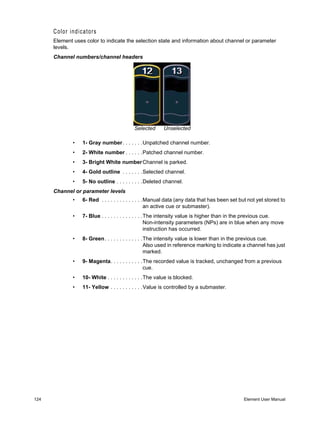
™


Lighting Control Console
User Manual
Version 1.6


                             C o p y r i g h t © 2 0 0 9 E le c tr o n i c T h e a t r e C o n t r o l s , I n c .
                                                                                    All Rights reserved.
                  P r o d u c t in f o r m a t i on a n d s p e c i f i c a t i o n s s u bj e c t t o c h a n g e .
                                                    Part Number:4330M1210-1.6.0 Rev A
                                                                                      R e le a s ed : 2 0 0 9 - 0 7
E T C , E le m e n t , E o s , I o n , E m p h a s i s , E x p r e s s i o n , In s ig h t , I m a g i n e, F o c u s , E x p r e s s , U n i s o n ,
O b s e s s i o n I I, E T C N e t 2 , E D M X , R e v o l u t i o n , a n d S e n s o r + , a r e e it h e r r e g i s t e r e d t r a d e m ar k s o r
tr a d e m a r k s o f E l e c tr o n i c T h ea t r e C o n t r o l s , I n c . i n t h e U n i t e d S t a t e s a n d o t h e r c o u n tr i e s .

E T C p e r m i ts t h e r e p r o d u c t i o n o f m a t e r i a l s i n t h i s m a n u a l o n l y f o r n o n - c o m me r c i a l p u r p o s e s .
A l l o t h e r r i g ht s a r e r e s e r v e d b y E T C .
Table of Contents
            Introduction . . . . . . . . . . . . . . . . . . . . . . . . . . 1
               Welcome to Element . . . . . . . . . . . . . . . . . . . . . . . . . . . . . . . . . . . . .2
               Using this Manual . . . . . . . . . . . . . . . . . . . . . . . . . . . . . . . . . . . . . . . .2
               Register Your Element . . . . . . . . . . . . . . . . . . . . . . . . . . . . . . . . . . . .3
               Online Element User Forums . . . . . . . . . . . . . . . . . . . . . . . . . . . . . . .3
               Help from ETC Technical Services . . . . . . . . . . . . . . . . . . . . . . . . . .4
               Other Reference Materials . . . . . . . . . . . . . . . . . . . . . . . . . . . . . . . . .5
                  On Screen Prompts . . . . . . . . . . . . . . . . . . . . . . . . . . . . . . . . . . .5
                  Help System . . . . . . . . . . . . . . . . . . . . . . . . . . . . . . . . . . . . . . . .5
                  Important Lighting Concepts . . . . . . . . . . . . . . . . . . . . . . . . . . . .5
                  Ion Operations Manual . . . . . . . . . . . . . . . . . . . . . . . . . . . . . . . .5
                  Quick Start . . . . . . . . . . . . . . . . . . . . . . . . . . . . . . . . . . . . . . . . . .5


Chapter 1   Quick Start . . . . . . . . . . . . . . . . . . . . . . . . . . 7
               Getting Started . . . . . . . . . . . . . . . . . . . . . . . . . . . . . . . . . . . . . . . . . .8
               Hardware . . . . . . . . . . . . . . . . . . . . . . . . . . . . . . . . . . . . . . . . . . . . . .8
                  Power Up the Console. . . . . . . . . . . . . . . . . . . . . . . . . . . . . . . . .8
                  Power Down the Console . . . . . . . . . . . . . . . . . . . . . . . . . . . . . .8
               Getting the Lights On . . . . . . . . . . . . . . . . . . . . . . . . . . . . . . . . . . . . .9
                   Setting Levels Via Channel Faders . . . . . . . . . . . . . . . . . . . . . . .9
                   Setting Levels Via the Control Keypad . . . . . . . . . . . . . . . . . . . .9
               Recording a Lighting Look . . . . . . . . . . . . . . . . . . . . . . . . . . . . . . . .10
                  Recording a Submaster . . . . . . . . . . . . . . . . . . . . . . . . . . . . . . .10


Chapter 2   Element Overview. . . . . . . . . . . . . . . . . . . . 11
               Console Geography . . . . . . . . . . . . . . . . . . . . . . . . . . . . . . . . . . . . .12
                  Control Keypad Layout . . . . . . . . . . . . . . . . . . . . . . . . . . . . . . .13
                  Terminology . . . . . . . . . . . . . . . . . . . . . . . . . . . . . . . . . . . . . . . .14
                  Littlites® . . . . . . . . . . . . . . . . . . . . . . . . . . . . . . . . . . . . . . . . . . . . . . . . . . . . . 14
                  Cleaning Element . . . . . . . . . . . . . . . . . . . . . . . . . . . . . . . . . . .14
                  Outputting DMX . . . . . . . . . . . . . . . . . . . . . . . . . . . . . . . . . . . . .14
               Console Capacities . . . . . . . . . . . . . . . . . . . . . . . . . . . . . . . . . . . . .15
                  Output Parameters . . . . . . . . . . . . . . . . . . . . . . . . . . . . . . . . . .15
                  Channel Counts . . . . . . . . . . . . . . . . . . . . . . . . . . . . . . . . . . . . .15
                  Cues and Cue Lists . . . . . . . . . . . . . . . . . . . . . . . . . . . . . . . . . .15
                  Record Targets . . . . . . . . . . . . . . . . . . . . . . . . . . . . . . . . . . . . .15
                  Faders . . . . . . . . . . . . . . . . . . . . . . . . . . . . . . . . . . . . . . . . . . . .15


Chapter 3   System Basics . . . . . . . . . . . . . . . . . . . . . . 17
               The Central Information Area (CIA) . . . . . . . . . . . . . . . . . . . . . . . . .18

                                                                                                                                        i
Browser . . . . . . . . . . . . . . . . . . . . . . . . . . . . . . . . . . . . . . . . . . .18
                     Collapse/Expand the CIA. . . . . . . . . . . . . . . . . . . . . . . . . . . . . .18
                     Lock the CIA . . . . . . . . . . . . . . . . . . . . . . . . . . . . . . . . . . . . . . .18
                     Command Line Prompt . . . . . . . . . . . . . . . . . . . . . . . . . . . . . . .18
               Using Softkeys . . . . . . . . . . . . . . . . . . . . . . . . . . . . . . . . . . . . . . . . .19
                   Context Sensitive Softkeys . . . . . . . . . . . . . . . . . . . . . . . . . . . .19
                   Changing Softkey Pages . . . . . . . . . . . . . . . . . . . . . . . . . . . . . .19
               Using the Browser . . . . . . . . . . . . . . . . . . . . . . . . . . . . . . . . . . . . . .20
                   Virtual Keyboard . . . . . . . . . . . . . . . . . . . . . . . . . . . . . . . . . . . .20
               Display Control and Navigation . . . . . . . . . . . . . . . . . . . . . . . . . . . .21
                   Opening and Closing Displays. . . . . . . . . . . . . . . . . . . . . . . . . .21
                   Swap Displays . . . . . . . . . . . . . . . . . . . . . . . . . . . . . . . . . . . . . .21
                   Scrolling within a Display . . . . . . . . . . . . . . . . . . . . . . . . . . . . . .22
                   [Data] Key . . . . . . . . . . . . . . . . . . . . . . . . . . . . . . . . . . . . . . . . .22
                   [Label] Key. . . . . . . . . . . . . . . . . . . . . . . . . . . . . . . . . . . . . . . . .22
                   [Recall From], [Copy To], {Replace With}, and {Move To}. . . . .22
               Using [Format] . . . . . . . . . . . . . . . . . . . . . . . . . . . . . . . . . . . . . . . . .23
                   Zooming Displays . . . . . . . . . . . . . . . . . . . . . . . . . . . . . . . . . . .24


Chapter 4   Managing Show Files . . . . . . . . . . . . . . . . . 27
               Create a New Show File. . . . . . . . . . . . . . . . . . . . . . . . . . . . . . . . . .28
               Open an Existing Show File . . . . . . . . . . . . . . . . . . . . . . . . . . . . . . .28
               Saving the Current Show File. . . . . . . . . . . . . . . . . . . . . . . . . . . . . .30
               Using Quick Save . . . . . . . . . . . . . . . . . . . . . . . . . . . . . . . . . . . . . . .30
               Using Save As . . . . . . . . . . . . . . . . . . . . . . . . . . . . . . . . . . . . . . . . .30
               Deleting a File . . . . . . . . . . . . . . . . . . . . . . . . . . . . . . . . . . . . . . . . .30


Chapter 5   Patch. . . . . . . . . . . . . . . . . . . . . . . . . . . . . . 31
               About Patch . . . . . . . . . . . . . . . . . . . . . . . . . . . . . . . . . . . . . . . . . . .32
               Displays . . . . . . . . . . . . . . . . . . . . . . . . . . . . . . . . . . . . . . . . . . . . . .32
               Patching a Dimmer By Address . . . . . . . . . . . . . . . . . . . . . . . . . . . .33
                   Tutorial. . . . . . . . . . . . . . . . . . . . . . . . . . . . . . . . . . . . . . . . . . . .33
               Patching a Dimmer By Channel . . . . . . . . . . . . . . . . . . . . . . . . . . . .33
                   Tutorial. . . . . . . . . . . . . . . . . . . . . . . . . . . . . . . . . . . . . . . . . . . .33
                   Patching a Compound Channel. . . . . . . . . . . . . . . . . . . . . . . . .34
               Patching a Scroller . . . . . . . . . . . . . . . . . . . . . . . . . . . . . . . . . . . . . .35
                   Tutorial. . . . . . . . . . . . . . . . . . . . . . . . . . . . . . . . . . . . . . . . . . . .35
               Patching Accessories, LEDs, and Moving Lights . . . . . . . . . . . . . . .36
                   Tutorial. . . . . . . . . . . . . . . . . . . . . . . . . . . . . . . . . . . . . . . . . . . .36
               Clearing the Patch . . . . . . . . . . . . . . . . . . . . . . . . . . . . . . . . . . . . . .37


ii                                                                                        Element User Manual
Chapter 6   Basic Manual Control . . . . . . . . . . . . . . . . . 39
               Using Channel Faders . . . . . . . . . . . . . . . . . . . . . . . . . . . . . . . . . . .40
               Selecting Channels . . . . . . . . . . . . . . . . . . . . . . . . . . . . . . . . . . . . .41
                   Select Channels From the Keypad . . . . . . . . . . . . . . . . . . . . . .41
                   Offset . . . . . . . . . . . . . . . . . . . . . . . . . . . . . . . . . . . . . . . . . . . . .42
                   Deselecting Channels . . . . . . . . . . . . . . . . . . . . . . . . . . . . . . . .42
               Setting Intensity . . . . . . . . . . . . . . . . . . . . . . . . . . . . . . . . . . . . . . . .43
                   Level Wheel . . . . . . . . . . . . . . . . . . . . . . . . . . . . . . . . . . . . . . . .44
               Select Last . . . . . . . . . . . . . . . . . . . . . . . . . . . . . . . . . . . . . . . . . . . .44
               Using +% and -% . . . . . . . . . . . . . . . . . . . . . . . . . . . . . . . . . . . . . . .45
                   Channel Intensity . . . . . . . . . . . . . . . . . . . . . . . . . . . . . . . . . . . .45
               Remainder Dim . . . . . . . . . . . . . . . . . . . . . . . . . . . . . . . . . . . . . . . .46
               Sneak . . . . . . . . . . . . . . . . . . . . . . . . . . . . . . . . . . . . . . . . . . . . . . . .47
               Channel Check . . . . . . . . . . . . . . . . . . . . . . . . . . . . . . . . . . . . . . . . .48
               Address at Level. . . . . . . . . . . . . . . . . . . . . . . . . . . . . . . . . . . . . . . .48
               Address Check . . . . . . . . . . . . . . . . . . . . . . . . . . . . . . . . . . . . . . . . .48
               Moving Light Control . . . . . . . . . . . . . . . . . . . . . . . . . . . . . . . . . . . .48


Chapter 7   Storing and Using Submasters . . . . . . . . . . 49
               About Submasters . . . . . . . . . . . . . . . . . . . . . . . . . . . . . . . . . . . . . .50
               Recording a Submaster . . . . . . . . . . . . . . . . . . . . . . . . . . . . . . . . . .50
                  Submaster Displays. . . . . . . . . . . . . . . . . . . . . . . . . . . . . . . . . .50
                  Additive vs. Inhibitive . . . . . . . . . . . . . . . . . . . . . . . . . . . . . . . . .51
                  Proportional vs. Intensity Master . . . . . . . . . . . . . . . . . . . . . . . .51
                  HTP vs. LTP . . . . . . . . . . . . . . . . . . . . . . . . . . . . . . . . . . . . . . .52
                  Exclusive Submasters . . . . . . . . . . . . . . . . . . . . . . . . . . . . . . . .52
                  Independent. . . . . . . . . . . . . . . . . . . . . . . . . . . . . . . . . . . . . . . .52
                  Updating a Submaster . . . . . . . . . . . . . . . . . . . . . . . . . . . . . . . .53
                  Deleting a Submaster . . . . . . . . . . . . . . . . . . . . . . . . . . . . . . . .53
               Using Bump Button Timing With Submasters . . . . . . . . . . . . . . . . .54
                   Controlling Subfades Manually . . . . . . . . . . . . . . . . . . . . . . . . .54
               Submaster List . . . . . . . . . . . . . . . . . . . . . . . . . . . . . . . . . . . . . . . . .55
                  Editing Submasters . . . . . . . . . . . . . . . . . . . . . . . . . . . . . . . . . .55


Chapter 8   Working with the Cue List . . . . . . . . . . . . . . 57
               Basic Cueing . . . . . . . . . . . . . . . . . . . . . . . . . . . . . . . . . . . . . . . . . .58
                   Cue Numbering . . . . . . . . . . . . . . . . . . . . . . . . . . . . . . . . . . . . .58
               Recording Cues in Live . . . . . . . . . . . . . . . . . . . . . . . . . . . . . . . . . .59
                  Using Record . . . . . . . . . . . . . . . . . . . . . . . . . . . . . . . . . . . . . . .59
                  Using [Cue Only / Track] . . . . . . . . . . . . . . . . . . . . . . . . . . . . . .60
               Timing. . . . . . . . . . . . . . . . . . . . . . . . . . . . . . . . . . . . . . . . . . . . . . . .62
                   Setting Cue Level Timing. . . . . . . . . . . . . . . . . . . . . . . . . . . . . .62


                                                                                                                   iii
Delay Time. . . . . . . . . . . . . . . . . . . . . . . . . . . . . . . . . . . . . . . . .63
                      Assigning Cue Attributes . . . . . . . . . . . . . . . . . . . . . . . . . . . . . .63
                      Clearing Cue Attributes . . . . . . . . . . . . . . . . . . . . . . . . . . . . . . .65
                Flags. . . . . . . . . . . . . . . . . . . . . . . . . . . . . . . . . . . . . . . . . . . . . . . . .66
                    Block . . . . . . . . . . . . . . . . . . . . . . . . . . . . . . . . . . . . . . . . . . . . .66
                    Mark. . . . . . . . . . . . . . . . . . . . . . . . . . . . . . . . . . . . . . . . . . . . . .67
                    Preheat . . . . . . . . . . . . . . . . . . . . . . . . . . . . . . . . . . . . . . . . . . .67
                    Using the Execute List . . . . . . . . . . . . . . . . . . . . . . . . . . . . . . . .67
                Modifying Cues Live . . . . . . . . . . . . . . . . . . . . . . . . . . . . . . . . . . . . .68
                   Using [At] [Enter] . . . . . . . . . . . . . . . . . . . . . . . . . . . . . . . . . . . .68
                   Using Record . . . . . . . . . . . . . . . . . . . . . . . . . . . . . . . . . . . . . . .68
                   [Update] . . . . . . . . . . . . . . . . . . . . . . . . . . . . . . . . . . . . . . . . . . .69
                Recording and Editing Cues from Blind . . . . . . . . . . . . . . . . . . . . . .72
                   From the Cue Spreadsheet . . . . . . . . . . . . . . . . . . . . . . . . . . . .73
                Deleting Cues . . . . . . . . . . . . . . . . . . . . . . . . . . . . . . . . . . . . . . . . . .74
                    In Track Mode . . . . . . . . . . . . . . . . . . . . . . . . . . . . . . . . . . . . . .74
                    In Cue Only Mode . . . . . . . . . . . . . . . . . . . . . . . . . . . . . . . . . . .74


Chapter 9    Cue Playback . . . . . . . . . . . . . . . . . . . . . . . 75
                Introduction to Playback . . . . . . . . . . . . . . . . . . . . . . . . . . . . . . . . . .76
                     Playback Controls . . . . . . . . . . . . . . . . . . . . . . . . . . . . . . . . . . .76
                Selected Cue . . . . . . . . . . . . . . . . . . . . . . . . . . . . . . . . . . . . . . . . . .77
                    Live / Blind . . . . . . . . . . . . . . . . . . . . . . . . . . . . . . . . . . . . . . . . .77
                Out-of-Sequence Cues. . . . . . . . . . . . . . . . . . . . . . . . . . . . . . . . . . .78
                    Go To Cue . . . . . . . . . . . . . . . . . . . . . . . . . . . . . . . . . . . . . . . . .79
                Playback Fader Controls . . . . . . . . . . . . . . . . . . . . . . . . . . . . . . . . .80
                    Go and Stop/Back . . . . . . . . . . . . . . . . . . . . . . . . . . . . . . . . . . .80
                    [Go To Cue] [0] . . . . . . . . . . . . . . . . . . . . . . . . . . . . . . . . . . . . .80
                    [Go To Cue] [Out] . . . . . . . . . . . . . . . . . . . . . . . . . . . . . . . . . . .80


Chapter 10   Using Groups and Intensity Palettes. . . . . . 83
                Recording Groups Live. . . . . . . . . . . . . . . . . . . . . . . . . . . . . . . . . . .84
                   Ordered Channels . . . . . . . . . . . . . . . . . . . . . . . . . . . . . . . . . . .84
                   Offset . . . . . . . . . . . . . . . . . . . . . . . . . . . . . . . . . . . . . . . . . . . . .85
                   Editing and Updating Groups in Live . . . . . . . . . . . . . . . . . . . . .85
                Selecting and Recalling Groups . . . . . . . . . . . . . . . . . . . . . . . . . . . .85
                    Deleting Groups. . . . . . . . . . . . . . . . . . . . . . . . . . . . . . . . . . . . .85
                Group List. . . . . . . . . . . . . . . . . . . . . . . . . . . . . . . . . . . . . . . . . . . . .86
                   Open the Group List . . . . . . . . . . . . . . . . . . . . . . . . . . . . . . . . .86
                   Ordered View and Numeric View. . . . . . . . . . . . . . . . . . . . . . . .86
                   Editing Groups from the Group List . . . . . . . . . . . . . . . . . . . . . .86
                Recording Intensity Palettes Live . . . . . . . . . . . . . . . . . . . . . . . . . . .87
                Using Intensity Palettes . . . . . . . . . . . . . . . . . . . . . . . . . . . . . . . . . .88
                    Applying Palettes . . . . . . . . . . . . . . . . . . . . . . . . . . . . . . . . . . . .88
                    Recalling Palettes . . . . . . . . . . . . . . . . . . . . . . . . . . . . . . . . . . .88


iv                                                                                           Element User Manual
Chapter 11   Using Moving Lights and Palettes. . . . . . . . 91
                Moving Light Control . . . . . . . . . . . . . . . . . . . . . . . . . . . . . . . . . . . .92
                   ML Control . . . . . . . . . . . . . . . . . . . . . . . . . . . . . . . . . . . . . . . . .92
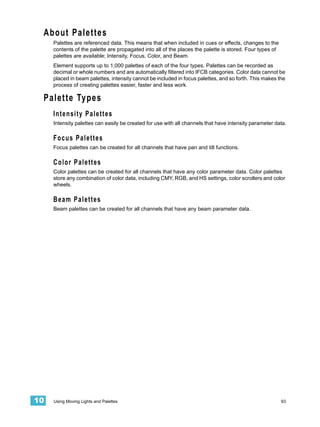
                About Palettes . . . . . . . . . . . . . . . . . . . . . . . . . . . . . . . . . . . . . . . . .93
                Palette Types . . . . . . . . . . . . . . . . . . . . . . . . . . . . . . . . . . . . . . . . . .93
                    Intensity Palettes . . . . . . . . . . . . . . . . . . . . . . . . . . . . . . . . . . . .93
                    Focus Palettes . . . . . . . . . . . . . . . . . . . . . . . . . . . . . . . . . . . . . .93
                    Color Palettes . . . . . . . . . . . . . . . . . . . . . . . . . . . . . . . . . . . . . .93
                    Beam Palettes . . . . . . . . . . . . . . . . . . . . . . . . . . . . . . . . . . . . . .93
                Storing Palettes Live . . . . . . . . . . . . . . . . . . . . . . . . . . . . . . . . . . . .94
                    Storing Palettes with [Record] . . . . . . . . . . . . . . . . . . . . . . . . . .94
                Using Palettes . . . . . . . . . . . . . . . . . . . . . . . . . . . . . . . . . . . . . . . . .96
                    Applying Palettes . . . . . . . . . . . . . . . . . . . . . . . . . . . . . . . . . . . .96
                    Recalling Palettes . . . . . . . . . . . . . . . . . . . . . . . . . . . . . . . . . . .96
                Editing Palettes Live . . . . . . . . . . . . . . . . . . . . . . . . . . . . . . . . . . . . .98
                     Rerecord . . . . . . . . . . . . . . . . . . . . . . . . . . . . . . . . . . . . . . . . . .98
                     Update . . . . . . . . . . . . . . . . . . . . . . . . . . . . . . . . . . . . . . . . . . . .98
                Editing Palettes in Blind . . . . . . . . . . . . . . . . . . . . . . . . . . . . . . . . . .99
                     Editing in Blind . . . . . . . . . . . . . . . . . . . . . . . . . . . . . . . . . . . . . .99
                     Editing Palettes in Spreadsheet View . . . . . . . . . . . . . . . . . . .100
                     Deleting Palettes . . . . . . . . . . . . . . . . . . . . . . . . . . . . . . . . . . .100


Chapter 12   Creating and Using Effects . . . . . . . . . . . . 101
                About Effects . . . . . . . . . . . . . . . . . . . . . . . . . . . . . . . . . . . . . . . . .102
                   The Effect List . . . . . . . . . . . . . . . . . . . . . . . . . . . . . . . . . . . . .102
                   Effects Editor . . . . . . . . . . . . . . . . . . . . . . . . . . . . . . . . . . . . . .103
                   Effect Status Display . . . . . . . . . . . . . . . . . . . . . . . . . . . . . . . .106
                Step Effects . . . . . . . . . . . . . . . . . . . . . . . . . . . . . . . . . . . . . . . . . .107
                    Program a Step Effect . . . . . . . . . . . . . . . . . . . . . . . . . . . . . . .108
                Absolute Effects . . . . . . . . . . . . . . . . . . . . . . . . . . . . . . . . . . . . . . .109
                Relative Effects . . . . . . . . . . . . . . . . . . . . . . . . . . . . . . . . . . . . . . .109
                Apply an Existing Effect . . . . . . . . . . . . . . . . . . . . . . . . . . . . . . . . .110
                   Editing Effects Live . . . . . . . . . . . . . . . . . . . . . . . . . . . . . . . . .110
                   Stop an Effect . . . . . . . . . . . . . . . . . . . . . . . . . . . . . . . . . . . . .110
                   Deleting an Effect . . . . . . . . . . . . . . . . . . . . . . . . . . . . . . . . . .110
                Effects on Submasters . . . . . . . . . . . . . . . . . . . . . . . . . . . . . . . . . .111
                    Recording an Effect to a Submaster . . . . . . . . . . . . . . . . . . . .111
                    Running an Effect from a Submaster. . . . . . . . . . . . . . . . . . . .111


Appendix A   Important Concepts . . . . . . . . . . . . . . . . . 113
                Important Concepts . . . . . . . . . . . . . . . . . . . . . . . . . . . . . . . . . . . .113
                   Channel . . . . . . . . . . . . . . . . . . . . . . . . . . . . . . . . . . . . . . . . . .113
                   Address . . . . . . . . . . . . . . . . . . . . . . . . . . . . . . . . . . . . . . . . . .113
                   Record Target . . . . . . . . . . . . . . . . . . . . . . . . . . . . . . . . . . . . .113


                                                                                                                   v
Cue . . . . . . . . . . . . . . . . . . . . . . . . . . . . . . . . . . . . . . . . . . . . .113
                     Move Instruction and Track . . . . . . . . . . . . . . . . . . . . . . . . . . .113
                     Tracking vs. Cue Only . . . . . . . . . . . . . . . . . . . . . . . . . . . . . . .114
                     Move Fade. . . . . . . . . . . . . . . . . . . . . . . . . . . . . . . . . . . . . . . .114
                     HTP vs. LTP . . . . . . . . . . . . . . . . . . . . . . . . . . . . . . . . . . . . . .114
                     Syntax Structure . . . . . . . . . . . . . . . . . . . . . . . . . . . . . . . . . . .115
                     Parameters and Parameter Categories . . . . . . . . . . . . . . . . . .116
                     Live and Blind . . . . . . . . . . . . . . . . . . . . . . . . . . . . . . . . . . . . .116


Appendix B   Setup . . . . . . . . . . . . . . . . . . . . . . . . . . . . 117
                Overview . . . . . . . . . . . . . . . . . . . . . . . . . . . . . . . . . . . . . . . . . . . 117
                Opening Setup . . . . . . . . . . . . . . . . . . . . . . . . . . . . . . . . . . . . . . . 117


Appendix C   Display Conventions . . . . . . . . . . . . . . . . . 123
                     Indicators in the Live/Blind Display . . . . . . . . . . . . . . . . . . . . .123
                     Indicators in the Playback Status Display . . . . . . . . . . . . . . . .127
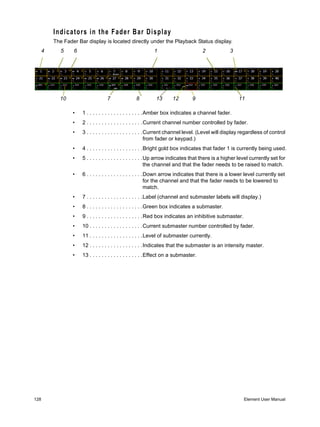
                     Indicators in the Fader Bar Display . . . . . . . . . . . . . . . . . . . . .128


Appendix D   Remote Control. . . . . . . . . . . . . . . . . . . . . 129
                Remotes Overview . . . . . . . . . . . . . . . . . . . . . . . . . . . . . . . . . . . . 129


vi                                                                                        Element User Manual
Introduction
  Welcome to the Element User Manual. This guide is a basic resource for users of the Element
  control system. Additional resources available to you are listed in this introduction.
            This chapter contains the following sections:
                 •   Welcome to Element . . . . . . . . . . . . . . . . . . . . . . . . . . . . . . . . .2
                 •   Using this Manual . . . . . . . . . . . . . . . . . . . . . . . . . . . . . . . . . . .2
                 •   Register Your Element . . . . . . . . . . . . . . . . . . . . . . . . . . . . . . .3
                 •   Help from ETC Technical Services. . . . . . . . . . . . . . . . . . . . . .4
                 •   Other Reference Materials . . . . . . . . . . . . . . . . . . . . . . . . . . . .5
                 •   Online Element User Forums . . . . . . . . . . . . . . . . . . . . . . . . . .3


  Introduction                                                                                                  1
Welcome to Element
      Thank you for purchasing the Element Lighting Control Console from ETC! This introduction to
      Element will list all the various helpful tools available to you. In addition to this User Manual,
      Element also has video tutorials, an online user forum dedicated completely to Element, and
      support from ETC Technical Services. When using Element, you are never alone. Please take a
      moment to learn more about the tools available to you.

    Using this Manual
      In order to be specific about where features and commands are found, the following naming and
      text conventions will be used:
              •   Facepanel buttons are indicated in bold [brackets]. For example, [LIVE] or [Enter].
                  Optional keys are indicated in <angle brackets>, for example, <Cue> or <Sub>.
              •   Browser menus, menu items, and commands you must perform are indicated in bold
                  text. For example: In the File menu, click Open. Or: Press [Record] [Enter].
              •   Alphanumeric keyboard buttons are indicated in all CAPS. For example, TAB or CTRL.
          • Keys which are intended to be pressed or held simultaneously are indicated with the “and”
            symbol. For example, [Update] & [Select].
              •   Softkeys and clickable buttons in the Central Information Area (CIA) are indicated in
                  bold {braces}. A note about <More SK> (more softkeys): this command is always
                  indicated as optional, and is only indicated once in an instruction regardless of how
                  many pages of softkeys exist. This is because there is no way to predict what softkey
                  page you are on at any given time. Press <More Softkeys> until you find the required
                  command.
              •   References to other parts of the manual are indicated in italics. When viewing this
                  manual electronically, click on the reference to jump to that section of the manual.


     Note:             Notes are helpful hints and information that is supplemental to the main text.


     CAUTION:          A Caution statement indicates situations where there may be undefined or
                       unwanted consequences of an action, potential for data loss or an equipment
                       problem.


     WARNING:          A Warning statement indicates situations where damage may occur, people may
                       be harmed, or there are serious or dangerous consequences of an action.

            Please email comments about this manual to: TechComm@etcconnect.com


2                                                                                       Element User Manual
Register Your Element
  Registering your Element system with ETC ensures that you will be notified of software and library
  updates, as well as any product advisories.
  When you register, you will also be enrolled in “My ETC,” a personalized ETC Web site that
  provides a more direct path of communication between you and ETC.
  Register now at http://www.etcconnect.com/product.registration.asp.

Online Element User Forums
  You are encouraged to visit and participate in the ETC Element User Forum, accessible from the
  ETC web site (www.etcconnect.com). This gives you access to an online community of Element
  users where you can read about other users’ experiences, suggestions, and questions regarding
  the product as well as submit your own.

  To register for the ETC Element User Forum:
       Step 1:   Go to ETC’s community web site (www.etcconnect.com/community). An introduction
                 page to the online community will open.
       Step 2:   You may register for the forum using the “register” link in the introduction or by
                 clicking the “join” link in the upper right corner of the page.
       Step 3:   Follow the registration instructions provided by the community page.


  Introduction                                                                                     3
Help from ETC Technical Services
      If you are having difficulties, your most convenient resources are the references given in this user
      manual. To search more widely, try the ETC Web site at www.etcconnect.com. If none of these
      resources is sufficient, contact ETC Technical Services directly at one of the offices identified below.
      Emergency service is available from all ETC offices outside of normal business hours.
      When calling for assistance, please have the following information handy:
              •    Console model and serial number (located on back panel)
              •    Dimmer manufacturer and installation type
              •    Other components in your system (Unison®, other consoles, etc.)


            Americas                                          United Kingdom
                  Electronic Theatre Controls Inc.                Electronic Theatre Controls Ltd.
                  Technical Services Department                   Technical Services Department
                  3031 Pleasant View Road                         26-28 Victoria Industrial Estate
                  Middleton, WI 53562                             Victoria Road,
                  800-775-4382 (USA, toll-free)                   London W3 6UU England
                  +1-608 831-4116                                 +44 (0)20 8896 1000
                  service@etcconnect.com                          service@etceurope.com


            Asia                                              Germany
                  Electronic Theatre Controls Asia, Ltd.          Electronic Theatre Controls GmbH
                  Technical Services Department                   Technical Services Department
                  Room 1801, 18/F                                 Ohmstrasse 3
                  Tower 1, Phase 1 Enterprise Square              83607 Holzkirchen, Germany
                  9 Sheung Yuet Road                              +49 (80 24) 47 00-0
                  Kowloon Bay, Kowloon, Hong Kong                 techserv-hoki@etcconnect.com
                  +852 2799 1220
                  service@etcasia.com


4                                                                                          Element User Manual
Other Reference Materials
  On Screen Prompts
  Element provides on screen prompts located above the command line to aid with programming.
  These context-sensitive prompts will give instructions and options based on the current display and
  key hits.

  Help System
  A help system is also contained within your Element console. To access help, press and hold [Help]
  and press any key to see:
            •    the name of the key
            •    a description of what the key enables you to do
            •    syntax examples for using the key (if applicable)

 Note:                Help is included on most tangible action buttons on your Element console. This
                      includes most softkeys and clickable buttons as well as the traditional keys on the
                      keypad.
                      As with hard keys, the “press and hold [Help]” action can be also used with
                      softkeys and clickable buttons.


  Important Lighting Concepts
  In addition to Element’s video tutorials, ETC also has a video explaining the important lighting
  concepts of tracking and preset. If you are new to lighting consoles, it is highly recommended that
  you take a few moments and view this video.
  Additional lighting concepts are also explained in this User Manual, please see Important Concepts,
  page 113 to learn more.

  Periodic Table of Element
  The Periodic Table of Element is a handy reference guide for the various concepts and components
  of Element. Please visit the Periodic Table of Element.

  I o n O p e r a t i o n s Ma n u a l
  The Element User Manual is a beginning guide to the Element Lighting Control Console. For more
  in depth discussion of topics covered here or for more advanced features of Element, such as show
  control, please see the Ion Operations Manual. The Ion Operations Manual is available as a pdf on
  the Element Tutorial CD or for download from www.etcconnect.com.

  Quick Start
  To quickly get started with Element, please See “Quick Start” on page 7. For more in depth
  information about Element, please continue reading this User Manual.


  Introduction                                                                                          5
6   Element User Manual
Chapter 1
Quick Start
    This chapter will walk you through the steps of quickly getting started with Element.
             This chapter contains the following sections:
                  •   Getting Started . . . . . . . . . . . . . . . . . . . . . . . . . . . . . . . . . . . . . .8
                  •   Hardware . . . . . . . . . . . . . . . . . . . . . . . . . . . . . . . . . . . . . . . . . .8
                  •   Getting the Lights On . . . . . . . . . . . . . . . . . . . . . . . . . . . . . . . .9
                  •   Recording a Lighting Look . . . . . . . . . . . . . . . . . . . . . . . . . . .10


1   Quick Start                                                                                                       7
Getting Started
         This chapter will quickly get you started with using Element. Later chapters will go into further detail
         of topics touched upon here.

     Hardware

    Faders and                                                             Fader Position
    bump buttons                                                           Switch


                                                                                              Power button


                                                                                              Blackout and
                                                                             Level            Grandmaster
                                                                             wheel
                                                       Control
                                                       keypad


         Power Up the Console
             Step 1:    Attach the appropriate power cable to the IEC connector on the rear of the console.
             Step 2:    Press the power switch (I is “on”) under the IEC connector on the rear of the console
                        to turn power on. This will provide power to all internal electronics.
             Step 3:    Press the power button, located in the top left corner of the console, above the USB
                        port. The button LED will illuminate blue to indicate the console is running. The
                        console will boot up into the Element environment. Element is now ready for use.

         P o w e r D o w n th e C o n s o l e
             Step 1:    In the browser menu select File>Power Off Console. A dialogue box opens asking
                        you to confirm.
             Step 2:    Confirm this command by pressing [Select] or clicking with a mouse the {OK} button
                        in the dialog box. The console will power down.


        Note:              For additional information on setting up Element’s hardware, please see the
                           Element Setup Guide.


8                                                                                             Element User Manual
Getting the Lights On
      When Element first boots up, it will default to a 1-to-1 patch. See About Patch, page 32 for more
      information. Since Element starts off patched, you can begin bringing up levels immediately.

      Setting Levels Via Channel Faders
      For more in depth information on using Element’s channel faders, see Using Channel Faders, page
      40.
          Step 1:       Check to make sure the Fader Position Switch is set to Channel 1-40. The first two
                        rows of faders will then control channels 1-40. 1-20 will be controlled by the first bank
                        and 21-40 by the second bank.
          Step 2:       Make sure Element is displaying in Live. Press [Live].
          Step 3:       Check to make sure the Grandmaster is at 100%. The top of Element’s display will
                        show Grandmaster #% in red if the Grandmaster is below 100%.
          Step 4:       Check to make sure the Blackout key is not lit. It is located directly above the
                        Grandmaster.
          Step 5:       You can now raise one or more channel faders to control channels 1-40.


     Note:                 Use the Fader Position Switch to change the channels the faders will control. The
                           first 120 channels can be controlled via the faders. Channel 121 and above must
                           be controlled from the keypad.

          Step 6:       Lower the faders as needed to fade out channel levels.

      Setting Levels Via the Control Keypad
      For more information about the control keypad, see Selecting Channels, page 41.
          Step 1:       Make sure Element is displaying in Live. Press [Live].
          Step 2:       Check to make sure the Grandmaster is at 100%. The top of Element’s display will
                        show Grandmaster #% in red if the Grandmaster is below 100%.
          Step 3:       Check to make sure the Blackout key is not lit. It is located directly above the
                        Grandmaster.
          Step 4:       You can now set levels from the keypad. Here are some examples of the syntax
                        needed:
                    •     [5] [Full] [Enter] - sets channel 5 to 100% or Full.
                    •     [1] [Thru] [1] [0] [At] [7] [5] [Enter] - selects a range of channels 1 through 10 and
                          sets their level to 75%.
                    •     [2] [+] [7] [At] [2] <0> [Enter] - selects channels 2 and 7 and sets their levels at
                          20%.
                    •     [5] [0] [Thru] [7] [0] [-] [6] [0] [At] [5] <0> [Enter] - selects channels 50 through
                          70, except 60, and sets their levels to 50%.

     Note:                 [Enter] must be used at the end of the command to terminate the command line.
                           Levels will not be set until the command line has been terminated.


1     Quick Start                                                                                               9
Step 5:       To remove a channel’s level, you can either use the command [At] [Enter], or you can
                         use [Sneak] [Enter]. If you have no recorded any lighting looks yet, [At] [Enter] sets
                         the level to 0%, while [Sneak] [Enter] takes the level completely out.
                     •     [1] [0] [At] [Enter] - sets the level of channel 10 to 0%.
                     •     [Sneak] [Enter] - fades out all manual levels.
                     •     [5] [Sneak] [Enter] - fades out the manual level for channel 5.
                     •     [1] [Thru] [1] [0] [At] [Enter] - sets the levels for channels 1 through 10 to 0%.
                     •     [2] [0] [Thru] [2] [5] [Sneak] [Enter] - fades out the levels for channels 20 through
                           25.

     Recording a Lighting Look
       Often times you will want to create and recall a lighting look. Submasters and cues are two ways
       that you can record looks to be able to recall them. This quick start will only cover recording
       submasters.

       Recording a Submaster
       For more information about submasters, see Storing and Using Submasters, page 49.
           Step 1:       Set the channel levels that you want in your look using the channel faders and/or
                         keypad.
           Step 2:       Switch the Fader Position Switch to Submaster mode.


      Note:                 If you have an Element 60 console, the third bank of faders are always in
                            submaster mode.

           Step 3:       Press [Record] then the bump button of the submaster you wish to record. This
                         action will terminate the command line so there is no need to hit [Enter]. You can also
                         record a submaster using the following syntax, [Record] [Sub] [#] [Enter], in case
                         you don’t want to jump to submaster mode on the faders.
           Step 4:       You can either leave that look up and build upon it or use [Sneak] [Enter] to fade out
                         the manual levels.
       If you would like to record looks to be able to play them back using Element’s [Go] button, please
       see Basic Cueing, page 58.


10                                                                                           Element User Manual
Chapter 1
Element Overview
    Inside this chapter you will find a general overview of your Element control console.
            This chapter contains the following sections:
                 •     Console Geography. . . . . . . . . . . . . . . . . . . . . . . . . . . . . . . . .12
                 •     Control Keypad Layout . . . . . . . . . . . . . . . . . . . . . . . . . . . . . .13
                 •     Terminology . . . . . . . . . . . . . . . . . . . . . . . . . . . . . . . . . . . . . . .14
                 •     Cleaning Element. . . . . . . . . . . . . . . . . . . . . . . . . . . . . . . . . . .14
                 •     Outputting DMX . . . . . . . . . . . . . . . . . . . . . . . . . . . . . . . . . . . .14
                 •     Console Capacities . . . . . . . . . . . . . . . . . . . . . . . . . . . . . . . . .15


1   Element Overview                                                                                                 11
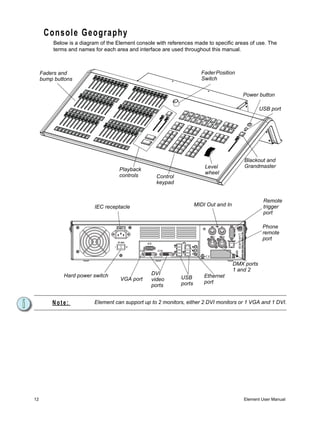
Console Geography
          Below is a diagram of the Element console with references made to specific areas of use. The
          terms and names for each area and interface are used throughout this manual.


     Faders and                                                         Fader Position
     bump buttons                                                       Switch


                                                                                           Power button

                                                                                                    USB port


                                                                                            Blackout and
                                                                          Level             Grandmaster
                                     Playback
                                                                          wheel
                                     controls       Control
                                                    keypad


                                                                                                     Remote
                          IEC receptacle                              MIDI Out and In                trigger
                                                                                                     port

                                                                                                     Phone
                                                                                                     remote
                                                                                                     port


                                                                                        DMX ports
                                                                                        1 and 2
              Hard power switch                   DVI                     Ethernet
                                     VGA port     video       USB
                                                              ports       port
                                                  ports


         Note:            Element can support up to 2 monitors, either 2 DVI monitors or 1 VGA and 1 DVI.


12                                                                                         Element User Manual
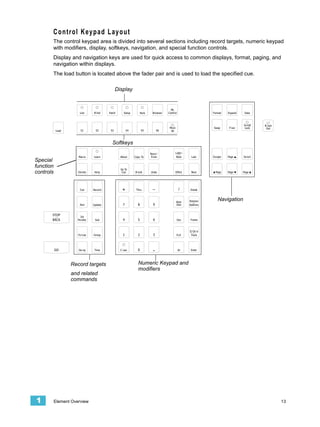
Control Keypad Layout
       The control keypad area is divided into several sections including record targets, numeric keypad
       with modifiers, display, softkeys, navigation, and special function controls.
       Display and navigation keys are used for quick access to common displays, format, paging, and
       navigation within displays.
       The load button is located above the fader pair and is used to load the specified cue.

                                   Display


                                                                                          ll


                                   Softkeys


Special
function
controls


                                                                             Navigation


                  Record targets              Numeric Keypad and
                                              modifiers
                  and related
                  commands


1          Element Overview                                                                           13
Terminology
     Pow e r Button
     The power button on the front of the console is used to power up the Element console. A separate
     power switch, located in the rear panel of the console, can be used to disconnect power from the
     console’s internal components.

     WARNING:          Before servicing the Element control console, you must switch off the
                       power from the rear of the console and disconnect the power cord
                       completely.


     US B Ports
     One USB port is provided on the front of the console to connect any USB storage device. Additional
     USB ports on the rear panel of the console can be used to connect peripherals such as an
     alphanumeric keyboard, pointing device, or touchscreen control for external monitors.

     Level Wheel
     Proportionally adjusts intensity for selected channels. It also provides scrolling and zoom functions
     in various modes.

     IEEE Ethernet 802.3 Ethernet Port
     Ethernet port for connection to a network switch, network gateways, and accessory devices.


     Littlites®
     You may connect a Littlite to the side of your Element console.

     Cleaning Element
     Should the exterior of your Element require cleaning, you may gently wipe it with a dampened (not
     dripping), non-abrasive paper towel or soft cloth.
     If this does not clean the console sufficiently, you may apply some window cleaner (containing
     ammonia is fine) to the cloth and repeat the process until clean.

     O u t p u t ti n g D M X
     In order to output control levels from Element, you can either use the DMX ports on the back of the
     console, or to output over a network, you may connect a Net3 gateway or Net2 node. If your device
     receives Net3 or ETCNet2 directly, no gateway or node is required.
     Element has two DMX ports. To output, connect one 5 pin XLR cable per port. The first port will
     output the first universe of DMX, addresses 1-512, and the second port is the second universe,
     outputting addresses 513-1024.
     Nodes and gateways must be given an IP address before they can function with Element. This may
     require using NCE (Network Configuration Editor) or GCE (Gateway Configuration Editor) and a
     Windows® PC to configure the gateways or nodes. The NCE or GCE Software CD and related user
     manuals and setup guides were packaged with your gateway or node. Use these materials to
     prepare them for use with Element.
     For more information on Net3 gateways or Net2 nodes, see the product literature that accompanied
     the hardware or download it from our website at www.etcconnect.com.


14                                                                                      Element User Manual
Console Capacities
      Output Parameters
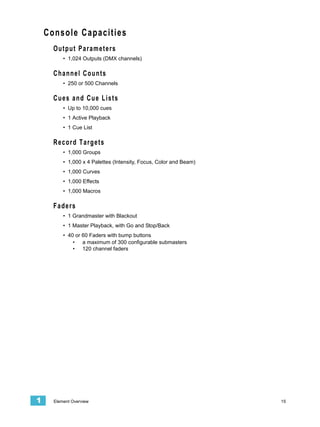
          • 1,024 Outputs (DMX channels)

      Channel Counts
          • 250 or 500 Channels

      Cues and Cue Lists
          • Up to 10,000 cues
          • 1 Active Playback
          • 1 Cue List

      Record Targets
          • 1,000 Groups
          • 1,000 x 4 Palettes (Intensity, Focus, Color and Beam)
          • 1,000 Curves
          • 1,000 Effects
          • 1,000 Macros

      Faders
          • 1 Grandmaster with Blackout
          • 1 Master Playback, with Go and Stop/Back
          • 40 or 60 Faders with bump buttons
              • a maximum of 300 configurable submasters
              • 120 channel faders


1     Element Overview                                              15
16   Element User Manual
Chapter 2
System Basics
    This chapter will discuss using the basic Element displays.
            This chapter contains the following sections:
                    •   The Central Information Area (CIA) . . . . . . . . . . . . . . . . . . . .18
                    •   Using Softkeys . . . . . . . . . . . . . . . . . . . . . . . . . . . . . . . . . . . . .19
                    •   Using the Browser . . . . . . . . . . . . . . . . . . . . . . . . . . . . . . . . . .20
                    •   Display Control and Navigation . . . . . . . . . . . . . . . . . . . . . . .21
                    •   Using [Format] . . . . . . . . . . . . . . . . . . . . . . . . . . . . . . . . . . . . .23


2   System Basics                                                                                                    17
The Central Information Area (CIA)
       The Central Information Area (CIA) is displayed on the lower portion of the screen.


        Command Line       Command Line Prompt          Browser            Double arrows     CIA lock
                                                                           CIA show/hide     (shown
                                                                                             unlocked)


                                             Softkeys


       Browser
       The browser is the interface for numerous functions including saving a show, opening a show,
       changing settings, viewing record target lists, opening displays and many other functions. Press
       [Browser] to display.

       Collapse/Expand the CIA
       It is possible to collapse the CIA from view. You can collapse the CIA by pressing [Browser] or by
       clicking the double arrow icon on the right side above the CIA. The CIA will collapse from view,
       exposing a larger viewing area of whatever display is visible above the CIA. The double arrows will
       move to the bottom of the screen.
       To expand the CIA into view again, press [Browser] or click the double arrow at the bottom of the
       screen. The CIA will reopen.

       Lock the CIA
       You can lock the CIA in place to prevent it from being collapsed.
       To lock the CIA, click on the lock above the browser. The double arrow above the CIA will
       disappear and the lock will “lock” the CIA to hold it in place.
       To unlock the CIA, click the lock again and the double arrows will reappear.

       Command Line Prompt
       Directly above the command line, you will see red text that will prompt you for an action. The
       prompts will change between different displays and actions, and are useful information to aid you in
       programming.


18                                                                                       Element User Manual
Using Softkeys
      Some of the features and displays in Element are accessible from the softkeys, which are located
      in the bottom right area of the CIA. Those softkeys correspond to buttons [S1] - [S6] and [More
      SK].
      Remember the use of the [Browser] button. This button offers softkeys that access the following
      displays:
              •       Effect Status
              •       Show Control
              •       Curves
      Each of these displays offers its own specific softkeys of relevance.

      Context Sensitive Softkeys
      Softkeys are context sensitive and will change depending on a number of factors including: the
      active display, the current command line, the active record target, and so on. Element always
      repaints the softkeys to coincide with your current action.
      To get the full use of features on your Element system, be sure to familiarize yourself with the
      softkeys that become available as you program your show.

      Changing Softkey Pages
      When there are more relative softkeys than the six available softkey buttons, the LED in the [More
      SK] button will light. Press [More SK] to view the additional softkeys.


2     System Basics                                                                                      19
Using the Browser
       To use the browser, you must first draw focus to it by pressing the [Browser] key.
       When focus is on the browser, the window border highlights in gold. The scroll lock LED illuminates
       red and the paging keys will now control selection in the browser.


 Menu arrows


                    Opened menu                            Selection bar


                          Sub menus                                                  Scroll bar


           • Use the page arrow keys to move the selection bar up and down the list. You can also use the
             level wheel to scroll through the list.
           • When the bar highlights the desired menu, press [Page         ] to open the menu.
           • Continue pressing [Page      ] to open submenus.
           • Scroll to the item you wish to open using [Page ] or [Page ] and then press [Select]. You
             may also click the item you wish to open and then press [Select]. You can also use the level
             wheel to scroll in the browser.
           • If you wish to close a submenu scroll to that item and press [Page      ].
           • To draw focus to the browser at any time, press the [Browser] key.

       Virtual Keyboard
       It is possible to open a virtual keyboard in the CIA which mimics the hard keys found on the actual
       Element keypad. This virtual keyboard is accessible from the browser.
       The virtual keyboard is found with the other virtual controls in the browser. Navigate to
       Browser>Virtual Controls>Virtual Keyboard.
       This will give you click access to the Element hardkeys on the CIA. The browser and parameter
       display will be hidden from view while the virtual keyboard is open. To close the virtual keyboard,
       press the [Browser] button.


20                                                                                        Element User Manual
Display Control and Navigation
      Opening and Closing Displays
      Displays can be opened and closed in different ways, depending on the display. Many displays are
      accessible from Element’s keypad, while other displays are accessible from the browser and
      softkeys. The blind displays of record targets (also called “lists”) can be quickly accessed by double
      pressing the record target button, such as [Cue][Cue] will display the cue list.

      From the hardkeys
      Several displays are opened directly from buttons on Element’s keypad. Those displays are Live,
      Blind, Patch, Setup, Park, Browser, and ML Control. You can open list views of any record target by
      double-pressing the key for the desired record target

      From the browser
      Open and navigate the browser as described in Using the Browser, page 20. When you open a new
      display (such as the cue list index or group list), it will open on the primary display. If the display
      does not open to a monitor (such as setup or the browser) it will open in the CIA. Some displays are
      available from the softkeys when the [Browser] button is pressed.
      Again, any time you wish to return to the browser, simply press [Browser].

      Closing Displays
      To close any display:
          • Press the [Browser] key again to open a different display.
          • Press [Escape] to close the active display. The screen will return to live or blind.
          • Press [Live] or [Blind] to replace the display with the live/blind view.
      To close a display in the CIA, press the [Browser] key and the browser will reappear.

      Swap Displays
      When using two monitors, you can swap displays between monitors by pressing the [Swap] key.
      Press it again to return to the original configuration.


2     System Basics                                                                                        21
Scrolling within a Display
     By default the page keys will advance/retreat a display by one page per press. However, to scroll
     through displays you may press the [Scroll Lock] key on the keypad. The LED on the button
     illuminates red when in scroll lock mode.
     Scroll lock is a toggle state. When scroll lock is first pressed:
         • [Page     ] - scrolls table, spreadsheet and channel views down,
         • [Page     ] - scrolls table, spreadsheet and channel views up,
         • [Page     ] - scrolls table and spreadsheet views right,
         • [Page     ] - scrolls table and spreadsheet views left.

     [Data] Key
     Pressing and holding [Data] allows you to view the values behind any referenced or marked data.
     [Data] exposes the next lower reference level. So if you view a palette reference and press [Data],
     the absolute data will be displayed instead.

     [Label] Key
     Element allows for labeling of cues, channels, submasters, and more. Below are some examples of
     labeling syntax:


     Note:             You will need a mouse, keyboard, or touchscreen to create labels.


         • [Cue] [6] [Label] <name> [Enter]
         • [Group] [3] [Label] <name> [Enter]
         • [Sub] [8] [Label] <name> [Enter]
     If you press the label key for a target already labeled, this posts the current label to the command
     line. To clear, press [Label] again. You can [Clear] to backspace one character at a time, or type to
     append to the existing label.

     [Recall From], [Copy To], {Replace With}, and {Move To}
     [Recall From], [Copy To], {Replace With}, and {Move To} may be used to create and edit data.
     See the Ion Operations Manual for more information.


22                                                                                      Element User Manual
Using [Format]
      Some displays have multiple formats. When the display is first opened, it opens in its default view.
      The default view for Live/Blind is table view. Pressing [Format] will toggle between table, summary,
      and, if in Blind, spreadsheet views.
      Live and Blind share formatting. When you change from one format to another format, you are
      always working with the same format until you change it. The exception to this is spreadsheet,
      which is only available in blind. If you are working in blind spreadsheet, when you return to live you
      will be working with the table or summary view, based on which one you were last using.

      Table View
      Table view is available in live or blind. If devices other than dimmers are patched, table view
      displays the fixture type associated with channels and details about each channel’s category and
      parameter levels.
      In live, table view displays all active channel data being output from Element. In blind, it will display
      all data for a single record target (cue, palette).
      In the table view, a slight space is provided between fixture types, giving a clear delineation
      between them. The name of the fixture type is displayed at the top of the section for that fixture.


                                           Parameter data


          Fixture type


                                              Live Table View


2     System Basics                                                                                          23
Summary View
     The summary view displays the largest number of channels of any of the formats. Below you can
     see channels 1-80 are shown. This format is best used to see large numbers of channels’ intensity
     data or parameter category data. Individual non-intensity parameters are not visible in this view.


     Channel numbers                       Intensity data


            F, C, B data


     Z o o m i ng D i s p l a y s
     You may zoom the table and summary view to display more or less channels. To do this, press and
     hold the [Format] button and scroll the Level Wheel to alter the number of channels visible.
     Scrolling the wheel up zooms in. Scrolling the wheel down zooms out. Zooming this display when
     it is in 100 channel mode is not supported. A scroll wheel on a mouse can also control zooming.


24                                                                                   Element User Manual
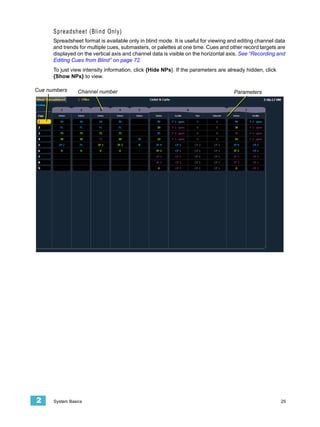
Spreadsheet (Blind Only)
      Spreadsheet format is available only in blind mode. It is useful for viewing and editing channel data
      and trends for multiple cues, submasters, or palettes at one time. Cues and other record targets are
      displayed on the vertical axis and channel data is visible on the horizontal axis. See “Recording and
      Editing Cues from Blind” on page 72.
      To just view intensity information, click {Hide NPs}. If the parameters are already hidden, click
      {Show NPs} to view.

Cue numbers      Channel number                                                     Parameters


2     System Basics                                                                                       25
26   Element User Manual
Chapter 3
Managing Show Files
    This chapter explains how to create, open, and save your show files. Each of these operations are
    accomplished through the browser area.
            This chapter contains the following sections:
                 •   Create a New Show File. . . . . . . . . . . . . . . . . . . . . . . . . . . . . .28
                 •   Open an Existing Show File . . . . . . . . . . . . . . . . . . . . . . . . . .28
                 •   Saving the Current Show File . . . . . . . . . . . . . . . . . . . . . . . . .30
                 •   Using Save As . . . . . . . . . . . . . . . . . . . . . . . . . . . . . . . . . . . . .30


3   Managing Show Files                                                                                          27
Create a New Show File
       To create a new show file, navigate within the browser to: File> New> and press [Select].
       You will be prompted for confirmation that you want to reset the system. Press [Select] or click
       {OK} to confirm or {Cancel} to discontinue the operation.
       In Element, a new show file defaults to a 1 to 1 patch. Clicking {Patch 1to1} will deselect the option
       and result in a blank patch.

       Show File Names
       Names of show files may appear in the browser list in normal text or in bold text. Files in normal
       text indicate that there is only one show file stored by that name.
       Bold show names indicate that there are several versions of the show file stored under that name,
       the bold one being the most recent. To access the most recent show file, simply select the bold
       name. You may right arrow [ ] from the bold name to expand a list of previous versions beneath it
       in the browser. Select the desired show from the expanded list.

     Open an Existing Show File
       To open an existing Element show file, navigate within the browser to: File> Open> and press
       [Select].


       Element provides you with multiple locations to retrieve an Element show file (.esf) including:
           • Show File Archive - This is the default storage location for show files when a show file is
             created and saved. Folders are automatically created to store older versions of a show file.
             This allows you the ability to open the latest version or an earlier version of a show file if
             desired.
           • File server - if one is connected. When there is no file server connected, it will not display in
             the browser.
           • USB (E:) device - When a USB device is connected and an Element show file (.esf) is
             available on the device, you will notice the USB is displayed in white text and is expandable.
             When the USB device is connected and no Element show file is loaded on the device, you will
             notice the USB (F:) is displayed in a grey color and is not selectable.

       Open the desired location:
           • To open a show file from the Show File Archive, navigate within the browser to: File> Open>
             Show File Archive and press [Select].
           • To open a show file from the file server, navigate within the browser to: File > Open> File
             Server> and press [Select].
           • To open a show file from a USB device, navigate within the browser to: File> Open> USB (E:)
             and press [Select].


28                                                                                         Element User Manual
Select the specific show file
        • Navigate within the specified storage location and select the show file you wish to open, press
          [Select].
        • If the selected show has multiple time stamps, navigate to the desired revision and press
          [Select].
    This will open the partial show loading screen in the CIA.


    From this screen you can select which components of the show file you wish to load. The buttons
    at the center of the CIA represent all of the show components that you can choose to load. By
    default all components are selected (gray) and will be loaded. To withhold any show components
    from loading, simply deselect them in the CIA by clicking the respective button.


    Note:             You will need a mouse, keyboard, or touchscreen to deselect options.


    To reselect all show components, click the {Reset} button and all buttons will return to gray
    (selected). To stop the show load process, click the {Cancel} button.
    When you have selected or deselected all of the show components you require, press [Select] or
    click {OK}.
    Element loads the selected show to the console.


3   Managing Show Files                                                                                29
Saving the Current Show File
       To save the current show data, navigate within the browser to: File> Save> and press [Select].
       The Show File Archive is the default storage location for show files when they are saved. The new
       time stamp located beneath the show file name on the CIA indicates that the show file has been
       saved.
       All previous saves are stored in the Show File Archive with the time stamp following the file name.


       Note:             When saving a show file for the first time, Element will provide the name "Show
                         File" and will attach a time/date stamp to the name. To change the name, use a
                         mouse and the on-screen keyboard, or an attached USB keyboard.


     Using Quick Save
       To save the current show data to the hard drive without having to navigate to the browser, hold
       down [Update] and press [Select].

     Using Save As
       To save an existing Element show file to a different location or with a different name, navigate within
       the browser to: File> Save As> and press [Select].


       Element provides you with three locations to save an Element show file (.esf) including the Show
       File Archive, the File Server (if connected) or a USB device (if connected).
       Navigate to the desired storage location and press [Select]. When using “Save As” to save the
       show file to a specific location, the alphanumeric keypad will display on the CIA. Name the show file
       and press [Enter]. The show file will be saved in the specified location with the show file name you
       entered with a time stamp suffix.

     Deleting a File
       Element provides you with the ability to delete show files from the Show File Archive and the File
       Server from within the browser.

       To Delete a Show File
       Navigate within the browser to: File> Open and press [Select]. Navigate to the desired show file
       and press [Delete]. Press [Enter] to confirm or any other key to abort the deletion process.


30                                                                                         Element User Manual
Chapter 4
Patch
    The Patch is used to associate a channel with an address. Once a channel is patched to an
    address, and the output is connected to a device (for example a dimmer, moving light, or
    accessory), the channel will then control that device.
            This chapter contains the following sections:
                •   About Patch . . . . . . . . . . . . . . . . . . . . . . . . . . . . . . . . . . . . . . .32
                •   Displays . . . . . . . . . . . . . . . . . . . . . . . . . . . . . . . . . . . . . . . . . .32
                •   Patching a Dimmer By Address . . . . . . . . . . . . . . . . . . . . . . .33
                •   Patching a Dimmer By Channel . . . . . . . . . . . . . . . . . . . . . . .33
                •   Patching a Scroller . . . . . . . . . . . . . . . . . . . . . . . . . . . . . . . . .35
                •   Patching Accessories, LEDs, and Moving Lights. . . . . . . . .36
                •   Clearing the Patch . . . . . . . . . . . . . . . . . . . . . . . . . . . . . . . . . .37


4   Patch                                                                                                            31
About Patch
       When you open a new show file, Element creates a 1-to-1 patch. This means that the patch will
       automatically have channel 1 patched to address 1, channel 2 to address 2, and so on up to the
       maximum channel count of your console.
       Depending on your situation, you may need to create a custom patch, which associates certain
       addresses with certain channels.

     Displays
       To begin patching your show, you must first open the patch display. Press the [Patch] button to
       open the display.
       The patch display will open on the primary display and the CIA will display the patch controls. By
       default, patch is displayed in a sequential address view. While in the patch by address view, any
       initial numeric entry from the keypad is assumed to be an address.
       As it is possible to patch by either address or port/offset, pressing the [Data] key will toggle the
       display to show the alternate output information.


      Note:              Port/offset refers to the DMX universe or port and the offset of the address. For
                         example, since a single DMX cable can transmit 512 addresses (known as a
                         “universe”), the port/offset for address 515 would look like 2/3 because address
                         515 is the 3rd address of universe 2.


                 Address view                                                Port/Offset view


       Pressing [Format] will toggle between patch by address and patch by channel modes. While in
       patch by channel mode, any initial numeric entry from the keypad is assumed to be a channel.
       When in patch by address mode, the command line will say address. In patch by channel mode, the
       command line will say channel.


32                                                                                         Element User Manual
Patching a Dimmer By Address
      Tutorial
          Step 1:     To patch a dimmer you must first open the patch display. Press the [Patch] button.
          Step 2:     Enter an address number from the control keypad.
                        • When typing any number from the control keypad, and patch is in default
                          address mode, address is assumed and is placed on the command line.
          Step 3:     Enter the channel or channels.
                        • Press [At] and enter the channel using the control keypad.
                        • Multiple addresses may be patched to a channel in a single command. For
                          example, [1] [0] [5] [+] [2] [0] [5] [+] [3] [0] [5] [At] [1] [0] [Enter] would patch
                          address 105, 205, and 305 to channel 10. When more than one device is
                          patched to a channel, Element automatically creates parts for each device. This
                          is used if you need to access an address directly in the patch-by-channel
                          display.


     Note:               If at any point you try to patch an address that is already in use, Element will post
                         an advisory to indicate this, preventing you from duplicating addresses in your
                         patch. Element will only patch an address to a single channel at a time.


    Patching a Dimmer By Channel
      Tutorial
          Step 1:     To patch a dimmer, you must first open the patch display. Press the [Patch] button.
          Step 2:     To patch by channel, you must press [Format].
          Step 3:     Enter a channel number from the control keypad.
                        • When typing any number from the control keypad, and patch is in channel
                          mode, channel is assumed and is placed on the command line.
                        • You can also use the [+], [-], and [Thru] keys to make your channel selection.
          Step 4:     Enter the address or addresses.
                        • Press [At] and enter the address or addresses using the control keypad.
                        • You can also use the [+], [-], and [Thru] keys to make your address selection.
                        • Multiple addresses may be patched to a channel in a single command. For
                          example, [1][0] [At] [1][0][5] [+] [2][0][5] [+] [3][0][5] [Enter] would patch
                          address 105, 205, and 305 to channel 10. When more than one device is
                          patched to a channel, Element automatically creates parts for each device. This
                          is used if you need to access an address directly in the patch-by-channel
                          display.

      Status in the Patch Display
      The first column in the patch display will advise you when a channel requires your attention.
              •     “!” is displayed next to a channel number when there is a problem with the patch or to
                    indicate there is an error.


4     Patch                                                                                                  33
Patching a Compound Channel
     A compound channel consists of any channel that controls more than one device. It can consist of
     mutliple dimmers patched to the same channel or accessories patched to a channel (such as a
     fixture with a color scroller, a fixture with a gobo wheel, and so on). By default, Element will add a
     part if you are trying to patch to a channel that has already been assigned an address.

     To patch a compound channel in address format:
                •     [5] [1] [3] [At] [8] [Enter]
             Assuming channel 8 was previously patched to an address, this will create a part 2 and
             address it at 513.

     To patch a compound channel in channel format:
                •     [9] [At] [5] [4] [0]
             Assuming that channel 9 is already patched to an address, this will create a part 2 and
             address it at 540.
                •     [8] [Part] [2] [At] [5] [1] [3]
             This will create a part 2 for channel 8 and address it at 513. If you wish to patch by address
             while in the channel view, press:
                •     [Address] [5] [1] [3] [At] [8] [Enter]
             This will perform the same action as the previous example, assuming channel 8 was
             previously patched to an address.


     CAUTION:          It is recommended that you do not patch more than one multiple-parameter device
                       (such as moving lights) to the same channel. Doing so can cause extreme
                       difficulty in controlling the devices.


34                                                                                      Element User Manual
Patching a Scroller
      Note:                Patching a scroller requires a mouse or touchscreen.


      Tutorial
          Step 1:       Follow the instructions for Patch by channel.
          Step 2:       Add a part to the channel. See “Patching a Compound Channel” on page 34.
          Step 3:       Select the part of the channel you wish to patch the scroller.
                          • [3] [Part] [2] [Enter] - selects part 2 of channel 3.
          Step 4:       Click the {Type} button in the CIA.
                            a: Click {Manfctr} from the CIA to display the library. The two columns on the
                               left are pagable and show manufacturer names.
                            b: Use the arrow buttons to scroll the list of manufacturers. Selecting a
                               manufacturer repaints the device columns with all devices from that
                               manufacturer that are available for patching.
                            c:   Scroll through the device list and make your selection. After the selection is
                                 made, the fixture or device type will be placed on the command line after the
                                 channel number and displayed in the box beneath the {Type} button.

      Note:                Notice the two softkeys {Show Favorites} and {Manfctr} located beneath the
                           CIA.
                           These softkeys provide you with the option of showing only the library of fixtures
                           or devices that are already patched in the show and your favorites/ Element
                           default devices, {Show Favorites}, or all fixtures or devices available in the library
                           sorted by manufacturer {Manfctr}.
                           {Show Favorites} will have a list of generic and commonly used devices.

          Step 5:       Click the {Attributes} softkey.
          Step 6:       Click on {Scroller} to assign a scroller.
                          • The Scroller/Wheel picker will display in the CIA. You can either select one of
                            the default scrollers or you can create your own scroller
                    .

      Note:                 For additional information on creating a custom scroller and/or calibrating a
                           scroller, please see the Patch section of the Ion Operations Manual.


4     Patch                                                                                                    35
Patching Accessories, LEDs, and Moving Lights
       The process of patching moving lights requires more detail than patching a dimmer. Specific
       information is required for more advanced control of the features offered by moving lights.


      Note:              Patching accessories, LEDs, and Moving lights require a mouse or touchscreen.


       Tutorial
           Step 1:   To patch a moving light you must first open the patch display. Press the [Patch]
                     button.
           Step 2:   Press [Format] to change the display to patch by channel mode.
           Step 3:   Enter a channel number or multiple numbers from the control keypad.
                       • When typing any number from the control keypad, and patch is in default
                         channel mode, channel is assumed and is placed on the command line. You
                         can use the [+], [-] and [Thru] keys to make your channel selection.
                         For example: [1] [0] [1] [Thru] [1] [1] [0]


      Note:              Alternatively, when patch is in address mode, DMX address is assumed and is
                         placed on the command line. Channel mode and address mode are toggled using
                         the [Format] key in the patch display.

           Step 4:   Click the {Type} button in the CIA.
           Step 5:   Select a device type from the fixture library.
                          a: Press {Manfctr} from the CIA to display the fixture library. The two columns
                             on the left are pagable and show manufacturer names.
                          b: Use the arrow buttons to scroll the list of manufacturers. Selecting a
                             manufacturer repaints the device columns with all devices from that
                             manufacturer that are available for patching.
                          c:   Scroll through the device list and make your selection. After the selection is
                               made, the fixture or device type will be placed on the command line after the
                               channel number and displayed in the box beneath the {Type} button.

      Note:              Notice the two softkeys {Show Favorites} and {Manfctr} located beneath the
                         CIA.
                         These softkeys provide you with the option of showing only the library of fixtures
                         or devices that are already patched in the show and your favorites, {Show
                         Favorites}, or all fixtures or devices available in the library sorted by manufacturer
                         {Manfctr}.

           Step 6:  Enter a starting address for the selected channel or group of channels.
                       • Press [At] and enter the address using the control keypad. The address may be
                         entered in standard format ([1] [0] [2] [5]) or by using port and offset ([3] [/] [1]).
           Step 7: To select a device interface (optional), click {Interface}.
           Step 8: Click the {Attributes} softkey to set detailed moving light attributes.
           Step 9: The following buttons may be available on this page: {Invert Pan} and {Invert Tilt},
                    {Swap}, {Scroller}, {Gobo Wheel}, {Color Wheel}, {Preheat}, {Proportion}, and
                    {Curve}.
           Step 10: If your moving light includes parameters such as a color scroller or gobo wheel and
                    you have custom gels or non-standard patterns installed, use the Scroller/Wheel
                    Picker and the Editor to modify the device patched. The more specific your patch data


36                                                                                          Element User Manual
(including accurate colors and patterns) the more detailed programming and
                    operating will be.


     Note:             For additional information on using the Scroller/Wheel picker or setting detailed
                       moving light attributes, please see the Patch section of the Ion Operations
                       Manual.


    Clearing the Patch
      You can clear the patch entirely by accessing the clear functions from the browser. Select {Clear}
      from the main browser menu. The clear functions window will open in the CIA.


      To clear the patch, click {Clear Patch}. To reset the patch to 1-to-1, click {Reset Patch}. A
      confirmation is required before the patch will be cleared or reset.
      To exit the clear functions screen without clearing, press the [Browser] key at any time or select a
      clear button and then select {Cancel} from the confirmation screen.


4     Patch                                                                                             37
38   Element User Manual
Chapter 5
Basic Manual Control
    Element provides a variety of ways to select and command control channels. This chapter identifies
    the many basic ways you can select channels and manipulate show data within Element.
             This chapter contains the following sections:
                  •   Using Channel Faders . . . . . . . . . . . . . . . . . . . . . . . . . . . . . . .40
                  •   Selecting Channels . . . . . . . . . . . . . . . . . . . . . . . . . . . . . . . . .41
                  •   Setting Intensity . . . . . . . . . . . . . . . . . . . . . . . . . . . . . . . . . . . .43
                  •   Using +% and -% . . . . . . . . . . . . . . . . . . . . . . . . . . . . . . . . . . .45
                  •   Remainder Dim. . . . . . . . . . . . . . . . . . . . . . . . . . . . . . . . . . . . .46
                  •   Sneak . . . . . . . . . . . . . . . . . . . . . . . . . . . . . . . . . . . . . . . . . . . .47
                  •   Channel Check . . . . . . . . . . . . . . . . . . . . . . . . . . . . . . . . . . . . .48
                  •   Address at Level . . . . . . . . . . . . . . . . . . . . . . . . . . . . . . . . . . .48
                  •   Address Check. . . . . . . . . . . . . . . . . . . . . . . . . . . . . . . . . . . . .48
                  •   Moving Light Control. . . . . . . . . . . . . . . . . . . . . . . . . . . . . . . .48


5   Basic Manual Control                                                                                                39
Using Channel Faders
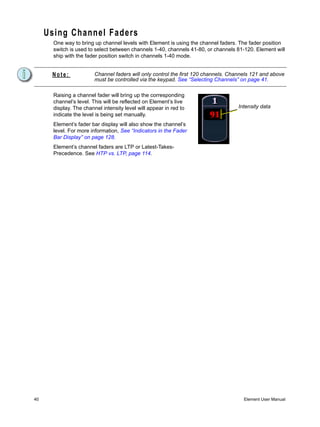
       One way to bring up channel levels with Element is using the channel faders. The fader position
       switch is used to select between channels 1-40, channels 41-80, or channels 81-120. Element will
       ship with the fader position switch in channels 1-40 mode.


      Note:              Channel faders will only control the first 120 channels. Channels 121 and above
                         must be controlled via the keypad. See “Selecting Channels” on page 41.

       Raising a channel fader will bring up the corresponding
       channel’s level. This will be reflected on Element’s live
       display. The channel intensity level will appear in red to                   Intensity data
       indicate the level is being set manually.
       Element’s fader bar display will also show the channel’s
       level. For more information, See “Indicators in the Fader
       Bar Display” on page 128.
       Element’s channel faders are LTP or Latest-Takes-
       Precedence. See HTP vs. LTP, page 114.


40                                                                                     Element User Manual
Selecting Channels
      Selected channels are available for manual control through keypad commands, level wheel, and/or
      ML controls. Element provides interactive ways to select channels including the control keypad and
      groups. See “Selecting and Recalling Groups” on page 85.

      Select Channels From the Keypad
      The keypad defaults to selecting channels, therefore no channel key is provided. Channels may be
      selected on the control keypad using the [+], [-], and [Thru] keys for consecutive or non-
      consecutive channel selection.
      The following examples illustrate various methods of selecting channels from the control keypad:
          • [5] [Enter] - selects channel 5.
          • [5] [+] [7] [Enter] - selects non-consecutive channels 5 and 7.
          • [5] [thru] [9] [Enter]- selects channels 5 through 9.
          • [2] [thru] [8] [-] [5] [Enter] - selects a range of channels 2 through 8, except channel 5.
          • [-] [6] [Enter] - removes channel 6 from the current selection list.
          • [+] [1] [Enter] - adds channel 1 to the current list of channels.


     Note:               You may use [+] and [-] multiple times to add or remove multiple channels from
                         the selection. [Thru] lists may be entered in ascending or descending order.


      [Next] and [Last]
      The [Next] and [Last] buttons increment and decrement channel selection. If only one channel is
      selected, [Next] increments the channel selection to the next sequential channel, while [Last]
      decrements the channel selection by one. If there is no specific channel selected when [Next] or
      [Last] is pressed, channel 1 is selected.
               Select channel 10 then change the selection to channel 11 using the [Next] key:
                   •    [1] [0] [Enter]
               Channel 10 is selected with a gold outline around the entire channel and the channel
               number is indicated in white.
                   •    [Next]
               Channel 11 is now selected with a gold outline and white channel number while channel 10
               is no longer selected.
      When a group of channels is selected, pressing [Next] or [Last] selects the first or last channel in
      the channel list.
      For Example:
               Channels 11 through 20 are selected:
                   •    [Next]
               Channels 11 through 20 are still the specified channel list but only channel 11 is selected
               for control. You can now sequentially press [Next] or [Last] to cycle through the list.


     Note:               [Next] and [Last] can be affected by the current Flexichannel (use of the [Flexi]
                         key) state. Please see the System Basics chapter of the Ion Operations Manual
                         for more information on using flexichannel.


5     Basic Manual Control                                                                                41
Offset
     {Offset} is a feature used to select a range of channels from within a broader channel selection. For
     the offset feature to function, you must first select a group of channels, then click {Offset}. When
     {Offset} is clicked, the softkeys change to the following: {Even}, {Odd}, {Reverse}, and
     {Random}. These keys, along with the numeric keys from the keypad are used to create channel
     offsets.
     The following examples illustrate how offset works:
         • [1] [thru] [10] {Offset} {Even} [Enter] - selects channels 2, 4, 6, 8, 10.
         • [1] [thru] [2] [0] {Offset} [3] [Enter] - from the selected group, this syntax would select
           channels 1, 4, 7, 10, 13, 16, 19 which is an offset of every third channel from the selection.
         • {Group 5} {Offset} {Random} [Enter] - selects all channels in Group 5 and places them in
           random order. This selection may be used only temporarily or it may be recorded to a new
           Group.
         • [1] [thru] [2] [0] {Offset} {Even} {Random} [Enter] - selects all even channels within the
           range and puts them in random order.
         • {Offset} [4] [Enter] -selects every fourth channel in the current channel selection.

     Deselecting Channels
     Channels are deselected when any action is taken on the keypad that is unrelated to manual
     control, such as recording groups and cues, or updating a record target, etc. You can also press
     [Clear] after a terminated command line to clear the channel selection.


42                                                                                      Element User Manual
Setting Intensity
      Channel intensity may be manually entered from the keypad, set with an intensity palette (if
      programmed), set with a channel fader, or set with the level wheel. Pressing [At] after channel
      selection assumes an intensity value will be added to the selected channels. You may also use the
      [Full] button to bring the selected channels to their full intensity or you may use the [Out] button to
      fade the intensity out.
      Use the Level ([Full][Full]), +% ([At] [+][+]) and -% ([At] [-][-]) keys to affect the intensity value of
      selected channels. Each of these keys are set at a specific value established in the Setup, page
      117.
          • Level is set by default to full (100% intensity).
          • +% and -% are each set by default value of 10 points.
      The following examples illustrate the various methods of setting intensity:
          • [1] [+] [3] [At] [5] <0> [Enter] - selects channels 1 and 3, and sets an intensity level of 50%.
          • [1] [thru] [5] [-] [4] [Full] [Enter] - selects a range of channels 1 through 5, except channel
            4, and sets the intensity to full.
          • [1] [thru] [8] [At] [+] [3] [Enter] - adds 30% to all intensities in the channel selection. If they
            were at 50, they will now be at 80. If channels 1, 3, and 5, were at 30 and 4 was at 50, they
            would be 60% and 80% intensity, respectively.
          • [5] [thru] [8] [At] [-] [3] [Enter] - scales the intensities of the selected channels in the list down
            30% of their current values.
          • [1] [thru] [4] [At] [/] [1] [3] [0] [Enter] - scales the intensities of the selected channels in the
            list up 30% of their current values. If channels 1 through 4 were at 40% intensity, this would
            scale them up by 30% to a value of 52.
          • [2] [+] [5] [level wheel] - roll the wheel up for greater intensity or down for less intensity.
          • [1] [Full][Full] - selects channel 1 and sets it to the level as established in Setup.
          • [Group] [9] [Out] - selects all channels in Group 9 and sets the intensity values for those
            channels to zero.As long as channels are on the command line you can continue to address
            them with commands without having to reselect them.
      For Example:
                   •    [1] [Thru] [5] [Full] [Enter]
               The selected channels are highlighted in gold, with white channel text and red intensity
               values (indicating manual data). You may continue to modify channels 1 through 5 since
               they are still selected and displayed on the command line.
                   •    [At] [-][-] [At] [-][-]
               This command would reduce the intensity of channels 1 through 5 by 20%.
                   •    [At] [7] [5] [Enter]
      You can continue manipulating the selected channels so long as the channels are selected and
      displayed on the command line.


5     Basic Manual Control                                                                                     43
Level Wheel
       You may set intensity for selected channels using the level wheel. Rolling the level wheel upwards
       increases intensity. Rolling it downwards (towards you) decreases it. The level wheel is a
       proportional control. Therefore differing intensity settings will maintain their relationship to each
       other proportionally as the device adjusts the intensity.
       For Example:
               Assume the following intensity levels are set:
                   •   Channel 1 at Full
                   •   Channel 2 at 50
                   •   Channel 3 at 25
               The level wheel lowers intensity, when:
                   •   Channel 1 is at 50
                   •   Channel 2 will be at 25
               This proportionality is maintained with intensity increases as well.

     Select Last
       The {Select Last} softkey allows you to reselect the previous channel selection. This includes
       multiple channel selections, groups, and so on.
       Other select softkeys on Element do the following:
           • {Select Active} - selects all active channels.
           • {Select Manual} - selects all channels with manual data.


44                                                                                        Element User Manual
Using +% and -%
      Use +% and -% to incrementally change parameter values. To access this function on Element,
      press [At] [+][+] or [At] [-][-]. By default, +% and -% are assigned a value of 10. This can be
      changed in Setup, page 117. This can be used with any parameter.

      Channel Intensity
      When channels are selected, pressing [At] [+][+] increments the intensity level by 10 (or by the
      value established in setup. Alternatively, you may press [At] [-][-] to decrement the intensity level
      by 10. You may use these keys consecutively to “add to” or “subtract from” the intensity level.
      For Example:
               Select channels 1 through 10 and set them to an intensity level of 45% from the keypad.
                   •    [1] [Thru] [1] [0] [At] [4] [5] [Enter]
               Change the intensity level to 65% using +% which is set to its default value of 10% in the
               setup menu.
                   •    [At] [+][+] [At] [+][+]


5     Basic Manual Control                                                                               45
Remainder Dim
      [Rem Dim] temporarily provides a zero intensity to all channels except those that are currently
      selected, those that are parked, or those with intensity contributions from submasters. If the
      remainder dim command is reversed, the stage returns to its previous state. You may use the
      following commands for remainder dim:
          • [Next] and [Last]- moves through the channel list.
          • [select channels] [Rem Dim] [Enter] - sets all non-selected channels to zero
          • [Rem Dim]- clears the rem dim function and returns the stage to its previous state
      Pressing [Rem Dim] again releases all channels from rem dim mode and restores the stage to its
      previous state. Using the [Next] and [Last] buttons releases the current selected channel from
      Remainder Dim mode and sets its intensity to zero, while selecting the next or last channel and
      continuing Rem Dim operation.
      For Example:
              Assume channels 5 through 9 are selected and set at an intensity level of 50% and
              channels 10 through 15 are selected and set at an intensity level of 70%. Select channel 9
              and dim the remaining channels.
                 •    [9] [Rem Dim] [Enter]
              Channel 9 is set at an intensity level of 50% and all remaining channels are dimmed to zero.
                 •    [Next]
              Selecting [Next] changes the channel selection to channel 10 which is set at an intensity
              level of 70%, the level set in the previous state, and all remaining channels including
              channel 9, are dimmed to zero.
      [Rem Dim] can be used in groups including the use of [Next] and [Last] buttons to progress
      through the channels within the selected group.
      You can set the dim level for all remainder dim commands in Setup, page 117. When set to a value
      other than zero, all Rem Dim commands will bring intensity to this level instead. However it won’t
      bring an intensity up. For example, if the rem dim level in setup is set to 50%, [Rem Dim] will drop
      any value above 50% to 50%, but not add intensity to any channels below 50%.


46                                                                                      Element User Manual
Sneak
     The [Sneak] command (when a destination is not provided) removes manual changes from
     selected channels and allows the channels to sneak back to their background states (cue or
     submaster instruction, if any). For Expression users, this is similar to Release.
     If there is no background state from the playbacks, the channel intensity will be set to 0 and non-
     intensity parameters will be set to their home position. The sneak command follows the sneak
     timing default established in Setup, page 117, unless a timing value is provided as part of the sneak
     command.
     The sneak command can also be used to send a channel parameter to a specific destination, either
     with or without timing. The following examples illustrate the various methods of using the sneak
     command:
         • [channel list] [Sneak] [Enter] - releases manual control, setting parameters to their
           background state. If there are current values for those parameters from a playback, those are
           the values that will be restored. If there are no values from a playback, the parameters are set
           to home (or default) position.
         • [channel list] {Color} [Sneak] [Enter] - sneaks color of the selected channels to the default
           or background state.
         • [Sneak] [Enter] - when no channels are selected, restores all channels with manual values
           to their background state.
         • [Sneak] <Time> [3] [Enter] - restores all channels with manual values to their background
           state in 3 seconds.
         • [Group] [5] <Color Palette> [9] [Sneak] [Enter] - selects group 5 and sneaks it to color
           palette 9 using default sneak time.
         • [Group] [3] [at] <Color Palette> [1] [Sneak] <Time> [7] [Enter] - selects group 3 and sneaks
           it to color palette 1 in 7 seconds.


5    Basic Manual Control                                                                                47
Channel Check
       Channel check allows you to quickly step through all of your patched channels. This is useful for
       checking lamps or checking focus.

      Note:              Parked dimmers will not be affected by the channel check feature.


       The following examples illustrates the how to use the channel check feature:
           • [1] [at] [7] <0> {Channel Check} [Enter] - brings channel 1 to 70% intensity
           • [Next] - channel 1 returns to its background state and channel 2 is set to 70% intensity.
           • [Next] - channel 2 returns to its background state and channel 3 is set to 70% intensity.
       For Example:
               If the command line currently reads:
                  •     [1] [at] [5] <0> [Enter]
               You may still place channel 1 in channel check mode even though the command line is
               terminated. Click:
                  •     {Channel Check} [Enter]
               Use [Next] or [Last] to progress through the channel list to complete the channel check.
               Any other key press other than [Next] or [Last] will terminate channel check mode.

     Address at Level
       The {Address} softkey in Live is used to send level information directly to an output address.
           • {Address} [5] [Full] [Enter] - sets output address 5 to full. It will return to its previous level
             once the command line changes.
       After using the {Address} command, [Next] and [Last] may be used to increment the address
       number and set it to the same level. Addresses return to their previous level once the command line
       is cleared or [Next] or [Last] is used to increment to the next address.
       This feature is useful when you want to perform an address or dimmer check.

     Address Check
       Address check allows you to quickly step through all of your patched addresses.

      Note:              Address check differs from Address at Level because it skips non-intensity
                         parameters of patched addresses.


       {Address}[1] [at] [Full]{Check} [Enter] - brings address 1 to full intensity.
       Use [Next] or [Last] to progress through the address list to complete the address check. Any key
       press other than [Next] or [Last] will terminate address check mode.

     Moving Light Control
       For more information about the ML Control display, see Moving Light Control, page 92. For more
       information on programming moving lights, please see the Element Moving Light tutorials and/or
       the Ion Operations Manual.


48                                                                                           Element User Manual
Chapter 6
Storing and Using Submasters
    Submasters are intensity levels and non-intensity parameters recorded to a fader for simple
    playback. This chapter explains how to record and use submasters on your Element console.
             This chapter contains the following sections:
                 •    About Submasters . . . . . . . . . . . . . . . . . . . . . . . . . . . . . . . . . .50
                 •    Recording a Submaster. . . . . . . . . . . . . . . . . . . . . . . . . . . . . .50
                 •    Using Bump Button Timing With Submasters . . . . . . . . . . .54
                 •    Submaster List . . . . . . . . . . . . . . . . . . . . . . . . . . . . . . . . . . . . .55


6   Storing and Using Submasters                                                                                   49
About Submasters
       Submasters can store any parameter data for channels. You can copy cues or palettes to a
       submaster as well.Channels running effects can be loaded onto a submaster. See “Effects on
       Submasters” on page 111.
       On submasters, the button beneath the potentiometer acts as a bump button or a mark button
       depending on the submaster type (Proportional or Intensity Master).
       It is possible to program upfade, dwell, and downfade times in association with the submaster
       bumps.
       When a submaster bump LED is blinking, it means that the submaster must be homed due to either
       changes to its content or to its mode. In either case, reset the submaster by dropping it to zero and
       the moving the fader back to the desired position. Inhibitive submasters (see below) that are
       blinking must be homed to 100% rather than zero. The LED will also blink when the submaster is in
       a “Held” state via bump button timing

     Recording a Submaster
       You can record current stage contents directly to a submaster. To do this, set levels in live as
       needed then record them to the submaster. See the following examples:
           • [Record] [Sub] [5] [Enter] - records all current values to sub 5.
           • [Record] [Sub] [5] {Mode} [Enter] - as above, and alters mode between inhibitive or additive.
             Other submaster properties (HTP/LTP, Exclusive, and so on) can be assigned in this way as
             well.
       Pressing a submaster’s bump button with [Record] on the command line will record the data to that
       submaster.
       You can also record selected channel data to submasters as well. See below:
           • [Channel List] [Record] [Sub] [5] [Enter] - records all data for the channel list to sub 5.
       Once a submaster has been recorded, it can be raised from either a fader or from the keypad. See
       below:
           • [Sub] [5] [At] [5] [Enter] - brings submaster 5 to 50% from the keypad.

       Submaster Displays
       At the bottom of the playback status display, you will see the following when then fader selection
       knob is in submaster mode:
               •   Submaster number
               •   Submaster label (if any)
               •   Independent flag (if any)
               •   I-Master flag (I.M. - if any)
               •   Current setting


50                                                                                        Element User Manual
Additive vs. Inhibitive
    You may define your submaster as additive (contributes to the live output) or inhibitive (limits live
    output). Element defaults to submasters being additive.

    To toggle a submaster between additive, inhibitive or effectsub:
                •     [Sub] [7] {Mode} [Enter]
    Additive submasters are indicated by a green LED and a green outlined fader icon in the fader
    window.
    Inhibitive submasters display these indicators in red in the fader window display, however the bump
    button will still display in green. Channels mastered by an inhibitive submaster are indicated with an
    “I” next to the intensity value in the channel display in live. Inhibitive submasters do not provide
    levels to the stage picture, they limit them (similar to a grandmaster).
    For information on effectsub, see Effects on Submasters, page 111.

    Proportional vs. Intensity Master
    A submaster can be set to be either a proportional fader or an intensity master. This is done using
    the {Fader} softkey. Element defaults to submasters as proportional.

    Proportional submasters
    When a submaster is proportional, the slider will control all contents of the submaster (intensity and
    non-intensity parameters) when moved from zero. When a proportional sub is return toward zero,
    channels will be returned to their previous levels.
    The bump button can be used to bump all values to their recorded levels in the submaster, or, by
    assigning timing values, fade the contents of the submaster up or out.

    Intensity master
    When set to this fader type, the slider will control intensity only. The bump button can be used to
    preset (mark) non-intensity parameters stored to the submaster. If the bump is not pressed before
    the slider is moved, the slider will also fade the non-intensity-parameters to their recorded values.
    Once the non-intensity-parameters are at their end state, the slider only controls intensity. When
    dropped toward zero, controlled intensities will be faded toward zero.

    To toggle a submaster between a “Proportional” or “I-Master” fader:
                •     [Sub] [8] {Fader} [Enter]


6   Storing and Using Submasters                                                                        51
HTP vs. LTP
     Submasters can be set to be either Highest-Takes-Precedence (HTP) or Latest-Takes-Precedence
     (LTP). This setting is applied to intensity only. Non-intensity parameters are always LTP. Element
     defaults all submasters to HTP. For more information on HTP and LTP see HTP vs. LTP, page 114.

     To toggle a submaster between HTP and LTP:
                •    [Sub] [6] {HTP/LTP} [Enter]

     Exclusive Submasters
     Submasters can be placed in exclusive mode. This prohibits storing the contribution of the
     submaster into any record targets. In essence, this acts as a fixed [-] [Sub] [Record] command.

     To place a submaster in exclusive mode:
                •    [Sub] [5] {Exclusive} [Enter]

     Independent
     You can also set a submaster to “independent”, allowing submaster values to remain unaffected by
     other submasters or playback fader instructions. They will, however, still be impacted by manual
     control, grandmaster, blackout, park instructions, or other play faders and submasters on
     independent.
     Inhibitive subs can not be set as independent.

     To toggle a submaster between independent “on” or “off”:
                •    [Sub] [7] {Independent} [Enter]


52                                                                                   Element User Manual
Updating a Submaster
    It is possible to make changes to a submaster in live mode. [Update] is used to store changes to a
    submaster.
        • [Update] [Sub] [5] [Enter] - updates sub 5 to include changes in live output only for channels
          already in submaster 5.
        • [Channel list] [Update] [Sub] [5] [Enter] - adds only the specified channels to submaster 5.
    Labels can be changed without restoring the contents as well:
        • [Sub] [6] [Label] [xxxx] [Enter]

    Deleting a Submaster
    You can delete a submaster using the [Delete] key. When a submaster is deleted, the slider
    remains configured as a submaster, but it will be empty.
        • [Delete] [Sub] [5] [Enter] [Enter] - deletes the contents of sub 5.


6   Storing and Using Submasters                                                                      53
Using Bump Button Timing With Submasters
       Each submaster bump can have three different timing values: Upfade, Dwell, and Downfade (see
       below). The default timing is set so that the bump functions as an “on” flash key for additive
       submasters and an “off” flash key for inhibitive submasters.
       The three timing values are:
           • Upfade time - this is the time for the submaster to fade from its home position to its target
             position (0 to Full if additive, Full to 0 if inhibitive). The default time is 0.
           • Dwell time - this is the time the submaster look will hold before starting the downfade. This
             can be set to a specified time, or to “Hold” or “Manual”. “Hold” time maintains the submaster
             values until the bump is pressed a second time. “Manual” time applies the submaster values
             only as long as the bump is held. The default is “Manual”.
           • Downfade time - this is the time for the submaster to fade from its target position to its home
             position. The default time is 0.
       At any time, the potentiometer can be used to manually override fade progression or a submaster
       triggered with time.
       To add bump button timing live:
           • [Sub] [8] [Time] [3] [Time] [4] [Time] [3] [Enter] - adds a 3 second upfade, 4 second dwell
             and 3 second downfade to submaster 8.
           • [Sub] [4] [Time] [Time] {Manual} [Time] [3] [Enter] - adds a manual dwell time and a 3
             second downfade time to submaster 4. When the bump is pressed and held, it will flash on and
             stay on until the button is released, at which time it will begin the downfade.
           • [Sub] [4] [Time] [3] [Time] {Hold} [Enter] - adds a 3 second upfade time, and a ‘hold’ dwell
             time. When the bump is pressed, the upfade starts. Once at the target value it will remain there
             until the button is pressed again. The downfade will “bump” to zero.
           • [Sub] [4] [Time] [Enter] - resets all time for submaster 4 to default (Up = 0, Dwell = Manual,
             Down = 0).

       Controlling Subfades Manually
       It is possible to take control of submasters even if they have recorded time. To capture the fade you
       must push the potentiometer past the current fade level. Once this is done, control is transferred to
       the potentiometer for full manual control.
       You may then use the potentiometer to increase or decrease the submaster level as needed.


54                                                                                        Element User Manual
Submaster List
      You can access the submaster list by pressing [Sub] [Sub] or through the browser (Record Target
      Lists>Submaster List>[Select]).
      The list view includes a list of all submasters including their label and all recordable properties. You
      can navigate within the list by using the [Next] and [Last] buttons or by selecting the desired
      submaster from the command line.
      When this display is active, the softkeys will repaint to supply you with options to affect the
      submaster type, or if the submaster is set to independent. You can also move the content of a
      submaster using [Move To]. For example:
          • [Sub] [1] {Mode} [Enter] - toggles the submaster 1 between “additive”, “inhibitive”, and
            “effectsub”.
          • [Sub] [2] {Independent} [Enter] - toggles submaster 2’s independent setting on and off.
            Independent can only be activated on an additive submaster.
          • [Sub] [2] {Move To} [Sub 9] [Enter] [Enter] - moves the contents, label, and timing data from
            submaster 2 and places it in submaster 9. Submaster 2 is removed.
      You may copy the contents of a submaster by using the [Copy To] button.

      Editing Submasters
      If you want to actually edit the contents of the submaster, you can select the submaster and click
      {Edit}. This changes focus to the live/blind display and places you into the blind edit mode for the
      specified submaster. You may also press [Blind] and select the required submaster from the
      command line.
      Any changes made in this screen are automatically stored. A [Record] or [Update] command is not
      required. Changes made in blind to active submasters are immediately routed to live output.


6     Storing and Using Submasters                                                                          55
56   Element User Manual
Chapter 7
Working with the Cue List
    Cue are basically looks created. When cues are created they are stored in a cue list.
             This chapter contains the following sections:
                  •    Basic Cueing . . . . . . . . . . . . . . . . . . . . . . . . . . . . . . . . . . . . . .58
                  •    Recording Cues in Live . . . . . . . . . . . . . . . . . . . . . . . . . . . . . .59
                  •    Timing . . . . . . . . . . . . . . . . . . . . . . . . . . . . . . . . . . . . . . . . . . . .62
                  •    Flags . . . . . . . . . . . . . . . . . . . . . . . . . . . . . . . . . . . . . . . . . . . . .66
                  •    Modifying Cues Live . . . . . . . . . . . . . . . . . . . . . . . . . . . . . . . .68
                  •    Recording and Editing Cues from Blind . . . . . . . . . . . . . . . .72
                  •    Deleting Cues . . . . . . . . . . . . . . . . . . . . . . . . . . . . . . . . . . . . . .74


7   Working with the Cue List                                                                                              57
Basic Cueing
       Cues are, at their most basic level, the looks created for scenes in a show. Cues are ‘stacked’ in a
       list for playback using recorded fade times.
       Technically speaking, a cue is a record target comprised of channels with associated parameter
       data, cue timing, and cue attributes (such as preheat, follow instructions, and so on).
       Typically, cues are written in order, starting with the first look of a show, then moving on through
       each scene, recording new cues when lighting levels need to change.
       In Setup, you have determined if Element will operate in a Cue Only or Tracking mode. By default,
       the system is set to tracking, therefore this section of the manual primarily addresses working in
       tracking mode. It is important to know which mode you are working in, as it impacts how cues are
       edited. See “{Record Defaults}” on page 119. To learn more about how tracking works, check out
       this video.
           • If your console is set in Track mode (default), changes move forward through the cue list until
             a block or a move instruction is encountered.
           • If your console is set in Cue Only mode, changes to cues have no impact on subsequent cue
             data.


      Note:              The current mode of the console will be displayed in the upper left corner of the
                         Live or Blind displays. The command line prompts will also provide some guidance
                         depending on the current mode.


       Cue Numbering
       Cues can be numbered from .01 - 10,000.
       Element provides you with multiple ways to number your cues. The most common methods are
       listed below:
           • After pressing record, enter a cue number which can be a whole number (1) or a decimal
             number (1.1).
           • After pressing record, rather than entering a cue number you may press [Next], which will
             automatically number the cue with the next sequential number in the cue list. For example, the
             current cue is numbered cue 1.1, pressing [Record] [Next] will automatically number the new
             cue 1.2.
               • Whole numbered cue - [Next] increments the next whole numbered cue.
               • Tenths numbered cue (.1) - [Next] increments in tenths.
               • Hundredths (.01) numbered cue - [Next] increments in hundredths.
           • When recording decimal cues, it is not necessary to specify the leading cue number if a
             decimal cue has already been recorded. For example, if the current cue is numbered 5.2,
             when you enter the next record command, you can just enter [.] [5] to record cue 5.5.


58                                                                                         Element User Manual
Recording Cues in Live
      When using [Record], all parameters of any lights that have non-default values, either from manual
      control, other cues, or submaster playback are stored in the target cue.
      When cues are recorded they are automatically played back and manual values are released,
      unless auto playback on record has been disabled in setup, See “Auto Playback” on
      page 119.Upon playback, displayed parameter levels will be color coded for clarification of the
      record action:
          • Blue - intensity has increased from the previous cue or a non-intensity parameter has
            changed.
          • Green - intensity level has decreased from the previous cue or a non-intensity parameter has
            marked.
          • Magenta - level has tracked from a previous cue.
          • White - level has been blocked (see Block, page 66).

      Using Record
      When the [Record] button is pressed the keypad defaults to cue mode; use of the [Cue] button is
      optional. The following are representative examples of recording cues in Live. Once the cue record
      has been specified, cue attributes such as timing can be combined and entered in any order you
      wish.
          • [Record] <Cue> [5] [Enter] - records all parameters of any channels with non-default data
            into the specified cue number 5.
          • [Record] <Cue> [5] [Label] [name] [Enter] - records the specified cue and provides an
            alphanumeric label. (Requires a mouse or keyboard.)


     Note:                When using the console in Tracking mode or when using track editing, it is
                          important to understand the concept of Blocking. A cue containing a Block flag will
                          stop edited levels from tracking through that cue. Blocks are often placed on the
                          cue at the top of an act, scene or intermission, or anywhere you want to protect
                          cues from levels that may track in from upstream cues. See Block, page 66.


7     Working with the Cue List                                                                            59
Using [Cue Only / Track]
     In Track Mode
     Element defaults to being in track mode. When you create a new cue, any unchanged channel
     parameter data from the previous cue is tracked into the new specified cue. Any changes in this
     new cue will also track forward into subsequent cues until a move instruction or a block flag is
     encountered. In the example below, the grey boxes indicate tracked values and the white boxes
     indicate move instructions.

                    Channels           1        2        3        4        5
                    Cue 1         00       25       00       FL       30
                    Cue 2         FL       25       60       FL       25
                    Cue 3         FL       25       50       FL       50
                    Cue 4         FL       25       50       FL       30
                    Cue 5         00       25       50       00       65

     When in track mode, edits made to an existing cue will track forward through the cue list until a
     move instruction is encountered. Changes made to Cue 3 will affect the cue list as shown below in
     bold.

                    Channels           1        2        3        4        5
                    Cue 1         00       25       00       FL       30
                    Cue 2         FL       25       60       FL       25
                    Cue 3         50       75       75       80       65
                    Cue 4         50       75       75       80       30
                    Cue 5         00       75       75       00       65

     Using Trace
     {Trace} works just like Track, except it allows changes to be tracked backwards though the cue list,
     until it sees a move instruction. In the example below, the channel levels have been adjusted while
     cue 3 is live on stage. Using Trace will take those adjusted levels and update them into the cues as
     follows: channel 1's new level is recorded into cue 2, channel 2's level is recorded into cue 1, and
     channel 3's level is recorded into cue 3. This is because the move instruction for those channels are
     contained in those cues. In the case of channels 1 and 2, their new level will track into cue 3.Using
     [Record] <Cue> [3] {Trace} [Enter] would affect the cue list as shown below in bold.


                    Channels           1        2        3        4        5
                    Cue 1         00       75       00       80       30
                    Cue 2         50       75       60       80       25
                    Cue 3         50       75       75       80       65
                    Cue 4         FL       75       50       FL       30
                    Cue 5         00       75       50       00       65


60                                                                                      Element User Manual
Using Cue Only
    The [Cue Only/Track] key is an exception to this behavior. When you record a cue in the middle of
    the cue list, using the [Cue Only] button will prohibit new information from tracking into the
    subsequent cue, and will protect the previously tracking levels by adding a move instruction into
    the next cue for those levels. When you rerecord or update a cue, the modifications will not track
    forward. Using [Record] <Cue> [3] [Cue Only] [Enter] would affect the cue list as shown below.


                          Channels         1        2         3        4        5
                          Cue 1       00       25        00       FL       30
                          Cue 2       FL       25        60       FL       25
                          Cue 3       50       75        75       80       65
                          Cue 4       FL       25        50       FL       30
                          Cue 5       00       25        50       00       65


    Note:               In the following examples, the command [Cue Only] indicates the same key hit of
                        [Cue Only/Track] which is a single button on the keypad. The system setting
                        determines the actual context of the button depending on the mode in which the
                        system is operating.
                        For clarity, only the contextual function of the button is used in the examples.

    With system set to “Track”
        • [Record] <Cue> [5] [Cue Only] [Enter] - records cue 5. New values or changes will not track
          into the subsequent cue.
        • [-] {Color} [Record] <Cue> [5] [Cue Only] [Enter] - as above the recorded data will not track
          forward and all color data is excluded from the record operation. Any color data in the previous
          cue will track in.
        • [-] [5] [Record] <Cue> [6] [Cue Only] [Enter] - records the specified cue, except the
          contributions from channel 5. The stored data will not track forward in the list.

    In Cue Only Mode
    When you create a new cue, any channel parameter data from the previous cue is tracked into the
    new cue. The [Cue Only/Track] key can be used as an applied exception to the cue only/track
    system setting.

    Note:               In the following examples, the commands [Track] indicate the same key hit of
                        [Cue Only/Track] which is a single button on the keypad. The system setting
                        determines the actual context of the button depending on the mode the system is
                        operating.
                        For clarity, only the contextual function of the button is used in the examples.


    With system set to “Cue Only”
        • [Record] <Cue> [5] [Track] [Enter] - records cue 5. This data will track forward in the list until
          the next move instruction or block.
        • [-] [5] {Color} [Record] <Cue> [6] [Track] [Enter] - records the specified cue, except the
          color data from channel 5. The data will track forward in the list until the next move instruction
          or block.


7   Working with the Cue List                                                                              61
Timing
       At a cue level, timing categories are provided for intensity up and intensity down transitions. Each
       of these times can have an associated delay.
       Time can be entered in minutes and seconds (example 10:15), or seconds and tenths of seconds
       (example 1.3), or 100ths of seconds (example 1.35) with valid fade times from zero to 99.59. When
       no time is applied at a cue level, the defaults established in System Setup are used. See “{Cue
       Settings}” on page 118.

       Setting Cue Level Timing
       Unless you specify otherwise, Element assigns default fade times to any cue you record. Default
       timing is designated in Setup. Cue level timing can be applied when a cue is recorded or can be
       added or modified later. The [Record] command is not required when changing the time of a pre-
       existing cue.
       Following are some examples of record commands with cue level timing:
           • [Record] <Cue> [5] [Time] [9] [Enter] - record cue 5 and puts a time of 9 seconds.
           • [Record] <Cue> [6] [Time] [3] [Time] [9] [Enter] - records cue 6 and specifies the intensity
             up, focus, color, and beam time at 3 seconds and the down time at 9 seconds. The first
             instance of [Time] is used for intensity up fade (meaning intensity value is fading to a higher
             level than is previously set) and the second instance of [Time] is used for intensity down fade
             time (intensity values fading to a lower level than is previously set).
           • [Cue] [6] [Time] [Enter] [Enter]- resets time to default value. If the cue is recorded with split
             time, this command only resets the upfade time.
           • [Cue] [6] [Time] [Time] [Enter] [Enter]- resets the down intensity time to the default value.

       Manual Timing at a Cue Level
       It is possible to assign a time of “manual”, for manual parameter transition through the associated
       fader. Manual times are assigned by using the {Manual} softkey that is displayed when recording
       a cue. For more information on manual timing, see Manual Timing Control, page 81.
           • [Record] <Cue> [4] [Time] {Manual} [Enter] - applies a manual time. If the cue had
             previously been given split times, would apply a manual to the upfade time. If the cue had a
             single time, all of the timing would be “manual” and controlled by the fader.
           • [Record] <Cue> [4] [Time] [Time] [Manual] [Enter] - applies a manual intensity time to the
             downfade.


62                                                                                         Element User Manual
Delay Time
    Delay is used to delay a move instruction from being executed. The countdown of a delay time
    begins the moment the cue is executed (for example, pressing [Go]).
    Delay times can be added to any cue or cue part. See the chapter on multipart cues in the Ion
    Operations Manual for more information on cue parts.
    Following are some examples of recording with a delay:
        • [Record] <Cue> [2] [Delay] [5] [Enter] - stores cue 2 with a 5 second delay on intensity.
        • [Record] <Cue> [2] [Time] [9] [Delay] [3] [Enter] - records cue 2 with a 9 second upfade,
          delayed from Go by 3 seconds.
        • [Record] <Cue> [2] [Time] [7] [Delay] [Enter] [Enter]- records cue 2 with a 7 second upfade,
          and removes a delay time on the upfade.

    Assigning Cue Attributes
    You can record cues with specific attributes to affect how cues behave when executed. Cue
    attributes include follow time, link, loop, curve, rate and label. Cue attributes can be entered when
    the cue is initially recorded, or they can be added or modified at a later date.

    Follow
    A follow time automatically activates the next cue in the sequence when the follow time of the
    associated cue has elapsed. The follow time begins counting from the moment the cue is executed.
    Following are some examples of use:
        • [Record] <Cue> [5] [Follow] [8] [Enter] - records cue 5 and provides a “follow” time of 8
          seconds which impacts the start of the next cue in the list. The following cue will automatically
          initiate on the same fader when the follow time has elapsed. The follow time will begin
          counting down when the associated cue (Cue 5) is executed.
    To remove a Follow time:
        • [Cue] [x] [Follow] [Enter]


7   Working with the Cue List                                                                            63
Link/Loop
     Link allows cues to be run out-of-sequence, by causing a different cue number to be loaded into the
     pending file of the playback fader when the cue that carries the link instruction is activated. If a
     follow time is included with the cue attributes, the activation of the linked cue will occur when the
     follow time has elapsed.
     Following is an example of using link:
         • [Record] <Cue> [2] {Link/Loop} <Cue> [8] [Enter] - records the specified cue 2 and
           provides a link to cue 8 in the cue list. When cue 2 is played back, the linked cue is loaded into
           the pending file of the fader.
     Loop is provided as a method to link a series of cues and loop them a number of times in a
     sequence. Once the sequence of cues has played back the first time, the system recognizes the
     loop command and plays the sequence again. A loop specified with ‘0’ loops the sequence
     indefinitely. Hitting [Go] will take you to the next cue out of the loop. A loop specified with a ‘#’ will
     loop for that number of times and then go on to the next cue.
     Normally, levels from the cue prior to the start of the loop will track into the loop. To avoid this, make
     the first cue in the loop a block cue. See “Block” on page 66.
     Following is an example of using loop:
         • [Cue] [2] {Link/Loop} <Cue> [1] {Link/Loop} [3] [Follow] [4] [Enter] - records a link from
           cue 2 back to cue 1. Because there is a follow time, cue 1 will automatically trigger 4 seconds
           after cue 2. If cue 1 also has follow time, it will automatically trigger cue 2. This sequence will
           run 4 times (once plus 3 loops) and then stop in cue 2. The loop value specifies the number
           of times the loop instruction will be performed. Since the sequence has run once prior to the
           loop command, the total number of passes will be the specified number of loops +1.


64                                                                                          Element User Manual
Rate
    The {Rate} softkey can be used to apply a rate adjustment to all timing in the cue. The default rate
    is 100%, which is real time. To slow a cue down, set the rate below 100%. To speed the cue up, set
    the rate above 100%. The range rate for a cue is 0 - 2000%. A timing value of 5, with a rate of 50%
    will replay in 10 seconds. A timing value of 5, with a rate of 200% will replay in 2.5 seconds.
    Following is an example of using rate:
    [Record] <Cue> [4] {Rate} [1] [2] [5] [Enter] - records the specified cue, and places a rate
    override instruction on all timing values. The cue would now be played back at 125% of recorded
    time values.


    Note:               The playback rate override function is useful when you want to speed up or slow
                        down a cue because it allows you to adjust the speed of the cue without having to
                        readjust all of the individual times within the cue. To do this, determine the rate at
                        which you want to play the cue back, and then apply that rate to the cue (as shown
                        above).


    Curve
    {Curve} is used to affect the percent completion of a cue or part by applying the curve’s output level
    as the percent completion for all fade calculations.
    Following is an example of how to assign a curve to a cue:
        • [Cue] [6] <More SK> {Curve} [5] [Enter] - applies curve 5 to cue 6.

    Label
    [Label] is used to attach an alphanumeric label to a cue or cue part.
    Following is an example of how to apply a label to a cue:
        • [Record] <Cue> [7] [Label] <name> [Enter] - records cue 7 and applies the label as entered
          on the alphanumeric keyboard.

    C l e a r i n g C u e A tt r i b u t e s
    To clear attributes from a cue:
        • [Cue] [n] [Follow] [Enter] - removes the follow time from the specified cue “n”.
        • [Cue] [n] [Label] [Label] [Enter] - removes the label from the specified cue “n”.
        • [Cue] [n] {Link/Loop} [Enter] - removes the link instruction from the specified cue “n”.
        • [Cue] [n] [thru] [y] {Rate} [Enter] - removes the rate instruction in cues “n” through “y”.
    You may combine these to remove multiple attributes at once:
        • [Cue] [n] [Follow] {Link/Loop} [Enter] - removes the follow time and link instruction.


7   Working with the Cue List                                                                               65
Flags
       Flags can be applied to cues to change specific behaviors. Flags can be set for “Block”, “Preheat”,
       and “Mark”.

       Block
       Block flags prevent edited levels from tracking into a cue. For example, if channel 1 is at full in
       scene 1 and scene 2, and you want to make sure it stays at full in scene 2 when you edit scene 1,
       place a block flag on the cue at the top of scene 2. A block also forces a move instruction on
       playback (blackout cues typically get blocked to ensure that they fade any moving levels from the
       previous cue to zero.)
       You can apply a block to a cue, a cue part, to any channel (or group of channels), or parameter (or
       group of parameters) within a cue.

       At a cue level
       A cue level block causes all tracked values in the cue to be treated as move instructions for editing
       and playback purposes, which prohibits any data changes from tracking into the cue. Parameters
       that are not included in the cue are not impacted by the block instruction.
       Blocks do not protect a cue, channel or parameter from being modified by a range edit, nor are they
       protected from a trace instruction (see Using Trace, page 71). It is assumed that if you use the trace
       instruction, then you really want the initial value to change. A block will stop the trace from moving
       any further backwards through the cue list.
       Element also supports an “auto-block” function. Auto-block can protect your cue data from
       unwanted changes. For example, in cue 5 you set channel 1 to 50%. It is stored as a move
       instruction. Then, you later go back to an earlier cue and set channel 1 to 50% and it tracks forward
       to cue 5. Channel 1 will be “auto-blocked” in cue 5. Even though it is now at the same value as the
       previous cue, the original concept of a move instruction is maintained.
       Blocks that you have applied will display parameter data in white. Auto blocks are displayed in
       white, with a white underscore.
           • [Cue] [5] [Block] [Enter] - “B” is displayed in the flags field, indicating a cue level block. When
             this cue is recalled, all data that would otherwise appear as a tracked value, will be displayed
             in white. Any changes upstream in the cue list will not impact this “blocked” cue data.

       At a Channel or Parameter Level
       Blocks can also be applied to a channel or a channel parameter. This can be done in live or blind.
       When applied in live, the block instruction must be stored or updated to the appropriate cue.
           • [9] [Block] [Enter] - applies a block to channel 9. A red “B” appears near the channel in the
             live display, indicating a block has been applied but is not yet stored.
           • [Group] [5] [Color] [Block] [Enter] - applies a block to all of the color parameters for group 5.
       When the block instruction has been stored or updated, any tracked values the block was applied
       to will be displayed in white.
       Channel level blocks and auto-blocks are indicated in the cue list by a “-”, representing a partial
       block.


66                                                                                           Element User Manual
Mark
    The Mark flag is used to relay information about automarks. When using automarks, an “M” will
    display in the flags field for the specific cue that will execute an automark. A “D” is displayed when
    automark has been disabled for a cue.

    Preheat
    Preheat can be used to warm filaments in the cue immediately preceding an intensity upfade from
    0. Preheat values can be assigned channels individually in patch.
    Preheat is assigned on a cue (or cue part) basis and, if assigned, any channel in that cue with a
    preheat value assigned in patch will fade to that intensity in the cue immediately preceding the cue
    with the preheat flag. Cues with a preheat flag will display an “O” in the preheat flag column
    (indicated by a “P” at the top of the column).
    When a channel is in a preheat state, a “Ph” is displayed in the intensity field of that channel. When
    a preheat is executed, the preheat value is established using the upfade time of the associated cue.
    It is possible to hold the [Data] key to see the actual preheat values.

    Using the Execute List
    The execute list can be used to trigger macros.
    When you click {Execute}, a dialog box appears. This provides a list of the available triggers.
    To trigger a macro:
        • [Cue] [1] {Execute} [Macro] [5] [Delay] [7] [Enter] - triggers Macro 5.

    Removing a trigger:
    To remove a trigger, access the cue number and click {Execute}, the record target type and press
    [Enter].
        • [Cue] [5] {Execute} [Macro] [Enter]


7   Working with the Cue List                                                                           67
Modifying Cues Live
       Recorded cues can be modified live. Cue attributes (such as link, loop, label and so on) may be
       edited as well. The cue does not need to be active (played back) to change cue attributes. You may
       also change cue attributes for a range of cues if you wish.
       [Recall From], [Copy To], {Replace With}, and {Move To} may be used to create and edit cue
       data. See the Ion Operations Manual for more information.

       Using [At] [Enter]
       A useful feature when editing cues is [At] [Enter]. This is a simple feature which allows you to
       select any channel or parameter, or several of them, and remove their move instructions, allowing
       the value from the previous cue to be manually recalled.
       [At] [Enter] is essentially a “recall from the previous cue” command; it completely removes a move
       instruction and any manual data, and replaces it with the value from the previous cue.
       For Example:
               Cue 5 is active in Live.
                   •       [Group] [1] [Focus] [At] [Enter]
               This command lifts the current move instructions for Group 1 focus, and recalls the focus
               data for those lights from the immediately preceding cue. It is now manual, and can be
               stored or updated as required.
       You may also use [At] [Enter] to affect only certain channels or parameters by selecting them
       specifically:
               •       [2] [At] [Enter] - this will remove the changes for channel 2 only.
               •       [2] {Color} [At] [Enter] - this will remove only the color data changes for channel 2.
               •       [2] [Thru] [5] [+] [9] [+] [1] [1] [Thru] [1] [5] [-] [1] [2] [-] {zoom} [At] [Enter]- removes
                       the changes for only the selected channels for all parameters except zoom.

       Using Record
       You may modify a cue by rerecording it entirely. After making changes to channels or parameters:
               •       [Record] [Enter] [Enter] - will replace any data in the active cue with the current stage
                       settings.
               •       [Record] [Cue] [x] [Enter] [Enter] - will replace the any data in cue “x” with the current
                       stage values.


68                                                                                               Element User Manual
[U pd ate ]
    Update is a powerful feature, and also very versatile. Using a combination of [Cue Only], [Track],
    {Trace}, and {Make Absolute}, the number of ways you can update specific information and
    manual data is virtually endless. Below you will find some examples of how data can be updated to
    various record targets either at once, or individually. This list is by no means exhaustive, so you are
    encouraged to try methods of updating on your own.

    Updating to References
    When a cue is active, it is possible that various record targets (palettes) will be played back within
    that cue. As changes are made to the data in that cue, as well as to the individual palettes, updating
    both the cue and references within that cue is simple. When you have overridden a reference in a
    cue, the data is displayed in red with a red “R” in superscript next to the channel’s intensity.
    By default, Element updates any referenced data that was included in the cue.
    For Example:
             Cue 5 is recalled Live. It contains references to color palette 1. You make changes to
             intensity and manually adjust the color for channels included in these record targets. To
             update both the cue and the palettes, press:
                 •     [Update] [Enter]
             This will automatically take the manual color changes and update them to color palette 1.
             Therefore cue 5 now references the new intensity values, and the modifications to CP1
             have propagated through all of the show data.
             If you had made changes to other channels that were not included in the palettes used in
             cue 5, those values would also be updated to the cue as absolute data.

    Updating Without References (Make Absolute)
    If you want to record your changes to the cue without updating the references, you may use {Make
    Absolute} break the associated to the reference. The {Make Absolute} command can be applied
    to the required channels or parameters before the update instruction, or they can be applied during
    the update.
        • [Update] {Make Absolute} [Enter] - breaks the references for any parameters which have
          been changed and update the cue with the changes. The referenced target will no longer be
          displayed in the channels which were made absolute. All of the data updated in cue 5 will now
          be shown as absolute data.
        • [5] [Thru] [9] [Update] {Make Absolute} [Enter] - breaks only the references for channels 5-9
          and record their manual values to the cue. Other manual values will not be included in this
          update.


7   Working with the Cue List                                                                            69
Using Cue Only/Track
     The [Cue Only/Track] key can be used as an applied exception to the cue only/track system
     setting. Therefore if the system is set to Cue Only, the key behaves as a [Track] command.
     Alternatively, if the system is set to Track, the key behaves as a [Cue Only] button.
     For more information on Tracking vs. Cue Only see Tracking vs. Cue Only, page 114 and Using
     [Cue Only / Track], page 60.
     [Cue Only/Track] can be used in conjunction with record or update functions. Following are some
     examples of use:


     Note:           In the following examples, the commands [Cue Only] and [Track] indicate the
                     same key hit of [Cue Only/Track] - a single button on the keypad. The system
                     setting determines the actual context of the button.
                     For clarity, only the contextual function of the button is used in the examples.

        With system set to “Track”
        • [Record] <Cue> [5] [Cue Only] [Enter] [Enter] - rerecords cue 5. This will make the changes
          to cue 5 only. The changes will not track forward through the list.
        • [-] {Color} [Record] <Cue> [5] [Cue Only] [Enter] [Enter] - as above, but changes to color
          parameters will not be included in the record and all data that was included will not track
          forward. Color data in the cue remains unchanged.
        • [Update] <Cue> [5] [Cue Only] [Enter] - updates cue 5 with only those manual parameters
          that were receiving their instructions from that cue. The changes will not track forward in the
          list. Note that if the data being updated were referenced, this action updates the referenced
          target as well.
        • [-] [5] [Record] <Cue> [7] [Cue Only] [Enter] [Enter] - rerecords the specified cue, except
          the contributions from channel 5. The changes will not track forward in the list.
        With system set to “Cue Only”
        • [Record] <Cue> [5] [Track] [Enter] [Enter] - rerecords cue 5. This will force the changes to
          track forward in the list until the next move instruction or block.
        • [-] [5] {Color} [Record] <Cue> [7] [Track] [Enter] [Enter] - rerecords the specified cue,
          except the color data from channel 5. The recorded changes will track forward in the list.
        • [Update] <Cue> [3] [thru] [7] [Track] [Enter] - updates cues 3 thru 7. Range updates are
          subject to the normal rules of track/cue only in determining impact on subsequent cues.


70                                                                                     Element User Manual
Using Trace
    {Trace} works just as Track does, except it allows changes to be tracked backwards through the
    cue list, until it sees a move instruction. A trace will track into, but not beyond, a more or a blocked
    instruction.
    Following are some examples:
         • [Update] <Cue> [5] {Trace} [Enter] -updates cue 5, and tracks changes backward until a
           move instruction is encountered. If the system is in track mode, the change will track forward
           in the cue list until the next move instruction or block. If in cue only mode, this has no impact
           on subsequent cues.
         • [Update] {Trace} [Cue Only/Track] [Enter] - updates the selected cue and tracks changes
           backward until a move instruction is encountered. If the system is in track mode, the change
           is prohibited from tracking forward in the list. If in cue only mode, the change is allowed to track
           forward.

    U p d a t i n g t h e C u r r en t C u e
    The current cue is updated by simply pressing [Update] [Enter]. This updates any manual levels
    that are not overrides to an active submaster to the current cue.

    Updating a Source Cue
    To update the source of a level in the current cue (therefore, a move instruction in a prior cue) you
    must specify a trace for the desired channel(s).
         • [5] [Update] {Trace} [Enter] - updates any manual changes for channel 5 in the current cue.
           Any tracked values for channel 5 are traced back to the source of the value (the original move
           instruction) and changed to the new value. The value for traced changes in the current cue will
           be magenta indicating it is a tracked value.

    U p d a t i n g a N o n - A c ti v e C u e
    It is possible to use the same update commands illustrated above to update inactive cues (cues not
    live onstage). In these situations, if the updated cue is not the source of a channel’s live value,
    manual data will remain manual. If the updated cue is the source of the current value, the values will
    change to magenta (indicating tracked) when the update is completed.


7   Working with the Cue List                                                                                71
Recording and Editing Cues from Blind
       Press [Blind] and the selected cue will be displayed. You can make changes to cues in the blind
       display using either the summary, table, or spreadsheet views.


      CAUTION:           Edits in blind take effect immediately. [Record] or [Update] commands are not
                         required in blind.

       If changes are made in the blind display to an active cue, these changes will not impact the current
       stage state.
       Move instructions can be removed from a cue by selecting the channel and pressing [At] [Enter].
       This allows all values from the previous cue to track into the current cue. You can also use this
       command for specific parameters as well.
       For Example:
               Suppose you are in blind cue 5 and you make changes to channels 1-5:
                   •    [1] [Thru] [5] [At] [5] <0> [Iris] [3] [5] [Enter]
               Intensity goes to 50% and Iris to 35%. You decide to remove the Iris instruction:
                   •    [Iris] [At] [Enter]
               The Iris value from the previous cue tracks in. Then you remove the intensity change as
               well:
                   •    [Intensity] [At] [Enter]
               All values from the previous cue track in.
               Instead of using multiple commands, you can, in one command, return the channels to their
               values from the previous cue:
                   •    [1] [Thru] [5] [At] [Enter]
       The impact of blind edits on subsequent cues is determined by the default setting of Track/Cue Only
       mode. Obviously in track mode any changes will track forward until the next move instruction,
       unless [Cue only] is pressed. In cue only mode any changes will apply only to the selected cue. If
       you want values to track forward, the [Track] button will allow it. The track/cue only instruction must
       be applied when a value is entered. {Trace} can also be used to have changes trace back to the
       initial move instruction. Such as:
                   •    [1] [Thru] [5] [At] [5] <0> [Cue Only/Track] [Enter]
               -or-
                   •    [1] [Thru] [5] [At] [5] <0> [Cue Only/Track] {Trace} [Enter]

       To Live From Blind
       From blind, a softkey {Live} is posted when you press [Recall From] or [Copy To] to allow you to
       copy to or recall information from live. The following examples only work with the {Live} softkey, not
       the [Live] hard key.
                   •    [1] [Recall From] {Live} [Enter]
                   •    [2] [Copy To] {Live} [Enter]


72                                                                                         Element User Manual
From the Cue Spreadsheet
    The cue spreadsheet is another useful blind view of cue data. In spreadsheet view, cues are listed
    on the y axis and channels and parameters are displayed on the x axis. This view is useful for
    viewing a limited number of channels over a span of numerous cues. This makes spreadsheet view
    useful for viewing overall trends in channel and parameter data.
    Editing cue ranges is possible in spreadsheet view. {Move To} is only available from this view.

    Replace With
    {Replace With} is used to select channels that have certain specified values and then provide new
    instructions for those values.
    For Example:
             Select a range of cues:
                 •     [Cue] [1] [Thru] [9] [Enter]
             Select a range of channels that are used throughout these cues and enter a change
             instruction:
                 •   [1] [Thru] [7] <At> {Color Palette} [5] {Replace With} <Color Palette> [3]
                 [Enter]
             This instruction finds all instances of channels 1-7 in cues 1-9 that are in color palette 5 and
             replace CP5 with CP3. Be aware of the track/cue only settings when using this command.
    The range of possibilities of potential {Replace With} commands is virtually endless and can be
    applied to single cues or channels, ranges of cues or channels, parameters of any type, or timing
    data.

    M o ve T o
    {Move To} is used to move cues from one location in a cue list to another location in the same or a
    different cue list. When cues are moved, values that were tracks or move instructions and now
    match the previous cue will be auto-blocked by the system. The impact on subsequent cues is
    based on track/cue only settings as described above. Below is an example of {Move To}:
        • [Cue] [2] {Move To} <Cue> [9] [Enter] - the contents of cue 2 moves to cue 9. Cue 2 is
          deleted. If cue 9 already existed, a confirmation would be required to overwrite it. You can also
          hit [Copy To] [Copy To] to access {Move To}.
    In the above example, any tracked values in cue 2 become blocks (see Block, page 66) or moves
    in cue 9, as well as any move instructions which now match the previous cue. Cues after cue 9 are
    affected based on the default setting of track/cue only. Any values in the cue after cue 2 that tracked
    from moves in cue 2 are changed to move instructions.
    Ranges of cues can be moved as well. You can also move cues to other cue lists. In either of these
    situations if any cue is to be overwritten, a confirmation is required.


7   Working with the Cue List                                                                             73
Deleting Cues
       Cues, lists of cues, or ranges of cues can be deleted. When deleting cues, the track/cue only setting
       of the console will determine how subsequent cues are affected. The [Cue Only/Track] button can
       be used to modify the default behavior as needed.

       In Track Mode
       When the console is in track mode, deleting a cue also removes any move instructions provided by
       the cue. For example, assume you have stored cues 1-10 and cue 5 contains move instructions for
       channels 1-5. If cue 5 is deleted, the move instructions are deleted as well and the values from cue
       4 will track directly into cue 6 and beyond.
       In this instance, if you used the [Cue Only] button in the delete instruction, cue 5 would be deleted,
       but the tracked values in cue 6 that originated in cue 5 would remain and be converted to move
       instructions.

       In Cue Only Mode
       When the console is in cue only mode, any subsequent tracked values are not eliminated, but are
       converted to move instructions instead.
       In the example above, deleting cue 5 (in cue only mode) would result in any tracked values in cue
       6, that originated in cue 5, being converted to move instructions.
       If you apply the [Track] button to the delete instruction, the move instructions from cue 5 are
       deleted and the values from cue 4 would then track into cue 6 and beyond.

       Some examples of cue deletion are:
           • [Delete] <Cue> [5] [Enter] [Enter] - deletes cue 5. Subsequent cues in the list are affected
             depending on the console default setting as described above.
           • [Delete] <Cue> [6] [Cue Only/Track] [Enter] [Enter] - deletes cue 6, making exception to the
             default setting, as described above.
           • [Delete] <Cue> [7] [Part] [1] [Enter] [Enter] - deletes part 1 of cue 7.
           • [Delete] <Cue> [8] [Part] [1] [Thru] [3] [Cue Only/Track] [Enter] [Enter] - deletes parts 1-
             3 of cue 8, making exception to the default setting, as described above.
           • [Group] [1] [Delete] <Cue> [2] [Enter] - deletes any channels in group 1 from cue 2. Cue 2
             remains in the cue list and any channels not in group 1 are unaffected.
           • [Delete] <Cue> [2] [thru] [8] [Cue Only/Track] [Enter] [Enter] - deletes cues 2-8, making
             exception to the default setting, as described above.


74                                                                                        Element User Manual
Chapter 8
Cue Playback
    Element has many features that aid in cue playback. The playback section includes the master
    fader pair, Grandmaster, load button, and the fader control softkey.
                   •   Introduction to Playback . . . . . . . . . . . . . . . . . . . . . . . . . . . . .76
                   •   Selected Cue . . . . . . . . . . . . . . . . . . . . . . . . . . . . . . . . . . . . . .77
                   •   Out-of-Sequence Cues . . . . . . . . . . . . . . . . . . . . . . . . . . . . . .78
                   •   Playback Fader Controls. . . . . . . . . . . . . . . . . . . . . . . . . . . . .80


8   Cue Playback                                                                                                    75
Introduction to Playback
       Cues are played back using the master playback fader pair.
       The master playback fader pair is located to the left of the control keypad. The master is a split
       cross-fader pair. The two buttons beneath the master fader pair are [Go] and [Stop/Back]. The
       [Load] button is located directly above the fader pair.

       Playback Controls
                   .
                                                                 Master
                                           Load button           fader
                                                                 pair


                       Stop/Back                                                         Grandmaster
                       Button
                                    Go button


76                                                                                       Element User Manual
Selected Cue
      The selected cue is always indicated just above the CIA. The selected cue and all of its attributes
      are displayed near the bottom of the live/blind display and on the playback status display.

      Live / Blind
      When working in live, the selected cue is always the last cue you recorded, edited, updated or
      played back. When entering blind for cues, the selected cue will be selected and displayed, unless
      you have {Preserve Blind Cue} enabled in Setup. Changing the selected cue in blind will cause
      the playback status display to change as well, allowing you to see all the attributes of the cues
      surrounding the selected cue. When you return to live, the selected cue is synchronized to the last
      activated cue in that mode.
      When in Live or Blind, if you press [Live] or [Blind] respectively, the selected cue will re-
      synchronize to the last executed cue. This cue will appear on the command line.
      The attributes of the selected cue (such as timing, attributes, label and external links) are shown at
      the bottom of the live/blind display, above the command line.


      In Live
      To load a new cue to the faders, press [Cue] [#] [Enter] [Load]. When the [Go] button is pressed,
      the activated cue will be the selected cue.
      The selected cue is changed by go, record, or update instructions as well as cue modification or
      selecting a cue on the command line. When you execute a cue that has a follow time, the next cue
      will become the selected cue when activated.

      In Blind
      While in blind, changing the selected cue will change the playback status display to show
      information surrounding that cue.


     CAUTION:           When editing in blind, changes to cues are immediate, therefore no update or
                        record command is required.

      While working in blind mode, cues can be executed in live using [Go], [Back], and [Go to Cue], but
      this does not change the cue you are working with in blind.


8     Cue Playback                                                                                        77
Out-of-Sequence Cues
       An out-of-sequence cue is any cue that is played back in one of the following ways:
           • Cue is executed using a [Go To Cue] command.
           • Cue is executed by a link instruction.
           • Cue is loaded into a fader’s pending file.
       Generally, when an out-of-sequence cue is executed, the entire contents of the cue will be played
       back (move instructions and tracked values).
       For Example:
               Cue 1 sets channel 1 to full. That value is tracked forward until cue 10. The programmer
               plays back cue 1 on fader 1. Then the programmer sets channel 1's intensity to 50%
               manually. If she executes cue 2, channel 1 remains at 50%, as it is a channel parameter
               that is not receiving a move instruction from the incoming cue.
               However, if she presses [Go to Cue] [5] [Enter] (an out-of-sequence execution), even
               though the value for channel 1 in Cue 5 is a tracked value, channel 1 will fade from the
               manual value of 50%, to full in the Go-to-cue time.


78                                                                                      Element User Manual
Go To Cue
    [Go to Cue] instructions can be executed from any operating mode. By default, a [Go to Cue]
    instruction is an out-of-sequence cue and will follow the rules of such (see Out-of-Sequence Cues
    above.
    Following are examples of [Go To Cue]:
        • [Go To Cue] [Enter] - replays the current cue.
        • [Go To Cue] [5] [Enter] - all parameters with values in cue 5 are faded to those values, even
          if they are tracked.
        • [Go To Cue] [Next] [Enter] - takes you to the next cue in the active list.
        • [Go To Cue] [Last] [Enter] - takes you to the previous cue in the active list.

    Go To Cue Timing
    You can use a [Go To Cue] instruction with different timing options as follows:
        • [Go To Cue] [2] [Time] [1] [Enter] - this command would take you to cue 2 in 1 second.
        • [Go to Cue] [Next] [Time] [3] [Enter] - this command would take you to the next cue in the
          selected list in three seconds.
        • [Go to Cue] [Last] [Time] [2] [Enter] - this command would take you to the previous cue in
          the selected list in two seconds.
        • [Go To Cue] [8] [Time] [Enter] - this command would take you to cue 8 using all timing values
          stored in cue 8.

    Other Go To Cue options
    When [Go to Cue] is pressed, the softkeys in the CIA are changed to provide Go to Cue modifiers
    to enhance your playback ability.
    From these softkeys, you can specify that when going to a cue, only some elements of that cue will
    be played back. Specifically you can choose to play back:
        • single parameter channels only (conventionals),
                   •   [GoTo Cue] [1] {SingleParam} [Enter]
        • multiple parameter channels only (moving lights),
                   •   [GoTo Cue] [2] {MultiParam} [Enter]
        • move instructions only,
                   •   [GoTo Cue] [3] {MovesOnly} [Enter]
        • or you can choose play back a cue and withhold any link (follow, execute instructions) it may
          contain.
                   •   [GoTo Cue] [4] {MinusLinks} [Enter]
    These can be combined within the command line as well:
                   •   [Go To Cue] [1] {MultiParam} {MovesOnly} [Enter]


8   Cue Playback                                                                                     79
Playback Fader Controls
       Go and Stop/Back
       U s i n g [Go]
       The [Go] button is used to execute the pending cue. When [Go] is pressed, all parameters assume
       their required positions in the recorded times, unless they have been recorded with manual timing.

       U s i n g [Stop/Back]
       All fader activity can be instantly stopped mid-transition by pressing the [Stop/Back] button for the
       required fader. To resume the cue, press the [Go] button. To fade to the previous cue on that fader,
       using default “back” timing, press the [Stop/Back] button again from this state.
       When a cue on the playback fader is complete, the first press of [Stop/Back] will go back to the
       previous cue. Subsequent presses of [Stop/Back] will step backwards sequentially through the
       cue list from that point. [Stop/Back] uses default back time as established in Setup. See “Default
       Times” on page 120.Or you can back into the previous cue using specific timing by pressing:
           • [Go to Cue] [Last] [Time] [n] [Enter]

       [G o T o C u e ] [ 0 ]
       You can use the [Go To Cue] [0] [Enter] command to send the cue list to cue 0.

       [G o T o C u e ] [ O u t ]
       To reset all parameters to their default states (unless they are controlled by a submaster] and reset
       the cue list so that the first cue is pending, press:
           • [Go To Cue] [Out] [Enter]


80                                                                                        Element User Manual
Using Manual Control
    There are three types of manual control for playbacks:
        • Cues can be stored with manual timing. When cues have stored manual timing, the default
          behavior of the fader is to control those manual values.
        • Cues can be captured for manual intensity control only. This is possible only when the
          associated cue has no manual timing values.
        • Cues can be manually overridden using the {Man Override} & [Load] feature which captures
          all parameter transitions.
    In each of these cases, follow time counts down from [Go].

    Manual Timing Control
    Manual timing can be set for any parameter or group of parameters. The potentiometer is then used
    to control the progress of a transition.
    For Example:
            Assume the active cue contains an instruction to set color at 5 for channel 1.
            The pending cue contains an instruction to set channel 1 to color 12 and the color
            parameter has a manual time. Press [Go] to activate the cue. Channel 1 color does not
            change.
            As you move the fader up manually, channel 1 color moves proportionally from color 5 to
            color 12. Any parameters with timing will start their moves at the press of [Go] and be
            unaffected by the manual control.
    To program a channel manual time:
        • [1] {Color} [Time] {Manual} [Enter] - assigns a manual time to channel 1. This must be
          recorded or updated to a cue.
    Manual timing can also be set at a cue category level:
        • [Record] [Cue] [5] [Time] {Manual} [Enter]


8   Cue Playback                                                                                    81
Manual Intensity Override
     An intensity transition may be taken over manually and the transition captured by dropping the
     fader down until it reaches the percentage of cue completion (i.e. if the cue is 50% complete, when
     the fader is manually dropped to 50%, the intensity transitions will be captured and the intensity
     portion of the cue completed by moving the fader manually between 50% and full or anywhere in
     between). If the fader is dropped below 50%, the fader will fade all intensity values proportionally
     from their captured values to their previous values.
     If a fade is captured and the faders are not reset to 100% prior to the next press of the [Go] button,
     the fader will automatically reset to 100% upon cue execution. Alternatively, you can set the fader
     to 0% before executing the next cue to capture the cue for manual intensity control when the [Go]
     button is pressed if the fader is set to proportional control. Intensity control is released from the
     fader when the cue is considered complete (when the fader is brought back to 100%). If the fader
     is set as an Intensity Master, the intensity control is maintained, even when the cue has completed.
     If a pending cue has any manual control properties, you may either preset the fader to zero or, if it
     is a virtual fader, the console will automatically set the fader to zero when the [Go] button is
     pressed. The master fader pair must be manually set.
     Manual intensity override is not possible if there is any manual timing in the cue, as the
     potentiometer is already occupied with that control.


82                                                                                      Element User Manual
Chapter 9
Using Groups and Intensity Palettes
    Groups are channel selection devices used for fast recall of specific channels. Intensity palettes are
    also channel selection devices, but unlike groups they also contain intensity information. A
    maximum of 1000 groups and 1000 intensity palettes can be recorded. Once recorded, they are
    accessible from the keypad and through the displays.
             This chapter contains the following sections:
                  •    Recording Groups Live . . . . . . . . . . . . . . . . . . . . . . . . . . . . . .84
                  •    Selecting and Recalling Groups. . . . . . . . . . . . . . . . . . . . . . .85
                  •    Group List. . . . . . . . . . . . . . . . . . . . . . . . . . . . . . . . . . . . . . . . .86
                  •    Recording Intensity Palettes Live . . . . . . . . . . . . . . . . . . . . .87
                  •    Using Intensity Palettes . . . . . . . . . . . . . . . . . . . . . . . . . . . . .88


9   Using Groups and Intensity Palettes                                                                                83
Recording Groups Live
       Record groups of channels that you want to have available for fast recall later. Groups can be
       stored as whole numbers (such as Group 5) or as decimals of tenths or hundredths (such as Group
       2.5 or Group 7.65).
       All groups may be labeled. These labels are then displayed in the group list.
       The following syntax examples illustrate the various methods and features available when
       recording groups:
           • [1] [Thru] [5] [Record] [Group] [7] [Enter] - records only channels 1 - 5 to group 7.
           • [Record] [Group] [7] [Enter] - records all channels with non-default values to group 7.
           • [3] [Thru] [8] [Record] [Group] [8] [.] [5] [2] [Enter] - records channels 3-8 to group 8.52.
           • [-] [3] [Record] [Group] [7] [Enter] - records all channels, except channel “3,” to group 7.
           • [Record] [Group] [7] [Label] [name] [Enter] - records as above and adds a label to the
             group.


      Note:             Groups do not contain intensity levels. See “Recording Intensity Palettes Live” on
                        page 87.


       Ordered Channels
       When recording groups, channels are ordered in the group based on their selection order when the
       group is stored. This ordering is useful combined with [Next] and [Last] functions and when
       applying effects to groups.
       For Example:
               If you record a group by selecting channels in the following order:
                  •    [1] [+] [3] [+] [5] [Thru] [9] [Record] [Group] [1] [Enter]
               and later you select Group 1 and press [Next], the channels will be accessed, one at a time,
               in the same order in which they were initially selected.
       If new channels are added to an ordered group using an update command, those channels are
       added to the end of the channel list from an ordering perspective.
       When a group is previewed using the group list, the display defaults to showing the ordered view.
       Channels can be reordered as needed from this list. Use the [Format] key to change to a numeric
       listing of channels. For another example:
                  •    [1] [0] [Thru] [2] [Record] [Group] [1] [Enter
               This will record channels 10 through 2 to Group 1, and then if you select the group you can
               cycle through the channels using [Next] starting with 10, then 9, then 8, and so on.


84                                                                                       Element User Manual
Offset
      You can use the {Offset} softkey to aid in channel selection prior to storing groups. The offset
      options are {Odd}, {Even}, {Reverse}, and {Random}. For example:
          • [1] [Thru] [9] {Offset} {Odd} [Record] [Group] [5] - records all odd numbered channels
            between 1 and 9 to Group 5.

      E d i ti n g a n d U p d a t i n g G r o u p s i n L i v e
      Existing groups can be updated or rerecorded in Live. If you rerecord an existing group, a
      confirmation is required (unless disabled in “Setup”). By rerecording a group, you replace the
      contents of the group, you do not add to it. Updating a group does not require a confirmation and
      adds channels to the group, rather than replacing them.
      Other editing or updating examples are:
          • [Group] [x] [Label] [Label] [Enter] - clears the label.
          • [Group] [x] [Label] [name] [Enter] - stores a new label.
          • [1] [Thru] [5] [Update] [Group] [n] [Enter] - adds channel 1-5 to existing Group n.
          • For record examples, please see Recording Groups Live, page 84.


     Note:                To be able to label groups, you will need a mouse or keyboard.


    Selecting and Recalling Groups
      Groups may be recalled from the control keypad.
      To select a group:
          • [Group] [1] [Enter] - selects all channels in Group 1
          • [Group] [1] [at] [5] <0> [Enter] - selects Group 1 and places all channels within at 50%
      If [Next] is used after a group selection, it accesses the first ordered channel in that group. Pressing
      it again accesses the second ordered channel in that group, and so on. [Next] - used after the last
      channel in the group - accesses the first channel in the group again.
      [Last] may be used with group selects similar to [Next].

      D e l e t i n g G ro u p s
      When you delete a group, the group number and all contents from the Group List Index are deleted.
      Delete commands require a confirmation by default. This can be altered in the default settings. If
      you disable confirmations, the second enter is not required in the following examples:

      Group deletion features include:
          • [Delete] [Group] [5] [Enter] [Enter] - deletes group 5.
          • [Delete] [Group] [3] [+] [Group] [5] [Enter] [Enter] - deletes groups 3 and 5.
          • [Delete] [Group] [3] [Thru] [9] [Enter] [Enter] - deletes groups 3 through 9.
          • [2] [Delete] [Group] [7] [Enter] - deletes channel 2 from group 7.


9     Using Groups and Intensity Palettes                                                                   85
Group List
       The group list allows viewing and editing of groups.

       Open the Group List
       To open the group list you can:
           • Press [Group] [Group]
           • Press [Blind] & [Group]
           • In the browser, select “Group List” from the Record Target Lists
       You can navigate within the group list using [Next] and [Last] or by selecting the group you want to
       work with.

       Ordered View and Numeric View
       By default, grouped channels will be displayed in ordered view. Therefore, grouped channels will
       appear in the order they were added to the group (see Ordered Channels above). If you wish to
       view the channels in numeric view, press the [Format] key and the view will be switched (channels
       will appear in numeric order from lowest to highest).
       This setting is important in defining next and last functionality within groups in live/blind. If left in
       numeric format, when using [Next] or [Last] group selection channels will be selected in numeric
       order. If left in ordered view, they will be selected based on their order of being stored to the group.

       E d i ti n g G r o u p s f r o m t h e G r o u p L i s t
       An existing group can be modified without the need for recording or updating, as follows:
           • Select the required group by pressing [Group] [n] [Enter], or using [Next] and [Last] to
             navigate through the list.
       The selected group is highlighted in gold and above the CIA command line, “BLIND: Group x” is
       displayed.
       The following actions are now possible:
           • [Label] [name] [Enter] - ads or modifies a group label.
           • [Copy To] [Group] [7] [Enter] - copies the contents of the selected group to group 7.
           • [2] {Insert Before} [9] [Enter] - inserts channel 2 into the group, placing it before channel 9
             in the ordered view.
           • [2] {Insert After} [5] [Enter] - inserts channel 2 into the group, placing it after channel 5 in the
             ordered view.
           • [2] [Delete] [Enter] - removes channel 2 from, the group.
           • {Random} [Enter] - rearranges the channels in the group randomly.
           • {Reverse} [Enter] - reverses the order of the channels within the group.


86                                                                                            Element User Manual
Recording Intensity Palettes Live
      Palettes are referenced data. This means that when included in cues or effects, changes to the
      contents of the palette are propagated into all of the places the palette is stored. Intensity palettes
      contain both channel and intensity information. Groups only contain channel information. Recording
      intensity palettes is very similar to recording groups. Intensity palettes can be stored as whole
      numbers (such as Intensity Palette 5) or as decimals of tenths or hundredths (such as Intensity
      Palette 2.5 or Intensity Palette 7.65).
      For Example:
               To record an intensity palette, you must first select channels and give them an intensity
               level.
                   •     [1] [Thru] [1] [10] [At] [Full] [Enter]
               If channels 1 through 10 are the only channels currently with a level, you can go ahead and
               record the intensity palette.
                   •     [Record] [Int Palette] [1] [Enter]
               However if you have other channels currently with levels and you don’t want those channels
               to be part of the intensity palette, you will need to reselect channel 1 through 10 before
               recording the palette.
                   •     [1] [Thru] [1] [0] [Record] [Int Palette] [1] [Enter]
               -or-
                   •     {Select Last} [Record] [Int Palette] [1] [Enter]
               Using {Select Last} will put the channels you last selected back onto the command line.
      When an intensity palette is created, the channels and the intensities involved in the record action
      are automatically set to the palette reference (“IP 1” in this instance). To view the absolute data for
      those channels, press and hold the [Data] key.
      The following methods can be used to store intensity palettes using [Record]:
          • [Record] [Int Palette] [2] [Label] <name> [Enter] - records intensity data for all channels not
            at their default state and adds a label to intensity palette 2.
          • [Record] [Int Palette] [Next] [Enter] - records data to the next sequential intensity palette
            number.
          • [1] [thru] [3] [Record] [Intensity Palette] [2] [Label] <name> [Enter] - records the intensity
            data for selected channels 1 through 3 and adds a label to intensity palette 2.


      Note:               To be able to label intensity palettes, you will need a mouse or keyboard.


9     Using Groups and Intensity Palettes                                                                  87
Using Intensity Palettes
       Intensity palettes can be either applied to a selection of channels or recalled in their entirety.
       Intensity palettes can be selected from the control keypad, using [Int Palette] or from the ML
       Control display. When palettes are applied or recalled, all data is manual and will display in red.

       Applying Palettes
       Palettes are applied only to selected channels, therefore you must select channels before applying
       a palette. If a selected channel has no stored value in the applied palette, it remains in its current
       state.
       Applied palettes will appear as manual data for the specified channels. That data will appear as
       abbreviations of the palette type (IP3 = Intensity Palette 3), or as the palette label as defined in the
       displays settings. To see the numeric values behind any palette (or other referenced value), press
       and hold the [Data] key.
       When palettes are applied, channels with stored data in the palette will follow that data according to
       manual time settings. Palettes may also be applied using the sneak feature (with default sneak
       time) or a time specified using the [Time] key.
       For Example:
               To apply an intensity palette, you must select the channels and which intensity palette you
               want to use.
                   •    [1] [Thru] [5] [Int Palette] [2] [Enter]
               As long as channels 1 through 5 were originally recorded as part of intensity palette 2, they
               will now be at the intensity level of that palette. If they were not originally part of the palette,
               those channels will remain at their current state.

       Recalling Palettes
       Recalling a palette can be done in two different ways. You can recall a whole palette, so you don't
       need to remember which channels are used for what palette.
       For Example:
                   •    [Recall From] [Int Palette] [2]
               All the channels in intensity palette 2 will be selected and put to the level of the palette. The
               data will appear as abbreviations of the palette type (IP3 = Intensity Palette 3), or as the
               palette label. To see the numeric values behind any palette (or other referenced value),
               press and hold the [Data] key.
                   •    [Intensity Palette] [y] [at] [/] [z] [Enter]
               Recalls the intensity palette for selected channels and sets all recalled intensity values to a
               proportioned level of their recorded states.


       Note:             The above example breaks the referenced link to the intensity palette. To maintain
                         the link, the palette must be recalled without a modified intensity value. Calling
                         back the intensity palette at full will also break this link.


88                                                                                             Element User Manual
You can also make a channel selection and recall from an intensity palette to display the actual
    intensity value.
    For Example:
             For this use of recalling palettes, you must first select the channels and then which palette
             you are recalling from.
                 •     [3] [[Recall From] [Int Palette] [4]
             As long as channel 3 was previous recorded in intensity palette 4, channel 3 will now be set
             to that level. In this case, we will say the level is 50%. Channel 3 will display 50 in red,
             instead of displaying the intensity palette number. In this case, the channel is not
             referencing the palette. It has been given the absolute intensity level as stored in the
             palette.
    For more information on using intensity palettes, please see Using Moving Lights and Palettes,
    page 91.


9   Using Groups and Intensity Palettes                                                                 89
90   Element User Manual
Chapter 10
Using Moving Lights and Palettes
     This chapter will briefly look at Element’s moving light controls as well as discussing how to use
     focus, color, and beam palettes. Palettes are building blocks that can be used to create cues and
     effects. Palettes are a critical component when using moving lights and can save considerable
     programming time when editing show data.
              This chapter contains the following sections:
                   •    Moving Light Control. . . . . . . . . . . . . . . . . . . . . . . . . . . . . . . .92
                   •    About Palettes . . . . . . . . . . . . . . . . . . . . . . . . . . . . . . . . . . . . .93
                   •    Palette Types . . . . . . . . . . . . . . . . . . . . . . . . . . . . . . . . . . . . . .93
                   •    Storing Palettes Live . . . . . . . . . . . . . . . . . . . . . . . . . . . . . . . .94
                   •    Using Palettes . . . . . . . . . . . . . . . . . . . . . . . . . . . . . . . . . . . . .96
                   •    Editing Palettes Live . . . . . . . . . . . . . . . . . . . . . . . . . . . . . . . .98
                   •    Editing Palettes in Blind . . . . . . . . . . . . . . . . . . . . . . . . . . . . .99


10   Using Moving Lights and Palettes                                                                                 91
Moving Light Control
       Control of moving lights is done by using the ML Control display. Pressing [ML Control] will open
       up the ML Control display in the CIA. You will need to have a moving light selected to properly view
       this display. The display will change based on the device selected. If you have a device that only
       has intensity and color parameters, the ML Control display will only show intensity and color
       parameters.


      Note:                   To use the ML Controls, you will need either a mouse or a touchscreen.


       ML C o n tr o l
       Controls available in this display will change based on the fixture selected.


                                                                       5                                          6
        1       2       3


 7                                       12              10                 4       11
            8                                                                                           9

                    •   1 . . . . . . . . . . . . . . . . Category button
                    •   2 . . . . . . . . . . . . . . . . Parameter button (Clicking the button will put the parameter on
                                                          the command line.)
                    •   3 . . . . . . . . . . . . . . . . Home button allows you to home a specific parameter or
                                                          attribute of a parameter.
                    •   4 . . . . . . . . . . . . . . . . Collapses or expands categories.
                    •   5 . . . . . . . . . . . . . . . . Parameter attributes
                    •   6 . . . . . . . . . . . . . . . . Arrow to scroll through a fixture’s available categories.
                    •   7 . . . . . . . . . . . . . . . . Palette button (Clicking the button will put the palette on the
                                                          command line.)
                    •   8 . . . . . . . . . . . . . . . . Palette Select buttons. Will display number or label.
                    •   9 . . . . . . . . . . . . . . . . Virtual encoder (Click and hold close to the center line for slow
                                                          movement, further away for faster movement.)
                    •   10 . . . . . . . . . . . . . . . Opens the gel picker.
                    •   11 . . . . . . . . . . . . . . . Toggles the color format from Hue/Saturation to absolute
                                                         parameter data and back
                    •   12 . . . . . . . . . . . . . . . Gives pan and tilt functionality to a mouse or trackball.


92                                                                                                      Element User Manual
About Palettes
     Palettes are referenced data. This means that when included in cues or effects, changes to the
     contents of the palette are propagated into all of the places the palette is stored. Four types of
     palettes are available; Intensity, Focus, Color, and Beam.
     Element supports up to 1,000 palettes of each of the four types. Palettes can be recorded as
     decimal or whole numbers and are automatically filtered into IFCB categories. Color data cannot be
     placed in beam palettes, intensity cannot be included in focus palettes, and so forth. This makes the
     process of creating palettes easier, faster and less work.

 Palette Types
     Intensity Palettes
     Intensity palettes can easily be created for use with all channels that have intensity parameter data.

     Focus Palettes
     Focus palettes can be created for all channels that have pan and tilt functions.

     Color Palettes
     Color palettes can be created for all channels that have any color parameter data. Color palettes
     store any combination of color data, including CMY, RGB, and HS settings, color scrollers and color
     wheels.

     Beam Palettes
     Beam palettes can be created for all channels that have any beam parameter data.


10   Using Moving Lights and Palettes                                                                     93
Storing Palettes Live
       Palettes may be stored in live or blind.


       Note:             To be able to record and label palettes, you will need a mouse.


       Storing Palettes with [Record]
       The most common method to create palettes is to store them from Live. Palettes can be numbered
       from 0.01 through 1000 and each can be given a label. [Record] will store the relevant current
       parameter data for all channels with non-default data for the appropriate palette type, as modified
       by the filter settings on the front panel.
       To select which palette type you want to record, you will need to have the ML Control screen open.
       Press [ML Control]. See “ML Control” on page 92. Color, Beam, and Focus palettes are accessed
       from the ML Control display. Intensity palettes can be accessed from the ML Control display or by
       pressing [Int Palette].
       For Example:
               Assume you want to create a custom color using the color picker (for hue and saturation
               data) and store that data to a custom color palette. First you must select channels.
                  •     [1] [thru] [1] [1] [Enter]
               Using the color picker, adjust the hue and saturation levels to the desired look. When the
               color is selected, store the palette.
                  •     [Record] {Color Palette} [4] [Label] <FOH Blue> [Enter]
               Notice that when you recorded the color palette, all of the color data for channels 1 through
               11 is displayed in live with the reference “CP 4”. Because [Record] was used, it stored all
               of the color parameters for those channels.
       When a palette is created, the channels and the parameters involved in the record action are
       automatically set to the palette reference (“CP 4” in this instance). To view the absolute data for
       those channels, press and hold the [Data] key.
       The following methods can be used to store palettes using [Record]:
           • [Record] {Focus Palette} [2] [Label] <name> [Enter] - records focus parameter data for all
             channels not at their default state and adds a label to focus palette “2”.
           • [Record] {Color Palette} [Next] [Enter] - records data to the next sequential color palette
             number.
           • [-] [5] [Record] {Beam Palette} [Next] [Label] <name> [Enter] - stores to the next sequential
             beam palette, withholding the group or channels specified and adds a label.


94                                                                                        Element User Manual
Selective Storing Palettes with [Record]
     Palettes can also be created using selective storing, which allows you to specify only the channels
     and or parameters that you want to store.
     The following examples illustrate various methods of selectively storing palettes using [Record]:
         • [1] [Thru] [3] [Record] [Intensity Palette] [2] [Label] <name> [Enter] - records the intensity
           data for selected channels 1 through 3 and adds a label to intensity palette 2.
         • [Group] [2] [Record] {Beam Palette} [Next] [Enter] - records the beam parameter data for
           Group 2 to the next sequential beam palette number.
         • [-] [9] [Record] {Focus Palette} [5] [Enter] - stores the focus data to focus palette 5,
           excluding the group or channels specified.
         • [1] [Thru] [9] {Iris} {Zoom} [Record] {Beam Palette} [5] [Enter] - stores all zoom and iris
           data for channels 1-9 to beam palette 5.
                   .

     Note:               When using a selective store, you must specify the channel list to be included or
                         excluded, identified by the [+] [-] modifier, as part of the [Record] command.
                         Otherwise all channels with appropriate non-default data will be stored in the new
                         palette.


10   Using Moving Lights and Palettes                                                                    95
Using Palettes
       Intensity palettes can be from the control keypad, and Focus, Color, and Beam palettes are
       selected from the ML Control display. When palettes are applied or recalled, all data is manual and
       will display in red.

       Applying Palettes
       Palettes are applied only to selected channels, therefore you must select channels before applying
       a palette. If a selected channel has no stored value in the applied palette, it remains in its current
       state.
       Applied palettes will appear as manual data for the specified channels. That data will appear as
       abbreviations of the palette type (IP3 = Intensity Palette 3, FP8 = Focus Palette 8, and so on), or as
       the palette label as defined in the displays settings. To see the numeric values behind any palette
       (or other referenced value), press and hold the [Data] key.
       When palettes are applied, channels with stored data in the palette will follow that data according to
       manual time settings. Palettes may also be applied using the sneak feature (with default sneak
       time) or a time specified using the [Time] key.
       For Example:
               Select channels 1 through 8 at intensity level 45 and sneak into color palette 4 over 40
               seconds.
                  •     [1] [Thru] [8] [at] [4] [5] {Color Palette} [4] [Sneak] [40] [Enter]
               You will notice channels 1 through 8 intensity and color parameters sneaking to the
               required values over a period of 40 seconds.
       You may also use groups to apply palettes. For example:
                  •     [Group] [1] [1] {Beam Palette} [5] [Enter]
                  •     [Group] [5] {Color Palette 6}
       When applying palettes, only selected channels will be affected. The data recalled from a palette is
       referenced. To break the reference you may use {Make Absolute}.

       Recalling Palettes
       Recalling a palette can be done in two different ways. You can recall a whole palette, so you don't
       need to remember which channels are used for what palette.To recall only specific parameters of a
       palette, select channels and the required parameters (or those not required, using the [-] key) in the
       command line.
       The following are methods that can be used to recall palettes.
           • [Recall From] {Color Palette} {4} - selects all the channels in color palette 4 and sets them
             to the color value recorded in the palette.
           • [Channel List] {edge} {Beam Palette} [n] [Enter] - recalls only the edge data from the
             specified beam palette for the selected channels.
           • [Intensity Palette] [y] [at] [/] [z] [Enter] - recalls the intensity palette for selected channels
             and sets all recalled intensity values to a proportioned level of their recorded states.


      Note:              The above example breaks the referenced link to the intensity palette. To maintain
                         the link, the palette must be recalled without a modified intensity value. Calling
                         back the intensity palette at full will also break this link.


96                                                                                          Element User Manual
You can also make a channel selection and recall from a palette to display the actual recorded
     value.
     For Example:
              For this use of recalling palettes, you must first select the channels and then which palette
              you are recalling from.
                  •     [3] [[Recall From] {Color Palette} {5}
              As long as channel 3 was previous recorded in color palette 5, channel 3 will now be set to
              color value recorded in that palette. In this case, the channel is not referencing the palette.
              It has been given the absolute value as stored in the palette.


10   Using Moving Lights and Palettes                                                                      97
Editing Palettes Live
       Note:             If a palette is already recorded, [Record] replaces all existing data. Recording
                         over a previously existing palette requires a confirmation, if confirmations are
                         enabled in the setup menu.
                         It is also possible to [Update] to add manual changes to the record target.


       Rerecord
       Rerecording follows the conventions illustrated in the [Record] section detailed earlier in this
       chapter. The only exception is that a confirmation is required to record over an existing palette.
       For Example:
               Color palette 4 has already been recorded. To rerecord color palette 4, adjust the
               parameter values as needed (you may also adjust the parameters of previously excluded
               channels in order to add them to palette) then rerecord the palette.
                  •     [Record] {Color Palette} [4] [Enter] [Enter]

       Update
       Live changes can be updated to both active and inactive palettes. When updating a parameter in an
       active palette, that parameter will no longer be absolute data, but will now be in the updated palette
       on stage.
       The following illustrates how to update color palette 2 when no cues are active and you have
       recalled channels within that palette.
           • <channel list> [Update] {Color Palette} [2] [Enter] - any manual changes for channels
             originally in the palette are updated in color palette 2.
           • [1] [Update] {Color Palette} [2] [Enter] - adds channel 1’s manual data to color palette 2.
       If a channel or parameter does not have data in the palette being updated, it will not be added to
       that palette unless the user specifically requests it by specifying the channel.


98                                                                                        Element User Manual
Editing Palettes in Blind
     CAUTION:            When editing palettes in blind, changes to palettes are automatic, therefore no
                         update or record command is required.

     Palettes can be viewed and edited in blind in the summary, table, and spreadsheet views.

     View palettes from blind
     While in any blind mode, when no channels are selected, you can enter a palette from the
     command line. This will take you into blind channel mode for that palette.
         • {Color Palette} [n] [Enter]
     You may also cycle through the available palettes using [Next] and [Last].

     Editing in Blind
     The following are representative methods used for editing palettes in blind:
         • [2] {Iris} [At] [Enter] - removes the current parameter category setting from channel 2.
         • [1] {Iris} [5] [0] [Enter] - selects channel 1 and sets iris value to 50.
         • [2] [Copy To] [5] [Enter]- copies the information from channel 2 to channel 5.
         • [6] [Recall From] {Focus Palette} [1] [Enter] - recalls the values for channel 6 from Focus
           Palette 1.
     When editing in blind, it is possible to remove an instruction from any palette by selecting the
     channel and parameter and pressing [At] [Enter].
     [Recall From], [Copy To], {Replace With}, and {Move To} may be used to create and edit palette
     data. See the Ion Operations Manual for more information.


10   Using Moving Lights and Palettes                                                                      99
Editing Palettes in Spreadsheet View
      Spreadsheet view shows a range of palettes along the Y axis and channels and channel
      parameters along the X axis. Viewing palettes in spreadsheet view is useful when you want to
      compare data between palettes.
      You may select a palette from the spreadsheet using the [Next] or [Last] keys to move through the
      list or you may select the exact palette from the keypad. You may also select a range of palettes to
      edit at once. You can make changes to the palette(s) by selecting channels and altering parameter
      values. In addition to normal editing functions, you may also use the following commands in this
      view: [Copy To], {Make Absolute}, {Move To}, and {Replace With}.
      The following are representative methods used for editing palettes in blind spreadsheet:
          • {Color Palette} [1] [Thru] [9] [Enter] - selects color palettes 1 through 9.
          • [1] {Scroller} [4] [Enter] - sets channel 1 scroller value to 40 in the selected color palette.
      In addition to the examples given above, here are some examples of the additional palette editing
      features you have while editing in spreadsheet view:
          • [palette type] [1] [thru] [5] {Move To} <palette type> [9] <thru> [Enter] - this will move
            palettes 1-5 to palettes 9-14 respectively. You do not have to supply the end value for Element
            to perform the move.

      Deleting Palettes
      To delete color palette 1, press [Delete] {Color Palette} [1] [Enter] [Enter]. When palettes are
      deleted, any references in cues will be converted to absolute data.


100                                                                                        Element User Manual
Chapter 11
Creating and Using Effects
     Effects are a method within Element to provide dynamic, repetitive action to channels. This chapter
     explains the different types of effects, and how to use them.
              This chapter contains the following sections:
                   •    About Effects . . . . . . . . . . . . . . . . . . . . . . . . . . . . . . . . . . . . .102
                   •    The Effect List . . . . . . . . . . . . . . . . . . . . . . . . . . . . . . . . . . . .102
                   •    Effect Status Display . . . . . . . . . . . . . . . . . . . . . . . . . . . . . . .106
                   •    Step Effects . . . . . . . . . . . . . . . . . . . . . . . . . . . . . . . . . . . . . .107
                   •    Absolute Effects. . . . . . . . . . . . . . . . . . . . . . . . . . . . . . . . . . .109
                   •    Relative Effects . . . . . . . . . . . . . . . . . . . . . . . . . . . . . . . . . . .109
                   •    Apply an Existing Effect . . . . . . . . . . . . . . . . . . . . . . . . . . . .110
                   •    Effects on Submasters . . . . . . . . . . . . . . . . . . . . . . . . . . . . .111


11   Creating and Using Effects                                                                                       101
About Effects
        Effects are manual control functions that can be applied to a channel parameter and then included
        in submasters or cues. Cues can contain both standard transitions for some channels and
        parameters and effects for the same or other channels and parameters.
        A single channel parameter cannot have more than one effect applied at any time. However, a
        channel may have one effect running on one parameter and another effect running on a different
        parameter.
        Effects have user defined properties and attributes which are applied to the effects whenever they
        are used in cues. Effects also have cue level overrides, which allow you to use an effect in multiple
        locations, and modify its size, shape or rate in individual cues.
        Within Element, effects are broken up into three fundamental behavior types; Step, Absolute, and
        Relative effects. This manual will focus on Step based effects, please see the effects chapter of the
        Ion Operations Manual for information on Absolute and Relative effects.

        The Effect List
        At any time you may press [Effect] [Effect] to view the effect list. Any recorded effects will be
        displayed here. The effect list is a blind view and any changes made in this view are automatically
        stored; a record command is not required.
        Notice that there are effects existing in this list prior to any being recorded. Effects 901-916 are
        preprogrammed relative effects that are automatically available to you (see Relative Effects, page
        109).
        To navigate this list use the navigation keys as described in Display Control and Navigation, page
        21 or select the effect number you wish to work with. Notice that when you select the effect list, the
        CIA changes to display the information for the currently selected effect.


102                                                                                        Element User Manual
Effects Editor
     When viewing the effect list, the selected effect is displayed in the CIA. The effect properties and
     attributes are shown in categorized buttons in the CIA. To change any property or attribute, click the
     corresponding button and enter data as required.
     The properties display of the effects editor is shown below and definitions of properties follow.


     Type
     Defines the effect type: step-based, absolute, or relative (linear, focus, or color). To change the
     type, click {Type} and then press the desired effect type in the buttons to the left.
                  •     <Effect> [1] {Type} {Step based} [Enter]
     Scale
     Applies only to relative effects.
     Cycle Time
     Provides a cumulative time to complete one full iteration of an effect.
     In step-based effects, the cycle time determines the time required to complete one full iteration of
     the effect. In these effect types, modifying the cycle time changes the timing values proportionally
     within the effect itself.
     To change the cycle time, click {Cycle Time} and then enter the desired time (in minutes and
     seconds) from the keypad, followed by [Enter]. This can also be adjusted from the encoder.


11   Creating and Using Effects                                                                            103
Duration/Cycle
      This determines the length of time an effect will run. To specify, click {Duration/Cycle} and then
      choose the desired method from the buttons that appear to the left. The options are:
          • {Infinite} - for step and absolute effects, the effect will run until the channel is provided a new
            instruction or the effect is stopped. Relative effects with an infinite duration will run until a stop
            flag is applied.
          • {Duration} - the effect will run for a set amount of time given in minutes and seconds. Enter
            the time from the keypad.
          • {Num cycles} - the effect will run for a set number of iterations. Enter the number using the
            keypad.
                   •       {Duration/Cycles} {Num Cycles} [1] [0] [Enter]
      Parameters
      This allows you to select which parameters will be involved in the selected effect, by default. By
      entering a value here, you do not need to specify the required parameter when placing an effect on
      a channel group.
      To add or remove parameters to the effect, click {Parameters} and then select the desired
      parameters from the buttons that appear to the left.
                   •       {Parameters} {Iris} [Enter]
      Attributes
      These determine the basic behavior of the effect. Attributes include behaviors such as forward,
      reverse, bounce, positive, negative, and random grouping or random rate. The attributes are
      slightly different between step, absolute and relative effects.
              •        Forward - the effect will run in the programmed direction (the arrow on the pattern
                       editor indicates “forward” for pattern effects, step and absolute effects will follow
                       numerical order).
              •        Reverse - effect will run in the opposite direction of forward or reverse numerical
                       direction. Forward and Reverse are mutually exclusive settings.
              •        Bounce - effect will run first in forward, then in reverse. Subsequent passes alternate
                       between forward and reverse.
              •        Positive - effect will run the steps (on state and off state) as programmed. This is
                       applicable to step effects only.
              •        Negative - inverts the on state and off state for the effect. This is applicable to step
                       effects only.
              •        Random Grouping - channel distribution or step order (depending on the type of
                       effect) are applied in a continuously random fashion.
              •        Random Rate - this overrides the cycle time of the effect. Random Rate is applied in
                       a range (for example 5- thru 150).
      Play with these behaviors to see how they alter your effect.


104                                                                                           Element User Manual
Entry
     Establishes at what time and how channels will enter the effect. To change the entry method click
     {Entry} and then choose a method from the buttons to the left. Entry modes vary by effect type. The
     options are:
         • {Cascade} - channels enter the effect according to the trail and cycle time values (if
           applicable).
         • {Immediate} - all channels enter the effect instantaneously.
         • {Fade by Size} - the effect will achieve its full value as allowed by the pattern or step or
           absolute values using the In Time.
         • {Fade by Size and Rate} - the effect will achieve its full value as allowed by the pattern or step
           or absolute values and ramp up to full speed using the In Time.
     Exit
     Establishes at what time and how channels will exit the effect. To change the exit method click
     {Exit} and then choose a method from the buttons to the left. Exit modes vary by effect type and
     how the effect is stopped. The options are:
         • {Cascade} - channels leave the effect when they have completed their last pass (number of
           cycles) or when they do not have enough time to make a final complete pass (duration).
         • {Immediate} - all channels exit the effect instantaneously.
         • {Fade by Size} - when the effect is exited, values will return to their background state while
           still running using the exit time.
         • {Fade by Size and Rate} - when the effected is exited, channels will stop running the effect
           and return to their background state using the exit time.
         • {Stop and Fade} - when the effected is exited, channels will stop running the effect and return
           to their background state using the exit time.
         • {Stop and Hold} - when the effect is existed, channels will halt exactly where the effect left
           them.
     Time (Entry or Exit)
     These fields establish the length of time for channels to enter or exit the effect. It can be entered in
     minutes and seconds from the keypad. These timing values are applied to the entry and exit
     modes. You can also use cue level timing for these. click {Entry Time} [Enter] or {Exit Time}
     [Enter].
     Grouping and Trail
     Grouping and trail are used with relative and absolute effects. See the effects chapter of the Ion
     Operations Manual for more information.


11   Creating and Using Effects                                                                           105
Effect Status Display
      To view the effects currently running, you may press [Browser]>{Effect Status} to reveal the effect
      status display in the CIA.
      This display shows you any currently running effects and gives you the ability to edit the effect while
      running.
      For Example:
              To edit an effect, select the effect using the command line or by clicking on the effect in the
              status display.
                  •    [Effect] [9] [0] [2] [Enter]


      The effect itself can be accessed for editing from this display by clicking {Edit}. Any changes made
      directly in the live effect editor are made to the effect itself and must be stored. Cue level overrides
      also must be stored or updated to the required cue, but do not impact the basic effect itself.


106                                                                                        Element User Manual
Step Effects
     In step effects, each step contains an on-state and an off-state. The on-state is the action the
     channels in the step should take when the step is active. The off-state is the action the channels in
     the step should take when the step is not active. Step effects are a quick and easy way to build
     simple chases.
     When building step effects, channels must be defined for each step. This is different from absolute
     and relative effects.
     Once complete, you may play back the effect on all channels embedded in it by pressing [Recall
     From] [Effect] [x] [Enter]. Or you may specify only certain channels to play back from the
     embedded channel list.
     A step effect is displayed in a chart with the following columns:
              •    Step - indicates the step numbers.
              •    Channels - displays the channel(s) in the step.
              •    Param - displays the parameter (if other than intensity) controlled by the step.
              •    Step Time - time from triggering the associated step to triggering the next step.
              •    In Time - the length of time for the channels to fade to the “on-state”.
              •    Dwell Time - the length of time the step remains in an “on-state”.
              •    Decay Time - the length of time it takes for the channels to fade to the “off-state”.
              •    On State - the parameter level (in %), or referenced data to be used for the on-state.
              •    Off State - the parameter level (in %) or referenced data to be used for the steps off-
                   state. If you want the “off-state” to be the background state from playback, select the
                   column and press [At] [Enter].
              All times are entered from the keypad in minutes and seconds, tenths and hundredths.
     Here is an example of a step effect when viewed in the CIA:


                     Step effect softkeys


11   Creating and Using Effects                                                                        107
Program a Step Effect
      Below is the process used to program the effect illustrated in the image above.
      For Example:
              To open the effects list press:
                 •     [Effect] [Effect]
              Establish the number of the effect by pressing:
                 •     <Effect> [1] [Enter]
              The CIA will repaint with unpopulated fields for the new effect. Assign the effect as “step”
              by pressing:
                 •     <Type> {Step-based}
              The effect will appear in the list and the CIA will repaint with the default entries for the effect
              and a step chart for the effect. Define the number of steps by clicking:
                 •     {Step} [1] [Thru] [6]
              The steps will populate the chart and will remain selected. To make identical changes to all
              steps at once, you may now use the page arrow keys to navigate the chart. To make
              changes to only a single step, specify only one step in the command line, default values are
              drawn from the previous step.
              After paging to the “Channels” column, specify the channels for the effect.
                 •     [1] [thru] [1] [2] [Enter]
              Channels 1-12 will be broken up and distributed through the steps in the chart. Choose the
              parameter you would like in the effect by clicking:
                 •   {Parameters} <Intensity> (Intensity is assumed unless another parameter is
                 specified)
              All steps are now intensity based. Use the page arrows to access the “Step time” column.
              Enter the desired step time:
                 •     [1]
              Page arrow to the Dwell Time (In time is left at 0) column and enter a dwell time:
                 •     [1]
              Page arrow to the Decay Time column and enter a decay time:
                 •     [.] [2] [5]
              Page arrow to the On State column and enter the on state percentage:
                 •     [1] [0] [0]
              Page arrow to the Off State column, or use the softkeys to go to the desired field, and enter
              the off state percentage:
                 •     [5]
              Adjust any of the effect details on the right side of the CIA by clicking the appropriate detail
              button and making changes (see Effects Editor, page 103).


      Note:             The cycle time is an aggregate of all of the timing in the effect and indicates how
                        long it will take to make one full pass through the effect. If the cycle time is modified
                        by the keypad or the encoder, it proportionally adjusts all of the timing within the
                        effect.


108                                                                                          Element User Manual
Delete a step
     To delete a step from a step-based effect, specify the effect in the command line and press
     [Delete]:
         • [Effect] [1] {Step} [4] [Delete] [Enter] [Enter]
         • [Effect] [1] {Step} [4] [Thru] [8] [Delete] [Enter] [Enter]

     Insert a step
     To insert a step anywhere in the effect, specify the step you wish the new step to be inserted before.
         • [Effect] [1] {Step} [4] {Insert} [Enter] - Inserts a new step before step 4. If step four does not
           exist, it also creates the steps necessary to have “step 4” and then places a step ahead of it
           as well.
     Inserted steps result in all succeeding steps to be bumped one place lower in the effect. In the
     above example, by inserting before step 4, step 4 would become step 5, step 5 would become 6
     and so on. The inserted step would become the new step 4.

 Absolute Effects
     Absolute effects are a listing of sequential actions that channels are to take. They differ from step
     effects in that there is no on/off state, rather they define progressive behavior from one action, to the
     next, to the next, and so on. The best example of this is that palettes can be used as actions in
     absolute effects. See the Effects chapter of the Ion Operations Manual.

 Relative Effects
     A relative effect is an offset from the current state of a channel parameter. There are three different
     types of relative effects: focus, color, and linear. Each of the these effect types have a graphic editor
     designed specifically for the parameters involved.
     Relative effects have many of the same properties and attributes as step-based and absolute
     effects. See the Effects chapter of the Ion Operations Manual.


11   Creating and Using Effects                                                                            109
Apply an Existing Effect
        Once an effect has been created, it will appear in the effects list. To apply an existing effect, press:
            • [Select Channels] [Effect] [x] [Enter]
        The selected channels will begin their changes as programmed in the effect.

        Editing Effects Live
        To edit an effect while it is running, press:
            • [Browser] {Effect Status}
        The effect status display will open in the CIA and any currently running effects will be visible in the
        display. Select the effect you want to edit live by pressing:
            • [Effect] [x] [Enter]
        To edit other properties of the effect in live, click {Edit} and the effects editor will open (See Effects
        Editor, page 103). Changes made in the editor will impact the effect itself and all instances in which
        the effect is used.

        Stop an Effect
        Pressing [Stop Effect] [Enter] will stop all running effects.
        To stop a specific effect, press: [Stop Effect] [x] [Enter].
        You may also stop effects on specific channels by [selecting channels] [Stop Effect] [Enter].
        You may also remove an effect instruction by [selecting channels] [Effect] [At] [Enter]. This
        command will work in live or blind. You can also stop the whole effect by pressing [Effect] [x] [At]
        [Enter].

        Deleting an Effect
        To delete an effect, press [Delete] [Effect] [n] [Enter] [Enter]. If you delete one of the default
        effects (901 through 916) that effect will return to its default values.


110                                                                                            Element User Manual
Effects on Submasters
     Channels running effects can be loaded onto a submaster. Pressing the bump button of the
     submaster starts or stops the effect.
     For the submaster to control the rate and/or size of the effect, it must be configured as an effects
     submaster. When a submaster is defined as effect, only the effect information is stored. The slider
     will then have control of the in and out behavior of the effect.
     If the submaster is set to additive, the slider will control non-effect values only.


     Note:               The {Mode} softkey toggles between inhibitive, effectsub, and additive. Click
                         {Mode} until effectsub is on the command line.


     Recording an Effect to a Submaster
     To apply an existing effect, press:
         • [Select Channels] [Effect] [x] [Enter]
     Recording to a submaster, press:
         • [Record] [Sub] [x]{Mode} [Enter]
     A submaster must be configured to be an effect submaster. You can configure at the same time as
     you record the submaster. Before you hit [Enter], hit the softkey for {Mode} until effect sub is on the
     command line. Now hit [Enter] and the submaster has been recorded and configured at the same
     time.


     Note:               The {Mode} softkey toggles between inhibitive, effectsub, and additive. Click
                         {Mode} until effectsub is on the command line.


     Running an Effect from a Submaster
     The way effects are played back from a submaster depends on its mode, and whether the
     submaster is set to be a proportional fader or an intensity master.
     Below is an example of four different submasters, in different modes, with the same effect stored to
     them.
     Effect on an Additive/Proportional Submaster
              The submaster contains the intensity, pan/tilt data, along with the effect. Pressing the bump
              button starts the effect. The fader controls values not affected by the effect. Pressing the
              bump button again stops the effect.
     Effect on an Additive/Intensity Master Submaster
              Pressing the bump button marks the lights, and starts the effect. The fader brings up any
              intensities stored in the submaster. Pressing the bump button again stops the effect.
     Effect on an Effect/Proportional Submaster
              Pressing the bump button starts the effect. The fader controls the rate and/or size based on
              the effect’s entry behavior. Pressing the bump button again stops the effect.
     Effect on an Effect/Intensity Master Submaster
              Pressing the bump button starts the effect. The fader controls the rate and/or size based on
              the effect’s entry behavior. Pressing the bump button again stops the effect.
     In other words, there is no difference between a proportional fader and an intensity master when
     the submaster is configured to be an effect submaster.


11   Creating and Using Effects                                                                          111
112   Element User Manual
Appendix A
Important Concepts
    Important Concepts
      Before using Element, you should read and familiarize yourself with the concepts defined below.
      You will find that understanding these terms and concepts will improve your efficiency with Element.

      Channel
               A channel is a single numerical name that is used by Element to control a dimmer, a group
               of dimmers, a dimmer and a device, or a complete moving light fixture. This is different from
               previous ETC consoles, which would have multiple channels for every parameter or device
               needed. When you select a channel number on Element, all of the controllable properties
               or parameters of that channel are available through the keypad, level wheel, or the On
               Demand Moving Light (ML) Controls.

      Address
               Addresses are numerical identifiers set on the actual dimmers, moving light fixtures, or
               other devices you want to control. To connect addresses to channels, you will need to use
               the Patch function of Element. For more information, see Patch, page 31.

     Note:                 You can patch more than one address to a single channel, but you cannot patch
                           multiple channels to a single address.


      Record Target
               A record target is any data location that you can store data using a [Record] command.
               Examples of record targets are cues, palettes, and macros.

      Cue
               A cue is a recorded lighting look. Cues are stacked in a list for playback using recorded fade
               times.

      Move Instruction and Track
               A move instruction is simply a cue that contains a different level for a channel from the
               previously recorded cue. This cue tells the channel to ‘move’ to a new level. A level that is
               not moving in a cue is said to ‘track’. Levels will continue to track until they encounter a
               move instruction.


A     Important Concepts                                                                                  113
Tracking vs. Cue Only
            Element is, by default, a tracking console. Tracking relates to how changes to cue data are
            handled. New data is saved to a cue, and unchanging data is allowed to track through to
            the next cues until a change or move instruction is given. When editing a cue in tracking
            mode, changes will track through subsequent cues as long as that previous data was also
            tracking through those cues.
            It is possible to change the default setting of Element to “Cue Only”. This prevents changes
            from tracking forward into subsequent cues, unless overridden with a track instruction.
            Element also has a [Cue Only/Track] button that allows you to record or update a cue as
            an exception to the default setting. Therefore, if the console is set to Tracking, the button
            acts as Cue Only. If console is set to Cue Only, it behaves as a Track button. When the Cue
            Only override is used to edit previously tracked data, the adjustment is made only in the
            current cue. The tracked data is protected in the following cues.
            See Using [Cue Only / Track], page 60 for more information.

      Move Fade
            Move Fade is a lighting control philosophy which determines how cues are played back.
            Element adheres to this philosophy.
            In a Move Fade system, parameters do not change from their current setting until they are
            provided a move instruction in a cue or are given a new instruction manually.
            Move Fade systems allow for fade-within-fade behavior. Fade-within-fade means that you
            can start a long fade in one cue, and the following cues will not affect the long fade as long
            as none of the following cues contain move instructions for the channels in the long fade
            cue
            Additionally, manual changes to channels will not be removed by pressing [Go] unless the
            incoming cue contains a move instruction for those channels.

      HTP vs. LTP
            HTP (Highest-Takes-Precedence) and LTP (Latest-Takes-Precedence) are terms used to
            define the output of a channel parameter that is receiving data from multiple sources. In
            HTP, the highest level of all sources will be executed. In LTP, the most recent level received
            will be executed. The cue list and submasters can operate as HTP or LTP for intensity
            parameters only. Non-intensity parameters (NPs) are always LTP. Element’s default cue
            list setting for intensity is LTP. Element’s default submaster setting for intensity is HTP and
            channel faders default to LTP.

      HTP
            HTP is only applicable to the intensity of a channel. HTP channels will output the level that
            is the highest of all inputs. HTP channels are also referred to as “pile-on”, because as
            control inputs are added (for example - you may bring up cues and multiple submasters that
            all have the same channel recorded at various levels), the system calculates which input
            has the highest level for that channel and outputs that level for the channel. As control
            inputs are removed (you pull some of the submasters down to zero), the console will adjust
            the channel level, if required, to the highest remaining level.


114                                                                                     Element User Manual
LTP
             LTP is applicable to any parameter of any channel. LTP output is based on the most recent
             move instruction issued to the channel parameter. Any new values sent to the channel will
             supersede any previous values, regardless of the level supplied.
             Element determines the LTP value for a channel, which is overridden by any HTP input
             values that are higher than the LTP instruction. This is then finally modified by manual
             control.

    Note:                 Element provides true LTP channel faders that can be used to create and edit
                          recorded cues and submasters. When using the channel faders, you must first
                          raise or lower the fader to match the current intensity level of the channel, then
                          you can use the fader to adjust that channel's level higher or lower.


                          When using channel faders to edit submasters, the channel fader will not be able
                          to lower a level provided by an HTP submaster - this is the behavior of HTP. To
                          edit submasters using channel faders, you will need to switch the submaster to
                          LTP operation first. See “HTP vs. LTP” on page 52.


    Syntax Structure
             Most instructions can be entered into Element through the command line. When entering
             data into the console, the Element command line expects instructions to be entered in a
             specific structure, or syntax.
             Generally speaking, the order of syntax can be described as:
             •   What are you trying to affect? (Channel, group)
             •   What do you want it to do? (Change intensity, focus, pan and tilt)
             •   What value do you want? (Intensity at full, Iris at 50)
             Naturally other commands will be used in the course of programming your show, but most
             other functions are modifiers of these three basic steps: modifying the channel(s) you are
             are working with, determining what parameters of those channels you are impacting, and
             what value you want them to assume. When working with record targets, the syntax is
             similar.


    Note:                 Not all actions on Element must be entered from the command line, although
                          many will result in a command line instruction. Other actions bypass the command
                          line entirely.


    Enter
             Since the command line can receive multiple edits and instructions at once, it is necessary
             to let Element know when you have completed your instruction in the command line. This
             is done with the [Enter] key.
             There are some commands which are self-terminating, and therefore do not require [Enter]
             to be pressed. Some (but not all) of these commands are:
                 •       [Out]
                 •       [At] [+][+]
                 •       [At] [-][-]
                 •       [Full] [Full]


A   Important Concepts                                                                                    115
Parameters and Parameter Categories
      Element divides fixture parameters into four major parameter categories: Intensity, Focus, Color,
      and Beam. These are the parameters in each category:
              •   Intensity . . . . . . . . . . Intensity
              •   Focus . . . . . . . . . . . . Pan and Tilt
              •   Color . . . . . . . . . . . . . All color parameters (such as color wheel, CMY, scrollers, and
                                                  so on).
              •   Beam . . . . . . . . . . . . Any parameter not covered in the other categories.

      Live and Blind
              Live and Blind are methods to view and edit data in your show files. Live displays data that
              is currently being outputted. So if you raise a channel’s level in Live, Element will output that
              level. Blind displays data that is not being outputted. You can make changes to levels in
              Blind, but you won’t see those changes being outputted. Blind is useful for editing. When
              you press the [Live] key, the screen will show you the live display. When you press [Blind],
              you will see the blind display. In either case, you may use the [Format] key to alter how the
              data is displayed (see Using [Format], page 23).


116                                                                                          Element User Manual
Appendix B
Setup
    Overview
      This appendix discusses Element’s system settings that you can change to meet your preferences.

    Opening Setup
      There are two ways to open the setup screen. You can either press [Setup] or press [Browser] and
      scroll down to {Setup}.
      The CIA will display the setup screen and the softkeys will change. Element will default to
      displaying show settings, however if you change the view, Element will remember the view you
      were in when you return to setup.
      The setup displays are:
          • Show
          • Desk


     Note:              To select buttons in the show and desk displays, you can either use a mouse or
                        the arrow keys on Element along with the {Properties} softkey. {Properties} will
                        allow you to scroll through the fields and pressing [Select] choose a field.
                        Pressing [Select] again will toggle options, such as ‘Enabled’ and ‘Disabled”.
                        Some fields require data from the keypad and then [Enter]. Selecting
                        {Properties} again will return the scroll ability to the buttons on the left of the CIA.


      Show
      When you select the {Show} softkey, the CIA will display the following buttons:
          • Show Settings
          • Cue Settings
          • Show Control

      {Show Settings}
      Click {Show Settings} to enter this category.
      Two fields will be available to you: {Num of Channels} and {Dim. Dbl. Offset}.
      {Num of Channels}
      You may use this field to set the number of channels in your Element to the number of channels in
      your system, up to either 250 or 500 depending on the channel count for your Element. Enter the
      number of channels for your system using the keypad. This entry must be confirmed with the
      [Enter] key.
      {Dim. Dbl. Offset}
      This allows you to set the address offset for dimmer doubling. The default for this is 20000, to match
      the Net2 standard offset, including Sensor+ software.


B     Setup                                                                                                 117
{Cue Settings}
      Click {Cue Settings} to enter this category.
      You will be able to set the cue default times for intensity up and down.

      {Show Control}
      This section allows you to adjust settings for MIDI show control, time code (MIDI or SMPTE),
      analog, and serial functions
      {SMPTE Time Code Rx}
      This touchbutton is used to toggle SMPTE time code between “Enabled” and “Disabled”, thereby
      controlling whether Element can receive SMPTE time code. Choosing “Disabled” will disable all
      timecode lists that have a SMPTE source. The default for this setting is “Enabled”.
      {MIDI Time Code Rx}
      As above, but for MIDI instead of SMPTE. The default for this setting is “Enabled”.
      {Resync Frames}
      This touchbutton allows you to configure how many frames need to be synced before timecode
      starts running. Frames can be from 1-30. Default is 2 frames.
      {MSC Receive}
      This touchbutton toggles the setting for receiving MIDI Show Control from an external source
      between “Enabled” and “Disabled”. The default setting is “Disabled”.
      {MSC Receive Channel}
      Also known as “Device ID” this setting allows you to establish the device ID from which Element will
      receive MIDI show control information. Only MSC data with the correct device ID will be received.
      A device ID can be from 0-126, or if set to 127 Element will receive MSC data from all IDs (All Call).
      For example:
          • {MSC Receive Channel} [5] [0] [Enter]
      {ACN - MIDI Rx ID(s)}
      This setting allows you to specify the MIDI Show Control data that Element will receive when
      transmitted over the Advanced Control Network (ACN). When set, Element will receive MSC data
      from any gateway that has its “MIDI In Stream ID” set to the same number. ACN_MIDI Receive ID
      can be from 1-32. ID ranges may be used. For example:
          • {ACN_MIDI Receive ID} [2] [5] [Enter]
      {MSC Transmit}
      This touchbutton toggles the setting for transmitting MIDI Show Control data between “Enabled”
      and “Disabled”. The default setting is “Disabled”.
      {MSC Transmit Channel}
      Also know as “Device ID” this setting allows you to establish the device ID with which Element will
      transmit MIDI show control information. A device ID can be from 0-126. For example:
          • {MSC Transmit Channel} [5] [0] [Enter]
      {ACN - MIDI Tx ID}
      This setting allows you to specify the ID number of MIDI Show Control data that Element transmits
      over an Advanced Control Network (ACN). When set, Element will transmit MSC data to any
      gateway that has its “MIDI Out Stream ID” set to the same number. ACN_MIDI Transmit ID can be
      from 1-32. ID ranges may be used.
          • {ACN_MIDI Transmit ID} [2] [5] [Enter]


118                                                                                      Element User Manual
{Analog Inputs}
    This touchbutton toggles the setting for receiving analog inputs between “Enabled” and “Disabled”.
    Default is “Enabled”.
    {Relay Outputs}
    This touchbutton toggles the setting for allowing Element to trigger external relays. Options are
    “Enabled” or “Disabled”. The default is “Enabled”.
    {Serial Enable}
    This touchbutton toggles the ability to receive serial commands. Options are “Enabled” or
    “Disabled”. The default is “Enabled”.
    {Serial Group Ids}
    This touchbutton is for setting up which serial group IDs the Element will listen to. Serial Group IDs
    are from 1-32. Element can be set to listen to multiple group IDs.
        • {Serial Group Ids} [1] [+] [5] [Enter]

    Desk
    When you select the {Desk} softkey, the CIA will display the following buttons:
        • Record Defaults
        • Manual Control
        • Face Panel
        • Face Panel Keypad
        • Displays
        • PDF File Settings
        • RFR Settings

    {Record Defaults}
    This screen enables you to change general record defaults.
    Auto Playback
    When enabled, this feature automatically plays back cues and submasters as they are stored and
    releases manual control. For submasters to automatically play back, the slider must be at full. This
    field is a toggle state between “Enabled” and “Disabled”. When auto playback is “Disabled”, all
    manual levels are maintained and cues must be loaded and executed on playbacks. The default is
    “Enabled”.
    Track
    This field allows you to switch between tracking and cue only modes (see Tracking vs. Cue Only,
    page 114). The default is “Tracking”.
    Record Confirm
    This setting allows you to enable or disable the confirm action when storing over a previously
    recorded target. The default is “Enabled”.
    Delete Confirm
    This field allows you to enable or disable a required confirmation before any delete command is
    executed. The default is “Enabled”.


B   Setup                                                                                               119
{Manual Control}
      This desk setting button gives you access to Element’s manual control settings.
      Manual Time
      In this section you may change the default times for manual changes to occur in live. Times can be
      set for Intensity Up and Intensity Down.
      Manual Control
      This section allows you to specify the values for certain buttons and settings used in manual
      control. To change any value, click the appropriate button in the CIA and use the keypad to enter a
      new value.
              Preserve Blind Cue - This enables the console to recall the last selected cue in blind when
              you return to blind. The default is disabled.
              Level - This sets the default for Level (which is accessed in Element by double pressing
              [Full]). Any value between 0-100 may be entered. The default is 100.
              Plus% - This sets the level for the +% (which is accessed in Element by pressing [At]
              [+][+]), which will increase the selected channel by the set percentage. Any value between
              0-100 may be entered. The default is 10%.
              Minus% - This sets the level for -% (which is accessed in Element by pressing [At] [-][-]),
              which will decrease the selected channel by the set percentage. Any value between 0-100
              may be entered. The default is 10%.
              Rem Dim Level - This allows you to set the level for all Remainder Dim commands. The
              default is 0.
      Default Times
      In this section you may change the default times for sneak commands, back time, and go to cue
      time. The default for these is 5 seconds, except for back time, which uses a default of 1 second.

      {Face Panel}
      In this section you may change the sounds settings as well as adjusting the increment and
      acceleration effect of the level wheel.

      {Face Panel Keypad}
      This screen allows you to adjust the auto repeat settings (delay and speed) for the facepanel
      keypad as well as enable/disable the blackout and Grandmaster functions for your Element.

      {Displays}
      This desk setting button gives you access to the Element display settings.
      High Contrast Display
      This button toggles the setting between “Enabled” and “Disabled”. When enabled, high-contrast
      brightens the cue numbers and channel numbers in displays and also brightens the magenta used
      to show tracked values.
      The default setting for this is “Disabled”.
      Show Reference Label
      This button toggles the setting between “Enabled” and “Disabled”. When enabled, referenced
      record targets (such as palettes) with labels will have their labels displayed in the live/blind display
      rather than their target type and number. [Label] can be used to toggle between views.
      The default setting for this is “Disabled”.


120                                                                                        Element User Manual
Group Chans By 5
    You can turn off/on the grouping of channels in groups of 5 in the live summary view from this field.
    The default for this setting is “Enabled.
    100 Channel Display
    This setting can be used to display 100 channels at a time in the live summary view. The default for
    this setting is “Disabled.”
    Cmd Line on PSD
    This setting can be used to display an optional command line on the Playback Status Display. The
    default for this setting is “Disabled”.

    {PDF File Settings}
    This screen allows you to select the orientation and paper type for PDF files.

    {RFR Settings}
    This screen is for allowing RFR connections. The default setting is “Enabled”.


B   Setup                                                                                            121
122   Element User Manual
Appendix C
Display Conventions
     Element relies on many traditional ETC indicators which you may be familiar with, as well as some
     new ones. This section identifies the graphical and colorful conventions used in Element to indicate
     conditions to you.

     Indicators in the Live/Blind Display
     This is the live/blind summary view.

    8- Green      7- Blue          9- Magenta      2- White Number     6- Red     3- Bright White Number


    1- Gray Number            10- White      4- Gold Outline      5- No Outline          11- Yellow


     Note:                 The color and text conventions described below apply regardless of the format of
                           live/blind being used. See “Using [Format]” on page 23.


C    Display Conventions                                                                                123
Color indicators
      Element uses color to indicate the selection state and information about channel or parameter
      levels.
      Channel numbers/channel headers


                                           Selected      Unselected

              •   1- Gray number . . . . . . .Unpatched channel number.
              •   2- White number . . . . . .Patched channel number.
              •   3- Bright White number Channel is parked.
              •   4- Gold outline . . . . . . .Selected channel.
              •   5- No outline . . . . . . . . .Deleted channel.
      Channel or parameter levels
              •   6- Red . . . . . . . . . . . . . .Manual data (any data that has been set but not yet stored to
                                                    an active cue or submaster).
              •   7- Blue . . . . . . . . . . . . . .The intensity value is higher than in the previous cue.
                                                     Non-intensity parameters (NPs) are in blue when any move
                                                     instruction has occurred.
              •   8- Green. . . . . . . . . . . . .The intensity value is lower than in the previous cue.
                                                   Also used in reference marking to indicate a channel has just
                                                   marked.
              •   9- Magenta. . . . . . . . . . .The recorded value is tracked, unchanged from a previous
                                                 cue.
              •   10- White . . . . . . . . . . . .The value is blocked.
              •   11- Yellow . . . . . . . . . . .Value is controlled by a submaster.


124                                                                                          Element User Manual
Conventionals
       Channel Number
                                 Most of the channels in the above image are conventional
     Straight line under         channels (intensity is the only available parameter).
     channel heading
                                 Conventionals have a straight line beneath the channel
      Intensity data (I)         number. They also display only the top field, intensity, as
                                 no other parameters are available on a conventional
                                 channel.
     No other parameter
     categories


     Wavy line under             Moving Lights or Multi-parameter Devices
     channel heading             Several channels in the image are moving lights
                                 (possessing more parameters than just intensity).
            Intensity data (I)
                                 Moving light channels have a wavy line beneath the
              Focus data (F)     channel number as well as parameter category indicators
                                 at the bottom of the channel.
               Color data (C)
                                 This view also has additional data fields beneath intensity
              Beam data (B)
                                 (F, C, B).


C   Display Conventions                                                                  125
Text Indicators in live/blind
            Please note examples of text indicators in the following graphic:


  “Ph”          “+”               “_” (underscore)                “CP2”         “P”


      “Q”                        “R”              “B”                    “I”


            Color conventions listed above apply to text indicators as well. Therefore red indicates a manual
            value that must be stored.
                      •   _ . . . . . . . . . . . . . . . . . . .Underlined value (white) indicates a system-applied block
                                                                 (also called an auto-block).
                      •   + . . . . . . . . . . . . . . . . . . .Found in place of parameter data in summary view. Indicates
                                                                 that not all parameters in that category are at the same value.
                                                                 This indicator is found only in the summary view or in table
                                                                 view when the parameters are collapsed into a category view
                                                                 only.
                      •   B . . . . . . . . . . . . . . . . . . .Indicates the channel or parameter is manually blocked. This
                                                                 block must be stored.
                      •   I . . . . . . . . . . . . . . . . . . .Channel is controlled by an inhibitive submaster.
                      •   IP, CP, FP, BP . . . . . . . .Indicates that the value is referenced to a palette (Intensity,
                                                        Color, Focus, or Beam). This text is followed by a number,
                                                        indicating which palette is being referenced. This can be
                                                        substituted with the palette label if the “Show Reference
                                                        Label” setting is activated.
                      •   P . . . . . . . . . . . . . . . . . . .Indicates the channel is parked.
                      •   Ph . . . . . . . . . . . . . . . . . .Indicates the channel is at a preheat level.


126                                                                                                            Element User Manual
•     Q. . . . . . . . . . . . . . . . . . .Found in the non-intensity categories of a marked channel.
                                                            The “Q” is followed by a number indicating which cue the
                                                            mark is in preparation for.
                •     R. . . . . . . . . . . . . . . . . . .Indicates a manual reference override. Manual changes have
                                                            been made that override a previously stored reference (such
                                                            as to a palette). Once recorded, the reference will be broken.
                                                            If updated, the referenced target will be updated as well,
                                                            unless otherwise instructed.

    Indicators in the Playback Status Display


    Color indicators
                •     Gold . . . . . . . . . . . . . . . .Any item (cue, list, page) highlighted in gold indicates
                                                          “current”.
                                                          Outlined in gold indicates “selected”.
                •     Red. . . . . . . . . . . . . . . . .Cue fade is in progress (cue list area)

    T e x t in d i c a t o r s
                •     B or b (see cue 3) . . . . . .Indicates a blocked cue. “B” indicates the entire cue is
                                                    blocked. “b” indicates a channel/parameter block only. Found
                                                    in the cue display “Flags” area.
                •     F6 (see cue 9) . . . . . . . .Indicates a follow time associated with the cue (in this case,
                                                    6 seconds). Found in the cue display.
                •     M (see cue 2) . . . . . . . . .Indicates a marked cue. “M” indicates an AutoMark.
                •     D. . . . . . . . . . . . . . . . . . .indicates that AutoMark is disabled
                •     P (see cue 6) . . . . . . . . .Indicates the cue will preheat. Found in the cue display
                                                     “Flags” area.


C   Display Conventions                                                                                               127
Indicators in the Fader Bar Display
          The Fader Bar display is located directly under the Playback Status display.
      4      5    6                                        1                         2           3


            10                     7              8         13       12        9                      11

                  •   1 . . . . . . . . . . . . . . . . . . .Amber box indicates a channel fader.
                  •   2 . . . . . . . . . . . . . . . . . . .Current channel number controlled by fader.
                  •   3 . . . . . . . . . . . . . . . . . . .Current channel level. (Level will display regardless of control
                                                             from fader or keypad.)
                  •   4 . . . . . . . . . . . . . . . . . . .Bright gold box indicates that fader 1 is currently being used.
                  •   5 . . . . . . . . . . . . . . . . . . .Up arrow indicates that there is a higher level currently set for
                                                             the channel and that the fader needs to be raised to match.
                  •   6 . . . . . . . . . . . . . . . . . . .Down arrow indicates that there is a lower level currently set
                                                             for the channel and that the fader needs to be lowered to
                                                             match.
                  •   7 . . . . . . . . . . . . . . . . . . .Label (channel and submaster labels will display.)
                  •   8 . . . . . . . . . . . . . . . . . . .Green box indicates a submaster.
                  •   9 . . . . . . . . . . . . . . . . . . .Red box indicates an inhibitive submaster.
                  •   10 . . . . . . . . . . . . . . . . . .Current submaster number controlled by fader.
                  •   11 . . . . . . . . . . . . . . . . . .Level of submaster currently.
                  •   12 . . . . . . . . . . . . . . . . . .Indicates that the submaster is an intensity master.
                  •   13 . . . . . . . . . . . . . . . . . .Effect on a submaster.


128                                                                                                       Element User Manual
Appendix D
Remote Control
    Remotes Overview
     Three different remotes are available for controlling Element; the phone remote, the radio focus
     remote, and the iRFR.

     Phone Remote
     The phone remote allows for remote control of the Element console by using a wireless phone. The
     base station for the phone connects directly to the phone remote jack on the rear of your console.
     See “Console Geography” on page 12.The numeric keypad of the phone is used to control
     channels and levels.

     Phone Remote Functions
     The numeric keypad of the phone is mapped as following:


                                 1              2             3

                                +             Thru             -

                                 4             5              6

                               Last          Macro            @

                                 7             8              9


                               Next          Address         Full

                              */Shift          0            #/Enter

                             Clear CL        Chan            Sneak
                                             Check

     To use the commands in grey, first hit the [*] button followed by the number or symbol above the
     grey command. For example, to place a [+] on the command line, press [*] [1].
     Pressing [*] will clear the command. Commands entered from the phone remote will appear on the
     command line for the console.


D     Remote Control                                                                                129
R e m ot e F o c u s R e m o t e ( R F R )
      The Net3 Radio Focus Remote (RFR) provides remote
      access to frequently used console features such as dimmer
      and channel checks as well as update and record functions.                 more
                                                                                        sk


                                                                          mode
      The RFR handheld remote and receiver unit features a high
      frequency (HF) link for bi-directional communication with a
      connected console. During operation, the system status can
      be viewed on the LCD of the remote


                                                                                                     Chan
                                                                                             Enter
                                                                                                            Push


      Basic Use Guidelines
      Keypad Function
      The keypad illuminates while the keys are in use and remains illuminated while the unit is
      transmitting data. After a key is released, the keypad will dim the backlight until the next button
      press or transmission.
      Most of the buttons on the handheld remote function exactly as they work on the Element console.
      A select few of the buttons require additional explanation.
          • [More SK / Mode] - When this button is pressed and released, the soft keys will change to the
            next page of softkeys (if there is more than one page available). Press and hold the [More SK
            / Mode] button to display the available RFR modes.
          • [Enter / Chan] - When the RFR is connected for use with an Element console, this button
            functions as [Enter], which terminates the command line.
          • [@] - The first press of this button is “at”. The second consecutive press is “at level”. The third
            press is “at Out”.
          • [S1 - S6] - These six buttons are softkeys, defined by the operating mode and identified in the
            bottom portion of the LCD (see below).
          • [.] - The first press of this button is “.”. The second consecutive press is “/”.

      LCD General Layout
                               The handheld remote LCD is divided into four sections. The top section
         Details of current target

         Command Line          displays status for the selected target. The middle section displays the
                               command line. This section scrolls to accommodate viewing long command
        S1      S2      S3
        S4      S5      S6
                               syntax. The next section displays the console’s mode status and error
                               status (if any). The bottom section displays the current function of the soft
      keys (it also displays the various modes when [Mode/More SK] is pressed and held).

      Thumbwheels
      The two thumbwheels on the RFR (one left, one right) have varying functionality depending on the
      selected mode (see RFR Operation Modes, page 131). Generally speaking, the left thumbwheel
      acts as a level wheel. It increases or decreases intensity for selected channels. The right
      thumbwheel behaves as next and last for scrolling through data lists.


130                                                                                                                Element User Manual
Recharge the Handheld Battery
    A battery level indicator is found in the upper right corner of the handheld LCD. When the battery is
    near to a complete drain, the indicator will flash. When charging, the indicator will depict increasing
    power to verify that it is charging.
    When the remote is not in use, set the switch to the “Off” position to guard against accidental key
    presses and to conserve battery power.
    Charge the battery using the USB mini b cable that shipped with your RFR. Connect the USB mini
    b connector to the handheld remote and the other end to the USB charger adapter supplied with
    your RFR. You may also attach the USB cable to a powered USB hub, personal computer, or your
    console. A full recharge may take up to 12 hours.
    Provided there is enough battery charge, you may use the remote while charging.


    CAUTION:          If you choose to charge the remote from the Element console, you should unplug
                      the base station before doing so.
                      The remote will be functional once it is connected directly to the console. If the
                      base station is still connected and a command is entered on the remote, multiple
                      iterations of the command may register and this may create errors in the Element
                      command line.


    RFR Operation Modes
    The RFR defaults to opening in Live mode. There are other modes available in the RFR, however.
    To switch modes, hold down the [Mode/More SK] button and then select the desired mode from
    those available by pressing the appropriate softkey. Mode options are: Park, Live, Playback, and
    Patch.


D   Remote Control                                                                                      131
Park Mode
      This mode is used for parking channels and also for “channel check” and “address check”
      functions.

      Softkeys
      The following softkeys are available in park mode:
              •   Address
              •   Channel
              •   Last
              •   Full
              •   Out
              •   Next
      {Address} and {Channel} are used to select addresses or channels for parking.
          • <Channel> [7] [@] [5] [Enter] - Parks channel 7 at 50%.
          • {Address} [8] {Full} - Parks address 8 at full.
      {Full} and {Out} are used to set those levels for channels or addresses. {Out} parks the channel or
      address at 0.
      {Next} and {Last} are used for the check functions (see below).
          • [9] [@] [Enter] - unparks channel 8.

      Channel or Address Check
      When a single address or channel is selected, using {Next} and {Last} you can rapidly increment
      or decrement through the channels or addresses to verify function. This only works when a single
      channel or address is selected on the RFR and then {Next} and {Last} is used.
      In this mode, the thumbwheels will also function as next and last commands.


132                                                                                    Element User Manual
Live Mode
    Live mode is used for modifying levels and recording or updating cues. This mode is intended to
    allow you to make basic adjustments to show data. Buttons and softkeys function as they do within
    Element.
    The command line is displayed in the LCD to verify the commands you enter. It also displays details
    for the currently selected channel or the current cue (if no channels are selected).

    Softkeys
    The following softkeys are available on page one of live mode, which is designed to modify levels:
            •    Home
            •    Group
            •    Sneak
            •    Full
            •    Out
            •    RemDim
    The following softkeys are available on page two of live mode which is intended for recording or
    updating cues:
            •    Record
            •    Update
            •    Time
            •    Cue only/Track (shown as “Qoly/Tk”)
            •    Trace
            •    Macro
    In live mode, the left thumbwheel controls the level of the selected channels. The right thumbwheel
    acts as next and last buttons, defaulting to next or last cue selection for the currently selected cue
    list.


D   Remote Control                                                                                     133
Playback Mode
      Softkeys
      The following softkeys are available in playback mode:
              •   Sub
              •   Load Q
              •   Stop/Bk
              •   Macro
              •   Goto Q
              •   Go
      {Sub} is used to set the level of a submaster.
          • {Sub} [5] [@] [7] [Enter] - sets submaster 5 to 70%.
      {Load Q} allows you to load a cue into the pending file for the master playback fader pair only.
          • {Load Q} [5] [Enter] - Loads cue 5 of the master playback fader to the pending file for that
            fader. Clicking {Go} will execute this cue.
      {Go} and {Stop/Bk} are duplicates of the [Go] and [Stop/Back] buttons for the Element master
      fader pair.
      {Macro} allows you to execute a macro.
          • {Macro} [3] [Enter].
      {Goto Q} allows you to jump to any cue in the show.
          • {Goto Q} [6] [Enter] - plays back cue 6 for the master playback fader pair.
          • {Goto Q} [4] [.] [.] [2] [Enter] - plays back cue 2 from cue list 4. To play back cues from any
            other list than the one loaded to the master playback fader pair requires you to specify the cue
            list in the command line.
      The left thumbwheel controls intensity of a selected submaster. The right thumbwheel acts as next
      or last for the most recently selected cue list.


134                                                                                      Element User Manual
Patch Mode
       In patch mode, the LCD displays the channel, address and type for the currently selected
       channel(s).

       Softkeys
       The following softkeys are available in patch mode:
               •    Address
               •    A
               •    B
               •    /
               •    Fixture Controls (shown as: FixCtrl)
       {Address} allows you to change the address of the selected channel.
           • [1] {Address} [1] [Enter] - addresses channel 1 to output 1.
       {A} and {B} are used for patching dimmer doublers.
           • [9] [7] [Th] [1] [0] [2] {Address} [1] {B} [Enter] - patches channels 97-102 to outputs 1B-6B
             (for dimmer doubling).
       {/} is used to patch the port and offset.
           • [2] {Address} [3] [/] [1] [Enter] - patches channel 2 to port 3 offset 1 or address 1025.
       {FixCtrl} is used to display the fixture controls for a channel (if available).
           • [6] {FixCtrl} - displays fixture controls for channel 2.
       In this mode, the right thumbwheel will function as next/last commands.

       Technical Specifications
       Handheld Transmitter
    Output U.S.A. - Default HF:1 (2.410 MHz) with 11
    additional HF: channels available (2.410 - 2.465
    GHz). 99 groups available per channel.
                                                            Connections - Integral USB mini b connector for
    Antenna - Helical, fixed.
                                                            charging the unit.
    Working range - 90m (300 ft) indoor, 200m (656          Power - 2x NiMH rechargeable battery. (Recharge
    ft) in free field.                                      using the USB connection.)
    Size - 160mm(4.5”) x 72mm (2.6”) x 20mm (.8”)
                                                            Weight - 400g (14 oz.) includes antenna.
    excludes antenna.

       Base Station Receiver
                                                            Connections - Integral USB connector to console
    Data - USB type B. Ethernet.
                                                            or RPU. Ethernet.
                                                            Maximum USB cable length - 5m (16.5’) from
    Power - USB or Power over Ethernet (PoE).
                                                            power source using USB.
    Size - 112mm(4.4”) x 71mm (2.7”) x 45mm (.7”)
                                                            Weight - 380g (13 oz.) includes antenna.
    excludes antenna.


D      Remote Control                                                                                    135
iRFR
      The iRFR is a software application that runs on an Apple iPhone® or iPod Touch. The application
      can be downloaded from the Apple Application Store, search for iRFR. The iRFR offers the same
      functionality of the RFR. A closed wireless network is needed.
      For additional information on the iRFR, including setup, please visit the iRFR Documentation Wiki.


136                                                                                   Element User Manual
Index
Symbols                                                         C
-% . . . . . . . . . . . . . . . . . . . . . . . . . . . . 45   Central Information Area (CIA). . . . . . 18
+% . . . . . . . . . . . . . . . . . . . . . . . . . . . 45         browser . . . . . . . . . . . . . . . . . . . . 18
                                                                    locking . . . . . . . . . . . . . . . . . . . . . 18
Numerics                                                            unlocking . . . . . . . . . . . . . . . . . . . 18
                                                                    virtual keyboard . . . . . . . . . . . . . . 20
1-to-1 patch. . . . . . . . . . . . . . . . . . . . . 32
                                                                channel
                                                                    compound patching . . . . . . . . . . . 34
A                                                               channel check . . . . . . . . . . . . . . . . . . 48
absolute data                                                   channels
    with palettes . . . . . . . . . . . . . . . . . 99              display conventions . . . . . . . . . . 125
absolute effects. . . . . . . . . . . . . . . . . 109               ordered with groups . . . . . . . . . . . 84
accessories                                                         selecting . . . . . . . . . . . . . . . . . . . 41
    patching . . . . . . . . . . . . . . . . . . . . 36         check . . . . . . . . . . . . . . . . . . . . . . . . . 48
Address                                                         CIA. See Central Information Area
    in live . . . . . . . . . . . . . . . . . . . . . . 48      cleaning Element . . . . . . . . . . . . . . . . 14
address . . . . . . . . . . . . . . . . . . . . . . . . 48      clear
At Enter. . . . . . . . . . . . . . . . . . . . . . . . 68          cue attributes . . . . . . . . . . . . . . . . 65
                                                                    patch . . . . . . . . . . . . . . . . . . . . . . 37
B                                                                   submaster . . . . . . . . . . . . . . . . . . 53
back (key) . . . . . . . . . . . . . . . . . . . . . . 80       close
basic manual control. . . . . . . . . . . . . . 39                  displays . . . . . . . . . . . . . . . . . . . . 21
beam palette                                                    color indicators
    description . . . . . . . . . . . . . . . . . . 93              in live/blind . . . . . . . . . . . . . . . . . 124
blind                                                           color palette
    channel display . . . . . . . . . . . . . . 99                  description . . . . . . . . . . . . . . . . . . 93
    display indicators . . . . . . . . 113, 123                 command line
    editing cues in . . . . . . . . . . . . . . . 72                on screen prompts . . . . . . . . . . . . . 5
    editing palettes in . . . . . . . . . . . . . 99                syntax structure . . . . . . . . . . . . . 115
    recording cues in . . . . . . . . . . . . . 72              compound channel
    spreadsheet view . . . . . . . . . . . . . 25                   patching . . . . . . . . . . . . . . . . . . . . 34
          edit palettes in . . . . . . . . . . . 100            configure
    text indicators . . . . . . . . . . . . . . . 126               gateways . . . . . . . . . . . . . . . . . . . 14
block . . . . . . . . . . . . . . . . . . . . . . . . . . 66        nodes . . . . . . . . . . . . . . . . . . . . . . 14
    channels/parameters . . . . . . . . . . 66                  console
    cues . . . . . . . . . . . . . . . . . . . . . . . 66           capacities. . . . . . . . . . . . . . . . . . . 15
browser . . . . . . . . . . . . . . . . . . . . . . . . 18          cleaning . . . . . . . . . . . . . . . . . . . . 14
    file                                                            geography . . . . . . . . . . . . . . . . . . 12
          save as . . . . . . . . . . . . . . . . . 30              playback controls . . . . . . . . . . . . . 76
    Image . . . . . . . . . . . . . . . . . . . . . . 20        conventional fixtures
    navigating within. . . . . . . . . . . . . . 20                 display conventions . . . . . . . . . . 125
    virtual keyboard . . . . . . . . . . . . . . 20             copy to . . . . . . . . . . . . . . . . . . . . . . . . 22
bump button                                                     create
    timing . . . . . . . . . . . . . . . . . . . . . . 54           cue . . . . . . . . . . . . . . . . . . . . . . . . 59


                                                                                                                             137
group . . . . . . . . . . . . . . . . . . . . . . 84        recording in live . . . . . . . . . . . . . .        59
            palette . . . . . . . . . . . . . . . . . . . . . 94        storing
            submaster . . . . . . . . . . . . . . . . . . 50                 using {Cue Only/Track}
      cue                                                                         in Cue Only mode . . . . . .               61
                                                                                  in Track mode . . . . . . . . .            60
          selected, the. . . . . . . . . . . . . . . . . 77
               in blind . . . . . . . . . . . . . . . . . . 77          timing . . . . . . . . . . . . . . . . . . . . . .   62
               in live . . . . . . . . . . . . . . . . . . . 77              delay . . . . . . . . . . . . . . . . . . .     63
                                                                             manual . . . . . . . . . . . . . . . . .        62
      cue level timing
                                                                             parameter category . . . . . . . .              63
          setting. . . . . . . . . . . . . . . . . . . . . . 62              setting . . . . . . . . . . . . . . . . . .     62
      Cue Only mode                                                     updating
          deleting cues in . . . . . . . . . . . . . . 74                    to references . . . . . . . . . . . . .         69
      cue playback. . . . . . . . . . . . . . . . . . . . 75                 without references. . . . . . . . .             69
      cues
          {At} {Enter} . . . . . . . . . . . . . . . . . . 68      D
          about . . . . . . . . . . . . . . . . . . . . . . 58
                                                                   data (navigation key) . . . . . . . . . . . . . 22
          attributes . . . . . . . . . . . . . . . . . . . 63
                                                                   delay timing . . . . . . . . . . . . . . . . . . . . 63
               clearing . . . . . . . . . . . . . . . . . 65
               follow . . . . . . . . . . . . . . . . . . . 63     delete
               label . . . . . . . . . . . . . . . . . . . . 65        cues . . . . . . . . . . . . . . . . . . . . . . . 74
               link/loop . . . . . . . . . . . . . . . . . 64          groups . . . . . . . . . . . . . . . . . . . . . 85
               rate. . . . . . . . . . . . . . . . . . . . . 65        palettes . . . . . . . . . . . . . . . . . . . 100
          basic programming. . . . . . . . . . . . 58                  show file. . . . . . . . . . . . . . . . . . . . 30
          block. . . . . . . . . . . . . . . . . . . . . . . 66        submasters . . . . . . . . . . . . . . . . . 53
          deleting. . . . . . . . . . . . . . . . . . . . . 74     dimmer
               in Cue Only mode . . . . . . . . . 74                   patching . . . . . . . . . . . . . . . . . . . . 33
               in Track mode . . . . . . . . . . . . 74
                                                                   dimmer check
          editing in blind . . . . . . . . . . . . . . . 72
                                                                        See {Address}
          execute list . . . . . . . . . . . . . . . . . . 67
                                                                   display indicators . . . . . . . . . . . 113, 123
          flags . . . . . . . . . . . . . . . . . . . . . . . 66
                                                                   displays
               block . . . . . . . . . . . . . . . . . . . 66
               mark. . . . . . . . . . . . . . . . . . . . 67          blind channel . . . . . . . . . . . . . . . . 99
               preheat. . . . . . . . . . . . . . . . . . 67           changing format. . . . . . . . . . . . . . 23
          go to cue . . . . . . . . . . . . . . . . . . . 79           close . . . . . . . . . . . . . . . . . . . . . . 21
          manual control during playback . . 81                        color indicators . . . . . . . . . . . . . 124
          modifying                                                    controlling . . . . . . . . . . . . . . . . . . 21
               from spreadsheet view. . . . . . 73                     conventions . . . . . . . . . . . . 113, 123
               using {At} {Enter} . . . . . . . . . . 68               effect status . . . . . . . . . . . . . . . . 106
               using {move to}                                         expanding . . . . . . . . . . . . . 113, 123
                     in blind . . . . . . . . . . . . . . . 73
                                                                       navigating . . . . . . . . . . . . . . . . . . 21
               using {Record} . . . . . . . . . . . . 68
               using {Replace With} . . . . . . . 73                   open. . . . . . . . . . . . . . . . . . . . . . . 21
               using {Update} . . . . . . . . . . . . 69                    from the browser . . . . . . . . . . 21
                                                                            from the hardkeys . . . . . . . . . 21
          modifying in live . . . . . . . . . . . . . . 68
                                                                       patch
          multipart . . . . . . . . . . . . . . . . . . . . 63
                                                                            opening . . . . . . . . . . . . . . . . . 32
          numbering . . . . . . . . . . . . . . . . . . 58
                                                                       playback status
          out of sequence . . . . . . . . . . . . . . 78                    color indicators . . . . . . . . . . 127
               using go to cue . . . . . . . . . . . 79                     indicators in . . . . . . . . . . . . . 127
          recording                                                         text indicators . . . . . . . . . . . 127
               using {Record} . . . . . . . . . . . . 59               scrolling within . . . . . . . . . . . . . . . 22
          recording in blind . . . . . . . . . . . . . 72              spreadsheet view. . . . . . . . . . . . . 25


138                                                                                                                Element User Manual
summary data view . . . . . . . . . . . 24                 file
  swap . . . . . . . . . . . . . . . . . . . . . . . 21           create new show . . . . . . . . . . . . . 28
  table view . . . . . . . . . . . . . . . . . . . 23        flags . . . . . . . . . . . . . . . . . . . . . . . . . . 66
DMX                                                               block . . . . . . . . . . . . . . . . . . . . . . 66
  outputting . . . . . . . . . . . . . . . . . . . 14                  channels/parameters. . . . . . . 66
                                                                       cues. . . . . . . . . . . . . . . . . . . . 66
                                                                  mark. . . . . . . . . . . . . . . . . . . . . . . 67
E                                                            focus palette
editing                                                           description . . . . . . . . . . . . . . . . . . 93
     cues in blind . . . . . . . . . . . . . . . . . 72      follow . . . . . . . . . . . . . . . . . . . . . . . . . 63
     effect                                                  group list index
          live . . . . . . . . . . . . . . . . . . . . 110
                                                                  using . . . . . . . . . . . . . . . . . . . . . . 86
     from submaster list . . . . . . . . . . . . 55
                                                             format
     groups
                                                                  changing . . . . . . . . . . . . . . . . . . . 23
          from group list index . . . . . . . 86
                                                                  summary data view . . . . . . . . . . . 24
     groups in live . . . . . . . . . . . . . . . . 85
     palettes in blind . . . . . . . . . . . . . . 99
     palettes in live . . . . . . . . . . . . . . . 98       G
     palettes in spreadsheet view . . . 100                  gateways . . . . . . . . . . . . . . . . . . . . . . 14
effects                                                      go (key) . . . . . . . . . . . . . . . . . . . . . . . 80
     about . . . . . . . . . . . . . . . . . . . . . 102         in playback. . . . . . . . . . . . . . . . . . 80
     absolute . . . . . . . . . . . . . . . . . . . 109      Go To Cue
     applying an existing . . . . . . . . . . 110                timing . . . . . . . . . . . . . . . . . . . . . . 79
     editing                                                 go to cue . . . . . . . . . . . . . . . . . . . . . . 79
          live . . . . . . . . . . . . . . . . . . . . 110   go to cue 0
     relative . . . . . . . . . . . . . . . . . . . . 109        playback button . . . . . . . . . . . . . . 80
     status display . . . . . . . . . . . . . . . 106        go to cue out
     step . . . . . . . . . . . . . . . . . . . . . . 107        playback button . . . . . . . . . . . . . . 80
          programming . . . . . . . . . . . . 108            Graphical User Interface (GUI)
     stopping . . . . . . . . . . . . . . . . . . . 110          display conventions . . . . . . 113, 123
     submasters. . . . . . . . . . . . . . . . . 111         group list index . . . . . . . . . . . . . . . . . . 86
Element User Forums. . . . . . . . . . . . . . 3                 editing from . . . . . . . . . . . . . . . . . 86
enter (key)                                                      opening . . . . . . . . . . . . . . . . . . . . 86
     using in syntax . . . . . . . . . . . . . . 115         groups
ETC locations . . . . . . . . . . . . . . . . . . . . 4          about . . . . . . . . . . . . . . . . . . . . . . 83
ETC Technical Services . . . . . . . . . . . . 4                 deleting . . . . . . . . . . . . . . . . . . . . 85
execute list . . . . . . . . . . . . . . . . . . . . . 67        editing
expanding displays . . . . . . . . . . 113, 123                       from the group list index . . . . 86
                                                                 editing in live . . . . . . . . . . . . . . . . 85
F                                                                group list index
                                                                      opening . . . . . . . . . . . . . . . . . 86
Fader Bar . . . . . . . . . . . . . . . . . . . . . 128
                                                                 numeric view . . . . . . . . . . . . . . . . 86
fader control (hardkey) . . . . . . . . . . . . 80
                                                                 ordered channels . . . . . . . . . . . . . 84
faders
                                                                 ordered view . . . . . . . . . . . . . . . . 86
    fader control (hardkey) . . . . . . . . . 80
                                                                 recalling . . . . . . . . . . . . . . . . . . . . 85
    playback . . . . . . . . . . . . . . . . . . . . 75
                                                                 recording in live . . . . . . . . . . . . . . 84
    playback controls . . . . . . . . . . . . . 80
        go. . . . . . . . . . . . . . . . . . . . . . 80         recording with offset . . . . . . . . . . 85
        stop/back . . . . . . . . . . . . . . . . 80             selecting . . . . . . . . . . . . . . . . . . . 85
                                                                 updating in live. . . . . . . . . . . . . . . 85

                                                                                                                            139
GUI. See Graphical User Interface                                     editing effects in. . . . . . . . . . . . . 110
                                                                            editing groups in . . . . . . . . . . . . . 85
      H                                                                     editing palettes in. . . . . . . . . . . . . 98
                                                                            modifying cues in . . . . . . . . . . . . . 68
      help system
                                                                            recording cues in . . . . . . . . . . . . . 59
           description. . . . . . . . . . . . . . . . . . . 5
                                                                            text indicators . . . . . . . . . . . . . . 126
      HTP. . . . . . . . . . . . . . . . . . . . . . . . . . 114
                                                                            updating groups in . . . . . . . . . . . . 85
                                                                        load
      I                                                                     partial show . . . . . . . . . . . . . . . . . 29
      in . . . . . . . . . . . . . . . . . . . . . . . . . . . . . 86   lock icon . . . . . . . . . . . . . . . . . . . . . . . 18
      indicators                                                        loop . . . . . . . . . . . . . . . . . . . . . . . . . . 64
            in playback status display . . . . . 127                    LTP. . . . . . . . . . . . . . . . . . . . . . . . . . 115
      indicators in live/blind . . . . . . . . 113, 123
      intensity
                                                                        M
            manual override in playback . . . . 82
                                                                        managing show files. . . . . . . . . . . . 7, 27
            set with level wheel . . . . . . . . . . . 44
                                                                        manual control
            setting. . . . . . . . . . . . . . . . . . . . . . 43
                   -% . . . . . . . . . . . . . . . . . . . . . 45          {last}. . . . . . . . . . . . . . . . . . . . . . . 41
                   +% . . . . . . . . . . . . . . . . . . . . . 45          {next} . . . . . . . . . . . . . . . . . . . . . . 41
      intensity palettes                                                    channel check . . . . . . . . . . . . . . . 48
            description . . . . . . . . . . . . . . . . . . 93              during playback . . . . . . . . . . . . . . 81
            recalling . . . . . . . . . . . . . . . . . . . . 88            offset . . . . . . . . . . . . . . . . . . . . . . 42
            recording . . . . . . . . . . . . . . . . . . . 87              remainder dim . . . . . . . . . . . . . . . 46
      iRFR . . . . . . . . . . . . . . . . . . . . . . . . . 136            selecting channels . . . . . . . . . . . . 41
                                                                            setting intensity . . . . . . . . . . . . . . 43
                                                                            sneak . . . . . . . . . . . . . . . . . . . . . . 47
      K
                                                                            submasters . . . . . . . . . . . . . . . . . 54
      keypad
                                                                            timing
         selecting channels with . . . . . . . . 41                              manual, for cues . . . . . . . . . . 62
                                                                        manual override (key)
      L                                                                     in playback. . . . . . . . . . . . . . . . . . 82
      label . . . . . . . . . . . . . . . . . . . . . . . . . . 22      mark
            cue . . . . . . . . . . . . . . . . . . . . . . . . 65          flag. . . . . . . . . . . . . . . . . . . . . . . . 67
      last (key) . . . . . . . . . . . . . . . . . . . . . . . 41       ML Control . . . . . . . . . . . . . . . . . . 48, 92
      LEDs                                                              move to . . . . . . . . . . . . . . . . . . . . . . . 22
            patching . . . . . . . . . . . . . . . . . . . . 36         move to (softkey)
      level wheel                                                           with cues in blind . . . . . . . . . . . . . 73
            setting intensity with . . . . . . . . . . . 44             Moving Light Control . . . . . . . . . . 48, 92
      link/loop. . . . . . . . . . . . . . . . . . . . . . . . 64       moving lights
      list view                                                             display conventions . . . . . . . . . . 125
            group . . . . . . . . . . . . . . . . . . . . . . 86            patching . . . . . . . . . . . . . . . . . . . . 36
            submaster                                                   multipart cues. . . . . . . . . . . . . . . . . . . 63
                 editing from . . . . . . . . . . . . . . 55
                 opening . . . . . . . . . . . . . . . . . 55
                                                                        N
      Littlites. . . . . . . . . . . . . . . . . . . . . . . . . 14
                                                                        navigation keys
      live
                                                                            {data} . . . . . . . . . . . . . . . . . . . . . . 22
            {Address} . . . . . . . . . . . . . . . . . . . 48
                                                                        next (key) . . . . . . . . . . . . . . . . . . . . . . 41
            display indicators . . . . . . . . 113, 123
                                                                        nodes . . . . . . . . . . . . . . . . . . . . . . . . . 14

140                                                                                                                    Element User Manual
numbering                                                       partial show loading . . . . . . . . . . . . . . 29
   cues . . . . . . . . . . . . . . . . . . . . . . . 58        patch . . . . . . . . . . . . . . . . . . . . . . . . . 31
numeric view                                                        1-to-1 . . . . . . . . . . . . . . . . . . . . . . 32
   groups . . . . . . . . . . . . . . . . . . . . . 86              accessories . . . . . . . . . . . . . . . . . 36
                                                                    clear . . . . . . . . . . . . . . . . . . . . . . . 37
O                                                                   compound channel . . . . . . . . . . . 34
                                                                    dimmer. . . . . . . . . . . . . . . . . . . . . 33
offset . . . . . . . . . . . . . . . . . . . . . . . . . . 42
                                                                    display . . . . . . . . . . . . . . . . . . . . . 32
    channels in groups . . . . . . . . . . . . 85
                                                                    LEDs . . . . . . . . . . . . . . . . . . . . . . 36
on screen prompts . . . . . . . . . . . . . . . . 5
                                                                    moving light . . . . . . . . . . . . . . . . . 36
online forums
                                                                    status column . . . . . . . . . . . . . . . 33
    register for . . . . . . . . . . . . . . . . . . . 3
                                                                    tutorial
open
                                                                         patching dimmers . . . . . . . . . 33
    displays . . . . . . . . . . . . . . . . . . . . 21                  patching moving lights. . . . . . 36
           from the browser . . . . . . . . . . 21
                                                                patching
           from the hardkeys . . . . . . . . . 21
                                                                    by address . . . . . . . . . . . . . . . . . . 33
    partial show . . . . . . . . . . . . . . . . . 29
                                                                    by channel . . . . . . . . . . . . . . . . . . 33
ordered channels . . . . . . . . . . . . . . . . 84
                                                                    scroller . . . . . . . . . . . . . . . . . . . . . 35
ordered view
                                                                Phone Remote . . . . . . . . . . . . . . . . . 129
    groups . . . . . . . . . . . . . . . . . . . . . 86
                                                                playback
out of sequence cues . . . . . . . . . . . . . 78
                                                                    fader controls
    using go to cue . . . . . . . . . . . . . . . 79
                                                                         Go . . . . . . . . . . . . . . . . . . . . . 80
output DMX. . . . . . . . . . . . . . . . . . . . . 14                   Stop/Back . . . . . . . . . . . . . . . 80
                                                                    intensity
P                                                                        manual override . . . . . . . . . . 82
paging                                                              manual control during . . . . . . . . . 81
    softkeys . . . . . . . . . . . . . . . . . . . . 19             out of sequence cues . . . . . . . . . 78
palettes                                                            using {Go} . . . . . . . . . . . . . . . . . . 80
    about . . . . . . . . . . . . . . . . . . . . . . 91            using {stop/back} . . . . . . . . . . . . . 80
    as absolute data . . . . . . . . . . . . . . 99                 using go to cue . . . . . . . . . . . . . . 79
    beam . . . . . . . . . . . . . . . . . . . . . . 93         playback faders
    color . . . . . . . . . . . . . . . . . . . . . . . 93          about . . . . . . . . . . . . . . . . . . . . . . 75
    deleting. . . . . . . . . . . . . . . . . . . . 100         Playback Status Display. . . . . . . . . . 127
    editing in blind . . . . . . . . . . . . . . . 99           playback status display
         spreadsheet view. . . . . . . . . 100                      color indicators . . . . . . . . . . . . . 127
    editing in live . . . . . . . . . . . . . . . . 98              indicators . . . . . . . . . . . . . . . . . . 127
    focus. . . . . . . . . . . . . . . . . . . . . . . 93           text indicators . . . . . . . . . . . . . . 127
    intensity . . . . . . . . . . . . . . . . . . . . 93        power
    recalling . . . . . . . . . . . . . . . . . . . . 96            powering down . . . . . . . . . . . . . . . 8
    rerecording . . . . . . . . . . . . . . . . . . 98          preheat
    selective storing                                               cue flag . . . . . . . . . . . . . . . . . . . . 67
         using {Record} . . . . . . . . . . . . 95              prompts
    storing . . . . . . . . . . . . . . . . . . . . . 94            on screen . . . . . . . . . . . . . . . . . . . . 5
         using {Record} . . . . . . . . . . . . 94
    types of. . . . . . . . . . . . . . . . . . . . . 93
                                                                R
    updating . . . . . . . . . . . . . . . . . . . . 98
                                                                Radio Focus Remote (RFR). . . . . . . 129
parameter category timing
                                                                   basic use . . . . . . . . . . . . . . . . . . 130
    setting. . . . . . . . . . . . . . . . . . . . . . 63
                                                                       keypad. . . . . . . . . . . . . . . . . 130


                                                                                                                             141
LCD . . . . . . . . . . . . . . . . . . . 130           deleting . . . . . . . . . . . . . . . . . . . . 30
                 recharging . . . . . . . . . . . . . . 131              loading parts of . . . . . . . . . . . . . . 29
                 thumbwheels . . . . . . . . . . . . 130                 name
             operation modes . . . . . . . . . . . . 131                      bold . . . . . . . . . . . . . . . . . . . . 28
                 live . . . . . . . . . . . . . . . . . . . . 133             normal . . . . . . . . . . . . . . . . . . 28
                 park . . . . . . . . . . . . . . . . . . . 132          new . . . . . . . . . . . . . . . . . . . . . . . 28
                 patch . . . . . . . . . . . . . . . . . . 135
                                                                         open existing . . . . . . . . . . . . . . . . 28
                 playback. . . . . . . . . . . . . . . . 134
                                                                         quick save . . . . . . . . . . . . . . . . . . 30
             recharging . . . . . . . . . . . . . . . . . 131
                                                                         save as . . . . . . . . . . . . . . . . . . . . 30
             technical specifications . . . . . . . 135
                                                                         saving existing . . . . . . . . . . . . . . . 30
      rate
                                                                    sneak
          cue attribute . . . . . . . . . . . . . . . . . 65
                                                                         description . . . . . . . . . . . . . . . . . . 47
      recall from . . . . . . . . . . . . . . . . . . . . . . 22
                                                                    softkeys
      record
                                                                         about . . . . . . . . . . . . . . . . . . . . . . 19
          cues
                in live . . . . . . . . . . . . . . . . . . . 59         changing pages . . . . . . . . . . . . . . 19
                using {Record} . . . . . . . . . . . . 59                context sensitive . . . . . . . . . . . . . 19
          cues in blind . . . . . . . . . . . . . . . . . 72        spreadsheet view . . . . . . . . . . . . . . . . 25
          groups live . . . . . . . . . . . . . . . . . . 84             editing palettes in. . . . . . . . . . . . 100
          palettes. . . . . . . . . . . . . . . . . . . . . 94           modifying cues from . . . . . . . . . . 73
                with selective store . . . . . . . . 95                  modifying using {move to} . . . . . . 73
          submasters. . . . . . . . . . . . . . . . . . 50               modifying using {replace with} . . . 73
      recording                                                     status
          intensity palettes . . . . . . . . . . . . . 87                in patch . . . . . . . . . . . . . . . . . . . . 33
      register your Element . . . . . . . . . . . . . . 3           step effects. . . . . . . . . . . . . . . . . . . . 107
      relative effects. . . . . . . . . . . . . . . . . . 109       stop/back (key). . . . . . . . . . . . . . . . . . 80
      Release. See Sneak                                            storing
      rem dim. See remainder dim                                         palettes
      remainder dim. . . . . . . . . . . . . . . . . . . 46                   using {Record}. . . . . . . . . . . . 94
      replace with. . . . . . . . . . . . . . . . . . 22, 73        submasters
      rerecord palettes. . . . . . . . . . . . . . . . . 98              about . . . . . . . . . . . . . . . . . . . . . . 50
      RFR. See Radio Focus Remote.                                       bump button timing with. . . . . . . . 54
                                                                         clearing . . . . . . . . . . . . . . . . . . . . 53
                                                                         deleting . . . . . . . . . . . . . . . . . . . . 53
      S
                                                                         effects . . . . . . . . . . . . . . . . . . . . 111
      save as . . . . . . . . . . . . . . . . . . . . . . . . 30
                                                                         list . . . . . . . . . . . . . . . . . . . . . . . . 55
      saving                                                                  editing from . . . . . . . . . . . . . . 55
          existing show file . . . . . . . . . . . . . 30                manual control . . . . . . . . . . . . . . . 54
          quick. . . . . . . . . . . . . . . . . . . . . . . 30          recording . . . . . . . . . . . . . . . . . . . 50
      scroller                                                           updating. . . . . . . . . . . . . . . . . . . . 53
          patching . . . . . . . . . . . . . . . . . . . . 35       summary view . . . . . . . . . . . . . . . . . . 24
      scrolling displays. . . . . . . . . . . . . . . . . 22        swap displays. . . . . . . . . . . . . . . . . . . 21
      select channels                                               syntax
          keypad . . . . . . . . . . . . . . . . . . . . . 41            structure. . . . . . . . . . . . . . . . . . . 115
      select last . . . . . . . . . . . . . . . . . . . . . . 44         using enter . . . . . . . . . . . . . . . . . 115
      Services
          ETC Technical . . . . . . . . . . . . . . . . 4
      show file
                                                                    T
          create . . . . . . . . . . . . . . . . . . . . . . 28     table view . . . . . . . . . . . . . . . . . . . . . . 23
                                                                    technical services. . . . . . . . . . . . . . . . . 4

142                                                                                                                 Element User Manual
text indicators
     in live/blind . . . . . . . . . . . . . . . . . 126
     in playback status display . . . . . 127
time
     bump buttons . . . . . . . . . . . . . . . . 54
     cue
           setting . . . . . . . . . . . . . . . . . . 62
     cues . . . . . . . . . . . . . . . . . . . . . . . 62
     delay. . . . . . . . . . . . . . . . . . . . . . . 63
     Go To Cue . . . . . . . . . . . . . . . . . . 79
     manual control of, in playback . . . 81
     setting for parameter categories . 63
trace . . . . . . . . . . . . . . . . . . . . . . . . . . 60
     with update . . . . . . . . . . . . . . . . . . 71
Track mode
     deleting cues in . . . . . . . . . . . . . . 74


U
update
   cues
       using {Cue Only/Track} . . . . . 70
       without references . . . . . . . . . 69
   current cue . . . . . . . . . . . . . . . . . . 71
   groups in live . . . . . . . . . . . . . . . . 85
   inactive cues . . . . . . . . . . . . . . . . 71
   palette . . . . . . . . . . . . . . . . . . . . . 98
   references
       in cues . . . . . . . . . . . . . . . . . . 69
   source cue . . . . . . . . . . . . . . . . . . 71
   submasters. . . . . . . . . . . . . . . . . . 53
   using trace . . . . . . . . . . . . . . . . . . 71


V
view
     spreadsheet, in blind . . . . . . . . . . 25
     table . . . . . . . . . . . . . . . . . . . . . . . 23
virtual keyboard . . . . . . . . . . . . . . . . . 20


W
web site. . . . . . . . . . . . . . . . . . . . . . . . . 4
working with the cue list . . . . . . . . . . . 57


                                                               143
144   Element User Manual
END USER LICENSE AGREEMENT (“EULA”)

PLEASE READ THE FOLLOWING CAREFULLY BEFORE
OPERATING/INSTALLING THE SOFTWARE. BY OPERATING/INSTALLING
THE SOFTWARE, YOU WILL BE DEEMED TO HAVE ACCEPTED AND
AGREED TO THE TERMS OF THIS AGREEMENT. THE SOFTWARE IS
LICENSED AND COPYRIGHTED (NOT SOLD).

Subject to the following terms and conditions, Electronic Theatre Controls, Inc.
(“ETC”) grants to you (“User”), a non-exclusive license to use the Software.

1.      Grant of License
This is a worldwide, royalty-free, non-exclusive license granted to User subject to
and in accordance with the terms and conditions of this Agreement. ETC intends
to provide, but does not guarantee, updates or upgrades of the Software. ETC
will provide maintenance and support relating to the Software. The Software
may not be transferred, sold, assigned, leased, rented, sublicensed, or otherwise
conveyed, in whole or in part, by User to any third party without ETC’s prior
written consent.

You have acquired a device (“Device”) which includes software licensed by ETC
from one or more software licensors. The Software is licensed, not sold. You
may use the Software only on the Device.

2.     ETC’s Software Rights
The Software is a proprietary product of ETC and is protected under all
applicable copyright laws and international treaties. Except for the limited license
granted herein, all right, title and interest to and in the Software remains forever
with ETC.

3.      Additional Restrictions
User may not modify, distribute, rent, lease, or sell the Software, but User may
transfer User’s rights under this License on a permanent basis provided User
transfers this License, together with the accompanying Software, and all other
relevant materials, retaining no copies and the recipient party agrees to the terms
of this License. User agrees not to cause or permit the reverse engineering,
disassembly, or decompilation of the Software. Removal, emulation, or reverse
engineering of all or any part of the Software constitutes an unauthorized
modification to the Software and is specifically prohibited. If the Software is
licensed to a User for use in a member country of the European Union, User may
reverse engineer and/or decompile the Software to the extent that sufficient
information is not available for the purpose of creating an interoperable software
program and cannot be obtained by observing, examining or testing the program
(but only for such purposes and to the extent that sufficient information is not
provided by ETC upon written request). User shall not remove any product


MUN 101879-2.009900.0011
                                          1
identification, copyright notices, or other notices or proprietary restrictions from
the Software.


4.      Warranty Information
Software is provided “AS IS” under this License, without warranty of any kind,
either express or implied, including, without limitation, warranties that the
Software is free of defects, merchantable, fit for a particular purpose or non-
infringing. The entire risk as to the quality, operation, and performance of the
Software is with User. Should any Software prove defective in any respect, User
assumes the cost of any necessary servicing, repair or correction. This
disclaimer of warranty constitutes an essential part of this license.

5.       Upgrades
If this copy of the Software is an upgrade from a previous version of the
Software, it is provided to you on a license exchange basis. You agree by your
installation and use of such copy of the Software to voluntarily terminate your
earlier Agreement and that you will not continue to use the earlier version of the
Software or transfer it to another person or entity.

6.      Third-Party Software
The Software may contain third-party software not owned by ETC which requires
notices and/or additional terms and conditions. Such notices and/or terms and
conditions may be obtained by contacting your ETC sales rep and are made a
part of and incorporated by reference into this Agreement. In addition, certain
copyrights notices for such third party software also are included in the
documentation attached hereto. By accepting this Agreement, you are also
accepting the additional notices and terms and conditions, if any, set forth
elsewhere.

7.     U.S. Government Restricted Rights
The Software and any documentation were developed at private expense, are
commercial, and are published and copyrighted. The Software and any
documentation may be transferred to the U.S. Government only with the prior
written consent of an officer of ETC. The Software and documentation are
provided with RESTRICTED RIGHTS. Use, duplication or disclosure by the U.S.
Government or any person or entity acting on its behalf is subject to restrictions
as set forth in subdivision (c)(1)(ii) of the Rights in Technical Data and Computer
Software Clause at DFARS (48 CFR 252.227-7013) for DoD contracts, in
paragraphs (c)(1) and (2) of the Commercial Computer Software-Restricted
Rights Clause in the FAR (48 CFR 52.227-19) for civilian agencies, or in the case
of NASA, in Clause 18-52.227-86(d) of the NASA Supplement to the FAR, or in
other comparable agency clauses. The contractor or manufacturer is Electronic


MUN 101879-2.009900.0011
                                           2
Theatre Controls, Inc., 3031 Pleasant View Road, Middleton, Wisconsin, USA,
53562-0979.

8.    Limitation of Liability
UNDER NO CIRCUMSTANCES AND UNDER NO LEGAL THEORY, WHETHER
TORT (INCLUDING NEGLIGENCE), CONTRACT OR OTHERWISE, SHALL
ETC BE LIABLE TO ANY PERSON OR ENTITY FOR ANY INDIRECT,
SPECIAL, INCIDENTAL, OR CONSEQUENTIAL DAMAGES OF ANY KIND
INCLUDING, WITHOUT LIMITATION, DAMAGES FOR LOSS OF GOODWILL,
WORK STOPPAGE, COMPUTER FAILURE OR MALFUNCTION, OR ANY AND
ALL OTHER COMMERCIAL DAMAGES OR LOSSES, EVEN IF SUCH PARTY
SHALL HAVE BEEN INFORMED OF THE POSSIBILITY OF SUCH DAMAGES.
THIS LIMITATION OF LIABILITY SHALL NOT APPLY (I) TO DEATH OR
PERSONAL INJURY RESULTING FROM SUCH PARTY’S NEGLIGENCE TO
THE EXTENT APPLICABLE LAW PROHIBITS SUCH LIMITATION, (II) FOR
CONSUMERS WITH RESIDENCE IN A MEMBER COUNTRY OF THE
EUROPEAN UNION (A) TO DEATH OR PERSONAL INJURY RESULTING
FROM ETC’S NEGLIGENCE, (B) TO THE VIOLATION OF ESSENTIAL
CONTRACTUAL DUTIES BY ETC, AND (C) TO DAMAGES RESULTING FROM
ETC’S GROSS NEGLIGENT OR WILLFUL BEHAVIOR. SOME
JURISDICTIONS DO NOT ALLOW THE EXCLUSION OR LIMITATION OF
INCIDENTAL OR CONSEQUENTIAL DAMAGES, SO THIS EXCLUSION AND
LIMITATION MAY NOT APPLY TO YOU.

9.     Export Administration
The Software, including technical data, are subject to U.S. export control laws,
including without limitation, the U.S. Export Administration Act and its associated
regulations, and may be subject to export or import regulations in other countries.
User shall not directly or indirectly export or re-export the Software, or the direct
product thereof, without first obtaining ETC’s written approval. User agrees to
comply with all regulations and acknowledges that it has the responsibility to
obtain licenses to export, re-export, or import the Software. The Software may
not be downloaded or otherwise exported or re-exported (i) into, or to, any
country to which the U.S. has embargoed goods, or to a national or resident
thereof; or (ii) to anyone on the U.S. Treasury Department’s list of Specially
Designated Nationals and Blocked Persons List; or (iii) to any country facing U.S.
sanctions, as listed by the U.S. Treasury Department’s Office of Foreign Assets
Control.

10.    Termination
Notwithstanding the above, ETC may, without prejudice to any other rights or
remedies, terminate this EULA, if any of the following events should occur: (i) if
you fail to perform or comply with any provision or term herein; and (ii) if you
become insolvent, go into liquidation, file or initiate an action for bankruptcy, or
have a receiver, administrative receiver or liquidator appointed or suffer similar


MUN 101879-2.009900.0011
                                           3
measures in any relevant jurisdiction; or if you cease doing business in any form
or are no longer able to meet your obligations within the meaning of this EULA.

11.     Confidentiality
You shall keep secret and confidential and shall not disclose to any third party
any and all confidential information owned or otherwise possessed by ETC
including without limitation the Software, the related documents and the contents
of this EULA without prior written approval from ETC.

12.     Ownership
ETC and its licensors shall retain exclusive ownership of all world-wide
intellectual property rights in and to the Software and any copies of the Software.
All rights in and to the Software not expressly granted to User in this EULA are
expressly reserved for ETC and its licensors.

13.   Warranty for Third Party’s Intellectual Property Rights
You shall indemnify, defend and hold harmless ETC and the Supplier (or
Suppliers, as applicable) from and against any and all losses, damages, claims,
liability, costs and expenses (including reasonable attorney fees), suffered or
incurred by ETC or the Supplier as a result of any claim by any third party that by
reason of your use or application of any intellectual property right contained in
the Software constitutes an infringement of any third party’s property rights,
including but not limited to, patent and copyright.

14.   Destruction of the Software
Upon termination of this EULA, you must destroy the Software, the related
documents and any and all copies thereof within ten (10) days after the date of
termination and submit documents evidencing such destruction to ETC.

15.     Miscellaneous
        A)      Complete Agreement: This Agreement is the complete agreement
between the parties with respect to the Software and supersedes any other
communication, written or verbal, with respect to the Software.
        B)      Severability: The provisions of this EULA are severable; if any term or
provision shall be deemed void or unenforceable by a court of competent jurisdiction,
such declaration shall have no effect on the remaining terms and provisions hereof.
        C)      Governing Law: This Agreement shall be governed by the laws of the
State of Wisconsin, USA.


MUN 101879-2.009900.0011
                                             4
The Artistic License

Preamble

The intent of this document is to state the conditions under which a Package may
be copied, such that the Copyright Holder maintains some semblance of artistic
control over the development of the package, while giving the users of the
package the right to use and distribute the Package in a more-or-less customary
fashion, plus the right to make reasonable modifications.

Definitions:

   * "Package" refers to the collection of files distributed by the Copyright Holder,
and derivatives of that collection of files created through textual modification.
   * "Standard Version" refers to such a Package if it has not been modified, or
has been modified in accordance with the wishes of the Copyright Holder.
   * "Copyright Holder" is whoever is named in the copyright or copyrights for the
package.
   * "You" is you, if you're thinking about copying or distributing this Package.
   * "Reasonable copying fee" is whatever you can justify on the basis of media
cost, duplication charges, time of people involved, and so on. (You will not be
required to justify it to the Copyright Holder, but only to the computing community
at large as a market that must bear the fee.)
   * "Freely Available" means that no fee is charged for the item itself, though
there may be fees involved in handling the item. It also means that recipients of
the item may redistribute it under the same conditions they received it.

1. You may make and give away verbatim copies of the source form of the
Standard Version of this Package without restriction, provided that you duplicate
all of the original copyright notices and associated disclaimers.

2. You may apply bug fixes, portability fixes and other modifications derived from
the Public Domain or from the Copyright Holder. A Package modified in such a
way shall still be considered the Standard Version.

3. You may otherwise modify your copy of this Package in any way, provided that
you insert a prominent notice in each changed file stating how and when you
changed that file, and provided that you do at least ONE of the following:

   a) place your modifications in the Public Domain or otherwise make them
Freely Available, such as by posting said modifications to Usenet or an
equivalent medium, or placing the modifications on a major archive site such as
ftp.uu.net, or by allowing the Copyright Holder to include your modifications in the
Standard Version of the Package.
b) use the modified Package only within your corporation or organization.

   c) rename any non-standard executables so the names do not conflict with
standard executables, which must also be provided, and provide a separate
manual page for each non-standard executable that clearly documents how it
differs from the Standard Version.

  d) make other distribution arrangements with the Copyright Holder.

4. You may distribute the programs of this Package in object code or executable
form, provided that you do at least ONE of the following:

   a) distribute a Standard Version of the executables and library files, together
with instructions (in the manual page or equivalent) on where to get the Standard
Version.

  b) accompany the distribution with the machine-readable source of the
Package with your modifications.

   c) accompany any non-standard executables with their corresponding
Standard Version executables, giving the non-standard executables non-
standard names, and clearly documenting the differences in manual pages (or
equivalent), together with instructions on where to get the Standard Version.

  d) make other distribution arrangements with the Copyright Holder.

5. You may charge a reasonable copying fee for any distribution of this Package.
You may charge any fee you choose for support of this Package. You may not
charge a fee for this Package itself. However, you may distribute this Package in
aggregate with other (possibly commercial) programs as part of a larger (possibly
commercial) software distribution provided that you do not advertise this Package
as a product of your own.

6. The scripts and library files supplied as input to or produced as output from the
programs of this Package do not automatically fall under the copyright of this
Package, but belong to whomever generated them, and may be sold
commercially, and may be aggregated with this Package.

7. C or perl subroutines supplied by you and linked into this Package shall not be
considered part of this Package.

8. The name of the Copyright Holder may not be used to endorse or promote
products derived from this software without specific prior written permission.

9. THIS PACKAGE IS PROVIDED "AS IS" AND WITHOUT ANY EXPRESS OR
IMPLIED WARRANTIES, INCLUDING, WITHOUT LIMITATION, THE IMPLIED
WARRANTIES OF MERCHANTIBILITY AND FITNESS FOR A PARTICULAR
PURPOSE.

The End


Copyright (c) 1998, 1999, 2000 Thai Open Source Software Center Ltd
                   and Clark Cooper
Copyright (c) 2001, 2002 Expat maintainers.

Permission is hereby granted, free of charge, to any person obtaining
a copy of this software and associated documentation files (the
"Software"), to deal in the Software without restriction, including
without limitation the rights to use, copy, modify, merge, publish,
distribute, sublicense, and/or sell copies of the Software, and to
permit persons to whom the Software is furnished to do so, subject to
the following conditions:

The above copyright notice and this permission notice shall be included
in all copies or substantial portions of the Software.

THE SOFTWARE IS PROVIDED "AS IS", WITHOUT WARRANTY OF ANY
KIND,
EXPRESS OR IMPLIED, INCLUDING BUT NOT LIMITED TO THE
WARRANTIES OF
MERCHANTABILITY, FITNESS FOR A PARTICULAR PURPOSE AND
NONINFRINGEMENT.
IN NO EVENT SHALL THE AUTHORS OR COPYRIGHT HOLDERS BE LIABLE
FOR ANY
CLAIM, DAMAGES OR OTHER LIABILITY, WHETHER IN AN ACTION OF
CONTRACT,
TORT OR OTHERWISE, ARISING FROM, OUT OF OR IN CONNECTION WITH
THE
SOFTWARE OR THE USE OR OTHER DEALINGS IN THE SOFTWARE.
Corporate Headquarters 3031 Pleasant View Road, P.O. Box 620979, Middleton, Wisconsin 53562-0979 USA Tel +608 831 4116 Fax +608 836 1736
London, UK Unit 26-28, Victoria Industrial Estate, Victoria Road, London W3 6UU, UK Tel +44 (0)20 8896 1000 Fax +44 (0)20 8896 2000
Rome, IT Via Ennio Quirino Visconti, 11, 00193 Rome, Italy Tel +39 (06) 32 111 683 Fax +44 (0) 20 8752 8486
Holzkirchen, DE Ohmstrasse 3, 83607 Holzkirchen, Germany Tel +49 (80 24) 47 00-0 Fax +49 (80 24) 47 00-3 00
Hong Kong Rm 1801, 18/F, Tower 1 Phase 1, Enterprise Square, 9 Sheung Yuet Road, Kowloon Bay, Kowloon, Hong Kong Tel +852 2799 1220 Fax +852 2799 9325
Service: (Americas) service@etcconnect.com (UK) service@etceurope.com (DE) techserv-hoki@etcconnect.com (Asia) service@etcasia.com
Web: www.etcconnect.com Copyright © 2009 ETC. All Rights Reserved. Product information and specifications subject to change.
4330M1210-1.6.0 Rev A Released 2009-07

Element V1 6 User Manual Rev A

  • 1.
    ™ Lighting Control Console UserManual Version 1.6 C o p y r i g h t © 2 0 0 9 E le c tr o n i c T h e a t r e C o n t r o l s , I n c . All Rights reserved. P r o d u c t in f o r m a t i on a n d s p e c i f i c a t i o n s s u bj e c t t o c h a n g e . Part Number:4330M1210-1.6.0 Rev A R e le a s ed : 2 0 0 9 - 0 7
  • 2.
    E T C, E le m e n t , E o s , I o n , E m p h a s i s , E x p r e s s i o n , In s ig h t , I m a g i n e, F o c u s , E x p r e s s , U n i s o n , O b s e s s i o n I I, E T C N e t 2 , E D M X , R e v o l u t i o n , a n d S e n s o r + , a r e e it h e r r e g i s t e r e d t r a d e m ar k s o r tr a d e m a r k s o f E l e c tr o n i c T h ea t r e C o n t r o l s , I n c . i n t h e U n i t e d S t a t e s a n d o t h e r c o u n tr i e s . E T C p e r m i ts t h e r e p r o d u c t i o n o f m a t e r i a l s i n t h i s m a n u a l o n l y f o r n o n - c o m me r c i a l p u r p o s e s . A l l o t h e r r i g ht s a r e r e s e r v e d b y E T C .
  • 3.
    Table of Contents Introduction . . . . . . . . . . . . . . . . . . . . . . . . . . 1 Welcome to Element . . . . . . . . . . . . . . . . . . . . . . . . . . . . . . . . . . . . .2 Using this Manual . . . . . . . . . . . . . . . . . . . . . . . . . . . . . . . . . . . . . . . .2 Register Your Element . . . . . . . . . . . . . . . . . . . . . . . . . . . . . . . . . . . .3 Online Element User Forums . . . . . . . . . . . . . . . . . . . . . . . . . . . . . . .3 Help from ETC Technical Services . . . . . . . . . . . . . . . . . . . . . . . . . .4 Other Reference Materials . . . . . . . . . . . . . . . . . . . . . . . . . . . . . . . . .5 On Screen Prompts . . . . . . . . . . . . . . . . . . . . . . . . . . . . . . . . . . .5 Help System . . . . . . . . . . . . . . . . . . . . . . . . . . . . . . . . . . . . . . . .5 Important Lighting Concepts . . . . . . . . . . . . . . . . . . . . . . . . . . . .5 Ion Operations Manual . . . . . . . . . . . . . . . . . . . . . . . . . . . . . . . .5 Quick Start . . . . . . . . . . . . . . . . . . . . . . . . . . . . . . . . . . . . . . . . . .5 Chapter 1 Quick Start . . . . . . . . . . . . . . . . . . . . . . . . . . 7 Getting Started . . . . . . . . . . . . . . . . . . . . . . . . . . . . . . . . . . . . . . . . . .8 Hardware . . . . . . . . . . . . . . . . . . . . . . . . . . . . . . . . . . . . . . . . . . . . . .8 Power Up the Console. . . . . . . . . . . . . . . . . . . . . . . . . . . . . . . . .8 Power Down the Console . . . . . . . . . . . . . . . . . . . . . . . . . . . . . .8 Getting the Lights On . . . . . . . . . . . . . . . . . . . . . . . . . . . . . . . . . . . . .9 Setting Levels Via Channel Faders . . . . . . . . . . . . . . . . . . . . . . .9 Setting Levels Via the Control Keypad . . . . . . . . . . . . . . . . . . . .9 Recording a Lighting Look . . . . . . . . . . . . . . . . . . . . . . . . . . . . . . . .10 Recording a Submaster . . . . . . . . . . . . . . . . . . . . . . . . . . . . . . .10 Chapter 2 Element Overview. . . . . . . . . . . . . . . . . . . . 11 Console Geography . . . . . . . . . . . . . . . . . . . . . . . . . . . . . . . . . . . . .12 Control Keypad Layout . . . . . . . . . . . . . . . . . . . . . . . . . . . . . . .13 Terminology . . . . . . . . . . . . . . . . . . . . . . . . . . . . . . . . . . . . . . . .14 Littlites® . . . . . . . . . . . . . . . . . . . . . . . . . . . . . . . . . . . . . . . . . . . . . . . . . . . . . 14 Cleaning Element . . . . . . . . . . . . . . . . . . . . . . . . . . . . . . . . . . .14 Outputting DMX . . . . . . . . . . . . . . . . . . . . . . . . . . . . . . . . . . . . .14 Console Capacities . . . . . . . . . . . . . . . . . . . . . . . . . . . . . . . . . . . . .15 Output Parameters . . . . . . . . . . . . . . . . . . . . . . . . . . . . . . . . . .15 Channel Counts . . . . . . . . . . . . . . . . . . . . . . . . . . . . . . . . . . . . .15 Cues and Cue Lists . . . . . . . . . . . . . . . . . . . . . . . . . . . . . . . . . .15 Record Targets . . . . . . . . . . . . . . . . . . . . . . . . . . . . . . . . . . . . .15 Faders . . . . . . . . . . . . . . . . . . . . . . . . . . . . . . . . . . . . . . . . . . . .15 Chapter 3 System Basics . . . . . . . . . . . . . . . . . . . . . . 17 The Central Information Area (CIA) . . . . . . . . . . . . . . . . . . . . . . . . .18 i
  • 4.
    Browser . .. . . . . . . . . . . . . . . . . . . . . . . . . . . . . . . . . . . . . . . . .18 Collapse/Expand the CIA. . . . . . . . . . . . . . . . . . . . . . . . . . . . . .18 Lock the CIA . . . . . . . . . . . . . . . . . . . . . . . . . . . . . . . . . . . . . . .18 Command Line Prompt . . . . . . . . . . . . . . . . . . . . . . . . . . . . . . .18 Using Softkeys . . . . . . . . . . . . . . . . . . . . . . . . . . . . . . . . . . . . . . . . .19 Context Sensitive Softkeys . . . . . . . . . . . . . . . . . . . . . . . . . . . .19 Changing Softkey Pages . . . . . . . . . . . . . . . . . . . . . . . . . . . . . .19 Using the Browser . . . . . . . . . . . . . . . . . . . . . . . . . . . . . . . . . . . . . .20 Virtual Keyboard . . . . . . . . . . . . . . . . . . . . . . . . . . . . . . . . . . . .20 Display Control and Navigation . . . . . . . . . . . . . . . . . . . . . . . . . . . .21 Opening and Closing Displays. . . . . . . . . . . . . . . . . . . . . . . . . .21 Swap Displays . . . . . . . . . . . . . . . . . . . . . . . . . . . . . . . . . . . . . .21 Scrolling within a Display . . . . . . . . . . . . . . . . . . . . . . . . . . . . . .22 [Data] Key . . . . . . . . . . . . . . . . . . . . . . . . . . . . . . . . . . . . . . . . .22 [Label] Key. . . . . . . . . . . . . . . . . . . . . . . . . . . . . . . . . . . . . . . . .22 [Recall From], [Copy To], {Replace With}, and {Move To}. . . . .22 Using [Format] . . . . . . . . . . . . . . . . . . . . . . . . . . . . . . . . . . . . . . . . .23 Zooming Displays . . . . . . . . . . . . . . . . . . . . . . . . . . . . . . . . . . .24 Chapter 4 Managing Show Files . . . . . . . . . . . . . . . . . 27 Create a New Show File. . . . . . . . . . . . . . . . . . . . . . . . . . . . . . . . . .28 Open an Existing Show File . . . . . . . . . . . . . . . . . . . . . . . . . . . . . . .28 Saving the Current Show File. . . . . . . . . . . . . . . . . . . . . . . . . . . . . .30 Using Quick Save . . . . . . . . . . . . . . . . . . . . . . . . . . . . . . . . . . . . . . .30 Using Save As . . . . . . . . . . . . . . . . . . . . . . . . . . . . . . . . . . . . . . . . .30 Deleting a File . . . . . . . . . . . . . . . . . . . . . . . . . . . . . . . . . . . . . . . . .30 Chapter 5 Patch. . . . . . . . . . . . . . . . . . . . . . . . . . . . . . 31 About Patch . . . . . . . . . . . . . . . . . . . . . . . . . . . . . . . . . . . . . . . . . . .32 Displays . . . . . . . . . . . . . . . . . . . . . . . . . . . . . . . . . . . . . . . . . . . . . .32 Patching a Dimmer By Address . . . . . . . . . . . . . . . . . . . . . . . . . . . .33 Tutorial. . . . . . . . . . . . . . . . . . . . . . . . . . . . . . . . . . . . . . . . . . . .33 Patching a Dimmer By Channel . . . . . . . . . . . . . . . . . . . . . . . . . . . .33 Tutorial. . . . . . . . . . . . . . . . . . . . . . . . . . . . . . . . . . . . . . . . . . . .33 Patching a Compound Channel. . . . . . . . . . . . . . . . . . . . . . . . .34 Patching a Scroller . . . . . . . . . . . . . . . . . . . . . . . . . . . . . . . . . . . . . .35 Tutorial. . . . . . . . . . . . . . . . . . . . . . . . . . . . . . . . . . . . . . . . . . . .35 Patching Accessories, LEDs, and Moving Lights . . . . . . . . . . . . . . .36 Tutorial. . . . . . . . . . . . . . . . . . . . . . . . . . . . . . . . . . . . . . . . . . . .36 Clearing the Patch . . . . . . . . . . . . . . . . . . . . . . . . . . . . . . . . . . . . . .37 ii Element User Manual
  • 5.
    Chapter 6 Basic Manual Control . . . . . . . . . . . . . . . . . 39 Using Channel Faders . . . . . . . . . . . . . . . . . . . . . . . . . . . . . . . . . . .40 Selecting Channels . . . . . . . . . . . . . . . . . . . . . . . . . . . . . . . . . . . . .41 Select Channels From the Keypad . . . . . . . . . . . . . . . . . . . . . .41 Offset . . . . . . . . . . . . . . . . . . . . . . . . . . . . . . . . . . . . . . . . . . . . .42 Deselecting Channels . . . . . . . . . . . . . . . . . . . . . . . . . . . . . . . .42 Setting Intensity . . . . . . . . . . . . . . . . . . . . . . . . . . . . . . . . . . . . . . . .43 Level Wheel . . . . . . . . . . . . . . . . . . . . . . . . . . . . . . . . . . . . . . . .44 Select Last . . . . . . . . . . . . . . . . . . . . . . . . . . . . . . . . . . . . . . . . . . . .44 Using +% and -% . . . . . . . . . . . . . . . . . . . . . . . . . . . . . . . . . . . . . . .45 Channel Intensity . . . . . . . . . . . . . . . . . . . . . . . . . . . . . . . . . . . .45 Remainder Dim . . . . . . . . . . . . . . . . . . . . . . . . . . . . . . . . . . . . . . . .46 Sneak . . . . . . . . . . . . . . . . . . . . . . . . . . . . . . . . . . . . . . . . . . . . . . . .47 Channel Check . . . . . . . . . . . . . . . . . . . . . . . . . . . . . . . . . . . . . . . . .48 Address at Level. . . . . . . . . . . . . . . . . . . . . . . . . . . . . . . . . . . . . . . .48 Address Check . . . . . . . . . . . . . . . . . . . . . . . . . . . . . . . . . . . . . . . . .48 Moving Light Control . . . . . . . . . . . . . . . . . . . . . . . . . . . . . . . . . . . .48 Chapter 7 Storing and Using Submasters . . . . . . . . . . 49 About Submasters . . . . . . . . . . . . . . . . . . . . . . . . . . . . . . . . . . . . . .50 Recording a Submaster . . . . . . . . . . . . . . . . . . . . . . . . . . . . . . . . . .50 Submaster Displays. . . . . . . . . . . . . . . . . . . . . . . . . . . . . . . . . .50 Additive vs. Inhibitive . . . . . . . . . . . . . . . . . . . . . . . . . . . . . . . . .51 Proportional vs. Intensity Master . . . . . . . . . . . . . . . . . . . . . . . .51 HTP vs. LTP . . . . . . . . . . . . . . . . . . . . . . . . . . . . . . . . . . . . . . .52 Exclusive Submasters . . . . . . . . . . . . . . . . . . . . . . . . . . . . . . . .52 Independent. . . . . . . . . . . . . . . . . . . . . . . . . . . . . . . . . . . . . . . .52 Updating a Submaster . . . . . . . . . . . . . . . . . . . . . . . . . . . . . . . .53 Deleting a Submaster . . . . . . . . . . . . . . . . . . . . . . . . . . . . . . . .53 Using Bump Button Timing With Submasters . . . . . . . . . . . . . . . . .54 Controlling Subfades Manually . . . . . . . . . . . . . . . . . . . . . . . . .54 Submaster List . . . . . . . . . . . . . . . . . . . . . . . . . . . . . . . . . . . . . . . . .55 Editing Submasters . . . . . . . . . . . . . . . . . . . . . . . . . . . . . . . . . .55 Chapter 8 Working with the Cue List . . . . . . . . . . . . . . 57 Basic Cueing . . . . . . . . . . . . . . . . . . . . . . . . . . . . . . . . . . . . . . . . . .58 Cue Numbering . . . . . . . . . . . . . . . . . . . . . . . . . . . . . . . . . . . . .58 Recording Cues in Live . . . . . . . . . . . . . . . . . . . . . . . . . . . . . . . . . .59 Using Record . . . . . . . . . . . . . . . . . . . . . . . . . . . . . . . . . . . . . . .59 Using [Cue Only / Track] . . . . . . . . . . . . . . . . . . . . . . . . . . . . . .60 Timing. . . . . . . . . . . . . . . . . . . . . . . . . . . . . . . . . . . . . . . . . . . . . . . .62 Setting Cue Level Timing. . . . . . . . . . . . . . . . . . . . . . . . . . . . . .62 iii
  • 6.
    Delay Time. .. . . . . . . . . . . . . . . . . . . . . . . . . . . . . . . . . . . . . . .63 Assigning Cue Attributes . . . . . . . . . . . . . . . . . . . . . . . . . . . . . .63 Clearing Cue Attributes . . . . . . . . . . . . . . . . . . . . . . . . . . . . . . .65 Flags. . . . . . . . . . . . . . . . . . . . . . . . . . . . . . . . . . . . . . . . . . . . . . . . .66 Block . . . . . . . . . . . . . . . . . . . . . . . . . . . . . . . . . . . . . . . . . . . . .66 Mark. . . . . . . . . . . . . . . . . . . . . . . . . . . . . . . . . . . . . . . . . . . . . .67 Preheat . . . . . . . . . . . . . . . . . . . . . . . . . . . . . . . . . . . . . . . . . . .67 Using the Execute List . . . . . . . . . . . . . . . . . . . . . . . . . . . . . . . .67 Modifying Cues Live . . . . . . . . . . . . . . . . . . . . . . . . . . . . . . . . . . . . .68 Using [At] [Enter] . . . . . . . . . . . . . . . . . . . . . . . . . . . . . . . . . . . .68 Using Record . . . . . . . . . . . . . . . . . . . . . . . . . . . . . . . . . . . . . . .68 [Update] . . . . . . . . . . . . . . . . . . . . . . . . . . . . . . . . . . . . . . . . . . .69 Recording and Editing Cues from Blind . . . . . . . . . . . . . . . . . . . . . .72 From the Cue Spreadsheet . . . . . . . . . . . . . . . . . . . . . . . . . . . .73 Deleting Cues . . . . . . . . . . . . . . . . . . . . . . . . . . . . . . . . . . . . . . . . . .74 In Track Mode . . . . . . . . . . . . . . . . . . . . . . . . . . . . . . . . . . . . . .74 In Cue Only Mode . . . . . . . . . . . . . . . . . . . . . . . . . . . . . . . . . . .74 Chapter 9 Cue Playback . . . . . . . . . . . . . . . . . . . . . . . 75 Introduction to Playback . . . . . . . . . . . . . . . . . . . . . . . . . . . . . . . . . .76 Playback Controls . . . . . . . . . . . . . . . . . . . . . . . . . . . . . . . . . . .76 Selected Cue . . . . . . . . . . . . . . . . . . . . . . . . . . . . . . . . . . . . . . . . . .77 Live / Blind . . . . . . . . . . . . . . . . . . . . . . . . . . . . . . . . . . . . . . . . .77 Out-of-Sequence Cues. . . . . . . . . . . . . . . . . . . . . . . . . . . . . . . . . . .78 Go To Cue . . . . . . . . . . . . . . . . . . . . . . . . . . . . . . . . . . . . . . . . .79 Playback Fader Controls . . . . . . . . . . . . . . . . . . . . . . . . . . . . . . . . .80 Go and Stop/Back . . . . . . . . . . . . . . . . . . . . . . . . . . . . . . . . . . .80 [Go To Cue] [0] . . . . . . . . . . . . . . . . . . . . . . . . . . . . . . . . . . . . .80 [Go To Cue] [Out] . . . . . . . . . . . . . . . . . . . . . . . . . . . . . . . . . . .80 Chapter 10 Using Groups and Intensity Palettes. . . . . . 83 Recording Groups Live. . . . . . . . . . . . . . . . . . . . . . . . . . . . . . . . . . .84 Ordered Channels . . . . . . . . . . . . . . . . . . . . . . . . . . . . . . . . . . .84 Offset . . . . . . . . . . . . . . . . . . . . . . . . . . . . . . . . . . . . . . . . . . . . .85 Editing and Updating Groups in Live . . . . . . . . . . . . . . . . . . . . .85 Selecting and Recalling Groups . . . . . . . . . . . . . . . . . . . . . . . . . . . .85 Deleting Groups. . . . . . . . . . . . . . . . . . . . . . . . . . . . . . . . . . . . .85 Group List. . . . . . . . . . . . . . . . . . . . . . . . . . . . . . . . . . . . . . . . . . . . .86 Open the Group List . . . . . . . . . . . . . . . . . . . . . . . . . . . . . . . . .86 Ordered View and Numeric View. . . . . . . . . . . . . . . . . . . . . . . .86 Editing Groups from the Group List . . . . . . . . . . . . . . . . . . . . . .86 Recording Intensity Palettes Live . . . . . . . . . . . . . . . . . . . . . . . . . . .87 Using Intensity Palettes . . . . . . . . . . . . . . . . . . . . . . . . . . . . . . . . . .88 Applying Palettes . . . . . . . . . . . . . . . . . . . . . . . . . . . . . . . . . . . .88 Recalling Palettes . . . . . . . . . . . . . . . . . . . . . . . . . . . . . . . . . . .88 iv Element User Manual
  • 7.
    Chapter 11 Using Moving Lights and Palettes. . . . . . . . 91 Moving Light Control . . . . . . . . . . . . . . . . . . . . . . . . . . . . . . . . . . . .92 ML Control . . . . . . . . . . . . . . . . . . . . . . . . . . . . . . . . . . . . . . . . .92 About Palettes . . . . . . . . . . . . . . . . . . . . . . . . . . . . . . . . . . . . . . . . .93 Palette Types . . . . . . . . . . . . . . . . . . . . . . . . . . . . . . . . . . . . . . . . . .93 Intensity Palettes . . . . . . . . . . . . . . . . . . . . . . . . . . . . . . . . . . . .93 Focus Palettes . . . . . . . . . . . . . . . . . . . . . . . . . . . . . . . . . . . . . .93 Color Palettes . . . . . . . . . . . . . . . . . . . . . . . . . . . . . . . . . . . . . .93 Beam Palettes . . . . . . . . . . . . . . . . . . . . . . . . . . . . . . . . . . . . . .93 Storing Palettes Live . . . . . . . . . . . . . . . . . . . . . . . . . . . . . . . . . . . .94 Storing Palettes with [Record] . . . . . . . . . . . . . . . . . . . . . . . . . .94 Using Palettes . . . . . . . . . . . . . . . . . . . . . . . . . . . . . . . . . . . . . . . . .96 Applying Palettes . . . . . . . . . . . . . . . . . . . . . . . . . . . . . . . . . . . .96 Recalling Palettes . . . . . . . . . . . . . . . . . . . . . . . . . . . . . . . . . . .96 Editing Palettes Live . . . . . . . . . . . . . . . . . . . . . . . . . . . . . . . . . . . . .98 Rerecord . . . . . . . . . . . . . . . . . . . . . . . . . . . . . . . . . . . . . . . . . .98 Update . . . . . . . . . . . . . . . . . . . . . . . . . . . . . . . . . . . . . . . . . . . .98 Editing Palettes in Blind . . . . . . . . . . . . . . . . . . . . . . . . . . . . . . . . . .99 Editing in Blind . . . . . . . . . . . . . . . . . . . . . . . . . . . . . . . . . . . . . .99 Editing Palettes in Spreadsheet View . . . . . . . . . . . . . . . . . . .100 Deleting Palettes . . . . . . . . . . . . . . . . . . . . . . . . . . . . . . . . . . .100 Chapter 12 Creating and Using Effects . . . . . . . . . . . . 101 About Effects . . . . . . . . . . . . . . . . . . . . . . . . . . . . . . . . . . . . . . . . .102 The Effect List . . . . . . . . . . . . . . . . . . . . . . . . . . . . . . . . . . . . .102 Effects Editor . . . . . . . . . . . . . . . . . . . . . . . . . . . . . . . . . . . . . .103 Effect Status Display . . . . . . . . . . . . . . . . . . . . . . . . . . . . . . . .106 Step Effects . . . . . . . . . . . . . . . . . . . . . . . . . . . . . . . . . . . . . . . . . .107 Program a Step Effect . . . . . . . . . . . . . . . . . . . . . . . . . . . . . . .108 Absolute Effects . . . . . . . . . . . . . . . . . . . . . . . . . . . . . . . . . . . . . . .109 Relative Effects . . . . . . . . . . . . . . . . . . . . . . . . . . . . . . . . . . . . . . .109 Apply an Existing Effect . . . . . . . . . . . . . . . . . . . . . . . . . . . . . . . . .110 Editing Effects Live . . . . . . . . . . . . . . . . . . . . . . . . . . . . . . . . .110 Stop an Effect . . . . . . . . . . . . . . . . . . . . . . . . . . . . . . . . . . . . .110 Deleting an Effect . . . . . . . . . . . . . . . . . . . . . . . . . . . . . . . . . .110 Effects on Submasters . . . . . . . . . . . . . . . . . . . . . . . . . . . . . . . . . .111 Recording an Effect to a Submaster . . . . . . . . . . . . . . . . . . . .111 Running an Effect from a Submaster. . . . . . . . . . . . . . . . . . . .111 Appendix A Important Concepts . . . . . . . . . . . . . . . . . 113 Important Concepts . . . . . . . . . . . . . . . . . . . . . . . . . . . . . . . . . . . .113 Channel . . . . . . . . . . . . . . . . . . . . . . . . . . . . . . . . . . . . . . . . . .113 Address . . . . . . . . . . . . . . . . . . . . . . . . . . . . . . . . . . . . . . . . . .113 Record Target . . . . . . . . . . . . . . . . . . . . . . . . . . . . . . . . . . . . .113 v
  • 8.
    Cue . .. . . . . . . . . . . . . . . . . . . . . . . . . . . . . . . . . . . . . . . . . . .113 Move Instruction and Track . . . . . . . . . . . . . . . . . . . . . . . . . . .113 Tracking vs. Cue Only . . . . . . . . . . . . . . . . . . . . . . . . . . . . . . .114 Move Fade. . . . . . . . . . . . . . . . . . . . . . . . . . . . . . . . . . . . . . . .114 HTP vs. LTP . . . . . . . . . . . . . . . . . . . . . . . . . . . . . . . . . . . . . .114 Syntax Structure . . . . . . . . . . . . . . . . . . . . . . . . . . . . . . . . . . .115 Parameters and Parameter Categories . . . . . . . . . . . . . . . . . .116 Live and Blind . . . . . . . . . . . . . . . . . . . . . . . . . . . . . . . . . . . . .116 Appendix B Setup . . . . . . . . . . . . . . . . . . . . . . . . . . . . 117 Overview . . . . . . . . . . . . . . . . . . . . . . . . . . . . . . . . . . . . . . . . . . . 117 Opening Setup . . . . . . . . . . . . . . . . . . . . . . . . . . . . . . . . . . . . . . . 117 Appendix C Display Conventions . . . . . . . . . . . . . . . . . 123 Indicators in the Live/Blind Display . . . . . . . . . . . . . . . . . . . . .123 Indicators in the Playback Status Display . . . . . . . . . . . . . . . .127 Indicators in the Fader Bar Display . . . . . . . . . . . . . . . . . . . . .128 Appendix D Remote Control. . . . . . . . . . . . . . . . . . . . . 129 Remotes Overview . . . . . . . . . . . . . . . . . . . . . . . . . . . . . . . . . . . . 129 vi Element User Manual
  • 9.
    Introduction Welcometo the Element User Manual. This guide is a basic resource for users of the Element control system. Additional resources available to you are listed in this introduction. This chapter contains the following sections: • Welcome to Element . . . . . . . . . . . . . . . . . . . . . . . . . . . . . . . . .2 • Using this Manual . . . . . . . . . . . . . . . . . . . . . . . . . . . . . . . . . . .2 • Register Your Element . . . . . . . . . . . . . . . . . . . . . . . . . . . . . . .3 • Help from ETC Technical Services. . . . . . . . . . . . . . . . . . . . . .4 • Other Reference Materials . . . . . . . . . . . . . . . . . . . . . . . . . . . .5 • Online Element User Forums . . . . . . . . . . . . . . . . . . . . . . . . . .3 Introduction 1
  • 10.
    Welcome to Element Thank you for purchasing the Element Lighting Control Console from ETC! This introduction to Element will list all the various helpful tools available to you. In addition to this User Manual, Element also has video tutorials, an online user forum dedicated completely to Element, and support from ETC Technical Services. When using Element, you are never alone. Please take a moment to learn more about the tools available to you. Using this Manual In order to be specific about where features and commands are found, the following naming and text conventions will be used: • Facepanel buttons are indicated in bold [brackets]. For example, [LIVE] or [Enter]. Optional keys are indicated in <angle brackets>, for example, <Cue> or <Sub>. • Browser menus, menu items, and commands you must perform are indicated in bold text. For example: In the File menu, click Open. Or: Press [Record] [Enter]. • Alphanumeric keyboard buttons are indicated in all CAPS. For example, TAB or CTRL. • Keys which are intended to be pressed or held simultaneously are indicated with the “and” symbol. For example, [Update] & [Select]. • Softkeys and clickable buttons in the Central Information Area (CIA) are indicated in bold {braces}. A note about <More SK> (more softkeys): this command is always indicated as optional, and is only indicated once in an instruction regardless of how many pages of softkeys exist. This is because there is no way to predict what softkey page you are on at any given time. Press <More Softkeys> until you find the required command. • References to other parts of the manual are indicated in italics. When viewing this manual electronically, click on the reference to jump to that section of the manual. Note: Notes are helpful hints and information that is supplemental to the main text. CAUTION: A Caution statement indicates situations where there may be undefined or unwanted consequences of an action, potential for data loss or an equipment problem. WARNING: A Warning statement indicates situations where damage may occur, people may be harmed, or there are serious or dangerous consequences of an action. Please email comments about this manual to: TechComm@etcconnect.com 2 Element User Manual
  • 11.
    Register Your Element Registering your Element system with ETC ensures that you will be notified of software and library updates, as well as any product advisories. When you register, you will also be enrolled in “My ETC,” a personalized ETC Web site that provides a more direct path of communication between you and ETC. Register now at http://www.etcconnect.com/product.registration.asp. Online Element User Forums You are encouraged to visit and participate in the ETC Element User Forum, accessible from the ETC web site (www.etcconnect.com). This gives you access to an online community of Element users where you can read about other users’ experiences, suggestions, and questions regarding the product as well as submit your own. To register for the ETC Element User Forum: Step 1: Go to ETC’s community web site (www.etcconnect.com/community). An introduction page to the online community will open. Step 2: You may register for the forum using the “register” link in the introduction or by clicking the “join” link in the upper right corner of the page. Step 3: Follow the registration instructions provided by the community page. Introduction 3
  • 12.
    Help from ETCTechnical Services If you are having difficulties, your most convenient resources are the references given in this user manual. To search more widely, try the ETC Web site at www.etcconnect.com. If none of these resources is sufficient, contact ETC Technical Services directly at one of the offices identified below. Emergency service is available from all ETC offices outside of normal business hours. When calling for assistance, please have the following information handy: • Console model and serial number (located on back panel) • Dimmer manufacturer and installation type • Other components in your system (Unison®, other consoles, etc.) Americas United Kingdom Electronic Theatre Controls Inc. Electronic Theatre Controls Ltd. Technical Services Department Technical Services Department 3031 Pleasant View Road 26-28 Victoria Industrial Estate Middleton, WI 53562 Victoria Road, 800-775-4382 (USA, toll-free) London W3 6UU England +1-608 831-4116 +44 (0)20 8896 1000 service@etcconnect.com service@etceurope.com Asia Germany Electronic Theatre Controls Asia, Ltd. Electronic Theatre Controls GmbH Technical Services Department Technical Services Department Room 1801, 18/F Ohmstrasse 3 Tower 1, Phase 1 Enterprise Square 83607 Holzkirchen, Germany 9 Sheung Yuet Road +49 (80 24) 47 00-0 Kowloon Bay, Kowloon, Hong Kong techserv-hoki@etcconnect.com +852 2799 1220 service@etcasia.com 4 Element User Manual
  • 13.
    Other Reference Materials On Screen Prompts Element provides on screen prompts located above the command line to aid with programming. These context-sensitive prompts will give instructions and options based on the current display and key hits. Help System A help system is also contained within your Element console. To access help, press and hold [Help] and press any key to see: • the name of the key • a description of what the key enables you to do • syntax examples for using the key (if applicable) Note: Help is included on most tangible action buttons on your Element console. This includes most softkeys and clickable buttons as well as the traditional keys on the keypad. As with hard keys, the “press and hold [Help]” action can be also used with softkeys and clickable buttons. Important Lighting Concepts In addition to Element’s video tutorials, ETC also has a video explaining the important lighting concepts of tracking and preset. If you are new to lighting consoles, it is highly recommended that you take a few moments and view this video. Additional lighting concepts are also explained in this User Manual, please see Important Concepts, page 113 to learn more. Periodic Table of Element The Periodic Table of Element is a handy reference guide for the various concepts and components of Element. Please visit the Periodic Table of Element. I o n O p e r a t i o n s Ma n u a l The Element User Manual is a beginning guide to the Element Lighting Control Console. For more in depth discussion of topics covered here or for more advanced features of Element, such as show control, please see the Ion Operations Manual. The Ion Operations Manual is available as a pdf on the Element Tutorial CD or for download from www.etcconnect.com. Quick Start To quickly get started with Element, please See “Quick Start” on page 7. For more in depth information about Element, please continue reading this User Manual. Introduction 5
  • 14.
    6 Element User Manual
  • 15.
    Chapter 1 Quick Start This chapter will walk you through the steps of quickly getting started with Element. This chapter contains the following sections: • Getting Started . . . . . . . . . . . . . . . . . . . . . . . . . . . . . . . . . . . . . .8 • Hardware . . . . . . . . . . . . . . . . . . . . . . . . . . . . . . . . . . . . . . . . . .8 • Getting the Lights On . . . . . . . . . . . . . . . . . . . . . . . . . . . . . . . .9 • Recording a Lighting Look . . . . . . . . . . . . . . . . . . . . . . . . . . .10 1 Quick Start 7
  • 16.
    Getting Started This chapter will quickly get you started with using Element. Later chapters will go into further detail of topics touched upon here. Hardware Faders and Fader Position bump buttons Switch Power button Blackout and Level Grandmaster wheel Control keypad Power Up the Console Step 1: Attach the appropriate power cable to the IEC connector on the rear of the console. Step 2: Press the power switch (I is “on”) under the IEC connector on the rear of the console to turn power on. This will provide power to all internal electronics. Step 3: Press the power button, located in the top left corner of the console, above the USB port. The button LED will illuminate blue to indicate the console is running. The console will boot up into the Element environment. Element is now ready for use. P o w e r D o w n th e C o n s o l e Step 1: In the browser menu select File>Power Off Console. A dialogue box opens asking you to confirm. Step 2: Confirm this command by pressing [Select] or clicking with a mouse the {OK} button in the dialog box. The console will power down. Note: For additional information on setting up Element’s hardware, please see the Element Setup Guide. 8 Element User Manual
  • 17.
    Getting the LightsOn When Element first boots up, it will default to a 1-to-1 patch. See About Patch, page 32 for more information. Since Element starts off patched, you can begin bringing up levels immediately. Setting Levels Via Channel Faders For more in depth information on using Element’s channel faders, see Using Channel Faders, page 40. Step 1: Check to make sure the Fader Position Switch is set to Channel 1-40. The first two rows of faders will then control channels 1-40. 1-20 will be controlled by the first bank and 21-40 by the second bank. Step 2: Make sure Element is displaying in Live. Press [Live]. Step 3: Check to make sure the Grandmaster is at 100%. The top of Element’s display will show Grandmaster #% in red if the Grandmaster is below 100%. Step 4: Check to make sure the Blackout key is not lit. It is located directly above the Grandmaster. Step 5: You can now raise one or more channel faders to control channels 1-40. Note: Use the Fader Position Switch to change the channels the faders will control. The first 120 channels can be controlled via the faders. Channel 121 and above must be controlled from the keypad. Step 6: Lower the faders as needed to fade out channel levels. Setting Levels Via the Control Keypad For more information about the control keypad, see Selecting Channels, page 41. Step 1: Make sure Element is displaying in Live. Press [Live]. Step 2: Check to make sure the Grandmaster is at 100%. The top of Element’s display will show Grandmaster #% in red if the Grandmaster is below 100%. Step 3: Check to make sure the Blackout key is not lit. It is located directly above the Grandmaster. Step 4: You can now set levels from the keypad. Here are some examples of the syntax needed: • [5] [Full] [Enter] - sets channel 5 to 100% or Full. • [1] [Thru] [1] [0] [At] [7] [5] [Enter] - selects a range of channels 1 through 10 and sets their level to 75%. • [2] [+] [7] [At] [2] <0> [Enter] - selects channels 2 and 7 and sets their levels at 20%. • [5] [0] [Thru] [7] [0] [-] [6] [0] [At] [5] <0> [Enter] - selects channels 50 through 70, except 60, and sets their levels to 50%. Note: [Enter] must be used at the end of the command to terminate the command line. Levels will not be set until the command line has been terminated. 1 Quick Start 9
  • 18.
    Step 5: To remove a channel’s level, you can either use the command [At] [Enter], or you can use [Sneak] [Enter]. If you have no recorded any lighting looks yet, [At] [Enter] sets the level to 0%, while [Sneak] [Enter] takes the level completely out. • [1] [0] [At] [Enter] - sets the level of channel 10 to 0%. • [Sneak] [Enter] - fades out all manual levels. • [5] [Sneak] [Enter] - fades out the manual level for channel 5. • [1] [Thru] [1] [0] [At] [Enter] - sets the levels for channels 1 through 10 to 0%. • [2] [0] [Thru] [2] [5] [Sneak] [Enter] - fades out the levels for channels 20 through 25. Recording a Lighting Look Often times you will want to create and recall a lighting look. Submasters and cues are two ways that you can record looks to be able to recall them. This quick start will only cover recording submasters. Recording a Submaster For more information about submasters, see Storing and Using Submasters, page 49. Step 1: Set the channel levels that you want in your look using the channel faders and/or keypad. Step 2: Switch the Fader Position Switch to Submaster mode. Note: If you have an Element 60 console, the third bank of faders are always in submaster mode. Step 3: Press [Record] then the bump button of the submaster you wish to record. This action will terminate the command line so there is no need to hit [Enter]. You can also record a submaster using the following syntax, [Record] [Sub] [#] [Enter], in case you don’t want to jump to submaster mode on the faders. Step 4: You can either leave that look up and build upon it or use [Sneak] [Enter] to fade out the manual levels. If you would like to record looks to be able to play them back using Element’s [Go] button, please see Basic Cueing, page 58. 10 Element User Manual
  • 19.
    Chapter 1 Element Overview Inside this chapter you will find a general overview of your Element control console. This chapter contains the following sections: • Console Geography. . . . . . . . . . . . . . . . . . . . . . . . . . . . . . . . .12 • Control Keypad Layout . . . . . . . . . . . . . . . . . . . . . . . . . . . . . .13 • Terminology . . . . . . . . . . . . . . . . . . . . . . . . . . . . . . . . . . . . . . .14 • Cleaning Element. . . . . . . . . . . . . . . . . . . . . . . . . . . . . . . . . . .14 • Outputting DMX . . . . . . . . . . . . . . . . . . . . . . . . . . . . . . . . . . . .14 • Console Capacities . . . . . . . . . . . . . . . . . . . . . . . . . . . . . . . . .15 1 Element Overview 11
  • 20.
    Console Geography Below is a diagram of the Element console with references made to specific areas of use. The terms and names for each area and interface are used throughout this manual. Faders and Fader Position bump buttons Switch Power button USB port Blackout and Level Grandmaster Playback wheel controls Control keypad Remote IEC receptacle MIDI Out and In trigger port Phone remote port DMX ports 1 and 2 Hard power switch DVI Ethernet VGA port video USB ports port ports Note: Element can support up to 2 monitors, either 2 DVI monitors or 1 VGA and 1 DVI. 12 Element User Manual
  • 21.
    Control Keypad Layout The control keypad area is divided into several sections including record targets, numeric keypad with modifiers, display, softkeys, navigation, and special function controls. Display and navigation keys are used for quick access to common displays, format, paging, and navigation within displays. The load button is located above the fader pair and is used to load the specified cue. Display ll Softkeys Special function controls Navigation Record targets Numeric Keypad and modifiers and related commands 1 Element Overview 13
  • 22.
    Terminology Pow e r Button The power button on the front of the console is used to power up the Element console. A separate power switch, located in the rear panel of the console, can be used to disconnect power from the console’s internal components. WARNING: Before servicing the Element control console, you must switch off the power from the rear of the console and disconnect the power cord completely. US B Ports One USB port is provided on the front of the console to connect any USB storage device. Additional USB ports on the rear panel of the console can be used to connect peripherals such as an alphanumeric keyboard, pointing device, or touchscreen control for external monitors. Level Wheel Proportionally adjusts intensity for selected channels. It also provides scrolling and zoom functions in various modes. IEEE Ethernet 802.3 Ethernet Port Ethernet port for connection to a network switch, network gateways, and accessory devices. Littlites® You may connect a Littlite to the side of your Element console. Cleaning Element Should the exterior of your Element require cleaning, you may gently wipe it with a dampened (not dripping), non-abrasive paper towel or soft cloth. If this does not clean the console sufficiently, you may apply some window cleaner (containing ammonia is fine) to the cloth and repeat the process until clean. O u t p u t ti n g D M X In order to output control levels from Element, you can either use the DMX ports on the back of the console, or to output over a network, you may connect a Net3 gateway or Net2 node. If your device receives Net3 or ETCNet2 directly, no gateway or node is required. Element has two DMX ports. To output, connect one 5 pin XLR cable per port. The first port will output the first universe of DMX, addresses 1-512, and the second port is the second universe, outputting addresses 513-1024. Nodes and gateways must be given an IP address before they can function with Element. This may require using NCE (Network Configuration Editor) or GCE (Gateway Configuration Editor) and a Windows® PC to configure the gateways or nodes. The NCE or GCE Software CD and related user manuals and setup guides were packaged with your gateway or node. Use these materials to prepare them for use with Element. For more information on Net3 gateways or Net2 nodes, see the product literature that accompanied the hardware or download it from our website at www.etcconnect.com. 14 Element User Manual
  • 23.
    Console Capacities Output Parameters • 1,024 Outputs (DMX channels) Channel Counts • 250 or 500 Channels Cues and Cue Lists • Up to 10,000 cues • 1 Active Playback • 1 Cue List Record Targets • 1,000 Groups • 1,000 x 4 Palettes (Intensity, Focus, Color and Beam) • 1,000 Curves • 1,000 Effects • 1,000 Macros Faders • 1 Grandmaster with Blackout • 1 Master Playback, with Go and Stop/Back • 40 or 60 Faders with bump buttons • a maximum of 300 configurable submasters • 120 channel faders 1 Element Overview 15
  • 24.
    16 Element User Manual
  • 25.
    Chapter 2 System Basics This chapter will discuss using the basic Element displays. This chapter contains the following sections: • The Central Information Area (CIA) . . . . . . . . . . . . . . . . . . . .18 • Using Softkeys . . . . . . . . . . . . . . . . . . . . . . . . . . . . . . . . . . . . .19 • Using the Browser . . . . . . . . . . . . . . . . . . . . . . . . . . . . . . . . . .20 • Display Control and Navigation . . . . . . . . . . . . . . . . . . . . . . .21 • Using [Format] . . . . . . . . . . . . . . . . . . . . . . . . . . . . . . . . . . . . .23 2 System Basics 17
  • 26.
    The Central InformationArea (CIA) The Central Information Area (CIA) is displayed on the lower portion of the screen. Command Line Command Line Prompt Browser Double arrows CIA lock CIA show/hide (shown unlocked) Softkeys Browser The browser is the interface for numerous functions including saving a show, opening a show, changing settings, viewing record target lists, opening displays and many other functions. Press [Browser] to display. Collapse/Expand the CIA It is possible to collapse the CIA from view. You can collapse the CIA by pressing [Browser] or by clicking the double arrow icon on the right side above the CIA. The CIA will collapse from view, exposing a larger viewing area of whatever display is visible above the CIA. The double arrows will move to the bottom of the screen. To expand the CIA into view again, press [Browser] or click the double arrow at the bottom of the screen. The CIA will reopen. Lock the CIA You can lock the CIA in place to prevent it from being collapsed. To lock the CIA, click on the lock above the browser. The double arrow above the CIA will disappear and the lock will “lock” the CIA to hold it in place. To unlock the CIA, click the lock again and the double arrows will reappear. Command Line Prompt Directly above the command line, you will see red text that will prompt you for an action. The prompts will change between different displays and actions, and are useful information to aid you in programming. 18 Element User Manual
  • 27.
    Using Softkeys Some of the features and displays in Element are accessible from the softkeys, which are located in the bottom right area of the CIA. Those softkeys correspond to buttons [S1] - [S6] and [More SK]. Remember the use of the [Browser] button. This button offers softkeys that access the following displays: • Effect Status • Show Control • Curves Each of these displays offers its own specific softkeys of relevance. Context Sensitive Softkeys Softkeys are context sensitive and will change depending on a number of factors including: the active display, the current command line, the active record target, and so on. Element always repaints the softkeys to coincide with your current action. To get the full use of features on your Element system, be sure to familiarize yourself with the softkeys that become available as you program your show. Changing Softkey Pages When there are more relative softkeys than the six available softkey buttons, the LED in the [More SK] button will light. Press [More SK] to view the additional softkeys. 2 System Basics 19
  • 28.
    Using the Browser To use the browser, you must first draw focus to it by pressing the [Browser] key. When focus is on the browser, the window border highlights in gold. The scroll lock LED illuminates red and the paging keys will now control selection in the browser. Menu arrows Opened menu Selection bar Sub menus Scroll bar • Use the page arrow keys to move the selection bar up and down the list. You can also use the level wheel to scroll through the list. • When the bar highlights the desired menu, press [Page ] to open the menu. • Continue pressing [Page ] to open submenus. • Scroll to the item you wish to open using [Page ] or [Page ] and then press [Select]. You may also click the item you wish to open and then press [Select]. You can also use the level wheel to scroll in the browser. • If you wish to close a submenu scroll to that item and press [Page ]. • To draw focus to the browser at any time, press the [Browser] key. Virtual Keyboard It is possible to open a virtual keyboard in the CIA which mimics the hard keys found on the actual Element keypad. This virtual keyboard is accessible from the browser. The virtual keyboard is found with the other virtual controls in the browser. Navigate to Browser>Virtual Controls>Virtual Keyboard. This will give you click access to the Element hardkeys on the CIA. The browser and parameter display will be hidden from view while the virtual keyboard is open. To close the virtual keyboard, press the [Browser] button. 20 Element User Manual
  • 29.
    Display Control andNavigation Opening and Closing Displays Displays can be opened and closed in different ways, depending on the display. Many displays are accessible from Element’s keypad, while other displays are accessible from the browser and softkeys. The blind displays of record targets (also called “lists”) can be quickly accessed by double pressing the record target button, such as [Cue][Cue] will display the cue list. From the hardkeys Several displays are opened directly from buttons on Element’s keypad. Those displays are Live, Blind, Patch, Setup, Park, Browser, and ML Control. You can open list views of any record target by double-pressing the key for the desired record target From the browser Open and navigate the browser as described in Using the Browser, page 20. When you open a new display (such as the cue list index or group list), it will open on the primary display. If the display does not open to a monitor (such as setup or the browser) it will open in the CIA. Some displays are available from the softkeys when the [Browser] button is pressed. Again, any time you wish to return to the browser, simply press [Browser]. Closing Displays To close any display: • Press the [Browser] key again to open a different display. • Press [Escape] to close the active display. The screen will return to live or blind. • Press [Live] or [Blind] to replace the display with the live/blind view. To close a display in the CIA, press the [Browser] key and the browser will reappear. Swap Displays When using two monitors, you can swap displays between monitors by pressing the [Swap] key. Press it again to return to the original configuration. 2 System Basics 21
  • 30.
    Scrolling within aDisplay By default the page keys will advance/retreat a display by one page per press. However, to scroll through displays you may press the [Scroll Lock] key on the keypad. The LED on the button illuminates red when in scroll lock mode. Scroll lock is a toggle state. When scroll lock is first pressed: • [Page ] - scrolls table, spreadsheet and channel views down, • [Page ] - scrolls table, spreadsheet and channel views up, • [Page ] - scrolls table and spreadsheet views right, • [Page ] - scrolls table and spreadsheet views left. [Data] Key Pressing and holding [Data] allows you to view the values behind any referenced or marked data. [Data] exposes the next lower reference level. So if you view a palette reference and press [Data], the absolute data will be displayed instead. [Label] Key Element allows for labeling of cues, channels, submasters, and more. Below are some examples of labeling syntax: Note: You will need a mouse, keyboard, or touchscreen to create labels. • [Cue] [6] [Label] <name> [Enter] • [Group] [3] [Label] <name> [Enter] • [Sub] [8] [Label] <name> [Enter] If you press the label key for a target already labeled, this posts the current label to the command line. To clear, press [Label] again. You can [Clear] to backspace one character at a time, or type to append to the existing label. [Recall From], [Copy To], {Replace With}, and {Move To} [Recall From], [Copy To], {Replace With}, and {Move To} may be used to create and edit data. See the Ion Operations Manual for more information. 22 Element User Manual
  • 31.
    Using [Format] Some displays have multiple formats. When the display is first opened, it opens in its default view. The default view for Live/Blind is table view. Pressing [Format] will toggle between table, summary, and, if in Blind, spreadsheet views. Live and Blind share formatting. When you change from one format to another format, you are always working with the same format until you change it. The exception to this is spreadsheet, which is only available in blind. If you are working in blind spreadsheet, when you return to live you will be working with the table or summary view, based on which one you were last using. Table View Table view is available in live or blind. If devices other than dimmers are patched, table view displays the fixture type associated with channels and details about each channel’s category and parameter levels. In live, table view displays all active channel data being output from Element. In blind, it will display all data for a single record target (cue, palette). In the table view, a slight space is provided between fixture types, giving a clear delineation between them. The name of the fixture type is displayed at the top of the section for that fixture. Parameter data Fixture type Live Table View 2 System Basics 23
  • 32.
    Summary View The summary view displays the largest number of channels of any of the formats. Below you can see channels 1-80 are shown. This format is best used to see large numbers of channels’ intensity data or parameter category data. Individual non-intensity parameters are not visible in this view. Channel numbers Intensity data F, C, B data Z o o m i ng D i s p l a y s You may zoom the table and summary view to display more or less channels. To do this, press and hold the [Format] button and scroll the Level Wheel to alter the number of channels visible. Scrolling the wheel up zooms in. Scrolling the wheel down zooms out. Zooming this display when it is in 100 channel mode is not supported. A scroll wheel on a mouse can also control zooming. 24 Element User Manual
  • 33.
    Spreadsheet (Blind Only) Spreadsheet format is available only in blind mode. It is useful for viewing and editing channel data and trends for multiple cues, submasters, or palettes at one time. Cues and other record targets are displayed on the vertical axis and channel data is visible on the horizontal axis. See “Recording and Editing Cues from Blind” on page 72. To just view intensity information, click {Hide NPs}. If the parameters are already hidden, click {Show NPs} to view. Cue numbers Channel number Parameters 2 System Basics 25
  • 34.
    26 Element User Manual
  • 35.
    Chapter 3 Managing ShowFiles This chapter explains how to create, open, and save your show files. Each of these operations are accomplished through the browser area. This chapter contains the following sections: • Create a New Show File. . . . . . . . . . . . . . . . . . . . . . . . . . . . . .28 • Open an Existing Show File . . . . . . . . . . . . . . . . . . . . . . . . . .28 • Saving the Current Show File . . . . . . . . . . . . . . . . . . . . . . . . .30 • Using Save As . . . . . . . . . . . . . . . . . . . . . . . . . . . . . . . . . . . . .30 3 Managing Show Files 27
  • 36.
    Create a NewShow File To create a new show file, navigate within the browser to: File> New> and press [Select]. You will be prompted for confirmation that you want to reset the system. Press [Select] or click {OK} to confirm or {Cancel} to discontinue the operation. In Element, a new show file defaults to a 1 to 1 patch. Clicking {Patch 1to1} will deselect the option and result in a blank patch. Show File Names Names of show files may appear in the browser list in normal text or in bold text. Files in normal text indicate that there is only one show file stored by that name. Bold show names indicate that there are several versions of the show file stored under that name, the bold one being the most recent. To access the most recent show file, simply select the bold name. You may right arrow [ ] from the bold name to expand a list of previous versions beneath it in the browser. Select the desired show from the expanded list. Open an Existing Show File To open an existing Element show file, navigate within the browser to: File> Open> and press [Select]. Element provides you with multiple locations to retrieve an Element show file (.esf) including: • Show File Archive - This is the default storage location for show files when a show file is created and saved. Folders are automatically created to store older versions of a show file. This allows you the ability to open the latest version or an earlier version of a show file if desired. • File server - if one is connected. When there is no file server connected, it will not display in the browser. • USB (E:) device - When a USB device is connected and an Element show file (.esf) is available on the device, you will notice the USB is displayed in white text and is expandable. When the USB device is connected and no Element show file is loaded on the device, you will notice the USB (F:) is displayed in a grey color and is not selectable. Open the desired location: • To open a show file from the Show File Archive, navigate within the browser to: File> Open> Show File Archive and press [Select]. • To open a show file from the file server, navigate within the browser to: File > Open> File Server> and press [Select]. • To open a show file from a USB device, navigate within the browser to: File> Open> USB (E:) and press [Select]. 28 Element User Manual
  • 37.
    Select the specificshow file • Navigate within the specified storage location and select the show file you wish to open, press [Select]. • If the selected show has multiple time stamps, navigate to the desired revision and press [Select]. This will open the partial show loading screen in the CIA. From this screen you can select which components of the show file you wish to load. The buttons at the center of the CIA represent all of the show components that you can choose to load. By default all components are selected (gray) and will be loaded. To withhold any show components from loading, simply deselect them in the CIA by clicking the respective button. Note: You will need a mouse, keyboard, or touchscreen to deselect options. To reselect all show components, click the {Reset} button and all buttons will return to gray (selected). To stop the show load process, click the {Cancel} button. When you have selected or deselected all of the show components you require, press [Select] or click {OK}. Element loads the selected show to the console. 3 Managing Show Files 29
  • 38.
    Saving the CurrentShow File To save the current show data, navigate within the browser to: File> Save> and press [Select]. The Show File Archive is the default storage location for show files when they are saved. The new time stamp located beneath the show file name on the CIA indicates that the show file has been saved. All previous saves are stored in the Show File Archive with the time stamp following the file name. Note: When saving a show file for the first time, Element will provide the name "Show File" and will attach a time/date stamp to the name. To change the name, use a mouse and the on-screen keyboard, or an attached USB keyboard. Using Quick Save To save the current show data to the hard drive without having to navigate to the browser, hold down [Update] and press [Select]. Using Save As To save an existing Element show file to a different location or with a different name, navigate within the browser to: File> Save As> and press [Select]. Element provides you with three locations to save an Element show file (.esf) including the Show File Archive, the File Server (if connected) or a USB device (if connected). Navigate to the desired storage location and press [Select]. When using “Save As” to save the show file to a specific location, the alphanumeric keypad will display on the CIA. Name the show file and press [Enter]. The show file will be saved in the specified location with the show file name you entered with a time stamp suffix. Deleting a File Element provides you with the ability to delete show files from the Show File Archive and the File Server from within the browser. To Delete a Show File Navigate within the browser to: File> Open and press [Select]. Navigate to the desired show file and press [Delete]. Press [Enter] to confirm or any other key to abort the deletion process. 30 Element User Manual
  • 39.
    Chapter 4 Patch The Patch is used to associate a channel with an address. Once a channel is patched to an address, and the output is connected to a device (for example a dimmer, moving light, or accessory), the channel will then control that device. This chapter contains the following sections: • About Patch . . . . . . . . . . . . . . . . . . . . . . . . . . . . . . . . . . . . . . .32 • Displays . . . . . . . . . . . . . . . . . . . . . . . . . . . . . . . . . . . . . . . . . .32 • Patching a Dimmer By Address . . . . . . . . . . . . . . . . . . . . . . .33 • Patching a Dimmer By Channel . . . . . . . . . . . . . . . . . . . . . . .33 • Patching a Scroller . . . . . . . . . . . . . . . . . . . . . . . . . . . . . . . . .35 • Patching Accessories, LEDs, and Moving Lights. . . . . . . . .36 • Clearing the Patch . . . . . . . . . . . . . . . . . . . . . . . . . . . . . . . . . .37 4 Patch 31
  • 40.
    About Patch When you open a new show file, Element creates a 1-to-1 patch. This means that the patch will automatically have channel 1 patched to address 1, channel 2 to address 2, and so on up to the maximum channel count of your console. Depending on your situation, you may need to create a custom patch, which associates certain addresses with certain channels. Displays To begin patching your show, you must first open the patch display. Press the [Patch] button to open the display. The patch display will open on the primary display and the CIA will display the patch controls. By default, patch is displayed in a sequential address view. While in the patch by address view, any initial numeric entry from the keypad is assumed to be an address. As it is possible to patch by either address or port/offset, pressing the [Data] key will toggle the display to show the alternate output information. Note: Port/offset refers to the DMX universe or port and the offset of the address. For example, since a single DMX cable can transmit 512 addresses (known as a “universe”), the port/offset for address 515 would look like 2/3 because address 515 is the 3rd address of universe 2. Address view Port/Offset view Pressing [Format] will toggle between patch by address and patch by channel modes. While in patch by channel mode, any initial numeric entry from the keypad is assumed to be a channel. When in patch by address mode, the command line will say address. In patch by channel mode, the command line will say channel. 32 Element User Manual
  • 41.
    Patching a DimmerBy Address Tutorial Step 1: To patch a dimmer you must first open the patch display. Press the [Patch] button. Step 2: Enter an address number from the control keypad. • When typing any number from the control keypad, and patch is in default address mode, address is assumed and is placed on the command line. Step 3: Enter the channel or channels. • Press [At] and enter the channel using the control keypad. • Multiple addresses may be patched to a channel in a single command. For example, [1] [0] [5] [+] [2] [0] [5] [+] [3] [0] [5] [At] [1] [0] [Enter] would patch address 105, 205, and 305 to channel 10. When more than one device is patched to a channel, Element automatically creates parts for each device. This is used if you need to access an address directly in the patch-by-channel display. Note: If at any point you try to patch an address that is already in use, Element will post an advisory to indicate this, preventing you from duplicating addresses in your patch. Element will only patch an address to a single channel at a time. Patching a Dimmer By Channel Tutorial Step 1: To patch a dimmer, you must first open the patch display. Press the [Patch] button. Step 2: To patch by channel, you must press [Format]. Step 3: Enter a channel number from the control keypad. • When typing any number from the control keypad, and patch is in channel mode, channel is assumed and is placed on the command line. • You can also use the [+], [-], and [Thru] keys to make your channel selection. Step 4: Enter the address or addresses. • Press [At] and enter the address or addresses using the control keypad. • You can also use the [+], [-], and [Thru] keys to make your address selection. • Multiple addresses may be patched to a channel in a single command. For example, [1][0] [At] [1][0][5] [+] [2][0][5] [+] [3][0][5] [Enter] would patch address 105, 205, and 305 to channel 10. When more than one device is patched to a channel, Element automatically creates parts for each device. This is used if you need to access an address directly in the patch-by-channel display. Status in the Patch Display The first column in the patch display will advise you when a channel requires your attention. • “!” is displayed next to a channel number when there is a problem with the patch or to indicate there is an error. 4 Patch 33
  • 42.
    Patching a CompoundChannel A compound channel consists of any channel that controls more than one device. It can consist of mutliple dimmers patched to the same channel or accessories patched to a channel (such as a fixture with a color scroller, a fixture with a gobo wheel, and so on). By default, Element will add a part if you are trying to patch to a channel that has already been assigned an address. To patch a compound channel in address format: • [5] [1] [3] [At] [8] [Enter] Assuming channel 8 was previously patched to an address, this will create a part 2 and address it at 513. To patch a compound channel in channel format: • [9] [At] [5] [4] [0] Assuming that channel 9 is already patched to an address, this will create a part 2 and address it at 540. • [8] [Part] [2] [At] [5] [1] [3] This will create a part 2 for channel 8 and address it at 513. If you wish to patch by address while in the channel view, press: • [Address] [5] [1] [3] [At] [8] [Enter] This will perform the same action as the previous example, assuming channel 8 was previously patched to an address. CAUTION: It is recommended that you do not patch more than one multiple-parameter device (such as moving lights) to the same channel. Doing so can cause extreme difficulty in controlling the devices. 34 Element User Manual
  • 43.
    Patching a Scroller Note: Patching a scroller requires a mouse or touchscreen. Tutorial Step 1: Follow the instructions for Patch by channel. Step 2: Add a part to the channel. See “Patching a Compound Channel” on page 34. Step 3: Select the part of the channel you wish to patch the scroller. • [3] [Part] [2] [Enter] - selects part 2 of channel 3. Step 4: Click the {Type} button in the CIA. a: Click {Manfctr} from the CIA to display the library. The two columns on the left are pagable and show manufacturer names. b: Use the arrow buttons to scroll the list of manufacturers. Selecting a manufacturer repaints the device columns with all devices from that manufacturer that are available for patching. c: Scroll through the device list and make your selection. After the selection is made, the fixture or device type will be placed on the command line after the channel number and displayed in the box beneath the {Type} button. Note: Notice the two softkeys {Show Favorites} and {Manfctr} located beneath the CIA. These softkeys provide you with the option of showing only the library of fixtures or devices that are already patched in the show and your favorites/ Element default devices, {Show Favorites}, or all fixtures or devices available in the library sorted by manufacturer {Manfctr}. {Show Favorites} will have a list of generic and commonly used devices. Step 5: Click the {Attributes} softkey. Step 6: Click on {Scroller} to assign a scroller. • The Scroller/Wheel picker will display in the CIA. You can either select one of the default scrollers or you can create your own scroller . Note: For additional information on creating a custom scroller and/or calibrating a scroller, please see the Patch section of the Ion Operations Manual. 4 Patch 35
  • 44.
    Patching Accessories, LEDs,and Moving Lights The process of patching moving lights requires more detail than patching a dimmer. Specific information is required for more advanced control of the features offered by moving lights. Note: Patching accessories, LEDs, and Moving lights require a mouse or touchscreen. Tutorial Step 1: To patch a moving light you must first open the patch display. Press the [Patch] button. Step 2: Press [Format] to change the display to patch by channel mode. Step 3: Enter a channel number or multiple numbers from the control keypad. • When typing any number from the control keypad, and patch is in default channel mode, channel is assumed and is placed on the command line. You can use the [+], [-] and [Thru] keys to make your channel selection. For example: [1] [0] [1] [Thru] [1] [1] [0] Note: Alternatively, when patch is in address mode, DMX address is assumed and is placed on the command line. Channel mode and address mode are toggled using the [Format] key in the patch display. Step 4: Click the {Type} button in the CIA. Step 5: Select a device type from the fixture library. a: Press {Manfctr} from the CIA to display the fixture library. The two columns on the left are pagable and show manufacturer names. b: Use the arrow buttons to scroll the list of manufacturers. Selecting a manufacturer repaints the device columns with all devices from that manufacturer that are available for patching. c: Scroll through the device list and make your selection. After the selection is made, the fixture or device type will be placed on the command line after the channel number and displayed in the box beneath the {Type} button. Note: Notice the two softkeys {Show Favorites} and {Manfctr} located beneath the CIA. These softkeys provide you with the option of showing only the library of fixtures or devices that are already patched in the show and your favorites, {Show Favorites}, or all fixtures or devices available in the library sorted by manufacturer {Manfctr}. Step 6: Enter a starting address for the selected channel or group of channels. • Press [At] and enter the address using the control keypad. The address may be entered in standard format ([1] [0] [2] [5]) or by using port and offset ([3] [/] [1]). Step 7: To select a device interface (optional), click {Interface}. Step 8: Click the {Attributes} softkey to set detailed moving light attributes. Step 9: The following buttons may be available on this page: {Invert Pan} and {Invert Tilt}, {Swap}, {Scroller}, {Gobo Wheel}, {Color Wheel}, {Preheat}, {Proportion}, and {Curve}. Step 10: If your moving light includes parameters such as a color scroller or gobo wheel and you have custom gels or non-standard patterns installed, use the Scroller/Wheel Picker and the Editor to modify the device patched. The more specific your patch data 36 Element User Manual
  • 45.
    (including accurate colorsand patterns) the more detailed programming and operating will be. Note: For additional information on using the Scroller/Wheel picker or setting detailed moving light attributes, please see the Patch section of the Ion Operations Manual. Clearing the Patch You can clear the patch entirely by accessing the clear functions from the browser. Select {Clear} from the main browser menu. The clear functions window will open in the CIA. To clear the patch, click {Clear Patch}. To reset the patch to 1-to-1, click {Reset Patch}. A confirmation is required before the patch will be cleared or reset. To exit the clear functions screen without clearing, press the [Browser] key at any time or select a clear button and then select {Cancel} from the confirmation screen. 4 Patch 37
  • 46.
    38 Element User Manual
  • 47.
    Chapter 5 Basic ManualControl Element provides a variety of ways to select and command control channels. This chapter identifies the many basic ways you can select channels and manipulate show data within Element. This chapter contains the following sections: • Using Channel Faders . . . . . . . . . . . . . . . . . . . . . . . . . . . . . . .40 • Selecting Channels . . . . . . . . . . . . . . . . . . . . . . . . . . . . . . . . .41 • Setting Intensity . . . . . . . . . . . . . . . . . . . . . . . . . . . . . . . . . . . .43 • Using +% and -% . . . . . . . . . . . . . . . . . . . . . . . . . . . . . . . . . . .45 • Remainder Dim. . . . . . . . . . . . . . . . . . . . . . . . . . . . . . . . . . . . .46 • Sneak . . . . . . . . . . . . . . . . . . . . . . . . . . . . . . . . . . . . . . . . . . . .47 • Channel Check . . . . . . . . . . . . . . . . . . . . . . . . . . . . . . . . . . . . .48 • Address at Level . . . . . . . . . . . . . . . . . . . . . . . . . . . . . . . . . . .48 • Address Check. . . . . . . . . . . . . . . . . . . . . . . . . . . . . . . . . . . . .48 • Moving Light Control. . . . . . . . . . . . . . . . . . . . . . . . . . . . . . . .48 5 Basic Manual Control 39
  • 48.
    Using Channel Faders One way to bring up channel levels with Element is using the channel faders. The fader position switch is used to select between channels 1-40, channels 41-80, or channels 81-120. Element will ship with the fader position switch in channels 1-40 mode. Note: Channel faders will only control the first 120 channels. Channels 121 and above must be controlled via the keypad. See “Selecting Channels” on page 41. Raising a channel fader will bring up the corresponding channel’s level. This will be reflected on Element’s live display. The channel intensity level will appear in red to Intensity data indicate the level is being set manually. Element’s fader bar display will also show the channel’s level. For more information, See “Indicators in the Fader Bar Display” on page 128. Element’s channel faders are LTP or Latest-Takes- Precedence. See HTP vs. LTP, page 114. 40 Element User Manual
  • 49.
    Selecting Channels Selected channels are available for manual control through keypad commands, level wheel, and/or ML controls. Element provides interactive ways to select channels including the control keypad and groups. See “Selecting and Recalling Groups” on page 85. Select Channels From the Keypad The keypad defaults to selecting channels, therefore no channel key is provided. Channels may be selected on the control keypad using the [+], [-], and [Thru] keys for consecutive or non- consecutive channel selection. The following examples illustrate various methods of selecting channels from the control keypad: • [5] [Enter] - selects channel 5. • [5] [+] [7] [Enter] - selects non-consecutive channels 5 and 7. • [5] [thru] [9] [Enter]- selects channels 5 through 9. • [2] [thru] [8] [-] [5] [Enter] - selects a range of channels 2 through 8, except channel 5. • [-] [6] [Enter] - removes channel 6 from the current selection list. • [+] [1] [Enter] - adds channel 1 to the current list of channels. Note: You may use [+] and [-] multiple times to add or remove multiple channels from the selection. [Thru] lists may be entered in ascending or descending order. [Next] and [Last] The [Next] and [Last] buttons increment and decrement channel selection. If only one channel is selected, [Next] increments the channel selection to the next sequential channel, while [Last] decrements the channel selection by one. If there is no specific channel selected when [Next] or [Last] is pressed, channel 1 is selected. Select channel 10 then change the selection to channel 11 using the [Next] key: • [1] [0] [Enter] Channel 10 is selected with a gold outline around the entire channel and the channel number is indicated in white. • [Next] Channel 11 is now selected with a gold outline and white channel number while channel 10 is no longer selected. When a group of channels is selected, pressing [Next] or [Last] selects the first or last channel in the channel list. For Example: Channels 11 through 20 are selected: • [Next] Channels 11 through 20 are still the specified channel list but only channel 11 is selected for control. You can now sequentially press [Next] or [Last] to cycle through the list. Note: [Next] and [Last] can be affected by the current Flexichannel (use of the [Flexi] key) state. Please see the System Basics chapter of the Ion Operations Manual for more information on using flexichannel. 5 Basic Manual Control 41
  • 50.
    Offset {Offset} is a feature used to select a range of channels from within a broader channel selection. For the offset feature to function, you must first select a group of channels, then click {Offset}. When {Offset} is clicked, the softkeys change to the following: {Even}, {Odd}, {Reverse}, and {Random}. These keys, along with the numeric keys from the keypad are used to create channel offsets. The following examples illustrate how offset works: • [1] [thru] [10] {Offset} {Even} [Enter] - selects channels 2, 4, 6, 8, 10. • [1] [thru] [2] [0] {Offset} [3] [Enter] - from the selected group, this syntax would select channels 1, 4, 7, 10, 13, 16, 19 which is an offset of every third channel from the selection. • {Group 5} {Offset} {Random} [Enter] - selects all channels in Group 5 and places them in random order. This selection may be used only temporarily or it may be recorded to a new Group. • [1] [thru] [2] [0] {Offset} {Even} {Random} [Enter] - selects all even channels within the range and puts them in random order. • {Offset} [4] [Enter] -selects every fourth channel in the current channel selection. Deselecting Channels Channels are deselected when any action is taken on the keypad that is unrelated to manual control, such as recording groups and cues, or updating a record target, etc. You can also press [Clear] after a terminated command line to clear the channel selection. 42 Element User Manual
  • 51.
    Setting Intensity Channel intensity may be manually entered from the keypad, set with an intensity palette (if programmed), set with a channel fader, or set with the level wheel. Pressing [At] after channel selection assumes an intensity value will be added to the selected channels. You may also use the [Full] button to bring the selected channels to their full intensity or you may use the [Out] button to fade the intensity out. Use the Level ([Full][Full]), +% ([At] [+][+]) and -% ([At] [-][-]) keys to affect the intensity value of selected channels. Each of these keys are set at a specific value established in the Setup, page 117. • Level is set by default to full (100% intensity). • +% and -% are each set by default value of 10 points. The following examples illustrate the various methods of setting intensity: • [1] [+] [3] [At] [5] <0> [Enter] - selects channels 1 and 3, and sets an intensity level of 50%. • [1] [thru] [5] [-] [4] [Full] [Enter] - selects a range of channels 1 through 5, except channel 4, and sets the intensity to full. • [1] [thru] [8] [At] [+] [3] [Enter] - adds 30% to all intensities in the channel selection. If they were at 50, they will now be at 80. If channels 1, 3, and 5, were at 30 and 4 was at 50, they would be 60% and 80% intensity, respectively. • [5] [thru] [8] [At] [-] [3] [Enter] - scales the intensities of the selected channels in the list down 30% of their current values. • [1] [thru] [4] [At] [/] [1] [3] [0] [Enter] - scales the intensities of the selected channels in the list up 30% of their current values. If channels 1 through 4 were at 40% intensity, this would scale them up by 30% to a value of 52. • [2] [+] [5] [level wheel] - roll the wheel up for greater intensity or down for less intensity. • [1] [Full][Full] - selects channel 1 and sets it to the level as established in Setup. • [Group] [9] [Out] - selects all channels in Group 9 and sets the intensity values for those channels to zero.As long as channels are on the command line you can continue to address them with commands without having to reselect them. For Example: • [1] [Thru] [5] [Full] [Enter] The selected channels are highlighted in gold, with white channel text and red intensity values (indicating manual data). You may continue to modify channels 1 through 5 since they are still selected and displayed on the command line. • [At] [-][-] [At] [-][-] This command would reduce the intensity of channels 1 through 5 by 20%. • [At] [7] [5] [Enter] You can continue manipulating the selected channels so long as the channels are selected and displayed on the command line. 5 Basic Manual Control 43
  • 52.
    Level Wheel You may set intensity for selected channels using the level wheel. Rolling the level wheel upwards increases intensity. Rolling it downwards (towards you) decreases it. The level wheel is a proportional control. Therefore differing intensity settings will maintain their relationship to each other proportionally as the device adjusts the intensity. For Example: Assume the following intensity levels are set: • Channel 1 at Full • Channel 2 at 50 • Channel 3 at 25 The level wheel lowers intensity, when: • Channel 1 is at 50 • Channel 2 will be at 25 This proportionality is maintained with intensity increases as well. Select Last The {Select Last} softkey allows you to reselect the previous channel selection. This includes multiple channel selections, groups, and so on. Other select softkeys on Element do the following: • {Select Active} - selects all active channels. • {Select Manual} - selects all channels with manual data. 44 Element User Manual
  • 53.
    Using +% and-% Use +% and -% to incrementally change parameter values. To access this function on Element, press [At] [+][+] or [At] [-][-]. By default, +% and -% are assigned a value of 10. This can be changed in Setup, page 117. This can be used with any parameter. Channel Intensity When channels are selected, pressing [At] [+][+] increments the intensity level by 10 (or by the value established in setup. Alternatively, you may press [At] [-][-] to decrement the intensity level by 10. You may use these keys consecutively to “add to” or “subtract from” the intensity level. For Example: Select channels 1 through 10 and set them to an intensity level of 45% from the keypad. • [1] [Thru] [1] [0] [At] [4] [5] [Enter] Change the intensity level to 65% using +% which is set to its default value of 10% in the setup menu. • [At] [+][+] [At] [+][+] 5 Basic Manual Control 45
  • 54.
    Remainder Dim [Rem Dim] temporarily provides a zero intensity to all channels except those that are currently selected, those that are parked, or those with intensity contributions from submasters. If the remainder dim command is reversed, the stage returns to its previous state. You may use the following commands for remainder dim: • [Next] and [Last]- moves through the channel list. • [select channels] [Rem Dim] [Enter] - sets all non-selected channels to zero • [Rem Dim]- clears the rem dim function and returns the stage to its previous state Pressing [Rem Dim] again releases all channels from rem dim mode and restores the stage to its previous state. Using the [Next] and [Last] buttons releases the current selected channel from Remainder Dim mode and sets its intensity to zero, while selecting the next or last channel and continuing Rem Dim operation. For Example: Assume channels 5 through 9 are selected and set at an intensity level of 50% and channels 10 through 15 are selected and set at an intensity level of 70%. Select channel 9 and dim the remaining channels. • [9] [Rem Dim] [Enter] Channel 9 is set at an intensity level of 50% and all remaining channels are dimmed to zero. • [Next] Selecting [Next] changes the channel selection to channel 10 which is set at an intensity level of 70%, the level set in the previous state, and all remaining channels including channel 9, are dimmed to zero. [Rem Dim] can be used in groups including the use of [Next] and [Last] buttons to progress through the channels within the selected group. You can set the dim level for all remainder dim commands in Setup, page 117. When set to a value other than zero, all Rem Dim commands will bring intensity to this level instead. However it won’t bring an intensity up. For example, if the rem dim level in setup is set to 50%, [Rem Dim] will drop any value above 50% to 50%, but not add intensity to any channels below 50%. 46 Element User Manual
  • 55.
    Sneak The [Sneak] command (when a destination is not provided) removes manual changes from selected channels and allows the channels to sneak back to their background states (cue or submaster instruction, if any). For Expression users, this is similar to Release. If there is no background state from the playbacks, the channel intensity will be set to 0 and non- intensity parameters will be set to their home position. The sneak command follows the sneak timing default established in Setup, page 117, unless a timing value is provided as part of the sneak command. The sneak command can also be used to send a channel parameter to a specific destination, either with or without timing. The following examples illustrate the various methods of using the sneak command: • [channel list] [Sneak] [Enter] - releases manual control, setting parameters to their background state. If there are current values for those parameters from a playback, those are the values that will be restored. If there are no values from a playback, the parameters are set to home (or default) position. • [channel list] {Color} [Sneak] [Enter] - sneaks color of the selected channels to the default or background state. • [Sneak] [Enter] - when no channels are selected, restores all channels with manual values to their background state. • [Sneak] <Time> [3] [Enter] - restores all channels with manual values to their background state in 3 seconds. • [Group] [5] <Color Palette> [9] [Sneak] [Enter] - selects group 5 and sneaks it to color palette 9 using default sneak time. • [Group] [3] [at] <Color Palette> [1] [Sneak] <Time> [7] [Enter] - selects group 3 and sneaks it to color palette 1 in 7 seconds. 5 Basic Manual Control 47
  • 56.
    Channel Check Channel check allows you to quickly step through all of your patched channels. This is useful for checking lamps or checking focus. Note: Parked dimmers will not be affected by the channel check feature. The following examples illustrates the how to use the channel check feature: • [1] [at] [7] <0> {Channel Check} [Enter] - brings channel 1 to 70% intensity • [Next] - channel 1 returns to its background state and channel 2 is set to 70% intensity. • [Next] - channel 2 returns to its background state and channel 3 is set to 70% intensity. For Example: If the command line currently reads: • [1] [at] [5] <0> [Enter] You may still place channel 1 in channel check mode even though the command line is terminated. Click: • {Channel Check} [Enter] Use [Next] or [Last] to progress through the channel list to complete the channel check. Any other key press other than [Next] or [Last] will terminate channel check mode. Address at Level The {Address} softkey in Live is used to send level information directly to an output address. • {Address} [5] [Full] [Enter] - sets output address 5 to full. It will return to its previous level once the command line changes. After using the {Address} command, [Next] and [Last] may be used to increment the address number and set it to the same level. Addresses return to their previous level once the command line is cleared or [Next] or [Last] is used to increment to the next address. This feature is useful when you want to perform an address or dimmer check. Address Check Address check allows you to quickly step through all of your patched addresses. Note: Address check differs from Address at Level because it skips non-intensity parameters of patched addresses. {Address}[1] [at] [Full]{Check} [Enter] - brings address 1 to full intensity. Use [Next] or [Last] to progress through the address list to complete the address check. Any key press other than [Next] or [Last] will terminate address check mode. Moving Light Control For more information about the ML Control display, see Moving Light Control, page 92. For more information on programming moving lights, please see the Element Moving Light tutorials and/or the Ion Operations Manual. 48 Element User Manual
  • 57.
    Chapter 6 Storing andUsing Submasters Submasters are intensity levels and non-intensity parameters recorded to a fader for simple playback. This chapter explains how to record and use submasters on your Element console. This chapter contains the following sections: • About Submasters . . . . . . . . . . . . . . . . . . . . . . . . . . . . . . . . . .50 • Recording a Submaster. . . . . . . . . . . . . . . . . . . . . . . . . . . . . .50 • Using Bump Button Timing With Submasters . . . . . . . . . . .54 • Submaster List . . . . . . . . . . . . . . . . . . . . . . . . . . . . . . . . . . . . .55 6 Storing and Using Submasters 49
  • 58.
    About Submasters Submasters can store any parameter data for channels. You can copy cues or palettes to a submaster as well.Channels running effects can be loaded onto a submaster. See “Effects on Submasters” on page 111. On submasters, the button beneath the potentiometer acts as a bump button or a mark button depending on the submaster type (Proportional or Intensity Master). It is possible to program upfade, dwell, and downfade times in association with the submaster bumps. When a submaster bump LED is blinking, it means that the submaster must be homed due to either changes to its content or to its mode. In either case, reset the submaster by dropping it to zero and the moving the fader back to the desired position. Inhibitive submasters (see below) that are blinking must be homed to 100% rather than zero. The LED will also blink when the submaster is in a “Held” state via bump button timing Recording a Submaster You can record current stage contents directly to a submaster. To do this, set levels in live as needed then record them to the submaster. See the following examples: • [Record] [Sub] [5] [Enter] - records all current values to sub 5. • [Record] [Sub] [5] {Mode} [Enter] - as above, and alters mode between inhibitive or additive. Other submaster properties (HTP/LTP, Exclusive, and so on) can be assigned in this way as well. Pressing a submaster’s bump button with [Record] on the command line will record the data to that submaster. You can also record selected channel data to submasters as well. See below: • [Channel List] [Record] [Sub] [5] [Enter] - records all data for the channel list to sub 5. Once a submaster has been recorded, it can be raised from either a fader or from the keypad. See below: • [Sub] [5] [At] [5] [Enter] - brings submaster 5 to 50% from the keypad. Submaster Displays At the bottom of the playback status display, you will see the following when then fader selection knob is in submaster mode: • Submaster number • Submaster label (if any) • Independent flag (if any) • I-Master flag (I.M. - if any) • Current setting 50 Element User Manual
  • 59.
    Additive vs. Inhibitive You may define your submaster as additive (contributes to the live output) or inhibitive (limits live output). Element defaults to submasters being additive. To toggle a submaster between additive, inhibitive or effectsub: • [Sub] [7] {Mode} [Enter] Additive submasters are indicated by a green LED and a green outlined fader icon in the fader window. Inhibitive submasters display these indicators in red in the fader window display, however the bump button will still display in green. Channels mastered by an inhibitive submaster are indicated with an “I” next to the intensity value in the channel display in live. Inhibitive submasters do not provide levels to the stage picture, they limit them (similar to a grandmaster). For information on effectsub, see Effects on Submasters, page 111. Proportional vs. Intensity Master A submaster can be set to be either a proportional fader or an intensity master. This is done using the {Fader} softkey. Element defaults to submasters as proportional. Proportional submasters When a submaster is proportional, the slider will control all contents of the submaster (intensity and non-intensity parameters) when moved from zero. When a proportional sub is return toward zero, channels will be returned to their previous levels. The bump button can be used to bump all values to their recorded levels in the submaster, or, by assigning timing values, fade the contents of the submaster up or out. Intensity master When set to this fader type, the slider will control intensity only. The bump button can be used to preset (mark) non-intensity parameters stored to the submaster. If the bump is not pressed before the slider is moved, the slider will also fade the non-intensity-parameters to their recorded values. Once the non-intensity-parameters are at their end state, the slider only controls intensity. When dropped toward zero, controlled intensities will be faded toward zero. To toggle a submaster between a “Proportional” or “I-Master” fader: • [Sub] [8] {Fader} [Enter] 6 Storing and Using Submasters 51
  • 60.
    HTP vs. LTP Submasters can be set to be either Highest-Takes-Precedence (HTP) or Latest-Takes-Precedence (LTP). This setting is applied to intensity only. Non-intensity parameters are always LTP. Element defaults all submasters to HTP. For more information on HTP and LTP see HTP vs. LTP, page 114. To toggle a submaster between HTP and LTP: • [Sub] [6] {HTP/LTP} [Enter] Exclusive Submasters Submasters can be placed in exclusive mode. This prohibits storing the contribution of the submaster into any record targets. In essence, this acts as a fixed [-] [Sub] [Record] command. To place a submaster in exclusive mode: • [Sub] [5] {Exclusive} [Enter] Independent You can also set a submaster to “independent”, allowing submaster values to remain unaffected by other submasters or playback fader instructions. They will, however, still be impacted by manual control, grandmaster, blackout, park instructions, or other play faders and submasters on independent. Inhibitive subs can not be set as independent. To toggle a submaster between independent “on” or “off”: • [Sub] [7] {Independent} [Enter] 52 Element User Manual
  • 61.
    Updating a Submaster It is possible to make changes to a submaster in live mode. [Update] is used to store changes to a submaster. • [Update] [Sub] [5] [Enter] - updates sub 5 to include changes in live output only for channels already in submaster 5. • [Channel list] [Update] [Sub] [5] [Enter] - adds only the specified channels to submaster 5. Labels can be changed without restoring the contents as well: • [Sub] [6] [Label] [xxxx] [Enter] Deleting a Submaster You can delete a submaster using the [Delete] key. When a submaster is deleted, the slider remains configured as a submaster, but it will be empty. • [Delete] [Sub] [5] [Enter] [Enter] - deletes the contents of sub 5. 6 Storing and Using Submasters 53
  • 62.
    Using Bump ButtonTiming With Submasters Each submaster bump can have three different timing values: Upfade, Dwell, and Downfade (see below). The default timing is set so that the bump functions as an “on” flash key for additive submasters and an “off” flash key for inhibitive submasters. The three timing values are: • Upfade time - this is the time for the submaster to fade from its home position to its target position (0 to Full if additive, Full to 0 if inhibitive). The default time is 0. • Dwell time - this is the time the submaster look will hold before starting the downfade. This can be set to a specified time, or to “Hold” or “Manual”. “Hold” time maintains the submaster values until the bump is pressed a second time. “Manual” time applies the submaster values only as long as the bump is held. The default is “Manual”. • Downfade time - this is the time for the submaster to fade from its target position to its home position. The default time is 0. At any time, the potentiometer can be used to manually override fade progression or a submaster triggered with time. To add bump button timing live: • [Sub] [8] [Time] [3] [Time] [4] [Time] [3] [Enter] - adds a 3 second upfade, 4 second dwell and 3 second downfade to submaster 8. • [Sub] [4] [Time] [Time] {Manual} [Time] [3] [Enter] - adds a manual dwell time and a 3 second downfade time to submaster 4. When the bump is pressed and held, it will flash on and stay on until the button is released, at which time it will begin the downfade. • [Sub] [4] [Time] [3] [Time] {Hold} [Enter] - adds a 3 second upfade time, and a ‘hold’ dwell time. When the bump is pressed, the upfade starts. Once at the target value it will remain there until the button is pressed again. The downfade will “bump” to zero. • [Sub] [4] [Time] [Enter] - resets all time for submaster 4 to default (Up = 0, Dwell = Manual, Down = 0). Controlling Subfades Manually It is possible to take control of submasters even if they have recorded time. To capture the fade you must push the potentiometer past the current fade level. Once this is done, control is transferred to the potentiometer for full manual control. You may then use the potentiometer to increase or decrease the submaster level as needed. 54 Element User Manual
  • 63.
    Submaster List You can access the submaster list by pressing [Sub] [Sub] or through the browser (Record Target Lists>Submaster List>[Select]). The list view includes a list of all submasters including their label and all recordable properties. You can navigate within the list by using the [Next] and [Last] buttons or by selecting the desired submaster from the command line. When this display is active, the softkeys will repaint to supply you with options to affect the submaster type, or if the submaster is set to independent. You can also move the content of a submaster using [Move To]. For example: • [Sub] [1] {Mode} [Enter] - toggles the submaster 1 between “additive”, “inhibitive”, and “effectsub”. • [Sub] [2] {Independent} [Enter] - toggles submaster 2’s independent setting on and off. Independent can only be activated on an additive submaster. • [Sub] [2] {Move To} [Sub 9] [Enter] [Enter] - moves the contents, label, and timing data from submaster 2 and places it in submaster 9. Submaster 2 is removed. You may copy the contents of a submaster by using the [Copy To] button. Editing Submasters If you want to actually edit the contents of the submaster, you can select the submaster and click {Edit}. This changes focus to the live/blind display and places you into the blind edit mode for the specified submaster. You may also press [Blind] and select the required submaster from the command line. Any changes made in this screen are automatically stored. A [Record] or [Update] command is not required. Changes made in blind to active submasters are immediately routed to live output. 6 Storing and Using Submasters 55
  • 64.
    56 Element User Manual
  • 65.
    Chapter 7 Working withthe Cue List Cue are basically looks created. When cues are created they are stored in a cue list. This chapter contains the following sections: • Basic Cueing . . . . . . . . . . . . . . . . . . . . . . . . . . . . . . . . . . . . . .58 • Recording Cues in Live . . . . . . . . . . . . . . . . . . . . . . . . . . . . . .59 • Timing . . . . . . . . . . . . . . . . . . . . . . . . . . . . . . . . . . . . . . . . . . . .62 • Flags . . . . . . . . . . . . . . . . . . . . . . . . . . . . . . . . . . . . . . . . . . . . .66 • Modifying Cues Live . . . . . . . . . . . . . . . . . . . . . . . . . . . . . . . .68 • Recording and Editing Cues from Blind . . . . . . . . . . . . . . . .72 • Deleting Cues . . . . . . . . . . . . . . . . . . . . . . . . . . . . . . . . . . . . . .74 7 Working with the Cue List 57
  • 66.
    Basic Cueing Cues are, at their most basic level, the looks created for scenes in a show. Cues are ‘stacked’ in a list for playback using recorded fade times. Technically speaking, a cue is a record target comprised of channels with associated parameter data, cue timing, and cue attributes (such as preheat, follow instructions, and so on). Typically, cues are written in order, starting with the first look of a show, then moving on through each scene, recording new cues when lighting levels need to change. In Setup, you have determined if Element will operate in a Cue Only or Tracking mode. By default, the system is set to tracking, therefore this section of the manual primarily addresses working in tracking mode. It is important to know which mode you are working in, as it impacts how cues are edited. See “{Record Defaults}” on page 119. To learn more about how tracking works, check out this video. • If your console is set in Track mode (default), changes move forward through the cue list until a block or a move instruction is encountered. • If your console is set in Cue Only mode, changes to cues have no impact on subsequent cue data. Note: The current mode of the console will be displayed in the upper left corner of the Live or Blind displays. The command line prompts will also provide some guidance depending on the current mode. Cue Numbering Cues can be numbered from .01 - 10,000. Element provides you with multiple ways to number your cues. The most common methods are listed below: • After pressing record, enter a cue number which can be a whole number (1) or a decimal number (1.1). • After pressing record, rather than entering a cue number you may press [Next], which will automatically number the cue with the next sequential number in the cue list. For example, the current cue is numbered cue 1.1, pressing [Record] [Next] will automatically number the new cue 1.2. • Whole numbered cue - [Next] increments the next whole numbered cue. • Tenths numbered cue (.1) - [Next] increments in tenths. • Hundredths (.01) numbered cue - [Next] increments in hundredths. • When recording decimal cues, it is not necessary to specify the leading cue number if a decimal cue has already been recorded. For example, if the current cue is numbered 5.2, when you enter the next record command, you can just enter [.] [5] to record cue 5.5. 58 Element User Manual
  • 67.
    Recording Cues inLive When using [Record], all parameters of any lights that have non-default values, either from manual control, other cues, or submaster playback are stored in the target cue. When cues are recorded they are automatically played back and manual values are released, unless auto playback on record has been disabled in setup, See “Auto Playback” on page 119.Upon playback, displayed parameter levels will be color coded for clarification of the record action: • Blue - intensity has increased from the previous cue or a non-intensity parameter has changed. • Green - intensity level has decreased from the previous cue or a non-intensity parameter has marked. • Magenta - level has tracked from a previous cue. • White - level has been blocked (see Block, page 66). Using Record When the [Record] button is pressed the keypad defaults to cue mode; use of the [Cue] button is optional. The following are representative examples of recording cues in Live. Once the cue record has been specified, cue attributes such as timing can be combined and entered in any order you wish. • [Record] <Cue> [5] [Enter] - records all parameters of any channels with non-default data into the specified cue number 5. • [Record] <Cue> [5] [Label] [name] [Enter] - records the specified cue and provides an alphanumeric label. (Requires a mouse or keyboard.) Note: When using the console in Tracking mode or when using track editing, it is important to understand the concept of Blocking. A cue containing a Block flag will stop edited levels from tracking through that cue. Blocks are often placed on the cue at the top of an act, scene or intermission, or anywhere you want to protect cues from levels that may track in from upstream cues. See Block, page 66. 7 Working with the Cue List 59
  • 68.
    Using [Cue Only/ Track] In Track Mode Element defaults to being in track mode. When you create a new cue, any unchanged channel parameter data from the previous cue is tracked into the new specified cue. Any changes in this new cue will also track forward into subsequent cues until a move instruction or a block flag is encountered. In the example below, the grey boxes indicate tracked values and the white boxes indicate move instructions. Channels 1 2 3 4 5 Cue 1 00 25 00 FL 30 Cue 2 FL 25 60 FL 25 Cue 3 FL 25 50 FL 50 Cue 4 FL 25 50 FL 30 Cue 5 00 25 50 00 65 When in track mode, edits made to an existing cue will track forward through the cue list until a move instruction is encountered. Changes made to Cue 3 will affect the cue list as shown below in bold. Channels 1 2 3 4 5 Cue 1 00 25 00 FL 30 Cue 2 FL 25 60 FL 25 Cue 3 50 75 75 80 65 Cue 4 50 75 75 80 30 Cue 5 00 75 75 00 65 Using Trace {Trace} works just like Track, except it allows changes to be tracked backwards though the cue list, until it sees a move instruction. In the example below, the channel levels have been adjusted while cue 3 is live on stage. Using Trace will take those adjusted levels and update them into the cues as follows: channel 1's new level is recorded into cue 2, channel 2's level is recorded into cue 1, and channel 3's level is recorded into cue 3. This is because the move instruction for those channels are contained in those cues. In the case of channels 1 and 2, their new level will track into cue 3.Using [Record] <Cue> [3] {Trace} [Enter] would affect the cue list as shown below in bold. Channels 1 2 3 4 5 Cue 1 00 75 00 80 30 Cue 2 50 75 60 80 25 Cue 3 50 75 75 80 65 Cue 4 FL 75 50 FL 30 Cue 5 00 75 50 00 65 60 Element User Manual
  • 69.
    Using Cue Only The [Cue Only/Track] key is an exception to this behavior. When you record a cue in the middle of the cue list, using the [Cue Only] button will prohibit new information from tracking into the subsequent cue, and will protect the previously tracking levels by adding a move instruction into the next cue for those levels. When you rerecord or update a cue, the modifications will not track forward. Using [Record] <Cue> [3] [Cue Only] [Enter] would affect the cue list as shown below. Channels 1 2 3 4 5 Cue 1 00 25 00 FL 30 Cue 2 FL 25 60 FL 25 Cue 3 50 75 75 80 65 Cue 4 FL 25 50 FL 30 Cue 5 00 25 50 00 65 Note: In the following examples, the command [Cue Only] indicates the same key hit of [Cue Only/Track] which is a single button on the keypad. The system setting determines the actual context of the button depending on the mode in which the system is operating. For clarity, only the contextual function of the button is used in the examples. With system set to “Track” • [Record] <Cue> [5] [Cue Only] [Enter] - records cue 5. New values or changes will not track into the subsequent cue. • [-] {Color} [Record] <Cue> [5] [Cue Only] [Enter] - as above the recorded data will not track forward and all color data is excluded from the record operation. Any color data in the previous cue will track in. • [-] [5] [Record] <Cue> [6] [Cue Only] [Enter] - records the specified cue, except the contributions from channel 5. The stored data will not track forward in the list. In Cue Only Mode When you create a new cue, any channel parameter data from the previous cue is tracked into the new cue. The [Cue Only/Track] key can be used as an applied exception to the cue only/track system setting. Note: In the following examples, the commands [Track] indicate the same key hit of [Cue Only/Track] which is a single button on the keypad. The system setting determines the actual context of the button depending on the mode the system is operating. For clarity, only the contextual function of the button is used in the examples. With system set to “Cue Only” • [Record] <Cue> [5] [Track] [Enter] - records cue 5. This data will track forward in the list until the next move instruction or block. • [-] [5] {Color} [Record] <Cue> [6] [Track] [Enter] - records the specified cue, except the color data from channel 5. The data will track forward in the list until the next move instruction or block. 7 Working with the Cue List 61
  • 70.
    Timing At a cue level, timing categories are provided for intensity up and intensity down transitions. Each of these times can have an associated delay. Time can be entered in minutes and seconds (example 10:15), or seconds and tenths of seconds (example 1.3), or 100ths of seconds (example 1.35) with valid fade times from zero to 99.59. When no time is applied at a cue level, the defaults established in System Setup are used. See “{Cue Settings}” on page 118. Setting Cue Level Timing Unless you specify otherwise, Element assigns default fade times to any cue you record. Default timing is designated in Setup. Cue level timing can be applied when a cue is recorded or can be added or modified later. The [Record] command is not required when changing the time of a pre- existing cue. Following are some examples of record commands with cue level timing: • [Record] <Cue> [5] [Time] [9] [Enter] - record cue 5 and puts a time of 9 seconds. • [Record] <Cue> [6] [Time] [3] [Time] [9] [Enter] - records cue 6 and specifies the intensity up, focus, color, and beam time at 3 seconds and the down time at 9 seconds. The first instance of [Time] is used for intensity up fade (meaning intensity value is fading to a higher level than is previously set) and the second instance of [Time] is used for intensity down fade time (intensity values fading to a lower level than is previously set). • [Cue] [6] [Time] [Enter] [Enter]- resets time to default value. If the cue is recorded with split time, this command only resets the upfade time. • [Cue] [6] [Time] [Time] [Enter] [Enter]- resets the down intensity time to the default value. Manual Timing at a Cue Level It is possible to assign a time of “manual”, for manual parameter transition through the associated fader. Manual times are assigned by using the {Manual} softkey that is displayed when recording a cue. For more information on manual timing, see Manual Timing Control, page 81. • [Record] <Cue> [4] [Time] {Manual} [Enter] - applies a manual time. If the cue had previously been given split times, would apply a manual to the upfade time. If the cue had a single time, all of the timing would be “manual” and controlled by the fader. • [Record] <Cue> [4] [Time] [Time] [Manual] [Enter] - applies a manual intensity time to the downfade. 62 Element User Manual
  • 71.
    Delay Time Delay is used to delay a move instruction from being executed. The countdown of a delay time begins the moment the cue is executed (for example, pressing [Go]). Delay times can be added to any cue or cue part. See the chapter on multipart cues in the Ion Operations Manual for more information on cue parts. Following are some examples of recording with a delay: • [Record] <Cue> [2] [Delay] [5] [Enter] - stores cue 2 with a 5 second delay on intensity. • [Record] <Cue> [2] [Time] [9] [Delay] [3] [Enter] - records cue 2 with a 9 second upfade, delayed from Go by 3 seconds. • [Record] <Cue> [2] [Time] [7] [Delay] [Enter] [Enter]- records cue 2 with a 7 second upfade, and removes a delay time on the upfade. Assigning Cue Attributes You can record cues with specific attributes to affect how cues behave when executed. Cue attributes include follow time, link, loop, curve, rate and label. Cue attributes can be entered when the cue is initially recorded, or they can be added or modified at a later date. Follow A follow time automatically activates the next cue in the sequence when the follow time of the associated cue has elapsed. The follow time begins counting from the moment the cue is executed. Following are some examples of use: • [Record] <Cue> [5] [Follow] [8] [Enter] - records cue 5 and provides a “follow” time of 8 seconds which impacts the start of the next cue in the list. The following cue will automatically initiate on the same fader when the follow time has elapsed. The follow time will begin counting down when the associated cue (Cue 5) is executed. To remove a Follow time: • [Cue] [x] [Follow] [Enter] 7 Working with the Cue List 63
  • 72.
    Link/Loop Link allows cues to be run out-of-sequence, by causing a different cue number to be loaded into the pending file of the playback fader when the cue that carries the link instruction is activated. If a follow time is included with the cue attributes, the activation of the linked cue will occur when the follow time has elapsed. Following is an example of using link: • [Record] <Cue> [2] {Link/Loop} <Cue> [8] [Enter] - records the specified cue 2 and provides a link to cue 8 in the cue list. When cue 2 is played back, the linked cue is loaded into the pending file of the fader. Loop is provided as a method to link a series of cues and loop them a number of times in a sequence. Once the sequence of cues has played back the first time, the system recognizes the loop command and plays the sequence again. A loop specified with ‘0’ loops the sequence indefinitely. Hitting [Go] will take you to the next cue out of the loop. A loop specified with a ‘#’ will loop for that number of times and then go on to the next cue. Normally, levels from the cue prior to the start of the loop will track into the loop. To avoid this, make the first cue in the loop a block cue. See “Block” on page 66. Following is an example of using loop: • [Cue] [2] {Link/Loop} <Cue> [1] {Link/Loop} [3] [Follow] [4] [Enter] - records a link from cue 2 back to cue 1. Because there is a follow time, cue 1 will automatically trigger 4 seconds after cue 2. If cue 1 also has follow time, it will automatically trigger cue 2. This sequence will run 4 times (once plus 3 loops) and then stop in cue 2. The loop value specifies the number of times the loop instruction will be performed. Since the sequence has run once prior to the loop command, the total number of passes will be the specified number of loops +1. 64 Element User Manual
  • 73.
    Rate The {Rate} softkey can be used to apply a rate adjustment to all timing in the cue. The default rate is 100%, which is real time. To slow a cue down, set the rate below 100%. To speed the cue up, set the rate above 100%. The range rate for a cue is 0 - 2000%. A timing value of 5, with a rate of 50% will replay in 10 seconds. A timing value of 5, with a rate of 200% will replay in 2.5 seconds. Following is an example of using rate: [Record] <Cue> [4] {Rate} [1] [2] [5] [Enter] - records the specified cue, and places a rate override instruction on all timing values. The cue would now be played back at 125% of recorded time values. Note: The playback rate override function is useful when you want to speed up or slow down a cue because it allows you to adjust the speed of the cue without having to readjust all of the individual times within the cue. To do this, determine the rate at which you want to play the cue back, and then apply that rate to the cue (as shown above). Curve {Curve} is used to affect the percent completion of a cue or part by applying the curve’s output level as the percent completion for all fade calculations. Following is an example of how to assign a curve to a cue: • [Cue] [6] <More SK> {Curve} [5] [Enter] - applies curve 5 to cue 6. Label [Label] is used to attach an alphanumeric label to a cue or cue part. Following is an example of how to apply a label to a cue: • [Record] <Cue> [7] [Label] <name> [Enter] - records cue 7 and applies the label as entered on the alphanumeric keyboard. C l e a r i n g C u e A tt r i b u t e s To clear attributes from a cue: • [Cue] [n] [Follow] [Enter] - removes the follow time from the specified cue “n”. • [Cue] [n] [Label] [Label] [Enter] - removes the label from the specified cue “n”. • [Cue] [n] {Link/Loop} [Enter] - removes the link instruction from the specified cue “n”. • [Cue] [n] [thru] [y] {Rate} [Enter] - removes the rate instruction in cues “n” through “y”. You may combine these to remove multiple attributes at once: • [Cue] [n] [Follow] {Link/Loop} [Enter] - removes the follow time and link instruction. 7 Working with the Cue List 65
  • 74.
    Flags Flags can be applied to cues to change specific behaviors. Flags can be set for “Block”, “Preheat”, and “Mark”. Block Block flags prevent edited levels from tracking into a cue. For example, if channel 1 is at full in scene 1 and scene 2, and you want to make sure it stays at full in scene 2 when you edit scene 1, place a block flag on the cue at the top of scene 2. A block also forces a move instruction on playback (blackout cues typically get blocked to ensure that they fade any moving levels from the previous cue to zero.) You can apply a block to a cue, a cue part, to any channel (or group of channels), or parameter (or group of parameters) within a cue. At a cue level A cue level block causes all tracked values in the cue to be treated as move instructions for editing and playback purposes, which prohibits any data changes from tracking into the cue. Parameters that are not included in the cue are not impacted by the block instruction. Blocks do not protect a cue, channel or parameter from being modified by a range edit, nor are they protected from a trace instruction (see Using Trace, page 71). It is assumed that if you use the trace instruction, then you really want the initial value to change. A block will stop the trace from moving any further backwards through the cue list. Element also supports an “auto-block” function. Auto-block can protect your cue data from unwanted changes. For example, in cue 5 you set channel 1 to 50%. It is stored as a move instruction. Then, you later go back to an earlier cue and set channel 1 to 50% and it tracks forward to cue 5. Channel 1 will be “auto-blocked” in cue 5. Even though it is now at the same value as the previous cue, the original concept of a move instruction is maintained. Blocks that you have applied will display parameter data in white. Auto blocks are displayed in white, with a white underscore. • [Cue] [5] [Block] [Enter] - “B” is displayed in the flags field, indicating a cue level block. When this cue is recalled, all data that would otherwise appear as a tracked value, will be displayed in white. Any changes upstream in the cue list will not impact this “blocked” cue data. At a Channel or Parameter Level Blocks can also be applied to a channel or a channel parameter. This can be done in live or blind. When applied in live, the block instruction must be stored or updated to the appropriate cue. • [9] [Block] [Enter] - applies a block to channel 9. A red “B” appears near the channel in the live display, indicating a block has been applied but is not yet stored. • [Group] [5] [Color] [Block] [Enter] - applies a block to all of the color parameters for group 5. When the block instruction has been stored or updated, any tracked values the block was applied to will be displayed in white. Channel level blocks and auto-blocks are indicated in the cue list by a “-”, representing a partial block. 66 Element User Manual
  • 75.
    Mark The Mark flag is used to relay information about automarks. When using automarks, an “M” will display in the flags field for the specific cue that will execute an automark. A “D” is displayed when automark has been disabled for a cue. Preheat Preheat can be used to warm filaments in the cue immediately preceding an intensity upfade from 0. Preheat values can be assigned channels individually in patch. Preheat is assigned on a cue (or cue part) basis and, if assigned, any channel in that cue with a preheat value assigned in patch will fade to that intensity in the cue immediately preceding the cue with the preheat flag. Cues with a preheat flag will display an “O” in the preheat flag column (indicated by a “P” at the top of the column). When a channel is in a preheat state, a “Ph” is displayed in the intensity field of that channel. When a preheat is executed, the preheat value is established using the upfade time of the associated cue. It is possible to hold the [Data] key to see the actual preheat values. Using the Execute List The execute list can be used to trigger macros. When you click {Execute}, a dialog box appears. This provides a list of the available triggers. To trigger a macro: • [Cue] [1] {Execute} [Macro] [5] [Delay] [7] [Enter] - triggers Macro 5. Removing a trigger: To remove a trigger, access the cue number and click {Execute}, the record target type and press [Enter]. • [Cue] [5] {Execute} [Macro] [Enter] 7 Working with the Cue List 67
  • 76.
    Modifying Cues Live Recorded cues can be modified live. Cue attributes (such as link, loop, label and so on) may be edited as well. The cue does not need to be active (played back) to change cue attributes. You may also change cue attributes for a range of cues if you wish. [Recall From], [Copy To], {Replace With}, and {Move To} may be used to create and edit cue data. See the Ion Operations Manual for more information. Using [At] [Enter] A useful feature when editing cues is [At] [Enter]. This is a simple feature which allows you to select any channel or parameter, or several of them, and remove their move instructions, allowing the value from the previous cue to be manually recalled. [At] [Enter] is essentially a “recall from the previous cue” command; it completely removes a move instruction and any manual data, and replaces it with the value from the previous cue. For Example: Cue 5 is active in Live. • [Group] [1] [Focus] [At] [Enter] This command lifts the current move instructions for Group 1 focus, and recalls the focus data for those lights from the immediately preceding cue. It is now manual, and can be stored or updated as required. You may also use [At] [Enter] to affect only certain channels or parameters by selecting them specifically: • [2] [At] [Enter] - this will remove the changes for channel 2 only. • [2] {Color} [At] [Enter] - this will remove only the color data changes for channel 2. • [2] [Thru] [5] [+] [9] [+] [1] [1] [Thru] [1] [5] [-] [1] [2] [-] {zoom} [At] [Enter]- removes the changes for only the selected channels for all parameters except zoom. Using Record You may modify a cue by rerecording it entirely. After making changes to channels or parameters: • [Record] [Enter] [Enter] - will replace any data in the active cue with the current stage settings. • [Record] [Cue] [x] [Enter] [Enter] - will replace the any data in cue “x” with the current stage values. 68 Element User Manual
  • 77.
    [U pd ate] Update is a powerful feature, and also very versatile. Using a combination of [Cue Only], [Track], {Trace}, and {Make Absolute}, the number of ways you can update specific information and manual data is virtually endless. Below you will find some examples of how data can be updated to various record targets either at once, or individually. This list is by no means exhaustive, so you are encouraged to try methods of updating on your own. Updating to References When a cue is active, it is possible that various record targets (palettes) will be played back within that cue. As changes are made to the data in that cue, as well as to the individual palettes, updating both the cue and references within that cue is simple. When you have overridden a reference in a cue, the data is displayed in red with a red “R” in superscript next to the channel’s intensity. By default, Element updates any referenced data that was included in the cue. For Example: Cue 5 is recalled Live. It contains references to color palette 1. You make changes to intensity and manually adjust the color for channels included in these record targets. To update both the cue and the palettes, press: • [Update] [Enter] This will automatically take the manual color changes and update them to color palette 1. Therefore cue 5 now references the new intensity values, and the modifications to CP1 have propagated through all of the show data. If you had made changes to other channels that were not included in the palettes used in cue 5, those values would also be updated to the cue as absolute data. Updating Without References (Make Absolute) If you want to record your changes to the cue without updating the references, you may use {Make Absolute} break the associated to the reference. The {Make Absolute} command can be applied to the required channels or parameters before the update instruction, or they can be applied during the update. • [Update] {Make Absolute} [Enter] - breaks the references for any parameters which have been changed and update the cue with the changes. The referenced target will no longer be displayed in the channels which were made absolute. All of the data updated in cue 5 will now be shown as absolute data. • [5] [Thru] [9] [Update] {Make Absolute} [Enter] - breaks only the references for channels 5-9 and record their manual values to the cue. Other manual values will not be included in this update. 7 Working with the Cue List 69
  • 78.
    Using Cue Only/Track The [Cue Only/Track] key can be used as an applied exception to the cue only/track system setting. Therefore if the system is set to Cue Only, the key behaves as a [Track] command. Alternatively, if the system is set to Track, the key behaves as a [Cue Only] button. For more information on Tracking vs. Cue Only see Tracking vs. Cue Only, page 114 and Using [Cue Only / Track], page 60. [Cue Only/Track] can be used in conjunction with record or update functions. Following are some examples of use: Note: In the following examples, the commands [Cue Only] and [Track] indicate the same key hit of [Cue Only/Track] - a single button on the keypad. The system setting determines the actual context of the button. For clarity, only the contextual function of the button is used in the examples. With system set to “Track” • [Record] <Cue> [5] [Cue Only] [Enter] [Enter] - rerecords cue 5. This will make the changes to cue 5 only. The changes will not track forward through the list. • [-] {Color} [Record] <Cue> [5] [Cue Only] [Enter] [Enter] - as above, but changes to color parameters will not be included in the record and all data that was included will not track forward. Color data in the cue remains unchanged. • [Update] <Cue> [5] [Cue Only] [Enter] - updates cue 5 with only those manual parameters that were receiving their instructions from that cue. The changes will not track forward in the list. Note that if the data being updated were referenced, this action updates the referenced target as well. • [-] [5] [Record] <Cue> [7] [Cue Only] [Enter] [Enter] - rerecords the specified cue, except the contributions from channel 5. The changes will not track forward in the list. With system set to “Cue Only” • [Record] <Cue> [5] [Track] [Enter] [Enter] - rerecords cue 5. This will force the changes to track forward in the list until the next move instruction or block. • [-] [5] {Color} [Record] <Cue> [7] [Track] [Enter] [Enter] - rerecords the specified cue, except the color data from channel 5. The recorded changes will track forward in the list. • [Update] <Cue> [3] [thru] [7] [Track] [Enter] - updates cues 3 thru 7. Range updates are subject to the normal rules of track/cue only in determining impact on subsequent cues. 70 Element User Manual
  • 79.
    Using Trace {Trace} works just as Track does, except it allows changes to be tracked backwards through the cue list, until it sees a move instruction. A trace will track into, but not beyond, a more or a blocked instruction. Following are some examples: • [Update] <Cue> [5] {Trace} [Enter] -updates cue 5, and tracks changes backward until a move instruction is encountered. If the system is in track mode, the change will track forward in the cue list until the next move instruction or block. If in cue only mode, this has no impact on subsequent cues. • [Update] {Trace} [Cue Only/Track] [Enter] - updates the selected cue and tracks changes backward until a move instruction is encountered. If the system is in track mode, the change is prohibited from tracking forward in the list. If in cue only mode, the change is allowed to track forward. U p d a t i n g t h e C u r r en t C u e The current cue is updated by simply pressing [Update] [Enter]. This updates any manual levels that are not overrides to an active submaster to the current cue. Updating a Source Cue To update the source of a level in the current cue (therefore, a move instruction in a prior cue) you must specify a trace for the desired channel(s). • [5] [Update] {Trace} [Enter] - updates any manual changes for channel 5 in the current cue. Any tracked values for channel 5 are traced back to the source of the value (the original move instruction) and changed to the new value. The value for traced changes in the current cue will be magenta indicating it is a tracked value. U p d a t i n g a N o n - A c ti v e C u e It is possible to use the same update commands illustrated above to update inactive cues (cues not live onstage). In these situations, if the updated cue is not the source of a channel’s live value, manual data will remain manual. If the updated cue is the source of the current value, the values will change to magenta (indicating tracked) when the update is completed. 7 Working with the Cue List 71
  • 80.
    Recording and EditingCues from Blind Press [Blind] and the selected cue will be displayed. You can make changes to cues in the blind display using either the summary, table, or spreadsheet views. CAUTION: Edits in blind take effect immediately. [Record] or [Update] commands are not required in blind. If changes are made in the blind display to an active cue, these changes will not impact the current stage state. Move instructions can be removed from a cue by selecting the channel and pressing [At] [Enter]. This allows all values from the previous cue to track into the current cue. You can also use this command for specific parameters as well. For Example: Suppose you are in blind cue 5 and you make changes to channels 1-5: • [1] [Thru] [5] [At] [5] <0> [Iris] [3] [5] [Enter] Intensity goes to 50% and Iris to 35%. You decide to remove the Iris instruction: • [Iris] [At] [Enter] The Iris value from the previous cue tracks in. Then you remove the intensity change as well: • [Intensity] [At] [Enter] All values from the previous cue track in. Instead of using multiple commands, you can, in one command, return the channels to their values from the previous cue: • [1] [Thru] [5] [At] [Enter] The impact of blind edits on subsequent cues is determined by the default setting of Track/Cue Only mode. Obviously in track mode any changes will track forward until the next move instruction, unless [Cue only] is pressed. In cue only mode any changes will apply only to the selected cue. If you want values to track forward, the [Track] button will allow it. The track/cue only instruction must be applied when a value is entered. {Trace} can also be used to have changes trace back to the initial move instruction. Such as: • [1] [Thru] [5] [At] [5] <0> [Cue Only/Track] [Enter] -or- • [1] [Thru] [5] [At] [5] <0> [Cue Only/Track] {Trace} [Enter] To Live From Blind From blind, a softkey {Live} is posted when you press [Recall From] or [Copy To] to allow you to copy to or recall information from live. The following examples only work with the {Live} softkey, not the [Live] hard key. • [1] [Recall From] {Live} [Enter] • [2] [Copy To] {Live} [Enter] 72 Element User Manual
  • 81.
    From the CueSpreadsheet The cue spreadsheet is another useful blind view of cue data. In spreadsheet view, cues are listed on the y axis and channels and parameters are displayed on the x axis. This view is useful for viewing a limited number of channels over a span of numerous cues. This makes spreadsheet view useful for viewing overall trends in channel and parameter data. Editing cue ranges is possible in spreadsheet view. {Move To} is only available from this view. Replace With {Replace With} is used to select channels that have certain specified values and then provide new instructions for those values. For Example: Select a range of cues: • [Cue] [1] [Thru] [9] [Enter] Select a range of channels that are used throughout these cues and enter a change instruction: • [1] [Thru] [7] <At> {Color Palette} [5] {Replace With} <Color Palette> [3] [Enter] This instruction finds all instances of channels 1-7 in cues 1-9 that are in color palette 5 and replace CP5 with CP3. Be aware of the track/cue only settings when using this command. The range of possibilities of potential {Replace With} commands is virtually endless and can be applied to single cues or channels, ranges of cues or channels, parameters of any type, or timing data. M o ve T o {Move To} is used to move cues from one location in a cue list to another location in the same or a different cue list. When cues are moved, values that were tracks or move instructions and now match the previous cue will be auto-blocked by the system. The impact on subsequent cues is based on track/cue only settings as described above. Below is an example of {Move To}: • [Cue] [2] {Move To} <Cue> [9] [Enter] - the contents of cue 2 moves to cue 9. Cue 2 is deleted. If cue 9 already existed, a confirmation would be required to overwrite it. You can also hit [Copy To] [Copy To] to access {Move To}. In the above example, any tracked values in cue 2 become blocks (see Block, page 66) or moves in cue 9, as well as any move instructions which now match the previous cue. Cues after cue 9 are affected based on the default setting of track/cue only. Any values in the cue after cue 2 that tracked from moves in cue 2 are changed to move instructions. Ranges of cues can be moved as well. You can also move cues to other cue lists. In either of these situations if any cue is to be overwritten, a confirmation is required. 7 Working with the Cue List 73
  • 82.
    Deleting Cues Cues, lists of cues, or ranges of cues can be deleted. When deleting cues, the track/cue only setting of the console will determine how subsequent cues are affected. The [Cue Only/Track] button can be used to modify the default behavior as needed. In Track Mode When the console is in track mode, deleting a cue also removes any move instructions provided by the cue. For example, assume you have stored cues 1-10 and cue 5 contains move instructions for channels 1-5. If cue 5 is deleted, the move instructions are deleted as well and the values from cue 4 will track directly into cue 6 and beyond. In this instance, if you used the [Cue Only] button in the delete instruction, cue 5 would be deleted, but the tracked values in cue 6 that originated in cue 5 would remain and be converted to move instructions. In Cue Only Mode When the console is in cue only mode, any subsequent tracked values are not eliminated, but are converted to move instructions instead. In the example above, deleting cue 5 (in cue only mode) would result in any tracked values in cue 6, that originated in cue 5, being converted to move instructions. If you apply the [Track] button to the delete instruction, the move instructions from cue 5 are deleted and the values from cue 4 would then track into cue 6 and beyond. Some examples of cue deletion are: • [Delete] <Cue> [5] [Enter] [Enter] - deletes cue 5. Subsequent cues in the list are affected depending on the console default setting as described above. • [Delete] <Cue> [6] [Cue Only/Track] [Enter] [Enter] - deletes cue 6, making exception to the default setting, as described above. • [Delete] <Cue> [7] [Part] [1] [Enter] [Enter] - deletes part 1 of cue 7. • [Delete] <Cue> [8] [Part] [1] [Thru] [3] [Cue Only/Track] [Enter] [Enter] - deletes parts 1- 3 of cue 8, making exception to the default setting, as described above. • [Group] [1] [Delete] <Cue> [2] [Enter] - deletes any channels in group 1 from cue 2. Cue 2 remains in the cue list and any channels not in group 1 are unaffected. • [Delete] <Cue> [2] [thru] [8] [Cue Only/Track] [Enter] [Enter] - deletes cues 2-8, making exception to the default setting, as described above. 74 Element User Manual
  • 83.
    Chapter 8 Cue Playback Element has many features that aid in cue playback. The playback section includes the master fader pair, Grandmaster, load button, and the fader control softkey. • Introduction to Playback . . . . . . . . . . . . . . . . . . . . . . . . . . . . .76 • Selected Cue . . . . . . . . . . . . . . . . . . . . . . . . . . . . . . . . . . . . . .77 • Out-of-Sequence Cues . . . . . . . . . . . . . . . . . . . . . . . . . . . . . .78 • Playback Fader Controls. . . . . . . . . . . . . . . . . . . . . . . . . . . . .80 8 Cue Playback 75
  • 84.
    Introduction to Playback Cues are played back using the master playback fader pair. The master playback fader pair is located to the left of the control keypad. The master is a split cross-fader pair. The two buttons beneath the master fader pair are [Go] and [Stop/Back]. The [Load] button is located directly above the fader pair. Playback Controls . Master Load button fader pair Stop/Back Grandmaster Button Go button 76 Element User Manual
  • 85.
    Selected Cue The selected cue is always indicated just above the CIA. The selected cue and all of its attributes are displayed near the bottom of the live/blind display and on the playback status display. Live / Blind When working in live, the selected cue is always the last cue you recorded, edited, updated or played back. When entering blind for cues, the selected cue will be selected and displayed, unless you have {Preserve Blind Cue} enabled in Setup. Changing the selected cue in blind will cause the playback status display to change as well, allowing you to see all the attributes of the cues surrounding the selected cue. When you return to live, the selected cue is synchronized to the last activated cue in that mode. When in Live or Blind, if you press [Live] or [Blind] respectively, the selected cue will re- synchronize to the last executed cue. This cue will appear on the command line. The attributes of the selected cue (such as timing, attributes, label and external links) are shown at the bottom of the live/blind display, above the command line. In Live To load a new cue to the faders, press [Cue] [#] [Enter] [Load]. When the [Go] button is pressed, the activated cue will be the selected cue. The selected cue is changed by go, record, or update instructions as well as cue modification or selecting a cue on the command line. When you execute a cue that has a follow time, the next cue will become the selected cue when activated. In Blind While in blind, changing the selected cue will change the playback status display to show information surrounding that cue. CAUTION: When editing in blind, changes to cues are immediate, therefore no update or record command is required. While working in blind mode, cues can be executed in live using [Go], [Back], and [Go to Cue], but this does not change the cue you are working with in blind. 8 Cue Playback 77
  • 86.
    Out-of-Sequence Cues An out-of-sequence cue is any cue that is played back in one of the following ways: • Cue is executed using a [Go To Cue] command. • Cue is executed by a link instruction. • Cue is loaded into a fader’s pending file. Generally, when an out-of-sequence cue is executed, the entire contents of the cue will be played back (move instructions and tracked values). For Example: Cue 1 sets channel 1 to full. That value is tracked forward until cue 10. The programmer plays back cue 1 on fader 1. Then the programmer sets channel 1's intensity to 50% manually. If she executes cue 2, channel 1 remains at 50%, as it is a channel parameter that is not receiving a move instruction from the incoming cue. However, if she presses [Go to Cue] [5] [Enter] (an out-of-sequence execution), even though the value for channel 1 in Cue 5 is a tracked value, channel 1 will fade from the manual value of 50%, to full in the Go-to-cue time. 78 Element User Manual
  • 87.
    Go To Cue [Go to Cue] instructions can be executed from any operating mode. By default, a [Go to Cue] instruction is an out-of-sequence cue and will follow the rules of such (see Out-of-Sequence Cues above. Following are examples of [Go To Cue]: • [Go To Cue] [Enter] - replays the current cue. • [Go To Cue] [5] [Enter] - all parameters with values in cue 5 are faded to those values, even if they are tracked. • [Go To Cue] [Next] [Enter] - takes you to the next cue in the active list. • [Go To Cue] [Last] [Enter] - takes you to the previous cue in the active list. Go To Cue Timing You can use a [Go To Cue] instruction with different timing options as follows: • [Go To Cue] [2] [Time] [1] [Enter] - this command would take you to cue 2 in 1 second. • [Go to Cue] [Next] [Time] [3] [Enter] - this command would take you to the next cue in the selected list in three seconds. • [Go to Cue] [Last] [Time] [2] [Enter] - this command would take you to the previous cue in the selected list in two seconds. • [Go To Cue] [8] [Time] [Enter] - this command would take you to cue 8 using all timing values stored in cue 8. Other Go To Cue options When [Go to Cue] is pressed, the softkeys in the CIA are changed to provide Go to Cue modifiers to enhance your playback ability. From these softkeys, you can specify that when going to a cue, only some elements of that cue will be played back. Specifically you can choose to play back: • single parameter channels only (conventionals), • [GoTo Cue] [1] {SingleParam} [Enter] • multiple parameter channels only (moving lights), • [GoTo Cue] [2] {MultiParam} [Enter] • move instructions only, • [GoTo Cue] [3] {MovesOnly} [Enter] • or you can choose play back a cue and withhold any link (follow, execute instructions) it may contain. • [GoTo Cue] [4] {MinusLinks} [Enter] These can be combined within the command line as well: • [Go To Cue] [1] {MultiParam} {MovesOnly} [Enter] 8 Cue Playback 79
  • 88.
    Playback Fader Controls Go and Stop/Back U s i n g [Go] The [Go] button is used to execute the pending cue. When [Go] is pressed, all parameters assume their required positions in the recorded times, unless they have been recorded with manual timing. U s i n g [Stop/Back] All fader activity can be instantly stopped mid-transition by pressing the [Stop/Back] button for the required fader. To resume the cue, press the [Go] button. To fade to the previous cue on that fader, using default “back” timing, press the [Stop/Back] button again from this state. When a cue on the playback fader is complete, the first press of [Stop/Back] will go back to the previous cue. Subsequent presses of [Stop/Back] will step backwards sequentially through the cue list from that point. [Stop/Back] uses default back time as established in Setup. See “Default Times” on page 120.Or you can back into the previous cue using specific timing by pressing: • [Go to Cue] [Last] [Time] [n] [Enter] [G o T o C u e ] [ 0 ] You can use the [Go To Cue] [0] [Enter] command to send the cue list to cue 0. [G o T o C u e ] [ O u t ] To reset all parameters to their default states (unless they are controlled by a submaster] and reset the cue list so that the first cue is pending, press: • [Go To Cue] [Out] [Enter] 80 Element User Manual
  • 89.
    Using Manual Control There are three types of manual control for playbacks: • Cues can be stored with manual timing. When cues have stored manual timing, the default behavior of the fader is to control those manual values. • Cues can be captured for manual intensity control only. This is possible only when the associated cue has no manual timing values. • Cues can be manually overridden using the {Man Override} & [Load] feature which captures all parameter transitions. In each of these cases, follow time counts down from [Go]. Manual Timing Control Manual timing can be set for any parameter or group of parameters. The potentiometer is then used to control the progress of a transition. For Example: Assume the active cue contains an instruction to set color at 5 for channel 1. The pending cue contains an instruction to set channel 1 to color 12 and the color parameter has a manual time. Press [Go] to activate the cue. Channel 1 color does not change. As you move the fader up manually, channel 1 color moves proportionally from color 5 to color 12. Any parameters with timing will start their moves at the press of [Go] and be unaffected by the manual control. To program a channel manual time: • [1] {Color} [Time] {Manual} [Enter] - assigns a manual time to channel 1. This must be recorded or updated to a cue. Manual timing can also be set at a cue category level: • [Record] [Cue] [5] [Time] {Manual} [Enter] 8 Cue Playback 81
  • 90.
    Manual Intensity Override An intensity transition may be taken over manually and the transition captured by dropping the fader down until it reaches the percentage of cue completion (i.e. if the cue is 50% complete, when the fader is manually dropped to 50%, the intensity transitions will be captured and the intensity portion of the cue completed by moving the fader manually between 50% and full or anywhere in between). If the fader is dropped below 50%, the fader will fade all intensity values proportionally from their captured values to their previous values. If a fade is captured and the faders are not reset to 100% prior to the next press of the [Go] button, the fader will automatically reset to 100% upon cue execution. Alternatively, you can set the fader to 0% before executing the next cue to capture the cue for manual intensity control when the [Go] button is pressed if the fader is set to proportional control. Intensity control is released from the fader when the cue is considered complete (when the fader is brought back to 100%). If the fader is set as an Intensity Master, the intensity control is maintained, even when the cue has completed. If a pending cue has any manual control properties, you may either preset the fader to zero or, if it is a virtual fader, the console will automatically set the fader to zero when the [Go] button is pressed. The master fader pair must be manually set. Manual intensity override is not possible if there is any manual timing in the cue, as the potentiometer is already occupied with that control. 82 Element User Manual
  • 91.
    Chapter 9 Using Groupsand Intensity Palettes Groups are channel selection devices used for fast recall of specific channels. Intensity palettes are also channel selection devices, but unlike groups they also contain intensity information. A maximum of 1000 groups and 1000 intensity palettes can be recorded. Once recorded, they are accessible from the keypad and through the displays. This chapter contains the following sections: • Recording Groups Live . . . . . . . . . . . . . . . . . . . . . . . . . . . . . .84 • Selecting and Recalling Groups. . . . . . . . . . . . . . . . . . . . . . .85 • Group List. . . . . . . . . . . . . . . . . . . . . . . . . . . . . . . . . . . . . . . . .86 • Recording Intensity Palettes Live . . . . . . . . . . . . . . . . . . . . .87 • Using Intensity Palettes . . . . . . . . . . . . . . . . . . . . . . . . . . . . .88 9 Using Groups and Intensity Palettes 83
  • 92.
    Recording Groups Live Record groups of channels that you want to have available for fast recall later. Groups can be stored as whole numbers (such as Group 5) or as decimals of tenths or hundredths (such as Group 2.5 or Group 7.65). All groups may be labeled. These labels are then displayed in the group list. The following syntax examples illustrate the various methods and features available when recording groups: • [1] [Thru] [5] [Record] [Group] [7] [Enter] - records only channels 1 - 5 to group 7. • [Record] [Group] [7] [Enter] - records all channels with non-default values to group 7. • [3] [Thru] [8] [Record] [Group] [8] [.] [5] [2] [Enter] - records channels 3-8 to group 8.52. • [-] [3] [Record] [Group] [7] [Enter] - records all channels, except channel “3,” to group 7. • [Record] [Group] [7] [Label] [name] [Enter] - records as above and adds a label to the group. Note: Groups do not contain intensity levels. See “Recording Intensity Palettes Live” on page 87. Ordered Channels When recording groups, channels are ordered in the group based on their selection order when the group is stored. This ordering is useful combined with [Next] and [Last] functions and when applying effects to groups. For Example: If you record a group by selecting channels in the following order: • [1] [+] [3] [+] [5] [Thru] [9] [Record] [Group] [1] [Enter] and later you select Group 1 and press [Next], the channels will be accessed, one at a time, in the same order in which they were initially selected. If new channels are added to an ordered group using an update command, those channels are added to the end of the channel list from an ordering perspective. When a group is previewed using the group list, the display defaults to showing the ordered view. Channels can be reordered as needed from this list. Use the [Format] key to change to a numeric listing of channels. For another example: • [1] [0] [Thru] [2] [Record] [Group] [1] [Enter This will record channels 10 through 2 to Group 1, and then if you select the group you can cycle through the channels using [Next] starting with 10, then 9, then 8, and so on. 84 Element User Manual
  • 93.
    Offset You can use the {Offset} softkey to aid in channel selection prior to storing groups. The offset options are {Odd}, {Even}, {Reverse}, and {Random}. For example: • [1] [Thru] [9] {Offset} {Odd} [Record] [Group] [5] - records all odd numbered channels between 1 and 9 to Group 5. E d i ti n g a n d U p d a t i n g G r o u p s i n L i v e Existing groups can be updated or rerecorded in Live. If you rerecord an existing group, a confirmation is required (unless disabled in “Setup”). By rerecording a group, you replace the contents of the group, you do not add to it. Updating a group does not require a confirmation and adds channels to the group, rather than replacing them. Other editing or updating examples are: • [Group] [x] [Label] [Label] [Enter] - clears the label. • [Group] [x] [Label] [name] [Enter] - stores a new label. • [1] [Thru] [5] [Update] [Group] [n] [Enter] - adds channel 1-5 to existing Group n. • For record examples, please see Recording Groups Live, page 84. Note: To be able to label groups, you will need a mouse or keyboard. Selecting and Recalling Groups Groups may be recalled from the control keypad. To select a group: • [Group] [1] [Enter] - selects all channels in Group 1 • [Group] [1] [at] [5] <0> [Enter] - selects Group 1 and places all channels within at 50% If [Next] is used after a group selection, it accesses the first ordered channel in that group. Pressing it again accesses the second ordered channel in that group, and so on. [Next] - used after the last channel in the group - accesses the first channel in the group again. [Last] may be used with group selects similar to [Next]. D e l e t i n g G ro u p s When you delete a group, the group number and all contents from the Group List Index are deleted. Delete commands require a confirmation by default. This can be altered in the default settings. If you disable confirmations, the second enter is not required in the following examples: Group deletion features include: • [Delete] [Group] [5] [Enter] [Enter] - deletes group 5. • [Delete] [Group] [3] [+] [Group] [5] [Enter] [Enter] - deletes groups 3 and 5. • [Delete] [Group] [3] [Thru] [9] [Enter] [Enter] - deletes groups 3 through 9. • [2] [Delete] [Group] [7] [Enter] - deletes channel 2 from group 7. 9 Using Groups and Intensity Palettes 85
  • 94.
    Group List The group list allows viewing and editing of groups. Open the Group List To open the group list you can: • Press [Group] [Group] • Press [Blind] & [Group] • In the browser, select “Group List” from the Record Target Lists You can navigate within the group list using [Next] and [Last] or by selecting the group you want to work with. Ordered View and Numeric View By default, grouped channels will be displayed in ordered view. Therefore, grouped channels will appear in the order they were added to the group (see Ordered Channels above). If you wish to view the channels in numeric view, press the [Format] key and the view will be switched (channels will appear in numeric order from lowest to highest). This setting is important in defining next and last functionality within groups in live/blind. If left in numeric format, when using [Next] or [Last] group selection channels will be selected in numeric order. If left in ordered view, they will be selected based on their order of being stored to the group. E d i ti n g G r o u p s f r o m t h e G r o u p L i s t An existing group can be modified without the need for recording or updating, as follows: • Select the required group by pressing [Group] [n] [Enter], or using [Next] and [Last] to navigate through the list. The selected group is highlighted in gold and above the CIA command line, “BLIND: Group x” is displayed. The following actions are now possible: • [Label] [name] [Enter] - ads or modifies a group label. • [Copy To] [Group] [7] [Enter] - copies the contents of the selected group to group 7. • [2] {Insert Before} [9] [Enter] - inserts channel 2 into the group, placing it before channel 9 in the ordered view. • [2] {Insert After} [5] [Enter] - inserts channel 2 into the group, placing it after channel 5 in the ordered view. • [2] [Delete] [Enter] - removes channel 2 from, the group. • {Random} [Enter] - rearranges the channels in the group randomly. • {Reverse} [Enter] - reverses the order of the channels within the group. 86 Element User Manual
  • 95.
    Recording Intensity PalettesLive Palettes are referenced data. This means that when included in cues or effects, changes to the contents of the palette are propagated into all of the places the palette is stored. Intensity palettes contain both channel and intensity information. Groups only contain channel information. Recording intensity palettes is very similar to recording groups. Intensity palettes can be stored as whole numbers (such as Intensity Palette 5) or as decimals of tenths or hundredths (such as Intensity Palette 2.5 or Intensity Palette 7.65). For Example: To record an intensity palette, you must first select channels and give them an intensity level. • [1] [Thru] [1] [10] [At] [Full] [Enter] If channels 1 through 10 are the only channels currently with a level, you can go ahead and record the intensity palette. • [Record] [Int Palette] [1] [Enter] However if you have other channels currently with levels and you don’t want those channels to be part of the intensity palette, you will need to reselect channel 1 through 10 before recording the palette. • [1] [Thru] [1] [0] [Record] [Int Palette] [1] [Enter] -or- • {Select Last} [Record] [Int Palette] [1] [Enter] Using {Select Last} will put the channels you last selected back onto the command line. When an intensity palette is created, the channels and the intensities involved in the record action are automatically set to the palette reference (“IP 1” in this instance). To view the absolute data for those channels, press and hold the [Data] key. The following methods can be used to store intensity palettes using [Record]: • [Record] [Int Palette] [2] [Label] <name> [Enter] - records intensity data for all channels not at their default state and adds a label to intensity palette 2. • [Record] [Int Palette] [Next] [Enter] - records data to the next sequential intensity palette number. • [1] [thru] [3] [Record] [Intensity Palette] [2] [Label] <name> [Enter] - records the intensity data for selected channels 1 through 3 and adds a label to intensity palette 2. Note: To be able to label intensity palettes, you will need a mouse or keyboard. 9 Using Groups and Intensity Palettes 87
  • 96.
    Using Intensity Palettes Intensity palettes can be either applied to a selection of channels or recalled in their entirety. Intensity palettes can be selected from the control keypad, using [Int Palette] or from the ML Control display. When palettes are applied or recalled, all data is manual and will display in red. Applying Palettes Palettes are applied only to selected channels, therefore you must select channels before applying a palette. If a selected channel has no stored value in the applied palette, it remains in its current state. Applied palettes will appear as manual data for the specified channels. That data will appear as abbreviations of the palette type (IP3 = Intensity Palette 3), or as the palette label as defined in the displays settings. To see the numeric values behind any palette (or other referenced value), press and hold the [Data] key. When palettes are applied, channels with stored data in the palette will follow that data according to manual time settings. Palettes may also be applied using the sneak feature (with default sneak time) or a time specified using the [Time] key. For Example: To apply an intensity palette, you must select the channels and which intensity palette you want to use. • [1] [Thru] [5] [Int Palette] [2] [Enter] As long as channels 1 through 5 were originally recorded as part of intensity palette 2, they will now be at the intensity level of that palette. If they were not originally part of the palette, those channels will remain at their current state. Recalling Palettes Recalling a palette can be done in two different ways. You can recall a whole palette, so you don't need to remember which channels are used for what palette. For Example: • [Recall From] [Int Palette] [2] All the channels in intensity palette 2 will be selected and put to the level of the palette. The data will appear as abbreviations of the palette type (IP3 = Intensity Palette 3), or as the palette label. To see the numeric values behind any palette (or other referenced value), press and hold the [Data] key. • [Intensity Palette] [y] [at] [/] [z] [Enter] Recalls the intensity palette for selected channels and sets all recalled intensity values to a proportioned level of their recorded states. Note: The above example breaks the referenced link to the intensity palette. To maintain the link, the palette must be recalled without a modified intensity value. Calling back the intensity palette at full will also break this link. 88 Element User Manual
  • 97.
    You can alsomake a channel selection and recall from an intensity palette to display the actual intensity value. For Example: For this use of recalling palettes, you must first select the channels and then which palette you are recalling from. • [3] [[Recall From] [Int Palette] [4] As long as channel 3 was previous recorded in intensity palette 4, channel 3 will now be set to that level. In this case, we will say the level is 50%. Channel 3 will display 50 in red, instead of displaying the intensity palette number. In this case, the channel is not referencing the palette. It has been given the absolute intensity level as stored in the palette. For more information on using intensity palettes, please see Using Moving Lights and Palettes, page 91. 9 Using Groups and Intensity Palettes 89
  • 98.
    90 Element User Manual
  • 99.
    Chapter 10 Using MovingLights and Palettes This chapter will briefly look at Element’s moving light controls as well as discussing how to use focus, color, and beam palettes. Palettes are building blocks that can be used to create cues and effects. Palettes are a critical component when using moving lights and can save considerable programming time when editing show data. This chapter contains the following sections: • Moving Light Control. . . . . . . . . . . . . . . . . . . . . . . . . . . . . . . .92 • About Palettes . . . . . . . . . . . . . . . . . . . . . . . . . . . . . . . . . . . . .93 • Palette Types . . . . . . . . . . . . . . . . . . . . . . . . . . . . . . . . . . . . . .93 • Storing Palettes Live . . . . . . . . . . . . . . . . . . . . . . . . . . . . . . . .94 • Using Palettes . . . . . . . . . . . . . . . . . . . . . . . . . . . . . . . . . . . . .96 • Editing Palettes Live . . . . . . . . . . . . . . . . . . . . . . . . . . . . . . . .98 • Editing Palettes in Blind . . . . . . . . . . . . . . . . . . . . . . . . . . . . .99 10 Using Moving Lights and Palettes 91
  • 100.
    Moving Light Control Control of moving lights is done by using the ML Control display. Pressing [ML Control] will open up the ML Control display in the CIA. You will need to have a moving light selected to properly view this display. The display will change based on the device selected. If you have a device that only has intensity and color parameters, the ML Control display will only show intensity and color parameters. Note: To use the ML Controls, you will need either a mouse or a touchscreen. ML C o n tr o l Controls available in this display will change based on the fixture selected. 5 6 1 2 3 7 12 10 4 11 8 9 • 1 . . . . . . . . . . . . . . . . Category button • 2 . . . . . . . . . . . . . . . . Parameter button (Clicking the button will put the parameter on the command line.) • 3 . . . . . . . . . . . . . . . . Home button allows you to home a specific parameter or attribute of a parameter. • 4 . . . . . . . . . . . . . . . . Collapses or expands categories. • 5 . . . . . . . . . . . . . . . . Parameter attributes • 6 . . . . . . . . . . . . . . . . Arrow to scroll through a fixture’s available categories. • 7 . . . . . . . . . . . . . . . . Palette button (Clicking the button will put the palette on the command line.) • 8 . . . . . . . . . . . . . . . . Palette Select buttons. Will display number or label. • 9 . . . . . . . . . . . . . . . . Virtual encoder (Click and hold close to the center line for slow movement, further away for faster movement.) • 10 . . . . . . . . . . . . . . . Opens the gel picker. • 11 . . . . . . . . . . . . . . . Toggles the color format from Hue/Saturation to absolute parameter data and back • 12 . . . . . . . . . . . . . . . Gives pan and tilt functionality to a mouse or trackball. 92 Element User Manual
  • 101.
    About Palettes Palettes are referenced data. This means that when included in cues or effects, changes to the contents of the palette are propagated into all of the places the palette is stored. Four types of palettes are available; Intensity, Focus, Color, and Beam. Element supports up to 1,000 palettes of each of the four types. Palettes can be recorded as decimal or whole numbers and are automatically filtered into IFCB categories. Color data cannot be placed in beam palettes, intensity cannot be included in focus palettes, and so forth. This makes the process of creating palettes easier, faster and less work. Palette Types Intensity Palettes Intensity palettes can easily be created for use with all channels that have intensity parameter data. Focus Palettes Focus palettes can be created for all channels that have pan and tilt functions. Color Palettes Color palettes can be created for all channels that have any color parameter data. Color palettes store any combination of color data, including CMY, RGB, and HS settings, color scrollers and color wheels. Beam Palettes Beam palettes can be created for all channels that have any beam parameter data. 10 Using Moving Lights and Palettes 93
  • 102.
    Storing Palettes Live Palettes may be stored in live or blind. Note: To be able to record and label palettes, you will need a mouse. Storing Palettes with [Record] The most common method to create palettes is to store them from Live. Palettes can be numbered from 0.01 through 1000 and each can be given a label. [Record] will store the relevant current parameter data for all channels with non-default data for the appropriate palette type, as modified by the filter settings on the front panel. To select which palette type you want to record, you will need to have the ML Control screen open. Press [ML Control]. See “ML Control” on page 92. Color, Beam, and Focus palettes are accessed from the ML Control display. Intensity palettes can be accessed from the ML Control display or by pressing [Int Palette]. For Example: Assume you want to create a custom color using the color picker (for hue and saturation data) and store that data to a custom color palette. First you must select channels. • [1] [thru] [1] [1] [Enter] Using the color picker, adjust the hue and saturation levels to the desired look. When the color is selected, store the palette. • [Record] {Color Palette} [4] [Label] <FOH Blue> [Enter] Notice that when you recorded the color palette, all of the color data for channels 1 through 11 is displayed in live with the reference “CP 4”. Because [Record] was used, it stored all of the color parameters for those channels. When a palette is created, the channels and the parameters involved in the record action are automatically set to the palette reference (“CP 4” in this instance). To view the absolute data for those channels, press and hold the [Data] key. The following methods can be used to store palettes using [Record]: • [Record] {Focus Palette} [2] [Label] <name> [Enter] - records focus parameter data for all channels not at their default state and adds a label to focus palette “2”. • [Record] {Color Palette} [Next] [Enter] - records data to the next sequential color palette number. • [-] [5] [Record] {Beam Palette} [Next] [Label] <name> [Enter] - stores to the next sequential beam palette, withholding the group or channels specified and adds a label. 94 Element User Manual
  • 103.
    Selective Storing Paletteswith [Record] Palettes can also be created using selective storing, which allows you to specify only the channels and or parameters that you want to store. The following examples illustrate various methods of selectively storing palettes using [Record]: • [1] [Thru] [3] [Record] [Intensity Palette] [2] [Label] <name> [Enter] - records the intensity data for selected channels 1 through 3 and adds a label to intensity palette 2. • [Group] [2] [Record] {Beam Palette} [Next] [Enter] - records the beam parameter data for Group 2 to the next sequential beam palette number. • [-] [9] [Record] {Focus Palette} [5] [Enter] - stores the focus data to focus palette 5, excluding the group or channels specified. • [1] [Thru] [9] {Iris} {Zoom} [Record] {Beam Palette} [5] [Enter] - stores all zoom and iris data for channels 1-9 to beam palette 5. . Note: When using a selective store, you must specify the channel list to be included or excluded, identified by the [+] [-] modifier, as part of the [Record] command. Otherwise all channels with appropriate non-default data will be stored in the new palette. 10 Using Moving Lights and Palettes 95
  • 104.
    Using Palettes Intensity palettes can be from the control keypad, and Focus, Color, and Beam palettes are selected from the ML Control display. When palettes are applied or recalled, all data is manual and will display in red. Applying Palettes Palettes are applied only to selected channels, therefore you must select channels before applying a palette. If a selected channel has no stored value in the applied palette, it remains in its current state. Applied palettes will appear as manual data for the specified channels. That data will appear as abbreviations of the palette type (IP3 = Intensity Palette 3, FP8 = Focus Palette 8, and so on), or as the palette label as defined in the displays settings. To see the numeric values behind any palette (or other referenced value), press and hold the [Data] key. When palettes are applied, channels with stored data in the palette will follow that data according to manual time settings. Palettes may also be applied using the sneak feature (with default sneak time) or a time specified using the [Time] key. For Example: Select channels 1 through 8 at intensity level 45 and sneak into color palette 4 over 40 seconds. • [1] [Thru] [8] [at] [4] [5] {Color Palette} [4] [Sneak] [40] [Enter] You will notice channels 1 through 8 intensity and color parameters sneaking to the required values over a period of 40 seconds. You may also use groups to apply palettes. For example: • [Group] [1] [1] {Beam Palette} [5] [Enter] • [Group] [5] {Color Palette 6} When applying palettes, only selected channels will be affected. The data recalled from a palette is referenced. To break the reference you may use {Make Absolute}. Recalling Palettes Recalling a palette can be done in two different ways. You can recall a whole palette, so you don't need to remember which channels are used for what palette.To recall only specific parameters of a palette, select channels and the required parameters (or those not required, using the [-] key) in the command line. The following are methods that can be used to recall palettes. • [Recall From] {Color Palette} {4} - selects all the channels in color palette 4 and sets them to the color value recorded in the palette. • [Channel List] {edge} {Beam Palette} [n] [Enter] - recalls only the edge data from the specified beam palette for the selected channels. • [Intensity Palette] [y] [at] [/] [z] [Enter] - recalls the intensity palette for selected channels and sets all recalled intensity values to a proportioned level of their recorded states. Note: The above example breaks the referenced link to the intensity palette. To maintain the link, the palette must be recalled without a modified intensity value. Calling back the intensity palette at full will also break this link. 96 Element User Manual
  • 105.
    You can alsomake a channel selection and recall from a palette to display the actual recorded value. For Example: For this use of recalling palettes, you must first select the channels and then which palette you are recalling from. • [3] [[Recall From] {Color Palette} {5} As long as channel 3 was previous recorded in color palette 5, channel 3 will now be set to color value recorded in that palette. In this case, the channel is not referencing the palette. It has been given the absolute value as stored in the palette. 10 Using Moving Lights and Palettes 97
  • 106.
    Editing Palettes Live Note: If a palette is already recorded, [Record] replaces all existing data. Recording over a previously existing palette requires a confirmation, if confirmations are enabled in the setup menu. It is also possible to [Update] to add manual changes to the record target. Rerecord Rerecording follows the conventions illustrated in the [Record] section detailed earlier in this chapter. The only exception is that a confirmation is required to record over an existing palette. For Example: Color palette 4 has already been recorded. To rerecord color palette 4, adjust the parameter values as needed (you may also adjust the parameters of previously excluded channels in order to add them to palette) then rerecord the palette. • [Record] {Color Palette} [4] [Enter] [Enter] Update Live changes can be updated to both active and inactive palettes. When updating a parameter in an active palette, that parameter will no longer be absolute data, but will now be in the updated palette on stage. The following illustrates how to update color palette 2 when no cues are active and you have recalled channels within that palette. • <channel list> [Update] {Color Palette} [2] [Enter] - any manual changes for channels originally in the palette are updated in color palette 2. • [1] [Update] {Color Palette} [2] [Enter] - adds channel 1’s manual data to color palette 2. If a channel or parameter does not have data in the palette being updated, it will not be added to that palette unless the user specifically requests it by specifying the channel. 98 Element User Manual
  • 107.
    Editing Palettes inBlind CAUTION: When editing palettes in blind, changes to palettes are automatic, therefore no update or record command is required. Palettes can be viewed and edited in blind in the summary, table, and spreadsheet views. View palettes from blind While in any blind mode, when no channels are selected, you can enter a palette from the command line. This will take you into blind channel mode for that palette. • {Color Palette} [n] [Enter] You may also cycle through the available palettes using [Next] and [Last]. Editing in Blind The following are representative methods used for editing palettes in blind: • [2] {Iris} [At] [Enter] - removes the current parameter category setting from channel 2. • [1] {Iris} [5] [0] [Enter] - selects channel 1 and sets iris value to 50. • [2] [Copy To] [5] [Enter]- copies the information from channel 2 to channel 5. • [6] [Recall From] {Focus Palette} [1] [Enter] - recalls the values for channel 6 from Focus Palette 1. When editing in blind, it is possible to remove an instruction from any palette by selecting the channel and parameter and pressing [At] [Enter]. [Recall From], [Copy To], {Replace With}, and {Move To} may be used to create and edit palette data. See the Ion Operations Manual for more information. 10 Using Moving Lights and Palettes 99
  • 108.
    Editing Palettes inSpreadsheet View Spreadsheet view shows a range of palettes along the Y axis and channels and channel parameters along the X axis. Viewing palettes in spreadsheet view is useful when you want to compare data between palettes. You may select a palette from the spreadsheet using the [Next] or [Last] keys to move through the list or you may select the exact palette from the keypad. You may also select a range of palettes to edit at once. You can make changes to the palette(s) by selecting channels and altering parameter values. In addition to normal editing functions, you may also use the following commands in this view: [Copy To], {Make Absolute}, {Move To}, and {Replace With}. The following are representative methods used for editing palettes in blind spreadsheet: • {Color Palette} [1] [Thru] [9] [Enter] - selects color palettes 1 through 9. • [1] {Scroller} [4] [Enter] - sets channel 1 scroller value to 40 in the selected color palette. In addition to the examples given above, here are some examples of the additional palette editing features you have while editing in spreadsheet view: • [palette type] [1] [thru] [5] {Move To} <palette type> [9] <thru> [Enter] - this will move palettes 1-5 to palettes 9-14 respectively. You do not have to supply the end value for Element to perform the move. Deleting Palettes To delete color palette 1, press [Delete] {Color Palette} [1] [Enter] [Enter]. When palettes are deleted, any references in cues will be converted to absolute data. 100 Element User Manual
  • 109.
    Chapter 11 Creating andUsing Effects Effects are a method within Element to provide dynamic, repetitive action to channels. This chapter explains the different types of effects, and how to use them. This chapter contains the following sections: • About Effects . . . . . . . . . . . . . . . . . . . . . . . . . . . . . . . . . . . . .102 • The Effect List . . . . . . . . . . . . . . . . . . . . . . . . . . . . . . . . . . . .102 • Effect Status Display . . . . . . . . . . . . . . . . . . . . . . . . . . . . . . .106 • Step Effects . . . . . . . . . . . . . . . . . . . . . . . . . . . . . . . . . . . . . .107 • Absolute Effects. . . . . . . . . . . . . . . . . . . . . . . . . . . . . . . . . . .109 • Relative Effects . . . . . . . . . . . . . . . . . . . . . . . . . . . . . . . . . . .109 • Apply an Existing Effect . . . . . . . . . . . . . . . . . . . . . . . . . . . .110 • Effects on Submasters . . . . . . . . . . . . . . . . . . . . . . . . . . . . .111 11 Creating and Using Effects 101
  • 110.
    About Effects Effects are manual control functions that can be applied to a channel parameter and then included in submasters or cues. Cues can contain both standard transitions for some channels and parameters and effects for the same or other channels and parameters. A single channel parameter cannot have more than one effect applied at any time. However, a channel may have one effect running on one parameter and another effect running on a different parameter. Effects have user defined properties and attributes which are applied to the effects whenever they are used in cues. Effects also have cue level overrides, which allow you to use an effect in multiple locations, and modify its size, shape or rate in individual cues. Within Element, effects are broken up into three fundamental behavior types; Step, Absolute, and Relative effects. This manual will focus on Step based effects, please see the effects chapter of the Ion Operations Manual for information on Absolute and Relative effects. The Effect List At any time you may press [Effect] [Effect] to view the effect list. Any recorded effects will be displayed here. The effect list is a blind view and any changes made in this view are automatically stored; a record command is not required. Notice that there are effects existing in this list prior to any being recorded. Effects 901-916 are preprogrammed relative effects that are automatically available to you (see Relative Effects, page 109). To navigate this list use the navigation keys as described in Display Control and Navigation, page 21 or select the effect number you wish to work with. Notice that when you select the effect list, the CIA changes to display the information for the currently selected effect. 102 Element User Manual
  • 111.
    Effects Editor When viewing the effect list, the selected effect is displayed in the CIA. The effect properties and attributes are shown in categorized buttons in the CIA. To change any property or attribute, click the corresponding button and enter data as required. The properties display of the effects editor is shown below and definitions of properties follow. Type Defines the effect type: step-based, absolute, or relative (linear, focus, or color). To change the type, click {Type} and then press the desired effect type in the buttons to the left. • <Effect> [1] {Type} {Step based} [Enter] Scale Applies only to relative effects. Cycle Time Provides a cumulative time to complete one full iteration of an effect. In step-based effects, the cycle time determines the time required to complete one full iteration of the effect. In these effect types, modifying the cycle time changes the timing values proportionally within the effect itself. To change the cycle time, click {Cycle Time} and then enter the desired time (in minutes and seconds) from the keypad, followed by [Enter]. This can also be adjusted from the encoder. 11 Creating and Using Effects 103
  • 112.
    Duration/Cycle This determines the length of time an effect will run. To specify, click {Duration/Cycle} and then choose the desired method from the buttons that appear to the left. The options are: • {Infinite} - for step and absolute effects, the effect will run until the channel is provided a new instruction or the effect is stopped. Relative effects with an infinite duration will run until a stop flag is applied. • {Duration} - the effect will run for a set amount of time given in minutes and seconds. Enter the time from the keypad. • {Num cycles} - the effect will run for a set number of iterations. Enter the number using the keypad. • {Duration/Cycles} {Num Cycles} [1] [0] [Enter] Parameters This allows you to select which parameters will be involved in the selected effect, by default. By entering a value here, you do not need to specify the required parameter when placing an effect on a channel group. To add or remove parameters to the effect, click {Parameters} and then select the desired parameters from the buttons that appear to the left. • {Parameters} {Iris} [Enter] Attributes These determine the basic behavior of the effect. Attributes include behaviors such as forward, reverse, bounce, positive, negative, and random grouping or random rate. The attributes are slightly different between step, absolute and relative effects. • Forward - the effect will run in the programmed direction (the arrow on the pattern editor indicates “forward” for pattern effects, step and absolute effects will follow numerical order). • Reverse - effect will run in the opposite direction of forward or reverse numerical direction. Forward and Reverse are mutually exclusive settings. • Bounce - effect will run first in forward, then in reverse. Subsequent passes alternate between forward and reverse. • Positive - effect will run the steps (on state and off state) as programmed. This is applicable to step effects only. • Negative - inverts the on state and off state for the effect. This is applicable to step effects only. • Random Grouping - channel distribution or step order (depending on the type of effect) are applied in a continuously random fashion. • Random Rate - this overrides the cycle time of the effect. Random Rate is applied in a range (for example 5- thru 150). Play with these behaviors to see how they alter your effect. 104 Element User Manual
  • 113.
    Entry Establishes at what time and how channels will enter the effect. To change the entry method click {Entry} and then choose a method from the buttons to the left. Entry modes vary by effect type. The options are: • {Cascade} - channels enter the effect according to the trail and cycle time values (if applicable). • {Immediate} - all channels enter the effect instantaneously. • {Fade by Size} - the effect will achieve its full value as allowed by the pattern or step or absolute values using the In Time. • {Fade by Size and Rate} - the effect will achieve its full value as allowed by the pattern or step or absolute values and ramp up to full speed using the In Time. Exit Establishes at what time and how channels will exit the effect. To change the exit method click {Exit} and then choose a method from the buttons to the left. Exit modes vary by effect type and how the effect is stopped. The options are: • {Cascade} - channels leave the effect when they have completed their last pass (number of cycles) or when they do not have enough time to make a final complete pass (duration). • {Immediate} - all channels exit the effect instantaneously. • {Fade by Size} - when the effect is exited, values will return to their background state while still running using the exit time. • {Fade by Size and Rate} - when the effected is exited, channels will stop running the effect and return to their background state using the exit time. • {Stop and Fade} - when the effected is exited, channels will stop running the effect and return to their background state using the exit time. • {Stop and Hold} - when the effect is existed, channels will halt exactly where the effect left them. Time (Entry or Exit) These fields establish the length of time for channels to enter or exit the effect. It can be entered in minutes and seconds from the keypad. These timing values are applied to the entry and exit modes. You can also use cue level timing for these. click {Entry Time} [Enter] or {Exit Time} [Enter]. Grouping and Trail Grouping and trail are used with relative and absolute effects. See the effects chapter of the Ion Operations Manual for more information. 11 Creating and Using Effects 105
  • 114.
    Effect Status Display To view the effects currently running, you may press [Browser]>{Effect Status} to reveal the effect status display in the CIA. This display shows you any currently running effects and gives you the ability to edit the effect while running. For Example: To edit an effect, select the effect using the command line or by clicking on the effect in the status display. • [Effect] [9] [0] [2] [Enter] The effect itself can be accessed for editing from this display by clicking {Edit}. Any changes made directly in the live effect editor are made to the effect itself and must be stored. Cue level overrides also must be stored or updated to the required cue, but do not impact the basic effect itself. 106 Element User Manual
  • 115.
    Step Effects In step effects, each step contains an on-state and an off-state. The on-state is the action the channels in the step should take when the step is active. The off-state is the action the channels in the step should take when the step is not active. Step effects are a quick and easy way to build simple chases. When building step effects, channels must be defined for each step. This is different from absolute and relative effects. Once complete, you may play back the effect on all channels embedded in it by pressing [Recall From] [Effect] [x] [Enter]. Or you may specify only certain channels to play back from the embedded channel list. A step effect is displayed in a chart with the following columns: • Step - indicates the step numbers. • Channels - displays the channel(s) in the step. • Param - displays the parameter (if other than intensity) controlled by the step. • Step Time - time from triggering the associated step to triggering the next step. • In Time - the length of time for the channels to fade to the “on-state”. • Dwell Time - the length of time the step remains in an “on-state”. • Decay Time - the length of time it takes for the channels to fade to the “off-state”. • On State - the parameter level (in %), or referenced data to be used for the on-state. • Off State - the parameter level (in %) or referenced data to be used for the steps off- state. If you want the “off-state” to be the background state from playback, select the column and press [At] [Enter]. All times are entered from the keypad in minutes and seconds, tenths and hundredths. Here is an example of a step effect when viewed in the CIA: Step effect softkeys 11 Creating and Using Effects 107
  • 116.
    Program a StepEffect Below is the process used to program the effect illustrated in the image above. For Example: To open the effects list press: • [Effect] [Effect] Establish the number of the effect by pressing: • <Effect> [1] [Enter] The CIA will repaint with unpopulated fields for the new effect. Assign the effect as “step” by pressing: • <Type> {Step-based} The effect will appear in the list and the CIA will repaint with the default entries for the effect and a step chart for the effect. Define the number of steps by clicking: • {Step} [1] [Thru] [6] The steps will populate the chart and will remain selected. To make identical changes to all steps at once, you may now use the page arrow keys to navigate the chart. To make changes to only a single step, specify only one step in the command line, default values are drawn from the previous step. After paging to the “Channels” column, specify the channels for the effect. • [1] [thru] [1] [2] [Enter] Channels 1-12 will be broken up and distributed through the steps in the chart. Choose the parameter you would like in the effect by clicking: • {Parameters} <Intensity> (Intensity is assumed unless another parameter is specified) All steps are now intensity based. Use the page arrows to access the “Step time” column. Enter the desired step time: • [1] Page arrow to the Dwell Time (In time is left at 0) column and enter a dwell time: • [1] Page arrow to the Decay Time column and enter a decay time: • [.] [2] [5] Page arrow to the On State column and enter the on state percentage: • [1] [0] [0] Page arrow to the Off State column, or use the softkeys to go to the desired field, and enter the off state percentage: • [5] Adjust any of the effect details on the right side of the CIA by clicking the appropriate detail button and making changes (see Effects Editor, page 103). Note: The cycle time is an aggregate of all of the timing in the effect and indicates how long it will take to make one full pass through the effect. If the cycle time is modified by the keypad or the encoder, it proportionally adjusts all of the timing within the effect. 108 Element User Manual
  • 117.
    Delete a step To delete a step from a step-based effect, specify the effect in the command line and press [Delete]: • [Effect] [1] {Step} [4] [Delete] [Enter] [Enter] • [Effect] [1] {Step} [4] [Thru] [8] [Delete] [Enter] [Enter] Insert a step To insert a step anywhere in the effect, specify the step you wish the new step to be inserted before. • [Effect] [1] {Step} [4] {Insert} [Enter] - Inserts a new step before step 4. If step four does not exist, it also creates the steps necessary to have “step 4” and then places a step ahead of it as well. Inserted steps result in all succeeding steps to be bumped one place lower in the effect. In the above example, by inserting before step 4, step 4 would become step 5, step 5 would become 6 and so on. The inserted step would become the new step 4. Absolute Effects Absolute effects are a listing of sequential actions that channels are to take. They differ from step effects in that there is no on/off state, rather they define progressive behavior from one action, to the next, to the next, and so on. The best example of this is that palettes can be used as actions in absolute effects. See the Effects chapter of the Ion Operations Manual. Relative Effects A relative effect is an offset from the current state of a channel parameter. There are three different types of relative effects: focus, color, and linear. Each of the these effect types have a graphic editor designed specifically for the parameters involved. Relative effects have many of the same properties and attributes as step-based and absolute effects. See the Effects chapter of the Ion Operations Manual. 11 Creating and Using Effects 109
  • 118.
    Apply an ExistingEffect Once an effect has been created, it will appear in the effects list. To apply an existing effect, press: • [Select Channels] [Effect] [x] [Enter] The selected channels will begin their changes as programmed in the effect. Editing Effects Live To edit an effect while it is running, press: • [Browser] {Effect Status} The effect status display will open in the CIA and any currently running effects will be visible in the display. Select the effect you want to edit live by pressing: • [Effect] [x] [Enter] To edit other properties of the effect in live, click {Edit} and the effects editor will open (See Effects Editor, page 103). Changes made in the editor will impact the effect itself and all instances in which the effect is used. Stop an Effect Pressing [Stop Effect] [Enter] will stop all running effects. To stop a specific effect, press: [Stop Effect] [x] [Enter]. You may also stop effects on specific channels by [selecting channels] [Stop Effect] [Enter]. You may also remove an effect instruction by [selecting channels] [Effect] [At] [Enter]. This command will work in live or blind. You can also stop the whole effect by pressing [Effect] [x] [At] [Enter]. Deleting an Effect To delete an effect, press [Delete] [Effect] [n] [Enter] [Enter]. If you delete one of the default effects (901 through 916) that effect will return to its default values. 110 Element User Manual
  • 119.
    Effects on Submasters Channels running effects can be loaded onto a submaster. Pressing the bump button of the submaster starts or stops the effect. For the submaster to control the rate and/or size of the effect, it must be configured as an effects submaster. When a submaster is defined as effect, only the effect information is stored. The slider will then have control of the in and out behavior of the effect. If the submaster is set to additive, the slider will control non-effect values only. Note: The {Mode} softkey toggles between inhibitive, effectsub, and additive. Click {Mode} until effectsub is on the command line. Recording an Effect to a Submaster To apply an existing effect, press: • [Select Channels] [Effect] [x] [Enter] Recording to a submaster, press: • [Record] [Sub] [x]{Mode} [Enter] A submaster must be configured to be an effect submaster. You can configure at the same time as you record the submaster. Before you hit [Enter], hit the softkey for {Mode} until effect sub is on the command line. Now hit [Enter] and the submaster has been recorded and configured at the same time. Note: The {Mode} softkey toggles between inhibitive, effectsub, and additive. Click {Mode} until effectsub is on the command line. Running an Effect from a Submaster The way effects are played back from a submaster depends on its mode, and whether the submaster is set to be a proportional fader or an intensity master. Below is an example of four different submasters, in different modes, with the same effect stored to them. Effect on an Additive/Proportional Submaster The submaster contains the intensity, pan/tilt data, along with the effect. Pressing the bump button starts the effect. The fader controls values not affected by the effect. Pressing the bump button again stops the effect. Effect on an Additive/Intensity Master Submaster Pressing the bump button marks the lights, and starts the effect. The fader brings up any intensities stored in the submaster. Pressing the bump button again stops the effect. Effect on an Effect/Proportional Submaster Pressing the bump button starts the effect. The fader controls the rate and/or size based on the effect’s entry behavior. Pressing the bump button again stops the effect. Effect on an Effect/Intensity Master Submaster Pressing the bump button starts the effect. The fader controls the rate and/or size based on the effect’s entry behavior. Pressing the bump button again stops the effect. In other words, there is no difference between a proportional fader and an intensity master when the submaster is configured to be an effect submaster. 11 Creating and Using Effects 111
  • 120.
    112 Element User Manual
  • 121.
    Appendix A Important Concepts Important Concepts Before using Element, you should read and familiarize yourself with the concepts defined below. You will find that understanding these terms and concepts will improve your efficiency with Element. Channel A channel is a single numerical name that is used by Element to control a dimmer, a group of dimmers, a dimmer and a device, or a complete moving light fixture. This is different from previous ETC consoles, which would have multiple channels for every parameter or device needed. When you select a channel number on Element, all of the controllable properties or parameters of that channel are available through the keypad, level wheel, or the On Demand Moving Light (ML) Controls. Address Addresses are numerical identifiers set on the actual dimmers, moving light fixtures, or other devices you want to control. To connect addresses to channels, you will need to use the Patch function of Element. For more information, see Patch, page 31. Note: You can patch more than one address to a single channel, but you cannot patch multiple channels to a single address. Record Target A record target is any data location that you can store data using a [Record] command. Examples of record targets are cues, palettes, and macros. Cue A cue is a recorded lighting look. Cues are stacked in a list for playback using recorded fade times. Move Instruction and Track A move instruction is simply a cue that contains a different level for a channel from the previously recorded cue. This cue tells the channel to ‘move’ to a new level. A level that is not moving in a cue is said to ‘track’. Levels will continue to track until they encounter a move instruction. A Important Concepts 113
  • 122.
    Tracking vs. CueOnly Element is, by default, a tracking console. Tracking relates to how changes to cue data are handled. New data is saved to a cue, and unchanging data is allowed to track through to the next cues until a change or move instruction is given. When editing a cue in tracking mode, changes will track through subsequent cues as long as that previous data was also tracking through those cues. It is possible to change the default setting of Element to “Cue Only”. This prevents changes from tracking forward into subsequent cues, unless overridden with a track instruction. Element also has a [Cue Only/Track] button that allows you to record or update a cue as an exception to the default setting. Therefore, if the console is set to Tracking, the button acts as Cue Only. If console is set to Cue Only, it behaves as a Track button. When the Cue Only override is used to edit previously tracked data, the adjustment is made only in the current cue. The tracked data is protected in the following cues. See Using [Cue Only / Track], page 60 for more information. Move Fade Move Fade is a lighting control philosophy which determines how cues are played back. Element adheres to this philosophy. In a Move Fade system, parameters do not change from their current setting until they are provided a move instruction in a cue or are given a new instruction manually. Move Fade systems allow for fade-within-fade behavior. Fade-within-fade means that you can start a long fade in one cue, and the following cues will not affect the long fade as long as none of the following cues contain move instructions for the channels in the long fade cue Additionally, manual changes to channels will not be removed by pressing [Go] unless the incoming cue contains a move instruction for those channels. HTP vs. LTP HTP (Highest-Takes-Precedence) and LTP (Latest-Takes-Precedence) are terms used to define the output of a channel parameter that is receiving data from multiple sources. In HTP, the highest level of all sources will be executed. In LTP, the most recent level received will be executed. The cue list and submasters can operate as HTP or LTP for intensity parameters only. Non-intensity parameters (NPs) are always LTP. Element’s default cue list setting for intensity is LTP. Element’s default submaster setting for intensity is HTP and channel faders default to LTP. HTP HTP is only applicable to the intensity of a channel. HTP channels will output the level that is the highest of all inputs. HTP channels are also referred to as “pile-on”, because as control inputs are added (for example - you may bring up cues and multiple submasters that all have the same channel recorded at various levels), the system calculates which input has the highest level for that channel and outputs that level for the channel. As control inputs are removed (you pull some of the submasters down to zero), the console will adjust the channel level, if required, to the highest remaining level. 114 Element User Manual
  • 123.
    LTP LTP is applicable to any parameter of any channel. LTP output is based on the most recent move instruction issued to the channel parameter. Any new values sent to the channel will supersede any previous values, regardless of the level supplied. Element determines the LTP value for a channel, which is overridden by any HTP input values that are higher than the LTP instruction. This is then finally modified by manual control. Note: Element provides true LTP channel faders that can be used to create and edit recorded cues and submasters. When using the channel faders, you must first raise or lower the fader to match the current intensity level of the channel, then you can use the fader to adjust that channel's level higher or lower. When using channel faders to edit submasters, the channel fader will not be able to lower a level provided by an HTP submaster - this is the behavior of HTP. To edit submasters using channel faders, you will need to switch the submaster to LTP operation first. See “HTP vs. LTP” on page 52. Syntax Structure Most instructions can be entered into Element through the command line. When entering data into the console, the Element command line expects instructions to be entered in a specific structure, or syntax. Generally speaking, the order of syntax can be described as: • What are you trying to affect? (Channel, group) • What do you want it to do? (Change intensity, focus, pan and tilt) • What value do you want? (Intensity at full, Iris at 50) Naturally other commands will be used in the course of programming your show, but most other functions are modifiers of these three basic steps: modifying the channel(s) you are are working with, determining what parameters of those channels you are impacting, and what value you want them to assume. When working with record targets, the syntax is similar. Note: Not all actions on Element must be entered from the command line, although many will result in a command line instruction. Other actions bypass the command line entirely. Enter Since the command line can receive multiple edits and instructions at once, it is necessary to let Element know when you have completed your instruction in the command line. This is done with the [Enter] key. There are some commands which are self-terminating, and therefore do not require [Enter] to be pressed. Some (but not all) of these commands are: • [Out] • [At] [+][+] • [At] [-][-] • [Full] [Full] A Important Concepts 115
  • 124.
    Parameters and ParameterCategories Element divides fixture parameters into four major parameter categories: Intensity, Focus, Color, and Beam. These are the parameters in each category: • Intensity . . . . . . . . . . Intensity • Focus . . . . . . . . . . . . Pan and Tilt • Color . . . . . . . . . . . . . All color parameters (such as color wheel, CMY, scrollers, and so on). • Beam . . . . . . . . . . . . Any parameter not covered in the other categories. Live and Blind Live and Blind are methods to view and edit data in your show files. Live displays data that is currently being outputted. So if you raise a channel’s level in Live, Element will output that level. Blind displays data that is not being outputted. You can make changes to levels in Blind, but you won’t see those changes being outputted. Blind is useful for editing. When you press the [Live] key, the screen will show you the live display. When you press [Blind], you will see the blind display. In either case, you may use the [Format] key to alter how the data is displayed (see Using [Format], page 23). 116 Element User Manual
  • 125.
    Appendix B Setup Overview This appendix discusses Element’s system settings that you can change to meet your preferences. Opening Setup There are two ways to open the setup screen. You can either press [Setup] or press [Browser] and scroll down to {Setup}. The CIA will display the setup screen and the softkeys will change. Element will default to displaying show settings, however if you change the view, Element will remember the view you were in when you return to setup. The setup displays are: • Show • Desk Note: To select buttons in the show and desk displays, you can either use a mouse or the arrow keys on Element along with the {Properties} softkey. {Properties} will allow you to scroll through the fields and pressing [Select] choose a field. Pressing [Select] again will toggle options, such as ‘Enabled’ and ‘Disabled”. Some fields require data from the keypad and then [Enter]. Selecting {Properties} again will return the scroll ability to the buttons on the left of the CIA. Show When you select the {Show} softkey, the CIA will display the following buttons: • Show Settings • Cue Settings • Show Control {Show Settings} Click {Show Settings} to enter this category. Two fields will be available to you: {Num of Channels} and {Dim. Dbl. Offset}. {Num of Channels} You may use this field to set the number of channels in your Element to the number of channels in your system, up to either 250 or 500 depending on the channel count for your Element. Enter the number of channels for your system using the keypad. This entry must be confirmed with the [Enter] key. {Dim. Dbl. Offset} This allows you to set the address offset for dimmer doubling. The default for this is 20000, to match the Net2 standard offset, including Sensor+ software. B Setup 117
  • 126.
    {Cue Settings} Click {Cue Settings} to enter this category. You will be able to set the cue default times for intensity up and down. {Show Control} This section allows you to adjust settings for MIDI show control, time code (MIDI or SMPTE), analog, and serial functions {SMPTE Time Code Rx} This touchbutton is used to toggle SMPTE time code between “Enabled” and “Disabled”, thereby controlling whether Element can receive SMPTE time code. Choosing “Disabled” will disable all timecode lists that have a SMPTE source. The default for this setting is “Enabled”. {MIDI Time Code Rx} As above, but for MIDI instead of SMPTE. The default for this setting is “Enabled”. {Resync Frames} This touchbutton allows you to configure how many frames need to be synced before timecode starts running. Frames can be from 1-30. Default is 2 frames. {MSC Receive} This touchbutton toggles the setting for receiving MIDI Show Control from an external source between “Enabled” and “Disabled”. The default setting is “Disabled”. {MSC Receive Channel} Also known as “Device ID” this setting allows you to establish the device ID from which Element will receive MIDI show control information. Only MSC data with the correct device ID will be received. A device ID can be from 0-126, or if set to 127 Element will receive MSC data from all IDs (All Call). For example: • {MSC Receive Channel} [5] [0] [Enter] {ACN - MIDI Rx ID(s)} This setting allows you to specify the MIDI Show Control data that Element will receive when transmitted over the Advanced Control Network (ACN). When set, Element will receive MSC data from any gateway that has its “MIDI In Stream ID” set to the same number. ACN_MIDI Receive ID can be from 1-32. ID ranges may be used. For example: • {ACN_MIDI Receive ID} [2] [5] [Enter] {MSC Transmit} This touchbutton toggles the setting for transmitting MIDI Show Control data between “Enabled” and “Disabled”. The default setting is “Disabled”. {MSC Transmit Channel} Also know as “Device ID” this setting allows you to establish the device ID with which Element will transmit MIDI show control information. A device ID can be from 0-126. For example: • {MSC Transmit Channel} [5] [0] [Enter] {ACN - MIDI Tx ID} This setting allows you to specify the ID number of MIDI Show Control data that Element transmits over an Advanced Control Network (ACN). When set, Element will transmit MSC data to any gateway that has its “MIDI Out Stream ID” set to the same number. ACN_MIDI Transmit ID can be from 1-32. ID ranges may be used. • {ACN_MIDI Transmit ID} [2] [5] [Enter] 118 Element User Manual
  • 127.
    {Analog Inputs} This touchbutton toggles the setting for receiving analog inputs between “Enabled” and “Disabled”. Default is “Enabled”. {Relay Outputs} This touchbutton toggles the setting for allowing Element to trigger external relays. Options are “Enabled” or “Disabled”. The default is “Enabled”. {Serial Enable} This touchbutton toggles the ability to receive serial commands. Options are “Enabled” or “Disabled”. The default is “Enabled”. {Serial Group Ids} This touchbutton is for setting up which serial group IDs the Element will listen to. Serial Group IDs are from 1-32. Element can be set to listen to multiple group IDs. • {Serial Group Ids} [1] [+] [5] [Enter] Desk When you select the {Desk} softkey, the CIA will display the following buttons: • Record Defaults • Manual Control • Face Panel • Face Panel Keypad • Displays • PDF File Settings • RFR Settings {Record Defaults} This screen enables you to change general record defaults. Auto Playback When enabled, this feature automatically plays back cues and submasters as they are stored and releases manual control. For submasters to automatically play back, the slider must be at full. This field is a toggle state between “Enabled” and “Disabled”. When auto playback is “Disabled”, all manual levels are maintained and cues must be loaded and executed on playbacks. The default is “Enabled”. Track This field allows you to switch between tracking and cue only modes (see Tracking vs. Cue Only, page 114). The default is “Tracking”. Record Confirm This setting allows you to enable or disable the confirm action when storing over a previously recorded target. The default is “Enabled”. Delete Confirm This field allows you to enable or disable a required confirmation before any delete command is executed. The default is “Enabled”. B Setup 119
  • 128.
    {Manual Control} This desk setting button gives you access to Element’s manual control settings. Manual Time In this section you may change the default times for manual changes to occur in live. Times can be set for Intensity Up and Intensity Down. Manual Control This section allows you to specify the values for certain buttons and settings used in manual control. To change any value, click the appropriate button in the CIA and use the keypad to enter a new value. Preserve Blind Cue - This enables the console to recall the last selected cue in blind when you return to blind. The default is disabled. Level - This sets the default for Level (which is accessed in Element by double pressing [Full]). Any value between 0-100 may be entered. The default is 100. Plus% - This sets the level for the +% (which is accessed in Element by pressing [At] [+][+]), which will increase the selected channel by the set percentage. Any value between 0-100 may be entered. The default is 10%. Minus% - This sets the level for -% (which is accessed in Element by pressing [At] [-][-]), which will decrease the selected channel by the set percentage. Any value between 0-100 may be entered. The default is 10%. Rem Dim Level - This allows you to set the level for all Remainder Dim commands. The default is 0. Default Times In this section you may change the default times for sneak commands, back time, and go to cue time. The default for these is 5 seconds, except for back time, which uses a default of 1 second. {Face Panel} In this section you may change the sounds settings as well as adjusting the increment and acceleration effect of the level wheel. {Face Panel Keypad} This screen allows you to adjust the auto repeat settings (delay and speed) for the facepanel keypad as well as enable/disable the blackout and Grandmaster functions for your Element. {Displays} This desk setting button gives you access to the Element display settings. High Contrast Display This button toggles the setting between “Enabled” and “Disabled”. When enabled, high-contrast brightens the cue numbers and channel numbers in displays and also brightens the magenta used to show tracked values. The default setting for this is “Disabled”. Show Reference Label This button toggles the setting between “Enabled” and “Disabled”. When enabled, referenced record targets (such as palettes) with labels will have their labels displayed in the live/blind display rather than their target type and number. [Label] can be used to toggle between views. The default setting for this is “Disabled”. 120 Element User Manual
  • 129.
    Group Chans By5 You can turn off/on the grouping of channels in groups of 5 in the live summary view from this field. The default for this setting is “Enabled. 100 Channel Display This setting can be used to display 100 channels at a time in the live summary view. The default for this setting is “Disabled.” Cmd Line on PSD This setting can be used to display an optional command line on the Playback Status Display. The default for this setting is “Disabled”. {PDF File Settings} This screen allows you to select the orientation and paper type for PDF files. {RFR Settings} This screen is for allowing RFR connections. The default setting is “Enabled”. B Setup 121
  • 130.
    122 Element User Manual
  • 131.
    Appendix C Display Conventions Element relies on many traditional ETC indicators which you may be familiar with, as well as some new ones. This section identifies the graphical and colorful conventions used in Element to indicate conditions to you. Indicators in the Live/Blind Display This is the live/blind summary view. 8- Green 7- Blue 9- Magenta 2- White Number 6- Red 3- Bright White Number 1- Gray Number 10- White 4- Gold Outline 5- No Outline 11- Yellow Note: The color and text conventions described below apply regardless of the format of live/blind being used. See “Using [Format]” on page 23. C Display Conventions 123
  • 132.
    Color indicators Element uses color to indicate the selection state and information about channel or parameter levels. Channel numbers/channel headers Selected Unselected • 1- Gray number . . . . . . .Unpatched channel number. • 2- White number . . . . . .Patched channel number. • 3- Bright White number Channel is parked. • 4- Gold outline . . . . . . .Selected channel. • 5- No outline . . . . . . . . .Deleted channel. Channel or parameter levels • 6- Red . . . . . . . . . . . . . .Manual data (any data that has been set but not yet stored to an active cue or submaster). • 7- Blue . . . . . . . . . . . . . .The intensity value is higher than in the previous cue. Non-intensity parameters (NPs) are in blue when any move instruction has occurred. • 8- Green. . . . . . . . . . . . .The intensity value is lower than in the previous cue. Also used in reference marking to indicate a channel has just marked. • 9- Magenta. . . . . . . . . . .The recorded value is tracked, unchanged from a previous cue. • 10- White . . . . . . . . . . . .The value is blocked. • 11- Yellow . . . . . . . . . . .Value is controlled by a submaster. 124 Element User Manual
  • 133.
    Conventionals Channel Number Most of the channels in the above image are conventional Straight line under channels (intensity is the only available parameter). channel heading Conventionals have a straight line beneath the channel Intensity data (I) number. They also display only the top field, intensity, as no other parameters are available on a conventional channel. No other parameter categories Wavy line under Moving Lights or Multi-parameter Devices channel heading Several channels in the image are moving lights (possessing more parameters than just intensity). Intensity data (I) Moving light channels have a wavy line beneath the Focus data (F) channel number as well as parameter category indicators at the bottom of the channel. Color data (C) This view also has additional data fields beneath intensity Beam data (B) (F, C, B). C Display Conventions 125
  • 134.
    Text Indicators inlive/blind Please note examples of text indicators in the following graphic: “Ph” “+” “_” (underscore) “CP2” “P” “Q” “R” “B” “I” Color conventions listed above apply to text indicators as well. Therefore red indicates a manual value that must be stored. • _ . . . . . . . . . . . . . . . . . . .Underlined value (white) indicates a system-applied block (also called an auto-block). • + . . . . . . . . . . . . . . . . . . .Found in place of parameter data in summary view. Indicates that not all parameters in that category are at the same value. This indicator is found only in the summary view or in table view when the parameters are collapsed into a category view only. • B . . . . . . . . . . . . . . . . . . .Indicates the channel or parameter is manually blocked. This block must be stored. • I . . . . . . . . . . . . . . . . . . .Channel is controlled by an inhibitive submaster. • IP, CP, FP, BP . . . . . . . .Indicates that the value is referenced to a palette (Intensity, Color, Focus, or Beam). This text is followed by a number, indicating which palette is being referenced. This can be substituted with the palette label if the “Show Reference Label” setting is activated. • P . . . . . . . . . . . . . . . . . . .Indicates the channel is parked. • Ph . . . . . . . . . . . . . . . . . .Indicates the channel is at a preheat level. 126 Element User Manual
  • 135.
    Q. . . . . . . . . . . . . . . . . . .Found in the non-intensity categories of a marked channel. The “Q” is followed by a number indicating which cue the mark is in preparation for. • R. . . . . . . . . . . . . . . . . . .Indicates a manual reference override. Manual changes have been made that override a previously stored reference (such as to a palette). Once recorded, the reference will be broken. If updated, the referenced target will be updated as well, unless otherwise instructed. Indicators in the Playback Status Display Color indicators • Gold . . . . . . . . . . . . . . . .Any item (cue, list, page) highlighted in gold indicates “current”. Outlined in gold indicates “selected”. • Red. . . . . . . . . . . . . . . . .Cue fade is in progress (cue list area) T e x t in d i c a t o r s • B or b (see cue 3) . . . . . .Indicates a blocked cue. “B” indicates the entire cue is blocked. “b” indicates a channel/parameter block only. Found in the cue display “Flags” area. • F6 (see cue 9) . . . . . . . .Indicates a follow time associated with the cue (in this case, 6 seconds). Found in the cue display. • M (see cue 2) . . . . . . . . .Indicates a marked cue. “M” indicates an AutoMark. • D. . . . . . . . . . . . . . . . . . .indicates that AutoMark is disabled • P (see cue 6) . . . . . . . . .Indicates the cue will preheat. Found in the cue display “Flags” area. C Display Conventions 127
  • 136.
    Indicators in theFader Bar Display The Fader Bar display is located directly under the Playback Status display. 4 5 6 1 2 3 10 7 8 13 12 9 11 • 1 . . . . . . . . . . . . . . . . . . .Amber box indicates a channel fader. • 2 . . . . . . . . . . . . . . . . . . .Current channel number controlled by fader. • 3 . . . . . . . . . . . . . . . . . . .Current channel level. (Level will display regardless of control from fader or keypad.) • 4 . . . . . . . . . . . . . . . . . . .Bright gold box indicates that fader 1 is currently being used. • 5 . . . . . . . . . . . . . . . . . . .Up arrow indicates that there is a higher level currently set for the channel and that the fader needs to be raised to match. • 6 . . . . . . . . . . . . . . . . . . .Down arrow indicates that there is a lower level currently set for the channel and that the fader needs to be lowered to match. • 7 . . . . . . . . . . . . . . . . . . .Label (channel and submaster labels will display.) • 8 . . . . . . . . . . . . . . . . . . .Green box indicates a submaster. • 9 . . . . . . . . . . . . . . . . . . .Red box indicates an inhibitive submaster. • 10 . . . . . . . . . . . . . . . . . .Current submaster number controlled by fader. • 11 . . . . . . . . . . . . . . . . . .Level of submaster currently. • 12 . . . . . . . . . . . . . . . . . .Indicates that the submaster is an intensity master. • 13 . . . . . . . . . . . . . . . . . .Effect on a submaster. 128 Element User Manual
  • 137.
    Appendix D Remote Control Remotes Overview Three different remotes are available for controlling Element; the phone remote, the radio focus remote, and the iRFR. Phone Remote The phone remote allows for remote control of the Element console by using a wireless phone. The base station for the phone connects directly to the phone remote jack on the rear of your console. See “Console Geography” on page 12.The numeric keypad of the phone is used to control channels and levels. Phone Remote Functions The numeric keypad of the phone is mapped as following: 1 2 3 + Thru - 4 5 6 Last Macro @ 7 8 9 Next Address Full */Shift 0 #/Enter Clear CL Chan Sneak Check To use the commands in grey, first hit the [*] button followed by the number or symbol above the grey command. For example, to place a [+] on the command line, press [*] [1]. Pressing [*] will clear the command. Commands entered from the phone remote will appear on the command line for the console. D Remote Control 129
  • 138.
    R e mot e F o c u s R e m o t e ( R F R ) The Net3 Radio Focus Remote (RFR) provides remote access to frequently used console features such as dimmer and channel checks as well as update and record functions. more sk mode The RFR handheld remote and receiver unit features a high frequency (HF) link for bi-directional communication with a connected console. During operation, the system status can be viewed on the LCD of the remote Chan Enter Push Basic Use Guidelines Keypad Function The keypad illuminates while the keys are in use and remains illuminated while the unit is transmitting data. After a key is released, the keypad will dim the backlight until the next button press or transmission. Most of the buttons on the handheld remote function exactly as they work on the Element console. A select few of the buttons require additional explanation. • [More SK / Mode] - When this button is pressed and released, the soft keys will change to the next page of softkeys (if there is more than one page available). Press and hold the [More SK / Mode] button to display the available RFR modes. • [Enter / Chan] - When the RFR is connected for use with an Element console, this button functions as [Enter], which terminates the command line. • [@] - The first press of this button is “at”. The second consecutive press is “at level”. The third press is “at Out”. • [S1 - S6] - These six buttons are softkeys, defined by the operating mode and identified in the bottom portion of the LCD (see below). • [.] - The first press of this button is “.”. The second consecutive press is “/”. LCD General Layout The handheld remote LCD is divided into four sections. The top section Details of current target Command Line displays status for the selected target. The middle section displays the command line. This section scrolls to accommodate viewing long command S1 S2 S3 S4 S5 S6 syntax. The next section displays the console’s mode status and error status (if any). The bottom section displays the current function of the soft keys (it also displays the various modes when [Mode/More SK] is pressed and held). Thumbwheels The two thumbwheels on the RFR (one left, one right) have varying functionality depending on the selected mode (see RFR Operation Modes, page 131). Generally speaking, the left thumbwheel acts as a level wheel. It increases or decreases intensity for selected channels. The right thumbwheel behaves as next and last for scrolling through data lists. 130 Element User Manual
  • 139.
    Recharge the HandheldBattery A battery level indicator is found in the upper right corner of the handheld LCD. When the battery is near to a complete drain, the indicator will flash. When charging, the indicator will depict increasing power to verify that it is charging. When the remote is not in use, set the switch to the “Off” position to guard against accidental key presses and to conserve battery power. Charge the battery using the USB mini b cable that shipped with your RFR. Connect the USB mini b connector to the handheld remote and the other end to the USB charger adapter supplied with your RFR. You may also attach the USB cable to a powered USB hub, personal computer, or your console. A full recharge may take up to 12 hours. Provided there is enough battery charge, you may use the remote while charging. CAUTION: If you choose to charge the remote from the Element console, you should unplug the base station before doing so. The remote will be functional once it is connected directly to the console. If the base station is still connected and a command is entered on the remote, multiple iterations of the command may register and this may create errors in the Element command line. RFR Operation Modes The RFR defaults to opening in Live mode. There are other modes available in the RFR, however. To switch modes, hold down the [Mode/More SK] button and then select the desired mode from those available by pressing the appropriate softkey. Mode options are: Park, Live, Playback, and Patch. D Remote Control 131
  • 140.
    Park Mode This mode is used for parking channels and also for “channel check” and “address check” functions. Softkeys The following softkeys are available in park mode: • Address • Channel • Last • Full • Out • Next {Address} and {Channel} are used to select addresses or channels for parking. • <Channel> [7] [@] [5] [Enter] - Parks channel 7 at 50%. • {Address} [8] {Full} - Parks address 8 at full. {Full} and {Out} are used to set those levels for channels or addresses. {Out} parks the channel or address at 0. {Next} and {Last} are used for the check functions (see below). • [9] [@] [Enter] - unparks channel 8. Channel or Address Check When a single address or channel is selected, using {Next} and {Last} you can rapidly increment or decrement through the channels or addresses to verify function. This only works when a single channel or address is selected on the RFR and then {Next} and {Last} is used. In this mode, the thumbwheels will also function as next and last commands. 132 Element User Manual
  • 141.
    Live Mode Live mode is used for modifying levels and recording or updating cues. This mode is intended to allow you to make basic adjustments to show data. Buttons and softkeys function as they do within Element. The command line is displayed in the LCD to verify the commands you enter. It also displays details for the currently selected channel or the current cue (if no channels are selected). Softkeys The following softkeys are available on page one of live mode, which is designed to modify levels: • Home • Group • Sneak • Full • Out • RemDim The following softkeys are available on page two of live mode which is intended for recording or updating cues: • Record • Update • Time • Cue only/Track (shown as “Qoly/Tk”) • Trace • Macro In live mode, the left thumbwheel controls the level of the selected channels. The right thumbwheel acts as next and last buttons, defaulting to next or last cue selection for the currently selected cue list. D Remote Control 133
  • 142.
    Playback Mode Softkeys The following softkeys are available in playback mode: • Sub • Load Q • Stop/Bk • Macro • Goto Q • Go {Sub} is used to set the level of a submaster. • {Sub} [5] [@] [7] [Enter] - sets submaster 5 to 70%. {Load Q} allows you to load a cue into the pending file for the master playback fader pair only. • {Load Q} [5] [Enter] - Loads cue 5 of the master playback fader to the pending file for that fader. Clicking {Go} will execute this cue. {Go} and {Stop/Bk} are duplicates of the [Go] and [Stop/Back] buttons for the Element master fader pair. {Macro} allows you to execute a macro. • {Macro} [3] [Enter]. {Goto Q} allows you to jump to any cue in the show. • {Goto Q} [6] [Enter] - plays back cue 6 for the master playback fader pair. • {Goto Q} [4] [.] [.] [2] [Enter] - plays back cue 2 from cue list 4. To play back cues from any other list than the one loaded to the master playback fader pair requires you to specify the cue list in the command line. The left thumbwheel controls intensity of a selected submaster. The right thumbwheel acts as next or last for the most recently selected cue list. 134 Element User Manual
  • 143.
    Patch Mode In patch mode, the LCD displays the channel, address and type for the currently selected channel(s). Softkeys The following softkeys are available in patch mode: • Address • A • B • / • Fixture Controls (shown as: FixCtrl) {Address} allows you to change the address of the selected channel. • [1] {Address} [1] [Enter] - addresses channel 1 to output 1. {A} and {B} are used for patching dimmer doublers. • [9] [7] [Th] [1] [0] [2] {Address} [1] {B} [Enter] - patches channels 97-102 to outputs 1B-6B (for dimmer doubling). {/} is used to patch the port and offset. • [2] {Address} [3] [/] [1] [Enter] - patches channel 2 to port 3 offset 1 or address 1025. {FixCtrl} is used to display the fixture controls for a channel (if available). • [6] {FixCtrl} - displays fixture controls for channel 2. In this mode, the right thumbwheel will function as next/last commands. Technical Specifications Handheld Transmitter Output U.S.A. - Default HF:1 (2.410 MHz) with 11 additional HF: channels available (2.410 - 2.465 GHz). 99 groups available per channel. Connections - Integral USB mini b connector for Antenna - Helical, fixed. charging the unit. Working range - 90m (300 ft) indoor, 200m (656 Power - 2x NiMH rechargeable battery. (Recharge ft) in free field. using the USB connection.) Size - 160mm(4.5”) x 72mm (2.6”) x 20mm (.8”) Weight - 400g (14 oz.) includes antenna. excludes antenna. Base Station Receiver Connections - Integral USB connector to console Data - USB type B. Ethernet. or RPU. Ethernet. Maximum USB cable length - 5m (16.5’) from Power - USB or Power over Ethernet (PoE). power source using USB. Size - 112mm(4.4”) x 71mm (2.7”) x 45mm (.7”) Weight - 380g (13 oz.) includes antenna. excludes antenna. D Remote Control 135
  • 144.
    iRFR The iRFR is a software application that runs on an Apple iPhone® or iPod Touch. The application can be downloaded from the Apple Application Store, search for iRFR. The iRFR offers the same functionality of the RFR. A closed wireless network is needed. For additional information on the iRFR, including setup, please visit the iRFR Documentation Wiki. 136 Element User Manual
  • 145.
    Index Symbols C -% . . . . . . . . . . . . . . . . . . . . . . . . . . . . 45 Central Information Area (CIA). . . . . . 18 +% . . . . . . . . . . . . . . . . . . . . . . . . . . . 45 browser . . . . . . . . . . . . . . . . . . . . 18 locking . . . . . . . . . . . . . . . . . . . . . 18 Numerics unlocking . . . . . . . . . . . . . . . . . . . 18 virtual keyboard . . . . . . . . . . . . . . 20 1-to-1 patch. . . . . . . . . . . . . . . . . . . . . 32 channel compound patching . . . . . . . . . . . 34 A channel check . . . . . . . . . . . . . . . . . . 48 absolute data channels with palettes . . . . . . . . . . . . . . . . . 99 display conventions . . . . . . . . . . 125 absolute effects. . . . . . . . . . . . . . . . . 109 ordered with groups . . . . . . . . . . . 84 accessories selecting . . . . . . . . . . . . . . . . . . . 41 patching . . . . . . . . . . . . . . . . . . . . 36 check . . . . . . . . . . . . . . . . . . . . . . . . . 48 Address CIA. See Central Information Area in live . . . . . . . . . . . . . . . . . . . . . . 48 cleaning Element . . . . . . . . . . . . . . . . 14 address . . . . . . . . . . . . . . . . . . . . . . . . 48 clear At Enter. . . . . . . . . . . . . . . . . . . . . . . . 68 cue attributes . . . . . . . . . . . . . . . . 65 patch . . . . . . . . . . . . . . . . . . . . . . 37 B submaster . . . . . . . . . . . . . . . . . . 53 back (key) . . . . . . . . . . . . . . . . . . . . . . 80 close basic manual control. . . . . . . . . . . . . . 39 displays . . . . . . . . . . . . . . . . . . . . 21 beam palette color indicators description . . . . . . . . . . . . . . . . . . 93 in live/blind . . . . . . . . . . . . . . . . . 124 blind color palette channel display . . . . . . . . . . . . . . 99 description . . . . . . . . . . . . . . . . . . 93 display indicators . . . . . . . . 113, 123 command line editing cues in . . . . . . . . . . . . . . . 72 on screen prompts . . . . . . . . . . . . . 5 editing palettes in . . . . . . . . . . . . . 99 syntax structure . . . . . . . . . . . . . 115 recording cues in . . . . . . . . . . . . . 72 compound channel spreadsheet view . . . . . . . . . . . . . 25 patching . . . . . . . . . . . . . . . . . . . . 34 edit palettes in . . . . . . . . . . . 100 configure text indicators . . . . . . . . . . . . . . . 126 gateways . . . . . . . . . . . . . . . . . . . 14 block . . . . . . . . . . . . . . . . . . . . . . . . . . 66 nodes . . . . . . . . . . . . . . . . . . . . . . 14 channels/parameters . . . . . . . . . . 66 console cues . . . . . . . . . . . . . . . . . . . . . . . 66 capacities. . . . . . . . . . . . . . . . . . . 15 browser . . . . . . . . . . . . . . . . . . . . . . . . 18 cleaning . . . . . . . . . . . . . . . . . . . . 14 file geography . . . . . . . . . . . . . . . . . . 12 save as . . . . . . . . . . . . . . . . . 30 playback controls . . . . . . . . . . . . . 76 Image . . . . . . . . . . . . . . . . . . . . . . 20 conventional fixtures navigating within. . . . . . . . . . . . . . 20 display conventions . . . . . . . . . . 125 virtual keyboard . . . . . . . . . . . . . . 20 copy to . . . . . . . . . . . . . . . . . . . . . . . . 22 bump button create timing . . . . . . . . . . . . . . . . . . . . . . 54 cue . . . . . . . . . . . . . . . . . . . . . . . . 59 137
  • 146.
    group . .. . . . . . . . . . . . . . . . . . . . 84 recording in live . . . . . . . . . . . . . . 59 palette . . . . . . . . . . . . . . . . . . . . . 94 storing submaster . . . . . . . . . . . . . . . . . . 50 using {Cue Only/Track} cue in Cue Only mode . . . . . . 61 in Track mode . . . . . . . . . 60 selected, the. . . . . . . . . . . . . . . . . 77 in blind . . . . . . . . . . . . . . . . . . 77 timing . . . . . . . . . . . . . . . . . . . . . . 62 in live . . . . . . . . . . . . . . . . . . . 77 delay . . . . . . . . . . . . . . . . . . . 63 manual . . . . . . . . . . . . . . . . . 62 cue level timing parameter category . . . . . . . . 63 setting. . . . . . . . . . . . . . . . . . . . . . 62 setting . . . . . . . . . . . . . . . . . . 62 Cue Only mode updating deleting cues in . . . . . . . . . . . . . . 74 to references . . . . . . . . . . . . . 69 cue playback. . . . . . . . . . . . . . . . . . . . 75 without references. . . . . . . . . 69 cues {At} {Enter} . . . . . . . . . . . . . . . . . . 68 D about . . . . . . . . . . . . . . . . . . . . . . 58 data (navigation key) . . . . . . . . . . . . . 22 attributes . . . . . . . . . . . . . . . . . . . 63 delay timing . . . . . . . . . . . . . . . . . . . . 63 clearing . . . . . . . . . . . . . . . . . 65 follow . . . . . . . . . . . . . . . . . . . 63 delete label . . . . . . . . . . . . . . . . . . . . 65 cues . . . . . . . . . . . . . . . . . . . . . . . 74 link/loop . . . . . . . . . . . . . . . . . 64 groups . . . . . . . . . . . . . . . . . . . . . 85 rate. . . . . . . . . . . . . . . . . . . . . 65 palettes . . . . . . . . . . . . . . . . . . . 100 basic programming. . . . . . . . . . . . 58 show file. . . . . . . . . . . . . . . . . . . . 30 block. . . . . . . . . . . . . . . . . . . . . . . 66 submasters . . . . . . . . . . . . . . . . . 53 deleting. . . . . . . . . . . . . . . . . . . . . 74 dimmer in Cue Only mode . . . . . . . . . 74 patching . . . . . . . . . . . . . . . . . . . . 33 in Track mode . . . . . . . . . . . . 74 dimmer check editing in blind . . . . . . . . . . . . . . . 72 See {Address} execute list . . . . . . . . . . . . . . . . . . 67 display indicators . . . . . . . . . . . 113, 123 flags . . . . . . . . . . . . . . . . . . . . . . . 66 displays block . . . . . . . . . . . . . . . . . . . 66 mark. . . . . . . . . . . . . . . . . . . . 67 blind channel . . . . . . . . . . . . . . . . 99 preheat. . . . . . . . . . . . . . . . . . 67 changing format. . . . . . . . . . . . . . 23 go to cue . . . . . . . . . . . . . . . . . . . 79 close . . . . . . . . . . . . . . . . . . . . . . 21 manual control during playback . . 81 color indicators . . . . . . . . . . . . . 124 modifying controlling . . . . . . . . . . . . . . . . . . 21 from spreadsheet view. . . . . . 73 conventions . . . . . . . . . . . . 113, 123 using {At} {Enter} . . . . . . . . . . 68 effect status . . . . . . . . . . . . . . . . 106 using {move to} expanding . . . . . . . . . . . . . 113, 123 in blind . . . . . . . . . . . . . . . 73 navigating . . . . . . . . . . . . . . . . . . 21 using {Record} . . . . . . . . . . . . 68 using {Replace With} . . . . . . . 73 open. . . . . . . . . . . . . . . . . . . . . . . 21 using {Update} . . . . . . . . . . . . 69 from the browser . . . . . . . . . . 21 from the hardkeys . . . . . . . . . 21 modifying in live . . . . . . . . . . . . . . 68 patch multipart . . . . . . . . . . . . . . . . . . . . 63 opening . . . . . . . . . . . . . . . . . 32 numbering . . . . . . . . . . . . . . . . . . 58 playback status out of sequence . . . . . . . . . . . . . . 78 color indicators . . . . . . . . . . 127 using go to cue . . . . . . . . . . . 79 indicators in . . . . . . . . . . . . . 127 recording text indicators . . . . . . . . . . . 127 using {Record} . . . . . . . . . . . . 59 scrolling within . . . . . . . . . . . . . . . 22 recording in blind . . . . . . . . . . . . . 72 spreadsheet view. . . . . . . . . . . . . 25 138 Element User Manual
  • 147.
    summary data view. . . . . . . . . . . 24 file swap . . . . . . . . . . . . . . . . . . . . . . . 21 create new show . . . . . . . . . . . . . 28 table view . . . . . . . . . . . . . . . . . . . 23 flags . . . . . . . . . . . . . . . . . . . . . . . . . . 66 DMX block . . . . . . . . . . . . . . . . . . . . . . 66 outputting . . . . . . . . . . . . . . . . . . . 14 channels/parameters. . . . . . . 66 cues. . . . . . . . . . . . . . . . . . . . 66 mark. . . . . . . . . . . . . . . . . . . . . . . 67 E focus palette editing description . . . . . . . . . . . . . . . . . . 93 cues in blind . . . . . . . . . . . . . . . . . 72 follow . . . . . . . . . . . . . . . . . . . . . . . . . 63 effect group list index live . . . . . . . . . . . . . . . . . . . . 110 using . . . . . . . . . . . . . . . . . . . . . . 86 from submaster list . . . . . . . . . . . . 55 format groups changing . . . . . . . . . . . . . . . . . . . 23 from group list index . . . . . . . 86 summary data view . . . . . . . . . . . 24 groups in live . . . . . . . . . . . . . . . . 85 palettes in blind . . . . . . . . . . . . . . 99 palettes in live . . . . . . . . . . . . . . . 98 G palettes in spreadsheet view . . . 100 gateways . . . . . . . . . . . . . . . . . . . . . . 14 effects go (key) . . . . . . . . . . . . . . . . . . . . . . . 80 about . . . . . . . . . . . . . . . . . . . . . 102 in playback. . . . . . . . . . . . . . . . . . 80 absolute . . . . . . . . . . . . . . . . . . . 109 Go To Cue applying an existing . . . . . . . . . . 110 timing . . . . . . . . . . . . . . . . . . . . . . 79 editing go to cue . . . . . . . . . . . . . . . . . . . . . . 79 live . . . . . . . . . . . . . . . . . . . . 110 go to cue 0 relative . . . . . . . . . . . . . . . . . . . . 109 playback button . . . . . . . . . . . . . . 80 status display . . . . . . . . . . . . . . . 106 go to cue out step . . . . . . . . . . . . . . . . . . . . . . 107 playback button . . . . . . . . . . . . . . 80 programming . . . . . . . . . . . . 108 Graphical User Interface (GUI) stopping . . . . . . . . . . . . . . . . . . . 110 display conventions . . . . . . 113, 123 submasters. . . . . . . . . . . . . . . . . 111 group list index . . . . . . . . . . . . . . . . . . 86 Element User Forums. . . . . . . . . . . . . . 3 editing from . . . . . . . . . . . . . . . . . 86 enter (key) opening . . . . . . . . . . . . . . . . . . . . 86 using in syntax . . . . . . . . . . . . . . 115 groups ETC locations . . . . . . . . . . . . . . . . . . . . 4 about . . . . . . . . . . . . . . . . . . . . . . 83 ETC Technical Services . . . . . . . . . . . . 4 deleting . . . . . . . . . . . . . . . . . . . . 85 execute list . . . . . . . . . . . . . . . . . . . . . 67 editing expanding displays . . . . . . . . . . 113, 123 from the group list index . . . . 86 editing in live . . . . . . . . . . . . . . . . 85 F group list index opening . . . . . . . . . . . . . . . . . 86 Fader Bar . . . . . . . . . . . . . . . . . . . . . 128 numeric view . . . . . . . . . . . . . . . . 86 fader control (hardkey) . . . . . . . . . . . . 80 ordered channels . . . . . . . . . . . . . 84 faders ordered view . . . . . . . . . . . . . . . . 86 fader control (hardkey) . . . . . . . . . 80 recalling . . . . . . . . . . . . . . . . . . . . 85 playback . . . . . . . . . . . . . . . . . . . . 75 recording in live . . . . . . . . . . . . . . 84 playback controls . . . . . . . . . . . . . 80 go. . . . . . . . . . . . . . . . . . . . . . 80 recording with offset . . . . . . . . . . 85 stop/back . . . . . . . . . . . . . . . . 80 selecting . . . . . . . . . . . . . . . . . . . 85 updating in live. . . . . . . . . . . . . . . 85 139
  • 148.
    GUI. See GraphicalUser Interface editing effects in. . . . . . . . . . . . . 110 editing groups in . . . . . . . . . . . . . 85 H editing palettes in. . . . . . . . . . . . . 98 modifying cues in . . . . . . . . . . . . . 68 help system recording cues in . . . . . . . . . . . . . 59 description. . . . . . . . . . . . . . . . . . . 5 text indicators . . . . . . . . . . . . . . 126 HTP. . . . . . . . . . . . . . . . . . . . . . . . . . 114 updating groups in . . . . . . . . . . . . 85 load I partial show . . . . . . . . . . . . . . . . . 29 in . . . . . . . . . . . . . . . . . . . . . . . . . . . . . 86 lock icon . . . . . . . . . . . . . . . . . . . . . . . 18 indicators loop . . . . . . . . . . . . . . . . . . . . . . . . . . 64 in playback status display . . . . . 127 LTP. . . . . . . . . . . . . . . . . . . . . . . . . . 115 indicators in live/blind . . . . . . . . 113, 123 intensity M manual override in playback . . . . 82 managing show files. . . . . . . . . . . . 7, 27 set with level wheel . . . . . . . . . . . 44 manual control setting. . . . . . . . . . . . . . . . . . . . . . 43 -% . . . . . . . . . . . . . . . . . . . . . 45 {last}. . . . . . . . . . . . . . . . . . . . . . . 41 +% . . . . . . . . . . . . . . . . . . . . . 45 {next} . . . . . . . . . . . . . . . . . . . . . . 41 intensity palettes channel check . . . . . . . . . . . . . . . 48 description . . . . . . . . . . . . . . . . . . 93 during playback . . . . . . . . . . . . . . 81 recalling . . . . . . . . . . . . . . . . . . . . 88 offset . . . . . . . . . . . . . . . . . . . . . . 42 recording . . . . . . . . . . . . . . . . . . . 87 remainder dim . . . . . . . . . . . . . . . 46 iRFR . . . . . . . . . . . . . . . . . . . . . . . . . 136 selecting channels . . . . . . . . . . . . 41 setting intensity . . . . . . . . . . . . . . 43 sneak . . . . . . . . . . . . . . . . . . . . . . 47 K submasters . . . . . . . . . . . . . . . . . 54 keypad timing selecting channels with . . . . . . . . 41 manual, for cues . . . . . . . . . . 62 manual override (key) L in playback. . . . . . . . . . . . . . . . . . 82 label . . . . . . . . . . . . . . . . . . . . . . . . . . 22 mark cue . . . . . . . . . . . . . . . . . . . . . . . . 65 flag. . . . . . . . . . . . . . . . . . . . . . . . 67 last (key) . . . . . . . . . . . . . . . . . . . . . . . 41 ML Control . . . . . . . . . . . . . . . . . . 48, 92 LEDs move to . . . . . . . . . . . . . . . . . . . . . . . 22 patching . . . . . . . . . . . . . . . . . . . . 36 move to (softkey) level wheel with cues in blind . . . . . . . . . . . . . 73 setting intensity with . . . . . . . . . . . 44 Moving Light Control . . . . . . . . . . 48, 92 link/loop. . . . . . . . . . . . . . . . . . . . . . . . 64 moving lights list view display conventions . . . . . . . . . . 125 group . . . . . . . . . . . . . . . . . . . . . . 86 patching . . . . . . . . . . . . . . . . . . . . 36 submaster multipart cues. . . . . . . . . . . . . . . . . . . 63 editing from . . . . . . . . . . . . . . 55 opening . . . . . . . . . . . . . . . . . 55 N Littlites. . . . . . . . . . . . . . . . . . . . . . . . . 14 navigation keys live {data} . . . . . . . . . . . . . . . . . . . . . . 22 {Address} . . . . . . . . . . . . . . . . . . . 48 next (key) . . . . . . . . . . . . . . . . . . . . . . 41 display indicators . . . . . . . . 113, 123 nodes . . . . . . . . . . . . . . . . . . . . . . . . . 14 140 Element User Manual
  • 149.
    numbering partial show loading . . . . . . . . . . . . . . 29 cues . . . . . . . . . . . . . . . . . . . . . . . 58 patch . . . . . . . . . . . . . . . . . . . . . . . . . 31 numeric view 1-to-1 . . . . . . . . . . . . . . . . . . . . . . 32 groups . . . . . . . . . . . . . . . . . . . . . 86 accessories . . . . . . . . . . . . . . . . . 36 clear . . . . . . . . . . . . . . . . . . . . . . . 37 O compound channel . . . . . . . . . . . 34 dimmer. . . . . . . . . . . . . . . . . . . . . 33 offset . . . . . . . . . . . . . . . . . . . . . . . . . . 42 display . . . . . . . . . . . . . . . . . . . . . 32 channels in groups . . . . . . . . . . . . 85 LEDs . . . . . . . . . . . . . . . . . . . . . . 36 on screen prompts . . . . . . . . . . . . . . . . 5 moving light . . . . . . . . . . . . . . . . . 36 online forums status column . . . . . . . . . . . . . . . 33 register for . . . . . . . . . . . . . . . . . . . 3 tutorial open patching dimmers . . . . . . . . . 33 displays . . . . . . . . . . . . . . . . . . . . 21 patching moving lights. . . . . . 36 from the browser . . . . . . . . . . 21 patching from the hardkeys . . . . . . . . . 21 by address . . . . . . . . . . . . . . . . . . 33 partial show . . . . . . . . . . . . . . . . . 29 by channel . . . . . . . . . . . . . . . . . . 33 ordered channels . . . . . . . . . . . . . . . . 84 scroller . . . . . . . . . . . . . . . . . . . . . 35 ordered view Phone Remote . . . . . . . . . . . . . . . . . 129 groups . . . . . . . . . . . . . . . . . . . . . 86 playback out of sequence cues . . . . . . . . . . . . . 78 fader controls using go to cue . . . . . . . . . . . . . . . 79 Go . . . . . . . . . . . . . . . . . . . . . 80 output DMX. . . . . . . . . . . . . . . . . . . . . 14 Stop/Back . . . . . . . . . . . . . . . 80 intensity P manual override . . . . . . . . . . 82 paging manual control during . . . . . . . . . 81 softkeys . . . . . . . . . . . . . . . . . . . . 19 out of sequence cues . . . . . . . . . 78 palettes using {Go} . . . . . . . . . . . . . . . . . . 80 about . . . . . . . . . . . . . . . . . . . . . . 91 using {stop/back} . . . . . . . . . . . . . 80 as absolute data . . . . . . . . . . . . . . 99 using go to cue . . . . . . . . . . . . . . 79 beam . . . . . . . . . . . . . . . . . . . . . . 93 playback faders color . . . . . . . . . . . . . . . . . . . . . . . 93 about . . . . . . . . . . . . . . . . . . . . . . 75 deleting. . . . . . . . . . . . . . . . . . . . 100 Playback Status Display. . . . . . . . . . 127 editing in blind . . . . . . . . . . . . . . . 99 playback status display spreadsheet view. . . . . . . . . 100 color indicators . . . . . . . . . . . . . 127 editing in live . . . . . . . . . . . . . . . . 98 indicators . . . . . . . . . . . . . . . . . . 127 focus. . . . . . . . . . . . . . . . . . . . . . . 93 text indicators . . . . . . . . . . . . . . 127 intensity . . . . . . . . . . . . . . . . . . . . 93 power recalling . . . . . . . . . . . . . . . . . . . . 96 powering down . . . . . . . . . . . . . . . 8 rerecording . . . . . . . . . . . . . . . . . . 98 preheat selective storing cue flag . . . . . . . . . . . . . . . . . . . . 67 using {Record} . . . . . . . . . . . . 95 prompts storing . . . . . . . . . . . . . . . . . . . . . 94 on screen . . . . . . . . . . . . . . . . . . . . 5 using {Record} . . . . . . . . . . . . 94 types of. . . . . . . . . . . . . . . . . . . . . 93 R updating . . . . . . . . . . . . . . . . . . . . 98 Radio Focus Remote (RFR). . . . . . . 129 parameter category timing basic use . . . . . . . . . . . . . . . . . . 130 setting. . . . . . . . . . . . . . . . . . . . . . 63 keypad. . . . . . . . . . . . . . . . . 130 141
  • 150.
    LCD . .. . . . . . . . . . . . . . . . . 130 deleting . . . . . . . . . . . . . . . . . . . . 30 recharging . . . . . . . . . . . . . . 131 loading parts of . . . . . . . . . . . . . . 29 thumbwheels . . . . . . . . . . . . 130 name operation modes . . . . . . . . . . . . 131 bold . . . . . . . . . . . . . . . . . . . . 28 live . . . . . . . . . . . . . . . . . . . . 133 normal . . . . . . . . . . . . . . . . . . 28 park . . . . . . . . . . . . . . . . . . . 132 new . . . . . . . . . . . . . . . . . . . . . . . 28 patch . . . . . . . . . . . . . . . . . . 135 open existing . . . . . . . . . . . . . . . . 28 playback. . . . . . . . . . . . . . . . 134 quick save . . . . . . . . . . . . . . . . . . 30 recharging . . . . . . . . . . . . . . . . . 131 save as . . . . . . . . . . . . . . . . . . . . 30 technical specifications . . . . . . . 135 saving existing . . . . . . . . . . . . . . . 30 rate sneak cue attribute . . . . . . . . . . . . . . . . . 65 description . . . . . . . . . . . . . . . . . . 47 recall from . . . . . . . . . . . . . . . . . . . . . . 22 softkeys record about . . . . . . . . . . . . . . . . . . . . . . 19 cues in live . . . . . . . . . . . . . . . . . . . 59 changing pages . . . . . . . . . . . . . . 19 using {Record} . . . . . . . . . . . . 59 context sensitive . . . . . . . . . . . . . 19 cues in blind . . . . . . . . . . . . . . . . . 72 spreadsheet view . . . . . . . . . . . . . . . . 25 groups live . . . . . . . . . . . . . . . . . . 84 editing palettes in. . . . . . . . . . . . 100 palettes. . . . . . . . . . . . . . . . . . . . . 94 modifying cues from . . . . . . . . . . 73 with selective store . . . . . . . . 95 modifying using {move to} . . . . . . 73 submasters. . . . . . . . . . . . . . . . . . 50 modifying using {replace with} . . . 73 recording status intensity palettes . . . . . . . . . . . . . 87 in patch . . . . . . . . . . . . . . . . . . . . 33 register your Element . . . . . . . . . . . . . . 3 step effects. . . . . . . . . . . . . . . . . . . . 107 relative effects. . . . . . . . . . . . . . . . . . 109 stop/back (key). . . . . . . . . . . . . . . . . . 80 Release. See Sneak storing rem dim. See remainder dim palettes remainder dim. . . . . . . . . . . . . . . . . . . 46 using {Record}. . . . . . . . . . . . 94 replace with. . . . . . . . . . . . . . . . . . 22, 73 submasters rerecord palettes. . . . . . . . . . . . . . . . . 98 about . . . . . . . . . . . . . . . . . . . . . . 50 RFR. See Radio Focus Remote. bump button timing with. . . . . . . . 54 clearing . . . . . . . . . . . . . . . . . . . . 53 deleting . . . . . . . . . . . . . . . . . . . . 53 S effects . . . . . . . . . . . . . . . . . . . . 111 save as . . . . . . . . . . . . . . . . . . . . . . . . 30 list . . . . . . . . . . . . . . . . . . . . . . . . 55 saving editing from . . . . . . . . . . . . . . 55 existing show file . . . . . . . . . . . . . 30 manual control . . . . . . . . . . . . . . . 54 quick. . . . . . . . . . . . . . . . . . . . . . . 30 recording . . . . . . . . . . . . . . . . . . . 50 scroller updating. . . . . . . . . . . . . . . . . . . . 53 patching . . . . . . . . . . . . . . . . . . . . 35 summary view . . . . . . . . . . . . . . . . . . 24 scrolling displays. . . . . . . . . . . . . . . . . 22 swap displays. . . . . . . . . . . . . . . . . . . 21 select channels syntax keypad . . . . . . . . . . . . . . . . . . . . . 41 structure. . . . . . . . . . . . . . . . . . . 115 select last . . . . . . . . . . . . . . . . . . . . . . 44 using enter . . . . . . . . . . . . . . . . . 115 Services ETC Technical . . . . . . . . . . . . . . . . 4 show file T create . . . . . . . . . . . . . . . . . . . . . . 28 table view . . . . . . . . . . . . . . . . . . . . . . 23 technical services. . . . . . . . . . . . . . . . . 4 142 Element User Manual
  • 151.
    text indicators in live/blind . . . . . . . . . . . . . . . . . 126 in playback status display . . . . . 127 time bump buttons . . . . . . . . . . . . . . . . 54 cue setting . . . . . . . . . . . . . . . . . . 62 cues . . . . . . . . . . . . . . . . . . . . . . . 62 delay. . . . . . . . . . . . . . . . . . . . . . . 63 Go To Cue . . . . . . . . . . . . . . . . . . 79 manual control of, in playback . . . 81 setting for parameter categories . 63 trace . . . . . . . . . . . . . . . . . . . . . . . . . . 60 with update . . . . . . . . . . . . . . . . . . 71 Track mode deleting cues in . . . . . . . . . . . . . . 74 U update cues using {Cue Only/Track} . . . . . 70 without references . . . . . . . . . 69 current cue . . . . . . . . . . . . . . . . . . 71 groups in live . . . . . . . . . . . . . . . . 85 inactive cues . . . . . . . . . . . . . . . . 71 palette . . . . . . . . . . . . . . . . . . . . . 98 references in cues . . . . . . . . . . . . . . . . . . 69 source cue . . . . . . . . . . . . . . . . . . 71 submasters. . . . . . . . . . . . . . . . . . 53 using trace . . . . . . . . . . . . . . . . . . 71 V view spreadsheet, in blind . . . . . . . . . . 25 table . . . . . . . . . . . . . . . . . . . . . . . 23 virtual keyboard . . . . . . . . . . . . . . . . . 20 W web site. . . . . . . . . . . . . . . . . . . . . . . . . 4 working with the cue list . . . . . . . . . . . 57 143
  • 152.
    144 Element User Manual
  • 153.
    END USER LICENSEAGREEMENT (“EULA”) PLEASE READ THE FOLLOWING CAREFULLY BEFORE OPERATING/INSTALLING THE SOFTWARE. BY OPERATING/INSTALLING THE SOFTWARE, YOU WILL BE DEEMED TO HAVE ACCEPTED AND AGREED TO THE TERMS OF THIS AGREEMENT. THE SOFTWARE IS LICENSED AND COPYRIGHTED (NOT SOLD). Subject to the following terms and conditions, Electronic Theatre Controls, Inc. (“ETC”) grants to you (“User”), a non-exclusive license to use the Software. 1. Grant of License This is a worldwide, royalty-free, non-exclusive license granted to User subject to and in accordance with the terms and conditions of this Agreement. ETC intends to provide, but does not guarantee, updates or upgrades of the Software. ETC will provide maintenance and support relating to the Software. The Software may not be transferred, sold, assigned, leased, rented, sublicensed, or otherwise conveyed, in whole or in part, by User to any third party without ETC’s prior written consent. You have acquired a device (“Device”) which includes software licensed by ETC from one or more software licensors. The Software is licensed, not sold. You may use the Software only on the Device. 2. ETC’s Software Rights The Software is a proprietary product of ETC and is protected under all applicable copyright laws and international treaties. Except for the limited license granted herein, all right, title and interest to and in the Software remains forever with ETC. 3. Additional Restrictions User may not modify, distribute, rent, lease, or sell the Software, but User may transfer User’s rights under this License on a permanent basis provided User transfers this License, together with the accompanying Software, and all other relevant materials, retaining no copies and the recipient party agrees to the terms of this License. User agrees not to cause or permit the reverse engineering, disassembly, or decompilation of the Software. Removal, emulation, or reverse engineering of all or any part of the Software constitutes an unauthorized modification to the Software and is specifically prohibited. If the Software is licensed to a User for use in a member country of the European Union, User may reverse engineer and/or decompile the Software to the extent that sufficient information is not available for the purpose of creating an interoperable software program and cannot be obtained by observing, examining or testing the program (but only for such purposes and to the extent that sufficient information is not provided by ETC upon written request). User shall not remove any product MUN 101879-2.009900.0011 1
  • 154.
    identification, copyright notices,or other notices or proprietary restrictions from the Software. 4. Warranty Information Software is provided “AS IS” under this License, without warranty of any kind, either express or implied, including, without limitation, warranties that the Software is free of defects, merchantable, fit for a particular purpose or non- infringing. The entire risk as to the quality, operation, and performance of the Software is with User. Should any Software prove defective in any respect, User assumes the cost of any necessary servicing, repair or correction. This disclaimer of warranty constitutes an essential part of this license. 5. Upgrades If this copy of the Software is an upgrade from a previous version of the Software, it is provided to you on a license exchange basis. You agree by your installation and use of such copy of the Software to voluntarily terminate your earlier Agreement and that you will not continue to use the earlier version of the Software or transfer it to another person or entity. 6. Third-Party Software The Software may contain third-party software not owned by ETC which requires notices and/or additional terms and conditions. Such notices and/or terms and conditions may be obtained by contacting your ETC sales rep and are made a part of and incorporated by reference into this Agreement. In addition, certain copyrights notices for such third party software also are included in the documentation attached hereto. By accepting this Agreement, you are also accepting the additional notices and terms and conditions, if any, set forth elsewhere. 7. U.S. Government Restricted Rights The Software and any documentation were developed at private expense, are commercial, and are published and copyrighted. The Software and any documentation may be transferred to the U.S. Government only with the prior written consent of an officer of ETC. The Software and documentation are provided with RESTRICTED RIGHTS. Use, duplication or disclosure by the U.S. Government or any person or entity acting on its behalf is subject to restrictions as set forth in subdivision (c)(1)(ii) of the Rights in Technical Data and Computer Software Clause at DFARS (48 CFR 252.227-7013) for DoD contracts, in paragraphs (c)(1) and (2) of the Commercial Computer Software-Restricted Rights Clause in the FAR (48 CFR 52.227-19) for civilian agencies, or in the case of NASA, in Clause 18-52.227-86(d) of the NASA Supplement to the FAR, or in other comparable agency clauses. The contractor or manufacturer is Electronic MUN 101879-2.009900.0011 2
  • 155.
    Theatre Controls, Inc.,3031 Pleasant View Road, Middleton, Wisconsin, USA, 53562-0979. 8. Limitation of Liability UNDER NO CIRCUMSTANCES AND UNDER NO LEGAL THEORY, WHETHER TORT (INCLUDING NEGLIGENCE), CONTRACT OR OTHERWISE, SHALL ETC BE LIABLE TO ANY PERSON OR ENTITY FOR ANY INDIRECT, SPECIAL, INCIDENTAL, OR CONSEQUENTIAL DAMAGES OF ANY KIND INCLUDING, WITHOUT LIMITATION, DAMAGES FOR LOSS OF GOODWILL, WORK STOPPAGE, COMPUTER FAILURE OR MALFUNCTION, OR ANY AND ALL OTHER COMMERCIAL DAMAGES OR LOSSES, EVEN IF SUCH PARTY SHALL HAVE BEEN INFORMED OF THE POSSIBILITY OF SUCH DAMAGES. THIS LIMITATION OF LIABILITY SHALL NOT APPLY (I) TO DEATH OR PERSONAL INJURY RESULTING FROM SUCH PARTY’S NEGLIGENCE TO THE EXTENT APPLICABLE LAW PROHIBITS SUCH LIMITATION, (II) FOR CONSUMERS WITH RESIDENCE IN A MEMBER COUNTRY OF THE EUROPEAN UNION (A) TO DEATH OR PERSONAL INJURY RESULTING FROM ETC’S NEGLIGENCE, (B) TO THE VIOLATION OF ESSENTIAL CONTRACTUAL DUTIES BY ETC, AND (C) TO DAMAGES RESULTING FROM ETC’S GROSS NEGLIGENT OR WILLFUL BEHAVIOR. SOME JURISDICTIONS DO NOT ALLOW THE EXCLUSION OR LIMITATION OF INCIDENTAL OR CONSEQUENTIAL DAMAGES, SO THIS EXCLUSION AND LIMITATION MAY NOT APPLY TO YOU. 9. Export Administration The Software, including technical data, are subject to U.S. export control laws, including without limitation, the U.S. Export Administration Act and its associated regulations, and may be subject to export or import regulations in other countries. User shall not directly or indirectly export or re-export the Software, or the direct product thereof, without first obtaining ETC’s written approval. User agrees to comply with all regulations and acknowledges that it has the responsibility to obtain licenses to export, re-export, or import the Software. The Software may not be downloaded or otherwise exported or re-exported (i) into, or to, any country to which the U.S. has embargoed goods, or to a national or resident thereof; or (ii) to anyone on the U.S. Treasury Department’s list of Specially Designated Nationals and Blocked Persons List; or (iii) to any country facing U.S. sanctions, as listed by the U.S. Treasury Department’s Office of Foreign Assets Control. 10. Termination Notwithstanding the above, ETC may, without prejudice to any other rights or remedies, terminate this EULA, if any of the following events should occur: (i) if you fail to perform or comply with any provision or term herein; and (ii) if you become insolvent, go into liquidation, file or initiate an action for bankruptcy, or have a receiver, administrative receiver or liquidator appointed or suffer similar MUN 101879-2.009900.0011 3
  • 156.
    measures in anyrelevant jurisdiction; or if you cease doing business in any form or are no longer able to meet your obligations within the meaning of this EULA. 11. Confidentiality You shall keep secret and confidential and shall not disclose to any third party any and all confidential information owned or otherwise possessed by ETC including without limitation the Software, the related documents and the contents of this EULA without prior written approval from ETC. 12. Ownership ETC and its licensors shall retain exclusive ownership of all world-wide intellectual property rights in and to the Software and any copies of the Software. All rights in and to the Software not expressly granted to User in this EULA are expressly reserved for ETC and its licensors. 13. Warranty for Third Party’s Intellectual Property Rights You shall indemnify, defend and hold harmless ETC and the Supplier (or Suppliers, as applicable) from and against any and all losses, damages, claims, liability, costs and expenses (including reasonable attorney fees), suffered or incurred by ETC or the Supplier as a result of any claim by any third party that by reason of your use or application of any intellectual property right contained in the Software constitutes an infringement of any third party’s property rights, including but not limited to, patent and copyright. 14. Destruction of the Software Upon termination of this EULA, you must destroy the Software, the related documents and any and all copies thereof within ten (10) days after the date of termination and submit documents evidencing such destruction to ETC. 15. Miscellaneous A) Complete Agreement: This Agreement is the complete agreement between the parties with respect to the Software and supersedes any other communication, written or verbal, with respect to the Software. B) Severability: The provisions of this EULA are severable; if any term or provision shall be deemed void or unenforceable by a court of competent jurisdiction, such declaration shall have no effect on the remaining terms and provisions hereof. C) Governing Law: This Agreement shall be governed by the laws of the State of Wisconsin, USA. MUN 101879-2.009900.0011 4
  • 157.
    The Artistic License Preamble Theintent of this document is to state the conditions under which a Package may be copied, such that the Copyright Holder maintains some semblance of artistic control over the development of the package, while giving the users of the package the right to use and distribute the Package in a more-or-less customary fashion, plus the right to make reasonable modifications. Definitions: * "Package" refers to the collection of files distributed by the Copyright Holder, and derivatives of that collection of files created through textual modification. * "Standard Version" refers to such a Package if it has not been modified, or has been modified in accordance with the wishes of the Copyright Holder. * "Copyright Holder" is whoever is named in the copyright or copyrights for the package. * "You" is you, if you're thinking about copying or distributing this Package. * "Reasonable copying fee" is whatever you can justify on the basis of media cost, duplication charges, time of people involved, and so on. (You will not be required to justify it to the Copyright Holder, but only to the computing community at large as a market that must bear the fee.) * "Freely Available" means that no fee is charged for the item itself, though there may be fees involved in handling the item. It also means that recipients of the item may redistribute it under the same conditions they received it. 1. You may make and give away verbatim copies of the source form of the Standard Version of this Package without restriction, provided that you duplicate all of the original copyright notices and associated disclaimers. 2. You may apply bug fixes, portability fixes and other modifications derived from the Public Domain or from the Copyright Holder. A Package modified in such a way shall still be considered the Standard Version. 3. You may otherwise modify your copy of this Package in any way, provided that you insert a prominent notice in each changed file stating how and when you changed that file, and provided that you do at least ONE of the following: a) place your modifications in the Public Domain or otherwise make them Freely Available, such as by posting said modifications to Usenet or an equivalent medium, or placing the modifications on a major archive site such as ftp.uu.net, or by allowing the Copyright Holder to include your modifications in the Standard Version of the Package.
  • 158.
    b) use themodified Package only within your corporation or organization. c) rename any non-standard executables so the names do not conflict with standard executables, which must also be provided, and provide a separate manual page for each non-standard executable that clearly documents how it differs from the Standard Version. d) make other distribution arrangements with the Copyright Holder. 4. You may distribute the programs of this Package in object code or executable form, provided that you do at least ONE of the following: a) distribute a Standard Version of the executables and library files, together with instructions (in the manual page or equivalent) on where to get the Standard Version. b) accompany the distribution with the machine-readable source of the Package with your modifications. c) accompany any non-standard executables with their corresponding Standard Version executables, giving the non-standard executables non- standard names, and clearly documenting the differences in manual pages (or equivalent), together with instructions on where to get the Standard Version. d) make other distribution arrangements with the Copyright Holder. 5. You may charge a reasonable copying fee for any distribution of this Package. You may charge any fee you choose for support of this Package. You may not charge a fee for this Package itself. However, you may distribute this Package in aggregate with other (possibly commercial) programs as part of a larger (possibly commercial) software distribution provided that you do not advertise this Package as a product of your own. 6. The scripts and library files supplied as input to or produced as output from the programs of this Package do not automatically fall under the copyright of this Package, but belong to whomever generated them, and may be sold commercially, and may be aggregated with this Package. 7. C or perl subroutines supplied by you and linked into this Package shall not be considered part of this Package. 8. The name of the Copyright Holder may not be used to endorse or promote products derived from this software without specific prior written permission. 9. THIS PACKAGE IS PROVIDED "AS IS" AND WITHOUT ANY EXPRESS OR IMPLIED WARRANTIES, INCLUDING, WITHOUT LIMITATION, THE IMPLIED
  • 159.
    WARRANTIES OF MERCHANTIBILITYAND FITNESS FOR A PARTICULAR PURPOSE. The End Copyright (c) 1998, 1999, 2000 Thai Open Source Software Center Ltd and Clark Cooper Copyright (c) 2001, 2002 Expat maintainers. Permission is hereby granted, free of charge, to any person obtaining a copy of this software and associated documentation files (the "Software"), to deal in the Software without restriction, including without limitation the rights to use, copy, modify, merge, publish, distribute, sublicense, and/or sell copies of the Software, and to permit persons to whom the Software is furnished to do so, subject to the following conditions: The above copyright notice and this permission notice shall be included in all copies or substantial portions of the Software. THE SOFTWARE IS PROVIDED "AS IS", WITHOUT WARRANTY OF ANY KIND, EXPRESS OR IMPLIED, INCLUDING BUT NOT LIMITED TO THE WARRANTIES OF MERCHANTABILITY, FITNESS FOR A PARTICULAR PURPOSE AND NONINFRINGEMENT. IN NO EVENT SHALL THE AUTHORS OR COPYRIGHT HOLDERS BE LIABLE FOR ANY CLAIM, DAMAGES OR OTHER LIABILITY, WHETHER IN AN ACTION OF CONTRACT, TORT OR OTHERWISE, ARISING FROM, OUT OF OR IN CONNECTION WITH THE SOFTWARE OR THE USE OR OTHER DEALINGS IN THE SOFTWARE.
  • 160.
    Corporate Headquarters 3031Pleasant View Road, P.O. Box 620979, Middleton, Wisconsin 53562-0979 USA Tel +608 831 4116 Fax +608 836 1736 London, UK Unit 26-28, Victoria Industrial Estate, Victoria Road, London W3 6UU, UK Tel +44 (0)20 8896 1000 Fax +44 (0)20 8896 2000 Rome, IT Via Ennio Quirino Visconti, 11, 00193 Rome, Italy Tel +39 (06) 32 111 683 Fax +44 (0) 20 8752 8486 Holzkirchen, DE Ohmstrasse 3, 83607 Holzkirchen, Germany Tel +49 (80 24) 47 00-0 Fax +49 (80 24) 47 00-3 00 Hong Kong Rm 1801, 18/F, Tower 1 Phase 1, Enterprise Square, 9 Sheung Yuet Road, Kowloon Bay, Kowloon, Hong Kong Tel +852 2799 1220 Fax +852 2799 9325 Service: (Americas) service@etcconnect.com (UK) service@etceurope.com (DE) techserv-hoki@etcconnect.com (Asia) service@etcasia.com Web: www.etcconnect.com Copyright © 2009 ETC. All Rights Reserved. Product information and specifications subject to change. 4330M1210-1.6.0 Rev A Released 2009-07