P RQT8009-5PPC
Operating Instructions
DVD Recorder
DMR-ES10Model No.
Gettingstarted
Español
RecordingPlayingbackEditingConvenient
functions
Reference
1 ALL 2
4
1
Dear customer
Thank you for purchasing this product. For optimum performance
and safety, please read these instructions carefully.
Before connecting, operating or adjusting this product, please read
the instructions completely.
Please keep this manual for future reference.
Region number supported by this unit
Region numbers are allocated to DVD players and software
according to where they are sold.
•The region number of this unit is “1”.
•The unit will play DVDs marked with labels containing “1” or
“ALL”.
Example:
The warranty can be found on page 42.
The warranty can be found on page 43.
For U.S.A. only
For Canada only
La referencia rápida en español se puede encontrar
en la página 44–47.
If you have any questions contact
In the U.S.A.: 1-800-211-PANA(7262)
In Canada: 1-800-561-5505
RQT8009
2
Gettingstarted
The lightning flash with arrowhead symbol, within
an equilateral triangle, is intended to alert the user
to the presence of uninsulated “dangerous voltage”
within the product’s enclosure that may be of
sufficient magnitude to constitute a risk of electric
shock to persons.
The exclamation point within an equilateral triangle
is intended to alert the user to the presence of
important operating and maintenance (servicing)
instructions in the literature accompanying the
appliance.
Useful features
This DVD recorder records high quality images to rapid
random access capable DVD-RAM media.
This has resulted in many new features that
outperform older tape formats. The following
information summarizes a few of these features.
Quick Start
A few seconds after turning on the unit, you can start
recording to DVD-RAM.
Instant recording
You no longer need to search for empty disc space. By
pressing the recording button, the unit finds available
recording space and begins recording right away.
There is no need to worry about overwriting already
recorded content.
Instant play
There is no need to rewind or search forward. Direct
Navigator guides you to the beginning of the recorded
video immediately.
Chasing playback
There is no need to wait until
recording is complete. Without
stopping recording, you can play
the video currently being
recorded from its beginning.
Simultaneous Recording
and Playback
While recording, you can play
another video program that was
recorded previously.
Time Slip
During play and also while
recording, you can jump to the
scene you wish to view by
specifying the skip time.
CAUTION!
THIS PRODUCT UTILIZES A LASER.
USE OF CONTROLS OR ADJUSTMENTS OR PERFORMANCE
OF PROCEDURES OTHER THAN THOSE SPECIFIED HEREIN
MAY RESULT IN HAZARDOUS RADIATION EXPOSURE.
DO NOT OPEN COVERS AND DO NOT REPAIR YOURSELF.
REFER SERVICING TO QUALIFIED PERSONNEL.
CAUTION!
DO NOT INSTALL OR PLACE THIS UNIT IN A BOOKCASE,
BUILT-IN CABINET OR IN ANOTHER CONFINED SPACE.
ENSURE THE UNIT IS WELL VENTILATED. TO PREVENT
RISK OF ELECTRIC SHOCK OR FIRE HAZARD DUE TO
OVERHEATING, ENSURE THAT CURTAINS AND ANY OTHER
MATERIALS DO NOT OBSTRUCT THE VENTILATION VENTS.
WARNING:
TO REDUCE THE RISK OF FIRE, ELECTRIC
SHOCK OR PRODUCT DAMAGE, DO NOT
EXPOSE THIS APPARATUS TO RAIN, MOISTURE,
DRIPPING OR SPLASHING AND THAT NO
OBJECTS FILLED WITH LIQUIDS, SUCH AS
VASES, SHALL BE PLACED ON THE APPARATUS.
THE FOLLOWING APPLIES ONLY IN THE U.S.A.
Note to CATV system installer:
This reminder is provided to call the CATV system installer’s
attention to Article 820-40 of the NEC that provides guidelines for
proper grounding and, in particular, specifies that the cable ground
shall be connected to the grounding system of the building, as
close to the point of cable entry as practical.
CAUTION
RISK OF ELECTRIC SHOCK
DO NOT OPEN
CAUTION: TO REDUCE THE RISK OF ELECTRIC
SHOCK, DO NOT REMOVE SCREWS.
NO USER-SERVICEABLE PARTS
INSIDE.
REFER SERVICING TO QUALIFIED
SERVICE PERSONNEL.
Read these operating instructions carefully before using the unit. Follow the safety instructions on the unit and the applicable safety instructions
listed below. Keep these operating instructions handy for future reference.
1) Read these instructions.
2) Keep these instructions.
3) Heed all warnings.
4) Follow all instructions.
5) Do not use this apparatus near water.
6) Clean only with dry cloth.
7) Do not block any ventilation openings. Install in accordance with
the manufacturer’s instructions.
8) Do not install near any heat sources such as radiators, heat
registers, stoves, or other apparatus (including amplifiers) that
produce heat.
9) Do not defeat the safety purpose of the polarized or grounding-
type plug. A polarized plug has two blades with one wider than
the other. A grounding-type plug has two blades and a third
grounding prong. The wide blade or the third prong are provided
for your safety. If the provided plug does not fit into your outlet,
consult an electrician for replacement of the obsolete outlet.
10) Protect the power cord from being walked on or pinched
particularly at plugs, convenience receptacles, and the point
where they exit from the apparatus.
11) Only use attachments/accessories specified by the
manufacturer.
12) Use only with the cart, stand, tripod, bracket, or
table specified by the manufacturer, or sold with
the apparatus. When a cart is used, use caution
when moving the cart/apparatus combination to
avoid injury from tip-over.
13) Unplug this apparatus during lightning storms
or when unused for long periods of time.
14) Refer all servicing to qualified service personnel. Servicing is
required when the apparatus has been damaged in any way,
such as power-supply cord or plug is damaged, liquid has been
spilled or objects have fallen into the apparatus, the apparatus
has been exposed to rain or moisture, does not operate
normally, or has been dropped.
IMPORTANT SAFETY INSTRUCTIONS
RQT8009
3
Gettingstarted
Table of contents
Useful features . . . . . . . . . . . . . . . . . . . . . . . . . . . . . . . . . .2
IMPORTANT SAFETY INSTRUCTIONS . . . . . . . . . . . . . . .2
Accessories. . . . . . . . . . . . . . . . . . . . . . . . . . . . . . . . . . . . .3
The remote control . . . . . . . . . . . . . . . . . . . . . . . . . . . . . . .3
Disc information . . . . . . . . . . . . . . . . . . . . . . . . . . . . . . . . .4
Control reference guide . . . . . . . . . . . . . . . . . . . . . . . . . . .6
STEP 1 Connection. . . . . . . . . . . . . . . . . . . . . . . . . . . . . . .7
STEP 2 Plug-in Auto Tuning . . . . . . . . . . . . . . . . . . . . . .10
STEP 3 Channel settings . . . . . . . . . . . . . . . . . . . . . . . . .12
STEP 4 Set up to match your television
and remote control . . . . . . . . . . . . . . . . . . . . . . . . . . . .14
Recording television programs. . . . . . . . . . . . . . . . . . . .15
Recording modes and approximate recording times . . . . . . . 15
Recording television programs . . . . . . . . . . . . . . . . . . . . . . . . 15
Selecting audio to be recorded. . . . . . . . . . . . . . . . . . . . . . . . 16
Playing while you are recording . . . . . . . . . . . . . . . . . . . . . . . 16
Flexible Recording . . . . . . . . . . . . . . . . . . . . . . . . . . . . . . . . . 17
Recording from a video cassette recorder . . . . . . . . . . . . . . . 17
Scheduled recording . . . . . . . . . . . . . . . . . . . . . . . . . . . .18
Using VCR Plus+ system to make scheduled recordings . . . 18
Manually programming scheduled recordings . . . . . . . . . . . . 19
Check, change or delete a program . . . . . . . . . . . . . . . . . . . . 19
Playing discs. . . . . . . . . . . . . . . . . . . . . . . . . . . . . . . . . . .20
Changing audio during play . . . . . . . . . . . . . . . . . . . . . . . . . . 20
Operations during play . . . . . . . . . . . . . . . . . . . . . . . . . . . . . . 21
Editing operations during play . . . . . . . . . . . . . . . . . . . . . . . . 21
Using menus to play MP3
and still pictures (JPEG/TIFF) . . . . . . . . . . . . . . . . . . .22
Playing MP3 . . . . . . . . . . . . . . . . . . . . . . . . . . . . . . . . . . . . . . 22
Playing still pictures (JPEG/TIFF). . . . . . . . . . . . . . . . . . . . . . 22
Using on-screen menus. . . . . . . . . . . . . . . . . . . . . . . . . .24
Common procedures . . . . . . . . . . . . . . . . . . . . . . . . . . . . . . . 24
Disc menu–Setting disc content . . . . . . . . . . . . . . . . . . . . . . . 24
Play menu–Change play sequence . . . . . . . . . . . . . . . . . . . . 24
Video menu–Change picture quality. . . . . . . . . . . . . . . . . . . . 25
Audio menu–Change sound effect . . . . . . . . . . . . . . . . . . . . . 25
Other menu–Change the display position. . . . . . . . . . . . . . . . 25
FUNCTIONS window and Status messages . . . . . . . . . 25
FUNCTIONS window . . . . . . . . . . . . . . . . . . . . . . . . . . . . . . . 25
Status messages. . . . . . . . . . . . . . . . . . . . . . . . . . . . . . . . . . . 25
Editing titles/chapters . . . . . . . . . . . . . . . . . . . . . . . . . . 26
Editing titles/chapters and playing chapters . . . . . . . . . . . . . . 26
Title operations . . . . . . . . . . . . . . . . . . . . . . . . . . . . . . . . . . . . 27
Chapter operations . . . . . . . . . . . . . . . . . . . . . . . . . . . . . . . . . 27
Creating, editing and playing playlists . . . . . . . . . . . . . 28
Creating playlists . . . . . . . . . . . . . . . . . . . . . . . . . . . . . . . . . . . 28
Editing and playing playlists/chapters . . . . . . . . . . . . . . . . . . . 29
Playlist operations . . . . . . . . . . . . . . . . . . . . . . . . . . . . . . . . . . 29
Chapter operations . . . . . . . . . . . . . . . . . . . . . . . . . . . . . . . . . 29
Disc management . . . . . . . . . . . . . . . . . . . . . . . . . . . . . . 30
Setting the protection . . . . . . . . . . . . . . . . . . . . . . . . . . . . . . . 30
Providing a disc with a name. . . . . . . . . . . . . . . . . . . . . . . . . . 30
Erasing all titles–Erase All Titles . . . . . . . . . . . . . . . . . . . . . . . 30
Erasing all contents of a disc–Format Disc . . . . . . . . . . . . . . . 30
Enabling DVD-R, DVD-RW (DVD-Video format) or +R to be
played on other equipment–Finalize . . . . . . . . . . . . . . . . . . . . 31
Entering text . . . . . . . . . . . . . . . . . . . . . . . . . . . . . . . . . . 31
Changing the unit’s settings . . . . . . . . . . . . . . . . . . . . . 32
Summary of settings . . . . . . . . . . . . . . . . . . . . . . . . . . . . . . . . 32
Common procedures. . . . . . . . . . . . . . . . . . . . . . . . . . . . . . . . 34
Clock settings . . . . . . . . . . . . . . . . . . . . . . . . . . . . . . . . . . . . . 34
Specifications . . . . . . . . . . . . . . . . . . . . . . . . . . . . . . . . . 35
Maintenance . . . . . . . . . . . . . . . . . . . . . . . . . . . . . . . . . . 35
Glossary. . . . . . . . . . . . . . . . . . . . . . . . . . . . . . . . . . . . . . 36
Frequently asked questions . . . . . . . . . . . . . . . . . . . . . 37
Error messages. . . . . . . . . . . . . . . . . . . . . . . . . . . . . . . . 38
Troubleshooting guide . . . . . . . . . . . . . . . . . . . . . . . . . . 39
Product Service. . . . . . . . . . . . . . . . . . . . . . . . . . . . . . . . 41
Limited Warranty (ONLY FOR U.S.A.) . . . . . . . . . . . . . . 42
Limited Warranty (ONLY FOR CANADA). . . . . . . . . . . . 43
Index. . . . . . . . . . . . . . . . . . . . . . . . . . . . . . . . . . Back cover
Please check and identify the supplied accessories. Use numbers indicated in parentheses when asking for replacement parts.
(Product numbers correct as of December 2004. These may be subject to change.)
Only for U.S.A.: To order accessories, refer to “Accessory Purchases” on page 42.
Only for Canada: To order accessories, call the dealer from whom you have made your purchase.
(U.S.A. only)
Product Registration Card
Please complete and return the included product registration card, or register via the Internet at: http://www.prodreg.com/panasonic/
■ Batteries
•Insert so the poles (+ and
–) match those in the
remote control.
•Do not use rechargeable
type batteries.
•Do not mix old and new
batteries.
•Do not use different types at the same time.
•Do not heat or expose to flame.
•Do not take apart or short circuit.
•Do not attempt to recharge alkaline or manganese batteries.
•Do not use batteries if the covering has been peeled off.
Mishandling of batteries can cause electrolyte leakage which can
damage items the fluid contacts and may cause a fire.
Remove if the remote control is not going to be used for a long
period of time. Store in a cool, dark place.
Note
If you cannot operate the unit or television using the remote control
after changing the batteries, please re-enter the codes (➔ page 14).
■ Use
Getting started
Recording
Playing back
Editing
Convenient functions
Reference
Referencia rápida en español. . . . . . . . . . . . . . . . . . . . .44
(Spanish Quick Reference)
Accessories
1 Remote control
(N2QAKB000055)
1 AC power supply cord
(K2CB2CB00006)
1 75 Ω coaxial cable
(K2KZ2BA00001)
2 Batteries
for remote control
1 Audio/video cable
(K2KA6CA00001)
•For use with this unit only.
Do not use it with other equipment.
Also do not use the cords for other
equipment with this unit.
The remote control
R6/LR6, AA
20
20
30
30
7 m (23 feet) directly in front of the unit
Remote control signal sensor
RQT8009
4
Gettingstarted
Disc information
•We recommend using Panasonic discs. We recommend using DVD-RAM discs with cartridges to protect them from scratches and dirt.
•You may not be able to record to DVD-R, DVD-RW and +R discs on this unit or play them due to the condition of the recording.
•You cannot record programs that allow “One time only recording” to CPRM compatible DVD-R and DVD-RW on this unit.
•You can use high speed recording compatible discs on this unit.
*1 You cannot record or play continuously on two sides.
*3 Play may be impossible on some CD-R, CD-RW, DVD-RW or +RW discs due to the condition of the recording.
*4 You can play still pictures (JPEG/TIFF), CD-DA, Video CD and MP3 format data recorded on CD-R/RW.
•The producer of the material can control how discs are played. So you may not always be able to control play as described in these operating
instructions. Read the disc’s instructions carefully.
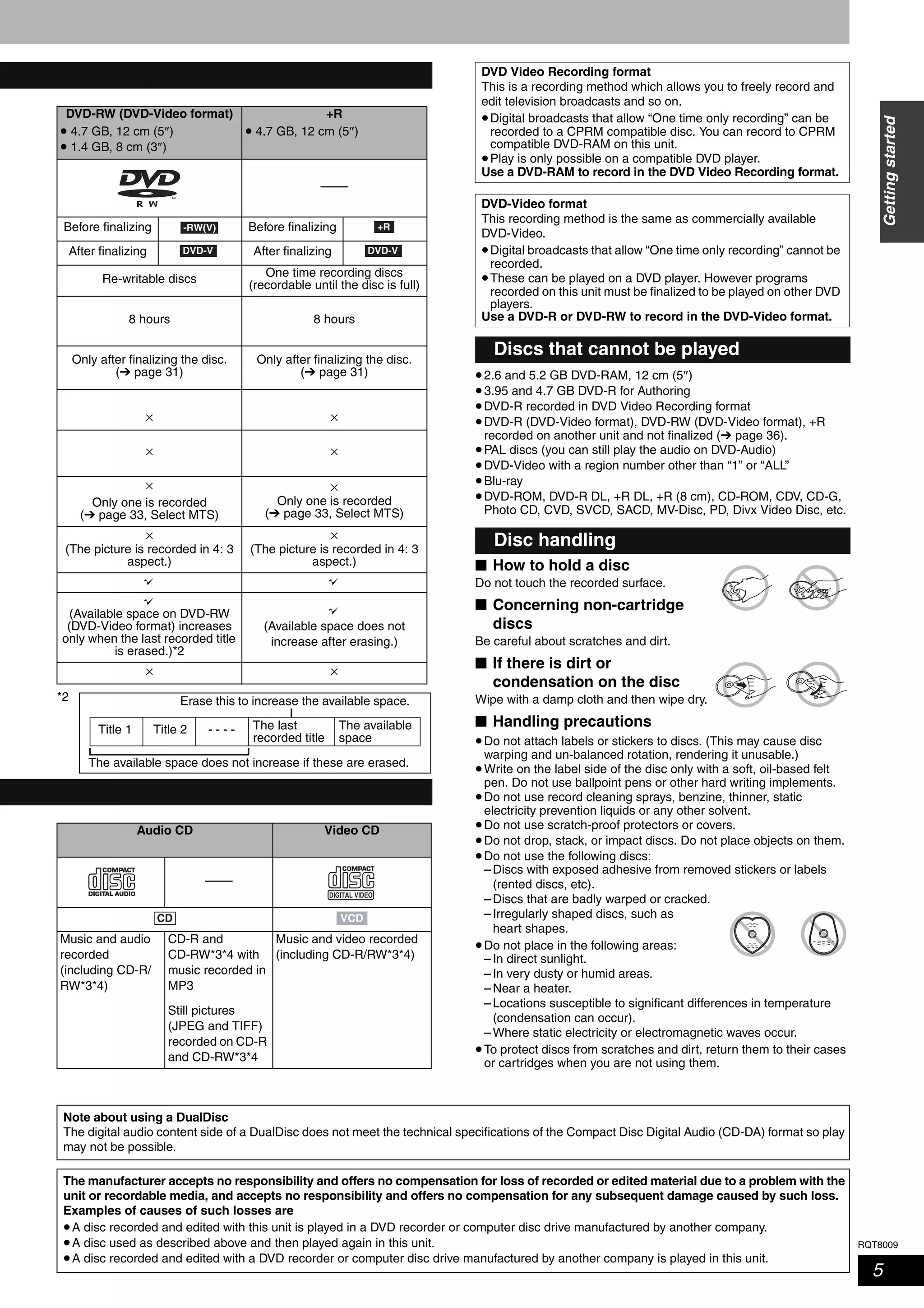
Discs you can use for recording and play (12 cm/8 cm)
Disc type DVD-RAM
• 4.7 GB/9.4 GB, 12 cm (5″)
• 2.8 GB, 8 cm (3″)
DVD-R (DVD-Video format)
• 4.7 GB, 12 cm (5″)
• 1.4 GB, 8 cm (3″)
Logo
Indication in these instructions Before finalizing
After finalizing
Main use
Re-writable discs
One time recording discs
(recordable until the disc is full)
Maximum recording time
(➔ page 15, Recording modes and approximate recording times)
8 hours
(16 hours in EP (8H) mode on
double-sided disc*1)
8 hours
Play on other players Only on DVD-RAM compatible
players. It is not necessary to
finalize the disc. (➔ page 31)
Only after finalizing the disc.
(➔ page 31)
What you can do on this unit ( : Can do × : Cannot do)
Chasing playback ×
Recording broadcasts that allow one copy
(CPRM (➔ page 36) compatible
discs only.)
×
Recording both Main and SAP of MTS broadcast ×
Only one is recorded
(➔ page 33, Select MTS)
Recording 16:9 aspect picture ×
(The picture is recorded in 4: 3
aspect.)
Enter program (title) name
Erase program (title)
(Available space increases
after erasing.)
(Available space does not
increase after erasing.)
Creating playlists ×
Play-only discs (12 cm/8 cm)
Disc type DVD-Video DVD-Audio DVD-RW (DVD Video Recording
format)
+RW
Logo
––––
Indication in these
instructions
Instructions High quality movie and
music discs
High fidelity music discs
•Played on this unit in
2 channels.
DVD-RW recorded on another
DVD Recorder*3
•You can play programs that allow
“One time only recording” if they
have been recorded to a CPRM
compatible disc.
•By formatting (➔ page 30) the
disc, you can record to it in
DVD-Video format and play it on
this unit.
+RW recorded on
another
DVD Recorder*3
•It may be necessary to finalize the disc on the
equipment used for recording.
Regarding DVD-Audio
Some multi-channel DVD-Audio will prevent down-mixing (➔ page 36) of all or part of their contents if this is the manufacturer’s intention. When
playing such discs, or such parts of disc, unless the number of connected speakers is the same as the disc’s channel specification, audio will not
be output properly (e.g. part of the audio is missing, multi-channel audio cannot be selected and audio is played in two channels). Refer to the
disc’s jacket for more information.
RAM
-R
DVD-V
DVD-V DVD-A -RW(VR) DVD-V
RQT8009
5
Gettingstarted
*2
•2.6 and 5.2 GB DVD-RAM, 12 cm (5″)
•3.95 and 4.7 GB DVD-R for Authoring
•DVD-R recorded in DVD Video Recording format
•DVD-R (DVD-Video format), DVD-RW (DVD-Video format), +R
recorded on another unit and not finalized (➔ page 36).
•PAL discs (you can still play the audio on DVD-Audio)
•DVD-Video with a region number other than “1” or “ALL”
•Blu-ray
•DVD-ROM, DVD-R DL, +R DL, +R (8 cm), CD-ROM, CDV, CD-G,
Photo CD, CVD, SVCD, SACD, MV-Disc, PD, Divx Video Disc, etc.
■ How to hold a disc
Do not touch the recorded surface.
■ Concerning non-cartridge
discs
Be careful about scratches and dirt.
■ If there is dirt or
condensation on the disc
Wipe with a damp cloth and then wipe dry.
■ Handling precautions
•Do not attach labels or stickers to discs. (This may cause disc
warping and un-balanced rotation, rendering it unusable.)
•Write on the label side of the disc only with a soft, oil-based felt
pen. Do not use ballpoint pens or other hard writing implements.
•Do not use record cleaning sprays, benzine, thinner, static
electricity prevention liquids or any other solvent.
•Do not use scratch-proof protectors or covers.
•Do not drop, stack, or impact discs. Do not place objects on them.
•Do not use the following discs:
– Discs with exposed adhesive from removed stickers or labels
(rented discs, etc).
– Discs that are badly warped or cracked.
– Irregularly shaped discs, such as
heart shapes.
•Do not place in the following areas:
– In direct sunlight.
– In very dusty or humid areas.
– Near a heater.
– Locations susceptible to significant differences in temperature
(condensation can occur).
– Where static electricity or electromagnetic waves occur.
•To protect discs from scratches and dirt, return them to their cases
or cartridges when you are not using them.
DVD-RW (DVD-Video format)
• 4.7 GB, 12 cm (5″)
• 1.4 GB, 8 cm (3″)
+R
• 4.7 GB, 12 cm (5″)
––––
Before finalizing Before finalizing
After finalizing After finalizing
Re-writable discs
One time recording discs
(recordable until the disc is full)
8 hours 8 hours
Only after finalizing the disc.
(➔ page 31)
Only after finalizing the disc.
(➔ page 31)
× ×
× ×
×
Only one is recorded
(➔ page 33, Select MTS)
×
Only one is recorded
(➔ page 33, Select MTS)
×
(The picture is recorded in 4: 3
aspect.)
×
(The picture is recorded in 4: 3
aspect.)
(Available space on DVD-RW
(DVD-Video format) increases
only when the last recorded title
is erased.)*2
(Available space does not
increase after erasing.)
× ×
Audio CD Video CD
––––
Music and audio
recorded
(including CD-R/
RW*3*4)
CD-R and
CD-RW*3*4 with
music recorded in
MP3
Still pictures
(JPEG and TIFF)
recorded on CD-R
and CD-RW*3*4
Music and video recorded
(including CD-R/RW*3*4)
-RW(V) +R
DVD-V DVD-V
The available space does not increase if these are erased.
Erase this to increase the available space.
Title 1 Title 2 The last
recorded title
The available
space
- - - -
CD VCD
DVD Video Recording format
This is a recording method which allows you to freely record and
edit television broadcasts and so on.
•Digital broadcasts that allow “One time only recording” can be
recorded to a CPRM compatible disc. You can record to CPRM
compatible DVD-RAM on this unit.
•Play is only possible on a compatible DVD player.
Use a DVD-RAM to record in the DVD Video Recording format.
DVD-Video format
This recording method is the same as commercially available
DVD-Video.
•Digital broadcasts that allow “One time only recording” cannot be
recorded.
•These can be played on a DVD player. However programs
recorded on this unit must be finalized to be played on other DVD
players.
Use a DVD-R or DVD-RW to record in the DVD-Video format.
Discs that cannot be played
Disc handling
Note about using a DualDisc
The digital audio content side of a DualDisc does not meet the technical specifications of the Compact Disc Digital Audio (CD-DA) format so play
may not be possible.
The manufacturer accepts no responsibility and offers no compensation for loss of recorded or edited material due to a problem with the
unit or recordable media, and accepts no responsibility and offers no compensation for any subsequent damage caused by such loss.
Examples of causes of such losses are
•A disc recorded and edited with this unit is played in a DVD recorder or computer disc drive manufactured by another company.
•A disc used as described above and then played again in this unit.
•A disc recorded and edited with a DVD recorder or computer disc drive manufactured by another company is played in this unit.
RQT8009
6
Gettingstarted
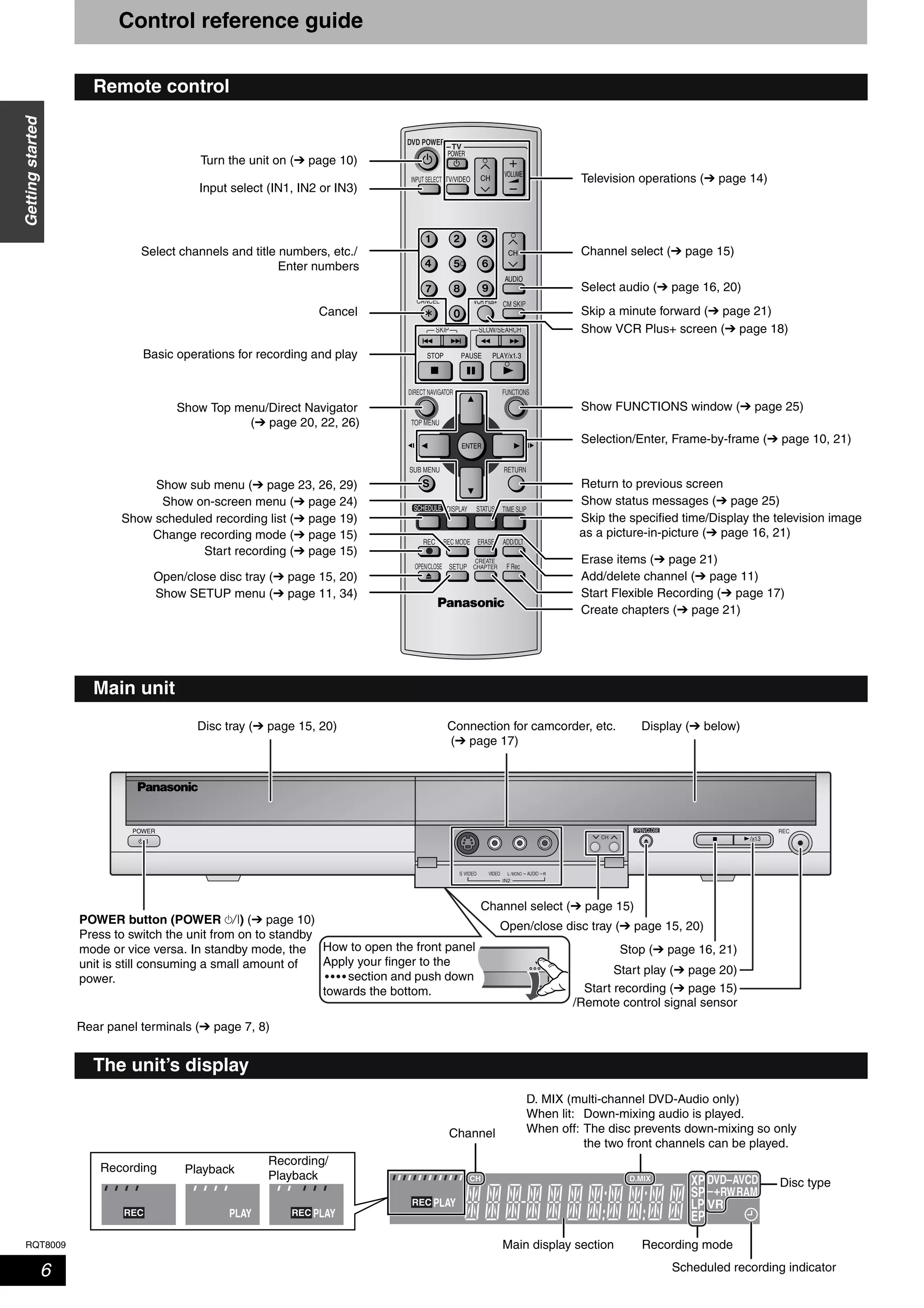
Control reference guide
Remote control
TV
ADD/DLT
OPEN/CLOSE
SKIP SLOW/SEARCH
REC MODE ERASEREC
POWER
F Rec
TIME SLIP
FUNCTIONSDIRECT NAVIGATOR
TOP MENU
RETURN
VOLUME
CHINPUT SELECT
STATUSDISPLAY
SUB MENU
DVD POWER
TV/VIDEO
SETUP
CREATE
CHAPTER
SCHEDULE
CM SKIP
AUDIO
CANCEL VCR Plus+
Turn the unit on (➔ page 10)
Input select (IN1, IN2 or IN3)
Select channels and title numbers, etc./
Enter numbers
Cancel
Basic operations for recording and play
Show Top menu/Direct Navigator
(➔ page 20, 22, 26)
Show sub menu (➔ page 23, 26, 29)
Show on-screen menu (➔ page 24)
Change recording mode (➔ page 15)
Open/close disc tray (➔ page 15, 20)
Show SETUP menu (➔ page 11, 34)
Television operations (➔ page 14)
Channel select (➔ page 15)
Select audio (➔ page 16, 20)
Skip a minute forward (➔ page 21)
Show VCR Plus+ screen (➔ page 18)
Show FUNCTIONS window (➔ page 25)
Selection/Enter, Frame-by-frame (➔ page 10, 21)
Return to previous screen
Show status messages (➔ page 25)
Skip the specified time/Display the television image
as a picture-in-picture (➔ page 16, 21)
Start Flexible Recording (➔ page 17)
Create chapters (➔ page 21)
Add/delete channel (➔ page 11)
Erase items (➔ page 21)
Start recording (➔ page 15)
Show scheduled recording list (➔ page 19)
Main unit
RECOPEN/CLOSE
IN2
CH
Display (➔ below)Disc tray (➔ page 15, 20)
Open/close disc tray (➔ page 15, 20)
Channel select (➔ page 15)
Start recording (➔ page 15)
Connection for camcorder, etc.
(➔ page 17)
/Remote control signal sensor
POWER button (POWER 8) (➔ page 10)
Press to switch the unit from on to standby
mode or vice versa. In standby mode, the
unit is still consuming a small amount of
power.
Start play (➔ page 20)
Stop (➔ page 16, 21)
Rear panel terminals (➔ page 7, 8)
How to open the front panel
Apply your finger to the
section and push down
towards the bottom.
The unit’s display
D.MIX XP AVCD
RW–+ RAMSP
LP
EP
CH
PLAY
DVD–
VRREC
REC PLAY PLAYREC
D. MIX (multi-channel DVD-Audio only)
When lit: Down-mixing audio is played.
When off: The disc prevents down-mixing so only
the two front channels can be played.
Recording mode
Channel
Main display section
Disc type
Recording Playback
Recording/
Playback
Scheduled recording indicator
RQT8009
7
Gettingstarted
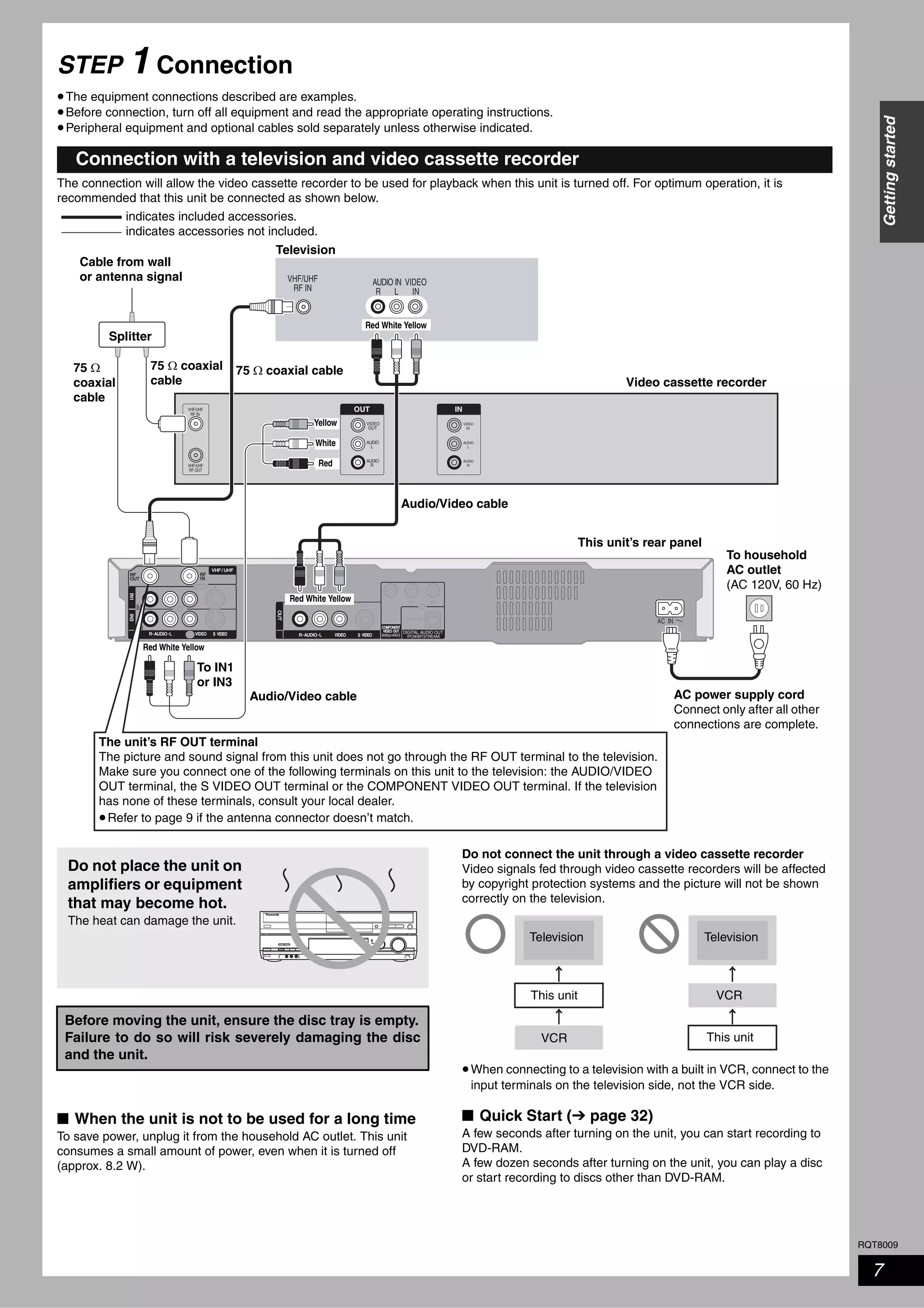
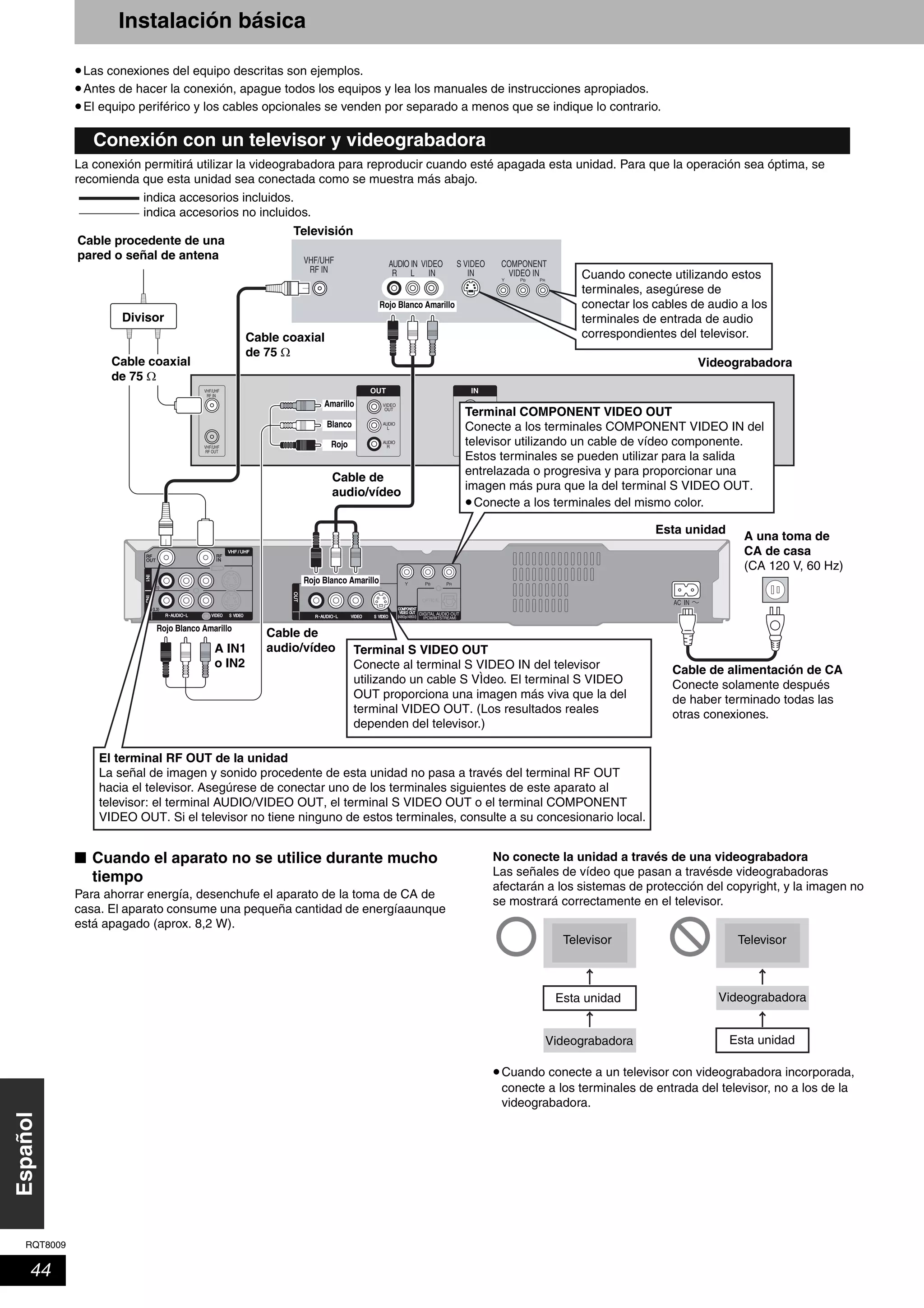
STEP 1 Connection
•The equipment connections described are examples.
•Before connection, turn off all equipment and read the appropriate operating instructions.
•Peripheral equipment and optional cables sold separately unless otherwise indicated.
The connection will allow the video cassette recorder to be used for playback when this unit is turned off. For optimum operation, it is
recommended that this unit be connected as shown below.
■ When the unit is not to be used for a long time
To save power, unplug it from the household AC outlet. This unit
consumes a small amount of power, even when it is turned off
(approx. 8.2 W).
Do not connect the unit through a video cassette recorder
Video signals fed through video cassette recorders will be affected
by copyright protection systems and the picture will not be shown
correctly on the television.
•When connecting to a television with a built in VCR, connect to the
input terminals on the television side, not the VCR side.
■ Quick Start (➔ page 32)
A few seconds after turning on the unit, you can start recording to
DVD-RAM.
A few dozen seconds after turning on the unit, you can play a disc
or start recording to discs other than DVD-RAM.
Connection with a television and video cassette recorder
VHF/UHF
RF IN
VHF/UHF
RF OUT
AUDIO
R
AUDIO
L
VIDEO
IN
AUDIO
R
AUDIO
L
VIDEO
OUT
OUT IN
VHF/UHF
RF IN
AUDIO IN
R L
VIDEO
IN
indicates included accessories.
indicates accessories not included.
AC power supply cord
Connect only after all other
connections are complete.
To household
AC outlet
(AC 120V, 60 Hz)
Television
Red White Yellow
Audio/Video cable
Splitter
75 Ω coaxial cable
Video cassette recorder
Audio/Video cable
Cable from wall
or antenna signal
Red White Yellow
Red White Yellow
Red
White
Yellow
To IN1
or IN3
75 Ω coaxial
cable
The unit’s RF OUT terminal
The picture and sound signal from this unit does not go through the RF OUT terminal to the television.
Make sure you connect one of the following terminals on this unit to the television: the AUDIO/VIDEO
OUT terminal, the S VIDEO OUT terminal or the COMPONENT VIDEO OUT terminal. If the television
has none of these terminals, consult your local dealer.
•Refer to page 9 if the antenna connector doesn’t match.
This unit’s rear panel
75 Ω
coaxial
cable
Before moving the unit, ensure the disc tray is empty.
Failure to do so will risk severely damaging the disc
and the unit.
Do not place the unit on
amplifiers or equipment
that may become hot.
The heat can damage the unit.
Television
This unit
VCR
Television
VCR
This unit
RQT8009
8
Gettingstarted
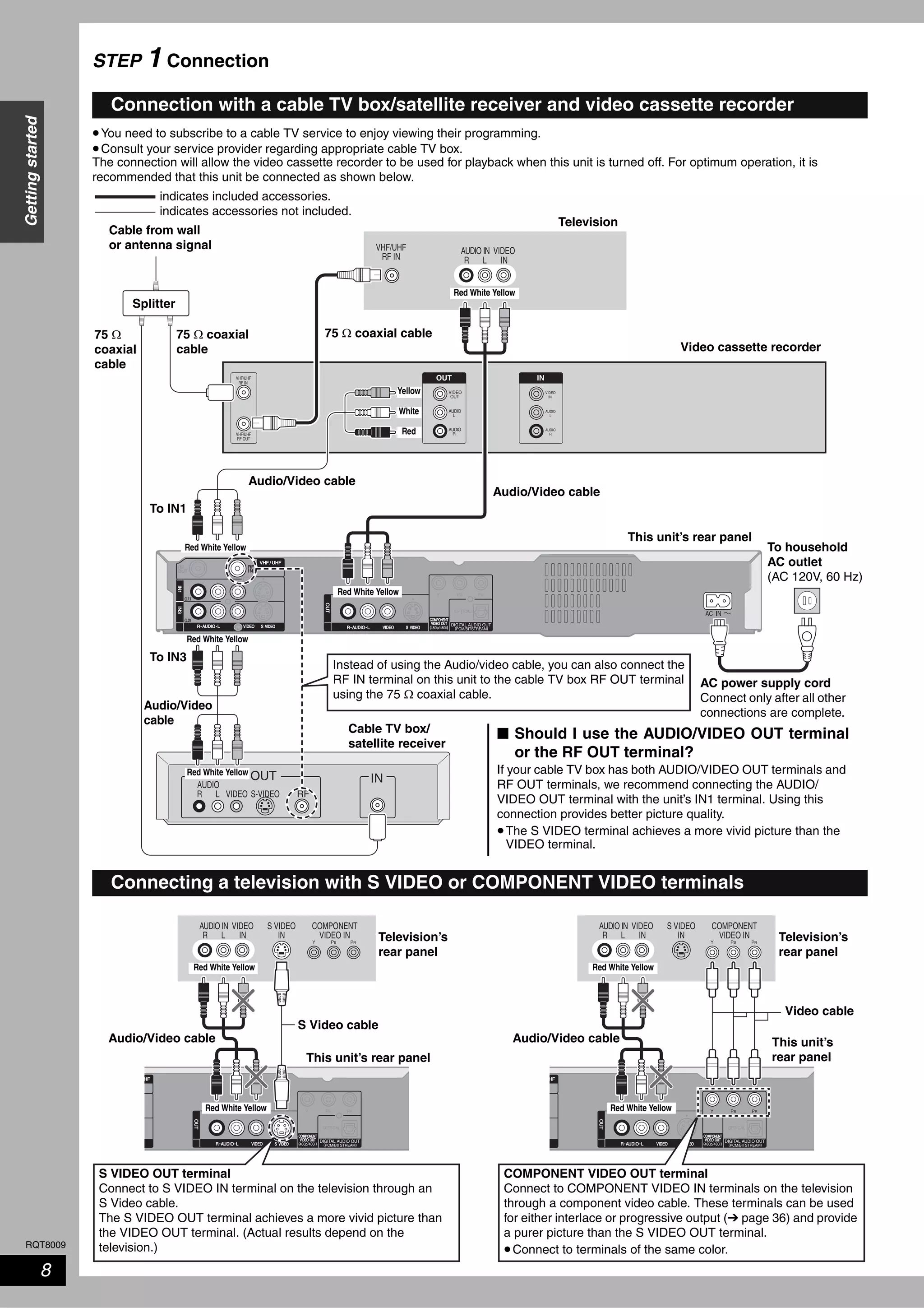
STEP 1 Connection
•You need to subscribe to a cable TV service to enjoy viewing their programming.
•Consult your service provider regarding appropriate cable TV box.
The connection will allow the video cassette recorder to be used for playback when this unit is turned off. For optimum operation, it is
recommended that this unit be connected as shown below.
Connection with a cable TV box/satellite receiver and video cassette recorder
VIDEO
AUDIO
R L S-VIDEO
OUT
RF
IN
VHF/UHF
RF IN
VHF/UHF
RF OUT
AUDIO
R
AUDIO
L
VIDEO
IN
AUDIO
R
AUDIO
L
VIDEO
OUT
OUT IN
VHF/UHF
RF IN
AUDIO IN
R L
VIDEO
IN
indicates included accessories.
indicates accessories not included.
To household
AC outlet
(AC 120V, 60 Hz)
Television
Red White Yellow
Audio/Video cable
Splitter
75 Ω coaxial cable
Video cassette recorder
Instead of using the Audio/video cable, you can also connect the
RF IN terminal on this unit to the cable TV box RF OUT terminal
using the 75 Ω coaxial cable.
Audio/Video
cable
75 Ω coaxial
cable
Cable from wall
or antenna signal
Red White Yellow
Red White Yellow
Red White Yellow
Red White Yellow
Cable TV box/
satellite receiver
Audio/Video cable
Red
White
Yellow
AC power supply cord
Connect only after all other
connections are complete.
To IN1
To IN3
■ Should I use the AUDIO/VIDEO OUT terminal
or the RF OUT terminal?
If your cable TV box has both AUDIO/VIDEO OUT terminals and
RF OUT terminals, we recommend connecting the AUDIO/
VIDEO OUT terminal with the unit’s IN1 terminal. Using this
connection provides better picture quality.
•The S VIDEO terminal achieves a more vivid picture than the
VIDEO terminal.
This unit’s rear panel
75 Ω
coaxial
cable
Connecting a television with S VIDEO or COMPONENT VIDEO terminals
AUDIO IN
R L
VIDEO
IN
COMPONENT
VIDEO IN
S VIDEO
IN Television’s
rear panel
Red White Yellow
Audio/Video cable
Red White Yellow
S Video cable
This unit’s rear panel
S VIDEO OUT terminal
Connect to S VIDEO IN terminal on the television through an
S Video cable.
The S VIDEO OUT terminal achieves a more vivid picture than
the VIDEO OUT terminal. (Actual results depend on the
television.)
AUDIO IN
R L
VIDEO
IN
COMPONENT
VIDEO IN
S VIDEO
IN Television’s
rear panel
Red White Yellow
Audio/Video cable
Red White Yellow
Video cable
This unit’s
rear panel
COMPONENT VIDEO OUT terminal
Connect to COMPONENT VIDEO IN terminals on the television
through a component video cable. These terminals can be used
for either interlace or progressive output (➔ page 36) and provide
a purer picture than the S VIDEO OUT terminal.
•Connect to terminals of the same color.
RQT8009
9
Gettingstarted
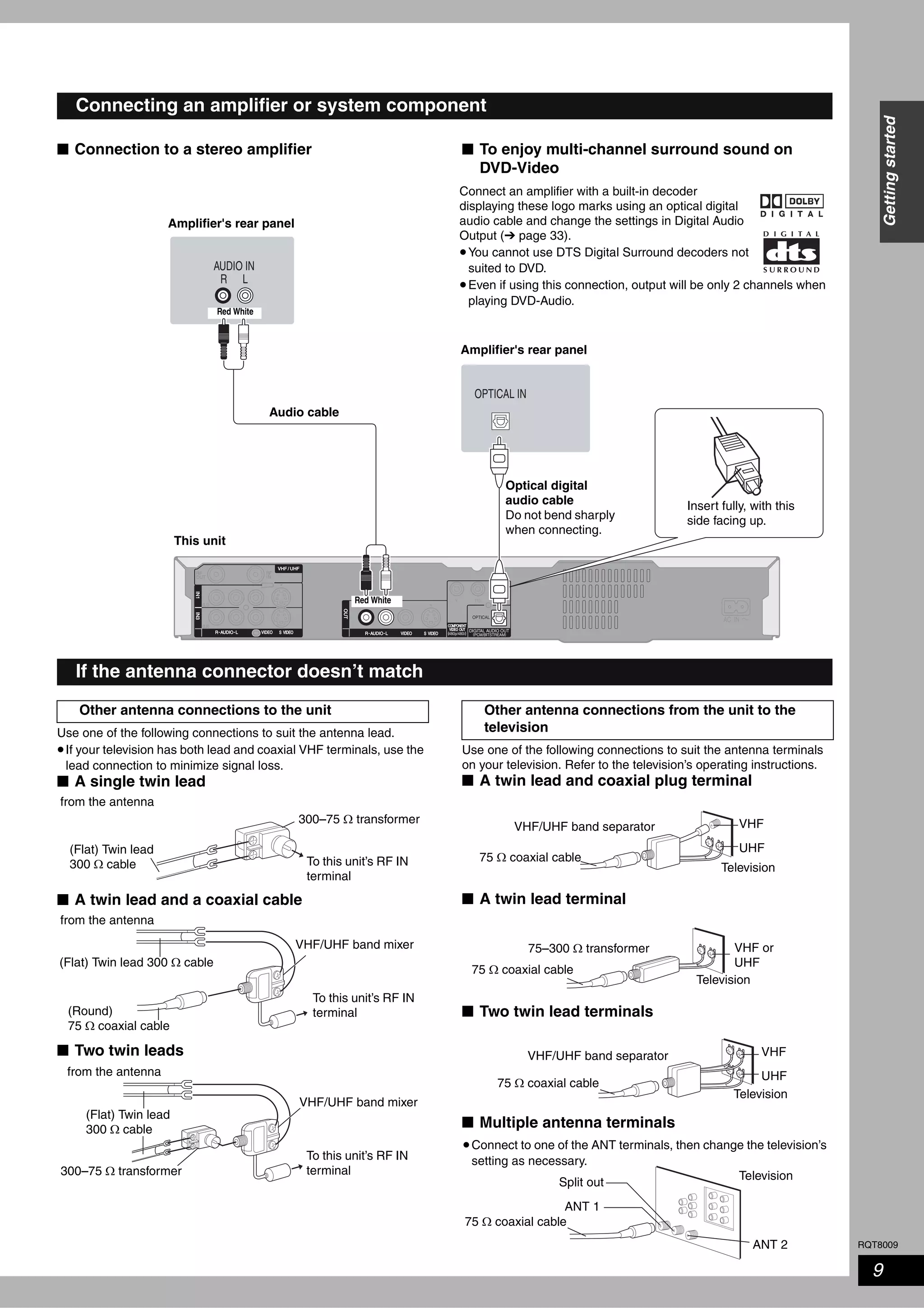
■ Connection to a stereo amplifier ■ To enjoy multi-channel surround sound on
DVD-Video
Use one of the following connections to suit the antenna lead.
•If your television has both lead and coaxial VHF terminals, use the
lead connection to minimize signal loss.
■ A single twin lead
■ A twin lead and a coaxial cable
■ Two twin leads
Use one of the following connections to suit the antenna terminals
on your television. Refer to the television’s operating instructions.
■ A twin lead and coaxial plug terminal
■ A twin lead terminal
■ Two twin lead terminals
■ Multiple antenna terminals
Connecting an amplifier or system component
AUDIO IN
R L
OPTICAL IN
Connect an amplifier with a built-in decoder
displaying these logo marks using an optical digital
audio cable and change the settings in Digital Audio
Output (➔ page 33).
•You cannot use DTS Digital Surround decoders not
suited to DVD.
•Even if using this connection, output will be only 2 channels when
playing DVD-Audio.
Insert fully, with this
side facing up.
Amplifier's rear panel
Audio cable
Optical digital
audio cable
Do not bend sharply
when connecting.
This unit
Red White
Red White
If the antenna connector doesn’t match
Other antenna connections to the unit
To this unit’s RF IN
terminal
from the antenna
(Flat) Twin lead
300 Ω cable
300–75 Ω transformer
To this unit’s RF IN
terminal
from the antenna
(Flat) Twin lead 300 Ω cable
VHF/UHF band mixer
(Round)
75 Ω coaxial cable
To this unit’s RF IN
terminal
from the antenna
(Flat) Twin lead
300 Ω cable
VHF/UHF band mixer
300–75 Ω transformer
Other antenna connections from the unit to the
television
Television
VHF/UHF band separator
75 Ω coaxial cable
VHF
UHF
Television
75–300 Ω transformer VHF or
UHF
75 Ω coaxial cable
Television
VHF/UHF band separator
75 Ω coaxial cable
VHF
UHF
Television
•Connect to one of the ANT terminals, then change the television’s
setting as necessary.
75 Ω coaxial cable
Split out
ANT 1
ANT 2
RQT8009
10
Gettingstarted
STEP 2 Plug-in Auto Tuning
After plugging the unit into your household AC outlet and pressing
[^ DVD POWER] to turn the unit on for the first time, the unit assists
you to set the on-screen language, and automatically tunes in all
the channels it can receive and sets the clock.
The unit automatically determines the type of transmission
(airwaves or cable) and puts them into channels as follows.
Preparation
•Turn on the television and select the appropriate video input to suit
the connections to this unit.
•If you connect the unit through a cable TV box or satellite receiver
(➔ page 8), tune to your local PBS for Auto Clock Setting to work.
If there is no local PBS, set the clock manually (➔ page 34, Set
Clock Manually).
1 Press [^ DVD POWER].
2 Press [e, r] to select the language
and press [ENTER].
3 Press [ENTER] to start Plug-in Auto
Tuning.
The unit then proceeds with Auto Clock Setting. The time is
displayed when finished.
•DST, Daylight Saving Time, shows the summertime setting.
•Time Zone shows the time difference from Greenwich
Mean Time (GMT).
EST (Eastern Standard Time) = GMT –5
CST (Central Standard Time) = GMT –6
MST (Mountain Standard Time) = GMT –7
PST (Pacific Standard Time) = GMT –8
AST (Alaska Standard Time) = GMT –9
HST (Hawaii Standard Time) = GMT –10
For other areas: xx hr
4 Press [ENTER].
Band Channel
Antenna Mode
(Airwaves)
VHF 2–13
UHF 14–69
CableTV Mode
(Cable)
VHF 2–13
CATV LOW BAND 95–99
CATV MID/SUPER BAND 14–36
CATV HYPER BAND 37–65
ULTRA BAND
66–94
100–125
SPECIAL CATV CHANNEL 1
TV
ADD/DLT
OPEN/CLOSE
SKIP SLOW/SEARCH
REC MODE ERASEREC
POWER
F Rec
TIME SLIP
FUNCTIONSDIRECT NAVIGATOR
TOP MENU
RETURN
VOLUME
CHINPUT SELECT
STATUSDISPLAY
SUB MENU
DVD POWER
TV/VIDEO
SETUP
CREATE
CHAPTER
SCHEDULE
CM SKIP
AUDIO
CANCEL VCR Plus+
RECOPEN/CLOSE
IN2
CH
POWER 8
^ DVD POWER
Numbered
buttons
ADD/DLT
SETUP
RETURN
e, r, w, q
ENTER
1 2 CH
2 CH 1
English
Español
Français
Press ENTER
Pulse ENTER
Appuyer sur ENTER
Select Language
Seleccione la Lengua
Sélection de Langue
Set Channels Automatically
Ch.
Set Channels Automatically
Proceeding . . .
1
Auto Clock Setting is complete.
4/4/2002 12:15 AM
DST...............On
Time Zone.....CST
Set Clock Automatically
RQT8009
11
Gettingstarted
■ If the clock is an hour slower or faster than the
actual time
Select “–1” or “+1” in “Adjust Time Zone” in the SETUP menu
(➔ page 34).
■ If the unit couldn’t set the clock automatically
Set the time manually (➔ page 34, Set Clock Manually).
■ To start Plug-in Auto Tuning again (after
relocation, for example)
When the unit is on and stopped
Press and hold [2 CH] and [1 CH] on the main unit for
about five seconds.
The unit turns off.
Press [^ DVD POWER] to turn the unit on.
1 Press [SETUP].
2 Press [e, r] to select “Channel” and
press [q].
3 Press [e, r] to select “Signal Source
(RF IN)” and press [ENTER].
4 Press [e, r] to select “Antenna” or
“CableTV” and press [ENTER].
5 Press [e, r] to select “Set Channels
Automatically” and press [ENTER].
6 Press [ENTER].
Auto Channel Setting starts. This takes a few minutes.
7 Press [ENTER].
To cancel partway
Press [RETURN].
To exit the screen
Press [SETUP].
Add or delete channels if necessary channels are not set or
unnecessary channels are set.
1 Press the numbered buttons to select
a channel.
•You can also use [1 2 CH] when you are going to delete a
channel.
2 Press [ADD/DLT].
e.g., The channel is deleted.
Signal source, channel caption, and VCR Plus+ guide
channel settings all revert to the default values when you
perform the procedure below. Scheduled recording settings
are also cleared.
If Plug-in Auto Tuning fails
1
2
Channel Captions
CableTV
Channel
SETUP
Setup
Disc
Video
Audio
Display
TV Screen
Signal Source (RF IN)
Set Channels Automatically
Preset Channel Captions
Manual Channel Captions
VCR Plus+ Ch. Setting
SETUP
Setup
Video
Audio
Display
TV Screen
Channel
Signal Source (RF IN)
Antenna
CableTV
Disc
ENTER
Adding and deleting channels
CH
Antenna Mode (Airwaves)
e.g., 5: [0] ➔ [5]
15: [1] ➔ [5]
CableTV Mode (Cable)
e.g., 5: [0] ➔ [0] ➔ [5]
15: [0] ➔ [1] ➔ [5]
115: [1] ➔ [1] ➔ [5]
Unit’s display
Channel 15 Deleted
RQT8009
12
Gettingstarted
STEP 3 Channel settings
Set these guide channels so you can use the VCR Plus+ system for
scheduled recording. Before starting the settings, prepare a chart
showing the channels, station names, and guide channels.
•If you have connected a cable TV box or satellite receiver, the
VCR Plus+ system does not work so you do not have to set the
guide channels.
1 Press [SETUP].
2 Press [e, r] to select “Channel” and
press [q].
3 Press [e, r] to select “VCR Plus+ Ch.
Setting” and press [ENTER].
e.g., “Signal Source (RF IN)” is set to “CableTV”.
4 Press [e, r] to select the guide
channel you want to set and press
[q].
When selecting the guide channel, press and hold [e, r] to
scroll up and down the screen.
5 Press [e, r] to select the channel
corresponding to the guide channel
and press [w].
To delete a number, press [ CANCEL].
Repeat steps 4 and 5 to enter other channels.
6 Press [ENTER].
To exit the screen
Press [SETUP].
To return to the previous screen
Press [RETURN].
VCR Plus+ guide channel settings
TV
ADD/DLT
OPEN/CLOSE
SKIP SLOW/SEARCH
REC MODE ERASEREC
POWER
F Rec
TIME SLIP
FUNCTIONSDIRECT NAVIGATOR
TOP MENU
RETURN
VOLUME
CHINPUT SELECT
STATUSDISPLAY
SUB MENU
DVD POWER
TV/VIDEO
SETUP
CREATE
CHAPTER
SCHEDULE
CM SKIP
AUDIO
CANCEL VCR Plus+
CANCEL
SETUP
RETURN
e, r, w, q
ENTER
e.g.,
Station name
Guide
channel
Channel
number
Channel setting
CBS 04 04 Unnecessary
HBO 33 15
Enter channel 15 next
to Guide Channel 33.
Nickelodeon 38 20
Enter channel 20 next
to Guide Channel 38.
Look up the guide channels
for the stations in
magazines.
Write down all the stations you
can receive.
CableTV
Channel
SETUP
Setup
Disc
Video
Audio
Display
TV Screen
Channel Captions
Signal Source (RF IN)
Set Channels Automatically
Preset Channel Captions
Manual Channel Captions
VCR Plus+ Ch. Setting
SETUP
Setup
Disc
Video
Audio
Display
TV Screen
VCR Plus+ Ch. Settings
Guide Channel Cable Channel
---
---125
1
---
---2
3
Channel
ENTER
---4
5
6
---
---7
8
---
---
SETUP
Channel
Setup
Disc
Video
Audio
Display
TV Screen
VCR Plus+ Ch. Settings
Guide Channel Cable Channel
ENTER
RQT8009
13
Gettingstarted
You can give the preset captions, or manually enter new ones yourself.
The captions you enter are displayed when the channel is displayed and in the Direct Navigator screen.
1 Press [SETUP].
2 Press [e, r] to select “Channel” and press [q].
3 Press [e, r] to select “Preset
Channel Captions” and press
[ENTER].
4 Press [e, r] to select the caption and
press [q].
You can choose from the following captions.
ABC, PBS, CBS, CNN, FOX, ESPN, NBC, HBO, A&E, AMC,
FAM, MAX, MTV, SHOW, TBS, USA, TNT, CBC, UPN, CTV,
WB, TSN, DSC, GLOB
•When selecting the caption, press and hold [e, r] to scroll
up and down the screen.
5 Press [e, r] to select the channel
corresponding to the caption and
press [w].
•Channels are only displayed if they contain a station and if
captions have not been added manually.
•To delete the channel number, press [ CANCEL].
Repeat steps 4 and 5 to enter other channels.
6 Press [ENTER].
3 Press [e, r] to select “Manual
Channel Captions” and press
[ENTER].
4 Press [e, r] to select the channel
and press [q].
•Channels are only displayed if they contain a station and if
preset captions have not been added.
5 Press [e, r] to select the first
character and press [q].
•You can choose from the following characters:
A–Z, 0–9, -, &, !, /, (space)
•To delete the caption, press [ CANCEL].
•Repeat this step to enter the other characters.
6 Press [w, q] to return to the “Channel
Number” column.
Repeat steps 4–6 to enter other channels.
7 Press [ENTER].
To exit the screen
Press [SETUP].
To return to the previous screen
Press [RETURN].
Channel captions
CableTV
Channel
SETUP
Setup
Disc
Video
Audio
Display
TV Screen
Channel Captions
Signal Source (RF IN)
Set Channels Automatically
Preset Channel Captions
Manual Channel Captions
VCR Plus+ Ch. Setting
Preset Channel Captions
SETUP
Setup
Disc
Video
Audio
Display
TV Screen
Preset Channel Captions
Caption Channel Number
---
---GLOB
ABC
---
---PBS
CBS
Channel
ENTER
Manual Channel Captions
SETUP
Setup
Disc
Video
Audio
Display
TV Screen
Manual Channel Captions
CaptionChannel Number
AAAA
6
10
12
23
----
----
----
Channel
8 ----
ENTER
RQT8009
14
Gettingstarted
STEP 4 Set up to match your television and remote control
You do not have to change the setting when connected to a 4: 3
standard aspect television that is not compatible with progressive
output (➔ page 36).
1 Press [SETUP].
2 Press [e, r] to select “TV Screen”
and press [q].
3 Press [e, r] to select “TV Type” and
press [ENTER].
•Aspect 4: 3/Aspect 16: 9:
•480p/480i:
Select “480p” if the television is compatible with progressive
output.
4 Press [e, r] to select the item and
press [ENTER].
You can configure the remote control TV operation buttons to turn
the television on/off, change the television input mode, select the
television channel and change the television volume.
Point the remote control at the television
While pressing [^ POWER TV], enter the
code with the numbered buttons.
e.g., 01: [0] ➔ [1]
Manufacturer and Code No.
Test by turning on the television and changing channels. Repeat the
procedure until you find the code that allows correct operation.
•If your television brand is not listed or if the code listed for your
television does not allow control of your television, this remote
control is not compatible with your television.
Change the remote control code on the main unit and the remote
control (the two must match) if you place other Panasonic products
close together.
Use “1”, the factory set code, under normal circumstances.
1 Press [SETUP].
2 Press [e, r] to select “Setup” and
press [q].
3 Press [e, r] to select “Remote
Control Code” and press [ENTER].
4 Press [e, r] to select the code (1, 2,
or 3) and press [ENTER].
To change the code on the remote control
5 While pressing [ENTER], press and
hold the numbered button ([1], [2] or
[3]) for more than 2 seconds.
6 Press [ENTER].
■ When the following indicator appears on the
unit’s display
To exit the screen
Press [SETUP].
To return to the previous screen
Press [RETURN].
Selecting television type
TV
ADD/DLT
OPEN/CLOSE
SKIP SLOW/SEARCH
REC MODE ERASEREC
POWER
F Rec
TIME SLIP
FUNCTIONSDIRECT NAVIGATOR
TOP MENU
RETURN
VOLUME
CHINPUT SELECT
STATUSDISPLAY
SUB MENU
DVD POWER
TV/VIDEO
SETUP
CREATE
CHAPTER
SCHEDULE
CM SKIP
AUDIO
CANCEL VCR Plus+
Numbered
buttons
SETUP
RETURN
e, r, w, q
ENTER
TV operation
buttons
SETUP
Setup
Disc
Video
Audio
Display
TV Type
Aspect 4:3 & 480i
4:3 TV
Aspect 4:3 & 480p
TV Screen
Channel
Aspect 16:9 & 480p
Aspect 16:9 & 480i
16:9 Widescreen TV
ENTER
4:3 16:9
4: 3 standard aspect
television
16: 9 widescreen
television
Television operation
Panasonic
National
QUASAR
01, 02
PHILIPS (RC-5) 03
RCA 05
SAMSUNG 14, 18, 19
FISHER 10 SANYO 10
GE 05 SHARP 06, 07
GOLDSTAR 15, 16, 17 SONY 08
HITACHI 12 SYLVANIA 03
JVC 11 THOMSON 05
LG 15, 16, 17 TOSHIBA 09
MAGNAVOX 03 ZENITH 04
MITSUBISHI 13
When other Panasonic products
respond to this remote control
SETUP
Disc
Remote Control Code
Channel
Setup
Press “ ” and “ENTER” together
for more than 2 seconds on the remote control.
Press and hold [ENTER] and
the indicated number button at
the same time for more than 2
seconds.
RQT8009
15
Recording
Recording television programs
Depending on the content being recorded, the recording times may
become shorter than indicated.
(Unit: hour)
When “Recording Time in EP Mode” is set to “EP (6H)” in the
SETUP menu.
The sound quality is better when using “EP (6H)” than when using
“EP (8H)”.
Note
When recording to DVD-RAM using EP (8H) mode, play may not be
possible on DVD players that are compatible with DVD-RAM. In this
case use EP (6H) mode.
FR (Flexible Recording Mode)
The unit automatically selects a recording rate between XP and EP
(8H) that will enable the recordings to fit in the remaining disc space
with the best possible recording quality.
•You can set when programming scheduled recordings.
•All the recording modes from XP to EP appear in the display.
Preparation
•Turn on the television and select the appropriate video input to suit
the connections to this unit.
•Turn the unit on.
•It is not possible to record continuously from one side of a double
sided disc to the other. You will need to eject the disc and turn it
over.
•When using 8 cm (3″) DVD-RAM or 8 cm (3″) DVD-R, remove the
disc from the cartridge.
•You can record up to 99 titles on one disc ( 49 titles).
•It is not possible to record digital broadcasts that allow “One time
only recording” onto DVD-R, DVD-RW, +R or 8 cm (3″) DVD-RAM
discs. Use a CPRM compatible DVD-RAM.
1 Press [; OPEN/CLOSE] to open the
tray and insert a disc.
•Press the button again to close the tray.
2 Press [1 2 CH] to select the channel.
•Select the audio to be recorded (➔ page 16).
3 Press [REC MODE] to select the
recording mode (XP, SP, LP, or EP).
4 Press [* REC] to start recording.
The elapsed time is shown on the display.
Recording will take place on free space on disc. Data will not
be overwritten.
•You cannot change the channel or recording mode during
recording. You can change them while recording is paused,
but the material is recorded as a separate title.
Recording modes and approximate
recording times
Mode
DVD-RAM DVD-R
DVD-RW
+R
(4.7GB)
Single-sided
(4.7 GB)
Double-sided
(9.4 GB)
XP (High quality) 1 2 1
SP (Normal) 2 4 2
LP (Long play) 4 8 4
EP (Extended long
play)
8 (6 ) 16 (12 ) 8 (6 )
FR (Automatic mode
selection)
8 hours
maximum
8 hours
maximum for
one side
8 hours
maximum
RECOPEN/CLOSE
IN2
CH
TV
ADD/DLT
OPEN/CLOSE
SKIP SLOW/SEARCH
REC MODE ERASEREC
POWER
F Rec
TIME SLIP
FUNCTIONSDIRECT NAVIGATOR
TOP MENU
RETURN
VOLUME
CHINPUT SELECT
STATUSDISPLAY
SUB MENU
DVD POWER
TV/VIDEO
SETUP
CREATE
CHAPTER
SCHEDULE
CM SKIP
AUDIO
CANCEL VCR Plus+
Numbered
buttons
IN2 INPUT terminals
F Rec
RETURN
e, r, w, q
ENTER
STATUS
TIME SLIP
1
4
3
DIRECT
NAVIGATOR
h
g q
AUDIO
2
INPUT
SELECT
1
2 4g q
EP (6H)
EP (8H)
LP
SP
XP
Picturequality
Recording time
Recording television programs
XP
SP
LP
EP
CH
RAM -R -RW(V) +R
+R
When recording to DVD-R, DVD-RW (DVD-Video format) or +R
•When recording MTS broadcasts
– If you do not connect a cable TV box
Select “Main” or “SAP” in “Select MTS” in the SETUP menu
(➔ page 33).
– If you connect a cable TV box
Select “Main” or “SAP” on the cable TV box.
•The aspect ratio of the recorded images will be 4:3.
•In order to play a DVD-R, DVD-RW (DVD-Video format) or +R
recorded using this unit on another playback source, the
disc must first be finalized (➔ page 31).
Insert label-up.
Insert with the
arrow facing in.
Insert fully so it clicks
into place.
To select with the numbered buttons:
Antenna Mode (Airwaves) CableTV Mode (Cable)
e.g., 5: [0] ➔ [5] e.g., 5: [0] ➔ [0] ➔ [5]
15: [1] ➔ [5] 15: [0] ➔ [1] ➔ [5]
115: [1] ➔ [1] ➔ [5]
RAMSP
CH DVD–
XP
RAM
CH DVD–
Remaining time on the disc
XP
RAM
CH DVD–
REC
RQT8009
16
Recording
Recording television programs
Refer to the control reference on page 15.
■ To pause recording
Press [h].
Press again to restart recording.
You can also press [* REC] to restart.
(Title is not split into separate titles.)
■ To stop recording
Press [g].
From the start to the end of the recording is called one title.
It takes about 30 seconds for the unit to complete recording
management information after recording finishes.
During recording
Press [* REC] to select the recording time.
Each time you press the button:
•This does not work during scheduled recordings (➔ page 18) or
while using Flexible Recording (➔ page 17).
The unit switches to standby after about 6 hours in the stop mode.
You can turn this feature off or change the time to 2 hours
(➔ page 32, “Off Timer”).
When you insert a new DVD-RW or a DVD-RAM or DVD-RW (DVD-
Video format) recorded on a computer or other equipment, a format
confirmation screen is displayed. Format the disc to use it. However,
all the recorded contents are erased.
Press [w] to select “Yes” and press [ENTER].
■ To format a disc
(Several steps are necessary to format a disc.)
“Erasing all contents of a disc-Format Disc” (➔ page 30)
Press [AUDIO].
•If you change the sound setting while recording, the recorded
sound will also change.
Select the audio (Main or SAP) in “Select
MTS” in the SETUP menu (➔ page 33).
Press [q] (PLAY) during recording.
To stop play
Press [g].
To stop recording
2 seconds after play stops
Press [g].
To stop scheduled recording
Press [g], then [ENTER] within 5 seconds.
•You can also press and hold [g] on the main unit for more than 3
seconds to stop recording.
Press [DIRECT NAVIGATOR] during
recording.
Press [e, r, w, q] to select a title and
press [ENTER].
To stop play
Press [g].
To stop recording
After play stops
Press [DIRECT NAVIGATOR] to exit screen, then press [g].
To stop scheduled recording
Press [g], then [ENTER] within 5 seconds.
•You can also press and hold [g] on the main unit for more than 3
seconds to stop recording.
To exit the Direct Navigator screen
Press [DIRECT NAVIGATOR].
Press [TIME SLIP] during recording.
•You will hear the playback audio.
Press [e, r] to select the time and
press [ENTER].
•Press [TIME SLIP] to show the play images in full. Press
again to show the play and recording images.
To stop play
Press [g].
To stop recording
2 seconds after play stops
Press [g].
To stop scheduled recording
Press [g], then [ENTER] within 5 seconds.
•You can also press and hold [g] on the main unit for more than 3
seconds to stop recording.
To specify a time to stop recording—One Touch
Recording
Off Timer
When the format confirmation screen is displayed
Selecting audio to be recorded
-R -RW(V) +R
0: 30 1: 00 1: 30 2: 00 3:00 4: 00
Counter (cancel)
This disc is not formatted properly.
Do you want to format the
disc in Disc Management?
ENTER
Format
NoYes
RAM
Stereo:
SAP:
Mono:
Main audio (stereo)
•If the broadcast is “Mono+SAP”, audio will be
monaural even if you select Stereo mode.
Secondary audio program (SAP)
•If recorded in SAP mode, main audio is also
recorded.
Main audio (monaural)
•Select “Mono” if reception is poor during a
stereo broadcast.
CH 12
Stereo
No disc
((e.g., “Stereo” is selected
“((” appears when the unit is receiving the audio type you selected.
-R -RW(V) +R
Playing while you are recording
Playing from the beginning of the title you are
recording—Chasing playback
Playing a title previously recorded while recording—
Simultaneous rec and play
Reviewing the recorded images while recording—
Time Slip
RAM
0 min
PLAY
REC
Play starts from 30
seconds previous.
The video currently
being recorded
RQT8009
17
Recording
Refer to the control reference on page 15.
The unit sets the best possible picture quality that fits the recording
within the remaining disc space. This is convenient when you want
the recorded program to fit one disc perfectly or you are concerned
about the amount of free space on the disc. The recording mode
becomes FR mode.
Preparation
Select the channel to be recorded or the external input.
While stopped
Press [F Rec].
Press [w, q] to select “Hour” and
“Min.” and press [e, r] to set the
recording time.
•You can also set the recording time with the numbered
buttons.
When you want to start recording
Press [e, r, w, q] to select “Start”
and press [ENTER].
Recording starts.
•All the recording modes from
XP to EP appear in the
display.
To exit the screen without recording
Press [RETURN].
To stop recording partway
Press [g].
To show the remaining time
Press [STATUS].
Preparation
Connect a video cassette recorder to this unit’s input terminals.
Insert a disc you can use for recording.
Note
When recording using this unit’s input terminals, only the sound
received at the time of recording will be recorded.
As long as secondary audio that is recorded on the video cassette is
not output on the unit in play, it is not recorded.
e.g.: Connecting to the IN2 input terminals
If the audio output of the other equipment is monaural, connect to L/
MONO.
The S VIDEO terminal achieves a more vivid picture than the
VIDEO terminal.
While stopped
Press [INPUT SELECT] to select the
input channel for the equipment you
have connected.
e.g., If you have connected to IN2 input terminals, select
“IN2”.
Press [REC MODE] to select the
recording mode.
Start play on the other equipment.
Press [* REC].
Recording starts.
To skip unwanted parts
Press [h] to pause recording. (Press again to restart recording.)
To stop recording
Press [g].
To record program in such a way as to fill up the remaining
space on the disc
➔ Left, Flexible Recording
Flexible Recording
(Recording that fits the remaining disc space)
Using “Flexible Recording” is convenient in these kinds of
situations.
•When the amount of free space on the disc makes selecting an
appropriate recording more difficult
•When you want to record a long program with the best picture
quality possible
e.g., Recording a 90 minute program to disc
If you select XP mode, the program will not fit one disc.
If you select SP mode, the program will fit one disc.
If you select “FLEXIBLE RECORDING” the program will fit one
disc perfectly.
RAM -RW(V) +R-R
FLEXIBLE RECORDING
Start Cancel
Record in FR mode.
Set recording time
8 Hour 00 Min.Maximum rec. time
1 Hour 30 Min.
Maximum recording
time
This is the maximum
recording time in EP
mode.
XP
RAMSP
LP
EP
DVD–
Rec. 0:59
Stereo
DVD-RAM
CH71
Remaining
time
e.g., DVD-RAM
4.7GB
DVD-RAM
4.7GB
DVD-RAM
If you try to record a 90 minute
program in XP mode, only the first sixty
minutes will fit on the disc and the 30
minute balance will not be recorded.
4.7GB
DVD-RAM
However there will be 30 minutes remaining
disc space.
4.7GB
DVD-RAM
Recording from a video cassette
recorder
Almost all videos and DVD software on sale have been
treated to prevent illegal copying. Any software that has been
so treated cannot be recorded using this unit.
RAM -RW(V) +R-R
RECOPEN/CLOSE
IN2
CH
IN2
Yellow White Red
S Video
cable
Audio/Video cable
Other video equipment
RQT8009
18
Recording
Scheduled recording
You can enter up to 16 programs up to a month in advance.
•When connecting a cable TV box or satellite receiver, the VCR
Plus+ system does not work. Program the scheduled recording
manually and select the channel on the cable TV box or satellite
receiver before the scheduled recording starts.
Preparation
•Turn on the television and select the appropriate video input to suit
the connections to this unit.
•Check that the time on the unit is correct.
Entering VCR Plus+ numbers is an easy way of scheduled
recording. You can find these codes in TV listings in newspapers and
magazines.
1 Press [VCR Plus+].
2 Press the numbered buttons to enter
the PlusCode number.
•To correct the number
Press [w] to move back to correct a digit.
3 Press [ENTER].
•When “XP” is displayed in the unit’s display, the recording
mode automatically changes to “FR” in order to prevent loss
of recording when there is not enough space. Change to
“XP” mode if you want to set the scheduled recording using
“XP” mode.
•Confirm the program and make corrections if necessary
using [e, r, w, q] (➔ page 19, step 3).
•You can also press [REC MODE] to change the recording
mode.
•Title Name
Press [w, q] to select “Title Name” and press [ENTER]
(➔page 31).
4 Press [ENTER].
The settings are stored.
Repeat steps 1–4 to program other recordings.
5 Press [SCHEDULE].
The message “Turn recorder off for Scheduled Recording.” is
shown on the television.
6 Press [^ DVD POWER].
The unit turns off and “z” lights on the unit’s display to
indicate scheduled recording standby has been activated.
•Even if the unit is in scheduled recording standby, you can play a
disc. Without pressing [^ DVD POWER], just press [q] (PLAY) or
[DIRECT NAVIGATOR]. Scheduled recording works even during
play.
Using VCR Plus+ system to make
scheduled recordings
TV
ADD/DLT
OPEN/CLOSE
SKIP SLOW/SEARCH
REC MODE ERASEREC
POWER
F Rec
TIME SLIP
FUNCTIONSDIRECT NAVIGATOR
TOP MENU
RETURN
VOLUME
CHINPUT SELECT
STATUSDISPLAY
SUB MENU
DVD POWER
TV/VIDEO
SETUP
CREATE
CHAPTER
SCHEDULE
CM SKIP
AUDIO
CANCEL VCR Plus+
Numbered
buttons
^ DVD POWER
ADD/DLT
e, r, w, q
ENTER
q
VCR Plus+
REC MODE
SCHEDULE
DIRECT
NAVIGATOR
g
CANCEL
RAM -RW(V) +R-R
No.
VCR Plus+ Remaining Recording Time 1:58 SP
3/26 TUE 12:53 PM
--0 9
Enter the PlusCode with the numbered buttons.
■ To release the unit from recording standby
Press [^ DVD POWER].
The unit turns on and “z” goes out.
•Be sure to press [^ DVD POWER] to return the unit to standby
mode before the scheduled recording time. Scheduled recording
will work only if “z” is displayed.
■ To cancel recording when recording has
already begun
Press [g], then [ENTER] within 5 seconds.
•You can also press and hold [g] on the main unit for more than 3
seconds to stop recording.
Note
•“z” flashes when the unit cannot go to scheduled recording
standby (e.g., a recordable disc is not in the disc tray).
•The actual time recorded may be longer than the program itself
when television programs are recorded using VCR Plus+.
•When you program successive scheduled recordings to start
immediately one after the other, the unit cannot record the part at
the beginning of the later programs (a few seconds when
recording with DVD-RAM and approximately 30 seconds when
recording with DVD-R, DVD-RW (DVD-Video format) or +R).
•If you set DST (Daylight Saving Time) to On when manually
setting the clock (➔ page 34), scheduled recording may not work
when summer switches to winter and vice versa.
SCHEDULED
RECORDING
Remaining Recording Time 1:58 SP
3/26 TUE 12:53 PM
5:10 PM4:20 PM4 / 1 MON
ModeOffOnChannel Date
SP39
Title Name
SCHEDULE
LIST
Remaining Recording Time 1:58 SP
3/26 TUE 12:53 PM
SP5:10 PM4:20 PM39 4 / 1 MON01
ModeOffOnNo Channel Date
New Scheduled Recording
OK
Check Check to make
sure “OK” is
displayed.
RAM
RQT8009
19
Recording
You can enter up to 16 programs up to a month in advance. (Each
daily or weekly program is counted as one program.)
•When connecting a cable TV box or satellite receiver, select the
channel on the cable TV box or satellite receiver before the
scheduled recording starts.
1 Press [SCHEDULE].
2 Press [e, r] to select “New
Scheduled Recording” and press
[ENTER].
3 Press [q] to move through the items
and change the items with [e, r].
•Press and hold [e, r] to alter On (Start time) and Off (Finish
time) in 30-minute increments.
•You can also set Channel, Date, On (Start time), and Off
(Finish time) with the numbered buttons.
•You can also press [REC MODE] to change the recording
mode.
•DATE
•Title Name
Press [w, q] to select “Title Name” and press [ENTER]
(➔ page 31).
4 Press [ENTER].
Repeat steps 2–4 to schedule other recordings.
5 Press [SCHEDULE].
The message “Turn recorder off for Scheduled Recording.” is
shown on the television.
6 Press [^ DVD POWER].
The unit turns off and “z” lights on the unit’s display to
indicate scheduled recording standby has been activated.
•Even if the unit is in scheduled recording standby, you can play a
disc. Without pressing [^ DVD POWER], just press [q] (PLAY) or
[DIRECT NAVIGATOR]. Scheduled recording works even during
play.
•Even when the unit is turned off, you can display the schedule list
by pressing [SCHEDULE].
Press [SCHEDULE].
■ To change a program
Press [e, r] to select the program and press [ENTER].
(➔ left, step 3)
■ To delete a program
Press [e, r] to select the program and press [ CANCEL] or
[ADD/DLT].
■ To exit the schedule list
Press [SCHEDULE].
The message “Turn recorder off for Scheduled Recording.” is shown
on the television.
■ To put the unit on scheduled recording standby
Press [^ DVD POWER].
The unit turns off and “z” lights on the unit’s display to indicate
scheduled recording standby has been activated.
•Programs that failed to record are displayed gray. They are
automatically deleted from the schedule list at 4 a.m. two days later.
•During scheduled recording, you can change the end time as long
as the recording mode is not “FR”.
Manually programming scheduled
recordings
■ To release the unit from recording standby
Press [^ DVD POWER].
The unit turns on and “z” goes out.
•Be sure to press [^ DVD POWER] to return the unit to standby
mode before the scheduled recording time. Scheduled recording
will work only if “z” is displayed.
■ To cancel recording when recording has
already begun
Press [g], then [ENTER] within 5 seconds.
•You can also press and hold [g] on the main unit for more than 3
seconds to stop recording.
RAM -RW(V) +R-R
SCHEDULE
LIST
Remaining Recording Time 1:58 SP
3/26 TUE 12:53 PM
SP5:10 PM4:20 PM39 4 / 1 MON01
ModeOffOnNo Channel Date
OK
Check
New Scheduled Recording
SCHEDULED
RECORDING
Remaining Recording Time 1:58 SP
3/26 TUE 12:53 PM
5:10 PM4:20 PM4 / 1 MON SP39
Title Name
ModeOffOnChannel Date
Date: Current date up to one month later minus
one day
Daily timer: Sun-Sat → Mon-Sat → Mon-Fri
Weekly timer: Weekly Sun → --- → Weekly Sat
SCHEDULE
LIST
Remaining Recording Time 1:58 SP
3/26 TUE 12:53 PM
ModeOffOnNo Channel Date
SP3:00 PM2:30 PM64 ABC 3/ 26 TUE02 OK
Check
OKSP2:00 PM1:00 PM64 ABC 3/ 26 TUE01
New Scheduled Recording
Check to make
sure “OK” is
displayed.
RAM
Note
•“z” flashes when the unit cannot go to scheduled recording
standby (e.g., a recordable disc is not in the disc tray).
•When you program successive scheduled recordings to start
immediately one after the other, the unit cannot record the part at
the beginning of the later programs (a few seconds when
recording with DVD-RAM and approximately 30 seconds when
recording with DVD-R, DVD-RW (DVD-Video format) or +R).
•If you set DST (Daylight Saving Time) to On when manually
setting the clock (➔ page 34), scheduled recording may not work
when summer switches to winter and vice versa.
Check, change or delete a program
RAM -RW(V) +R-R
No.
SCHEDULE
LIST
Remaining Recording Time 1:58 SP
3/26 TUE 12:53 PM
--0 9Cancel
Press ENTER to store new schedule.
ModeOffOnNo Channel Date
New Scheduled Programing
Check
Icons
This program is currently recording.
The times overlap those in another program. Recording of
the program with the later start time starts when the earlier
program finishes recording.
You stopped a weekly or daily scheduled recording. The icon
disappears the next time the scheduled program starts
recording.
The disc was full so the program failed to record.
The material was copy-protected so it was not recorded.
The program did not complete recording because the disc is
dirty or for some other reason.
W
F
X
Message displayed in the Check line
Displayed if the recording can fit in the remaining
space.
For recordings made daily or weekly, the display
will show until when recordings can be made (up to
a maximum of one month from the present time)
based on the time remaining on the disc.
It may not be possible to record because:
•the disc is write-protected
•there is no more space left
•the number of possible titles has reached its
maximum.
OK:
→ (Date):
! :
RQT8009
20
Playingback
Playing discs
Preparation
•Turn on the television and select the appropriate video input to suit
the connections to this unit.
•Turn on this unit.
•It is not possible to play continuously from one side of a double
sided disc to the other. You will need to eject the disc and turn it
over.
•When using 8 cm (3″) DVD-RAM or 8 cm (3″) DVD-R, remove the
disc from the cartridge.
•For a DVD-RAM with a cartridge
With the write-protect tab in the protect position, play automatically
starts when inserted in the unit.
•Depending on the disc, it may take time for the menu screen,
pictures, sound, etc. to start.
1 Press [; OPEN/CLOSE] to open the
tray and insert a disc.
•Press the button again to close the tray.
2 Press [q] (PLAY).
Play starts from the most recently
recorded title.
Play starts from the beginning of
the disc.
■ Selecting recorded programs (titles) to play
1 Press [DIRECT NAVIGATOR].
2 Press [e, r, w, q] to select the title and press
[ENTER].
You can also select titles with the numbered buttons.
e.g., 5: [0] ➔ [5] 15: [1] ➔ [5]
To show other pages
Press [e, r, w, q] to select “Previous” or “Next” and press [ENTER].
•You can also press [u, i] to show other pages.
To exit the screen
Press [DIRECT NAVIGATOR].
■ When a menu screen appears on the television
Press [e, r, w, q] to select the item and press [ENTER].
Some items can also be selected using the numbered buttons.
Press the numbered buttons to select the item.
e.g., 5: [0] ➔ [5] 15: [1] ➔ [5]
•To return to the menu screen
Press [AUDIO].
•When playing an SAP broadcast recorded on DVD-RAM, DVD-RW
(DVD Video Recording format): Main↔SAP
You can change the audio channel number each time you press the
button. This allows you to change things like the soundtrack
language.
e.g., English is the selected language (➔ page 24,
Soundtrack).
RECOPEN/CLOSE
TV
ADD/DLT
OPEN/CLOSE
SKIP SLOW/SEARCH
REC MODE ERASEREC
POWER
F Rec
TIME SLIP
FUNCTIONSDIRECT NAVIGATOR
TOP MENU
RETURN
VOLUME
CHINPUT SELECT
STATUSDISPLAY
SUB MENU
DVD POWER
TV/VIDEO
SETUP
CREATE
CHAPTER
SCHEDULE
CM SKIP
AUDIO
CANCEL VCR Plus+
Numbered
buttons
1
2g
e, r, w, q
ENTER
w h, h q
TIME SLIP
1
DIRECT
NAVIGATOR
TOP MENU
h
g
AUDIO
CREATE
CHAPTER
RETURN
ERASE
SUB MENU
u, i t, y
2
CM SKIP
1 2 CH
Insert label-up.
Insert with the
arrow facing in.
Insert fully so it clicks
into place.
RAM -R -RW(V) +R -RW(VR)
PLAYDVD-ADVD-V VCDCD
Direct Navigator screen icons
Title protected.
Title that was not recorded due to recording protection
(Digital broadcasts, etc.)
Title cannot be played because data is damaged.
Currently recording.
Title with “One time only recording” restriction
Changing audio during play
RAM -R -RW(V) +R -RW(VR)
DVD-RAM
DIRECT NAVIGATOR Title View
Previous Page 02/02 Next
10 10/27 Mon
07 08
8 10/27 Mon
- - - - - -
- -
SUB MENUS Select
Play
Previous Next
DVD-V DVD-A
VCD
DVD-V Press [TOP MENU] or [SUB MENU].
DVD-A Press [TOP MENU].
VCD Press [RETURN].
RAM -RW(VR)DVD-V DVD-A VCD
Play
Stereo
DVD-RAMStereo Mono L Mono R
e.g., “Stereo” is selected
DVD-V DVD-A
Soundtrack 1 ENG Digital 3/2.1ch
DVD-V
RQT8009
21
Playingback
Operations during play
Stop
Press [g].
The stopped position is memorized.
When stopped position memorized, “PLAY” flashes in the unit’s display.
(Excluding when playing from the Direct Navigator and when playing a playlist.)
Resume play function
Press [q] (PLAY) to restart from this position.
Stopped position
•If [g] is pressed several times, “PLAY” disappears and the position is cleared.
•The position is cleared if the unit is turned off or the tray is opened.
Pause Press [h].
Press again or press [q] (PLAY) to restart play.
Search
Press [t] or [y].
•The speed increases up to 5 steps.
•Press [q] (PLAY) to restart play.
•Audio is heard during first level search forward.
Audio is heard during all levels of search. (excluding moving picture parts)
•Depending on the disc, searching may not be possible.
Skip
While playing or paused, press [u] or [i].
•Each press increases the number of skips.
Starting from a
selected item
Press the numbered buttons.
e.g., 5: [0] ➔ [5] (MP3, JPEG and TIFF discs only)5: [0] ➔ [0] ➔ [5]
15: [1] ➔ [5] 15: [0] ➔ [1] ➔ [5]
Selecting groups
While stopped (screen saver is displayed on the television ➔ right)
5: [5]
•This works only when stopped (screen saver is displayed on the television ➔ right) with some discs.
Quick View Press and hold [q] (PLAY/x1.3).
The play speed can be increased without distorting the audio.
•Press again to return to normal speed.
Slow-motion
(Motion picture parts only)
While paused, press [t] or [y].
•The speed increases up to 5 steps.
•Press [q] (PLAY) to restart play.
•Forward direction only.
•The unit will pause if slow-motion play is continued for approximately 5 minutes
(excluding ).
Frame-by-frame
(Motion picture parts only)
While paused, press [w h] or [h q].
•Each press shows the next frame.
•Press and hold to change forward or backward in succession.
•Press [q] (PLAY) to restart play.
•Forward direction only.
Displaying the television
image as a picture-in-
picture
Skipping the specified
time (Time Slip)
1 Press [TIME SLIP].
2 Press [e, r] to select the time and press [ENTER].
Play skips to the specified time.
•Press [TIME SLIP] to show the play images in full.
CM Skip Press [CM SKIP].
Play restarts from approximately a minute later.
Editing operations during play
CH
PLAY
DVD-A CD
CD
DVD-A
RAM
RAM -R DVD-V-RW(V) +R
DVD-A
-RW(VR) VCD
VCD
DVD-V VCDDVD-A
RAM -R DVD-V-RW(V) +R
DVD-A
-RW(VR) VCD VCD
Press [TIME SLIP].
The unit displays the television image as a
picture-in-picture.
•You will hear the playback audio.
•Press [TIME SLIP] again to cancel.
•The blue background does not appear on the
receiving screen even if you select “On” for
“Blue Background” in the SETUP menu
(➔ page 33).
•You can change the channel being received by
pressing [1 2 CH].
•You cannot change the channel being received
while recording.
Play images
Currently receiving images
RAM -R -RW(VR)-RW(V) +R
Erase
1 Press [ERASE].
2 Press [w, q] to select “Erase” and press [ENTER].
•A title cannot be restored once it is erased. Make certain before proceeding.
•You cannot erase while recording.
•The available recording space on DVD-R or +R does not increase when you erase titles.
•Available recording space on a DVD-RW (DVD-Video format) increases only when the last recorded
title is erased. It does not increase if other titles are erased.
Create chapter
(➔ page 26, Title/Chapter)
Press [CREATE CHAPTER].
Chapters are divided at the point pressed.
•You cannot create chapters when the unit is in scheduled recording standby.
RAM -R -RW(V) +R
RAM
RQT8009
22
Playingback
Using menus to play MP3 and still pictures (JPEG/TIFF)
This unit plays MP3 files recorded
on CD-R/RW designed for audio
recording that are finalized (➔ page
36) on a computer.
The screen shown at right is
displayed when you insert a disc
containing MP3 files and still
pictures (JPEG/TIFF).
Press [ENTER], and follow the steps below.
1 Press [TOP MENU].
•Files are treated as tracks and folders are treated as groups.
2 Press [e, r] to select the track and
press [ENTER].
Play starts on the selected track.
•“ ” indicates the track currently playing.
•You can also select the track with the numbered buttons.
e.g., 5: [0] ➔ [0] ➔ [5]
15: [0] ➔ [1] ➔ [5]
■ Using the tree screen to find a group
While the file list is displayed
1 Press [q] while a track is highlighted to
display the tree screen.
2 Press [e, r] to select a group and press
[ENTER].
The file list for the group appears.
To show other pages
Press [u, i].
To exit the screen
Press [TOP MENU].
You can play CD-R/CD-RW discs
which contain still pictures (JPEG/
TIFF) that have been recorded and
finalized (➔ page 36) on a
computer.
The screen shown at right is
displayed when you insert a disc
containing MP3 files and still pictures (JPEG/TIFF).
Select JPEG menu before performing the following steps below.
(➔ page 23, To select JPEG Menu)
1 Press [TOP MENU].
SKIP SLOW/SEARCH
TIME SLIP
FUNCTIONSDIRECT NAVIGATOR
TOP MENU
RETURN
STATUSDISPLAY
SUB MENU
SCHEDULE
CM SKIP
AUDIO
CANCEL VCR Plus+
Numbered
buttons
RETURN
e, r, w, q
ENTER
TOP MENU
STATUS
SUB MENU
SKIP u, i
FUNCTIONS
Regarding MP3 and still pictures (JPEG/TIFF)
•Compatible formats: ISO9660 level 1 or 2 (except for extended
formats) and Joliet
•Maximum number of files (tracks) and folders (groups)
recognizable: 999 files (tracks) and 99 folders (groups)
•This unit is compatible with multi-session but reading or play of
the disc may take time if there are a lot of sessions.
•Operation may take time to complete when there are many files
(tracks) and/or folders (groups) and some may not display or be
playable.
•The display order on this unit may differ from how the order is
displayed on a computer.
•Depending on how you create the disc (writing software), files
(tracks) and folders (groups) may not play in the order you
numbered them.
•This unit is not compatible with packet-write format.
•Depending on the recording, some items may not be playable.
Regarding MP3
•File format: MP3
Files must have the extension “.mp3” or “.MP3”.
•Bit rates: 32 kbps to 320 kbps
•Sampling frequency: 16kHz/22.05kHz/24kHz/32kHz/44.1kHz/
48kHz
•This unit is not compatible with ID3 tags.
Regarding still pictures (JPEG/TIFF)
•File format: JPEG, TIFF (non-compressed RGB chunky format)
Files must have the extension “.jpg”, “.JPG”, “.tif” and “.TIF”.
•Number of pixels: 34 x 34 to 6144 x 4096
(Sub sampling is 4:2:2 or 4:2:0)
•Operation may take time to complete when playing TIFF format
still pictures.
•MOTION JPEG is not supported.
•You can play MP3 and still pictures (JPEG/TIFF) on this unit by
making folders as shown below. However, depending on how
you create the disc (writing software), play may not be in the
order you numbered the folders.
•When the highest level folders are “DCIM” folders, they are
displayed first on the tree.
002Group
001
001Group
001track.mp3
002track.mp3
003track.mp3
001track.mp3
002track.mp3
003track.mp3
003Group 001track.mp3
002track.mp3
003track.mp3
004track.mp3
003 Folder
001
002 Folder
P0000003.jpg
P0000004.jpg
P0000001.jpg
treetree
P0000002.jpg
P0000005.jpg
P0000010.jpg
P0000011.jpg
P0000012.jpg
004 Folder P0000006.jpg
P0000007.jpg
P0000008.jpg
P0000009.jpg
Order of
play
Order of
play
Structure of MP3 folders
Prefix with 3-digit numbers in
the order you want to play
them.
Structure of still pictures
(JPEG/TIFF)
Files inside a folder are
displayed in the order they
were updated or taken.
Playing MP3
Playing still pictures (JPEG/TIFF)
CD
Playback mode is set to MP3.
If you want to play picture (JPEG),
select JPEG Menu from Menu in FUNCTIONS.
ENTER
001 Both Ends Freezing
002 Lady Starfish
003 Life on Jupiter
004 Metal Glue
005 Paint It Yellow
006 Pyjamamama
007 Shrimps from Mars
008 Starperson
009 Velvet Cuppermine
010 Ziggy Starfish
Page 001/002
1
1 : My favorite
2
3
4
5
6
7
8
9
10
Total Track Tree
G 1
T 1
Total
1/111
Menu GroupNo.
ENTER
Prev.
Next
No.
--0 9
Selected group
G: Group no.
T: Track no. in the group
TOTAL: Track no./Total track
no. in all groups
Tree
G 7/25
001 My favorite
001 Brazilian pops
002 Chinese pops
003 Czech pops
004 Hungarian pops
005 Liner notes
006 Japanese pops
007 Mexican pops
008 Philippine pops
009 Swedish pops
001 Momoko
002 Standard number
001 Piano solo
002 Vocal
Menu
G 8
T 14
Total
40/111
MP3 music
ENTER
No.
--0 9
G: Selected group no. /Total group no.
If the group has no track, “– –” is
displayed as group number.
You cannot select
groups that contain
no compatible files.
Playback mode is set to MP3.
If you want to play picture (JPEG),
select JPEG Menu from Menu in FUNCTIONS.
ENTER
CD
CD(JPEG)
JPEG Menu Picture(JPEG) View
08 8 10/27 Mon
Pre
Folder
vious Page 01/01 Next
Play
--- --- ---
001
008
003 004
009
002
005 006 007
RQT8009
23
Playingback
2 Press [e, r, w, q] to select the still
picture and press [ENTER].
•The selected still picture is displayed on the screen.
You can also select still pictures with the number buttons.
e.g., 5: [0] ➔ [0] ➔ [5]
15: [0] ➔ [1] ➔ [5]
■ To select another folder
While the JPEG Menu is displayed
1 Press [e, r, w, q] to select “Folder” and
press [ENTER].
2 Press [e, r] to select the folder and press
[ENTER].
To display the previous or next still picture during play
Press [w, q].
To show other pages
Press [u, i].
To exit the menu screen
Press [TOP MENU].
1 Press [ENTER].
2 Press [FUNCTIONS].
3 Press [e, r] to select “MENU” and
press [ENTER].
4 Press [e, r] to select “JPEG Menu”
and press [ENTER].
After Step1 (➔page 22, Playing still pictures (JPEG/TIFF))
2 Press [e, r, w, q] to select “Folder”
and press [SUB MENU].
3 Press [e, r] to select “Start Slide
Show” and press [ENTER].
To change the slide interval
In step 2 above, press [e, r] to select “Slide Interval” and press
[ENTER].
Press [w, q] to select the slide interval and press [ENTER].
•You can select a slide interval between 0-30 seconds.
1 While playing,
Press [SUB MENU].
2 Press [e, r] to select the item and
press [ENTER].
To return the picture to its original size
Press [SUB MENU].
Press [e, r] to select “Zoom out” and press [ENTER].
To return the rotated picture to its original position
Press [SUB MENU].
Press [e, r] to select the opposite rotation button and press
[ENTER].
Note
•The rotation and enlargement information will not be stored.
•When zooming in, the picture may be cut off.
Press [STATUS] twice.
To exit the picture properties screen
Press [STATUS].
To select JPEG Menu
CD(JPEG)
JPEG Menu Select Folder
ENTER
F 1/21
image001
image002
image003
image004
image005
image006
image007
image008
image009
image010
DATA1
DATA2
12 02 2004
You cannot
select folders
that contain no
compatible files.
F: Selected folder no./Total folder no.
FUNCTIONS VOL_200411291118
Playback Mode: MP3
OffDVD
Playback
Schedule SCHEDULE
VCR Pl s
MENU
CD(MP3/JPEG)
Select a playback mode from
the following menus.
ENTER
Menus
MP3 Menu
JPEG Menu
To display still pictures one by one
To rotate and zoom in / zoom out
To view the picture properties
Slide Interval
Start Slide Show
1
Slide Interval
Display Interval
Set Slide Show Interval.
Press ENTER to confirm.
ENTER
30sec.
2
Rotate Left
Zoom in
Rotate Right
ENTER
The “Zoom in / Zoom out” function is
only available for still pictures smaller
than 640 x 480 pixels.
1
2
1
2
11/30 12:03 AM
11/26/2004Date 2/ 30No.
Shooting date
RQT8009
24
Playingback
Using on-screen menus
1 While playing,
Press [DISPLAY].
•Depending on the condition of the unit (playing, stopped,
etc.) and disc contents, there are some items that you
cannot select or change.
2 Press [e, r] to select the menu and
press [q].
3 Press [e, r] to select the item and
press [q].
4 Press [e, r] to select the setting.
•Some items can be changed by pressing [ENTER].
To clear the on-screen menus
Press [DISPLAY].
You may have to use the menus (➔ page 20) on the disc to make
changes.
•The display changes according to the disc content. You cannot
change anything when there is no recording.
Audio attribute
LPCM/PPCM/%Digital/DTS/MPEG: Signal type
k (kHz): Sampling frequency
b (bit): Number of bits
ch (channel): Number of channels
Language
This function works only when the elapsed play time is displayed.
Select the item for repeat play. Depending on the disc, the items that
can be selected will differ.
Common procedures
TV
ADD/DLT
OPEN/CLOSE
SKIP SLOW/SEARCH
REC MODE ERASEREC
POWER
F Rec
TIME SLIP
FUNCTIONSDIRECT NAVIGATOR
TOP MENU
RETURN
VOLUME
CHINPUT SELECT
STATUSDISPLAY
SUB MENU
DVD POWER
TV/VIDEO
SETUP
CREATE
CHAPTER
SCHEDULE
CM SKIP
AUDIO
CANCEL VCR Plus+
e, r, w, q
ENTER
DISPLAY STATUS
FUNCTIONS
Disc
Video
Play
Soundtrack
Subtitle
1
Audio channel
Off
L R
Digital 2/0 ch
Audio
Other
Menu Item Setting
Disc menu–Setting disc content
Soundtrack
The disc’s audio attributes appear.
Select the audio and language (➔ below, Audio attribute,
Language).
Subtitle
(Only discs that contain subtitle
on/off information)
Turn the subtitle on/off and select the language
(➔ below, Language).
•Subtitle on/off information cannot be recorded using this unit.
•If the subtitles overlap closed captions recorded on discs, turn
the subtitles off.
Audio channel
➔ page 20, Changing audio during play
Angle
Change the number to select an angle.
Still-P (Still picture)
Selects the play method for still pictures.
Slide Show: Plays according to the default order on the disc.
Page: Select the still picture number and play.
•RANDOM: Plays in random order.
•Return: Returns to the default still picture on the disc.
PBC (Playback control ➔ page 36)
Indicates whether menu play (playback control) is on or off.
(unchangeable)
ENG: English SVE: Swedish CHI: Chinese
FRA: French NOR: Norwegian KOR: Korean
DEU: German DAN: Danish MAL: Malay
ITA: Italian POR: Portuguese VIE: Vietnamese
ESP: Spanish RUS: Russian THA: Thai
NLD: Dutch JPN: Japanese : Others
Play menu–Change play sequence
Repeat play
•All (excluding MP3 discs)
•Chapter
•Group (MP3 discs only)
•Playlists
•Title
•Track
Select “OFF” to cancel.
RAM -R -RW(VR)-RW(V) +R
DVD-ADVD-V
RAM -R -RW(VR)-RW(V) +R
DVD-ADVD-V
RAM -R -RW(VR)-RW(V) +R
RAM -RW(VR) VCD
DVD-ADVD-V
DVD-A
VCD
CD VCD
RAM -R DVD-V-RW(V) +R -RW(VR)
DVD-A CD
RAM
RAM -R DVD-V-RW(V) +R -RW(VR)
DVD-A VCDCD
RQT8009
25
Playingback
Only when you have selected “480p” in “TV Type” (➔ page 14).
Position
1 (Standard) - 5: The higher the setting the lower the screen moves.
FUNCTIONS window and
Status messages
By using the FUNCTIONS window you may access the main
functions quickly and easily.
1 While stopped
Press [FUNCTIONS].
Functions displayed depend on the type of disc.
2 Press [e, r] to select an item and
press [ENTER].
•If you select “Other Functions”, press [e, r] to select an
item and press [ENTER].
To exit the FUNCTIONS window
Press [FUNCTIONS].
Status messages appear on the television during operation to show
the condition of the unit.
Press [STATUS].
The display changes each time you press the button.
Video menu–Change picture quality
Picture
To select the picture mode during play
•Normal: Default setting
•Soft: Soft picture with fewer video artifacts
•Fine: Details are sharper
•Cinema: Mellows movies, enhances detail in dark scenes.
MPEG-DNR
Reduces noise and picture degradation.
On←→Off
Progressive (➔ page 36)
Select “On” to enable progressive output.
•Select “Off” if the picture is stretched horizontally.
•When progressive output is on, closed captions cannot be
displayed.
Transfer (When “Progressive” is set to “On”.)
Select the method of conversion for progressive output to suit
the type of material being played (➔ page 36, Film and video).
•Auto1 (normal):
Detects 24 frame-per-second film content and
appropriately converts it.
•Auto2: Compatible with 30 frame-per-second film content in
addition to 24 frame-per-second film content.
•Video: Select when using Auto1 and Auto2, and the video
content is distorted.
Line-in NR (Only when IN1, IN2 or IN3 is selected.)
Reduces video tape noise while dubbing.
Depending on the software, jittering may occur.
•Automatic:
Noise reduction only works on picture input from a
video tape.
•On: Noise reduction works for any video input.
•Off: Noise reduction is off. Select when you want to record
input as is.
Audio menu–Change sound effect
V.S.S.
(Dolby Digital, 2-channel or over only)
Enjoy a surround-like effect if you are using two front speakers
only.
•Turn V.S.S. off if it causes distortion.
•V.S.S. does not work for SAP recordings.
Dialog Enhancer
(Dolby Digital, 3-channel or over only, including a center channel)
The volume of the center channel is raised to make dialog
easier to hear.
Other menu–Change the display
position
RAM -R -RW(VR)-RW(V) +R DVD-V DVD-A
RAM -RW(VR)-RW(V) +R DVD-V DVD-A
FUNCTIONS window
Status messages
FUNCTIONS DOCUMENTARY
Cartridge Protection Off
Disc Protection Off
OffDVD
DVD-RAM
Playback
Schedule SCHEDULE
ENTER
VCR Plus+
DIRECT NAVIGATOR
Other Functions
1:45 SP12/24 6:34 PM
T12 0:01.23 SP gg
g
T12 0:12.34 SP
Rec.
Stereo
DVD-RAM
Play
Remain
Type of disc
Recording or play status/input
channel
Audio type
Date and time
Available recording time
and recording mode
Title number and elapsed
time during recording/
Recording mode
Title number and elapsed
time during play/
Recording mode
No display
RQT8009
26
Editing
Editing titles/chapters
•The maximum number of items on a disc:
–Titles: 99 ( 49 titles)
–Chapters: Approximately 1000 ( Approximately 254)
(Depends on the state of recording.)
Note
•Once erased, divided or shortened, a title cannot be restored to its
original state. Make certain before proceeding.
•You cannot edit during recording or chasing play.
Preparation
•Turn on the television and select the appropriate video input to suit
the connections to this unit.
•Turn the unit on.
•Insert the disc with the title to edit.
Preparation
Release protection (➔ page 30).
1 During play or while stopped
Press [DIRECT NAVIGATOR].
2 Press [e, r, w, q] to select the title.
3 Press [SUB MENU], then [e, r] to select
the operation and press [ENTER].
•If you select “Edit Title”, press [e, r] to select the operation
and press [ENTER] (➔ page 27).
4 Press [e, r, w, q] to select the
chapter.
To start play ➔ Press [ENTER].
To edit ➔ Step 5.
•To show other pages/Multiple editing (➔ above)
5 Press [SUB MENU], then [e, r] to select
the operation and press [ENTER].
To exit the screen
Press [DIRECT NAVIGATOR].
To return to the previous screen
Press [RETURN].
Title/Chapter
Programs are recorded as a single title consisting of one chapter.
•Titles are divided into about 5-minute chapters after finalizing (➔
page 31).
TV
ADD/DLT
OPEN/CLOSE
SKIP SLOW/SEARCH
REC MODE ERASEREC
POWER
F Rec
TIME SLIP
FUNCTIONSDIRECT NAVIGATOR
TOP MENU
RETURN
VOLUME
CHINPUT SELECT
STATUSDISPLAY
SUB MENU
DVD POWER
TV/VIDEO
SETUP
CREATE
CHAPTER
SCHEDULE
CM SKIP
AUDIO
CANCEL VCR Plus+
RETURN
e, r, w, q
ENTER
DIRECT
NAVIGATOR
SUB MENU
h
q
u, i
RAM -R -RW(V) +R
Title
Chapter
Start End
You can divide a title into multiple chapters.
(➔ page 21, 27, Create Chapter)
RAM
Title
Chapter Chapter ChapterChapter
You can change the order of chapters and create a playlist
(➔ page 28). RAM
-R -RW(V) +R
+R
+R
Editing titles/chapters and playing
chapters
To show other pages
Press [e, r, w, q] to select “Previous” or “Next” and press
[ENTER].
•You can also press [u, i] to show other pages.
Multiple editing
Select with [e, r, w, q] and press [h]. (Repeat.)
A check mark appears. Press [h] again to cancel.
RAM
DVD-RAM
DIRECT NAVIGATOR Title View
Previous Page 02/02 Next
10 10/27 Mon
07 08
8 10/27 Mon
- - - - - -
- -
SUB MENUS Select
Play
Previous Next
Setup Protection
Cancel Protection
Shorten Title
Change Thumbnail
Divide Title
Title Name
Properties
Edit Title
View Chapters
Erase Title
Refer to “Title
operations”.
If you select “View Chapters”
DVD-RAM
DIRECT NAVIGATOR Chapter View
Previous Page 01/01 Next
08 8 10/27 Mon
001 --- --- ---
--- --- ---
---
---
--- --- ---
SUB MENUS Select
Play
0:00.00
Create Chapter
Combine Chapters
View Titles
Erase Chapter
Refer to “Chapter
operations”.
•You can go back to the Title View.
RQT8009
27
Editing
Multiple editing is possible.
Title operations
Erase Title
Press [w, q] to select “Erase” and press [ENTER].
•Once erased, the recorded contents are lost and cannot be restored. Make certain before proceeding.
•The available recording space on DVD-R or +R does not increase when you erase titles.
•Available recording space on a DVD-RW (DVD-Video format) increases only when the last recorded title is
erased. It does not increase if other titles are erased.
Properties
Information (e.g., time and date) is shown.
•Press [ENTER] to exit the screen.
Title Name You can give names to recorded titles.
➔ page 31, Entering text
Setup Protection
Cancel Protection
If set, this will protect the title from accidental erasure.
Press [w, q] to select “Yes” and press [ENTER].
The lock symbol appears when the title is protected.
Shorten Title
(➔ below, “For quicker
editing”)
You can remove unnecessary parts of the recording such as commercials.
Press [ENTER] at the start point and end point of the
section you want to erase.
Press [e, r] to select “Exit” and press [ENTER].
•Select “Next” and press [ENTER] to erase other sections.
Press [w, q] to select “Erase” and press [ENTER].
Change Thumbnail
(➔ below, “For quicker
editing”)
You can change the image to be shown as a thumbnail picture in the Title
View.
Press [q] (PLAY) to start play.
Press [ENTER] when the image you want to use as a
thumbnail is shown.
To change the thumbnail
Restart play and press [e, r] to select “Change”, then press [ENTER] at
the point you want to use as the thumbnail.
Press [e, r] to select “Exit” and press [ENTER].
Divide Title
(➔ below, “For quicker
editing”)
You can divide a title into two.
Press [ENTER] at the point you want to divide the title.
Press [e, r] to select “Exit” and press [ENTER].
Press [w, q] to select “Divide” and press [ENTER].
To confirm the division point
Press [e, r] to select “Preview” and press [ENTER]. (The unit plays 10
seconds before and after the division point.)
To change the division point
Restart play and press [e, r] to select “Divide”, then press [ENTER] at the point you want to change.
Note
•The divided titles retain the name and CPRM property (➔ page 36) of the original title.
•Video and audio just before and after the dividing point may momentarily cut out.
RAM -R -RW(V) +R
RAM -R -RW(V) +R
-RW(VR)
Properties
No.
Ch.
Date
01
4
6/20/2002 Wed
Start
Rec. time
10:00 AM
2:15 (SP)
Dinosaur
ENTER
RAM -R -RW(V) +R
RAM
DVD-RAM
DIRECT NAVIGATOR Title V
10 10/27 Mon
07 08
8 10/27 Mo
- - - -
RAM
DVD-RAM
DIRECT NAVIGATOR Partial Erase
Start
Next
Exit
0:43.21
Play08
End
- -:- -.- - - -:- -.- -
Start End
ENTER
1
2
3
RAM -R -RW(V) +R
DVD-RAM
DIRECT NAVIGATOR Change Thumbnail
Change
Exit
0:00.01
00:00.01
Change Start play and select
the thumbnail position.
08
ENTER
1
2
3
RAM
DVD-RAM
DIRECT NAVIGATOR Divide Title
0:00.11
--:--.--
Divide
08
Divide
Exit
Play
Preview
ENTER
1
2
3
Chapter operations
Erase Chapter Press [w, q] to select “Erase” and press [ENTER].
•Once erased, the recorded contents are lost and cannot be restored. Make certain before proceeding.
Create Chapter
(➔ below, “For quicker
editing”)
Press [ENTER] at the point you want to divide.
•Repeat this step to divide at other points.
Press [e, r] to select “Exit” and press [ENTER].
Combine Chapters Press [w, q] to select “Combine” and press [ENTER].
•The selected chapter and following chapter are combined.
RAM
RAM
DVD-RAM
DIRECT NAVIGATOR Create Chapter
Create
Exit
0:43.21
PLAY08
ENTER
1
2
RAM
For quicker editing
•Use search, Time Slip or slow-motion (➔ page 21) to find the desired point.
•Press [u, i] to skip to the end of a title.
RQT8009
28
Editing
Creating, editing and playing playlists
•The maximum number of items on a disc:
–Playlists: 99
–Chapters in playlists: Approximately 1000
(Depends on the state of recording.)
•If you exceed the maximum numbers of items for a disc, all the
items entered will not be recorded.
Preparation
•Turn the unit on.
•Turn on the television and select the appropriate video input to suit
the connections to this unit.
•Insert the disc with the title to edit.
•Release protection (➔ page 30).
•You cannot create or edit a playlist while recording.
1 While stopped
Press [FUNCTIONS].
2 Press [e, r] to select “Other
Functions” and press [ENTER].
3 Press [e, r] to select “PLAYLISTS”
and press [ENTER].
4 Press [e, r, w, q] to select “Create”
and press [ENTER].
5 Press [w, q] to select the source title
and press [r].
•Press [ENTER] to select all the chapters in the title, then
skip to step 7.
6 Press [w, q] to select the chapter you
want to add to a playlist and press
[ENTER].
Press [e] to cancel.
•You can also create a new chapter from the source title.
Press [SUB MENU] to select “Create Chapter” and press
[ENTER] (➔ page 27, Create Chapter).
7 Press [w, q] to select the position to
insert the chapter and press [ENTER].
•Press [e] to select other source titles.
•Repeat steps 6–7 to add other chapters.
8 Press [RETURN].
To exit the screen
Press [RETURN] several times.
To return to the previous screen
Press [RETURN].
Creating playlists
ADD/DLT
OPEN/CLOSE
SKIP SLOW/SEARCH
REC MODE ERASEREC
F Rec
TIME SLIP
FUNCTIONSDIRECT NAVIGATOR
TOP MENU
RETURN
STATUSDISPLAY
SUB MENU
SETUP
CREATE
CHAPTER
SCHEDULE
CM SKIP
AUDIO
CANCEL VCR Plus+
RETURN
e, r, w, q
ENTER
SUB MENU
FUNCTIONS
You can arrange the chapters (➔ page 26) to create a playlist.
•Editing playlists doesn’t modify the recorded data.
•Playlists are not recorded separately so this doesn’t use much
capacity.
Title
Chapter
Chapter
Chapter
Chapter
Chapter
Title
Chapter Chapter
Playlist
RAM
RAM
FUNCTIONS DOCUMENTARY
Cartridge Protection Off
Disc Protection Off
OffDVD
DVD-RAM
Playback
ENTER
DIRECT NAVIGATOR
Other Functions Return
FLEXIBLE RECORDING
PLAYLISTS
Schedule SCHEDULE
VCR Plus+
SETUP
DISC MANAGEMENT
DVD-RAM
PLAYLISTS Playlist View
Previous Page 01/01 Next
- - - - - -
- -- -- -
Create
Play
DVD-RAM
PLAYLISTS Create
08 8 10/27 Mon
01
001 ---
--- ---
Source Title
Source Chapter
Chapters in PLAYLIST
Page 01/01
Page 001/001
Page 001/001
02
002 003
DVD-RAM
PLAYLISTS Create
08 8 10/27 Mon
01
001 ---
--- ---
------ --- ---
Source Title
Source Chapter
Chapters in PLAYLIST
Page 01/01
Page 001/001
Page 001/001
02
002 003
DVD-RAM
PLAYLISTS Create
08 8 10/27 Mon
01
001 ---
--- ---
------ --- ---
Source Title
Source Chapter
Chapters in PLAYLIST
Page 01/01
Page 001/001
Page 001/001
02
002 003
Press RETURN to exit.
RQT8009
29
Editing
(play only)
1 While stopped
Press [FUNCTIONS].
2 Press [e, r] to select “Other
Functions” and press [ENTER].
3 Press [e, r] to select “PLAYLISTS”
and press [ENTER].
4 Press [e, r, w, q] to select the playlist.
To start play ➔ Press [ENTER].
To edit ➔ Step 5.
•To show other pages/Multiple editing (➔ page 26)
5 Press [SUB MENU], then [e, r] to
select the operation and press
[ENTER].
•If you select “Edit”, press [e, r] to select the operation and
press [ENTER].
6 Press [e, r, w, q] to select the
chapter.
To start play ➔ Press [ENTER].
To edit ➔ Step 7.
•To show other pages/Multiple editing (➔ page 26)
7 Press [SUB MENU], then [e, r] to
select the operation and press
[ENTER].
To exit the screen
Press [RETURN] several times.
To return to the previous screen
Press [RETURN].
Multiple editing is possible.
•Editing chapters in a playlist does not modify the source titles and
source chapters.
Multiple editing is possible.
Editing and playing playlists/chapters
RAM -RW(VR)
DVD-RAM
PLAYLISTS Playlist View
01
- - - - - -
- -- -
Create10/27 Mon 0:30
Copy
Playlist Name
Change Thumbnail
Create
Properties
Edit
View Chapters
Erase Playlist
Refer to “Playlist
operations”.
If you select “View Chapters”
DVD-RAM
PLAYLISTS Chapter View
08 10/27 Mon 0:30
--- ---
--- --- ---
---
---
--- --- ---
0:00.00
001 002
Move Chapter
Create Chapter
Combine Chapters
Erase Chapter
View Playlists
Add Chapter
Refer to “Chapter operations”.
•You can go back to the Playlist View.
Playlist operations
Erase
Playlist
Press [w, q] to select “Erase” and press
[ENTER].
Properties
Playlist information (e.g., length and date) is
shown.
•Press [ENTER]
to exit the
screen.
Create ➔ page 28, Creating playlists, Step 5-8
Copy Press [w, q] to select “Copy” and press
[ENTER].
Playlist
Name
➔ page 31, Entering text
Change
Thumbnail
➔ page 27, Change Thumbnail
Chapter operations
Add
Chapter
➔ page 28, Creating playlists, Step 5-8
Move
Chapter
Press [e, r, w, q] to select the position to
insert the chapter and press [ENTER].
Create
Chapter
➔ page 27, Create Chapter
Combine
Chapters
➔ page 27, Combine Chapters
Erase
Chapter
➔ page 27, Erase Chapter
RAM
RAM -RW(VR)
Properties
No.
Chapters
01
012
Date
Length
6/20/2002 Wed
0:30.05
Dinosaur
ENTER
RAM
RAM
RAM
RAM
RAM
DVD-RAM
PLAYLISTS Move Chapter
Previous Page 01/01 Next
08 10/27 Mon 0:30
--- ---
--- --- ---
---
---
--- --- ---
001 002
ENTER
RQT8009
30
Convenient
functions
Disc management
Preparation
•Turn on the television and select the appropriate video input to suit
the connections to this unit.
•Turn the unit on.
•Insert the disc to be managed.
1 While stopped
Press [FUNCTIONS].
2 Press [e, r] to select “Other
Functions” and press [ENTER].
3 Press [e, r] to select “DISC
MANAGEMENT” and press [ENTER].
Select which step 4 to perform depending on what you want to
do next.
steps 1-3 (➔ above)
4 Press [e, r] to select “Disc
Protection” and press [ENTER].
5 Press [w, q] to select “Yes” and
press [ENTER].
•For a DVD-RAM with a cartridge
With the write-protect tab in the protect position,
play automatically starts when inserted in the unit.
Preparation
•Release protection (➔ above).
steps 1-3 (➔ above)
4 Press [e, r] to select “Disc Name”
and press [ENTER].
➔ page 31, Entering text
•The disc name is displayed in the FUNCTIONS window.
•With a finalized DVD-R, DVD-RW (DVD-Video format) and
+R, the name is displayed in the Top Menu.
To exit the screen
Press [RETURN] several times.
To return to the previous screen
Press [RETURN].
Preparation
•Release protection (➔ left).
steps 1-3 (➔ left)
4 Press [e, r] to select “Erase All
Titles” and press [ENTER].
5 Press [w, q] to select “Yes” and press
[ENTER].
6 Press [w, q] to select “Start” and
press [ENTER].
A message appears when finished.
7 Press [ENTER].
Note
•Once erased, the recorded contents are lost and cannot be
restored. Make certain before proceeding.
•Erasing all video titles will result in all playlists also being erased.
•Erase does not work if one or more titles are protected.
Note
Preparation
•Release protection (➔ left).
steps 1-3 (➔ left)
4 Press [e, r] to select “Format Disc”
and press [ENTER].
5 Press [w, q] to select “Yes” and press
[ENTER].
6 Press [w, q] to select “Start” and
press [ENTER].
A message appears when formatting is finished.
7 Press [ENTER].
Note
•To stop formatting
Press [RETURN].
(You can cancel formatting if it takes more than 2 minutes. The disc
must be reformatted if you do this.)
•Formatting cannot be performed on DVD-R, +R or CD-R/RW.
•You can format DVD-RW only as DVD-Video format on this unit.
•When a disc has been formatted using this unit, it may not be
possible to use it on any other equipment.
To exit the screen
Press [RETURN] several times.
To return to the previous screen
Press [RETURN].
Setting the protection
Setting the protection for the whole disc
Providing a disc with a name
SKIP SLOW/SEARCH
TIME SLIP
FUNCTIONSDIRECT NAVIGATOR
TOP MENU
RETURN
STATUSDISPLAY
SUB MENU
SCHEDULE
CM SKIPCANCEL VCR Plus+
RETURN
e, r, w, q
ENTER
FUNCTIONS
h
u, i
g
CANCEL
RAM
DISC
MANAGEMENT
DVD-RAM
Titles 11
Used
Free
0 : 22
5:38 (EP)
Off
Disc Name
Erase All Titles
Disc Protection
The lock symbol appears closed
when the disc is write-protected.
PROTECT
RAM -R -RW(V) +R
FUNCTIONS DOCUMENTARY
Cartridge Protection O
Disc Protection Off
OffDVD
DVD-RAM
Playback DIRECT NAVIGATOR
My favorite 01/02
01
Chapter 1
02
Chapter 2
Erasing all titles–Erase All Titles
Erasing all contents of a disc–Format
Disc
•Formatting erases all contents, and it cannot be restored.
Check carefully before proceeding. The contents are erased
when you format it even if you have set protection.
•Do not disconnect the AC power supply cord while
formatting. This can render the disc unusable.
Formatting normally takes a few minutes. However, it may take up
to a maximum of 70 minutes.
RAM
RAM -RW(V) -RW(VR)
RQT8009
31
Convenient
functions
steps 1-3 (➔ page 30)
4 Press [e, r] to select “Playback will
start with:” and press [ENTER].
Press [e, r] to select “Top Menu” or “First Title” and
press [ENTER].
You can select whether to show the top menu after finalizing.
Top Menu: The top menu appears first.
First Title: The disc content is played without displaying the
top menu.
5 Press [e, r] to select “Finalize” and
press [ENTER].
6 Press [w, q] to select “Yes” and press
[ENTER].
7 Press [w, q] to select “Start” and
press [ENTER].
A message appears when finished.
8 Press [ENTER].
•Finalizing starts.
•You cannot cancel finalizing.
Note
When finalizing a high-speed recording compatible disc, it may take
longer than displayed on the confirmation screen (approximately four
times).
•You cannot finalize DVD-R, DVD-RW (DVD-Video format) or +R
recorded on other manufacturers’ equipment.
•DVD-R, DVD-RW (DVD-Video format) or +R finalized on this unit
may not be playable on other players due to the condition of the
recording.
•Visit Panasonic’s homepage for more information about DVDs.
For U.S.A.: http://www.panasonic.com/playDVD-R
For Canada: www.panasonic.ca
To exit the screen
Press [RETURN] several times.
To return to the previous screen
Press [RETURN].
Entering text
You can give names to recorded titles, etc.
The maximum number of characters:
If a name is long, parts of it may not be shown in some screens.
1 Show Enter Name screen.
2 Press [e, r, w, q] to select a
character and press [ENTER].
Repeat this step to enter other characters.
•To erase a character
Press [e, r, w, q] to select the character in the name field
and press [h].
•Using the numbered buttons to enter characters
e.g., entering the letter “R”
Press [7] to move to the 7th row.
Press [7] twice to highlight “R”.
Press [ENTER].
•To enter a space
Press [ CANCEL] and
press [ENTER].
•To save frequently used phrases
Maximum number of saved phrases: 20
Maximum number of characters per phrase: 20
Press [i] while the phrase to be saved is shown in
the name field.
Press [w] to select “Save” and press [ENTER].
•To cancel saving phrase
Press [RETURN].
•To recall a saved phrase
Press [u].
Press [e, r, w, q] to select the phrase to be recalled
and press [ENTER].
•To erase a saved phrase
Press [u].
Press [e, r, w, q] to select the phrase to be erased
and press [SUB MENU].
Press [ENTER].
Press [w] to select “Erase” and press [ENTER].
Press [RETURN].
3 Press [g] (Set).
Returns to the previously displayed screen.
To end partway
Press [RETURN].
Text is not saved.
Enabling DVD-R, DVD-RW (DVD-Video
format) or +R to be played on other
equipment–Finalize
After finalizing
• The disc becomes play-only and you can no longer
record or edit.
• You can record and edit the disc after formatting
(➔ left) although it becomes play-only after finalizing.
•Titles are divided into about 5-minute chapters.
This time varies greatly depending on the condition and mode
of recording.
•There is a pause of several seconds between titles and chapters
during play.
Do not disconnect the AC power supply cord while finalizing.
This will render the disc unusable.
•Finalizing takes up to 15 minutes.
-R -RW(V) +R
-R +R
-RW(V)
Characters Characters
Title 64 (44 ) Title 44
Playlist 64 Disc 40
Disc 64
Scheduled recording
Title (scheduled recording) (page 18 and 19, Step 3)
Title (page 26, Step 3)
Playlist (page 29, Step 5)
Disc (page 30, “Providing a disc with a name”)
RAM -R -RW(V) +R
RAM
-R
-RW(V) +R
_
Title Name
1 2 3 4 5
A B C a
D E F d
G H I
N O
g
J K L j
M m
6 7 8 9 0
b c
e f / %
h i $# &
k l @
n ] _o [
Space
P Q R S p
T U V t
W X Y Z w
q r s ( )
u v { } -
x y z
`
|
!?

. , " ' : ;
1
2
3
4
5
6
7
8
9
0
ENTER
Phrase Save
Erase
Phrase List
Set
Name field: shows the text you have entered
1
2
3
1
2
1
2
1
2
3
4
5
RQT8009
32
Convenient
functions
Changing the unit’s settings
See page 34 for details on menu operation.
The settings remain intact even if you switch the unit to standby.
Continued on next page
Summary of settings
Tabs Menus Options (Underlined items are the factory presets.)
Channel Signal Source (RF IN) (➔ page 11) •Antenna •CableTV
Set Channels Automatically (➔ page 11) –
Preset Channel Captions (➔ page 13) –
Manual Channel Captions (➔ page 13) –
VCR Plus+ Ch. Settings (➔ page 12) –
Setup Off Timer
Select how long the unit remains on when it is not being used.
•2 Hours •6 Hours •Off
Remote Control Code (➔ page 14) •Set Code 1 •Set Code 2 •Set Code 3
Clock Settings
Press [ENTER] to show the following settings.
Set Clock Automatically (➔ page 34)
Set Clock Manually (➔ page 34)
Adjust Time Zone (➔ page 34) •–1 •0 •+1
Quick Start
A few seconds after turning on the unit, you can start recording to
DVD-RAM.
Power consumption in standby mode increases when Quick Start
is set to “On”. The unit performs self maintenance for a few
minutes every morning starting at 4:00 am. The unit's buttons,
including [POWER ^/I], do not work during this process. (Self
maintenance does not start if the unit is on or if a scheduled
recording covers this time.)
•On •Off
Restore Default Settings
This returns all values in the SETUP menus, except for the clock,
channel settings, ratings level, and on-screen language, to the
default settings.
•Yes •No
Disc Settings for Playback
Press [ENTER] to show the following settings.
Ratings
Set a ratings level to limit DVD-Video play.
Follow the on-screen instructions. Enter a 4-digit password
with the numbered buttons when the password screen is
shown.
•Do not forget your password.
•8 No Limit: All DVD-Video can be played.
•1 to 7: Prohibits play of DVD-Video with corresponding
ratings recorded on them.
•0 Lock All: Prohibits play of all DVD-Video.
•Unlock Recorder •Change Password
•Change Level •Temporary Unlock
Play DVD-Audio in Video Mode
Select “Video Mode (Video On)” to play DVD-Video content
on some DVD-Audio.
•Video Mode (Video On):
The setting returns to “Audio Mode (Video Off)” when
you change the disc or turn the unit off.
•Audio Mode (Video Off)
Audio Language
•Some discs start in a certain
language despite any
changes you make here.
•Enter a code (➔ page 36)
with the numbered buttons
when you select
“Other ”.
When the selected language
is not available on the disc,
the default language is
played. There are discs
where you can only switch
the language from the menu
screen.
•English •French •Spanish
•Original: The original language of each disc will be selected.
•Other
Subtitle Language
•Automatic:
If the language selected for “Audio Language” is not available,
subtitles of that language will automatically appear if available on
that disc.
•English •French •Spanish •Other
Menu Language
•English •French •Spanish •Other
Settings for Recording
Press [ENTER] to show the following setting.
Recording Time in EP Mode
Select the maximum number of hours for recording in EP
mode (➔ page 15, Recording modes and approximate
recording times).
•EP–Extended Play (6H):
You can record for 6 hours on an unused 4.7 GB disc.
•EP–Extended Play (8H):
You can record for 8 hours on an unused 4.7 GB disc.
Video Still Mode
Select the type of picture shown when you pause play
(➔ page 36, Frames and fields).
•Automatic
•Field: Select if jittering occurs when “Automatic” is selected.
•Frame: Select if small text or fine patterns cannot be seen clearly
when “Automatic” is selected.
DVD-V
DVD-V
DVD-V
RQT8009
33
Convenient
functions
Tabs Menus Options (Underlined items are the factory presets.)
Video
Continued
Black Level Control
Select normal, lighter or darker for adjusting the black level control to the desired setting for picture enhancement.
Input Level
Adjusts the black level of the input signal.
•Lighter •Darker
Output Level (Composite/SVideo)
Adjusts the black level of the output signal from the VIDEO OUT
and S VIDEO OUT terminal.
•Lighter •Darker
Output Level (Component)
Adjusts the black level of the output signal from the COMPONENT
VIDEO OUT (Y/PB/PR) terminals.
•Lighter •Normal •Darker
Audio Dynamic Range Compression (Dolby Digital only)
Change the dynamic range for late night viewing.
•On: •Off:
Select MTS
Select whether to record the main or secondary audio program (SAP)
when recording to DVD-R, DVD-RW (DVD-Video format) or +R.
(You cannot change secondary audio when recording audio to DVD-R,
DVD-RW (DVD-Video format) or +R from an external source.)
•Main •Secondary Audio Program (SAP)
Digital Audio Output
Change the settings when you have connected equipment through this unit’s DIGITAL AUDIO OUT terminal (➔ page 9).
•Press [ENTER] to display the menu.
PCM Down Conversion
Select how to output audio with a sampling frequency of 96 kHz or
88.2 kHz.
•Signals are converted to 48 kHz or 44.1 kHz despite the above
settings if the signals have a sampling frequency of over 96 kHz
or 88.2 kHz, or the disc has copy protection.
•On: Signals are converted to 48 kHz or 44.1 kHz.
(Choose when the connected equipment cannot
process signals with a sampling frequency of 96 kHz
or 88.2 kHz.)
•Off: Signals are output as 96 kHz or 88.2 kHz.
(Choose when the connected equipment can process
signals with a sampling frequency of 96 kHz or
88.2 kHz.)
Dolby Digital Select how to output the signal, to output
“Bitstream” so the connected equipment
decodes the signal, or to decode on this unit
and output the signal as “PCM” (2 channel).
Not making the proper settings may result in
noise, possibly damaging your hearing and
speakers, and digital recording may not work
properly.
•Bitstream: When connecting to equipment displaying the
Dolby Digital logo.
•PCM: When connecting to equipment not displaying
the Dolby Digital logo.
DTS •Bitstream: When connecting to equipment displaying the
DTS logo.
•PCM: When connecting to equipment not displaying
the DTS logo.
Display Status Messages
Choose whether to show status messages automatically.
•Automatic •Off
On-screen Language
Choose the language for these menus and on-screen messages.
•English •Español •Français
Blue Background
Select “Off” if you do not want to have the unit show the blue
background when reception is weak.
•On •Off
Front Display
Changes the brightness of the unit’s display.
•Bright •Dim
•Automatic:
The display turns dark during play, and reappears
momentarily if a button is pressed. When the unit is turned
off all displays disappear. While using this mode the
standby power consumption can be reduced.
TV
Screen
TV Type (➔ page 14) •Aspect 4: 3 & 480i •Aspect 4: 3 & 480p
•Aspect 16: 9 & 480i •Aspect 16: 9 & 480p
4: 3 TV Settings for DVD-Video
Select how DVD-Video widescreen picture is shown on a 4: 3 standard
aspect television.
•Pan and Scan (Stretch to fit):
Video recorded for a widescreen is played as Pan & Scan
(unless prohibited by the producer of the disc).
•Letterbox (Shrink to fit):
Video recorded for a widescreen is played in the letterbox
style.
4: 3 TV Settings for DVD-RAM
Select how DVD-RAM widescreen picture is shown on a 4: 3 standard
aspect television.
•4: 3: Titles played as recorded.
•Pan and Scan (Stretch to fit):
Video recorded for a widescreen is played as
Pan & Scan.
•Letterbox (Shrink to fit):
Video recorded for a widescreen is played in
the letterbox style.
DVD-V
Note
RQT8009
34
Convenient
functions
Changing the unit’s settings
Preparation
•The settings remain intact even if you switch the unit to standby.
•Turn on the television and select the appropriate video input to suit
the connections to this unit.
•Turn the unit on.
1 While stopped
Press [SETUP].
2 Press [e, r] to select the tab and
press [q].
3 Press [e, r] to select the menu and
press [ENTER].
4 Press [e, r] to select the option and
press [ENTER].
Note
There may be differences in operation methods. If this happens,
follow the on-screen instructions for the operation.
In the case of a power failure, the clock setting remains in memory
for approximately 1 minute.
1 While stopped
Press [SETUP].
2 Press [e, r] to select “Setup” and
press [q].
3 Press [e, r] to select “Clock
Settings” and press [ENTER].
4 Press [e, r] to select “Set Clock
Automatically” and press [ENTER].
5 Press [ENTER].
Auto setting starts. This can take some time, up to a few hours
in some cases. The following screen appears when setting is
complete.
•If the time was not set correctly, use manual clock setting or time
zone adjust.
•DST, Daylight Saving Time, shows the summertime setting.
•Time Zone shows the time difference from Greenwich Mean Time
(GMT).
EST (Eastern Standard Time) = GMT –5
CST (Central Standard Time) = GMT –6
MST (Mountain Standard Time) = GMT –7
PST (Pacific Standard Time) = GMT –8
AST (Alaska Standard Time) = GMT –9
HST (Hawaii Standard Time) = GMT –10
For other areas: xx hr
6 Press [ENTER].
To cancel partway
Press [RETURN].
Adjust the time zone (–1 or +1) if it was not set correctly with auto
clock setting.
You cannot change this setting if you set the clock manually.
4 Press [e, r] to select “Adjust Time
Zone” and press [ENTER].
5 Press [e, r] to select “–1” or “+1” and
press [ENTER].
4 Press [e, r] to select “Set Clock
Manually” and press [ENTER].
5 Press [w, q] to select the item you
want to change and press [e, r] to
change the setting.
DST (Daylight Saving Time): On or Off
If you select “On”, the clock is advanced one hour starting at
2 a.m. on the first Sunday in April and ending at 2 a.m. on
the last Sunday in October.
Time Zone (➔ above)
6 Press [ENTER].
The clock starts.
When you change the time zone, the recording times for titles
recorded before the time zone was changed also change to
correspond to the new time zone.
To exit the screen
Press [SETUP].
To return to the previous screen
Press [RETURN].
Common procedures
Clock settings
Set Clock Automatically
ADD/DLT
OPEN/CLOSE
SKIP SLOW/SEARCH
REC MODE ERASEREC
F Rec
TIME SLIP
FUNCTIONSDIRECT NAVIGATOR
TOP MENU
RETURN
STATUSDISPLAY
SUB MENU
SETUP
CREATE
CHAPTER
SCHEDULE
CM SKIP
AUDIO
CANCEL VCR Plus+
RETURN
e, r, w, q
ENTER
SETUP
Numbered
buttons
CableTV
Channel
SETUP
Setup
Channel Captions
Signal Source (RF IN)
Set Channels Automatically
Preset Channel Captions
M l Ch l C ti
Tabs Menus Options
Adjust Time Zone
Set Clock Manually
SETUP
Setup
Disc
Video
Audio
Set Clock Automatically
Auto Clock Setting is complete.
4/4/2002 12:15 AM
DST............. On
Time Zone.... CST
Channel
SETUP
Channel
Disc
Video
Setup
Adjust Time Zone
1
0
1
SETUP
Disc
Video
Setup
Set Clock Manually
/ :/ SAT AM
Month Day Year Hour Minute
1 1 12 002000
DST Time Zone
Off EST
Channel
RQT8009
35
Reference
Specifications
Recording system: DVD Video Recording format (DVD-RAM),
DVD-Video format (DVD-R),
DVD-Video format (DVD-RW)
Optical pick-up: System with 1 lens, 2 integration units
(662 nm wavelength for DVDs,
795 nm wavelength for CDs)
Recordable discs:
DVD-RAM :
Ver. 2.0
Ver. 2.1/3×–SPEED DVD-RAM Revision 1.0
Ver. 2.2/5×–SPEED DVD-RAM Revision 2.0
DVD-R :
for General Ver. 2.0
for General Ver. 2.0/4×–SPEED DVD-R Revision 1.0
for General Ver. 2.x/8×–SPEED DVD-R Revision 3.0
DVD-RW :
Ver. 1.1
Ver. 1.1/2×–SPEED DVD-RW Revision 1.0
Ver. 1.2/4×–SPEED DVD-RW Revision 2.0
+R :
Ver. 1.0
Ver. 1.1
Ver. 1.2
Recording time:
Maximum 8 hours (with 4.7 GB disc)
XP: Approx. 60 minutes SP: Approx. 120 minutes
LP: Approx. 240 minutes EP: Approx. 360 minutes or 480 minutes
Playable discs:
DVD-RAM, DVD-R, DVD-RW, +R,
+RW, DVD-VIDEO, DVD-AUDIO, Video CD, CD-Audio (CD-DA),
CD-R/CD-RW (MP3, JPEG, CD-DA, Video CD formatted discs)
Video system
TV system: NTSC color signal, 525 lines, 60 fields
Recording system: MPEG2 (Hybrid VBR)
Input: LINE (pin jack) ×3, 1.0 Vp-p; 75 Ω
S connector ×3 Y: 1.0 Vp-p; 75 Ω
C: 0.286 Vp-p; 75 Ω
Output: LINE (pin jack) ×1, 1.0 Vp-p; 75 Ω
S connector ×1 Y: 1.0 Vp-p; 75 Ω
C: 0.286 Vp-p; 75 Ω
Component video output (480p/480i): Y: 1.0 Vp-p; 75 Ω
PB: 0.7 Vp-p; 75 Ω
PR: 0.7 Vp-p; 75 Ω
Antenna reception input:TV Channel: 2 ch–69 ch, 75 Ω
CATV Channel: 1 ch–125 ch, 75 Ω
Audio system
Recording system: Dolby Digital (XP/SP/LP/EP)
Input: LINE (pin jack) ×3
Reference input: 309 mVrms
FS: 2 Vrms (1 kHz, 0 dB)
Input impedance: 47 kΩ
Output: LINE (pin jack) ×1
Reference output: 309 mVrms
FS: 2 Vrms (1 kHz, 0 dB)
Output impedance: 1 kΩ
(Load impedance: 10 kΩ)
Number of channels: Recording: 2 channels
Playback: 2 channels
Other input/output connectors:
Digital audio optical output connector
Operating temperature range: 5 °C–40 °C (41 °F–104 °F)
Operating humidity range: 10 %–80 % RH (no condensation)
Clock unit: Quartz-controlled 12-hour digital display
LASER Specification
Class 1 LASER Product
Wave length:
662 nm wavelength for DVDs, 795 nm wavelength for CDs
Laser power:
No hazardous radiation is emitted with the safety protection
Power supply AC 120 V, 60 Hz
Power consumption: Approx. 23 W
Dimensions (W × H × D): Approx. 430 mm × 63 mm × 337 mm
(Approx. 1615
/16″ × 21
/2″ × 135
/16″)
(excluding protrusions)
Mass: Approx. 3.6 kg (7.94 lbs)
Note
Specifications are subject to change without notice.
Mass and dimensions are approximate.
The precision parts in this unit are readily affected by the
environment, especially temperature, humidity, and dust.
Cigarette smoke also can cause malfunction or breakdown.
To clean this unit, wipe with a soft, dry cloth.
•Never use alcohol, paint thinner or benzine to clean this unit.
•Before using chemically treated cloth, carefully read the
instructions that came with the cloth.
Observe the following points to ensure continued listening and
viewing pleasure.
Dust and dirt may adhere to the unit’s lens over time, making it
impossible to record or play discs.
Use the DVD lens cleaner (RP-CL720PP) about once every year,
depending on frequency of use and the operating environment.
Read the lens cleaner’s instructions carefully before use.
Power consumption in standby mode: approx. 8.2 W
Maintenance
Manufactured under license from Dolby Laboratories. “Dolby”
and the double-D symbol are trademarks of Dolby Laboratories.
“DTS” and “DTS 2.0 + Digital Out” are trademarks of Digital
Theater Systems, Inc.
Apparatus Claims of U.S. Patent Nos. 4,631,603, 4,577,216,
and 4,819,098, licensed for limited viewing uses only.
VCR Plus+ and PlusCode are registered trademarks of Gemstar
Development Corporation. The VCR Plus+ system is
manufactured under license from Gemstar Development
Corporation.
Pats. 5,307,173; 5,335,079; 4,908,713; 4,751,578; and
4,706,121
This product incorporates copyright protection technology that is
protected by method claims of certain U.S. patents and other
intellectual property rights owned by Macrovision Corporation
and other rights owners. Use of this copyright protection
technology must be authorized by Macrovision Corporation, and
is intended for home and other limited viewing uses only unless
otherwise authorized by Macrovision Corporation. Reverse
engineering or disassembly is prohibited.
MPEG Layer-3 audio decoding technology licensed from
Fraunhofer IIS and Thomson multimedia.
RQT8009
36
Reference
Glossary
Bitstream
This is the digital form of multi-channel audio data (e.g., 5.1 channel)
before it is decoded into its various channels.
CPRM (Content Protection for Recordable Media)
CPRM is technology used to protect broadcasts that are allowed to
be recorded only once. Such broadcasts can be recorded only with
CPRM compatible recorders and discs.
Dolby Digital
This is a method of coding digital signals developed by Dolby
Laboratories. Apart from stereo (2-channel) audio, these signals can
also be multi-channel audio. A large amount of audio information can
be recorded on one disc using this method.
Down-mixing
This is the process of remixing the multi-channel audio found on
some discs into two channels for stereo output. It is useful when you
want to listen to the 5.1-channel audio recorded on DVDs through
your television’s speakers. Some discs prohibit down-mixing and this
unit can then only output the front two channels.
DTS (Digital Theater Systems)
This surround system is used in many movie theaters. There is good
separation between the channels, so realistic sound effects are
possible.
Dynamic range
Dynamic range is the difference between the lowest level of sound
that can be heard above the noise of the equipment and the highest
level of sound before distortion occurs. Dynamic range compression
means reducing the gap between the loudest and softest sounds.
This means you can listen at low volumes but still hear dialog clearly.
Film and video
DVD-Video are recorded using either film or video. This unit can
determine which type has been used, then uses the most suitable
method of progressive output.
•Film is 24 or 30 frames per second, with motion picture film
generally being 24 frames per second.
•Video is 60 fields per second (two fields making up one frame).
Finalize
A process that makes play of a recorded CD-R, CD-RW, DVD-R, etc.
possible on equipment that can play such media. You can finalize
DVD-R, DVD-RW (DVD-Video format) or +R on this unit.
After finalizing, the disc becomes play-only and you can no longer
record or edit. You can record after formatting although it becomes
play-only after finalizing, when you use DVD-RW.
Formatting
Formatting is the process of making media such as DVD-RAM
recordable on recording equipment.
You can format DVD-RAM or DVD-RW (only as DVD-Video format)
on this unit.
Formatting irrevocably erases all contents.
Frames and fields
Frames refer to the single images that constitute the video you see
on your television. Each frame consists of two fields.
•A frame still shows two fields, so there may be some blurring, but
picture quality is generally better.
•A field still shows less picture information so it may be rougher, but
there is no blurring.
JPEG (Joint Photographic Experts Group)
This is a system used for compressing/decoding color still pictures.
If you select JPEG as the storage system on digital cameras, etc.,
the data will be compressed to 1/10–1/100 of its original size. The
feature of JPEG is less deterioration in picture quality considering
the degree of compression.
MP3 (MPEG Audio Layer 3)
An audio compression method that compresses audio to
approximately one tenth of its size without any considerable loss of
audio quality. You can play MP3 you have recorded onto CD-R and
CD-RW.
Pan & Scan/Letterbox
In general, DVD-Video are produced with the intention that they be
viewed on a widescreen television (16:9 aspect ratio), so images
often don’t fit regular (4:3 aspect ratio) televisions. Two styles of
picture, “Pan & Scan” and “Letterbox”, deal with this problem.
Pan & Scan: The sides are cut off so the
picture fills the screen.
Letterbox: Black bands appear at the top
and bottom of the picture so the
picture itself appears in an
aspect ratio of 16:9.
Playback control (PBC)
If a Video CD has playback control, you can select scenes and
information with menus.
(This unit is compatible with version 2.0 and 1.1.)
Progressive/Interlace
NTSC, the video signal standard, has 480 interlaced (i) scan lines,
whereas progressive scanning uses twice the number of scan lines.
This is called 480p.
Using progressive output, you can enjoy the high-resolution video
recorded on media such as DVD-Video. Your television must be
compatible to enjoy progressive video.
Protection
You can prevent accidental erasure by setting writing protection or
erasure protection.
Sampling frequency
Sampling is the process of converting the heights of sound wave
(analog signal) samples taken at set periods into digits (digital
encoding). Sampling frequency is the number of samples taken per
second, so larger numbers mean more faithful reproduction of the
original sound.
Thumbnail
This refers to a miniature representation of a picture used to display
multiple pictures in the form of a list.
TIFF (Tag Image File Format)
This is a system used for compressing/decoding color still pictures.
A common format for storing high quality images on digital cameras
and other devices.
= +
Frame Field Field
Language code list Enter the code with the numbered buttons.
Abkhazian: 6566 Catalan: 6765 Gujarati: 7185 Lingala: 7678 Rhaeto-Romance: Tamil: 8465
Afar: 6565 Chinese: 9072 Hausa: 7265 Lithuanian: 7684 8277 Tatar: 8484
Afrikaans: 6570 Corsican: 6779 Hebrew: 7387 Macedonian: 7775 Romanian: 8279 Telugu: 8469
Albanian: 8381 Croatian: 7282 Hindi: 7273 Malagasy: 7771 Russian: 8285 Thai: 8472
Ameharic: 6577 Czech: 6783 Hungarian: 7285 Malay: 7783 Samoan: 8377 Tibetan: 6679
Arabic: 6582 Danish: 6865 Icelandic: 7383 Malayalam: 7776 Sanskrit: 8365 Tigrinya: 8473
Armenian: 7289 Dutch: 7876 Indonesian: 7378 Maltese: 7784 Scots Gaelic: 7168 Tonga: 8479
Assamese: 6583 English: 6978 Interlingua: 7365 Maori: 7773 Serbian: 8382 Turkish: 8482
Aymara: 6589 Esperanto: 6979 Irish: 7165 Marathi: 7782 Serbo-Croatian:8372 Turkmen: 8475
Azerbaijani: 6590 Estonian: 6984 Italian: 7384 Moldavian: 7779 Shona: 8378 Twi: 8487
Bashkir: 6665 Faroese: 7079 Japanese: 7465 Mongolian: 7778 Sindhi: 8368 Ukrainian: 8575
Basque: 6985 Fiji: 7074 Javanese: 7487 Nauru: 7865 Singhalese: 8373 Urdu: 8582
Bengali; Bangla: Finnish: 7073 Kannada: 7578 Nepali: 7869 Slovak: 8375 Uzbek: 8590
6678 French: 7082 Kashmiri: 7583 Norwegian: 7879 Slovenian: 8376 Vietnamese: 8673
Bhutani: 6890 Frisian: 7089 Kazakh: 7575 Oriya: 7982 Somali: 8379 Volapük: 8679
Bihari: 6672 Galician: 7176 Kirghiz: 7589 Pashto, Pushto: 8083 Spanish: 6983 Welsh: 6789
Breton: 6682 Georgian: 7565 Korean: 7579 Persian: 7065 Sundanese: 8385 Wolof: 8779
Bulgarian: 6671 German: 6869 Kurdish: 7585 Polish: 8076 Swahili: 8387 Xhosa: 8872
Burmese: 7789 Greek: 6976 Laotian: 7679 Portuguese: 8084 Swedish: 8386 Yiddish: 7473
Byelorussian: 6669 Greenlandic: 7576 Latin: 7665 Punjabi: 8065 Tagalog: 8476 Yoruba: 8979
Cambodian: 7577 Guarani: 7178 Latvian, Lettish: 7686 Quechua: 8185 Tajik: 8471 Zulu: 9085
RQT8009
37
Reference
Frequently asked questions
Set up Page
Disc
Recording
What equipment is necessary to play multi
channel surround sound?
•
•
DVD-Video:
You can play DVD-Video multi channel surround by digitally connecting an
amplifier equipped with a Dolby Digital and a DTS decoder.
DVD-Audio:
This unit plays DVD-Audio in 2 channels. You cannot play multi channel
surround sound.
9
—
Are the headphones and speakers directly
connected to the unit?
• You cannot directly connect to the unit. Connect through the amplifier, etc. 9
The television has both S VIDEO IN terminal
and COMPONENT VIDEO IN terminals.
Which terminal should I connect with?
• We recommend the COMPONENT VIDEO IN terminal. Component signal
outputs the color difference signals (PB/PR) and luminance signal (Y)
separately in order to achieve high fidelity in reproducing colors. If the
television is compatible with progressive output, a high quality picture can be
output because this unit’s component video output terminal outputs a
progressive output signal.
7, 8
Is my television progressive output
compatible?
• All Panasonic televisions that have 480p input terminals are compatible.
Consult the manufacturer if you have another brand of television.
—
Can I play DVD-Video, DVD-Audio and Video
CDs bought in another country?
•
•
You can play them if the video standard is NTSC.
However, you cannot play DVD-Video if their region number does not include
“1” or “ALL”.
—
Cover
Can a DVD-Video that does not have a
region number be played?
• The DVD-Video region number indicates the disc conforms to a standard. You
cannot play discs that do not have a region number.
—
Please tell me about DVD-R, DVD-RW, +R
and +RW compatibility with this unit.
•
•
This unit records and plays DVD-R, DVD-RW (DVD-Video format) and +R, and
plays DVD-RW (DVD Video Recording format) and +RW.
This unit also records and plays high speed recording compatible DVD-R,
DVD-RW, +R discs.
4, 5
—
Please tell me about CD-R and CD-RW
compatibility with this unit.
•
•
This unit plays CD-R/CD-RW discs (audio recording discs) which have been
recorded under one of the following standards: CD-DA, Video CD, MP3 and
still pictures (JPEG/TIFF).
Close the session or finalize the disc after recording. This unit can recognize
up to 99 folders (groups) and 999 files (tracks) on a disc with MP3 or still
pictures (JPEG/TIFF).
You cannot write to a CD-R or CD-RW with this unit.
4, 5, 22
—
Can I record from a commercially purchased
video cassette or DVD?
• Most commercially sold video cassettes and DVD are copy protected;
therefore, recording is usually not possible.
—
Can DVD-R, DVD-RW (DVD-Video format)
and +R recorded on this unit be played on
other equipment?
• You can play on compatible equipment such as DVD players after finalizing the
disc on this unit. However, depending on the condition of the recording, the
quality of the disc and capabilities of the DVD player, play may not be possible.
31
Can I record digital audio signals using this
unit?
• You cannot record digital signals. The digital audio terminals on this unit are
for output only.
—
Can a digital audio signal from this unit be
recorded to other equipment?
•
•
You can record if using the PCM signal. When recording DVD, change the
“Digital Audio Output” settings to the following from the SETUP menu.
However, only
You cannot record MP3 signals.
33
—
Can I switch to SAP during recording? •
•
With DVD-RAM, you can, and the recorded audio also changes. Just press
[AUDIO].
With DVD-R, DVD-RW (DVD-Video format) or +R you cannot. Change before
recording with “Select MTS” in the SETUP menu.
16
33
– PCM Down Conversion On
– Dolby Digital PCM
– DTS PCM
– As long as digital recording from the disc is permitted.
– As long as the recording equipment is compatible with a sampling
frequency of 48 kHz.
RQT8009
38
Reference
Error messages
On the television Page
On the unit’s display
Cannot finish recording
completely.
•
•
•
The program was copy-protected.
The disc may be full.
There are already 99 recorded titles ( 49 recorded titles).
—
—
—
Cannot play. • You inserted an incompatible disc (Discs recorded in PAL video, etc.). —
Cannot record on the disc. • The disc may be dirty or scratched. 5
Unable to format.
Please check the disc.
Cannot record. Disc is full. •
•
Create space by erasing any unnecessary titles.
[Even if you erase recorded content from a DVD-R or +R, there is no increase in disc space.
Available disc space on DVD-RW (DVD-Video format) increases only when the last recorded
title is erased.]
Use a new disc.
21, 27, 30
—
Cannot record. The number of
titles has exceeded the
maximum limit.
Error has occurred. Please
press [ENTER].
• Press [ENTER] to start recovery process. You cannot operate the unit while it is recovering
(“SELF CHECK” appears on the unit’s display).
—
No disc • The disc may be upside down. —
Please change the disc. • There may be a problem with the disc. Press [; OPEN/CLOSE] to remove it and check it for
scratches or dirt. (The unit turns off automatically after you open the tray.)
5
This is a non-recordable disc. •
•
The unit cannot record on the disc you inserted. Insert a DVD-RAM or unfinalized DVD-R,
DVD-RW (DVD-Video format) or +R.
You inserted an unformatted DVD-RAM or DVD-RW.
4, 5
30
This disc is not formatted
properly.
5 • The operation is prohibited by the unit or disc. —
CHK REMOTE
(“ ” stands for a number.)
• The remote control and main unit are using different codes. Change the code on the remote
control.
Press and hold [ENTER] and the indicated number button
at the same time for more than 2 seconds.
14
HARD ERR • If there is no change after turning the unit on and off, consult the dealer where the unit was
purchased.
—
NO READ •
•
The disc is dirty or badly scratched. The unit cannot record, play, or edit.
You have used a lens cleaner and it has finished. Press [; OPEN/CLOSE] to eject the disc.
5
—
PROG FULL • There are already 16 timer programs. Delete unnecessary timer programs. 19
SELF CHECK • There was something unusual detected with the disc while recording or playing, there was a
power failure or the AC plug was disconnected while the unit was on. The unit is carrying out
its recovery process. This process restores the unit to normal operation. The unit is not
broken. Wait until the message disappears.
39
UNSUPPORT • You have inserted a disc the unit cannot play or record on. 4, 5
UNFORMAT • You have inserted a DVD-RAM or DVD-RW that is unformatted or recorded on other
equipment.
30
U59 • The unit is hot.
The unit switches to standby for safety reasons. Wait about 30 minutes until the message
disappears.
Select a position with good ventilation when installing the unit. Do not block the vent on the
rear of the unit.
—
U99 • The unit fails to operate properly. Press [POWER ^/I] on the main unit to switch the unit to
standby. Now press [POWER ^/I] on the main unit again to turn the unit on.
—
+R
RAM -RW(V)
RQT8009
39
Reference
Troubleshooting guide
Before requesting service, make the following checks. If you are in doubt about some of the check points, or if the remedies indicated in the chart
do not solve the problem, refer to the “Customer Services Directory” on page 42 if you reside in the U.S.A., or refer to the “Product information” on
page 41 if you reside in Canada.
The following do not indicate a problem with this unit:
Power Page
Displays
TV screen and video
•
•
•
Regular disc rotating sounds. The sound of the disc rotating may
become louder especially when finalizing a DVD-R,
DVD-RW (DVD-Video format) or +R.
Poor reception due to atmospheric conditions.
Image disturbance during search.
•
•
•
Interruptions in reception due to periodic satellite broadcasting breaks.
Operations do not work due to a poor-quality disc. (Try again using
a Panasonic disc.)
The unit freezes due to one of its safety devices being activated.
(Press and hold [POWER 8] on the main unit for 10 seconds.)
No power. •
•
Insert the AC power supply cord securely into a known active AC outlet.
If you have turned on Quick Start in the SETUP MENU, the unit performs self maintenance for a
few minutes every morning starting at 4:00 am. The unit’s buttons, including [POWER ^/I], do
not work during this process. (Self maintenance does not start if the unit is on or if a scheduled
recording covers this time.)
7, 8
32
The unit switches to the
standby mode.
•
•
This is a power saving feature. Change “Off Timer” in the SETUP menu, if you would prefer.
One of the unit’s safety devices is activated. Press [POWER ^/I] on the main unit to turn the unit
on.
32
—
The display is dim. • Change “Front Display” in the SETUP menu. 33
“12: 00A” is flashing on the
unit's display.
• Set the clock. 34
Compared to the actual
recorded time, the remaining
time displayed is less.
• The displayed recording/play time is converted from the number of frames at 29.97 frames
(equal to 0.999 seconds) to one second. There will be slight a difference between the time
displayed and the actual elapsed time (e.g., actual one-hour elapsed time may display as
approximately 59 minutes 56 seconds). This does not affect the recording.
—
The time recorded on the disc
and the available time shown
do not add up.
The play time shown for MP3
does not agree with the actual
time.
•
•
•
•
•
Times shown may disagree with actual times.
Even if you erase recorded content from the DVD-R or the +R, there is no increase in disc
space.
Available recording space on a DVD-RW (DVD-Video format) increases only when the last
recorded title is erased. It does not increase if other titles are erased.
More disc space than the actual recording time is used after recording or editing the DVD-R or
the +R 200 times or more.
While searching, the elapsed time may not display correctly.
—
—
—
—
—
“SELF CHECK” is displayed
and the disc cannot be ejected.
• The unit is carrying out the recovery process. Do the following to eject the disc.
1 Press [POWER ^/I] on the main unit to switch the unit to standby.
If the unit doesn’t switch to standby, press and hold [POWER ^/I] on the main unit for
about 10 seconds. The unit is forcibly switched to standby.
2 While the unit is off, press and hold [g] and [CH 1] on the main unit at the same time for
about 5 seconds. Remove the disc.
—
Television reception worsens
after connecting the unit.
• This can occur because the signals are being divided between the unit and other equipment. It
can be solved by using a signal booster, available from audio-visual suppliers.
—
Status messages do not
appear.
• Select “Automatic” in “Status Messages” in the SETUP menu. 33
The blue background does
not appear.
• Select “On” in “Blue Background” in the SETUP menu. 33
The 4: 3 aspect ratio picture
expands left and right.
Screen size is wrong.
•
•
Use the television to change the aspect. If your television does not have that function, set
“Progressive” in the Video menu to “Off”.
Check the settings for “TV Type”, “4:3 TV Settings for DVD-Video” or “4:3 TV Settings for DVD-
RAM” in the SETUP menu.
25
33
There is a lot of after-image
when playing video.
• Set “MPEG-DNR” in the Video menu to “Off”. 25
When playing DVD-Video
using progressive output, one
part of the picture
momentarily appears to be
doubled up.
• Set “Progressive” in the Video menu to “Off”. This problem is caused by the editing method or
material used on DVD-Video, but should be corrected if you use interlace output.
25
There is no apparent change
in picture quality when
adjusted with the Video menu
in the on-screen menus.
• The effect is less perceivable with some types of video. —
The images from this unit do
not appear on the television.
Picture is distorted.
•
•
•
Make sure that the television is connected to the VIDEO OUT terminal, S VIDEO OUT terminal
or COMPONENT VIDEO OUT terminals on this unit.
Make sure that the television’s input setting (e.g., VIDEO 1) is correct.
The television isn’t compatible with progressive signals. Press and hold [g] and [q (PLAY/x1.3)]
on the main unit at the same time for about 5 seconds. The setting will change to interlace.
7, 8
—
—
RQT8009
40
Reference
Troubleshooting guide
Sound Page
Operation
Recording/Scheduled recording
No sound
Low volume.
Distorted sound.
Cannot hear the desired audio
type.
•
•
•
•
Check the connections and settings. Check the input mode on the amplifier if you have
connected one.
Press [AUDIO] to select the audio.
Turn off V.S.S. in the following cases.
–When using discs that do not have surround sound effects such as Karaoke discs.
–When playing MTS broadcast programs.
The disc may have a restriction on the method of audio output. If “D. MIX” does not appear in
the display when playing multi-channel DVD-Audio, only audio for the two front channels will be
output. Refer to the disc’s jacket.
7–9, 33
20
25
—
Cannot switch audio. •
•
•
•
You cannot change the audio type when a DVD-R, a DVD-RW (DVD-Video format) or a +R is in
the disc tray.
You cannot change the audio type when playing a DVD-R, a DVD-RW (DVD-Video format) or a
+R. (You can select “Main” or “SAP” in “Select MTS” in the SETUP menu before recording.)
You have used digital connection. Set “Dolby Digital” to “PCM” or connect using audio cables
(analog connection).
There are discs where audio cannot be changed because of how the disc was created.
—
33
9, 33
—
Cannot operate the television.
The remote control doesn't
work.
•
•
•
•
•
Change manufacturer code. Some televisions cannot be operated even if you change the code.
The remote control and main unit are using different codes.
Change the code on the remote control.
Press and hold [ENTER] and the indicated number button at
the same time for more than 2 seconds.
The batteries are depleted. Replace them with new ones.
Colored glass may obstruct the signal reception/transmission.
Don’t place the signal sensor in direct sunlight or in areas that may be subject to sunlight exposure.
14
14
3
—
—
The unit is on but cannot be
operated.
•
•
•
Some operations may be prohibited by the disc.
The unit is hot (“U59” appears on the display). Wait for “U59” to disappear.
One of the unit’s safety devices may have been activated.
Reset the unit as follows:
Press [POWER ^/I] on the main unit to switch the unit to standby.
If the unit doesn’t switch to standby, press and hold [POWER ^/I] on the main unit for about 10
seconds. The unit is forcibly switched to standby.
Alternatively, disconnect the AC power supply cord, wait one minute, then reconnect it.
—
—
—
Cannot eject disc. • The unit may have a problem. While the unit is off, press and hold [g] and [CH 1] on the main
unit at the same time for about 5 seconds. Remove the disc and consult the dealer.
—
Startup is slow. •
•
Make sure that “Quick Start” is set to “On”.
Even if “Quick Start” is set to “On”, startup is slow if the clock is not set, there was a power
failure or the AC plug has just been connected.
A few dozen seconds after turning on the unit, you can play a disc or start recording to discs
other than DVD-RAM.
32
—
Cannot record. •
•
•
•
•
•
•
•
You haven’t inserted a disc or the disc you inserted cannot be recorded on. Insert a disc the unit
can record onto.
The disc is unformatted. Format the disc.
The write-protect tab on the cartridge is set to PROTECT, or the disc is protected with DISC
MANAGEMENT.
Some programs have limitations on the number of times they can be recorded. (CPRM)
The disc is full or nearly full. Erase unneeded titles or use another disc.
You cannot record on finalized DVD-R, DVD-RW (DVD-Video format), +R or DVD-RW (DVD
Video Recording format) discs.
Due to peculiarities of DVD-R, DVD-RW (DVD-Video format) or +R, you may be unable to
record onto them if you either insert and remove the disc or switch the unit on and off while a
disc is loaded, a total of fifty times.
A DVD-R recorded on this unit may not be recordable on other Panasonic DVD recorders.
4, 5
30
30
36
21, 27, 30
—
—
—
Scheduled recording does not
work properly.
VCR Plus+ system does not
work properly.
•
•
•
•
•
When connecting a cable TV box or satellite receiver, the VCR Plus+ system does not work.
The scheduled program is incorrect or different scheduled program times overlap. Correct the
program.
The unit is not on scheduled recording standby. (“z” on the unit’s display is not on.)
Press [^ DVD POWER] to turn the unit off and make sure that “z” is on.
Correct the guide channels.
Set the clock.
—
19
18, 19
12
34
Scheduled recording does not
stop even when [g] is
pressed.
•
•
Press [g] and then [ENTER] within 5 seconds to turn “z” off. Recording stops.
If you start recording immediately after turning on the unit while “Quick Start” is set to “On”, you
cannot then stop recording for a few seconds.
18, 19
32
The scheduled program remains
even after recording finishes.
• The scheduled program remains if set to daily or weekly. 19
A part or whole of a recorded
title has been lost.
• If there is a power failure or the plug is disconnected from the household AC outlet while
recording or editing, the title may be lost or the disc may become unusable. You will have to
format the disc ( ) or use a new disc. We cannot offer any guarantee regarding lost
titles or discs.
—
RAM -RW(V)
RAM -RW(V)
RQT8009
41
Reference
Play Page
Edit
1. Damage requiring service—The unit should be serviced by qualified service personnel if:
(a) The AC power supply cord or AC adaptor has been damaged; or
(b) Objects or liquids have gotten into the unit; or
(c) The unit has been exposed to rain; or
(d) The unit does not operate normally or exhibits a marked change in performance; or
(e) The unit has been dropped or the cabinet damaged.
2. Servicing—Do not attempt to service the unit beyond that described in these operating instructions. Refer all other servicing to authorized
servicing personnel.
3 Replacement parts—When parts need replacing ensure the servicer uses parts specified by the manufacturer or parts that have the same
characteristics as the original parts. Unauthorized substitutes may result in fire, electric shock, or other hazards.
4. Safety check—After repairs or service, ask the servicer to perform safety checks to confirm that the unit is in proper working condition.
For product information or assistance with product operation:
In the U.S.A., refer to “Customer Services Directory” on page 42.
In Canada, contact the Panasonic Canada Inc. Customer Care Centre at 1-800-561-5505, or visit the website (www.panasonic.ca), or an
authorized Servicentre closest to you.
User memo:
Play fails to start even when
[q] (PLAY) is pressed.
Play starts but then stops
immediately.
•
•
•
Insert the disc correctly with the label facing up.
You tried to play a blank DVD-RAM, DVD-R, DVD-RW (DVD-Video format), +R, DVD-RW (DVD
Video Recording format) or disc unplayable on this unit.
When recording to DVD-RAM using EP (8H) mode, play may not be possible on DVD players
that are compatible with DVD-RAM. In this case use EP (6H) mode.
20
4, 5
32
DVD-Video is not played. • Some DVD-Video cannot be played when you change the ratings level. 32
Alternative soundtrack and
subtitles cannot be selected.
•
•
The languages are not recorded on the disc.
You may have to use the disc’s menus to select languages.
—
20
No subtitles. •
•
•
When progressive output is on, closed captions cannot be displayed.
Subtitles are not recorded on the disc.
Turn the subtitles on.
—
—
24
Angle cannot be changed. • Angles can only be changed during scenes where different angles are recorded. —
You have forgotten your
ratings password.
• While the disc tray is open, press and hold [* REC] and [q (PLAY/x1.3)] on the main unit at the
same time for 5 or more seconds.
—
Quick View does not work. •
•
This does not work when audio is other than Dolby Digital.
This does not work when recording is in XP or FR mode.
—
—
The resume play function
does not work.
•
•
This function only works when “PLAY” is flashing in the unit display.
Memorized positions are canceled when the unit is turned off or when the tray is opened. The
memorized position on the playlist is also canceled when the playlist and title are edited.
—
—
Cannot format. •
•
The disc is dirty. Wipe with a damp cloth and then wipe dry.
You tried formatting a disc that is not compatible with this unit.
5
4, 5
Cannot create chapters.
Cannot mark the start point or
the end point during
“Shorten” operation.
•
•
•
The unit writes the chapter division information to the disc when you turn it off or remove the
disc. The information is not written if there is an interruption to the power before this.
These operations are not possible with still pictures.
You cannot set points if they are too close to each other. You cannot set an end point before a
start point.
—
—
—
Cannot erase chapters. • When the chapter is too short to erase, use “Combine Chapters” to make the chapter longer. 27
The available recording space
doesn't increase even after
erasing recordings on the
disc.
•
•
Available recording space on the DVD-R or the +R does not increase even after erasing
previously recorded titles.
Available recording space on a DVD-RW (DVD-Video format) increases only when the last
recorded title is erased. It does not increase if other titles are erased.
—
—
Cannot create a playlist. • You cannot select all the chapters at once in a title if the title also includes still pictures. Select
them individually.
—
Product Service
Product information
The model number and serial number of this product can be
found on either the back or the bottom of the unit.
Please note them in the space provided below and keep for future
reference.
MODEL NUMBER DMR-ES10
SERIAL NUMBER
DATE OF PURCHASE
DEALER NAME
DEALER ADDRESS
TELEPHONE NUMBER
RQT8009
42
Reference
Limited Warranty (ONLY FOR U.S.A.)
Panasonic Consumer Electronics Company,
Division of Panasonic Corporation of North America
One Panasonic Way Secaucus, New Jersey 07094
Limited Warranty Coverage
If your product does not work properly because of a defect in materials or workmanship,
Panasonic Consumer Electronics Company or Panasonic Puerto Rico, Inc. (collectively
referred to as “the warrantor”) will, for the length of the period indicated on the chart below,
which starts with the date of original purchase (“warranty period”), at its option either (a)
repair your product with new or refurbished parts, or (b) replace it with a new or a refurbished
product. The decision to repair or replace will be made by the warrantor.
During the “Labor” warranty period there will be no charge for labor. During the “Parts” warranty
period, there will be no charge for parts. You must carry-in or mail-in your product during the
warranty period. If non-rechargeable batteries are included, they are not warranted. This
warranty only applies to products purchased and serviced in the United States or Puerto Rico.
This warranty is extended only to the original purchaser of a new product which was not sold “as
is”. A purchase receipt or other proof of the original purchase date is required for warranty
service.
Carry-In or Mail-In Service
For Carry-In or Mail-In Service in the United States call 1-800-211-PANA (7262) or visit Panasonic
Web Site: http://www.panasonic.com
For assistance in Puerto Rico call Panasonic Puerto Rico, Inc. (787)-750-4300 or fax (787)-
768-2910.
Panasonic Puerto Rico, Inc.
Ave. 65 de Infantería, Km. 9.5
San Gabriel Industrial Park, Carolina, Puerto Rico 00985
Limited Warranty Limits And Exclusions
This warranty ONLY COVERS failures due to defects in materials or workmanship, and DOES
NOT COVER normal wear and tear or cosmetic damage. The warranty ALSO DOES NOT
COVER damages which occurred in shipment, or failures which are caused by products not
supplied by the warrantor, or failures which result from accidents, misuse, abuse, neglect,
mishandling, misapplication, alteration, faulty installation, set-up adjustments, misadjustment
of consumer controls, improper maintenance, power line surge, lightning damage,
modification, or commercial use (such as in a hotel, office, restaurant, or other business),
rental use of the product, service by anyone other than a Factory Servicenter or other
Authorized Servicer, or damage that is attributable to acts of God.
THERE ARE NO EXPRESS WARRANTIES EXCEPT AS LISTED UNDER “LIMITED
WARRANTY COVERAGE”. THE WARRANTOR IS NOT LIABLE FOR INCIDENTAL OR
CONSEQUENTIAL DAMAGES RESULTING FROM THE USE OF THIS PRODUCT, OR
ARISING OUT OF ANY BREACH OF THIS WARRANTY. (As examples, this excludes
damages for lost time, travel to and from the servicer, loss of media or images, data or other
recorded content. The items listed are not exclusive, but are for illustration only.) ALL
EXPRESS AND IMPLIED WARRANTIES, INCLUDING THE WARRANTY OF
MERCHANTABILITY, ARE LIMITED TO THE PERIOD OF THE LIMITED WARRANTY.
Some states do not allow the exclusion or limitation of incidental or consequential damages,
or limitations on how long an implied warranty lasts, so the exclusions may not apply to you.
This warranty gives you specific legal rights and you may also have other rights which vary
from state to state. If a problem with this product develops during or after the warranty period,
you may contact your dealer or Servicenter. If the problem is not handled to your satisfaction,
then write to the warrantor’s Consumer Affairs Department at the addresses listed for the
warrantor.
PARTS AND SERVICE WHICH ARE NOT COVERED BY THIS LIMITED WARRANTY ARE
YOUR RESPONSIBILITY.
Product of Part name Parts Labor
DVD Recorder One (1) Year One (1) Year
Rechageable Batteries, DVD-RAM
Disc (in exchange for defective item)
Ten (10) Days Not Applicable
Customer Services Directory
Obtain Product Information and Operating Assistance; locate your nearest Dealer or Servicenter; purchase Parts and Accessories; or make
Customer Service and Literature requests by visiting our Web Site at:
http://www.panasonic.com/consumersupport
or, contact us via the web at:
http://www.panasonic.com/contactinfo
You may also contact us directly at:
1-800-211-PANA (7262),
Monday-Friday 9 am-9 pm; Saturday-Sunday 10 am-7 pm, EST.
For hearing or speech impaired TTY users, TTY: 1-877-833-8855
Accessory Purchases
Purchase Parts, Accessories and Instruction Books online for all Panasonic Products by visiting our Web Site at:
http://www.pasc.panasonic.com
or, send your request by E-mail to:
npcparts@us.panasonic.com
You may also contact us directly at:
1-800-332-5368 (Phone) 1-800-237-9080 (Fax Only) (Monday – Friday 9 am to 8 pm, EST.)
Panasonic Services Company
20421 84th Avenue South, Kent, WA 98032
(We Accept Visa, MasterCard, Discover Card, American Express, and Personal Checks)
For hearing or speech impaired TTY users, TTY: 1-866-605-1277
Service in Puerto Rico
Panasonic Puerto Rico, Inc.
Ave. 65 de Infantería, Km. 9.5, San Gabriel Industrial Park, Carolina, Puerto Rico 00985
Phone (787)750-4300, Fax (787)768-2910
Panasonic DVD Recorder
Limited Warranty
RQT8009
43
Reference
Limited Warranty (ONLY FOR CANADA)
Panasonic Canada Inc.
5770 Ambler Drive, Mississauga, Ontario L4W 2T3
PANASONIC/TECHNICS PRODUCT—LIMITED WARRANTY
Panasonic Canada Inc. warrants this product to be free from defects in material and workmanship and agrees to remedy any such defect for a
period as stated below from the date of original purchase.
Panasonic DVD Recorder One (1) year, parts and labour
LIMITATIONS AND EXCLUSIONS
This warranty does not apply to products purchased outside Canada or to any product which has been improperly installed, subjected to usage
for which the product was not designed, misused or abused, damaged during shipping, or which has been altered or repaired in any way that
affects the reliability or detracts from the performance, nor does it cover any product which is used commercially. Dry cell batteries are also
excluded from coverage under this warranty.
This warranty is extended to the original end user purchaser only. A purchase receipt or other proof of date of original purchase is required before
warranty service is performed.
THIS EXPRESS, LIMITED WARRANTY IS IN LIEU OF ALL OTHER WARRANTIES, EXPRESS OR IMPLIED, INCLUDING ANY IMPLIED
WARRANTIES OF MERCHANTABILITY AND FITNESS FOR A PARTICULAR PURPOSE.
IN NO EVENT WILL PANASONIC CANADA INC. BE LIABLE FOR ANY SPECIAL, INDIRECT OR CONSEQUENTIAL DAMAGES.
In certain instances, some jurisdictions do not allow the exclusion or limitation of incidental or consequential damages, or the exclusion of implied
warranties, so the above limitations and exclusions may not be applicable.
WARRANTY SERVICE
For product operation and information assistance, please contact your Dealer or our Customer Care Centre at: Telephone #: (905) 624-5505
Fax #: (905) 238-2360 Web: www.panasonic.ca
For product repairs, please contact one of the following:
•Your Dealer who will inform you of an authorized Servicentre nearest you.
•Our Customer Care Centre at (905) 624-5505 or www.panasonic.ca
•A Panasonic Factory Servicentre listed below:
IF YOU SHIP THE PRODUCT TO A SERVICENTRE
Carefully pack and send prepaid, adequately insured and preferably in the original carton.
Include details of the defect claimed, and proof of date of original purchase.
Richmond,
British Columbia
Panasonic Canada Inc.
12111 Riverside Way
Richmond, BC
V6W 1K8
Tel: (604) 278-4211
Fax: (604) 278-5627
Calgary, Alberta
Panasonic Canada Inc.
6835-8th
St. N. E.
Calgary, AB
T2E 7H7
Tel: (403) 295-3955
Fax: (403) 274-5493
Mississauga, Ontario
Panasonic Canada Inc.
5770 Ambler Dr.
Mississauga, ON
L4W 2T3
Tel: (905) 624-8447
Fax: (905) 238-2418
Lachine, Québec
Panasonic Canada Inc.
3075, rue Louis A. Amos
Lachine, QC
H8T 1C4
Tel: (514) 633-8684
Fax: (514) 633-8020
RQT8009
44
Español Instalación básica
•Las conexiones del equipo descritas son ejemplos.
•Antes de hacer la conexión, apague todos los equipos y lea los manuales de instrucciones apropiados.
•El equipo periférico y los cables opcionales se venden por separado a menos que se indique lo contrario.
La conexión permitirá utilizar la videograbadora para reproducir cuando esté apagada esta unidad. Para que la operación sea óptima, se
recomienda que esta unidad sea conectada como se muestra más abajo.
■ Cuando el aparato no se utilice durante mucho
tiempo
Para ahorrar energía, desenchufe el aparato de la toma de CA de
casa. El aparato consume una pequeña cantidad de energíaaunque
está apagado (aprox. 8,2 W).
No conecte la unidad a través de una videograbadora
Las señales de vídeo que pasan a travésde videograbadoras
afectarán a los sistemas de protección del copyright, y la imagen no
se mostrará correctamente en el televisor.
•Cuando conecte a un televisor con videograbadora incorporada,
conecte a los terminales de entrada del televisor, no a los de la
videograbadora.
Conexión con un televisor y videograbadora
VHF/UHF
RF IN
VHF/UHF
RF OUT
AUDIO
R
AUDIO
L
VIDEO
IN
AUDIO
R
AUDIO
L
VIDEO
OUT
OUT IN
VHF/UHF
RF IN
AUDIO IN
R L
VIDEO
IN
COMPONENT
VIDEO IN
S VIDEO
IN
indica accesorios incluidos.
indica accesorios no incluidos.
Cable de alimentación de CA
Conecte solamente después
de haber terminado todas las
otras conexiones.
A una toma de
CA de casa
(CA 120 V, 60 Hz)
Televisión
Rojo Blanco Amarillo
Cable de
audio/vídeo
Divisor
Esta unidad
Videograbadora
Cable procedente de una
pared o señal de antena
Rojo
Blanco
Amarillo
A IN1
o IN2
Cable coaxial
de 75 Ω
El terminal RF OUT de la unidad
La señal de imagen y sonido procedente de esta unidad no pasa a través del terminal RF OUT
hacia el televisor. Asegúrese de conectar uno de los terminales siguientes de este aparato al
televisor: el terminal AUDIO/VIDEO OUT, el terminal S VIDEO OUT o el terminal COMPONENT
VIDEO OUT. Si el televisor no tiene ninguno de estos terminales, consulte a su concesionario local.
Cuando conecte utilizando estos
terminales, asegúrese de
conectar los cables de audio a los
terminales de entrada de audio
correspondientes del televisor.
Rojo Blanco Amarillo
Cable coaxial
de 75 Ω
Terminal S VIDEO OUT
Conecte al terminal S VIDEO IN del televisor
utilizando un cable S VÌdeo. El terminal S VIDEO
OUT proporciona una imagen más viva que la del
terminal VIDEO OUT. (Los resultados reales
dependen del televisor.)
Cable de
audio/vídeo
Terminal COMPONENT VIDEO OUT
Conecte a los terminales COMPONENT VIDEO IN del
televisor utilizando un cable de vídeo componente.
Estos terminales se pueden utilizar para la salida
entrelazada o progresiva y para proporcionar una
imagen más pura que la del terminal S VIDEO OUT.
•Conecte a los terminales del mismo color.
Rojo Blanco Amarillo
Televisor
Esta unidad
Videograbadora
Televisor
Videograbadora
Esta unidad
RQT8009
45
Español
Preparación
•Encienda el televisor y seleccione la entrada de vídeo apropiada a
las conexiones de esta unidad.
•Si conecta el aparato a través de una caja de TV por cable o
receptor de satélite, sintonice su PBS local para hacer la puesta en
hora automática del reloj. Si no hay PBS local, ponga la hora
manualmente en la pantalla “Ajustar manualmente el reloj”.
1 Pulse [^ DVD POWER].
2 Pulse [e, r] para seleccionar
“Español” y pulse [ENTER].
3 Pulse [ENTER] para iniciar la
sintonización automática al enchufar.
La unidad prosigue luego con Ajuste automático reloj. La hora
se visualiza al terminar.
4 Pulse [ENTER].
■ Si el reloj va una hora retrasado o adelantado
con relación a la hora actual
1 Pulse [SETUP] para mostrar el menú SETUP.
2 Ponga “–1” o “+1” en “Ajustar del huso horario” en la ficha
“Configuración” utilizando [e, r, w, q] y [ENTER].
3 Pulse [SETUP] para salir.
■ Si la unidad no puede ajustar el reloj
automáticamente
Ponga manualmente la hora en la pantalla “Ajustar manualmente el
reloj”.
Establezca estos canales guía para poder utilizar el sistema VCR
Plus+ para hacer grabaciones programadas.
Antes de iniciar los ajustes, prepare una gráfica que muestre los
canales, nombres de emisoras y canales guía.
•Si ha conectado una caja de TV por cable o un receptor de
satélite, el sistema VCR Plus+ no funcionará si usted no ha
establecido los canales guía.
1 Pulse [SETUP].
2 Pulse [e, r] para seleccionar “Canal”
y pulse [q].
3 Pulse [e, r] para seleccionar “VCR
Plus+ Ajuste canal” y pulse [ENTER].
4 Pulse [e, r] para seleccionar el canal
guía que quiere establecer y pulse [q].
5 Pulse [e, r] para seleccionar el canal
correspondiente al canal guía y pulse [w].
Para borrar un número, pulse [ CANCEL].
Repita los pasos 4 y 5 para introducir otros canales.
6 Pulse [ENTER].
Para salir de la pantalla
Pulse [SETUP].
Para volver a la pantalla anterior
Pulse [RETURN].
No tiene que cambiar el ajuste cuando conecte a un televisor de
aspecto estándar 4:3 que no sea compatible con salida progresiva.
1 Pulse [SETUP].
2 Pulse [e, r] para seleccionar
“Pantalla TV” y pulse [q].
3 Pulse [e, r] para seleccionar “Tipo
TV” y pulse [ENTER].
•Aspecto 4:3/Aspecto 16:9:
•480p/480i: Seleccione “480p” si el televisor es compatible
con salida progresiva.
4 Pulse [e, r] para seleccionar el
elemento y pulse [ENTER].
Para salir de la pantalla
Pulse [SETUP].
Para volver a la pantalla anterior
Pulse [RETURN].
Sintonización automática al enchufar
TV
ADD/DLT
OPEN/CLOSE
SKIP SLOW/SEARCH
REC MODE ERASEREC
POWER
F Rec
TIME SLIP
FUNCTIONSDIRECT NAVIGATOR
TOP MENU
RETURN
VOLUME
CHINPUT SELECT
STATUSDISPLAY
SUB MENU
DVD POWER
TV/VIDEO
SETUP
CREATE
CHAPTER
SCHEDULE
CM SKIP
AUDIO
CANCEL VCR Plus+
CANCEL
SETUP
RETURN
e, r, w, q
ENTER
^ DVD POWER
English
Español
Français
Press ENTER
Pulse ENTER
Appuyer sur ENTER
Select Language
Seleccione la Lengua
Sélection de Langue
Ajuste de canales guía VCR Plus+
Selección del tipo de televisor
Ej.,
Nombre de
emisora
Canal
guía
Número
de canal
Ajuste de canal
CBS 04 04 No es necesario
HBO 33 15
Introduzca el canal 15
a continuación del
canal guía 33.
Nickelodeon 38 20
Introduzca el canal 20
a continuación del
canal guía 38.
Mire cuáles son los canales
guía para las emisoras en
revistas.
Anote todas las emisoras que
pueda recibir.
4:3 16:9
Televisor de
aspecto
estándar 4:3
Televisor
panorámico 16:9
RQT8009
46
Español Grabación de programas de televisión
•No es posible grabar continuamente desde una cara a la otra en
un disco de dos caras. Tendrá que expulsar el disco y darlo la
vuelta.
•Cuando utilice discos DVD-RAM de 8 cm (3″) o DVD-R de 8 cm
(3″), retire el disco del cartucho.
•Puede grabar hasta 99 títulos en un disco.
•No es posible grabar emisiones digitales que permiten “Grabación
sólo una vez” en discos DVD-R, DVD-RW, +R o DVD-RAM de 8 cm
(3″).
1 Pulse [; OPEN/CLOSE] para abrir la
bandeja e introducir un disco.
•Pulse de nuevo el botón para cerrar la bandeja.
2 Pulse [1 2 CH] para seleccionar el
canal.
Para seleccionar con los botones numerados:
Modo de TV (del aire)
Ej., 5: [0] ➔ [5]
15: [1] ➔ [5]
Modo CATV (Cable)
Ej., 5: [0] ➔ [0] ➔[5]
15: [0] ➔ [1] ➔[5]
115: [1] ➔ [1] ➔[5]
3 Pulse [REC MODE] para seleccionar el
modo de grabación (XP, SP, LP o EP).
4 Pulse [* REC] para empezar a grabar.
La grabación se hará en el espacio vacío del disco. Los datos
no se escribirán encima de otros.
•Durante la grabación no se puede cambiar el canal ni el
modo de grabación. Puede cambiarlos cuando la grabación
está en pausa, pero el material se graba como título aparte.
■ Para detener la grabación
Pulse [g].
Desde el inicio al final de una grabación se denomina título.
■ Para hacer una pausa en la grabación
Pulse [h].
Pulse de nuevo para reiniciar la grabación.
También puede pulsar [* REC] para reiniciar.
(El título no se divide en un título separado.)
■ Para especificar un tiempo y detener la
grabación–Grabación con una sola pulsación
Durante la grabación
Pulse [* REC] para seleccionar el tiempo de grabación.
■ Modo de grabación
Dependiendo del contenido que está siendo grabado, los tiempos
de grabación pueden ser inferiores a los indicados.
(Unidad: hora)
Cuando “Tiempo de grab. en el modo EP” se haya puesto en “EP
(6H)” en el menú SETUP.
La calidad del sonido es mejor cuando se utiliza “EP (6H)” que
cuando se utiliza “EP (8H)”.
■ Utilización del sistema VCR Plus+ para hacer
grabaciones programadas
Durante la parada
1 Pulse [VCR Plus+].
2 Pulse los botones numerados para introducir el número
PlusCode y pulse [ENTER].
3 Haga las correciones necesarias utilizando [e, r, w, q].
4 Pulse [ENTER].
Repita los pasos 1–4 para programar otras grabaciones.
5 Pulse [SCHEDULE].
6 Pulse [^ DVD POWER].
“z” se enciende en el visualizador de la unidad.
■ Para detener la reproducción
Pulse [g].
■ Para detener la grabación
2 segundos después se detiene la reproducción
Pulse [g].
■ Para parar la grabación programada
Pulse [g] y luego [ENTER] antes de que pasen 5 segundos.
•También puede mantener pulsado [g] en el aparato principal
durante másde 3 segundos para detener la grabación.
TV
ADD/DLT
OPEN/CLOSE
SKIP SLOW/SEARCH
REC MODE ERASEREC
POWER
F Rec
TIME SLIP
FUNCTIONSDIRECT NAVIGATOR
TOP MENU
RETURN
VOLUME
CHINPUT SELECT
STATUSDISPLAY
SUB MENU
DVD POWER
TV/VIDEO
SETUP
CREATE
CHAPTER
SCHEDULE
CM SKIP
AUDIO
CANCEL VCR Plus+
TIME SLIPSCHEDULE
VCR Plus+
^ DVD POWER
e, r, w, q
ENTER
2
34
1
Botones
numerados
DIRECT
NAVIGATOR
h
g q
-R -RW(V) +RRAM
Insértelo con la cara
impresa hacia arriba.
Insértelocon la flecha
hacia arriba.
Insértelo
completamente
en su lugar hasta
que haga un
ruido seco.
Modo
DVD-RAM DVD-R
DVD-RW
+R
(4,7GB)
Una cara
(4,7 GB)
Dos caras
(9,4 GB)
XP (Alta calidad) 1 2 1
SP (Normal) 2 4 2
LP (Duraciónlarga) 4 8 4
EP (Reproducción larga
extendida)
8 (6 ) 16 (12 ) 8 (6 )
Reproducción mientras usted está
grabando
Reproducción
con
presecución
Puede empezar a reproducir desde el comienzo
del título que está grabando.
Pulse [q] (PLAY) durante la grabación.
Grabación y
reproducción
simultáneas
Puede reproducir un título grabado previamente.
1 Pulse [DIRECT NAVIGATOR] durante la grabación.
2 Pulse [e, r, w, q] para seleccionar un título
y pulse [ENTER].
•Para salir de la pantalla Direct Navigator Pulse
[DIRECT NAVIGATOR].
Time Slip
Puede revisar las imágenes grabadas mientras
graba.
1 Pulse [TIME SLIP] durante la grabación.
2 Pulse [e, r] para seleccionar el tiempo y
pulse [ENTER].
•Pulse [TIME SLIP] para mostrar las imágenes
de reproducción completas. Pulse de nuevo
para mostrar las imágenesde reproducción y
grabación.
RAM
RQT8009
47
Español
Reproducción de discos
•No es posible reproducir continuamente desde una cara a la otra
en un disco de dos caras. Tendrá que expulsar el disco y darlo la
vuelta.
•Cuando utilice discos DVD-RAM de 8 cm (3″) o DVD-R de 8 cm
(3″), retire el disco del cartucho.
1 Pulse [; OPEN/CLOSE] para abrir la
bandeja e introducir un disco.
•Pulse de nuevo el botón para cerrar la bandeja.
2 Pulse [q] (PLAY).
La reproducción empieza desde el título grabado más
recientemente.
La reproducción empieza desde el comienzo del disco.
■ Selecciónde programas (títulos) grabados para
reproducir
1 Pulse [DIRECT NAVIGATOR].
2 Pulse [e, r, w, q] para seleccionar el título y
pulse [ENTER].
También puede seleccionar títulos con los botones numerados.
Ej., 5: [0] ➔ [5] 15: [1] ➔ [5]
Para salir de la pantalla
Pulse [DIRECT NAVIGATOR].
■ Cuando aparece una pantalla de menúen el televisor
Pulse [e, r, w, q] para seleccionar el elemento y pulse [ENTER].
Algunos elementos también se pueden seleccionar con los botones
numerados.
Pulse los botones numerados para seleccionar el elemento.
Ej., 5: [0] ➔ [5] 15: [1] ➔ [5]
•Para volver a la pantalla de menú
Pulse [TOP MENU] o [SUB MENU].
Pulse [TOP MENU].
Pulse [RETURN].
TV
ADD/DLT
OPEN/CLOSE
SKIP SLOW/SEARCH
REC MODE ERASEREC
POWER
F Rec
TIME SLIP
FUNCTIONSDIRECT NAVIGATOR
TOP MENU
RETURN
VOLUME
CHINPUT SELECT
STATUSDISPLAY
SUB MENU
DVD POWER
TV/VIDEO
SETUP
CREATE
CHAPTER
SCHEDULE
CM SKIP
AUDIO
CANCEL VCR Plus+
TIME SLIP
CM SKIP
e, r, w, q
ENTER
w h h q
2
1
Botones
numerados
h
g
DIRECT
NAVIGATOR
TOP MENU
RETURNSUB MENU
u, i t, y
RAM -R -RW(V) +R -RW(VR)
DVD-ADVD-V VCD CD
RAM -R -RW(V) +R
DVD-RAM
DIRECT NAVIGATOR Vista
Seleccionar
Repr.
Ant. 02/02Pagina Sig.
SUB MENU
10 10/27 Lun
07 08
8 10/27 Lun
- - - - - -
- -
Operaciones durante la reproducción
Parada
Pulse [g].
La posición de parada se memoriza.
“PLAY” parpadea en el
visualizador del aparato.
(Excepto cuando se
reproduce desde Direct
Navigator y cuando se
reproduce una lista de reproducción.)
Función de reanudación de la reproducción
Pulse [q] (PLAY) para reanudar la
reproduccióndesde esta posición.
Pausa
Pulse [h].
Pulse otra vez o pulse [q] (PLAY) para
reiniciar la reproducción.
Búsqueda
Pulse [t] o [y].
•La velocidad aumenta hasta 5 pasos.
•Pulse [q] (PLAY) de nuevo para reiniciar la
reproducción.
Salto
Durante la grabación o la pausa, pulse
[u] o [i].
•Cada pulsación aumenta el número de
saltos.
Inicio desde un
elemento
seleccionado
Pulse los botones numerados.
Ej., 5: [0] ➔ [5] 15: [1] ➔ [5]
(discos MP3, JPEG y TIFF solamente)
5: [0] ➔ [0] ➔ [5] 15: [0] ➔ [1] ➔ [5]
Selecciónde un grupo
Durante la parada (el salvapantallas se
visualiza en el televisor) 5: [5]
•Esto sólo funciona durante la parada con
algunos discos (el salvapantalla estáen el
televisor).
Visiónrápida
La velocidad de reproducción puede aumentar
sin distorsionar el audio.
Mantenga pulsado [q] (PLAY/x1.3).
•Pulse de nuevo para volver a la velocidad
normal.
Cámara lenta
(Parte de imagen
en movimiento
solamente)
Durante la pausa, pulse [t] o [y].
•La velocidad aumenta hasta 5 pasos.
•Pulse [q] (PLAY) de nuevo para reiniciar la
reproducción.
•Sentido de avance solamente.
Cuadro a cuadro
(Parte de imagen
en movimiento
solamente)
Durante la pausa, pulse [w h] o [h q].
•Cada pulsación muestra el cuadro siguiente.
•Mantenga pulsado para cambiar
sucesivamente hacia delante o hacia atrás.
•Pulse [q] (PLAY) para reiniciar la
reproducción.
•Sentido de avance solamente.
Visualización de la
imagen de
televisión en el
modo de imagen
en imagen
Salto del tiempo
especificado
(Time Slip)
Pulse [TIME SLIP].
El aparato visualiza la imagen de televisión en
el modo de imagen en imagen.
•Pulse de nuevo [TIME SLIP] para cancelar.
1 Pulse [TIME SLIP].
2 Pulse [e, r] para seleccionar el tiempo
y pulse [ENTER].
La reproducción salta el tiempo
especificado.
•Pulse [TIME SLIP] para mostrar las
imágenes de reproducción completas.
Salto CM La reproducción se reanuda un minuto
después aproximadamente.
Pulse [CM SKIP].
DVD-A DVD-V
VCD
DVD-V
DVD-A
VCD
DVD R- AM
PLAY
CD
DVD-A
RAM
RAM -R -RW(V)
+R DVD-V DVD-A
-RW(VR) VCD
VCD
RAM -R -RW(V)
+R DVD-V DVD-A
-RW(VR) VCD VCD
RAM -R -RW(V)
+R -RW(VR)
RAM -R -RW(V)
+R -RW(VR)
RQT8009-5P
H1204HM5065
 2005 Matsushita Electric Industrial Co., Ltd.
Printed in Malaysia
Index
Angle. . . . . . . . . . . . . . . . . . . . . . . . . . . . .24
Audio
attribute . . . . . . . . . . . . . . . . . . . . . . .24
language . . . . . . . . . . . . . . . . . . . . . .32
playback . . . . . . . . . . . . . . . . . . . . . . .20
receiving, recording . . . . . . . . . . . . . .16
Channel
adding, deleting . . . . . . . . . . . . . . . . .11
audio . . . . . . . . . . . . . . . . . . . . . . . . .24
captions . . . . . . . . . . . . . . . . . . . . . . .13
Set Channels Automatically . . . . . . . .11
VCR Plus+ guide channel . . . . . . . . .12
Change Thumbnail . . . . . . . . . . . . . . . . .27
Chasing playback . . . . . . . . . . . . . . . . . .16
Cleaning
disc. . . . . . . . . . . . . . . . . . . . . . . . . . . .5
lens. . . . . . . . . . . . . . . . . . . . . . . . . . .35
main unit. . . . . . . . . . . . . . . . . . . . . . .35
Clock settings . . . . . . . . . . . . . . . . . . . . .34
CM Skip. . . . . . . . . . . . . . . . . . . . . . . . . . .21
Connection
amplifier, system component . . . . . . . .9
antenna . . . . . . . . . . . . . . . . . . . .7, 8, 9
cable TV box, satellite receiver . . . . . .8
IN2 input terminals . . . . . . . . . . . . . . .17
television . . . . . . . . . . . . . . . . . . . . . . .7
video cassette recorder . . . . . . .7, 8, 17
Copy (playlist) . . . . . . . . . . . . . . . . . . . . .29
CPRM . . . . . . . . . . . . . . . . . . . . . . . . . . . .36
Create Chapter . . . . . . . . . . . . . . . . . .27, 29
Create playlists . . . . . . . . . . . . . . . . . . . .28
Dialog Enhancer . . . . . . . . . . . . . . . . . . .25
Direct Navigator . . . . . . . . . . . . . . . . . . . .20
Divide (titles) . . . . . . . . . . . . . . . . . . . . . .27
DVD-RAM, DVD-R, DVD-RW, +R . . . . . .4, 5
Enter name
disc. . . . . . . . . . . . . . . . . . . . . . . . . . .30
playlist . . . . . . . . . . . . . . . . . . . . . . . .29
title . . . . . . . . . . . . . . . . . . . . .18, 19, 27
Erase
chapter . . . . . . . . . . . . . . . . . . . . . . . 27
chapter in playlist . . . . . . . . . . . . . . . 29
playlist . . . . . . . . . . . . . . . . . . . . . . . . 29
title. . . . . . . . . . . . . . . . . . . . . . . . 21, 27
all titles . . . . . . . . . . . . . . . . . . . . . . . 30
Finalize. . . . . . . . . . . . . . . . . . . . . . . . 31, 36
Flexible Recording . . . . . . . . . . . . . . . . . 17
Format disc . . . . . . . . . . . . . . . . . . . . . . . 30
FR (Flexible Recording Mode) . . . . . . . . 15
FUNCTIONS window. . . . . . . . . . . . . . . . 25
JPEG . . . . . . . . . . . . . . . . . . . . . . . . . 22, 36
Language
audio . . . . . . . . . . . . . . . . . . . . . . . . . 32
code list. . . . . . . . . . . . . . . . . . . . . . . 36
on-screen . . . . . . . . . . . . . . . . . . . . . 33
soundtrack. . . . . . . . . . . . . . . . . . . . . 24
subtitle. . . . . . . . . . . . . . . . . . . . . 24, 32
Menu
JPEG. . . . . . . . . . . . . . . . . . . . . . 22, 23
MP3. . . . . . . . . . . . . . . . . . . . . . . . . . 22
on-screen . . . . . . . . . . . . . . . . . . . . . 24
SETUP . . . . . . . . . . . . . . . . . . . . . . . 32
Mode
recording . . . . . . . . . . . . . . . . . . . . . . 15
Still Mode . . . . . . . . . . . . . . . . . . . . . 32
MPEG-DNR . . . . . . . . . . . . . . . . . . . . . . . 25
MP3 . . . . . . . . . . . . . . . . . . . . . . . . . . 22, 36
Noise reduction (NR)
MPEG-DNR. . . . . . . . . . . . . . . . . . . . 25
Line-in NR . . . . . . . . . . . . . . . . . . . . . 25
On-screen
language . . . . . . . . . . . . . . . . . . . . . . 33
menus . . . . . . . . . . . . . . . . . . . . . . . . 24
Status messages. . . . . . . . . . . . . . . . 25
PCM Down Conversion . . . . . . . . . . . . ..33
Picture . . . . . . . . . . . . . . . . . . . . . . . . . . ..25
Playlist . . . . . . . . . . . . . . . . . . . . . . . . . . .28
Progressive . . . . . . . . . . . . . . . . . . . .25, 36
Properties
playlist . . . . . . . . . . . . . . . . . . . . . . . .29
title . . . . . . . . . . . . . . . . . . . . . . . . . . .27
Protection
cartridge. . . . . . . . . . . . . . . . . . . . . . .30
disc. . . . . . . . . . . . . . . . . . . . . . . . . . .30
title . . . . . . . . . . . . . . . . . . . . . . . . . . .27
Quick Start . . . . . . . . . . . . . . . . . . . . . .7, 32
Quick View . . . . . . . . . . . . . . . . . . . . . . . .21
Ratings . . . . . . . . . . . . . . . . . . . . . . . . . . .32
Recording
Flexible Recording . . . . . . . . . . . . . . .17
mode . . . . . . . . . . . . . . . . . . . . . . . . .15
Scheduled . . . . . . . . . . . . . . . . . . . . .18
Repeat play. . . . . . . . . . . . . . . . . . . . . . . .24
Restore default settings . . . . . . . . . . . . .32
Resume play function . . . . . . . . . . . . . . .21
Scheduled recording. . . . . . . . . . . . . . . .18
SETUP menu . . . . . . . . . . . . . . . . . . . . . .32
Shorten (titles) . . . . . . . . . . . . . . . . . . . . .27
Signal Source (RF IN) . . . . . . . . . . . . . . .11
Simultaneous rec and play . . . . . . . . . . .16
Soundtrack. . . . . . . . . . . . . . . . . . . . . . . .24
Status messages . . . . . . . . . . . . . . . . . . .25
Subtitle . . . . . . . . . . . . . . . . . . . . . . . . . . .24
TIFF . . . . . . . . . . . . . . . . . . . . . . . . . . .23, 36
Time Slip. . . . . . . . . . . . . . . . . . . . . . .16, 21
Transfer. . . . . . . . . . . . . . . . . . . . . . . . . . .25
TV Type. . . . . . . . . . . . . . . . . . . . . . . . . . .14
VCR Plus+
guide channel. . . . . . . . . . . . . . . . . . .12
Scheduled recording . . . . . . . . . . . . .18
V.S.S.. . . . . . . . . . . . . . . . . . . . . . . . . . . . .25
THE FOLLOWING APPLIES ONLY IN THE U.S.A.
FCC Note:
This equipment has been tested and found to comply with the limits for a Class B digital device, pursuant to Part 15 of the FCC Rules.
These limits are designed to provide reasonable protection against harmful interference in a residential installation. This equipment generates,
uses, and can radiate radio frequency energy and, if not installed and used in accordance with the instructions, may cause harmful
interference to radio communications. However, there is no guarantee that interference will not occur in a particular installation. If this
equipment does cause harmful interference to radio or television reception, which can be determined by turning the equipment off and on, the
user is encouraged to try to correct the interference by one or more of the following measures:
•Reorient or relocate the receiving antenna.
•Increase the separation between the equipment and receiver.
•Connect the equipment into an outlet on a circuit different from that to which the receiver is connected.
•Consult the dealer or an experienced radio/TV technician for help.
FCC Caution: To assure continued compliance, follow the attached installation instructions and use only shielded interface cables when
connecting to peripheral devices.
Any changes or modifications not expressly approved by the party responsible for compliance could void the user’s authority to operate this
equipment.
This device complies with Part 15 of the FCC Rules. Operation is subject to the following two conditions: (1) This device may not cause
harmful interference, and (2) this device must accept any interference received, including interference that may cause undesired operation.
(Inside of product)
The socket outlet shall be installed near the equipment and easily
accessible or the mains plug or an appliance coupler shall remain
readily operable.
RQLS0233
-
-
-
-
-
-
-
-
-
-
VISIBLE AND INVISIBLE LASER RADIATION WHEN OPEN.
AVOID DIRECT EXPOSURETO BEAM.
DANGER
(FDA 21 CFR)
(IEC60825-1)
VISIBLE AND INVISIBLE LASER RADIATION WHEN OPEN.
AVOID EXPOSURETO BEAM.
CAUTION
RAYONNEMENT LASERVISIBLE ET INVISIBLE EN CAS D’OUVERTURE.
EXPOSITION DANGEREUSE AU FAISCEAU.
ATTENTION
SYNLIG OG USYNLIG LASERSTRÅLING VED ÅBNING.
UNDGÅ UDSÆTTELSE FOR STRÅLING.
ADVARSEL
AVATTAESSA OLET ALTTIINA NÄKYVÄÄ JA NÄKYMÄTÖN
LASERSÄTEILYLLE. ÄLÄ KATSO SÄTEESEEN.
VARO!
SYNLIG OCH OSYNLIG LASERSTRÅLNING NÄR DENNA DEL
ÄR ÖPPNAD. BETRAKTA EJ STRÅLEN.
VARNING
SYNLIG OG USYNLIG LASERSTRÅLING NÅR DEKSEL ÅPNES.
UNNGÅ EKSPONERING FOR STRÅLEN.
ADVARSEL
SICHTBARE UND UNSICHTBARE LASERSTRAHLUNG,WENN ABDECKUNG
GEÖFFNET. NICHT DEM STRAHL AUSSETZEN.
VORSICHT
En SpPanasonic Puerto Rico, Inc.
Ave. 65 de Infantería, Km. 9.5
San Gabriel Industrial Park, Carolina,
Puerto Rico 00985
Panasonic Consumer Electronics
Company, Division of Panasonic
Corporation of North America
One Panasonic Way Secaucus,
New Jersey 07094
http://www.panasonic.com
Panasonic Canada Inc.
5770 Ambler Drive
Mississauga, Ontario
L4W 2T3
www.panasonic.ca

PANASONIC ES10-DMR

  • 1.
    P RQT8009-5PPC Operating Instructions DVDRecorder DMR-ES10Model No. Gettingstarted Español RecordingPlayingbackEditingConvenient functions Reference 1 ALL 2 4 1 Dear customer Thank you for purchasing this product. For optimum performance and safety, please read these instructions carefully. Before connecting, operating or adjusting this product, please read the instructions completely. Please keep this manual for future reference. Region number supported by this unit Region numbers are allocated to DVD players and software according to where they are sold. •The region number of this unit is “1”. •The unit will play DVDs marked with labels containing “1” or “ALL”. Example: The warranty can be found on page 42. The warranty can be found on page 43. For U.S.A. only For Canada only La referencia rápida en español se puede encontrar en la página 44–47. If you have any questions contact In the U.S.A.: 1-800-211-PANA(7262) In Canada: 1-800-561-5505
  • 2.
    RQT8009 2 Gettingstarted The lightning flashwith arrowhead symbol, within an equilateral triangle, is intended to alert the user to the presence of uninsulated “dangerous voltage” within the product’s enclosure that may be of sufficient magnitude to constitute a risk of electric shock to persons. The exclamation point within an equilateral triangle is intended to alert the user to the presence of important operating and maintenance (servicing) instructions in the literature accompanying the appliance. Useful features This DVD recorder records high quality images to rapid random access capable DVD-RAM media. This has resulted in many new features that outperform older tape formats. The following information summarizes a few of these features. Quick Start A few seconds after turning on the unit, you can start recording to DVD-RAM. Instant recording You no longer need to search for empty disc space. By pressing the recording button, the unit finds available recording space and begins recording right away. There is no need to worry about overwriting already recorded content. Instant play There is no need to rewind or search forward. Direct Navigator guides you to the beginning of the recorded video immediately. Chasing playback There is no need to wait until recording is complete. Without stopping recording, you can play the video currently being recorded from its beginning. Simultaneous Recording and Playback While recording, you can play another video program that was recorded previously. Time Slip During play and also while recording, you can jump to the scene you wish to view by specifying the skip time. CAUTION! THIS PRODUCT UTILIZES A LASER. USE OF CONTROLS OR ADJUSTMENTS OR PERFORMANCE OF PROCEDURES OTHER THAN THOSE SPECIFIED HEREIN MAY RESULT IN HAZARDOUS RADIATION EXPOSURE. DO NOT OPEN COVERS AND DO NOT REPAIR YOURSELF. REFER SERVICING TO QUALIFIED PERSONNEL. CAUTION! DO NOT INSTALL OR PLACE THIS UNIT IN A BOOKCASE, BUILT-IN CABINET OR IN ANOTHER CONFINED SPACE. ENSURE THE UNIT IS WELL VENTILATED. TO PREVENT RISK OF ELECTRIC SHOCK OR FIRE HAZARD DUE TO OVERHEATING, ENSURE THAT CURTAINS AND ANY OTHER MATERIALS DO NOT OBSTRUCT THE VENTILATION VENTS. WARNING: TO REDUCE THE RISK OF FIRE, ELECTRIC SHOCK OR PRODUCT DAMAGE, DO NOT EXPOSE THIS APPARATUS TO RAIN, MOISTURE, DRIPPING OR SPLASHING AND THAT NO OBJECTS FILLED WITH LIQUIDS, SUCH AS VASES, SHALL BE PLACED ON THE APPARATUS. THE FOLLOWING APPLIES ONLY IN THE U.S.A. Note to CATV system installer: This reminder is provided to call the CATV system installer’s attention to Article 820-40 of the NEC that provides guidelines for proper grounding and, in particular, specifies that the cable ground shall be connected to the grounding system of the building, as close to the point of cable entry as practical. CAUTION RISK OF ELECTRIC SHOCK DO NOT OPEN CAUTION: TO REDUCE THE RISK OF ELECTRIC SHOCK, DO NOT REMOVE SCREWS. NO USER-SERVICEABLE PARTS INSIDE. REFER SERVICING TO QUALIFIED SERVICE PERSONNEL. Read these operating instructions carefully before using the unit. Follow the safety instructions on the unit and the applicable safety instructions listed below. Keep these operating instructions handy for future reference. 1) Read these instructions. 2) Keep these instructions. 3) Heed all warnings. 4) Follow all instructions. 5) Do not use this apparatus near water. 6) Clean only with dry cloth. 7) Do not block any ventilation openings. Install in accordance with the manufacturer’s instructions. 8) Do not install near any heat sources such as radiators, heat registers, stoves, or other apparatus (including amplifiers) that produce heat. 9) Do not defeat the safety purpose of the polarized or grounding- type plug. A polarized plug has two blades with one wider than the other. A grounding-type plug has two blades and a third grounding prong. The wide blade or the third prong are provided for your safety. If the provided plug does not fit into your outlet, consult an electrician for replacement of the obsolete outlet. 10) Protect the power cord from being walked on or pinched particularly at plugs, convenience receptacles, and the point where they exit from the apparatus. 11) Only use attachments/accessories specified by the manufacturer. 12) Use only with the cart, stand, tripod, bracket, or table specified by the manufacturer, or sold with the apparatus. When a cart is used, use caution when moving the cart/apparatus combination to avoid injury from tip-over. 13) Unplug this apparatus during lightning storms or when unused for long periods of time. 14) Refer all servicing to qualified service personnel. Servicing is required when the apparatus has been damaged in any way, such as power-supply cord or plug is damaged, liquid has been spilled or objects have fallen into the apparatus, the apparatus has been exposed to rain or moisture, does not operate normally, or has been dropped. IMPORTANT SAFETY INSTRUCTIONS
  • 3.
    RQT8009 3 Gettingstarted Table of contents Usefulfeatures . . . . . . . . . . . . . . . . . . . . . . . . . . . . . . . . . .2 IMPORTANT SAFETY INSTRUCTIONS . . . . . . . . . . . . . . .2 Accessories. . . . . . . . . . . . . . . . . . . . . . . . . . . . . . . . . . . . .3 The remote control . . . . . . . . . . . . . . . . . . . . . . . . . . . . . . .3 Disc information . . . . . . . . . . . . . . . . . . . . . . . . . . . . . . . . .4 Control reference guide . . . . . . . . . . . . . . . . . . . . . . . . . . .6 STEP 1 Connection. . . . . . . . . . . . . . . . . . . . . . . . . . . . . . .7 STEP 2 Plug-in Auto Tuning . . . . . . . . . . . . . . . . . . . . . .10 STEP 3 Channel settings . . . . . . . . . . . . . . . . . . . . . . . . .12 STEP 4 Set up to match your television and remote control . . . . . . . . . . . . . . . . . . . . . . . . . . . .14 Recording television programs. . . . . . . . . . . . . . . . . . . .15 Recording modes and approximate recording times . . . . . . . 15 Recording television programs . . . . . . . . . . . . . . . . . . . . . . . . 15 Selecting audio to be recorded. . . . . . . . . . . . . . . . . . . . . . . . 16 Playing while you are recording . . . . . . . . . . . . . . . . . . . . . . . 16 Flexible Recording . . . . . . . . . . . . . . . . . . . . . . . . . . . . . . . . . 17 Recording from a video cassette recorder . . . . . . . . . . . . . . . 17 Scheduled recording . . . . . . . . . . . . . . . . . . . . . . . . . . . .18 Using VCR Plus+ system to make scheduled recordings . . . 18 Manually programming scheduled recordings . . . . . . . . . . . . 19 Check, change or delete a program . . . . . . . . . . . . . . . . . . . . 19 Playing discs. . . . . . . . . . . . . . . . . . . . . . . . . . . . . . . . . . .20 Changing audio during play . . . . . . . . . . . . . . . . . . . . . . . . . . 20 Operations during play . . . . . . . . . . . . . . . . . . . . . . . . . . . . . . 21 Editing operations during play . . . . . . . . . . . . . . . . . . . . . . . . 21 Using menus to play MP3 and still pictures (JPEG/TIFF) . . . . . . . . . . . . . . . . . . .22 Playing MP3 . . . . . . . . . . . . . . . . . . . . . . . . . . . . . . . . . . . . . . 22 Playing still pictures (JPEG/TIFF). . . . . . . . . . . . . . . . . . . . . . 22 Using on-screen menus. . . . . . . . . . . . . . . . . . . . . . . . . .24 Common procedures . . . . . . . . . . . . . . . . . . . . . . . . . . . . . . . 24 Disc menu–Setting disc content . . . . . . . . . . . . . . . . . . . . . . . 24 Play menu–Change play sequence . . . . . . . . . . . . . . . . . . . . 24 Video menu–Change picture quality. . . . . . . . . . . . . . . . . . . . 25 Audio menu–Change sound effect . . . . . . . . . . . . . . . . . . . . . 25 Other menu–Change the display position. . . . . . . . . . . . . . . . 25 FUNCTIONS window and Status messages . . . . . . . . . 25 FUNCTIONS window . . . . . . . . . . . . . . . . . . . . . . . . . . . . . . . 25 Status messages. . . . . . . . . . . . . . . . . . . . . . . . . . . . . . . . . . . 25 Editing titles/chapters . . . . . . . . . . . . . . . . . . . . . . . . . . 26 Editing titles/chapters and playing chapters . . . . . . . . . . . . . . 26 Title operations . . . . . . . . . . . . . . . . . . . . . . . . . . . . . . . . . . . . 27 Chapter operations . . . . . . . . . . . . . . . . . . . . . . . . . . . . . . . . . 27 Creating, editing and playing playlists . . . . . . . . . . . . . 28 Creating playlists . . . . . . . . . . . . . . . . . . . . . . . . . . . . . . . . . . . 28 Editing and playing playlists/chapters . . . . . . . . . . . . . . . . . . . 29 Playlist operations . . . . . . . . . . . . . . . . . . . . . . . . . . . . . . . . . . 29 Chapter operations . . . . . . . . . . . . . . . . . . . . . . . . . . . . . . . . . 29 Disc management . . . . . . . . . . . . . . . . . . . . . . . . . . . . . . 30 Setting the protection . . . . . . . . . . . . . . . . . . . . . . . . . . . . . . . 30 Providing a disc with a name. . . . . . . . . . . . . . . . . . . . . . . . . . 30 Erasing all titles–Erase All Titles . . . . . . . . . . . . . . . . . . . . . . . 30 Erasing all contents of a disc–Format Disc . . . . . . . . . . . . . . . 30 Enabling DVD-R, DVD-RW (DVD-Video format) or +R to be played on other equipment–Finalize . . . . . . . . . . . . . . . . . . . . 31 Entering text . . . . . . . . . . . . . . . . . . . . . . . . . . . . . . . . . . 31 Changing the unit’s settings . . . . . . . . . . . . . . . . . . . . . 32 Summary of settings . . . . . . . . . . . . . . . . . . . . . . . . . . . . . . . . 32 Common procedures. . . . . . . . . . . . . . . . . . . . . . . . . . . . . . . . 34 Clock settings . . . . . . . . . . . . . . . . . . . . . . . . . . . . . . . . . . . . . 34 Specifications . . . . . . . . . . . . . . . . . . . . . . . . . . . . . . . . . 35 Maintenance . . . . . . . . . . . . . . . . . . . . . . . . . . . . . . . . . . 35 Glossary. . . . . . . . . . . . . . . . . . . . . . . . . . . . . . . . . . . . . . 36 Frequently asked questions . . . . . . . . . . . . . . . . . . . . . 37 Error messages. . . . . . . . . . . . . . . . . . . . . . . . . . . . . . . . 38 Troubleshooting guide . . . . . . . . . . . . . . . . . . . . . . . . . . 39 Product Service. . . . . . . . . . . . . . . . . . . . . . . . . . . . . . . . 41 Limited Warranty (ONLY FOR U.S.A.) . . . . . . . . . . . . . . 42 Limited Warranty (ONLY FOR CANADA). . . . . . . . . . . . 43 Index. . . . . . . . . . . . . . . . . . . . . . . . . . . . . . . . . . Back cover Please check and identify the supplied accessories. Use numbers indicated in parentheses when asking for replacement parts. (Product numbers correct as of December 2004. These may be subject to change.) Only for U.S.A.: To order accessories, refer to “Accessory Purchases” on page 42. Only for Canada: To order accessories, call the dealer from whom you have made your purchase. (U.S.A. only) Product Registration Card Please complete and return the included product registration card, or register via the Internet at: http://www.prodreg.com/panasonic/ ■ Batteries •Insert so the poles (+ and –) match those in the remote control. •Do not use rechargeable type batteries. •Do not mix old and new batteries. •Do not use different types at the same time. •Do not heat or expose to flame. •Do not take apart or short circuit. •Do not attempt to recharge alkaline or manganese batteries. •Do not use batteries if the covering has been peeled off. Mishandling of batteries can cause electrolyte leakage which can damage items the fluid contacts and may cause a fire. Remove if the remote control is not going to be used for a long period of time. Store in a cool, dark place. Note If you cannot operate the unit or television using the remote control after changing the batteries, please re-enter the codes (➔ page 14). ■ Use Getting started Recording Playing back Editing Convenient functions Reference Referencia rápida en español. . . . . . . . . . . . . . . . . . . . .44 (Spanish Quick Reference) Accessories 1 Remote control (N2QAKB000055) 1 AC power supply cord (K2CB2CB00006) 1 75 Ω coaxial cable (K2KZ2BA00001) 2 Batteries for remote control 1 Audio/video cable (K2KA6CA00001) •For use with this unit only. Do not use it with other equipment. Also do not use the cords for other equipment with this unit. The remote control R6/LR6, AA 20 20 30 30 7 m (23 feet) directly in front of the unit Remote control signal sensor
  • 4.
    RQT8009 4 Gettingstarted Disc information •We recommendusing Panasonic discs. We recommend using DVD-RAM discs with cartridges to protect them from scratches and dirt. •You may not be able to record to DVD-R, DVD-RW and +R discs on this unit or play them due to the condition of the recording. •You cannot record programs that allow “One time only recording” to CPRM compatible DVD-R and DVD-RW on this unit. •You can use high speed recording compatible discs on this unit. *1 You cannot record or play continuously on two sides. *3 Play may be impossible on some CD-R, CD-RW, DVD-RW or +RW discs due to the condition of the recording. *4 You can play still pictures (JPEG/TIFF), CD-DA, Video CD and MP3 format data recorded on CD-R/RW. •The producer of the material can control how discs are played. So you may not always be able to control play as described in these operating instructions. Read the disc’s instructions carefully. Discs you can use for recording and play (12 cm/8 cm) Disc type DVD-RAM • 4.7 GB/9.4 GB, 12 cm (5″) • 2.8 GB, 8 cm (3″) DVD-R (DVD-Video format) • 4.7 GB, 12 cm (5″) • 1.4 GB, 8 cm (3″) Logo Indication in these instructions Before finalizing After finalizing Main use Re-writable discs One time recording discs (recordable until the disc is full) Maximum recording time (➔ page 15, Recording modes and approximate recording times) 8 hours (16 hours in EP (8H) mode on double-sided disc*1) 8 hours Play on other players Only on DVD-RAM compatible players. It is not necessary to finalize the disc. (➔ page 31) Only after finalizing the disc. (➔ page 31) What you can do on this unit ( : Can do × : Cannot do) Chasing playback × Recording broadcasts that allow one copy (CPRM (➔ page 36) compatible discs only.) × Recording both Main and SAP of MTS broadcast × Only one is recorded (➔ page 33, Select MTS) Recording 16:9 aspect picture × (The picture is recorded in 4: 3 aspect.) Enter program (title) name Erase program (title) (Available space increases after erasing.) (Available space does not increase after erasing.) Creating playlists × Play-only discs (12 cm/8 cm) Disc type DVD-Video DVD-Audio DVD-RW (DVD Video Recording format) +RW Logo –––– Indication in these instructions Instructions High quality movie and music discs High fidelity music discs •Played on this unit in 2 channels. DVD-RW recorded on another DVD Recorder*3 •You can play programs that allow “One time only recording” if they have been recorded to a CPRM compatible disc. •By formatting (➔ page 30) the disc, you can record to it in DVD-Video format and play it on this unit. +RW recorded on another DVD Recorder*3 •It may be necessary to finalize the disc on the equipment used for recording. Regarding DVD-Audio Some multi-channel DVD-Audio will prevent down-mixing (➔ page 36) of all or part of their contents if this is the manufacturer’s intention. When playing such discs, or such parts of disc, unless the number of connected speakers is the same as the disc’s channel specification, audio will not be output properly (e.g. part of the audio is missing, multi-channel audio cannot be selected and audio is played in two channels). Refer to the disc’s jacket for more information. RAM -R DVD-V DVD-V DVD-A -RW(VR) DVD-V
  • 5.
    RQT8009 5 Gettingstarted *2 •2.6 and 5.2GB DVD-RAM, 12 cm (5″) •3.95 and 4.7 GB DVD-R for Authoring •DVD-R recorded in DVD Video Recording format •DVD-R (DVD-Video format), DVD-RW (DVD-Video format), +R recorded on another unit and not finalized (➔ page 36). •PAL discs (you can still play the audio on DVD-Audio) •DVD-Video with a region number other than “1” or “ALL” •Blu-ray •DVD-ROM, DVD-R DL, +R DL, +R (8 cm), CD-ROM, CDV, CD-G, Photo CD, CVD, SVCD, SACD, MV-Disc, PD, Divx Video Disc, etc. ■ How to hold a disc Do not touch the recorded surface. ■ Concerning non-cartridge discs Be careful about scratches and dirt. ■ If there is dirt or condensation on the disc Wipe with a damp cloth and then wipe dry. ■ Handling precautions •Do not attach labels or stickers to discs. (This may cause disc warping and un-balanced rotation, rendering it unusable.) •Write on the label side of the disc only with a soft, oil-based felt pen. Do not use ballpoint pens or other hard writing implements. •Do not use record cleaning sprays, benzine, thinner, static electricity prevention liquids or any other solvent. •Do not use scratch-proof protectors or covers. •Do not drop, stack, or impact discs. Do not place objects on them. •Do not use the following discs: – Discs with exposed adhesive from removed stickers or labels (rented discs, etc). – Discs that are badly warped or cracked. – Irregularly shaped discs, such as heart shapes. •Do not place in the following areas: – In direct sunlight. – In very dusty or humid areas. – Near a heater. – Locations susceptible to significant differences in temperature (condensation can occur). – Where static electricity or electromagnetic waves occur. •To protect discs from scratches and dirt, return them to their cases or cartridges when you are not using them. DVD-RW (DVD-Video format) • 4.7 GB, 12 cm (5″) • 1.4 GB, 8 cm (3″) +R • 4.7 GB, 12 cm (5″) –––– Before finalizing Before finalizing After finalizing After finalizing Re-writable discs One time recording discs (recordable until the disc is full) 8 hours 8 hours Only after finalizing the disc. (➔ page 31) Only after finalizing the disc. (➔ page 31) × × × × × Only one is recorded (➔ page 33, Select MTS) × Only one is recorded (➔ page 33, Select MTS) × (The picture is recorded in 4: 3 aspect.) × (The picture is recorded in 4: 3 aspect.) (Available space on DVD-RW (DVD-Video format) increases only when the last recorded title is erased.)*2 (Available space does not increase after erasing.) × × Audio CD Video CD –––– Music and audio recorded (including CD-R/ RW*3*4) CD-R and CD-RW*3*4 with music recorded in MP3 Still pictures (JPEG and TIFF) recorded on CD-R and CD-RW*3*4 Music and video recorded (including CD-R/RW*3*4) -RW(V) +R DVD-V DVD-V The available space does not increase if these are erased. Erase this to increase the available space. Title 1 Title 2 The last recorded title The available space - - - - CD VCD DVD Video Recording format This is a recording method which allows you to freely record and edit television broadcasts and so on. •Digital broadcasts that allow “One time only recording” can be recorded to a CPRM compatible disc. You can record to CPRM compatible DVD-RAM on this unit. •Play is only possible on a compatible DVD player. Use a DVD-RAM to record in the DVD Video Recording format. DVD-Video format This recording method is the same as commercially available DVD-Video. •Digital broadcasts that allow “One time only recording” cannot be recorded. •These can be played on a DVD player. However programs recorded on this unit must be finalized to be played on other DVD players. Use a DVD-R or DVD-RW to record in the DVD-Video format. Discs that cannot be played Disc handling Note about using a DualDisc The digital audio content side of a DualDisc does not meet the technical specifications of the Compact Disc Digital Audio (CD-DA) format so play may not be possible. The manufacturer accepts no responsibility and offers no compensation for loss of recorded or edited material due to a problem with the unit or recordable media, and accepts no responsibility and offers no compensation for any subsequent damage caused by such loss. Examples of causes of such losses are •A disc recorded and edited with this unit is played in a DVD recorder or computer disc drive manufactured by another company. •A disc used as described above and then played again in this unit. •A disc recorded and edited with a DVD recorder or computer disc drive manufactured by another company is played in this unit.
  • 6.
    RQT8009 6 Gettingstarted Control reference guide Remotecontrol TV ADD/DLT OPEN/CLOSE SKIP SLOW/SEARCH REC MODE ERASEREC POWER F Rec TIME SLIP FUNCTIONSDIRECT NAVIGATOR TOP MENU RETURN VOLUME CHINPUT SELECT STATUSDISPLAY SUB MENU DVD POWER TV/VIDEO SETUP CREATE CHAPTER SCHEDULE CM SKIP AUDIO CANCEL VCR Plus+ Turn the unit on (➔ page 10) Input select (IN1, IN2 or IN3) Select channels and title numbers, etc./ Enter numbers Cancel Basic operations for recording and play Show Top menu/Direct Navigator (➔ page 20, 22, 26) Show sub menu (➔ page 23, 26, 29) Show on-screen menu (➔ page 24) Change recording mode (➔ page 15) Open/close disc tray (➔ page 15, 20) Show SETUP menu (➔ page 11, 34) Television operations (➔ page 14) Channel select (➔ page 15) Select audio (➔ page 16, 20) Skip a minute forward (➔ page 21) Show VCR Plus+ screen (➔ page 18) Show FUNCTIONS window (➔ page 25) Selection/Enter, Frame-by-frame (➔ page 10, 21) Return to previous screen Show status messages (➔ page 25) Skip the specified time/Display the television image as a picture-in-picture (➔ page 16, 21) Start Flexible Recording (➔ page 17) Create chapters (➔ page 21) Add/delete channel (➔ page 11) Erase items (➔ page 21) Start recording (➔ page 15) Show scheduled recording list (➔ page 19) Main unit RECOPEN/CLOSE IN2 CH Display (➔ below)Disc tray (➔ page 15, 20) Open/close disc tray (➔ page 15, 20) Channel select (➔ page 15) Start recording (➔ page 15) Connection for camcorder, etc. (➔ page 17) /Remote control signal sensor POWER button (POWER 8) (➔ page 10) Press to switch the unit from on to standby mode or vice versa. In standby mode, the unit is still consuming a small amount of power. Start play (➔ page 20) Stop (➔ page 16, 21) Rear panel terminals (➔ page 7, 8) How to open the front panel Apply your finger to the section and push down towards the bottom. The unit’s display D.MIX XP AVCD RW–+ RAMSP LP EP CH PLAY DVD– VRREC REC PLAY PLAYREC D. MIX (multi-channel DVD-Audio only) When lit: Down-mixing audio is played. When off: The disc prevents down-mixing so only the two front channels can be played. Recording mode Channel Main display section Disc type Recording Playback Recording/ Playback Scheduled recording indicator
  • 7.
    RQT8009 7 Gettingstarted STEP 1 Connection •Theequipment connections described are examples. •Before connection, turn off all equipment and read the appropriate operating instructions. •Peripheral equipment and optional cables sold separately unless otherwise indicated. The connection will allow the video cassette recorder to be used for playback when this unit is turned off. For optimum operation, it is recommended that this unit be connected as shown below. ■ When the unit is not to be used for a long time To save power, unplug it from the household AC outlet. This unit consumes a small amount of power, even when it is turned off (approx. 8.2 W). Do not connect the unit through a video cassette recorder Video signals fed through video cassette recorders will be affected by copyright protection systems and the picture will not be shown correctly on the television. •When connecting to a television with a built in VCR, connect to the input terminals on the television side, not the VCR side. ■ Quick Start (➔ page 32) A few seconds after turning on the unit, you can start recording to DVD-RAM. A few dozen seconds after turning on the unit, you can play a disc or start recording to discs other than DVD-RAM. Connection with a television and video cassette recorder VHF/UHF RF IN VHF/UHF RF OUT AUDIO R AUDIO L VIDEO IN AUDIO R AUDIO L VIDEO OUT OUT IN VHF/UHF RF IN AUDIO IN R L VIDEO IN indicates included accessories. indicates accessories not included. AC power supply cord Connect only after all other connections are complete. To household AC outlet (AC 120V, 60 Hz) Television Red White Yellow Audio/Video cable Splitter 75 Ω coaxial cable Video cassette recorder Audio/Video cable Cable from wall or antenna signal Red White Yellow Red White Yellow Red White Yellow To IN1 or IN3 75 Ω coaxial cable The unit’s RF OUT terminal The picture and sound signal from this unit does not go through the RF OUT terminal to the television. Make sure you connect one of the following terminals on this unit to the television: the AUDIO/VIDEO OUT terminal, the S VIDEO OUT terminal or the COMPONENT VIDEO OUT terminal. If the television has none of these terminals, consult your local dealer. •Refer to page 9 if the antenna connector doesn’t match. This unit’s rear panel 75 Ω coaxial cable Before moving the unit, ensure the disc tray is empty. Failure to do so will risk severely damaging the disc and the unit. Do not place the unit on amplifiers or equipment that may become hot. The heat can damage the unit. Television This unit VCR Television VCR This unit
  • 8.
    RQT8009 8 Gettingstarted STEP 1 Connection •Youneed to subscribe to a cable TV service to enjoy viewing their programming. •Consult your service provider regarding appropriate cable TV box. The connection will allow the video cassette recorder to be used for playback when this unit is turned off. For optimum operation, it is recommended that this unit be connected as shown below. Connection with a cable TV box/satellite receiver and video cassette recorder VIDEO AUDIO R L S-VIDEO OUT RF IN VHF/UHF RF IN VHF/UHF RF OUT AUDIO R AUDIO L VIDEO IN AUDIO R AUDIO L VIDEO OUT OUT IN VHF/UHF RF IN AUDIO IN R L VIDEO IN indicates included accessories. indicates accessories not included. To household AC outlet (AC 120V, 60 Hz) Television Red White Yellow Audio/Video cable Splitter 75 Ω coaxial cable Video cassette recorder Instead of using the Audio/video cable, you can also connect the RF IN terminal on this unit to the cable TV box RF OUT terminal using the 75 Ω coaxial cable. Audio/Video cable 75 Ω coaxial cable Cable from wall or antenna signal Red White Yellow Red White Yellow Red White Yellow Red White Yellow Cable TV box/ satellite receiver Audio/Video cable Red White Yellow AC power supply cord Connect only after all other connections are complete. To IN1 To IN3 ■ Should I use the AUDIO/VIDEO OUT terminal or the RF OUT terminal? If your cable TV box has both AUDIO/VIDEO OUT terminals and RF OUT terminals, we recommend connecting the AUDIO/ VIDEO OUT terminal with the unit’s IN1 terminal. Using this connection provides better picture quality. •The S VIDEO terminal achieves a more vivid picture than the VIDEO terminal. This unit’s rear panel 75 Ω coaxial cable Connecting a television with S VIDEO or COMPONENT VIDEO terminals AUDIO IN R L VIDEO IN COMPONENT VIDEO IN S VIDEO IN Television’s rear panel Red White Yellow Audio/Video cable Red White Yellow S Video cable This unit’s rear panel S VIDEO OUT terminal Connect to S VIDEO IN terminal on the television through an S Video cable. The S VIDEO OUT terminal achieves a more vivid picture than the VIDEO OUT terminal. (Actual results depend on the television.) AUDIO IN R L VIDEO IN COMPONENT VIDEO IN S VIDEO IN Television’s rear panel Red White Yellow Audio/Video cable Red White Yellow Video cable This unit’s rear panel COMPONENT VIDEO OUT terminal Connect to COMPONENT VIDEO IN terminals on the television through a component video cable. These terminals can be used for either interlace or progressive output (➔ page 36) and provide a purer picture than the S VIDEO OUT terminal. •Connect to terminals of the same color.
  • 9.
    RQT8009 9 Gettingstarted ■ Connection toa stereo amplifier ■ To enjoy multi-channel surround sound on DVD-Video Use one of the following connections to suit the antenna lead. •If your television has both lead and coaxial VHF terminals, use the lead connection to minimize signal loss. ■ A single twin lead ■ A twin lead and a coaxial cable ■ Two twin leads Use one of the following connections to suit the antenna terminals on your television. Refer to the television’s operating instructions. ■ A twin lead and coaxial plug terminal ■ A twin lead terminal ■ Two twin lead terminals ■ Multiple antenna terminals Connecting an amplifier or system component AUDIO IN R L OPTICAL IN Connect an amplifier with a built-in decoder displaying these logo marks using an optical digital audio cable and change the settings in Digital Audio Output (➔ page 33). •You cannot use DTS Digital Surround decoders not suited to DVD. •Even if using this connection, output will be only 2 channels when playing DVD-Audio. Insert fully, with this side facing up. Amplifier's rear panel Amplifier's rear panel Audio cable Optical digital audio cable Do not bend sharply when connecting. This unit Red White Red White If the antenna connector doesn’t match Other antenna connections to the unit To this unit’s RF IN terminal from the antenna (Flat) Twin lead 300 Ω cable 300–75 Ω transformer To this unit’s RF IN terminal from the antenna (Flat) Twin lead 300 Ω cable VHF/UHF band mixer (Round) 75 Ω coaxial cable To this unit’s RF IN terminal from the antenna (Flat) Twin lead 300 Ω cable VHF/UHF band mixer 300–75 Ω transformer Other antenna connections from the unit to the television Television VHF/UHF band separator 75 Ω coaxial cable VHF UHF Television 75–300 Ω transformer VHF or UHF 75 Ω coaxial cable Television VHF/UHF band separator 75 Ω coaxial cable VHF UHF Television •Connect to one of the ANT terminals, then change the television’s setting as necessary. 75 Ω coaxial cable Split out ANT 1 ANT 2
  • 10.
    RQT8009 10 Gettingstarted STEP 2 Plug-inAuto Tuning After plugging the unit into your household AC outlet and pressing [^ DVD POWER] to turn the unit on for the first time, the unit assists you to set the on-screen language, and automatically tunes in all the channels it can receive and sets the clock. The unit automatically determines the type of transmission (airwaves or cable) and puts them into channels as follows. Preparation •Turn on the television and select the appropriate video input to suit the connections to this unit. •If you connect the unit through a cable TV box or satellite receiver (➔ page 8), tune to your local PBS for Auto Clock Setting to work. If there is no local PBS, set the clock manually (➔ page 34, Set Clock Manually). 1 Press [^ DVD POWER]. 2 Press [e, r] to select the language and press [ENTER]. 3 Press [ENTER] to start Plug-in Auto Tuning. The unit then proceeds with Auto Clock Setting. The time is displayed when finished. •DST, Daylight Saving Time, shows the summertime setting. •Time Zone shows the time difference from Greenwich Mean Time (GMT). EST (Eastern Standard Time) = GMT –5 CST (Central Standard Time) = GMT –6 MST (Mountain Standard Time) = GMT –7 PST (Pacific Standard Time) = GMT –8 AST (Alaska Standard Time) = GMT –9 HST (Hawaii Standard Time) = GMT –10 For other areas: xx hr 4 Press [ENTER]. Band Channel Antenna Mode (Airwaves) VHF 2–13 UHF 14–69 CableTV Mode (Cable) VHF 2–13 CATV LOW BAND 95–99 CATV MID/SUPER BAND 14–36 CATV HYPER BAND 37–65 ULTRA BAND 66–94 100–125 SPECIAL CATV CHANNEL 1 TV ADD/DLT OPEN/CLOSE SKIP SLOW/SEARCH REC MODE ERASEREC POWER F Rec TIME SLIP FUNCTIONSDIRECT NAVIGATOR TOP MENU RETURN VOLUME CHINPUT SELECT STATUSDISPLAY SUB MENU DVD POWER TV/VIDEO SETUP CREATE CHAPTER SCHEDULE CM SKIP AUDIO CANCEL VCR Plus+ RECOPEN/CLOSE IN2 CH POWER 8 ^ DVD POWER Numbered buttons ADD/DLT SETUP RETURN e, r, w, q ENTER 1 2 CH 2 CH 1 English Español Français Press ENTER Pulse ENTER Appuyer sur ENTER Select Language Seleccione la Lengua Sélection de Langue Set Channels Automatically Ch. Set Channels Automatically Proceeding . . . 1 Auto Clock Setting is complete. 4/4/2002 12:15 AM DST...............On Time Zone.....CST Set Clock Automatically
  • 11.
    RQT8009 11 Gettingstarted ■ If theclock is an hour slower or faster than the actual time Select “–1” or “+1” in “Adjust Time Zone” in the SETUP menu (➔ page 34). ■ If the unit couldn’t set the clock automatically Set the time manually (➔ page 34, Set Clock Manually). ■ To start Plug-in Auto Tuning again (after relocation, for example) When the unit is on and stopped Press and hold [2 CH] and [1 CH] on the main unit for about five seconds. The unit turns off. Press [^ DVD POWER] to turn the unit on. 1 Press [SETUP]. 2 Press [e, r] to select “Channel” and press [q]. 3 Press [e, r] to select “Signal Source (RF IN)” and press [ENTER]. 4 Press [e, r] to select “Antenna” or “CableTV” and press [ENTER]. 5 Press [e, r] to select “Set Channels Automatically” and press [ENTER]. 6 Press [ENTER]. Auto Channel Setting starts. This takes a few minutes. 7 Press [ENTER]. To cancel partway Press [RETURN]. To exit the screen Press [SETUP]. Add or delete channels if necessary channels are not set or unnecessary channels are set. 1 Press the numbered buttons to select a channel. •You can also use [1 2 CH] when you are going to delete a channel. 2 Press [ADD/DLT]. e.g., The channel is deleted. Signal source, channel caption, and VCR Plus+ guide channel settings all revert to the default values when you perform the procedure below. Scheduled recording settings are also cleared. If Plug-in Auto Tuning fails 1 2 Channel Captions CableTV Channel SETUP Setup Disc Video Audio Display TV Screen Signal Source (RF IN) Set Channels Automatically Preset Channel Captions Manual Channel Captions VCR Plus+ Ch. Setting SETUP Setup Video Audio Display TV Screen Channel Signal Source (RF IN) Antenna CableTV Disc ENTER Adding and deleting channels CH Antenna Mode (Airwaves) e.g., 5: [0] ➔ [5] 15: [1] ➔ [5] CableTV Mode (Cable) e.g., 5: [0] ➔ [0] ➔ [5] 15: [0] ➔ [1] ➔ [5] 115: [1] ➔ [1] ➔ [5] Unit’s display Channel 15 Deleted
  • 12.
    RQT8009 12 Gettingstarted STEP 3 Channelsettings Set these guide channels so you can use the VCR Plus+ system for scheduled recording. Before starting the settings, prepare a chart showing the channels, station names, and guide channels. •If you have connected a cable TV box or satellite receiver, the VCR Plus+ system does not work so you do not have to set the guide channels. 1 Press [SETUP]. 2 Press [e, r] to select “Channel” and press [q]. 3 Press [e, r] to select “VCR Plus+ Ch. Setting” and press [ENTER]. e.g., “Signal Source (RF IN)” is set to “CableTV”. 4 Press [e, r] to select the guide channel you want to set and press [q]. When selecting the guide channel, press and hold [e, r] to scroll up and down the screen. 5 Press [e, r] to select the channel corresponding to the guide channel and press [w]. To delete a number, press [ CANCEL]. Repeat steps 4 and 5 to enter other channels. 6 Press [ENTER]. To exit the screen Press [SETUP]. To return to the previous screen Press [RETURN]. VCR Plus+ guide channel settings TV ADD/DLT OPEN/CLOSE SKIP SLOW/SEARCH REC MODE ERASEREC POWER F Rec TIME SLIP FUNCTIONSDIRECT NAVIGATOR TOP MENU RETURN VOLUME CHINPUT SELECT STATUSDISPLAY SUB MENU DVD POWER TV/VIDEO SETUP CREATE CHAPTER SCHEDULE CM SKIP AUDIO CANCEL VCR Plus+ CANCEL SETUP RETURN e, r, w, q ENTER e.g., Station name Guide channel Channel number Channel setting CBS 04 04 Unnecessary HBO 33 15 Enter channel 15 next to Guide Channel 33. Nickelodeon 38 20 Enter channel 20 next to Guide Channel 38. Look up the guide channels for the stations in magazines. Write down all the stations you can receive. CableTV Channel SETUP Setup Disc Video Audio Display TV Screen Channel Captions Signal Source (RF IN) Set Channels Automatically Preset Channel Captions Manual Channel Captions VCR Plus+ Ch. Setting SETUP Setup Disc Video Audio Display TV Screen VCR Plus+ Ch. Settings Guide Channel Cable Channel --- ---125 1 --- ---2 3 Channel ENTER ---4 5 6 --- ---7 8 --- --- SETUP Channel Setup Disc Video Audio Display TV Screen VCR Plus+ Ch. Settings Guide Channel Cable Channel ENTER
  • 13.
    RQT8009 13 Gettingstarted You can givethe preset captions, or manually enter new ones yourself. The captions you enter are displayed when the channel is displayed and in the Direct Navigator screen. 1 Press [SETUP]. 2 Press [e, r] to select “Channel” and press [q]. 3 Press [e, r] to select “Preset Channel Captions” and press [ENTER]. 4 Press [e, r] to select the caption and press [q]. You can choose from the following captions. ABC, PBS, CBS, CNN, FOX, ESPN, NBC, HBO, A&E, AMC, FAM, MAX, MTV, SHOW, TBS, USA, TNT, CBC, UPN, CTV, WB, TSN, DSC, GLOB •When selecting the caption, press and hold [e, r] to scroll up and down the screen. 5 Press [e, r] to select the channel corresponding to the caption and press [w]. •Channels are only displayed if they contain a station and if captions have not been added manually. •To delete the channel number, press [ CANCEL]. Repeat steps 4 and 5 to enter other channels. 6 Press [ENTER]. 3 Press [e, r] to select “Manual Channel Captions” and press [ENTER]. 4 Press [e, r] to select the channel and press [q]. •Channels are only displayed if they contain a station and if preset captions have not been added. 5 Press [e, r] to select the first character and press [q]. •You can choose from the following characters: A–Z, 0–9, -, &, !, /, (space) •To delete the caption, press [ CANCEL]. •Repeat this step to enter the other characters. 6 Press [w, q] to return to the “Channel Number” column. Repeat steps 4–6 to enter other channels. 7 Press [ENTER]. To exit the screen Press [SETUP]. To return to the previous screen Press [RETURN]. Channel captions CableTV Channel SETUP Setup Disc Video Audio Display TV Screen Channel Captions Signal Source (RF IN) Set Channels Automatically Preset Channel Captions Manual Channel Captions VCR Plus+ Ch. Setting Preset Channel Captions SETUP Setup Disc Video Audio Display TV Screen Preset Channel Captions Caption Channel Number --- ---GLOB ABC --- ---PBS CBS Channel ENTER Manual Channel Captions SETUP Setup Disc Video Audio Display TV Screen Manual Channel Captions CaptionChannel Number AAAA 6 10 12 23 ---- ---- ---- Channel 8 ---- ENTER
  • 14.
    RQT8009 14 Gettingstarted STEP 4 Setup to match your television and remote control You do not have to change the setting when connected to a 4: 3 standard aspect television that is not compatible with progressive output (➔ page 36). 1 Press [SETUP]. 2 Press [e, r] to select “TV Screen” and press [q]. 3 Press [e, r] to select “TV Type” and press [ENTER]. •Aspect 4: 3/Aspect 16: 9: •480p/480i: Select “480p” if the television is compatible with progressive output. 4 Press [e, r] to select the item and press [ENTER]. You can configure the remote control TV operation buttons to turn the television on/off, change the television input mode, select the television channel and change the television volume. Point the remote control at the television While pressing [^ POWER TV], enter the code with the numbered buttons. e.g., 01: [0] ➔ [1] Manufacturer and Code No. Test by turning on the television and changing channels. Repeat the procedure until you find the code that allows correct operation. •If your television brand is not listed or if the code listed for your television does not allow control of your television, this remote control is not compatible with your television. Change the remote control code on the main unit and the remote control (the two must match) if you place other Panasonic products close together. Use “1”, the factory set code, under normal circumstances. 1 Press [SETUP]. 2 Press [e, r] to select “Setup” and press [q]. 3 Press [e, r] to select “Remote Control Code” and press [ENTER]. 4 Press [e, r] to select the code (1, 2, or 3) and press [ENTER]. To change the code on the remote control 5 While pressing [ENTER], press and hold the numbered button ([1], [2] or [3]) for more than 2 seconds. 6 Press [ENTER]. ■ When the following indicator appears on the unit’s display To exit the screen Press [SETUP]. To return to the previous screen Press [RETURN]. Selecting television type TV ADD/DLT OPEN/CLOSE SKIP SLOW/SEARCH REC MODE ERASEREC POWER F Rec TIME SLIP FUNCTIONSDIRECT NAVIGATOR TOP MENU RETURN VOLUME CHINPUT SELECT STATUSDISPLAY SUB MENU DVD POWER TV/VIDEO SETUP CREATE CHAPTER SCHEDULE CM SKIP AUDIO CANCEL VCR Plus+ Numbered buttons SETUP RETURN e, r, w, q ENTER TV operation buttons SETUP Setup Disc Video Audio Display TV Type Aspect 4:3 & 480i 4:3 TV Aspect 4:3 & 480p TV Screen Channel Aspect 16:9 & 480p Aspect 16:9 & 480i 16:9 Widescreen TV ENTER 4:3 16:9 4: 3 standard aspect television 16: 9 widescreen television Television operation Panasonic National QUASAR 01, 02 PHILIPS (RC-5) 03 RCA 05 SAMSUNG 14, 18, 19 FISHER 10 SANYO 10 GE 05 SHARP 06, 07 GOLDSTAR 15, 16, 17 SONY 08 HITACHI 12 SYLVANIA 03 JVC 11 THOMSON 05 LG 15, 16, 17 TOSHIBA 09 MAGNAVOX 03 ZENITH 04 MITSUBISHI 13 When other Panasonic products respond to this remote control SETUP Disc Remote Control Code Channel Setup Press “ ” and “ENTER” together for more than 2 seconds on the remote control. Press and hold [ENTER] and the indicated number button at the same time for more than 2 seconds.
  • 15.
    RQT8009 15 Recording Recording television programs Dependingon the content being recorded, the recording times may become shorter than indicated. (Unit: hour) When “Recording Time in EP Mode” is set to “EP (6H)” in the SETUP menu. The sound quality is better when using “EP (6H)” than when using “EP (8H)”. Note When recording to DVD-RAM using EP (8H) mode, play may not be possible on DVD players that are compatible with DVD-RAM. In this case use EP (6H) mode. FR (Flexible Recording Mode) The unit automatically selects a recording rate between XP and EP (8H) that will enable the recordings to fit in the remaining disc space with the best possible recording quality. •You can set when programming scheduled recordings. •All the recording modes from XP to EP appear in the display. Preparation •Turn on the television and select the appropriate video input to suit the connections to this unit. •Turn the unit on. •It is not possible to record continuously from one side of a double sided disc to the other. You will need to eject the disc and turn it over. •When using 8 cm (3″) DVD-RAM or 8 cm (3″) DVD-R, remove the disc from the cartridge. •You can record up to 99 titles on one disc ( 49 titles). •It is not possible to record digital broadcasts that allow “One time only recording” onto DVD-R, DVD-RW, +R or 8 cm (3″) DVD-RAM discs. Use a CPRM compatible DVD-RAM. 1 Press [; OPEN/CLOSE] to open the tray and insert a disc. •Press the button again to close the tray. 2 Press [1 2 CH] to select the channel. •Select the audio to be recorded (➔ page 16). 3 Press [REC MODE] to select the recording mode (XP, SP, LP, or EP). 4 Press [* REC] to start recording. The elapsed time is shown on the display. Recording will take place on free space on disc. Data will not be overwritten. •You cannot change the channel or recording mode during recording. You can change them while recording is paused, but the material is recorded as a separate title. Recording modes and approximate recording times Mode DVD-RAM DVD-R DVD-RW +R (4.7GB) Single-sided (4.7 GB) Double-sided (9.4 GB) XP (High quality) 1 2 1 SP (Normal) 2 4 2 LP (Long play) 4 8 4 EP (Extended long play) 8 (6 ) 16 (12 ) 8 (6 ) FR (Automatic mode selection) 8 hours maximum 8 hours maximum for one side 8 hours maximum RECOPEN/CLOSE IN2 CH TV ADD/DLT OPEN/CLOSE SKIP SLOW/SEARCH REC MODE ERASEREC POWER F Rec TIME SLIP FUNCTIONSDIRECT NAVIGATOR TOP MENU RETURN VOLUME CHINPUT SELECT STATUSDISPLAY SUB MENU DVD POWER TV/VIDEO SETUP CREATE CHAPTER SCHEDULE CM SKIP AUDIO CANCEL VCR Plus+ Numbered buttons IN2 INPUT terminals F Rec RETURN e, r, w, q ENTER STATUS TIME SLIP 1 4 3 DIRECT NAVIGATOR h g q AUDIO 2 INPUT SELECT 1 2 4g q EP (6H) EP (8H) LP SP XP Picturequality Recording time Recording television programs XP SP LP EP CH RAM -R -RW(V) +R +R When recording to DVD-R, DVD-RW (DVD-Video format) or +R •When recording MTS broadcasts – If you do not connect a cable TV box Select “Main” or “SAP” in “Select MTS” in the SETUP menu (➔ page 33). – If you connect a cable TV box Select “Main” or “SAP” on the cable TV box. •The aspect ratio of the recorded images will be 4:3. •In order to play a DVD-R, DVD-RW (DVD-Video format) or +R recorded using this unit on another playback source, the disc must first be finalized (➔ page 31). Insert label-up. Insert with the arrow facing in. Insert fully so it clicks into place. To select with the numbered buttons: Antenna Mode (Airwaves) CableTV Mode (Cable) e.g., 5: [0] ➔ [5] e.g., 5: [0] ➔ [0] ➔ [5] 15: [1] ➔ [5] 15: [0] ➔ [1] ➔ [5] 115: [1] ➔ [1] ➔ [5] RAMSP CH DVD– XP RAM CH DVD– Remaining time on the disc XP RAM CH DVD– REC
  • 16.
    RQT8009 16 Recording Recording television programs Referto the control reference on page 15. ■ To pause recording Press [h]. Press again to restart recording. You can also press [* REC] to restart. (Title is not split into separate titles.) ■ To stop recording Press [g]. From the start to the end of the recording is called one title. It takes about 30 seconds for the unit to complete recording management information after recording finishes. During recording Press [* REC] to select the recording time. Each time you press the button: •This does not work during scheduled recordings (➔ page 18) or while using Flexible Recording (➔ page 17). The unit switches to standby after about 6 hours in the stop mode. You can turn this feature off or change the time to 2 hours (➔ page 32, “Off Timer”). When you insert a new DVD-RW or a DVD-RAM or DVD-RW (DVD- Video format) recorded on a computer or other equipment, a format confirmation screen is displayed. Format the disc to use it. However, all the recorded contents are erased. Press [w] to select “Yes” and press [ENTER]. ■ To format a disc (Several steps are necessary to format a disc.) “Erasing all contents of a disc-Format Disc” (➔ page 30) Press [AUDIO]. •If you change the sound setting while recording, the recorded sound will also change. Select the audio (Main or SAP) in “Select MTS” in the SETUP menu (➔ page 33). Press [q] (PLAY) during recording. To stop play Press [g]. To stop recording 2 seconds after play stops Press [g]. To stop scheduled recording Press [g], then [ENTER] within 5 seconds. •You can also press and hold [g] on the main unit for more than 3 seconds to stop recording. Press [DIRECT NAVIGATOR] during recording. Press [e, r, w, q] to select a title and press [ENTER]. To stop play Press [g]. To stop recording After play stops Press [DIRECT NAVIGATOR] to exit screen, then press [g]. To stop scheduled recording Press [g], then [ENTER] within 5 seconds. •You can also press and hold [g] on the main unit for more than 3 seconds to stop recording. To exit the Direct Navigator screen Press [DIRECT NAVIGATOR]. Press [TIME SLIP] during recording. •You will hear the playback audio. Press [e, r] to select the time and press [ENTER]. •Press [TIME SLIP] to show the play images in full. Press again to show the play and recording images. To stop play Press [g]. To stop recording 2 seconds after play stops Press [g]. To stop scheduled recording Press [g], then [ENTER] within 5 seconds. •You can also press and hold [g] on the main unit for more than 3 seconds to stop recording. To specify a time to stop recording—One Touch Recording Off Timer When the format confirmation screen is displayed Selecting audio to be recorded -R -RW(V) +R 0: 30 1: 00 1: 30 2: 00 3:00 4: 00 Counter (cancel) This disc is not formatted properly. Do you want to format the disc in Disc Management? ENTER Format NoYes RAM Stereo: SAP: Mono: Main audio (stereo) •If the broadcast is “Mono+SAP”, audio will be monaural even if you select Stereo mode. Secondary audio program (SAP) •If recorded in SAP mode, main audio is also recorded. Main audio (monaural) •Select “Mono” if reception is poor during a stereo broadcast. CH 12 Stereo No disc ((e.g., “Stereo” is selected “((” appears when the unit is receiving the audio type you selected. -R -RW(V) +R Playing while you are recording Playing from the beginning of the title you are recording—Chasing playback Playing a title previously recorded while recording— Simultaneous rec and play Reviewing the recorded images while recording— Time Slip RAM 0 min PLAY REC Play starts from 30 seconds previous. The video currently being recorded
  • 17.
    RQT8009 17 Recording Refer to thecontrol reference on page 15. The unit sets the best possible picture quality that fits the recording within the remaining disc space. This is convenient when you want the recorded program to fit one disc perfectly or you are concerned about the amount of free space on the disc. The recording mode becomes FR mode. Preparation Select the channel to be recorded or the external input. While stopped Press [F Rec]. Press [w, q] to select “Hour” and “Min.” and press [e, r] to set the recording time. •You can also set the recording time with the numbered buttons. When you want to start recording Press [e, r, w, q] to select “Start” and press [ENTER]. Recording starts. •All the recording modes from XP to EP appear in the display. To exit the screen without recording Press [RETURN]. To stop recording partway Press [g]. To show the remaining time Press [STATUS]. Preparation Connect a video cassette recorder to this unit’s input terminals. Insert a disc you can use for recording. Note When recording using this unit’s input terminals, only the sound received at the time of recording will be recorded. As long as secondary audio that is recorded on the video cassette is not output on the unit in play, it is not recorded. e.g.: Connecting to the IN2 input terminals If the audio output of the other equipment is monaural, connect to L/ MONO. The S VIDEO terminal achieves a more vivid picture than the VIDEO terminal. While stopped Press [INPUT SELECT] to select the input channel for the equipment you have connected. e.g., If you have connected to IN2 input terminals, select “IN2”. Press [REC MODE] to select the recording mode. Start play on the other equipment. Press [* REC]. Recording starts. To skip unwanted parts Press [h] to pause recording. (Press again to restart recording.) To stop recording Press [g]. To record program in such a way as to fill up the remaining space on the disc ➔ Left, Flexible Recording Flexible Recording (Recording that fits the remaining disc space) Using “Flexible Recording” is convenient in these kinds of situations. •When the amount of free space on the disc makes selecting an appropriate recording more difficult •When you want to record a long program with the best picture quality possible e.g., Recording a 90 minute program to disc If you select XP mode, the program will not fit one disc. If you select SP mode, the program will fit one disc. If you select “FLEXIBLE RECORDING” the program will fit one disc perfectly. RAM -RW(V) +R-R FLEXIBLE RECORDING Start Cancel Record in FR mode. Set recording time 8 Hour 00 Min.Maximum rec. time 1 Hour 30 Min. Maximum recording time This is the maximum recording time in EP mode. XP RAMSP LP EP DVD– Rec. 0:59 Stereo DVD-RAM CH71 Remaining time e.g., DVD-RAM 4.7GB DVD-RAM 4.7GB DVD-RAM If you try to record a 90 minute program in XP mode, only the first sixty minutes will fit on the disc and the 30 minute balance will not be recorded. 4.7GB DVD-RAM However there will be 30 minutes remaining disc space. 4.7GB DVD-RAM Recording from a video cassette recorder Almost all videos and DVD software on sale have been treated to prevent illegal copying. Any software that has been so treated cannot be recorded using this unit. RAM -RW(V) +R-R RECOPEN/CLOSE IN2 CH IN2 Yellow White Red S Video cable Audio/Video cable Other video equipment
  • 18.
    RQT8009 18 Recording Scheduled recording You canenter up to 16 programs up to a month in advance. •When connecting a cable TV box or satellite receiver, the VCR Plus+ system does not work. Program the scheduled recording manually and select the channel on the cable TV box or satellite receiver before the scheduled recording starts. Preparation •Turn on the television and select the appropriate video input to suit the connections to this unit. •Check that the time on the unit is correct. Entering VCR Plus+ numbers is an easy way of scheduled recording. You can find these codes in TV listings in newspapers and magazines. 1 Press [VCR Plus+]. 2 Press the numbered buttons to enter the PlusCode number. •To correct the number Press [w] to move back to correct a digit. 3 Press [ENTER]. •When “XP” is displayed in the unit’s display, the recording mode automatically changes to “FR” in order to prevent loss of recording when there is not enough space. Change to “XP” mode if you want to set the scheduled recording using “XP” mode. •Confirm the program and make corrections if necessary using [e, r, w, q] (➔ page 19, step 3). •You can also press [REC MODE] to change the recording mode. •Title Name Press [w, q] to select “Title Name” and press [ENTER] (➔page 31). 4 Press [ENTER]. The settings are stored. Repeat steps 1–4 to program other recordings. 5 Press [SCHEDULE]. The message “Turn recorder off for Scheduled Recording.” is shown on the television. 6 Press [^ DVD POWER]. The unit turns off and “z” lights on the unit’s display to indicate scheduled recording standby has been activated. •Even if the unit is in scheduled recording standby, you can play a disc. Without pressing [^ DVD POWER], just press [q] (PLAY) or [DIRECT NAVIGATOR]. Scheduled recording works even during play. Using VCR Plus+ system to make scheduled recordings TV ADD/DLT OPEN/CLOSE SKIP SLOW/SEARCH REC MODE ERASEREC POWER F Rec TIME SLIP FUNCTIONSDIRECT NAVIGATOR TOP MENU RETURN VOLUME CHINPUT SELECT STATUSDISPLAY SUB MENU DVD POWER TV/VIDEO SETUP CREATE CHAPTER SCHEDULE CM SKIP AUDIO CANCEL VCR Plus+ Numbered buttons ^ DVD POWER ADD/DLT e, r, w, q ENTER q VCR Plus+ REC MODE SCHEDULE DIRECT NAVIGATOR g CANCEL RAM -RW(V) +R-R No. VCR Plus+ Remaining Recording Time 1:58 SP 3/26 TUE 12:53 PM --0 9 Enter the PlusCode with the numbered buttons. ■ To release the unit from recording standby Press [^ DVD POWER]. The unit turns on and “z” goes out. •Be sure to press [^ DVD POWER] to return the unit to standby mode before the scheduled recording time. Scheduled recording will work only if “z” is displayed. ■ To cancel recording when recording has already begun Press [g], then [ENTER] within 5 seconds. •You can also press and hold [g] on the main unit for more than 3 seconds to stop recording. Note •“z” flashes when the unit cannot go to scheduled recording standby (e.g., a recordable disc is not in the disc tray). •The actual time recorded may be longer than the program itself when television programs are recorded using VCR Plus+. •When you program successive scheduled recordings to start immediately one after the other, the unit cannot record the part at the beginning of the later programs (a few seconds when recording with DVD-RAM and approximately 30 seconds when recording with DVD-R, DVD-RW (DVD-Video format) or +R). •If you set DST (Daylight Saving Time) to On when manually setting the clock (➔ page 34), scheduled recording may not work when summer switches to winter and vice versa. SCHEDULED RECORDING Remaining Recording Time 1:58 SP 3/26 TUE 12:53 PM 5:10 PM4:20 PM4 / 1 MON ModeOffOnChannel Date SP39 Title Name SCHEDULE LIST Remaining Recording Time 1:58 SP 3/26 TUE 12:53 PM SP5:10 PM4:20 PM39 4 / 1 MON01 ModeOffOnNo Channel Date New Scheduled Recording OK Check Check to make sure “OK” is displayed. RAM
  • 19.
    RQT8009 19 Recording You can enterup to 16 programs up to a month in advance. (Each daily or weekly program is counted as one program.) •When connecting a cable TV box or satellite receiver, select the channel on the cable TV box or satellite receiver before the scheduled recording starts. 1 Press [SCHEDULE]. 2 Press [e, r] to select “New Scheduled Recording” and press [ENTER]. 3 Press [q] to move through the items and change the items with [e, r]. •Press and hold [e, r] to alter On (Start time) and Off (Finish time) in 30-minute increments. •You can also set Channel, Date, On (Start time), and Off (Finish time) with the numbered buttons. •You can also press [REC MODE] to change the recording mode. •DATE •Title Name Press [w, q] to select “Title Name” and press [ENTER] (➔ page 31). 4 Press [ENTER]. Repeat steps 2–4 to schedule other recordings. 5 Press [SCHEDULE]. The message “Turn recorder off for Scheduled Recording.” is shown on the television. 6 Press [^ DVD POWER]. The unit turns off and “z” lights on the unit’s display to indicate scheduled recording standby has been activated. •Even if the unit is in scheduled recording standby, you can play a disc. Without pressing [^ DVD POWER], just press [q] (PLAY) or [DIRECT NAVIGATOR]. Scheduled recording works even during play. •Even when the unit is turned off, you can display the schedule list by pressing [SCHEDULE]. Press [SCHEDULE]. ■ To change a program Press [e, r] to select the program and press [ENTER]. (➔ left, step 3) ■ To delete a program Press [e, r] to select the program and press [ CANCEL] or [ADD/DLT]. ■ To exit the schedule list Press [SCHEDULE]. The message “Turn recorder off for Scheduled Recording.” is shown on the television. ■ To put the unit on scheduled recording standby Press [^ DVD POWER]. The unit turns off and “z” lights on the unit’s display to indicate scheduled recording standby has been activated. •Programs that failed to record are displayed gray. They are automatically deleted from the schedule list at 4 a.m. two days later. •During scheduled recording, you can change the end time as long as the recording mode is not “FR”. Manually programming scheduled recordings ■ To release the unit from recording standby Press [^ DVD POWER]. The unit turns on and “z” goes out. •Be sure to press [^ DVD POWER] to return the unit to standby mode before the scheduled recording time. Scheduled recording will work only if “z” is displayed. ■ To cancel recording when recording has already begun Press [g], then [ENTER] within 5 seconds. •You can also press and hold [g] on the main unit for more than 3 seconds to stop recording. RAM -RW(V) +R-R SCHEDULE LIST Remaining Recording Time 1:58 SP 3/26 TUE 12:53 PM SP5:10 PM4:20 PM39 4 / 1 MON01 ModeOffOnNo Channel Date OK Check New Scheduled Recording SCHEDULED RECORDING Remaining Recording Time 1:58 SP 3/26 TUE 12:53 PM 5:10 PM4:20 PM4 / 1 MON SP39 Title Name ModeOffOnChannel Date Date: Current date up to one month later minus one day Daily timer: Sun-Sat → Mon-Sat → Mon-Fri Weekly timer: Weekly Sun → --- → Weekly Sat SCHEDULE LIST Remaining Recording Time 1:58 SP 3/26 TUE 12:53 PM ModeOffOnNo Channel Date SP3:00 PM2:30 PM64 ABC 3/ 26 TUE02 OK Check OKSP2:00 PM1:00 PM64 ABC 3/ 26 TUE01 New Scheduled Recording Check to make sure “OK” is displayed. RAM Note •“z” flashes when the unit cannot go to scheduled recording standby (e.g., a recordable disc is not in the disc tray). •When you program successive scheduled recordings to start immediately one after the other, the unit cannot record the part at the beginning of the later programs (a few seconds when recording with DVD-RAM and approximately 30 seconds when recording with DVD-R, DVD-RW (DVD-Video format) or +R). •If you set DST (Daylight Saving Time) to On when manually setting the clock (➔ page 34), scheduled recording may not work when summer switches to winter and vice versa. Check, change or delete a program RAM -RW(V) +R-R No. SCHEDULE LIST Remaining Recording Time 1:58 SP 3/26 TUE 12:53 PM --0 9Cancel Press ENTER to store new schedule. ModeOffOnNo Channel Date New Scheduled Programing Check Icons This program is currently recording. The times overlap those in another program. Recording of the program with the later start time starts when the earlier program finishes recording. You stopped a weekly or daily scheduled recording. The icon disappears the next time the scheduled program starts recording. The disc was full so the program failed to record. The material was copy-protected so it was not recorded. The program did not complete recording because the disc is dirty or for some other reason. W F X Message displayed in the Check line Displayed if the recording can fit in the remaining space. For recordings made daily or weekly, the display will show until when recordings can be made (up to a maximum of one month from the present time) based on the time remaining on the disc. It may not be possible to record because: •the disc is write-protected •there is no more space left •the number of possible titles has reached its maximum. OK: → (Date): ! :
  • 20.
    RQT8009 20 Playingback Playing discs Preparation •Turn onthe television and select the appropriate video input to suit the connections to this unit. •Turn on this unit. •It is not possible to play continuously from one side of a double sided disc to the other. You will need to eject the disc and turn it over. •When using 8 cm (3″) DVD-RAM or 8 cm (3″) DVD-R, remove the disc from the cartridge. •For a DVD-RAM with a cartridge With the write-protect tab in the protect position, play automatically starts when inserted in the unit. •Depending on the disc, it may take time for the menu screen, pictures, sound, etc. to start. 1 Press [; OPEN/CLOSE] to open the tray and insert a disc. •Press the button again to close the tray. 2 Press [q] (PLAY). Play starts from the most recently recorded title. Play starts from the beginning of the disc. ■ Selecting recorded programs (titles) to play 1 Press [DIRECT NAVIGATOR]. 2 Press [e, r, w, q] to select the title and press [ENTER]. You can also select titles with the numbered buttons. e.g., 5: [0] ➔ [5] 15: [1] ➔ [5] To show other pages Press [e, r, w, q] to select “Previous” or “Next” and press [ENTER]. •You can also press [u, i] to show other pages. To exit the screen Press [DIRECT NAVIGATOR]. ■ When a menu screen appears on the television Press [e, r, w, q] to select the item and press [ENTER]. Some items can also be selected using the numbered buttons. Press the numbered buttons to select the item. e.g., 5: [0] ➔ [5] 15: [1] ➔ [5] •To return to the menu screen Press [AUDIO]. •When playing an SAP broadcast recorded on DVD-RAM, DVD-RW (DVD Video Recording format): Main↔SAP You can change the audio channel number each time you press the button. This allows you to change things like the soundtrack language. e.g., English is the selected language (➔ page 24, Soundtrack). RECOPEN/CLOSE TV ADD/DLT OPEN/CLOSE SKIP SLOW/SEARCH REC MODE ERASEREC POWER F Rec TIME SLIP FUNCTIONSDIRECT NAVIGATOR TOP MENU RETURN VOLUME CHINPUT SELECT STATUSDISPLAY SUB MENU DVD POWER TV/VIDEO SETUP CREATE CHAPTER SCHEDULE CM SKIP AUDIO CANCEL VCR Plus+ Numbered buttons 1 2g e, r, w, q ENTER w h, h q TIME SLIP 1 DIRECT NAVIGATOR TOP MENU h g AUDIO CREATE CHAPTER RETURN ERASE SUB MENU u, i t, y 2 CM SKIP 1 2 CH Insert label-up. Insert with the arrow facing in. Insert fully so it clicks into place. RAM -R -RW(V) +R -RW(VR) PLAYDVD-ADVD-V VCDCD Direct Navigator screen icons Title protected. Title that was not recorded due to recording protection (Digital broadcasts, etc.) Title cannot be played because data is damaged. Currently recording. Title with “One time only recording” restriction Changing audio during play RAM -R -RW(V) +R -RW(VR) DVD-RAM DIRECT NAVIGATOR Title View Previous Page 02/02 Next 10 10/27 Mon 07 08 8 10/27 Mon - - - - - - - - SUB MENUS Select Play Previous Next DVD-V DVD-A VCD DVD-V Press [TOP MENU] or [SUB MENU]. DVD-A Press [TOP MENU]. VCD Press [RETURN]. RAM -RW(VR)DVD-V DVD-A VCD Play Stereo DVD-RAMStereo Mono L Mono R e.g., “Stereo” is selected DVD-V DVD-A Soundtrack 1 ENG Digital 3/2.1ch DVD-V
  • 21.
    RQT8009 21 Playingback Operations during play Stop Press[g]. The stopped position is memorized. When stopped position memorized, “PLAY” flashes in the unit’s display. (Excluding when playing from the Direct Navigator and when playing a playlist.) Resume play function Press [q] (PLAY) to restart from this position. Stopped position •If [g] is pressed several times, “PLAY” disappears and the position is cleared. •The position is cleared if the unit is turned off or the tray is opened. Pause Press [h]. Press again or press [q] (PLAY) to restart play. Search Press [t] or [y]. •The speed increases up to 5 steps. •Press [q] (PLAY) to restart play. •Audio is heard during first level search forward. Audio is heard during all levels of search. (excluding moving picture parts) •Depending on the disc, searching may not be possible. Skip While playing or paused, press [u] or [i]. •Each press increases the number of skips. Starting from a selected item Press the numbered buttons. e.g., 5: [0] ➔ [5] (MP3, JPEG and TIFF discs only)5: [0] ➔ [0] ➔ [5] 15: [1] ➔ [5] 15: [0] ➔ [1] ➔ [5] Selecting groups While stopped (screen saver is displayed on the television ➔ right) 5: [5] •This works only when stopped (screen saver is displayed on the television ➔ right) with some discs. Quick View Press and hold [q] (PLAY/x1.3). The play speed can be increased without distorting the audio. •Press again to return to normal speed. Slow-motion (Motion picture parts only) While paused, press [t] or [y]. •The speed increases up to 5 steps. •Press [q] (PLAY) to restart play. •Forward direction only. •The unit will pause if slow-motion play is continued for approximately 5 minutes (excluding ). Frame-by-frame (Motion picture parts only) While paused, press [w h] or [h q]. •Each press shows the next frame. •Press and hold to change forward or backward in succession. •Press [q] (PLAY) to restart play. •Forward direction only. Displaying the television image as a picture-in- picture Skipping the specified time (Time Slip) 1 Press [TIME SLIP]. 2 Press [e, r] to select the time and press [ENTER]. Play skips to the specified time. •Press [TIME SLIP] to show the play images in full. CM Skip Press [CM SKIP]. Play restarts from approximately a minute later. Editing operations during play CH PLAY DVD-A CD CD DVD-A RAM RAM -R DVD-V-RW(V) +R DVD-A -RW(VR) VCD VCD DVD-V VCDDVD-A RAM -R DVD-V-RW(V) +R DVD-A -RW(VR) VCD VCD Press [TIME SLIP]. The unit displays the television image as a picture-in-picture. •You will hear the playback audio. •Press [TIME SLIP] again to cancel. •The blue background does not appear on the receiving screen even if you select “On” for “Blue Background” in the SETUP menu (➔ page 33). •You can change the channel being received by pressing [1 2 CH]. •You cannot change the channel being received while recording. Play images Currently receiving images RAM -R -RW(VR)-RW(V) +R RAM -R -RW(VR)-RW(V) +R Erase 1 Press [ERASE]. 2 Press [w, q] to select “Erase” and press [ENTER]. •A title cannot be restored once it is erased. Make certain before proceeding. •You cannot erase while recording. •The available recording space on DVD-R or +R does not increase when you erase titles. •Available recording space on a DVD-RW (DVD-Video format) increases only when the last recorded title is erased. It does not increase if other titles are erased. Create chapter (➔ page 26, Title/Chapter) Press [CREATE CHAPTER]. Chapters are divided at the point pressed. •You cannot create chapters when the unit is in scheduled recording standby. RAM -R -RW(V) +R RAM
  • 22.
    RQT8009 22 Playingback Using menus toplay MP3 and still pictures (JPEG/TIFF) This unit plays MP3 files recorded on CD-R/RW designed for audio recording that are finalized (➔ page 36) on a computer. The screen shown at right is displayed when you insert a disc containing MP3 files and still pictures (JPEG/TIFF). Press [ENTER], and follow the steps below. 1 Press [TOP MENU]. •Files are treated as tracks and folders are treated as groups. 2 Press [e, r] to select the track and press [ENTER]. Play starts on the selected track. •“ ” indicates the track currently playing. •You can also select the track with the numbered buttons. e.g., 5: [0] ➔ [0] ➔ [5] 15: [0] ➔ [1] ➔ [5] ■ Using the tree screen to find a group While the file list is displayed 1 Press [q] while a track is highlighted to display the tree screen. 2 Press [e, r] to select a group and press [ENTER]. The file list for the group appears. To show other pages Press [u, i]. To exit the screen Press [TOP MENU]. You can play CD-R/CD-RW discs which contain still pictures (JPEG/ TIFF) that have been recorded and finalized (➔ page 36) on a computer. The screen shown at right is displayed when you insert a disc containing MP3 files and still pictures (JPEG/TIFF). Select JPEG menu before performing the following steps below. (➔ page 23, To select JPEG Menu) 1 Press [TOP MENU]. SKIP SLOW/SEARCH TIME SLIP FUNCTIONSDIRECT NAVIGATOR TOP MENU RETURN STATUSDISPLAY SUB MENU SCHEDULE CM SKIP AUDIO CANCEL VCR Plus+ Numbered buttons RETURN e, r, w, q ENTER TOP MENU STATUS SUB MENU SKIP u, i FUNCTIONS Regarding MP3 and still pictures (JPEG/TIFF) •Compatible formats: ISO9660 level 1 or 2 (except for extended formats) and Joliet •Maximum number of files (tracks) and folders (groups) recognizable: 999 files (tracks) and 99 folders (groups) •This unit is compatible with multi-session but reading or play of the disc may take time if there are a lot of sessions. •Operation may take time to complete when there are many files (tracks) and/or folders (groups) and some may not display or be playable. •The display order on this unit may differ from how the order is displayed on a computer. •Depending on how you create the disc (writing software), files (tracks) and folders (groups) may not play in the order you numbered them. •This unit is not compatible with packet-write format. •Depending on the recording, some items may not be playable. Regarding MP3 •File format: MP3 Files must have the extension “.mp3” or “.MP3”. •Bit rates: 32 kbps to 320 kbps •Sampling frequency: 16kHz/22.05kHz/24kHz/32kHz/44.1kHz/ 48kHz •This unit is not compatible with ID3 tags. Regarding still pictures (JPEG/TIFF) •File format: JPEG, TIFF (non-compressed RGB chunky format) Files must have the extension “.jpg”, “.JPG”, “.tif” and “.TIF”. •Number of pixels: 34 x 34 to 6144 x 4096 (Sub sampling is 4:2:2 or 4:2:0) •Operation may take time to complete when playing TIFF format still pictures. •MOTION JPEG is not supported. •You can play MP3 and still pictures (JPEG/TIFF) on this unit by making folders as shown below. However, depending on how you create the disc (writing software), play may not be in the order you numbered the folders. •When the highest level folders are “DCIM” folders, they are displayed first on the tree. 002Group 001 001Group 001track.mp3 002track.mp3 003track.mp3 001track.mp3 002track.mp3 003track.mp3 003Group 001track.mp3 002track.mp3 003track.mp3 004track.mp3 003 Folder 001 002 Folder P0000003.jpg P0000004.jpg P0000001.jpg treetree P0000002.jpg P0000005.jpg P0000010.jpg P0000011.jpg P0000012.jpg 004 Folder P0000006.jpg P0000007.jpg P0000008.jpg P0000009.jpg Order of play Order of play Structure of MP3 folders Prefix with 3-digit numbers in the order you want to play them. Structure of still pictures (JPEG/TIFF) Files inside a folder are displayed in the order they were updated or taken. Playing MP3 Playing still pictures (JPEG/TIFF) CD Playback mode is set to MP3. If you want to play picture (JPEG), select JPEG Menu from Menu in FUNCTIONS. ENTER 001 Both Ends Freezing 002 Lady Starfish 003 Life on Jupiter 004 Metal Glue 005 Paint It Yellow 006 Pyjamamama 007 Shrimps from Mars 008 Starperson 009 Velvet Cuppermine 010 Ziggy Starfish Page 001/002 1 1 : My favorite 2 3 4 5 6 7 8 9 10 Total Track Tree G 1 T 1 Total 1/111 Menu GroupNo. ENTER Prev. Next No. --0 9 Selected group G: Group no. T: Track no. in the group TOTAL: Track no./Total track no. in all groups Tree G 7/25 001 My favorite 001 Brazilian pops 002 Chinese pops 003 Czech pops 004 Hungarian pops 005 Liner notes 006 Japanese pops 007 Mexican pops 008 Philippine pops 009 Swedish pops 001 Momoko 002 Standard number 001 Piano solo 002 Vocal Menu G 8 T 14 Total 40/111 MP3 music ENTER No. --0 9 G: Selected group no. /Total group no. If the group has no track, “– –” is displayed as group number. You cannot select groups that contain no compatible files. Playback mode is set to MP3. If you want to play picture (JPEG), select JPEG Menu from Menu in FUNCTIONS. ENTER CD CD(JPEG) JPEG Menu Picture(JPEG) View 08 8 10/27 Mon Pre Folder vious Page 01/01 Next Play --- --- --- 001 008 003 004 009 002 005 006 007
  • 23.
    RQT8009 23 Playingback 2 Press [e,r, w, q] to select the still picture and press [ENTER]. •The selected still picture is displayed on the screen. You can also select still pictures with the number buttons. e.g., 5: [0] ➔ [0] ➔ [5] 15: [0] ➔ [1] ➔ [5] ■ To select another folder While the JPEG Menu is displayed 1 Press [e, r, w, q] to select “Folder” and press [ENTER]. 2 Press [e, r] to select the folder and press [ENTER]. To display the previous or next still picture during play Press [w, q]. To show other pages Press [u, i]. To exit the menu screen Press [TOP MENU]. 1 Press [ENTER]. 2 Press [FUNCTIONS]. 3 Press [e, r] to select “MENU” and press [ENTER]. 4 Press [e, r] to select “JPEG Menu” and press [ENTER]. After Step1 (➔page 22, Playing still pictures (JPEG/TIFF)) 2 Press [e, r, w, q] to select “Folder” and press [SUB MENU]. 3 Press [e, r] to select “Start Slide Show” and press [ENTER]. To change the slide interval In step 2 above, press [e, r] to select “Slide Interval” and press [ENTER]. Press [w, q] to select the slide interval and press [ENTER]. •You can select a slide interval between 0-30 seconds. 1 While playing, Press [SUB MENU]. 2 Press [e, r] to select the item and press [ENTER]. To return the picture to its original size Press [SUB MENU]. Press [e, r] to select “Zoom out” and press [ENTER]. To return the rotated picture to its original position Press [SUB MENU]. Press [e, r] to select the opposite rotation button and press [ENTER]. Note •The rotation and enlargement information will not be stored. •When zooming in, the picture may be cut off. Press [STATUS] twice. To exit the picture properties screen Press [STATUS]. To select JPEG Menu CD(JPEG) JPEG Menu Select Folder ENTER F 1/21 image001 image002 image003 image004 image005 image006 image007 image008 image009 image010 DATA1 DATA2 12 02 2004 You cannot select folders that contain no compatible files. F: Selected folder no./Total folder no. FUNCTIONS VOL_200411291118 Playback Mode: MP3 OffDVD Playback Schedule SCHEDULE VCR Pl s MENU CD(MP3/JPEG) Select a playback mode from the following menus. ENTER Menus MP3 Menu JPEG Menu To display still pictures one by one To rotate and zoom in / zoom out To view the picture properties Slide Interval Start Slide Show 1 Slide Interval Display Interval Set Slide Show Interval. Press ENTER to confirm. ENTER 30sec. 2 Rotate Left Zoom in Rotate Right ENTER The “Zoom in / Zoom out” function is only available for still pictures smaller than 640 x 480 pixels. 1 2 1 2 11/30 12:03 AM 11/26/2004Date 2/ 30No. Shooting date
  • 24.
    RQT8009 24 Playingback Using on-screen menus 1While playing, Press [DISPLAY]. •Depending on the condition of the unit (playing, stopped, etc.) and disc contents, there are some items that you cannot select or change. 2 Press [e, r] to select the menu and press [q]. 3 Press [e, r] to select the item and press [q]. 4 Press [e, r] to select the setting. •Some items can be changed by pressing [ENTER]. To clear the on-screen menus Press [DISPLAY]. You may have to use the menus (➔ page 20) on the disc to make changes. •The display changes according to the disc content. You cannot change anything when there is no recording. Audio attribute LPCM/PPCM/%Digital/DTS/MPEG: Signal type k (kHz): Sampling frequency b (bit): Number of bits ch (channel): Number of channels Language This function works only when the elapsed play time is displayed. Select the item for repeat play. Depending on the disc, the items that can be selected will differ. Common procedures TV ADD/DLT OPEN/CLOSE SKIP SLOW/SEARCH REC MODE ERASEREC POWER F Rec TIME SLIP FUNCTIONSDIRECT NAVIGATOR TOP MENU RETURN VOLUME CHINPUT SELECT STATUSDISPLAY SUB MENU DVD POWER TV/VIDEO SETUP CREATE CHAPTER SCHEDULE CM SKIP AUDIO CANCEL VCR Plus+ e, r, w, q ENTER DISPLAY STATUS FUNCTIONS Disc Video Play Soundtrack Subtitle 1 Audio channel Off L R Digital 2/0 ch Audio Other Menu Item Setting Disc menu–Setting disc content Soundtrack The disc’s audio attributes appear. Select the audio and language (➔ below, Audio attribute, Language). Subtitle (Only discs that contain subtitle on/off information) Turn the subtitle on/off and select the language (➔ below, Language). •Subtitle on/off information cannot be recorded using this unit. •If the subtitles overlap closed captions recorded on discs, turn the subtitles off. Audio channel ➔ page 20, Changing audio during play Angle Change the number to select an angle. Still-P (Still picture) Selects the play method for still pictures. Slide Show: Plays according to the default order on the disc. Page: Select the still picture number and play. •RANDOM: Plays in random order. •Return: Returns to the default still picture on the disc. PBC (Playback control ➔ page 36) Indicates whether menu play (playback control) is on or off. (unchangeable) ENG: English SVE: Swedish CHI: Chinese FRA: French NOR: Norwegian KOR: Korean DEU: German DAN: Danish MAL: Malay ITA: Italian POR: Portuguese VIE: Vietnamese ESP: Spanish RUS: Russian THA: Thai NLD: Dutch JPN: Japanese : Others Play menu–Change play sequence Repeat play •All (excluding MP3 discs) •Chapter •Group (MP3 discs only) •Playlists •Title •Track Select “OFF” to cancel. RAM -R -RW(VR)-RW(V) +R DVD-ADVD-V RAM -R -RW(VR)-RW(V) +R DVD-ADVD-V RAM -R -RW(VR)-RW(V) +R RAM -RW(VR) VCD DVD-ADVD-V DVD-A VCD CD VCD RAM -R DVD-V-RW(V) +R -RW(VR) DVD-A CD RAM RAM -R DVD-V-RW(V) +R -RW(VR) DVD-A VCDCD
  • 25.
    RQT8009 25 Playingback Only when youhave selected “480p” in “TV Type” (➔ page 14). Position 1 (Standard) - 5: The higher the setting the lower the screen moves. FUNCTIONS window and Status messages By using the FUNCTIONS window you may access the main functions quickly and easily. 1 While stopped Press [FUNCTIONS]. Functions displayed depend on the type of disc. 2 Press [e, r] to select an item and press [ENTER]. •If you select “Other Functions”, press [e, r] to select an item and press [ENTER]. To exit the FUNCTIONS window Press [FUNCTIONS]. Status messages appear on the television during operation to show the condition of the unit. Press [STATUS]. The display changes each time you press the button. Video menu–Change picture quality Picture To select the picture mode during play •Normal: Default setting •Soft: Soft picture with fewer video artifacts •Fine: Details are sharper •Cinema: Mellows movies, enhances detail in dark scenes. MPEG-DNR Reduces noise and picture degradation. On←→Off Progressive (➔ page 36) Select “On” to enable progressive output. •Select “Off” if the picture is stretched horizontally. •When progressive output is on, closed captions cannot be displayed. Transfer (When “Progressive” is set to “On”.) Select the method of conversion for progressive output to suit the type of material being played (➔ page 36, Film and video). •Auto1 (normal): Detects 24 frame-per-second film content and appropriately converts it. •Auto2: Compatible with 30 frame-per-second film content in addition to 24 frame-per-second film content. •Video: Select when using Auto1 and Auto2, and the video content is distorted. Line-in NR (Only when IN1, IN2 or IN3 is selected.) Reduces video tape noise while dubbing. Depending on the software, jittering may occur. •Automatic: Noise reduction only works on picture input from a video tape. •On: Noise reduction works for any video input. •Off: Noise reduction is off. Select when you want to record input as is. Audio menu–Change sound effect V.S.S. (Dolby Digital, 2-channel or over only) Enjoy a surround-like effect if you are using two front speakers only. •Turn V.S.S. off if it causes distortion. •V.S.S. does not work for SAP recordings. Dialog Enhancer (Dolby Digital, 3-channel or over only, including a center channel) The volume of the center channel is raised to make dialog easier to hear. Other menu–Change the display position RAM -R -RW(VR)-RW(V) +R DVD-V DVD-A RAM -R -RW(VR)-RW(V) +R DVD-V DVD-A RAM -R -RW(VR)-RW(V) +R DVD-V DVD-A RAM -RW(VR)-RW(V) +R DVD-V DVD-A FUNCTIONS window Status messages FUNCTIONS DOCUMENTARY Cartridge Protection Off Disc Protection Off OffDVD DVD-RAM Playback Schedule SCHEDULE ENTER VCR Plus+ DIRECT NAVIGATOR Other Functions 1:45 SP12/24 6:34 PM T12 0:01.23 SP gg g T12 0:12.34 SP Rec. Stereo DVD-RAM Play Remain Type of disc Recording or play status/input channel Audio type Date and time Available recording time and recording mode Title number and elapsed time during recording/ Recording mode Title number and elapsed time during play/ Recording mode No display
  • 26.
    RQT8009 26 Editing Editing titles/chapters •The maximumnumber of items on a disc: –Titles: 99 ( 49 titles) –Chapters: Approximately 1000 ( Approximately 254) (Depends on the state of recording.) Note •Once erased, divided or shortened, a title cannot be restored to its original state. Make certain before proceeding. •You cannot edit during recording or chasing play. Preparation •Turn on the television and select the appropriate video input to suit the connections to this unit. •Turn the unit on. •Insert the disc with the title to edit. Preparation Release protection (➔ page 30). 1 During play or while stopped Press [DIRECT NAVIGATOR]. 2 Press [e, r, w, q] to select the title. 3 Press [SUB MENU], then [e, r] to select the operation and press [ENTER]. •If you select “Edit Title”, press [e, r] to select the operation and press [ENTER] (➔ page 27). 4 Press [e, r, w, q] to select the chapter. To start play ➔ Press [ENTER]. To edit ➔ Step 5. •To show other pages/Multiple editing (➔ above) 5 Press [SUB MENU], then [e, r] to select the operation and press [ENTER]. To exit the screen Press [DIRECT NAVIGATOR]. To return to the previous screen Press [RETURN]. Title/Chapter Programs are recorded as a single title consisting of one chapter. •Titles are divided into about 5-minute chapters after finalizing (➔ page 31). TV ADD/DLT OPEN/CLOSE SKIP SLOW/SEARCH REC MODE ERASEREC POWER F Rec TIME SLIP FUNCTIONSDIRECT NAVIGATOR TOP MENU RETURN VOLUME CHINPUT SELECT STATUSDISPLAY SUB MENU DVD POWER TV/VIDEO SETUP CREATE CHAPTER SCHEDULE CM SKIP AUDIO CANCEL VCR Plus+ RETURN e, r, w, q ENTER DIRECT NAVIGATOR SUB MENU h q u, i RAM -R -RW(V) +R Title Chapter Start End You can divide a title into multiple chapters. (➔ page 21, 27, Create Chapter) RAM Title Chapter Chapter ChapterChapter You can change the order of chapters and create a playlist (➔ page 28). RAM -R -RW(V) +R +R +R Editing titles/chapters and playing chapters To show other pages Press [e, r, w, q] to select “Previous” or “Next” and press [ENTER]. •You can also press [u, i] to show other pages. Multiple editing Select with [e, r, w, q] and press [h]. (Repeat.) A check mark appears. Press [h] again to cancel. RAM DVD-RAM DIRECT NAVIGATOR Title View Previous Page 02/02 Next 10 10/27 Mon 07 08 8 10/27 Mon - - - - - - - - SUB MENUS Select Play Previous Next Setup Protection Cancel Protection Shorten Title Change Thumbnail Divide Title Title Name Properties Edit Title View Chapters Erase Title Refer to “Title operations”. If you select “View Chapters” DVD-RAM DIRECT NAVIGATOR Chapter View Previous Page 01/01 Next 08 8 10/27 Mon 001 --- --- --- --- --- --- --- --- --- --- --- SUB MENUS Select Play 0:00.00 Create Chapter Combine Chapters View Titles Erase Chapter Refer to “Chapter operations”. •You can go back to the Title View.
  • 27.
    RQT8009 27 Editing Multiple editing ispossible. Multiple editing is possible. Title operations Erase Title Press [w, q] to select “Erase” and press [ENTER]. •Once erased, the recorded contents are lost and cannot be restored. Make certain before proceeding. •The available recording space on DVD-R or +R does not increase when you erase titles. •Available recording space on a DVD-RW (DVD-Video format) increases only when the last recorded title is erased. It does not increase if other titles are erased. Properties Information (e.g., time and date) is shown. •Press [ENTER] to exit the screen. Title Name You can give names to recorded titles. ➔ page 31, Entering text Setup Protection Cancel Protection If set, this will protect the title from accidental erasure. Press [w, q] to select “Yes” and press [ENTER]. The lock symbol appears when the title is protected. Shorten Title (➔ below, “For quicker editing”) You can remove unnecessary parts of the recording such as commercials. Press [ENTER] at the start point and end point of the section you want to erase. Press [e, r] to select “Exit” and press [ENTER]. •Select “Next” and press [ENTER] to erase other sections. Press [w, q] to select “Erase” and press [ENTER]. Change Thumbnail (➔ below, “For quicker editing”) You can change the image to be shown as a thumbnail picture in the Title View. Press [q] (PLAY) to start play. Press [ENTER] when the image you want to use as a thumbnail is shown. To change the thumbnail Restart play and press [e, r] to select “Change”, then press [ENTER] at the point you want to use as the thumbnail. Press [e, r] to select “Exit” and press [ENTER]. Divide Title (➔ below, “For quicker editing”) You can divide a title into two. Press [ENTER] at the point you want to divide the title. Press [e, r] to select “Exit” and press [ENTER]. Press [w, q] to select “Divide” and press [ENTER]. To confirm the division point Press [e, r] to select “Preview” and press [ENTER]. (The unit plays 10 seconds before and after the division point.) To change the division point Restart play and press [e, r] to select “Divide”, then press [ENTER] at the point you want to change. Note •The divided titles retain the name and CPRM property (➔ page 36) of the original title. •Video and audio just before and after the dividing point may momentarily cut out. RAM -R -RW(V) +R RAM -R -RW(V) +R -RW(VR) Properties No. Ch. Date 01 4 6/20/2002 Wed Start Rec. time 10:00 AM 2:15 (SP) Dinosaur ENTER RAM -R -RW(V) +R RAM DVD-RAM DIRECT NAVIGATOR Title V 10 10/27 Mon 07 08 8 10/27 Mo - - - - RAM DVD-RAM DIRECT NAVIGATOR Partial Erase Start Next Exit 0:43.21 Play08 End - -:- -.- - - -:- -.- - Start End ENTER 1 2 3 RAM -R -RW(V) +R DVD-RAM DIRECT NAVIGATOR Change Thumbnail Change Exit 0:00.01 00:00.01 Change Start play and select the thumbnail position. 08 ENTER 1 2 3 RAM DVD-RAM DIRECT NAVIGATOR Divide Title 0:00.11 --:--.-- Divide 08 Divide Exit Play Preview ENTER 1 2 3 Chapter operations Erase Chapter Press [w, q] to select “Erase” and press [ENTER]. •Once erased, the recorded contents are lost and cannot be restored. Make certain before proceeding. Create Chapter (➔ below, “For quicker editing”) Press [ENTER] at the point you want to divide. •Repeat this step to divide at other points. Press [e, r] to select “Exit” and press [ENTER]. Combine Chapters Press [w, q] to select “Combine” and press [ENTER]. •The selected chapter and following chapter are combined. RAM RAM DVD-RAM DIRECT NAVIGATOR Create Chapter Create Exit 0:43.21 PLAY08 ENTER 1 2 RAM For quicker editing •Use search, Time Slip or slow-motion (➔ page 21) to find the desired point. •Press [u, i] to skip to the end of a title.
  • 28.
    RQT8009 28 Editing Creating, editing andplaying playlists •The maximum number of items on a disc: –Playlists: 99 –Chapters in playlists: Approximately 1000 (Depends on the state of recording.) •If you exceed the maximum numbers of items for a disc, all the items entered will not be recorded. Preparation •Turn the unit on. •Turn on the television and select the appropriate video input to suit the connections to this unit. •Insert the disc with the title to edit. •Release protection (➔ page 30). •You cannot create or edit a playlist while recording. 1 While stopped Press [FUNCTIONS]. 2 Press [e, r] to select “Other Functions” and press [ENTER]. 3 Press [e, r] to select “PLAYLISTS” and press [ENTER]. 4 Press [e, r, w, q] to select “Create” and press [ENTER]. 5 Press [w, q] to select the source title and press [r]. •Press [ENTER] to select all the chapters in the title, then skip to step 7. 6 Press [w, q] to select the chapter you want to add to a playlist and press [ENTER]. Press [e] to cancel. •You can also create a new chapter from the source title. Press [SUB MENU] to select “Create Chapter” and press [ENTER] (➔ page 27, Create Chapter). 7 Press [w, q] to select the position to insert the chapter and press [ENTER]. •Press [e] to select other source titles. •Repeat steps 6–7 to add other chapters. 8 Press [RETURN]. To exit the screen Press [RETURN] several times. To return to the previous screen Press [RETURN]. Creating playlists ADD/DLT OPEN/CLOSE SKIP SLOW/SEARCH REC MODE ERASEREC F Rec TIME SLIP FUNCTIONSDIRECT NAVIGATOR TOP MENU RETURN STATUSDISPLAY SUB MENU SETUP CREATE CHAPTER SCHEDULE CM SKIP AUDIO CANCEL VCR Plus+ RETURN e, r, w, q ENTER SUB MENU FUNCTIONS You can arrange the chapters (➔ page 26) to create a playlist. •Editing playlists doesn’t modify the recorded data. •Playlists are not recorded separately so this doesn’t use much capacity. Title Chapter Chapter Chapter Chapter Chapter Title Chapter Chapter Playlist RAM RAM FUNCTIONS DOCUMENTARY Cartridge Protection Off Disc Protection Off OffDVD DVD-RAM Playback ENTER DIRECT NAVIGATOR Other Functions Return FLEXIBLE RECORDING PLAYLISTS Schedule SCHEDULE VCR Plus+ SETUP DISC MANAGEMENT DVD-RAM PLAYLISTS Playlist View Previous Page 01/01 Next - - - - - - - -- -- - Create Play DVD-RAM PLAYLISTS Create 08 8 10/27 Mon 01 001 --- --- --- Source Title Source Chapter Chapters in PLAYLIST Page 01/01 Page 001/001 Page 001/001 02 002 003 DVD-RAM PLAYLISTS Create 08 8 10/27 Mon 01 001 --- --- --- ------ --- --- Source Title Source Chapter Chapters in PLAYLIST Page 01/01 Page 001/001 Page 001/001 02 002 003 DVD-RAM PLAYLISTS Create 08 8 10/27 Mon 01 001 --- --- --- ------ --- --- Source Title Source Chapter Chapters in PLAYLIST Page 01/01 Page 001/001 Page 001/001 02 002 003 Press RETURN to exit.
  • 29.
    RQT8009 29 Editing (play only) 1 Whilestopped Press [FUNCTIONS]. 2 Press [e, r] to select “Other Functions” and press [ENTER]. 3 Press [e, r] to select “PLAYLISTS” and press [ENTER]. 4 Press [e, r, w, q] to select the playlist. To start play ➔ Press [ENTER]. To edit ➔ Step 5. •To show other pages/Multiple editing (➔ page 26) 5 Press [SUB MENU], then [e, r] to select the operation and press [ENTER]. •If you select “Edit”, press [e, r] to select the operation and press [ENTER]. 6 Press [e, r, w, q] to select the chapter. To start play ➔ Press [ENTER]. To edit ➔ Step 7. •To show other pages/Multiple editing (➔ page 26) 7 Press [SUB MENU], then [e, r] to select the operation and press [ENTER]. To exit the screen Press [RETURN] several times. To return to the previous screen Press [RETURN]. Multiple editing is possible. •Editing chapters in a playlist does not modify the source titles and source chapters. Multiple editing is possible. Editing and playing playlists/chapters RAM -RW(VR) DVD-RAM PLAYLISTS Playlist View 01 - - - - - - - -- - Create10/27 Mon 0:30 Copy Playlist Name Change Thumbnail Create Properties Edit View Chapters Erase Playlist Refer to “Playlist operations”. If you select “View Chapters” DVD-RAM PLAYLISTS Chapter View 08 10/27 Mon 0:30 --- --- --- --- --- --- --- --- --- --- 0:00.00 001 002 Move Chapter Create Chapter Combine Chapters Erase Chapter View Playlists Add Chapter Refer to “Chapter operations”. •You can go back to the Playlist View. Playlist operations Erase Playlist Press [w, q] to select “Erase” and press [ENTER]. Properties Playlist information (e.g., length and date) is shown. •Press [ENTER] to exit the screen. Create ➔ page 28, Creating playlists, Step 5-8 Copy Press [w, q] to select “Copy” and press [ENTER]. Playlist Name ➔ page 31, Entering text Change Thumbnail ➔ page 27, Change Thumbnail Chapter operations Add Chapter ➔ page 28, Creating playlists, Step 5-8 Move Chapter Press [e, r, w, q] to select the position to insert the chapter and press [ENTER]. Create Chapter ➔ page 27, Create Chapter Combine Chapters ➔ page 27, Combine Chapters Erase Chapter ➔ page 27, Erase Chapter RAM RAM -RW(VR) Properties No. Chapters 01 012 Date Length 6/20/2002 Wed 0:30.05 Dinosaur ENTER RAM RAM RAM RAM RAM DVD-RAM PLAYLISTS Move Chapter Previous Page 01/01 Next 08 10/27 Mon 0:30 --- --- --- --- --- --- --- --- --- --- 001 002 ENTER
  • 30.
    RQT8009 30 Convenient functions Disc management Preparation •Turn onthe television and select the appropriate video input to suit the connections to this unit. •Turn the unit on. •Insert the disc to be managed. 1 While stopped Press [FUNCTIONS]. 2 Press [e, r] to select “Other Functions” and press [ENTER]. 3 Press [e, r] to select “DISC MANAGEMENT” and press [ENTER]. Select which step 4 to perform depending on what you want to do next. steps 1-3 (➔ above) 4 Press [e, r] to select “Disc Protection” and press [ENTER]. 5 Press [w, q] to select “Yes” and press [ENTER]. •For a DVD-RAM with a cartridge With the write-protect tab in the protect position, play automatically starts when inserted in the unit. Preparation •Release protection (➔ above). steps 1-3 (➔ above) 4 Press [e, r] to select “Disc Name” and press [ENTER]. ➔ page 31, Entering text •The disc name is displayed in the FUNCTIONS window. •With a finalized DVD-R, DVD-RW (DVD-Video format) and +R, the name is displayed in the Top Menu. To exit the screen Press [RETURN] several times. To return to the previous screen Press [RETURN]. Preparation •Release protection (➔ left). steps 1-3 (➔ left) 4 Press [e, r] to select “Erase All Titles” and press [ENTER]. 5 Press [w, q] to select “Yes” and press [ENTER]. 6 Press [w, q] to select “Start” and press [ENTER]. A message appears when finished. 7 Press [ENTER]. Note •Once erased, the recorded contents are lost and cannot be restored. Make certain before proceeding. •Erasing all video titles will result in all playlists also being erased. •Erase does not work if one or more titles are protected. Note Preparation •Release protection (➔ left). steps 1-3 (➔ left) 4 Press [e, r] to select “Format Disc” and press [ENTER]. 5 Press [w, q] to select “Yes” and press [ENTER]. 6 Press [w, q] to select “Start” and press [ENTER]. A message appears when formatting is finished. 7 Press [ENTER]. Note •To stop formatting Press [RETURN]. (You can cancel formatting if it takes more than 2 minutes. The disc must be reformatted if you do this.) •Formatting cannot be performed on DVD-R, +R or CD-R/RW. •You can format DVD-RW only as DVD-Video format on this unit. •When a disc has been formatted using this unit, it may not be possible to use it on any other equipment. To exit the screen Press [RETURN] several times. To return to the previous screen Press [RETURN]. Setting the protection Setting the protection for the whole disc Providing a disc with a name SKIP SLOW/SEARCH TIME SLIP FUNCTIONSDIRECT NAVIGATOR TOP MENU RETURN STATUSDISPLAY SUB MENU SCHEDULE CM SKIPCANCEL VCR Plus+ RETURN e, r, w, q ENTER FUNCTIONS h u, i g CANCEL RAM DISC MANAGEMENT DVD-RAM Titles 11 Used Free 0 : 22 5:38 (EP) Off Disc Name Erase All Titles Disc Protection The lock symbol appears closed when the disc is write-protected. PROTECT RAM -R -RW(V) +R FUNCTIONS DOCUMENTARY Cartridge Protection O Disc Protection Off OffDVD DVD-RAM Playback DIRECT NAVIGATOR My favorite 01/02 01 Chapter 1 02 Chapter 2 Erasing all titles–Erase All Titles Erasing all contents of a disc–Format Disc •Formatting erases all contents, and it cannot be restored. Check carefully before proceeding. The contents are erased when you format it even if you have set protection. •Do not disconnect the AC power supply cord while formatting. This can render the disc unusable. Formatting normally takes a few minutes. However, it may take up to a maximum of 70 minutes. RAM RAM -RW(V) -RW(VR)
  • 31.
    RQT8009 31 Convenient functions steps 1-3 (➔page 30) 4 Press [e, r] to select “Playback will start with:” and press [ENTER]. Press [e, r] to select “Top Menu” or “First Title” and press [ENTER]. You can select whether to show the top menu after finalizing. Top Menu: The top menu appears first. First Title: The disc content is played without displaying the top menu. 5 Press [e, r] to select “Finalize” and press [ENTER]. 6 Press [w, q] to select “Yes” and press [ENTER]. 7 Press [w, q] to select “Start” and press [ENTER]. A message appears when finished. 8 Press [ENTER]. •Finalizing starts. •You cannot cancel finalizing. Note When finalizing a high-speed recording compatible disc, it may take longer than displayed on the confirmation screen (approximately four times). •You cannot finalize DVD-R, DVD-RW (DVD-Video format) or +R recorded on other manufacturers’ equipment. •DVD-R, DVD-RW (DVD-Video format) or +R finalized on this unit may not be playable on other players due to the condition of the recording. •Visit Panasonic’s homepage for more information about DVDs. For U.S.A.: http://www.panasonic.com/playDVD-R For Canada: www.panasonic.ca To exit the screen Press [RETURN] several times. To return to the previous screen Press [RETURN]. Entering text You can give names to recorded titles, etc. The maximum number of characters: If a name is long, parts of it may not be shown in some screens. 1 Show Enter Name screen. 2 Press [e, r, w, q] to select a character and press [ENTER]. Repeat this step to enter other characters. •To erase a character Press [e, r, w, q] to select the character in the name field and press [h]. •Using the numbered buttons to enter characters e.g., entering the letter “R” Press [7] to move to the 7th row. Press [7] twice to highlight “R”. Press [ENTER]. •To enter a space Press [ CANCEL] and press [ENTER]. •To save frequently used phrases Maximum number of saved phrases: 20 Maximum number of characters per phrase: 20 Press [i] while the phrase to be saved is shown in the name field. Press [w] to select “Save” and press [ENTER]. •To cancel saving phrase Press [RETURN]. •To recall a saved phrase Press [u]. Press [e, r, w, q] to select the phrase to be recalled and press [ENTER]. •To erase a saved phrase Press [u]. Press [e, r, w, q] to select the phrase to be erased and press [SUB MENU]. Press [ENTER]. Press [w] to select “Erase” and press [ENTER]. Press [RETURN]. 3 Press [g] (Set). Returns to the previously displayed screen. To end partway Press [RETURN]. Text is not saved. Enabling DVD-R, DVD-RW (DVD-Video format) or +R to be played on other equipment–Finalize After finalizing • The disc becomes play-only and you can no longer record or edit. • You can record and edit the disc after formatting (➔ left) although it becomes play-only after finalizing. •Titles are divided into about 5-minute chapters. This time varies greatly depending on the condition and mode of recording. •There is a pause of several seconds between titles and chapters during play. Do not disconnect the AC power supply cord while finalizing. This will render the disc unusable. •Finalizing takes up to 15 minutes. -R -RW(V) +R -R +R -RW(V) Characters Characters Title 64 (44 ) Title 44 Playlist 64 Disc 40 Disc 64 Scheduled recording Title (scheduled recording) (page 18 and 19, Step 3) Title (page 26, Step 3) Playlist (page 29, Step 5) Disc (page 30, “Providing a disc with a name”) RAM -R -RW(V) +R RAM -R -RW(V) +R _ Title Name 1 2 3 4 5 A B C a D E F d G H I N O g J K L j M m 6 7 8 9 0 b c e f / % h i $# & k l @ n ] _o [ Space P Q R S p T U V t W X Y Z w q r s ( ) u v { } - x y z ` | !? . , " ' : ; 1 2 3 4 5 6 7 8 9 0 ENTER Phrase Save Erase Phrase List Set Name field: shows the text you have entered 1 2 3 1 2 1 2 1 2 3 4 5
  • 32.
    RQT8009 32 Convenient functions Changing the unit’ssettings See page 34 for details on menu operation. The settings remain intact even if you switch the unit to standby. Continued on next page Summary of settings Tabs Menus Options (Underlined items are the factory presets.) Channel Signal Source (RF IN) (➔ page 11) •Antenna •CableTV Set Channels Automatically (➔ page 11) – Preset Channel Captions (➔ page 13) – Manual Channel Captions (➔ page 13) – VCR Plus+ Ch. Settings (➔ page 12) – Setup Off Timer Select how long the unit remains on when it is not being used. •2 Hours •6 Hours •Off Remote Control Code (➔ page 14) •Set Code 1 •Set Code 2 •Set Code 3 Clock Settings Press [ENTER] to show the following settings. Set Clock Automatically (➔ page 34) Set Clock Manually (➔ page 34) Adjust Time Zone (➔ page 34) •–1 •0 •+1 Quick Start A few seconds after turning on the unit, you can start recording to DVD-RAM. Power consumption in standby mode increases when Quick Start is set to “On”. The unit performs self maintenance for a few minutes every morning starting at 4:00 am. The unit's buttons, including [POWER ^/I], do not work during this process. (Self maintenance does not start if the unit is on or if a scheduled recording covers this time.) •On •Off Restore Default Settings This returns all values in the SETUP menus, except for the clock, channel settings, ratings level, and on-screen language, to the default settings. •Yes •No Disc Settings for Playback Press [ENTER] to show the following settings. Ratings Set a ratings level to limit DVD-Video play. Follow the on-screen instructions. Enter a 4-digit password with the numbered buttons when the password screen is shown. •Do not forget your password. •8 No Limit: All DVD-Video can be played. •1 to 7: Prohibits play of DVD-Video with corresponding ratings recorded on them. •0 Lock All: Prohibits play of all DVD-Video. •Unlock Recorder •Change Password •Change Level •Temporary Unlock Play DVD-Audio in Video Mode Select “Video Mode (Video On)” to play DVD-Video content on some DVD-Audio. •Video Mode (Video On): The setting returns to “Audio Mode (Video Off)” when you change the disc or turn the unit off. •Audio Mode (Video Off) Audio Language •Some discs start in a certain language despite any changes you make here. •Enter a code (➔ page 36) with the numbered buttons when you select “Other ”. When the selected language is not available on the disc, the default language is played. There are discs where you can only switch the language from the menu screen. •English •French •Spanish •Original: The original language of each disc will be selected. •Other Subtitle Language •Automatic: If the language selected for “Audio Language” is not available, subtitles of that language will automatically appear if available on that disc. •English •French •Spanish •Other Menu Language •English •French •Spanish •Other Settings for Recording Press [ENTER] to show the following setting. Recording Time in EP Mode Select the maximum number of hours for recording in EP mode (➔ page 15, Recording modes and approximate recording times). •EP–Extended Play (6H): You can record for 6 hours on an unused 4.7 GB disc. •EP–Extended Play (8H): You can record for 8 hours on an unused 4.7 GB disc. Video Still Mode Select the type of picture shown when you pause play (➔ page 36, Frames and fields). •Automatic •Field: Select if jittering occurs when “Automatic” is selected. •Frame: Select if small text or fine patterns cannot be seen clearly when “Automatic” is selected. DVD-V DVD-V DVD-V
  • 33.
    RQT8009 33 Convenient functions Tabs Menus Options(Underlined items are the factory presets.) Video Continued Black Level Control Select normal, lighter or darker for adjusting the black level control to the desired setting for picture enhancement. Input Level Adjusts the black level of the input signal. •Lighter •Darker Output Level (Composite/SVideo) Adjusts the black level of the output signal from the VIDEO OUT and S VIDEO OUT terminal. •Lighter •Darker Output Level (Component) Adjusts the black level of the output signal from the COMPONENT VIDEO OUT (Y/PB/PR) terminals. •Lighter •Normal •Darker Audio Dynamic Range Compression (Dolby Digital only) Change the dynamic range for late night viewing. •On: •Off: Select MTS Select whether to record the main or secondary audio program (SAP) when recording to DVD-R, DVD-RW (DVD-Video format) or +R. (You cannot change secondary audio when recording audio to DVD-R, DVD-RW (DVD-Video format) or +R from an external source.) •Main •Secondary Audio Program (SAP) Digital Audio Output Change the settings when you have connected equipment through this unit’s DIGITAL AUDIO OUT terminal (➔ page 9). •Press [ENTER] to display the menu. PCM Down Conversion Select how to output audio with a sampling frequency of 96 kHz or 88.2 kHz. •Signals are converted to 48 kHz or 44.1 kHz despite the above settings if the signals have a sampling frequency of over 96 kHz or 88.2 kHz, or the disc has copy protection. •On: Signals are converted to 48 kHz or 44.1 kHz. (Choose when the connected equipment cannot process signals with a sampling frequency of 96 kHz or 88.2 kHz.) •Off: Signals are output as 96 kHz or 88.2 kHz. (Choose when the connected equipment can process signals with a sampling frequency of 96 kHz or 88.2 kHz.) Dolby Digital Select how to output the signal, to output “Bitstream” so the connected equipment decodes the signal, or to decode on this unit and output the signal as “PCM” (2 channel). Not making the proper settings may result in noise, possibly damaging your hearing and speakers, and digital recording may not work properly. •Bitstream: When connecting to equipment displaying the Dolby Digital logo. •PCM: When connecting to equipment not displaying the Dolby Digital logo. DTS •Bitstream: When connecting to equipment displaying the DTS logo. •PCM: When connecting to equipment not displaying the DTS logo. Display Status Messages Choose whether to show status messages automatically. •Automatic •Off On-screen Language Choose the language for these menus and on-screen messages. •English •Español •Français Blue Background Select “Off” if you do not want to have the unit show the blue background when reception is weak. •On •Off Front Display Changes the brightness of the unit’s display. •Bright •Dim •Automatic: The display turns dark during play, and reappears momentarily if a button is pressed. When the unit is turned off all displays disappear. While using this mode the standby power consumption can be reduced. TV Screen TV Type (➔ page 14) •Aspect 4: 3 & 480i •Aspect 4: 3 & 480p •Aspect 16: 9 & 480i •Aspect 16: 9 & 480p 4: 3 TV Settings for DVD-Video Select how DVD-Video widescreen picture is shown on a 4: 3 standard aspect television. •Pan and Scan (Stretch to fit): Video recorded for a widescreen is played as Pan & Scan (unless prohibited by the producer of the disc). •Letterbox (Shrink to fit): Video recorded for a widescreen is played in the letterbox style. 4: 3 TV Settings for DVD-RAM Select how DVD-RAM widescreen picture is shown on a 4: 3 standard aspect television. •4: 3: Titles played as recorded. •Pan and Scan (Stretch to fit): Video recorded for a widescreen is played as Pan & Scan. •Letterbox (Shrink to fit): Video recorded for a widescreen is played in the letterbox style. DVD-V Note
  • 34.
    RQT8009 34 Convenient functions Changing the unit’ssettings Preparation •The settings remain intact even if you switch the unit to standby. •Turn on the television and select the appropriate video input to suit the connections to this unit. •Turn the unit on. 1 While stopped Press [SETUP]. 2 Press [e, r] to select the tab and press [q]. 3 Press [e, r] to select the menu and press [ENTER]. 4 Press [e, r] to select the option and press [ENTER]. Note There may be differences in operation methods. If this happens, follow the on-screen instructions for the operation. In the case of a power failure, the clock setting remains in memory for approximately 1 minute. 1 While stopped Press [SETUP]. 2 Press [e, r] to select “Setup” and press [q]. 3 Press [e, r] to select “Clock Settings” and press [ENTER]. 4 Press [e, r] to select “Set Clock Automatically” and press [ENTER]. 5 Press [ENTER]. Auto setting starts. This can take some time, up to a few hours in some cases. The following screen appears when setting is complete. •If the time was not set correctly, use manual clock setting or time zone adjust. •DST, Daylight Saving Time, shows the summertime setting. •Time Zone shows the time difference from Greenwich Mean Time (GMT). EST (Eastern Standard Time) = GMT –5 CST (Central Standard Time) = GMT –6 MST (Mountain Standard Time) = GMT –7 PST (Pacific Standard Time) = GMT –8 AST (Alaska Standard Time) = GMT –9 HST (Hawaii Standard Time) = GMT –10 For other areas: xx hr 6 Press [ENTER]. To cancel partway Press [RETURN]. Adjust the time zone (–1 or +1) if it was not set correctly with auto clock setting. You cannot change this setting if you set the clock manually. 4 Press [e, r] to select “Adjust Time Zone” and press [ENTER]. 5 Press [e, r] to select “–1” or “+1” and press [ENTER]. 4 Press [e, r] to select “Set Clock Manually” and press [ENTER]. 5 Press [w, q] to select the item you want to change and press [e, r] to change the setting. DST (Daylight Saving Time): On or Off If you select “On”, the clock is advanced one hour starting at 2 a.m. on the first Sunday in April and ending at 2 a.m. on the last Sunday in October. Time Zone (➔ above) 6 Press [ENTER]. The clock starts. When you change the time zone, the recording times for titles recorded before the time zone was changed also change to correspond to the new time zone. To exit the screen Press [SETUP]. To return to the previous screen Press [RETURN]. Common procedures Clock settings Set Clock Automatically ADD/DLT OPEN/CLOSE SKIP SLOW/SEARCH REC MODE ERASEREC F Rec TIME SLIP FUNCTIONSDIRECT NAVIGATOR TOP MENU RETURN STATUSDISPLAY SUB MENU SETUP CREATE CHAPTER SCHEDULE CM SKIP AUDIO CANCEL VCR Plus+ RETURN e, r, w, q ENTER SETUP Numbered buttons CableTV Channel SETUP Setup Channel Captions Signal Source (RF IN) Set Channels Automatically Preset Channel Captions M l Ch l C ti Tabs Menus Options Adjust Time Zone Set Clock Manually SETUP Setup Disc Video Audio Set Clock Automatically Auto Clock Setting is complete. 4/4/2002 12:15 AM DST............. On Time Zone.... CST Channel SETUP Channel Disc Video Setup Adjust Time Zone 1 0 1 SETUP Disc Video Setup Set Clock Manually / :/ SAT AM Month Day Year Hour Minute 1 1 12 002000 DST Time Zone Off EST Channel
  • 35.
    RQT8009 35 Reference Specifications Recording system: DVDVideo Recording format (DVD-RAM), DVD-Video format (DVD-R), DVD-Video format (DVD-RW) Optical pick-up: System with 1 lens, 2 integration units (662 nm wavelength for DVDs, 795 nm wavelength for CDs) Recordable discs: DVD-RAM : Ver. 2.0 Ver. 2.1/3×–SPEED DVD-RAM Revision 1.0 Ver. 2.2/5×–SPEED DVD-RAM Revision 2.0 DVD-R : for General Ver. 2.0 for General Ver. 2.0/4×–SPEED DVD-R Revision 1.0 for General Ver. 2.x/8×–SPEED DVD-R Revision 3.0 DVD-RW : Ver. 1.1 Ver. 1.1/2×–SPEED DVD-RW Revision 1.0 Ver. 1.2/4×–SPEED DVD-RW Revision 2.0 +R : Ver. 1.0 Ver. 1.1 Ver. 1.2 Recording time: Maximum 8 hours (with 4.7 GB disc) XP: Approx. 60 minutes SP: Approx. 120 minutes LP: Approx. 240 minutes EP: Approx. 360 minutes or 480 minutes Playable discs: DVD-RAM, DVD-R, DVD-RW, +R, +RW, DVD-VIDEO, DVD-AUDIO, Video CD, CD-Audio (CD-DA), CD-R/CD-RW (MP3, JPEG, CD-DA, Video CD formatted discs) Video system TV system: NTSC color signal, 525 lines, 60 fields Recording system: MPEG2 (Hybrid VBR) Input: LINE (pin jack) ×3, 1.0 Vp-p; 75 Ω S connector ×3 Y: 1.0 Vp-p; 75 Ω C: 0.286 Vp-p; 75 Ω Output: LINE (pin jack) ×1, 1.0 Vp-p; 75 Ω S connector ×1 Y: 1.0 Vp-p; 75 Ω C: 0.286 Vp-p; 75 Ω Component video output (480p/480i): Y: 1.0 Vp-p; 75 Ω PB: 0.7 Vp-p; 75 Ω PR: 0.7 Vp-p; 75 Ω Antenna reception input:TV Channel: 2 ch–69 ch, 75 Ω CATV Channel: 1 ch–125 ch, 75 Ω Audio system Recording system: Dolby Digital (XP/SP/LP/EP) Input: LINE (pin jack) ×3 Reference input: 309 mVrms FS: 2 Vrms (1 kHz, 0 dB) Input impedance: 47 kΩ Output: LINE (pin jack) ×1 Reference output: 309 mVrms FS: 2 Vrms (1 kHz, 0 dB) Output impedance: 1 kΩ (Load impedance: 10 kΩ) Number of channels: Recording: 2 channels Playback: 2 channels Other input/output connectors: Digital audio optical output connector Operating temperature range: 5 °C–40 °C (41 °F–104 °F) Operating humidity range: 10 %–80 % RH (no condensation) Clock unit: Quartz-controlled 12-hour digital display LASER Specification Class 1 LASER Product Wave length: 662 nm wavelength for DVDs, 795 nm wavelength for CDs Laser power: No hazardous radiation is emitted with the safety protection Power supply AC 120 V, 60 Hz Power consumption: Approx. 23 W Dimensions (W × H × D): Approx. 430 mm × 63 mm × 337 mm (Approx. 1615 /16″ × 21 /2″ × 135 /16″) (excluding protrusions) Mass: Approx. 3.6 kg (7.94 lbs) Note Specifications are subject to change without notice. Mass and dimensions are approximate. The precision parts in this unit are readily affected by the environment, especially temperature, humidity, and dust. Cigarette smoke also can cause malfunction or breakdown. To clean this unit, wipe with a soft, dry cloth. •Never use alcohol, paint thinner or benzine to clean this unit. •Before using chemically treated cloth, carefully read the instructions that came with the cloth. Observe the following points to ensure continued listening and viewing pleasure. Dust and dirt may adhere to the unit’s lens over time, making it impossible to record or play discs. Use the DVD lens cleaner (RP-CL720PP) about once every year, depending on frequency of use and the operating environment. Read the lens cleaner’s instructions carefully before use. Power consumption in standby mode: approx. 8.2 W Maintenance Manufactured under license from Dolby Laboratories. “Dolby” and the double-D symbol are trademarks of Dolby Laboratories. “DTS” and “DTS 2.0 + Digital Out” are trademarks of Digital Theater Systems, Inc. Apparatus Claims of U.S. Patent Nos. 4,631,603, 4,577,216, and 4,819,098, licensed for limited viewing uses only. VCR Plus+ and PlusCode are registered trademarks of Gemstar Development Corporation. The VCR Plus+ system is manufactured under license from Gemstar Development Corporation. Pats. 5,307,173; 5,335,079; 4,908,713; 4,751,578; and 4,706,121 This product incorporates copyright protection technology that is protected by method claims of certain U.S. patents and other intellectual property rights owned by Macrovision Corporation and other rights owners. Use of this copyright protection technology must be authorized by Macrovision Corporation, and is intended for home and other limited viewing uses only unless otherwise authorized by Macrovision Corporation. Reverse engineering or disassembly is prohibited. MPEG Layer-3 audio decoding technology licensed from Fraunhofer IIS and Thomson multimedia.
  • 36.
    RQT8009 36 Reference Glossary Bitstream This is thedigital form of multi-channel audio data (e.g., 5.1 channel) before it is decoded into its various channels. CPRM (Content Protection for Recordable Media) CPRM is technology used to protect broadcasts that are allowed to be recorded only once. Such broadcasts can be recorded only with CPRM compatible recorders and discs. Dolby Digital This is a method of coding digital signals developed by Dolby Laboratories. Apart from stereo (2-channel) audio, these signals can also be multi-channel audio. A large amount of audio information can be recorded on one disc using this method. Down-mixing This is the process of remixing the multi-channel audio found on some discs into two channels for stereo output. It is useful when you want to listen to the 5.1-channel audio recorded on DVDs through your television’s speakers. Some discs prohibit down-mixing and this unit can then only output the front two channels. DTS (Digital Theater Systems) This surround system is used in many movie theaters. There is good separation between the channels, so realistic sound effects are possible. Dynamic range Dynamic range is the difference between the lowest level of sound that can be heard above the noise of the equipment and the highest level of sound before distortion occurs. Dynamic range compression means reducing the gap between the loudest and softest sounds. This means you can listen at low volumes but still hear dialog clearly. Film and video DVD-Video are recorded using either film or video. This unit can determine which type has been used, then uses the most suitable method of progressive output. •Film is 24 or 30 frames per second, with motion picture film generally being 24 frames per second. •Video is 60 fields per second (two fields making up one frame). Finalize A process that makes play of a recorded CD-R, CD-RW, DVD-R, etc. possible on equipment that can play such media. You can finalize DVD-R, DVD-RW (DVD-Video format) or +R on this unit. After finalizing, the disc becomes play-only and you can no longer record or edit. You can record after formatting although it becomes play-only after finalizing, when you use DVD-RW. Formatting Formatting is the process of making media such as DVD-RAM recordable on recording equipment. You can format DVD-RAM or DVD-RW (only as DVD-Video format) on this unit. Formatting irrevocably erases all contents. Frames and fields Frames refer to the single images that constitute the video you see on your television. Each frame consists of two fields. •A frame still shows two fields, so there may be some blurring, but picture quality is generally better. •A field still shows less picture information so it may be rougher, but there is no blurring. JPEG (Joint Photographic Experts Group) This is a system used for compressing/decoding color still pictures. If you select JPEG as the storage system on digital cameras, etc., the data will be compressed to 1/10–1/100 of its original size. The feature of JPEG is less deterioration in picture quality considering the degree of compression. MP3 (MPEG Audio Layer 3) An audio compression method that compresses audio to approximately one tenth of its size without any considerable loss of audio quality. You can play MP3 you have recorded onto CD-R and CD-RW. Pan & Scan/Letterbox In general, DVD-Video are produced with the intention that they be viewed on a widescreen television (16:9 aspect ratio), so images often don’t fit regular (4:3 aspect ratio) televisions. Two styles of picture, “Pan & Scan” and “Letterbox”, deal with this problem. Pan & Scan: The sides are cut off so the picture fills the screen. Letterbox: Black bands appear at the top and bottom of the picture so the picture itself appears in an aspect ratio of 16:9. Playback control (PBC) If a Video CD has playback control, you can select scenes and information with menus. (This unit is compatible with version 2.0 and 1.1.) Progressive/Interlace NTSC, the video signal standard, has 480 interlaced (i) scan lines, whereas progressive scanning uses twice the number of scan lines. This is called 480p. Using progressive output, you can enjoy the high-resolution video recorded on media such as DVD-Video. Your television must be compatible to enjoy progressive video. Protection You can prevent accidental erasure by setting writing protection or erasure protection. Sampling frequency Sampling is the process of converting the heights of sound wave (analog signal) samples taken at set periods into digits (digital encoding). Sampling frequency is the number of samples taken per second, so larger numbers mean more faithful reproduction of the original sound. Thumbnail This refers to a miniature representation of a picture used to display multiple pictures in the form of a list. TIFF (Tag Image File Format) This is a system used for compressing/decoding color still pictures. A common format for storing high quality images on digital cameras and other devices. = + Frame Field Field Language code list Enter the code with the numbered buttons. Abkhazian: 6566 Catalan: 6765 Gujarati: 7185 Lingala: 7678 Rhaeto-Romance: Tamil: 8465 Afar: 6565 Chinese: 9072 Hausa: 7265 Lithuanian: 7684 8277 Tatar: 8484 Afrikaans: 6570 Corsican: 6779 Hebrew: 7387 Macedonian: 7775 Romanian: 8279 Telugu: 8469 Albanian: 8381 Croatian: 7282 Hindi: 7273 Malagasy: 7771 Russian: 8285 Thai: 8472 Ameharic: 6577 Czech: 6783 Hungarian: 7285 Malay: 7783 Samoan: 8377 Tibetan: 6679 Arabic: 6582 Danish: 6865 Icelandic: 7383 Malayalam: 7776 Sanskrit: 8365 Tigrinya: 8473 Armenian: 7289 Dutch: 7876 Indonesian: 7378 Maltese: 7784 Scots Gaelic: 7168 Tonga: 8479 Assamese: 6583 English: 6978 Interlingua: 7365 Maori: 7773 Serbian: 8382 Turkish: 8482 Aymara: 6589 Esperanto: 6979 Irish: 7165 Marathi: 7782 Serbo-Croatian:8372 Turkmen: 8475 Azerbaijani: 6590 Estonian: 6984 Italian: 7384 Moldavian: 7779 Shona: 8378 Twi: 8487 Bashkir: 6665 Faroese: 7079 Japanese: 7465 Mongolian: 7778 Sindhi: 8368 Ukrainian: 8575 Basque: 6985 Fiji: 7074 Javanese: 7487 Nauru: 7865 Singhalese: 8373 Urdu: 8582 Bengali; Bangla: Finnish: 7073 Kannada: 7578 Nepali: 7869 Slovak: 8375 Uzbek: 8590 6678 French: 7082 Kashmiri: 7583 Norwegian: 7879 Slovenian: 8376 Vietnamese: 8673 Bhutani: 6890 Frisian: 7089 Kazakh: 7575 Oriya: 7982 Somali: 8379 Volapük: 8679 Bihari: 6672 Galician: 7176 Kirghiz: 7589 Pashto, Pushto: 8083 Spanish: 6983 Welsh: 6789 Breton: 6682 Georgian: 7565 Korean: 7579 Persian: 7065 Sundanese: 8385 Wolof: 8779 Bulgarian: 6671 German: 6869 Kurdish: 7585 Polish: 8076 Swahili: 8387 Xhosa: 8872 Burmese: 7789 Greek: 6976 Laotian: 7679 Portuguese: 8084 Swedish: 8386 Yiddish: 7473 Byelorussian: 6669 Greenlandic: 7576 Latin: 7665 Punjabi: 8065 Tagalog: 8476 Yoruba: 8979 Cambodian: 7577 Guarani: 7178 Latvian, Lettish: 7686 Quechua: 8185 Tajik: 8471 Zulu: 9085
  • 37.
    RQT8009 37 Reference Frequently asked questions Setup Page Disc Recording What equipment is necessary to play multi channel surround sound? • • DVD-Video: You can play DVD-Video multi channel surround by digitally connecting an amplifier equipped with a Dolby Digital and a DTS decoder. DVD-Audio: This unit plays DVD-Audio in 2 channels. You cannot play multi channel surround sound. 9 — Are the headphones and speakers directly connected to the unit? • You cannot directly connect to the unit. Connect through the amplifier, etc. 9 The television has both S VIDEO IN terminal and COMPONENT VIDEO IN terminals. Which terminal should I connect with? • We recommend the COMPONENT VIDEO IN terminal. Component signal outputs the color difference signals (PB/PR) and luminance signal (Y) separately in order to achieve high fidelity in reproducing colors. If the television is compatible with progressive output, a high quality picture can be output because this unit’s component video output terminal outputs a progressive output signal. 7, 8 Is my television progressive output compatible? • All Panasonic televisions that have 480p input terminals are compatible. Consult the manufacturer if you have another brand of television. — Can I play DVD-Video, DVD-Audio and Video CDs bought in another country? • • You can play them if the video standard is NTSC. However, you cannot play DVD-Video if their region number does not include “1” or “ALL”. — Cover Can a DVD-Video that does not have a region number be played? • The DVD-Video region number indicates the disc conforms to a standard. You cannot play discs that do not have a region number. — Please tell me about DVD-R, DVD-RW, +R and +RW compatibility with this unit. • • This unit records and plays DVD-R, DVD-RW (DVD-Video format) and +R, and plays DVD-RW (DVD Video Recording format) and +RW. This unit also records and plays high speed recording compatible DVD-R, DVD-RW, +R discs. 4, 5 — Please tell me about CD-R and CD-RW compatibility with this unit. • • This unit plays CD-R/CD-RW discs (audio recording discs) which have been recorded under one of the following standards: CD-DA, Video CD, MP3 and still pictures (JPEG/TIFF). Close the session or finalize the disc after recording. This unit can recognize up to 99 folders (groups) and 999 files (tracks) on a disc with MP3 or still pictures (JPEG/TIFF). You cannot write to a CD-R or CD-RW with this unit. 4, 5, 22 — Can I record from a commercially purchased video cassette or DVD? • Most commercially sold video cassettes and DVD are copy protected; therefore, recording is usually not possible. — Can DVD-R, DVD-RW (DVD-Video format) and +R recorded on this unit be played on other equipment? • You can play on compatible equipment such as DVD players after finalizing the disc on this unit. However, depending on the condition of the recording, the quality of the disc and capabilities of the DVD player, play may not be possible. 31 Can I record digital audio signals using this unit? • You cannot record digital signals. The digital audio terminals on this unit are for output only. — Can a digital audio signal from this unit be recorded to other equipment? • • You can record if using the PCM signal. When recording DVD, change the “Digital Audio Output” settings to the following from the SETUP menu. However, only You cannot record MP3 signals. 33 — Can I switch to SAP during recording? • • With DVD-RAM, you can, and the recorded audio also changes. Just press [AUDIO]. With DVD-R, DVD-RW (DVD-Video format) or +R you cannot. Change before recording with “Select MTS” in the SETUP menu. 16 33 – PCM Down Conversion On – Dolby Digital PCM – DTS PCM – As long as digital recording from the disc is permitted. – As long as the recording equipment is compatible with a sampling frequency of 48 kHz.
  • 38.
    RQT8009 38 Reference Error messages On thetelevision Page On the unit’s display Cannot finish recording completely. • • • The program was copy-protected. The disc may be full. There are already 99 recorded titles ( 49 recorded titles). — — — Cannot play. • You inserted an incompatible disc (Discs recorded in PAL video, etc.). — Cannot record on the disc. • The disc may be dirty or scratched. 5 Unable to format. Please check the disc. Cannot record. Disc is full. • • Create space by erasing any unnecessary titles. [Even if you erase recorded content from a DVD-R or +R, there is no increase in disc space. Available disc space on DVD-RW (DVD-Video format) increases only when the last recorded title is erased.] Use a new disc. 21, 27, 30 — Cannot record. The number of titles has exceeded the maximum limit. Error has occurred. Please press [ENTER]. • Press [ENTER] to start recovery process. You cannot operate the unit while it is recovering (“SELF CHECK” appears on the unit’s display). — No disc • The disc may be upside down. — Please change the disc. • There may be a problem with the disc. Press [; OPEN/CLOSE] to remove it and check it for scratches or dirt. (The unit turns off automatically after you open the tray.) 5 This is a non-recordable disc. • • The unit cannot record on the disc you inserted. Insert a DVD-RAM or unfinalized DVD-R, DVD-RW (DVD-Video format) or +R. You inserted an unformatted DVD-RAM or DVD-RW. 4, 5 30 This disc is not formatted properly. 5 • The operation is prohibited by the unit or disc. — CHK REMOTE (“ ” stands for a number.) • The remote control and main unit are using different codes. Change the code on the remote control. Press and hold [ENTER] and the indicated number button at the same time for more than 2 seconds. 14 HARD ERR • If there is no change after turning the unit on and off, consult the dealer where the unit was purchased. — NO READ • • The disc is dirty or badly scratched. The unit cannot record, play, or edit. You have used a lens cleaner and it has finished. Press [; OPEN/CLOSE] to eject the disc. 5 — PROG FULL • There are already 16 timer programs. Delete unnecessary timer programs. 19 SELF CHECK • There was something unusual detected with the disc while recording or playing, there was a power failure or the AC plug was disconnected while the unit was on. The unit is carrying out its recovery process. This process restores the unit to normal operation. The unit is not broken. Wait until the message disappears. 39 UNSUPPORT • You have inserted a disc the unit cannot play or record on. 4, 5 UNFORMAT • You have inserted a DVD-RAM or DVD-RW that is unformatted or recorded on other equipment. 30 U59 • The unit is hot. The unit switches to standby for safety reasons. Wait about 30 minutes until the message disappears. Select a position with good ventilation when installing the unit. Do not block the vent on the rear of the unit. — U99 • The unit fails to operate properly. Press [POWER ^/I] on the main unit to switch the unit to standby. Now press [POWER ^/I] on the main unit again to turn the unit on. — +R RAM -RW(V)
  • 39.
    RQT8009 39 Reference Troubleshooting guide Before requestingservice, make the following checks. If you are in doubt about some of the check points, or if the remedies indicated in the chart do not solve the problem, refer to the “Customer Services Directory” on page 42 if you reside in the U.S.A., or refer to the “Product information” on page 41 if you reside in Canada. The following do not indicate a problem with this unit: Power Page Displays TV screen and video • • • Regular disc rotating sounds. The sound of the disc rotating may become louder especially when finalizing a DVD-R, DVD-RW (DVD-Video format) or +R. Poor reception due to atmospheric conditions. Image disturbance during search. • • • Interruptions in reception due to periodic satellite broadcasting breaks. Operations do not work due to a poor-quality disc. (Try again using a Panasonic disc.) The unit freezes due to one of its safety devices being activated. (Press and hold [POWER 8] on the main unit for 10 seconds.) No power. • • Insert the AC power supply cord securely into a known active AC outlet. If you have turned on Quick Start in the SETUP MENU, the unit performs self maintenance for a few minutes every morning starting at 4:00 am. The unit’s buttons, including [POWER ^/I], do not work during this process. (Self maintenance does not start if the unit is on or if a scheduled recording covers this time.) 7, 8 32 The unit switches to the standby mode. • • This is a power saving feature. Change “Off Timer” in the SETUP menu, if you would prefer. One of the unit’s safety devices is activated. Press [POWER ^/I] on the main unit to turn the unit on. 32 — The display is dim. • Change “Front Display” in the SETUP menu. 33 “12: 00A” is flashing on the unit's display. • Set the clock. 34 Compared to the actual recorded time, the remaining time displayed is less. • The displayed recording/play time is converted from the number of frames at 29.97 frames (equal to 0.999 seconds) to one second. There will be slight a difference between the time displayed and the actual elapsed time (e.g., actual one-hour elapsed time may display as approximately 59 minutes 56 seconds). This does not affect the recording. — The time recorded on the disc and the available time shown do not add up. The play time shown for MP3 does not agree with the actual time. • • • • • Times shown may disagree with actual times. Even if you erase recorded content from the DVD-R or the +R, there is no increase in disc space. Available recording space on a DVD-RW (DVD-Video format) increases only when the last recorded title is erased. It does not increase if other titles are erased. More disc space than the actual recording time is used after recording or editing the DVD-R or the +R 200 times or more. While searching, the elapsed time may not display correctly. — — — — — “SELF CHECK” is displayed and the disc cannot be ejected. • The unit is carrying out the recovery process. Do the following to eject the disc. 1 Press [POWER ^/I] on the main unit to switch the unit to standby. If the unit doesn’t switch to standby, press and hold [POWER ^/I] on the main unit for about 10 seconds. The unit is forcibly switched to standby. 2 While the unit is off, press and hold [g] and [CH 1] on the main unit at the same time for about 5 seconds. Remove the disc. — Television reception worsens after connecting the unit. • This can occur because the signals are being divided between the unit and other equipment. It can be solved by using a signal booster, available from audio-visual suppliers. — Status messages do not appear. • Select “Automatic” in “Status Messages” in the SETUP menu. 33 The blue background does not appear. • Select “On” in “Blue Background” in the SETUP menu. 33 The 4: 3 aspect ratio picture expands left and right. Screen size is wrong. • • Use the television to change the aspect. If your television does not have that function, set “Progressive” in the Video menu to “Off”. Check the settings for “TV Type”, “4:3 TV Settings for DVD-Video” or “4:3 TV Settings for DVD- RAM” in the SETUP menu. 25 33 There is a lot of after-image when playing video. • Set “MPEG-DNR” in the Video menu to “Off”. 25 When playing DVD-Video using progressive output, one part of the picture momentarily appears to be doubled up. • Set “Progressive” in the Video menu to “Off”. This problem is caused by the editing method or material used on DVD-Video, but should be corrected if you use interlace output. 25 There is no apparent change in picture quality when adjusted with the Video menu in the on-screen menus. • The effect is less perceivable with some types of video. — The images from this unit do not appear on the television. Picture is distorted. • • • Make sure that the television is connected to the VIDEO OUT terminal, S VIDEO OUT terminal or COMPONENT VIDEO OUT terminals on this unit. Make sure that the television’s input setting (e.g., VIDEO 1) is correct. The television isn’t compatible with progressive signals. Press and hold [g] and [q (PLAY/x1.3)] on the main unit at the same time for about 5 seconds. The setting will change to interlace. 7, 8 — —
  • 40.
    RQT8009 40 Reference Troubleshooting guide Sound Page Operation Recording/Scheduledrecording No sound Low volume. Distorted sound. Cannot hear the desired audio type. • • • • Check the connections and settings. Check the input mode on the amplifier if you have connected one. Press [AUDIO] to select the audio. Turn off V.S.S. in the following cases. –When using discs that do not have surround sound effects such as Karaoke discs. –When playing MTS broadcast programs. The disc may have a restriction on the method of audio output. If “D. MIX” does not appear in the display when playing multi-channel DVD-Audio, only audio for the two front channels will be output. Refer to the disc’s jacket. 7–9, 33 20 25 — Cannot switch audio. • • • • You cannot change the audio type when a DVD-R, a DVD-RW (DVD-Video format) or a +R is in the disc tray. You cannot change the audio type when playing a DVD-R, a DVD-RW (DVD-Video format) or a +R. (You can select “Main” or “SAP” in “Select MTS” in the SETUP menu before recording.) You have used digital connection. Set “Dolby Digital” to “PCM” or connect using audio cables (analog connection). There are discs where audio cannot be changed because of how the disc was created. — 33 9, 33 — Cannot operate the television. The remote control doesn't work. • • • • • Change manufacturer code. Some televisions cannot be operated even if you change the code. The remote control and main unit are using different codes. Change the code on the remote control. Press and hold [ENTER] and the indicated number button at the same time for more than 2 seconds. The batteries are depleted. Replace them with new ones. Colored glass may obstruct the signal reception/transmission. Don’t place the signal sensor in direct sunlight or in areas that may be subject to sunlight exposure. 14 14 3 — — The unit is on but cannot be operated. • • • Some operations may be prohibited by the disc. The unit is hot (“U59” appears on the display). Wait for “U59” to disappear. One of the unit’s safety devices may have been activated. Reset the unit as follows: Press [POWER ^/I] on the main unit to switch the unit to standby. If the unit doesn’t switch to standby, press and hold [POWER ^/I] on the main unit for about 10 seconds. The unit is forcibly switched to standby. Alternatively, disconnect the AC power supply cord, wait one minute, then reconnect it. — — — Cannot eject disc. • The unit may have a problem. While the unit is off, press and hold [g] and [CH 1] on the main unit at the same time for about 5 seconds. Remove the disc and consult the dealer. — Startup is slow. • • Make sure that “Quick Start” is set to “On”. Even if “Quick Start” is set to “On”, startup is slow if the clock is not set, there was a power failure or the AC plug has just been connected. A few dozen seconds after turning on the unit, you can play a disc or start recording to discs other than DVD-RAM. 32 — Cannot record. • • • • • • • • You haven’t inserted a disc or the disc you inserted cannot be recorded on. Insert a disc the unit can record onto. The disc is unformatted. Format the disc. The write-protect tab on the cartridge is set to PROTECT, or the disc is protected with DISC MANAGEMENT. Some programs have limitations on the number of times they can be recorded. (CPRM) The disc is full or nearly full. Erase unneeded titles or use another disc. You cannot record on finalized DVD-R, DVD-RW (DVD-Video format), +R or DVD-RW (DVD Video Recording format) discs. Due to peculiarities of DVD-R, DVD-RW (DVD-Video format) or +R, you may be unable to record onto them if you either insert and remove the disc or switch the unit on and off while a disc is loaded, a total of fifty times. A DVD-R recorded on this unit may not be recordable on other Panasonic DVD recorders. 4, 5 30 30 36 21, 27, 30 — — — Scheduled recording does not work properly. VCR Plus+ system does not work properly. • • • • • When connecting a cable TV box or satellite receiver, the VCR Plus+ system does not work. The scheduled program is incorrect or different scheduled program times overlap. Correct the program. The unit is not on scheduled recording standby. (“z” on the unit’s display is not on.) Press [^ DVD POWER] to turn the unit off and make sure that “z” is on. Correct the guide channels. Set the clock. — 19 18, 19 12 34 Scheduled recording does not stop even when [g] is pressed. • • Press [g] and then [ENTER] within 5 seconds to turn “z” off. Recording stops. If you start recording immediately after turning on the unit while “Quick Start” is set to “On”, you cannot then stop recording for a few seconds. 18, 19 32 The scheduled program remains even after recording finishes. • The scheduled program remains if set to daily or weekly. 19 A part or whole of a recorded title has been lost. • If there is a power failure or the plug is disconnected from the household AC outlet while recording or editing, the title may be lost or the disc may become unusable. You will have to format the disc ( ) or use a new disc. We cannot offer any guarantee regarding lost titles or discs. — RAM -RW(V) RAM -RW(V)
  • 41.
    RQT8009 41 Reference Play Page Edit 1. Damagerequiring service—The unit should be serviced by qualified service personnel if: (a) The AC power supply cord or AC adaptor has been damaged; or (b) Objects or liquids have gotten into the unit; or (c) The unit has been exposed to rain; or (d) The unit does not operate normally or exhibits a marked change in performance; or (e) The unit has been dropped or the cabinet damaged. 2. Servicing—Do not attempt to service the unit beyond that described in these operating instructions. Refer all other servicing to authorized servicing personnel. 3 Replacement parts—When parts need replacing ensure the servicer uses parts specified by the manufacturer or parts that have the same characteristics as the original parts. Unauthorized substitutes may result in fire, electric shock, or other hazards. 4. Safety check—After repairs or service, ask the servicer to perform safety checks to confirm that the unit is in proper working condition. For product information or assistance with product operation: In the U.S.A., refer to “Customer Services Directory” on page 42. In Canada, contact the Panasonic Canada Inc. Customer Care Centre at 1-800-561-5505, or visit the website (www.panasonic.ca), or an authorized Servicentre closest to you. User memo: Play fails to start even when [q] (PLAY) is pressed. Play starts but then stops immediately. • • • Insert the disc correctly with the label facing up. You tried to play a blank DVD-RAM, DVD-R, DVD-RW (DVD-Video format), +R, DVD-RW (DVD Video Recording format) or disc unplayable on this unit. When recording to DVD-RAM using EP (8H) mode, play may not be possible on DVD players that are compatible with DVD-RAM. In this case use EP (6H) mode. 20 4, 5 32 DVD-Video is not played. • Some DVD-Video cannot be played when you change the ratings level. 32 Alternative soundtrack and subtitles cannot be selected. • • The languages are not recorded on the disc. You may have to use the disc’s menus to select languages. — 20 No subtitles. • • • When progressive output is on, closed captions cannot be displayed. Subtitles are not recorded on the disc. Turn the subtitles on. — — 24 Angle cannot be changed. • Angles can only be changed during scenes where different angles are recorded. — You have forgotten your ratings password. • While the disc tray is open, press and hold [* REC] and [q (PLAY/x1.3)] on the main unit at the same time for 5 or more seconds. — Quick View does not work. • • This does not work when audio is other than Dolby Digital. This does not work when recording is in XP or FR mode. — — The resume play function does not work. • • This function only works when “PLAY” is flashing in the unit display. Memorized positions are canceled when the unit is turned off or when the tray is opened. The memorized position on the playlist is also canceled when the playlist and title are edited. — — Cannot format. • • The disc is dirty. Wipe with a damp cloth and then wipe dry. You tried formatting a disc that is not compatible with this unit. 5 4, 5 Cannot create chapters. Cannot mark the start point or the end point during “Shorten” operation. • • • The unit writes the chapter division information to the disc when you turn it off or remove the disc. The information is not written if there is an interruption to the power before this. These operations are not possible with still pictures. You cannot set points if they are too close to each other. You cannot set an end point before a start point. — — — Cannot erase chapters. • When the chapter is too short to erase, use “Combine Chapters” to make the chapter longer. 27 The available recording space doesn't increase even after erasing recordings on the disc. • • Available recording space on the DVD-R or the +R does not increase even after erasing previously recorded titles. Available recording space on a DVD-RW (DVD-Video format) increases only when the last recorded title is erased. It does not increase if other titles are erased. — — Cannot create a playlist. • You cannot select all the chapters at once in a title if the title also includes still pictures. Select them individually. — Product Service Product information The model number and serial number of this product can be found on either the back or the bottom of the unit. Please note them in the space provided below and keep for future reference. MODEL NUMBER DMR-ES10 SERIAL NUMBER DATE OF PURCHASE DEALER NAME DEALER ADDRESS TELEPHONE NUMBER
  • 42.
    RQT8009 42 Reference Limited Warranty (ONLYFOR U.S.A.) Panasonic Consumer Electronics Company, Division of Panasonic Corporation of North America One Panasonic Way Secaucus, New Jersey 07094 Limited Warranty Coverage If your product does not work properly because of a defect in materials or workmanship, Panasonic Consumer Electronics Company or Panasonic Puerto Rico, Inc. (collectively referred to as “the warrantor”) will, for the length of the period indicated on the chart below, which starts with the date of original purchase (“warranty period”), at its option either (a) repair your product with new or refurbished parts, or (b) replace it with a new or a refurbished product. The decision to repair or replace will be made by the warrantor. During the “Labor” warranty period there will be no charge for labor. During the “Parts” warranty period, there will be no charge for parts. You must carry-in or mail-in your product during the warranty period. If non-rechargeable batteries are included, they are not warranted. This warranty only applies to products purchased and serviced in the United States or Puerto Rico. This warranty is extended only to the original purchaser of a new product which was not sold “as is”. A purchase receipt or other proof of the original purchase date is required for warranty service. Carry-In or Mail-In Service For Carry-In or Mail-In Service in the United States call 1-800-211-PANA (7262) or visit Panasonic Web Site: http://www.panasonic.com For assistance in Puerto Rico call Panasonic Puerto Rico, Inc. (787)-750-4300 or fax (787)- 768-2910. Panasonic Puerto Rico, Inc. Ave. 65 de Infantería, Km. 9.5 San Gabriel Industrial Park, Carolina, Puerto Rico 00985 Limited Warranty Limits And Exclusions This warranty ONLY COVERS failures due to defects in materials or workmanship, and DOES NOT COVER normal wear and tear or cosmetic damage. The warranty ALSO DOES NOT COVER damages which occurred in shipment, or failures which are caused by products not supplied by the warrantor, or failures which result from accidents, misuse, abuse, neglect, mishandling, misapplication, alteration, faulty installation, set-up adjustments, misadjustment of consumer controls, improper maintenance, power line surge, lightning damage, modification, or commercial use (such as in a hotel, office, restaurant, or other business), rental use of the product, service by anyone other than a Factory Servicenter or other Authorized Servicer, or damage that is attributable to acts of God. THERE ARE NO EXPRESS WARRANTIES EXCEPT AS LISTED UNDER “LIMITED WARRANTY COVERAGE”. THE WARRANTOR IS NOT LIABLE FOR INCIDENTAL OR CONSEQUENTIAL DAMAGES RESULTING FROM THE USE OF THIS PRODUCT, OR ARISING OUT OF ANY BREACH OF THIS WARRANTY. (As examples, this excludes damages for lost time, travel to and from the servicer, loss of media or images, data or other recorded content. The items listed are not exclusive, but are for illustration only.) ALL EXPRESS AND IMPLIED WARRANTIES, INCLUDING THE WARRANTY OF MERCHANTABILITY, ARE LIMITED TO THE PERIOD OF THE LIMITED WARRANTY. Some states do not allow the exclusion or limitation of incidental or consequential damages, or limitations on how long an implied warranty lasts, so the exclusions may not apply to you. This warranty gives you specific legal rights and you may also have other rights which vary from state to state. If a problem with this product develops during or after the warranty period, you may contact your dealer or Servicenter. If the problem is not handled to your satisfaction, then write to the warrantor’s Consumer Affairs Department at the addresses listed for the warrantor. PARTS AND SERVICE WHICH ARE NOT COVERED BY THIS LIMITED WARRANTY ARE YOUR RESPONSIBILITY. Product of Part name Parts Labor DVD Recorder One (1) Year One (1) Year Rechageable Batteries, DVD-RAM Disc (in exchange for defective item) Ten (10) Days Not Applicable Customer Services Directory Obtain Product Information and Operating Assistance; locate your nearest Dealer or Servicenter; purchase Parts and Accessories; or make Customer Service and Literature requests by visiting our Web Site at: http://www.panasonic.com/consumersupport or, contact us via the web at: http://www.panasonic.com/contactinfo You may also contact us directly at: 1-800-211-PANA (7262), Monday-Friday 9 am-9 pm; Saturday-Sunday 10 am-7 pm, EST. For hearing or speech impaired TTY users, TTY: 1-877-833-8855 Accessory Purchases Purchase Parts, Accessories and Instruction Books online for all Panasonic Products by visiting our Web Site at: http://www.pasc.panasonic.com or, send your request by E-mail to: npcparts@us.panasonic.com You may also contact us directly at: 1-800-332-5368 (Phone) 1-800-237-9080 (Fax Only) (Monday – Friday 9 am to 8 pm, EST.) Panasonic Services Company 20421 84th Avenue South, Kent, WA 98032 (We Accept Visa, MasterCard, Discover Card, American Express, and Personal Checks) For hearing or speech impaired TTY users, TTY: 1-866-605-1277 Service in Puerto Rico Panasonic Puerto Rico, Inc. Ave. 65 de Infantería, Km. 9.5, San Gabriel Industrial Park, Carolina, Puerto Rico 00985 Phone (787)750-4300, Fax (787)768-2910 Panasonic DVD Recorder Limited Warranty
  • 43.
    RQT8009 43 Reference Limited Warranty (ONLYFOR CANADA) Panasonic Canada Inc. 5770 Ambler Drive, Mississauga, Ontario L4W 2T3 PANASONIC/TECHNICS PRODUCT—LIMITED WARRANTY Panasonic Canada Inc. warrants this product to be free from defects in material and workmanship and agrees to remedy any such defect for a period as stated below from the date of original purchase. Panasonic DVD Recorder One (1) year, parts and labour LIMITATIONS AND EXCLUSIONS This warranty does not apply to products purchased outside Canada or to any product which has been improperly installed, subjected to usage for which the product was not designed, misused or abused, damaged during shipping, or which has been altered or repaired in any way that affects the reliability or detracts from the performance, nor does it cover any product which is used commercially. Dry cell batteries are also excluded from coverage under this warranty. This warranty is extended to the original end user purchaser only. A purchase receipt or other proof of date of original purchase is required before warranty service is performed. THIS EXPRESS, LIMITED WARRANTY IS IN LIEU OF ALL OTHER WARRANTIES, EXPRESS OR IMPLIED, INCLUDING ANY IMPLIED WARRANTIES OF MERCHANTABILITY AND FITNESS FOR A PARTICULAR PURPOSE. IN NO EVENT WILL PANASONIC CANADA INC. BE LIABLE FOR ANY SPECIAL, INDIRECT OR CONSEQUENTIAL DAMAGES. In certain instances, some jurisdictions do not allow the exclusion or limitation of incidental or consequential damages, or the exclusion of implied warranties, so the above limitations and exclusions may not be applicable. WARRANTY SERVICE For product operation and information assistance, please contact your Dealer or our Customer Care Centre at: Telephone #: (905) 624-5505 Fax #: (905) 238-2360 Web: www.panasonic.ca For product repairs, please contact one of the following: •Your Dealer who will inform you of an authorized Servicentre nearest you. •Our Customer Care Centre at (905) 624-5505 or www.panasonic.ca •A Panasonic Factory Servicentre listed below: IF YOU SHIP THE PRODUCT TO A SERVICENTRE Carefully pack and send prepaid, adequately insured and preferably in the original carton. Include details of the defect claimed, and proof of date of original purchase. Richmond, British Columbia Panasonic Canada Inc. 12111 Riverside Way Richmond, BC V6W 1K8 Tel: (604) 278-4211 Fax: (604) 278-5627 Calgary, Alberta Panasonic Canada Inc. 6835-8th St. N. E. Calgary, AB T2E 7H7 Tel: (403) 295-3955 Fax: (403) 274-5493 Mississauga, Ontario Panasonic Canada Inc. 5770 Ambler Dr. Mississauga, ON L4W 2T3 Tel: (905) 624-8447 Fax: (905) 238-2418 Lachine, Québec Panasonic Canada Inc. 3075, rue Louis A. Amos Lachine, QC H8T 1C4 Tel: (514) 633-8684 Fax: (514) 633-8020
  • 44.
    RQT8009 44 Español Instalación básica •Lasconexiones del equipo descritas son ejemplos. •Antes de hacer la conexión, apague todos los equipos y lea los manuales de instrucciones apropiados. •El equipo periférico y los cables opcionales se venden por separado a menos que se indique lo contrario. La conexión permitirá utilizar la videograbadora para reproducir cuando esté apagada esta unidad. Para que la operación sea óptima, se recomienda que esta unidad sea conectada como se muestra más abajo. ■ Cuando el aparato no se utilice durante mucho tiempo Para ahorrar energía, desenchufe el aparato de la toma de CA de casa. El aparato consume una pequeña cantidad de energíaaunque está apagado (aprox. 8,2 W). No conecte la unidad a través de una videograbadora Las señales de vídeo que pasan a travésde videograbadoras afectarán a los sistemas de protección del copyright, y la imagen no se mostrará correctamente en el televisor. •Cuando conecte a un televisor con videograbadora incorporada, conecte a los terminales de entrada del televisor, no a los de la videograbadora. Conexión con un televisor y videograbadora VHF/UHF RF IN VHF/UHF RF OUT AUDIO R AUDIO L VIDEO IN AUDIO R AUDIO L VIDEO OUT OUT IN VHF/UHF RF IN AUDIO IN R L VIDEO IN COMPONENT VIDEO IN S VIDEO IN indica accesorios incluidos. indica accesorios no incluidos. Cable de alimentación de CA Conecte solamente después de haber terminado todas las otras conexiones. A una toma de CA de casa (CA 120 V, 60 Hz) Televisión Rojo Blanco Amarillo Cable de audio/vídeo Divisor Esta unidad Videograbadora Cable procedente de una pared o señal de antena Rojo Blanco Amarillo A IN1 o IN2 Cable coaxial de 75 Ω El terminal RF OUT de la unidad La señal de imagen y sonido procedente de esta unidad no pasa a través del terminal RF OUT hacia el televisor. Asegúrese de conectar uno de los terminales siguientes de este aparato al televisor: el terminal AUDIO/VIDEO OUT, el terminal S VIDEO OUT o el terminal COMPONENT VIDEO OUT. Si el televisor no tiene ninguno de estos terminales, consulte a su concesionario local. Cuando conecte utilizando estos terminales, asegúrese de conectar los cables de audio a los terminales de entrada de audio correspondientes del televisor. Rojo Blanco Amarillo Cable coaxial de 75 Ω Terminal S VIDEO OUT Conecte al terminal S VIDEO IN del televisor utilizando un cable S VÌdeo. El terminal S VIDEO OUT proporciona una imagen más viva que la del terminal VIDEO OUT. (Los resultados reales dependen del televisor.) Cable de audio/vídeo Terminal COMPONENT VIDEO OUT Conecte a los terminales COMPONENT VIDEO IN del televisor utilizando un cable de vídeo componente. Estos terminales se pueden utilizar para la salida entrelazada o progresiva y para proporcionar una imagen más pura que la del terminal S VIDEO OUT. •Conecte a los terminales del mismo color. Rojo Blanco Amarillo Televisor Esta unidad Videograbadora Televisor Videograbadora Esta unidad
  • 45.
    RQT8009 45 Español Preparación •Encienda el televisory seleccione la entrada de vídeo apropiada a las conexiones de esta unidad. •Si conecta el aparato a través de una caja de TV por cable o receptor de satélite, sintonice su PBS local para hacer la puesta en hora automática del reloj. Si no hay PBS local, ponga la hora manualmente en la pantalla “Ajustar manualmente el reloj”. 1 Pulse [^ DVD POWER]. 2 Pulse [e, r] para seleccionar “Español” y pulse [ENTER]. 3 Pulse [ENTER] para iniciar la sintonización automática al enchufar. La unidad prosigue luego con Ajuste automático reloj. La hora se visualiza al terminar. 4 Pulse [ENTER]. ■ Si el reloj va una hora retrasado o adelantado con relación a la hora actual 1 Pulse [SETUP] para mostrar el menú SETUP. 2 Ponga “–1” o “+1” en “Ajustar del huso horario” en la ficha “Configuración” utilizando [e, r, w, q] y [ENTER]. 3 Pulse [SETUP] para salir. ■ Si la unidad no puede ajustar el reloj automáticamente Ponga manualmente la hora en la pantalla “Ajustar manualmente el reloj”. Establezca estos canales guía para poder utilizar el sistema VCR Plus+ para hacer grabaciones programadas. Antes de iniciar los ajustes, prepare una gráfica que muestre los canales, nombres de emisoras y canales guía. •Si ha conectado una caja de TV por cable o un receptor de satélite, el sistema VCR Plus+ no funcionará si usted no ha establecido los canales guía. 1 Pulse [SETUP]. 2 Pulse [e, r] para seleccionar “Canal” y pulse [q]. 3 Pulse [e, r] para seleccionar “VCR Plus+ Ajuste canal” y pulse [ENTER]. 4 Pulse [e, r] para seleccionar el canal guía que quiere establecer y pulse [q]. 5 Pulse [e, r] para seleccionar el canal correspondiente al canal guía y pulse [w]. Para borrar un número, pulse [ CANCEL]. Repita los pasos 4 y 5 para introducir otros canales. 6 Pulse [ENTER]. Para salir de la pantalla Pulse [SETUP]. Para volver a la pantalla anterior Pulse [RETURN]. No tiene que cambiar el ajuste cuando conecte a un televisor de aspecto estándar 4:3 que no sea compatible con salida progresiva. 1 Pulse [SETUP]. 2 Pulse [e, r] para seleccionar “Pantalla TV” y pulse [q]. 3 Pulse [e, r] para seleccionar “Tipo TV” y pulse [ENTER]. •Aspecto 4:3/Aspecto 16:9: •480p/480i: Seleccione “480p” si el televisor es compatible con salida progresiva. 4 Pulse [e, r] para seleccionar el elemento y pulse [ENTER]. Para salir de la pantalla Pulse [SETUP]. Para volver a la pantalla anterior Pulse [RETURN]. Sintonización automática al enchufar TV ADD/DLT OPEN/CLOSE SKIP SLOW/SEARCH REC MODE ERASEREC POWER F Rec TIME SLIP FUNCTIONSDIRECT NAVIGATOR TOP MENU RETURN VOLUME CHINPUT SELECT STATUSDISPLAY SUB MENU DVD POWER TV/VIDEO SETUP CREATE CHAPTER SCHEDULE CM SKIP AUDIO CANCEL VCR Plus+ CANCEL SETUP RETURN e, r, w, q ENTER ^ DVD POWER English Español Français Press ENTER Pulse ENTER Appuyer sur ENTER Select Language Seleccione la Lengua Sélection de Langue Ajuste de canales guía VCR Plus+ Selección del tipo de televisor Ej., Nombre de emisora Canal guía Número de canal Ajuste de canal CBS 04 04 No es necesario HBO 33 15 Introduzca el canal 15 a continuación del canal guía 33. Nickelodeon 38 20 Introduzca el canal 20 a continuación del canal guía 38. Mire cuáles son los canales guía para las emisoras en revistas. Anote todas las emisoras que pueda recibir. 4:3 16:9 Televisor de aspecto estándar 4:3 Televisor panorámico 16:9
  • 46.
    RQT8009 46 Español Grabación deprogramas de televisión •No es posible grabar continuamente desde una cara a la otra en un disco de dos caras. Tendrá que expulsar el disco y darlo la vuelta. •Cuando utilice discos DVD-RAM de 8 cm (3″) o DVD-R de 8 cm (3″), retire el disco del cartucho. •Puede grabar hasta 99 títulos en un disco. •No es posible grabar emisiones digitales que permiten “Grabación sólo una vez” en discos DVD-R, DVD-RW, +R o DVD-RAM de 8 cm (3″). 1 Pulse [; OPEN/CLOSE] para abrir la bandeja e introducir un disco. •Pulse de nuevo el botón para cerrar la bandeja. 2 Pulse [1 2 CH] para seleccionar el canal. Para seleccionar con los botones numerados: Modo de TV (del aire) Ej., 5: [0] ➔ [5] 15: [1] ➔ [5] Modo CATV (Cable) Ej., 5: [0] ➔ [0] ➔[5] 15: [0] ➔ [1] ➔[5] 115: [1] ➔ [1] ➔[5] 3 Pulse [REC MODE] para seleccionar el modo de grabación (XP, SP, LP o EP). 4 Pulse [* REC] para empezar a grabar. La grabación se hará en el espacio vacío del disco. Los datos no se escribirán encima de otros. •Durante la grabación no se puede cambiar el canal ni el modo de grabación. Puede cambiarlos cuando la grabación está en pausa, pero el material se graba como título aparte. ■ Para detener la grabación Pulse [g]. Desde el inicio al final de una grabación se denomina título. ■ Para hacer una pausa en la grabación Pulse [h]. Pulse de nuevo para reiniciar la grabación. También puede pulsar [* REC] para reiniciar. (El título no se divide en un título separado.) ■ Para especificar un tiempo y detener la grabación–Grabación con una sola pulsación Durante la grabación Pulse [* REC] para seleccionar el tiempo de grabación. ■ Modo de grabación Dependiendo del contenido que está siendo grabado, los tiempos de grabación pueden ser inferiores a los indicados. (Unidad: hora) Cuando “Tiempo de grab. en el modo EP” se haya puesto en “EP (6H)” en el menú SETUP. La calidad del sonido es mejor cuando se utiliza “EP (6H)” que cuando se utiliza “EP (8H)”. ■ Utilización del sistema VCR Plus+ para hacer grabaciones programadas Durante la parada 1 Pulse [VCR Plus+]. 2 Pulse los botones numerados para introducir el número PlusCode y pulse [ENTER]. 3 Haga las correciones necesarias utilizando [e, r, w, q]. 4 Pulse [ENTER]. Repita los pasos 1–4 para programar otras grabaciones. 5 Pulse [SCHEDULE]. 6 Pulse [^ DVD POWER]. “z” se enciende en el visualizador de la unidad. ■ Para detener la reproducción Pulse [g]. ■ Para detener la grabación 2 segundos después se detiene la reproducción Pulse [g]. ■ Para parar la grabación programada Pulse [g] y luego [ENTER] antes de que pasen 5 segundos. •También puede mantener pulsado [g] en el aparato principal durante másde 3 segundos para detener la grabación. TV ADD/DLT OPEN/CLOSE SKIP SLOW/SEARCH REC MODE ERASEREC POWER F Rec TIME SLIP FUNCTIONSDIRECT NAVIGATOR TOP MENU RETURN VOLUME CHINPUT SELECT STATUSDISPLAY SUB MENU DVD POWER TV/VIDEO SETUP CREATE CHAPTER SCHEDULE CM SKIP AUDIO CANCEL VCR Plus+ TIME SLIPSCHEDULE VCR Plus+ ^ DVD POWER e, r, w, q ENTER 2 34 1 Botones numerados DIRECT NAVIGATOR h g q -R -RW(V) +RRAM Insértelo con la cara impresa hacia arriba. Insértelocon la flecha hacia arriba. Insértelo completamente en su lugar hasta que haga un ruido seco. Modo DVD-RAM DVD-R DVD-RW +R (4,7GB) Una cara (4,7 GB) Dos caras (9,4 GB) XP (Alta calidad) 1 2 1 SP (Normal) 2 4 2 LP (Duraciónlarga) 4 8 4 EP (Reproducción larga extendida) 8 (6 ) 16 (12 ) 8 (6 ) Reproducción mientras usted está grabando Reproducción con presecución Puede empezar a reproducir desde el comienzo del título que está grabando. Pulse [q] (PLAY) durante la grabación. Grabación y reproducción simultáneas Puede reproducir un título grabado previamente. 1 Pulse [DIRECT NAVIGATOR] durante la grabación. 2 Pulse [e, r, w, q] para seleccionar un título y pulse [ENTER]. •Para salir de la pantalla Direct Navigator Pulse [DIRECT NAVIGATOR]. Time Slip Puede revisar las imágenes grabadas mientras graba. 1 Pulse [TIME SLIP] durante la grabación. 2 Pulse [e, r] para seleccionar el tiempo y pulse [ENTER]. •Pulse [TIME SLIP] para mostrar las imágenes de reproducción completas. Pulse de nuevo para mostrar las imágenesde reproducción y grabación. RAM
  • 47.
    RQT8009 47 Español Reproducción de discos •Noes posible reproducir continuamente desde una cara a la otra en un disco de dos caras. Tendrá que expulsar el disco y darlo la vuelta. •Cuando utilice discos DVD-RAM de 8 cm (3″) o DVD-R de 8 cm (3″), retire el disco del cartucho. 1 Pulse [; OPEN/CLOSE] para abrir la bandeja e introducir un disco. •Pulse de nuevo el botón para cerrar la bandeja. 2 Pulse [q] (PLAY). La reproducción empieza desde el título grabado más recientemente. La reproducción empieza desde el comienzo del disco. ■ Selecciónde programas (títulos) grabados para reproducir 1 Pulse [DIRECT NAVIGATOR]. 2 Pulse [e, r, w, q] para seleccionar el título y pulse [ENTER]. También puede seleccionar títulos con los botones numerados. Ej., 5: [0] ➔ [5] 15: [1] ➔ [5] Para salir de la pantalla Pulse [DIRECT NAVIGATOR]. ■ Cuando aparece una pantalla de menúen el televisor Pulse [e, r, w, q] para seleccionar el elemento y pulse [ENTER]. Algunos elementos también se pueden seleccionar con los botones numerados. Pulse los botones numerados para seleccionar el elemento. Ej., 5: [0] ➔ [5] 15: [1] ➔ [5] •Para volver a la pantalla de menú Pulse [TOP MENU] o [SUB MENU]. Pulse [TOP MENU]. Pulse [RETURN]. TV ADD/DLT OPEN/CLOSE SKIP SLOW/SEARCH REC MODE ERASEREC POWER F Rec TIME SLIP FUNCTIONSDIRECT NAVIGATOR TOP MENU RETURN VOLUME CHINPUT SELECT STATUSDISPLAY SUB MENU DVD POWER TV/VIDEO SETUP CREATE CHAPTER SCHEDULE CM SKIP AUDIO CANCEL VCR Plus+ TIME SLIP CM SKIP e, r, w, q ENTER w h h q 2 1 Botones numerados h g DIRECT NAVIGATOR TOP MENU RETURNSUB MENU u, i t, y RAM -R -RW(V) +R -RW(VR) DVD-ADVD-V VCD CD RAM -R -RW(V) +R DVD-RAM DIRECT NAVIGATOR Vista Seleccionar Repr. Ant. 02/02Pagina Sig. SUB MENU 10 10/27 Lun 07 08 8 10/27 Lun - - - - - - - - Operaciones durante la reproducción Parada Pulse [g]. La posición de parada se memoriza. “PLAY” parpadea en el visualizador del aparato. (Excepto cuando se reproduce desde Direct Navigator y cuando se reproduce una lista de reproducción.) Función de reanudación de la reproducción Pulse [q] (PLAY) para reanudar la reproduccióndesde esta posición. Pausa Pulse [h]. Pulse otra vez o pulse [q] (PLAY) para reiniciar la reproducción. Búsqueda Pulse [t] o [y]. •La velocidad aumenta hasta 5 pasos. •Pulse [q] (PLAY) de nuevo para reiniciar la reproducción. Salto Durante la grabación o la pausa, pulse [u] o [i]. •Cada pulsación aumenta el número de saltos. Inicio desde un elemento seleccionado Pulse los botones numerados. Ej., 5: [0] ➔ [5] 15: [1] ➔ [5] (discos MP3, JPEG y TIFF solamente) 5: [0] ➔ [0] ➔ [5] 15: [0] ➔ [1] ➔ [5] Selecciónde un grupo Durante la parada (el salvapantallas se visualiza en el televisor) 5: [5] •Esto sólo funciona durante la parada con algunos discos (el salvapantalla estáen el televisor). Visiónrápida La velocidad de reproducción puede aumentar sin distorsionar el audio. Mantenga pulsado [q] (PLAY/x1.3). •Pulse de nuevo para volver a la velocidad normal. Cámara lenta (Parte de imagen en movimiento solamente) Durante la pausa, pulse [t] o [y]. •La velocidad aumenta hasta 5 pasos. •Pulse [q] (PLAY) de nuevo para reiniciar la reproducción. •Sentido de avance solamente. Cuadro a cuadro (Parte de imagen en movimiento solamente) Durante la pausa, pulse [w h] o [h q]. •Cada pulsación muestra el cuadro siguiente. •Mantenga pulsado para cambiar sucesivamente hacia delante o hacia atrás. •Pulse [q] (PLAY) para reiniciar la reproducción. •Sentido de avance solamente. Visualización de la imagen de televisión en el modo de imagen en imagen Salto del tiempo especificado (Time Slip) Pulse [TIME SLIP]. El aparato visualiza la imagen de televisión en el modo de imagen en imagen. •Pulse de nuevo [TIME SLIP] para cancelar. 1 Pulse [TIME SLIP]. 2 Pulse [e, r] para seleccionar el tiempo y pulse [ENTER]. La reproducción salta el tiempo especificado. •Pulse [TIME SLIP] para mostrar las imágenes de reproducción completas. Salto CM La reproducción se reanuda un minuto después aproximadamente. Pulse [CM SKIP]. DVD-A DVD-V VCD DVD-V DVD-A VCD DVD R- AM PLAY CD DVD-A RAM RAM -R -RW(V) +R DVD-V DVD-A -RW(VR) VCD VCD RAM -R -RW(V) +R DVD-V DVD-A -RW(VR) VCD VCD RAM -R -RW(V) +R -RW(VR) RAM -R -RW(V) +R -RW(VR)
  • 48.
    RQT8009-5P H1204HM5065  2005 MatsushitaElectric Industrial Co., Ltd. Printed in Malaysia Index Angle. . . . . . . . . . . . . . . . . . . . . . . . . . . . .24 Audio attribute . . . . . . . . . . . . . . . . . . . . . . .24 language . . . . . . . . . . . . . . . . . . . . . .32 playback . . . . . . . . . . . . . . . . . . . . . . .20 receiving, recording . . . . . . . . . . . . . .16 Channel adding, deleting . . . . . . . . . . . . . . . . .11 audio . . . . . . . . . . . . . . . . . . . . . . . . .24 captions . . . . . . . . . . . . . . . . . . . . . . .13 Set Channels Automatically . . . . . . . .11 VCR Plus+ guide channel . . . . . . . . .12 Change Thumbnail . . . . . . . . . . . . . . . . .27 Chasing playback . . . . . . . . . . . . . . . . . .16 Cleaning disc. . . . . . . . . . . . . . . . . . . . . . . . . . . .5 lens. . . . . . . . . . . . . . . . . . . . . . . . . . .35 main unit. . . . . . . . . . . . . . . . . . . . . . .35 Clock settings . . . . . . . . . . . . . . . . . . . . .34 CM Skip. . . . . . . . . . . . . . . . . . . . . . . . . . .21 Connection amplifier, system component . . . . . . . .9 antenna . . . . . . . . . . . . . . . . . . . .7, 8, 9 cable TV box, satellite receiver . . . . . .8 IN2 input terminals . . . . . . . . . . . . . . .17 television . . . . . . . . . . . . . . . . . . . . . . .7 video cassette recorder . . . . . . .7, 8, 17 Copy (playlist) . . . . . . . . . . . . . . . . . . . . .29 CPRM . . . . . . . . . . . . . . . . . . . . . . . . . . . .36 Create Chapter . . . . . . . . . . . . . . . . . .27, 29 Create playlists . . . . . . . . . . . . . . . . . . . .28 Dialog Enhancer . . . . . . . . . . . . . . . . . . .25 Direct Navigator . . . . . . . . . . . . . . . . . . . .20 Divide (titles) . . . . . . . . . . . . . . . . . . . . . .27 DVD-RAM, DVD-R, DVD-RW, +R . . . . . .4, 5 Enter name disc. . . . . . . . . . . . . . . . . . . . . . . . . . .30 playlist . . . . . . . . . . . . . . . . . . . . . . . .29 title . . . . . . . . . . . . . . . . . . . . .18, 19, 27 Erase chapter . . . . . . . . . . . . . . . . . . . . . . . 27 chapter in playlist . . . . . . . . . . . . . . . 29 playlist . . . . . . . . . . . . . . . . . . . . . . . . 29 title. . . . . . . . . . . . . . . . . . . . . . . . 21, 27 all titles . . . . . . . . . . . . . . . . . . . . . . . 30 Finalize. . . . . . . . . . . . . . . . . . . . . . . . 31, 36 Flexible Recording . . . . . . . . . . . . . . . . . 17 Format disc . . . . . . . . . . . . . . . . . . . . . . . 30 FR (Flexible Recording Mode) . . . . . . . . 15 FUNCTIONS window. . . . . . . . . . . . . . . . 25 JPEG . . . . . . . . . . . . . . . . . . . . . . . . . 22, 36 Language audio . . . . . . . . . . . . . . . . . . . . . . . . . 32 code list. . . . . . . . . . . . . . . . . . . . . . . 36 on-screen . . . . . . . . . . . . . . . . . . . . . 33 soundtrack. . . . . . . . . . . . . . . . . . . . . 24 subtitle. . . . . . . . . . . . . . . . . . . . . 24, 32 Menu JPEG. . . . . . . . . . . . . . . . . . . . . . 22, 23 MP3. . . . . . . . . . . . . . . . . . . . . . . . . . 22 on-screen . . . . . . . . . . . . . . . . . . . . . 24 SETUP . . . . . . . . . . . . . . . . . . . . . . . 32 Mode recording . . . . . . . . . . . . . . . . . . . . . . 15 Still Mode . . . . . . . . . . . . . . . . . . . . . 32 MPEG-DNR . . . . . . . . . . . . . . . . . . . . . . . 25 MP3 . . . . . . . . . . . . . . . . . . . . . . . . . . 22, 36 Noise reduction (NR) MPEG-DNR. . . . . . . . . . . . . . . . . . . . 25 Line-in NR . . . . . . . . . . . . . . . . . . . . . 25 On-screen language . . . . . . . . . . . . . . . . . . . . . . 33 menus . . . . . . . . . . . . . . . . . . . . . . . . 24 Status messages. . . . . . . . . . . . . . . . 25 PCM Down Conversion . . . . . . . . . . . . ..33 Picture . . . . . . . . . . . . . . . . . . . . . . . . . . ..25 Playlist . . . . . . . . . . . . . . . . . . . . . . . . . . .28 Progressive . . . . . . . . . . . . . . . . . . . .25, 36 Properties playlist . . . . . . . . . . . . . . . . . . . . . . . .29 title . . . . . . . . . . . . . . . . . . . . . . . . . . .27 Protection cartridge. . . . . . . . . . . . . . . . . . . . . . .30 disc. . . . . . . . . . . . . . . . . . . . . . . . . . .30 title . . . . . . . . . . . . . . . . . . . . . . . . . . .27 Quick Start . . . . . . . . . . . . . . . . . . . . . .7, 32 Quick View . . . . . . . . . . . . . . . . . . . . . . . .21 Ratings . . . . . . . . . . . . . . . . . . . . . . . . . . .32 Recording Flexible Recording . . . . . . . . . . . . . . .17 mode . . . . . . . . . . . . . . . . . . . . . . . . .15 Scheduled . . . . . . . . . . . . . . . . . . . . .18 Repeat play. . . . . . . . . . . . . . . . . . . . . . . .24 Restore default settings . . . . . . . . . . . . .32 Resume play function . . . . . . . . . . . . . . .21 Scheduled recording. . . . . . . . . . . . . . . .18 SETUP menu . . . . . . . . . . . . . . . . . . . . . .32 Shorten (titles) . . . . . . . . . . . . . . . . . . . . .27 Signal Source (RF IN) . . . . . . . . . . . . . . .11 Simultaneous rec and play . . . . . . . . . . .16 Soundtrack. . . . . . . . . . . . . . . . . . . . . . . .24 Status messages . . . . . . . . . . . . . . . . . . .25 Subtitle . . . . . . . . . . . . . . . . . . . . . . . . . . .24 TIFF . . . . . . . . . . . . . . . . . . . . . . . . . . .23, 36 Time Slip. . . . . . . . . . . . . . . . . . . . . . .16, 21 Transfer. . . . . . . . . . . . . . . . . . . . . . . . . . .25 TV Type. . . . . . . . . . . . . . . . . . . . . . . . . . .14 VCR Plus+ guide channel. . . . . . . . . . . . . . . . . . .12 Scheduled recording . . . . . . . . . . . . .18 V.S.S.. . . . . . . . . . . . . . . . . . . . . . . . . . . . .25 THE FOLLOWING APPLIES ONLY IN THE U.S.A. FCC Note: This equipment has been tested and found to comply with the limits for a Class B digital device, pursuant to Part 15 of the FCC Rules. These limits are designed to provide reasonable protection against harmful interference in a residential installation. This equipment generates, uses, and can radiate radio frequency energy and, if not installed and used in accordance with the instructions, may cause harmful interference to radio communications. However, there is no guarantee that interference will not occur in a particular installation. If this equipment does cause harmful interference to radio or television reception, which can be determined by turning the equipment off and on, the user is encouraged to try to correct the interference by one or more of the following measures: •Reorient or relocate the receiving antenna. •Increase the separation between the equipment and receiver. •Connect the equipment into an outlet on a circuit different from that to which the receiver is connected. •Consult the dealer or an experienced radio/TV technician for help. FCC Caution: To assure continued compliance, follow the attached installation instructions and use only shielded interface cables when connecting to peripheral devices. Any changes or modifications not expressly approved by the party responsible for compliance could void the user’s authority to operate this equipment. This device complies with Part 15 of the FCC Rules. Operation is subject to the following two conditions: (1) This device may not cause harmful interference, and (2) this device must accept any interference received, including interference that may cause undesired operation. (Inside of product) The socket outlet shall be installed near the equipment and easily accessible or the mains plug or an appliance coupler shall remain readily operable. RQLS0233 - - - - - - - - - - VISIBLE AND INVISIBLE LASER RADIATION WHEN OPEN. AVOID DIRECT EXPOSURETO BEAM. DANGER (FDA 21 CFR) (IEC60825-1) VISIBLE AND INVISIBLE LASER RADIATION WHEN OPEN. AVOID EXPOSURETO BEAM. CAUTION RAYONNEMENT LASERVISIBLE ET INVISIBLE EN CAS D’OUVERTURE. EXPOSITION DANGEREUSE AU FAISCEAU. ATTENTION SYNLIG OG USYNLIG LASERSTRÅLING VED ÅBNING. UNDGÅ UDSÆTTELSE FOR STRÅLING. ADVARSEL AVATTAESSA OLET ALTTIINA NÄKYVÄÄ JA NÄKYMÄTÖN LASERSÄTEILYLLE. ÄLÄ KATSO SÄTEESEEN. VARO! SYNLIG OCH OSYNLIG LASERSTRÅLNING NÄR DENNA DEL ÄR ÖPPNAD. BETRAKTA EJ STRÅLEN. VARNING SYNLIG OG USYNLIG LASERSTRÅLING NÅR DEKSEL ÅPNES. UNNGÅ EKSPONERING FOR STRÅLEN. ADVARSEL SICHTBARE UND UNSICHTBARE LASERSTRAHLUNG,WENN ABDECKUNG GEÖFFNET. NICHT DEM STRAHL AUSSETZEN. VORSICHT En SpPanasonic Puerto Rico, Inc. Ave. 65 de Infantería, Km. 9.5 San Gabriel Industrial Park, Carolina, Puerto Rico 00985 Panasonic Consumer Electronics Company, Division of Panasonic Corporation of North America One Panasonic Way Secaucus, New Jersey 07094 http://www.panasonic.com Panasonic Canada Inc. 5770 Ambler Drive Mississauga, Ontario L4W 2T3 www.panasonic.ca