4E
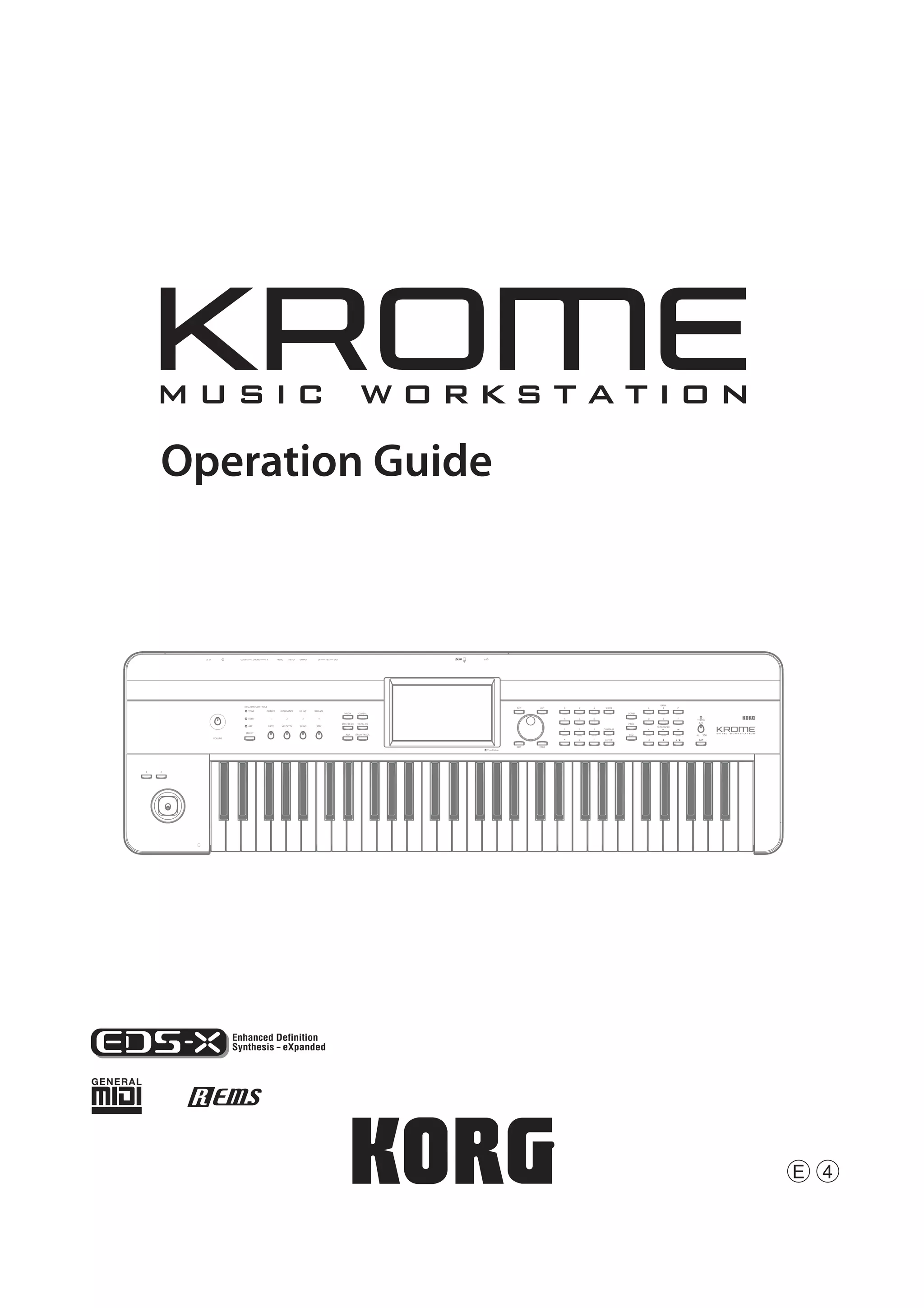
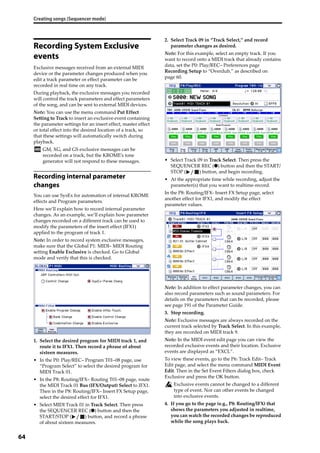
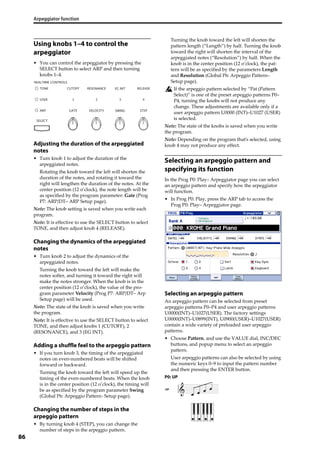
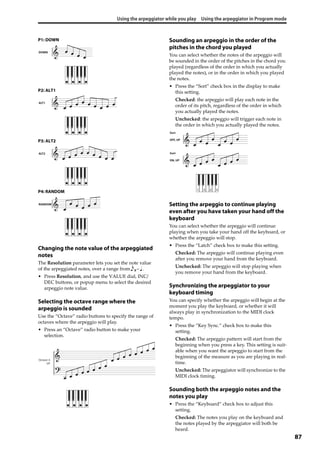
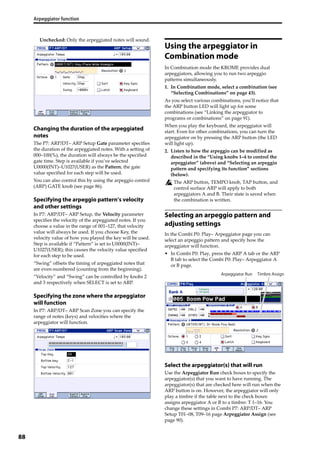
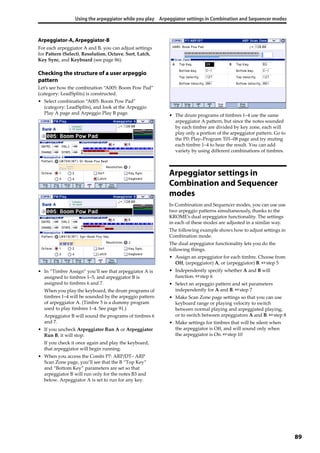
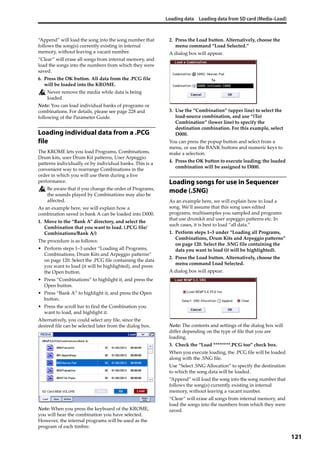
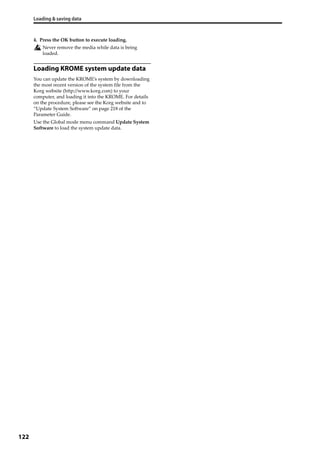
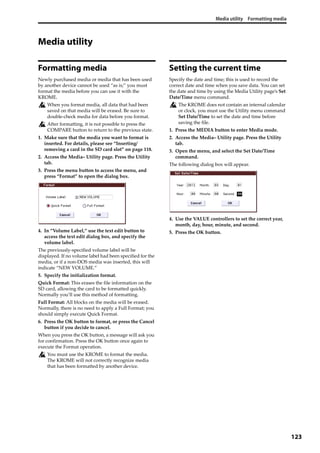
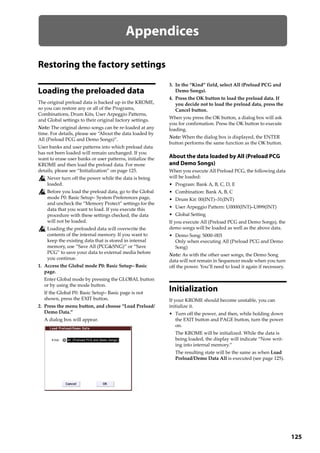
Operation Guide
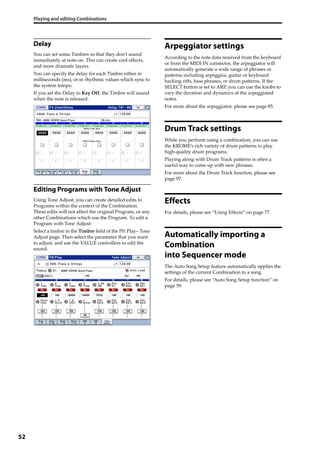
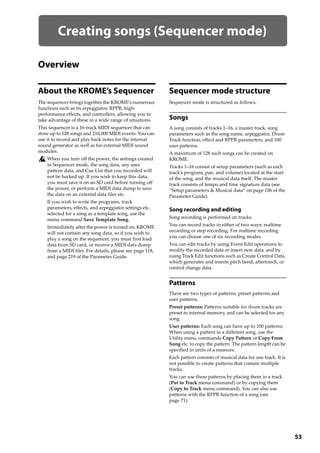
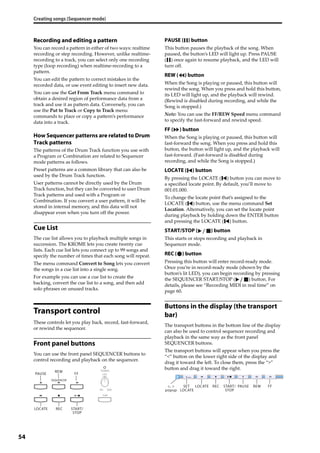
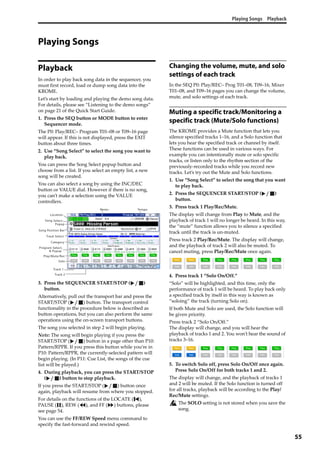
ii
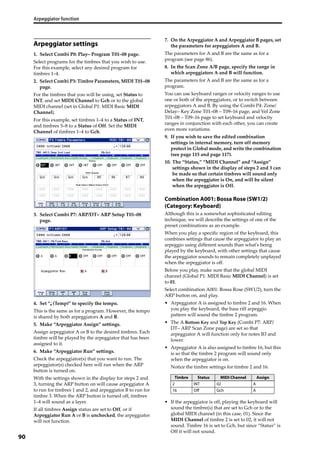
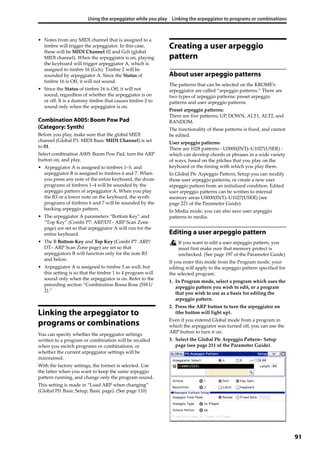
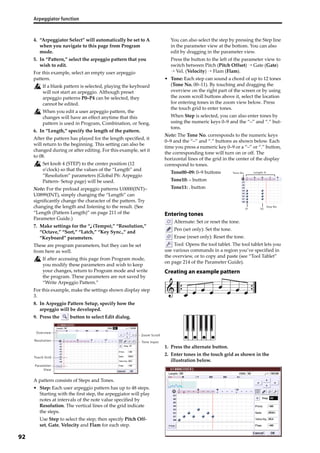
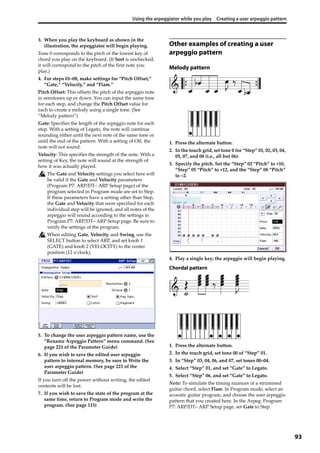
About this manual
The manuals and how to use them
The KROME comes with the following manuals.
• Video Manual (approximately 60 minutes)
• Quick Start Guide (printed and PDF) 
• Operation Guide (PDF)
• Parameter Guide (PDF)
• Voice Name List (PDF)
All of these manuals are on the included accessory disc.
A printed copy is included only for the Quick Start 
Guide.
Video Manual
This video illustrates the main functionality of the 
KROME.
Quick Start Guide
This provides a simple explanation of the KROME’s 
functions. To begin, please watch the Video Manual and 
read the Quick Start Guide.
Operation Guide
Put simply, the Operation Guide is designed to answer 
the question, “How do I do this?”
It explains the names and functions of each part of the 
KROME, basic operation, an overview of each mode, 
how to edit sounds, record on the sequencer, and so on. 
This guide also explains the basics of effects, the 
Arpeggiator, Drum Track, and Drum Kits.
Finally, it also contains a troubleshooting guide as well as 
supplemental information such as a list of specifications.
Parameter Guide
The Parameter Guide is designed to answer the question, 
“What does this do?”
Organized by mode and page, the Parameter Guide 
includes information on each and every parameter in the 
KROME.
Voice Name List
The Voice Name List lists all of the sounds and setups 
that are in the KROME when it is shipped from the 
factory, including Programs, Combinations, 
Multisamples, Drumsamples, Drum Kits, Arpeggio 
Patterns, Drum Track Patterns, Template Songs, and 
Effect Presets.
PDF versions
The KROME PDF manuals are designed for easy 
navigation and searching. They include extensive PDF 
contents information, which generally appears on the 
side of the window in your PDF reader and lets you jump 
quickly to a specific section. All cross‐references are 
hyper‐links, so that clicking on them automatically takes 
you to the source of the reference.
Conventions in this manual
References to the KROME
The KROME is available in 88‐key, 73‐key, and 61‐key 
models. The manuals refer to all models without 
distinction as “the KROME.” The front panel and rear 
panel illustrations in the manual show the 61‐key model, 
but they apply identically to the other models.
Abbreviations for the manuals: QS, OG, PG,
VNL
In the documentation, references to the manuals are 
abbreviated as follows.
QS: Quick Start Guide
OG: Operation Guide
PG: Parameter Guide
VNL: The Voice Name List
Symbols , , Note, Tips
These symbols respectively indicate a caution, a MIDI‐
related explanation, a supplementary note, or a tip.
Example screen displays
The parameter values shown in the example screens of 
this manual are only for explanatory purposes, and may 
not necessary match the values that appear in the Display 
of your instrument.
MIDI-related explanations
CC# is an abbreviation for Control Change Number.
In explanations of MIDI messages, numbers in square 
brackets [  ] always indicate hexadecimal numbers.
What is REMs * ?
 (Resonant structure and Electronic circuit 
Modeling System) is Korg’s proprietary technology for 
digitally recreating the numerous factors that produce 
and influence a sound, ranging from the sound‐
production mechanisms of acoustic instruments and 
electric/electronic musical instruments, to the resonances 
of an instrument body or speaker cabinet, the sound field 
in which the instrument is played, the propagation route 
of the sound, the electrical and acoustic response of mics 
and speakers, and the changes produced by vacuum 
tubes and transistors.
* All product names and company names are the 
trademarks or registered trademarks of their respective 
owners.
Thank you for purchasing the Korg KROME Music Workstation. To help you get the most out of your new 
instrument, please read this manual carefully.
iii
Table of Contents
About this manual . . . . . . . . . . . . . . . . . . . . . . . . . . . ii
Introduction to the KROME. . . . . . . . . . . . 1
Front and rear panels. . . . . . . . . . . . . . . . . . . . . . . . . 1
Front panel . . . . . . . . . . . . . . . . . . . . . . . . . . . . . . . . . . . . . . .1
Rear panel . . . . . . . . . . . . . . . . . . . . . . . . . . . . . . . . . . . . . . . .3
Objects in the display . . . . . . . . . . . . . . . . . . . . . . . . . . . . .4
Basic Information . . . . . . . . . . . . . . . . . . . . . . . . . . . . 7
About the KROME’s modes . . . . . . . . . . . . . . . . . . . . . . . .7
Basic operations . . . . . . . . . . . . . . . . . . . . . . . . . . . . . . . . . .9
Setup . . . . . . . . . . . . . . . . . . . . . . . . . . . . . . .15
Turning the power on/off . . . . . . . . . . . . . . . . . . . . 15
Connecting the AC adapter. . . . . . . . . . . . . . . . . . . . . . .15
Turning the power on . . . . . . . . . . . . . . . . . . . . . . . . . . . .15
Turning the power off. . . . . . . . . . . . . . . . . . . . . . . . . . . .15
Connections . . . . . . . . . . . . . . . . . . . . . . . . . . . . . . . . 17
Audio connections . . . . . . . . . . . . . . . . . . . . . . . . . . . . . . .18
Connecting a damper pedal, foot switch, or
foot pedal . . . . . . . . . . . . . . . . . . . . . . . . . . . . . . . . . . . .18
Connecting the KROME to a computer. . . . . . . . . . . .20
Connecting MIDI devices . . . . . . . . . . . . . . . . . . . . . . . . .20
Playing and editing Programs . . . . . . . .21
Playing Programs . . . . . . . . . . . . . . . . . . . . . . . . . . . 21
Selecting Programs . . . . . . . . . . . . . . . . . . . . . . . . . . . . . .21
Program information. . . . . . . . . . . . . . . . . . . . . . . . . . . . .24
Using Controllers . . . . . . . . . . . . . . . . . . . . . . . . . . . . . . . .24
Performing with the arpeggiator or drum track . . .26
Easy Program editing. . . . . . . . . . . . . . . . . . . . . . . . 27
Adjusting the EQ. . . . . . . . . . . . . . . . . . . . . . . . . . . . . . . . .27
Adjusting the volume balance. . . . . . . . . . . . . . . . . . . .27
Using realtime controls to edit the sound or
effects. . . . . . . . . . . . . . . . . . . . . . . . . . . . . . . . . . . . . . . .28
Using Tone Adjust . . . . . . . . . . . . . . . . . . . . . . . . . . . . . . .29
Comparing the unedited sound . . . . . . . . . . . . . . . . . .30
Saving your edits. . . . . . . . . . . . . . . . . . . . . . . . . . . . . . . . .30
Detailed Editing with Programs . . . . . . . . . . . . . . 31
Before you start editing . . . . . . . . . . . . . . . . . . . . . . . . . .31
An overview of the edit pages . . . . . . . . . . . . . . . . . . . .32
Basic oscillator settings. . . . . . . . . . . . . . . . . . . . . . . . . . .32
Creating time-varying changes (LFO and EG). . . . . .35
Diverse modulation settings
(AMS and AMS mixer). . . . . . . . . . . . . . . . . . . . . . . . .36
Controlling Pitch. . . . . . . . . . . . . . . . . . . . . . . . . . . . . . . . .37
Using Filters . . . . . . . . . . . . . . . . . . . . . . . . . . . . . . . . . . . . .38
Using the Amp section . . . . . . . . . . . . . . . . . . . . . . . . . . .40
Making controller assignments . . . . . . . . . . . . . . . . . . .41
Arpeggiator settings . . . . . . . . . . . . . . . . . . . . . . . . . . . . .42
Drum Track settings. . . . . . . . . . . . . . . . . . . . . . . . . . . . . .42
Effects. . . . . . . . . . . . . . . . . . . . . . . . . . . . . . . . . . . . . . . . . . .42
Automatically importing a Program
into Sequence mode . . . . . . . . . . . . . . . . . . . . . . . . .42
Playing and editing Combinations . . . .43
Playing combinations . . . . . . . . . . . . . . . . . . . . . . . 43
Selecting Combinations. . . . . . . . . . . . . . . . . . . . . . . . . .43
Using controllers to modify the sound. . . . . . . . . . . .45
Performing with the arpeggiator or drum track . . .45
Easy Combination editing. . . . . . . . . . . . . . . . . . . . 46
Changing the program of each timbre. . . . . . . . . . . .46
Adjusting the mix. . . . . . . . . . . . . . . . . . . . . . . . . . . . . . . .46
Simple editing using the knobs. . . . . . . . . . . . . . . . . . .47
Saving a Combination you’ve edited . . . . . . . . . . . . .47
Detailed Editing with Combinations . . . . . . . . . . 47
A suggested approach for editing . . . . . . . . . . . . . . . .48
Restoring edited settings. . . . . . . . . . . . . . . . . . . . . . . . .48
Layers, Splits, and Velocity Switches . . . . . . . . . . . . . .48
MIDI settings . . . . . . . . . . . . . . . . . . . . . . . . . . . . . . . . . . . .50
Altering Programs to fit within a Combination . . . .51
Arpeggiator settings . . . . . . . . . . . . . . . . . . . . . . . . . . . . .52
Drum Track settings . . . . . . . . . . . . . . . . . . . . . . . . . . . . .52
Effects. . . . . . . . . . . . . . . . . . . . . . . . . . . . . . . . . . . . . . . . . . .52
Automatically importing a Combination
into Sequencer mode. . . . . . . . . . . . . . . . . . . . . . . . .52
Creating songs (Sequencer mode) . . . .53
Overview . . . . . . . . . . . . . . . . . . . . . . . . . . . . . . . . . . . 53
About the KROME’s Sequencer . . . . . . . . . . . . . . . . . . .53
Sequencer mode structure . . . . . . . . . . . . . . . . . . . . . . .53
Transport control . . . . . . . . . . . . . . . . . . . . . . . . . . . . . . . .54
Playing Songs. . . . . . . . . . . . . . . . . . . . . . . . . . . . . . . 55
Playback. . . . . . . . . . . . . . . . . . . . . . . . . . . . . . . . . . . . . . . . .55
Recording . . . . . . . . . . . . . . . . . . . . . . . . . . . . . . . . . . 57
Preparations for recording . . . . . . . . . . . . . . . . . . . . . . .57
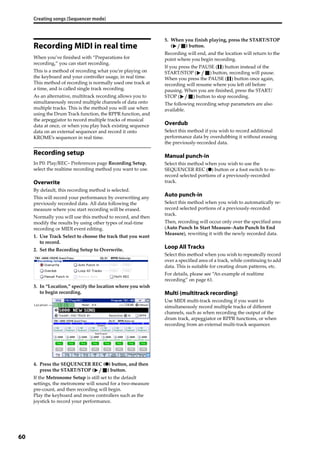
Recording MIDI in real time . . . . . . . . . . . . . . . . . . . . . .60
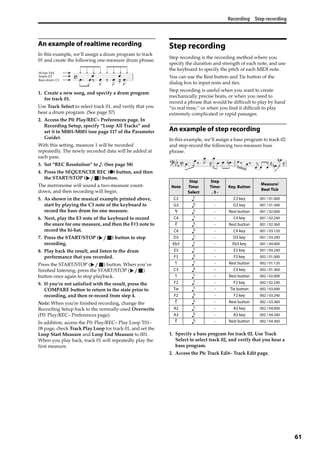
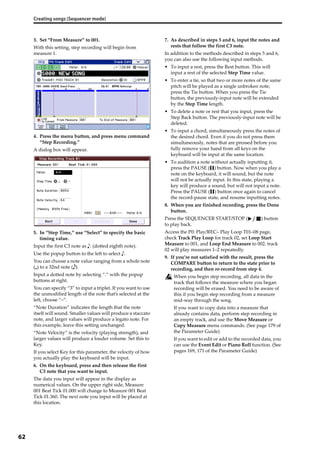
Step recording. . . . . . . . . . . . . . . . . . . . . . . . . . . . . . . . . . .61
Recording multiple tracks from an external
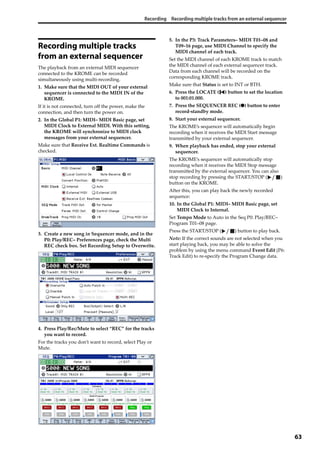
sequencer. . . . . . . . . . . . . . . . . . . . . . . . . . . . . . . . . . . .63
Recording System Exclusive events. . . . . . . . . . . . . . .64
Recording patterns . . . . . . . . . . . . . . . . . . . . . . . . . . . . . .65
Other way to record . . . . . . . . . . . . . . . . . . . . . . . . . . . . .66
Song editing . . . . . . . . . . . . . . . . . . . . . . . . . . . . . . . . 67
Song . . . . . . . . . . . . . . . . . . . . . . . . . . . . . . . . . . . . . . . . . . . .67
MIDI tracks . . . . . . . . . . . . . . . . . . . . . . . . . . . . . . . . . . . . . .67
Track view edit . . . . . . . . . . . . . . . . . . . . . . . . . . . . . . . . . .68
Piano Roll Editing . . . . . . . . . . . . . . . . . . . . . . . . . . . . . . . .70
Table of Contents
iv
Creating an RPPR pattern. . . . . . . . . . . . . . . . . . . . 71
Creating RPPR data. . . . . . . . . . . . . . . . . . . . . . . . . . . . . . .71
RPPR playback . . . . . . . . . . . . . . . . . . . . . . . . . . . . . . . . . . .72
Realtime-recording an RPPR performance . . . . . . . .72
Creating and playing a Cue List . . . . . . . . . . . . . . 74
Creating a cue list . . . . . . . . . . . . . . . . . . . . . . . . . . . . . . . .74
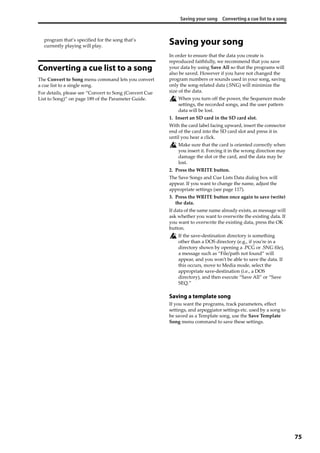
Converting a cue list to a song. . . . . . . . . . . . . . . . . . . .75
Saving your song . . . . . . . . . . . . . . . . . . . . . . . . . . . 75
Using Effects. . . . . . . . . . . . . . . . . . . . . . . . 77
An overview of the KROME’s effects . . . . . . . . . . 77
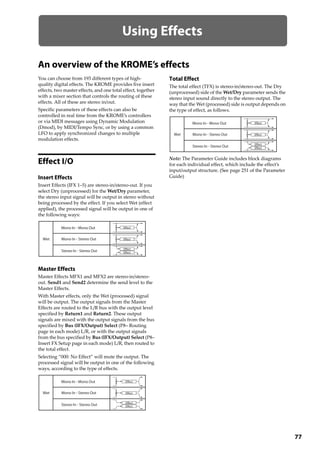
Effect I/O . . . . . . . . . . . . . . . . . . . . . . . . . . . . . . . . . . . . . . . .77
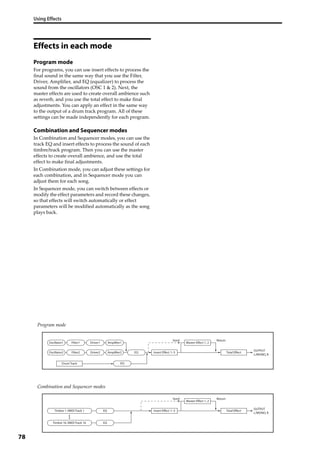
Effects in each mode . . . . . . . . . . . . . . . . . . . . . . . . . . . . .78
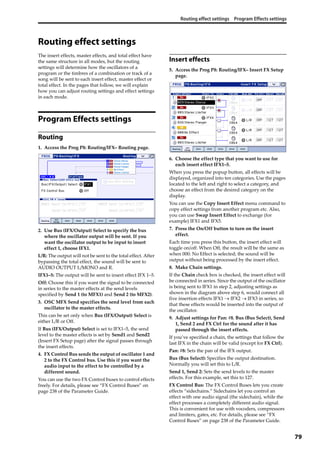
Routing effect settings . . . . . . . . . . . . . . . . . . . . . . 79
Program Effects settings. . . . . . . . . . . . . . . . . . . . . . . . . .79
Using effects in Combinations and Songs . . . . . . . . .81
Dynamic modulation, Common FX LFO . . . . . . . 82
Dynamic modulation (Dmod). . . . . . . . . . . . . . . . . . . . .82
Common FX LFO. . . . . . . . . . . . . . . . . . . . . . . . . . . . . . . . .83
Arpeggiator function . . . . . . . . . . . . . . . . 85
Using the arpeggiator while you play . . . . . . . . 85
Using the arpeggiator in Program mode . . . . . . . . . .85
Using the arpeggiator in Combination mode. . . . . .88
Arpeggiator settings in Combination and
Sequencer modes . . . . . . . . . . . . . . . . . . . . . . . . . . . .89
Linking the arpeggiator to programs or
combinations. . . . . . . . . . . . . . . . . . . . . . . . . . . . . . . . .91
Creating a user arpeggio pattern . . . . . . . . . . . . . . . . .91
Regarding arpeggiator synchronization. . . . . . . . . . .96
Drum Track function . . . . . . . . . . . . . . . . 97
Performing with the Drum Track function . . . . 97
Using the Drum Track function in Program
mode . . . . . . . . . . . . . . . . . . . . . . . . . . . . . . . . . . . . . . . .97
Using the Drum Track function in Combination
mode . . . . . . . . . . . . . . . . . . . . . . . . . . . . . . . . . . . . . . . .98
Drum Track function settings . . . . . . . . . . . . . . . 100
Drum Track function settings in Program
mode . . . . . . . . . . . . . . . . . . . . . . . . . . . . . . . . . . . . . . 100
Drum Track function settings in Combination
mode . . . . . . . . . . . . . . . . . . . . . . . . . . . . . . . . . . . . . . 101
Drum Track function settings in Sequencer
mode . . . . . . . . . . . . . . . . . . . . . . . . . . . . . . . . . . . . . . 101
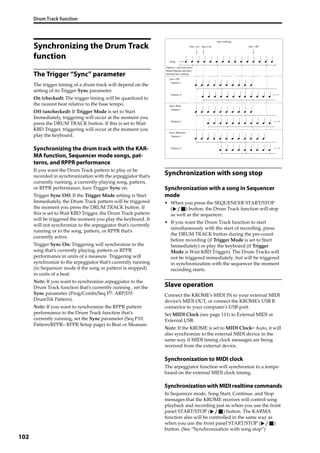
Synchronizing the Drum Track function. . . . . . . . . 102
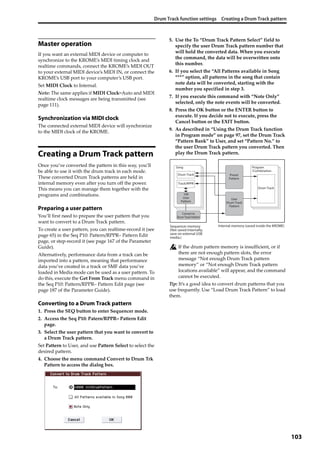
Creating a Drum Track pattern. . . . . . . . . . . . . . . . . . 103
Using Drum Kits. . . . . . . . . . . . . . . . . . . . 105
Drum Kit Overview. . . . . . . . . . . . . . . . . . . . . . . . . . . . . 105
Before you start editing… . . . . . . . . . . . . . . . . . . . . . . 105
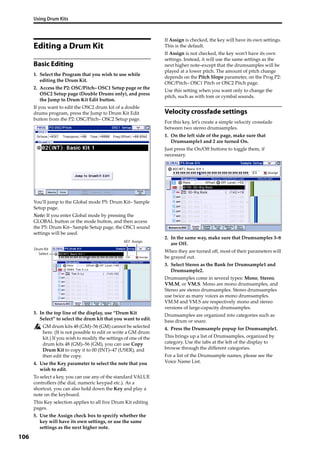
Editing a Drum Kit. . . . . . . . . . . . . . . . . . . . . . . . . . . . . . 106
Adjusting Global KROME setings . . . . 109
How Global mode is structured. . . . . . . . . . . . . . 109
Global settings. . . . . . . . . . . . . . . . . . . . . . . . . . . . . 109
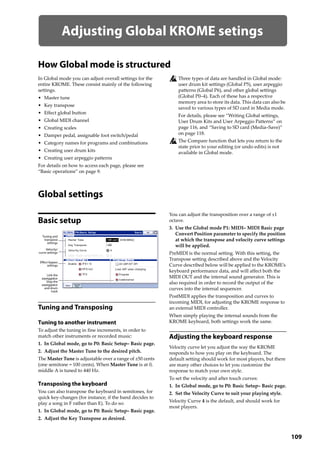
Basic setup . . . . . . . . . . . . . . . . . . . . . . . . . . . . . . . . . . . . .109
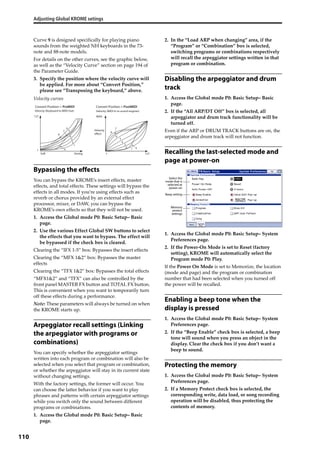
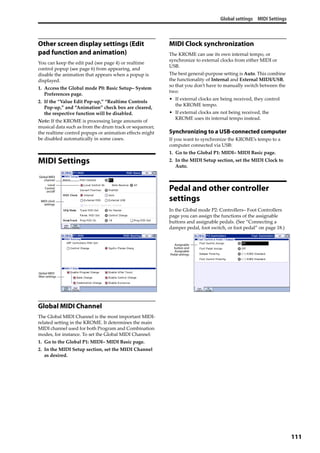
MIDI Settings . . . . . . . . . . . . . . . . . . . . . . . . . . . . . . . . . . .111
Pedal and other controller settings . . . . . . . . . . . . . .111
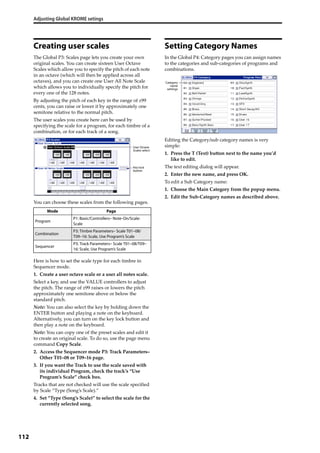
Creating user scales. . . . . . . . . . . . . . . . . . . . . . . . . . . . .112
Setting Category Names . . . . . . . . . . . . . . . . . . . . . . . .112
Loading & saving data. . . . . . . . . . . . . . 113
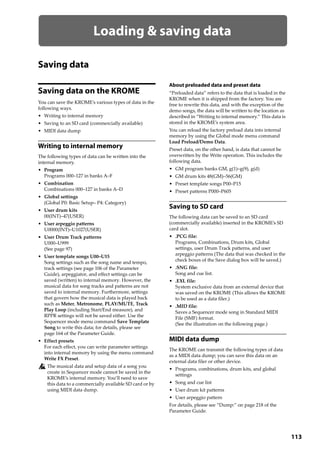
Saving data. . . . . . . . . . . . . . . . . . . . . . . . . . . . . . . . 113
Saving data on the KROME . . . . . . . . . . . . . . . . . . . . . .113
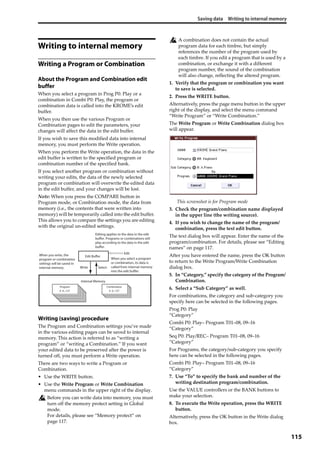
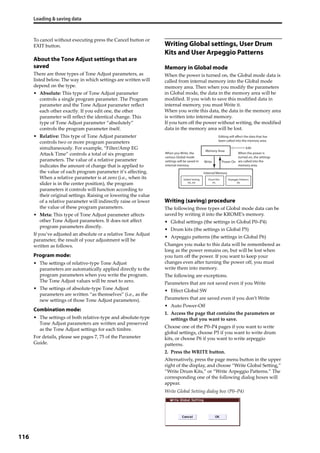
Writing to internal memory . . . . . . . . . . . . . . . . . . . . .115
Editing names . . . . . . . . . . . . . . . . . . . . . . . . . . . . . . . . . .117
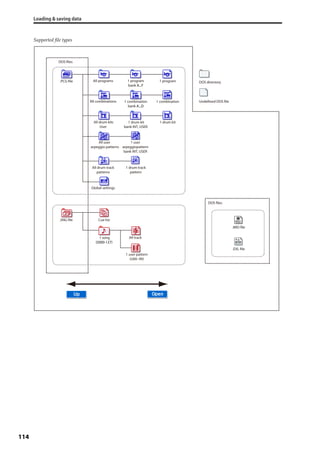
Saving to SD card (Media–Save) . . . . . . . . . . . . . . . . .118
Using the KROME as a data filer. . . . . . . . . . . . . . . . . .119
Loading data . . . . . . . . . . . . . . . . . . . . . . . . . . . . . . 120
Data that can be loaded. . . . . . . . . . . . . . . . . . . . . . . . .120
Loading data from SD card (Media–Load). . . . . . . .120
Media utility . . . . . . . . . . . . . . . . . . . . . . . . . . . . . . . 123
Formatting media . . . . . . . . . . . . . . . . . . . . . . . . . . . . . .123
Setting the current time. . . . . . . . . . . . . . . . . . . . . . . . .123
Appendices . . . . . . . . . . . . . . . . . . . . . . . . 125
Restoring the factory settings. . . . . . . . . . . . . . . 125
Loading the preloaded data. . . . . . . . . . . . . . . . . . . . .125
Initialization . . . . . . . . . . . . . . . . . . . . . . . . . . . . . . . . . . . .125
Troubleshooting . . . . . . . . . . . . . . . . . . . . . . . . . . . 126
Power supply . . . . . . . . . . . . . . . . . . . . . . . . . . . . . . . . . . .126
Display . . . . . . . . . . . . . . . . . . . . . . . . . . . . . . . . . . . . . . . . .126
Audio output . . . . . . . . . . . . . . . . . . . . . . . . . . . . . . . . . . .126
Programs and Combinations . . . . . . . . . . . . . . . . . . . .127
Songs . . . . . . . . . . . . . . . . . . . . . . . . . . . . . . . . . . . . . . . . . .128
Arpeggiator . . . . . . . . . . . . . . . . . . . . . . . . . . . . . . . . . . . .128
Drum Track function . . . . . . . . . . . . . . . . . . . . . . . . . . . .128
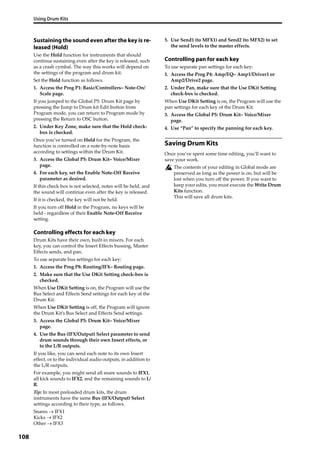
Drum Kits. . . . . . . . . . . . . . . . . . . . . . . . . . . . . . . . . . . . . . .128
Effects. . . . . . . . . . . . . . . . . . . . . . . . . . . . . . . . . . . . . . . . . .129
MIDI. . . . . . . . . . . . . . . . . . . . . . . . . . . . . . . . . . . . . . . . . . . .129
Damper pedal . . . . . . . . . . . . . . . . . . . . . . . . . . . . . . . . . .129
Media . . . . . . . . . . . . . . . . . . . . . . . . . . . . . . . . . . . . . . . . . .129
Connections with a computer . . . . . . . . . . . . . . . . . . .129
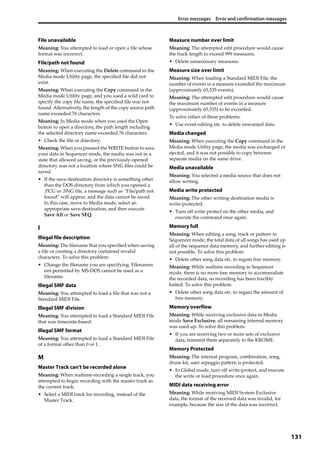
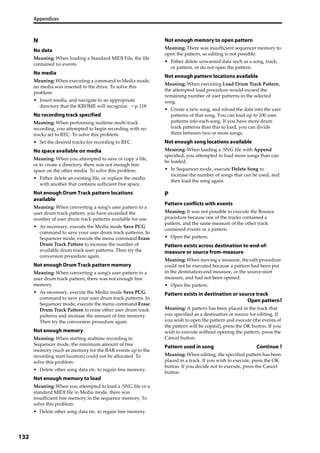
Error messages. . . . . . . . . . . . . . . . . . . . . . . . . . . . . 130
Error and confirmation messages. . . . . . . . . . . . . . . .130
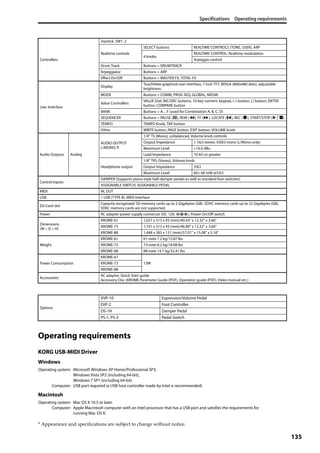
Specifications. . . . . . . . . . . . . . . . . . . . . . . . . . . . . . 134
Operating requirements . . . . . . . . . . . . . . . . . . . . . . . .135
MIDI Implementation Chart. . . . . . . . . . . . . . . . . 136
1
Introduction to the KROME
Front and rear panels
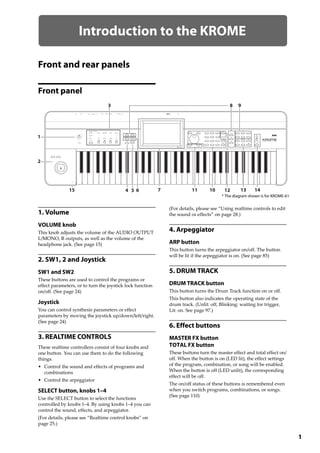
Front panel
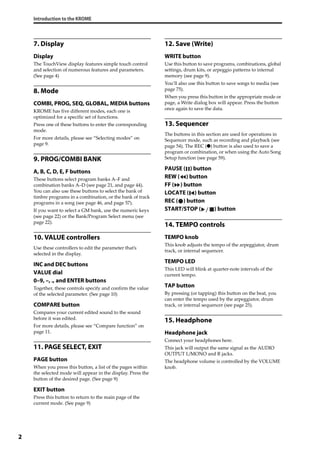
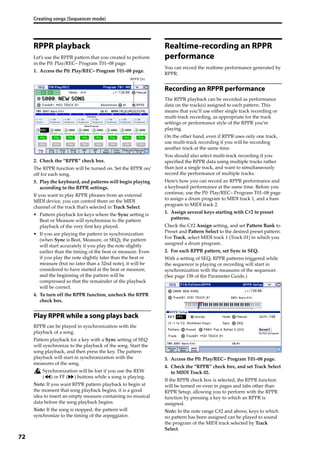
1. Volume
VOLUME knob
This knob adjusts the volume of the AUDIO OUTPUT 
L/MONO, R outputs, as well as the volume of the 
headphone jack. (See page 15)
2. SW1, 2 and Joystick
SW1 and SW2
These buttons are used to control the programs or 
effect parameters, or to turn the joystick lock function 
on/off. (See page 24)
Joystick
You can control synthesis parameters or effect 
parameters by moving the joystick up/down/left/right. 
(See page 24)
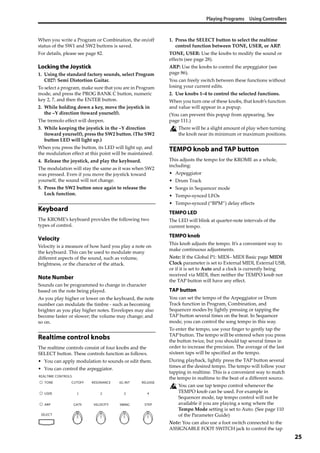
3. REALTIME CONTROLS
These realtime controllers consist of four knobs and 
one button. You can use them to do the following 
things.
• Control the sound and effects of programs and 
combinations
• Control the arpeggiator
SELECT button, knobs 1–4
Use the SELECT button to select the functions 
controlled by knobs 1–4. By using knobs 1–4 you can 
control the sound, effects, and arpeggiator.
(For details, please see “Realtime control knobs” on 
page 25.)
(For details, please see “Using realtime controls to edit 
the sound or effects” on page 28.)
4. Arpeggiator
ARP button
This button turns the arpeggiator on/off. The button 
will be lit if the arpeggiator is on. (See page 85)
5. DRUM TRACK
DRUM TRACK button
This button turns the Drum Track function on or off.
This button also indicates the operating state of the 
drum track. (Unlit: off, Blinking: waiting for trigger, 
Lit: on. See page 97.)
6. Effect buttons
MASTER FX button
TOTAL FX button
These buttons turn the master effect and total effect on/
off. When the button is on (LED lit), the effect settings 
of the program, combination, or song will be enabled. 
When the button is off (LED unlit), the corresponding 
effect will be off.
The on/off status of these buttons is remembered even 
when you switch programs, combinations, or songs. 
(See page 110)
2
3
7
8 9
415 5 11 10 13 146
1
12
* The diagram shown is for KROME-61
Introduction to the KROME
2
7. Display
Display
The TouchView display features simple touch control 
and selection of numerous features and parameters. 
(See page 4)
8. Mode
COMBI, PROG, SEQ, GLOBAL, MEDIA buttons
KROME has five different modes, each one is 
optimized for a specific set of functions.
Press one of these buttons to enter the corresponding 
mode.
For more details, please see “Selecting modes” on 
page 9.
9. PROG/COMBI BANK
A, B, C, D, E, F buttons
These buttons select program banks A–F and 
combination banks A–D (see page 21, and page 44). 
You can also use these buttons to select the bank of 
timbre programs in a combination, or the bank of track 
programs in a song (see page 46, and page 57).
If you want to select a GM bank, use the numeric keys 
(see page 22) or the Bank/Program Select menu (see 
page 22).
10. VALUE controllers
Use these controllers to edit the parameter that’s 
selected in the display.
INC and DEC buttons
VALUE dial
0–9, –, ., and ENTER buttons
Together, these controls specify and confirm the value 
of the selected parameter. (See page 10)
COMPARE button
Compares your current edited sound to the sound 
before it was edited.
For more details, please see “Compare function” on 
page 11.
11. PAGE SELECT, EXIT
PAGE button
When you press this button, a list of the pages within 
the selected mode will appear in the display. Press the 
button of the desired page. (See page 9)
EXIT button
Press this button to return to the main page of the 
current mode. (See page 9)
12. Save (Write)
WRITE button
Use this button to save programs, combinations, global 
settings, drum kits, or arpeggio patterns to internal 
memory (see page 9).
You’ll also use this button to save songs to media (see 
page 75).
When you press this button in the appropriate mode or 
page, a Write dialog box will appear. Press the button 
once again to save the data.
13. Sequencer
The buttons in this section are used for operations in 
Sequencer mode, such as recording and playback (see 
page 54). The REC (●) button is also used to save a 
program or combination, or when using the Auto Song 
Setup function (see page 59).
PAUSE ( ) button
REW ( ) button
FF ( ) button
LOCATE ( ) button
REC ( ) button
START/STOP ( ) button
14. TEMPO controls
TEMPO knob
This knob adjusts the tempo of the arpeggiator, drum 
track, or internal sequencer.
TEMPO LED
This LED will blink at quarter‐note intervals of the 
current tempo.
TAP button
By pressing (or tapping) this button on the beat, you 
can enter the tempo used by the arpeggiator, drum 
track, or internal sequencer (see page 25).
15. Headphone
Headphone jack
Connect your headphones here.
This jack will output the same signal as the AUDIO 
OUTPUT L/MONO and R jacks.
The headphone volume is controlled by the VOLUME 
knob.
Front and rear panels Rear panel
3
Rear panel
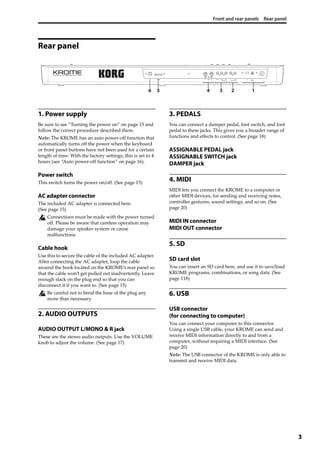
1. Power supply
Be sure to see “Turning the power on” on page 15 and 
follow the correct procedure described there.
Note: The KROME has an auto power‐off function that 
automatically turns off the power when the keyboard 
or front panel buttons have not been used for a certain 
length of time. With the factory settings, this is set to 4 
hours (see “Auto power‐off function” on page 16).
Power switch
This switch turns the power on/off. (See page 15)
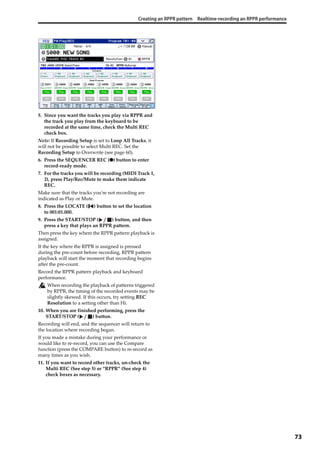
AC adapter connector
The included AC adapter is connected here. 
(See page 15)
Connections must be made with the power turned 
off. Please be aware that careless operation may 
damage your speaker system or cause 
malfunctions.
Cable hook
Use this to secure the cable of the included AC adapter. 
After connecting the AC adapter, loop the cable 
around the hook located on the KROME’s rear panel so 
that the cable won’t get pulled out inadvertently. Leave 
enough slack on the plug end so that you can 
disconnect it if you want to. (See page 15)
Be careful not to bend the base of the plug any 
more than necessary.
2. AUDIO OUTPUTS
AUDIO OUTPUT L/MONO & R jack
These are the stereo audio outputs. Use the VOLUME 
knob to adjust the volume. (See page 17)
3. PEDALS
You can connect a damper pedal, foot switch, and foot 
pedal to these jacks. This gives you a broader range of 
functions and effects to control. (See page 18)
ASSIGNABLE PEDAL jack
ASSIGNABLE SWITCH jack
DAMPER jack
4. MIDI
MIDI lets you connect the KROME to a computer or 
other MIDI devices, for sending and receiving notes, 
controller gestures, sound settings, and so on. (See 
page 20)
MIDI IN connector
MIDI OUT connector
5. SD
SD card slot
You can insert an SD card here, and use it to save/load 
KROME programs, combinations, or song data. (See 
page 118)
6. USB
USB connector
(for connecting to computer)
You can connect your computer to this connector. 
Using a single USB cable, your KROME can send and 
receive MIDI information directly to and from a 
computer, without requiring a MIDI interface. (See 
page 20)
Note: The USB connector of the KROME is only able to 
transmit and receive MIDI data.
12456 3
Introduction to the KROME
4
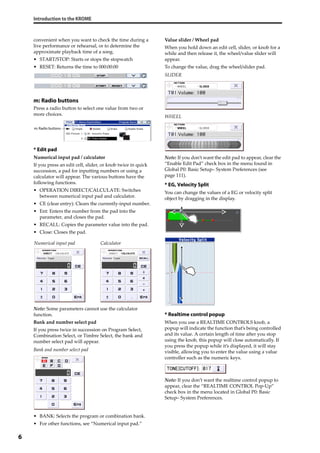
Objects in the display
The KROME uses Korg’s TouchView graphical user 
interface.
By pressing or dragging objects shown in the display, 
you can select programs or combinations, or edit 
parameter values. Here we’ll explain the names and 
functions of these objects.
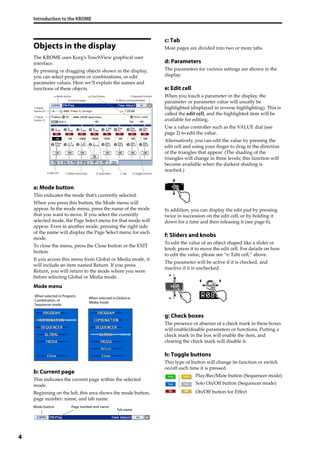
a: Mode button
This indicates the mode that’s currently selected.
When you press this button, the Mode menu will 
appear. In the mode menu, press the name of the mode 
that you want to move. If you select the currently 
selected mode, the Page Select menu for that mode will 
appear. Even in another mode, pressing the right side 
of the name will display the Page Select menu for each 
mode.
To close the menu, press the Close button or the EXIT 
button.
If you access this menu from Global or Media mode, it 
will include an item named Return. If you press 
Return, you will return to the mode where you were 
before selecting Global or Media mode.
Mode menu
b: Current page
This indicates the current page within the selected 
mode.
Beginning on the left, this area shows the mode button, 
page number: name, and tab name.
c: Tab
Most pages are divided into two or more tabs.
d: Parameters
The parameters for various settings are shown in the 
display.
e: Edit cell
When you touch a parameter in the display, the 
parameter or parameter value will usually be 
highlighted (displayed in reverse highlighting). This is 
called the edit cell, and the highlighted item will be 
available for editing.
Use a value controller such as the VALUE dial (see 
page 2) to edit the value.
Alternatively, you can edit the value by pressing the 
edit cell and using your finger to drag in the direction 
of the triangles that appear. (The shading of the 
triangles will change in three levels; this function will 
become available when the darkest shading is 
reached.)
In addition, you can display the edit pad by pressing 
twice in succession on the edit cell, or by holding it 
down for a time and then releasing it (see page 6).
f: Sliders and knobs
To edit the value of an object shaped like a slider or 
knob, press it to move the edit cell. For details on how 
to edit the value, please see “e: Edit cell,” above.
The parameter will be active if it is checked, and 
inactive if it is unchecked.
g: Check boxes
The presence or absence of a check mark in these boxes 
will enable/disable parameters or functions. Putting a 
check mark in the box will enable the item, and 
clearing the check mark will disable it.
h: Toggle buttons
This type of button will change its function or switch 
on/off each time it is pressed.
Play/Rec/Mute button (Sequencer mode)
Solo On/Off button (Sequencer mode)
On/Off button for Effect
h: Toggle buttons
b: Current page
e: Edit cell
g: Check boxes
i: Popup
button (1)
j: Popup
button (2)
k: Menu command button
a: Mode button l: Stopwatch button
f: Sliders and knobs c: Tabd: Parameters
When selected in Program,
Combination, or
Sequencer mode
When selected in Global or
Media mode
Mode button Page number and name
Tab name
Front and rear panels Objects in the display
5
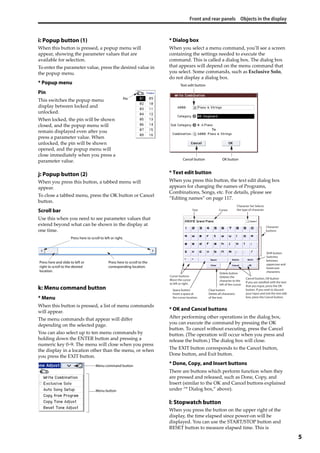
i: Popup button (1)
When this button is pressed, a popup menu will 
appear, showing the parameter values that are 
available for selection.
To enter the parameter value, press the desired value in 
the popup menu.
* Popup menu
Pin
This switches the popup menu 
display between locked and 
unlocked.
When locked, the pin will be shown 
closed, and the popup menu will 
remain displayed even after you 
press a parameter value. When 
unlocked, the pin will be shown 
opened, and the popup menu will 
close immediately when you press a 
parameter value.
j: Popup button (2)
When you press this button, a tabbed menu will 
appear.
To close a tabbed menu, press the OK button or Cancel 
button.
Scroll bar
Use this when you need to see parameter values that 
extend beyond what can be shown in the display at 
one time.
k: Menu command button
* Menu
When this button is pressed, a list of menu commands 
will appear.
The menu commands that appear will differ 
depending on the selected page.
You can also select up to ten menu commands by 
holding down the ENTER button and pressing a 
numeric key 0–9. The menu will close when you press 
the display in a location other than the menu, or when 
you press the EXIT button.
* Dialog box
When you select a menu command, you’ll see a screen 
containing the settings needed to execute the 
command. This is called a dialog box. The dialog box 
that appears will depend on the menu command that 
you select. Some commands, such as Exclusive Solo, 
do not display a dialog box.
* Text edit button
When you press this button, the text edit dialog box 
appears for changing the names of Programs, 
Combinations, Songs, etc. For details, please see 
“Editing names” on page 117.
* OK and Cancel buttons
After performing other operations in the dialog box, 
you can execute the command by pressing the OK 
button. To cancel without executing, press the Cancel 
button. (The operation will occur when you press and 
release the button.) The dialog box will close.
The EXIT button corresponds to the Cancel button, 
Done button, and Exit button.
* Done, Copy, and Insert buttons
There are buttons which perform function when they 
are pressed and released, such as Done, Copy, and 
Insert (similar to the OK and Cancel buttons explained 
under “* Dialog box,” above). 
l: Stopwatch button
When you press the button on the upper right of the 
display, the time elapsed since power‐on will be 
displayed. You can use the START/STOP button and 
RESET button to measure elapsed time. This is 
Pin
Press here to scroll to left or right.
Press here and slide to left or
right to scroll to the desired
location.
Press here to scroll to the
corresponding location.
Menu command button
Menu button
Text edit button
Cancel button OK button
Character
buttons
Shift button
Switches
between
uppercase and
lowercase
characters.Delete button
Deletes the
character to the
left of the cursor.
Cursor buttons
Move the cursor
to left or right.
Space button
Insert a space at
the cursor location.
Clear button
Delete all characters
of the text.
Cancel button, OK button
If you are satisfied with the text
that you input, press the OK
button. If you wish to discard
your input and exit the text edit
box, press the Cancel button.
Cursor
Character Set Selects
the type of character.Text
Introduction to the KROME
6
convenient when you want to check the time during a 
live performance or rehearsal, or to determine the 
approximate playback time of a song.
• START/STOP: Starts or stops the stopwatch
• RESET: Returns the time to 000:00:00
m: Radio buttons
Press a radio button to select one value from two or 
more choices.
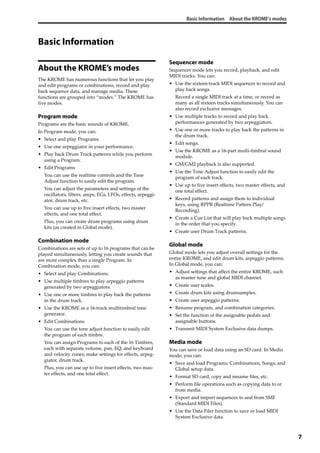
* Edit pad
Numerical input pad / calculator
If you press an edit cell, slider, or knob twice in quick 
succession, a pad for inputting numbers or using a 
calculator will appear. The various buttons have the 
following functions.
• OPERATION DIRECT/CALCULATE: Switches 
between numerical input pad and calculator.
• CE (clear entry): Clears the currently‐input number.
• Ent: Enters the number from the pad into the 
parameter, and closes the pad.
• RECALL: Copies the parameter value into the pad.
• Close: Closes the pad.
Note: Some parameters cannot use the calculator 
function.
Bank and number select pad
If you press twice in succession on Program Select, 
Combination Select, or Timbre Select, the bank and 
number select pad will appear.
Bank and number select pad
• BANK: Selects the program or combination bank.
• For other functions, see “Numerical input pad.”
Value slider / Wheel pad
When you hold down an edit cell, slider, or knob for a 
while and then release it, the wheel/value slider will 
appear.
To change the value, drag the wheel/slider pad.
SLIDER
WHEEL
Note: If you don’t want the edit pad to appear, clear the 
“Enable Edit Pad” check box in the menu found in 
Global P0: Basic Setup– System Preferences (see 
page 111).
* EG, Velocity Split
You can change the values of a EG or velocity split 
object by dragging in the display.
* Realtime control popup
When you use a REALTIME CONTROLS knob, a 
popup will indicate the function that’s being controlled 
and its value. A certain length of time after you stop 
using the knob, this popup will close automatically. If 
you press the popup while it’s displayed, it will stay 
visible, allowing you to enter the value using a value 
controller such as the numeric keys.
Note: If you don’t want the realtime control popup to 
appear, clear the “REALTIME CONTROL Pop‐Up” 
check box in the menu located in Global P0: Basic 
Setup– System Preferences.
m: Radio buttons
Numerical input pad Calculator
Basic Information About the KROME’s modes
7
Basic Information
About the KROME’s modes
The KROME has numerous functions that let you play 
and edit programs or combinations, record and play 
back sequence data, and manage media. These 
functions are grouped into “modes.” The KROME has 
five modes.
Program mode
Programs are the basic sounds of KROME.
In Program mode, you can:
• Select and play Programs.
• Use one arpeggiator in your performance.
• Play back Drum Track patterns while you perform 
using a Program.
• Edit Programs
You can use the realtime controls and the Tone 
Adjust function to easily edit the program.
You can adjust the parameters and settings of the 
oscillators, filters, amps, EGs, LFOs, effects, arpeggi‐
ator, drum track, etc. 
You can use up to five insert effects, two master 
effects, and one total effect.
Plus, you can create drum programs using drum 
kits (as created in Global mode).
Combination mode
Combinations are sets of up to 16 programs that can be 
played simultaneously, letting you create sounds that 
are more complex than a single Program. In 
Combination mode, you can:
• Select and play Combinations.
• Use multiple timbres to play arpeggio patterns 
generated by two arpeggiators.
• Use one or more timbres to play back the patterns 
in the drum track.
• Use the KROME as a 16‐track multitimbral tone 
generator.
• Edit Combinations
You can use the tone adjust function to easily edit 
the program of each timbre.
You can assign Programs to each of the 16 Timbres, 
each with separate volume, pan, EQ, and keyboard 
and velocity zones; make settings for effects, arpeg‐
giator, drum track.
Plus, you can use up to five insert effects, two mas‐
ter effects, and one total effect.
Sequencer mode
Sequencer mode lets you record, playback, and edit 
MIDI tracks. You can:
• Use the sixteen‐track MIDI sequencer to record and 
play back songs.
Record a single MIDI track at a time, or record as 
many as all sixteen tracks simultaneously. You can 
also record exclusive messages.
• Use multiple tracks to record and play back 
performances generated by two arpeggiators.
• Use one or more tracks to play back the patterns in 
the drum track.
• Edit songs.
• Use the KROME as a 16‐part multi‐timbral sound 
module.
• GM/GM2 playback is also supported.
• Use the Tone Adjust function to easily edit the 
program of each track.
• Use up to five insert effects, two master effects, and 
one total effect.
• Record patterns and assign them to individual 
keys, using RPPR (Realtime Pattern Play/
Recording).
• Create a Cue List that will play back multiple songs 
in the order that you specify.
• Create user Drum Track patterns.
Global mode
Global mode lets you adjust overall settings for the 
entire KROME, and edit drum kits, arpeggio patterns. 
In Global mode, you can:
• Adjust settings that affect the entire KROME, such 
as master tune and global MIDI channel.
• Create user scales.
• Create drum kits using drumsamples.
• Create user arpeggio patterns.
• Rename program, and combination categories.
• Set the function of the assignable pedals and 
assignable buttons.
• Transmit MIDI System Exclusive data dumps.
Media mode
You can save or load data using an SD card. In Media 
mode, you can:
• Save and load Programs, Combinations, Songs, and 
Global setup data.
• Format SD card, copy and rename files, etc. 
• Perform file operations such as copying data to or 
from media.
• Export and import sequences to and from SMF 
(Standard MIDI Files).
• Use the Data Filer function to save or load MIDI 
System Exclusive data.
Introduction to the KROME
8
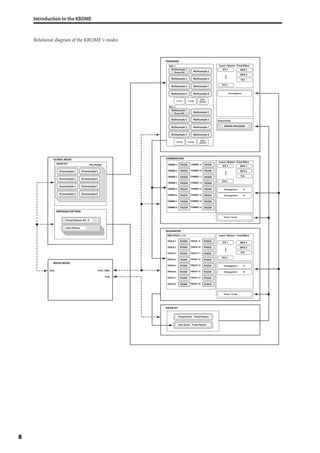
Relational diagram of the KROME’s modes
IFX 1
IFX 5
MFX 1
MFX 2
TFX
Insert / Master / Total Effect
TRACK 1
TRACK 8
TRACK 2
TRACK 3
TRACK 4
TRACK 5
TRACK 6
TRACK 7 PROGRAM
PROGRAM
PROGRAM
PROGRAM
PROGRAM
PROGRAM
PROGRAM
PROGRAM TRACK 9
TRACK 16
TRACK 10
TRACK 11
TRACK 12
TRACK 13
TRACK 14
TRACK 15 PROGRAM
PROGRAM
PROGRAM
PROGRAM
PROGRAM
PROGRAM
PROGRAM
PROGRAM
Arpeggiator B
Arpeggiator A
Drum Track
Drum Track
IFX 1
IFX 5
MFX 1
MFX 2
TFX
Insert / Master / Total Effect
TIMBRE 1
TIMBRE 8
TIMBRE 2
TIMBRE 3
TIMBRE 4
TIMBRE 5
TIMBRE 6
TIMBRE 7 PROGRAM
PROGRAM
PROGRAM
PROGRAM
PROGRAM
PROGRAM
PROGRAM
PROGRAM TIMBRE 9
TIMBRE 16
TIMBRE 10
TIMBRE 11
TIMBRE 12
TIMBRE 13
TIMBRE 14
TIMBRE 15 PROGRAM
PROGRAM
PROGRAM
PROGRAM
PROGRAM
PROGRAM
PROGRAM
PROGRAM
Arpeggiator
Arpeggiator B
Arpeggiator A
IFX 1
IFX 5
MFX 1
MFX 2
TFX
Insert / Master / Total EffectMIDI TRACK 1...16
PCG / SNG
PCG
PCG
DrumTrack
DRUMS PROGRAM
ARPEGGIO PATTERN
Preset Drum Track Pattern
User Drum Track Pattern
Preset Pattern: P0 - 4
User Pattern
OSC 1
PITCH1 FILTER1
AMP1/
DRIVER1
OSC 2
PITCH2 FILTER2
AMP2/
DRIVER2
Multisample 1
Drum Kit Multisample 5
Multisample 2 Multisample 6
Multisample 3 Multisample 7
Multisample 4 Multisample 8
Multisample 1
Drum Kit Multisample 5
Multisample 2 Multisample 6
Multisample 3 Multisample 7
Multisample 4 Multisample 8
Key AssignDRUM KIT
Drumsample 1 Drumsample 5
Drumsample 2 Drumsample 6
Drumsample 3 Drumsample 7
Drumsample 4 Drumsample 8
GLOBAL MODE
PROGRAM
COMBINATION
SEQUENCER
DRUM KIT
MEDIA MODEMEDIA MODE
ARPEGGIO PATTERN
Basic Information Basic operations
9
Basic operations
After you’ve turned on the KROME, here’s how to 
perform basic operations, such as selecting modes and 
pages.
Selecting modes
In order to use a particular function on the KROME, 
you must first select the appropriate mode.
• Press one of the front panel mode buttons to enter 
the corresponding mode.
• Alternatively, you can press the Mode button 
located in the upper left of the display, and select 
the desired mode from a menu (see page 4).
For a summary of each mode, please see “About the 
KROME’s modes” on page 7.
Note: The selected mode is shown in the upper left of 
the display, and also indicated by the lit status of one of 
the above mode buttons.
Note: By pressing the GLOBAL or MEDIA button 
twice, you can select the previously‐selected mode 
(Combination, Program, or Sequencer).
Selecting page group and tabs
Each mode has a large number of parameters, which 
are grouped into pages. These pages are further 
subdivided by tabs; with up to twelve tabs per page.
• Make sure that the desired mode is selected.
For this explanation we’ll use Combination mode as 
an example.
Selecting a page group
Moving by selecting a page group
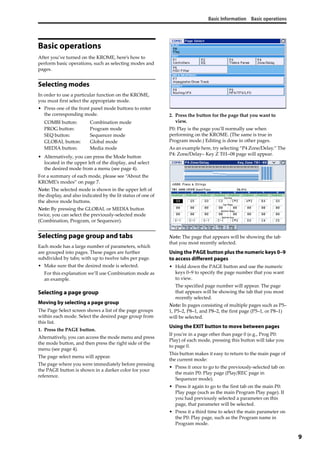
The Page Select screen shows a list of the page groups 
within each mode. Select the desired page group from 
this list.
1. Press the PAGE button.
Alternatively, you can access the mode menu and press 
the mode button, and then press the right side of the 
menu (see page 4).
The page select menu will appear.
The page where you were immediately before pressing 
the PAGE button is shown in a darker color for your 
reference.
2. Press the button for the page that you want to 
view.
P0: Play is the page you’ll normally use when 
performing on the KROME. (The same is true in 
Program mode.) Editing is done in other pages.
As an example here, try selecting “P4 Zone/Delay.” The 
P4: Zone/Delay– Key Z T01–08 page will appear.
Note: The page that appears will be showing the tab 
that you most recently selected.
Using the PAGE button plus the numeric keys 0–9
to access different pages
• Hold down the PAGE button and use the numeric 
keys 0–9 to specify the page number that you want 
to view.
The specified page number will appear. The page 
that appears will be showing the tab that you most 
recently selected.
Note: In pages consisting of multiple pages such as P5–
1, P5–2, P8–1, and P8–2, the first page (P5–1, or P8–1) 
will be selected.
Using the EXIT button to move between pages
If you’re in a page other than page 0 (e.g., Prog P0: 
Play) of each mode, pressing this button will take you 
to page 0.
This button makes it easy to return to the main page of 
the current mode:
• Press it once to go to the previously‐selected tab on 
the main P0: Play page (Play/REC page in 
Sequencer mode).
• Press it again to go to the first tab on the main P0: 
Play page (such as the main Program Play page). If 
you had previously selected a parameter on this 
page, that parameter will be selected.
• Press it a third time to select the main parameter on 
the P0: Play page, such as the Program name in 
Program mode.
COMBI button: Combination mode
PROG button: Program mode
SEQ button: Sequencer mode
GLOBAL button: Global mode
MEDIA button: Media mode
Introduction to the KROME
10
When a dialog box is open, this button cancels the 
settings made in the dialog box and closes the dialog 
box, just like pressing the Cancel button.
If a popup menu or menu is open, pressing EXIT closes 
the menu.
Selecting pages
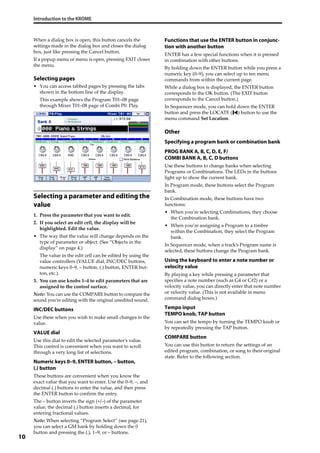
• You can access tabbed pages by pressing the tabs 
shown in the bottom line of the display.
This example shows the Program T01–08 page 
through Mixer T01–08 page of Combi P0: Play.
Selecting a parameter and editing the
value
1. Press the parameter that you want to edit.
2. If you select an edit cell, the display will be 
highlighted. Edit the value.
• The way that the value will change depends on the 
type of parameter or object. (See “Objects in the 
display” on page 4.)
The value in the edit cell can be edited by using the 
value controllers (VALUE dial, INC/DEC buttons, 
numeric keys 0–9, – button, (.) button, ENTER but‐
ton, etc.).
3. You can use knobs 1–4 to edit parameters that are 
assigned to the control surface.
Note: You can use the COMPARE button to compare the 
sound you’re editing with the original unedited sound.
INC/DEC buttons
Use these when you wish to make small changes in the 
value.
VALUE dial
Use this dial to edit the selected parameter’s value. 
This control is convenient when you want to scroll 
through a very long list of selections.
Numeric keys 0–9, ENTER button, – button,
(.) button
These buttons are convenient when you know the 
exact value that you want to enter. Use the 0–9, –, and 
decimal (.) buttons to enter the value, and then press 
the ENTER button to confirm the entry. 
The – button inverts the sign (+/–) of the parameter 
value; the decimal (.) button inserts a decimal, for 
entering fractional values.
Note: When selecting “Program Select” (see page 21), 
you can select a GM bank by holding down the 0 
button and pressing the (.), 1–9, or – buttons.
Functions that use the ENTER button in conjunc-
tion with another button
ENTER has a few special functions when it is pressed 
in combination with other buttons.
By holding down the ENTER button while you press a 
numeric key (0–9), you can select up to ten menu 
commands from within the current page.
While a dialog box is displayed, the ENTER button 
corresponds to the OK button. (The EXIT button 
corresponds to the Cancel button.)
In Sequencer mode, you can hold down the ENTER 
button and press the LOCATE ( ) button to use the 
menu command Set Location.
Other
Specifying a program bank or combination bank
PROG BANK A, B, C, D, E, F/
COMBI BANK A, B, C, D buttons
Use these buttons to change banks when selecting 
Programs or Combinations. The LEDs in the buttons 
light up to show the current bank.
In Program mode, these buttons select the Program 
bank.
In Combination mode, these buttons have two 
functions:
• When you’re selecting Combinations, they choose 
the Combination bank. 
• When you’re assigning a Program to a timbre 
within the Combination, they select the Program 
bank.
In Sequencer mode, when a track’s Program name is 
selected, these buttons change the Program bank.
Using the keyboard to enter a note number or
velocity value
By playing a key while pressing a parameter that 
specifies a note number (such as G4 or C#2) or a 
velocity value, you can directly enter that note number 
or velocity value. (This is not available in menu 
command dialog boxes.)
Tempo input
TEMPO knob, TAP button
You can set the tempo by turning the TEMPO knob or 
by repeatedly pressing the TAP button.
COMPARE button
You can use this button to return the settings of an 
edited program, combination, or song to their original 
state. Refer to the following section.
Basic Information Basic operations
11
Compare function
Program, Combination mode
Use this when you wish to compare the edits you have 
made to a program or combination’s sound with the 
un‐edited original (i.e., the sound that is written into 
memory).
When editing a program or combination, press this 
button. The LED will light up, and the last‐written 
settings for that program or combination number will 
be recalled. When you press the COMPARE button 
once again, the LED will go dark and you will return to 
the settings that you were editing.
1. When editing a program or combination, press 
this button. 
The LED will light up, and the last‐written settings for 
that program number or combination number will be 
recalled. 
2. Press the COMPARE button once again. 
Note: The LED will go dark and you will return to the 
settings that you were editing.
If you edit the settings that are recalled by pressing the 
COMPARE button (i.e., the settings that are written 
into memory), the LED will go dark, and it will not be 
possible to return to the previous edits by pressing the 
COMPARE button again.
Sequencer mode
In Sequencer mode, you can use the COMPARE button 
to make “before and after” comparisons immediately 
after using realtime recording or step recording to 
record a song, or after performing an edit on a track.
For example, this can be used effectively when 
realtime‐recording a MIDI track for a song.
1. Realtime‐record a MIDI track. (Take 1)
2. Once again, realtime‐record on the same track. 
(Take 2)
3. Press the COMPARE button. The LED will light 
up, and take 1 will be recalled.
4. Press the COMPARE button once again. The LED 
will go dark, and take 2 will be recalled.
5. If at step 3 you once again realtime‐record on the 
same track (take 3), the Compare function will 
now be referencing take 1.
6. If at step 4 you once again realtime‐record on the 
same track (take 3), the Compare function will be 
referencing take 2.
In this way, the Compare function lets you recall the 
previous recording or the previous state of event 
editing.
Note: If you continue editing when the COMPARE 
button is lit, the button will go dark. This now becomes 
the musical data that will be selected when the 
COMPARE button is dark.
Global mode
The Compare function that brings back the settings 
prior to editing is not available in Global mode.
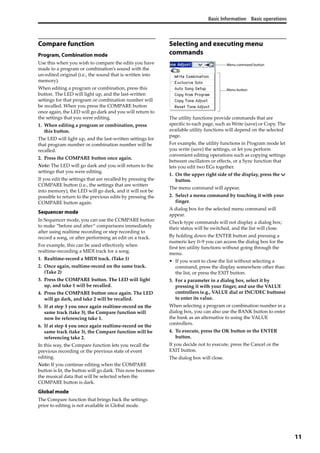
Selecting and executing menu
commands
The utility functions provide commands that are 
specific to each page, such as Write (save) or Copy. The 
available utility functions will depend on the selected 
page.
For example, the utility functions in Program mode let 
you write (save) the settings, or let you perform 
convenient editing operations such as copying settings 
between oscillators or effects, or a Sync function that 
lets you edit two EGs together.
1. On the upper right side of the display, press the v 
button.
The menu command will appear.
2. Select a menu command by touching it with your 
finger.
A dialog box for the selected menu command will 
appear.
Check‐type commands will not display a dialog box; 
their status will be switched, and the list will close.
By holding down the ENTER button and pressing a 
numeric key 0–9 you can access the dialog box for the 
first ten utility functions without going through the 
menu.
• If you want to close the list without selecting a 
command, press the display somewhere other than 
the list, or press the EXIT button.
3. For a parameter in a dialog box, select it by 
pressing it with your finger, and use the VALUE 
controllers (e.g., VALUE dial or INC/DEC buttons) 
to enter its value.
When selecting a program or combination number in a 
dialog box, you can also use the BANK button to enter 
the bank as an alternative to using the VALUE 
controllers.
4. To execute, press the OK button or the ENTER 
button.
If you decide not to execute, press the Cancel or the 
EXIT button.
The dialog box will close.
Menu command button
Menu button
Introduction to the KROME
12
Writing/saving
After editing, you should write or save your changes as 
necessary.
For example if you’ve edited a program, your changes 
will be lost if you select another program or turn off 
the power. The same applies to a combination.
Settings you edit in Global mode and songs will be 
remembered as long as the power is on, but your 
changes will be lost when you turn off the power, 
unless you write these changes into memory.
• You can write or save by pressing the WRITE 
button twice.
For more details on the Write operations, see the 
following pages.
• Programs → p.30
• Combinations → p.47
• Effect presets → PG p.67
• Global settings (pages 0–4) → p.116
• Drum kits → p.116
• User arpeggio pattern → p.116
• User Drum Track patterns → p.103
Preset/user Drum Track patterns are saved in 
internal memory even when the power is turned 
off. Patterns that you create in Sequencer mode can 
be converted into user Drum Track patterns and 
saved in internal memory.
• User template songs → PG p.164
Preset/user template songs are saved in internal 
memory even when the power is turned off. Track 
settings and effect settings of a song you create can 
be saved in internal memory by using the menu 
command Save Template Song.
• For details on writing to internal memory → p.115
Refer to the following pages for more information 
about saving.
• Saving a song → p.75
• Saving to media (Media– Save) → p.118
Note: On the KROME, the action of writing to internal 
memory is called “Write,” and the action of saving to 
an SD card device is called “Save.”
Assigning a name (renaming)
You can edit the name of an edited program, 
combination, song, drum kit, or arpeggio pattern.
You can also change the names of the program and 
combination categories.
For details, please see “Editing names” on page 117.
Shortcuts
Selecting a GM bank program
• Bank GM: Hold down the 0 numeric key and press 
–.
• Banks g(1)–g(9): Hold down the 0 numeric key and 
press 1–9.
• Bank g(d): Hold down the numeric key 0 and press 
(.).
Moving between pages within a mode
• By holding down the PAGE button and pressing a 
numeric key 0–9 you can jump to the 
corresponding page.
Access the menu commands in each page (up
to ten items)
• By holding down the ENTER button and pressing a 
numeric key 0–9.
Input note number values or velocity values
• While holding down the edit cell in the display, 
press a note on the keyboard.
Alternatively, select the edit cell in the display, and 
then hold down the ENTER button and press a note 
on the keyboard.
Note: You can also use a MIDI note‐on message instead 
of the keyboard.
Note: While a dialog box is displayed, the ENTER 
button will perform the same function as the OK 
button. This means that you can’t use this method to 
enter a note number or velocity value in a dialog box 
that contains an OK button.
Specifying the location in a song
In Sequencer mode, sets the current location as the 
Location (equivalent to the Set Location menu 
command)
• Hold down the ENTER button and press the 
LOCATE ( ) button.
ENTER button
• While a dialog box is displayed, this button 
performs the same function as the OK button.
EXIT button
This button makes it easy to return to the main page of 
the current mode:
1. Press it once to go to the previously selected tab on 
the main P0 page.
2. Press the EXIT button. You will move to the 
previously selected parameter of the P0 top page 
(Prog: Main, Combi/Seq: Program T01–08).
3. Press the EXIT button. You will move to the 
following parameter of the P0 top page.
Prog: Program Select
Combi: Combination Select
Seq: Song Select
Basic Information Basic operations
13
In any page of Program or Combination mode, 
pressing EXIT a maximum of two times will 
immediately allow you to use the numeric keys or 
INC/DEC buttons to select programs or combinations. 
In Sequencer mode, pressing EXIT a maximum of three 
times will allow you to select a song.
EXIT button (in dialog boxes)
When a dialog box is displayed, this has the same 
function as the Cancel, Done, or Exit button.
Initialize the KROME
• With the power off, press the power switch while 
holding down the ENTER button and numeric key 
[0].
(While data is being loaded, the display will 
indicate “Now writing into internal Memory.”)
The result will be the same as when you’ve 
executed Load Preload/Demo Data All. 
(See page 125)
Introduction to the KROME
14
15
Setup
Turning the power on/off
Connecting the AC adapter
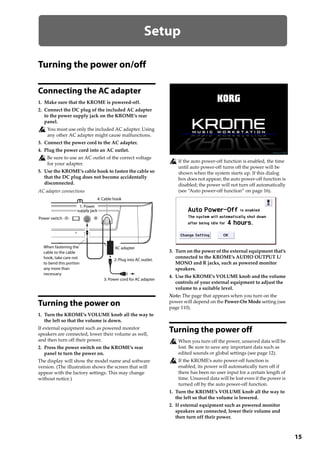
1. Make sure that the KROME is powered‐off.
2. Connect the DC plug of the included AC adapter 
to the power supply jack on the KROME’s rear 
panel.
You must use only the included AC adapter. Using 
any other AC adapter might cause malfunctions.
3. Connect the power cord to the AC adapter.
4. Plug the power cord into an AC outlet.
Be sure to use an AC outlet of the correct voltage 
for your adapter.
5. Use the KROME’s cable hook to fasten the cable so 
that the DC plug does not become accidentally 
disconnected.
AC adapter connections
Turning the power on
1. Turn the KROME’s VOLUME knob all the way to 
the left so that the volume is down.
If external equipment such as powered monitor 
speakers are connected, lower their volume as well, 
and then turn off their power.
2. Press the power switch on the KROME’s rear 
panel to turn the power on.
The display will show the model name and software 
version. (The illustration shows the screen that will 
appear with the factory settings. This may change 
without notice.)
If the auto power‐off function is enabled, the time 
until auto power‐off turns off the power will be 
shown when the system starts up. If this dialog 
box does not appear, the auto power‐off function is 
disabled; the power will not turn off automatically 
(see “Auto power‐off function” on page 16).
3. Turn on the power of the external equipment that’s 
connected to the KROME’s AUDIO OUTPUT L/
MONO and R jacks, such as powered monitor 
speakers.
4. Use the KROME’s VOLUME knob and the volume 
controls of your external equipment to adjust the 
volume to a suitable level.
Note: The page that appears when you turn on the 
power will depend on the Power‐On Mode setting (see 
page 110).
Turning the power off
When you turn off the power, unsaved data will be 
lost. Be sure to save any important data such as 
edited sounds or global settings (see page 12).
If the KROME’s auto power‐off function is 
enabled, its power will automatically turn off if 
there has been no user input for a certain length of 
time. Unsaved data will be lost even if the power is 
turned off by the auto power‐off function.
1. Turn the KROME’s VOLUME knob all the way to 
the left so that the volume is lowered.
2. If external equipment such as powered monitor 
speakers are connected, lower their volume and 
then turn off their power.
Power switch
4: Cable hook
AC adapterWhen fastening the
cable to the cable
hook, take care not
to bend this portion
any more than
necessary.
3: Power cord for AC adapter
1: Power
supply jack
2: Plug into AC outlet.
Setup
16
3. Press the power switch on the KROME’s rear 
panel to turn the power off.
The KROME’s internal data may be damaged if the 
power is turned off while data is being written into 
internal memory, such as during a Save operation. 
Never turn off the power while processing is being 
performed.
The following message is displayed while data is 
being written into internal memory.
“Now writing into internal memory”
If writing to internal memory could not be 
completed successfully, the KROME will 
automatically repair the internal memory by 
initializing it the next time you turn on the power. 
This is not a malfunction. If this occurs, the 
following message will appear in the display; 
press the OK button.
The internal memory has been corrupted, likely 
due to an interruption of power while the system 
was writing/saving data. This has been repaired 
and the affected Bank has been initialized.
A small amount of electrical power is used even 
when the power is off (STANDBY). If you won’t be 
using the KROME for an extended period, turn off 
the power and unplug the power cord from the 
AC outlet.
Auto power-off function
The KROME supports an auto power‐off function that 
automatically turns off the power when the keyboard 
or front panel buttons(*)
 have not been used for a 
certain length of time.
* Usage of the VOLUME knob is not included.
Note: With the factory settings, the time until 
automatic power‐off will be approximately four hours.
When the power turns off, the settings you had 
been editing will be lost. Make sure that you save 
important settings before this occurs.
Changing the auto power-off setting
If you want to change the setting so that the power 
does not turn off automatically, proceed as follows to 
disable the auto power‐off function.
Making the change in the dialog box immediately
after start-up
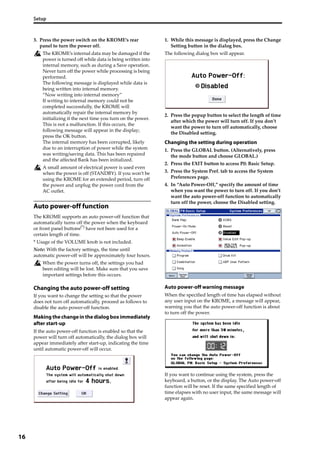
If the auto power‐off function is enabled so that the 
power will turn off automatically, the dialog box will 
appear immediately after start‐up, indicating the time 
until automatic power‐off will occur.
1. While this message is displayed, press the Change 
Setting button in the dialog box.
The following dialog box will appear.
2. Press the popup button to select the length of time 
after which the power will turn off. If you don’t 
want the power to turn off automatically, choose 
the Disabled setting.
Changing the setting during operation
1. Press the GLOBAL button. (Alternatively, press 
the mode button and choose GLOBAL.)
2. Press the EXIT button to access P0: Basic Setup.
3. Press the System Pref. tab to access the System 
Preferences page.
4. In “Auto Power‐Off,” specify the amount of time 
when you want the power to turn off. If you don’t 
want the auto power‐off function to automatically 
turn off the power, choose the Disabled setting.
Auto power-off warning message
When the specified length of time has elapsed without 
any user input on the KROME, a message will appear, 
warning you that the auto power‐off function is about 
to turn off the power.
If you want to continue using the system, press the 
keyboard, a button, or the display. The Auto power‐off 
function will be reset. If the same specified length of 
time elapses with no user input, the same message will 
appear again.
Connections Turning the power off
17
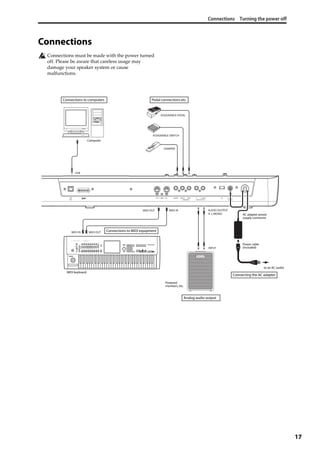
Connections
Connections must be made with the power turned 
off. Please be aware that careless usage may 
damage your speaker system or cause 
malfunctions.
USB
DAMPER
ASSIGNABLE PEDAL
ASSIGNABLE SWITCH
INPUT
MIDI IN
MIDI IN MIDI OUT
MIDI OUT
R L/MONO
AUDIO OUTPUT
Computer
Analog audio output
Powered
monitors, etc.
Connections to MIDI equipment
Pedal connections etc.
MIDI cable
AC adapter power
supply connector
Power cable
(Included)
to an AC outlet
Connecting the AC adapter
Connections to computers
MIDI keyboard
Setup
18
Audio connections
The KROME does not contain built‐in speakers. In 
order to hear the sound of your performance, you’ll 
need to connect audio equipment such as powered 
monitors, a mixer, a stereo set or headphones.
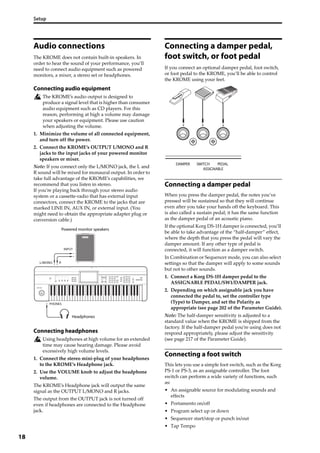
Connecting audio equipment
The KROME’s audio output is designed to 
produce a signal level that is higher than consumer 
audio equipment such as CD players. For this 
reason, performing at high a volume may damage 
your speakers or equipment. Please use caution 
when adjusting the volume.
1. Minimize the volume of all connected equipment, 
and turn off the power.
2. Connect the KROME’s OUTPUT L/MONO and R 
jacks to the input jacks of your powered monitor 
speakers or mixer.
Note: If you connect only the L/MONO jack, the L and 
R sound will be mixed for monaural output. In order to 
take full advantage of the KROME’s capabilities, we 
recommend that you listen in stereo.
If you’re playing back through your stereo audio 
system or a cassette‐radio that has external input 
connectors, connect the KROME to the jacks that are 
marked LINE IN, AUX IN, or external input. (You 
might need to obtain the appropriate adapter plug or 
conversion cable.)
Connecting headphones
Using headphones at high volume for an extended 
time may cause hearing damage. Please avoid 
excessively high volume levels.
1. Connect the stereo mini‐plug of your headphones 
to the KROME’s Headphone jack.
2. Use the VOLUME knob to adjust the headphone 
volume.
The KROME’s Headphone jack will output the same 
signal as the OUTPUT L/MONO and R jacks.
The output from the OUTPUT jack is not turned off 
even if headphones are connected to the Headphone 
jack.
Connecting a damper pedal,
foot switch, or foot pedal
If you connect an optional damper pedal, foot switch, 
or foot pedal to the KROME, you’ll be able to control 
the KROME using your feet.
Connecting a damper pedal
When you press the damper pedal, the notes you’ve 
pressed will be sustained so that they will continue 
even after you take your hands off the keyboard. This 
is also called a sustain pedal; it has the same function 
as the damper pedal of an acoustic piano.
If the optional Korg DS‐1H damper is connected, you’ll 
be able to take advantage of the “half‐damper” effect, 
where the depth that you press the pedal will vary the 
damper amount. If any other type of pedal is 
connected, it will function as a damper switch.
In Combination or Sequencer mode, you can also select 
settings so that the damper will apply to some sounds 
but not to other sounds.
1. Connect a Korg DS‐1H damper pedal to the 
ASSIGNABLE PEDAL/SW1/DAMPER jack.
2. Depending on which assignable jack you have 
connected the pedal to, set the controller type 
(Type) to Damper, and set the Polarity as 
appropriate (see page 202 of the Parameter Guide).
Note: The half‐damper sensitivity is adjusted to a 
standard value when the KROME is shipped from the 
factory. If the half‐damper pedal you’re using does not 
respond appropriately, please adjust the sensitivity 
(see page 217 of the Parameter Guide).
Connecting a foot switch
This lets you use a simple foot switch, such as the Korg 
PS‐1 or PS‐3, as an assignable controller. The foot 
switch can perform a wide variety of functions, such 
as:
• An assignable source for modulating sounds and 
effects
• Portamento on/off
• Program select up or down
• Sequencer start/stop or punch in/out
• Tap Tempo
RL/MONO
INPUT
PHONES
Powered monitor speakers
Headphones
Connections Connecting a damper pedal, foot switch, or foot pedal
19
• Arpeggiator on/off
• Switch the Drum Track on/off
• Use various KROME controls (realtime control 
knobs, joystick, SW1/SW2, etc.)
This button will always function in the same way 
regardless of the Program, Combination, or Song 
you’ve selected. You can assign the function in the 
Global mode.
Using a foot switch to select Programs
You can select programs by using a foot switch 
connected to the ASSIGNABLE SWITCH jack. By 
assigning the appropriate function, you can increment 
or decrement the program number in steps of one.
This lets you change Programs without using your 
hands–great for quick Program changes in live 
performance situations.
There are two ways of doing this: by assigning the foot 
switch to Program Up/Down, or to Value Inc/Dec. Each 
of these is suited to a particular application, as 
described below.
• Prog Up/Down: When performing in the normal P0 
screen
• VALUE Inc/Dec: When performing while a list such 
as the Category/Program Select menu is open
Assigning the foot switch to Program Up/Down
Assigning the foot switch to Program Up or Program 
Down lets you directly control Program changes from 
the foot switch. For most situations, this is the more 
straightforward method.
To set this up:
1. Connect a foot switch to the rear‐panel 
ASSIGNABLE SWITCH input.
Use an optional PS‐1 pedal switch.
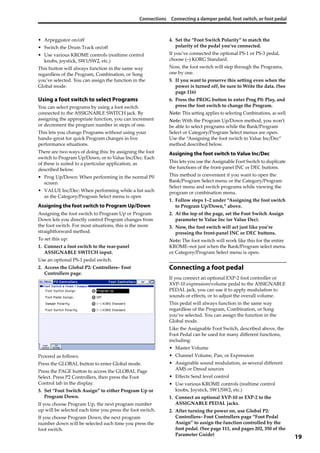
2. Access the Global P2: Controllers– Foot 
Controllers page.
Proceed as follows.
Press the GLOBAL button to enter Global mode.
Press the PAGE button to access the GLOBAL Page 
Select. Press P2 Controllers, then press the Foot 
Control tab in the display.
3. Set “Foot Switch Assign” to either Program Up or 
Program Down.
If you choose Program Up, the next program number 
up will be selected each time you press the foot switch.
If you choose Program Down, the next program 
number down will be selected each time you press the 
foot switch.
4. Set the “Foot Switch Polarity” to match the 
polarity of the pedal you’ve connected.
If you’ve connected the optional PS‐1 or PS‐3 pedal, 
choose (–) KORG Standard.
Now, the foot switch will step through the Programs, 
one by one.
5. If you want to preserve this setting even when the 
power is turned off, be sure to Write the data. (See 
page 116)
6. Press the PROG button to enter Prog P0: Play, and 
press the foot switch to change the Program.
Note: This setting applies to selecting Combinations, as well.
Note: With the Program Up/Down method, you won’t 
be able to select programs while the Bank/Program 
Select or Category/Program Select menus are open. 
Use the “Assigning the foot switch to Value Inc/Dec” 
method described below.
Assigning the foot switch to Value Inc/Dec
This lets you use the Assignable Foot Switch to duplicate 
the functions of the front‐panel INC or DEC buttons.
This method is convenient if you want to open the 
Bank/Program Select menu or the Category/Program 
Select menu and switch programs while viewing the 
program or combination menu.
1. Follow steps 1–2 under “Assigning the foot switch 
to Program Up/Down,” above.
2. At the top of the page, set the Foot Switch Assign 
parameter to Value Inc (or Value Dec).
3. Now, the foot switch will act just like you’re 
pressing the front‐panel INC or DEC buttons.
Note: The foot switch will work like this for the entire 
KROME–not just when the Bank/Program select menu 
or Category/Program Select menu is open.
Connecting a foot pedal
If you connect an optional EXP‐2 foot controller or 
XVP‐10 expression/volume pedal to the ASSIGNABLE 
PEDAL jack, you can use it to apply modulation to 
sounds or effects, or to adjust the overall volume.
This pedal will always function in the same way 
regardless of the Program, Combination, or Song 
you’ve selected. You can assign the function in the 
Global mode.
Like the Assignable Foot Switch, described above, the 
Foot Pedal can be used for many different functions, 
including:
• Master Volume
• Channel Volume, Pan, or Expression
• Assignable sound modulation, as several different 
AMS or Dmod sources
• Effects Send level control
• Use various KROME controls (realtime control 
knobs, Joystick, SW1/SW2, etc.)
1. Connect an optional XVP‐10 or EXP‐2 to the 
ASSIGNABLE PEDAL jacks.
2. After turning the power on, use Global P2: 
Controllers– Foot Controllers page “Foot Pedal 
Assign” to assign the function controlled by the 
foot pedal. (See page 111, and pages 202, 350 of the 
Parameter Guide)
Setup
20
Connecting the KROME to
a computer
USB connection
The KROME provides both MIDI and USB connectors 
as standard equipment. By connecting the KROME to 
your computer via USB, you can use it as a controller 
and MIDI sound module for your DAW software with 
single cable convenience; and with out the need for a 
MIDI interface.
By using the dedicated editor, you can edit some of the 
parameters of the KROME from your computer as 
though it were a software plug‐in.
Note: The USB connector of the KROME is only able to 
transmit and receive MIDI data.
Before you connect the KROME to your computer 
via USB, you must install the KORG USB‐MIDI 
driver on your computer.
Connecting via the MIDI connectors
You can connect the KROME to your computer via 
MIDI by using a commercially available MIDI 
interface.
Note: For more about MIDI interfaces, refer to the 
owner’s manual of the MIDI interface you’re using.
Some USB‐MIDI interfaces may be unable to 
transmit or receive the KROME’s MIDI exclusive 
messages.
Connecting MIDI devices
By connecting the KROME’s MIDI connectors to an 
external MIDI device you can transfer sound settings 
and performance data such as note messages between 
your external MIDI device and the KROME.
About MIDI
MIDI stands for Musical Instrument Digital Interface, 
and is a world‐wide standard for exchanging various 
types of musical data between electronic musical 
instruments and computers. When MIDI cables are 
used to connect two or more MIDI devices, 
performance data can be exchanged between the 
devices, even if they were made by different 
manufacturers.
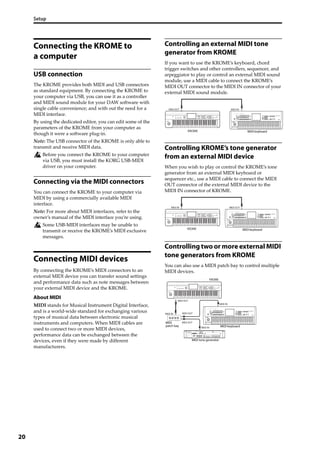
Controlling an external MIDI tone
generator from KROME
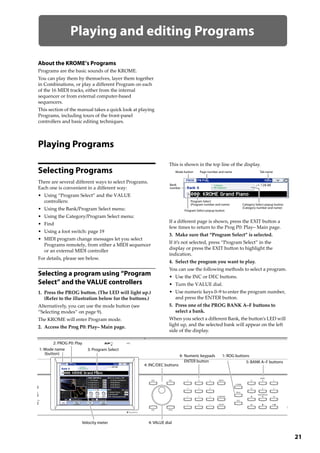
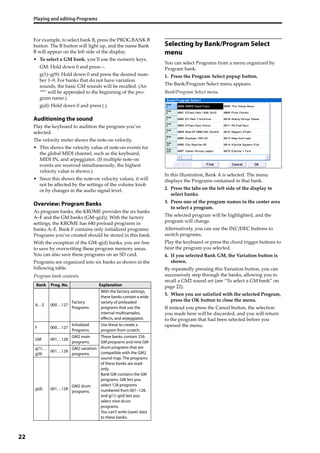
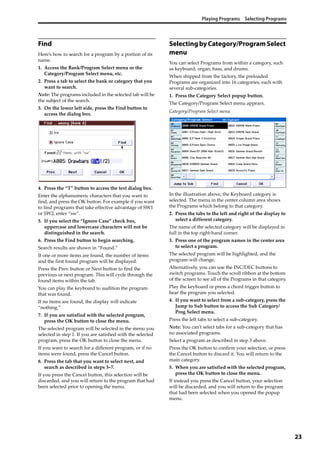
If you want to use the KROME’s keyboard, chord 
trigger switches and other controllers, sequencer, and 
arpeggiator to play or control an external MIDI sound 
module, use a MIDI cable to connect the KROME’s 
MIDI OUT connector to the MIDI IN connector of your 
external MIDI sound module.
Controlling KROME’s tone generator
from an external MIDI device
When you wish to play or control the KROME’s tone 
generator from an external MIDI keyboard or 
sequencer etc., use a MIDI cable to connect the MIDI 
OUT connector of the external MIDI device to the 
MIDI IN connector of KROME.
Controlling two or more external MIDI
tone generators from KROME
You can also use a MIDI patch bay to control multiple 
MIDI devices.
KROME
MIDI INMIDI OUT
MIDI keyboard
KROME
MIDI IN MIDI OUT
MIDI keyboard
MIDI IN
MIDI OUT
MIDI IN
MIDI OUT
MIDI IN
MIDI OUT
KROME
MIDI keyboard
MIDI
patch bay
MIDI tone generator
21
Playing and editing Programs
About the KROME’s Programs
Programs are the basic sounds of the KROME.
You can play them by themselves, layer them together 
in Combinations, or play a different Program on each 
of the 16 MIDI tracks, either from the internal 
sequencer or from external computer‐based 
sequencers.
This section of the manual takes a quick look at playing 
Programs, including tours of the front‐panel 
controllers and basic editing techniques.
Playing Programs
Selecting Programs
There are several different ways to select Programs. 
Each one is convenient in a different way:
• Using “Program Select” and the VALUE 
controllers:
• Using the Bank/Program Select menu:
• Using the Category/Program Select menu:
• Find
• Using a foot switch: page 19
• MIDI program change messages let you select 
Programs remotely, from either a MIDI sequencer 
or an external MIDI controller
For details, please see below.
Selecting a program using “Program
Select” and the VALUE controllers
1. Press the PROG button. (The LED will light up.)
(Refer to the illustration below for the buttons.)
Alternatively, you can use the mode button (see 
“Selecting modes” on page 9).
The KROME will enter Program mode.
2. Access the Prog P0: Play– Main page.
This is shown in the top line of the display.
If a different page is shown, press the EXIT button a 
few times to return to the Prog P0: Play– Main page.
3. Make sure that “Program Select” is selected.
If it’s not selected, press “Program Select” in the 
display or press the EXIT button to highlight the 
indication.
4. Select the program you want to play.
You can use the following methods to select a program.
• Use the INC or DEC buttons.
• Turn the VALUE dial.
• Use numeric keys 0–9 to enter the program number, 
and press the ENTER button.
5. Press one of the PROG BANK A–F buttons to 
select a bank.
When you select a different Bank, the button’s LED will 
light up, and the selected bank will appear on the left 
side of the display.
4: INC/DEC buttons
3: Program Select
2: PROG P0: Play
4: VALUE dial
1: ROG buttons4: Numeric keypads
ENTER button 5: BANK A–F buttons
Velocity meter
1: Mode name
(button)
Mode button Page number and name Tab name
Program Select
(Program number and name) Category Select popup button
(Category number and name)
Bank
number
Program Select popup button
Playing and editing Programs
22
For example, to select bank B, press the PROG BANK B 
button. The B button will light up, and the name Bank 
B will appear on the left side of the display.
• To select a GM bank, you’ll use the numeric keys.
GM: Hold down 0 and press –.
g(1)–g(9): Hold down 0 and press the desired num‐
ber 1–9. For banks that do not have variation 
sounds, the basic GM sounds will be recalled. (An 
“*” will be appended to the beginning of the pro‐
gram name.)
g(d): Hold down 0 and press (.).
Auditioning the sound
Play the keyboard to audition the program you’ve 
selected.
The velocity meter shows the note‐on velocity.
• This shows the velocity value of note‐on events for 
the global MIDI channel, such as the keyboard, 
MIDI IN, and arpeggiator. (If multiple note‐on 
events are received simultaneously, the highest 
velocity value is shown.)
• Since this shows the note‐on velocity values, it will 
not be affected by the settings of the volume knob 
or by changes in the audio signal level.
Overview: Program Banks
As program banks, the KROME provides the six banks 
A–F and the GM banks (GM–g(d)). With the factory 
settings, the KROME has 640 preload programs in 
banks A–E. Bank F contains only initialized programs. 
Programs you’ve created should be stored in this bank.
With the exception of the GM–g(d) banks, you are free 
to save by overwriting these program memory areas. 
You can also save these programs on an SD card.
Programs are organized into six banks as shown in the 
following table.
Program bank contents
Selecting by Bank/Program Select
menu
You can select Programs from a menu organized by 
Program bank.
1. Press the Program Select popup button.
The Bank/Program Select menu appears.
Bank/Program Select menu
In this illustration, Bank A is selected. The menu 
displays the Programs contained in that bank.
2. Press the tabs on the left side of the display to 
select banks.
3. Press one of the program names in the center area 
to select a program.
The selected program will be highlighted, and the 
program will change.
Alternatively, you can use the INC/DEC buttons to 
switch programs.
Play the keyboard or press the chord trigger buttons to 
hear the program you selected.
4. If you selected Bank GM, the Variation button is 
shown.
By repeatedly pressing this Variation button, you can 
successively step through the banks, allowing you to 
recall a GM2 sound set (see “To select a GM bank” on 
page 22).
5. When you are satisfied with the selected Program, 
press the OK button to close the menu.
If instead you press the Cancel button, the selection 
you made here will be discarded, and you will return 
to the program that had been selected before you 
opened the menu.
Bank Prog. No. Explanation
A…E 000…127
Factory
Programs.
With the factory settings,
these banks contain a wide
variety of preloaded
programs that use the
internal multisamples,
effects, and arpeggiator.
F 000…127
Initialized
Programs.
Use these to create a
program from scratch.
GM 001…128
GM2 main
programs.
These banks contain 256
GM programs and nine GM
drum programs that are
compatible with the GM2
sound map. The programs
of these banks are read-
only.
Bank GM contains the GM
programs. GM lets you
select 128 programs
numbered from 001–128,
and g(1)–g(d) lets you
select nine drum
programs.
You can’t write (save) data
to these banks.
g(1)…
g(9)
001…128
GM2 variation
programs.
g(d) 001…128
GM2 drum
programs.
Playing Programs Selecting Programs
23
Find
Here’s how to search for a program by a portion of its 
name.
1. Access the Bank/Program Select menu or the 
Category/Program Select menu, etc.
2. Press a tab to select the bank or category that you 
want to search.
Note: The programs included in the selected tab will be 
the subject of the search.
3. On the lower left side, press the Find button to 
access the dialog box.
4. Press the “T” button to access the text dialog box.
Enter the alphanumeric characters that you want to 
find, and press the OK button. For example if you want 
to find programs that take effective advantage of SW1 
or SW2, enter “sw”.
5. If you select the “Ignore Case” check box, 
uppercase and lowercase characters will not be 
distinguished in the search.
6. Press the Find button to begin searching.
Search results are shown in “Found.”
If one or more items are found, the number of items 
and the first found program will be displayed.
Press the Prev. button or Next button to find the 
previous or next program. This will cycle through the 
found items within the tab.
You can play the keyboard to audition the program 
that was found.
If no items are found, the display will indicate 
“nothing.”
7. If you are satisfied with the selected program, 
press the OK button to close the menu.
The selected program will be selected in the menu you 
selected in step 1. If you are satisfied with the selected 
program, press the OK button to close the menu.
If you want to search for a different program, or if no 
items were found, press the Cancel button.
8. Press the tab that you want to select next, and 
search as described in steps 3–7.
If you press the Cancel button, this selection will be 
discarded, and you will return to the program that had 
been selected prior to opening the menu.
SelectingbyCategory/ProgramSelect
menu
You can select Programs from within a category, such 
as keyboard, organ, bass, and drums.
When shipped from the factory, the preloaded 
Programs are organized into 16 categories, each with 
several sub‐categories.
1. Press the Category Select popup button.
The Category/Program Select menu appears.
Category/Program Select menu
In the illustration above, the Keyboard category is 
selected. The menu in the center column area shows 
the Programs which belong to that category.
2. Press the tabs to the left and right of the display to 
select a different category.
The name of the selected category will be displayed in 
full in the top right‐hand corner.
3. Press one of the program names in the center area 
to select a program.
The selected program will be highlighted, and the 
program will change.
Alternatively, you can use the INC/DEC buttons to 
switch programs. Touch the scroll ribbon at the bottom 
of the screen to see all of the Programs in that category.
Play the keyboard or press a chord trigger button to 
hear the program you selected.
4. If you want to select from a sub‐category, press the 
Jump to Sub button to access the Sub Category/
Prog Select menu.
Press the left tabs to select a sub‐category.
Note: You can’t select tabs for a sub‐category that has 
no associated programs.
Select a program as described in step 3 above.
Press the OK button to confirm your selection, or press 
the Cancel button to discard it. You will return to the 
main category.
5. When you are satisfied with the selected program, 
press the OK button to close the menu.
If instead you press the Cancel button, your selection 
will be discarded, and you will return to the program 
that had been selected when you opened the popup 
menu.
Playing and editing Programs
24
Program information
In the Prog P0: Play– Main page you can view the 
following information about the selected program.
OSC Picture: This is a graphic that represents the 
program’s oscillator.
OSC Oct: For a double oscillator or double drums, this 
indicates “Oct” (the basic pitch of the oscillator).
SW1, SW2: This indicates the function that’s assigned 
to the SW1/SW2 buttons, and the on/off state of the 
buttons.
Realtime Controls – TONE CONTROLS/USER 
CONTROLS/ARP CONTROLS:
This shows information about the functions of the 
REALTIME CONTROLS knob that’s currently selected. 
Use the SELECT button to choose the functions that 
will be controlled by the knobs. For more information 
about these functions, please see page 28.
EQ (Low, Mid[Hz], Mid, High): This shows the 3‐band 
EQ settings. You can use the value controllers to edit 
the values.
Effect Controls– IFX, MFX, TFX:
This shows the effects that are assigned. The KROME 
provides insert effects 1–5, master effects 1 and 2, and a 
total effect. For the master effects, you can edit the 
return levels.
Velocity Meter:
This meter shows the note‐on velocity value.
The meter shows the note‐on velocity of the keyboard, 
MIDI IN, and arpeggiator etc. (If multiple note‐on 
messages are received simultaneously, the highest 
velocity value is shown.)
Using Controllers
In addition to using the keyboard, the KROME lets you 
control the sound by using the joystick, SW1 and SW2 
buttons, knobs 1–4, damper pedal, and foot switch or 
foot pedal.
These controls let you modify the tone, pitch, volume, 
effects, etc. in realtime as you play.
Joystick
The joystick moves in four directions: left, right, up 
(away from yourself), and down (towards yourself). 
Each of the four directions can be used to control a 
different function, such as modulating Program or 
effects parameters. These assignments can be different 
for every Program, but generally, they do the following:
Standard Joystick functions
For details, please see page 82.
Joystick Lock
This function lets you maintain the effect that had been 
applied prior to releasing your hand from the joystick.
You can use the SW1/SW2 buttons or a foot switch 
connected to the KROME to lock the current position 
so that the effect will continue even after the joystick 
returns to the center position. For details, please see 
“Locking the Joystick” on page 25.
SW1, SW2
You can use these buttons to control program 
parameters via AMS (Alternate Modulation), or effect 
parameters via Dmod (Dynamic Modulation).
They can also transpose the keyboard by octaves, turn 
portamento on/off, or to lock the position joystick.
Each button can work as either a Toggle or Momentary 
button. In Toggle mode, the assigned function is 
switched between on and off each time the button is 
pressed. In Momentary mode, the assigned function is 
active on only as long as you hold down the button.
In Program mode, you can check the assignments of 
SW1 and SW2 on the Prog P0: Play– Main page.
For details, please see “Program information” on 
page 24.
SW1,
SW2
OSC
Picture
OSC Oct
EQ
Realtime Controls
- Tone Controls
- User Controls
- Arp Controls
Effect Infomation
IFX 1-5
MFX 1, 2,
Send level
(On/Off)
TFX (On/Off)
Velocity Meter
Move the joystick…
Controller
Name
Normally controls…
Left JS–X Pitch bend down
Right JS+X Pitch bend up
Up (away from yourself) JS+Y Vibrato
Down (towards yourself) JS–Y Filter LFO (wah)
[SW1], [SW2]
(Lock
function)
Joystick
Playing Programs Using Controllers
25
When you write a Program or Combination, the on/off 
status of the SW1 and SW2 buttons is saved.
For details, please see page 82.
Locking the Joystick
1. Using the standard factory sounds, select Program 
C027: Semi Distortion Guitar.
To select a program, make sure that you are in Program 
mode, and press the PROG BANK C button, numeric 
key 2, 7, and then the ENTER button.
2. While holding down a key, move the joystick in 
the –Y direction (toward yourself).
The tremolo effect will deepen.
3. While keeping the joystick in the –Y direction 
(toward yourself), press the SW2 button. (The SW2 
button LED will light up.)
When you press the button, its LED will light up, and 
the modulation effect at this point will be maintained.
4. Release the joystick, and play the keyboard.
The modulation will stay the same as it was when SW2 
was pressed. Even if you move the joystick toward 
yourself, the sound will not change.
5. Press the SW2 button once again to release the 
Lock function.
Keyboard
The KROME’s keyboard provides the following two 
types of control.
Velocity
Velocity is a measure of how hard you play a note on 
the keyboard. This can be used to modulate many 
different aspects of the sound, such as volume, 
brightness, or the character of the attack.
Note Number
Sounds can be programmed to change in character 
based on the note being played. 
As you play higher or lower on the keyboard, the note 
number can modulate the timbre ‐ such as becoming 
brighter as you play higher notes. Envelopes may also 
become faster or slower; the volume may change; and 
so on.
Realtime control knobs
The realtime controls consist of four knobs and the 
SELECT button. These controls function as follows.
• You can apply modulation to sounds or edit them.
• You can control the arpeggiator.
1. Press the SELECT button to select the realtime 
control function between TONE, USER, or ARP.
TONE, USER: Use the knobs to modify the sound or 
effects (see page 28).
ARP: Use the knobs to control the arpeggiator (see 
page 86).
You can freely switch between these functions without 
losing your current edits.
2. Use knobs 1–4 to control the selected functions.
When you turn one of these knobs, that knob’s function 
and value will appear in a popup.
(You can prevent this popup from appearing. See 
page 111.)
There will be a slight amount of play when turning 
the knob near its minimum or maximum positions.
TEMPO knob and TAP button
This adjusts the tempo for the KROME as a whole, 
including:
• Arpeggiator
• Drum Track
• Songs in Sequencer mode
• Tempo‐synced LFOs
• Tempo‐synced (“BPM”) delay effects
TEMPO LED
The LED will blink at quarter‐note intervals of the 
current tempo.
TEMPO knob
This knob adjusts the tempo. It’s a convenient way to 
make continuous adjustments.
Note: If the Global P1: MIDI– MIDI Basic page MIDI 
Clock parameter is set to External MIDI, External USB, 
or if it is set to Auto and a clock is currently being 
received via MIDI, then neither the TEMPO knob nor 
the TAP button will have any effect.
TAP button
You can set the tempo of the Arpeggiator or Drum 
Track function in Program, Combination, and 
Sequencer modes by lightly pressing or tapping the 
TAP button several times on the beat. In Sequencer 
mode, you can control the song tempo in this way.
To enter the tempo, use your finger to gently tap the 
TAP button. The tempo will be entered when you press 
the button twice, but you should tap several times in 
order to increase the precision. The average of the last 
sixteen taps will be specified as the tempo.
During playback, lightly press the TAP button several 
times at the desired tempo. The tempo will follow your 
tapping in realtime. This is a convenient way to match 
the tempo in realtime to the beat of a different source.
You can use tap tempo control whenever the 
TEMPO knob can be used. For example in 
Sequencer mode, tap tempo control will not be 
available if you are playing a song where the 
Tempo Mode setting is set to Auto. (See page 110 
of the Parameter Guide)
Note: You can also use a foot switch connected to the 
ASSIGNABLE FOOT SWITCH jack to control the tap 
Playing and editing Programs
26
tempo function (see page 18, and pages 202, 349 of the 
Parameter Guide).
Damper pedal / Foot switch / Foot
pedal
For details on using the damper pedal, foot switch, or 
pedal to control the sound, please see “Connecting a 
damper pedal, foot switch, or foot pedal” on page 18.
Performing with the
arpeggiator or drum track
Based on note data that it receives from the keyboard 
or from the MIDI IN connector, the arpeggiator can 
generate a wide range of phrases and patterns 
including arpeggios, guitar or keyboard backing riffs, 
bass phrases, or drum patterns. By setting SELECT to 
ARP and using the knobs, you can vary the duration 
and strength of the arpeggiated notes.
For more about the arpeggiator, please see page 85.
The drum track uses a rich variety of drum patterns to 
play the KROME’s high‐quality drum programs. You 
can select any program and play along with the drum 
patterns.
Of course you can also synchronize the arpeggiator 
and the drum track patterns and use them together.
For more about the drum track, please see page 97.
Easy Program editing Adjusting the EQ
27
Easy Program editing
The fastest way to create the sound you need is to start 
from a preload program that’s close to what you have 
in mind, and edit that program.
Simple editing can be done within the various pages of 
P0: Play where you perform. You can adjust the EQ 
and volume level, and in the Tone Adjust page you can 
use the sliders and buttons to perform various useful 
edits. You can also use the front panel realtime controls 
to intuitively adjust the cutoff, resonance, and release 
time.
If you want to do detailed editing, use the editing 
pages P1 and following.
Adjusting the EQ
You can adjust a mid‐sweepable three‐band EQ in the 
Prog P0: Play– Main page. 
Note: This EQ will affect both oscillator 1 and oscillator 
2.
1. Access the Prog P0: Play– Main page.
2. On the display, select the EQ gain knob or the 
center frequency of the Mid sweep EQ that you 
want to edit.
3. Use the VALUE controllers (e.g., VALUE dial) to 
edit the value.
You can also edit the value by dragging left or right on 
a knob or edit cell in the display.
Adjusting the volume balance
A program’s sound consists of up to two “oscillators” 
which are played mainly from the keyboard, and one 
“drum track” which automatically plays the rhythm 
section.
The volumes of the oscillators and the drum track can 
be adjusted in the Prog P0: Play‐ Mixer & Drum Track 
page.
Note: There’s also a “mute function” which 
individually silences these, and a “solo function” 
which mutes all sounds other than the specified one.
1. Access the Prog P0: Play– Mixer & Drum Track 
page.
2. Select a slider in the display, and use the VALUE 
dial etc. to adjust the volume of oscillators 1 and 2 
and the drum track.
For oscillators that use two drum kits, you can use the 
OSC1 and OSC2 sliders to adjust the direct sound of 
the close‐miced drum kit and the ambient sound of the 
drum kit captured with more space.
Note: With single‐oscillator programs, you won’t be 
able to control oscillator 2.
3. You can press the Play/Mute button in the display 
to toggle the Play/Mute status of oscillators 1 and 2 
and the drum track.
4. You can press the Solo button in the display to 
toggle the Solo On/Off status of oscillators 1 and 2 
and the drum track.
The function of the Solo button will switch each time 
you select “Exclusive Solo” in the menu (see page 64 of 
the Parameter Guide).
EQ
OSC Play/Mute Drum Track Play/Mute
Volume
Menu
Playing and editing Programs
28
Using realtime controls to edit
the sound or effects
You can use the realtime controls (the SELECT button 
and knobs 1–4) to modify the sound and control the 
arpeggiator.
1. Press the REALTIME CONTROLS SELECT button 
to switch the realtime control function between 
TONE, USER, or ARP.
Each time you press the button, you’ll cycle through A, 
B, and C modes, and the corresponding LED will light 
up.
Note: If CC#70–79 are assigned to REALTIME 
CONTROLS A mode and B mode, the sound that you 
edit using knobs 1–4 will be saved when you write the 
program. Arpeggiator settings you adjust in C mode 
will also be saved.
2. Modify the sound by turning the knob that you 
want to control. See below for details.
TONE controls
In TONE section you can turn knobs 1–4 to control or 
edit the following items.
Note: When a knob is in the center position 
(12 o’clock), the parameter will have the value 
specified by the program.
Knob 1: CUTOFF
This adjusts the filter’s cutoff frequency. Adjusting the 
cutoff frequency will modify the brightness of the 
sound.
Knob 2: RESONANCE
This adjusts the filter’s resonance level.
Adjusting the filter resonance level will boost the 
sound in the region of the frequency, giving a 
distinctive character to the sound.
Knob 3: EG INT
This adjusts the filter EG intensity (the depth of how 
the EG affects the filter).
Using the knob will change the amount of how the 
filter is affected by the EG. Normally, turning the knob 
toward the left will make the filter EG shallower, and 
turning the knob toward the right will make it deeper. 
Since the filter EG operates relative to the filter cutoff 
frequency, both knobs 1 and 3 will control the tonal 
change produced by the filter.
Knob 4: RELEASE
This adjusts the filter and amp EG release time, 
changing the time from note‐off until the sound is no 
longer heard.
Turning the knob will change the release time of the 
filter EG and the amp EG. Normally, turning the knob 
toward the left will shorten the release time, and 
turning the knob toward the right will lengthen it.
Example:
1. Select program “Category: KEYBOARD A066: 
Dark R&B Piano.
This is an electric piano sound. Let’s try modifying the 
sound a little.
2. Press the REALTIME CONTROLS SELECT button 
to select TONE (the LED will light‐up).
3. While you play, slowly turn knob 1 (filter 
frequency) about 3/4 toward the right.
The piano sound will become more like a synth sweep.
4. Next, turn knob 2 (filter resonance) about 3/4 
toward the right as well.
5. Leave knob 2 in its position, and try turning knob 
1 to the left and right.
Raising the resonance will change the sound as though 
you were playing through a wah pedal.
Level
Frequency
HighLow
Cut off
frequency
Level
Time
Level
Time
note-on note-off
Sutart Level
Attack Time
Decay Time Slope Time
Attack Level
Break Level
Release Level
Sustain Level
Release
time
Easy Program editing Using Tone Adjust
29
USER controls
In the USER section you can turn knobs 1–4 to control 
various aspects of the sound such as volume, 
portamento time,
pan, filter and amp EG, pitch LFO, and master effect 
send level.
In USER, the most useful functions are assigned 
individually for each preload program.
The table below shows the standard assignments of the 
Realtime Controls knobs:
For details, please see page 16 of the Parameter Guide.
ARP controls
In the ARP section you can control the arpeggiator in 
realtime.
For details on functionality, please see page 86.
Saving the edits you made by moving the
knobs
The realtime control knobs are an ideal way to modify 
the sound while you perform. As needed, press the 
front panel WRITE button to Write the Program into 
memory and save the sound you’ve edited. (See 
“Saving your edits” on page 30.)
However for Realtime Controls USER knobs 1–4, 
the edited settings can be saved only if you’ve 
assigned CC#70–79.
Internally, a single knob usually affects several 
different parameters. When you write a Program, the 
edits are saved into the individual program 
parameters, and not to the knob itself.
After writing the Program, you’ll notice that the knobs 
have returned to their center positions–since the old 
“edited” values are now the new “saved” values.
Assigning Realtime Controls USER functions
to knobs 1–4
You can assign the functions that knobs 1–4 will 
perform when Realtime Controls USER is selected. 
(See page 41)
Using Tone Adjust
The Tone Adjust function lets you edit the parameters 
of the program. The program parameters that are most 
effective for editing will be assigned to the controllers 
in the display.
1. Access the Prog P0: Play– Tone Adjust page.
This page shows and reflects data generated by the 
tone adjust function, letting you view the parameter 
assignments and their precise values. 
2. To edit the sound, select a slider (1–8) or button (1–
8) in the display, and use the VALUE dial etc. to 
use it. (You can edit the value of a slider by 
dragging it in the display.)
Note: You can assign the principal program 
parameters to the various controllers in the display. For 
details, please see page 7 of the Parameter Guide.
For example:
1. Select Program A069, “Deluxe E.Piano.”
2. Access the P0: Play– Tone Adjust page.
3. Look at the assignments for sliders 5, 6, and 8 in 
the display.
Slider 5 is assigned to F/A EG Attack Time; slider 6 is 
assigned to F/A EG Decay Time; and slider 8 is 
assigned to F/A EG Release Time.
4. Raise each of the three sliders so that they are 
about 4/5 of the way to the top.
The display should show their values as between +60 
and +70. This means that you have edited the filter EG 
and amp EG attack, delay, and release to longer values.
5. Play a few notes.
Notice that the sound has changed from an electric 
piano into a soft pad. Next, let’s add just a bit of filter 
modulation, to make the sound more rich.
6. Notice the assignment of slider 2 in the display.
Slider 2 is assigned to “[OSC1] Filter LFO1 Int A” 
(OSC1 filter LFO1 intensity). It will adjust the amount 
of filter modulation produced by LFO1.
7. Lower slider 2 slightly so that the display indicates 
about –6.
8. Play a few more notes.
The filter modulation has added some shimmer to the 
sound. Now, maybe it could use a bit more edge…
9. Look at the assignments for switches 6 and 7 in the 
display.
These are programmed to raise the Filter Cutoff and 
Filter Resonance, respectively. Switches are just on/off, 
but you can set a specific value for the On position; 
notice the +10 and +40 in the switch’s value boxes.
10. Press each of the two switch buttons.
The sound now has a more interesting character, due 
to the filters. Since it’s brighter, we’ve also restored 
some of the electric piano character.
Pretty easy, huh? Note: depending on the parameter, 
you may occasionally hear glitches in the sound as you 
move the control.
Knob MIDI CC Normally controls…
TONE1 74 Filter Cutoff Frequency
TONE2 71 Filter Resonance
TONE3 79 Filter EG Intensity
TONE4 72 EG Release Time
USER1, 2 Varies for each Program
USER3 Often Chorus Depth - but can vary per Program
USER4 Often Reverb Depth - but can vary per Program
Playing and editing Programs
30
Changing parameter assignments
The factory Programs include default assignments of 
Tone Adjust parameters to the sliders, and buttons in 
the display. If you like, you can change any of the 
assignments. To do so:
1. Access the Prog P0: Play– Tone Adjust page.
2. Press the popup button located to the left of the 
assigned parameter.
A popup window will appear, with a long menu of 
parameters. You can tell various things about the 
selections, just from the way they appear in the menu:
Parameters which affect only OSC1 or OSC2 are 
prefixed with [OSC1] and [OSC2], respectively.
Parameters which affect both Oscillators, but which are 
specific to Programs, are prefixed with [OSC1&2].
The other group of parameters at the beginning of the 
list, are “Common.” That is, you can use them with 
most Programs.
Parameters can only be assigned to one Tone Adjust 
control at a time. If a parameter is already assigned, it’s 
grayed out.
3. Select a parameter from the menu.
The parameter is now assigned to the control. To close 
the list without making any changes, press a location 
in the display outside the popup window, or press the 
EXIT button.
Comparing the unedited
sound
Using COMPARE
When you’re in the process of editing a sound, 
pressing the COMPARE button will recall the last 
saved version of the sound, as it was before you started 
editing.
For details, please see “Compare function” on page 11.
Saving your edits
After you’ve edited a program, you must save it if you 
want to keep the changes you’ve made. If you re‐select 
the program or turn off the power after editing, your 
edits will be lost. 
1. Press the WRITE button.
The Write Program dialog box will appear. If you want 
to modify the writing‐destination or name, you can do 
so (see page 117).
2. Press the WRITE button once again to save (write) 
the program.
For details, please see “Writing a Program or 
Combination” on page 115.
You can also save programs on an SD card as PCG files. 
For details, please see “Saving to SD card (Media–
Save)” on page 118.
Detailed Editing with Programs Before you start editing
31
Detailed Editing with Programs
You can create original sounds by editing a preloaded 
program or by editing an initialized program. The 
programs you create can be saved in banks A–F. 
For details, please see “Saving your edits” on page 30.
Before you start editing
The three elements of sound: pitch,
tone, and volume
Sound is made up of three basic elements: pitch, tone, 
and volume.
The KROME provides “pitch,” “filter,” and “amp 
(amplifier)” sections that allow you to control these 
elements.
The “pitch” section modifies the pitch, the “filter” 
section modifies the tone, and the “amp” section 
modifies the volume.
You’ll edit “pitch” settings in P2: OSC/Pitch (P2‐3) and 
OSC2 Pitch, “filter” settings in P3: Filter (P3‐1–3), and 
“amp” settings in P4: Amp/EQ (P4‐1–2).
EG, LFO, AMS, and controllers
In addition to the three elements listed above, a sound 
can vary according to the passage of time, the pitch 
range in which it’s played, or by performance 
expressions.
Such aspects can be controlled by modulators and 
controllers such as the EG (envelope generator), LFO 
(low frequency oscillator), and joystick. These 
modulators and controllers apply change to the basic 
program.
Take a look at the illustration “Program structure” 
Notice that the signal flow is in the order of Oscillator/
Pitch, Filter, Amp. You can see how the EGs and LFOs 
affect each section.
As shown in the illustration, each program consists of 
sections such as OSC 1/2, effects, and the arpeggiator.
OSC (oscillator) 1/2
The OSC (oscillator) generates the waveform that is the 
basis of the sound. On the KROME, the oscillator 
consists of multiple sampled sounds such as a 
multisample or a drum kit (drumsamples).
The KROME provides two oscillators; OSC1 and 
OSC2. You can create more complex programs by 
combining these.
The OSC, which is the basis of the sound, can be 
controlled by modulating its pitch, filter, amp, EG, and 
LFO to change the sound in a wide range of ways.
Note: Pitch EG is shared by OSC1 and OSC2.
Effects
As effects, you can use five insert effects, two master 
effects, and one total effect.
The output of OSC 1/2 is sent to these effect processors. 
By choosing the desired effect for each processor and 
editing its parameters, you can apply a wide range of 
effects such as modulation, distortion, and 
reverberation.
Arpeggiator
A program can use one arpeggiator. You can select an 
arpeggio pattern, specify the range that the pattern will 
be developed within, and specify the range of notes or 
velocities that will trigger the arpeggiator.
OSC / Pitch Filter Amplifier EffectsEQ
OSC1 Setup: P2–1,
OSC1 Velocity: P2–2
Amp1/Driver1: P4–1
Pitch EG : P2–10
Filter1 EG: P3–10 Amp1 EG: P4–3
OSC1 LFO1: P5–1
OSC 1
OSC 2
Filter1 Mod: P3–3
Filter Key Track: P3–2
Filter1 LFO Mod: P3–4
OSC1 Pitch: P2–3
OSC1 LFO2: P5–2
Amp1 Mod: P4–2
Program Basic/Controllers: P1
AUDIO OUTPUT
L/MONO, R
Master
Effect
1, 2: P9
Total
Effect
: P9
Insert
Effect
1…5: P8
3Band EQ
: P4–10
Filter1(A/B): P3–1
OSC1 AMS Mix: P6–1/2
Common KeyTrack: P6–9/10
OSC1, 2
Insert Effects
Master Effects
FX Control Bus
Routing: P8–1
Common LFO: P5–10
Arpeggio: P7–1, 2
DrumTrk Pattern: P7–4, 5 Tone Adjust: P0–7Controllers: P1–3
P1–1, P2–2, etc. indicate the on-screen pages and tabs used when editing on the KROME.
Program structure
Playing and editing Programs
32
An overview of the edit pages
In order to do detailed editing, you’ll need to access the 
edit pages in the display.
The preceding section “Easy Program editing” on 
page 27 explained how to use the Prog P0: Play page to 
do simple editing. For more detailed editing, you’ll use 
the P1 and following edit pages.
For details on how to access each mode and page, 
please see “Basic operations” on page 9.
Basic oscillator settings
Here you can specify the type of program, select the 
basic waveform (multisample or drum kit), and specify 
whether it will play polyphonically or monophonically 
(poly/mono).
Program type setting (single, double,
drum kit)
Here you can specify the program type.
Broadly speaking the program type will be either “a 
program that uses a multisample” or “a program that 
uses a drum kit” (see “Multisamples and Drum Kits” 
on page 33).
This choice is made by the Prog P1: Basic/Controllers– 
Program Basic “Oscillator Mode” setting, which 
specifies which type the oscillators will use. Up to two 
can be used simultaneously for each type.
• Multisample: Single, Double
• Drum kit: Drums, Double Drums
Single (single program) uses one oscillator, and 
Double (double program) uses two oscillators.
Drums (drum program) is similar to a single program, 
but uses a drum kit (created in Global mode) instead of 
a multisample. Double Drums (double drum 
program) uses two drum kits. By using an ambience‐
type kit as the second drum kit, you can give a wider 
sense of space to the sound.
Polyphony
Polyphony is the number of notes that can be played 
simultaneously, such as in a chord. The polyphony 
depends on the program type.
Note:
• Double Programs and Double Drums use twice as 
many voices as Single Programs.
• Stereo Multisamples use twice as many voices as 
Mono Multisamples.
• If using velocity crossfade switching, the 
multisample will use twice as many voices as usual.
Page Main content
PLAY
P0: Play
Select and play programs. (see
page 21)
Oscillator and Drum track level
settings. (see page 27)
Simple drum track editing. (see
page 98)
Simple arpeggiator editing. (see
page 86)
Tone Adjust settings. (see page 29)
EDIT
P1: Basic/
Controllers
Basic program settings, such as
Oscillator mode. (see page 32)
SW1, 2, and knob settings. (see
page 41)
P2: OSC/Pitch
Oscillator selection and pitch settings.
(see page 33)
P3: Filter Filter 1, 2 (tone) settings. (see page 38)
P4: Amp/EQ
Amp 1, 2 (volume) settings. (see
page 40)
Amp 1, 2 driver and pan settings.
3-band parametric EQ settings.
P5: LFO LFO settings. (see page 35)
P6: AMS/Common
KeyTrack
AMS Mixer settings. (see page 36)
Common keyboard tracking settings.
ARP/DT
P7: Arpeggiator/
Drum Track
Arpeggiator settings. (see page 88)
Drum track settings. (see page 100)
EFFECT
P8: Routing/IFX
Oscillator output bus and master effect
send level settings. (see page 79)
Insert effect routing, selection, and
settings. (see page 79)
P9: MFX/TFX/LFO
Master effect routing, selection, and
settings. (see page 80)
Total effect selection and settings. (see
page 80)
Program type Polyphony
Single 120
Double 60
Drums 120
Double Drums 60
Detailed Editing with Programs Basic oscillator settings
33
Oscillator image setting
You can specify the program oscillator image that’s 
shown in the P0: Play– Main page. Adjust this setting 
in Prog P1: Basic/Controllers– Program Basic Oscillator 
Mode “OSC Picture 1” and “2.”
1. Press the “OSC Picture 1” or “2” popup button (>) 
or the image icon shown at right; the dialog box 
will appear.
2. To select an image, press an image in the list in the 
lower part of the screen, or at the left or right in the 
upper part.
3. Press the OK button to confirm your choice.
Polyphonic/monophonic playing
The Voice Assign Mode selects whether the Program 
will play polyphonically (Poly) or monophonically 
(Mono). 
When this is set to Poly, you can play both chords and 
melody lines. When this is set to Mono, only one note 
will sound even if you play a chord.
Normally you’ll set this to Poly, but Mono is useful 
when playing sounds such as synth basses, synth 
leads, and other solo instruments.
Try switching between Poly and Mono, and listen to 
the results.
Working with Multisamples
What is a multisample?
A sample is a digital recording of a particular 
instrument or waveform (or other natural or artificially 
processed sound) recorded at a specific pitch. A 
multisample is a collection of similarly voiced samples, 
used to create the same type of sound ‐ piano, bass, 
guitar, strings, organ ‐ across the entire keyboard, as 
the basis of a program. The oscillators of single and 
double programs use multisamples. There are 583 
multisamples available in this instrument.
You can assign up to four multisamples to each 
oscillator and switch between them by velocity.
Multisamples and Drum Kits
Multisamples and Drum Kits allow you to play 
samples in different ways.
• Multisamples lay out one or more samples across 
the keyboard. If we use the example of a simple 
guitar multisample, one sample could be assigned 
for each string, so that the multisample would 
consist of six samples.
• As the name suggests, Drum Kits are optimized for 
playing drumsamples.
Velocity splits, crossfades, and layers
Each oscillator provides eight velocity zones. This lets 
you switch between multisamples or drumsamples 
according to the velocity (speed) at which you play a 
key.
By specifying the threshold (boundary value) where 
each zone will respond, and the amount of crossfading 
(the overlap between zones), you can specify how your 
keyboard playing dynamics will switch or layer the 
multisamples or drumsamples. You can use this to 
make the following types of setups.
• Velocity splits, where multisamples (or 
drumsamples) are cleanly switched at the threshold
• Velocity crossfades, where multisamples (or 
drumsamples) are smoothly crossfaded over a 
specified range outside the threshold
• Velocity layers, where two multisamples (or 
drumsamples) are layered when you play a 
specified range outside the threshold
Note: If “Oscillator Mode” is set to Drums or Double 
Drums, the velocity settings pre‐specified for the drum 
kit will be used, and therefore will not be shown in the 
screen. The velocity zone settings of a drum kit can be 
edited in Global P5: Drum Kit (see page 105). You can 
jump automatically to Global P5 by pressing the Jump 
to DrumKit Edit button shown on the screen.
Selecting Multisamples
Let’s create a simple velocity crossfade between two 
Multisamples, using just OSC1.
1. Access the Prog P2: OSC/Pitch– OSC1 Setup page.
2. Set the Multisample On/Off for multisample1 and 
multisample2 to On.
Set the Multisample On/Off for multisample3 and 
multisample4 to Off.
By dragging the slider to the left, you can select each 
multisample and view its settings.
3. Select Stereo as the Multisample Bank for 
multisample1 and multisample2.
There are two main types of Multisample Banks: 
Mono, and Stereo. Note that stereo Multisamples will 
require twice as many voices as mono Multisamples.
Multisamples are organized by category such as piano, 
guitar, bell, etc.
Bank
Multi-
sample
On/Off
Slider
Playing and editing Programs
34
4. Press the Multisample popup button for 
multisample1.
This brings up a list of Multisamples, organized by 
category. Use the tabs on the left of the display to 
browse through the different categories.
5. Select a Multisample by touching its name in the 
list. You can also use Find to search for a 
Multisample.
6. Press the OK button to confirm your selection.
7. Perform the same steps for multisample2, 
selecting a different Multisample than for 
multisample1.
Now that you’ve assigned Multisamples to 
multisample1 and multisample2, let’s set up the 
velocity ranges and crossfades.
Multisamples have now been assigned to multisample 
1 and 2.
8. Specify the velocity range and crossfade range.
Press the Velocity tab to access the OSC1 Velocity page.
Set the multisample 2 “Threshold Velocity” to 001, and 
turn “Crossfade” Off.
9. Set the multisample 1 “Threshold Velocity” to 80.
You can also set “Threshold Velocity” by dragging the 
bottom edge of the line graph.
With these settings, Multisample2 will sound for notes 
played with a velocity of 79 or less, and Multisample1 
will sound for notes played with a velocity of 80 or 
greater.
The Velocity Split meter shows the oscillator’s eight 
multisamples and the velocity zones of each oscillator.
The meter on the left shows the note‐on velocity. This 
lets you see which multisample and oscillator will 
sound for that specific velocity.
10. Set the multisample 1 “Crossfade” to 20, and its 
“Curve” to Linear.
The state of this split is shown visually in the screen.
The two multisamples will fade across the range from 
80 to 100, with multisample 2 fading‐out while 
multisample 1 fades‐in. This produces a smooth 
change without any sudden switch.
11. As necessary, use the Prog P2: OSC/Pitch– OSC1 
Setup page to adjust the “Level” of the two 
multisamples.
Assigning a drum kit
What is a drum kit?
Drum kits are created or edited in Global mode. For 
each note of the keyboard, you can assign up to eight 
drum instrument samples, and use layering, 
crossfading, or velocity switching to switch between 
them. Then, in Program mode, you can adjust filter 
and amp settings, and specify effects and routing to the 
audio output jacks. (See page 105)
To use a drum kit in a Program, set Oscillator Mode to 
Drums or Double Drums, and choose one of the 48 
user drum kits or the nine GM2 drum kits.
Selecting a drum kit
1. Access the Prog P1: Basic/Controllers– Program 
Basic page.
2. Set “Oscillator Mode” to Drums or Double 
Drums.
3. Select a drum kit in the Prog P2: OSC/Pitch– OSC1 
Setup page.
4. Specify the basic pitch of the oscillator. For a drum 
kit, set “Octave” to +0 [8ʹ].
Multisample popup button
Detailed Editing with Programs Creating time-varying changes (LFO and EG)
35
Creating time-varying
changes (LFO and EG)
Using LFOs
You can use the cyclic change produced by the LFO 
(Low Frequency Oscillator) to modulate numerous 
aspects of the sound.
Each Program has two LFOs: LFO1 and LFO2. There is 
also a single Common LFO, shared by both Oscillators. 
While LFO1 and LFO2 are separate for each voice, the 
Common LFO is shared by all voices in the Program. 
This makes it useful when you want all of the voices to 
have an identical LFO effect.
You can use these LFOs to modulate many different 
Program parameters, including:
• Pitch (for vibrato)
• Filters (for wah effects)
• Volume (for tremolo)
• Pan (for auto‐panning)
The LFOs can modulate many other parameters, in 
addition to those listed above.
Using the basic LFO
1. Access the Prog P5: LFO– OSC1 LFO1 page.
2. Select the Waveform parameter.
Use the INC and DEC buttons to scroll through the 
different waveforms, and look at their shapes in the 
graphic display.
There are a number of waveforms to choose from. Each 
are suited to different applications:
Triangle and Sine are the classic LFO shapes for 
vibrato, tremolo, panning, and filter wah effects.
Square is useful for gated on and off filter and amp 
effects, and can create trills when modulating pitch.
The Guitar waveform is designed especially for guitar 
vibrato; it bends only upwards from the base value.
Saw and Exponential Saw Down are good for 
rhythmic filter and amp effects.
Random 1 (S/H) creates the classic sample‐and‐hold 
effect, which is great for modulating a resonant filter.
3. After looking at the different waveforms, select 
Triangle.
4. Select the Shape parameter, and use the VALUE 
dial to move through its different settings, from 
–99 to +99.
Notice how the shape of the waveform becomes more 
curved, and how –99 emphasizes the lower part of the 
shape, and +99 emphasizes the upper part.
5. Select the Phase parameter, and use the VALUE 
dial to sweep through its range of values.
Notice how the waveform shifts from side to side. 
Among other things, this lets you offset the LFOs from 
one another in time, which can create interesting 
organic effects.
6. Use the Freq (Frequency) parameter to set the 
speed of the LFO.
7. Use the Fade and Delay settings to control the way 
the LFO sounds at the beginning of the note.
For more information on LFOs, please see page 42 of 
the Parameter Guide.
All of these parameters control the way that the LFO 
works. In order for the LFO to actually affect the 
sound, you can use the dedicated LFO routings on the 
Filter, Pitch, and Amp pages, or use the LFOs as AMS 
sources for a wide variety of parameters.
Using EGs (Envelope Generators)
An envelope creates a modulation signal by moving 
from one level to another over a specified time, and 
then moving to another level over another period of 
time, and so on.
The Program includes three EGs, for Pitch, Filter, and 
Amp. These produce time‐varying changes in pitch, 
tone, and volume respectively. They can also be used to 
modulate a number of other program parameters via 
AMS.
Note: The parameters that can be modulated by an EG 
and the range of values will differ depending on the 
EGs provided for each section.
Waveform
Level
Time
note-on note-off
Sutart Level
Attack Time
Decay Time Slope Time
Attack Level
Break Level
Release
LevelSustain Level
Release Time
Playing and editing Programs
36
Diverse modulation settings
(AMS and AMS mixer)
Using AMS
AMS (Alternate Modulation Source) lets you modulate 
program parameters using controllers, EG, or LFO as 
the modulation source. Extremely creative types of 
modulation are possible; for example, you can use a 
single controller to simultaneously modulate multiple 
parameters, or you can use an EG to modulate an 
LFO’s frequency and then use that LFO to modulate a 
filter.
AMS (Alternate Modulation Source) refers to any of 
the assignable modulation sources in KROME, 
including:
• Controllers of the KROME itself, such as the 
joystick, SW 1/2, and the realtime knobs
• Incoming MIDI controllers
• Modulators such as the Filter, Pitch, and Amp EGs, 
the LFOs, or the AMS Mixers
Intensity is a parameter that sets the degree (speed, 
depth, amount etc.) of how AMS will control the 
modulation.
A number of frequently‐used modulation routings, 
such as using the joystick to vary the pitch, are 
provided as additional, dedicated routings, separate 
from AMS.
Note that not all AMS sources may be available for 
some modulation destinations. 
For details on alternate modulation and AMS, please 
see below.
• “Alternate Modulation Sources (AMS)” on page 339 
of the Parameter Guide
• “Creating Vibrato” on page 37
• “Pitch EG” on page 37
• “Filter EG” on page 39
• “LFO modulation” on page 39
• “AMS (Pan)” on page 36 of the Parameter Guide
• “LFO1/2” on page 40
Using the AMS Mixers
The AMS Mixers combine two AMS sources into one, 
or process an AMS source to make it into something 
new.
For example, this lets you use an LFO to modulate a 
filter’s resonance while also modulating it by an EG. 
Although resonance has only one AMS input, using 
the AMS mixer makes this possible. You could also do 
things such as using the filter EG to control the amount 
of LFO1. The wide variety of other possibilities include 
using the joystick to control the amount of pitch EG, 
allowing the joystick to apply bend only to notes 
played while you hold down the foot switch, or 
changing the response of a realtime controller.
The AMS Mixer outputs appear in the list of AMS 
sources, just like the LFOs and EGs. An AMS mixer’s 
output signal can be used to modulate a variety of 
parameters.
This also means that the original, unmodified inputs to 
the AMS Mixers are still available as well. For instance, 
if you use LFO 1 as an input to an AMS Mixer, you can 
use the processed version of the LFO to control one 
AMS destination, and the original version to control 
another.
Finally, you can cascade the two AMS Mixers together, 
by using AMS Mixer 1 as an input to AMS Mixer 2.
For details, please see “6–1: OSC1 AMS Mix1” on 
page 46 of the Parameter Guide.
Tips for using AMS
When making settings for alternate modulation, think 
of the effect that you wish to produce, what type of 
modulation will be necessary to produce that effect, 
and what parameter of the oscillator, filter, or amplifier 
needs to be controlled. 
Next, select a source (AMS) and set the Intensity. If 
you proceed logically in this way, you will achieve the 
desired effect.
For example in a guitar sound program where you 
want to use the joystick to control the feedback, you 
would make assignments so that the joystick controls 
the filter frequency and resonance.
Controller Setup page
For each program, the function of Realtime Control 
knobs 1‐B–4‐B and the SW1 and SW2 buttons can be 
assigned in the Prog P1: Basic/Controllers– Controllers 
Setup page.
For details, please see “Setting the functions of SW1 
and SW2” on page 41, and “Setting the functions of 
Realtime Controls USER knobs 1–4” on page 42.
Detailed Editing with Programs Controlling Pitch
37
Controlling Pitch
Pitch bend
Pitch bend smoothly changes the pitch upward or 
downward, similar to how a guitarist can “bend” 
strings. On the KROME, you will normally use the 
joystick to control pitch bend in realtime.
The JS (+X) and JS(–X) settings specify the amount of 
pitch change (in semitones) that will occur when MIDI 
pitch bend messages are received or when the joystick 
is moved to left or right. A setting of +12 allows the 
pitch to be controlled a maximum of one octave 
upward; a setting of –12 allows the pitch to be 
controlled a maximum of one octave downward.
Note: You can also control pitch bend using a 
controller other than the joystick, or via MIDI.
Ribbon (#16) specifies the amount of pitch change (in 
semitone units) that will occur when MIDI control 
change message #16 is received. With a setting of +12, a 
value of 127 will raise the pitch one octave, and a value 
of 0 will lower the pitch one octave.
Creating Vibrato
You can use an LFO to create vibrato.
LFO1 Int. or LFO2 Int. sets the depth of how the 
selected LFO will affect the pitch. With a setting of 
+12.00, vibrato will produce a maximum of ±1 octave of 
pitch change.
JS+Y Int specifies the amount of vibrato that the LFO 
will produce when the joystick is pushed away from 
you.
Intensity (AMS Intensity) specifies the depth of 
vibrato that will be applied by the LFO when 
modulated by the selected AMS (Alternate Modulation 
Source). For example, if the panel switch assignment 
for SW1 is set to SW1 Mod. (CC#80) (Prog 1–7a), and 
you set LFO1 AMS to SW1: CC#80 and specify an 
appropriate value for Intensity, vibrato will be applied 
when you turn SW1 on or when MIDI control change 
#80 is received.
Pitch EG
When the Intensity value is set to +12.00, the pitch EG 
specified in the Pitch EG page will produce a 
maximum of ±1 octave of pitch change.
To realistically simulate the slight change in pitch that 
occurs when a string is plucked or at the attack of a 
brass or vocal sound, you can use the EG to create a 
subtle change in pitch at the attack.
Portamento
Portamento makes the pitch change smoothly when 
you play the next note before releasing the previous 
note.
The Time parameter controls how long it will take the 
pitch to change. As this value is increased, the pitch 
will change over a longer time. With a value of 000, 
there will be no portamento.
You can turn Portamento on and off via SW1 or SW2, 
by assigning them to Porta.SW CC#65.
Playing and editing Programs
38
Using Filters
The filters allow you to diminish or emphasize 
specified frequency areas of the sound.
The tone of the sound will depend significantly on 
the filter settings.
The basic filter settings, including the routing, type, 
cutoff frequency, and resonance, are set on the P3–1: 
Filter page. 
Filter Routing
Each oscillator has two filters, Filter A and Filter B. The 
Filter Routing parameter controls whether one or both 
of the filters are used, and if both are used, it controls 
how they are connected to each other.
The Single routing uses only Filter A as a single 2‐pole, 
12dB/octave filter (6dB for Band Pass and Band Reject).
The Serial routing uses both Filter A and Filter B. The 
oscillator first goes through Filter A, and then the 
output of Filter A is processed through Filter B. 
Parallel also uses both Filter A and Filter B. The 
oscillator feeds both filters directly (and allow 
independent settings for each), and the outputs of the 
two filters are then summed together.
The 24dB(4Pole) routing merges both filters to create a 
single 4‐pole, 24dB/octave filter (12dB for Band Pass 
and Band Reject). In comparison to Single, this option 
produces a sharper roll‐off of frequencies beyond the 
cutoff frequency, as well as a slightly more delicate 
resonance. Many classic analog synths used this type 
of filter.
Serial and Parallel Routing
Filter Types
This selects the parts of the sound that will be affected 
by the filter, as described below. With the Serial and 
Parallel routings, you can independently set the types 
for Filter A and Filter B.
The filters will produce very different results 
depending on the selected filter type.
Low Pass: This cuts out the parts of the sound that are 
higher than the cutoff frequency. Low Pass is the most 
common type of filter, and is used to make bright 
timbres sound darker.
High Pass: This cuts out the parts of the sound that are 
lower than the cutoff frequency. You can use this to 
make timbres sound thinner or more buzzy. 
Band Pass: This cuts out all parts of the sound, both 
highs and lows, except for the region around the cutoff 
frequency. Since this filter cuts out both high and low 
frequencies, its effect can change dramatically 
depending on the cutoff setting and the oscillator’s 
multisample.
With low resonance settings, you can use the Band 
Pass filter to create telephone or vintage phonograph 
sounds. With higher resonance settings, it can create 
buzzy or nasal timbres.
Band Reject: This filter type–also called a notch filter–
cuts only the parts of the sound directly around the 
cutoff frequency. Try modulating the cutoff with an 
LFO to create phaser‐like effects.
Filter Types and Cutoff Frequency
Filter A (Low Pass)Oscillator
Oscillator
Filter B (High Pass)
Filter A (Low Pass)
Filter B (High Pass)
Low Pass
High Pass
Band Pass
Band Reject
Cutoff Frequency
Detailed Editing with Programs Using Filters
39
Resonance
Resonance emphasizes the frequencies around the 
cutoff frequency, as shown in the diagram below.
When this is set to 0, there is no emphasis, and 
frequencies beyond the cutoff will simply diminish 
smoothly.
At medium settings, the resonance will alter the timbre 
of the filter, making it sound more nasal, or more 
extreme. At very high settings, the resonance can be 
heard as a separate, whistling pitch. 
To make the resonance track the keyboard pitch, please 
see “Key Follow” on page 29 of the Parameter Guide.
Modulating the filters
You can modulate the filter cutoff frequency using the 
Filter EG, the LFOs, keyboard tracking, and other 
built‐in and MIDI controllers. This is a great way to 
add a rich variety of tonal change to the sound.
Filter EG
The Filter EG is a multi‐stage envelope, which you can 
use to modulate the filter as well as other Program 
parameters. The EG itself is set up on the EG tab; the 
way that it affects the filters is controlled by the 
parameters described below, on the Filter1/2– 
Modulation page:
The Intensity to A and Intensity to B settings control 
the basic amount of EG modulation for filter 
frequencies A and B, respectively, before other 
modulation.
The Velocity to A and Velocity to B settings let you use 
velocity to control the amount of EG modulation.
The AMS setting selects an AMS modulation source to 
scale the amount of the Filter EG applied to Filters A 
and B. The two filters share a single AMS source, with 
separate intensity Into A or to B settings.
LFO modulation
You can modulate the filter via LFO1, LFO2, and the 
Common LFO. Among other applications, LFO 
modulation of the filter can produce the classic “auto‐
wah” effect.
The Filter1/2– LFO Mod. page lets you set up the 
following parameters separately for each LFO:
Intensity to A and Intensity to B specify how much 
the LFO changes the tone.
JS‐Y Intensity to A and JS‐Y Intensity to B specify the 
depth of the wah effect produced by the LFO when the 
joystick is moved toward yourself, or when CC#2 is 
received.
The AMS setting selects an AMS modulation source to 
scale the amount of the LFO applied to Filters A and B. 
The two filters share a single AMS source, with 
separate intensity settings.
For example if AMS is set to SW1: CC#80, turning SW1 
on will apply an auto‐wah effect (see page 37).
Keyboard Track
Most acoustic instruments get brighter as you play 
higher pitches. At its most basic application, keyboard 
tracking re‐creates this effect by increasing the cutoff 
frequency of a lowpass filter as you play higher on the 
keyboard. Usually, some amount of key tracking is 
necessary in order to make the timbre consistent across 
the entire range.
The KROME keyboard tracking can also be much more 
complex, since it allows you to create different rates of 
change over up to four different parts of the keyboard. 
For instance, you can:
• Make the filter cutoff frequency increase very 
quickly over the middle of the keyboard, and then 
open more slowly–or not at all–in the higher 
octaves.
• Make the cutoff frequency increase as you play 
lower on the keyboard.
• Create abrupt changes at certain keys, for split‐like 
effects.
How Key Track works: Keys and Ramps
The keyboard tracking works by creating four ramps, 
or slopes, between five keys on the keyboard. 
For details, please see “How it works: Keys and 
Ramps” on page 28 of the Parameter Guide.
Low resonance
High resonance
Playing and editing Programs
40
Using the Amp section
The Amp section includes controls for volume, pan, 
and the driver circuit.
You can control the volume using the Amp EG, LFO 1/
2, Key Track, and velocity, along with other AMS 
sources.
Each Oscillator has its own Amp section: Amp1 for 
OSC1, and Amp2 for OSC2.
Background - what does “Amp”
mean?
Different sounds have characteristic shapes to their 
volume levels.
For example, the volume of a piano note begins at a 
high volume the instant you play the note, and then 
decreases gradually. 
The volume of an organ note, on the other hand, 
remains constant as long as you continue pressing the 
key. 
The volume of a note on a violin or wind instrument 
can be varied during the note by the musician (i.e., by 
regulating the amount of pressure on the bow or the 
force of the breath).
Pan
Pan
The main Pan parameter controls the stereo position 
after the signal has passed through the oscillator, filter, 
and amp.
Normally you’ll set this to C064, so that the sound is 
centered equally between the left and right speakers. 
To create a stereo effect when Oscillator Mode is set to 
Double, set the Amp1/Driver 1 page Pan to L001, and 
the Amp2/Driver2 page Pan R127. This will make 
OSC1 go to the left speaker, and OSC2 go to the right 
speaker.
With a setting of Random, the pan will change 
randomly each time you play a note on KROME, 
producing an interesting effect.
Pan - Use DKit Setting
Use DKit Setting applies when Oscillator Mode is set 
to Drums or Double Drums.
If this is checked, the Program can use a different pan 
position for each drum sound, as specified by the 
Drum Kit. If this is unchecked, all drum sounds will 
use the Program’s pan position. 
The factory presets and GM drum kits use individual 
pan positions for the different drums, so normally it’s 
best to leave this checked.
Amp modulation
The basic volume level is set by the Amp Level 
parameter. You can then alter this using the 
modulation sources below:
Keyboard Track
This lets you vary the volume relative to the note you 
play.
For details, please see “Keyboard Track” on page 39.
Amp Modulation
Velocity Intensity is used by most programs to 
decrease the volume of softly played notes and 
increase the volume of strongly played notes, and the 
Amp Modulation parameter adjusts the depth of this 
control.
Normally you will set Amp Modulation to positive (+) 
values. As this setting is increased, there will be 
greater volume difference between softly played and 
strongly played notes.
LFO1/2
Specifies how the LFO’s will produce cyclic changes in 
volume (tremolo effect).
The volume will be affected by the LFO(s) where you 
set an LFO1 Intensity, LFO2 Intensity value.
Intensity (AMS Intensity) adjusts the depth of how the 
tremolo effect produced by the LFO will be affected 
when you assign an AMS (LFO1 AMS, LFO2 AMS). 
For example, if you set AMS to JS‐Y: CC #02, tremolo 
will be applied when you push the KROME’s joystick 
down (toward yourself), or when CC#02 is received.
Volume
Time
Volume
Time
Piano Organ
Volume decays
gradually
Volumeremainsconstant
until note is released
Detailed Editing with Programs Making controller assignments
41
Amp EG
The Amp EG lets you control how the volume changes 
over the course of a note.
Every instrument has its own characteristic volume 
envelope. This is part of what gives each instrument its 
identifiable character.
Conversely, by changing the volume contour–for 
instance, applying a string‐like Amp EG curve to an 
organ multisample– you can produce interesting and 
unusual sounds.
Drive
The Drive circuit adds saturation and overdrive to the 
sound, for everything from subtle fattening to drastic 
distortion. Unlike an overdrive effect, Drive processes 
each voice individually, so the timbre stays the same 
regardless of how many voices are being played.
The two main parameters, Drive and Low Boost, work 
together to create the overall effect. 
Drive controls the amount of edge and bite in the 
timbre. Low settings will produce mild saturation, and 
higher settings create more obvious distortion. 
Often, it’s useful to increase the Low Boost along with 
the Drive.
Note: even when the Drive amount is set to 0, the 
Drive circuit still affects the timbre. If your goal is a 
completely pristine sound, use the Bypass control 
instead.
Low Boost is a special low‐frequency EQ which 
controls the body character of the sound. The specific 
EQ frequencies affected will change with the Drive 
setting.
Higher amounts increase the bass boost, and will also 
intensify the effect of the Drive parameter.
Making controller
assignments
Setting the functions of SW1 and SW2
SW1 and SW2 are the two buttons above the joystick.
These on/off buttons can perform a number of different 
functions, such as modulating sounds or effects, or 
locking the modulation values of the joystick.
Also, each one may work either as a toggle, or as a 
momentary switch. In Toggle mode, each press 
alternates between on and off; in Momentary mode, 
the switch only changes for as long as you hold it 
down.
Each Program, Combination, and Song stores its own 
settings for what the buttons will do, and whether each 
button is on or off (based on their current states when 
the data is saved).
You can set up Panel Switch Assign on the Controllers 
Setup page.
Note: The on/off status of the SW1 and SW2 buttons 
will be preserved when you write the program or 
combination.
Note: You can use SW1/2 as alternate modulation or 
effect dynamic modulation sources to control program 
parameters or effect parameters.
To do so, you will normally assign SW1 Mod.(CC#80) 
and SW2 Mod.(CC#81).
For an example of assigning the SW1 button as an 
effect dynamic modulation source for a program, and 
using it to control an effect, see page 82.
For a complete list of the possible assignments, see 
page 348 of the Parameter Guide.
Note: If you want to keep these settings after the power 
is turned off, you must save them (see page 116).
Piano
Organ
Strings
Mode Page
Programs Prog P1: Basic/Controllers
Combinations Combi P1: Controllers
Songs Seq P1: Controllers
Playing and editing Programs
42
Setting the functions of Realtime
Controls USER knobs 1–4
When the Realtime controls is set to USER, the four 
knobs on the right function as Realtime knobs 1–4.
These can perform a number of different functions, 
such as modulating sounds or effects, adjusting effects 
send levels, and so on.
Each Program, Combination, and Song stores its own 
settings for what the knobs will do.
When using the sliders for AMS or Dmod, it’s 
important to understand that creating an assignment is 
a two‐step process. First, you assign the knob to send a 
MIDI controller, such as Knob Mod.1 (CC#17). Second, 
you assign that MIDI controller to modulate one or 
more Program or effects parameters.
For the first part of the above, use the mode’s 
Controllers Setup page (See “Setting the functions of 
SW1 and SW2,” above).
The default assignments for knobs 1–4 are Knob Mod.1 
(CC#17), Knob Mod.2 (CC#19), Knob Mod.3 (CC#20), 
and Knob Mod.4 (CC#21), respectively. 
Here’s an example of how to set up knob 1 to control a 
Program’s filter and amp EG attack time:
1. Press the MODE PROG button to enter Program 
mode.
2. Access the P1: Basic/Controllers– Controllers 
Setup page.
Press the PAGE button to access Page Select, and 
choose “P1 Basic/Controllers.” Press the Controllers 
tab.
3. Press the Realtime Controls Knob Assign “Knob 
1–B” popup button, and choose F/A Attack 
(CC#73).
4. Press the CONTROL ASSIGN REALTIME 
CONTROL button to select USER. (The LED 
USER will light up.)
5. Use knob 1 to control the EG attack for the filter 
and amp.
For details, please see page 348 of the Parameter 
Guide.
Note: If you wish to keep these settings after the power 
is turned off, you must save the Program, 
Combination, or Song (see page 116).
Arpeggiator settings
According to the note data received from the keyboard 
or from the MIDI IN connector, the arpeggiator will 
automatically generate a wide range of phrases or 
patterns including arpeggios, guitar or keyboard 
backing riffs, bass phrases, or drum patterns. When the 
realtime controls ARP is selected, you can use the 
knobs to vary the duration and dynamics of the 
arpeggiated notes. 
For more about the arpeggiator, please see page 85.
Drum Track settings
You can use the KROME’s rich variety of drum 
patterns to accompany you with high‐quality drum 
programs while you perform using a program.
Playing along with Drum Track patterns is often a 
useful way to come up with new phrases.
For more about the Drum Track function, please see 
page 97.
Effects
For details, please see “Using Effects” on page 77.
Automatically importing a
Program into Sequence mode
You can use the Auto Song Setup feature, which 
automatically copies the settings of the program or 
combination and puts the KROME in record‐standby 
mode when you simply press the REC (●) button. 
Then you can press the SEQUENCER START/STOP 
( ) button to begin recording.
For details, please see “Auto Song Setup function” on 
page 59.
43
Playing and editing Combinations
About the KROME’s combinations
Combinations let you split and layer up to 16 Programs 
at once. 
A Combination is made up of 16 Timbres (Note that 
you don’t have to use all 16 Timbres). Each Timbre is 
assigned a Program, along with parameters for key 
range and velocity zones, mixer settings, MIDI channel 
and controller filtering, and so on.
As with Programs, each Combination has five insert 
effects, two master effects, and one total effect for 
shaping and transforming the sounds of the individual 
Timbres.
This section of the manual takes a quick look at playing 
Combinations, including a tour of the front‐panel 
controllers and basic editing techniques.
Playing combinations
Selecting Combinations
There are several different ways to select 
Combinations. Each one is convenient in a different 
way:
• Using “Combination Select” and the VALUE 
controllers:
• Using the Bank/Combination Select menu:
• Using the Category/Program Select menu:
• Find
• Using a foot switch: page 19
• Sending MIDI program change messages to select 
Programs remotely: 
For details, please see below.
Selecting a program using
“Combination Select” and the VALUE
controllers
1. Press the COMBI button. (The LED will light up.)
(Refer to the illustration below for the buttons.)
Alternatively, you can use the mode button (see 
“Selecting modes” on page 9).
The KROME will enter Combination mode.
2. Access the Combi P0: Play– Program T01–08 page.
This is shown in the top line of the display.
If a different page is shown, press the EXIT button 
several times to move to the Combi P0: Play– Program 
T01–08 page.
3. Make sure that “Combination Select” is selected.
If it is not, press “Combination Select” in the display to 
highlight it.
4. Select the combination you want to play.
You can use the following methods to select a combination.
4: INC/DEC buttons
3: Combination Select
2: COMBI P0: Play
4: VALUE dial
1: COMBI button
4: Numeric keypads
ENTER button
5: BANK SELECT
A–F buttons
1: Mode name
(button)
Mode button Mode, page number
and name
Tab name
Combination Select
(Combination number and name) Category Select popup button
(Category number and name)
Bank
number
Combination Select popup button
Playing and editing Combinations
44
• Use the INC or DEC buttons.
• Turn the VALUE dial.
• Use numeric keys 0–9 to enter the combination 
number, and press the ENTER button.
5. Press a COMBI BANK A–D button to switch 
banks.
When you select a different Bank, the button’s LED will 
light up, and the selected bank will appear on the left 
side of the display.
For example, to select bank B, press the COMBI BANK 
B button. The B button will light up, and the name 
Bank B will appear in the left side of the display.
Auditioning the sound
Play the KROME’s keyboard to hear the combination 
you’ve selected. 
Key zone preview allows you to check the timbre’s 
layer and split settings, as well as how the arpeggiator 
is used.
• The keyboard area indicates the last (single) note‐
on that was received on the global MIDI channel.
• The key zone area shows the timbres that will 
sound at the key position, differentiated by several 
colors according to the settings of each timbre.
Green: Timbres that are sounded on the global MIDI 
channel, such as by the keyboard.
Yellow: Timbres that will sound only when the 
arpeggiator is on (see page 90).
Orange: Timbres that will sound only when the drum 
track is on.
Blue: Timbres whose timbre channel is set to 
something other than the global channel. These will 
not be sounded by the KROME’s keyboard, 
arpeggiator, or drum track, but will sound in response 
to MIDI note‐on messages from an external device.
Purple: These timbres are used to play an external 
sound module. They do not sound on the KROME.
None: Timbres whose timbre status is off. These will 
not sound.
The velocity meter shows the note‐on velocity value.
• Note‐on velocities from the keyboard, MIDI IN, 
arpeggiator, and drum track are shown for each 
timbre/channel. (If multiple note‐on events occur 
simultaneously, the highest velocity value will be 
shown.)
• Since this shows the note‐on velocity values, it is 
not affected by the setting of the Volume slider nor 
by changes in the audio signal level. Also, the meter 
will respond even if key zone settings or velocity 
zone settings are such that the note is not sounded.
Timbres whose Play/Mute and Solo settings allows 
them to play are shown in a dark color, and timbres 
that are muted are shown in a light color.
Overview: Combination Banks
With the factory settings, the KROME contains 384 
preloaded combinations that are GM2 compatible. In 
addition to these, there are 128 combinations to store 
sounds that you create, or store optional sound 
libraries.
Combinations are organized into four banks as shown 
in the following table.
Combination bank contents
Selecting by Bank/Combination
Select menu
You can select Combinations from a list organized by 
Combination bank.
• Press the Combination Select popup button to 
access the menu and make your selection.
The selection method is the same as in “Selecting by 
Bank/Program Select menu” on page 22; Refer to that 
page for details.
Bank/Combination Select menu
Bank Combi. No. Explanation
A, B, C 000...127 Factory Combinations
D 000...127 Initialized Combinations
Velocity meter
Playing combinations Using controllers to modify the sound
45
Selecting by Category/Combination
Select menu
You can select Combinations arranged by category, 
such as keyboard, organ, bass, and drums.
When shipped from the factory, the preloaded 
Combinations are organized into 16 categories, each 
with several sub‐categories.
• Press the Category Select popup button to access 
the menu and make your selection.
The selection method is the same as in “Selecting by 
Category/Program Select menu” on page 23; refer to 
that page for details.
Category/Combination Select menu
Find
You can search for a combination by a portion of its 
name.
The procedure is the same as explained in “Find” on 
page 23. Please see that explanation for details.
Using controllers to modify
the sound
The KROME provides a variety of controllers that you 
can use to vary the sound, such as the joystick, the 
SW1, SW2 buttons, and the control surface knobs. It 
also provides chord trigger buttons.
For details, please see the corresponding explanation 
for Programs: “Using Controllers” on page 24.
Performing with the
arpeggiator or drum track
Based on note data it receives from the keyboard or 
from the MIDI IN connector, the arpeggiator can 
generate a wide range of phrases and patterns 
including arpeggios, guitar or keyboard backing riffs, 
bass phrases, or drum patterns. When the realtime 
controls ARP is selected, you can use the knobs to vary 
the duration and dynamics of the arpeggiated notes.
For more about the arpeggiator, please see page 85.
The Drum Track function uses a rich variety of drum 
patterns to play the KROME’s high‐quality drum 
programs. You can perform along with the drum 
patterns, or synchronize Drum Track patterns with the 
phrases generated by arpeggiator.
For more about the Drum Track function, please see 
page 97. 
Playing and editing Combinations
46
Easy Combination editing
You can edit any of the Combinations shipped with 
KROME. You can create your own combinations by 
editing a preloaded combination, or by starting from 
an initialized combination.
A combination has sixteen timbres; you can assign a 
program to each timbre and specify its volume and 
pan, the key range in which the program will sound, 
and how its sound will be routed to the effects. You can 
create simple setups such as detuned sounds, split, or 
layers, or highly complex orchestra‐like setups.
Even without moving to the various pages for detailed 
editing, you can make dramatic changes just from 
within the Combi P0: Play page. You can also edit 
using the control surface’s knobs on the front panel.
Changing the program of each
timbre
Changing the Programs assigned to timbres (1–16) is a 
quick way to dramatically alter the sound of the 
Combination.
1. Access the Combi P0: Play– Program T01–08/T09–
16 page.
In this page you can view the program assigned to each 
timbre 1–16, and the play/mute and solo status of each.
2. Use any of the following methods to select a 
Program for each timbre.
• Choose Program Select, use numeric keys 0–9 to 
input the program number, and press the ENTER 
button.
• Choose Program Select and turn the VALUE dial or 
use the INC/DEC buttons.
• If the Program Select parameter is selected, the 
PROG BANK A–F buttons will switch program 
banks. (If Timbre Program Select is selected, the 
BANK button LED of the program bank selected for 
that timbre will light up.)
• From the Bank/Program Select menu you can view 
and select programs by bank.
• From the Category/Program Select menu you can 
view and select programs by category.
• You can transmit MIDI program changes from a 
connected external MIDI device. (See page 359 of 
the Parameter Guide)
Note: To select the timbre program via MIDI program 
change the timbre’s status must be set to “INT.”
Adjusting the mix
Adjusting the volume of each timbre
1. Access the Combi P0: Play– Mixer T01–08 page.
This page shows the volume, pan, and Program 
assignments for all 8 Timbres.
2. In the display, press the timbre 1 volume slider 
and slide it up or down to adjust the volume.
You can also highlight the numerical area of the slider 
and use the VALUE dial or the numeric keys to adjust 
the value.
If you check Hold Balance, moving any one of the 
volume sliders (volume values) will cause the volume 
of the other timbres to change as well, maintaining the 
relative volume balance between timbres 1–16. This is a 
convenient way to adjust the overall volume.
Adjusting the panning of each timbre
1. Access the Combi P0: Play– Mixer T01–08 page.
2. Press the timbre 1 pan knob, and slide it left/right 
to adjust the panning.
You can also highlight the numerical area of the knob 
and use the VALUE dial or the numeric keys to adjust 
the value.
Timbre pan interacts with the pan stored in the 
Program. A setting of C064 reproduces the Program’s 
oscillator pan settings. Adjusting the Timbre Pan will 
move the sound to left or right while preserving the 
pan relationship between the oscillators. A setting of 
L001 is far left, and R127 is far right.
Selected
Timbre Info
Timbre No.
Category/Timbre
Program Select
Play/Mute
Solo On/Off
Bank/Timbre
Program Select
Program Select
Detailed Editing with Combinations Simple editing using the knobs
47
Simple editing using the
knobs
You can use the Control Surface to perform a variety of 
edits.
For example, you can use the control surface to adjust 
the Filter cutoff or resonance. You can also use it to 
vary the depth of an effect, or to change the way in 
which the arpeggiator generates a phrase.
For details, please see “Realtime control knobs” on 
page 25.
Saving a Combination you’ve
edited
After you’ve edited a combination, you must save it if 
you want to keep the changes you’ve made. If you re‐
select the combination or turn off the power before 
saving, your edits will be lost.
1. Press the WRITE button.
The Write Combination dialog box will appear. If you 
want to change the writing destination or the name, 
make the appropriate changes (see page 117).
2. Press the WRITE button once again to save (write) 
the data.
For details, please see “Writing a Program or 
Combination” on page 115.
You can also save combinations on an SD card as PCG 
files.
For details, please see “Saving to SD card (Media–
Save)” on page 118.
Detailed Editing with Combinations
You can edit the preloaded combinations (Banks A–C) 
that the KROME is shipped with, or start with an 
initialized Combination to create your own original 
sounds.
You can use the factory Programs to create new 
Combinations, or use your own custom Programs.
Note: If you’re in the process of editing a Program in 
Program mode, and you use that Program in a 
Combination, you’ll hear the edited version in 
Combination mode as well.
About the edit pages
In the Combi P0: Play page you can select and play 
combinations. Here you can also use the control 
surface’s knobs and the tone‐adjust function for quick 
editing, or to edit the settings of the arpeggiator or 
drum track. In the other pages you can edit the sound 
in greater detail.
For details on each mode and how to access each page, 
please see “Basic operations” on page 9.
Parameters
Parameters
Parameters
ParametersTimbre2
Timbre3
Timbre16
Timbre4
Timbre1 Parameters
Program
Program
Program
Program
Program
AUDIO OUTPUT
L/MONO, R
Master
Effects
1, 2: P9
Total
Effects:
P9
Insert
Effects
1…5: P8
Arpeggio: P7–1, 2, 3, 4, 5
Timbre
Insert Effects
Master Effects
FX Control Bus
Routing: P8-1, 2
DrumTrack: P7–7 Tone Adjust: P0–7
3Band EQ
3Band EQ
3Band EQ
3Band EQ
3Band EQ
Controllers: P1–1
Combination structure and corresponding pages
P1–1, P2–2, etc. indicate the on-screen pages and tabs used when editing on the KROME.
Playing and editing Combinations
48
A suggested approach for
editing
First, select a Program for each Timbre, on the P0: 
Play– Program T01–08 or T09–16 page. (Note that you 
don’t have to use all 16 Timbres)
Next, create any desired keyboard or velocity splits, 
layers, or crossfades between the different Timbres. 
You can do this on the P4: Zone/Delay– Keyboard 
Zones page.
After this, adjust the volumes of the Timbres (back on 
the Program Select/Mixer tab), and set up any other 
Timbre parameters as desired.
To add finishing touches to the sound, set up the Insert, 
Master, and Total Effect as desired (on the P8: Routing/
IFX and P9: MFX/TFX/LFO pages, respectively.) These 
effects can be different from those associated with the 
individual Programs in Program mode, if desired.
In addition, you can make arpeggiator and drum track 
settings (on the P7: ART/DT page) and controller 
settings (on the P1: Controllers page) to create the 
finished Combination.
Soloing timbres
You can use the Control Surface’s Solo function to hear 
the sound of each timbre by itself.
For details, please see “Solo On/Off” on page 72 of the 
Parameter Guide. 
Restoring edited settings
Using COMPARE
When you’re in the process of editing a sound, 
pressing the COMPARE button will recall the saved 
version of the sound, as it was before you started 
editing. 
For details, please see “Compare function” on page 11.
Layers, Splits, and Velocity
Switches
Within a Combination, you can use note range and 
velocity level to define the “zone” in which a specific 
timbre will play. 
The Programs assigned to each Timbre can be played 
in three ways: as part of a layer, a split, or a velocity 
switch. A Combination can be set to use any one of 
these methods or to use two or more of these methods 
simultaneously.
Layer
Layers cause two or more Programs to play 
simultaneously when a note is played.
Split
Splits cause different Programs to respond on different 
areas of the keyboard.
Velocity Switch
Velocity Switches cause different Programs to respond 
depending on the velocity (how hard you play the 
notes).
On the KROME, you can use a different Program for 
each of up to sixteen Timbres, and combine two or 
more of the above methods to create even more 
complex setups.
As an additional possibility, you can set the slope for a 
key zone or velocity zone so that the volume 
diminishes gradually. This lets you change a split into a 
keyboard crossfade, or a velocity switch into a velocity 
crossfade.
Program B
Program A
Layer:
Two or more programs sound
simultaneously.
Program BProgram A
Split:
Different programs will sound in
different areas of the keyboard.
Program A
Program B Keyboard playing
dynamics
Strong
Soft
Velocity Switch:
Keyboard playing dynamics
(velocity) switches between
different programs.
Program C
Program D
Program B
Program A
Keyboard playing
dynamics
Strong
Soft
Example:
B and C/D are split. In the lower
keyboard range, A and B are
layered. In the higher keyboard
range, C and D are switched by
velocity and layered with A.
Program A Program B
Keyboard X-Fade (keyboard
crossfade):
As you play from low notes to
high notes, the volume of A
will fade out, and the volume
of B will fade in.
Detailed Editing with Combinations Layers, Splits, and Velocity Switches
49
Creating Key Splits and Layers
Splits and Layers
Let’s create a Combination that combines both splits 
and layers, like the diagram below:
1. Access the Combi P0: Play– Program T01–08 page.
2. Select a piano sound for Timbre 1, a brass sound 
for Timbre 2, and a strings sound for Timbre 3.
3. Access the P3: Timbre Parameters– MIDI T01–08 
page.
4. For Timbres 1–3, set Status to INT and MIDI 
Channel to Gch (the Global Channel).
5. Access the P4: Zone/Delay– Key Z T01–08 page.
6. Set Timbre 1’s Top Key to G9, and its Bottom Key 
to C4.
You can also enter a note value by selecting the 
parameter and then playing the desired note on the 
keyboard while holding down the ENTER button.
7. Set Timbres 2 and 3 to a Top Key of B3, and a 
Bottom Key of C–1.
Key Zone Slope
In addition to “hard” splits, where the sound changes 
abruptly, you can use the Slope parameters to 
gradually fade a sound in or out over a range of keys.
In the example above, you could set the Bottom Key of 
timbre 1 to G3, and set the Top Key of timbre 2 to G4, 
so that these two timbres overlap. 
Next, if you set the Bottom Slope of timbre 1 to 12, and 
set the Top Slope of timbre 2 to 12, the sound will 
change gradually instead of changing suddenly.
Creating Velocity Switches
Next, let’s create a simple velocity switched 
Combination, like the diagram below:
1. Access the Combi P0: Play– Program T01–08 page.
2. Select a brass sound for Timbre 1, and a strings 
sound for Timbre 2.
3. Access the P3: Timbre Parameters– MIDI T01–08 
page.
4. For Timbres 1 and 2, set Status to INT and MIDI 
Channel to Gch (the Global Channel).
5. Access the P4: Zone/Delay– Vel Z T01–08 page.
6. Set Timbre 1’s Top Velocity to 127, and its Bottom 
Velocity to 64.
You can also enter a velocity value by selecting the 
parameter and then playing a note with the desired 
velocity on the keyboard while holding down the 
ENTER button.
7. Set Timbre 2 to a Top Velocity of 63, and a Bottom 
Velocity of 1.
Velocity Zone Slope
Similar to Key Zone Slopes, as described above, these 
let you fade in and fade out sounds gradually over a 
velocity range, instead of a simple hard switch.
In the case of the example above, you could set the 
velocity zones of the two Timbres so that they partially 
overlap. Then, set the Top Slope and Bottom Slope so 
that the sound changes gradually, instead of changing 
suddenly between velocity values of 63 and 64.
C–1 C4 G9B3
PianoTimbre 1
BrassTimbre 2
StringsTimbre 3
127
64
63
1Strings
Velocity
switch
Timbre 1
Timbre 2
Brass
Playing and editing Combinations
50
MIDI settings
Timbre Parameters MIDI page
Status
This controls the status of MIDI and the internal tone 
generator for each Timbre. Normally, if you’re playing 
an internal Program, this should be set to INT.
If the status is set to Off, EXT, or EX2, that Timbre’s 
internal sounds will not be played. Off simply disables 
the Timbre entirely. The EXT and EX2 settings allow 
the Timbre to control an external MIDI device.
For details, please see “Status” on page 81 of the 
Parameter Guide.
Bank Select (when status=EX2)
When the Status is set to EX2, these parameters allow 
you to transmit MIDI Bank Select messages to external 
MIDI devices.
MIDI Channel
Timbres that you wish to play from the KROME’s 
keyboard must be set to the global MIDI channel. Your 
playing on the keyboard is transmitted on the global 
MIDI channel, and will trigger any timbre that matches 
this channel. Normally you will set this to Gch. When 
this is set to Gch, the MIDI channel of the timbre will 
always match the global MIDI channel, even if you 
change the global MIDI channel.
On some preloaded Combinations, Timbres used 
by the arpeggiator may have their MIDI Channels 
set to something other than Gch. These will be 
timbres that play only when the arpeggiator is on, 
which is a very useful technique for creating 
“Apreggiator based” Combinations.
For details, please see “Arpeggiator settings in 
Combination and Sequencer modes” on page 89. 
In particular, note the relationships between 
arpeggiator A/B assignments and MIDI Channel.
MIDI filter settings
For each MIDI Filter item, you can specify whether or 
not the corresponding MIDI message will be 
transmitted and received. The checked items will be 
transmitted and received.
The MIDI filters don’t turn the functions themselves on 
or off. Instead, the filter just controls whether or not 
that MIDI message will be transmitted and received. 
For example, if portamento is on, portamento will be 
applied to the internal KROME sound even if Enable 
Portamento SW is unchecked.
As another example, let’s say that you’ve selected a 
bass Program for Timbre 1, and a piano Program for 
Timbre 2, with the goal of creating a bass/piano split. 
You could choose the following settings so that 
pressing the damper pedal affects only Timbre 2’s 
piano sound:
1. Access the P5–1: MIDI Filter <1> T01–08 page.
2. Un‐check the Enable Damper box for Timbre 1.
3. Check the Enable Damper box for Timbre 2.
Detailed Editing with Combinations Altering Programs to fit within a Combination
51
Altering Programs to fit
within a Combination
You can make various changes to Programs within the 
context of a particular Combination to make them fit 
better with other Programs, or to create particular 
sonic effects. These changes do not affect the original 
Programs, or how those Programs sound in other 
Combinations (see page 81 of the Parameter Guide). 
Timbre Parameters: OSC
Force OSC Mode
If you wish to force a polyphonic program to sound 
monophonically, set this either to MN (Mono) or LGT 
(Legato). Conversely, set this to Poly if you wish to 
force a monophonic program to play polyphonically.
Normally this should be set to PRG, so that the sound 
will play as set by the original Program. 
For details, please see “Force OSC Mode” on page 82 of 
the Parameter Guide.
OSC Select
If the timbre is using a Program where the Oscillator 
Mode is Double or Double Drums, and you want only 
OSC1 or OSC2 (not both) to sound, set this to OSC1 
(only OSC1 will sound) or OSC2 (only OSC2 will 
sound).
Normally, this should be set to BTH (Both).
Portamento
If the Program uses portamento, but you’d like to 
disable this for the current Combination, set this 
parameter to Off. 
Conversely, if you want to force the portamento to be 
on, or just to change the portamento time, set this to a 
value of 001–127. The portamento will change to use 
the newly specified time.
Normally, this should be set to PRG.
Timbre Parameters: Pitch
Transpose, Detune (BPM Adjust)
These parameters adjust the pitch of the timbre.
• In a layer‐type combination, you can set two or 
more timbres to the same program, and create a 
richer sound by using Transpose to shift their pitch 
apart by an octave or by using Detune to create a 
slight difference in pitch between the two.
• In split‐type combinations, you can use Transpose 
to shift the pitch (in semitone units) of the 
programs specified for each key zone.
Note: If you wish to change the playback pitch of a 
drum program, use Detune. If you change the 
Transpose setting, the relationship between the notes 
and drum sounds will change.
Use Program’s Scale, Scale
This specifies the scale for each timbre. 
If you check Use Program’s Scale, the scale specified 
by the program will be used. Timbres where this 
parameter is not checked will use the Scale setting.
Playing and editing Combinations
52
Delay
You can set some Timbres so that they don’t sound 
immediately at note‐on. This can create cool effects, 
and more dramatic layers. 
You can specify the delay for each Timbre either in 
milliseconds (ms), or in rhythmic values which sync to 
the system tempo.
If you set the Delay to Key Off, the Timbre will sound 
when the note is released.
Editing Programs with Tone Adjust
Using Tone Adjust, you can create detailed edits to 
Programs within the context of the Combination. 
These edits will not affect the original Program, or any 
other Combinations which use the Program. To edit a 
Program with Tone Adjust:
Select a timbre in the Timbre field of the P0: Play– Tone 
Adjust page. Then select the parameter that you want 
to adjust, and use the VALUE controllers to edit the 
sound.
Arpeggiator settings
According to the note data received from the keyboard 
or from the MIDI IN connector, the arpeggiator will 
automatically generate a wide range of phrases or 
patterns including arpeggios, guitar or keyboard 
backing riffs, bass phrases, or drum patterns. If the 
SELECT button is set to ARP, you can use the knobs to 
vary the duration and dynamics of the arpeggiated 
notes. 
For more about the arpeggiator, please see page 85.
Drum Track settings
While you perform using a combination, you can use 
the KROME’s rich variety of drum patterns to play 
high‐quality drum programs.
Playing along with Drum Track patterns is often a 
useful way to come up with new phrases.
For more about the Drum Track function, please see 
page 97.
Effects
For details, please see “Using Effects” on page 77.
Automatically importing a
Combination
into Sequencer mode
The Auto Song Setup feature automatically applies the 
settings of the current Combination to a song.
For details, please see “Auto Song Setup function” on 
page 59.
53
Creating songs (Sequencer mode)
Overview
About the KROME’s Sequencer
The sequencer brings together the KROME’s numerous 
functions such as its arpeggiator, RPPR, high‐
performance effects, and controllers, allowing you to 
take advantage of these in a wide range of situations.
This sequencer is a 16‐track MIDI sequencer that can 
store up to 128 songs and 210,000 MIDI events. You can 
use it to record and play back notes for the internal 
sound generator as well as for external MIDI sound 
modules.
When you turn off the power, the settings created 
in Sequencer mode, the song data, any user 
pattern data, and Cue List that you recorded will 
not be backed up. If you wish to keep this data, 
you must save it on an SD card before turning off 
the power, or perform a MIDI data dump to save 
the data on an external data filer etc.
If you wish to write the programs, track 
parameters, effects, and arpeggiator settings etc. 
selected for a song as a template song, use the 
menu command Save Template Song.
Immediately after the power is turned on, KROME 
will not contain any song data, so if you wish to 
play a song on the sequencer, you must first load 
data from SD card, or receive a MIDI data dump 
from a MIDI filer. For details, please see page 118, 
and page 219 of the Parameter Guide.
Sequencer mode structure
Sequencer mode is structured as follows.
Songs
A song consists of tracks 1–16, a master track, song 
parameters such as the song name, arpeggiator, Drum 
Track function, effect and RPPR parameters, and 100 
user patterns.
A maximum of 128 such songs can be created on 
KROME.
Tracks 1–16 consist of setup parameters (such as each 
track’s program, pan, and volume) located at the start 
of the song, and the musical data itself. The master 
track consists of tempo and time signature data (see 
“Setup parameters & Musical data” on page 106 of the 
Parameter Guide).
Song recording and editing
Song recording is performed on tracks.
You can record tracks in either of two ways; realtime 
recording or step recording. For realtime recording 
you can choose one of six recording modes.
You can edit tracks by using Event Edit operations to 
modify the recorded data or insert new data, and by 
using Track Edit functions such as Create Control Data, 
which generates and inserts pitch bend, aftertouch, or 
control change data.
Patterns
There are two types of patterns: preset patterns and 
user patterns.
Preset patterns: Patterns suitable for drum tracks are 
preset in internal memory, and can be selected for any 
song.
User patterns: Each song can have up to 100 patterns. 
When using a pattern in a different song, use the 
Utility menu commands Copy Pattern or Copy From 
Song etc. to copy the pattern. The pattern length can be 
specified in units of a measure.
Each pattern consists of musical data for one track. It is 
not possible to create patterns that contain multiple 
tracks.
You can use these patterns by placing them in a track 
(Put to Track menu command) or by copying them 
(Copy to Track menu command). You can also use 
patterns with the RPPR function of a song (see 
page 71).
Creating songs (Sequencer mode)
54
Recording and editing a pattern
You can record a pattern in either of two ways: realtime 
recording or step recording. However, unlike realtime‐
recording to a track, you can select only one recording 
type (loop recording) when realtime‐recording to a 
pattern.
You can edit the pattern to correct mistakes in the 
recorded data, or use event editing to insert new data.
You can use the Get From Track menu command to 
obtain a desired region of performance data from a 
track and use it as pattern data. Conversely, you can 
use the Put to Track or Copy to Track menu 
commands to place or copy a pattern’s performance 
data into a track.
How Sequencer patterns are related to Drum
Track patterns
The patterns of the Drum Track function you use with 
a Program or Combination are related to Sequencer 
mode patterns as follows.
Preset patterns are a common library that can also be 
used by the Drum Track function.
User patterns cannot be directly used by the Drum 
Track function, but they can be converted to user Drum 
Track patterns and used with a Program or 
Combination. If you convert a user pattern, it will be 
stored in internal memory, and this data will not 
disappear even when you turn off the power.
Cue List
The cue list allows you to playback multiple songs in 
succession. The KROME lets you create twenty cue 
lists. Each cue list lets you connect up to 99 songs and 
specify the number of times that each song will repeat.
The menu command Convert to Song lets you convert 
the songs in a cue list into a single song.
For example you can use a cue list to create the 
backing, convert the cue list to a song, and then add 
solo phrases on unused tracks.
Transport control
These controls let you play back, record, fast‐forward, 
or rewind the sequencer.
Front panel buttons
You can use the front panel SEQUENCER buttons to 
control recording and playback on the sequencer.
PAUSE ( ) button
This button pauses the playback of the song. When 
paused, the button’s LED will light up. Press PAUSE 
( ) once again to resume playback, and the LED will 
turn off.
REW ( ) button
When the Song is playing or paused, this button will 
rewind the song. When you press and hold this button, 
its LED will light up, and the playback will rewind. 
(Rewind is disabled during recording, and while the 
Song is stopped.)
Note: You can use the FF/REW Speed menu command 
to specify the fast‐forward and rewind speed.
FF ( ) button
When the Song is playing or paused, this button will 
fast‐forward the song. When you press and hold this 
button, the button will light up, and the playback will 
fast‐forward. (Fast‐forward is disabled during 
recording, and while the Song is stopped.)
LOCATE ( ) button
By pressing the LOCATE ( ) button you can move to 
a specified locate point. By default, you’ll move to 
001:01.000.
To change the locate point that’s assigned to the 
LOCATE ( ) button, use the menu command Set 
Location. Alternatively, you can set the locate point 
during playback by holding down the ENTER button 
and pressing the LOCATE ( ) button.
START/STOP ( ) button
This starts or stops recording and playback in 
Sequencer mode. 
REC ( ) button
Pressing this button will enter record‐ready mode. 
Once you’re in record‐ready mode (shown by the 
button’s lit LED), you can begin recording by pressing 
the SEQUENCER START/STOP ( ) button. For 
details, please see “Recording MIDI in real time” on 
page 60.
Buttons in the display (the transport
bar)
The transport buttons in the bottom line of the display 
can also be used to control sequencer recording and 
playback in the same way as the front panel 
SEQUENCER buttons.
The transport buttons will appear when you press the 
“<” button on the lower right side of the display and 
drag it toward the left. To close them, press the “>” 
button and drag it toward the right.
RECLOCATE START/
STOP
PAUSE
REW
FF
RECLOCATESET
LOCATE
<, >
popup
START/
STOP
PAUSE REW FF
Playing Songs Playback
55
Playing Songs
Playback
In order to play back song data in the sequencer, you 
must first record, load or dump song data into the 
KROME.
Let’s start by loading and playing the demo song data. 
For details, please see “Listening to the demo songs” 
on page 21 of the Quick Start Guide.
1. Press the SEQ button or MODE button to enter 
Sequencer mode. 
The P0: Play/REC– Program T01–08 or T09–16 page 
will appear. If this is not displayed, press the EXIT 
button about three times.
2. Use “Song Select” to select the song you want to 
play back.
You can press the Song Select popup button and 
choose from a list. If you select an empty list, a new 
song will be created.
You can also select a song by using the INC/DEC 
button or VALUE dial. However if there is no song, 
you can’t make a selection using the VALUE 
controllers.
3. Press the SEQUENCER START/STOP ( ) 
button.
Alternatively, pull out the transport bar and press the 
START/STOP ( ) button. The transport control 
functionality in the procedure below is described as 
button operations, but you can also perform the same 
operations using the on‐screen transport buttons.
The song you selected in step 2 will begin playing.
Note: The song will begin playing if you press the 
START/STOP ( ) button in a page other than P10: 
Pattern/RPPR. If you press this button while you’re in 
P10: Pattern/RPPR, the currently‐selected pattern will 
begin playing. (In P11: Cue List, the songs of the cue 
list will be played.)
4. During playback, you can press the START/STOP 
( ) button to stop playback.
If you press the START/STOP ( ) button once 
again, playback will resume from where you stopped.
For details on the functions of the LOCATE ( ), 
PAUSE ( ), REW ( ), and FF ( ) buttons, please 
see page 54.
You can use the FF/REW Speed menu command to 
specify the fast‐forward and rewind speed.
Changing the volume, mute, and solo
settings of each track
In the SEQ P0: Play/REC– Prog T01–08, T09–16, Mixer 
T01–08, and T09–16 pages you can change the volume, 
mute, and solo settings of each track.
Muting a specific track/Monitoring a
specific track (Mute/Solo functions)
The KROME provides a Mute function that lets you 
silence specified tracks 1–16, and a Solo function that 
lets you hear the specified track or channel by itself. 
These functions can be used in various ways. For 
example you can intentionally mute or solo specific 
tracks, or listen only to the rhythm section of the 
previously‐recorded tracks while you record new 
tracks. Let’s try out the Mute and Solo functions.
1. Use “Song Select” to select the song that you want 
to play back.
2. Press the SEQUENCER START/STOP ( ) 
button.
3. Press track 1 Play/Rec/Mute.
The display will change from Play to Mute, and the 
playback of track 1 will no longer be heard. In this way, 
the “mute” function allows you to silence a specified 
track until the track is un‐muted.
Press track 2 Play/Rec/Mute. The display will change, 
and the playback of track 2 will also be muted. To 
cancel muting, press Play/Rec/Mute once again.
4. Press track 1 “Solo On/Off.”
“Solo” will be highlighted, and this time, only the 
performance of track 1 will be heard. To play back only 
a specified track by itself in this way is known as 
“soloing” the track (turning Solo on).
If both Mute and Solo are used, the Solo function will 
be given priority.
Press track 2 “Solo On/Off.”
The display will change, and you will hear the 
playback of tracks 1 and 2. You won’t hear the sound of 
tracks 3–16.
5. To switch Solo off, press Solo On/Off once again. 
Press Solo On/Off for both tracks 1 and 2.
The display will change, and the playback of tracks 1 
and 2 will be muted. If the Solo function is turned off 
for all tracks, playback will be according to the Play/
Rec/Mute settings.
The SOLO setting is not stored when you save the 
song.
Popup
Location
Song Position Bar
Track Select
Song Select
Meter Tempo
Program Select,
& Popup
Category
Track 2
Solo
Play/Mute/Rec
Track 1
Creating songs (Sequencer mode)
56
Exclusive Solo
Exclusive Solo is a function that limits the Solo 
function (described above) to a single track at a time. If 
Exclusive Solo is on, only the track for which Solo was 
last turned on will be played; other tracks will always 
be silent.
Use the Exclusive Solo menu command to specify how 
the Solo function will function.
Exclusive Solo off: You will be able to solo more than 
one track at a time. The status of a track will change 
each time you press its Solo On/Off button.
Exclusive Solo on: When you press a Solo On/Off 
button, only that track will be soloed.
Tip: You can turn Exclusive Solo on/off by holding 
down the ENTER button and pressing numeric key 1.
Loop playback
When recording or playing back a song, you can loop 
individual tracks that are playing.
In the P0–1: Play Loop T01–08 or T09–16 page, check 
Track Play Loop for the tracks you want to loop, and 
use Loop Start Measure and Loop End Measure to 
specify the starting and ending measure of the region 
that will play back as a loop.
If you check Play Intro, the measures preceding the 
loop will be played back as an introduction before the 
loop begins.
If you play back from the first measure with the 
settings shown in the screenshot above, the specified 
region of measures will repeat as follows.
If Play Intro is unchecked, the specified region of 
measures will repeat as follows.
Measures 1 2 3 4 5 6 7 8 9 10 11 12 13
Track 1 1 2 3 4 5 6 7 8 5 6 7 8 5
Track 2 9 10 9 10 9 10 9 10 9 10 9 10 9
Measures 1 2 3 4 5 6 7 8 9 10 11 12 13
Track 1 5 6 7 8 5 6 7 8 5 6 7 8 5
Track 2 9 10 9 10 9 10 9 10 9 10 9 10 9
Loop Start
Measure
Play Intro
Track Play Loop
Loop End
Measure
Recording Preparations for recording
57
Recording
Preparations for recording
Before you begin recording, make sure that the 
memory protect setting in Global mode is turned 
off. For details, please see “Protecting the 
memory” on page 110.
Creating a Song
Before we can begin this example, we need to select an 
empty song where we can record. 
1. Press the SEQ button or MODE button to enter 
Sequencer mode. 
2. Choose “Song Select” (e.g., in the P0: Play/REC– 
Program T01–08 page).
You can press the Song Select popup button, and 
choose from a list.
3. Use the numeric keys to input the number of the 
new song that you want to create, and press the 
ENTER button. (For example, press the 1 switch 
and then the ENTER button.) A dialog box will 
appear.
If you pressed the Song Select popup to access the 
Song No. dialog box, press the desired song number to 
open the dialog box.
4. Use “Set Length” to input the desired number of 
measures and press the OK button.
You can change the number of measures later if 
desired. For details, please see “Set Song Length” on 
page 176 of the Parameter Guide.
5. Press the OK button to create the song.
Tip: You can use the ENTER button instead of the OK 
button.
Track settings
Since we’re going to record a new song in this example, 
we will start by explaining how to assign a program to 
each track, and adjust basic settings such as volume.
1. Assign a program to each track.
Use “Program Select” to assign a program to each 
track. The method is the same as when assigning a 
program to a timbre in a combination (see page 46).
You can copy various settings from Programs or 
Combinations. (See pages 166, 167 of the Parameter 
Guide.)
2. When assigning a program, you can use Track 
Select to choose the track to which you wish to 
assign a program, and audition the sound.
3. Set the pan and volume of each track.
Press the Mixer 1–8 tab (or the Mixer 9–16 tab) to access 
the Mixer T01–08 page (Mixer T09–16 page).
• Pan sets the pan position of each track, and Volume 
sets the volume level of each track.
4. Specify the tone generator and MIDI channel that 
will be played by each track.
Press the PAGE button to access SEQ Page Select, and 
press “P3 Track Parameters” The P3: Track Parameters 
page will appear. Press the MIDI 1–8 tab (or the MIDI 
9–16 tab) to access the MIDI T01–08 page (MIDI T09–16 
page).
• Use Status to specify whether each track will play 
the internal and/or external sound generator.
Normally when using the KROME, you will select INT 
or BTH.
INT: During playback, the KROME’s internal tone 
generator will play the MIDI data recorded on that 
track. When you use the KROME’s keyboard or 
Popup
Track Select
Location
Song Select
Meter
REC Resolution
Tempo
Tempo
Mode
Program Select,
& Popup
Category
Solo
Play/Mute/Rec
Creating songs (Sequencer mode)
58
controllers, you will be playing and controlling the 
track selected by Track Select. 
EXT, EX2, BTH: During playback, the MIDI data 
recorded on that track will be transmitted from MIDI 
OUT to play an external sound module. When you use 
the KROME’s keyboard or controllers, MIDI data will 
be transmitted to play and control the external sound 
module selected by Track Select. (The MIDI channel of 
the external tone generator must be set to match the 
MIDI Channel of KROME tracks that are set to EXT, 
EX2 or BTH.)
If Status is set to BTH, both the external tone generator 
and internal tone generator will be played and 
controlled.
• Use MIDI Channel to specify the MIDI channel for 
each track.
Normally you will set the MIDI Channel to a 
different channel: 1–16 for each track. Tracks that 
are set to the same MIDI channel will sound 
simultaneously when you record or play back 
either of the tracks.
5. Adjust the effect settings.
Adjust settings for each effect in P8: Routing/IFX and 
P9: MFX/TFX/LFO.
For details, please see “Using effects in Combinations 
and Songs” on page 81.
6. Set the tempo and time signature.
• To set the tempo, you can turn the TEMPO knob or 
press the TAP button at the desired interval. 
Alternatively, you can select   (Tempo) in the P0: 
Play/REC– Program T01–08 page (or similar page), 
and use the VALUE controllers to set the tempo. Set 
Tempo Mode to Manual.
• Next you will set the time signature. In this 
example, we’ll explain how to set the time signature 
using the “Meter” field. Normally, you specify the 
time signature before recording the first track, and 
then begin recording.
a) Press the SEQUENCER REC (●) button, and set “Meter” 
to **/**.
b) Press **/** to highlight it, and use the VALUE controllers 
to set the time signature.
c) Press the START/STOP ( ) button to begin 
recording. When the pre‐count has ended and Locate 
reaches 001:01:000, press the START/STOP ( ) 
button to stop recording. The time signature you 
specified has now been recorded on the Master track.
If you press the START/STOP ( ) button during the 
pre‐count, the time signature won’t be recorded.
7. Set the “REC Resolution” if necessary.
When you record in real time on a track, this parameter 
specifies how the timing of the recorded MIDI data 
will be corrected. The timing will also be corrected 
when you record automation data in real tme on an 
audio track. (Data that was already recorded will not 
be corrected.)
For example, let’s suppose that you recorded some 
eighth notes in real time, but your timing was not quite 
perfect, as shown in part 1 of the illustration below. If 
REC Resolution were set to   when you recorded, the 
timing would automatically be corrected as shown in 
part 2 of the illustration. If REC Resolution is set to Hi, 
the notes will be recorded with the timing at which 
you play them.
8. Make other settings as necessary.
You can adjust the settings for the arpeggiator (P7: 
ARP/DT), MIDI filtering (P5: MIDI Filter), etc. (See 
page 89)
You may also wish to use Tone Adjust to tweak the 
sound. When you are finished making these settings, 
the basic setup is complete.
Saving your song parameter settings
The song parameter settings you create here can be 
saved as a template. If you use these settings 
frequently, you can simply load one of the templates 
you’ve saved.
For details, please see “Save Template Song (Save as 
User Template Song)” on page 164 of the Parameter 
Guide.
Using template songs
Loading a template song is an easy way to create 
settings appropriate for a particular musical style. You 
can also assign a drum pattern to a track at the same 
time.
1. In the P0: Play/REC page, press the menu button 
and choose “Load Template Song.”
A dialog box will appear.
2. In the “From” field, choose the template song you 
want to load.
3. If you check “Copy Pattern to Track too?”, a dialog 
box for copying a pattern will automatically 
appear after you execute the “Load Template 
Song” operation.
If you execute the command without checking this, 
only the template song you selected in step 2 will be 
loaded.
4. Press the OK button to load the template song, or 
press the Cancel button if you decide to cancel.
When you perform this operation, song settings other 
than track Loop and RPPR will be copied.
If you executed this operation with Copy Pattern to 
Track too? checked in step 3, the Copy Pattern To 
Track dialog box will appear.
Recording Preparations for recording
59
This dialog box is the same as the one that appears for 
the Copy To Track (P10: Pattern/RPPR– Pattern Edit) 
menu command.
5. In the “Pattern” field, select the pattern that you 
want to copy.
In the To Track field, select the copy‐destination track.
In the Measure field, specify the starting measure of 
the copy‐destination.
Following the pattern name for each of the 605 preset 
patterns, the musical style and the name of the most 
suitable Drums category program are partially 
displayed.
By loading a drums track and the corresponding preset 
pattern, you can instantly set up a drum track 
appropriate for each preset template song.
6. To execute this operation, press the OK button.
When you execute this procedure, the Measure field 
will count up automatically, showing how many 
measures of the selected pattern have been placed in 
the selected song. You can then copy another pattern if 
desired, or add more measures of the same pattern. 
When you’re finished, press the Exit button.
Copying the settings of a combination
or program
You can copy the settings of a combination or program 
into the sequencer.
This can be done in the following ways.
• Auto Song Setup
Auto Song Setup is a function that copies the 
settings of the selected combination (in 
Combination mode) or program (in Program mode) 
to the song in Sequencer mode.
• Menu commands Copy From Combi or Copy From 
Program. (See pages 166, 167 of the Parameter 
Guide)
In Sequencer mode, you can use these page menu 
commands to copy the desired settings. 
Auto Song Setup function
1. Enter Combination mode.
2. In P0: Play page, select the desired combination 
and edit the Arpeggiator etc. as desired.
Note: If you want to save the edited state of the 
combination, use the Write Combination menu 
commands.
3. Press the REC (●) button. Alternatively, select the 
page menu command “Auto Song Setup.”
The Setup to Record dialog box will appear.
4. To execute the Auto Song Setup function, press the 
REC (●) button or the OK button. If you decide 
not to execute, press the Cancel button.
You will automatically move to Sequencer mode, and 
the settings of the combination will be copied to the 
song.
The first unused song will be the copy‐destination 
song.
Contents automatically copied from a combi-
nation
The copied contents will be the same as when you 
execute the menu command Copy From Combi with 
the following settings in the dialog box. (See page 166 
of the Parameter Guide)
• IFXs, MFXs, TFX checked
• Auto Adjust Arp setting for Multi REC checked
Contents automatically copied from a pro-
gram
The copied contents will be the same as when you 
execute the menu command Copy From Program with 
the following settings in the dialog box. (See page 167 
of the Parameter Guide)
• IFXs, MFXs, TFX checked
• Arp checked
• To set to Track 01
• Arp set to A
• with Drum Track checked
• To: Drum Track set to Track 10
• Check Recording Setup Multi REC
• Set the Play/Rec/Mute setting to REC for tracks 01 
and 10 (see page 101 of the Parameter Guide).
5. The KROME will automatically enter record‐ready 
mode, and the metronome will sound according to 
the Metronome setting (See page 119 of the 
Parameter Guide).
6. Press the START/STOP ( ) button to begin 
realtime recording. To stop recording, press the 
START/STOP ( ) button once again.
Creating songs (Sequencer mode)
60
Recording MIDI in real time
When you’ve finished with “Preparations for 
recording,” you can start recording. 
This is a method of recording what you’re playing on 
the keyboard and your controller usage, in real time. 
This method of recording is normally used one track at 
a time, and is called single track recording.
As an alternative, multitrack recording allows you to 
simultaneously record multiple channels of data onto 
multiple tracks. This is the method you will use when 
using the Drum Track function, the RPPR function, and 
the arpeggiator to record multiple tracks of musical 
data at once, or when you play back existing sequence 
data on an external sequencer and record it onto 
KROME’s sequencer in real time.
Recording setup
In P0: Play/REC– Preferences page Recording Setup, 
select the realtime recording method you want to use.
Overwrite
By default, this recording method is selected.
This will record your performance by overwriting any 
previously recorded data. All data following the 
measure where you start recording will be erased.
Normally you will use this method to record, and then 
modify the results by using other types of real‐time 
recording or MIDI event editing.
1. Use Track Select to choose the track that you want 
to record.
2. Set the Recording Setup to Overwrite.
3. In “Location,” specify the location where you wish 
to begin recording.
4. Press the SEQUENCER REC (●) button, and then 
press the START/STOP ( ) button.
If the Metronome Setup is still set to the default 
settings, the metronome will sound for a two‐measure 
pre‐count, and then recording will begin. 
Play the keyboard and move controllers such as the 
joystick to record your performance.
5. When you finish playing, press the START/STOP 
( ) button.
Recording will end, and the location will return to the 
point where you begin recording.
If you press the PAUSE ( ) button instead of the 
START/STOP ( ) button, recording will pause. 
When you press the PAUSE ( ) button once again, 
recording will resume where you left off before 
pausing. When you are finished, press the START/
STOP ( ) button to stop recording.
The following recording setup parameters are also 
available. 
Overdub
Select this method if you wish to record additional 
performance data by overdubbing it without erasing 
the previously‐recorded data.
Manual punch-in
Select this method when you wish to use the 
SEQUENCER REC (●) button or a foot switch to re‐
record selected portions of a previously‐recorded 
track.
Auto punch-in
Select this method when you wish to automatically re‐
record selected portions of a previously‐recorded 
track.
Then, recording will occur only over the specified area 
(Auto Punch In Start Measure–Auto Punch In End 
Measure), rewriting it with the newly recorded data.
Loop All Tracks
Select this method when you wish to repeatedly record 
over a specified area of a track, while continuing to add 
data. This is suitable for creating drum patterns, etc.
For details, please see “An example of realtime 
recording” on page 61.
Multi (multitrack recording)
Use MIDI multi‐track recording if you want to 
simultaneously record multiple tracks of different 
channels, such as when recording the output of the 
drum track, arpeggiator or RPPR functions, or when 
recording from an external multi‐track sequencer.
Location
Recording Step recording
61
An example of realtime recording
In this example, we’ll assign a drum program to track 
01 and create the following one‐measure drum phrase.
1. Create a new song, and specify a drum program 
for track 01.
Use Track Select to select track 01, and verify that you 
hear a drum program. (See page 57)
2. Access the P0: Play/REC– Preferences page. In 
Recording Setup, specify “Loop All Tracks” and 
set it to M001‐M001 (see page 117 of the Parameter 
Guide).
With this setting, measure 1 will be recorded 
repeatedly. The newly recorded data will be added at 
each pass.
3. Set “REC Resolution” to  . (See page 58)
4. Press the SEQUENCER REC (●) button, and then 
the START/STOP ( ) button.
The metronome will sound a two‐measure count‐
down, and then recording will begin.
5. As shown in the musical example printed above, 
start by playing the C3 note of the keyboard to 
record the bass drum for one measure.
6. Next, play the E3 note of the keyboard to record 
the snare for one measure, and then the F#3 note to 
record the hi‐hat.
7. Press the START/STOP ( ) button to stop 
recording.
8. Play back the result, and listen to the drum 
performance that you recorded.
Press the START/STOP ( ) button. When you’ve 
finished listening, press the START/STOP ( ) 
button once again to stop playback.
9. If you’re not satisfied with the result, press the 
COMPARE button to return to the state prior to 
recording, and then re‐record from step 4.
Note: When you’re finished recording, change the 
Recording Setup back to the normally‐used Overwrite 
(P0: Play/REC– Preferences page).
In addition, access the P0: Play/REC– Play Loop T01–
08 page, check Track Play Loop for track 01, and set the 
Loop Start Measure and Loop End Measure to 001. 
When you play back, track 01 will repeatedly play the 
first measure.
Step recording
Step recording is the recording method where you 
specify the duration and strength of each note, and use 
the keyboard to specify the pitch of each MIDI note.
You can use the Rest button and Tie button of the 
dialog box to input rests and ties.
Step recording is useful when you want to create 
mechanically precise beats, or when you need to 
record a phrase that would be difficult to play by hand 
“in real time,” or when you find it difficult to play 
extremely complicated or rapid passages.
An example of step recording
In this example, we’ll assign a bass program to track 02 
and step‐record the following two‐measure bass 
phrase.
1. Specify a bass program for track 02. Use Track 
Select to select track 02, and verify that you hear a 
bass program.
2. Access the P6: Track Edit– Track Edit page.
Bass drum: C3
Snare: E3
Hi hat: F#3
Note
Step
Time:
Select
Step
Time:
. 3 -
Key, Button
Measure/
Beat Tick
C3 . C3 key 001 / 01.000
G3 - G3 key 001 / 01.360
- Rest button 001 / 02.000
C4 - C4 key 001 / 02.240
- Rest button 001 / 02.360
C4 - C4 key 001 / 03.120
D3 - D3 key 001 / 03.240
Eb3 - Eb3 key 001 / 04.000
E3 - E3 key 001 / 04.240
F3 - F3 key 002 / 01.000
- Rest button 002 / 01.120
C3 - C3 key 002 / 01.360
- Rest button 002 / 02.000
F2 - F2 key 002 / 02.240
Tie - Tie button 002 / 03.000
F2 - F2 key 002 / 03.240
- Rest button 002 / 03.360
A2 - A2 key 002 / 04.000
A3 - A3 key 002 / 04.240
- Rest button 002 / 04.360
Creating songs (Sequencer mode)
62
3. Set “From Measure” to 001.
With this setting, step recording will begin from 
measure 1.
4. Press the menu button, and press menu command 
“Step Recording.”
A dialog box will appear.
5. In “Step Time,” use “Select” to specify the basic 
timing value.
Input the first C3 note as  . (dotted eighth note).
Use the popup button to the left to select  .
You can choose a note value ranging from a whole note 
( ) to a 32nd note ( ).
Input a dotted note by selecting “.” with the popup 
buttons at right.
You can specify “3” to input a triplet. If you want to use 
the unmodified length of the note that’s selected at the 
left, choose “–”.
“Note Duration” indicates the length that the note 
itself will sound. Smaller values will produce a staccato 
note, and larger values will produce a legato note. For 
this example, leave this setting unchanged.
“Note Velocity” is the velocity (playing strength), and 
larger values will produce a louder volume. Set this to 
Key.
If you select Key for this parameter, the velocity of how 
you actually play the keyboard will be input.
6. On the keyboard, press and then release the first 
C3 note that you want to input.
The data you input will appear in the display as 
numerical values. On the upper right side, Measure 
001 Beat Tick 01.000 will change to Measure 001 Beat 
Tick 01.360. The next note you input will be placed at 
this location.
7. As described in steps 5 and 6, input the notes and 
rests that follow the first C3 note.
In addition to the methods described in steps 5 and 6, 
you can also use the following input methods.
• To input a rest, press the Rest button. This will 
input a rest of the selected Step Time value.
• To enter a tie, so that two or more notes of the same 
pitch will be played as a single unbroken note, 
press the Tie button. When you press the Tie 
button, the previously‐input note will be extended 
by the Step Time length.
• To delete a note or rest that you input, press the 
Step Back button. The previously‐input note will be 
deleted.
• To input a chord, simultaneously press the notes of 
the desired chord. Even if you do not press them 
simultaneously, notes that are pressed before you 
fully remove your hand from all keys on the 
keyboard will be input at the same location.
• To audition a note without actually inputting it, 
press the PAUSE ( ) button. Now when you play a 
note on the keyboard, it will sound, but the note 
will not be actually input. In this state, playing a 
key will produce a sound, but will not input a note. 
Press the PAUSE ( ) button once again to cancel 
the record‐pause state, and resume inputting notes. 
8. When you are finished recording, press the Done 
button.
Press the SEQUENCER START/STOP ( ) button 
to play back.
Access the P0: Play/REC– Play Loop T01–08 page, 
check Track Play Loop for track 02, set Loop Start 
Measure to 001, and Loop End Measure to 002. track 
02 will play measures 1–2 repeatedly.
9. If you’re not satisfied with the result, press the 
COMPARE button to return to the state prior to 
recording, and then re‐record from step 4.
When you begin step recording, all data in the 
track that follows the measure where you began 
recording will be erased. You need to be aware of 
this if you begin step recording from a measure 
mid‐way through the song.
If you want to copy data into a measure that 
already contains data, perform step recording in 
an empty track, and use the Move Measure or 
Copy Measure menu commands. (See page 179 of 
the Parameter Guide)
If you want to edit or add to the recorded data, you 
can use the Event Edit or Piano Roll function. (See 
pages 169, 171 of the Parameter Guide)
Recording Recording multiple tracks from an external sequencer
63
Recording multiple tracks
from an external sequencer
The playback from an external MIDI sequencer 
connected to the KROME can be recorded 
simultaneously using multi‐recording. 
1. Make sure that the MIDI OUT of your external 
sequencer is connected to the MIDI IN of the 
KROME.
If it is not connected, turn off the power, make the 
connection, and then turn the power on. 
2. In the Global P1: MIDI– MIDI Basic page, set 
MIDI Clock to External MIDI. With this setting, 
the KROME will synchronize to MIDI clock 
messages from your external sequencer.
Make sure that Receive Ext. Realtime Commands is 
checked.
3. Create a new song in Sequencer mode, and in the 
P0: Play/REC– Preferences page, check the Multi 
REC check box. Set Recording Setup to Overwrite.
4. Press Play/Rec/Mute to select “REC” for the tracks 
you want to record.
For the tracks you don’t want to record, select Play or 
Mute.
5. In the P3: Track Parameters– MIDI T01–08 and 
T09–16 page, use MIDI Channel to specify the 
MIDI channel of each track.
Set the MIDI channel of each KROME track to match 
the MIDI channel of each external sequencer track. 
Data from each channel will be recorded on the 
corresponding KROME track.
Make sure that Status is set to INT or BTH.
6. Press the LOCATE ( ) button to set the location 
to 001:01.000.
7. Press the SEQUENCER REC (●) button to enter 
record‐standby mode.
8. Start your external sequencer.
The KROME’s sequencer will automatically begin 
recording when it receives the MIDI Start message 
transmitted by your external sequencer.
9. When playback has ended, stop your external 
sequencer.
The KROME’s sequencer will automatically stop 
recording when it receives the MIDI Stop message 
transmitted by the external sequencer. You can also 
stop recording by pressing the START/STOP ( ) 
button on the KROME.
After this, you can play back the newly recorded 
sequence:
10. In the Global P1: MIDI– MIDI Basic page, set 
MIDI Clock to Internal.
Set Tempo Mode to Auto in the Seq P0: Play/REC– 
Program T01–08 page.
Press the START/STOP ( ) button to play back.
Note: If the correct sounds are not selected when you 
start playing back, you may be able to solve the 
problem by using the menu command Event Edit (P6: 
Track Edit) to re‐specify the Program Change data.
Creating songs (Sequencer mode)
64
Recording System Exclusive
events
Exclusive messages received from an external MIDI 
device or the parameter changes produced when you 
edit a track parameter or effect parameter can be 
recorded in real time on any track.
During playback, the exclusive messages you recorded 
will control the track parameters and effect parameters 
of the song, and can be sent to external MIDI devices.
Note: You can use the menu command Put Effect 
Setting to Track to insert an exclusive event containing 
the parameter settings for an insert effect, master effect 
or total effect into the desired location of a track, so 
that these settings will automatically switch during 
playback.
GM, XG, and GS exclusive messages can be 
recorded on a track, but the KROME’s tone 
generator will not respond to these messages.
Recording internal parameter
changes
You can use SysEx for automation of internal KROME 
effects and Program parameters.
Here we’ll explain how to record internal parameter 
changes. As an example, we’ll explain how parameter 
changes recorded on a different track can be used to 
modify the parameters of the insert effect (IFX1) 
applied to the program of track 1.
Note: In order to record system exclusive messages, 
make sure that the Global P1: MIDI– MIDI Routing 
setting Enable Exclusive is checked. Go to Global 
mode and verify that this is checked.
1. Select the desired program for MIDI track 1, and 
route it to IFX1. Then record a phrase of about 
sixteen measures.
• In the P0: Play/REC– Program T01–08 page, use 
“Program Select” to select the desired program for 
MIDI Track 01.
• In the P8: Routing/IFX– Routing T01–08 page, route 
the MIDI Track 01 Bus (IFX/Output) Select to IFX1. 
Then in the P8: Routing/IFX– Insert FX Setup page, 
select the desired effect for IFX1.
• Select MIDI Track 01 in Track Select. Then press 
the SEQUENCER REC (●) button and then the 
START/STOP ( ) button, and record a phrase 
of about sixteen measures.
2. Select Track 09 in “Track Select,” and record 
parameter changes as desired.
Note: For this example, select an empty track. If you 
want to record onto a MIDI track that already contains 
data, set the P0: Play/REC– Preferences page 
Recording Setup to “Overdub,” as described on 
page 60. 
• Select Track 09 in Track Select. Then press the 
SEQUENCER REC (●) button and then the START/
STOP ( ) button, and begin recording.
• At the appropriate time while recording, adjust the 
parameter(s) that you want to realtime‐record.
In the P8: Routing/IFX‐ Insert FX Setup page, select 
another effect for IFX1, and modify the effect 
parameter values.
Note: In addition to effect parameter changes, you can 
also record parameters such as sound parameters. For 
details on the parameters that can be recorded, please 
see page 191 of the Parameter Guide.
3. Stop recording.
Note: Exclusive messages are always recorded on the 
current track selected by Track Select. In this example, 
they are recorded on MIDI track 9.
Note: In the MIDI event edit page you can view the 
recorded exclusive events and their location. Exclusive 
events are displayed as “EXCL”.
To view these events, go to the P6: Track Edit– Track 
Edit page, and select the menu command MIDI Event 
Edit. Then in the Set Event Filters dialog box, check 
Exclusive and press the OK button.
Exclusive events cannot be changed to a different 
type of event. Nor can other events be changed 
into exclusive events.
4. If you go to the page (e.g., P8: Routing/IFX) that 
shows the parameters you adjusted in realtime, 
you can watch the recorded changes be reproduced 
while the song plays back.
Recording Recording patterns
65
Exclusive messages that will be recorded dur-
ing realtime recording
The following exclusive messages will be recorded. 
(See page 191 of the Parameter Guide)
• Exclusive messages received from an external MIDI 
device.
• Parameter changes in Sequencer mode.
• Master Volume universal system exclusive 
messages assigned to a foot pedal or knob.
Using realtime controls to record
changes in a MIDI track’s pan, EQ,
volume, and tone adjust
By controlling the pan, EQ, volume, and tone adjust 
parameters during realtime recording, you can record 
these changes so that they will be reflected during 
playback.
Use multi‐track recording if you want to modify the 
settings of multiple tracks simultaneously.
Note: Controlling these parameters will transmit 
control change or system exclusive messages. In order 
for this data to be recorded, the Global P1: MIDI– MIDI 
Routing Enable Control Change and Enable Exclusive 
settings must be checked. Go to Global mode and 
verify that these items are checked.
Note: Use Param. MIDI Out in Global P1: MIDI Basic 
page to specify whether control change messages or 
system exclusive messages will be transmitted when 
you edit the Pan (CC#10), Volume (CC#7), or Send 1/2 
level (CC#93 and CC#91) parameters.
In this case, the Global P1: MIDI– MIDI Routing 
settings Enable Control Change and Enable Exclusive 
must be checked respectively.
Recording patterns
Recording and editing patterns
You can record patterns in either of two ways; realtime 
recording or step recording. However, pattern realtime 
recording differs from song realtime recording in that 
you can use only Loop type recording.
You can edit patterns by using Event Edit operations to 
modify the recorded data or insert new data. You can 
also use the Get From Track menu command to 
convert a desired region of performance data from a 
MIDI track into a pattern. Conversely, you can use the 
Put to Track or Copy to Track menu commands to 
place or copy the performance data from a pattern into 
a MIDI track.
In addition, you can use the “Convert to Drum Track 
Pattern” page menu command to convert a user 
pattern to a drum track pattern. (See “Converting to a 
Drum Track pattern” on page 103)
Recording patterns in real time
When realtime‐recording a pattern, a pattern of the 
specified number of measures will play back 
repeatedly, allowing you to continue adding musical 
data to it.
1. Create a new song, and as described in 
“Preparations for recording” on page 57, set the 
track to the program that will be used by the 
pattern.
2. Access the P10: Pattern/RPPR– Pattern Edit page.
3. Use Track Select to choose the track that you will 
use to record the pattern.
The pattern will play back with the program and other 
settings of the selected track.
4. Set “Pattern (Pattern Bank)” to User, and set 
“Pattern Select” to U00.
User patterns U00–U99 can be created for each song.
5. Select the menu command “Pattern Parameter”.
Pattern Select
Track
Select
Remove Data
REC Resolution
Creating songs (Sequencer mode)
66
A dialog box will appear.
6. Set the number of measures in the pattern to a 
“Length” of 04 (four measures), and set “Meter” to 
a time signature of 4/4. Press the OK button.
7. As necessary, set “REC Resolution” to apply 
realtime quantization.
8. Begin realtime recording.
You can record in the same way as you did when 
recording tracks with Loop All Tracks. (See “Loop All 
Tracks” on page 60)
Press the SEQUENCER REC (●) button, and then press 
the START/STOP ( ) button.
After the pre‐count, pattern recording will begin. Play 
the keyboard and use the joystick and other controllers 
to record your performance.
When you reach the end of the pattern, the sequencer 
will return to the beginning of the pattern and continue 
recording. If you continue recording, the newly 
recorded data will be added to the previously‐
recorded data.
9. If you want to delete specific data while you 
continue pattern recording, you can press the REC 
(●) button or check the “Remove Data” check box.
For details refer to step 6 of “Loop All Tracks” on 
page 60.
10. Press the START/STOP ( ) button to stop 
recording.
If you made a mistake or decide to re‐record, press the 
START/STOP ( ) button to stop recording, and 
press the COMPARE button. Then begin the pattern 
recording procedure again as in step 8.
Other way to record
Using the Drum Track function and
the arpeggiator to record on multiple
tracks simultaneously
You can use multi‐recording to simultaneously record 
a multi‐track performance using the Drum Track 
function and arpeggiator.
For details, please see “Recording MIDI in real time” 
on page 60. 
Using the RPPR function to record on
multiple tracks simultaneously
You can use multi‐recording to simultaneously record 
a multi‐track performance using the RPPR function. 
For details, please see “Creating an RPPR pattern” on 
page 71.
Song editing Song
67
Song editing
You can apply a variety of editing procedures to a 
song. The available types of editing procedures are 
listed below.
Song
Load (Save) Template Song: Loads a song template 
into the song (or saves a song as a template) (see 
page 58).
Copy From Combination/Copy From Program: Copies 
the settings of the specified combination/program to the 
settings of the song that’s currently selected.
Copy From Song: This command copies all of the 
setting data and musical data from the specified song 
to the song that’s currently selected. 
Rename song: Renames the selected song. You can 
enter up to 24 characters.
Delete Song: This command deletes the currently 
selected song. 
FF/REW Speed: This allows you to set the speed at 
which fast‐forward or rewind will occur when you 
press the FF ( ) button or REW ( ) button. 
GM Initialize: This command transmits a GM System 
On message to the Sequencer mode, resetting all MIDI 
tracks to the GM settings.
Set Song Length: This command changes the length of 
the specified song. When it is executed, the length of 
the master track will change, and the number of 
measures played will change.
MIDI tracks
Tracks
Step Recording: This allows you to specify the length 
and velocity of each note numerically, and to input 
MIDI data, the pitches, from the keyboard. You can use 
the Rest button and Tie button to enter a rest or tie.
Event Edit: Here you can edit individual events of 
MIDI data.
Piano Roll: Allows you to edit notes, velocities, and 
control changes in the piano roll screen. By selecting 
and dragging events in the screen, you can edit their 
pitch or timing, or delete or add events.
Erase Track: This command erases the data from the 
specified track. It is not possible to erase the master 
track by itself.
Copy Track: This command copies musical data from 
the copy source track to the specified track.
Bounce Track: This command combines the musical 
data of the bounce source and bounce destination 
tracks, and places the combined data in the bounce 
destination. All musical data in the bounce source will 
be erased.
Erase Measure: This command erases the specified 
type(s) of musical data from the specified range of 
measures. The Erase Measure command can also be 
used to remove only a specific type of data. Unlike the 
Delete Measure command, executing the Erase 
Measure command does not cause the subsequent 
measures of musical data to be moved forward. 
Delete Measure: This command deletes the specified 
measures. When the Delete Measure command is 
executed, the musical data following the deleted 
measures will be moved towards the beginning of the 
sequence. 
Insert Measure: This command inserts the specified 
number of measures into the specified track. When you 
execute the Insert Measure command, the musical data 
following the insert location will be moved backward.
Repeat Measure: This command repeatedly inserts the 
specified measures for the specified number of times. 
When you execute the Repeat Measure command, the 
measures will be inserted following the measure 
specified by To End of Measure, and musical data 
following the inserted data will be moved backward.
Copy Measure: This command copies the measures of 
musical data specified as the “From” source to the 
beginning of the measure specified as the “To” 
location. When you execute the Copy Measure 
command, the existing track data at the copy 
destination will be rewritten.
Move Measure: This command moves the specified 
measures of performance data to another measure. 
When you execute the Move Measure command, the 
performance data following the move‐source measures 
will move forward by the corresponding number of 
measures, and the performance data following the 
move‐destination will move backward (i.e., later in the 
song) by the same number of measures.
Create Control Data: This command creates control 
change, aftertouch, pitch bend, or tempo data in the 
specified region of a MIDI track or the master track.
Erase Control Data: This command erases data such as 
control changes, aftertouch, pitch bend, or tempo in 
the specified range.
Quantize: This command corrects the timing of MIDI 
data of the type you specify (note data, control change, 
aftertouch, pitch bend, program change, etc.) in the 
track.You can also adjust for swing.
Shift/Erase Note: This command shifts (moves) or 
erases the specified note numbers in a specified MIDI 
track and range of measures.
Modify Velocity: This command modifies the velocity 
values of notes in the specified area so that they will 
change over time according to a selected curve.
Create Exclusive Data: This command creates 
universal system exclusive messages or KROME 
parameter change messages in the specified region of a 
MIDI track.
Erase Exclusive Data: This command erases (deletes) 
universal system exclusive messages or KROME 
parameter change messages from the specified region.
To delete all types of system exclusive message other 
than those listed above, set the Erase Measure 
command’s “Kind” field to Exclusive, and execute the 
command.
Creating songs (Sequencer mode)
68
Pattern
Step Recording (Loop Type): Here you can perform 
step recording into a pattern.
Event Edit: Here you can edit individual events of the 
musical data in a pattern.
Piano Roll: You can edit notes, velocities, and control 
changes in the piano roll screen.
Pattern Parameter: This command specifies the 
number of measures and the time signature of the 
selected pattern.
Erase Pattern: This command erases the data from the 
selected pattern.
Copy Pattern: This command copies the settings and 
musical data of the selected pattern to another pattern.
Bounce Pattern: This command combines the musical 
data of the bounce source pattern and bounce 
destination pattern, and places the combined musical 
data in the bounce destination.
Get From Track: This command takes musical data 
from a MIDI track and loads it into the specified 
pattern.
Put To Track: This command places a pattern into a 
MIDI track.
Copy To Track: This command copies the specified 
area of musical data from the specified pattern to a 
MIDI track as musical data.
Convert to Drum Track Pattern: This command 
converts a user pattern into a user drum track pattern, 
which can then be used with the Drum Track in any 
mode.
Load Drum Track Pattern: This command loads a user 
Drum Track pattern into a user pattern.
Erase Drum Track Pattern: This erases the specified 
Drum Track pattern.
Track view edit
Here we’ll explain track view editing.
You can visually specify regions of measures in the 
display, and then move, copy, or erase them.
For each track, event data such as notes, velocities, and 
control changes are displayed (see the illustration 
below).
Your editing will apply to the highlighted measures. 
The range is shown in FROM MEASURE and To END 
of MEASURE in the upper line.
You can move, copy, or erase data in units of measures.
Note: You can’t specify a region of measures unless a 
tool is selected in the toolbox.
Examples of using the tools
Example)
Moving the events of measures 1–2 to measures 5–6
1. Press the   tool.
2. Drag over measures 1–2 to specify the edit region.
3. Press the   tool.
4. Press measure 5 (the move‐destination measure). 
Alternatively, drag the edit region to measure 5.
Track View area select
The bar at left indicates the
four tracks shown in the track
view area (in this example,
tracks 1–4).
Setup
Press this button to open
the Track View Setup
dialog box.
Displays note events in a
one-octave range
Displays the values for the
control message name indicated
in the left of the screen
Indicate the selected region.
Linked with the identically-
named parameter of the
Track Edit page.
( Track View Setup)
Track name indication
Control message name indication
( Track View Setup)
Scroll button
Selected region
Velocity indication
( Track View Setup)
( Track View Setup)
( Track View Setup)
Scroll button
Scroll button
Note events
Location bar
Track view area
Pattern
Tool box
Jump to the piano roll.
Specify the starting
measure.
Specify the ending
measure.
Move the events of the
selected measure(s).
Copy the events of the
selected measure(s).
Erase the events of the
selected measure(s).
1
2
34
Song editing Track view edit
69
5. In this example, an event exists in the move‐
destination measure, so the Drag Move dialog box 
will appear.
Overwrite will overwrite the source data over the 
destination data (replacing the destination data with 
the source data). Merge will combine the source and 
destination data.
Press the OK button to execute the move.
If there are no events in the move‐destination 
measures, this dialog box will not appear; the move 
will occur immediately.
Example)
Moving the data of an entire track
1. Return the location to the beginning.
2. Press the   tool.
3. Press the left side of measure 1 in the track you 
want to move.
4. While continuing to press, drag to the move‐
destination track, and release.
If the move‐destination measures contain events, the 
Drag Move dialog box will appear.
Overwrite will overwrite the source data over the 
destination data (replacing the destination data with 
the source data). Merge will combine the source and 
destination data. Press the OK button to execute the 
move.
If there are no events in the move‐destination 
measures, this dialog box will not appear; the move 
will occur immediately.
Example)
Copying the events of measures 1–2 to measures 3–4
1. Press the   tool.
2. Drag over measures 1–2 to specify the edit region.
3. Press the   tool.
4. Press measure 3 (the copy‐destination measure). 
Alternatively, drag the edit region to measure 3.
The destination is overwritten
by the source data
If you choose Overwrite
The two sets of data are combinedIf you choose Merge
2
3
4
1
2
34
Creating songs (Sequencer mode)
70
The copy will be executed.
5. If desired, you can press another copy‐destination 
to copy the data repeatedly.
Example) Copying the data of an entire track
You can copy the data of an entire track to another 
track.
Refer to “Example) Moving the data of an entire track.” 
In step 2, choose the   tool.
Piano Roll Editing
Piano Roll editing lets you enter, edit, or delete event 
data such as notes, velocities, and control changes.
1. In the Seq P6: Track Edit‐ Track View page, specify 
the track and measure that you want to edit.
2. Select the   tool in the Track View page or select 
“Piano Roll” from the menu commands to access 
the Piano Roll window. (See illustration below)
3. Make sure that the events you want to edit are 
displayed in the note view area at the upper part 
of the window or in the control view area at the 
lower part of the window.
• Press the note view area selector, and use the value 
controllers.
• Select the   tool, and drag.
• Enter “Meas” or “#” in the event list.
• Use the view control zoom buttons to zoom‐in/out.
• Switch the view area height selector.
4. Use the tool box to select a tool, and edit the data.
Note: If you want to undo an edit, press the Undo 
button.
5. To play back the events, press the Play button. A 
dialog box will open, and the song will start 
playing. This allows you to check the results of 
your editing.
6. You can change settings such as the note 
resolution. Press the Setup button, and adjust the 
settings in the Piano Roll Setup dialog box.
7. When you’re finished editing, press the Done 
button.
5
Control view area
Event list
Note view area
Note view area select
Note events
View area height select
Zoom
Scroll (view control)
The selected note event
Enter notes.
Delete notes.
Switch the note event
display
Ends piano roll editing
Move the note view
area that is displayed.
Select what will be
shown in the control
view area. (In this
example, velocity values
are shown.)
The Piano Roll Setup dialog
box will appear when you
press the Setup button
(->see Piano Roll Setup).
Undo cancels the
preceding edit. Redo
returns to the state prior
to Undo.
Plays back the song. The Piano Roll
Edit Play dialog box will appear
when you press this button
( Piano Roll Edit Play).
Toolbox:
Select or move a note.
Change the length of notes.
Creating an RPPR pattern Creating RPPR data
71
Creating an RPPR pattern
RPPR stands for Realtime Pattern Play/Recording, and 
is a function that lets you assign pattern data to each 
key, and then play back that pattern simply by pressing 
the key where it is assigned. You can realtime‐record 
this performance. 
Creating RPPR data
1. Create a new song, and choose a drum program for 
track 1.
2. Access the P10: Pattern/RPPR– RPPR Setup page. 
In this page, the RPPR function is automatically 
turned on.
3. Select the key where the pattern will be assigned.
4. Select C#2.
You can also change this setting by holding down the 
KEY edit cell and playing a note on the keyboard.
Note: C2 and lower keys are used to stop playback, 
and cannot be assigned patterns.
5. Check “Assign” for C#2.
6. Set “Pattern Bank” to Preset, and set “Pattern 
Select” to P001.
7. Set “Track” to Track01.
The selected pattern will be played according to the 
settings (program, etc.) of the track you select here.
8. Assign patterns to other keys.
For “KEY,” press the INC button to select D2.
9. Press the Revert button.
The Assign, Pattern Bank, Pattern Select, and Track 
settings will be given the previously (steps 5–7) 
specified values.
10. Choose “Pattern Select,” and press the INC 
button to select P002.
By using Revert in this way, you can work efficiently 
when assigning contiguous (or nearby) pattern 
numbers or tracks.
• As described above, assign several other patterns 
such as P003 and higher.
11. Press the C#2 key.
The assigned pattern will play.
12. Take your finger off the C#2 key, and press the D2 
key.
The pattern will change, and playback will begin. At 
this time, the pattern operation will depend on the 
Sync and Mode setting.
13. Set KEY to C#2, and set Sync to Measure. Make 
the same setting for D2.
Now press the notes consecutively. Notice that the 
patterns function in a different way.
With the Measure setting, patterns will be handled in 
one‐measure units. The second and subsequent 
patterns will start in sync with the end of pattern that 
was previously played.
If you change the Mode setting to Once, the entire 
pattern will playback to the end even if you release 
your finger from the keyboard immediately.
• To stop playback, either press the same key once 
again, or press the C2 or lower key.
For details on Sync, Mode, and Shift, please see 
page 158 of the Parameter Guide.
• The assigned keys are also shown in the keyboard 
graphic in the display.
• Keys where no patterns are assigned can be played 
normally. Use Track Select to select the track you 
want to play. For example you could assign backing 
patterns for drums or bass to keys C#2–B2 and use 
these keys to control the pattern playback, while 
using the keys C3 and above to play a solo 
performance in realtime. It’s a good idea to keep 
your RPPR assignments within a specific range of 
keys.
Creating songs (Sequencer mode)
72
RPPR playback
Let’s use the RPPR pattern that you created to perform 
in the P0: Play/REC– Program T01–08 page.
1. Access the P0: Play/REC– Program T01–08 page.
2. Check the “RPPR” check box.
The RPPR function will be turned on. Set the RPPR on/
off for each song.
3. Play the keyboard, and patterns will begin playing 
according to the RPPR settings.
If you want to play RPPR phrases from an external 
MIDI device, you can control them on the MIDI 
channel of the track that’s selected in Track Select.
• Pattern playback for keys where the Sync setting is 
Beat or Measure will synchronize to the pattern 
playback of the very first key played.
• If you are playing the pattern in synchronization 
(when Sync is Beat, Measure, or SEQ), the pattern 
will start accurately if you play the note slightly 
earlier than the timing of the beat or measure. Even 
if you play the note slightly later than the beat or 
measure (but no later than a 32nd note), it will be 
considered to have started at the beat or measure, 
and the beginning of the pattern will be 
compressed so that the remainder of the playback 
will be correct.
4. To turn off the RPPR function, uncheck the RPPR 
check box.
Play RPPR while a song plays back
RPPR can be played in synchronization with the 
playback of a song.
Pattern playback for a key with a Sync setting of SEQ 
will synchronize to the playback of the song. Start the 
song playback, and then press the key. The pattern 
playback will start in synchronization with the 
measures of the song.
Synchronization will be lost if you use the REW 
( ) or FF ( ) buttons while a song is playing.
Note: If you want RPPR pattern playback to begin at 
the moment that song playback begins, it is a good 
idea to insert an empty measure containing no musical 
data before the song playback begins.
Note: If the song is stopped, the pattern will 
synchronize to the timing of the arpeggiator.
Realtime-recording an RPPR
performance
You can record the realtime performance generated by 
RPPR.
Recording an RPPR performance
The RPPR playback can be recorded as performance 
data on the track(s) assigned to each pattern. This 
means that you’ll use either single track recording or 
multi‐track recording, as appropriate for the track 
settings or performance style of the RPPR you’re 
playing.
On the other hand, even if RPPR uses only one track, 
use multi‐track recording if you will be recording 
another track at the same time.
You should also select multi‐track recording if you 
specified the RPPR data using multiple tracks rather 
than just a single track, and want to simultaneously 
record the performance of multiple tracks.
Here’s how you can record an RPPR performance and 
a keyboard performance at the same time. Before you 
continue, use the P0: Play/REC– Program T01–08 page 
to assign a drum program to MIDI track 1, and a bass 
program to MIDI track 2.
1. Assign several keys starting with C#2 to preset 
patterns.
Check the C#2 Assign setting, and set Pattern Bank to 
Preset and Pattern Select to the desired preset pattern. 
For Track, select MIDI track 1 (Track 01) to which you 
assigned a drum program.
2. For each RPPR pattern, set Sync to SEQ.
With a setting of SEQ, RPPR patterns triggered while 
the sequencer is playing or recording will start in 
synchronization with the measures of the sequencer. 
(See page 158 of the Parameter Guide.)
3. Access the P0: Play/REC– Program T01–08 page.
4. Check the “RPPR” check box, and set Track Select 
to MIDI Track 02.
If the RPPR check box is selected, the RPPR function 
will be turned on even in pages and tabs other than 
RPPR Setup, allowing you to perform with the RPPR 
function by pressing a key to which an RPPR is 
assigned.
Note: In the note range C#2 and above, keys to which 
no pattern has been assigned can be played to sound 
the program of the MIDI track selected by Track 
Select.
RPPR On
Creating an RPPR pattern Realtime-recording an RPPR performance
73
5. Since you want the tracks you play via RPPR and 
the track you play from the keyboard to be 
recorded at the same time, check the Multi REC 
check box.
Note: If Recording Setup is set to Loop All Tracks, it 
will not be possible to select Multi REC. Set the 
Recording Setup to Overwrite (see page 60).
6. Press the SEQUENCER REC (●) button to enter 
record‐ready mode.
7. For the tracks you will be recording (MIDI Track 1, 
2), press Play/Rec/Mute to make them indicate 
REC.
Make sure that the tracks you’re not recording are 
indicated as Play or Mute.
8. Press the LOCATE ( ) button to set the location 
to 001:01.000.
9. Press the START/STOP ( ) button, and then 
press a key that plays an RPPR pattern.
Then press the key where the RPPR pattern playback is 
assigned.
If the key where the RPPR is assigned is pressed 
during the pre‐count before recording, RPPR pattern 
playback will start the moment that recording begins 
after the pre‐count.
Record the RPPR pattern playback and keyboard 
performance.
When recording the playback of patterns triggered 
by RPPR, the timing of the recorded events may be 
slightly skewed. If this occurs, try setting REC 
Resolution to a setting other than Hi.
10. When you are finished performing, press the 
START/STOP ( ) button.
Recording will end, and the sequencer will return to 
the location where recording began.
If you made a mistake during your performance or 
would like to re‐record, you can use the Compare 
function (press the COMPARE button) to re‐record as 
many times as you wish.
11. If you want to record other tracks, un‐check the 
Multi REC (See step 5) or “RPPR” (See step 4) 
check boxes as necessary.
Creating songs (Sequencer mode)
74
Creating and playing a Cue List
A cue list allows you to play multiple songs in 
succession. You can create the individual sections of a 
song, such as the intro, melody A, melody B, chorus, 
and ending, and then use a Cue List to assemble these 
sections into a song by specifying the desired order 
and the number of repetitions for each section. You can 
then edit the cue list to efficiently try out different 
structures for your song.
You can also use this as a jukebox function that will 
play back completed songs in the order you specify. 
Creating a cue list
Each unit in a cue list is called a “step,” and each step 
contains a song number and the number of repeats.
For example, suppose you’ve created the songs S000: 
INTRO, S001: VERSE, and S002: CHORUS. Let’s use a 
cue list to connect these songs together.
1. Access the Seq P11: Cue List page.
With the default settings, song S000 will be selected for 
“Step” 01, and End will be selected for “Step” 02.
2. Add a song to the Step area.
Select the “Song” for Step 02, and press the Insert 
button. A song will be added to step 02. Press the 
popup button, and then choose S001: VERSE from the 
list.
In the same way, select the Step 03 “Song,” and press 
the Insert button to add a song to Step 03. Set this to 
S002: CHORUS.
When you press the Cut button, the selected step will 
be deleted and temporarily saved. When you press the 
Insert button, the song that was cut will be insert at the 
selected step.
If you press the Copy button, the selected step will be 
copied. If you press the Insert button, the copied step 
will be inserted.
3. Set the last step to End.
If you set this to Continue to Step01, the cue list will 
play back repeatedly.
4. In “Repeat,” specify the number of times that the 
song for that step will be repeated. For this 
example, set Step 02 S001: VERSE to 02.
5. Specify whether effect settings will also be 
switched when the song at each step is played 
back. If you want effect settings to change, check 
the “Load FX?” check box.
For this example, check the “Load FX?” check box for 
Step 01, which loads the effects.
6. To play back at the tempo that was specified for 
each song, set “Tempo Mode” to Auto.
If this is set to Manu (Manual), playback will use the 
tempo specified by “  =”.
7. When you press the SEQUENCER START/STOP 
( ) buttonh, playback will begin from the 
step that is specified as the “Current Step.”
• Step: The arrow will indicate the step that’s 
currently playing.   indicates the currently selected 
“Step.” The Song Position Bar located below the 
song name shows the progression of the song 
within the step. While stopped, you can specify the 
Current Step and the display will change 
accordingly.
• M****: Indicates the starting measure of that step.
• Meter: Indicates the currently‐playing time 
signature. This cannot be changed.
• The name of a cue list can be specified by the 
Rename Cue List menu command.
• When you play the keyboard, the program of the 
track selected by Track Select will sound. If a 
different program is selected for each song, the 
Step Song Repeat
S000: Intro
S001: A
S002: B
S003: Chorus
S001: A
01
02
03
04
05
06 S002: B
02
02
01
02
02
01
S003: Chorus
S001: A (Solo)
S003: Chorus
S004: Ending
07
08
09
10
02
01
03
02
Cue List
Intro Intro A A B Chorus
Chorus A A B Chorus Chorus
A(Solo) Chorus Chorus Chorus Ending Ending
Song Position Bar
Saving your song Converting a cue list to a song
75
program that’s specified for the song that’s 
currently playing will play.
Converting a cue list to a song
The Convert to Song menu command lets you convert 
a cue list to a single song.
For details, please see “Convert to Song (Convert Cue 
List to Song)” on page 189 of the Parameter Guide.
Saving your song
In order to ensure that the data you create is 
reproduced faithfully, we recommend that you save 
your data by using Save All so that the programs will 
also be saved. However if you have not changed the 
program numbers or sounds used in your song, saving 
only the song‐related data (.SNG) will minimize the 
size of the data.
When you turn off the power, the Sequencer mode 
settings, the recorded songs, and the user pattern 
data will be lost.
1. Insert an SD card in the SD card slot.
With the card label facing upward, insert the connector 
end of the card into the SD card slot and press it in 
until you hear a click.
Make sure that the card is oriented correctly when 
you insert it. Forcing it in the wrong direction may 
damage the slot or the card, and the data may be 
lost.
2. Press the WRITE button.
The Save Songs and Cue Lists Data dialog box will 
appear. If you want to change the name, adjust the 
appropriate settings (see page 117).
3. Press the WRITE button once again to save (write) 
the data.
If data of the same name already exists, as message will 
ask whether you want to overwrite the existing data. If 
you want to overwrite the existing data, press the OK 
button.
If the save‐destination directory is something 
other than a DOS directory (e.g., if you’re in a 
directory shown by opening a .PCG or .SNG file), 
a message such as “File/path not found” will 
appear, and you won’t be able to save the data. If 
this occurs, move to Media mode, select the 
appropriate save‐destination (i.e., a DOS 
directory), and then execute “Save All” or “Save 
SEQ.”
Saving a template song
If you want the programs, track parameters, effect 
settings, and arpeggiator settings etc. used by a song to 
be saved as a Template song, use the Save Template 
Song menu command to save these settings.
Creating songs (Sequencer mode)
76
77
Using Effects
An overview of the KROME’s effects
You can choose from 193 different types of high‐
quality digital effects. The KROME provides five insert 
effects, two master effects, and one total effect, together 
with a mixer section that controls the routing of these 
effects. All of these are stereo in/out.
Specific parameters of these effects can also be 
controlled in real time from the KROME’s controllers 
or via MIDI messages using Dynamic Modulation 
(Dmod), by MIDI/Tempo Sync, or by using a common 
LFO to apply synchronized changes to multiple 
modulation effects.
Effect I/O
Insert Effects
Insert Effects (IFX 1–5) are stereo‐in/stereo‐out. If you 
select Dry (unprocessed) for the Wet/Dry parameter, 
the stereo input signal will be output in stereo without 
being processed by the effect. If you select Wet (effect 
applied), the processed signal will be output in one of 
the following ways:
Master Effects
Master Effects MFX1 and MFX2 are stereo‐in/stereo‐
out. Send1 and Send2 determine the send level to the 
Master Effects.
With Master effects, only the Wet (processed) signal 
will be output. The output signals from the Master 
Effects are routed to the L/R bus with the output level 
specified by Return1 and Return2. These output 
signals are mixed with the output signals from the bus 
specified by Bus (IFX/Output) Select (P8– Routing 
page in each mode) L/R, or with the output signals 
from the bus specified by Bus (IFX/Output) Select (P8– 
Insert FX Setup page in each mode) L/R, then routed to 
the total effect.
Selecting “000: No Effect” will mute the output. The 
processed signal will be output in one of the following 
ways, according to the type of effects.
Total Effect
The total effect (TFX) is stereo‐in/stereo‐out. The Dry 
(unprocessed) side of the Wet/Dry parameter sends the 
stereo input sound directly to the stereo output. The 
way that the Wet (processed) side is output depends on 
the type of effect, as follows.
Note: The Parameter Guide includes block diagrams 
for each individual effect, which include the effect’s 
input/output structure. (See page 251 of the Parameter 
Guide)
Stereo In - Stereo Out
Mono In - Mono Out
Mono In - Stereo Out
Effect
Effect
Effect+
Effect+
Wet
Stereo In - Stereo Out
Mono In - Mono Out
Mono In - Stereo Out
Effect
Effect
Effect+
Effect+
Wet
Stereo In - Stereo Out
Mono In - Mono Out
Mono In - Stereo Out
Effect
Effect
Effect+
Effect+
Wet
Using Effects
78
Effects in each mode
Program mode
For programs, you can use insert effects to process the 
final sound in the same way that you use the Filter, 
Driver, Amplifier, and EQ (equalizer) to process the 
sound from the oscillators (OSC 1 & 2). Next, the 
master effects are used to create overall ambience such 
as reverb, and you use the total effect to make final 
adjustments. You can apply an effect in the same way 
to the output of a drum track program. All of these 
settings can be made independently for each program.
Combination and Sequencer modes
In Combination and Sequencer modes, you can use the 
track EQ and insert effects to process the sound of each 
timbre/track program. Then you can use the master 
effects to create overall ambience, and use the total 
effect to make final adjustments.
In Combination mode, you can adjust these settings for 
each combination, and in Sequencer mode you can 
adjust them for each song.
In Sequencer mode, you can switch between effects or 
modify the effect parameters and record these changes, 
so that effects will switch automatically or effect 
parameters will be modified automatically as the song 
plays back.
Program mode
Oscillator1 Filter1 Driver1 Amplifier1
Oscillator2 Filter2 Driver2 Amplifier2 EQ
EQ
Insert Effect 1–5
Drum Track
Total Effect
Master Effect 1, 2
Return
OUTPUT
L/MONO, R
Send
Combination and Sequencer modes
Timbre 1 /MIDI Track 1 EQ
Timbre 16 /MIDI Track 16 EQ
Insert Effect 1–5 Total Effect
Master Effect 1, 2
Return
OUTPUT
L/MONO, R
Send
Routing effect settings Program Effects settings
79
Routing effect settings
The insert effects, master effects, and total effect have 
the same structure in all modes, but the routing 
settings will determine how the oscillators of a 
program or the timbres of a combination or track of a 
song will be sent to each insert effect, master effect or 
total effect. In the pages that follow, we will explain 
how you can adjust routing settings and effect settings 
in each mode.
Program Effects settings
Routing
1. Access the Prog P8: Routing/IFX– Routing page.
2. Use Bus (IFX/Output) Select to specify the bus 
where the oscillator output will be sent. If you 
want the oscillator output to be input to insert 
effect 1, choose IFX1.
L/R: The output will not be sent to the total effect. After 
bypassing the total effect, the sound will be sent to 
AUDIO OUTPUT L/MONO and R.
IFX1–5: The output will be sent to insert effect IFX 1–5.
Off: Choose this if you want the signal to be connected 
in series to the master effects at the send levels 
specified by Send 1 (to MFX1) and Send 2 (to MFX2).
3. OSC MFX Send specifies the send level from each 
oscillator to the master effects.
This can be set only when Bus (IFX/Output) Select is 
either L/R or Off.
If Bus (IFX/Output) Select is set to IFX1–5, the send 
level to the master effects is set by Send1 and Send2 
(Insert FX Setup page) after the signal passes through 
the insert effects.
4. FX Control Bus sends the output of oscillator 1 and 
2 to the FX Control bus. Use this if you want the 
audio input to the effect to be controlled by a 
different sound.
You can use the two FX Control buses to control effects 
freely. For details, please see “FX Control Buses” on 
page 238 of the Parameter Guide.
Insert effects
5. Access the Prog P8: Routing/IFX– Insert FX Setup 
page.
6. Choose the effect type that you want to use for 
each insert effect IFX1–5.
When you press the popup button, all effects will be 
displayed, organized into ten categories. Use the pages 
located to the left and right to select a category, and 
choose an effect from the desired category on the 
display.
You can use the Copy Insert Effect menu command to 
copy effect settings from another program etc. Also, 
you can use Swap Insert Effect to exchange (for 
example) IFX1 and IFX5.
7. Press the On/Off button to turn on the insert 
effect.
Each time you press this button, the insert effect will 
toggle on/off. When Off, the result will be the same as 
when 000: No Effect is selected; the sound will be 
output without being processed by the insert effect.
8. Make Chain settings.
If the Chain check box is checked, the insert effect will 
be connected in series. Since the output of the oscillator 
is being sent to IFX1 in step 2, adjusting settings as 
shown in the diagram above step 6, would connect all 
five insertion effects IFX1  IFX2  IFX3 in series, so 
that these effects would be inserted into the output of 
the oscillator.
9. Adjust settings for Pan: #8, Bus (Bus Select), Send 
1, Send 2 and FX Ctrl for the sound after it has 
passed through the insert effects.
If you’ve specified a chain, the settings that follow the 
last IFX in the chain will be valid (except for FX Ctrl).
Pan: #8: Sets the pan of the IFX output.
Bus (Bus Select): Specifies the output destination. 
Normally you will set this to L/R. 
Send 1, Send 2: Sets the send levels to the master 
effects. For this example, set this to 127.
FX Control Bus: The FX Control Buses lets you create 
effects “sidechains.” Sidechains let you control an 
effect with one audio signal (the sidechain), while the 
effect processes a completely different audio signal. 
This is convenient for use with vocoders, compressors 
and limiters, gates, etc. For details, please see “FX 
Control Buses” on page 238 of the Parameter Guide.
Using Effects
80
10. Access the P8: Routing/IFX– Insert FX Setup page, 
and edit the parameters of the insert effect you 
selected.
Press the IFX 1–5 tabs and edit the parameters.
Effect 1 On/Off: Turns the insert effect on/off. This is 
linked with the on/off setting on the Insert FX Setup 
page.
P (Effect Preset): Selects an effect preset. The KROME’s 
internal memory contains “effect presets” which are 
parameter settings for each effect from 001: Stereo 
Compressor through 193: Early Reflections.
Effect parameters you edit are saved as part of each 
program, but effect presets allow you to save and recall 
your favorite parameter settings for each effect. If 
you’ve come up with an effect setting you like, use the 
menu command Write FX Preset to save it as a preset 
so that you can easily recall it in a different program or 
mode.
For details on the parameters of each effect, see 
page 251 and following in the Parameter Guide.
Double-size effects
Double‐size effects (172: St.Mltband Limiter – 193: 
Early Reflections) use twice as much space as other 
effects.
You can use double‐size effects for insert effects IFX1–
IFX4 and master effect MFX1. However, because it 
takes up two units of effects power, the next‐numbered 
effect will be unavailable. For example, if you’ve 
selected a double‐size effect for IFX1, you won’t be able 
to use IFX2. If you’ve selected a double‐size effect for 
MFX1, you won’t be able to use MFX2.
An example of when a double‐size effect is selected for IFX1 
and IFX4
Master effects
11. The input levels to the master effects are set by 
the Send 1, 2 levels (step 3 or 9). If Send 1, 2 are 
zero, the master effects will not apply. Send 1 
corresponds to MFX1, and Send 2 corresponds to 
MFX2.
12. Access the Prog P9: MFX/TFX/LFO– Routing page.
13. In MFX1 and MFX2, select the type of each master 
effect.
The procedure is the same as when selecting an insert 
effect (see step 6).
Note: You can only select a double‐size effect for 
MFX1. For details, please see “Double‐size effects,” 
above.
14. Press the On/Off button to turn on the master 
effect.
Each time you press this button, the master effect will 
toggle on/off. When Off, the output of the master effect 
will be muted.
15. Use Return 1 and Return 2 to adjust the output 
levels of the master effects.
Note: For each effect, the Wet value of the Wet/Dry 
parameter is the output level of the effect. The return 
value is multiplied with this (“Return” = 127 will be 
x1.0) to determine the actual output level of the master 
effect.
16. Select the MFX1 and MFX2 pages, and set the 
parameters for each selected effect.
For details on the “Program Effects settings” step 10.
Total Effect
17. If you use Bus (IFX/Output) Select to choose L/R 
as the oscillator output, or if you set the post‐IFX 
Bus to L/R, the signal will be input to the total 
effect.
The output from the master effect is input to the total 
effect via the Return 1 and Return 2 settings of the Prog 
P9: MFX/TFX/LFO– Routing page.
After being processed through the total effect, the 
signal is output from the AUDIO OUTPUT L/MONO 
and R outputs.
18. Access the Prog P9: MFX/TFX/LFO– Routing page.
19. Choose the desired total effect for TFX. The 
procedure is the same as when selecting an insert 
effect. (See step 6)
You can’t use a double‐size effect as the total effect.
For details, please see “Double‐size effects,” above.
P (Effect Preset)
Effect Parameters
Effect On/Off
Wet/Dry
Routing effect settings Using effects in Combinations and Songs
81
20. Press the On/Off button to turn the total effect on.
The total effect will toggle on/off each time you press 
the button. If this is Off, the result will be the same as if 
000: No Effect is selected. The input sound will be 
output without being processed by the total effect.
21. Access the TFX page, and edit the parameters of 
each effect to adjust the final sound as desired.
For details on the “Program Effects settings”, see step 
10. 
Using effects in Combinations
and Songs
In Combination, and Sequencer modes, you can 
specify the routing of each timbre/track to the insert 
effects, master effects and total effect. These settings 
are adjusted in the same way in each of these modes. 
We will be using the example of Combination mode in 
our explanation here.
Routing
1. Access the Combi P8: Routing/IFX– Routing T01–
08 page.
2. Use “Bus (IFX/Output) Select” to specify the bus 
where each timbre will be output. Choose IFX1 if 
you want to send the output of a timbre to insert 
effect 1.
The routing, insert effects, and chain settings are 
shown graphically on the upper part of the page. In 
this example, T01 (timbre 1) uses IFX1 and 2. T02 uses 
IFX2, T03 uses IFX3 and 4, T02 and T05 use IFX4, and 
T06 and T07 use IFX5.
3. Use Send1 and Send2 to specify the send level of 
each timbre to the master effects.
This can be set only if Bus (IFX/Output) Select is set to 
L/R or Off.
Note: The actual send level is determined by 
multiplying this by the Send 1 or Send 2 settings for 
oscillators 1 and 2 within the program selected by the 
timbre. If the program parameter Send 1 or Send 2 is 
set to 0, the resulting level will still be 0 even if you 
raise this send level.
If Bus (IFX/Output) Select is set to IFX1–5, the send 
levels to the master effects are set by Send1 and Send2 
(Insert FX Setup page) following the insert effects.
4. Press the FX Control 1–8 tabs to access the FX 
Control T01–08 pages.
Bus (IFX/Output) Select is the same as in the Routing 
T01–08 page. You can set it from either page.
FX Control Bus sends the output of the timbre to an FX 
Control bus. Use this when you want the audio input 
to an effect to be controlled by another sound. There 
are two FX Control buses, which gives you a great deal 
of freedom for controlling effects freely. For details, 
please see “FX Control Buses” on page 238 of the 
Parameter Guide. 
Insert effects
5. Access the Combi P8: Routing/IFX– Insert FX 
Setup page.
6. Select an insert effect in IFX1–5 and edit the 
settings.
7. Access the IFX1–5 pages to edit the individual 
effect parameters.
These settings can be adjusted in the same way. (See 
page 79.)
You can use MIDI to control dynamic modulation 
(Dmod) for each effect, the post‐IFX pan (CC#8), 
and Send 1 and Send 2 levels.
An asterisk “*” is shown at the right of Ch01–Ch16 
for the channel number of tracks routed to IFX. If 
you’ve routed multiple tracks that have different 
MIDI channel settings, this specifies the channel 
on which they will be controlled.
Master effects and Total effect
These settings can be adjusted in the same way as on 
page 80.
You can control these effects via MIDI on the “Ctrl 
Ch.” The specified MIDI channel will control 
dynamic modulation (Dmod) for the Master and 
Total Effect.
Using Effects
82
Dynamic modulation, Common FX LFO
Dynamic modulation (Dmod)
Dynamic modulation (Dmod) lets you use MIDI 
messages or the KROME’s controllers to modulate 
specific effect parameters in real‐time.
Dynamic modulation to control an effect pa-
rameter in realtime
As an example, let’s set up dynamic modulation to 
control an effect parameter in realtime.
1. As described in the procedure for “Program 
Effects settings” on page 79, set IFX1 to 078: L/C/R 
BPM Delay. Verify that you’re hearing a delay 
effect.
2. Access the Prog P8: Routing/IFX– IFX1 page.
Now, we can set the Dmod to change the delay
level via the Joystick
3. Set Input Level D‐mod to +100.
4. Set Source to JS+Y: #01. 
The delay sound will disappear.
The input level to the effect can be controlled by the 
joystick. As you move the joystick away from yourself, 
the delay sound will gradually increase.
In addition, we can use Dmod to change the feed-
back level via SW1
5. In the P1: Basic/Controllers– Controllers Setup 
page, set the SW1 function to SW1 Mod.CC#80, 
and the Mode to Toggle.
Choose P8: Routing/IFX– IFX1 page. Set the Feedback 
Src to SW1: #80, and set Amt to +30.
When you move the joystick away from yourself and 
press the SW1 button, the feedback level will increase, 
and the delay sound will continue for a longer time. 
The Amt setting specifies the feedback level that will 
be in effect when the SW1 button is pressed. If Amt is 
set to –10, pressing the SW1 button will reduce the 
feedback level to 0.
Finally, we can use the MIDI/Tempo Sync
function to synchronize the delay time to the
arpeggiator tempo.
6. Set BPM to MIDI.
7. For L, C, and R, set the Delay Base Note and Times 
as desired.
For this example, set Delay Base Note to   and Times 
to x1 so that the effect will be easily understandable. 
The delay time will repeat at an interval of a 8th note.
8. Rotate the TEMPO knob, and the delay time will 
change.
When you (push the joystick away from yourself and) 
press the SW1 button, the feedback level will rise, and 
the delays will become longer.
9. When you turn on the ARP button, arpeggiator 
will begin playing.
Select any desired arpeggiator. When you rotate the 
TEMPO knob, the delay time will change in 
synchronization with the changing tempo of the 
arpeggiator.
Depending on the specific delay effect, you may 
hear some unexpected noise if you change the 
tempo while the delay is sounding. This is because 
the delay sound becomes discontinuous, and is not 
a malfunction.
For some effects, you can synchronize the LFO 
frequency to the tempo. Set the effect parameters 
MIDI Sync to On, and BPM to MIDI. For details, 
please see page 236 of the Parameter Guide.
Dynamic modulation, Common FX LFO Common FX LFO
83
Common FX LFO
Two Common FX LFOs are available for modulation 
effects, such as choruses, filters, phasers, etc. Normally, 
the phase of the LFOs of multiple modulation‐type 
effects will not be synchronized even if you set them to 
the identical Frequency, since the LFOs are being 
generated independently.
However, if you select Common 1 or Common 2 for the 
LFO Type parameter of a modulation‐type effect, the 
effect will use the one of the common LFOs instead of 
its own individual LFO. This allows you to use a single 
Common FX LFO to control two or more modulation‐
type effects such as flanger, phaser, or auto‐pan with 
the same phase. Since you can make independent 
settings for LFO waveform and phase offset for each 
effect, you are free to create complex combinations of 
effects.
Stereo FlangerCommon FX LFO1
Common FX LFO
Stereo Phaser
Stereo Auto Pan
Waveform = TriangleFrequency[Hz]
Reset Phase Offset = 0 [deg]
Waveform = Sine
Phase Offset = 0 [deg]
Waveform = Sine
Phase Offset = +90 [deg]
LFO Type = Common1
Generate original LFO waveform
Using Effects
84
85
Arpeggiator function
Using the arpeggiator while you play
The arpeggiator is a function that automatically 
generates arpeggios (patterns of individual notes 
derived from a chord). Most arpeggiators produce an 
arpeggio when you play a chord on the keyboard.
The KROME’s arpeggiator is also polyphonic, and can 
produce a variety of chordal transformations or 
phrases based on the pitch or timing of the notes you 
play on the keyboard. These functions let you use the 
arpeggiator to play a wide range of patterns including 
drum or bass phrases, and guitar or keyboard backing 
riffs. It is also effective to use the arpeggiator as part of 
the sound‐design process when creating subtly‐
moving pads, synth‐sounds, or sound effects.
The KROME’s Dual Arpeggiator feature lets you use 
two simultaneous arpeggio patterns in Combination 
mode, and Sequencer mode. You can take advantage of 
this in many ways, including a separate arpeggio 
pattern for a drum program, and another applied to a 
bass program, or using a keyboard split or velocity to 
switch between two arpeggio patterns.
The KROME provides five preset arpeggio patterns: 
the standard UP, DOWN, ALT1, ALT2, and 
RANDOM. You can also create and store 1,028 of your 
own user patterns. The factory settings contain a wide 
variety of arpeggio patterns stored in these user 
locations (see page 211 of the Parameter Guide). 
Using the arpeggiator in
Program mode
1. Press the PROG button to enter Program mode, 
and select a program. For details, please see 
“Selecting Programs” on page 21. 
2. Press ARP button (the LED will light) to turn on 
the arpeggiator. Arpeggios will begin sounding 
when you play the keyboard.
3. As described in the following sections “Using 
knobs 1–4 to control the arpeggiator” and 
“Selecting an arpeggio pattern and specifying its 
function,” move the controllers or modify the 
parameters to change the way that the arpeggios 
are played.
Arpeggiator on/off
• Each time you press the ARP button, the 
arpeggiator will be switched on/off.
When the arpeggiator is turned on (the LED will light 
up) and the selected arpeggio pattern will begin when 
you play the keyboard.
Note: The on/off status is saved when you write each 
program.
In Combination and Song modes, the arpeggios 
may not start when you press the ARP button ‐ 
depending on the saved settings. You may need to 
play a keyboard (see page 90).
Adjusting the arpeggiator tempo
• Rotate the TEMPO knob or TAP button 
to adjust the tempo.
The “ =” display in the upper right of 
the LCD will change. The tempo can be 
adjusted over a range of 40.00–300.00 
bpm. The LED will blink in time with 
the specified tempo.
As an alternative to using the TEMPO 
knob or TAP button, you can also set the 
tempo by selecting “ =” in the display, 
using the numeric keys 0–9 to enter the tempo, and 
pressing the ENTER button. You can also set the 
tempo by using the VALUE controllers. The LED 
will blink in synchronization with the tempo you 
specify.
Note: The tempo setting is also saved when you write a 
program.
Note: The arpeggio playback speed is affected by the 
Reso setting (Prog P0: Play– Arpeggiator page), or 
Resolution (P7: ARP/DT– ARP Setup page).
If the Global P1: MIDI– MIDI Basic page MIDI 
Clock parameter is set to External MIDI, External 
USB, or set to Auto and MIDI Clock messages are 
being received, the display will indicate “ =” EXT, 
meaning that the KROME is synchronized to an 
external MIDI device. In this case, you won’t be 
able to change the tempo by using the KROME.
The chord you played on
the keyboard is sounded as
an arpeggio (broken chord)
Arpeggiator function
86
Using knobs 1–4 to control the
arpeggiator
• You can control the arpeggiator by pressing the 
SELECT button to select ARP and then turning 
knobs 1–4.
Adjusting the duration of the arpeggiated
notes
• Turn knob 1 to adjust the duration of the 
arpeggiated notes.
Rotating the knob toward the left will shorten the 
duration of the notes, and rotating it toward the 
right will lengthen the duration of the notes. At the 
center position (12 o’clock), the note length will be 
as specified by the program parameter: Gate (Prog 
P7: ARP/DT– ARP Setup page).
Note: The knob setting is saved when you write each 
program.
Note: It is effective to use the SELECT button to select 
TONE, and then adjust knob 4 (RELEASE).
Changing the dynamics of the arpeggiated
notes
• Turn knob 2 to adjust the dynamics of the 
arpeggiated notes.
Turning the knob toward the left will make the 
notes softer, and turning it toward the right will 
make the notes stronger. When the knob is in the 
center position (12 o’clock), the value of the pro‐
gram parameter Velocity (Prog P7: ARP/DT– Arp 
Setup page) will be used.
Note: The state of the knob is saved when you write 
the program.
Note: It is effective to use the SELECT button to select 
TONE, and then adjust knobs 1 (CUTOFF), 2 
(RESONANCE), and 3 (EG INT).
Adding a shuffle feel to the arpeggio pattern
• If you turn knob 3, the timing of the arpeggiated 
notes on even‐numbered beats will be shifted 
forward or backward.
Turning the knob toward the left will speed up the 
timing of the even‐numbered beats. When the knob 
is in the center position (12 o’clock), the timing will 
be as specified by the program parameter Swing 
(Global P6: Arpeggio Pattern‐ Setup page).
Changing the number of steps in the
arpeggio pattern
• By turning knob 4 (STEP), you can change the 
number of steps in the arpeggio pattern.
Turning the knob toward the left will shorten the 
pattern length (“Length”) by half. Turning the knob 
toward the right will shorten the interval of the 
arpeggiated notes (“Resolution”) by half. When the 
knob is in the center position (12 o’clock), the pat‐
tern will be as specified by the parameters Length 
and Resolution (Global P6: Arpeggio Pattern– 
Setup page).
If the arpeggio pattern selected by “Pat (Pattern 
Select)” is one of the preset arpeggio patterns P0–
P4, turning the knobs will not produce any 
change. These adjustments are available only if a 
user arpeggio pattern U0000 (INT)–U1027 (USER) 
is selected.
Note: The state of the knobs is saved when you write 
the program.
Note: Depending on the program that’s selected, using 
knob 4 may not produce any effect.
Selecting an arpeggio pattern and
specifying its function
In the Prog P0: Play– Arpeggiator page you can select 
an arpeggio pattern and specify how the arpeggiator 
will function.
• In Prog P0: Play, press the ARP tab to access the 
Prog P0: Play– Arpeggiator page.
Selecting an arpeggio pattern
An arpeggio pattern can be selected from preset 
arpeggio patterns P0–P4 and user arpeggio patterns 
U0000(INT)–U1027(USER). The factory settings 
U0000(INT)–U0899(INT), U0900(USER)–U1027(USER) 
contain a wide variety of preloaded user arpeggio 
patterns.
• Choose Pattern, and use the VALUE dial, INC/DEC 
buttons, and popup menu to select an arpeggio 
pattern.
User arpeggio patterns can also be selected by using 
the numeric keys 0–9 to input the pattern number 
and then pressing the ENTER button.
P0: UP
UP
Using the arpeggiator while you play Using the arpeggiator in Program mode
87
P1: DOWN
P2: ALT1
P3: ALT2
P4: RANDOM
Changing the note value of the arpeggiated
notes
The Resolution parameter lets you set the note value 
of the arpeggiated notes, over a range from 3– .
• Press Resolution, and use the VALUE dial, INC/
DEC buttons, or popup menu to select the desired 
arpeggio note value.
Selecting the octave range where the
arpeggio is sounded
Use the “Octave” radio buttons to specify the range of 
octaves where the arpeggio will play.
• Press an “Octave” radio button to make your 
selection.
Sounding an arpeggio in the order of the
pitches in the chord you played
You can select whether the notes of the arpeggio will 
be sounded in the order of the pitches in the chord you 
played (regardless of the order in which you actually 
played the notes), or in the order in which you played 
the notes.
• Press the “Sort” check box in the display to make 
this setting.
Checked: the arpeggio will play each note in the 
order of its pitch, regardless of the order in which 
you actually played the notes.
Unchecked: the arpeggio will trigger each note in 
the order in which you actually played the notes.
Setting the arpeggio to continue playing
even after you have taken your hand off the
keyboard
You can select whether the arpeggio will continue 
playing when you take your hand off the keyboard, or 
whether the arpeggio will stop.
• Press the “Latch” check box to make this setting.
Checked: The arpeggio will continue playing even 
after you remove your hand from the keyboard.
Unchecked: The arpeggio will stop playing when 
you remove your hand from the keyboard.
Synchronizing the arpeggiator to your
keyboard timing
You can specify whether the arpeggio will begin at the 
moment you play the keyboard, or whether it will 
always play in synchronization to the MIDI clock 
tempo.
• Press the “Key Sync.” check box to make this 
setting.
Checked: The arpeggio pattern will start from the 
beginning when you press a key. This setting is suit‐
able when you want the arpeggio to start from the 
beginning of the measure as you are playing in real‐
time.
Unchecked: The arpeggiator will synchronize to the 
MIDI clock timing.
Sounding both the arpeggio notes and the
notes you play
• Press the “Keyboard” check box to adjust this 
setting.
Checked: The notes you play on the keyboard and 
the notes played by the arpeggiator will both be 
heard.
DOWN
ALT1
ALT2
RANDOM
Octave: 4
UP
ON, UP
Sort
OFF, UP
Sort
1 3 2 4
Arpeggiator function
88
Unchecked: Only the arpeggiated notes will sound.
Changing the duration of the arpeggiated
notes
The P7: ARP/DT– ARP Setup Gate parameter specifies 
the duration of the arpeggiated notes. With a setting of 
000–100(%), the duration will always be the specified 
gate time. Step is available if you’ve selected 
U0000(INT)–U1027(USER) as the Pattern; the gate 
value specified for each step will be used.
You can also control this by using the arpeggio control 
(ARP) GATE knob (see page 86).
Specifying the arpeggio pattern’s velocity
and other settings
In P7: ARP/DT– ARP Setup, the Velocity parameter 
specifies the velocity of the arpeggiated notes. If you 
choose a value in the range of 001–127, that velocity 
value will always be used. If you choose Key, the 
velocity value of how you played the key will be used. 
Step is available if “Pattern” is set to U0000(INT)–
U1027(USER); this causes the velocity value specified 
for each step to be used.
“Swing” offsets the timing of arpeggiated notes that 
are even‐numbered (counting from the beginning).
“Velocity” and “Swing” can be controlled by knobs 2 
and 3 respectively when SELECT is set to ARP.
Specifying the zone where the arpeggiator
will function
In P7: ARP/DT– ARP Scan Zone you can specify the 
range of notes (keys) and velocities where the 
arpeggiator will function.
Using the arpeggiator in
Combination mode
In Combination mode the KROME provides dual 
arpeggiators, allowing you to run two arpeggio 
patterns simultaneously.
1. In Combination mode, select a combination (see 
“Selecting Combinations” on page 43).
As you select various combinations, you’ll notice that 
the ARP button LED will light up for some 
combinations (see “Linking the arpeggiator to 
programs or combinations” on page 91).
When you play the keyboard, the arpeggiator will 
start. Even for other combinations, you can turn the 
arpeggiator on by pressing the ARP button (the LED 
will light up).
2. Listen to how the arpeggio can be modified as 
described in the “Using knobs 1–4 to control the 
arpeggiator” (above) and “Selecting an arpeggio 
pattern and specifying its function” sections 
(below).
The ARP button, TEMPO knob, TAP button, and 
control surface ARP will apply to both 
arpeggiators A and B. Their state is saved when 
the combination is written.
Selecting an arpeggio pattern and
adjusting settings
In the Combi P0: Play– Arpeggiator page you can 
select an arpeggio pattern and specify how the 
arpeggiator will function.
• In Combi P0: Play, press the ARP A tab or the ARP 
B tab to select the Combi P0: Play– Arpeggiator A 
or B page.
Select the arpeggiator(s) that will run
Use the Arpeggiator Run check boxes to specify the 
arpeggiator(s) that you want to have running. The 
arpeggiator(s) that are checked here will run when the 
ARP button is on. However, the arpeggiator will only 
play a timbre if the table next to the check boxes 
assigns arpeggiator A or B to a timbre: T 1–16. You 
change these settings in Combi P7: ARP/DT– ARP 
Setup T01–08, T09–16 page Arpeggiator Assign (see 
page 90). 
Timbre AssignArpeggiator Run
Using the arpeggiator while you play Arpeggiator settings in Combination and Sequencer modes
89
Arpeggiator-A, Arpeggiator-B
For each arpeggiator A and B, you can adjust settings 
for Pattern (Select), Resolution, Octave, Sort, Latch, 
Key Sync, and Keyboard (see page 86).
Checking the structure of a user arpeggio
pattern
Let’s see how the combination “A005: Boom Pow Pad” 
(category: LeadSplits) is constructed.
• Select combination “A005: Boom Pow Pad” 
(category: LeadSplits), and look at the Arpeggio 
Play A page and Arpeggio Play B page.
• In “Timbre Assign” you’ll see that arpeggiator A is 
assigned to timbres 1–5, and arpeggiator B is 
assigned to timbres 6 and 7.
When you play the keyboard, the drum programs of 
timbres 1–4 will be sounded by the arpeggio pattern 
of arpeggiator A. (Timbre 5 is a dummy program 
used to play timbres 1–4. See page 91.)
Arpeggiator B will sound the programs of timbres 6 
and 7.
• If you uncheck Arpeggiator Run A or Arpeggiator 
Run B, it will stop.
If you check it once again and play the keyboard, 
that arpeggiator will begin running.
• When you access the Combi P7: ARP/DT– ARP 
Scan Zone page, you’ll see that the B “Top Key” 
and “Bottom Key” parameters are set so that 
arpeggiator B will run only for the notes B3 and 
below. Arpeggiator A is set to run for any key.
• The drum programs of timbres 1–4 use the same 
arpeggiator A pattern, but since the notes sounded 
by each timbre are divided by key zone, each will 
play only a portion of the arpeggiator pattern. Go to 
the P0: Play–Program T01–08 page and try muting 
each timbre 1–4 to hear the result. You can add 
variety by using different combinations of timbres.
Arpeggiator settings in
Combination and Sequencer
modes
In Combination and Sequencer modes, you can use use 
two arpeggio patterns simultaneously, thanks to the 
KROME’s dual arpeggiator functionality. The settings 
in each of these modes are adjusted in a similar way. 
The following example shows how to adjust settings in 
Combination mode.
The dual arpeggiator functionality lets you do the 
following things.
• Assign an arpeggiator for each timbre. Choose from 
Off, (arpeggiator) A, or (arpeggiator) B. ☞step 5
• Independently specify whether A and B will 
function. ☞step 6
• Select an arpeggio pattern and set parameters 
independently for A and B. ☞step 7
• Make Scan Zone page settings so that you can use 
keyboard range or playing velocity to switch 
between normal playing and arpeggiated playing, 
or to switch between arpeggiators A and B. ☞step 8
• Make settings for timbres that will be silent when 
the arpeggiator is Off, and will sound only when 
the arpeggiator is On. ☞step 10
Arpeggiator function
90
Arpeggiator settings
1. Select Combi P0: Play– Program T01–08 page.
Select programs for the timbres that you wish to use. 
For this example, select any desired program for 
timbres 1–4.
2. Select Combi P3: Timbre Parameters, MIDI T01–08 
page.
For the timbres that you will be using, set Status to 
INT, and set MIDI Channel to Gch or to the global 
MIDI channel (set in Global P1: MIDI Basic MIDI 
Channel).
For this example, set timbres 1–4 to a Status of INT, 
and timbres 5–8 to a Status of Off. Set the MIDI 
Channel of timbres 1–4 to Gch.
3. Select Combi P7: ARP/DT– ARP Setup T01–08 
page.
4. Set “  (Temp)” to specify the tempo.
This is the same as for a program. However, the tempo 
is shared by both arpeggiators A and B.
5. Make “Arpeggiator Assign” settings.
Assign arpeggiator A or B to the desired timbres. Each 
timbre will be played by the arpeggiator that has been 
assigned to it.
6. Make “Arpeggiator Run” settings.
Check the arpeggiator(s) that you want to run. The 
arpeggiator(s) checked here will run when the ARP 
button is turned on.
With the settings shown in the display for steps 2 and 
3, turning the ARP button on will cause arpeggiator A 
to run for timbres 1 and 2, and arpeggiator B to run for 
timbre 3. When the ARP button is turned off, timbres 
1–4 will sound as a layer.
If all timbres Assign status are set to Off, or if 
Arpeggiator Run A or B is unchecked, the arpeggiator 
will not function.
7. On the Arpeggiator A and Arpeggiator B pages, set 
the parameters for arpeggiators A and B.
The parameters for A and B are the same as for a 
program (see page 86).
8. In the Scan Zone A/B page, specify the range in 
which arpeggiators A and B will function.
The parameters for A and B are the same as for a 
program.
You can use keyboard ranges or velocity ranges to use 
one or both of the arpeggiators, or to switch between 
arpeggiators A and B. By using the Combi P4: Zone/
Delay– Key Zone T01–08 – T09–16 page, and Vel Zone 
T01–08 – T09–16 page to set keyboard and velocity 
ranges in conjunction with each other, you can create 
even more variations.
9. If you wish to save the edited combination 
settings in internal memory, turn off memory 
protect in Global mode, and write the combination 
(see page 115 and page 117).
10. The “Status,” “MIDI Channel” and “Assign” 
settings shown in the display of steps 2 and 3 can 
be made so that certain timbres will sound only 
when the arpeggiator is On, and will be silent 
when the arpeggiator is Off.
Combination A001: Bossa Rose (SW1/2)
(Category: Keyboard)
Although this is a somewhat sophisticated editing 
technique, we will describe the settings of one of the 
preset combinations as an example.
When you play a specific region of the keyboard, this 
combines settings that cause the arpeggiator to play an 
arpeggio using different sounds than whatʹs being 
played by the keyboard, with other settings that cause 
the arpeggiator sounds to remain completely unplayed 
when the arpeggiator is off.
Before you play, make sure that the global MIDI 
channel (Global P1: MIDI Basic MIDI Channel) is set 
to 01.
Select combination A001: Bossa Rose (SW1/2), turn the 
ARP button on, and play.
• Arpeggiator A is assigned to timbre 2 and 16. When 
you play the keyboard, the bass riff arpeggio 
pattern will sound the timbre 2 program.
• The A Bottom Key and Top Key (Combi P7: ARP/
DT– ARP Scan Zone page) are set so that 
arpeggiator A will function only for notes B3 and 
lower.
• Arpeggiator A is also assigned to timbre 16, but this 
is so that the timbre 2 program will sound only 
when the arpeggiator is on.
Notice the timbre settings for timbre 2 and 16.
• If the arpeggiator is off, playing the keyboard will 
sound the timbre(s) that are set to Gch or to the 
global MIDI channel (in this case, 01). Since the 
MIDI Channel of timbre 2 is set to 02, it will not 
sound. Timbre 16 is set to Gch, but since “Status” is 
Off it will not sound.
Timbre Status MIDI Channel Assign
2 INT 02 A
16 Off Gch A
Using the arpeggiator while you play Linking the arpeggiator to programs or combinations
91
• Notes from any MIDI channel that is assigned to a 
timbre will trigger the arpeggiator. In this case, 
these will be MIDI Channel 02 and Gch (global 
MIDI channel). When the arpeggiator is on, playing 
the keyboard will trigger arpeggiator A, which is 
assigned to timbre 16 (Gch). Timbre 2 will be 
sounded by arpeggiator A. Since the Status of 
timbre 16 is Off, it will not sound.
• Since the Status of timbre 16 is Off, it will not 
sound, regardless of whether the arpeggiator is on 
or off. It is a dummy timbre that causes timbre 2 to 
sound only when the arpeggiator is on.
Combination A005: Boom Pow Pad
(Category: Synth)
Before you play, make sure that the global MIDI 
channel (Global P1: MIDI Basic MIDI Channel) is set 
to 01.
Select combination A005: Boom Pow Pad, turn the ARP 
button on, and play.
• Arpeggiator A is assigned to timbres 1–5, and 
arpeggiator B is assigned to timbres 6 and 7. When 
you press any note of the entire keyboard, the drum 
programs of timbres 1–4 will be sounded by the 
arpeggio pattern of arpeggiator A. When you play 
the B3 or a lower note on the keyboard, the synth 
programs of timbres 6 and 7 will be sounded by the 
backing arpeggio pattern.
• The arpeggiator A parameters “Bottom Key” and 
“Top Key” (Combi P7: ARP/DT– ARP Scan Zone 
page) are set so that arpeggiator A will run for the 
entire keyboard.
• The B Bottom Key and Top Key (Combi P7: ARP/
DT– ARP Scan Zone page) are set so that 
arpeggiators B will function only for the note B3 
and below.
• Arpeggiator A is assigned to timbre 5 as well, but 
this setting is so that the timbre 1 to 4 program will 
sound only when the arpeggiator is on. Refer to the 
preceding section “Combination Bossa Rose (SW1/
2).”
Linking the arpeggiator to
programs or combinations
You can specify whether the arpeggiator settings 
written to a program or combination will be recalled 
when you switch programs or combinations, or 
whether the current arpeggiator settings will be 
maintained.
With the factory settings, the former is selected. Use 
the latter when you want to keep the same arpeggio 
pattern running, and change only the program sound.
This setting is made in “Load ARP when changing” 
(Global P0: Basic Setup, Basic page). (See page 110)
Creating a user arpeggio
pattern
About user arpeggio patterns
The patterns that can be selected on the KROME’s 
arpeggiator are called “arpeggio patterns.” There are 
two types of arpeggio patterns: preset arpeggio 
patterns and user arpeggio patterns.
Preset arpeggio patterns:
There are five patterns; UP, DOWN, ALT1, ALT2, and 
RANDOM.
The functionality of these patterns is fixed, and cannot 
be edited.
User arpeggio patterns:
There are 1028 patterns ‐ U0000(INT)–U1027(USER) ‐ 
which can develop chords or phrases in a wide variety 
of ways, based on the pitches that you play on the 
keyboard or the timing with which you play them.
In Global P6: Arpeggio Pattern, Setup you can modify 
these user arpeggio patterns, or create a new user 
arpeggio pattern from an initialized condition. Edited 
user arpeggio patterns can be written to internal 
memory areas U0000(INT)–U1027(USER) (see 
page 221 of the Parameter Guide).
In Media mode, you can also save user arpeggio 
patterns to media.
Editing a user arpeggio pattern
If you want to edit a user arpeggio pattern, you 
must first make sure that memory protect is 
unchecked. (See page 197 of the Parameter Guide)
If you enter this mode from the Program mode, your 
editing will apply to the arpeggio pattern specified for 
the selected program.
1. In Program mode, select a program which uses the 
arpeggio pattern you wish to edit, or a program 
that you wish to use as a basis for editing the 
arpeggio pattern.
2. Press the ARP button to turn the arpeggiator on 
(the button will light up).
Even if you entered Global mode from a program in 
which the arpeggiator was turned off, you can use the 
ARP button to turn it on.
3. Select the Global P6: Arpeggio Pattern– Setup 
page (see page 211 of the Parameter Guide).
Arpeggiator function
92
4. “Arpeggiator Select” will automatically be set to A 
when you navigate to this page from Program 
mode.
5. In “Pattern,” select the arpeggio pattern that you 
wish to edit.
For this example, select an empty user arpeggio 
pattern.
If a blank pattern is selected, playing the keyboard 
will not start an arpeggio. Although preset 
arpeggio patterns P0–P4 can be selected, they 
cannot be edited.
When you edit a user arpeggio pattern, the 
changes will have an effect anytime that this 
pattern is used in Program, Combination, or Song.
6. In “Length,” specify the length of the pattern.
After the pattern has played for the length specified, it 
will return to the beginning. This setting can also be 
changed during or after editing. For this example, set it 
to 08.
Set knob 4 (STEP) to the center position (12 
o’clock) so that the values of the “Length” and 
“Resolution” parameters (Global P6: Arpeggio 
Pattern‐ Setup page) will be used.
Note: For the preload arpeggio patterns U0000(INT)–
U0899(INT), simply changing the “Length” can 
significantly change the character of the pattern. Try 
changing the length and listening to the result. (See 
“Length (Pattern Length)” on page 211 of the 
Parameter Guide.) 
7. Make settings for the “ (Tempo),” “Resolution,” 
“Octave,” “Sort,” “Latch,” “Key Sync.,” and 
“Keyboard” parameters.
These are program parameters, but they can be set 
from here as well.
If after accessing this page from Program mode, 
you modify these parameters and wish to keep 
your changes, return to Program mode and write 
the program. These parameters are not saved by 
“Write Arpeggio Pattern.”
For this example, make the settings shown display step 
3.
8. In Arpeggio Pattern Setup, specify how the 
arpeggio will be developed.
9. Press the   button to select Edit dialog.
A pattern consists of Steps and Tones.
• Step: Each user arpeggio pattern has up to 48 steps. 
Starting with the first step, the arpeggiator will play 
notes at intervals of the note value specified by 
Resolution. The vertical lines of the grid indicate 
the steps.
Use Step to select the step; then specify Pitch Off‐
set, Gate, Velocity and Flam for each step.
You can also select the step by pressing the Step line 
in the parameter view at the bottom. You can also 
edit by dragging in the parameter view.
Press the button to the left of the parameter view to 
switch between Pitch (Pitch Offset) → Gate (Gate) 
→ Vel. (Velocity) → Flam (Flam).
• Tone: Each step can sound a chord of up to 12 tones 
(Tone No. 00–11). By touching and dragging the 
overview on the right part of the screen or by using 
the zoom scroll buttons above it, select the location 
for entering tones in the zoom view below. Press 
the touch grid to enter tones.
When Step is selected, you can also enter tones by 
using the numeric keys 0–9 and the “–” and “.” but‐
tons.
Note: The Tone No. corresponds to the numeric keys 
0–9 and the “–” and “.” buttons as shown below. Each 
time you press a numeric key 0–9 or a “–” or “.” button, 
the corresponding tone will turn on or off. The 
horizontal lines of the grid in the center of the display 
correspond to tones.
Tone00–09: 0–9 buttons
Tone10: – button
Tone11: . button
Entering tones
 Alternate: Set or reset the tone.
 Pen (set only): Set the tone.
 Erase (reset only): Reset the tone.
 Tool: Opens the tool tablet. The tool tablet lets you 
use various commands in a region you’ve specified in 
the overview, or to copy and paste (see “Tool Tablet” 
on page 214 of the Parameter Guide).
Creating an example pattern
1. Press the alternate button.
2. Enter tones in the touch grid as shown in the 
illustration below.
Overview
Resolution Tone Input
Touch Grid
Parameter
View
Zoom Scroll
Tone No.
01
Step No.
Length: 8
05
Using the arpeggiator while you play Creating a user arpeggio pattern
93
3. When you play the keyboard as shown in the 
illustration, the arpeggiator will begin playing.
Tone 0 corresponds to the pitch of the lowest key of 
chord you play on the keyboard. (If Sort is unchecked, 
it will correspond to the pitch of the first note you 
play.)
4. For steps 01–08, make settings for “Pitch Offset,” 
“Gate,” “Velocity,” and “Flam.”
Pitch Offset: This offsets the pitch of the arpeggio note 
in semitones up or down. You can input the same tone 
for each step, and change the Pitch Offset value for 
each to create a melody using a single tone. (See 
“Melody pattern”) 
Gate: Specifies the length of the arpeggio note for each 
step. With a setting of Legato, the note will continue 
sounding either until the next note of the same tone or 
until the end of the pattern. With a setting of Off, the 
note will not sound.
Velocity: This specifies the strength of the note. With a 
setting of Key, the note will sound at the strength of 
how it was actually played.
The Gate and Velocity settings you select here will 
be valid if the Gate and Velocity parameters 
(Program P7: ARP/DT– ARP Setup page) of the 
program selected in Program mode are set to Step. 
If these parameters have a setting other than Step, 
the Gate and Velocity that were specified for each 
individual step will be ignored, and all notes of the 
arpeggio will sound according to the settings in 
Program P7: ARP/DT– ARP Setup page. Be sure to 
verify the settings of the program.
When editing Gate, Velocity, and Swing, use the 
SELECT button to select ARP, and set knob 1 
(GATE) and knob 2 (VELOCITY) to the center 
position (12 o’clock).
5. To change the user arpeggio pattern name, use the 
“Rename Arpeggio Pattern” menu command. (See 
page 221 of the Parameter Guide)
6. If you wish to save the edited user arpeggio 
pattern to internal memory, be sure to Write the 
user arpeggio pattern. (See page 221 of the 
Parameter Guide)
If you turn off the power without writing, the edited 
contents will be lost.
7. If you wish to save the state of the program at the 
same time, return to Program mode and write the 
program. (See page 115)
Other examples of creating a user
arpeggio pattern
Melody pattern
1. Press the alternate button.
2. In the touch grid, set tone 0 for “Step” 01, 02, 03, 04, 
05, 07, and 08 (i.e., all but 06).
3. Specify the pitch. Set the “Step” 02 “Pitch” to +10, 
“Step” 05 “Pitch” to +12, and the “Step” 08 “Pitch” 
to –2.
4. Play a single key; the arpeggio will begin playing.
Chordal pattern
1. Press the alternate button.
2. In the touch grid, set tone 00 of “Step” 01.
3. In “Step” 03, 04, 06, and 07, set tones 00–04.
4. Select “Step” 01, and set “Gate” to Legato.
5. Select “Step” 06, and set “Gate” to Legato.
Note: To simulate the timing nuances of a strummed 
guitar chord, select Flam. In Program mode, select an 
acoustic guitar program, and choose the user arpeggio 
pattern that you created here. In the Arpeg. Program 
P7: ARP/DT– ARP Setup page, set Gate to Step.
Arpeggiator function
94
Then return to the Global P6: Arpeggio Pattern– Setup 
page. For odd‐numbered steps, set Flam to a positive 
(+) value. For even‐numbered steps, set Flam to a 
negative (–) value.
Drum pattern
You can use the arpeggiator to play a rhythm pattern 
by using “Fixed Note” with a drum program.
1. In Program mode, select a drum kit program.
For this example, select the preset program A017: Jazz 
Dry/Amb1 Kit (Category: Drums).
2. In Global P6: Arpeggio Pattern, select the Setup 
page, and parameter settings.
Arpeggio Tone Mode: Set this to Fixed Note. This will 
cause the tone to always sound at the specified pitch.
Fixed Note Mode: If you set this to Trigger All Tones, 
playing a single note on the keyboard will sound all 
tones.
If you set this to Trigger As Played, the tones will be 
sounded according to the notes you play on the 
keyboard (see page 212 of the Parameter Guide).
3. Select the Edit page.
Let’s input the following rhythm pattern.
4. For each “Tone,” specify “Fixed Note No.”
Use the Fixed Note Setup button to open the dialog 
box. Here you can assign a different drumsample (note 
number) of the drum kit to each fixed note.
For this example, set Tone No. and Fixed Note No. as 
follows.
The drumsample corresponding to each note number 
will differ depending on the drum kit. It’s best to play 
the keyboard to find the drum sound you want; then 
hold down Fixed Note No. and play that note to enter 
the desired note number.
5. Press the alternate button.
6. Enter the kick (Tone00).
In the touch grid, set tone 00 (C2) of Step 01 and 05.
7. Enter the snare (Tone01).
In the touch grid, set tone 01 (F2) of Step 03 and 07.
8. Enter the closed hi‐hat (Tone02).
In the touch grid, set tone 02 (F#3) of Step 01, 02, 03, 05, 
06, and 07.
9. Enter the open hi‐hat (Tone03).
In the touch grid, set tone 03 (A#3) for Step 04.
10. If Fixed Note Mode is set to Trigger As Played, 
playing a single note on the keyboard will cause 
only the kick (Tone00) to play.
Playing two notes on the keyboard will cause only the 
kick (Tone00) and snare (Tone01) to play. In this way, 
the number of keys that you play will be played by the 
same number of tones.
Tone No. Fixed Note No.
00 C2 (kick)
01 F2 (snare)
02 F#3 (closed hi-hat)
03 A#3 (open hi-hat)
Using the arpeggiator while you play Creating a user arpeggio pattern
95
11. Set the parameters for each step.
Use Velocity etc. to add accents to the rhythm pattern.
The Gate and Velocity settings you select here will 
be valid if the Gate and Velocity parameters 
(Program P7: ARP/DT– ARP Setup page) of the 
program selected in Program mode are set to Step. 
If these parameters have a setting other than Step, 
the Gate and Velocity that were specified for each 
individual step will be ignored, and the notes of 
the arpeggio will be sounded according to the 
settings of the Program P7: ARP/DT– ARP Setup 
page. Check the settings of the program.
When specifying Gate and Velocity, press the 
control surface ARP button, and set knob 1 (GATE) 
and knob 2 (VELOCITY) to the center position (12 
o’clock).
Dual arpeggiator editing
Here we will use a combination as an example in our 
explanation.
The same procedure applies when editing an arpeggio 
pattern in Sequencer mode.
If you have entered this mode from the Combination 
mode, the arpeggio pattern selected by the 
combination will be affected by your editing.
1. In Combination mode, select a combination that 
uses the arpeggio pattern you wish to edit.
For this example, select a combination where both 
arpeggiators A and B are assigned.
2. Press the ARP button to turn on the arpeggiator 
(the button will light up).
Even if the arpeggiator had been turned off when you 
moved here, you can use the ARP button to turn it on. 
However, if Arpeggiator Run A or B are not checked, 
and if Arpeggiator Assign, is set to off, then the 
arpeggiator will not function.
3. Select the Global P6: Arpeggio Pattern– Setup 
page.
4. If you accessed this page from Combination mode, 
use the “Arpeggio Select” A and B to select the 
arpeggiator that you wish to edit.
If this is A, your editing will apply to the parameters 
and user arpeggio pattern of arpeggiator A.
If this is B, your editing will apply to the parameters 
and user arpeggio pattern of arpeggiator B.
5. Switch between arpeggiators A and B, and edit 
their respective user arpeggio patterns.
If you wish to stop one of the arpeggiators, return to 
Combination mode, and in Combination P0: Play– 
Arpeggio A or the Arpeggio B page and uncheck the 
Arpeggiator Run check box.
6. To modify the name of a user arpeggio pattern, use 
the Utility “Rename Arpeggio Pattern.” (See 
page 221 of the Parameter Guide)
7. If you wish to save the edited user arpeggio 
pattern in internal memory, you must write the 
user arpeggio pattern.
In this case, both user arpeggio patterns will be written 
simultaneously. If you turn off the power without 
writing, the edited contents will be lost (see page 221 of 
the Parameter Guide).
8. If you wish to save the state of the combination at 
the same time, return to Combination mode and 
write the combination. (See page 115)
Note: When editing a user arpeggio pattern, pay 
attention to the global MIDI channel, the channel of 
each track, and the arpeggiator assignments, and make 
sure that the arpeggiator you are hearing is the pattern 
that you wish to edit.
Arpeggiator function
96
Regarding arpeggiator
synchronization
“Key Sync.” parameter
The timing of the arpeggiator notes depends on the 
state of the arpeggiator Key Sync. check box.
If this box is checked, the arpeggiator will start 
running at the first note‐on that occurs after you’ve 
taken your hands completely off the keyboard.
If this box is unchecked, the arpeggiator will run in 
synchronization with the internal/external MIDI clock.
Below, we will explain how synchronization occurs 
when the Key Sync. check box is not checked 
(Synchronization with Song Start and with MIDI 
realtime Start messages are excluded).
Synchronization between arpeggiators
A and B
In Combination and Sequencer modes, the two 
arpeggiators can run simultaneously. In this case, if one 
arpeggiator is already running, and you then run the 
other arpeggiator (with “Key Sync.” unchecked), the 
second arpeggiator will synchronize to the “  (Tempo)” 
based on the first arpeggiator.
If Key Sync. is checked, arpeggiators A and B will run 
independently, each at their own tempo.
Synchronization with the drum track
If you want the arpeggiator to synchronize to the drum 
track pattern that’s currently playing, uncheck the Key 
Sync. setting. In this case, the arpeggiator will 
synchronize to the beat of the drum track pattern that’s 
currently playing.
If you want the drum track pattern to synchronize to 
the arpeggiator that’s currently running, turn on the 
“Sync” setting (the Trigger parameter of the Drum 
Track page of each mode).
Synchronization between the arpeggiator
and sequencer in Sequencer mode
If song playback is stopped
• The arpeggiator will synchronize to the “  (Tempo)” 
based on the internal MIDI clock timing.
• If an RPPR pattern is playing in Sequencer mode, 
the arpeggiator will synchronize to the beat based 
on that pattern.
If you want the RPPR pattern playback to synchronize 
to the arpeggiator that’s currently running, set “Sync” 
to SEQ (SEQ P10: Pattern/RPPR– RPPR Setup page).
Pattern playback will synchronize to the “  (Tempo)” 
timing of the arpeggiator.
While playing back or recording a song
• The arpeggiator will synchronize to the beat based 
on the timing of the song.
Synchronization with Song Start
• If the arpeggiator is turned on (ARP button is on) 
and is running, it will reset to the beginning of its 
arpeggio pattern when a Song Start is received. 
(This is unaffected by the Key Sync. setting.)
• In Sequencer mode when Key Sync. is unchecked 
and the ARP button is on, if you start the 
arpeggiator by pressing a key during the pre‐count 
before recording begins, the arpeggiator will start 
its pattern as soon as recording begins, and will be 
recorded.
Synchronization with external sequencer
playback
If “  (Tempo)” is EXT (i.e., if Global P1: MIDI MIDI 
Clock is External MIDI or External USB) in Program, 
Combination, or Sequencer modes, the arpeggiator 
will synchronize to the MIDI timing Clock and Start 
messages received from a connected MIDI device.
Note: Synchronization will occur in the same way if 
MIDI timing Clock is Auto and MIDI realtime clock 
messages are being received from a connected MIDI 
device.
Synchronization with external MIDI timing clock
The arpeggiator will synchronize to the “  (Tempo)” 
timing of the external MIDI timing clock.
SynchronizationwithMIDI realtime Start messages
If the arpeggiator is turned on and running, an 
incoming MIDI realtime Start message will reset the 
arpeggiator to the beginning of its pattern (This is 
unaffected by the Key Sync. setting).
97
Drum Track function
Performing with the Drum Track function
The Drum Track function makes it easy to play the 
KROME’s high‐quality drum programs using a wide 
variety of Drum Track patterns.
It provides a convenient way for you to hear Drum 
Track patterns while you try out various phrases on a 
program or combination, or work out the outline of 
your song. Then, when you’ve come up with some 
ideas, you can use the Auto Song Setup function to 
immediately start recording in Sequencer mode.
You can use preset drum patterns that cover a wide 
range of musical styles, as well as user patterns that 
you yourself created.
You can write your own patterns into U000–U999. User 
patterns you’ve created in Sequencer mode can be 
converted into user Drum Track patterns.
The Drum Track pattern will start immediately when 
you press the DRUM TRACK button, or when you 
play the keyboard after pressing the ON/OFF button. If 
you’re starting the pattern by playing the keyboard, 
you have the option of starting it by using a specific 
range of notes or velocities.
In Program mode, the drum track has a dedicated 
mixer channel (including EQ) and effect routing, 
allowing you to control the drum track independently 
from the sound of the program itself. In Combination 
and Sequencer modes, the drum track is handled as a 
conventional timbre or track, allowing you to select 
programs, edit EQ settings, and specify the effect 
routing in the same way as for conventional timbres or 
tracks.
Using the Drum Track function
in Program mode
Turning the Drum Track function on/
off
1. In Program mode, select a program (see “Selecting 
Programs” on page 21).
2. Press the DRUM TRACK button.
The ON/OFF button will light up or blink, depending 
on the setting (Trigger Mode) of the program.
If lit: The Drum Track pattern will start according to 
the Sync setting. When you turn it off, the pattern will 
stop. (This will occur if the Trigger Mode parameter is 
set to Start Immediately.)
If blinking: The Drum Track pattern will be ready to 
start. It will start when you play the keyboard or when 
a MIDI note‐on is received. (This will occur if the 
Trigger Mode parameter is set to Wait KBD Trigger.) 
Adjusting the performance tempo
• You can use the TEMPO knob or the 
TAP button to adjust the performance 
tempo.
This will change the “ =” value located 
on the upper right side of the display. 
You can adjust the tempo with a range 
of 40.00–300.00 bpm. The LED located 
above the TAP button will blink at inter‐
vals of a quarter note ( ).
You can also adjust the tempo by choos‐
ing “ =” in the display. Use numeric keys 0–9 to 
enter the tempo, and then press the ENTER button. 
You can also use the VALUE controller to set the 
tempo. The LED will blink at the tempo you specify.
Note: The tempo setting is also saved when you write a 
program.
Preset P001...P605 Preset Drum Track patterns
User U000...U999 User Drum Track patterns
Drum Track function
98
If the Global P1: MIDI– MIDI Basic page MIDI 
Clock parameter is set to External MIDI, External 
USB, or set to Auto and MIDI Clock messages are 
being received, the display will indicate “ =” EXT, 
and the KROME will be synchronized to an 
external MIDI device. In this case, you won’t be 
able to change the tempo by using the KROME.
Selecting a Drum Track pattern and
Drum Track program
1. Access the Prog P0: Play– Main page.
2. Select a Drum Track pattern. Use “Pattern Bank” 
to select the preset or the user bank, and use 
“Pattern No.” to select the pattern number.
3. Use “Drum Track Program” to select the program 
that will play the Drum Track pattern.
Note: You can only select programs of category 
number 15 (Drums). If you want to use an original 
program you created as the Drum Track program, save 
it with “Category” set to 15 (see page 30).
Note: If you’ve selected an empty pattern, the DRUM 
TRACK button will not function.
These parameters can also be set from P7: ARP/DT 
page.
Setting the EQ, volume, mute, and
solo for the drum track pattern
In the Prog P0: Play– Mixer & Drum Track page you 
can use a 3‐band EQ to adjust the sound of the drum 
track program. You can also edit the volume, mute, 
and solo settings.
Using the Drum Track function
in Combination mode
Selecting a combination and turning the
Drum Track function on/off
1. Press the COMBI button to enter Combination 
mode, and select the desired combination. For 
details, please see “Selecting Combinations” on 
page 43.
2. Press the DRUM TRACK button.
The ON/OFF button will light up or blink, depending 
on the setting (Trigger Mode) of the combination.
If lit: The Drum Track pattern will start according to 
the Sync setting. When you turn it off, the pattern will 
stop. (This will occur if the Trigger Mode parameter is 
set to Start Immediately.)
If blinking: The Drum Track pattern will be ready to 
start. It will start when you play the keyboard or when 
a MIDI note‐on is received. (This will occur if the 
Trigger Mode is set to Wait KBD Trigger.)
Adjusting the performance tempo
You can use the TEMPO knob or the TAP button to 
adjust the performance tempo.
Selecting a Drum Track pattern and Drum
Track program
Unlike its functionality in Program mode, the Drum 
Track function in Combination mode does not have its 
own dedicated track (timbre). The program that plays 
the Drum Track pattern will use the timbre that you 
specify.
1. In the Combi P0: Play– Program T01–08 page or 
T09–16 page, select the timbre that you want to use 
for the drum track, and then select the Drum Track 
program.
Pattern
Bank/No.
Drum Track
Program
Drum Track Play/Mute, Solo On/Off, Volume
Drum Track
EQ
Performing with the Drum Track function Using the Drum Track function in Combination mode
99
In the following illustration, we’ve selected timbre 5 
for use by the drum track.
2. Specify the MIDI channel of the drum track 
timbre.
Be aware that if another timbre uses the same MIDI 
channel, that timbre will also be played.
3. Access the Combi P7: ARP/DT– Drum Track page.
Specify the drum track’s MIDI channel Output. Set this 
to match the MIDI Channel of the timbre you 
specified in step 2.
4. Select a Drum Track pattern. Use “Pattern (Pattern 
Bank)” to select the preset or user bank, and use 
“Pattern No.” to select the pattern number.
Note: If you select an empty pattern, the DRUM 
TRACK button will not function.
5. Press the DRUM TRACK button to verify that the 
pattern plays correctly.
The method of triggering will depend on the Trigger 
settings. If the Trigger Mode parameter is set to Start 
Immediately, the Drum Track pattern will start when 
you press the DRUM TRACK button. For details on the 
Trigger settings, please see “7–4b: Trigger” on page 56 
of the Parameter Guide. 
Drum Track function
100
Drum Track function settings
in Program mode
Starting/stopping the drum track
1. Access the Prog P7: ARP/DT– Drum Track Pattern 
page.
2. “Trigger Mode” specifies how the Drum Track 
pattern will be triggered.
Start Immediately: When you press the DRUM 
TRACK button to turn it on, the LED will light up and 
the Drum Track pattern will start according to the Sync 
setting. It will stop when you press the DRUM TRACK 
button to turn it off.
Wait KBD Trigger: When you press the DRUM 
TRACK button to turn it on, the LED will blink and the 
Drum Track pattern will wait to start. When you play 
the keyboard or receive a MIDI note‐on, the Drum 
Track pattern will start according to the Sync setting.
3. Specify the Sync setting.
Off: The Drum Track pattern will not synchronize to 
the arpeggiator that’s currently running, but will start 
immediately.
On: The Drum Track pattern will synchronize to the 
arpeggiator that’s currently running.
4. If “Trigger Mode” is set to Wait KBD Trigger, 
specify the “Latch” setting. “Latch” specifies 
whether the Drum Track pattern will continue 
playing even after you take your hand off the 
keyboard.
Off: If the DRUM TRACK button is on (the LED will 
blink), the pattern will start when you play the 
keyboard (note‐on). The pattern will stop when you 
release the keyboard (note‐off).
On: If the DRUM TRACK button is on (the LED will 
blink), the pattern will start when you play the 
keyboard (note‐on). The pattern will continue when 
you release the keyboard (note‐off). The pattern will 
stop when you turn the DRUM TRACK button off (the 
LED will go dark).
5. If “Trigger Mode” is set to Wait KBD Trigger, 
specify the Keyboard Zone and Velocity Zone.
These settings specify the range of keys and velocities 
that will trigger the Drum Track pattern when you play 
the keyboard (or receive a note‐on).
Saving the on/off status
If “Trigger Mode” is set to Wait KBD Trigger, the drum 
track’s on/off status can be saved in the program.
If “Trigger Mode” is set to Start Immediately, the drum 
track’s on/off status will always be saved as “off,” 
regardless of the state of the DRUM TRACK button.
EQ adjustments for the Drum Track
program
You can adjust a three‐band EQ for the Drum Track 
program.
If you turn “Auto Load Program EQ” on (selected), the 
three‐band EQ settings specified for the program will 
be automatically loaded when you switch Drum Track 
programs. Normally you will leave this selected.
You are free to adjust the three‐band EQ settings that 
are loaded automatically. These adjustments are 
applied relative to the original settings of the program.
Drum Track function settings Drum Track function settings in Combination mode
101
MIDI transmission and reception for
the drum track
In Program mode, the Drum Track function transmits 
and receives on the following MIDI channels.
Receive: If you’re controlling the triggering by playing 
the keyboard, the drum track will receive on the global 
MIDI channel.
Transmit: The drum track will transmit on the MIDI 
channel specified by Drum Track Prog MIDI Ch 
(default: channel 10). (Note data etc. of the Drum Track 
program will be transmitted.)
Note: MIDI transmission of the pattern data is enabled 
if Drum Track Prog MIDI Out is selected. The default 
setting is off (unselected).
The Drum Track program does not transmit or receive 
program changes.
Drum Track function settings
in Combination mode
Unlike Program mode, Combination mode does not 
have a dedicated track for the Drum Track function. 
You’ll need to specify a timbre 1–16 as the one for use 
by the Drum Track program.
Then set the drum track’s output MIDI channel Output 
to match the timbre’s MIDI channel MIDI Channel so 
that the Drum Track program can be played.
For details, please see “Selecting a Drum Track pattern 
and Drum Track program” on page 98.
MIDI transmission and reception for
the drum track
In Combination mode, the Drum Track function 
transmits and receives on the following MIDI channels.
Receive: If you’re controlling the triggering by playing 
the keyboard, the drum track will receive on the global 
MIDI channel.
Transmit: The drum track will transmit on the MIDI 
channel specified by the Drum Pattern Output setting 
of each combination.
Set this to match the MIDI channel of the timbre you’ve 
specified for the drum program.
If the timbre’s Status is EXT or EX2, the note data etc. 
of the Drum Track pattern will be transmitted.
Drum Track function settings
in Sequencer mode
The parameters for the Drum Track function are 
structured in the same way as in Combination mode. 
Assign the Drum Track program to the desired track 1–
16.
However, while a combination triggers the Drum 
Track pattern on the global MIDI channel, a song 
triggers the Drum Track pattern on the MIDI channel 
specified by the Drum Pattern Input. Normally you’ll 
set this to Tch. With the Tch setting, the MIDI channel 
of the track selected by Track Select will automatically 
be used as the trigger channel.
For details, please see “Selecting a Drum Track pattern 
and Drum Track program” on page 98.
In Sequencer mode you can use the Drum Track 
function while realtime‐recording a song track or 
pattern.
The note‐on/off data transmitted by the Drum Track 
pattern can be recorded as events in a track or pattern.
You can’t use note data from the internal 
sequencer as a trigger to start patterns for the 
Drum Track function.
When you’ve used the Drum Track function with a 
program or combination to come up with an idea for a 
song, you can then use the Auto Song Setup function to 
immediately start realtime‐recording (see page 59).
MIDI transmission and reception for
the drum track
In Sequencer mode, the Drum Track function transmits 
and receives on the following MIDI channels.
Receive: The drum track will receive on the MIDI 
channel specified by the Drum Pattern Input setting of 
each song. Normally you’ll set this to Tch and use the 
KROME’s keyboard to control the triggering.
Transmit: The drum track will transmit on the MIDI 
channel specified by the Drum Pattern Output setting 
of each song. Set this to match the MIDI channel of the 
MIDI track where you’ve assigned the drum program.
If the track’s Status is BTH, EXT, or EX2, note data etc. 
of the Drum Track pattern will be transmitted.
Drum Track function
102
Synchronizing the Drum Track
function
The Trigger “Sync” parameter
The trigger timing of a drum track will depend on the 
setting of its Trigger Sync parameter. 
On (checked): The trigger timing will be quantized to 
the nearest beat relative to the base tempo.
Off (unchecked): If Trigger Mode is set to Start 
Immediately, triggering will occur at the moment you 
press the DRUM TRACK button. If this is set to Wait 
KBD Trigger, triggering will occur at the moment you 
play the keyboard.
Synchronizing the drum track with the KAR-
MA function, Sequencer mode songs, pat-
terns, and RPPR performance
If you want the Drum Track pattern to play or be 
recorded in synchronization with the arpeggiator that’s 
currently running, a currently‐playing song, pattern, 
or RPPR performance, turn Trigger Sync on.
Trigger Sync Off: If the Trigger Mode setting is Start 
Immediately, the Drum Track pattern will be triggered 
the moment you press the DRUM TRACK button. If 
this is set to Wait KBD Trigger, the Drum Track pattern 
will be triggered the moment you play the keyboard. It 
will not synchronize to the arpeggiator that’s currently 
running or to the song, pattern, or RPPR that’s 
currently active.
Trigger Sync On: Triggering will synchronize to the 
song that’s currently playing, pattern or RPPR 
performance in units of a measure. Triggering will 
synchronize to the arpeggiator that’s currently running 
(in Sequencer mode if the song or pattern is stopped) 
in units of a beat.
Note: If you want to synchronize arpeggiator to the 
Drum Track function that’s currently running , set the 
Sync parameter (Prog/Combi/Seq P7: ARP/DT‐
DrumTrk Pattern).
Note: If you want to synchronize the RPPR pattern 
performance to the Drum Track function that’s 
currently running, set the Sync parameter (Seq P10: 
Pattern/RPPR– RPPR Setup page) to Beat or Measure.
Synchronization with song stop
Synchronization with a song in Sequencer
mode
• When you press the SEQUENCER START/STOP 
( ) button, the Drum Track function will stop 
as well as the sequencer.
• If you want the Drum Track function to start 
simultaneously with the start of recording, press 
the DRUM TRACK button during the pre‐count 
before recording (if Trigger Mode is set to Start 
Immediately) or play the keyboard (if Trigger 
Mode is Wait KBD Trigger). The Drum Tracks will 
not be triggered immediately, but will be triggered 
in synchronization with the sequencer the moment 
recording starts.
Slave operation
Connect the KROME’s MIDI IN to your external MIDI 
device’s MIDI OUT, or connect the KROME’s USB B 
connector to your computer’s USB port.
Set MIDI Clock (see page 111) to External MIDI or 
External USB. 
Note: If the KROME is set to MIDI Clock= Auto, it will 
also synchronize to the external MIDI device in the 
same way if MIDI timing clock messages are being 
received from the external device. 
Synchronization to MIDI clock
The arpeggiator function will synchronize to a tempo 
based on the external MIDI clock timing.
Synchronization with MIDI realtime commands
In Sequencer mode, Song Start, Continue, and Stop 
messages that the KROME receives will control song 
playback and recording just as when you use the front 
panel START/STOP ( ) button. The KARMA 
function also will be controlled in the same way as 
when you use the front panel START/STOP ( ) 
button. (See “Synchronization with song stop”)
Sync: Off
Sync: Beat
Sync: Measure
Key 1 on
Song
Key 2 on Key 1 off
Sync settings
Patterns 1 and 2 are set to
Mode=Manual, and have
identical Sync settings
Pattern 1
Pattern 2
Pattern 1
Pattern 2
Pattern 1
Pattern 2
Drum Track function settings Creating a Drum Track pattern
103
Master operation
If you want an external MIDI device or computer to 
synchronize to the KROME’s MIDI timing clock and 
realtime commands, connect the KROME’s MIDI OUT 
to your external MIDI device’s MIDI IN, or connect the 
KROME’s USB port to your computer’s USB port.
Set MIDI Clock to Internal. 
Note: The same applies if MIDI Clock=Auto and MIDI 
realtime clock messages are being transmitted (see 
page 111).
Synchronization via MIDI clock
The connected external MIDI device will synchronize 
to the MIDI clock of the KROME.
Creating a Drum Track pattern
Once you’ve converted the pattern in this way, you’ll 
be able to use it with the drum track in each mode. 
These converted Drum Track patterns are held in 
internal memory even after you turn off the power. 
This means you can manage them together with the 
programs and combinations.
Preparing a user pattern
You’ll first need to prepare the user pattern that you 
want to convert to a Drum Track pattern.
To create a user pattern, you can realtime‐record it (see 
page 65) in the Seq P10: Pattern/RPPR– Pattern Edit 
page, or step‐record it (see page 167 of the Parameter 
Guide).
Alternatively, performance data from a track can be 
imported into a pattern, meaning that performance 
data you’ve created in a track or SMF data you’ve 
loaded in Media mode can be used as a user pattern. To 
do this, execute the Get From Track menu command in 
the Seq P10: Pattern/RPPR– Pattern Edit page (see 
page 187 of the Parameter Guide).
Converting to a Drum Track pattern
1. Press the SEQ button to enter Sequencer mode. 
2. Access the Seq P10: Patern/RPPR– Pattern Edit 
page.
3. Select the user pattern that you want to convert to 
a Drum Track pattern.
Set Pattern to User, and use Pattern Select to select the 
desired pattern.
4. Choose the menu command Convert to Drum Trk 
Pattern to access the dialog box.
5. Use the To “Drum Track Pattern Select” field to 
specify the user Drum Track pattern number that 
will hold the converted data. When you execute 
the command, the data will be overwritten onto 
this number.
6. If you select the “All Patterns available in Song 
***” option, all patterns in the song that contain 
note data will be converted, starting with the 
number you specified in step 3.
7. If you execute this command with “Note Only” 
selected, only the note events will be converted.
8. Press the OK button or the ENTER button to 
execute. If you decide not to execute, press the 
Cancel button or the EXIT button.
9. As described in “Using the Drum Track function 
in Program mode” on page 97, set the Drum Track 
“Pattern Bank” to User, and set “Pattern No.” to 
the user Drum Track pattern you converted. Then 
play the Drum Track pattern.
If the drum pattern memory is insufficient, or if 
there are not enough pattern slots, the error 
message “Not enough Drum Track pattern 
memory” or “Not enough Drum Track pattern 
locations available” will appear, and the command 
cannot be executed.
Tip: It’s a good idea to convert drum patterns that you 
use frequently. Use “Load Drum Track Pattern” to load 
them.
Internal memory (saved inside the KROME)
Song
Drum Track
Track/RPPR
Program
/Combination
Drum Track
Convert to
Drum Track Pattern
100
User
Pattern
Preset
Pattern
User
Drum Track
Pattern
Sequencer memory
(Not saved internally;
save on external USB
media.)
Drum Track function
104
105
Using Drum Kits
Drum Kit Overview
What’s a Drum Kit?
A drum kit is a collection of drumsamples (drum set 
sounds such as bass drum, snare, or cymbals, as well as 
a wide variety of other percussion sounds), with each 
sample assigned to a note of the keyboard.
• Each key can play a different sound
• On each key, you can use up to eight Drumsamples, 
with velocity crossfades
• Each key has separate settings for the most 
important sound parameters, including volume, 
filter cutoff and resonance, envelope attack and 
decay, pitch, drive and low boost, and gain for each 
band of the Program EQ. 
For instance, you could combine high drive and 
low cutoff frequency to create a lo‐fi effect on only a 
few sounds, while the rest of the sounds remained 
clear and pristine.
• Each note can be routed to different Insert Effects, 
or have separate FX Send amounts. For instance, 
you can send a snare sound through a dedicated 
compressor. 
You can use Drum Kits only in Programs whose 
Oscillator Mode is set to Single or Double Drums.
Drum Kit memory structure
The KROME has over 161 Drum Kits, divided into 
Internal, User, and GM (General MIDI) groups as 
shown below. You can edit or write into any of the 
locations except for the GM bank, which cannot be 
erased. 
Drum Kit contents
The 9 Drum Kits in the GM bank are compatible with 
the GM2 sound map. The other Drum Kits may use 
different mappings, where appropriate.
Using a drum kit in a program
(Oscillator Mode)
In the Program P1: Basic Ctrls– Program Basic page, set 
the Oscillator Mode parameter to Drums or Double 
Drums. Then for the oscillator, select the drum kit that 
you want to use.
Before you start editing…
Selecting a drum program
Drum Kits are edited in Global Mode. While you’re in 
Global Mode, you’ll play the kit that you’re editing as if 
you were playing it from within the Program, Combi, 
or Song which was selected before you entered Global 
mode.
So, before you enter Global mode, it’s best to select a 
Program which is already set up for drums, with the 
appropriate EG settings, effects, and so on. Just use the 
Program Category select popup, and choose a drum 
Program such as “Studio Standard Kit.”
Even if the program’s oscillator is set to Double 
Drums, this page will show only the single drum 
kit that is selected by Drum Kit Select.
Matching the key of the keyboard
with the drum kit
In order for the note mappings to match the keyboard, 
the Oscillator’s Octave setting needs to be +0 [8ʹ]. All 
Drum Kit Programs should have this setting already. If 
you’re unsure, you can check this yourself: 
1. Go to the OSC1 Setup tab of the OSC/Pitch page.
With a setting other than +0 [8ʹ], the relationship 
between the keys and the Drum Kit sound map will be 
incorrect.
2. Set the Global P0: Basic Setup– Basic parameter 
“Key Transpose” to +00.
Make sure that Memory Protect is
disabled
Before you start editing, go to the Global P0: Basic 
Setup– System Preferences page, and look in the 
Memory Protect section. Make sure that Drum Kit is 
not checked–if so, you won’t be able to make any edits.
Drum Kits may be used by more than
one Program
When you edit a Drum Kit, all Programs that use that 
Drum Kit will be affected. To avoid changing the 
factory voicing, you may wish to copy Drum Kits to 
empty locations in the USER banks before editing.
Bank No. Contents
INT 00...31 Preload Drum Kits
User 32...47 User Drum Kits
GM 0 48...56 GM2 Drum Kits
Using Drum Kits
106
Editing a Drum Kit
Basic Editing
1. Select the Program that you wish to use while 
editing the Drum Kit.
2. Access the P2: OSC/Pitch– OSC1 Setup page or the 
OSC2 Setup page (Double Drums only), and press 
the Jump to Drum Kit Edit button.
If you want to edit the OSC2 drum kit of a double 
drums program, press the Jump to Drum Kit Edit 
button from the P2: OSC/Pitch– OSC2 Setup page.
You’ll jump to the Global mode P5: Drum Kit– Sample 
Setup page.
Note: If you enter Global mode by pressing the 
GLOBAL button or the mode button, and then access 
the P5: Drum Kit– Sample Setup page, the OSC1 sound 
settings will be used.
3. In the top line of the display, use “Drum Kit 
Select” to select the drum kit that you want to edit.
GM drum kits 48 (GM)–56 (GM) cannot be selected 
here. (It is not possible to edit or write a GM drum 
kit.) If you wish to modify the settings of one of the 
drum kits 48 (GM)–56 (GM), you can use Copy 
Drum Kit to copy it to 00 (INT)–47 (USER), and 
then edit the copy.
4. Use the Key parameter to select the note that you 
wish to edit.
To select a key, you can use any of the standard VALUE 
controllers (the dial, numeric keypad etc.). As a 
shortcut, you can also hold down the Key and play a 
note on the keyboard.
This Key selection applies to all five Drum Kit editing 
pages.
5. Use the Assign check box to specify whether the 
key will have its own settings, or use the same 
settings as the next higher note.
If Assign is checked, the key will have its own settings. 
This is the default.
If Assign is not checked, the key won’t have its own 
settings. Instead, it will use the same settings as the 
next higher note–except that the drumsamples will be 
played at a lower pitch. The amount of pitch change 
depends on the Pitch Slope parameter, on the Prog P2: 
OSC/Pitch– OSC1 Pitch or OSC2 Pitch page.
Use this setting when you want only to change the 
pitch, such as with tom or cymbal sounds.
Velocity crossfade settings
For this key, let’s create a simple velocity crossfade 
between two stereo drumsamples.
1. On the left side of the page, make sure that 
Drumsample1 and 2 are turned On.
Just press the On/Off buttons to toggle them, if 
necessary.
2. In the same way, make sure that Drumsamples 3–8 
are Off.
When they are turned off, most of their parameters will 
be grayed out.
3. Select Stereo as the Bank for Drumsample1 and 
Drumsample2.
Drumsamples come in several types: Mono, Stereo, 
VM.M, or VM.S. Mono are mono drumsamples, and 
Stereo are stereo drumsamples. Stereo drumsamples 
use twice as many voices as mono drumsamples. 
VM.M and VM.S are respectively mono and stereo 
versions of large‐capacity drumsamples.
Drumsamples are organized into categories such as 
bass drum or snare.
4. Press the Drumsample popup for Drumsample1.
This brings up a list of Drumsamples, organized by 
category. Use the tabs at the left of the display to 
browse through the different categories.
For a list of the Drumsample names, please see the 
Voice Name List.
Drum Kit
Select
KEY Assign
Editing a Drum Kit
107
5. Select a Drumsample by touching its name in the 
list.
6. Press the OK button to confirm your selection.
7. Switch the slot to 2, and make settings for 
Drumsample 2 in the same way.
Now that you’ve assigned Drumsamples to 
Drumsample1 and Drumsample2, let’s set up the 
velocity ranges and crossfades.
8. Access the P5: Drum Kit– Velocity Split page.
9. Set Drumsample2’s Threshold Velocity to 1, and 
its Crossfade to Off.
10. Set Drumsample1’s Threshold Velocity to 80.
You can edit the Threshold Velocity setting by 
touching and dragging the graphic on the right 
(see “* EG, Velocity Split” on page 6).
Now, Drumsample2 will sound when you play softly, 
at velocities of 79 or less–and Drumsample1 will sound 
when you play harder, with velocities of 80 or more.
The meter at the left side of the Velocity Split graphic 
indicates the note‐on velocity value. This lets you 
verify the drumsample that will be sounded by a given 
velocity.
11. Next, set Drumsample1’s Crossfade to 20, and its 
Curve to Linear.
Notice that the graphic now shows the two ranges 
tapering into one another. Between 80 and 100, 
Drumsample2 will fade out, and Drumsample1 will 
fade in, creating a gradual velocity transition instead of 
a hard split.
Fine-tuning the sound of each sample
1. If you like, adjust the Levels for the two 
Drumsamples.
This can be very useful in creating a smooth velocity 
split or crossfade.
2. As necessary, specify the tuning, EG parameters, 
and filter.
Access the P5: Drum Kit– Sample Parameter page.
Adjust Tune, Attack (Amp EG Attack), Decay (Amp 
EG Decay), Cutoff and Resonance for each 
drumsample.
3. You can also edit the drive, boost, and EQ for each 
drumsample.
Access the P5: Drum Kit– Drive/EQ page.
Adjust Drive, Low Boost, and 3 Band EQ Gain [dB] 
for each drumsample.
4. Repeat “Basic Editing,” on page 106 to set up each 
key of the Drum Kit. 
5. You can also copy settings from one key to 
another, using the Copy Key Setup menu 
command.
Using Exclusive Groups
1. Access the P5: Drum Kit– Voice/Mixer page.
2. Use the Exclusive Groups to make one drum 
sound cut off another drum sound ‐ such as closed 
and open hi‐hats.
For example, let’s say that you’ve assigned an open hi‐
hat and a closed hi‐hat to the same exclusive group:
• Play the open hi‐hat sound.
• While it’s still ringing, play the closed hi‐hat.
• The open hi‐hat sound will be cut off–simulating 
the action of a physical hi‐hat.
Using Drum Kits
108
Sustaining the sound even after the key is re-
leased (Hold)
Use the Hold function for instruments that should 
continue sustaining even after the key is released, such 
as a crash cymbal. The way this works will depend on 
the settings of the program and drum kit.
Set the Hold function as follows.
1. Access the Prog P1: Basic/Controllers– Note‐On/
Scale page.
If you jumped to the Global P5: Drum Kit page by 
pressing the Jump to Drum kit Edit button from 
Program mode, you can return to Program mode by 
pressing the Return to OSC button.
2. Under Key Zone, make sure that the Hold check‐
box is checked.
Once you’ve turned on Hold for the Program, the 
function is controlled on a note‐by‐note basis 
according to settings within the Drum Kit. 
3. Access the Global P5: Drum Kit– Voice/Mixer 
page.
4. For each key, set the Enable Note‐Off Receive 
parameter as desired.
If this check box is not selected, notes will be held, and 
the sound will continue even after the key is released.
If it is checked, the key will not be held.
If you turn off Hold in the Program, no keys will be 
held ‐ regardless of their Enable Note‐Off Receive 
setting.
Controlling effects for each key
Drum Kits have their own, built‐in mixers. For each 
key, you can control the Insert Effects bussing, Master 
Effects sends, and pan.
To use separate bus settings for each key:
1. Access the Prog P8: Routing/IFX– Routing page.
2. Make sure that the Use DKit Setting check‐box is 
checked.
When Use DKit Setting is on, the Program will use the 
Bus Select and Effects Send settings for each key of the 
Drum Kit.
When Use DKit Setting is off, the Program will ignore 
the Drum Kit’s Bus Select and Effects Send settings.
3. Access the Global P5: Drum Kit– Voice/Mixer 
page.
4. Use the Bus (IFX/Output) Select parameter to send 
drum sounds through their own Insert effects, or 
to the L/R outputs.
If you like, you can send each note to its own Insert 
effect, or to the individual audio outputs, in addition to 
the L/R outputs.
For example, you might send all snare sounds to IFX1, 
all kick sounds to IFX2, and the remaining sounds to L/
R.
Tip: In most preloaded drum kits, the drum 
instruments have the same Bus (IFX/Output) Select 
settings according to their type, as follows.
Snares  IFX1
Kicks  IFX2
Other IFX3
5. Use Send1 (to MFX1) and Send2 (to MFX2) to set 
the send levels to the master effects.
Controlling pan for each key
To use separate pan settings for each key:
1. Access the Prog P4: Amp/EQ– Amp1/Driver1 or 
Amp2/Drive2 page.
2. Under Pan, make sure that the Use DKit Setting 
check‐box is checked.
When Use DKit Setting is on, the Program will use the 
pan settings for each key of the Drum Kit.
3. Access the Global P5: Drum Kit– Voice/Mixer 
page.
4. Use “Pan” to specify the panning for each key.
Saving Drum Kits
Once you’ve spent some time editing, you’ll want to 
save your work.
The contents of your editing in Global mode are 
preserved as long as the power is on, but will be 
lost when you turn off the power. If you want to 
keep your edits, you must execute the Write Drum 
Kits function.
This will save all drum kits.
109
Adjusting Global KROME setings
How Global mode is structured
In Global mode you can adjust overall settings for the 
entire KROME. These consist mainly of the following 
settings.
• Master tune
• Key transpose
• Effect global button
• Global MIDI channel
• Creating scales
• Damper pedal, assignable foot switch/pedal
• Category names for programs and combinations
• Creating user drum kits
• Creating user arpeggio patterns
For details on how to access each page, please see 
“Basic operations” on page 9.
Three types of data are handled in Global mode: 
user drum kit settings (Global P5), user arpeggio 
patterns (Global P6), and other global settings 
(Global P0–4). Each of these has a respective 
memory area to store its data. This data can also be 
saved to various types of SD card in Media mode. 
For details, please see “Writing Global settings, 
User Drum Kits and User Arpeggio Patterns” on 
page 116, and “Saving to SD card (Media–Save)” 
on page 118.
The Compare function that lets you return to the 
state prior to your editing (or undo edits) is not 
available in Global mode.
Global settings
Basic setup
Tuning and Transposing
Tuning to another instrument
To adjust the tuning in fine increments, in order to 
match other instruments or recorded music:
1. In Global mode, go to P0: Basic Setup– Basic page.
2. Adjust the Master Tune to the desired pitch.
The Master Tune is adjustable over a range of ±50 cents 
(one semitone = 100 cents). When Master Tune is at 0, 
middle A is tuned to 440 Hz.
Transposing the keyboard
You can also transpose the keyboard in semitones, for 
quick key‐changes (for instance, if the band decides to 
play a song in F rather than E). To do so:
1. In Global mode, go to P0: Basic Setup– Basic page.
2. Adjust the Key Transpose as desired.
You can adjust the transposition over a range of ±1 
octave.
3. Use the Global mode P1: MIDI– MIDI Basic page 
Convert Position parameter to specify the position 
at which the transpose and velocity curve settings 
will be applied.
PreMIDI is the normal setting. With this setting, the 
Transpose setting described above and the Velocity 
Curve described below will be applied to the KROME’s 
keyboard performance data, and will affect both the 
MIDI OUT and the internal sound generator. This is 
also required in order to record the output of the 
curves into the internal sequencer.
PostMIDI applies the transposition and curves to 
incoming MIDI, for adjusting the KROME response to 
an external MIDI controller.
When simply playing the internal sounds from the 
KROME keyboard, both settings work the same.
Adjusting the keyboard response
Velocity curve let you adjust the way the KROME 
responds to how you play on the keyboard. The 
default setting should work for most players, but there 
are many other choices to let you customize the 
response to match your own style.
To set the velocity and after touch curves:
1. In Global mode, go to P0: Basic Setup– Basic page.
2. Set the Velocity Curve to suit your playing style.
Velocity Curve 4 is the default, and should work for 
most players.
Tuning and
transpose
settings
Velocity/
curve settings
Effect bypass
settings
Link the
arpeggiator
Stop the
arpeggiator
and drum
track
Adjusting Global KROME setings
110
Curve 9 is designed specifically for playing piano 
sounds from the weighted NH keyboards in the 73‐
note and 88‐note models.
For details on the other curves, see the graphic below, 
as well as the “Velocity Curve” section on page 194 of 
the Parameter Guide. 
3. Specify the position where the velocity curve will 
be applied. For more about “Convert Position,” 
please see “Transposing the keyboard,” above.
Velocity curves
Bypassing the effects
You can bypass the KROME’s insert effects, master 
effects, and total effects. These settings will bypass the 
effects in all modes. If you’re using effects such as 
reverb or chorus provided by an external effect 
processor, mixer, or DAW, you can bypass the 
KROME’s own effects so that they will not be used.
1. Access the Global mode P0: Basic Setup– Basic 
page.
2. Use the various Effect Global SW buttons to select 
the effects that you want to bypass. The effect will 
be bypassed if the check box is cleared.
Clearing the “IFX 1‐5” box: Bypasses the insert effects
Clearing the “MFX 1&2” box: Bypasses the master 
effects
Clearing the “TFX 1&2” box: Bypasses the total effects
“MFX1&2” and “TFX” can also be controlled by the 
front panel MASTER FX button and TOTAL FX button. 
This is convenient when you want to temporarily turn 
off these effects during a performance.
Note: These parameters will always be turned on when 
the KROME starts up.
Arpeggiator recall settings (Linking
the arpeggiator with programs or
combinations)
You can specify whether the arpeggiator settings 
written into each program or combination will also be 
selected when you select that program or combination, 
or whether the arpeggiator will stay in its current state 
without changing settings.
With the factory settings, the former will occur. You 
can choose the latter behavior if you want to play 
phrases and patterns with certain arpeggiator settings 
while you switch only the sound between different 
programs or combinations.
1. Access the Global mode P0: Basic Setup– Basic 
page.
2. In the “Load ARP when changing” area, if the 
“Program” or “Combination” box is selected, 
switching programs or combinations respectively 
will recall the arpeggiator settings written in that 
program or combination.
Disabling the arpeggiator and drum
track
1. Access the Global mode P0: Basic Setup– Basic 
page.
2. If the “All ARP/DT Off” box is selected, all 
arpeggiator and drum track functionality will be 
turned off.
Even if the ARP or DRUM TRACK buttons are on, the 
arpeggiator and drum track will not function.
Recalling the last-selected mode and
page at power-on
1. Access the Global mode P0: Basic Setup– System 
Preferences page.
2. If the Power‐On Mode is set to Reset (factory 
setting), KROME will automatically select the 
Program mode P0: Play.
If the Power On Mode is set to Memorize, the location 
(mode and page) and the program or combination 
number that had been selected when you turned off 
the power will be recalled.
Enabling a beep tone when the
display is pressed
1. Access the Global mode P0: Basic Setup– System 
Preferences page.
2. If the “Beep Enable” check box is selected, a beep 
tone will sound when you press an object in the 
display. Clear the check box if you don’t want a 
beep to sound.
Protecting the memory
1. Access the Global mode P0: Basic Setup– System 
Preferences page.
2. If a Memory Protect check box is selected, the 
corresponding write, data load, or song recording 
operation will be disabled, thus protecting the 
contents of memory.
1
MAX
127
1
8
6
5
4
3
2
7
Soft
127
Strong
1
1
2
3
8
6
5
4
7
9 9
Velocity (MIDI In to sound engines)Velocity (Keyboard to MIDI Out)
Convert Position = PostMIDIConvert Position = PreMIDI
Velocity
effect
Select the
mode that is
selected at
power-on
Beep setting
Memory
protect
settings
Global settings MIDI Settings
111
Other screen display settings (Edit
pad function and animation)
You can keep the edit pad (see page 4) or realtime 
control popup (see page 6) from appearing, and 
disable the animation that appears when a popup is 
displayed.
1. Access the Global mode P0: Basic Setup– System 
Preferences page.
2. If the “Value Edit Pop‐up,” “Realtime Controls 
Pop‐up,” and “Animation” check box are cleared, 
the respective function will be disabled.
Note: If the KROME is processing large amounts of 
musical data such as from the drum track or sequencer, 
the realtime control popups or animation effects might 
be disabled automatically in some cases.
MIDI Settings
Global MIDI Channel
The Global MIDI Channel is the most important MIDI‐
related setting in the KROME. It determines the main 
MIDI channel used for both Program and Combination 
modes, for instance. To set the Global MIDI Channel:
1. Go to the Global P1: MIDI– MIDI Basic page.
2. In the MIDI Setup section, set the MIDI Channel 
as desired.
MIDI Clock synchronization
The KROME can use its own internal tempo, or 
synchronize to external clocks from either MIDI or 
USB. 
The best general‐purpose setting is Auto. This combine 
the functionality of Internal and External MIDI/USB, 
so that you don’t have to manually switch between the 
two:
• If external clocks are being received, they control 
the KROME tempo.
• If external clocks are not being received, the 
KROME uses its internal tempo instead.
Synchronizing to a USB-connected computer
If you want to synchronize the KROME’s tempo to a 
computer connected via USB:
1. Go to the Global P1: MIDI– MIDI Basic page.
2. In the MIDI Setup section, set the MIDI Clock to 
Auto.
Pedal and other controller
settings
In the Global mode P2: Controllers– Foot Controllers 
page you can assign the functions of the assignable 
buttons and assignable pedals. (See “Connecting a 
damper pedal, foot switch, or foot pedal” on page 18.)
Global MIDI
channel
Local
Control
on/off
MIDI clock
settings
Global MIDI
filter settings
Assignable
button and
Assignable
Pedal settings
Adjusting Global KROME setings
112
Creating user scales
The Global P3: Scales page lets you create your own 
original scales. You can create sixteen User Octave 
Scales which allow you to specify the pitch of each note 
in an octave (which will then be applied across all 
octaves), and you can create one User All Note Scale 
which allows you to individually specify the pitch for 
every one of the 128 notes.
By adjusting the pitch of each key in the range of ±99 
cents, you can raise or lower it by approximately one 
semitone relative to the normal pitch.
The user scales you create here can be used by 
specifying the scale for a program, for each timbre of a 
combination, or for each track of a song.
You can choose these scales from the following pages.
Here is how to set the scale type for each timbre in 
Sequencer mode.
1. Create a user octave scale or a user all notes scale.
Select a key, and use the VALUE controllers to adjust 
the pitch. The range of ±99 raises or lowers the pitch 
approximately one semitone above or below the 
standard pitch.
Note: You can also select the key by holding down the 
ENTER button and playing a note on the keyboard. 
Alternatively, you can turn on the key lock button and 
then play a note on the keyboard.
Note: You can copy one of the preset scales and edit it 
to create an original scale. To do so, use the page menu 
command Copy Scale.
2. Access the Sequencer mode P3: Track Parameters– 
Other T01–08 or T09–16 page.
3. If you want the Track to use the scale saved with 
its individual Program, check the track’s “Use 
Program’s Scale” check box.
Tracks that are not checked will use the scale specified 
by Scale “Type (Song’s Scale).”
4. Set “Type (Song’s Scale)” to select the scale for the 
currently selected song.
Setting Category Names
In the Global P4: Category pages you can assign names 
to the categories and sub‐categories of programs and 
combinations.
Editing the Category/sub category names is very 
simple: 
1. Press the T (Text) button next to the name you’d 
like to edit.
The text editing dialog will appear.
2. Enter the new name, and press OK.
To edit a Sub Category name:
1. Choose the Main Category from the popup menu.
2. Edit the Sub‐Category names as described above.
Mode Page
Program
P1: Basic/Controllers– Note-On/Scale:
Scale
Combination
P3: Timbre Parameters– Scale T01–08/
T09–16: Scale, Use Program’s Scale
Sequencer
P3: Track Parameters– Scale T01–08/T09–
16: Scale, Use Program’s Scale
User Octave
Scales select
Key lock
button
Category
name
settings
113
Loading & saving data
Saving data
Saving data on the KROME
You can save the KROME’s various types of data in the 
following ways.
• Writing to internal memory
• Saving to an SD card (commercially available)
• MIDI data dump
Writing to internal memory
The following types of data can be written into the 
internal memory.
• Program
Programs 000–127 in banks A–F
• Combination
Combinations 000–127 in banks A–D
• Global settings
(Global P0: Basic Setup– P4: Category)
• User drum kits
00(INT)–47(USER)
• User arpeggio patterns
U0000(INT)–U1027(USER)
• User Drum Track patterns
U000–U999
(See page 97)
• User template songs U00–U15
Song settings such as the song name and tempo, 
track settings (see page 106 of the Parameter 
Guide), arpeggiator, and effect settings can be 
saved (written) to internal memory. However, the 
musical data for song tracks and patterns are not 
saved to internal memory. Furthermore, settings 
that govern how the musical data is played back 
such as Meter, Metronome, PLAY/MUTE, Track 
Play Loop (including Start/End measure), and 
RPPR settings will not be saved either. Use the 
Sequencer mode menu command Save Template 
Song to write this data; for details, please see 
page 164 of the Parameter Guide.
• Effect presets
For each effect, you can write parameter settings 
into internal memory by using the menu command 
Write FX Preset.
The musical data and setup data of a song you 
create in Sequencer mode cannot be saved in the 
KROME’s internal memory. You’ll need to save 
this data to a commercially available SD card or by 
using MIDI data dump.
About preloaded data and preset data
“Preloaded data” refers to the data that is loaded in the 
KROME when it is shipped from the factory. You are 
free to rewrite this data, and with the exception of the 
demo songs, the data will be written to the location as 
described in “Writing to internal memory.” This data is 
stored in the KROME’s system area.
You can reload the factory preload data into internal 
memory by using the Global mode menu command 
Load Preload/Demo Data.
Preset data, on the other hand, is data that cannot be 
overwritten by the Write operation. This includes the 
following data.
• GM program banks GM, g(1)–g(9), g(d)
• GM drum kits 48(GM)–56(GM)
• Preset template songs P00–P15
• Preset patterns P000–P605
Saving to SD card
The following data can be saved to an SD card 
(commercially available) inserted in the KROME’s SD 
card slot.
• .PCG file:
Programs, Combinations, Drum kits, Global 
settings, user Drum Track patterns, and user 
arpeggio patterns (The data that was checked in the 
check boxes of the Save dialog box will be saved.)
• .SNG file:
Song and cue list.
• .EXL file:
System exclusive data from an external device that 
was saved on the KROME (This allows the KROME 
to be used as a data filer.)
• .MID file:
Saves a Sequencer mode song in Standard MIDI 
File (SMF) format.
(See the illustration on the following page.)
MIDI data dump
The KROME can transmit the following types of data 
as a MIDI data dump; you can save this data on an 
external data filer or other device.
• Programs, combinations, drum kits, and global 
settings
• Song and cue list
• User drum kit patterns
• User arpeggio pattern
For details, please see “Dump:” on page 218 of the 
Parameter Guide.
Loading & saving data
114
Supported file types
Undefined DOS file
All user
arpeggio patterns
1 user
arpeggiopattern
bank INT, USER
.PCG file
DOS files
All programs 1 program
bank A...F
1 program
All combinations 1 combination
bank A...D
1 combination
1 drum kit
1 drum track
pattern
All track
All drum track
patterns
Global settings
All drum kits
User
1 drum kit
bank INT, USER
DOS directory
DOS files
.MID file
.EXL file
.SNG file
1 song
(S000-127)
1 user pattern
(U00–99)
Cue list
Saving data Writing to internal memory
115
Writing to internal memory
Writing a Program or Combination
About the Program and Combination edit
buffer
When you select a program in Prog P0: Play or a 
combination in Combi P0: Play, the program or 
combination data is called into the KROME’s edit 
buffer.
When you then use the various Program or 
Combination pages to edit the parameters, your 
changes will affect the data in the edit buffer.
If you wish to save this modified data into internal 
memory, you must perform the Write operation.
When you perform the Write operation, the data in the 
edit buffer is written to the specified program or 
combination number of the specified bank.
If you select another program or combination without 
writing your edits, the data of the newly selected 
program or combination will overwrite the edited data 
in the edit buffer, and your changes will be lost.
Note: When you press the COMPARE button in 
Program mode, or Combination mode, the data from 
memory (i.e., the contents that were written into 
memory) will be temporarily called into the edit buffer. 
This allows you to compare the settings you are editing 
with the original un‐edited settings.
Writing (saving) procedure
The Program and Combination settings you’ve made 
in the various editing pages can be saved to internal 
memory. This action is referred to as “writing a 
program” or “writing a Combination.” If you want 
your edited data to be preserved after the power is 
turned off, you must perform a Write operation.
There are two ways to write a Program or 
Combination.
• Use the WRITE button.
• Use the Write Program or Write Combination 
menu commands in the upper right of the display.
Before you can write data into memory, you must 
turn off the memory protect setting in Global 
mode.
For details, please see “Memory protect” on 
page 117.
A combination does not contain the actual 
program data for each timbre, but simply 
references the number of the program used by 
each timbre. If you edit a program that is used by a 
combination, or exchange it with a different 
program number, the sound of the combination 
will also change, reflecting the altered program.
1. Verify that the program or combination you want 
to save is selected.
2. Press the WRITE button.
Alternatively, press the page menu button in the upper 
right of the display, and select the menu command 
“Write Program” or “Write Combination.”
The Write Program or Write Combination dialog box 
will appear.
This screenshot is for Program mode
3. Check the program/combination name displayed 
in the upper line (the writing source).
4. If you wish to change the name of the program/ 
combination, press the text edit button.
The text dialog box will appear. Enter the name of the 
program/combination. For details, please see “Editing 
names” on page 117.
After you have entered the name, press the OK button 
to return to the Write Program/Write Combination 
dialog box.
5. In “Category,” specify the category of the Program/ 
Combination.
6. Select a “Sub Category” as well.
For combinations, the category and sub‐category you 
specify here can be selected in the following pages.
Prog P0: Play
“Category”
Combi P0: Play– Program T01–08, 09–16
“Category”
Seq P0: Play/REC– Program T01–08, 09–16
“Category”
For Programs, the category/sub‐category you specify 
here can be selected in the following pages.
Combi P0: Play– Program T01–08, 09–16
“Category”
7. Use “To” to specify the bank and number of the 
writing destination program/combination.
Use the VALUE controllers or the BANK buttons to 
make your selection.
8. To execute the Write operation, press the WRITE 
button. 
Alternatively, press the OK button in the Write dialog 
box.
Edit Buffer
Write Select
Internal Memory
Edit
Program
A 0...127
Combination
A 0...127
When you write, the
program or combination
settings will be saved in
internal memory.
When you select a program
or combination, its data is
called from internal memory
into the edit buffer.
Editing applies to the data in the edit
buffer. Programs or combinations will
play according to the data in the edit
buffer.
Loading & saving data
116
To cancel without executing press the Cancel button or 
EXIT button.
About the Tone Adjust settings that are
saved
There are three types of Tone Adjust parameters, as 
listed below. The way in which settings are written will 
depend on the type.
• Absolute: This type of Tone Adjust parameter 
controls a single program parameter. The Program 
parameter and the Tone Adjust parameter reflect 
each other exactly. If you edit one, the other 
parameter will reflect the identical change. This 
type of Tone Adjust parameter “absolutely” 
controls the program parameter itself.
• Relative: This type of Tone Adjust parameter 
controls two or more program parameters 
simultaneously. For example, “Filter/Amp EG 
Attack Time” controls a total of six program 
parameters. The value of a relative parameter 
indicates the amount of change that is applied to 
the value of each program parameter it’s affecting.
When a relative parameter is at zero (i.e., when its 
slider is in the center position), the program 
parameters it controls will function according to 
their original settings. Raising or lowering the value 
of a relative parameter will indirectly raise or lower 
the value of these program parameters.
• Meta: This type of Tone Adjust parameter affects 
other Tone Adjust parameters. It does not affect 
program parameters directly.
If you’ve adjusted an absolute or a relative Tone Adjust 
parameter, the result of your adjustment will be 
written as follows.
Program mode:
• The settings of relative‐type Tone Adjust 
parameters are automatically applied directly to the 
program parameters when you write the program. 
The Tone Adjust values will be reset to zero.
• The settings of absolute‐type Tone Adjust 
parameters are written “as themselves” (i.e., as the 
new settings of those Tone Adjust parameters).
Combination mode:
• The settings of both relative‐type and absolute‐type 
Tone Adjust parameters are written and preserved 
as the Tone Adjust settings for each timbre.
For details, please see pages 7, 75 of the Parameter 
Guide.
Writing Global settings, User Drum
Kits and User Arpeggio Patterns
Memory in Global mode
When the power is turned on, the Global mode data is 
called from internal memory into the Global mode 
memory area. Then when you modify the parameters 
in Global mode, the data in the memory area will be 
modified. If you wish to save this modified data in 
internal memory, you must Write it.
When you write this data, the data in the memory area 
is written into internal memory.
If you turn off the power without writing, the modified 
data in the memory area will be lost.
Writing (saving) procedure
The following three types of Global mode data can be 
saved by writing it into the KROME’s memory.
• Global settings (the settings in Global P0–P4)
• Drum kits (the settings in Global P5)
• Arpeggio patterns (the settings in Global P6)
Changes you make to this data will be remembered as 
long as the power remains on, but will be lost when 
you turn off the power. If you want to keep your 
changes even after turning the power off, you must 
write them into memory.
The following are exceptions.
Parameters that are not saved even if you Write
• Effect Global SW
Parameters that are saved even if you don’t Write
• Auto Power‐Off
1. Access the page that contains the parameters or 
settings that you want to save.
Choose one of the P0–P4 pages if you want to write 
global settings, choose P5 if you want to write drum 
kits, or choose P6 if you want to write arpeggio 
patterns.
2. Press the WRITE button.
Alternatively, press the page menu button in the upper 
right of the display, and choose “Write Global Setting,” 
“Write Drum Kits,” or “Write Arpeggio Patterns.” The 
corresponding one of the following dialog boxes will 
appear.
Write Global Setting dialog box (P0–P4)
Memory Area
Write Power On
Internal Memory
Edit
Global Setting
P0...P4
Drum Kits
P5
Arpeggio Patterns
P6
Editing will affect the data that has
been called into the memory area.
When you Write, the
various Global mode
settings will be saved in
internal memory.
When the power is
turned on, the settings
are called into the
memory area.
Saving data Editing names
117
Write Drum Kits dialog box (P5)
Write Arpeggio Patterns dialog box (P6)
3. To execute the Write command, press the WRITE 
button.
Alternatively, press the OK button in the Write dialog 
box.
If you decide not to execute, press the EXIT button or 
the Cancel button.
Memory protect
To prevent Programs, Combinations, Songs, Drum 
Kits, and User Arpeggio Patterns from being 
overwritten accidentally, the KROME provides a 
Memory Protect setting that prohibits writing to 
memory.
Before you save edited data or load data from media, 
use the following procedure to turn the memory 
protect off (uncheck the appropriate check box).
You must also turn memory protect off before loading 
the above data from media or via a MIDI data dump, 
or before recording in Sequencer mode.
1. Press the GLOBAL button to enter Global mode.
2. Access the Global P0: Basic Setup– System 
Preferences page.
3. Press the “Memory Protect” check box for the type 
of data you wish to write to internal memory, so 
that the box is unchecked.
Editing names
You can modify the name of an edited program, 
combination, song, drum kit, or user arpeggio patterns 
etc.
You can also modify the category names for programs 
and combinations.
These renaming procedures can be performed in the 
following pages.
1. In the pages listed above, or after selecting a menu 
command in these pages, press the text edit button 
 to access the text edit dialog box.
Item Page
Program
Prog P0…9 menu command:
Write Program
Combination
Combi P0…9 menu command:
Write Combination
Song
Seq P0…5 menu command:
Rename Song
Track Seq P6: Track Name
Pattern Seq P10: Pattern Name
Cue list
Seq P11: menu command: Rename
Cue List
Program category/
sub category
Global P4: Program Category
Combination category/
sub category
Global P4: Combination Category
Drum Kit
Global P5 menu command:
Rename Drum Kit
Arpeggio Pattern
Global P6 menu command:
Rename Arpeggio Pattern
File
Media Save: Save All…Save Exclusive,
Media Utility menu command:
Rename, Create Directory, Format
Seq P0–P11:
Save Songs and Cue Lists Data
Effect preset
Prog, Combi, Seq P8, 9 menu
command: Write FX Preset
Character
buttons
Shift button
Switches
between
uppercase and
lowercase
characters.Delete button
Deletes the
character to the
left of the cursor.
Cursor buttons
Move the cursor
to left or right.
Space button
Insert a space at
the cursor location.
Clear button
Delete all characters
of the text.
Cancel button, OK button
If you are satisfied with the text
that you input, press the OK
button. If you wish to discard
your input and exit the text edit
box, press the Cancel button.
Cursor
Character Set Selects
the type of character.Text
Loading & saving data
118
Saving to SD card (Media–
Save)
For details on the data that can be saved on storage 
media. For details, please see “Saving data” on 
page 113.
The musical data of a song you create in Sequencer 
mode cannot be saved in the KROME’s internal 
memory. You must save this data on a 
commercially available SD card, or save it using 
MIDI data dump. When you’ve come up with 
settings you like, it’s a good idea to save them, so 
that even if you subsequently edit those settings, 
you’ll always be able to reload the previous 
settings if desired.
Types of SD card you can use
SD card specifications
SD memory cards up to 2GB and SDHC memory cards 
up to 32GB are supported.
SDXC memory cards are not supported.
MS‐DOS format FAT16 or FAT32 are supported.
Media is not included. You will need to purchase it 
separately.
Inserting/removing a card in the SD
card slot
If you’ve placed an SD card in the SD card slot, you can 
use it to save or load various types of Program, 
Combination, and Song data.
About the write protect setting of an SD card
SD cards have a write protect switch that prevents the 
data from being overwritten accidentally and lost. If 
you set the card’s Lock (write protect) switch to the 
“protected” setting, it will be impossible to write or 
erase data on the card, or to format it. If you need to 
save edited data on the card, move the switch back to 
its original “unprotected” setting.
Inserting a card
• Insert an SD card in the SD card slot.
With the card label facing upward, insert the connector 
end of the card into the SD card slot and press it in 
until you hear a click.
Make sure that the card is oriented correctly when 
you insert it. Forcing it in the wrong direction may 
damage the slot or the card, and the data may be 
lost.
Removing a card
Never remove an SD card from the slot while 
loading, saving, or formatting is in progress.
• Remove the card from the SD card slot.
Press the card inward; you will hear a click, and the 
card will pop out part‐way, allowing you to pull it 
completely out.
Refer to the owner’s manual included with your 
card, and observe the guidelines for handling and 
use.
Formatting media
Some consumer electronics products that use SD cards 
utilize their own proprietary format. Before using an 
SD card with the KROME, you must format it on the 
KROME (see page 123).
How to save data
As an example here, we’ll execute Save All to save the 
.PCG and .SNG files.
“Save All” saves all internal memory Programs, 
Combinations, Global settings, Drum Kits, User 
Arpeggio Patterns, and Drum Track User Patterns to 
media as a .PCG file. It also saves songs and cue lists as 
a .SNG file.
This method is available only if the current directory is 
a DOS directory.
If you save this data to low‐capacity media, you 
may need more than one media.
1. Prepare the media on which you want to save the 
data. 
2. Press the MEDIA button to enter Media mode.
3. Access the Media– Save page. Press the Save tab.
4. If the media contains directories, select the 
directory in which you want to save the data.
Press the Open button to move to a lower level, or 
press the Up button to move to an upper level.
Note: If you are saving data on high‐capacity media, 
we recommend that you create directories to organize 
the media into sections.
To create a new directory, move to the level at which 
you want to create the directory, and execute the Utility 
menu command Create Directory.
5. Press the menu button to access the menu, and 
press Save All.
A dialog box will appear. The contents, settings, and 
operations for the dialog box will depend on the type 
of data that you are saving.
SD card slot
SD card
Saving data Using the KROME as a data filer
119
6. Press the text edit button and input a filename for 
the file you want to save. (See page 117.)
7. Press each Selection button to access the dialog 
box, and use the check boxes to uncheck any items 
that you do not need to save.
In order to accurately reproduce the data you created, 
we recommend that you check all of the boxes.
When you’ve finished making settings, press the OK 
button to close the dialog box.
8. Press the OK button to execute the Save operation.
• If the data fits on one volume of media
The data will be saved on the specified media, and 
you will return to the Save page.
• If the data does not fit on one volume of media
The “No space available on media” dialog box will 
appear.
Press the OK button and the file will be divided and 
saved to multiple volumes of media. If you don’t want 
to divide the file, press the Cancel button, and re‐save 
it to larger‐capacity media.
For details, please see “If the data being saved does not 
fit on one volume of media” on page 231 of the 
Parameter Guide.
9. When saving ends and you return to the Save 
page, the display will show the file that was saved.
The various types of data are saved as the following 
files.
• .PCG file
• .SNG file
Cautions when saving
If anidenticallynamedfileexistsonthe media
If a file with the same name already exists on the 
media, you will be asked whether you want to 
overwrite. If you wish to overwrite, press the OK 
button. If you want to save without overwriting, press 
the Cancel button and rename the file before you save 
it. For details, please see “Editing names” on page 117.
Please note when saving
• When using Save All (PCG & SNG), and Save 
PCG to save combinations, you should also 
remember to save the programs used by each 
timbre (or the drum kits, and user arpeggio 
patterns used by the programs) at the same time.
Similarly when saving programs, you should also 
remember to save the drum kits, user drum track 
patterns and user arpeggio patterns used by the 
programs.
Time required when saving data
• The length of time required will depend on the 
amount of data being saved.
Using the KROME as a data
filer
The KROME can receive MIDI System Exclusive data 
sent by an external device, and save this data to media. 
(This is sometimes referred to as the “Data Filer” 
function.) For details, please see “Save Exclusive” on 
page 232 of the Parameter Guide.
Loading & saving data
120
Loading data
Data that can be loaded
Loading from media
You can load the following data from media.
• .PCG file:
Programs, Combinations, Drum Kits, Global 
settings, User Arpeggio Patterns, and User Drum 
Track patterns
• .SNG file:
Song and cue list.
• .MID file:
Standard MIDI file (SMF) format
• .EXL file:
MIDI exclusive data
Loading the preloaded data and
demo songs to restore the factory
settings
You can load the factory settings and demo songs back 
into the KROME’s internal memory. For the procedure, 
please see “Loading the preloaded data” on page 125.
• Preload data:
Programs, Combinations, Drum Kits, Global 
settings, User Arpeggio Patterns
• Demo song data
Loading data from SD card
(Media–Load)
Loading all Programs, Combinations,
Drum Kits and Arpeggio patterns
Here we’ll explain how to load all data from a .PCG file 
containing Programs, Combinations, Drum kits, 
Global settings, User Arpeggio patterns, and Drum 
Track patterns in a single operation.
When loading Programs, Combinations, Songs, or 
Drum Kits, you must make sure that the Global 
mode memory protect setting is unchecked. For 
details, please see “Memory protect” on page 117.
Note: Please see page 117 for details on the SD card 
from which you can load data.
1. Make sure that the media is ready for you to load 
data. For details, please see “Inserting/removing a 
card in the SD card slot” on page 118.
2. Access the Media– Load page. Press the Load tab.
3. Press the .PCG file containing the program and 
combination data you want to load, so that the file 
is highlighted.
• If there are directories, press the Open button to 
move to a lower level, or press the Up button to 
move back to the higher level.
4. Press the Load button. Alternatively, choose the 
menu command “Load Selected.”
A dialog box will appear.
5. If you want to load song data at the same time, 
select the “Load ********.SNG too” box. When you 
execute the load operation, the .SNG file will be 
loaded together with the .PCG file.
Use “Select .SNG Allocation” to specify the destination 
to which the song data will be loaded.
Loading data Loading data from SD card (Media–Load)
121
“Append” will load the song into the song number that 
follows the song(s) currently existing in internal 
memory, without leaving a vacant number.
“Clear” will erase all songs from internal memory, and 
load the songs into the numbers from which they were 
saved.
6. Press the OK button. All data from the .PCG file 
will be loaded into the KROME.
Never remove the media while data is being 
loaded.
Note: You can load individual banks of programs or 
combinations. For details, please see page 228 and 
following of the Parameter Guide. 
Loading individual data from a .PCG
file
The KROME lets you load Programs, Combinations, 
Drum kits, user Drum Kit patterns, User Arpeggio 
patterns individually or by individual banks. This is a 
convenient way to rearrange Combinations in the 
order in which you will use them during a live 
performance.
Be aware that if you change the order of Programs, 
the sounds played by Combinations may also be 
affected.
As an example here, we will explain how a 
combination saved in bank A can be loaded into D000.
1. Move to the “Bank A” directory, and select the 
Combination that you want to load. (.PCG file/
Combinations/Bank A/)
The procedure is as follows:
• Perform steps 1–3 under “Loading all Programs, 
Combinations, Drum Kits and Arpeggio patterns” 
on page 120. Select the .PCG file containing the data 
you want to load (it will be highlighted), and press 
the Open button.
• Press “Combinations” to highlight it, and press the 
Open button.
• Press “Bank A” to highlight it, and press the Open 
button.
• Press the scroll bar to find the Combination you 
want to load, and highlight it.
Alternatively, you could select any file, since the 
desired file can be selected later from the dialog box.
Note: When you press the keyboard of the KROME, 
you will hear the combination you have selected. 
However, the internal programs will be used as the 
program of each timbre.
2. Press the Load button. Alternatively, choose the 
menu command “Load Selected.”
A dialog box will appear.
3. Use the “Combination” (upper line) to select the 
load‐source combination, and use “(To) 
Combination” (lower line) to specify the 
destination combination. For this example, select 
D000.
You can press the popup button and select from a 
menu, or use the BANK buttons and numeric keys to 
make a selection.
4. Press the OK button to execute loading; the loaded 
combination will be assigned to D000.
Loading songs for use in Sequencer
mode (.SNG)
As an example here, we will explain how to load a 
song. We’ll assume that this song uses edited 
programs, multisamples you sampled and programs 
that use drumkit and user arpeggio patterns etc. In 
such cases, it is best to load “all data.”
1. Perform steps 1–3 under “Loading all Programs, 
Combinations, Drum Kits and Arpeggio patterns” 
on page 120. Select the .SNG file containing the 
data you want to load (it will be highlighted).
2. Press the Load button. Alternatively, choose the 
menu command Load Selected.
A dialog box will appear.
Note: The contents and settings of the dialog box will 
differ depending on the type of file that you are 
loading.
3. Check the “Load ********.PCG too” check box.
When you execute loading, the .PCG file will be loaded 
along with the .SNG file.
Use “Select .SNG Allocation” to specify the destination 
to which the song data will be loaded.
“Append” will load the song into the song number that 
follows the song(s) currently existing in internal 
memory, without leaving a vacant number.
“Clear” will erase all songs from internal memory, and 
load the songs into the numbers from which they were 
saved.
Loading & saving data
122
4. Press the OK button to execute loading.
Never remove the media while data is being 
loaded.
Loading KROME system update data
You can update the KROME’s system by downloading 
the most recent version of the system file from the 
Korg website (http://www.korg.com) to your 
computer, and loading it into the KROME. For details 
on the procedure, please see the Korg website and to 
“Update System Software” on page 218 of the 
Parameter Guide.
Use the Global mode menu command Update System 
Software to load the system update data.
Media utility Formatting media
123
Media utility
Formatting media
Newly purchased media or media that has been used 
by another device cannot be used “as is;” you must 
format the media before you can use it with the 
KROME.
When you format media, all data that had been 
saved on that media will be erased. Be sure to 
double‐check media for data before you format.
After formatting, it is not possible to press the 
COMPARE button to return to the previous state.
1. Make sure that the media you want to format is 
inserted. For details, please see “Inserting/
removing a card in the SD card slot” on page 118.
2. Access the Media– Utility page. Press the Utility 
tab.
3. Press the menu button to access the menu, and 
press “Format” to open the dialog box.
4. In “Volume Label,” use the text edit button to 
access the text edit dialog box, and specify the 
volume label.
The previously‐specified volume label will be 
displayed. If no volume label had been specified for the 
media, or if a non‐DOS media was inserted, this will 
indicate “NEW VOLUME.”
5. Specify the initialization format.
Quick Format: This erases the file information on the 
SD card, allowing the card to be formatted quickly. 
Normally you’ll use this method of formatting.
Full Format: All blocks on the media will be erased. 
Normally, there is no need to apply a Full Format; you 
should simply execute Quick Format.
6. Press the OK button to format, or press the Cancel 
button if you decide to cancel.
When you press the OK button, a message will ask you 
for confirmation. Press the OK button once again to 
execute the Format operation.
You must use the KROME to format the media. 
The KROME will not correctly recognize media 
that has been formatted by another device.
Setting the current time
Specify the date and time; this is used to record the 
correct date and time when you save data. You can set 
the date and time by using the Media Utility page’s Set 
Date/Time menu command.
The KROME does not contain an internal calendar 
or clock, you must use the Utility menu command 
Set Date/Time to set the date and time before 
saving the file.
1. Press the MEDIA button to enter Media mode.
2. Access the Media– Utility page. Press the Utility 
tab.
3. Open the menu, and select the Set Date/Time 
command.
The following dialog box will appear.
4. Use the VALUE controllers to set the correct year, 
month, day, hour, minute, and second.
5. Press the OK button.
Loading & saving data
124
125
Appendices
Restoring the factory settings
Loading the preloaded data
The original preload data is backed up in the KROME, 
so you can restore any or all of the Programs, 
Combinations, Drum Kits, User Arpeggio Patterns, 
and Global settings to their original factory settings. 
Note: The original demo songs can be re‐loaded at any 
time. For details, please see “About the data loaded by 
All (Preload PCG and Demo Songs)”. 
User banks and user patterns into which preload data 
has not been loaded will remain unchanged. If you 
want to erase user banks or user patterns, initialize the 
KROME and then load the preload data. For more 
details, please see “Initialization” on page 125.
Never turn off the power while the data is being 
loaded.
Before you load the preload data, go to the Global 
mode P0: Basic Setup– System Preferences page, 
and uncheck the “Memory Protect” settings for the 
data that you want to load. If you execute this 
procedure with these settings checked, the data 
will not be loaded.
Loading the preloaded data will overwrite the 
contents of the internal memory. If you want to 
keep the existing data that is stored in internal 
memory, use “Save All (PCG&SNG)” or “Save 
PCG” to save your data to external media before 
you continue.
1. Access the Global mode P0: Basic Setup– Basic 
page.
Enter Global mode by pressing the GLOBAL button 
or by using the mode button.
If the Global P0: Basic Setup– Basic page is not 
shown, press the EXIT button.
2. Press the menu button, and choose “Load Preload/
Demo Data.”
A dialog box will appear.
3. In the “Kind” field, select All (Preload PCG and 
Demo Songs).
4. Press the OK button to load the preload data. If 
you decide not to load the preload data, press the 
Cancel button.
When you press the OK button, a dialog box will ask 
you for confirmation. Press the OK button to execute 
loading.
Note: When the dialog box is displayed, the ENTER 
button performs the same function as the OK button.
About the data loaded by All (Preload PCG
and Demo Songs)
When you execute All Preload PCG, the following data 
will be loaded: 
• Program: Bank A, B, C, D, E
• Combination: Bank A, B, C
• Drum Kit: 00(INT)–31(INT)
• User Arpeggio Pattern: U0000(INT)–U899(INT)
• Global Setting
If you execute All (Preload PCG and Demo Songs), the 
demo songs will be loaded as well as the above data.
• Demo Song: S000–003
Only when executing All (Preload PCG and Demo 
Song)
Note: As with the other user songs, the Demo Song 
data will not remain in Sequencer mode when you turn 
off the power. You’ll need to load it again if necessary.
Initialization
If your KROME should become unstable, you can 
initialize it.
• Turn off the power, and then, while holding down 
the EXIT button and PAGE button, turn the power 
on.
The KROME will be initialized. While the data is 
being loaded, the display will indicate “Now writ‐
ing into internal memory.”
The resulting state will be the same as when Load 
Preload/Demo Data All is executed (see page 125).
Appendices
126
Troubleshooting
If you experience problems, please see the relevant 
item and take the appropriate measures.
Power supply
Power does not turn on
Is the AC adapter connected to an outlet? → p.15
Power turns off
Could the Auto Power‐Off function be enabled? → p.16
Display
The power is turned on, but nothing is shown
on the display. The KROME functions normal-
ly when you play the keyboard or perform
other procedures.
Access the Global mode menu “Display Setup” (Global 
P0: Basic Setup), and use “Brightness” to adjust the 
contrast of the display. → PG p.216
The power is turned on, but the display does
not work normally, or an error message is dis-
played. There is no sound when you play the
keyboard, and the KROME does not function
normally.
This type of problem may occur if a data writing 
operation to internal memory was not completed 
correctly, for example, if the power of the KROME was 
turned off while a program or other data was being 
written. If this occurs, use the following procedure to 
initialize the KROME’s internal memory.
1. Turn off the power.
2. Initialize the KROME. While holding down the 
EXIT button and the PAGE button located beside 
it, turn on the power of the KROME.
The KROME will be initialized, and data will be 
written into internal memory. While the data is 
being written, the display will indicate “Now writ‐
ing into internal memory.”
After initialization, all user data will be empty, and 
you will need to re‐load the preload data. Execute 
the Global mode menu command Load Preload/
Demo Data to load the data. → p.125
Operations in the display don’t work, the po-
sition has drifted, the response is poor
On the Global P0: Basic Setup page, use the Touch 
Panel Calibration menu command to adjust the touch 
panel response. → PG p.217
In order to perform the calibration optimally, use a 
stylus pen to accurately press the center of the symbol 
(calibration target) that appears in the corner of the 
display.
Note: If you are unable to select commands from the 
menu, do the following:
1. Press the GLOBAL button (lit).
2. Press the EXIT button several times.
3. Hold down the ENTER button and press 4 on the 
numeric keypad.
The Touch Panel Calibration page will appear. Follow 
the on‐screen instructions to re‐calibrate the touch 
panel.
Can’t switch modes or pages
If you’re doing any of the following, you may not be 
able to change modes or switch to a different page:
• Recording or playing back a song or pattern. 
Alternatively, could the KROME be in the paused 
PAUSE ( ) or record‐ready condition?
Could something be pressing the TouchView display?
Could a realtime control popup or similar message be 
displayed?
• Disabling “Animation,” “Value Edit Pop‐up,” 
“REALTIME CONTROLS Pop‐up” (Global P0: 
Basic Setup– System Preferences) will improve the 
response time and performance.
In Combination, or Sequencer modes, you
can’t edit the value of Timbre/Track parame-
ters such as MIDI Channel or Status
Some parameters can’t be edited while notes are 
playing, either locally or from MIDI. If the damper 
pedal is held down, or if its calibration is incorrect, 
notes may be sustaining even if they aren’t audible.
• Are you using a damper pedal with a polarity that 
does not match the Damper Polarity setting (Global 
P2: Controllers– Foot Controllers)? → p.18
• In some cases, this problem can be solved be 
executing the menu command Half Damper 
Calibration (Global P0: Basic Setup). → PG p.217
No beep sounds when you touch the display
Check the Beep Enable check box (Global P0: Basic 
Setup– System Preferences). → p.110
Audio output
No sound
Are connections made correctly to your amp, mixer, or 
headphones? → p.17
Is the connected amp or mixer powered‐on, and is its 
volume raised?
Is Local Control turned on?
• In Global P1: MIDI, check the Local Control On 
check box. → PG p.198
Could the VOLUME knob be turned all the way to the 
left? → p.1
Is the Master Volume assigned to Foot Pedal Assign, 
and is that pedal volume lowered? → p.19
Could the program be muted? → p.27
If a specific timbre doesn’t sound in Combination 
mode, is its Play/Mute button set to Play? 
Troubleshooting Programs and Combinations
127
Alternatively, are all Solo button settings turned off? 
→ p.46
If a specific track doesn’t sound in Sequencer mode, is 
its Play/Rec/Mute button set to Play? Alternatively, are 
all Solo button settings turned off? → p.55
Make sure that the Status is INT or BTH. → p.50, p.57
Are the Key Zone and Velocity Zone set so that sound 
will be produced when you play? → PG p.14, p.84, 
p.129
Is the Oscillator, Drum Track, Timbre, or Track level 
lowered in the control surface mixer? → p.27, p.46, p.55
Could the level of the Master Volume following the 
total effect have been lowered? → PG p.62, p.99, p.152
Could the total polyphony be exceeding the maximum 
polyphony of 120 voices? → p.32
Notes do not stop
In Prog P1: Basic/Controllers– Note‐On/Scale, select 
the Program Basic page, make sure that the Hold check 
box is unchecked. → PG p.14
Did you use Tone Adjust to turn Hold on? → PG p.10
In Global P2: Controller, make sure that Damper 
Polarity or Foot Switch Polarity is set correctly. 
→ PG p.202
If the DRUM TRACK or ARP buttons are turned on, 
try turning them off.
Notes are sounded in duplicate
Is Local Control turned Off?
• Clear the Local Control On checkbox (Global P1: 
MIDI). → PG p.198
Noise or oscillation is heard
When using the MIDI/Tempo Sync function to control 
the delay time of an effect, noise may occur in the delay 
sound. This noise is due to discontinuities in the delay 
sound, and is not a malfunction.
Some effects, such as 019: Stereo Analog Record, 
generate noise intentionally. It is also possible to create 
oscillation using a filter with resonance. These are not 
malfunctions.
Note that if you use the following effects with the 
routing described below, a feedback loop will be 
created, possibly producing a loud noise. Please use 
caution.
If the signal from an oscillator or timbre/track output, 
or the signal after an insert effect, is sent to the FX 
Control bus and that signal is output directly, with this 
output sent to the FX Control bus, a loud noise may be 
output. (It is also possible that a DC component will be 
output at the maximum level, producing silence.)
• When using the 003: Stereo Limiter or 006: Stereo 
Gate, and the Envelope Source of these effects is set 
as either FX Control 1 or FX Control 2, and Trigger 
Monitor is On.
• When using 174: Vocoder, with the Modulator 
Source set to FX Control 1 or FX Control 2, and the 
Modulator High Mix set to other than 0.
Can’t play chords
Could the program’s Voice Assign Mode be set to 
Mono? → p.33
Pitch is incorrect
• In the Global P0: Basic Setup page, are the Master 
Tune and Transpose settings correct? → p.109
• In the Prog P2: OSC/Pitch page, is the Pitch Slope 
set to +1.0? → PG p.20
• In the combination or song, are the Transpose and 
Detune settings of each timbre/track set 
appropriately? → PG p.82, p.127
• In the timbre/track settings of each program, 
combination, or song, could you have selected a 
non‐standard scale type other than Equal 
Temperament? → PG p.15, p.83, p.128
Programs and Combinations
Settings for oscillator 2 are not displayed
Make sure that the Oscillator Mode (Prog P1: Basic/
Controllers) parameter is set to Double or Double 
Drums. → p.32
Program does not sound
Could the oscillator or amp level be lowered? 
→ PG p.5, p.6, p.35
Could the program be muted?
• Use the Play/Mute button in the Prog P0: Play– 
Mixer & Drum Track page to mute/unmute a 
program, or in the Combi P0: Play– Program T01–
08 and T09–16 pages to mute/unmute a 
combination.
A combination does not play correctly after
you load data
In the dialog box when you saved the data, did you 
check the items that you wanted to save? → PG p.231
Are the bank/numbers of the programs used by the 
combination the same as when the combination was 
created?
• If you have switched program banks, you can use 
the Global mode Change all bank references menu 
command to change the program bank for each 
timbre of a combination. → PG p.216
Can’t write a Program
Is the Memory Protect Program or Combination 
checkbox (Global P0) cleared? → p.110, and PG p.197
Appendices
128
Songs
Songdoesnotplaycorrectlyafterbeingloaded
In the dialog box when you saved the data, did you 
check all of the items that you wanted to save? 
→ PG p.231
Are the programs used by the song the same as when 
the song was created?
• If you have switched program banks, you can use 
the Global mode Change all bank references menu 
command to change the program bank for each 
track of a song. → PG p.216
• When saving the song, it is best to use Save All 
(PCG&SNG) so that the programs are saved 
together with the song. Then when loading, load 
both the .PCG and the .SEQ data. → PG p.231
Playback does not start when you press the
SEQUENCER START/STOP ( ) button in
Sequencer mode
Is the MIDI Clock (Global P1: MIDI) set to Internal or 
Auto? → PG p.199
Can’t record in Sequencer mode
Did you use Track Select to select the MIDI track that 
you want to record? → p.60
Is the Memory Protect Song check box (Global P0) 
unchecked? → p.110, and PG p.197
Is the MIDI Clock (Global P1: MIDI) set to Internal or 
Auto? → PG p.199
A combination copied using “Copy From Com-
bi” doesn’t record via arpeggiator as it did
whenyouwereplayingitinCombinationmode
Is Multi REC (Seq P0: Play/REC) checked? → p.60, and 
PG p.118
Are the settings in the Copy from Combination dialog 
box correct? → PG p.166
• In the Copy from Combination dialog box, check 
the Auto adjust Arp setting for Multi REC option 
before you execute the copy. This will cause the 
settings to be adjusted automatically.
Can’t record Tone Adjust data
Changes you make using Tone Adjust are recorded as 
system exclusive data. Did you check the Global mode 
MIDI Filter Enable Exclusive check box? → PG p.201
RPPR does not start
Is the Seq P0: Play/REC RPPR setting checked? → p.72
Are Assign, Pattern Select, and Track set correctly? 
→ p.71
Is the MIDI Clock (Global P1: MIDI) parameter set to 
Internal or Auto? → PG p.199
SMF you loaded in Media mode won’t play
correctly
Execute the menu command GM Initialize to restore 
the settings. → PG p.165
Set Bank Map to GM(2) and load the data again. 
→ PG p.196
Arpeggiator
The Arpeggiator does not start
Is the ARP button turned on (lit)? → p.85
If the arpeggiator does not start for a combination or 
song, make sure that Arpeggiator Run is checked, and 
that an arpeggiator is selected for Assign. → p.88, and 
PG p.74, p.92, p.114
If the arpeggiator does not run in the Global P6: 
Arpeggio Pattern page, could you have navigated 
there from Combination or Sequencer mode with 
settings that do not start the arpeggiator?
Is the MIDI Clock (Global P1: MIDI) parameter set to 
Internal? → PG p.199
In the Global P0: Basic Setup page, is All ARP/DT Off 
checked? → PG p.195
Drum Track function
The Drum Track does not start
Is the DRUM TRACK button turned on (lit)? → p.97
You pressed the DRUM TRACK button but the drum 
track pattern did not start.
• Is the DRUM TRACK button blinking? Trigger 
Mode is set to Wait KBD Trigger. The drum track 
pattern will start when you play the keyboard or 
receive a note‐on. → PG p.56
• Did you select a pattern that does not contain data?
• Could P000: Off be selected as the pattern? 
→ PG p.55
If the drum track pattern fails to start in Combination 
mode, is the Output setting appropriate?
If the drum track pattern fails to start in Sequencer 
mode, are the Input and Output settings appropriate? 
→ p.99, and PG p.146
Is MIDI Clock (Global P1: MIDI) set to Internal or 
Auto? → PG p.199
In the Global P0: Basic Setup page, is All ARP/DT Off 
checked? → PG p.195
Drum Kits
The drumsample’s pitch does not change
You have left the Assign check box unchecked, and 
want to play the drumsample at the adjacent right a 
semitone lower, but the pitch does not change.
• If you have selected a drum program in Program 
mode, and then want to edit the drum kit in Global 
mode, go to the Prog P2: OSC/Pitch– OSC1 Pitch 
page and set Pitch Slope to +1.0 before you enter 
Global mode. → PG p.20
Can’t edit the drum kit for Double Drums
OSC2
• Access the P2: OSC/Pitch– OSC2 Setup page, and 
move to Global mode by pressing the Jump to 
Drum Kit Edit button.
Troubleshooting Effects
129
Effects
Effects are not audible
Have you selected effect program 000 (No Effect)?
• Select an effect other than 000: No Effect for “IFX1–
5,” “MFX 1, 2” or “TFX.”
Are the Effect Global SW IFX 1–5, MFX1&2, or TFX 
(Global P0: Basic Setup page) settings checked? 
→ PG p.195
If you are in Combination and Sequencer mode, and 
master effects are not audible when you raise the 
Send1 or Send2 of the timbre/track, does Return 1 or 
Return 2 from the master effect need to be raised? 
→ PG p.61, p.99, p.152
Alternatively, has Send 1 or Send 2 for each oscillator 
of the program used by the timbre/track been lowered? 
→ PG p.96, p.148
Note: The actual send level is determined by 
multiplying the send setting of each oscillator in the 
program with the send setting of the timbre/track.
Have you routed the output to an insert effect? 
→ PG p.57, p.58, p.96, p.98, p.148, p.149
MIDI
The KROME does not respond to incoming MIDI
data
Are all MIDI cables or USB cables connected correctly? 
→ p.20
Are the KROME’s receive settings (such as the global 
MIDI channel and the timbre/track’s receive channel) 
set to match the channels of the transmitting device? 
→ PG p.360
The KROME does not respond correctly to in-
coming MIDI data
Are the Global P1: MIDI settings MIDI Filter Enable 
Program Change, Enable Bank Change, Enable 
Control Change, Enable AfterTouch, and Enable 
Exclusive each checked? → PG p.200
Does the KROME support the types of messages that 
are being sent to it? → PG p.360
Can’t recall programs of the desired bank
Is the Bank Map setting correct? → PG p.196
Damper pedal
Damper response is wrong
Execute the menu command Half Damper Calibration 
(Global P0: Basic Setup) to correctly calibrate the half‐
damper pedal sensitivity. → PG p.217
Media
Can’t format the SD card
Does the media meet the requirements for use on the 
KROME? → p.118
Is the media inserted correctly? → p.118
Could the media’s Lock (write protect) switch be on?
Can’t save/load data on the SD card
Is the media inserted correctly? → p.118
Has the media been formatted? → p.123
Could the media’s Lock (write protect) switch be on?
The date of the data is wrong
The files you saved have the incorrect date.
• The KROME does not contain an internal calendar. 
Use the menu command Set Date/Time (Media– 
Utility page) to specify the current time and date 
before you save the data. → p.123
Connections with a computer
The KROME does not respond to MIDI data
sent from outside
Is the USB cable connected correctly? → p.20
The computer does not detect the KROME
Are the USB cables connected correctly? 
An error occurs when you disconnect from
the computer
Never disconnect the KROME from the computer 
while your host application is in use.
While connected, you are asked to install
software or a device driver
Does the operating system or version of your computer 
support the KROME? 
WhenusingUSB,soundprocessingisslow,or
the tempo is unstable
Is the KORG USB‐MIDI driver installed correctly?
• You must install the dedicated Korg driver in order 
to use the KROME via USB MIDI.
If your computer’s operating system is Windows, 
you’ll need to install the driver for each USB port 
where you connect the KROME.
If you connect the KROME to a different USB port 
than the one you used when installing the KORG 
USB‐MIDI Driver for Windows, you’ll need to rein‐
stall the KORG USB MIDI driver.
Appendices
130
Error messages
Error and confirmation
messages
A
Are you sure ?
Meaning: This message asks you to confirm execution. 
To execute press the OK button. To cancel, press the 
Cancel button.
C
Can’t calibrate
Meaning: Calibration could not be performed 
correctly.
• Try again.
Can’t copy/swap double size effect
Meaning: When copying or swapping an insertion 
effect or master effect, you attempted to place a 
double‐size effect in IFX5 and MFX2.
• Modify your settings so that a double‐size effect is 
not moved to IFX5 or MFX2, and execute again.
Can’t open pattern Continue?
Meaning: When you finished recording, there was not 
enough memory to open the pattern that was put into 
the track (When it must be opened automatically). If 
you press the OK button, the pattern data will be 
deleted, and the recorded or edited content will be 
saved. If you press the Cancel button, the recorded 
content will be discarded.
Completed
Meaning: The processing executed by the command 
has been completed.
Completed. Please turn the power off, and then
on again
Meaning: Execution of Update System Software has 
been completed successfully. Turn the power switch 
off, and then on again to complete the update. 
D
Destination and source are identical
Meaning: When copying or bouncing, the same song, 
track or pattern was selected for both the source and 
destination. To solve this problem:
• Select a different song, track, or pattern for the 
source and destination.
Destination from-measure within the limits of
source
Meaning: When executing the Move Measure 
command for all tracks or within the same track, the 
specified destination measure is within the source 
range. To solve this problem:
• Set a destination measure that is outside of the 
source range.
Destination is empty
Meaning: When editing, the track or pattern that was 
specified as the destination contains no musical data. 
To solve this problem:
• Select a track or pattern that contains musical data.
Destination measure is empty
Meaning: The measure that was specified as the 
destination contains no data.
• Specify a destination measure that contains data.
Destination song is empty
Meaning: The song that was specified as the copy 
destination or bounce destination does not exist.
• Execute the Create New Song command in the 
dialog box that appears when a new song is 
selected before copying or bouncing. (See page 57)
Directory is not empty Cleanup directory
Are you sure?
Meaning: When deleting a directory, files or 
directories exist within that directory.
• Press the OK button to delete all files and/or 
directories within that directory.
E
Error in formatting media
Meaning: An error occurred while performing a 
physical format (full format) or high‐level format 
(quick format) of the media. To solve this problem:
• Use other media.
Error in reading from media
Meaning: An error occurred while reading data from 
media. This error may also appear when data is being 
written to media by a Save or Copy operation. To solve 
this problem:
• Execute the reading procedure once again. If the 
same error occurs, it is possible that the data on the 
media has been damaged.
Error in writing to media
Meaning: A verification error occurred while writing 
data to a media. To solve this problem:
• It is possible that the media has been physically 
damaged. Try another media. Avoid using the 
media that produced the error.
F
File already exists
Meaning: When executing a Create Directory or File 
Rename procedure, a directory or file of the same 
name already exists on the media.
Meaning: When executing the Media mode Utility 
Copy command without using wild cards, the copy 
destination contained a file of the same name as the 
copy source.
• Either delete the existing directory or file, or specify 
a different name.
Error messages Error and confirmation messages
131
File unavailable
Meaning: You attempted to load or open a file whose 
format was incorrect.
File/path not found
Meaning: When executing the Delete command in the 
Media mode Utility page, the specified file did not 
exist.
Meaning: When executing the Copy command in the 
Media mode Utility page, and you used a wild card to 
specify the copy file name, the specified file was not 
found. Alternatively, the length of the copy source path 
name exceeded 76 characters.
Meaning: In Media mode when you used the Open 
button to open a directory, the path length including 
the selected directory name exceeded 76 characters.
• Check the file or directory.
Meaning: When you pressed the WRITE button to save 
your data in Sequencer mode, the media was not in a 
state that allowed saving, or the previously‐opened 
directory was not a location where SNG files could be 
saved.
• If the save‐destination directory is something other 
than the DOS directory from which you opened a 
.PCG or .SNG file, a message such as “File/path not 
found” will appear, and the data cannot be saved.
In this case, move to Media mode, select an 
appropriate save‐destination, and then execute 
Save All or Save SEQ.
I
Illegal file description
Meaning: The filename that you specified when saving 
a file or creating a directory contained invalid 
characters. To solve this problem:
• Change the filename you are specifying. Filenames 
not permitted by MS‐DOS cannot be used as a 
filename.
Illegal SMF data
Meaning: You attempted to load a file that was not a 
Standard MIDI File.
Illegal SMF division
Meaning: You attempted to load a Standard MIDI File 
that was timecode‐based.
Illegal SMF format
Meaning: You attempted to load a Standard MIDI File 
of a format other than 0 or 1.
M
Master Track can’t be recorded alone
Meaning: When realtime‐recording a single track, you 
attempted to begin recording with the master track as 
the current track.
• Select a MIDI track for recording, instead of the 
Master Track.
Measure number over limit
Meaning: The attempted edit procedure would cause 
the track length to exceed 999 measures.
• Delete unnecessary measures.
Measure size over limit
Meaning: When loading a Standard MIDI File, the 
number of events in a measure exceeded the maximum 
(approximately 65,535 events).
Meaning: The attempted edit procedure would cause 
the maximum number of events in a measure 
(approximately 65,535) to be exceeded. 
To solve either of these problems:
• Use event editing etc. to delete unwanted data.
Media changed
Meaning: When executing the Copy command in the 
Media mode Utility page, the media was exchanged or 
ejected, and it was not possible to copy between 
separate media on the same drive.
Media unavailable
Meaning: You selected a media source that does not 
allow writing.
Media write protected
Meaning: The other writing‐destination media is 
write‐protected.
• Turn off write protect on the other media, and 
execute the command once again.
Memory full
Meaning: When editing a song, track or pattern in 
Sequencer mode, the total data of all songs has used up 
all of the sequence data memory, and further editing is 
not possible. To solve this problem:
• Delete other song data etc. to regain free memory.
Meaning: While realtime recording in Sequencer 
mode, there is no more free memory to accommodate 
the recorded data, so recording has been forcibly 
halted. To solve this problem:
• Delete other song data etc. to regain the amount of 
free memory.
Memory overflow
Meaning: While receiving exclusive data in Media 
mode Save Exclusive, all remaining internal memory 
was used up. To solve this problem:
• If you are receiving two or more sets of exclusive 
data, transmit them separately to the KROME.
Memory Protected
Meaning: The internal program, combination, song, 
drum kit, user arpeggio pattern is protected.
• In Global mode, turn off write‐protect, and execute 
the write or load procedure once again.
MIDI data receiving error
Meaning: While receiving MIDI System Exclusive 
data, the format of the received data was invalid, for 
example, because the size of the data was incorrect.
Appendices
132
N
No data
Meaning: When loading a Standard MIDI File, the file 
contained no events.
No media
Meaning: When executing a command in Media mode, 
no media was inserted in the drive. To solve this 
problem:
• Insert media, and navigate to an appropriate 
directory that the KROME will recognize. → p.118
No recording track specified
Meaning: When performing realtime multi‐track 
recording, you attempted to begin recording with no 
tracks set to REC. To solve this problem:
• Set the desired tracks for recording to REC.
No space available on media
Meaning: When you attempted to save or copy a file, 
or to create a directory, there was not enough free 
space on the other media. To solve this problem:
• Either delete an existing file, or replace the media 
with another that contains sufficient free space.
Not enough Drum Track pattern locations
available
Meaning: When converting a song’s user pattern to a 
user drum track pattern, you have exceeded the 
number of user drum track patterns available for use.
• As necessary, execute the Media mode Save PCG 
command to save your user drum track patterns. In 
Sequencer mode, execute the menu command Erase 
Drum Track Pattern to increase the number of 
available drum track user patterns. Then try the 
conversion procedure again.
Not enough Drum Track pattern memory
Meaning: When converting a song’s user pattern to a 
user drum track pattern, there was not enough free 
memory.
• As necessary, execute the Media mode Save PCG 
command to save your user drum track patterns. In 
Sequencer mode, execute the menu command Erase 
Drum Track Pattern to erase other user drum track 
patterns and increase the amount of free memory. 
Then try the conversion procedure again.
Not enough memory
Meaning: When starting realtime recording in 
Sequencer mode, the minimum amount of free 
memory (such as memory for the BAR events up to the 
recording start location) could not be allocated. To 
solve this problem:
• Delete other song data etc. to regain free memory.
Not enough memory to load
Meaning: When you attempted to load a .SNG file or a 
standard MIDI file in Media mode, there was 
insufficient free memory in the sequence memory. To 
solve this problem:
• Delete other song data etc. to regain free memory.
Not enough memory to open pattern
Meaning: There was insufficient sequencer memory to 
open the pattern, so editing is not possible.
• Either delete unwanted data such as a song, track, 
or pattern, or do not open the pattern.
Not enough pattern locations available
Meaning: When executing Load Drum Track Pattern, 
the attempted load procedure would exceed the 
remaining number of user patterns in the selected 
song.
• Create a new song, and reload the data into the user 
patterns of that song. You can load up to 100 user 
patterns into each song. If you have more drum 
track patterns than this to load, you can divide 
them between two or more songs.
Not enough song locations available
Meaning: When loading a .SNG file with Append 
specified, you attempted to load more songs than can 
be loaded.
• In Sequencer mode, execute Delete Song to 
increase the number of songs that can be used, and 
then load the song again.
P
Pattern conflicts with events
Meaning: It was not possible to execute the Bounce 
procedure because one of the tracks contained a 
pattern, and the same measure of the other track 
contained events or a pattern.
• Open the pattern.
Pattern exists across destination to-end-of-
measure or source from-measure
Meaning: When moving a measure, the edit procedure 
could not be executed because a pattern had been put 
in the destination‐end measure, or the source‐start 
measure, and had not been opened.
• Open the pattern.
Pattern exists in destination or source track
Open pattern?
Meaning: A pattern has been placed in the track that 
you specified as a destination or source for editing. If 
you wish to open the pattern and execute (the events of 
the pattern will be copied), press the OK button. If you 
wish to execute without opening the pattern, press the 
Cancel button.
Pattern used in song Continue ?
Meaning: When editing, the specified pattern has been 
placed in a track. If you wish to execute, press the OK 
button. If you decide not to execute, press the Cancel 
button.
Error messages Error and confirmation messages
133
R
Root directory is full
Meaning: When attempting to create a file or directory 
at the root level of the media, you exceeded the 
maximum number of files or folder that could be 
created in the root directory of that media.
• Either delete an existing file or directory, or Open a 
directory to move down one level before creating a 
file or directory.
S
Selected file/path is not correct
Meaning: When loading a divided .PCG file, you 
attempted to load a .PCG file of the same name that 
was not divided or had differing contents.
• Load the correct .PCG file.
Source is empty
Meaning: No data exists in the track or pattern that 
you specified as the source.
• Specify a track or pattern that contains musical 
data.
Meaning: This message will appear when you execute 
Swap Insert Effect if one of the effects to be swapped 
(“Source1” or “Source2”) is a double‐size effect, and is 
therefore an unusable IFX number.
• If you want to execute the Swap procedure on a 
double‐size effect, specify an IFX number to which 
a double‐size effect is assigned.
T
The internal memory has been corrupted, likely
due to an interruption of power while the system
was writing/saving data. This has been repaired
and the affected Bank has been initialized. [OK]
Meaning: A memory write procedure did not end 
normally, perhaps because the power was turned off 
while processing was still underway after you wrote a 
program or other data into internal memory.
• The KROME will automatically initialize itself in 
order to repair the internal memory. This message 
will appear at this time; press OK to close the 
dialog box. In some cases, the preload bank data 
may be temporarily initialized. As necessary, use 
the Global mode Load Preload/Demo Data 
command to load the preload data into internal 
memory, or if you have your own backup PCG, 
load it using Media mode.
There is not readable data
Meaning: Either the file size is 0 or the file does not 
contain data that can be accessed by the load or open 
procedure. Alternatively, the data is damaged etc., and 
cannot be loaded or accessed.
This file is already loaded
Meaning: When loading a divided .PCG file, you 
attempted to load a file that had already been loaded.
• Load the .PCG files that have not yet been loaded.
U
Unable to create directory
Meaning: You attempted to create a directory that 
would exceed the maximum path name length (76 
characters for the full path name).
Unable to save file
Meaning: When executing the Media mode Utility 
menu command Copy, the copy destination path 
length exceeded 76 characters.
Meaning: When saving a file in Media mode, the save 
destination path exceeded 76 characters.
Meaning: When you executed the Media mode Utility 
menu command Copy, the file management data 
exceeded the size of the management area.
Y
You can’t undo this operation Are you sure?
Meaning: Once you enter event editing (even if you 
leave event editing without actually editing an event), 
it will no longer be possible to execute Compare to 
listen to the previous edit. If you wish to enter event 
editing, press the OK button. To cancel, press the 
Cancel button.
You can’t undo last operation Are you sure?
Meaning: When you exit recording or event editing in 
Sequencer mode, the memory area for Undo (Compare 
function) is not allocated. If you wish to keep the data 
that was just recorded or edited, press the OK button. 
If you wish to return to the previous data (i.e., to delete 
the data that was just recorded or edited), press the 
Cancel button.
Meaning: When editing in Sequencer mode, memory 
area for Undo (Compare function) cannot be allocated. 
If you wish to execute the edit, press the OK button (It 
will not be possible to undo your edit). If you decide 
not to execute the edit, press the Cancel button.
• In order to allocate memory area for Undo 
(Compare function), delete unneeded data such as 
songs, tracks, or patterns. We recommend that you 
data to media before you execute the edit 
procedure.
Appendices
134
Specifications
Operating temperature 0 – +40 °C
Keyboard
61-note
Semi-Weighted Keyboard (velocity sensitive, no aftertouch)
Normally C2–C7 (adjustable in the range [C1...C6]–[C3...C8])
73-note
Semi-Weighted Keyboard (velocity sensitive, no aftertouch)
Normally C1–C7 (adjustable in the range [C0...C6]–[C2...C8])
88-note
NH (Natural weighted hammer action) Keyboard (no aftertouch)
* The NH Keyboard delivers a playing feel similar to that of an acoustic piano, with low
notes being heavier and high notes being lighter.
System EDS-X (Enhanced Definition Synthesis-eXpanded)
Sound Engine
Maximum Polyphony
120 voices max, single mode
60 voices max, double mode
* The actual maximum polyphony will vary depending on oscillator settings such as
stereo multisamples and velocity crossfading.
Preset PCM
3.8 Gbytes (when calculated as 48kHz 16-bit linear data)
583 multisamples (including twelve stereo),
2,080 drumsamples (including 474 stereo)
Programs
Oscillator
OSC1 (Single), OSC1+2 (Double): Stereo multisamples are supported
8 velocity zones per oscillator, with switching, crossfades and layers.
Filters
Four types of filter routing (single, serial, parallel, 24 dB)
Two multi-mode filters per voice (low pass, high pass, band pass, band reject)
Driver Per-voice nonlinear driver and low boost.
EQ Three bands, with sweepable mid.
Modulation
For each voice, two envelope generators (Filter & Amp), two LFOs, two key tracking
generators (Filter & Amp), and two AMS mixers
In addition, pitch EG, common LFO, and two common key tracking generators
Combinations
16 Timbres
Up to sixteen timbres, keyboard and velocity split/layer/crossfade, and modifications
to the program setting via the Tone Adjust function
Master Keyboard
functionality
These allow you to control external MIDI devices
Drum Kits
Stereo and mono drumsamples.
8-way velocity switches with crossfades and adjustable crossfade shapes (Linear, Power, Layer).
The number of
…
-Combinations
-Programs
-Drum Kits
User Combinations 512 Combinations/384 Preload
User Programs 768 Programs/640 Preload
User Drum Kits 48 Drum Kits/32 Preload
Preset Programs 256 GM2 Programs + 9 GM2 Drum Programs
Effects
5 Insert Effects In-line processing; stereo in - stereo out.
2 Master Effects Two effects sends; stereo in - stereo out.
1 Total Effect
For overall processing on the main outputs, such as compression, limiting, and EQ;
stereo in - stereo out.
3-band Track EQ
High, low, and sweepable mid band. Per Program in Program Mode, per Timbre in
Combination mode (16 total), and per Track in Sequencer mode (16 total).
Effects types
193 types (Usable for insert, master, or total effects. However, double-size effects
cannot be used as the total effect.)
Modulation Dynamic Modulation, two common LFOs
Effects Control Bus Stereo side-chaining for limiter, gates, vocoders, etc.
Effects Presets Up to 32 per Effect
Dual polyphonic arpeggiators
Program mode: one arpeggiator available. Combination and Sequencer modes: two arpeggiators available.
5 preset arpeggio patterns
1028 user arpeggio patterns (900 preload)
Drum Track
Preset patterns 605 patterns (Held in common with sequencer preset patterns.)
User patterns
1,000 patterns. Patterns created in Sequencer mode can be converted to drum track
user patterns.
Trigger Mode / Sync / Zone settings can be specified
Sequencer
16 MIDI Tracks & 1 Master Track
128 Songs
Resolution: 480 ppq (parts per quarter-note)
Tempo: 40.00–300.00 bpm (1/100 bpm resolution)
Up to 210,000 MIDI events
16 preset/16 user template songs
Cue List function
20 cue lists. Songs can be arranged consecutively or repeatedly in up to 99 steps. A cue
list can be converted back into a song.
Patterns/RPPR
605 Presets /100 User Patterns (per Song)
RPPR (Realtime Pattern Play/Recording): 1 set per Song.
Format Korg (KROME) format, SMF (formats 0 and 1) supported
Media
Load, Save, Utility
Data Filer functionality (Save and Load MIDI System Exclusive Data)
Specifications Operating requirements
135
Operating requirements
KORG USB-MIDI Driver
Windows
Operating system: Microsoft Windows XP Home/Professional SP3,
Windows Vista SP2 (including 64-bit),
Windows 7 SP1 (including 64-bit)
Computer: USB port required (a USB host controller made by Intel is recommended)
Macintosh
Operating system: Mac OS X 10.5 or later.
Computer: Apple Macintosh computer with an Intel processor that has a USB port and satisfies the requirements for
running Mac OS X.
* Appearance and specifications are subject to change without notice.
Controllers
Joystick, SW1, 2
Realtime controls
SELECT buttons REALTIME CONTROLS (TONE, USER), ARP
4 knobs
REALTIME CONTROL: Realtime modulation
Arpeggio control
Drum Track Buttons = DRUMTRACK
Arpeggiator Buttons = ARP
Effect On/Off Buttons = MASTER FX, TOTAL FX
User Interface
Display
TouchView graphical user interface, 7 inch TFT, WVGA (800x480 dots), adjustable
brightness.
MODE Buttons = COMBI, PROG SEQ, GLOBAL, MEDIA
Value Controllers
VALUE Dial, INC/DEC buttons, 10-key numeric keypad, (–) button, (.) button, ENTER
button, COMPARE button
BANK Buttons = A…F (used for Combination A, B, C, D)
SEQUENCER Buttons = PAUSE ( ), REW ( ), FF ( ), LOCATE ( ), REC ( ), START/STOP ( )
TEMPO TEMPO Knob, TAP button
Other WRITE button, PAGE button, EXIT button, VOLUME knob
Audio Outputs Analog
AUDIO OUTPUT
L/MONO, R
1/4" TS (Mono), unbalanced, Volume knob controls
Output Impedance 1.1k stereo; 550 mono (L/Mono only)
Maximum Level +16.0 dBu
Load Impedance 10 k or greater
Headphone output
1/8" TRS (Stereo), Volume knob
Output Impedance 33
Maximum Level 60+ 60 mW @33
Control Inputs
DAMPER (Supports piano-style half-damper pedals as well as standard foot switches)
ASSIGNABLE SWITCH, ASSIGNABLE PEDAL
MIDI IN, OUT
USB 1 USB (TYPE B), MIDI interface
SD-Card slot
Capacity recognized: SD memory cards up to 2 Gigabytes (GB). SDHC memory cards up to 32 Gigabytes (GB).
SDXC memory cards are not supported.
Power AC adapter power supply connector (DC 12V, ), Power On/Off switch
Dimensions
(W  D  H)
KROME-61 1,027 x 313 x 93 (mm)/40.43" x 12.32" x 3.66"
KROME-73 1,191 x 313 x 93 (mm)/46.89" x 12.32" x 3.66"
KROME-88 1,448 x 383 x 131 (mm)/57.01" x 15.08" x 5.16"
Weight
KROME-61 61-note 7.2 kg/15.87 lbs
KROME-73 73-note 8.2 kg/18.08 lbs
KROME-88 88-note 14.7 kg/32.41 lbs
Power Consumption
KROME-61
13WKROME-73
KROME-88
Accessories
AC adapter, Quick Start guide
Accessory Disc (KROME Parameter Guide (PDF), Operation guide (PDF), Video manual etc.)
Options
XVP-10 Expression/Volume Pedal
EXP-2 Foot Controller
DS-1H Damper Pedal
PS-1, PS-3 Pedal Switch
MIDI Implementation Chart
Consult your local Korg distributor for more information on MIDI IMPLEMENTATION.
MIDI Implementation Chart
Date : 2011. 10. 04
Ver.: 1.00
KROME
*C
*E, *4
Whencuelistisselected,correspondstocuelist. *1
Whencuelistisselected,correspondstocuelist0-19. *1
*1
*1
*P
Memorized
[Music Workstation]
PolyphonicaftertouchandChannelaftertouch *A(receive)
transmittedonlyassequencedata *A(receive)
All note numbers 0–127 can be transmitted
by the Arpeggiator or as sequence data
Bank Select (MSB, LSB) *P
Joystick (+Y, –Y), Knob1-4 *C
Pedal, Portamento Time, Volume, IFX pan, Pan *C
Expression, Effect Control 1, 2 *C
Damper, Portamento Sw., Sostenuto, Soft *C
Sound(RealtimeControlTONE1–4:74,71,79,72) *C
Switch 1, 2, Foot Switch, Controller *C
Send 1, 2, Effect ON/OFF (IFXs, MFXs, TFX) *C
Arpeggiator Controllers *C, *2
Data Entry (MSB, LSB) *C
Data Increment, Decrement *C
RPN (LSB, MSB) *C, *3
RealtimeControlUSER1−4,Seq.Data *C(Seqwhenreceived)
All Sound Off, Reset All Controllers *C
0, 32
1, 2, 17, 19, 20, 21
4, 5, 7, 8, 10
11, 12, 13
64, 65, 66, 67
70–79
80–83
91–95
14, 22–25
6, 38
96, 97
100, 101
0–119
120, 121
Notes *P, *A, *C, *E: Transmitted/received when Global P1: MIDI Filter (Program Change, Aftertouch, Control Change, Exclusive) is Enable, respectively.
*1: When Global P1: MIDI Clock is Internal, transmitted but not received. The opposite for External MIDI.
*2: Valid if assigned as a MIDI control change in Global P2: Controllers. The number shown here is the CC default assignment.
*3: RPN (LSB,MSB)=00,00: Pitch bend range, 01,00: Fine tune, 02,00: Coarse tune
*4: In addition to Korg exclusive messages, Inquiry, GM System On, Master Volume, Master Balance, Master Fine Tune, and Master Coarse
Tune are supported.
System
Real Time
Clock
Command
Aux
Messages
Local On/Off
All Notes Off
Active Sense
Reset
Function Transmitted Recognized Remarks
Basic
Channel
Default
Changed
Aftertouch
Pitch Bend
Polyphonic (Key)
Monophonic (Channel)
Program
Change Variable Range
System Exclusive
System
Common
Song Position
Song Select
Tune
Velocity Note On
Note Off
Note
Number: True Voice
Mode Memorized
Messages
Altered
Control
Change
Mode 1: OMNI ON, POLY Mode 2: OMNI ON, MONO : Yes
Mode 3: OMNI OFF, POLY Mode 4: OMNI OFF, MONO : No
0 – 127
9n, V=1 – 127
0 – 127
1 – 16
1 – 16
0 – 127
0 – 127
9n, V=1 – 127
0 – 127
0 – 127
0 – 127 0 – 127
123 – 127
1 – 16
1 – 16
3
4015-2 Yanokuchi, Inagi-city, Tokyo 206-0812 Japan
© 2012 KORG INC.
IMPORTANT NOTICE TO CONSUMERS
This product has been manufactured according to strict specifications and voltage requirements 
that are applicable in the country in which it is intended that this product should be used. If you 
have purchased this product via the internet, through mail order, and/or via a telephone sale, 
you must verify that this product is intended to be used in the country in which you reside.
WARNING: Use of this product in any country other than that for which it is intended could be 
dangerous and could invalidate the manufacturer’s or distributor’s warranty.
Please also retain your receipt as proof of purchase otherwise your product may be disqualified 
from the manufacturer’s or distributor’s warranty.

Krome music workstasion 73key

  • 1.
  • 2.
    ii About this manual Themanuals and how to use them The KROME comes with the following manuals. • Video Manual (approximately 60 minutes) • Quick Start Guide (printed and PDF)  • Operation Guide (PDF) • Parameter Guide (PDF) • Voice Name List (PDF) All of these manuals are on the included accessory disc. A printed copy is included only for the Quick Start  Guide. Video Manual This video illustrates the main functionality of the  KROME. Quick Start Guide This provides a simple explanation of the KROME’s  functions. To begin, please watch the Video Manual and  read the Quick Start Guide. Operation Guide Put simply, the Operation Guide is designed to answer  the question, “How do I do this?” It explains the names and functions of each part of the  KROME, basic operation, an overview of each mode,  how to edit sounds, record on the sequencer, and so on.  This guide also explains the basics of effects, the  Arpeggiator, Drum Track, and Drum Kits. Finally, it also contains a troubleshooting guide as well as  supplemental information such as a list of specifications. Parameter Guide The Parameter Guide is designed to answer the question,  “What does this do?” Organized by mode and page, the Parameter Guide  includes information on each and every parameter in the  KROME. Voice Name List The Voice Name List lists all of the sounds and setups  that are in the KROME when it is shipped from the  factory, including Programs, Combinations,  Multisamples, Drumsamples, Drum Kits, Arpeggio  Patterns, Drum Track Patterns, Template Songs, and  Effect Presets. PDF versions The KROME PDF manuals are designed for easy  navigation and searching. They include extensive PDF  contents information, which generally appears on the  side of the window in your PDF reader and lets you jump  quickly to a specific section. All cross‐references are  hyper‐links, so that clicking on them automatically takes  you to the source of the reference. Conventions in this manual References to the KROME The KROME is available in 88‐key, 73‐key, and 61‐key  models. The manuals refer to all models without  distinction as “the KROME.” The front panel and rear  panel illustrations in the manual show the 61‐key model,  but they apply identically to the other models. Abbreviations for the manuals: QS, OG, PG, VNL In the documentation, references to the manuals are  abbreviated as follows. QS: Quick Start Guide OG: Operation Guide PG: Parameter Guide VNL: The Voice Name List Symbols , , Note, Tips These symbols respectively indicate a caution, a MIDI‐ related explanation, a supplementary note, or a tip. Example screen displays The parameter values shown in the example screens of  this manual are only for explanatory purposes, and may  not necessary match the values that appear in the Display  of your instrument. MIDI-related explanations CC# is an abbreviation for Control Change Number. In explanations of MIDI messages, numbers in square  brackets [  ] always indicate hexadecimal numbers. What is REMs * ?  (Resonant structure and Electronic circuit  Modeling System) is Korg’s proprietary technology for  digitally recreating the numerous factors that produce  and influence a sound, ranging from the sound‐ production mechanisms of acoustic instruments and  electric/electronic musical instruments, to the resonances  of an instrument body or speaker cabinet, the sound field  in which the instrument is played, the propagation route  of the sound, the electrical and acoustic response of mics  and speakers, and the changes produced by vacuum  tubes and transistors. * All product names and company names are the  trademarks or registered trademarks of their respective  owners. Thank you for purchasing the Korg KROME Music Workstation. To help you get the most out of your new  instrument, please read this manual carefully.
  • 3.
    iii Table of Contents Aboutthis manual . . . . . . . . . . . . . . . . . . . . . . . . . . . ii Introduction to the KROME. . . . . . . . . . . . 1 Front and rear panels. . . . . . . . . . . . . . . . . . . . . . . . . 1 Front panel . . . . . . . . . . . . . . . . . . . . . . . . . . . . . . . . . . . . . . .1 Rear panel . . . . . . . . . . . . . . . . . . . . . . . . . . . . . . . . . . . . . . . .3 Objects in the display . . . . . . . . . . . . . . . . . . . . . . . . . . . . .4 Basic Information . . . . . . . . . . . . . . . . . . . . . . . . . . . . 7 About the KROME’s modes . . . . . . . . . . . . . . . . . . . . . . . .7 Basic operations . . . . . . . . . . . . . . . . . . . . . . . . . . . . . . . . . .9 Setup . . . . . . . . . . . . . . . . . . . . . . . . . . . . . . .15 Turning the power on/off . . . . . . . . . . . . . . . . . . . . 15 Connecting the AC adapter. . . . . . . . . . . . . . . . . . . . . . .15 Turning the power on . . . . . . . . . . . . . . . . . . . . . . . . . . . .15 Turning the power off. . . . . . . . . . . . . . . . . . . . . . . . . . . .15 Connections . . . . . . . . . . . . . . . . . . . . . . . . . . . . . . . . 17 Audio connections . . . . . . . . . . . . . . . . . . . . . . . . . . . . . . .18 Connecting a damper pedal, foot switch, or foot pedal . . . . . . . . . . . . . . . . . . . . . . . . . . . . . . . . . . . .18 Connecting the KROME to a computer. . . . . . . . . . . .20 Connecting MIDI devices . . . . . . . . . . . . . . . . . . . . . . . . .20 Playing and editing Programs . . . . . . . .21 Playing Programs . . . . . . . . . . . . . . . . . . . . . . . . . . . 21 Selecting Programs . . . . . . . . . . . . . . . . . . . . . . . . . . . . . .21 Program information. . . . . . . . . . . . . . . . . . . . . . . . . . . . .24 Using Controllers . . . . . . . . . . . . . . . . . . . . . . . . . . . . . . . .24 Performing with the arpeggiator or drum track . . .26 Easy Program editing. . . . . . . . . . . . . . . . . . . . . . . . 27 Adjusting the EQ. . . . . . . . . . . . . . . . . . . . . . . . . . . . . . . . .27 Adjusting the volume balance. . . . . . . . . . . . . . . . . . . .27 Using realtime controls to edit the sound or effects. . . . . . . . . . . . . . . . . . . . . . . . . . . . . . . . . . . . . . . .28 Using Tone Adjust . . . . . . . . . . . . . . . . . . . . . . . . . . . . . . .29 Comparing the unedited sound . . . . . . . . . . . . . . . . . .30 Saving your edits. . . . . . . . . . . . . . . . . . . . . . . . . . . . . . . . .30 Detailed Editing with Programs . . . . . . . . . . . . . . 31 Before you start editing . . . . . . . . . . . . . . . . . . . . . . . . . .31 An overview of the edit pages . . . . . . . . . . . . . . . . . . . .32 Basic oscillator settings. . . . . . . . . . . . . . . . . . . . . . . . . . .32 Creating time-varying changes (LFO and EG). . . . . .35 Diverse modulation settings (AMS and AMS mixer). . . . . . . . . . . . . . . . . . . . . . . . .36 Controlling Pitch. . . . . . . . . . . . . . . . . . . . . . . . . . . . . . . . .37 Using Filters . . . . . . . . . . . . . . . . . . . . . . . . . . . . . . . . . . . . .38 Using the Amp section . . . . . . . . . . . . . . . . . . . . . . . . . . .40 Making controller assignments . . . . . . . . . . . . . . . . . . .41 Arpeggiator settings . . . . . . . . . . . . . . . . . . . . . . . . . . . . .42 Drum Track settings. . . . . . . . . . . . . . . . . . . . . . . . . . . . . .42 Effects. . . . . . . . . . . . . . . . . . . . . . . . . . . . . . . . . . . . . . . . . . .42 Automatically importing a Program into Sequence mode . . . . . . . . . . . . . . . . . . . . . . . . .42 Playing and editing Combinations . . . .43 Playing combinations . . . . . . . . . . . . . . . . . . . . . . . 43 Selecting Combinations. . . . . . . . . . . . . . . . . . . . . . . . . .43 Using controllers to modify the sound. . . . . . . . . . . .45 Performing with the arpeggiator or drum track . . .45 Easy Combination editing. . . . . . . . . . . . . . . . . . . . 46 Changing the program of each timbre. . . . . . . . . . . .46 Adjusting the mix. . . . . . . . . . . . . . . . . . . . . . . . . . . . . . . .46 Simple editing using the knobs. . . . . . . . . . . . . . . . . . .47 Saving a Combination you’ve edited . . . . . . . . . . . . .47 Detailed Editing with Combinations . . . . . . . . . . 47 A suggested approach for editing . . . . . . . . . . . . . . . .48 Restoring edited settings. . . . . . . . . . . . . . . . . . . . . . . . .48 Layers, Splits, and Velocity Switches . . . . . . . . . . . . . .48 MIDI settings . . . . . . . . . . . . . . . . . . . . . . . . . . . . . . . . . . . .50 Altering Programs to fit within a Combination . . . .51 Arpeggiator settings . . . . . . . . . . . . . . . . . . . . . . . . . . . . .52 Drum Track settings . . . . . . . . . . . . . . . . . . . . . . . . . . . . .52 Effects. . . . . . . . . . . . . . . . . . . . . . . . . . . . . . . . . . . . . . . . . . .52 Automatically importing a Combination into Sequencer mode. . . . . . . . . . . . . . . . . . . . . . . . .52 Creating songs (Sequencer mode) . . . .53 Overview . . . . . . . . . . . . . . . . . . . . . . . . . . . . . . . . . . . 53 About the KROME’s Sequencer . . . . . . . . . . . . . . . . . . .53 Sequencer mode structure . . . . . . . . . . . . . . . . . . . . . . .53 Transport control . . . . . . . . . . . . . . . . . . . . . . . . . . . . . . . .54 Playing Songs. . . . . . . . . . . . . . . . . . . . . . . . . . . . . . . 55 Playback. . . . . . . . . . . . . . . . . . . . . . . . . . . . . . . . . . . . . . . . .55 Recording . . . . . . . . . . . . . . . . . . . . . . . . . . . . . . . . . . 57 Preparations for recording . . . . . . . . . . . . . . . . . . . . . . .57 Recording MIDI in real time . . . . . . . . . . . . . . . . . . . . . .60 Step recording. . . . . . . . . . . . . . . . . . . . . . . . . . . . . . . . . . .61 Recording multiple tracks from an external sequencer. . . . . . . . . . . . . . . . . . . . . . . . . . . . . . . . . . . .63 Recording System Exclusive events. . . . . . . . . . . . . . .64 Recording patterns . . . . . . . . . . . . . . . . . . . . . . . . . . . . . .65 Other way to record . . . . . . . . . . . . . . . . . . . . . . . . . . . . .66 Song editing . . . . . . . . . . . . . . . . . . . . . . . . . . . . . . . . 67 Song . . . . . . . . . . . . . . . . . . . . . . . . . . . . . . . . . . . . . . . . . . . .67 MIDI tracks . . . . . . . . . . . . . . . . . . . . . . . . . . . . . . . . . . . . . .67 Track view edit . . . . . . . . . . . . . . . . . . . . . . . . . . . . . . . . . .68 Piano Roll Editing . . . . . . . . . . . . . . . . . . . . . . . . . . . . . . . .70
  • 4.
    Table of Contents iv Creatingan RPPR pattern. . . . . . . . . . . . . . . . . . . . 71 Creating RPPR data. . . . . . . . . . . . . . . . . . . . . . . . . . . . . . .71 RPPR playback . . . . . . . . . . . . . . . . . . . . . . . . . . . . . . . . . . .72 Realtime-recording an RPPR performance . . . . . . . .72 Creating and playing a Cue List . . . . . . . . . . . . . . 74 Creating a cue list . . . . . . . . . . . . . . . . . . . . . . . . . . . . . . . .74 Converting a cue list to a song. . . . . . . . . . . . . . . . . . . .75 Saving your song . . . . . . . . . . . . . . . . . . . . . . . . . . . 75 Using Effects. . . . . . . . . . . . . . . . . . . . . . . . 77 An overview of the KROME’s effects . . . . . . . . . . 77 Effect I/O . . . . . . . . . . . . . . . . . . . . . . . . . . . . . . . . . . . . . . . .77 Effects in each mode . . . . . . . . . . . . . . . . . . . . . . . . . . . . .78 Routing effect settings . . . . . . . . . . . . . . . . . . . . . . 79 Program Effects settings. . . . . . . . . . . . . . . . . . . . . . . . . .79 Using effects in Combinations and Songs . . . . . . . . .81 Dynamic modulation, Common FX LFO . . . . . . . 82 Dynamic modulation (Dmod). . . . . . . . . . . . . . . . . . . . .82 Common FX LFO. . . . . . . . . . . . . . . . . . . . . . . . . . . . . . . . .83 Arpeggiator function . . . . . . . . . . . . . . . . 85 Using the arpeggiator while you play . . . . . . . . 85 Using the arpeggiator in Program mode . . . . . . . . . .85 Using the arpeggiator in Combination mode. . . . . .88 Arpeggiator settings in Combination and Sequencer modes . . . . . . . . . . . . . . . . . . . . . . . . . . . .89 Linking the arpeggiator to programs or combinations. . . . . . . . . . . . . . . . . . . . . . . . . . . . . . . . .91 Creating a user arpeggio pattern . . . . . . . . . . . . . . . . .91 Regarding arpeggiator synchronization. . . . . . . . . . .96 Drum Track function . . . . . . . . . . . . . . . . 97 Performing with the Drum Track function . . . . 97 Using the Drum Track function in Program mode . . . . . . . . . . . . . . . . . . . . . . . . . . . . . . . . . . . . . . . .97 Using the Drum Track function in Combination mode . . . . . . . . . . . . . . . . . . . . . . . . . . . . . . . . . . . . . . . .98 Drum Track function settings . . . . . . . . . . . . . . . 100 Drum Track function settings in Program mode . . . . . . . . . . . . . . . . . . . . . . . . . . . . . . . . . . . . . . 100 Drum Track function settings in Combination mode . . . . . . . . . . . . . . . . . . . . . . . . . . . . . . . . . . . . . . 101 Drum Track function settings in Sequencer mode . . . . . . . . . . . . . . . . . . . . . . . . . . . . . . . . . . . . . . 101 Synchronizing the Drum Track function. . . . . . . . . 102 Creating a Drum Track pattern. . . . . . . . . . . . . . . . . . 103 Using Drum Kits. . . . . . . . . . . . . . . . . . . . 105 Drum Kit Overview. . . . . . . . . . . . . . . . . . . . . . . . . . . . . 105 Before you start editing… . . . . . . . . . . . . . . . . . . . . . . 105 Editing a Drum Kit. . . . . . . . . . . . . . . . . . . . . . . . . . . . . . 106 Adjusting Global KROME setings . . . . 109 How Global mode is structured. . . . . . . . . . . . . . 109 Global settings. . . . . . . . . . . . . . . . . . . . . . . . . . . . . 109 Basic setup . . . . . . . . . . . . . . . . . . . . . . . . . . . . . . . . . . . . .109 MIDI Settings . . . . . . . . . . . . . . . . . . . . . . . . . . . . . . . . . . .111 Pedal and other controller settings . . . . . . . . . . . . . .111 Creating user scales. . . . . . . . . . . . . . . . . . . . . . . . . . . . .112 Setting Category Names . . . . . . . . . . . . . . . . . . . . . . . .112 Loading & saving data. . . . . . . . . . . . . . 113 Saving data. . . . . . . . . . . . . . . . . . . . . . . . . . . . . . . . 113 Saving data on the KROME . . . . . . . . . . . . . . . . . . . . . .113 Writing to internal memory . . . . . . . . . . . . . . . . . . . . .115 Editing names . . . . . . . . . . . . . . . . . . . . . . . . . . . . . . . . . .117 Saving to SD card (Media–Save) . . . . . . . . . . . . . . . . .118 Using the KROME as a data filer. . . . . . . . . . . . . . . . . .119 Loading data . . . . . . . . . . . . . . . . . . . . . . . . . . . . . . 120 Data that can be loaded. . . . . . . . . . . . . . . . . . . . . . . . .120 Loading data from SD card (Media–Load). . . . . . . .120 Media utility . . . . . . . . . . . . . . . . . . . . . . . . . . . . . . . 123 Formatting media . . . . . . . . . . . . . . . . . . . . . . . . . . . . . .123 Setting the current time. . . . . . . . . . . . . . . . . . . . . . . . .123 Appendices . . . . . . . . . . . . . . . . . . . . . . . . 125 Restoring the factory settings. . . . . . . . . . . . . . . 125 Loading the preloaded data. . . . . . . . . . . . . . . . . . . . .125 Initialization . . . . . . . . . . . . . . . . . . . . . . . . . . . . . . . . . . . .125 Troubleshooting . . . . . . . . . . . . . . . . . . . . . . . . . . . 126 Power supply . . . . . . . . . . . . . . . . . . . . . . . . . . . . . . . . . . .126 Display . . . . . . . . . . . . . . . . . . . . . . . . . . . . . . . . . . . . . . . . .126 Audio output . . . . . . . . . . . . . . . . . . . . . . . . . . . . . . . . . . .126 Programs and Combinations . . . . . . . . . . . . . . . . . . . .127 Songs . . . . . . . . . . . . . . . . . . . . . . . . . . . . . . . . . . . . . . . . . .128 Arpeggiator . . . . . . . . . . . . . . . . . . . . . . . . . . . . . . . . . . . .128 Drum Track function . . . . . . . . . . . . . . . . . . . . . . . . . . . .128 Drum Kits. . . . . . . . . . . . . . . . . . . . . . . . . . . . . . . . . . . . . . .128 Effects. . . . . . . . . . . . . . . . . . . . . . . . . . . . . . . . . . . . . . . . . .129 MIDI. . . . . . . . . . . . . . . . . . . . . . . . . . . . . . . . . . . . . . . . . . . .129 Damper pedal . . . . . . . . . . . . . . . . . . . . . . . . . . . . . . . . . .129 Media . . . . . . . . . . . . . . . . . . . . . . . . . . . . . . . . . . . . . . . . . .129 Connections with a computer . . . . . . . . . . . . . . . . . . .129 Error messages. . . . . . . . . . . . . . . . . . . . . . . . . . . . . 130 Error and confirmation messages. . . . . . . . . . . . . . . .130 Specifications. . . . . . . . . . . . . . . . . . . . . . . . . . . . . . 134 Operating requirements . . . . . . . . . . . . . . . . . . . . . . . .135 MIDI Implementation Chart. . . . . . . . . . . . . . . . . 136
  • 5.
    1 Introduction to theKROME Front and rear panels Front panel 1. Volume VOLUME knob This knob adjusts the volume of the AUDIO OUTPUT  L/MONO, R outputs, as well as the volume of the  headphone jack. (See page 15) 2. SW1, 2 and Joystick SW1 and SW2 These buttons are used to control the programs or  effect parameters, or to turn the joystick lock function  on/off. (See page 24) Joystick You can control synthesis parameters or effect  parameters by moving the joystick up/down/left/right.  (See page 24) 3. REALTIME CONTROLS These realtime controllers consist of four knobs and  one button. You can use them to do the following  things. • Control the sound and effects of programs and  combinations • Control the arpeggiator SELECT button, knobs 1–4 Use the SELECT button to select the functions  controlled by knobs 1–4. By using knobs 1–4 you can  control the sound, effects, and arpeggiator. (For details, please see “Realtime control knobs” on  page 25.) (For details, please see “Using realtime controls to edit  the sound or effects” on page 28.) 4. Arpeggiator ARP button This button turns the arpeggiator on/off. The button  will be lit if the arpeggiator is on. (See page 85) 5. DRUM TRACK DRUM TRACK button This button turns the Drum Track function on or off. This button also indicates the operating state of the  drum track. (Unlit: off, Blinking: waiting for trigger,  Lit: on. See page 97.) 6. Effect buttons MASTER FX button TOTAL FX button These buttons turn the master effect and total effect on/ off. When the button is on (LED lit), the effect settings  of the program, combination, or song will be enabled.  When the button is off (LED unlit), the corresponding  effect will be off. The on/off status of these buttons is remembered even  when you switch programs, combinations, or songs.  (See page 110) 2 3 7 8 9 415 5 11 10 13 146 1 12 * The diagram shown is for KROME-61
  • 6.
    Introduction to theKROME 2 7. Display Display The TouchView display features simple touch control  and selection of numerous features and parameters.  (See page 4) 8. Mode COMBI, PROG, SEQ, GLOBAL, MEDIA buttons KROME has five different modes, each one is  optimized for a specific set of functions. Press one of these buttons to enter the corresponding  mode. For more details, please see “Selecting modes” on  page 9. 9. PROG/COMBI BANK A, B, C, D, E, F buttons These buttons select program banks A–F and  combination banks A–D (see page 21, and page 44).  You can also use these buttons to select the bank of  timbre programs in a combination, or the bank of track  programs in a song (see page 46, and page 57). If you want to select a GM bank, use the numeric keys  (see page 22) or the Bank/Program Select menu (see  page 22). 10. VALUE controllers Use these controllers to edit the parameter that’s  selected in the display. INC and DEC buttons VALUE dial 0–9, –, ., and ENTER buttons Together, these controls specify and confirm the value  of the selected parameter. (See page 10) COMPARE button Compares your current edited sound to the sound  before it was edited. For more details, please see “Compare function” on  page 11. 11. PAGE SELECT, EXIT PAGE button When you press this button, a list of the pages within  the selected mode will appear in the display. Press the  button of the desired page. (See page 9) EXIT button Press this button to return to the main page of the  current mode. (See page 9) 12. Save (Write) WRITE button Use this button to save programs, combinations, global  settings, drum kits, or arpeggio patterns to internal  memory (see page 9). You’ll also use this button to save songs to media (see  page 75). When you press this button in the appropriate mode or  page, a Write dialog box will appear. Press the button  once again to save the data. 13. Sequencer The buttons in this section are used for operations in  Sequencer mode, such as recording and playback (see  page 54). The REC (●) button is also used to save a  program or combination, or when using the Auto Song  Setup function (see page 59). PAUSE ( ) button REW ( ) button FF ( ) button LOCATE ( ) button REC ( ) button START/STOP ( ) button 14. TEMPO controls TEMPO knob This knob adjusts the tempo of the arpeggiator, drum  track, or internal sequencer. TEMPO LED This LED will blink at quarter‐note intervals of the  current tempo. TAP button By pressing (or tapping) this button on the beat, you  can enter the tempo used by the arpeggiator, drum  track, or internal sequencer (see page 25). 15. Headphone Headphone jack Connect your headphones here. This jack will output the same signal as the AUDIO  OUTPUT L/MONO and R jacks. The headphone volume is controlled by the VOLUME  knob.
  • 7.
    Front and rearpanels Rear panel 3 Rear panel 1. Power supply Be sure to see “Turning the power on” on page 15 and  follow the correct procedure described there. Note: The KROME has an auto power‐off function that  automatically turns off the power when the keyboard  or front panel buttons have not been used for a certain  length of time. With the factory settings, this is set to 4  hours (see “Auto power‐off function” on page 16). Power switch This switch turns the power on/off. (See page 15) AC adapter connector The included AC adapter is connected here.  (See page 15) Connections must be made with the power turned  off. Please be aware that careless operation may  damage your speaker system or cause  malfunctions. Cable hook Use this to secure the cable of the included AC adapter.  After connecting the AC adapter, loop the cable  around the hook located on the KROME’s rear panel so  that the cable won’t get pulled out inadvertently. Leave  enough slack on the plug end so that you can  disconnect it if you want to. (See page 15) Be careful not to bend the base of the plug any  more than necessary. 2. AUDIO OUTPUTS AUDIO OUTPUT L/MONO & R jack These are the stereo audio outputs. Use the VOLUME  knob to adjust the volume. (See page 17) 3. PEDALS You can connect a damper pedal, foot switch, and foot  pedal to these jacks. This gives you a broader range of  functions and effects to control. (See page 18) ASSIGNABLE PEDAL jack ASSIGNABLE SWITCH jack DAMPER jack 4. MIDI MIDI lets you connect the KROME to a computer or  other MIDI devices, for sending and receiving notes,  controller gestures, sound settings, and so on. (See  page 20) MIDI IN connector MIDI OUT connector 5. SD SD card slot You can insert an SD card here, and use it to save/load  KROME programs, combinations, or song data. (See  page 118) 6. USB USB connector (for connecting to computer) You can connect your computer to this connector.  Using a single USB cable, your KROME can send and  receive MIDI information directly to and from a  computer, without requiring a MIDI interface. (See  page 20) Note: The USB connector of the KROME is only able to  transmit and receive MIDI data. 12456 3
  • 8.
    Introduction to theKROME 4 Objects in the display The KROME uses Korg’s TouchView graphical user  interface. By pressing or dragging objects shown in the display,  you can select programs or combinations, or edit  parameter values. Here we’ll explain the names and  functions of these objects. a: Mode button This indicates the mode that’s currently selected. When you press this button, the Mode menu will  appear. In the mode menu, press the name of the mode  that you want to move. If you select the currently  selected mode, the Page Select menu for that mode will  appear. Even in another mode, pressing the right side  of the name will display the Page Select menu for each  mode. To close the menu, press the Close button or the EXIT  button. If you access this menu from Global or Media mode, it  will include an item named Return. If you press  Return, you will return to the mode where you were  before selecting Global or Media mode. Mode menu b: Current page This indicates the current page within the selected  mode. Beginning on the left, this area shows the mode button,  page number: name, and tab name. c: Tab Most pages are divided into two or more tabs. d: Parameters The parameters for various settings are shown in the  display. e: Edit cell When you touch a parameter in the display, the  parameter or parameter value will usually be  highlighted (displayed in reverse highlighting). This is  called the edit cell, and the highlighted item will be  available for editing. Use a value controller such as the VALUE dial (see  page 2) to edit the value. Alternatively, you can edit the value by pressing the  edit cell and using your finger to drag in the direction  of the triangles that appear. (The shading of the  triangles will change in three levels; this function will  become available when the darkest shading is  reached.) In addition, you can display the edit pad by pressing  twice in succession on the edit cell, or by holding it  down for a time and then releasing it (see page 6). f: Sliders and knobs To edit the value of an object shaped like a slider or  knob, press it to move the edit cell. For details on how  to edit the value, please see “e: Edit cell,” above. The parameter will be active if it is checked, and  inactive if it is unchecked. g: Check boxes The presence or absence of a check mark in these boxes  will enable/disable parameters or functions. Putting a  check mark in the box will enable the item, and  clearing the check mark will disable it. h: Toggle buttons This type of button will change its function or switch  on/off each time it is pressed. Play/Rec/Mute button (Sequencer mode) Solo On/Off button (Sequencer mode) On/Off button for Effect h: Toggle buttons b: Current page e: Edit cell g: Check boxes i: Popup button (1) j: Popup button (2) k: Menu command button a: Mode button l: Stopwatch button f: Sliders and knobs c: Tabd: Parameters When selected in Program, Combination, or Sequencer mode When selected in Global or Media mode Mode button Page number and name Tab name
  • 9.
    Front and rearpanels Objects in the display 5 i: Popup button (1) When this button is pressed, a popup menu will  appear, showing the parameter values that are  available for selection. To enter the parameter value, press the desired value in  the popup menu. * Popup menu Pin This switches the popup menu  display between locked and  unlocked. When locked, the pin will be shown  closed, and the popup menu will  remain displayed even after you  press a parameter value. When  unlocked, the pin will be shown  opened, and the popup menu will  close immediately when you press a  parameter value. j: Popup button (2) When you press this button, a tabbed menu will  appear. To close a tabbed menu, press the OK button or Cancel  button. Scroll bar Use this when you need to see parameter values that  extend beyond what can be shown in the display at  one time. k: Menu command button * Menu When this button is pressed, a list of menu commands  will appear. The menu commands that appear will differ  depending on the selected page. You can also select up to ten menu commands by  holding down the ENTER button and pressing a  numeric key 0–9. The menu will close when you press  the display in a location other than the menu, or when  you press the EXIT button. * Dialog box When you select a menu command, you’ll see a screen  containing the settings needed to execute the  command. This is called a dialog box. The dialog box  that appears will depend on the menu command that  you select. Some commands, such as Exclusive Solo,  do not display a dialog box. * Text edit button When you press this button, the text edit dialog box  appears for changing the names of Programs,  Combinations, Songs, etc. For details, please see  “Editing names” on page 117. * OK and Cancel buttons After performing other operations in the dialog box,  you can execute the command by pressing the OK  button. To cancel without executing, press the Cancel  button. (The operation will occur when you press and  release the button.) The dialog box will close. The EXIT button corresponds to the Cancel button,  Done button, and Exit button. * Done, Copy, and Insert buttons There are buttons which perform function when they  are pressed and released, such as Done, Copy, and  Insert (similar to the OK and Cancel buttons explained  under “* Dialog box,” above).  l: Stopwatch button When you press the button on the upper right of the  display, the time elapsed since power‐on will be  displayed. You can use the START/STOP button and  RESET button to measure elapsed time. This is  Pin Press here to scroll to left or right. Press here and slide to left or right to scroll to the desired location. Press here to scroll to the corresponding location. Menu command button Menu button Text edit button Cancel button OK button Character buttons Shift button Switches between uppercase and lowercase characters.Delete button Deletes the character to the left of the cursor. Cursor buttons Move the cursor to left or right. Space button Insert a space at the cursor location. Clear button Delete all characters of the text. Cancel button, OK button If you are satisfied with the text that you input, press the OK button. If you wish to discard your input and exit the text edit box, press the Cancel button. Cursor Character Set Selects the type of character.Text
  • 10.
    Introduction to theKROME 6 convenient when you want to check the time during a  live performance or rehearsal, or to determine the  approximate playback time of a song. • START/STOP: Starts or stops the stopwatch • RESET: Returns the time to 000:00:00 m: Radio buttons Press a radio button to select one value from two or  more choices. * Edit pad Numerical input pad / calculator If you press an edit cell, slider, or knob twice in quick  succession, a pad for inputting numbers or using a  calculator will appear. The various buttons have the  following functions. • OPERATION DIRECT/CALCULATE: Switches  between numerical input pad and calculator. • CE (clear entry): Clears the currently‐input number. • Ent: Enters the number from the pad into the  parameter, and closes the pad. • RECALL: Copies the parameter value into the pad. • Close: Closes the pad. Note: Some parameters cannot use the calculator  function. Bank and number select pad If you press twice in succession on Program Select,  Combination Select, or Timbre Select, the bank and  number select pad will appear. Bank and number select pad • BANK: Selects the program or combination bank. • For other functions, see “Numerical input pad.” Value slider / Wheel pad When you hold down an edit cell, slider, or knob for a  while and then release it, the wheel/value slider will  appear. To change the value, drag the wheel/slider pad. SLIDER WHEEL Note: If you don’t want the edit pad to appear, clear the  “Enable Edit Pad” check box in the menu found in  Global P0: Basic Setup– System Preferences (see  page 111). * EG, Velocity Split You can change the values of a EG or velocity split  object by dragging in the display. * Realtime control popup When you use a REALTIME CONTROLS knob, a  popup will indicate the function that’s being controlled  and its value. A certain length of time after you stop  using the knob, this popup will close automatically. If  you press the popup while it’s displayed, it will stay  visible, allowing you to enter the value using a value  controller such as the numeric keys. Note: If you don’t want the realtime control popup to  appear, clear the “REALTIME CONTROL Pop‐Up”  check box in the menu located in Global P0: Basic  Setup– System Preferences. m: Radio buttons Numerical input pad Calculator
  • 11.
    Basic Information Aboutthe KROME’s modes 7 Basic Information About the KROME’s modes The KROME has numerous functions that let you play  and edit programs or combinations, record and play  back sequence data, and manage media. These  functions are grouped into “modes.” The KROME has  five modes. Program mode Programs are the basic sounds of KROME. In Program mode, you can: • Select and play Programs. • Use one arpeggiator in your performance. • Play back Drum Track patterns while you perform  using a Program. • Edit Programs You can use the realtime controls and the Tone  Adjust function to easily edit the program. You can adjust the parameters and settings of the  oscillators, filters, amps, EGs, LFOs, effects, arpeggi‐ ator, drum track, etc.  You can use up to five insert effects, two master  effects, and one total effect. Plus, you can create drum programs using drum  kits (as created in Global mode). Combination mode Combinations are sets of up to 16 programs that can be  played simultaneously, letting you create sounds that  are more complex than a single Program. In  Combination mode, you can: • Select and play Combinations. • Use multiple timbres to play arpeggio patterns  generated by two arpeggiators. • Use one or more timbres to play back the patterns  in the drum track. • Use the KROME as a 16‐track multitimbral tone  generator. • Edit Combinations You can use the tone adjust function to easily edit  the program of each timbre. You can assign Programs to each of the 16 Timbres,  each with separate volume, pan, EQ, and keyboard  and velocity zones; make settings for effects, arpeg‐ giator, drum track. Plus, you can use up to five insert effects, two mas‐ ter effects, and one total effect. Sequencer mode Sequencer mode lets you record, playback, and edit  MIDI tracks. You can: • Use the sixteen‐track MIDI sequencer to record and  play back songs. Record a single MIDI track at a time, or record as  many as all sixteen tracks simultaneously. You can  also record exclusive messages. • Use multiple tracks to record and play back  performances generated by two arpeggiators. • Use one or more tracks to play back the patterns in  the drum track. • Edit songs. • Use the KROME as a 16‐part multi‐timbral sound  module. • GM/GM2 playback is also supported. • Use the Tone Adjust function to easily edit the  program of each track. • Use up to five insert effects, two master effects, and  one total effect. • Record patterns and assign them to individual  keys, using RPPR (Realtime Pattern Play/ Recording). • Create a Cue List that will play back multiple songs  in the order that you specify. • Create user Drum Track patterns. Global mode Global mode lets you adjust overall settings for the  entire KROME, and edit drum kits, arpeggio patterns.  In Global mode, you can: • Adjust settings that affect the entire KROME, such  as master tune and global MIDI channel. • Create user scales. • Create drum kits using drumsamples. • Create user arpeggio patterns. • Rename program, and combination categories. • Set the function of the assignable pedals and  assignable buttons. • Transmit MIDI System Exclusive data dumps. Media mode You can save or load data using an SD card. In Media  mode, you can: • Save and load Programs, Combinations, Songs, and  Global setup data. • Format SD card, copy and rename files, etc.  • Perform file operations such as copying data to or  from media. • Export and import sequences to and from SMF  (Standard MIDI Files). • Use the Data Filer function to save or load MIDI  System Exclusive data.
  • 12.
    Introduction to theKROME 8 Relational diagram of the KROME’s modes IFX 1 IFX 5 MFX 1 MFX 2 TFX Insert / Master / Total Effect TRACK 1 TRACK 8 TRACK 2 TRACK 3 TRACK 4 TRACK 5 TRACK 6 TRACK 7 PROGRAM PROGRAM PROGRAM PROGRAM PROGRAM PROGRAM PROGRAM PROGRAM TRACK 9 TRACK 16 TRACK 10 TRACK 11 TRACK 12 TRACK 13 TRACK 14 TRACK 15 PROGRAM PROGRAM PROGRAM PROGRAM PROGRAM PROGRAM PROGRAM PROGRAM Arpeggiator B Arpeggiator A Drum Track Drum Track IFX 1 IFX 5 MFX 1 MFX 2 TFX Insert / Master / Total Effect TIMBRE 1 TIMBRE 8 TIMBRE 2 TIMBRE 3 TIMBRE 4 TIMBRE 5 TIMBRE 6 TIMBRE 7 PROGRAM PROGRAM PROGRAM PROGRAM PROGRAM PROGRAM PROGRAM PROGRAM TIMBRE 9 TIMBRE 16 TIMBRE 10 TIMBRE 11 TIMBRE 12 TIMBRE 13 TIMBRE 14 TIMBRE 15 PROGRAM PROGRAM PROGRAM PROGRAM PROGRAM PROGRAM PROGRAM PROGRAM Arpeggiator Arpeggiator B Arpeggiator A IFX 1 IFX 5 MFX 1 MFX 2 TFX Insert / Master / Total EffectMIDI TRACK 1...16 PCG / SNG PCG PCG DrumTrack DRUMS PROGRAM ARPEGGIO PATTERN Preset Drum Track Pattern User Drum Track Pattern Preset Pattern: P0 - 4 User Pattern OSC 1 PITCH1 FILTER1 AMP1/ DRIVER1 OSC 2 PITCH2 FILTER2 AMP2/ DRIVER2 Multisample 1 Drum Kit Multisample 5 Multisample 2 Multisample 6 Multisample 3 Multisample 7 Multisample 4 Multisample 8 Multisample 1 Drum Kit Multisample 5 Multisample 2 Multisample 6 Multisample 3 Multisample 7 Multisample 4 Multisample 8 Key AssignDRUM KIT Drumsample 1 Drumsample 5 Drumsample 2 Drumsample 6 Drumsample 3 Drumsample 7 Drumsample 4 Drumsample 8 GLOBAL MODE PROGRAM COMBINATION SEQUENCER DRUM KIT MEDIA MODEMEDIA MODE ARPEGGIO PATTERN
  • 13.
    Basic Information Basicoperations 9 Basic operations After you’ve turned on the KROME, here’s how to  perform basic operations, such as selecting modes and  pages. Selecting modes In order to use a particular function on the KROME,  you must first select the appropriate mode. • Press one of the front panel mode buttons to enter  the corresponding mode. • Alternatively, you can press the Mode button  located in the upper left of the display, and select  the desired mode from a menu (see page 4). For a summary of each mode, please see “About the  KROME’s modes” on page 7. Note: The selected mode is shown in the upper left of  the display, and also indicated by the lit status of one of  the above mode buttons. Note: By pressing the GLOBAL or MEDIA button  twice, you can select the previously‐selected mode  (Combination, Program, or Sequencer). Selecting page group and tabs Each mode has a large number of parameters, which  are grouped into pages. These pages are further  subdivided by tabs; with up to twelve tabs per page. • Make sure that the desired mode is selected. For this explanation we’ll use Combination mode as  an example. Selecting a page group Moving by selecting a page group The Page Select screen shows a list of the page groups  within each mode. Select the desired page group from  this list. 1. Press the PAGE button. Alternatively, you can access the mode menu and press  the mode button, and then press the right side of the  menu (see page 4). The page select menu will appear. The page where you were immediately before pressing  the PAGE button is shown in a darker color for your  reference. 2. Press the button for the page that you want to  view. P0: Play is the page you’ll normally use when  performing on the KROME. (The same is true in  Program mode.) Editing is done in other pages. As an example here, try selecting “P4 Zone/Delay.” The  P4: Zone/Delay– Key Z T01–08 page will appear. Note: The page that appears will be showing the tab  that you most recently selected. Using the PAGE button plus the numeric keys 0–9 to access different pages • Hold down the PAGE button and use the numeric  keys 0–9 to specify the page number that you want  to view. The specified page number will appear. The page  that appears will be showing the tab that you most  recently selected. Note: In pages consisting of multiple pages such as P5– 1, P5–2, P8–1, and P8–2, the first page (P5–1, or P8–1)  will be selected. Using the EXIT button to move between pages If you’re in a page other than page 0 (e.g., Prog P0:  Play) of each mode, pressing this button will take you  to page 0. This button makes it easy to return to the main page of  the current mode: • Press it once to go to the previously‐selected tab on  the main P0: Play page (Play/REC page in  Sequencer mode). • Press it again to go to the first tab on the main P0:  Play page (such as the main Program Play page). If  you had previously selected a parameter on this  page, that parameter will be selected. • Press it a third time to select the main parameter on  the P0: Play page, such as the Program name in  Program mode. COMBI button: Combination mode PROG button: Program mode SEQ button: Sequencer mode GLOBAL button: Global mode MEDIA button: Media mode
  • 14.
    Introduction to theKROME 10 When a dialog box is open, this button cancels the  settings made in the dialog box and closes the dialog  box, just like pressing the Cancel button. If a popup menu or menu is open, pressing EXIT closes  the menu. Selecting pages • You can access tabbed pages by pressing the tabs  shown in the bottom line of the display. This example shows the Program T01–08 page  through Mixer T01–08 page of Combi P0: Play. Selecting a parameter and editing the value 1. Press the parameter that you want to edit. 2. If you select an edit cell, the display will be  highlighted. Edit the value. • The way that the value will change depends on the  type of parameter or object. (See “Objects in the  display” on page 4.) The value in the edit cell can be edited by using the  value controllers (VALUE dial, INC/DEC buttons,  numeric keys 0–9, – button, (.) button, ENTER but‐ ton, etc.). 3. You can use knobs 1–4 to edit parameters that are  assigned to the control surface. Note: You can use the COMPARE button to compare the  sound you’re editing with the original unedited sound. INC/DEC buttons Use these when you wish to make small changes in the  value. VALUE dial Use this dial to edit the selected parameter’s value.  This control is convenient when you want to scroll  through a very long list of selections. Numeric keys 0–9, ENTER button, – button, (.) button These buttons are convenient when you know the  exact value that you want to enter. Use the 0–9, –, and  decimal (.) buttons to enter the value, and then press  the ENTER button to confirm the entry.  The – button inverts the sign (+/–) of the parameter  value; the decimal (.) button inserts a decimal, for  entering fractional values. Note: When selecting “Program Select” (see page 21),  you can select a GM bank by holding down the 0  button and pressing the (.), 1–9, or – buttons. Functions that use the ENTER button in conjunc- tion with another button ENTER has a few special functions when it is pressed  in combination with other buttons. By holding down the ENTER button while you press a  numeric key (0–9), you can select up to ten menu  commands from within the current page. While a dialog box is displayed, the ENTER button  corresponds to the OK button. (The EXIT button  corresponds to the Cancel button.) In Sequencer mode, you can hold down the ENTER  button and press the LOCATE ( ) button to use the  menu command Set Location. Other Specifying a program bank or combination bank PROG BANK A, B, C, D, E, F/ COMBI BANK A, B, C, D buttons Use these buttons to change banks when selecting  Programs or Combinations. The LEDs in the buttons  light up to show the current bank. In Program mode, these buttons select the Program  bank. In Combination mode, these buttons have two  functions: • When you’re selecting Combinations, they choose  the Combination bank.  • When you’re assigning a Program to a timbre  within the Combination, they select the Program  bank. In Sequencer mode, when a track’s Program name is  selected, these buttons change the Program bank. Using the keyboard to enter a note number or velocity value By playing a key while pressing a parameter that  specifies a note number (such as G4 or C#2) or a  velocity value, you can directly enter that note number  or velocity value. (This is not available in menu  command dialog boxes.) Tempo input TEMPO knob, TAP button You can set the tempo by turning the TEMPO knob or  by repeatedly pressing the TAP button. COMPARE button You can use this button to return the settings of an  edited program, combination, or song to their original  state. Refer to the following section.
  • 15.
    Basic Information Basicoperations 11 Compare function Program, Combination mode Use this when you wish to compare the edits you have  made to a program or combination’s sound with the  un‐edited original (i.e., the sound that is written into  memory). When editing a program or combination, press this  button. The LED will light up, and the last‐written  settings for that program or combination number will  be recalled. When you press the COMPARE button  once again, the LED will go dark and you will return to  the settings that you were editing. 1. When editing a program or combination, press  this button.  The LED will light up, and the last‐written settings for  that program number or combination number will be  recalled.  2. Press the COMPARE button once again.  Note: The LED will go dark and you will return to the  settings that you were editing. If you edit the settings that are recalled by pressing the  COMPARE button (i.e., the settings that are written  into memory), the LED will go dark, and it will not be  possible to return to the previous edits by pressing the  COMPARE button again. Sequencer mode In Sequencer mode, you can use the COMPARE button  to make “before and after” comparisons immediately  after using realtime recording or step recording to  record a song, or after performing an edit on a track. For example, this can be used effectively when  realtime‐recording a MIDI track for a song. 1. Realtime‐record a MIDI track. (Take 1) 2. Once again, realtime‐record on the same track.  (Take 2) 3. Press the COMPARE button. The LED will light  up, and take 1 will be recalled. 4. Press the COMPARE button once again. The LED  will go dark, and take 2 will be recalled. 5. If at step 3 you once again realtime‐record on the  same track (take 3), the Compare function will  now be referencing take 1. 6. If at step 4 you once again realtime‐record on the  same track (take 3), the Compare function will be  referencing take 2. In this way, the Compare function lets you recall the  previous recording or the previous state of event  editing. Note: If you continue editing when the COMPARE  button is lit, the button will go dark. This now becomes  the musical data that will be selected when the  COMPARE button is dark. Global mode The Compare function that brings back the settings  prior to editing is not available in Global mode. Selecting and executing menu commands The utility functions provide commands that are  specific to each page, such as Write (save) or Copy. The  available utility functions will depend on the selected  page. For example, the utility functions in Program mode let  you write (save) the settings, or let you perform  convenient editing operations such as copying settings  between oscillators or effects, or a Sync function that  lets you edit two EGs together. 1. On the upper right side of the display, press the v  button. The menu command will appear. 2. Select a menu command by touching it with your  finger. A dialog box for the selected menu command will  appear. Check‐type commands will not display a dialog box;  their status will be switched, and the list will close. By holding down the ENTER button and pressing a  numeric key 0–9 you can access the dialog box for the  first ten utility functions without going through the  menu. • If you want to close the list without selecting a  command, press the display somewhere other than  the list, or press the EXIT button. 3. For a parameter in a dialog box, select it by  pressing it with your finger, and use the VALUE  controllers (e.g., VALUE dial or INC/DEC buttons)  to enter its value. When selecting a program or combination number in a  dialog box, you can also use the BANK button to enter  the bank as an alternative to using the VALUE  controllers. 4. To execute, press the OK button or the ENTER  button. If you decide not to execute, press the Cancel or the  EXIT button. The dialog box will close. Menu command button Menu button
  • 16.
    Introduction to theKROME 12 Writing/saving After editing, you should write or save your changes as  necessary. For example if you’ve edited a program, your changes  will be lost if you select another program or turn off  the power. The same applies to a combination. Settings you edit in Global mode and songs will be  remembered as long as the power is on, but your  changes will be lost when you turn off the power,  unless you write these changes into memory. • You can write or save by pressing the WRITE  button twice. For more details on the Write operations, see the  following pages. • Programs → p.30 • Combinations → p.47 • Effect presets → PG p.67 • Global settings (pages 0–4) → p.116 • Drum kits → p.116 • User arpeggio pattern → p.116 • User Drum Track patterns → p.103 Preset/user Drum Track patterns are saved in  internal memory even when the power is turned  off. Patterns that you create in Sequencer mode can  be converted into user Drum Track patterns and  saved in internal memory. • User template songs → PG p.164 Preset/user template songs are saved in internal  memory even when the power is turned off. Track  settings and effect settings of a song you create can  be saved in internal memory by using the menu  command Save Template Song. • For details on writing to internal memory → p.115 Refer to the following pages for more information  about saving. • Saving a song → p.75 • Saving to media (Media– Save) → p.118 Note: On the KROME, the action of writing to internal  memory is called “Write,” and the action of saving to  an SD card device is called “Save.” Assigning a name (renaming) You can edit the name of an edited program,  combination, song, drum kit, or arpeggio pattern. You can also change the names of the program and  combination categories. For details, please see “Editing names” on page 117. Shortcuts Selecting a GM bank program • Bank GM: Hold down the 0 numeric key and press  –. • Banks g(1)–g(9): Hold down the 0 numeric key and  press 1–9. • Bank g(d): Hold down the numeric key 0 and press  (.). Moving between pages within a mode • By holding down the PAGE button and pressing a  numeric key 0–9 you can jump to the  corresponding page. Access the menu commands in each page (up to ten items) • By holding down the ENTER button and pressing a  numeric key 0–9. Input note number values or velocity values • While holding down the edit cell in the display,  press a note on the keyboard. Alternatively, select the edit cell in the display, and  then hold down the ENTER button and press a note  on the keyboard. Note: You can also use a MIDI note‐on message instead  of the keyboard. Note: While a dialog box is displayed, the ENTER  button will perform the same function as the OK  button. This means that you can’t use this method to  enter a note number or velocity value in a dialog box  that contains an OK button. Specifying the location in a song In Sequencer mode, sets the current location as the  Location (equivalent to the Set Location menu  command) • Hold down the ENTER button and press the  LOCATE ( ) button. ENTER button • While a dialog box is displayed, this button  performs the same function as the OK button. EXIT button This button makes it easy to return to the main page of  the current mode: 1. Press it once to go to the previously selected tab on  the main P0 page. 2. Press the EXIT button. You will move to the  previously selected parameter of the P0 top page  (Prog: Main, Combi/Seq: Program T01–08). 3. Press the EXIT button. You will move to the  following parameter of the P0 top page. Prog: Program Select Combi: Combination Select Seq: Song Select
  • 17.
    Basic Information Basicoperations 13 In any page of Program or Combination mode,  pressing EXIT a maximum of two times will  immediately allow you to use the numeric keys or  INC/DEC buttons to select programs or combinations.  In Sequencer mode, pressing EXIT a maximum of three  times will allow you to select a song. EXIT button (in dialog boxes) When a dialog box is displayed, this has the same  function as the Cancel, Done, or Exit button. Initialize the KROME • With the power off, press the power switch while  holding down the ENTER button and numeric key  [0]. (While data is being loaded, the display will  indicate “Now writing into internal Memory.”) The result will be the same as when you’ve  executed Load Preload/Demo Data All.  (See page 125)
  • 18.
  • 19.
    15 Setup Turning the poweron/off Connecting the AC adapter 1. Make sure that the KROME is powered‐off. 2. Connect the DC plug of the included AC adapter  to the power supply jack on the KROME’s rear  panel. You must use only the included AC adapter. Using  any other AC adapter might cause malfunctions. 3. Connect the power cord to the AC adapter. 4. Plug the power cord into an AC outlet. Be sure to use an AC outlet of the correct voltage  for your adapter. 5. Use the KROME’s cable hook to fasten the cable so  that the DC plug does not become accidentally  disconnected. AC adapter connections Turning the power on 1. Turn the KROME’s VOLUME knob all the way to  the left so that the volume is down. If external equipment such as powered monitor  speakers are connected, lower their volume as well,  and then turn off their power. 2. Press the power switch on the KROME’s rear  panel to turn the power on. The display will show the model name and software  version. (The illustration shows the screen that will  appear with the factory settings. This may change  without notice.) If the auto power‐off function is enabled, the time  until auto power‐off turns off the power will be  shown when the system starts up. If this dialog  box does not appear, the auto power‐off function is  disabled; the power will not turn off automatically  (see “Auto power‐off function” on page 16). 3. Turn on the power of the external equipment that’s  connected to the KROME’s AUDIO OUTPUT L/ MONO and R jacks, such as powered monitor  speakers. 4. Use the KROME’s VOLUME knob and the volume  controls of your external equipment to adjust the  volume to a suitable level. Note: The page that appears when you turn on the  power will depend on the Power‐On Mode setting (see  page 110). Turning the power off When you turn off the power, unsaved data will be  lost. Be sure to save any important data such as  edited sounds or global settings (see page 12). If the KROME’s auto power‐off function is  enabled, its power will automatically turn off if  there has been no user input for a certain length of  time. Unsaved data will be lost even if the power is  turned off by the auto power‐off function. 1. Turn the KROME’s VOLUME knob all the way to  the left so that the volume is lowered. 2. If external equipment such as powered monitor  speakers are connected, lower their volume and  then turn off their power. Power switch 4: Cable hook AC adapterWhen fastening the cable to the cable hook, take care not to bend this portion any more than necessary. 3: Power cord for AC adapter 1: Power supply jack 2: Plug into AC outlet.
  • 20.
    Setup 16 3. Press the power switch on the KROME’s rear  panel to turn the power off. The KROME’s internal data may be damaged if the  power is turned off while data is being written into  internal memory, such as during a Save operation.  Never turn off the power while processing is being  performed. The following message is displayed while data is  being written into internal memory. “Now writing into internal memory” If writing to internal memory could not be  completed successfully, the KROME will  automatically repair the internal memory by  initializing it the next time you turn on the power.  This is not a malfunction. If this occurs, the  following message will appear in the display;  press the OK button. The internal memory has been corrupted, likely  due to an interruption of power while the system  was writing/saving data. This has been repaired  and the affected Bank has been initialized. A small amount of electrical power is used even  when the power is off (STANDBY). If you won’t be  using the KROME for an extended period, turn off  the power and unplug the power cord from the  AC outlet. Auto power-offfunction The KROME supports an auto power‐off function that  automatically turns off the power when the keyboard  or front panel buttons(*)  have not been used for a  certain length of time. * Usage of the VOLUME knob is not included. Note: With the factory settings, the time until  automatic power‐off will be approximately four hours. When the power turns off, the settings you had  been editing will be lost. Make sure that you save  important settings before this occurs. Changing the auto power-off setting If you want to change the setting so that the power  does not turn off automatically, proceed as follows to  disable the auto power‐off function. Making the change in the dialog box immediately after start-up If the auto power‐off function is enabled so that the  power will turn off automatically, the dialog box will  appear immediately after start‐up, indicating the time  until automatic power‐off will occur. 1. While this message is displayed, press the Change  Setting button in the dialog box. The following dialog box will appear. 2. Press the popup button to select the length of time  after which the power will turn off. If you don’t  want the power to turn off automatically, choose  the Disabled setting. Changing the setting during operation 1. Press the GLOBAL button. (Alternatively, press  the mode button and choose GLOBAL.) 2. Press the EXIT button to access P0: Basic Setup. 3. Press the System Pref. tab to access the System  Preferences page. 4. In “Auto Power‐Off,” specify the amount of time  when you want the power to turn off. If you don’t  want the auto power‐off function to automatically  turn off the power, choose the Disabled setting. Auto power-off warning message When the specified length of time has elapsed without  any user input on the KROME, a message will appear,  warning you that the auto power‐off function is about  to turn off the power. If you want to continue using the system, press the  keyboard, a button, or the display. The Auto power‐off  function will be reset. If the same specified length of  time elapses with no user input, the same message will  appear again.
  • 21.
    Connections Turning thepower off 17 Connections Connections must be made with the power turned  off. Please be aware that careless usage may  damage your speaker system or cause  malfunctions. USB DAMPER ASSIGNABLE PEDAL ASSIGNABLE SWITCH INPUT MIDI IN MIDI IN MIDI OUT MIDI OUT R L/MONO AUDIO OUTPUT Computer Analog audio output Powered monitors, etc. Connections to MIDI equipment Pedal connections etc. MIDI cable AC adapter power supply connector Power cable (Included) to an AC outlet Connecting the AC adapter Connections to computers MIDI keyboard
  • 22.
    Setup 18 Audio connections The KROME does not contain built‐in speakers. In  order to hear the sound of your performance, you’ll  need to connect audio equipment such as powered  monitors, a mixer, a stereo set or headphones. Connecting audioequipment The KROME’s audio output is designed to  produce a signal level that is higher than consumer  audio equipment such as CD players. For this  reason, performing at high a volume may damage  your speakers or equipment. Please use caution  when adjusting the volume. 1. Minimize the volume of all connected equipment,  and turn off the power. 2. Connect the KROME’s OUTPUT L/MONO and R  jacks to the input jacks of your powered monitor  speakers or mixer. Note: If you connect only the L/MONO jack, the L and  R sound will be mixed for monaural output. In order to  take full advantage of the KROME’s capabilities, we  recommend that you listen in stereo. If you’re playing back through your stereo audio  system or a cassette‐radio that has external input  connectors, connect the KROME to the jacks that are  marked LINE IN, AUX IN, or external input. (You  might need to obtain the appropriate adapter plug or  conversion cable.) Connecting headphones Using headphones at high volume for an extended  time may cause hearing damage. Please avoid  excessively high volume levels. 1. Connect the stereo mini‐plug of your headphones  to the KROME’s Headphone jack. 2. Use the VOLUME knob to adjust the headphone  volume. The KROME’s Headphone jack will output the same  signal as the OUTPUT L/MONO and R jacks. The output from the OUTPUT jack is not turned off  even if headphones are connected to the Headphone  jack. Connecting a damper pedal, foot switch, or foot pedal If you connect an optional damper pedal, foot switch,  or foot pedal to the KROME, you’ll be able to control  the KROME using your feet. Connecting a damper pedal When you press the damper pedal, the notes you’ve  pressed will be sustained so that they will continue  even after you take your hands off the keyboard. This  is also called a sustain pedal; it has the same function  as the damper pedal of an acoustic piano. If the optional Korg DS‐1H damper is connected, you’ll  be able to take advantage of the “half‐damper” effect,  where the depth that you press the pedal will vary the  damper amount. If any other type of pedal is  connected, it will function as a damper switch. In Combination or Sequencer mode, you can also select  settings so that the damper will apply to some sounds  but not to other sounds. 1. Connect a Korg DS‐1H damper pedal to the  ASSIGNABLE PEDAL/SW1/DAMPER jack. 2. Depending on which assignable jack you have  connected the pedal to, set the controller type  (Type) to Damper, and set the Polarity as  appropriate (see page 202 of the Parameter Guide). Note: The half‐damper sensitivity is adjusted to a  standard value when the KROME is shipped from the  factory. If the half‐damper pedal you’re using does not  respond appropriately, please adjust the sensitivity  (see page 217 of the Parameter Guide). Connecting a foot switch This lets you use a simple foot switch, such as the Korg  PS‐1 or PS‐3, as an assignable controller. The foot  switch can perform a wide variety of functions, such  as: • An assignable source for modulating sounds and  effects • Portamento on/off • Program select up or down • Sequencer start/stop or punch in/out • Tap Tempo RL/MONO INPUT PHONES Powered monitor speakers Headphones
  • 23.
    Connections Connecting adamper pedal, foot switch, or foot pedal 19 • Arpeggiator on/off • Switch the Drum Track on/off • Use various KROME controls (realtime control  knobs, joystick, SW1/SW2, etc.) This button will always function in the same way  regardless of the Program, Combination, or Song  you’ve selected. You can assign the function in the  Global mode. Using a foot switch to select Programs You can select programs by using a foot switch  connected to the ASSIGNABLE SWITCH jack. By  assigning the appropriate function, you can increment  or decrement the program number in steps of one. This lets you change Programs without using your  hands–great for quick Program changes in live  performance situations. There are two ways of doing this: by assigning the foot  switch to Program Up/Down, or to Value Inc/Dec. Each  of these is suited to a particular application, as  described below. • Prog Up/Down: When performing in the normal P0  screen • VALUE Inc/Dec: When performing while a list such  as the Category/Program Select menu is open Assigning the foot switch to Program Up/Down Assigning the foot switch to Program Up or Program  Down lets you directly control Program changes from  the foot switch. For most situations, this is the more  straightforward method. To set this up: 1. Connect a foot switch to the rear‐panel  ASSIGNABLE SWITCH input. Use an optional PS‐1 pedal switch. 2. Access the Global P2: Controllers– Foot  Controllers page. Proceed as follows. Press the GLOBAL button to enter Global mode. Press the PAGE button to access the GLOBAL Page  Select. Press P2 Controllers, then press the Foot  Control tab in the display. 3. Set “Foot Switch Assign” to either Program Up or  Program Down. If you choose Program Up, the next program number  up will be selected each time you press the foot switch. If you choose Program Down, the next program  number down will be selected each time you press the  foot switch. 4. Set the “Foot Switch Polarity” to match the  polarity of the pedal you’ve connected. If you’ve connected the optional PS‐1 or PS‐3 pedal,  choose (–) KORG Standard. Now, the foot switch will step through the Programs,  one by one. 5. If you want to preserve this setting even when the  power is turned off, be sure to Write the data. (See  page 116) 6. Press the PROG button to enter Prog P0: Play, and  press the foot switch to change the Program. Note: This setting applies to selecting Combinations, as well. Note: With the Program Up/Down method, you won’t  be able to select programs while the Bank/Program  Select or Category/Program Select menus are open.  Use the “Assigning the foot switch to Value Inc/Dec”  method described below. Assigning the foot switch to Value Inc/Dec This lets you use the Assignable Foot Switch to duplicate  the functions of the front‐panel INC or DEC buttons. This method is convenient if you want to open the  Bank/Program Select menu or the Category/Program  Select menu and switch programs while viewing the  program or combination menu. 1. Follow steps 1–2 under “Assigning the foot switch  to Program Up/Down,” above. 2. At the top of the page, set the Foot Switch Assign  parameter to Value Inc (or Value Dec). 3. Now, the foot switch will act just like you’re  pressing the front‐panel INC or DEC buttons. Note: The foot switch will work like this for the entire  KROME–not just when the Bank/Program select menu  or Category/Program Select menu is open. Connecting a foot pedal If you connect an optional EXP‐2 foot controller or  XVP‐10 expression/volume pedal to the ASSIGNABLE  PEDAL jack, you can use it to apply modulation to  sounds or effects, or to adjust the overall volume. This pedal will always function in the same way  regardless of the Program, Combination, or Song  you’ve selected. You can assign the function in the  Global mode. Like the Assignable Foot Switch, described above, the  Foot Pedal can be used for many different functions,  including: • Master Volume • Channel Volume, Pan, or Expression • Assignable sound modulation, as several different  AMS or Dmod sources • Effects Send level control • Use various KROME controls (realtime control  knobs, Joystick, SW1/SW2, etc.) 1. Connect an optional XVP‐10 or EXP‐2 to the  ASSIGNABLE PEDAL jacks. 2. After turning the power on, use Global P2:  Controllers– Foot Controllers page “Foot Pedal  Assign” to assign the function controlled by the  foot pedal. (See page 111, and pages 202, 350 of the  Parameter Guide)
  • 24.
    Setup 20 Connecting the KROMEto a computer USB connection The KROME provides both MIDI and USB connectors  as standard equipment. By connecting the KROME to  your computer via USB, you can use it as a controller  and MIDI sound module for your DAW software with  single cable convenience; and with out the need for a  MIDI interface. By using the dedicated editor, you can edit some of the  parameters of the KROME from your computer as  though it were a software plug‐in. Note: The USB connector of the KROME is only able to  transmit and receive MIDI data. Before you connect the KROME to your computer  via USB, you must install the KORG USB‐MIDI  driver on your computer. Connecting via the MIDI connectors You can connect the KROME to your computer via  MIDI by using a commercially available MIDI  interface. Note: For more about MIDI interfaces, refer to the  owner’s manual of the MIDI interface you’re using. Some USB‐MIDI interfaces may be unable to  transmit or receive the KROME’s MIDI exclusive  messages. Connecting MIDI devices By connecting the KROME’s MIDI connectors to an  external MIDI device you can transfer sound settings  and performance data such as note messages between  your external MIDI device and the KROME. About MIDI MIDI stands for Musical Instrument Digital Interface,  and is a world‐wide standard for exchanging various  types of musical data between electronic musical  instruments and computers. When MIDI cables are  used to connect two or more MIDI devices,  performance data can be exchanged between the  devices, even if they were made by different  manufacturers. Controlling an external MIDI tone generator from KROME If you want to use the KROME’s keyboard, chord  trigger switches and other controllers, sequencer, and  arpeggiator to play or control an external MIDI sound  module, use a MIDI cable to connect the KROME’s  MIDI OUT connector to the MIDI IN connector of your  external MIDI sound module. Controlling KROME’s tone generator from an external MIDI device When you wish to play or control the KROME’s tone  generator from an external MIDI keyboard or  sequencer etc., use a MIDI cable to connect the MIDI  OUT connector of the external MIDI device to the  MIDI IN connector of KROME. Controlling two or more external MIDI tone generators from KROME You can also use a MIDI patch bay to control multiple  MIDI devices. KROME MIDI INMIDI OUT MIDI keyboard KROME MIDI IN MIDI OUT MIDI keyboard MIDI IN MIDI OUT MIDI IN MIDI OUT MIDI IN MIDI OUT KROME MIDI keyboard MIDI patch bay MIDI tone generator
  • 25.
    21 Playing and editingPrograms About the KROME’s Programs Programs are the basic sounds of the KROME. You can play them by themselves, layer them together  in Combinations, or play a different Program on each  of the 16 MIDI tracks, either from the internal  sequencer or from external computer‐based  sequencers. This section of the manual takes a quick look at playing  Programs, including tours of the front‐panel  controllers and basic editing techniques. Playing Programs Selecting Programs There are several different ways to select Programs.  Each one is convenient in a different way: • Using “Program Select” and the VALUE  controllers: • Using the Bank/Program Select menu: • Using the Category/Program Select menu: • Find • Using a foot switch: page 19 • MIDI program change messages let you select  Programs remotely, from either a MIDI sequencer  or an external MIDI controller For details, please see below. Selecting a program using “Program Select” and the VALUE controllers 1. Press the PROG button. (The LED will light up.) (Refer to the illustration below for the buttons.) Alternatively, you can use the mode button (see  “Selecting modes” on page 9). The KROME will enter Program mode. 2. Access the Prog P0: Play– Main page. This is shown in the top line of the display. If a different page is shown, press the EXIT button a  few times to return to the Prog P0: Play– Main page. 3. Make sure that “Program Select” is selected. If it’s not selected, press “Program Select” in the  display or press the EXIT button to highlight the  indication. 4. Select the program you want to play. You can use the following methods to select a program. • Use the INC or DEC buttons. • Turn the VALUE dial. • Use numeric keys 0–9 to enter the program number,  and press the ENTER button. 5. Press one of the PROG BANK A–F buttons to  select a bank. When you select a different Bank, the button’s LED will  light up, and the selected bank will appear on the left  side of the display. 4: INC/DEC buttons 3: Program Select 2: PROG P0: Play 4: VALUE dial 1: ROG buttons4: Numeric keypads ENTER button 5: BANK A–F buttons Velocity meter 1: Mode name (button) Mode button Page number and name Tab name Program Select (Program number and name) Category Select popup button (Category number and name) Bank number Program Select popup button
  • 26.
    Playing and editingPrograms 22 For example, to select bank B, press the PROG BANK B  button. The B button will light up, and the name Bank  B will appear on the left side of the display. • To select a GM bank, you’ll use the numeric keys. GM: Hold down 0 and press –. g(1)–g(9): Hold down 0 and press the desired num‐ ber 1–9. For banks that do not have variation  sounds, the basic GM sounds will be recalled. (An  “*” will be appended to the beginning of the pro‐ gram name.) g(d): Hold down 0 and press (.). Auditioning the sound Play the keyboard to audition the program you’ve  selected. The velocity meter shows the note‐on velocity. • This shows the velocity value of note‐on events for  the global MIDI channel, such as the keyboard,  MIDI IN, and arpeggiator. (If multiple note‐on  events are received simultaneously, the highest  velocity value is shown.) • Since this shows the note‐on velocity values, it will  not be affected by the settings of the volume knob  or by changes in the audio signal level. Overview: Program Banks As program banks, the KROME provides the six banks  A–F and the GM banks (GM–g(d)). With the factory  settings, the KROME has 640 preload programs in  banks A–E. Bank F contains only initialized programs.  Programs you’ve created should be stored in this bank. With the exception of the GM–g(d) banks, you are free  to save by overwriting these program memory areas.  You can also save these programs on an SD card. Programs are organized into six banks as shown in the  following table. Program bank contents Selecting by Bank/Program Select menu You can select Programs from a menu organized by  Program bank. 1. Press the Program Select popup button. The Bank/Program Select menu appears. Bank/Program Select menu In this illustration, Bank A is selected. The menu  displays the Programs contained in that bank. 2. Press the tabs on the left side of the display to  select banks. 3. Press one of the program names in the center area  to select a program. The selected program will be highlighted, and the  program will change. Alternatively, you can use the INC/DEC buttons to  switch programs. Play the keyboard or press the chord trigger buttons to  hear the program you selected. 4. If you selected Bank GM, the Variation button is  shown. By repeatedly pressing this Variation button, you can  successively step through the banks, allowing you to  recall a GM2 sound set (see “To select a GM bank” on  page 22). 5. When you are satisfied with the selected Program,  press the OK button to close the menu. If instead you press the Cancel button, the selection  you made here will be discarded, and you will return  to the program that had been selected before you  opened the menu. Bank Prog. No. Explanation A…E 000…127 Factory Programs. With the factory settings, these banks contain a wide variety of preloaded programs that use the internal multisamples, effects, and arpeggiator. F 000…127 Initialized Programs. Use these to create a program from scratch. GM 001…128 GM2 main programs. These banks contain 256 GM programs and nine GM drum programs that are compatible with the GM2 sound map. The programs of these banks are read- only. Bank GM contains the GM programs. GM lets you select 128 programs numbered from 001–128, and g(1)–g(d) lets you select nine drum programs. You can’t write (save) data to these banks. g(1)… g(9) 001…128 GM2 variation programs. g(d) 001…128 GM2 drum programs.
  • 27.
    Playing Programs SelectingPrograms 23 Find Here’s how to search for a program by a portion of its  name. 1. Access the Bank/Program Select menu or the  Category/Program Select menu, etc. 2. Press a tab to select the bank or category that you  want to search. Note: The programs included in the selected tab will be  the subject of the search. 3. On the lower left side, press the Find button to  access the dialog box. 4. Press the “T” button to access the text dialog box. Enter the alphanumeric characters that you want to  find, and press the OK button. For example if you want  to find programs that take effective advantage of SW1  or SW2, enter “sw”. 5. If you select the “Ignore Case” check box,  uppercase and lowercase characters will not be  distinguished in the search. 6. Press the Find button to begin searching. Search results are shown in “Found.” If one or more items are found, the number of items  and the first found program will be displayed. Press the Prev. button or Next button to find the  previous or next program. This will cycle through the  found items within the tab. You can play the keyboard to audition the program  that was found. If no items are found, the display will indicate  “nothing.” 7. If you are satisfied with the selected program,  press the OK button to close the menu. The selected program will be selected in the menu you  selected in step 1. If you are satisfied with the selected  program, press the OK button to close the menu. If you want to search for a different program, or if no  items were found, press the Cancel button. 8. Press the tab that you want to select next, and  search as described in steps 3–7. If you press the Cancel button, this selection will be  discarded, and you will return to the program that had  been selected prior to opening the menu. SelectingbyCategory/ProgramSelect menu You can select Programs from within a category, such  as keyboard, organ, bass, and drums. When shipped from the factory, the preloaded  Programs are organized into 16 categories, each with  several sub‐categories. 1. Press the Category Select popup button. The Category/Program Select menu appears. Category/Program Select menu In the illustration above, the Keyboard category is  selected. The menu in the center column area shows  the Programs which belong to that category. 2. Press the tabs to the left and right of the display to  select a different category. The name of the selected category will be displayed in  full in the top right‐hand corner. 3. Press one of the program names in the center area  to select a program. The selected program will be highlighted, and the  program will change. Alternatively, you can use the INC/DEC buttons to  switch programs. Touch the scroll ribbon at the bottom  of the screen to see all of the Programs in that category. Play the keyboard or press a chord trigger button to  hear the program you selected. 4. If you want to select from a sub‐category, press the  Jump to Sub button to access the Sub Category/ Prog Select menu. Press the left tabs to select a sub‐category. Note: You can’t select tabs for a sub‐category that has  no associated programs. Select a program as described in step 3 above. Press the OK button to confirm your selection, or press  the Cancel button to discard it. You will return to the  main category. 5. When you are satisfied with the selected program,  press the OK button to close the menu. If instead you press the Cancel button, your selection  will be discarded, and you will return to the program  that had been selected when you opened the popup  menu.
  • 28.
    Playing and editingPrograms 24 Program information In the Prog P0: Play– Main page you can view the  following information about the selected program. OSC Picture: This is a graphic that represents the  program’s oscillator. OSC Oct: For a double oscillator or double drums, this  indicates “Oct” (the basic pitch of the oscillator). SW1, SW2: This indicates the function that’s assigned  to the SW1/SW2 buttons, and the on/off state of the  buttons. Realtime Controls – TONE CONTROLS/USER  CONTROLS/ARP CONTROLS: This shows information about the functions of the  REALTIME CONTROLS knob that’s currently selected.  Use the SELECT button to choose the functions that  will be controlled by the knobs. For more information  about these functions, please see page 28. EQ (Low, Mid[Hz], Mid, High): This shows the 3‐band  EQ settings. You can use the value controllers to edit  the values. Effect Controls– IFX, MFX, TFX: This shows the effects that are assigned. The KROME  provides insert effects 1–5, master effects 1 and 2, and a  total effect. For the master effects, you can edit the  return levels. Velocity Meter: This meter shows the note‐on velocity value. The meter shows the note‐on velocity of the keyboard,  MIDI IN, and arpeggiator etc. (If multiple note‐on  messages are received simultaneously, the highest  velocity value is shown.) Using Controllers In addition to using the keyboard, the KROME lets you  control the sound by using the joystick, SW1 and SW2  buttons, knobs 1–4, damper pedal, and foot switch or  foot pedal. These controls let you modify the tone, pitch, volume,  effects, etc. in realtime as you play. Joystick The joystick moves in four directions: left, right, up  (away from yourself), and down (towards yourself).  Each of the four directions can be used to control a  different function, such as modulating Program or  effects parameters. These assignments can be different  for every Program, but generally, they do the following: Standard Joystick functions For details, please see page 82. Joystick Lock This function lets you maintain the effect that had been  applied prior to releasing your hand from the joystick. You can use the SW1/SW2 buttons or a foot switch  connected to the KROME to lock the current position  so that the effect will continue even after the joystick  returns to the center position. For details, please see  “Locking the Joystick” on page 25. SW1, SW2 You can use these buttons to control program  parameters via AMS (Alternate Modulation), or effect  parameters via Dmod (Dynamic Modulation). They can also transpose the keyboard by octaves, turn  portamento on/off, or to lock the position joystick. Each button can work as either a Toggle or Momentary  button. In Toggle mode, the assigned function is  switched between on and off each time the button is  pressed. In Momentary mode, the assigned function is  active on only as long as you hold down the button. In Program mode, you can check the assignments of  SW1 and SW2 on the Prog P0: Play– Main page. For details, please see “Program information” on  page 24. SW1, SW2 OSC Picture OSC Oct EQ Realtime Controls - Tone Controls - User Controls - Arp Controls Effect Infomation IFX 1-5 MFX 1, 2, Send level (On/Off) TFX (On/Off) Velocity Meter Move the joystick… Controller Name Normally controls… Left JS–X Pitch bend down Right JS+X Pitch bend up Up (away from yourself) JS+Y Vibrato Down (towards yourself) JS–Y Filter LFO (wah) [SW1], [SW2] (Lock function) Joystick
  • 29.
    Playing Programs UsingControllers 25 When you write a Program or Combination, the on/off  status of the SW1 and SW2 buttons is saved. For details, please see page 82. Locking the Joystick 1. Using the standard factory sounds, select Program  C027: Semi Distortion Guitar. To select a program, make sure that you are in Program  mode, and press the PROG BANK C button, numeric  key 2, 7, and then the ENTER button. 2. While holding down a key, move the joystick in  the –Y direction (toward yourself). The tremolo effect will deepen. 3. While keeping the joystick in the –Y direction  (toward yourself), press the SW2 button. (The SW2  button LED will light up.) When you press the button, its LED will light up, and  the modulation effect at this point will be maintained. 4. Release the joystick, and play the keyboard. The modulation will stay the same as it was when SW2  was pressed. Even if you move the joystick toward  yourself, the sound will not change. 5. Press the SW2 button once again to release the  Lock function. Keyboard The KROME’s keyboard provides the following two  types of control. Velocity Velocity is a measure of how hard you play a note on  the keyboard. This can be used to modulate many  different aspects of the sound, such as volume,  brightness, or the character of the attack. Note Number Sounds can be programmed to change in character  based on the note being played.  As you play higher or lower on the keyboard, the note  number can modulate the timbre ‐ such as becoming  brighter as you play higher notes. Envelopes may also  become faster or slower; the volume may change; and  so on. Realtime control knobs The realtime controls consist of four knobs and the  SELECT button. These controls function as follows. • You can apply modulation to sounds or edit them. • You can control the arpeggiator. 1. Press the SELECT button to select the realtime  control function between TONE, USER, or ARP. TONE, USER: Use the knobs to modify the sound or  effects (see page 28). ARP: Use the knobs to control the arpeggiator (see  page 86). You can freely switch between these functions without  losing your current edits. 2. Use knobs 1–4 to control the selected functions. When you turn one of these knobs, that knob’s function  and value will appear in a popup. (You can prevent this popup from appearing. See  page 111.) There will be a slight amount of play when turning  the knob near its minimum or maximum positions. TEMPO knob and TAP button This adjusts the tempo for the KROME as a whole,  including: • Arpeggiator • Drum Track • Songs in Sequencer mode • Tempo‐synced LFOs • Tempo‐synced (“BPM”) delay effects TEMPO LED The LED will blink at quarter‐note intervals of the  current tempo. TEMPO knob This knob adjusts the tempo. It’s a convenient way to  make continuous adjustments. Note: If the Global P1: MIDI– MIDI Basic page MIDI  Clock parameter is set to External MIDI, External USB,  or if it is set to Auto and a clock is currently being  received via MIDI, then neither the TEMPO knob nor  the TAP button will have any effect. TAP button You can set the tempo of the Arpeggiator or Drum  Track function in Program, Combination, and  Sequencer modes by lightly pressing or tapping the  TAP button several times on the beat. In Sequencer  mode, you can control the song tempo in this way. To enter the tempo, use your finger to gently tap the  TAP button. The tempo will be entered when you press  the button twice, but you should tap several times in  order to increase the precision. The average of the last  sixteen taps will be specified as the tempo. During playback, lightly press the TAP button several  times at the desired tempo. The tempo will follow your  tapping in realtime. This is a convenient way to match  the tempo in realtime to the beat of a different source. You can use tap tempo control whenever the  TEMPO knob can be used. For example in  Sequencer mode, tap tempo control will not be  available if you are playing a song where the  Tempo Mode setting is set to Auto. (See page 110  of the Parameter Guide) Note: You can also use a foot switch connected to the  ASSIGNABLE FOOT SWITCH jack to control the tap 
  • 30.
    Playing and editingPrograms 26 tempo function (see page 18, and pages 202, 349 of the  Parameter Guide). Damper pedal / Foot switch / Foot pedal For details on using the damper pedal, foot switch, or  pedal to control the sound, please see “Connecting a  damper pedal, foot switch, or foot pedal” on page 18. Performing with the arpeggiator or drum track Based on note data that it receives from the keyboard  or from the MIDI IN connector, the arpeggiator can  generate a wide range of phrases and patterns  including arpeggios, guitar or keyboard backing riffs,  bass phrases, or drum patterns. By setting SELECT to  ARP and using the knobs, you can vary the duration  and strength of the arpeggiated notes. For more about the arpeggiator, please see page 85. The drum track uses a rich variety of drum patterns to  play the KROME’s high‐quality drum programs. You  can select any program and play along with the drum  patterns. Of course you can also synchronize the arpeggiator  and the drum track patterns and use them together. For more about the drum track, please see page 97.
  • 31.
    Easy Program editingAdjusting the EQ 27 Easy Program editing The fastest way to create the sound you need is to start  from a preload program that’s close to what you have  in mind, and edit that program. Simple editing can be done within the various pages of  P0: Play where you perform. You can adjust the EQ  and volume level, and in the Tone Adjust page you can  use the sliders and buttons to perform various useful  edits. You can also use the front panel realtime controls  to intuitively adjust the cutoff, resonance, and release  time. If you want to do detailed editing, use the editing  pages P1 and following. Adjusting the EQ You can adjust a mid‐sweepable three‐band EQ in the  Prog P0: Play– Main page.  Note: This EQ will affect both oscillator 1 and oscillator  2. 1. Access the Prog P0: Play– Main page. 2. On the display, select the EQ gain knob or the  center frequency of the Mid sweep EQ that you  want to edit. 3. Use the VALUE controllers (e.g., VALUE dial) to  edit the value. You can also edit the value by dragging left or right on  a knob or edit cell in the display. Adjusting the volume balance A program’s sound consists of up to two “oscillators”  which are played mainly from the keyboard, and one  “drum track” which automatically plays the rhythm  section. The volumes of the oscillators and the drum track can  be adjusted in the Prog P0: Play‐ Mixer & Drum Track  page. Note: There’s also a “mute function” which  individually silences these, and a “solo function”  which mutes all sounds other than the specified one. 1. Access the Prog P0: Play– Mixer & Drum Track  page. 2. Select a slider in the display, and use the VALUE  dial etc. to adjust the volume of oscillators 1 and 2  and the drum track. For oscillators that use two drum kits, you can use the  OSC1 and OSC2 sliders to adjust the direct sound of  the close‐miced drum kit and the ambient sound of the  drum kit captured with more space. Note: With single‐oscillator programs, you won’t be  able to control oscillator 2. 3. You can press the Play/Mute button in the display  to toggle the Play/Mute status of oscillators 1 and 2  and the drum track. 4. You can press the Solo button in the display to  toggle the Solo On/Off status of oscillators 1 and 2  and the drum track. The function of the Solo button will switch each time  you select “Exclusive Solo” in the menu (see page 64 of  the Parameter Guide). EQ OSC Play/Mute Drum Track Play/Mute Volume Menu
  • 32.
    Playing and editingPrograms 28 Using realtime controls to edit the sound or effects You can use the realtime controls (the SELECT button  and knobs 1–4) to modify the sound and control the  arpeggiator. 1. Press the REALTIME CONTROLS SELECT button  to switch the realtime control function between  TONE, USER, or ARP. Each time you press the button, you’ll cycle through A,  B, and C modes, and the corresponding LED will light  up. Note: If CC#70–79 are assigned to REALTIME  CONTROLS A mode and B mode, the sound that you  edit using knobs 1–4 will be saved when you write the  program. Arpeggiator settings you adjust in C mode  will also be saved. 2. Modify the sound by turning the knob that you  want to control. See below for details. TONE controls In TONE section you can turn knobs 1–4 to control or  edit the following items. Note: When a knob is in the center position  (12 o’clock), the parameter will have the value  specified by the program. Knob 1: CUTOFF This adjusts the filter’s cutoff frequency. Adjusting the  cutoff frequency will modify the brightness of the  sound. Knob 2: RESONANCE This adjusts the filter’s resonance level. Adjusting the filter resonance level will boost the  sound in the region of the frequency, giving a  distinctive character to the sound. Knob 3: EG INT This adjusts the filter EG intensity (the depth of how  the EG affects the filter). Using the knob will change the amount of how the  filter is affected by the EG. Normally, turning the knob  toward the left will make the filter EG shallower, and  turning the knob toward the right will make it deeper.  Since the filter EG operates relative to the filter cutoff  frequency, both knobs 1 and 3 will control the tonal  change produced by the filter. Knob 4: RELEASE This adjusts the filter and amp EG release time,  changing the time from note‐off until the sound is no  longer heard. Turning the knob will change the release time of the  filter EG and the amp EG. Normally, turning the knob  toward the left will shorten the release time, and  turning the knob toward the right will lengthen it. Example: 1. Select program “Category: KEYBOARD A066:  Dark R&B Piano. This is an electric piano sound. Let’s try modifying the  sound a little. 2. Press the REALTIME CONTROLS SELECT button  to select TONE (the LED will light‐up). 3. While you play, slowly turn knob 1 (filter  frequency) about 3/4 toward the right. The piano sound will become more like a synth sweep. 4. Next, turn knob 2 (filter resonance) about 3/4  toward the right as well. 5. Leave knob 2 in its position, and try turning knob  1 to the left and right. Raising the resonance will change the sound as though  you were playing through a wah pedal. Level Frequency HighLow Cut off frequency Level Time Level Time note-on note-off Sutart Level Attack Time Decay Time Slope Time Attack Level Break Level Release Level Sustain Level Release time
  • 33.
    Easy Program editingUsing Tone Adjust 29 USER controls In the USER section you can turn knobs 1–4 to control  various aspects of the sound such as volume,  portamento time, pan, filter and amp EG, pitch LFO, and master effect  send level. In USER, the most useful functions are assigned  individually for each preload program. The table below shows the standard assignments of the  Realtime Controls knobs: For details, please see page 16 of the Parameter Guide. ARP controls In the ARP section you can control the arpeggiator in  realtime. For details on functionality, please see page 86. Saving the edits you made by moving the knobs The realtime control knobs are an ideal way to modify  the sound while you perform. As needed, press the  front panel WRITE button to Write the Program into  memory and save the sound you’ve edited. (See  “Saving your edits” on page 30.) However for Realtime Controls USER knobs 1–4,  the edited settings can be saved only if you’ve  assigned CC#70–79. Internally, a single knob usually affects several  different parameters. When you write a Program, the  edits are saved into the individual program  parameters, and not to the knob itself. After writing the Program, you’ll notice that the knobs  have returned to their center positions–since the old  “edited” values are now the new “saved” values. Assigning Realtime Controls USER functions to knobs 1–4 You can assign the functions that knobs 1–4 will  perform when Realtime Controls USER is selected.  (See page 41) Using Tone Adjust The Tone Adjust function lets you edit the parameters  of the program. The program parameters that are most  effective for editing will be assigned to the controllers  in the display. 1. Access the Prog P0: Play– Tone Adjust page. This page shows and reflects data generated by the  tone adjust function, letting you view the parameter  assignments and their precise values.  2. To edit the sound, select a slider (1–8) or button (1– 8) in the display, and use the VALUE dial etc. to  use it. (You can edit the value of a slider by  dragging it in the display.) Note: You can assign the principal program  parameters to the various controllers in the display. For  details, please see page 7 of the Parameter Guide. For example: 1. Select Program A069, “Deluxe E.Piano.” 2. Access the P0: Play– Tone Adjust page. 3. Look at the assignments for sliders 5, 6, and 8 in  the display. Slider 5 is assigned to F/A EG Attack Time; slider 6 is  assigned to F/A EG Decay Time; and slider 8 is  assigned to F/A EG Release Time. 4. Raise each of the three sliders so that they are  about 4/5 of the way to the top. The display should show their values as between +60  and +70. This means that you have edited the filter EG  and amp EG attack, delay, and release to longer values. 5. Play a few notes. Notice that the sound has changed from an electric  piano into a soft pad. Next, let’s add just a bit of filter  modulation, to make the sound more rich. 6. Notice the assignment of slider 2 in the display. Slider 2 is assigned to “[OSC1] Filter LFO1 Int A”  (OSC1 filter LFO1 intensity). It will adjust the amount  of filter modulation produced by LFO1. 7. Lower slider 2 slightly so that the display indicates  about –6. 8. Play a few more notes. The filter modulation has added some shimmer to the  sound. Now, maybe it could use a bit more edge… 9. Look at the assignments for switches 6 and 7 in the  display. These are programmed to raise the Filter Cutoff and  Filter Resonance, respectively. Switches are just on/off,  but you can set a specific value for the On position;  notice the +10 and +40 in the switch’s value boxes. 10. Press each of the two switch buttons. The sound now has a more interesting character, due  to the filters. Since it’s brighter, we’ve also restored  some of the electric piano character. Pretty easy, huh? Note: depending on the parameter,  you may occasionally hear glitches in the sound as you  move the control. Knob MIDI CC Normally controls… TONE1 74 Filter Cutoff Frequency TONE2 71 Filter Resonance TONE3 79 Filter EG Intensity TONE4 72 EG Release Time USER1, 2 Varies for each Program USER3 Often Chorus Depth - but can vary per Program USER4 Often Reverb Depth - but can vary per Program
  • 34.
    Playing and editingPrograms 30 Changing parameter assignments The factory Programs include default assignments of  Tone Adjust parameters to the sliders, and buttons in  the display. If you like, you can change any of the  assignments. To do so: 1. Access the Prog P0: Play– Tone Adjust page. 2. Press the popup button located to the left of the  assigned parameter. A popup window will appear, with a long menu of  parameters. You can tell various things about the  selections, just from the way they appear in the menu: Parameters which affect only OSC1 or OSC2 are  prefixed with [OSC1] and [OSC2], respectively. Parameters which affect both Oscillators, but which are  specific to Programs, are prefixed with [OSC1&2]. The other group of parameters at the beginning of the  list, are “Common.” That is, you can use them with  most Programs. Parameters can only be assigned to one Tone Adjust  control at a time. If a parameter is already assigned, it’s  grayed out. 3. Select a parameter from the menu. The parameter is now assigned to the control. To close  the list without making any changes, press a location  in the display outside the popup window, or press the  EXIT button. Comparing the unedited sound Using COMPARE When you’re in the process of editing a sound,  pressing the COMPARE button will recall the last  saved version of the sound, as it was before you started  editing. For details, please see “Compare function” on page 11. Saving your edits After you’ve edited a program, you must save it if you  want to keep the changes you’ve made. If you re‐select  the program or turn off the power after editing, your  edits will be lost.  1. Press the WRITE button. The Write Program dialog box will appear. If you want  to modify the writing‐destination or name, you can do  so (see page 117). 2. Press the WRITE button once again to save (write)  the program. For details, please see “Writing a Program or  Combination” on page 115. You can also save programs on an SD card as PCG files.  For details, please see “Saving to SD card (Media– Save)” on page 118.
  • 35.
    Detailed Editing withPrograms Before you start editing 31 Detailed Editing with Programs You can create original sounds by editing a preloaded  program or by editing an initialized program. The  programs you create can be saved in banks A–F.  For details, please see “Saving your edits” on page 30. Before you start editing The three elements of sound: pitch, tone, and volume Sound is made up of three basic elements: pitch, tone,  and volume. The KROME provides “pitch,” “filter,” and “amp  (amplifier)” sections that allow you to control these  elements. The “pitch” section modifies the pitch, the “filter”  section modifies the tone, and the “amp” section  modifies the volume. You’ll edit “pitch” settings in P2: OSC/Pitch (P2‐3) and  OSC2 Pitch, “filter” settings in P3: Filter (P3‐1–3), and  “amp” settings in P4: Amp/EQ (P4‐1–2). EG, LFO, AMS, and controllers In addition to the three elements listed above, a sound  can vary according to the passage of time, the pitch  range in which it’s played, or by performance  expressions. Such aspects can be controlled by modulators and  controllers such as the EG (envelope generator), LFO  (low frequency oscillator), and joystick. These  modulators and controllers apply change to the basic  program. Take a look at the illustration “Program structure”  Notice that the signal flow is in the order of Oscillator/ Pitch, Filter, Amp. You can see how the EGs and LFOs  affect each section. As shown in the illustration, each program consists of  sections such as OSC 1/2, effects, and the arpeggiator. OSC (oscillator) 1/2 The OSC (oscillator) generates the waveform that is the  basis of the sound. On the KROME, the oscillator  consists of multiple sampled sounds such as a  multisample or a drum kit (drumsamples). The KROME provides two oscillators; OSC1 and  OSC2. You can create more complex programs by  combining these. The OSC, which is the basis of the sound, can be  controlled by modulating its pitch, filter, amp, EG, and  LFO to change the sound in a wide range of ways. Note: Pitch EG is shared by OSC1 and OSC2. Effects As effects, you can use five insert effects, two master  effects, and one total effect. The output of OSC 1/2 is sent to these effect processors.  By choosing the desired effect for each processor and  editing its parameters, you can apply a wide range of  effects such as modulation, distortion, and  reverberation. Arpeggiator A program can use one arpeggiator. You can select an  arpeggio pattern, specify the range that the pattern will  be developed within, and specify the range of notes or  velocities that will trigger the arpeggiator. OSC / Pitch Filter Amplifier EffectsEQ OSC1 Setup: P2–1, OSC1 Velocity: P2–2 Amp1/Driver1: P4–1 Pitch EG : P2–10 Filter1 EG: P3–10 Amp1 EG: P4–3 OSC1 LFO1: P5–1 OSC 1 OSC 2 Filter1 Mod: P3–3 Filter Key Track: P3–2 Filter1 LFO Mod: P3–4 OSC1 Pitch: P2–3 OSC1 LFO2: P5–2 Amp1 Mod: P4–2 Program Basic/Controllers: P1 AUDIO OUTPUT L/MONO, R Master Effect 1, 2: P9 Total Effect : P9 Insert Effect 1…5: P8 3Band EQ : P4–10 Filter1(A/B): P3–1 OSC1 AMS Mix: P6–1/2 Common KeyTrack: P6–9/10 OSC1, 2 Insert Effects Master Effects FX Control Bus Routing: P8–1 Common LFO: P5–10 Arpeggio: P7–1, 2 DrumTrk Pattern: P7–4, 5 Tone Adjust: P0–7Controllers: P1–3 P1–1, P2–2, etc. indicate the on-screen pages and tabs used when editing on the KROME. Program structure
  • 36.
    Playing and editingPrograms 32 An overview of the edit pages In order to do detailed editing, you’ll need to access the  edit pages in the display. The preceding section “Easy Program editing” on  page 27 explained how to use the Prog P0: Play page to  do simple editing. For more detailed editing, you’ll use  the P1 and following edit pages. For details on how to access each mode and page,  please see “Basic operations” on page 9. Basic oscillator settings Here you can specify the type of program, select the  basic waveform (multisample or drum kit), and specify  whether it will play polyphonically or monophonically  (poly/mono). Program type setting (single, double, drum kit) Here you can specify the program type. Broadly speaking the program type will be either “a  program that uses a multisample” or “a program that  uses a drum kit” (see “Multisamples and Drum Kits”  on page 33). This choice is made by the Prog P1: Basic/Controllers–  Program Basic “Oscillator Mode” setting, which  specifies which type the oscillators will use. Up to two  can be used simultaneously for each type. • Multisample: Single, Double • Drum kit: Drums, Double Drums Single (single program) uses one oscillator, and  Double (double program) uses two oscillators. Drums (drum program) is similar to a single program,  but uses a drum kit (created in Global mode) instead of  a multisample. Double Drums (double drum  program) uses two drum kits. By using an ambience‐ type kit as the second drum kit, you can give a wider  sense of space to the sound. Polyphony Polyphony is the number of notes that can be played  simultaneously, such as in a chord. The polyphony  depends on the program type. Note: • Double Programs and Double Drums use twice as  many voices as Single Programs. • Stereo Multisamples use twice as many voices as  Mono Multisamples. • If using velocity crossfade switching, the  multisample will use twice as many voices as usual. Page Main content PLAY P0: Play Select and play programs. (see page 21) Oscillator and Drum track level settings. (see page 27) Simple drum track editing. (see page 98) Simple arpeggiator editing. (see page 86) Tone Adjust settings. (see page 29) EDIT P1: Basic/ Controllers Basic program settings, such as Oscillator mode. (see page 32) SW1, 2, and knob settings. (see page 41) P2: OSC/Pitch Oscillator selection and pitch settings. (see page 33) P3: Filter Filter 1, 2 (tone) settings. (see page 38) P4: Amp/EQ Amp 1, 2 (volume) settings. (see page 40) Amp 1, 2 driver and pan settings. 3-band parametric EQ settings. P5: LFO LFO settings. (see page 35) P6: AMS/Common KeyTrack AMS Mixer settings. (see page 36) Common keyboard tracking settings. ARP/DT P7: Arpeggiator/ Drum Track Arpeggiator settings. (see page 88) Drum track settings. (see page 100) EFFECT P8: Routing/IFX Oscillator output bus and master effect send level settings. (see page 79) Insert effect routing, selection, and settings. (see page 79) P9: MFX/TFX/LFO Master effect routing, selection, and settings. (see page 80) Total effect selection and settings. (see page 80) Program type Polyphony Single 120 Double 60 Drums 120 Double Drums 60
  • 37.
    Detailed Editing withPrograms Basic oscillator settings 33 Oscillator image setting You can specify the program oscillator image that’s  shown in the P0: Play– Main page. Adjust this setting  in Prog P1: Basic/Controllers– Program Basic Oscillator  Mode “OSC Picture 1” and “2.” 1. Press the “OSC Picture 1” or “2” popup button (>)  or the image icon shown at right; the dialog box  will appear. 2. To select an image, press an image in the list in the  lower part of the screen, or at the left or right in the  upper part. 3. Press the OK button to confirm your choice. Polyphonic/monophonic playing The Voice Assign Mode selects whether the Program  will play polyphonically (Poly) or monophonically  (Mono).  When this is set to Poly, you can play both chords and  melody lines. When this is set to Mono, only one note  will sound even if you play a chord. Normally you’ll set this to Poly, but Mono is useful  when playing sounds such as synth basses, synth  leads, and other solo instruments. Try switching between Poly and Mono, and listen to  the results. Working with Multisamples What is a multisample? A sample is a digital recording of a particular  instrument or waveform (or other natural or artificially  processed sound) recorded at a specific pitch. A  multisample is a collection of similarly voiced samples,  used to create the same type of sound ‐ piano, bass,  guitar, strings, organ ‐ across the entire keyboard, as  the basis of a program. The oscillators of single and  double programs use multisamples. There are 583  multisamples available in this instrument. You can assign up to four multisamples to each  oscillator and switch between them by velocity. Multisamples and Drum Kits Multisamples and Drum Kits allow you to play  samples in different ways. • Multisamples lay out one or more samples across  the keyboard. If we use the example of a simple  guitar multisample, one sample could be assigned  for each string, so that the multisample would  consist of six samples. • As the name suggests, Drum Kits are optimized for  playing drumsamples. Velocity splits, crossfades, and layers Each oscillator provides eight velocity zones. This lets  you switch between multisamples or drumsamples  according to the velocity (speed) at which you play a  key. By specifying the threshold (boundary value) where  each zone will respond, and the amount of crossfading  (the overlap between zones), you can specify how your  keyboard playing dynamics will switch or layer the  multisamples or drumsamples. You can use this to  make the following types of setups. • Velocity splits, where multisamples (or  drumsamples) are cleanly switched at the threshold • Velocity crossfades, where multisamples (or  drumsamples) are smoothly crossfaded over a  specified range outside the threshold • Velocity layers, where two multisamples (or  drumsamples) are layered when you play a  specified range outside the threshold Note: If “Oscillator Mode” is set to Drums or Double  Drums, the velocity settings pre‐specified for the drum  kit will be used, and therefore will not be shown in the  screen. The velocity zone settings of a drum kit can be  edited in Global P5: Drum Kit (see page 105). You can  jump automatically to Global P5 by pressing the Jump  to DrumKit Edit button shown on the screen. Selecting Multisamples Let’s create a simple velocity crossfade between two  Multisamples, using just OSC1. 1. Access the Prog P2: OSC/Pitch– OSC1 Setup page. 2. Set the Multisample On/Off for multisample1 and  multisample2 to On. Set the Multisample On/Off for multisample3 and  multisample4 to Off. By dragging the slider to the left, you can select each  multisample and view its settings. 3. Select Stereo as the Multisample Bank for  multisample1 and multisample2. There are two main types of Multisample Banks:  Mono, and Stereo. Note that stereo Multisamples will  require twice as many voices as mono Multisamples. Multisamples are organized by category such as piano,  guitar, bell, etc. Bank Multi- sample On/Off Slider
  • 38.
    Playing and editingPrograms 34 4. Press the Multisample popup button for  multisample1. This brings up a list of Multisamples, organized by  category. Use the tabs on the left of the display to  browse through the different categories. 5. Select a Multisample by touching its name in the  list. You can also use Find to search for a  Multisample. 6. Press the OK button to confirm your selection. 7. Perform the same steps for multisample2,  selecting a different Multisample than for  multisample1. Now that you’ve assigned Multisamples to  multisample1 and multisample2, let’s set up the  velocity ranges and crossfades. Multisamples have now been assigned to multisample  1 and 2. 8. Specify the velocity range and crossfade range. Press the Velocity tab to access the OSC1 Velocity page. Set the multisample 2 “Threshold Velocity” to 001, and  turn “Crossfade” Off. 9. Set the multisample 1 “Threshold Velocity” to 80. You can also set “Threshold Velocity” by dragging the  bottom edge of the line graph. With these settings, Multisample2 will sound for notes  played with a velocity of 79 or less, and Multisample1  will sound for notes played with a velocity of 80 or  greater. The Velocity Split meter shows the oscillator’s eight  multisamples and the velocity zones of each oscillator. The meter on the left shows the note‐on velocity. This  lets you see which multisample and oscillator will  sound for that specific velocity. 10. Set the multisample 1 “Crossfade” to 20, and its  “Curve” to Linear. The state of this split is shown visually in the screen. The two multisamples will fade across the range from  80 to 100, with multisample 2 fading‐out while  multisample 1 fades‐in. This produces a smooth  change without any sudden switch. 11. As necessary, use the Prog P2: OSC/Pitch– OSC1  Setup page to adjust the “Level” of the two  multisamples. Assigning a drum kit What is a drum kit? Drum kits are created or edited in Global mode. For  each note of the keyboard, you can assign up to eight  drum instrument samples, and use layering,  crossfading, or velocity switching to switch between  them. Then, in Program mode, you can adjust filter  and amp settings, and specify effects and routing to the  audio output jacks. (See page 105) To use a drum kit in a Program, set Oscillator Mode to  Drums or Double Drums, and choose one of the 48  user drum kits or the nine GM2 drum kits. Selecting a drum kit 1. Access the Prog P1: Basic/Controllers– Program  Basic page. 2. Set “Oscillator Mode” to Drums or Double  Drums. 3. Select a drum kit in the Prog P2: OSC/Pitch– OSC1  Setup page. 4. Specify the basic pitch of the oscillator. For a drum  kit, set “Octave” to +0 [8ʹ]. Multisample popup button
  • 39.
    Detailed Editing withPrograms Creating time-varying changes (LFO and EG) 35 Creating time-varying changes (LFO and EG) Using LFOs You can use the cyclic change produced by the LFO  (Low Frequency Oscillator) to modulate numerous  aspects of the sound. Each Program has two LFOs: LFO1 and LFO2. There is  also a single Common LFO, shared by both Oscillators.  While LFO1 and LFO2 are separate for each voice, the  Common LFO is shared by all voices in the Program.  This makes it useful when you want all of the voices to  have an identical LFO effect. You can use these LFOs to modulate many different  Program parameters, including: • Pitch (for vibrato) • Filters (for wah effects) • Volume (for tremolo) • Pan (for auto‐panning) The LFOs can modulate many other parameters, in  addition to those listed above. Using the basic LFO 1. Access the Prog P5: LFO– OSC1 LFO1 page. 2. Select the Waveform parameter. Use the INC and DEC buttons to scroll through the  different waveforms, and look at their shapes in the  graphic display. There are a number of waveforms to choose from. Each  are suited to different applications: Triangle and Sine are the classic LFO shapes for  vibrato, tremolo, panning, and filter wah effects. Square is useful for gated on and off filter and amp  effects, and can create trills when modulating pitch. The Guitar waveform is designed especially for guitar  vibrato; it bends only upwards from the base value. Saw and Exponential Saw Down are good for  rhythmic filter and amp effects. Random 1 (S/H) creates the classic sample‐and‐hold  effect, which is great for modulating a resonant filter. 3. After looking at the different waveforms, select  Triangle. 4. Select the Shape parameter, and use the VALUE  dial to move through its different settings, from  –99 to +99. Notice how the shape of the waveform becomes more  curved, and how –99 emphasizes the lower part of the  shape, and +99 emphasizes the upper part. 5. Select the Phase parameter, and use the VALUE  dial to sweep through its range of values. Notice how the waveform shifts from side to side.  Among other things, this lets you offset the LFOs from  one another in time, which can create interesting  organic effects. 6. Use the Freq (Frequency) parameter to set the  speed of the LFO. 7. Use the Fade and Delay settings to control the way  the LFO sounds at the beginning of the note. For more information on LFOs, please see page 42 of  the Parameter Guide. All of these parameters control the way that the LFO  works. In order for the LFO to actually affect the  sound, you can use the dedicated LFO routings on the  Filter, Pitch, and Amp pages, or use the LFOs as AMS  sources for a wide variety of parameters. Using EGs (Envelope Generators) An envelope creates a modulation signal by moving  from one level to another over a specified time, and  then moving to another level over another period of  time, and so on. The Program includes three EGs, for Pitch, Filter, and  Amp. These produce time‐varying changes in pitch,  tone, and volume respectively. They can also be used to  modulate a number of other program parameters via  AMS. Note: The parameters that can be modulated by an EG  and the range of values will differ depending on the  EGs provided for each section. Waveform Level Time note-on note-off Sutart Level Attack Time Decay Time Slope Time Attack Level Break Level Release LevelSustain Level Release Time
  • 40.
    Playing and editingPrograms 36 Diverse modulation settings (AMS and AMS mixer) Using AMS AMS (Alternate Modulation Source) lets you modulate  program parameters using controllers, EG, or LFO as  the modulation source. Extremely creative types of  modulation are possible; for example, you can use a  single controller to simultaneously modulate multiple  parameters, or you can use an EG to modulate an  LFO’s frequency and then use that LFO to modulate a  filter. AMS (Alternate Modulation Source) refers to any of  the assignable modulation sources in KROME,  including: • Controllers of the KROME itself, such as the  joystick, SW 1/2, and the realtime knobs • Incoming MIDI controllers • Modulators such as the Filter, Pitch, and Amp EGs,  the LFOs, or the AMS Mixers Intensity is a parameter that sets the degree (speed,  depth, amount etc.) of how AMS will control the  modulation. A number of frequently‐used modulation routings,  such as using the joystick to vary the pitch, are  provided as additional, dedicated routings, separate  from AMS. Note that not all AMS sources may be available for  some modulation destinations.  For details on alternate modulation and AMS, please  see below. • “Alternate Modulation Sources (AMS)” on page 339  of the Parameter Guide • “Creating Vibrato” on page 37 • “Pitch EG” on page 37 • “Filter EG” on page 39 • “LFO modulation” on page 39 • “AMS (Pan)” on page 36 of the Parameter Guide • “LFO1/2” on page 40 Using the AMS Mixers The AMS Mixers combine two AMS sources into one,  or process an AMS source to make it into something  new. For example, this lets you use an LFO to modulate a  filter’s resonance while also modulating it by an EG.  Although resonance has only one AMS input, using  the AMS mixer makes this possible. You could also do  things such as using the filter EG to control the amount  of LFO1. The wide variety of other possibilities include  using the joystick to control the amount of pitch EG,  allowing the joystick to apply bend only to notes  played while you hold down the foot switch, or  changing the response of a realtime controller. The AMS Mixer outputs appear in the list of AMS  sources, just like the LFOs and EGs. An AMS mixer’s  output signal can be used to modulate a variety of  parameters. This also means that the original, unmodified inputs to  the AMS Mixers are still available as well. For instance,  if you use LFO 1 as an input to an AMS Mixer, you can  use the processed version of the LFO to control one  AMS destination, and the original version to control  another. Finally, you can cascade the two AMS Mixers together,  by using AMS Mixer 1 as an input to AMS Mixer 2. For details, please see “6–1: OSC1 AMS Mix1” on  page 46 of the Parameter Guide. Tips for using AMS When making settings for alternate modulation, think  of the effect that you wish to produce, what type of  modulation will be necessary to produce that effect,  and what parameter of the oscillator, filter, or amplifier  needs to be controlled.  Next, select a source (AMS) and set the Intensity. If  you proceed logically in this way, you will achieve the  desired effect. For example in a guitar sound program where you  want to use the joystick to control the feedback, you  would make assignments so that the joystick controls  the filter frequency and resonance. Controller Setup page For each program, the function of Realtime Control  knobs 1‐B–4‐B and the SW1 and SW2 buttons can be  assigned in the Prog P1: Basic/Controllers– Controllers  Setup page. For details, please see “Setting the functions of SW1  and SW2” on page 41, and “Setting the functions of  Realtime Controls USER knobs 1–4” on page 42.
  • 41.
    Detailed Editing withPrograms Controlling Pitch 37 Controlling Pitch Pitch bend Pitch bend smoothly changes the pitch upward or  downward, similar to how a guitarist can “bend”  strings. On the KROME, you will normally use the  joystick to control pitch bend in realtime. The JS (+X) and JS(–X) settings specify the amount of  pitch change (in semitones) that will occur when MIDI  pitch bend messages are received or when the joystick  is moved to left or right. A setting of +12 allows the  pitch to be controlled a maximum of one octave  upward; a setting of –12 allows the pitch to be  controlled a maximum of one octave downward. Note: You can also control pitch bend using a  controller other than the joystick, or via MIDI. Ribbon (#16) specifies the amount of pitch change (in  semitone units) that will occur when MIDI control  change message #16 is received. With a setting of +12, a  value of 127 will raise the pitch one octave, and a value  of 0 will lower the pitch one octave. Creating Vibrato You can use an LFO to create vibrato. LFO1 Int. or LFO2 Int. sets the depth of how the  selected LFO will affect the pitch. With a setting of  +12.00, vibrato will produce a maximum of ±1 octave of  pitch change. JS+Y Int specifies the amount of vibrato that the LFO  will produce when the joystick is pushed away from  you. Intensity (AMS Intensity) specifies the depth of  vibrato that will be applied by the LFO when  modulated by the selected AMS (Alternate Modulation  Source). For example, if the panel switch assignment  for SW1 is set to SW1 Mod. (CC#80) (Prog 1–7a), and  you set LFO1 AMS to SW1: CC#80 and specify an  appropriate value for Intensity, vibrato will be applied  when you turn SW1 on or when MIDI control change  #80 is received. Pitch EG When the Intensity value is set to +12.00, the pitch EG  specified in the Pitch EG page will produce a  maximum of ±1 octave of pitch change. To realistically simulate the slight change in pitch that  occurs when a string is plucked or at the attack of a  brass or vocal sound, you can use the EG to create a  subtle change in pitch at the attack. Portamento Portamento makes the pitch change smoothly when  you play the next note before releasing the previous  note. The Time parameter controls how long it will take the  pitch to change. As this value is increased, the pitch  will change over a longer time. With a value of 000,  there will be no portamento. You can turn Portamento on and off via SW1 or SW2,  by assigning them to Porta.SW CC#65.
  • 42.
    Playing and editingPrograms 38 Using Filters The filters allow you to diminish or emphasize  specified frequency areas of the sound. The tone of the sound will depend significantly on  the filter settings. The basic filter settings, including the routing, type,  cutoff frequency, and resonance, are set on the P3–1:  Filter page.  Filter Routing Each oscillator has two filters, Filter A and Filter B. The  Filter Routing parameter controls whether one or both  of the filters are used, and if both are used, it controls  how they are connected to each other. The Single routing uses only Filter A as a single 2‐pole,  12dB/octave filter (6dB for Band Pass and Band Reject). The Serial routing uses both Filter A and Filter B. The  oscillator first goes through Filter A, and then the  output of Filter A is processed through Filter B.  Parallel also uses both Filter A and Filter B. The  oscillator feeds both filters directly (and allow  independent settings for each), and the outputs of the  two filters are then summed together. The 24dB(4Pole) routing merges both filters to create a  single 4‐pole, 24dB/octave filter (12dB for Band Pass  and Band Reject). In comparison to Single, this option  produces a sharper roll‐off of frequencies beyond the  cutoff frequency, as well as a slightly more delicate  resonance. Many classic analog synths used this type  of filter. Serial and Parallel Routing Filter Types This selects the parts of the sound that will be affected  by the filter, as described below. With the Serial and  Parallel routings, you can independently set the types  for Filter A and Filter B. The filters will produce very different results  depending on the selected filter type. Low Pass: This cuts out the parts of the sound that are  higher than the cutoff frequency. Low Pass is the most  common type of filter, and is used to make bright  timbres sound darker. High Pass: This cuts out the parts of the sound that are  lower than the cutoff frequency. You can use this to  make timbres sound thinner or more buzzy.  Band Pass: This cuts out all parts of the sound, both  highs and lows, except for the region around the cutoff  frequency. Since this filter cuts out both high and low  frequencies, its effect can change dramatically  depending on the cutoff setting and the oscillator’s  multisample. With low resonance settings, you can use the Band  Pass filter to create telephone or vintage phonograph  sounds. With higher resonance settings, it can create  buzzy or nasal timbres. Band Reject: This filter type–also called a notch filter– cuts only the parts of the sound directly around the  cutoff frequency. Try modulating the cutoff with an  LFO to create phaser‐like effects. Filter Types and Cutoff Frequency Filter A (Low Pass)Oscillator Oscillator Filter B (High Pass) Filter A (Low Pass) Filter B (High Pass) Low Pass High Pass Band Pass Band Reject Cutoff Frequency
  • 43.
    Detailed Editing withPrograms Using Filters 39 Resonance Resonance emphasizes the frequencies around the  cutoff frequency, as shown in the diagram below. When this is set to 0, there is no emphasis, and  frequencies beyond the cutoff will simply diminish  smoothly. At medium settings, the resonance will alter the timbre  of the filter, making it sound more nasal, or more  extreme. At very high settings, the resonance can be  heard as a separate, whistling pitch.  To make the resonance track the keyboard pitch, please  see “Key Follow” on page 29 of the Parameter Guide. Modulating the filters You can modulate the filter cutoff frequency using the  Filter EG, the LFOs, keyboard tracking, and other  built‐in and MIDI controllers. This is a great way to  add a rich variety of tonal change to the sound. Filter EG The Filter EG is a multi‐stage envelope, which you can  use to modulate the filter as well as other Program  parameters. The EG itself is set up on the EG tab; the  way that it affects the filters is controlled by the  parameters described below, on the Filter1/2–  Modulation page: The Intensity to A and Intensity to B settings control  the basic amount of EG modulation for filter  frequencies A and B, respectively, before other  modulation. The Velocity to A and Velocity to B settings let you use  velocity to control the amount of EG modulation. The AMS setting selects an AMS modulation source to  scale the amount of the Filter EG applied to Filters A  and B. The two filters share a single AMS source, with  separate intensity Into A or to B settings. LFO modulation You can modulate the filter via LFO1, LFO2, and the  Common LFO. Among other applications, LFO  modulation of the filter can produce the classic “auto‐ wah” effect. The Filter1/2– LFO Mod. page lets you set up the  following parameters separately for each LFO: Intensity to A and Intensity to B specify how much  the LFO changes the tone. JS‐Y Intensity to A and JS‐Y Intensity to B specify the  depth of the wah effect produced by the LFO when the  joystick is moved toward yourself, or when CC#2 is  received. The AMS setting selects an AMS modulation source to  scale the amount of the LFO applied to Filters A and B.  The two filters share a single AMS source, with  separate intensity settings. For example if AMS is set to SW1: CC#80, turning SW1  on will apply an auto‐wah effect (see page 37). Keyboard Track Most acoustic instruments get brighter as you play  higher pitches. At its most basic application, keyboard  tracking re‐creates this effect by increasing the cutoff  frequency of a lowpass filter as you play higher on the  keyboard. Usually, some amount of key tracking is  necessary in order to make the timbre consistent across  the entire range. The KROME keyboard tracking can also be much more  complex, since it allows you to create different rates of  change over up to four different parts of the keyboard.  For instance, you can: • Make the filter cutoff frequency increase very  quickly over the middle of the keyboard, and then  open more slowly–or not at all–in the higher  octaves. • Make the cutoff frequency increase as you play  lower on the keyboard. • Create abrupt changes at certain keys, for split‐like  effects. How Key Track works: Keys and Ramps The keyboard tracking works by creating four ramps,  or slopes, between five keys on the keyboard.  For details, please see “How it works: Keys and  Ramps” on page 28 of the Parameter Guide. Low resonance High resonance
  • 44.
    Playing and editingPrograms 40 Using the Amp section The Amp section includes controls for volume, pan,  and the driver circuit. You can control the volume using the Amp EG, LFO 1/ 2, Key Track, and velocity, along with other AMS  sources. Each Oscillator has its own Amp section: Amp1 for  OSC1, and Amp2 for OSC2. Background - what does “Amp” mean? Different sounds have characteristic shapes to their  volume levels. For example, the volume of a piano note begins at a  high volume the instant you play the note, and then  decreases gradually.  The volume of an organ note, on the other hand,  remains constant as long as you continue pressing the  key.  The volume of a note on a violin or wind instrument  can be varied during the note by the musician (i.e., by  regulating the amount of pressure on the bow or the  force of the breath). Pan Pan The main Pan parameter controls the stereo position  after the signal has passed through the oscillator, filter,  and amp. Normally you’ll set this to C064, so that the sound is  centered equally between the left and right speakers.  To create a stereo effect when Oscillator Mode is set to  Double, set the Amp1/Driver 1 page Pan to L001, and  the Amp2/Driver2 page Pan R127. This will make  OSC1 go to the left speaker, and OSC2 go to the right  speaker. With a setting of Random, the pan will change  randomly each time you play a note on KROME,  producing an interesting effect. Pan - Use DKit Setting Use DKit Setting applies when Oscillator Mode is set  to Drums or Double Drums. If this is checked, the Program can use a different pan  position for each drum sound, as specified by the  Drum Kit. If this is unchecked, all drum sounds will  use the Program’s pan position.  The factory presets and GM drum kits use individual  pan positions for the different drums, so normally it’s  best to leave this checked. Amp modulation The basic volume level is set by the Amp Level  parameter. You can then alter this using the  modulation sources below: Keyboard Track This lets you vary the volume relative to the note you  play. For details, please see “Keyboard Track” on page 39. Amp Modulation Velocity Intensity is used by most programs to  decrease the volume of softly played notes and  increase the volume of strongly played notes, and the  Amp Modulation parameter adjusts the depth of this  control. Normally you will set Amp Modulation to positive (+)  values. As this setting is increased, there will be  greater volume difference between softly played and  strongly played notes. LFO1/2 Specifies how the LFO’s will produce cyclic changes in  volume (tremolo effect). The volume will be affected by the LFO(s) where you  set an LFO1 Intensity, LFO2 Intensity value. Intensity (AMS Intensity) adjusts the depth of how the  tremolo effect produced by the LFO will be affected  when you assign an AMS (LFO1 AMS, LFO2 AMS).  For example, if you set AMS to JS‐Y: CC #02, tremolo  will be applied when you push the KROME’s joystick  down (toward yourself), or when CC#02 is received. Volume Time Volume Time Piano Organ Volume decays gradually Volumeremainsconstant until note is released
  • 45.
    Detailed Editing withPrograms Making controller assignments 41 Amp EG The Amp EG lets you control how the volume changes  over the course of a note. Every instrument has its own characteristic volume  envelope. This is part of what gives each instrument its  identifiable character. Conversely, by changing the volume contour–for  instance, applying a string‐like Amp EG curve to an  organ multisample– you can produce interesting and  unusual sounds. Drive The Drive circuit adds saturation and overdrive to the  sound, for everything from subtle fattening to drastic  distortion. Unlike an overdrive effect, Drive processes  each voice individually, so the timbre stays the same  regardless of how many voices are being played. The two main parameters, Drive and Low Boost, work  together to create the overall effect.  Drive controls the amount of edge and bite in the  timbre. Low settings will produce mild saturation, and  higher settings create more obvious distortion.  Often, it’s useful to increase the Low Boost along with  the Drive. Note: even when the Drive amount is set to 0, the  Drive circuit still affects the timbre. If your goal is a  completely pristine sound, use the Bypass control  instead. Low Boost is a special low‐frequency EQ which  controls the body character of the sound. The specific  EQ frequencies affected will change with the Drive  setting. Higher amounts increase the bass boost, and will also  intensify the effect of the Drive parameter. Making controller assignments Setting the functions of SW1 and SW2 SW1 and SW2 are the two buttons above the joystick. These on/off buttons can perform a number of different  functions, such as modulating sounds or effects, or  locking the modulation values of the joystick. Also, each one may work either as a toggle, or as a  momentary switch. In Toggle mode, each press  alternates between on and off; in Momentary mode,  the switch only changes for as long as you hold it  down. Each Program, Combination, and Song stores its own  settings for what the buttons will do, and whether each  button is on or off (based on their current states when  the data is saved). You can set up Panel Switch Assign on the Controllers  Setup page. Note: The on/off status of the SW1 and SW2 buttons  will be preserved when you write the program or  combination. Note: You can use SW1/2 as alternate modulation or  effect dynamic modulation sources to control program  parameters or effect parameters. To do so, you will normally assign SW1 Mod.(CC#80)  and SW2 Mod.(CC#81). For an example of assigning the SW1 button as an  effect dynamic modulation source for a program, and  using it to control an effect, see page 82. For a complete list of the possible assignments, see  page 348 of the Parameter Guide. Note: If you want to keep these settings after the power  is turned off, you must save them (see page 116). Piano Organ Strings Mode Page Programs Prog P1: Basic/Controllers Combinations Combi P1: Controllers Songs Seq P1: Controllers
  • 46.
    Playing and editingPrograms 42 Setting the functions of Realtime Controls USER knobs 1–4 When the Realtime controls is set to USER, the four  knobs on the right function as Realtime knobs 1–4. These can perform a number of different functions,  such as modulating sounds or effects, adjusting effects  send levels, and so on. Each Program, Combination, and Song stores its own  settings for what the knobs will do. When using the sliders for AMS or Dmod, it’s  important to understand that creating an assignment is  a two‐step process. First, you assign the knob to send a  MIDI controller, such as Knob Mod.1 (CC#17). Second,  you assign that MIDI controller to modulate one or  more Program or effects parameters. For the first part of the above, use the mode’s  Controllers Setup page (See “Setting the functions of  SW1 and SW2,” above). The default assignments for knobs 1–4 are Knob Mod.1  (CC#17), Knob Mod.2 (CC#19), Knob Mod.3 (CC#20),  and Knob Mod.4 (CC#21), respectively.  Here’s an example of how to set up knob 1 to control a  Program’s filter and amp EG attack time: 1. Press the MODE PROG button to enter Program  mode. 2. Access the P1: Basic/Controllers– Controllers  Setup page. Press the PAGE button to access Page Select, and  choose “P1 Basic/Controllers.” Press the Controllers  tab. 3. Press the Realtime Controls Knob Assign “Knob  1–B” popup button, and choose F/A Attack  (CC#73). 4. Press the CONTROL ASSIGN REALTIME  CONTROL button to select USER. (The LED  USER will light up.) 5. Use knob 1 to control the EG attack for the filter  and amp. For details, please see page 348 of the Parameter  Guide. Note: If you wish to keep these settings after the power  is turned off, you must save the Program,  Combination, or Song (see page 116). Arpeggiator settings According to the note data received from the keyboard  or from the MIDI IN connector, the arpeggiator will  automatically generate a wide range of phrases or  patterns including arpeggios, guitar or keyboard  backing riffs, bass phrases, or drum patterns. When the  realtime controls ARP is selected, you can use the  knobs to vary the duration and dynamics of the  arpeggiated notes.  For more about the arpeggiator, please see page 85. Drum Track settings You can use the KROME’s rich variety of drum  patterns to accompany you with high‐quality drum  programs while you perform using a program. Playing along with Drum Track patterns is often a  useful way to come up with new phrases. For more about the Drum Track function, please see  page 97. Effects For details, please see “Using Effects” on page 77. Automatically importing a Program into Sequence mode You can use the Auto Song Setup feature, which  automatically copies the settings of the program or  combination and puts the KROME in record‐standby  mode when you simply press the REC (●) button.  Then you can press the SEQUENCER START/STOP  ( ) button to begin recording. For details, please see “Auto Song Setup function” on  page 59.
  • 47.
    43 Playing and editingCombinations About the KROME’s combinations Combinations let you split and layer up to 16 Programs  at once.  A Combination is made up of 16 Timbres (Note that  you don’t have to use all 16 Timbres). Each Timbre is  assigned a Program, along with parameters for key  range and velocity zones, mixer settings, MIDI channel  and controller filtering, and so on. As with Programs, each Combination has five insert  effects, two master effects, and one total effect for  shaping and transforming the sounds of the individual  Timbres. This section of the manual takes a quick look at playing  Combinations, including a tour of the front‐panel  controllers and basic editing techniques. Playing combinations Selecting Combinations There are several different ways to select  Combinations. Each one is convenient in a different  way: • Using “Combination Select” and the VALUE  controllers: • Using the Bank/Combination Select menu: • Using the Category/Program Select menu: • Find • Using a foot switch: page 19 • Sending MIDI program change messages to select  Programs remotely:  For details, please see below. Selecting a program using “Combination Select” and the VALUE controllers 1. Press the COMBI button. (The LED will light up.) (Refer to the illustration below for the buttons.) Alternatively, you can use the mode button (see  “Selecting modes” on page 9). The KROME will enter Combination mode. 2. Access the Combi P0: Play– Program T01–08 page. This is shown in the top line of the display. If a different page is shown, press the EXIT button  several times to move to the Combi P0: Play– Program  T01–08 page. 3. Make sure that “Combination Select” is selected. If it is not, press “Combination Select” in the display to  highlight it. 4. Select the combination you want to play. You can use the following methods to select a combination. 4: INC/DEC buttons 3: Combination Select 2: COMBI P0: Play 4: VALUE dial 1: COMBI button 4: Numeric keypads ENTER button 5: BANK SELECT A–F buttons 1: Mode name (button) Mode button Mode, page number and name Tab name Combination Select (Combination number and name) Category Select popup button (Category number and name) Bank number Combination Select popup button
  • 48.
    Playing and editingCombinations 44 • Use the INC or DEC buttons. • Turn the VALUE dial. • Use numeric keys 0–9 to enter the combination  number, and press the ENTER button. 5. Press a COMBI BANK A–D button to switch  banks. When you select a different Bank, the button’s LED will  light up, and the selected bank will appear on the left  side of the display. For example, to select bank B, press the COMBI BANK  B button. The B button will light up, and the name  Bank B will appear in the left side of the display. Auditioning the sound Play the KROME’s keyboard to hear the combination  you’ve selected.  Key zone preview allows you to check the timbre’s  layer and split settings, as well as how the arpeggiator  is used. • The keyboard area indicates the last (single) note‐ on that was received on the global MIDI channel. • The key zone area shows the timbres that will  sound at the key position, differentiated by several  colors according to the settings of each timbre. Green: Timbres that are sounded on the global MIDI  channel, such as by the keyboard. Yellow: Timbres that will sound only when the  arpeggiator is on (see page 90). Orange: Timbres that will sound only when the drum  track is on. Blue: Timbres whose timbre channel is set to  something other than the global channel. These will  not be sounded by the KROME’s keyboard,  arpeggiator, or drum track, but will sound in response  to MIDI note‐on messages from an external device. Purple: These timbres are used to play an external  sound module. They do not sound on the KROME. None: Timbres whose timbre status is off. These will  not sound. The velocity meter shows the note‐on velocity value. • Note‐on velocities from the keyboard, MIDI IN,  arpeggiator, and drum track are shown for each  timbre/channel. (If multiple note‐on events occur  simultaneously, the highest velocity value will be  shown.) • Since this shows the note‐on velocity values, it is  not affected by the setting of the Volume slider nor  by changes in the audio signal level. Also, the meter  will respond even if key zone settings or velocity  zone settings are such that the note is not sounded. Timbres whose Play/Mute and Solo settings allows  them to play are shown in a dark color, and timbres  that are muted are shown in a light color. Overview: Combination Banks With the factory settings, the KROME contains 384  preloaded combinations that are GM2 compatible. In  addition to these, there are 128 combinations to store  sounds that you create, or store optional sound  libraries. Combinations are organized into four banks as shown  in the following table. Combination bank contents Selecting by Bank/Combination Select menu You can select Combinations from a list organized by  Combination bank. • Press the Combination Select popup button to  access the menu and make your selection. The selection method is the same as in “Selecting by  Bank/Program Select menu” on page 22; Refer to that  page for details. Bank/Combination Select menu Bank Combi. No. Explanation A, B, C 000...127 Factory Combinations D 000...127 Initialized Combinations Velocity meter
  • 49.
    Playing combinations Usingcontrollers to modify the sound 45 Selecting by Category/Combination Select menu You can select Combinations arranged by category,  such as keyboard, organ, bass, and drums. When shipped from the factory, the preloaded  Combinations are organized into 16 categories, each  with several sub‐categories. • Press the Category Select popup button to access  the menu and make your selection. The selection method is the same as in “Selecting by  Category/Program Select menu” on page 23; refer to  that page for details. Category/Combination Select menu Find You can search for a combination by a portion of its  name. The procedure is the same as explained in “Find” on  page 23. Please see that explanation for details. Using controllers to modify the sound The KROME provides a variety of controllers that you  can use to vary the sound, such as the joystick, the  SW1, SW2 buttons, and the control surface knobs. It  also provides chord trigger buttons. For details, please see the corresponding explanation  for Programs: “Using Controllers” on page 24. Performing with the arpeggiator or drum track Based on note data it receives from the keyboard or  from the MIDI IN connector, the arpeggiator can  generate a wide range of phrases and patterns  including arpeggios, guitar or keyboard backing riffs,  bass phrases, or drum patterns. When the realtime  controls ARP is selected, you can use the knobs to vary  the duration and dynamics of the arpeggiated notes. For more about the arpeggiator, please see page 85. The Drum Track function uses a rich variety of drum  patterns to play the KROME’s high‐quality drum  programs. You can perform along with the drum  patterns, or synchronize Drum Track patterns with the  phrases generated by arpeggiator. For more about the Drum Track function, please see  page 97. 
  • 50.
    Playing and editingCombinations 46 Easy Combination editing You can edit any of the Combinations shipped with  KROME. You can create your own combinations by  editing a preloaded combination, or by starting from  an initialized combination. A combination has sixteen timbres; you can assign a  program to each timbre and specify its volume and  pan, the key range in which the program will sound,  and how its sound will be routed to the effects. You can  create simple setups such as detuned sounds, split, or  layers, or highly complex orchestra‐like setups. Even without moving to the various pages for detailed  editing, you can make dramatic changes just from  within the Combi P0: Play page. You can also edit  using the control surface’s knobs on the front panel. Changing the program of each timbre Changing the Programs assigned to timbres (1–16) is a  quick way to dramatically alter the sound of the  Combination. 1. Access the Combi P0: Play– Program T01–08/T09– 16 page. In this page you can view the program assigned to each  timbre 1–16, and the play/mute and solo status of each. 2. Use any of the following methods to select a  Program for each timbre. • Choose Program Select, use numeric keys 0–9 to  input the program number, and press the ENTER  button. • Choose Program Select and turn the VALUE dial or  use the INC/DEC buttons. • If the Program Select parameter is selected, the  PROG BANK A–F buttons will switch program  banks. (If Timbre Program Select is selected, the  BANK button LED of the program bank selected for  that timbre will light up.) • From the Bank/Program Select menu you can view  and select programs by bank. • From the Category/Program Select menu you can  view and select programs by category. • You can transmit MIDI program changes from a  connected external MIDI device. (See page 359 of  the Parameter Guide) Note: To select the timbre program via MIDI program  change the timbre’s status must be set to “INT.” Adjusting the mix Adjusting the volume of each timbre 1. Access the Combi P0: Play– Mixer T01–08 page. This page shows the volume, pan, and Program  assignments for all 8 Timbres. 2. In the display, press the timbre 1 volume slider  and slide it up or down to adjust the volume. You can also highlight the numerical area of the slider  and use the VALUE dial or the numeric keys to adjust  the value. If you check Hold Balance, moving any one of the  volume sliders (volume values) will cause the volume  of the other timbres to change as well, maintaining the  relative volume balance between timbres 1–16. This is a  convenient way to adjust the overall volume. Adjusting the panning of each timbre 1. Access the Combi P0: Play– Mixer T01–08 page. 2. Press the timbre 1 pan knob, and slide it left/right  to adjust the panning. You can also highlight the numerical area of the knob  and use the VALUE dial or the numeric keys to adjust  the value. Timbre pan interacts with the pan stored in the  Program. A setting of C064 reproduces the Program’s  oscillator pan settings. Adjusting the Timbre Pan will  move the sound to left or right while preserving the  pan relationship between the oscillators. A setting of  L001 is far left, and R127 is far right. Selected Timbre Info Timbre No. Category/Timbre Program Select Play/Mute Solo On/Off Bank/Timbre Program Select Program Select
  • 51.
    Detailed Editing withCombinations Simple editing using the knobs 47 Simple editing using the knobs You can use the Control Surface to perform a variety of  edits. For example, you can use the control surface to adjust  the Filter cutoff or resonance. You can also use it to  vary the depth of an effect, or to change the way in  which the arpeggiator generates a phrase. For details, please see “Realtime control knobs” on  page 25. Saving a Combination you’ve edited After you’ve edited a combination, you must save it if  you want to keep the changes you’ve made. If you re‐ select the combination or turn off the power before  saving, your edits will be lost. 1. Press the WRITE button. The Write Combination dialog box will appear. If you  want to change the writing destination or the name,  make the appropriate changes (see page 117). 2. Press the WRITE button once again to save (write)  the data. For details, please see “Writing a Program or  Combination” on page 115. You can also save combinations on an SD card as PCG  files. For details, please see “Saving to SD card (Media– Save)” on page 118. Detailed Editing with Combinations You can edit the preloaded combinations (Banks A–C)  that the KROME is shipped with, or start with an  initialized Combination to create your own original  sounds. You can use the factory Programs to create new  Combinations, or use your own custom Programs. Note: If you’re in the process of editing a Program in  Program mode, and you use that Program in a  Combination, you’ll hear the edited version in  Combination mode as well. About the edit pages In the Combi P0: Play page you can select and play  combinations. Here you can also use the control  surface’s knobs and the tone‐adjust function for quick  editing, or to edit the settings of the arpeggiator or  drum track. In the other pages you can edit the sound  in greater detail. For details on each mode and how to access each page,  please see “Basic operations” on page 9. Parameters Parameters Parameters ParametersTimbre2 Timbre3 Timbre16 Timbre4 Timbre1 Parameters Program Program Program Program Program AUDIO OUTPUT L/MONO, R Master Effects 1, 2: P9 Total Effects: P9 Insert Effects 1…5: P8 Arpeggio: P7–1, 2, 3, 4, 5 Timbre Insert Effects Master Effects FX Control Bus Routing: P8-1, 2 DrumTrack: P7–7 Tone Adjust: P0–7 3Band EQ 3Band EQ 3Band EQ 3Band EQ 3Band EQ Controllers: P1–1 Combination structure and corresponding pages P1–1, P2–2, etc. indicate the on-screen pages and tabs used when editing on the KROME.
  • 52.
    Playing and editingCombinations 48 A suggested approach for editing First, select a Program for each Timbre, on the P0:  Play– Program T01–08 or T09–16 page. (Note that you  don’t have to use all 16 Timbres) Next, create any desired keyboard or velocity splits,  layers, or crossfades between the different Timbres.  You can do this on the P4: Zone/Delay– Keyboard  Zones page. After this, adjust the volumes of the Timbres (back on  the Program Select/Mixer tab), and set up any other  Timbre parameters as desired. To add finishing touches to the sound, set up the Insert,  Master, and Total Effect as desired (on the P8: Routing/ IFX and P9: MFX/TFX/LFO pages, respectively.) These  effects can be different from those associated with the  individual Programs in Program mode, if desired. In addition, you can make arpeggiator and drum track  settings (on the P7: ART/DT page) and controller  settings (on the P1: Controllers page) to create the  finished Combination. Soloing timbres You can use the Control Surface’s Solo function to hear  the sound of each timbre by itself. For details, please see “Solo On/Off” on page 72 of the  Parameter Guide.  Restoring edited settings Using COMPARE When you’re in the process of editing a sound,  pressing the COMPARE button will recall the saved  version of the sound, as it was before you started  editing.  For details, please see “Compare function” on page 11. Layers, Splits, and Velocity Switches Within a Combination, you can use note range and  velocity level to define the “zone” in which a specific  timbre will play.  The Programs assigned to each Timbre can be played  in three ways: as part of a layer, a split, or a velocity  switch. A Combination can be set to use any one of  these methods or to use two or more of these methods  simultaneously. Layer Layers cause two or more Programs to play  simultaneously when a note is played. Split Splits cause different Programs to respond on different  areas of the keyboard. Velocity Switch Velocity Switches cause different Programs to respond  depending on the velocity (how hard you play the  notes). On the KROME, you can use a different Program for  each of up to sixteen Timbres, and combine two or  more of the above methods to create even more  complex setups. As an additional possibility, you can set the slope for a  key zone or velocity zone so that the volume  diminishes gradually. This lets you change a split into a  keyboard crossfade, or a velocity switch into a velocity  crossfade. Program B Program A Layer: Two or more programs sound simultaneously. Program BProgram A Split: Different programs will sound in different areas of the keyboard. Program A Program B Keyboard playing dynamics Strong Soft Velocity Switch: Keyboard playing dynamics (velocity) switches between different programs. Program C Program D Program B Program A Keyboard playing dynamics Strong Soft Example: B and C/D are split. In the lower keyboard range, A and B are layered. In the higher keyboard range, C and D are switched by velocity and layered with A. Program A Program B Keyboard X-Fade (keyboard crossfade): As you play from low notes to high notes, the volume of A will fade out, and the volume of B will fade in.
  • 53.
    Detailed Editing withCombinations Layers, Splits, and Velocity Switches 49 Creating Key Splits and Layers Splits and Layers Let’s create a Combination that combines both splits  and layers, like the diagram below: 1. Access the Combi P0: Play– Program T01–08 page. 2. Select a piano sound for Timbre 1, a brass sound  for Timbre 2, and a strings sound for Timbre 3. 3. Access the P3: Timbre Parameters– MIDI T01–08  page. 4. For Timbres 1–3, set Status to INT and MIDI  Channel to Gch (the Global Channel). 5. Access the P4: Zone/Delay– Key Z T01–08 page. 6. Set Timbre 1’s Top Key to G9, and its Bottom Key  to C4. You can also enter a note value by selecting the  parameter and then playing the desired note on the  keyboard while holding down the ENTER button. 7. Set Timbres 2 and 3 to a Top Key of B3, and a  Bottom Key of C–1. Key Zone Slope In addition to “hard” splits, where the sound changes  abruptly, you can use the Slope parameters to  gradually fade a sound in or out over a range of keys. In the example above, you could set the Bottom Key of  timbre 1 to G3, and set the Top Key of timbre 2 to G4,  so that these two timbres overlap.  Next, if you set the Bottom Slope of timbre 1 to 12, and  set the Top Slope of timbre 2 to 12, the sound will  change gradually instead of changing suddenly. Creating Velocity Switches Next, let’s create a simple velocity switched  Combination, like the diagram below: 1. Access the Combi P0: Play– Program T01–08 page. 2. Select a brass sound for Timbre 1, and a strings  sound for Timbre 2. 3. Access the P3: Timbre Parameters– MIDI T01–08  page. 4. For Timbres 1 and 2, set Status to INT and MIDI  Channel to Gch (the Global Channel). 5. Access the P4: Zone/Delay– Vel Z T01–08 page. 6. Set Timbre 1’s Top Velocity to 127, and its Bottom  Velocity to 64. You can also enter a velocity value by selecting the  parameter and then playing a note with the desired  velocity on the keyboard while holding down the  ENTER button. 7. Set Timbre 2 to a Top Velocity of 63, and a Bottom  Velocity of 1. Velocity Zone Slope Similar to Key Zone Slopes, as described above, these  let you fade in and fade out sounds gradually over a  velocity range, instead of a simple hard switch. In the case of the example above, you could set the  velocity zones of the two Timbres so that they partially  overlap. Then, set the Top Slope and Bottom Slope so  that the sound changes gradually, instead of changing  suddenly between velocity values of 63 and 64. C–1 C4 G9B3 PianoTimbre 1 BrassTimbre 2 StringsTimbre 3 127 64 63 1Strings Velocity switch Timbre 1 Timbre 2 Brass
  • 54.
    Playing and editingCombinations 50 MIDI settings Timbre Parameters MIDI page Status This controls the status of MIDI and the internal tone  generator for each Timbre. Normally, if you’re playing  an internal Program, this should be set to INT. If the status is set to Off, EXT, or EX2, that Timbre’s  internal sounds will not be played. Off simply disables  the Timbre entirely. The EXT and EX2 settings allow  the Timbre to control an external MIDI device. For details, please see “Status” on page 81 of the  Parameter Guide. Bank Select (when status=EX2) When the Status is set to EX2, these parameters allow  you to transmit MIDI Bank Select messages to external  MIDI devices. MIDI Channel Timbres that you wish to play from the KROME’s  keyboard must be set to the global MIDI channel. Your  playing on the keyboard is transmitted on the global  MIDI channel, and will trigger any timbre that matches  this channel. Normally you will set this to Gch. When  this is set to Gch, the MIDI channel of the timbre will  always match the global MIDI channel, even if you  change the global MIDI channel. On some preloaded Combinations, Timbres used  by the arpeggiator may have their MIDI Channels  set to something other than Gch. These will be  timbres that play only when the arpeggiator is on,  which is a very useful technique for creating  “Apreggiator based” Combinations. For details, please see “Arpeggiator settings in  Combination and Sequencer modes” on page 89.  In particular, note the relationships between  arpeggiator A/B assignments and MIDI Channel. MIDI filter settings For each MIDI Filter item, you can specify whether or  not the corresponding MIDI message will be  transmitted and received. The checked items will be  transmitted and received. The MIDI filters don’t turn the functions themselves on  or off. Instead, the filter just controls whether or not  that MIDI message will be transmitted and received.  For example, if portamento is on, portamento will be  applied to the internal KROME sound even if Enable  Portamento SW is unchecked. As another example, let’s say that you’ve selected a  bass Program for Timbre 1, and a piano Program for  Timbre 2, with the goal of creating a bass/piano split.  You could choose the following settings so that  pressing the damper pedal affects only Timbre 2’s  piano sound: 1. Access the P5–1: MIDI Filter <1> T01–08 page. 2. Un‐check the Enable Damper box for Timbre 1. 3. Check the Enable Damper box for Timbre 2.
  • 55.
    Detailed Editing withCombinations Altering Programs to fit within a Combination 51 Altering Programs to fit within a Combination You can make various changes to Programs within the  context of a particular Combination to make them fit  better with other Programs, or to create particular  sonic effects. These changes do not affect the original  Programs, or how those Programs sound in other  Combinations (see page 81 of the Parameter Guide).  Timbre Parameters: OSC Force OSC Mode If you wish to force a polyphonic program to sound  monophonically, set this either to MN (Mono) or LGT  (Legato). Conversely, set this to Poly if you wish to  force a monophonic program to play polyphonically. Normally this should be set to PRG, so that the sound  will play as set by the original Program.  For details, please see “Force OSC Mode” on page 82 of  the Parameter Guide. OSC Select If the timbre is using a Program where the Oscillator  Mode is Double or Double Drums, and you want only  OSC1 or OSC2 (not both) to sound, set this to OSC1  (only OSC1 will sound) or OSC2 (only OSC2 will  sound). Normally, this should be set to BTH (Both). Portamento If the Program uses portamento, but you’d like to  disable this for the current Combination, set this  parameter to Off.  Conversely, if you want to force the portamento to be  on, or just to change the portamento time, set this to a  value of 001–127. The portamento will change to use  the newly specified time. Normally, this should be set to PRG. Timbre Parameters: Pitch Transpose, Detune (BPM Adjust) These parameters adjust the pitch of the timbre. • In a layer‐type combination, you can set two or  more timbres to the same program, and create a  richer sound by using Transpose to shift their pitch  apart by an octave or by using Detune to create a  slight difference in pitch between the two. • In split‐type combinations, you can use Transpose  to shift the pitch (in semitone units) of the  programs specified for each key zone. Note: If you wish to change the playback pitch of a  drum program, use Detune. If you change the  Transpose setting, the relationship between the notes  and drum sounds will change. Use Program’s Scale, Scale This specifies the scale for each timbre.  If you check Use Program’s Scale, the scale specified  by the program will be used. Timbres where this  parameter is not checked will use the Scale setting.
  • 56.
    Playing and editingCombinations 52 Delay You can set some Timbres so that they don’t sound  immediately at note‐on. This can create cool effects,  and more dramatic layers.  You can specify the delay for each Timbre either in  milliseconds (ms), or in rhythmic values which sync to  the system tempo. If you set the Delay to Key Off, the Timbre will sound  when the note is released. Editing Programs with Tone Adjust Using Tone Adjust, you can create detailed edits to  Programs within the context of the Combination.  These edits will not affect the original Program, or any  other Combinations which use the Program. To edit a  Program with Tone Adjust: Select a timbre in the Timbre field of the P0: Play– Tone  Adjust page. Then select the parameter that you want  to adjust, and use the VALUE controllers to edit the  sound. Arpeggiator settings According to the note data received from the keyboard  or from the MIDI IN connector, the arpeggiator will  automatically generate a wide range of phrases or  patterns including arpeggios, guitar or keyboard  backing riffs, bass phrases, or drum patterns. If the  SELECT button is set to ARP, you can use the knobs to  vary the duration and dynamics of the arpeggiated  notes.  For more about the arpeggiator, please see page 85. Drum Track settings While you perform using a combination, you can use  the KROME’s rich variety of drum patterns to play  high‐quality drum programs. Playing along with Drum Track patterns is often a  useful way to come up with new phrases. For more about the Drum Track function, please see  page 97. Effects For details, please see “Using Effects” on page 77. Automatically importing a Combination into Sequencer mode The Auto Song Setup feature automatically applies the  settings of the current Combination to a song. For details, please see “Auto Song Setup function” on  page 59.
  • 57.
    53 Creating songs (Sequencermode) Overview About the KROME’s Sequencer The sequencer brings together the KROME’s numerous  functions such as its arpeggiator, RPPR, high‐ performance effects, and controllers, allowing you to  take advantage of these in a wide range of situations. This sequencer is a 16‐track MIDI sequencer that can  store up to 128 songs and 210,000 MIDI events. You can  use it to record and play back notes for the internal  sound generator as well as for external MIDI sound  modules. When you turn off the power, the settings created  in Sequencer mode, the song data, any user  pattern data, and Cue List that you recorded will  not be backed up. If you wish to keep this data,  you must save it on an SD card before turning off  the power, or perform a MIDI data dump to save  the data on an external data filer etc. If you wish to write the programs, track  parameters, effects, and arpeggiator settings etc.  selected for a song as a template song, use the  menu command Save Template Song. Immediately after the power is turned on, KROME  will not contain any song data, so if you wish to  play a song on the sequencer, you must first load  data from SD card, or receive a MIDI data dump  from a MIDI filer. For details, please see page 118,  and page 219 of the Parameter Guide. Sequencer mode structure Sequencer mode is structured as follows. Songs A song consists of tracks 1–16, a master track, song  parameters such as the song name, arpeggiator, Drum  Track function, effect and RPPR parameters, and 100  user patterns. A maximum of 128 such songs can be created on  KROME. Tracks 1–16 consist of setup parameters (such as each  track’s program, pan, and volume) located at the start  of the song, and the musical data itself. The master  track consists of tempo and time signature data (see  “Setup parameters & Musical data” on page 106 of the  Parameter Guide). Song recording and editing Song recording is performed on tracks. You can record tracks in either of two ways; realtime  recording or step recording. For realtime recording  you can choose one of six recording modes. You can edit tracks by using Event Edit operations to  modify the recorded data or insert new data, and by  using Track Edit functions such as Create Control Data,  which generates and inserts pitch bend, aftertouch, or  control change data. Patterns There are two types of patterns: preset patterns and  user patterns. Preset patterns: Patterns suitable for drum tracks are  preset in internal memory, and can be selected for any  song. User patterns: Each song can have up to 100 patterns.  When using a pattern in a different song, use the  Utility menu commands Copy Pattern or Copy From  Song etc. to copy the pattern. The pattern length can be  specified in units of a measure. Each pattern consists of musical data for one track. It is  not possible to create patterns that contain multiple  tracks. You can use these patterns by placing them in a track  (Put to Track menu command) or by copying them  (Copy to Track menu command). You can also use  patterns with the RPPR function of a song (see  page 71).
  • 58.
    Creating songs (Sequencermode) 54 Recording and editing a pattern You can record a pattern in either of two ways: realtime  recording or step recording. However, unlike realtime‐ recording to a track, you can select only one recording  type (loop recording) when realtime‐recording to a  pattern. You can edit the pattern to correct mistakes in the  recorded data, or use event editing to insert new data. You can use the Get From Track menu command to  obtain a desired region of performance data from a  track and use it as pattern data. Conversely, you can  use the Put to Track or Copy to Track menu  commands to place or copy a pattern’s performance  data into a track. How Sequencer patterns are related to Drum Track patterns The patterns of the Drum Track function you use with  a Program or Combination are related to Sequencer  mode patterns as follows. Preset patterns are a common library that can also be  used by the Drum Track function. User patterns cannot be directly used by the Drum  Track function, but they can be converted to user Drum  Track patterns and used with a Program or  Combination. If you convert a user pattern, it will be  stored in internal memory, and this data will not  disappear even when you turn off the power. Cue List The cue list allows you to playback multiple songs in  succession. The KROME lets you create twenty cue  lists. Each cue list lets you connect up to 99 songs and  specify the number of times that each song will repeat. The menu command Convert to Song lets you convert  the songs in a cue list into a single song. For example you can use a cue list to create the  backing, convert the cue list to a song, and then add  solo phrases on unused tracks. Transport control These controls let you play back, record, fast‐forward,  or rewind the sequencer. Front panel buttons You can use the front panel SEQUENCER buttons to  control recording and playback on the sequencer. PAUSE ( ) button This button pauses the playback of the song. When  paused, the button’s LED will light up. Press PAUSE  ( ) once again to resume playback, and the LED will  turn off. REW ( ) button When the Song is playing or paused, this button will  rewind the song. When you press and hold this button,  its LED will light up, and the playback will rewind.  (Rewind is disabled during recording, and while the  Song is stopped.) Note: You can use the FF/REW Speed menu command  to specify the fast‐forward and rewind speed. FF ( ) button When the Song is playing or paused, this button will  fast‐forward the song. When you press and hold this  button, the button will light up, and the playback will  fast‐forward. (Fast‐forward is disabled during  recording, and while the Song is stopped.) LOCATE ( ) button By pressing the LOCATE ( ) button you can move to  a specified locate point. By default, you’ll move to  001:01.000. To change the locate point that’s assigned to the  LOCATE ( ) button, use the menu command Set  Location. Alternatively, you can set the locate point  during playback by holding down the ENTER button  and pressing the LOCATE ( ) button. START/STOP ( ) button This starts or stops recording and playback in  Sequencer mode.  REC ( ) button Pressing this button will enter record‐ready mode.  Once you’re in record‐ready mode (shown by the  button’s lit LED), you can begin recording by pressing  the SEQUENCER START/STOP ( ) button. For  details, please see “Recording MIDI in real time” on  page 60. Buttons in the display (the transport bar) The transport buttons in the bottom line of the display  can also be used to control sequencer recording and  playback in the same way as the front panel  SEQUENCER buttons. The transport buttons will appear when you press the  “<” button on the lower right side of the display and  drag it toward the left. To close them, press the “>”  button and drag it toward the right. RECLOCATE START/ STOP PAUSE REW FF RECLOCATESET LOCATE <, > popup START/ STOP PAUSE REW FF
  • 59.
    Playing Songs Playback 55 PlayingSongs Playback In order to play back song data in the sequencer, you  must first record, load or dump song data into the  KROME. Let’s start by loading and playing the demo song data.  For details, please see “Listening to the demo songs”  on page 21 of the Quick Start Guide. 1. Press the SEQ button or MODE button to enter  Sequencer mode.  The P0: Play/REC– Program T01–08 or T09–16 page  will appear. If this is not displayed, press the EXIT  button about three times. 2. Use “Song Select” to select the song you want to  play back. You can press the Song Select popup button and  choose from a list. If you select an empty list, a new  song will be created. You can also select a song by using the INC/DEC  button or VALUE dial. However if there is no song,  you can’t make a selection using the VALUE  controllers. 3. Press the SEQUENCER START/STOP ( )  button. Alternatively, pull out the transport bar and press the  START/STOP ( ) button. The transport control  functionality in the procedure below is described as  button operations, but you can also perform the same  operations using the on‐screen transport buttons. The song you selected in step 2 will begin playing. Note: The song will begin playing if you press the  START/STOP ( ) button in a page other than P10:  Pattern/RPPR. If you press this button while you’re in  P10: Pattern/RPPR, the currently‐selected pattern will  begin playing. (In P11: Cue List, the songs of the cue  list will be played.) 4. During playback, you can press the START/STOP  ( ) button to stop playback. If you press the START/STOP ( ) button once  again, playback will resume from where you stopped. For details on the functions of the LOCATE ( ),  PAUSE ( ), REW ( ), and FF ( ) buttons, please  see page 54. You can use the FF/REW Speed menu command to  specify the fast‐forward and rewind speed. Changing the volume, mute, and solo settings of each track In the SEQ P0: Play/REC– Prog T01–08, T09–16, Mixer  T01–08, and T09–16 pages you can change the volume,  mute, and solo settings of each track. Muting a specific track/Monitoring a specific track (Mute/Solo functions) The KROME provides a Mute function that lets you  silence specified tracks 1–16, and a Solo function that  lets you hear the specified track or channel by itself.  These functions can be used in various ways. For  example you can intentionally mute or solo specific  tracks, or listen only to the rhythm section of the  previously‐recorded tracks while you record new  tracks. Let’s try out the Mute and Solo functions. 1. Use “Song Select” to select the song that you want  to play back. 2. Press the SEQUENCER START/STOP ( )  button. 3. Press track 1 Play/Rec/Mute. The display will change from Play to Mute, and the  playback of track 1 will no longer be heard. In this way,  the “mute” function allows you to silence a specified  track until the track is un‐muted. Press track 2 Play/Rec/Mute. The display will change,  and the playback of track 2 will also be muted. To  cancel muting, press Play/Rec/Mute once again. 4. Press track 1 “Solo On/Off.” “Solo” will be highlighted, and this time, only the  performance of track 1 will be heard. To play back only  a specified track by itself in this way is known as  “soloing” the track (turning Solo on). If both Mute and Solo are used, the Solo function will  be given priority. Press track 2 “Solo On/Off.” The display will change, and you will hear the  playback of tracks 1 and 2. You won’t hear the sound of  tracks 3–16. 5. To switch Solo off, press Solo On/Off once again.  Press Solo On/Off for both tracks 1 and 2. The display will change, and the playback of tracks 1  and 2 will be muted. If the Solo function is turned off  for all tracks, playback will be according to the Play/ Rec/Mute settings. The SOLO setting is not stored when you save the  song. Popup Location Song Position Bar Track Select Song Select Meter Tempo Program Select, & Popup Category Track 2 Solo Play/Mute/Rec Track 1
  • 60.
    Creating songs (Sequencermode) 56 Exclusive Solo Exclusive Solo is a function that limits the Solo  function (described above) to a single track at a time. If  Exclusive Solo is on, only the track for which Solo was  last turned on will be played; other tracks will always  be silent. Use the Exclusive Solo menu command to specify how  the Solo function will function. Exclusive Solo off: You will be able to solo more than  one track at a time. The status of a track will change  each time you press its Solo On/Off button. Exclusive Solo on: When you press a Solo On/Off  button, only that track will be soloed. Tip: You can turn Exclusive Solo on/off by holding  down the ENTER button and pressing numeric key 1. Loop playback When recording or playing back a song, you can loop  individual tracks that are playing. In the P0–1: Play Loop T01–08 or T09–16 page, check  Track Play Loop for the tracks you want to loop, and  use Loop Start Measure and Loop End Measure to  specify the starting and ending measure of the region  that will play back as a loop. If you check Play Intro, the measures preceding the  loop will be played back as an introduction before the  loop begins. If you play back from the first measure with the  settings shown in the screenshot above, the specified  region of measures will repeat as follows. If Play Intro is unchecked, the specified region of  measures will repeat as follows. Measures 1 2 3 4 5 6 7 8 9 10 11 12 13 Track 1 1 2 3 4 5 6 7 8 5 6 7 8 5 Track 2 9 10 9 10 9 10 9 10 9 10 9 10 9 Measures 1 2 3 4 5 6 7 8 9 10 11 12 13 Track 1 5 6 7 8 5 6 7 8 5 6 7 8 5 Track 2 9 10 9 10 9 10 9 10 9 10 9 10 9 Loop Start Measure Play Intro Track Play Loop Loop End Measure
  • 61.
    Recording Preparations forrecording 57 Recording Preparations for recording Before you begin recording, make sure that the  memory protect setting in Global mode is turned  off. For details, please see “Protecting the  memory” on page 110. Creating a Song Before we can begin this example, we need to select an  empty song where we can record.  1. Press the SEQ button or MODE button to enter  Sequencer mode.  2. Choose “Song Select” (e.g., in the P0: Play/REC–  Program T01–08 page). You can press the Song Select popup button, and  choose from a list. 3. Use the numeric keys to input the number of the  new song that you want to create, and press the  ENTER button. (For example, press the 1 switch  and then the ENTER button.) A dialog box will  appear. If you pressed the Song Select popup to access the  Song No. dialog box, press the desired song number to  open the dialog box. 4. Use “Set Length” to input the desired number of  measures and press the OK button. You can change the number of measures later if  desired. For details, please see “Set Song Length” on  page 176 of the Parameter Guide. 5. Press the OK button to create the song. Tip: You can use the ENTER button instead of the OK  button. Track settings Since we’re going to record a new song in this example,  we will start by explaining how to assign a program to  each track, and adjust basic settings such as volume. 1. Assign a program to each track. Use “Program Select” to assign a program to each  track. The method is the same as when assigning a  program to a timbre in a combination (see page 46). You can copy various settings from Programs or  Combinations. (See pages 166, 167 of the Parameter  Guide.) 2. When assigning a program, you can use Track  Select to choose the track to which you wish to  assign a program, and audition the sound. 3. Set the pan and volume of each track. Press the Mixer 1–8 tab (or the Mixer 9–16 tab) to access  the Mixer T01–08 page (Mixer T09–16 page). • Pan sets the pan position of each track, and Volume  sets the volume level of each track. 4. Specify the tone generator and MIDI channel that  will be played by each track. Press the PAGE button to access SEQ Page Select, and  press “P3 Track Parameters” The P3: Track Parameters  page will appear. Press the MIDI 1–8 tab (or the MIDI  9–16 tab) to access the MIDI T01–08 page (MIDI T09–16  page). • Use Status to specify whether each track will play  the internal and/or external sound generator. Normally when using the KROME, you will select INT  or BTH. INT: During playback, the KROME’s internal tone  generator will play the MIDI data recorded on that  track. When you use the KROME’s keyboard or  Popup Track Select Location Song Select Meter REC Resolution Tempo Tempo Mode Program Select, & Popup Category Solo Play/Mute/Rec
  • 62.
    Creating songs (Sequencermode) 58 controllers, you will be playing and controlling the  track selected by Track Select.  EXT, EX2, BTH: During playback, the MIDI data  recorded on that track will be transmitted from MIDI  OUT to play an external sound module. When you use  the KROME’s keyboard or controllers, MIDI data will  be transmitted to play and control the external sound  module selected by Track Select. (The MIDI channel of  the external tone generator must be set to match the  MIDI Channel of KROME tracks that are set to EXT,  EX2 or BTH.) If Status is set to BTH, both the external tone generator  and internal tone generator will be played and  controlled. • Use MIDI Channel to specify the MIDI channel for  each track. Normally you will set the MIDI Channel to a  different channel: 1–16 for each track. Tracks that  are set to the same MIDI channel will sound  simultaneously when you record or play back  either of the tracks. 5. Adjust the effect settings. Adjust settings for each effect in P8: Routing/IFX and  P9: MFX/TFX/LFO. For details, please see “Using effects in Combinations  and Songs” on page 81. 6. Set the tempo and time signature. • To set the tempo, you can turn the TEMPO knob or  press the TAP button at the desired interval.  Alternatively, you can select   (Tempo) in the P0:  Play/REC– Program T01–08 page (or similar page),  and use the VALUE controllers to set the tempo. Set  Tempo Mode to Manual. • Next you will set the time signature. In this  example, we’ll explain how to set the time signature  using the “Meter” field. Normally, you specify the  time signature before recording the first track, and  then begin recording. a) Press the SEQUENCER REC (●) button, and set “Meter”  to **/**. b) Press **/** to highlight it, and use the VALUE controllers  to set the time signature. c) Press the START/STOP ( ) button to begin  recording. When the pre‐count has ended and Locate  reaches 001:01:000, press the START/STOP ( )  button to stop recording. The time signature you  specified has now been recorded on the Master track. If you press the START/STOP ( ) button during the  pre‐count, the time signature won’t be recorded. 7. Set the “REC Resolution” if necessary. When you record in real time on a track, this parameter  specifies how the timing of the recorded MIDI data  will be corrected. The timing will also be corrected  when you record automation data in real tme on an  audio track. (Data that was already recorded will not  be corrected.) For example, let’s suppose that you recorded some  eighth notes in real time, but your timing was not quite  perfect, as shown in part 1 of the illustration below. If  REC Resolution were set to   when you recorded, the  timing would automatically be corrected as shown in  part 2 of the illustration. If REC Resolution is set to Hi,  the notes will be recorded with the timing at which  you play them. 8. Make other settings as necessary. You can adjust the settings for the arpeggiator (P7:  ARP/DT), MIDI filtering (P5: MIDI Filter), etc. (See  page 89) You may also wish to use Tone Adjust to tweak the  sound. When you are finished making these settings,  the basic setup is complete. Saving your song parameter settings The song parameter settings you create here can be  saved as a template. If you use these settings  frequently, you can simply load one of the templates  you’ve saved. For details, please see “Save Template Song (Save as  User Template Song)” on page 164 of the Parameter  Guide. Using template songs Loading a template song is an easy way to create  settings appropriate for a particular musical style. You  can also assign a drum pattern to a track at the same  time. 1. In the P0: Play/REC page, press the menu button  and choose “Load Template Song.” A dialog box will appear. 2. In the “From” field, choose the template song you  want to load. 3. If you check “Copy Pattern to Track too?”, a dialog  box for copying a pattern will automatically  appear after you execute the “Load Template  Song” operation. If you execute the command without checking this,  only the template song you selected in step 2 will be  loaded. 4. Press the OK button to load the template song, or  press the Cancel button if you decide to cancel. When you perform this operation, song settings other  than track Loop and RPPR will be copied. If you executed this operation with Copy Pattern to  Track too? checked in step 3, the Copy Pattern To  Track dialog box will appear.
  • 63.
    Recording Preparations forrecording 59 This dialog box is the same as the one that appears for  the Copy To Track (P10: Pattern/RPPR– Pattern Edit)  menu command. 5. In the “Pattern” field, select the pattern that you  want to copy. In the To Track field, select the copy‐destination track. In the Measure field, specify the starting measure of  the copy‐destination. Following the pattern name for each of the 605 preset  patterns, the musical style and the name of the most  suitable Drums category program are partially  displayed. By loading a drums track and the corresponding preset  pattern, you can instantly set up a drum track  appropriate for each preset template song. 6. To execute this operation, press the OK button. When you execute this procedure, the Measure field  will count up automatically, showing how many  measures of the selected pattern have been placed in  the selected song. You can then copy another pattern if  desired, or add more measures of the same pattern.  When you’re finished, press the Exit button. Copying the settings of a combination or program You can copy the settings of a combination or program  into the sequencer. This can be done in the following ways. • Auto Song Setup Auto Song Setup is a function that copies the  settings of the selected combination (in  Combination mode) or program (in Program mode)  to the song in Sequencer mode. • Menu commands Copy From Combi or Copy From  Program. (See pages 166, 167 of the Parameter  Guide) In Sequencer mode, you can use these page menu  commands to copy the desired settings.  Auto Song Setup function 1. Enter Combination mode. 2. In P0: Play page, select the desired combination  and edit the Arpeggiator etc. as desired. Note: If you want to save the edited state of the  combination, use the Write Combination menu  commands. 3. Press the REC (●) button. Alternatively, select the  page menu command “Auto Song Setup.” The Setup to Record dialog box will appear. 4. To execute the Auto Song Setup function, press the  REC (●) button or the OK button. If you decide  not to execute, press the Cancel button. You will automatically move to Sequencer mode, and  the settings of the combination will be copied to the  song. The first unused song will be the copy‐destination  song. Contents automatically copied from a combi- nation The copied contents will be the same as when you  execute the menu command Copy From Combi with  the following settings in the dialog box. (See page 166  of the Parameter Guide) • IFXs, MFXs, TFX checked • Auto Adjust Arp setting for Multi REC checked Contents automatically copied from a pro- gram The copied contents will be the same as when you  execute the menu command Copy From Program with  the following settings in the dialog box. (See page 167  of the Parameter Guide) • IFXs, MFXs, TFX checked • Arp checked • To set to Track 01 • Arp set to A • with Drum Track checked • To: Drum Track set to Track 10 • Check Recording Setup Multi REC • Set the Play/Rec/Mute setting to REC for tracks 01  and 10 (see page 101 of the Parameter Guide). 5. The KROME will automatically enter record‐ready  mode, and the metronome will sound according to  the Metronome setting (See page 119 of the  Parameter Guide). 6. Press the START/STOP ( ) button to begin  realtime recording. To stop recording, press the  START/STOP ( ) button once again.
  • 64.
    Creating songs (Sequencermode) 60 Recording MIDI in real time When you’ve finished with “Preparations for  recording,” you can start recording.  This is a method of recording what you’re playing on  the keyboard and your controller usage, in real time.  This method of recording is normally used one track at  a time, and is called single track recording. As an alternative, multitrack recording allows you to  simultaneously record multiple channels of data onto  multiple tracks. This is the method you will use when  using the Drum Track function, the RPPR function, and  the arpeggiator to record multiple tracks of musical  data at once, or when you play back existing sequence  data on an external sequencer and record it onto  KROME’s sequencer in real time. Recording setup In P0: Play/REC– Preferences page Recording Setup,  select the realtime recording method you want to use. Overwrite By default, this recording method is selected. This will record your performance by overwriting any  previously recorded data. All data following the  measure where you start recording will be erased. Normally you will use this method to record, and then  modify the results by using other types of real‐time  recording or MIDI event editing. 1. Use Track Select to choose the track that you want  to record. 2. Set the Recording Setup to Overwrite. 3. In “Location,” specify the location where you wish  to begin recording. 4. Press the SEQUENCER REC (●) button, and then  press the START/STOP ( ) button. If the Metronome Setup is still set to the default  settings, the metronome will sound for a two‐measure  pre‐count, and then recording will begin.  Play the keyboard and move controllers such as the  joystick to record your performance. 5. When you finish playing, press the START/STOP  ( ) button. Recording will end, and the location will return to the  point where you begin recording. If you press the PAUSE ( ) button instead of the  START/STOP ( ) button, recording will pause.  When you press the PAUSE ( ) button once again,  recording will resume where you left off before  pausing. When you are finished, press the START/ STOP ( ) button to stop recording. The following recording setup parameters are also  available.  Overdub Select this method if you wish to record additional  performance data by overdubbing it without erasing  the previously‐recorded data. Manual punch-in Select this method when you wish to use the  SEQUENCER REC (●) button or a foot switch to re‐ record selected portions of a previously‐recorded  track. Auto punch-in Select this method when you wish to automatically re‐ record selected portions of a previously‐recorded  track. Then, recording will occur only over the specified area  (Auto Punch In Start Measure–Auto Punch In End  Measure), rewriting it with the newly recorded data. Loop All Tracks Select this method when you wish to repeatedly record  over a specified area of a track, while continuing to add  data. This is suitable for creating drum patterns, etc. For details, please see “An example of realtime  recording” on page 61. Multi (multitrack recording) Use MIDI multi‐track recording if you want to  simultaneously record multiple tracks of different  channels, such as when recording the output of the  drum track, arpeggiator or RPPR functions, or when  recording from an external multi‐track sequencer. Location
  • 65.
    Recording Step recording 61 Anexample of realtime recording In this example, we’ll assign a drum program to track  01 and create the following one‐measure drum phrase. 1. Create a new song, and specify a drum program  for track 01. Use Track Select to select track 01, and verify that you  hear a drum program. (See page 57) 2. Access the P0: Play/REC– Preferences page. In  Recording Setup, specify “Loop All Tracks” and  set it to M001‐M001 (see page 117 of the Parameter  Guide). With this setting, measure 1 will be recorded  repeatedly. The newly recorded data will be added at  each pass. 3. Set “REC Resolution” to  . (See page 58) 4. Press the SEQUENCER REC (●) button, and then  the START/STOP ( ) button. The metronome will sound a two‐measure count‐ down, and then recording will begin. 5. As shown in the musical example printed above,  start by playing the C3 note of the keyboard to  record the bass drum for one measure. 6. Next, play the E3 note of the keyboard to record  the snare for one measure, and then the F#3 note to  record the hi‐hat. 7. Press the START/STOP ( ) button to stop  recording. 8. Play back the result, and listen to the drum  performance that you recorded. Press the START/STOP ( ) button. When you’ve  finished listening, press the START/STOP ( )  button once again to stop playback. 9. If you’re not satisfied with the result, press the  COMPARE button to return to the state prior to  recording, and then re‐record from step 4. Note: When you’re finished recording, change the  Recording Setup back to the normally‐used Overwrite  (P0: Play/REC– Preferences page). In addition, access the P0: Play/REC– Play Loop T01– 08 page, check Track Play Loop for track 01, and set the  Loop Start Measure and Loop End Measure to 001.  When you play back, track 01 will repeatedly play the  first measure. Step recording Step recording is the recording method where you  specify the duration and strength of each note, and use  the keyboard to specify the pitch of each MIDI note. You can use the Rest button and Tie button of the  dialog box to input rests and ties. Step recording is useful when you want to create  mechanically precise beats, or when you need to  record a phrase that would be difficult to play by hand  “in real time,” or when you find it difficult to play  extremely complicated or rapid passages. An example of step recording In this example, we’ll assign a bass program to track 02  and step‐record the following two‐measure bass  phrase. 1. Specify a bass program for track 02. Use Track  Select to select track 02, and verify that you hear a  bass program. 2. Access the P6: Track Edit– Track Edit page. Bass drum: C3 Snare: E3 Hi hat: F#3 Note Step Time: Select Step Time: . 3 - Key, Button Measure/ Beat Tick C3 . C3 key 001 / 01.000 G3 - G3 key 001 / 01.360 - Rest button 001 / 02.000 C4 - C4 key 001 / 02.240 - Rest button 001 / 02.360 C4 - C4 key 001 / 03.120 D3 - D3 key 001 / 03.240 Eb3 - Eb3 key 001 / 04.000 E3 - E3 key 001 / 04.240 F3 - F3 key 002 / 01.000 - Rest button 002 / 01.120 C3 - C3 key 002 / 01.360 - Rest button 002 / 02.000 F2 - F2 key 002 / 02.240 Tie - Tie button 002 / 03.000 F2 - F2 key 002 / 03.240 - Rest button 002 / 03.360 A2 - A2 key 002 / 04.000 A3 - A3 key 002 / 04.240 - Rest button 002 / 04.360
  • 66.
    Creating songs (Sequencermode) 62 3. Set “From Measure” to 001. With this setting, step recording will begin from  measure 1. 4. Press the menu button, and press menu command  “Step Recording.” A dialog box will appear. 5. In “Step Time,” use “Select” to specify the basic  timing value. Input the first C3 note as  . (dotted eighth note). Use the popup button to the left to select  . You can choose a note value ranging from a whole note  ( ) to a 32nd note ( ). Input a dotted note by selecting “.” with the popup  buttons at right. You can specify “3” to input a triplet. If you want to use  the unmodified length of the note that’s selected at the  left, choose “–”. “Note Duration” indicates the length that the note  itself will sound. Smaller values will produce a staccato  note, and larger values will produce a legato note. For  this example, leave this setting unchanged. “Note Velocity” is the velocity (playing strength), and  larger values will produce a louder volume. Set this to  Key. If you select Key for this parameter, the velocity of how  you actually play the keyboard will be input. 6. On the keyboard, press and then release the first  C3 note that you want to input. The data you input will appear in the display as  numerical values. On the upper right side, Measure  001 Beat Tick 01.000 will change to Measure 001 Beat  Tick 01.360. The next note you input will be placed at  this location. 7. As described in steps 5 and 6, input the notes and  rests that follow the first C3 note. In addition to the methods described in steps 5 and 6,  you can also use the following input methods. • To input a rest, press the Rest button. This will  input a rest of the selected Step Time value. • To enter a tie, so that two or more notes of the same  pitch will be played as a single unbroken note,  press the Tie button. When you press the Tie  button, the previously‐input note will be extended  by the Step Time length. • To delete a note or rest that you input, press the  Step Back button. The previously‐input note will be  deleted. • To input a chord, simultaneously press the notes of  the desired chord. Even if you do not press them  simultaneously, notes that are pressed before you  fully remove your hand from all keys on the  keyboard will be input at the same location. • To audition a note without actually inputting it,  press the PAUSE ( ) button. Now when you play a  note on the keyboard, it will sound, but the note  will not be actually input. In this state, playing a  key will produce a sound, but will not input a note.  Press the PAUSE ( ) button once again to cancel  the record‐pause state, and resume inputting notes.  8. When you are finished recording, press the Done  button. Press the SEQUENCER START/STOP ( ) button  to play back. Access the P0: Play/REC– Play Loop T01–08 page,  check Track Play Loop for track 02, set Loop Start  Measure to 001, and Loop End Measure to 002. track  02 will play measures 1–2 repeatedly. 9. If you’re not satisfied with the result, press the  COMPARE button to return to the state prior to  recording, and then re‐record from step 4. When you begin step recording, all data in the  track that follows the measure where you began  recording will be erased. You need to be aware of  this if you begin step recording from a measure  mid‐way through the song. If you want to copy data into a measure that  already contains data, perform step recording in  an empty track, and use the Move Measure or  Copy Measure menu commands. (See page 179 of  the Parameter Guide) If you want to edit or add to the recorded data, you  can use the Event Edit or Piano Roll function. (See  pages 169, 171 of the Parameter Guide)
  • 67.
    Recording Recording multipletracks from an external sequencer 63 Recording multiple tracks from an external sequencer The playback from an external MIDI sequencer  connected to the KROME can be recorded  simultaneously using multi‐recording.  1. Make sure that the MIDI OUT of your external  sequencer is connected to the MIDI IN of the  KROME. If it is not connected, turn off the power, make the  connection, and then turn the power on.  2. In the Global P1: MIDI– MIDI Basic page, set  MIDI Clock to External MIDI. With this setting,  the KROME will synchronize to MIDI clock  messages from your external sequencer. Make sure that Receive Ext. Realtime Commands is  checked. 3. Create a new song in Sequencer mode, and in the  P0: Play/REC– Preferences page, check the Multi  REC check box. Set Recording Setup to Overwrite. 4. Press Play/Rec/Mute to select “REC” for the tracks  you want to record. For the tracks you don’t want to record, select Play or  Mute. 5. In the P3: Track Parameters– MIDI T01–08 and  T09–16 page, use MIDI Channel to specify the  MIDI channel of each track. Set the MIDI channel of each KROME track to match  the MIDI channel of each external sequencer track.  Data from each channel will be recorded on the  corresponding KROME track. Make sure that Status is set to INT or BTH. 6. Press the LOCATE ( ) button to set the location  to 001:01.000. 7. Press the SEQUENCER REC (●) button to enter  record‐standby mode. 8. Start your external sequencer. The KROME’s sequencer will automatically begin  recording when it receives the MIDI Start message  transmitted by your external sequencer. 9. When playback has ended, stop your external  sequencer. The KROME’s sequencer will automatically stop  recording when it receives the MIDI Stop message  transmitted by the external sequencer. You can also  stop recording by pressing the START/STOP ( )  button on the KROME. After this, you can play back the newly recorded  sequence: 10. In the Global P1: MIDI– MIDI Basic page, set  MIDI Clock to Internal. Set Tempo Mode to Auto in the Seq P0: Play/REC–  Program T01–08 page. Press the START/STOP ( ) button to play back. Note: If the correct sounds are not selected when you  start playing back, you may be able to solve the  problem by using the menu command Event Edit (P6:  Track Edit) to re‐specify the Program Change data.
  • 68.
    Creating songs (Sequencermode) 64 Recording System Exclusive events Exclusive messages received from an external MIDI  device or the parameter changes produced when you  edit a track parameter or effect parameter can be  recorded in real time on any track. During playback, the exclusive messages you recorded  will control the track parameters and effect parameters  of the song, and can be sent to external MIDI devices. Note: You can use the menu command Put Effect  Setting to Track to insert an exclusive event containing  the parameter settings for an insert effect, master effect  or total effect into the desired location of a track, so  that these settings will automatically switch during  playback. GM, XG, and GS exclusive messages can be  recorded on a track, but the KROME’s tone  generator will not respond to these messages. Recording internal parameter changes You can use SysEx for automation of internal KROME  effects and Program parameters. Here we’ll explain how to record internal parameter  changes. As an example, we’ll explain how parameter  changes recorded on a different track can be used to  modify the parameters of the insert effect (IFX1)  applied to the program of track 1. Note: In order to record system exclusive messages,  make sure that the Global P1: MIDI– MIDI Routing  setting Enable Exclusive is checked. Go to Global  mode and verify that this is checked. 1. Select the desired program for MIDI track 1, and  route it to IFX1. Then record a phrase of about  sixteen measures. • In the P0: Play/REC– Program T01–08 page, use  “Program Select” to select the desired program for  MIDI Track 01. • In the P8: Routing/IFX– Routing T01–08 page, route  the MIDI Track 01 Bus (IFX/Output) Select to IFX1.  Then in the P8: Routing/IFX– Insert FX Setup page,  select the desired effect for IFX1. • Select MIDI Track 01 in Track Select. Then press  the SEQUENCER REC (●) button and then the  START/STOP ( ) button, and record a phrase  of about sixteen measures. 2. Select Track 09 in “Track Select,” and record  parameter changes as desired. Note: For this example, select an empty track. If you  want to record onto a MIDI track that already contains  data, set the P0: Play/REC– Preferences page  Recording Setup to “Overdub,” as described on  page 60.  • Select Track 09 in Track Select. Then press the  SEQUENCER REC (●) button and then the START/ STOP ( ) button, and begin recording. • At the appropriate time while recording, adjust the  parameter(s) that you want to realtime‐record. In the P8: Routing/IFX‐ Insert FX Setup page, select  another effect for IFX1, and modify the effect  parameter values. Note: In addition to effect parameter changes, you can  also record parameters such as sound parameters. For  details on the parameters that can be recorded, please  see page 191 of the Parameter Guide. 3. Stop recording. Note: Exclusive messages are always recorded on the  current track selected by Track Select. In this example,  they are recorded on MIDI track 9. Note: In the MIDI event edit page you can view the  recorded exclusive events and their location. Exclusive  events are displayed as “EXCL”. To view these events, go to the P6: Track Edit– Track  Edit page, and select the menu command MIDI Event  Edit. Then in the Set Event Filters dialog box, check  Exclusive and press the OK button. Exclusive events cannot be changed to a different  type of event. Nor can other events be changed  into exclusive events. 4. If you go to the page (e.g., P8: Routing/IFX) that  shows the parameters you adjusted in realtime,  you can watch the recorded changes be reproduced  while the song plays back.
  • 69.
    Recording Recording patterns 65 Exclusivemessages that will be recorded dur- ing realtime recording The following exclusive messages will be recorded.  (See page 191 of the Parameter Guide) • Exclusive messages received from an external MIDI  device. • Parameter changes in Sequencer mode. • Master Volume universal system exclusive  messages assigned to a foot pedal or knob. Using realtime controls to record changes in a MIDI track’s pan, EQ, volume, and tone adjust By controlling the pan, EQ, volume, and tone adjust  parameters during realtime recording, you can record  these changes so that they will be reflected during  playback. Use multi‐track recording if you want to modify the  settings of multiple tracks simultaneously. Note: Controlling these parameters will transmit  control change or system exclusive messages. In order  for this data to be recorded, the Global P1: MIDI– MIDI  Routing Enable Control Change and Enable Exclusive  settings must be checked. Go to Global mode and  verify that these items are checked. Note: Use Param. MIDI Out in Global P1: MIDI Basic  page to specify whether control change messages or  system exclusive messages will be transmitted when  you edit the Pan (CC#10), Volume (CC#7), or Send 1/2  level (CC#93 and CC#91) parameters. In this case, the Global P1: MIDI– MIDI Routing  settings Enable Control Change and Enable Exclusive  must be checked respectively. Recording patterns Recording and editing patterns You can record patterns in either of two ways; realtime  recording or step recording. However, pattern realtime  recording differs from song realtime recording in that  you can use only Loop type recording. You can edit patterns by using Event Edit operations to  modify the recorded data or insert new data. You can  also use the Get From Track menu command to  convert a desired region of performance data from a  MIDI track into a pattern. Conversely, you can use the  Put to Track or Copy to Track menu commands to  place or copy the performance data from a pattern into  a MIDI track. In addition, you can use the “Convert to Drum Track  Pattern” page menu command to convert a user  pattern to a drum track pattern. (See “Converting to a  Drum Track pattern” on page 103) Recording patterns in real time When realtime‐recording a pattern, a pattern of the  specified number of measures will play back  repeatedly, allowing you to continue adding musical  data to it. 1. Create a new song, and as described in  “Preparations for recording” on page 57, set the  track to the program that will be used by the  pattern. 2. Access the P10: Pattern/RPPR– Pattern Edit page. 3. Use Track Select to choose the track that you will  use to record the pattern. The pattern will play back with the program and other  settings of the selected track. 4. Set “Pattern (Pattern Bank)” to User, and set  “Pattern Select” to U00. User patterns U00–U99 can be created for each song. 5. Select the menu command “Pattern Parameter”. Pattern Select Track Select Remove Data REC Resolution
  • 70.
    Creating songs (Sequencermode) 66 A dialog box will appear. 6. Set the number of measures in the pattern to a  “Length” of 04 (four measures), and set “Meter” to  a time signature of 4/4. Press the OK button. 7. As necessary, set “REC Resolution” to apply  realtime quantization. 8. Begin realtime recording. You can record in the same way as you did when  recording tracks with Loop All Tracks. (See “Loop All  Tracks” on page 60) Press the SEQUENCER REC (●) button, and then press  the START/STOP ( ) button. After the pre‐count, pattern recording will begin. Play  the keyboard and use the joystick and other controllers  to record your performance. When you reach the end of the pattern, the sequencer  will return to the beginning of the pattern and continue  recording. If you continue recording, the newly  recorded data will be added to the previously‐ recorded data. 9. If you want to delete specific data while you  continue pattern recording, you can press the REC  (●) button or check the “Remove Data” check box. For details refer to step 6 of “Loop All Tracks” on  page 60. 10. Press the START/STOP ( ) button to stop  recording. If you made a mistake or decide to re‐record, press the  START/STOP ( ) button to stop recording, and  press the COMPARE button. Then begin the pattern  recording procedure again as in step 8. Other way to record Using the Drum Track function and the arpeggiator to record on multiple tracks simultaneously You can use multi‐recording to simultaneously record  a multi‐track performance using the Drum Track  function and arpeggiator. For details, please see “Recording MIDI in real time”  on page 60.  Using the RPPR function to record on multiple tracks simultaneously You can use multi‐recording to simultaneously record  a multi‐track performance using the RPPR function.  For details, please see “Creating an RPPR pattern” on  page 71.
  • 71.
    Song editing Song 67 Songediting You can apply a variety of editing procedures to a  song. The available types of editing procedures are  listed below. Song Load (Save) Template Song: Loads a song template  into the song (or saves a song as a template) (see  page 58). Copy From Combination/Copy From Program: Copies  the settings of the specified combination/program to the  settings of the song that’s currently selected. Copy From Song: This command copies all of the  setting data and musical data from the specified song  to the song that’s currently selected.  Rename song: Renames the selected song. You can  enter up to 24 characters. Delete Song: This command deletes the currently  selected song.  FF/REW Speed: This allows you to set the speed at  which fast‐forward or rewind will occur when you  press the FF ( ) button or REW ( ) button.  GM Initialize: This command transmits a GM System  On message to the Sequencer mode, resetting all MIDI  tracks to the GM settings. Set Song Length: This command changes the length of  the specified song. When it is executed, the length of  the master track will change, and the number of  measures played will change. MIDI tracks Tracks Step Recording: This allows you to specify the length  and velocity of each note numerically, and to input  MIDI data, the pitches, from the keyboard. You can use  the Rest button and Tie button to enter a rest or tie. Event Edit: Here you can edit individual events of  MIDI data. Piano Roll: Allows you to edit notes, velocities, and  control changes in the piano roll screen. By selecting  and dragging events in the screen, you can edit their  pitch or timing, or delete or add events. Erase Track: This command erases the data from the  specified track. It is not possible to erase the master  track by itself. Copy Track: This command copies musical data from  the copy source track to the specified track. Bounce Track: This command combines the musical  data of the bounce source and bounce destination  tracks, and places the combined data in the bounce  destination. All musical data in the bounce source will  be erased. Erase Measure: This command erases the specified  type(s) of musical data from the specified range of  measures. The Erase Measure command can also be  used to remove only a specific type of data. Unlike the  Delete Measure command, executing the Erase  Measure command does not cause the subsequent  measures of musical data to be moved forward.  Delete Measure: This command deletes the specified  measures. When the Delete Measure command is  executed, the musical data following the deleted  measures will be moved towards the beginning of the  sequence.  Insert Measure: This command inserts the specified  number of measures into the specified track. When you  execute the Insert Measure command, the musical data  following the insert location will be moved backward. Repeat Measure: This command repeatedly inserts the  specified measures for the specified number of times.  When you execute the Repeat Measure command, the  measures will be inserted following the measure  specified by To End of Measure, and musical data  following the inserted data will be moved backward. Copy Measure: This command copies the measures of  musical data specified as the “From” source to the  beginning of the measure specified as the “To”  location. When you execute the Copy Measure  command, the existing track data at the copy  destination will be rewritten. Move Measure: This command moves the specified  measures of performance data to another measure.  When you execute the Move Measure command, the  performance data following the move‐source measures  will move forward by the corresponding number of  measures, and the performance data following the  move‐destination will move backward (i.e., later in the  song) by the same number of measures. Create Control Data: This command creates control  change, aftertouch, pitch bend, or tempo data in the  specified region of a MIDI track or the master track. Erase Control Data: This command erases data such as  control changes, aftertouch, pitch bend, or tempo in  the specified range. Quantize: This command corrects the timing of MIDI  data of the type you specify (note data, control change,  aftertouch, pitch bend, program change, etc.) in the  track.You can also adjust for swing. Shift/Erase Note: This command shifts (moves) or  erases the specified note numbers in a specified MIDI  track and range of measures. Modify Velocity: This command modifies the velocity  values of notes in the specified area so that they will  change over time according to a selected curve. Create Exclusive Data: This command creates  universal system exclusive messages or KROME  parameter change messages in the specified region of a  MIDI track. Erase Exclusive Data: This command erases (deletes)  universal system exclusive messages or KROME  parameter change messages from the specified region. To delete all types of system exclusive message other  than those listed above, set the Erase Measure  command’s “Kind” field to Exclusive, and execute the  command.
  • 72.
    Creating songs (Sequencermode) 68 Pattern Step Recording (Loop Type): Here you can perform  step recording into a pattern. Event Edit: Here you can edit individual events of the  musical data in a pattern. Piano Roll: You can edit notes, velocities, and control  changes in the piano roll screen. Pattern Parameter: This command specifies the  number of measures and the time signature of the  selected pattern. Erase Pattern: This command erases the data from the  selected pattern. Copy Pattern: This command copies the settings and  musical data of the selected pattern to another pattern. Bounce Pattern: This command combines the musical  data of the bounce source pattern and bounce  destination pattern, and places the combined musical  data in the bounce destination. Get From Track: This command takes musical data  from a MIDI track and loads it into the specified  pattern. Put To Track: This command places a pattern into a  MIDI track. Copy To Track: This command copies the specified  area of musical data from the specified pattern to a  MIDI track as musical data. Convert to Drum Track Pattern: This command  converts a user pattern into a user drum track pattern,  which can then be used with the Drum Track in any  mode. Load Drum Track Pattern: This command loads a user  Drum Track pattern into a user pattern. Erase Drum Track Pattern: This erases the specified  Drum Track pattern. Track view edit Here we’ll explain track view editing. You can visually specify regions of measures in the  display, and then move, copy, or erase them. For each track, event data such as notes, velocities, and  control changes are displayed (see the illustration  below). Your editing will apply to the highlighted measures.  The range is shown in FROM MEASURE and To END  of MEASURE in the upper line. You can move, copy, or erase data in units of measures. Note: You can’t specify a region of measures unless a  tool is selected in the toolbox. Examples of using the tools Example) Moving the events of measures 1–2 to measures 5–6 1. Press the   tool. 2. Drag over measures 1–2 to specify the edit region. 3. Press the   tool. 4. Press measure 5 (the move‐destination measure).  Alternatively, drag the edit region to measure 5. Track View area select The bar at left indicates the four tracks shown in the track view area (in this example, tracks 1–4). Setup Press this button to open the Track View Setup dialog box. Displays note events in a one-octave range Displays the values for the control message name indicated in the left of the screen Indicate the selected region. Linked with the identically- named parameter of the Track Edit page. ( Track View Setup) Track name indication Control message name indication ( Track View Setup) Scroll button Selected region Velocity indication ( Track View Setup) ( Track View Setup) ( Track View Setup) Scroll button Scroll button Note events Location bar Track view area Pattern Tool box Jump to the piano roll. Specify the starting measure. Specify the ending measure. Move the events of the selected measure(s). Copy the events of the selected measure(s). Erase the events of the selected measure(s). 1 2 34
  • 73.
    Song editing Trackview edit 69 5. In this example, an event exists in the move‐ destination measure, so the Drag Move dialog box  will appear. Overwrite will overwrite the source data over the  destination data (replacing the destination data with  the source data). Merge will combine the source and  destination data. Press the OK button to execute the move. If there are no events in the move‐destination  measures, this dialog box will not appear; the move  will occur immediately. Example) Moving the data of an entire track 1. Return the location to the beginning. 2. Press the   tool. 3. Press the left side of measure 1 in the track you  want to move. 4. While continuing to press, drag to the move‐ destination track, and release. If the move‐destination measures contain events, the  Drag Move dialog box will appear. Overwrite will overwrite the source data over the  destination data (replacing the destination data with  the source data). Merge will combine the source and  destination data. Press the OK button to execute the  move. If there are no events in the move‐destination  measures, this dialog box will not appear; the move  will occur immediately. Example) Copying the events of measures 1–2 to measures 3–4 1. Press the   tool. 2. Drag over measures 1–2 to specify the edit region. 3. Press the   tool. 4. Press measure 3 (the copy‐destination measure).  Alternatively, drag the edit region to measure 3. The destination is overwritten by the source data If you choose Overwrite The two sets of data are combinedIf you choose Merge 2 3 4 1 2 34
  • 74.
    Creating songs (Sequencermode) 70 The copy will be executed. 5. If desired, you can press another copy‐destination  to copy the data repeatedly. Example) Copying the data of an entire track You can copy the data of an entire track to another  track. Refer to “Example) Moving the data of an entire track.”  In step 2, choose the   tool. Piano Roll Editing Piano Roll editing lets you enter, edit, or delete event  data such as notes, velocities, and control changes. 1. In the Seq P6: Track Edit‐ Track View page, specify  the track and measure that you want to edit. 2. Select the   tool in the Track View page or select  “Piano Roll” from the menu commands to access  the Piano Roll window. (See illustration below) 3. Make sure that the events you want to edit are  displayed in the note view area at the upper part  of the window or in the control view area at the  lower part of the window. • Press the note view area selector, and use the value  controllers. • Select the   tool, and drag. • Enter “Meas” or “#” in the event list. • Use the view control zoom buttons to zoom‐in/out. • Switch the view area height selector. 4. Use the tool box to select a tool, and edit the data. Note: If you want to undo an edit, press the Undo  button. 5. To play back the events, press the Play button. A  dialog box will open, and the song will start  playing. This allows you to check the results of  your editing. 6. You can change settings such as the note  resolution. Press the Setup button, and adjust the  settings in the Piano Roll Setup dialog box. 7. When you’re finished editing, press the Done  button. 5 Control view area Event list Note view area Note view area select Note events View area height select Zoom Scroll (view control) The selected note event Enter notes. Delete notes. Switch the note event display Ends piano roll editing Move the note view area that is displayed. Select what will be shown in the control view area. (In this example, velocity values are shown.) The Piano Roll Setup dialog box will appear when you press the Setup button (->see Piano Roll Setup). Undo cancels the preceding edit. Redo returns to the state prior to Undo. Plays back the song. The Piano Roll Edit Play dialog box will appear when you press this button ( Piano Roll Edit Play). Toolbox: Select or move a note. Change the length of notes.
  • 75.
    Creating an RPPRpattern Creating RPPR data 71 Creating an RPPR pattern RPPR stands for Realtime Pattern Play/Recording, and  is a function that lets you assign pattern data to each  key, and then play back that pattern simply by pressing  the key where it is assigned. You can realtime‐record  this performance.  Creating RPPR data 1. Create a new song, and choose a drum program for  track 1. 2. Access the P10: Pattern/RPPR– RPPR Setup page.  In this page, the RPPR function is automatically  turned on. 3. Select the key where the pattern will be assigned. 4. Select C#2. You can also change this setting by holding down the  KEY edit cell and playing a note on the keyboard. Note: C2 and lower keys are used to stop playback,  and cannot be assigned patterns. 5. Check “Assign” for C#2. 6. Set “Pattern Bank” to Preset, and set “Pattern  Select” to P001. 7. Set “Track” to Track01. The selected pattern will be played according to the  settings (program, etc.) of the track you select here. 8. Assign patterns to other keys. For “KEY,” press the INC button to select D2. 9. Press the Revert button. The Assign, Pattern Bank, Pattern Select, and Track  settings will be given the previously (steps 5–7)  specified values. 10. Choose “Pattern Select,” and press the INC  button to select P002. By using Revert in this way, you can work efficiently  when assigning contiguous (or nearby) pattern  numbers or tracks. • As described above, assign several other patterns  such as P003 and higher. 11. Press the C#2 key. The assigned pattern will play. 12. Take your finger off the C#2 key, and press the D2  key. The pattern will change, and playback will begin. At  this time, the pattern operation will depend on the  Sync and Mode setting. 13. Set KEY to C#2, and set Sync to Measure. Make  the same setting for D2. Now press the notes consecutively. Notice that the  patterns function in a different way. With the Measure setting, patterns will be handled in  one‐measure units. The second and subsequent  patterns will start in sync with the end of pattern that  was previously played. If you change the Mode setting to Once, the entire  pattern will playback to the end even if you release  your finger from the keyboard immediately. • To stop playback, either press the same key once  again, or press the C2 or lower key. For details on Sync, Mode, and Shift, please see  page 158 of the Parameter Guide. • The assigned keys are also shown in the keyboard  graphic in the display. • Keys where no patterns are assigned can be played  normally. Use Track Select to select the track you  want to play. For example you could assign backing  patterns for drums or bass to keys C#2–B2 and use  these keys to control the pattern playback, while  using the keys C3 and above to play a solo  performance in realtime. It’s a good idea to keep  your RPPR assignments within a specific range of  keys.
  • 76.
    Creating songs (Sequencermode) 72 RPPR playback Let’s use the RPPR pattern that you created to perform  in the P0: Play/REC– Program T01–08 page. 1. Access the P0: Play/REC– Program T01–08 page. 2. Check the “RPPR” check box. The RPPR function will be turned on. Set the RPPR on/ off for each song. 3. Play the keyboard, and patterns will begin playing  according to the RPPR settings. If you want to play RPPR phrases from an external  MIDI device, you can control them on the MIDI  channel of the track that’s selected in Track Select. • Pattern playback for keys where the Sync setting is  Beat or Measure will synchronize to the pattern  playback of the very first key played. • If you are playing the pattern in synchronization  (when Sync is Beat, Measure, or SEQ), the pattern  will start accurately if you play the note slightly  earlier than the timing of the beat or measure. Even  if you play the note slightly later than the beat or  measure (but no later than a 32nd note), it will be  considered to have started at the beat or measure,  and the beginning of the pattern will be  compressed so that the remainder of the playback  will be correct. 4. To turn off the RPPR function, uncheck the RPPR  check box. Play RPPR while a song plays back RPPR can be played in synchronization with the  playback of a song. Pattern playback for a key with a Sync setting of SEQ  will synchronize to the playback of the song. Start the  song playback, and then press the key. The pattern  playback will start in synchronization with the  measures of the song. Synchronization will be lost if you use the REW  ( ) or FF ( ) buttons while a song is playing. Note: If you want RPPR pattern playback to begin at  the moment that song playback begins, it is a good  idea to insert an empty measure containing no musical  data before the song playback begins. Note: If the song is stopped, the pattern will  synchronize to the timing of the arpeggiator. Realtime-recording an RPPR performance You can record the realtime performance generated by  RPPR. Recording an RPPR performance The RPPR playback can be recorded as performance  data on the track(s) assigned to each pattern. This  means that you’ll use either single track recording or  multi‐track recording, as appropriate for the track  settings or performance style of the RPPR you’re  playing. On the other hand, even if RPPR uses only one track,  use multi‐track recording if you will be recording  another track at the same time. You should also select multi‐track recording if you  specified the RPPR data using multiple tracks rather  than just a single track, and want to simultaneously  record the performance of multiple tracks. Here’s how you can record an RPPR performance and  a keyboard performance at the same time. Before you  continue, use the P0: Play/REC– Program T01–08 page  to assign a drum program to MIDI track 1, and a bass  program to MIDI track 2. 1. Assign several keys starting with C#2 to preset  patterns. Check the C#2 Assign setting, and set Pattern Bank to  Preset and Pattern Select to the desired preset pattern.  For Track, select MIDI track 1 (Track 01) to which you  assigned a drum program. 2. For each RPPR pattern, set Sync to SEQ. With a setting of SEQ, RPPR patterns triggered while  the sequencer is playing or recording will start in  synchronization with the measures of the sequencer.  (See page 158 of the Parameter Guide.) 3. Access the P0: Play/REC– Program T01–08 page. 4. Check the “RPPR” check box, and set Track Select  to MIDI Track 02. If the RPPR check box is selected, the RPPR function  will be turned on even in pages and tabs other than  RPPR Setup, allowing you to perform with the RPPR  function by pressing a key to which an RPPR is  assigned. Note: In the note range C#2 and above, keys to which  no pattern has been assigned can be played to sound  the program of the MIDI track selected by Track  Select. RPPR On
  • 77.
    Creating an RPPRpattern Realtime-recording an RPPR performance 73 5. Since you want the tracks you play via RPPR and  the track you play from the keyboard to be  recorded at the same time, check the Multi REC  check box. Note: If Recording Setup is set to Loop All Tracks, it  will not be possible to select Multi REC. Set the  Recording Setup to Overwrite (see page 60). 6. Press the SEQUENCER REC (●) button to enter  record‐ready mode. 7. For the tracks you will be recording (MIDI Track 1,  2), press Play/Rec/Mute to make them indicate  REC. Make sure that the tracks you’re not recording are  indicated as Play or Mute. 8. Press the LOCATE ( ) button to set the location  to 001:01.000. 9. Press the START/STOP ( ) button, and then  press a key that plays an RPPR pattern. Then press the key where the RPPR pattern playback is  assigned. If the key where the RPPR is assigned is pressed  during the pre‐count before recording, RPPR pattern  playback will start the moment that recording begins  after the pre‐count. Record the RPPR pattern playback and keyboard  performance. When recording the playback of patterns triggered  by RPPR, the timing of the recorded events may be  slightly skewed. If this occurs, try setting REC  Resolution to a setting other than Hi. 10. When you are finished performing, press the  START/STOP ( ) button. Recording will end, and the sequencer will return to  the location where recording began. If you made a mistake during your performance or  would like to re‐record, you can use the Compare  function (press the COMPARE button) to re‐record as  many times as you wish. 11. If you want to record other tracks, un‐check the  Multi REC (See step 5) or “RPPR” (See step 4)  check boxes as necessary.
  • 78.
    Creating songs (Sequencermode) 74 Creating and playing a Cue List A cue list allows you to play multiple songs in  succession. You can create the individual sections of a  song, such as the intro, melody A, melody B, chorus,  and ending, and then use a Cue List to assemble these  sections into a song by specifying the desired order  and the number of repetitions for each section. You can  then edit the cue list to efficiently try out different  structures for your song. You can also use this as a jukebox function that will  play back completed songs in the order you specify.  Creating a cue list Each unit in a cue list is called a “step,” and each step  contains a song number and the number of repeats. For example, suppose you’ve created the songs S000:  INTRO, S001: VERSE, and S002: CHORUS. Let’s use a  cue list to connect these songs together. 1. Access the Seq P11: Cue List page. With the default settings, song S000 will be selected for  “Step” 01, and End will be selected for “Step” 02. 2. Add a song to the Step area. Select the “Song” for Step 02, and press the Insert  button. A song will be added to step 02. Press the  popup button, and then choose S001: VERSE from the  list. In the same way, select the Step 03 “Song,” and press  the Insert button to add a song to Step 03. Set this to  S002: CHORUS. When you press the Cut button, the selected step will  be deleted and temporarily saved. When you press the  Insert button, the song that was cut will be insert at the  selected step. If you press the Copy button, the selected step will be  copied. If you press the Insert button, the copied step  will be inserted. 3. Set the last step to End. If you set this to Continue to Step01, the cue list will  play back repeatedly. 4. In “Repeat,” specify the number of times that the  song for that step will be repeated. For this  example, set Step 02 S001: VERSE to 02. 5. Specify whether effect settings will also be  switched when the song at each step is played  back. If you want effect settings to change, check  the “Load FX?” check box. For this example, check the “Load FX?” check box for  Step 01, which loads the effects. 6. To play back at the tempo that was specified for  each song, set “Tempo Mode” to Auto. If this is set to Manu (Manual), playback will use the  tempo specified by “  =”. 7. When you press the SEQUENCER START/STOP  ( ) buttonh, playback will begin from the  step that is specified as the “Current Step.” • Step: The arrow will indicate the step that’s  currently playing.   indicates the currently selected  “Step.” The Song Position Bar located below the  song name shows the progression of the song  within the step. While stopped, you can specify the  Current Step and the display will change  accordingly. • M****: Indicates the starting measure of that step. • Meter: Indicates the currently‐playing time  signature. This cannot be changed. • The name of a cue list can be specified by the  Rename Cue List menu command. • When you play the keyboard, the program of the  track selected by Track Select will sound. If a  different program is selected for each song, the  Step Song Repeat S000: Intro S001: A S002: B S003: Chorus S001: A 01 02 03 04 05 06 S002: B 02 02 01 02 02 01 S003: Chorus S001: A (Solo) S003: Chorus S004: Ending 07 08 09 10 02 01 03 02 Cue List Intro Intro A A B Chorus Chorus A A B Chorus Chorus A(Solo) Chorus Chorus Chorus Ending Ending Song Position Bar
  • 79.
    Saving your songConverting a cue list to a song 75 program that’s specified for the song that’s  currently playing will play. Converting a cue list to a song The Convert to Song menu command lets you convert  a cue list to a single song. For details, please see “Convert to Song (Convert Cue  List to Song)” on page 189 of the Parameter Guide. Saving your song In order to ensure that the data you create is  reproduced faithfully, we recommend that you save  your data by using Save All so that the programs will  also be saved. However if you have not changed the  program numbers or sounds used in your song, saving  only the song‐related data (.SNG) will minimize the  size of the data. When you turn off the power, the Sequencer mode  settings, the recorded songs, and the user pattern  data will be lost. 1. Insert an SD card in the SD card slot. With the card label facing upward, insert the connector  end of the card into the SD card slot and press it in  until you hear a click. Make sure that the card is oriented correctly when  you insert it. Forcing it in the wrong direction may  damage the slot or the card, and the data may be  lost. 2. Press the WRITE button. The Save Songs and Cue Lists Data dialog box will  appear. If you want to change the name, adjust the  appropriate settings (see page 117). 3. Press the WRITE button once again to save (write)  the data. If data of the same name already exists, as message will  ask whether you want to overwrite the existing data. If  you want to overwrite the existing data, press the OK  button. If the save‐destination directory is something  other than a DOS directory (e.g., if you’re in a  directory shown by opening a .PCG or .SNG file),  a message such as “File/path not found” will  appear, and you won’t be able to save the data. If  this occurs, move to Media mode, select the  appropriate save‐destination (i.e., a DOS  directory), and then execute “Save All” or “Save  SEQ.” Saving a template song If you want the programs, track parameters, effect  settings, and arpeggiator settings etc. used by a song to  be saved as a Template song, use the Save Template  Song menu command to save these settings.
  • 80.
  • 81.
    77 Using Effects An overviewof the KROME’s effects You can choose from 193 different types of high‐ quality digital effects. The KROME provides five insert  effects, two master effects, and one total effect, together  with a mixer section that controls the routing of these  effects. All of these are stereo in/out. Specific parameters of these effects can also be  controlled in real time from the KROME’s controllers  or via MIDI messages using Dynamic Modulation  (Dmod), by MIDI/Tempo Sync, or by using a common  LFO to apply synchronized changes to multiple  modulation effects. Effect I/O Insert Effects Insert Effects (IFX 1–5) are stereo‐in/stereo‐out. If you  select Dry (unprocessed) for the Wet/Dry parameter,  the stereo input signal will be output in stereo without  being processed by the effect. If you select Wet (effect  applied), the processed signal will be output in one of  the following ways: Master Effects Master Effects MFX1 and MFX2 are stereo‐in/stereo‐ out. Send1 and Send2 determine the send level to the  Master Effects. With Master effects, only the Wet (processed) signal  will be output. The output signals from the Master  Effects are routed to the L/R bus with the output level  specified by Return1 and Return2. These output  signals are mixed with the output signals from the bus  specified by Bus (IFX/Output) Select (P8– Routing  page in each mode) L/R, or with the output signals  from the bus specified by Bus (IFX/Output) Select (P8–  Insert FX Setup page in each mode) L/R, then routed to  the total effect. Selecting “000: No Effect” will mute the output. The  processed signal will be output in one of the following  ways, according to the type of effects. Total Effect The total effect (TFX) is stereo‐in/stereo‐out. The Dry  (unprocessed) side of the Wet/Dry parameter sends the  stereo input sound directly to the stereo output. The  way that the Wet (processed) side is output depends on  the type of effect, as follows. Note: The Parameter Guide includes block diagrams  for each individual effect, which include the effect’s  input/output structure. (See page 251 of the Parameter  Guide) Stereo In - Stereo Out Mono In - Mono Out Mono In - Stereo Out Effect Effect Effect+ Effect+ Wet Stereo In - Stereo Out Mono In - Mono Out Mono In - Stereo Out Effect Effect Effect+ Effect+ Wet Stereo In - Stereo Out Mono In - Mono Out Mono In - Stereo Out Effect Effect Effect+ Effect+ Wet
  • 82.
    Using Effects 78 Effects ineach mode Program mode For programs, you can use insert effects to process the  final sound in the same way that you use the Filter,  Driver, Amplifier, and EQ (equalizer) to process the  sound from the oscillators (OSC 1 & 2). Next, the  master effects are used to create overall ambience such  as reverb, and you use the total effect to make final  adjustments. You can apply an effect in the same way  to the output of a drum track program. All of these  settings can be made independently for each program. Combination and Sequencer modes In Combination and Sequencer modes, you can use the  track EQ and insert effects to process the sound of each  timbre/track program. Then you can use the master  effects to create overall ambience, and use the total  effect to make final adjustments. In Combination mode, you can adjust these settings for  each combination, and in Sequencer mode you can  adjust them for each song. In Sequencer mode, you can switch between effects or  modify the effect parameters and record these changes,  so that effects will switch automatically or effect  parameters will be modified automatically as the song  plays back. Program mode Oscillator1 Filter1 Driver1 Amplifier1 Oscillator2 Filter2 Driver2 Amplifier2 EQ EQ Insert Effect 1–5 Drum Track Total Effect Master Effect 1, 2 Return OUTPUT L/MONO, R Send Combination and Sequencer modes Timbre 1 /MIDI Track 1 EQ Timbre 16 /MIDI Track 16 EQ Insert Effect 1–5 Total Effect Master Effect 1, 2 Return OUTPUT L/MONO, R Send
  • 83.
    Routing effect settingsProgram Effects settings 79 Routing effect settings The insert effects, master effects, and total effect have  the same structure in all modes, but the routing  settings will determine how the oscillators of a  program or the timbres of a combination or track of a  song will be sent to each insert effect, master effect or  total effect. In the pages that follow, we will explain  how you can adjust routing settings and effect settings  in each mode. Program Effects settings Routing 1. Access the Prog P8: Routing/IFX– Routing page. 2. Use Bus (IFX/Output) Select to specify the bus  where the oscillator output will be sent. If you  want the oscillator output to be input to insert  effect 1, choose IFX1. L/R: The output will not be sent to the total effect. After  bypassing the total effect, the sound will be sent to  AUDIO OUTPUT L/MONO and R. IFX1–5: The output will be sent to insert effect IFX 1–5. Off: Choose this if you want the signal to be connected  in series to the master effects at the send levels  specified by Send 1 (to MFX1) and Send 2 (to MFX2). 3. OSC MFX Send specifies the send level from each  oscillator to the master effects. This can be set only when Bus (IFX/Output) Select is  either L/R or Off. If Bus (IFX/Output) Select is set to IFX1–5, the send  level to the master effects is set by Send1 and Send2  (Insert FX Setup page) after the signal passes through  the insert effects. 4. FX Control Bus sends the output of oscillator 1 and  2 to the FX Control bus. Use this if you want the  audio input to the effect to be controlled by a  different sound. You can use the two FX Control buses to control effects  freely. For details, please see “FX Control Buses” on  page 238 of the Parameter Guide. Insert effects 5. Access the Prog P8: Routing/IFX– Insert FX Setup  page. 6. Choose the effect type that you want to use for  each insert effect IFX1–5. When you press the popup button, all effects will be  displayed, organized into ten categories. Use the pages  located to the left and right to select a category, and  choose an effect from the desired category on the  display. You can use the Copy Insert Effect menu command to  copy effect settings from another program etc. Also,  you can use Swap Insert Effect to exchange (for  example) IFX1 and IFX5. 7. Press the On/Off button to turn on the insert  effect. Each time you press this button, the insert effect will  toggle on/off. When Off, the result will be the same as  when 000: No Effect is selected; the sound will be  output without being processed by the insert effect. 8. Make Chain settings. If the Chain check box is checked, the insert effect will  be connected in series. Since the output of the oscillator  is being sent to IFX1 in step 2, adjusting settings as  shown in the diagram above step 6, would connect all  five insertion effects IFX1  IFX2  IFX3 in series, so  that these effects would be inserted into the output of  the oscillator. 9. Adjust settings for Pan: #8, Bus (Bus Select), Send  1, Send 2 and FX Ctrl for the sound after it has  passed through the insert effects. If you’ve specified a chain, the settings that follow the  last IFX in the chain will be valid (except for FX Ctrl). Pan: #8: Sets the pan of the IFX output. Bus (Bus Select): Specifies the output destination.  Normally you will set this to L/R.  Send 1, Send 2: Sets the send levels to the master  effects. For this example, set this to 127. FX Control Bus: The FX Control Buses lets you create  effects “sidechains.” Sidechains let you control an  effect with one audio signal (the sidechain), while the  effect processes a completely different audio signal.  This is convenient for use with vocoders, compressors  and limiters, gates, etc. For details, please see “FX  Control Buses” on page 238 of the Parameter Guide.
  • 84.
    Using Effects 80 10. Access the P8: Routing/IFX– Insert FX Setup page,  and edit the parameters of the insert effect you  selected. Press the IFX 1–5 tabs and edit the parameters. Effect 1 On/Off: Turns the insert effect on/off. This is  linked with the on/off setting on the Insert FX Setup  page. P (Effect Preset): Selects an effect preset. The KROME’s  internal memory contains “effect presets” which are  parameter settings for each effect from 001: Stereo  Compressor through 193: Early Reflections. Effect parameters you edit are saved as part of each  program, but effect presets allow you to save and recall  your favorite parameter settings for each effect. If  you’ve come up with an effect setting you like, use the  menu command Write FX Preset to save it as a preset  so that you can easily recall it in a different program or  mode. For details on the parameters of each effect, see  page251 and following in the Parameter Guide. Double-size effects Double‐size effects (172: St.Mltband Limiter – 193:  Early Reflections) use twice as much space as other  effects. You can use double‐size effects for insert effects IFX1– IFX4 and master effect MFX1. However, because it  takes up two units of effects power, the next‐numbered  effect will be unavailable. For example, if you’ve  selected a double‐size effect for IFX1, you won’t be able  to use IFX2. If you’ve selected a double‐size effect for  MFX1, you won’t be able to use MFX2. An example of when a double‐size effect is selected for IFX1  and IFX4 Master effects 11. The input levels to the master effects are set by  the Send 1, 2 levels (step 3 or 9). If Send 1, 2 are  zero, the master effects will not apply. Send 1  corresponds to MFX1, and Send 2 corresponds to  MFX2. 12. Access the Prog P9: MFX/TFX/LFO– Routing page. 13. In MFX1 and MFX2, select the type of each master  effect. The procedure is the same as when selecting an insert  effect (see step 6). Note: You can only select a double‐size effect for  MFX1. For details, please see “Double‐size effects,”  above. 14. Press the On/Off button to turn on the master  effect. Each time you press this button, the master effect will  toggle on/off. When Off, the output of the master effect  will be muted. 15. Use Return 1 and Return 2 to adjust the output  levels of the master effects. Note: For each effect, the Wet value of the Wet/Dry  parameter is the output level of the effect. The return  value is multiplied with this (“Return” = 127 will be  x1.0) to determine the actual output level of the master  effect. 16. Select the MFX1 and MFX2 pages, and set the  parameters for each selected effect. For details on the “Program Effects settings” step 10. Total Effect 17. If you use Bus (IFX/Output) Select to choose L/R  as the oscillator output, or if you set the post‐IFX  Bus to L/R, the signal will be input to the total  effect. The output from the master effect is input to the total  effect via the Return 1 and Return 2 settings of the Prog  P9: MFX/TFX/LFO– Routing page. After being processed through the total effect, the  signal is output from the AUDIO OUTPUT L/MONO  and R outputs. 18. Access the Prog P9: MFX/TFX/LFO– Routing page. 19. Choose the desired total effect for TFX. The  procedure is the same as when selecting an insert  effect. (See step 6) You can’t use a double‐size effect as the total effect. For details, please see “Double‐size effects,” above. P (Effect Preset) Effect Parameters Effect On/Off Wet/Dry
  • 85.
    Routing effect settingsUsing effects in Combinations and Songs 81 20. Press the On/Off button to turn the total effect on. The total effect will toggle on/off each time you press  the button. If this is Off, the result will be the same as if  000: No Effect is selected. The input sound will be  output without being processed by the total effect. 21. Access the TFX page, and edit the parameters of  each effect to adjust the final sound as desired. For details on the “Program Effects settings”, see step  10.  Using effects in Combinations and Songs In Combination, and Sequencer modes, you can  specify the routing of each timbre/track to the insert  effects, master effects and total effect. These settings  are adjusted in the same way in each of these modes.  We will be using the example of Combination mode in  our explanation here. Routing 1. Access the Combi P8: Routing/IFX– Routing T01– 08 page. 2. Use “Bus (IFX/Output) Select” to specify the bus  where each timbre will be output. Choose IFX1 if  you want to send the output of a timbre to insert  effect 1. The routing, insert effects, and chain settings are  shown graphically on the upper part of the page. In  this example, T01 (timbre 1) uses IFX1 and 2. T02 uses  IFX2, T03 uses IFX3 and 4, T02 and T05 use IFX4, and  T06 and T07 use IFX5. 3. Use Send1 and Send2 to specify the send level of  each timbre to the master effects. This can be set only if Bus (IFX/Output) Select is set to  L/R or Off. Note: The actual send level is determined by  multiplying this by the Send 1 or Send 2 settings for  oscillators 1 and 2 within the program selected by the  timbre. If the program parameter Send 1 or Send 2 is  set to 0, the resulting level will still be 0 even if you  raise this send level. If Bus (IFX/Output) Select is set to IFX1–5, the send  levels to the master effects are set by Send1 and Send2  (Insert FX Setup page) following the insert effects. 4. Press the FX Control 1–8 tabs to access the FX  Control T01–08 pages. Bus (IFX/Output) Select is the same as in the Routing  T01–08 page. You can set it from either page. FX Control Bus sends the output of the timbre to an FX  Control bus. Use this when you want the audio input  to an effect to be controlled by another sound. There  are two FX Control buses, which gives you a great deal  of freedom for controlling effects freely. For details,  please see “FX Control Buses” on page 238 of the  Parameter Guide.  Insert effects 5. Access the Combi P8: Routing/IFX– Insert FX  Setup page. 6. Select an insert effect in IFX1–5 and edit the  settings. 7. Access the IFX1–5 pages to edit the individual  effect parameters. These settings can be adjusted in the same way. (See  page 79.) You can use MIDI to control dynamic modulation  (Dmod) for each effect, the post‐IFX pan (CC#8),  and Send 1 and Send 2 levels. An asterisk “*” is shown at the right of Ch01–Ch16  for the channel number of tracks routed to IFX. If  you’ve routed multiple tracks that have different  MIDI channel settings, this specifies the channel  on which they will be controlled. Master effects and Total effect These settings can be adjusted in the same way as on  page 80. You can control these effects via MIDI on the “Ctrl  Ch.” The specified MIDI channel will control  dynamic modulation (Dmod) for the Master and  Total Effect.
  • 86.
    Using Effects 82 Dynamic modulation,Common FX LFO Dynamic modulation (Dmod) Dynamic modulation (Dmod) lets you use MIDI  messages or the KROME’s controllers to modulate  specific effect parameters in real‐time. Dynamic modulation to control an effect pa- rameter in realtime As an example, let’s set up dynamic modulation to  control an effect parameter in realtime. 1. As described in the procedure for “Program  Effects settings” on page 79, set IFX1 to 078: L/C/R  BPM Delay. Verify that you’re hearing a delay  effect. 2. Access the Prog P8: Routing/IFX– IFX1 page. Now, we can set the Dmod to change the delay level via the Joystick 3. Set Input Level D‐mod to +100. 4. Set Source to JS+Y: #01.  The delay sound will disappear. The input level to the effect can be controlled by the  joystick. As you move the joystick away from yourself,  the delay sound will gradually increase. In addition, we can use Dmod to change the feed- back level via SW1 5. In the P1: Basic/Controllers– Controllers Setup  page, set the SW1 function to SW1 Mod.CC#80,  and the Mode to Toggle. Choose P8: Routing/IFX– IFX1 page. Set the Feedback  Src to SW1: #80, and set Amt to +30. When you move the joystick away from yourself and  press the SW1 button, the feedback level will increase,  and the delay sound will continue for a longer time.  The Amt setting specifies the feedback level that will  be in effect when the SW1 button is pressed. If Amt is  set to –10, pressing the SW1 button will reduce the  feedback level to 0. Finally, we can use the MIDI/Tempo Sync function to synchronize the delay time to the arpeggiator tempo. 6. Set BPM to MIDI. 7. For L, C, and R, set the Delay Base Note and Times  as desired. For this example, set Delay Base Note to   and Times  to x1 so that the effect will be easily understandable.  The delay time will repeat at an interval of a 8th note. 8. Rotate the TEMPO knob, and the delay time will  change. When you (push the joystick away from yourself and)  press the SW1 button, the feedback level will rise, and  the delays will become longer. 9. When you turn on the ARP button, arpeggiator  will begin playing. Select any desired arpeggiator. When you rotate the  TEMPO knob, the delay time will change in  synchronization with the changing tempo of the  arpeggiator. Depending on the specific delay effect, you may  hear some unexpected noise if you change the  tempo while the delay is sounding. This is because  the delay sound becomes discontinuous, and is not  a malfunction. For some effects, you can synchronize the LFO  frequency to the tempo. Set the effect parameters  MIDI Sync to On, and BPM to MIDI. For details,  please see page 236 of the Parameter Guide.
  • 87.
    Dynamic modulation, CommonFX LFO Common FX LFO 83 Common FX LFO Two Common FX LFOs are available for modulation  effects, such as choruses, filters, phasers, etc. Normally,  the phase of the LFOs of multiple modulation‐type  effects will not be synchronized even if you set them to  the identical Frequency, since the LFOs are being  generated independently. However, if you select Common 1 or Common 2 for the  LFO Type parameter of a modulation‐type effect, the  effect will use the one of the common LFOs instead of  its own individual LFO. This allows you to use a single  Common FX LFO to control two or more modulation‐ type effects such as flanger, phaser, or auto‐pan with  the same phase. Since you can make independent  settings for LFO waveform and phase offset for each  effect, you are free to create complex combinations of  effects. Stereo FlangerCommon FX LFO1 Common FX LFO Stereo Phaser Stereo Auto Pan Waveform = TriangleFrequency[Hz] Reset Phase Offset = 0 [deg] Waveform = Sine Phase Offset = 0 [deg] Waveform = Sine Phase Offset = +90 [deg] LFO Type = Common1 Generate original LFO waveform
  • 88.
  • 89.
    85 Arpeggiator function Using thearpeggiator while you play The arpeggiator is a function that automatically  generates arpeggios (patterns of individual notes  derived from a chord). Most arpeggiators produce an  arpeggio when you play a chord on the keyboard. The KROME’s arpeggiator is also polyphonic, and can  produce a variety of chordal transformations or  phrases based on the pitch or timing of the notes you  play on the keyboard. These functions let you use the  arpeggiator to play a wide range of patterns including  drum or bass phrases, and guitar or keyboard backing  riffs. It is also effective to use the arpeggiator as part of  the sound‐design process when creating subtly‐ moving pads, synth‐sounds, or sound effects. The KROME’s Dual Arpeggiator feature lets you use  two simultaneous arpeggio patterns in Combination  mode, and Sequencer mode. You can take advantage of  this in many ways, including a separate arpeggio  pattern for a drum program, and another applied to a  bass program, or using a keyboard split or velocity to  switch between two arpeggio patterns. The KROME provides five preset arpeggio patterns:  the standard UP, DOWN, ALT1, ALT2, and  RANDOM. You can also create and store 1,028 of your  own user patterns. The factory settings contain a wide  variety of arpeggio patterns stored in these user  locations (see page 211 of the Parameter Guide).  Using the arpeggiator in Program mode 1. Press the PROG button to enter Program mode,  and select a program. For details, please see  “Selecting Programs” on page 21.  2. Press ARP button (the LED will light) to turn on  the arpeggiator. Arpeggios will begin sounding  when you play the keyboard. 3. As described in the following sections “Using  knobs 1–4 to control the arpeggiator” and  “Selecting an arpeggio pattern and specifying its  function,” move the controllers or modify the  parameters to change the way that the arpeggios  are played. Arpeggiator on/off • Each time you press the ARP button, the  arpeggiator will be switched on/off. When the arpeggiator is turned on (the LED will light  up) and the selected arpeggio pattern will begin when  you play the keyboard. Note: The on/off status is saved when you write each  program. In Combination and Song modes, the arpeggios  may not start when you press the ARP button ‐  depending on the saved settings. You may need to  play a keyboard (see page 90). Adjusting the arpeggiator tempo • Rotate the TEMPO knob or TAP button  to adjust the tempo. The “ =” display in the upper right of  the LCD will change. The tempo can be  adjusted over a range of 40.00–300.00  bpm. The LED will blink in time with  the specified tempo. As an alternative to using the TEMPO  knob or TAP button, you can also set the  tempo by selecting “ =” in the display,  using the numeric keys 0–9 to enter the tempo, and  pressing the ENTER button. You can also set the  tempo by using the VALUE controllers. The LED  will blink in synchronization with the tempo you  specify. Note: The tempo setting is also saved when you write a  program. Note: The arpeggio playback speed is affected by the  Reso setting (Prog P0: Play– Arpeggiator page), or  Resolution (P7: ARP/DT– ARP Setup page). If the Global P1: MIDI– MIDI Basic page MIDI  Clock parameter is set to External MIDI, External  USB, or set to Auto and MIDI Clock messages are  being received, the display will indicate “ =” EXT,  meaning that the KROME is synchronized to an  external MIDI device. In this case, you won’t be  able to change the tempo by using the KROME. The chord you played on the keyboard is sounded as an arpeggio (broken chord)
  • 90.
    Arpeggiator function 86 Using knobs1–4 to control the arpeggiator • You can control the arpeggiator by pressing the  SELECT button to select ARP and then turning  knobs 1–4. Adjusting the duration of the arpeggiated notes • Turn knob 1 to adjust the duration of the  arpeggiated notes. Rotating the knob toward the left will shorten the  duration of the notes, and rotating it toward the  right will lengthen the duration of the notes. At the  center position (12 o’clock), the note length will be  as specified by the program parameter: Gate (Prog  P7: ARP/DT– ARP Setup page). Note: The knob setting is saved when you write each  program. Note: It is effective to use the SELECT button to select  TONE, and then adjust knob 4 (RELEASE). Changing the dynamics of the arpeggiated notes • Turn knob 2 to adjust the dynamics of the  arpeggiated notes. Turning the knob toward the left will make the  notes softer, and turning it toward the right will  make the notes stronger. When the knob is in the  center position (12 o’clock), the value of the pro‐ gram parameter Velocity (Prog P7: ARP/DT– Arp  Setup page) will be used. Note: The state of the knob is saved when you write  the program. Note: It is effective to use the SELECT button to select  TONE, and then adjust knobs 1 (CUTOFF), 2  (RESONANCE), and 3 (EG INT). Adding a shuffle feel to the arpeggio pattern • If you turn knob 3, the timing of the arpeggiated  notes on even‐numbered beats will be shifted  forward or backward. Turning the knob toward the left will speed up the  timing of the even‐numbered beats. When the knob  is in the center position (12 o’clock), the timing will  be as specified by the program parameter Swing  (Global P6: Arpeggio Pattern‐ Setup page). Changing the number of steps in the arpeggio pattern • By turning knob 4 (STEP), you can change the  number of steps in the arpeggio pattern. Turning the knob toward the left will shorten the  pattern length (“Length”) by half. Turning the knob  toward the right will shorten the interval of the  arpeggiated notes (“Resolution”) by half. When the  knob is in the center position (12 o’clock), the pat‐ tern will be as specified by the parameters Length  and Resolution (Global P6: Arpeggio Pattern–  Setup page). If the arpeggio pattern selected by “Pat (Pattern  Select)” is one of the preset arpeggio patterns P0– P4, turning the knobs will not produce any  change. These adjustments are available only if a  user arpeggio pattern U0000 (INT)–U1027 (USER)  is selected. Note: The state of the knobs is saved when you write  the program. Note: Depending on the program that’s selected, using  knob 4 may not produce any effect. Selecting an arpeggio pattern and specifying its function In the Prog P0: Play– Arpeggiator page you can select  an arpeggio pattern and specify how the arpeggiator  will function. • In Prog P0: Play, press the ARP tab to access the  Prog P0: Play– Arpeggiator page. Selecting an arpeggio pattern An arpeggio pattern can be selected from preset  arpeggio patterns P0–P4 and user arpeggio patterns  U0000(INT)–U1027(USER). The factory settings  U0000(INT)–U0899(INT), U0900(USER)–U1027(USER)  contain a wide variety of preloaded user arpeggio  patterns. • Choose Pattern, and use the VALUE dial, INC/DEC  buttons, and popup menu to select an arpeggio  pattern. User arpeggio patterns can also be selected by using  the numeric keys 0–9 to input the pattern number  and then pressing the ENTER button. P0: UP UP
  • 91.
    Using the arpeggiatorwhile you play Using the arpeggiator in Program mode 87 P1: DOWN P2: ALT1 P3: ALT2 P4: RANDOM Changing the note value of the arpeggiated notes The Resolution parameter lets you set the note value  of the arpeggiated notes, over a range from 3– . • Press Resolution, and use the VALUE dial, INC/ DEC buttons, or popup menu to select the desired  arpeggio note value. Selecting the octave range where the arpeggio is sounded Use the “Octave” radio buttons to specify the range of  octaves where the arpeggio will play. • Press an “Octave” radio button to make your  selection. Sounding an arpeggio in the order of the pitches in the chord you played You can select whether the notes of the arpeggio will  be sounded in the order of the pitches in the chord you  played (regardless of the order in which you actually  played the notes), or in the order in which you played  the notes. • Press the “Sort” check box in the display to make  this setting. Checked: the arpeggio will play each note in the  order of its pitch, regardless of the order in which  you actually played the notes. Unchecked: the arpeggio will trigger each note in  the order in which you actually played the notes. Setting the arpeggio to continue playing even after you have taken your hand off the keyboard You can select whether the arpeggio will continue  playing when you take your hand off the keyboard, or  whether the arpeggio will stop. • Press the “Latch” check box to make this setting. Checked: The arpeggio will continue playing even  after you remove your hand from the keyboard. Unchecked: The arpeggio will stop playing when  you remove your hand from the keyboard. Synchronizing the arpeggiator to your keyboard timing You can specify whether the arpeggio will begin at the  moment you play the keyboard, or whether it will  always play in synchronization to the MIDI clock  tempo. • Press the “Key Sync.” check box to make this  setting. Checked: The arpeggio pattern will start from the  beginning when you press a key. This setting is suit‐ able when you want the arpeggio to start from the  beginning of the measure as you are playing in real‐ time. Unchecked: The arpeggiator will synchronize to the  MIDI clock timing. Sounding both the arpeggio notes and the notes you play • Press the “Keyboard” check box to adjust this  setting. Checked: The notes you play on the keyboard and  the notes played by the arpeggiator will both be  heard. DOWN ALT1 ALT2 RANDOM Octave: 4 UP ON, UP Sort OFF, UP Sort 1 3 2 4
  • 92.
    Arpeggiator function 88 Unchecked: Only the arpeggiated notes will sound. Changing theduration of the arpeggiated notes The P7: ARP/DT– ARP Setup Gate parameter specifies  the duration of the arpeggiated notes. With a setting of  000–100(%), the duration will always be the specified  gate time. Step is available if you’ve selected  U0000(INT)–U1027(USER) as the Pattern; the gate  value specified for each step will be used. You can also control this by using the arpeggio control  (ARP) GATE knob (see page 86). Specifying the arpeggio pattern’s velocity and other settings In P7: ARP/DT– ARP Setup, the Velocity parameter  specifies the velocity of the arpeggiated notes. If you  choose a value in the range of 001–127, that velocity  value will always be used. If you choose Key, the  velocity value of how you played the key will be used.  Step is available if “Pattern” is set to U0000(INT)– U1027(USER); this causes the velocity value specified  for each step to be used. “Swing” offsets the timing of arpeggiated notes that  are even‐numbered (counting from the beginning). “Velocity” and “Swing” can be controlled by knobs 2  and 3 respectively when SELECT is set to ARP. Specifying the zone where the arpeggiator will function In P7: ARP/DT– ARP Scan Zone you can specify the  range of notes (keys) and velocities where the  arpeggiator will function. Using the arpeggiator in Combination mode In Combination mode the KROME provides dual  arpeggiators, allowing you to run two arpeggio  patterns simultaneously. 1. In Combination mode, select a combination (see  “Selecting Combinations” on page 43). As you select various combinations, you’ll notice that  the ARP button LED will light up for some  combinations (see “Linking the arpeggiator to  programs or combinations” on page 91). When you play the keyboard, the arpeggiator will  start. Even for other combinations, you can turn the  arpeggiator on by pressing the ARP button (the LED  will light up). 2. Listen to how the arpeggio can be modified as  described in the “Using knobs 1–4 to control the  arpeggiator” (above) and “Selecting an arpeggio  pattern and specifying its function” sections  (below). The ARP button, TEMPO knob, TAP button, and  control surface ARP will apply to both  arpeggiators A and B. Their state is saved when  the combination is written. Selecting an arpeggio pattern and adjusting settings In the Combi P0: Play– Arpeggiator page you can  select an arpeggio pattern and specify how the  arpeggiator will function. • In Combi P0: Play, press the ARP A tab or the ARP  B tab to select the Combi P0: Play– Arpeggiator A  or B page. Select the arpeggiator(s) that will run Use the Arpeggiator Run check boxes to specify the  arpeggiator(s) that you want to have running. The  arpeggiator(s) that are checked here will run when the  ARP button is on. However, the arpeggiator will only  play a timbre if the table next to the check boxes  assigns arpeggiator A or B to a timbre: T 1–16. You  change these settings in Combi P7: ARP/DT– ARP  Setup T01–08, T09–16 page Arpeggiator Assign (see  page 90).  Timbre AssignArpeggiator Run
  • 93.
    Using the arpeggiatorwhile you play Arpeggiator settings in Combination and Sequencer modes 89 Arpeggiator-A, Arpeggiator-B For each arpeggiator A and B, you can adjust settings  for Pattern (Select), Resolution, Octave, Sort, Latch,  Key Sync, and Keyboard (see page 86). Checking the structure of a user arpeggio pattern Let’s see how the combination “A005: Boom Pow Pad”  (category: LeadSplits) is constructed. • Select combination “A005: Boom Pow Pad”  (category: LeadSplits), and look at the Arpeggio  Play A page and Arpeggio Play B page. • In “Timbre Assign” you’ll see that arpeggiator A is  assigned to timbres 1–5, and arpeggiator B is  assigned to timbres 6 and 7. When you play the keyboard, the drum programs of  timbres 1–4 will be sounded by the arpeggio pattern  of arpeggiator A. (Timbre 5 is a dummy program  used to play timbres 1–4. See page 91.) Arpeggiator B will sound the programs of timbres 6  and 7. • If you uncheck Arpeggiator Run A or Arpeggiator  Run B, it will stop. If you check it once again and play the keyboard,  that arpeggiator will begin running. • When you access the Combi P7: ARP/DT– ARP  Scan Zone page, you’ll see that the B “Top Key”  and “Bottom Key” parameters are set so that  arpeggiator B will run only for the notes B3 and  below. Arpeggiator A is set to run for any key. • The drum programs of timbres 1–4 use the same  arpeggiator A pattern, but since the notes sounded  by each timbre are divided by key zone, each will  play only a portion of the arpeggiator pattern. Go to  the P0: Play–Program T01–08 page and try muting  each timbre 1–4 to hear the result. You can add  variety by using different combinations of timbres. Arpeggiator settings in Combination and Sequencer modes In Combination and Sequencer modes, you can use use  two arpeggio patterns simultaneously, thanks to the  KROME’s dual arpeggiator functionality. The settings  in each of these modes are adjusted in a similar way.  The following example shows how to adjust settings in  Combination mode. The dual arpeggiator functionality lets you do the  following things. • Assign an arpeggiator for each timbre. Choose from  Off, (arpeggiator) A, or (arpeggiator) B. ☞step 5 • Independently specify whether A and B will  function. ☞step 6 • Select an arpeggio pattern and set parameters  independently for A and B. ☞step 7 • Make Scan Zone page settings so that you can use  keyboard range or playing velocity to switch  between normal playing and arpeggiated playing,  or to switch between arpeggiators A and B. ☞step 8 • Make settings for timbres that will be silent when  the arpeggiator is Off, and will sound only when  the arpeggiator is On. ☞step 10
  • 94.
    Arpeggiator function 90 Arpeggiator settings 1.Select Combi P0: Play– Program T01–08 page. Select programs for the timbres that you wish to use.  For this example, select any desired program for  timbres 1–4. 2. Select Combi P3: Timbre Parameters, MIDI T01–08  page. For the timbres that you will be using, set Status to  INT, and set MIDI Channel to Gch or to the global  MIDI channel (set in Global P1: MIDI Basic MIDI  Channel). For this example, set timbres 1–4 to a Status of INT,  and timbres 5–8 to a Status of Off. Set the MIDI  Channel of timbres 1–4 to Gch. 3. Select Combi P7: ARP/DT– ARP Setup T01–08  page. 4. Set “  (Temp)” to specify the tempo. This is the same as for a program. However, the tempo  is shared by both arpeggiators A and B. 5. Make “Arpeggiator Assign” settings. Assign arpeggiator A or B to the desired timbres. Each  timbre will be played by the arpeggiator that has been  assigned to it. 6. Make “Arpeggiator Run” settings. Check the arpeggiator(s) that you want to run. The  arpeggiator(s) checked here will run when the ARP  button is turned on. With the settings shown in the display for steps 2 and  3, turning the ARP button on will cause arpeggiator A  to run for timbres 1 and 2, and arpeggiator B to run for  timbre 3. When the ARP button is turned off, timbres  1–4 will sound as a layer. If all timbres Assign status are set to Off, or if  Arpeggiator Run A or B is unchecked, the arpeggiator  will not function. 7. On the Arpeggiator A and Arpeggiator B pages, set  the parameters for arpeggiators A and B. The parameters for A and B are the same as for a  program (see page 86). 8. In the Scan Zone A/B page, specify the range in  which arpeggiators A and B will function. The parameters for A and B are the same as for a  program. You can use keyboard ranges or velocity ranges to use  one or both of the arpeggiators, or to switch between  arpeggiators A and B. By using the Combi P4: Zone/ Delay– Key Zone T01–08 – T09–16 page, and Vel Zone  T01–08 – T09–16 page to set keyboard and velocity  ranges in conjunction with each other, you can create  even more variations. 9. If you wish to save the edited combination  settings in internal memory, turn off memory  protect in Global mode, and write the combination  (see page 115 and page 117). 10. The “Status,” “MIDI Channel” and “Assign”  settings shown in the display of steps 2 and 3 can  be made so that certain timbres will sound only  when the arpeggiator is On, and will be silent  when the arpeggiator is Off. Combination A001: Bossa Rose (SW1/2) (Category: Keyboard) Although this is a somewhat sophisticated editing  technique, we will describe the settings of one of the  preset combinations as an example. When you play a specific region of the keyboard, this  combines settings that cause the arpeggiator to play an  arpeggio using different sounds than whatʹs being  played by the keyboard, with other settings that cause  the arpeggiator sounds to remain completely unplayed  when the arpeggiator is off. Before you play, make sure that the global MIDI  channel (Global P1: MIDI Basic MIDI Channel) is set  to 01. Select combination A001: Bossa Rose (SW1/2), turn the  ARP button on, and play. • Arpeggiator A is assigned to timbre 2 and 16. When  you play the keyboard, the bass riff arpeggio  pattern will sound the timbre 2 program. • The A Bottom Key and Top Key (Combi P7: ARP/ DT– ARP Scan Zone page) are set so that  arpeggiator A will function only for notes B3 and  lower. • Arpeggiator A is also assigned to timbre 16, but this  is so that the timbre 2 program will sound only  when the arpeggiator is on. Notice the timbre settings for timbre 2 and 16. • If the arpeggiator is off, playing the keyboard will  sound the timbre(s) that are set to Gch or to the  global MIDI channel (in this case, 01). Since the  MIDI Channel of timbre 2 is set to 02, it will not  sound. Timbre 16 is set to Gch, but since “Status” is  Off it will not sound. Timbre Status MIDI Channel Assign 2 INT 02 A 16 Off Gch A
  • 95.
    Using the arpeggiatorwhile you play Linking the arpeggiator to programs or combinations 91 • Notes from any MIDI channel that is assigned to a  timbre will trigger the arpeggiator. In this case,  these will be MIDI Channel 02 and Gch (global  MIDI channel). When the arpeggiator is on, playing  the keyboard will trigger arpeggiator A, which is  assigned to timbre 16 (Gch). Timbre 2 will be  sounded by arpeggiator A. Since the Status of  timbre 16 is Off, it will not sound. • Since the Status of timbre 16 is Off, it will not  sound, regardless of whether the arpeggiator is on  or off. It is a dummy timbre that causes timbre 2 to  sound only when the arpeggiator is on. Combination A005: Boom Pow Pad (Category: Synth) Before you play, make sure that the global MIDI  channel (Global P1: MIDI Basic MIDI Channel) is set  to 01. Select combination A005: Boom Pow Pad, turn the ARP  button on, and play. • Arpeggiator A is assigned to timbres 1–5, and  arpeggiator B is assigned to timbres 6 and 7. When  you press any note of the entire keyboard, the drum  programs of timbres 1–4 will be sounded by the  arpeggio pattern of arpeggiator A. When you play  the B3 or a lower note on the keyboard, the synth  programs of timbres 6 and 7 will be sounded by the  backing arpeggio pattern. • The arpeggiator A parameters “Bottom Key” and  “Top Key” (Combi P7: ARP/DT– ARP Scan Zone  page) are set so that arpeggiator A will run for the  entire keyboard. • The B Bottom Key and Top Key (Combi P7: ARP/ DT– ARP Scan Zone page) are set so that  arpeggiators B will function only for the note B3  and below. • Arpeggiator A is assigned to timbre 5 as well, but  this setting is so that the timbre 1 to 4 program will  sound only when the arpeggiator is on. Refer to the  preceding section “Combination Bossa Rose (SW1/ 2).” Linking the arpeggiator to programs or combinations You can specify whether the arpeggiator settings  written to a program or combination will be recalled  when you switch programs or combinations, or  whether the current arpeggiator settings will be  maintained. With the factory settings, the former is selected. Use  the latter when you want to keep the same arpeggio  pattern running, and change only the program sound. This setting is made in “Load ARP when changing”  (Global P0: Basic Setup, Basic page). (See page 110) Creating a user arpeggio pattern About user arpeggio patterns The patterns that can be selected on the KROME’s  arpeggiator are called “arpeggio patterns.” There are  two types of arpeggio patterns: preset arpeggio  patterns and user arpeggio patterns. Preset arpeggio patterns: There are five patterns; UP, DOWN, ALT1, ALT2, and  RANDOM. The functionality of these patterns is fixed, and cannot  be edited. User arpeggio patterns: There are 1028 patterns ‐ U0000(INT)–U1027(USER) ‐  which can develop chords or phrases in a wide variety  of ways, based on the pitches that you play on the  keyboard or the timing with which you play them. In Global P6: Arpeggio Pattern, Setup you can modify  these user arpeggio patterns, or create a new user  arpeggio pattern from an initialized condition. Edited  user arpeggio patterns can be written to internal  memory areas U0000(INT)–U1027(USER) (see  page 221 of the Parameter Guide). In Media mode, you can also save user arpeggio  patterns to media. Editing a user arpeggio pattern If you want to edit a user arpeggio pattern, you  must first make sure that memory protect is  unchecked. (See page 197 of the Parameter Guide) If you enter this mode from the Program mode, your  editing will apply to the arpeggio pattern specified for  the selected program. 1. In Program mode, select a program which uses the  arpeggio pattern you wish to edit, or a program  that you wish to use as a basis for editing the  arpeggio pattern. 2. Press the ARP button to turn the arpeggiator on  (the button will light up). Even if you entered Global mode from a program in  which the arpeggiator was turned off, you can use the  ARP button to turn it on. 3. Select the Global P6: Arpeggio Pattern– Setup  page (see page 211 of the Parameter Guide).
  • 96.
    Arpeggiator function 92 4. “Arpeggiator Select” will automatically be set to A  when you navigate to this page from Program  mode. 5.In “Pattern,” select the arpeggio pattern that you  wish to edit. For this example, select an empty user arpeggio  pattern. If a blank pattern is selected, playing the keyboard  will not start an arpeggio. Although preset  arpeggio patterns P0–P4 can be selected, they  cannot be edited. When you edit a user arpeggio pattern, the  changes will have an effect anytime that this  pattern is used in Program, Combination, or Song. 6. In “Length,” specify the length of the pattern. After the pattern has played for the length specified, it  will return to the beginning. This setting can also be  changed during or after editing. For this example, set it  to 08. Set knob 4 (STEP) to the center position (12  o’clock) so that the values of the “Length” and  “Resolution” parameters (Global P6: Arpeggio  Pattern‐ Setup page) will be used. Note: For the preload arpeggio patterns U0000(INT)– U0899(INT), simply changing the “Length” can  significantly change the character of the pattern. Try  changing the length and listening to the result. (See  “Length (Pattern Length)” on page 211 of the  Parameter Guide.)  7. Make settings for the “ (Tempo),” “Resolution,”  “Octave,” “Sort,” “Latch,” “Key Sync.,” and  “Keyboard” parameters. These are program parameters, but they can be set  from here as well. If after accessing this page from Program mode,  you modify these parameters and wish to keep  your changes, return to Program mode and write  the program. These parameters are not saved by  “Write Arpeggio Pattern.” For this example, make the settings shown display step  3. 8. In Arpeggio Pattern Setup, specify how the  arpeggio will be developed. 9. Press the   button to select Edit dialog. A pattern consists of Steps and Tones. • Step: Each user arpeggio pattern has up to 48 steps.  Starting with the first step, the arpeggiator will play  notes at intervals of the note value specified by  Resolution. The vertical lines of the grid indicate  the steps. Use Step to select the step; then specify Pitch Off‐ set, Gate, Velocity and Flam for each step. You can also select the step by pressing the Step line  in the parameter view at the bottom. You can also  edit by dragging in the parameter view. Press the button to the left of the parameter view to  switch between Pitch (Pitch Offset) → Gate (Gate)  → Vel. (Velocity) → Flam (Flam). • Tone: Each step can sound a chord of up to 12 tones  (Tone No. 00–11). By touching and dragging the  overview on the right part of the screen or by using  the zoom scroll buttons above it, select the location  for entering tones in the zoom view below. Press  the touch grid to enter tones. When Step is selected, you can also enter tones by  using the numeric keys 0–9 and the “–” and “.” but‐ tons. Note: The Tone No. corresponds to the numeric keys  0–9 and the “–” and “.” buttons as shown below. Each  time you press a numeric key 0–9 or a “–” or “.” button,  the corresponding tone will turn on or off. The  horizontal lines of the grid in the center of the display  correspond to tones. Tone00–09: 0–9 buttons Tone10: – button Tone11: . button Entering tones  Alternate: Set or reset the tone.  Pen (set only): Set the tone.  Erase (reset only): Reset the tone.  Tool: Opens the tool tablet. The tool tablet lets you  use various commands in a region you’ve specified in  the overview, or to copy and paste (see “Tool Tablet”  on page 214 of the Parameter Guide). Creating an example pattern 1. Press the alternate button. 2. Enter tones in the touch grid as shown in the  illustration below. Overview Resolution Tone Input Touch Grid Parameter View Zoom Scroll Tone No. 01 Step No. Length: 8 05
  • 97.
    Using the arpeggiatorwhile you play Creating a user arpeggio pattern 93 3. When you play the keyboard as shown in the  illustration, the arpeggiator will begin playing. Tone 0 corresponds to the pitch of the lowest key of  chord you play on the keyboard. (If Sort is unchecked,  it will correspond to the pitch of the first note you  play.) 4. For steps 01–08, make settings for “Pitch Offset,”  “Gate,” “Velocity,” and “Flam.” Pitch Offset: This offsets the pitch of the arpeggio note  in semitones up or down. You can input the same tone  for each step, and change the Pitch Offset value for  each to create a melody using a single tone. (See  “Melody pattern”)  Gate: Specifies the length of the arpeggio note for each  step. With a setting of Legato, the note will continue  sounding either until the next note of the same tone or  until the end of the pattern. With a setting of Off, the  note will not sound. Velocity: This specifies the strength of the note. With a  setting of Key, the note will sound at the strength of  how it was actually played. The Gate and Velocity settings you select here will  be valid if the Gate and Velocity parameters  (Program P7: ARP/DT– ARP Setup page) of the  program selected in Program mode are set to Step.  If these parameters have a setting other than Step,  the Gate and Velocity that were specified for each  individual step will be ignored, and all notes of the  arpeggio will sound according to the settings in  Program P7: ARP/DT– ARP Setup page. Be sure to  verify the settings of the program. When editing Gate, Velocity, and Swing, use the  SELECT button to select ARP, and set knob 1  (GATE) and knob 2 (VELOCITY) to the center  position (12 o’clock). 5. To change the user arpeggio pattern name, use the  “Rename Arpeggio Pattern” menu command. (See  page 221 of the Parameter Guide) 6. If you wish to save the edited user arpeggio  pattern to internal memory, be sure to Write the  user arpeggio pattern. (See page 221 of the  Parameter Guide) If you turn off the power without writing, the edited  contents will be lost. 7. If you wish to save the state of the program at the  same time, return to Program mode and write the  program. (See page 115) Other examples of creating a user arpeggio pattern Melody pattern 1. Press the alternate button. 2. In the touch grid, set tone 0 for “Step” 01, 02, 03, 04,  05, 07, and 08 (i.e., all but 06). 3. Specify the pitch. Set the “Step” 02 “Pitch” to +10,  “Step” 05 “Pitch” to +12, and the “Step” 08 “Pitch”  to –2. 4. Play a single key; the arpeggio will begin playing. Chordal pattern 1. Press the alternate button. 2. In the touch grid, set tone 00 of “Step” 01. 3. In “Step” 03, 04, 06, and 07, set tones 00–04. 4. Select “Step” 01, and set “Gate” to Legato. 5. Select “Step” 06, and set “Gate” to Legato. Note: To simulate the timing nuances of a strummed  guitar chord, select Flam. In Program mode, select an  acoustic guitar program, and choose the user arpeggio  pattern that you created here. In the Arpeg. Program  P7: ARP/DT– ARP Setup page, set Gate to Step.
  • 98.
    Arpeggiator function 94 Then return to the Global P6: Arpeggio Pattern– Setup  page. For odd‐numbered steps, set Flam to a positive  (+) value. For even‐numbered steps, set Flam to a  negative (–) value. Drum pattern You can use the arpeggiator to play a rhythm pattern  by using “Fixed Note” with a drum program. 1.In Program mode, select a drum kit program. For this example, select the preset program A017: Jazz  Dry/Amb1 Kit (Category: Drums). 2. In Global P6: Arpeggio Pattern, select the Setup  page, and parameter settings. Arpeggio Tone Mode: Set this to Fixed Note. This will  cause the tone to always sound at the specified pitch. Fixed Note Mode: If you set this to Trigger All Tones,  playing a single note on the keyboard will sound all  tones. If you set this to Trigger As Played, the tones will be  sounded according to the notes you play on the  keyboard (see page 212 of the Parameter Guide). 3. Select the Edit page. Let’s input the following rhythm pattern. 4. For each “Tone,” specify “Fixed Note No.” Use the Fixed Note Setup button to open the dialog  box. Here you can assign a different drumsample (note  number) of the drum kit to each fixed note. For this example, set Tone No. and Fixed Note No. as  follows. The drumsample corresponding to each note number  will differ depending on the drum kit. It’s best to play  the keyboard to find the drum sound you want; then  hold down Fixed Note No. and play that note to enter  the desired note number. 5. Press the alternate button. 6. Enter the kick (Tone00). In the touch grid, set tone 00 (C2) of Step 01 and 05. 7. Enter the snare (Tone01). In the touch grid, set tone 01 (F2) of Step 03 and 07. 8. Enter the closed hi‐hat (Tone02). In the touch grid, set tone 02 (F#3) of Step 01, 02, 03, 05,  06, and 07. 9. Enter the open hi‐hat (Tone03). In the touch grid, set tone 03 (A#3) for Step 04. 10. If Fixed Note Mode is set to Trigger As Played,  playing a single note on the keyboard will cause  only the kick (Tone00) to play. Playing two notes on the keyboard will cause only the  kick (Tone00) and snare (Tone01) to play. In this way,  the number of keys that you play will be played by the  same number of tones. Tone No. Fixed Note No. 00 C2 (kick) 01 F2 (snare) 02 F#3 (closed hi-hat) 03 A#3 (open hi-hat)
  • 99.
    Using the arpeggiatorwhile you play Creating a user arpeggio pattern 95 11. Set the parameters for each step. Use Velocity etc. to add accents to the rhythm pattern. The Gate and Velocity settings you select here will  be valid if the Gate and Velocity parameters  (Program P7: ARP/DT– ARP Setup page) of the  program selected in Program mode are set to Step.  If these parameters have a setting other than Step,  the Gate and Velocity that were specified for each  individual step will be ignored, and the notes of  the arpeggio will be sounded according to the  settings of the Program P7: ARP/DT– ARP Setup  page. Check the settings of the program. When specifying Gate and Velocity, press the  control surface ARP button, and set knob 1 (GATE)  and knob 2 (VELOCITY) to the center position (12  o’clock). Dual arpeggiator editing Here we will use a combination as an example in our  explanation. The same procedure applies when editing an arpeggio  pattern in Sequencer mode. If you have entered this mode from the Combination  mode, the arpeggio pattern selected by the  combination will be affected by your editing. 1. In Combination mode, select a combination that  uses the arpeggio pattern you wish to edit. For this example, select a combination where both  arpeggiators A and B are assigned. 2. Press the ARP button to turn on the arpeggiator  (the button will light up). Even if the arpeggiator had been turned off when you  moved here, you can use the ARP button to turn it on.  However, if Arpeggiator Run A or B are not checked,  and if Arpeggiator Assign, is set to off, then the  arpeggiator will not function. 3. Select the Global P6: Arpeggio Pattern– Setup  page. 4. If you accessed this page from Combination mode,  use the “Arpeggio Select” A and B to select the  arpeggiator that you wish to edit. If this is A, your editing will apply to the parameters  and user arpeggio pattern of arpeggiator A. If this is B, your editing will apply to the parameters  and user arpeggio pattern of arpeggiator B. 5. Switch between arpeggiators A and B, and edit  their respective user arpeggio patterns. If you wish to stop one of the arpeggiators, return to  Combination mode, and in Combination P0: Play–  Arpeggio A or the Arpeggio B page and uncheck the  Arpeggiator Run check box. 6. To modify the name of a user arpeggio pattern, use  the Utility “Rename Arpeggio Pattern.” (See  page 221 of the Parameter Guide) 7. If you wish to save the edited user arpeggio  pattern in internal memory, you must write the  user arpeggio pattern. In this case, both user arpeggio patterns will be written  simultaneously. If you turn off the power without  writing, the edited contents will be lost (see page 221 of  the Parameter Guide). 8. If you wish to save the state of the combination at  the same time, return to Combination mode and  write the combination. (See page 115) Note: When editing a user arpeggio pattern, pay  attention to the global MIDI channel, the channel of  each track, and the arpeggiator assignments, and make  sure that the arpeggiator you are hearing is the pattern  that you wish to edit.
  • 100.
    Arpeggiator function 96 Regarding arpeggiator synchronization “KeySync.” parameter The timing of the arpeggiator notes depends on the  state of the arpeggiator Key Sync. check box. If this box is checked, the arpeggiator will start  running at the first note‐on that occurs after you’ve  taken your hands completely off the keyboard. If this box is unchecked, the arpeggiator will run in  synchronization with the internal/external MIDI clock. Below, we will explain how synchronization occurs  when the Key Sync. check box is not checked  (Synchronization with Song Start and with MIDI  realtime Start messages are excluded). Synchronization between arpeggiators A and B In Combination and Sequencer modes, the two  arpeggiators can run simultaneously. In this case, if one  arpeggiator is already running, and you then run the  other arpeggiator (with “Key Sync.” unchecked), the  second arpeggiator will synchronize to the “  (Tempo)”  based on the first arpeggiator. If Key Sync. is checked, arpeggiators A and B will run  independently, each at their own tempo. Synchronization with the drum track If you want the arpeggiator to synchronize to the drum  track pattern that’s currently playing, uncheck the Key  Sync. setting. In this case, the arpeggiator will  synchronize to the beat of the drum track pattern that’s  currently playing. If you want the drum track pattern to synchronize to  the arpeggiator that’s currently running, turn on the  “Sync” setting (the Trigger parameter of the Drum  Track page of each mode). Synchronization between the arpeggiator and sequencer in Sequencer mode If song playback is stopped • The arpeggiator will synchronize to the “  (Tempo)”  based on the internal MIDI clock timing. • If an RPPR pattern is playing in Sequencer mode,  the arpeggiator will synchronize to the beat based  on that pattern. If you want the RPPR pattern playback to synchronize  to the arpeggiator that’s currently running, set “Sync”  to SEQ (SEQ P10: Pattern/RPPR– RPPR Setup page). Pattern playback will synchronize to the “  (Tempo)”  timing of the arpeggiator. While playing back or recording a song • The arpeggiator will synchronize to the beat based  on the timing of the song. Synchronization with Song Start • If the arpeggiator is turned on (ARP button is on)  and is running, it will reset to the beginning of its  arpeggio pattern when a Song Start is received.  (This is unaffected by the Key Sync. setting.) • In Sequencer mode when Key Sync. is unchecked  and the ARP button is on, if you start the  arpeggiator by pressing a key during the pre‐count  before recording begins, the arpeggiator will start  its pattern as soon as recording begins, and will be  recorded. Synchronization with external sequencer playback If “  (Tempo)” is EXT (i.e., if Global P1: MIDI MIDI  Clock is External MIDI or External USB) in Program,  Combination, or Sequencer modes, the arpeggiator  will synchronize to the MIDI timing Clock and Start  messages received from a connected MIDI device. Note: Synchronization will occur in the same way if  MIDI timing Clock is Auto and MIDI realtime clock  messages are being received from a connected MIDI  device. Synchronization with external MIDI timing clock The arpeggiator will synchronize to the “  (Tempo)”  timing of the external MIDI timing clock. SynchronizationwithMIDI realtime Start messages If the arpeggiator is turned on and running, an  incoming MIDI realtime Start message will reset the  arpeggiator to the beginning of its pattern (This is  unaffected by the Key Sync. setting).
  • 101.
    97 Drum Track function Performingwith the Drum Track function The Drum Track function makes it easy to play the  KROME’s high‐quality drum programs using a wide  variety of Drum Track patterns. It provides a convenient way for you to hear Drum  Track patterns while you try out various phrases on a  program or combination, or work out the outline of  your song. Then, when you’ve come up with some  ideas, you can use the Auto Song Setup function to  immediately start recording in Sequencer mode. You can use preset drum patterns that cover a wide  range of musical styles, as well as user patterns that  you yourself created. You can write your own patterns into U000–U999. User  patterns you’ve created in Sequencer mode can be  converted into user Drum Track patterns. The Drum Track pattern will start immediately when  you press the DRUM TRACK button, or when you  play the keyboard after pressing the ON/OFF button. If  you’re starting the pattern by playing the keyboard,  you have the option of starting it by using a specific  range of notes or velocities. In Program mode, the drum track has a dedicated  mixer channel (including EQ) and effect routing,  allowing you to control the drum track independently  from the sound of the program itself. In Combination  and Sequencer modes, the drum track is handled as a  conventional timbre or track, allowing you to select  programs, edit EQ settings, and specify the effect  routing in the same way as for conventional timbres or  tracks. Using the Drum Track function in Program mode Turning the Drum Track function on/ off 1. In Program mode, select a program (see “Selecting  Programs” on page 21). 2. Press the DRUM TRACK button. The ON/OFF button will light up or blink, depending  on the setting (Trigger Mode) of the program. If lit: The Drum Track pattern will start according to  the Sync setting. When you turn it off, the pattern will  stop. (This will occur if the Trigger Mode parameter is  set to Start Immediately.) If blinking: The Drum Track pattern will be ready to  start. It will start when you play the keyboard or when  a MIDI note‐on is received. (This will occur if the  Trigger Mode parameter is set to Wait KBD Trigger.)  Adjusting the performance tempo • You can use the TEMPO knob or the  TAP button to adjust the performance  tempo. This will change the “ =” value located  on the upper right side of the display.  You can adjust the tempo with a range  of 40.00–300.00 bpm. The LED located  above the TAP button will blink at inter‐ vals of a quarter note ( ). You can also adjust the tempo by choos‐ ing “ =” in the display. Use numeric keys 0–9 to  enter the tempo, and then press the ENTER button.  You can also use the VALUE controller to set the  tempo. The LED will blink at the tempo you specify. Note: The tempo setting is also saved when you write a  program. Preset P001...P605 Preset Drum Track patterns User U000...U999 User Drum Track patterns
  • 102.
    Drum Track function 98 If the Global P1: MIDI– MIDI Basic page MIDI  Clock parameter is set to External MIDI, External  USB, or set to Auto and MIDI Clock messages are  being received, the display will indicate “=” EXT,  and the KROME will be synchronized to an  external MIDI device. In this case, you won’t be  able to change the tempo by using the KROME. Selecting a Drum Track pattern and Drum Track program 1. Access the Prog P0: Play– Main page. 2. Select a Drum Track pattern. Use “Pattern Bank”  to select the preset or the user bank, and use  “Pattern No.” to select the pattern number. 3. Use “Drum Track Program” to select the program  that will play the Drum Track pattern. Note: You can only select programs of category  number 15 (Drums). If you want to use an original  program you created as the Drum Track program, save  it with “Category” set to 15 (see page 30). Note: If you’ve selected an empty pattern, the DRUM  TRACK button will not function. These parameters can also be set from P7: ARP/DT  page. Setting the EQ, volume, mute, and solo for the drum track pattern In the Prog P0: Play– Mixer & Drum Track page you  can use a 3‐band EQ to adjust the sound of the drum  track program. You can also edit the volume, mute,  and solo settings. Using the Drum Track function in Combination mode Selecting a combination and turning the Drum Track function on/off 1. Press the COMBI button to enter Combination  mode, and select the desired combination. For  details, please see “Selecting Combinations” on  page 43. 2. Press the DRUM TRACK button. The ON/OFF button will light up or blink, depending  on the setting (Trigger Mode) of the combination. If lit: The Drum Track pattern will start according to  the Sync setting. When you turn it off, the pattern will  stop. (This will occur if the Trigger Mode parameter is  set to Start Immediately.) If blinking: The Drum Track pattern will be ready to  start. It will start when you play the keyboard or when  a MIDI note‐on is received. (This will occur if the  Trigger Mode is set to Wait KBD Trigger.) Adjusting the performance tempo You can use the TEMPO knob or the TAP button to  adjust the performance tempo. Selecting a Drum Track pattern and Drum Track program Unlike its functionality in Program mode, the Drum  Track function in Combination mode does not have its  own dedicated track (timbre). The program that plays  the Drum Track pattern will use the timbre that you  specify. 1. In the Combi P0: Play– Program T01–08 page or  T09–16 page, select the timbre that you want to use  for the drum track, and then select the Drum Track  program. Pattern Bank/No. Drum Track Program Drum Track Play/Mute, Solo On/Off, Volume Drum Track EQ
  • 103.
    Performing with theDrum Track function Using the Drum Track function in Combination mode 99 In the following illustration, we’ve selected timbre 5  for use by the drum track. 2. Specify the MIDI channel of the drum track  timbre. Be aware that if another timbre uses the same MIDI  channel, that timbre will also be played. 3. Access the Combi P7: ARP/DT– Drum Track page. Specify the drum track’s MIDI channel Output. Set this  to match the MIDI Channel of the timbre you  specified in step 2. 4. Select a Drum Track pattern. Use “Pattern (Pattern  Bank)” to select the preset or user bank, and use  “Pattern No.” to select the pattern number. Note: If you select an empty pattern, the DRUM  TRACK button will not function. 5. Press the DRUM TRACK button to verify that the  pattern plays correctly. The method of triggering will depend on the Trigger  settings. If the Trigger Mode parameter is set to Start  Immediately, the Drum Track pattern will start when  you press the DRUM TRACK button. For details on the  Trigger settings, please see “7–4b: Trigger” on page 56  of the Parameter Guide. 
  • 104.
    Drum Track function 100 DrumTrack function settings Drum Track function settings in Program mode Starting/stopping the drum track 1. Access the Prog P7: ARP/DT– Drum Track Pattern  page. 2. “Trigger Mode” specifies how the Drum Track  pattern will be triggered. Start Immediately: When you press the DRUM  TRACK button to turn it on, the LED will light up and  the Drum Track pattern will start according to the Sync  setting. It will stop when you press the DRUM TRACK  button to turn it off. Wait KBD Trigger: When you press the DRUM  TRACK button to turn it on, the LED will blink and the  Drum Track pattern will wait to start. When you play  the keyboard or receive a MIDI note‐on, the Drum  Track pattern will start according to the Sync setting. 3. Specify the Sync setting. Off: The Drum Track pattern will not synchronize to  the arpeggiator that’s currently running, but will start  immediately. On: The Drum Track pattern will synchronize to the  arpeggiator that’s currently running. 4. If “Trigger Mode” is set to Wait KBD Trigger,  specify the “Latch” setting. “Latch” specifies  whether the Drum Track pattern will continue  playing even after you take your hand off the  keyboard. Off: If the DRUM TRACK button is on (the LED will  blink), the pattern will start when you play the  keyboard (note‐on). The pattern will stop when you  release the keyboard (note‐off). On: If the DRUM TRACK button is on (the LED will  blink), the pattern will start when you play the  keyboard (note‐on). The pattern will continue when  you release the keyboard (note‐off). The pattern will  stop when you turn the DRUM TRACK button off (the  LED will go dark). 5. If “Trigger Mode” is set to Wait KBD Trigger,  specify the Keyboard Zone and Velocity Zone. These settings specify the range of keys and velocities  that will trigger the Drum Track pattern when you play  the keyboard (or receive a note‐on). Saving the on/off status If “Trigger Mode” is set to Wait KBD Trigger, the drum  track’s on/off status can be saved in the program. If “Trigger Mode” is set to Start Immediately, the drum  track’s on/off status will always be saved as “off,”  regardless of the state of the DRUM TRACK button. EQ adjustments for the Drum Track program You can adjust a three‐band EQ for the Drum Track  program. If you turn “Auto Load Program EQ” on (selected), the  three‐band EQ settings specified for the program will  be automatically loaded when you switch Drum Track  programs. Normally you will leave this selected. You are free to adjust the three‐band EQ settings that  are loaded automatically. These adjustments are  applied relative to the original settings of the program.
  • 105.
    Drum Track functionsettings Drum Track function settings in Combination mode 101 MIDI transmission and reception for the drum track In Program mode, the Drum Track function transmits  and receives on the following MIDI channels. Receive: If you’re controlling the triggering by playing  the keyboard, the drum track will receive on the global  MIDI channel. Transmit: The drum track will transmit on the MIDI  channel specified by Drum Track Prog MIDI Ch  (default: channel 10). (Note data etc. of the Drum Track  program will be transmitted.) Note: MIDI transmission of the pattern data is enabled  if Drum Track Prog MIDI Out is selected. The default  setting is off (unselected). The Drum Track program does not transmit or receive  program changes. Drum Track function settings in Combination mode Unlike Program mode, Combination mode does not  have a dedicated track for the Drum Track function.  You’ll need to specify a timbre 1–16 as the one for use  by the Drum Track program. Then set the drum track’s output MIDI channel Output  to match the timbre’s MIDI channel MIDI Channel so  that the Drum Track program can be played. For details, please see “Selecting a Drum Track pattern  and Drum Track program” on page 98. MIDI transmission and reception for the drum track In Combination mode, the Drum Track function  transmits and receives on the following MIDI channels. Receive: If you’re controlling the triggering by playing  the keyboard, the drum track will receive on the global  MIDI channel. Transmit: The drum track will transmit on the MIDI  channel specified by the Drum Pattern Output setting  of each combination. Set this to match the MIDI channel of the timbre you’ve  specified for the drum program. If the timbre’s Status is EXT or EX2, the note data etc.  of the Drum Track pattern will be transmitted. Drum Track function settings in Sequencer mode The parameters for the Drum Track function are  structured in the same way as in Combination mode.  Assign the Drum Track program to the desired track 1– 16. However, while a combination triggers the Drum  Track pattern on the global MIDI channel, a song  triggers the Drum Track pattern on the MIDI channel  specified by the Drum Pattern Input. Normally you’ll  set this to Tch. With the Tch setting, the MIDI channel  of the track selected by Track Select will automatically  be used as the trigger channel. For details, please see “Selecting a Drum Track pattern  and Drum Track program” on page 98. In Sequencer mode you can use the Drum Track  function while realtime‐recording a song track or  pattern. The note‐on/off data transmitted by the Drum Track  pattern can be recorded as events in a track or pattern. You can’t use note data from the internal  sequencer as a trigger to start patterns for the  Drum Track function. When you’ve used the Drum Track function with a  program or combination to come up with an idea for a  song, you can then use the Auto Song Setup function to  immediately start realtime‐recording (see page 59). MIDI transmission and reception for the drum track In Sequencer mode, the Drum Track function transmits  and receives on the following MIDI channels. Receive: The drum track will receive on the MIDI  channel specified by the Drum Pattern Input setting of  each song. Normally you’ll set this to Tch and use the  KROME’s keyboard to control the triggering. Transmit: The drum track will transmit on the MIDI  channel specified by the Drum Pattern Output setting  of each song. Set this to match the MIDI channel of the  MIDI track where you’ve assigned the drum program. If the track’s Status is BTH, EXT, or EX2, note data etc.  of the Drum Track pattern will be transmitted.
  • 106.
    Drum Track function 102 Synchronizingthe Drum Track function The Trigger “Sync” parameter The trigger timing of a drum track will depend on the  setting of its Trigger Sync parameter.  On (checked): The trigger timing will be quantized to  the nearest beat relative to the base tempo. Off (unchecked): If Trigger Mode is set to Start  Immediately, triggering will occur at the moment you  press the DRUM TRACK button. If this is set to Wait  KBD Trigger, triggering will occur at the moment you  play the keyboard. Synchronizing the drum track with the KAR- MA function, Sequencer mode songs, pat- terns, and RPPR performance If you want the Drum Track pattern to play or be  recorded in synchronization with the arpeggiator that’s  currently running, a currently‐playing song, pattern,  or RPPR performance, turn Trigger Sync on. Trigger Sync Off: If the Trigger Mode setting is Start  Immediately, the Drum Track pattern will be triggered  the moment you press the DRUM TRACK button. If  this is set to Wait KBD Trigger, the Drum Track pattern  will be triggered the moment you play the keyboard. It  will not synchronize to the arpeggiator that’s currently  running or to the song, pattern, or RPPR that’s  currently active. Trigger Sync On: Triggering will synchronize to the  song that’s currently playing, pattern or RPPR  performance in units of a measure. Triggering will  synchronize to the arpeggiator that’s currently running  (in Sequencer mode if the song or pattern is stopped)  in units of a beat. Note: If you want to synchronize arpeggiator to the  Drum Track function that’s currently running , set the  Sync parameter (Prog/Combi/Seq P7: ARP/DT‐ DrumTrk Pattern). Note: If you want to synchronize the RPPR pattern  performance to the Drum Track function that’s  currently running, set the Sync parameter (Seq P10:  Pattern/RPPR– RPPR Setup page) to Beat or Measure. Synchronization with song stop Synchronization with a song in Sequencer mode • When you press the SEQUENCER START/STOP  ( ) button, the Drum Track function will stop  as well as the sequencer. • If you want the Drum Track function to start  simultaneously with the start of recording, press  the DRUM TRACK button during the pre‐count  before recording (if Trigger Mode is set to Start  Immediately) or play the keyboard (if Trigger  Mode is Wait KBD Trigger). The Drum Tracks will  not be triggered immediately, but will be triggered  in synchronization with the sequencer the moment  recording starts. Slave operation Connect the KROME’s MIDI IN to your external MIDI  device’s MIDI OUT, or connect the KROME’s USB B  connector to your computer’s USB port. Set MIDI Clock (see page 111) to External MIDI or  External USB.  Note: If the KROME is set to MIDI Clock= Auto, it will  also synchronize to the external MIDI device in the  same way if MIDI timing clock messages are being  received from the external device.  Synchronization to MIDI clock The arpeggiator function will synchronize to a tempo  based on the external MIDI clock timing. Synchronization with MIDI realtime commands In Sequencer mode, Song Start, Continue, and Stop  messages that the KROME receives will control song  playback and recording just as when you use the front  panel START/STOP ( ) button. The KARMA  function also will be controlled in the same way as  when you use the front panel START/STOP ( )  button. (See “Synchronization with song stop”) Sync: Off Sync: Beat Sync: Measure Key 1 on Song Key 2 on Key 1 off Sync settings Patterns 1 and 2 are set to Mode=Manual, and have identical Sync settings Pattern 1 Pattern 2 Pattern 1 Pattern 2 Pattern 1 Pattern 2
  • 107.
    Drum Track functionsettings Creating a Drum Track pattern 103 Master operation If you want an external MIDI device or computer to  synchronize to the KROME’s MIDI timing clock and  realtime commands, connect the KROME’s MIDI OUT  to your external MIDI device’s MIDI IN, or connect the  KROME’s USB port to your computer’s USB port. Set MIDI Clock to Internal.  Note: The same applies if MIDI Clock=Auto and MIDI  realtime clock messages are being transmitted (see  page 111). Synchronization via MIDI clock The connected external MIDI device will synchronize  to the MIDI clock of the KROME. Creating a Drum Track pattern Once you’ve converted the pattern in this way, you’ll  be able to use it with the drum track in each mode.  These converted Drum Track patterns are held in  internal memory even after you turn off the power.  This means you can manage them together with the  programs and combinations. Preparing a user pattern You’ll first need to prepare the user pattern that you  want to convert to a Drum Track pattern. To create a user pattern, you can realtime‐record it (see  page 65) in the Seq P10: Pattern/RPPR– Pattern Edit  page, or step‐record it (see page 167 of the Parameter  Guide). Alternatively, performance data from a track can be  imported into a pattern, meaning that performance  data you’ve created in a track or SMF data you’ve  loaded in Media mode can be used as a user pattern. To  do this, execute the Get From Track menu command in  the Seq P10: Pattern/RPPR– Pattern Edit page (see  page 187 of the Parameter Guide). Converting to a Drum Track pattern 1. Press the SEQ button to enter Sequencer mode.  2. Access the Seq P10: Patern/RPPR– Pattern Edit  page. 3. Select the user pattern that you want to convert to  a Drum Track pattern. Set Pattern to User, and use Pattern Select to select the  desired pattern. 4. Choose the menu command Convert to Drum Trk  Pattern to access the dialog box. 5. Use the To “Drum Track Pattern Select” field to  specify the user Drum Track pattern number that  will hold the converted data. When you execute  the command, the data will be overwritten onto  this number. 6. If you select the “All Patterns available in Song  ***” option, all patterns in the song that contain  note data will be converted, starting with the  number you specified in step 3. 7. If you execute this command with “Note Only”  selected, only the note events will be converted. 8. Press the OK button or the ENTER button to  execute. If you decide not to execute, press the  Cancel button or the EXIT button. 9. As described in “Using the Drum Track function  in Program mode” on page 97, set the Drum Track  “Pattern Bank” to User, and set “Pattern No.” to  the user Drum Track pattern you converted. Then  play the Drum Track pattern. If the drum pattern memory is insufficient, or if  there are not enough pattern slots, the error  message “Not enough Drum Track pattern  memory” or “Not enough Drum Track pattern  locations available” will appear, and the command  cannot be executed. Tip: It’s a good idea to convert drum patterns that you  use frequently. Use “Load Drum Track Pattern” to load  them. Internal memory (saved inside the KROME) Song Drum Track Track/RPPR Program /Combination Drum Track Convert to Drum Track Pattern 100 User Pattern Preset Pattern User Drum Track Pattern Sequencer memory (Not saved internally; save on external USB media.)
  • 108.
  • 109.
    105 Using Drum Kits DrumKit Overview What’s a Drum Kit? A drum kit is a collection of drumsamples (drum set  sounds such as bass drum, snare, or cymbals, as well as  a wide variety of other percussion sounds), with each  sample assigned to a note of the keyboard. • Each key can play a different sound • On each key, you can use up to eight Drumsamples,  with velocity crossfades • Each key has separate settings for the most  important sound parameters, including volume,  filter cutoff and resonance, envelope attack and  decay, pitch, drive and low boost, and gain for each  band of the Program EQ.  For instance, you could combine high drive and  low cutoff frequency to create a lo‐fi effect on only a  few sounds, while the rest of the sounds remained  clear and pristine. • Each note can be routed to different Insert Effects,  or have separate FX Send amounts. For instance,  you can send a snare sound through a dedicated  compressor.  You can use Drum Kits only in Programs whose  Oscillator Mode is set to Single or Double Drums. Drum Kit memory structure The KROME has over 161 Drum Kits, divided into  Internal, User, and GM (General MIDI) groups as  shown below. You can edit or write into any of the  locations except for the GM bank, which cannot be  erased.  Drum Kit contents The 9 Drum Kits in the GM bank are compatible with  the GM2 sound map. The other Drum Kits may use  different mappings, where appropriate. Using a drum kit in a program (Oscillator Mode) In the Program P1: Basic Ctrls– Program Basic page, set  the Oscillator Mode parameter to Drums or Double  Drums. Then for the oscillator, select the drum kit that  you want to use. Before you start editing… Selecting a drum program Drum Kits are edited in Global Mode. While you’re in  Global Mode, you’ll play the kit that you’re editing as if  you were playing it from within the Program, Combi,  or Song which was selected before you entered Global  mode. So, before you enter Global mode, it’s best to select a  Program which is already set up for drums, with the  appropriate EG settings, effects, and so on. Just use the  Program Category select popup, and choose a drum  Program such as “Studio Standard Kit.” Even if the program’s oscillator is set to Double  Drums, this page will show only the single drum  kit that is selected by Drum Kit Select. Matching the key of the keyboard with the drum kit In order for the note mappings to match the keyboard,  the Oscillator’s Octave setting needs to be +0 [8ʹ]. All  Drum Kit Programs should have this setting already. If  you’re unsure, you can check this yourself:  1. Go to the OSC1 Setup tab of the OSC/Pitch page. With a setting other than +0 [8ʹ], the relationship  between the keys and the Drum Kit sound map will be  incorrect. 2. Set the Global P0: Basic Setup– Basic parameter  “Key Transpose” to +00. Make sure that Memory Protect is disabled Before you start editing, go to the Global P0: Basic  Setup– System Preferences page, and look in the  Memory Protect section. Make sure that Drum Kit is  not checked–if so, you won’t be able to make any edits. Drum Kits may be used by more than one Program When you edit a Drum Kit, all Programs that use that  Drum Kit will be affected. To avoid changing the  factory voicing, you may wish to copy Drum Kits to  empty locations in the USER banks before editing. Bank No. Contents INT 00...31 Preload Drum Kits User 32...47 User Drum Kits GM 0 48...56 GM2 Drum Kits
  • 110.
    Using Drum Kits 106 Editinga Drum Kit Basic Editing 1. Select the Program that you wish to use while  editing the Drum Kit. 2. Access the P2: OSC/Pitch– OSC1 Setup page or the  OSC2 Setup page (Double Drums only), and press  the Jump to Drum Kit Edit button. If you want to edit the OSC2 drum kit of a double  drums program, press the Jump to Drum Kit Edit  button from the P2: OSC/Pitch– OSC2 Setup page. You’ll jump to the Global mode P5: Drum Kit– Sample  Setup page. Note: If you enter Global mode by pressing the  GLOBAL button or the mode button, and then access  the P5: Drum Kit– Sample Setup page, the OSC1 sound  settings will be used. 3. In the top line of the display, use “Drum Kit  Select” to select the drum kit that you want to edit. GM drum kits 48 (GM)–56 (GM) cannot be selected  here. (It is not possible to edit or write a GM drum  kit.) If you wish to modify the settings of one of the  drum kits 48 (GM)–56 (GM), you can use Copy  Drum Kit to copy it to 00 (INT)–47 (USER), and  then edit the copy. 4. Use the Key parameter to select the note that you  wish to edit. To select a key, you can use any of the standard VALUE  controllers (the dial, numeric keypad etc.). As a  shortcut, you can also hold down the Key and play a  note on the keyboard. This Key selection applies to all five Drum Kit editing  pages. 5. Use the Assign check box to specify whether the  key will have its own settings, or use the same  settings as the next higher note. If Assign is checked, the key will have its own settings.  This is the default. If Assign is not checked, the key won’t have its own  settings. Instead, it will use the same settings as the  next higher note–except that the drumsamples will be  played at a lower pitch. The amount of pitch change  depends on the Pitch Slope parameter, on the Prog P2:  OSC/Pitch– OSC1 Pitch or OSC2 Pitch page. Use this setting when you want only to change the  pitch, such as with tom or cymbal sounds. Velocity crossfade settings For this key, let’s create a simple velocity crossfade  between two stereo drumsamples. 1. On the left side of the page, make sure that  Drumsample1 and 2 are turned On. Just press the On/Off buttons to toggle them, if  necessary. 2. In the same way, make sure that Drumsamples 3–8  are Off. When they are turned off, most of their parameters will  be grayed out. 3. Select Stereo as the Bank for Drumsample1 and  Drumsample2. Drumsamples come in several types: Mono, Stereo,  VM.M, or VM.S. Mono are mono drumsamples, and  Stereo are stereo drumsamples. Stereo drumsamples  use twice as many voices as mono drumsamples.  VM.M and VM.S are respectively mono and stereo  versions of large‐capacity drumsamples. Drumsamples are organized into categories such as  bass drum or snare. 4. Press the Drumsample popup for Drumsample1. This brings up a list of Drumsamples, organized by  category. Use the tabs at the left of the display to  browse through the different categories. For a list of the Drumsample names, please see the  Voice Name List. Drum Kit Select KEY Assign
  • 111.
    Editing a DrumKit 107 5. Select a Drumsample by touching its name in the  list. 6. Press the OK button to confirm your selection. 7. Switch the slot to 2, and make settings for  Drumsample 2 in the same way. Now that you’ve assigned Drumsamples to  Drumsample1 and Drumsample2, let’s set up the  velocity ranges and crossfades. 8. Access the P5: Drum Kit– Velocity Split page. 9. Set Drumsample2’s Threshold Velocity to 1, and  its Crossfade to Off. 10. Set Drumsample1’s Threshold Velocity to 80. You can edit the Threshold Velocity setting by  touching and dragging the graphic on the right  (see “* EG, Velocity Split” on page 6). Now, Drumsample2 will sound when you play softly,  at velocities of 79 or less–and Drumsample1 will sound  when you play harder, with velocities of 80 or more. The meter at the left side of the Velocity Split graphic  indicates the note‐on velocity value. This lets you  verify the drumsample that will be sounded by a given  velocity. 11. Next, set Drumsample1’s Crossfade to 20, and its  Curve to Linear. Notice that the graphic now shows the two ranges  tapering into one another. Between 80 and 100,  Drumsample2 will fade out, and Drumsample1 will  fade in, creating a gradual velocity transition instead of  a hard split. Fine-tuning the sound of each sample 1. If you like, adjust the Levels for the two  Drumsamples. This can be very useful in creating a smooth velocity  split or crossfade. 2. As necessary, specify the tuning, EG parameters,  and filter. Access the P5: Drum Kit– Sample Parameter page. Adjust Tune, Attack (Amp EG Attack), Decay (Amp  EG Decay), Cutoff and Resonance for each  drumsample. 3. You can also edit the drive, boost, and EQ for each  drumsample. Access the P5: Drum Kit– Drive/EQ page. Adjust Drive, Low Boost, and 3 Band EQ Gain [dB]  for each drumsample. 4. Repeat “Basic Editing,” on page 106 to set up each  key of the Drum Kit.  5. You can also copy settings from one key to  another, using the Copy Key Setup menu  command. Using Exclusive Groups 1. Access the P5: Drum Kit– Voice/Mixer page. 2. Use the Exclusive Groups to make one drum  sound cut off another drum sound ‐ such as closed  and open hi‐hats. For example, let’s say that you’ve assigned an open hi‐ hat and a closed hi‐hat to the same exclusive group: • Play the open hi‐hat sound. • While it’s still ringing, play the closed hi‐hat. • The open hi‐hat sound will be cut off–simulating  the action of a physical hi‐hat.
  • 112.
    Using Drum Kits 108 Sustainingthe sound even after the key is re- leased (Hold) Use the Hold function for instruments that should  continue sustaining even after the key is released, such  as a crash cymbal. The way this works will depend on  the settings of the program and drum kit. Set the Hold function as follows. 1. Access the Prog P1: Basic/Controllers– Note‐On/ Scale page. If you jumped to the Global P5: Drum Kit page by  pressing the Jump to Drum kit Edit button from  Program mode, you can return to Program mode by  pressing the Return to OSC button. 2. Under Key Zone, make sure that the Hold check‐ box is checked. Once you’ve turned on Hold for the Program, the  function is controlled on a note‐by‐note basis  according to settings within the Drum Kit.  3. Access the Global P5: Drum Kit– Voice/Mixer  page. 4. For each key, set the Enable Note‐Off Receive  parameter as desired. If this check box is not selected, notes will be held, and  the sound will continue even after the key is released. If it is checked, the key will not be held. If you turn off Hold in the Program, no keys will be  held ‐ regardless of their Enable Note‐Off Receive  setting. Controlling effects for each key Drum Kits have their own, built‐in mixers. For each  key, you can control the Insert Effects bussing, Master  Effects sends, and pan. To use separate bus settings for each key: 1. Access the Prog P8: Routing/IFX– Routing page. 2. Make sure that the Use DKit Setting check‐box is  checked. When Use DKit Setting is on, the Program will use the  Bus Select and Effects Send settings for each key of the  Drum Kit. When Use DKit Setting is off, the Program will ignore  the Drum Kit’s Bus Select and Effects Send settings. 3. Access the Global P5: Drum Kit– Voice/Mixer  page. 4. Use the Bus (IFX/Output) Select parameter to send  drum sounds through their own Insert effects, or  to the L/R outputs. If you like, you can send each note to its own Insert  effect, or to the individual audio outputs, in addition to  the L/R outputs. For example, you might send all snare sounds to IFX1,  all kick sounds to IFX2, and the remaining sounds to L/ R. Tip: In most preloaded drum kits, the drum  instruments have the same Bus (IFX/Output) Select  settings according to their type, as follows. Snares  IFX1 Kicks  IFX2 Other IFX3 5. Use Send1 (to MFX1) and Send2 (to MFX2) to set  the send levels to the master effects. Controlling pan for each key To use separate pan settings for each key: 1. Access the Prog P4: Amp/EQ– Amp1/Driver1 or  Amp2/Drive2 page. 2. Under Pan, make sure that the Use DKit Setting  check‐box is checked. When Use DKit Setting is on, the Program will use the  pan settings for each key of the Drum Kit. 3. Access the Global P5: Drum Kit– Voice/Mixer  page. 4. Use “Pan” to specify the panning for each key. Saving Drum Kits Once you’ve spent some time editing, you’ll want to  save your work. The contents of your editing in Global mode are  preserved as long as the power is on, but will be  lost when you turn off the power. If you want to  keep your edits, you must execute the Write Drum  Kits function. This will save all drum kits.
  • 113.
    109 Adjusting Global KROMEsetings How Global mode is structured In Global mode you can adjust overall settings for the  entire KROME. These consist mainly of the following  settings. • Master tune • Key transpose • Effect global button • Global MIDI channel • Creating scales • Damper pedal, assignable foot switch/pedal • Category names for programs and combinations • Creating user drum kits • Creating user arpeggio patterns For details on how to access each page, please see  “Basic operations” on page 9. Three types of data are handled in Global mode:  user drum kit settings (Global P5), user arpeggio  patterns (Global P6), and other global settings  (Global P0–4). Each of these has a respective  memory area to store its data. This data can also be  saved to various types of SD card in Media mode.  For details, please see “Writing Global settings,  User Drum Kits and User Arpeggio Patterns” on  page 116, and “Saving to SD card (Media–Save)”  on page 118. The Compare function that lets you return to the  state prior to your editing (or undo edits) is not  available in Global mode. Global settings Basic setup Tuning and Transposing Tuning to another instrument To adjust the tuning in fine increments, in order to  match other instruments or recorded music: 1. In Global mode, go to P0: Basic Setup– Basic page. 2. Adjust the Master Tune to the desired pitch. The Master Tune is adjustable over a range of ±50 cents  (one semitone = 100 cents). When Master Tune is at 0,  middle A is tuned to 440 Hz. Transposing the keyboard You can also transpose the keyboard in semitones, for  quick key‐changes (for instance, if the band decides to  play a song in F rather than E). To do so: 1. In Global mode, go to P0: Basic Setup– Basic page. 2. Adjust the Key Transpose as desired. You can adjust the transposition over a range of ±1  octave. 3. Use the Global mode P1: MIDI– MIDI Basic page  Convert Position parameter to specify the position  at which the transpose and velocity curve settings  will be applied. PreMIDI is the normal setting. With this setting, the  Transpose setting described above and the Velocity  Curve described below will be applied to the KROME’s  keyboard performance data, and will affect both the  MIDI OUT and the internal sound generator. This is  also required in order to record the output of the  curves into the internal sequencer. PostMIDI applies the transposition and curves to  incoming MIDI, for adjusting the KROME response to  an external MIDI controller. When simply playing the internal sounds from the  KROME keyboard, both settings work the same. Adjusting the keyboard response Velocity curve let you adjust the way the KROME  responds to how you play on the keyboard. The  default setting should work for most players, but there  are many other choices to let you customize the  response to match your own style. To set the velocity and after touch curves: 1. In Global mode, go to P0: Basic Setup– Basic page. 2. Set the Velocity Curve to suit your playing style. Velocity Curve 4 is the default, and should work for  most players. Tuning and transpose settings Velocity/ curve settings Effect bypass settings Link the arpeggiator Stop the arpeggiator and drum track
  • 114.
    Adjusting Global KROMEsetings 110 Curve 9 is designed specifically for playing piano  sounds from the weighted NH keyboards in the 73‐ note and 88‐note models. For details on the other curves, see the graphic below,  as well as the “Velocity Curve” section on page 194 of  the Parameter Guide.  3. Specify the position where the velocity curve will  be applied. For more about “Convert Position,”  please see “Transposing the keyboard,” above. Velocity curves Bypassing the effects You can bypass the KROME’s insert effects, master  effects, and total effects. These settings will bypass the  effects in all modes. If you’re using effects such as  reverb or chorus provided by an external effect  processor, mixer, or DAW, you can bypass the  KROME’s own effects so that they will not be used. 1. Access the Global mode P0: Basic Setup– Basic  page. 2. Use the various Effect Global SW buttons to select  the effects that you want to bypass. The effect will  be bypassed if the check box is cleared. Clearing the “IFX 1‐5” box: Bypasses the insert effects Clearing the “MFX 1&2” box: Bypasses the master  effects Clearing the “TFX 1&2” box: Bypasses the total effects “MFX1&2” and “TFX” can also be controlled by the  front panel MASTER FX button and TOTAL FX button.  This is convenient when you want to temporarily turn  off these effects during a performance. Note: These parameters will always be turned on when  the KROME starts up. Arpeggiator recall settings (Linking the arpeggiator with programs or combinations) You can specify whether the arpeggiator settings  written into each program or combination will also be  selected when you select that program or combination,  or whether the arpeggiator will stay in its current state  without changing settings. With the factory settings, the former will occur. You  can choose the latter behavior if you want to play  phrases and patterns with certain arpeggiator settings  while you switch only the sound between different  programs or combinations. 1. Access the Global mode P0: Basic Setup– Basic  page. 2. In the “Load ARP when changing” area, if the  “Program” or “Combination” box is selected,  switching programs or combinations respectively  will recall the arpeggiator settings written in that  program or combination. Disabling the arpeggiator and drum track 1. Access the Global mode P0: Basic Setup– Basic  page. 2. If the “All ARP/DT Off” box is selected, all  arpeggiator and drum track functionality will be  turned off. Even if the ARP or DRUM TRACK buttons are on, the  arpeggiator and drum track will not function. Recalling the last-selected mode and page at power-on 1. Access the Global mode P0: Basic Setup– System  Preferences page. 2. If the Power‐On Mode is set to Reset (factory  setting), KROME will automatically select the  Program mode P0: Play. If the Power On Mode is set to Memorize, the location  (mode and page) and the program or combination  number that had been selected when you turned off  the power will be recalled. Enabling a beep tone when the display is pressed 1. Access the Global mode P0: Basic Setup– System  Preferences page. 2. If the “Beep Enable” check box is selected, a beep  tone will sound when you press an object in the  display. Clear the check box if you don’t want a  beep to sound. Protecting the memory 1. Access the Global mode P0: Basic Setup– System  Preferences page. 2. If a Memory Protect check box is selected, the  corresponding write, data load, or song recording  operation will be disabled, thus protecting the  contents of memory. 1 MAX 127 1 8 6 5 4 3 2 7 Soft 127 Strong 1 1 2 3 8 6 5 4 7 9 9 Velocity (MIDI In to sound engines)Velocity (Keyboard to MIDI Out) Convert Position = PostMIDIConvert Position = PreMIDI Velocity effect Select the mode that is selected at power-on Beep setting Memory protect settings
  • 115.
    Global settings MIDISettings 111 Other screen display settings (Edit pad function and animation) You can keep the edit pad (see page 4) or realtime  control popup (see page 6) from appearing, and  disable the animation that appears when a popup is  displayed. 1. Access the Global mode P0: Basic Setup– System  Preferences page. 2. If the “Value Edit Pop‐up,” “Realtime Controls  Pop‐up,” and “Animation” check box are cleared,  the respective function will be disabled. Note: If the KROME is processing large amounts of  musical data such as from the drum track or sequencer,  the realtime control popups or animation effects might  be disabled automatically in some cases. MIDI Settings Global MIDI Channel The Global MIDI Channel is the most important MIDI‐ related setting in the KROME. It determines the main  MIDI channel used for both Program and Combination  modes, for instance. To set the Global MIDI Channel: 1. Go to the Global P1: MIDI– MIDI Basic page. 2. In the MIDI Setup section, set the MIDI Channel  as desired. MIDI Clock synchronization The KROME can use its own internal tempo, or  synchronize to external clocks from either MIDI or  USB.  The best general‐purpose setting is Auto. This combine  the functionality of Internal and External MIDI/USB,  so that you don’t have to manually switch between the  two: • If external clocks are being received, they control  the KROME tempo. • If external clocks are not being received, the  KROME uses its internal tempo instead. Synchronizing to a USB-connected computer If you want to synchronize the KROME’s tempo to a  computer connected via USB: 1. Go to the Global P1: MIDI– MIDI Basic page. 2. In the MIDI Setup section, set the MIDI Clock to  Auto. Pedal and other controller settings In the Global mode P2: Controllers– Foot Controllers  page you can assign the functions of the assignable  buttons and assignable pedals. (See “Connecting a  damper pedal, foot switch, or foot pedal” on page 18.) Global MIDI channel Local Control on/off MIDI clock settings Global MIDI filter settings Assignable button and Assignable Pedal settings
  • 116.
    Adjusting Global KROMEsetings 112 Creating user scales The Global P3: Scales page lets you create your own  original scales. You can create sixteen User Octave  Scales which allow you to specify the pitch of each note  in an octave (which will then be applied across all  octaves), and you can create one User All Note Scale  which allows you to individually specify the pitch for  every one of the 128 notes. By adjusting the pitch of each key in the range of ±99  cents, you can raise or lower it by approximately one  semitone relative to the normal pitch. The user scales you create here can be used by  specifying the scale for a program, for each timbre of a  combination, or for each track of a song. You can choose these scales from the following pages. Here is how to set the scale type for each timbre in  Sequencer mode. 1. Create a user octave scale or a user all notes scale. Select a key, and use the VALUE controllers to adjust  the pitch. The range of ±99 raises or lowers the pitch  approximately one semitone above or below the  standard pitch. Note: You can also select the key by holding down the  ENTER button and playing a note on the keyboard.  Alternatively, you can turn on the key lock button and  then play a note on the keyboard. Note: You can copy one of the preset scales and edit it  to create an original scale. To do so, use the page menu  command Copy Scale. 2. Access the Sequencer mode P3: Track Parameters–  Other T01–08 or T09–16 page. 3. If you want the Track to use the scale saved with  its individual Program, check the track’s “Use  Program’s Scale” check box. Tracks that are not checked will use the scale specified  by Scale “Type (Song’s Scale).” 4. Set “Type (Song’s Scale)” to select the scale for the  currently selected song. Setting Category Names In the Global P4: Category pages you can assign names  to the categories and sub‐categories of programs and  combinations. Editing the Category/sub category names is very  simple:  1. Press the T (Text) button next to the name you’d  like to edit. The text editing dialog will appear. 2. Enter the new name, and press OK. To edit a Sub Category name: 1. Choose the Main Category from the popup menu. 2. Edit the Sub‐Category names as described above. Mode Page Program P1: Basic/Controllers– Note-On/Scale: Scale Combination P3: Timbre Parameters– Scale T01–08/ T09–16: Scale, Use Program’s Scale Sequencer P3: Track Parameters– Scale T01–08/T09– 16: Scale, Use Program’s Scale User Octave Scales select Key lock button Category name settings
  • 117.
    113 Loading & savingdata Saving data Saving data on the KROME You can save the KROME’s various types of data in the  following ways. • Writing to internal memory • Saving to an SD card (commercially available) • MIDI data dump Writing to internal memory The following types of data can be written into the  internal memory. • Program Programs 000–127 in banks A–F • Combination Combinations 000–127 in banks A–D • Global settings (Global P0: Basic Setup– P4: Category) • User drum kits 00(INT)–47(USER) • User arpeggio patterns U0000(INT)–U1027(USER) • User Drum Track patterns U000–U999 (See page 97) • User template songs U00–U15 Song settings such as the song name and tempo,  track settings (see page 106 of the Parameter  Guide), arpeggiator, and effect settings can be  saved (written) to internal memory. However, the  musical data for song tracks and patterns are not  saved to internal memory. Furthermore, settings  that govern how the musical data is played back  such as Meter, Metronome, PLAY/MUTE, Track  Play Loop (including Start/End measure), and  RPPR settings will not be saved either. Use the  Sequencer mode menu command Save Template  Song to write this data; for details, please see  page 164 of the Parameter Guide. • Effect presets For each effect, you can write parameter settings  into internal memory by using the menu command  Write FX Preset. The musical data and setup data of a song you  create in Sequencer mode cannot be saved in the  KROME’s internal memory. You’ll need to save  this data to a commercially available SD card or by  using MIDI data dump. About preloaded data and preset data “Preloaded data” refers to the data that is loaded in the  KROME when it is shipped from the factory. You are  free to rewrite this data, and with the exception of the  demo songs, the data will be written to the location as  described in “Writing to internal memory.” This data is  stored in the KROME’s system area. You can reload the factory preload data into internal  memory by using the Global mode menu command  Load Preload/Demo Data. Preset data, on the other hand, is data that cannot be  overwritten by the Write operation. This includes the  following data. • GM program banks GM, g(1)–g(9), g(d) • GM drum kits 48(GM)–56(GM) • Preset template songs P00–P15 • Preset patterns P000–P605 Saving to SD card The following data can be saved to an SD card  (commercially available) inserted in the KROME’s SD  card slot. • .PCG file: Programs, Combinations, Drum kits, Global  settings, user Drum Track patterns, and user  arpeggio patterns (The data that was checked in the  check boxes of the Save dialog box will be saved.) • .SNG file: Song and cue list. • .EXL file: System exclusive data from an external device that  was saved on the KROME (This allows the KROME  to be used as a data filer.) • .MID file: Saves a Sequencer mode song in Standard MIDI  File (SMF) format. (See the illustration on the following page.) MIDI data dump The KROME can transmit the following types of data  as a MIDI data dump; you can save this data on an  external data filer or other device. • Programs, combinations, drum kits, and global  settings • Song and cue list • User drum kit patterns • User arpeggio pattern For details, please see “Dump:” on page 218 of the  Parameter Guide.
  • 118.
    Loading & savingdata 114 Supported file types Undefined DOS file All user arpeggio patterns 1 user arpeggiopattern bank INT, USER .PCG file DOS files All programs 1 program bank A...F 1 program All combinations 1 combination bank A...D 1 combination 1 drum kit 1 drum track pattern All track All drum track patterns Global settings All drum kits User 1 drum kit bank INT, USER DOS directory DOS files .MID file .EXL file .SNG file 1 song (S000-127) 1 user pattern (U00–99) Cue list
  • 119.
    Saving data Writingto internal memory 115 Writing to internal memory Writing a Program or Combination About the Program and Combination edit buffer When you select a program in Prog P0: Play or a  combination in Combi P0: Play, the program or  combination data is called into the KROME’s edit  buffer. When you then use the various Program or  Combination pages to edit the parameters, your  changes will affect the data in the edit buffer. If you wish to save this modified data into internal  memory, you must perform the Write operation. When you perform the Write operation, the data in the  edit buffer is written to the specified program or  combination number of the specified bank. If you select another program or combination without  writing your edits, the data of the newly selected  program or combination will overwrite the edited data  in the edit buffer, and your changes will be lost. Note: When you press the COMPARE button in  Program mode, or Combination mode, the data from  memory (i.e., the contents that were written into  memory) will be temporarily called into the edit buffer.  This allows you to compare the settings you are editing  with the original un‐edited settings. Writing (saving) procedure The Program and Combination settings you’ve made  in the various editing pages can be saved to internal  memory. This action is referred to as “writing a  program” or “writing a Combination.” If you want  your edited data to be preserved after the power is  turned off, you must perform a Write operation. There are two ways to write a Program or  Combination. • Use the WRITE button. • Use the Write Program or Write Combination  menu commands in the upper right of the display. Before you can write data into memory, you must  turn off the memory protect setting in Global  mode. For details, please see “Memory protect” on  page 117. A combination does not contain the actual  program data for each timbre, but simply  references the number of the program used by  each timbre. If you edit a program that is used by a  combination, or exchange it with a different  program number, the sound of the combination  will also change, reflecting the altered program. 1. Verify that the program or combination you want  to save is selected. 2. Press the WRITE button. Alternatively, press the page menu button in the upper  right of the display, and select the menu command  “Write Program” or “Write Combination.” The Write Program or Write Combination dialog box  will appear. This screenshot is for Program mode 3. Check the program/combination name displayed  in the upper line (the writing source). 4. If you wish to change the name of the program/  combination, press the text edit button. The text dialog box will appear. Enter the name of the  program/combination. For details, please see “Editing  names” on page 117. After you have entered the name, press the OK button  to return to the Write Program/Write Combination  dialog box. 5. In “Category,” specify the category of the Program/  Combination. 6. Select a “Sub Category” as well. For combinations, the category and sub‐category you  specify here can be selected in the following pages. Prog P0: Play “Category” Combi P0: Play– Program T01–08, 09–16 “Category” Seq P0: Play/REC– Program T01–08, 09–16 “Category” For Programs, the category/sub‐category you specify  here can be selected in the following pages. Combi P0: Play– Program T01–08, 09–16 “Category” 7. Use “To” to specify the bank and number of the  writing destination program/combination. Use the VALUE controllers or the BANK buttons to  make your selection. 8. To execute the Write operation, press the WRITE  button.  Alternatively, press the OK button in the Write dialog  box. Edit Buffer Write Select Internal Memory Edit Program A 0...127 Combination A 0...127 When you write, the program or combination settings will be saved in internal memory. When you select a program or combination, its data is called from internal memory into the edit buffer. Editing applies to the data in the edit buffer. Programs or combinations will play according to the data in the edit buffer.
  • 120.
    Loading & savingdata 116 To cancel without executing press the Cancel button or  EXIT button. About the Tone Adjust settings that are saved There are three types of Tone Adjust parameters, as  listed below. The way in which settings are written will  depend on the type. • Absolute: This type of Tone Adjust parameter  controls a single program parameter. The Program  parameter and the Tone Adjust parameter reflect  each other exactly. If you edit one, the other  parameter will reflect the identical change. This  type of Tone Adjust parameter “absolutely”  controls the program parameter itself. • Relative: This type of Tone Adjust parameter  controls two or more program parameters  simultaneously. For example, “Filter/Amp EG  Attack Time” controls a total of six program  parameters. The value of a relative parameter  indicates the amount of change that is applied to  the value of each program parameter it’s affecting. When a relative parameter is at zero (i.e., when its  slider is in the center position), the program  parameters it controls will function according to  their original settings. Raising or lowering the value  of a relative parameter will indirectly raise or lower  the value of these program parameters. • Meta: This type of Tone Adjust parameter affects  other Tone Adjust parameters. It does not affect  program parameters directly. If you’ve adjusted an absolute or a relative Tone Adjust  parameter, the result of your adjustment will be  written as follows. Program mode: • The settings of relative‐type Tone Adjust  parameters are automatically applied directly to the  program parameters when you write the program.  The Tone Adjust values will be reset to zero. • The settings of absolute‐type Tone Adjust  parameters are written “as themselves” (i.e., as the  new settings of those Tone Adjust parameters). Combination mode: • The settings of both relative‐type and absolute‐type  Tone Adjust parameters are written and preserved  as the Tone Adjust settings for each timbre. For details, please see pages 7, 75 of the Parameter  Guide. Writing Global settings, User Drum Kits and User Arpeggio Patterns Memory in Global mode When the power is turned on, the Global mode data is  called from internal memory into the Global mode  memory area. Then when you modify the parameters  in Global mode, the data in the memory area will be  modified. If you wish to save this modified data in  internal memory, you must Write it. When you write this data, the data in the memory area  is written into internal memory. If you turn off the power without writing, the modified  data in the memory area will be lost. Writing (saving) procedure The following three types of Global mode data can be  saved by writing it into the KROME’s memory. • Global settings (the settings in Global P0–P4) • Drum kits (the settings in Global P5) • Arpeggio patterns (the settings in Global P6) Changes you make to this data will be remembered as  long as the power remains on, but will be lost when  you turn off the power. If you want to keep your  changes even after turning the power off, you must  write them into memory. The following are exceptions. Parameters that are not saved even if you Write • Effect Global SW Parameters that are saved even if you don’t Write • Auto Power‐Off 1. Access the page that contains the parameters or  settings that you want to save. Choose one of the P0–P4 pages if you want to write  global settings, choose P5 if you want to write drum  kits, or choose P6 if you want to write arpeggio  patterns. 2. Press the WRITE button. Alternatively, press the page menu button in the upper  right of the display, and choose “Write Global Setting,”  “Write Drum Kits,” or “Write Arpeggio Patterns.” The  corresponding one of the following dialog boxes will  appear. Write Global Setting dialog box (P0–P4) Memory Area Write Power On Internal Memory Edit Global Setting P0...P4 Drum Kits P5 Arpeggio Patterns P6 Editing will affect the data that has been called into the memory area. When you Write, the various Global mode settings will be saved in internal memory. When the power is turned on, the settings are called into the memory area.
  • 121.
    Saving data Editingnames 117 Write Drum Kits dialog box (P5) Write Arpeggio Patterns dialog box (P6) 3. To execute the Write command, press the WRITE  button. Alternatively, press the OK button in the Write dialog  box. If you decide not to execute, press the EXIT button or  the Cancel button. Memory protect To prevent Programs, Combinations, Songs, Drum  Kits, and User Arpeggio Patterns from being  overwritten accidentally, the KROME provides a  Memory Protect setting that prohibits writing to  memory. Before you save edited data or load data from media,  use the following procedure to turn the memory  protect off (uncheck the appropriate check box). You must also turn memory protect off before loading  the above data from media or via a MIDI data dump,  or before recording in Sequencer mode. 1. Press the GLOBAL button to enter Global mode. 2. Access the Global P0: Basic Setup– System  Preferences page. 3. Press the “Memory Protect” check box for the type  of data you wish to write to internal memory, so  that the box is unchecked. Editing names You can modify the name of an edited program,  combination, song, drum kit, or user arpeggio patterns  etc. You can also modify the category names for programs  and combinations. These renaming procedures can be performed in the  following pages. 1. In the pages listed above, or after selecting a menu  command in these pages, press the text edit button   to access the text edit dialog box. Item Page Program Prog P0…9 menu command: Write Program Combination Combi P0…9 menu command: Write Combination Song Seq P0…5 menu command: Rename Song Track Seq P6: Track Name Pattern Seq P10: Pattern Name Cue list Seq P11: menu command: Rename Cue List Program category/ sub category Global P4: Program Category Combination category/ sub category Global P4: Combination Category Drum Kit Global P5 menu command: Rename Drum Kit Arpeggio Pattern Global P6 menu command: Rename Arpeggio Pattern File Media Save: Save All…Save Exclusive, Media Utility menu command: Rename, Create Directory, Format Seq P0–P11: Save Songs and Cue Lists Data Effect preset Prog, Combi, Seq P8, 9 menu command: Write FX Preset Character buttons Shift button Switches between uppercase and lowercase characters.Delete button Deletes the character to the left of the cursor. Cursor buttons Move the cursor to left or right. Space button Insert a space at the cursor location. Clear button Delete all characters of the text. Cancel button, OK button If you are satisfied with the text that you input, press the OK button. If you wish to discard your input and exit the text edit box, press the Cancel button. Cursor Character Set Selects the type of character.Text
  • 122.
    Loading & savingdata 118 Saving to SD card (Media– Save) For details on the data that can be saved on storage  media. For details, please see “Saving data” on  page 113. The musical data of a song you create in Sequencer  mode cannot be saved in the KROME’s internal  memory. You must save this data on a  commercially available SD card, or save it using  MIDI data dump. When you’ve come up with  settings you like, it’s a good idea to save them, so  that even if you subsequently edit those settings,  you’ll always be able to reload the previous  settings if desired. Types of SD card you can use SD card specifications SD memory cards up to 2GB and SDHC memory cards  up to 32GB are supported. SDXC memory cards are not supported. MS‐DOS format FAT16 or FAT32 are supported. Media is not included. You will need to purchase it  separately. Inserting/removing a card in the SD card slot If you’ve placed an SD card in the SD card slot, you can  use it to save or load various types of Program,  Combination, and Song data. About the write protect setting of an SD card SD cards have a write protect switch that prevents the  data from being overwritten accidentally and lost. If  you set the card’s Lock (write protect) switch to the  “protected” setting, it will be impossible to write or  erase data on the card, or to format it. If you need to  save edited data on the card, move the switch back to  its original “unprotected” setting. Inserting a card • Insert an SD card in the SD card slot. With the card label facing upward, insert the connector  end of the card into the SD card slot and press it in  until you hear a click. Make sure that the card is oriented correctly when  you insert it. Forcing it in the wrong direction may  damage the slot or the card, and the data may be  lost. Removing a card Never remove an SD card from the slot while  loading, saving, or formatting is in progress. • Remove the card from the SD card slot. Press the card inward; you will hear a click, and the  card will pop out part‐way, allowing you to pull it  completely out. Refer to the owner’s manual included with your  card, and observe the guidelines for handling and  use. Formatting media Some consumer electronics products that use SD cards  utilize their own proprietary format. Before using an  SD card with the KROME, you must format it on the  KROME (see page 123). How to save data As an example here, we’ll execute Save All to save the  .PCG and .SNG files. “Save All” saves all internal memory Programs,  Combinations, Global settings, Drum Kits, User  Arpeggio Patterns, and Drum Track User Patterns to  media as a .PCG file. It also saves songs and cue lists as  a .SNG file. This method is available only if the current directory is  a DOS directory. If you save this data to low‐capacity media, you  may need more than one media. 1. Prepare the media on which you want to save the  data.  2. Press the MEDIA button to enter Media mode. 3. Access the Media– Save page. Press the Save tab. 4. If the media contains directories, select the  directory in which you want to save the data. Press the Open button to move to a lower level, or  press the Up button to move to an upper level. Note: If you are saving data on high‐capacity media,  we recommend that you create directories to organize  the media into sections. To create a new directory, move to the level at which  you want to create the directory, and execute the Utility  menu command Create Directory. 5. Press the menu button to access the menu, and  press Save All. A dialog box will appear. The contents, settings, and  operations for the dialog box will depend on the type  of data that you are saving. SD card slot SD card
  • 123.
    Saving data Usingthe KROME as a data filer 119 6. Press the text edit button and input a filename for  the file you want to save. (See page 117.) 7. Press each Selection button to access the dialog  box, and use the check boxes to uncheck any items  that you do not need to save. In order to accurately reproduce the data you created,  we recommend that you check all of the boxes. When you’ve finished making settings, press the OK  button to close the dialog box. 8. Press the OK button to execute the Save operation. • If the data fits on one volume of media The data will be saved on the specified media, and  you will return to the Save page. • If the data does not fit on one volume of media The “No space available on media” dialog box will  appear. Press the OK button and the file will be divided and  saved to multiple volumes of media. If you don’t want  to divide the file, press the Cancel button, and re‐save  it to larger‐capacity media. For details, please see “If the data being saved does not  fit on one volume of media” on page 231 of the  Parameter Guide. 9. When saving ends and you return to the Save  page, the display will show the file that was saved. The various types of data are saved as the following  files. • .PCG file • .SNG file Cautions when saving If anidenticallynamedfileexistsonthe media If a file with the same name already exists on the  media, you will be asked whether you want to  overwrite. If you wish to overwrite, press the OK  button. If you want to save without overwriting, press  the Cancel button and rename the file before you save  it. For details, please see “Editing names” on page 117. Please note when saving • When using Save All (PCG & SNG), and Save  PCG to save combinations, you should also  remember to save the programs used by each  timbre (or the drum kits, and user arpeggio  patterns used by the programs) at the same time. Similarly when saving programs, you should also  remember to save the drum kits, user drum track  patterns and user arpeggio patterns used by the  programs. Time required when saving data • The length of time required will depend on the  amount of data being saved. Using the KROME as a data filer The KROME can receive MIDI System Exclusive data  sent by an external device, and save this data to media.  (This is sometimes referred to as the “Data Filer”  function.) For details, please see “Save Exclusive” on  page 232 of the Parameter Guide.
  • 124.
    Loading & savingdata 120 Loading data Data that can be loaded Loading from media You can load the following data from media. • .PCG file: Programs, Combinations, Drum Kits, Global  settings, User Arpeggio Patterns, and User Drum  Track patterns • .SNG file: Song and cue list. • .MID file: Standard MIDI file (SMF) format • .EXL file: MIDI exclusive data Loading the preloaded data and demo songs to restore the factory settings You can load the factory settings and demo songs back  into the KROME’s internal memory. For the procedure,  please see “Loading the preloaded data” on page 125. • Preload data: Programs, Combinations, Drum Kits, Global  settings, User Arpeggio Patterns • Demo song data Loading data from SD card (Media–Load) Loading all Programs, Combinations, Drum Kits and Arpeggio patterns Here we’ll explain how to load all data from a .PCG file  containing Programs, Combinations, Drum kits,  Global settings, User Arpeggio patterns, and Drum  Track patterns in a single operation. When loading Programs, Combinations, Songs, or  Drum Kits, you must make sure that the Global  mode memory protect setting is unchecked. For  details, please see “Memory protect” on page 117. Note: Please see page 117 for details on the SD card  from which you can load data. 1. Make sure that the media is ready for you to load  data. For details, please see “Inserting/removing a  card in the SD card slot” on page 118. 2. Access the Media– Load page. Press the Load tab. 3. Press the .PCG file containing the program and  combination data you want to load, so that the file  is highlighted. • If there are directories, press the Open button to  move to a lower level, or press the Up button to  move back to the higher level. 4. Press the Load button. Alternatively, choose the  menu command “Load Selected.” A dialog box will appear. 5. If you want to load song data at the same time,  select the “Load ********.SNG too” box. When you  execute the load operation, the .SNG file will be  loaded together with the .PCG file. Use “Select .SNG Allocation” to specify the destination  to which the song data will be loaded.
  • 125.
    Loading data Loadingdata from SD card (Media–Load) 121 “Append” will load the song into the song number that  follows the song(s) currently existing in internal  memory, without leaving a vacant number. “Clear” will erase all songs from internal memory, and  load the songs into the numbers from which they were  saved. 6. Press the OK button. All data from the .PCG file  will be loaded into the KROME. Never remove the media while data is being  loaded. Note: You can load individual banks of programs or  combinations. For details, please see page 228 and  following of the Parameter Guide.  Loading individual data from a .PCG file The KROME lets you load Programs, Combinations,  Drum kits, user Drum Kit patterns, User Arpeggio  patterns individually or by individual banks. This is a  convenient way to rearrange Combinations in the  order in which you will use them during a live  performance. Be aware that if you change the order of Programs,  the sounds played by Combinations may also be  affected. As an example here, we will explain how a  combination saved in bank A can be loaded into D000. 1. Move to the “Bank A” directory, and select the  Combination that you want to load. (.PCG file/ Combinations/Bank A/) The procedure is as follows: • Perform steps 1–3 under “Loading all Programs,  Combinations, Drum Kits and Arpeggio patterns”  on page 120. Select the .PCG file containing the data  you want to load (it will be highlighted), and press  the Open button. • Press “Combinations” to highlight it, and press the  Open button. • Press “Bank A” to highlight it, and press the Open  button. • Press the scroll bar to find the Combination you  want to load, and highlight it. Alternatively, you could select any file, since the  desired file can be selected later from the dialog box. Note: When you press the keyboard of the KROME,  you will hear the combination you have selected.  However, the internal programs will be used as the  program of each timbre. 2. Press the Load button. Alternatively, choose the  menu command “Load Selected.” A dialog box will appear. 3. Use the “Combination” (upper line) to select the  load‐source combination, and use “(To)  Combination” (lower line) to specify the  destination combination. For this example, select  D000. You can press the popup button and select from a  menu, or use the BANK buttons and numeric keys to  make a selection. 4. Press the OK button to execute loading; the loaded  combination will be assigned to D000. Loading songs for use in Sequencer mode (.SNG) As an example here, we will explain how to load a  song. We’ll assume that this song uses edited  programs, multisamples you sampled and programs  that use drumkit and user arpeggio patterns etc. In  such cases, it is best to load “all data.” 1. Perform steps 1–3 under “Loading all Programs,  Combinations, Drum Kits and Arpeggio patterns”  on page 120. Select the .SNG file containing the  data you want to load (it will be highlighted). 2. Press the Load button. Alternatively, choose the  menu command Load Selected. A dialog box will appear. Note: The contents and settings of the dialog box will  differ depending on the type of file that you are  loading. 3. Check the “Load ********.PCG too” check box. When you execute loading, the .PCG file will be loaded  along with the .SNG file. Use “Select .SNG Allocation” to specify the destination  to which the song data will be loaded. “Append” will load the song into the song number that  follows the song(s) currently existing in internal  memory, without leaving a vacant number. “Clear” will erase all songs from internal memory, and  load the songs into the numbers from which they were  saved.
  • 126.
    Loading & savingdata 122 4. Press the OK button to execute loading. Never remove the media while data is being  loaded. Loading KROME system update data You can update the KROME’s system by downloading  the most recent version of the system file from the  Korg website (http://www.korg.com) to your  computer, and loading it into the KROME. For details  on the procedure, please see the Korg website and to  “Update System Software” on page 218 of the  Parameter Guide. Use the Global mode menu command Update System  Software to load the system update data.
  • 127.
    Media utility Formattingmedia 123 Media utility Formatting media Newly purchased media or media that has been used  by another device cannot be used “as is;” you must  format the media before you can use it with the  KROME. When you format media, all data that had been  saved on that media will be erased. Be sure to  double‐check media for data before you format. After formatting, it is not possible to press the  COMPARE button to return to the previous state. 1. Make sure that the media you want to format is  inserted. For details, please see “Inserting/ removing a card in the SD card slot” on page 118. 2. Access the Media– Utility page. Press the Utility  tab. 3. Press the menu button to access the menu, and  press “Format” to open the dialog box. 4. In “Volume Label,” use the text edit button to  access the text edit dialog box, and specify the  volume label. The previously‐specified volume label will be  displayed. If no volume label had been specified for the  media, or if a non‐DOS media was inserted, this will  indicate “NEW VOLUME.” 5. Specify the initialization format. Quick Format: This erases the file information on the  SD card, allowing the card to be formatted quickly.  Normally you’ll use this method of formatting. Full Format: All blocks on the media will be erased.  Normally, there is no need to apply a Full Format; you  should simply execute Quick Format. 6. Press the OK button to format, or press the Cancel  button if you decide to cancel. When you press the OK button, a message will ask you  for confirmation. Press the OK button once again to  execute the Format operation. You must use the KROME to format the media.  The KROME will not correctly recognize media  that has been formatted by another device. Setting the current time Specify the date and time; this is used to record the  correct date and time when you save data. You can set  the date and time by using the Media Utility page’s Set  Date/Time menu command. The KROME does not contain an internal calendar  or clock, you must use the Utility menu command  Set Date/Time to set the date and time before  saving the file. 1. Press the MEDIA button to enter Media mode. 2. Access the Media– Utility page. Press the Utility  tab. 3. Open the menu, and select the Set Date/Time  command. The following dialog box will appear. 4. Use the VALUE controllers to set the correct year,  month, day, hour, minute, and second. 5. Press the OK button.
  • 128.
  • 129.
    125 Appendices Restoring the factorysettings Loading the preloaded data The original preload data is backed up in the KROME,  so you can restore any or all of the Programs,  Combinations, Drum Kits, User Arpeggio Patterns,  and Global settings to their original factory settings.  Note: The original demo songs can be re‐loaded at any  time. For details, please see “About the data loaded by  All (Preload PCG and Demo Songs)”.  User banks and user patterns into which preload data  has not been loaded will remain unchanged. If you  want to erase user banks or user patterns, initialize the  KROME and then load the preload data. For more  details, please see “Initialization” on page 125. Never turn off the power while the data is being  loaded. Before you load the preload data, go to the Global  mode P0: Basic Setup– System Preferences page,  and uncheck the “Memory Protect” settings for the  data that you want to load. If you execute this  procedure with these settings checked, the data  will not be loaded. Loading the preloaded data will overwrite the  contents of the internal memory. If you want to  keep the existing data that is stored in internal  memory, use “Save All (PCG&SNG)” or “Save  PCG” to save your data to external media before  you continue. 1. Access the Global mode P0: Basic Setup– Basic  page. Enter Global mode by pressing the GLOBAL button  or by using the mode button. If the Global P0: Basic Setup– Basic page is not  shown, press the EXIT button. 2. Press the menu button, and choose “Load Preload/ Demo Data.” A dialog box will appear. 3. In the “Kind” field, select All (Preload PCG and  Demo Songs). 4. Press the OK button to load the preload data. If  you decide not to load the preload data, press the  Cancel button. When you press the OK button, a dialog box will ask  you for confirmation. Press the OK button to execute  loading. Note: When the dialog box is displayed, the ENTER  button performs the same function as the OK button. About the data loaded by All (Preload PCG and Demo Songs) When you execute All Preload PCG, the following data  will be loaded:  • Program: Bank A, B, C, D, E • Combination: Bank A, B, C • Drum Kit: 00(INT)–31(INT) • User Arpeggio Pattern: U0000(INT)–U899(INT) • Global Setting If you execute All (Preload PCG and Demo Songs), the  demo songs will be loaded as well as the above data. • Demo Song: S000–003 Only when executing All (Preload PCG and Demo  Song) Note: As with the other user songs, the Demo Song  data will not remain in Sequencer mode when you turn  off the power. You’ll need to load it again if necessary. Initialization If your KROME should become unstable, you can  initialize it. • Turn off the power, and then, while holding down  the EXIT button and PAGE button, turn the power  on. The KROME will be initialized. While the data is  being loaded, the display will indicate “Now writ‐ ing into internal memory.” The resulting state will be the same as when Load  Preload/Demo Data All is executed (see page 125).
  • 130.
    Appendices 126 Troubleshooting If you experience problems, please see the relevant  item and take the appropriate measures. Power supply Power doesnot turn on Is the AC adapter connected to an outlet? → p.15 Power turns off Could the Auto Power‐Off function be enabled? → p.16 Display The power is turned on, but nothing is shown on the display. The KROME functions normal- ly when you play the keyboard or perform other procedures. Access the Global mode menu “Display Setup” (Global  P0: Basic Setup), and use “Brightness” to adjust the  contrast of the display. → PG p.216 The power is turned on, but the display does not work normally, or an error message is dis- played. There is no sound when you play the keyboard, and the KROME does not function normally. This type of problem may occur if a data writing  operation to internal memory was not completed  correctly, for example, if the power of the KROME was  turned off while a program or other data was being  written. If this occurs, use the following procedure to  initialize the KROME’s internal memory. 1. Turn off the power. 2. Initialize the KROME. While holding down the  EXIT button and the PAGE button located beside  it, turn on the power of the KROME. The KROME will be initialized, and data will be  written into internal memory. While the data is  being written, the display will indicate “Now writ‐ ing into internal memory.” After initialization, all user data will be empty, and  you will need to re‐load the preload data. Execute  the Global mode menu command Load Preload/ Demo Data to load the data. → p.125 Operations in the display don’t work, the po- sition has drifted, the response is poor On the Global P0: Basic Setup page, use the Touch  Panel Calibration menu command to adjust the touch  panel response. → PG p.217 In order to perform the calibration optimally, use a  stylus pen to accurately press the center of the symbol  (calibration target) that appears in the corner of the  display. Note: If you are unable to select commands from the  menu, do the following: 1. Press the GLOBAL button (lit). 2. Press the EXIT button several times. 3. Hold down the ENTER button and press 4 on the  numeric keypad. The Touch Panel Calibration page will appear. Follow  the on‐screen instructions to re‐calibrate the touch  panel. Can’t switch modes or pages If you’re doing any of the following, you may not be  able to change modes or switch to a different page: • Recording or playing back a song or pattern.  Alternatively, could the KROME be in the paused  PAUSE ( ) or record‐ready condition? Could something be pressing the TouchView display? Could a realtime control popup or similar message be  displayed? • Disabling “Animation,” “Value Edit Pop‐up,”  “REALTIME CONTROLS Pop‐up” (Global P0:  Basic Setup– System Preferences) will improve the  response time and performance. In Combination, or Sequencer modes, you can’t edit the value of Timbre/Track parame- ters such as MIDI Channel or Status Some parameters can’t be edited while notes are  playing, either locally or from MIDI. If the damper  pedal is held down, or if its calibration is incorrect,  notes may be sustaining even if they aren’t audible. • Are you using a damper pedal with a polarity that  does not match the Damper Polarity setting (Global  P2: Controllers– Foot Controllers)? → p.18 • In some cases, this problem can be solved be  executing the menu command Half Damper  Calibration (Global P0: Basic Setup). → PG p.217 No beep sounds when you touch the display Check the Beep Enable check box (Global P0: Basic  Setup– System Preferences). → p.110 Audio output No sound Are connections made correctly to your amp, mixer, or  headphones? → p.17 Is the connected amp or mixer powered‐on, and is its  volume raised? Is Local Control turned on? • In Global P1: MIDI, check the Local Control On  check box. → PG p.198 Could the VOLUME knob be turned all the way to the  left? → p.1 Is the Master Volume assigned to Foot Pedal Assign,  and is that pedal volume lowered? → p.19 Could the program be muted? → p.27 If a specific timbre doesn’t sound in Combination  mode, is its Play/Mute button set to Play? 
  • 131.
    Troubleshooting Programs andCombinations 127 Alternatively, are all Solo button settings turned off?  → p.46 If a specific track doesn’t sound in Sequencer mode, is  its Play/Rec/Mute button set to Play? Alternatively, are  all Solo button settings turned off? → p.55 Make sure that the Status is INT or BTH. → p.50, p.57 Are the Key Zone and Velocity Zone set so that sound  will be produced when you play? → PG p.14, p.84,  p.129 Is the Oscillator, Drum Track, Timbre, or Track level  lowered in the control surface mixer? → p.27, p.46, p.55 Could the level of the Master Volume following the  total effect have been lowered? → PG p.62, p.99, p.152 Could the total polyphony be exceeding the maximum  polyphony of 120 voices? → p.32 Notes do not stop In Prog P1: Basic/Controllers– Note‐On/Scale, select  the Program Basic page, make sure that the Hold check  box is unchecked. → PG p.14 Did you use Tone Adjust to turn Hold on? → PG p.10 In Global P2: Controller, make sure that Damper  Polarity or Foot Switch Polarity is set correctly.  → PG p.202 If the DRUM TRACK or ARP buttons are turned on,  try turning them off. Notes are sounded in duplicate Is Local Control turned Off? • Clear the Local Control On checkbox (Global P1:  MIDI). → PG p.198 Noise or oscillation is heard When using the MIDI/Tempo Sync function to control  the delay time of an effect, noise may occur in the delay  sound. This noise is due to discontinuities in the delay  sound, and is not a malfunction. Some effects, such as 019: Stereo Analog Record,  generate noise intentionally. It is also possible to create  oscillation using a filter with resonance. These are not  malfunctions. Note that if you use the following effects with the  routing described below, a feedback loop will be  created, possibly producing a loud noise. Please use  caution. If the signal from an oscillator or timbre/track output,  or the signal after an insert effect, is sent to the FX  Control bus and that signal is output directly, with this  output sent to the FX Control bus, a loud noise may be  output. (It is also possible that a DC component will be  output at the maximum level, producing silence.) • When using the 003: Stereo Limiter or 006: Stereo  Gate, and the Envelope Source of these effects is set  as either FX Control 1 or FX Control 2, and Trigger  Monitor is On. • When using 174: Vocoder, with the Modulator  Source set to FX Control 1 or FX Control 2, and the  Modulator High Mix set to other than 0. Can’t play chords Could the program’s Voice Assign Mode be set to  Mono? → p.33 Pitch is incorrect • In the Global P0: Basic Setup page, are the Master  Tune and Transpose settings correct? → p.109 • In the Prog P2: OSC/Pitch page, is the Pitch Slope  set to +1.0? → PG p.20 • In the combination or song, are the Transpose and  Detune settings of each timbre/track set  appropriately? → PG p.82, p.127 • In the timbre/track settings of each program,  combination, or song, could you have selected a  non‐standard scale type other than Equal  Temperament? → PG p.15, p.83, p.128 Programs and Combinations Settings for oscillator 2 are not displayed Make sure that the Oscillator Mode (Prog P1: Basic/ Controllers) parameter is set to Double or Double  Drums. → p.32 Program does not sound Could the oscillator or amp level be lowered?  → PG p.5, p.6, p.35 Could the program be muted? • Use the Play/Mute button in the Prog P0: Play–  Mixer & Drum Track page to mute/unmute a  program, or in the Combi P0: Play– Program T01– 08 and T09–16 pages to mute/unmute a  combination. A combination does not play correctly after you load data In the dialog box when you saved the data, did you  check the items that you wanted to save? → PG p.231 Are the bank/numbers of the programs used by the  combination the same as when the combination was  created? • If you have switched program banks, you can use  the Global mode Change all bank references menu  command to change the program bank for each  timbre of a combination. → PG p.216 Can’t write a Program Is the Memory Protect Program or Combination  checkbox (Global P0) cleared? → p.110, and PG p.197
  • 132.
    Appendices 128 Songs Songdoesnotplaycorrectlyafterbeingloaded In the dialog box when you saved the data, did you  check all of the items that you wanted to save?  → PG p.231 Are the programs used by the song the same as when  the song was created? •If you have switched program banks, you can use  the Global mode Change all bank references menu  command to change the program bank for each  track of a song. → PG p.216 • When saving the song, it is best to use Save All  (PCG&SNG) so that the programs are saved  together with the song. Then when loading, load  both the .PCG and the .SEQ data. → PG p.231 Playback does not start when you press the SEQUENCER START/STOP ( ) button in Sequencer mode Is the MIDI Clock (Global P1: MIDI) set to Internal or  Auto? → PG p.199 Can’t record in Sequencer mode Did you use Track Select to select the MIDI track that  you want to record? → p.60 Is the Memory Protect Song check box (Global P0)  unchecked? → p.110, and PG p.197 Is the MIDI Clock (Global P1: MIDI) set to Internal or  Auto? → PG p.199 A combination copied using “Copy From Com- bi” doesn’t record via arpeggiator as it did whenyouwereplayingitinCombinationmode Is Multi REC (Seq P0: Play/REC) checked? → p.60, and  PG p.118 Are the settings in the Copy from Combination dialog  box correct? → PG p.166 • In the Copy from Combination dialog box, check  the Auto adjust Arp setting for Multi REC option  before you execute the copy. This will cause the  settings to be adjusted automatically. Can’t record Tone Adjust data Changes you make using Tone Adjust are recorded as  system exclusive data. Did you check the Global mode  MIDI Filter Enable Exclusive check box? → PG p.201 RPPR does not start Is the Seq P0: Play/REC RPPR setting checked? → p.72 Are Assign, Pattern Select, and Track set correctly?  → p.71 Is the MIDI Clock (Global P1: MIDI) parameter set to  Internal or Auto? → PG p.199 SMF you loaded in Media mode won’t play correctly Execute the menu command GM Initialize to restore  the settings. → PG p.165 Set Bank Map to GM(2) and load the data again.  → PG p.196 Arpeggiator The Arpeggiator does not start Is the ARP button turned on (lit)? → p.85 If the arpeggiator does not start for a combination or  song, make sure that Arpeggiator Run is checked, and  that an arpeggiator is selected for Assign. → p.88, and  PG p.74, p.92, p.114 If the arpeggiator does not run in the Global P6:  Arpeggio Pattern page, could you have navigated  there from Combination or Sequencer mode with  settings that do not start the arpeggiator? Is the MIDI Clock (Global P1: MIDI) parameter set to  Internal? → PG p.199 In the Global P0: Basic Setup page, is All ARP/DT Off  checked? → PG p.195 Drum Track function The Drum Track does not start Is the DRUM TRACK button turned on (lit)? → p.97 You pressed the DRUM TRACK button but the drum  track pattern did not start. • Is the DRUM TRACK button blinking? Trigger  Mode is set to Wait KBD Trigger. The drum track  pattern will start when you play the keyboard or  receive a note‐on. → PG p.56 • Did you select a pattern that does not contain data? • Could P000: Off be selected as the pattern?  → PG p.55 If the drum track pattern fails to start in Combination  mode, is the Output setting appropriate? If the drum track pattern fails to start in Sequencer  mode, are the Input and Output settings appropriate?  → p.99, and PG p.146 Is MIDI Clock (Global P1: MIDI) set to Internal or  Auto? → PG p.199 In the Global P0: Basic Setup page, is All ARP/DT Off  checked? → PG p.195 Drum Kits The drumsample’s pitch does not change You have left the Assign check box unchecked, and  want to play the drumsample at the adjacent right a  semitone lower, but the pitch does not change. • If you have selected a drum program in Program  mode, and then want to edit the drum kit in Global  mode, go to the Prog P2: OSC/Pitch– OSC1 Pitch  page and set Pitch Slope to +1.0 before you enter  Global mode. → PG p.20 Can’t edit the drum kit for Double Drums OSC2 • Access the P2: OSC/Pitch– OSC2 Setup page, and  move to Global mode by pressing the Jump to  Drum Kit Edit button.
  • 133.
    Troubleshooting Effects 129 Effects Effects arenot audible Have you selected effect program 000 (No Effect)? • Select an effect other than 000: No Effect for “IFX1– 5,” “MFX 1, 2” or “TFX.” Are the Effect Global SW IFX 1–5, MFX1&2, or TFX  (Global P0: Basic Setup page) settings checked?  → PG p.195 If you are in Combination and Sequencer mode, and  master effects are not audible when you raise the  Send1 or Send2 of the timbre/track, does Return 1 or  Return 2 from the master effect need to be raised?  → PG p.61, p.99, p.152 Alternatively, has Send 1 or Send 2 for each oscillator  of the program used by the timbre/track been lowered?  → PG p.96, p.148 Note: The actual send level is determined by  multiplying the send setting of each oscillator in the  program with the send setting of the timbre/track. Have you routed the output to an insert effect?  → PG p.57, p.58, p.96, p.98, p.148, p.149 MIDI The KROME does not respond to incoming MIDI data Are all MIDI cables or USB cables connected correctly?  → p.20 Are the KROME’s receive settings (such as the global  MIDI channel and the timbre/track’s receive channel)  set to match the channels of the transmitting device?  → PG p.360 The KROME does not respond correctly to in- coming MIDI data Are the Global P1: MIDI settings MIDI Filter Enable  Program Change, Enable Bank Change, Enable  Control Change, Enable AfterTouch, and Enable  Exclusive each checked? → PG p.200 Does the KROME support the types of messages that  are being sent to it? → PG p.360 Can’t recall programs of the desired bank Is the Bank Map setting correct? → PG p.196 Damper pedal Damper response is wrong Execute the menu command Half Damper Calibration  (Global P0: Basic Setup) to correctly calibrate the half‐ damper pedal sensitivity. → PG p.217 Media Can’t format the SD card Does the media meet the requirements for use on the  KROME? → p.118 Is the media inserted correctly? → p.118 Could the media’s Lock (write protect) switch be on? Can’t save/load data on the SD card Is the media inserted correctly? → p.118 Has the media been formatted? → p.123 Could the media’s Lock (write protect) switch be on? The date of the data is wrong The files you saved have the incorrect date. • The KROME does not contain an internal calendar.  Use the menu command Set Date/Time (Media–  Utility page) to specify the current time and date  before you save the data. → p.123 Connections with a computer The KROME does not respond to MIDI data sent from outside Is the USB cable connected correctly? → p.20 The computer does not detect the KROME Are the USB cables connected correctly?  An error occurs when you disconnect from the computer Never disconnect the KROME from the computer  while your host application is in use. While connected, you are asked to install software or a device driver Does the operating system or version of your computer  support the KROME?  WhenusingUSB,soundprocessingisslow,or the tempo is unstable Is the KORG USB‐MIDI driver installed correctly? • You must install the dedicated Korg driver in order  to use the KROME via USB MIDI. If your computer’s operating system is Windows,  you’ll need to install the driver for each USB port  where you connect the KROME. If you connect the KROME to a different USB port  than the one you used when installing the KORG  USB‐MIDI Driver for Windows, you’ll need to rein‐ stall the KORG USB MIDI driver.
  • 134.
    Appendices 130 Error messages Error andconfirmation messages A Are you sure ? Meaning: This message asks you to confirm execution.  To execute press the OK button. To cancel, press the  Cancel button. C Can’t calibrate Meaning: Calibration could not be performed  correctly. • Try again. Can’t copy/swap double size effect Meaning: When copying or swapping an insertion  effect or master effect, you attempted to place a  double‐size effect in IFX5 and MFX2. • Modify your settings so that a double‐size effect is  not moved to IFX5 or MFX2, and execute again. Can’t open pattern Continue? Meaning: When you finished recording, there was not  enough memory to open the pattern that was put into  the track (When it must be opened automatically). If  you press the OK button, the pattern data will be  deleted, and the recorded or edited content will be  saved. If you press the Cancel button, the recorded  content will be discarded. Completed Meaning: The processing executed by the command  has been completed. Completed. Please turn the power off, and then on again Meaning: Execution of Update System Software has  been completed successfully. Turn the power switch  off, and then on again to complete the update.  D Destination and source are identical Meaning: When copying or bouncing, the same song,  track or pattern was selected for both the source and  destination. To solve this problem: • Select a different song, track, or pattern for the  source and destination. Destination from-measure within the limits of source Meaning: When executing the Move Measure  command for all tracks or within the same track, the  specified destination measure is within the source  range. To solve this problem: • Set a destination measure that is outside of the  source range. Destination is empty Meaning: When editing, the track or pattern that was  specified as the destination contains no musical data.  To solve this problem: • Select a track or pattern that contains musical data. Destination measure is empty Meaning: The measure that was specified as the  destination contains no data. • Specify a destination measure that contains data. Destination song is empty Meaning: The song that was specified as the copy  destination or bounce destination does not exist. • Execute the Create New Song command in the  dialog box that appears when a new song is  selected before copying or bouncing. (See page 57) Directory is not empty Cleanup directory Are you sure? Meaning: When deleting a directory, files or  directories exist within that directory. • Press the OK button to delete all files and/or  directories within that directory. E Error in formatting media Meaning: An error occurred while performing a  physical format (full format) or high‐level format  (quick format) of the media. To solve this problem: • Use other media. Error in reading from media Meaning: An error occurred while reading data from  media. This error may also appear when data is being  written to media by a Save or Copy operation. To solve  this problem: • Execute the reading procedure once again. If the  same error occurs, it is possible that the data on the  media has been damaged. Error in writing to media Meaning: A verification error occurred while writing  data to a media. To solve this problem: • It is possible that the media has been physically  damaged. Try another media. Avoid using the  media that produced the error. F File already exists Meaning: When executing a Create Directory or File  Rename procedure, a directory or file of the same  name already exists on the media. Meaning: When executing the Media mode Utility  Copy command without using wild cards, the copy  destination contained a file of the same name as the  copy source. • Either delete the existing directory or file, or specify  a different name.
  • 135.
    Error messages Errorand confirmation messages 131 File unavailable Meaning: You attempted to load or open a file whose  format was incorrect. File/path not found Meaning: When executing the Delete command in the  Media mode Utility page, the specified file did not  exist. Meaning: When executing the Copy command in the  Media mode Utility page, and you used a wild card to  specify the copy file name, the specified file was not  found. Alternatively, the length of the copy source path  name exceeded 76 characters. Meaning: In Media mode when you used the Open  button to open a directory, the path length including  the selected directory name exceeded 76 characters. • Check the file or directory. Meaning: When you pressed the WRITE button to save  your data in Sequencer mode, the media was not in a  state that allowed saving, or the previously‐opened  directory was not a location where SNG files could be  saved. • If the save‐destination directory is something other  than the DOS directory from which you opened a  .PCG or .SNG file, a message such as “File/path not  found” will appear, and the data cannot be saved. In this case, move to Media mode, select an  appropriate save‐destination, and then execute  Save All or Save SEQ. I Illegal file description Meaning: The filename that you specified when saving  a file or creating a directory contained invalid  characters. To solve this problem: • Change the filename you are specifying. Filenames  not permitted by MS‐DOS cannot be used as a  filename. Illegal SMF data Meaning: You attempted to load a file that was not a  Standard MIDI File. Illegal SMF division Meaning: You attempted to load a Standard MIDI File  that was timecode‐based. Illegal SMF format Meaning: You attempted to load a Standard MIDI File  of a format other than 0 or 1. M Master Track can’t be recorded alone Meaning: When realtime‐recording a single track, you  attempted to begin recording with the master track as  the current track. • Select a MIDI track for recording, instead of the  Master Track. Measure number over limit Meaning: The attempted edit procedure would cause  the track length to exceed 999 measures. • Delete unnecessary measures. Measure size over limit Meaning: When loading a Standard MIDI File, the  number of events in a measure exceeded the maximum  (approximately 65,535 events). Meaning: The attempted edit procedure would cause  the maximum number of events in a measure  (approximately 65,535) to be exceeded.  To solve either of these problems: • Use event editing etc. to delete unwanted data. Media changed Meaning: When executing the Copy command in the  Media mode Utility page, the media was exchanged or  ejected, and it was not possible to copy between  separate media on the same drive. Media unavailable Meaning: You selected a media source that does not  allow writing. Media write protected Meaning: The other writing‐destination media is  write‐protected. • Turn off write protect on the other media, and  execute the command once again. Memory full Meaning: When editing a song, track or pattern in  Sequencer mode, the total data of all songs has used up  all of the sequence data memory, and further editing is  not possible. To solve this problem: • Delete other song data etc. to regain free memory. Meaning: While realtime recording in Sequencer  mode, there is no more free memory to accommodate  the recorded data, so recording has been forcibly  halted. To solve this problem: • Delete other song data etc. to regain the amount of  free memory. Memory overflow Meaning: While receiving exclusive data in Media  mode Save Exclusive, all remaining internal memory  was used up. To solve this problem: • If you are receiving two or more sets of exclusive  data, transmit them separately to the KROME. Memory Protected Meaning: The internal program, combination, song,  drum kit, user arpeggio pattern is protected. • In Global mode, turn off write‐protect, and execute  the write or load procedure once again. MIDI data receiving error Meaning: While receiving MIDI System Exclusive  data, the format of the received data was invalid, for  example, because the size of the data was incorrect.
  • 136.
    Appendices 132 N No data Meaning: When loading a Standard MIDI File, the file  contained no events. No media Meaning: When executing a command in Media mode,  no media was inserted in the drive. To solve this  problem: •Insert media, and navigate to an appropriate  directory that the KROME will recognize. → p.118 No recording track specified Meaning: When performing realtime multi‐track  recording, you attempted to begin recording with no  tracks set to REC. To solve this problem: • Set the desired tracks for recording to REC. No space available on media Meaning: When you attempted to save or copy a file,  or to create a directory, there was not enough free  space on the other media. To solve this problem: • Either delete an existing file, or replace the media  with another that contains sufficient free space. Not enough Drum Track pattern locations available Meaning: When converting a song’s user pattern to a  user drum track pattern, you have exceeded the  number of user drum track patterns available for use. • As necessary, execute the Media mode Save PCG  command to save your user drum track patterns. In  Sequencer mode, execute the menu command Erase  Drum Track Pattern to increase the number of  available drum track user patterns. Then try the  conversion procedure again. Not enough Drum Track pattern memory Meaning: When converting a song’s user pattern to a  user drum track pattern, there was not enough free  memory. • As necessary, execute the Media mode Save PCG  command to save your user drum track patterns. In  Sequencer mode, execute the menu command Erase  Drum Track Pattern to erase other user drum track  patterns and increase the amount of free memory.  Then try the conversion procedure again. Not enough memory Meaning: When starting realtime recording in  Sequencer mode, the minimum amount of free  memory (such as memory for the BAR events up to the  recording start location) could not be allocated. To  solve this problem: • Delete other song data etc. to regain free memory. Not enough memory to load Meaning: When you attempted to load a .SNG file or a  standard MIDI file in Media mode, there was  insufficient free memory in the sequence memory. To  solve this problem: • Delete other song data etc. to regain free memory. Not enough memory to open pattern Meaning: There was insufficient sequencer memory to  open the pattern, so editing is not possible. • Either delete unwanted data such as a song, track,  or pattern, or do not open the pattern. Not enough pattern locations available Meaning: When executing Load Drum Track Pattern,  the attempted load procedure would exceed the  remaining number of user patterns in the selected  song. • Create a new song, and reload the data into the user  patterns of that song. You can load up to 100 user  patterns into each song. If you have more drum  track patterns than this to load, you can divide  them between two or more songs. Not enough song locations available Meaning: When loading a .SNG file with Append  specified, you attempted to load more songs than can  be loaded. • In Sequencer mode, execute Delete Song to  increase the number of songs that can be used, and  then load the song again. P Pattern conflicts with events Meaning: It was not possible to execute the Bounce  procedure because one of the tracks contained a  pattern, and the same measure of the other track  contained events or a pattern. • Open the pattern. Pattern exists across destination to-end-of- measure or source from-measure Meaning: When moving a measure, the edit procedure  could not be executed because a pattern had been put  in the destination‐end measure, or the source‐start  measure, and had not been opened. • Open the pattern. Pattern exists in destination or source track Open pattern? Meaning: A pattern has been placed in the track that  you specified as a destination or source for editing. If  you wish to open the pattern and execute (the events of  the pattern will be copied), press the OK button. If you  wish to execute without opening the pattern, press the  Cancel button. Pattern used in song Continue ? Meaning: When editing, the specified pattern has been  placed in a track. If you wish to execute, press the OK  button. If you decide not to execute, press the Cancel  button.
  • 137.
    Error messages Errorand confirmation messages 133 R Root directory is full Meaning: When attempting to create a file or directory  at the root level of the media, you exceeded the  maximum number of files or folder that could be  created in the root directory of that media. • Either delete an existing file or directory, or Open a  directory to move down one level before creating a  file or directory. S Selected file/path is not correct Meaning: When loading a divided .PCG file, you  attempted to load a .PCG file of the same name that  was not divided or had differing contents. • Load the correct .PCG file. Source is empty Meaning: No data exists in the track or pattern that  you specified as the source. • Specify a track or pattern that contains musical  data. Meaning: This message will appear when you execute  Swap Insert Effect if one of the effects to be swapped  (“Source1” or “Source2”) is a double‐size effect, and is  therefore an unusable IFX number. • If you want to execute the Swap procedure on a  double‐size effect, specify an IFX number to which  a double‐size effect is assigned. T The internal memory has been corrupted, likely due to an interruption of power while the system was writing/saving data. This has been repaired and the affected Bank has been initialized. [OK] Meaning: A memory write procedure did not end  normally, perhaps because the power was turned off  while processing was still underway after you wrote a  program or other data into internal memory. • The KROME will automatically initialize itself in  order to repair the internal memory. This message  will appear at this time; press OK to close the  dialog box. In some cases, the preload bank data  may be temporarily initialized. As necessary, use  the Global mode Load Preload/Demo Data  command to load the preload data into internal  memory, or if you have your own backup PCG,  load it using Media mode. There is not readable data Meaning: Either the file size is 0 or the file does not  contain data that can be accessed by the load or open  procedure. Alternatively, the data is damaged etc., and  cannot be loaded or accessed. This file is already loaded Meaning: When loading a divided .PCG file, you  attempted to load a file that had already been loaded. • Load the .PCG files that have not yet been loaded. U Unable to create directory Meaning: You attempted to create a directory that  would exceed the maximum path name length (76  characters for the full path name). Unable to save file Meaning: When executing the Media mode Utility  menu command Copy, the copy destination path  length exceeded 76 characters. Meaning: When saving a file in Media mode, the save  destination path exceeded 76 characters. Meaning: When you executed the Media mode Utility  menu command Copy, the file management data  exceeded the size of the management area. Y You can’t undo this operation Are you sure? Meaning: Once you enter event editing (even if you  leave event editing without actually editing an event),  it will no longer be possible to execute Compare to  listen to the previous edit. If you wish to enter event  editing, press the OK button. To cancel, press the  Cancel button. You can’t undo last operation Are you sure? Meaning: When you exit recording or event editing in  Sequencer mode, the memory area for Undo (Compare  function) is not allocated. If you wish to keep the data  that was just recorded or edited, press the OK button.  If you wish to return to the previous data (i.e., to delete  the data that was just recorded or edited), press the  Cancel button. Meaning: When editing in Sequencer mode, memory  area for Undo (Compare function) cannot be allocated.  If you wish to execute the edit, press the OK button (It  will not be possible to undo your edit). If you decide  not to execute the edit, press the Cancel button. • In order to allocate memory area for Undo  (Compare function), delete unneeded data such as  songs, tracks, or patterns. We recommend that you  data to media before you execute the edit  procedure.
  • 138.
    Appendices 134 Specifications Operating temperature 0– +40 °C Keyboard 61-note Semi-Weighted Keyboard (velocity sensitive, no aftertouch) Normally C2–C7 (adjustable in the range [C1...C6]–[C3...C8]) 73-note Semi-Weighted Keyboard (velocity sensitive, no aftertouch) Normally C1–C7 (adjustable in the range [C0...C6]–[C2...C8]) 88-note NH (Natural weighted hammer action) Keyboard (no aftertouch) * The NH Keyboard delivers a playing feel similar to that of an acoustic piano, with low notes being heavier and high notes being lighter. System EDS-X (Enhanced Definition Synthesis-eXpanded) Sound Engine Maximum Polyphony 120 voices max, single mode 60 voices max, double mode * The actual maximum polyphony will vary depending on oscillator settings such as stereo multisamples and velocity crossfading. Preset PCM 3.8 Gbytes (when calculated as 48kHz 16-bit linear data) 583 multisamples (including twelve stereo), 2,080 drumsamples (including 474 stereo) Programs Oscillator OSC1 (Single), OSC1+2 (Double): Stereo multisamples are supported 8 velocity zones per oscillator, with switching, crossfades and layers. Filters Four types of filter routing (single, serial, parallel, 24 dB) Two multi-mode filters per voice (low pass, high pass, band pass, band reject) Driver Per-voice nonlinear driver and low boost. EQ Three bands, with sweepable mid. Modulation For each voice, two envelope generators (Filter & Amp), two LFOs, two key tracking generators (Filter & Amp), and two AMS mixers In addition, pitch EG, common LFO, and two common key tracking generators Combinations 16 Timbres Up to sixteen timbres, keyboard and velocity split/layer/crossfade, and modifications to the program setting via the Tone Adjust function Master Keyboard functionality These allow you to control external MIDI devices Drum Kits Stereo and mono drumsamples. 8-way velocity switches with crossfades and adjustable crossfade shapes (Linear, Power, Layer). The number of … -Combinations -Programs -Drum Kits User Combinations 512 Combinations/384 Preload User Programs 768 Programs/640 Preload User Drum Kits 48 Drum Kits/32 Preload Preset Programs 256 GM2 Programs + 9 GM2 Drum Programs Effects 5 Insert Effects In-line processing; stereo in - stereo out. 2 Master Effects Two effects sends; stereo in - stereo out. 1 Total Effect For overall processing on the main outputs, such as compression, limiting, and EQ; stereo in - stereo out. 3-band Track EQ High, low, and sweepable mid band. Per Program in Program Mode, per Timbre in Combination mode (16 total), and per Track in Sequencer mode (16 total). Effects types 193 types (Usable for insert, master, or total effects. However, double-size effects cannot be used as the total effect.) Modulation Dynamic Modulation, two common LFOs Effects Control Bus Stereo side-chaining for limiter, gates, vocoders, etc. Effects Presets Up to 32 per Effect Dual polyphonic arpeggiators Program mode: one arpeggiator available. Combination and Sequencer modes: two arpeggiators available. 5 preset arpeggio patterns 1028 user arpeggio patterns (900 preload) Drum Track Preset patterns 605 patterns (Held in common with sequencer preset patterns.) User patterns 1,000 patterns. Patterns created in Sequencer mode can be converted to drum track user patterns. Trigger Mode / Sync / Zone settings can be specified Sequencer 16 MIDI Tracks & 1 Master Track 128 Songs Resolution: 480 ppq (parts per quarter-note) Tempo: 40.00–300.00 bpm (1/100 bpm resolution) Up to 210,000 MIDI events 16 preset/16 user template songs Cue List function 20 cue lists. Songs can be arranged consecutively or repeatedly in up to 99 steps. A cue list can be converted back into a song. Patterns/RPPR 605 Presets /100 User Patterns (per Song) RPPR (Realtime Pattern Play/Recording): 1 set per Song. Format Korg (KROME) format, SMF (formats 0 and 1) supported Media Load, Save, Utility Data Filer functionality (Save and Load MIDI System Exclusive Data)
  • 139.
    Specifications Operating requirements 135 Operatingrequirements KORG USB-MIDI Driver Windows Operating system: Microsoft Windows XP Home/Professional SP3, Windows Vista SP2 (including 64-bit), Windows 7 SP1 (including 64-bit) Computer: USB port required (a USB host controller made by Intel is recommended) Macintosh Operating system: Mac OS X 10.5 or later. Computer: Apple Macintosh computer with an Intel processor that has a USB port and satisfies the requirements for running Mac OS X. * Appearance and specifications are subject to change without notice. Controllers Joystick, SW1, 2 Realtime controls SELECT buttons REALTIME CONTROLS (TONE, USER), ARP 4 knobs REALTIME CONTROL: Realtime modulation Arpeggio control Drum Track Buttons = DRUMTRACK Arpeggiator Buttons = ARP Effect On/Off Buttons = MASTER FX, TOTAL FX User Interface Display TouchView graphical user interface, 7 inch TFT, WVGA (800x480 dots), adjustable brightness. MODE Buttons = COMBI, PROG SEQ, GLOBAL, MEDIA Value Controllers VALUE Dial, INC/DEC buttons, 10-key numeric keypad, (–) button, (.) button, ENTER button, COMPARE button BANK Buttons = A…F (used for Combination A, B, C, D) SEQUENCER Buttons = PAUSE ( ), REW ( ), FF ( ), LOCATE ( ), REC ( ), START/STOP ( ) TEMPO TEMPO Knob, TAP button Other WRITE button, PAGE button, EXIT button, VOLUME knob Audio Outputs Analog AUDIO OUTPUT L/MONO, R 1/4" TS (Mono), unbalanced, Volume knob controls Output Impedance 1.1k stereo; 550 mono (L/Mono only) Maximum Level +16.0 dBu Load Impedance 10 k or greater Headphone output 1/8" TRS (Stereo), Volume knob Output Impedance 33 Maximum Level 60+ 60 mW @33 Control Inputs DAMPER (Supports piano-style half-damper pedals as well as standard foot switches) ASSIGNABLE SWITCH, ASSIGNABLE PEDAL MIDI IN, OUT USB 1 USB (TYPE B), MIDI interface SD-Card slot Capacity recognized: SD memory cards up to 2 Gigabytes (GB). SDHC memory cards up to 32 Gigabytes (GB). SDXC memory cards are not supported. Power AC adapter power supply connector (DC 12V, ), Power On/Off switch Dimensions (W  D  H) KROME-61 1,027 x 313 x 93 (mm)/40.43" x 12.32" x 3.66" KROME-73 1,191 x 313 x 93 (mm)/46.89" x 12.32" x 3.66" KROME-88 1,448 x 383 x 131 (mm)/57.01" x 15.08" x 5.16" Weight KROME-61 61-note 7.2 kg/15.87 lbs KROME-73 73-note 8.2 kg/18.08 lbs KROME-88 88-note 14.7 kg/32.41 lbs Power Consumption KROME-61 13WKROME-73 KROME-88 Accessories AC adapter, Quick Start guide Accessory Disc (KROME Parameter Guide (PDF), Operation guide (PDF), Video manual etc.) Options XVP-10 Expression/Volume Pedal EXP-2 Foot Controller DS-1H Damper Pedal PS-1, PS-3 Pedal Switch
  • 140.
    MIDI Implementation Chart Consult your local Korg distributor for more information on MIDI IMPLEMENTATION. MIDIImplementation Chart Date : 2011. 10. 04 Ver.: 1.00 KROME *C *E, *4 Whencuelistisselected,correspondstocuelist. *1 Whencuelistisselected,correspondstocuelist0-19. *1 *1 *1 *P Memorized [Music Workstation] PolyphonicaftertouchandChannelaftertouch *A(receive) transmittedonlyassequencedata *A(receive) All note numbers 0–127 can be transmitted by the Arpeggiator or as sequence data Bank Select (MSB, LSB) *P Joystick (+Y, –Y), Knob1-4 *C Pedal, Portamento Time, Volume, IFX pan, Pan *C Expression, Effect Control 1, 2 *C Damper, Portamento Sw., Sostenuto, Soft *C Sound(RealtimeControlTONE1–4:74,71,79,72) *C Switch 1, 2, Foot Switch, Controller *C Send 1, 2, Effect ON/OFF (IFXs, MFXs, TFX) *C Arpeggiator Controllers *C, *2 Data Entry (MSB, LSB) *C Data Increment, Decrement *C RPN (LSB, MSB) *C, *3 RealtimeControlUSER1−4,Seq.Data *C(Seqwhenreceived) All Sound Off, Reset All Controllers *C 0, 32 1, 2, 17, 19, 20, 21 4, 5, 7, 8, 10 11, 12, 13 64, 65, 66, 67 70–79 80–83 91–95 14, 22–25 6, 38 96, 97 100, 101 0–119 120, 121 Notes *P, *A, *C, *E: Transmitted/received when Global P1: MIDI Filter (Program Change, Aftertouch, Control Change, Exclusive) is Enable, respectively. *1: When Global P1: MIDI Clock is Internal, transmitted but not received. The opposite for External MIDI. *2: Valid if assigned as a MIDI control change in Global P2: Controllers. The number shown here is the CC default assignment. *3: RPN (LSB,MSB)=00,00: Pitch bend range, 01,00: Fine tune, 02,00: Coarse tune *4: In addition to Korg exclusive messages, Inquiry, GM System On, Master Volume, Master Balance, Master Fine Tune, and Master Coarse Tune are supported. System Real Time Clock Command Aux Messages Local On/Off All Notes Off Active Sense Reset Function Transmitted Recognized Remarks Basic Channel Default Changed Aftertouch Pitch Bend Polyphonic (Key) Monophonic (Channel) Program Change Variable Range System Exclusive System Common Song Position Song Select Tune Velocity Note On Note Off Note Number: True Voice Mode Memorized Messages Altered Control Change Mode 1: OMNI ON, POLY Mode 2: OMNI ON, MONO : Yes Mode 3: OMNI OFF, POLY Mode 4: OMNI OFF, MONO : No 0 – 127 9n, V=1 – 127 0 – 127 1 – 16 1 – 16 0 – 127 0 – 127 9n, V=1 – 127 0 – 127 0 – 127 0 – 127 0 – 127 123 – 127 1 – 16 1 – 16 3
  • 142.
    4015-2 Yanokuchi, Inagi-city,Tokyo 206-0812 Japan © 2012 KORG INC. IMPORTANT NOTICE TO CONSUMERS This product has been manufactured according to strict specifications and voltage requirements  that are applicable in the country in which it is intended that this product should be used. If you  have purchased this product via the internet, through mail order, and/or via a telephone sale,  you must verify that this product is intended to be used in the country in which you reside. WARNING: Use of this product in any country other than that for which it is intended could be  dangerous and could invalidate the manufacturer’s or distributor’s warranty. Please also retain your receipt as proof of purchase otherwise your product may be disqualified  from the manufacturer’s or distributor’s warranty.