Reference Manual


This Reference Manual explains advanced features of the Tyros4 that are not explained in the
Owner’s Manual. Please read the Owner’s Manual first, before reading this Reference Manual.


                                                                                               EN
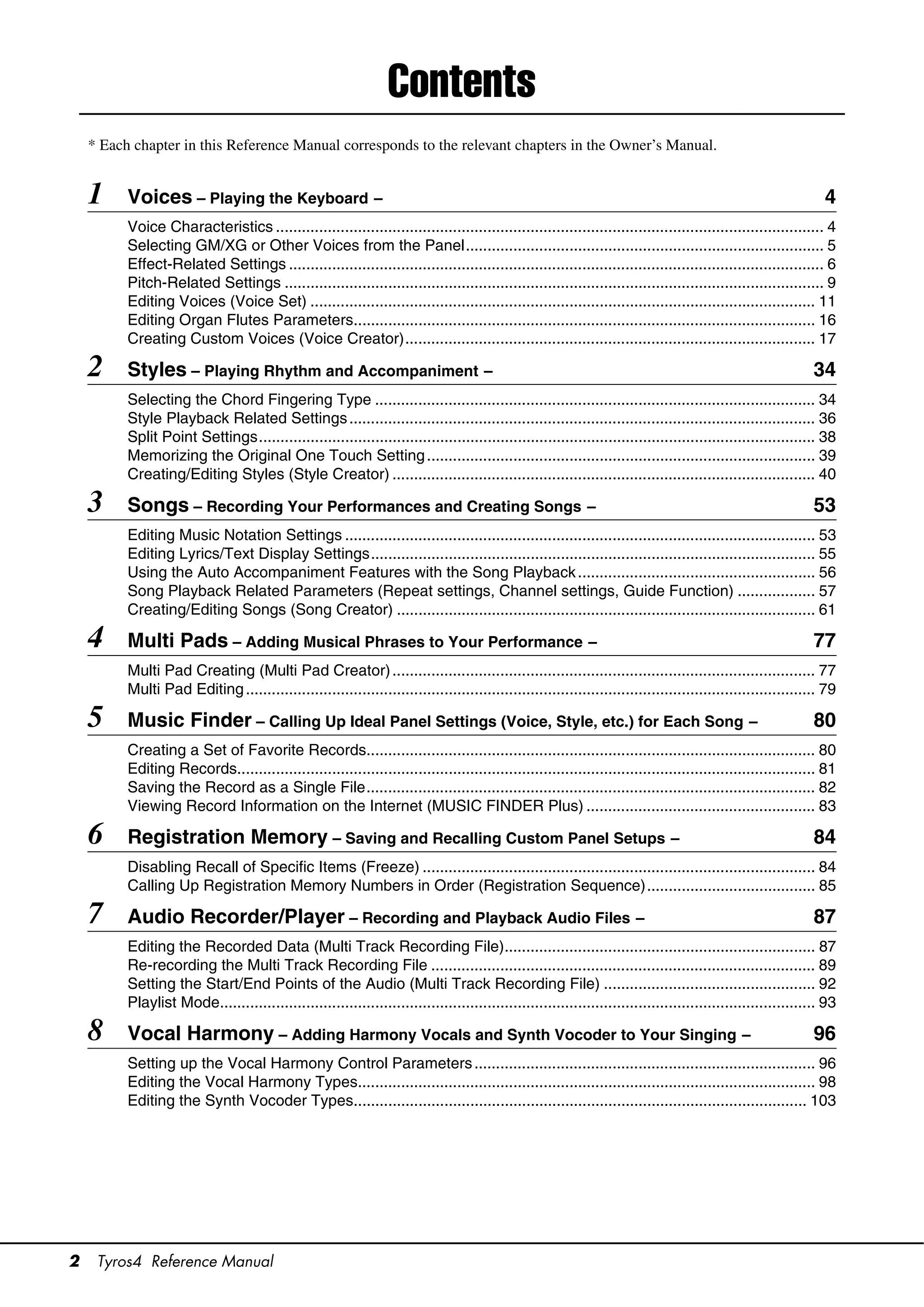
Contents
    * Each chapter in this Reference Manual corresponds to the relevant chapters in the Owner’s Manual.


    1     Voices – Playing the Keyboard –                                                                                                                        4
          Voice Characteristics ............................................................................................................................... 4
          Selecting GM/XG or Other Voices from the Panel................................................................................... 5
          Effect-Related Settings ............................................................................................................................ 6
          Pitch-Related Settings ............................................................................................................................. 9
          Editing Voices (Voice Set) ..................................................................................................................... 11
          Editing Organ Flutes Parameters........................................................................................................... 16
          Creating Custom Voices (Voice Creator)............................................................................................... 17

    2     Styles – Playing Rhythm and Accompaniment –                                                                                                          34
          Selecting the Chord Fingering Type ...................................................................................................... 34
          Style Playback Related Settings ............................................................................................................ 36
          Split Point Settings................................................................................................................................. 38
          Memorizing the Original One Touch Setting .......................................................................................... 39
          Creating/Editing Styles (Style Creator) .................................................................................................. 40

    3     Songs – Recording Your Performances and Creating Songs –                                                                                             53
          Editing Music Notation Settings ............................................................................................................. 53
          Editing Lyrics/Text Display Settings....................................................................................................... 55
          Using the Auto Accompaniment Features with the Song Playback ....................................................... 56
          Song Playback Related Parameters (Repeat settings, Channel settings, Guide Function) .................. 57
          Creating/Editing Songs (Song Creator) ................................................................................................. 61

    4     Multi Pads – Adding Musical Phrases to Your Performance –                                                                                            77
          Multi Pad Creating (Multi Pad Creator) .................................................................................................. 77
          Multi Pad Editing .................................................................................................................................... 79

    5     Music Finder – Calling Up Ideal Panel Settings (Voice, Style, etc.) for Each Song –                                                                  80
          Creating a Set of Favorite Records........................................................................................................ 80
          Editing Records...................................................................................................................................... 81
          Saving the Record as a Single File........................................................................................................ 82
          Viewing Record Information on the Internet (MUSIC FINDER Plus) ..................................................... 83

    6     Registration Memory – Saving and Recalling Custom Panel Setups –                                                                                     84
          Disabling Recall of Specific Items (Freeze) ........................................................................................... 84
          Calling Up Registration Memory Numbers in Order (Registration Sequence)....................................... 85

    7     Audio Recorder/Player – Recording and Playback Audio Files –                                                                                         87
          Editing the Recorded Data (Multi Track Recording File)........................................................................ 87
          Re-recording the Multi Track Recording File ......................................................................................... 89
          Setting the Start/End Points of the Audio (Multi Track Recording File) ................................................. 92
          Playlist Mode.......................................................................................................................................... 93

    8     Vocal Harmony – Adding Harmony Vocals and Synth Vocoder to Your Singing –                                                                            96
          Setting up the Vocal Harmony Control Parameters ............................................................................... 96
          Editing the Vocal Harmony Types.......................................................................................................... 98
          Editing the Synth Vocoder Types......................................................................................................... 103


2    Tyros4 Reference Manual
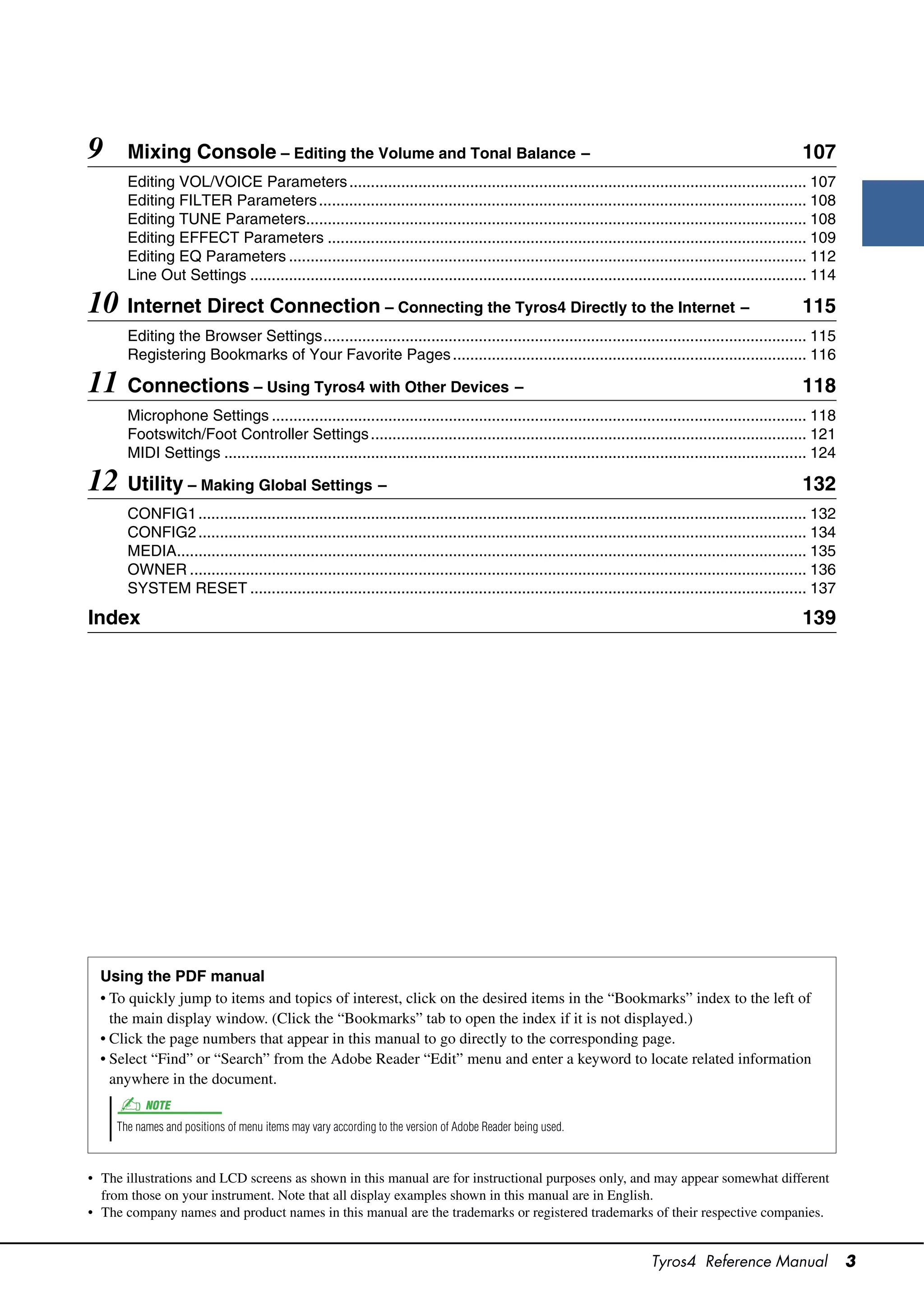
9      Mixing Console – Editing the Volume and Tonal Balance –                                                                                            107
       Editing VOL/VOICE Parameters .......................................................................................................... 107
       Editing FILTER Parameters ................................................................................................................. 108
       Editing TUNE Parameters.................................................................................................................... 108
       Editing EFFECT Parameters ............................................................................................................... 109
       Editing EQ Parameters ........................................................................................................................ 112
       Line Out Settings ................................................................................................................................. 114

10 Internet Direct Connection – Connecting the Tyros4 Directly to the Internet –                                                                          115
       Editing the Browser Settings................................................................................................................ 115
       Registering Bookmarks of Your Favorite Pages .................................................................................. 116

11 Connections – Using Tyros4 with Other Devices –                                                                                                        118
       Microphone Settings ............................................................................................................................ 118
       Footswitch/Foot Controller Settings ..................................................................................................... 121
       MIDI Settings ....................................................................................................................................... 124

12 Utility – Making Global Settings –                                                                                                                     132
       CONFIG1 ............................................................................................................................................. 132
       CONFIG2 ............................................................................................................................................. 134
       MEDIA.................................................................................................................................................. 135
       OWNER ............................................................................................................................................... 136
       SYSTEM RESET ................................................................................................................................. 137

Index                                                                                                                                                     139


  Using the PDF manual
  • To quickly jump to items and topics of interest, click on the desired items in the “Bookmarks” index to the left of
    the main display window. (Click the “Bookmarks” tab to open the index if it is not displayed.)
  • Click the page numbers that appear in this manual to go directly to the corresponding page.
  • Select “Find” or “Search” from the Adobe Reader “Edit” menu and enter a keyword to locate related information
    anywhere in the document.
           NOTE
     The names and positions of menu items may vary according to the version of Adobe Reader being used.


• The illustrations and LCD screens as shown in this manual are for instructional purposes only, and may appear somewhat different
  from those on your instrument. Note that all display examples shown in this manual are in English.
• The company names and product names in this manual are the trademarks or registered trademarks of their respective companies.


                                                                                                                         Tyros4 Reference Manual                     3
Voices
1                  – Playing the Keyboard –


                            Contents
                            Voice Characteristics ......................................................................................... 4
                            Selecting GM/XG or Other Voices from the Panel ......................................... 5
                            Effect-Related Settings ...................................................................................... 6
                               • Setting the Touch Sensitivity of the Keyboard ............................................. 6
                               • Selecting the Harmony/Echo type ................................................................ 7
                            Pitch-Related Settings ....................................................................................... 9
                               • Fine-tuning the Pitch of the Entire Instrument............................................. 9
                               • Scale Tuning................................................................................................. 9
                               • Changing the Part Assignment of the TRANSPOSE Buttons ................... 10
                            Editing Voices (Voice Set)................................................................................ 11
                               • Editable Parameters in the VOICE SET Displays...................................... 12
                               • Disabling Automatic Selection of Voice Sets (Effects, etc.) ...................... 15
                            Editing Organ Flutes Parameters .................................................................. 16
                            Creating Custom Voices (Voice Creator) ....................................................... 17
                               • Importing the Wave Data to the Optional Expansion Module ................... 17
                               • Creating Normal Voices (Custom Voice) ................................................... 20
                               • Creating Drum Voices (Custom Drum Voice)............................................ 24
                               • Re-Editing a Custom Voice ........................................................................ 27
                               • Editing an Expansion Voice Bank—Library Edit ...................................... 28
                               • Saving your Custom Voices to a Library—Library Save ........................... 30
                               • Loading a single Additional Voice to the Tyros4—Individual Load.......... 31
                               • Loading a Library (Expansion Voice Bank) to the Tyros4—Library Load
                                  ................................................................................................................... 32
                               • Editing a Custom Voice on your computer—Voice Editor ........................ 33


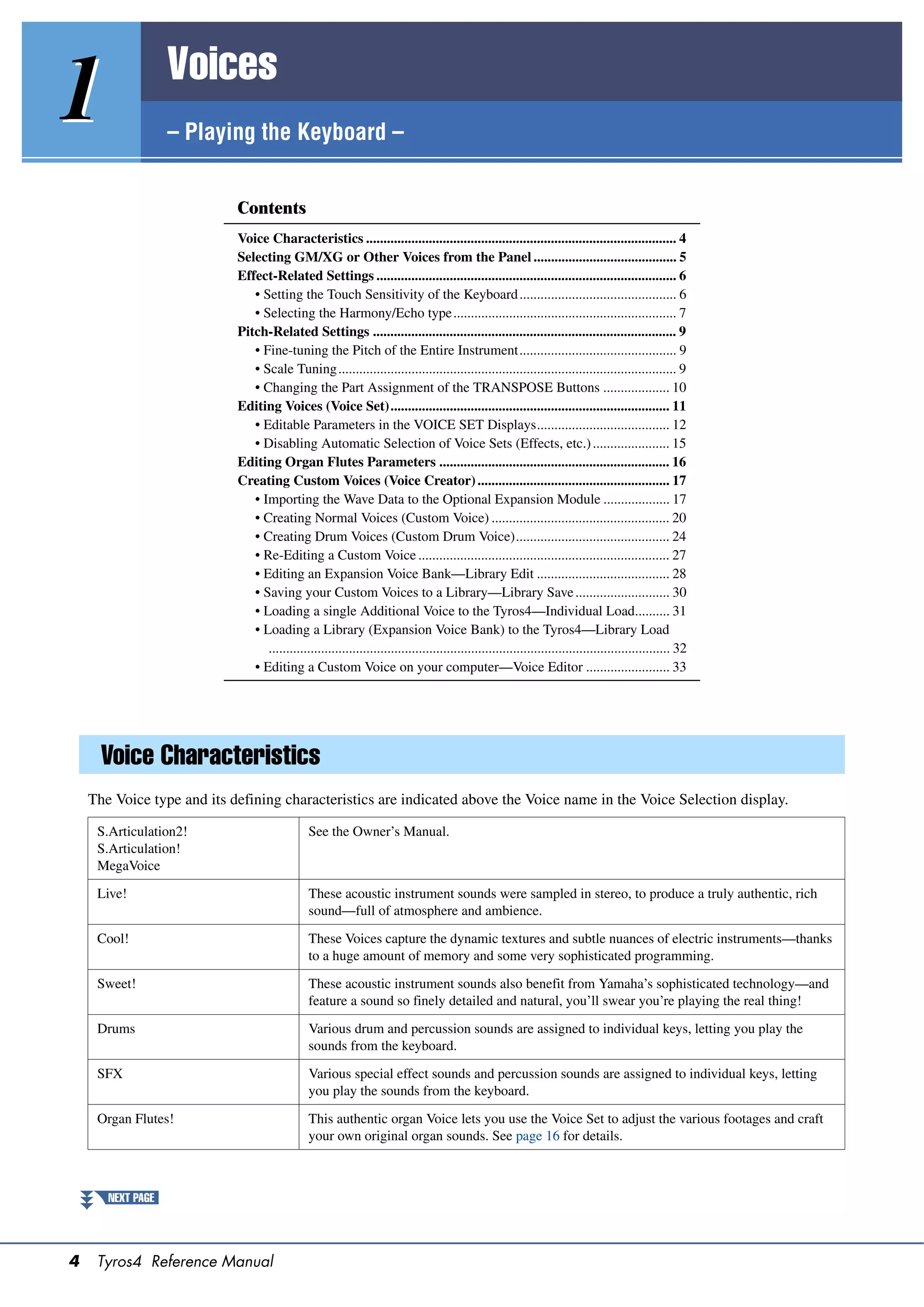
      Voice Characteristics
    The Voice type and its defining characteristics are indicated above the Voice name in the Voice Selection display.

     S.Articulation2!                          See the Owner’s Manual.
     S.Articulation!
     MegaVoice

     Live!                                     These acoustic instrument sounds were sampled in stereo, to produce a truly authentic, rich
                                               sound—full of atmosphere and ambience.

     Cool!                                     These Voices capture the dynamic textures and subtle nuances of electric instruments—thanks
                                               to a huge amount of memory and some very sophisticated programming.

     Sweet!                                    These acoustic instrument sounds also benefit from Yamaha’s sophisticated technology—and
                                               feature a sound so finely detailed and natural, you’ll swear you’re playing the real thing!

     Drums                                     Various drum and percussion sounds are assigned to individual keys, letting you play the
                                               sounds from the keyboard.

     SFX                                       Various special effect sounds and percussion sounds are assigned to individual keys, letting
                                               you play the sounds from the keyboard.

     Organ Flutes!                             This authentic organ Voice lets you use the Voice Set to adjust the various footages and craft
                                               your own original organ sounds. See page 16 for details.


       NEXT PAGE


4    Tyros4 Reference Manual
Live!Drums                       These are high-quality drum sounds taking full advantage of Stereo Sampling and Dynamic
                                  Sampling.

 Live!SFX                         These are various high-quality special effect sounds and percussion sounds taking full advan-
                                  tage of Stereo Sampling and Dynamic sampling.

 Custom!                          Custom Voices (including Custom Drum Voices) which you have created by using the Custom
                                  Voice function.

 CustomWA!                        Custom Voices (including Custom Drum Voices) which contain Wave data.


                                                                                                                                                  1
  Selecting GM/XG or Other Voices from the Panel


                                                                                                                                                Voices – Playing the Keyboard –
The GM/XG Voices cannot be directly called up from the VOICE category selection buttons. However, they can be called
up via panel operation by following the procedure below.

  1    Press one of the PART SELECT button to which you want to call
       up the desired Voice.

  2    Press one of the VOICE category selection buttons to call up
       the Voice Selection display.

  3    Press the [8 ] (UP) button to call up the Voice categories.


                                                     3             4


  4    Press the [2 ] (P2) button to display Page 2.

  5    Press the desired [A]–[J] button to call up the Voice Selection                                 NOTE
       display of GM/XG Voices, GM2 Voices, etc.                                                 You can find the “Legacy” folder in this
                                                                                                 display. This folder contains previous
                                                                                                 Yamaha keyboards’ Voices (such as
  6    Select the desired Voice.                                                                 Tyros, Tyros2, Tyros3, etc.) for data
                                                                                                 compatibility with other models.


                                                                                               Tyros4 Reference Manual                      5
Effect-Related Settings
    Setting the Touch Sensitivity of the Keyboard
    You can adjust the touch response of the instrument (how the sound responds to the way                   NOTE
    you play the keys). The touch sensitivity type becomes the common setting for all Voices.          Some Voices are purposely designed
                                                                                                       without touch sensitivity, in order to
      1    Call up the operation display.                                                              emulate the true characteristics of the
                                                                                                       actual instrument (for example, conven-
           [FUNCTION]  [D] CONTROLLER  TAB [][] KEYBOARD/PANEL                                     tional organs, which have no touch
                                                                                                       response).

      2    Use the [A]/[B] buttons to select the desired parameter: “1 INI-
           TIAL TOUCH” or “2 AFTER TOUCH.”


                      2


                              3


      3    Use the [1 ]–[8 ] buttons to specify the touch response.

           1 INITIAL TOUCH
             [1 ]/       TOUCH               Determines the Initial Touch sensitivity setting.
             [2 ]
                                               HARD 2: Requires strong playing to produce high volume. Best for players with a
                                                 heavy touch.
                                               HARD 1: Requires moderately strong playing for higher volume.
                                               NORMAL: Standard touch response.
                                               SOFT 1: Produces high volume with moderate playing strength.
                                               SOFT 2: Produces relatively high volume even with light playing strength. Best for
                                                 players with a light touch.

             [4 ]        TOUCH OFF           Determines the fixed volume level when Touch is set to “OFF.”
                           LEVEL

             [5 ]–       LEFT–RIGHT3         Turns Initial Touch on or off for each keyboard part.
             [8 ]


           2 AFTER TOUCH
             [1 ]/       TOUCH               Determines the Aftertouch sensitivity setting.
             [2 ]
                                               HARD: Relatively strong aftertouch pressure is needed to produce changes.
                                               NORMAL: Produces a fairly standard aftertouch response.
                                               SOFT: Allows you to produce relatively large changes with very light aftertouch pres-
                                                 sure.

             [5 ]–       LEFT–RIGHT3         Turns Initial Touch on or off for each keyboard part.
             [8 ]


6    Tyros4 Reference Manual
Selecting the Harmony/Echo type
You can select the desired Harmony/Echo effect from a variety of types.                                                        NOTE
                                                                                                                         When the [MONO] button is turned to
  1     Turn the [HARMONY/ECHO] button on.                                                                               on or you use the SA/SA2 Voices, the
                                                                                                                         Harmony/Echo effect may not work
                                                                                                                         properly.
  2     Call up the operation display.
        [FUNCTION]  [F] HARMONY/ECHO

  3     Use the [1 ]–[3 ] buttons to select the Harmony/Echo
        type.                                                                                                                                                         1
        The Harmony/Echo types are divided into the following groups, depending on the
        particular effect applied.


                                                                                                                                                                    Voices – Playing the Keyboard –
                                                            Harmony Types
                                                            These types apply the harmony effect to notes played in the right-hand section of the
                                                            keyboard according to the chord specified in the left-hand section of the keyboard.
                                                            (Note that the “1+5” and “Octave” settings are not affected by the chord.)

                                                            Multi Assign Type
                                                            This type applies a special effect to chords played in the right-hand section of the
                                                            keyboard.


                                                            Echo Types
                                                            These types apply echo effects to notes played in the right-hand section of the key-
                                                            board in time with the currently set tempo.


         Harmony Types
        When one of the Harmony Types is selected, the Harmony effect is applied to the
        note played in the right-hand section of the keyboard according to the type
        selected above and the chord specified in the chord section of the keyboard shown
        below.


                        Split Point                                                              Split Point


                                                                                                                     RIGHT 1–3 Voices
          Chord section for Style playback                                         LEFT Voice and chord section
          and Harmony effect                                                       for Harmony effect


                        Split Point       Split Point
                   (for Style playback)   (for the Voice)


                                LEFT Voice       RIGHT 1–3 Voices
          Chord section for
          Style playback and
          Harmony effect


   NEXT PAGE


                                                                                                                      Tyros4 Reference Manual                   7
 Multi Assign Type
         The Multi Assign effect automatically assigns notes played simultaneously on the
         right-hand section of the keyboard to separate parts (Voices). For example, if you
         play three consecutive notes, the first is played by the RIGHT 1 Voice, the second
         by the RIGHT 2 Voice, and the third by the RIGHT 3 Voice. The Multi Assign
         effect is not affected by the [ACMP] and LEFT part on/off status.

          Echo Types
         When one of the Echo Types is selected, the corresponding effect (echo, tremolo,
         trill) is applied to the note played in the right-hand section of the keyboard in time
         with the currently set tempo, regardless of the [ACMP] and the LEFT part on/off
         status. Keep in mind that Trill works when you hold down two notes on the key-
         board simultaneously (last two notes if more than two notes are held), and it plays
         those notes alternately.

    4    Use the [4 ]–[8 ] buttons to select various Harmony/
         Echo settings.
         The available settings differ depending on the Harmony/Echo type.


          [4 ]         VOLUME               This parameter is available for all types with the exception of “Multi Assign.” It deter-
                                              mines the level of the harmony/echo notes generated by the Harmony/Echo effect.

          [5 ]         SPEED                This parameter is only available when Echo, Tremolo, or Trill is selected in Type
                                              above. It determines the speed of the Echo, Tremolo, and Trill effects.
          [6 ]         ASSIGN               This parameter is available for all types with the exception of “Multi Assign.” This
                                              lets you determine the keyboard part via which the harmony/echo notes will be
                                              sounded.

          [7 ]         CHORD NOTE           This parameter is available when one of the Harmony Types is selected. When this is
                         ONLY                 set to “ON,” the Harmony effect is applied only to the note (played in the right-hand
                                              section of the keyboard) that belongs to a chord played in the chord section of the key-
                                              board.

          [8 ]         TOUCH LIMIT          This parameter is available for all types with the exception of “Multi Assign.” It deter-
                                              mines the lowest velocity value at which the harmony note will sound. This allows
                                              you to selectively apply the harmony by your playing strength, letting you create har-
                                              mony accents in the melody. The harmony effect is applied when you play the key
                                              strongly (above the set value).


8   Tyros4 Reference Manual
Pitch-Related Settings
Fine-tuning the Pitch of the Entire Instrument
You can fine-tune the pitch of the entire instrument—useful when you play the Tyros4 along with other instruments or
CD music. Please note that the Tune function does not affect the Drum Kit or SFX Kit Voices and audio files.

  1     Call up the operation display.
        [FUNCTION]  [A] MASTER TUNE/SCALE TUNE  TAB [][] MASTER
        TUNE                                                                                                                                    1
  2     Use the [4 ]/[5 ] buttons to set the tuning, from


                                                                                                                                              Voices – Playing the Keyboard –
        414.8–466.8 Hz.
        Press the both 4 or 5’s [] and [] buttons simultaneously to reset the value to
        the factory setting of 440.0 Hz.


Scale Tuning
You can select various scales for playing in custom tunings for specific historical periods or music genres.

  1     Call up the operation display.
        [FUNCTION]  [A] MASTER TUNE/SCALE TUNE  TAB [][] SCALE
        TUNE

  2     Use the [A]/[B] buttons to select the desired scale.


                                                                                     The tuning of each note for the currently
                                                                                     selected scale is shown.


         Preset Scale types
          EQUAL                 The pitch range of each octave is divided equally into twelve parts, with each half-step evenly
                                spaced in pitch. This is the most commonly used tuning in music today.

          PURE MAJOR,           These tunings preserve the pure mathematical intervals of each scale, especially for triad chords
          PURE MINOR            (root, third, fifth). You can hear this best in actual vocal harmonies—such as choirs and a cappella
                                singing.

          PYTHAGOREAN           This scale was devised by the famous Greek philosopher and is created from a series of perfect
                                fifths, which are collapsed into a single octave. The 3rd in this tuning are slightly unstable, but the
                                4th and 5th are beautiful and suitable for some leads.

          MEAN-TONE             This scale was created as an improvement on the Pythagorean scale, by making the major third
                                interval more “in tune.” It was especially popular from the 16th century to the 18th century. Han-
                                del, among others, used this scale.

          WERCKMEISTER,         This composite scale combines the Werckmeister and Kirnberger systems, which were themselves
          KIRNBERGER            improvements on the mean-tone and Pythagorean scales. The main feature of this scale is that each
                                key has its own unique character. The scale was used extensively during the time of Bach and
                                Beethoven, and even now it is often used when performing period music on the harpsichord.

          ARABIC1,              Use these tunings when playing Arabic music.
          ARABIC2


   NEXT PAGE


                                                                                                      Tyros4 Reference Manual             9
3    Change the following settings as necessary.                                                                      NOTE
                                                                                                                      To register the Scale Tune settings to the
                                                                                                                      Registration Memory, be sure to check-
                                                                                                                      mark the SCALE item in the REGISTRA-
                                                                                                                      TION MEMORY CONTENTS display.


             [2 ]        BASE NOTE           Determines the base note for each scale. When the base note is changed, the pitch of
                                               the keyboard is transposed, yet maintains the original pitch relationship between the
                                               notes.

             [3 ]–       TUNE                Select the desired note to be tuned by using the [3 ] buttons and tune it in cents by
             [5 ]                            using the [4 ]/[5 ] buttons.
                                                       NOTE
                                                 In musical terms a “cent” is 1/100th of a semitone. (100 cents equal one semitone.)


             [6 ]/       PART SELECT         Select the part to which the Scale Tune setting is applied by using the [6 ]/[7
             [7 ]                            ] buttons. Then press the [8 ] button to add a checkmark or press the [8 ] but-
                                               ton to remove the checkmark.
             [8 ]        MARK ON/OFF


     Changing the Part Assignment of the TRANSPOSE Buttons
     You can determine to which parts the TRANSPOSE [-]/[+] buttons are applied.

       1    Call up the operation display.
            [FUNCTION]  [D] CONTROLLER  TAB [][] KEYBOARD/PANEL

       2    Use the [A]/[B] buttons to select “4. TRANSPOSE ASSIGN.”

       3    Press the [4 ]/[5 ] buttons to select the desired trans-
            pose type.
             KEYBOARD              When this is selected, the TRANSPOSE [-]/[+] buttons affect the pitch of keyboard played Voices,
                                   Style playback (controlled by the performance in the chord section of the keyboard), and Multi Pad
                                   playback (when Chord Match is on, and left-hand chords are indicated)—but they do not affect
                                   Song playback.

             SONG                  When this is selected, the TRANSPOSE [-]/[+] buttons affect only the pitch of Song playback.

             MASTER                When this is selected, the TRANSPOSE [-]/[+] buttons affect the overall pitch of the instrument,
                                   except audio playback.


            You can confirm the setting here by viewing the popup window called up via the
            TRANSPOSE [-]/[+] buttons.


10    Tyros4 Reference Manual
Editing Voices (Voice Set)
The Tyros4 has a Voice Set feature that allows you to create your own Voices by editing some parameters of the existing
Voices. Once you’ve created a Voice, you can save it as a User Voice to the USER drive or external devices for future
recall.

  1    Select the desired Voice (other than an Organ Flutes Voice).
       The editing method is different for the ORGAN FLUTES Voices compared to
       other Voices. For instructions on editing the ORGAN FLUTES Voices, see
       page 16.                                                                                                                        1
  2    Press the [5 ] (VOICE SET) button to call up the VOICE SET


                                                                                                                                     Voices – Playing the Keyboard –
       display.

  3    Use the TAB [][] buttons to call up the relevant setting dis-
       play.
       For information on the available parameters in each display, see the “Editable
       Parameters in the VOICE SET Displays” on page 12.


                                                                          3


                                                                     5


                                                             4


  4    As necessary, use the [A]/[B] buttons to select the item (param-
       eter) to be edited and edit the Voice by using the [1 ]–[8
       ] buttons or sliders.
       By pressing the [D] (COMPARE) button, you can compare the sound of the edited         NOTICE
       Voice with the original (unedited) Voice.                                            The settings will be lost if you
                                                                                            select another Voice or turn the
  5    Press the [I] (SAVE) button to save your edited Voice as a User                      power to the instrument off with-
                                                                                            out executing the Save operation.
       Voice.


                                                                                          Tyros4 Reference Manual               11
Editable Parameters in the VOICE SET Displays
     The Voice Set parameters are organized into five different displays. The parameters in                                          NOTE
     each display are described separately, below.                                                                       The available parameters differ depend-
                                                                                                                         ing on the Voice.
      COMMON Page
              [1 ]        VOLUME              Adjusts the volume of the current edited Voice.

              [2 ]/       TOUCH SENSE         Adjusts the touch sensitivity (velocity sensitivity), or how greatly the volume
              [3 ]                            responds to your playing strength.
                                                    TOUCH SENSE DEPTH                                      TOUCH SENSE OFFSET
                                                    Changes to velocity curve according                    Changes to velocity curve according
                                                    to VelDepth (with Offset set to 64)                    to VelOffset (with Depth set to 64)
                                                     Actual Velocity for                                   Actual Velocity for
                                                     tone generator                                        tone generator
                                                                                                                                Offset=96 (+64)
                                                                                       Depth=127 (twice)                                          Offset=127 (+127)
                                                      127                                                   127

                                                                                       Depth=64 (normal)                                          Offset=64 (normal)


                                                       64                                                    64
                                                                                                                    Depends
                                                                                       Depth=32 (half)              on offset                     Offset=32 (-64)

                                                                                       Depth=0
                                                         0                                                    0
                                                                       64        127                                            64            127
                                                                                                                    Depends                  Received Velocity
                                                                            Received Velocity                       on offset
                                                                            (Actual KeyOn speed)                                             (Actual KeyOn speed)


                                                                                                                                     Offset=0 (-127)


                                                DEPTH: Determines the velocity sensitivity, or how much the level of the Voice
                                                  changes in response to your playing strength (velocity).
                                                OFFSET: Determines the amount by which received velocities are adjusted for the
                                                  actual velocity effect.

              [4 ]/       PART OCTAVE         Shifts the octave range of the edited Voice up or down in octaves. When the edited
              [5 ]                            Voice is used as any of the RIGHT 1–3 parts, the R1/R2/R3 parameter is available;
                                                when the edited Voice is used as the LEFT part, the LEFT parameter is available.
              [6 ]        MONO/POLY           Determines whether the edited Voice is played monophonically or polyphonically. This
                                                setting can also be made from the VOICE EFFECT [MONO] button on the panel.
              [7 ]        PORTAMENTO          Sets the portamento time (pitch transition time) when the edited Voice is set to
                            TIME                “MONO” above.
                                                       NOTE
                                                 The Portamento Time determines the pitch transition time. Portamento is a function that creates a smooth
                                                 transition in pitch from the first note played on the keyboard to the next.


      CONTROLLER Page
         1 MODULATION
            The MODULATION wheel can be used to modulate the parameters below as well
            as the pitch (vibrato). Here, you can set the degree to which the MODULATION
            wheel modulates each of the following parameters.
              [2 ]        FILTER              Determines the degree to which the MODULATION wheel modulates the Filter Cut-
                                                off Frequency. For details about the filter, see page 13.

              [3 ]        AMPLITUDE           Determines the degree to which the MODULATION wheel modulates the amplitude
                                                (volume).

              [5 ]        LFO PMOD            Determines the degree to which the MODULATION wheel modulates the pitch, or
                                                the vibrato effect.

              [6 ]        LFO FMOD            Determines the degree to which the MODULATION wheel modulates the Filter mod-
                                                ulation, or the wah effect.

              [7 ]        LFO AMOD            Determines the degree to which the MODULATION wheel modulates the amplitude,
                                                or the tremolo effect.


12    Tyros4 Reference Manual
2 AFTER TOUCH
    Aftertouch can be used to modulate the parameters below. Here, you can set the
    degree to which Aftertouch modulates each of the following parameters.
     [2 ]         FILTER              Determines the degree to which Aftertouch modulates the Filter Cutoff Frequency.
                                        See below for details about Filter.

     [3 ]         AMPLITUDE           Determines the degree to which Aftertouch modulates the amplitude (volume).

     [5 ]         LFO PMOD            Determines the degree to which Aftertouch modulates the pitch, or the vibrato effect.

     [6 ]         LFO FMOD            Determines the degree to which Aftertouch modulates the Filter modulation, or the
                                        wah effect.

     [7 ]         LFO AMOD            Determines the degree to which Aftertouch modulates the amplitude, or the tremolo                         1
                                        effect.


                                                                                                                                                Voices – Playing the Keyboard –
 SOUND Page
     FILTER
    Filter is a processor that changes the timbre or tone of a sound by either blocking
    or passing a specific frequency range. The parameters below determine the overall
    timbre of the sound by boosting or cutting a certain frequency range. In addition to
    making the sound either brighter or mellower, Filter can be used to produce elec-
    tronic, synthesizer-like effects.
     [1 ]         BRIGHT              Determines the cutoff frequency or         Volume
                    (Brightness)        effective frequency range of the filter                 Cutoff Frequency
                                        (see diagram). Higher values result in a
                                        brighter sound.


                                                                                                                            Frequency
                                                                                    These frequencies are     Cutoff        (pitch)
                                                                                    “passed” by the filter.   range

     [2 ]         HARMO.              Determines the emphasis given to the       Volume
                    (Harmonic           cutoff frequency (resonance), set in
                    content)            BRIGHT above (see diagram). Higher                                              Resonance
                                        values result in a more pronounced
                                        effect.


                                                                                                                       Frequency (pitch)


    EG                                                                                Level

    The EG (Envelope Generator) settings determine how the level of the
    sound changes in time. This lets you reproduce many sound character-                                                      Sustain
    istics of natural acoustic instruments—such as the quick attack and                                                       Level

    decay of percussion sounds, or the long release of a sustained piano
    tone.                                                                                 ATTACK   DECAY           RELEASE      Time


                                                                                       Key on                 Key off


     [3 ]         ATTACK              Determines how quickly the sound reaches its maximum level after the key is played.
                                        The lower the value, the quicker the attack.

     [4 ]         DECAY               Determines how quickly the sound reaches its sustain level (a slightly lower level than
                                        maximum). The lower the value, the quicker the decay.

     [5 ]         RELES.              Determines how quickly the sound decays to silence after the key is released. The
                    (Release)           lower the value, the quicker the decay.


                                                                                                Tyros4 Reference Manual                    13
VIBRATO                                                                             Pitch
                                                                                                              SPEED
          Vibrato is a quavering, vibrating sound effect that is produced by regu-
          larly modulating the pitch of the Voice.
                                                                                                                           DEPTH

                                                                                                  DELAY


                                                                                                                              Time


           [6 ]         DEPTH               Determines the intensity of the Vibrato effect. Higher settings result in a more pro-
                                              nounced Vibrato.

           [7 ]         SPEED               Determines the speed of the Vibrato effect.

           [8 ]         DELAY               Determines the amount of time that elapses between the playing of a key and the start
                                              of the Vibrato effect. Higher settings increase the delay of the Vibrato onset.


      EFFECT/EQ Page
          1 REVERB DEPTH/CHORUS DEPTH/DSP DEPTH/PANEL SUSTAIN
           [1 ]/        REVERB DEPTH        Adjusts the reverb depth.
           [2 ]

           [3 ]/        CHORUS DEPTH        Adjusts the chorus depth.
           [4 ]

           [5 ]         DSP ON/OFF          Determines whether the DSP is on or off.
                                              This setting can also be made from the VOICE EFFECT [DSP] button on the panel.

           [6 ]         DSP DEPTH           Adjusts the DSP depth.
                                              If you want to re-select the DSP type, you can do so in the “2 DSP” menu explained
                                              below.

           [7 ]         PANEL SUSTAIN       Determines the sustain level applied to the edited Voice when the VOICE EFFECT
                                              [SUSTAIN] button on the panel is turned on.


          2 DSP
           [1 ]–        DSP TYPE            Selects the DSP effect category and type. Select a type after selecting a category.
           [4 ]

           [5 ]–        VARIATION           Two variations are provided for each DSP type. Here, you can edit the VARIATION
           [8 ]                             on/off status and variation’s parameter value setting.

               [5 ]     ON/OFF              Turns the DSP Variation on or off for the selected Voice. This setting can also be made
                                              from the VOICE EFFECT [VARIATION] button on the panel. (This button is effec-
                                              tive only when the [DSP] button is on.)

                          PARAMETER           Displays the variation parameter. (This differs depending on the effect type and can-
                                              not be changed.)

               [6 ]     VALUE               Adjusts the value of the DSP variation parameter.
              –[8 ]


          3 EQ
          Determines the Frequency and Gain of the Low and High EQ bands. For informa-
          tion about EQ, refer to page 112.

      HARMONY Page
          Same as in the [FUNCTION]  [F] HARMONY/ECHO display. See “Selecting
          the Harmony/Echo type” on page 7.


14   Tyros4 Reference Manual
Disabling Automatic Selection of Voice Sets (Effects, etc.)
Each Voice is linked to its default VOICE SET parameter settings. Usually these settings are automatically called up
when a Voice is selected. However, you can also disable this feature by the operation in the relevant display as explained
below.
For example, if you want to change the Voice yet keep the same Harmony effect, set the HARMONY/ECHO parameter
to OFF (in the display explained below).

  1    Call up the operation display.
       [FUNCTION]  [E] REGIST SEQUENCE/FREEZE/VOICE SET  TAB
       [][] VOICE SET                                                                                                             1
  2    Use the [A]/[B] buttons to select a keyboard part.


                                                                                                                                  Voices – Playing the Keyboard –
                     2


                                                       3


  3    Use the [4 ]–[7 ] buttons to enable/disable automatic
       calling up of the settings (ON or OFF) independently for each
       parameter group.


                                                                                            Tyros4 Reference Manual          15
Editing Organ Flutes Parameters
     The Organ Flutes Voices selected from the [ORGAN FLUTES] button can be edited by                     NOTICE
     adjusting the footage levers, adding the attack sound, applying effect and equalizer, etc.          After editing, go to the Voice
                                                                                                         Selection display by pressing the
                                                                                                         [I] (PRESETS) button and save the
      FOOTAGE Page                                                                                      setting. The settings will be lost if
             Refer to the Owner’s Manual, chapter 1.                                                     you select another Voice or turn
                                                                                                         the power to the instrument off
                                                                                                         without executing the Save opera-
      VOLUME/ATTACK Page                                                                                tion.


                                                                            Same as the
                                                                            FOOTAGE Page.


              [1 ]         VOL (Volume)        Adjusts the overall volume of the Organ Flutes. The longer the graphic bar, the greater
                                                 the volume.

              [2 ]         RESP (Response)     Affects both the attack and release (page 13) portion of the sound, increasing or
                                                 decreasing the response time of the initial swell and release, based on the FOOTAGE
                                                 controls. The higher the value, the slower the swell and release.

              [3 ]         VIBRATO             Determines the speed of the vibrato effect controlled by the Vibrato On/Off ([F]/[G]
                             SPEED               buttons) and Vibrato Depth ([H] button).

              [4 ]         MODE                The MODE control selects between two modes: FIRST and EACH. In the FIRST
                                                 mode, attack (percussive sound) is applied only to the first notes played and held
                                                 simultaneously; while the first notes are held, any subsequently played notes have no
                                                 attack applied. In the EACH mode, attack is applied equally to all notes.

              [5 ]–        4’, 2 2/3’, 2’      These determine the attack sound volume of the ORGAN FLUTES Voice. The 4’, 2-
              [7 ]                             2/3’ and 2’ controls increase or reduce the volume of attack sound at the correspond-
                                                 ing footages. The longer the graphic bar, the greater the attack sound volume.

              [8 ]         LENG (Length)       Affects the attack portion of the sound producing a longer or shorter decay immedi-
                                                 ately after the initial attack. The longer the graphic bar, the longer the decay.


      EFFECT/EQ Page
             Same parameters as in the VOICE SET “EFFECT/EQ” Page explained on
             page 14.


16    Tyros4 Reference Manual
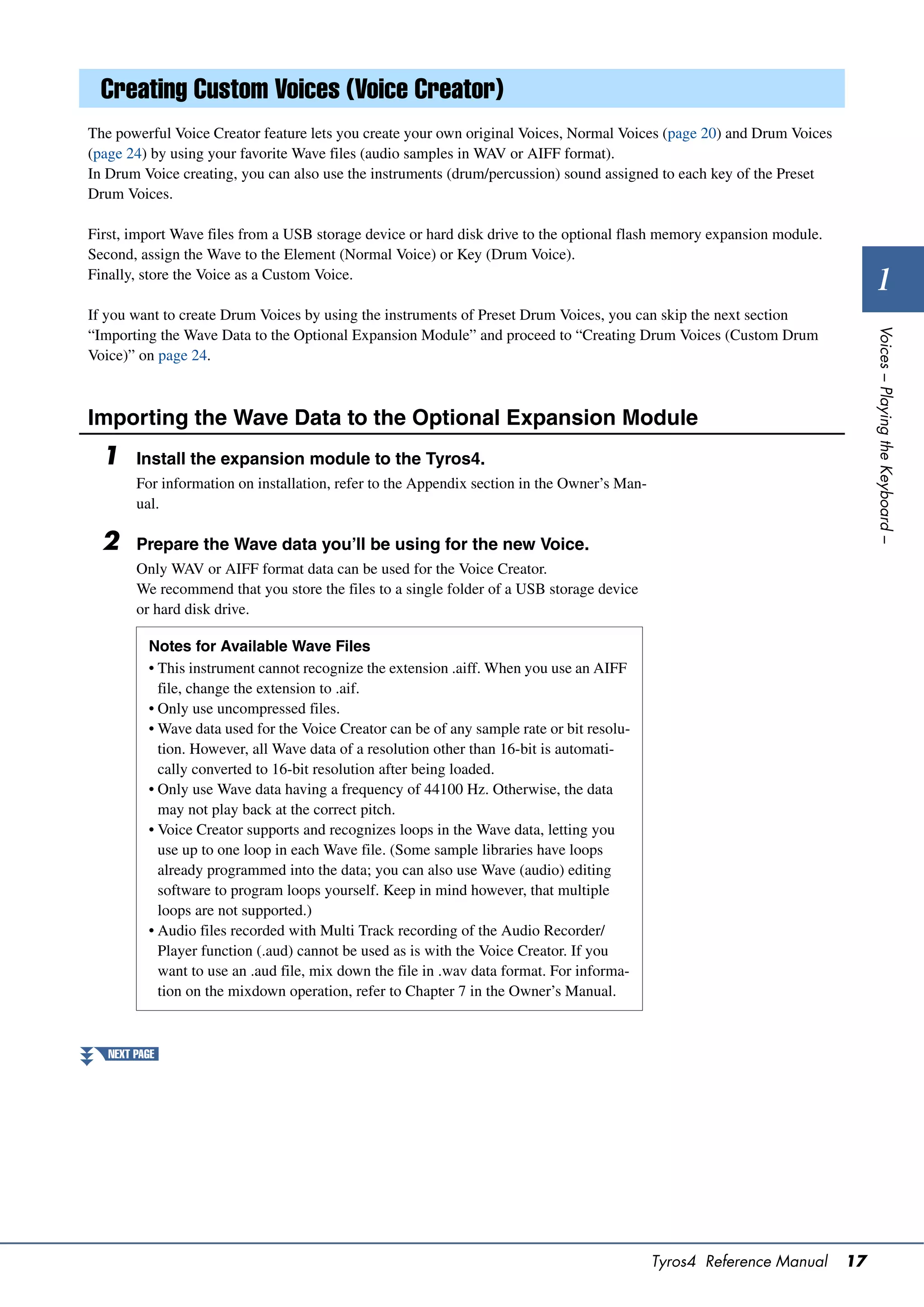
Creating Custom Voices (Voice Creator)
The powerful Voice Creator feature lets you create your own original Voices, Normal Voices (page 20) and Drum Voices
(page 24) by using your favorite Wave files (audio samples in WAV or AIFF format).
In Drum Voice creating, you can also use the instruments (drum/percussion) sound assigned to each key of the Preset
Drum Voices.

First, import Wave files from a USB storage device or hard disk drive to the optional flash memory expansion module.
Second, assign the Wave to the Element (Normal Voice) or Key (Drum Voice).
Finally, store the Voice as a Custom Voice.
                                                                                                                              1
If you want to create Drum Voices by using the instruments of Preset Drum Voices, you can skip the next section


                                                                                                                            Voices – Playing the Keyboard –
“Importing the Wave Data to the Optional Expansion Module” and proceed to “Creating Drum Voices (Custom Drum
Voice)” on page 24.


Importing the Wave Data to the Optional Expansion Module
  1     Install the expansion module to the Tyros4.
        For information on installation, refer to the Appendix section in the Owner’s Man-
        ual.

  2     Prepare the Wave data you’ll be using for the new Voice.
        Only WAV or AIFF format data can be used for the Voice Creator.
        We recommend that you store the files to a single folder of a USB storage device
        or hard disk drive.

          Notes for Available Wave Files
          • This instrument cannot recognize the extension .aiff. When you use an AIFF
            file, change the extension to .aif.
          • Only use uncompressed files.
          • Wave data used for the Voice Creator can be of any sample rate or bit resolu-
            tion. However, all Wave data of a resolution other than 16-bit is automati-
            cally converted to 16-bit resolution after being loaded.
          • Only use Wave data having a frequency of 44100 Hz. Otherwise, the data
            may not play back at the correct pitch.
          • Voice Creator supports and recognizes loops in the Wave data, letting you
            use up to one loop in each Wave file. (Some sample libraries have loops
            already programmed into the data; you can also use Wave (audio) editing
            software to program loops yourself. Keep in mind however, that multiple
            loops are not supported.)
          • Audio files recorded with Multi Track recording of the Audio Recorder/
            Player function (.aud) cannot be used as is with the Voice Creator. If you
            want to use an .aud file, mix down the file in .wav data format. For informa-
            tion on the mixdown operation, refer to Chapter 7 in the Owner’s Manual.


   NEXT PAGE


                                                                                             Tyros4 Reference Manual   17
3     Select the Wave file(s) on the USB or HD drive.
           3-1 Press the [VOICE CREATOR] button to call up the Voice Creator Menu.                   NOTE

           3-2 Press the [E] button to call up the Expansion Module display (page 19).         If the expansion module is not installed
                                                                                               properly, the [E] (EXPANSION MOD-
           3-3 Press the [F] button to call up the Category popup window (page 19), then       ULE) button is grayed out.
                  select the desired Category as Import destination. The popup window disap-
                  pears automatically after a while.


                                                                          3-3

                                                                          3-4


           3-4 Press the [H] (IMPORT) button to call up the Wave display.
           3-5 Press the TAB [][] buttons to select the location (USB or HD) then use              NOTE
                  the [A]–[J] buttons to select the folder in which the WAV/AIFF files are     You can call up the information for the
                  stored.                                                                      selected file by pressing the [7 ]
                                                                                               (INFO) button.


                                                                  3-6


           3-6 Press the [6 ] (IMPORT) button to call up the popup window for the
                  Import operation.
           3-7 Select the desired files by using the [A]–[J] buttons.
                  Press the same button again to cancel the selection.
                  Press the [6 ] (ALL) button to select all files of the current folder.
                  Press the [6 ] (ALL OFF) button to cancel the selection.
           3-8 Press the [7 ] (OK) button to confirm the selection.

     4     Press the [F] (OK) button to actually start importing the
           selected Wave files.
           As soon as the Import operation is finished, the “Completed” dialog appears.

     5     Press the [G] (OK) button to return to the Expansion Module
           display.
           The Wave files imported from the USB or HD drive are shown.


      NEXT PAGE


18   Tyros4 Reference Manual
6   Press the [EXIT] button several times to call up the Main dis-
    play.
    Now, you can start creating your own original Voices, Normal Voices (page 20)
    and Drum Voices (page 24) by using your own Waves.


     Expansion Module display


                                                                                                                                       1


                                                                                                                                     Voices – Playing the Keyboard –
          [F]          CATEGORY            Calls up a popup window for categorizing the Wave files.
                                           [G]/[H]
                                           Selects the desired category, CATEGORY01–20, NO CATEGORY or PRE-
                                           MIUM PACK.
                                           [J]
                                           Changes the name of the selected category. Pressing this button calls up the
                                           display for entering characters.
                                                  NOTE
                                            You can also change the name after the Wave files are imported.

          [H]          IMPORT              Imports the Wave files from the USB or HD drive to the expansion module,
                                           as done in steps 3–4 (page 18). You can also import files after starting to
                                           assign files to the keys.

          [I]          DELETE              Calls up a popup window for the Delete operation.
                                           [5 ]
                                           Selects the desired Wave files to be deleted.
                                           [6 ]
                                           Confirms the selection. To cancel the selection, press the button again.
                                           [7 ]
                                           Selects all files of the current category. To cancel the selection, press the
                                           button again.
                                           [8 ]
                                           Executes the Delete operation.
                                           [8 ]
                                           Cancels the Delete operation.

          [1 ]/      PAGE Up/Down        Selects the next or previous page in the list.
          [2 ]

          [3 ]–      Up/Down             Selects the next or previous file.
          [5 ]

          [6 ]       AUDITION            Allows you to listen to the currently selected file.

          [7 ]/       PROPERTY            Shows the Property display (page 29).
          [8 ]


                                                                                                      Tyros4 Reference Manual   19
Creating Normal Voices (Custom Voice)
     By assigning Wave files, you can create your original Voices—not only create from scratch, but also add Waves to the
     existing Voices. A Voice consists of eight elements and you need to assign Wave files to each element (more than two
     Waves can be assigned to one element).
     The resulting Voice is called a Custom Voice and can be selected and played in the same way as all other Tyros4 Voices.


                                   Flash Memory Expansion Module                         Expansion Voice Bank (Library)

                                         Wave files (WAV or AIFF)


                    q Assign to Element(s)
                      (steps 1–8 below)                                                e Store the created Normal Voice.
                                                                                         (step 12)

                    Tyros4                                                             r (If necessary) Re-edit each element
                             Element 8                                                   and entire Voice
                                                                                         (page 27)

                       Element 1

                                    Wave 1     Wave 2


                                         w Edit each element and entire Voice
                                           (steps 9–11)


       1     Turn the PART SELECT [RIGHT 1] button to on, then select a                                   NOTE
             Voice.                                                                                 S.Articulation2!, S.Articulation!, Mega-
             When you are creating a Custom Voice from scratch, select an “empty” Voice             Voice and Organ Flutes! Voices cannot
                                                                                                    be selected for creation of Custom
             from the [EXPANSION] button. If you are creating a Voice by adding Wave files          Voices.
             to an existing Voice, press the desired VOICE button and select the desired Voice.
                                                                                                          NOTE
       2     Press the [VOICE CREATOR] button to call up the Voice Creator                          If you have selected the [PERC./SFX
             Menu.                                                                                  KIT] category, make sure NOT to select
                                                                                                    Drum Voice (“Drums/SFX/Live!Drums/
                                                                                                    Live!SFX” is displayed above the Voice
                                                                                                    name).


                                                                                                     3


        NEXT PAGE


20    Tyros4 Reference Manual
3    Press the [G] (CUSTOM VOICE ASSEMBLY) button to call up the
     Assembly display.

4    Use the [A]–[D] and [F]–[I] buttons to select the desired Ele-                         NOTE
     ment to which Wave file(s) will be assigned.                                     You cannot assign Waves to preset Ele-
     The Key Mapping display of the selected Element will appear.                     ments (instrument icon is shown).


                                                                                                                                      1


                                                                                                                                    Voices – Playing the Keyboard –
5    Assign the desired Wave to the selected Element.
     5-1 Press the [F] button to call up the Add Wave display.
     5-2 Press the [F] button to call up the Select Wave display.
     5-3 Use the [F] button to select the category which contains the desired Wave
            file.
            For information on category, refer to page 19.
     5-4 Select the desired Wave file by using the [1 ]–[5 ] buttons, then
            press the [ENTER] button to confirm your selection.


NEXT PAGE


                                                                                     Tyros4 Reference Manual                   21
6     Set the parameters for the assigned Wave in the Add Wave dis-
           play.
           From this display, you can set a number of parameters related to how the sound
           will be mapped to the keyboard.


                                                                                          7


             [1 ]       FIXED PITCH        When this is set to ON, all keys will play the Wave sound at the same pitch. When set
                                             to OFF, the pitch of the Wave sound changes according to the key played, based
                                             around the original pitch (set at Center Key below).

             [2 ]/      CENTER KEY         This determines the key to which the original pitch of the sound is assigned. When
             [3 ]                          Fixed Pitch (above) is set to OFF, keys below the Center Key play the sound progres-
                                             sively lower in pitch, while keys above play the sound progressively higher. Normally,
                                             you’ll want to make sure that this is the same as the original sound; for example, if the
                                             original pitch of the audio was at C3, set Center Key to C3 for best results. When
                                             Fixed Pitch (above) is set to ON, this has no effect. You can specify this setting
                                             directly from the keyboard by simultaneously holding down the [2 ] (DIRECT
                                             KEY) button and pressing the desired key on the keyboard.

             [4 ]/      START KEY          This determines the lowest key at which the Wave will sound. Use this with End Key
             [5 ]                          (see step 9 on page 23) to set the key range for the Wave. You can specify this setting
                                             directly from the keyboard by simultaneously holding down the [4 ] (DIRECT
                                             KEY) button and pressing the desired key on the keyboard.

             [6 ]       WAVE VOLUME        This determines the playback volume for the specific Wave. Normally, this should be
                                             set to the maximum (127); however, you can use it to adjust the level balance among
                                             multiple sounds in the Element.


     7     Press the [H] (EXECUTE) button to actually assign the Wave.                                      NOTE
           Completion of the Assign operation will return to the Key Mapping display.                 If you want to store the Voice at this
                                                                                                      point, press the [J] (STORE) button. The
                                                                                                      Custom Voice display will appear. Refer
     8     If you want to assign another Wave to this Element, repeat                                 to step 12 on page 23 about the Custom
           steps 5–7.                                                                                 Voice display. Each time you make
                                                                                                      some change (e.g., add a Wave to the
                                                                                                      Element or add an Element to the
                                                                                                      Voice), you should store the Voice.


      NEXT PAGE


22   Tyros4 Reference Manual
9   Set the parameters for the currently selected Element in the
     Key Mapping display.


                                                                                                                                                    1


                                                                                                                                                  Voices – Playing the Keyboard –
      [G]            DELETE WAVE          Deletes the Wave selected with the [1 ]–[3 ] (WAVE) buttons below.

      [1 ]–        WAVE                 When more than one Wave has been assigned, select the desired one for editing.
      [3 ]                              To select the Wave which is assigned to the key, simultaneously hold down the [1
                                          ] (DIRECT KEY) button and press the appropriate key on the keyboard.

      [4 ]/        START KEY            This determines the lowest key at which the Wave will sound. Use this with End Key
      [5 ]                              (below) to set the key range for the Wave. You can specify this setting directly from
                                          the keyboard by simultaneously holding down the [4 ] (DIRECT KEY) button
                                          and pressing the desired key on the keyboard.

      [6 ]/        END KEY              This determines the highest key at which the Wave will sound. Use this with Start Key
      [7 ]                              (above) to set the key range for the Wave. You can specify this setting directly from
                                          the keyboard by simultaneously holding down the [6 ] (DIRECT KEY) button
                                          and pressing the desired key on the keyboard.


10   Press the [EXIT] button to return to the Assembly display.
     If you want to edit another Element, repeat steps 4–9.

11   Press the [8 ] (VOICE SET) button and edit the Voice Set
     parameters (page 12).
     After you finish editing the Voice Set parameters, press the [EXIT] button to show
     the Assembly display again.

12   Store the created Normal Voice.                                                              NOTICE
     Press the [J] (STORE) button to call up the Custom Voice display, then press the            The created Voice will be lost if
     [6 ] (STORE) button to store the Voice.                                                    you change to another Voice or
                                                                                                 you turn the power off without
                                                                                                 executing the Store operation.
13   Press the [EXIT] button.                                                                    Make sure to execute the Store
                                                                                                 operation.
     If you want, you can continue adding Waves. Repeat steps 4–12.
                                                                                                       NOTE
     (If necessary) You can re-edit the element and the entire Voice. For details, refer to
                                                                                                 Do not use any special characters
     the section “Re-Editing a Custom Voice” (page 27).                                          (umlaut, accent, etc.) in the Voice name.


                                                                                              Tyros4 Reference Manual                        23
Creating Drum Voices (Custom Drum Voice)
     By assigning the instruments (drum/percussion) of Preset Drum Voices and Wave files to each key, you can create your
     original Drum Voices—not only by creating the Voice from scratch, but also by adding/replacing the instruments within
     existing Drum Voices with other instruments of Preset Drum Voice and your own Wave files, and by editing selected
     parameters of each key. The resulting Voice is called a Custom Drum Voice and can be selected and played in the same
     way as all other Tyros4 Voices.
     Drum Voice (Custom Drum Voice)                                                                                            NOTE

      Creating      Scratch               Add instrument from Preset Drum Voice                                         To create your original Drum Voices
      from                                                                                                               from Kit Edit of the Mixing Console
                                          Add your own Waves from Flash Memory Expansion Module                         function (Owner’s Manual, Chapter 9),
                                                                                                                         proceed to step 3.
                    Existing              Replace with instrument from Preset Drum Voice
                    Voice
                                          Replace with your own Waves from Flash Memory Expansion
                                           Module


                                                                                                              Expansion Voice Bank (Library)


                               Flash Memory Expansion Module
                                      Wave files (WAV or AIFF)


        q Assign to specific key(s)
          (steps 1–5 below)
                                                                                                                                e Store the created
                    Tyros4
                                                                 The instrument (drum/percussion) of Preset Drum Voice            Drum Voice. (step 9)
                                                                                                                                r (If necessary) Re-edit
                                                                                   q Assign to specific key(s)                    the entire Drum Voice
                                                                                     (steps 1–5 below)                            (page 27)
                                              Drum Voice


                                               w Edit the entire Drum Voice
                                                 (steps 6–8)


       1     Turn the PART SELECT [RIGHT 1] button to on, then select a
             Drum Voice.
             When you are creating a Custom Drum from scratch, select an “empty” drum
             Voice by pressing the [EXPANSION] button, then pressing the [8 ] (UP) button
             and selecting the “CustomDrum” category. If you are creating a Drum Voice by
             adding Wave files to an existing Drum Voice, press the [PERC./DRUM KIT] but-
             ton and select the desired drum Voice.

       2     Press the [VOICE CREATOR] button to call up the Voice Creator
             Menu.


                                                                                                                            3


        NEXT PAGE


24    Tyros4 Reference Manual
3    Press the [G] (CUSTOM VOICE ASSEMBLY) button to call up the
     Drum Mapping display.


                                                                         5


                     4
                                                                                                                                       1


                                                                                                                                     Voices – Playing the Keyboard –
4    Specify the key to be edited.
     Press the desired key on the keyboard or use the [1 ]/[2 ] (TARGET) but-
     tons.

5    Select the desired instrument (drum/percussion) of Preset
     Drum Voice or Wave to be assigned by following the procedure
     below.
     5-1 Press the [F] (SELECT WAVE) button.
     5-2 Use the TAB [][] buttons to select the desired tab page: PRESET or
             EXP.
             • PRESET: contains the instrument of Preset Drum Voice
             • EXP.: contains the Wave files in the expansion module
     5-3 If you selected Preset tab on step 5-2, use the [F] and [G] buttons to select
             the category which contains the desired instrument.
     5-4 Select the desired audio (instrument/Wave) files by using the [1 ]–
             [5 ] buttons, then press the [ENTER] button to confirm your selection.


     PRESET
       [F]               CATEGORY          Calls up a popup window, allowing you to select the desired instrument (drum/per-
                                           cussion) category, if INST. is selected in KIT  INST. below, or the Drum Kit
                                           Voice, if KIT is selected. While the popup window appears, use the [G]/[H] buttons
                                           to make the selection.

       [G]               KIT  INST.       KIT: Sorts the sounds according to the containing Drum Kit Voice.
                                           INST.: Sorts the sounds according to the instrument (drum/percussion) type.

       [J]               EMPTY             Disables the selection.

       [1 ]/           PAGE Up/Down      See page 19.
       [2 ]

       [3 ]–           Up/Down
       [5 ]

       [6 ]            AUDITION

NEXT PAGE


                                                                                             Tyros4 Reference Manual            25
EXP.
             [F]       CATEGORY       See page 19.

             [J]       EMPTY          Disables the selection.

             [1 ]/   PAGE Up/Down   See page 19.
             [2 ]

             [3 ]–   Up/Down
             [5 ]

             [6 ]    AUDITION


     6     Set the parameters for the selected key in the Drum Mapping
           display.


                                                                                                   9


                                                                                     8


             [A]       ALL SOUND      Stops all sounds.
                       OFF

             [C]       VIEW NOTE      When this button is held down, the notes which are currently performed by the Style
                                      function are shown.
                                             NOTE
                                       This button appears only when using Kit Edit of the Mixing Console function.

             [1 ]/   TARGET         Selects a key to be edited.
             [2 ]

             [3 ]    VOLUME         Adjusts the volume.

             [4 ]    PAN            Sets the stereo pan position: 0 (Random), 1 (Left)–64 (Center)–127 (Right).
                                             NOTE
                                       When the [DSP] button is on, a setting of “0” here results in no panning.

             [5 ]    REVERB         Adjusts the applied reverb effect.

             [6 ]    RECEIVE NOTE   Determines whether the key receives Note Off events or not. When this parameter is
                       OFF            set to ON, Note Off events will be received. When this is set to OFF, Note Off events
                                      will not be received.

             [7 ]    ALTERNATE      Assigns the key (TARGET) to a specific group. This lets you separate certain sounds,
                       GROUP          such as open and closed hi-hat sounds, so that one will cancel the other.


      NEXT PAGE


26   Tyros4 Reference Manual
7   Repeat steps 4–6 to edit each key.

 8   Press the [8 ] (VOICE SET) button and edit the Voice Set                                       NOTE
     parameters (page 12).                                                                      When you start creating a Drum Voice
     After you finish editing the Voice Set parameters, press the [EXIT] button to show         from Kit Edit of the Mixing Console
                                                                                                function, the Voice Set button is not
     the Drum Mapping display again.                                                            shown.

 9   Store the created Drum Voice.                                                               NOTICE
     Press the [J] (STORE) button to call up the Custom Voice display, then press the           The created Voice will be lost if
     [6 ] (STORE) button to store the Voice.                                                   you change to another Voice or
                                                                                                you turn the power off without
                                                                                                executing the Store operation.                     1
10   Press the [EXIT] button.                                                                   Make sure to execute the Store
                                                                                                operation.
     If you want, you can continue adding waves. Repeat steps 3–8.


                                                                                                                                                 Voices – Playing the Keyboard –
                                                                                                      NOTE
     (If necessary) You can re-edit the entire Voice. For details, refer to the section “Re-
                                                                                                Do not use any special characters
     Editing a Custom Voice” below.                                                             (umlaut, accent, etc.) in the Voice name.


Re-Editing a Custom Voice
 1   Turn the PART SELECT [RIGHT 1] button to on, then press the
     [EXPANSION] button.

 2   Use the [A]–[J] buttons to select a Custom Voice to be re-
     edited.
     When you are selecting a Custom Drum Voice, press the [8 ] (UP) button and
     select the “CustomDrum” category.

 3   Press the [VOICE CREATOR] button to call up the Voice Creator
     Menu.

 4   Press the [G] (CUSTOM VOICE ASSEMBLY) button to call up the
     operation display.

     The subsequent steps are the same as for creating the Custom Voice (Normal
     Voice: page 20, Drum Voice: page 24).


                                                                                               Tyros4 Reference Manual                      27
Editing an Expansion Voice Bank—Library Edit
     This function lets you organize the Voices in the Expansion Voice bank, renaming them, changing their location within in
     the bank, or even deleting them if desired.

       1     Call up the operation display.
             [VOICE CREATOR]  [B] LIBRARY EDIT

       2     Use the TAB [][] buttons to select the desired tab page: Cus-                            NOTE
             tom Voice, Custom Drum or Premium.                                                   The Premium page is reserved for
                                                                                                  Voices obtained from the Internet web-
                                                                                                  site. The Voices in the Premium page
       3     Select the desired Voice in the display and use the [1 ]–[5 ]                      cannot be edited but only deleted.
             buttons to edit the selected Voice.
                                                                                                        NOTE
                                                                                                  When you reorganize Voices in this dis-
                                                                                                  play, you are simply organizing the
                                                                                                  paths of the Voices, not copying or
                                                                                                  moving the Voices themselves.


                                                                   Shows the property display
                                                                   (see below).
                    3


       4     When you’ve finished editing, press the [EXIT] button.


        NEXT PAGE


28    Tyros4 Reference Manual
Property display
When the available memory space has been taken up with large amounts of audio data, you may want to delete
large Custom Voices to create space, yet not know which Voices are large and taking up much space. In the
Property display, you can check the Memory Status, as well as the Voice/Wave Property of the currently
selected Expansion Voice/Wave file.


                                                                                                                                 1


                                                                                                                               Voices – Playing the Keyboard –
 Memory Status
• EXP. MODULE: Memory size of the optionally installed flash memory expansion module. By optimizing
    the expansion module, you may be able to increase the memory capacity (depending on how fragmented
    the Wave files are). Press the [A] (DEFRAG) button to optimize the expansion module. By formatting the
    expansion module, you can have all the space available. Press the [C] (FORMAT) button to format the
    expansion module.
       NOTICE
      The format operation deletes any previously existing data. Make sure that the module you are formatting does not
      contain important data.

            NOTE
      If the expansion module is not installed the Defrag and Format buttons does not appear.


• VOICE RAM: Size of the internal memory for the Expansion Voices. This memory cannot be expanded. A
    maximum of 6,144 KB is available.
• WAVE COUNT: Total number of the wave files. A maximum of 8,192 mono files or 4,096 stereo files is
    available.
• WAVEFORM COUNT: Total number of Waveforms. The term Waveform refers to a set of wave assignment
    information. A maximum of 1,280 waveforms is available.
 Voice Property
• NAME: The name of the focused Custom Voice
• PATH: The path of the focused Custom Voice
• VOICE SIZE (KB): The size of the focused Custom Voice
• WAVE SIZE (MB): The Wave size of the focused Custom Voice
• WAVE COUNT: The number of Waves used in the focused Custom Voice
• WAVEFORM COUNT: The number of Waveforms in the focused Wave
 Wave Property
• NAME: The name of the focused Wave
    Pressing the [I] (NAME) button calls up the display for entering characters.
• CATEGORY: The category name which the focused Wave belongs to.
    By pressing the [J] (CATEGORY) button then the [ENTER] button, you can change the category.
• USING: If the focused Wave is used to the Custom Voice, “USE” is shown. If not, nothing is shown.
• WAVE SIZE (MB): The size of the focused Wave
• WAVE COUNT: For the focused Wave, the number of Waves which uses the expansion module memory
    space.
• FREQUENCY (kHz): The sampling frequency of the focused Wave
• CHANNEL: The number of channels of the focused Wave, MONO or STEREO
• TIME: The playback time of the focused Wave
To close the Property display, press the [F] (OK) button.


                                                                                                Tyros4 Reference Manual   29
Saving your Custom Voices to a Library—Library Save
     Once you’ve created some Custom Voices (including Custom Drum Voices), you’ll want                     NOTE
     to keep them together in a Library file. Library Save lets you create a Library file for stor-   The Library file contains the path of the
     ing your Custom Voices and keeping them organized for future use.                                Custom Voices. Therefore, if you move
                                                                                                      or delete the Voices after creating the
                                                                                                      Library file, the Voices cannot be
       1     Call up the operation display.                                                           recalled from the Library file.
             [VOICE CREATOR]  [C] LIBRARY SAVE

       2     Use the TAB [][] buttons to select the desired tab page:
             CUSTOM VOICE or CUSTOM DRUM.

       3     By using the [A]–[J] buttons and [1 ]–[8 ] buttons, select the
             desired Voices.
             You can continue to select additional Voices here, as many as desired—even a
             mixture of Normal and Drum Voices. To select all Voices in all tab pages, press the
             [6 ] (ALL) button.

       4     Press the [7 ] (OK) button.

       5     By using the TAB [][] buttons, select the destination for sav-                               NOTE
             ing the data.                                                                            Even though the User drive can be
             If necessary, create a folder by pressing the [7 ] (FOLDER) button.                     selected here, there is not enough mem-
                                                                                                      ory space in the drive for storing Voice
                                                                                                      Creator data. Make sure to use one of
       6     Press the [6 ] (SAVE) button.                                                           the other destinations.


       7     Enter the desired name for the Library file and press the [8 ]
                                                                                                            NOTE
                                                                                                      You can check the available memory
             (OK) button.                                                                             space of the selected storage location/
             A message appears prompting you to select the method for saving.                         device by pressing the [8 ] (PROP-
                                                                                                      ERTY) button here.

       8     Press the [G] (OK) button to save the Library file.
             To cancel, press the [H] (CANCEL) button.


30    Tyros4 Reference Manual
Loading a single Additional Voice to the Tyros4—Individual Load
This operation allows you to load a single additional Voice (including from Custom Voices, Custom Drum Voices and
downloaded Premium Voices) to the Expansion Voice bank in the instrument for playing or editing.

  1    Call up the operation display.
       [VOICE CREATOR]  [D] INDIVIDUAL LOAD

  2    Use the TAB [][] buttons to select the location or device
       containing the desired Voice.
                                                                                                                                              1
  3    Select the desired Voice in the display.
       If you select a Custom Voice/Custom Drum Voice, the Expansion Voice bank


                                                                                                                                            Voices – Playing the Keyboard –
       appears.


               4


               4
                                                                     5


       If you select a Voice which has been downloaded from the website, loading will
       automatically start and steps 4–7 are omitted.

  4    By using the [A]–[J] buttons and [1 ]–[8 ] buttons, select the
       destination for the Voice.

  5    Press the [6 ] (STORE) button.

  6    If desired, enter a name for the Voice.
       If a Voice with the same name already exists in the bank, you’ll need to enter a
       new name for the Voice.

  7    Press the [8 ] (OK) button to start loading.                                             NOTE
       To cancel, press the [8 ] (CANCEL) button.                                         File loading may take as little as a cou-
                                                                                           ple of seconds or as long as a few min-
                                                                                           utes, depending on how much data is
       After the loading is finished, you can select the Voice from the [EXPANSION]        contained in the Voice.
       button.


                                                                                          Tyros4 Reference Manual                      31
Loading a Library (Expansion Voice Bank) to the Tyros4—Library Load
     This operation lets you recall the Custom Voices you’ve saved to a Library file (in Library Save on page 30), and load
     them to the Tyros4.

       1    Call up the operation display.
            [VOICE CREATOR]  [A] LIBRARY LOAD

       2    Use the TAB [][] buttons to select the location or device
            containing the desired Library file.

       3    By using the [A]–[J] buttons, select the desired Library file.                                       NOTE
            If the instrument does not contain Library files, the selected file is automatically           File loading may take several minutes,
            loaded. If the instrument contains Library files, a message appears prompting you              depending on how many Voices are in
                                                                                                           the Library and how much data they
            to overwrite existing Voices.                                                                  contain. Do not turn off the power or
                                                                                                           disconnect any devices during this
                                                                                                           operation.


              YES                    The current Custom Voice displayed in the prompt is replaced with the one in the Library file.

              YES ALL                Current Custom Voices are replaced with all of the Voices in the Library file. You can use this after
                                     replacing some selected Voices one by one by using “YES” and replace all the rest.

              NO                     The displayed Voice in the prompt will not be replaced.

              CANCEL                 Cancels loading the Library file.


            After the loading is finished, you can select the newly loaded Voices from the
            [EXPANSION] button.


32    Tyros4 Reference Manual
Editing a Custom Voice on your computer—Voice Editor
Once you’ve created a Custom Voice (including Custom Drum Voice) with the Voice Creator features, you can transfer
that Voice to a computer and use the comprehensive Voice Editor software (included on the CD-ROM) to edit all the
parameters from your computer. The Voices you create can be saved to the PRESET tab page on the Tyros4 as Custom
Voices, and can be called up any time by pressing the [EXPANSION] button. After installing the software, edit Voices by
following the steps below.

  1    Make sure the Tyros4 is properly connected to the computer
       with a USB cable.

  2    Turn the computer’s power on, then turn the Tyros4’s power on.
                                                                                                                                 1


                                                                                                                               Voices – Playing the Keyboard –
  3    Start Voice Editor on the computer.
       The Custom Voice Edit Mode display is shown in the instrument. The Voice Editor
       can only be used when this display is shown.


       If this display does not appear, call up this display by selecting [VOICE CRE-
       ATOR]  [F] CUSTOM VOICE EDIT via PC.

  4    Edit the Voice parameters on the computer to create your origi-
       nal Voice.
       For details, refer to the Owner’s Manual of the Voice Editor on the included CD-
       ROM.

  5    When you’ve finished editing, select the “Store” from the Edit
       menu to store the edited Voice on the Tyros4.

  6    Exit the Voice Editor.

  7    Select the edited Voice from the [EXPANSION] button and play
       it.


                                                                                          Tyros4 Reference Manual         33
Styles
2                – Playing Rhythm and Accompaniment –


                                 Contents
                                 Selecting the Chord Fingering Type .............................................................. 34
                                 Style Playback Related Settings ..................................................................... 36
                                 Split Point Settings........................................................................................... 38
                                 Memorizing the Original One Touch Setting ................................................ 39
                                 Creating/Editing Styles (Style Creator) ......................................................... 40
                                    • Realtime Recording.................................................................................... 41
                                    • Step Recording ........................................................................................... 44
                                    • Style Assembly........................................................................................... 44
                                    • Editing the Rhythmic Feel.......................................................................... 46
                                    • Editing Data for Each Channel................................................................... 48
                                    • Making Style File Format Settings............................................................. 49


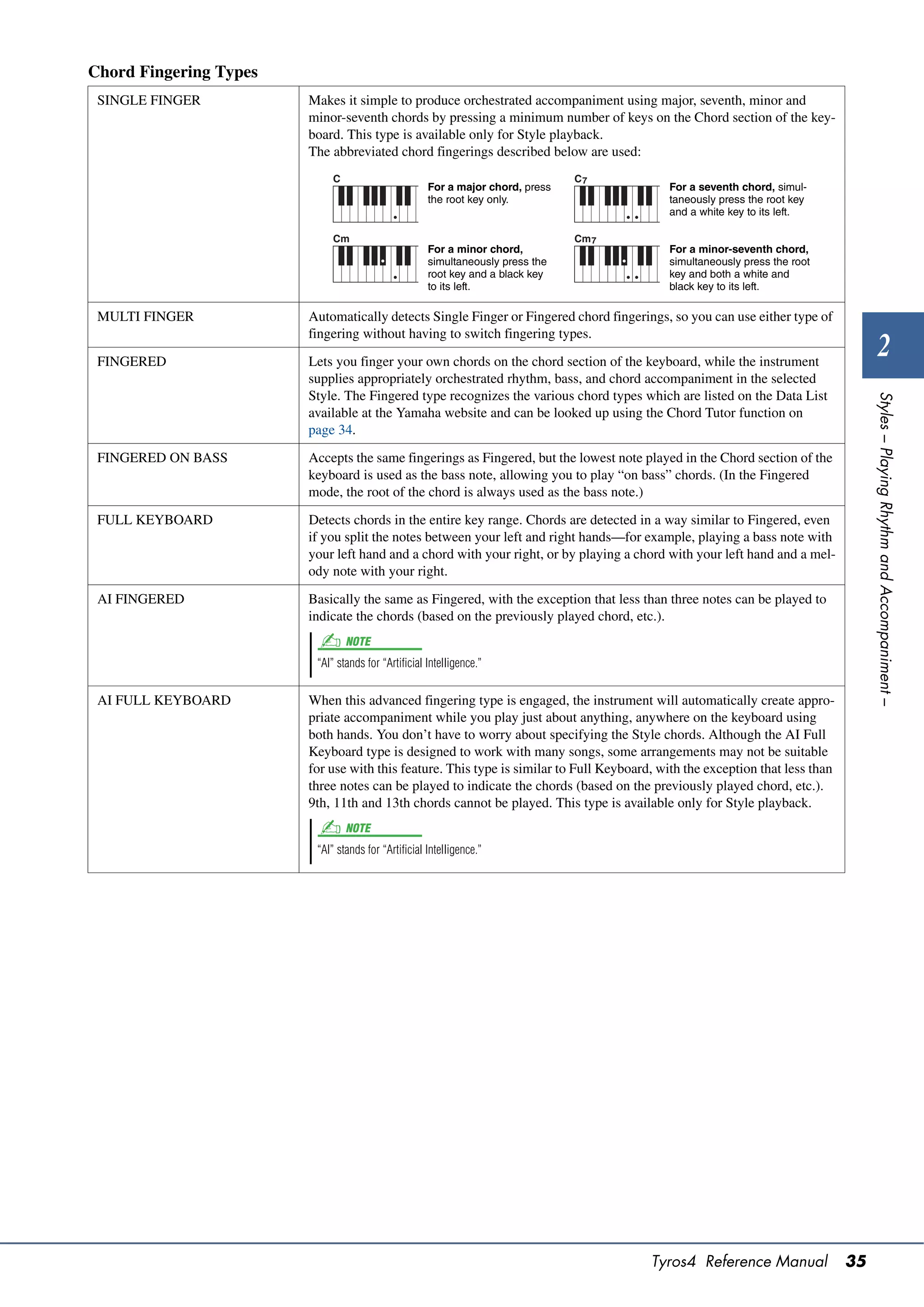
       Selecting the Chord Fingering Type
     Style playback can be controlled by the chords you play in the chord section of the keyboard. There are seven types of
     fingering.

       1    Call up the operation display.
            [FUNCTION]  [C] STYLE SETTING/SPLIT POINT/CHORD FINGERING 
            TAB [][] CHORD FINGERING

       2    Press the [1 ]–[3 ] buttons to select a fingering.
            For information on each fingering type, see page 35.


              Chord Tutor
              If you know the name of a chord but don’t know how to play, you can have the instrument show you the notes
              to play. This is the Chord Tutor function.
              On the CHORD FINGERING display, specify the Chord Root and Chord Type by using the [6 ]–[8 ]
              button. The notes you need to play are shown in the display.
                     NOTE
               Depending on the chord, some notes may be omitted.


34    Tyros4 Reference Manual
Chord Fingering Types
 SINGLE FINGER          Makes it simple to produce orchestrated accompaniment using major, seventh, minor and
                        minor-seventh chords by pressing a minimum number of keys on the Chord section of the key-
                        board. This type is available only for Style playback.
                        The abbreviated chord fingerings described below are used:
                             C                                                  C7
                                                     For a major chord, press              For a seventh chord, simul-
                                                     the root key only.                    taneously press the root key
                                                                                           and a white key to its left.

                             Cm                                                 Cm 7
                                                     For a minor chord,                    For a minor-seventh chord,
                                                     simultaneously press the              simultaneously press the root
                                                     root key and a black key              key and both a white and
                                                     to its left.                          black key to its left.

 MULTI FINGER           Automatically detects Single Finger or Fingered chord fingerings, so you can use either type of
                        fingering without having to switch fingering types.

 FINGERED               Lets you finger your own chords on the chord section of the keyboard, while the instrument
                                                                                                                                      2
                        supplies appropriately orchestrated rhythm, bass, and chord accompaniment in the selected
                        Style. The Fingered type recognizes the various chord types which are listed on the Data List


                                                                                                                                   Styles – Playing Rhythm and Accompaniment –
                        available at the Yamaha website and can be looked up using the Chord Tutor function on
                        page 34.

 FINGERED ON BASS       Accepts the same fingerings as Fingered, but the lowest note played in the Chord section of the
                        keyboard is used as the bass note, allowing you to play “on bass” chords. (In the Fingered
                        mode, the root of the chord is always used as the bass note.)

 FULL KEYBOARD          Detects chords in the entire key range. Chords are detected in a way similar to Fingered, even
                        if you split the notes between your left and right hands—for example, playing a bass note with
                        your left hand and a chord with your right, or by playing a chord with your left hand and a mel-
                        ody note with your right.

 AI FINGERED            Basically the same as Fingered, with the exception that less than three notes can be played to
                        indicate the chords (based on the previously played chord, etc.).
                                 NOTE
                         “AI” stands for “Artificial Intelligence.”


 AI FULL KEYBOARD       When this advanced fingering type is engaged, the instrument will automatically create appro-
                        priate accompaniment while you play just about anything, anywhere on the keyboard using
                        both hands. You don’t have to worry about specifying the Style chords. Although the AI Full
                        Keyboard type is designed to work with many songs, some arrangements may not be suitable
                        for use with this feature. This type is similar to Full Keyboard, with the exception that less than
                        three notes can be played to indicate the chords (based on the previously played chord, etc.).
                        9th, 11th and 13th chords cannot be played. This type is available only for Style playback.
                                 NOTE
                         “AI” stands for “Artificial Intelligence.”


                                                                                        Tyros4 Reference Manual               35
Style Playback Related Settings
     The Tyros4 has a variety of Style playback functions which can be accessed in the display below.

       1    Call up the operation display.
            [FUNCTION]  [C] STYLE SETTING/SPLIT POINT/CHORD FINGERING 
            TAB [][] STYLE SETTING

       2    Use the [1 ]–[8 ] buttons for each setting.


              [1 ]      STOP ACMP            When [ACMP] is turned on and [SYNC START] is off, you can play chords in the
                                               chord section of the keyboard with the Style stopped, and still hear the accompani-
                                               ment chord. In this condition—called “Stop Accompaniment”—any valid chord fin-
                                               gerings are recognized and the chord root/type are shown in the display. Here, you can
                                               determine whether the chord played in the chord section will sound or not in the Stop
                                               Accompaniment status.
                                               OFF: The chord played in the chord section will not sound.
                                               STYLE: The chord played in the chord section will sound via the Voices for the Pad
                                                  part and the Bass channel of the selected Style.
                                               FIXED: The chord played in the chord section will sound via the specified Voice,
                                                  regardless of the selected Style.
                                                       NOTE
                                                 When the selected Style contains MegaVoices, unexpected sounds may result when this is set to “STYLE.”

                                                       NOTE
                                                 When you record a song, the chord detected by playing the Stop Accompaniment can be recorded regard-
                                                 less of the setting here. Please note that both the Voice that is sounded and the chord data will be recorded
                                                 when set to “STYLE,” and only the chord data will be recorded when set to “OFF” or “FIXED.”


              [2 ]      OTS LINK             This applies to the OTS Link function. This parameter determines the timing in which
                          TIMING               the One Touch Settings change with the MAIN VARIATION [A]–[D] change. (The
                                               [OTS LINK] button must be on.)
                                               Real Time: One Touch Setting is immediately called up when you press a MAIN
                                                 VARIATION button.
                                               Next Bar: One Touch Setting is called up at the next measure, after you press a MAIN
                                                 VARIATION button.

              [3 ]      SYNCHRO STOP         This determines how long you can hold a chord before the Synchro Stop function is
                          WINDOW               automatically cancelled. When the [SYNC STOP] button is turned on and this is set to
                                               a value other than “OFF,” this is automatically cancels the Synchro Stop function if
                                               you hold a chord for longer than the time set here. This conveniently resets Style play-
                                               back control to normal, letting you release the keys and still have the Style play. In
                                               other words, if you release the keys sooner than the time set here, the Synchro Stop
                                               function works.


36    Tyros4 Reference Manual
[4 ]    STYLE TOUCH   Turns touch response for the Style playback on/off. When this is set to “ON,” the Style
                        volume changes in response to your playing strength in the chord section of the key-
                        board.

[5 ]/   SECTION SET   Determines the default section that is automatically called up when selecting different
[6 ]                  Styles (when Style playback is stopped). When set to “OFF” and Style playback is
                        stopped, the active section is maintained even if the different Style is selected. When
                        any of the MAIN A–D sections is not included in the Style data, the nearest section is
                        automatically selected. For example, when MAIN D is not contained in the selected
                        Style, MAIN C will be called up.

[7 ]    TEMPO         This determines whether the tempo changes or not when you change Styles during
                        Style playback.
                        HOLD: The tempo setting of the previous Style is maintained.
                        RESET: The tempo changes to that of the initial default tempo for the selected Style.

[8 ]    PART ON/OFF   This determines whether the Style Channel On/Off status changes or not when you
                        change Styles.
                                                                                                                          2
                        HOLD: The Style Channel On/Off status of the previous Style is maintained.


                                                                                                                       Styles – Playing Rhythm and Accompaniment –
                        RESET: All Style Channels are set to On.


                                                                             Tyros4 Reference Manual              37
Split Point Settings
     These are the settings (there are three Split Points) that separate the different sections of the keyboard: the Chord section,
     the LEFT part section, the RIGHT 1–2 section and RIGHT 3 section. The three Split Point settings (below) are specified
     as note names.
                                                  Split Point (S)        Split Point (L)          Split Point (R)


                                                                                    Voice RIGHT         Voice
                                                              Voice LEFT                               RIGHT 3
                                       Chord section                                    1–2


       1     Call up the operation display.
             [FUNCTION]  [C] STYLE SETTING/SPLIT POINT/CHORD FINGERING 
             TAB [][] SPLIT POINT

       2     Set the Split Point.


              [F]           Split Point (S+L)          Sets the Split Point (S) and Split Point (L) to the same note. Press the [F] button and
                                                       rotate the [DATA ENTRY] dial. You can also specify the Split Point directly from the
                                                       keyboard by pressing the desired key on the keyboard while holding the [F] button.
                                                                                           Split Point (S+L)


                                                                               Chord section                   Voice RIGHT 1–3
                                                                               + Voice LEFT


              [G]           Split Point (S)            Sets each Split Point. Press one of the desired buttons and rotate the [DATA ENTRY]
                                                       dial. You can also specify the Split Point directly from the keyboard by pressing the
                                                       desired key on the keyboard while holding one of the [G]–[I] buttons.
              [H]           Split Point (L)
                                                              NOTE
                                                        Split Point (L) cannot be set lower than Split Point (S), and Split Point (R) cannot be set lower than Split
              [I]           Split Point (R)
                                                        Point (L).


              [1 ]/       STYLE                      You can specify each Split Point by note name. “STYLE” indicates Split Point (S),
              [2 ]                                   “LEFT” indicates Split Point (L) and “RIGHT3” indicates Split Point (R).

              [3 ]/       LEFT
              [4 ]

              [5 ]/       RIGHT3
              [6 ]


38    Tyros4 Reference Manual
Memorizing the Original One Touch Setting
You can create your own One Touch Setting setups.

  1    Select the desired Style to memorize your One Touch Setting.

  2    Set up the panel controls (such as Voice, effects, and so on) as
       desired.

  3    Press the [MEMORY] button.


                                                                                                                                   2


                                                                                                                                Styles – Playing Rhythm and Accompaniment –
                         3                    4

  4    Press one of the ONE TOUCH SETTING [1]–[4] buttons.
       A message appears in the display prompting you to save the panel settings.

  5    Press [F] (YES) button to call up the Style Selection display and              NOTICE
       save the panel settings as a Style file.                                      The panel settings memorized to
                                                                                     each OTS button will be lost if you
                                                                                     change the Style or turn the power
                                                                                     off without executing the Save
                                                                                     operation.


                                                                                    Tyros4 Reference Manual                39
Creating/Editing Styles (Style Creator)
     Styles are made up of the different sections (Intro, Main, Ending, etc.) and each section has eight separate channels. With
     the Style Creator feature, you can create a Style by separately recording the channels, or by importing pattern data from
     other existing Styles.

                 Sections


                 Channels


     You can use one of the three different methods described below to create a Style. The created Style can also be edited.
     • Realtime Recording: This method lets you record the Style by simply playing the keyboard. See page 41.
     • Step Recording: This method lets you enter each note individually. See page 44.
     • Style Assembly: This method lets you create a composite Style by combining various patterns from the internal preset
          Styles or Styles you have already created. See page 44.

             Call up the operation display.
             [DIGITAL RECORDING]  [B] STYLE CREATOR


             There are six Pages (tabs) in the Style Creator display.                                           NOTE
                                                                                                          The Style files created on the Tyros4 can
            • BASIC....................... Creates the basic settings of the Style. You can also record   only be played back on instruments
                                                                                                          which are compatible with SFF GE.
                                             your performance in realtime to create a new Style (Real-
                                             time Recording). See page 41.
            • ASSEMBLY ............. Mixes the various parts (channels) from preset Styles or
                                             already created Style to create a new Style (Style Assem-
                                             bly). See page 44.
            • GROOVE ................. Changes the rhythmic feel of your created Style. See
                                             page 46.
            • CHANNEL ............... Edits data for each channel—quantizing, changing veloc-
                                             ity, etc. See page 48.
            • PARAMETER ......... Changes the settings related for Style File Format. See
                                             page 49.
            • EDIT ......................... Lets you enter notes one by one to create your Style (Step
                                             Recording). See page 44.


40    Tyros4 Reference Manual
Realtime Recording
In the BASIC Page, you can create a single Style by recording the individual channels one-by-one, using realtime record-
ing.


          Realtime Recording Characteristics—Loop Recording and Overdub Recording

           Loop Recording
          Style playback repeats the rhythm patterns of several measures in a “loop,” and Style recording is also done
          using loops. For example, if you start recording with a two-measure MAIN section, the two measures are
          repeatedly recorded. Notes that you record will play back from the next repetition (loop), letting you record
          while hearing previously recorded material.
           Overdub Recording
          This method records new material to a channel already containing recorded data, without deleting the original data. In
          Style recording, the recorded data is not deleted, except when using functions such as Rhythm Clear (page 43) and Delete
                                                                                                                                                            2
          (page 42). For example, if you start recording with a two-measure MAIN section, the two measures are repeated many


                                                                                                                                                         Styles – Playing Rhythm and Accompaniment –
          times. Notes that you record will play back from the next repetition, letting you overdub new material to the loop while
          hearing previously recorded material.
          When creating a Style based on an existing internal Style, overdub recording is applied only to the rhythm channels. For all
          other channels (except rhythm), you need to delete the original data before recording.


  1     When you want to create a Style based on an existing Style,
        select the desired Style to serve as the basis for recording/edit-
        ing before call up the Style Creator display.

  2     Call up the operation display.
        [DIGITAL RECORDING]  [B] STYLE CREATOR
        The BASIC Page is shown.

  3     If you want to create a new Style from scratch, press the [C]                                         NOTE
        (NEW STYLE) button to delete all channel’s data.                                                To call up the RECORD display again,
                                                                                                        press the [F] (REC CH) button.

  4     Use the [B] button to select the TEMPO/BEAT menu, then edit                                           NOTE
        the data by using the [3 ]–[6 ] buttons.                                                    You can specify the sections to be
                                                                                                        recorded by using the Section buttons
                                                                                                        on the panel. Refer to step 3 on page 44.
  5     Use the [A] button to select the SECTION/PATTERN menu, then
        select the desired section (Intro, Main, Ending, etc.) for your                                       NOTE
        new Style.                                                                                      You cannot select INTRO 4 and ENDING
        First close the RECORD display by pressing the [EXIT] button. Then use the [3                   4 sections directly via the panel opera-
                                                                                                        tion.
        ]/[4 ] buttons to select the section to be recorded.


                                      6-2


                                                                     5       6-1


   NEXT PAGE


                                                                                                     Tyros4 Reference Manual                        41
6     Use the [5 ]/[6 ] buttons to determine the length (num-
           ber of measures) of the selected section, then press the [D]
           (EXECUTE) button to actually enter the specified length.

     7     Specify the channel to be recorded by simultaneously holding
           down the [F] (REC CH) button and pressing the appropriate
           numbered button, [1 ]–[8 ].
           To cancel the selection, press the corresponding [1 ]–[8 ] button again.


                                                                                  7


                               8


     8     Call up the Voice Selection display by using the [1 ]–[8 ]
           buttons and select the desired Voice for the corresponding
           recording channels.
           Press the [EXIT] button to close the Voice Selection display.

                                                                                                 NOTE
             Recordable Voices
                                                                                           Preset Organ Flutes Voice can be
             • RHY1 channel: Any except your original Organ Flutes Voices are record-
                                                                                           recorded to the RHY1 and BASS–PHR2
                 able.                                                                     channels.
             • RHY2 channel: Only drum/SFX kits are recordable.
             • BASS–PHR2 channels: Any except your original Organ Flutes and drum/
                 SFX kits Voices are recordable.


     9     If necessary, delete a channel by simultaneously holding down                         NOTE
           the [J] (DELETE) button and pressing the appropriate num-                       When recording channels BASS–PHR2
           bered button, [1 ]–[8 ].                                                      based on the existing Style, you have to
                                                                                           delete the original data before record-
           You can cancel the deletion by pressing the same numbered button again before   ing.
           releasing your finger from the [J] button.


      NEXT PAGE


42   Tyros4 Reference Manual
10   Start recording by pressing the STYLE CONTROL [START/
     STOP] button.


     Playback of the specified section starts. Since the accompaniment pattern plays                       NOTE
     back repeatedly in a loop, you can record individual sounds one by one, listening               You can turn off the desired channels by
     to the previous sounds as they play. For information on recording to channels other             pressing the corresponding [1 ]–
                                                                                                     [8 ] buttons.
     than the rhythm channels (RHY1, 2), refer to the section “Rules when recording
     non-rhythm channels” below.

       Deleting recorded notes in the rhythm channel
       When you are recording the rhythm channel (RHY1 or RHY2), you can                                                                                2
       delete a specific instrument sound by simultaneously holding down the [E]
       (RHY CLEAR) button and pressing the appropriate key on the keyboard.


                                                                                                                                                     Styles – Playing Rhythm and Accompaniment –
11   To continue recording with another channel, repeat steps 7 –10.

12   Stop recording by pressing the STYLE CONTROL [START/
     STOP] button.

13   Press the [EXIT] button to close the RECORD display.

14   Press the [I] (SAVE) button to execute the Save operation.                                       NOTICE
                                                                                                     The edited Style will be lost if you
                                                                                                     change to another Style or turn
                                                                                                     the power to the instrument off
       Rules when recording non-rhythm channels
                                                                                                     without executing the Save opera-
       • Use only the CM7 scale tones when recording the BASS and PHRASE                             tion.
         channels (i.e., C, D, E, G, A, and B).
       • Use only the chord tones when recording the CHORD and PAD channels
         (i.e., C, E, G, and B).


                                                    C = Chord note
                                C R C     C R C     C, R = Recommended note


       Using the data recorded here, the auto accompaniment (Style playback) is
       appropriately converted depending on the chord changes you make during
       your performance. The chord which forms the basis for this note conversion is
       called the Source Chord, and is set by default to CM7 (as in the example illus-
       tration above).
       You can change the Source Chord (its root and type) from the PARAMETER
       display on page 49. Keep in mind that when you change the Source Chord
       from the default CM7 to another chord, the chord notes and recommended
       notes will also change. For details on chord notes and recommended notes,
       see page 50.
             NOTE
       For the INTRO and ENDING sections, any appropriate chord or chord progression can be used.


                                                                                                    Tyros4 Reference Manual                     43
Step Recording
     In the EDIT Page, you can record notes with absolutely precise timing. This Step Recording procedure is essentially the
     same as that for Song Recording (page 61) with the exception of the points listed below:
     • In the Song Creator, the End Mark position can be changed freely; in the Style Creator, it cannot be changed. This is
       because the length of the Style is automatically fixed, depending on the selected section. For example, if you create a
       Style based on a section of four measures length, the End Mark position is automatically set to the end of the fourth
       measure, and cannot be changed in the Step Recording display.
     • Recording channels can be changed in the Song Creator 1-16 tab display; however, they cannot be changed in the Style
       Creator. Select the recording channel in the BASIC tab display.
     • In the Style Creator, the channel data can be entered and System Exclusive data can be edited (delete, copy, or move).
       You can switch between the two by pressing the [F] button. However, Chord, Lyrics, and System Exclusive data cannot
       be entered.


     For instructions on Step Recording, refer to pages 61–64. For information on the EDIT display (Event List display), refer
     to page 73.


     Style Assembly
     Style Assembly allows you to create a single Style by mixing the various patterns (channels) from existing internal
     Styles.

       1     Select the desired Style to serve as the basis for recording/edit-
             ing before calling up the Style Creator display.

       2     Call up the operation display.
             [DIGITAL RECORDING]  [B] STYLE CREATOR  TAB [][] ASSEM-
             BLY

       3     Select the desired section (Intro, Main, Ending, etc.) for your                            NOTE
             new Style.                                                                           You cannot select INTRO 4 and ENDING
             First call up the SECTION Selection display by pressing one of the Section but-      4 sections directly via the panel opera-
                                                                                                  tion.
             tons (INTRO, MAIN, ENDING, etc.) on the panel. Then change the section as
             desired by using the [6 ]/[7 ] buttons and actually enter the selection by
             pressing the [8 ] (OK) button.


        NEXT PAGE


44    Tyros4 Reference Manual
4   Select the channel for which you wish to replace the pattern by
    using the [A]–[D] and [F]–[I] buttons. Call up the Style Selection
    display by pressing the same button again. Select the Style
    containing the pattern you want to replace in the Style Selec-
    tion display.
    To return to the previous screen, press the [EXIT] button after selecting the Style.

        4                                                   [A]–[D],
                                                            [F]–[I] buttons


                                                                                                                                           2


                                                                                                                                        Styles – Playing Rhythm and Accompaniment –
                      5        6

5   Select the desired section of the newly imported Style (chosen
    in step 4) by using the [2 ]/[3 ] (SECTION) buttons.

6   Select the desired channel for the section (chosen in step 5) by
    using the [4 ]/[5 ] (CHANNEL) buttons.
    Repeat steps 4–6 above to replace the patterns of other channels.

      Playing the Style During Style Assembly
      While you are assembling a Style, you can play back the Style and select the
      method of playback. Use the [6 ]/[7 ] (PLAY TYPE) buttons in the
      Style Assembly display to select the playback method.
      • SOLO: Mutes all but the selected channel in the ASSEMBLY Page. Any
          channels set to ON in the RECORD display on the BASIC Page are
          played back simultaneously.
      • ON: Plays back the selected channel in the ASSEMBLY Page. Any chan-
          nels set to other than OFF in the RECORD display on the BASIC Page
          are played back simultaneously.
      • OFF: Mutes the selected channel in the ASSEMBLY Page.


7   Press the [J] (SAVE) button to execute the Save operation.                               NOTICE
                                                                                            The edited Style will be lost if you
                                                                                            change to another Style or turn
                                                                                            the power to the instrument off
                                                                                            without executing the Save opera-
                                                                                            tion.


                                                                                           Tyros4 Reference Manual                 45
Editing the Rhythmic Feel


                       1

                       2                                                                              3


                                  1


      1    In the GROOVE Page, use the [A]/[B] buttons to select the edit
           menu, then edit the data by using the [1 ]–[8 ] buttons.

           1 GROOVE
           This lets you add swing to the music or change the “feel” of the beat by making
           subtle shifts in the timing (clock) of the Style. The Groove settings are applied to
           all channels of the selected Style.

             [1 ]/       ORIGINAL BEAT       Specifies the beats to which Groove timing is to be applied. In other words, if “8
             [2 ]                            Beat” is selected, Groove timing is applied to the 8th notes; if “12 Beat” is selected,
                                               Groove timing is applied to 8th-note triplets.

             [3 ]/       BEAT                Actually changes the timing of the beats (specified in the ORIGINAL BEAT parame-
             [4 ]        CONVERTER           ter above) to the selected value. For example, when ORIGINAL BEAT is set to “8
                                               Beat” and BEAT CONVERTER is set to “12,” all 8th notes in the section are shifted
                                               to 8th-note triplet timing. The “16A” and “16B” Beat Converter which appear when
                                               ORIGINAL BEAT is set to “12 Beat” are variations on a basic 16th-note setting.

             [5 ]/       SWING               Produces a “swing” feel by shifting the timing of the back beats, depending on the
             [6 ]                            ORIGINAL BEAT parameter above. For example, if the specified ORIGINAL BEAT
                                               value is “8 Beat”, the Swing parameter will selectively delay the 2nd, 4th, 6th, and 8th
                                               beats of each measure to create a swing feel. The settings “A” through “E” produce
                                               different degrees of swing, with “A” being the most subtle and “E” being the most
                                               pronounced.

             [7 ]/       FINE                Selects a variety of Groove “templates” to be applied to the selected section. The
             [8 ]                            “PUSH” settings cause certain beats to be played early, while “HEAVY” settings
                                               delay the timing of certain beats. The numbered settings (2, 3, 4, 5) determine which
                                               beats are to be affected. All beats up to the specified beat—but not including the first
                                               beat—will be played early or delayed (for example, the 2nd and 3rd beats, if “3” is
                                               selected). In all cases, “A” types produce minimum effect, “B” types produce medium
                                               effect, and “C” types produce maximum effect.


      NEXT PAGE


46   Tyros4 Reference Manual
2 DYNAMICS
    This changes the velocity/volume (or accent) of certain notes in the Style play-
    back. The Dynamics settings are applied to each channel or all channels of the
    selected Style.

     [1 ]/      CHANNEL               Selects the desired channel (part) to which Dynamics is to be applied.
     [2 ]

     [3 ]/      ACCENT TYPE           Determines the type of accent applied—in other words, which notes in the part(s) are
     [4 ]                             emphasized with the Dynamics settings.

     [6 ]       STRENGTH              Determines how strongly the selected Accent Type (above) will be applied. The
                                        higher the value, the stronger the effect.

     [7 ]       EXPAND/COMP.          Expands or compresses the range of velocity values. Values higher than 100% expand
                                        the dynamic range, while values lower than 100% compress it.

     [8 ]       BOOST/CUT             Boosts or cuts all velocity values in the selected section/channel. Values above 100%
                                        boost the overall velocity, while values below 100% reduce it.
                                                                                                                                              2


                                                                                                                                           Styles – Playing Rhythm and Accompaniment –
2   Press the [D] (EXECUTE) button to actually enter the edits for
    each display.
    After the operation is completed, this button changes to “UNDO,” letting you
    restore the original data if you are not satisfied with the Groove or Dynamics
    results. The Undo function only has one level; only the previous operation can be
    undone.

3   Press the [I] (SAVE) button to execute the Save operation.                                  NOTICE
                                                                                               The edited Style will be lost if you
                                                                                               change to another Style or turn
                                                                                               the power to the instrument off
                                                                                               without executing the Save opera-
                                                                                               tion.


                                                                                            Tyros4 Reference Manual                   47
Editing Data for Each Channel


                      1

                      4                                                                                         5


                      2                                                                             3


      1   In the CHANNEL Page, use the [A]/[B] buttons to select the edit
          menu.
          1 QUANTIZE
          Same as in the Song Creator (page 71), with the exception of the two additional available parameters below.

                          Eighth notes with swing

                          Sixteenth notes with swing


          2 VELOCITY CHANGE
          Boosts or cuts the velocity of all notes in the specified channel, according to the percentage specified here.

          3 BAR COPY
          This function allows data to be copied from one measure or group of measures to another location within the spec-
          ified channel.

           [4 ]         TOP                          Specifies the first (TOP) and last (LAST) measures in the region to be copied.

           [5 ]         LAST

           [6 ]         DEST                         Specifies the first measure of the destination location, to which the data is to be copied.


          4 BAR CLEAR
          This function clears all data from the specified range of measures within the selected channel.

          5 REMOVE EVENT
          This function lets you remove specific events from the selected channel.

      2   Use the [1 ]/[2 ] (CHANNEL) buttons to select the chan-
          nel to be edited.
          The selected channel is shown at the upper left of the display.

      3   Use the [4 ]–[8 ] buttons to edit the data.

      4   Press the [D] (EXECUTE) button to actually enter the edits for
          each display.
          After the operation is completed, this button changes to “UNDO,” letting you                             NOTICE
          restore the original data if you are not satisfied with the results of the edit. The                    The edited Style will be lost if you
          Undo function only has one level; only the previous operation can be undone.                            change to another Style or turn
                                                                                                                  the power to the instrument off
                                                                                                                  without executing the Save opera-
      5   Press the [I] (SAVE) button to execute the Save operation.                                              tion.


48   Tyros4 Reference Manual
Making Style File Format Settings
The Style File Format (SFF) combines all of Yamaha’s auto accompaniment (Style playback) know-how into a single
unified format. By using the Style Creator, you can take advantage of the power of the SFF format and freely create your
own Styles.
The chart shown below indicates the process by which the Style is played back. (This does not apply to the rhythm track.)
These parameters can be set via the Style Creator feature, in the PARAMETER Page.


          Source Pattern settings—SOURCE (PLAY) ROOT/CHORD (page 50)
          The Style data is appropriately converted depending on chord changes you make during your performance.
          You can create the “Source Pattern” with the Style Creator, which determines how the played chord will be
          converted. Here the “Source Chord” (page 50) can be set, allowing you to record accompaniment channels.

                                                      Chord change via the chord section of the keyboard.                                        2
          Note Transposition settings—NTR and NTT (page 51)


                                                                                                                                              Styles – Playing Rhythm and Accompaniment –
          This parameter group features two parameters that determine how the notes of the Source Pattern are to be
          converted in response to chord changes,


          Other settings—HIGH KEY, NOTE LIMIT and RTR (page 52)
          Using the parameters of this group, you can fine-tune how Style playback responds to the chords you play. For
          example, the Note Limit parameter allows you to have the Voices of the Style sound as realistic as possible by
          shifting the pitch to an authentic range—ensuring that no notes sound outside the natural range of the actual
          instrument (e.g., high bass sounds or low piccolo sounds).


                                           Output

The Tyros4’s Styles are compatible with SFF GE—an enhanced format of the original SFF              NOTE
with especially rich, expressive guitar parts.                                               The Style files created on the Tyros4 can
                                                                                             only be played back on instruments
  1     In the PARAMETER Page, use the [A]/[B] buttons to select the                         which are compatible with SFF GE.

        edit menu.
        For details of the edit menu, see page 50.


                   1

                                                                                            4


                              2                                                  3


   NEXT PAGE


                                                                                           Tyros4 Reference Manual                       49
2    Use the [1 ]/[2 ] (CHANNEL) buttons to select the chan-
          nel to be edited.
          The selected channel is shown at the upper left of the display.

     3    Use the [3 ]–[8 ] buttons to edit the data.
          For details on editable parameters, see below continuing to page 52.

     4    Press the [I] (SAVE) button to execute the Save operation.                                                                                                              NOTICE
                                                                                                                                                                                  The edited Style will be lost if you
                                                                                                                                                                                  change to another Style or turn
          1 SOURCE (PLAY) ROOT/CHORD
                                                                                                                                                                                  the power to the instrument off
          These settings determine the original key of the source pattern (i.e., the key used                                                                                     without executing the Save opera-
          when recording the pattern). The default setting of CM7 (with a Source Root of                                                                                          tion.
          “C” and a Chord Type of “M7”), is automatically selected whenever the preset
                                                                                                                                                                                        NOTE
          data is deleted prior to recording a new Style, regardless of the Source Root and
          Chord included in the preset data. When you change Source Root/Chord from the                                                                                           When NTR is set to “Root Fixed”, NTT is
                                                                                                                                                                                  set to “Bypass” and NTT BASS is set to
          default CM7 to another chord, the chord notes and recommended notes will also                                                                                           “OFF,” the “Source Root” and “Source
          change, depending on the newly selected chord type.                                                                                                                     Chord” parameters are changed to “Play
                                                                                                                                                                                  Root” and “Play Chord,” respectively. In
          When the Source Root is C:                                                                                                                                              this case, you can change chords and
                                                                                                                                                                                  hear the resulting sound for all chan-
          CMaj                      CM 6                      CM 7                   CM 7 (#11)                         CM add9                       C 7 (9)
                                                                                                                                                                                  nels.
                                                                                                      C

           C R C            C R      C R C           C C R     C R C         C R C    C R C               C R C          C C C          C R            C C C              C R C
                                                                                                                                                                                        NOTE
          C 6 (9)                   Caug                      Cm                     Cm 6                               Cm 7                          Cm 7 b5
                                                                                                                                                                                  This is not applied when NTR is set to
                                                     R C R           C                        C                                   C           C            R C        C R C
                                                                                                                                                                                  GUITAR.
           C C C            C C R    C R C                     C R         R C        C R             R C C              C            R C              C          R

          Cm (9)                    Cm 7 (9)                  Cm 7 (11)              CmM 7                              CmM 7 (9)                     Cdim

                    C                       C             C          C           C            C                                C                            C     C R

           C C          R C          C C            R C        C R         C C        C R             R C           C    C C          R C         C    C          R

          Cdim 7                    C7                        C 7 sus4               C 7 b5                             C 7 (9)                       C 7 (#11)

                    C   C R                               C                      C                    C       C                               C                       C     C

           C R          R     C R    C          C     C        C           C C        C R C                              C C C          C              C R C              C R

          C 7 (13)                  C 7 (b9)                  C 7 (b13)              C 7 (#9)                           CM 7 aug                      C 7 aug

                              C       C                   C     R            C C              C       R         C                       C                             R C C

           C R C            C C      C         C     C         C         C R C        C           C       C              C R C R            R C        C R C

          C 1+8                     C 1+5                     Csus 4                 Csus 2


           C                         C               C         C R         C C        C C R               C R


          C = Chord notes
          C, R = Recommended notes


50   Tyros4 Reference Manual
2 NTR/NTT
       [3 ]/         NTR (Note Trans-    Determines the relative position of the root note in the chord, when converted from the
       [4 ]          position Rule)      Source Pattern in response to chord changes. Refer to the list below.

       [5 ]–         NTT (Note Trans-    Sets the note transposition table for the source pattern. Refer to the list below.
       [7 ]          position Table)

       [8 ]          NTT BASS ON/        The channel for which this is set to ON will be played back by the bass root note, when
                       OFF                 the on-bass chord is recognized by the instrument. When NTR is set to GUITAR and
                                           this parameter is set to ON, only the note which is assigned to bass will be played back
                                           by the bass root note.

            NTR (Note Transposition Rule)
             ROOT TRANS            When the root note is transposed, the interval between
             (Root Transpose)      notes is maintained. For example, the notes C3, E3 and
                                   G3 in the key of C become F3, A3 and C4 when they
                                   are transposed to F. Use this setting for channels that       When playing a    When playing an             2
                                                                                                 C major chord.    F major chord.
                                   contain melody lines.


                                                                                                                                            Styles – Playing Rhythm and Accompaniment –
             ROOT FIXED            The note is kept as close as possible to the previous
                                   note range. For example, the notes C3, E3 and G3 in
                                   the key of C become C3, F3 and A3 when they are
                                   transposed to F. Use this setting for channels that con-      When playing a    When playing an
                                                                                                 C major chord.    F major chord.
                                   tain chord parts.

             GUITAR                This is exclusively for transposing guitar accompaniment. Notes are transposed to approximate
                                   the chords played with natural guitar fingering.

            NTT (Note Transposition Table)
            When NTR is set to ROOT TRANS or ROOT FIXED
             BYPASS                When NTR is set to ROOT FIXED, the transposition table used does not do any note conver-
                                   sion. When NTR is set to ROOT TRANS, the table used only converts the notes by maintain-
                                   ing the pitch relationship between notes.

             MELODY                Suitable for melody line transposition. Use this for melody channels such as Phrase 1 and
                                   Phrase 2.

             CHORD                 Suitable for chordal parts transposition. Use this for the Chord 1 and Chord 2 channels, espe-
                                   cially when they contain piano or guitar-like chordal parts.

             MELODIC MINOR         When the played chord changes from a major to a minor chord, this table lowers the third inter-
                                   val in the scale by a semitone. When the chord changes from a minor to a major chord, the
                                   minor third interval is raised by a semitone. Other notes are not changed. Use this for melody
                                   channels of Sections which respond only to major/minor chords, such as Intros and Endings.

             MELODIC MINOR         In addition to the Melodic Minor transposition above, augmented and diminished chords affect
             5th                   the 5th note of the Source Pattern.

             HARMONIC              When the played chord changes from a major to a minor chord, this table lowers the third and
             MINOR                 sixth intervals in the scale by a semitone. When the chord changes from a minor to a major
                                   chord, the minor third and flatted sixth intervals are raised by a semitone. Other notes are not
                                   changed. Use this for chord channels of Sections which respond only to major/minor chords,
                                   such as Intros and Endings.

             HARMONIC              In addition to the Harmonic Minor transposition above, augmented and diminished chords
             MINOR 5th             affect the 5th note of the Source pattern.

             NATURAL MINOR         When the played chord changes from a major to a minor chord, this table lowers the third,
                                   sixth and seventh intervals in the scale by a semitone. When the chord changes from a minor to
                                   a major chord, the minor third, flatted sixth and flatted seventh intervals are raised by a semi-
                                   tone. Other notes are not changed. Use this for chord channels of Sections which respond only
                                   to a Major/minor chord such as Intros and Endings.


NEXT PAGE


                                                                                                   Tyros4 Reference Manual             51
NATURAL MINOR         In addition to the Natural Minor transposition above, augmented and diminished chords affect
              5th                   the 5th note of the Source pattern.

              DORIAN                When the played chord changes from a major to a minor chord, this table lowers the third and
                                    seventh intervals in the scale by a semitone. When the chord changes from a minor to a major
                                    chord, the minor third and flatted seventh intervals are raised by a semitone. Other notes are
                                    not changed. Use this for chord channels of Sections which respond only to a Major/minor
                                    chord such as Intros and Endings.

              DORIAN 5th            In addition to the Dorian transposition above, augmented and diminished chords affect the 5th
                                    note of the Source pattern.

             When NTR is set to GUITAR
              ALL-PURPOSE           This table covers both strummed- and arpeggio-played sound.

              STROKE                Suitable for stroke-played sound of the guitar. Some notes may sound as if it is muted—this is
                                    normal condition when the chord is played on guitar by stroke.

              ARPEGGIO              Suitable for arpeggio-played sound of the guitar. Using this table, four notes arpeggio sounds
                                    most beautiful.

          3 HIGH KEY / NOTE LIMIT
           [4 ]/     HIGH KEY             This sets the highest key (upper octave limit) of the note transposition for the chord
           [5 ]                           root change. Any notes calculated to be higher than the highest key are transposed
                                            down to the next lowest octave. This setting is available only when the NTR parame-
                                            ter (page 51) is set to “Root Trans.”
                                             Example—When the highest key is F.
                                                  Root changes         CM            C#M                 FM          F#M
                                                  Notes played      C3-E3-G3      C#3-E#3-G#3        F3-A3-C4    F#2-A#2-C#3


           [6 ]      NOTE LIMIT LOW       These set the note range (highest and lowest notes) for Voices recorded to the Style
                                            channels. By judicious setting of this range, you can ensure that the Voices sound as
                                            realistic as possible—in other words, that no notes outside the natural range are
                                            sounded (e.g., high bass sounds or low piccolo sounds).
                                             Example—When the lowest note is C3 and the highest is D4.
           [7 ]      NOTE LIMIT                 Root changes         CM            C#M                 FM
                       HIGH                       Notes played      E3-G3-C4      E#3-G#3-C#4        F3-A3-C4

                                                                                                                     High Limit

                                                                                                                     Low Limit


          4 RTR (Retrigger Rule)
          These settings determine whether notes stop sounding or not and how they change
          pitch in response to chord changes.

              STOP                      The notes stop sounding.

              PITCH SHIFT               The pitch of the note will bend without a new attack to match the type of the new chord.

              PITCH SHIFT TO ROOT       The pitch of the note will bend without a new attack to match the root of the new chord.

              RETRIGGER                 The note is retriggered with a new attack at a new pitch corresponding to the next chord.

              RETRIGGER TO ROOT         The note is retriggered with a new attack at the root note of the next chord. However, the
                                        octave of the new note remains the same.


52   Tyros4 Reference Manual
Songs
3               – Recording Your Performances and Creating Songs –


                        Contents
                        Editing Music Notation Settings..................................................................... 53
                        Editing Lyrics/Text Display Settings .............................................................. 55
                        Using the Auto Accompaniment Features with the Song Playback ............ 56
                        Song Playback Related Parameters (Repeat settings, Channel settings,
                        Guide Function) ............................................................................................... 57
                           • Keyboard and Vocal Practice Using the Guide Function ........................... 58
                           • Playing Backing Parts with the Performance Assistant Technology ......... 60
                        Creating/Editing Songs (Song Creator) ......................................................... 61
                           • Recording Melodies (Step Recording) ....................................................... 61
                           • Recording Chords (Step Recording) .......................................................... 65
                           • Re-Recording a Specific Section—Punch In/Out ...................................... 68
                                                                                                                                                                                       3
                           • Editing Channel Events .............................................................................. 70
                           • Editing Chord Events, Notes, System Exclusive Events and Lyrics .......... 73


                                                                                                                                                                                   Songs – Recording Your Performances and Creating Songs –
                           • Editing Song Position Markers................................................................... 76


  Editing Music Notation Settings
To view the music notation of the selected Song, press the [SCORE] button. You can                                                           NOTE
change the notation display as desired to suit your personal preferences. The settings here                                         You can save the setting here as a part
are maintained even when the power is turned off.                                                                                   of a Song by accessing [DIGITAL
                                                                                                                                    RECORDING]  [A] SONG CREATOR
                                                                                                                                     TAB [][] CHANNEL  [A]/[B]
                                                                                                                                    SETUP. See page 72.


           [1 ]     LEFT ON/OFF                     Enables/disables display of the left-hand key range. Depending on other settings, this
                                                      parameter may be unavailable and may appear grayed out. If this is the case, go to the
                                                      detailed setting display (on page 54) and set the LEFT CH parameter to any channel
                                                      except “AUTO.” Or, go to the display [FUNCTION]  [B] SONG SETTING and set
                                                      the LEFT CH parameter to any channel except “OFF” (page 57). RIGHT (next
                                                      parameter) and LEFT cannot be turned off at the same time.

           [2 ]     RIGHT ON/OFF                    Enables/disables display of the right-hand key range. RIGHT and LEFT (above) can-
                                                      not be turned off at the same time.

           [3 ]     CHORD ON/OFF                    Enables/disables display of the chords. If the selected Song does not contain chord
                                                      data, chords are not displayed.


    NEXT PAGE


                                                                                                                                 Tyros4 Reference Manual                      53
[4 ]    LYRICS ON/OFF   Enables/disables display of the lyrics. If the selected Song does not contain lyric data,
                                     lyrics are not displayed. When the Song contains Pedal events, pressing these buttons
                                     can display the Pedal events, instead of displaying Lyrics.

           [5 ]    NOTE ON/OFF     Enables/disables display of the note name (pitch). The note name is indicated at the
                                     left of the note. When the space between the notes is too small, the indication may be
                                     moved to the top left of the note. When the Song contains Fingering events, pressing
                                     these buttons can display the fingering, instead of displaying note names.

           [6 ]    COLOR ON/OFF    When this is set to ON, the notes in the display appear in color (C: red, D: yellow, E:
                                     green, F: orange, G: blue, A: purple, and B: gray).

           [7 ]    SIZE            Determines the display resolution (or zoom level) of the notation.

           [8 ]    SET UP          See below.


          Pressing the [8 ] (SET UP) button calls up the detailed set-
          ting display. You can set the view type by using the [1 ]–[6
          ] buttons, then press the [8 ] (OK) button.


           [1 ]    LEFT CH         Determines which MIDI channel in the Song data is used for the left-hand/right-hand
                                     part. This setting returns to AUTO when a different Song is selected.
                                     AUTO: The MIDI channels in the Song data for the right- and left-hand parts are
                                        assigned automatically—setting the parts to the same channel as the channel
                                        which is specified in the [FUNCTION]  [B] SONG SETTING (page 57).
           [2 ]    RIGHT CH        1–16: Assigns the specified MIDI channel (1–16) to each of the left- and right-hand
                                        parts.
                                     OFF (LEFT CH only): No channel assignment. This disables display of the left-hand
                                        key range.

           [3 ]/   KEY SIGNATURE   This lets you enter key signature changes in the middle of a Song, at the stopped posi-
           [4 ]                    tion. This menu is useful when the selected Song contains no key signature settings
                                     for displaying notation.

           [5 ]    QUANTIZE        This gives you control over the note resolution in the notation, letting you shift or cor-
                                     rect the timing of all displayed notes so that they line up to a particular note value.
                                     Make sure to select the smallest note value used in the Song.

           [6 ]    NOTE NAME       Selects the type of the note name indicated at the left of the note in the notation from
                                     among the following three types. The settings here are available when the NOTE ON/
                                     OFF parameter above is set to ON.
                                     A, B, C: Note names are indicated as letters (C, D, E, F, G, A, B).
                                     FIXED DO: Note names are indicated in solfeggio and differ depending on the
                                        selected language.
                                     MOVABLE DO: Note names are indicated in solfeggio according to the scale inter-
                                        vals, and as such are relative to the key. The root note is indicated as Do. For
                                        example, in the key of G major the root note of “Sol” would be indicated as “Do.”
                                        As with “Fixed Do,” the indication differs depending on the selected language.


54   Tyros4 Reference Manual
Editing Lyrics/Text Display Settings
To view the lyrics of the selected Song, press the [LYRICS/TEXT] button. If the selected                                 NOTE
Song contains lyric data, you can have the lyrics shown in the display. Even if the Song                           When the lyrics are garbled or unread-
does not contain lyrics data, you can show a text file (created on a computer, .txt file less                      able, you may need to change the Lyrics
                                                                                                                   Language setting from the [FUNCTION]
than 60KB) in the display.
                                                                                                                    [B] SONG SETTING.

    Lyrics display                                        Text display
                                                                                                                         NOTE
                                         Press [1 ]
                                         buttons                                                                   Line feed (or “carriage return”) is not
                                                                                                                   automatically done in the instrument. If
                                                                                                                   a sentence is not displayed in its
                                                                                                                   entirety because of limitations in the
                                                                                                                   screen space, execute the line feed on
                                                                                                                   your computer.


                                                                                                                                                                       3
                                                                     Press the [5 ]/[6 ] button to


                                                                                                                                                                   Songs – Recording Your Performances and Creating Songs –
                                                                     actually call up desired text file.


         [1 ]        TEXT/LYRICS            Switches the screen between the Lyrics display (lyrics data in the Song is shown) and
                                              the Text display (a text file created on a computer is shown).

         [2 ]        (Text display only)    Clears the text from the screen (the text data itself is not erased).
                       CLEAR

         [3 ]/       (Text display only)    Determines the text type (fixed or proportional) and font size. Fixed is suitable for dis-
         [4 ]        FIXED 16–PRO-          playing lyrics with chord names, since the positions of chord names are “fixed” to the
                       PORTIONAL 28           corresponding lyrics. Proportional is suitable for displaying lyrics without chord
                                              names or explanatory notes. The numbers 16–28 indicate font sizes. This menu
                                              appears only when a text file is selected.

         [5 ]/       TEXT FILE              Calls up the text File Selection display. After selecting, press the [EXIT] button to
         [6 ]                               return back to the Lyrics/Text display.

         [7 ]/       BACK GROUND            Allows changing of the background picture of the Lyrics/Text display. After making
         [8 ]                               the setting, press the [EXIT] button to return back to the Lyrics/Text display.
                                                     NOTE
                                               When the background picture is specified in the Song data, the BACKGROUND setting cannot be changed.

                                                     NOTE
                                               For information on available image files, refer to the MAIN PICTURE parameter on page 136.


                                                                                                               Tyros4 Reference Manual                        55
Using the Auto Accompaniment Features with the Song Playback
     When playing back a Song and a Style at the same time, channels 9-16 in the Song data are replaced with Style chan-
     nels—allowing you to play the accompaniment parts of the Song yourself. Try playing chords along with the Song play-
     back as shown in the instructions below.

       1    Select a Song.

       2    Select a Style.

       3    Press the STYLE CONTROL [ACMP] button to turn on the Auto
            Accompaniment function.


       4    Press the STYLE CONTROL [SYNC START] button to enable
            standby—letting you simultaneously start the accompaniment
            as soon as you start playing.


       5    While holding down the SONG [STOP] button, press the [PLAY/
            PAUSE] button to enable synchronized start.


       6    Press the STYLE CONTROL [START/STOP] button or play                                       NOTE
            chords with your left hand.                                                         When playing back a Song and a Style
            The Song and Style starts playing. When you play chords, pressing the [SCORE]       at the same time, the tempo value set in
                                                                                                the Song is automatically used.
            button and turning CHORD on (page 53) allows you to see the chord information.

            When the Song playback is stopped, the Style playback is also stopped at the same
            time.


56    Tyros4 Reference Manual
Song Playback Related Parameters (Repeat settings, Channel settings,
  Guide Function)
The Tyros4 has a variety of Song playback functions—repeat playback, various guide settings, etc.—which can be
accessed in the display below.

        Call up the operation display.
        [FUNCTION]  [B] SONG SETTING


                                                                                                                                          3


                                                                                                                                      Songs – Recording Your Performances and Creating Songs –
          [A]/[B]    GUIDE MODE          See page 58.

          [1 ]     GUIDE ON/OFF

          [G]        REPEAT MODE         Determines the method of repeat playback.
                                         OFF: Plays through the selected Song, then stops.
                                         SINGLE: Plays through the selected Song repeatedly.
                                         ALL: Continues playback through all the Songs in the specified folder repeatedly.
                                         RANDOM: Continues playback at random through all the Songs in the specified
                                            folder repeatedly.

          [H]        REPEAT FOLDER       Determines the directory in which the Songs are played in sequence when the
                                         REPEAT MODE is set to “ALL” or “RANDOM.” Here, the directory refers to the
                                         path memorized to each of the SONG [I]–[IV] buttons.
                                         CURRENT: Sequentially plays all Songs in the directory containing the currently
                                           selected Song, starting with the currently selected Song.
                                         ALL: Sequentially plays all Songs in all directories (memorized to the SONG
                                           [I]–[IV] buttons). Playback starts with the currently selected Song, then the
                                           remainder of the Songs in the current directory, followed by the Songs in the other
                                           directories.
          [I]        PHRASE MARK         Phrase Mark is a pre-programmed part of some Song data, which specifies a certain
                     REPEAT              location (set of measures) in the Song. When this is on, the section corresponding to
                                         the specified Phrase Mark number is repeatedly played back.

          [2 ]     LEFT CH             These parameters determine which MIDI channel in the Song data is assigned to the
                                         Left- or Right-hand part of the Guide function and the Song Score function.
          [3 ]     RIGHT CH

          [4 ]     AUTO CH SET         When set to “ON,” this automatically sets the proper MIDI channels for the Right-
                                         and Left hand parts pre-programmed in the commercially available Song data. Nor-
                                         mally, this should be set to “ON.”

          [5 ]/    LYRICS              Determines the language of the displayed lyrics.
          [6 ]     LANGUAGE
                                         AUTO: When the language is specified in the Song data, the lyrics are displayed
                                           accordingly. When the language is not specified in the Song data, the lyrics lan-
                                           guage is regarded as INTERNATIONAL below.
                                         INTERNATIONAL: Handles the displayed lyrics as a western language.
                                         JAPANESE: Handles the displayed lyrics as Japanese.

   NEXT PAGE


                                                                                              Tyros4 Reference Manual            57
[7 ]      QUICK START           On some commercially available Song data, certain settings related to the Song (such
                                                 as Voice selection, volume, etc.) are recorded to the first measure, before the actual
                                                 note data. When Quick Start is set to “ON,” the Tyros4 reads all initial non-note data
                                                 of the Song at the highest possible speed, then automatically slows down to the appro-
                                                 priate tempo at the first note. This allows you to start playback as quickly as possible,
                                                 with a minimum pause for reading of data.

               [8 ]      P.A.T. (Performance   See page 60.
                           Assistant)


     Keyboard and Vocal Practice Using the Guide Function
     The Guide functions provide convenient learning and practicing tools to help you master the instrument. By pressing the
     [SCORE] button, you can have the notation of the Song displayed, showing the notes you should play and when you
     should play them, for ease in learning. The Tyros4 also features a convenient vocal practice tool that controls the timing
     of Song playback while you sing along (when singing into a connected microphone.)

       1     Select the desired Song for practicing the keyboard or singing.

       2     Call up the setting display.
             [FUNCTION]  [B] SONG SETTING

       3     Use the [A]/[B] buttons to select the desired Guide function
             type.


                          3


                                         4

             Guide menu for keyboard practice
             • Follow Lights: When this is selected, Song playback pauses, waiting for you to
                play the notes correctly. When you play the correct notes, Song playback con-
                tinues. Follow Lights was developed for the Yamaha Clavinova series. This
                function is used for practicing purposes, with built-in lamps on the keyboard
                indicating the notes to be played. Even though the Tyros4 does not have these
                lamps, you can use the same function by following the indications in the dis-
                played notation with the Song Score function.
             • Any Key: With this function, you can play the melody of a Song just by pressing
                a single key (any key is OK) in time with the rhythm. Song playback pauses
                and waits for you to play any key. Simply play a key on the keyboard in time
                with the music and Song playback continues.


        NEXT PAGE


58    Tyros4 Reference Manual
Guide menu for singing
    • Karao-Key: This function lets you control the Song playback timing with just
       one finger, while you sing along. Song playback pauses, waiting for you to
       sing. Simply play a key on the keyboard (any key is fine) and Song playback
       continues.

4   Use the [1 ] button to turn the Guide function ON.                                     NOTE
                                                                                       When the Guide function is ON, an “G”
5   Call up the Score display by pressing the [SCORE] button.                          indication appears in the Main display.


6   Press the SONG [PLAY/PAUSE] button to start playback.
    Practice playing the keyboard or singing, along with the Guide type selected in
    step 3.

7   Press the [STOP] button to stop playback.                                                NOTE
                                                                                       You can save the Guide settings as a
                                                                                       part of the Song data (page 72). For
                                                                                       Songs to which the Guide settings have             3
                                                                                       been saved, the Guide function will be
                                                                                       automatically turned on and the related


                                                                                                                                      Songs – Recording Your Performances and Creating Songs –
                                                                                       settings will be recalled when the Song
                                                                                       is selected.


                                                                                      Tyros4 Reference Manual                    59
Playing Backing Parts with the Performance Assistant Technology
     This feature makes it exceptionally easy to play the backing parts along with Song play-              NOTE
     back.                                                                                           To use the performance assistant tech-
                                                                                                     nology, the Song must contain chord
       1    Select a Song.                                                                           data. If the Song contains this data, the
                                                                                                     current chord name will be displayed in
                                                                                                     the Main display during Song playback,
       2    Call up the operation display.                                                           letting you easily check whether the
                                                                                                     Song contains chord data or not.
            [FUNCTION]  [B] SONG SETTING

       3    Press the [8 ] button to turn the [P.A.T.] (performance assis-
            tant technology) on.


       4    Press the [PLAY/PAUSE] button to start playback.

       5    Play the keyboard.
            The instrument automatically matches your performance on the keyboard to the
            Song playback and chords, no matter what keys you play. It even changes the
            sound according to the way you play. Try playing in the three different ways
            below.

                 Playing the left and right          Playing the left and right          Playing the left hand and
                 hand together (method 1).           hand together (method 2).           right hand alternately.


                     Play three notes at the             Play several notes one after           Play three notes at the same
                     same time with your                 the other with different fin-          time with your right hand.
                     right hand.                         gers of your right hand.


       6    Press the [STOP] button to stop playback.

       7    Press the [8 ] button to turn the [P.A.T.] off.


60    Tyros4 Reference Manual
Creating/Editing Songs (Song Creator)
To create a Song, you can compose your performance by entering it one event at a time (called “Step Recording”), as
well as recording your performance in real time (described in the Owner’s Manual). This section explains operations of
Step Recording and re-recording or editing existing Song data.

        Call up the operation display.
        [DIGITAL RECORDING]  [A] SONG CREATOR


                                                                                                                                                        3


                                                                                                                                                    Songs – Recording Your Performances and Creating Songs –
        There are six Pages (tabs) in the Song Creator display.

        • REC MODE ........... Re-records the Song. See page 68.
        • CHANNEL ............. Edits the Channel events. See page 70.
        • CHORD .................. Records the Chords and Sections with timing (page 65) or
                                         edits them (page 74).
        • 1-16.......................... Records the melodies (Step Recording; see below) or edits
                                         the recorded melodies (page 74).
        • SYS/EX................... Edits the System Exclusive events (tempo, time signature,
                                         etc.). See page 74.
        • LYRICS .................. Inputs/edits the Song name and lyrics. See page 74.


Recording Melodies (Step Recording)
  1     Press the SONG [REC] and SONG [STOP] buttons simultane-                                             NOTE
        ously.                                                                                        Selecting a blank Song initializes the
        A blank Song (“New Song”) is called up for recording.                                         panel settings.


  2     Call up the operation display.
        [DIGITAL RECORDING]  [A] SONG CREATOR  TAB [][] 1-16


                                                                                 3
                                                                                 4


   NEXT PAGE


                                                                                                     Tyros4 Reference Manual                   61
3    Press the [F] button to select the channel for recording.

     4    Press the [G] (STEP REC) button to call up the STEP RECORD
          display.

     5    Start Step Recording by using the [A]–[J] buttons and [1 ]–
          [8 ] buttons.
          Refer to the example on page 63 for specific instructions.


                                                                                                   When a note is input, the location
                                                                                                   (bar: beat: clock), note name, velocity
                                                                                                   and length are shown as a list.


           [A]/[B]/[C]                       Moves the cursor in the list.

           [G]                               Determines the velocity (loudness) of the note to be entered. The velocity value can be
                                             specified within a range from 1 to 127. The higher the velocity value, the louder the
                                             sound becomes.
                                             KBD.VEL: Actual resulting velocity
                                               fff: 127
                                               ff: 111
                                               f: 95
                                               mf: 79
                                               mp: 63
                                               p: 47
                                               pp: 31
                                               ppp: 15

           [H]                                Determines the gate time (note length) of the note to be entered.
                                             Normal: 80%
                                             Tenuto: 99%
                                             Staccato: 40%
                                             Staccatissimo: 20%
                                             Manual: The gate time can be set to any desired percentage by using the [DATA
                                                ENTRY] dial.

           [I]                               Determines the note type to be entered: normal, dotted or triplet.

           [J]            DELETE             Deletes the selected data.

           [1 ]         BAR                Sets the position of the note to be entered.

           [2 ]         BEAT

           [3 ]         CLOCK

           [4 ]–                           Determines the note length to be entered: whole-note, half-note, quarter-note, eighth-
           [8 ]                            note or sixteenth-note.


62   Tyros4 Reference Manual
Example of Step Recording—Melodies


                        1            2            3     4


                                                                              * The numbers shown in the illustration
                                                                                correspond to the following operation
                                                                                step numbers.


     In this example, keep in mind that one of the steps involves holding down a key on                  NOTE
     the keyboard while executing the operation.                                                   Since the music score displayed on the
     Select the Voice for recording after calling up the Step Recording display.                   instrument is generated from the
                                                                                                   recorded MIDI data, it may not appear
                                                                                                   exactly the same as shown here.


1    Enter the first and second notes with a slur.
     1-1    Press the [G] button to select “f.”                                                                                                      3
     1-2    Press the [H] button to select “Tenuto.”
     1-3


                                                                                                                                                 Songs – Recording Your Performances and Creating Songs –
            Press the [I] button to select the “dotted” note type.
     1-4    Select the dotted quarter-note by using the [6 ] buttons.
     1-5    Play the C3 key.

     The first note is entered.
     1-6 Press the [I] button to select the “normal” note type.
     1-7 Press the [7 ] button to select the eight-note length.
     1-8 Play the D3 key.

     The second note is entered.

2    Enter the next notes and apply staccato.
     2-1 Press the [H] button to select “Staccato.”
     2-2 Press the [6 ] button to select the quarter-note length.
     2-3 Play the keys E3 and F3 in order.

     The first measure has been completed.

3    To enter a quarter-note rest, press the [6 ] button again.
     To enter the rest, use the [4 ]–[8 ] buttons. (Press the button once to
     select the rest value, and once again to actually enter it.) A rest having the speci-
     fied note length will be entered.


NEXT PAGE


                                                                                                Tyros4 Reference Manual                     63
4    Enter the next notes and apply a tie.
          4-1 Press the [G] button to select “mp.”
          4-2 Press the [H] button to select “Normal.”
          4-3 While holding G3 key on the keyboard, press the [6 ] button.
               Do not release the G3 key yet. Keep holding it while executing the follow-
               ing steps.
          4-4 While holding the G3 key, press the C4 key.
               Do not release the G3 and C4 keys yet. Keep holding the notes while exe-
               cuting the following step.


          4-5 While holding the keys G3 and C4, press the [5 ] button.
               After pressing the button, release the keys.

     5    Press the SONG [STOP] button (or press the [C] button) to
          return to the top of the Song, then hear the newly entered Song
          by pressing the [PLAY/PAUSE] button.


     6    Press the [EXIT] button to exit from the Step Recording display.

     7    Press the [I] (SAVE) button to execute the Save operation.                        NOTICE
                                                                                            The recorded Song data will be
                                                                                            lost if you select another Song or
                                                                                            turn the power to the instrument
                                                                                            off without executing the Save
                                                                                            operation.


64   Tyros4 Reference Manual
Recording Chords (Step Recording)
You can record Chords and Sections (Intro, Main, Ending, and so on) one at a time with precise timing. These instruc-
tions show how to record chord changes using the Step Record function.

  1    Press the SONG [REC] and SONG [STOP] buttons simultane-                                         NOTE
       ously.                                                                                    Selecting a blank Song initializes the
       A blank Song (“New Song”) is called up for recording.                                     panel settings.


  2    Select the Style you want to use in the Song.

  3    Call up the operation display.
       [DIGITAL RECORDING]  [A] SONG CREATOR  TAB [][] CHORD
                                                                                                                                                   3
  4


                                                                                                                                               Songs – Recording Your Performances and Creating Songs –
       Press the [G] (STEP REC) button to call up the STEP RECORD
       display.


  5    Start Step Recording.


                                                                          About these buttons,
                                                                          refer to page 62.


                                                                                             Tyros4 Reference Manual                      65
Example of Step Recording—Chords

                                      1                 2            3

                                    MAIN A          BREAK          MAIN B


                                                                                 * The numbers shown in the illustration
                                                                                   correspond to the following operation
                                C     F        G    F   G7     C                   step numbers.


           Before starting, make sure the [AUTO FILL IN] button is set to off.                          NOTE
                                                                                                 This example uses a Style in 4/4 time.
     1     Enter the chords for the Main A section.
           1-1 Press the STYLE CONTROL [MAIN A] button,
           1-2 Press the [5 ] button to select the half-note length.
           1-3 Play the chord C, F and G in the chord section of the keyboard.


                                                                                                      C
             1-1

                                                                                                       F


                                                                                                      G


                                                                    1-2
                                                                                                                 1-3


     2     Enter the chords for the Break section.                                                      NOTE
                                                                                                 To enter fill-ins, turn the [AUTO FILL IN]
           2-1 Press the STYLE CONTROL [BREAK] button.                                           button to ON, and simply press the
           2-2 Press the [6 ] button to select the quarter-note length.                        desired MAIN VARIATION [A]–[D] but-
                                                                                                 ton.
           2-3 Play the chords F, and G7 in the chord section of the keyboard.

             2-1

                                                                                                  F


                                                                                                G7


                                                             2-2                                           2-3


      NEXT PAGE


66   Tyros4 Reference Manual
3   Enter the chords for the Main B section.
    3-1 Press the STYLE CONTROL [MAIN B] button.
    3-2 Press the [4 ] button to select the whole-note length.
    3-3 Play the chord C in the chord section of the keyboard.

           3-1                                                                       3-3


                                                                            C


                                                       3-2


4   Press the SONG [STOP] button (or press the [C] button) to                                                         3
    return to the top of the Song, then hear the newly entered Song
    by pressing the [PLAY/PAUSE] button.


                                                                                                                  Songs – Recording Your Performances and Creating Songs –
5   Press the [EXIT] button to exit from the Step Recording display.

6   Press the [F] (EXPAND) button to convert the input chord
    change data into the Song data.

7   Press the [I] (SAVE) button to execute the Save operation.           NOTICE
                                                                        The recorded Song data will be
                                                                        lost if you select another Song or
                                                                        turn the power to the instrument
                                                                        off without executing the Save
                                                                        operation.


                                                                       Tyros4 Reference Manual               67
Re-Recording a Specific Section—Punch In/Out
     When re-recording a specific section of an already-recorded Song, use the Punch IN/OUT function. In this method, only
     the data between the Punch In point and the Punch Out point is overwritten with the newly recorded data. Keep in mind
     that the notes before and after the Punch In/Out points are not recorded over, although you will hear them play back nor-
     mally to guide you in the Punch In/Out timing.

       1     Call up the operation display.
             [DIGITAL RECORDING]  [A] SONG CREATOR  TAB [][] REC
             MODE

       2     Determine the settings for recording.


               [1 ]–     REC START            Determines the Punch In timing.
               [3 ]      (Punch In)
                                                NORMAL: Overwrite recording starts when pressing the SONG [PLAY/PAUSE]
                                                   button or when you play the keyboard in the Synchro Standby mode.
                                                FIRST KEY ON: The Song plays back normally, then starts overwrite recording as
                                                   soon as you play the keyboard.
                                                PUNCH IN AT: The Song plays back normally up to the beginning of the indicated
                                                   Punch In measure, then starts overwrite recording at that point. You can set the
                                                   Punch In measure by pressing the [3 ] button.

               [4 ]–     REC END              Determines the Punch Out timing.
               [6 ]      (Punch Out)
                                                REPLACE ALL: This deletes all data after the point at which recording is stopped.
                                                PUNCH OUT: The Song position at which recording is stopped is regarded as the
                                                  Punch Out point. This setting maintains all data after the point at which recording
                                                  is stopped.
                                                PUNCH OUT AT: Actual overwrite recording continues until the beginning of the
                                                  specified Punch Out measure (set with the corresponding display button), at which
                                                  point recording stops and normal playback continues. This setting maintains all
                                                  data after the point at which recording is stopped. You can set the Punch Out mea-
                                                  sure by pressing the [6 ] buttons.

               [7 ]/     PEDAL PUNCH          When this is set to ON, you can use Foot Pedal 2 to control the Punch In and Punch
               [8 ]      IN/OUT               Out points. While a Song is playing back, pressing (and holding) Foot Pedal 2
                                                instantly enables Punch In recording, while releasing the pedal stops recording (Punch
                                                Out). You can press and release Foot Pedal 2 as often as you want during playback to
                                                punch in/out of overwrite recording. Note that the current function assignment of the
                                                Foot Pedal 2 is cancelled when the Pedal Punch In/Out function is set to ON.
                                                       NOTE
                                                 Pedal Punch In/Out operation may be reversed depending on the particular pedal you’ve connected to the
                                                 instrument. If necessary, change the pedal polarity to reverse the control (page 121).


        NEXT PAGE


68    Tyros4 Reference Manual
3   While holding the SONG [REC] button, select the desired track
    by using the [1 ]–[8 ] buttons and [C]/[D] buttons.

4   Press the SONG [PLAY/PAUSE] button to start Punch In/Out
    recording.
    Play the keyboard at the Punch In point and stop recording at the Punch Out point.

5   Press the [I] (SAVE) button to execute the Save operation.                                                       NOTICE
                                                                                                                    The recorded Song data will be
    Examples of re-recording with various Punch In/Out settings                                                     lost if you select another Song or
                                                                                                                    turn the power to the instrument
    The Tyros4 features several different ways you use the Punch In/Out function. The                               off without executing the Save
    illustrations below indicate a variety of situations in which selected measures in an                           operation.
    eight-measure phrase are re-recorded.

                              Original data
    REC START setting
    REC END setting                  1             2            3          4        5            6         7   8     *1 To avoid overwriting measures 1–2,
                                                                                                                        start recording from measure 3.
                        Start overwrite
                         recording *1                                             Stop recording *2
    NORMAL
    REPLACE ALL                      1             2            3          4        5
                                                                                                                     *2 To stop recording, press the [REC]
                                                                                                                        button at the end of measure 5.               3
                        Start overwrite
                         recording *1                                             Stop recording *2
    NORMAL


                                                                                                                                                                  Songs – Recording Your Performances and Creating Songs –
    PUNCH OUT                        1             2            3          4        5            6         7   8
                        Start overwrite                                        Stop overwrite recording/
                         recording *1                                             play original data
    NORMAL
    PUNCH OUT AT=006                 1             2            3          4        5            6         7   8
                          Play back           Play the keyboard to start
                         original data           overwrite recording              Stop recording *2
    FIRST KEY ON
    REPLACE ALL                      1             2            3          4        5
                          Play back           Play the keyboard to start
                         original data           overwrite recording              Stop recording *2
    FIRST KEY ON
    PUNCH OUT                        1             2            3          4        5            6         7   8
                          Play back           Play the keyboard to start       Stop overwrite recording/
                         original data           overwrite recording              play original data
    FIRST KEY ON
    PUNCH OUT AT=006                 1             2            3          4        5            6         7   8
                          Play back
                         original data        Start overwrite recording           Stop recording *2
    PUNCH IN AT=003
    REPLACE ALL                      1             2            3          4        5
                          Play back
                         original data        Start overwrite recording           Stop recording *2
    PUNCH IN AT=003
    PUNCH OUT                        1             2            3          4        5            6         7   8
                          Play back                                            Stop overwrite recording/                          Previously recorded data
                         original data        Start overwrite recording           play original data
    PUNCH IN AT=003                                                                                                               Newly recorded data
    PUNCH OUT AT=006                 1             2            3          4        5            6         7   8                  Deleted data


                                                                                                                   Tyros4 Reference Manual                   69
Editing Channel Events


               1

               2                                                                         3


                          1


      1   In the CHANNEL Page, use the [A]/[B] buttons to select the edit
          menu, then edit the data by using the [1 ]–[8 ] buttons.
          For details of the edit menu and available settings, see page 71.

      2   Press the [D] (EXECUTE) button to execute the operation for
          the current display.
          After the operation (with the exception of the SETUP menu) is completed, this
          button changes to “UNDO,” letting you restore the original data if you are not sat-
          isfied with the operation results. The Undo function only has one level; only the
          previous operation can be undone.

      3   Press the [I] (SAVE) button to execute the Save operation.                            NOTICE
                                                                                                The recorded Song data will be
                                                                                                lost if you select another Song or
                                                                                                turn the power to the instrument
                                                                                                off without executing the Save
                                                                                                operation.


70   Tyros4 Reference Manual
1 QUANTIZE
The Quantize function allows you to align the timing of all the notes in a channel.
For example, if you record the musical phrase shown at right, you may not play it
with absolute precision, and your performance may have been slightly ahead of or
behind the precise timing. Quantize is a convenient way of correcting for this.


 [2 ]/       CHANNEL              Determines which MIDI channel in the Song data is to be quantized.
 [3 ]

 [4 ]–       SIZE                 Selects the quantize size (resolution). For optimum results, you should set the Quan-
 [6 ]                             tize size to the shortest note value in the channel. For example, if eighth notes are the
                                    shortest in the channel, you should use eighth note as the Quantize size.


                                                                             After 1/8 note quantization
                                                                                                                                                       3
                                          Settings:


                                                                                                                                                   Songs – Recording Your Performances and Creating Songs –
                                                                                                                         1/16 note+
                                               1/4 note       1/8 note            1/16 note          1/32 note           1/8 note triplet*

                                               1/4 note       1/8 note            1/16 note          1/8 note+           1/16 note+
                                               triplet        triplet             triplet            1/8 note triplet*   1/16 note triplet*


                                    The three Quantize settings marked with asterisks (*) are exceptionally convenient,
                                    since they allow you to quantize two different note values at the same time. For exam-
                                    ple, when the straight eighth notes and eighth notes triplet are contained in the same
                                    channel, if you quantize by the straight eighth notes, all notes in the channel are quan-
                                    tized to straight eighth notes—completely eliminating any triplet feel. However, if you
                                    use the eighth note + eighth note triplet setting, both the straight and triplet notes will
                                    be quantized correctly.

 [7 ]/       STRENGTH             Determines how strongly the notes will be quantized. A setting of 100% produces
 [8 ]                             exact timing. If a value less than 100% is selected, notes will be moved toward the
                                    specified quantization beats according to the specified percentage. Applying less than
                                    100% quantization lets you preserve some of the “human” feel in the recording.
                                                                         Quarter-note length
                                             Original data
                                             (assuming 4/4 meter)


                                             Quantizing
                                             strength =100

                                             Quantizing
                                             strength =50


2 DELETE
You can delete the data of the specified channel in the Song. Select the channel
whose data to be deleted by using the [1 ]–[8 ] buttons, then press the
[D] (EXECUTE) button to execute the operation.


                                                                                                   Tyros4 Reference Manual                    71
3 MIX
          This function lets you mix the data of two channels and place the results in a dif-
          ferent channel. It also lets you copy the data from one channel to another.

           [2 ]/        SOURCE 1            Determines the MIDI channel (1–16) to be mixed. All MIDI events of the channel
           [3 ]                             specified here are copied to the destination channel.

           [4 ]/        SOURCE 2            Determines the MIDI channel (1–16) to be mixed. Only note events of the channel
           [5 ]                             specified here are copied to the destination channel. Besides the values 1–16, there is
                                              a “COPY” setting that allows you to copy the data from Source 1 to the destination
                                              channel.

           [6 ]/        DESTINATION         Determines the channel into which the mix or copy results will be placed.
           [7 ]


          4 CHANNEL TRANSPOSE                                                                               NOTE
          This allows you to transpose the recorded data of individual channels up or down            Make sure not to transpose channels 9
          by a maximum of two octaves in semitone increments.                                         and 10. In general, Drum kits are
                                                                                                      assigned to these channels. If you
                                                                                                      transpose the channels of Drum kits, the
                                                                                                      instruments assigned to each key will
                                                                                                      be changed.

           [F]            CH 1–8/CH 9–16      Toggles between the two channel displays: Channels 1–8, and Channels 9–16.

           [G]            ALL CH              To simultaneously set all channels to the same value, adjust the Channel Transpose for
                                              one of the channels while holding down this button.


          5 SETUP
          The current settings of the Mixing Console display and other panel settings can be                NOTE
          recorded to the top position of the Song as the Setup data. The Mixing Console              Before executing the Setup operation,
          and panel settings recorded here are automatically recalled when the Song starts.           move the Song position to the top of the
                                                                                                      Song by pressing the SONG [STOP]
                                                                                                      button.


           [1 ]–        SELECT              Determines which playback features and functions will be automatically called up
           [7 ]                             along with the selected Song. The items selected here can be recorded only to the top
                                              position of the Song, except for the KEYBOARD VOICE.
                                              SONG: Records the tempo setting and all settings made from the Mixing Console.
                                              KEYBOARD VOICE: Records the panel settings, including the Voice selection of
                                                the keyboard parts (RIGHT 1, 2, 3, and LEFT) and their on/off status. Panel set-
                                                tings recorded here are same as the ones memorized to the One Touch Setting.
                                                This can be recorded at any point in a Song.
                                              SCORE SETTING: Records the settings in the Score display.
                                              GUIDE SETTING: Records the settings of the Guide functions including the Guide
                                                ON/OFF setting.
                                              LYRICS SETTING: Records the settings in the Lyrics display.
                                              VH/MIC: Records the Vocal Harmony and the microphone settings in the Mixing
                                                Console display.

           [8 ]          MARK ON             Add or remove a checkmark to the selected item. Checked items are recorded to the
                                              Song.
           [8 ]          MARK OFF


72   Tyros4 Reference Manual
Editing Chord Events, Notes, System Exclusive Events and Lyrics
You can edit the chord events, note events, system exclusive events and lyrics in the same                      NOTE
manner on the corresponding display: CHORD, 1-16, SYS/EX. and LYRICS. These dis-                          After you edit events in the CHORD tab
plays are called “Event List display” because some events are shown in a list view.                       display, press the [F] (EXPAND) button
                                                                                                          to convert the data into Song data.
                             Event List display
                                                                                                                NOTE
                                                                                                          Chord section data recorded with Real-
                                                                                                          time Recording cannot be indicated and
    Indicates the                                                                                         edited on this display.
    location (posi-
    tion) of the                                                                          Indicates the
    corresponding                                                                         event value.
    event.


    Indicates the
    event type.
    See page 74.


                                                                                                                                                            3


                                                                                                                                                        Songs – Recording Your Performances and Creating Songs –
          [A]/[B]                             Moves the cursor up/down and select the desired event.

          [C]                                 Moves the cursor to the top (beginning of the Song).

          [D]/[E]                             Moves the cursor left/right and select the desired parameter of the highlighted event.

          [H]          FILTER                 Calls up the Filter display (page 75), letting you select only the events you wish to be
                                              shown in the event list.

          [I]          SAVE                   Press to save the edited Song.

          [J]          MULTI SELECT           Holding this button while using the [A]/[B] buttons lets you select multiple events.

          [1 ]       BAR                    Determines the position (bar/beat/clock) of the data. One clock is equal to 1/1920th of
                                              a quarter note.
          [2 ]       BEAT

          [3 ]       CLOCK

          [4 ]/      DATA ENTRY             Adjusts the event value. For coarse adjustment, use the [4 ] buttons. For fine
          [5 ]                              adjustment, use the [5 ] buttons or [DATA ENTRY] dial.
          [6 ]        CUT                    Executes cut/copy/delete/paste operation.

          [7 ]        COPY

          [7 ]        DELETE

          [8 ]        PASTE

          [6 ]        INS (INSERT)           Adds a new event.

          [8 ]        CANCEL                 Cancels editing and restores the original value.


                                                                                                      Tyros4 Reference Manual                      73
 Chord Events (CHORD Page)
      Style                           Style

      Tempo                           Tempo

      Chord                           Chord root, Chord type, On Bass Chord

      Sect                            Style Section (Intro, Main, Fill In, Break, Ending)

      OnOff                           On/off status for each part (channel) of the Accompaniment Style

      CH.Vol                          Volume for each part (channel) of the Accompaniment Style

      S.Vol                           Overall volume of the Accompaniment Style

      Note Events (1-16 Page)
      Note                            An individual note within a Song. Includes the note number which corresponds to the key
                                      which was played, plus a velocity value based on how hard the key is played, and the gate time
                                      value (the length of a note).

      Ctrl (Control Change)           Settings to control the Voice, such as volume, pan, filter and effect depth (edited via the Mixing
                                      Console described in chapter 9), etc.

      Prog (Program Change)           MIDI program change number for selecting a Voice.

      P.Bnd (Pitch Bend)              Data for changing the pitch of a Voice continuously. This event is generated by controlling the
                                      PITCH BEND wheel.

      A.T. (Aftertouch)               This event is generated when pressure is applied to a key after the note is played.

      System Exclusive Events (SYS/EX. Page)
      ScBar (Score Start Bar)         Determines the top measure of a Song.

      Tempo                           Determines the tempo value.

      Time (Time signature)           Determines the time signature.

      Key (Key signature)             Determines the key signature, as well as the major/minor setting, for the music score shown on
                                      the display.

      XGPrm (XG parameters)           Allows you to make various detailed changes to the XG parameters. Refer to the “MIDI Data
                                      Format” in the Data List for details. The Data List is available at the Yamaha website.

      SYS/EX. (System Exclusive)      Displays the System Exclusive data in the Song. Keep in mind that you cannot create new data
                                      or change the contents of the data here; however, you can delete, cut, copy, and paste the data.

      Meta (Meta event)               Displays the SMF meta events in the Song. Keep in mind that you cannot create new data or
                                      change the contents of the data here; however, you can delete, cut, copy, and paste the data.

      Marker (Song Position Marker)   Displays the Song Position Marker (SPJ-01–04) in the Song. Keep in mind that you cannot
                                      create new data or change the contents of the data here; however, you can delete, cut, copy, and
                                      paste the data.

      Audio (Audio Recorder/Player    This controls Audio Song playback via Song data. This event is used to playback a MIDI Song
      control)                        and Audio Song in succession; the Audio Song cannot be synchronized to the MIDI Song
                                      playback.

      Lyrics Events (LYRICS Page)
      Name                            Allows you to enter the Song name.

      Lyrics                          Allows you to enter lyrics.

      Code                            CR: Enters a line break in the lyrics text.
                                      LF: Clears the currently displayed lyrics and displays the next set of lyrics.


74    Tyros4 Reference Manual
Displaying Specific Types of Events
In the Event List displays, various types of events are shown. It may sometimes be difficult to pinpoint the
ones you want to edit. This is where the Filter function comes in handy. It lets you determine which event types
will be shown in the Event List displays.

  1 Press the [H] (FILTER) button in the CHORD, 1-16, SYS/EX. or LYRICS displays.

  2 Checkmark the desired item to be displayed.


                                                                                                                             3


                                                                                                                         Songs – Recording Your Performances and Creating Songs –
    [C]           MAIN                 Displays all main types of events.

    [D]           CTRL. CHG            Displays all specific Control Change message events.

    [E]           STYLE                Displays all types of Style playback related events.

    [H]           ALL ON               Checkmarks all event types.

    [I]           NOTE/ALL OFF/        “NOTE” or “CHORD” selects only NOTE/CHORD data. “ALL OFF”
                  CHORD                removes all checkmarks.

    [J]           INVERT               Reverses the checkmark settings for all boxes. In other words, this enters
                                       checkmarks to all boxes that were previously unchecked and vice versa.

    [2 ]–                            Select and event type to be checked or unchecked.
    [5 ]

    [6 ]/        MARK ON              Enters/removes the checkmark for the selected event type. The checked
    [7 ]                              event types can be shown on the CHORD, 1-16, SYS/EX. or LYRICS Page.

    [6 ]/        MARK OFF
    [7 ]


  3 Press the [EXIT] button to execute the settings.


                                                                                       Tyros4 Reference Manual      75
Editing Song Position Markers
     This section covers two additional Marker-related features and details. For basic information on using the Markers for
     jump playback and loop playback, refer to the Owner’s Manual.

      Jump Markers
     The Markers explained in the Owner’s Manual are also called “Jump Markers.” In the
     Event List display, they are indicated as “SPJ-01”–”SPJ-04” (page 74). In the Event List,
     they can be moved freely to other positions and can even copied to create identical Marker
     numbers at other positions. When the same Marker number is contained at different loca-
     tions in the Song, the latest occurring one is used as a “Loop End Marker” (below).

      Loop End Marker
     Loop End Markers can be used for putting additional Markers in Song data, providing
     even greater versatility. Creating a Loop End Marker is done within the Event List (and
     not with the [SP 1]–[SP 4] buttons on the panel), by simply copying one “SPJ” Jump
     Marker event to another position in the Song.
     For basic information on loop playback between successive Jump Markers, refer to the
     Owner’s Manual.
     The examples below show how Loop End Markers can be used in Song playback.
           Example 1

                Top of the                                                          End of the
                  song                                                                song
                             [SPJ-01]   [SPJ-01]   [SPJ-02]   [SPJ-03]   [SPJ-04]


     • If the Song is playing back between the two SPJ-01 points, turning on [LOOP] will
       result in a playback loop between those points.
     • If the Song is playing back between the second SPJ-01 and SPJ-02 and [LOOP] is
       turned on, playback jumps back to the first SPJ-01 and loops between two SPJ-01
       points.
           Example 2

                Top of the                                                          End of the
                  song                                                                song
                             [SPJ-01]   [SPJ-02]   [SPJ-01]   [SPJ-03]   [SPJ-04]


     • If the Song is playing back between SPJ-02 and the second SPJ-01, turning on [LOOP]              NOTE
       will result in a playback loop between those points.                                       Loop playback problems may occur if
     • If the [LOOP] button is turned on while the Song is playing back between the top of        successive Markers are too close to one
                                                                                                  another.
       the Song and SPJ-02, playback will loop between SPJ-01 and SPJ-02.
     • If the Song is playing back between the second SPJ-01 and SPJ-03 and [LOOP] is                   NOTE
       turned on, playback jumps back to SPJ-02 and loops between SPJ-02 and the second           When the effect settings of the jump
       SPJ-01 (Loop End Marker).                                                                  destination (the position you’re jumping
                                                                                                  to) differ from those at the jump source,
                                                                                                  glitches or drop-outs in the sound may
     In the examples above, the actual data of the Loop End Marker is identical to the event it
                                                                                                  result. This is because of limitations in
     was copied from—only the location of the copied Marker provides it with this different       the effect processors of the Tyros4.
     function.
     In Song playback, the markers formatted as “SPJ-xxxxx” (xxxxx: any character except                NOTE
     01–04 and any number of letters is OK) are handled as Loop End Markers. Since the            When using the Guide function
     Event List in the Song Creator function does not let you freely name Markers, the instruc-   (page 58) with jump playback, keep in
                                                                                                  mind that the Guide indication may not
     tions above are recommended for creating new Markers. However, with sequence software
                                                                                                  be able to stay in time with the jumps.
     on a computer, you can create new Markers and assign appropriate names to them. By
     naming Markers in this way, you can easily distinguish between Loop End Markers and
     Jump Markers in the Event List.

76    Tyros4 Reference Manual
Multi Pads
4               – Adding Musical Phrases to Your Performance –


                         Contents
                         Multi Pad Creating (Multi Pad Creator)....................................................... 77
                           • Multi Pad Realtime Recording ................................................................... 77
                           • Multi Pad Step Recording (EDIT).............................................................. 78
                         Multi Pad Editing............................................................................................. 79


  Multi Pad Creating (Multi Pad Creator)
This feature let you create your original Multi Pad phrases, and also allows you to edit existing Multi Pad phrases to cre-
ate your own.

Multi Pad Realtime Recording                                                                                                                                        4
  1


                                                                                                                                                                Multi Pads – Adding Musical Phrases to Your Performance –
         Select a Multi Pad Bank to be edited or created from the display
         called up when you press the MULTI PAD CONTROL [SELECT]
         button.

  2      Call up the operation display.
         [DIGITAL RECORDING]  [C] MULTI PAD CREATOR


                 4
                 4                                                                                  5
                11                                                                                  12


                        9                                                              10


  3      If necessary, select the desired Voice from VOICE category
         selection buttons.
         Only the Right 1 part will be recorded.
         After selection, press the [EXIT] button to return to the previous display.

  4      Select a particular Multi Pad for recording by pressing any of
         the [A], [B], [F] and [G] buttons. If you want to create the Multi
         Pad data from scratch, press the [C] (NEW BANK) button to call
         up an empty bank.

  5      Press the [H] (REC) button to enter the recording standby sta-
         tus for the Multi Pad selected in step 4.

    NEXT PAGE


                                                                                                                                 Tyros4 Reference Manual   77
6    Start recording.
            Recording begins automatically as soon as you play on the keyboard.
            You can also start recording by pressing the STYLE CONTROL [START/STOP]
            button. This lets you record as much silence as you want before the start of the
            Multi Pad phrase.
            If Chord Match is set to on for the Multi Pad to be recorded, you should record               NOTE
            using the notes of the C major seventh scale (C, D, E, G, A and B).                    The SA, SA2 and Organ Flutes Voices
                                                                                                   cannot be recorded. If one of these
                                                                                                   Voices is set for RIGHT1 part, it will be
                                                                                                   replaced with a Piano Voice.
                                           C = Chord note
                         C R C    C R C    C, R = Recommended note


       7    Stop recording.
            Press the [H] (STOP) button or the panel MULTI PAD CONTROL [STOP] button
            or the STYLE CONTROL [START/STOP] button to stop recording when you’ve
            finished playing the phrase.

       8    Listen back to your newly recorded phrase, by pressing the
            appropriate MULTI PAD button, [1]–[4]. To re-record the phrase,
            repeat steps 5–7.

       9    Turn Repeat of each pad On or Off by using the [1 ]–[4 ]
            buttons.
            If the Repeat parameter is on for the selected pad, playback of the corresponding
            pad will continue until the MULTI PAD [STOP] button is pressed. When you press
            the Multi Pads for which Repeat is turned on during Song or Style playback, play-
            back will start and repeat in sync with the beat.
            If the Repeat parameter is off for the selected pad, playback will end automatically
            as soon as the end of the phrase is reached.

     10     Turn Chord Match of each pad On or Off by using the [5 ]–[8                                 NOTE
            ] buttons.                                                                           Multi Pads indicated with the following
            If the Chord Match parameter is on for the selected pad, the corresponding pad is      icon (hand on fretboard) are created
                                                                                                   with Guitar NTT (page 51) to produce
            played back according to the chord specified in the chord section of the keyboard      the natural chord voicing of the guitar.
            generated by turning [ACMP] on, or specified in the LEFT Voice section of the          Because of this, if the Chord Match set-
            keyboard generated by turning [LEFT] on (when turning the [ACMP] off).                 ting is set to off, the Multi Pads may not
                                                                                                   sound appropriately.

     11     Press the [D] (NAME) button, then enter a name for each Multi
            Pad, as desired.

     12     Press the [I] (SAVE) button, then save the Multi Pad data as a
            Bank containing a set of four Pads.


     Multi Pad Step Recording (EDIT)
     Step Recording can be executed in the EDIT page. After selecting a Multi Pad in step 4 on page 77, press the TAB []
     button to select the EDIT Page.
     The EDIT page indicates the Event list, which lets you record notes with absolutely precise timing. This Step Recording
     procedure is essentially the same as that for Song Recording (pages 61–64), with the exception of the points listed below:
     • There is no LCD button for switching channels, since Multi Pads contain data for only a single channel.
     • In the Multi Pad Creator, only the channel events and System Exclusive messages can be entered. Chord and Lyrics
       events are not available. You can switch between the two types of Event Lists by pressing the [F] button.


78    Tyros4 Reference Manual
Multi Pad Editing
From the MULTI PAD EDIT display, you can rename, copy or delete a Multi Pad.

  1    Press the MULTI PAD CONTROL [SELECT] button to call up the
       Multi Pad Bank Selection display, then select a Bank to be
       edited.

  2    Press the [8 ] (EDIT) button to call up the MULTI PAD EDIT
       display.

  3    Select a particular Multi Pad to be edited by pressing any of the
       [A], [B], [F] and [G] buttons.

  4    Edit the selected Pad as desired.


                                                                                                                               4


                                                                                                                           Multi Pads – Adding Musical Phrases to Your Performance –
        [1]         NAME                  Changes the name of each Multi Pad.

        [3]         COPY                  Copies the Multi Pad(s). See below.

        [5 ]        DELETE                Deletes the selected Multi Pads.

       For details on the naming and deleting procedures, refer to the Owner’s Manual.


         Copying the Multi Pad
           1 Press the [3 ] button in step 4 above.
           2 Select the Multi Pads to be copied by using the [A], [B], [F] and [G] but-
                tons, then press the [7 ] (OK) button.
                The selected Multi Pad(s) is copied to the clipboard.
           3 Select the destination location by using the [A], [B], [F] and [G] buttons.
                If you want to copy the selected Pad(s) to another bank, press the [8 ]
                (UP) button to call up the Multi Pad Bank Selection display, select the
                desired bank, press the [8 ] (EDIT) button, then select the destination.
           4 Press the [4 ] (PASTE) button to execute the Copy operation.


                                                                                            Tyros4 Reference Manual   79
Music Finder
5                – Calling Up Ideal Panel Settings (Voice, Style, etc.) for Each Song –


                             Contents
                             Creating a Set of Favorite Records ................................................................ 80
                             Editing Records................................................................................................ 81
                             Saving the Record as a Single File.................................................................. 82
                                • Calling Up Music Finder Records Saved to USER/HD/USB .................... 82
                             Viewing Record Information on the Internet (MUSIC FINDER Plus) ...... 83


       Creating a Set of Favorite Records
     As convenient as the Search function is in exploring the depths of the Music Finder records, you may want to create a
     custom “folder” of your favorite records—so you can quickly call up the panel settings and song data you use frequently.

       1    Select the desired record from the MUSIC FINDER display.

       2    Press the [H] (ADD TO FAVORITE) button to add the selected
            record to the FAVORITE display, then press the [G] (YES) button
            to actually add the record.


                                                                                                             3

                                                                                                     2


       3    Call up the FAVORITE display by using the TAB [][] buttons,
            and check to see if the record has been added.

              Deleting Records from the FAVORITE Display
                1 Select the record you want to delete from the FAVORITE display.
                2 Press the [H] (DELETE FROM FAVORITE) button, then press the [G]
                     (YES) button to actually delete the record.


80    Tyros4 Reference Manual
Editing Records
You can create a new record by editing the currently selected record. The newly created records are automatically saved
in the internal memory.

  1     Select the desired record to be edited in the MUSIC FINDER
        display.

  2     Press the [8 ] (RECORD EDIT) button to call up the EDIT
        display.

  3     Edit the record as desired.


                                                                                                                                                                  5


                                                                                                                                                            Music Finder – Calling Up Ideal Panel Settings (Voice, Style, etc.) for Each Song –
          [A]        MUSIC                 Edits the song name. Pressing the [A] button calls up the popup window to enter the
                                           song name.

          [B]        KEYWORD               Edits the keyword. Pressing the [B] button calls up the popup window to enter the
                                           keyword.
          [C]        STYLE/SONG/           Changes the Style in case of STYLE record (panel settings). Pressing the [C] button
                     AUDIO                 calls up the Style Selection display. After selecting the desired Style, press the [EXIT]
                                           button to return back to the Edit display.
                                           For SONG or AUDIO records, this field cannot be edited.

          [D]        BEAT                  Changes the beat (time signature) of the record for search purposes.
                                           For SONG or AUDIO records, this field cannot be edited.
                                                  NOTE
                                            Keep in mind that the Beat setting made here is only for the Music Finder search function; this does not
                                            affect the actual Beat setting of the Style itself.

          [E]        FAVORITE              Selects whether the edited record is entered to the FAVORITE display or not.

          [1 ]     TEMPO                 Changes the Tempo. For SONG or AUDIO records, this field cannot be changed.

          [2 ]     SECTIONS              Selects the section that will automatically be called up set when the record is selected.
                                           This is useful, for example, when you want to have a selected Style automatically be
          [4 ]                           set up to start with an Intro section. For SONG or AUDIO records, this field cannot be
                                           changed.

          [5 ]/    GENRE                 Selects the desired genre.
          [6 ]

          [7 ]     GENRE NAME            Creates a new genre.

          [I]        DELETE RECORD         Deletes the currently selected record.


   NEXT PAGE


                                                                                                              Tyros4 Reference Manual                  81
4    Enter the edits you’ve made to the record as described below.
            Creating a new record
            Press the [J] (NEW RECORD) button. The record is added to the ALL display. If
            you’ve entered the record to the FAVORITE display in step 3, the record is added
            to both the ALL display and the FAVORITE display.

            Overwriting an existing record
            Press the [8 ] (OK) button. If you set the record as a Favorite in step 3, the
            record is added to the FAVORITE display. When you edit the record in the
            FAVORITE display, the record is overwritten.

            To cancel and quit the Edit operation, press the [8 ] (CANCEL) button.


       Saving the Record as a Single File
     The Music Finder feature handles all the Records including the presets and additionally created records as a single file.
     Keep in mind that individual records (panel settings and song data) cannot be handled as separate files.

       1    Call up the Save display.
            [MUSIC FINDER]  [7 ] FILES

       2    Press the TAB [][] buttons to select the location for saving
            (USER/HD/USB).

       3    Press the [6 ] (SAVE) button to save the file.
            All records are saved together as a single file.


     Calling Up Music Finder Records Saved to USER/HD/USB

       1    Call up the File Selection display.
            [MUSIC FINDER]  [7 ] FILES

       2    Use the TAB [][] buttons to select USER/HD/USB.

       3    Press the [A]–[J] buttons to select the desired Music Finder file.
            When the file is selected, a message is displayed according to the content of the
            file. Press the desired button.

              [F]          REPLACE               All Music Finder records currently in the instrument are deleted and replaced with the
                                                 records of the selected file.
                                                   NOTICE
                                                  Selecting “REPLACE” automatically deletes all your original records from internal mem-
                                                  ory. Make sure that all important data has been archived to another location beforehand.

              [G]          APPEND                The records called up are added to the record currently in the instrument.

              [H]          CANCEL                Selecting this button aborts the operation (the selected file is not called up).


82    Tyros4 Reference Manual
Viewing Record Information on the Internet (MUSIC FINDER Plus)
1   Make sure that your instrument is connected to the Internet,              NOTE
    and press the [MUSIC FINDER] button to call up the MUSIC            The available contents of the Music
    FINDER display.                                                     Finder Plus service are subject to
                                                                        change.

2   Select the record whose information you want to view by using
    the [1 ]–[5 ] buttons or the [DATA ENTRY] dial.

3   Press the [J] (MUSIC FINDER +) button to open the Web page.
    The information of the selected record is shown.


4   Press the [EXIT] button to exit the browser screen and return to
                                                                                                                         5
    the MUSIC FINDER display.


                                                                                                                   Music Finder – Calling Up Ideal Panel Settings (Voice, Style, etc.) for Each Song –


                                                                       Tyros4 Reference Manual                83
Registration Memory
6                – Saving and Recalling Custom Panel Setups –


                            Contents
                            Disabling Recall of Specific Items (Freeze) ................................................... 84
                            Calling Up Registration Memory Numbers in Order (Registration
                            Sequence) .......................................................................................................... 85
                               • Confirming the Registration Sequence Setting in the Main Display ......... 86
                               • Saving the Registration Sequence Settings ................................................ 86


       Disabling Recall of Specific Items (Freeze)
     Registration Memory lets you recall all the panel setups you made with a single button press. However, there may be
     times that you want certain items to remain the same, even when switching Registration Memory setups. For example,
     you may want to switch Voices or effect settings while keeping the same accompaniment Style. This is where the Freeze
     function comes in handy. It lets you maintain the settings of certain items and leave them unchanged, even when select-
     ing other Registration Memory buttons.

       1    Call up the operation display.
            [FUNCTION]  [E] REGIST SEQUENCE/FREEZE/VOICE SET  TAB
            [][] FREEZE

       2    Determine the items to be “frozen.”
            Select the desired item by using the [2 ]–[7 ] buttons, then enter or
            remove the checkmark by using the [8 ] (MARK ON)/[8 ] (MARK OFF) but-
            tons.


       3    Press the [EXIT] button to exit from the operation display.                                                                       NOTICE
                                                                                                                                             Settings in the REGISTRATION
       4    Press the [FREEZE] button on the panel to turn the Freeze func-                                                                  FREEZE display are automatically
                                                                                                                                             saved to the instrument when you
            tion on.                                                                                                                         exit from this display. However, if
                                                                                                                                             you turn the power off without
                                                                                                                                             exiting from this display, the set-
                                                                                                                                             tings will be lost.


84    Tyros4 Reference Manual
Calling Up Registration Memory Numbers in Order (Registration Sequence)
As convenient as the Registration Memory buttons are, there may be times during a performance when you want to
quickly switch between settings—without having to take your hands from the keyboard. The convenient Registration
Sequence function lets you call up the eight setups in any order you specify, by simply using the TAB [][] buttons or
the pedal as you play.

  1     Select the desired Registration Memory bank to program a
        sequence.

  2     Call up the operation display.
        [FUNCTION]  [E] REGIST SEQUENCE/FREEZE/VOICE SET  TAB
        [][] REGISTRATION SEQUENCE

  3     If you intend to use a pedal to switch Registration Memory set-                                   NOTE
        tings, specify here how the pedal will be used—to advance or                                If you assign the function to a pedal
        to reverse through the sequence.                                                            here, the other function set in the Foot
                                                                                                    Pedal display (page 121) becomes
        Use the [C] (REGIST+ PEDAL) button to select the pedal for advancing through                invalid.
        the sequence.
        Use the [D] (REGIST- PEDAL) button to select the pedal for reversing through the
        sequence.
                                    Indicates the name of the currently selected
                                    Registration Memory Bank.


                                                                                    6
                                                                                                                                                         6
                      3


                                                                                                                                                    Registration Memory – Saving and Recalling Custom Panel Setups –
                      4


  4     Use the [E] (SEQUENCE END) button to determine how Regis-
        tration Sequence behaves when reaching the end of the
        sequence.
        • STOP....................... Pressing the TAB [] button or the “advance” pedal has no
                                       effect. The sequence is “stopped.”
        • TOP......................... The sequence starts again at the beginning.
        • NEXT BANK ......... The sequence automatically moves to the beginning of the
                                       next Registration Memory Bank in the same folder.

  5     Program the Sequence order, from left to right.
        Press one of the REGISTRATION MEMORY [1]–[8] buttons on the panel, then
        press the [6 ] (INSERT) button to input the number.


                                                                                          Indicates the Registration Memory
                                                                                          numbers, in the order of the current
                                                                                          Registration Sequence.


   NEXT PAGE


                                                                                                  Tyros4 Reference Manual                      85
[1 ]–        CURSOR              Moves the cursor.
              [4 ]

              [5 ]         REPLACE             Replaces the number at the cursor position with the currently selected Registration
                                                 Memory number.

              [6 ]         INSERT              Inserts the number of the currently selected Registration Memory number before the
                                                 cursor position.

              [7 ]         DELETE              Deletes the number at the cursor position.

              [8 ]         CLEAR               Deletes all numbers in the sequence.

       6     Press the [F] button to turn the Registration Sequence function
             on.

       7     Press the [EXIT] button to exit from the operation display.                                     NOTICE
                                                                                                            Settings in the REGISTRATION
                                                                                                            SEQUENCE display are automati-
                                                                                                            cally saved to the instrument
                                                                                                            when you exit from this display.
                                                                                                            However, if you turn the power off
                                                                                                            without exiting from this display,
                                                                                                            the settings will be lost.


     Confirming the Registration Sequence Setting in the Main Display
     In the Main display, you can confirm whether the Registration Memory numbers are called up according to the sequence
     programmed above.

                                                                                    The Registration Sequence is indicated at the
                                                                                    top right of the Main display, letting you confirm
                                                                                    the currently selected number.


     To shift the Registration Memory numbers, use the TAB [][] buttons when the Main
     display is shown. When pedal operation has been set in step 3 on page 85, you can also use
     a pedal to select the Registration Memory numbers in order. The pedal can be used for
     Registration Sequence no matter which display is called up (except for the display in step
     3 on page 85).
     To return to the first Sequence, press the TAB [] and [] buttons simultaneously when                        NOTE
     the Main display is shown. This cancels the currently selected Sequence number (the box                The pedal can be used for Registration
     indicator at the top right goes out). The first Sequence will be selected by pressing one of           Sequence no matter which display is
                                                                                                            called up (except for the display in step
     the TAB [][] buttons or by pressing the pedal.
                                                                                                            3 on page 84).


     Saving the Registration Sequence Settings
     The settings for the Sequence order and how Registration Sequence behaves when reach-                   NOTICE
     ing the end of the sequence (SEQUENCE END) are included as part of the Registration                    Keep in mind that all Registration
     Memory Bank file. To store your newly programmed Registration Sequence, save the cur-                  Sequence data is lost when
                                                                                                            changing Registration Memory
     rent Registration Memory Bank file.
                                                                                                            Banks, unless you’ve saved it
                                                                                                            with the Registration Memory
       1     Press the REGIST BANK [+] and [-] buttons simultaneously to                                    Bank file.
             call up the REGISTRATION BANK Selection display.

       2     Press the [6 ] button to save the Bank file.


86    Tyros4 Reference Manual
Audio Recorder/Player
7           – Recording and Playback Audio Files –


                       Contents
                       Editing the Recorded Data (Multi Track Recording File) ........................... 87
                          • (1) Normalize ............................................................................................. 88
                          • (2) Adjusting the Volume Balance ............................................................. 88
                          • (3) Deleting a Track.................................................................................... 88
                       Re-recording the Multi Track Recording File............................................... 89
                          • NORMAL REC / NORMAL REC (PLUS PLAYBACK) ......................... 89
                          • PUNCH IN OUT / PUNCH IN OUT (MERGE) ....................................... 90
                       Setting the Start/End Points of the Audio (Multi Track Recording File) ... 92
                       Playlist Mode .................................................................................................... 93
                          • Creating a Playlist ...................................................................................... 93
                          • Playing a Playlist ........................................................................................ 93
                          • Playlist Controls ......................................................................................... 94


  Editing the Recorded Data (Multi Track Recording File)
You can edit the data which is recorded in Multi Track Recording.

  1    Press the AUDIO RECORDER/PLAYER [SELECT] button several
       times to call up the Audio (Multi) File Selection display and
       select the recorded data to be edited.
                                                                                                                                                                                    7
  2    Press the AUDIO RECORDER/PLAYER [SETTING] button to call                                                                        NOTICE
       up the Multi Track Recorder display.                                                                                           The data is automatically saved in


                                                                                                                                                                                Audio Recorder/Player – Recording and Playback Audio Files –
                                                                                                                                      the internal HDD, but you may
                                                                                                                                      want to backup your data before
                                                                                                                                      editing. Copying is the easiest
                                                                                                                                      way to do this. However, since
                                                                                                                                      copying within a folder in the HDD
                                                                                                                                      is not possible, you need to cre-
                                                                                                       (3)                            ate a new folder. For details on
                                                                                                                                      file management, refer to the
                                                                                                       (1)                            Owner’s Manual.


           (2)


                                                                                                                                  Tyros4 Reference Manual                  87
(1) Normalize
     Normalize raises the volume of the recorded audio to the optimum level. Use this to make the recorded audio as loud as
     possible, without distortion. Technically, this operation scans the recorded file for the highest level, then raises the vol-
     ume of the entire file so that the highest peak is set to the maximum, non-distorting level. Normalization is calculated for
     the loudest signal found in either channel of the stereo recording and the same gain is applied to both channels.

       1     Press the [F] (TRACK SELECT) button to select the track to be
             normalized.

       2     Press the [I] (NORMALIZE) button.

       3     At the prompt, press the [G] (OK) button to start normalizing
             the selected track.
             To cancel the operation, press the [H] (CANCEL) button.


     (2) Adjusting the Volume Balance
     On the TRACK PLAY meter, you can adjust the volume of Main and Sub tracks sepa-                        NOTE
     rately. Use the [2 ]/[3 ] buttons or sliders to adjust the Main/Sub track volume.            To control overall volume of the audio
     By using the [1 ]/[4 ] buttons, you can also mute the Main/Sub tracks.                       file, press the [BALANCE] button once
                                                                                                      or twice to call up the BALANCE (2/2)
                                                                                                      display, then use the [5 ] slider or
                                                                                                      buttons.


     (3) Deleting a Track
       1     Press the [F] (TRACK SELECT) button to select the track to be
             deleted.

       2     Press the [H] (TRACK DELETE) button.

       3     At the prompt, press the [G] (OK) button to start deleting the
             selected track.
             If you want to undo the operation, press the [G] (UNDO) button just after pressing
             the [G] (OK) button.


88    Tyros4 Reference Manual
Re-recording the Multi Track Recording File
The created Multi Track recording data can be re-recorded in the following five ways.                                                NOTE
• Replace the whole data: NORMAL REC ........................................................See below                        Re-recording of the data repeatedly will
• Mix the recorded data: NORMAL REC (PLUS PLAYBACK).......................See below                                           result in deterioration of the sound
                                                                                                                              quality.
• Replace a certain range of the data: PUNCH IN/OUT.................................See page 90
• Overdub a certain range of the data: PUNCH IN/OUT (MERGE) ..............See page 90                                          NOTICE
• Merge the Main and Sub tracks to the Main track: BOUNCE                                                                     The data is automatically saved in
  .................................................................................................See the Owner’s Manual.    the internal HDD, but you want to
                                                                                                                              backup your data before re-
                                                                                                                              recording. Copying is the easiest
                                                                                                                              way to do this. However, since
                                                                                                                              copying within a folder in the HDD
                                                                                                                              is not possible, you need to cre-
                                                                                                                              ate a new folder. For details on
                                                                                                                              file management, refer to the
                                                                                                                              Owner’s Manual.


NORMAL REC / NORMAL REC (PLUS PLAYBACK)
You can replace the whole audio data of a track by NORMAL REC or mix the audio data                                                  NOTE
with the previous one by NORMAL REC (PLUS PLAYBACK). The NORMAL REC                                                           Since you will be overdubbing parts
(PLUS PLAYBACK) method does not add any tracks but simply mixes the new recording                                             onto this audio, it’s best to keep the first
                                                                                                                              recording simple. For example, you may
to the existing data. After stopping recording, the data will be erased from the stop point.
                                                                                                                              want to record just a rhythm pattern
                                                                                                                              (such as by playing back a Style) or a
   1      Execute Steps 1–2 in “Editing the Recorded Data (Multi Track                                                        simple bass riff over which you can add
          Recording File)” on page 87 to select the recorded data to be                                                       other parts.

          re-recorded.

   2      Use the [F] (TRACK SELECT) button to select the track to be re-
          recorded.                                                                                                                                                                   7
                                                                                                   2


                                                                                                                                                                                  Audio Recorder/Player – Recording and Playback Audio Files –
                   3


   3      Use the [B]/[C] buttons to select a recording method.
          • Replace the whole data: NORMAL REC
          • Mix the recorded data: NORMAL REC (PLUS PLAYBACK)

   4      If you select “NORMAL REC (PLUS PLAYBACK),” play back the
          recorded audio and practice the part that you want to overdub
          while the audio is playing. Change the volume settings if nec-
          essary.
          If you wish to add a keyboard-played Voice from the Tyros4, select the desired
          Voice. If you wish to record your singing voice or an external instrument, connect
          a microphone or instrument and make the appropriate settings. Adjust the Track
          Play and Rec Monitor levels here as desired.

   5      Press the [REC] button to enable recording.


    NEXT PAGE


                                                                                                                             Tyros4 Reference Manual                         89
6     Press the [PLAY/PAUSE] button to start recording.                                                 NOTE
             Play the keyboard (or sing, etc.) and record your performance.                              The playback sound of the other (not re-
                                                                                                         recorded) track is not recorded.

       7     When finished recording, press the [STOP] button.
             After stopping recording, the data will be erased from the stop point.

       8     To hear your new recording, press the [PLAY/PAUSE] button.                                        NOTE
             If you’ve made a mistake or you’re not completely satisfied with your perfor-               The Audio Recorder/Player automati-
             mance, press the [EXIT] button to return to the Multi Track Recorder display, then          cally reduces the level of the previous
                                                                                                         track by a certain, slight amount to
             undo the NORMAL REC/NORMAL REC (PLUS PLAYBACK) operation by                                 accommodate the new recording. This
             pressing the [G] (UNDO) button.                                                             is done to minimize possible distortion.
                                                                                                         You can use the Normalize effect to
                                                                                                         maximize the volume of the overall
                                                                                                         sound. For details, see page 88.


     PUNCH IN OUT / PUNCH IN OUT (MERGE)
     This method of recording can only be used on an existing recording. It allows you to re-                  NOTE
     record over a specific part of the already-recorded material. You can replace the original          You can re-record over only one range
     part with the new recording by PUNCH IN/OUT, or keeping the original and mixing it                  at one time.
     with the new by PUNCH IN/OUT (MERGE). This lets you either correct a mistake in the
                                                                                                               NOTE
     recording or overdub new parts onto the original recording.
                                                                                                         The beginning and ending of the
     Keep in mind that the parts before and after the Punch In/Out section are not recorded over         recorded data using the Punch In/Out
     and remain as the original data—they play back normally to guide you in and out of the              function is faded in/out automatically.
     recording.                                                                                          This is done to minimize possible noise
                                                                                                         at the beginning and ending of the
                                                                                                         recorded data. We recommend that you
                    Original Data              Re-recorded Data               Original Data              specify the beginning and ending points
                                                                                                         at sections in the data where the volume
                                                                                                         is low.
          Start Recording           Punch In                      Punch Out             Stop Recording


       1     Execute Steps 1–2 in “Editing the Recorded Data (Multi Track
             Recording File)” on page 87 to select the recorded data to be
             re-recorded.

       2     Use the [F] (TRACK SELECT) button to select the track to be re-
             recorded.


                                                                                       2
                       3


       3     Use the [B]/[C] buttons to select a recording method.
             • Replace a certain range of the data: PUNCH IN/OUT
             • Overdub a certain range of the data: PUNCH IN/OUT (MERGE)


        NEXT PAGE


90    Tyros4 Reference Manual
4    Select the desired Punch In/Out Mode, using the [1 ]/[2
     ] (MODE) buttons.


                                4

     • MANUAL ............... This lets you manually execute Punch In/Out recording by
                                  using the Audio Recorder/Player transport buttons ([REC],
                                  [PLAY/PAUSE], etc.).
     • PEDAL.................... This lets you manually execute Punch In/Out recording by
                                  using a connected footswitch to the FOOT PEDAL 2 jack.
     • AUTO...................... This lets you specify the Punch In and Out points, allowing
                                  automatic Punch In/Out recording (see below).


       Specifying the recording range in AUTO mode
       If you select AUTO as the punch in/out recording method, specify the recording range and practice the record-
       ing by using the Rehearsal function.

            1 Specify the punch in/out range by pressing the [3 ]/[5 ] (SET) buttons at the punch in/out point
                during the audio song playback.
            2 If you move the punch in/out point slightly, use the Nudge function.
                In this Nudge function, you can move the punch in/out point slightly (even in millisecond units) while
                listening to the playback.
                2-1 Press the [7 ] (NUDGE) button to show the Nudge Play display.
                2-2 Use the [DATA ENTRY] dial and AUDIO
                      RECORDER/PLAYER [PREV]/[NEXT] button to
                      move the NUDGE DATA POSITION to the desired
                      punch in/out position while listening to the playback
                      (500 milliseconds loop playback before/after the speci-
                                                                                                                                                            7
                      fied point). The [DATA ENTRY] dial lets you adjust the


                                                                                                                                                        Audio Recorder/Player – Recording and Playback Audio Files –
                      point in seconds and the [PREV]/[NEXT] buttons lets
                      you adjust in milliseconds.
                2-3 Press the [7 ] (MODE) button to select After/Before. “After” repeats 500 milliseconds after
                      the Nudge Data Position and “Before” repeats 500 milliseconds before the Nudge Data Position
                      when you playback the data in the next step.
                2-4 Press the [3 ]/[5 ] (SET) button to set the moved point. To reset the point to the start/end
                      point of the data, press the [4 ]/[6 ] (RESET) button.
                2-5 Press the [8 ] (CLOSE) button.
                             NOTE
                       The smallest possible range of the Auto punch in/out function is 100 milliseconds.

            3 Use the REHEARSAL function to practice the recording before the actual recording.
              3-1 Press the [8 ] (REHEARSAL) button. “EXECUTING” is shown above the [8 ] buttons.
              3-2 Press the AUDIO RECORDER/PLAYER [REC] button and press the [PLAY/PAUSE] button.
                      The audio song is played back repeatedly starting four seconds before the punch in point to four
                      seconds after the punch out point. Play the keyboard or sing the desired part in practice. In this
                      rehearsal function, recording is not started.
                3-3 Press the AUDIO RECORDER/PLAYER [STOP] button.
                             NOTE
                       Repeat playback of the rehearsal function is automatically stopped after playing back 99 times.


NEXT PAGE


                                                                                                                         Tyros4 Reference Manual   91
5     Record the specific part of the audio song using the one of the                               NOTE
             methods below.                                                                          The playback sound of the other (not re-
                                                                                                     recorded) track is not recorded.
             Manual
             Press the AUDIO RECORDER/PLAYER [REC] button and press the [PLAY/
             PAUSE] button to engage the record mode, then press the [REC] and [PLAY/
             PAUSE] buttons simultaneously to actually record. To stop recording, press the
             AUDIO RECORDER/PLAYER [STOP] button. Pressing the AUDIO
             RECORDER/PLAYER [PLAY/PAUSE] button during recording pauses the
             recording.
             Pedal
             Press the AUDIO RECORDER/PLAYER [REC] button and press the [PLAY/
             PAUSE] button to engage the record mode, then press and hold the footswitch.
             The point at which you press the footswitch is the punch in point and the point at
             which you release the pedal is the punch out point.
             Auto
             Press the AUDIO RECORDER/PLAYER [REC] button and press the [PLAY/
             PAUSE] button. Recording automatically starts and stops at the specified point in
             “Specifying the recording range in AUTO mode” on page 91. The audio song
             playback automatically stops four seconds after the punch out point.

       6     To hear your new recording, press the [PLAY/PAUSE] button.
             If you’ve made a mistake or you’re not completely satisfied with your perfor-
             mance, press the [EXIT] button to return to the Multi Track Recorder display then
             undo the Punch In/Out operation by pressing the [G] (UNDO) button.


       Setting the Start/End Points of the Audio (Multi Track Recording File)
     This function lets you set the Start and End points for the audio file. This action is non-destructive and affects only the
     playback of the data; it does not actually delete any data from the start or end of the file.

       1     Execute Step 1–2 in “Editing the Recorded Data (Multi Track                              NOTICE
             Recording File)” on page 87 to select the desired audio data.                           The data is automatically saved in
                                                                                                     the internal HDD, but you want to
                                                                                                     backup your data before re-
       2     Press the [C] (START/END POINT) button.                                                 recording. Copying is the easiest
                                                                                                     way to do this. However, since

       3     Specify the Start/End point.
                                                                                                     copying within a folder in the HDD
                                                                                                     is not possible, you need to cre-
             The operation of specifying the Start/End points is same as specifying the punch        ate a new folder. For details on
                                                                                                     file management, refer to the
             in/out points. For instructions, see “Specifying the recording range in AUTO
                                                                                                     Owner’s Manual.
             mode” on page 91.

       4     Press the [F] (OK) button to enter the new settings to the file.
             To cancel the operation, press the [G] (CANCEL) button.


92    Tyros4 Reference Manual
Playlist Mode
The Playlist is a convenient feature within the Audio Recorder/Player that lets you collect                NOTE
and organize audio files (Simple and Multi Track files) for automatic playback in “juke-            The Simple and Multi Track files can be
box” fashion. The Playlist mode can be active in the background (for example, when the              added to the Playlist, and from within
                                                                                                    the Playlist mode, the Simple and Multi
Main display is selected), letting you play the listed files whenever you wish during your
                                                                                                    Track files can be freely played back.
performance.
The “Multi/Simple/Playlist” indicator at the upper left of the display shows whether the
Audio Recorder/Player is set to the Multi/Simple mode (playback of a single file) or the
Playlist mode (automatic playback of multiple files).

Creating a Playlist
Once you have a number of audio files on the internal hard disk drive, you can add those                   NOTE
files to the Playlist. The files can be put in any order and can be entered any number of           A Playlist can contain a maximum of
times (in other words, a single file can have multiple instances in a Playlist).                    500 audio files.


  1     Press the AUDIO RECORDER/PLAYER [SELECT] button several
        times to call up the desired Audio File Selection display (Audio
        (Multi) or Audio (Simple)).

  2     Use the TAB [][] buttons to select the location (HD or USB)
        of the desired audio file.

  3     Add the desired audio file to the Playlist.                                                        NOTE
        3-1 Press the [6 ] (ADD TO PLAYLIST) button.                                               If you want to select all but a few of the
               The selected file name is highlighted. You can continue to select additional         files in the folder, a quick method is to
                                                                                                    use the [6 ] (ALL) button to select all
               files here, as many as desired. If multiple pages (P1, P2, ...) are shown at the     of the files, then use the [A]–[J] buttons
               bottom, you can select files from these displays, too. To select all the files in
               the current folder, press the [6 ] (ALL) button.
                                                                                                    to de-select specific files.                          7
        3-2 Press the [7 ] (OK) button to confirm the selection.


                                                                                                                                                      Audio Recorder/Player – Recording and Playback Audio Files –
  4     Press the AUDIO RECORDER/PLAYER [SELECT] button several                                            NOTE
        times to call up the Playlist display, then check the Playlist to                           If you change the file icon after adding
        confirm that the files have been added.                                                     to the Playlist, the audio file cannot be
                                                                                                    recognized from the Playlist.
        If the Playlist already has audio files, additional files are automatically put at the
        end of the list. Added files are also automatically selected (checkmarked) for play-
        back.

  5     Save the Playlist.
        Press the [1 ] (FILES) button, then save the Playlist to the USER drive, inter-
        nal hard disk drive or USB flash memory.


Playing a Playlist
Once you’ve created and/or edited a Playlist and you’ve enabled the Playlist mode, you can play back the files in the
list—at any time during your performance.
Keep in mind that playback of files is not instantaneous. Since the Audio Recorder/Player needs to load each file before
playing it, playback pauses roughly one or two seconds between files.

  1     Press the AUDIO RECORDER/PLAYER [SELECT] button several
        times to call up the Playlist display.
   NEXT PAGE


                                                                                                   Tyros4 Reference Manual                       93
2    Press the [1 ] (FILES) buttons to call up the PLAYLIST FILE                                         NOTE
            display, then select the desired Playlist by using the [A]–[J]                                  The [SELECT] button toggles between
            buttons.                                                                                        the Audio and Playlist displays within
                                                                                                            the Audio Recorder/Player function.

       3    Press the [EXIT] button to return to the Playlist display.

       4    Use the [5 ]/[6 ] buttons to select a file for playback,
            then actually enter it by pressing the [7 ] (SELECT) button.
            You can also use the [DATA ENTRY] dial to move the cursor and press the
            [ENTER] button to actually select the song.
            To have the files play back from the beginning of the Playlist, select the first file. A
            check mark indicates the file is enabled for playback, a minus sign ( - ) indicates
            the file will be skipped, and an exclamation mark indicates the file does not con-
            tain data.

       5    Press the AUDIO RECORDER/PLAYER [PLAY/PAUSE] button to
            start playback of the Playlist from the selected file.
            While the Playlist mode is active (the indicator at the top left of the display shows
            “Playlist”), the AUDIO RECORDER/PLAYER [PREV]/[NEXT] buttons function
            as Previous/Next controls for the Playlist. Pressing the appropriate button calls up
            a pop-up window and selects the previous or next audio file in the Playlist.

       6    Press the AUDIO RECORDER/PLAYER [STOP] button to stop
            playback.
            To disengage the Playlist mode, press the AUDIO RECORDER/PLAYER
            [SELECT] button several times to call up the Audio File Selection display (Audio
            (Multi) or Audio (Simple)), then select an audio file.


     Playlist Controls
     Shown here is a sample Playlist display, with short explanations of the various controls.


      [A]           REPEAT               Determines how the audio files will be played back:
                                                All files are played in sequence once through to the end (no repeat).
                                                 All files are played in sequence repeatedly.
                                                 One selected file is played repeatedly.

      [B]           SORT                 Determines whether the audio files are sorted in ascending or descending order by name.

      [C]           SHUFFLE              Pressing this button randomly rearranges the order of the files.

      [D]           UNDO/REDO            Pressing this button (Undo) cancels the last action made to the Playlist. Pressing it again
                                         (Redo) restores the cancelled action. Only one level of Undo/Redo is available.


94    Tyros4 Reference Manual
[E]       EXPORT AUDIO   Calls up the Export operation for exporting the selected audio file to a hard disk drive or USB
                         storage devices. (See “Exporting an Audio File” in the Owner’s Manual.)

[F]       PROPERTY       Calls up the Property popup window which shows the file name and path of the audio song at
                         the cursor position.

[G]–[J]                  Playlist navigation controls.
                         [G]: Moves cursor/selection to the top of the list.
                         [H]: Moves cursor/selection one page up (when there are multiple pages).
                         [I]: Moves cursor/selection one page down (when there are multiple pages).
                         [J]: Moves cursor/selection to the bottom of the list (just below last entered file).

[1 ]    FILES          Opens the PLAYLIST FILE display. From this display, you can rename, copy, delete or save
                         the playlists.

[2 ]    MOVE Up/Down   Use these buttons to move the selected file to another location in the list.

[3 ]     CUT            These operations let you copy or cut and paste individual list entries. Keep in mind that these
                         have no effect on the actual audio data, but just entries in the list.
[3 ]     INSERT
                         Cut and Insert
[4 ]     COPY
                          1 Press the [3 ] (CUT) button.
                          2 Select the desired file entry by using the [5 ] buttons and press the [6 ] button
                               to actually select it. Then press the [8 ] (OK) button. The entry is deleted.
                          3 Move the cursor to the desired location in the list (with the [5 ]/[6 ] buttons)
                               and press the [3 ] (INSERT) button.

                         Copy and Insert
                          1 Press the [4 ] (COPY) button.
                          2 Select the desired file entry by using the [5 ] buttons and press the [6 ] button
                               to actually select it. Then press the [8 ] (OK) button. The entry is copied.
                          3 Move the cursor to the desired location in the list (with the [5 ]/[6 ] buttons)
                               and press the [3 ] (INSERT) button.

[4 ]     DELETE         Deletes files from the Playlist. Keep in mind that this does not affect the actual audio data, but
                         simply deletes an entry of the file from the list.

[5 ]/
[6 ]
          Up/Down        Use these buttons to move the cursor in the list. Use the [DATA ENTRY] dial to quickly move
                         the cursor (red border) through the entries and press the [ENTER] button.
                                                                                                                                       7
[7 ]    SELECT         Actually selects the file at the cursor position.


                                                                                                                                   Audio Recorder/Player – Recording and Playback Audio Files –
[8 ]    MARK           Adds or removes the checkmark to/from the selected data. Only the checkmarked files will be
                         played. Holding this button adds (or removes) the checkmark to (or from) all files.


                                                                                         Tyros4 Reference Manual              95
Vocal Harmony
8                   – Adding Harmony Vocals and Synth Vocoder to Your Singing –


                            Contents
                            Setting up the Vocal Harmony Control Parameters..................................... 96
                            Editing the Vocal Harmony Types ................................................................. 98
                               • Editing the Overview Tab Parameters ........................................................ 99
                               • Editing the Part Tab Parameters ............................................................... 101
                               • Editing the Detail Tab Parameters............................................................ 102
                            Editing the Synth Vocoder Types ................................................................. 103
                               • Editing the Overview Tab Parameters ...................................................... 104
                               • Editing the Detail Tab Parameters............................................................ 106


      Setting up the Vocal Harmony Control Parameters
     The following parameters determine how the Vocal Harmony (Vocal Harmony and Synth Vocoder) is controlled. The
     setup is common for all types.

       1     Press the [VH TYPE SELECT] button to call up the Vocal Har-                                                               NOTE
             mony Type Selection display.                                                                                      Check that the microphone is properly
                                                                                                                               connected (Owner’s Manual, chapter
                                                                                                                               11) and the settings (Reference Manual,
                                                                                                                               page 118) are adjusted correctly before
                                                                                                                               setting the Vocal Harmony Control
                                                                                                                               parameters here.


       2     Press the [8 ] (SETUP) button to call up the Setup display,
             then set the value by using the [2 ]–[5 ] and [7 ] but-
             tons.
             For information on each parameter, see page 97.


        NEXT PAGE


96    Tyros4 Reference Manual
3   Press the [EXIT] button to return to the Vocal Harmony Type
    Selection display.

     Setup Parameters
     [2 ]–     VOCODER        The Vocal Harmony effect in the Vocoder and Vocoder-Mono modes (Vocal Har-


                                                                                                                                               Vocal Harmony – Adding Harmony Vocals and Synth Vocoder to Your Singing
     [5 ]      CONTROL        mony) and in Synth Vocoder is controlled by the notes you play on the keyboard
                                and/or Song data.

       [2 ]    MUTE/PLAY      When set to “MUTE,” the channel selected below (to control Harmony) is muted
                                (turned off) during song playback.

       [3 ]    OFF/1–16       When set to “OFF,” song data control over harmony is turned off. When set to one of
                                the values 1–16, note data (played from a Song on the Tyros4 or external MIDI
                                sequencer) contained on the corresponding channel is used to control the harmony.

        [4 ]   KEYBOARD       OFF: Keyboard control over harmony is turned off.
       /[5 ]                  UPPER: Notes played to the right of the split point control the harmony.
                                LOWER: Notes played to the left of the split point control the harmony.
                                       NOTE
                                 The separate point of the Keyboard settings (OFF/UPPER/LOWER) is Split Point (L). For details on Split
                                 Point Settings, refer to page 38.

                                       NOTE
                                 When the settings of both keyboard performance and Song data are applied, those settings are merged to
                                 control the harmony.


     [7 ]      CHORD          In Chordal mode, the following parameters determine which data in a recorded Song
                                is used for chord detection.
                                OFF: Chords are not detected from the Song data.
                                XF: Chords of XF format are used for the Vocal Harmony.
                                1–16: Chords are detected from note data in the specified Song channel.
                                       NOTE
                                 Not available if the Song does not contain any chord data.


                                                                                                                                                    8


                                                                                                Tyros4 Reference Manual                   97
Editing the Vocal Harmony Types
     This section explains briefly how to create your own Vocal Harmony types, and lists the             NOTE
     detailed parameters for editing. A sum total of sixty types (Vocal Harmony and Synth          For information on “Editing the Synth
     Vocoder types) can be created and saved.                                                      Vocoder Types,” refer to page 103.


       1    Press the [VH TYPE SELECT] button to call up the Vocal Har-
            mony Type Selection display.


       2    Use the TAB [][] buttons to select the Vocal Harmony tab.


     2                                                                      5

     3
                                                                                                                                       6

     3
                                                        4                   5


       3    Select a Vocal Harmony type to be edited by using the [A]–[J]
            buttons.
            To call up the other display pages for further selections, press one of the [1 ]–[5
            ] buttons or press the [VH TYPE SELECT] button again.

       4    Press the [8 ] (EDIT) button to call up the Vocal Harmony Edit
            display.

       5    Use the TAB [][] buttons to call up the desired tab, then edit                       NOTICE
            the Vocal Harmony by using [A]–[G] buttons and [1 ]–[8                               The settings here will be lost if
            ] buttons or sliders.                                                                you change to another Vocal Har-
                                                                                                   mony type or you turn the power
            There are three tabs in the Vocal Harmony Edit display; refer to pages 99–102 for      off without executing the save
            editing each tab.                                                                      operation.

            • OVERVIEW........... Edits basic parameters for Vocal Harmony type, including
                                          mode, Chordal Type and Vocal Effect, etc.
            • PART ...................... Adjusts volume and panning, etc. for each part.
            • DETAIL .................. Detailed editing for Vocal Harmony type.

       6    Press the [I] (SAVE) button to save your edited Vocal Harmony
            type.


98    Tyros4 Reference Manual
Editing the Overview Tab Parameters


                                                                           2


                                                                                                                        Vocal Harmony – Adding Harmony Vocals and Synth Vocoder to Your Singing
      1                                                                    3


      1


 1    Set the value by using the [A]–[C] buttons, [1 ] and [3 ]–
      [8 ] buttons or sliders.
      For information on each parameter, see page 100.

 2    Press the [F] (HARMONY ASSIGN) button to set how the Vocal
      Harmony is applied to your voice.
      For information on each parameter, see page 100.


                                                                                                                             8
 3    Press the [G] (VOCAL EFFECT EDIT) button to edit the Vocal
      Effect.
      Use the [1 ]–[5 ] buttons to select the desired effect type and parameter,
      then set the value of the selected parameter by using the [6 ]/[7 ] buttons.
      For information on each parameter, refer to the Data List on the website.


 NEXT PAGE


                                                                                         Tyros4 Reference Manual   99
 Overview Tab Parameters
            [A]            MODE                 Determines the mode of the Vocal Harmony effect: Chordal, Vocoder or Vocoder-
                                                Mono. Chordal is for conventional vocal harmonies, while Vocoder and Vocoder-
                                                Mono are for Vocoder effects. (Vocoder-Mono is for single-note melodies.) When
                                                Vocoder or Vocoder-Mono is selected, the Chordal Type parameter below is not
                                                available.

            [B]/[C]        CHORDAL TYPE         Determines the particular notes and voicings used for generating the vocal harmo-
                                                nies. The harmony and lead notes are also shown as notation in the display. For a list
                                                of the Chordal Types, refer to the Data List on the website.

            [1 ]         BALANCE              Lets you set the balance between the lead vocal (your own voice) and Vocal Har-
                                                mony. Raising this value increases the volume of the Vocal Harmony and decreases
                                                that of the lead vocal. When this is set to L<H63 (L: Lead Vocal, H: Vocal Har-
                                                mony), only the Vocal Harmony is output; when it is set to L63>H, only the lead
                                                vocal is output.

            [3 ]–        Vocal Effect         Determines the type of effect and the amount of the effect applied to the lead and
            [6 ]                              harmony vocal sounds.
                [3 ]     TYPE                 Determines the specific type of effect applied to the lead and harmony vocal sounds.
               –[4 ]                          A wide range of reverb, delay, modulation, distortion and other special effects are
                                                available. For a list of the effect types, refer to the Data List on the website.

                  [5 ]   LEAD                 Determines the amount of Vocal Effect that is applied to the lead vocal sound.

                  [6 ]   HARM. (Harmony)      Determines the amount of Vocal Effect that is applied to the harmony vocal sound.

            [7 ]         REVERB               Determines the amount of reverb applied to the overall Vocal Harmony sound, both
                                                lead and harmony.

            [8 ]         CHORUS               Determines the amount of chorus effect applied to the overall Vocal Harmony sound,
                                                both lead and harmony.


            HARMONY ASSIGN
           For detailed information on each parameter, refer to the Data List on the website.

            [1 ]/        TRANS. (TRANS-       Determines the amount by which the harmony parts are transposed. A setting of “0”
            [2 ]         POSE) MODE           results in no transposition, while the “Auto” setting results in automatic transposi-
                                                tion. When the mode is set to Vocoder or Vocoder-Mono, this parameter is available.
                                                Settings: 0, Auto, -3 – +3
            [3 ]/        SESSION TABLE        Determines how the harmonies will be voiced, or what type of chord will be used in
            [4 ]                              creating the harmonies, according to different musical styles. This parameter is
                                                available only when the mode is set to Chordal and the type is set to something other
                                                than ScaleDiatonic or Parallel.
                                                Settings: Normal, Simple, R&R, UrbanA, UrbanB, Blues7, UrbanC

            [5 ]/        KEY ROOT             Determines the root key for the transposition. Use this in combination with Key
            [6 ]                              Type below to enable modal scale harmony transposition. When the Chordal Type
                                                parameter is set to ScaleDiatonic, this parameter is available.
                                                Settings: C, C#, D, D#, E, F, F#, G, G#, A, A#, B

            [7 ]/        KEY TYPE             Determines the scale type for the transposition. Use this in combination with Key
            [8 ]                              Root above to enable modal scale harmony transposition. When the Chordal Type
                                                parameter is set to ScaleDiatonic, this parameter is available.
                                                Settings: Maj, Min (Natural), Min (Harmonic)


100   Tyros4 Reference Manual
Editing the Part Tab Parameters
The parameters are arranged in a matrix.


                                                                                                                                 Vocal Harmony – Adding Harmony Vocals and Synth Vocoder to Your Singing
       Use the [A]–[E] buttons to select the desired parameter, then edit each vocal part (Lead,
       Harmony 1, 2, 3) by using [3 ]–[8 ] buttons or sliders.
       For information on each parameter, see below.

        TRANSPOSE (selected by [A] button)
       Determines the pitch transposition for each part. The range for all parts is the same; however, the lead vocal sound
       can only be adjusted in octaves. When the Chordal Type is set to ScaleDiatonic, this parameter changes to Degree.
       When Pitch Correct is set to Off, the Lead part is not available. When the Vocoder or Vocoder-Mono mode is
       selected, the Harmony parts are not available.
       TRANSPOSE Settings
       Lead: -3 octaves – +3 octaves
       Harmony 1, 2, 3: -36 semitones – +36 semitones
       DEGREE Settings
       Lead: -3 octaves – +3 octaves
       Harmony 1, 2, 3: -3 octaves (-22 scale degrees) – Unison – +3 octaves (+22 scale degrees)

        DETUNE (selected by [B] button)                                                                                              8
       Determines the fine pitch setting for each part. Adjust this to produce a warm chorusing effect, or to achieve a nat-
       ural, less-than-perfect vocal sound. When the Pitch Correct is set to Off, the Lead part is not available.
       Settings: -50 cents – +50 cents

        FORMANT (selected by [C] button)
       Determines the formant setting for each part. This parameter can be used to finely change the character of the
       vocal sound. The higher the value, the more “feminine” the harmony voice becomes. The lower the value, the more
       “masculine” the voice. When the Pitch Correct is set to Off, the Lead part is not available.
       Settings: -62 – +62

        PAN (selected by [D] button)
       Determines the pan position setting for each part. Setting each vocal part to a different pan position, with the lead
       vocal at center, for example, results in a naturally wide stereo sound.
       Settings: L63 (Left) – C (Center) – R63 (Right)

        VOLUME (selected by [E] button)
       Determines the volume setting for each part. Use this to adjust the relative level balance among the vocal parts.
       Settings: 0–127

        PITCH CORRECT MODE (set by [7 ]–[8 ] buttons)
       Determines how the Pitch Correct affects your voice. For information on each parameter, refer to the Data List on
       the website.
       Settings: OFF, SOFT1, SOFT2, HARD


                                                                                            Tyros4 Reference Manual            101
Editing the Detail Tab Parameters


           Use the [2 ]–[5 ] buttons to select the desired parame-
           ter, then set the value of the selected parameter by using the
           [6 ]/[7 ] buttons.
           For information on each parameter, refer to the Data List on the website.


102   Tyros4 Reference Manual
Editing the Synth Vocoder Types
This section explains how to create your own Synth Vocoder types, and lists the detailed             NOTE
parameters for editing. A sum total of sixty types (Synth Vocoder and Vocal Harmony            For information on “Editing the Vocal
types) can be created and saved.                                                               Harmony Types,” refer to page 98.


                                                                                                                                         Vocal Harmony – Adding Harmony Vocals and Synth Vocoder to Your Singing
    1   Press the [VH TYPE SELECT] button to call up the Vocal Har-
        mony Type Selection display.


    2   Use the TAB [][] buttons to select the Synth Vocoder tab.


2                                                                      5

3
                                                                                                                                 6


                                                   4                   5


                                                                                                                                              8
    3   Select a Synth Vocoder type to be edited by using the [A]–[J]
        buttons.

    4   Press the [8 ] (EDIT) button to call up the Synth Vocoder Edit
        display.

    5   Use the TAB [][] buttons to call up the desired tab, then edit                        NOTICE
        the Synth Vocoder by using [A]–[E], [G] and [J] buttons and [1                         The settings here will be lost if
        ]–[8 ] buttons or sliders.                                                         you change to another Synth
                                                                                               Vocoder type or you turn the
        There are two tabs in the Synth Vocoder Edit display; refer to pages 104–106 for       power off without executing the
        editing each tab.                                                                      save operation.


        • OVERVIEW........... Edits basic parameters for Synth Vocoder type, including
                                    Carrier, Vocoder Attack/Release and HPF (High Pass Fil-
                                    ter), etc.
        • DETAIL .................. Detailed editing for Synth Vocoder type.

    6   Press the [I] (SAVE) button to save your edited Synth Vocoder
        type.


                                                                                              Tyros4 Reference Manual                  103
Editing the Overview Tab Parameters


                                                                                               2


       1    Use the [A]–[E] (or [J]) buttons to select the parameter to be
            adjusted, then set the value by using the [1 ]–[8 ] but-
            tons or sliders.
            For information on each parameter, see page 105.

       2    Press the [G] (VOCAL EFFECT EDIT) button to edit Vocal Effect.
            Use the [1 ]–[5 ] buttons to select the desired effect type and parameter,
            then set the value of the selected parameter by using the [6 ]/[7 ] buttons.
            For information on each parameter, refer to the Data List on the website.


       NEXT PAGE


104   Tyros4 Reference Manual
 CARRIER (set by [A]/[B] buttons)
Selects the musical instrument sound used as the source (Carrier) for the Synth
Vocoder. (The Carrier serves as the basic sound over which the vocal characteris-
tics are applied.)

 VOCODER parameters (selected by [C] or [D] button)


                                                                                                                                Vocal Harmony – Adding Harmony Vocals and Synth Vocoder to Your Singing
 [1 ]        ATTACK                Determines the attack time of the Synth Vocoder sound. The higher the value, the
                                     slower the attack.
                                     Settings: 1ms – 200ms

 [2 ]        RELEASE               Determines the release time of the Synth Vocoder sound. The higher the value, the
                                     slower the decay.
                                     Settings: 10ms – 3000ms


 HPF (High Pass Filter) parameters (selected by [C] or [D] button)
 [3 ]        FREQ. (Frequency)     Determines the HPF cutoff frequency for the microphone input sound. Setting this
                                     to a low value results in a minimally processed input sound—in other words, close
                                     to the original. Setting this to higher values emphasizes the higher frequency conso-
                                     nant and sibilant sounds (making words easier to understand).
                                     Settings: Thru, 500Hz – 16kHz

 [4 ]        LEVEL                 Determines the level of the microphone sound output from the HPF.
                                     Settings: 0 – 127


 FORMANT parameters (selected by [C] or [D] button)
 [5 ]        SHIFT                 Determines the amount (in BPF) by which the cutoff frequency value of the BPFs
                                     (for the Inst Input) is shifted. This parameter can be used to change the character of
                                     the Vocoder sound.
                                     Settings: -2, -1, +0, +1, +2
 [6 ]        OFFSET                Adjusts the cutoff frequencies of all BPFs (for the Inst Input) finely. This parameter
                                     can be used to finely change the character of the Vocoder sound.
                                     Settings: -63 – +0 – +63
                                                                                                                                     8
 CARRIER parameters (selected by [E] or [J] button)
 [1 ]        VOLUME                Determines the level of the Carrier for the Synth Vocoder sound.
                                     Settings: 0–127

 [2 ]        OCTAVE                Determines the octave setting of the Carrier for the Synth Vocoder sound.
                                     Settings: -2 – +2

 [3 ]        NOISE                 Determines the noise level which is input to the Synth Vocoder. This can be used to
                                     emphasize sibilant and plosive sounds, and make the speech-like characteristics
                                     more pronounced.
                                     Settings: 0 – 127


 EFFECT parameters (selected by [E] or [J] button)
 [4 ]/       TYPE                  Determines the specific type of effect applied to the lead Synth Vocoder sound. A
 [5 ]                              wide range of reverb, delay, modulation, distortion and other special effects are
                                     available. You can edit the vocal effect by pressing the [G] (VOCAL EFFECT
                                     EDIT) button (step 2 on page 104).
                                     For a list of the effect types, refer to the Data List on the website.

 [6 ]        DEPTH                 Determines the amount of effect applied to the overall Synth Vocoder sound.

 [7 ]        REVERB                Determines the amount of reverb applied to the overall Synth Vocoder sound.

 [8 ]        CHORUS                Determines the amount of chorus effect applied to the overall Synth Vocoder sound.


                                                                                         Tyros4 Reference Manual              105
Editing the Detail Tab Parameters


           Use the [B]–[E] buttons to select the BAND PASS FILTER 1–5 or                              NOTE
           6–10, then set the value by using the [1 ]–[5 ] buttons or                       Feedback (howling) may result depend-
           sliders.                                                                             ing on the setup settings. Be careful
                                                                                                especially when you increase values.


            BAND PASS FILTER 1–10 parameters
           Determines each output gain of the BPF 1 – 10 for the Inst Input (keyboard perfor-
           mance sound). The BPF 1 corresponds to the lowest Formant while the BPF 10
           corresponds to the highest Formant.
           Settings: -18dB – +18dB


106   Tyros4 Reference Manual
Mixing Console
9       – Editing the Volume and Tonal Balance –


               Contents
               Editing VOL/VOICE Parameters ................................................................ 107
               Editing FILTER Parameters ........................................................................ 108
               Editing TUNE Parameters............................................................................ 108
               Editing EFFECT Parameters ....................................................................... 109
                  • Selecting an Effect type............................................................................ 109
                  • Editing and Saving the effect ................................................................... 110
               Editing EQ Parameters ................................................................................. 112
                  • Editing and Saving the Selected Master EQ ............................................ 113


                                                                                                                                                                         Mixing Console – Editing the Volume and Tonal Balance –
               Line Out Settings ........................................................................................... 114


Editing VOL/VOICE Parameters
                                                                                                                         NOTE
                                                                                                                  For information on available Voices for each
                                                                                                                  Style channel, refer to page 42.

                                                                                                                         NOTE
                                                                                                                  When playing GM song data, channel 10 (in the
                                                                                                                  SONG CH 9 to 16 page) can only be used for a
                                                                                                                  Drum Kit Voice.

                                                                                                                         NOTE
                                                                                                                  When changing the rhythm/percussion Voice
                                                                                                                  (drum kits, etc.) of the Style and Song from the
                                                                                                                  VOICE parameter, the detailed settings related to
                                                                                                                  the drum Voice are reset, and in some cases you
                                                                                                                  may be unable to restore the original sound. In
                                                                                                                  the case of Song playback, you can restore the
                                                                                                                  original sound by returning to the beginning of
                                                                                                                  the Song and playing back from that point. In
                                                                                                                  the case of Style play, you can restore the origi-
                                                                                                                  nal sound by selecting the same Style again.               9
    [C]/[H]   VOICE                          Allows you to re-select the Voices for each part. When the Style channels are called
                                             up, neither Organ Flutes Voices nor User Voices can be selected. When the Song chan-
                                             nels are called up, User Voices cannot be selected. Please note that the Voice of the
                                             Multi Pad cannot be changed via the Mixing Console.

    [D]/[I]   PANPOT                         Determines the stereo position of the selected part (channel).

    [E]/[J]   VOLUME                         Determines the level of each part or channel, giving you fine control over the balance
                                             of all the parts.


                                                                                                                       Tyros4 Reference Manual                         107
Editing FILTER Parameters


            [D]/[I]    HARMONIC     Allows you to adjust the resonance effect (page 13) for each part.
                       CONTENT

            [E]/[J]    BRIGHTNESS   Determines the brightness of the sound for each part by adjusting the cutoff frequency
                                    (page 13).


      Editing TUNE Parameters


            [A]/[B]/   PORTAMENTO   Portamento is a function that creates a smooth transition in pitch from the first note
            [F]/[G]    TIME         played on the keyboard to the next. The Portamento Time determines the pitch transi-
                                    tion time. Higher values result in a longer pitch change time. Setting this to “0” results
                                    in no effect. This parameter is available when the selected keyboard part is set to
                                    Mono.

            [C]/[H]    PITCH BEND   Determines the range of the PITCH BEND wheel for each keyboard part. The range is
                       RANGE        from “0” to “12” with each step corresponding to one semitone.
                                           NOTE
                                     If the Pitch Bend range is set to more than 1,200 cents (1 octave) via MIDI, the pitch of some Voices may
                                     not be raised or lowered completely.


            [D]/[I]    OCTAVE       Determines the range of the pitch change in octaves, over two octaves up or down for
                                    each keyboard part. The value set here is added to the setting via the OCTAVE [-]/[+]
                                    buttons.

            [E]/[J]    TUNING       Determines the pitch of each keyboard part.

            [1 ]–    TRANSPOSE    Allows you to set transposition for overall sound of the instrument (MASTER), Song
            [3 ]                  playback (SONG), or the keyboard pitch (KEYBOARD), respectively. Please note
                                    that the “KEYBOARD” also transposes the keyboard pitch of Style playback and the
                                    Multi Pads (since these are also affected by keyboard play in the left-hand section).


108   Tyros4 Reference Manual
Editing EFFECT Parameters
Selecting an Effect type
 1   Press the [F] (TYPE) button in the EFFECT Page of the Mixing
     Console display.
     The Effect Type Selection display is called up.


                                                                                                                                                 Mixing Console – Editing the Volume and Tonal Balance –
                                                                         2         3        4       5

 2   Use the [1 ]/[2 ] buttons to select the effect BLOCK.
                                                                                                        NOTE
      Effect         Effect-applica-     Effect characteristics                                  When the “Connection” parameter of the
      Block          ble parts                                                                   DSP1 (selected on step 3 of “Editing
                                                                                                 and Saving the effect” section on
      REVERB         All parts           Reproduces the warm ambience of playing in a            page 110) is set to “System,” the DSP1
                                         concert hall or jazz club.                              effect will be applied overall to the Style
                                                                                                 and Song. When it is set to “Insertion,”
      CHORUS         All parts           Produces a rich, “fat” sound as if several parts are    the DSP1 effect will behave as same as
                                         being played simultaneously. In addition, other         other DSP blocks and be applied to only
                                         type effects (such as reverb, delay, etc.) can also     the part(s) selected in step 3.
                                         be selected in this effect block.

      DSP1           STYLE PART,         This effect is applied only to Style/Song parts.
                     SONG CHAN-
                     NEL 1–16
      DSP2,
      DSP3,
                     RIGHT 1,
                     RIGHT 2,
                                         Any unused DSP blocks are automatically
                                         assigned to the appropriate parts (channels) as
                                                                                                                                                     9
      DSP4,          RIGHT 3,            needed. One DSP block is available only for one
      DSP5,          LEFT, SONG          of the keyboard parts or Song parts.
      DSP6           CHANNEL 1–16

      DSP7           Microphone          This effect is applied to the MIC input (in addition
                     sound, SONG         to the Vocal Harmony effect)/Song parts.
                     CHANNEL 1–16

      DSP8,          STYLE PART          These effects are applied only to Style parts.
      DSP9

 3   Use the [3 ]/[4 ] buttons to select the part to which you
     want to apply the effect.
     Please note that a category cannot be selected if REVERB, CHORUS or DSP1 is
     the selected block.

 4   Use the [5 ]/[6 ] buttons to select the effect CATEGORY.
     Please note that a category cannot be selected if REVERB is the selected block.

 5   Use the [7 ]/[8 ] buttons to select the effect TYPE.
     If you want to edit the effect parameters, go on to the next operation.

                                                                                                Tyros4 Reference Manual                        109
Editing and Saving the effect
       1    Press the [F] button to call up the display for editing the effect
            parameters.


       2    If you have selected one of the DSP2–9 effect blocks in step 2                                NOTE
            of the section “Selecting an Effect type.”                                              “Variation parameter” is the one which
            You can edit its standard parameters as well as its variation parameter.                can be turned on/off by pressing the
                                                                                                    [VARIATION] button on the panel.
            To select the standard type of parameters, press the [B] button. To select its varia-
            tion parameter, press the [E] button.


                   2
                                                                                4


                                                 3

       3    Select one of the parameters you want to edit by using the                                    NOTE
            [4 ]/[5 ] buttons, then adjust the value by using the                               Keep in mind that in some cases noise
            [6 ]/[7 ] buttons.                                                                  may result if you adjust the effect
                                                                                                    parameters while playing the instru-
            If you have selected the REVERB, CHORUS or DSP1 effect block in step 2, you             ment.
            can adjust the Effect Return Level by pressing [8 ] button.
            To re-select the Effect block, category and type, use the [1 ]–[3 ] buttons.
            The re-selected effect configuration is displayed at the upper left side box in the
            display.


       NEXT PAGE


110   Tyros4 Reference Manual
4   Press the [I] (SAVE) button to call up the display for saving your
    original effect.


                                                                     6


                                        5


                                                                                                                      Mixing Console – Editing the Volume and Tonal Balance –
5   Use the [3 ]–[6 ] buttons to select the destination for
    saving the effect.
    The maximum number for effects that can be saved differs depending on the effect
    block.

6   Press the [I] (SAVE) button to save the effect.
    When recalling the saved effect, use the same procedure as in steps 4-5 of “Select-
    ing an Effect type.”


                                                                                                                          9


                                                                                          Tyros4 Reference Manual   111
Editing EQ Parameters


               [A]/[B]          TYPE                  Selects the desired Master EQ type. This affects the overall sound of the instrument.

               [F]              EDIT                  For editing the Master EQ. See page 113.

               [D]/[I]          EQ HIGH               Boosts or attenuates the high EQ band for each part.

               [E]/[J]          EQ LOW                Boosts or attenuates the low EQ band for each part.


      Equalizer (also called “EQ”) is a sound processor that divides the frequency spectrum into
      multiple bands that can be boosted or cut as required to tailor the overall frequency
      response. Usually an equalizer is used to correct the sound from speakers to match the spe-
      cial character of the room. For example, you can cut some of the low range frequencies
      when playing in large spaces where the sound is too “boomy,” or boost the high frequen-
      cies in rooms and close spaces where the sound is relatively “dead” and free of echoes.
      The Tyros4 possesses a high grade five-band digital EQ. With this function, a final
      effect—tone control—can be added to the output of your instrument. You can select one of
      the five preset EQ settings in the EQ display. You can even create your own custom EQ
      settings by adjusting the frequency bands, and save the settings to one of two User Master
      EQ types.
                         Gain                         Bandwidth (also called “Shape” or “Q”)


                                0
                                                                                 Freq
                                                                          (Frequency)


                         5 bands      LOW   LOWMID   MID HIGHMID HIGH
                                       EQ1     EQ2    EQ3   EQ4   EQ5


112    Tyros4 Reference Manual
Editing and Saving the Selected Master EQ
 1   Press the [F] (EDIT) button in the EQ Page of the Mixing Con-
     sole display.
     The MASTER EQ EDIT display is called up.


           2
                                                                     5


                                                                                                                    Mixing Console – Editing the Volume and Tonal Balance –
                            4               3

 2   Use the [A]/[B] buttons to select a preset EQ type.
     The set parameters of the selected EQ type are automatically shown at the bottom
     of the display.

 3   Use the [3 ]–[7 ] buttons or sliders to boost or cut each
     of the five bands.
     Use the [8 ] buttons to boost or cut all the five bands at the same time.

 4   Adjust the Q (bandwidth) and the FREQ (center frequency) of
     the band selected in step 3.
     To adjust the bandwidth (also called “Shape” or “Q”), use the [1 ] buttons or
     slider. The higher the value of Q, the narrower the band width.
     To adjust the FREQ (center frequency), use the [2 ] buttons or slider. The
     available FREQ range is different for each band.

 5   Press the [H] or [I] (STORE 1 or 2) button to save the edited EQ
                                                                                                                        9
     type.
     Up to two types of EQ can be created and saved. The saved EQ can be recalled
     from the EQ tab display by using the [A]/[B] buttons.


                                                                                        Tyros4 Reference Manual   113
Line Out Settings
        PANEL Page                                                      DRUM & PERCUSSION Page


                                                         Press [F]
                                                         button


             [F]       DRUM&PERC./     Switches the displayed menu: PANEL parts or DRUM & PERCUSSION instruments.
                       PANEL

             [1 ]–   PART            Selects the desired part/drum instrument.
             [3 ]    (PANEL Page)

             [1 ]/   INSTRUMENTS
             [2 ]    (DRUM & PER-
                       CUSSION Page)

             [3 ]    DEPEND ON       Checking here, the selected drum instrument will be output via the jacks set from the
                       PART            PANEL page at left.
                       (DRUM & PER-
                       CUSSION Page)

             [4 ]    MAIN            Checking here, the selected part/drum instruments will be output from LINE OUT
                                       MAIN jacks, PHONES jacks, LOOP SEND jack, and optional speaker.

             [5 ]    SUB1            Checking one of these columns (jacks), the selected part/drum instruments will be
                                       output from only the selected SUB jack(s). When you select “SUB1 & 2”, the sound
                                       will be output in stereo (SUB1: left, SUB2: right).
                                              NOTE
             [6 ]    SUB2             When using one of the SUB Line Out settings, make sure that you’ve connected cables to the appropriate
                                        LINE OUT SUB jacks on the rear panel. If cables are only connected to the MAIN jacks, the sound of the
                                        Part will be output through the MAIN jacks, even if one of the SUB1/SUB2/SUB1&2 is checkmarked.

                                              NOTE
             [7 ]    SUB1 & 2
                                        Only the DSP2–9 and Vocal Harmony effects can be applied to the sound output from the SUB jacks. Other
                                        effects (Reverb, Chorus and DSP1) will not be applied. (If the “Connection” parameter of the DSP1 is set to
                                        “Insertion”, the DSP1 will also be applied.)


114   Tyros4 Reference Manual
Internet Direct Connection
10              – Connecting the Tyros4 Directly to the Internet –


                        Contents
                        Editing the Browser Settings ........................................................................ 115
                        Registering Bookmarks of Your Favorite Pages ......................................... 116
                          • Editing Bookmarks................................................................................... 117


                                                                                                                                                                Internet Direct Connection – Connecting the Tyros4 Directly to the Internet –
   Editing the Browser Settings
 You can change the home page and delete cookies in the Browser setting display.

   1    Call up the operation display.
        [INTERNET]  [5 ] SETTING  [D] BROWSER SETTING

                                                                                                                            Shows the title of the web page
                                                                                                                            registered as the Home page.


                                                                                                               2


          [E]          DELETE                       Deletes the cookies.
                       COOKIES

          [G]          REGISTER                     Register the currently selected page as the Home page.
                                                                                                                                                                10
          [H]          EXECUTE                      Restores the home page setting.


   2    Press the [7 ] (OK) button to close the display.
        To cancel, press the [8 ] (CANCEL) button.


                                                                                                                           Tyros4 Reference Manual            115
Registering Bookmarks of Your Favorite Pages
      You can “bookmark” the page you’re viewing, and set up a custom link so the page can be instantly called up in the
      future.

        1    With the desired page currently selected, press the [4 ]                                   NOTE
             (BOOKMARK) button.                                                                     For information on Bookmark display,
             The Bookmark display appears, showing a list of the currently saved bookmarks.         see page 117.


                                                                                        The title of the currently selected
                                                                                        web page registered to the selected
                                                                                        bookmark is shown below the list.


                                                          2


        2    Call up the display for registering bookmarks by pressing the
             [3 ] (ADD) button.

        3    Select the position of the new bookmark by pressing the
             [1 ] button.


                                  3                               4


        4    To save the bookmark, press the [7 ] (EXECUTE) button, or
             press the [8 ] (CANCEL) button to cancel.

        5    Press the [8 ] (CLOSE) button to return to the browser.
             The bookmarked page can be opened by pressing the [2 ] (VIEW) button in
             the Bookmark display.


116    Tyros4 Reference Manual
Editing Bookmarks
From the Bookmark display, you can change the names and rearrange the order of your bookmarks, as well as delete
unnecessary bookmarks from the list.


                                                                                                                                  Internet Direct Connection – Connecting the Tyros4 Directly to the Internet –
        [1 ]        (UP/DOWN)          Moves the selection position in the Bookmark list.

        [2 ]        VIEW               Opens the web page of the selected bookmark.

        [3 ]        ADD                Used when saving a bookmark (page 116).

        [4 ]        MOVE               Changes the order of the bookmarks.
                                           1 Select the bookmark you wish to move, then press the [4 ]
                                                (MOVE) button.
                                                The lower part of the display changes, letting you select the new posi-
                                                tion for the bookmark.
                                           2 Select the intended position by pressing the [1 ] button.
                                           3 Move the bookmark to the selected position by pressing the [7 ]
                                                (EXECUTE) button.
        [5 ]        CHANGE             Changes the name of the selected bookmark. Pressing this button calls up the display
                                         for entering characters.

        [6 ]        DELETE             Deletes the selected bookmark from the Bookmark list.

        [8 ]        CLOSE              Closes the Bookmark display and returns to the browser display.


                                                                                                                                  10


                                                                                              Tyros4 Reference Manual           117
Connections
11             – Using Tyros4 with Other Devices –


                          Contents
                          Microphone Settings ...................................................................................... 118
                            • Overall Settings ........................................................................................ 118
                            • Saving the Microphone Settings............................................................... 119
                            • VOCAL Page............................................................................................ 119
                            • TALK Page ............................................................................................... 120
                          Footswitch/Foot Controller Settings............................................................. 121
                            • Assigning Specific Functions to Each Foot Pedal.................................... 121
                          MIDI Settings ................................................................................................. 124
                            • MIDI System Settings .............................................................................. 126
                            • MIDI Transmit Settings............................................................................ 127
                            • MIDI Receive Settings ............................................................................. 128
                            • Setting the Bass Note for Style Playback via MIDI Receive ................... 129
                            • Setting the Chord Type for Style Playback via MIDI Receive................. 129
                            • MFC10 Settings........................................................................................ 130


       Microphone Settings
      Overall Settings
       1   Press the [MIC SETTING] button to call up the MIC SETTING
           display.


       2   Select the desired page, VOCAL or TALK, by pressing the [MIC                                                                         NOTE
           SETTING] button, or by using the TAB [][] buttons.                                                                        The settings on the TALK page are
                                                                                                                                       microphone settings that are active

       3   Use the [A]–[E] buttons to select the specific row (or group) of
                                                                                                                                       when the Talk function is on.

           parameters to be adjusted.                                                                                                   NOTICE
                                                                                                                                       After setting, go to the Mic Setting
       4   Set the value of specific parameters in the row by using the [1                                                             Memory display by pressing the
                                                                                                                                       [H] (USER MEMORY) button and
           ]–[6 ] buttons or sliders                                                                                               save the settings (see page 119).
           For information on each parameter, see page 119.                                                                            The settings will be lost if you exit
                                                                                                                                       from this display or turn the
                                                                                                                                       power to the instrument off with-
                                                                                                                                       out executing the Save operation.


            Turning the microphone sound on/off
            Press the [F] button to turn the microphone sound on/off as desired. When this is on, the “lamp” is lit.


118   Tyros4 Reference Manual
Saving the Microphone Settings
All the settings (VOCAL/TALK pages) are saved together as a single file. Up to ten settings can be saved.

  1    Call up the MIC SETTING MEMORY display.
       [MIC SETTING]  [H] (USER MEMORY)

  2    Press the [6 ] (SAVE) button to save the file to USER.                                            NOTE
       For details on the naming and deleting procedures, refer to the Basic Operation              The microphone setting memories are
       section in the Owner’s Manual.                                                               contained and saved in a User Effect
                                                                                                    File. For information about User Effect
                                                                                                    Files, refer to page 138.


           Calling Up the Microphone Settings Saved to USER
           To call up the Microphone Settings you’ve saved to USER, follow the instructions below.

             1 Call up the MIC SETTING MEMORY display.
                 [MIC SETTING]  [H] (USER MEMORY)

             2 Press the [A]–[J] buttons to select the desired setting file.


VOCAL Page


                                                                                                                                                Connections – Using Tyros4 with Other Devices –
 MIC/TALK indicator
Indicates whether MIC (singing settings) or TALK (announcement settings) is active.
Pressing the [TALK] button toggles this setting.

 INPUT LEVEL meter
Indicates the level of the microphone input signal. Adjust the [MIC GAIN] control so that
the INPUT LEVEL meter lights in green or yellow. Make sure that the meter does not
light in orange or red, since this indicates that the input level is too high.

 3BAND EQ (selected by [A] or [B] button)
EQ (Equalizer) is a processor that divides the frequency spectrum into multiple bands
which can be boosted or cut as required to tailor the overall frequency response. The
Tyros4 features a high-grade three-band (LOW, MID and HIGH) digital equalizer function
for the microphone sound.

 [1 ]/        Hz                   Adjusts the center frequency of the corresponding band.
 [3 ]/
 [5 ]

 [2 ]/        dB                   Boosts or cuts the level of the corresponding band by up to 12 dB.                                         11
 [4 ]/
 [6 ]


 NOISE GATE (selected by [C] or [D] button)
This effect mutes the input signal when the input from the microphone falls below a spec-
ified level. This effectively cuts off extraneous noise, allowing the desired signal (vocal,
etc.) to pass.

 [1 ]/        SW (Switch)          Turns the Noise Gate on or off.

 [2 ]/        TH. (Threshold)      Adjusts the input level at which the gate begins to open.


                                                                                                  Tyros4 Reference Manual                     119
 COMPRESSOR (selected by [C] or [D] button)
      This effect holds down the output when the input signal from the microphone exceeds a
      specified level. This is especially useful for smoothing out vocals that have widely varying
      dynamics. It effectively “compresses” the signal, making soft parts louder and loud parts
      softer. For a maximum compression effect, set RATIO to a high setting and adjust the
      OUT parameter for optimum volume.

       [3 ]/        SW (Switch)         Turns the Compressor on or off.

       [4 ]/        TH. (Threshold)     Adjusts the input level at which compression begins to be applied.

       [5 ]         RATIO               Adjusts the compression ratio. Higher ratios result in a more compressed sound, with a
                                          reduced dynamic range.

       [6 ]         OUT                 Adjusts the final output level.


       PITCH DETECT (selected by [E] button)
       [1 ]/        VOCAL TYPE          Set this to obtain the most natural vocal harmony, depending on your voice.
       [2 ]                             LOW: Setting for lower voices. This setting is also appropriate for growling and shouting.
                                          MID: Setting for mid-range voices.
                                          HIGH: Setting for higher voices. This setting is also appropriate for singing close to the
                                              microphone.
                                          FULL: Setting for vocalists having a wide range, from low to high.

       [3 ]/        BACKGROUND          THRU, 200Hz, 300Hz, 400Hz, 500Hz
       [4 ]         NOISE CUT           This allows you to filter out low noises that would interfere with the Vocal Harmony effect. A
                                          setting of “THRU” turns the noise filter off.

       [5 ]/        SPEED               1 (SLOW) – 4 (NORMAL) – 15 (FAST)
       [6 ]                             Adjusts the response of the Vocal Harmony effect, or how quickly harmonies are generated in
                                          response to your voice.
                                                 NOTE
                                           When one or both parts of Lead and Harm. Pitch Detect Speed of the Vocal Harmony are set to “as Mic Setting,” this
                                           parameter is effective. In other settings, the setting of the Vocal Harmony’s Pitch Detect Speed is effective.


      TALK Page
      The settings on the TALK page are microphone settings that are active when the Talk function is on. All indications and
      parameters (with the exception of TALK MIXING below) are the same as in the VOCAL page. However, the settings are
      independent from those in the VOCAL page.


         NEXT PAGE


120    Tyros4 Reference Manual
 TALK MIXING (selected by [E] button)
 [1 ]        VOLUME              Determines the output volume of the microphone sound.

 [2 ]        PAN                 Determines the stereo pan position of the microphone sound.

 [3 ]        REVERB DEPTH        Determines the depth of the reverb effects applied to the microphone sound.

 [4 ]        CHORUS DEPTH        Determines the depth of the chorus effects applied to the microphone sound.

 [5 ]/       REDUCTION           Determines the amount of reduction to be applied to the overall sound (excepting the micro-
 [6 ]        LEVEL               phone input)—allowing you to effectively adjust the balance between your voice and the over-
                                   all instrument sound.


  Footswitch/Foot Controller Settings
Assigning Specific Functions to Each Foot Pedal
The functions assigned by default to the connected footswitch or foot controller can be changed—for example, letting
you use the footswitch to start/stop Style playback, or use the foot controller to produce pitch bends.

  1    Call up the operation display.                                                                   NOTE
       [FUNCTION]  [D] CONTROLLER  TAB [][] FOOT PEDAL                                        For information on how to connect a
                                                                                                  foot pedal or what kinds of pedals can
                                                                                                  be connected, refer to the Owner’s Man-
  2    Use the [A]/[B] buttons to select one of three foot pedals to                              ual, chapter 11.


                                                                                                                                              Connections – Using Tyros4 with Other Devices –
       which the function is to be assigned.


                      2
                      3                                                              5


                              4


  3    Use the [C]/[D] buttons to select the function to be assigned to                                 NOTE
       the pedal specified in step 2.                                                             You can also assign the other functions
       For information on available parameters, see pages 122–123.                                to the pedal—punch in/out of Song/
                                                                                                  Audio Recorder/Player (pages 68, 90)

  4    Use the [1 ]–[8 ] buttons to set the details of the
                                                                                                  and Registration Sequence (page 85). If
                                                                                                  you assign multiple functions to the
                                                                                                                                              11
       selected functions (the part for which the function is applied,                            pedal, the priority is: Punch in/out of
                                                                                                  Song or Audio Recorder/Player  Reg-
       etc.).                                                                                     istration Sequence  Functions
       The available parameters differ depending on the function selected in step 3.              assigned here.


  5    If necessary, set the polarity of the pedal by using the [I] button.
       Pedal on/off operation may differ depending on the particular pedal you’ve con-
       nected to the Tyros4. For example, pressing down on one pedal may turn the
       selected function on, while pressing a different make/brand of pedal may turn the
       function off. If necessary, use this setting to reverse the operation.


                                                                                                 Tyros4 Reference Manual                    121
 Assignable Pedal Functions
      For functions indicated with “*”, use only the foot controller; proper operation cannot be
      done with a footswitch.

       ARTICULATION 1/2                   When you use a Super Articulation Voice that has an effect assigned to the pedal/footswitch,
                                          you can enable the effect by pressing the pedal/footswitch. You can turn this function on or off
                                          for each keyboard part on this display.

       VOLUME*                            Allows you to use a foot controller to control the volume. You can turn this pedal function on
                                          or off for each part on this display.

       SUSTAIN                            Allows you to use a pedal to control the sustain. When you press and hold the pedal, all notes
                                          played on the keyboard have a longer sustain. Releasing the pedal immediately stops (damps)
                                          any sustained notes. You can turn this pedal function on or off for each keyboard part on this
                                          display.

       SOSTENUTO                          Allows you to use a pedal to control the Sostenuto effect. If you play a note or chord on the
                                          keyboard and press the pedal while holding the note(s), the notes will sustain as long as the
                                          pedal is held. However, all subsequent notes will not sustain. This makes it possible to sustain
                                          a chord, for example, while other notes are played staccato. You can turn this pedal function on
                                          or off for each keyboard part on this display.
                                                 NOTE
                                           This function will not affect any of the Organ Flutes and only some of the Super Articulation Voices, even if this has
                                           been assigned to the Foot Pedals.

       SOFT                               Allows you to use a pedal to control the Soft effect. Pressing this pedal reduces the volume and
                                          changes the timbre of the notes you play. This is effective only for certain appropriate Voices.
                                          You can turn this pedal function on or off for each keyboard part on this display.

       GLIDE                              When the pedal is pressed, the pitch changes, and then returns to normal pitch when the pedal
                                          is released. The following parameters can be set for this function on this display.
                                          UP/DOWN: Determines whether the pitch change goes up (is raised) or down (is lowered).
                                          RANGE: Determines the range of the pitch change, in semitones.
                                          ON SPEED: Determines the speed of the pitch change when the pedal is pressed.
                                          OFF SPEED: Determines the speed of the pitch change when the pedal is released.
                                          LEFT, RIGHT 1, 2, 3: Turns this pedal function on or off for each keyboard part.

       PORTAMENTO                         The portamento effect (a smooth slide between notes) can be produced while the pedal is
                                          pressed. Portamento is produced when notes are played legato style (i.e., a note is played while
                                          the preceding note is still held). The portamento time can also be adjusted form the Mixing
                                          Console display (page 108). You can turn this pedal function on or off for each keyboard part
                                          on this display.
                                                 NOTE
                                           This function will not affect any of the Organ Flutes, Super Articulation 2 Voices and only some of the Super Articula-
                                           tion Voices, even if this has been assigned to the Foot Pedals.

       PITCH BEND*                        Allows you to bend the pitch of notes up or down by using the pedal. The following parameters
                                          can be set for this function on this display.
                                          UP/DOWN: Determines whether the pitch change goes up (is raised) or down (is lowered).
                                          RANGE: Determines the range of the pitch change, in semitones.
                                          LEFT, RIGHT 1, 2, 3: Turns this pedal function on or off for each keyboard part.

       MODULATION*                        Applies vibrato and other effects to notes played on the keyboard. You can turn this pedal func-
                                          tion on or off for each keyboard part on this display.
       MODULATION (ALT)                   As a variation on MODULATION, the effects (waveform) can be switched on/off by the pedal/
                                          footswitch. The effects (waveform) is alternately turned on and off each time the pedal/foot-
                                          switch is pressed. You can turn this function on or off for each keyboard part on this display.

       DSP VARIATION                      Same as the [DSP VARIATION] button on the panel.

       HARMONY/ECHO                       Same as the [HARMONY/ECHO] button.

       VOCAL HARMONY                     Same as the [VOCAL HARMONY] button.

       VOCAL EFFECT                      Same as the [EFFECT] button.

       TALK                               Same as the [TALK] button.


122    Tyros4 Reference Manual
SCORE PAGE +/-         While the Song is stopped, you can turn to the next/previous score page (one page at a time).

LYRICS PAGE +/-        While the Song is stopped, you can turn to the next/previous lyrics page (one page at a time).

TEXT PAGE +/-          You can turn to the next/previous text page (one page at a time).

AUDIO PLAY/PAUSE       Same as the AUDIO RECORDER/PLAYER [PLAY/PAUSE] button.

SONG PLAY/PAUSE        Same as the SONG [PLAY/PAUSE] button.

STYLE START/STOP       Same as the STYLE CONTROL [START/STOP] button.

TAP TEMPO              Same as the [TAP TEMPO] button.

SYNCHRO START          Same as the [SYNC START] button.

SYNCHRO STOP           Same as the [SYNC STOP] button.

INTRO 1–3              Same as the INTRO [I]–[III] buttons.

MAIN A–D               Same as the MAIN VARIATION [A]–[D] buttons.

FILL DOWN              Plays a fill-in, which is automatically followed by the Main section of the button on the imme-
                       diate left.

FILL SELF              Plays a fill-in.

FILL BREAK             Plays a break.

FILL UP                Plays a fill-in, which is automatically followed by the Main section of the button on the imme-
                       diate right.
ENDING1–3              Same as the ENDING/rit. [I]–[III] buttons.

FADE IN/OUT            Same as the [FADE IN/OUT] button.


                                                                                                                                               Connections – Using Tyros4 with Other Devices –
FINGERD/FING ON BASS   The pedal alternately switches between the Fingered and On Bass modes (page 35).

BASS HOLD              While the pedal is pressed, the Accompaniment Style bass note will be held even if the chord is
                       changed during Style playback. If the fingering is set to “AI FULL KEYBOARD,” the function
                       does not work.

PERCUSSION             The pedal plays a percussion instrument selected by the [4 ]–[8 ] buttons. You can
                       use the keyboard to select the desired percussion instrument.
                              NOTE
                        When you select the percussion instrument by pressing a key on the keyboard, the velocity with which you press the
                        key determines the percussion volume.

RIGHT 1 ON/OFF         Same as the PART ON/OFF [RIGHT 1] button.

RIGHT 2 ON/OFF         Same as the PART ON/OFF [RIGHT 2] button.

RIGHT 3 ON/OFF         Same as the PART ON/OFF [RIGHT 3] button.

LEFT ON/OFF            Same as the PART ON/OFF [LEFT] button.

OTS +/-                Calls up the next/previous One Touch Setting.

                                                                                                                                               11


                                                                                                    Tyros4 Reference Manual                  123
MIDI Settings
      In this section, you can make MIDI-related settings for the Tyros4. The Tyros4 gives you a set of ten pre-programmed
      templates that let you instantly and easily reconfigure the instrument to match your particular MIDI application or exter-
      nal device. Also, you can edit the pre-programmed templates and save up to ten of your original templates to the USER
      display.

        1    Call up the operation display.                                                                      NOTE
             [FUNCTION]  [H] MIDI                                                                         You can save all your original templates
                                                                                                           as a single file to a USB storage device:
                                                                                                           [FUNCTION]  [I] UTILITY  TAB
                                                                                                           [][] SYSTEM RESET  [G] MIDI
                                                                                                           SETUP FILES. See page 138.


                          2


                                                                  6         3

        2    Select a pre-programmed template from the PRESET Page
             (page 125).
             If you have already created your original template and saved it to the USER Page,
             you can also select the template from the USER Page.

        3    Press the [8 ] (EDIT) button to call up the MIDI display to edit
             the selected template.

        4    Use the TAB [][] buttons to call up the relevant setting dis-
             play.
             • SYSTEM .................. MIDI System Settings (page 126)
             • TRANSMIT ............. MIDI Transmission Settings (page 127)
             • RECEIVE................. MIDI Reception Settings (page 128)
             • BASS ......................... Settings for the bass note of chord for Style playback via
                                              MIDI reception data (page 129)
             • CHORD DETECT... Settings for the chord type for Style playback via MIDI
                                              reception data (page 129)
             • MFC10...................... Settings for a connected MFC10 MIDI Foot Controller
                                              (page 130)

        5    When you’ve finished editing, press the [EXIT] button to return
             to the MIDI template Selection display.

        6    Select USER tab display by using the TAB [][] buttons, then
             press the [6 ] (SAVE) button to save the edited template.


124    Tyros4 Reference Manual
 Pre-programmed MIDI Templates
 All Parts               Transmits all parts including the keyboard parts (RIGHT 1, 2, 3, LEFT), with the exception of
                         Song parts.

 KBD & STYLE             Basically the same as “ALL PARTS” with the exception of how keyboard parts are managed.
                         The right-hand parts are handled as a “UPPER” instead of RIGHT 1–3 and the left-hand part is
                         handled as a “LOWER.”

 Master KBD1             In this setting, the Tyros4 functions as a “master” keyboard, playing and controlling one or
                         more connected tone generators or other devices (such as a computer/sequencer).

 Master KBD2             Basically the same as “Master KBD1” above, with the exception that Aftertouch messages are
                         not transmitted.

 Clock Ext. A            Playback or recording (Song, Style, Multi Pad, etc.) synchronizes with an external MIDI clock
                         instead of the Tyros4’s internal clock. This template should be used when you wish to set the
                         tempo on the MIDI device connected to the Tyros4. Playback or recording of the Tyros4 syn-
                         chronizes with an external clock received via MIDI A.

 MIDI Accord 1           MIDI accordions allow you to transmit MIDI data and play connected tone generators from the
                         keyboard and bass/chord buttons of the accordion. This template lets you play melodies from
                         the keyboard and control Style playback on the Tyros4 with the left-hand buttons.

 MIDI Accord 2           Basically the same as “MIDI Accord1” above, with the exception that the chord/bass notes you
                         play with your left hand on the MIDI Accordion are recognized also as MIDI note events.
 MIDI Pedal 1            MIDI pedal units allow you play connected tone generators with your feet (especially conve-
                         nient for playing single note bass parts). This template lets you play/control the chord root in
                         Style playback with a MIDI pedal unit (connected to MIDI B only).
 MIDI Pedal 2            This template lets you play the bass part for Style playback by using a MIDI pedal unit (con-


                                                                                                                              Connections – Using Tyros4 with Other Devices –
                         nected to MIDI B only).

 MIDI OFF                No MIDI signals are sent or received.


                                                                                                                              11


                                                                                        Tyros4 Reference Manual             125
MIDI System Settings
      The explanations here apply to the SYSTEM Page in step 4 on page 124.
      Use the [A]/[B] buttons to select the parameters (below), then set the ON/OFF status by using the [1 ]–[8 ] but-
      tons.


      1 Local Control
      Turns the Local Control for each part on or off. When Local Control is set to “ON,” the
      keyboard of the Tyros4 controls its own (local) internal tone generator, allowing the inter-
      nal Voices to be played directly from the keyboard. If you set Local to “OFF,” the key-
      board and controllers are internally disconnected from the Tyros4’s tone generator section
      so that no sound is output when you play the keyboard or use the controllers. For example,
      this allows you to use an external MIDI sequencer to play the Tyros4’s internal Voices, and
      use the Tyros4 keyboard to record notes to the external sequencer and/or play an external
      tone generator.

      2 Clock setting, etc.
         CLOCK                                                                                            NOTE
        Determines whether the Tyros4 is controlled by its own internal clock or a MIDI clock        If the Clock is set other than INTERNAL,
        signal received from an external device. INTERNAL is the normal Clock setting when           the Style, Song or Multi Pad cannot be
                                                                                                     played from the panel buttons.
        the Tyros4 is being used alone or as a master keyboard to control external devices. If you
        are using the Tyros4 with an external sequencer, MIDI computer, or other MIDI device,
        and you want to synchronize it to that device, set this parameter to the appropriate set-
        ting: MIDI A, MIDI B, USB 1, or USB 2. In this case, make sure that the external device
        is connected properly (e.g., to the Tyros4’s MIDI IN terminal), and that it is properly
        transmitting a MIDI clock signal.
         TRANSMIT CLOCK
        Turns MIDI clock (F8) transmission on or off. When set to OFF, no MIDI clock or Start/
        Stop data is transmitted even if a Song or Style is played back.
         RECEIVE TRANSPOSE
        Determines whether or not the Tyros4’s transpose setting is applied to the note events
        received by the Tyros4 via MIDI.
         START/STOP
        Determines whether incoming FA (start) and FC (stop) messages affect Song or Style
        playback.

      3 MESSAGE SW (Message Switch)
         SYS/EX.
        The “Tx” setting turns MIDI transmission of MIDI System Exclusive messages on or
        off. The “Rx” setting turns MIDI reception and recognition of MIDI System Exclusive
        messages generated by external equipment on or off.
         CHORD SYS/EX.
        The “Tx” setting turns MIDI transmission of MIDI chord exclusive data (chord detect.
        root and type) on or off. The “Rx” setting turns MIDI reception and recognition of MIDI
        chord exclusive data generated by external equipment on or off.

126    Tyros4 Reference Manual
MIDI Transmit Settings
The explanations here apply to the TRANSMIT Page in step 4 on page 124. This determines which parts will be sent as
MIDI data and over which MIDI channel the data will be sent.


                           1


                                                                                 The dots corresponding to
                                                                                 each channel (1–16) flash
                                                                                 briefly whenever any data is
                                                                                 transmitted on the channel(s).


                                                 1      2               3


  1    Use the [A]/[B] buttons or [1 ]/[2 ] buttons to select the
       part for changing transmit settings.
       With the exception of the two parts below, the configuration of the parts is the
       same as those already explained elsewhere in the Owner’s Manual.
       UPPER


                                                                                                                                                       Connections – Using Tyros4 with Other Devices –
       A keyboard part played on the right side of the keyboard from the Split Point for
       the Voices (RIGHT 1, 2, and 3).
       LOWER
       A keyboard part played on the left side of the keyboard from the Split Point for the
       Voices. This is not affected by the on/off status of the [ACMP] button.

  2    Use the [3 ] buttons to select a channel via which the                                               NOTE
       selected part will be transmitted.                                                              If the same transmit channel is assigned
                                                                                                       to several different parts, the transmitted

  3    Use the [4 ]–[8 ] button to determine the types of data
                                                                                                       MIDI messages are merged to a single
                                                                                                       channel—resulting in unexpected
       to be sent.                                                                                     sounds and possible glitches in the
                                                                                                       connected MIDI device.
       The following MIDI messages can be set on the TRANSMIT/RECEIVE display.
                                                                                                              NOTE
       NOTE (Note events) ......................................... page 74
                                                                                                       Protected Songs cannot be transmitted
       CC (Control Change)....................................... page 74                              even if the proper Song channels 1–16
       PC (Program Change) ..................................... page 74                               are set to be transmitted.

       PB (Pitch Bend)................................................ page 74
       AT (Aftertouch)................................................ page 74                                                                         11


                                                                                                    Tyros4 Reference Manual                          127
MIDI Receive Settings
      The explanations here apply to the RECEIVE Page in step 4 on page 124. This determines which parts will receive MIDI
      data and over which MIDI channels the data will be received.


                             1


                                                                                    The dots corresponding to
                                                                                    each channel (1–16) flash
                                                                                    briefly whenever any data is
                                                                                    received on the channel(s).


                                                   1         2            3

        1    Use the [A]/[B] buttons or [1 ]/[2 ] buttons to select the
             channel to be received.
             The Tyros4 can receive MIDI messages over 32 channels (16 channels x 2 ports)
             by USB connection.

        2    Use the [3 ] buttons to select the part via which the
             selected channel will be received.
             With the exception of the two parts below, the configuration of the parts is the
             same as those already explained elsewhere in the Owner’s Manual.
             KEYBOARD
             The received note messages control the Tyros4’s keyboard performance.
             EXTRA PART 1–4
             There are four parts specially reserved for receiving and playing MIDI data. Nor-
             mally, these parts are not used by the instrument itself. The Tyros4 can be used as
             a 32-channel multi-timbral tone generator by using these four parts in addition to
             the parts (except for the microphone sound).

        3    Use the [4 ]–[8 ] button to determine the types of data
             to be received.

               MIDI transmission/reception via the USB terminal and MIDI terminals
               The relationship between the [MIDI] terminals and the [USB] terminal which can be used for transmitting/
               receiving 32 channels (16 channels x 2 ports) of the MIDI messages is as follows:
                         MIDI reception                                       MIDI transmission

                            MIDI A IN         USB             MIDI B IN        MIDI A OUT         USB              MIDI B OUT
                            terminal        connector         terminal          terminal        connector           terminal


                                           Port handling

                                    USB1                   USB2

                                  Merge                     Merge


                               MIDI A 01–16          MIDI B 01–16                   MIDI A 01–16          MIDI B 01–16


128    Tyros4 Reference Manual
Setting the Bass Note for Style Playback via MIDI Receive
The explanations here apply to the BASS Page in step 4 on page 124. These settings let you determine the bass note for
Style playback, based on the note messages received via MIDI. The note on/off messages received at the channel(s) set to
“ON” are recognized as the bass note of the chord of Style playback. The bass note will be detected regardless of the
[ACMP] or split point settings. When several channels are simultaneously set to “ON,” the bass note is detected from
merged MIDI data received over the channels.


                      1


                              2


  1    Use the [A]/[B] buttons to select the channel.

  2    Use the [1 ]–[8 ] button to set the desired channel to ON
       or OFF.
       You can also set all channels to OFF by pressing the [I] (ALL OFF) button.


                                                                                                                             Connections – Using Tyros4 with Other Devices –
Setting the Chord Type for Style Playback via MIDI Receive
The explanations here apply to the CHORD DETECT Page in step 4 on page 124. These settings let you determine the
chord type for Style playback, based on the note messages received via MIDI. The note on/off messages received at the
channel(s) set to “ON” are recognized as the notes for detecting chords in Style playback. The chords to be detected
depend on the fingering type. The chord types will be detected regardless of the [ACMP] or split point settings. When
several channels are simultaneously set to “ON,” the chord type is detected from merged MIDI data received over the
channels.


                                                                                                                             11

The operation procedure is basically the same as that of the BASS display above.


                                                                                          Tyros4 Reference Manual          129
MFC10 Settings
      The explanations here apply to the MFC10 Page in step 4 on page 124.
      By connecting an optional MFC10 MIDI Foot Controller to the Tyros4, you can conveniently control a wide range of
      operations and functions by using your feet—perfect for changing settings and controlling the sound while you perform
      live. Different functions can be assigned to each of the footswitches and up to five foot controllers (optional) can be con-
      nected to the MFC10, for additional sound-shaping possibilities.

        1     Connect the MIDI IN terminal of the MFC10 to one of the MIDI
              OUT terminals of the Tyros4 by using a MIDI cable.

                                 MFC10


                                                      MIDI IN       MIDI OUT


                                                        If desired, connect
                                                        additional foot control-
                                                        lers to the MFC10.


        2     Set the MFC10 to the normal mode and turn the [FUNCTION]
              lamp of the MFC10 on.

        3     Perform steps 1–4 on page 124 to call up the MFC10 Page.

        4     Set the parameters on this display as desired.


                     4-1                                                           4-5
                                                                                   4-6
                                                                                   5


                                           4-2       4-3          4-4

              On this display, two settings (below) can be made:
              • Each footswitch (F00–F29) on the MFC10 sends a note number to the Tyros4,
                and the Tyros4 determines how it responds to (which function is executed by)
                that note number.
              • Each foot controller on the MFC10 sends control change messages over a spe-
                cific control change number to the Tyros4, and the Tyros4 determines how it
                responds to (which parameter is changed by) that control change number.

              4-1 Use the [A]/[E] buttons to select “FOOTSWITCH” or “FOOT CONTROL-
                     LER.”


         NEXT PAGE


130    Tyros4 Reference Manual
4-2 Use the [2 ]/[3 ] buttons to select a footswitch number (F00–F29)
          or a foot controller number (1–5) to which the function is assigned.
          Please note that a note number is assigned to each footswitch and a control
          change number is assigned to each foot controller beforehand and you can-
          not change the settings.
    4-3 Use the [4 ]–[6 ] buttons to specify the function assigned to the
          footswitch (actually the note number), or the function assigned to the foot
          controller (actually the control change number). About the functions which
          can be assigned to the footswitch or foot controller, refer to page 122.
    4-4 (Only for the FOOT CONTROLLER Setting) Determine the part to which
          the function assigned to the foot controller is applied by using the [7 ]/
          [8 ] buttons.
    4-5 Use the [F]/[G] buttons to determine the MIDI port which is to be used
          when communicating with the MFC10.
          Here, the USB port (USB1, USB2) can be selected even though the MFC10
          does not have the USB connector. This is because the computer can be used
          instead of the MFC10. (The computer can transmit the data equivalent to the
          data the MFC10 transmits to the Tyros4. For details, see the bottom of the
          page.)
    4-6 Use the [H] (CH SELECT) button to determine the MIDI channel which is
          to be used when communicating with the MFC10.

5   Press the [I] (SEND MFC10 SETUP) button to send the settings                                NOTE
    here to the MFC10.                                                                    Actually the pair of the footswitch num-


                                                                                                                                       Connections – Using Tyros4 with Other Devices –
                                                                                          ber and the note number, the pair of the
                                                                                          foot controller number and the control
6   Disconnect the MIDI cable from the Tyros4 and the MFC10, and                          change number, and the MIDI channel
    connect the MIDI OUT terminal of the MFC10 to the MIDI IN ter-                        for communication set above are trans-
    minal of the Tyros4 according to the setting above by using a                         mitted to the MFC10.

    MIDI cable.
                                          Transmitting note messages


                      MFC10


                                           MIDI OUT       MIDI IN


                                                Transmitting control
                                                change messages


7   Operate the MFC10 to confirm whether you can properly control
    the Tyros4 from the MFC10 as set in step 4.                                                                                        11
8   Press the [EXIT] button to return to the MIDI template Selection
    display and save the settings above to the USER tab.

     Using a computer or another MIDI instrument instead of the MFC10
     The following two settings on the MFC10 Page can be saved not to the MFC10 but to the Tyros4 as a MIDI
     template.
     • Note number/Tyros4 function assignment pairs
     • Control change number/Tyros4 parameter change assignment pairs
     If you are not using an MFC10, you can have note numbers and control change messages from any other
     appropriate MIDI device (such as a computer, sequencer or master keyboard) control the Tyros4. Make sure to
     set the appropriate channel in this display for control by the external device.


                                                                                         Tyros4 Reference Manual                     131
Utility
12                 – Making Global Settings –


                                  Contents
                                  CONFIG1 ....................................................................................................... 132
                                  CONFIG2 ....................................................................................................... 134
                                  MEDIA............................................................................................................ 135
                                  OWNER .......................................................................................................... 136
                                  SYSTEM RESET........................................................................................... 137
                                    • Factory Reset—Restoring the Factory Programmed Settings.................. 137
                                    • Custom Reset—Saving and Recalling Your Original Settings as a Single
                                      File............................................................................................................ 138


        CONFIG1


          Select the desired parameter:
          1 Fade In/Out
          2 Metronome
          3 Parameter Lock
          4 Tap


      1 Fade In/Out
      These parameters determine the behavior when the Style or Song playback is faded in/out
      by the [FADE IN/OUT] button.

       [3 ]          FADE IN TIME                 Determines the time it takes for the volume to fade in, or go from minimum to maximum
                                                    (range of 0–20.0 seconds).

       [4 ]          FADE OUT TIME                Determines the time it takes for the volume to fade out, or go from maximum to minimum
                                                    (range of 0–20.0 seconds).

       [5 ]          FADE OUT                     Determines the time the volume is held at 0 following the fade out (range of 0–5.0 seconds).
                       HOLD TIME

      2 Metronome
       [2 ]          VOLUME                       Determines the level of the metronome sound.

       [3 ]–         SOUND                        Determines whether a bell accent will be sounded or not at the first beat of each measure.
       [5 ]

       [6 ]/         TIME                         Determines the time signature of the metronome sound.
       [7 ]          SIGNATURE


132    Tyros4 Reference Manual
3 Parameter Lock
This function is used to “lock” specific parameters (effect, split point, etc.) to make them
selectable only via the panel control—in other words, instead of being changed via Regis-
tration Memory, One Touch Setting, Music Finder, or Song and sequence data.
Use the [1 ]–[7 ] buttons to select the desired parameter, then lock it with the [8
] (MARK ON) button.

4 Tap
This allows you to set the drum sound and the velocity which will sound when the Tap
function is used.

 [2 ]–        PERCUSSION          Selects the instrument.
 [4 ]

 [5 ]/        VELOCITY            Sets the velocity.
 [6 ]


                                                                                                                           Utility – Making Global Settings –


                                                                                                                           12


                                                                                               Tyros4 Reference Manual   133
CONFIG2


          Select the desired parameter:
          1 Speaker/AUX Out- Loop
            Send
          2 Voice Category Button
            Options/Display-related
            Settings
          3 SA2 Auto Articulation


      1 Speaker/AUX Out-Loop Send
       [3 ]/         SPEAKER            Determines whether or not the optionally installed speaker will sound.
       [4 ]
                                          HEADPHONE SW: Speaker sounds normally, but is cut off when headphones are inserted to
                                            the PHONES jack.
                                          ON: Speaker sound is always on.
                                          OFF: Speaker sound is off.

       [5 ]/         AUX OUT/LOOP       Selects the desired output type corresponding to the AUX OUT/LOOP SEND jack.
       [6 ]          SEND

      2 Voice Category Button Options/Display-related settings
       [1 ]/         VOICE CATE-        Determines how the Voice Selection display is opened when one of the VOICE buttons is
       [2 ]          GORY BUTTON        pressed.
                       OPTIONS
                                          OPEN & SELECT: Opens the Voice Selection display with the previously selected Voice in
                                            the Voice category automatically selected (when one of the VOICE buttons is pressed).
                                          OPEN ONLY: Opens the Voice Selection display with the currently selected Voice (when one
                                            of the VOICE buttons is pressed).

       [3 ]/         DISPLAY VOICE      Determines whether or not the Voice bank and number are shown in the Voice Selection dis-
       [4 ]          NUMBER             play. This is useful when you want to check which bank select MSB/LSB values and program
                                          change number you need to specify when selecting the Voice from an external MIDI device.
                                                 NOTE
                                           The numbers displayed here start from “1.” Accordingly the actual MIDI program change numbers are one lower, since
                                           that number system starts from “0.”

                                                 NOTE
                                           For the GS Voices, the Display Voice Number is not available (the program change numbers are not shown).

       [5 ]/         DISPLAY STYLE      Selects whether or not the default tempo of each preset Style is displayed above the preset
       [6 ]          TEMPO              Style name in the Style Selection display.

       [7 ]/         POPUP DISPLAY      Determines the time in which the popup windows close. (Popup windows are displayed when
       [8 ]          TIME               you press buttons such as TEMPO, TRANSPOSE or UPPER OCTAVE, etc.)

      3 SA2 Auto Articulation                                                                                                  NOTE
      Determines whether articulation is added to SA2 Voices automatically.                                              This affects not only SA2 Voices of your
                                                                                                                         keyboard performance, but also the SA2
                                                                                                                         Voices in Songs or Styles.


134    Tyros4 Reference Manual
MEDIA
You can set or execute important media-related operations for the Tyros4. The word
“media” refers to both the USB storage device and internal hard disk drive.


 [A]/[B]       DEVICE LIST        Selects the desired media which you want to check the remaining memory (see “PROPERTY”
                                  below) or format the media (see the Owner’s Manual).

 [F]           PROPERTY           Opens the Property display of the media selected by [A]/[B] buttons. You can check the
                                  amount of remaining memory on the media.
                                          NOTE
                                    The displayed remaining memory value is an approximate value.

 [H]           FORMAT             Formats the media selected by [A]/[B] buttons. Refer to the Owner’s Manual, chapter 11.

 [1 ]/       HARD DISK          The hard disk unit will go into a “sleep” mode after a specified time of inactivity, both to max-
 [2 ]        SLEEP TIME         imize the lifetime of the hard disk and to minimize unnecessary mechanical noise. This param-
                                  eter determines the sleep time.


                                                                                                                                                             Utility – Making Global Settings –
                                          NOTE
                                    When using the Audio Recorder/Player function, make sure to set this to “NEVER,” otherwise the Audio Recorder/Player
                                    may not function properly.


 [3 ]/       SONG AUTO          Turns the Song Auto Open function on or off. When this is set to “ON” and the media selected
 [4 ]        OPEN               in the Device List above is inserted, the Tyros4 automatically calls up the first Song in the
                                  media.


                                                                                                                                                             12


                                                                                                                Tyros4 Reference Manual                    135
OWNER


             Select the desired parameter:
             1 Owner Name/Language/
               Main Picture
             2 License Key


      1 Owner Name/Language/Main Picture
       [D]                BACKUP             Lets you backup all data on the instrument to a USB storage device. Refer to the Owner’s Man-
                                             ual.

       [E]                RESTORE            Loads the backup file from the USB storage device.

       [I]                OWNER NAME         Lets you enter your name as the owner. The Owner name is indicated on the opening display
                                             when you turn the power on. Refer to the Owner’s Manual, Basic Operation for character-
                                             entry.

       [J]                MAIN PICTURE       Lets you select background picture for the Main display. You can select a picture from among
                                             various pictures provided on the Preset Page. After selecting, press the [EXIT] button to close
                                             the Selection display.
                                             You can also use your original picture in the USB storage device or internal hard disk drive.
                                             Make sure the image file is bitmap file (.BMP) and no greater than 640 x 480 pixels. First copy
                                             the desired file from USB to USER Page, then select it on the USER Page.
                                                    NOTE
                                              The explanation about picture compatibility above applies also to the background of the Song Lyric display (page 55).

       [4 ]/            LANGUAGE           Determines the language used for the display messages. Once you change this setting, all mes-
       [5 ]                                sages will be shown in the selected language.

       [7 ]/            VERSION            Displays the version number of this instrument.
       [8 ]

      2 License Key
      When you want to purchase and install Premium Voices, Songs and Styles, etc. (called
      Premium Pack data), a license key may be needed. For details, refer to Chapter 1 in the
      Owner’s Manual.


136    Tyros4 Reference Manual
SYSTEM RESET
There are two reset methods in the SYSTEM RESET display: Factory Reset and Custom Reset.


                                                                                                       Custom Reset
                                                                                                       (see page 138)


                      Factory Reset
                      (see below)


Factory Reset—Restoring the Factory Programmed Settings
This function lets you restore the status of the Tyros4 to the original factory settings.

  1     Select the desired item to be restored by using [1 ]–[3 ]
        buttons and add a checkmark to it by pressing the [4 ] (MARK
        ON) button.
        To remove the checkmark, press the [4 ] (MARK OFF) button.

         SYSTEM SETUP                  Restores the System Setup parameters to the original factory settings. Refer to the Data List
                                       for details about which parameters belong to the System Setup.

         MIDI SETUP                    Restores the MIDI settings including the MIDI templates on the USER tab display to the


                                                                                                                                         Utility – Making Global Settings –
                                       original factory status.

         USER EFFECT                   Restores the User Effect settings including the user effect types, user master EQ types and
                                       user compressor types created via the Mixing Console display, as well as the user vocal har-
                                       mony types and user microphone setting memories to the original factory settings.

         MUSIC FINDER                  Restores the Music Finder data (all records) to the original factory settings.

         FILES & FOLDERS               Deletes all files and folders stored in the USER tab display.

         REGIST                        Temporarily deletes the current Registration Memory settings of the selected Bank. The
                                       same can be done also by turning the power on while holding the B5 key (right-most B key
                                       on the keyboard).

         EXPANSION VOICE               Deletes all Expansion Voices.

  2     Press the [D] (FACTORY RESET EXECUTE) button to execute
        the Factory Reset operation for all checkmarked items.                                                                           12


                                                                                                    Tyros4 Reference Manual            137
Custom Reset—Saving and Recalling Your Original Settings as a Single
      File
      For the items below, you can save your Original Settings as a Single File for future recall.

        1     Make all desired settings on the instrument.

        2     Call up the operation display.
              [FUNCTION]  [I] UTILITY  TAB [][] SYSTEM RESET

        3     Press one of the [F]–[I] buttons to call up the relevant display
              for saving your data.

               [F]          SYSTEM SETUP          Parameters set on the various displays such as the [FUNCTION]  [I] UTILITY and
                            FILES                 microphone setting display are handled as a single System Setup file. Refer to the
                                                  Data List for details on which parameters belong to the System Setup.

               [G]          MIDI SETUP            The MIDI settings including the MIDI templates on the USER tab display are handled
                            FILES                 as a single file.

               [H]          USER EFFECT           The User Effect settings including the user effect types, user master EQ types and user
                            FILES                 compressor types created via the Mixing Console display, as well as the user vocal
                                                  harmony types and user microphone setting memories are managed as a single file.

               [I]          MUSIC FINDER          All the preset and created records of the Music Finder are handled as a single file.
                            FILES


        4     Use the TAB [][] buttons to select one of the tabs (other
              than the PRESET) to which your settings will be saved.

        5     Press the [6 ] (SAVE) button to save your file.

        6     To recall your file, press the desired [F]–[I] buttons in the SYS-
              TEM RESET display, then select the desired file.
              When the file is selected, a message is displayed according to the content of the
              file. Press the desired button.


138    Tyros4 Reference Manual
Index
                                                       CHANNEL TRANSPOSE .............. 72                    EMPTY....................................... 25
Numerics                                               CHORD (Song Creator) .......... 61, 65                 END KEY.................................... 23
1-16 ............................................ 61
                                                       CHORD (Style Creator) .......... 50–51                 Envelope Generator ..................... 13
3BAND EQ ................................ 119
                                                       CHORD DETECT .............. 124, 129                   EQ ..................................... 14, 112
                                                       Chord Events .............................. 74         EQUAL ......................................... 9
A                                                      CHORD FINGERING ................... 34                 Equalizer .................................. 112
ACCENT TYPE ........................... 47             CHORD NOTE ONLY .................... 8                 Event List display................... 44, 73
ADD TO FAVORITE ..................... 80               CHORD SYS/EX........................ 126               EXPAND/COMP. ......................... 47
Add Wave display .................. 21–22              Chord Tutor ................................. 34       Expansion Module ................. 18–19
Additional Voice ........................... 31        CHORDAL TYPE ....................... 100
AFTER TOUCH ....................... 6, 13              CHORUS .................................. 109
AI FINGERED ............................. 35           CHORUS (Vocal Harmony) . 100, 105
                                                                                                              F
                                                                                                              Factory Reset............................ 137
AI FULL KEYBOARD ................... 35                CHORUS DEPTH ........................ 14
                                                                                                              Fade In/Out ............................... 132
ALL SOUND OFF ........................ 26              CHORUS DEPTH (Talk) ............. 121
                                                                                                              Favorite ...................................... 80
ALL-PURPOSE ........................... 52             CLOCK ..................................... 126
                                                                                                              FILTER......................... 12–13, 108
ALTERNATE GROUP .................. 26                  COMMON ................................... 12
                                                                                                              FILTER (Event List display) .......... 75
AMPLITUDE .......................... 12–13             COMPARE.................................. 11
                                                                                                              FINE .......................................... 46
Any Key ...................................... 58      COMPRESSOR......................... 120
                                                                                                              Fine-tuning.................................... 9
APPEND ..................................... 82        CONFIG1.................................. 132
                                                                                                              FINGERED ................................. 35
ARABIC1 ...................................... 9       CONFIG2.................................. 134
                                                                                                              FINGERED ON BASS .................. 35
ARABIC2 ...................................... 9       CONTROLLER ................ 6, 10, 121
                                                                                                              FIXED DO .................................. 54
ARPEGGIO ................................. 52          CONTROLLER (Voice Set) ........... 12
                                                                                                              FIXED PITCH.............................. 22
ASSEMBLY ........................... 40, 44            Cool! ............................................ 4
                                                                                                              Flash Memory Expansion
Assembly display ......................... 21          Custom Drum Voice ..................... 24
                                                                                                                Module ........................ 17, 20, 24
ASSIGN (Harmony/Echo) ............... 8                Custom Reset ........................... 138
                                                                                                              Follow Lights ............................... 58
ATTACK (Vocoder) .................... 105              Custom Voice .............................. 20
                                                                                                              Foot Controller .......................... 121
ATTACK (Voice Set) .................... 13             CUSTOM VOICE ASSEMBLY . 21, 25
                                                                                                              FOOT PEDAL ........................... 121
Audio Recorder/Player.................. 87             CUSTOM VOICE EDIT via PC ...... 33
                                                                                                              FOOTAGE .................................. 16
AUDITION ................................... 19        Custom! ........................................ 5
                                                                                                              Footswitch ................................ 121
AUTO CH SET ............................ 57            CustomWA! ................................... 5
                                                                                                              FORMANT ........................ 101, 105
AUX OUT/LOOP SEND .............. 134
                                                                                                              FORMAT (Expansion Module) ...... 29
                                                       D                                                      Freeze ........................................ 84
B                                                      DECAY ....................................... 13       Frequency ................................ 112
BAND PASS FILTER.................. 106                 DEFRAG (Expansion Module) ....... 29                   FULL KEYBOARD ....................... 35
BAR CLEAR ................................ 48          DELETE (Song Creator) ............... 71
BAR COPY ................................. 48          DELETE (Style Creator) ............... 42
BASIC .................................. 40–41         DELETE WAVE ........................... 23
                                                                                                              G
                                                                                                              Gain ......................................... 112
BASS................................ 124, 129          Detail ................................ 102, 106
                                                                                                              GLIDE ...................................... 122
BEAT CONVERTER .................... 46                 DETUNE ................................... 101
                                                                                                              GM .............................................. 5
Bookmark.................................. 116         DIGITAL RECORDING ..... 40, 61, 77
                                                                                                              GROOVE.............................. 40, 46
BOOST/CUT ............................... 47           DORIAN ..................................... 52
                                                                                                              Guide ......................................... 58
BRIGHT (Brightness).................... 13             DORIAN 5th ................................ 52
                                                                                                              GUITAR ..................................... 51
BRIGHTNESS ........................... 108             Drum Mapping display .................. 25
                                                                                                                                                                    Index


BROWSER SETTING................. 115                   Drums .......................................... 4
BYPASS ..................................... 51        DSP ................................... 14, 109        H
                                                       DYNAMICS ................................. 47          HARMO. (Harmonic content) ........ 13
                                                                                                              HARMONIC CONTENT........ 13, 108
C                                                                                                             HARMONIC MINOR .................... 51
CARRIER.................................. 105          E                                                      HARMONIC MINOR 5th ............... 51
CATEGORY .................... 18–19, 25                Echo Types ................................... 7
                                                                                                              HARMONY ................................. 14
CENTER KEY ............................. 22            EDIT........................................... 40
                                                                                                              HARMONY ASSIGN ............ 99–100
CHANNEL (Song Creator) ...... 61, 70                   EFFECT ........................... 105, 109
                                                                                                              Harmony Types ............................. 7
CHANNEL (Style Creator) . 40, 47–48                    EFFECT/EQ ................................ 14
                                                                                                              Harmony/Echo type ....................... 7
CHANNEL (Voice Creator) ............ 29                EG ............................................. 13
                                                                                                              HIGH KEY .................................. 52


                                                                                                                       Tyros4 Reference Manual                  139
HPF (High Pass Filter) ................ 105             MEMORY (OTS) .......................... 39            Owner Name ............................. 136
                                                              MESSAGE SW
                                                                (Message Switch) ................... 126
      I                                                       Metronome................................ 132         P
      IMPORT...................................... 18         MFC10 ..................................... 130       P.A.T. ......................................... 60
      INDIVIDUAL LOAD ...................... 31               MIC SETTING ................... 118–119               PAN (Talk) ................................ 121
      INITIAL TOUCH ............................. 6           MIC/TALK indicator .................... 119           PAN (Vocal Harmony) ................ 101
      INPUT LEVEL meter .................. 119                Microphone ............................... 118        PAN (Voice Creator) .................... 26
      Internet Direct Connection........... 115               MIDI Settings............................. 124        PANEL SUSTAIN ........................ 14
                                                              MIDI SETUP FILES.................... 138              PANPOT .................................. 107
                                                                                                                    PARAMETER (Style Creator) .. 40, 49
      J                                                       MIDI Templates ......................... 125
                                                                                                                    Parameter Lock ......................... 133
      Jump Markers .............................. 76          MIX ............................................ 72
                                                              Mixing Console .......................... 107         Part .......................................... 101
                                                              MODE (Audio Recorder/Player) ..... 91                 PART OCTAVE ........................... 12
      K                                                       MODE (Organ Flutes) .................. 16             PART ON/OFF (Style Setting) ....... 37
      Karao-Key ................................... 59        MODE (Vocal Harmony) ............. 100                PEDAL POLARITY .................... 121
      KBD.VEL (Keyboard Velocity) ....... 62                  MODULATION (Pedal) ............... 122                PEDAL PUNCH IN/OUT ............... 68
      Key Mapping display .................... 23             MODULATION (Voice Set) ........... 12                 Performance Assistant ................. 60
      KEY SIGNATURE ........................ 54               MONO/POLY .............................. 12           PHRASE MARK REPEAT ............ 57
      KEYBOARD (Transpose) .............. 10                  MOVABLE DO............................. 54            PITCH BEND ............................ 122
      KEYBOARD (Vocal Harmony) ....... 97                     Multi Assign Type .......................... 7        PITCH BEND RANGE ................ 108
      KEYBOARD/PANEL ................. 6, 10                  MULTI FINGER ........................... 35           PITCH CORRECT MODE........... 101
      KIRNBERGER ............................... 9            Multi Pad .................................... 77     PITCH DETECT ........................ 120
      Kit Edit ........................................ 27    Multi Pad Creator ......................... 77        PITCH SHIFT .............................. 52
      KIT  INST ................................. 25         MULTI PAD EDIT ........................ 79            PITCH SHIFT TO ROOT .............. 52
                                                              Music Finder ............................... 80       PLAY ROOT ............................... 50
                                                              MUSIC FINDER + ........................ 83            Playlist ....................................... 93
      L                                                       MUSIC FINDER FILES ............... 138                PORTAMENTO ......................... 122
      Language .................................. 136                                                               PORTAMENTO TIME ................ 108
                                                              Music Notation............................. 53
      Legacy .......................................... 5                                                           PORTAMENTO TIME
      LENG (Length) ............................ 16                                                                   (Voice Set) ............................... 12
      LFO ...................................... 12–13        N                                                     Premium Voices .................. 31, 136
      LIBRARY EDIT ............................ 28            NATURAL MINOR ....................... 51              Property ..................................... 29
      LIBRARY LOAD........................... 32              NATURAL MINOR 5th .................. 52               Punch In/Out
      LIBRARY SAVE ........................... 30             NEW BANK ................................. 77           (Audio Recorder/Player) ............ 90
      License Key............................... 136          NEW STYLE ............................... 41          Punch In/Out (Song) .................... 68
      Line Out .................................... 114       NOISE GATE ............................ 119           PURE MAJOR............................... 9
      Live! ............................................. 4   NORMAL REC ............................ 89            PURE MINOR ............................... 9
      Live!Drums .................................... 5       NORMALIZE ............................... 88          PYTHAGOREAN ........................... 9
      Live!SFX ....................................... 5      Notation ...................................... 53
      Local Control ............................. 126         Note Events ................................ 74
      LOOP ......................................... 76       NOTE LIMIT ................................ 52
                                                                                                                    Q
                                                                                                                    QUANTIZE ..................... 48, 54, 71
      Loop End Marker ......................... 76            NOTE NAME ............................... 54
                                                                                                                    QUICK START ............................ 58
      Loop Recording ........................... 41           Note Transposition ....................... 51
      LYRICS ...................................... 61        NTR ........................................... 51
      Lyrics display ............................... 55       NTT ............................................ 51   R
      Lyrics Event................................. 74        NUDGE ...................................... 91       Realtime Recording (Multi Pad) ..... 77
      LYRICS LANGUAGE.................... 57                                                                        Realtime Recording (Style) ........... 41
                                                                                                                    REC END ................................... 68
                                                              O                                                     REC MODE (Song Creator) .... 61, 68
      M                                                       OCTAVE ................................... 108
                                                                                                                    REC START ............................... 68
      Main Picture .............................. 136         OCTAVE (Vocal Harmony) ......... 105
                                                                                                                    RECEIVE.......................... 124, 128
      MASTER (Transpose) .................. 10                One Touch Setting ....................... 39
                                                                                                                    RECEIVE NOTE OFF .................. 26
      Master EQ ................................. 113         Organ Flutes ............................... 16
                                                                                                                    RECEIVE TRANSPOSE ............. 126
      MASTER TUNE ............................. 9             Organ Flutes! ................................ 4
                                                                                                                    RECORD display ......................... 41
      MEAN-TONE ................................. 9           ORIGINAL BEAT ......................... 46
                                                                                                                    RECORD EDIT ........................... 81
      MEDIA ...................................... 135        OTS LINK TIMING ....................... 36
                                                                                                                    REDUCTION LEVEL (Talk) ........ 121
      MELODIC MINOR ........................ 51               Overdub Recording ...................... 41
                                                                                                                    REGIST SEQUENCE/FREEZE/
      MELODIC MINOR 5th .................. 51                 Overview ............................ 99, 104          VOICE SET ................. 15, 84–85
      MELODY .................................... 51          OWNER.................................... 136


140       Tyros4 Reference Manual
Registration Memory .................... 84            STORE ................................. 23, 27         VOCAL Page ............................ 119
Registration Sequence ................. 85             STRENGTH ................................ 47           VOCODER ............................... 105
REHEARSAL............................... 91            STROKE ..................................... 52        VOCODER CONTROL ................. 97
RELEASE (Vocal Harmony) ........ 105                   Style ........................................... 34   Voice ............................................ 4
RELES. (Release) ........................ 13           Style Assembly ............................ 44         VOICE (Mixing Console) ............ 107
REMOVE EVENT ........................ 48               Style Creator ............................... 40       Voice Creator .............................. 17
REPEAT FOLDER ....................... 57               Style File Format ......................... 49         Voice Editor ................................ 33
REPEAT MODE........................... 57              STYLE SETTING ......................... 36             Voice Property (Voice Creator) ...... 29
REPLACE ................................... 82         STYLE SETTING/SPLIT POINT/                             VOICE RAM................................ 29
RESP (Response) ........................ 16              CHORD FINGERING .... 34, 36, 38                      VOICE SET ................................ 15
RETRIGGER ............................... 52           STYLE TOUCH ........................... 37             Voice Set .................................... 11
RETRIGGER TO ROOT ............... 52                   Sweet! .......................................... 4    VOL (Organ Flutes) ..................... 16
REVERB ............................. 26, 109           SWING ....................................... 46       VOL/VOICE .............................. 107
REVERB (Vocal Harmony) .. 100, 105                     SYNCHRO STOP WINDOW ......... 36                       VOLUME
REVERB DEPTH ......................... 14              SYS/EX. ............................. 61, 126            (Audio Recorder/Player) ............ 88
REVERB DEPTH (Talk) .............. 121                 SYSTEM ........................... 124, 126            VOLUME (Harmony/Echo) .............. 8
RHY CLEAR ................................ 43          System Exclusive Events .............. 74              VOLUME (Mixing Console) ......... 107
ROOT FIXED .............................. 51           SYSTEM RESET ....................... 137               VOLUME (Talk) ......................... 121
ROOT TRANS ............................. 51            SYSTEM SETUP ....................... 137               VOLUME (Vocal Harmony) ......... 101
RTR ........................................... 52     SYSTEM SETUP FILES ............. 138                   VOLUME (Voice Creator) ............. 26
                                                                                                              VOLUME (Voice Set) ................... 12
                                                                                                              VOLUME/ATTACK ...................... 16
S                                                      T
SA2 Auto Articulation.................. 134            TALK MIXING ........................... 121
SCALE TUNE ................................ 9          TALK Page ............................... 120          W
Score .......................................... 53    Tap .......................................... 133     WAVE COUNT ............................ 29
SECTION SET............................. 37            TARGET ..................................... 26        Wave Property ............................ 29
SELECT WAVE ..................... 21, 25               TEMPO (Style Setting) ................. 37             WAVE VOLUME .......................... 22
SEQUENCE END ........................ 85               Text display ................................. 55      WAVEFORM COUNT .................. 29
SET UP (Score) ........................... 54          TOUCH LIMIT ............................... 8          WERCKMEISTER ......................... 9
SETUP (Song Creator) ................. 72              Touch response ............................. 6
SETUP (Vocal Harmony) .............. 96                TOUCH SENSE (Voice Set) .......... 12
SFF ............................................ 49    Touch Sensitivity ........................... 6
                                                                                                              X
                                                                                                              XG ............................................... 5
SFF GE ...................................... 49       TRACK DELETE ......................... 88
SFX .............................................. 4   TRACK SELECT ................... 88–90
SINGLE FINGER ......................... 35             TRANSMIT ....................... 124, 127
SOFT.................................... 6, 122        TRANSMIT CLOCK ................... 126
Song........................................... 53     TRANSPOSE ............................ 108
SONG (Transpose) ...................... 10             TRANSPOSE (Vocal Harmony) ... 101
Song Creator ............................... 61        TRANSPOSE ASSIGN ................. 10
Song Position Markers.................. 76             TUNE ....................................... 108
SONG SETTING .......................... 57             TUNING.................................... 108
SOSTENUTO ............................ 122             Tuning .......................................... 9
SOUND ...................................... 13
SOURCE ROOT .......................... 50
SP (Song Position) ....................... 76
                                                       U
                                                       USER EFFECT FILES................ 138
SPEAKER ................................. 134
                                                       USER MEMORY ....................... 119
SPEED (Harmony/Echo) ................. 8
                                                       Utility ........................................ 132
SPEED (Vocal) .......................... 120
                                                                                                                                                                     Index


SPLIT POINT .............................. 38
START KEY .......................... 22–23             V
Start/End Point ............................ 92        VARIATION (DSP) ....................... 14
START/STOP (MIDI) .................. 126               VELOCITY CHANGE ................... 48
STEP RECORD display ................ 62                VH TYPE SELECT......... 96, 98, 103
Step Recording (Multi Pad) ........... 78              VIBRATO .................................... 14
Step Recording (Song) ........... 61, 65               VIBRATO SPEED ........................ 16
Step Recording (Style).................. 44            VIEW NOTE ................................ 26
STOP (RTR) ................................ 52         VOCAL EFFECT EDIT ......... 99, 104
STOP ACMP ............................... 36           Vocal Harmony ............................ 96


                                                                                                                       Tyros4 Reference Manual                   141

YamahaTyros 4 3 Reference manual

  • 1.
    Reference Manual This ReferenceManual explains advanced features of the Tyros4 that are not explained in the Owner’s Manual. Please read the Owner’s Manual first, before reading this Reference Manual. EN
  • 2.
    Contents * Each chapter in this Reference Manual corresponds to the relevant chapters in the Owner’s Manual. 1 Voices – Playing the Keyboard – 4 Voice Characteristics ............................................................................................................................... 4 Selecting GM/XG or Other Voices from the Panel................................................................................... 5 Effect-Related Settings ............................................................................................................................ 6 Pitch-Related Settings ............................................................................................................................. 9 Editing Voices (Voice Set) ..................................................................................................................... 11 Editing Organ Flutes Parameters........................................................................................................... 16 Creating Custom Voices (Voice Creator)............................................................................................... 17 2 Styles – Playing Rhythm and Accompaniment – 34 Selecting the Chord Fingering Type ...................................................................................................... 34 Style Playback Related Settings ............................................................................................................ 36 Split Point Settings................................................................................................................................. 38 Memorizing the Original One Touch Setting .......................................................................................... 39 Creating/Editing Styles (Style Creator) .................................................................................................. 40 3 Songs – Recording Your Performances and Creating Songs – 53 Editing Music Notation Settings ............................................................................................................. 53 Editing Lyrics/Text Display Settings....................................................................................................... 55 Using the Auto Accompaniment Features with the Song Playback ....................................................... 56 Song Playback Related Parameters (Repeat settings, Channel settings, Guide Function) .................. 57 Creating/Editing Songs (Song Creator) ................................................................................................. 61 4 Multi Pads – Adding Musical Phrases to Your Performance – 77 Multi Pad Creating (Multi Pad Creator) .................................................................................................. 77 Multi Pad Editing .................................................................................................................................... 79 5 Music Finder – Calling Up Ideal Panel Settings (Voice, Style, etc.) for Each Song – 80 Creating a Set of Favorite Records........................................................................................................ 80 Editing Records...................................................................................................................................... 81 Saving the Record as a Single File........................................................................................................ 82 Viewing Record Information on the Internet (MUSIC FINDER Plus) ..................................................... 83 6 Registration Memory – Saving and Recalling Custom Panel Setups – 84 Disabling Recall of Specific Items (Freeze) ........................................................................................... 84 Calling Up Registration Memory Numbers in Order (Registration Sequence)....................................... 85 7 Audio Recorder/Player – Recording and Playback Audio Files – 87 Editing the Recorded Data (Multi Track Recording File)........................................................................ 87 Re-recording the Multi Track Recording File ......................................................................................... 89 Setting the Start/End Points of the Audio (Multi Track Recording File) ................................................. 92 Playlist Mode.......................................................................................................................................... 93 8 Vocal Harmony – Adding Harmony Vocals and Synth Vocoder to Your Singing – 96 Setting up the Vocal Harmony Control Parameters ............................................................................... 96 Editing the Vocal Harmony Types.......................................................................................................... 98 Editing the Synth Vocoder Types......................................................................................................... 103 2 Tyros4 Reference Manual
  • 3.
    9 Mixing Console – Editing the Volume and Tonal Balance – 107 Editing VOL/VOICE Parameters .......................................................................................................... 107 Editing FILTER Parameters ................................................................................................................. 108 Editing TUNE Parameters.................................................................................................................... 108 Editing EFFECT Parameters ............................................................................................................... 109 Editing EQ Parameters ........................................................................................................................ 112 Line Out Settings ................................................................................................................................. 114 10 Internet Direct Connection – Connecting the Tyros4 Directly to the Internet – 115 Editing the Browser Settings................................................................................................................ 115 Registering Bookmarks of Your Favorite Pages .................................................................................. 116 11 Connections – Using Tyros4 with Other Devices – 118 Microphone Settings ............................................................................................................................ 118 Footswitch/Foot Controller Settings ..................................................................................................... 121 MIDI Settings ....................................................................................................................................... 124 12 Utility – Making Global Settings – 132 CONFIG1 ............................................................................................................................................. 132 CONFIG2 ............................................................................................................................................. 134 MEDIA.................................................................................................................................................. 135 OWNER ............................................................................................................................................... 136 SYSTEM RESET ................................................................................................................................. 137 Index 139 Using the PDF manual • To quickly jump to items and topics of interest, click on the desired items in the “Bookmarks” index to the left of the main display window. (Click the “Bookmarks” tab to open the index if it is not displayed.) • Click the page numbers that appear in this manual to go directly to the corresponding page. • Select “Find” or “Search” from the Adobe Reader “Edit” menu and enter a keyword to locate related information anywhere in the document. NOTE The names and positions of menu items may vary according to the version of Adobe Reader being used. • The illustrations and LCD screens as shown in this manual are for instructional purposes only, and may appear somewhat different from those on your instrument. Note that all display examples shown in this manual are in English. • The company names and product names in this manual are the trademarks or registered trademarks of their respective companies. Tyros4 Reference Manual 3
  • 4.
    Voices 1 – Playing the Keyboard – Contents Voice Characteristics ......................................................................................... 4 Selecting GM/XG or Other Voices from the Panel ......................................... 5 Effect-Related Settings ...................................................................................... 6 • Setting the Touch Sensitivity of the Keyboard ............................................. 6 • Selecting the Harmony/Echo type ................................................................ 7 Pitch-Related Settings ....................................................................................... 9 • Fine-tuning the Pitch of the Entire Instrument............................................. 9 • Scale Tuning................................................................................................. 9 • Changing the Part Assignment of the TRANSPOSE Buttons ................... 10 Editing Voices (Voice Set)................................................................................ 11 • Editable Parameters in the VOICE SET Displays...................................... 12 • Disabling Automatic Selection of Voice Sets (Effects, etc.) ...................... 15 Editing Organ Flutes Parameters .................................................................. 16 Creating Custom Voices (Voice Creator) ....................................................... 17 • Importing the Wave Data to the Optional Expansion Module ................... 17 • Creating Normal Voices (Custom Voice) ................................................... 20 • Creating Drum Voices (Custom Drum Voice)............................................ 24 • Re-Editing a Custom Voice ........................................................................ 27 • Editing an Expansion Voice Bank—Library Edit ...................................... 28 • Saving your Custom Voices to a Library—Library Save ........................... 30 • Loading a single Additional Voice to the Tyros4—Individual Load.......... 31 • Loading a Library (Expansion Voice Bank) to the Tyros4—Library Load ................................................................................................................... 32 • Editing a Custom Voice on your computer—Voice Editor ........................ 33 Voice Characteristics The Voice type and its defining characteristics are indicated above the Voice name in the Voice Selection display. S.Articulation2! See the Owner’s Manual. S.Articulation! MegaVoice Live! These acoustic instrument sounds were sampled in stereo, to produce a truly authentic, rich sound—full of atmosphere and ambience. Cool! These Voices capture the dynamic textures and subtle nuances of electric instruments—thanks to a huge amount of memory and some very sophisticated programming. Sweet! These acoustic instrument sounds also benefit from Yamaha’s sophisticated technology—and feature a sound so finely detailed and natural, you’ll swear you’re playing the real thing! Drums Various drum and percussion sounds are assigned to individual keys, letting you play the sounds from the keyboard. SFX Various special effect sounds and percussion sounds are assigned to individual keys, letting you play the sounds from the keyboard. Organ Flutes! This authentic organ Voice lets you use the Voice Set to adjust the various footages and craft your own original organ sounds. See page 16 for details. NEXT PAGE 4 Tyros4 Reference Manual
  • 5.
    Live!Drums These are high-quality drum sounds taking full advantage of Stereo Sampling and Dynamic Sampling. Live!SFX These are various high-quality special effect sounds and percussion sounds taking full advan- tage of Stereo Sampling and Dynamic sampling. Custom! Custom Voices (including Custom Drum Voices) which you have created by using the Custom Voice function. CustomWA! Custom Voices (including Custom Drum Voices) which contain Wave data. 1 Selecting GM/XG or Other Voices from the Panel Voices – Playing the Keyboard – The GM/XG Voices cannot be directly called up from the VOICE category selection buttons. However, they can be called up via panel operation by following the procedure below. 1 Press one of the PART SELECT button to which you want to call up the desired Voice. 2 Press one of the VOICE category selection buttons to call up the Voice Selection display. 3 Press the [8 ] (UP) button to call up the Voice categories. 3 4 4 Press the [2 ] (P2) button to display Page 2. 5 Press the desired [A]–[J] button to call up the Voice Selection NOTE display of GM/XG Voices, GM2 Voices, etc. You can find the “Legacy” folder in this display. This folder contains previous Yamaha keyboards’ Voices (such as 6 Select the desired Voice. Tyros, Tyros2, Tyros3, etc.) for data compatibility with other models. Tyros4 Reference Manual 5
  • 6.
    Effect-Related Settings Setting the Touch Sensitivity of the Keyboard You can adjust the touch response of the instrument (how the sound responds to the way NOTE you play the keys). The touch sensitivity type becomes the common setting for all Voices. Some Voices are purposely designed without touch sensitivity, in order to 1 Call up the operation display. emulate the true characteristics of the actual instrument (for example, conven- [FUNCTION]  [D] CONTROLLER  TAB [][] KEYBOARD/PANEL tional organs, which have no touch response). 2 Use the [A]/[B] buttons to select the desired parameter: “1 INI- TIAL TOUCH” or “2 AFTER TOUCH.” 2 3 3 Use the [1 ]–[8 ] buttons to specify the touch response. 1 INITIAL TOUCH [1 ]/ TOUCH Determines the Initial Touch sensitivity setting. [2 ] HARD 2: Requires strong playing to produce high volume. Best for players with a heavy touch. HARD 1: Requires moderately strong playing for higher volume. NORMAL: Standard touch response. SOFT 1: Produces high volume with moderate playing strength. SOFT 2: Produces relatively high volume even with light playing strength. Best for players with a light touch. [4 ] TOUCH OFF Determines the fixed volume level when Touch is set to “OFF.” LEVEL [5 ]– LEFT–RIGHT3 Turns Initial Touch on or off for each keyboard part. [8 ] 2 AFTER TOUCH [1 ]/ TOUCH Determines the Aftertouch sensitivity setting. [2 ] HARD: Relatively strong aftertouch pressure is needed to produce changes. NORMAL: Produces a fairly standard aftertouch response. SOFT: Allows you to produce relatively large changes with very light aftertouch pres- sure. [5 ]– LEFT–RIGHT3 Turns Initial Touch on or off for each keyboard part. [8 ] 6 Tyros4 Reference Manual
  • 7.
    Selecting the Harmony/Echotype You can select the desired Harmony/Echo effect from a variety of types. NOTE When the [MONO] button is turned to 1 Turn the [HARMONY/ECHO] button on. on or you use the SA/SA2 Voices, the Harmony/Echo effect may not work properly. 2 Call up the operation display. [FUNCTION]  [F] HARMONY/ECHO 3 Use the [1 ]–[3 ] buttons to select the Harmony/Echo type. 1 The Harmony/Echo types are divided into the following groups, depending on the particular effect applied. Voices – Playing the Keyboard – Harmony Types These types apply the harmony effect to notes played in the right-hand section of the keyboard according to the chord specified in the left-hand section of the keyboard. (Note that the “1+5” and “Octave” settings are not affected by the chord.) Multi Assign Type This type applies a special effect to chords played in the right-hand section of the keyboard. Echo Types These types apply echo effects to notes played in the right-hand section of the key- board in time with the currently set tempo.  Harmony Types When one of the Harmony Types is selected, the Harmony effect is applied to the note played in the right-hand section of the keyboard according to the type selected above and the chord specified in the chord section of the keyboard shown below. Split Point Split Point RIGHT 1–3 Voices Chord section for Style playback LEFT Voice and chord section and Harmony effect for Harmony effect Split Point Split Point (for Style playback) (for the Voice) LEFT Voice RIGHT 1–3 Voices Chord section for Style playback and Harmony effect NEXT PAGE Tyros4 Reference Manual 7
  • 8.
     Multi AssignType The Multi Assign effect automatically assigns notes played simultaneously on the right-hand section of the keyboard to separate parts (Voices). For example, if you play three consecutive notes, the first is played by the RIGHT 1 Voice, the second by the RIGHT 2 Voice, and the third by the RIGHT 3 Voice. The Multi Assign effect is not affected by the [ACMP] and LEFT part on/off status.  Echo Types When one of the Echo Types is selected, the corresponding effect (echo, tremolo, trill) is applied to the note played in the right-hand section of the keyboard in time with the currently set tempo, regardless of the [ACMP] and the LEFT part on/off status. Keep in mind that Trill works when you hold down two notes on the key- board simultaneously (last two notes if more than two notes are held), and it plays those notes alternately. 4 Use the [4 ]–[8 ] buttons to select various Harmony/ Echo settings. The available settings differ depending on the Harmony/Echo type. [4 ] VOLUME This parameter is available for all types with the exception of “Multi Assign.” It deter- mines the level of the harmony/echo notes generated by the Harmony/Echo effect. [5 ] SPEED This parameter is only available when Echo, Tremolo, or Trill is selected in Type above. It determines the speed of the Echo, Tremolo, and Trill effects. [6 ] ASSIGN This parameter is available for all types with the exception of “Multi Assign.” This lets you determine the keyboard part via which the harmony/echo notes will be sounded. [7 ] CHORD NOTE This parameter is available when one of the Harmony Types is selected. When this is ONLY set to “ON,” the Harmony effect is applied only to the note (played in the right-hand section of the keyboard) that belongs to a chord played in the chord section of the key- board. [8 ] TOUCH LIMIT This parameter is available for all types with the exception of “Multi Assign.” It deter- mines the lowest velocity value at which the harmony note will sound. This allows you to selectively apply the harmony by your playing strength, letting you create har- mony accents in the melody. The harmony effect is applied when you play the key strongly (above the set value). 8 Tyros4 Reference Manual
  • 9.
    Pitch-Related Settings Fine-tuning thePitch of the Entire Instrument You can fine-tune the pitch of the entire instrument—useful when you play the Tyros4 along with other instruments or CD music. Please note that the Tune function does not affect the Drum Kit or SFX Kit Voices and audio files. 1 Call up the operation display. [FUNCTION]  [A] MASTER TUNE/SCALE TUNE  TAB [][] MASTER TUNE 1 2 Use the [4 ]/[5 ] buttons to set the tuning, from Voices – Playing the Keyboard – 414.8–466.8 Hz. Press the both 4 or 5’s [] and [] buttons simultaneously to reset the value to the factory setting of 440.0 Hz. Scale Tuning You can select various scales for playing in custom tunings for specific historical periods or music genres. 1 Call up the operation display. [FUNCTION]  [A] MASTER TUNE/SCALE TUNE  TAB [][] SCALE TUNE 2 Use the [A]/[B] buttons to select the desired scale. The tuning of each note for the currently selected scale is shown.  Preset Scale types EQUAL The pitch range of each octave is divided equally into twelve parts, with each half-step evenly spaced in pitch. This is the most commonly used tuning in music today. PURE MAJOR, These tunings preserve the pure mathematical intervals of each scale, especially for triad chords PURE MINOR (root, third, fifth). You can hear this best in actual vocal harmonies—such as choirs and a cappella singing. PYTHAGOREAN This scale was devised by the famous Greek philosopher and is created from a series of perfect fifths, which are collapsed into a single octave. The 3rd in this tuning are slightly unstable, but the 4th and 5th are beautiful and suitable for some leads. MEAN-TONE This scale was created as an improvement on the Pythagorean scale, by making the major third interval more “in tune.” It was especially popular from the 16th century to the 18th century. Han- del, among others, used this scale. WERCKMEISTER, This composite scale combines the Werckmeister and Kirnberger systems, which were themselves KIRNBERGER improvements on the mean-tone and Pythagorean scales. The main feature of this scale is that each key has its own unique character. The scale was used extensively during the time of Bach and Beethoven, and even now it is often used when performing period music on the harpsichord. ARABIC1, Use these tunings when playing Arabic music. ARABIC2 NEXT PAGE Tyros4 Reference Manual 9
  • 10.
    3 Change the following settings as necessary. NOTE To register the Scale Tune settings to the Registration Memory, be sure to check- mark the SCALE item in the REGISTRA- TION MEMORY CONTENTS display. [2 ] BASE NOTE Determines the base note for each scale. When the base note is changed, the pitch of the keyboard is transposed, yet maintains the original pitch relationship between the notes. [3 ]– TUNE Select the desired note to be tuned by using the [3 ] buttons and tune it in cents by [5 ] using the [4 ]/[5 ] buttons. NOTE In musical terms a “cent” is 1/100th of a semitone. (100 cents equal one semitone.) [6 ]/ PART SELECT Select the part to which the Scale Tune setting is applied by using the [6 ]/[7 [7 ] ] buttons. Then press the [8 ] button to add a checkmark or press the [8 ] but- ton to remove the checkmark. [8 ] MARK ON/OFF Changing the Part Assignment of the TRANSPOSE Buttons You can determine to which parts the TRANSPOSE [-]/[+] buttons are applied. 1 Call up the operation display. [FUNCTION]  [D] CONTROLLER  TAB [][] KEYBOARD/PANEL 2 Use the [A]/[B] buttons to select “4. TRANSPOSE ASSIGN.” 3 Press the [4 ]/[5 ] buttons to select the desired trans- pose type. KEYBOARD When this is selected, the TRANSPOSE [-]/[+] buttons affect the pitch of keyboard played Voices, Style playback (controlled by the performance in the chord section of the keyboard), and Multi Pad playback (when Chord Match is on, and left-hand chords are indicated)—but they do not affect Song playback. SONG When this is selected, the TRANSPOSE [-]/[+] buttons affect only the pitch of Song playback. MASTER When this is selected, the TRANSPOSE [-]/[+] buttons affect the overall pitch of the instrument, except audio playback. You can confirm the setting here by viewing the popup window called up via the TRANSPOSE [-]/[+] buttons. 10 Tyros4 Reference Manual
  • 11.
    Editing Voices (VoiceSet) The Tyros4 has a Voice Set feature that allows you to create your own Voices by editing some parameters of the existing Voices. Once you’ve created a Voice, you can save it as a User Voice to the USER drive or external devices for future recall. 1 Select the desired Voice (other than an Organ Flutes Voice). The editing method is different for the ORGAN FLUTES Voices compared to other Voices. For instructions on editing the ORGAN FLUTES Voices, see page 16. 1 2 Press the [5 ] (VOICE SET) button to call up the VOICE SET Voices – Playing the Keyboard – display. 3 Use the TAB [][] buttons to call up the relevant setting dis- play. For information on the available parameters in each display, see the “Editable Parameters in the VOICE SET Displays” on page 12. 3 5 4 4 As necessary, use the [A]/[B] buttons to select the item (param- eter) to be edited and edit the Voice by using the [1 ]–[8 ] buttons or sliders. By pressing the [D] (COMPARE) button, you can compare the sound of the edited NOTICE Voice with the original (unedited) Voice. The settings will be lost if you select another Voice or turn the 5 Press the [I] (SAVE) button to save your edited Voice as a User power to the instrument off with- out executing the Save operation. Voice. Tyros4 Reference Manual 11
  • 12.
    Editable Parameters inthe VOICE SET Displays The Voice Set parameters are organized into five different displays. The parameters in NOTE each display are described separately, below. The available parameters differ depend- ing on the Voice.  COMMON Page [1 ] VOLUME Adjusts the volume of the current edited Voice. [2 ]/ TOUCH SENSE Adjusts the touch sensitivity (velocity sensitivity), or how greatly the volume [3 ] responds to your playing strength. TOUCH SENSE DEPTH TOUCH SENSE OFFSET Changes to velocity curve according Changes to velocity curve according to VelDepth (with Offset set to 64) to VelOffset (with Depth set to 64) Actual Velocity for Actual Velocity for tone generator tone generator Offset=96 (+64) Depth=127 (twice) Offset=127 (+127) 127 127 Depth=64 (normal) Offset=64 (normal) 64 64 Depends Depth=32 (half) on offset Offset=32 (-64) Depth=0 0 0 64 127 64 127 Depends Received Velocity Received Velocity on offset (Actual KeyOn speed) (Actual KeyOn speed) Offset=0 (-127) DEPTH: Determines the velocity sensitivity, or how much the level of the Voice changes in response to your playing strength (velocity). OFFSET: Determines the amount by which received velocities are adjusted for the actual velocity effect. [4 ]/ PART OCTAVE Shifts the octave range of the edited Voice up or down in octaves. When the edited [5 ] Voice is used as any of the RIGHT 1–3 parts, the R1/R2/R3 parameter is available; when the edited Voice is used as the LEFT part, the LEFT parameter is available. [6 ] MONO/POLY Determines whether the edited Voice is played monophonically or polyphonically. This setting can also be made from the VOICE EFFECT [MONO] button on the panel. [7 ] PORTAMENTO Sets the portamento time (pitch transition time) when the edited Voice is set to TIME “MONO” above. NOTE The Portamento Time determines the pitch transition time. Portamento is a function that creates a smooth transition in pitch from the first note played on the keyboard to the next.  CONTROLLER Page 1 MODULATION The MODULATION wheel can be used to modulate the parameters below as well as the pitch (vibrato). Here, you can set the degree to which the MODULATION wheel modulates each of the following parameters. [2 ] FILTER Determines the degree to which the MODULATION wheel modulates the Filter Cut- off Frequency. For details about the filter, see page 13. [3 ] AMPLITUDE Determines the degree to which the MODULATION wheel modulates the amplitude (volume). [5 ] LFO PMOD Determines the degree to which the MODULATION wheel modulates the pitch, or the vibrato effect. [6 ] LFO FMOD Determines the degree to which the MODULATION wheel modulates the Filter mod- ulation, or the wah effect. [7 ] LFO AMOD Determines the degree to which the MODULATION wheel modulates the amplitude, or the tremolo effect. 12 Tyros4 Reference Manual
  • 13.
    2 AFTER TOUCH Aftertouch can be used to modulate the parameters below. Here, you can set the degree to which Aftertouch modulates each of the following parameters. [2 ] FILTER Determines the degree to which Aftertouch modulates the Filter Cutoff Frequency. See below for details about Filter. [3 ] AMPLITUDE Determines the degree to which Aftertouch modulates the amplitude (volume). [5 ] LFO PMOD Determines the degree to which Aftertouch modulates the pitch, or the vibrato effect. [6 ] LFO FMOD Determines the degree to which Aftertouch modulates the Filter modulation, or the wah effect. [7 ] LFO AMOD Determines the degree to which Aftertouch modulates the amplitude, or the tremolo 1 effect. Voices – Playing the Keyboard –  SOUND Page FILTER Filter is a processor that changes the timbre or tone of a sound by either blocking or passing a specific frequency range. The parameters below determine the overall timbre of the sound by boosting or cutting a certain frequency range. In addition to making the sound either brighter or mellower, Filter can be used to produce elec- tronic, synthesizer-like effects. [1 ] BRIGHT Determines the cutoff frequency or Volume (Brightness) effective frequency range of the filter Cutoff Frequency (see diagram). Higher values result in a brighter sound. Frequency These frequencies are Cutoff (pitch) “passed” by the filter. range [2 ] HARMO. Determines the emphasis given to the Volume (Harmonic cutoff frequency (resonance), set in content) BRIGHT above (see diagram). Higher Resonance values result in a more pronounced effect. Frequency (pitch) EG Level The EG (Envelope Generator) settings determine how the level of the sound changes in time. This lets you reproduce many sound character- Sustain istics of natural acoustic instruments—such as the quick attack and Level decay of percussion sounds, or the long release of a sustained piano tone. ATTACK DECAY RELEASE Time Key on Key off [3 ] ATTACK Determines how quickly the sound reaches its maximum level after the key is played. The lower the value, the quicker the attack. [4 ] DECAY Determines how quickly the sound reaches its sustain level (a slightly lower level than maximum). The lower the value, the quicker the decay. [5 ] RELES. Determines how quickly the sound decays to silence after the key is released. The (Release) lower the value, the quicker the decay. Tyros4 Reference Manual 13
  • 14.
    VIBRATO Pitch SPEED Vibrato is a quavering, vibrating sound effect that is produced by regu- larly modulating the pitch of the Voice. DEPTH DELAY Time [6 ] DEPTH Determines the intensity of the Vibrato effect. Higher settings result in a more pro- nounced Vibrato. [7 ] SPEED Determines the speed of the Vibrato effect. [8 ] DELAY Determines the amount of time that elapses between the playing of a key and the start of the Vibrato effect. Higher settings increase the delay of the Vibrato onset.  EFFECT/EQ Page 1 REVERB DEPTH/CHORUS DEPTH/DSP DEPTH/PANEL SUSTAIN [1 ]/ REVERB DEPTH Adjusts the reverb depth. [2 ] [3 ]/ CHORUS DEPTH Adjusts the chorus depth. [4 ] [5 ] DSP ON/OFF Determines whether the DSP is on or off. This setting can also be made from the VOICE EFFECT [DSP] button on the panel. [6 ] DSP DEPTH Adjusts the DSP depth. If you want to re-select the DSP type, you can do so in the “2 DSP” menu explained below. [7 ] PANEL SUSTAIN Determines the sustain level applied to the edited Voice when the VOICE EFFECT [SUSTAIN] button on the panel is turned on. 2 DSP [1 ]– DSP TYPE Selects the DSP effect category and type. Select a type after selecting a category. [4 ] [5 ]– VARIATION Two variations are provided for each DSP type. Here, you can edit the VARIATION [8 ] on/off status and variation’s parameter value setting. [5 ] ON/OFF Turns the DSP Variation on or off for the selected Voice. This setting can also be made from the VOICE EFFECT [VARIATION] button on the panel. (This button is effec- tive only when the [DSP] button is on.) PARAMETER Displays the variation parameter. (This differs depending on the effect type and can- not be changed.) [6 ] VALUE Adjusts the value of the DSP variation parameter. –[8 ] 3 EQ Determines the Frequency and Gain of the Low and High EQ bands. For informa- tion about EQ, refer to page 112.  HARMONY Page Same as in the [FUNCTION]  [F] HARMONY/ECHO display. See “Selecting the Harmony/Echo type” on page 7. 14 Tyros4 Reference Manual
  • 15.
    Disabling Automatic Selectionof Voice Sets (Effects, etc.) Each Voice is linked to its default VOICE SET parameter settings. Usually these settings are automatically called up when a Voice is selected. However, you can also disable this feature by the operation in the relevant display as explained below. For example, if you want to change the Voice yet keep the same Harmony effect, set the HARMONY/ECHO parameter to OFF (in the display explained below). 1 Call up the operation display. [FUNCTION]  [E] REGIST SEQUENCE/FREEZE/VOICE SET  TAB [][] VOICE SET 1 2 Use the [A]/[B] buttons to select a keyboard part. Voices – Playing the Keyboard – 2 3 3 Use the [4 ]–[7 ] buttons to enable/disable automatic calling up of the settings (ON or OFF) independently for each parameter group. Tyros4 Reference Manual 15
  • 16.
    Editing Organ FlutesParameters The Organ Flutes Voices selected from the [ORGAN FLUTES] button can be edited by NOTICE adjusting the footage levers, adding the attack sound, applying effect and equalizer, etc. After editing, go to the Voice Selection display by pressing the [I] (PRESETS) button and save the  FOOTAGE Page setting. The settings will be lost if Refer to the Owner’s Manual, chapter 1. you select another Voice or turn the power to the instrument off without executing the Save opera-  VOLUME/ATTACK Page tion. Same as the FOOTAGE Page. [1 ] VOL (Volume) Adjusts the overall volume of the Organ Flutes. The longer the graphic bar, the greater the volume. [2 ] RESP (Response) Affects both the attack and release (page 13) portion of the sound, increasing or decreasing the response time of the initial swell and release, based on the FOOTAGE controls. The higher the value, the slower the swell and release. [3 ] VIBRATO Determines the speed of the vibrato effect controlled by the Vibrato On/Off ([F]/[G] SPEED buttons) and Vibrato Depth ([H] button). [4 ] MODE The MODE control selects between two modes: FIRST and EACH. In the FIRST mode, attack (percussive sound) is applied only to the first notes played and held simultaneously; while the first notes are held, any subsequently played notes have no attack applied. In the EACH mode, attack is applied equally to all notes. [5 ]– 4’, 2 2/3’, 2’ These determine the attack sound volume of the ORGAN FLUTES Voice. The 4’, 2- [7 ] 2/3’ and 2’ controls increase or reduce the volume of attack sound at the correspond- ing footages. The longer the graphic bar, the greater the attack sound volume. [8 ] LENG (Length) Affects the attack portion of the sound producing a longer or shorter decay immedi- ately after the initial attack. The longer the graphic bar, the longer the decay.  EFFECT/EQ Page Same parameters as in the VOICE SET “EFFECT/EQ” Page explained on page 14. 16 Tyros4 Reference Manual
  • 17.
    Creating Custom Voices(Voice Creator) The powerful Voice Creator feature lets you create your own original Voices, Normal Voices (page 20) and Drum Voices (page 24) by using your favorite Wave files (audio samples in WAV or AIFF format). In Drum Voice creating, you can also use the instruments (drum/percussion) sound assigned to each key of the Preset Drum Voices. First, import Wave files from a USB storage device or hard disk drive to the optional flash memory expansion module. Second, assign the Wave to the Element (Normal Voice) or Key (Drum Voice). Finally, store the Voice as a Custom Voice. 1 If you want to create Drum Voices by using the instruments of Preset Drum Voices, you can skip the next section Voices – Playing the Keyboard – “Importing the Wave Data to the Optional Expansion Module” and proceed to “Creating Drum Voices (Custom Drum Voice)” on page 24. Importing the Wave Data to the Optional Expansion Module 1 Install the expansion module to the Tyros4. For information on installation, refer to the Appendix section in the Owner’s Man- ual. 2 Prepare the Wave data you’ll be using for the new Voice. Only WAV or AIFF format data can be used for the Voice Creator. We recommend that you store the files to a single folder of a USB storage device or hard disk drive. Notes for Available Wave Files • This instrument cannot recognize the extension .aiff. When you use an AIFF file, change the extension to .aif. • Only use uncompressed files. • Wave data used for the Voice Creator can be of any sample rate or bit resolu- tion. However, all Wave data of a resolution other than 16-bit is automati- cally converted to 16-bit resolution after being loaded. • Only use Wave data having a frequency of 44100 Hz. Otherwise, the data may not play back at the correct pitch. • Voice Creator supports and recognizes loops in the Wave data, letting you use up to one loop in each Wave file. (Some sample libraries have loops already programmed into the data; you can also use Wave (audio) editing software to program loops yourself. Keep in mind however, that multiple loops are not supported.) • Audio files recorded with Multi Track recording of the Audio Recorder/ Player function (.aud) cannot be used as is with the Voice Creator. If you want to use an .aud file, mix down the file in .wav data format. For informa- tion on the mixdown operation, refer to Chapter 7 in the Owner’s Manual. NEXT PAGE Tyros4 Reference Manual 17
  • 18.
    3 Select the Wave file(s) on the USB or HD drive. 3-1 Press the [VOICE CREATOR] button to call up the Voice Creator Menu. NOTE 3-2 Press the [E] button to call up the Expansion Module display (page 19). If the expansion module is not installed properly, the [E] (EXPANSION MOD- 3-3 Press the [F] button to call up the Category popup window (page 19), then ULE) button is grayed out. select the desired Category as Import destination. The popup window disap- pears automatically after a while. 3-3 3-4 3-4 Press the [H] (IMPORT) button to call up the Wave display. 3-5 Press the TAB [][] buttons to select the location (USB or HD) then use NOTE the [A]–[J] buttons to select the folder in which the WAV/AIFF files are You can call up the information for the stored. selected file by pressing the [7 ] (INFO) button. 3-6 3-6 Press the [6 ] (IMPORT) button to call up the popup window for the Import operation. 3-7 Select the desired files by using the [A]–[J] buttons. Press the same button again to cancel the selection. Press the [6 ] (ALL) button to select all files of the current folder. Press the [6 ] (ALL OFF) button to cancel the selection. 3-8 Press the [7 ] (OK) button to confirm the selection. 4 Press the [F] (OK) button to actually start importing the selected Wave files. As soon as the Import operation is finished, the “Completed” dialog appears. 5 Press the [G] (OK) button to return to the Expansion Module display. The Wave files imported from the USB or HD drive are shown. NEXT PAGE 18 Tyros4 Reference Manual
  • 19.
    6 Press the [EXIT] button several times to call up the Main dis- play. Now, you can start creating your own original Voices, Normal Voices (page 20) and Drum Voices (page 24) by using your own Waves. Expansion Module display 1 Voices – Playing the Keyboard – [F] CATEGORY Calls up a popup window for categorizing the Wave files. [G]/[H] Selects the desired category, CATEGORY01–20, NO CATEGORY or PRE- MIUM PACK. [J] Changes the name of the selected category. Pressing this button calls up the display for entering characters. NOTE You can also change the name after the Wave files are imported. [H] IMPORT Imports the Wave files from the USB or HD drive to the expansion module, as done in steps 3–4 (page 18). You can also import files after starting to assign files to the keys. [I] DELETE Calls up a popup window for the Delete operation. [5 ] Selects the desired Wave files to be deleted. [6 ] Confirms the selection. To cancel the selection, press the button again. [7 ] Selects all files of the current category. To cancel the selection, press the button again. [8 ] Executes the Delete operation. [8 ] Cancels the Delete operation. [1 ]/ PAGE Up/Down Selects the next or previous page in the list. [2 ] [3 ]– Up/Down Selects the next or previous file. [5 ] [6 ] AUDITION Allows you to listen to the currently selected file. [7 ]/ PROPERTY Shows the Property display (page 29). [8 ] Tyros4 Reference Manual 19
  • 20.
    Creating Normal Voices(Custom Voice) By assigning Wave files, you can create your original Voices—not only create from scratch, but also add Waves to the existing Voices. A Voice consists of eight elements and you need to assign Wave files to each element (more than two Waves can be assigned to one element). The resulting Voice is called a Custom Voice and can be selected and played in the same way as all other Tyros4 Voices. Flash Memory Expansion Module Expansion Voice Bank (Library) Wave files (WAV or AIFF) q Assign to Element(s) (steps 1–8 below) e Store the created Normal Voice. (step 12) Tyros4 r (If necessary) Re-edit each element Element 8 and entire Voice (page 27) Element 1 Wave 1 Wave 2 w Edit each element and entire Voice (steps 9–11) 1 Turn the PART SELECT [RIGHT 1] button to on, then select a NOTE Voice. S.Articulation2!, S.Articulation!, Mega- When you are creating a Custom Voice from scratch, select an “empty” Voice Voice and Organ Flutes! Voices cannot be selected for creation of Custom from the [EXPANSION] button. If you are creating a Voice by adding Wave files Voices. to an existing Voice, press the desired VOICE button and select the desired Voice. NOTE 2 Press the [VOICE CREATOR] button to call up the Voice Creator If you have selected the [PERC./SFX Menu. KIT] category, make sure NOT to select Drum Voice (“Drums/SFX/Live!Drums/ Live!SFX” is displayed above the Voice name). 3 NEXT PAGE 20 Tyros4 Reference Manual
  • 21.
    3 Press the [G] (CUSTOM VOICE ASSEMBLY) button to call up the Assembly display. 4 Use the [A]–[D] and [F]–[I] buttons to select the desired Ele- NOTE ment to which Wave file(s) will be assigned. You cannot assign Waves to preset Ele- The Key Mapping display of the selected Element will appear. ments (instrument icon is shown). 1 Voices – Playing the Keyboard – 5 Assign the desired Wave to the selected Element. 5-1 Press the [F] button to call up the Add Wave display. 5-2 Press the [F] button to call up the Select Wave display. 5-3 Use the [F] button to select the category which contains the desired Wave file. For information on category, refer to page 19. 5-4 Select the desired Wave file by using the [1 ]–[5 ] buttons, then press the [ENTER] button to confirm your selection. NEXT PAGE Tyros4 Reference Manual 21
  • 22.
    6 Set the parameters for the assigned Wave in the Add Wave dis- play. From this display, you can set a number of parameters related to how the sound will be mapped to the keyboard. 7 [1 ] FIXED PITCH When this is set to ON, all keys will play the Wave sound at the same pitch. When set to OFF, the pitch of the Wave sound changes according to the key played, based around the original pitch (set at Center Key below). [2 ]/ CENTER KEY This determines the key to which the original pitch of the sound is assigned. When [3 ] Fixed Pitch (above) is set to OFF, keys below the Center Key play the sound progres- sively lower in pitch, while keys above play the sound progressively higher. Normally, you’ll want to make sure that this is the same as the original sound; for example, if the original pitch of the audio was at C3, set Center Key to C3 for best results. When Fixed Pitch (above) is set to ON, this has no effect. You can specify this setting directly from the keyboard by simultaneously holding down the [2 ] (DIRECT KEY) button and pressing the desired key on the keyboard. [4 ]/ START KEY This determines the lowest key at which the Wave will sound. Use this with End Key [5 ] (see step 9 on page 23) to set the key range for the Wave. You can specify this setting directly from the keyboard by simultaneously holding down the [4 ] (DIRECT KEY) button and pressing the desired key on the keyboard. [6 ] WAVE VOLUME This determines the playback volume for the specific Wave. Normally, this should be set to the maximum (127); however, you can use it to adjust the level balance among multiple sounds in the Element. 7 Press the [H] (EXECUTE) button to actually assign the Wave. NOTE Completion of the Assign operation will return to the Key Mapping display. If you want to store the Voice at this point, press the [J] (STORE) button. The Custom Voice display will appear. Refer 8 If you want to assign another Wave to this Element, repeat to step 12 on page 23 about the Custom steps 5–7. Voice display. Each time you make some change (e.g., add a Wave to the Element or add an Element to the Voice), you should store the Voice. NEXT PAGE 22 Tyros4 Reference Manual
  • 23.
    9 Set the parameters for the currently selected Element in the Key Mapping display. 1 Voices – Playing the Keyboard – [G] DELETE WAVE Deletes the Wave selected with the [1 ]–[3 ] (WAVE) buttons below. [1 ]– WAVE When more than one Wave has been assigned, select the desired one for editing. [3 ] To select the Wave which is assigned to the key, simultaneously hold down the [1 ] (DIRECT KEY) button and press the appropriate key on the keyboard. [4 ]/ START KEY This determines the lowest key at which the Wave will sound. Use this with End Key [5 ] (below) to set the key range for the Wave. You can specify this setting directly from the keyboard by simultaneously holding down the [4 ] (DIRECT KEY) button and pressing the desired key on the keyboard. [6 ]/ END KEY This determines the highest key at which the Wave will sound. Use this with Start Key [7 ] (above) to set the key range for the Wave. You can specify this setting directly from the keyboard by simultaneously holding down the [6 ] (DIRECT KEY) button and pressing the desired key on the keyboard. 10 Press the [EXIT] button to return to the Assembly display. If you want to edit another Element, repeat steps 4–9. 11 Press the [8 ] (VOICE SET) button and edit the Voice Set parameters (page 12). After you finish editing the Voice Set parameters, press the [EXIT] button to show the Assembly display again. 12 Store the created Normal Voice. NOTICE Press the [J] (STORE) button to call up the Custom Voice display, then press the The created Voice will be lost if [6 ] (STORE) button to store the Voice. you change to another Voice or you turn the power off without executing the Store operation. 13 Press the [EXIT] button. Make sure to execute the Store operation. If you want, you can continue adding Waves. Repeat steps 4–12. NOTE (If necessary) You can re-edit the element and the entire Voice. For details, refer to Do not use any special characters the section “Re-Editing a Custom Voice” (page 27). (umlaut, accent, etc.) in the Voice name. Tyros4 Reference Manual 23
  • 24.
    Creating Drum Voices(Custom Drum Voice) By assigning the instruments (drum/percussion) of Preset Drum Voices and Wave files to each key, you can create your original Drum Voices—not only by creating the Voice from scratch, but also by adding/replacing the instruments within existing Drum Voices with other instruments of Preset Drum Voice and your own Wave files, and by editing selected parameters of each key. The resulting Voice is called a Custom Drum Voice and can be selected and played in the same way as all other Tyros4 Voices. Drum Voice (Custom Drum Voice) NOTE Creating Scratch  Add instrument from Preset Drum Voice To create your original Drum Voices from from Kit Edit of the Mixing Console  Add your own Waves from Flash Memory Expansion Module function (Owner’s Manual, Chapter 9), proceed to step 3. Existing  Replace with instrument from Preset Drum Voice Voice  Replace with your own Waves from Flash Memory Expansion Module Expansion Voice Bank (Library) Flash Memory Expansion Module Wave files (WAV or AIFF) q Assign to specific key(s) (steps 1–5 below) e Store the created Tyros4 The instrument (drum/percussion) of Preset Drum Voice Drum Voice. (step 9) r (If necessary) Re-edit q Assign to specific key(s) the entire Drum Voice (steps 1–5 below) (page 27) Drum Voice w Edit the entire Drum Voice (steps 6–8) 1 Turn the PART SELECT [RIGHT 1] button to on, then select a Drum Voice. When you are creating a Custom Drum from scratch, select an “empty” drum Voice by pressing the [EXPANSION] button, then pressing the [8 ] (UP) button and selecting the “CustomDrum” category. If you are creating a Drum Voice by adding Wave files to an existing Drum Voice, press the [PERC./DRUM KIT] but- ton and select the desired drum Voice. 2 Press the [VOICE CREATOR] button to call up the Voice Creator Menu. 3 NEXT PAGE 24 Tyros4 Reference Manual
  • 25.
    3 Press the [G] (CUSTOM VOICE ASSEMBLY) button to call up the Drum Mapping display. 5 4 1 Voices – Playing the Keyboard – 4 Specify the key to be edited. Press the desired key on the keyboard or use the [1 ]/[2 ] (TARGET) but- tons. 5 Select the desired instrument (drum/percussion) of Preset Drum Voice or Wave to be assigned by following the procedure below. 5-1 Press the [F] (SELECT WAVE) button. 5-2 Use the TAB [][] buttons to select the desired tab page: PRESET or EXP. • PRESET: contains the instrument of Preset Drum Voice • EXP.: contains the Wave files in the expansion module 5-3 If you selected Preset tab on step 5-2, use the [F] and [G] buttons to select the category which contains the desired instrument. 5-4 Select the desired audio (instrument/Wave) files by using the [1 ]– [5 ] buttons, then press the [ENTER] button to confirm your selection. PRESET [F] CATEGORY Calls up a popup window, allowing you to select the desired instrument (drum/per- cussion) category, if INST. is selected in KIT  INST. below, or the Drum Kit Voice, if KIT is selected. While the popup window appears, use the [G]/[H] buttons to make the selection. [G] KIT  INST. KIT: Sorts the sounds according to the containing Drum Kit Voice. INST.: Sorts the sounds according to the instrument (drum/percussion) type. [J] EMPTY Disables the selection. [1 ]/ PAGE Up/Down See page 19. [2 ] [3 ]– Up/Down [5 ] [6 ] AUDITION NEXT PAGE Tyros4 Reference Manual 25
  • 26.
    EXP. [F] CATEGORY See page 19. [J] EMPTY Disables the selection. [1 ]/ PAGE Up/Down See page 19. [2 ] [3 ]– Up/Down [5 ] [6 ] AUDITION 6 Set the parameters for the selected key in the Drum Mapping display. 9 8 [A] ALL SOUND Stops all sounds. OFF [C] VIEW NOTE When this button is held down, the notes which are currently performed by the Style function are shown. NOTE This button appears only when using Kit Edit of the Mixing Console function. [1 ]/ TARGET Selects a key to be edited. [2 ] [3 ] VOLUME Adjusts the volume. [4 ] PAN Sets the stereo pan position: 0 (Random), 1 (Left)–64 (Center)–127 (Right). NOTE When the [DSP] button is on, a setting of “0” here results in no panning. [5 ] REVERB Adjusts the applied reverb effect. [6 ] RECEIVE NOTE Determines whether the key receives Note Off events or not. When this parameter is OFF set to ON, Note Off events will be received. When this is set to OFF, Note Off events will not be received. [7 ] ALTERNATE Assigns the key (TARGET) to a specific group. This lets you separate certain sounds, GROUP such as open and closed hi-hat sounds, so that one will cancel the other. NEXT PAGE 26 Tyros4 Reference Manual
  • 27.
    7 Repeat steps 4–6 to edit each key. 8 Press the [8 ] (VOICE SET) button and edit the Voice Set NOTE parameters (page 12). When you start creating a Drum Voice After you finish editing the Voice Set parameters, press the [EXIT] button to show from Kit Edit of the Mixing Console function, the Voice Set button is not the Drum Mapping display again. shown. 9 Store the created Drum Voice. NOTICE Press the [J] (STORE) button to call up the Custom Voice display, then press the The created Voice will be lost if [6 ] (STORE) button to store the Voice. you change to another Voice or you turn the power off without executing the Store operation. 1 10 Press the [EXIT] button. Make sure to execute the Store operation. If you want, you can continue adding waves. Repeat steps 3–8. Voices – Playing the Keyboard – NOTE (If necessary) You can re-edit the entire Voice. For details, refer to the section “Re- Do not use any special characters Editing a Custom Voice” below. (umlaut, accent, etc.) in the Voice name. Re-Editing a Custom Voice 1 Turn the PART SELECT [RIGHT 1] button to on, then press the [EXPANSION] button. 2 Use the [A]–[J] buttons to select a Custom Voice to be re- edited. When you are selecting a Custom Drum Voice, press the [8 ] (UP) button and select the “CustomDrum” category. 3 Press the [VOICE CREATOR] button to call up the Voice Creator Menu. 4 Press the [G] (CUSTOM VOICE ASSEMBLY) button to call up the operation display. The subsequent steps are the same as for creating the Custom Voice (Normal Voice: page 20, Drum Voice: page 24). Tyros4 Reference Manual 27
  • 28.
    Editing an ExpansionVoice Bank—Library Edit This function lets you organize the Voices in the Expansion Voice bank, renaming them, changing their location within in the bank, or even deleting them if desired. 1 Call up the operation display. [VOICE CREATOR]  [B] LIBRARY EDIT 2 Use the TAB [][] buttons to select the desired tab page: Cus- NOTE tom Voice, Custom Drum or Premium. The Premium page is reserved for Voices obtained from the Internet web- site. The Voices in the Premium page 3 Select the desired Voice in the display and use the [1 ]–[5 ] cannot be edited but only deleted. buttons to edit the selected Voice. NOTE When you reorganize Voices in this dis- play, you are simply organizing the paths of the Voices, not copying or moving the Voices themselves. Shows the property display (see below). 3 4 When you’ve finished editing, press the [EXIT] button. NEXT PAGE 28 Tyros4 Reference Manual
  • 29.
    Property display When theavailable memory space has been taken up with large amounts of audio data, you may want to delete large Custom Voices to create space, yet not know which Voices are large and taking up much space. In the Property display, you can check the Memory Status, as well as the Voice/Wave Property of the currently selected Expansion Voice/Wave file. 1 Voices – Playing the Keyboard –  Memory Status • EXP. MODULE: Memory size of the optionally installed flash memory expansion module. By optimizing the expansion module, you may be able to increase the memory capacity (depending on how fragmented the Wave files are). Press the [A] (DEFRAG) button to optimize the expansion module. By formatting the expansion module, you can have all the space available. Press the [C] (FORMAT) button to format the expansion module. NOTICE The format operation deletes any previously existing data. Make sure that the module you are formatting does not contain important data. NOTE If the expansion module is not installed the Defrag and Format buttons does not appear. • VOICE RAM: Size of the internal memory for the Expansion Voices. This memory cannot be expanded. A maximum of 6,144 KB is available. • WAVE COUNT: Total number of the wave files. A maximum of 8,192 mono files or 4,096 stereo files is available. • WAVEFORM COUNT: Total number of Waveforms. The term Waveform refers to a set of wave assignment information. A maximum of 1,280 waveforms is available.  Voice Property • NAME: The name of the focused Custom Voice • PATH: The path of the focused Custom Voice • VOICE SIZE (KB): The size of the focused Custom Voice • WAVE SIZE (MB): The Wave size of the focused Custom Voice • WAVE COUNT: The number of Waves used in the focused Custom Voice • WAVEFORM COUNT: The number of Waveforms in the focused Wave  Wave Property • NAME: The name of the focused Wave Pressing the [I] (NAME) button calls up the display for entering characters. • CATEGORY: The category name which the focused Wave belongs to. By pressing the [J] (CATEGORY) button then the [ENTER] button, you can change the category. • USING: If the focused Wave is used to the Custom Voice, “USE” is shown. If not, nothing is shown. • WAVE SIZE (MB): The size of the focused Wave • WAVE COUNT: For the focused Wave, the number of Waves which uses the expansion module memory space. • FREQUENCY (kHz): The sampling frequency of the focused Wave • CHANNEL: The number of channels of the focused Wave, MONO or STEREO • TIME: The playback time of the focused Wave To close the Property display, press the [F] (OK) button. Tyros4 Reference Manual 29
  • 30.
    Saving your CustomVoices to a Library—Library Save Once you’ve created some Custom Voices (including Custom Drum Voices), you’ll want NOTE to keep them together in a Library file. Library Save lets you create a Library file for stor- The Library file contains the path of the ing your Custom Voices and keeping them organized for future use. Custom Voices. Therefore, if you move or delete the Voices after creating the Library file, the Voices cannot be 1 Call up the operation display. recalled from the Library file. [VOICE CREATOR]  [C] LIBRARY SAVE 2 Use the TAB [][] buttons to select the desired tab page: CUSTOM VOICE or CUSTOM DRUM. 3 By using the [A]–[J] buttons and [1 ]–[8 ] buttons, select the desired Voices. You can continue to select additional Voices here, as many as desired—even a mixture of Normal and Drum Voices. To select all Voices in all tab pages, press the [6 ] (ALL) button. 4 Press the [7 ] (OK) button. 5 By using the TAB [][] buttons, select the destination for sav- NOTE ing the data. Even though the User drive can be If necessary, create a folder by pressing the [7 ] (FOLDER) button. selected here, there is not enough mem- ory space in the drive for storing Voice Creator data. Make sure to use one of 6 Press the [6 ] (SAVE) button. the other destinations. 7 Enter the desired name for the Library file and press the [8 ] NOTE You can check the available memory (OK) button. space of the selected storage location/ A message appears prompting you to select the method for saving. device by pressing the [8 ] (PROP- ERTY) button here. 8 Press the [G] (OK) button to save the Library file. To cancel, press the [H] (CANCEL) button. 30 Tyros4 Reference Manual
  • 31.
    Loading a singleAdditional Voice to the Tyros4—Individual Load This operation allows you to load a single additional Voice (including from Custom Voices, Custom Drum Voices and downloaded Premium Voices) to the Expansion Voice bank in the instrument for playing or editing. 1 Call up the operation display. [VOICE CREATOR]  [D] INDIVIDUAL LOAD 2 Use the TAB [][] buttons to select the location or device containing the desired Voice. 1 3 Select the desired Voice in the display. If you select a Custom Voice/Custom Drum Voice, the Expansion Voice bank Voices – Playing the Keyboard – appears. 4 4 5 If you select a Voice which has been downloaded from the website, loading will automatically start and steps 4–7 are omitted. 4 By using the [A]–[J] buttons and [1 ]–[8 ] buttons, select the destination for the Voice. 5 Press the [6 ] (STORE) button. 6 If desired, enter a name for the Voice. If a Voice with the same name already exists in the bank, you’ll need to enter a new name for the Voice. 7 Press the [8 ] (OK) button to start loading. NOTE To cancel, press the [8 ] (CANCEL) button. File loading may take as little as a cou- ple of seconds or as long as a few min- utes, depending on how much data is After the loading is finished, you can select the Voice from the [EXPANSION] contained in the Voice. button. Tyros4 Reference Manual 31
  • 32.
    Loading a Library(Expansion Voice Bank) to the Tyros4—Library Load This operation lets you recall the Custom Voices you’ve saved to a Library file (in Library Save on page 30), and load them to the Tyros4. 1 Call up the operation display. [VOICE CREATOR]  [A] LIBRARY LOAD 2 Use the TAB [][] buttons to select the location or device containing the desired Library file. 3 By using the [A]–[J] buttons, select the desired Library file. NOTE If the instrument does not contain Library files, the selected file is automatically File loading may take several minutes, loaded. If the instrument contains Library files, a message appears prompting you depending on how many Voices are in the Library and how much data they to overwrite existing Voices. contain. Do not turn off the power or disconnect any devices during this operation. YES The current Custom Voice displayed in the prompt is replaced with the one in the Library file. YES ALL Current Custom Voices are replaced with all of the Voices in the Library file. You can use this after replacing some selected Voices one by one by using “YES” and replace all the rest. NO The displayed Voice in the prompt will not be replaced. CANCEL Cancels loading the Library file. After the loading is finished, you can select the newly loaded Voices from the [EXPANSION] button. 32 Tyros4 Reference Manual
  • 33.
    Editing a CustomVoice on your computer—Voice Editor Once you’ve created a Custom Voice (including Custom Drum Voice) with the Voice Creator features, you can transfer that Voice to a computer and use the comprehensive Voice Editor software (included on the CD-ROM) to edit all the parameters from your computer. The Voices you create can be saved to the PRESET tab page on the Tyros4 as Custom Voices, and can be called up any time by pressing the [EXPANSION] button. After installing the software, edit Voices by following the steps below. 1 Make sure the Tyros4 is properly connected to the computer with a USB cable. 2 Turn the computer’s power on, then turn the Tyros4’s power on. 1 Voices – Playing the Keyboard – 3 Start Voice Editor on the computer. The Custom Voice Edit Mode display is shown in the instrument. The Voice Editor can only be used when this display is shown. If this display does not appear, call up this display by selecting [VOICE CRE- ATOR]  [F] CUSTOM VOICE EDIT via PC. 4 Edit the Voice parameters on the computer to create your origi- nal Voice. For details, refer to the Owner’s Manual of the Voice Editor on the included CD- ROM. 5 When you’ve finished editing, select the “Store” from the Edit menu to store the edited Voice on the Tyros4. 6 Exit the Voice Editor. 7 Select the edited Voice from the [EXPANSION] button and play it. Tyros4 Reference Manual 33
  • 34.
    Styles 2 – Playing Rhythm and Accompaniment – Contents Selecting the Chord Fingering Type .............................................................. 34 Style Playback Related Settings ..................................................................... 36 Split Point Settings........................................................................................... 38 Memorizing the Original One Touch Setting ................................................ 39 Creating/Editing Styles (Style Creator) ......................................................... 40 • Realtime Recording.................................................................................... 41 • Step Recording ........................................................................................... 44 • Style Assembly........................................................................................... 44 • Editing the Rhythmic Feel.......................................................................... 46 • Editing Data for Each Channel................................................................... 48 • Making Style File Format Settings............................................................. 49 Selecting the Chord Fingering Type Style playback can be controlled by the chords you play in the chord section of the keyboard. There are seven types of fingering. 1 Call up the operation display. [FUNCTION]  [C] STYLE SETTING/SPLIT POINT/CHORD FINGERING  TAB [][] CHORD FINGERING 2 Press the [1 ]–[3 ] buttons to select a fingering. For information on each fingering type, see page 35. Chord Tutor If you know the name of a chord but don’t know how to play, you can have the instrument show you the notes to play. This is the Chord Tutor function. On the CHORD FINGERING display, specify the Chord Root and Chord Type by using the [6 ]–[8 ] button. The notes you need to play are shown in the display. NOTE Depending on the chord, some notes may be omitted. 34 Tyros4 Reference Manual
  • 35.
    Chord Fingering Types SINGLE FINGER Makes it simple to produce orchestrated accompaniment using major, seventh, minor and minor-seventh chords by pressing a minimum number of keys on the Chord section of the key- board. This type is available only for Style playback. The abbreviated chord fingerings described below are used: C C7 For a major chord, press For a seventh chord, simul- the root key only. taneously press the root key and a white key to its left. Cm Cm 7 For a minor chord, For a minor-seventh chord, simultaneously press the simultaneously press the root root key and a black key key and both a white and to its left. black key to its left. MULTI FINGER Automatically detects Single Finger or Fingered chord fingerings, so you can use either type of fingering without having to switch fingering types. FINGERED Lets you finger your own chords on the chord section of the keyboard, while the instrument 2 supplies appropriately orchestrated rhythm, bass, and chord accompaniment in the selected Style. The Fingered type recognizes the various chord types which are listed on the Data List Styles – Playing Rhythm and Accompaniment – available at the Yamaha website and can be looked up using the Chord Tutor function on page 34. FINGERED ON BASS Accepts the same fingerings as Fingered, but the lowest note played in the Chord section of the keyboard is used as the bass note, allowing you to play “on bass” chords. (In the Fingered mode, the root of the chord is always used as the bass note.) FULL KEYBOARD Detects chords in the entire key range. Chords are detected in a way similar to Fingered, even if you split the notes between your left and right hands—for example, playing a bass note with your left hand and a chord with your right, or by playing a chord with your left hand and a mel- ody note with your right. AI FINGERED Basically the same as Fingered, with the exception that less than three notes can be played to indicate the chords (based on the previously played chord, etc.). NOTE “AI” stands for “Artificial Intelligence.” AI FULL KEYBOARD When this advanced fingering type is engaged, the instrument will automatically create appro- priate accompaniment while you play just about anything, anywhere on the keyboard using both hands. You don’t have to worry about specifying the Style chords. Although the AI Full Keyboard type is designed to work with many songs, some arrangements may not be suitable for use with this feature. This type is similar to Full Keyboard, with the exception that less than three notes can be played to indicate the chords (based on the previously played chord, etc.). 9th, 11th and 13th chords cannot be played. This type is available only for Style playback. NOTE “AI” stands for “Artificial Intelligence.” Tyros4 Reference Manual 35
  • 36.
    Style Playback RelatedSettings The Tyros4 has a variety of Style playback functions which can be accessed in the display below. 1 Call up the operation display. [FUNCTION]  [C] STYLE SETTING/SPLIT POINT/CHORD FINGERING  TAB [][] STYLE SETTING 2 Use the [1 ]–[8 ] buttons for each setting. [1 ] STOP ACMP When [ACMP] is turned on and [SYNC START] is off, you can play chords in the chord section of the keyboard with the Style stopped, and still hear the accompani- ment chord. In this condition—called “Stop Accompaniment”—any valid chord fin- gerings are recognized and the chord root/type are shown in the display. Here, you can determine whether the chord played in the chord section will sound or not in the Stop Accompaniment status. OFF: The chord played in the chord section will not sound. STYLE: The chord played in the chord section will sound via the Voices for the Pad part and the Bass channel of the selected Style. FIXED: The chord played in the chord section will sound via the specified Voice, regardless of the selected Style. NOTE When the selected Style contains MegaVoices, unexpected sounds may result when this is set to “STYLE.” NOTE When you record a song, the chord detected by playing the Stop Accompaniment can be recorded regard- less of the setting here. Please note that both the Voice that is sounded and the chord data will be recorded when set to “STYLE,” and only the chord data will be recorded when set to “OFF” or “FIXED.” [2 ] OTS LINK This applies to the OTS Link function. This parameter determines the timing in which TIMING the One Touch Settings change with the MAIN VARIATION [A]–[D] change. (The [OTS LINK] button must be on.) Real Time: One Touch Setting is immediately called up when you press a MAIN VARIATION button. Next Bar: One Touch Setting is called up at the next measure, after you press a MAIN VARIATION button. [3 ] SYNCHRO STOP This determines how long you can hold a chord before the Synchro Stop function is WINDOW automatically cancelled. When the [SYNC STOP] button is turned on and this is set to a value other than “OFF,” this is automatically cancels the Synchro Stop function if you hold a chord for longer than the time set here. This conveniently resets Style play- back control to normal, letting you release the keys and still have the Style play. In other words, if you release the keys sooner than the time set here, the Synchro Stop function works. 36 Tyros4 Reference Manual
  • 37.
    [4 ] STYLE TOUCH Turns touch response for the Style playback on/off. When this is set to “ON,” the Style volume changes in response to your playing strength in the chord section of the key- board. [5 ]/ SECTION SET Determines the default section that is automatically called up when selecting different [6 ] Styles (when Style playback is stopped). When set to “OFF” and Style playback is stopped, the active section is maintained even if the different Style is selected. When any of the MAIN A–D sections is not included in the Style data, the nearest section is automatically selected. For example, when MAIN D is not contained in the selected Style, MAIN C will be called up. [7 ] TEMPO This determines whether the tempo changes or not when you change Styles during Style playback. HOLD: The tempo setting of the previous Style is maintained. RESET: The tempo changes to that of the initial default tempo for the selected Style. [8 ] PART ON/OFF This determines whether the Style Channel On/Off status changes or not when you change Styles. 2 HOLD: The Style Channel On/Off status of the previous Style is maintained. Styles – Playing Rhythm and Accompaniment – RESET: All Style Channels are set to On. Tyros4 Reference Manual 37
  • 38.
    Split Point Settings These are the settings (there are three Split Points) that separate the different sections of the keyboard: the Chord section, the LEFT part section, the RIGHT 1–2 section and RIGHT 3 section. The three Split Point settings (below) are specified as note names. Split Point (S) Split Point (L) Split Point (R) Voice RIGHT Voice Voice LEFT RIGHT 3 Chord section 1–2 1 Call up the operation display. [FUNCTION]  [C] STYLE SETTING/SPLIT POINT/CHORD FINGERING  TAB [][] SPLIT POINT 2 Set the Split Point. [F] Split Point (S+L) Sets the Split Point (S) and Split Point (L) to the same note. Press the [F] button and rotate the [DATA ENTRY] dial. You can also specify the Split Point directly from the keyboard by pressing the desired key on the keyboard while holding the [F] button. Split Point (S+L) Chord section Voice RIGHT 1–3 + Voice LEFT [G] Split Point (S) Sets each Split Point. Press one of the desired buttons and rotate the [DATA ENTRY] dial. You can also specify the Split Point directly from the keyboard by pressing the desired key on the keyboard while holding one of the [G]–[I] buttons. [H] Split Point (L) NOTE Split Point (L) cannot be set lower than Split Point (S), and Split Point (R) cannot be set lower than Split [I] Split Point (R) Point (L). [1 ]/ STYLE You can specify each Split Point by note name. “STYLE” indicates Split Point (S), [2 ] “LEFT” indicates Split Point (L) and “RIGHT3” indicates Split Point (R). [3 ]/ LEFT [4 ] [5 ]/ RIGHT3 [6 ] 38 Tyros4 Reference Manual
  • 39.
    Memorizing the OriginalOne Touch Setting You can create your own One Touch Setting setups. 1 Select the desired Style to memorize your One Touch Setting. 2 Set up the panel controls (such as Voice, effects, and so on) as desired. 3 Press the [MEMORY] button. 2 Styles – Playing Rhythm and Accompaniment – 3 4 4 Press one of the ONE TOUCH SETTING [1]–[4] buttons. A message appears in the display prompting you to save the panel settings. 5 Press [F] (YES) button to call up the Style Selection display and NOTICE save the panel settings as a Style file. The panel settings memorized to each OTS button will be lost if you change the Style or turn the power off without executing the Save operation. Tyros4 Reference Manual 39
  • 40.
    Creating/Editing Styles (StyleCreator) Styles are made up of the different sections (Intro, Main, Ending, etc.) and each section has eight separate channels. With the Style Creator feature, you can create a Style by separately recording the channels, or by importing pattern data from other existing Styles. Sections Channels You can use one of the three different methods described below to create a Style. The created Style can also be edited. • Realtime Recording: This method lets you record the Style by simply playing the keyboard. See page 41. • Step Recording: This method lets you enter each note individually. See page 44. • Style Assembly: This method lets you create a composite Style by combining various patterns from the internal preset Styles or Styles you have already created. See page 44. Call up the operation display. [DIGITAL RECORDING]  [B] STYLE CREATOR There are six Pages (tabs) in the Style Creator display. NOTE The Style files created on the Tyros4 can • BASIC....................... Creates the basic settings of the Style. You can also record only be played back on instruments which are compatible with SFF GE. your performance in realtime to create a new Style (Real- time Recording). See page 41. • ASSEMBLY ............. Mixes the various parts (channels) from preset Styles or already created Style to create a new Style (Style Assem- bly). See page 44. • GROOVE ................. Changes the rhythmic feel of your created Style. See page 46. • CHANNEL ............... Edits data for each channel—quantizing, changing veloc- ity, etc. See page 48. • PARAMETER ......... Changes the settings related for Style File Format. See page 49. • EDIT ......................... Lets you enter notes one by one to create your Style (Step Recording). See page 44. 40 Tyros4 Reference Manual
  • 41.
    Realtime Recording In theBASIC Page, you can create a single Style by recording the individual channels one-by-one, using realtime record- ing. Realtime Recording Characteristics—Loop Recording and Overdub Recording  Loop Recording Style playback repeats the rhythm patterns of several measures in a “loop,” and Style recording is also done using loops. For example, if you start recording with a two-measure MAIN section, the two measures are repeatedly recorded. Notes that you record will play back from the next repetition (loop), letting you record while hearing previously recorded material.  Overdub Recording This method records new material to a channel already containing recorded data, without deleting the original data. In Style recording, the recorded data is not deleted, except when using functions such as Rhythm Clear (page 43) and Delete 2 (page 42). For example, if you start recording with a two-measure MAIN section, the two measures are repeated many Styles – Playing Rhythm and Accompaniment – times. Notes that you record will play back from the next repetition, letting you overdub new material to the loop while hearing previously recorded material. When creating a Style based on an existing internal Style, overdub recording is applied only to the rhythm channels. For all other channels (except rhythm), you need to delete the original data before recording. 1 When you want to create a Style based on an existing Style, select the desired Style to serve as the basis for recording/edit- ing before call up the Style Creator display. 2 Call up the operation display. [DIGITAL RECORDING]  [B] STYLE CREATOR The BASIC Page is shown. 3 If you want to create a new Style from scratch, press the [C] NOTE (NEW STYLE) button to delete all channel’s data. To call up the RECORD display again, press the [F] (REC CH) button. 4 Use the [B] button to select the TEMPO/BEAT menu, then edit NOTE the data by using the [3 ]–[6 ] buttons. You can specify the sections to be recorded by using the Section buttons on the panel. Refer to step 3 on page 44. 5 Use the [A] button to select the SECTION/PATTERN menu, then select the desired section (Intro, Main, Ending, etc.) for your NOTE new Style. You cannot select INTRO 4 and ENDING First close the RECORD display by pressing the [EXIT] button. Then use the [3 4 sections directly via the panel opera- tion. ]/[4 ] buttons to select the section to be recorded. 6-2 5 6-1 NEXT PAGE Tyros4 Reference Manual 41
  • 42.
    6 Use the [5 ]/[6 ] buttons to determine the length (num- ber of measures) of the selected section, then press the [D] (EXECUTE) button to actually enter the specified length. 7 Specify the channel to be recorded by simultaneously holding down the [F] (REC CH) button and pressing the appropriate numbered button, [1 ]–[8 ]. To cancel the selection, press the corresponding [1 ]–[8 ] button again. 7 8 8 Call up the Voice Selection display by using the [1 ]–[8 ] buttons and select the desired Voice for the corresponding recording channels. Press the [EXIT] button to close the Voice Selection display. NOTE Recordable Voices Preset Organ Flutes Voice can be • RHY1 channel: Any except your original Organ Flutes Voices are record- recorded to the RHY1 and BASS–PHR2 able. channels. • RHY2 channel: Only drum/SFX kits are recordable. • BASS–PHR2 channels: Any except your original Organ Flutes and drum/ SFX kits Voices are recordable. 9 If necessary, delete a channel by simultaneously holding down NOTE the [J] (DELETE) button and pressing the appropriate num- When recording channels BASS–PHR2 bered button, [1 ]–[8 ]. based on the existing Style, you have to delete the original data before record- You can cancel the deletion by pressing the same numbered button again before ing. releasing your finger from the [J] button. NEXT PAGE 42 Tyros4 Reference Manual
  • 43.
    10 Start recording by pressing the STYLE CONTROL [START/ STOP] button. Playback of the specified section starts. Since the accompaniment pattern plays NOTE back repeatedly in a loop, you can record individual sounds one by one, listening You can turn off the desired channels by to the previous sounds as they play. For information on recording to channels other pressing the corresponding [1 ]– [8 ] buttons. than the rhythm channels (RHY1, 2), refer to the section “Rules when recording non-rhythm channels” below. Deleting recorded notes in the rhythm channel When you are recording the rhythm channel (RHY1 or RHY2), you can 2 delete a specific instrument sound by simultaneously holding down the [E] (RHY CLEAR) button and pressing the appropriate key on the keyboard. Styles – Playing Rhythm and Accompaniment – 11 To continue recording with another channel, repeat steps 7 –10. 12 Stop recording by pressing the STYLE CONTROL [START/ STOP] button. 13 Press the [EXIT] button to close the RECORD display. 14 Press the [I] (SAVE) button to execute the Save operation. NOTICE The edited Style will be lost if you change to another Style or turn the power to the instrument off Rules when recording non-rhythm channels without executing the Save opera- • Use only the CM7 scale tones when recording the BASS and PHRASE tion. channels (i.e., C, D, E, G, A, and B). • Use only the chord tones when recording the CHORD and PAD channels (i.e., C, E, G, and B). C = Chord note C R C C R C C, R = Recommended note Using the data recorded here, the auto accompaniment (Style playback) is appropriately converted depending on the chord changes you make during your performance. The chord which forms the basis for this note conversion is called the Source Chord, and is set by default to CM7 (as in the example illus- tration above). You can change the Source Chord (its root and type) from the PARAMETER display on page 49. Keep in mind that when you change the Source Chord from the default CM7 to another chord, the chord notes and recommended notes will also change. For details on chord notes and recommended notes, see page 50. NOTE For the INTRO and ENDING sections, any appropriate chord or chord progression can be used. Tyros4 Reference Manual 43
  • 44.
    Step Recording In the EDIT Page, you can record notes with absolutely precise timing. This Step Recording procedure is essentially the same as that for Song Recording (page 61) with the exception of the points listed below: • In the Song Creator, the End Mark position can be changed freely; in the Style Creator, it cannot be changed. This is because the length of the Style is automatically fixed, depending on the selected section. For example, if you create a Style based on a section of four measures length, the End Mark position is automatically set to the end of the fourth measure, and cannot be changed in the Step Recording display. • Recording channels can be changed in the Song Creator 1-16 tab display; however, they cannot be changed in the Style Creator. Select the recording channel in the BASIC tab display. • In the Style Creator, the channel data can be entered and System Exclusive data can be edited (delete, copy, or move). You can switch between the two by pressing the [F] button. However, Chord, Lyrics, and System Exclusive data cannot be entered. For instructions on Step Recording, refer to pages 61–64. For information on the EDIT display (Event List display), refer to page 73. Style Assembly Style Assembly allows you to create a single Style by mixing the various patterns (channels) from existing internal Styles. 1 Select the desired Style to serve as the basis for recording/edit- ing before calling up the Style Creator display. 2 Call up the operation display. [DIGITAL RECORDING]  [B] STYLE CREATOR  TAB [][] ASSEM- BLY 3 Select the desired section (Intro, Main, Ending, etc.) for your NOTE new Style. You cannot select INTRO 4 and ENDING First call up the SECTION Selection display by pressing one of the Section but- 4 sections directly via the panel opera- tion. tons (INTRO, MAIN, ENDING, etc.) on the panel. Then change the section as desired by using the [6 ]/[7 ] buttons and actually enter the selection by pressing the [8 ] (OK) button. NEXT PAGE 44 Tyros4 Reference Manual
  • 45.
    4 Select the channel for which you wish to replace the pattern by using the [A]–[D] and [F]–[I] buttons. Call up the Style Selection display by pressing the same button again. Select the Style containing the pattern you want to replace in the Style Selec- tion display. To return to the previous screen, press the [EXIT] button after selecting the Style. 4 [A]–[D], [F]–[I] buttons 2 Styles – Playing Rhythm and Accompaniment – 5 6 5 Select the desired section of the newly imported Style (chosen in step 4) by using the [2 ]/[3 ] (SECTION) buttons. 6 Select the desired channel for the section (chosen in step 5) by using the [4 ]/[5 ] (CHANNEL) buttons. Repeat steps 4–6 above to replace the patterns of other channels. Playing the Style During Style Assembly While you are assembling a Style, you can play back the Style and select the method of playback. Use the [6 ]/[7 ] (PLAY TYPE) buttons in the Style Assembly display to select the playback method. • SOLO: Mutes all but the selected channel in the ASSEMBLY Page. Any channels set to ON in the RECORD display on the BASIC Page are played back simultaneously. • ON: Plays back the selected channel in the ASSEMBLY Page. Any chan- nels set to other than OFF in the RECORD display on the BASIC Page are played back simultaneously. • OFF: Mutes the selected channel in the ASSEMBLY Page. 7 Press the [J] (SAVE) button to execute the Save operation. NOTICE The edited Style will be lost if you change to another Style or turn the power to the instrument off without executing the Save opera- tion. Tyros4 Reference Manual 45
  • 46.
    Editing the RhythmicFeel 1 2 3 1 1 In the GROOVE Page, use the [A]/[B] buttons to select the edit menu, then edit the data by using the [1 ]–[8 ] buttons. 1 GROOVE This lets you add swing to the music or change the “feel” of the beat by making subtle shifts in the timing (clock) of the Style. The Groove settings are applied to all channels of the selected Style. [1 ]/ ORIGINAL BEAT Specifies the beats to which Groove timing is to be applied. In other words, if “8 [2 ] Beat” is selected, Groove timing is applied to the 8th notes; if “12 Beat” is selected, Groove timing is applied to 8th-note triplets. [3 ]/ BEAT Actually changes the timing of the beats (specified in the ORIGINAL BEAT parame- [4 ] CONVERTER ter above) to the selected value. For example, when ORIGINAL BEAT is set to “8 Beat” and BEAT CONVERTER is set to “12,” all 8th notes in the section are shifted to 8th-note triplet timing. The “16A” and “16B” Beat Converter which appear when ORIGINAL BEAT is set to “12 Beat” are variations on a basic 16th-note setting. [5 ]/ SWING Produces a “swing” feel by shifting the timing of the back beats, depending on the [6 ] ORIGINAL BEAT parameter above. For example, if the specified ORIGINAL BEAT value is “8 Beat”, the Swing parameter will selectively delay the 2nd, 4th, 6th, and 8th beats of each measure to create a swing feel. The settings “A” through “E” produce different degrees of swing, with “A” being the most subtle and “E” being the most pronounced. [7 ]/ FINE Selects a variety of Groove “templates” to be applied to the selected section. The [8 ] “PUSH” settings cause certain beats to be played early, while “HEAVY” settings delay the timing of certain beats. The numbered settings (2, 3, 4, 5) determine which beats are to be affected. All beats up to the specified beat—but not including the first beat—will be played early or delayed (for example, the 2nd and 3rd beats, if “3” is selected). In all cases, “A” types produce minimum effect, “B” types produce medium effect, and “C” types produce maximum effect. NEXT PAGE 46 Tyros4 Reference Manual
  • 47.
    2 DYNAMICS This changes the velocity/volume (or accent) of certain notes in the Style play- back. The Dynamics settings are applied to each channel or all channels of the selected Style. [1 ]/ CHANNEL Selects the desired channel (part) to which Dynamics is to be applied. [2 ] [3 ]/ ACCENT TYPE Determines the type of accent applied—in other words, which notes in the part(s) are [4 ] emphasized with the Dynamics settings. [6 ] STRENGTH Determines how strongly the selected Accent Type (above) will be applied. The higher the value, the stronger the effect. [7 ] EXPAND/COMP. Expands or compresses the range of velocity values. Values higher than 100% expand the dynamic range, while values lower than 100% compress it. [8 ] BOOST/CUT Boosts or cuts all velocity values in the selected section/channel. Values above 100% boost the overall velocity, while values below 100% reduce it. 2 Styles – Playing Rhythm and Accompaniment – 2 Press the [D] (EXECUTE) button to actually enter the edits for each display. After the operation is completed, this button changes to “UNDO,” letting you restore the original data if you are not satisfied with the Groove or Dynamics results. The Undo function only has one level; only the previous operation can be undone. 3 Press the [I] (SAVE) button to execute the Save operation. NOTICE The edited Style will be lost if you change to another Style or turn the power to the instrument off without executing the Save opera- tion. Tyros4 Reference Manual 47
  • 48.
    Editing Data forEach Channel 1 4 5 2 3 1 In the CHANNEL Page, use the [A]/[B] buttons to select the edit menu. 1 QUANTIZE Same as in the Song Creator (page 71), with the exception of the two additional available parameters below. Eighth notes with swing Sixteenth notes with swing 2 VELOCITY CHANGE Boosts or cuts the velocity of all notes in the specified channel, according to the percentage specified here. 3 BAR COPY This function allows data to be copied from one measure or group of measures to another location within the spec- ified channel. [4 ] TOP Specifies the first (TOP) and last (LAST) measures in the region to be copied. [5 ] LAST [6 ] DEST Specifies the first measure of the destination location, to which the data is to be copied. 4 BAR CLEAR This function clears all data from the specified range of measures within the selected channel. 5 REMOVE EVENT This function lets you remove specific events from the selected channel. 2 Use the [1 ]/[2 ] (CHANNEL) buttons to select the chan- nel to be edited. The selected channel is shown at the upper left of the display. 3 Use the [4 ]–[8 ] buttons to edit the data. 4 Press the [D] (EXECUTE) button to actually enter the edits for each display. After the operation is completed, this button changes to “UNDO,” letting you NOTICE restore the original data if you are not satisfied with the results of the edit. The The edited Style will be lost if you Undo function only has one level; only the previous operation can be undone. change to another Style or turn the power to the instrument off without executing the Save opera- 5 Press the [I] (SAVE) button to execute the Save operation. tion. 48 Tyros4 Reference Manual
  • 49.
    Making Style FileFormat Settings The Style File Format (SFF) combines all of Yamaha’s auto accompaniment (Style playback) know-how into a single unified format. By using the Style Creator, you can take advantage of the power of the SFF format and freely create your own Styles. The chart shown below indicates the process by which the Style is played back. (This does not apply to the rhythm track.) These parameters can be set via the Style Creator feature, in the PARAMETER Page. Source Pattern settings—SOURCE (PLAY) ROOT/CHORD (page 50) The Style data is appropriately converted depending on chord changes you make during your performance. You can create the “Source Pattern” with the Style Creator, which determines how the played chord will be converted. Here the “Source Chord” (page 50) can be set, allowing you to record accompaniment channels. Chord change via the chord section of the keyboard. 2 Note Transposition settings—NTR and NTT (page 51) Styles – Playing Rhythm and Accompaniment – This parameter group features two parameters that determine how the notes of the Source Pattern are to be converted in response to chord changes, Other settings—HIGH KEY, NOTE LIMIT and RTR (page 52) Using the parameters of this group, you can fine-tune how Style playback responds to the chords you play. For example, the Note Limit parameter allows you to have the Voices of the Style sound as realistic as possible by shifting the pitch to an authentic range—ensuring that no notes sound outside the natural range of the actual instrument (e.g., high bass sounds or low piccolo sounds). Output The Tyros4’s Styles are compatible with SFF GE—an enhanced format of the original SFF NOTE with especially rich, expressive guitar parts. The Style files created on the Tyros4 can only be played back on instruments 1 In the PARAMETER Page, use the [A]/[B] buttons to select the which are compatible with SFF GE. edit menu. For details of the edit menu, see page 50. 1 4 2 3 NEXT PAGE Tyros4 Reference Manual 49
  • 50.
    2 Use the [1 ]/[2 ] (CHANNEL) buttons to select the chan- nel to be edited. The selected channel is shown at the upper left of the display. 3 Use the [3 ]–[8 ] buttons to edit the data. For details on editable parameters, see below continuing to page 52. 4 Press the [I] (SAVE) button to execute the Save operation. NOTICE The edited Style will be lost if you change to another Style or turn 1 SOURCE (PLAY) ROOT/CHORD the power to the instrument off These settings determine the original key of the source pattern (i.e., the key used without executing the Save opera- when recording the pattern). The default setting of CM7 (with a Source Root of tion. “C” and a Chord Type of “M7”), is automatically selected whenever the preset NOTE data is deleted prior to recording a new Style, regardless of the Source Root and Chord included in the preset data. When you change Source Root/Chord from the When NTR is set to “Root Fixed”, NTT is set to “Bypass” and NTT BASS is set to default CM7 to another chord, the chord notes and recommended notes will also “OFF,” the “Source Root” and “Source change, depending on the newly selected chord type. Chord” parameters are changed to “Play Root” and “Play Chord,” respectively. In When the Source Root is C: this case, you can change chords and hear the resulting sound for all chan- CMaj CM 6 CM 7 CM 7 (#11) CM add9 C 7 (9) nels. C C R C C R C R C C C R C R C C R C C R C C R C C C C C R C C C C R C NOTE C 6 (9) Caug Cm Cm 6 Cm 7 Cm 7 b5 This is not applied when NTR is set to R C R C C C C R C C R C GUITAR. C C C C C R C R C C R R C C R R C C C R C C R Cm (9) Cm 7 (9) Cm 7 (11) CmM 7 CmM 7 (9) Cdim C C C C C C C C C R C C R C C C R C C R C C C R R C C C C R C C C R Cdim 7 C7 C 7 sus4 C 7 b5 C 7 (9) C 7 (#11) C C R C C C C C C C C R R C R C C C C C C C R C C C C C C R C C R C 7 (13) C 7 (b9) C 7 (b13) C 7 (#9) CM 7 aug C 7 aug C C C R C C C R C C R C C C R C C C C C C C C R C C C C C R C R R C C R C C 1+8 C 1+5 Csus 4 Csus 2 C C C C R C C C C R C R C = Chord notes C, R = Recommended notes 50 Tyros4 Reference Manual
  • 51.
    2 NTR/NTT [3 ]/ NTR (Note Trans- Determines the relative position of the root note in the chord, when converted from the [4 ] position Rule) Source Pattern in response to chord changes. Refer to the list below. [5 ]– NTT (Note Trans- Sets the note transposition table for the source pattern. Refer to the list below. [7 ] position Table) [8 ] NTT BASS ON/ The channel for which this is set to ON will be played back by the bass root note, when OFF the on-bass chord is recognized by the instrument. When NTR is set to GUITAR and this parameter is set to ON, only the note which is assigned to bass will be played back by the bass root note. NTR (Note Transposition Rule) ROOT TRANS When the root note is transposed, the interval between (Root Transpose) notes is maintained. For example, the notes C3, E3 and G3 in the key of C become F3, A3 and C4 when they are transposed to F. Use this setting for channels that When playing a When playing an 2 C major chord. F major chord. contain melody lines. Styles – Playing Rhythm and Accompaniment – ROOT FIXED The note is kept as close as possible to the previous note range. For example, the notes C3, E3 and G3 in the key of C become C3, F3 and A3 when they are transposed to F. Use this setting for channels that con- When playing a When playing an C major chord. F major chord. tain chord parts. GUITAR This is exclusively for transposing guitar accompaniment. Notes are transposed to approximate the chords played with natural guitar fingering. NTT (Note Transposition Table) When NTR is set to ROOT TRANS or ROOT FIXED BYPASS When NTR is set to ROOT FIXED, the transposition table used does not do any note conver- sion. When NTR is set to ROOT TRANS, the table used only converts the notes by maintain- ing the pitch relationship between notes. MELODY Suitable for melody line transposition. Use this for melody channels such as Phrase 1 and Phrase 2. CHORD Suitable for chordal parts transposition. Use this for the Chord 1 and Chord 2 channels, espe- cially when they contain piano or guitar-like chordal parts. MELODIC MINOR When the played chord changes from a major to a minor chord, this table lowers the third inter- val in the scale by a semitone. When the chord changes from a minor to a major chord, the minor third interval is raised by a semitone. Other notes are not changed. Use this for melody channels of Sections which respond only to major/minor chords, such as Intros and Endings. MELODIC MINOR In addition to the Melodic Minor transposition above, augmented and diminished chords affect 5th the 5th note of the Source Pattern. HARMONIC When the played chord changes from a major to a minor chord, this table lowers the third and MINOR sixth intervals in the scale by a semitone. When the chord changes from a minor to a major chord, the minor third and flatted sixth intervals are raised by a semitone. Other notes are not changed. Use this for chord channels of Sections which respond only to major/minor chords, such as Intros and Endings. HARMONIC In addition to the Harmonic Minor transposition above, augmented and diminished chords MINOR 5th affect the 5th note of the Source pattern. NATURAL MINOR When the played chord changes from a major to a minor chord, this table lowers the third, sixth and seventh intervals in the scale by a semitone. When the chord changes from a minor to a major chord, the minor third, flatted sixth and flatted seventh intervals are raised by a semi- tone. Other notes are not changed. Use this for chord channels of Sections which respond only to a Major/minor chord such as Intros and Endings. NEXT PAGE Tyros4 Reference Manual 51
  • 52.
    NATURAL MINOR In addition to the Natural Minor transposition above, augmented and diminished chords affect 5th the 5th note of the Source pattern. DORIAN When the played chord changes from a major to a minor chord, this table lowers the third and seventh intervals in the scale by a semitone. When the chord changes from a minor to a major chord, the minor third and flatted seventh intervals are raised by a semitone. Other notes are not changed. Use this for chord channels of Sections which respond only to a Major/minor chord such as Intros and Endings. DORIAN 5th In addition to the Dorian transposition above, augmented and diminished chords affect the 5th note of the Source pattern. When NTR is set to GUITAR ALL-PURPOSE This table covers both strummed- and arpeggio-played sound. STROKE Suitable for stroke-played sound of the guitar. Some notes may sound as if it is muted—this is normal condition when the chord is played on guitar by stroke. ARPEGGIO Suitable for arpeggio-played sound of the guitar. Using this table, four notes arpeggio sounds most beautiful. 3 HIGH KEY / NOTE LIMIT [4 ]/ HIGH KEY This sets the highest key (upper octave limit) of the note transposition for the chord [5 ] root change. Any notes calculated to be higher than the highest key are transposed down to the next lowest octave. This setting is available only when the NTR parame- ter (page 51) is set to “Root Trans.” Example—When the highest key is F. Root changes CM C#M FM F#M Notes played C3-E3-G3 C#3-E#3-G#3 F3-A3-C4 F#2-A#2-C#3 [6 ] NOTE LIMIT LOW These set the note range (highest and lowest notes) for Voices recorded to the Style channels. By judicious setting of this range, you can ensure that the Voices sound as realistic as possible—in other words, that no notes outside the natural range are sounded (e.g., high bass sounds or low piccolo sounds). Example—When the lowest note is C3 and the highest is D4. [7 ] NOTE LIMIT Root changes CM C#M FM HIGH Notes played E3-G3-C4 E#3-G#3-C#4 F3-A3-C4 High Limit Low Limit 4 RTR (Retrigger Rule) These settings determine whether notes stop sounding or not and how they change pitch in response to chord changes. STOP The notes stop sounding. PITCH SHIFT The pitch of the note will bend without a new attack to match the type of the new chord. PITCH SHIFT TO ROOT The pitch of the note will bend without a new attack to match the root of the new chord. RETRIGGER The note is retriggered with a new attack at a new pitch corresponding to the next chord. RETRIGGER TO ROOT The note is retriggered with a new attack at the root note of the next chord. However, the octave of the new note remains the same. 52 Tyros4 Reference Manual
  • 53.
    Songs 3 – Recording Your Performances and Creating Songs – Contents Editing Music Notation Settings..................................................................... 53 Editing Lyrics/Text Display Settings .............................................................. 55 Using the Auto Accompaniment Features with the Song Playback ............ 56 Song Playback Related Parameters (Repeat settings, Channel settings, Guide Function) ............................................................................................... 57 • Keyboard and Vocal Practice Using the Guide Function ........................... 58 • Playing Backing Parts with the Performance Assistant Technology ......... 60 Creating/Editing Songs (Song Creator) ......................................................... 61 • Recording Melodies (Step Recording) ....................................................... 61 • Recording Chords (Step Recording) .......................................................... 65 • Re-Recording a Specific Section—Punch In/Out ...................................... 68 3 • Editing Channel Events .............................................................................. 70 • Editing Chord Events, Notes, System Exclusive Events and Lyrics .......... 73 Songs – Recording Your Performances and Creating Songs – • Editing Song Position Markers................................................................... 76 Editing Music Notation Settings To view the music notation of the selected Song, press the [SCORE] button. You can NOTE change the notation display as desired to suit your personal preferences. The settings here You can save the setting here as a part are maintained even when the power is turned off. of a Song by accessing [DIGITAL RECORDING]  [A] SONG CREATOR  TAB [][] CHANNEL  [A]/[B] SETUP. See page 72. [1 ] LEFT ON/OFF Enables/disables display of the left-hand key range. Depending on other settings, this parameter may be unavailable and may appear grayed out. If this is the case, go to the detailed setting display (on page 54) and set the LEFT CH parameter to any channel except “AUTO.” Or, go to the display [FUNCTION]  [B] SONG SETTING and set the LEFT CH parameter to any channel except “OFF” (page 57). RIGHT (next parameter) and LEFT cannot be turned off at the same time. [2 ] RIGHT ON/OFF Enables/disables display of the right-hand key range. RIGHT and LEFT (above) can- not be turned off at the same time. [3 ] CHORD ON/OFF Enables/disables display of the chords. If the selected Song does not contain chord data, chords are not displayed. NEXT PAGE Tyros4 Reference Manual 53
  • 54.
    [4 ] LYRICS ON/OFF Enables/disables display of the lyrics. If the selected Song does not contain lyric data, lyrics are not displayed. When the Song contains Pedal events, pressing these buttons can display the Pedal events, instead of displaying Lyrics. [5 ] NOTE ON/OFF Enables/disables display of the note name (pitch). The note name is indicated at the left of the note. When the space between the notes is too small, the indication may be moved to the top left of the note. When the Song contains Fingering events, pressing these buttons can display the fingering, instead of displaying note names. [6 ] COLOR ON/OFF When this is set to ON, the notes in the display appear in color (C: red, D: yellow, E: green, F: orange, G: blue, A: purple, and B: gray). [7 ] SIZE Determines the display resolution (or zoom level) of the notation. [8 ] SET UP See below. Pressing the [8 ] (SET UP) button calls up the detailed set- ting display. You can set the view type by using the [1 ]–[6 ] buttons, then press the [8 ] (OK) button. [1 ] LEFT CH Determines which MIDI channel in the Song data is used for the left-hand/right-hand part. This setting returns to AUTO when a different Song is selected. AUTO: The MIDI channels in the Song data for the right- and left-hand parts are assigned automatically—setting the parts to the same channel as the channel which is specified in the [FUNCTION]  [B] SONG SETTING (page 57). [2 ] RIGHT CH 1–16: Assigns the specified MIDI channel (1–16) to each of the left- and right-hand parts. OFF (LEFT CH only): No channel assignment. This disables display of the left-hand key range. [3 ]/ KEY SIGNATURE This lets you enter key signature changes in the middle of a Song, at the stopped posi- [4 ] tion. This menu is useful when the selected Song contains no key signature settings for displaying notation. [5 ] QUANTIZE This gives you control over the note resolution in the notation, letting you shift or cor- rect the timing of all displayed notes so that they line up to a particular note value. Make sure to select the smallest note value used in the Song. [6 ] NOTE NAME Selects the type of the note name indicated at the left of the note in the notation from among the following three types. The settings here are available when the NOTE ON/ OFF parameter above is set to ON. A, B, C: Note names are indicated as letters (C, D, E, F, G, A, B). FIXED DO: Note names are indicated in solfeggio and differ depending on the selected language. MOVABLE DO: Note names are indicated in solfeggio according to the scale inter- vals, and as such are relative to the key. The root note is indicated as Do. For example, in the key of G major the root note of “Sol” would be indicated as “Do.” As with “Fixed Do,” the indication differs depending on the selected language. 54 Tyros4 Reference Manual
  • 55.
    Editing Lyrics/Text DisplaySettings To view the lyrics of the selected Song, press the [LYRICS/TEXT] button. If the selected NOTE Song contains lyric data, you can have the lyrics shown in the display. Even if the Song When the lyrics are garbled or unread- does not contain lyrics data, you can show a text file (created on a computer, .txt file less able, you may need to change the Lyrics Language setting from the [FUNCTION] than 60KB) in the display.  [B] SONG SETTING. Lyrics display Text display NOTE Press [1 ] buttons Line feed (or “carriage return”) is not automatically done in the instrument. If a sentence is not displayed in its entirety because of limitations in the screen space, execute the line feed on your computer. 3 Press the [5 ]/[6 ] button to Songs – Recording Your Performances and Creating Songs – actually call up desired text file. [1 ] TEXT/LYRICS Switches the screen between the Lyrics display (lyrics data in the Song is shown) and the Text display (a text file created on a computer is shown). [2 ] (Text display only) Clears the text from the screen (the text data itself is not erased). CLEAR [3 ]/ (Text display only) Determines the text type (fixed or proportional) and font size. Fixed is suitable for dis- [4 ] FIXED 16–PRO- playing lyrics with chord names, since the positions of chord names are “fixed” to the PORTIONAL 28 corresponding lyrics. Proportional is suitable for displaying lyrics without chord names or explanatory notes. The numbers 16–28 indicate font sizes. This menu appears only when a text file is selected. [5 ]/ TEXT FILE Calls up the text File Selection display. After selecting, press the [EXIT] button to [6 ] return back to the Lyrics/Text display. [7 ]/ BACK GROUND Allows changing of the background picture of the Lyrics/Text display. After making [8 ] the setting, press the [EXIT] button to return back to the Lyrics/Text display. NOTE When the background picture is specified in the Song data, the BACKGROUND setting cannot be changed. NOTE For information on available image files, refer to the MAIN PICTURE parameter on page 136. Tyros4 Reference Manual 55
  • 56.
    Using the AutoAccompaniment Features with the Song Playback When playing back a Song and a Style at the same time, channels 9-16 in the Song data are replaced with Style chan- nels—allowing you to play the accompaniment parts of the Song yourself. Try playing chords along with the Song play- back as shown in the instructions below. 1 Select a Song. 2 Select a Style. 3 Press the STYLE CONTROL [ACMP] button to turn on the Auto Accompaniment function. 4 Press the STYLE CONTROL [SYNC START] button to enable standby—letting you simultaneously start the accompaniment as soon as you start playing. 5 While holding down the SONG [STOP] button, press the [PLAY/ PAUSE] button to enable synchronized start. 6 Press the STYLE CONTROL [START/STOP] button or play NOTE chords with your left hand. When playing back a Song and a Style The Song and Style starts playing. When you play chords, pressing the [SCORE] at the same time, the tempo value set in the Song is automatically used. button and turning CHORD on (page 53) allows you to see the chord information. When the Song playback is stopped, the Style playback is also stopped at the same time. 56 Tyros4 Reference Manual
  • 57.
    Song Playback RelatedParameters (Repeat settings, Channel settings, Guide Function) The Tyros4 has a variety of Song playback functions—repeat playback, various guide settings, etc.—which can be accessed in the display below. Call up the operation display. [FUNCTION]  [B] SONG SETTING 3 Songs – Recording Your Performances and Creating Songs – [A]/[B] GUIDE MODE See page 58. [1 ] GUIDE ON/OFF [G] REPEAT MODE Determines the method of repeat playback. OFF: Plays through the selected Song, then stops. SINGLE: Plays through the selected Song repeatedly. ALL: Continues playback through all the Songs in the specified folder repeatedly. RANDOM: Continues playback at random through all the Songs in the specified folder repeatedly. [H] REPEAT FOLDER Determines the directory in which the Songs are played in sequence when the REPEAT MODE is set to “ALL” or “RANDOM.” Here, the directory refers to the path memorized to each of the SONG [I]–[IV] buttons. CURRENT: Sequentially plays all Songs in the directory containing the currently selected Song, starting with the currently selected Song. ALL: Sequentially plays all Songs in all directories (memorized to the SONG [I]–[IV] buttons). Playback starts with the currently selected Song, then the remainder of the Songs in the current directory, followed by the Songs in the other directories. [I] PHRASE MARK Phrase Mark is a pre-programmed part of some Song data, which specifies a certain REPEAT location (set of measures) in the Song. When this is on, the section corresponding to the specified Phrase Mark number is repeatedly played back. [2 ] LEFT CH These parameters determine which MIDI channel in the Song data is assigned to the Left- or Right-hand part of the Guide function and the Song Score function. [3 ] RIGHT CH [4 ] AUTO CH SET When set to “ON,” this automatically sets the proper MIDI channels for the Right- and Left hand parts pre-programmed in the commercially available Song data. Nor- mally, this should be set to “ON.” [5 ]/ LYRICS Determines the language of the displayed lyrics. [6 ] LANGUAGE AUTO: When the language is specified in the Song data, the lyrics are displayed accordingly. When the language is not specified in the Song data, the lyrics lan- guage is regarded as INTERNATIONAL below. INTERNATIONAL: Handles the displayed lyrics as a western language. JAPANESE: Handles the displayed lyrics as Japanese. NEXT PAGE Tyros4 Reference Manual 57
  • 58.
    [7 ] QUICK START On some commercially available Song data, certain settings related to the Song (such as Voice selection, volume, etc.) are recorded to the first measure, before the actual note data. When Quick Start is set to “ON,” the Tyros4 reads all initial non-note data of the Song at the highest possible speed, then automatically slows down to the appro- priate tempo at the first note. This allows you to start playback as quickly as possible, with a minimum pause for reading of data. [8 ] P.A.T. (Performance See page 60. Assistant) Keyboard and Vocal Practice Using the Guide Function The Guide functions provide convenient learning and practicing tools to help you master the instrument. By pressing the [SCORE] button, you can have the notation of the Song displayed, showing the notes you should play and when you should play them, for ease in learning. The Tyros4 also features a convenient vocal practice tool that controls the timing of Song playback while you sing along (when singing into a connected microphone.) 1 Select the desired Song for practicing the keyboard or singing. 2 Call up the setting display. [FUNCTION]  [B] SONG SETTING 3 Use the [A]/[B] buttons to select the desired Guide function type. 3 4 Guide menu for keyboard practice • Follow Lights: When this is selected, Song playback pauses, waiting for you to play the notes correctly. When you play the correct notes, Song playback con- tinues. Follow Lights was developed for the Yamaha Clavinova series. This function is used for practicing purposes, with built-in lamps on the keyboard indicating the notes to be played. Even though the Tyros4 does not have these lamps, you can use the same function by following the indications in the dis- played notation with the Song Score function. • Any Key: With this function, you can play the melody of a Song just by pressing a single key (any key is OK) in time with the rhythm. Song playback pauses and waits for you to play any key. Simply play a key on the keyboard in time with the music and Song playback continues. NEXT PAGE 58 Tyros4 Reference Manual
  • 59.
    Guide menu forsinging • Karao-Key: This function lets you control the Song playback timing with just one finger, while you sing along. Song playback pauses, waiting for you to sing. Simply play a key on the keyboard (any key is fine) and Song playback continues. 4 Use the [1 ] button to turn the Guide function ON. NOTE When the Guide function is ON, an “G” 5 Call up the Score display by pressing the [SCORE] button. indication appears in the Main display. 6 Press the SONG [PLAY/PAUSE] button to start playback. Practice playing the keyboard or singing, along with the Guide type selected in step 3. 7 Press the [STOP] button to stop playback. NOTE You can save the Guide settings as a part of the Song data (page 72). For Songs to which the Guide settings have 3 been saved, the Guide function will be automatically turned on and the related Songs – Recording Your Performances and Creating Songs – settings will be recalled when the Song is selected. Tyros4 Reference Manual 59
  • 60.
    Playing Backing Partswith the Performance Assistant Technology This feature makes it exceptionally easy to play the backing parts along with Song play- NOTE back. To use the performance assistant tech- nology, the Song must contain chord 1 Select a Song. data. If the Song contains this data, the current chord name will be displayed in the Main display during Song playback, 2 Call up the operation display. letting you easily check whether the Song contains chord data or not. [FUNCTION]  [B] SONG SETTING 3 Press the [8 ] button to turn the [P.A.T.] (performance assis- tant technology) on. 4 Press the [PLAY/PAUSE] button to start playback. 5 Play the keyboard. The instrument automatically matches your performance on the keyboard to the Song playback and chords, no matter what keys you play. It even changes the sound according to the way you play. Try playing in the three different ways below. Playing the left and right Playing the left and right Playing the left hand and hand together (method 1). hand together (method 2). right hand alternately. Play three notes at the Play several notes one after Play three notes at the same same time with your the other with different fin- time with your right hand. right hand. gers of your right hand. 6 Press the [STOP] button to stop playback. 7 Press the [8 ] button to turn the [P.A.T.] off. 60 Tyros4 Reference Manual
  • 61.
    Creating/Editing Songs (SongCreator) To create a Song, you can compose your performance by entering it one event at a time (called “Step Recording”), as well as recording your performance in real time (described in the Owner’s Manual). This section explains operations of Step Recording and re-recording or editing existing Song data. Call up the operation display. [DIGITAL RECORDING]  [A] SONG CREATOR 3 Songs – Recording Your Performances and Creating Songs – There are six Pages (tabs) in the Song Creator display. • REC MODE ........... Re-records the Song. See page 68. • CHANNEL ............. Edits the Channel events. See page 70. • CHORD .................. Records the Chords and Sections with timing (page 65) or edits them (page 74). • 1-16.......................... Records the melodies (Step Recording; see below) or edits the recorded melodies (page 74). • SYS/EX................... Edits the System Exclusive events (tempo, time signature, etc.). See page 74. • LYRICS .................. Inputs/edits the Song name and lyrics. See page 74. Recording Melodies (Step Recording) 1 Press the SONG [REC] and SONG [STOP] buttons simultane- NOTE ously. Selecting a blank Song initializes the A blank Song (“New Song”) is called up for recording. panel settings. 2 Call up the operation display. [DIGITAL RECORDING]  [A] SONG CREATOR  TAB [][] 1-16 3 4 NEXT PAGE Tyros4 Reference Manual 61
  • 62.
    3 Press the [F] button to select the channel for recording. 4 Press the [G] (STEP REC) button to call up the STEP RECORD display. 5 Start Step Recording by using the [A]–[J] buttons and [1 ]– [8 ] buttons. Refer to the example on page 63 for specific instructions. When a note is input, the location (bar: beat: clock), note name, velocity and length are shown as a list. [A]/[B]/[C] Moves the cursor in the list. [G] Determines the velocity (loudness) of the note to be entered. The velocity value can be specified within a range from 1 to 127. The higher the velocity value, the louder the sound becomes. KBD.VEL: Actual resulting velocity fff: 127 ff: 111 f: 95 mf: 79 mp: 63 p: 47 pp: 31 ppp: 15 [H] Determines the gate time (note length) of the note to be entered. Normal: 80% Tenuto: 99% Staccato: 40% Staccatissimo: 20% Manual: The gate time can be set to any desired percentage by using the [DATA ENTRY] dial. [I] Determines the note type to be entered: normal, dotted or triplet. [J] DELETE Deletes the selected data. [1 ] BAR Sets the position of the note to be entered. [2 ] BEAT [3 ] CLOCK [4 ]– Determines the note length to be entered: whole-note, half-note, quarter-note, eighth- [8 ] note or sixteenth-note. 62 Tyros4 Reference Manual
  • 63.
    Example of StepRecording—Melodies 1 2 3 4 * The numbers shown in the illustration correspond to the following operation step numbers. In this example, keep in mind that one of the steps involves holding down a key on NOTE the keyboard while executing the operation. Since the music score displayed on the Select the Voice for recording after calling up the Step Recording display. instrument is generated from the recorded MIDI data, it may not appear exactly the same as shown here. 1 Enter the first and second notes with a slur. 1-1 Press the [G] button to select “f.” 3 1-2 Press the [H] button to select “Tenuto.” 1-3 Songs – Recording Your Performances and Creating Songs – Press the [I] button to select the “dotted” note type. 1-4 Select the dotted quarter-note by using the [6 ] buttons. 1-5 Play the C3 key. The first note is entered. 1-6 Press the [I] button to select the “normal” note type. 1-7 Press the [7 ] button to select the eight-note length. 1-8 Play the D3 key. The second note is entered. 2 Enter the next notes and apply staccato. 2-1 Press the [H] button to select “Staccato.” 2-2 Press the [6 ] button to select the quarter-note length. 2-3 Play the keys E3 and F3 in order. The first measure has been completed. 3 To enter a quarter-note rest, press the [6 ] button again. To enter the rest, use the [4 ]–[8 ] buttons. (Press the button once to select the rest value, and once again to actually enter it.) A rest having the speci- fied note length will be entered. NEXT PAGE Tyros4 Reference Manual 63
  • 64.
    4 Enter the next notes and apply a tie. 4-1 Press the [G] button to select “mp.” 4-2 Press the [H] button to select “Normal.” 4-3 While holding G3 key on the keyboard, press the [6 ] button. Do not release the G3 key yet. Keep holding it while executing the follow- ing steps. 4-4 While holding the G3 key, press the C4 key. Do not release the G3 and C4 keys yet. Keep holding the notes while exe- cuting the following step. 4-5 While holding the keys G3 and C4, press the [5 ] button. After pressing the button, release the keys. 5 Press the SONG [STOP] button (or press the [C] button) to return to the top of the Song, then hear the newly entered Song by pressing the [PLAY/PAUSE] button. 6 Press the [EXIT] button to exit from the Step Recording display. 7 Press the [I] (SAVE) button to execute the Save operation. NOTICE The recorded Song data will be lost if you select another Song or turn the power to the instrument off without executing the Save operation. 64 Tyros4 Reference Manual
  • 65.
    Recording Chords (StepRecording) You can record Chords and Sections (Intro, Main, Ending, and so on) one at a time with precise timing. These instruc- tions show how to record chord changes using the Step Record function. 1 Press the SONG [REC] and SONG [STOP] buttons simultane- NOTE ously. Selecting a blank Song initializes the A blank Song (“New Song”) is called up for recording. panel settings. 2 Select the Style you want to use in the Song. 3 Call up the operation display. [DIGITAL RECORDING]  [A] SONG CREATOR  TAB [][] CHORD 3 4 Songs – Recording Your Performances and Creating Songs – Press the [G] (STEP REC) button to call up the STEP RECORD display. 5 Start Step Recording. About these buttons, refer to page 62. Tyros4 Reference Manual 65
  • 66.
    Example of StepRecording—Chords 1 2 3 MAIN A BREAK MAIN B * The numbers shown in the illustration correspond to the following operation C F G F G7 C step numbers. Before starting, make sure the [AUTO FILL IN] button is set to off. NOTE This example uses a Style in 4/4 time. 1 Enter the chords for the Main A section. 1-1 Press the STYLE CONTROL [MAIN A] button, 1-2 Press the [5 ] button to select the half-note length. 1-3 Play the chord C, F and G in the chord section of the keyboard. C 1-1 F G 1-2 1-3 2 Enter the chords for the Break section. NOTE To enter fill-ins, turn the [AUTO FILL IN] 2-1 Press the STYLE CONTROL [BREAK] button. button to ON, and simply press the 2-2 Press the [6 ] button to select the quarter-note length. desired MAIN VARIATION [A]–[D] but- ton. 2-3 Play the chords F, and G7 in the chord section of the keyboard. 2-1 F G7 2-2 2-3 NEXT PAGE 66 Tyros4 Reference Manual
  • 67.
    3 Enter the chords for the Main B section. 3-1 Press the STYLE CONTROL [MAIN B] button. 3-2 Press the [4 ] button to select the whole-note length. 3-3 Play the chord C in the chord section of the keyboard. 3-1 3-3 C 3-2 4 Press the SONG [STOP] button (or press the [C] button) to 3 return to the top of the Song, then hear the newly entered Song by pressing the [PLAY/PAUSE] button. Songs – Recording Your Performances and Creating Songs – 5 Press the [EXIT] button to exit from the Step Recording display. 6 Press the [F] (EXPAND) button to convert the input chord change data into the Song data. 7 Press the [I] (SAVE) button to execute the Save operation. NOTICE The recorded Song data will be lost if you select another Song or turn the power to the instrument off without executing the Save operation. Tyros4 Reference Manual 67
  • 68.
    Re-Recording a SpecificSection—Punch In/Out When re-recording a specific section of an already-recorded Song, use the Punch IN/OUT function. In this method, only the data between the Punch In point and the Punch Out point is overwritten with the newly recorded data. Keep in mind that the notes before and after the Punch In/Out points are not recorded over, although you will hear them play back nor- mally to guide you in the Punch In/Out timing. 1 Call up the operation display. [DIGITAL RECORDING]  [A] SONG CREATOR  TAB [][] REC MODE 2 Determine the settings for recording. [1 ]– REC START Determines the Punch In timing. [3 ] (Punch In) NORMAL: Overwrite recording starts when pressing the SONG [PLAY/PAUSE] button or when you play the keyboard in the Synchro Standby mode. FIRST KEY ON: The Song plays back normally, then starts overwrite recording as soon as you play the keyboard. PUNCH IN AT: The Song plays back normally up to the beginning of the indicated Punch In measure, then starts overwrite recording at that point. You can set the Punch In measure by pressing the [3 ] button. [4 ]– REC END Determines the Punch Out timing. [6 ] (Punch Out) REPLACE ALL: This deletes all data after the point at which recording is stopped. PUNCH OUT: The Song position at which recording is stopped is regarded as the Punch Out point. This setting maintains all data after the point at which recording is stopped. PUNCH OUT AT: Actual overwrite recording continues until the beginning of the specified Punch Out measure (set with the corresponding display button), at which point recording stops and normal playback continues. This setting maintains all data after the point at which recording is stopped. You can set the Punch Out mea- sure by pressing the [6 ] buttons. [7 ]/ PEDAL PUNCH When this is set to ON, you can use Foot Pedal 2 to control the Punch In and Punch [8 ] IN/OUT Out points. While a Song is playing back, pressing (and holding) Foot Pedal 2 instantly enables Punch In recording, while releasing the pedal stops recording (Punch Out). You can press and release Foot Pedal 2 as often as you want during playback to punch in/out of overwrite recording. Note that the current function assignment of the Foot Pedal 2 is cancelled when the Pedal Punch In/Out function is set to ON. NOTE Pedal Punch In/Out operation may be reversed depending on the particular pedal you’ve connected to the instrument. If necessary, change the pedal polarity to reverse the control (page 121). NEXT PAGE 68 Tyros4 Reference Manual
  • 69.
    3 While holding the SONG [REC] button, select the desired track by using the [1 ]–[8 ] buttons and [C]/[D] buttons. 4 Press the SONG [PLAY/PAUSE] button to start Punch In/Out recording. Play the keyboard at the Punch In point and stop recording at the Punch Out point. 5 Press the [I] (SAVE) button to execute the Save operation. NOTICE The recorded Song data will be Examples of re-recording with various Punch In/Out settings lost if you select another Song or turn the power to the instrument The Tyros4 features several different ways you use the Punch In/Out function. The off without executing the Save illustrations below indicate a variety of situations in which selected measures in an operation. eight-measure phrase are re-recorded. Original data REC START setting REC END setting 1 2 3 4 5 6 7 8 *1 To avoid overwriting measures 1–2, start recording from measure 3. Start overwrite recording *1 Stop recording *2 NORMAL REPLACE ALL 1 2 3 4 5 *2 To stop recording, press the [REC] button at the end of measure 5. 3 Start overwrite recording *1 Stop recording *2 NORMAL Songs – Recording Your Performances and Creating Songs – PUNCH OUT 1 2 3 4 5 6 7 8 Start overwrite Stop overwrite recording/ recording *1 play original data NORMAL PUNCH OUT AT=006 1 2 3 4 5 6 7 8 Play back Play the keyboard to start original data overwrite recording Stop recording *2 FIRST KEY ON REPLACE ALL 1 2 3 4 5 Play back Play the keyboard to start original data overwrite recording Stop recording *2 FIRST KEY ON PUNCH OUT 1 2 3 4 5 6 7 8 Play back Play the keyboard to start Stop overwrite recording/ original data overwrite recording play original data FIRST KEY ON PUNCH OUT AT=006 1 2 3 4 5 6 7 8 Play back original data Start overwrite recording Stop recording *2 PUNCH IN AT=003 REPLACE ALL 1 2 3 4 5 Play back original data Start overwrite recording Stop recording *2 PUNCH IN AT=003 PUNCH OUT 1 2 3 4 5 6 7 8 Play back Stop overwrite recording/ Previously recorded data original data Start overwrite recording play original data PUNCH IN AT=003 Newly recorded data PUNCH OUT AT=006 1 2 3 4 5 6 7 8 Deleted data Tyros4 Reference Manual 69
  • 70.
    Editing Channel Events 1 2 3 1 1 In the CHANNEL Page, use the [A]/[B] buttons to select the edit menu, then edit the data by using the [1 ]–[8 ] buttons. For details of the edit menu and available settings, see page 71. 2 Press the [D] (EXECUTE) button to execute the operation for the current display. After the operation (with the exception of the SETUP menu) is completed, this button changes to “UNDO,” letting you restore the original data if you are not sat- isfied with the operation results. The Undo function only has one level; only the previous operation can be undone. 3 Press the [I] (SAVE) button to execute the Save operation. NOTICE The recorded Song data will be lost if you select another Song or turn the power to the instrument off without executing the Save operation. 70 Tyros4 Reference Manual
  • 71.
    1 QUANTIZE The Quantizefunction allows you to align the timing of all the notes in a channel. For example, if you record the musical phrase shown at right, you may not play it with absolute precision, and your performance may have been slightly ahead of or behind the precise timing. Quantize is a convenient way of correcting for this. [2 ]/ CHANNEL Determines which MIDI channel in the Song data is to be quantized. [3 ] [4 ]– SIZE Selects the quantize size (resolution). For optimum results, you should set the Quan- [6 ] tize size to the shortest note value in the channel. For example, if eighth notes are the shortest in the channel, you should use eighth note as the Quantize size. After 1/8 note quantization 3 Settings: Songs – Recording Your Performances and Creating Songs – 1/16 note+ 1/4 note 1/8 note 1/16 note 1/32 note 1/8 note triplet* 1/4 note 1/8 note 1/16 note 1/8 note+ 1/16 note+ triplet triplet triplet 1/8 note triplet* 1/16 note triplet* The three Quantize settings marked with asterisks (*) are exceptionally convenient, since they allow you to quantize two different note values at the same time. For exam- ple, when the straight eighth notes and eighth notes triplet are contained in the same channel, if you quantize by the straight eighth notes, all notes in the channel are quan- tized to straight eighth notes—completely eliminating any triplet feel. However, if you use the eighth note + eighth note triplet setting, both the straight and triplet notes will be quantized correctly. [7 ]/ STRENGTH Determines how strongly the notes will be quantized. A setting of 100% produces [8 ] exact timing. If a value less than 100% is selected, notes will be moved toward the specified quantization beats according to the specified percentage. Applying less than 100% quantization lets you preserve some of the “human” feel in the recording. Quarter-note length Original data (assuming 4/4 meter) Quantizing strength =100 Quantizing strength =50 2 DELETE You can delete the data of the specified channel in the Song. Select the channel whose data to be deleted by using the [1 ]–[8 ] buttons, then press the [D] (EXECUTE) button to execute the operation. Tyros4 Reference Manual 71
  • 72.
    3 MIX This function lets you mix the data of two channels and place the results in a dif- ferent channel. It also lets you copy the data from one channel to another. [2 ]/ SOURCE 1 Determines the MIDI channel (1–16) to be mixed. All MIDI events of the channel [3 ] specified here are copied to the destination channel. [4 ]/ SOURCE 2 Determines the MIDI channel (1–16) to be mixed. Only note events of the channel [5 ] specified here are copied to the destination channel. Besides the values 1–16, there is a “COPY” setting that allows you to copy the data from Source 1 to the destination channel. [6 ]/ DESTINATION Determines the channel into which the mix or copy results will be placed. [7 ] 4 CHANNEL TRANSPOSE NOTE This allows you to transpose the recorded data of individual channels up or down Make sure not to transpose channels 9 by a maximum of two octaves in semitone increments. and 10. In general, Drum kits are assigned to these channels. If you transpose the channels of Drum kits, the instruments assigned to each key will be changed. [F] CH 1–8/CH 9–16 Toggles between the two channel displays: Channels 1–8, and Channels 9–16. [G] ALL CH To simultaneously set all channels to the same value, adjust the Channel Transpose for one of the channels while holding down this button. 5 SETUP The current settings of the Mixing Console display and other panel settings can be NOTE recorded to the top position of the Song as the Setup data. The Mixing Console Before executing the Setup operation, and panel settings recorded here are automatically recalled when the Song starts. move the Song position to the top of the Song by pressing the SONG [STOP] button. [1 ]– SELECT Determines which playback features and functions will be automatically called up [7 ] along with the selected Song. The items selected here can be recorded only to the top position of the Song, except for the KEYBOARD VOICE. SONG: Records the tempo setting and all settings made from the Mixing Console. KEYBOARD VOICE: Records the panel settings, including the Voice selection of the keyboard parts (RIGHT 1, 2, 3, and LEFT) and their on/off status. Panel set- tings recorded here are same as the ones memorized to the One Touch Setting. This can be recorded at any point in a Song. SCORE SETTING: Records the settings in the Score display. GUIDE SETTING: Records the settings of the Guide functions including the Guide ON/OFF setting. LYRICS SETTING: Records the settings in the Lyrics display. VH/MIC: Records the Vocal Harmony and the microphone settings in the Mixing Console display. [8 ] MARK ON Add or remove a checkmark to the selected item. Checked items are recorded to the Song. [8 ] MARK OFF 72 Tyros4 Reference Manual
  • 73.
    Editing Chord Events,Notes, System Exclusive Events and Lyrics You can edit the chord events, note events, system exclusive events and lyrics in the same NOTE manner on the corresponding display: CHORD, 1-16, SYS/EX. and LYRICS. These dis- After you edit events in the CHORD tab plays are called “Event List display” because some events are shown in a list view. display, press the [F] (EXPAND) button to convert the data into Song data. Event List display NOTE Chord section data recorded with Real- time Recording cannot be indicated and Indicates the edited on this display. location (posi- tion) of the Indicates the corresponding event value. event. Indicates the event type. See page 74. 3 Songs – Recording Your Performances and Creating Songs – [A]/[B] Moves the cursor up/down and select the desired event. [C] Moves the cursor to the top (beginning of the Song). [D]/[E] Moves the cursor left/right and select the desired parameter of the highlighted event. [H] FILTER Calls up the Filter display (page 75), letting you select only the events you wish to be shown in the event list. [I] SAVE Press to save the edited Song. [J] MULTI SELECT Holding this button while using the [A]/[B] buttons lets you select multiple events. [1 ] BAR Determines the position (bar/beat/clock) of the data. One clock is equal to 1/1920th of a quarter note. [2 ] BEAT [3 ] CLOCK [4 ]/ DATA ENTRY Adjusts the event value. For coarse adjustment, use the [4 ] buttons. For fine [5 ] adjustment, use the [5 ] buttons or [DATA ENTRY] dial. [6 ] CUT Executes cut/copy/delete/paste operation. [7 ] COPY [7 ] DELETE [8 ] PASTE [6 ] INS (INSERT) Adds a new event. [8 ] CANCEL Cancels editing and restores the original value. Tyros4 Reference Manual 73
  • 74.
     Chord Events(CHORD Page) Style Style Tempo Tempo Chord Chord root, Chord type, On Bass Chord Sect Style Section (Intro, Main, Fill In, Break, Ending) OnOff On/off status for each part (channel) of the Accompaniment Style CH.Vol Volume for each part (channel) of the Accompaniment Style S.Vol Overall volume of the Accompaniment Style  Note Events (1-16 Page) Note An individual note within a Song. Includes the note number which corresponds to the key which was played, plus a velocity value based on how hard the key is played, and the gate time value (the length of a note). Ctrl (Control Change) Settings to control the Voice, such as volume, pan, filter and effect depth (edited via the Mixing Console described in chapter 9), etc. Prog (Program Change) MIDI program change number for selecting a Voice. P.Bnd (Pitch Bend) Data for changing the pitch of a Voice continuously. This event is generated by controlling the PITCH BEND wheel. A.T. (Aftertouch) This event is generated when pressure is applied to a key after the note is played.  System Exclusive Events (SYS/EX. Page) ScBar (Score Start Bar) Determines the top measure of a Song. Tempo Determines the tempo value. Time (Time signature) Determines the time signature. Key (Key signature) Determines the key signature, as well as the major/minor setting, for the music score shown on the display. XGPrm (XG parameters) Allows you to make various detailed changes to the XG parameters. Refer to the “MIDI Data Format” in the Data List for details. The Data List is available at the Yamaha website. SYS/EX. (System Exclusive) Displays the System Exclusive data in the Song. Keep in mind that you cannot create new data or change the contents of the data here; however, you can delete, cut, copy, and paste the data. Meta (Meta event) Displays the SMF meta events in the Song. Keep in mind that you cannot create new data or change the contents of the data here; however, you can delete, cut, copy, and paste the data. Marker (Song Position Marker) Displays the Song Position Marker (SPJ-01–04) in the Song. Keep in mind that you cannot create new data or change the contents of the data here; however, you can delete, cut, copy, and paste the data. Audio (Audio Recorder/Player This controls Audio Song playback via Song data. This event is used to playback a MIDI Song control) and Audio Song in succession; the Audio Song cannot be synchronized to the MIDI Song playback.  Lyrics Events (LYRICS Page) Name Allows you to enter the Song name. Lyrics Allows you to enter lyrics. Code CR: Enters a line break in the lyrics text. LF: Clears the currently displayed lyrics and displays the next set of lyrics. 74 Tyros4 Reference Manual
  • 75.
    Displaying Specific Typesof Events In the Event List displays, various types of events are shown. It may sometimes be difficult to pinpoint the ones you want to edit. This is where the Filter function comes in handy. It lets you determine which event types will be shown in the Event List displays. 1 Press the [H] (FILTER) button in the CHORD, 1-16, SYS/EX. or LYRICS displays. 2 Checkmark the desired item to be displayed. 3 Songs – Recording Your Performances and Creating Songs – [C] MAIN Displays all main types of events. [D] CTRL. CHG Displays all specific Control Change message events. [E] STYLE Displays all types of Style playback related events. [H] ALL ON Checkmarks all event types. [I] NOTE/ALL OFF/ “NOTE” or “CHORD” selects only NOTE/CHORD data. “ALL OFF” CHORD removes all checkmarks. [J] INVERT Reverses the checkmark settings for all boxes. In other words, this enters checkmarks to all boxes that were previously unchecked and vice versa. [2 ]– Select and event type to be checked or unchecked. [5 ] [6 ]/ MARK ON Enters/removes the checkmark for the selected event type. The checked [7 ] event types can be shown on the CHORD, 1-16, SYS/EX. or LYRICS Page. [6 ]/ MARK OFF [7 ] 3 Press the [EXIT] button to execute the settings. Tyros4 Reference Manual 75
  • 76.
    Editing Song PositionMarkers This section covers two additional Marker-related features and details. For basic information on using the Markers for jump playback and loop playback, refer to the Owner’s Manual.  Jump Markers The Markers explained in the Owner’s Manual are also called “Jump Markers.” In the Event List display, they are indicated as “SPJ-01”–”SPJ-04” (page 74). In the Event List, they can be moved freely to other positions and can even copied to create identical Marker numbers at other positions. When the same Marker number is contained at different loca- tions in the Song, the latest occurring one is used as a “Loop End Marker” (below).  Loop End Marker Loop End Markers can be used for putting additional Markers in Song data, providing even greater versatility. Creating a Loop End Marker is done within the Event List (and not with the [SP 1]–[SP 4] buttons on the panel), by simply copying one “SPJ” Jump Marker event to another position in the Song. For basic information on loop playback between successive Jump Markers, refer to the Owner’s Manual. The examples below show how Loop End Markers can be used in Song playback. Example 1 Top of the End of the song song [SPJ-01] [SPJ-01] [SPJ-02] [SPJ-03] [SPJ-04] • If the Song is playing back between the two SPJ-01 points, turning on [LOOP] will result in a playback loop between those points. • If the Song is playing back between the second SPJ-01 and SPJ-02 and [LOOP] is turned on, playback jumps back to the first SPJ-01 and loops between two SPJ-01 points. Example 2 Top of the End of the song song [SPJ-01] [SPJ-02] [SPJ-01] [SPJ-03] [SPJ-04] • If the Song is playing back between SPJ-02 and the second SPJ-01, turning on [LOOP] NOTE will result in a playback loop between those points. Loop playback problems may occur if • If the [LOOP] button is turned on while the Song is playing back between the top of successive Markers are too close to one another. the Song and SPJ-02, playback will loop between SPJ-01 and SPJ-02. • If the Song is playing back between the second SPJ-01 and SPJ-03 and [LOOP] is NOTE turned on, playback jumps back to SPJ-02 and loops between SPJ-02 and the second When the effect settings of the jump SPJ-01 (Loop End Marker). destination (the position you’re jumping to) differ from those at the jump source, glitches or drop-outs in the sound may In the examples above, the actual data of the Loop End Marker is identical to the event it result. This is because of limitations in was copied from—only the location of the copied Marker provides it with this different the effect processors of the Tyros4. function. In Song playback, the markers formatted as “SPJ-xxxxx” (xxxxx: any character except NOTE 01–04 and any number of letters is OK) are handled as Loop End Markers. Since the When using the Guide function Event List in the Song Creator function does not let you freely name Markers, the instruc- (page 58) with jump playback, keep in mind that the Guide indication may not tions above are recommended for creating new Markers. However, with sequence software be able to stay in time with the jumps. on a computer, you can create new Markers and assign appropriate names to them. By naming Markers in this way, you can easily distinguish between Loop End Markers and Jump Markers in the Event List. 76 Tyros4 Reference Manual
  • 77.
    Multi Pads 4 – Adding Musical Phrases to Your Performance – Contents Multi Pad Creating (Multi Pad Creator)....................................................... 77 • Multi Pad Realtime Recording ................................................................... 77 • Multi Pad Step Recording (EDIT).............................................................. 78 Multi Pad Editing............................................................................................. 79 Multi Pad Creating (Multi Pad Creator) This feature let you create your original Multi Pad phrases, and also allows you to edit existing Multi Pad phrases to cre- ate your own. Multi Pad Realtime Recording 4 1 Multi Pads – Adding Musical Phrases to Your Performance – Select a Multi Pad Bank to be edited or created from the display called up when you press the MULTI PAD CONTROL [SELECT] button. 2 Call up the operation display. [DIGITAL RECORDING]  [C] MULTI PAD CREATOR 4 4 5 11 12 9 10 3 If necessary, select the desired Voice from VOICE category selection buttons. Only the Right 1 part will be recorded. After selection, press the [EXIT] button to return to the previous display. 4 Select a particular Multi Pad for recording by pressing any of the [A], [B], [F] and [G] buttons. If you want to create the Multi Pad data from scratch, press the [C] (NEW BANK) button to call up an empty bank. 5 Press the [H] (REC) button to enter the recording standby sta- tus for the Multi Pad selected in step 4. NEXT PAGE Tyros4 Reference Manual 77
  • 78.
    6 Start recording. Recording begins automatically as soon as you play on the keyboard. You can also start recording by pressing the STYLE CONTROL [START/STOP] button. This lets you record as much silence as you want before the start of the Multi Pad phrase. If Chord Match is set to on for the Multi Pad to be recorded, you should record NOTE using the notes of the C major seventh scale (C, D, E, G, A and B). The SA, SA2 and Organ Flutes Voices cannot be recorded. If one of these Voices is set for RIGHT1 part, it will be replaced with a Piano Voice. C = Chord note C R C C R C C, R = Recommended note 7 Stop recording. Press the [H] (STOP) button or the panel MULTI PAD CONTROL [STOP] button or the STYLE CONTROL [START/STOP] button to stop recording when you’ve finished playing the phrase. 8 Listen back to your newly recorded phrase, by pressing the appropriate MULTI PAD button, [1]–[4]. To re-record the phrase, repeat steps 5–7. 9 Turn Repeat of each pad On or Off by using the [1 ]–[4 ] buttons. If the Repeat parameter is on for the selected pad, playback of the corresponding pad will continue until the MULTI PAD [STOP] button is pressed. When you press the Multi Pads for which Repeat is turned on during Song or Style playback, play- back will start and repeat in sync with the beat. If the Repeat parameter is off for the selected pad, playback will end automatically as soon as the end of the phrase is reached. 10 Turn Chord Match of each pad On or Off by using the [5 ]–[8 NOTE ] buttons. Multi Pads indicated with the following If the Chord Match parameter is on for the selected pad, the corresponding pad is icon (hand on fretboard) are created with Guitar NTT (page 51) to produce played back according to the chord specified in the chord section of the keyboard the natural chord voicing of the guitar. generated by turning [ACMP] on, or specified in the LEFT Voice section of the Because of this, if the Chord Match set- keyboard generated by turning [LEFT] on (when turning the [ACMP] off). ting is set to off, the Multi Pads may not sound appropriately. 11 Press the [D] (NAME) button, then enter a name for each Multi Pad, as desired. 12 Press the [I] (SAVE) button, then save the Multi Pad data as a Bank containing a set of four Pads. Multi Pad Step Recording (EDIT) Step Recording can be executed in the EDIT page. After selecting a Multi Pad in step 4 on page 77, press the TAB [] button to select the EDIT Page. The EDIT page indicates the Event list, which lets you record notes with absolutely precise timing. This Step Recording procedure is essentially the same as that for Song Recording (pages 61–64), with the exception of the points listed below: • There is no LCD button for switching channels, since Multi Pads contain data for only a single channel. • In the Multi Pad Creator, only the channel events and System Exclusive messages can be entered. Chord and Lyrics events are not available. You can switch between the two types of Event Lists by pressing the [F] button. 78 Tyros4 Reference Manual
  • 79.
    Multi Pad Editing Fromthe MULTI PAD EDIT display, you can rename, copy or delete a Multi Pad. 1 Press the MULTI PAD CONTROL [SELECT] button to call up the Multi Pad Bank Selection display, then select a Bank to be edited. 2 Press the [8 ] (EDIT) button to call up the MULTI PAD EDIT display. 3 Select a particular Multi Pad to be edited by pressing any of the [A], [B], [F] and [G] buttons. 4 Edit the selected Pad as desired. 4 Multi Pads – Adding Musical Phrases to Your Performance – [1] NAME Changes the name of each Multi Pad. [3] COPY Copies the Multi Pad(s). See below. [5 ] DELETE Deletes the selected Multi Pads. For details on the naming and deleting procedures, refer to the Owner’s Manual. Copying the Multi Pad 1 Press the [3 ] button in step 4 above. 2 Select the Multi Pads to be copied by using the [A], [B], [F] and [G] but- tons, then press the [7 ] (OK) button. The selected Multi Pad(s) is copied to the clipboard. 3 Select the destination location by using the [A], [B], [F] and [G] buttons. If you want to copy the selected Pad(s) to another bank, press the [8 ] (UP) button to call up the Multi Pad Bank Selection display, select the desired bank, press the [8 ] (EDIT) button, then select the destination. 4 Press the [4 ] (PASTE) button to execute the Copy operation. Tyros4 Reference Manual 79
  • 80.
    Music Finder 5 – Calling Up Ideal Panel Settings (Voice, Style, etc.) for Each Song – Contents Creating a Set of Favorite Records ................................................................ 80 Editing Records................................................................................................ 81 Saving the Record as a Single File.................................................................. 82 • Calling Up Music Finder Records Saved to USER/HD/USB .................... 82 Viewing Record Information on the Internet (MUSIC FINDER Plus) ...... 83 Creating a Set of Favorite Records As convenient as the Search function is in exploring the depths of the Music Finder records, you may want to create a custom “folder” of your favorite records—so you can quickly call up the panel settings and song data you use frequently. 1 Select the desired record from the MUSIC FINDER display. 2 Press the [H] (ADD TO FAVORITE) button to add the selected record to the FAVORITE display, then press the [G] (YES) button to actually add the record. 3 2 3 Call up the FAVORITE display by using the TAB [][] buttons, and check to see if the record has been added. Deleting Records from the FAVORITE Display 1 Select the record you want to delete from the FAVORITE display. 2 Press the [H] (DELETE FROM FAVORITE) button, then press the [G] (YES) button to actually delete the record. 80 Tyros4 Reference Manual
  • 81.
    Editing Records You cancreate a new record by editing the currently selected record. The newly created records are automatically saved in the internal memory. 1 Select the desired record to be edited in the MUSIC FINDER display. 2 Press the [8 ] (RECORD EDIT) button to call up the EDIT display. 3 Edit the record as desired. 5 Music Finder – Calling Up Ideal Panel Settings (Voice, Style, etc.) for Each Song – [A] MUSIC Edits the song name. Pressing the [A] button calls up the popup window to enter the song name. [B] KEYWORD Edits the keyword. Pressing the [B] button calls up the popup window to enter the keyword. [C] STYLE/SONG/ Changes the Style in case of STYLE record (panel settings). Pressing the [C] button AUDIO calls up the Style Selection display. After selecting the desired Style, press the [EXIT] button to return back to the Edit display. For SONG or AUDIO records, this field cannot be edited. [D] BEAT Changes the beat (time signature) of the record for search purposes. For SONG or AUDIO records, this field cannot be edited. NOTE Keep in mind that the Beat setting made here is only for the Music Finder search function; this does not affect the actual Beat setting of the Style itself. [E] FAVORITE Selects whether the edited record is entered to the FAVORITE display or not. [1 ] TEMPO Changes the Tempo. For SONG or AUDIO records, this field cannot be changed. [2 ] SECTIONS Selects the section that will automatically be called up set when the record is selected. This is useful, for example, when you want to have a selected Style automatically be [4 ] set up to start with an Intro section. For SONG or AUDIO records, this field cannot be changed. [5 ]/ GENRE Selects the desired genre. [6 ] [7 ] GENRE NAME Creates a new genre. [I] DELETE RECORD Deletes the currently selected record. NEXT PAGE Tyros4 Reference Manual 81
  • 82.
    4 Enter the edits you’ve made to the record as described below. Creating a new record Press the [J] (NEW RECORD) button. The record is added to the ALL display. If you’ve entered the record to the FAVORITE display in step 3, the record is added to both the ALL display and the FAVORITE display. Overwriting an existing record Press the [8 ] (OK) button. If you set the record as a Favorite in step 3, the record is added to the FAVORITE display. When you edit the record in the FAVORITE display, the record is overwritten. To cancel and quit the Edit operation, press the [8 ] (CANCEL) button. Saving the Record as a Single File The Music Finder feature handles all the Records including the presets and additionally created records as a single file. Keep in mind that individual records (panel settings and song data) cannot be handled as separate files. 1 Call up the Save display. [MUSIC FINDER]  [7 ] FILES 2 Press the TAB [][] buttons to select the location for saving (USER/HD/USB). 3 Press the [6 ] (SAVE) button to save the file. All records are saved together as a single file. Calling Up Music Finder Records Saved to USER/HD/USB 1 Call up the File Selection display. [MUSIC FINDER]  [7 ] FILES 2 Use the TAB [][] buttons to select USER/HD/USB. 3 Press the [A]–[J] buttons to select the desired Music Finder file. When the file is selected, a message is displayed according to the content of the file. Press the desired button. [F] REPLACE All Music Finder records currently in the instrument are deleted and replaced with the records of the selected file. NOTICE Selecting “REPLACE” automatically deletes all your original records from internal mem- ory. Make sure that all important data has been archived to another location beforehand. [G] APPEND The records called up are added to the record currently in the instrument. [H] CANCEL Selecting this button aborts the operation (the selected file is not called up). 82 Tyros4 Reference Manual
  • 83.
    Viewing Record Informationon the Internet (MUSIC FINDER Plus) 1 Make sure that your instrument is connected to the Internet, NOTE and press the [MUSIC FINDER] button to call up the MUSIC The available contents of the Music FINDER display. Finder Plus service are subject to change. 2 Select the record whose information you want to view by using the [1 ]–[5 ] buttons or the [DATA ENTRY] dial. 3 Press the [J] (MUSIC FINDER +) button to open the Web page. The information of the selected record is shown. 4 Press the [EXIT] button to exit the browser screen and return to 5 the MUSIC FINDER display. Music Finder – Calling Up Ideal Panel Settings (Voice, Style, etc.) for Each Song – Tyros4 Reference Manual 83
  • 84.
    Registration Memory 6 – Saving and Recalling Custom Panel Setups – Contents Disabling Recall of Specific Items (Freeze) ................................................... 84 Calling Up Registration Memory Numbers in Order (Registration Sequence) .......................................................................................................... 85 • Confirming the Registration Sequence Setting in the Main Display ......... 86 • Saving the Registration Sequence Settings ................................................ 86 Disabling Recall of Specific Items (Freeze) Registration Memory lets you recall all the panel setups you made with a single button press. However, there may be times that you want certain items to remain the same, even when switching Registration Memory setups. For example, you may want to switch Voices or effect settings while keeping the same accompaniment Style. This is where the Freeze function comes in handy. It lets you maintain the settings of certain items and leave them unchanged, even when select- ing other Registration Memory buttons. 1 Call up the operation display. [FUNCTION]  [E] REGIST SEQUENCE/FREEZE/VOICE SET  TAB [][] FREEZE 2 Determine the items to be “frozen.” Select the desired item by using the [2 ]–[7 ] buttons, then enter or remove the checkmark by using the [8 ] (MARK ON)/[8 ] (MARK OFF) but- tons. 3 Press the [EXIT] button to exit from the operation display. NOTICE Settings in the REGISTRATION 4 Press the [FREEZE] button on the panel to turn the Freeze func- FREEZE display are automatically saved to the instrument when you tion on. exit from this display. However, if you turn the power off without exiting from this display, the set- tings will be lost. 84 Tyros4 Reference Manual
  • 85.
    Calling Up RegistrationMemory Numbers in Order (Registration Sequence) As convenient as the Registration Memory buttons are, there may be times during a performance when you want to quickly switch between settings—without having to take your hands from the keyboard. The convenient Registration Sequence function lets you call up the eight setups in any order you specify, by simply using the TAB [][] buttons or the pedal as you play. 1 Select the desired Registration Memory bank to program a sequence. 2 Call up the operation display. [FUNCTION]  [E] REGIST SEQUENCE/FREEZE/VOICE SET  TAB [][] REGISTRATION SEQUENCE 3 If you intend to use a pedal to switch Registration Memory set- NOTE tings, specify here how the pedal will be used—to advance or If you assign the function to a pedal to reverse through the sequence. here, the other function set in the Foot Pedal display (page 121) becomes Use the [C] (REGIST+ PEDAL) button to select the pedal for advancing through invalid. the sequence. Use the [D] (REGIST- PEDAL) button to select the pedal for reversing through the sequence. Indicates the name of the currently selected Registration Memory Bank. 6 6 3 Registration Memory – Saving and Recalling Custom Panel Setups – 4 4 Use the [E] (SEQUENCE END) button to determine how Regis- tration Sequence behaves when reaching the end of the sequence. • STOP....................... Pressing the TAB [] button or the “advance” pedal has no effect. The sequence is “stopped.” • TOP......................... The sequence starts again at the beginning. • NEXT BANK ......... The sequence automatically moves to the beginning of the next Registration Memory Bank in the same folder. 5 Program the Sequence order, from left to right. Press one of the REGISTRATION MEMORY [1]–[8] buttons on the panel, then press the [6 ] (INSERT) button to input the number. Indicates the Registration Memory numbers, in the order of the current Registration Sequence. NEXT PAGE Tyros4 Reference Manual 85
  • 86.
    [1 ]– CURSOR Moves the cursor. [4 ] [5 ] REPLACE Replaces the number at the cursor position with the currently selected Registration Memory number. [6 ] INSERT Inserts the number of the currently selected Registration Memory number before the cursor position. [7 ] DELETE Deletes the number at the cursor position. [8 ] CLEAR Deletes all numbers in the sequence. 6 Press the [F] button to turn the Registration Sequence function on. 7 Press the [EXIT] button to exit from the operation display. NOTICE Settings in the REGISTRATION SEQUENCE display are automati- cally saved to the instrument when you exit from this display. However, if you turn the power off without exiting from this display, the settings will be lost. Confirming the Registration Sequence Setting in the Main Display In the Main display, you can confirm whether the Registration Memory numbers are called up according to the sequence programmed above. The Registration Sequence is indicated at the top right of the Main display, letting you confirm the currently selected number. To shift the Registration Memory numbers, use the TAB [][] buttons when the Main display is shown. When pedal operation has been set in step 3 on page 85, you can also use a pedal to select the Registration Memory numbers in order. The pedal can be used for Registration Sequence no matter which display is called up (except for the display in step 3 on page 85). To return to the first Sequence, press the TAB [] and [] buttons simultaneously when NOTE the Main display is shown. This cancels the currently selected Sequence number (the box The pedal can be used for Registration indicator at the top right goes out). The first Sequence will be selected by pressing one of Sequence no matter which display is called up (except for the display in step the TAB [][] buttons or by pressing the pedal. 3 on page 84). Saving the Registration Sequence Settings The settings for the Sequence order and how Registration Sequence behaves when reach- NOTICE ing the end of the sequence (SEQUENCE END) are included as part of the Registration Keep in mind that all Registration Memory Bank file. To store your newly programmed Registration Sequence, save the cur- Sequence data is lost when changing Registration Memory rent Registration Memory Bank file. Banks, unless you’ve saved it with the Registration Memory 1 Press the REGIST BANK [+] and [-] buttons simultaneously to Bank file. call up the REGISTRATION BANK Selection display. 2 Press the [6 ] button to save the Bank file. 86 Tyros4 Reference Manual
  • 87.
    Audio Recorder/Player 7 – Recording and Playback Audio Files – Contents Editing the Recorded Data (Multi Track Recording File) ........................... 87 • (1) Normalize ............................................................................................. 88 • (2) Adjusting the Volume Balance ............................................................. 88 • (3) Deleting a Track.................................................................................... 88 Re-recording the Multi Track Recording File............................................... 89 • NORMAL REC / NORMAL REC (PLUS PLAYBACK) ......................... 89 • PUNCH IN OUT / PUNCH IN OUT (MERGE) ....................................... 90 Setting the Start/End Points of the Audio (Multi Track Recording File) ... 92 Playlist Mode .................................................................................................... 93 • Creating a Playlist ...................................................................................... 93 • Playing a Playlist ........................................................................................ 93 • Playlist Controls ......................................................................................... 94 Editing the Recorded Data (Multi Track Recording File) You can edit the data which is recorded in Multi Track Recording. 1 Press the AUDIO RECORDER/PLAYER [SELECT] button several times to call up the Audio (Multi) File Selection display and select the recorded data to be edited. 7 2 Press the AUDIO RECORDER/PLAYER [SETTING] button to call NOTICE up the Multi Track Recorder display. The data is automatically saved in Audio Recorder/Player – Recording and Playback Audio Files – the internal HDD, but you may want to backup your data before editing. Copying is the easiest way to do this. However, since copying within a folder in the HDD is not possible, you need to cre- (3) ate a new folder. For details on file management, refer to the (1) Owner’s Manual. (2) Tyros4 Reference Manual 87
  • 88.
    (1) Normalize Normalize raises the volume of the recorded audio to the optimum level. Use this to make the recorded audio as loud as possible, without distortion. Technically, this operation scans the recorded file for the highest level, then raises the vol- ume of the entire file so that the highest peak is set to the maximum, non-distorting level. Normalization is calculated for the loudest signal found in either channel of the stereo recording and the same gain is applied to both channels. 1 Press the [F] (TRACK SELECT) button to select the track to be normalized. 2 Press the [I] (NORMALIZE) button. 3 At the prompt, press the [G] (OK) button to start normalizing the selected track. To cancel the operation, press the [H] (CANCEL) button. (2) Adjusting the Volume Balance On the TRACK PLAY meter, you can adjust the volume of Main and Sub tracks sepa- NOTE rately. Use the [2 ]/[3 ] buttons or sliders to adjust the Main/Sub track volume. To control overall volume of the audio By using the [1 ]/[4 ] buttons, you can also mute the Main/Sub tracks. file, press the [BALANCE] button once or twice to call up the BALANCE (2/2) display, then use the [5 ] slider or buttons. (3) Deleting a Track 1 Press the [F] (TRACK SELECT) button to select the track to be deleted. 2 Press the [H] (TRACK DELETE) button. 3 At the prompt, press the [G] (OK) button to start deleting the selected track. If you want to undo the operation, press the [G] (UNDO) button just after pressing the [G] (OK) button. 88 Tyros4 Reference Manual
  • 89.
    Re-recording the MultiTrack Recording File The created Multi Track recording data can be re-recorded in the following five ways. NOTE • Replace the whole data: NORMAL REC ........................................................See below Re-recording of the data repeatedly will • Mix the recorded data: NORMAL REC (PLUS PLAYBACK).......................See below result in deterioration of the sound quality. • Replace a certain range of the data: PUNCH IN/OUT.................................See page 90 • Overdub a certain range of the data: PUNCH IN/OUT (MERGE) ..............See page 90 NOTICE • Merge the Main and Sub tracks to the Main track: BOUNCE The data is automatically saved in .................................................................................................See the Owner’s Manual. the internal HDD, but you want to backup your data before re- recording. Copying is the easiest way to do this. However, since copying within a folder in the HDD is not possible, you need to cre- ate a new folder. For details on file management, refer to the Owner’s Manual. NORMAL REC / NORMAL REC (PLUS PLAYBACK) You can replace the whole audio data of a track by NORMAL REC or mix the audio data NOTE with the previous one by NORMAL REC (PLUS PLAYBACK). The NORMAL REC Since you will be overdubbing parts (PLUS PLAYBACK) method does not add any tracks but simply mixes the new recording onto this audio, it’s best to keep the first recording simple. For example, you may to the existing data. After stopping recording, the data will be erased from the stop point. want to record just a rhythm pattern (such as by playing back a Style) or a 1 Execute Steps 1–2 in “Editing the Recorded Data (Multi Track simple bass riff over which you can add Recording File)” on page 87 to select the recorded data to be other parts. re-recorded. 2 Use the [F] (TRACK SELECT) button to select the track to be re- recorded. 7 2 Audio Recorder/Player – Recording and Playback Audio Files – 3 3 Use the [B]/[C] buttons to select a recording method. • Replace the whole data: NORMAL REC • Mix the recorded data: NORMAL REC (PLUS PLAYBACK) 4 If you select “NORMAL REC (PLUS PLAYBACK),” play back the recorded audio and practice the part that you want to overdub while the audio is playing. Change the volume settings if nec- essary. If you wish to add a keyboard-played Voice from the Tyros4, select the desired Voice. If you wish to record your singing voice or an external instrument, connect a microphone or instrument and make the appropriate settings. Adjust the Track Play and Rec Monitor levels here as desired. 5 Press the [REC] button to enable recording. NEXT PAGE Tyros4 Reference Manual 89
  • 90.
    6 Press the [PLAY/PAUSE] button to start recording. NOTE Play the keyboard (or sing, etc.) and record your performance. The playback sound of the other (not re- recorded) track is not recorded. 7 When finished recording, press the [STOP] button. After stopping recording, the data will be erased from the stop point. 8 To hear your new recording, press the [PLAY/PAUSE] button. NOTE If you’ve made a mistake or you’re not completely satisfied with your perfor- The Audio Recorder/Player automati- mance, press the [EXIT] button to return to the Multi Track Recorder display, then cally reduces the level of the previous track by a certain, slight amount to undo the NORMAL REC/NORMAL REC (PLUS PLAYBACK) operation by accommodate the new recording. This pressing the [G] (UNDO) button. is done to minimize possible distortion. You can use the Normalize effect to maximize the volume of the overall sound. For details, see page 88. PUNCH IN OUT / PUNCH IN OUT (MERGE) This method of recording can only be used on an existing recording. It allows you to re- NOTE record over a specific part of the already-recorded material. You can replace the original You can re-record over only one range part with the new recording by PUNCH IN/OUT, or keeping the original and mixing it at one time. with the new by PUNCH IN/OUT (MERGE). This lets you either correct a mistake in the NOTE recording or overdub new parts onto the original recording. The beginning and ending of the Keep in mind that the parts before and after the Punch In/Out section are not recorded over recorded data using the Punch In/Out and remain as the original data—they play back normally to guide you in and out of the function is faded in/out automatically. recording. This is done to minimize possible noise at the beginning and ending of the recorded data. We recommend that you Original Data Re-recorded Data Original Data specify the beginning and ending points at sections in the data where the volume is low. Start Recording Punch In Punch Out Stop Recording 1 Execute Steps 1–2 in “Editing the Recorded Data (Multi Track Recording File)” on page 87 to select the recorded data to be re-recorded. 2 Use the [F] (TRACK SELECT) button to select the track to be re- recorded. 2 3 3 Use the [B]/[C] buttons to select a recording method. • Replace a certain range of the data: PUNCH IN/OUT • Overdub a certain range of the data: PUNCH IN/OUT (MERGE) NEXT PAGE 90 Tyros4 Reference Manual
  • 91.
    4 Select the desired Punch In/Out Mode, using the [1 ]/[2 ] (MODE) buttons. 4 • MANUAL ............... This lets you manually execute Punch In/Out recording by using the Audio Recorder/Player transport buttons ([REC], [PLAY/PAUSE], etc.). • PEDAL.................... This lets you manually execute Punch In/Out recording by using a connected footswitch to the FOOT PEDAL 2 jack. • AUTO...................... This lets you specify the Punch In and Out points, allowing automatic Punch In/Out recording (see below). Specifying the recording range in AUTO mode If you select AUTO as the punch in/out recording method, specify the recording range and practice the record- ing by using the Rehearsal function. 1 Specify the punch in/out range by pressing the [3 ]/[5 ] (SET) buttons at the punch in/out point during the audio song playback. 2 If you move the punch in/out point slightly, use the Nudge function. In this Nudge function, you can move the punch in/out point slightly (even in millisecond units) while listening to the playback. 2-1 Press the [7 ] (NUDGE) button to show the Nudge Play display. 2-2 Use the [DATA ENTRY] dial and AUDIO RECORDER/PLAYER [PREV]/[NEXT] button to move the NUDGE DATA POSITION to the desired punch in/out position while listening to the playback (500 milliseconds loop playback before/after the speci- 7 fied point). The [DATA ENTRY] dial lets you adjust the Audio Recorder/Player – Recording and Playback Audio Files – point in seconds and the [PREV]/[NEXT] buttons lets you adjust in milliseconds. 2-3 Press the [7 ] (MODE) button to select After/Before. “After” repeats 500 milliseconds after the Nudge Data Position and “Before” repeats 500 milliseconds before the Nudge Data Position when you playback the data in the next step. 2-4 Press the [3 ]/[5 ] (SET) button to set the moved point. To reset the point to the start/end point of the data, press the [4 ]/[6 ] (RESET) button. 2-5 Press the [8 ] (CLOSE) button. NOTE The smallest possible range of the Auto punch in/out function is 100 milliseconds. 3 Use the REHEARSAL function to practice the recording before the actual recording. 3-1 Press the [8 ] (REHEARSAL) button. “EXECUTING” is shown above the [8 ] buttons. 3-2 Press the AUDIO RECORDER/PLAYER [REC] button and press the [PLAY/PAUSE] button. The audio song is played back repeatedly starting four seconds before the punch in point to four seconds after the punch out point. Play the keyboard or sing the desired part in practice. In this rehearsal function, recording is not started. 3-3 Press the AUDIO RECORDER/PLAYER [STOP] button. NOTE Repeat playback of the rehearsal function is automatically stopped after playing back 99 times. NEXT PAGE Tyros4 Reference Manual 91
  • 92.
    5 Record the specific part of the audio song using the one of the NOTE methods below. The playback sound of the other (not re- recorded) track is not recorded. Manual Press the AUDIO RECORDER/PLAYER [REC] button and press the [PLAY/ PAUSE] button to engage the record mode, then press the [REC] and [PLAY/ PAUSE] buttons simultaneously to actually record. To stop recording, press the AUDIO RECORDER/PLAYER [STOP] button. Pressing the AUDIO RECORDER/PLAYER [PLAY/PAUSE] button during recording pauses the recording. Pedal Press the AUDIO RECORDER/PLAYER [REC] button and press the [PLAY/ PAUSE] button to engage the record mode, then press and hold the footswitch. The point at which you press the footswitch is the punch in point and the point at which you release the pedal is the punch out point. Auto Press the AUDIO RECORDER/PLAYER [REC] button and press the [PLAY/ PAUSE] button. Recording automatically starts and stops at the specified point in “Specifying the recording range in AUTO mode” on page 91. The audio song playback automatically stops four seconds after the punch out point. 6 To hear your new recording, press the [PLAY/PAUSE] button. If you’ve made a mistake or you’re not completely satisfied with your perfor- mance, press the [EXIT] button to return to the Multi Track Recorder display then undo the Punch In/Out operation by pressing the [G] (UNDO) button. Setting the Start/End Points of the Audio (Multi Track Recording File) This function lets you set the Start and End points for the audio file. This action is non-destructive and affects only the playback of the data; it does not actually delete any data from the start or end of the file. 1 Execute Step 1–2 in “Editing the Recorded Data (Multi Track NOTICE Recording File)” on page 87 to select the desired audio data. The data is automatically saved in the internal HDD, but you want to backup your data before re- 2 Press the [C] (START/END POINT) button. recording. Copying is the easiest way to do this. However, since 3 Specify the Start/End point. copying within a folder in the HDD is not possible, you need to cre- The operation of specifying the Start/End points is same as specifying the punch ate a new folder. For details on file management, refer to the in/out points. For instructions, see “Specifying the recording range in AUTO Owner’s Manual. mode” on page 91. 4 Press the [F] (OK) button to enter the new settings to the file. To cancel the operation, press the [G] (CANCEL) button. 92 Tyros4 Reference Manual
  • 93.
    Playlist Mode The Playlistis a convenient feature within the Audio Recorder/Player that lets you collect NOTE and organize audio files (Simple and Multi Track files) for automatic playback in “juke- The Simple and Multi Track files can be box” fashion. The Playlist mode can be active in the background (for example, when the added to the Playlist, and from within the Playlist mode, the Simple and Multi Main display is selected), letting you play the listed files whenever you wish during your Track files can be freely played back. performance. The “Multi/Simple/Playlist” indicator at the upper left of the display shows whether the Audio Recorder/Player is set to the Multi/Simple mode (playback of a single file) or the Playlist mode (automatic playback of multiple files). Creating a Playlist Once you have a number of audio files on the internal hard disk drive, you can add those NOTE files to the Playlist. The files can be put in any order and can be entered any number of A Playlist can contain a maximum of times (in other words, a single file can have multiple instances in a Playlist). 500 audio files. 1 Press the AUDIO RECORDER/PLAYER [SELECT] button several times to call up the desired Audio File Selection display (Audio (Multi) or Audio (Simple)). 2 Use the TAB [][] buttons to select the location (HD or USB) of the desired audio file. 3 Add the desired audio file to the Playlist. NOTE 3-1 Press the [6 ] (ADD TO PLAYLIST) button. If you want to select all but a few of the The selected file name is highlighted. You can continue to select additional files in the folder, a quick method is to use the [6 ] (ALL) button to select all files here, as many as desired. If multiple pages (P1, P2, ...) are shown at the of the files, then use the [A]–[J] buttons bottom, you can select files from these displays, too. To select all the files in the current folder, press the [6 ] (ALL) button. to de-select specific files. 7 3-2 Press the [7 ] (OK) button to confirm the selection. Audio Recorder/Player – Recording and Playback Audio Files – 4 Press the AUDIO RECORDER/PLAYER [SELECT] button several NOTE times to call up the Playlist display, then check the Playlist to If you change the file icon after adding confirm that the files have been added. to the Playlist, the audio file cannot be recognized from the Playlist. If the Playlist already has audio files, additional files are automatically put at the end of the list. Added files are also automatically selected (checkmarked) for play- back. 5 Save the Playlist. Press the [1 ] (FILES) button, then save the Playlist to the USER drive, inter- nal hard disk drive or USB flash memory. Playing a Playlist Once you’ve created and/or edited a Playlist and you’ve enabled the Playlist mode, you can play back the files in the list—at any time during your performance. Keep in mind that playback of files is not instantaneous. Since the Audio Recorder/Player needs to load each file before playing it, playback pauses roughly one or two seconds between files. 1 Press the AUDIO RECORDER/PLAYER [SELECT] button several times to call up the Playlist display. NEXT PAGE Tyros4 Reference Manual 93
  • 94.
    2 Press the [1 ] (FILES) buttons to call up the PLAYLIST FILE NOTE display, then select the desired Playlist by using the [A]–[J] The [SELECT] button toggles between buttons. the Audio and Playlist displays within the Audio Recorder/Player function. 3 Press the [EXIT] button to return to the Playlist display. 4 Use the [5 ]/[6 ] buttons to select a file for playback, then actually enter it by pressing the [7 ] (SELECT) button. You can also use the [DATA ENTRY] dial to move the cursor and press the [ENTER] button to actually select the song. To have the files play back from the beginning of the Playlist, select the first file. A check mark indicates the file is enabled for playback, a minus sign ( - ) indicates the file will be skipped, and an exclamation mark indicates the file does not con- tain data. 5 Press the AUDIO RECORDER/PLAYER [PLAY/PAUSE] button to start playback of the Playlist from the selected file. While the Playlist mode is active (the indicator at the top left of the display shows “Playlist”), the AUDIO RECORDER/PLAYER [PREV]/[NEXT] buttons function as Previous/Next controls for the Playlist. Pressing the appropriate button calls up a pop-up window and selects the previous or next audio file in the Playlist. 6 Press the AUDIO RECORDER/PLAYER [STOP] button to stop playback. To disengage the Playlist mode, press the AUDIO RECORDER/PLAYER [SELECT] button several times to call up the Audio File Selection display (Audio (Multi) or Audio (Simple)), then select an audio file. Playlist Controls Shown here is a sample Playlist display, with short explanations of the various controls. [A] REPEAT Determines how the audio files will be played back: All files are played in sequence once through to the end (no repeat). All files are played in sequence repeatedly. One selected file is played repeatedly. [B] SORT Determines whether the audio files are sorted in ascending or descending order by name. [C] SHUFFLE Pressing this button randomly rearranges the order of the files. [D] UNDO/REDO Pressing this button (Undo) cancels the last action made to the Playlist. Pressing it again (Redo) restores the cancelled action. Only one level of Undo/Redo is available. 94 Tyros4 Reference Manual
  • 95.
    [E] EXPORT AUDIO Calls up the Export operation for exporting the selected audio file to a hard disk drive or USB storage devices. (See “Exporting an Audio File” in the Owner’s Manual.) [F] PROPERTY Calls up the Property popup window which shows the file name and path of the audio song at the cursor position. [G]–[J] Playlist navigation controls. [G]: Moves cursor/selection to the top of the list. [H]: Moves cursor/selection one page up (when there are multiple pages). [I]: Moves cursor/selection one page down (when there are multiple pages). [J]: Moves cursor/selection to the bottom of the list (just below last entered file). [1 ] FILES Opens the PLAYLIST FILE display. From this display, you can rename, copy, delete or save the playlists. [2 ] MOVE Up/Down Use these buttons to move the selected file to another location in the list. [3 ] CUT These operations let you copy or cut and paste individual list entries. Keep in mind that these have no effect on the actual audio data, but just entries in the list. [3 ] INSERT Cut and Insert [4 ] COPY 1 Press the [3 ] (CUT) button. 2 Select the desired file entry by using the [5 ] buttons and press the [6 ] button to actually select it. Then press the [8 ] (OK) button. The entry is deleted. 3 Move the cursor to the desired location in the list (with the [5 ]/[6 ] buttons) and press the [3 ] (INSERT) button. Copy and Insert 1 Press the [4 ] (COPY) button. 2 Select the desired file entry by using the [5 ] buttons and press the [6 ] button to actually select it. Then press the [8 ] (OK) button. The entry is copied. 3 Move the cursor to the desired location in the list (with the [5 ]/[6 ] buttons) and press the [3 ] (INSERT) button. [4 ] DELETE Deletes files from the Playlist. Keep in mind that this does not affect the actual audio data, but simply deletes an entry of the file from the list. [5 ]/ [6 ] Up/Down Use these buttons to move the cursor in the list. Use the [DATA ENTRY] dial to quickly move the cursor (red border) through the entries and press the [ENTER] button. 7 [7 ] SELECT Actually selects the file at the cursor position. Audio Recorder/Player – Recording and Playback Audio Files – [8 ] MARK Adds or removes the checkmark to/from the selected data. Only the checkmarked files will be played. Holding this button adds (or removes) the checkmark to (or from) all files. Tyros4 Reference Manual 95
  • 96.
    Vocal Harmony 8 – Adding Harmony Vocals and Synth Vocoder to Your Singing – Contents Setting up the Vocal Harmony Control Parameters..................................... 96 Editing the Vocal Harmony Types ................................................................. 98 • Editing the Overview Tab Parameters ........................................................ 99 • Editing the Part Tab Parameters ............................................................... 101 • Editing the Detail Tab Parameters............................................................ 102 Editing the Synth Vocoder Types ................................................................. 103 • Editing the Overview Tab Parameters ...................................................... 104 • Editing the Detail Tab Parameters............................................................ 106 Setting up the Vocal Harmony Control Parameters The following parameters determine how the Vocal Harmony (Vocal Harmony and Synth Vocoder) is controlled. The setup is common for all types. 1 Press the [VH TYPE SELECT] button to call up the Vocal Har- NOTE mony Type Selection display. Check that the microphone is properly connected (Owner’s Manual, chapter 11) and the settings (Reference Manual, page 118) are adjusted correctly before setting the Vocal Harmony Control parameters here. 2 Press the [8 ] (SETUP) button to call up the Setup display, then set the value by using the [2 ]–[5 ] and [7 ] but- tons. For information on each parameter, see page 97. NEXT PAGE 96 Tyros4 Reference Manual
  • 97.
    3 Press the [EXIT] button to return to the Vocal Harmony Type Selection display.  Setup Parameters [2 ]– VOCODER The Vocal Harmony effect in the Vocoder and Vocoder-Mono modes (Vocal Har- Vocal Harmony – Adding Harmony Vocals and Synth Vocoder to Your Singing [5 ] CONTROL mony) and in Synth Vocoder is controlled by the notes you play on the keyboard and/or Song data. [2 ] MUTE/PLAY When set to “MUTE,” the channel selected below (to control Harmony) is muted (turned off) during song playback. [3 ] OFF/1–16 When set to “OFF,” song data control over harmony is turned off. When set to one of the values 1–16, note data (played from a Song on the Tyros4 or external MIDI sequencer) contained on the corresponding channel is used to control the harmony. [4 ] KEYBOARD OFF: Keyboard control over harmony is turned off. /[5 ] UPPER: Notes played to the right of the split point control the harmony. LOWER: Notes played to the left of the split point control the harmony. NOTE The separate point of the Keyboard settings (OFF/UPPER/LOWER) is Split Point (L). For details on Split Point Settings, refer to page 38. NOTE When the settings of both keyboard performance and Song data are applied, those settings are merged to control the harmony. [7 ] CHORD In Chordal mode, the following parameters determine which data in a recorded Song is used for chord detection. OFF: Chords are not detected from the Song data. XF: Chords of XF format are used for the Vocal Harmony. 1–16: Chords are detected from note data in the specified Song channel. NOTE Not available if the Song does not contain any chord data. 8 Tyros4 Reference Manual 97
  • 98.
    Editing the VocalHarmony Types This section explains briefly how to create your own Vocal Harmony types, and lists the NOTE detailed parameters for editing. A sum total of sixty types (Vocal Harmony and Synth For information on “Editing the Synth Vocoder types) can be created and saved. Vocoder Types,” refer to page 103. 1 Press the [VH TYPE SELECT] button to call up the Vocal Har- mony Type Selection display. 2 Use the TAB [][] buttons to select the Vocal Harmony tab. 2 5 3 6 3 4 5 3 Select a Vocal Harmony type to be edited by using the [A]–[J] buttons. To call up the other display pages for further selections, press one of the [1 ]–[5 ] buttons or press the [VH TYPE SELECT] button again. 4 Press the [8 ] (EDIT) button to call up the Vocal Harmony Edit display. 5 Use the TAB [][] buttons to call up the desired tab, then edit NOTICE the Vocal Harmony by using [A]–[G] buttons and [1 ]–[8 The settings here will be lost if ] buttons or sliders. you change to another Vocal Har- mony type or you turn the power There are three tabs in the Vocal Harmony Edit display; refer to pages 99–102 for off without executing the save editing each tab. operation. • OVERVIEW........... Edits basic parameters for Vocal Harmony type, including mode, Chordal Type and Vocal Effect, etc. • PART ...................... Adjusts volume and panning, etc. for each part. • DETAIL .................. Detailed editing for Vocal Harmony type. 6 Press the [I] (SAVE) button to save your edited Vocal Harmony type. 98 Tyros4 Reference Manual
  • 99.
    Editing the OverviewTab Parameters 2 Vocal Harmony – Adding Harmony Vocals and Synth Vocoder to Your Singing 1 3 1 1 Set the value by using the [A]–[C] buttons, [1 ] and [3 ]– [8 ] buttons or sliders. For information on each parameter, see page 100. 2 Press the [F] (HARMONY ASSIGN) button to set how the Vocal Harmony is applied to your voice. For information on each parameter, see page 100. 8 3 Press the [G] (VOCAL EFFECT EDIT) button to edit the Vocal Effect. Use the [1 ]–[5 ] buttons to select the desired effect type and parameter, then set the value of the selected parameter by using the [6 ]/[7 ] buttons. For information on each parameter, refer to the Data List on the website. NEXT PAGE Tyros4 Reference Manual 99
  • 100.
     Overview TabParameters [A] MODE Determines the mode of the Vocal Harmony effect: Chordal, Vocoder or Vocoder- Mono. Chordal is for conventional vocal harmonies, while Vocoder and Vocoder- Mono are for Vocoder effects. (Vocoder-Mono is for single-note melodies.) When Vocoder or Vocoder-Mono is selected, the Chordal Type parameter below is not available. [B]/[C] CHORDAL TYPE Determines the particular notes and voicings used for generating the vocal harmo- nies. The harmony and lead notes are also shown as notation in the display. For a list of the Chordal Types, refer to the Data List on the website. [1 ] BALANCE Lets you set the balance between the lead vocal (your own voice) and Vocal Har- mony. Raising this value increases the volume of the Vocal Harmony and decreases that of the lead vocal. When this is set to L<H63 (L: Lead Vocal, H: Vocal Har- mony), only the Vocal Harmony is output; when it is set to L63>H, only the lead vocal is output. [3 ]– Vocal Effect Determines the type of effect and the amount of the effect applied to the lead and [6 ] harmony vocal sounds. [3 ] TYPE Determines the specific type of effect applied to the lead and harmony vocal sounds. –[4 ] A wide range of reverb, delay, modulation, distortion and other special effects are available. For a list of the effect types, refer to the Data List on the website. [5 ] LEAD Determines the amount of Vocal Effect that is applied to the lead vocal sound. [6 ] HARM. (Harmony) Determines the amount of Vocal Effect that is applied to the harmony vocal sound. [7 ] REVERB Determines the amount of reverb applied to the overall Vocal Harmony sound, both lead and harmony. [8 ] CHORUS Determines the amount of chorus effect applied to the overall Vocal Harmony sound, both lead and harmony.  HARMONY ASSIGN For detailed information on each parameter, refer to the Data List on the website. [1 ]/ TRANS. (TRANS- Determines the amount by which the harmony parts are transposed. A setting of “0” [2 ] POSE) MODE results in no transposition, while the “Auto” setting results in automatic transposi- tion. When the mode is set to Vocoder or Vocoder-Mono, this parameter is available. Settings: 0, Auto, -3 – +3 [3 ]/ SESSION TABLE Determines how the harmonies will be voiced, or what type of chord will be used in [4 ] creating the harmonies, according to different musical styles. This parameter is available only when the mode is set to Chordal and the type is set to something other than ScaleDiatonic or Parallel. Settings: Normal, Simple, R&R, UrbanA, UrbanB, Blues7, UrbanC [5 ]/ KEY ROOT Determines the root key for the transposition. Use this in combination with Key [6 ] Type below to enable modal scale harmony transposition. When the Chordal Type parameter is set to ScaleDiatonic, this parameter is available. Settings: C, C#, D, D#, E, F, F#, G, G#, A, A#, B [7 ]/ KEY TYPE Determines the scale type for the transposition. Use this in combination with Key [8 ] Root above to enable modal scale harmony transposition. When the Chordal Type parameter is set to ScaleDiatonic, this parameter is available. Settings: Maj, Min (Natural), Min (Harmonic) 100 Tyros4 Reference Manual
  • 101.
    Editing the PartTab Parameters The parameters are arranged in a matrix. Vocal Harmony – Adding Harmony Vocals and Synth Vocoder to Your Singing Use the [A]–[E] buttons to select the desired parameter, then edit each vocal part (Lead, Harmony 1, 2, 3) by using [3 ]–[8 ] buttons or sliders. For information on each parameter, see below.  TRANSPOSE (selected by [A] button) Determines the pitch transposition for each part. The range for all parts is the same; however, the lead vocal sound can only be adjusted in octaves. When the Chordal Type is set to ScaleDiatonic, this parameter changes to Degree. When Pitch Correct is set to Off, the Lead part is not available. When the Vocoder or Vocoder-Mono mode is selected, the Harmony parts are not available. TRANSPOSE Settings Lead: -3 octaves – +3 octaves Harmony 1, 2, 3: -36 semitones – +36 semitones DEGREE Settings Lead: -3 octaves – +3 octaves Harmony 1, 2, 3: -3 octaves (-22 scale degrees) – Unison – +3 octaves (+22 scale degrees)  DETUNE (selected by [B] button) 8 Determines the fine pitch setting for each part. Adjust this to produce a warm chorusing effect, or to achieve a nat- ural, less-than-perfect vocal sound. When the Pitch Correct is set to Off, the Lead part is not available. Settings: -50 cents – +50 cents  FORMANT (selected by [C] button) Determines the formant setting for each part. This parameter can be used to finely change the character of the vocal sound. The higher the value, the more “feminine” the harmony voice becomes. The lower the value, the more “masculine” the voice. When the Pitch Correct is set to Off, the Lead part is not available. Settings: -62 – +62  PAN (selected by [D] button) Determines the pan position setting for each part. Setting each vocal part to a different pan position, with the lead vocal at center, for example, results in a naturally wide stereo sound. Settings: L63 (Left) – C (Center) – R63 (Right)  VOLUME (selected by [E] button) Determines the volume setting for each part. Use this to adjust the relative level balance among the vocal parts. Settings: 0–127  PITCH CORRECT MODE (set by [7 ]–[8 ] buttons) Determines how the Pitch Correct affects your voice. For information on each parameter, refer to the Data List on the website. Settings: OFF, SOFT1, SOFT2, HARD Tyros4 Reference Manual 101
  • 102.
    Editing the DetailTab Parameters Use the [2 ]–[5 ] buttons to select the desired parame- ter, then set the value of the selected parameter by using the [6 ]/[7 ] buttons. For information on each parameter, refer to the Data List on the website. 102 Tyros4 Reference Manual
  • 103.
    Editing the SynthVocoder Types This section explains how to create your own Synth Vocoder types, and lists the detailed NOTE parameters for editing. A sum total of sixty types (Synth Vocoder and Vocal Harmony For information on “Editing the Vocal types) can be created and saved. Harmony Types,” refer to page 98. Vocal Harmony – Adding Harmony Vocals and Synth Vocoder to Your Singing 1 Press the [VH TYPE SELECT] button to call up the Vocal Har- mony Type Selection display. 2 Use the TAB [][] buttons to select the Synth Vocoder tab. 2 5 3 6 4 5 8 3 Select a Synth Vocoder type to be edited by using the [A]–[J] buttons. 4 Press the [8 ] (EDIT) button to call up the Synth Vocoder Edit display. 5 Use the TAB [][] buttons to call up the desired tab, then edit NOTICE the Synth Vocoder by using [A]–[E], [G] and [J] buttons and [1 The settings here will be lost if ]–[8 ] buttons or sliders. you change to another Synth Vocoder type or you turn the There are two tabs in the Synth Vocoder Edit display; refer to pages 104–106 for power off without executing the editing each tab. save operation. • OVERVIEW........... Edits basic parameters for Synth Vocoder type, including Carrier, Vocoder Attack/Release and HPF (High Pass Fil- ter), etc. • DETAIL .................. Detailed editing for Synth Vocoder type. 6 Press the [I] (SAVE) button to save your edited Synth Vocoder type. Tyros4 Reference Manual 103
  • 104.
    Editing the OverviewTab Parameters 2 1 Use the [A]–[E] (or [J]) buttons to select the parameter to be adjusted, then set the value by using the [1 ]–[8 ] but- tons or sliders. For information on each parameter, see page 105. 2 Press the [G] (VOCAL EFFECT EDIT) button to edit Vocal Effect. Use the [1 ]–[5 ] buttons to select the desired effect type and parameter, then set the value of the selected parameter by using the [6 ]/[7 ] buttons. For information on each parameter, refer to the Data List on the website. NEXT PAGE 104 Tyros4 Reference Manual
  • 105.
     CARRIER (setby [A]/[B] buttons) Selects the musical instrument sound used as the source (Carrier) for the Synth Vocoder. (The Carrier serves as the basic sound over which the vocal characteris- tics are applied.)  VOCODER parameters (selected by [C] or [D] button) Vocal Harmony – Adding Harmony Vocals and Synth Vocoder to Your Singing [1 ] ATTACK Determines the attack time of the Synth Vocoder sound. The higher the value, the slower the attack. Settings: 1ms – 200ms [2 ] RELEASE Determines the release time of the Synth Vocoder sound. The higher the value, the slower the decay. Settings: 10ms – 3000ms  HPF (High Pass Filter) parameters (selected by [C] or [D] button) [3 ] FREQ. (Frequency) Determines the HPF cutoff frequency for the microphone input sound. Setting this to a low value results in a minimally processed input sound—in other words, close to the original. Setting this to higher values emphasizes the higher frequency conso- nant and sibilant sounds (making words easier to understand). Settings: Thru, 500Hz – 16kHz [4 ] LEVEL Determines the level of the microphone sound output from the HPF. Settings: 0 – 127  FORMANT parameters (selected by [C] or [D] button) [5 ] SHIFT Determines the amount (in BPF) by which the cutoff frequency value of the BPFs (for the Inst Input) is shifted. This parameter can be used to change the character of the Vocoder sound. Settings: -2, -1, +0, +1, +2 [6 ] OFFSET Adjusts the cutoff frequencies of all BPFs (for the Inst Input) finely. This parameter can be used to finely change the character of the Vocoder sound. Settings: -63 – +0 – +63 8  CARRIER parameters (selected by [E] or [J] button) [1 ] VOLUME Determines the level of the Carrier for the Synth Vocoder sound. Settings: 0–127 [2 ] OCTAVE Determines the octave setting of the Carrier for the Synth Vocoder sound. Settings: -2 – +2 [3 ] NOISE Determines the noise level which is input to the Synth Vocoder. This can be used to emphasize sibilant and plosive sounds, and make the speech-like characteristics more pronounced. Settings: 0 – 127  EFFECT parameters (selected by [E] or [J] button) [4 ]/ TYPE Determines the specific type of effect applied to the lead Synth Vocoder sound. A [5 ] wide range of reverb, delay, modulation, distortion and other special effects are available. You can edit the vocal effect by pressing the [G] (VOCAL EFFECT EDIT) button (step 2 on page 104). For a list of the effect types, refer to the Data List on the website. [6 ] DEPTH Determines the amount of effect applied to the overall Synth Vocoder sound. [7 ] REVERB Determines the amount of reverb applied to the overall Synth Vocoder sound. [8 ] CHORUS Determines the amount of chorus effect applied to the overall Synth Vocoder sound. Tyros4 Reference Manual 105
  • 106.
    Editing the DetailTab Parameters Use the [B]–[E] buttons to select the BAND PASS FILTER 1–5 or NOTE 6–10, then set the value by using the [1 ]–[5 ] buttons or Feedback (howling) may result depend- sliders. ing on the setup settings. Be careful especially when you increase values.  BAND PASS FILTER 1–10 parameters Determines each output gain of the BPF 1 – 10 for the Inst Input (keyboard perfor- mance sound). The BPF 1 corresponds to the lowest Formant while the BPF 10 corresponds to the highest Formant. Settings: -18dB – +18dB 106 Tyros4 Reference Manual
  • 107.
    Mixing Console 9 – Editing the Volume and Tonal Balance – Contents Editing VOL/VOICE Parameters ................................................................ 107 Editing FILTER Parameters ........................................................................ 108 Editing TUNE Parameters............................................................................ 108 Editing EFFECT Parameters ....................................................................... 109 • Selecting an Effect type............................................................................ 109 • Editing and Saving the effect ................................................................... 110 Editing EQ Parameters ................................................................................. 112 • Editing and Saving the Selected Master EQ ............................................ 113 Mixing Console – Editing the Volume and Tonal Balance – Line Out Settings ........................................................................................... 114 Editing VOL/VOICE Parameters NOTE For information on available Voices for each Style channel, refer to page 42. NOTE When playing GM song data, channel 10 (in the SONG CH 9 to 16 page) can only be used for a Drum Kit Voice. NOTE When changing the rhythm/percussion Voice (drum kits, etc.) of the Style and Song from the VOICE parameter, the detailed settings related to the drum Voice are reset, and in some cases you may be unable to restore the original sound. In the case of Song playback, you can restore the original sound by returning to the beginning of the Song and playing back from that point. In the case of Style play, you can restore the origi- nal sound by selecting the same Style again. 9 [C]/[H] VOICE Allows you to re-select the Voices for each part. When the Style channels are called up, neither Organ Flutes Voices nor User Voices can be selected. When the Song chan- nels are called up, User Voices cannot be selected. Please note that the Voice of the Multi Pad cannot be changed via the Mixing Console. [D]/[I] PANPOT Determines the stereo position of the selected part (channel). [E]/[J] VOLUME Determines the level of each part or channel, giving you fine control over the balance of all the parts. Tyros4 Reference Manual 107
  • 108.
    Editing FILTER Parameters [D]/[I] HARMONIC Allows you to adjust the resonance effect (page 13) for each part. CONTENT [E]/[J] BRIGHTNESS Determines the brightness of the sound for each part by adjusting the cutoff frequency (page 13). Editing TUNE Parameters [A]/[B]/ PORTAMENTO Portamento is a function that creates a smooth transition in pitch from the first note [F]/[G] TIME played on the keyboard to the next. The Portamento Time determines the pitch transi- tion time. Higher values result in a longer pitch change time. Setting this to “0” results in no effect. This parameter is available when the selected keyboard part is set to Mono. [C]/[H] PITCH BEND Determines the range of the PITCH BEND wheel for each keyboard part. The range is RANGE from “0” to “12” with each step corresponding to one semitone. NOTE If the Pitch Bend range is set to more than 1,200 cents (1 octave) via MIDI, the pitch of some Voices may not be raised or lowered completely. [D]/[I] OCTAVE Determines the range of the pitch change in octaves, over two octaves up or down for each keyboard part. The value set here is added to the setting via the OCTAVE [-]/[+] buttons. [E]/[J] TUNING Determines the pitch of each keyboard part. [1 ]– TRANSPOSE Allows you to set transposition for overall sound of the instrument (MASTER), Song [3 ] playback (SONG), or the keyboard pitch (KEYBOARD), respectively. Please note that the “KEYBOARD” also transposes the keyboard pitch of Style playback and the Multi Pads (since these are also affected by keyboard play in the left-hand section). 108 Tyros4 Reference Manual
  • 109.
    Editing EFFECT Parameters Selectingan Effect type 1 Press the [F] (TYPE) button in the EFFECT Page of the Mixing Console display. The Effect Type Selection display is called up. Mixing Console – Editing the Volume and Tonal Balance – 2 3 4 5 2 Use the [1 ]/[2 ] buttons to select the effect BLOCK. NOTE Effect Effect-applica- Effect characteristics When the “Connection” parameter of the Block ble parts DSP1 (selected on step 3 of “Editing and Saving the effect” section on REVERB All parts Reproduces the warm ambience of playing in a page 110) is set to “System,” the DSP1 concert hall or jazz club. effect will be applied overall to the Style and Song. When it is set to “Insertion,” CHORUS All parts Produces a rich, “fat” sound as if several parts are the DSP1 effect will behave as same as being played simultaneously. In addition, other other DSP blocks and be applied to only type effects (such as reverb, delay, etc.) can also the part(s) selected in step 3. be selected in this effect block. DSP1 STYLE PART, This effect is applied only to Style/Song parts. SONG CHAN- NEL 1–16 DSP2, DSP3, RIGHT 1, RIGHT 2, Any unused DSP blocks are automatically assigned to the appropriate parts (channels) as 9 DSP4, RIGHT 3, needed. One DSP block is available only for one DSP5, LEFT, SONG of the keyboard parts or Song parts. DSP6 CHANNEL 1–16 DSP7 Microphone This effect is applied to the MIC input (in addition sound, SONG to the Vocal Harmony effect)/Song parts. CHANNEL 1–16 DSP8, STYLE PART These effects are applied only to Style parts. DSP9 3 Use the [3 ]/[4 ] buttons to select the part to which you want to apply the effect. Please note that a category cannot be selected if REVERB, CHORUS or DSP1 is the selected block. 4 Use the [5 ]/[6 ] buttons to select the effect CATEGORY. Please note that a category cannot be selected if REVERB is the selected block. 5 Use the [7 ]/[8 ] buttons to select the effect TYPE. If you want to edit the effect parameters, go on to the next operation. Tyros4 Reference Manual 109
  • 110.
    Editing and Savingthe effect 1 Press the [F] button to call up the display for editing the effect parameters. 2 If you have selected one of the DSP2–9 effect blocks in step 2 NOTE of the section “Selecting an Effect type.” “Variation parameter” is the one which You can edit its standard parameters as well as its variation parameter. can be turned on/off by pressing the [VARIATION] button on the panel. To select the standard type of parameters, press the [B] button. To select its varia- tion parameter, press the [E] button. 2 4 3 3 Select one of the parameters you want to edit by using the NOTE [4 ]/[5 ] buttons, then adjust the value by using the Keep in mind that in some cases noise [6 ]/[7 ] buttons. may result if you adjust the effect parameters while playing the instru- If you have selected the REVERB, CHORUS or DSP1 effect block in step 2, you ment. can adjust the Effect Return Level by pressing [8 ] button. To re-select the Effect block, category and type, use the [1 ]–[3 ] buttons. The re-selected effect configuration is displayed at the upper left side box in the display. NEXT PAGE 110 Tyros4 Reference Manual
  • 111.
    4 Press the [I] (SAVE) button to call up the display for saving your original effect. 6 5 Mixing Console – Editing the Volume and Tonal Balance – 5 Use the [3 ]–[6 ] buttons to select the destination for saving the effect. The maximum number for effects that can be saved differs depending on the effect block. 6 Press the [I] (SAVE) button to save the effect. When recalling the saved effect, use the same procedure as in steps 4-5 of “Select- ing an Effect type.” 9 Tyros4 Reference Manual 111
  • 112.
    Editing EQ Parameters [A]/[B] TYPE Selects the desired Master EQ type. This affects the overall sound of the instrument. [F] EDIT For editing the Master EQ. See page 113. [D]/[I] EQ HIGH Boosts or attenuates the high EQ band for each part. [E]/[J] EQ LOW Boosts or attenuates the low EQ band for each part. Equalizer (also called “EQ”) is a sound processor that divides the frequency spectrum into multiple bands that can be boosted or cut as required to tailor the overall frequency response. Usually an equalizer is used to correct the sound from speakers to match the spe- cial character of the room. For example, you can cut some of the low range frequencies when playing in large spaces where the sound is too “boomy,” or boost the high frequen- cies in rooms and close spaces where the sound is relatively “dead” and free of echoes. The Tyros4 possesses a high grade five-band digital EQ. With this function, a final effect—tone control—can be added to the output of your instrument. You can select one of the five preset EQ settings in the EQ display. You can even create your own custom EQ settings by adjusting the frequency bands, and save the settings to one of two User Master EQ types. Gain Bandwidth (also called “Shape” or “Q”) 0 Freq (Frequency) 5 bands  LOW LOWMID MID HIGHMID HIGH EQ1 EQ2 EQ3 EQ4 EQ5 112 Tyros4 Reference Manual
  • 113.
    Editing and Savingthe Selected Master EQ 1 Press the [F] (EDIT) button in the EQ Page of the Mixing Con- sole display. The MASTER EQ EDIT display is called up. 2 5 Mixing Console – Editing the Volume and Tonal Balance – 4 3 2 Use the [A]/[B] buttons to select a preset EQ type. The set parameters of the selected EQ type are automatically shown at the bottom of the display. 3 Use the [3 ]–[7 ] buttons or sliders to boost or cut each of the five bands. Use the [8 ] buttons to boost or cut all the five bands at the same time. 4 Adjust the Q (bandwidth) and the FREQ (center frequency) of the band selected in step 3. To adjust the bandwidth (also called “Shape” or “Q”), use the [1 ] buttons or slider. The higher the value of Q, the narrower the band width. To adjust the FREQ (center frequency), use the [2 ] buttons or slider. The available FREQ range is different for each band. 5 Press the [H] or [I] (STORE 1 or 2) button to save the edited EQ 9 type. Up to two types of EQ can be created and saved. The saved EQ can be recalled from the EQ tab display by using the [A]/[B] buttons. Tyros4 Reference Manual 113
  • 114.
    Line Out Settings PANEL Page DRUM & PERCUSSION Page Press [F] button [F] DRUM&PERC./ Switches the displayed menu: PANEL parts or DRUM & PERCUSSION instruments. PANEL [1 ]– PART Selects the desired part/drum instrument. [3 ] (PANEL Page) [1 ]/ INSTRUMENTS [2 ] (DRUM & PER- CUSSION Page) [3 ] DEPEND ON Checking here, the selected drum instrument will be output via the jacks set from the PART PANEL page at left. (DRUM & PER- CUSSION Page) [4 ] MAIN Checking here, the selected part/drum instruments will be output from LINE OUT MAIN jacks, PHONES jacks, LOOP SEND jack, and optional speaker. [5 ] SUB1 Checking one of these columns (jacks), the selected part/drum instruments will be output from only the selected SUB jack(s). When you select “SUB1 & 2”, the sound will be output in stereo (SUB1: left, SUB2: right). NOTE [6 ] SUB2 When using one of the SUB Line Out settings, make sure that you’ve connected cables to the appropriate LINE OUT SUB jacks on the rear panel. If cables are only connected to the MAIN jacks, the sound of the Part will be output through the MAIN jacks, even if one of the SUB1/SUB2/SUB1&2 is checkmarked. NOTE [7 ] SUB1 & 2 Only the DSP2–9 and Vocal Harmony effects can be applied to the sound output from the SUB jacks. Other effects (Reverb, Chorus and DSP1) will not be applied. (If the “Connection” parameter of the DSP1 is set to “Insertion”, the DSP1 will also be applied.) 114 Tyros4 Reference Manual
  • 115.
    Internet Direct Connection 10 – Connecting the Tyros4 Directly to the Internet – Contents Editing the Browser Settings ........................................................................ 115 Registering Bookmarks of Your Favorite Pages ......................................... 116 • Editing Bookmarks................................................................................... 117 Internet Direct Connection – Connecting the Tyros4 Directly to the Internet – Editing the Browser Settings You can change the home page and delete cookies in the Browser setting display. 1 Call up the operation display. [INTERNET]  [5 ] SETTING  [D] BROWSER SETTING Shows the title of the web page registered as the Home page. 2 [E] DELETE Deletes the cookies. COOKIES [G] REGISTER Register the currently selected page as the Home page. 10 [H] EXECUTE Restores the home page setting. 2 Press the [7 ] (OK) button to close the display. To cancel, press the [8 ] (CANCEL) button. Tyros4 Reference Manual 115
  • 116.
    Registering Bookmarks ofYour Favorite Pages You can “bookmark” the page you’re viewing, and set up a custom link so the page can be instantly called up in the future. 1 With the desired page currently selected, press the [4 ] NOTE (BOOKMARK) button. For information on Bookmark display, The Bookmark display appears, showing a list of the currently saved bookmarks. see page 117. The title of the currently selected web page registered to the selected bookmark is shown below the list. 2 2 Call up the display for registering bookmarks by pressing the [3 ] (ADD) button. 3 Select the position of the new bookmark by pressing the [1 ] button. 3 4 4 To save the bookmark, press the [7 ] (EXECUTE) button, or press the [8 ] (CANCEL) button to cancel. 5 Press the [8 ] (CLOSE) button to return to the browser. The bookmarked page can be opened by pressing the [2 ] (VIEW) button in the Bookmark display. 116 Tyros4 Reference Manual
  • 117.
    Editing Bookmarks From theBookmark display, you can change the names and rearrange the order of your bookmarks, as well as delete unnecessary bookmarks from the list. Internet Direct Connection – Connecting the Tyros4 Directly to the Internet – [1 ] (UP/DOWN) Moves the selection position in the Bookmark list. [2 ] VIEW Opens the web page of the selected bookmark. [3 ] ADD Used when saving a bookmark (page 116). [4 ] MOVE Changes the order of the bookmarks. 1 Select the bookmark you wish to move, then press the [4 ] (MOVE) button. The lower part of the display changes, letting you select the new posi- tion for the bookmark. 2 Select the intended position by pressing the [1 ] button. 3 Move the bookmark to the selected position by pressing the [7 ] (EXECUTE) button. [5 ] CHANGE Changes the name of the selected bookmark. Pressing this button calls up the display for entering characters. [6 ] DELETE Deletes the selected bookmark from the Bookmark list. [8 ] CLOSE Closes the Bookmark display and returns to the browser display. 10 Tyros4 Reference Manual 117
  • 118.
    Connections 11 – Using Tyros4 with Other Devices – Contents Microphone Settings ...................................................................................... 118 • Overall Settings ........................................................................................ 118 • Saving the Microphone Settings............................................................... 119 • VOCAL Page............................................................................................ 119 • TALK Page ............................................................................................... 120 Footswitch/Foot Controller Settings............................................................. 121 • Assigning Specific Functions to Each Foot Pedal.................................... 121 MIDI Settings ................................................................................................. 124 • MIDI System Settings .............................................................................. 126 • MIDI Transmit Settings............................................................................ 127 • MIDI Receive Settings ............................................................................. 128 • Setting the Bass Note for Style Playback via MIDI Receive ................... 129 • Setting the Chord Type for Style Playback via MIDI Receive................. 129 • MFC10 Settings........................................................................................ 130 Microphone Settings Overall Settings 1 Press the [MIC SETTING] button to call up the MIC SETTING display. 2 Select the desired page, VOCAL or TALK, by pressing the [MIC NOTE SETTING] button, or by using the TAB [][] buttons. The settings on the TALK page are microphone settings that are active 3 Use the [A]–[E] buttons to select the specific row (or group) of when the Talk function is on. parameters to be adjusted. NOTICE After setting, go to the Mic Setting 4 Set the value of specific parameters in the row by using the [1 Memory display by pressing the [H] (USER MEMORY) button and ]–[6 ] buttons or sliders save the settings (see page 119). For information on each parameter, see page 119. The settings will be lost if you exit from this display or turn the power to the instrument off with- out executing the Save operation. Turning the microphone sound on/off Press the [F] button to turn the microphone sound on/off as desired. When this is on, the “lamp” is lit. 118 Tyros4 Reference Manual
  • 119.
    Saving the MicrophoneSettings All the settings (VOCAL/TALK pages) are saved together as a single file. Up to ten settings can be saved. 1 Call up the MIC SETTING MEMORY display. [MIC SETTING]  [H] (USER MEMORY) 2 Press the [6 ] (SAVE) button to save the file to USER. NOTE For details on the naming and deleting procedures, refer to the Basic Operation The microphone setting memories are section in the Owner’s Manual. contained and saved in a User Effect File. For information about User Effect Files, refer to page 138. Calling Up the Microphone Settings Saved to USER To call up the Microphone Settings you’ve saved to USER, follow the instructions below. 1 Call up the MIC SETTING MEMORY display. [MIC SETTING]  [H] (USER MEMORY) 2 Press the [A]–[J] buttons to select the desired setting file. VOCAL Page Connections – Using Tyros4 with Other Devices –  MIC/TALK indicator Indicates whether MIC (singing settings) or TALK (announcement settings) is active. Pressing the [TALK] button toggles this setting.  INPUT LEVEL meter Indicates the level of the microphone input signal. Adjust the [MIC GAIN] control so that the INPUT LEVEL meter lights in green or yellow. Make sure that the meter does not light in orange or red, since this indicates that the input level is too high.  3BAND EQ (selected by [A] or [B] button) EQ (Equalizer) is a processor that divides the frequency spectrum into multiple bands which can be boosted or cut as required to tailor the overall frequency response. The Tyros4 features a high-grade three-band (LOW, MID and HIGH) digital equalizer function for the microphone sound. [1 ]/ Hz Adjusts the center frequency of the corresponding band. [3 ]/ [5 ] [2 ]/ dB Boosts or cuts the level of the corresponding band by up to 12 dB. 11 [4 ]/ [6 ]  NOISE GATE (selected by [C] or [D] button) This effect mutes the input signal when the input from the microphone falls below a spec- ified level. This effectively cuts off extraneous noise, allowing the desired signal (vocal, etc.) to pass. [1 ]/ SW (Switch) Turns the Noise Gate on or off. [2 ]/ TH. (Threshold) Adjusts the input level at which the gate begins to open. Tyros4 Reference Manual 119
  • 120.
     COMPRESSOR (selectedby [C] or [D] button) This effect holds down the output when the input signal from the microphone exceeds a specified level. This is especially useful for smoothing out vocals that have widely varying dynamics. It effectively “compresses” the signal, making soft parts louder and loud parts softer. For a maximum compression effect, set RATIO to a high setting and adjust the OUT parameter for optimum volume. [3 ]/ SW (Switch) Turns the Compressor on or off. [4 ]/ TH. (Threshold) Adjusts the input level at which compression begins to be applied. [5 ] RATIO Adjusts the compression ratio. Higher ratios result in a more compressed sound, with a reduced dynamic range. [6 ] OUT Adjusts the final output level.  PITCH DETECT (selected by [E] button) [1 ]/ VOCAL TYPE Set this to obtain the most natural vocal harmony, depending on your voice. [2 ] LOW: Setting for lower voices. This setting is also appropriate for growling and shouting. MID: Setting for mid-range voices. HIGH: Setting for higher voices. This setting is also appropriate for singing close to the microphone. FULL: Setting for vocalists having a wide range, from low to high. [3 ]/ BACKGROUND THRU, 200Hz, 300Hz, 400Hz, 500Hz [4 ] NOISE CUT This allows you to filter out low noises that would interfere with the Vocal Harmony effect. A setting of “THRU” turns the noise filter off. [5 ]/ SPEED 1 (SLOW) – 4 (NORMAL) – 15 (FAST) [6 ] Adjusts the response of the Vocal Harmony effect, or how quickly harmonies are generated in response to your voice. NOTE When one or both parts of Lead and Harm. Pitch Detect Speed of the Vocal Harmony are set to “as Mic Setting,” this parameter is effective. In other settings, the setting of the Vocal Harmony’s Pitch Detect Speed is effective. TALK Page The settings on the TALK page are microphone settings that are active when the Talk function is on. All indications and parameters (with the exception of TALK MIXING below) are the same as in the VOCAL page. However, the settings are independent from those in the VOCAL page. NEXT PAGE 120 Tyros4 Reference Manual
  • 121.
     TALK MIXING(selected by [E] button) [1 ] VOLUME Determines the output volume of the microphone sound. [2 ] PAN Determines the stereo pan position of the microphone sound. [3 ] REVERB DEPTH Determines the depth of the reverb effects applied to the microphone sound. [4 ] CHORUS DEPTH Determines the depth of the chorus effects applied to the microphone sound. [5 ]/ REDUCTION Determines the amount of reduction to be applied to the overall sound (excepting the micro- [6 ] LEVEL phone input)—allowing you to effectively adjust the balance between your voice and the over- all instrument sound. Footswitch/Foot Controller Settings Assigning Specific Functions to Each Foot Pedal The functions assigned by default to the connected footswitch or foot controller can be changed—for example, letting you use the footswitch to start/stop Style playback, or use the foot controller to produce pitch bends. 1 Call up the operation display. NOTE [FUNCTION]  [D] CONTROLLER  TAB [][] FOOT PEDAL For information on how to connect a foot pedal or what kinds of pedals can be connected, refer to the Owner’s Man- 2 Use the [A]/[B] buttons to select one of three foot pedals to ual, chapter 11. Connections – Using Tyros4 with Other Devices – which the function is to be assigned. 2 3 5 4 3 Use the [C]/[D] buttons to select the function to be assigned to NOTE the pedal specified in step 2. You can also assign the other functions For information on available parameters, see pages 122–123. to the pedal—punch in/out of Song/ Audio Recorder/Player (pages 68, 90) 4 Use the [1 ]–[8 ] buttons to set the details of the and Registration Sequence (page 85). If you assign multiple functions to the 11 selected functions (the part for which the function is applied, pedal, the priority is: Punch in/out of Song or Audio Recorder/Player  Reg- etc.). istration Sequence  Functions The available parameters differ depending on the function selected in step 3. assigned here. 5 If necessary, set the polarity of the pedal by using the [I] button. Pedal on/off operation may differ depending on the particular pedal you’ve con- nected to the Tyros4. For example, pressing down on one pedal may turn the selected function on, while pressing a different make/brand of pedal may turn the function off. If necessary, use this setting to reverse the operation. Tyros4 Reference Manual 121
  • 122.
     Assignable PedalFunctions For functions indicated with “*”, use only the foot controller; proper operation cannot be done with a footswitch. ARTICULATION 1/2 When you use a Super Articulation Voice that has an effect assigned to the pedal/footswitch, you can enable the effect by pressing the pedal/footswitch. You can turn this function on or off for each keyboard part on this display. VOLUME* Allows you to use a foot controller to control the volume. You can turn this pedal function on or off for each part on this display. SUSTAIN Allows you to use a pedal to control the sustain. When you press and hold the pedal, all notes played on the keyboard have a longer sustain. Releasing the pedal immediately stops (damps) any sustained notes. You can turn this pedal function on or off for each keyboard part on this display. SOSTENUTO Allows you to use a pedal to control the Sostenuto effect. If you play a note or chord on the keyboard and press the pedal while holding the note(s), the notes will sustain as long as the pedal is held. However, all subsequent notes will not sustain. This makes it possible to sustain a chord, for example, while other notes are played staccato. You can turn this pedal function on or off for each keyboard part on this display. NOTE This function will not affect any of the Organ Flutes and only some of the Super Articulation Voices, even if this has been assigned to the Foot Pedals. SOFT Allows you to use a pedal to control the Soft effect. Pressing this pedal reduces the volume and changes the timbre of the notes you play. This is effective only for certain appropriate Voices. You can turn this pedal function on or off for each keyboard part on this display. GLIDE When the pedal is pressed, the pitch changes, and then returns to normal pitch when the pedal is released. The following parameters can be set for this function on this display. UP/DOWN: Determines whether the pitch change goes up (is raised) or down (is lowered). RANGE: Determines the range of the pitch change, in semitones. ON SPEED: Determines the speed of the pitch change when the pedal is pressed. OFF SPEED: Determines the speed of the pitch change when the pedal is released. LEFT, RIGHT 1, 2, 3: Turns this pedal function on or off for each keyboard part. PORTAMENTO The portamento effect (a smooth slide between notes) can be produced while the pedal is pressed. Portamento is produced when notes are played legato style (i.e., a note is played while the preceding note is still held). The portamento time can also be adjusted form the Mixing Console display (page 108). You can turn this pedal function on or off for each keyboard part on this display. NOTE This function will not affect any of the Organ Flutes, Super Articulation 2 Voices and only some of the Super Articula- tion Voices, even if this has been assigned to the Foot Pedals. PITCH BEND* Allows you to bend the pitch of notes up or down by using the pedal. The following parameters can be set for this function on this display. UP/DOWN: Determines whether the pitch change goes up (is raised) or down (is lowered). RANGE: Determines the range of the pitch change, in semitones. LEFT, RIGHT 1, 2, 3: Turns this pedal function on or off for each keyboard part. MODULATION* Applies vibrato and other effects to notes played on the keyboard. You can turn this pedal func- tion on or off for each keyboard part on this display. MODULATION (ALT) As a variation on MODULATION, the effects (waveform) can be switched on/off by the pedal/ footswitch. The effects (waveform) is alternately turned on and off each time the pedal/foot- switch is pressed. You can turn this function on or off for each keyboard part on this display. DSP VARIATION Same as the [DSP VARIATION] button on the panel. HARMONY/ECHO Same as the [HARMONY/ECHO] button. VOCAL HARMONY Same as the [VOCAL HARMONY] button. VOCAL EFFECT Same as the [EFFECT] button. TALK Same as the [TALK] button. 122 Tyros4 Reference Manual
  • 123.
    SCORE PAGE +/- While the Song is stopped, you can turn to the next/previous score page (one page at a time). LYRICS PAGE +/- While the Song is stopped, you can turn to the next/previous lyrics page (one page at a time). TEXT PAGE +/- You can turn to the next/previous text page (one page at a time). AUDIO PLAY/PAUSE Same as the AUDIO RECORDER/PLAYER [PLAY/PAUSE] button. SONG PLAY/PAUSE Same as the SONG [PLAY/PAUSE] button. STYLE START/STOP Same as the STYLE CONTROL [START/STOP] button. TAP TEMPO Same as the [TAP TEMPO] button. SYNCHRO START Same as the [SYNC START] button. SYNCHRO STOP Same as the [SYNC STOP] button. INTRO 1–3 Same as the INTRO [I]–[III] buttons. MAIN A–D Same as the MAIN VARIATION [A]–[D] buttons. FILL DOWN Plays a fill-in, which is automatically followed by the Main section of the button on the imme- diate left. FILL SELF Plays a fill-in. FILL BREAK Plays a break. FILL UP Plays a fill-in, which is automatically followed by the Main section of the button on the imme- diate right. ENDING1–3 Same as the ENDING/rit. [I]–[III] buttons. FADE IN/OUT Same as the [FADE IN/OUT] button. Connections – Using Tyros4 with Other Devices – FINGERD/FING ON BASS The pedal alternately switches between the Fingered and On Bass modes (page 35). BASS HOLD While the pedal is pressed, the Accompaniment Style bass note will be held even if the chord is changed during Style playback. If the fingering is set to “AI FULL KEYBOARD,” the function does not work. PERCUSSION The pedal plays a percussion instrument selected by the [4 ]–[8 ] buttons. You can use the keyboard to select the desired percussion instrument. NOTE When you select the percussion instrument by pressing a key on the keyboard, the velocity with which you press the key determines the percussion volume. RIGHT 1 ON/OFF Same as the PART ON/OFF [RIGHT 1] button. RIGHT 2 ON/OFF Same as the PART ON/OFF [RIGHT 2] button. RIGHT 3 ON/OFF Same as the PART ON/OFF [RIGHT 3] button. LEFT ON/OFF Same as the PART ON/OFF [LEFT] button. OTS +/- Calls up the next/previous One Touch Setting. 11 Tyros4 Reference Manual 123
  • 124.
    MIDI Settings In this section, you can make MIDI-related settings for the Tyros4. The Tyros4 gives you a set of ten pre-programmed templates that let you instantly and easily reconfigure the instrument to match your particular MIDI application or exter- nal device. Also, you can edit the pre-programmed templates and save up to ten of your original templates to the USER display. 1 Call up the operation display. NOTE [FUNCTION]  [H] MIDI You can save all your original templates as a single file to a USB storage device: [FUNCTION]  [I] UTILITY  TAB [][] SYSTEM RESET  [G] MIDI SETUP FILES. See page 138. 2 6 3 2 Select a pre-programmed template from the PRESET Page (page 125). If you have already created your original template and saved it to the USER Page, you can also select the template from the USER Page. 3 Press the [8 ] (EDIT) button to call up the MIDI display to edit the selected template. 4 Use the TAB [][] buttons to call up the relevant setting dis- play. • SYSTEM .................. MIDI System Settings (page 126) • TRANSMIT ............. MIDI Transmission Settings (page 127) • RECEIVE................. MIDI Reception Settings (page 128) • BASS ......................... Settings for the bass note of chord for Style playback via MIDI reception data (page 129) • CHORD DETECT... Settings for the chord type for Style playback via MIDI reception data (page 129) • MFC10...................... Settings for a connected MFC10 MIDI Foot Controller (page 130) 5 When you’ve finished editing, press the [EXIT] button to return to the MIDI template Selection display. 6 Select USER tab display by using the TAB [][] buttons, then press the [6 ] (SAVE) button to save the edited template. 124 Tyros4 Reference Manual
  • 125.
     Pre-programmed MIDITemplates All Parts Transmits all parts including the keyboard parts (RIGHT 1, 2, 3, LEFT), with the exception of Song parts. KBD & STYLE Basically the same as “ALL PARTS” with the exception of how keyboard parts are managed. The right-hand parts are handled as a “UPPER” instead of RIGHT 1–3 and the left-hand part is handled as a “LOWER.” Master KBD1 In this setting, the Tyros4 functions as a “master” keyboard, playing and controlling one or more connected tone generators or other devices (such as a computer/sequencer). Master KBD2 Basically the same as “Master KBD1” above, with the exception that Aftertouch messages are not transmitted. Clock Ext. A Playback or recording (Song, Style, Multi Pad, etc.) synchronizes with an external MIDI clock instead of the Tyros4’s internal clock. This template should be used when you wish to set the tempo on the MIDI device connected to the Tyros4. Playback or recording of the Tyros4 syn- chronizes with an external clock received via MIDI A. MIDI Accord 1 MIDI accordions allow you to transmit MIDI data and play connected tone generators from the keyboard and bass/chord buttons of the accordion. This template lets you play melodies from the keyboard and control Style playback on the Tyros4 with the left-hand buttons. MIDI Accord 2 Basically the same as “MIDI Accord1” above, with the exception that the chord/bass notes you play with your left hand on the MIDI Accordion are recognized also as MIDI note events. MIDI Pedal 1 MIDI pedal units allow you play connected tone generators with your feet (especially conve- nient for playing single note bass parts). This template lets you play/control the chord root in Style playback with a MIDI pedal unit (connected to MIDI B only). MIDI Pedal 2 This template lets you play the bass part for Style playback by using a MIDI pedal unit (con- Connections – Using Tyros4 with Other Devices – nected to MIDI B only). MIDI OFF No MIDI signals are sent or received. 11 Tyros4 Reference Manual 125
  • 126.
    MIDI System Settings The explanations here apply to the SYSTEM Page in step 4 on page 124. Use the [A]/[B] buttons to select the parameters (below), then set the ON/OFF status by using the [1 ]–[8 ] but- tons. 1 Local Control Turns the Local Control for each part on or off. When Local Control is set to “ON,” the keyboard of the Tyros4 controls its own (local) internal tone generator, allowing the inter- nal Voices to be played directly from the keyboard. If you set Local to “OFF,” the key- board and controllers are internally disconnected from the Tyros4’s tone generator section so that no sound is output when you play the keyboard or use the controllers. For example, this allows you to use an external MIDI sequencer to play the Tyros4’s internal Voices, and use the Tyros4 keyboard to record notes to the external sequencer and/or play an external tone generator. 2 Clock setting, etc.  CLOCK NOTE Determines whether the Tyros4 is controlled by its own internal clock or a MIDI clock If the Clock is set other than INTERNAL, signal received from an external device. INTERNAL is the normal Clock setting when the Style, Song or Multi Pad cannot be played from the panel buttons. the Tyros4 is being used alone or as a master keyboard to control external devices. If you are using the Tyros4 with an external sequencer, MIDI computer, or other MIDI device, and you want to synchronize it to that device, set this parameter to the appropriate set- ting: MIDI A, MIDI B, USB 1, or USB 2. In this case, make sure that the external device is connected properly (e.g., to the Tyros4’s MIDI IN terminal), and that it is properly transmitting a MIDI clock signal.  TRANSMIT CLOCK Turns MIDI clock (F8) transmission on or off. When set to OFF, no MIDI clock or Start/ Stop data is transmitted even if a Song or Style is played back.  RECEIVE TRANSPOSE Determines whether or not the Tyros4’s transpose setting is applied to the note events received by the Tyros4 via MIDI.  START/STOP Determines whether incoming FA (start) and FC (stop) messages affect Song or Style playback. 3 MESSAGE SW (Message Switch)  SYS/EX. The “Tx” setting turns MIDI transmission of MIDI System Exclusive messages on or off. The “Rx” setting turns MIDI reception and recognition of MIDI System Exclusive messages generated by external equipment on or off.  CHORD SYS/EX. The “Tx” setting turns MIDI transmission of MIDI chord exclusive data (chord detect. root and type) on or off. The “Rx” setting turns MIDI reception and recognition of MIDI chord exclusive data generated by external equipment on or off. 126 Tyros4 Reference Manual
  • 127.
    MIDI Transmit Settings Theexplanations here apply to the TRANSMIT Page in step 4 on page 124. This determines which parts will be sent as MIDI data and over which MIDI channel the data will be sent. 1 The dots corresponding to each channel (1–16) flash briefly whenever any data is transmitted on the channel(s). 1 2 3 1 Use the [A]/[B] buttons or [1 ]/[2 ] buttons to select the part for changing transmit settings. With the exception of the two parts below, the configuration of the parts is the same as those already explained elsewhere in the Owner’s Manual. UPPER Connections – Using Tyros4 with Other Devices – A keyboard part played on the right side of the keyboard from the Split Point for the Voices (RIGHT 1, 2, and 3). LOWER A keyboard part played on the left side of the keyboard from the Split Point for the Voices. This is not affected by the on/off status of the [ACMP] button. 2 Use the [3 ] buttons to select a channel via which the NOTE selected part will be transmitted. If the same transmit channel is assigned to several different parts, the transmitted 3 Use the [4 ]–[8 ] button to determine the types of data MIDI messages are merged to a single channel—resulting in unexpected to be sent. sounds and possible glitches in the connected MIDI device. The following MIDI messages can be set on the TRANSMIT/RECEIVE display. NOTE NOTE (Note events) ......................................... page 74 Protected Songs cannot be transmitted CC (Control Change)....................................... page 74 even if the proper Song channels 1–16 PC (Program Change) ..................................... page 74 are set to be transmitted. PB (Pitch Bend)................................................ page 74 AT (Aftertouch)................................................ page 74 11 Tyros4 Reference Manual 127
  • 128.
    MIDI Receive Settings The explanations here apply to the RECEIVE Page in step 4 on page 124. This determines which parts will receive MIDI data and over which MIDI channels the data will be received. 1 The dots corresponding to each channel (1–16) flash briefly whenever any data is received on the channel(s). 1 2 3 1 Use the [A]/[B] buttons or [1 ]/[2 ] buttons to select the channel to be received. The Tyros4 can receive MIDI messages over 32 channels (16 channels x 2 ports) by USB connection. 2 Use the [3 ] buttons to select the part via which the selected channel will be received. With the exception of the two parts below, the configuration of the parts is the same as those already explained elsewhere in the Owner’s Manual. KEYBOARD The received note messages control the Tyros4’s keyboard performance. EXTRA PART 1–4 There are four parts specially reserved for receiving and playing MIDI data. Nor- mally, these parts are not used by the instrument itself. The Tyros4 can be used as a 32-channel multi-timbral tone generator by using these four parts in addition to the parts (except for the microphone sound). 3 Use the [4 ]–[8 ] button to determine the types of data to be received. MIDI transmission/reception via the USB terminal and MIDI terminals The relationship between the [MIDI] terminals and the [USB] terminal which can be used for transmitting/ receiving 32 channels (16 channels x 2 ports) of the MIDI messages is as follows:  MIDI reception  MIDI transmission MIDI A IN USB MIDI B IN MIDI A OUT USB MIDI B OUT terminal connector terminal terminal connector terminal Port handling USB1 USB2 Merge Merge MIDI A 01–16 MIDI B 01–16 MIDI A 01–16 MIDI B 01–16 128 Tyros4 Reference Manual
  • 129.
    Setting the BassNote for Style Playback via MIDI Receive The explanations here apply to the BASS Page in step 4 on page 124. These settings let you determine the bass note for Style playback, based on the note messages received via MIDI. The note on/off messages received at the channel(s) set to “ON” are recognized as the bass note of the chord of Style playback. The bass note will be detected regardless of the [ACMP] or split point settings. When several channels are simultaneously set to “ON,” the bass note is detected from merged MIDI data received over the channels. 1 2 1 Use the [A]/[B] buttons to select the channel. 2 Use the [1 ]–[8 ] button to set the desired channel to ON or OFF. You can also set all channels to OFF by pressing the [I] (ALL OFF) button. Connections – Using Tyros4 with Other Devices – Setting the Chord Type for Style Playback via MIDI Receive The explanations here apply to the CHORD DETECT Page in step 4 on page 124. These settings let you determine the chord type for Style playback, based on the note messages received via MIDI. The note on/off messages received at the channel(s) set to “ON” are recognized as the notes for detecting chords in Style playback. The chords to be detected depend on the fingering type. The chord types will be detected regardless of the [ACMP] or split point settings. When several channels are simultaneously set to “ON,” the chord type is detected from merged MIDI data received over the channels. 11 The operation procedure is basically the same as that of the BASS display above. Tyros4 Reference Manual 129
  • 130.
    MFC10 Settings The explanations here apply to the MFC10 Page in step 4 on page 124. By connecting an optional MFC10 MIDI Foot Controller to the Tyros4, you can conveniently control a wide range of operations and functions by using your feet—perfect for changing settings and controlling the sound while you perform live. Different functions can be assigned to each of the footswitches and up to five foot controllers (optional) can be con- nected to the MFC10, for additional sound-shaping possibilities. 1 Connect the MIDI IN terminal of the MFC10 to one of the MIDI OUT terminals of the Tyros4 by using a MIDI cable. MFC10 MIDI IN MIDI OUT If desired, connect additional foot control- lers to the MFC10. 2 Set the MFC10 to the normal mode and turn the [FUNCTION] lamp of the MFC10 on. 3 Perform steps 1–4 on page 124 to call up the MFC10 Page. 4 Set the parameters on this display as desired. 4-1 4-5 4-6 5 4-2 4-3 4-4 On this display, two settings (below) can be made: • Each footswitch (F00–F29) on the MFC10 sends a note number to the Tyros4, and the Tyros4 determines how it responds to (which function is executed by) that note number. • Each foot controller on the MFC10 sends control change messages over a spe- cific control change number to the Tyros4, and the Tyros4 determines how it responds to (which parameter is changed by) that control change number. 4-1 Use the [A]/[E] buttons to select “FOOTSWITCH” or “FOOT CONTROL- LER.” NEXT PAGE 130 Tyros4 Reference Manual
  • 131.
    4-2 Use the[2 ]/[3 ] buttons to select a footswitch number (F00–F29) or a foot controller number (1–5) to which the function is assigned. Please note that a note number is assigned to each footswitch and a control change number is assigned to each foot controller beforehand and you can- not change the settings. 4-3 Use the [4 ]–[6 ] buttons to specify the function assigned to the footswitch (actually the note number), or the function assigned to the foot controller (actually the control change number). About the functions which can be assigned to the footswitch or foot controller, refer to page 122. 4-4 (Only for the FOOT CONTROLLER Setting) Determine the part to which the function assigned to the foot controller is applied by using the [7 ]/ [8 ] buttons. 4-5 Use the [F]/[G] buttons to determine the MIDI port which is to be used when communicating with the MFC10. Here, the USB port (USB1, USB2) can be selected even though the MFC10 does not have the USB connector. This is because the computer can be used instead of the MFC10. (The computer can transmit the data equivalent to the data the MFC10 transmits to the Tyros4. For details, see the bottom of the page.) 4-6 Use the [H] (CH SELECT) button to determine the MIDI channel which is to be used when communicating with the MFC10. 5 Press the [I] (SEND MFC10 SETUP) button to send the settings NOTE here to the MFC10. Actually the pair of the footswitch num- Connections – Using Tyros4 with Other Devices – ber and the note number, the pair of the foot controller number and the control 6 Disconnect the MIDI cable from the Tyros4 and the MFC10, and change number, and the MIDI channel connect the MIDI OUT terminal of the MFC10 to the MIDI IN ter- for communication set above are trans- minal of the Tyros4 according to the setting above by using a mitted to the MFC10. MIDI cable. Transmitting note messages MFC10 MIDI OUT MIDI IN Transmitting control change messages 7 Operate the MFC10 to confirm whether you can properly control the Tyros4 from the MFC10 as set in step 4. 11 8 Press the [EXIT] button to return to the MIDI template Selection display and save the settings above to the USER tab. Using a computer or another MIDI instrument instead of the MFC10 The following two settings on the MFC10 Page can be saved not to the MFC10 but to the Tyros4 as a MIDI template. • Note number/Tyros4 function assignment pairs • Control change number/Tyros4 parameter change assignment pairs If you are not using an MFC10, you can have note numbers and control change messages from any other appropriate MIDI device (such as a computer, sequencer or master keyboard) control the Tyros4. Make sure to set the appropriate channel in this display for control by the external device. Tyros4 Reference Manual 131
  • 132.
    Utility 12 – Making Global Settings – Contents CONFIG1 ....................................................................................................... 132 CONFIG2 ....................................................................................................... 134 MEDIA............................................................................................................ 135 OWNER .......................................................................................................... 136 SYSTEM RESET........................................................................................... 137 • Factory Reset—Restoring the Factory Programmed Settings.................. 137 • Custom Reset—Saving and Recalling Your Original Settings as a Single File............................................................................................................ 138 CONFIG1 Select the desired parameter: 1 Fade In/Out 2 Metronome 3 Parameter Lock 4 Tap 1 Fade In/Out These parameters determine the behavior when the Style or Song playback is faded in/out by the [FADE IN/OUT] button. [3 ] FADE IN TIME Determines the time it takes for the volume to fade in, or go from minimum to maximum (range of 0–20.0 seconds). [4 ] FADE OUT TIME Determines the time it takes for the volume to fade out, or go from maximum to minimum (range of 0–20.0 seconds). [5 ] FADE OUT Determines the time the volume is held at 0 following the fade out (range of 0–5.0 seconds). HOLD TIME 2 Metronome [2 ] VOLUME Determines the level of the metronome sound. [3 ]– SOUND Determines whether a bell accent will be sounded or not at the first beat of each measure. [5 ] [6 ]/ TIME Determines the time signature of the metronome sound. [7 ] SIGNATURE 132 Tyros4 Reference Manual
  • 133.
    3 Parameter Lock Thisfunction is used to “lock” specific parameters (effect, split point, etc.) to make them selectable only via the panel control—in other words, instead of being changed via Regis- tration Memory, One Touch Setting, Music Finder, or Song and sequence data. Use the [1 ]–[7 ] buttons to select the desired parameter, then lock it with the [8 ] (MARK ON) button. 4 Tap This allows you to set the drum sound and the velocity which will sound when the Tap function is used. [2 ]– PERCUSSION Selects the instrument. [4 ] [5 ]/ VELOCITY Sets the velocity. [6 ] Utility – Making Global Settings – 12 Tyros4 Reference Manual 133
  • 134.
    CONFIG2 Select the desired parameter: 1 Speaker/AUX Out- Loop Send 2 Voice Category Button Options/Display-related Settings 3 SA2 Auto Articulation 1 Speaker/AUX Out-Loop Send [3 ]/ SPEAKER Determines whether or not the optionally installed speaker will sound. [4 ] HEADPHONE SW: Speaker sounds normally, but is cut off when headphones are inserted to the PHONES jack. ON: Speaker sound is always on. OFF: Speaker sound is off. [5 ]/ AUX OUT/LOOP Selects the desired output type corresponding to the AUX OUT/LOOP SEND jack. [6 ] SEND 2 Voice Category Button Options/Display-related settings [1 ]/ VOICE CATE- Determines how the Voice Selection display is opened when one of the VOICE buttons is [2 ] GORY BUTTON pressed. OPTIONS OPEN & SELECT: Opens the Voice Selection display with the previously selected Voice in the Voice category automatically selected (when one of the VOICE buttons is pressed). OPEN ONLY: Opens the Voice Selection display with the currently selected Voice (when one of the VOICE buttons is pressed). [3 ]/ DISPLAY VOICE Determines whether or not the Voice bank and number are shown in the Voice Selection dis- [4 ] NUMBER play. This is useful when you want to check which bank select MSB/LSB values and program change number you need to specify when selecting the Voice from an external MIDI device. NOTE The numbers displayed here start from “1.” Accordingly the actual MIDI program change numbers are one lower, since that number system starts from “0.” NOTE For the GS Voices, the Display Voice Number is not available (the program change numbers are not shown). [5 ]/ DISPLAY STYLE Selects whether or not the default tempo of each preset Style is displayed above the preset [6 ] TEMPO Style name in the Style Selection display. [7 ]/ POPUP DISPLAY Determines the time in which the popup windows close. (Popup windows are displayed when [8 ] TIME you press buttons such as TEMPO, TRANSPOSE or UPPER OCTAVE, etc.) 3 SA2 Auto Articulation NOTE Determines whether articulation is added to SA2 Voices automatically. This affects not only SA2 Voices of your keyboard performance, but also the SA2 Voices in Songs or Styles. 134 Tyros4 Reference Manual
  • 135.
    MEDIA You can setor execute important media-related operations for the Tyros4. The word “media” refers to both the USB storage device and internal hard disk drive. [A]/[B] DEVICE LIST Selects the desired media which you want to check the remaining memory (see “PROPERTY” below) or format the media (see the Owner’s Manual). [F] PROPERTY Opens the Property display of the media selected by [A]/[B] buttons. You can check the amount of remaining memory on the media. NOTE The displayed remaining memory value is an approximate value. [H] FORMAT Formats the media selected by [A]/[B] buttons. Refer to the Owner’s Manual, chapter 11. [1 ]/ HARD DISK The hard disk unit will go into a “sleep” mode after a specified time of inactivity, both to max- [2 ] SLEEP TIME imize the lifetime of the hard disk and to minimize unnecessary mechanical noise. This param- eter determines the sleep time. Utility – Making Global Settings – NOTE When using the Audio Recorder/Player function, make sure to set this to “NEVER,” otherwise the Audio Recorder/Player may not function properly. [3 ]/ SONG AUTO Turns the Song Auto Open function on or off. When this is set to “ON” and the media selected [4 ] OPEN in the Device List above is inserted, the Tyros4 automatically calls up the first Song in the media. 12 Tyros4 Reference Manual 135
  • 136.
    OWNER Select the desired parameter: 1 Owner Name/Language/ Main Picture 2 License Key 1 Owner Name/Language/Main Picture [D] BACKUP Lets you backup all data on the instrument to a USB storage device. Refer to the Owner’s Man- ual. [E] RESTORE Loads the backup file from the USB storage device. [I] OWNER NAME Lets you enter your name as the owner. The Owner name is indicated on the opening display when you turn the power on. Refer to the Owner’s Manual, Basic Operation for character- entry. [J] MAIN PICTURE Lets you select background picture for the Main display. You can select a picture from among various pictures provided on the Preset Page. After selecting, press the [EXIT] button to close the Selection display. You can also use your original picture in the USB storage device or internal hard disk drive. Make sure the image file is bitmap file (.BMP) and no greater than 640 x 480 pixels. First copy the desired file from USB to USER Page, then select it on the USER Page. NOTE The explanation about picture compatibility above applies also to the background of the Song Lyric display (page 55). [4 ]/ LANGUAGE Determines the language used for the display messages. Once you change this setting, all mes- [5 ] sages will be shown in the selected language. [7 ]/ VERSION Displays the version number of this instrument. [8 ] 2 License Key When you want to purchase and install Premium Voices, Songs and Styles, etc. (called Premium Pack data), a license key may be needed. For details, refer to Chapter 1 in the Owner’s Manual. 136 Tyros4 Reference Manual
  • 137.
    SYSTEM RESET There aretwo reset methods in the SYSTEM RESET display: Factory Reset and Custom Reset. Custom Reset (see page 138) Factory Reset (see below) Factory Reset—Restoring the Factory Programmed Settings This function lets you restore the status of the Tyros4 to the original factory settings. 1 Select the desired item to be restored by using [1 ]–[3 ] buttons and add a checkmark to it by pressing the [4 ] (MARK ON) button. To remove the checkmark, press the [4 ] (MARK OFF) button. SYSTEM SETUP Restores the System Setup parameters to the original factory settings. Refer to the Data List for details about which parameters belong to the System Setup. MIDI SETUP Restores the MIDI settings including the MIDI templates on the USER tab display to the Utility – Making Global Settings – original factory status. USER EFFECT Restores the User Effect settings including the user effect types, user master EQ types and user compressor types created via the Mixing Console display, as well as the user vocal har- mony types and user microphone setting memories to the original factory settings. MUSIC FINDER Restores the Music Finder data (all records) to the original factory settings. FILES & FOLDERS Deletes all files and folders stored in the USER tab display. REGIST Temporarily deletes the current Registration Memory settings of the selected Bank. The same can be done also by turning the power on while holding the B5 key (right-most B key on the keyboard). EXPANSION VOICE Deletes all Expansion Voices. 2 Press the [D] (FACTORY RESET EXECUTE) button to execute the Factory Reset operation for all checkmarked items. 12 Tyros4 Reference Manual 137
  • 138.
    Custom Reset—Saving andRecalling Your Original Settings as a Single File For the items below, you can save your Original Settings as a Single File for future recall. 1 Make all desired settings on the instrument. 2 Call up the operation display. [FUNCTION]  [I] UTILITY  TAB [][] SYSTEM RESET 3 Press one of the [F]–[I] buttons to call up the relevant display for saving your data. [F] SYSTEM SETUP Parameters set on the various displays such as the [FUNCTION]  [I] UTILITY and FILES microphone setting display are handled as a single System Setup file. Refer to the Data List for details on which parameters belong to the System Setup. [G] MIDI SETUP The MIDI settings including the MIDI templates on the USER tab display are handled FILES as a single file. [H] USER EFFECT The User Effect settings including the user effect types, user master EQ types and user FILES compressor types created via the Mixing Console display, as well as the user vocal harmony types and user microphone setting memories are managed as a single file. [I] MUSIC FINDER All the preset and created records of the Music Finder are handled as a single file. FILES 4 Use the TAB [][] buttons to select one of the tabs (other than the PRESET) to which your settings will be saved. 5 Press the [6 ] (SAVE) button to save your file. 6 To recall your file, press the desired [F]–[I] buttons in the SYS- TEM RESET display, then select the desired file. When the file is selected, a message is displayed according to the content of the file. Press the desired button. 138 Tyros4 Reference Manual
  • 139.
    Index CHANNEL TRANSPOSE .............. 72 EMPTY....................................... 25 Numerics CHORD (Song Creator) .......... 61, 65 END KEY.................................... 23 1-16 ............................................ 61 CHORD (Style Creator) .......... 50–51 Envelope Generator ..................... 13 3BAND EQ ................................ 119 CHORD DETECT .............. 124, 129 EQ ..................................... 14, 112 Chord Events .............................. 74 EQUAL ......................................... 9 A CHORD FINGERING ................... 34 Equalizer .................................. 112 ACCENT TYPE ........................... 47 CHORD NOTE ONLY .................... 8 Event List display................... 44, 73 ADD TO FAVORITE ..................... 80 CHORD SYS/EX........................ 126 EXPAND/COMP. ......................... 47 Add Wave display .................. 21–22 Chord Tutor ................................. 34 Expansion Module ................. 18–19 Additional Voice ........................... 31 CHORDAL TYPE ....................... 100 AFTER TOUCH ....................... 6, 13 CHORUS .................................. 109 AI FINGERED ............................. 35 CHORUS (Vocal Harmony) . 100, 105 F Factory Reset............................ 137 AI FULL KEYBOARD ................... 35 CHORUS DEPTH ........................ 14 Fade In/Out ............................... 132 ALL SOUND OFF ........................ 26 CHORUS DEPTH (Talk) ............. 121 Favorite ...................................... 80 ALL-PURPOSE ........................... 52 CLOCK ..................................... 126 FILTER......................... 12–13, 108 ALTERNATE GROUP .................. 26 COMMON ................................... 12 FILTER (Event List display) .......... 75 AMPLITUDE .......................... 12–13 COMPARE.................................. 11 FINE .......................................... 46 Any Key ...................................... 58 COMPRESSOR......................... 120 Fine-tuning.................................... 9 APPEND ..................................... 82 CONFIG1.................................. 132 FINGERED ................................. 35 ARABIC1 ...................................... 9 CONFIG2.................................. 134 FINGERED ON BASS .................. 35 ARABIC2 ...................................... 9 CONTROLLER ................ 6, 10, 121 FIXED DO .................................. 54 ARPEGGIO ................................. 52 CONTROLLER (Voice Set) ........... 12 FIXED PITCH.............................. 22 ASSEMBLY ........................... 40, 44 Cool! ............................................ 4 Flash Memory Expansion Assembly display ......................... 21 Custom Drum Voice ..................... 24 Module ........................ 17, 20, 24 ASSIGN (Harmony/Echo) ............... 8 Custom Reset ........................... 138 Follow Lights ............................... 58 ATTACK (Vocoder) .................... 105 Custom Voice .............................. 20 Foot Controller .......................... 121 ATTACK (Voice Set) .................... 13 CUSTOM VOICE ASSEMBLY . 21, 25 FOOT PEDAL ........................... 121 Audio Recorder/Player.................. 87 CUSTOM VOICE EDIT via PC ...... 33 FOOTAGE .................................. 16 AUDITION ................................... 19 Custom! ........................................ 5 Footswitch ................................ 121 AUTO CH SET ............................ 57 CustomWA! ................................... 5 FORMANT ........................ 101, 105 AUX OUT/LOOP SEND .............. 134 FORMAT (Expansion Module) ...... 29 D Freeze ........................................ 84 B DECAY ....................................... 13 Frequency ................................ 112 BAND PASS FILTER.................. 106 DEFRAG (Expansion Module) ....... 29 FULL KEYBOARD ....................... 35 BAR CLEAR ................................ 48 DELETE (Song Creator) ............... 71 BAR COPY ................................. 48 DELETE (Style Creator) ............... 42 BASIC .................................. 40–41 DELETE WAVE ........................... 23 G Gain ......................................... 112 BASS................................ 124, 129 Detail ................................ 102, 106 GLIDE ...................................... 122 BEAT CONVERTER .................... 46 DETUNE ................................... 101 GM .............................................. 5 Bookmark.................................. 116 DIGITAL RECORDING ..... 40, 61, 77 GROOVE.............................. 40, 46 BOOST/CUT ............................... 47 DORIAN ..................................... 52 Guide ......................................... 58 BRIGHT (Brightness).................... 13 DORIAN 5th ................................ 52 GUITAR ..................................... 51 BRIGHTNESS ........................... 108 Drum Mapping display .................. 25 Index BROWSER SETTING................. 115 Drums .......................................... 4 BYPASS ..................................... 51 DSP ................................... 14, 109 H DYNAMICS ................................. 47 HARMO. (Harmonic content) ........ 13 HARMONIC CONTENT........ 13, 108 C HARMONIC MINOR .................... 51 CARRIER.................................. 105 E HARMONIC MINOR 5th ............... 51 CATEGORY .................... 18–19, 25 Echo Types ................................... 7 HARMONY ................................. 14 CENTER KEY ............................. 22 EDIT........................................... 40 HARMONY ASSIGN ............ 99–100 CHANNEL (Song Creator) ...... 61, 70 EFFECT ........................... 105, 109 Harmony Types ............................. 7 CHANNEL (Style Creator) . 40, 47–48 EFFECT/EQ ................................ 14 Harmony/Echo type ....................... 7 CHANNEL (Voice Creator) ............ 29 EG ............................................. 13 HIGH KEY .................................. 52 Tyros4 Reference Manual 139
  • 140.
    HPF (High PassFilter) ................ 105 MEMORY (OTS) .......................... 39 Owner Name ............................. 136 MESSAGE SW (Message Switch) ................... 126 I Metronome................................ 132 P IMPORT...................................... 18 MFC10 ..................................... 130 P.A.T. ......................................... 60 INDIVIDUAL LOAD ...................... 31 MIC SETTING ................... 118–119 PAN (Talk) ................................ 121 INITIAL TOUCH ............................. 6 MIC/TALK indicator .................... 119 PAN (Vocal Harmony) ................ 101 INPUT LEVEL meter .................. 119 Microphone ............................... 118 PAN (Voice Creator) .................... 26 Internet Direct Connection........... 115 MIDI Settings............................. 124 PANEL SUSTAIN ........................ 14 MIDI SETUP FILES.................... 138 PANPOT .................................. 107 PARAMETER (Style Creator) .. 40, 49 J MIDI Templates ......................... 125 Parameter Lock ......................... 133 Jump Markers .............................. 76 MIX ............................................ 72 Mixing Console .......................... 107 Part .......................................... 101 MODE (Audio Recorder/Player) ..... 91 PART OCTAVE ........................... 12 K MODE (Organ Flutes) .................. 16 PART ON/OFF (Style Setting) ....... 37 Karao-Key ................................... 59 MODE (Vocal Harmony) ............. 100 PEDAL POLARITY .................... 121 KBD.VEL (Keyboard Velocity) ....... 62 MODULATION (Pedal) ............... 122 PEDAL PUNCH IN/OUT ............... 68 Key Mapping display .................... 23 MODULATION (Voice Set) ........... 12 Performance Assistant ................. 60 KEY SIGNATURE ........................ 54 MONO/POLY .............................. 12 PHRASE MARK REPEAT ............ 57 KEYBOARD (Transpose) .............. 10 MOVABLE DO............................. 54 PITCH BEND ............................ 122 KEYBOARD (Vocal Harmony) ....... 97 Multi Assign Type .......................... 7 PITCH BEND RANGE ................ 108 KEYBOARD/PANEL ................. 6, 10 MULTI FINGER ........................... 35 PITCH CORRECT MODE........... 101 KIRNBERGER ............................... 9 Multi Pad .................................... 77 PITCH DETECT ........................ 120 Kit Edit ........................................ 27 Multi Pad Creator ......................... 77 PITCH SHIFT .............................. 52 KIT  INST ................................. 25 MULTI PAD EDIT ........................ 79 PITCH SHIFT TO ROOT .............. 52 Music Finder ............................... 80 PLAY ROOT ............................... 50 MUSIC FINDER + ........................ 83 Playlist ....................................... 93 L MUSIC FINDER FILES ............... 138 PORTAMENTO ......................... 122 Language .................................. 136 PORTAMENTO TIME ................ 108 Music Notation............................. 53 Legacy .......................................... 5 PORTAMENTO TIME LENG (Length) ............................ 16 (Voice Set) ............................... 12 LFO ...................................... 12–13 N Premium Voices .................. 31, 136 LIBRARY EDIT ............................ 28 NATURAL MINOR ....................... 51 Property ..................................... 29 LIBRARY LOAD........................... 32 NATURAL MINOR 5th .................. 52 Punch In/Out LIBRARY SAVE ........................... 30 NEW BANK ................................. 77 (Audio Recorder/Player) ............ 90 License Key............................... 136 NEW STYLE ............................... 41 Punch In/Out (Song) .................... 68 Line Out .................................... 114 NOISE GATE ............................ 119 PURE MAJOR............................... 9 Live! ............................................. 4 NORMAL REC ............................ 89 PURE MINOR ............................... 9 Live!Drums .................................... 5 NORMALIZE ............................... 88 PYTHAGOREAN ........................... 9 Live!SFX ....................................... 5 Notation ...................................... 53 Local Control ............................. 126 Note Events ................................ 74 LOOP ......................................... 76 NOTE LIMIT ................................ 52 Q QUANTIZE ..................... 48, 54, 71 Loop End Marker ......................... 76 NOTE NAME ............................... 54 QUICK START ............................ 58 Loop Recording ........................... 41 Note Transposition ....................... 51 LYRICS ...................................... 61 NTR ........................................... 51 Lyrics display ............................... 55 NTT ............................................ 51 R Lyrics Event................................. 74 NUDGE ...................................... 91 Realtime Recording (Multi Pad) ..... 77 LYRICS LANGUAGE.................... 57 Realtime Recording (Style) ........... 41 REC END ................................... 68 O REC MODE (Song Creator) .... 61, 68 M OCTAVE ................................... 108 REC START ............................... 68 Main Picture .............................. 136 OCTAVE (Vocal Harmony) ......... 105 RECEIVE.......................... 124, 128 MASTER (Transpose) .................. 10 One Touch Setting ....................... 39 RECEIVE NOTE OFF .................. 26 Master EQ ................................. 113 Organ Flutes ............................... 16 RECEIVE TRANSPOSE ............. 126 MASTER TUNE ............................. 9 Organ Flutes! ................................ 4 RECORD display ......................... 41 MEAN-TONE ................................. 9 ORIGINAL BEAT ......................... 46 RECORD EDIT ........................... 81 MEDIA ...................................... 135 OTS LINK TIMING ....................... 36 REDUCTION LEVEL (Talk) ........ 121 MELODIC MINOR ........................ 51 Overdub Recording ...................... 41 REGIST SEQUENCE/FREEZE/ MELODIC MINOR 5th .................. 51 Overview ............................ 99, 104 VOICE SET ................. 15, 84–85 MELODY .................................... 51 OWNER.................................... 136 140 Tyros4 Reference Manual
  • 141.
    Registration Memory ....................84 STORE ................................. 23, 27 VOCAL Page ............................ 119 Registration Sequence ................. 85 STRENGTH ................................ 47 VOCODER ............................... 105 REHEARSAL............................... 91 STROKE ..................................... 52 VOCODER CONTROL ................. 97 RELEASE (Vocal Harmony) ........ 105 Style ........................................... 34 Voice ............................................ 4 RELES. (Release) ........................ 13 Style Assembly ............................ 44 VOICE (Mixing Console) ............ 107 REMOVE EVENT ........................ 48 Style Creator ............................... 40 Voice Creator .............................. 17 REPEAT FOLDER ....................... 57 Style File Format ......................... 49 Voice Editor ................................ 33 REPEAT MODE........................... 57 STYLE SETTING ......................... 36 Voice Property (Voice Creator) ...... 29 REPLACE ................................... 82 STYLE SETTING/SPLIT POINT/ VOICE RAM................................ 29 RESP (Response) ........................ 16 CHORD FINGERING .... 34, 36, 38 VOICE SET ................................ 15 RETRIGGER ............................... 52 STYLE TOUCH ........................... 37 Voice Set .................................... 11 RETRIGGER TO ROOT ............... 52 Sweet! .......................................... 4 VOL (Organ Flutes) ..................... 16 REVERB ............................. 26, 109 SWING ....................................... 46 VOL/VOICE .............................. 107 REVERB (Vocal Harmony) .. 100, 105 SYNCHRO STOP WINDOW ......... 36 VOLUME REVERB DEPTH ......................... 14 SYS/EX. ............................. 61, 126 (Audio Recorder/Player) ............ 88 REVERB DEPTH (Talk) .............. 121 SYSTEM ........................... 124, 126 VOLUME (Harmony/Echo) .............. 8 RHY CLEAR ................................ 43 System Exclusive Events .............. 74 VOLUME (Mixing Console) ......... 107 ROOT FIXED .............................. 51 SYSTEM RESET ....................... 137 VOLUME (Talk) ......................... 121 ROOT TRANS ............................. 51 SYSTEM SETUP ....................... 137 VOLUME (Vocal Harmony) ......... 101 RTR ........................................... 52 SYSTEM SETUP FILES ............. 138 VOLUME (Voice Creator) ............. 26 VOLUME (Voice Set) ................... 12 VOLUME/ATTACK ...................... 16 S T SA2 Auto Articulation.................. 134 TALK MIXING ........................... 121 SCALE TUNE ................................ 9 TALK Page ............................... 120 W Score .......................................... 53 Tap .......................................... 133 WAVE COUNT ............................ 29 SECTION SET............................. 37 TARGET ..................................... 26 Wave Property ............................ 29 SELECT WAVE ..................... 21, 25 TEMPO (Style Setting) ................. 37 WAVE VOLUME .......................... 22 SEQUENCE END ........................ 85 Text display ................................. 55 WAVEFORM COUNT .................. 29 SET UP (Score) ........................... 54 TOUCH LIMIT ............................... 8 WERCKMEISTER ......................... 9 SETUP (Song Creator) ................. 72 Touch response ............................. 6 SETUP (Vocal Harmony) .............. 96 TOUCH SENSE (Voice Set) .......... 12 SFF ............................................ 49 Touch Sensitivity ........................... 6 X XG ............................................... 5 SFF GE ...................................... 49 TRACK DELETE ......................... 88 SFX .............................................. 4 TRACK SELECT ................... 88–90 SINGLE FINGER ......................... 35 TRANSMIT ....................... 124, 127 SOFT.................................... 6, 122 TRANSMIT CLOCK ................... 126 Song........................................... 53 TRANSPOSE ............................ 108 SONG (Transpose) ...................... 10 TRANSPOSE (Vocal Harmony) ... 101 Song Creator ............................... 61 TRANSPOSE ASSIGN ................. 10 Song Position Markers.................. 76 TUNE ....................................... 108 SONG SETTING .......................... 57 TUNING.................................... 108 SOSTENUTO ............................ 122 Tuning .......................................... 9 SOUND ...................................... 13 SOURCE ROOT .......................... 50 SP (Song Position) ....................... 76 U USER EFFECT FILES................ 138 SPEAKER ................................. 134 USER MEMORY ....................... 119 SPEED (Harmony/Echo) ................. 8 Utility ........................................ 132 SPEED (Vocal) .......................... 120 Index SPLIT POINT .............................. 38 START KEY .......................... 22–23 V Start/End Point ............................ 92 VARIATION (DSP) ....................... 14 START/STOP (MIDI) .................. 126 VELOCITY CHANGE ................... 48 STEP RECORD display ................ 62 VH TYPE SELECT......... 96, 98, 103 Step Recording (Multi Pad) ........... 78 VIBRATO .................................... 14 Step Recording (Song) ........... 61, 65 VIBRATO SPEED ........................ 16 Step Recording (Style).................. 44 VIEW NOTE ................................ 26 STOP (RTR) ................................ 52 VOCAL EFFECT EDIT ......... 99, 104 STOP ACMP ............................... 36 Vocal Harmony ............................ 96 Tyros4 Reference Manual 141