Unix Shell Scripting
Introduction to Unix
The File System in Unix
Pipes and Filters
Editors
Shell Programming – I
Shell Programming – II
Additional Exercises
Introduction to UNIX
Define OS and its functionalities
Evolution and Structure of UNIX
Usage of simple UNIX commands
Usage of directory commands
Usage of file commands
Lab Exercises
The File System in UNIX
Directory Hierarchy
Input/Output Redirection
Wild Card Patterns
Environmental Variables
Additional Commands
File Access Permissions
Lab Exercises
Pipes and Filters
Introduction to Pipes and Filters
Usage of sort and grep commands
Usage of other filters
Usage of Pipes and Filters together
Lab Exercises
Editors
Introduction to the VI editor
Getting started with the VI editor
Usage of some editing commands
Lab Exercises
Shell Programming – I
Introduction to Shell Scripts
Features offered by Shell
Programming Language Constructs
Lab Exercises
Shell Programming – II
Advanced features of Shell
Advanced Programming Language
Constructs
Background Processing
Lab Exercises
Introduction to Unix
Define an Operating System and identify its
functionalities
- Definition
- Functions
 Command Interpreter
 Peripherals Manager
 Memory Manager
 Process Manager
- Types of Operating Systems
 Single User
 Multi User
Define an Operating System
A software program designed to act as
an interface between a hardware and
the user.
It controls the hardware, manages system
resources and supervises interaction
between the system and its users.
Functions of Operating
System
Command Interpreter
The Operating System interprets command typed in by the user and translates it
to a machine language and vice versa, translates the results of the command.
Peripherals Manager
The Operating System manages the devices attached to the system. Inputs are
the input devices like keyboard, mouse, card readers are taken and the result of
the command is printed to output devices like printers, VGA etc. This I/O management is
Peripherals Management
Memory Manager
The processes running on a system require memory (RAM) to perform the tasks which
they are intended to. The OS determines the allocation of memory for the processes
based on the importance of the process.
Process Manager
The amount of time spent on a process by a CPU is managed by the OS.
Types of Operating Systems
Single user
As the name portrays only one user at any single point of time.
Multi User
Multiple users can perform operations on the OS at a singe
point of time.
Evolution and Structure of
Unix
 Stage I: Pre 1969
 Stage II: In 1969 CSRD of Bell Labs used GE’s Mainframe
645 with an OS called MULTICS. This had the disadvantage of
retaining the code of the previous OS therefore it was slow.
 Stage III: Ken Thompson was working on an experiment
called “Space Travel” and wanted a faster OS, so wrote and OS
called Unix in Assembly Language, but the disadvantage was
that the OS could not be ported. Ken Thompson developed a
language B to include portability..this was later renamed to C
by Dennis Ritchie.
 State IV: In 1980 UNIX was completely rewritten in C and
then evolved on the greatest OS in history UNIX (Uniplexed
Information and Computing Service)
Structure of Unix
Unix OS consists of two parts
- Kernel : Core of the Unix OS. It interacts with
the hardware. It is loaded into memory when
the system is booted. Its functions are
- Managing the system resources
- Allocating time and for users and processes
- Managing process priorities and performing them.
Structure of Unix
- Shell: It interacts with kernel and the user.
It has the following features:
- Interactive Processing
- Background Processing
- Input / Output redirection
- Pipes
- Wild Card Patterns
- Shell Scripts
- Shell Variables
- Programming language constructs
Types of Shell
Bourne Shell (sh) -- This shell does not have the
interactive facilities provided by modern shells such as
the C shell and Korn shell.
C Shell (csh) -- It provides a C-like language with
which to write shell scripts - hence its name.
Korn Shell (ksh) -- It provides all the features of the
C and TC shells together with a shell programming
language similar to that of the original Bourne shell.
Bash Shell(bash) -- Bash provides all the
interactive features of the C shell (csh) and the Korn
shell (ksh). Its programming language is compatible
with the Bourne shell (sh).
Usage of Simple Unix
Commands
 date - Command to display and edit system date
 who - Command to fine out who logged into the
system
 who am i – Command to display who you are
logged in as
 w - Command to display who is doing what
 man - Command to display manual pages of Unix
commands
 head – Command to display the first “n” lines in a
file
 tail - Command to display the last “n” lines in a
file
Usage of Directory
Commands
 pwd
 ls
-l - Long listing of files
-a - List hidden files ( files starting with “.”)
-t - List files based on the ascending order of creation time
-d - List directory
-p - List files and directories but directories are followed by a “/”
-u - List by access time
 mkdir
 cd
 rmdir
 Relative paths and absolute paths
Path defined from the current directory is Relative path.
Ex: $ls –l ../newtest/cars
Path defined from the root (/) is the absolute path.
Ex: $ls –l /home/speram/newtest/cars
Usage of File Commands
 cat
 cp
-f - Copy files by force, overwrite in case one exists with the
same name.
-i - Copy files interactively
-p - Preserve mode, ownerships, timestamps while copying
-R - Copy files recursively into a directory
 ln
 mv
 rm
-i - Remove files interactively
-r - Remove files recursively
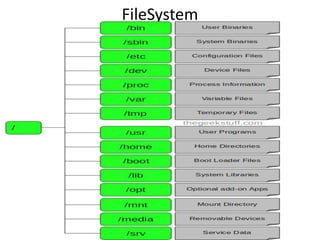
Directory Hierarchy
Inverted Tree with root on the top and the other files
systems below the root.
 / the root of file system name space
 /bin – symbolic link to /usr/bin is the location of binary files of standard system
commands
 /dev – Consists of the logical device files names. They are symbolic links to
/devices
 /devices – The primary directory for physical device names
 /etc – Consists of system configuration files
 /export – Directory used for sharing file systems
 /home – Home directory of the users
 /opt – Directory for the install of software
 /sbin – Single user bin directory, contains commands used during the booting
process and manual system recovery
 /tmp – The directory for temporary files. It is cleared during the boot process
 /usr – Contains scripts, binaries used by all users
 /var – Directory where varying files are such as logs, mail and printer spools
are stored

Linux powerpoint

  • 1.
    Unix Shell Scripting Introductionto Unix The File System in Unix Pipes and Filters Editors Shell Programming – I Shell Programming – II Additional Exercises
  • 2.
    Introduction to UNIX DefineOS and its functionalities Evolution and Structure of UNIX Usage of simple UNIX commands Usage of directory commands Usage of file commands Lab Exercises
  • 3.
    The File Systemin UNIX Directory Hierarchy Input/Output Redirection Wild Card Patterns Environmental Variables Additional Commands File Access Permissions Lab Exercises
  • 4.
    Pipes and Filters Introductionto Pipes and Filters Usage of sort and grep commands Usage of other filters Usage of Pipes and Filters together Lab Exercises
  • 5.
    Editors Introduction to theVI editor Getting started with the VI editor Usage of some editing commands Lab Exercises
  • 6.
    Shell Programming –I Introduction to Shell Scripts Features offered by Shell Programming Language Constructs Lab Exercises
  • 7.
    Shell Programming –II Advanced features of Shell Advanced Programming Language Constructs Background Processing Lab Exercises
  • 8.
    Introduction to Unix Definean Operating System and identify its functionalities - Definition - Functions  Command Interpreter  Peripherals Manager  Memory Manager  Process Manager - Types of Operating Systems  Single User  Multi User
  • 9.
    Define an OperatingSystem A software program designed to act as an interface between a hardware and the user. It controls the hardware, manages system resources and supervises interaction between the system and its users.
  • 10.
    Functions of Operating System CommandInterpreter The Operating System interprets command typed in by the user and translates it to a machine language and vice versa, translates the results of the command. Peripherals Manager The Operating System manages the devices attached to the system. Inputs are the input devices like keyboard, mouse, card readers are taken and the result of the command is printed to output devices like printers, VGA etc. This I/O management is Peripherals Management Memory Manager The processes running on a system require memory (RAM) to perform the tasks which they are intended to. The OS determines the allocation of memory for the processes based on the importance of the process. Process Manager The amount of time spent on a process by a CPU is managed by the OS.
  • 11.
    Types of OperatingSystems Single user As the name portrays only one user at any single point of time. Multi User Multiple users can perform operations on the OS at a singe point of time.
  • 12.
    Evolution and Structureof Unix  Stage I: Pre 1969  Stage II: In 1969 CSRD of Bell Labs used GE’s Mainframe 645 with an OS called MULTICS. This had the disadvantage of retaining the code of the previous OS therefore it was slow.  Stage III: Ken Thompson was working on an experiment called “Space Travel” and wanted a faster OS, so wrote and OS called Unix in Assembly Language, but the disadvantage was that the OS could not be ported. Ken Thompson developed a language B to include portability..this was later renamed to C by Dennis Ritchie.  State IV: In 1980 UNIX was completely rewritten in C and then evolved on the greatest OS in history UNIX (Uniplexed Information and Computing Service)
  • 13.
    Structure of Unix UnixOS consists of two parts - Kernel : Core of the Unix OS. It interacts with the hardware. It is loaded into memory when the system is booted. Its functions are - Managing the system resources - Allocating time and for users and processes - Managing process priorities and performing them.
  • 14.
    Structure of Unix -Shell: It interacts with kernel and the user. It has the following features: - Interactive Processing - Background Processing - Input / Output redirection - Pipes - Wild Card Patterns - Shell Scripts - Shell Variables - Programming language constructs
  • 15.
    Types of Shell BourneShell (sh) -- This shell does not have the interactive facilities provided by modern shells such as the C shell and Korn shell. C Shell (csh) -- It provides a C-like language with which to write shell scripts - hence its name. Korn Shell (ksh) -- It provides all the features of the C and TC shells together with a shell programming language similar to that of the original Bourne shell. Bash Shell(bash) -- Bash provides all the interactive features of the C shell (csh) and the Korn shell (ksh). Its programming language is compatible with the Bourne shell (sh).
  • 16.
    Usage of SimpleUnix Commands  date - Command to display and edit system date  who - Command to fine out who logged into the system  who am i – Command to display who you are logged in as  w - Command to display who is doing what  man - Command to display manual pages of Unix commands  head – Command to display the first “n” lines in a file  tail - Command to display the last “n” lines in a file
  • 17.
    Usage of Directory Commands pwd  ls -l - Long listing of files -a - List hidden files ( files starting with “.”) -t - List files based on the ascending order of creation time -d - List directory -p - List files and directories but directories are followed by a “/” -u - List by access time  mkdir  cd  rmdir  Relative paths and absolute paths Path defined from the current directory is Relative path. Ex: $ls –l ../newtest/cars Path defined from the root (/) is the absolute path. Ex: $ls –l /home/speram/newtest/cars
  • 18.
    Usage of FileCommands  cat  cp -f - Copy files by force, overwrite in case one exists with the same name. -i - Copy files interactively -p - Preserve mode, ownerships, timestamps while copying -R - Copy files recursively into a directory  ln  mv  rm -i - Remove files interactively -r - Remove files recursively
  • 19.
    Directory Hierarchy Inverted Treewith root on the top and the other files systems below the root.  / the root of file system name space  /bin – symbolic link to /usr/bin is the location of binary files of standard system commands  /dev – Consists of the logical device files names. They are symbolic links to /devices  /devices – The primary directory for physical device names  /etc – Consists of system configuration files  /export – Directory used for sharing file systems  /home – Home directory of the users  /opt – Directory for the install of software  /sbin – Single user bin directory, contains commands used during the booting process and manual system recovery  /tmp – The directory for temporary files. It is cleared during the boot process  /usr – Contains scripts, binaries used by all users  /var – Directory where varying files are such as logs, mail and printer spools are stored

Editor's Notes

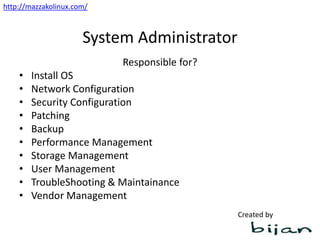
  • #3 Network Team: provides and configures network in the environment Storage Admin: handles storage Backup Admin: Makes backup of systems Database Admin: Maintains Database Security Team: Help to enforce secure environment Application Team: manages application installed in the server Noc/Help Desk: monitoring, and help with problems Facilities: To install hardware in the place Vendors: To buy and to get support
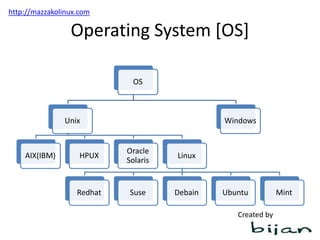
  • #4 Linux focuses on Application wheras Unix focuses on Database. RHEL=Redhat Enterprise Linux Sles=Suse Linux Enterprise Server Difference Between Linux & Unix Linux is free open source & Unix is not General user can use Linux but cant be able to use Unix More Applications on Linux than Unix Linux basically focuses on application while Unix on database Linux System is cheap than Unix Linux runs on all hardware platforms but Unix is a proprietary hardware bonded.
  • #5 Development Environment: Here is where the developer tests code and checks whether the application runs successfully with that code. Once the application has been tested and the developer feels that the code is working fine, the application then moves to the test Environment. Test Environment:The hardware and software environment in which tests will be run, and any other software with which the software under test interacts when under test including stubs and test drivers. QA Environment: This is the stage where unit testing, interface testing is performed. Quality analysis team make sure that the new code will not have any impact on the existing functionality and they test major functionalities of the system once after deploying the new code in their respective environment(ie QA environment) Staging: Staging (STAGE) is a pre-production environment, for final testing immediately prior to deploying to production. It seeks to mirror the actual production environment as closely as possible, and may connect to other production services and data, such as databases. For example, servers will be run on remote machines, rather than locally (as on a developer's workstation during dev, or on a single test machine during test), which tests the effect of networking on the system. Production Environment: Final environment which client sees.
  • #6 Severity 1 (urgent) A problem that severely impacts your use of the software in a production environment (such as loss of production data or in which your production systems are not functioning). The situation halts your business operations and no procedural workaround exists. Severity 2 (high) A problem where the software is functioning but your use in a production environment is severely reduced. The situation is causing a high impact to portions of your business operations and no procedural workaround exists. Severity 3 (medium) A problem that involves partial, non-critical loss of use of the software in a production environment or development environment. For production environments, there is a medium-to-low impact on your business, but your business continues to function, including by using a procedural workaround. For development environments, where the situation is causing your project to no longer continue or migrate into production. Severity 4 (low) A general usage question, reporting of a documentation error, or recommendation for a future product enhancement or modification. For production environments, there is low-to-no impact on your business or the performance or functionality of your system. For development environments, there is a medium-to-low impact on your business, but your business continues to function, including by using a procedural workaround.
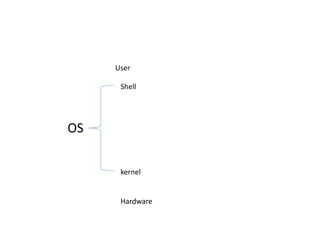
  • #8 User interpretes to shell and hense shell to kernel and it talks to hardware and executes commands. The shell acts as an interface between the user and the kernel. When a user logs in, the login program checks the username and password, and then starts another program called the shell. The shell is a command line interpreter (CLI). It interprets the commands the user types in and arranges for them to be carried out.
  • #10 Echo $SHELL,ps –p $$,echo $0,
  • #12 Linux is an Open Source Operating System and is setup in a UNIX-like architecture. The two main parts of Linux is the Kernel and the Shell. A process is generally associated with a user requesting an operation through the shell, the shell then communicates this information to the Linux Kernel which in turn sends the proper commands to the computer's hardware. Below is a simple hierarchy setup of how the Linux OS runs. The kernel is what makes the operating system run.  It is what translates the data inputed from the user via a shell and tells the hardware how to react.  All Linux kernels are based off the kernel written by Linus Torvalds.
  • #15 Chsh –s /bin/bash Exec /bin/sh List shells:- cat /etc/shells
  • #16 Note: We can use an absolute path from any location where as if you want to use relative path we should be present in a directory where we are going to specify relative to that present working directory.