Understanding Computers, O/S, File Management
Types of Computers
Microcomputers
 PC or Desktop
 Laptop
 Tablet
 Netbook
 Mobile Phone or Smart Phone
Business Computers
 Servers (Help to share information like Word over all Business
  computers)
 Mainframes (used in banks for massive amount of data computation)
 Supercomputer (used in large computational projects like weather
  forecasting)

8/8/2012 2:09 PM                                                      2
Hardware
Hardware comes with system like mouse, monitor, keyboard
 Input Device Hardware
      Mouse
      Keyboard
      Scanner
 Output Device Hardware
      Monitor
      Printer
      Speakers
 Storage Device Hardware
    Hard Drive
      External Hard Drive
      Flash Drive

8/8/2012 2:09 PM                                           3
Hard Drive
  Hard Drive has platters (plates) stacked on top of each
   other and a spindle reads the platter
  Platters are covered with metal oxide that stores data
   as compressions or magnetic spots on platter (e.g. tape
   used in car stereo)


8/8/2012 2:09 PM                                             4
Basic Terms Answers
  BIOS (Basic Input/Output system)
  Port (outside computer that plug peripheral devices)
  CD-ROM drive, CD-R, CD-RW disk
  CPU (central processing unit)—brain of
   computer/needs fan to cool it off
  Motherboard—main circuit board that has other
   circuit boards on it like video and sound card
  See link on Kaboose.com for picture of Motherboard,
   CPU, and BIOS
       http://resources.kaboose.com/brain/comp-les2.html
8/8/2012 2:09 PM                                            5
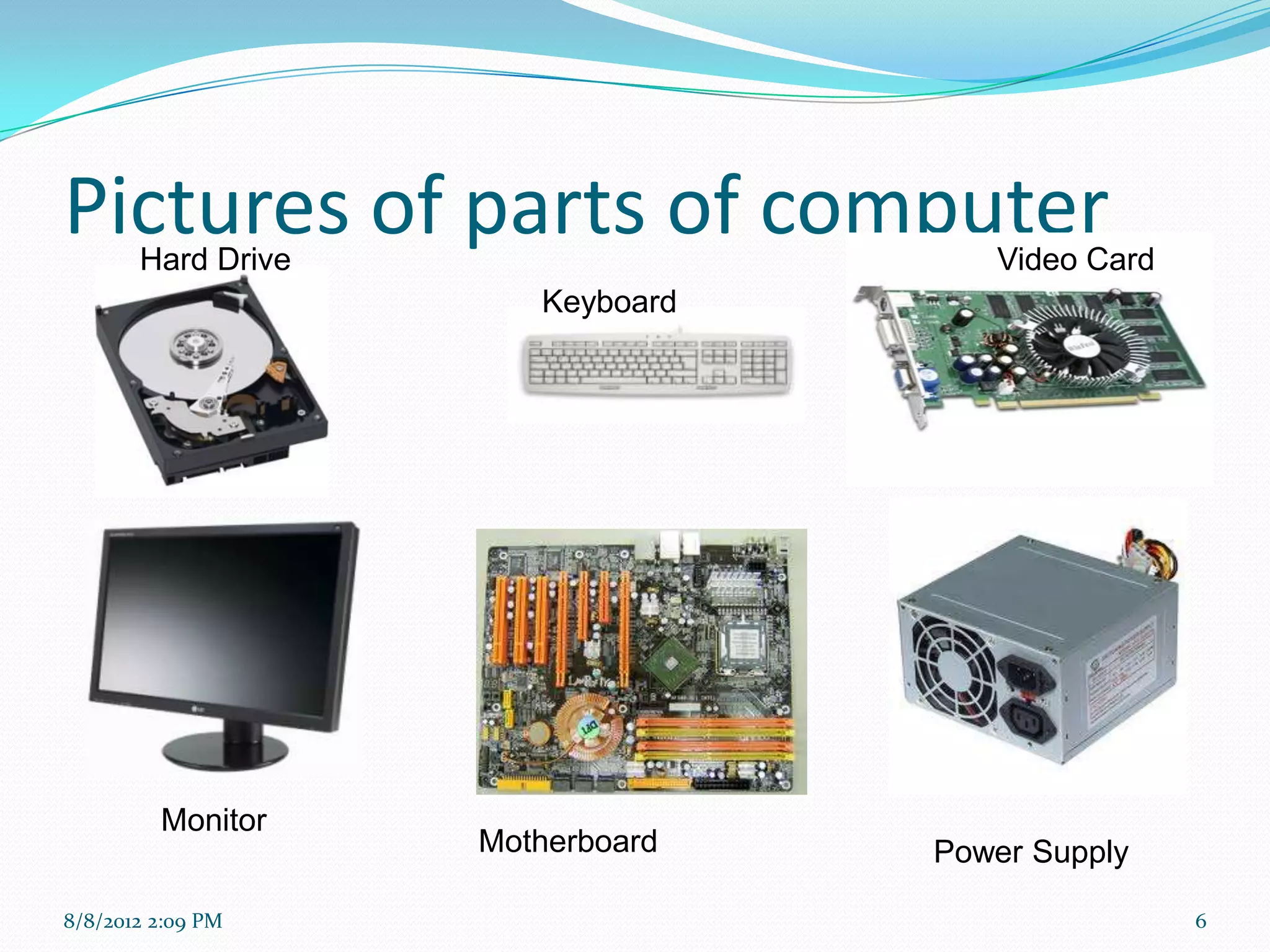
Pictures of parts of computer
       Hard Drive                    Video Card
                       Keyboard


         Monitor
                    Motherboard   Power Supply

8/8/2012 2:09 PM                                  6
What happens when computer
starts?
  Turn on computer (boot up) or booting
  Booting is process of bringing on O/S
  BIOS (Basic Input/Output system) chip (also called ROM-BIOS because
   permanent, repeated instructions) located on motherboard
  BIOS chip tells to look on hard disk for a special program called boot loader
  Boot loader is pulled into memory to start the real O/S
     Boot loader looks for kernel and loads into memory
     Kernel is interface btwn application programs and CPU, devices, and memory;
      kernel can also be called manager of system resources by managing the
      communication between application programs and CPU, devices, and memory
     POST test (Power On Self Test) –CPU performs check of peripheral devices on-
      line like mouse, monitor, sound card, keyboard
     POST checks storage devices (have good FAT table)
     Login screen


8/8/2012 2:09 PM                                                                     7
What is the FAT table?
  File Allocation Table
     Table of Contents tells what sector files are located
     O/S uses FAT table to tell where files on hard drive (O/S
      writes new FAT table when save file)
     A corrupted FAT table is a serious problem
             Without good FAT table O/S can’t find location of files on
              hard drive
             Can use scandisk at dos prompt to fix (two FAT table (Fat1 and
              Fat2); uses Fat2 to fix Fat1
       Checked in boot up process


8/8/2012 2:09 PM                                                               8
What is the kernel?
  Picture of Kernel from Wikipedia
     http://en.wikipedia.org/wiki/Image:Kernel_Layout.svg#
      file


8/8/2012 2:09 PM                                              9
ROM vs. RAM
  ROM stands for Read Only Memory
     Permanent memory like BIOS (hard-code instructions
      on what to do when boot up computer)
  RAM stands for Random Access Memory
     Temporary memory


8/8/2012 2:09 PM                                           10
Types of CD Drives
  CD-ROM—Compact Disk – Read Only Memory
     Can only read information on disk
  CD-RW—Compact Disk Rewritable
     Can read and write on disk
  DVD (Digital Video Disc)
     Holds more information than CD
     Watch Movies or play Games
     Want to usually buy computer with DVD disc drive
  Remember DVD can play movies or CD but a CD drive
     can’t play DVD
8/8/2012 2:09 PM                                         11
Bits and Bytes
 Computer reads data as switches
     Off switch is 0
     On switch is 1
  A bit is a 0 or 1 switch
  Eights bits make up a byte
  Abbreviations
        KB is about 1,000 bytes (thousand) kilobyte
        MB is about 1,000,000 bytes (million) megabyte
        GB is 1,000,000,000 bytes (billion) gigabyte
        TB is one trillion bytes or 1,024 gigabytes
        PB (petabyte) is 1015 bytes (1,000,000,000,000,000 bytes) or 1,000 TB
  Abbreviations help when knowing disk storage on hard drive when
     buying software or computer
8/8/2012 2:09 PM                                                               12
What types of Operating Systems are
there?
  MS-DOS
     (Eight versions that stopped making in 2000) created by
      Bill Gates and put on IBM machines as PC-DOS
     Can still use by Start in search (put cmd.exe)
     Command driven copy a:*.* c:files*.*
  Linux
  Windows 3.1
  Windows XP
  Windows Vista
  Windows 7 then 8 (tablets but can put on PC)
8/8/2012 2:09 PM                                                13
Operating System
  Has Gui (gooey) interface that helps use to do tasks
   like copy and paste files
  Enables multitasking so can do several tasks at once
   like view e-mail and look at Web page
  Helps to manage and keep track of peripheral devices
   like printers or mouse through Control Panel
  Gives users availability to do Backups and manage
   fragmenting disk
  Recycle bin can recover deleted files

8/8/2012 2:09 PM                                          14
Is there a difference between Uninstall and
Deleting Programs?
  Yes
  Manually deleting doesn’t usually get all files deleted
   with software installation and some files that are used
   by other programs might accidently be deleted (maybe
   a printer driver)
  Uninstall under Control Panel


8/8/2012 2:09 PM                                             15
Backup--System Image vs.
System Repair
  System Image backups Windows 7, hard drive (C: Drive), programs, and all files plus
   system repair disc (booting up disc). System Repair Disc is included with Windows 7
   Operation system and can load restore from Windows 7 installation disk or made system
   repair disc. This is preferred method of backup.
  Custom backup—select what files want
  System Repair Disc is booting up disc and can make separate in case have no Windows 7
   software when got computer such as laptop or netbook (may have to download or borrow
   copy of Windows 7 installation disk and then use product code). The system repair disc
   can be used in case have crash on Windows 7 and no way of booting. In the case of
   Windows 7 not booting up, may just need to use System Repair disc to get to Startup
   Repair option that will fix problems in Windows 7 and not have to do complete System
   Image Recovery.
  Driver/Utility Disc (loaded device drivers like for printer that may need after install or
   during restore) to get printer to work etc.


8/8/2012 2:09 PM                                                                                16
On-line backups
  Several companies like SkyDrive (free for limited use)
     or Mozy offer on-line backup solutions
       Good in case of natural disaster
  SOS On-line backup will back up computer and
     mobile phones (Android, iPhone, iPads)


8/8/2012 2:09 PM                                            17

BSAD 104 Understanding Computers,OS,File Management

  • 1.
  • 2.
    Types of Computers Microcomputers PC or Desktop  Laptop  Tablet  Netbook  Mobile Phone or Smart Phone Business Computers  Servers (Help to share information like Word over all Business computers)  Mainframes (used in banks for massive amount of data computation)  Supercomputer (used in large computational projects like weather forecasting) 8/8/2012 2:09 PM 2
  • 3.
    Hardware Hardware comes withsystem like mouse, monitor, keyboard  Input Device Hardware  Mouse  Keyboard  Scanner  Output Device Hardware  Monitor  Printer  Speakers  Storage Device Hardware  Hard Drive  External Hard Drive  Flash Drive 8/8/2012 2:09 PM 3
  • 4.
    Hard Drive Hard Drive has platters (plates) stacked on top of each other and a spindle reads the platter  Platters are covered with metal oxide that stores data as compressions or magnetic spots on platter (e.g. tape used in car stereo) 8/8/2012 2:09 PM 4
  • 5.
    Basic Terms Answers  BIOS (Basic Input/Output system)  Port (outside computer that plug peripheral devices)  CD-ROM drive, CD-R, CD-RW disk  CPU (central processing unit)—brain of computer/needs fan to cool it off  Motherboard—main circuit board that has other circuit boards on it like video and sound card  See link on Kaboose.com for picture of Motherboard, CPU, and BIOS  http://resources.kaboose.com/brain/comp-les2.html 8/8/2012 2:09 PM 5
  • 6.
    Pictures of partsof computer Hard Drive Video Card Keyboard Monitor Motherboard Power Supply 8/8/2012 2:09 PM 6
  • 7.
    What happens whencomputer starts?  Turn on computer (boot up) or booting  Booting is process of bringing on O/S  BIOS (Basic Input/Output system) chip (also called ROM-BIOS because permanent, repeated instructions) located on motherboard  BIOS chip tells to look on hard disk for a special program called boot loader  Boot loader is pulled into memory to start the real O/S  Boot loader looks for kernel and loads into memory  Kernel is interface btwn application programs and CPU, devices, and memory; kernel can also be called manager of system resources by managing the communication between application programs and CPU, devices, and memory  POST test (Power On Self Test) –CPU performs check of peripheral devices on- line like mouse, monitor, sound card, keyboard  POST checks storage devices (have good FAT table)  Login screen 8/8/2012 2:09 PM 7
  • 8.
    What is theFAT table?  File Allocation Table  Table of Contents tells what sector files are located  O/S uses FAT table to tell where files on hard drive (O/S writes new FAT table when save file)  A corrupted FAT table is a serious problem  Without good FAT table O/S can’t find location of files on hard drive  Can use scandisk at dos prompt to fix (two FAT table (Fat1 and Fat2); uses Fat2 to fix Fat1  Checked in boot up process 8/8/2012 2:09 PM 8
  • 9.
    What is thekernel?  Picture of Kernel from Wikipedia  http://en.wikipedia.org/wiki/Image:Kernel_Layout.svg# file 8/8/2012 2:09 PM 9
  • 10.
    ROM vs. RAM  ROM stands for Read Only Memory  Permanent memory like BIOS (hard-code instructions on what to do when boot up computer)  RAM stands for Random Access Memory  Temporary memory 8/8/2012 2:09 PM 10
  • 11.
    Types of CDDrives  CD-ROM—Compact Disk – Read Only Memory  Can only read information on disk  CD-RW—Compact Disk Rewritable  Can read and write on disk  DVD (Digital Video Disc)  Holds more information than CD  Watch Movies or play Games  Want to usually buy computer with DVD disc drive  Remember DVD can play movies or CD but a CD drive can’t play DVD 8/8/2012 2:09 PM 11
  • 12.
    Bits and Bytes Computer reads data as switches  Off switch is 0  On switch is 1  A bit is a 0 or 1 switch  Eights bits make up a byte  Abbreviations  KB is about 1,000 bytes (thousand) kilobyte  MB is about 1,000,000 bytes (million) megabyte  GB is 1,000,000,000 bytes (billion) gigabyte  TB is one trillion bytes or 1,024 gigabytes  PB (petabyte) is 1015 bytes (1,000,000,000,000,000 bytes) or 1,000 TB  Abbreviations help when knowing disk storage on hard drive when buying software or computer 8/8/2012 2:09 PM 12
  • 13.
    What types ofOperating Systems are there?  MS-DOS  (Eight versions that stopped making in 2000) created by Bill Gates and put on IBM machines as PC-DOS  Can still use by Start in search (put cmd.exe)  Command driven copy a:*.* c:files*.*  Linux  Windows 3.1  Windows XP  Windows Vista  Windows 7 then 8 (tablets but can put on PC) 8/8/2012 2:09 PM 13
  • 14.
    Operating System Has Gui (gooey) interface that helps use to do tasks like copy and paste files  Enables multitasking so can do several tasks at once like view e-mail and look at Web page  Helps to manage and keep track of peripheral devices like printers or mouse through Control Panel  Gives users availability to do Backups and manage fragmenting disk  Recycle bin can recover deleted files 8/8/2012 2:09 PM 14
  • 15.
    Is there adifference between Uninstall and Deleting Programs?  Yes  Manually deleting doesn’t usually get all files deleted with software installation and some files that are used by other programs might accidently be deleted (maybe a printer driver)  Uninstall under Control Panel 8/8/2012 2:09 PM 15
  • 16.
    Backup--System Image vs. SystemRepair  System Image backups Windows 7, hard drive (C: Drive), programs, and all files plus system repair disc (booting up disc). System Repair Disc is included with Windows 7 Operation system and can load restore from Windows 7 installation disk or made system repair disc. This is preferred method of backup.  Custom backup—select what files want  System Repair Disc is booting up disc and can make separate in case have no Windows 7 software when got computer such as laptop or netbook (may have to download or borrow copy of Windows 7 installation disk and then use product code). The system repair disc can be used in case have crash on Windows 7 and no way of booting. In the case of Windows 7 not booting up, may just need to use System Repair disc to get to Startup Repair option that will fix problems in Windows 7 and not have to do complete System Image Recovery.  Driver/Utility Disc (loaded device drivers like for printer that may need after install or during restore) to get printer to work etc. 8/8/2012 2:09 PM 16
  • 17.
    On-line backups Several companies like SkyDrive (free for limited use) or Mozy offer on-line backup solutions  Good in case of natural disaster  SOS On-line backup will back up computer and mobile phones (Android, iPhone, iPads) 8/8/2012 2:09 PM 17