COMPUTER BASICS
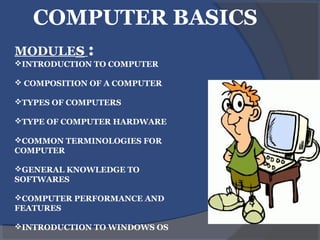
MODULEs :
INTRODUCTION TO COMPUTER
 COMPOSITION OF A COMPUTER
TYPES OF COMPUTERS
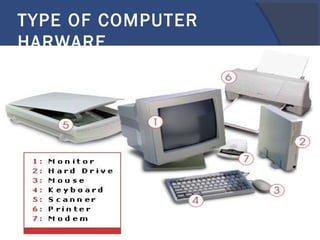
TYPE OF COMPUTER HARDWARE
COMMON TERMINOLOGIES FOR
COMPUTER
GENERAL KNOWLEDGE TO
SOFTWARES
COMPUTER PERFORMANCE AND
FEATURES
INTRODUCTION TO WINDOWS OS
How to use a computer
and not lose your mind
COMPUTER BASICS
WHAT IS A COMPUTER ?
General Views:
 A computer is a device used to store and
process information.
 It is also defined by other scholars as an
engine that enable them to work.
 Some also defined it as anything that works
something out.
 What do You “SAY”!!!
CONTINUATION
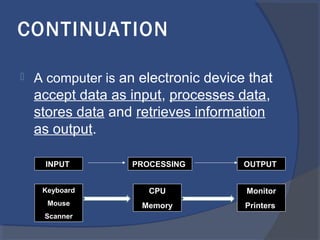
 A computer is an electronic device that
accept data as input, processes data,
stores data and retrieves information
as output.
INPUT PROCESSING OUTPUT
Keyboard
Mouse
Scanner
Monitor
Printers
CPU
Memory
TYPE OF COMPUTERS
 Mainframes
 Super Computers
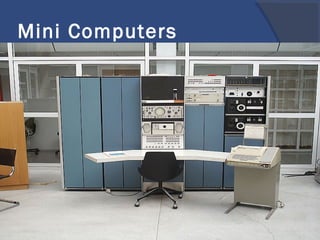
 Mini-Computers
 Micro/Personal
Computers (PC)…
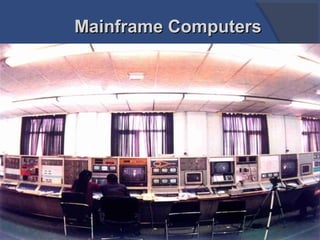
Mainframe ComputersMainframe Computers
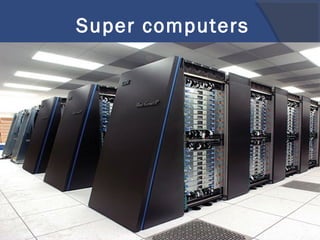
Super computers
Mini Computers
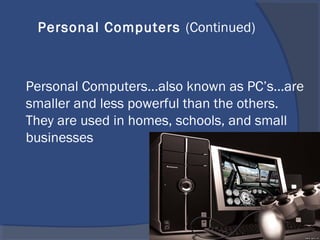
Personal Computers...also known as PC’s...are
smaller and less powerful than the others.
They are used in homes, schools, and small
businesses
Personal Computers (Continued)
There are 3 main types of PCs
Desktop
Portable (Notebook/Laptop)
Hand-Held
Types of personal computers
A Computer is made up
of :
 Hardware
refers to the physical components of a
computer. These are the parts that you can
see, feel and touch. Examples are the CPU,
the keyboard, the monitor, memory, cables,
mouse, printer and system unit.
 Software
refers to the programs that instructs the
computer to function. i.e the intangible parts
of a computer.
TYPE OF COMPUTER
HARWARE
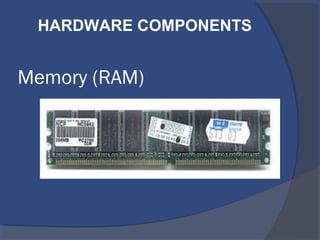
Memory (RAM)
HARDWARE COMPONENTS
There are two (2) types of memory.
1. RAM - Random Access Memory
The main 'working' memory used by the computer.
The operating system loads the OS from disk to the
main memory (RAM) when you first switch on the
computer.
Data and programs stored in RAM are volatile (i.e. the
information is lost when you switch off the computer).
It also stores data temporally
It usually doesn’t have large storage capacity
MEMORY OF A COMPUTER
2. ROM – Read Only Memory
 Read Only Memory (ROM) as the name
suggests is a special type of memory chip that
holds software that can be read but not written
to.
Usually, have a large Storage Space
Data are permanent
It is not also volatile
Continued…
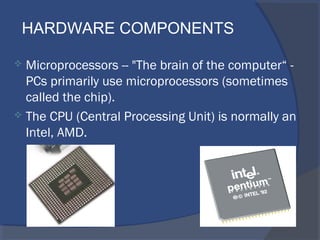
 Microprocessors -- "The brain of the computer“ -
PCs primarily use microprocessors (sometimes
called the chip).
 The CPU (Central Processing Unit) is normally an
Intel, AMD.
HARDWARE COMPONENTS
HARDWARE
TERMINOLOGIES
 Inputs/Input Devices
 Outputs/Output Devices
 Storage Devices
Input Devices
 These are computer devices
that are used to send in, key
in data to the computer
system.
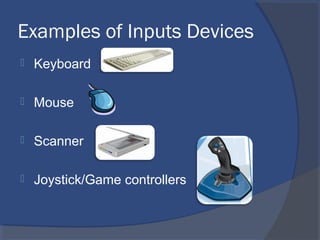
Examples of Inputs Devices
 Keyboard
 Mouse
 Scanner
 Joystick/Game controllers
OUTPUTS/OUTPUT DEVICES
 These are devices that are used to
get back, display or retrieve,
information store from the computer
system.
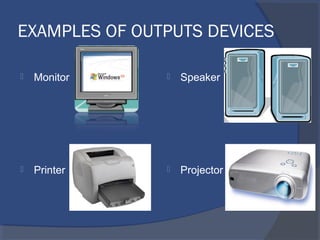
EXAMPLES OF OUTPUTS DEVICES
 Monitor
 Printer
 Speaker
 Projector
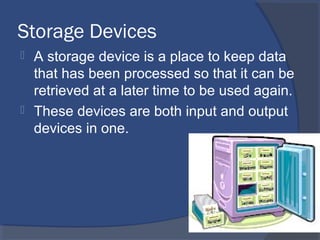
Storage Devices
 A storage device is a place to keep data
that has been processed so that it can be
retrieved at a later time to be used again.
 These devices are both input and output
devices in one.
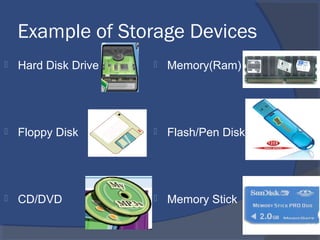
Example of Storage Devices
 Hard Disk Drive
 Floppy Disk
 CD/DVD
 Memory(Ram)
 Flash/Pen Disk
 Memory Stick
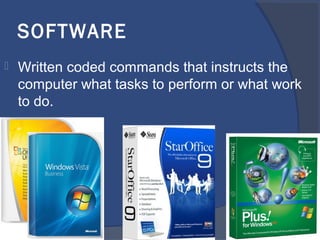
SOFTWARE
 Written coded commands that instructs the
computer what tasks to perform or what work
to do.
TYPES OF SOFTWARES
 Generally, there are three (3) of them
namely:
 Operating System Software
 Utility Software
 Application Software
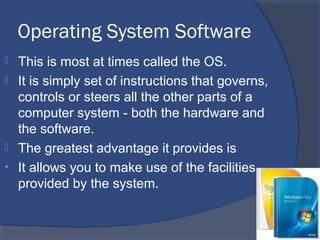
Operating System Software
 This is most at times called the OS.
 It is simply set of instructions that governs,
controls or steers all the other parts of a
computer system - both the hardware and
the software.
 The greatest advantage it provides is
• It allows you to make use of the facilities
provided by the system.
Types of Operating System
Software
 Command line OS
Unix - Free, but difficult to use
Linux - Free, but difficult to use
 Graphical User Interface
Windows – Quite expensive, User-friendly
Mackintosh – Very expensive, but not
much user-friendly.
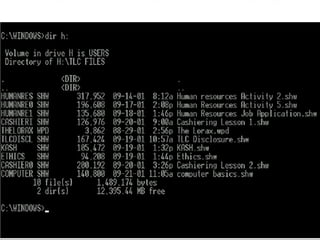
DOS is an example of a command line operating
system.
On the next slide, Notice that there are no:
 Icons (pictures)
 Colors
 Mouse Pointer
 Buttons
 You have to memorize commands in order to use
this text based operating system.
COMMAND LINE OPERATING SYSTEM
SOFTWARE
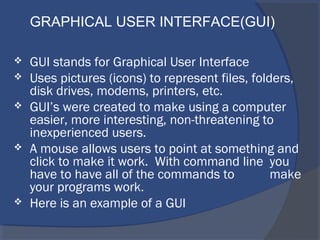
 GUI stands for Graphical User Interface
 Uses pictures (icons) to represent files, folders,
disk drives, modems, printers, etc.
 GUI’s were created to make using a computer
easier, more interesting, non-threatening to
inexperienced users.
 A mouse allows users to point at something and
click to make it work. With command line you
have to have all of the commands to make
your programs work.
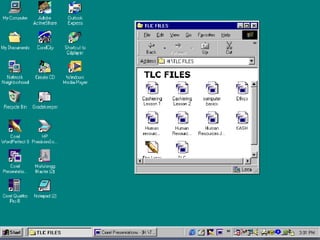
 Here is an example of a GUI
GRAPHICAL USER INTERFACE(GUI)
EXAMPLES OF WINDOWS
OPERATING SYSTEM
SOFTWARE This includes Disk operating system
(DOS)
 Windows 95
 Windows 98
 Windows 2000 / Millennium / Me
 Windows New Technology (NT)
 Windows XP
 Windows Vista
 Windows Seven (7)
Utilities Software
 computer software or program that assists
the user in organising, maintaining and
improving the efficiency of a computer
system.
 It has been integrated into most major
operating systems.
Examples of Utility
Software
 Virus scanner
 Systems profilers
 Backups
 Calculator
 Notepad, Wordpad
 Restoring Abilities
 Player
 Individual folder.
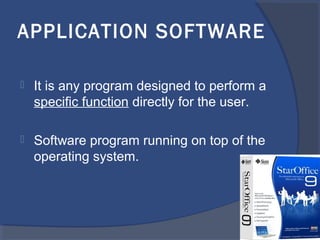
APPLICATION SOFTWARE
 It is any program designed to perform a
specific function directly for the user.
 Software program running on top of the
operating system.
Application Soft
(Continued…)
 1.Business software: word processors,
spreadsheets, and database programs.
 2.Communication software: allows computers to
communicate with other computers: fax
software, Novell NetWare, AOL, Modem
Software.
 3.Graphics software: software that allows users
to create and manipulate graphics...Photoshop,
Print Shop, etc.
Application Soft
(Continued…)
 4.Education and Reference software
 5.Entertainment and Leisure
software...Warcraft, Age of Empires,
RoadRush
 6.Integrated software: Combines several
types of software into one program or
package.
Eg;(Spreadsheet/database/Print Shop
(Graphics/Word processor).
Examples of Application
Software
 StarOffice Writer, MsOffice Word
 StarOffice Impress, MsOffice
PowerPoint
 StarOffice Calc, Msoffice Excel
 StarOffice Draw, CorelDraw
 Acrobat Reader, Acrobat Writer
 CPU speed – Megahertz, Gigahertz
 RAM size - Megabyte, Gigabyte
 Hard disk speed and capacity - Megabyte,
Gigabyte
COMPUTER PERFORMANCE
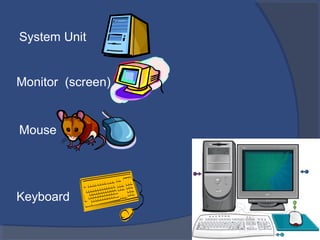
System Unit
Monitor (screen)
Mouse
Keyboard
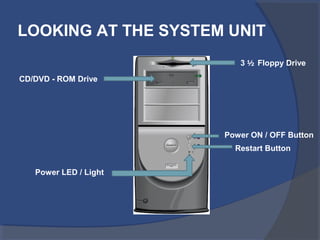
LOOKING AT THE SYSTEM UNIT
3 ½ Floppy Drive
CD/DVD - ROM Drive
Power ON / OFF Button
Restart Button
Power LED / Light
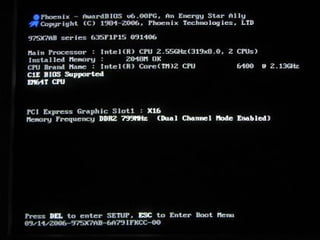
The Power On System Test (POST)
 This information is displayed using a
special computer chip within your
computer called the ROM-BIOS (Read
Only Memory, Basic Input Output
System). The test which the ROM-BIOS
performs is often called the POST (Power
On System Test or Power On Self Test).
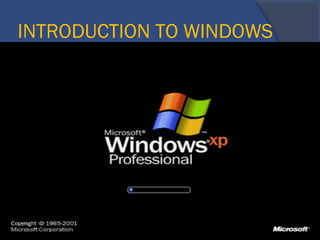
INTRODUCTION TO WINDOWS
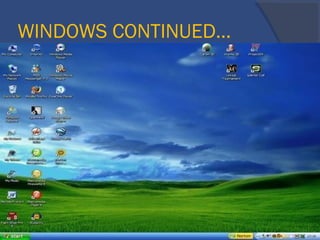
WINDOWS CONTINUED…
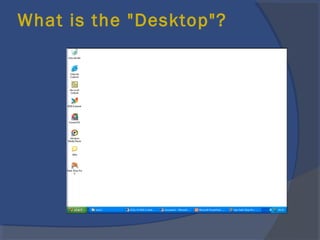
What is the "Desktop"?
Desktop
Aims
Recognise Desktop icons such as those
representing:
 files,
 directories/folders,
 applications,
 printers,
 recycle bin/wastebasket.
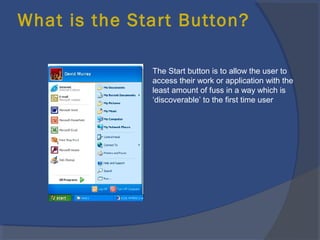
What is the Start Button?
The Start button is to allow the user to
access their work or application with the
least amount of fuss in a way which is
‘discoverable’ to the first time user
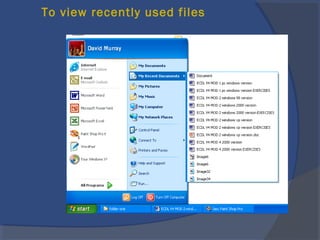
To view recently used files
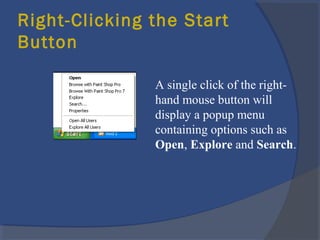
Right-Clicking the Start
Button
A single click of the right-
hand mouse button will
display a popup menu
containing options such as
Open, Explore and Search.
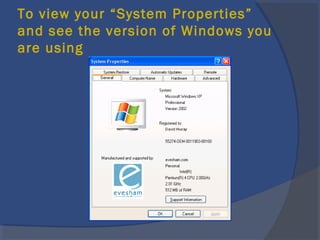
To view your “System Properties”
and see the version of Windows you
are using
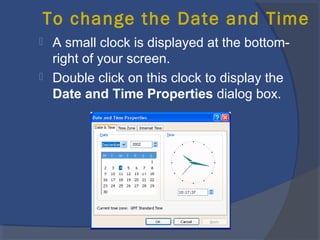
To change the Date and Time
 A small clock is displayed at the bottom-
right of your screen.
 Double click on this clock to display the
Date and Time Properties dialog box.
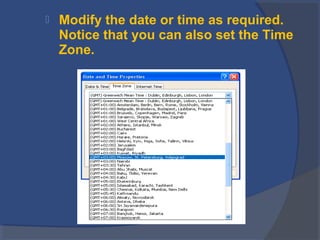
 Modify the date or time as required.
Notice that you can also set the Time
Zone.
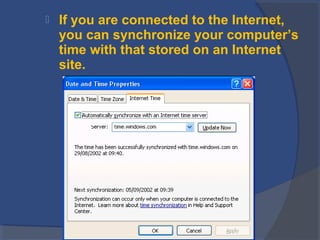
 If you are connected to the Internet,
you can synchronize your computer’s
time with that stored on an Internet
site.
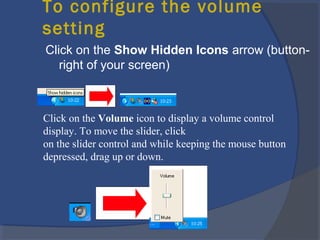
To configure the volume
setting
Click on the Show Hidden Icons arrow (button-
right of your screen)
Click on the Volume icon to display a volume control
display. To move the slider, click
on the slider control and while keeping the mouse button
depressed, drag up or down.
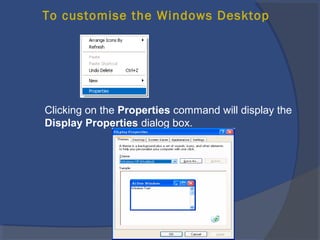
To customise the Windows Desktop
Clicking on the Properties command will display the
Display Properties dialog box.
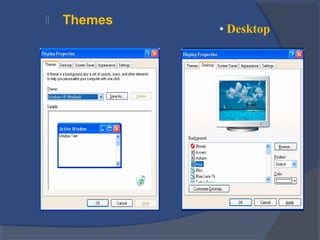
 Themes
• Desktop
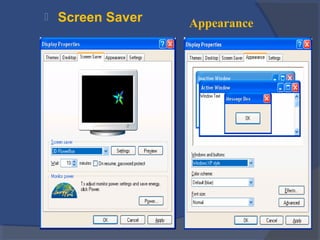
 Screen Saver Appearance
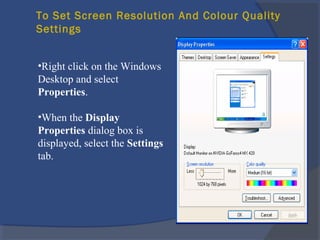
To Set Screen Resolution And Colour Quality
Settings
•Right click on the Windows
Desktop and select
Properties.
•When the Display
Properties dialog box is
displayed, select the Settings
tab.
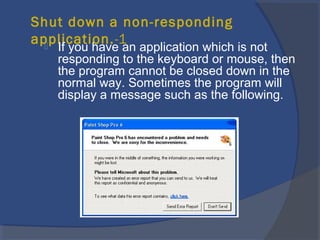
Shut down a non-responding
application.-1 If you have an application which is not
responding to the keyboard or mouse, then
the program cannot be closed down in the
normal way. Sometimes the program will
display a message such as the following.
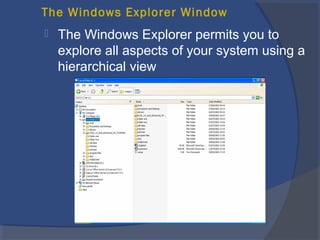
The Windows Explorer Window
 The Windows Explorer permits you to
explore all aspects of your system using a
hierarchical view
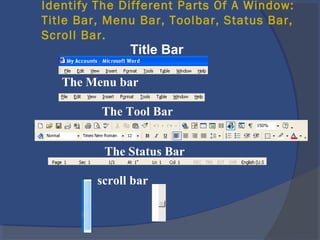
Identify The Different Parts Of A Window:
Title Bar, Menu Bar, Toolbar, Status Bar,
Scroll Bar.
Title Bar
The Menu bar
The Tool Bar
The Status Bar
scroll bar
Maximise, Minimise, Restore And Close
Buttons
 The Maximise, Minimise and Restore
buttons are located in the top, right-hand
corner of every window. When you click
on the Maximise button, the window
expands to fill the screen, the Minimise
button reduces the window to an icon on
the Taskbar and the Restore button
returns the window to its original state.
The Windows Explorer Views
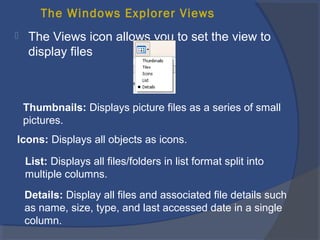
 The Views icon allows you to set the view to
display files
Thumbnails: Displays picture files as a series of small
pictures.
Icons: Displays all objects as icons.
List: Displays all files/folders in list format split into
multiple columns.
Details: Display all files and associated file details such
as name, size, type, and last accessed date in a single
column.
Directories / Folders
 To create a new folder within the
Windows Explorer
 To create folders within folders
 To create a folder directly on the
Desktop, using a popup menu
 To view folder attributes
Installing & Uninstalling Software
Application
 To install the software contained on
the CD, insert the disk and it should start
automatically
 Some applications place an uninstall
routine within the Windows Start menu. If
the application does not do this, you can
normally use the Add or Remove
Programs utility contained within the
Windows Control Panel.
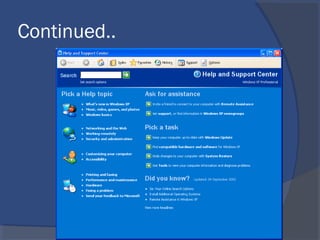
Help and Support Center
 How to get started with your computer
 This menu or feature help the individual
user to select a topic related to his or
her problem.
 It provide assistance to users as to what
entails in a particular topic
 It provides user to learn about Windows
Basics stuff.
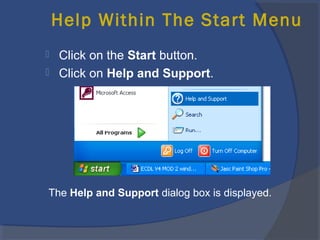
Help Within The Start Menu
 Click on the Start button.
 Click on Help and Support.
The Help and Support dialog box is displayed.
Continued..
THANK YOU FOR YOUR TIME
$
SEE YOU NEXT TIME.

INTRO TO COMPUTER

  • 2.
    COMPUTER BASICS MODULEs : INTRODUCTIONTO COMPUTER  COMPOSITION OF A COMPUTER TYPES OF COMPUTERS TYPE OF COMPUTER HARDWARE COMMON TERMINOLOGIES FOR COMPUTER GENERAL KNOWLEDGE TO SOFTWARES COMPUTER PERFORMANCE AND FEATURES INTRODUCTION TO WINDOWS OS
  • 3.
    How to usea computer and not lose your mind COMPUTER BASICS
  • 4.
    WHAT IS ACOMPUTER ? General Views:  A computer is a device used to store and process information.  It is also defined by other scholars as an engine that enable them to work.  Some also defined it as anything that works something out.  What do You “SAY”!!!
  • 5.
    CONTINUATION  A computeris an electronic device that accept data as input, processes data, stores data and retrieves information as output. INPUT PROCESSING OUTPUT Keyboard Mouse Scanner Monitor Printers CPU Memory
  • 6.
    TYPE OF COMPUTERS Mainframes  Super Computers  Mini-Computers  Micro/Personal Computers (PC)…
  • 7.
  • 8.
  • 9.
  • 10.
    Personal Computers...also knownas PC’s...are smaller and less powerful than the others. They are used in homes, schools, and small businesses Personal Computers (Continued)
  • 11.
    There are 3main types of PCs Desktop Portable (Notebook/Laptop) Hand-Held Types of personal computers
  • 12.
    A Computer ismade up of :  Hardware refers to the physical components of a computer. These are the parts that you can see, feel and touch. Examples are the CPU, the keyboard, the monitor, memory, cables, mouse, printer and system unit.  Software refers to the programs that instructs the computer to function. i.e the intangible parts of a computer.
  • 13.
  • 14.
  • 15.
    There are two(2) types of memory. 1. RAM - Random Access Memory The main 'working' memory used by the computer. The operating system loads the OS from disk to the main memory (RAM) when you first switch on the computer. Data and programs stored in RAM are volatile (i.e. the information is lost when you switch off the computer). It also stores data temporally It usually doesn’t have large storage capacity MEMORY OF A COMPUTER
  • 16.
    2. ROM –Read Only Memory  Read Only Memory (ROM) as the name suggests is a special type of memory chip that holds software that can be read but not written to. Usually, have a large Storage Space Data are permanent It is not also volatile Continued…
  • 17.
     Microprocessors --"The brain of the computer“ - PCs primarily use microprocessors (sometimes called the chip).  The CPU (Central Processing Unit) is normally an Intel, AMD. HARDWARE COMPONENTS
  • 18.
    HARDWARE TERMINOLOGIES  Inputs/Input Devices Outputs/Output Devices  Storage Devices
  • 19.
    Input Devices  Theseare computer devices that are used to send in, key in data to the computer system.
  • 20.
    Examples of InputsDevices  Keyboard  Mouse  Scanner  Joystick/Game controllers
  • 21.
    OUTPUTS/OUTPUT DEVICES  Theseare devices that are used to get back, display or retrieve, information store from the computer system.
  • 22.
    EXAMPLES OF OUTPUTSDEVICES  Monitor  Printer  Speaker  Projector
  • 23.
    Storage Devices  Astorage device is a place to keep data that has been processed so that it can be retrieved at a later time to be used again.  These devices are both input and output devices in one.
  • 24.
    Example of StorageDevices  Hard Disk Drive  Floppy Disk  CD/DVD  Memory(Ram)  Flash/Pen Disk  Memory Stick
  • 25.
    SOFTWARE  Written codedcommands that instructs the computer what tasks to perform or what work to do.
  • 26.
    TYPES OF SOFTWARES Generally, there are three (3) of them namely:  Operating System Software  Utility Software  Application Software
  • 27.
    Operating System Software This is most at times called the OS.  It is simply set of instructions that governs, controls or steers all the other parts of a computer system - both the hardware and the software.  The greatest advantage it provides is • It allows you to make use of the facilities provided by the system.
  • 28.
    Types of OperatingSystem Software  Command line OS Unix - Free, but difficult to use Linux - Free, but difficult to use  Graphical User Interface Windows – Quite expensive, User-friendly Mackintosh – Very expensive, but not much user-friendly.
  • 29.
    DOS is anexample of a command line operating system. On the next slide, Notice that there are no:  Icons (pictures)  Colors  Mouse Pointer  Buttons  You have to memorize commands in order to use this text based operating system. COMMAND LINE OPERATING SYSTEM SOFTWARE
  • 31.
     GUI standsfor Graphical User Interface  Uses pictures (icons) to represent files, folders, disk drives, modems, printers, etc.  GUI’s were created to make using a computer easier, more interesting, non-threatening to inexperienced users.  A mouse allows users to point at something and click to make it work. With command line you have to have all of the commands to make your programs work.  Here is an example of a GUI GRAPHICAL USER INTERFACE(GUI)
  • 33.
    EXAMPLES OF WINDOWS OPERATINGSYSTEM SOFTWARE This includes Disk operating system (DOS)  Windows 95  Windows 98  Windows 2000 / Millennium / Me  Windows New Technology (NT)  Windows XP  Windows Vista  Windows Seven (7)
  • 34.
    Utilities Software  computersoftware or program that assists the user in organising, maintaining and improving the efficiency of a computer system.  It has been integrated into most major operating systems.
  • 35.
    Examples of Utility Software Virus scanner  Systems profilers  Backups  Calculator  Notepad, Wordpad  Restoring Abilities  Player  Individual folder.
  • 36.
    APPLICATION SOFTWARE  Itis any program designed to perform a specific function directly for the user.  Software program running on top of the operating system.
  • 37.
    Application Soft (Continued…)  1.Businesssoftware: word processors, spreadsheets, and database programs.  2.Communication software: allows computers to communicate with other computers: fax software, Novell NetWare, AOL, Modem Software.  3.Graphics software: software that allows users to create and manipulate graphics...Photoshop, Print Shop, etc.
  • 38.
    Application Soft (Continued…)  4.Educationand Reference software  5.Entertainment and Leisure software...Warcraft, Age of Empires, RoadRush  6.Integrated software: Combines several types of software into one program or package. Eg;(Spreadsheet/database/Print Shop (Graphics/Word processor).
  • 39.
    Examples of Application Software StarOffice Writer, MsOffice Word  StarOffice Impress, MsOffice PowerPoint  StarOffice Calc, Msoffice Excel  StarOffice Draw, CorelDraw  Acrobat Reader, Acrobat Writer
  • 40.
     CPU speed– Megahertz, Gigahertz  RAM size - Megabyte, Gigabyte  Hard disk speed and capacity - Megabyte, Gigabyte COMPUTER PERFORMANCE
  • 41.
  • 42.
    LOOKING AT THESYSTEM UNIT 3 ½ Floppy Drive CD/DVD - ROM Drive Power ON / OFF Button Restart Button Power LED / Light
  • 43.
    The Power OnSystem Test (POST)  This information is displayed using a special computer chip within your computer called the ROM-BIOS (Read Only Memory, Basic Input Output System). The test which the ROM-BIOS performs is often called the POST (Power On System Test or Power On Self Test).
  • 45.
  • 46.
  • 47.
    What is the"Desktop"?
  • 48.
    Desktop Aims Recognise Desktop iconssuch as those representing:  files,  directories/folders,  applications,  printers,  recycle bin/wastebasket.
  • 49.
    What is theStart Button? The Start button is to allow the user to access their work or application with the least amount of fuss in a way which is ‘discoverable’ to the first time user
  • 50.
    To view recentlyused files
  • 51.
    Right-Clicking the Start Button Asingle click of the right- hand mouse button will display a popup menu containing options such as Open, Explore and Search.
  • 52.
    To view your“System Properties” and see the version of Windows you are using
  • 53.
    To change theDate and Time  A small clock is displayed at the bottom- right of your screen.  Double click on this clock to display the Date and Time Properties dialog box.
  • 54.
     Modify thedate or time as required. Notice that you can also set the Time Zone.
  • 55.
     If youare connected to the Internet, you can synchronize your computer’s time with that stored on an Internet site.
  • 56.
    To configure thevolume setting Click on the Show Hidden Icons arrow (button- right of your screen) Click on the Volume icon to display a volume control display. To move the slider, click on the slider control and while keeping the mouse button depressed, drag up or down.
  • 57.
    To customise theWindows Desktop Clicking on the Properties command will display the Display Properties dialog box.
  • 58.
  • 59.
     Screen SaverAppearance
  • 60.
    To Set ScreenResolution And Colour Quality Settings •Right click on the Windows Desktop and select Properties. •When the Display Properties dialog box is displayed, select the Settings tab.
  • 61.
    Shut down anon-responding application.-1 If you have an application which is not responding to the keyboard or mouse, then the program cannot be closed down in the normal way. Sometimes the program will display a message such as the following.
  • 62.
    The Windows ExplorerWindow  The Windows Explorer permits you to explore all aspects of your system using a hierarchical view
  • 63.
    Identify The DifferentParts Of A Window: Title Bar, Menu Bar, Toolbar, Status Bar, Scroll Bar. Title Bar The Menu bar The Tool Bar The Status Bar scroll bar
  • 64.
    Maximise, Minimise, RestoreAnd Close Buttons  The Maximise, Minimise and Restore buttons are located in the top, right-hand corner of every window. When you click on the Maximise button, the window expands to fill the screen, the Minimise button reduces the window to an icon on the Taskbar and the Restore button returns the window to its original state.
  • 65.
    The Windows ExplorerViews  The Views icon allows you to set the view to display files Thumbnails: Displays picture files as a series of small pictures. Icons: Displays all objects as icons. List: Displays all files/folders in list format split into multiple columns. Details: Display all files and associated file details such as name, size, type, and last accessed date in a single column.
  • 66.
    Directories / Folders To create a new folder within the Windows Explorer  To create folders within folders  To create a folder directly on the Desktop, using a popup menu  To view folder attributes
  • 67.
    Installing & UninstallingSoftware Application  To install the software contained on the CD, insert the disk and it should start automatically  Some applications place an uninstall routine within the Windows Start menu. If the application does not do this, you can normally use the Add or Remove Programs utility contained within the Windows Control Panel.
  • 68.
    Help and SupportCenter  How to get started with your computer  This menu or feature help the individual user to select a topic related to his or her problem.  It provide assistance to users as to what entails in a particular topic  It provides user to learn about Windows Basics stuff.
  • 69.
    Help Within TheStart Menu  Click on the Start button.  Click on Help and Support. The Help and Support dialog box is displayed.
  • 70.
  • 71.
    THANK YOU FORYOUR TIME $ SEE YOU NEXT TIME.

Editor's Notes

  • #42 These are the right terms to use. If you use these terms, no computer repairman or salesperson can ever make you feel like an idiot. CPU stands for Central Processing Unit. It’s the engineroom of your computer – the brains of the operation (You thought you were the brains, right? Wrong.) It’s sometimes referred to (incorrectly) as the “hard drive”. They call it that because your hard drive is in there, but it’s not the hard drive. The hard drive is only a part of the CPU The monitor is fancy computer speak for the screen. The mouse is one way of communicating with the computer. The keyboard is another way of communicating with the computer. Throwing something at the computer is a way of communicating, but it’s not very effective.