A Breakeven Chart
in Excel
by
Breakeven Isolation – NO!
Breakeven should not be considered in
isolation
Related factors:
• Volume v price
• Total Cost = FC + VC
• Level (group v specific product)
• Price is the result of a strategy (or tactic)
Before we start -
Breakeven related factors
Allocating costs and expenses is not a strict
concept – it depends upon judgement.
There are many methods, including:
1. Volume of sales
2. Square footage used
3. Value per unit
4. A formula
5. Time spent
6. The ability to absorb $ costs & expenses
Breakeven Equation
B/E volume
= Fixed Cost / (Unit Price – Unit Variable cost)
B/E = Fixed Cost / Contribution
Where:
Contribution = Price – Unit Variable cost
Example:
B/E = Fixed Cost / Unit Price – Unit cost
B/E = Fixed Cost / Contribution
B/E = $120,000 / $13.00 = 9,321 units
Where:
Contribution = Price – Unit Variable cost
$13.00 = $25.00 - $12.00
Example Chart:
Finished
Application is linked all the way.
Change the parameters and the graph is
interactively responsive.
How did we prepare this chart?
1. Use Excel
2. Prep Data
3. Insert and config Graph
4. Copy / Camera-Paste Picture
5. Format picture
In a nutshell:
Example 01: BE_Analysis_cv01.xlsx
Prep Data 1
Set up an input area that you can reference:
Prep Data 2
Set up a table area to hold the graph data:
Prep Data 3
Excel >> Select the data >> see columns for Total Fixed Costs, Total Variable
Costs, Total Costs, Total Sales Revenue are all selected
Insert Graph
With the data selected, then
Excel >> Insert >> Line >> Select the 1st graphic:
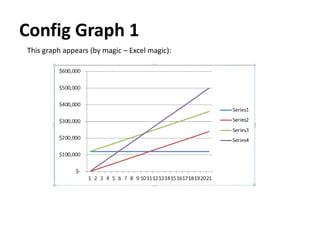
Config Graph 1
This graph appears (by magic – Excel magic):
Config Graph 2
RtClk of the graph and this menu appears:
>> Select the Select Data item
Config Graph 3 – Set X Axis
Select the Edit button here to set the labels for the X axis
Config Graph 4 – set X Axis
Enter the X Axis range by highlighting it
Config Graph 5 – Set X Axis
X axis has changed
Config Graph 6 – Set X Axis
X axis has changed now note the Series labels so you can change them!
Config Graph 7 – Change series labels
Edit each series and enter the label
– by selecting the field box and then pointing to the address
Config Graph 8 – Change series labels
The Legend will display the new labels
Config Graph 9 – Reposition Legend
Select Format Legend
Config Graph 10 – Reposition Legend
Change Legend to Top
Config Graph 11 – Delete Red series
Select unwanted series
Config Graph 12 – Angle the X labels
Change alignment of labels for X axis
Config Graph 13 – Change Font
Change font size of labels for axes
- Select axis >> RtClk >> set font size to 9
Config Graph 14 – Textboxes
Put titles etc in Text boxes and format them
Config Graph 15 – So far, so good
Where are we? Here is the present graph
Picture 1 – Copy Paste as Picture
Fit the graph (by dragging the size handles) to a grid that fits.
Then use the keyboard to select the underlying cells and Ctrl-C to copy
Then RtClk and select
the last Paste icons
= Linked Picture
Picture 2 – Linked Picture
The Linked-Picture is a Picture (Like a Print of the ‘Camera’ Copy)
Notice the handles:
Format Picture 1
Select 3-D Format – then the Top-Left Bevel icon
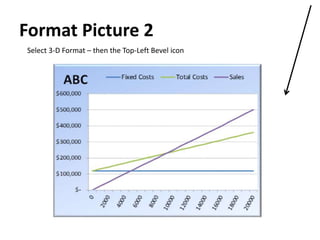
Format Picture 2
Select 3-D Format – then the Top-Left Bevel icon
Format Picture 3
Insert 3-D formatted shape behind graph and you get:
Finished
Application is linked all the way.
Change the parameters and the graph is
interactively responsive.
What is Breakeven?
At college it is easy to see that GP = Price less Cost
What does that mean?
Answer depends upon the elements of cost
and the final price
So it would be good to include the elements of price

Breakeven cv02

  • 1.
  • 2.
    Breakeven Isolation –NO! Breakeven should not be considered in isolation Related factors: • Volume v price • Total Cost = FC + VC • Level (group v specific product) • Price is the result of a strategy (or tactic) Before we start -
  • 3.
    Breakeven related factors Allocatingcosts and expenses is not a strict concept – it depends upon judgement. There are many methods, including: 1. Volume of sales 2. Square footage used 3. Value per unit 4. A formula 5. Time spent 6. The ability to absorb $ costs & expenses
  • 4.
    Breakeven Equation B/E volume =Fixed Cost / (Unit Price – Unit Variable cost) B/E = Fixed Cost / Contribution Where: Contribution = Price – Unit Variable cost
  • 5.
    Example: B/E = FixedCost / Unit Price – Unit cost B/E = Fixed Cost / Contribution B/E = $120,000 / $13.00 = 9,321 units Where: Contribution = Price – Unit Variable cost $13.00 = $25.00 - $12.00
  • 6.
  • 7.
    Finished Application is linkedall the way. Change the parameters and the graph is interactively responsive.
  • 8.
    How did weprepare this chart? 1. Use Excel 2. Prep Data 3. Insert and config Graph 4. Copy / Camera-Paste Picture 5. Format picture In a nutshell: Example 01: BE_Analysis_cv01.xlsx
  • 9.
    Prep Data 1 Setup an input area that you can reference:
  • 10.
    Prep Data 2 Setup a table area to hold the graph data:
  • 11.
    Prep Data 3 Excel>> Select the data >> see columns for Total Fixed Costs, Total Variable Costs, Total Costs, Total Sales Revenue are all selected
  • 12.
    Insert Graph With thedata selected, then Excel >> Insert >> Line >> Select the 1st graphic:
  • 13.
    Config Graph 1 Thisgraph appears (by magic – Excel magic):
  • 14.
    Config Graph 2 RtClkof the graph and this menu appears: >> Select the Select Data item
  • 15.
    Config Graph 3– Set X Axis Select the Edit button here to set the labels for the X axis
  • 16.
    Config Graph 4– set X Axis Enter the X Axis range by highlighting it
  • 17.
    Config Graph 5– Set X Axis X axis has changed
  • 18.
    Config Graph 6– Set X Axis X axis has changed now note the Series labels so you can change them!
  • 19.
    Config Graph 7– Change series labels Edit each series and enter the label – by selecting the field box and then pointing to the address
  • 20.
    Config Graph 8– Change series labels The Legend will display the new labels
  • 21.
    Config Graph 9– Reposition Legend Select Format Legend
  • 22.
    Config Graph 10– Reposition Legend Change Legend to Top
  • 23.
    Config Graph 11– Delete Red series Select unwanted series
  • 24.
    Config Graph 12– Angle the X labels Change alignment of labels for X axis
  • 25.
    Config Graph 13– Change Font Change font size of labels for axes - Select axis >> RtClk >> set font size to 9
  • 26.
    Config Graph 14– Textboxes Put titles etc in Text boxes and format them
  • 27.
    Config Graph 15– So far, so good Where are we? Here is the present graph
  • 28.
    Picture 1 –Copy Paste as Picture Fit the graph (by dragging the size handles) to a grid that fits. Then use the keyboard to select the underlying cells and Ctrl-C to copy Then RtClk and select the last Paste icons = Linked Picture
  • 29.
    Picture 2 –Linked Picture The Linked-Picture is a Picture (Like a Print of the ‘Camera’ Copy) Notice the handles:
  • 30.
    Format Picture 1 Select3-D Format – then the Top-Left Bevel icon
  • 31.
    Format Picture 2 Select3-D Format – then the Top-Left Bevel icon
  • 32.
    Format Picture 3 Insert3-D formatted shape behind graph and you get:
  • 33.
    Finished Application is linkedall the way. Change the parameters and the graph is interactively responsive.
  • 34.
    What is Breakeven? Atcollege it is easy to see that GP = Price less Cost What does that mean? Answer depends upon the elements of cost and the final price So it would be good to include the elements of price

Editor's Notes

  • #2 A B/E chart is a common management accounting topic that, to some, often seems an oversimplification. Suffice it to say that it has tpo be used properly to trully understand various business models and it portrays only the response to figures – an illustration of the perceived situation. For example, the most common interpretation is that it calculates the B/E point for Sales less Cost of Sales covering Overheads. That’s OK as far as it goes but if you go beyond the formula and think – if I have this level of O/H then, at this margin, this is how much I have to sell to cover my O/H. The variables now start to take life. Is there any hope of increasing Sales? Is the margin adequate? What would be the effect of discounting or raising prices? Tie this in with a market analysis and you get a whole new feeling for the model.
  • #3 First a caveat! Many people consider a Breakeven chart as a calculation that can be just applied without thought to the interaction of the components of the equation. Many people seem to feel that as long as you are exceeding the Variable Cost then you are contributing to meeting both the FC and profit – little realizing that unless you cover the FC you have NO contribution to Profit. It is not enough to meet VC only.
  • #4 The allocation of costs and expenses is not a strict concept – it depends upon judgement. There are many methods, including, for example: Volume of sales Square footage used Value per unit A formula Time spent The ability to absorb $ costs & expenses
  • #5 Here is the arithmetic To get the breakeven volume: Obtain the information for each of the elements of the equation Fixed costs >> Add up the rent, telephone cost, administration costs (including the Accountants salary), etc - this is the ‘nut’ you have to crack each month Contribution can be called Gross Profit – it is the Sales less the Cost of those sales. This is the profit from operations. Example: Sales less Cost of Parts and Cost of Direct Labor So this pretty simple – what we call Gross Profit is the Revenue you make from a Sale less the Cost of making that Sale So the AccountingSpeak is not so hard to understand So what we are going to do is add up all these results to arrive at Total Sales less Total of all the direct Costs of making those Sales will result in the Total of the Gross Profit from these activities Now this is not the end of the story – we sill have to decide how we will pay our rent. First, I would like to separate Cost from Expense and I am going to take ‘poetic license’ and describe COST as the direct payments (now or in the future) that would not take place if the SALE had not taken place. This means I am going to set aside any discussion of indirect costs and allocations of Fixed Costs. Perhaps I am ‘over-simplifying it.’ Also I want to avoid any discussion of what is a Cost and what is an expense – my reason is that I want a simple scenario – not get bogged down in semantics or hair-splitting. The objective is to arrive at a simple equation that most people will understand instead of having a complex discussion about something that is really quite simple.
  • #6 Putting numbers in the equation can introduce a needed connection to reality – away from the pure academic view into practical reality In the example here the Fixed Costs (Rent etc) If the price = $25 each and the cost = $12 each Then the contribution = $13 And it will need 9,321 sales to be able to pay the overheads $120,000/$13 = 9,321 units
  • #7 Here is a result of the graphical interpretation of the numbers – start with the end in mind A picture says 1000 words Rephrase that: One picture says 1000 words Enables: What-if questions Succinct interpretation – to some extent Speaks a picture language STOP – we will not continue into an academic realm – lts do the numbers & draw the picture If Sales are 1000 units at $25 then the total is $25,000 If those 1000 have a cost of $12 each then the total cost of the 1000 sold is $12,000 So the profit (gross profit) is $12,000 Remember we have $120,000 monthly in Overheads we need to sell 9,321 units to be able to pay the $120,000 This graph shows the turquoise line as plotting the Sales – from 0 sales right up to 20,000 units resulting in Sales = $500,000 This graph also shows the Total Costs but it includes the fixed costs (which do not change with volume) at $120,000 So the Total of both the fixed costs and the Cost of sales starts at $120,000 and adds $12 for each of the Sale units made We can therefore draw the second line of Total Costs which crosses the Sales Revenue line at a unit volume of 9,321 units
  • #8 OK here is the complete chart with the Input area and the data Notise that: Input Storage/Data Working – here = part of the data Output is the chart (report)
  • #9 So we can say we have this process to work through
  • #10 Whenever you design a SS build in an input area – that way you know where to alter input without having to have an intimate knowledge of the application.
  • #11 The data, in this case, forms a table
  • #12 We might leave out the variable costs column or you can include it in the graph and delete it later. Here I will leave it in since it adds to our understanding of the data
  • #14 This is the result that XL delivers by itself – it needs further attention to get what we want
  • #15 RtClk the graph and this menu appears – choose Select Data
  • #16 The Select Data Source dialog box appears. You have to be able to choose the right aspect that you are changing – here you can see that XL has used 1,2,3,4 etc as lables for the X axis. We wantthem to be the No of Units column from the data table . The Edit icon gives you a clue on what to click
  • #17 When you 1xClk Edit this dialog box appears. Move it aside and Select the field box Axis Label Range . Then highlight the range in the table and XL puts the reference in the box. 1xClk OK and your done
  • #18 Notice that the “Horizontal (Category) Axis Labels list now has the required series instead of the previous 1,2,3,4
  • #19 When you look at the graph the axis has the result. Note: I’ll tell you how to slant the labels later
  • #20 Now lat’s change the series names. Select Data Source again (RtClk >> Data Source) and choose the left pane titled Legend Entries (Series) Select one of the series and 1xClk Edit – you get the top pane in thiis slide. Do the same as you did last time and enter the range for the name of the series (you can type it in if you do not want to select it or want a different name). The difference is only whether you want to change it in the SS or have to came back to the dialog box.
  • #21 OK here is your graph with the sries names (in the legend) changed. Notice the Total Costs name is ‘Double Lined” this is because it is linked to the cell, which is double lined (wrapped) Use Alt-Enter to put in a CR/LF in the cell. It all depends upon what you want to do and what you want your finished product to look like
  • #22 To reposition the legend RtClk & change the Choose Format Legend
  • #23 You get this dialog box – chose Top
  • #24 And the legend repositions itself Now you can delete the unwanted series (Total Variable Costs) and both the plot and the legend entries disappear
  • #25 Select the X axis – RtClk & Choose Format Axis, then go to the Alignment tab from the list in the left space. This is where you can slant the X axis labels
  • #26 If you RtClk the axis you can select to change the font of the axis labels
  • #27 OK here I have added a text box to the graph and I can place it anywhere I wish, I can also size it. Remember you may have to bring it to the front (Select >> RtClk >> Bring to Front). As an independent graphic you can do what you want independantly from the graph – this can come back and bite you if you want to move your graph!!
  • #28 Now where would like to go from here? Well here are my ideas – please develop your own (or copy mine if you like)
  • #29 Highlight the area of the XL workshhet behind the graph (XL will pick up the graph as well as the cells desiplayed) then paste it as a linked picture
  • #30 The linked picture is a graphic linked to the source. If you change the source, the graph will change accordingly. Notice the handles in the picture RtClk the Picture and choose Format Picture ==>
  • #31 The Format Picture D/Log box appears – choose 3-D format (see the left pane list) and then the 1st Bevel icon
  • #32 Now you have this picture
  • #33 You can also put a shape or picture bihind the graph to make it a little more sophisticated
  • #34 OK so here is the finished product Notise the: Input Storage/Data Working – here = part of the data Output is the chart (report) That’s it then, we’re done Thanks for watching!!
  • #35 We might leave out the variable costs column or you can include it in the graph and delete it later. Here I will leave it in since it adds to our understanding of the data