MMT-Batch 36
Marketing Management
“Blue Ocean Strategy vs. Red Ocean Strategy”
Research & Report
Group Members:
Joseph Winthrop B. Godoy Karlo B. Endozo
Guillor John V. Escobin I Jose Mari C. Si
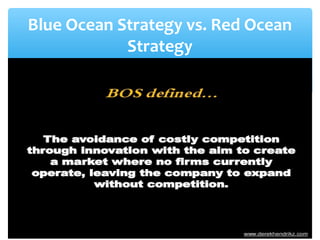
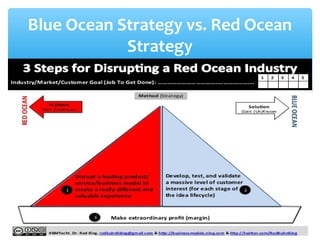
Blue Ocean Strategy vs. Red Ocean
Strategy
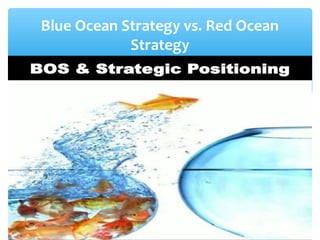
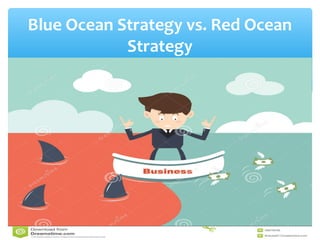
Blue Ocean Strategy vs. Red Ocean
Strategy
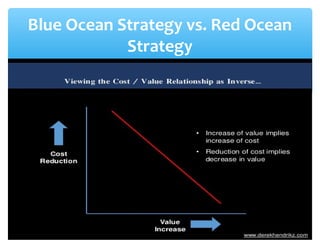
Blue Ocean Strategy vs. Red Ocean
Strategy
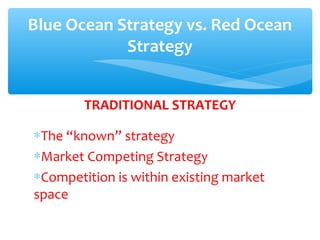
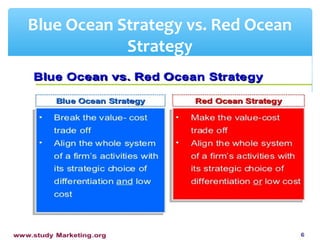
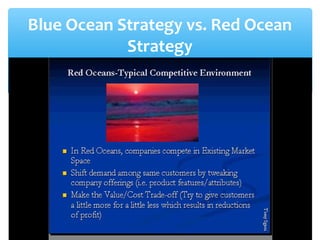
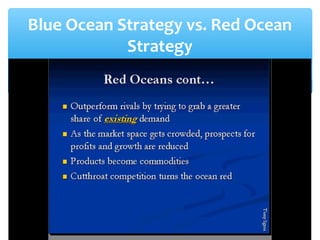
TRADITIONAL STRATEGY
∗The “known” strategy
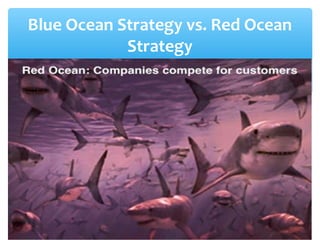
∗Market Competing Strategy
∗Competition is within existing market
space
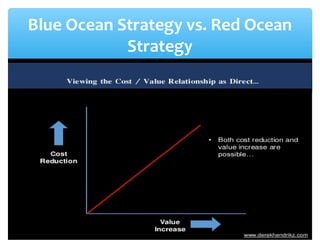
Blue Ocean Strategy vs. Red Ocean
Strategy
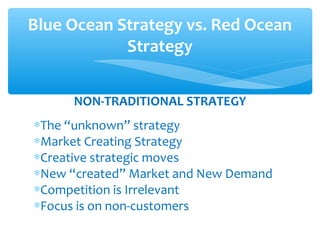
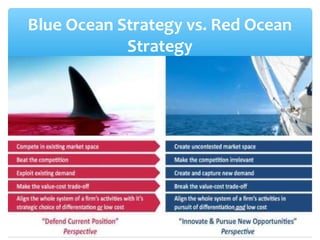
NON-TRADITIONAL STRATEGY
∗The “unknown” strategy
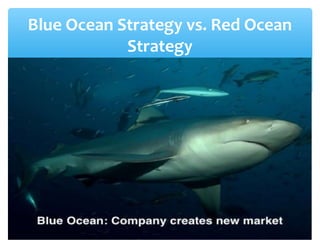
∗Market Creating Strategy
∗Creative strategic moves
∗New “created” Market and New Demand
∗Competition is Irrelevant
∗Focus is on non-customers
Blue Ocean Strategy vs. Red Ocean
Strategy
Blue Ocean Strategy vs. Red Ocean
Strategy
Blue Ocean Strategy vs. Red Ocean
Strategy
Blue Ocean Strategy vs. Red Ocean
Strategy
Blue Ocean Strategy vs. Red Ocean
Strategy
Blue Ocean Strategy vs. Red Ocean
Strategy
Blue Ocean Strategy vs. Red Ocean
Strategy
Blue Ocean Strategy vs. Red Ocean
Strategy
Blue Ocean Strategy vs. Red Ocean
Strategy
Blue Ocean Strategy vs. Red Ocean
Strategy
Blue Ocean Strategy vs. Red Ocean
Strategy
Blue Ocean Strategy vs. Red Ocean
Strategy
Blue Ocean Strategy vs. Red Ocean
Strategy
Blue Ocean Strategy vs. Red Ocean
Strategy
Blue Ocean Strategy vs. Red Ocean
Strategy
Blue Ocean Strategy vs. Red Ocean
Strategy
Blue Ocean Strategy vs. Red Ocean
Strategy
Blue Ocean Strategy vs. Red Ocean
Strategy
Blue Ocean Strategy vs. Red Ocean
Strategy
Blue Ocean Strategy vs. Red Ocean
Strategy
Blue Ocean Strategy vs. Red Ocean
Strategy
Blue Ocean Strategy vs. Red Ocean
Strategy
Blue Ocean Strategy vs. Red Ocean
Strategy
Blue Ocean Strategy vs. Red Ocean
Strategy
Blue Ocean Strategy vs. Red Ocean
Strategy
Blue Ocean Strategy vs. Red Ocean
Strategy
Blue Ocean Strategy vs. Red Ocean
Strategy
Blue Ocean Strategy vs. Red Ocean
Strategy
Blue Ocean Strategy vs. Red Ocean
Strategy
Blue Ocean Strategy vs. Red Ocean
Strategy
Blue Ocean Strategy vs. Red Ocean
Strategy
Blue Ocean Strategy vs. Red Ocean
Strategy
Blue Ocean Strategy vs. Red Ocean
Strategy
Blue Ocean Strategy vs. Red Ocean
Strategy
Blue Ocean Strategy vs. Red Ocean
Strategy
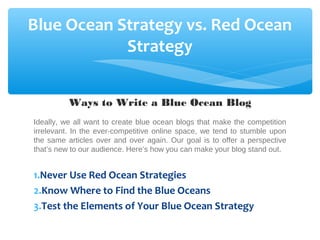
Ways to Write a Blue Ocean Blog
Ideally, we all want to create blue ocean blogs that make the competition
irrelevant. In the ever-competitive online space, we tend to stumble upon
the same articles over and over again. Our goal is to offer a perspective
that’s new to our audience. Here’s how you can make your blog stand out.
1.Never Use Red Ocean Strategies
2.Know Where to Find the Blue Oceans
3.Test the Elements of Your Blue Ocean Strategy
Blue Ocean Strategy vs. Red Ocean
Strategy
Blue Ocean Strategy vs. Red Ocean
Strategy
Blue Ocean Strategy vs. Red Ocean
Strategy
Blue Ocean Strategy vs. Red Ocean
Strategy
Blue Ocean Strategy vs. Red Ocean
Strategy
Blue Ocean Strategy vs. Red Ocean
Strategy
Blue Ocean Strategy vs. Red Ocean
Strategy
Blue Ocean Strategy vs. Red Ocean
Strategy
Blue Ocean Strategy vs. Red Ocean
Strategy
Blue Ocean Strategy vs. Red Ocean
Strategy
Blue Ocean Strategy vs. Red Ocean
Strategy
Blue Ocean Strategy vs. Red Ocean
Strategy
Blue Ocean Strategy vs. Red Ocean
Strategy
Blue Ocean Strategy vs. Red Ocean
Strategy
Blue Ocean Strategy vs. Red Ocean
Strategy
1.IT’S GROUNDED IN DATA
 BOS is based on a DECADE-LONG study of more than 150
strategic moves spanning more than 30 industries over
100 years
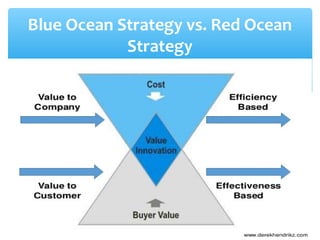
1.IT PURSUES DIFFERENTIATION AND LOW COST
 BOS is based on the simultaneous pursuit of
differentiation AND low cost. It is an AND-AND, not an
EITHER-OR strategy.
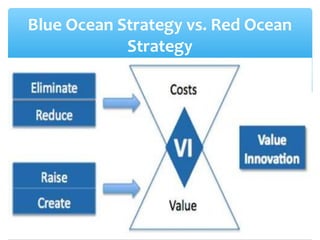
8 Key Points of Blue Ocean Strategy
3. IT CREATES UNCONTESTED MARKET SPACE
 BOS doesn’t aim to out-perform the competition, it aims
to make the COMPETITION IRRELEVANT by constructing
industry boundaries
3. IT EMPOWERS YOU THROUGH TOOLS AND
FRAMEWORKS
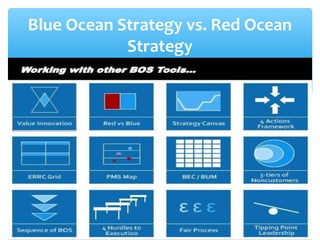
 BOS offers SYSTEMATIC TOOLS and FRAMEWORKS to
break away from the competition and CREATE new
market space
8 Key Points of Blue Ocean Strategy
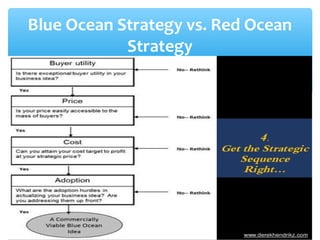
5. IT PROVIDES A STEP-BY-STEP PROCESS
 BOS is from assessing the current state of play in an
industry to exploring the six paths to NEW MARKET
SPACE, to understanding how to convert non-customers
into customers. BOS provides a FOUR-STEP process to
create your to-be strategy
5. IT MAXIMIZES OPPORTUNITY WHILE MINIMIZING
RISK
 BOS allows you to TEST THE COMMERCIAL VIABILITY of
your ideas and shows you how to refine your ideas to
MAXIMIZE your upside while MINIMIZING downside risk
8 Key Points of Blue Ocean Strategy
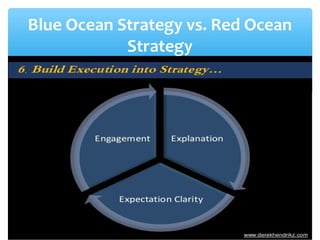
7. IT BUILDS EXECUTION INTO STRATEGY
 The process and tools are inclusive in BOS, it’s easy to
understand and VISUAL – which makes the process non-
intimidating and an effective path to BUILDING
EXECUTION INTO STRATEGY
7. IT SHOWS YOU HOW TO CREATE A WIN-WIN
OUTCOME
 As an integrated approach, BOS shows how to align the
three strategy proposition –VALUE, PROFIT and PEOPLE
– to create a WIN-WIN outcome
8 Key Points of Blue Ocean Strategy
Blue Ocean versus Red Ocean

Blue Ocean versus Red Ocean

Editor's Notes

  • #61 Television (High Tech) (Intermediate)   To reproduce the video effects on this slide, do the following: On the Home tab, in the Slides group, click Layout, and then click Blank. On the Insert tab, in the Images group, click Picture. In the left pane of the Insert Picture dialog box, click the drive or library that contains the picture of the TV. In the right pane of the dialog box, click the picture that you want and then click Insert. Under Picture Tools, on the Format tab, in the Adjust group, click Remove Background, to remove background and television screen from image, do the following: Click one of the handles on the marquee lines, drag the line so that it contains the portion of the picture that you wish to keep, and excludes most of the areas you wish to remove (highlighted area will be removed). On the Background Removal tab, in the Refine group, click Mark areas to Remove, then click in corner of TV monitor and drag selection in a diagonal line to other corner. Select Mark Areas to Keep and/or Mark Areas to Remove to refine selection. On the Background Removal tab, in the Close group, select Keep Changes. On the Home tab, in the Drawing group, click Arrange, point to Align then do the following: Click Align Middle. Under Picture Tools, on the Format tab, in the Picture Styles group, click the arrow at the bottom right launching the Format Picture dialog box. In the Format Picture dialog box, select Position in the left pane, under Position on slide in the right pane set the Horizontal to .52” and the Vertical to .74”. In the Format Picture dialog box, select Size in the left pane, under Size and Rotate in the right pane set the Height to 6.5” and the Width to 8.96”. Close the Format Picture dialog box. On the Insert tab, in the Media group, click Video, and then click Video from file. In the left pane of the Insert Video dialog box, click the drive or library that contains the video. In the right pane of the dialog box, click the video that you want and then click Insert. On the Animations tab, in the Animation group, select Play. Also on the Animations tab, in the Timing group, click the arrow to the right of Start and select With Previous. With the video selected, under Video Tools, in the Format tab, in the bottom right corner of the Video Styles group, click the arrow opening the Format Video dialog box. In the Format Video dialog box, click Size in the left pane, under Size and Rotate in the right pane set the height to 4.45” and the Width to 7.91”. In the Format Video dialog box, click Position in the left pane, under Position on Slide in the right pane set Horizontal to 1.04” and the Vertical to 1.27”. Close the Format Video dialog box. Select the video and under Video Tools, on the Format tab, in the Arrange group, click Send Backward, and then select Send to Back.   To reproduce the background effects on this slide, do the following: On the Design tab, in the bottom right corner of the Background group, click the arrow at the bottom right launching the Format Background dialog box. In the Format Background dialog box, select Fill in the left pane, under Fill on the right pane select Gradient Fill. Under Gradient stops, click Add gradient stop or Remove gradient stop until four stops appear on the slider. Customize the gradient stops as follows: Select the first stop on the slider, and then do the following: In the Position box, enter 35%. Click the button next to Color, and then under Theme Colors select Blue, Accent 1, Lighter 80% (second row, fifth option from the left). Select the second stop on the list, and then do the following: In the Position box, enter 91%. Click the button next to Color, and then under Theme Colors select Blue, Text 2, Lighter 60% (third row, fourth option from the left). Select the third stop on the list, and then do the following: In the Position box, enter 94%. Click the button next to Color, and then under Theme Colors select Dark Blue, Text 2, Darker 25% (fifth row, fourth option from the left). Select the last stop on the list, and then do the following: In the Position box, enter 97%. Click the button next to Color, and then under Theme Colors select Dark Blue, Text 2, Lighter 40% (fourth row, fourth option from the left). Close the Format Background dialog box.