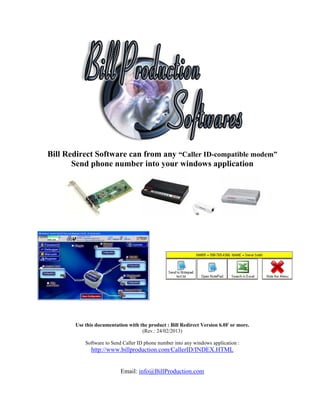
Bill Redirect Software can from any “Caller ID-compatible modem”
       Send phone number into your windows application


       Use this documentation with the product : Bill Redirect Version 6.0F or more.
                                    (Rev.: 24/02/2013)

           Software to Send Caller ID phone number into any windows application :
             http://www.billproduction.com/CallerID/INDEX.HTML


                           Email: info@BillProduction.com
SOFTWARE DESCRIPTION


           BillRedirect software works any Caller ID-compatible modem !

       This professional software enables any “Caller ID-compatible modem”
            to send phone number directly into your actual application.


                                   Requirements
* Telephone modem (not a DSL or cable modem) with caller id support connected to a voice phone line.
                          * Caller id service from your phone company.

                  No programming or additional hardware required !

        Supported Operating Systems: Windows 98,Me,2000,3000,XP,NT4, Vista, Windows 7, Windows 8


                                                                                                   1
GENERAL INFORMATION

To configure this software you have to enter in the field password www.billproduction.com, In the
      configuration options you have the possibility to change this password for what you want.
                        To close this software, type END in the password field.


  Optional: You can download the complete manual of this software via this link:
            http://www.billproduction.com/Bill_Redirect_Manual.pdf


                                            If a problem persist or to do more
                                                                use our
                                        Software configuration and integration service
                                         It's free, fast (usually the same day), and efficient !
                                        Submit your case to info@billproduction.com
                                               and receive a customized solution !


                                                                                                    2
This example shows how you can send Phone Numbers into
        Microsoft Excel, Notepad and/or in your actual application.


                                      Step #1 (General)
               Download and install Bill Redirect software:
           http://www.billproduction.com/Bill_COMtoKB.ZIP
                    * IMPORTANT: Don’t start it !
                   To close Bill Redirect, type END in the field password.


Extract this file: http://www.billproduction.com/CallerIDModemMaster.ZIP
                    into the directory: C:BillProduction.cfg

                        Start “Bill Redirect” software


                                                                             3
Step #2 (Caller ID modem serial port configuration)
 In your system tray click on the small Keyboard Icon:


Enter in password field: www.billproduction.com


    Section Serial Port, click on button: Configuration

In field “Serial Port Number” enter the serial port number
              corresponding to your “Modem”.

          Click 2 times on button: Initialisation


          Click on button: Save Configuration
         Click on button: Minimize to Tray Icon


                                                             4
Step #3 (Test with the default configuration)


               At this step you should see this CALLER ID default menu

Default interface description:
•  The yellow box is used to show the last or actual call information received from your Modem.
•  You can click on button HIDE to hide this menu.
 * This menu will reappear automatically when a call is received.
 * You can do ALT F9 at any moment to show this menu.
• To move this menu, click on the menu with the left button of your mouse, move the menu where
 you want and release the mouse button.
• A log file is automatically created on your C:LOG_CALL_DATE.TXT this file contain all calls.

           Every parameter of this interface can be changed !


                                                                                              5
Step #4 (Button description and configuration)


                                      Button                       description
         This button shows how this software can send the received phone number to any existing software

    To test this button do this:
    • Open the file c:BillProduction.cfgtest.txt with your Windows Notepad
    • Click on the button “Send to Notepad test.txt”
    • At this time, you should see the caller phone number (number only) appear in the Notepad.

To change the configuration of this button and send the phone number in your current software
Follow the steps below:
• In your system tray click on the small Keyboard Icon:
• Enter in password field: www.billproduction.com
 * Now you're in configuration mode


•      To see/edit the configuration of this button: Click on button:


•      Use the field “Button Text” to change the text on the button.
•      In the field “String to send … is push” there is:
    {APP[test]}{TX_KEYB[{MULTIPLY[{BUTTON_TXT[00]},1,#]}{ENTER}]}
• Replace the word test by the title of the window of your software.
 * You can enter just a part of the title, for example if the window title is “my application software” you can enter just a part
    of the title for example: my application
• To add a keyboard sequence just before sending the phone number to your software…
 For example CTRL f use this syntax:
    {APP[test]}{TX_KEYB[{CTRL}f{MULTIPLY[{BUTTON_TXT[00]},1,#]}{ENTER}]}

           To see all possibilities, see end of this manual section "Keyboard buffer output, possible values"
                               http://www.billproduction.com/Bill_Redirect_Manual.pdf

• To test your new configuration click on button: Run
  * Now you're in run mode

                                                                                                                                6
Step #5 ( Button description and configuration )


                                   Button                description
This button shows how this software can start a software with a phone number argument.
    To test this button do this:
    • Click on the button “Open NotePad”
    • At this time, notepad opens and it tries to open the file: phone number received.txt
     Example if the number received is                        then it will try to open the file 9987654366.TXT

To change this configuration and open a phone number file with your software
Follow the steps below:
• In your system tray click on the small Keyboard Icon:
• Enter in password field: www.billproduction.com
 * Now you're in configuration mode


•     To see/edit the configuration of this button: Click on button:


•     Use the field “Button Text” to change the text on the button.
•     In the field “String to send … is push” there is:
    {RUN_PRG[C:WINDOWSNOTEPAD.EXE {MULTIPLY[{BUTTON_TXT[00]},1,#]}.TXT,3]}
• Replace the C:WINDOWSNOTEPAD.EXE by the file that runs your application.
• Replace the .TXT by your file extension.
• Optional: Use this syntax to automatically hide the menu after pressing the button:
    RUN_PRG[C:WINDOWSNOTEPAD.EXE {MULTIPLY[{BUTTON_TXT[00]},1,#]}.TXT,3]}{BUTTON_HIDE[ALL]}
• To test your new configuration click on button: Run
  * Now you're in run mode


                                                                                                                 7
Step #6 ( Button description and configuration )


                                      Button                       description
         This button shows how this software can send the phone number received to any existing software

    To test this button do this:
    • Open Microsoft Excel
    • Click on the button “Search in Excel”
    • At this time, you should see the caller phone number (number only) searched in excel.
     Example if the number received is                                     then it will try to search 9987654366

To change this configuration and search the phone number received in your current software
Follow the steps below:
• In your system tray click on the small Keyboard Icon:
• Enter in password field: www.billproduction.com
 * Now you're in configuration mode


•      To see/edit the configuration of this button: Click on button:


•      Use the field “Button Text” to change the text on the button.
•      In the field “String to send … is push” there is:
    {APP[Microsoft Excel]}{TX_KEYB[{CTRL}f{MULTIPLY[{BUTTON_TXT[00]},1,#]}{ENTER}]}
• Replace Microsoft Excel by the title of the window of your software.
 * You can enter just a part of the title, for example if the window title is “my application software” you can enter just a part
    of the title for example: my application
• Replace {CTRL}f by your keyboard sequence to sending before phone number.
  * To see all possibilities, see end of this manual section "Keyboard buffer output, possible values"
      http://www.billproduction.com/Bill_Redirect_Manual.pdf

• To test your new configuration click on button: Run
  * Now you're in run mode

                                                                                                                                8
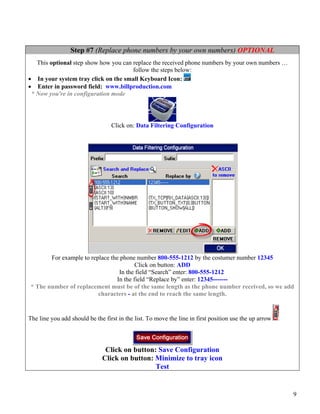
Step #7 (Replace phone numbers by your own numbers) OPTIONAL
   This optional step show how you can replace the received phone numbers by your own numbers …
                                       follow the steps below:
• In your system tray click on the small Keyboard Icon:
• Enter in password field: www.billproduction.com
 * Now you're in configuration mode


                                  Click on: Data Filtering Configuration


        For example to replace the phone number 800-555-1212 by the costumer number 12345
                                         Click on button: ADD
                                  In the field “Search” enter: 800-555-1212
                                 In the field “Replace by” enter: 12345-------
 * The number of replacement must be of the same length as the phone number received, so we add
                          characters - at the end to reach the same length.


The line you add should be the first in the list. To move the line in first position use the up arrow


                               Click on button: Save Configuration
                              Click on button: Minimize to tray icon
                                               Test


                                                                                                        9
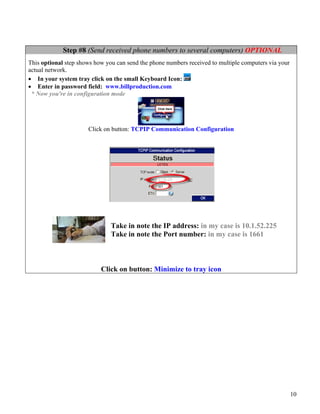
Step #8 (Send received phone numbers to several computers) OPTIONAL
This optional step shows how you can send the phone numbers received to multiple computers via your
actual network.
• In your system tray click on the small Keyboard Icon:
• Enter in password field: www.billproduction.com
 * Now you're in configuration mode


                      Click on button: TCPIP Communication Configuration


                               Take in note the IP address: in my case is 10.1.52.225
                               Take in note the Port number: in my case is 1661


                           Click on button: Minimize to tray icon


                                                                                                      10
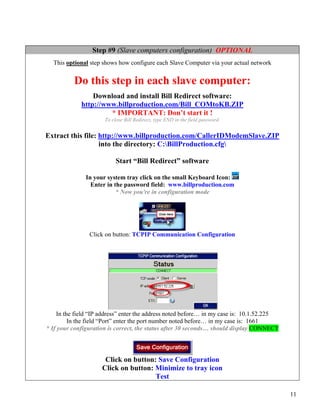
Step #9 (Slave computers configuration) OPTIONAL
  This optional step shows how configure each Slave Computer via your actual network


          Do this step in each slave computer:
                 Download and install Bill Redirect software:
             http://www.billproduction.com/Bill_COMtoKB.ZIP
                      * IMPORTANT: Don’t start it !
                      To close Bill Redirect, type END in the field password.


Extract this file: http://www.billproduction.com/CallerIDModemSlave.ZIP
                   into the directory: C:BillProduction.cfg

                           Start “Bill Redirect” software

               In your system tray click on the small Keyboard Icon:
                 Enter in the password field: www.billproduction.com
                           * Now you're in configuration mode


                Click on button: TCPIP Communication Configuration


    In the field “IP address” enter the address noted before… in my case is: 10.1.52.225
         In the field “Port” enter the port number noted before… in my case is: 1661
* If your configuration is correct, the status after 30 seconds… should display CONNECT


                      Click on button: Save Configuration
                     Click on button: Minimize to tray icon
                                      Test

                                                                                           11
For more documentation visit:


http://www.billproduction.com/documentation.html


                     If a problem persist or to do more
                                         use our
                 Software configuration and integration service
                  It's free, fast (usually the same day), and efficient !
                 Submit your case to info@billproduction.com
                        and receive a customized solution !


                                                                            12
PERSONALIZE

You can personalize my software with your company name, logo, skins, password, directory... With this
possibility you can distribute my software with your company information ! The end user, will think that
you are the creator of this software !

- To Extract the current configuration setting, just type in the field password: SAVE_SKIN
- After this action, a message box appear to indicate where is the configuration.
- Now you can modify this configuration files for what you want (Skin*.*).
- To re-load your skin modification type in the password field: LOAD_SKIN
*At startup my software load automatically your configuration
*To open the mouse position monitor, type MOUSE in the field password and move the main window in the left top corner.


How change the default configuration directory:
*By default the configuration of my software is in the directory: C:BillProduction.CFG
To change this directory:
       - In the same directory that my .exe application or in your C: modify the file: BPCFGDIR.TXT
       * This file contain the default configuration directory.
       * Several BillRedirect softwares in differents computers, can use the same directory over the network. If the
       configuration changed in a computer, then other computers automatically synchronize in the next 5
       seconds.

All the configuration is by default in C:BillProduction.cfg*.* then to duplicate the configuration from a computer to another,
just copy this directory.
* Don’t forget to close Bill Redirect on target computer before copy the configuration.


               For more flexibility/options or an installation package build for your company:
                                                   info@BillProduction.com


  *Also available on request, all our advertising (PDF format) are available in source mode (Document Word),
                          send your request by e-mail to: info@BillProduction.com


                                                                                                                              13

How support caller Id phone number with a modem

  • 1.
    Bill Redirect Softwarecan from any “Caller ID-compatible modem” Send phone number into your windows application Use this documentation with the product : Bill Redirect Version 6.0F or more. (Rev.: 24/02/2013) Software to Send Caller ID phone number into any windows application : http://www.billproduction.com/CallerID/INDEX.HTML Email: info@BillProduction.com
  • 2.
    SOFTWARE DESCRIPTION BillRedirect software works any Caller ID-compatible modem ! This professional software enables any “Caller ID-compatible modem” to send phone number directly into your actual application. Requirements * Telephone modem (not a DSL or cable modem) with caller id support connected to a voice phone line. * Caller id service from your phone company. No programming or additional hardware required ! Supported Operating Systems: Windows 98,Me,2000,3000,XP,NT4, Vista, Windows 7, Windows 8 1
  • 3.
    GENERAL INFORMATION To configurethis software you have to enter in the field password www.billproduction.com, In the configuration options you have the possibility to change this password for what you want. To close this software, type END in the password field. Optional: You can download the complete manual of this software via this link: http://www.billproduction.com/Bill_Redirect_Manual.pdf If a problem persist or to do more use our Software configuration and integration service It's free, fast (usually the same day), and efficient ! Submit your case to info@billproduction.com and receive a customized solution ! 2
  • 4.
    This example showshow you can send Phone Numbers into Microsoft Excel, Notepad and/or in your actual application. Step #1 (General) Download and install Bill Redirect software: http://www.billproduction.com/Bill_COMtoKB.ZIP * IMPORTANT: Don’t start it ! To close Bill Redirect, type END in the field password. Extract this file: http://www.billproduction.com/CallerIDModemMaster.ZIP into the directory: C:BillProduction.cfg Start “Bill Redirect” software 3
  • 5.
    Step #2 (CallerID modem serial port configuration) In your system tray click on the small Keyboard Icon: Enter in password field: www.billproduction.com Section Serial Port, click on button: Configuration In field “Serial Port Number” enter the serial port number corresponding to your “Modem”. Click 2 times on button: Initialisation Click on button: Save Configuration Click on button: Minimize to Tray Icon 4
  • 6.
    Step #3 (Testwith the default configuration) At this step you should see this CALLER ID default menu Default interface description: • The yellow box is used to show the last or actual call information received from your Modem. • You can click on button HIDE to hide this menu. * This menu will reappear automatically when a call is received. * You can do ALT F9 at any moment to show this menu. • To move this menu, click on the menu with the left button of your mouse, move the menu where you want and release the mouse button. • A log file is automatically created on your C:LOG_CALL_DATE.TXT this file contain all calls. Every parameter of this interface can be changed ! 5
  • 7.
    Step #4 (Buttondescription and configuration) Button description This button shows how this software can send the received phone number to any existing software To test this button do this: • Open the file c:BillProduction.cfgtest.txt with your Windows Notepad • Click on the button “Send to Notepad test.txt” • At this time, you should see the caller phone number (number only) appear in the Notepad. To change the configuration of this button and send the phone number in your current software Follow the steps below: • In your system tray click on the small Keyboard Icon: • Enter in password field: www.billproduction.com * Now you're in configuration mode • To see/edit the configuration of this button: Click on button: • Use the field “Button Text” to change the text on the button. • In the field “String to send … is push” there is: {APP[test]}{TX_KEYB[{MULTIPLY[{BUTTON_TXT[00]},1,#]}{ENTER}]} • Replace the word test by the title of the window of your software. * You can enter just a part of the title, for example if the window title is “my application software” you can enter just a part of the title for example: my application • To add a keyboard sequence just before sending the phone number to your software… For example CTRL f use this syntax: {APP[test]}{TX_KEYB[{CTRL}f{MULTIPLY[{BUTTON_TXT[00]},1,#]}{ENTER}]} To see all possibilities, see end of this manual section "Keyboard buffer output, possible values" http://www.billproduction.com/Bill_Redirect_Manual.pdf • To test your new configuration click on button: Run * Now you're in run mode 6
  • 8.
    Step #5 (Button description and configuration ) Button description This button shows how this software can start a software with a phone number argument. To test this button do this: • Click on the button “Open NotePad” • At this time, notepad opens and it tries to open the file: phone number received.txt Example if the number received is then it will try to open the file 9987654366.TXT To change this configuration and open a phone number file with your software Follow the steps below: • In your system tray click on the small Keyboard Icon: • Enter in password field: www.billproduction.com * Now you're in configuration mode • To see/edit the configuration of this button: Click on button: • Use the field “Button Text” to change the text on the button. • In the field “String to send … is push” there is: {RUN_PRG[C:WINDOWSNOTEPAD.EXE {MULTIPLY[{BUTTON_TXT[00]},1,#]}.TXT,3]} • Replace the C:WINDOWSNOTEPAD.EXE by the file that runs your application. • Replace the .TXT by your file extension. • Optional: Use this syntax to automatically hide the menu after pressing the button: RUN_PRG[C:WINDOWSNOTEPAD.EXE {MULTIPLY[{BUTTON_TXT[00]},1,#]}.TXT,3]}{BUTTON_HIDE[ALL]} • To test your new configuration click on button: Run * Now you're in run mode 7
  • 9.
    Step #6 (Button description and configuration ) Button description This button shows how this software can send the phone number received to any existing software To test this button do this: • Open Microsoft Excel • Click on the button “Search in Excel” • At this time, you should see the caller phone number (number only) searched in excel. Example if the number received is then it will try to search 9987654366 To change this configuration and search the phone number received in your current software Follow the steps below: • In your system tray click on the small Keyboard Icon: • Enter in password field: www.billproduction.com * Now you're in configuration mode • To see/edit the configuration of this button: Click on button: • Use the field “Button Text” to change the text on the button. • In the field “String to send … is push” there is: {APP[Microsoft Excel]}{TX_KEYB[{CTRL}f{MULTIPLY[{BUTTON_TXT[00]},1,#]}{ENTER}]} • Replace Microsoft Excel by the title of the window of your software. * You can enter just a part of the title, for example if the window title is “my application software” you can enter just a part of the title for example: my application • Replace {CTRL}f by your keyboard sequence to sending before phone number. * To see all possibilities, see end of this manual section "Keyboard buffer output, possible values" http://www.billproduction.com/Bill_Redirect_Manual.pdf • To test your new configuration click on button: Run * Now you're in run mode 8
  • 10.
    Step #7 (Replacephone numbers by your own numbers) OPTIONAL This optional step show how you can replace the received phone numbers by your own numbers … follow the steps below: • In your system tray click on the small Keyboard Icon: • Enter in password field: www.billproduction.com * Now you're in configuration mode Click on: Data Filtering Configuration For example to replace the phone number 800-555-1212 by the costumer number 12345 Click on button: ADD In the field “Search” enter: 800-555-1212 In the field “Replace by” enter: 12345------- * The number of replacement must be of the same length as the phone number received, so we add characters - at the end to reach the same length. The line you add should be the first in the list. To move the line in first position use the up arrow Click on button: Save Configuration Click on button: Minimize to tray icon Test 9
  • 11.
    Step #8 (Sendreceived phone numbers to several computers) OPTIONAL This optional step shows how you can send the phone numbers received to multiple computers via your actual network. • In your system tray click on the small Keyboard Icon: • Enter in password field: www.billproduction.com * Now you're in configuration mode Click on button: TCPIP Communication Configuration Take in note the IP address: in my case is 10.1.52.225 Take in note the Port number: in my case is 1661 Click on button: Minimize to tray icon 10
  • 12.
    Step #9 (Slavecomputers configuration) OPTIONAL This optional step shows how configure each Slave Computer via your actual network Do this step in each slave computer: Download and install Bill Redirect software: http://www.billproduction.com/Bill_COMtoKB.ZIP * IMPORTANT: Don’t start it ! To close Bill Redirect, type END in the field password. Extract this file: http://www.billproduction.com/CallerIDModemSlave.ZIP into the directory: C:BillProduction.cfg Start “Bill Redirect” software In your system tray click on the small Keyboard Icon: Enter in the password field: www.billproduction.com * Now you're in configuration mode Click on button: TCPIP Communication Configuration In the field “IP address” enter the address noted before… in my case is: 10.1.52.225 In the field “Port” enter the port number noted before… in my case is: 1661 * If your configuration is correct, the status after 30 seconds… should display CONNECT Click on button: Save Configuration Click on button: Minimize to tray icon Test 11
  • 13.
    For more documentationvisit: http://www.billproduction.com/documentation.html If a problem persist or to do more use our Software configuration and integration service It's free, fast (usually the same day), and efficient ! Submit your case to info@billproduction.com and receive a customized solution ! 12
  • 14.
    PERSONALIZE You can personalizemy software with your company name, logo, skins, password, directory... With this possibility you can distribute my software with your company information ! The end user, will think that you are the creator of this software ! - To Extract the current configuration setting, just type in the field password: SAVE_SKIN - After this action, a message box appear to indicate where is the configuration. - Now you can modify this configuration files for what you want (Skin*.*). - To re-load your skin modification type in the password field: LOAD_SKIN *At startup my software load automatically your configuration *To open the mouse position monitor, type MOUSE in the field password and move the main window in the left top corner. How change the default configuration directory: *By default the configuration of my software is in the directory: C:BillProduction.CFG To change this directory: - In the same directory that my .exe application or in your C: modify the file: BPCFGDIR.TXT * This file contain the default configuration directory. * Several BillRedirect softwares in differents computers, can use the same directory over the network. If the configuration changed in a computer, then other computers automatically synchronize in the next 5 seconds. All the configuration is by default in C:BillProduction.cfg*.* then to duplicate the configuration from a computer to another, just copy this directory. * Don’t forget to close Bill Redirect on target computer before copy the configuration. For more flexibility/options or an installation package build for your company: info@BillProduction.com *Also available on request, all our advertising (PDF format) are available in source mode (Document Word), send your request by e-mail to: info@BillProduction.com 13