Bill Redirect
Change or add Buttons on a existing application.
                Perfect for Touch Screen applications !
                             Documentation: 05/11/2008


         Use this documentation with the product : Bill Redirect 5.0J and more


  Software configuration and integration service
                     It's free, fast, and efficient !
             Submit your case to info@billproduction.com
                 and receive a customized answer !


                Our Internet site: http://www.billproduction.com/

                         Email: info@BillProduction.com
This documentation demonstrate how add a button on the Windows Calculator


                                 Step #1
                Download and install Bill Redirect software
            http://www.billproduction.com/Bill_COMtoKB.ZIP


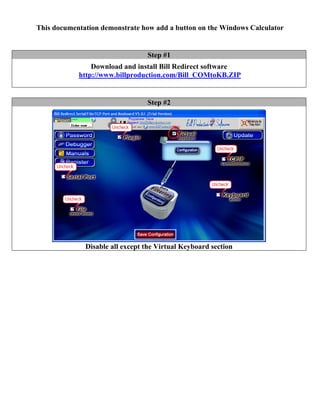
                                 Step #2


              Disable all except the Virtual Keyboard section
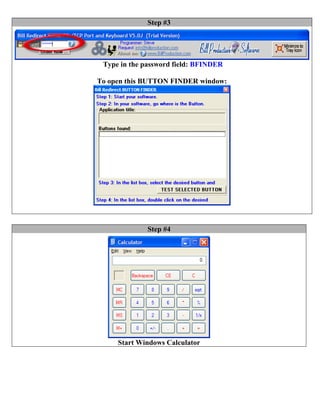
Step #3


 Type in the password field: BFINDER

To open this BUTTON FINDER window:


              Step #4


     Start Windows Calculator
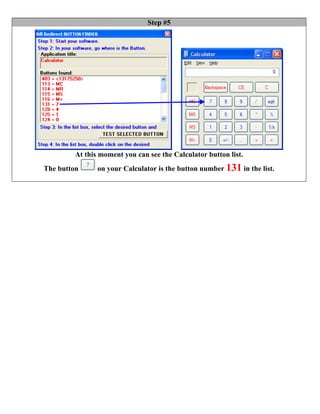
Step #5


         At this moment you can see the Calculator button list.
The button      on your Calculator is the button number 131 in the list.
Step #6


               Click on button: Configuration

                    To open this window:


                    Click on button: Add

                  To create a new button :


                       Use this configuration
                          Button Text: 7
String to send if … is push: {CLICK_BUTTON[Calculator,131]}
                31 is the button number, found in Step #5
                 Window Title: Calculator
             Check the option: Snap to Window
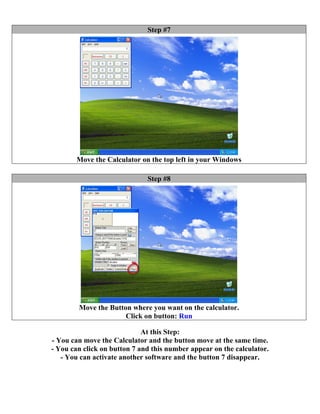
Step #7


        Move the Calculator on the top left in your Windows

                              Step #8


        Move the Button where you want on the calculator.
                      Click on button: Run

                             At this Step:
- You can move the Calculator and the button move at the same time.
- You can click on button 7 and this number appear on the calculator.
   - You can activate another software and the button 7 disappear.

Windows Virtual Keyboard modification

  • 1.
    Bill Redirect Change oradd Buttons on a existing application. Perfect for Touch Screen applications ! Documentation: 05/11/2008 Use this documentation with the product : Bill Redirect 5.0J and more Software configuration and integration service It's free, fast, and efficient ! Submit your case to info@billproduction.com and receive a customized answer ! Our Internet site: http://www.billproduction.com/ Email: info@BillProduction.com
  • 2.
    This documentation demonstratehow add a button on the Windows Calculator Step #1 Download and install Bill Redirect software http://www.billproduction.com/Bill_COMtoKB.ZIP Step #2 Disable all except the Virtual Keyboard section
  • 3.
    Step #3 Typein the password field: BFINDER To open this BUTTON FINDER window: Step #4 Start Windows Calculator
  • 4.
    Step #5 At this moment you can see the Calculator button list. The button on your Calculator is the button number 131 in the list.
  • 5.
    Step #6 Click on button: Configuration To open this window: Click on button: Add To create a new button : Use this configuration Button Text: 7 String to send if … is push: {CLICK_BUTTON[Calculator,131]} 31 is the button number, found in Step #5 Window Title: Calculator Check the option: Snap to Window
  • 6.
    Step #7 Move the Calculator on the top left in your Windows Step #8 Move the Button where you want on the calculator. Click on button: Run At this Step: - You can move the Calculator and the button move at the same time. - You can click on button 7 and this number appear on the calculator. - You can activate another software and the button 7 disappear.