Bill Redirect Software
                           and
                 National Control Devices
                  Products: R4x and R8x Pro
                 RS-232 E3C Networkable Relay Controllers
                (4-Relay Controllers and 8-Relay Controllers)
   * To use Relay Controllers 16 / 24… or do more, contact info@billproduction.com

                 Hardware Controllers: www.iorelay.com


         Supported Operating Systems: Windows 98,Me,2000,3000,XP,NT4, Vista.

       This tutorial shows how you can opening/closing relays
with Bill Redirect software via a onscreen Virtual Keyboard buttons.
      Use this documentation with the product : Bill Redirect Version 6.0C or more.
                                   (Rev.: 23/04/2009)


                 Our Internet site: http://www.billproduction.com/
                         Email: info@BillProduction.com
GENERAL INFORMATION


  To configure this software you have to enter in the field password www.billproduction.com, In the
configuration options you have the possibility to change this password for what you want. To close this
                              software, type END in the password field.


    Software configuration and integration service
                      It's free, fast (usually the same day), and efficient !
                       Submit your case to info@billproduction.com
                             and receive a customized solution !


                                Custom Software Development
With over 15 years of experience in successfully providing Custom Software Development solutions for
 over 300 customers, we have honed our processes and skills to cater to your specific business needs.
                  To request a feature, a Customize option or any kind of Software:
                             Contact by email: info@billproduction.com


                                                                                                          1
Step by Step Configuration
       This tutorial shows how you can opening/closing relays
      with Bill Redirect software via virtual keyboard buttons.

               Hardware Controllers: www.iorelay.com
Perfect to control door lock with, Bell, light, motor, Cameras, Robot …

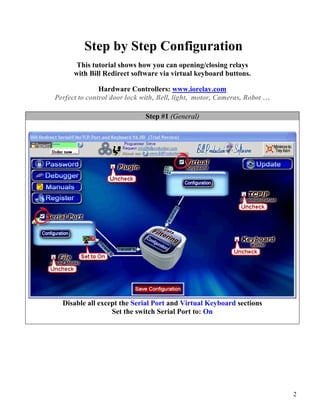
                              Step #1 (General)


  Disable all except the Serial Port and Virtual Keyboard sections
                  Set the switch Serial Port to: On


                                                                          2
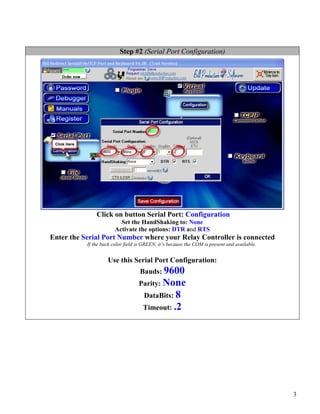
Step #2 (Serial Port Configuration)


               Click on button Serial Port: Configuration
                          Set the HandShaking to: None
                        Activate the options: DTR and RTS
Enter the Serial Port Number where your Relay Controller is connected
           If the back color field is GREEN, it’s because the COM is present and available.


                    Use this Serial Port Configuration:
                                    Bauds: 9600
                                   Parity: None
                                     DataBits: 8
                                     Timeout: .2


                                                                                              3
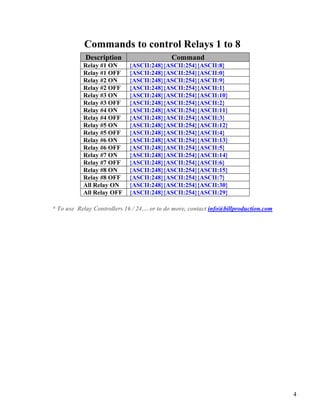
Commands to control Relays 1 to 8
            Description                     Command
           Relay #1 ON      {ASCII:248}{ASCII:254}{ASCII:8}
           Relay #1 OFF     {ASCII:248}{ASCII:254}{ASCII:0}
           Relay #2 ON      {ASCII:248}{ASCII:254}{ASCII:9}
           Relay #2 OFF     {ASCII:248}{ASCII:254}{ASCII:1}
           Relay #3 ON      {ASCII:248}{ASCII:254}{ASCII:10}
           Relay #3 OFF     {ASCII:248}{ASCII:254}{ASCII:2}
           Relay #4 ON      {ASCII:248}{ASCII:254}{ASCII:11}
           Relay #4 OFF     {ASCII:248}{ASCII:254}{ASCII:3}
           Relay #5 ON      {ASCII:248}{ASCII:254}{ASCII:12}
           Relay #5 OFF     {ASCII:248}{ASCII:254}{ASCII:4}
           Relay #6 ON      {ASCII:248}{ASCII:254}{ASCII:13}
           Relay #6 OFF     {ASCII:248}{ASCII:254}{ASCII:5}
           Relay #7 ON      {ASCII:248}{ASCII:254}{ASCII:14}
           Relay #7 OFF     {ASCII:248}{ASCII:254}{ASCII:6}
           Relay #8 ON      {ASCII:248}{ASCII:254}{ASCII:15}
           Relay #8 OFF     {ASCII:248}{ASCII:254}{ASCII:7}
           All Relay ON     {ASCII:248}{ASCII:254}{ASCII:30}
           All Relay OFF    {ASCII:248}{ASCII:254}{ASCII:29}

* To use Relay Controllers 16 / 24… or to do more, contact info@billproduction.com


                                                                                     4
Step #3 (Virtual Keyboard 2 buttons example)
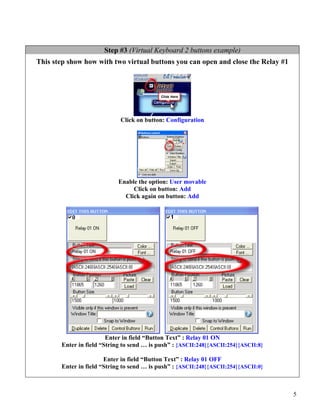
This step show how with two virtual buttons you can open and close the Relay #1


                            Click on button: Configuration


                            Enable the option: User movable
                                 Click on button: Add
                              Click again on button: Add


                        Enter in field “Button Text” : Relay 01 ON
       Enter in field “String to send … is push” : {ASCII:248}{ASCII:254}{ASCII:8}

                       Enter in field “Button Text” : Relay 01 OFF
       Enter in field “String to send … is push” : {ASCII:248}{ASCII:254}{ASCII:0}


                                                                                     5
Step #4 (Virtual Keyboard 1 button example)
This step show how with one virtual button you can open the Relay #2 when the first
       time this button is pressed and close this really when it’s pressed again


                                    Click on button: Add


                       Enter in field “Button Text” : Relay 02 ON/OFF
                         Enter in field “String to send … is push” :
                {EV1}{ASCII:248}{ASCII:254}{ASCII:9}{TX_BUTTON_TXT[02,Relay 02
      ON]}{EV1}{EV2}{ASCII:248}{ASCII:254}{ASCII:1}{TX_BUTTON_TXT[02,Relay 02 OFF]}{EV2}


                                                                                           6
Step #5 (Virtual Keyboard 1 button second example)
This step show how with one virtual button you can open the Relay #3 when the
            button is pressed and close this relay when it is released.


                                 Click on button: Add


                    Enter in field “Button Text” : Relay 03 ON/OFF
                      Enter in field “String to send … is push” :
             {*P}{ASCII:248}{ASCII:254}{ASCII:10}{TX_BUTTON_TXT[03,Relay 03
     ON]}{*P}{*R}{ASCII:248}{ASCII:254}{ASCII:2}{TX_BUTTON_TXT[03,Relay 03 OFF]}{*R}


                      Click on button: Save Configuration
                     Click on button: Minimize to Tray Icon
                                      TEST


                                                                                       7
For more documentation visit:

http://www.billproduction.com/documentation.html


              If a problem persist use the
     Software configuration and integration service
              It's free, fast, and efficient !
      Submit your case to info@billproduction.com
           and receive a customized solution !


                                                      8
PERSONALIZE

You can personalize my software with your company name, logo, skins, password, directory... With this
possibility you can distribute my software with your company information ! The end user, will think that
you are the creator of this software !

- To Extract the current configuration setting, just type in the field password: SAVE_SKIN
- After this action, a message box appear to indicate where is the configuration.
- Now you can modify this configuration files for what you want (Skin*.*).
- To re-load your skin modification type in the password field: LOAD_SKIN
*At startup my software load automatically your configuration
*To open the mouse position monitor, type MOUSE in the field password and move the main window in the left top corner.


How change the default configuration directory:
*By default the configuration of my software is in the directory: C:BillProduction.CFG
To change this directory:
       - In the same directory that my .exe application or in your C: modify the file: BPCFGDIR.TXT
       * This file contain the default configuration directory.
       * Several BillRedirect softwares in differents computers, can use the same directory over the network. If the
       configuration changed in a computer, then other computers automatically synchronize in the next 5
       seconds.

All the configuration is by default in C:BillProduction.cfg*.* then to duplicate the configuration from a computer to another,
just copy this directory.
* Don’t forget to close Bill Redirect on target computer before copy the configuration.


               For more flexibility/options or an installation package build for your company:
                                                   info@BillProduction.com


  *Also available on request, all our advertising (PDF format) are available in source mode (Document Word),
                          send your request by e-mail to: info@BillProduction.com


                                                                                                                                   9

Control Relays via RS-232 / USB

  • 1.
    Bill Redirect Software and National Control Devices Products: R4x and R8x Pro RS-232 E3C Networkable Relay Controllers (4-Relay Controllers and 8-Relay Controllers) * To use Relay Controllers 16 / 24… or do more, contact info@billproduction.com Hardware Controllers: www.iorelay.com Supported Operating Systems: Windows 98,Me,2000,3000,XP,NT4, Vista. This tutorial shows how you can opening/closing relays with Bill Redirect software via a onscreen Virtual Keyboard buttons. Use this documentation with the product : Bill Redirect Version 6.0C or more. (Rev.: 23/04/2009) Our Internet site: http://www.billproduction.com/ Email: info@BillProduction.com
  • 2.
    GENERAL INFORMATION To configure this software you have to enter in the field password www.billproduction.com, In the configuration options you have the possibility to change this password for what you want. To close this software, type END in the password field. Software configuration and integration service It's free, fast (usually the same day), and efficient ! Submit your case to info@billproduction.com and receive a customized solution ! Custom Software Development With over 15 years of experience in successfully providing Custom Software Development solutions for over 300 customers, we have honed our processes and skills to cater to your specific business needs. To request a feature, a Customize option or any kind of Software: Contact by email: info@billproduction.com 1
  • 3.
    Step by StepConfiguration This tutorial shows how you can opening/closing relays with Bill Redirect software via virtual keyboard buttons. Hardware Controllers: www.iorelay.com Perfect to control door lock with, Bell, light, motor, Cameras, Robot … Step #1 (General) Disable all except the Serial Port and Virtual Keyboard sections Set the switch Serial Port to: On 2
  • 4.
    Step #2 (SerialPort Configuration) Click on button Serial Port: Configuration Set the HandShaking to: None Activate the options: DTR and RTS Enter the Serial Port Number where your Relay Controller is connected If the back color field is GREEN, it’s because the COM is present and available. Use this Serial Port Configuration: Bauds: 9600 Parity: None DataBits: 8 Timeout: .2 3
  • 5.
    Commands to controlRelays 1 to 8 Description Command Relay #1 ON {ASCII:248}{ASCII:254}{ASCII:8} Relay #1 OFF {ASCII:248}{ASCII:254}{ASCII:0} Relay #2 ON {ASCII:248}{ASCII:254}{ASCII:9} Relay #2 OFF {ASCII:248}{ASCII:254}{ASCII:1} Relay #3 ON {ASCII:248}{ASCII:254}{ASCII:10} Relay #3 OFF {ASCII:248}{ASCII:254}{ASCII:2} Relay #4 ON {ASCII:248}{ASCII:254}{ASCII:11} Relay #4 OFF {ASCII:248}{ASCII:254}{ASCII:3} Relay #5 ON {ASCII:248}{ASCII:254}{ASCII:12} Relay #5 OFF {ASCII:248}{ASCII:254}{ASCII:4} Relay #6 ON {ASCII:248}{ASCII:254}{ASCII:13} Relay #6 OFF {ASCII:248}{ASCII:254}{ASCII:5} Relay #7 ON {ASCII:248}{ASCII:254}{ASCII:14} Relay #7 OFF {ASCII:248}{ASCII:254}{ASCII:6} Relay #8 ON {ASCII:248}{ASCII:254}{ASCII:15} Relay #8 OFF {ASCII:248}{ASCII:254}{ASCII:7} All Relay ON {ASCII:248}{ASCII:254}{ASCII:30} All Relay OFF {ASCII:248}{ASCII:254}{ASCII:29} * To use Relay Controllers 16 / 24… or to do more, contact info@billproduction.com 4
  • 6.
    Step #3 (VirtualKeyboard 2 buttons example) This step show how with two virtual buttons you can open and close the Relay #1 Click on button: Configuration Enable the option: User movable Click on button: Add Click again on button: Add Enter in field “Button Text” : Relay 01 ON Enter in field “String to send … is push” : {ASCII:248}{ASCII:254}{ASCII:8} Enter in field “Button Text” : Relay 01 OFF Enter in field “String to send … is push” : {ASCII:248}{ASCII:254}{ASCII:0} 5
  • 7.
    Step #4 (VirtualKeyboard 1 button example) This step show how with one virtual button you can open the Relay #2 when the first time this button is pressed and close this really when it’s pressed again Click on button: Add Enter in field “Button Text” : Relay 02 ON/OFF Enter in field “String to send … is push” : {EV1}{ASCII:248}{ASCII:254}{ASCII:9}{TX_BUTTON_TXT[02,Relay 02 ON]}{EV1}{EV2}{ASCII:248}{ASCII:254}{ASCII:1}{TX_BUTTON_TXT[02,Relay 02 OFF]}{EV2} 6
  • 8.
    Step #5 (VirtualKeyboard 1 button second example) This step show how with one virtual button you can open the Relay #3 when the button is pressed and close this relay when it is released. Click on button: Add Enter in field “Button Text” : Relay 03 ON/OFF Enter in field “String to send … is push” : {*P}{ASCII:248}{ASCII:254}{ASCII:10}{TX_BUTTON_TXT[03,Relay 03 ON]}{*P}{*R}{ASCII:248}{ASCII:254}{ASCII:2}{TX_BUTTON_TXT[03,Relay 03 OFF]}{*R} Click on button: Save Configuration Click on button: Minimize to Tray Icon TEST 7
  • 9.
    For more documentationvisit: http://www.billproduction.com/documentation.html If a problem persist use the Software configuration and integration service It's free, fast, and efficient ! Submit your case to info@billproduction.com and receive a customized solution ! 8
  • 10.
    PERSONALIZE You can personalizemy software with your company name, logo, skins, password, directory... With this possibility you can distribute my software with your company information ! The end user, will think that you are the creator of this software ! - To Extract the current configuration setting, just type in the field password: SAVE_SKIN - After this action, a message box appear to indicate where is the configuration. - Now you can modify this configuration files for what you want (Skin*.*). - To re-load your skin modification type in the password field: LOAD_SKIN *At startup my software load automatically your configuration *To open the mouse position monitor, type MOUSE in the field password and move the main window in the left top corner. How change the default configuration directory: *By default the configuration of my software is in the directory: C:BillProduction.CFG To change this directory: - In the same directory that my .exe application or in your C: modify the file: BPCFGDIR.TXT * This file contain the default configuration directory. * Several BillRedirect softwares in differents computers, can use the same directory over the network. If the configuration changed in a computer, then other computers automatically synchronize in the next 5 seconds. All the configuration is by default in C:BillProduction.cfg*.* then to duplicate the configuration from a computer to another, just copy this directory. * Don’t forget to close Bill Redirect on target computer before copy the configuration. For more flexibility/options or an installation package build for your company: info@BillProduction.com *Also available on request, all our advertising (PDF format) are available in source mode (Document Word), send your request by e-mail to: info@BillProduction.com 9