Bill Redirect Software

        How redirect Dimmer III
    (Automatic Package Dimensioning Solutions)
         From: www.everydayshipping.com


Use this documentation with the product : Bill Redirect Version 8.0H or more.
                             (Rev.: 19/06/2012)

           Our Internet site: http://www.billproduction.com/

                    Email: info@BillProduction.com
SOFTWARE DESCRIPTION


    Bill Redirect software communicates directly with the Dimmer and send the
 dimensions of your package to your existing software as if you have entered at the
keyboard. Our software can support any keyboard sequence like Tab, Enter between
            before and after each dimension (Length, Width and Height).

              No programming required works with your current application !


                Supported Operating Systems: Windows 98,Me,2000,3000,XP,NT4, Vista and Windows 7.


•   Oversize is being eliminated and dimensional calculations will be a requirement of almost every package you ship.
•   The Dimmer can be installed by itself on your existing packing table.
•   Easily capture parcel dimensions with Dimmer III sensors and Bill Redirect software.
•   Can be integrated with any shipping software.
•   One second sensor dimensional read times are some of the fastest in the industry.


                                                                                                                        1
GENERAL INFORMATION

  To configure this software you have to enter in the field password www.billproduction.com, In the
configuration options you have the possibility to change this password for what you want. To close this
                              software, type END in the password field.


                                              If a problem persist or to do more
                                                                  use our
                                          Software configuration and integration service
                                           It's free, fast (usually the same day), and efficient !
                                          Submit your case to info@billproduction.com
                                                 and receive a customized solution !


                                                                                                          2
Solution
 To redirect the Dimmer III communication to keyboard buffer

                                     Step #1 (General configuration)
                    Download and install Bill Redirect software:
                http://www.billproduction.com/Bill_COMtoKB.ZIP
            *To access the configuration, enter the 'Password' field: www.billproduction.com


Disable all except the Serial Port , Keyboard Buffer and Virtual Keyboard sections

        In the section “Serial Port” and “Pressed key” set the switches to: Off


                                                                                               3
Step #2 (Serial port configuration)


                                                 .3


                     Click on button: Configuration

 Enter the Serial Port Number where your Dimmer is connected.
        * If the back color field is GREEN, it’s because the COM is present and available.

Serial Port Configuration: Enter the configuration of your Dimmer.

                         Enter in field Bauds: 9600
                         Enter in field Parity: None
                          Enter in field DataBits: 8
                          Enter in field StopBits: 1
                         Enter in field Timeout: .3
                           Enter in field ETX: 3
                        Set the HandShaking to: None
                      Activate the options: DTR and RTS


                                                                                             4
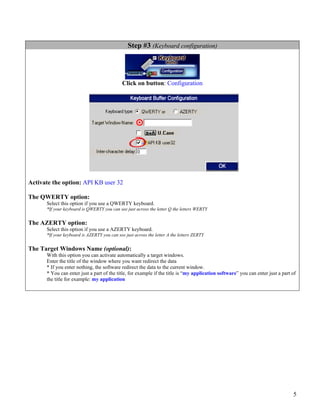
Step #3 (Keyboard configuration)


                                             Click on button: Configuration


Activate the option: API KB user 32

The QWERTY option:
      Select this option if you use a QWERTY keyboard.
      *If your keyboard is QWERTY you can see just across the letter Q the letters WERTY


The AZERTY option:
      Select this option if you use a AZERTY keyboard.
      *If your keyboard is AZERTY you can see just across the letter A the letters ZERTY


The Target Windows Name (optional):
      With this option you can activate automatically a target windows.
      Enter the title of the window where you want redirect the data
      * If you enter nothing, the software redirect the data to the current window.
      * You can enter just a part of the title, for example if the title is “my application software” you can enter just a part of
      the title for example: my application


                                                                                                                                5
Step #4 (How the dimensions will be sent)

                     Configuration of how the dimensions will be sent to your application
                      as if you have entered at the keyboard… Long Width and Height


                                            Click on: Data Filtering Configuration


                                  In section Search and Replace click on: ADD

                                     Enter in Search window: {SERIAL_RX}

                                                Enter in Replace by window:
{TAB}{MULTIPLY[{STRING_MID[RX_DATA,2,3]},1,#]}{TAB}{MULTIPLY[{STRING_MID[RX_DATA,5,3]},1,#]}{TAB}{MULTIPLY[{STRING_MID[RX_DATA,8,3]},1,#]}{ENTER}

                means Length                                  means Width                                 means Height


                        You can add or remove {TAB} and {ENTER} in this string
                                 depending of what you want to receive.


                                                                                                                                                    6
Step #5 (Virtual button configuration)
Create a Virtual Button to request the dimension from your Dimmer


                  Click on button: Configuration


            To create the button, click on button: Add


                                                                    7
Step #6 (Virtual button configuration)
                                   At this step you can see a button like this one:


                   * To see the configuration of the button activate the upper left check box

                            Enter in field Button Text: Dimension Package
                                   Use this field to set what you want to see on the button.


            Enter in field String to send … is push: {TX_SERIAL[D{ASCII:13}]}

Button Position: Use this section to change button position.
        * Tips: Activate the NumLock Click the button and use the number 4,6,2 and 8 to change the position.

Button Size : Use this section to change the button size.


                                                                                                               8
Step #7 (Optional virtual button configuration)
                                                         Example:


Window Title (optional):
        Option “Window Title” Description: With this option the button can appear and disappear when a specific window
        title is activate.
        *Example: If the window title is “Application shipping expert Version 1.2b” and in the field “Window Title” you enter
                      “shipping EXPERT” then each time that this window take the focus this button is visible.
         * To enter more of one window title, separate the title name by a comas:
                   Example: shipping EXPERT, NOTEPAD, PAGE COUNT
        * If this the field “Window Title” is blank, then the button is always visible.

Color (optional): Use this option to change the button back color.

Font (optional): Use this option to change the button text font.

Picture (optional): Use this section to:
        Paste the picture from the ClipBoard to the button.
        Clear the picture button.
        Load the picture button.


                                                                                                                           9
Step #8 (Optional hotkey to request the dimensions)
This optional step will allow you to request the dimensions via a hotkey for example F11.


                          Section “Pressed key” set the switch to position: On


                                Click on: Data Filtering Configuration


                                 Enter in field “Prefix”: {PAUSE.5SEC}

                                              Click on: ADD
                                      Enter in field “Search”: {F11}
                    * You can replace the hotkey {F11} by what you want example {ALT}{F10}

                    Enter in field “Replace by”: {TX_SERIAL[D{ASCII:13}]}


                                                                                             10
Step #9 (Test)
                    Test your Dimmer


- On main screen click on button: Save Configuration


                 Click on button: Run
             Open the Windows NotePad
             Click on your: Virtual Button
           Examples of what you should receive:
                  14     10      8


                      If a problem persist or to do more
                                          use our
                  Software configuration and integration service
                   It's free, fast (usually the same day), and efficient !
                  Submit your case to info@billproduction.com
                         and receive a customized solution !


                                                                             11
For more documentation visit:


http://www.billproduction.com/documentation.html


                                                   12

Automatic dimmer package dimensioning RS-232

  • 1.
    Bill Redirect Software How redirect Dimmer III (Automatic Package Dimensioning Solutions) From: www.everydayshipping.com Use this documentation with the product : Bill Redirect Version 8.0H or more. (Rev.: 19/06/2012) Our Internet site: http://www.billproduction.com/ Email: info@BillProduction.com
  • 2.
    SOFTWARE DESCRIPTION Bill Redirect software communicates directly with the Dimmer and send the dimensions of your package to your existing software as if you have entered at the keyboard. Our software can support any keyboard sequence like Tab, Enter between before and after each dimension (Length, Width and Height). No programming required works with your current application ! Supported Operating Systems: Windows 98,Me,2000,3000,XP,NT4, Vista and Windows 7. • Oversize is being eliminated and dimensional calculations will be a requirement of almost every package you ship. • The Dimmer can be installed by itself on your existing packing table. • Easily capture parcel dimensions with Dimmer III sensors and Bill Redirect software. • Can be integrated with any shipping software. • One second sensor dimensional read times are some of the fastest in the industry. 1
  • 3.
    GENERAL INFORMATION To configure this software you have to enter in the field password www.billproduction.com, In the configuration options you have the possibility to change this password for what you want. To close this software, type END in the password field. If a problem persist or to do more use our Software configuration and integration service It's free, fast (usually the same day), and efficient ! Submit your case to info@billproduction.com and receive a customized solution ! 2
  • 4.
    Solution To redirectthe Dimmer III communication to keyboard buffer Step #1 (General configuration) Download and install Bill Redirect software: http://www.billproduction.com/Bill_COMtoKB.ZIP *To access the configuration, enter the 'Password' field: www.billproduction.com Disable all except the Serial Port , Keyboard Buffer and Virtual Keyboard sections In the section “Serial Port” and “Pressed key” set the switches to: Off 3
  • 5.
    Step #2 (Serialport configuration) .3 Click on button: Configuration Enter the Serial Port Number where your Dimmer is connected. * If the back color field is GREEN, it’s because the COM is present and available. Serial Port Configuration: Enter the configuration of your Dimmer. Enter in field Bauds: 9600 Enter in field Parity: None Enter in field DataBits: 8 Enter in field StopBits: 1 Enter in field Timeout: .3 Enter in field ETX: 3 Set the HandShaking to: None Activate the options: DTR and RTS 4
  • 6.
    Step #3 (Keyboardconfiguration) Click on button: Configuration Activate the option: API KB user 32 The QWERTY option: Select this option if you use a QWERTY keyboard. *If your keyboard is QWERTY you can see just across the letter Q the letters WERTY The AZERTY option: Select this option if you use a AZERTY keyboard. *If your keyboard is AZERTY you can see just across the letter A the letters ZERTY The Target Windows Name (optional): With this option you can activate automatically a target windows. Enter the title of the window where you want redirect the data * If you enter nothing, the software redirect the data to the current window. * You can enter just a part of the title, for example if the title is “my application software” you can enter just a part of the title for example: my application 5
  • 7.
    Step #4 (Howthe dimensions will be sent) Configuration of how the dimensions will be sent to your application as if you have entered at the keyboard… Long Width and Height Click on: Data Filtering Configuration In section Search and Replace click on: ADD Enter in Search window: {SERIAL_RX} Enter in Replace by window: {TAB}{MULTIPLY[{STRING_MID[RX_DATA,2,3]},1,#]}{TAB}{MULTIPLY[{STRING_MID[RX_DATA,5,3]},1,#]}{TAB}{MULTIPLY[{STRING_MID[RX_DATA,8,3]},1,#]}{ENTER} means Length means Width means Height You can add or remove {TAB} and {ENTER} in this string depending of what you want to receive. 6
  • 8.
    Step #5 (Virtualbutton configuration) Create a Virtual Button to request the dimension from your Dimmer Click on button: Configuration To create the button, click on button: Add 7
  • 9.
    Step #6 (Virtualbutton configuration) At this step you can see a button like this one: * To see the configuration of the button activate the upper left check box Enter in field Button Text: Dimension Package Use this field to set what you want to see on the button. Enter in field String to send … is push: {TX_SERIAL[D{ASCII:13}]} Button Position: Use this section to change button position. * Tips: Activate the NumLock Click the button and use the number 4,6,2 and 8 to change the position. Button Size : Use this section to change the button size. 8
  • 10.
    Step #7 (Optionalvirtual button configuration) Example: Window Title (optional): Option “Window Title” Description: With this option the button can appear and disappear when a specific window title is activate. *Example: If the window title is “Application shipping expert Version 1.2b” and in the field “Window Title” you enter “shipping EXPERT” then each time that this window take the focus this button is visible. * To enter more of one window title, separate the title name by a comas: Example: shipping EXPERT, NOTEPAD, PAGE COUNT * If this the field “Window Title” is blank, then the button is always visible. Color (optional): Use this option to change the button back color. Font (optional): Use this option to change the button text font. Picture (optional): Use this section to: Paste the picture from the ClipBoard to the button. Clear the picture button. Load the picture button. 9
  • 11.
    Step #8 (Optionalhotkey to request the dimensions) This optional step will allow you to request the dimensions via a hotkey for example F11. Section “Pressed key” set the switch to position: On Click on: Data Filtering Configuration Enter in field “Prefix”: {PAUSE.5SEC} Click on: ADD Enter in field “Search”: {F11} * You can replace the hotkey {F11} by what you want example {ALT}{F10} Enter in field “Replace by”: {TX_SERIAL[D{ASCII:13}]} 10
  • 12.
    Step #9 (Test) Test your Dimmer - On main screen click on button: Save Configuration Click on button: Run Open the Windows NotePad Click on your: Virtual Button Examples of what you should receive: 14 10 8 If a problem persist or to do more use our Software configuration and integration service It's free, fast (usually the same day), and efficient ! Submit your case to info@billproduction.com and receive a customized solution ! 11
  • 13.
    For more documentationvisit: http://www.billproduction.com/documentation.html 12