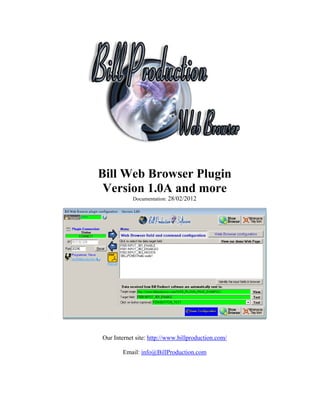
Bill Web Browser Plugin
 Version 1.0A and more
           Documentation: 28/02/2012


Our Internet site: http://www.billproduction.com/

        Email: info@BillProduction.com
SOFTWARE DESCRIPTION


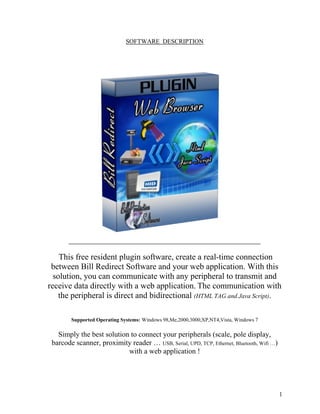
    This free resident plugin software, create a real-time connection
 between Bill Redirect Software and your web application. With this
  solution, you can communicate with any peripheral to transmit and
receive data directly with a web application. The communication with
    the peripheral is direct and bidirectional (HTML TAG and Java Script).

        Supported Operating Systems: Windows 98,Me,2000,3000,XP,NT4,Vista, Windows 7

   Simply the best solution to connect your peripherals (scale, pole display,
 barcode scanner, proximity reader … USB, Serial, UPD, TCP, Ethernet, Bluetooth, Wifi …)
                           with a web application !


                                                                                           1
GENERAL INFORMATION


      * This free plugin works with Bill Redirect version 6.0A and more
To configure this software you have to enter in the field password www.billproduction.com
  In Bill Redirect software configuration options you have the possibility to change this
                               password for what you want.


    To use some Web Browser Plugins, you must start some instance of the software.
             Use this syntax: Bill_Web_Plugin.exe /#INSTANCE_NAME#

                       Each instance can have a different configuration !

                  Example: Create a Shortcut instance Scanner_001
            - Create a shortcut on your desktop to start Bill Redirect software
                                             Shortcut properties:
                                  - In the first field (Target) enter:
           "C:Program FilesBillProductionBill Web Browser pluginBill_Web_Plugin.exe" /#Scanner_001#
                          - Start our software with this shortcut
                  Example: Create a Shortcut instance Scanner_002
            - Create a shortcut on your desktop to start Bill Redirect software
                                             Shortcut properties:
                                  - In the first field (Target) enter:
           "C:Program FilesBillProductionBill Web Browser pluginBill_Web_Plugin.exe" /#Scanner_002#
                               - Start our software with this shortcut


     Don’t forget to push the Save Configuration button to save your current setting.


                                                                                                          2
SOFTWARE DESCRIPTION


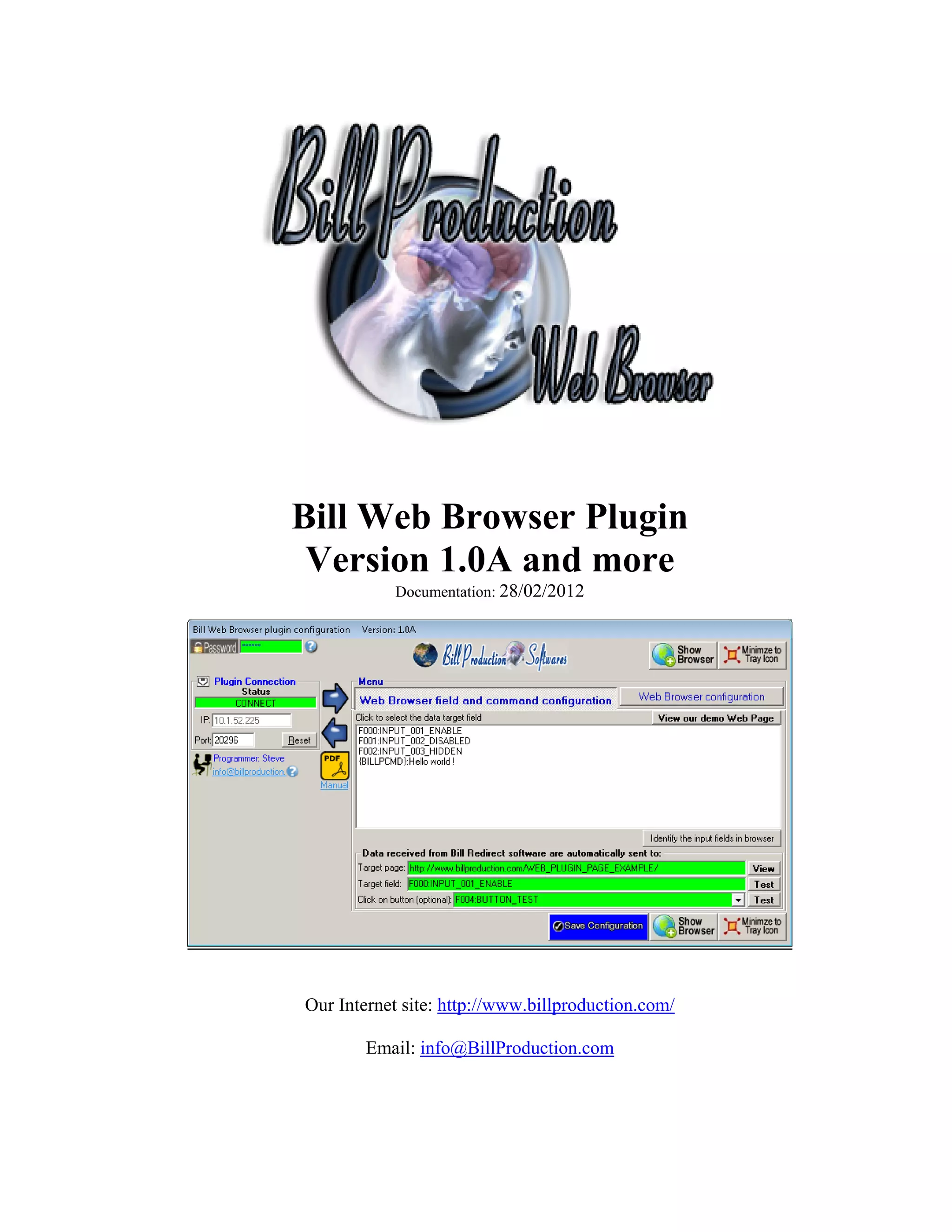
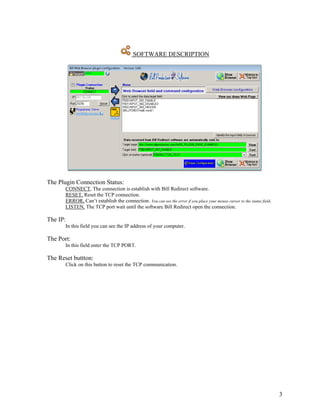
The Plugin Connection Status:
       CONNECT, The connection is establish with Bill Redirect software.
       RESET, Reset the TCP connection.
       ERROR, Can’t establish the connection. You can see the error if you place your mouse cursor to the status field.
       LISTEN, The TCP port wait until the software Bill Redirect open the connection.

The IP:
       In this field you can see the IP address of your computer.

The Port:
       In this field enter the TCP PORT.

The Reset buttton:
       Click on this button to reset the TCP communication.


                                                                                                                          3
SOFTWARE DESCRIPTION (Continuation)


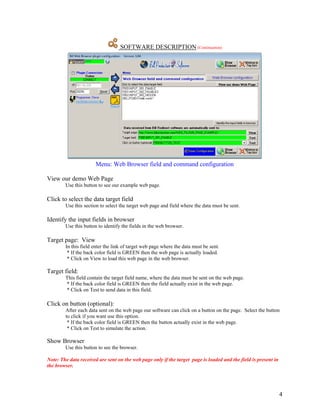
                       Menu: Web Browser field and command configuration

View our demo Web Page
        Use this button to see our example web page.

Click to select the data target field
        Use this section to select the target web page and field where the data must be sent.

Identify the input fields in browser
        Use this button to identify the fields in the web browser.

Target page: View
        In this field enter the link of target web page where the data must be sent.
         * If the back color field is GREEN then the web page is actually loaded.
         * Click on View to load this web page in the web browser.

Target field:
        This field contain the target field name, where the data must be sent on the web page.
        * If the back color field is GREEN then the field actually exist in the web page.
        * Click on Test to send data in this field.

Click on button (optional):
        After each data sent on the web page our software can click on a button on the page. Select the button
        to click if you want use this option.
         * If the back color field is GREEN then the button actually exist in the web page.
         * Click on Test to simulate the action.

Show Browser
        Use this button to see the browser.

Note: The data received are sent on the web page only if the target page is loaded and the field is present in
the browser.


                                                                                                                 4
SOFTWARE DESCRIPTION (Continuation)


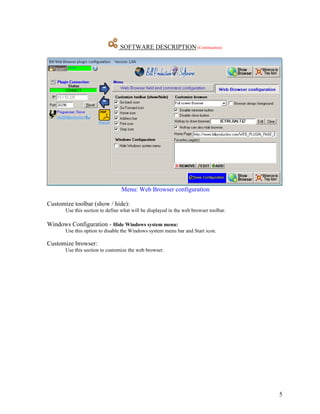
                                 Menu: Web Browser configuration

Customize toolbar (show / hide):
       Use this section to define what will be displayed in the web browser toolbar.

Windows Configuration - Hide Windows system menu:
       Use this option to disable the Windows system menu bar and Start icon.

Customize browser:
       Use this section to customize the web browser.


                                                                                       5
CONFIGURATION

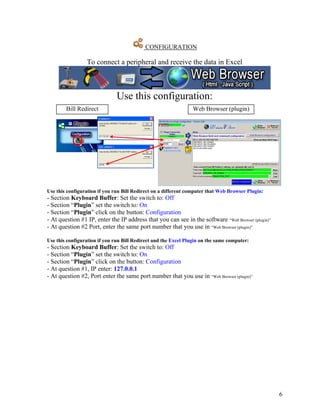
                 To connect a peripheral and receive the data in Excel


                               Use this configuration:
        Bill Redirect                                            Web Browser (plugin)


Use this configuration if you run Bill Redirect on a different computer that Web Browser Plugin:
- Section Keyboard Buffer: Set the switch to: Off
- Section “Plugin” set the switch to: On
- Section “Plugin” click on the button: Configuration
- At question #1 IP, enter the IP address that you can see in the software “Web Browser (plugin)”
- At question #2 Port, enter the same port number that you use in “Web Browser (plugin)”

Use this configuration if you run Bill Redirect and the Excel Plugin on the same computer:
- Section Keyboard Buffer: Set the switch to: Off
- Section “Plugin” set the switch to: On
- Section “Plugin” click on the button: Configuration
- At question #1, IP enter: 127.0.0.1
- At question #2, Port enter the same port number that you use in “Web Browser (plugin)”


                                                                                                    6
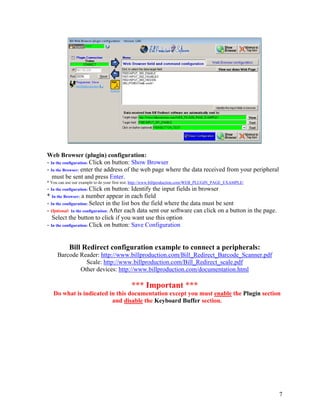
Web Browser (plugin) configuration:
- In the configuration: Click on button: Show Browser
- In the Browser: enter the address of the web page where the data received from your peripheral
   must be sent and press Enter.
* You can use our example to do your first test: http://www.billproduction.com/WEB_PLUGIN_PAGE_EXAMPLE/
- In the configuration: Click on button: Identify the input fields in browser
* In the Browser: a number appear in each field
- In the configuration: Select in the list box the field where the data must be sent
- Optional: In the configuration: After each data sent our software can click on a button in the page.
   Select the button to click if you want use this option
- In the configuration: Click on button: Save Configuration


           Bill Redirect configuration example to connect a peripherals:
     Barcode Reader: http://www.billproduction.com/Bill_Redirect_Barcode_Scanner.pdf
               Scale: http://www.billproduction.com/Bill_Redirect_scale.pdf
             Other devices: http://www.billproduction.com/documentation.html

                                            *** Important ***
   Do what is indicated in this documentation except you must enable the Plugin section
                         and disable the Keyboard Buffer section.


                                                                                                          7
Web Browser Plugin HTML TAG
To send data command from your web page to Bill Redirect peripheral use this HTML syntax TAG:

      <INPUT TYPE=hidden NAME="SEND_COMMAND" VALUE="{BILLPCMD}Hello world !">

                           *** Note: Replace Hello world ! by what you want.


Example HTML TAG to send Hello Word ! to serial port configured in Bill Redirect:
<INPUT TYPE=hidden NAME="SEND_COMMAND" VALUE="{BILLPCMD}{TX_SERIAL[Hello Word !{ASCII:13}]}">


        Our web page example: http://www.billproduction.com/WEB_PLUGIN_PAGE_EXAMPLE/


                Use the Bill Redirect manual to see all the commands available:
                  http://www.billproduction.com/Bill_Redirect_Manual.pdf


                                      *** Important ***
          In Bill Redirect software in section Plugin you must set the switch to: ON


                            For more documentation visit:


           http://www.billproduction.com/documentation.html


                                                                                                8
If a problem persist or to do more
                                                      use our
                              Software configuration and integration service
                               It's free, fast (usually the same day), and efficient !
                              Submit your case to info@billproduction.com
                                     and receive a customized solution !


For more flexibility/options or an installation package build for your company:
                           info@BillProduction.com


                                                                                         9
10

Full screen Web Browser support RS-232 / TCPIP peripheral (plugin)

  • 1.
    Bill Web BrowserPlugin Version 1.0A and more Documentation: 28/02/2012 Our Internet site: http://www.billproduction.com/ Email: info@BillProduction.com
  • 2.
    SOFTWARE DESCRIPTION This free resident plugin software, create a real-time connection between Bill Redirect Software and your web application. With this solution, you can communicate with any peripheral to transmit and receive data directly with a web application. The communication with the peripheral is direct and bidirectional (HTML TAG and Java Script). Supported Operating Systems: Windows 98,Me,2000,3000,XP,NT4,Vista, Windows 7 Simply the best solution to connect your peripherals (scale, pole display, barcode scanner, proximity reader … USB, Serial, UPD, TCP, Ethernet, Bluetooth, Wifi …) with a web application ! 1
  • 3.
    GENERAL INFORMATION * This free plugin works with Bill Redirect version 6.0A and more To configure this software you have to enter in the field password www.billproduction.com In Bill Redirect software configuration options you have the possibility to change this password for what you want. To use some Web Browser Plugins, you must start some instance of the software. Use this syntax: Bill_Web_Plugin.exe /#INSTANCE_NAME# Each instance can have a different configuration ! Example: Create a Shortcut instance Scanner_001 - Create a shortcut on your desktop to start Bill Redirect software Shortcut properties: - In the first field (Target) enter: "C:Program FilesBillProductionBill Web Browser pluginBill_Web_Plugin.exe" /#Scanner_001# - Start our software with this shortcut Example: Create a Shortcut instance Scanner_002 - Create a shortcut on your desktop to start Bill Redirect software Shortcut properties: - In the first field (Target) enter: "C:Program FilesBillProductionBill Web Browser pluginBill_Web_Plugin.exe" /#Scanner_002# - Start our software with this shortcut Don’t forget to push the Save Configuration button to save your current setting. 2
  • 4.
    SOFTWARE DESCRIPTION The PluginConnection Status: CONNECT, The connection is establish with Bill Redirect software. RESET, Reset the TCP connection. ERROR, Can’t establish the connection. You can see the error if you place your mouse cursor to the status field. LISTEN, The TCP port wait until the software Bill Redirect open the connection. The IP: In this field you can see the IP address of your computer. The Port: In this field enter the TCP PORT. The Reset buttton: Click on this button to reset the TCP communication. 3
  • 5.
    SOFTWARE DESCRIPTION (Continuation) Menu: Web Browser field and command configuration View our demo Web Page Use this button to see our example web page. Click to select the data target field Use this section to select the target web page and field where the data must be sent. Identify the input fields in browser Use this button to identify the fields in the web browser. Target page: View In this field enter the link of target web page where the data must be sent. * If the back color field is GREEN then the web page is actually loaded. * Click on View to load this web page in the web browser. Target field: This field contain the target field name, where the data must be sent on the web page. * If the back color field is GREEN then the field actually exist in the web page. * Click on Test to send data in this field. Click on button (optional): After each data sent on the web page our software can click on a button on the page. Select the button to click if you want use this option. * If the back color field is GREEN then the button actually exist in the web page. * Click on Test to simulate the action. Show Browser Use this button to see the browser. Note: The data received are sent on the web page only if the target page is loaded and the field is present in the browser. 4
  • 6.
    SOFTWARE DESCRIPTION (Continuation) Menu: Web Browser configuration Customize toolbar (show / hide): Use this section to define what will be displayed in the web browser toolbar. Windows Configuration - Hide Windows system menu: Use this option to disable the Windows system menu bar and Start icon. Customize browser: Use this section to customize the web browser. 5
  • 7.
    CONFIGURATION To connect a peripheral and receive the data in Excel Use this configuration: Bill Redirect Web Browser (plugin) Use this configuration if you run Bill Redirect on a different computer that Web Browser Plugin: - Section Keyboard Buffer: Set the switch to: Off - Section “Plugin” set the switch to: On - Section “Plugin” click on the button: Configuration - At question #1 IP, enter the IP address that you can see in the software “Web Browser (plugin)” - At question #2 Port, enter the same port number that you use in “Web Browser (plugin)” Use this configuration if you run Bill Redirect and the Excel Plugin on the same computer: - Section Keyboard Buffer: Set the switch to: Off - Section “Plugin” set the switch to: On - Section “Plugin” click on the button: Configuration - At question #1, IP enter: 127.0.0.1 - At question #2, Port enter the same port number that you use in “Web Browser (plugin)” 6
  • 8.
    Web Browser (plugin)configuration: - In the configuration: Click on button: Show Browser - In the Browser: enter the address of the web page where the data received from your peripheral must be sent and press Enter. * You can use our example to do your first test: http://www.billproduction.com/WEB_PLUGIN_PAGE_EXAMPLE/ - In the configuration: Click on button: Identify the input fields in browser * In the Browser: a number appear in each field - In the configuration: Select in the list box the field where the data must be sent - Optional: In the configuration: After each data sent our software can click on a button in the page. Select the button to click if you want use this option - In the configuration: Click on button: Save Configuration Bill Redirect configuration example to connect a peripherals: Barcode Reader: http://www.billproduction.com/Bill_Redirect_Barcode_Scanner.pdf Scale: http://www.billproduction.com/Bill_Redirect_scale.pdf Other devices: http://www.billproduction.com/documentation.html *** Important *** Do what is indicated in this documentation except you must enable the Plugin section and disable the Keyboard Buffer section. 7
  • 9.
    Web Browser PluginHTML TAG To send data command from your web page to Bill Redirect peripheral use this HTML syntax TAG: <INPUT TYPE=hidden NAME="SEND_COMMAND" VALUE="{BILLPCMD}Hello world !"> *** Note: Replace Hello world ! by what you want. Example HTML TAG to send Hello Word ! to serial port configured in Bill Redirect: <INPUT TYPE=hidden NAME="SEND_COMMAND" VALUE="{BILLPCMD}{TX_SERIAL[Hello Word !{ASCII:13}]}"> Our web page example: http://www.billproduction.com/WEB_PLUGIN_PAGE_EXAMPLE/ Use the Bill Redirect manual to see all the commands available: http://www.billproduction.com/Bill_Redirect_Manual.pdf *** Important *** In Bill Redirect software in section Plugin you must set the switch to: ON For more documentation visit: http://www.billproduction.com/documentation.html 8
  • 10.
    If a problempersist or to do more use our Software configuration and integration service It's free, fast (usually the same day), and efficient ! Submit your case to info@billproduction.com and receive a customized solution ! For more flexibility/options or an installation package build for your company: info@BillProduction.com 9
  • 11.