Bill Redirect
        Transfer serial barcode data as keystrokes into your Windows applications.
                          (as if it was typed in using the keyboard)

                                    Documentation: 24/02/2013


                Use this documentation with the product : Bill Redirect 5.0L and more


   Serial RS232 to Keyboard wedge software:
http://www.billproduction.com/Wedge_Keyboard_Serial_RS232_Barcode_Scanner/INDEX.HTML


                                Email: info@BillProduction.com
This documentation demonstrate how
                Transfer serial barcode data as keystrokes into your Windows applications.


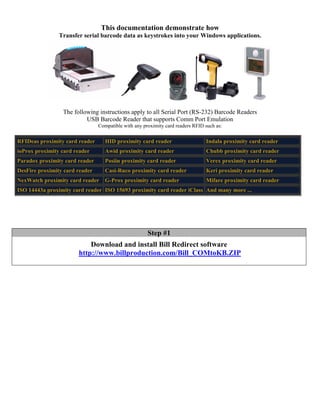
                 The following instructions apply to all Serial Port (RS-232) Barcode Readers
                          USB Barcode Reader that supports Comm Port Emulation
                                Compatible with any proximity card readers RFID such as:

RFIDeas proximity card reader      HID proximity card reader                    Indala proximity card reader
ioProx proximity card reader       Awid proximity card reader                   Chubb proximity card reader
Paradox proximity card reader      Posiin proximity card reader                 Verex proximity card reader
DesFire proximity card reader      Casi-Ruco proximity card reader              Keri proximity card reader
NexWatch proximity card reader     G-Prox proximity card reader                 Mifare proximity card reader
ISO 14443a proximity card reader ISO 15693 proximity card reader iClass And many more ...


                                                      Step #1
                           Download and install Bill Redirect software
                       http://www.billproduction.com/Bill_COMtoKB.ZIP
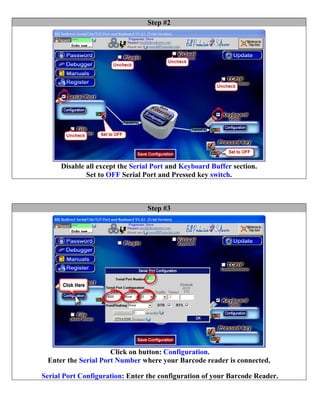
Step #2


      Disable all except the Serial Port and Keyboard Buffer section.
              Set to OFF Serial Port and Pressed key switch.


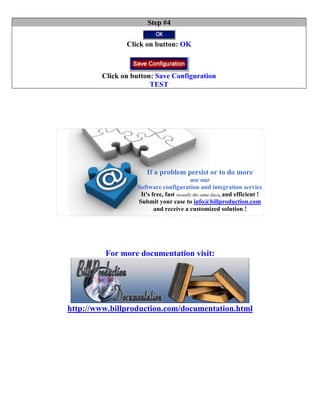
                                 Step #3


                     Click on button: Configuration.
 Enter the Serial Port Number where your Barcode reader is connected.

Serial Port Configuration: Enter the configuration of your Barcode Reader.
Step #4

               Click on button: OK


        Click on button: Save Configuration
                       TEST


                      If a problem persist or to do more
                                          use our
                  Software configuration and integration service
                   It's free, fast (usually the same day), and efficient !
                  Submit your case to info@billproduction.com
                         and receive a customized solution !


         For more documentation visit:


http://www.billproduction.com/documentation.html

Serial RS232 to Keyboard wedge software

  • 1.
    Bill Redirect Transfer serial barcode data as keystrokes into your Windows applications. (as if it was typed in using the keyboard) Documentation: 24/02/2013 Use this documentation with the product : Bill Redirect 5.0L and more Serial RS232 to Keyboard wedge software: http://www.billproduction.com/Wedge_Keyboard_Serial_RS232_Barcode_Scanner/INDEX.HTML Email: info@BillProduction.com
  • 2.
    This documentation demonstratehow Transfer serial barcode data as keystrokes into your Windows applications. The following instructions apply to all Serial Port (RS-232) Barcode Readers USB Barcode Reader that supports Comm Port Emulation Compatible with any proximity card readers RFID such as: RFIDeas proximity card reader HID proximity card reader Indala proximity card reader ioProx proximity card reader Awid proximity card reader Chubb proximity card reader Paradox proximity card reader Posiin proximity card reader Verex proximity card reader DesFire proximity card reader Casi-Ruco proximity card reader Keri proximity card reader NexWatch proximity card reader G-Prox proximity card reader Mifare proximity card reader ISO 14443a proximity card reader ISO 15693 proximity card reader iClass And many more ... Step #1 Download and install Bill Redirect software http://www.billproduction.com/Bill_COMtoKB.ZIP
  • 3.
    Step #2 Disable all except the Serial Port and Keyboard Buffer section. Set to OFF Serial Port and Pressed key switch. Step #3 Click on button: Configuration. Enter the Serial Port Number where your Barcode reader is connected. Serial Port Configuration: Enter the configuration of your Barcode Reader.
  • 4.
    Step #4 Click on button: OK Click on button: Save Configuration TEST If a problem persist or to do more use our Software configuration and integration service It's free, fast (usually the same day), and efficient ! Submit your case to info@billproduction.com and receive a customized solution ! For more documentation visit: http://www.billproduction.com/documentation.html